Electronics Tomorrow A62000515 Bluetooth Temperature Logger User Manual A620

Electronics Tomorrow Ltd. Bluetooth Temperature Logger A620

user manual

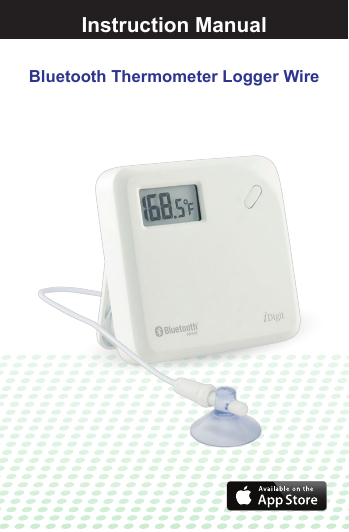
Bluetooth Thermometer Logger WireInstruction Manual
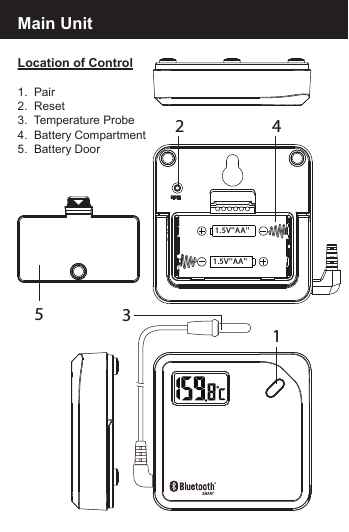
Location of Control1.  Pair 2.  Reset3.  Temperature Probe4.  Battery Compartment5.  Battery DoorMain Unit12 4351.5V''AA''1.5V''AA''RESET
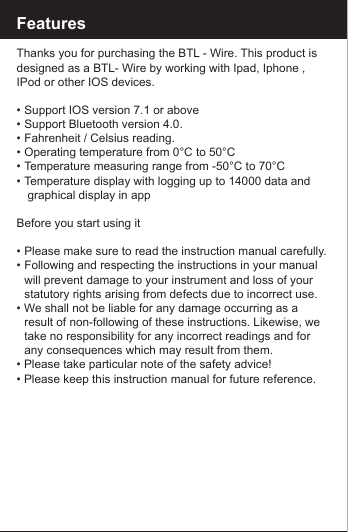
FeaturesThanks you for purchasing the BTL - Wire. This product is designed as a BTL- Wire by working with Ipad, Iphone , IPod or other IOS devices.•  Support IOS version 7.1 or above •  Support Bluetooth version 4.0.•  Fahrenheit / Celsius reading.•  Operating temperature from 0°C to 50°C•  Temperature measuring range from -50°C to 70°C•  Temperature display with logging up to 14000 data and         graphical display in appBefore you start using it•  Please make sure to read the instruction manual carefully.•  Following and respecting the instructions in your manual    will prevent damage to your instrument and loss of your     statutory rights arising from defects due to incorrect use.• We shall not be liable for any damage occurring as a      result of non-following of these instructions. Likewise, we    take no responsibility for any incorrect readings and for     any consequences which may result from them.• Please take particular note of the safety advice!• Please keep this instruction manual for future reference.
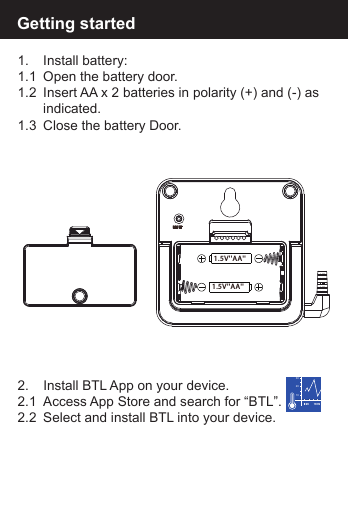
1.  Install battery:1.1  Open the battery door.1.2  Insert AA x 2 batteries in polarity (+) and (-) as    indicated.1.3  Close the battery Door.2.   Install BTL App on your device.2.1  Access App Store and search for “BTL”. 2.2  Select and install BTL into your device.Getting started1020301.5V''AA''1.5V''AA''RESET
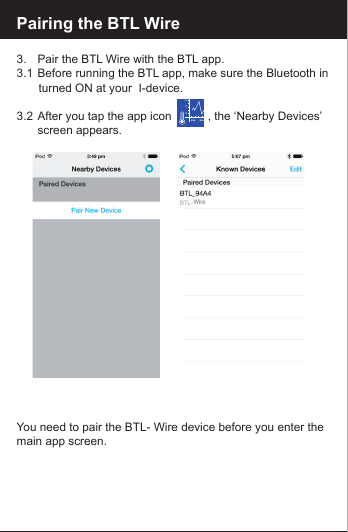
Pairing the BTL Wire3.   Pair the BTL Wire with the BTL app.3.1  Before running the BTL app, make sure the Bluetooth in     turned ON at your  I-device.3.2  After you tap the app icon           , the ‘Nearby Devices’    screen appears. You need to pair the BTL- Wire device before you enter the main app screen.102030Wire
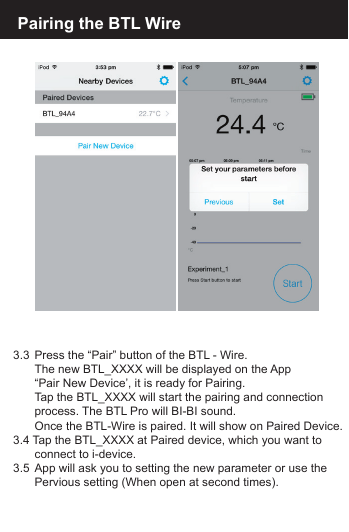
3.3  Press the “Pair” button of the BTL - Wire.   The new BTL_XXXX will be displayed on the App   “Pair New Device’, it is ready for Pairing.   Tap the BTL_XXXX will start the pairing and connection   process. The BTL Pro will BI-BI sound.   Once the BTL-Wire is paired. It will show on Paired Device.3.4 Tap the BTL_XXXX at Paired device, which you want to  connect to i-device.3.5  App will ask you to setting the new parameter or use the   Pervious setting (When open at second times). Pairing the BTL Wire
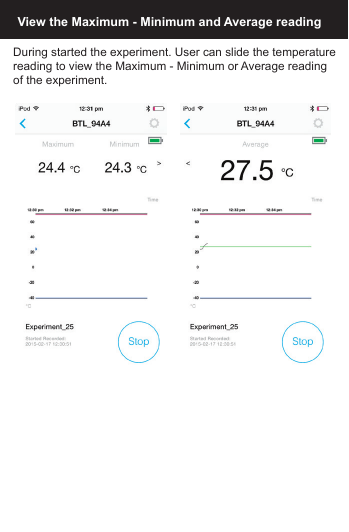
During started the experiment. User can slide the temperaturereading to view the Maximum - Minimum or Average readingof the experiment.View the Maximum - Minimum and Average reading
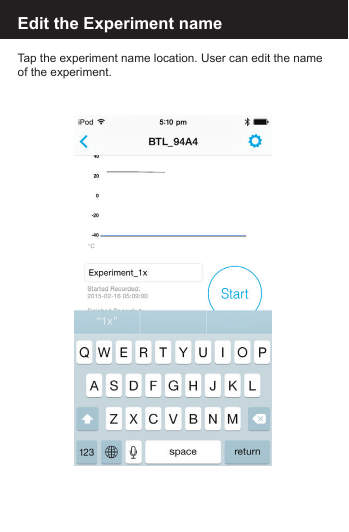
Edit the Experiment name:Edit the Experiment nameTap the experiment name location. User can edit the name of the experiment.
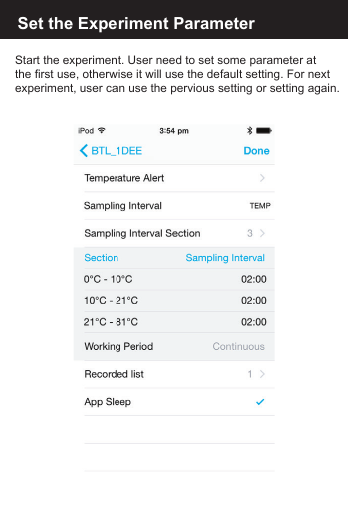
Set the Experiment ParameterStart the experiment. User need to set some parameter at the first use, otherwise it will use the default setting. For nextexperiment, user can use the pervious setting or setting again.
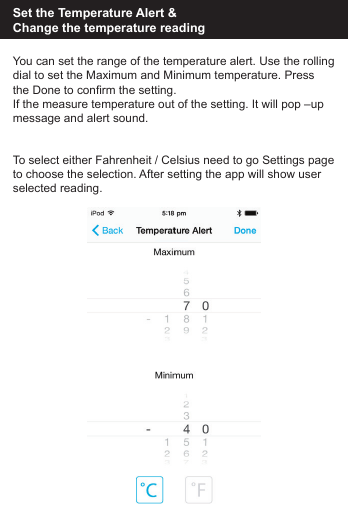
Set the Temperature Alert & Change the temperature readingYou can set the range of the temperature alert. Use the rollingdial to set the Maximum and Minimum temperature. Press the Done to confirm the setting.If the measure temperature out of the setting. It will pop –up message and alert sound.To select either Fahrenheit / Celsius need to go Settings pageto choose the selection. After setting the app will show userselected reading.
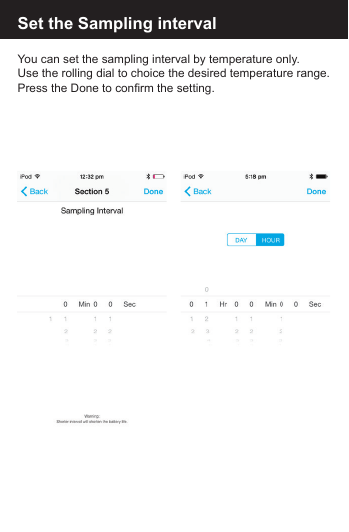
Set the Sampling intervalYou can set the sampling interval by temperature only. Use the rolling dial to choice the desired temperature range.Press the Done to confirm the setting.
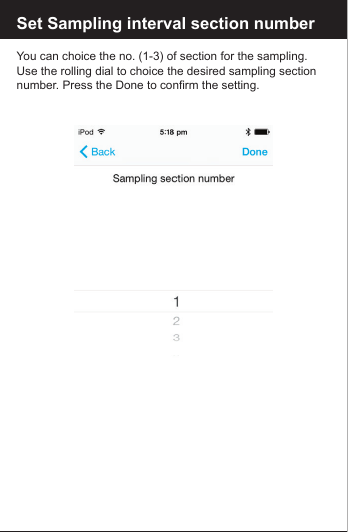
You can choice the no. (1-3) of section for the sampling. Use the rolling dial to choice the desired sampling section number. Press the Done to confirm the setting.Set Sampling interval section number
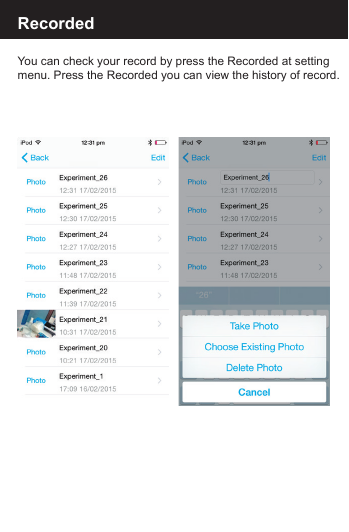
RecordedYou can check your record by press the Recorded at settingmenu. Press the Recorded you can view the history of record.
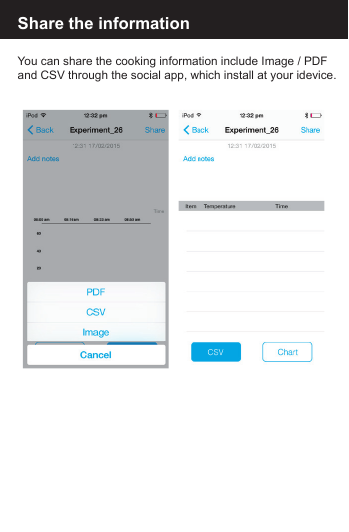
Share the informationYou can share the cooking information include Image / PDF and CSV through the social app, which install at your idevice.
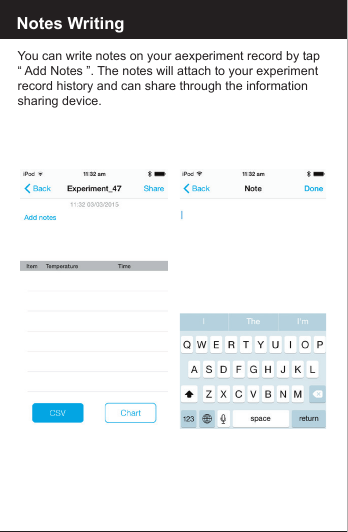
Notes WritingYou can write notes on your aexperiment record by tap“ Add Notes ”. The notes will attach to your experiment record history and can share through the information sharing device.
RTL WireunitspacebuzzerManufacturer reserves the right to update the contents of this manual and App.
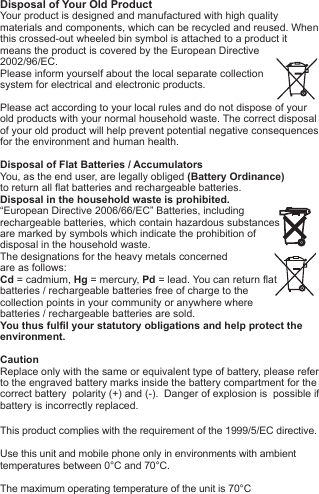
Disposal of Your Old ProductYour product is designed and manufactured with high quality materials and components, which can be recycled and reused. When this crossed-out wheeled bin symbol is attached to a product itmeans the product is covered by the European Directive2002/96/EC.Please inform yourself about the local separate collectionsystem for electrical and electronic products. Please act according to your local rules and do not dispose of yourold products with your normal household waste. The correct disposal of your old product will help prevent potential negative consequences for the environment and human health. Disposal of Flat Batteries / AccumulatorsYou, as the end user, are legally obliged (Battery Ordinance) to return all flat batteries and rechargeable batteries. Disposal in the household waste is prohibited. “European Directive 2006/66/EC” Batteries, including rechargeable batteries, which contain hazardous substancesare marked by symbols which indicate the prohibition ofdisposal in the household waste. The designations for the heavy metals concerned are as follows: Cd = cadmium, Hg = mercury, Pd = lead. You can return flatbatteries / rechargeable batteries free of charge to thecollection points in your community or anywhere wherebatteries / rechargeable batteries are sold.You thus fulfil your statutory obligations and help protect the environment.CautionReplace only with the same or equivalent type of battery, please refer to the engraved battery marks inside the battery compartment for the correct battery  polarity (+) and (-).  Danger of explosion is  possible if battery is incorrectly replaced.This product complies with the requirement of the 1999/5/EC directive.Use this unit and mobile phone only in environments with ambienttemperatures between 0°C and 70°C.The maximum operating temperature of the unit is 70°C
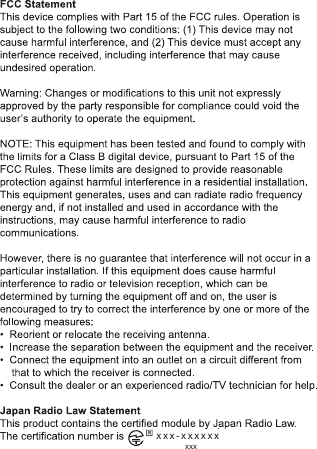
xxx-xxxxxxxxx

Navigation menu