Elentec N4410 PORTABLE MULTIMEDIA PLAYER WITH BLUETOOTH User Manual users manual

Elentec Co.,Ltd. PORTABLE MULTIMEDIA PLAYER WITH BLUETOOTH users manual

users manual

1Welcome to Your Product’s User ManualThank you very much for purchasing our device.Before using this product, please be sure to read this manual.Actual product specifications may differ from what is indicated in this manual as product enhancements are implemented without prior notice.Printed at the time of production, this manual may contain technical or editorial mistakes or omission.
3CONTENTSWARNING 04PRECAUTIONS FOR SAFETY 05BEFORE STARTINGBasic Functions  12What is GPS?  12GPS Reception Time Guide  12Product parts  13Accessories 14Charging the battery  15Installing the device in a car  16제품 세워서 사용하기 17USING THE BASIC FUNCTIONSMain menu screen  20Programs 20TITLE BAR 21NAVIGATION 22MOVIE PLAYER 23JUKE BOX 26HANDS FREE 29OFFICEWHITE BOARD 33IMAGE VIEWER 35CAR DIARY 36FILE BROWSER 43CALCULATOR 44CONTROL PANELSCREEN & DISPLAY 45VOLUME & SOUNDS 46STYLUS 47POWER 48ADDITIONAL FUNCTIONSPC LINK FUNCTIONSLinking with a PC  50Delinking from a PC  50Moving/deleting files  50Firmware Upgrade  51TRANSCODERBefore using the Transcoder 52Installing the Transcoder 53Using the Transcoder 54Whole file conversion  56Partial file conversion  57DVD Player 59Using DVD Converter  60Converting DVD files  61RealVideo Converter 61Upgrading Transcoder 61Advanced DVD Converter  62Quick Time Converter 62TROUBLESHOOTING 63SPECIFICATION 65
4FCC compliance InformationWARNINGThis device complies with part 15 of FCC Rules.Operation is subject to the following two conditions:1. This device may not cause harmful interference, and2. This device must accept any interference received.Including interference that may cause undesired operation.Information to UserThis equipment has been tested and found to comply with the limits for a Class B digital device, Pursuant to part 15 of the FCC Rules. These limits are designed to provide reasonable protection against harmful interference in a residential installation.This equipment generates, uses and can radiate radio Frequency energy and, if not installed and used in accordance with the instructions, may cause harmful interference to radio communications.However, there is no guarantee that interference will not occur in a particular installation. If this equipment does cause harmful interference to radio or television reception, which can be determined by turning the equipment off and on, the user is encouraged to try to correct the interference by one or more of the following measures:- Reorient or relocate the receiving antenna.- Increase the separation between the equipment and receiver- Connect the equipment into an outlet on a circuit different from that to which the receiver is connected.- Consult the dealer or an experienced radio/TV technician for help. NOTE:   THE MANUFACTURER IS NOT RESPONSIBLE FOR ANY RADIO OR TV                INTERFERENCE CAUSED BY UNAUTHORIZED MODIFICATIONS TO THIS                EQUIPMENT.                    SUCH MODIFICATIONS COULD VOID THE USER'S AUTHORITY TO                   OPERATE THE EQUIPMENT.
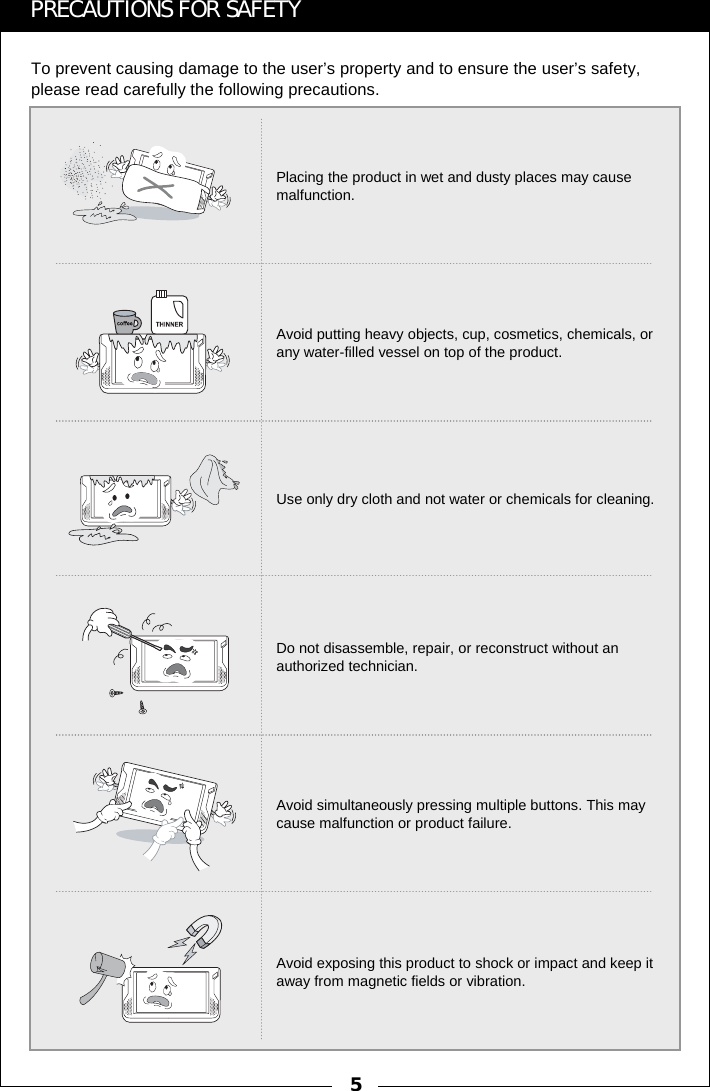
5To prevent causing damage to the user’s property and to ensure the user’s safety, please read carefully the following precautions.Use only dry cloth and not water or chemicals for cleaning.Avoid putting heavy objects, cup, cosmetics, chemicals, or any water-filled vessel on top of the product.Avoid exposing this product to shock or impact and keep it away from magnetic fields or vibration.Avoid simultaneously pressing multiple buttons. This may cause malfunction or product failure.Do not disassemble, repair, or reconstruct without an authorized technician.Placing the product in wet and dusty places may cause malfunction.PRECAUTIONS FOR SAFETY
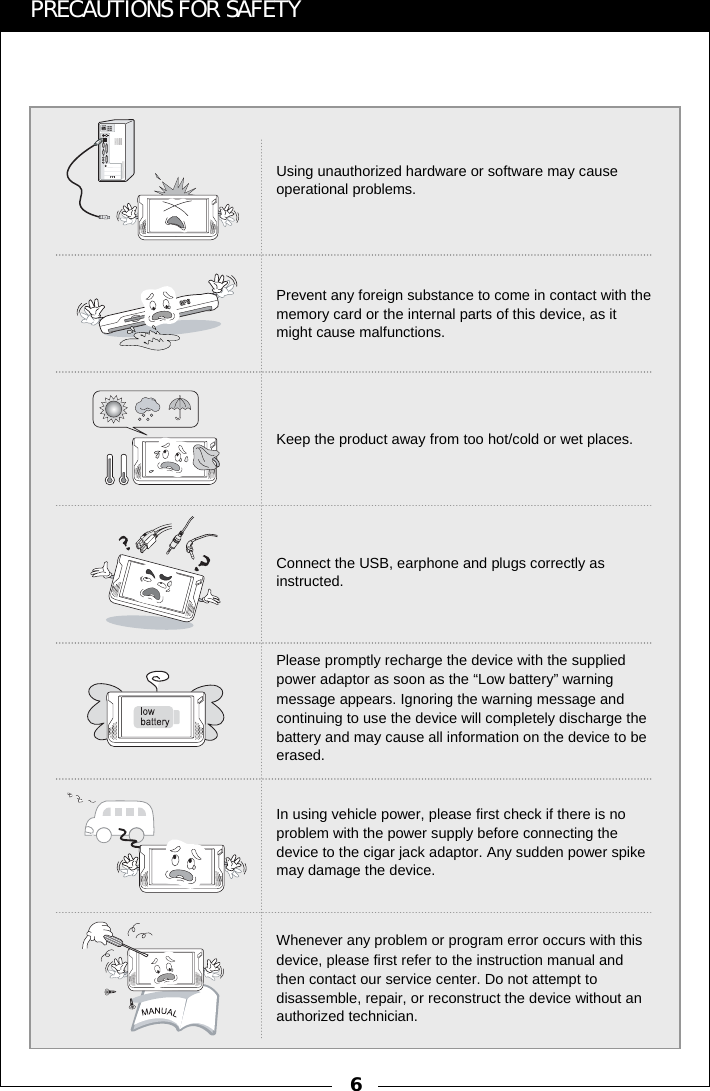
6PRECAUTIONS FOR SAFETYUsing unauthorized hardware or software may cause operational problems.Prevent any foreign substance to come in contact with the memory card or the internal parts of this device, as it might cause malfunctions.Keep the product away from too hot/cold or wet places.Connect the USB, earphone and plugs correctly as instructed.Whenever any problem or program error occurs with this device, please first refer to the instruction manual and then contact our service center. Do not attempt to disassemble, repair, or reconstruct the device without an authorized technician.Please promptly recharge the device with the supplied power adaptor as soon as the “Low battery” warning message appears. Ignoring the warning message and continuing to use the device will completely discharge the battery and may cause all information on the device to be erased.In using vehicle power, please first check if there is no problem with the power supply before connecting the device to the cigar jack adaptor. Any sudden power spike may damage the device.
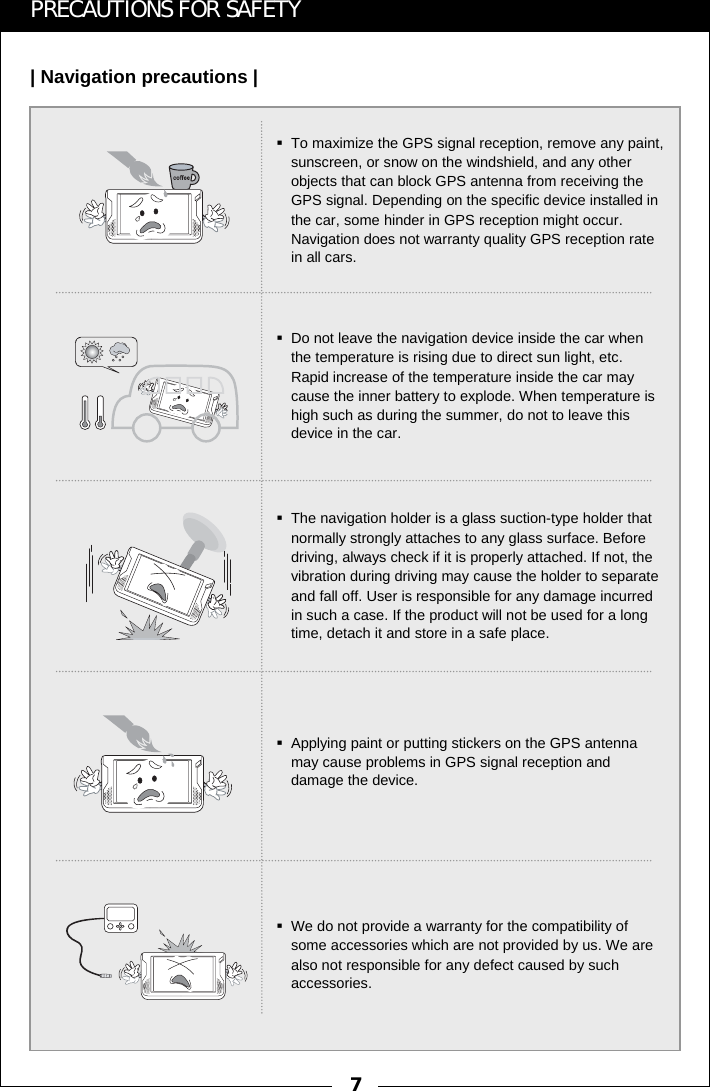
7PRECAUTIONS FOR SAFETY| Navigation precautions |To maximize the GPS signal reception, remove any paint, sunscreen, or snow on the windshield, and any other objects that can block GPS antenna from receiving the GPS signal. Depending on the specific device installed in the car, some hinder in GPS reception might occur. Navigation does not warranty quality GPS reception rate in all cars.Do not leave the navigation device inside the car when the temperature is rising due to direct sun light, etc. Rapid increase of the temperature inside the car may cause the inner battery to explode. When temperature is high such as during the summer, do not to leave this device in the car.The navigation holder is a glass suction-type holder that normally strongly attaches to any glass surface. Before driving, always check if it is properly attached. If not, the vibration during driving may cause the holder to separate and fall off. User is responsible for any damage incurred in such a case. If the product will not be used for a long time, detach it and store in a safe place.Applying paint or putting stickers on the GPS antenna may cause problems in GPS signal reception and damage the device.We do not provide a warranty for the compatibility of some accessories which are not provided by us. We are also not responsible for any defect caused by such accessories.
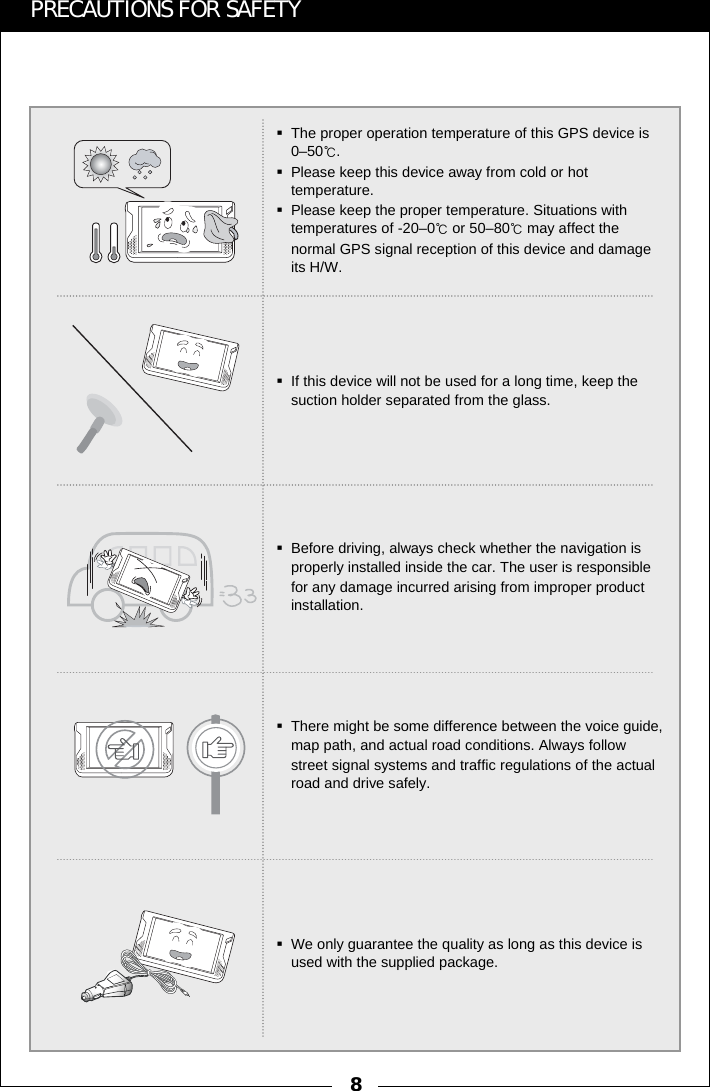
8PRECAUTIONS FOR SAFETYThe proper operation temperature of this GPS device is 0–50℃.Please keep this device away from cold or hot temperature. Please keep the proper temperature. Situations with temperatures of -20–0℃or 50–80℃may affect the normal GPS signal reception of this device and damage its H/W. If this device will not be used for a long time, keep the suction holder separated from the glass.Before driving, always check whether the navigation is properly installed inside the car. The user is responsible for any damage incurred arising from improper product installation.There might be some difference between the voice guide, map path, and actual road conditions. Always follow street signal systems and traffic regulations of the actual road and drive safely.We only guarantee the quality as long as this device is used with the supplied package.
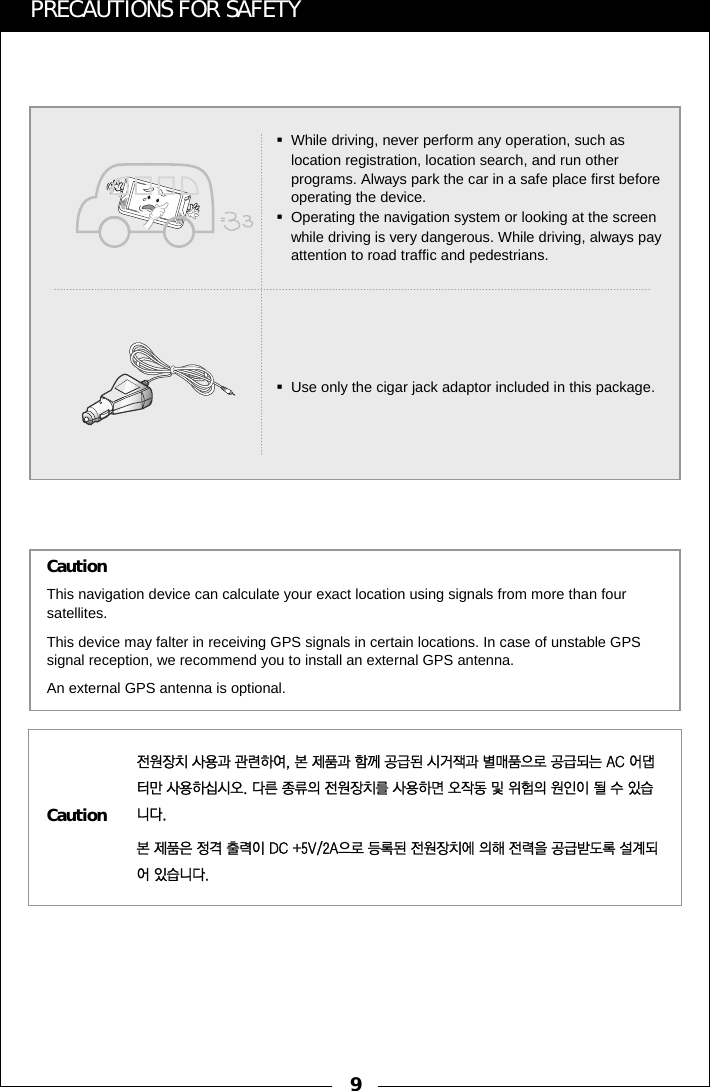
9PRECAUTIONS FOR SAFETY전원장치 사용과 관련하여, 본 제품과 함께 공급된 시거잭과 별매품으로 공급되는 AC 어댑터만 사용하십시오. 다른 종류의 전원장치를 사용하면 오작동 및 위험의 원인이 될 수 있습니다.본 제품은 정격 출력이 DC +5V/2A으로 등록된 전원장치에 의해 전력을 공급받도록 설계되어 있습니다.This navigation device can calculate your exact location using signals from more than four satellites.This device may falter in receiving GPS signals in certain locations. In case of unstable GPS signal reception, we recommend you to install an external GPS antenna. An external GPS antenna is optional.CautionCautionWhile driving, never perform any operation, such as location registration, location search, and run other programs. Always park the car in a safe place first before operating the device.Operating the navigation system or looking at the screen while driving is very dangerous. While driving, always pay attention to road traffic and pedestrians.Use only the cigar jack adaptor included in this package.
11| BEFORE STARTING |
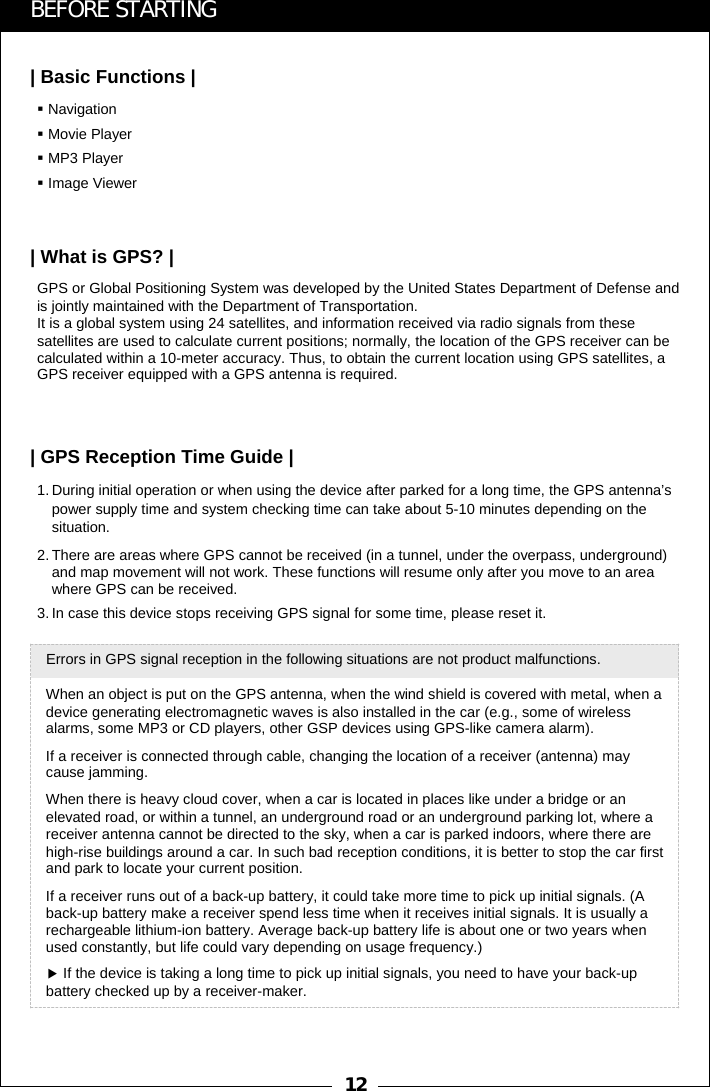
121. During initial operation or when using the device after parked for a long time, the GPS antenna’s power supply time and system checking time can take about 5-10 minutes depending on the situation.2. There are areas where GPS cannot be received (in a tunnel, under the overpass, underground) and map movement will not work. These functions will resume only after you move to an area where GPS can be received.3. In case this device stops receiving GPS signal for some time, please reset it.GPS or Global Positioning System was developed by the United States Department of Defense and is jointly maintained with the Department of Transportation.    It is a global system using 24 satellites, and information received via radio signals from these satellites are used to calculate current positions; normally, the location of the GPS receiver can be calculated within a 10-meter accuracy. Thus, to obtain the current location using GPS satellites, a GPS receiver equipped with a GPS antenna is required.NavigationMovie PlayerMP3 PlayerImage ViewerWhen an object is put on the GPS antenna, when the wind shield is covered with metal, when a device generating electromagnetic waves is also installed in the car (e.g., some of wireless alarms, some MP3 or CD players, other GSP devices using GPS-like camera alarm). If a receiver is connected through cable, changing the location of a receiver (antenna) may cause jamming. When there is heavy cloud cover, when a car is located in places like under a bridge or an elevated road, or within a tunnel, an underground road or an underground parking lot, where a receiver antenna cannot be directed to the sky, when a car is parked indoors, where there are high-rise buildings around a car. In such bad reception conditions, it is better to stop the car first and park to locate your current position. If a receiver runs out of a back-up battery, it could take more time to pick up initial signals. (A back-up battery make a receiver spend less time when it receives initial signals. It is usually a rechargeable lithium-ion battery. Average back-up battery life is about one or two years when used constantly, but life could vary depending on usage frequency.)▶If the device is taking a long time to pick up initial signals, you need to have your back-up battery checked up by a receiver-maker. Errors in GPS signal reception in the following situations are not product malfunctions. BEFORE STARTING| Basic Functions || What is GPS? || GPS Reception Time Guide |
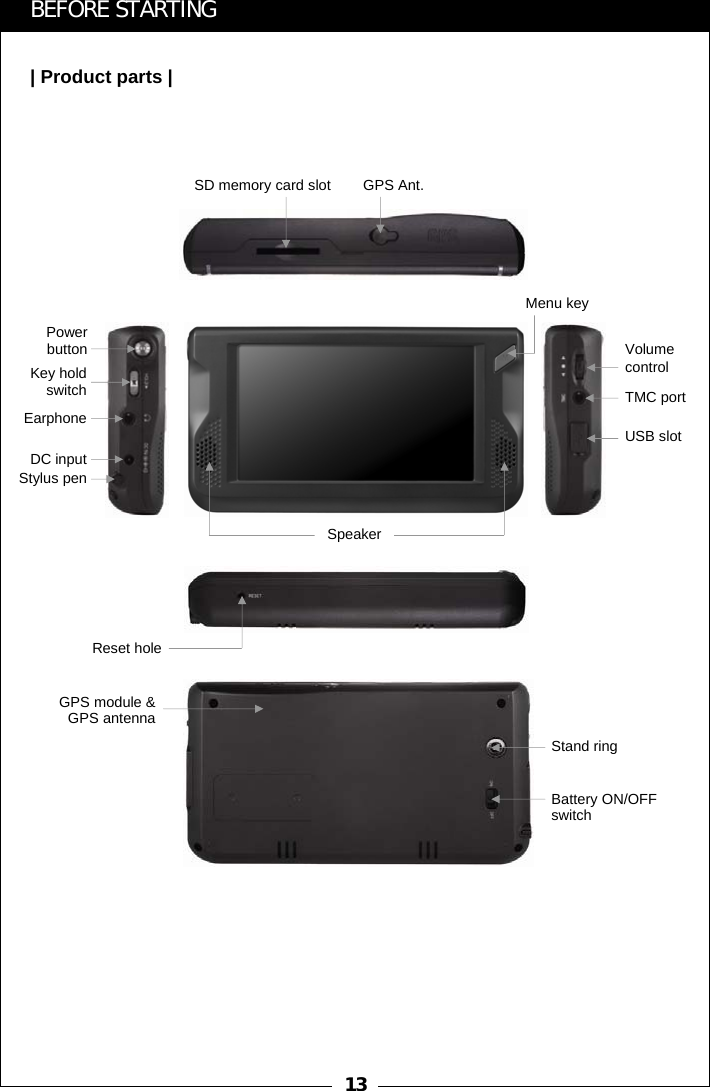
13BEFORE STARTING| Product parts |SD memory card slotBattery ON/OFF switchSpeakerPower buttonKey hold switchEarphoneDC inputStylus penMenu keyVolume control USB slotTMC portReset holeGPS module & GPS antennaGPS Ant.Stand ring
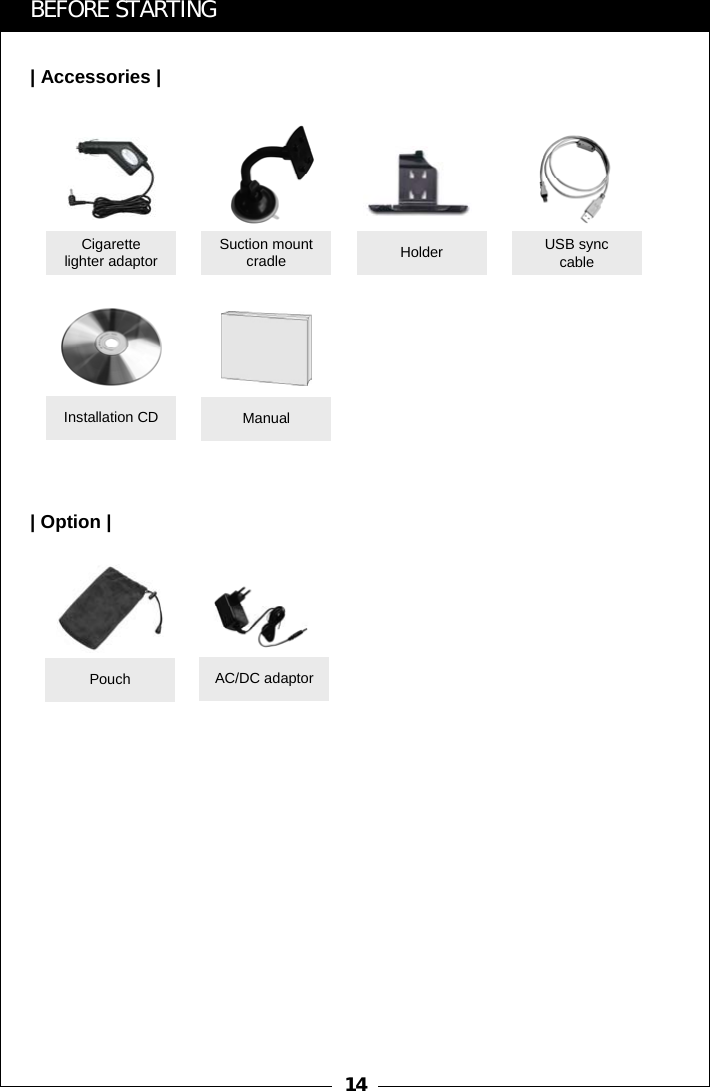
14BEFORE STARTING| Accessories || Option |Suction mount cradleCigarette lighter adaptor USB sync cableHolderManualPouchInstallation CDAC/DC adaptor
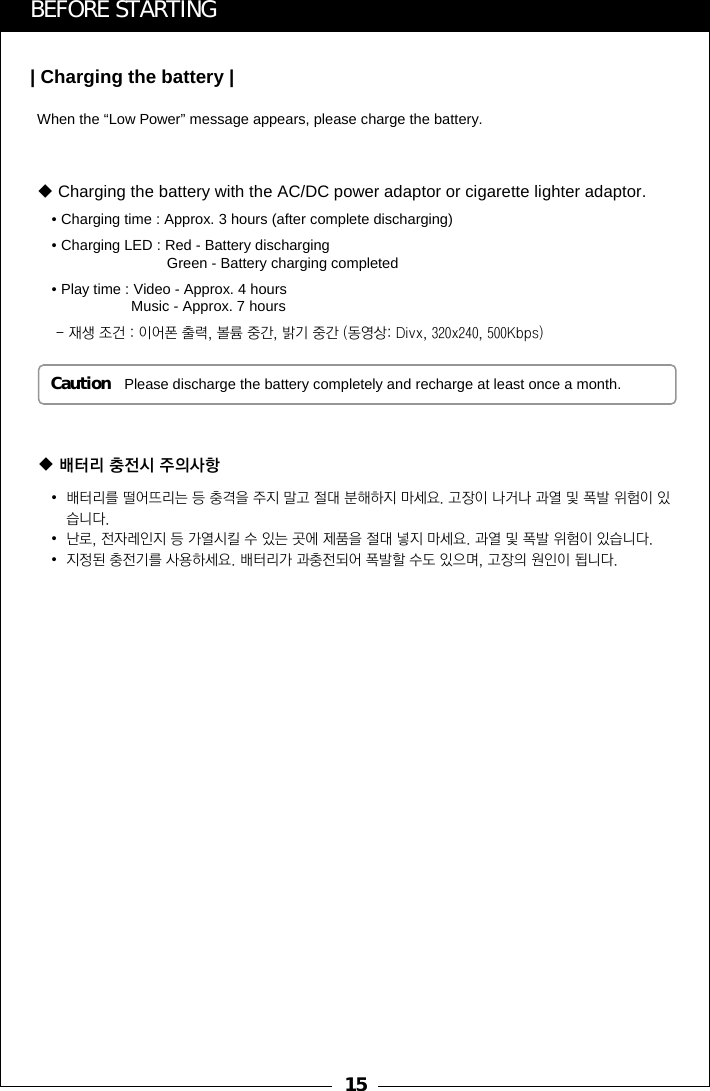
15When the “Low Power” message appears, please charge the battery.Caution Please discharge the battery completely and recharge at least once a month.BEFORE STARTING| Charging the battery |•배터리를 떨어뜨리는 등 충격을 주지 말고 절대 분해하지 마세요. 고장이 나거나 과열 및 폭발 위험이 있습니다.•난로, 전자레인지 등 가열시킬 수 있는 곳에 제품을 절대 넣지 마세요. 과열 및 폭발 위험이 있습니다.•지정된 충전기를 사용하세요. 배터리가 과충전되어 폭발할 수도 있으며, 고장의 원인이 됩니다.배터리 충전시 주의사항Charging the battery with the AC/DC power adaptor or cigarette lighter adaptor.• Charging time : Approx. 3 hours (after complete discharging)• Charging LED : Red - Battery dischargingGreen - Battery charging completed• Play time : Video - Approx. 4 hoursMusic - Approx. 7 hours- 재생 조건 : 이어폰 출력, 볼륨 중간, 밝기 중간 (동영상: Divx, 320x240, 500Kbps)
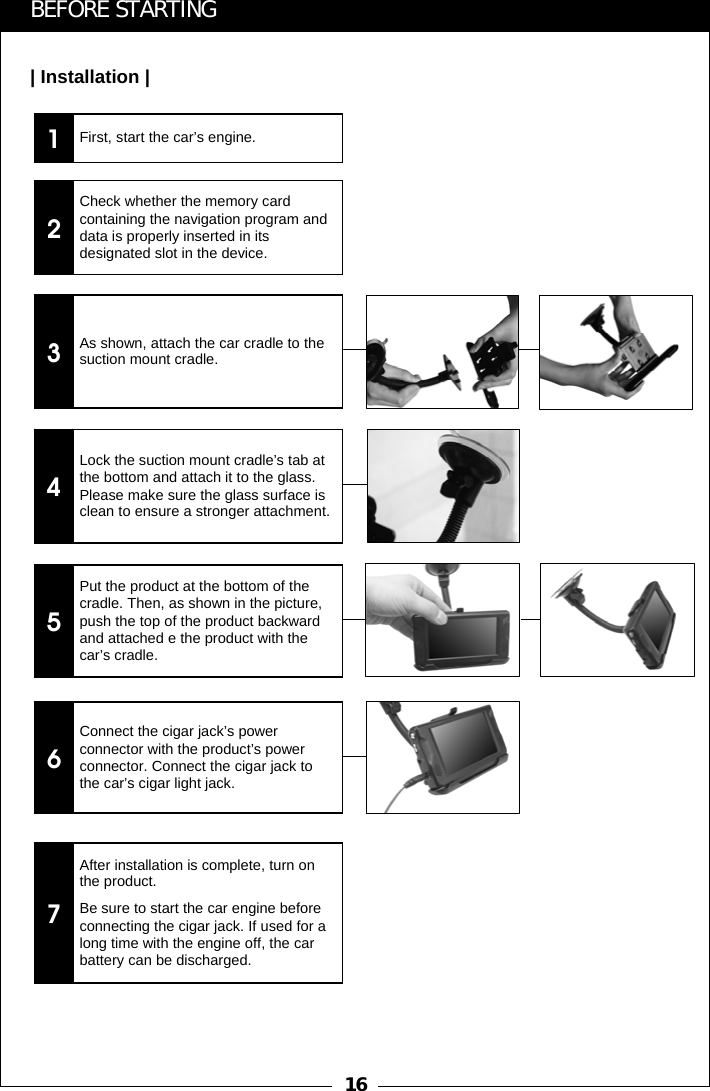
161BEFORE STARTING| Installation |First, start the car’s engine.2Check whether the memory card containing the navigation program and data is properly inserted in its designated slot in the device.3As shown, attach the car cradle to the suction mount cradle.4Lock the suction mount cradle’s tab at the bottom and attach it to the glass. Please make sure the glass surface is clean to ensure a stronger attachment.5Put the product at the bottom of the cradle. Then, as shown in the picture, push the top of the product backward and attached e the product with the car’s cradle.6Connect the cigar jack’s power connector with the product’s power connector. Connect the cigar jack to the car’s cigar light jack.7After installation is complete, turn on the product.Be sure to start the car engine before connecting the cigar jack. If used for a long time with the engine off, the car battery can be discharged.
17BEFORE STARTING| 제품 세워서 사용하기 |12345Caution1. Please do not pross the upper side of this device. The stylus pen may be damaged.2. Please keep away the stylus pen from the children to avoid puttiy it in their mouth.[A][B]Pull out a stylus pen from [A]Insert a stylus pen into [B] to stand this device.
19| USING THE BASIC FUNCTIONS |
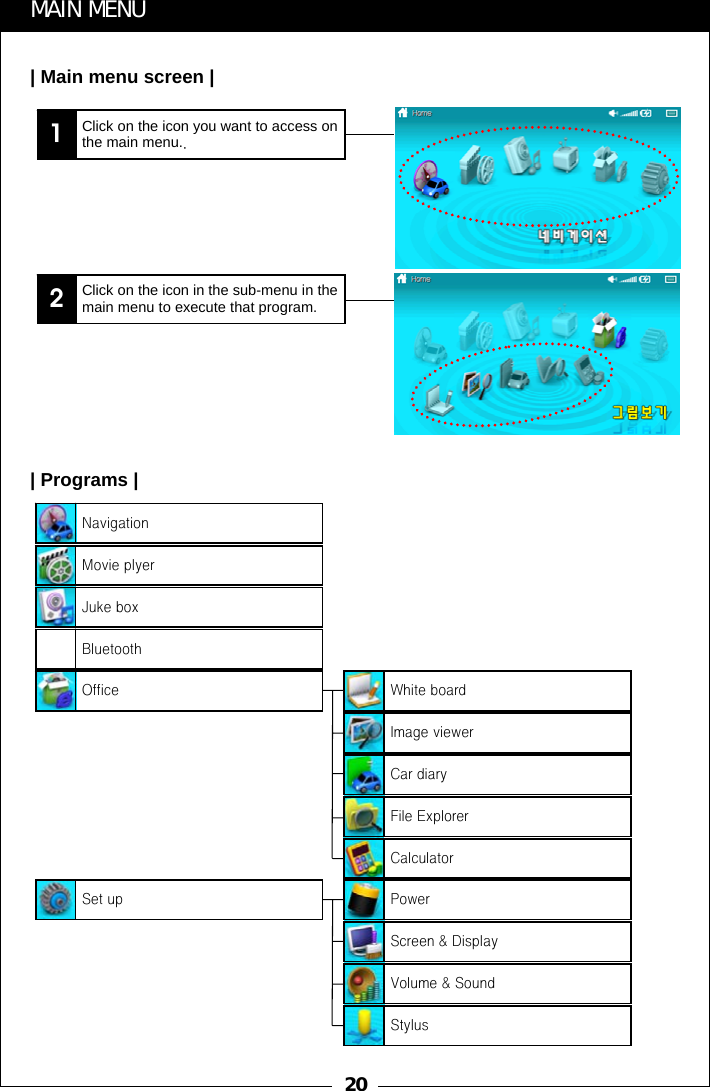
20MAIN MENU| Main menu screen |1Click on the icon you want to access on the main menu..2Click on the icon in the sub-menu in the main menu to execute that program.| Programs |NavigationMovie plyerJuke boxBluetoothOfficeSet upWhite boardImage viewerCar diaryFile ExplorerCalculatorPowerScreen & DisplayVolume & SoundStylus
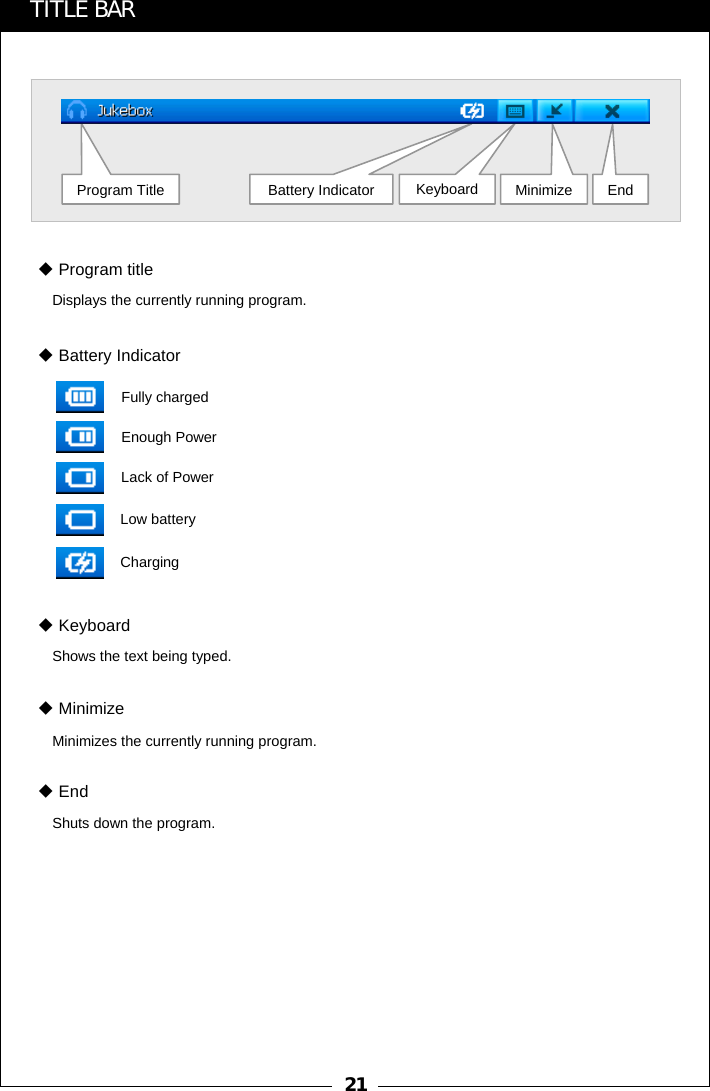
21Displays the currently running program.Fully chargedEnough PowerLack of PowerLow batteryChargingTITLE BARProgram title Battery IndicatorShows the text being typed.KeyboardMinimizes the currently running program.MinimizeShuts down the program.EndProgram Title Keyboard Minimize EndBattery Indicator
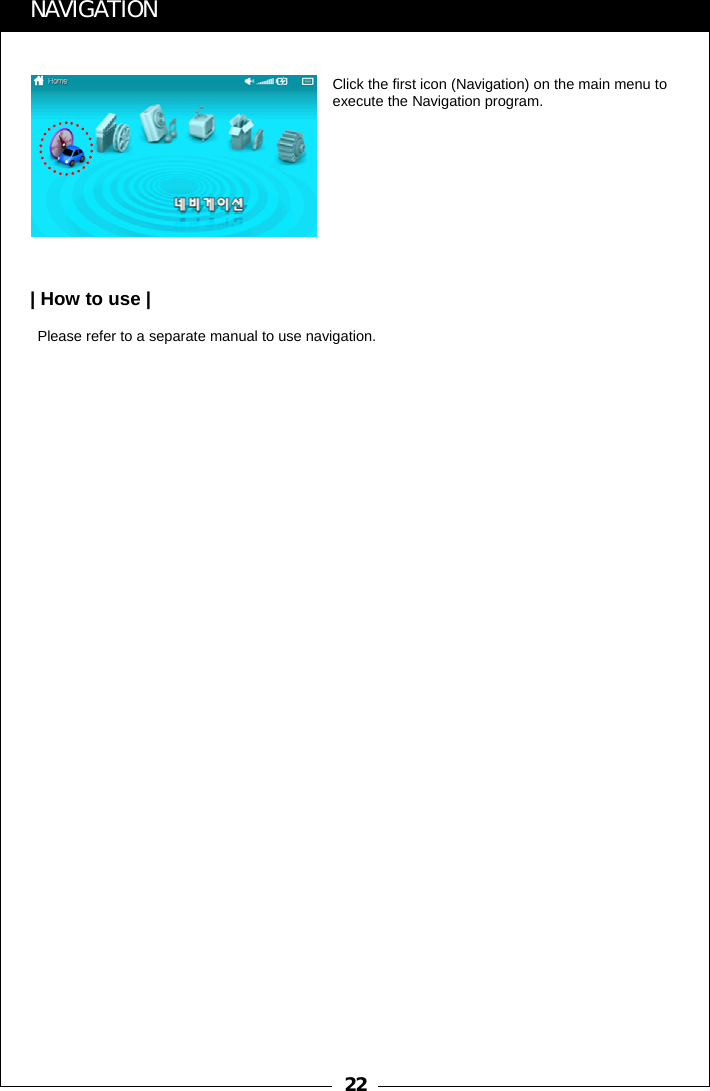
22Click the first icon (Navigation) on the main menu to execute the Navigation program.Please refer to a separate manual to use navigation.NAVIGATION| How to use |
23Open a dialogue window by clicking the [Open a File] button, select a file and then click Confirm to play a file.①②③④⑤ ⑥ ⑦ ⑧ ⑨⑩ ⑪⑫⑬Double-clicking the Playing Point window converts the screen into Title window.MOVIE PLAYERClick the 2’nd icon (Movie Player) on the main menu to execute the Movie Player program.| Basic screen || Opening a file |①Playing pointing bar②Play the previous file  ③Play/Stop temporarily④Stop playing ⑤Play the next file⑥Playing status  ⑦Display playing point⑧Playing time of a file ⑨Option⑩Open a list ⑪Open a file⑫Volume bar⑬Remove sound
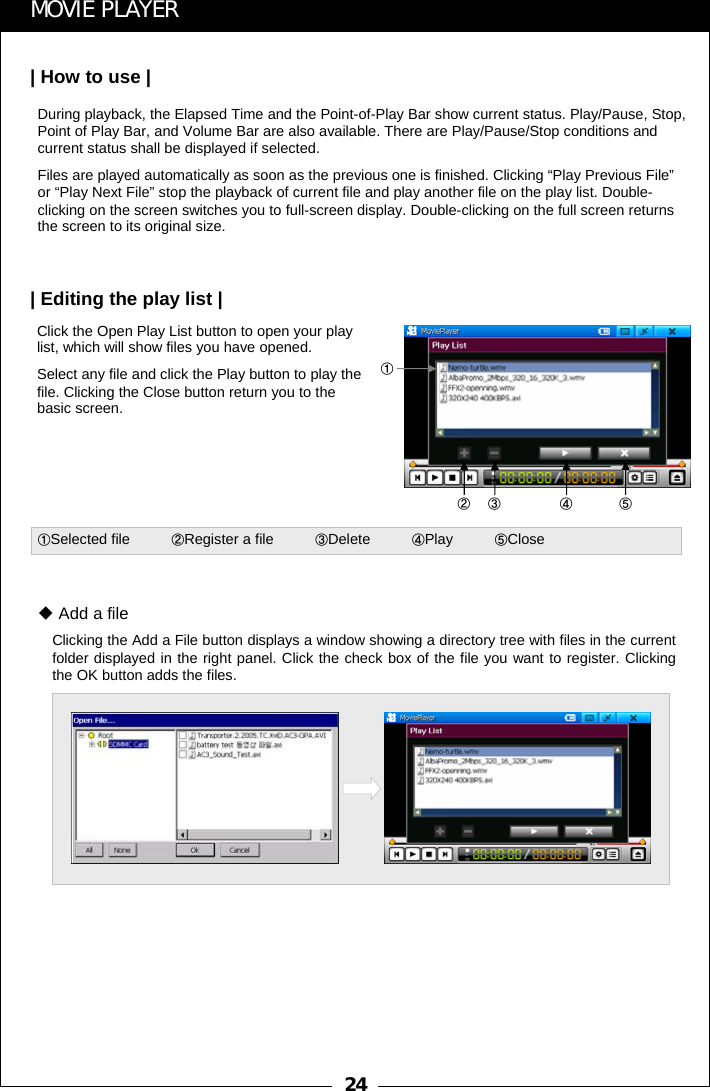
24Click the Open Play List button to open your play list, which will show files you have opened.Select any file and click the Play button to play the file. Clicking the Close button return you to the basic screen.Clicking the Add a File button displays a window showing a directory tree with files in the current folder displayed in the right panel. Click the check box of the file you want to register. Clicking the OK button adds the files.Add a file①②③ ④ ⑤①Selected file          ②Register a file          ③Delete          ④Play          ⑤CloseMOVIE PLAYER| How to use || Editing the play list |During playback, the Elapsed Time and the Point-of-Play Bar show current status. Play/Pause, Stop, Point of Play Bar, and Volume Bar are also available. There are Play/Pause/Stop conditions and current status shall be displayed if selected. Files are played automatically as soon as the previous one is finished. Clicking “Play Previous File”or “Play Next File” stop the playback of current file and play another file on the play list. Double-clicking on the screen switches you to full-screen display. Double-clicking on the full screen returns the screen to its original size.
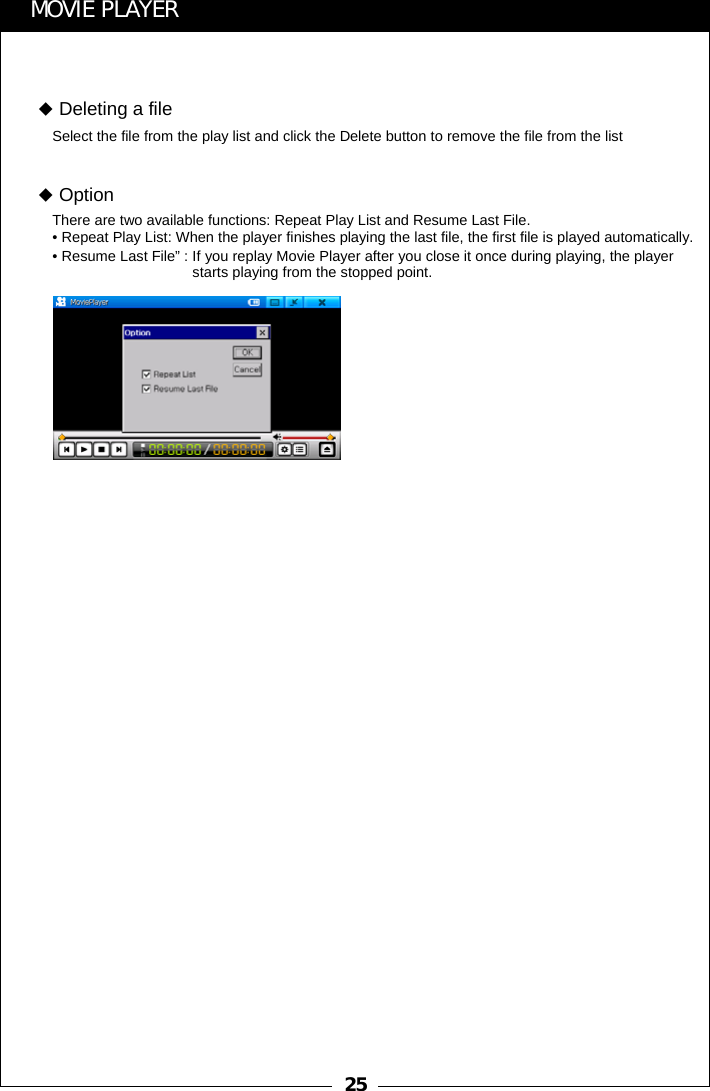
25MOVIE PLAYERSelect the file from the play list and click the Delete button to remove the file from the listDeleting a fileThere are two available functions: Repeat Play List and Resume Last File.• Repeat Play List: When the player finishes playing the last file, the first file is played automatically.• Resume Last File” : If you replay Movie Player after you close it once during playing, the player starts playing from the stopped point.Option
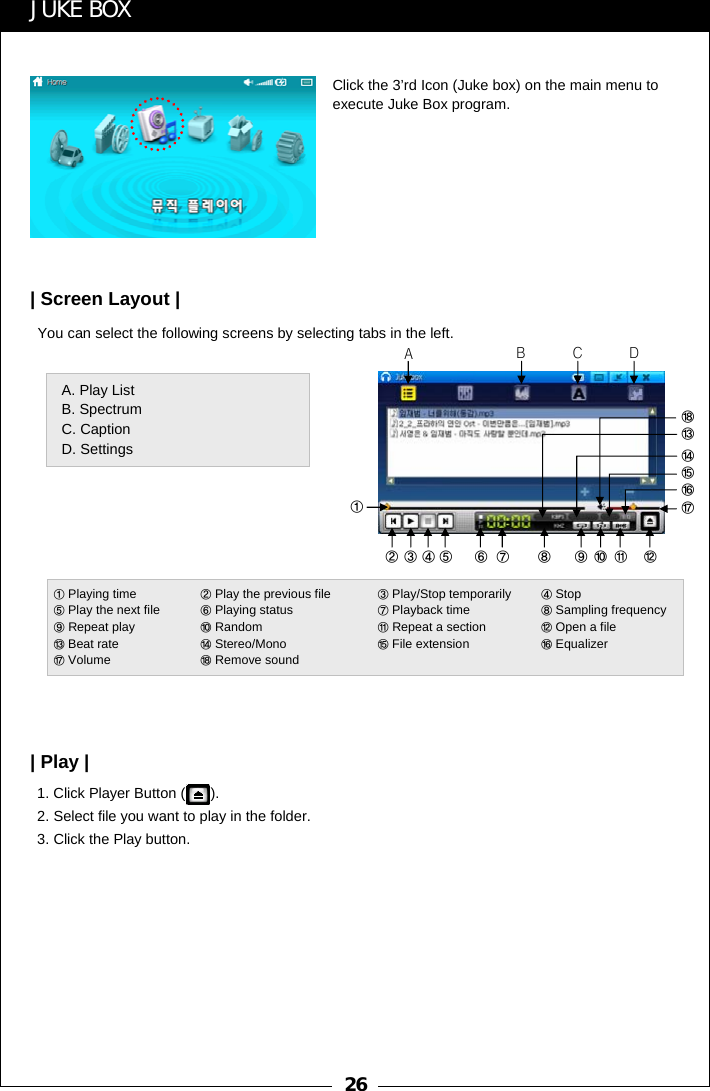
26You can select the following screens by selecting tabs in the left.1. Click Player Button ( ).2. Select file you want to play in the folder.3. Click the Play button.ABCDA. Play ListB. SpectrumC. CaptionD. Settings①②③④⑤ ⑥ ⑦ ⑧ ⑨⑩ ⑪ ⑫⑰⑯⑮⑭⑬⑱JUKE BOXClick the 3’rd Icon (Juke box) on the main menu to execute Juke Box program.| Screen Layout || Play |①Playing time ②Play the previous file  ③Play/Stop temporarily  ④Stop ⑤Play the next file  ⑥Playing status ⑦Playback time ⑧Sampling frequency⑨Repeat play   ⑩Random ⑪Repeat a section ⑫Open a file⑬Beat rate ⑭Stereo/Mono ⑮File extension  ⑯Equalizer⑰Volume ⑱Remove sound
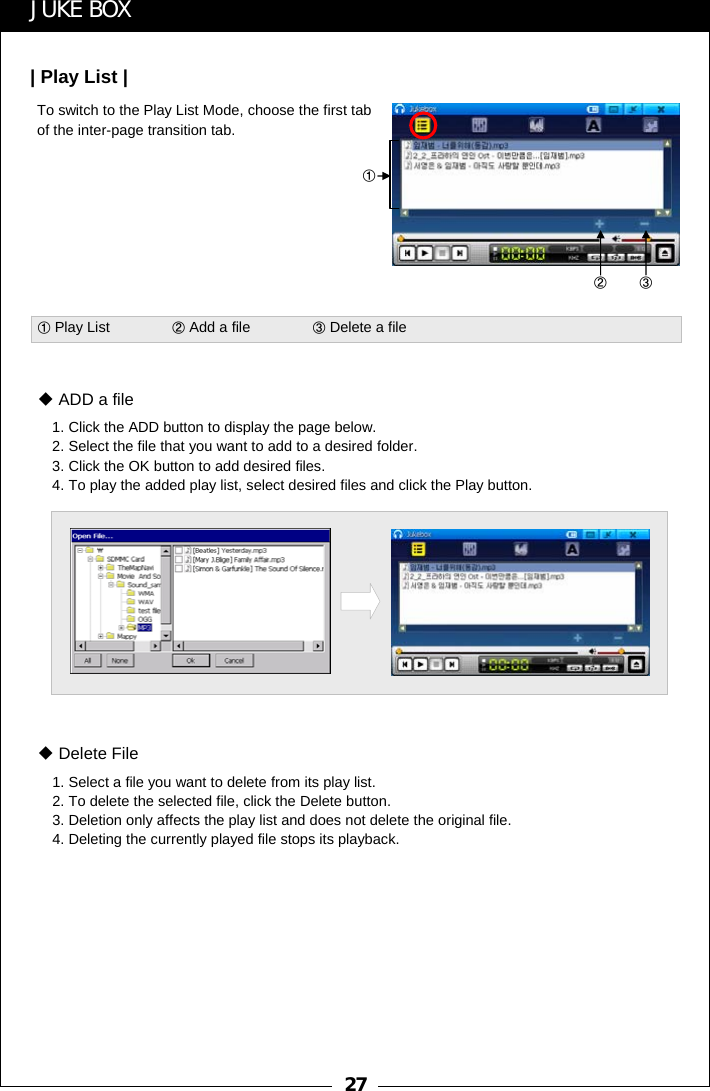
27To switch to the Play List Mode, choose the first tab of the inter-page transition tab.①②③JUKE BOX| Play List |①Play List               ②Add a file               ③Delete a file1. Click the ADD button to display the page below.2. Select the file that you want to add to a desired folder.3. Click the OK button to add desired files.4. To play the added play list, select desired files and click the Play button.ADD a file1. Select a file you want to delete from its play list. 2. To delete the selected file, click the Delete button.3. Deletion only affects the play list and does not delete the original file. 4. Deleting the currently played file stops its playback.Delete File
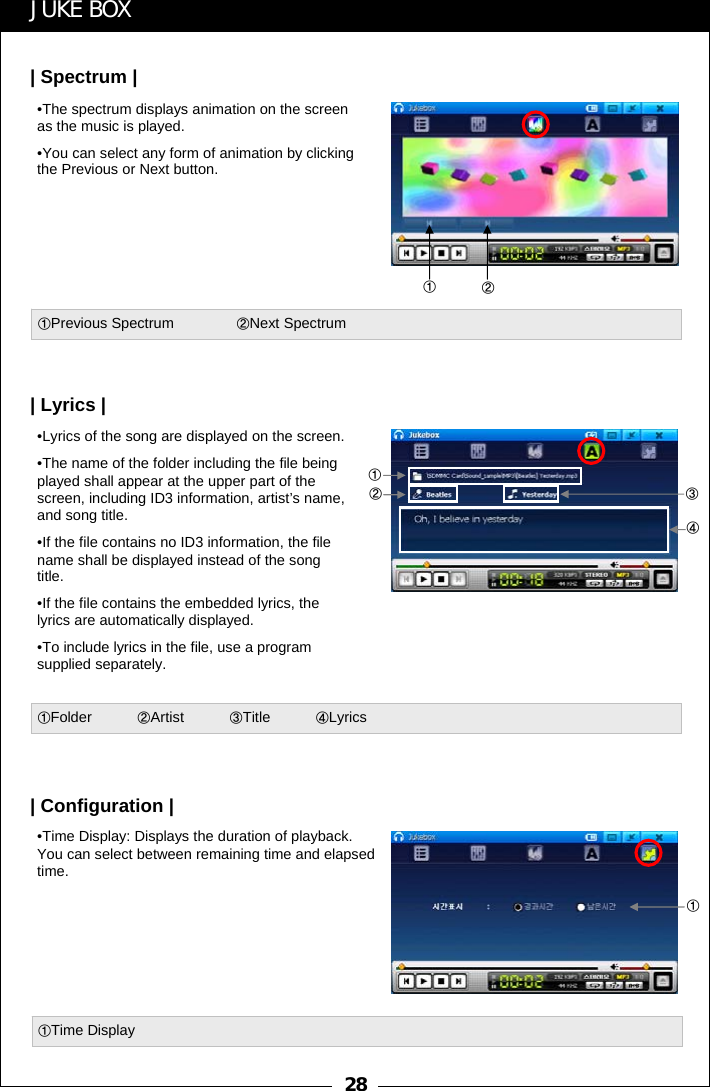
28①②①Previous Spectrum ②Next SpectrumJUKE BOX•The spectrum displays animation on the screen as the music is played. •You can select any form of animation by clicking the Previous or Next button.| Spectrum |①②③④①Folder           ②Artist ③Title ④Lyrics①①Time Display•Lyrics of the song are displayed on the screen. •The name of the folder including the file being played shall appear at the upper part of the screen, including ID3 information, artist’s name, and song title. •If the file contains no ID3 information, the file name shall be displayed instead of the song title. •If the file contains the embedded lyrics, the lyrics are automatically displayed. •To include lyrics in the file, use a program supplied separately.| Lyrics || Configuration |•Time Display: Displays the duration of playback.   You can select between remaining time and elapsed time.
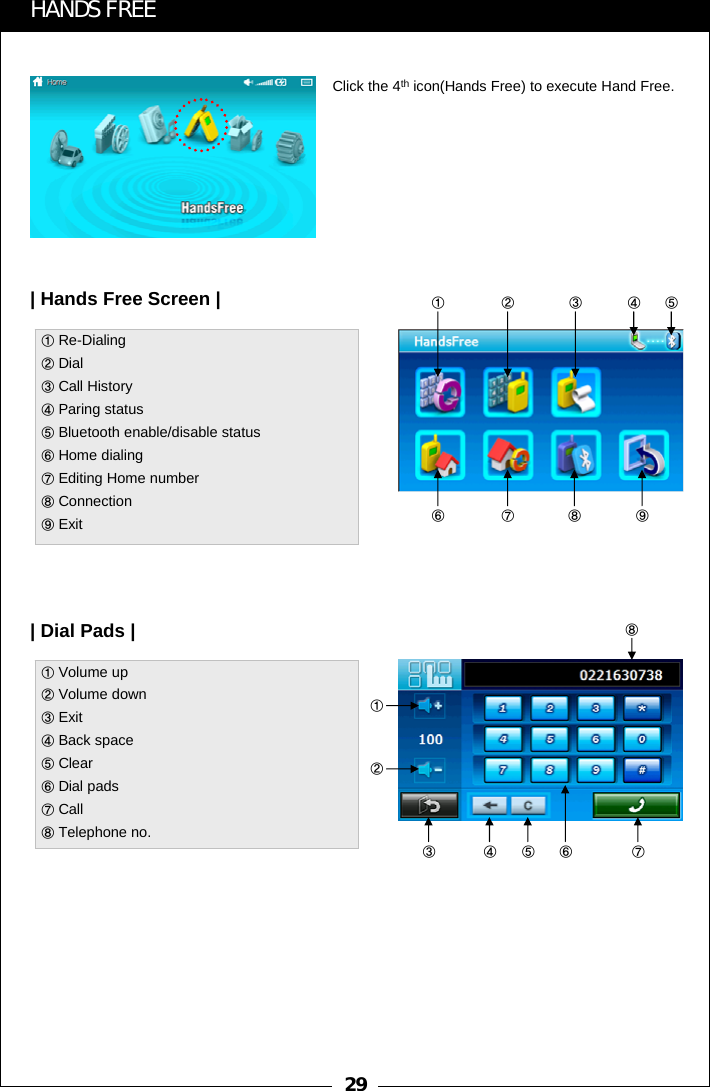
29HANDS FREE①①Re-Dialing②Dial ③Call History④Paring status ⑤Bluetooth enable/disable status⑥Home dialing ⑦Editing Home number ⑧Connection           ⑨ExitClick the 4th icon(Hands Free) to execute Hand Free.| Hands Free Screen || Dial Pads |② ③ ④ ⑤⑥ ⑦ ⑧ ⑨①Volume up②Volume down③Exit④Back space⑤Clear⑥Dial pads⑦Call⑧Telephone no.①③⑧②④ ⑤ ⑦⑥
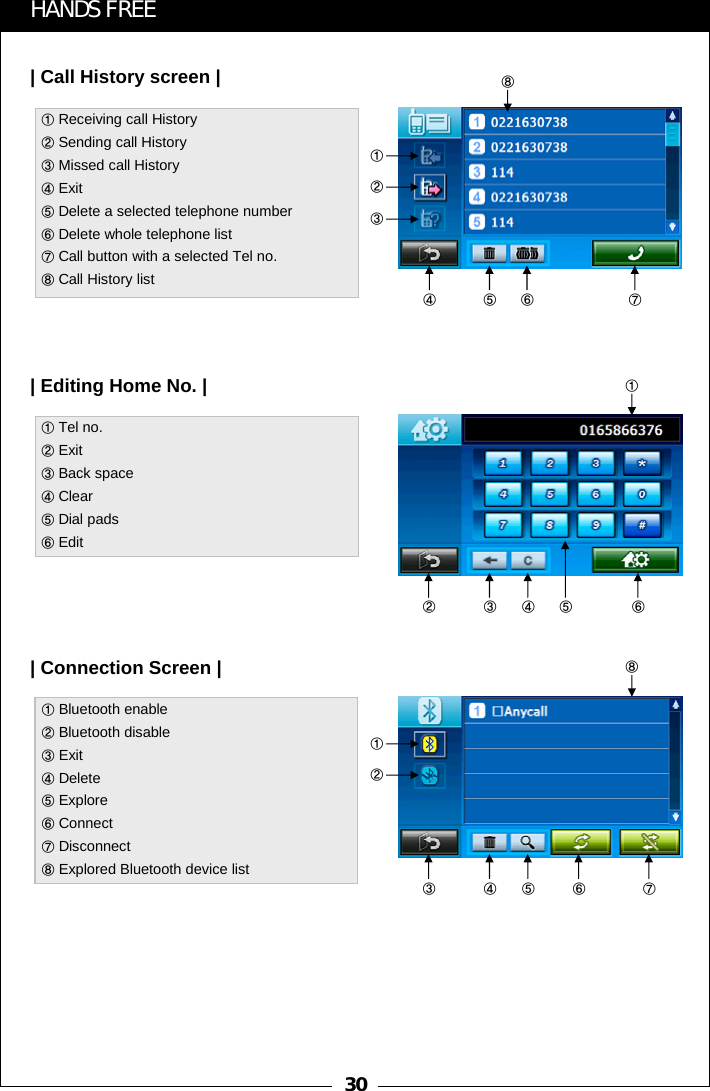
30HANDS FREE①Receiving call History ②Sending call History③Missed call History④Exit  ⑤Delete a selected telephone number      ⑥Delete whole telephone list⑦Call button with a selected Tel no. ⑧Call History list| Call History screen || Editing Home No. |⑧④①Tel no.②Exit③Back space④Clear⑤Dial pads⑥Edit②①③ ④ ⑥⑤①②③⑤ ⑥ ⑦| Connection Screen |①Bluetooth enable②Bluetooth disable③Exit④Delete⑤Explore⑥Connect⑦Disconnect⑧Explored Bluetooth device list③⑧④ ⑤ ⑦①②⑥
31HANDS FREE| How to call |①Bluetooth enable②Bluetooth disable③Exit④Delete⑤Explore⑥Connect⑦Disconnect⑧Explored Bluetooth device list1. Input a telephone no. and click “Call” button on the Dial pads.2. Main menu appears in call connection sound.3. Click      icon for the calling status  screen to change the calling status or stop the call.4. If dial pad is needed for ARS on calling, please  click “dial pad” on the calling status screen to  pop up the dial pads. 5. To change the calling device from the Hands Free of this device to the mobile phone or diverse case, please click ④.6. On calling, if you do not want an opposite person to hear your side conversation, please click Mic mute.[Dial Pads][Main menu on calling]③ ④ ⑤ ⑦①②⑥[Calling status screen][Dial pads on calling]
32HANDS FREE| How to receive a call |①Change an opposite person on calling1. Receiving call screen automatically pops up on your device, when you receive a call.2. Click “Call” button to connect with a call. Or, click “Disconnection” button to refuse a call.3. If you click “call” button, the main menu automatically appears. 4. Click      icon for the calling status  screen to change the calling status or stop the call.5. In case that you receive another call on the line, please click      icon to see the 2nd call status screen.At this time, if you want to change an opposite person, please click ①button. 6. To change the calling device from the HandsFreeof this device to the mobile phone or diverse case, please click “change the calling device” button. 7. On calling, if you do not want an opposite person to hear your side conversation, please click Mic mute.[Receiving call screen][Main menu on calling]①[2’nd call status screen][Calling status screen]
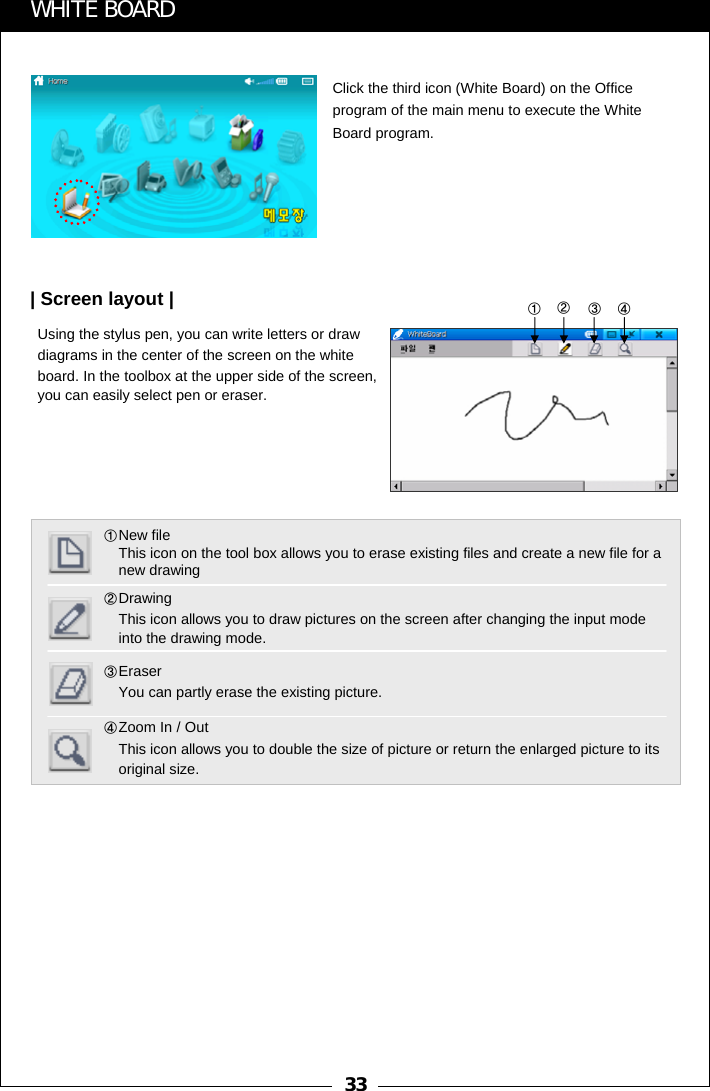
33①New file                                                        This icon on the tool box allows you to erase existing files and create a new file for a new drawing②Drawing                                                         This icon allows you to draw pictures on the screen after changing the input mode into the drawing mode.③Eraser                                                          You can partly erase the existing picture.④Zoom In / Out                                                   This icon allows you to double the size of picture or return the enlarged picture to its original size.①②③④WHITE BOARDClick the third icon (White Board) on the Office program of the main menu to execute the White Board program.Using the stylus pen, you can write letters or draw diagrams in the center of the screen on the white board. In the toolbox at the upper side of the screen, you can easily select pen or eraser.| Screen layout |
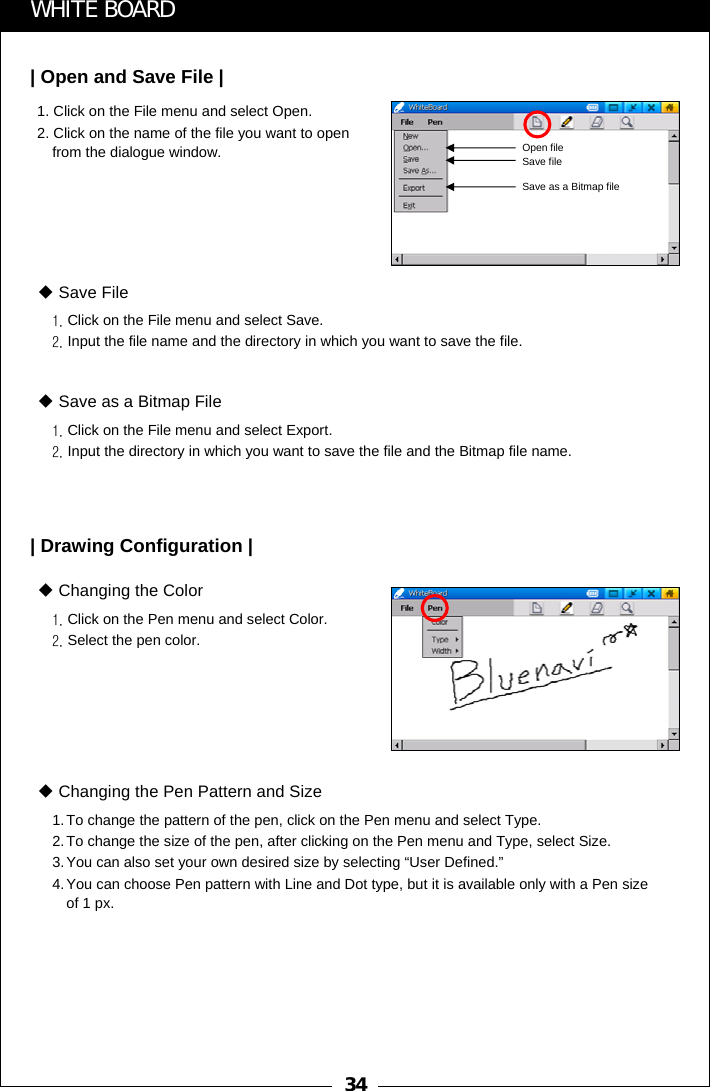
341. Click on the File menu and select Open.2. Click on the name of the file you want to open from the dialogue window.WHITE BOARD| Open and Save File |1. Click on the File menu and select Save.2. Input the file name and the directory in which you want to save the file.Save File1. Click on the File menu and select Export.2. Input the directory in which you want to save the file and the Bitmap file name.Save as a Bitmap File| Drawing Configuration |1. Click on the Pen menu and select Color.2. Select the pen color.Changing the Color1.To change the pattern of the pen, click on the Pen menu and select Type.2.To change the size of the pen, after clicking on the Pen menu and Type, select Size.3.You can also set your own desired size by selecting “User Defined.”4.You can choose Pen pattern with Line and Dot type, but it is available only with a Pen size of 1 px.Changing the Pen Pattern and SizeOpen fileSave fileSave as a Bitmap file
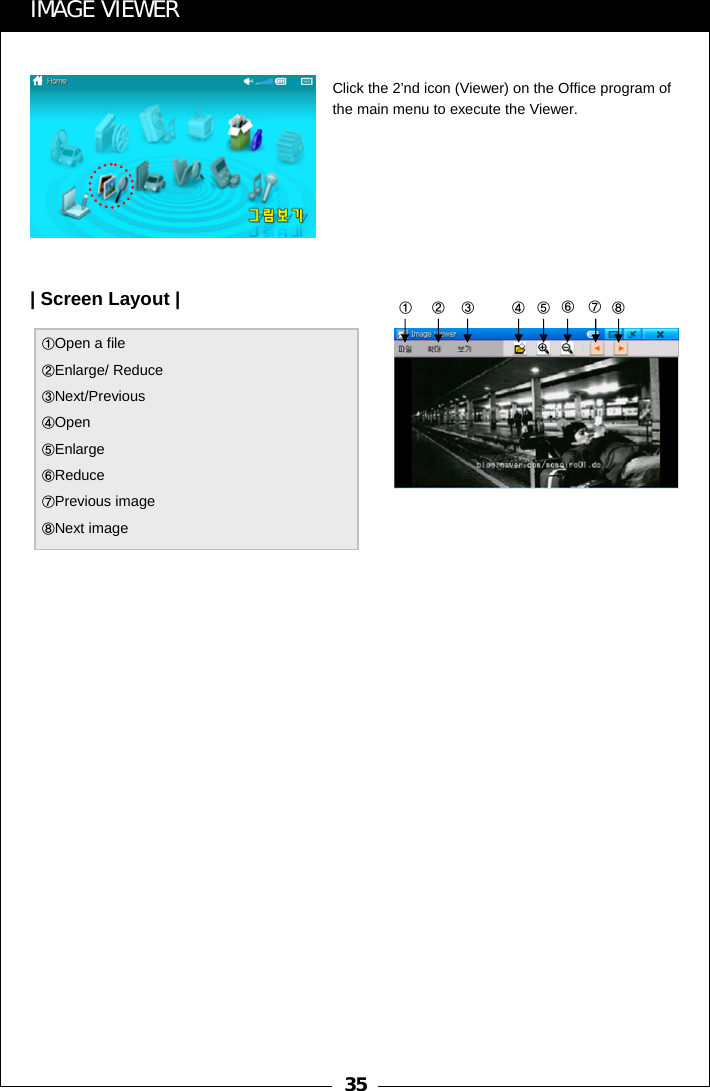
35①Open a file②Enlarge/ Reduce③Next/Previous④Open⑤Enlarge⑥Reduce⑦Previous image⑧Next image①②③ ④⑤⑥⑦⑧IMAGE VIEWERClick the 2’nd icon (Viewer) on the Office program of the main menu to execute the Viewer.| Screen Layout |
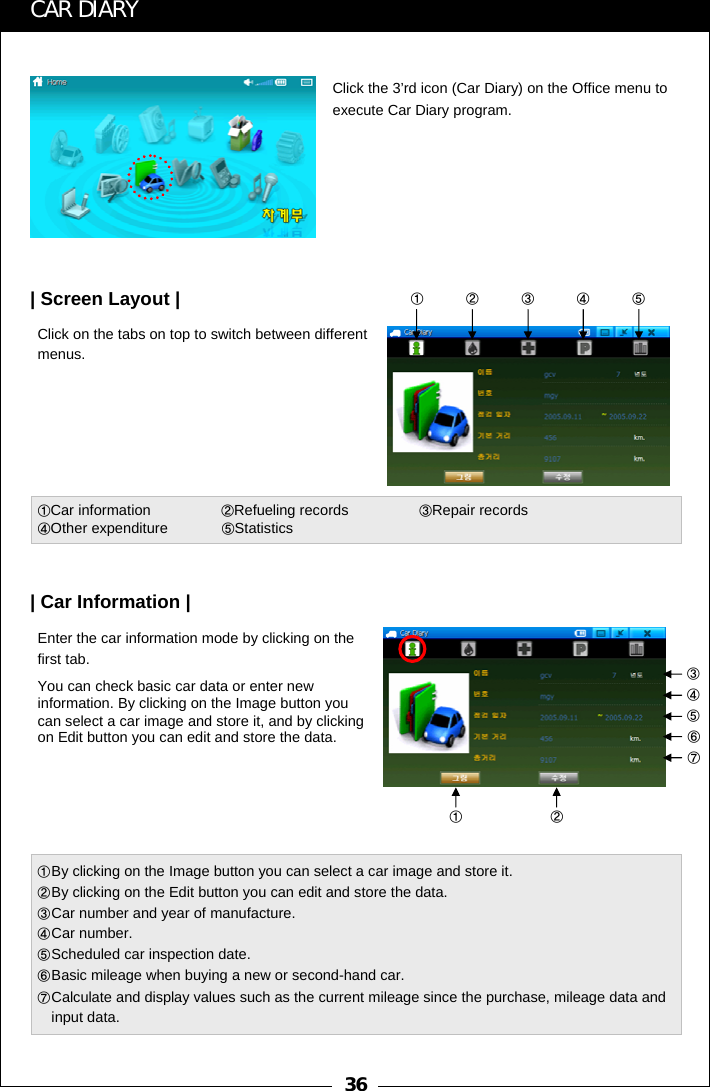
36①②①②③④⑤①By clicking on the Image button you can select a car image and store it.②By clicking on the Edit button you can edit and store the data.③Car number and year of manufacture.④Car number.⑤Scheduled car inspection date. ⑥Basic mileage when buying a new or second-hand car.⑦Calculate and display values such as the current mileage since the purchase, mileage data and input data.③④⑤⑥⑦CAR DIARYClick the 3’rd icon (Car Diary) on the Office menu to execute Car Diary program.Click on the tabs on top to switch between different menus.| Screen Layout |①Car information                 ②Refueling records                 ③Repair records                                    ④Other expenditure             ⑤StatisticsEnter the car information mode by clicking on the first tab.| Car Information |You can check basic car data or enter new information. By clicking on the Image button you can select a car image and store it, and by clicking on Edit button you can edit and store the data.
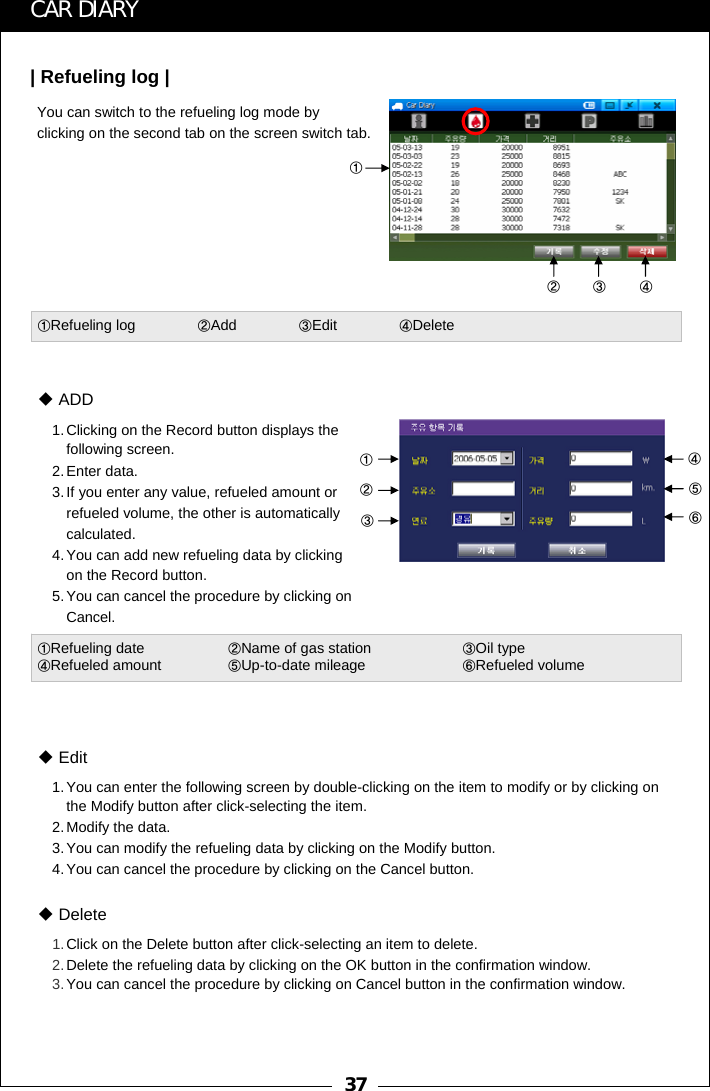
37①②③④①②③④⑤⑥CAR DIARYYou can switch to the refueling log mode by clicking on the second tab on the screen switch tab.| Refueling log |①Refueling log               ②Add               ③Edit               ④Delete1.Clicking on the Record button displays the following screen.2.Enter data.3.If you enter any value, refueled amount or refueled volume, the other is automatically calculated.4.You can add new refueling data by clicking on the Record button.5.You can cancel the procedure by clicking on Cancel.ADD①Refueling date ②Name of gas station ③Oil type                                    ④Refueled amount ⑤Up-to-date mileage                       ⑥Refueled volume1.You can enter the following screen by double-clicking on the item to modify or by clicking on the Modify button after click-selecting the item.2.Modify the data.3.You can modify the refueling data by clicking on the Modify button.4.You can cancel the procedure by clicking on the Cancel button.Edit1.Click on the Delete button after click-selecting an item to delete.2.Delete the refueling data by clicking on the OK button in the confirmation window.3.You can cancel the procedure by clicking on Cancel button in the confirmation window.Delete
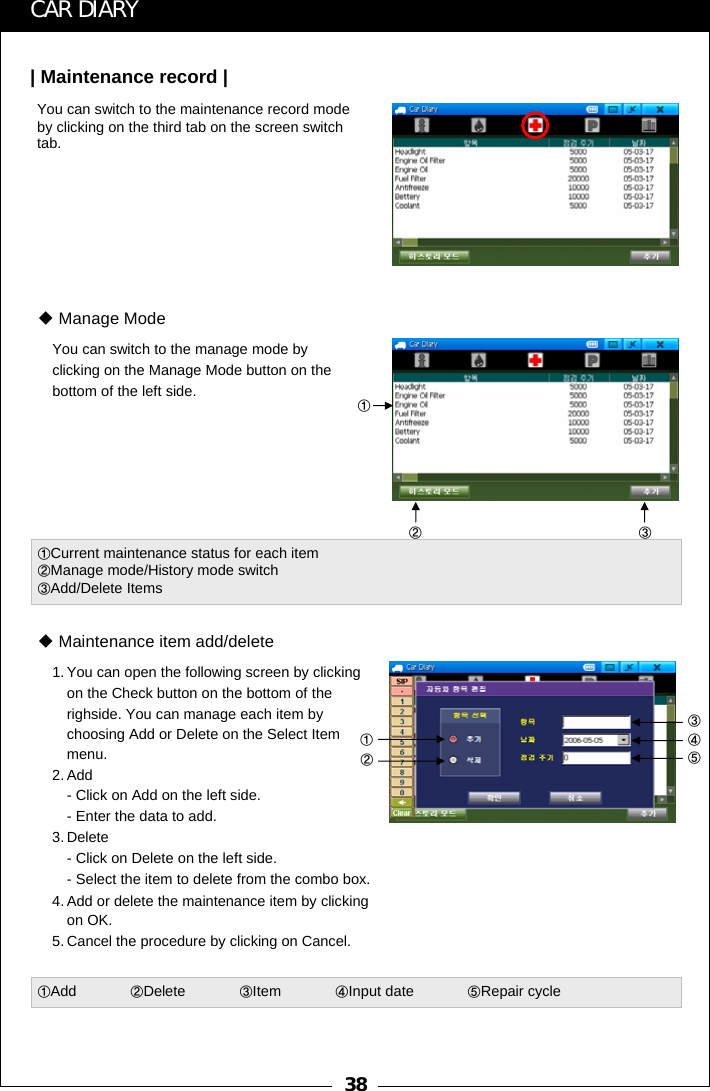
38①②③①②③④⑤CAR DIARYYou can switch to the maintenance record mode by clicking on the third tab on the screen switch tab.| Maintenance record |You can switch to the manage mode by clicking on the Manage Mode button on the bottom of the left side.Manage Mode①Current maintenance status for each item②Manage mode/History mode switch③Add/Delete Items1. You can open the following screen by clicking on the Check button on the bottom of the righside. You can manage each item by choosing Add or Delete on the Select Item menu.2. Add - Click on Add on the left side.- Enter the data to add.3. Delete- Click on Delete on the left side. - Select the item to delete from the combo box.4. Add or delete the maintenance item by clicking on OK. 5. Cancel the procedure by clicking on Cancel.Maintenance item add/delete①Add             ②Delete             ③Item             ④Input date             ⑤Repair cycle
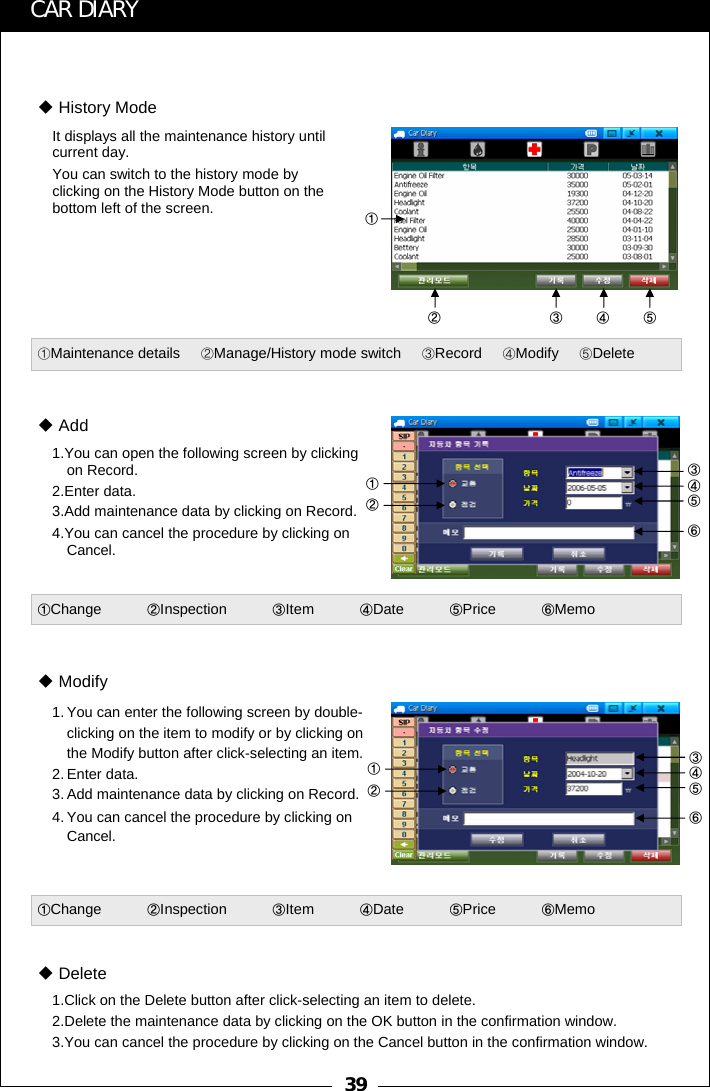
39①② ③④⑤①②①②③④⑤⑥③④⑤⑥CAR DIARYIt displays all the maintenance history until current day.You can switch to the history mode by clicking on the History Mode button on the bottom left of the screen.History Mode①Maintenance details ②Manage/History mode switch ③Record ④Modify ⑤Delete1.You can open the following screen by clicking on Record.2.Enter data.3.Add maintenance data by clicking on Record.4.You can cancel the procedure by clicking on Cancel.Add①Change           ②Inspection           ③Item           ④Date           ⑤Price           ⑥Memo1. You can enter the following screen by double-clicking on the item to modify or by clicking on the Modify button after click-selecting an item.2. Enter data.3. Add maintenance data by clicking on Record.4. You can cancel the procedure by clicking on Cancel.Modify①Change           ②Inspection           ③Item           ④Date           ⑤Price           ⑥Memo1.Click on the Delete button after click-selecting an item to delete.2.Delete the maintenance data by clicking on the OK button in the confirmation window.3.You can cancel the procedure by clicking on the Cancel button in the confirmation window.Delete
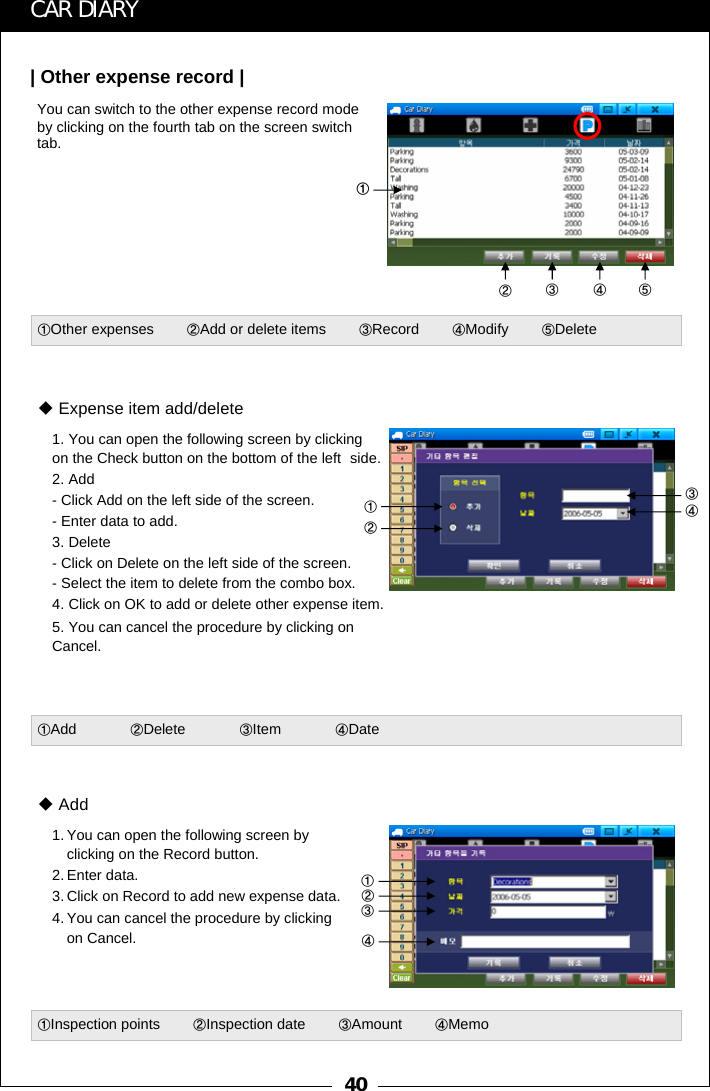
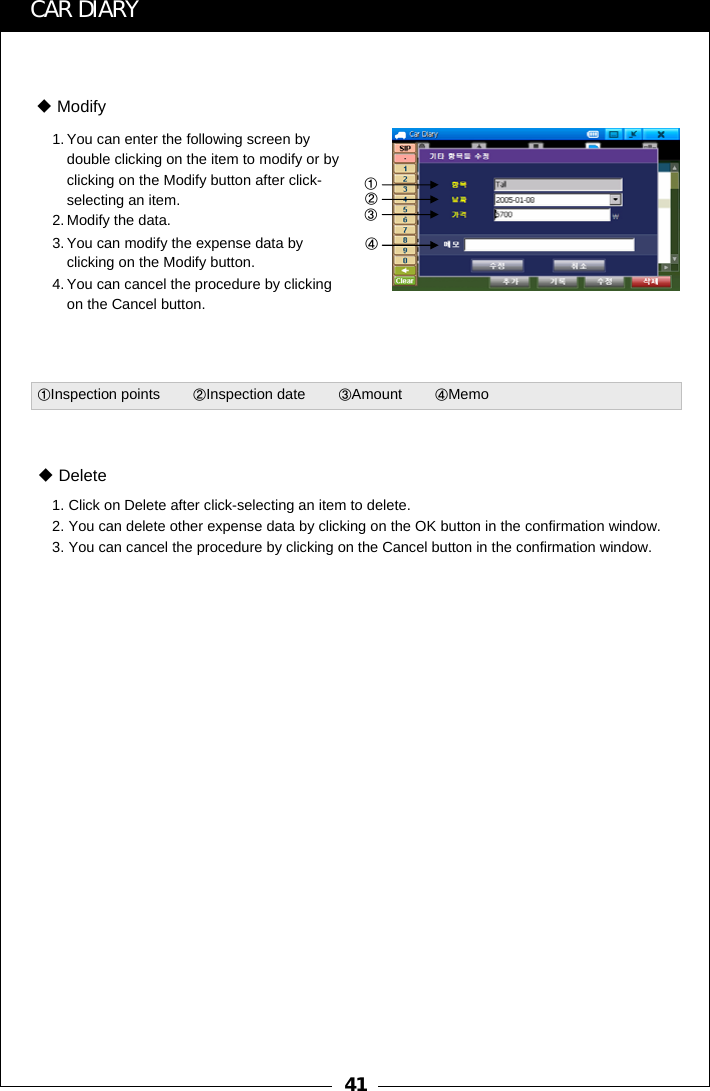
40①②③④⑤①①②③④CAR DIARYYou can switch to the other expense record mode by clicking on the fourth tab on the screen switch tab.| Other expense record |①Other expenses        ②Add or delete items        ③Record        ④Modify        ⑤Delete1. You can open the following screen by clicking on the Check button on the bottom of the left  side.  2. Add- Click Add on the left side of the screen.- Enter data to add.3. Delete- Click on Delete on the left side of the screen.- Select the item to delete from the combo box. 4. Click on OK to add or delete other expense item. 5. You can cancel the procedure by clicking on Cancel.Expense item add/delete①Add             ②Delete             ③Item             ④Date1. You can open the following screen by clicking on the Record button.2. Enter data.3. Click on Record to add new expense data.4. You can cancel the procedure by clicking on Cancel.Add②③④①①Inspection points        ②Inspection date        ③Amount        ④Memo
41②③④①CAR DIARY1. You can enter the following screen by double clicking on the item to modify or by clicking on the Modify button after click-selecting an item.2. Modify the data.3. You can modify the expense data by clicking on the Modify button.4. You can cancel the procedure by clicking on the Cancel button.Modify①Inspection points        ②Inspection date        ③Amount        ④Memo1. Click on Delete after click-selecting an item to delete.2. You can delete other expense data by clicking on the OK button in the confirmation window.3. You can cancel the procedure by clicking on the Cancel button in the confirmation window.Delete
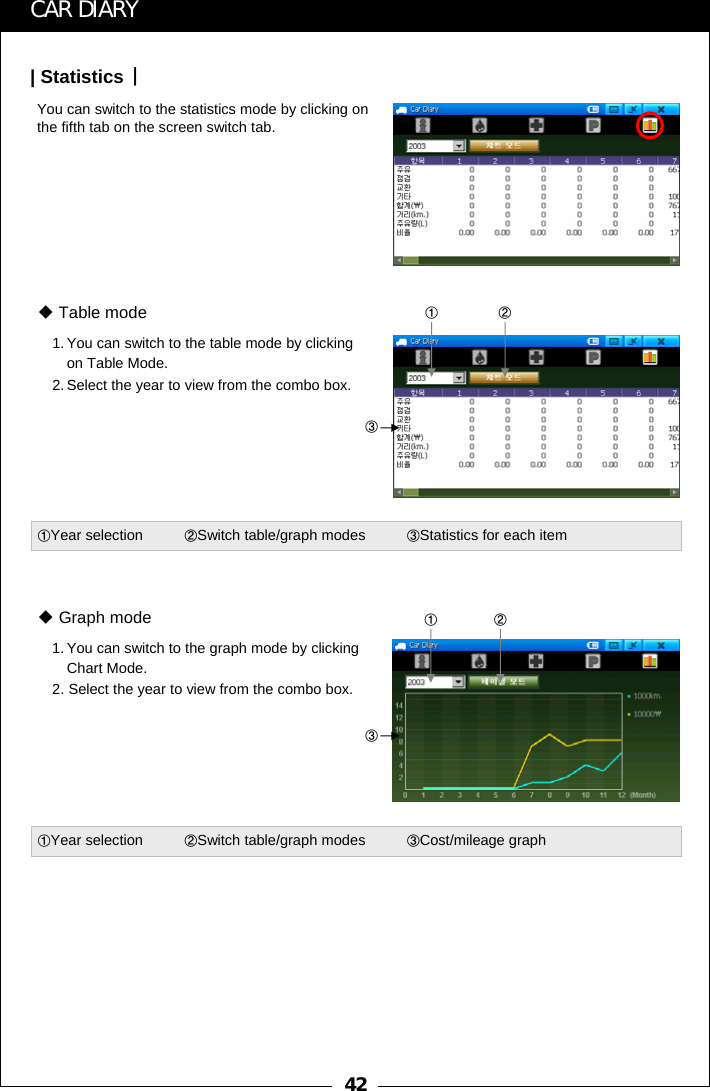
42①②③①②③CAR DIARYYou can switch to the statistics mode by clicking on the fifth tab on the screen switch tab.| Statistics |1. You can switch to the table mode by clicking on Table Mode.2. Select the year to view from the combo box.Table mode①Year selection          ②Switch table/graph modes          ③Statistics for each item1. You can switch to the graph mode by clicking Chart Mode.2. Select the year to view from the combo box.Graph mode①Year selection          ②Switch table/graph modes          ③Cost/mileage graph
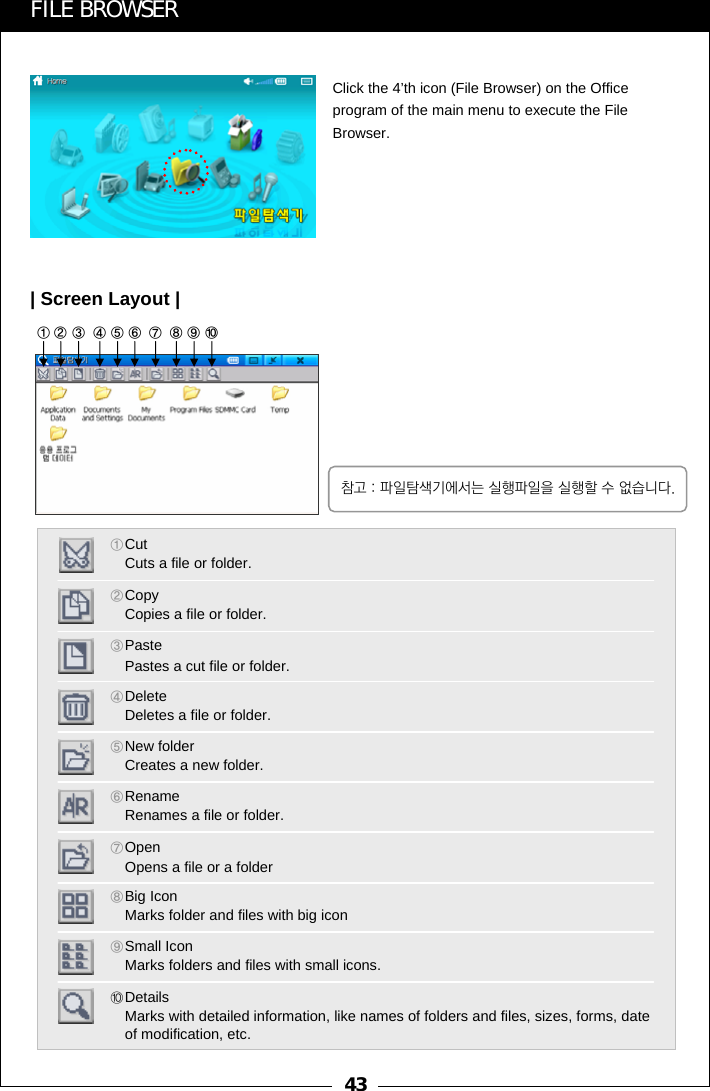
43⑧⑨⑩①②③④⑤⑥⑦FILE BROWSERClick the 4’th icon (File Browser) on the Office program of the main menu to execute the File Browser.| Screen Layout |①CutCuts a file or folder. ②CopyCopies a file or folder.③Paste Pastes a cut file or folder.④Delete Deletes a file or folder. ⑤New folder Creates a new folder. ⑥RenameRenames a file or folder. ⑦OpenOpens a file or a folder⑧Big IconMarks folder and files with big icon ⑨Small IconMarks folders and files with small icons. ⑩Details                                                         Marks with detailed information, like names of folders and files, sizes, forms, date of modification, etc.참고 : 파일탐색기에서는 실행파일을 실행할 수 없습니다.
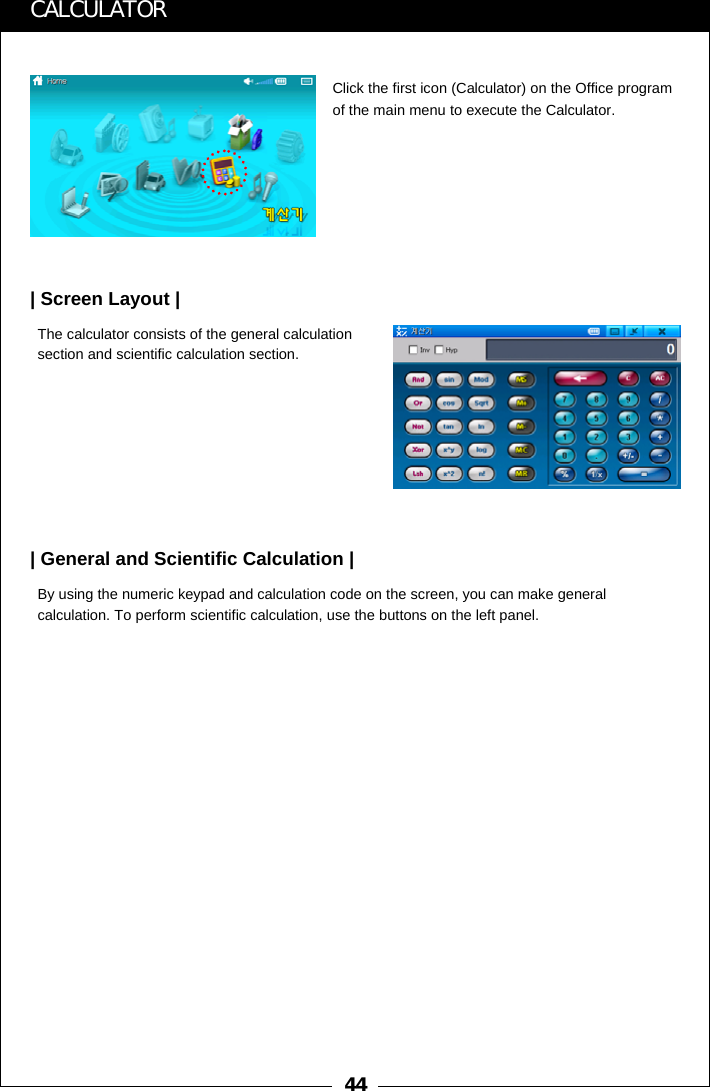
44CALCULATORClick the first icon (Calculator) on the Office program of the main menu to execute the Calculator.The calculator consists of the general calculation section and scientific calculation section.| Screen Layout |By using the numeric keypad and calculation code on the screen, you can make general calculation. To perform scientific calculation, use the buttons on the left panel.| General and Scientific Calculation |
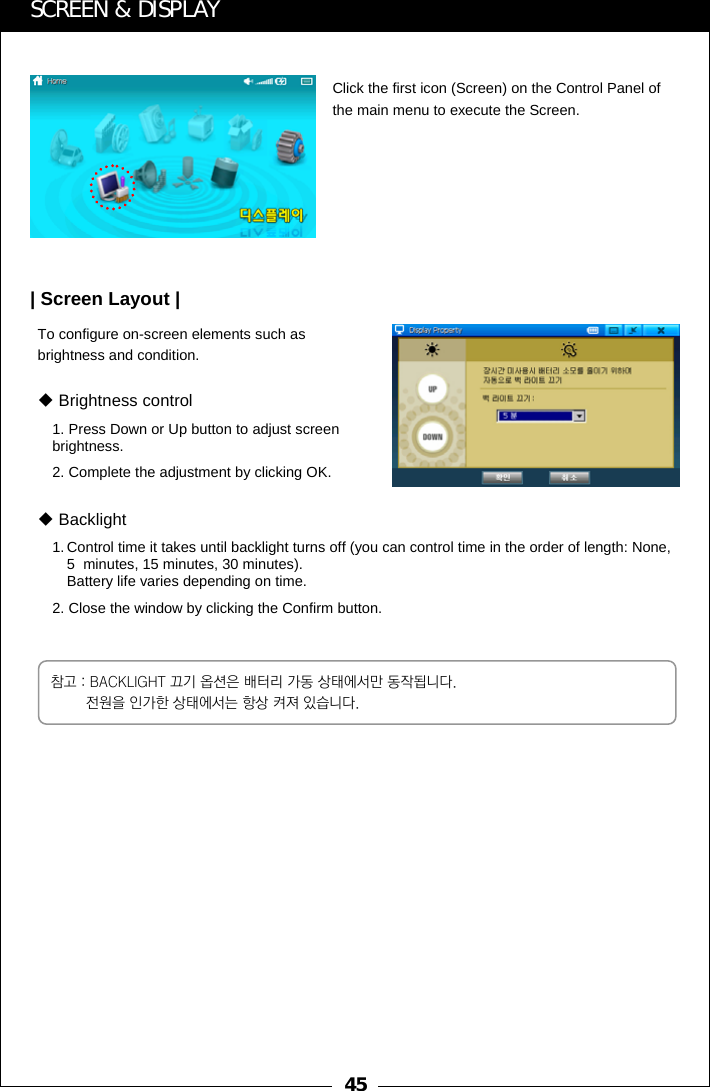
45SCREEN & DISPLAYClick the first icon (Screen) on the Control Panel of the main menu to execute the Screen.To configure on-screen elements such as brightness and condition.| Screen Layout |1. Press Down or Up button to adjust screen brightness.2. Complete the adjustment by clicking OK.Brightness control1. Control time it takes until backlight turns off (you can control time in the order of length: None, 5  minutes, 15 minutes, 30 minutes).Battery life varies depending on time.  2. Close the window by clicking the Confirm button.Backlight참고 : BACKLIGHT 끄기 옵션은 배터리 가동 상태에서만 동작됩니다. 전원을 인가한 상태에서는 항상 켜져 있습니다.
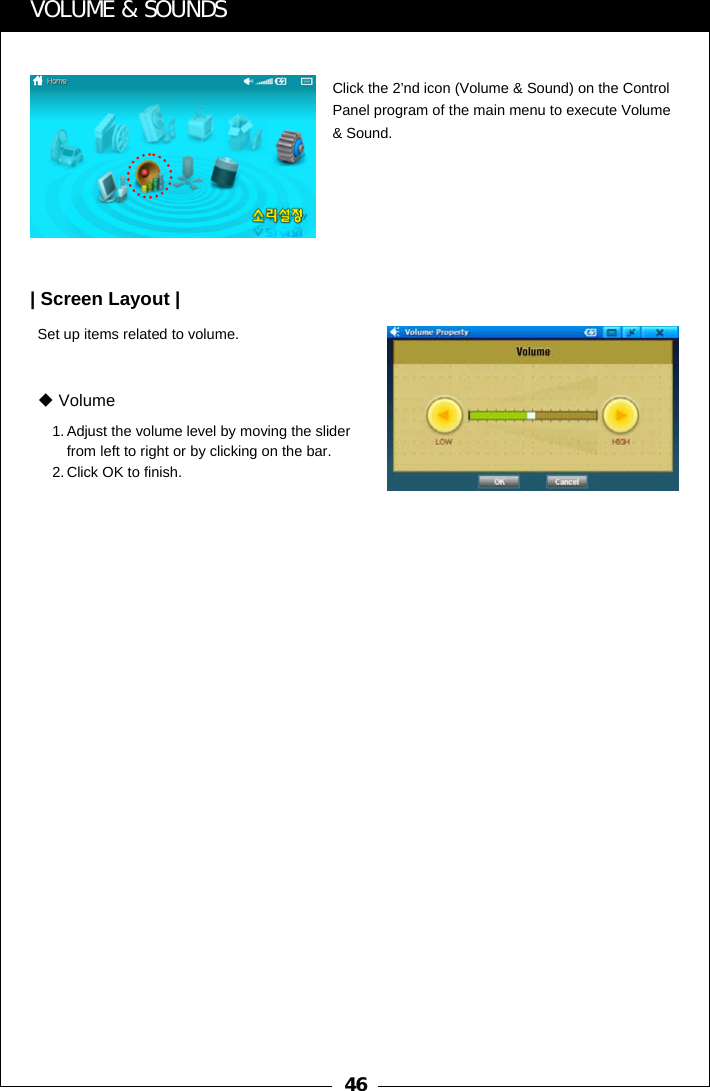
46VOLUME & SOUNDSClick the 2’nd icon (Volume & Sound) on the Control Panel program of the main menu to execute Volume & Sound.Set up items related to volume.| Screen Layout |1. Adjust the volume level by moving the slider from left to right or by clicking on the bar. 2. Click OK to finish.Volume
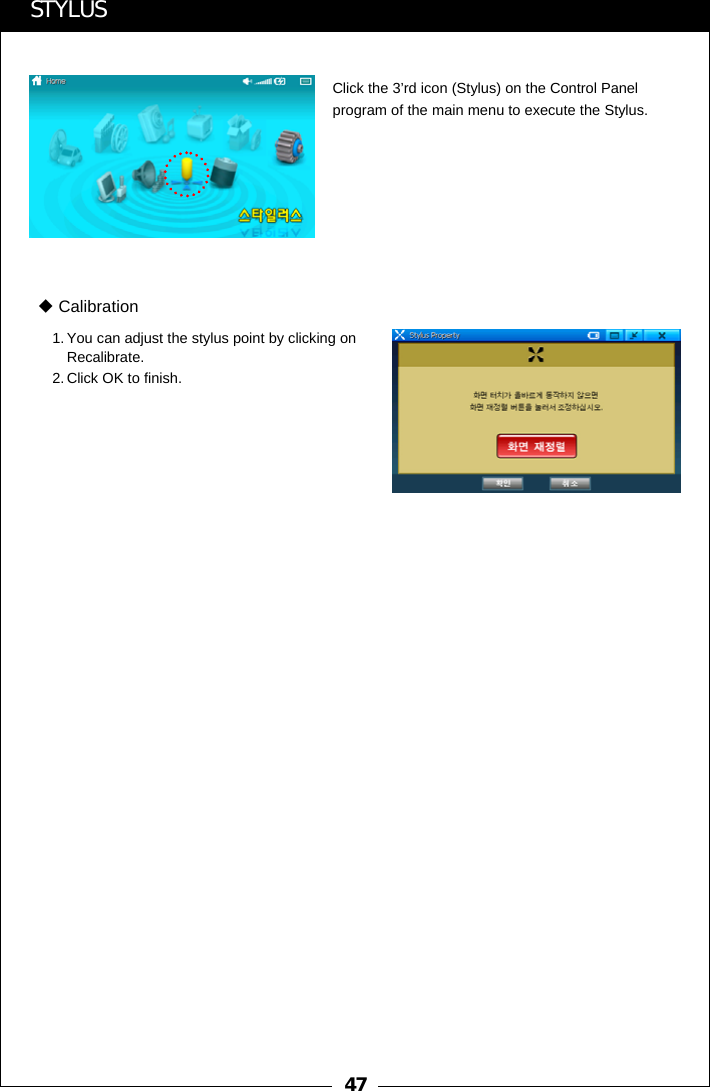
47STYLUSClick the 3’rd icon (Stylus) on the Control Panel program of the main menu to execute the Stylus.1. You can adjust the stylus point by clicking on Recalibrate. 2. Click OK to finish.Calibration
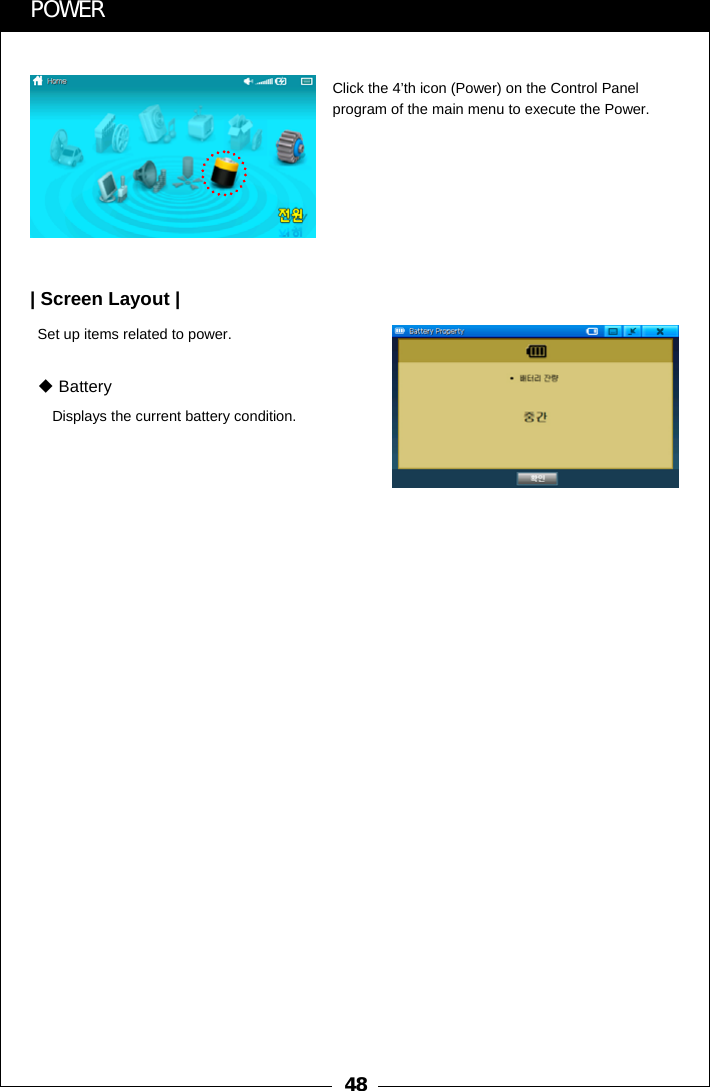
48POWERClick the 4’th icon (Power) on the Control Panel program of the main menu to execute the Power.Set up items related to power.| Screen Layout |Displays the current battery condition.Battery
49| ADDITIONAL FUNCTIONS |
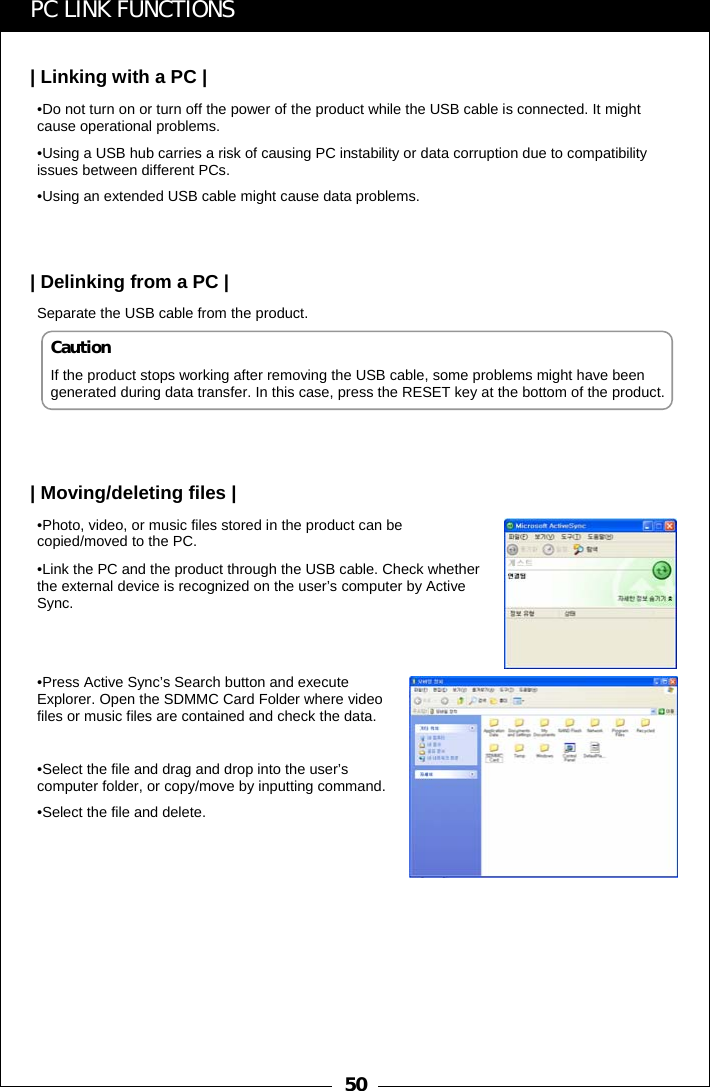
50PC LINK FUNCTIONS| Linking with a PC |•Do not turn on or turn off the power of the product while the USB cable is connected. It might cause operational problems.•Using a USB hub carries a risk of causing PC instability or data corruption due to compatibility issues between different PCs.•Using an extended USB cable might cause data problems.| Delinking from a PC |Separate the USB cable from the product.| Moving/deleting files |•Photo, video, or music files stored in the product can be copied/moved to the PC. •Link the PC and the product through the USB cable. Check whetherthe external device is recognized on the user’s computer by Active Sync.•Press Active Sync’s Search button and execute Explorer. Open the SDMMC Card Folder where video files or music files are contained and check the data.•Select the file and drag and drop into the user’s computer folder, or copy/move by inputting command.•Select the file and delete.CautionIf the product stops working after removing the USB cable, some problems might have been generated during data transfer. In this case, press the RESET key at the bottom of the product.
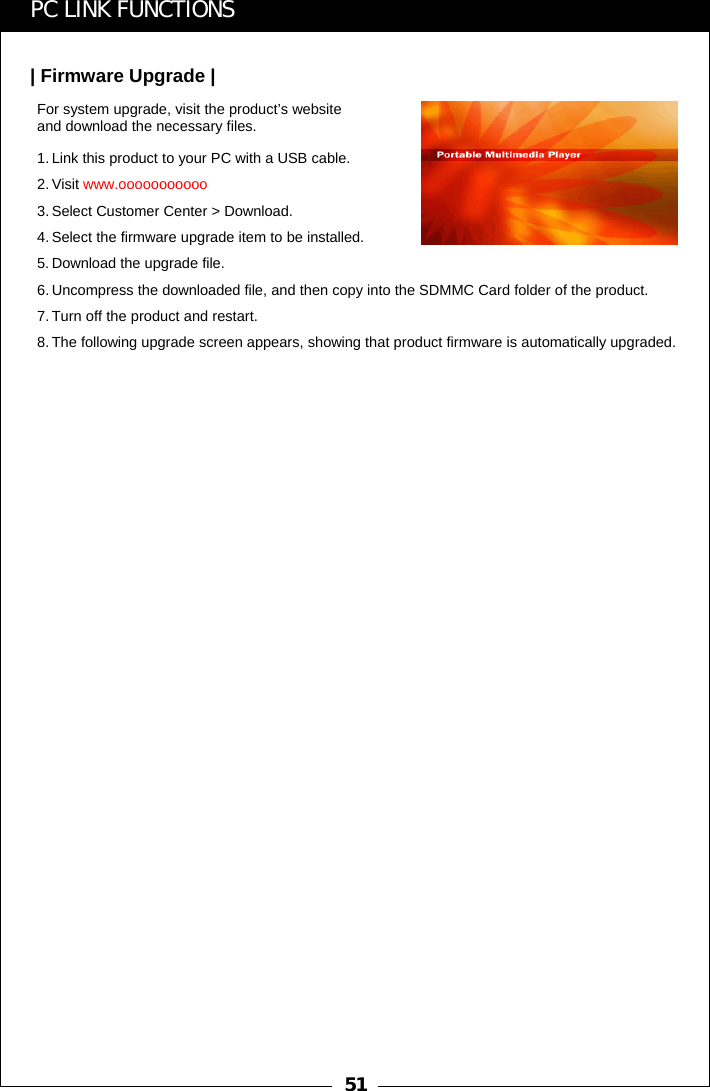
51PC LINK FUNCTIONS| Firmware Upgrade |For system upgrade, visit the product’s website and download the necessary files.1. Link this product to your PC with a USB cable.2. Visit www.ooooooooooo3. Select Customer Center > Download.4. Select the firmware upgrade item to be installed.5. Download the upgrade file.6. Uncompress the downloaded file, and then copy into the SDMMC Card folder of the product.7. Turn off the product and restart.8. The following upgrade screen appears, showing that product firmware is automatically upgraded.
52| Before using the Transcoder |Functions of Transcoder•Movies: Unsupported file types need to be converted.•Setting out Transcoder options: No optional settings required as files will be converted automatically upon import.  •Check if the files are corrupted when errors occur. You can change image size by using [Image Resizing] button in the lower left part of the screen.•When performing first after program installation, connecting this product to the PC disables the security code and enables subsequent use.Files that can be converted•Recommended system requirements- Pentium3 1Ghz or faster- Memory 256 MB or larger- Microsoft DirectX-supported  VGA - Sound card•OS- Microsoft Windows 98 - Microsoft Windows ME- Microsoft Windows 2000- Microsoft Windows XPRequired systemTRANSCODER•File Converter•DVD Player•DVD Converter•QuickTime(MOV/QT/MP4) Converter•Advanced DVD Converter•RealVideo Converter
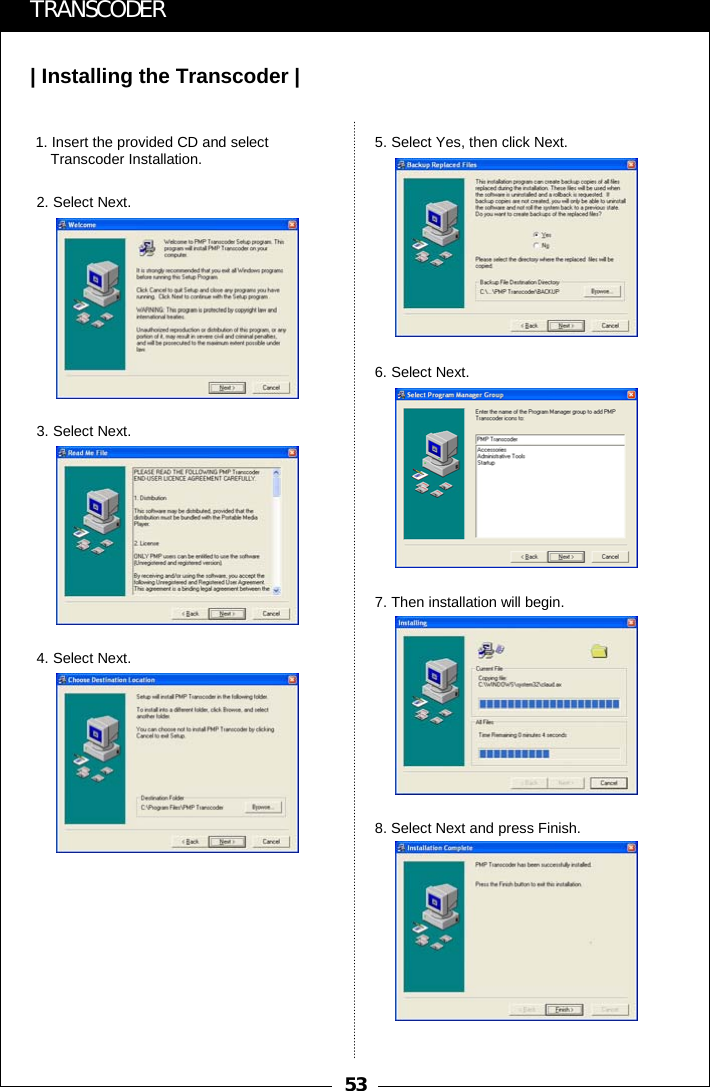
53| Installing the Transcoder |TRANSCODER1. Insert the provided CD and select Transcoder Installation.2. Select Next.3. Select Next.4. Select Next.5. Select Yes, then click Next.6. Select Next.7. Then installation will begin.8. Select Next and press Finish.
54| Using the Transcoder |TRANSCODERTranscoder window1. File lists window: Displays currently opened files.2. Status bar: Show status for currently running command.3. Playing time and estimated file converting time: displays Playing time or estimated time for file converting.4. Play and converting status sign: Displays playback or file converting status.5. Assigning file size: Use when the converted file needs to be divided into sections. 6. Setting audio file synchronization: Use to match sound to the original audio file.Menu bar• Opening files to be converted sets options automatically.• Image Resizing: Select file size (limit the resolution under 640 x 480 for images whose resolution is 640 x 480 or over)• Destination: Locate converted file.• Frame Rate: Sets the frame rate.• Audio Format: Sets audio file sampling frequency and bit-rate.Defaults are 192 kBit/s, 44.100 Hz, stereo.• Video Format: Video option setting window (Automatic setup)Icons1.Open2.Close3.Play4.Stop5.Convert selected files6.Set starting point of the file section to be      converted7.Set ending point of the file section to be converted8.Convert all current files9.Run section converting12 3456789Press [Start] in the lower left part then go to [Program(P)] →[PMP Transcoder] →[PMP Transcoder], or double-click PMP Transcodericon in background.345612
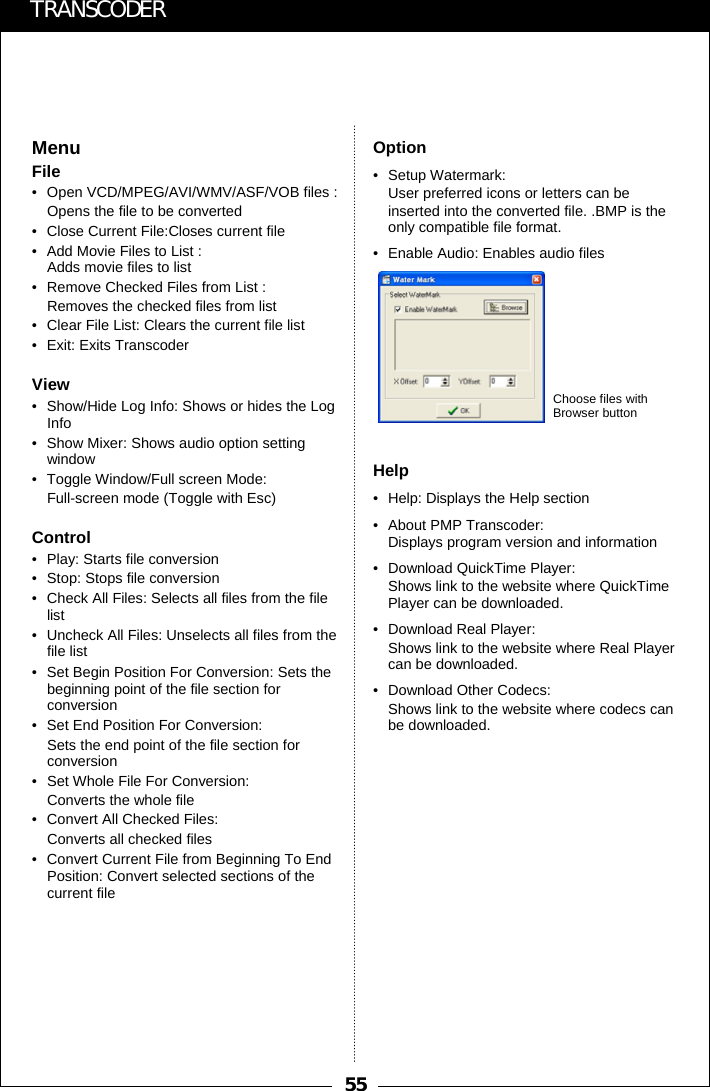
55TRANSCODEROption• Setup Watermark: User preferred icons or letters can be inserted into the converted file. .BMP is the only compatible file format. • Enable Audio: Enables audio filesHelp• Help: Displays the Help section• About PMP Transcoder: Displays program version and information• Download QuickTime Player:Shows link to the website where QuickTime Player can be downloaded.• Download Real Player: Shows link to the website where Real Player can be downloaded.• Download Other Codecs: Shows link to the website where codecs can be downloaded.MenuFile• Open VCD/MPEG/AVI/WMV/ASF/VOB files : Opens the file to be converted• Close Current File:Closes current file• Add Movie Files to List : Adds movie files to list• Remove Checked Files from List : Removes the checked files from list• Clear File List: Clears the current file list• Exit: Exits TranscoderView• Show/Hide Log Info: Shows or hides the LogInfo • Show Mixer: Shows audio option setting window• Toggle Window/Full screen Mode: Full-screen mode (Toggle with Esc)Control• Play: Starts file conversion• Stop: Stops file conversion• Check All Files: Selects all files from the file list• Uncheck All Files: Unselects all files from the file list• Set Begin Position For Conversion: Sets the beginning point of the file section for conversion• Set End Position For Conversion: Sets the end point of the file section for conversion• Set Whole File For Conversion: Converts the whole file• Convert All Checked Files: Converts all checked files• Convert Current File from Beginning To End Position: Convert selected sections of the current fileChoose files with Browser button
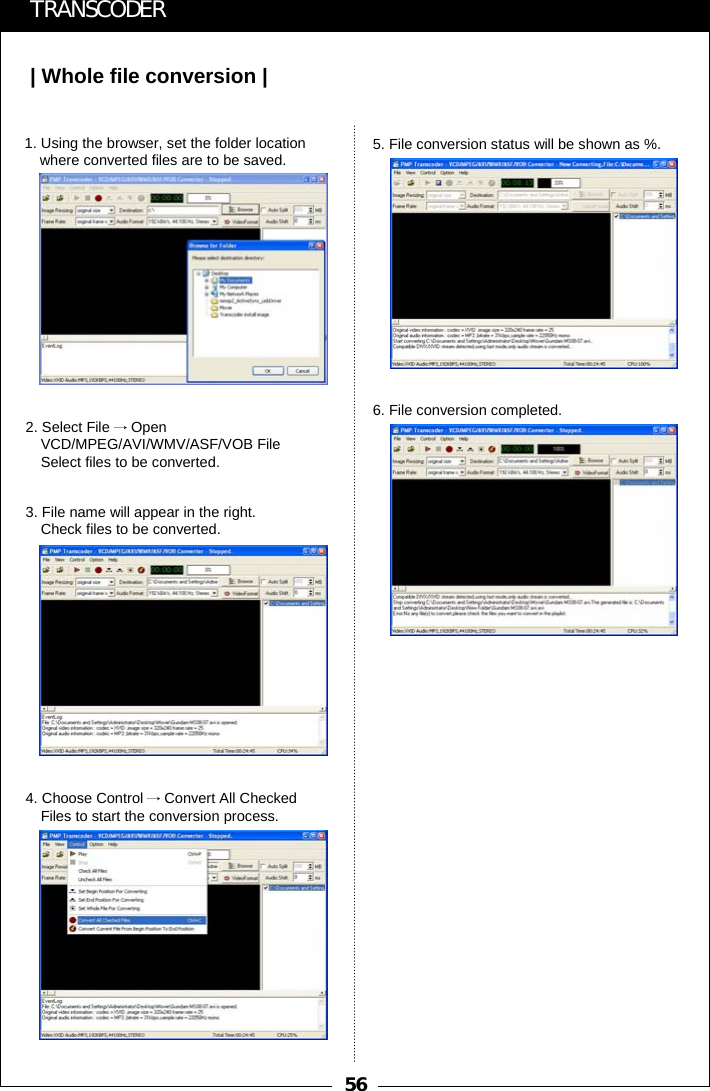
56| Whole file conversion |TRANSCODER1. Using the browser, set the folder location where converted files are to be saved.2. Select File →Open VCD/MPEG/AVI/WMV/ASF/VOB File Select files to be converted.3. File name will appear in the right.Check files to be converted.4. Choose Control →Convert All Checked Files to start the conversion process.5. File conversion status will be shown as %.6. File conversion completed.
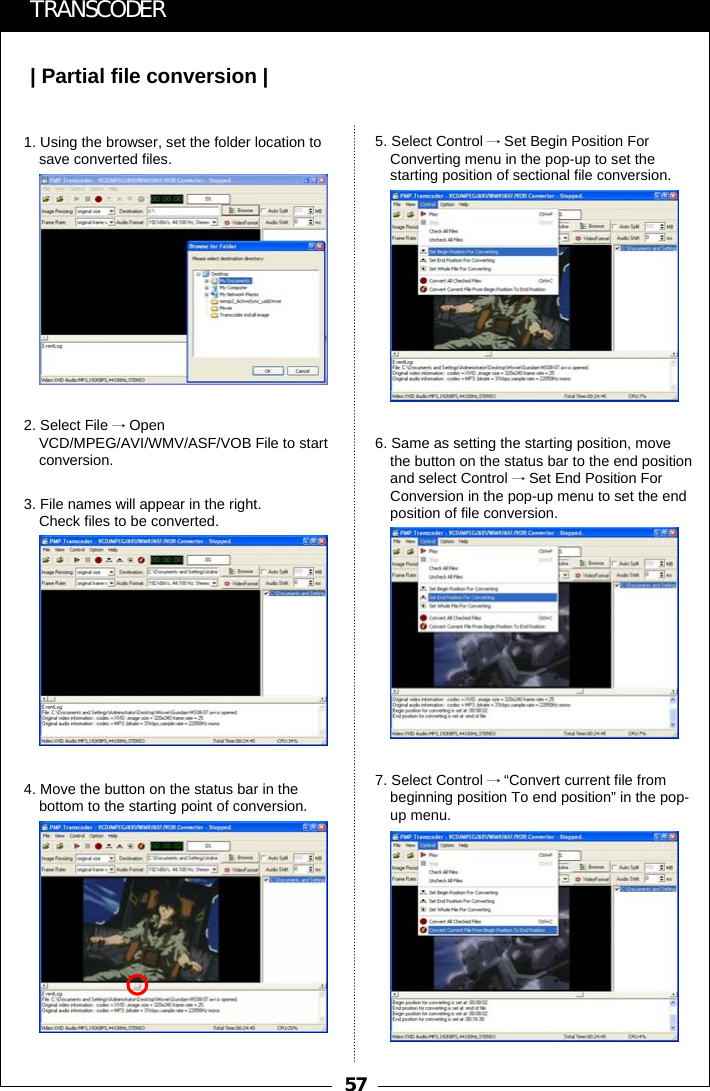
57| Partial file conversion |TRANSCODER1. Using the browser, set the folder location to save converted files.2. Select File →Open VCD/MPEG/AVI/WMV/ASF/VOB File to start conversion.3. File names will appear in the right.Check files to be converted.4. Move the button on the status bar in the bottom to the starting point of conversion.5. Select Control →Set Begin Position For Converting menu in the pop-up to set the starting position of sectional file conversion.6. Same as setting the starting position, move the button on the status bar to the end position and select Control →Set End Position For Conversion in the pop-up menu to set the end position of file conversion.7. Select Control →“Convert current file from beginning position To end position” in the pop-up menu.
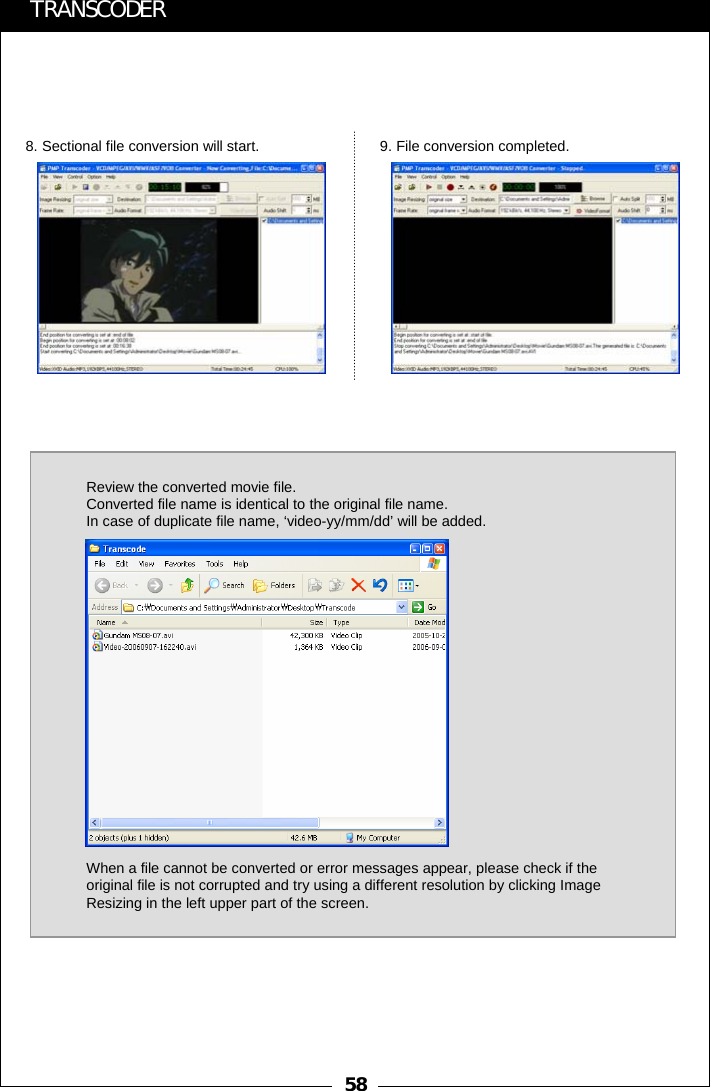
58TRANSCODER8. Sectional file conversion will start. 9. File conversion completed.Review the converted movie file.Converted file name is identical to the original file name. In case of duplicate file name, ‘video-yy/mm/dd’ will be added.When a file cannot be converted or error messages appear, please check if the original file is not corrupted and try using a different resolution by clicking Image Resizing in the left upper part of the screen.
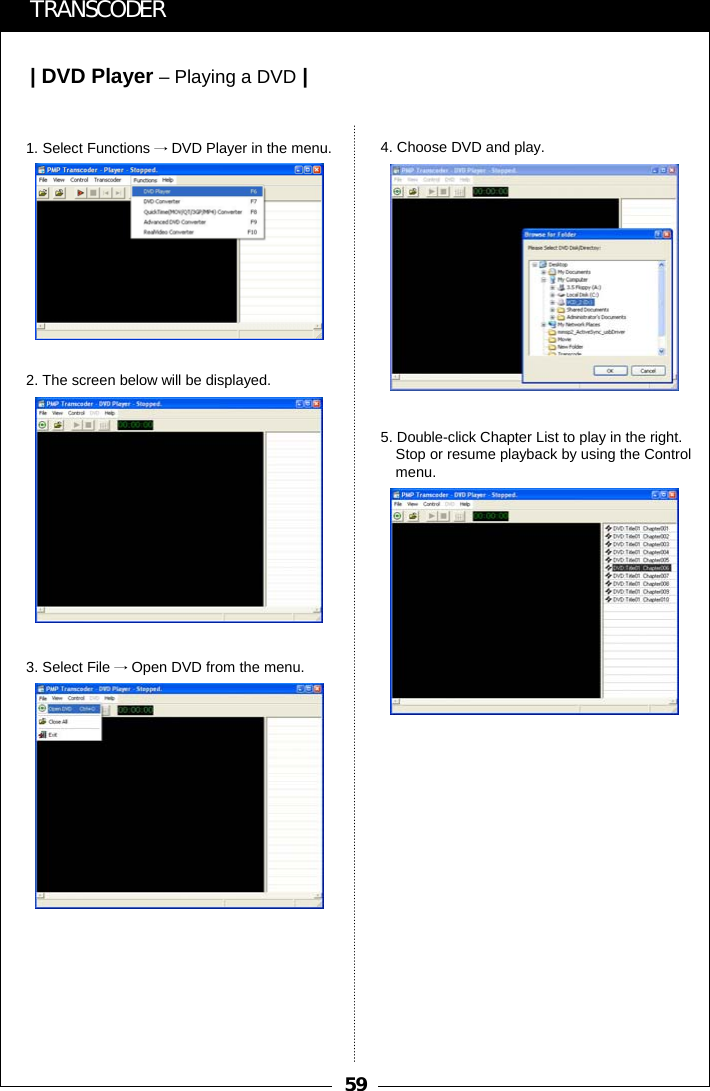
59| DVD Player –Playing a DVD|TRANSCODER1. Select Functions →DVD Player in the menu.2. The screen below will be displayed.3. Select File →Open DVD from the menu.4. Choose DVD and play.5. Double-click Chapter List to play in the right.Stop or resume playback by using the Controlmenu.
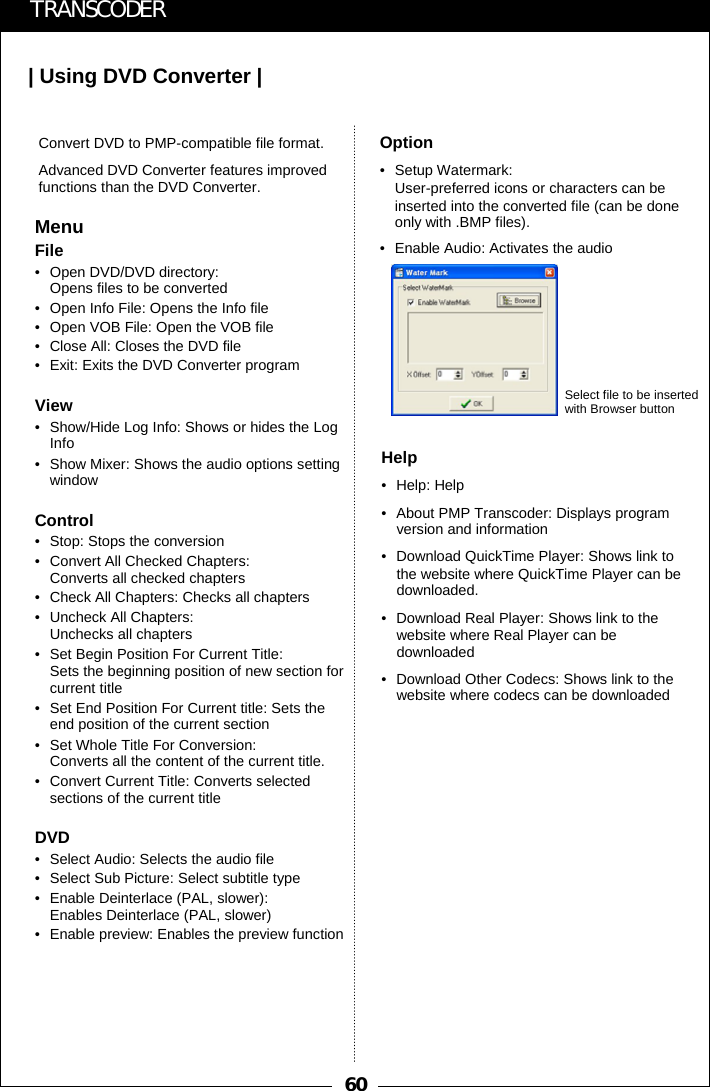
60| Using DVD Converter |TRANSCODERMenuFile• Open DVD/DVD directory: Opens files to be converted• Open Info File: Opens the Info file• Open VOB File: Open the VOB file• Close All: Closes the DVD file• Exit: Exits the DVD Converter programView• Show/Hide Log Info: Shows or hides the Log Info• Show Mixer: Shows the audio options setting windowControl• Stop: Stops the conversion• Convert All Checked Chapters: Converts all checked chapters• Check All Chapters: Checks all chapters• Uncheck All Chapters: Unchecks all chapters• Set Begin Position For Current Title:Sets the beginning position of new section for current title• Set End Position For Current title: Sets the end position of the current section• Set Whole Title For Conversion: Converts all the content of the current title.• Convert Current Title: Converts selected sections of the current titleDVD• Select Audio: Selects the audio file• Select Sub Picture: Select subtitle type• Enable Deinterlace (PAL, slower): Enables Deinterlace (PAL, slower)• Enable preview: Enables the preview functionConvert DVD to PMP-compatible file format. Advanced DVD Converter features improved functions than the DVD Converter.Option• Setup Watermark:User-preferred icons or characters can be inserted into the converted file (can be done only with .BMP files). • Enable Audio: Activates the audioHelp•Help: Help• About PMP Transcoder: Displays program version and information• Download QuickTime Player: Shows link to the website where QuickTime Player can be downloaded.• Download Real Player: Shows link to the website where Real Player can be downloaded• Download Other Codecs: Shows link to the website where codecs can be downloadedSelect file to be inserted with Browser button
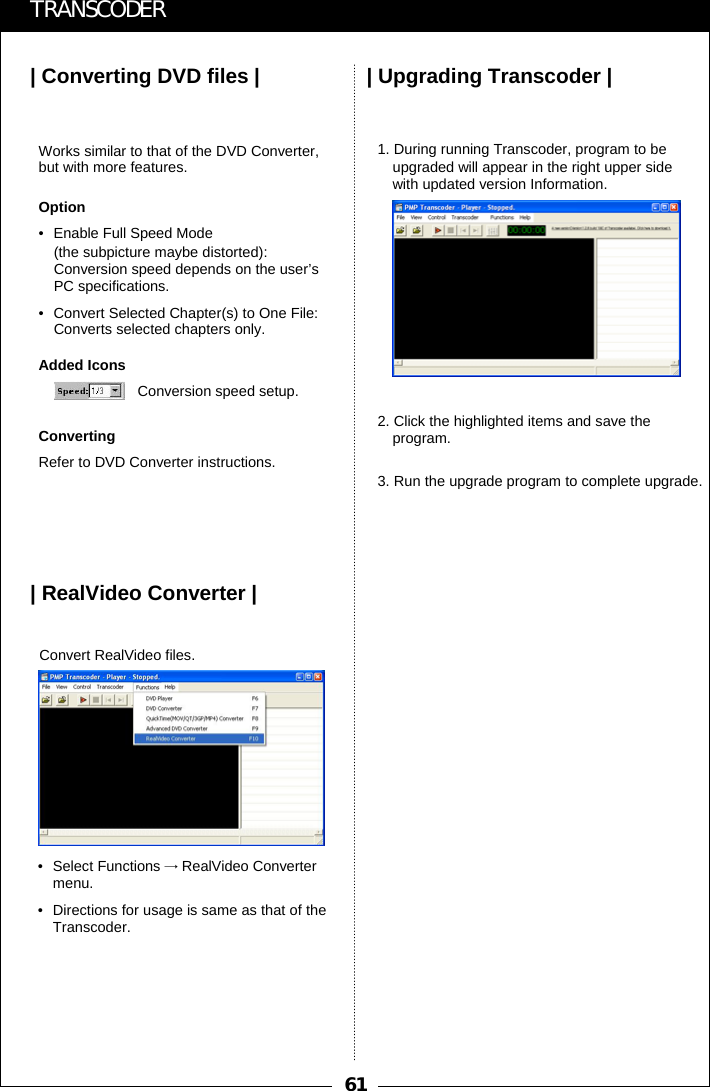
61| Converting DVD files | | Upgrading Transcoder || RealVideo Converter |TRANSCODERConversion speed setup.Works similar to that of the DVD Converter, but with more features.Option• Enable Full Speed Mode (the subpicture maybe distorted): Conversion speed depends on the user’s PC specifications.• Convert Selected Chapter(s) to One File: Converts selected chapters only.Added IconsConvertingRefer to DVD Converter instructions.Convert RealVideo files.• Select Functions →RealVideo Convertermenu.• Directions for usage is same as that of the Transcoder. 1. During running Transcoder, program to be upgraded will appear in the right upper side with updated version Information.2. Click the highlighted items and save the program.3. Run the upgrade program to complete upgrade.
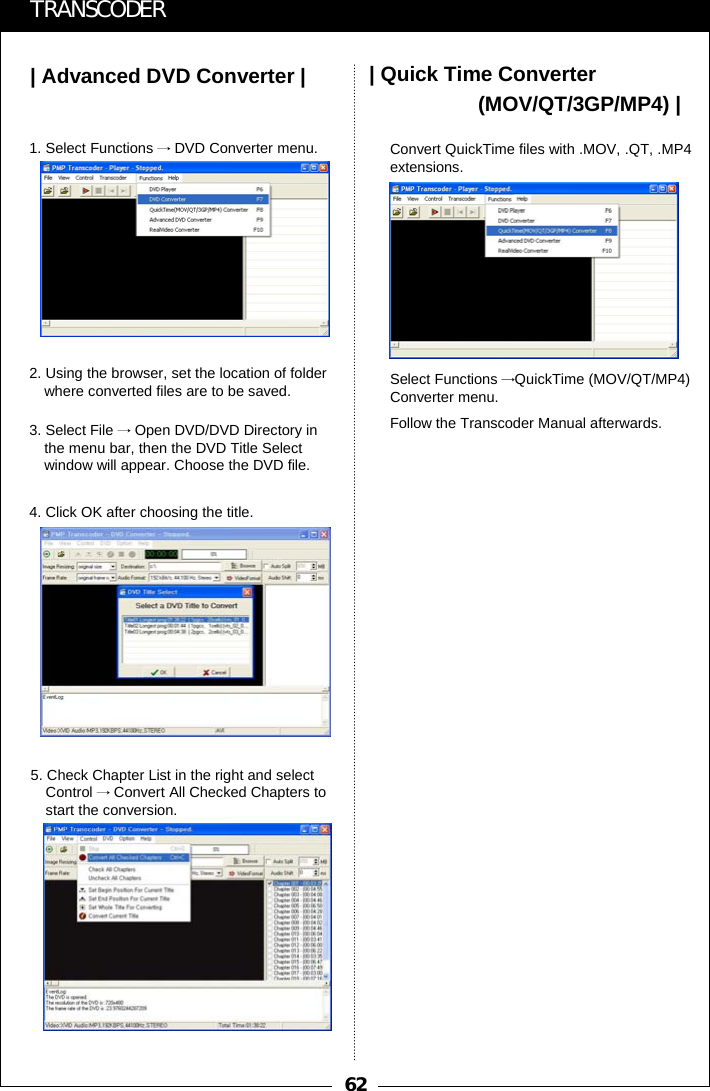
62| Advanced DVD Converter |TRANSCODER| Quick Time Converter(MOV/QT/3GP/MP4) |1. Select Functions →DVD Converter menu.2. Using the browser, set the location of folder where converted files are to be saved.3. Select File →Open DVD/DVD Directory in the menu bar, then the DVD Title Select window will appear. Choose the DVD file.4. Click OK after choosing the title.5. Check Chapter List in the right and select Control →Convert All Checked Chapters to start the conversion.Convert QuickTime files with .MOV, .QT, .MP4extensions.Select Functions →QuickTime (MOV/QT/MP4) Converter menu.Follow the Transcoder Manual afterwards.
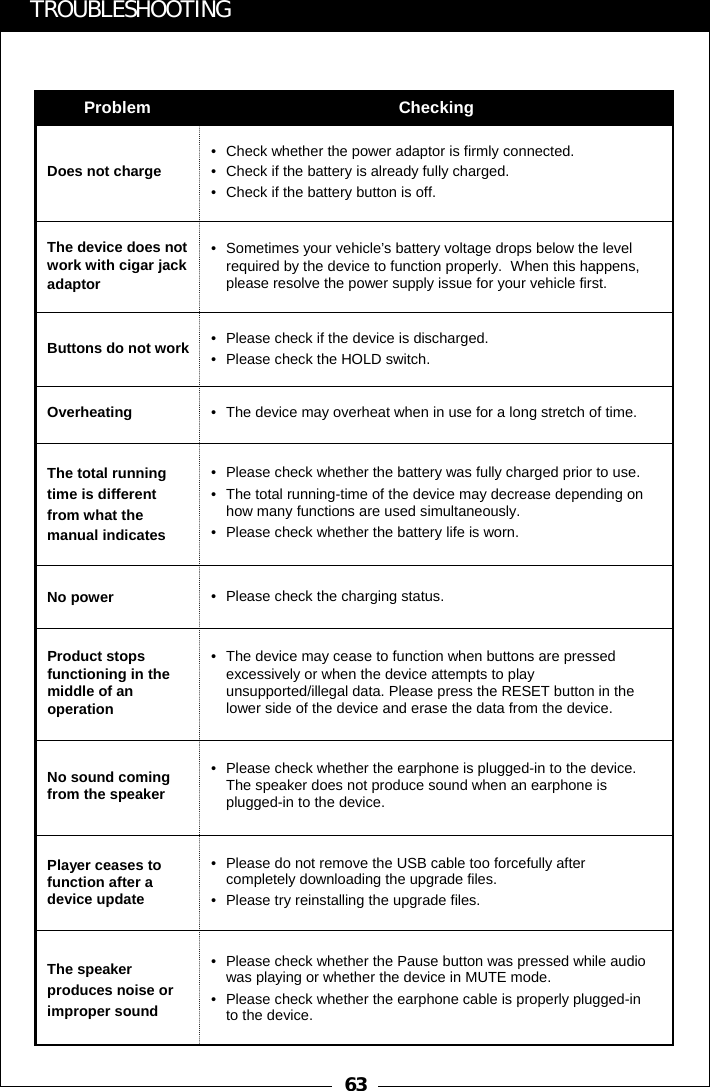
63• Please check whether the earphone is plugged-in to the device.  The speaker does not produce sound when an earphone is plugged-in to the device.No sound coming from the speaker• Please check the charging status.No power• The device may overheat when in use for a long stretch of time.Overheating• Please check whether the battery was fully charged prior to use.• The total running-time of the device may decrease depending on how many functions are used simultaneously.• Please check whether the battery life is worn.The total running time is different from what the manual indicates• Check whether the power adaptor is firmly connected. • Check if the battery is already fully charged.• Check if the battery button is off.Does not charge• Sometimes your vehicle’s battery voltage drops below the level required by the device to function properly.  When this happens,please resolve the power supply issue for your vehicle first.The device does not work with cigar jack adaptor• Please check if the device is discharged.• Please check the HOLD switch.Buttons do not workCheckingProblem• The device may cease to function when buttons are pressed excessively or when the device attempts to play unsupported/illegal data. Please press the RESET button in the lower side of the device and erase the data from the device.Product stops functioning in the middle of an operationTROUBLESHOOTING• Please do not remove the USB cable too forcefully after completely downloading the upgrade files.• Please try reinstalling the upgrade files.Player ceases to function after a device update• Please check whether the Pause button was pressed while audio was playing or whether the device in MUTE mode.  • Please check whether the earphone cable is properly plugged-in to the device.The speaker produces noise or improper sound
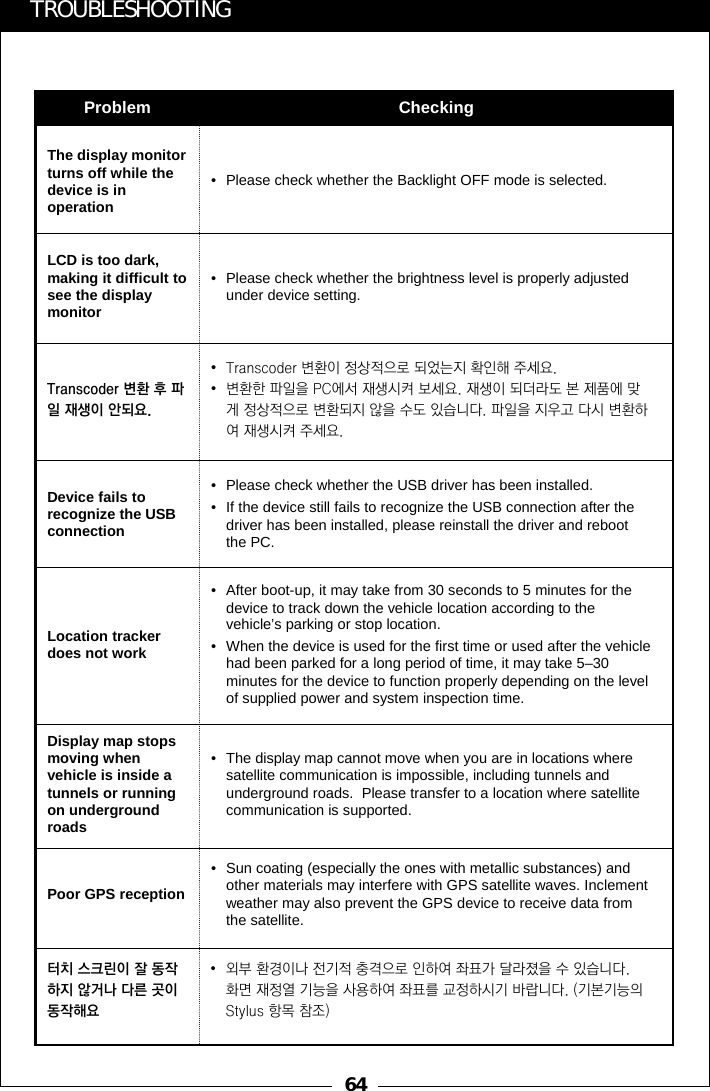
64• Sun coating (especially the ones with metallic substances) and other materials may interfere with GPS satellite waves. Inclement weather may also prevent the GPS device to receive data from the satellite.Poor GPS reception• The display map cannot move when you are in locations where satellite communication is impossible, including tunnels and underground roads.  Please transfer to a location where satellite communication is supported. Display map stops moving when vehicle is inside a tunnels or running on underground roads • After boot-up, it may take from 30 seconds to 5 minutes for the device to track down the vehicle location according to the vehicle’s parking or stop location.• When the device is used for the first time or used after the vehicle had been parked for a long period of time, it may take 5–30 minutes for the device to function properly depending on the level of supplied power and system inspection time.Location tracker does not work• Please check whether the Backlight OFF mode is selected.The display monitor turns off while the device is in operationCheckingProblem•Transcoder 변환이 정상적으로 되었는지 확인해 주세요.•변환한 파일을 PC에서 재생시켜 보세요. 재생이 되더라도 본 제품에 맞게 정상적으로 변환되지 않을 수도 있습니다. 파일을 지우고 다시 변환하여 재생시켜 주세요.Transcoder 변환 후 파일 재생이 안되요.• Please check whether the USB driver has been installed. • If the device still fails to recognize the USB connection after the driver has been installed, please reinstall the driver and reboot the PC.Device fails to recognize the USB connection• Please check whether the brightness level is properly adjusted under device setting.LCD is too dark, making it difficult to see the display monitorTROUBLESHOOTING •외부 환경이나 전기적 충격으로 인하여 좌표가 달라졌을 수 있습니다.   화면 재정열 기능을 사용하여 좌표를 교정하시기 바랍니다. (기본기능의Stylus 항목 참조)터치 스크린이 잘 동작하지 않거나 다른 곳이동작해요
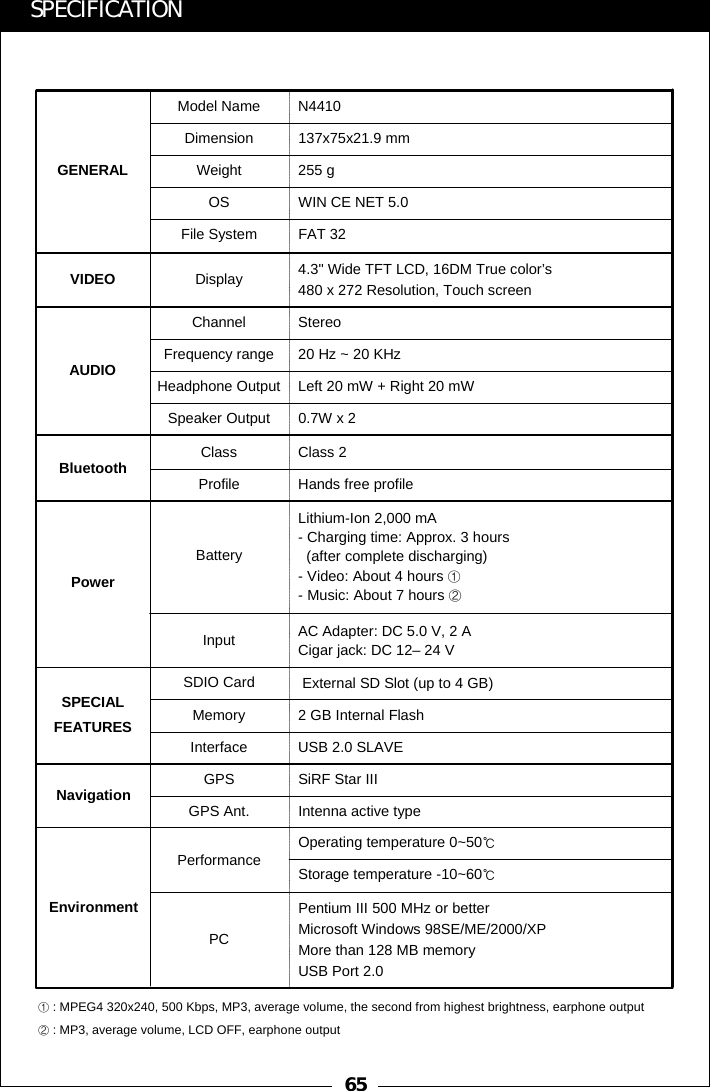
65GPS SiRF Star IIIChannel StereoFrequency range 20 Hz ~ 20 KHz4.3" Wide TFT LCD, 16DM True color’s480 x 272 Resolution, Touch screenDisplayFile System FAT 32Dimension 137x75x21.9 mmModel Name N4410Weight 255 gOS WIN CE NET 5.0Headphone Output Left 20 mW + Right 20 mWSpeaker Output 0.7W x 2Lithium-Ion 2,000 mA- Charging time: Approx. 3 hours (after complete discharging) - Video: About 4 hours ①- Music: About 7 hours ②BatterySDIO Card External SD Slot (up to 4 GB)Memory 2 GB Internal FlashInterface USB 2.0 SLAVEGPS Ant. Intenna active typeVIDEOAUDIOGENERALPowerSPECIALFEATURESNavigationSPECIFICATIONBluetooth Class Class 2 Profile Hands free profileInput AC Adapter: DC 5.0 V, 2 ACigar jack: DC 12– 24 V①: MPEG4 320x240, 500 Kbps, MP3, average volume, the second from highest brightness, earphone output ②: MP3, average volume, LCD OFF, earphone outputEnvironmentPerformance Operating temperature 0~50℃Storage temperature -10~60℃PCPentium III 500 MHz or betterMicrosoft Windows 98SE/ME/2000/XPMore than 128 MB memoryUSB Port 2.0
66MEMO

Navigation menu