Eleven Engineering orporated PL5559 Gemma User Manual SKAA User s Guide v2 3
Eleven Engineering Inc. Gemma SKAA User s Guide v2 3
Users Manual
SKAA USER’S GUIDE
SKAA OS v2.3
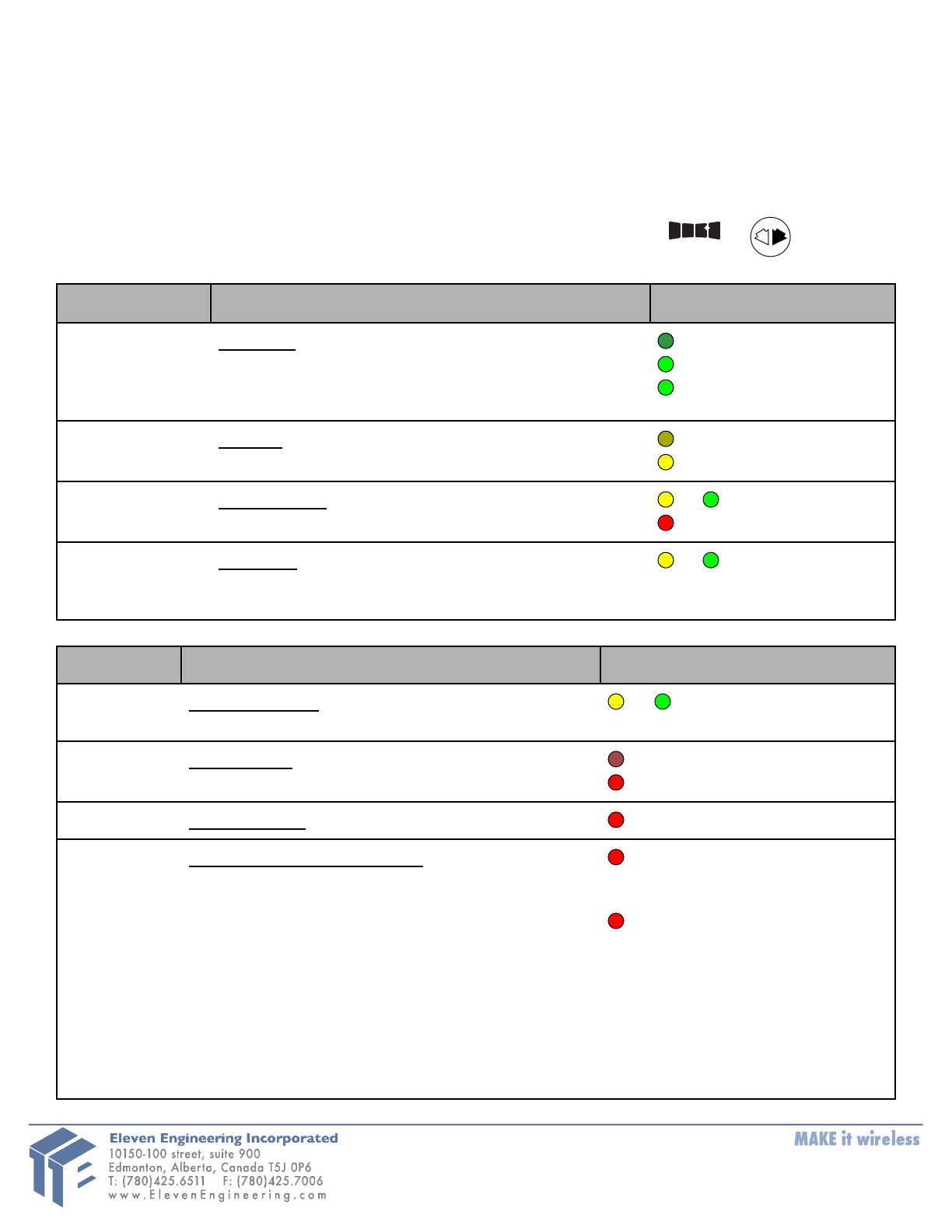
Each SKAA® receiver has a Green List which remembers your favorite transmitters. A Green
indicator on the receiver means you are listening to a favorite, or hunting for one. Your receiver
can also explore to find new transmitters. An Amber indicator means you are exploring—looking
for transmitters which are not on your Green List. A Cluster is a product with two or more
pieces which behave as one, such as a left and right speaker pair. The Bond Button lets you
select which transmitter you’re listening to. The Bond Button has the or logo.
Essentials
Bond Button
Command
LED Meaning
Click
Favorites Hunt through your Green List of
favorite transmitters. Click again to switch
between hunting for all transmitters on your
Green List and only the current one
(dim) = Hunting
(flash) = Next one
(solid) = Bonded
2 Clicks
Explore Hunt for new, unknown transmitters
(ones which are not on your Green List already)
(dim) = Hunting
(solid) = Bonded
Hold
(a few seconds)
Add / Delete Manually add / delete the current
transmitter to / from your Green List
to = Added
(flash) = Deleted
-
Auto Add SKAA adds the current Amber
transmitter to your Green List if you listen to it
for 30 minutes
to = Added
More Commands
Bond Button
Command
LED Meaning
3 Clicks
Mute / Unmute Note—every Click command
will first Unmute and then perform its function
or (slow flash) = Muted
4 Clicks
Swing Mode Bond to any transmitter on your
Green List (hint: have just one powered on)
(dim) = Hunting
(solid) = Bonded
6 Clicks
Factory Reset Start over!
(flash) = Green List cleared
Hold during
power on
Make a Cluster of receivers:
1. Make sure the transmitter is powered off
2. Power on the Master receiver while holding
down its Bond Button—hold the button
down until the Red LED begins to flash
3. With the remaining receivers within 3
meters of the Master receiver, power on
the first one, wait for its Red LED to flash
and then power on the second one.
Continue until all of them are powered on.
4. Once all of the LEDs stop flashing (turn
solid Red), power off all of the receivers
(flash) = Master receiver
has entered
‘Cluster Up’ mode
(solid) = The Cluster has
been successfully
made
QUESTIONS AND ANSWERS
Question
Answer
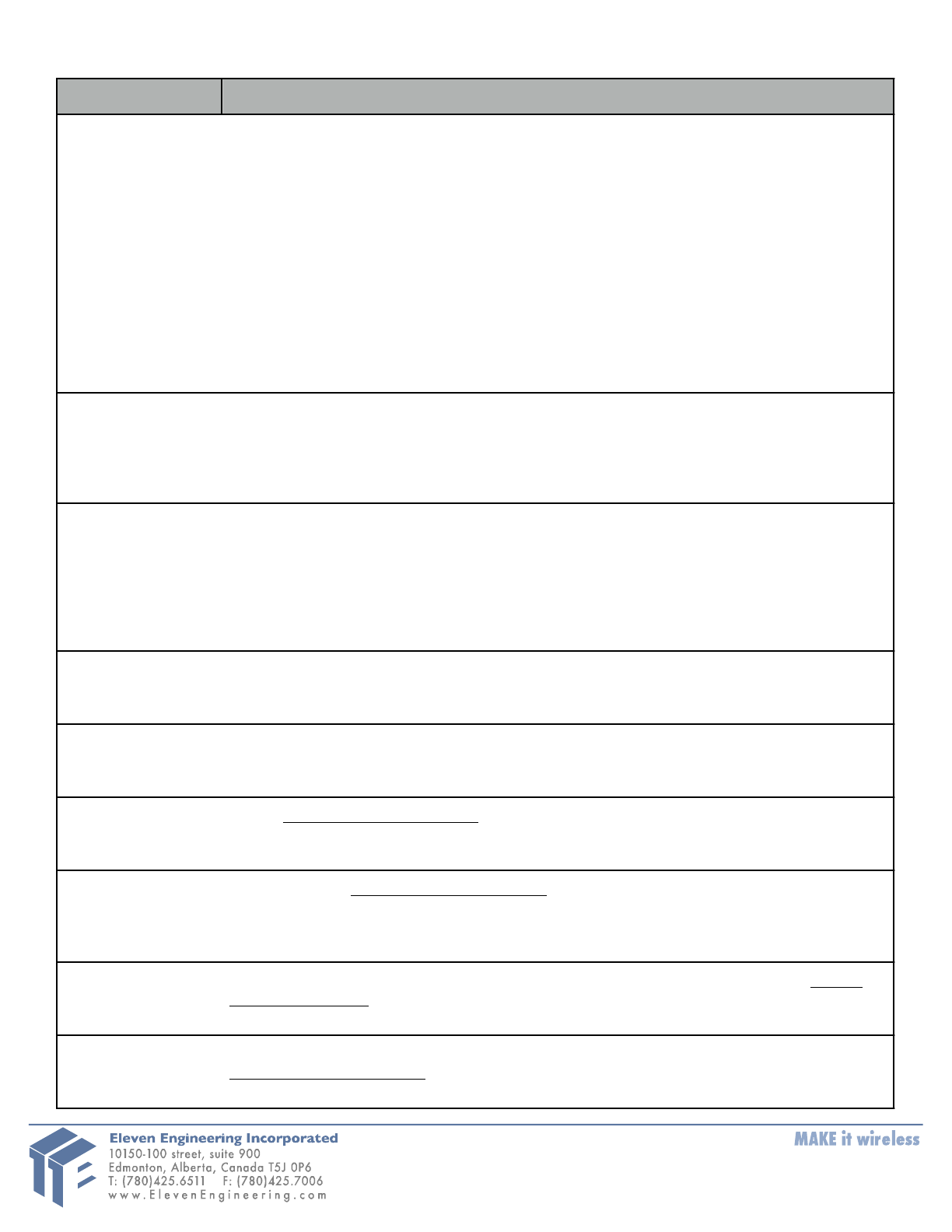
How does the Green
List work?
Every time you add a transmitter, it is automatically assigned the first open spot on the
Green List—so if you already have two transmitters on your Green List, the next one you
add will go in Green List spot #3. The receiver can hunt through the Green List much like
a car radio hunts for radio stations when you press “seek”. If you see the Green LED
flash, the receiver is automatically moving through your Green List, checking for each
favorite transmitter as it goes. For example if you have 3 transmitters on your Green List,
your receiver will hunt for them in order 1, 2 then 3, then back to 1 and so on (the Green
LED will flash every time it advances from one to the next). The receiver looks for each
transmitter for about 3 seconds and then moves on to the next one if it doesn’t find it. If
it does find it, it stops there, bonds with it and starts playing its audio. If you don’t see
the Green list flash, the receiver is just sitting, waiting for one particular favorite
transmitter to show up. Click the SKAA button once to flip back and forth between these
two modes (hunting through your whole Green List, and sitting waiting for one particular
transmitter to show up). You can store up to 10 favorite transmitters on your Green List.
How do I choose a
specific transmitter?
If you have a dim Green LED (you aren’t hearing any audio), click the SKAA button once.
The Green LED will flash once every 3 seconds as the receiver moves through your Green
List, stopping at each spot and hunting for the associated transmitter. Once it finds one, it
will bond to it and play its audio. If that isn’t the transmitter you want, click the SKAA
button once more. Repeat until you find the transmitter you want.
How to I delete a
transmitter from my
Green List?
Let’s start by saying that the 6-click command (delete everything and start over) is very
handy. The author uses it. All the time. If however, you’d like to surgically remove just
one transmitter from your Green List, read on. First you must get your receiver to sit on
the proper spot on the Green List—the spot holding the transmitter you’d like to turf. The
easiest way to do this is to bond your receiver to the transmitter you want to delete (see
How do I choose a specific transmitter? above). Next, hold the SKAA button down for a
few seconds (until you see the Red LED flash to indicate the transmitter is gonzo).
What is the Master
receiver?
In any Cluster, there is a single Master receiver, and all of the other receivers in the
Cluster follow its behavior. The Master has a working Bond Button and you can control
the entire Cluster with that one button.
Can any receiver
become the Master
of a Cluster?
No. A receiver must have a physical Bond Button in order to be made the Master of a
Cluster. If a receiver has no Bond Button it can only operate as a subordinate part of a
Cluster—it cannot be the Master of that Cluster and it cannot operate independently.
How do I
“uncluster” several
receivers?
Do the Make a Cluster of receivers procedure once for each receiver, omitting step 3. This
will give each of the receivers a functioning Bond Button, and each of them will thereafter
operate independently.
What are some tips
for making
Clusters?
Each step in the Make a Cluster of receivers procedure has a 10 second time limit. For
example, when you see the Master’s LED start to flash, you have up to 10 seconds to
power on the next receiver. When that receiver’s LED starts flashing, you have 10 more
seconds to power on the next one, and so on.
Why does only one
of my Bond Buttons
work?
If you’ve made a Cluster from several receivers, the first one powered on in the Make a
Cluster of receivers procedure is the Master of the Cluster. Only the Master’s Bond Button
will be functional because a Cluster uses just one Bond Button (and one Green List).
Can any group of
receivers be made
into a Cluster?
No. The receivers must be members of the same product family. If they are not, the
Make a Cluster of receivers procedure won’t work. This is because only receivers that
were designed to work together (as a single product) can be made into a Cluster.
Compliance Information
The statements for SKAA device Model numbers PL5559 (Gemma) is as follows:
FCC Statement
This equipment has been tested and found to comply with the limits for a Class B digital device, pursuant to
Part 15 of the FCC Rules. These limits are designed to provide reasonable protection against harmful
interference in a residential installation. This equipment generates uses and can radiate radio frequency
energy and, if not installed and used in accordance with the instructions, may cause harmful interference to
radio communications. However, there is no guarantee that interference will not occur in a particular
installation. If this equipment does cause harmful interference to radio or television reception, which can be
determined by turning the equipment off and on, the user is encouraged to try to correct the interference by
one or more of the following measures:
-- Reorient or relocate the receiving antenna.
-- Increase the separation between the equipment and receiver.
-- Connect the equipment into an outlet on a circuit different from that to which the receiver is connected.
-- Consult the dealer or an experienced radio/TV technician for help.
This device complies with part 15 of the FCC Rules. Operation is subject to the following two conditions:
(1) This device may not cause harmful interference, and (2) this device must accept any interference
received, including interference that may cause undesired operation.
Changes or modifications not expressly approved by the party responsible for compliance could void the
user's authority to operate the equipment.
The device has been evaluated to meet general RF exposure requirement. The device can be used in porta
ble exposure condition without restriction.
IC Statement:
This Class B digital apparatus complies with Canadian ICES-003. This device complies with Industry
Canada license-exempt RSS standard(s).
Operation is subject to the following two conditions: (1) this device may not cause interference, and (2) this
device must accept any interference, including interference that may cause undesired operation of the
device.
Cet appareil numérique de la classe B est conforme á la norme NMB-003 du Canada.
This device and its antenna(s) must not be co-located or operation in conjunction with any other antenna or
transmitter.
Le présent appareil est conforme aux CNR d'Industrie Canada applicables aux appareils radio exempts de
licence. L'exploitation est autorisée aux deux conditions suivantes : (1) l'appareil ne doit pas produire de
brouillage, et (2) l'utilisateur de l'appareil doit accepter tout brouillage radioélectrique subi, même si le
brouillage est susceptible d'en compromettre le fonctionnement.
IC Radiation Exposure Statement: The device meets the exemption from the routine evaluation limits in
section 2.5 of RSS 102 and compliance with RSS-102 RF exposure, users can obtain Canadian information
on RF exposure and compliance. The device has been evaluated to meet general RF exposure requirement.
The device can be used in portable exposure condition without restriction.
Le dispositif rencontre l'exemption des limites courantes d'évaluation dans la section 2.5 de RSS 102 et la
conformité à l'exposition de RSS-102 rf, utilisateurs peut obtenir l'information canadienne sur l'exposition et
la conformité de rf. Le dispositif a été evalué pour compliance avec les exigences générale pour l'exposition
a l'energie electromagnetique (RF). Le dispositif peut être utiliser sous conditions d'exposition portable sans
restrictions.