Elink IOT Technology EKC2001 Watcher Card User Manual How it works

Shenzhen Elink-IOT Technology Co.,Ltd. Watcher Card How it works

User manual

1Quick Start GuideWatcher
2INDEXAboutourproducts -----------------------------------------3Compatibility -----------------------------------------------3Operation --------------------------------------------------3Charging ---------------------------------------------------4WatchMenudescription --------------------------------------4FirmwareUpgrade-------------------------------------------- 7ImportantProductInformation --------------------------------- -7
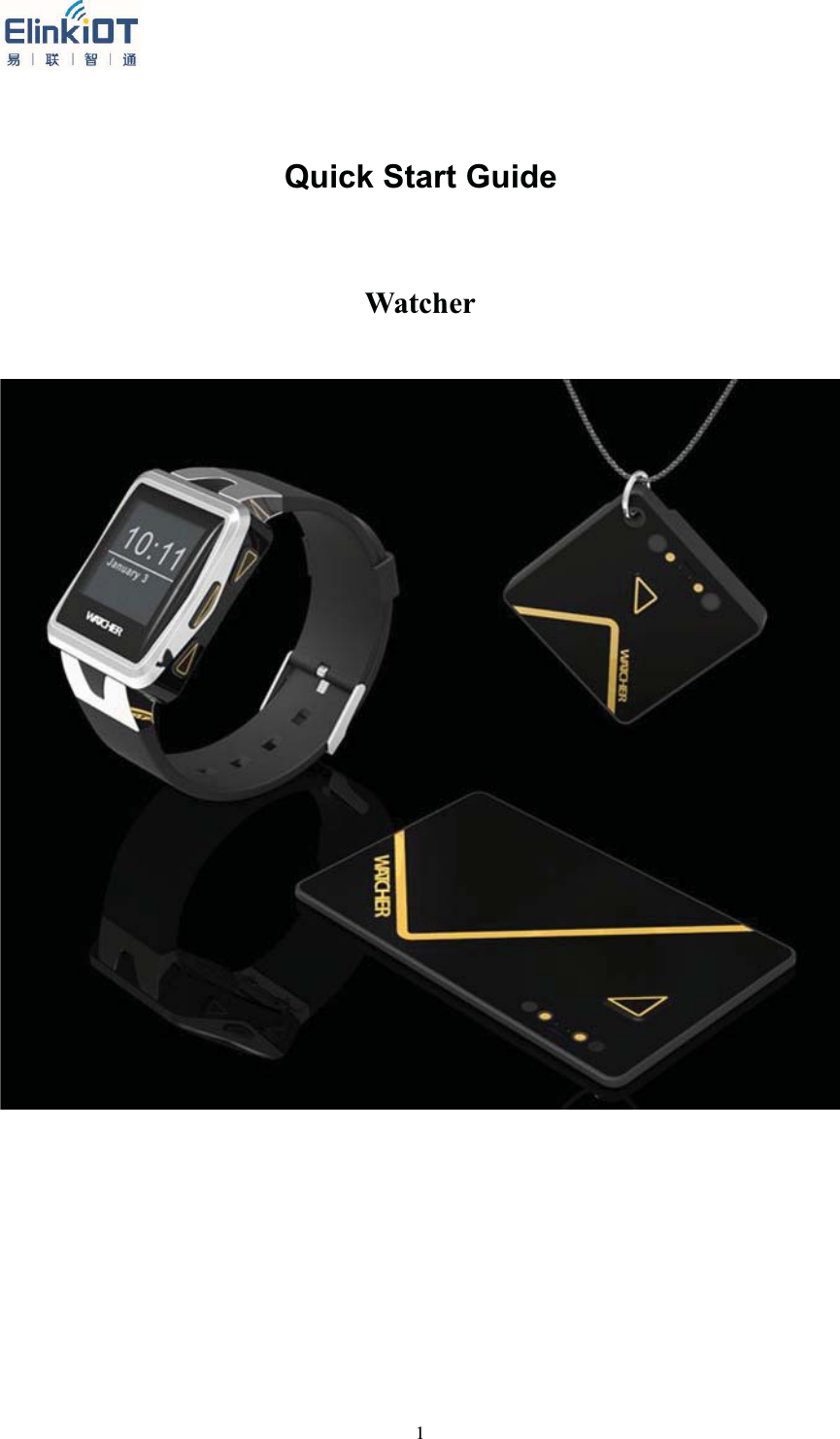
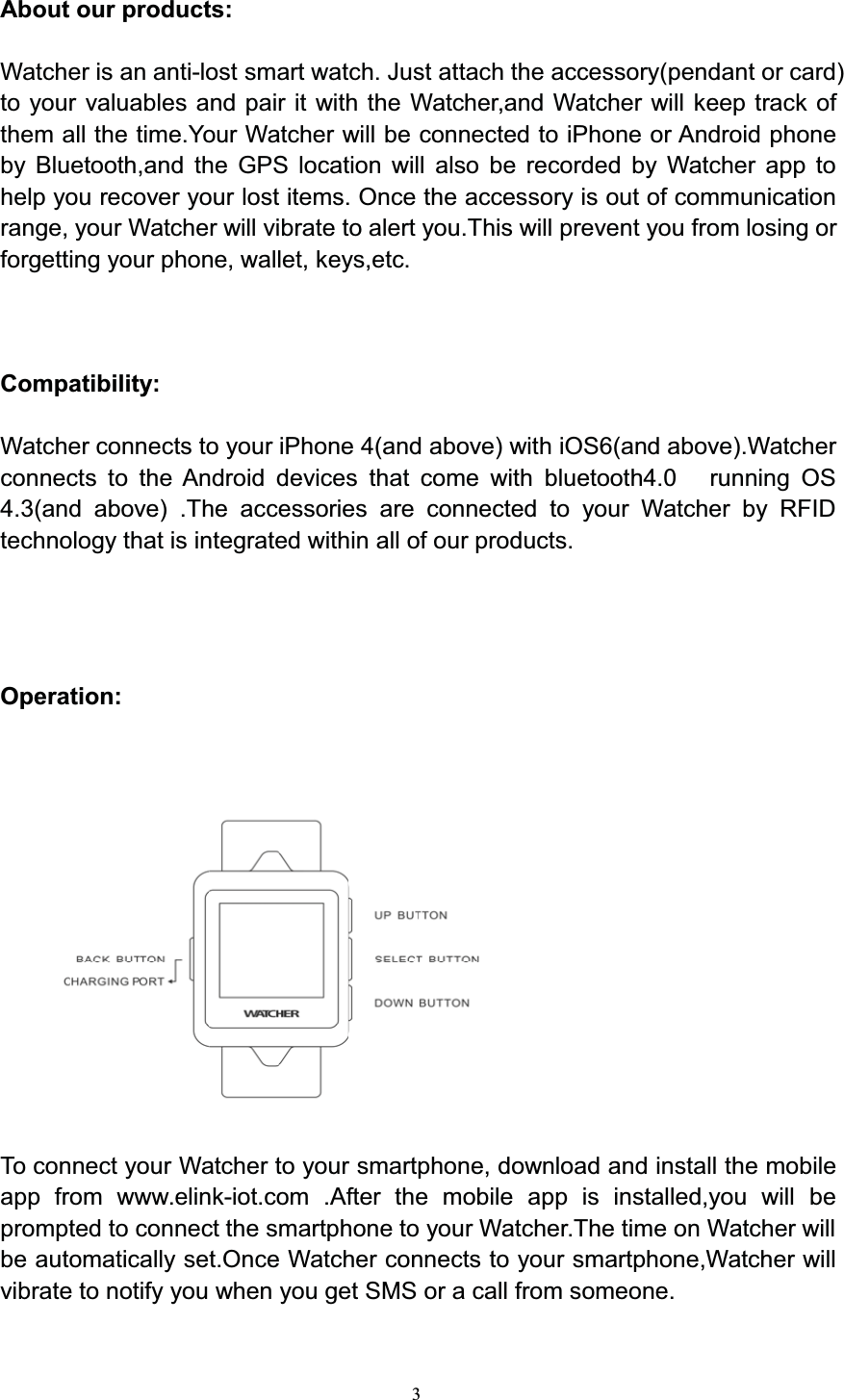
3About our products:Watcher is an anti-lost smart watch. Just attach the accessory(pendant or card)to your valuables and pair it with the Watcher,and Watcher will keep track ofthem all the time.Your Watcher will be connected to iPhone or Android phoneby Bluetooth,and the GPS location will also be recorded by Watcher app tohelp you recover your lost items. Once the accessory is out of communicationrange, your Watcher will vibrate to alert you.This will prevent you from losing orforgetting your phone, wallet, keys,etc.Compatibility:Watcher connects to your iPhone 4(and above) with iOS6(and above).Watcherconnects to the Android devices that come with bluetooth4.0 running OS4.3(and above) .The accessories are connected to your Watcher by RFIDtechnology that is integrated within all of our products.Operation:To connect your Watcher to your smartphone, download and install the mobileapp from www.elink-iot.com .After the mobile app is installed,you will beprompted to connect the smartphone to your Watcher.The time on Watcher willbe automatically set.Once Watcher connects to your smartphone,Watcher willvibrate to notify you when you get SMS or a call from someone.
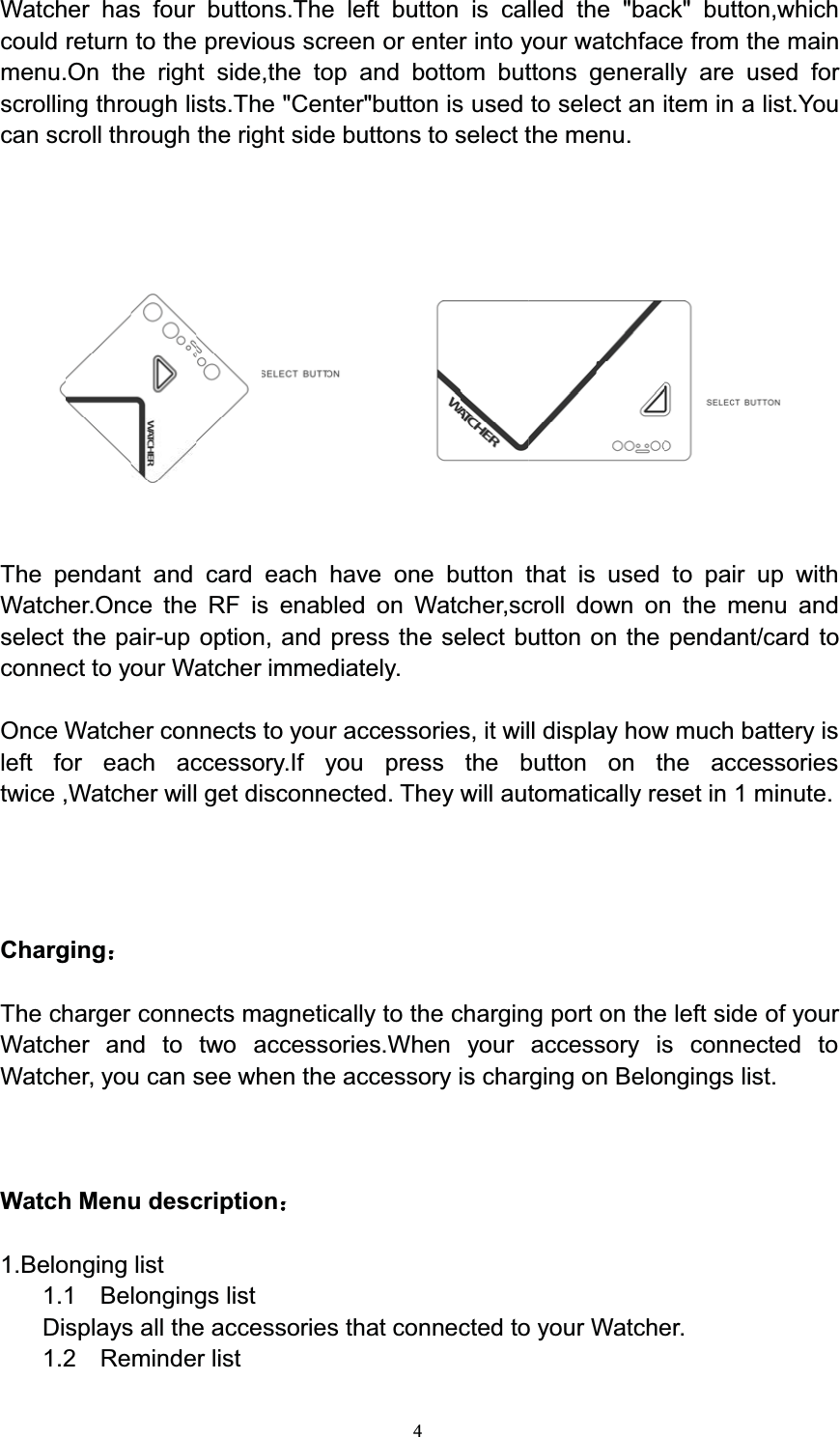
4Watcher has four buttons.The left button is called the "back" button,whichcould return to the previous screen or enter into your watchface from the mainmenu.On the right side,the top and bottom buttons generally are used forscrolling through lists.The "Center"button is used to select an item in a list.Youcan scroll through the right side buttons to select the menu.The pendant and card each have one button that is used to pair up withWatcher.Once the RF is enabled on Watcher,scroll down on the menu andselect the pair-up option, and press the select button on the pendant/card toconnect to your Watcher immediately.Once Watcher connects to your accessories, it will display how much battery isleft for each accessory.If you press the button on the accessoriestwice ,Watcher will get disconnected. They will automatically reset in 1 minute.ChargingThe charger connects magnetically to the charging port on the left side of yourWatcher and to two accessories.When your accessory is connected toWatcher, you can see when the accessory is charging on Belongings list.Watch Menu description1.Belonging list1.1 Belongings listDisplays all the accessories that connected to your Watcher.1.2 Reminder list
5Lists all the communication records between your accessories andWatcher.1.3 No disturb timeYou can set up a period of time when you don't want to get any alert fromyour Watcher.1.4 PairPairs up Watcher with any accessory that is within range.1.5 DeleteDeletes any accessory connected to Watcher.1.6 PowerAlert OnAlerts you to the power level of your accessories.1.7 LockAlert OffTurns off the vibrate reminder when Watcher connects to youraccessories.2. Sweet timeWhen you and your partner both own Watcher and are withincommunication range, Watcher will automatically keep track of how much timeis spent together.It also display how much time you’ve spent together in adaily,weekly or monthly basis.By making it work,one user should clickBroadcast,the other user should click Pair,and they will connect with eachother in couple seconds.3.ThermometerCollects data from the thermometer that monitors the temperature of thebaby.3.1 History DataDisplays the data collected before.3.2 Fever AlarmAlert the user if the temperature is up to the fever level.3.3 Abnormal AlarmAlert the user if the temperature is abnormal compared to the previousdata.4.Activity4.1 History DataDisplays the running data collected before.4.2 Single testYou can see your data for each test.4.3 SettingsCustomize your own settings.5.Find Phone
6This function requires that Bluetooth is activated on Watcher and thesmartphone.When the smartphone is beyond range ,Watcher will vibrate to alert you.6.SettingsThe settings menu will allow you to customize Watcher's features.To accesseach of these settings,press the Select button when the item is highlighted inthe list of settings.6.1 RFTo pair Watcher with your accessories,the RF must be "on".6.2 BluetoothTo pair Watcher to your smartphone,the Bluetooth must be "On" .Todisable Bluetooth,press the Select option when 'Bluetooth on' is highlighted.6.3 NotificationsYou can enable or disable notifications.In sleep mode,you won't get anynotifications.6.4 VibrationThis option enables you to manually decide how many times Watchervibrates under three circumstances:receiving messages,incoming calls, whenthe your accessories are out of range.6.5 Date&TimeYou can manually set the date and time on your Watcher.6.6 AlarmsYou can set up to 3 alarms..6.7 WatchfacesSelects among different watchefaces .6.8 Memo datesSets alerts for important dates and times6.9 LanguagesYou can select the display language of your choice: English or MandarinChinese6.10 Factory ResetWatcher can be restored to the original factory settings. Please notethat this options removes any personalized settings6.11 Shut DownTurns off your Watcher. In this mode, Watcher continues to keep time.To turn your Watcher on, press and hold any button for 3 seconds.6.12 AboutThis column contains Watcher hardware and software versioninformation.
7Firmware Upgrade:For more information about firmware upgrades, please go towww.elink-iot.com .Important Product Information:Elink-IOT Watcher 1 year limited WarrantyElink-IOT Technology Co.,Ltd. warrants this Watcher-branded hardwareproduct against defects in materials and workmanship under normal use for aperiod of ONE(1) YEAR from the date of retail purchase by the originalend-user purchaser("Warranty Period").During this warranty period,if a defectarises,and you follow the instructions for returning the product,we will, at ouroption,either(i)repair the product using either new or refurbishedparts,(ii)replace the product with a new or refurbished products, or (iii) refundthe purchase price of the product.Any replacement may be ,at the option ofElink-IOT,a new or re-manufactured product.A replacement product assumes the remaining warranty of the original productor ninety (90) days from the date of replacement or repair,whichever provideslonger coverage for you.When a product is exchanged, any replacement item becomes your propertyand the replaced item becomes Elink-IOT's property.When a refund is given,the product for which the refund is provided must be returned to Elink-IOT andbecomes Elink-IOT's property.Exclusions and LimitationsThis Limited Warranty applies only to hardware products manufactured by orfor Elink-IOT that can be identified the "Elink-IOT" trade name, or logo affixedto them.Obtaining Warranty ServiceTo obtain warranty service for any Product that is subject to the foregoingwarranty,Consumer must notify Elink-IOT(support@Elink-IOT.com) to obtain aReturn Material Authorization("RMA")and return the defective Product togetherwith proof of purchase to the address specified by Elink-IOT in connection withthe RMA.Purchaser may be required to deliver the defective product to anauthorized Elink-IOT distributor.
8FCC Statement1. These devices(including watch,pendant and card) comply with Part 15 of theFCC Rules. Operation is subject to the following two conditions:(1) These devices may not cause harmful interference.(2) These devices must accept any interference received, includinginterference that may cause undesired operation.2. Changes or modifications not expressly approved by the party responsiblefor compliance could void the user's authority to operate these devices.NOTE:These devices have been tested and found to comply with the limits for aClass B digital device, pursuant to Part 15 of the FCC Rules. These limits aredesigned to provide reasonable protection against harmful interference in aresidential installation.These devices generate uses and can radiate radio frequency energy and, ifnot installed and used in accordance with the instructions, may cause harmfulinterference to radio communications. However, there is no guarantee thatinterference will not occur in a particular installation. If these devices do causeharmful interference to radio or television reception, which can be determinedby turning them off and on, the user is encouraged to try to correct theinterference by one or more of the following measures:Reorient or relocate the receiving antenna.Increase the separation between the device and receiver.Connect the device into an outlet on a circuit different from that to which thereceiver is connected.Consult the dealer or an experienced radio/TV technician for help.1.This device complies with Part 15 of the FCC rules. Operation is subject to the following two conditions: 1) this device may not cause harmful interference, and 2) this device must accept any interference received, including interference that may cause undesired operation.
9Elink-IOTSimple your life

Navigation menu