Emachines E15T4 Owner S Manual Flat Panel Monitor User Guide
768 to the manual ae534771-75a4-4559-800d-1ce71c742891
2014-07-05
: Emachines Emachines-E15T4-Owner-S-Manual emachines-e15t4-owner-s-manual emachines pdf
Open the PDF directly: View PDF  .
.
Page Count: 38
- Using Your eMachines Flat Panel Monitor
- Safety, Regulatory, and Legal Information
Flat Panel Monitor
User Guide
i
www.gateway.com
Contents
Using Your eMachines Flat Panel Monitor . . . . . . . . . . . . . . . . . . . . . . . . . . . . . . . . 1
Connecting the monitor . . . . . . . . . . . . . . . . . . . . . . . . . . . . . . . . . . . . . . . . . . . . . . . . . . . . . 2
Attaching the optional stand . . . . . . . . . . . . . . . . . . . . . . . . . . . . . . . . . . . . . . . . . . . . . . . . . 4
Adjusting the height-adjustable stand . . . . . . . . . . . . . . . . . . . . . . . . . . . . . . . . . . . . . . . . . . 7
Starting the monitor . . . . . . . . . . . . . . . . . . . . . . . . . . . . . . . . . . . . . . . . . . . . . . . . . . . . . . . . 8
Adjusting monitor settings . . . . . . . . . . . . . . . . . . . . . . . . . . . . . . . . . . . . . . . . . . . . . . . . . . . 9
Monitor buttons . . . . . . . . . . . . . . . . . . . . . . . . . . . . . . . . . . . . . . . . . . . . . . . . . . . . . . . . 9
On-screen display options . . . . . . . . . . . . . . . . . . . . . . . . . . . . . . . . . . . . . . . . . . . . . . . 10
Windows controls . . . . . . . . . . . . . . . . . . . . . . . . . . . . . . . . . . . . . . . . . . . . . . . . . . . . . 13
Video modes . . . . . . . . . . . . . . . . . . . . . . . . . . . . . . . . . . . . . . . . . . . . . . . . . . . . . . . . . 17
Power management . . . . . . . . . . . . . . . . . . . . . . . . . . . . . . . . . . . . . . . . . . . . . . . . . . . . . . . 18
ENERGY STAR . . . . . . . . . . . . . . . . . . . . . . . . . . . . . . . . . . . . . . . . . . . . . . . . . . . . . . . 18
Energy declaration . . . . . . . . . . . . . . . . . . . . . . . . . . . . . . . . . . . . . . . . . . . . . . . . . . . . . 18
Maintenance . . . . . . . . . . . . . . . . . . . . . . . . . . . . . . . . . . . . . . . . . . . . . . . . . . . . . . . . . . . . . 19
Troubleshooting . . . . . . . . . . . . . . . . . . . . . . . . . . . . . . . . . . . . . . . . . . . . . . . . . . . . . . . . . . 19
No power . . . . . . . . . . . . . . . . . . . . . . . . . . . . . . . . . . . . . . . . . . . . . . . . . . . . . . . . . . . . 19
No picture . . . . . . . . . . . . . . . . . . . . . . . . . . . . . . . . . . . . . . . . . . . . . . . . . . . . . . . . . . . 20
Display colors are wrong . . . . . . . . . . . . . . . . . . . . . . . . . . . . . . . . . . . . . . . . . . . . . . . . 20
Picture has shadows or “ghosts” . . . . . . . . . . . . . . . . . . . . . . . . . . . . . . . . . . . . . . . . . 21
Color is not uniform . . . . . . . . . . . . . . . . . . . . . . . . . . . . . . . . . . . . . . . . . . . . . . . . . . . . 21
Image is not sized or centered correctly . . . . . . . . . . . . . . . . . . . . . . . . . . . . . . . . . . . . 21
The monitor has pixels that are always dark or too bright . . . . . . . . . . . . . . . . . . . . . . 21
Specifications . . . . . . . . . . . . . . . . . . . . . . . . . . . . . . . . . . . . . . . . . . . . . . . . . . . . . . . . . . . . 22
15-inch monitor . . . . . . . . . . . . . . . . . . . . . . . . . . . . . . . . . . . . . . . . . . . . . . . . . . . . . . . 22
17-inch monitor . . . . . . . . . . . . . . . . . . . . . . . . . . . . . . . . . . . . . . . . . . . . . . . . . . . . . . . 23
Safety, Regulatory, and Legal Information . . . . . . . . . . . . . . . . . . . . . . . . . . . . . . . 25
ii www.gateway.com

1
Using Your eMachines Flat
Panel Monitor
■Connecting the monitor
■Attaching and adjusting the optional
stand
■Starting the monitor
■Changing monitor settings
■Maintaining and troubleshooting
■Specifications
2www.gateway.com
Connecting the monitor
To connect the monitor:
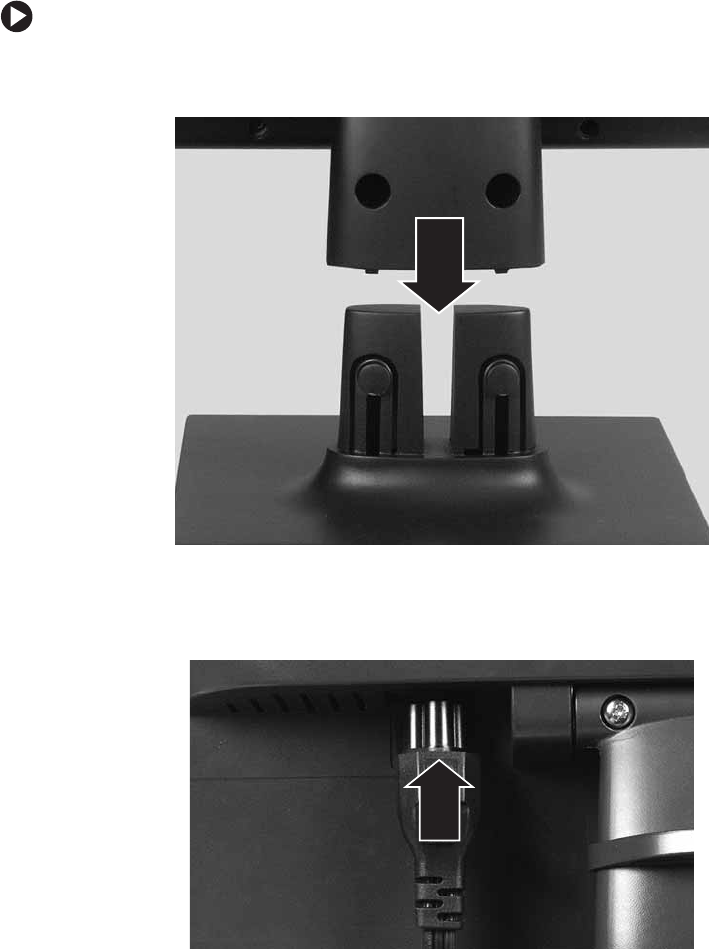
1Place the monitor base on a tabletop, then slide the monitor neck down onto the
base until it clicks into place.
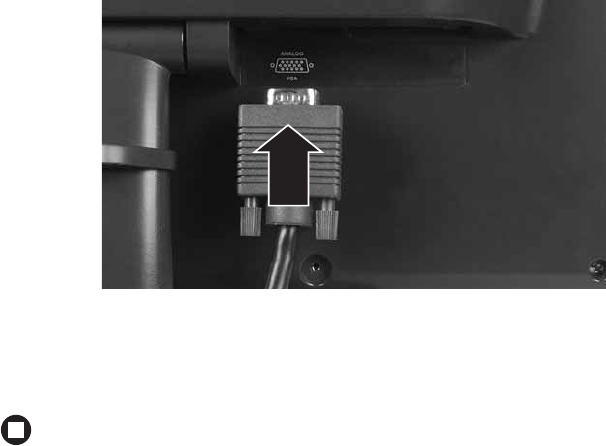
2Position your computer and the monitor so you can reach the back of each.
3Connect the power cord to the power connector under the back of the display.
3
www.gateway.com
Connecting the monitor
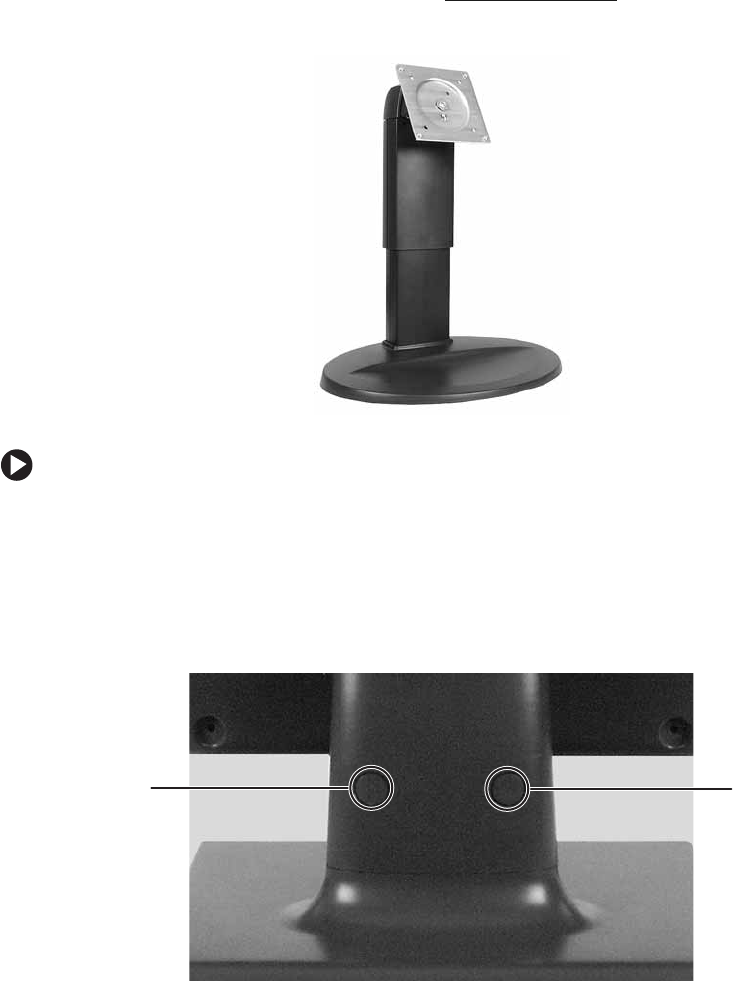
4Connect the blue VGA video cable to the blue video connector under the back of
the display.
5Make sure that your computer is turned off, then connect the other end of the video
cable to the VGA port on the back of your computer.
6Plug the power cord into a correctly grounded electrical outlet.
4www.gateway.com
Attaching the optional stand
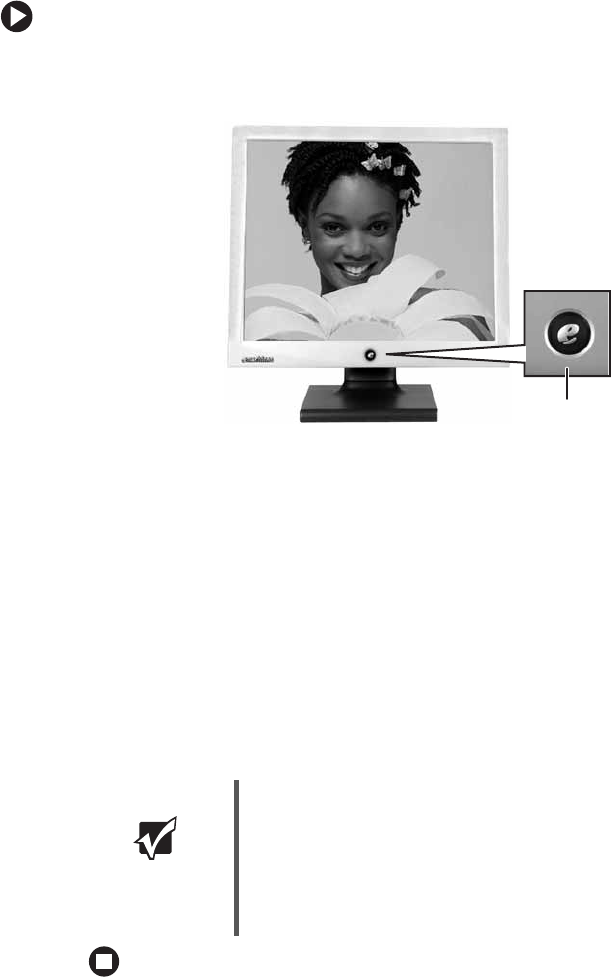
You can buy a fully adjustable stand from www.gateway.com. The stand can be adjusted
for height, tilt, pan angle, and screen rotation.
To attach the height-adjustable stand:
1Make sure the monitor is turned off.
2Place the monitor face-down on a soft, non-marring surface. A non-slip mat on a
tabletop is ideal. Allow the monitor base to hang down over the edge of the table.
3Press the two release buttons on the back of the monitor’s original neck, then slide
the monitor base out of the neck.
Release
button
Release
button
5
www.gateway.com
Attaching the optional stand
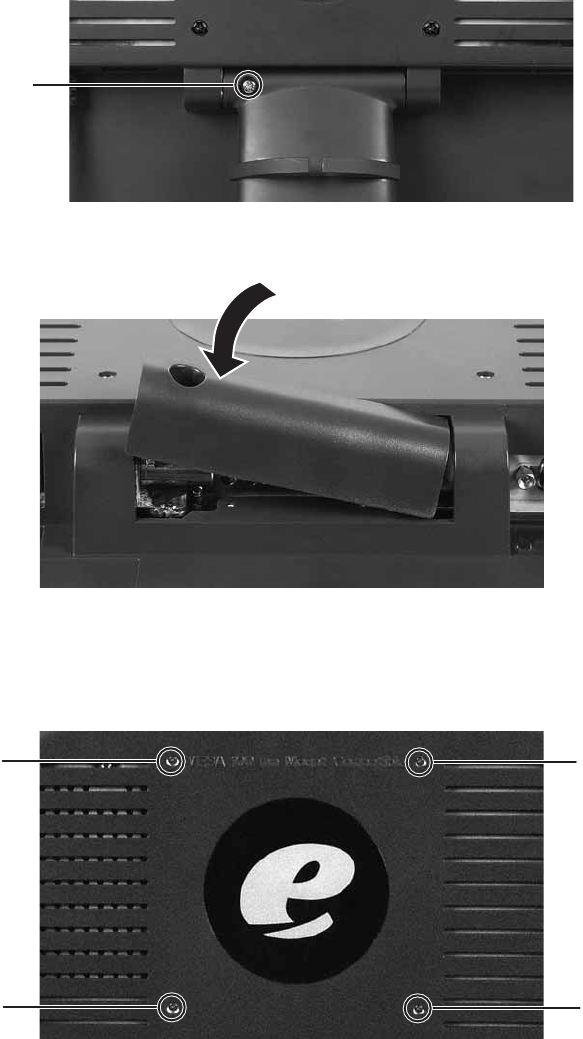
4Remove the screw from the neck hinge, then remove the neck from the LCD panel.
Do not discard the screw.
5Place the hinge cover over the hinge.
6Attach the hinge cover using the screw you removed from the original neck hinge.
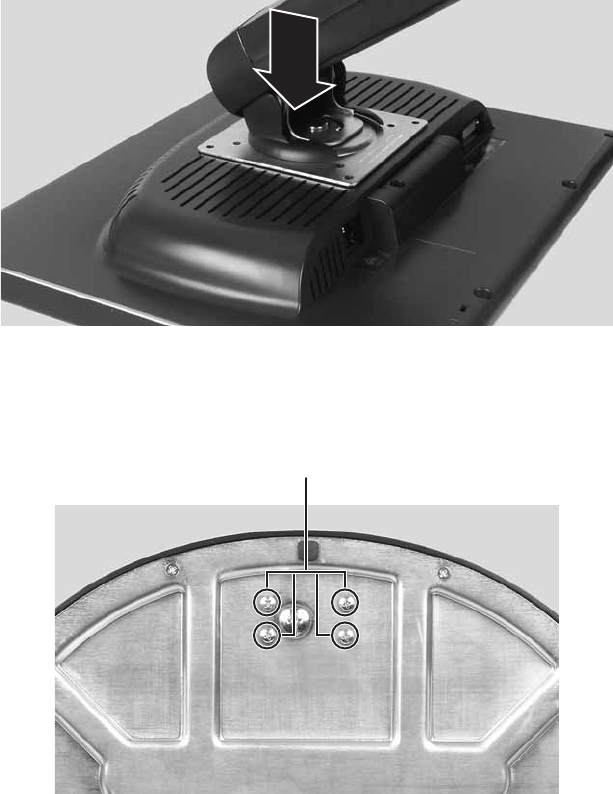
7Remove the four small screws from the back of the LCD panel. Do not discard the
four screws.
Screw
Screw Screw
Screw Screw
6www.gateway.com
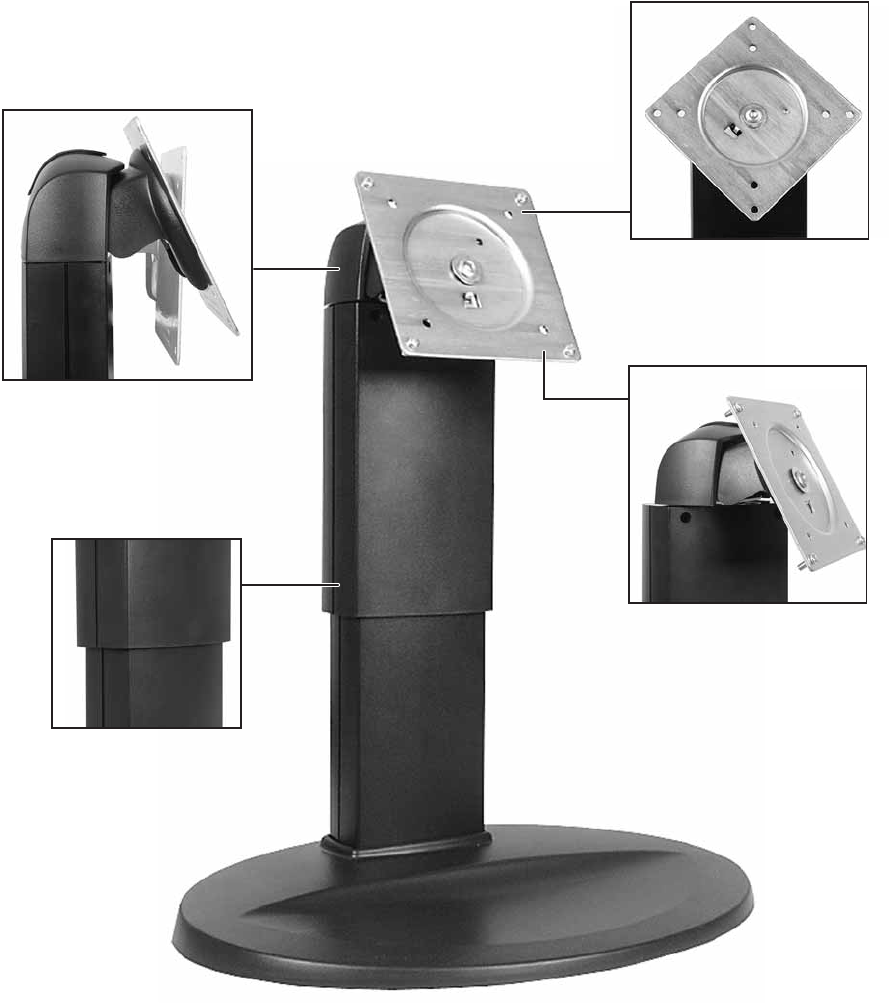
8Attach the adjustable stand’s mounting flange to the LCD panel using the four screws
you removed.
9Use the four large screws provided with the adjustable stand to attach the base to the
adjustable stand. Insert the screws through the bottom of the base and into the stand’s
neck.
Large screws
7
www.gateway.com
Adjusting the height-adjustable stand
Adjusting the height-adjustable stand
Tilts from -5° to 35°
Pans 31° left and right
Rotates 90° for portrait or
landscape orientation
Vertical height adjusts
five inches
8www.gateway.com
Starting the monitor
To start the monitor:
1Press the power button on the front of monitor. The power LED on the power button
turns on.
2Turn on your computer.
After your computer is running, the power LED on the monitor’s power button should
be blue. Allow about 10 seconds for the display image to appear. If the power LED is
not blue or you do not see a display image, check the connections. For more
troubleshooting information, see “Troubleshooting” on page 19.
3Adjust the tilt of the monitor for the best viewing angle.
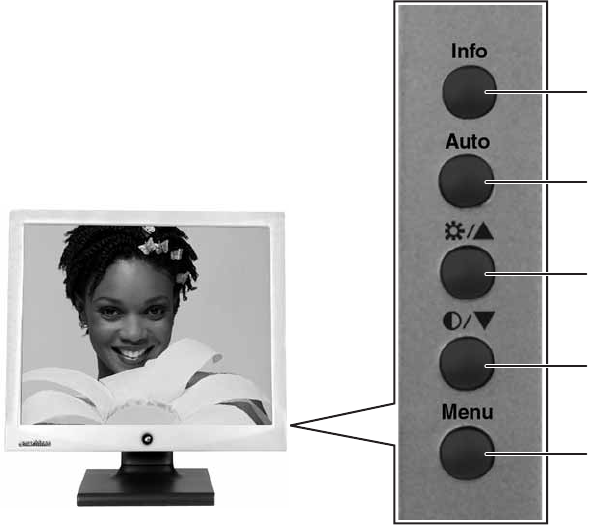
4After you see the Windows desktop, press the Auto button on the right side of the
monitor to automatically adjust your display image to the ideal settings.
5Use the on-screen display (OSD) to adjust other monitor settings. For more
information, see “Adjusting monitor settings” on page 9.
Important When adjusting the monitor settings, always press the Auto button
before entering the OSD. This will automatically adjust the display
image to the ideal settings for the current screen resolution.
For most applications, the best screen resolution for the 15-inch
model is 1024 × 768, and the best for the 17-inch model is
1280 × 1024.
Power button
9
www.gateway.com
Adjusting monitor settings
Adjusting monitor settings
Use the monitor controls (located on the monitor itself) and computer controls (accessible
through Windows) to adjust the display image. For more information about computer
controls, see “Windows controls” on page 13.
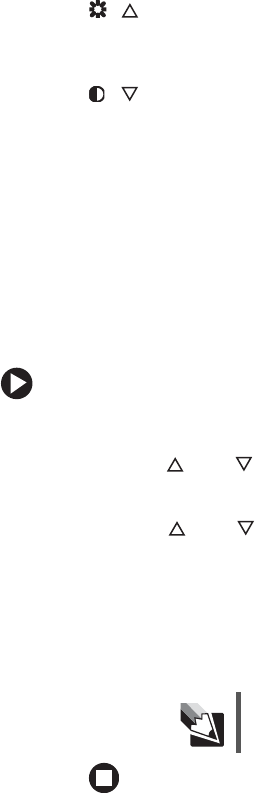
Monitor buttons
This monitor features an on-screen display (OSD) that lets you adjust contrast, brightness,
and other settings for the monitor. The monitor saves changes you make to the settings,
even if you turn off the monitor.
■Info
OSD active: Press to move to the previous menu.
OSD inactive: Press to display the current resolution and refresh rate of your monitor.
■Auto
OSD active: Press to open a menu or setting.
OSD inactive: Automatically optimizes the monitor’s image position, clock, and phase.
Menu button
Auto button
Contrast button
Brightness button
Info button
10 www.gateway.com
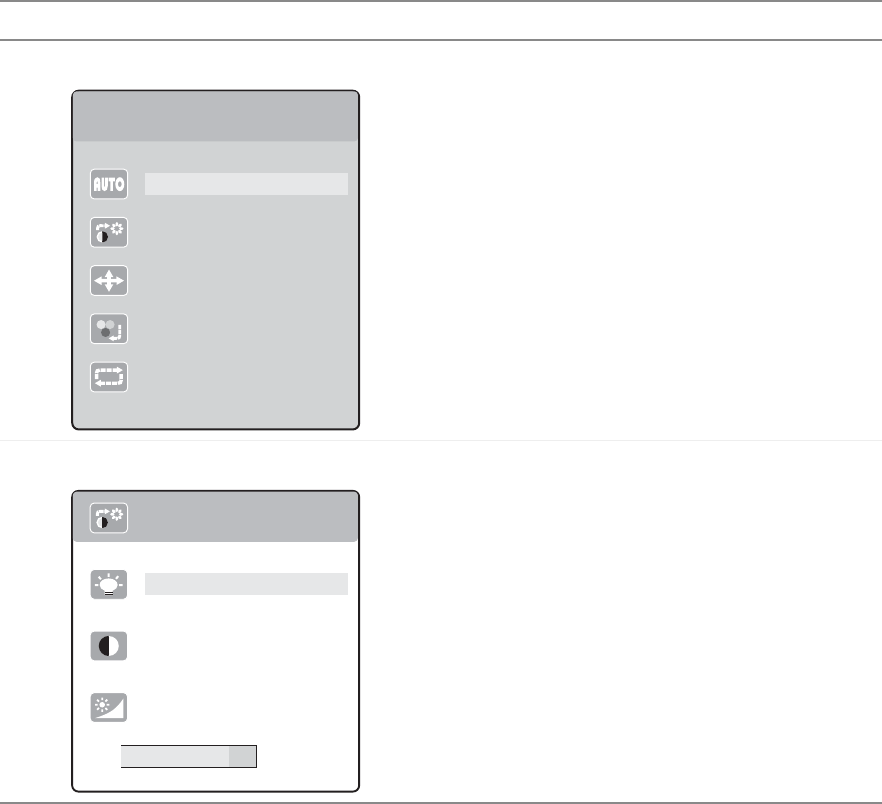
■/ (brightness)
OSD active: Press to move up through menu selections and adjust OSD options.
OSD inactive: Press to adjust the brightness.
■/ (contrast)
OSD active: Press to move down through menu selections and adjust OSD options.
OSD inactive: Press to adjust the contrast.
■Menu
Press to view the OSD. Press again to exit or move to a previous menu.
On-screen display options
Adjusting OSD settings
To adjust the OSD settings:
1Press the Menu button. The OSD menu opens.
2Use the and buttons to highlight a setting, then press the Auto button to open
the selected menu or setting.
3Use the and buttons to adjust the setting to the desired level or change
the option.
4Press the Input button to return to a previous menu.
5When you have finished making all adjustments, press the Menu button at the
Main Menu to exit.
Tips & Tricks While the OSD is active, on-screen labels appear next to the buttons
to help you identify them.
11
www.gateway.com
Adjusting monitor settings
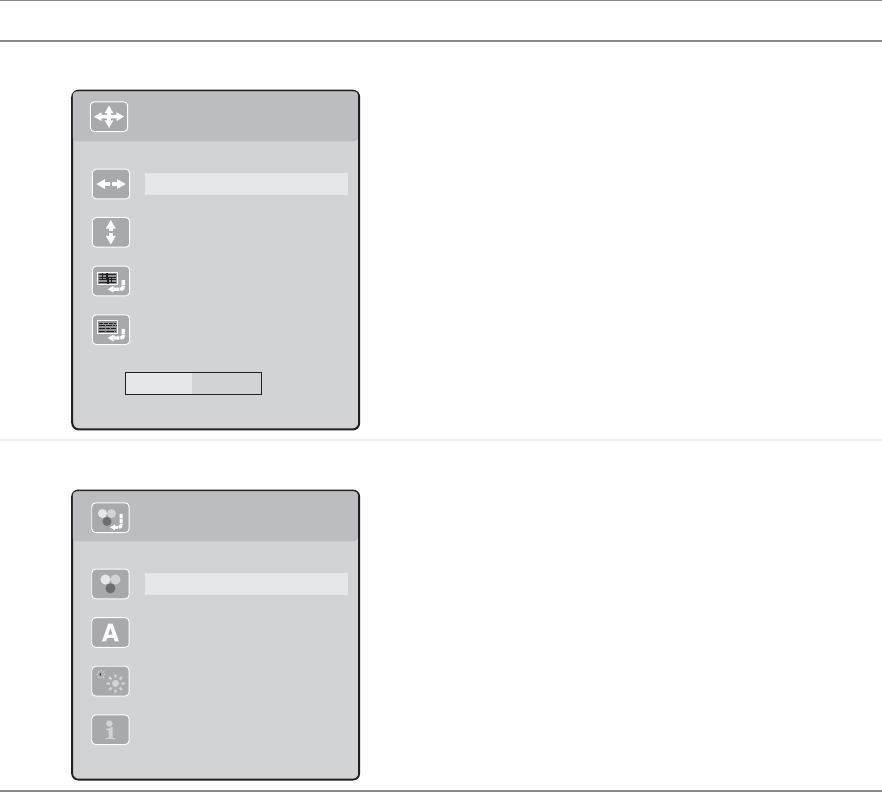
OSD menus
OSD Menu Description
Main menu Auto—Automatically adjusts your monitor to its
optimum settings.
Picture—Opens the Picture menu, where you can
adjust brightness, contrast, and gamma.
Geometry—Opens the Geometry menu, where you
can adjust image size and minimize distortions.
Advanced—Opens the Advanced menu, where you
can adjust color balance, change the OSD language,
and display information about current monitor settings.
Reset—Resets the monitor to its factory settings.
Picture menu Brightness—Adjusts the amount of light in the
darkest portion of the picture. Use the lowest
brightness setting you are comfortable with to
maximize the life of the monitor backlights.
You may need to readjust brightness after the monitor
has warmed up.
Contrast—Adjusts the level of white between the
lightest and darkest portions of an image.
Gamma—Customizes the gamma level. High gamma
levels increase white levels and low gamma levels
increase contrast.
Main Menu
Auto
Picture
Geometry
Advanced
Reset
Picture
Brightness
Contrast
Gamma
80
12 www.gateway.com
Geometry menu H-Position—Moves the display image left and right.
V-Position—Moves the display image up and down.
You can also press the Auto button to configure the
vertical and horizontal position automatically.
Clock—Minimizes any vertical bars or stripes visible
on the screen background. The horizontal screen size
will also change.
Phase—Minimizes any horizontal distortion and
clears or sharpens the displayed characters.
Advanced menu Color—Customizes the color levels.
Language—Changes the language of the OSD.
LED Brightness—Changes the brightness of the
Standby and Power LED to Day Mode or Nite Mode.
Information—Displays current screen resolution.
OSD Menu Description
Geometry
H-Position
V-Position
Clock
Phase
50
Advanced
Color
Language
LED Brightness
Information
13
www.gateway.com
Adjusting monitor settings
Windows controls
Color depth, screen resolution, and screen fonts are three of the most basic monitor settings
you may need to change.
Adjusting the color depth
Color depth is the number of colors your video card uses. Most images look best displayed
with the maximum number of colors available.
Windows lets you choose from several color depth settings for the monitor. We recommend
that you use the 32-bit True Color setting or the highest setting available at all times.
If the color in your images seems “false” or “jumpy,” especially after you have played a
game or run a video-intensive program, check the color depth setting and return it to 32-bit
True Color, if necessary.
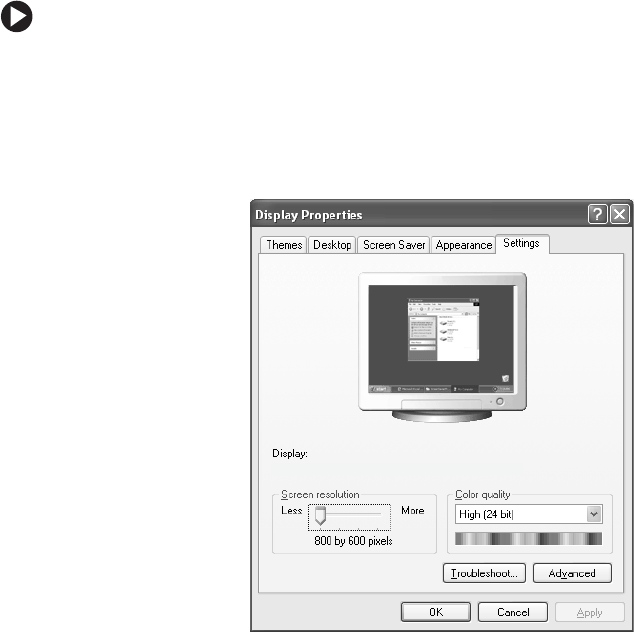
To change the color depth:
1Click Start, then click Control Panel. The Control Panel window opens. If your Control
Panel is in Category View, click Appearance and Themes.
2Click/Double-click the Display icon. The Display Properties dialog box opens.
3Click the Settings tab.
Gateway FPD 1940 on Intel(r) 82810E Graphics Controller
14 www.gateway.com
4Click the arrow button to open the Color quality list, then click the color depth you
want.
5Click OK, then click Yes to save your changes.
Adjusting the screen resolution
You can change the screen resolution to a size you prefer. For example, you can increase
the resolution to fit more icons on your desktop, or you can decrease the resolution to
make reading and identifying objects on the monitor easier. The higher the resolution,
the smaller individual components of the screen (such as icons and menu bars) appear.
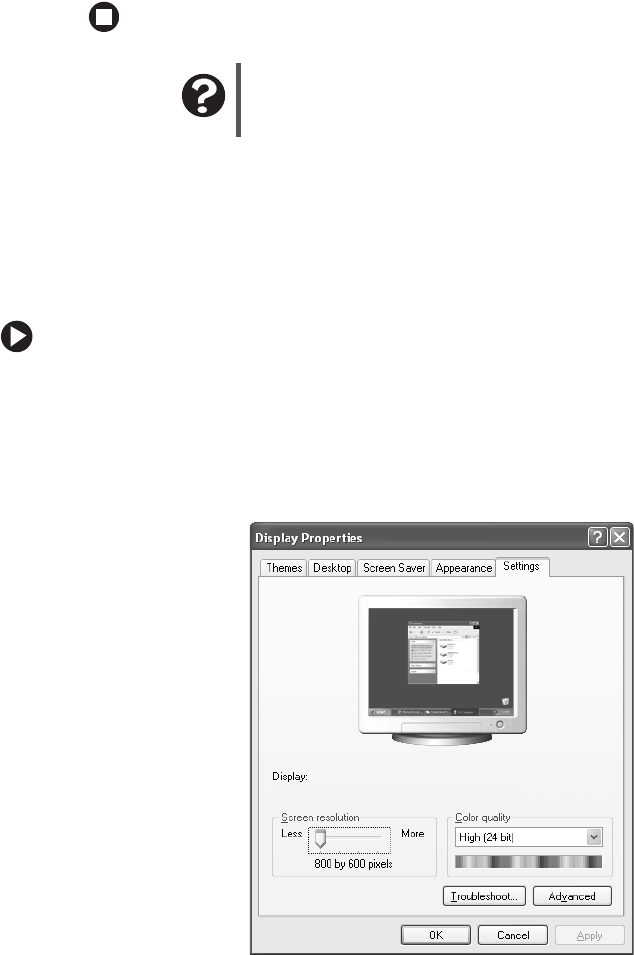
To change the screen resolution:
1Click Start, then click Control Panel. The Control Panel window opens. If your Control
Panel is in Category View, click Appearance and Themes.
2Click/Double-click the Display icon. The Display Properties dialog box opens.
3Click the Settings tab.
Help and Support For more information about adjusting monitor settings, click Start,
then click Help and Support. Type the keyword changing display
settings in the Search box, then click the arrow.
Gateway FPD 1940 on Intel(r) 82810E Graphics Controller
15
www.gateway.com
Adjusting monitor settings
4Drag the Screen resolution slider to the size you prefer.
5Click OK, then click Yes to save your changes.
Clarifying screen fonts
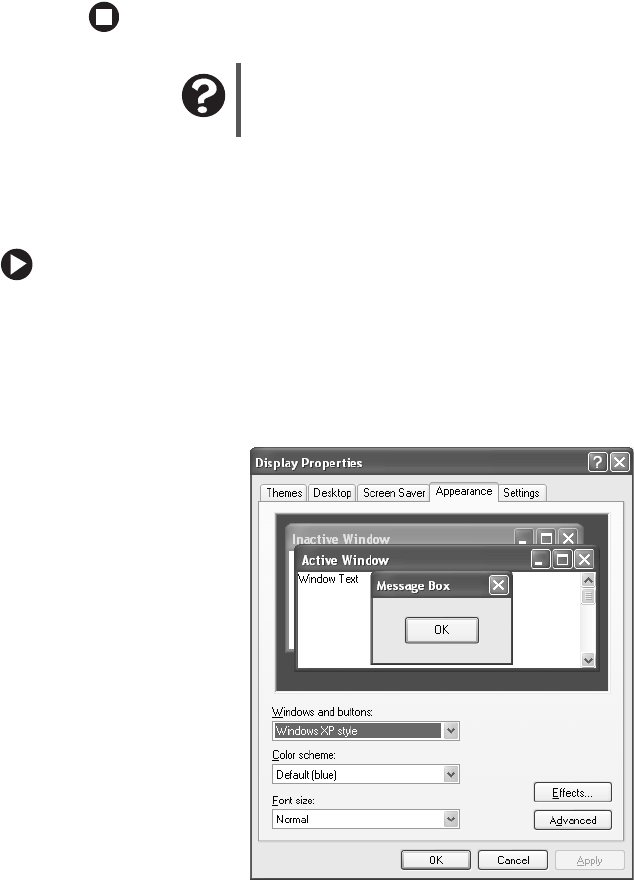
You can change the display fonts to ClearType for smoother screen fonts.
To change the display fonts to ClearType:
1Click Start, then click Control Panel. The Control Panel window opens. If your Control
Panel is in Category View, click Appearance and Themes.
2Click/Double-click the Display icon. The Display Properties dialog box opens.
3Click the Appearance tab.
4Click the Effects button. The Effects dialog box opens.
5Click to select the Use the following method to smooth the edges of screen type check box.
Help and Support For more information about adjusting monitor settings, click Start,
then click Help and Support. Type the keyword changing screen
resolution in the Search box, then click the arrow.

16 www.gateway.com
6Click the arrow to open the list, then click ClearType.
7Click OK.

17
www.gateway.com
Adjusting monitor settings
Video modes
Your monitor supports several video modes. If you do not use the best mode for the
monitor, the display image may look slightly “fuzzy.”
15-inch monitor
17-inch monitor
Mode Mode name and
resolution Horizontal
frequency (kHz) Vertical
frequency (Hz)
1 VGA 720 × 400 31.469 70.087
2 VGA 640 × 480 31.469 59.941
3 VESA 640 × 480 37.861 72.810
4 VESA 640 × 480 37.500 75.000
5 VESA 800 × 600 35.156 56.250
6 VESA 800 × 600 37.879 60.317
7 VESA 800 × 600 48.077 72.188
8 VESA 800 × 600 46.875 75.000
9 VESA 1024 × 768 48.363 60.004
10 VESA 1024 × 768 56.476 70.069
11 VESA 1024 × 768 60.023 75.029
Mode Mode name and
resolution Horizontal
frequency (kHz) Vertical
frequency (Hz)
1 VGA 720 × 400 31.469 70.087
2 VGA 640 × 480 31.469 59.941
3 VESA 640 × 480 37.861 72.810
4 VESA 640 × 480 37.500 75.000
5 VESA 800 × 600 35.156 56.250
6 VESA 800 × 600 37.879 60.317
7 VESA 800 × 600 48.077 72.188
8 VESA 800 × 600 46.875 75.000
9 VESA 1024 × 768 48.363 60.004
10 VESA 1024 × 768 56.476 70.069
11 VESA 1024 × 768 60.023 75.029
12 VESA 1280 × 1024 63.980 60.020
13 VESA 1280 × 1024 79.976 75.025
18 www.gateway.com
Power management
ENERGY STAR
As an ENERGY STAR® Partner, eMachines has determined that this product meets the
ENERGY STAR guidelines for energy efficiency.
This monitor complies with the EPA's International ENERGY STAR Program, which is a
program designed to encourage manufacturers of computer equipment to build circuitry
into their products to reduce energy consumption during time of non-use.
Energy declaration
When connected to a computer that supports the VESA Display Power Management
Signaling (DPMS) Protocol, the monitor can conserve significant energy by reducing power
consumption during periods of non-use. When your computer goes into the energy saving
mode, the monitor will then enter the Active Off mode (sleep). In the Active Off mode
the Power LED will still show orange.
Use these conventions and the power can be reduced to the following levels:
To “wake” the monitor when it is in Active Off mode, move the mouse or press any
keyboard key.
Access the power management options in the Control Panel to change the period of time
after which the monitor enters these low power states.
VESA State LED Indicator Power
Consumption
On Blue 15-inch: 35 W
17-inch: 40 W
Active Off Orange ≤2W

19
www.gateway.com
Maintenance
Maintenance
To keep the monitor in optimal working order:
■Do not block the ventilation holes.
■Do not expose the monitor to rain or use near water.
■Keep the monitor away from radiators or heat vents.
■Keep the monitor out of direct sunlight.
To clean the monitor, use a soft cloth slightly moistened with water only. Wipe the cabinet,
screen, and controls.
Troubleshooting
If you have problems with the monitor, the information in this troubleshooting section
may help you solve them.
No power
Make sure that the power cord is connected correctly to both the back of the monitor
and the wall outlet. For more information about connecting the power cord, see
“Connecting the monitor” on page 2.
Caution Do not use any type of abrasive pad or glass cleaner. You will
permanently scratch the screen.
Important Make sure that the monitor has warmed up for approximately
30 minutes before making any judgments about the picture quality.
20 www.gateway.com
No picture
■Press the Input button to make sure that you have selected the correct video source.
■Make sure that the power cord is connected correctly to both the back of the monitor
and the wall outlet. For more information about connecting the power cord, see
“Connecting the monitor” on page 2.
■Make sure that the video cable is connected securely to the back of the monitor and
computer. For more information about connecting the video cable, see “Connecting
the monitor” on page 2.
■Make sure that the monitor is turned on.
■If the power LED is orange:
■Make sure that your computer is turned on.
■Move the mouse or press any key on the keyboard to bring the monitor out of
sleep mode.
■Restart your computer with the monitor turned on.
■Make sure that the video cable is not damaged.
■Check the end of the video cable for any pins that might be bent or pushed in.
■Turn off the monitor and unplug the video cable from the back of your computer.
Turn the monitor back on and wait for ten seconds. If the monitor is functioning
correctly, a “No Signal” message appears. For more information about connecting the
video cable, see “Connecting the monitor” on page 2.
Display colors are wrong
■Press the Auto button to automatically adjust the display image to the ideal settings.
■Restart your computer with the monitor turned on.
■Make sure that the video cable is connected securely to the back of the monitor and
your computer. For more information about connecting the power cord, see
“Connecting the monitor” on page 2.
■Make sure that the video cable is not damaged.
■Check the end of the video cable for any pins that might be bent or pushed in.
21
www.gateway.com
Troubleshooting
Picture has shadows or “ghosts”
■Press the Auto button to automatically adjust the display image to the ideal settings.
■Remove any extension cables or switchboxes.
■Make sure that the video cable is connected securely to the back of the monitor and
your computer. For more information about connecting the power cord, see
“Connecting the monitor” on page 2.
■Make sure that the video cable is not damaged.
■Check the end of the video cable for any pins that might be bent or pushed in.
Color is not uniform
■Press the Auto button to automatically adjust the display image to the ideal settings.
■Make sure that the monitor warms up for at least 30 minutes before making a final
judgment about color uniformity or brightness.
Image is not sized or centered correctly
■Press the Auto button to automatically adjust the display image to the ideal settings.
■Use the position controls to adjust the image. For instructions on how to adjust the
display image position, see “Adjusting monitor settings” on page 9.
The monitor has pixels that are always dark or too
bright
This condition is normal and inherent in the TFT technology used in active-matrix LCD
screens. eMachines’ inspection standards keep these to a minimum. If you feel these pixels
are unacceptably numerous or dense on your display, contact eMachines Customer Care
to identify whether a repair or replacement is justified based on the number of pixels
affected.
22 www.gateway.com
Specifications
Specifications are subject to change without notice or obligation. Many products for
eMachines and its subsidiaries are custom engineered by our suppliers to eMachines’
specifications and may vary from similarly marketed products.
15-inch monitor
Panel size 15 inches (diagonal)
Panel type 15-inch viewable TFT with anti-glare coating
Pixel resolution 1024 × 768 (native)
Pixel pitch 0.0117 × 0.0117 inches (0.297 mm × 0.297 mm)
Aspect ratio 5:4
Brightness and contrast ratio 250 cd/m2, 400:1
Viewing angles 130° horizontal, 100° vertical
Response time 16 ms
Lamp type/life 50,000 hours
Colors 16.2 million
OSD languages English, German, French, Spanish, Italian, Japanese
Connections and inputs Analog (VGA): 15-pin mini d-sub VGA
Digital (DVI-D): 24-pin DVD-D
AC Power input
Cables 15-pin mini d-sub analog VGA (included)
24-pin DVI-D (not included)
Power consumption Normal operation: 35 W
Off (power-save): 2 W
Power input 100-240 VAC, 50/60 Hz
Power management Energy Star®
Certifications UL, cUL, FCC Class B, NOM,CE, TUV/GS.
VCCI and TCO’99 where applicable.
Wall mount bracket VESA 4 × 3.937 inches (4 × 100 mm)
Dimensions 13.71 × 13.60 × 5.67 inches
(34.82 × 34.54 × 14.40 cm) with stand
23
www.gateway.com
Specifications
17-inch monitor
Panel size 17 inches (diagonal)
Panel type 17-inch viewable TFT with anti-glare coating
Pixel resolution 1280 × 1024 (native)
Pixel pitch 0.0104 × 0.0104 inches (0.264 mm × 0.264 mm)
Aspect ratio 5:4
Brightness and contrast ratio 250 cd/m2, 450:1
Viewing angles 140° horizontal, 130° vertical
Response time 16 ms
Lamp type/life 50,000 hours
Colors 16.2 million
OSD languages English, German, French, Spanish, Italian, Japanese
Connections and inputs Analog (VGA): 15-pin mini d-sub VGA
Digital (DVI-D): 24-pin DVD-D
AC Power input
Cables 15-pin mini d-sub analog VGA (included)
24-pin DVI-D (not included)
Power consumption Normal operation: 40 W
Off (power-save): 2 W
Power input 100-240 VAC, 50/60 Hz
Power management Energy Star®
Certifications UL, cUL, FCC Class B, NOM,CE, TUV/GS.
VCCI and TCO’99 where applicable.
Wall mount bracket VESA 4 × 3.937 inches (4 × 100 mm)
Dimensions 14.97 × 15.26 × 6.55 inches
(38.02 × 38.76 × 16.64 cm) with stand
24 www.gateway.com

Chapter 1
25
Safety, Regulatory, and Legal
Information
■Safety information
■Regulatory statements
■Notices

26 www.gateway.com
Important safety information
Your eMachines product is designed and tested to meet the latest standards for safety of information technology
equipment. However, to ensure safe use of this product, it is important that the safety instructions marked on the
product and in the documentation are followed.
Setting up your system
■Read and follow all instructions marked on the product and in the documentation before you operate your
system. Retain all safety and operating instructions for future use.
■Do not use this product near water or a heat source such as a radiator.
■Set up the system on a stable work surface.
■The product should only be operated from the type of power source indicated on the rating label.
■If your product has a voltage selector switch, make sure that the switch is in the proper position for your area.
The voltage selector switch is set at the factory to the correct voltage.
■Openings in the monitor case are provided for ventilation. Do not block or cover these openings. Make sure
you provide adequate space, at least 6 inches (15 cm), around the system for ventilation when you set up your
work area. Never insert objects of any kind into the monitor ventilation openings.
■Some products are equipped with a three-wire power cord to make sure that the product is properly grounded
when in use. The plug on this cord will only fit into a grounding-type outlet. This is a safety feature. If you are
unable to insert the plug into an outlet, contact an electrician to install the appropriate outlet.
■If you use an extension cord with this system, make sure that the total ampere rating on the products plugged
into the extension cord does not exceed the extension cord ampere rating.
■If your system is fitted with a TV Tuner, cable, or satellite receiver card, make sure that the antenna or cable
system is electrically grounded to provide some protection against voltage surges and buildup of static charges.
Warning Always follow these instructions to help guard against personal injury
and damage to your eMachines product.

27
www.gateway.com
Care during use
■Do not walk on the power cord or allow anything to rest on it.
■Do not spill anything on the system. The best way to avoid spills is to avoid eating and drinking near your
system.
■Do not expose the monitor to rain or use near water. If the monitor does get exposed to moisture, unplug it
and allow it to dry for 24 hours. Call eMachines Customer Care for advice on whether the monitor is safe to
turn back on.
■When the monitor is turned off, a small amount of electrical current still flows through the monitor. To avoid
electrical shock, always unplug all power cables and modem cables from the wall outlets before cleaning the
system.
■Unplug the system from the wall outlet and refer servicing to qualified personnel if:
■The power cord or plug is damaged.
■Liquid has been spilled into the system.
■The system does not operate properly when the operating instructions are followed.
■The system was dropped or the cabinet is damaged.
■The system performance changes.
Replacement parts and accessories
Use only replacement parts and accessories recommended by eMachines.
Warning To prevent electric shock, never remove the cover. No user
serviceable parts inside. Refer servicing to qualified service
personnel.
Warning Do not use eMachines products in areas classified as hazardous
locations. Such areas include patient care areas of medical and
dental facilities, oxygen-laden environments, or industrial facilities.

28 www.gateway.com
Environmental information
The product you have purchased contains extracted natural resources that have been used in the manufacturing
process. This product may contain substances known to be hazardous to the environment or to human health.
To prevent releases of harmful substances into the environment and to maximize the use of our natural
resources, eMachines provides the following information on how you can responsibly recycle or reuse most of
the materials in your “end of life” product.
Waste Electrical and Electronic Equipment (commonly known as WEEE) should never be disposed of in the
municipal waste stream (residential garbage collection). The “Crossed-Out Waste Bin” label affixed to this
product is your reminder to dispose of your “end of life” product properly.
Substances such as glass, plastics, and certain chemical compounds are highly recoverable, recyclable, and
reusable. You can do your part for the environment by following these simple steps:
■When your electrical or electronic equipment is no longer useful to you, “take it back” to your local or regional
waste collection administration for recycling.
■In some cases, your “end of life” product may be “traded in” for credit towards the purchase of new eMachines
equipment. Call eMachines to see if this program is available in your area.
■If you need further assistance in recycling, reusing, or trading in your “end of life” product, you may contact us
at the Customer Care number listed in your product’s user guide and we will be glad to help you with your
effort.
Finally, we suggest that you practice other environmentally friendly actions by understanding and using the
energy-saving features of this product (where applicable), recycling the inner and outer packaging (including
shipping containers) this product was delivered in, and by disposing of or recycling used batteries properly.
With your help, we can reduce the amount of natural resources needed to produce electrical and electronic
equipment, minimize the use of landfills for the disposal of “end of life” products, and generally improve our
quality of life by ensuring that potentially hazardous substances are not released into the environment and are
disposed of properly.

29
www.gateway.com
Regulatory compliance statements
United States of America
Federal Communications Commission (FCC) Unintentional emitter per FCC Part 15
This device has been tested and found to comply with the limits for a Class B digital device, pursuant to Part 15
of the FCC rules. These limits are designed to provide reasonable protection against harmful interference in a
residential installation. This equipment generates, uses, and can radiate radio frequency energy and, if not
installed and used in accordance with the instructions, may cause harmful interference to radio or television
reception. However, there is no guarantee that interference will not occur in a particular installation. If this
equipment does cause interference to radio and television reception, which can be determined by turning the
equipment off and on, the user is encouraged to try to correct the interference by one or more of the following
measures:
■Reorient or relocate the receiving antenna
■Increase the separation between the equipment and receiver
■Connect the equipment to an outlet on a different circuit from that to which the receiver is connected
■Consult the dealer or an experienced radio/TV technician for help.
Compliance Accessories: The accessories associated with this equipment are: shielded video cable. These
accessories are required to be used in order to ensure compliance with FCC rules.
FCC declaration of conformity
Responsible party:
eMachines, Inc.
7565 Irvine Center Drive
Irvine, CA 92618 USA
This device complies with Part 15 of the FCC Rules. Operation of this device is subject to the following two
conditions: (1) this device may not cause harmful interference, and (2) this device must accept any interference
received, including interference that may cause undesired operation.
California Proposition 65 Warning
Mercury Warning
Caution Changes or modifications not expressly approved by eMachines
could void the FCC compliance and negate your authority to operate
the product.
Warning This product contains chemicals, including lead, known to the State
of California to cause cancer, birth defects or reproductive harm.
Warning lamp(s) inside this product contain mercury and must be
recycled or disposed of according to local, state, or federal laws.
Hg

30 www.gateway.com
Canada
Industry Canada (IC) Unintentional emitter per ICES-003
This digital apparatus does not exceed the Class B limits for radio noise emissions from digital apparatus as set
out in the radio interference regulations of Industry Canada.
Le présent appareil numérique n’émet pas de bruits radioélectriques dépassant les limites applicables aux
appareils numériques de Classe B prescrites dans le règlement sur le brouillage radioélectrique édicté par Industrie
Canada.
EPA ENERGY STAR
As an ENERGY STAR® Partner, eMachines has determined that this product meets the ENERGY
STAR guidelines for energy efficiency when used with a computer equipped with a Display Power
Management System.
ENERGY STAR

31
www.gateway.com
Notices
© 2005 eMachines, Inc.
All rights reserved.
eMachines, Inc.
7565 Irvine Center Drive
Irvine, CA 92618 USA
All Rights Reserved
This publication is protected by copyright and all rights are reserved. No part of it may be reproduced or transmitted by any
means or in any form, without prior consent in writing from eMachines.
The information in this manual has been carefully checked and is believed to be accurate. However, changes are made
periodically. These changes are incorporated in newer publication editions. eMachines may improve and/or change products
described in this publication at any time. Due to continuing system improvements, eMachines is not responsible for inaccurate
information which may appear in this manual. For the latest product updates, consult the eMachines Web site at
www.emachines.com. In no event will eMachines be liable for direct, indirect, special, exemplary, incidental, or consequential
damages resulting from any defect or omission in this manual, even if advised of the possibility of such damages.
In the interest of continued product development, eMachines reserves the right to make improvements in this manual and the
products it describes at any time, without notices or obligation.
Trademark Acknowledgments
Gateway and eMachines are trademarks or registered trademarks of Gateway, Inc. in the United States and other countries.
All other brands and product names are trademarks or registered trademarks of their respective companies.

MAN MON EM 15/17/19T4 USR GDE R1 3/05
