EmdoorVR Technology R551-A-AVR1-WT Android Virtual Reality Headset User Manual Emdoor group VR

EmdoorVR Technology Co.,Ltd Android Virtual Reality Headset Emdoor group VR

Users Manual

1VRUser manual1. NOTICEPlease use original accessories such as the power adapterPlease keep the machine dryPlease preview the user manual before operation;If suddenly the machine stopped working, press and hold the power button for 15 seconds toforce a shutdown. 10 seconds later, turn the power on again.Please use original adapter for chargingThe machine will be automatically powered on during charging even when it is already poweredoff.The blue light out on the surface case will be on during charging.For better charging efficiency, please keep the machine in sleep mode.When the battery status is lower than 5%, please charge up the machine. If the battery is used upcompletely, please better turn the machine on after it has been charged for 10 minutes.Use the HDMI cable to connect the device to the computer, then search for the storage disk andtransfer the target data.Insert the TF card into the slot, and then the device will identify the TF card.Insert 3.5mm standard headphone connector into the target interface for audio output.
22. OPERATION GUIDELINE2.1. Function keys instructionPower key:long pressing(3 seconds)on the key to achieve power on /off,short pressing toachieve sleep/wake-up action,long pressing(15 seconds)to force shutdown.Volume key:volume up or downMenuVolume—Volume+RDownLupBackHomepageOKPupil Distance AdjustmentIndicator lightUSBUSBTFEarphone jackPowerObject Distance Adjustment
3Up:press to select upDown:press to select downLeft:press to select leftRight:press to select rightOk key:press to confirmObject distance adjustment:51mm ±5mmPupil distance adjustment:62mm ±5mmTF card slot:insert TF cardUSB2.0:insert USB flash diskUSB charging slot:charging and transmittingEarphone jack:connect the earphoneShort pressing on Menu key:on / off of HMD cursor, the adjusting of brightness, the switching ofdual screen mode, and also the closing of application.Long pressing on Menu key: reset and center the HMD displayHomepage:back to the main menuBack: back to the previous menu2.2 HMD1)The HMD will be powered on after around 40 seconds, and there will be 6 main applicationicons on the main menu. The calibration of Gyroscope will be working after pressing on the menubutton for 5 seconds.2) The white dot is subject to gyro function, and can be used as the mouse cursor, Press the OKbutton to confirm, or the Home button to back to main menu, or the Back button to back to theformer directory.
42.3. Home pageThe main menu includes local applications, online cinema, panorama view of OL, VR bar ofsinging, photos, setting and other statuses displaying such as battery level, time, accessed devicesand wireless network.2.4 SettingsSetting options include Wi-Fi, Bluetooth, General, System, Connecting external devices.
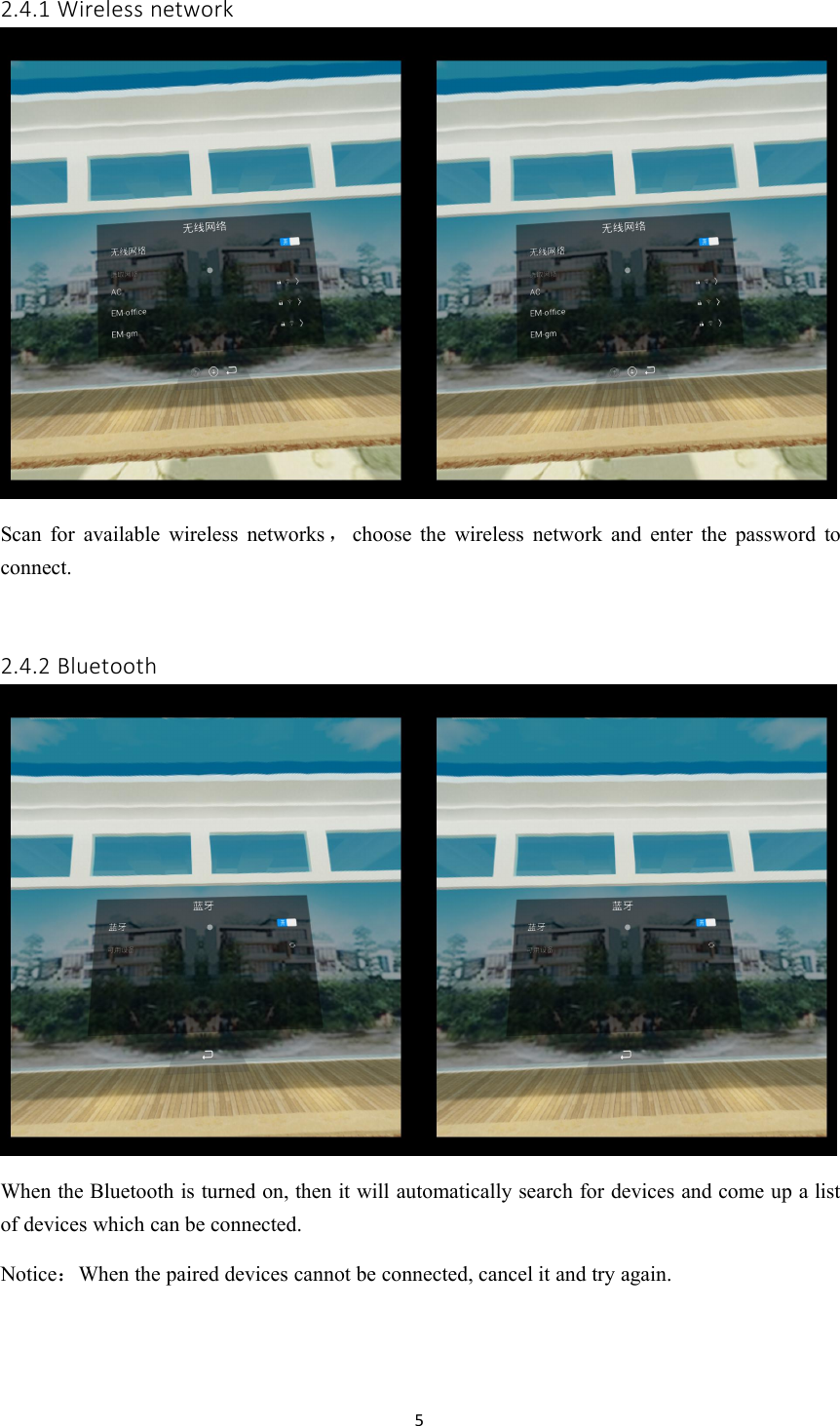
52.4.1 Wireless networkScan for available wireless networks ,choose the wireless network and enter the password toconnect.2.4.2 BluetoothWhen the Bluetooth is turned on, then it will automatically search for devices and come up a listof devices which can be connected.Notice:When the paired devices cannot be connected, cancel it and try again.
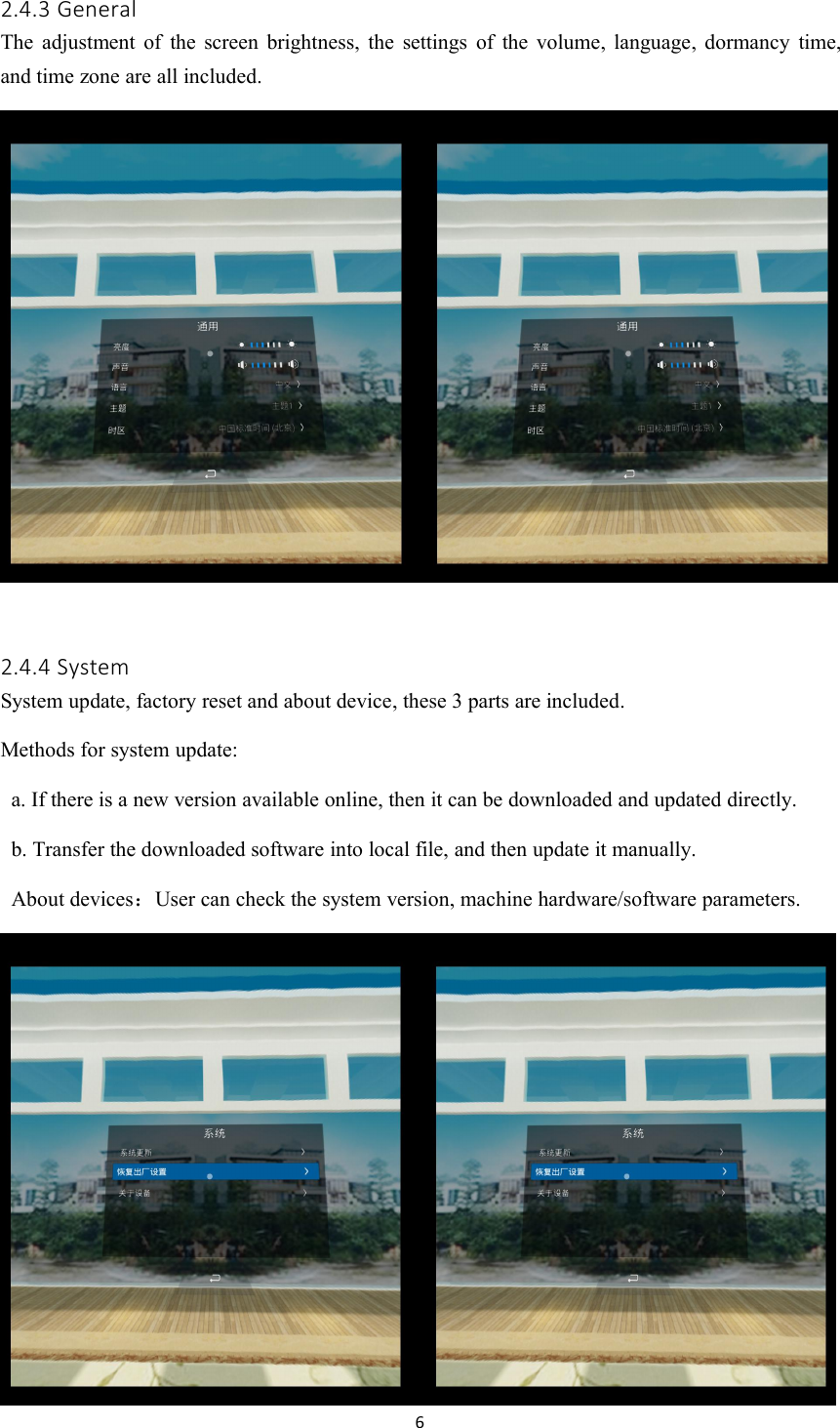
62.4.3 GeneralThe adjustment of the screen brightness, the settings of the volume, language, dormancy time,and time zone are all included.2.4.4 SystemSystem update, factory reset and about device, these 3 parts are included.Methods for system update:a. If there is a new version available online, then it can be downloaded and updated directly.b. Transfer the downloaded software into local file, and then update it manually.About devices:User can check the system version, machine hardware/software parameters.
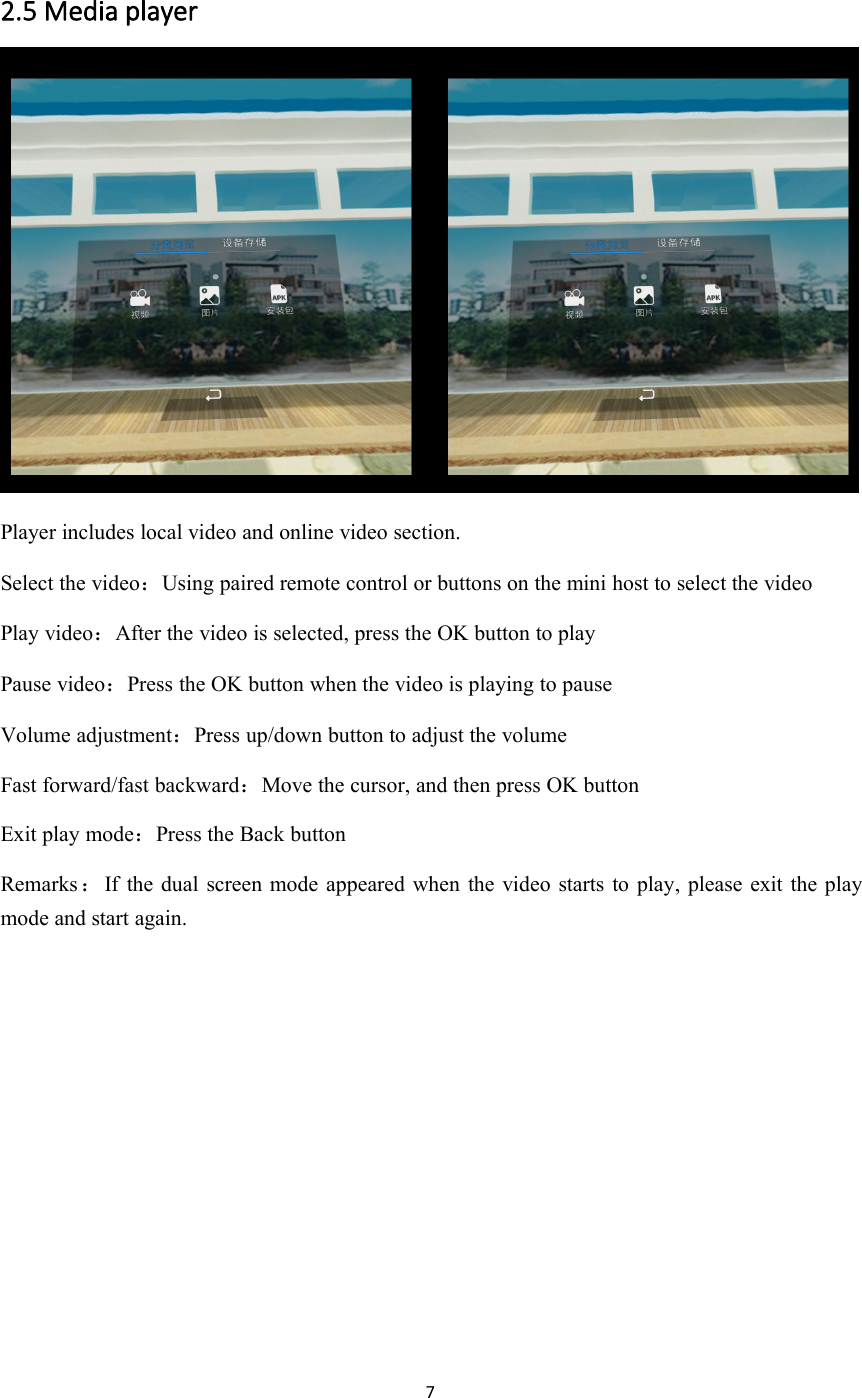
72.5 Media playerPlayer includes local video and online video section.Select the video:Using paired remote control or buttons on the mini host to select the videoPlay video:After the video is selected, press the OK button to playPause video:Press the OK button when the video is playing to pauseVolume adjustment:Press up/down button to adjust the volumeFast forward/fast backward:Move the cursor, and then press OK buttonExit play mode:Press the Back buttonRemarks :If the dual screen mode appeared when the video starts to play, please exit the playmode and start again.
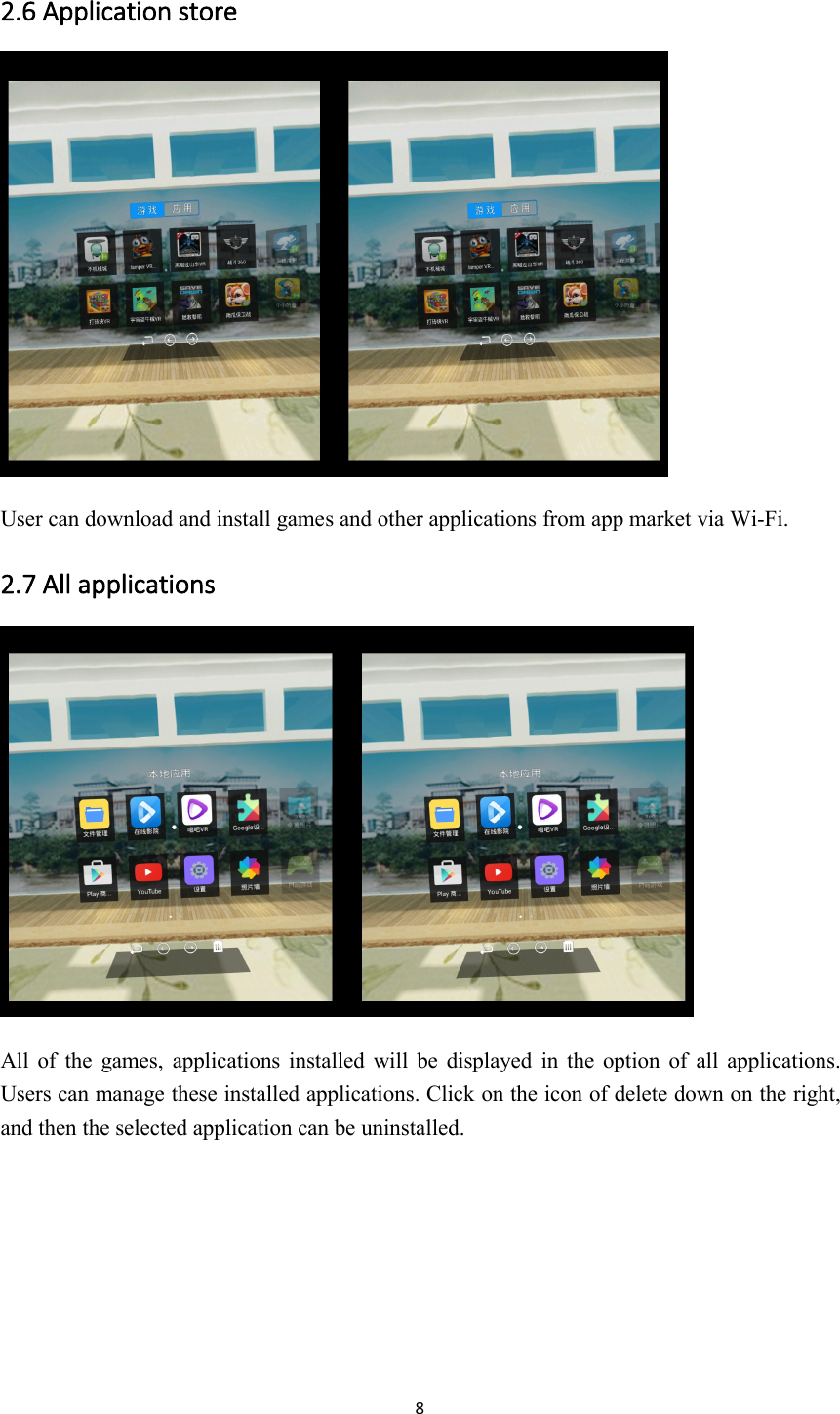
82.6 Application storeUser can download and install games and other applications from app market via Wi-Fi.2.7 All applicationsAll of the games, applications installed will be displayed in the option of all applications.Users can manage these installed applications. Click on the icon of delete down on the right,and then the selected application can be uninstalled.
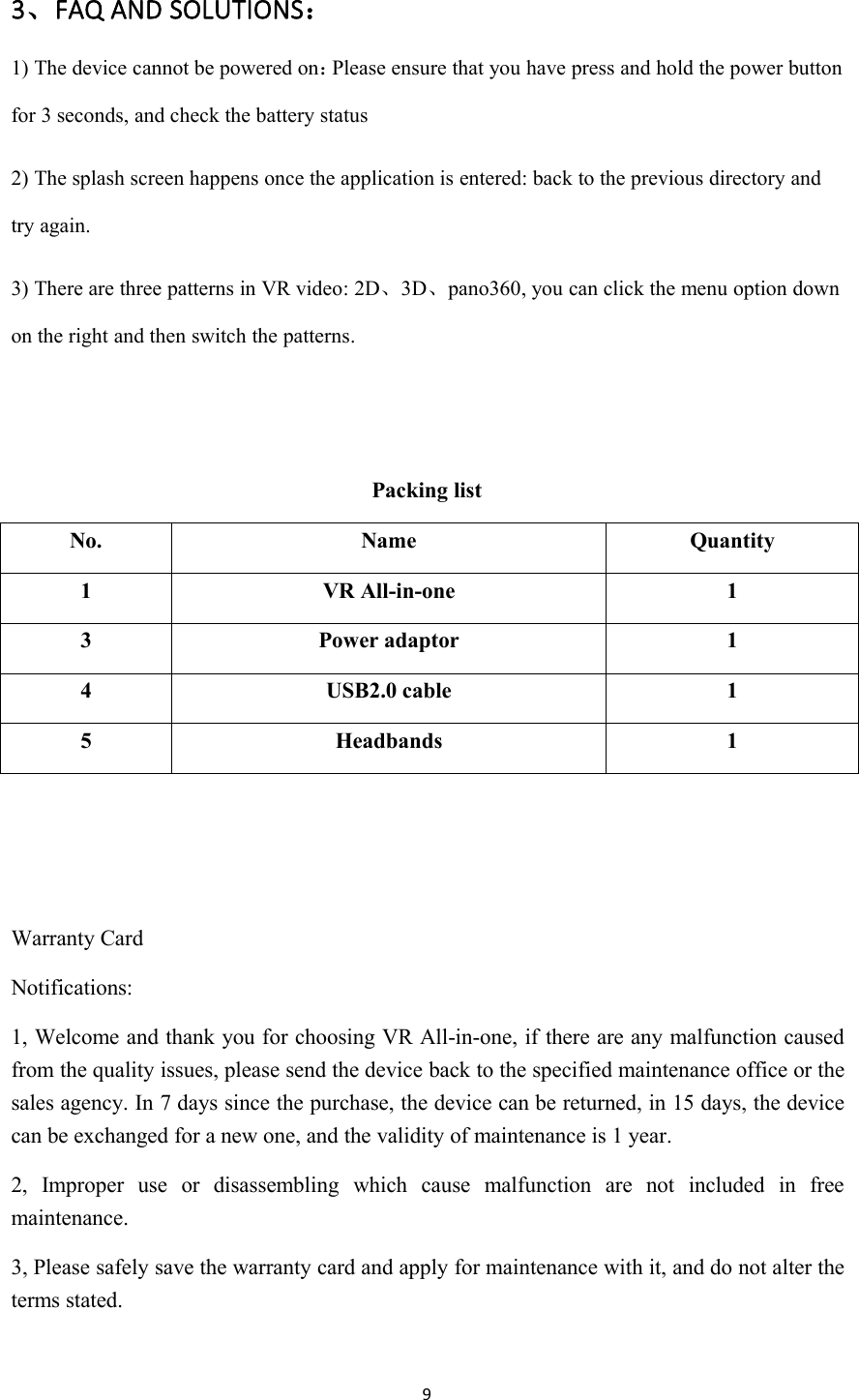
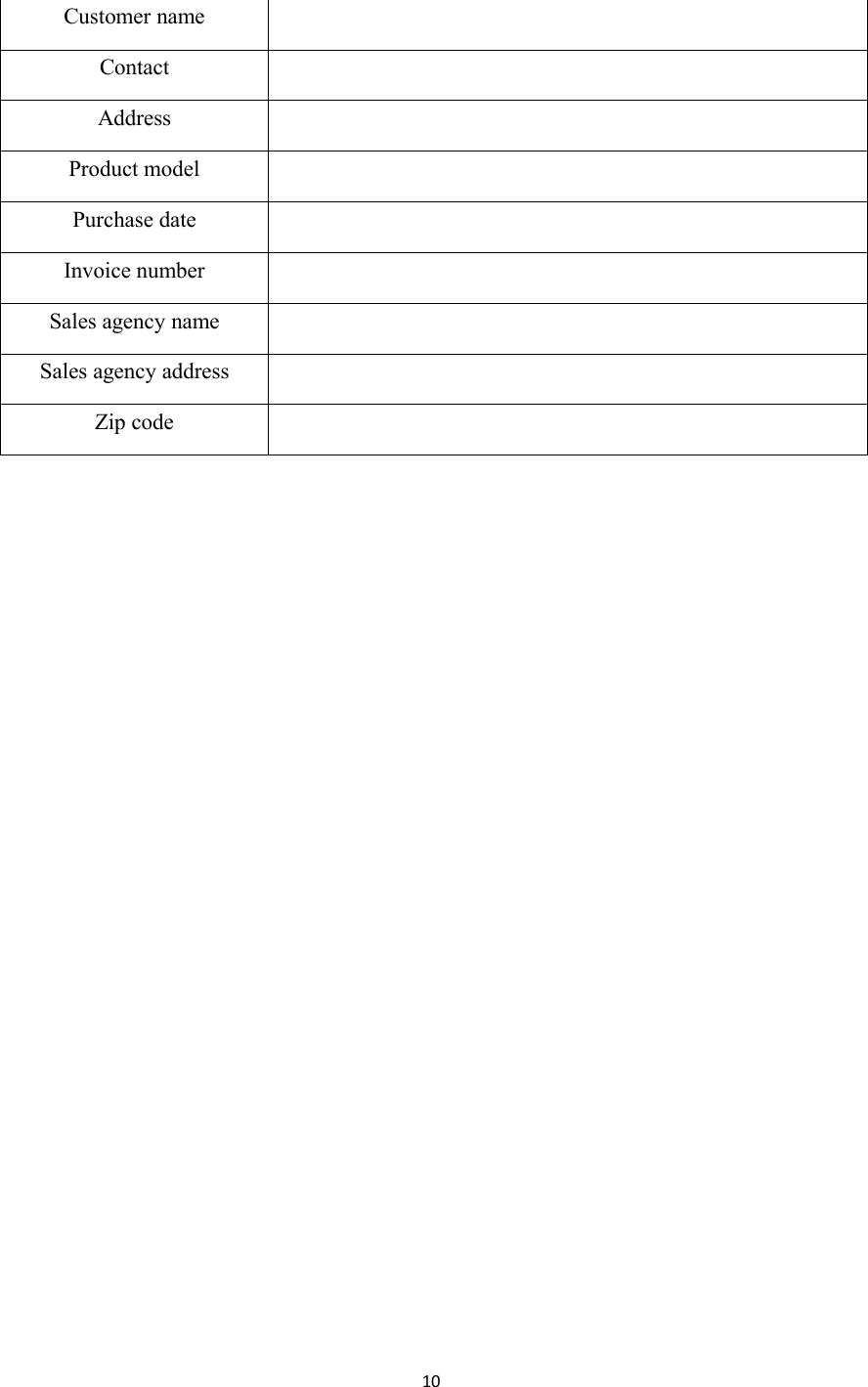
93、FAQ AND SOLUTIONS:1) The device cannot be powered on:Please ensure that you have press and hold the power buttonfor 3 seconds, and check the battery status2) The splash screen happens once the application is entered: back to the previous directory andtry again.3) There are three patterns in VR video: 2D、3D、pano360, you can click the menu option downon the right and then switch the patterns.Packing listNo.NameQuantity1VR All-in-one13Power adaptor14USB2.0 cable15Headbands1Warranty CardNotifications:1, Welcome and thank you for choosing VR All-in-one, if there are any malfunction causedfrom the quality issues, please send the device back to the specified maintenance office or thesales agency. In 7 days since the purchase, the device can be returned, in 15 days, the devicecan be exchanged for a new one, and the validity of maintenance is 1 year.2, Improper use or disassembling which cause malfunction are not included in freemaintenance.3, Please safely save the warranty card and apply for maintenance with it, and do not alter theterms stated.
10Customer nameContactAddressProduct modelPurchase dateInvoice numberSales agency nameSales agency addressZip code
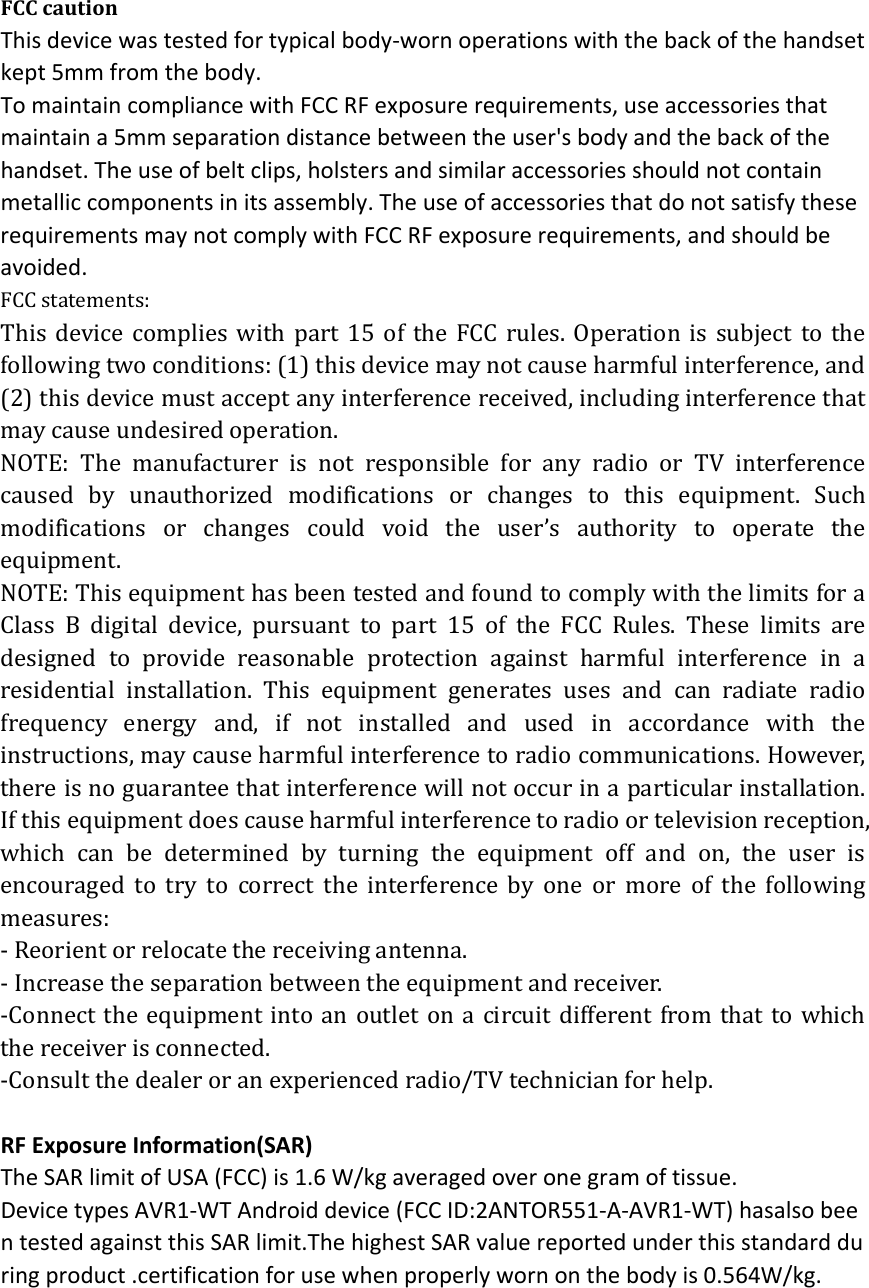
FCC caution This device was tested for typical body‐worn operations with the back of the handset kept 5mm from the body. To maintain compliance with FCC RF exposure requirements, use accessories that maintain a 5mm separation distance between the user's body and the back of the handset. The use of belt clips, holsters and similar accessories should not contain metallic components in its assembly. The use of accessories that do not satisfy these requirements may not comply with FCC RF exposure requirements, and should be avoided. FCC statements: This device complies with part 15 of the FCC rules. Operation is subject to the following two conditions: (1) this device may not cause harmful interference, and (2) this device must accept any interference received, including interference that may cause undesired operation.   NOTE: The manufacturer is not responsible for any radio or TV interference caused by unauthorized modifications or changes to this equipment. Such modifications or changes could void the user’s authority to operate the equipment. NOTE: This equipment has been tested and found to comply with the limits for a Class B digital device, pursuant to part 15 of the FCC Rules. These limits are designed to provide reasonable protection against harmful interference in a residential installation. This equipment generates uses and can radiate radio frequency energy and, if not installed and used in accordance with the instructions, may cause harmful interference to radio communications. However, there is no guarantee that interference will not occur in a particular installation. If this equipment does cause harmful interference to radio or television reception, which can be determined by turning the equipment off and on, the user is encouraged to try to correct the interference by one or more of the following measures: ‐ Reorient or relocate the receiving antenna. ‐ Increase the separation between the equipment and receiver. ‐Connect the equipment into an outlet on a circuit different from that to which the receiver is connected. ‐Consult the dealer or an experienced radio/TV technician for help.  RF Exposure Information(SAR) The SAR limit of USA (FCC) is 1.6 W/kg averaged over one gram of tissue. Device types AVR1‐WT Android device (FCC ID:2ANTOR551‐A‐AVR1‐WT) hasalso been tested against this SAR limit.The highest SAR value reported under this standard during product .certification for use when properly worn on the body is 0.564W/kg.

Navigation menu