Emerson Process Management Electric Co Wok 3 9000 745 Users Manual 00745
3-9000-745 to the manual 61cb4b3e-a63d-451f-a201-17722a5e9b3c
2015-02-06
: Emerson-Process-Management Emerson-Process-Management-Emerson-Process-Management-Emerson-Electric-Co-Wok-3-9000-745-Users-Manual-540162 emerson-process-management-emerson-process-management-emerson-electric-co-wok-3-9000-745-users-manual-540162 emerson-process-management pdf
Open the PDF directly: View PDF  .
.
Page Count: 479 [warning: Documents this large are best viewed by clicking the View PDF Link!]
- Table of Contents
- Section 1: Getting started
- 1.1 What’s new in MON 20/20
- 1.2 Getting started with MON 20/20
- 1.2.1 System requirements
- 1.2.2 Installing MON 20/20
- 1.2.3 Launching MON 20/20
- 1.2.4 Registering MON 20/20
- 1.2.5 Setting up the data folder
- 1.2.6 Configuring MON 20/20 to connect to a gas chromatograph
- 1.2.7 Importing or exporting the GC directory table
- 1.2.8 Launching MON 20/20 from the SNAP-ON for DeltaV
- 1.2.9 Launching MON 20/20 from the AMS Device Manager
- 1.2.10 The MON 20/20 user interface
- 1.2.11 Connecting to a gas chromatograph
- 1.2.12 Disconnecting from a gas chromatograph
- 1.3 Keyboard commands
- 1.4 Procedures guide
- 1.5 Configuring a gas chromatograph
- 1.6 Restoring the GC to its factory settings
- 1.7 Configuring your printer
- 1.8 Using online help
- 1.9 Operating modes for MON 20/20
- 1.10 Viewing the Physical Name column
- 1.11 Selecting the GC’s networking protocol
- 1.12 Using the context-sensitive variable selector
- Section 2: Using the chromatograph functions
- 2.1 Viewing chromatograms
- 2.2 Working with the graph
- 2.3 Editing the display properties of the chromatograph
- 2.4 Working with a chromatogram
- 2.4.1 Editing a chromatogram trace
- 2.4.2 Viewing chromatogram results
- 2.4.3 Saving a chromatogram trace
- 2.4.4 Removing a chromatogram trace from view
- 2.4.5 Forcing a calibration
- 2.4.6 Controlling the display of data in the Timed Events and Components tables
- 2.4.7 Saving a comparison file
- 2.4.8 Opening a comparison file
- 2.5 Miscellaneous commands
- 2.5.1 Working with the Timed Events table
- 2.5.2 Editing Timed Events from the Time Events window
- 2.5.3 Editing Timed Events from the Chromatogram Viewer
- 2.5.4 Using the Chromatogram Viewer’s cursor to update a Timed Event
- 2.5.5 Working with the Component Data Table
- 2.5.6 Editing retention times from the Chromatogram Viewer
- 2.5.7 Viewing raw data
- 2.6 Setting the gas chromatograph’s date and time
- Section 3: Using the hardware functions
- 3.1 Controlling the temperature of the gas chromatograph’s heaters
- 3.2 Configuring the valves
- 3.3 Controlling the detectors
- 3.4 Managing your gas chromatograph’s discrete inputs
- 3.5 Managing your gas chromatograph’s discrete outputs
- 3.6 Managing your gas chromatograph’s analog inputs
- 3.7 Managing your gas chromatograph’s analog outputs
- 3.8 Reviewing the Hardware Inventory List
- Section 4: Using the Application functions
- 4.1 Managing the system
- 4.2 Managing Component Data Tables
- 4.3 Managing timed events
- 4.4 Managing Validation Data Tables
- 4.5 Managing calculations
- 4.6 Creating Custom Calculations
- 4.7 Setting the calculation method
- 4.8 Setting alarm limits
- 4.9 Managing system alarms
- 4.10 Managing streams
- 4.11 Creating a stream sequence for a detector
- 4.12 Communications
- 4.13 Configuring the gas chromatograph’s Ethernet port
- 4.14 Working with local operator interface variables
- 4.15 Mapping Foundation Fieldbus variables
- Section 5: Logs and reports
- 5.1 Viewing and clearing alarms
- 5.2 Viewing the maintenance log
- 5.3 Working with the parameter list
- 5.4 Working with drawings and documents
- 5.5 Viewing the event log
- 5.6 Displaying reports
- 5.7 Viewing reports based on archived data
- 5.8 Viewing trend data
- 5.9 Working with the Trend Graph
- 5.10 Editing the display properties of the graph
- 5.11 Working with a trend graph
- 5.12 Generating a GC Configuration Report
- 5.13 Deleting archived data from the gas chromatograph
- 5.14 The molecular weight vs. response factor graph
- Section 6: Controlling Analyses
- Section 7: Using MON 20/20 Tools
- 7.1 Using the Modbus Test program
- 7.1.1 Comparing Modbus protocols
- 7.1.2 Setting communication parameters
- 7.1.3 Getting Modbus Data
- 7.1.4 Transmitting using a single data type
- 7.1.5 Transmitting using a template
- 7.1.6 Setting the log parameters
- 7.1.7 Saving Modbus data
- 7.1.8 Printing Modbus data
- 7.1.9 Assigning scale ranges to User_Modbus registers
- 7.2 Troubleshooting communication errors
- 7.3 Managing users
- 7.4 Upgrading the firmware
- 7.5 Cold booting
- 7.6 Viewing diagnostics
- 7.7 Adjusting the sensitivity of the LOI Keys
- 7.8 Setting the ROC card type
- 7.1 Using the Modbus Test program
- Appendix A, Component Data Table
- Appendix B, Data computations
- Appendix C, Modbus registers list
- Appendix D, Basic and advanced system variables
- Appendix E, Creating custom calculations
Revision D
3-9000-745
October 2010
MON 20/20
Software for Gas Chromatographs
Applies to all Emerson XA Series Gas Chromatographs

MON 20/20 Software for Gas Chromatographs
User Manual
NOTICE
DANIEL MEASUREMENT AND CONTROL, INC. AND ROSEMOUNT ANALYTICAL
(COLLECTIVELY, “SELLER”) SHALL NOT BE LIABLE FOR TECHNICAL OR EDITORIAL
ERRORS IN THIS MANUAL OR OMISSIONS FROM THIS MANUAL. SELLER MAKES NO
WARRANTIES, EXPRESSED OR IMPLIED, INCLUDING THE IMPLIED WARRANTIES OF
MERCHANTABILITY AND FITNESS FOR A PARTICULAR PURPOSE WITH RESPECT TO
THIS MANUAL AND, IN NO EVENT, SHALL SELLER BE LIABLE FOR ANY SPECIAL OR
CONSEQUENTIAL DAMAGES INCLUDING, BUT NOT LIMITED TO, LOSS OF
PRODUCTION, LOSS OF PROFITS, ETC.
PRODUCT NAMES USED HEREIN ARE FOR MANUFACTURER OR SUPPLIER
IDENTIFICATION ONLY AND MAY BE TRADEMARKS/REGISTERED TRADEMARKS OF
THESE COMPANIES.
THE CONTENTS OF THIS PUBLICATION ARE PRESENTED FOR INFORMATIONAL
PURPOSES ONLY, AND WHILE EVERY EFFORT HAS BEEN MADE TO ENSURE THEIR
ACCURACY, THEY ARE NOT TO BE CONSTRUED AS WARRANTIES OR GUARANTEES,
EXPRESSED OR IMPLIED, REGARDING THE PRODUCTS OR SERVICES DESCRIBED
HEREIN OR THEIR USE OR APPLICABILITY. WE RESERVE THE RIGHT TO MODIFY OR
IMPROVE THE DESIGNS OR SPECIFICATIONS OF SUCH PRODUCTS AT ANY TIME.
SELLER DOES NOT ASSUME RESPONSIBILITY FOR THE SELECTION, USE OR
MAINTENANCE OF ANY PRODUCT. RESPONSIBILITY FOR PROPER SELECTION, USE
AND MAINTENANCE OF ANY SELLER PRODUCT REMAINS SOLELY WITH THE
PURCHASER AND END-USER.
DANIEL AND THE DANIEL LOGO ARE REGISTERED TRADEMARKS OF DANIEL
MEASUREMENT AND CONTROL, INC. ROSEMOUNT AND THE ROSEMOUNT
ANALYTICAL LOGO ARE REGISTERED TRADEMARKS OF ROSEMOUNT ANALYTICAL.
THE EMERSON LOGO IS A TRADEMARK AND SERVICE MARK OF EMERSON ELECTRIC
CO.
COPYRIGHT © 2010 BY DANIEL MEASUREMENT AND CONTROL, INC., HOUSTON,
TEXAS, U.S.A.
All rights reserved. No part of this work may be reproduced or copied in any form or by any
means - graphic, electronic, or mechanical — without first receiving the written permission of
Daniel Measurement and Control, Inc. Houston, Texas, U.S.A.

WARRANTY
1. LIMITED WARRANTY: Subject to the limitations contained in Section 2 herein and except as
otherwise expressly provided herein, Daniel Measurement and Control, Inc. and Rosemount
Analytical, (collectively“Seller”) warrants that the firmware will execute the programming
instructions provided by Seller, and that the Goods manufactured or Services provided by Seller
will be free from defects in materials or workmanship under normal use and care until the
expiration of the applicable warranty period. Goods are warranted for twelve (12) months from
the date of initial installation or eighteen (18) months from the date of shipment by Seller,
whichever period expires first. Consumables and Services are warranted for a period of 90 days
from the date of shipment or completion of the Services. Products purchased by Seller from a third
party for resale to Buyer ("Resale Products") shall carry only the warranty extended by the
original manufacturer. Buyer agrees that Seller has no liability for Resale Products beyond
making a reasonable commercial effort to arrange for procurement and shipping of the Resale
Products. If Buyer discovers any warranty defects and notifies Seller thereof in writing during the
applicable warranty period, Seller shall, at its option, promptly correct any errors that are found
by Seller in the firmware or Services, or repair or replace F.O.B. point of manufacture that
portion of the Goods or firmware found by Seller to be defective, or refund the purchase price of
the defective portion of the Goods/Services. All replacements or repairs necessitated by
inadequate maintenance, normal wear and usage, unsuitable power sources, unsuitable
environmental conditions, accident, misuse, improper installation, modification, repair, storage or
handling, or any other cause not the fault of Seller are not covered by this limited warranty, and
shall be at Buyer's expense. Seller shall not be obligated to pay any costs or charges incurred by
Buyer or any other party except as may be agreed upon in writing in advance by an authorized
Seller representative. All costs of dismantling, reinstallation and freight and the time and
expenses of Seller's personnel for site travel and diagnosis under this warranty clause shall be
borne by Buyer unless accepted in writing by Seller. Goods repaired and parts replaced during the
warranty period shall be in warranty for the remainder of the original warranty period or ninety
(90) days, whichever is longer. This limited warranty is the only warranty made by Seller and
can be amended only in a writing signed by an authorized representative of Seller. Except as
otherwise expressly provided in the Agreement, THERE ARE NO REPRESENTATIONS OR
WARRANTIES OF ANY KIND, EXPRESSED OR IMPLIED, AS TO MERCHANTABILITY,
FITNESS FOR PARTICULAR PURPOSE, OR ANY OTHER MATTER WITH RESPECT TO ANY
OF THE GOODS OR SERVICES. It is understood that corrosion or erosion of materials is
not covered by our guarantee.
2. LIMITATION OF REMEDY AND LIABILITY: SELLER SHALL NOT BE LIABLE FOR
DAMAGES CAUSED BY DELAY IN PERFORMANCE. THE SOLE AND EXCLUSIVE REMEDY
FOR BREACH OF WARRANTY HEREUNDER SHALL BE LIMITED TO REPAIR,
CORRECTION, REPLACEMENT OR REFUND OF PURCHASE PRICE UNDER THE LIMITED
WARRANTY CLAUSE IN SECTION 1 HEREIN. IN NO EVENT, REGARDLESS OF THE FORM
OF THE CLAIM OR CAUSE OF ACTION (WHETHER BASED IN CONTRACT,
INFRINGEMENT, NEGLIGENCE, STRICT LIABILITY, OTHER TORT OR OTHERWISE),
SHALL SELLER'S LIABILITY TO BUYER AND/OR ITS CUSTOMERS EXCEED THE PRICE
TO BUYER OF THE SPECIFIC GOODS MANUFACTURED OR SERVICES PROVIDED BY
SELLER GIVING RISE TO THE CLAIM OR CAUSE OF ACTION. BUYER AGREES THAT IN
NO EVENT SHALL SELLER'S LIABILITY TO BUYER AND/OR ITS CUSTOMERS EXTEND
TO INCLUDE INCIDENTAL, CONSEQUENTIAL OR PUNITIVE DAMAGES. THE TERM
"CONSEQUENTIAL DAMAGES" SHALL INCLUDE, BUT NOT BE LIMITED TO, LOSS OF
ANTICIPATED PROFITS, LOSS OF USE, LOSS OF REVENUE AND COST OF CAPITAL.

IMPORTANT INSTRUCTIONS
• Read all instructions prior to installing, operating, and servicing this product.
• Follow all warnings, cautions, and instructions marked on and supplied with this product.
• Inspect the equipment packing case and if damage exists, notify your local carrier for
liability.
• Open the packing list and carefully remove equipment and spare or replacement parts
from the case. Inspect all equipment for damage and missing parts.
• If items are damaged or missing, contact the manufacturer at 1 (713) 827-6314 for
instructions about receiving replacement parts.
• Install equipment as specified per the installation instructions and per applicable local
and national codes. All connections shall be made to proper electrical and pressure
sources.
• Ensure that all equipment doors are closed and protective covers are in place, except
when maintenance is being performed by qualified persons, to prevent personal injury.
• Use of this product for any purpose other than its intended purpose may result in
property damage and/or serious injury or death.
• Before opening the flameproof enclosure in a flammable atmosphere, the electrical
circuits must be interrupted.
• Repairs must be performed using only authorized replacement parts as specified by the
manufacturer. Use of unauthorized parts can affect the product's performance and place
the safe operation of the product at risk.
• When installing or servicing ATEX-certified units, the ATEX approval applies only to
equipment without cable glands. When mounting the flameproof enclosures in a
hazardous area, only flameproof cable glands certified to IEC 60079-1 must be used.
• Technical assistance is available 24 hours a day, 7 days a week by calling 1 (713) 827-
6314.

This page is intentionally left blank.

i
Table of Contents
Section 1:
Getting started
What’s new in MON 20/20 . . . . . . . . . . . . . . . . . . . . . . . . . . . . . .1-3
Getting started with MON 20/20 . . . . . . . . . . . . . . . . . . . . . . . . .1-6
System requirements . . . . . . . . . . . . . . . . . . . . . . . . . . . .1-6
Installing MON 20/20 . . . . . . . . . . . . . . . . . . . . . . . . . . .1-7
Launching MON 20/20 . . . . . . . . . . . . . . . . . . . . . . . . . .1-7
Registering MON 20/20 . . . . . . . . . . . . . . . . . . . . . . . . . .1-7
Setting up the data folder . . . . . . . . . . . . . . . . . . . . . . . .1-9
Configuring MON 20/20 to connect to a gas
chromatograph . . . . . . . . . . . . . . . . . . . . . . . . . . . . . . . .1-10
Importing or exporting the GC directory table . . . . . .1-13
Launching MON 20/20 from the SNAP-ON for
DeltaV . . . . . . . . . . . . . . . . . . . . . . . . . . . . . . . . . . . . . . .1-15
Launching MON 20/20 from the AMS Device
Manager . . . . . . . . . . . . . . . . . . . . . . . . . . . . . . . . . . . . .1-17
The MON 20/20 user interface . . . . . . . . . . . . . . . . . . .1-20
Connecting to a gas chromatograph . . . . . . . . . . . . . . .1-25
Disconnecting from a gas chromatograph . . . . . . . . . .1-28
Keyboard commands . . . . . . . . . . . . . . . . . . . . . . . . . . . . . . . . . .1-28
Procedures guide . . . . . . . . . . . . . . . . . . . . . . . . . . . . . . . . . . . . .1-30
Configuring a gas chromatograph . . . . . . . . . . . . . . . . . . . . . . .1-33
Editing a configuration file . . . . . . . . . . . . . . . . . . . . . .1-33
Saving a gas chromatograph’s current
configuration . . . . . . . . . . . . . . . . . . . . . . . . . . . . . . . . .1-35
Importing a configuration file . . . . . . . . . . . . . . . . . . . .1-35
Configuring your printer . . . . . . . . . . . . . . . . . . . . . . . . . . . . . .1-36
Using online help . . . . . . . . . . . . . . . . . . . . . . . . . . . . . . . . . . . .1-37
Operating modes for MON 20/20 . . . . . . . . . . . . . . . . . . . . . . . .1-37
Viewing the Physical Name column . . . . . . . . . . . . . . . . . . . . .1-37
Selecting the GC’s networking protocol . . . . . . . . . . . . . . . . . . .1-39
Using the context-sensitive variable selector . . . . . . . . . . . . . .1-41
Section 2:
Using the
chromatograph
functions
Viewing chromatograms . . . . . . . . . . . . . . . . . . . . . . . . . . . . . . . .2-1
Data displayed in the chromatogram window . . . . . . . .2-2
Viewing a live chromatogram . . . . . . . . . . . . . . . . . . . . .2-3
Viewing an archived chromatogram . . . . . . . . . . . . . . . .2-5
Protecting or unprotecting an archived
chromatogram . . . . . . . . . . . . . . . . . . . . . . . . . . . . . . . . .2-9
Viewing a saved chromatogram . . . . . . . . . . . . . . . . . .2-13
Working with the graph . . . . . . . . . . . . . . . . . . . . . . . . . . . . . . .2-15
Editing the display properties of the chromatograph . . . . . . . .2-16
The Graph bar . . . . . . . . . . . . . . . . . . . . . . . . . . . . . . . .2-16
Additional plot commands . . . . . . . . . . . . . . . . . . . . . . .2-19

User Manual MON20/20 Software for Gas Chromatographs
3-9000-745 OCTOBER 2010
ii
Working with a chromatogram . . . . . . . . . . . . . . . . . . . . . . . . . 2-21
Editing a chromatogram trace . . . . . . . . . . . . . . . . . . . 2-21
Viewing chromatogram results . . . . . . . . . . . . . . . . . . 2-23
Saving a chromatogram trace . . . . . . . . . . . . . . . . . . . 2-25
Removing a chromatogram trace from view . . . . . . . . 2-26
Forcing a calibration . . . . . . . . . . . . . . . . . . . . . . . . . . 2-27
Controlling the display of data in the Timed Events
and Components tables . . . . . . . . . . . . . . . . . . . . . . . . 2-28
Saving a comparison file . . . . . . . . . . . . . . . . . . . . . . . 2-30
Opening a comparison file . . . . . . . . . . . . . . . . . . . . . . 2-30
Miscellaneous commands . . . . . . . . . . . . . . . . . . . . . . . . . . . . . 2-31
Working with the Timed Events table . . . . . . . . . . . . 2-32
Editing Timed Events from the Time Events
window . . . . . . . . . . . . . . . . . . . . . . . . . . . . . . . . . . . . . 2-33
Editing Timed Events from the Chromatogram
Viewer . . . . . . . . . . . . . . . . . . . . . . . . . . . . . . . . . . . . . . 2-33
Using the Chromatogram Viewer’s cursor to
update a Timed Event . . . . . . . . . . . . . . . . . . . . . . . . . 2-35
Working with the Component Data Table . . . . . . . . . 2-37
Editing retention times from the Chromatogram
Viewer . . . . . . . . . . . . . . . . . . . . . . . . . . . . . . . . . . . . . . 2-38
Viewing raw data . . . . . . . . . . . . . . . . . . . . . . . . . . . . . 2-38
Setting the gas chromatograph’s date and time . . . . . . . . . . . 2-40
Adjusting daylight savings . . . . . . . . . . . . . . . . . . . . . 2-42
Section 3:
Using the hardware
functions
Controlling the temperature of the gas chromatograph’s
heaters . . . . . . . . . . . . . . . . . . . . . . . . . . . . . . . . . . . . . . . . . . . . . 3-1
Renaming a heater . . . . . . . . . . . . . . . . . . . . . . . . . . . . . 3-2
Setting the heater’s type . . . . . . . . . . . . . . . . . . . . . . . . 3-3
Monitoring the temperature of a heater . . . . . . . . . . . . 3-4
Monitoring the operational status of a heater . . . . . . . 3-5
Setting the desired temperature . . . . . . . . . . . . . . . . . . 3-6
Setting PWM Output . . . . . . . . . . . . . . . . . . . . . . . . . . . 3-7
Removing a heater from service . . . . . . . . . . . . . . . . . . 3-9
Configuring the valves . . . . . . . . . . . . . . . . . . . . . . . . . . . . . . . 3-10
Renaming a valve . . . . . . . . . . . . . . . . . . . . . . . . . . . . . 3-10
Setting a valve’s operational mode . . . . . . . . . . . . . . . 3-12
Monitoring the operational status of a valve . . . . . . . 3-13
Inverting the polarity of a valve . . . . . . . . . . . . . . . . . 3-14
Setting the usage mode for a valve . . . . . . . . . . . . . . . 3-15
Controlling the detectors . . . . . . . . . . . . . . . . . . . . . . . . . . . . . 3-17
Offsetting the baseline . . . . . . . . . . . . . . . . . . . . . . . . . 3-19
Igniting the FID flame . . . . . . . . . . . . . . . . . . . . . . . . . 3-21
Resetting the preamp value . . . . . . . . . . . . . . . . . . . . . 3-22
Balancing the preamp . . . . . . . . . . . . . . . . . . . . . . . . . 3-22

MON20/20 Software for Gas Chromatographs User Manual
OCTOBER 2010 3-9000-745
iii
Managing your gas chromatograph’s discrete inputs . . . . . . . .3-24
Renaming a discrete input . . . . . . . . . . . . . . . . . . . . . .3-24
Setting a discrete input’s operational mode . . . . . . . . .3-25
Monitoring the operational status of a discrete
input . . . . . . . . . . . . . . . . . . . . . . . . . . . . . . . . . . . . . . . .3-27
Inverting the polarity of a discrete input . . . . . . . . . . .3-28
Managing your gas chromatograph’s discrete outputs . . . . . . .3-29
Renaming a discrete output . . . . . . . . . . . . . . . . . . . . .3-29
Setting a discrete output’s operational mode . . . . . . . .3-30
Monitoring the operational status of a discrete
output . . . . . . . . . . . . . . . . . . . . . . . . . . . . . . . . . . . . . . .3-32
Setting the usage mode for a discrete output . . . . . . . .3-33
Managing your gas chromatograph’s analog inputs . . . . . . . . .3-34
Renaming an analog input . . . . . . . . . . . . . . . . . . . . . .3-35
Setting a analog input’s operational mode . . . . . . . . . .3-36
Setting the scale values for an analog input
device . . . . . . . . . . . . . . . . . . . . . . . . . . . . . . . . . . . . . . .3-37
Setting the type of analog input signal . . . . . . . . . . . .3-37
Monitoring the status of an analog input . . . . . . . . . . .3-39
Calibrating an analog input . . . . . . . . . . . . . . . . . . . . .3-40
Managing your gas chromatograph’s analog outputs . . . . . . . .3-43
Renaming an analog output . . . . . . . . . . . . . . . . . . . . .3-43
Setting a analog output’s operational mode . . . . . . . . .3-44
Setting the scale values for an analog output
device . . . . . . . . . . . . . . . . . . . . . . . . . . . . . . . . . . . . . . .3-45
Mapping a system variable to an analog output . . . . .3-46
Monitoring the status of an analog output . . . . . . . . . .3-47
Calibrating an analog output . . . . . . . . . . . . . . . . . . . .3-48
Reviewing the Hardware Inventory List . . . . . . . . . . . . . . . . . .3-52
Section 4:
Using the
Application
functions
Managing the system . . . . . . . . . . . . . . . . . . . . . . . . . . . . . . . . . .4-2
Managing Component Data Tables . . . . . . . . . . . . . . . . . . . . . . .4-5
Editing a Component Data Table . . . . . . . . . . . . . . . . . .4-6
Adding a component to a Component Data
Table . . . . . . . . . . . . . . . . . . . . . . . . . . . . . . . . . . . . . . . .4-10
Removing a component from a Component
Data Table . . . . . . . . . . . . . . . . . . . . . . . . . . . . . . . . . . .4-12
Viewing the standard values for a component . . . . . . .4-13
Viewing raw data . . . . . . . . . . . . . . . . . . . . . . . . . . . . . .4-15
Managing timed events . . . . . . . . . . . . . . . . . . . . . . . . . . . . . . .4-17
Editing valve events . . . . . . . . . . . . . . . . . . . . . . . . . . .4-20
Editing integration events . . . . . . . . . . . . . . . . . . . . . .4-22
Editing spectrum gain events . . . . . . . . . . . . . . . . . . . .4-26
Setting the cycle and analysis time . . . . . . . . . . . . . . .4-29
Removing an event from the Timed Event
Table . . . . . . . . . . . . . . . . . . . . . . . . . . . . . . . . . . . . . . . .4-31
Adding an event to the Timed Event Table . . . . . . . . .4-33

User Manual MON20/20 Software for Gas Chromatographs
3-9000-745 OCTOBER 2010
iv
Managing Validation Data Tables . . . . . . . . . . . . . . . . . . . . . . 4-35
Managing calculations . . . . . . . . . . . . . . . . . . . . . . . . . . . . . . . 4-37
Setting standard calculations by stream . . . . . . . . . . 4-37
Editing average calculations . . . . . . . . . . . . . . . . . . . . 4-39
Viewing an archive of averages for a given variable . 4-42
Copying stream settings . . . . . . . . . . . . . . . . . . . . . . . 4-44
Copying component settings . . . . . . . . . . . . . . . . . . . . 4-45
Creating Custom Calculations . . . . . . . . . . . . . . . . . . . . . . . . . 4-47
Inserting a Comment . . . . . . . . . . . . . . . . . . . . . . . . . . 4-54
Inserting a Conditional Statement . . . . . . . . . . . . . . . 4-56
Inserting an Expression . . . . . . . . . . . . . . . . . . . . . . . . 4-59
Creating a Constant . . . . . . . . . . . . . . . . . . . . . . . . . . . 4-61
Creating or Editing a Temporary Variable . . . . . . . . . 4-63
Inserting a System Variable . . . . . . . . . . . . . . . . . . . . 4-64
Using User-defined Calculations . . . . . . . . . . . . . . . . . 4-65
Setting the calculation method . . . . . . . . . . . . . . . . . . . . . . . . . 4-67
Setting alarm limits . . . . . . . . . . . . . . . . . . . . . . . . . . . . . . . . . 4-69
Managing system alarms . . . . . . . . . . . . . . . . . . . . . . . . . . . . . 4-72
Managing streams . . . . . . . . . . . . . . . . . . . . . . . . . . . . . . . . . . . 4-74
Designating how a stream will be used . . . . . . . . . . . 4-74
Assigning a valve to a stream and setting the
relationship between the stream’s open state to
the valve’s On/Off state . . . . . . . . . . . . . . . . . . . . . . . . 4-76
Assigning a data table to a particular stream . . . . . . 4-77
Changing the base pressure for a stream . . . . . . . . . . 4-78
Creating a stream sequence for a detector . . . . . . . . . . . . . . . 4-78
Communications . . . . . . . . . . . . . . . . . . . . . . . . . . . . . . . . . . . . 4-80
Creating or editing registers . . . . . . . . . . . . . . . . . . . . 4-81
Creating a new map file . . . . . . . . . . . . . . . . . . . . . . . . 4-86
Assigning a variable to a register . . . . . . . . . . . . . . . . 4-92
Viewing or editing scales . . . . . . . . . . . . . . . . . . . . . . . 4-92
Configuring the gas chromatograph’s Ethernet port . . . . . . . 4-95
Working with local operator interface variables . . . . . . . . . . . 4-96
Mapping Foundation Fieldbus variables . . . . . . . . . . . . . . . . . 4-98
Section 5:
Logs and reports
Viewing and clearing alarms . . . . . . . . . . . . . . . . . . . . . . . . . . . 5-1
Viewing unacknowledged and active alarms . . . . . . . . 5-2
Acknowledging and clearing alarms . . . . . . . . . . . . . . . 5-3
Viewing the alarm log . . . . . . . . . . . . . . . . . . . . . . . . . . 5-4
Viewing the maintenance log . . . . . . . . . . . . . . . . . . . . . . . . . . . 5-7
Adding an Entry to the Maintenance Log . . . . . . . . . . 5-8
Deleting an entry from the maintenance log . . . . . . . . 5-9
Working with the parameter list . . . . . . . . . . . . . . . . . . . . . . . 5-10
Viewing and editing the parameter list . . . . . . . . . . . 5-10
Importing and exporting the parameter list . . . . . . . . 5-12
Working with drawings and documents . . . . . . . . . . . . . . . . . 5-13
Viewing drawings or documents . . . . . . . . . . . . . . . . . 5-15

MON20/20 Software for Gas Chromatographs User Manual
OCTOBER 2010 3-9000-745
v
Adding files to the GC . . . . . . . . . . . . . . . . . . . . . . . . . .5-17
Deleting files from the GC . . . . . . . . . . . . . . . . . . . . . . .5-18
Viewing the event log . . . . . . . . . . . . . . . . . . . . . . . . . . . . . . . . .5-19
Displaying reports . . . . . . . . . . . . . . . . . . . . . . . . . . . . . . . . . . .5-22
Understanding report types . . . . . . . . . . . . . . . . . . . . .5-22
Viewing reports from live data . . . . . . . . . . . . . . . . . . .5-32
Viewing a saved report . . . . . . . . . . . . . . . . . . . . . . . . .5-35
Viewing reports based on archived data . . . . . . . . . . . . . . . . . .5-37
Viewing analysis and calibration reports based
on archived data . . . . . . . . . . . . . . . . . . . . . . . . . . . . . . .5-37
Viewing average reports based on archived data . . . .5-41
Printing reports automatically . . . . . . . . . . . . . . . . . . .5-44
Viewing trend data . . . . . . . . . . . . . . . . . . . . . . . . . . . . . . . . . . .5-46
Viewing live trend data . . . . . . . . . . . . . . . . . . . . . . . . .5-46
Viewing saved trend data . . . . . . . . . . . . . . . . . . . . . . .5-50
Working with the Trend Graph . . . . . . . . . . . . . . . . . . . . . . . . .5-52
Editing the display properties of the graph . . . . . . . . . . . . . . .5-54
The graph bar . . . . . . . . . . . . . . . . . . . . . . . . . . . . . . . . .5-54
Working with a trend graph . . . . . . . . . . . . . . . . . . . . . . . . . . . .5-58
Editing a trend graph . . . . . . . . . . . . . . . . . . . . . . . . . .5-59
Entering a description for a trend graph . . . . . . . . . . .5-60
Saving a trend trace . . . . . . . . . . . . . . . . . . . . . . . . . . .5-61
Removing a trend graph from view . . . . . . . . . . . . . . .5-62
Displaying trend data . . . . . . . . . . . . . . . . . . . . . . . . . .5-62
Generating a GC Configuration Report . . . . . . . . . . . . . . . . . . .5-65
Deleting archived data from the gas chromatograph . . . . . . . .5-88
The molecular weight vs. response factor graph . . . . . . . . . . . .5-89
Section 6:
Controlling
Analyses
Halting an analysis . . . . . . . . . . . . . . . . . . . . . . . . . . . . . . . . . . . .6-1
Auto sequencing . . . . . . . . . . . . . . . . . . . . . . . . . . . . . . . . . . . . . .6-2
Analyzing a single stream . . . . . . . . . . . . . . . . . . . . . . . . . . . . . .6-4
Calibrating the gas chromatograph . . . . . . . . . . . . . . . . . . . . . . .6-5
Validating the Gas Chromatograph . . . . . . . . . . . . . . . . . . . . . .6-7
Stopping an Analysis Run . . . . . . . . . . . . . . . . . . . . . . . . . . . . . .6-9
Section 7:
Using MON 20/20
Tools
Using the Modbus Test program . . . . . . . . . . . . . . . . . . . . . . . . .7-1
Comparing Modbus protocols . . . . . . . . . . . . . . . . . . . . .7-2
Setting communication parameters . . . . . . . . . . . . . . . .7-3
Getting Modbus Data . . . . . . . . . . . . . . . . . . . . . . . . . . .7-5
Transmitting using a single data type . . . . . . . . . . . . . .7-7
Transmitting using a template . . . . . . . . . . . . . . . . . . .7-10
Setting the log parameters . . . . . . . . . . . . . . . . . . . . . .7-13
Saving Modbus data . . . . . . . . . . . . . . . . . . . . . . . . . . .7-15
Printing Modbus data . . . . . . . . . . . . . . . . . . . . . . . . . .7-15
Assigning scale ranges to User_Modbus registers . . . .7-15
Troubleshooting communication errors . . . . . . . . . . . . . . . . . . .7-15

User Manual MON20/20 Software for Gas Chromatographs
3-9000-745 OCTOBER 2010
vi
Managing users . . . . . . . . . . . . . . . . . . . . . . . . . . . . . . . . . . . . . 7-17
Creating users . . . . . . . . . . . . . . . . . . . . . . . . . . . . . . . 7-20
Exporting a list of user profiles . . . . . . . . . . . . . . . . . . 7-21
Importing a list of user profiles . . . . . . . . . . . . . . . . . . 7-23
Editing users . . . . . . . . . . . . . . . . . . . . . . . . . . . . . . . . 7-26
Removing a user . . . . . . . . . . . . . . . . . . . . . . . . . . . . . . 7-27
Changing a user’s password . . . . . . . . . . . . . . . . . . . . 7-28
Finding out who is connected to the gas
chromatograph . . . . . . . . . . . . . . . . . . . . . . . . . . . . . . . 7-30
Upgrading the firmware . . . . . . . . . . . . . . . . . . . . . . . . . . . . . . 7-30
Cold booting . . . . . . . . . . . . . . . . . . . . . . . . . . . . . . . . . . . . . . . . 7-33
Viewing diagnostics . . . . . . . . . . . . . . . . . . . . . . . . . . . . . . . . . . 7-33
Adjusting the sensitivity of the LOI Keys . . . . . . . . . . . . . . . . 7-35
Setting the ROC card type . . . . . . . . . . . . . . . . . . . . . . . . . . . . 7-36
Appendix A: Component Data Table
Appendix B:
Data computations
Data acquisition . . . . . . . . . . . . . . . . . . . . . . . . . . . . . . . . . . . . . B-1
Peak detection . . . . . . . . . . . . . . . . . . . . . . . . . . . . . . . . . . . . . . . B-2
Analysis computations . . . . . . . . . . . . . . . . . . . . . . . . . . . . . . . . B-3
Concentration analysis with response factor . . . . . . . . B-4
Post analysis computations . . . . . . . . . . . . . . . . . . . . . . . . . . . . B-6
Liquid equivalent computations . . . . . . . . . . . . . . . . . . B-6
Heating value calculations . . . . . . . . . . . . . . . . . . . . . . B-7
Multi-level calibration . . . . . . . . . . . . . . . . . . . . . . . . . B-13
Indirect calibration . . . . . . . . . . . . . . . . . . . . . . . . . . . B-14
Appendix C:
Modbus registers list for
2350A GC
User_Modbus register list . . . . . . . . . . . . . . . . . . . . . . . . . . . . . . C-1
SIM_2251 Modbus register list . . . . . . . . . . . . . . . . . . . . . . . . . C-7
Appendix D:
Basic and advanced
system variables
GPA system variables . . . . . . . . . . . . . . . . . . . . . . . . . . . . . . . . . D-1
ISO system variables . . . . . . . . . . . . . . . . . . . . . . . . . . . . . . . . D-10
Appendix E:
Creating custom
calculations
Inserting a comment . . . . . . . . . . . . . . . . . . . . . . . . . . . . . . . . . . E-7
Inserting a conditional statement . . . . . . . . . . . . . . . . . . . . . . . E-9
Inserting an expression . . . . . . . . . . . . . . . . . . . . . . . . . . . . . . . E-11
Creating a constant . . . . . . . . . . . . . . . . . . . . . . . . . . . . . . . . . . E-14
Creating or editing a temporary variable . . . . . . . . . . . . . . . . E-15
Inserting a system variable . . . . . . . . . . . . . . . . . . . . . . . . . . . E-16
Using user-defined calculations . . . . . . . . . . . . . . . . . . . . . . . . E-17

1-1
Section 1: Getting started
Welcome to MON 20/20—a menu-driven, Windows-based software
program designed to remotely operate and monitor the Daniel®
Danalyzer™ XA series and the Rosemount® Analytical XA series of gas
chromatographs.
MON 20/20 operates on an IBM-compatible personal computer (PC)
running the Windows XP operating system or later.
MON 20/20 can initiate or control the following gas chromatograph (GC)
functions:
• Alarm parameters
• Alarm and event processing
• Analog scale adjustments
•Analyses
• Baseline runs
• Calculation assignments and configurations
• Calibrations
• Component assignments and configurations
•Diagnostics
• Event sequences
•Halt operations
• Stream assignments and sequences
• Valve activations
• Timing adjustments

User Manual MON20/20 Software for Gas Chromatographs
3-9000-745 OCTOBER 2010
1-2
MON 20/20 can generate the following reports:
• 24-Hour Averages
•Analysis (GPA)
• Analysis (ISO)
• Calibration
• Final Calibration
• Validation
• Final Validation
• Hourly Averages
• Monthly Averages
• GC Configuration
•Raw Data
• Variable Averages
• Weekly Averages
• Dew Temperature Calculation (optional)
MON 20/20 can access and display the following GC-generated logs:
•Alarm Log
•Event Log
• Parameter List
• Maintenance Log

MON20/20 Software for Gas Chromatographs User Manual
OCTOBER 2010 3-9000-745
1-3
1.1 What’s new in MON 20/20
Users familiar with MON2000 or MON2000 Plus will find a few changes
when using MON 20/20:
• Login security is at the gas chromatograph level instead of at the
software level. This means that you no longer have to log in after
starting MON 20/20—but you do have to log in to the gas
chromatograph to which you are trying to connect. For more
information, see “Connecting to a gas chromatograph” on page 1-25.
• An “administrator” role has been added to the list of user roles. This
new role has the highest level of authority and is the only role that can
create or delete all other roles. For more information, see “Managing
users” on page 7-17.
• Multiple users can connect to the same gas chromatograph simultane-
ously. By default, the first user to log in to the GC with “supervisor”
authority will have read/write access; all other users, including other
supervisor-level users, will have read access only. This configuration
can be changed so that all supervisor-level users have read/write
access regardless of who logs in first. For more information, see
“Managing the system” on page 4-2.
• Users can display multiple windows within MON 20/20.
• Automatic reconnection. If MON 20/20 loses its connection with the
GC, it automatically attempts to reconnect.
• Users can view multiple instances of certain windows. To aid in data
processing or troubleshooting, MON 20/20 is capable of displaying
more than one instance of certain data-heavy windows such as the
Chromatogram Viewer and the Trend Data window.

User Manual MON20/20 Software for Gas Chromatographs
3-9000-745 OCTOBER 2010
1-4
• Enhanced Chromatogram Viewer. The following enhancements have
been made to the Chromatogram Viwer:
-Users can view an unlimited number of chromatograms, in any
configuration. For example, a user can view an archived
chromatogram and a live chromatogram. For more information,
see “Viewing chromatograms” on page 2-1.
-The “Keep Last CGM” option. Upon starting a new run, MON 20/
20 can keep the most recently completed chromatogram on the
graph for reference.
-Overview window. When zoomed in to a smaller section of a
chromatogram, the user can open a miniature ‘overview’ window
that displays the entire chromatogram, for reference. For more
information, see “Additional plot commands” on page 2-19.
-Older chromatograms available. MON 20/20 has access to
archived chromatograms as old as four or five days. For more
information, see “Viewing an archived chromatogram” on page 2-5.
-Full screen mode. For more information, see “Working with the
graph” on page 2-15.
-Protected chromatograms. Chromatograms that you designate as
“protected” will not be deleted. For more information, see
“Protecting or unprotecting an archived chromatogram” on page 2-
9.
• The “Invert Polarity “option. This feature reverses a device’s effect.
For more information, see “Inverting the polarity of a valve” on
page 3-14 and “Inverting the polarity of a discrete input” on page 3-28.
• Streamlined variables-picking menu. The method for selecting
variables for calculations and other purposes is contained within one
simple, self-contained menu. For more information, see “Using the
context-sensitive variable selector” on page 1-42.
•GC Time
. The GC Status Bar displays the date and time based on the
GC’s physical location, which may be different than the PC’s location.
For more information, see “Setting the gas chromatograph’s date and
time” on page 2-40.
• Daylight savings time. You have option of enabling a GC’s daylight
savings time feature. Also, there are two options for setting the start
and end times for daylight savings time on the GC. For more
information, see “Adjusting daylight savings” on page 2-42.

MON20/20 Software for Gas Chromatographs User Manual
OCTOBER 2010 3-9000-745
1-5
• Baseline offsetting. In some situations that involve TCD detectors the
baseline may be displayed either too high on the graph, in which case
the tops of the peaks are cut off, or too low on the graph, so that the
bases of the peaks are cut off. If this occurs it is possible to offset the
baseline either up or down so that the entire peak can be displayed on
the graph. This offset will be applied to all traces—live, archived and
saved—that are displayed thereafter. For more information, see
“Viewing raw data” on page 2-38.
• Microsoft Excel-based Parameter List. The Parameter List has been
expanded to offer seven pages of information, and is Microsoft® Excel-
based to allow for access outside of MON 20/20. The document can be
imported to and exported from GCs. For more information, see
“Working with the parameter list” on page 5-10.
• Optional Foundation Fieldbus variables. If your GC is installed with
a Foundation Fieldbus, you can map up to 64 GC variables to monitor
using the AMS Suite. For more information, see “Mapping
Foundation Fieldbus variables” on page 4-98.
• Optional local operator interface (LOI) variables. If your GC is
installed with an LOI, you can configure up to 25 GC parameters to
monitor using the LOI’s Display mode. For more information, see
“Working with local operator interface variables” on page 4-96.
• Access to GC-related drawings such as flow diagrams, assembly
drawings, and electrical diagrams.
• Validation runs. During a validation run, the GC performs a test
analysis to verify that it is working properly. For more information,
see “Managing Validation Data Tables” on page 4-35 and “Validating
the Gas Chromatograph” on page 6-7.

User Manual MON20/20 Software for Gas Chromatographs
3-9000-745 OCTOBER 2010
1-6
1.2 Getting started with MON 20/20
This section covers such issues as installing, registering and setting up
the software, as well as configuring MON 20/20 to meet your specific
needs.
1.2.1 System requirements
To achieve maximum performance when running MON 20/20, ensure
your PC meets the following specifications:
• Software
-Windows® XP (Service Pack 2 or later), Windows® Vista, or
Windows® 7.
-Internet Explorer® 6.0 or later.
• Hardware
-PC with a 400 MHz Pentium or higher processor.
-256 MB of RAM or higher.
-100 MB of free hard disk space. (An additional 280 MB is required
on Windows® XP if .NET 2.0 is not previously installed.)
-Super VGA monitor with 1024x768 or higher resolution.
-For on-line operations, one serial port available for remote/local
connection to gas chromatograph.
-For on-line operations, one Ethernet port available for remote/local
connection to gas chromatograph.
-For remote connection only, a Windows®-compatible modem.
-Windows®-compatible printer (optional)

MON20/20 Software for Gas Chromatographs User Manual
OCTOBER 2010 3-9000-745
1-7
1.2.2 Installing MON 20/20
You must install MON 20/20 from the Emerson Process Management
MON 20/20 Software for Gas Chromatographs CD-ROM onto your hard
drive; you cannot run the program from the CD-ROM.
Double-click the Setup file and follow the on-screen installation
instructions.
Upon successful installation, MON 20/20 creates a shortcut icon on the
computer’s desktop.
Note
MON 20/20 is not an upgrade to MON2000; therefore, MON 20/20 should be installed to
its own directory, separate from the MON2000 directory.
Note
You must be logged onto the computer as an administrator to install MON 20/20. Vista
and Windows 7 users, even with administrator privileges, will be prompted by the
operating system’s User Account Control feature to allow or cancel the installation.
1.2.3 Launching MON 20/20
To launch MON 20/20, double-click its desktop icon or click the Start
button and select Emerson Process Management → MON 20/20.
1.2.4 Registering MON 20/20
Each time you start MON 20/20 it will prompt you to register if you have
not already done so. To delay or suspend this registration prompt, see
Step 3.
Note
An active Internet connection is required to register.
Registering your copy of MON 20/20 allows you to receive information
about free updates and related products.
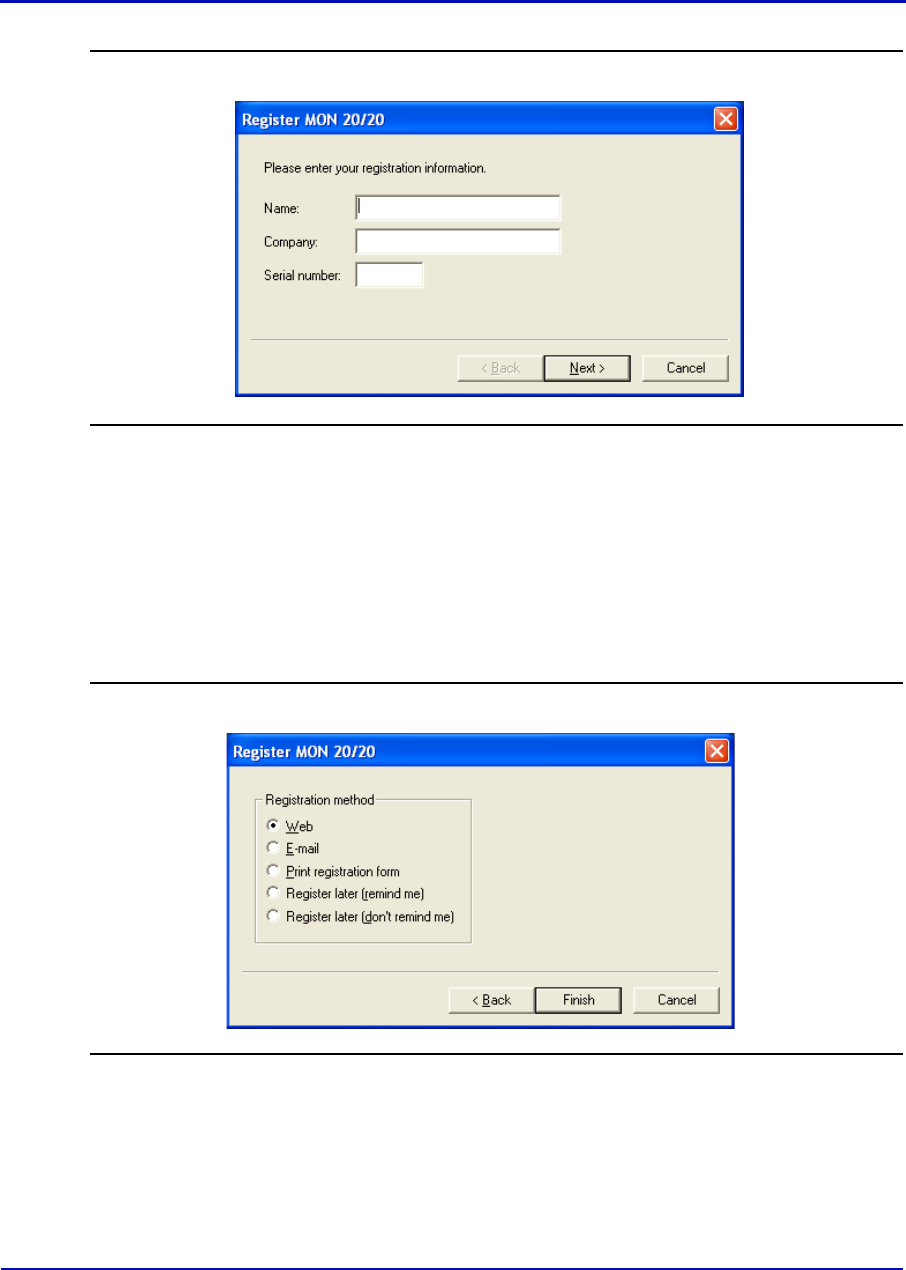
User Manual MON20/20 Software for Gas Chromatographs
3-9000-745 OCTOBER 2010
1-8
Figure 1-1. The Register MON 20/20 window, page 1
1. Enter your name, your company’s name, and the serial number for
your copy of MON 20/20 into the appropriate fields on the Register
MON 20/20 window.
2. Click Next to continue.
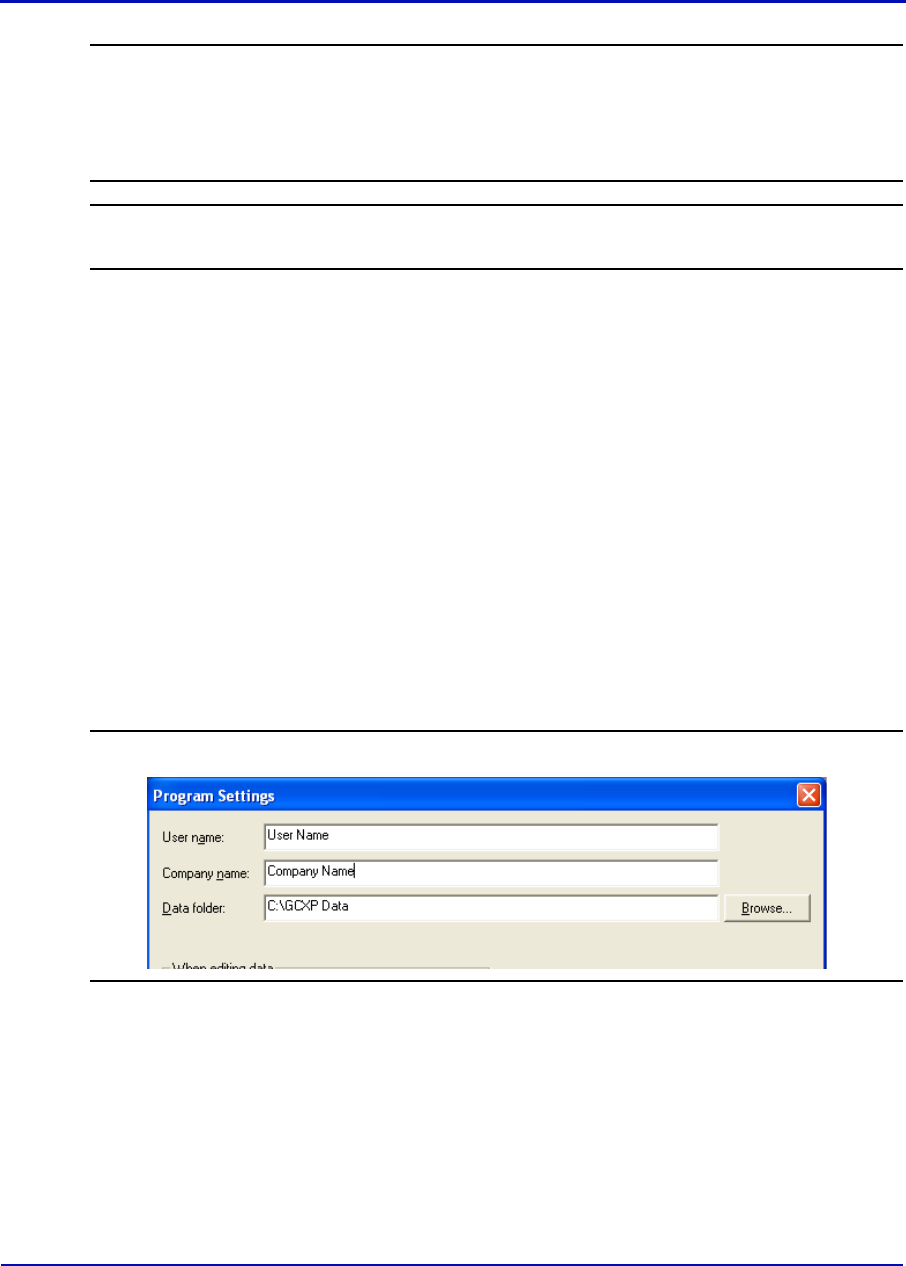
3. Choose the desired registration method by clicking the corresponding
checkbox.
Figure 1-2. The Register MON 20/20 window, page 2
MON20/20 Software for Gas Chromatographs User Manual
OCTOBER 2010 3-9000-745
1-9
Note
To delay registration, check Register later (remind me). MON 20/20 will display the
Register MON 20/20 window the next time you start the program. To prevent the
Register MON 20/20 window from displaying with each program startup—and without
registering—check Register later (don’t remind me).
Note
You can register at any time by selecting Register MON 20/20... from the Help menu.
4. Click Finish.
1.2.5 Setting up the data folder
The data folder stores GC-specific files such as reports and
chromatograms. The default location for the data folder is C:\GCXP
Data. If you want MON 20/20 to store its data in a different location—on
a network drive, for instance—do the following:
1. Move the GCXP Data folder to its new location.
2. Select Program Settings... from the File menu.
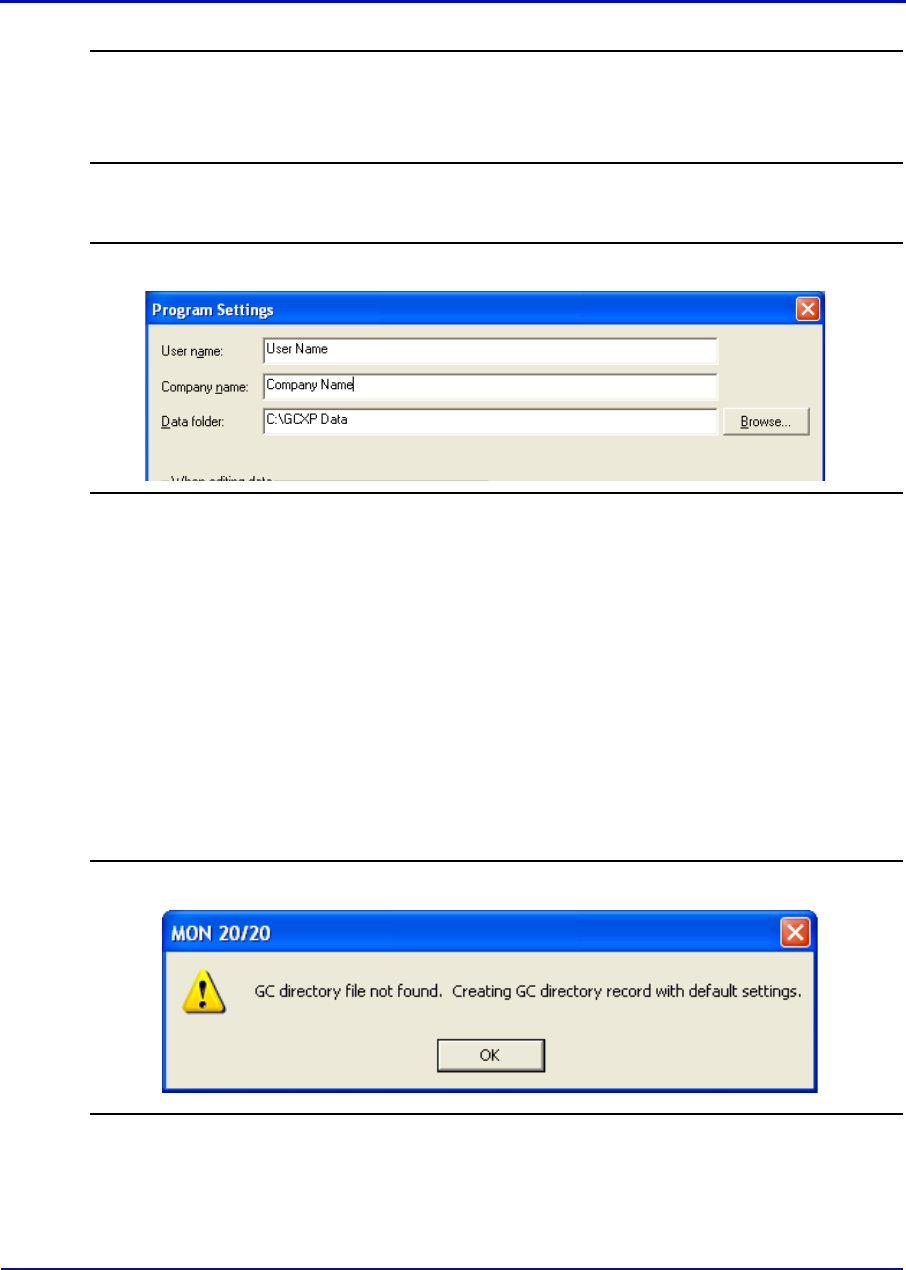
3. The current location of the data folder displays in the Data Folder
field.
Figure 1-3. The Program Settings window
To change the data folder’s location, click on the Browse button that
is located to the right of the Data Folder field.
4. Use the Browse for Folder window to navigate to the GCXP Data
folder’s new location and click OK.
User Manual MON20/20 Software for Gas Chromatographs
3-9000-745 OCTOBER 2010
1-10
Note
Another method for changing the folder location is to type the folder’s location into the
Data Folder field and press ENTER. When the “Create the folder?” message appears,
click Yes.
5. The Data Folder field updates to display the new location.
Figure 1-4. The Program Settings window
1.2.6 Configuring MON 20/20 to connect to a gas chromatograph
MON 20/20 can communicate via its Ethernet connection with any
Ethernet-ready gas chromatograph.
To congifure MON 20/20 to connect to a GC, do the following:
1. Select GC Directory... from the File menu.
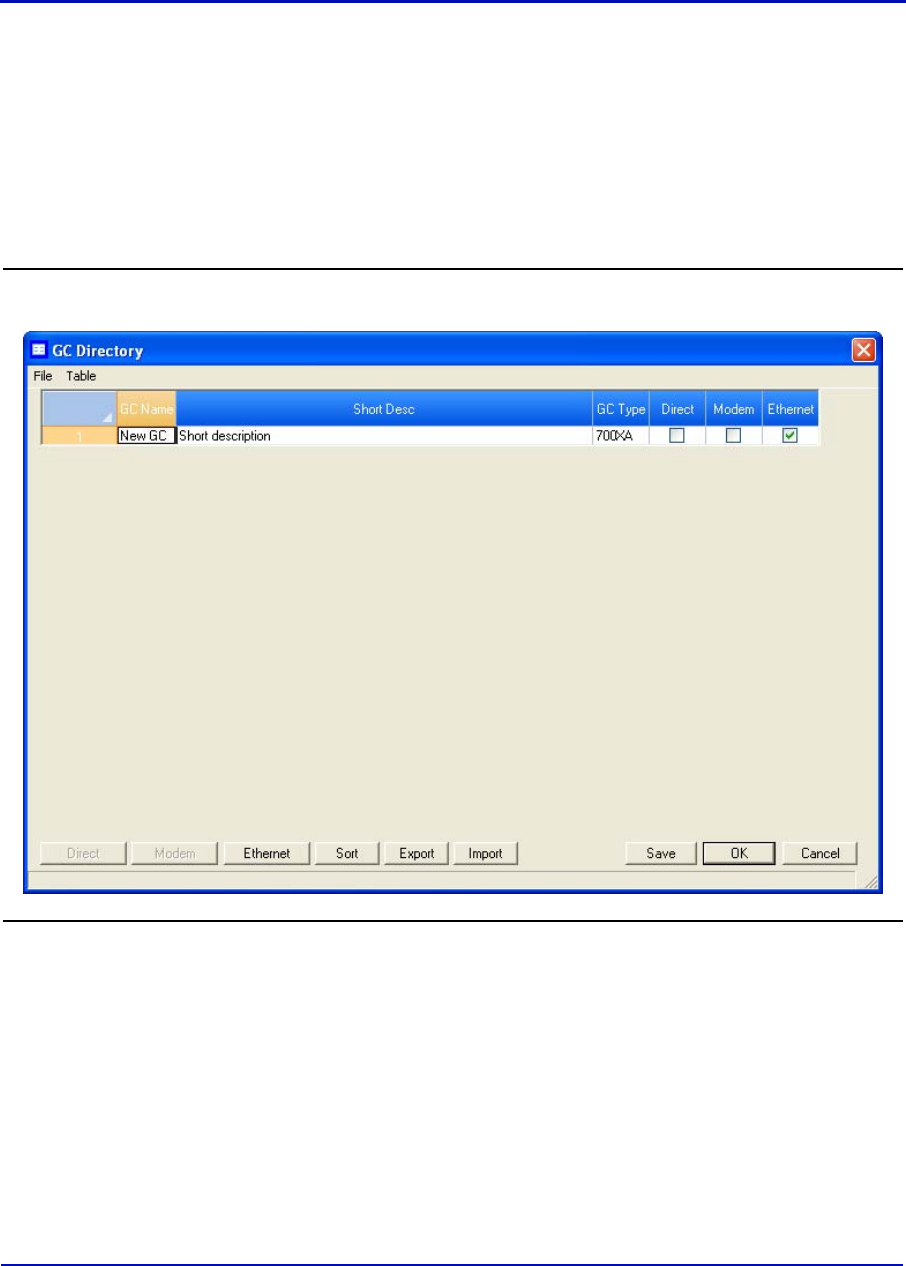
If this is the first time that this option was selected, you will get the
following error message:
Figure 1-5. “GC directory file not found” message
MON20/20 Software for Gas Chromatographs User Manual
OCTOBER 2010 3-9000-745
1-11
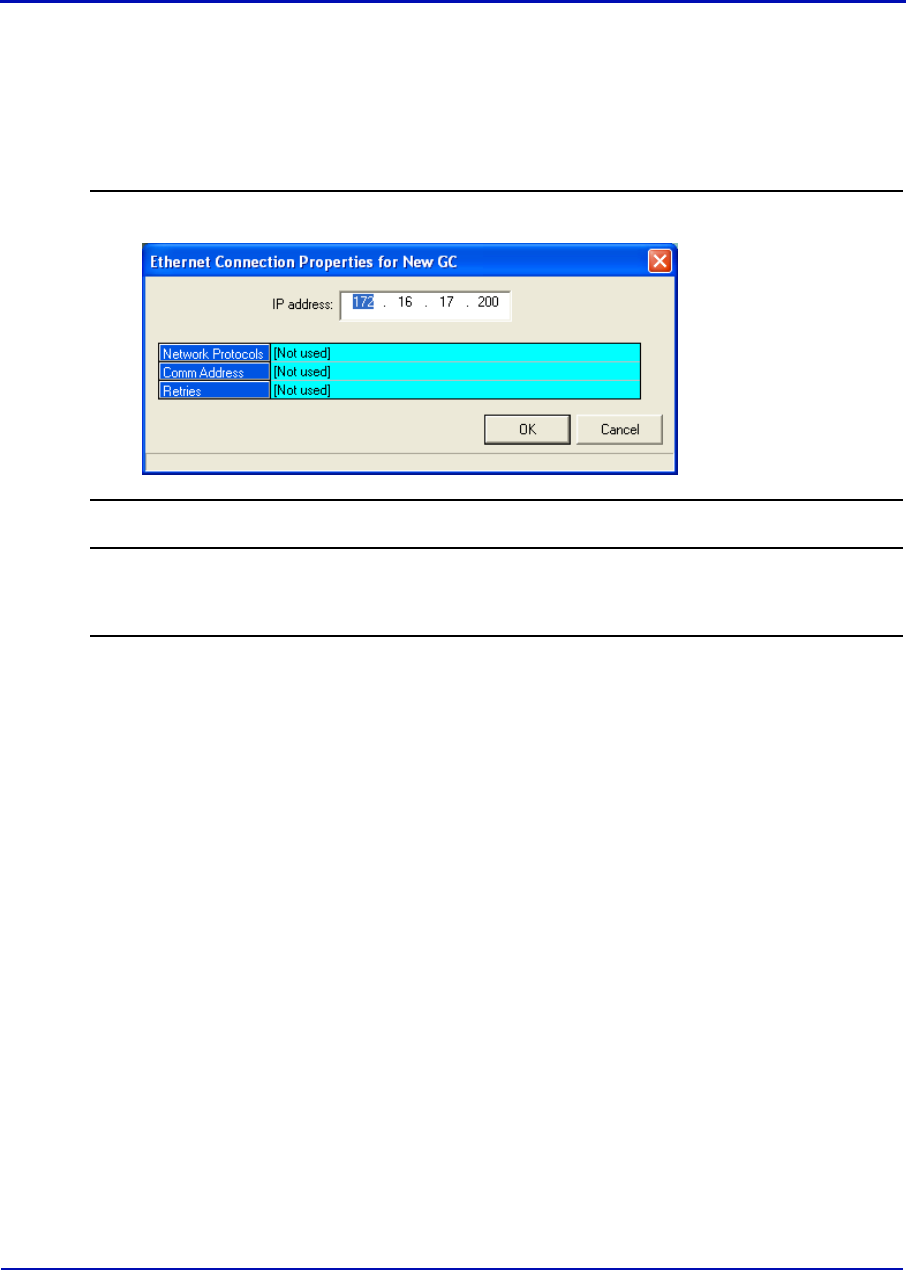
If you get the “GC directory file not found” message, click OK. The GC
Directory window appears and displays a table containing an
inventory of the GCs to which MON 20/20 can connect.
2. If you are configuring the first GC connection for MON 20/20, there
will be on one generic GC record listed in the window. To add another
record, select Add from the GC Directory window’s File menu. A new
row will be added to the bottom of the table.
Figure 1-6. The GC directory window
3. Click in the GC Name field and enter the name for the GC to which
you want to connect.
4. Optionally, you can double-click in the Short Desc field and enter
pertinent information about the GC to which you want to connect,
such as its location. You can enter up to 100 characters in this field.
User Manual MON20/20 Software for Gas Chromatographs
3-9000-745 OCTOBER 2010
1-12
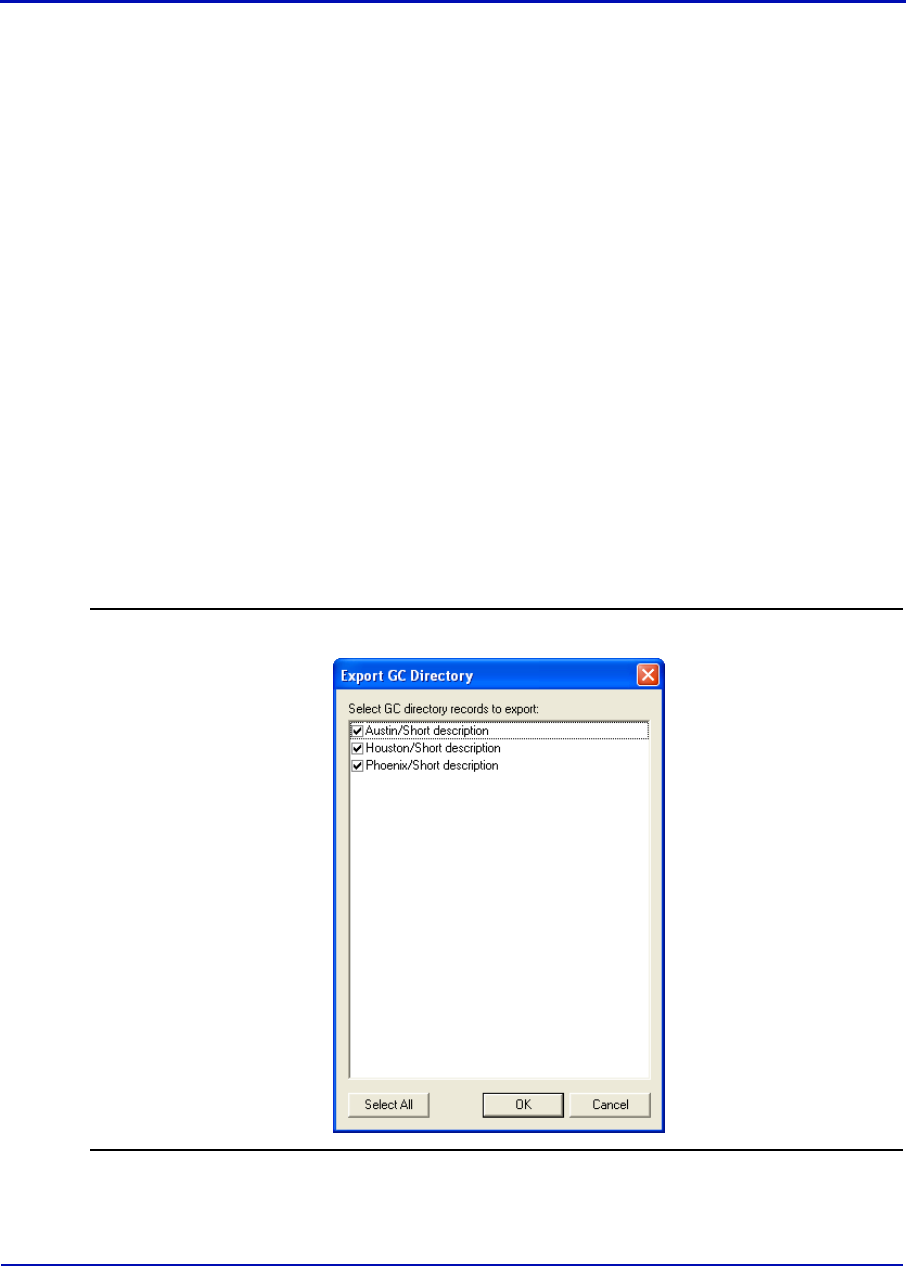
5. Select Ethernet. The Ethernet Connection Properties for New GC
window appears.
6. In the IP address field, enter the IP address of the GC to which you
want to connect.
Figure 1-7. The Ethernet Connection Properties for New GC window
Note
If you type in an invalid IP address, you will get an error message when MON 20/20
attempts to connect to the GC.
7. Click OK. When the Save changes? message appears, click Yes.
8. Repeat steps 2 through 7 for any other GCs to which you want to
connect.
9. To delete a GC from the table, select the GC and then select Delete
from the File menu.
10.To copy a GCs configuration information into a new row, select the GC
and then select Insert Duplicate from the File menu.
11.To insert a row below a GC, select the GC and then select Insert from
the File menu.
12.To sort the table alphebetically, select Sort from the Table menu or
click Sort from the GC Directory window.
13.To copy the list of GCs to the clipboard to be pasted into another
application, select Copy Table to Clipboard from the Table menu.
14.To print the list of GCs, select Print Table... from the Table menu.
MON20/20 Software for Gas Chromatographs User Manual
OCTOBER 2010 3-9000-745
1-13
15.To save the changes and keep the window open click Save from the
GC Directory window. To save the changes and close the window,
click OK. When the Save changes? message appears, click Yes.
For more details about configuring MON 20/20 connections, see
“Configuring the gas chromatograph’s Ethernet port” on page 4-95.
1.2.7 Importing or exporting the GC directory table
The GC Directory table, which contains the list of GCs that are currently
configured for MON 20/20, can be saved as a DAT file to a PC or other
storage media such as a compact disk or flash drive. This DAT file can be
used to restored the GC directory information to the original application,
or it can be used to quickly and easily configure other copies of MON 20/
20 that are installed on other computers.
To save the GC Directory table to the PC, do the following:
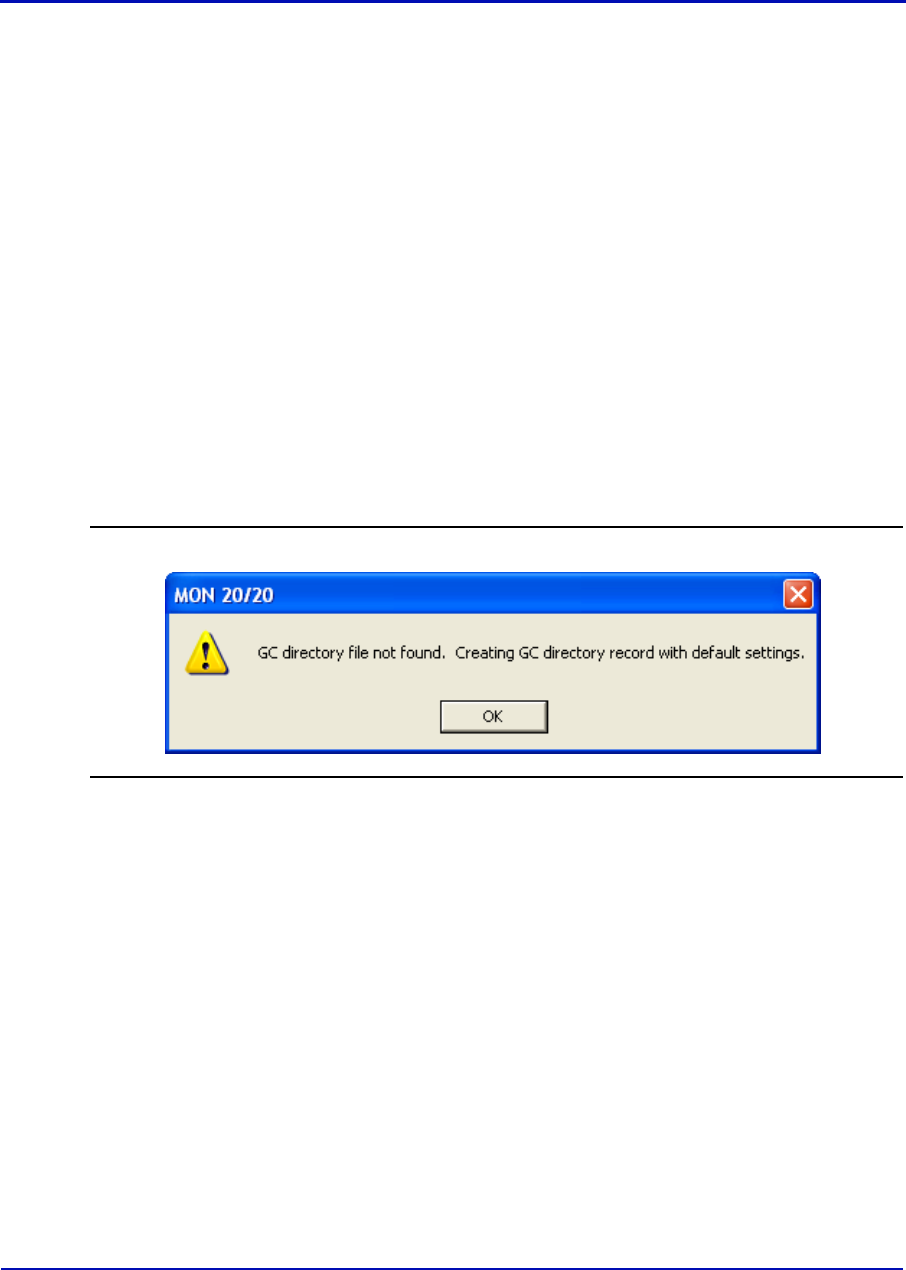
1. Click Export. The Export GC Directory window displays.
Figure 1-8. The Export GC Directory
User Manual MON20/20 Software for Gas Chromatographs
3-9000-745 OCTOBER 2010
1-14
2. Select the checkbox for each gas chromatograph who information you
want to save. If you want to save the entire list, click Select All.
3. Click OK. The Export GC Directory File save as dialog displays.
4. Choose a save location. The default location is GCXP Data.
5. The file is automatically given the name of
GC_DIRECTORY_EXPORT.DAT. If you prefer a different name,
type it into the File name field.
6. Click Save.
To import a GC Directory file, do the following:
1. Select GC Directory... from the File menu.
If this is the first time that this option was selected, you will get the
following error message:
Figure 1-9. “GC directory file not found” message
If you get the “GC directory file not found” message, click OK. The GC
Directory window appears
2. Click Import. The Import GC Directory File dialog displays.
3. Locate the GC directory file and select it. Click Open. The GC
Directory window reappears with the list of newly configured GCs
displayed in the GC Directory table.

MON20/20 Software for Gas Chromatographs User Manual
OCTOBER 2010 3-9000-745
1-15
1.2.8 Launching MON 20/20 from the SNAP-ON for DeltaV
This section assumes that DeltaV is installed on the PC along with MON
20/20.
Note
To successfully use MON 20/20 SNAP-ON for DeltaV, you must be familiar with using
the DeltaV digital automation system.
To start MON 20/20, do the following:
1. Start the DeltaV Explorer by clicking on its desktop icon or by clicking
the Start button and selecting DeltaV → Engineering → DeltaV
Explorer.
2. In the Device Connection View, open device icons by clicking once on
each icon. Follow the path of connections until you locate the desired
gas chromatograph icon.
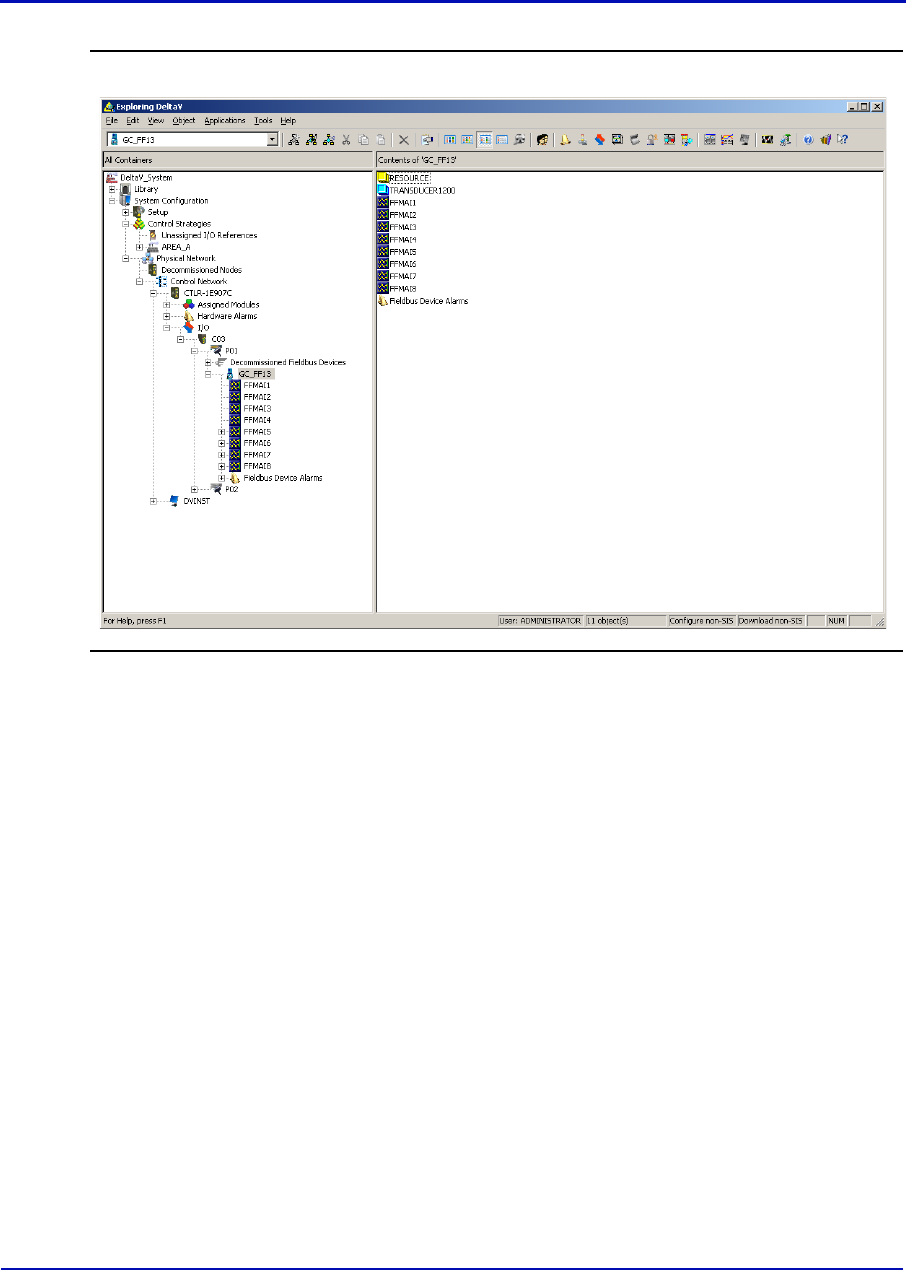
User Manual MON20/20 Software for Gas Chromatographs
3-9000-745 OCTOBER 2010
1-16
Figure 1-10. The Device Connection View
3. Right-click on a connected gas chromatograph icon to display the
context menu.
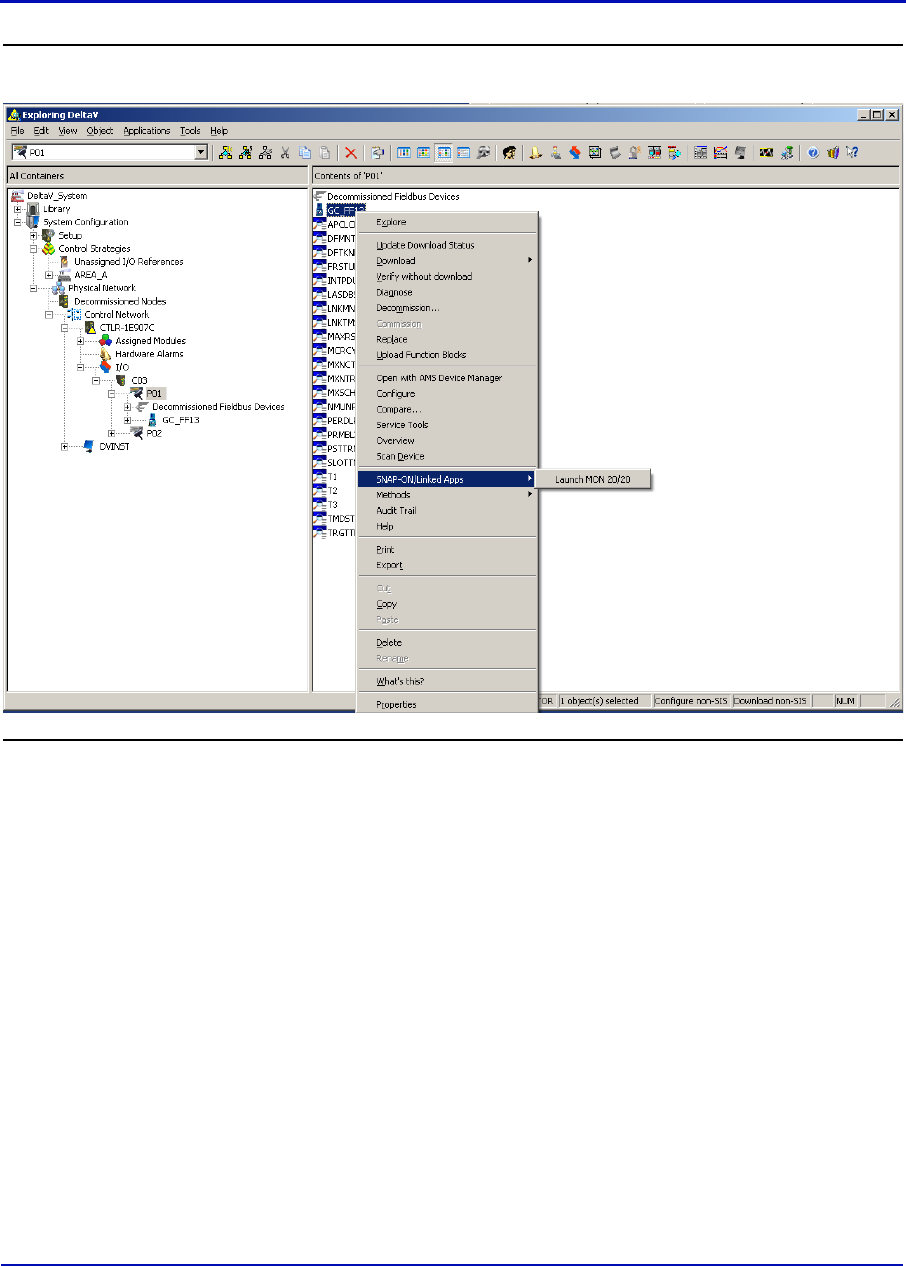
MON20/20 Software for Gas Chromatographs User Manual
OCTOBER 2010 3-9000-745
1-17
Figure 1-11. Right-click to view context menu
4. Select SNAP-ON/Linked Apps → Launch MON 20/20. MON 20/20
starts and connects automatically to the GC.
1.2.9 Launching MON 20/20 from the AMS Device Manager
This section assumes that DeltaV and AMS are installed on the PC along
with MON 20/20.
To start MON 20/20, do the following:
1. Start the AMS Device Manager by clicking on its desktop icon or by
clicking the Start button and selecting AMS Device Manager → AMS
Device Manager.
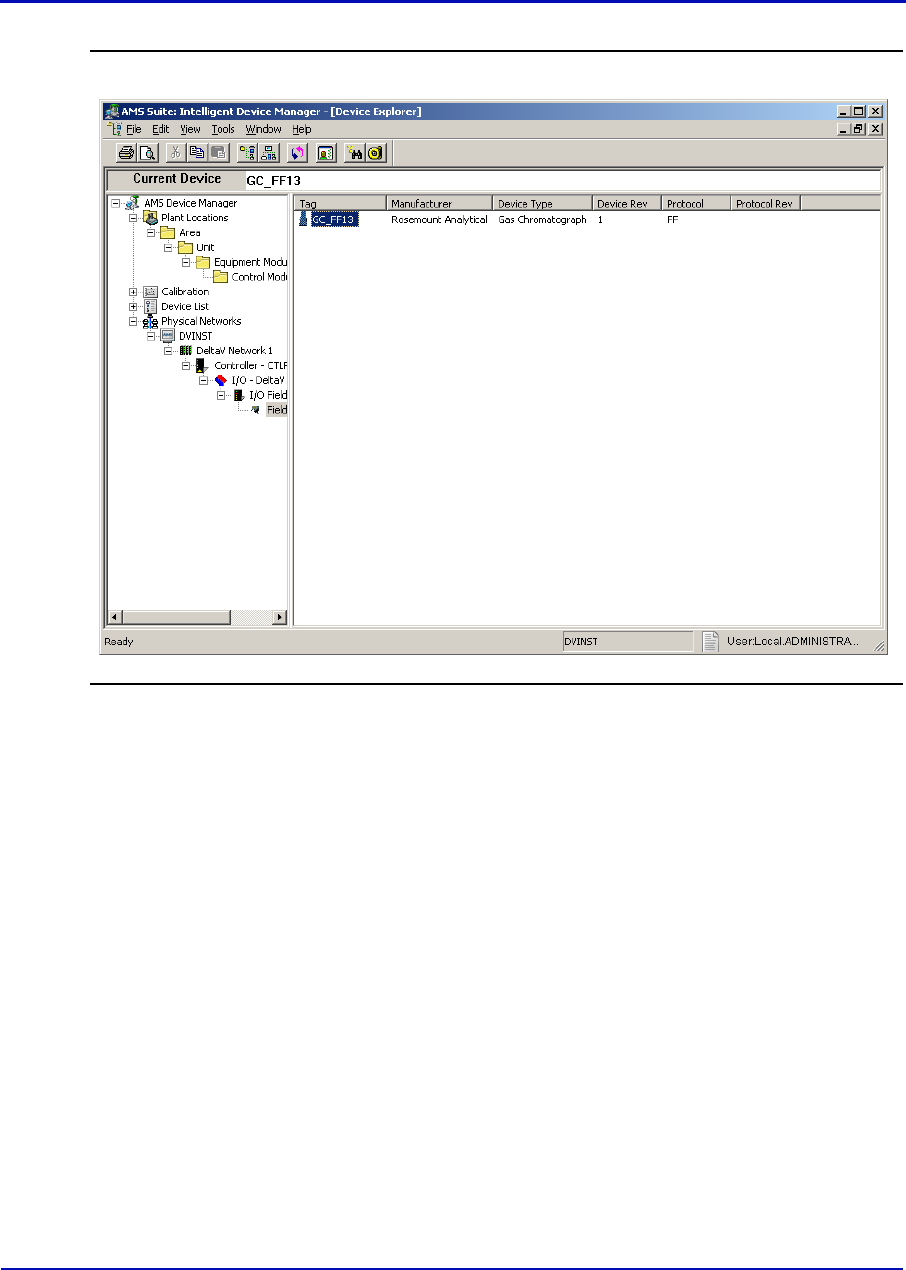
User Manual MON20/20 Software for Gas Chromatographs
3-9000-745 OCTOBER 2010
1-18
Figure 1-12. Device Explorer
2. In the Device Connection View, open device icons by clicking once on
each icon. Follow the path of connections until you locate the desired
gas chromatograph icon.
3. Right-click on a connected gas chromatograph icon to display the
context menu.
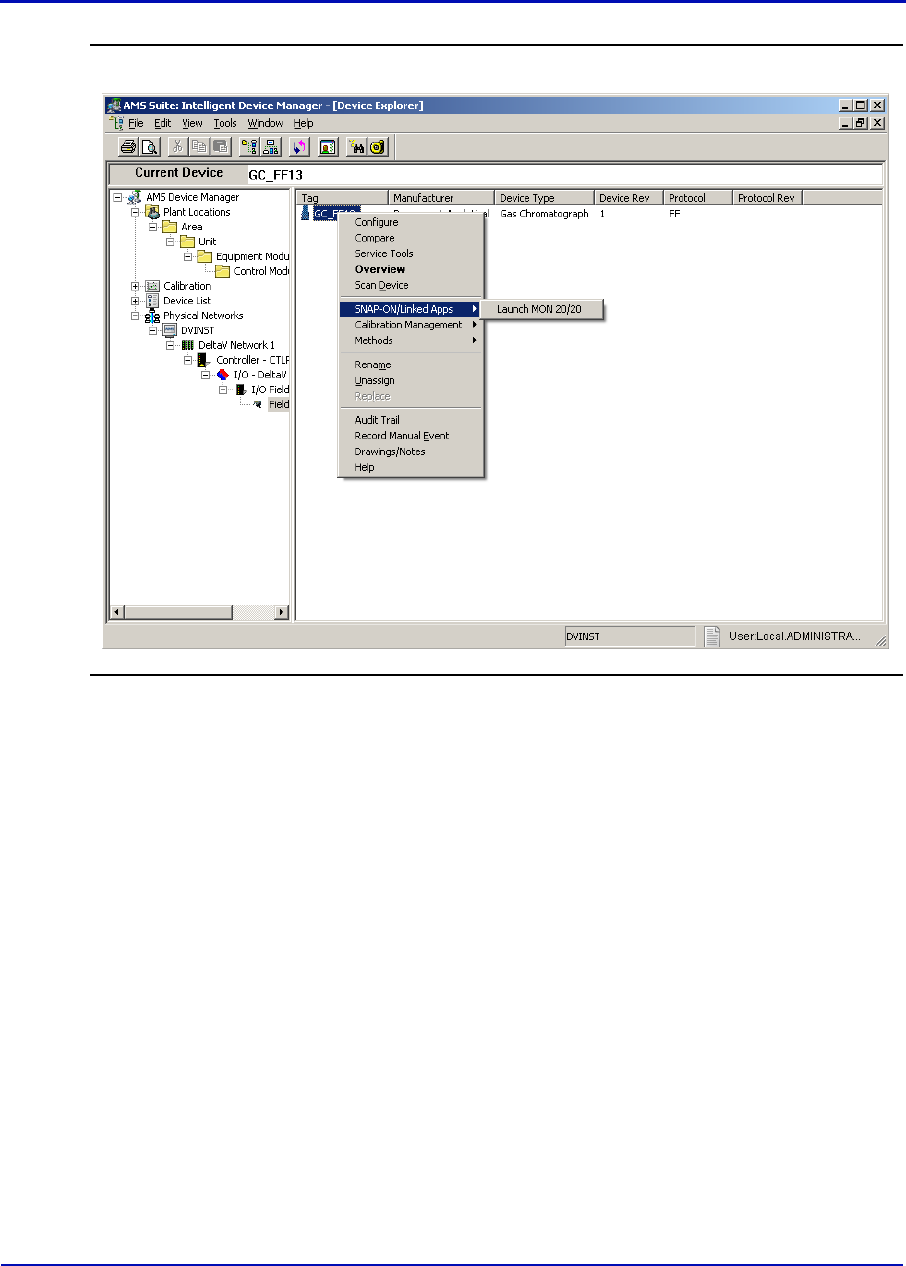
MON20/20 Software for Gas Chromatographs User Manual
OCTOBER 2010 3-9000-745
1-19
Figure 1-13. Right-click to view the context menu
4. Select SNAP-ON/Linked Apps → Launch MON 20/20. MON 20/20
starts and connects automatically to the GC.
User Manual MON20/20 Software for Gas Chromatographs
3-9000-745 OCTOBER 2010
1-20
1.2.10 The MON 20/20 user interface
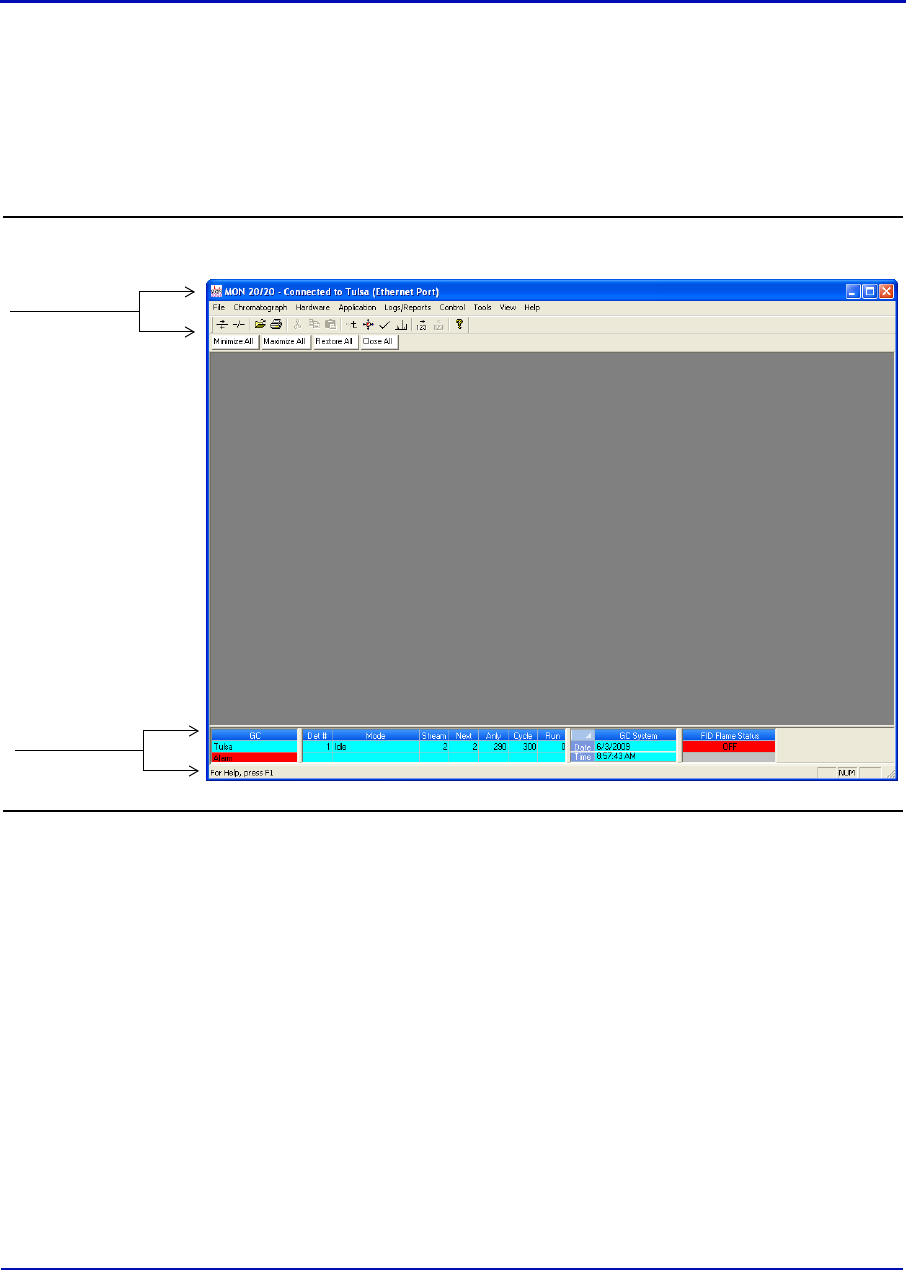
MON 20/20 has two areas of interaction: the Control Area, at the top
of the program’s main window, and the GC Status Bar, located at the
bottom of the program’s main window.
Figure 1-14. Features of the MON 20/20 main window
Control Area
GC Status Bar
MON20/20 Software for Gas Chromatographs User Manual
OCTOBER 2010 3-9000-745
1-21
The main user interface
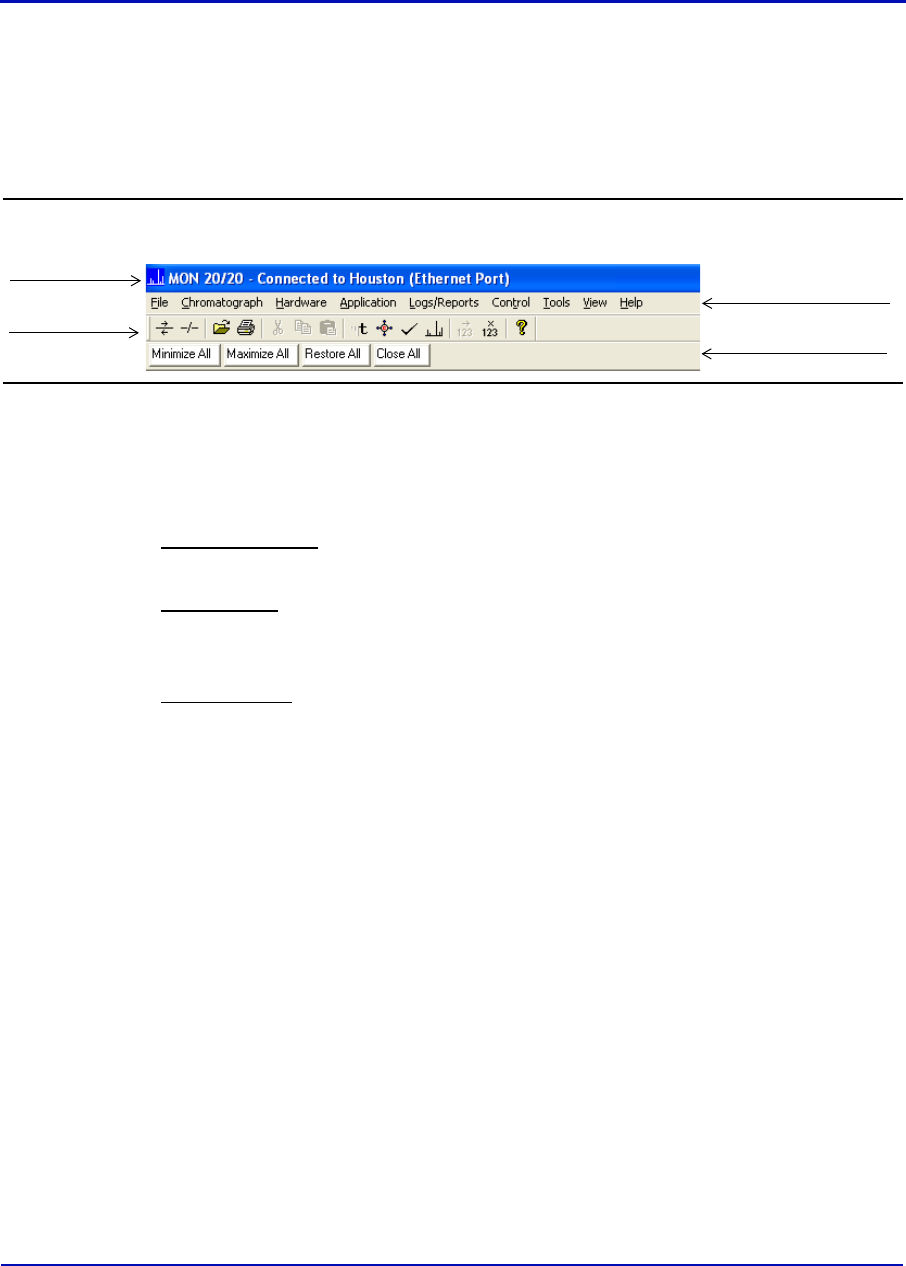
The main user interface of the main window contains the menus and
icons that allow you to control MON 20/20 and the GC to which MON
20/20 is connected.
Figure 1-15. The Control Area
Titlebar - The Titlebar displays the name of the program, and well as
the program’s connection status. MON 20/20 has the following three
overall status modes:
-Not connected - If MON 20/20 is not connected to a GC, then “MON
20/20” displays in the Titlebar.
-Connected - If MON 20/20 is connected to a GC, then “MON 20/20 -
Connected to” and the name of the GC and the connection type
displays in the Titlebar.
-Offline Edit - If MON 20/20 is in offline edit mode, then “MON 20/
20 - Offline Edit <filename>” displays in the Titlebar.
•Menu bar - The Menu bar contains the commands that allow you to
control and monitor gas chromatographs.
Titlebar
Toolbar
Menu bar
Dialog Control Tabs
User Manual MON20/20 Software for Gas Chromatographs
3-9000-745 OCTOBER 2010
1-22
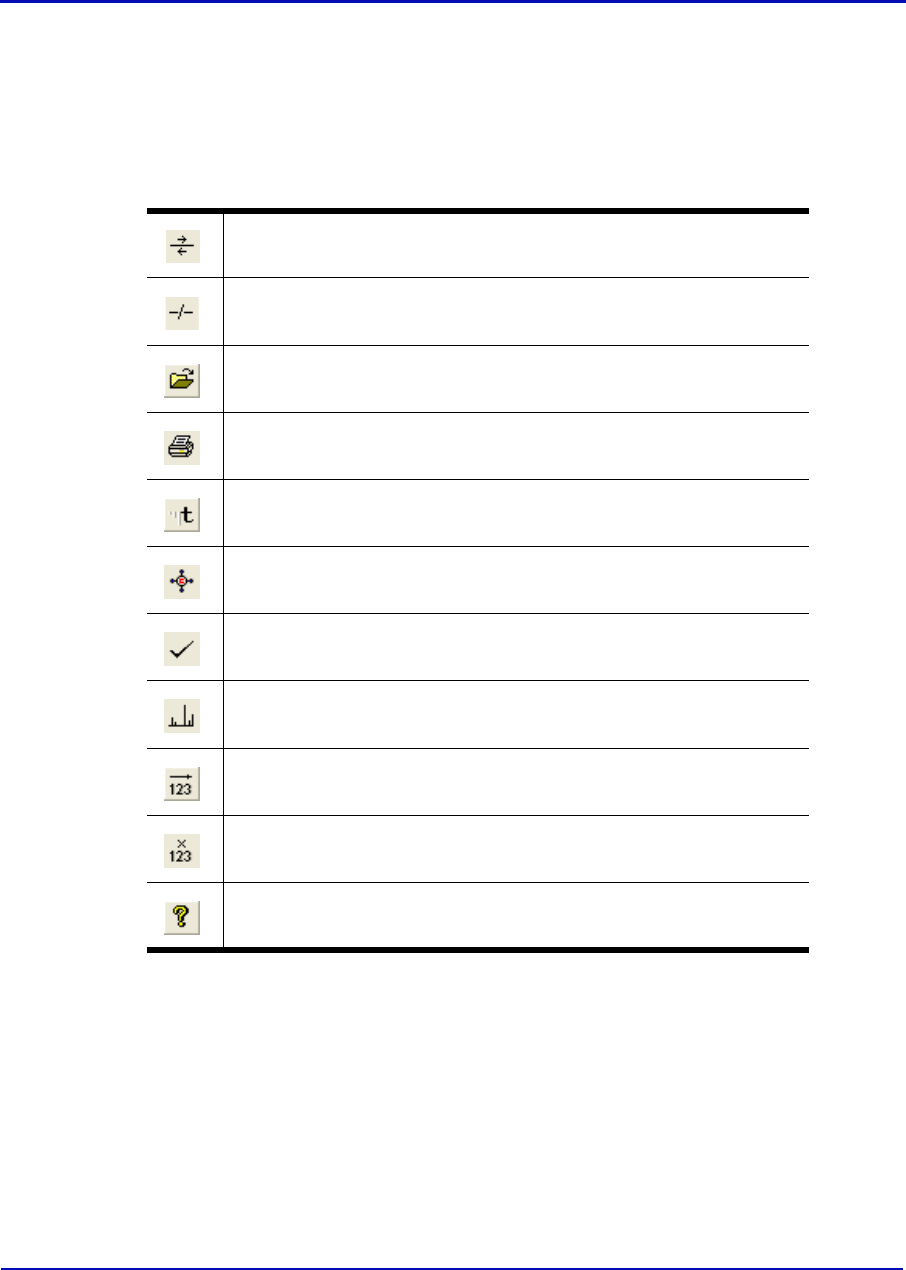
•Toolbar - The Toolbar contains shortcut icons for the most important
and/or most often used MON 20/20 commands. From the Toolbar you
can do such things as connect to and disconnect from a GC, view chro-
matographs, and view help files.
Table 1-1. Function of the shortcut icons on the Toolbar
Connect to a gas chromatograph.
Disconnect from a gas chromatograph.
Open a configuration file.
Print a GC configuration report.
View the Timed Events window.
View the Component Data window.
Clear or acknowledge alarms.
Open the CGM Viewer window.
Begin auto sequencing.
Halt auto sequencing.
Open the About MON 20/20 window.
MON20/20 Software for Gas Chromatographs User Manual
OCTOBER 2010 3-9000-745
1-23
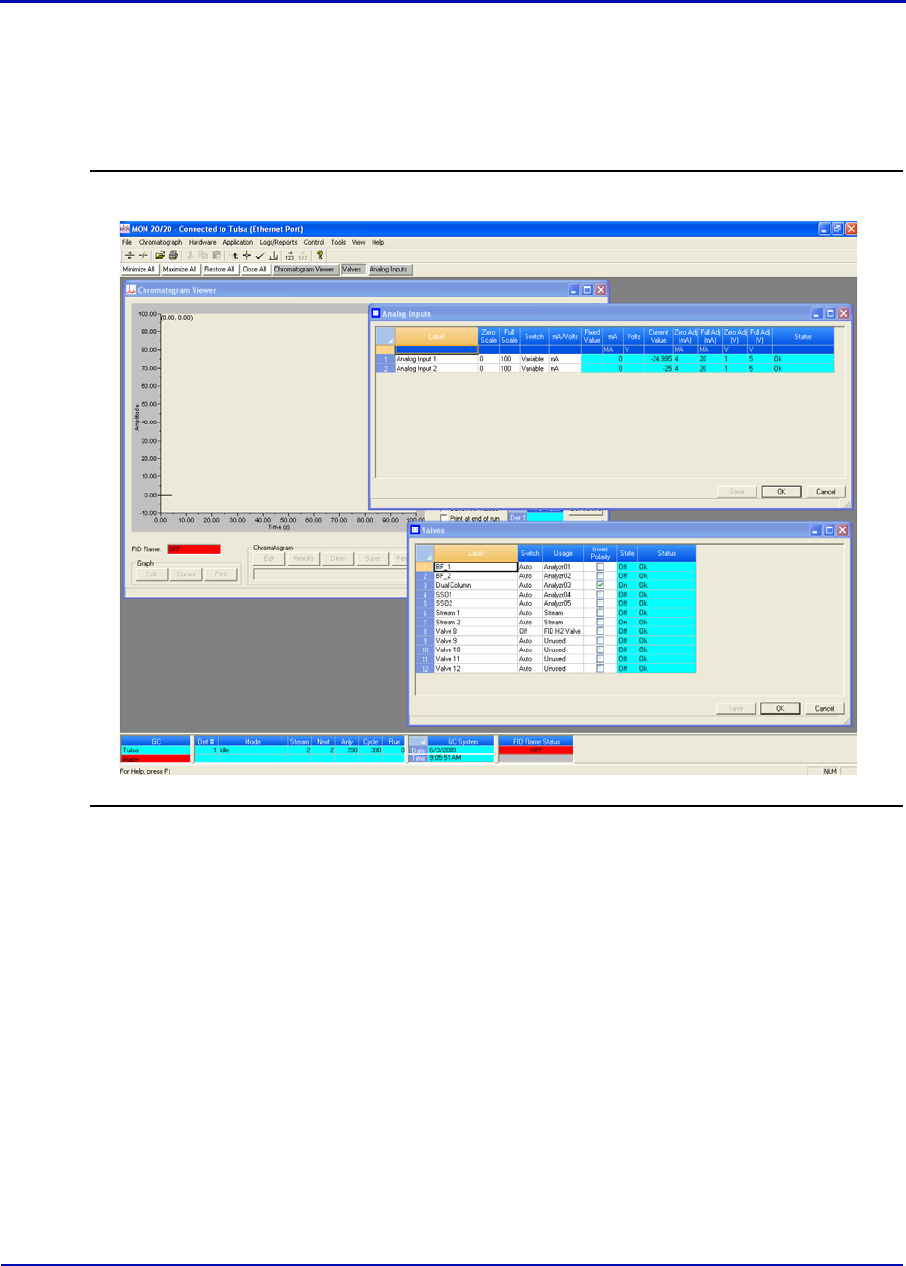
•Dialog Control Tabs bar - The Dialog Control Tabs bar contains
four buttons that allow you to manage the behavior of all windows
that are open in the main window. The four buttons are Minimize
All, Maximize All, Restore All, and Close All.
Figure 1-16. The main window showing the function of the Dialog Control Tabs bar
The bar also displays a button for each open window that allows you to
select or deselect that window.
You can hide or display the Toolbar and the Dialog Control Tabs bar by
clicking the appropriate option from the View menu.
User Manual MON20/20 Software for Gas Chromatographs
3-9000-745 OCTOBER 2010
1-24
The GC Status Bar
The GC Status Bar of the main window displays useful information about
the status and functioning of the gas chromatograph to which MON 20/20
is connected.
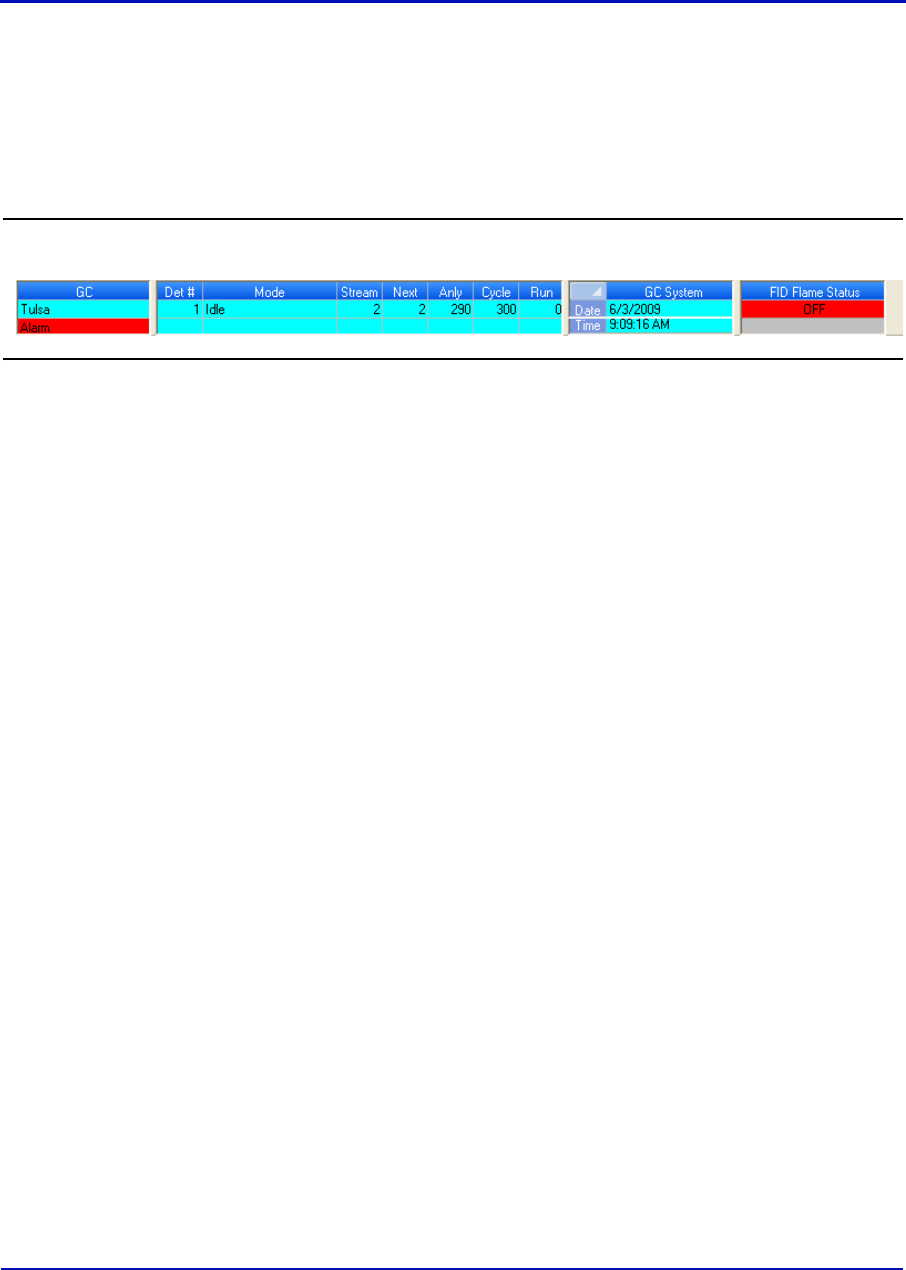
Figure 1-17. The GC Status Bar
The GC Status Bar contains the following sections:
•GC - The first row displays the name of the GC to which MON 20/20 is
connected. If MON 20/20 is not connected to a GC, “Not Connected”
displays in this row. If MON 20/20 loses its connection to the GC,
“Comm Fail” displays in this row, and the program will automatically
try to reconnect. The second row displays status flags such as active
alarms (with red background), unacknowledged alarms (with red
background), or File Edit modes.
•Det # - Each row displays the identification number of the detector
monitoring the alarm status of the connected GC. A GC can have a
maximum of two detectors.
•Mode - Each row displays the mode of the appropriate detector.
Potential modes are: Idle, Auto Cal, Auto Base, Auto Anly, FCal.
•Stream - Each row displays the current stream being analyzed by the
appropriate detector.
•Next - Each row displays the next stream to be analyzed by the
appropriate detector.
•Anly - Each row displays the analysis time for the appropriate
stream.
•Cycle - Each row displays the total cycle time, in seconds, before the
next analysis starts for the appropriate detector.
•Run - Each row displays the amount of time, in seconds, that has
elapsed since the current cycle began for the appropriate detector.

MON20/20 Software for Gas Chromatographs User Manual
OCTOBER 2010 3-9000-745
1-25
•GC System - Displays the date and time according to the GC to which
MON 20/20 is connected. The date and time displayed may be
different from the user’s date and time, depending on the physical
location of the GC.
•FID Flame Status - Displays the status of the FID flame. Options
are OFF with red background, ON with green background, and OVER
TEMP with red background. The FID Flame Status indicator only
displays on the GC Status Bar when the GC to which MON 20/20 is
connected contains an FID detector.
You can hide or display the GC Status Bar by clicking GC Status Bar
from the View menu.
1.2.11 Connecting to a gas chromatograph
To connect to a gas chromatograph, you must log on to it first. Most of
MON 20/20’s menus and options are inactive until you have logged on to a
GC.
To connect to a GC, do the following:
1. There are two ways to start the process:
(a.) On the Toolbar, click .
(b.) Select Connect... from the Chromatograph menu.
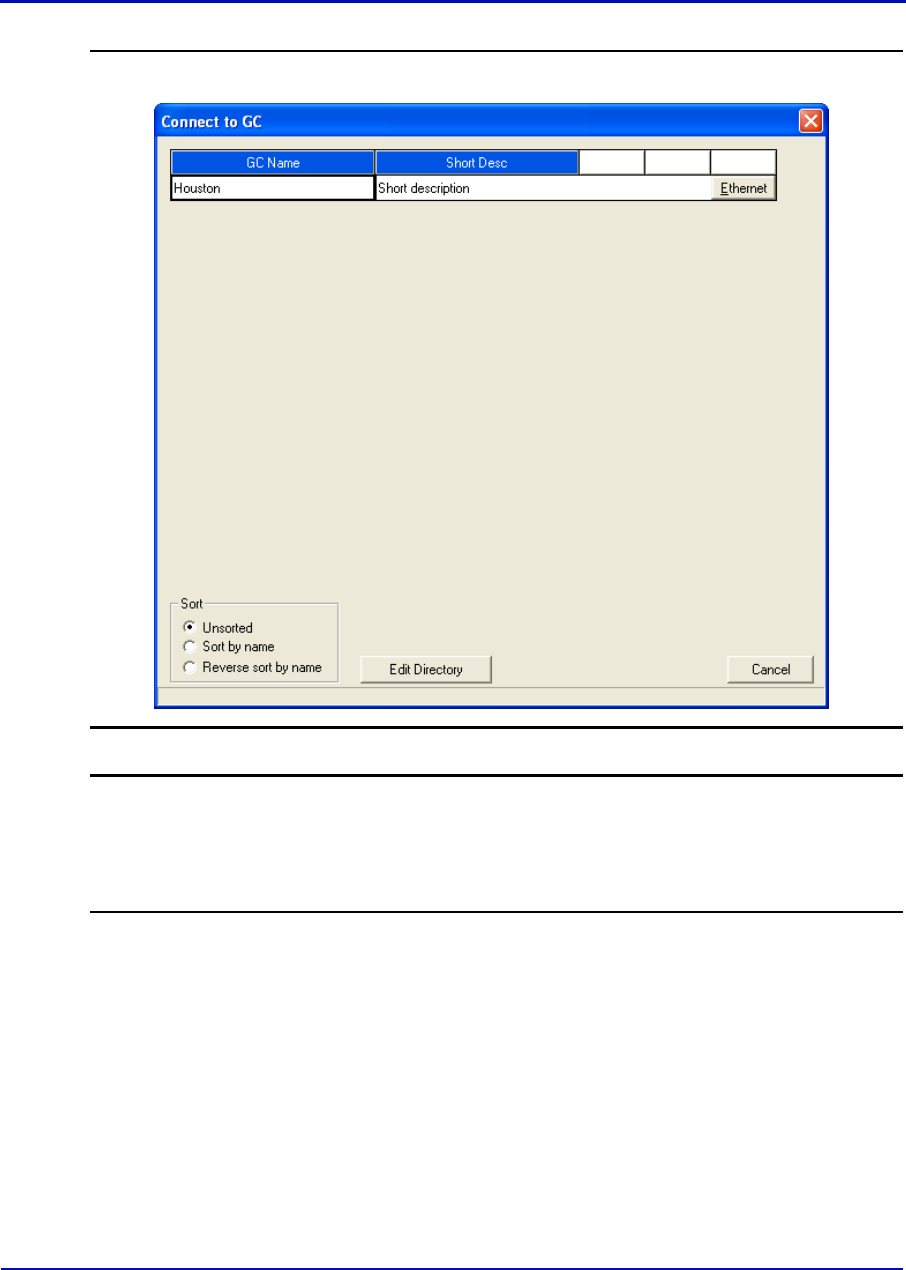
2. The Connect to GC dialog, which displays a list of all the GCs to which
you can connect, appears.
User Manual MON20/20 Software for Gas Chromatographs
3-9000-745 OCTOBER 2010
1-26
Figure 1-18. The Connect to GC window
Note
If you want to edit the connection parameters for one or all GCs listed in the Connect to
GC window, click Edit Directory. The GC Directory window will appear. See
“Configuring MON 20/20 to connect to a gas chromatograph” on page 1-10 for more
information.
Click the Ethernet button beside the GC to which you want to connect.
MON20/20 Software for Gas Chromatographs User Manual
OCTOBER 2010 3-9000-745
1-27
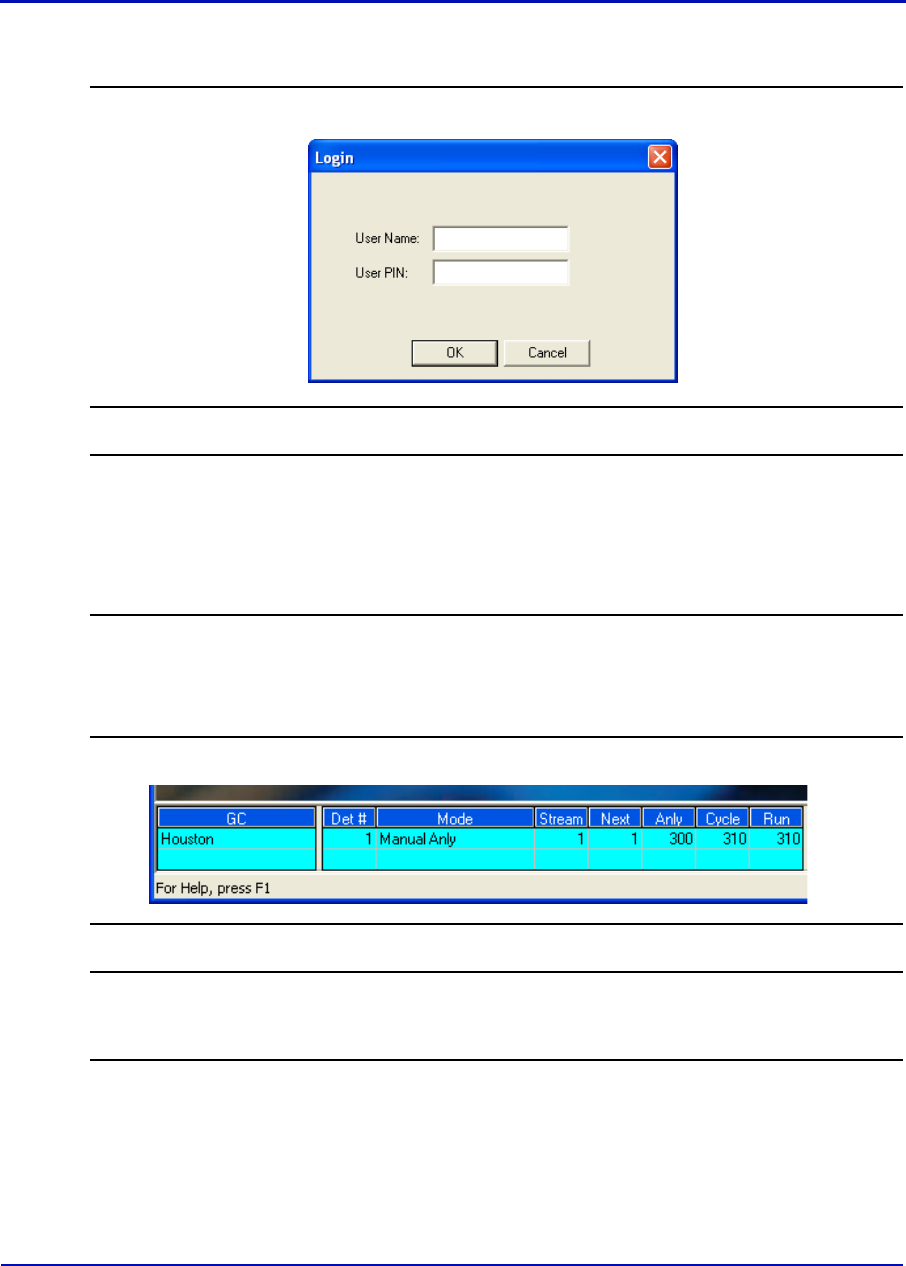
3. The Login dialog appears.
Figure 1-19. The Login window
Note
All GCs are shipped with two default user names: daniel and emerson. A user pin is
not required when using either of these user names and both user names allow
administrator-level access to the GC. To add a user pin to either of these user names or
for information about creating and edit user names in general, see “Managing users” on
page 7-17.
Enter a user name and user PIN and click OK. Once connected, the
name of the GC appears under the GC column in the GC Status Bar.
Figure 1-20. The GC Status Bar showing a successful connection to a GC
Note
If you enter an invalid user name or password, the Login dialog will close without
connecting to the GC.

User Manual MON20/20 Software for Gas Chromatographs
3-9000-745 OCTOBER 2010
1-28
1.2.12 Disconnecting from a gas chromatograph
Disconnecting from a GC will automatically log you off of the GC.
To disconnect from a gas chromatograph, do one of the following:
• On the Toolbar, click .
• Select Disconnect from the Chromatograph menu.
Note
If you are connected to a GC and want to connect to a different GC, it is not necessary to
disconnect first; simply connect to the second GC, and in the process MON 20/20 will
disconnect from the first GC.
1.3 Keyboard commands
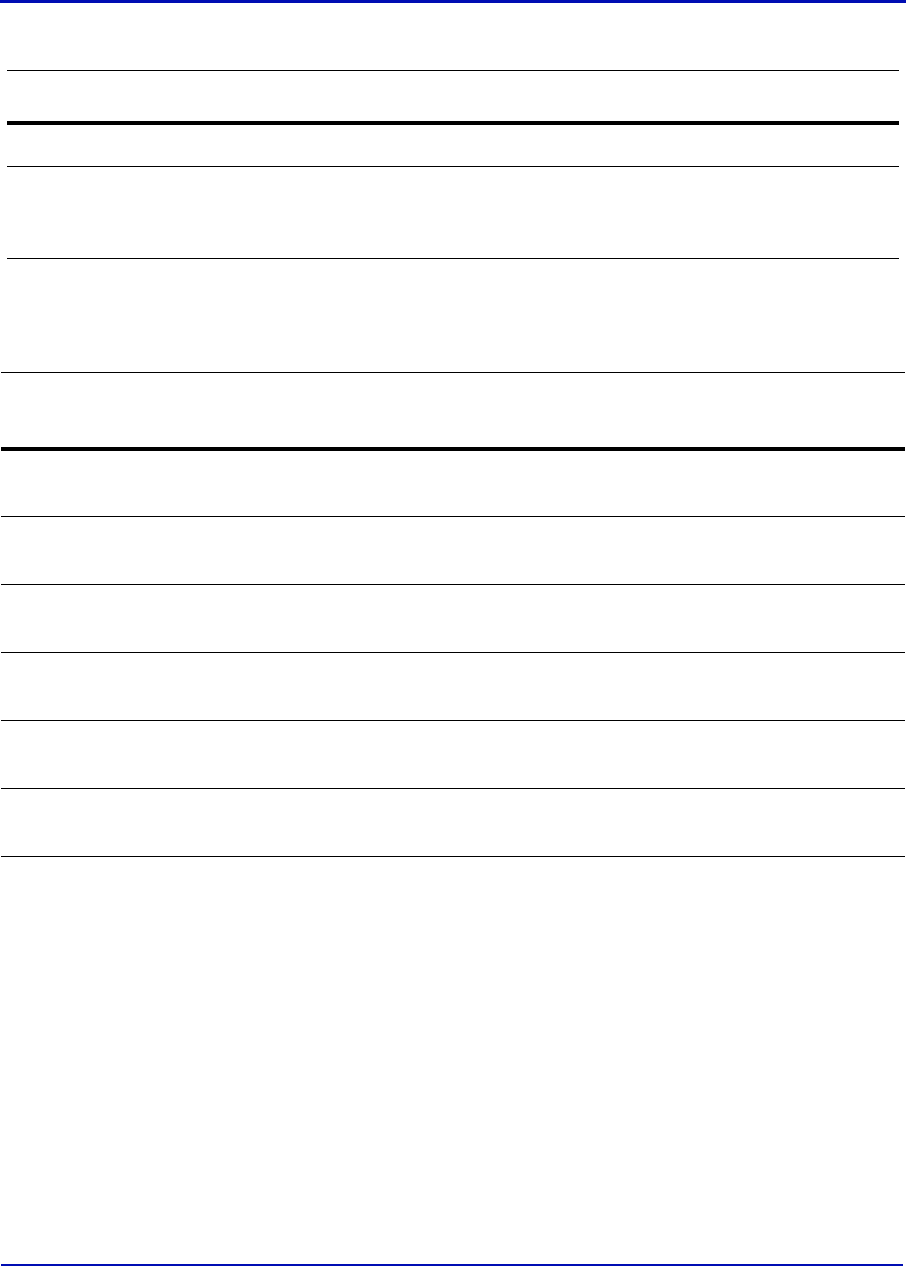
You can use the following keyboard keystrokes throughout the program:
Table 1-2. Frequently Used Keystrokes
Keystroke Action
ARROW
keys
Moves cursor:
• Left or right in a data field.
• Up or down in a menu or combo box.
• Up or down (column), left or right (row) through displayed data entries.
DELETE • Deletes the character after cursor.
• Deletes selected rows from a table or return row values to the default
settings.
ENTER Activates the default control element (e.g., the OK button) in current window.
ESC Exits application or active window without saving data.
F1 Accesses context-sensitive help topics.
INSERT • Toggles between insert and type-over mode in selected cell.
• Inserts a new row above the highlighted row.
SHIFT+TAB Moves to previous control element (e.g., button) or data field in window; see
TAB description.
MON20/20 Software for Gas Chromatographs User Manual
OCTOBER 2010 3-9000-745
1-29
You can use the following function keys from the main window:
SPACE Toggles settings (via radio buttons or check boxes).
TAB Moves to the next control element (e.g., button) in the window; to use TAB key
to move to next data field, select Program Settings... from the File menu
and clear the Tab from spreadsheet to next control check box.
Table 1-3. Main menu function keys
Function
Key Action
F2 Starts the Auto-Sequencing function. See “Auto sequencing” on page 6-2 for
more information.
F3 Halts the GC (e.g., an analysis run) at the end of the current cycle. See “Halting
an analysis” on page 6-1 for more information.
F5 Displays the Timed Event table per specified stream. See “Managing timed
events” on page 4-17 for more information.
F6 Displays the Component Data table per specified stream. See “Managing
Component Data Tables” on page 4-5 for more information.
F7 Displays the chromatogram for the sample stream being analyzed. See
“Viewing a live chromatogram” on page 2-3 for more information.
F8 Displays any chromatogram stored in the GC Controller. See “Viewing an
archived chromatogram” on page 2-5 for more information.
Table 1-2. Frequently Used Keystrokes (Continued)
Keystroke Action

User Manual MON20/20 Software for Gas Chromatographs
3-9000-745 OCTOBER 2010
1-30
1.4 Procedures guide
Use the following table to look up the related manual section, menu path
and, if appropriate, the keystroke for a given procedure.
Table 1-4. MON 20/20 Task List
Task or Data Item Section(s) Menu Path [Keystroke]
24-hour average, component(s)
measured
4.5.2 Application → Calculations →
Averages...
Add a gas chromatograph 1.2.6 File → GC Directory
Alarms, related components 4.2
4.8
3.4
Application → Component Data... [F6]
Application → Limit Alarms → User...
Hardware → Discrete Outputs...
Alarms, stream number(s)
programmed
4.8 Application → Limit Alarms → User...
Analysis Report (on/off) 5.7.3 Logs/Reports → Printer Control...
Analysis time 4.3.4 Application → Timed Events... [F5]
Starting or ending auto-calibration 4.10 Application → Streams...
Auto-calibration interval 4.10 Application → Streams...
Auto-calibration start time 4.10 Application → Streams...
Autocal time 4.10 Application → Streams...
Baseline 4.10 Application → Streams...
Base pressure used for calculations 4.10 Application → Streams...
Calibration concentration 4.2 Application → Component Data... [F6]
Calibration cycle time 4.3.4 Application → Timed Events... [F5]
Calibration runs, number averaged 4.10 Application → Streams...
Calibration runs, number of 4.10 Application → Streams...
Calibration stream number 4.10 Application → Streams...

MON20/20 Software for Gas Chromatographs User Manual
OCTOBER 2010 3-9000-745
1-31
Communications 4.12 Application → Communication...
Application → Ethernet Ports...
Component code and name 4.2 Application → Component Data... [F6]
Component full scale (for output) 4.1
3.6
Application → System...
Hardware → Analog Outputs...
Component(s) programmed for
input
3.5
3.3
Application → Analog Inputs...
Application → Discrete Inputs...
Component(s) programmed for
output
4.8
3.6
3.4
Application → Limit Alarms → User...
Hardware → Analog Outputs...
Hardware → Discrete Outputs...
Component, retention time 4.2 Application → Component Data... [F6]
Component zero (for output) 3.6 Hardware → Analog Outputs...
Compressibility (on/off) 4.5.1 Application → Calculations → Control...
Current date 2.6 Chromatograph → View/Set GC Time...
Current time 2.6 Chromatograph → View/Set GC Time...
Cycle time 4.3.4 Application → Timed Events... [F5]
Delete alarms 4.8
5.1
Application → Limit Alarms...
Logs/Reports → Alarms → Alarm Log...
Delete component from component
list
4.2 Application → Component Data... [F6]
Delete inhibit, integration, peak
width
4.3.4 Application → Timed Events... [F5]
Delete output(s) 3.6
3.4
Hardware → Analog Outputs...
Hardware → Discrete Outputs...
Enable or disable multi-user write 4.1 Application → System...
Existing alarm(s) 5.1 Logs/Reports → Alarms → Alarm Log...
Full-scale value (for input) 3.5 Hardware → Analog Inputs...
GPM liquid equivalent (on/off) 4.5.1 Application → Calculations → Control...
Table 1-4. MON 20/20 Task List
Task or Data Item Section(s) Menu Path [Keystroke]
User Manual MON20/20 Software for Gas Chromatographs
3-9000-745 OCTOBER 2010
1-32
Height or area measurement
method
4.2 Application → Component Data... [F6]
High alarm 4.8 Application → Limit Alarms → User...
(Analyzer) I.D. 4.1 Application → System...
Inhibit on-off times 4.3.4 Application → Timed Events... [F5]
Input(s) being used 3.5
3.3
Hardware → Analog Inputs...
Hardware → Discrete Inputs...
Integration on-off times 4.3.4 Application → Timed Events... [F5]
Low alarm 4.8 Application → Limit Alarms → User...
Mole percent (on/off) 4.5.1 Application → Calculations → Control...
Normalization (on/off) 4.5.1 Application → Calculations → Control...
Outputs being used 4.8
3.6
3.4
Application → Limit Alarms → User...
Hardware → Analog Outputs...
Hardware → Discrete Outputs...
Peak width, on time 4.3.4 Application → Timed Events... [F5]
Ratio (on/off) 4.6 Application → Calculations → User
Defined...
Ratio denominator 4.6 Application → Calculations → User
Defined...
Ratio, stream number(s) 4.6 Application → Calculations → User
Defined...
Relative density (on/off) 4.5.1 Application → Calculations → Control...
Response factor 4.2 Application → Component Data... [F6]
Response factor, percent deviation 4.2 Application → Component Data... [F6]
Retention time, percent deviation 4.2 Application → Component Data... [F6]
Spectrum gain 4.3.3 Application → Timed Events... [F5]
Table 1-4. MON 20/20 Task List
Task or Data Item Section(s) Menu Path [Keystroke]

MON20/20 Software for Gas Chromatographs User Manual
OCTOBER 2010 3-9000-745
1-33
1.5 Configuring a gas chromatograph
Use the File menu to edit, save, and restore configuration files.
1.5.1 Editing a configuration file
To edit a configuration file, do the following:
1. Disconnect from the GC.
2. Select Open Configuration File... from the File menu. The Open
dialog displays. Configuration files are saved with the .xcfg
extension.
3. Locate and select the configuration file that you want to edit and click
Open. MON 20/20 opens the file in offline edit mode.
Stream number(s) (for output) 4.8
3.6
3.4
Application → Limit Alarms → User...
Hardware → Analog Outputs...
Hardware → Discrete Outputs...
Stream sequences skipped, number 4.1
4.10
Application → System...
Application → Streams...
Streams analyzed, number 4.1
4.10
Application → System...
Application → Streams...
Streams analyzed, sequence 4.1
4.10
Application → System...
Application → Streams...
Valve on/off times 4.3.1 Application → Timed Events... [F5]
Weight percent (on/off) 4.5.1 Application → Calculations → Control...
Wobbe value (on/off) 4.5.1 Application → Calculations → Control...
Zero value (for input) 3.5 Hardware → Analog Inputs...
Table 1-4. MON 20/20 Task List
Task or Data Item Section(s) Menu Path [Keystroke]
User Manual MON20/20 Software for Gas Chromatographs
3-9000-745 OCTOBER 2010
1-34
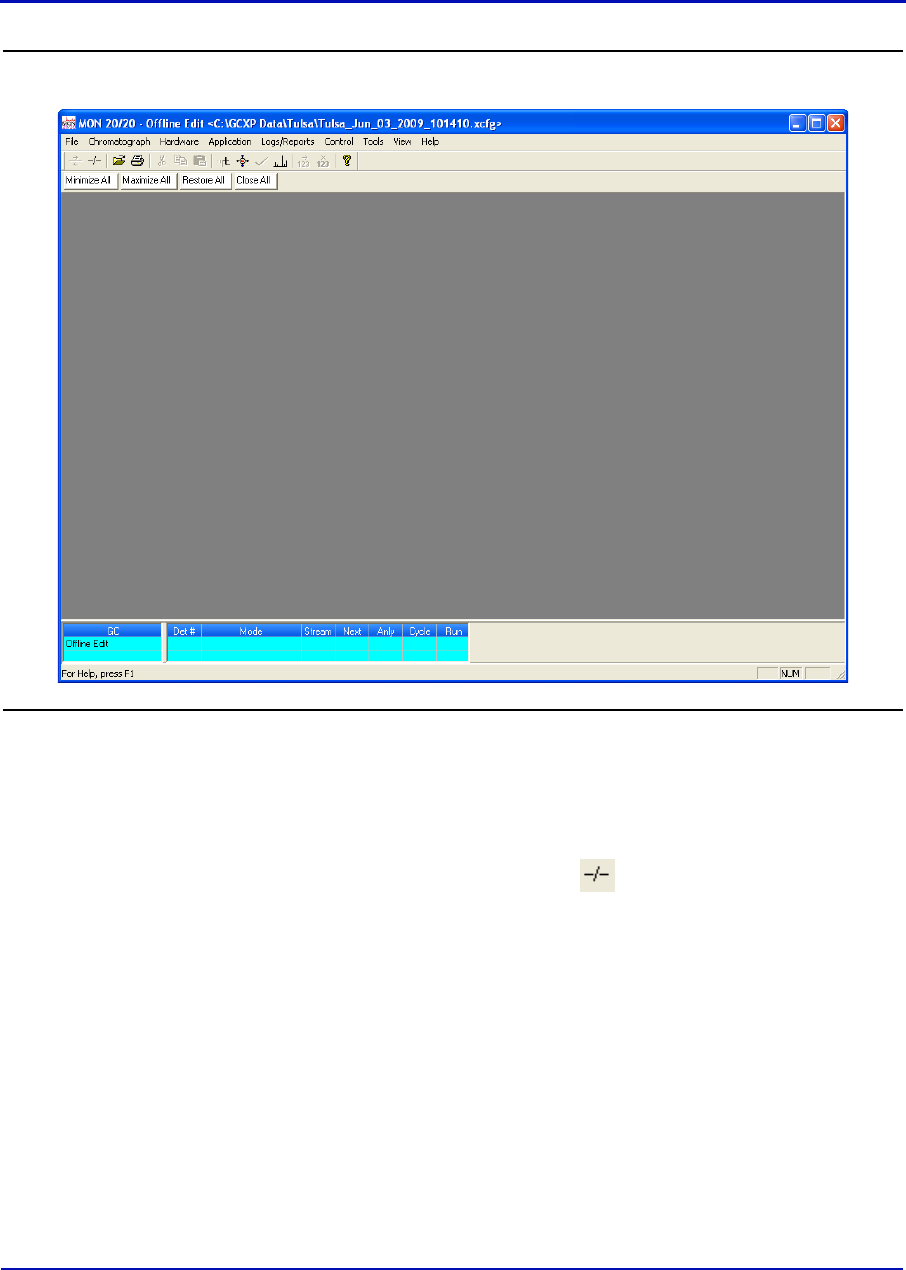
Figure 1-21. MON 20/20 in offline edit mode
4. Use the Application and Hardware menu commands to edit the
GC’s settings. For more information on these commands, see
Section 3 and Section 4.
5. When finished configuring the GC, click to disconnect from the
GC and to save the changes to the configuration file and to leave
offline edit mode.

MON20/20 Software for Gas Chromatographs User Manual
OCTOBER 2010 3-9000-745
1-35
1.5.2 Saving a gas chromatograph’s current configuration
Configuration files are saved with the .xcfg extension. To save a GC’s
current configuration to a PC, do the following:
1. Select Save Configuration (to PC)... from the File menu. The Save
as dialog displays.
2. Give the file a descriptive name or use the pre-generated file name
and navigate to the folder to which you want to save the file.
3. Click Save.
1.5.3 Importing a configuration file
To import a new configuration into a GC or to restore a GC’s previous
configuration, do the following:
Note
The current configuration will be overwritten, so be sure to save it before importing a
new or previous configuration.
Note
The GC should be in Idle mode while performing this task.
1. Select Restore Configuration (to GC)... from the File menu. The
Open dialog displays. Configuration files are saved with the .xcfg
extension.
2. Locate and select the configuration file that you want to import and
click Open. The file’s data is loaded into the GC.
User Manual MON20/20 Software for Gas Chromatographs
3-9000-745 OCTOBER 2010
1-36
1.6 Restoring the GC to its factory settings
The GC’s default timed event, component data and validation data tables
are created at the factory and are not accessable by users. To restore
these tables to their default values, do the following:
Note
The GC should be in Idle mode while performing this task.
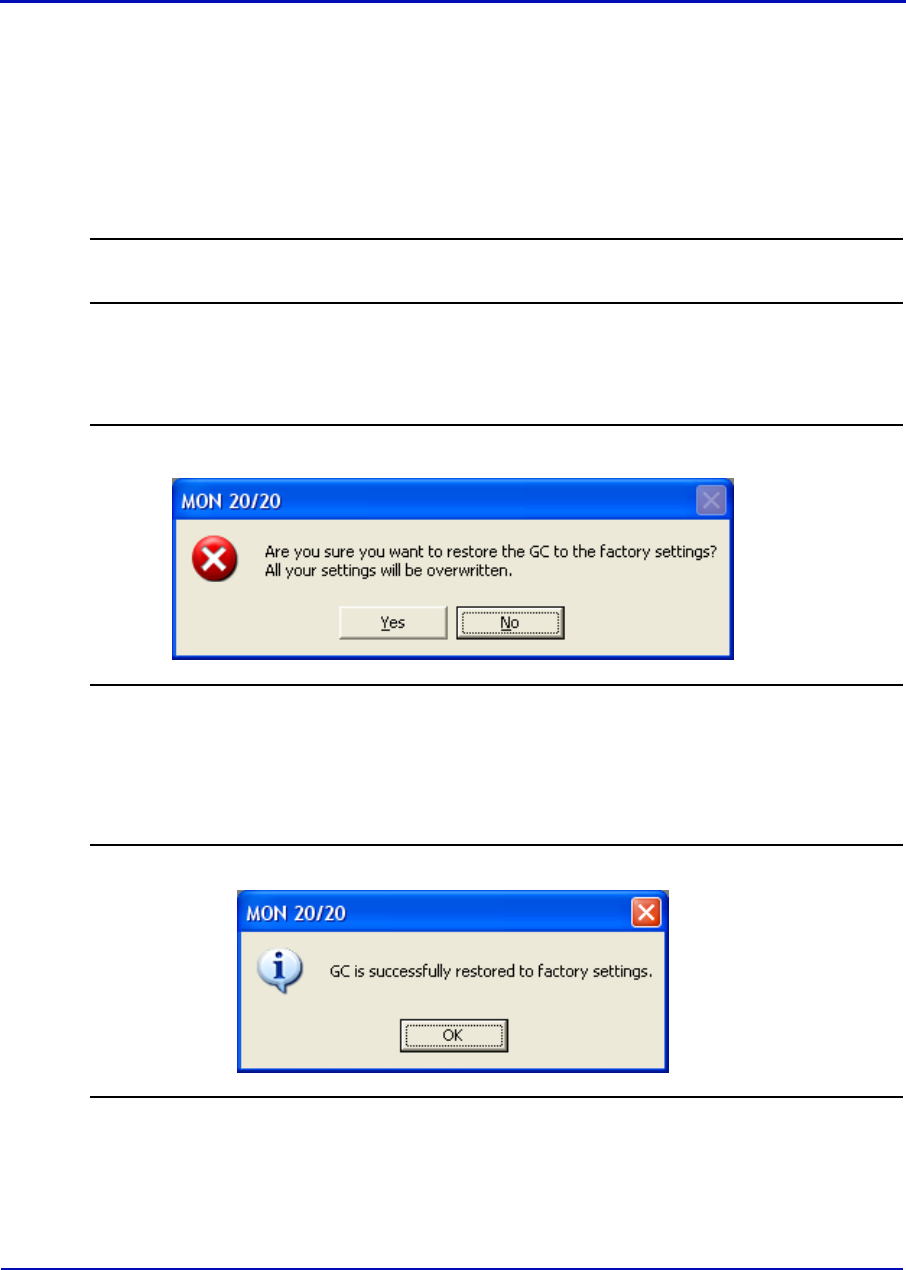
1. With the GC idle, select Restore to Factory Settings... from the
File menu. The following warning message displays:
Figure 1-22. Restore to Factory Settings warning message
2. Click Yes. The MON 20/20 restores the default values to the GC’s
data tables. When the process is completed, the following message
displays:
Figure 1-23. Restoration completed message
3. Click OK.
MON20/20 Software for Gas Chromatographs User Manual
OCTOBER 2010 3-9000-745
1-37
1.7 Configuring your printer
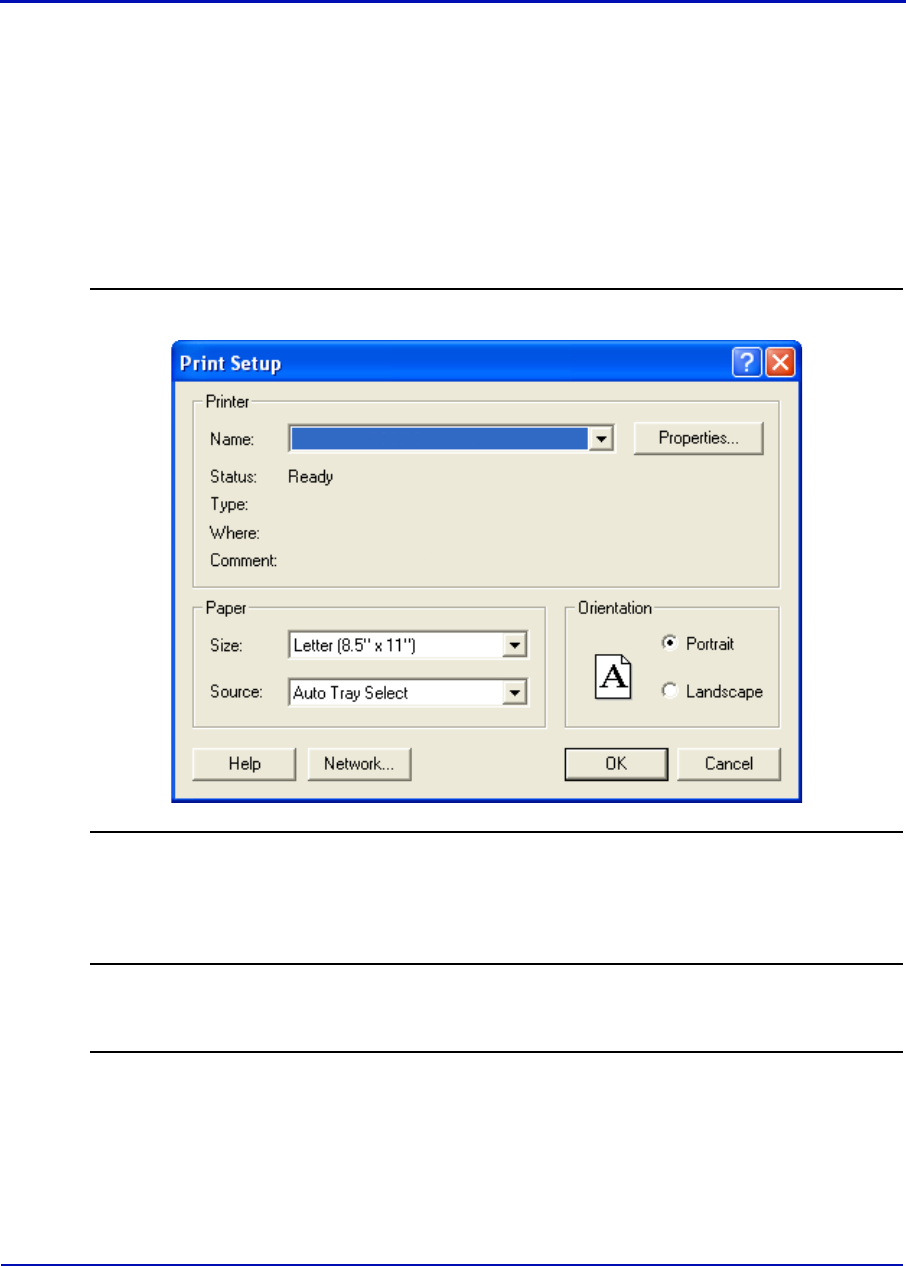
Select Print Setup... from the File menu to configure the settings for the
printer connected to your PC. These settings will apply to any print job
queued from MON 20/20, such as the reports that are configured by the
Printer Control. See “Printing reports automatically” on page 5-44 for
information.
Figure 1-24. The Print Setup dialog
The settings available depend on the printer model. Refer to the printer
manufacture’s user manual for more information.
Note
Your new configuration will be cleared, i.e., the settings will return to the default values,
when you exit MON 20/20.

User Manual MON20/20 Software for Gas Chromatographs
3-9000-745 OCTOBER 2010
1-38
1.8 Using online help
Currently, the online help feature contains all user information and
instructions for each MON 20/20 function as well as the MON 20/20
system.
To access the online help, do one of the following:
•Press F1 to view help topics related to the currently active dialog or
function.
• Select Help Topics from the Help menu to view the help contents
dialog.
1.9 Operating modes for MON 20/20
The GC supports two different operating modes. Each mode allows the
GC to analyze data from a given number of detectors, streams, and
methods, as detailed in Table 1-5.
1.10 Viewing the Physical Name column
Most MON 20/20 hardware windows contain a hidden column called
Physical Name that lists the default name for the associated GC device,
such as the analog inputs or electronic pressure controls. It might be
useful to know a device’s physical name while troubleshooting.
Table 1-5. Operating Modes for MON 20/20
Mode ID
Number
Detectors
Supported
Streams
Supported
Methods
Supported
0111
1211
MON20/20 Software for Gas Chromatographs User Manual
OCTOBER 2010 3-9000-745
1-39
To view hidden columns, do the following:
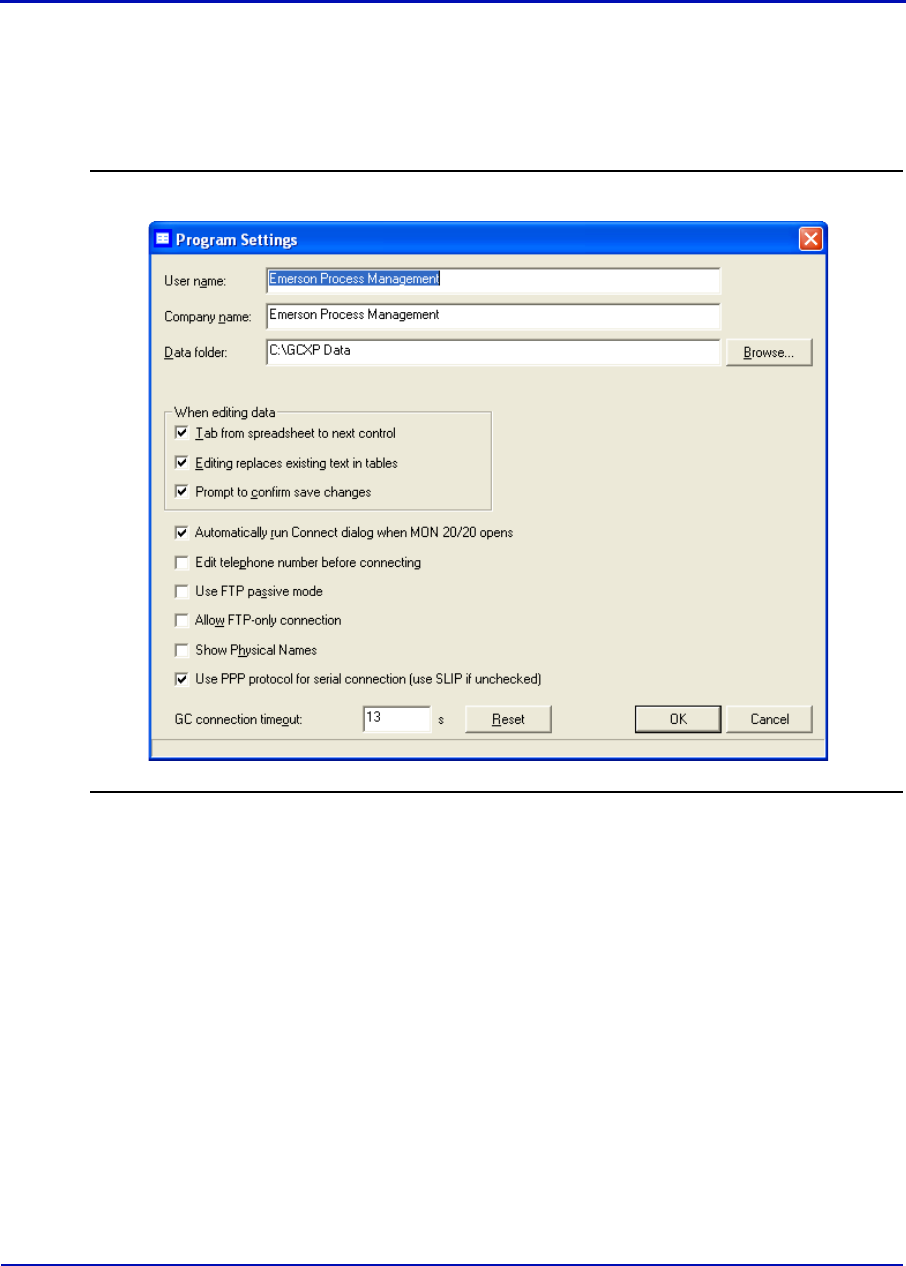
1. Select Program Settings... from the File menu. The Program
Settings window displays.
Figure 1-25. The Program Settings window
2. Select the Show Physical Names checkbox.
User Manual MON20/20 Software for Gas Chromatographs
3-9000-745 OCTOBER 2010
1-40
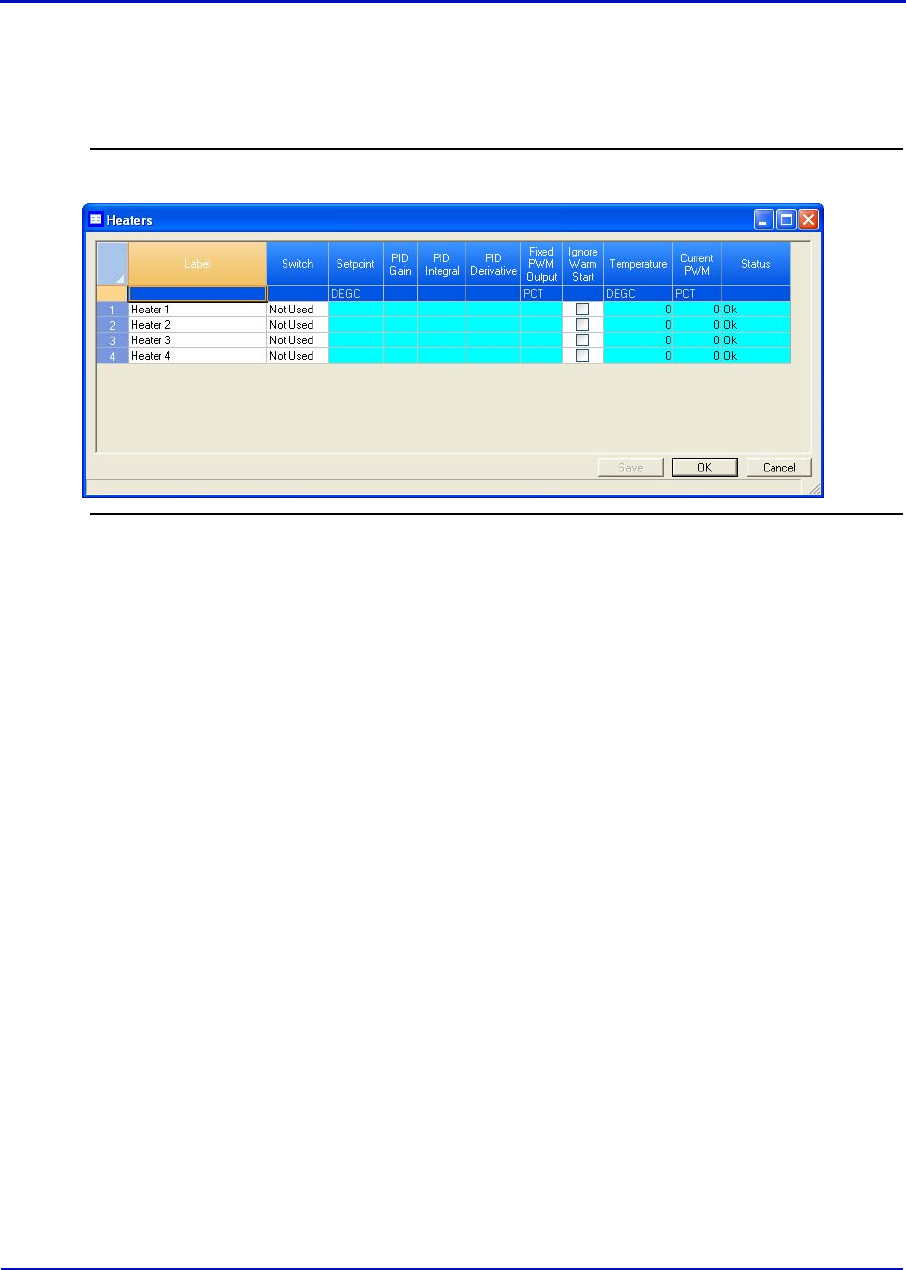
3. Click OK. The Physical Name column now will be visible on all
windows that have the column, such as the Heater window shown in
the example below.
Figure 1-26. The Heater window showing Physical Name column
1.11 Selecting the GC’s networking protocol
MON 20/20 can connect to the GC using one of two networking protocols:
PPP or SLIP. If the version level of the GC’s firmware is 1.2 or lower,
MON 20/20 should be configured to use the SLIP protocol; otherwise, the
PPP protocol should be used.
To select the GC’s networking protocol, do the following:
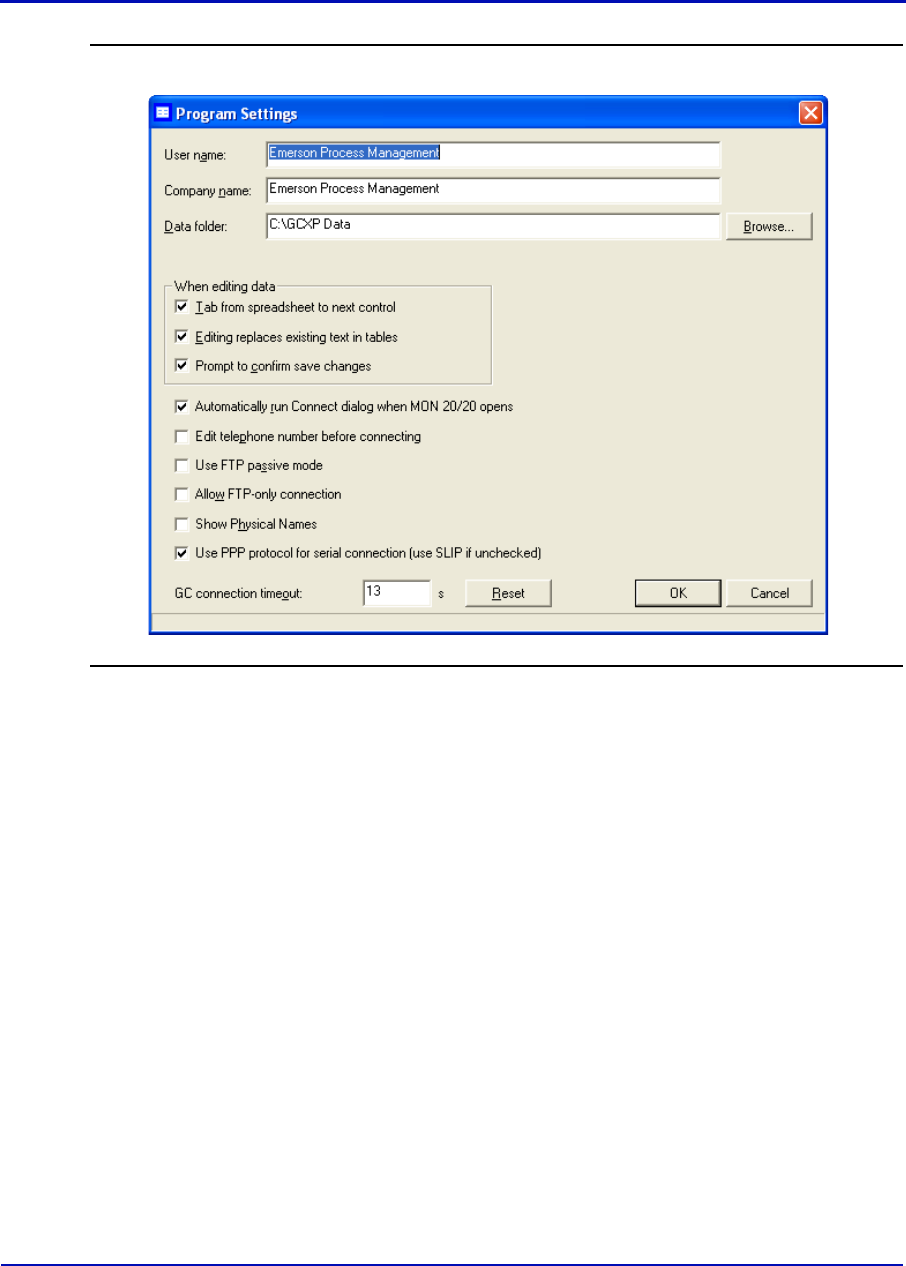
1. Select Program Settings... from the File menu. The Program
Settings window displays.
MON20/20 Software for Gas Chromatographs User Manual
OCTOBER 2010 3-9000-745
1-41
Figure 1-27. The Program Settings window
2. To use the PPP protocol, make sure the Use PPP protocol for serial
connection (use SLIP if unchecked) checkbox is selected; to use the
SLIP protocol, make sure the Use PPP protocol for serial connection
(use SLIP if unchecked) checkbox is not selected.
3. Click OK.
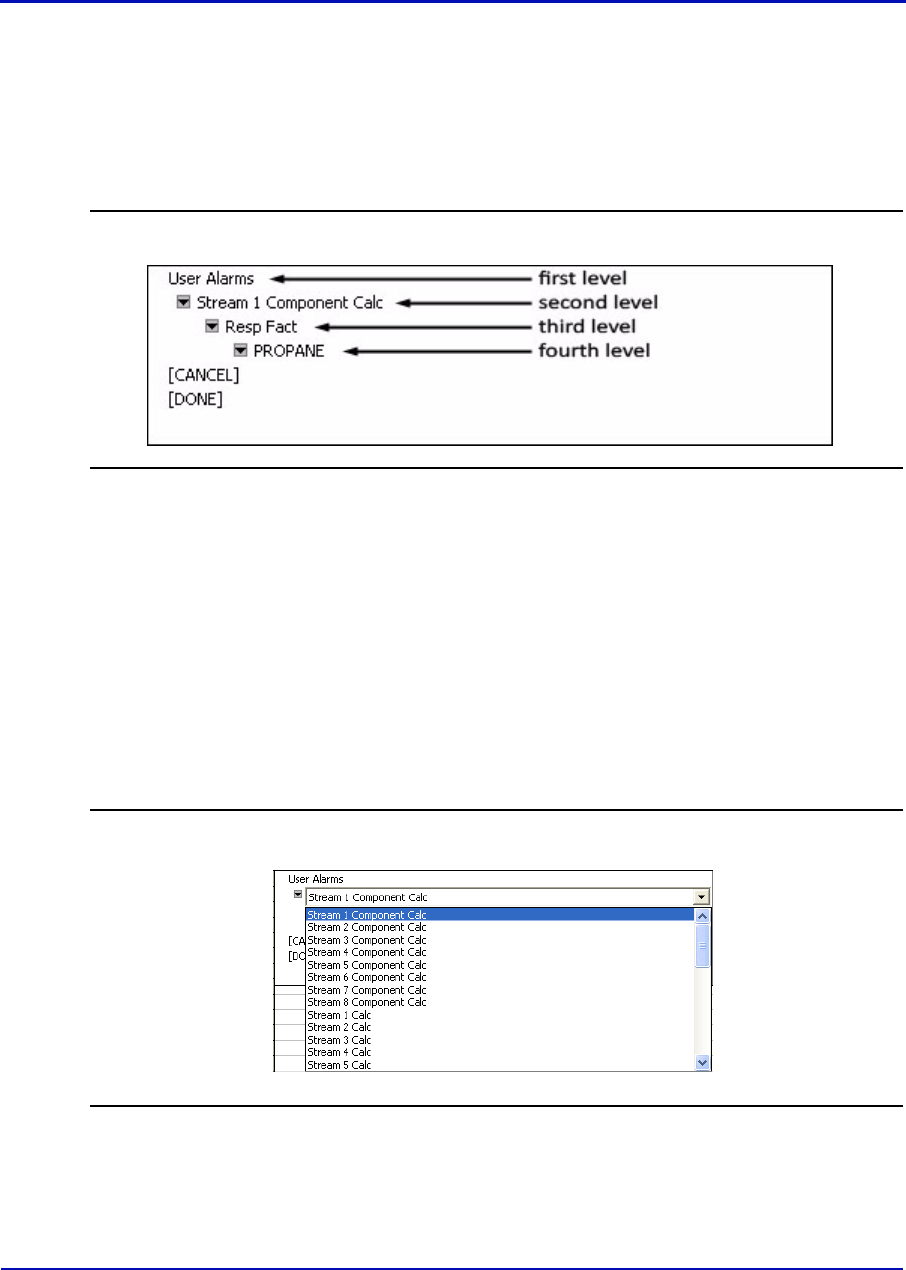
User Manual MON20/20 Software for Gas Chromatographs
3-9000-745 OCTOBER 2010
1-42
1.12 Using the context-sensitive variable selector
The MON 20/20 method for selecting variables for calculations and other
purposes is based on a simple, self-contained system.
Figure 1-28. Example of a context-sensitive variable selector
The context-sensitive variable selector consists of a first-level element,
called the context, that is followed by a series of tiered, drop-down lists.
The options available from the drop-down lists depend upon the context
element.
The following example explains how to use the context-sensitive variable
selector to select a user alarm variable:
1. Click on the second-level drop-down list. The full list of available
streams displays.
Figure 1-29. Second-level drop-down list
2. Select the stream you want to use for the alarm.
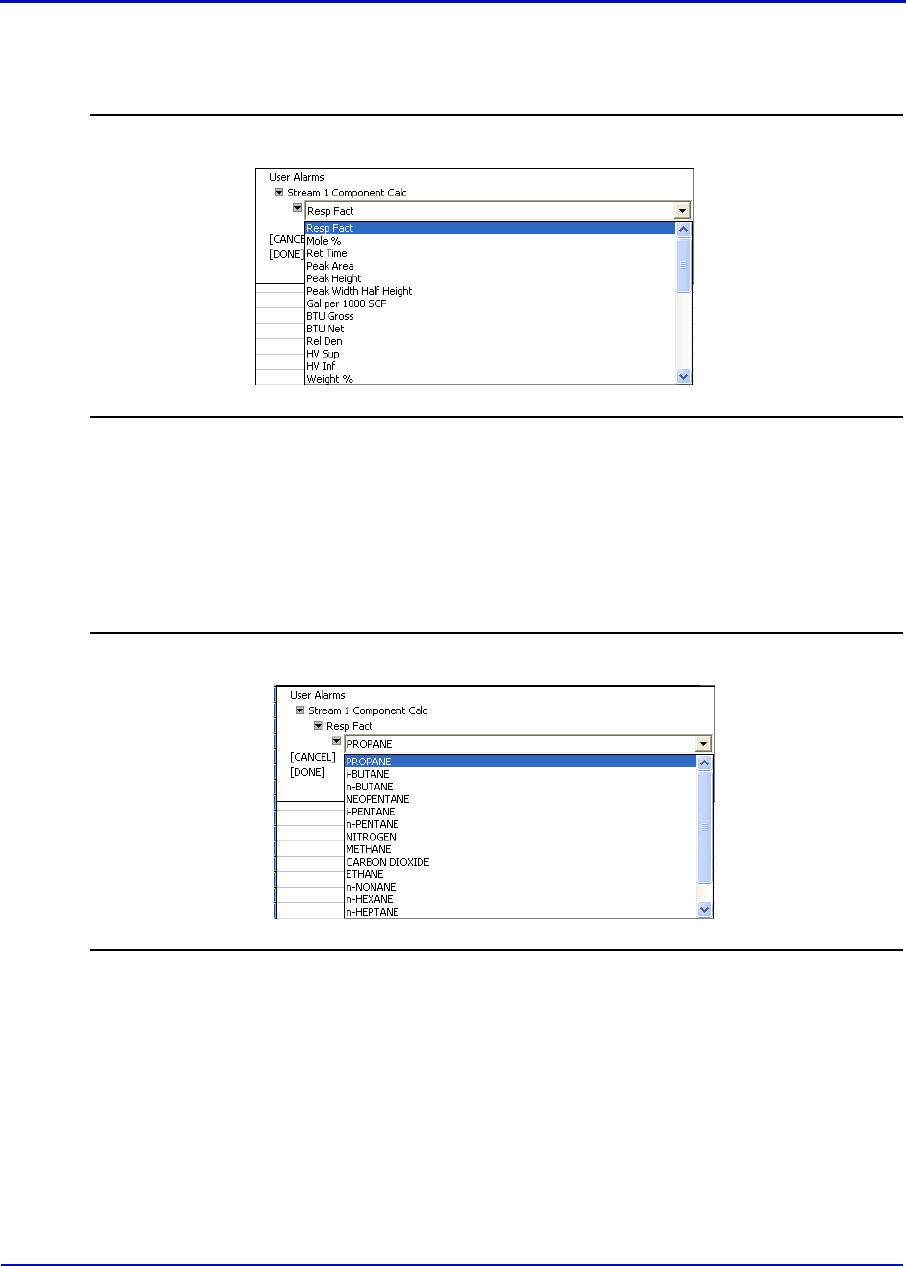
MON20/20 Software for Gas Chromatographs User Manual
OCTOBER 2010 3-9000-745
1-43
3. Click the third-level drop-down list. The full list of available user
alarm variables displays.
Figure 1-30. Third-level drop-down list
4. Select the variable you want to use for the alarm. If there are
components associated with the variable, the fourth-level drop-down
list will display.
5. If displayed, click the fourth-level drop-down list. The full list of
available components displays.
Figure 1-31. Fourth-level drop-down list
6. Select the component you want to use for the alarm.
7. Click [Done]. The context-sensitive variable selector closes and the
variable displays in the Variable field.
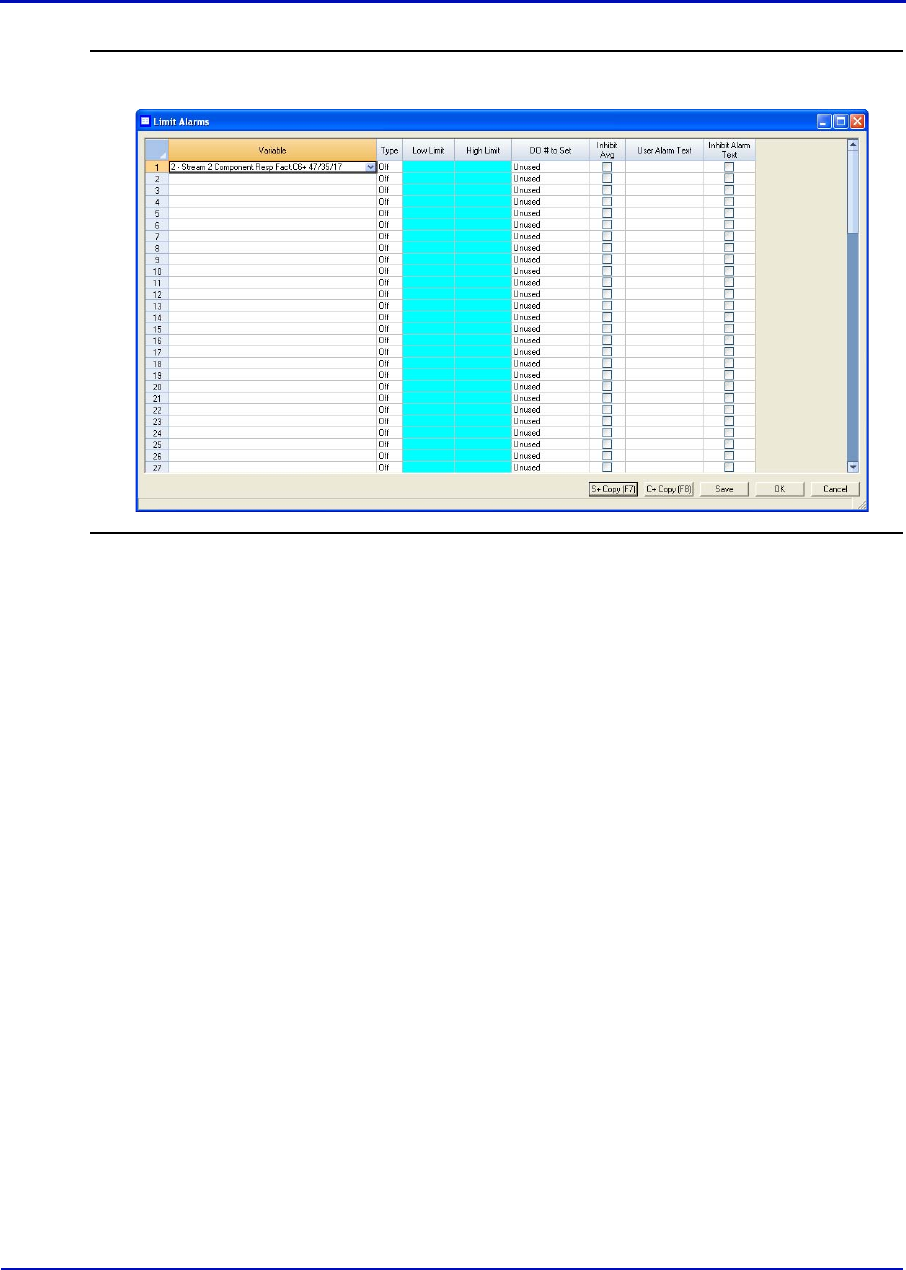
User Manual MON20/20 Software for Gas Chromatographs
3-9000-745 OCTOBER 2010
1-44
Figure 1-32. Variable selected
2-1
Section 2: Using the chromatograph functions
For viewing and managing chromatograms,
MON 20/20 is flexible and straighforward.
This chapter shows you how to connect to and
disconnect from a gas chromatograph. This
chapter also shows you how to access the
Chromatogram Viewer, as well as to use it to
view, print and manipulate various types of
chromatograms.
Finally, this chapter explains how to set a gas chromatograph’s date and
time.
2.1 Viewing chromatograms
Use the Chromatogram Viewer to display and print live, archived, or
saved chromatograms. There is no limit to the number of archived and
saved chromatograms that can be displayed at once; however, to
maximize performance, the number of chromatograms displayed should
be limited to 25 or less. The Chromatogram Viewer can display all three
types of chromatograms together, alone, or in any combination.
The Chromatogram Viewer contains a host of information about both
current and past GC analyses, and it contains just as many ways of
editing and manipulating that data.
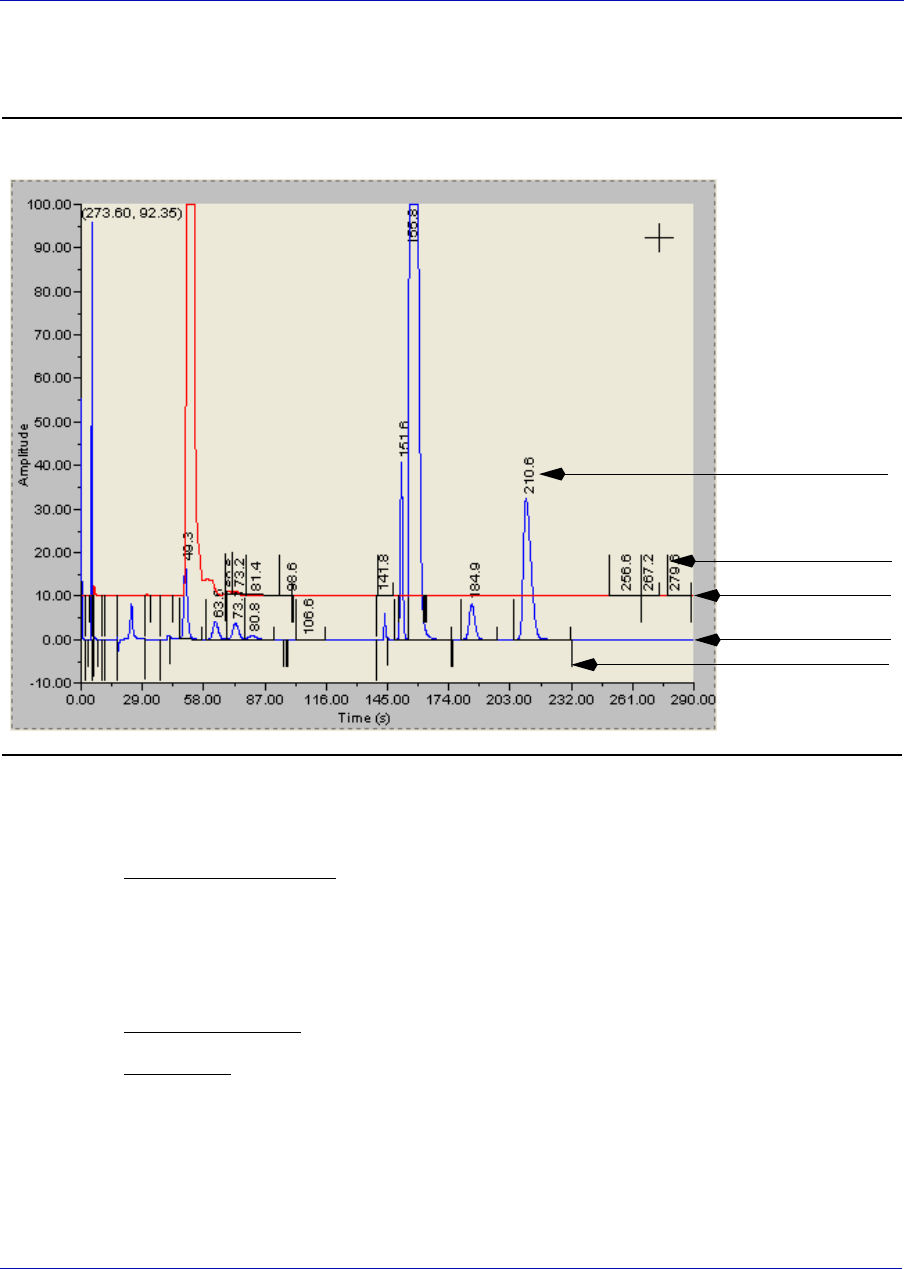
User Manual MON20/20 Software for Gas Chromatographs
3-9000-745 OCTOBER 2010
2-2
2.1.1 Data displayed in the chromatogram window
Figure 2-1. The chromatogram window
The following elements are displayed in the chromatogram window:
• The chromatogram. A trace is the graphical representation of the
analysis results from a single detector; a chromatogram is the
collection of all traces and associated data that are generated by a gas
chromatograph’s detector or detectors. Each trace displays in a
different color.
• Retention times. The retention time for each peak displays above it.
• Baselines. The baseline projects from the beginning to the end of a
peak. The baseline can be turn on or off by clicking Baselines.
trace #1
trace #2
trace #1
retention time
timed event marker
peak detection
marker
MON20/20 Software for Gas Chromatographs User Manual
OCTOBER 2010 3-9000-745
2-3
• Timed event markers. These markers, which correspond to events
from the Timed Events table, display on the chromatogram as black
marks descending from the trace-line. There are three types of timed
event markers:
-Valve events display as long descending marks.
-Integration events display as medium descending marks.
-Spectrum gain events display as short descending marks.
• Peak detection markers. These markers display on the chromatogram
as black marks ascending from the trace-line. Each peak has two
peak detection markers: one at its beginning and one at its end.
2.1.2 Viewing a live chromatogram
To view a live chromatogram, do the following:
1. Connect to the GC.
2. Select Chromatogram Viewer... from the Chromatograph menu.
Note
Another way to display the Chromatogram Viewer is to click , which is located on
the Toolbar.
3. From the Chromatogram Viewer window, check View current CGM.
To prevent the loss of any new data, be sure to save the chromatogram before closing
the Chromatogram Viewer. For more information, see “Saving a chromatogram trace”
on page 2-25.
WARNING
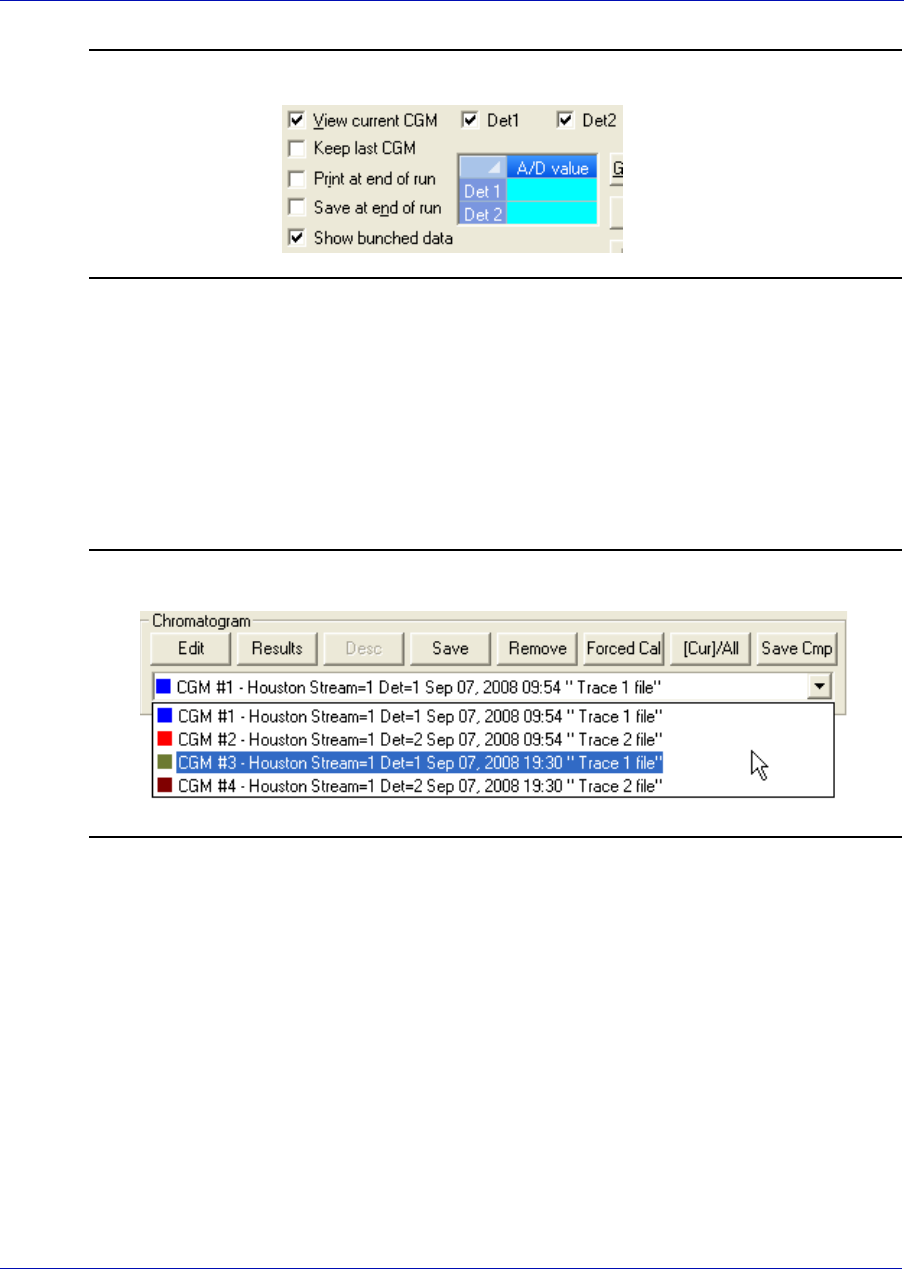
User Manual MON20/20 Software for Gas Chromatographs
3-9000-745 OCTOBER 2010
2-4
Figure 2-2. View Current CGM
The chromatogram displays in the chromatogram window. If the
chromatogram contains one trace, the Det1 checkbox is automatically
checked; if the chromatogram contains two traces, the Det1 and Det2
checkboxes are automatically checked. To remove a trace, uncheck its
detector checkbox.
Each trace that displays is color-coded; use the Chromatogram pull-
down menu to select a specific trace.
Figure 2-3. Chromatogram pull-down menu
The list of GC events associated with the production of the
chromatogram, along with each event’s status and time, displays in
the Timed Events table to the right of the chromatogram display
window. The Component Data table, to the lower right of the
chromatogram display window, lists the components measured during
the analysis. These tables are updated in real-time, just as the
chromatogram is.
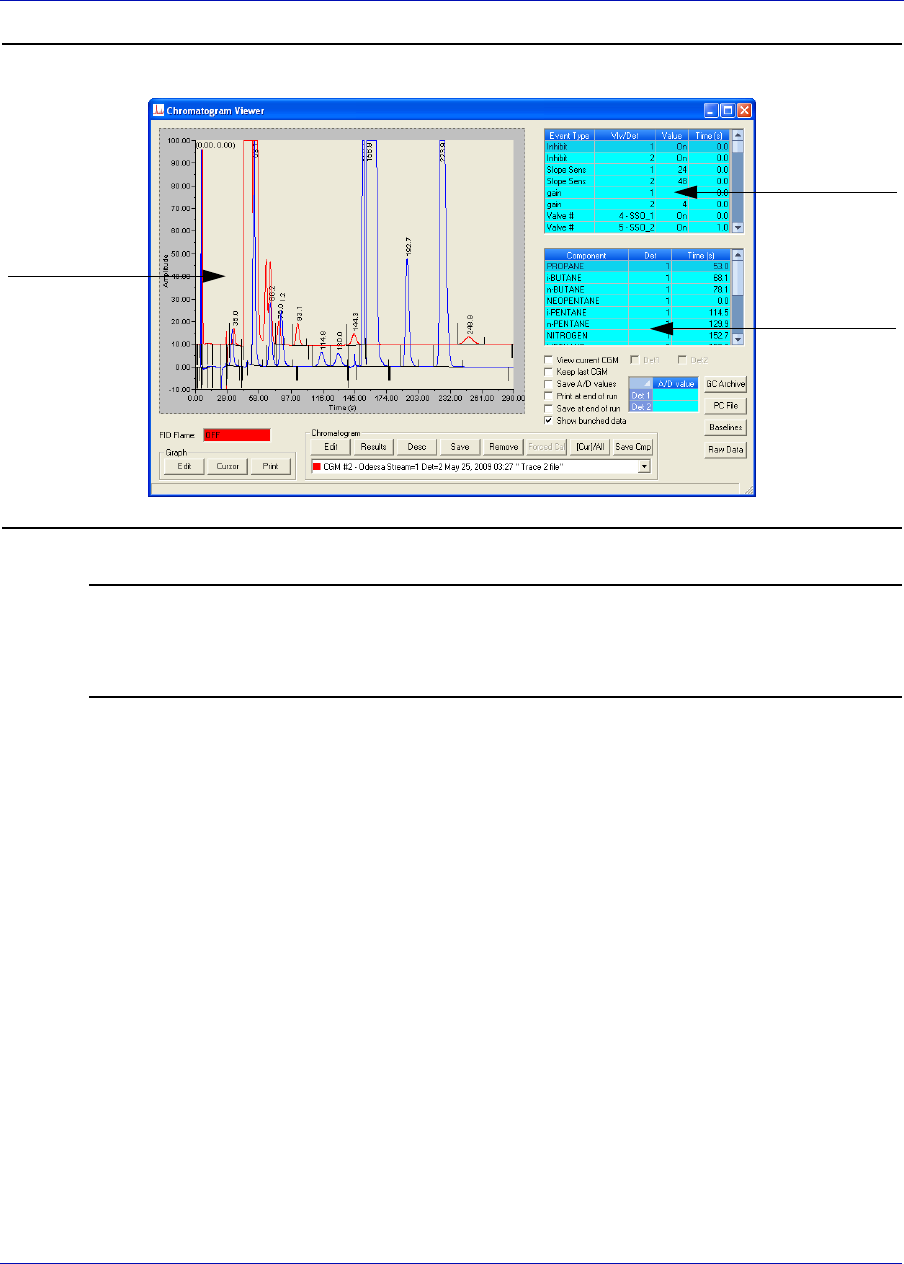
MON20/20 Software for Gas Chromatographs User Manual
OCTOBER 2010 3-9000-745
2-5
Figure 2-4. The Chromatogram Viewer
Note
By default, the timed events and component data tables are configured to scroll to and
highlight the next occurring event in the analysis cycle. To disable this feature, right-
click on one of the tables and uncheck the Auto Scroll option on the pop-up menu.
2.1.3 Viewing an archived chromatogram
Archived chromatograms are stored on the GC, so you must be logged in
to access them. With MON 20/20 archived chromatograms as old as four
days are available for viewing.
Archived chromatograms are sorted and displayed on four tabbed panes:
•Chromatograms - This view displays all chromatogram types sorted
by time so that the newest file is always listed first. This view can be
further configured to display only the files from the last five runs for
each stream, or to display all the files that are stored on the GC.
chromatogram
window
timed events
component
data
User Manual MON20/20 Software for Gas Chromatographs
3-9000-745 OCTOBER 2010
2-6
•Protected chromatograms - Protected chromatograms are never
deleted from the GC. To protect a chromatogram, see “Protecting or
unprotecting an archived chromatogram” on page 2-9.
Note
Protected chromatogram files have a “lock” icon ( ) displayed beside them.
•Final Calibration chromatograms - MON 20/20 will store up to
one year’s worth—or approximately 370—of final calibration
chromatograms; once the limit is reached, MON 20/20 will delete the
oldest non-protected final calibration chromatogram for each new final
calibration chromatogram that is created. If multiple final calibration
chromatograms are created on the same day, the last chromatogram
created is archived, unless MON 20/20 has been configured to archive
all final calibration chromatograms.
Note
See “Managing the system” on page 4-2 to learn how to configure MON 20/20’s archiving
behavior.
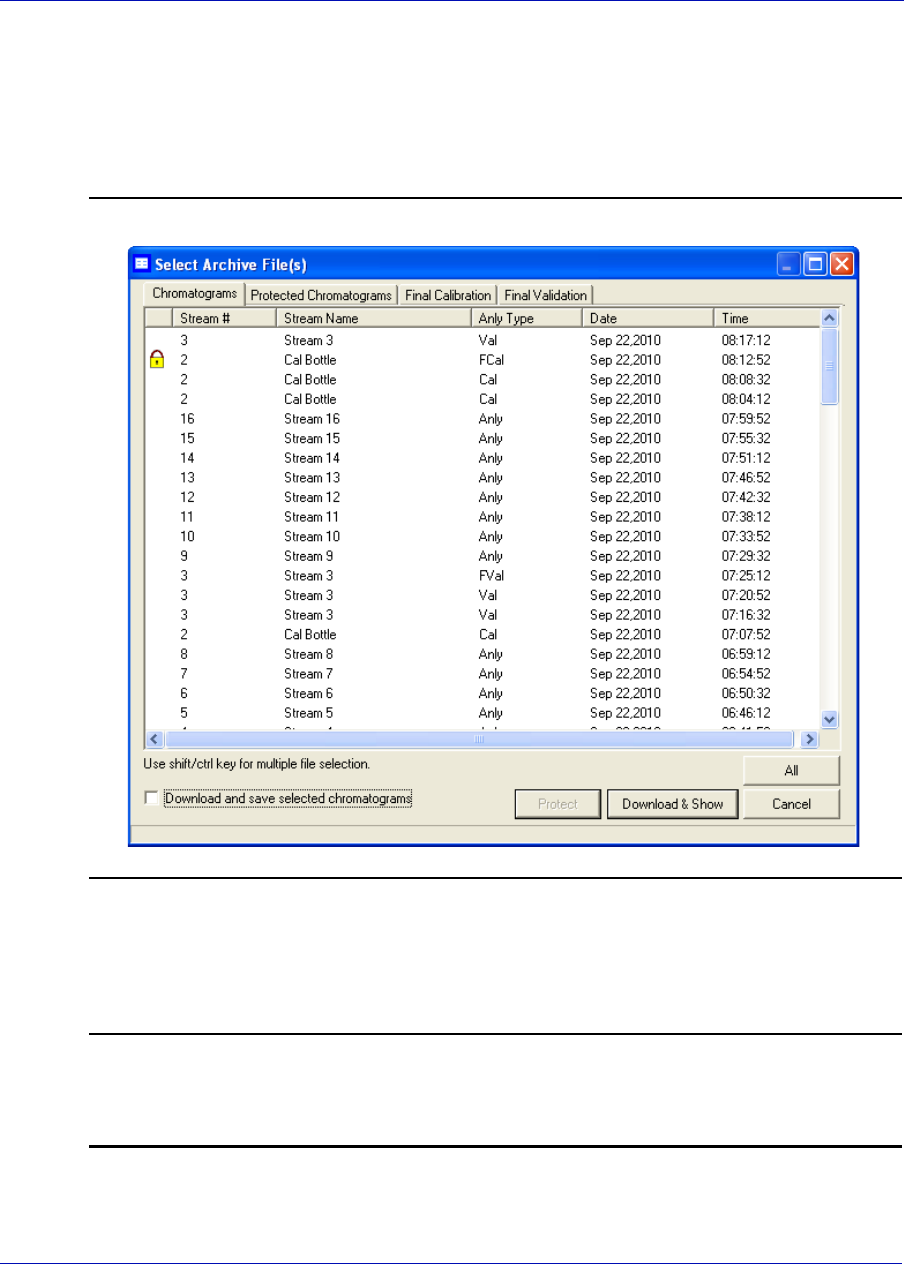
MON20/20 Software for Gas Chromatographs User Manual
OCTOBER 2010 3-9000-745
2-7
Final Validation chromatograms - These chromatograms are treated
in the same manner as final calibration chromatogram files.To view one
or more archived chromatograms, do the following:
1. Click GC Archive. The Select archive file(s) window appears.
Figure 2-5. The Select archive file(s) window
The files can be sorted by date, file name, analysis type, time, or
stream number by clicking the appropriate column header. By
default, they are sorted by date, with the newest file listed first.
Note
By default, only recent chromatograms—that is, the last five runs for each stream—are
displayed. To view all archived chromatograms, click All. To return to viewing only
recent chromatograms, click Recent.
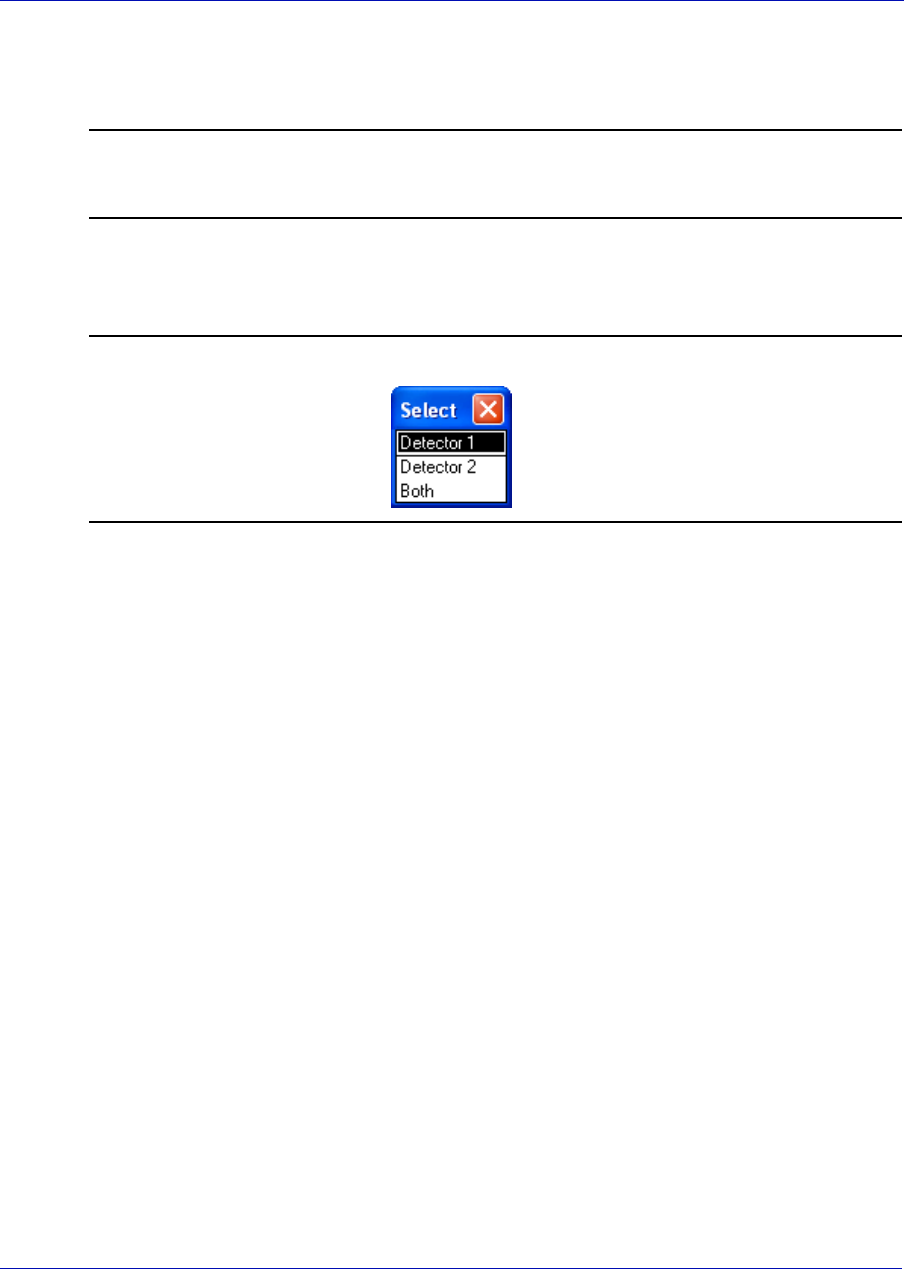
User Manual MON20/20 Software for Gas Chromatographs
3-9000-745 OCTOBER 2010
2-8
2. Select one or more archive files by clicking them. Use the SHIFT or
CTRL key to make multiple selections.
Note
To save the selected files to the PC, select the Download and save selected
chromatograms check box and click Download & Save.
3. Click Download & Show. The Select window displays for each
chromatogram that contains data from more than one detector.
Figure 2-6. The Select window
4. For each chromatogram, double-click either “Detector 1”, “Detector 2”,
or “Both” from the Select window.
MON 20/20 plots the archived chromatogram(s) and the corresponding
data displays in the timed event and component data tables.
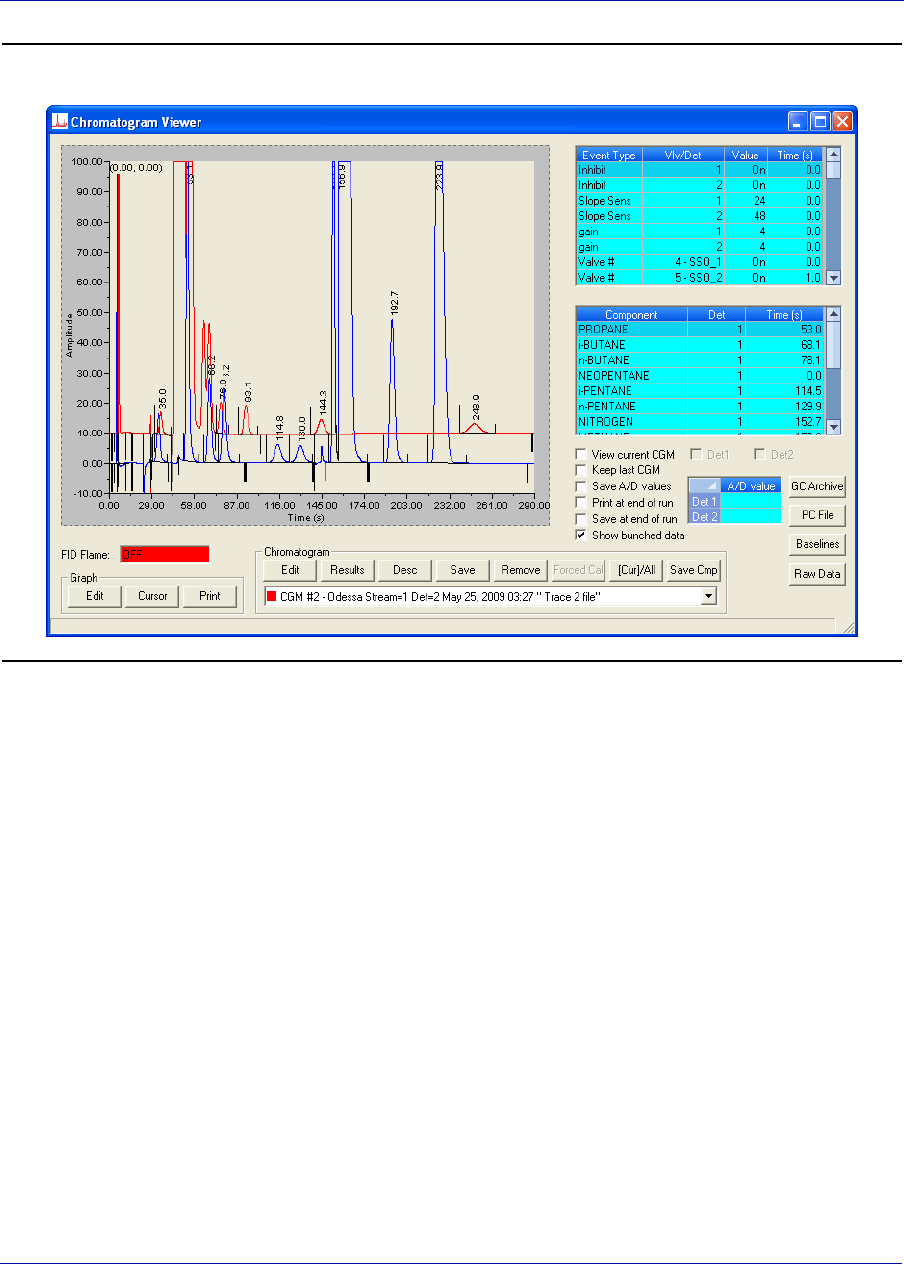
MON20/20 Software for Gas Chromatographs User Manual
OCTOBER 2010 3-9000-745
2-9
Figure 2-7. The Chromatogram Viewer displaying an archived chromatogram
2.1.4 Protecting or unprotecting an archived chromatogram
By default, archived chromatograms are not saved indefinitely. Once the
GC’s storage capacity for archived chromatograms has been reached, the
oldest archived chromatograms are deleted to make room for the newest
archived chromatograms.
If you have a chromatogram that you would like to preserve, it is possible
to do so by protecting it. Protected chromatograms will not be deleted to
accomodate newer chromatograms. To delete a protected
chromatograms, it must first be unprotected. MON 20/20 will save up to
100 protected chromatograms.
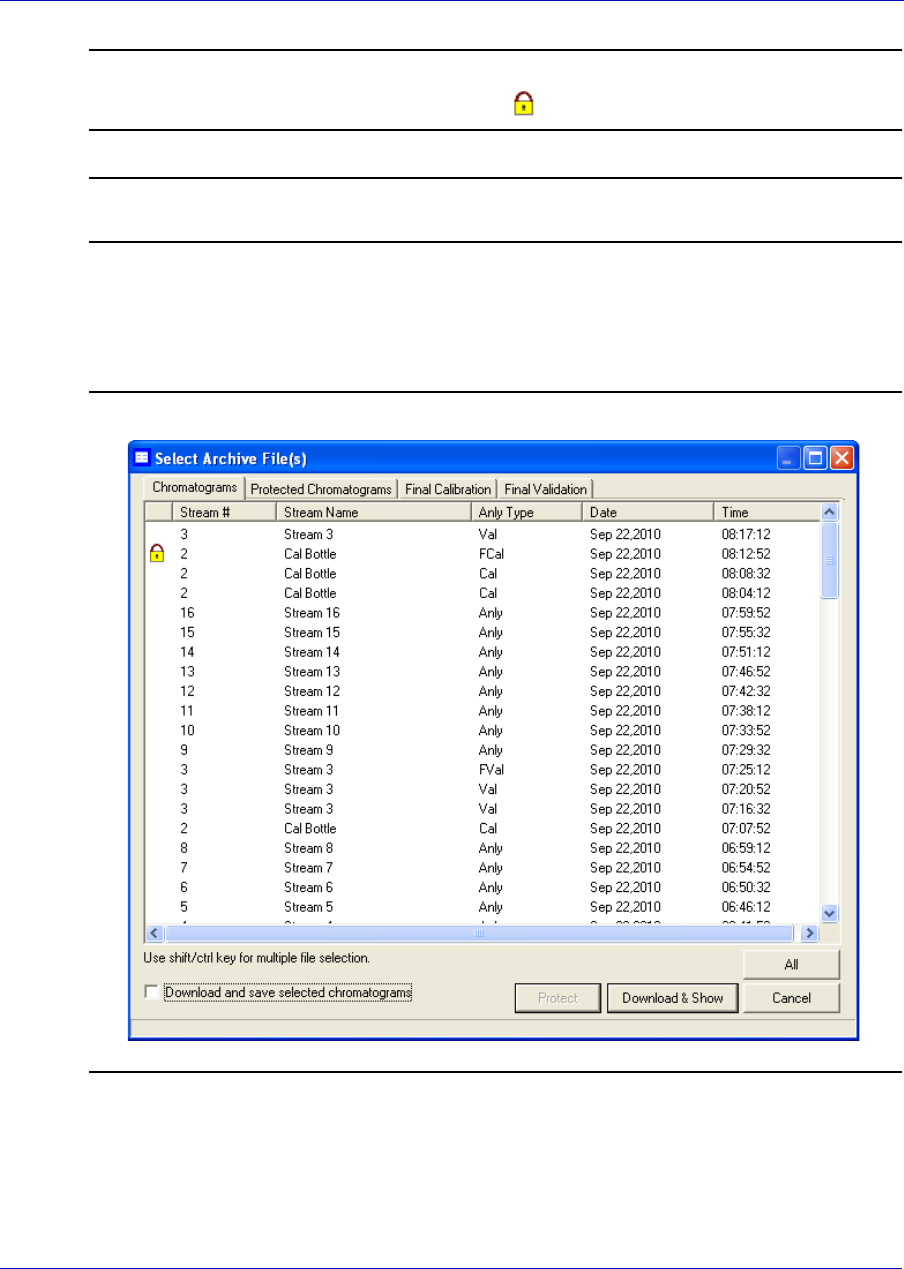
User Manual MON20/20 Software for Gas Chromatographs
3-9000-745 OCTOBER 2010
2-10
Note
Protected chromatograms have a “lock” icon ( ) displayed beside them.
Note
To protect an archived chromatogram you must be logged in as a supervisor or admin.
To protect a chromatogram, do the following:
1. Click GC Archive. The Select Archive File(s) window appears.
Figure 2-8. The Select archive file(s) window
The chromatograms can be sorted by date, file name, analysis type,
time, or stream number by clicking the appropriate column header.
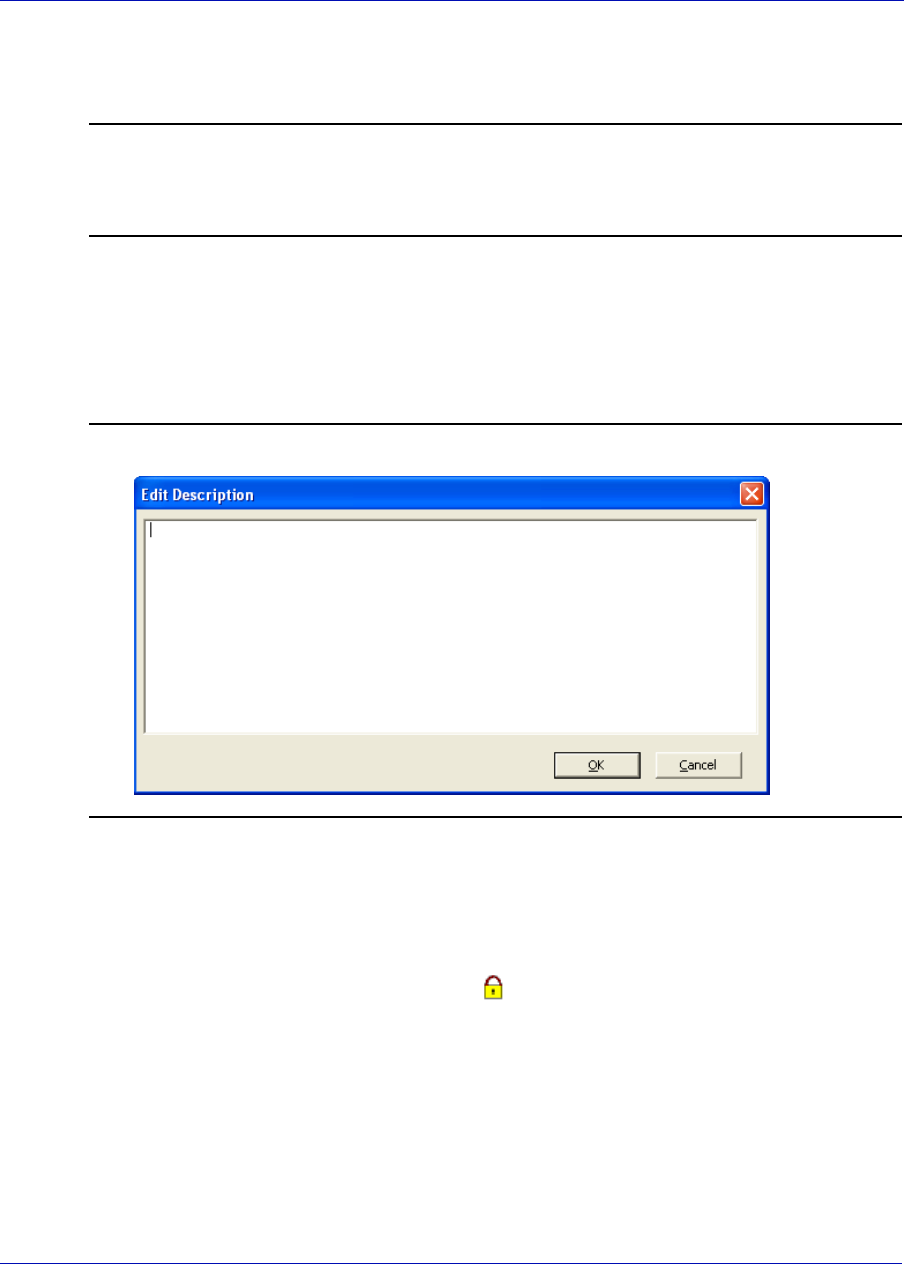
MON20/20 Software for Gas Chromatographs User Manual
OCTOBER 2010 3-9000-745
2-11
By default, they are sorted by date, with the newest chromatogram
listed first.
Note
By default, only recent chromatograms—that is, the last five runs for each stream—are
displayed. To view all archived chromatograms, click All. To return to viewing only
recent chromatograms, click Recent.
2. Make sure the Chromatogram tab is selected and then select the
appropriate archived chromatogram by clicking it. Use the SHIFT or
CTRL key to make multiple selections.
3. Click Protect. The Edit Description window displays.
Figure 2-9. The Edit Description window
4. Enter any information that you would like to have associated with the
chromatogram and then click OK. If you do not want to enter any
information, click Cancel.
MON 20/20 will place a “lock” icon () beside the selected chromatogram
to verify its protected status. You can also click on the Protected
Chromatograms tab to view your newly protected archived
chromatogram.
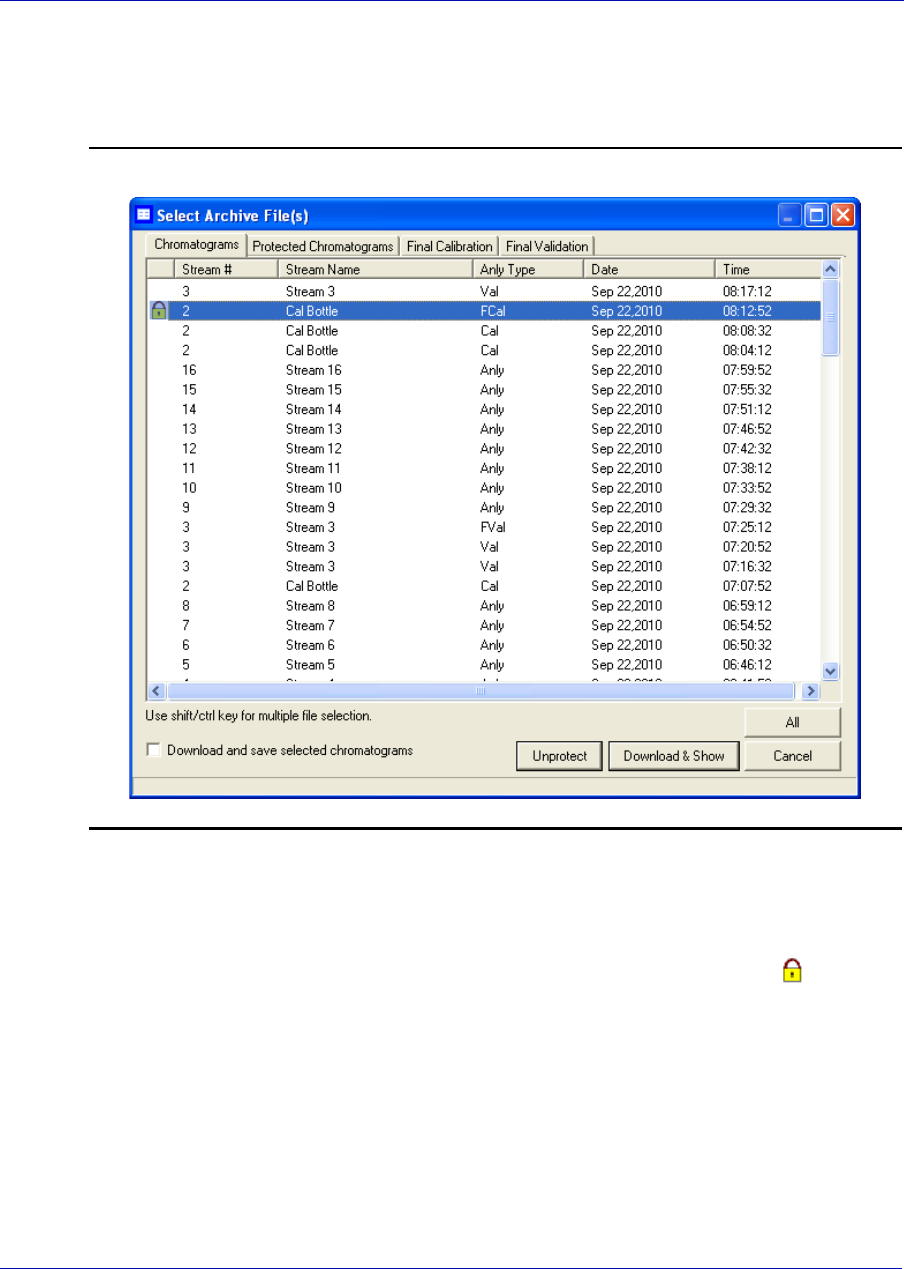
User Manual MON20/20 Software for Gas Chromatographs
3-9000-745 OCTOBER 2010
2-12
To unprotect a protected file, do the following:
1. Click GC Archive. The Select archive file(s) window appears.
Figure 2-10. The Select archive file(s) window
2. Locate and select the protected chromatogram that you want to
unprotect. Use the SHIFT or CTRL key to make multiple selections.
3. Click Unprotect. MON 20/20 will remove the “lock” icon () from
beside the selected chromatogram. The chromatogram’s description
information, if any, will also be deleted. This chromatogram is now
eligible to be deleted to make room for newer archived
chromatograms.
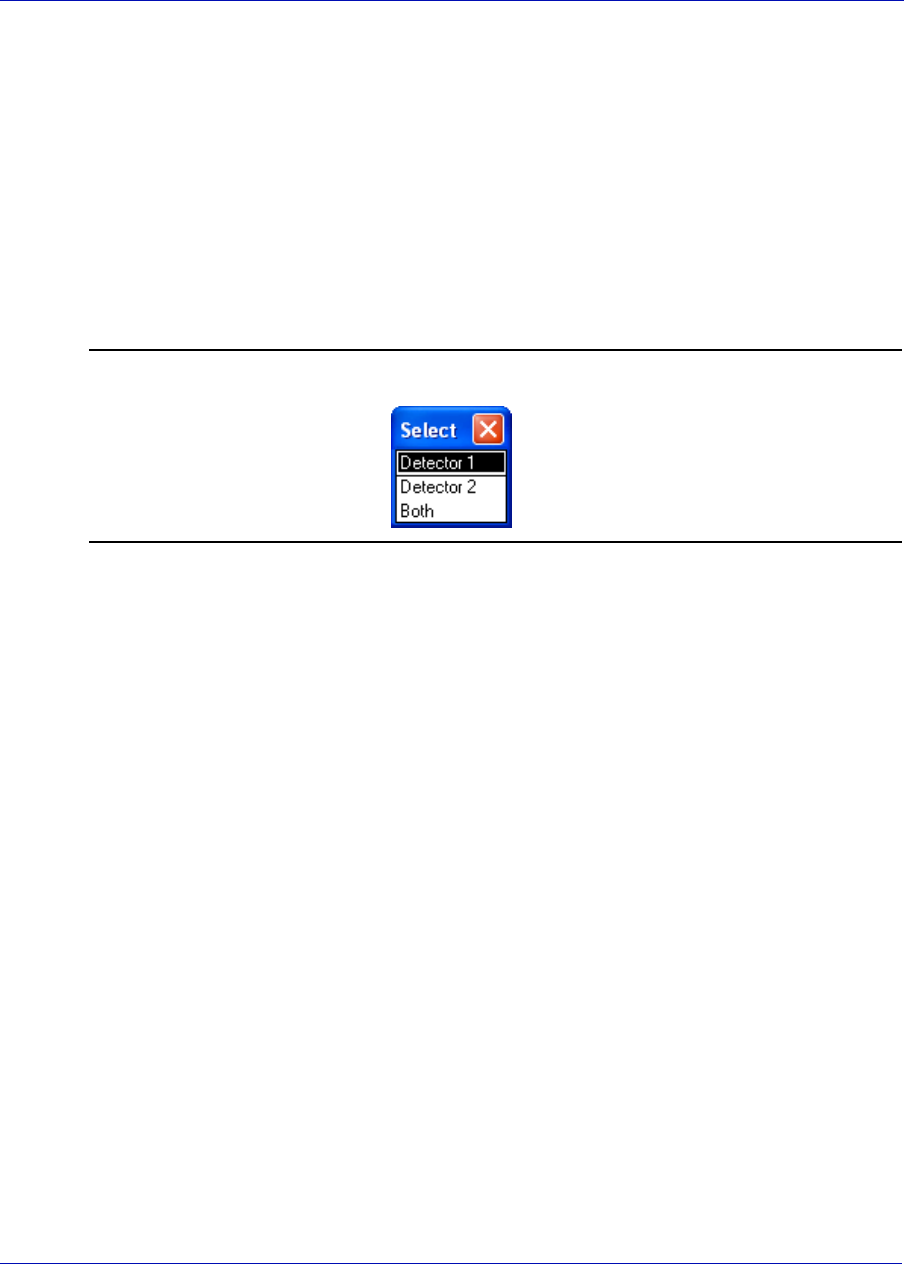
MON20/20 Software for Gas Chromatographs User Manual
OCTOBER 2010 3-9000-745
2-13
2.1.5 Viewing a saved chromatogram
To view a chromatogram that was saved to disk, do the following:
1. Click PC File. The Open dialog appears.
2. Navigate to the desired .xcgm file or .xcmp comparison file and select
it. To make multiple selections, use the SHIFT or CTRL key.
3. Click OK. The Select window displays for each chromatogram that
contains data for more than one detector.
Figure 2-11. The Select window
4. For each chromatogram, double-click either “Detector 1”, “Detector 2”,
or “Both” from the Select window.
MON 20/20 plots the archived chromatogram(s) and the corresponding
data displays in the timed event and component data tables.
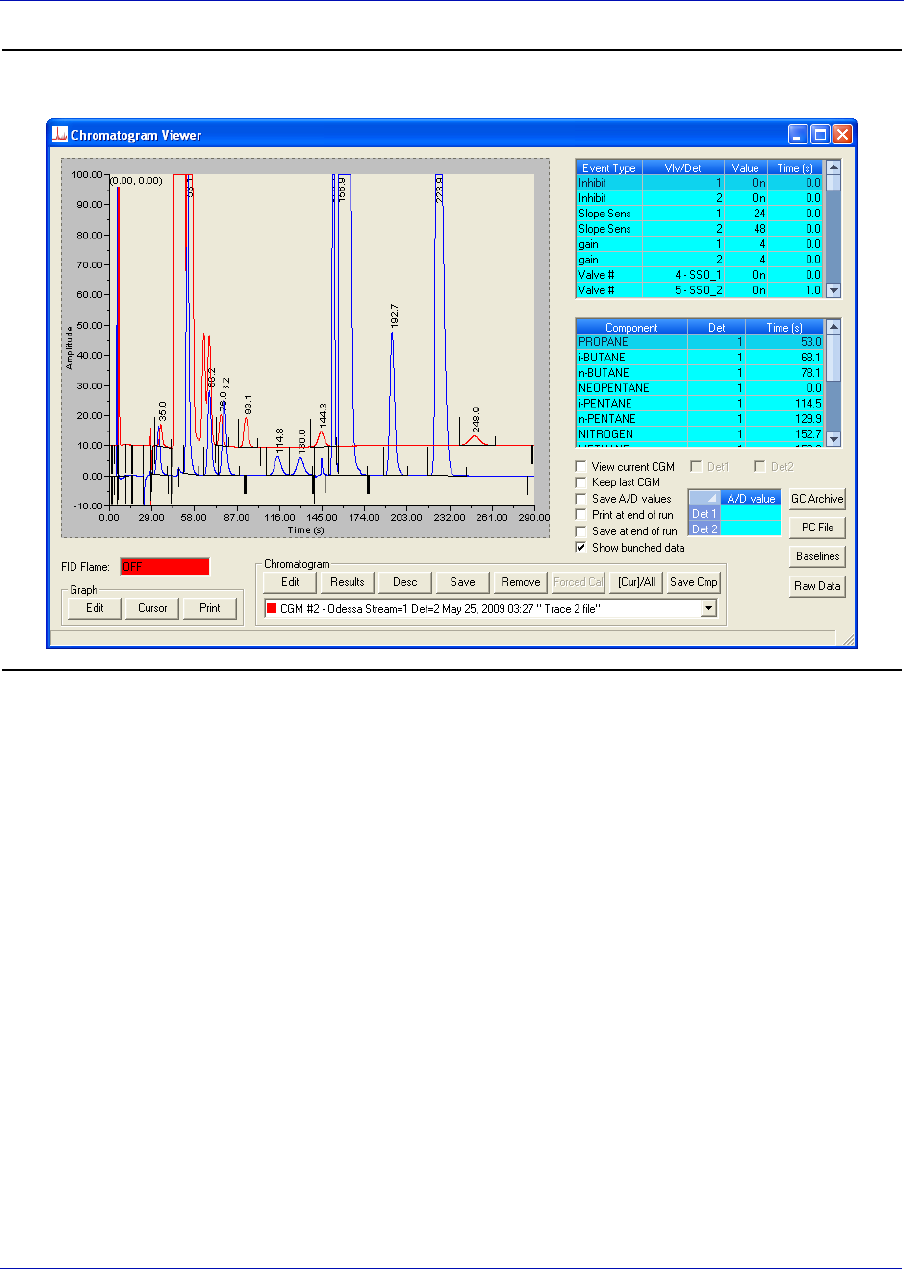
User Manual MON20/20 Software for Gas Chromatographs
3-9000-745 OCTOBER 2010
2-14
Figure 2-12. The Chromatogram Viewer displaying a saved chromatogram
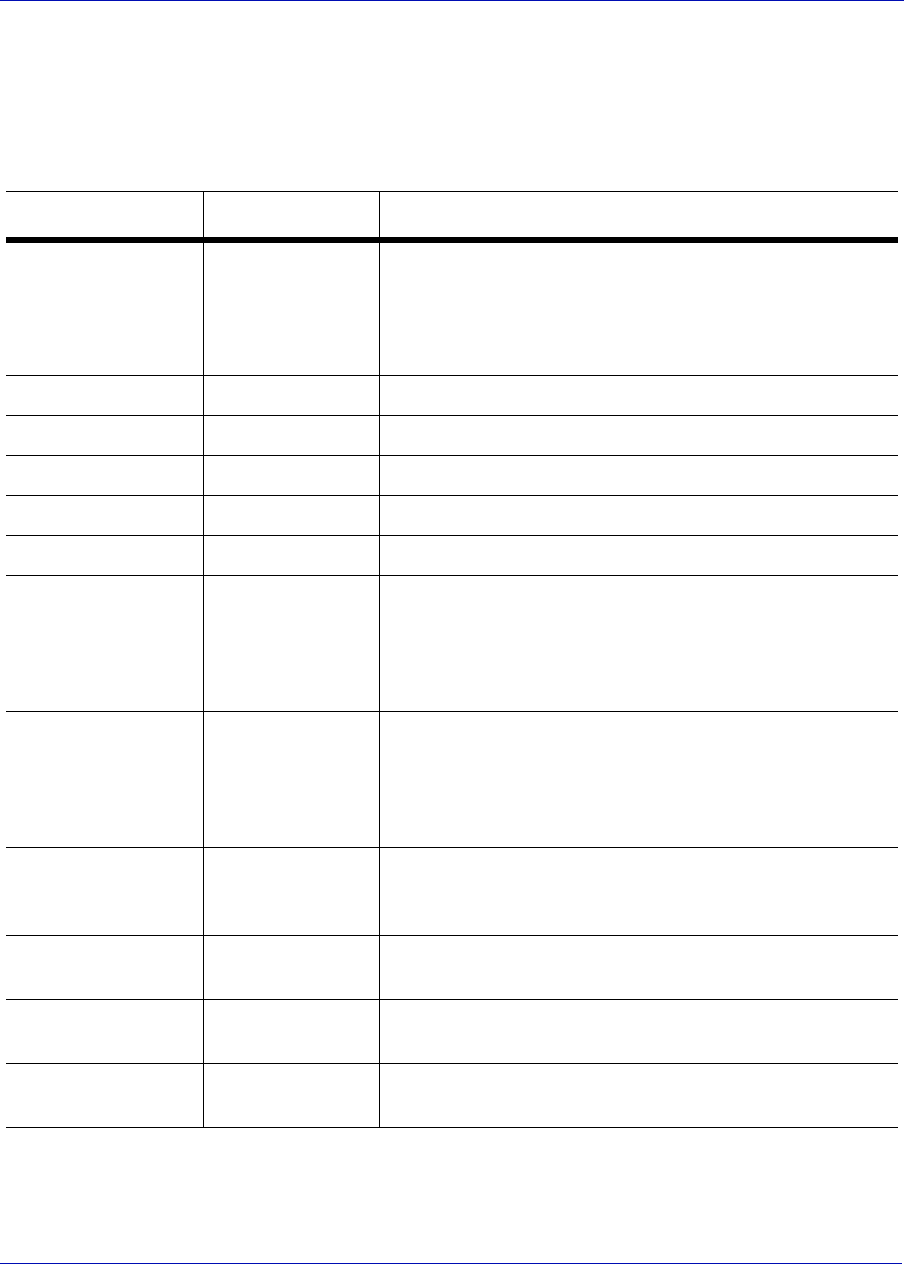
MON20/20 Software for Gas Chromatographs User Manual
OCTOBER 2010 3-9000-745
2-15
2.2 Working with the graph
Right-clicking with the mouse on the graph brings up the following
commands and keyboard shortcuts:
Command Name Shortcut Description
Zoom In “+” (NUMPAD) Zooms in on the entire graph.
NOTE: Another way to zoom in is by clicking and
dragging your mouse to select the region of the graph
that you want to zoom in on.
Zoom Out “-” (NUMPAD) Zooms out from the entire graph.
Zoom X In “6” (NUMPAD) Zooms in on the X axis.
Zoom X Out “4” (NUMPAD) Zooms out from the X axis.
Zoom Y In “8” (NUMPAD) Zooms in on the Y axis.
Zoom Y Out “2” (NUMPAD) Zooms out from the Y axis.
Save State CTRL + HOME Saves current or archived display settings for the
selected chromatogram.
NOTE: The Save State function is available only
when viewing a live or archived chromatogram.
Restore State HOME Restores the last saved display settings for the
selected chromatogram.
NOTE: Pressing HOME returns the user to the
saved state.
Toggle Full Screen F11 Toggles the display of the Chromatogram Viewer’s
tables and buttons and maximizes the chromatogram
window.
Cursor to Nearest
Point
F8 Snaps the cursor to the nearest point on the
chromatograph in both the X and Y directions.
Toggle Coarse/
Fine Cursor
F4 Toggles the cursor from coarse and less accurate to
fine and more accurate.
Toggle Lines/Dots
Displays
F9 Toggles the chromatographs from lines to dots, or
dots to lines.
User Manual MON20/20 Software for Gas Chromatographs
3-9000-745 OCTOBER 2010
2-16
2.3 Editing the display properties of the chromatograph
MON 20/20 allows you to change the appearance of many of the
chromatogram’s elements, such as its x-axis and y-axis values, the color
of the chromatograph’s background, and the display status of its labels.
2.3.1 The Graph bar
Use the Graph bar buttons to change the display parameters of the
chromatogram.
Click Edit from the Graph bar. The Edit Scales window displays.
Toggle Mouse
Position Tip
CTRL + F4 The graph’s cursor follows the movement of the
mouse while a hovering tooltip displays the exact
coordinates of the current point.
Toggle Nearest
Position Tip
CTRL + F9 The graph’s cursor follows the movement of the
mouse cursor.
Print CTRL + P Prints the chromatogram.
Copy to clipboard CTRL + C Copies from the graph the raw detector data that was
used to plot the selected chromatogram. This data
can be pasted into another application such as
Microsoft Word or Microsoft Excel.
Paste from
clipboard
CTRL + V Plots a range of points copied from another
application such as Microsoft Word or Microsoft
Excel.
Command Name Shortcut Description
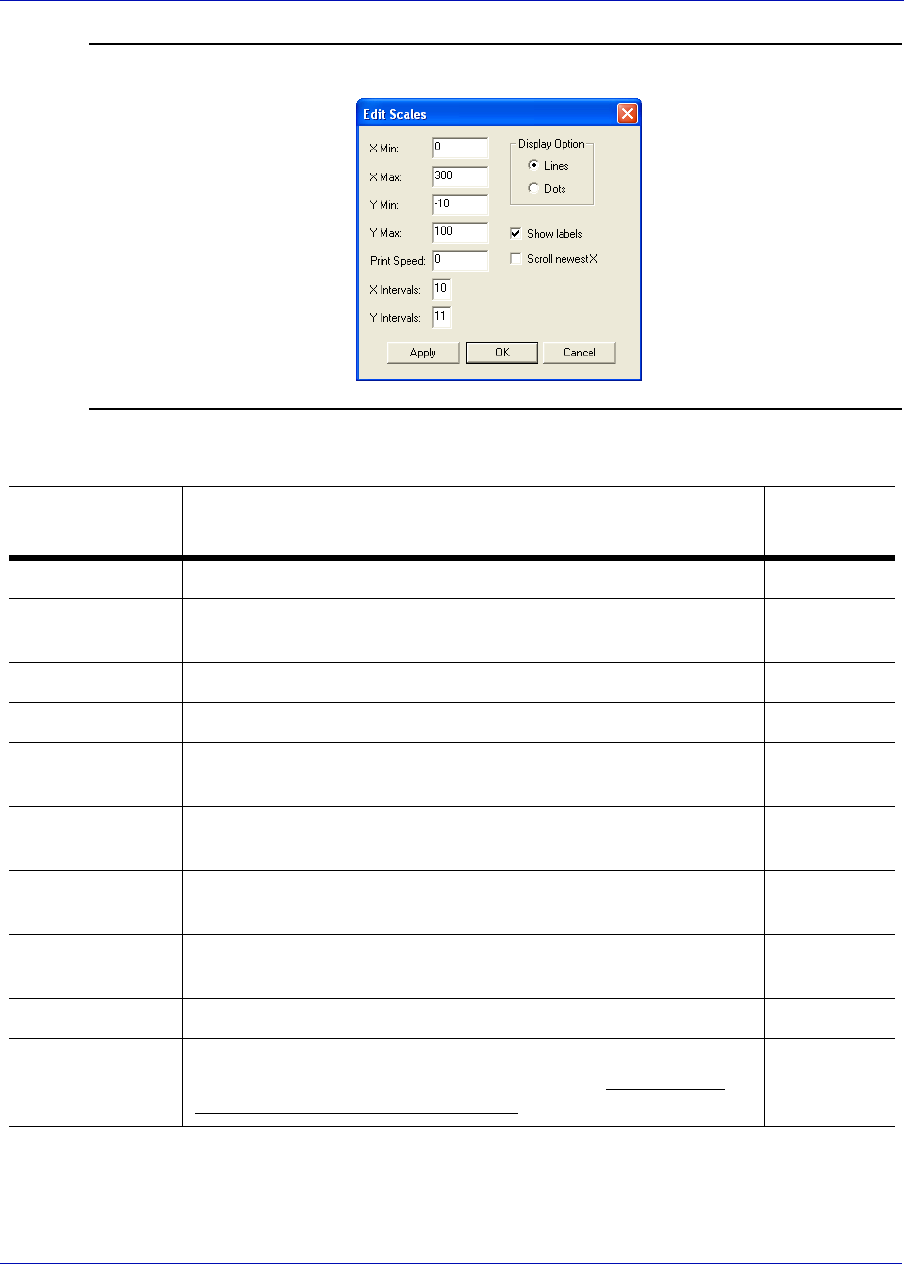
MON20/20 Software for Gas Chromatographs User Manual
OCTOBER 2010 3-9000-745
2-17
Figure 2-13. The Edit Scales window
The following table lists the parameters that can be edited:
Command Description Default
Value
X Min Sets the minimum value, in seconds, for the X axis. 0
X Max Sets the maximum value, in seconds, for the X axis. The is
value is determined by the Timed Events table.
100
Y Min Sets the minimum value for the Y axis. -10
Y Max Sets the maximum value for the Y axis. 100
Print Speed Sets the number of inches per second for the x-axis while
printing a chromatogram, similar to an XY plotter.
0
X Intervals Sets the number of intervals to be displayed on the graph for
the X axis.
10
Y Intervals Sets the number of intervals to be displayed on the graph for
the Y axis.
11
Display Option Determines whether the chromatograph is displayed as a
solid line or as a dotted line. Lines is checked by default.
Lines
Show labels Toggles the display of the graph labels. Checked
Scroll newest X Determines whether the graph’s window moves to focus on
the most recent data point along the x axis. This feature
only applies to live chromatograms.
Unchecked
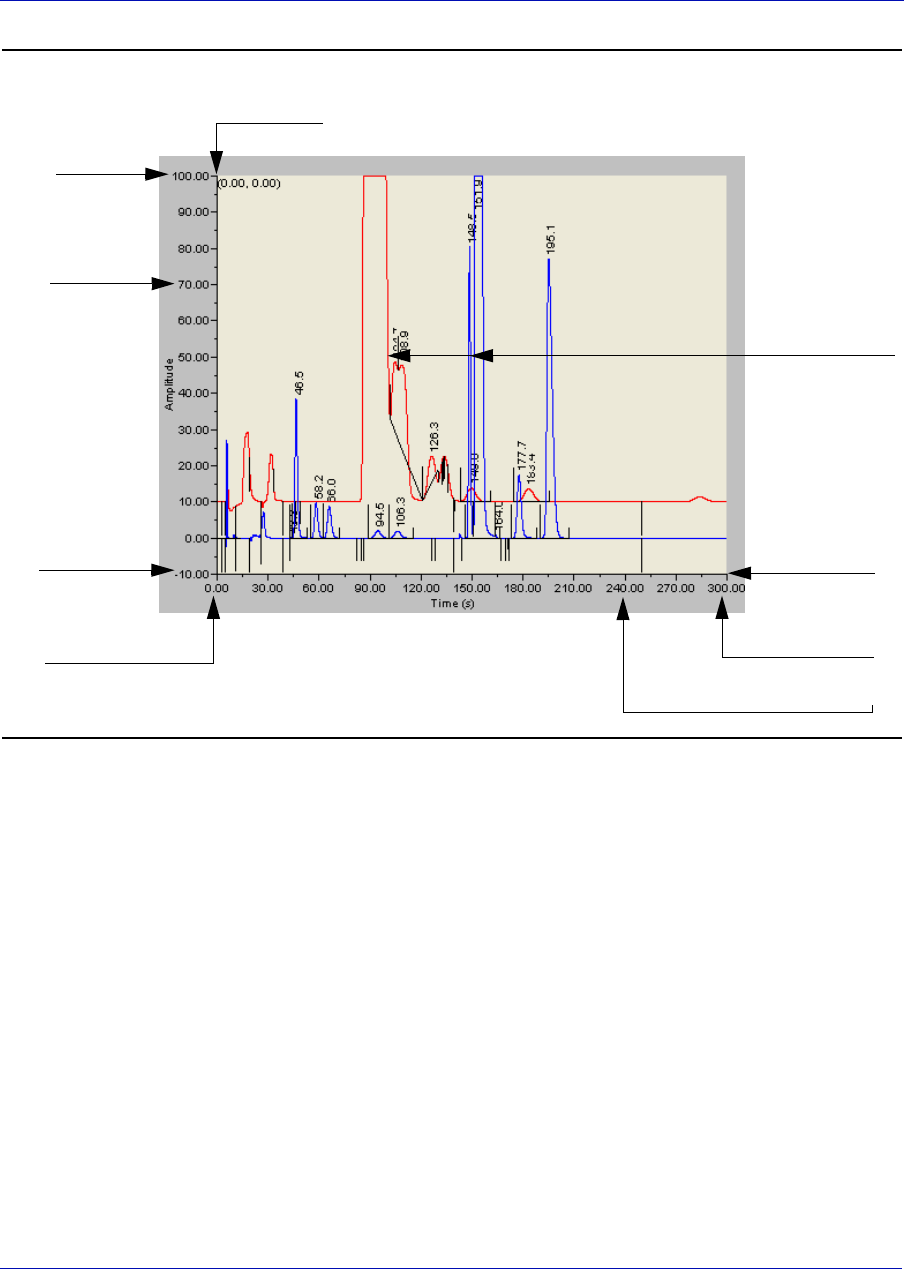
User Manual MON20/20 Software for Gas Chromatographs
3-9000-745 OCTOBER 2010
2-18
Figure 2-14. A chromatogram
To see how your changes affect the graph, click Apply. To accept your
changes, click OK.
• Click Cursor to toggle the cursor size from coarse movement (less
accurate) to fine movement (more accurate).
• Click Print to print the chromatogram window.
Y axis
X axis
Y Min
Y Max
X max
X Min
X interval
Y interval
color-coded
traces
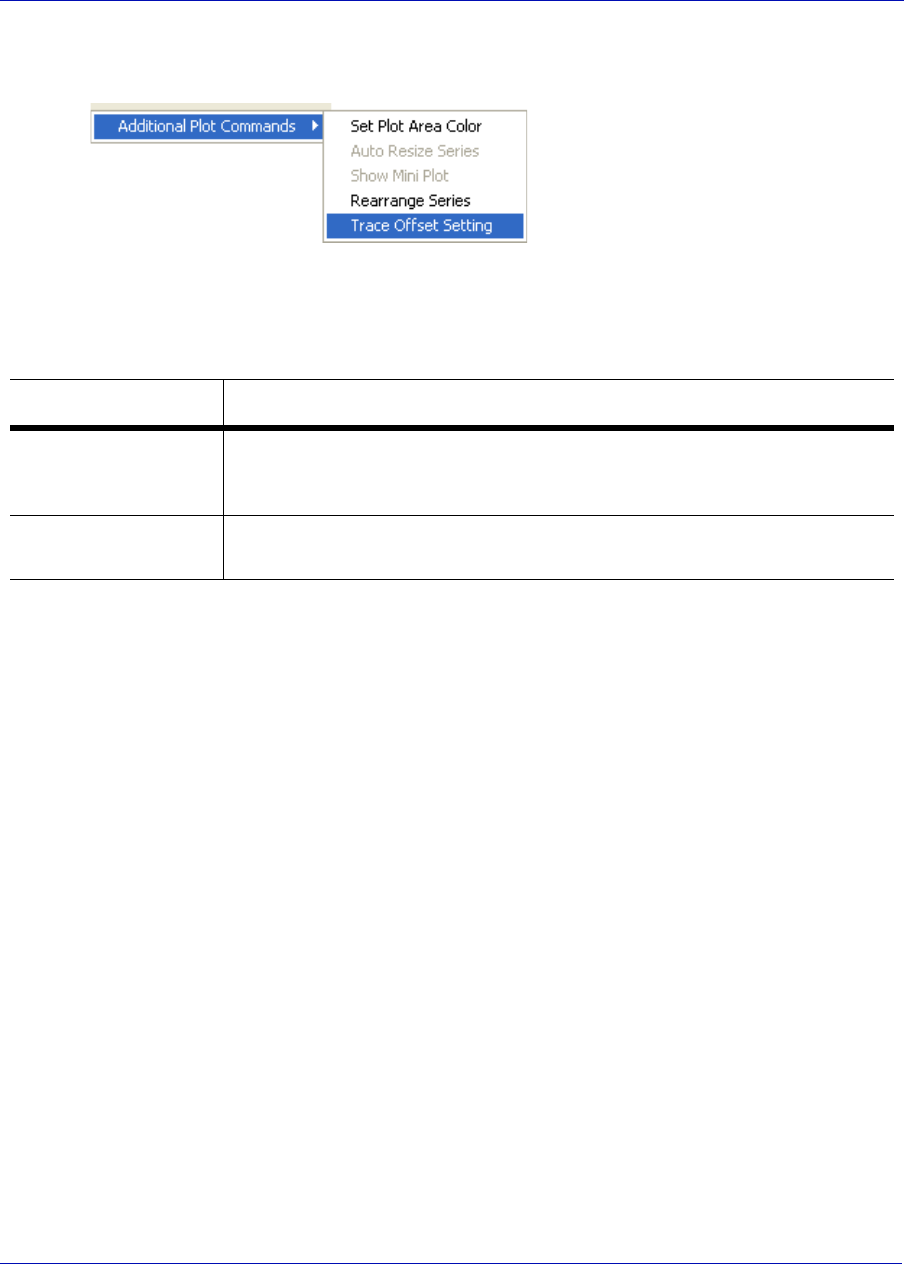
MON20/20 Software for Gas Chromatographs User Manual
OCTOBER 2010 3-9000-745
2-19
2.3.2 Additional plot commands
In addition to the Graph bar,
there are a few other commands
available that allow you to
manipulate the look and feel of
the graph. To access the
additional plot commands
menu, right-click on the Chromatogram Viewer anywhere except on the
graph or the timed event and component data tables. The additional
commands are:
Command Description
Set Plot Area Color Changes the color of the graph’s background. This may be necessary
to make the chromatograms more visible. The default RGB color
values are 236, 233, and 216.
Auto Resize Series Scales down the X-axis and the Y-axis to fit the entire chromatogram
onto the window.
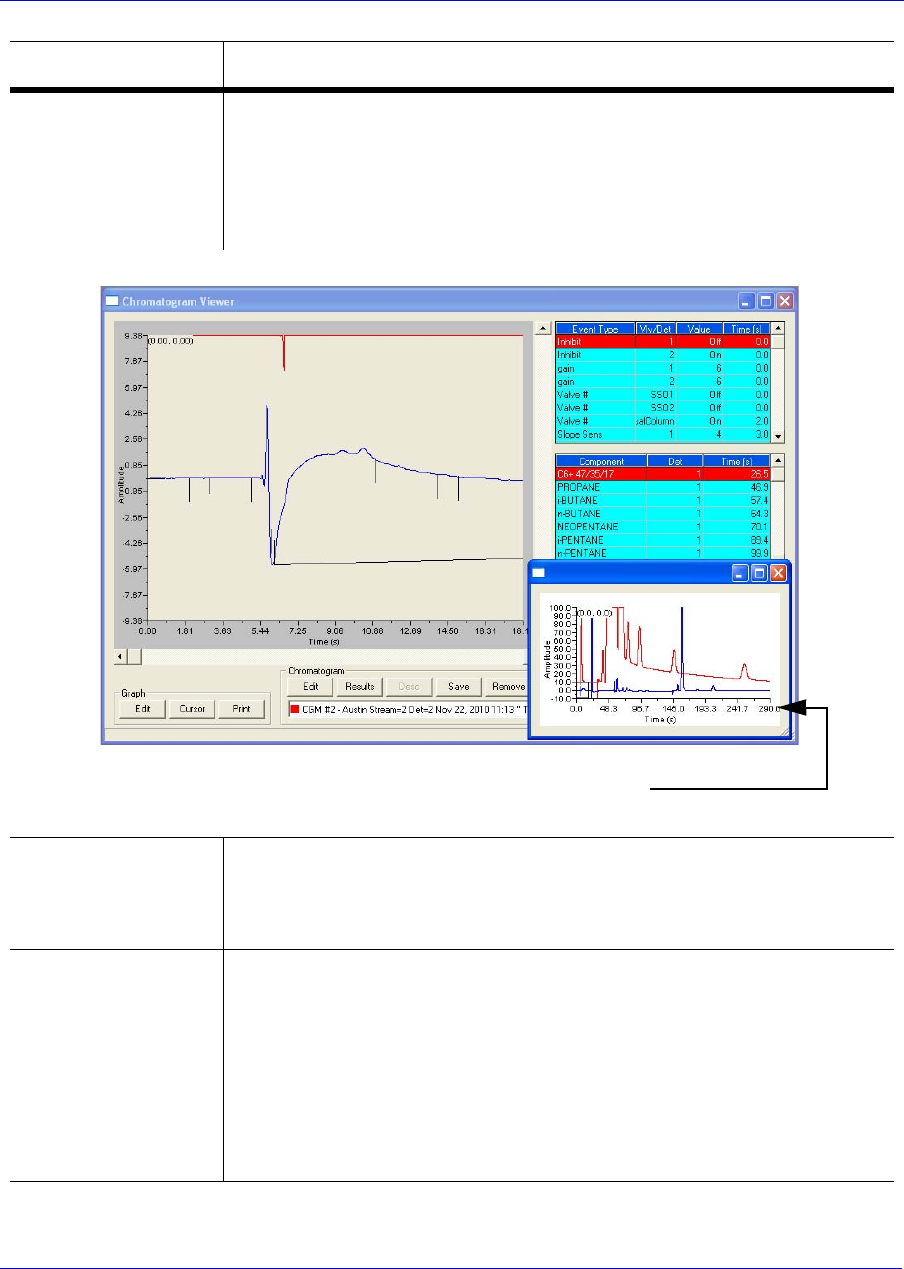
User Manual MON20/20 Software for Gas Chromatographs
3-9000-745 OCTOBER 2010
2-20
Show Mini Plot Toggles the display of a smaller version of the chromatogram in a
separate, resizable window. This allows you to keep an overview of
the entire graph at all times, especially when zoomed in.
This window automatically displays whenever you zoom in on the
original chromatogram.
Rearrange Series Resizes and offsets two or more traces so that they can both be fully
displayed on the graph. To offset a trace means to raise its Y-axis
relative to the Y-axis of the previous trace so that one trace is not
drawn over the other but instead one trace is drawn above the other.
Trace Offset
Settings
Indicates the amount of offset between two or more traces. To offset a
trace means to raise its Y-axis relative to the Y-axis of the previous
trace so that one trace is not drawn over the other but instead one
trace is drawn above the other.
If two detectors are in use, each set of traces can be offset
independently--that is, the traces for one detector can be offset
relative to each other, but independent of the traces from the second
detector.
Command Description
mini-plot window
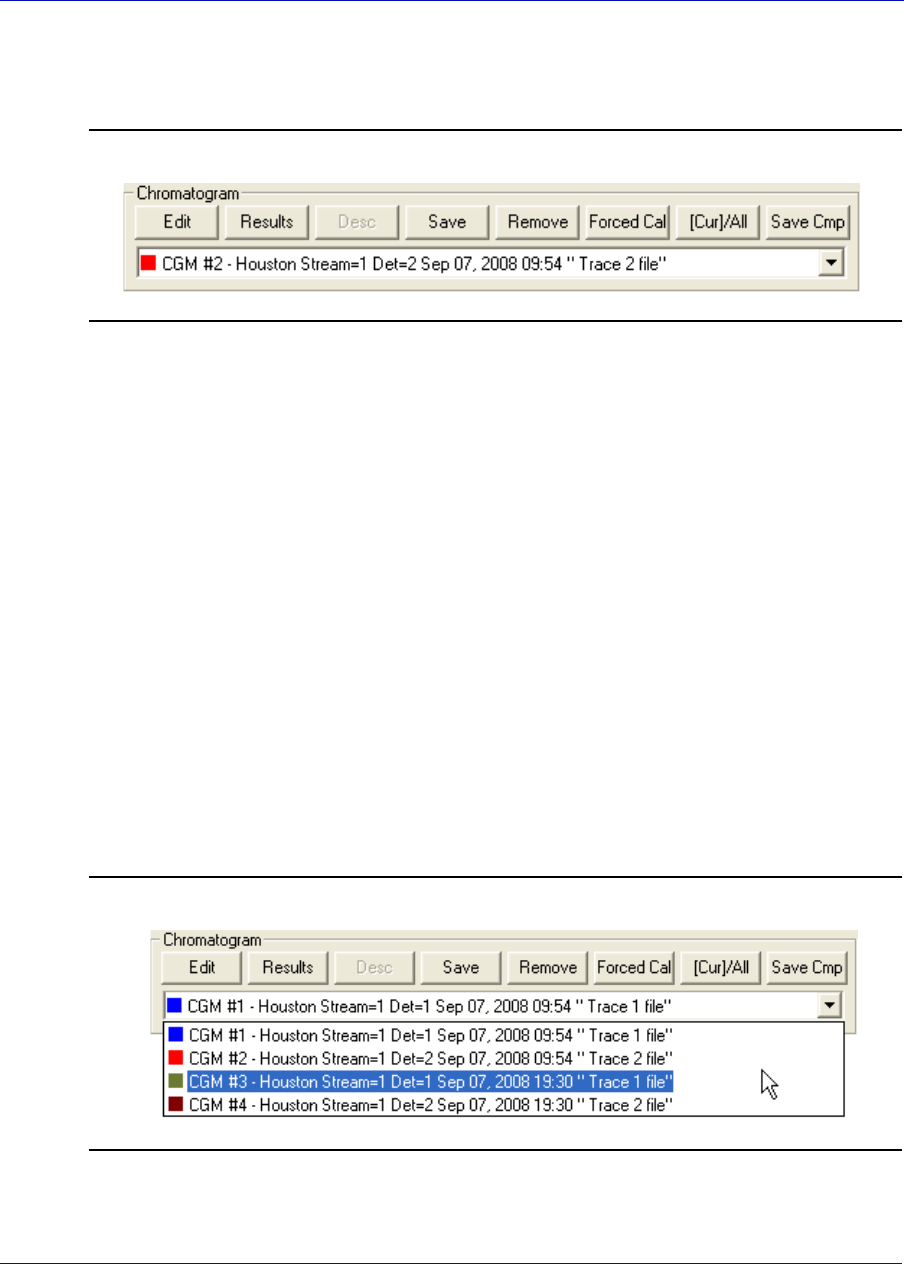
MON20/20 Software for Gas Chromatographs User Manual
OCTOBER 2010 3-9000-745
2-21
2.4 Working with a chromatogram
Figure 2-15. The Chromatogram bar
The Chromatogram bar contains a row of buttons that allows you to
manipulate a single chromatogram. Below the row of buttons is the
chromatogram pull-down menu, which contains a list of all of the
currently displayed chromatograms/traces. Before you can work with a
chromatogram you must first select it from the pull-down menu.
2.4.1 Editing a chromatogram trace
You can use the Edit function to change the X and Y offset values for a
trace, as well as its color. These changes may be necessary to make the
trace more distinguishable from those that surround it, or to align a trace
with a different trace for comparison.
To edit a trace, do the following:
1. Select the trace that you want to edit from the Chromatogram pull-
down menu.
Figure 2-16. Chromatogram pull-down menu
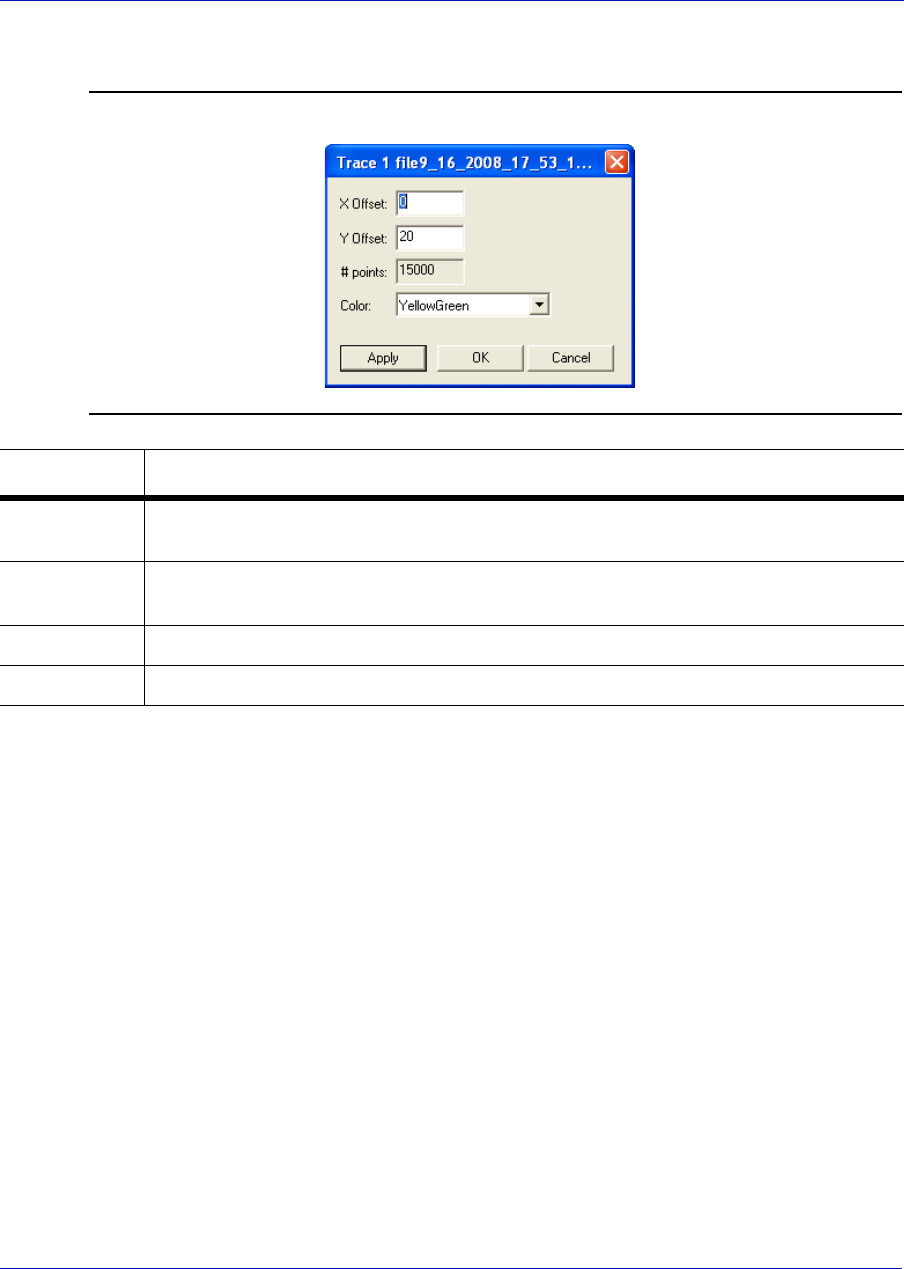
User Manual MON20/20 Software for Gas Chromatographs
3-9000-745 OCTOBER 2010
2-22
2. Click Edit. The Edit Chromatogram dialog appears.
Figure 2-17. The Edit Chromatogram dialog
3. To see how your changes affect the trace, click Apply. To accept your
changes, click OK.
Command Description
X Offset Enter a positive number to move the trace to the right, or a negative number to
move the trace to the left.
Y Offset Enter a positive number to move the trace up, or a negative number to move the
trace down.
# points Number of data points in the trace. This field is read-only.
Color Assigns a color to the trace.
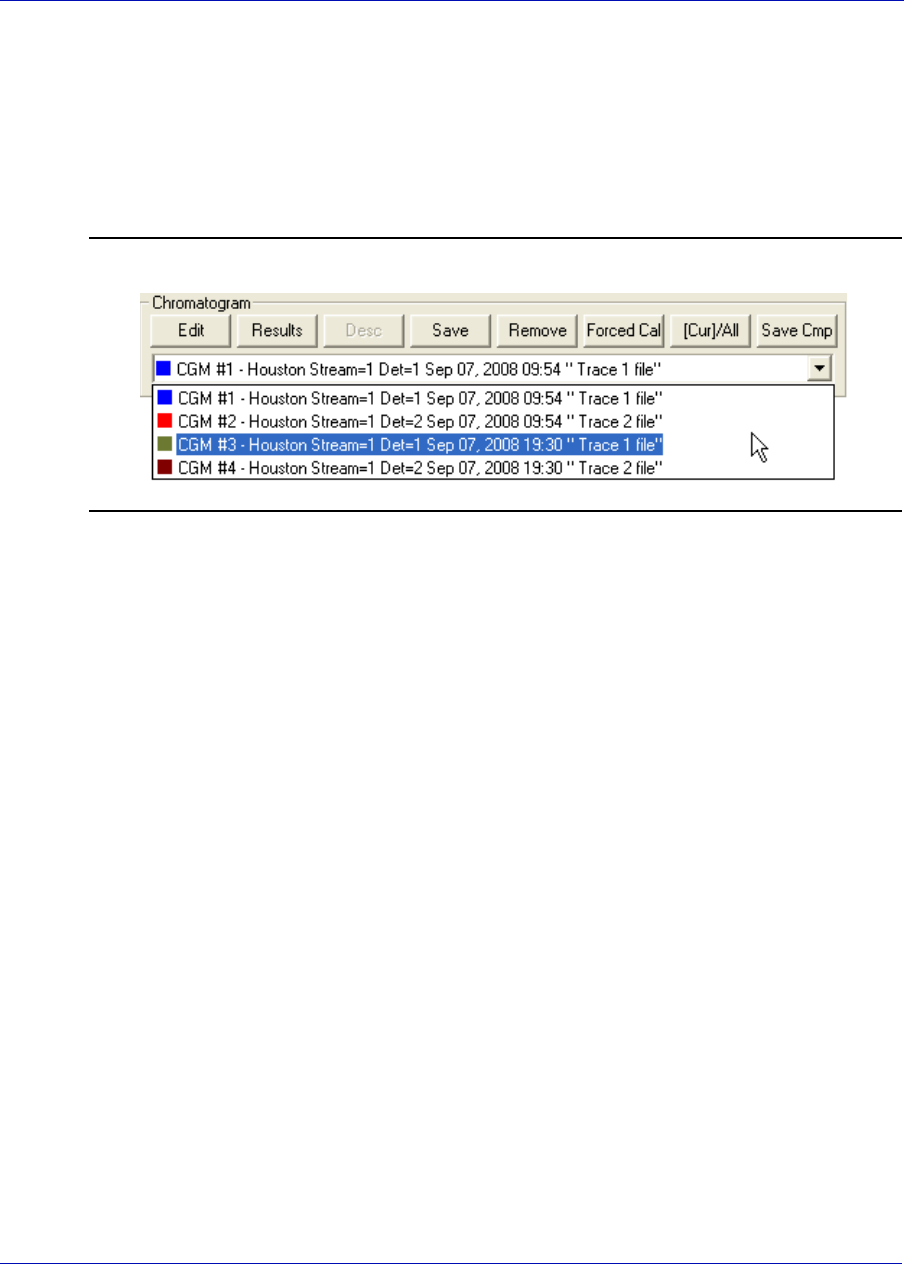
MON20/20 Software for Gas Chromatographs User Manual
OCTOBER 2010 3-9000-745
2-23
2.4.2 Viewing chromatogram results
To display a table of calculation results for a trace, do the following:
1. From the Chromatogram pull-down menu, select the appropriate
trace.
Figure 2-18. Chromatogram pull-down menu
2. Click Results. A window appears displaying the calculation results
for the selected trace.
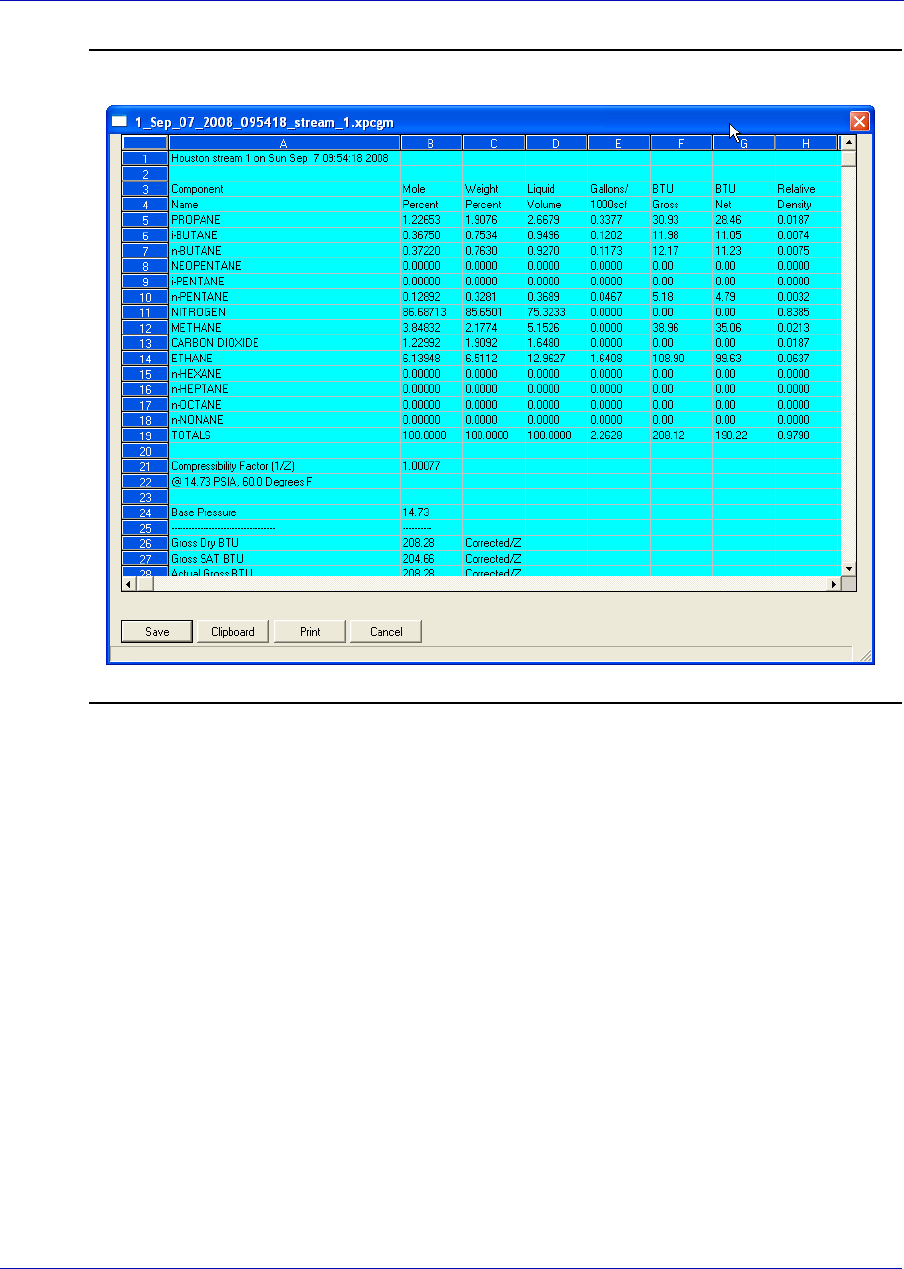
User Manual MON20/20 Software for Gas Chromatographs
3-9000-745 OCTOBER 2010
2-24
Figure 2-19. The results window
• Click Save to save these results in one of the following formats:
tab-delimited (.txt), comma-delimited (.csv), Microsoft Excel (.xls),
HTM (.htm), or XML (.xml).
• Click Clipboard to copy the data to the Windows clipboard, where
it can be pasted into another document.
• Click Print to print a tab-delimited version of the results.
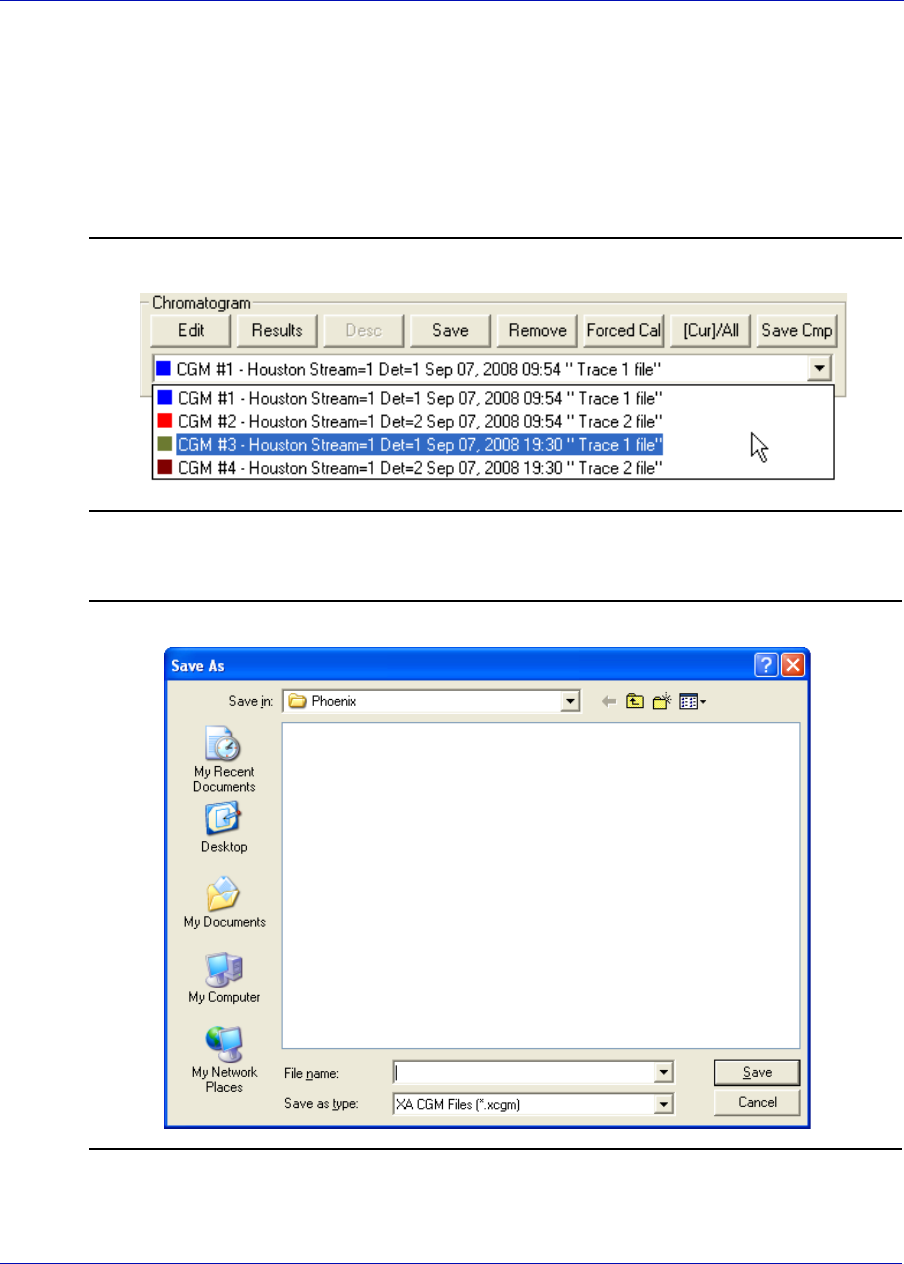
MON20/20 Software for Gas Chromatographs User Manual
OCTOBER 2010 3-9000-745
2-25
2.4.3 Saving a chromatogram trace
To save a trace to disk, do the following:
1. From the Chromatogram pull-down menu, select the trace that you
want to save.
Figure 2-20. Chromatogram pull-down menu
2. Click Save. The Save As window displays.
Figure 2-21. The Save As window
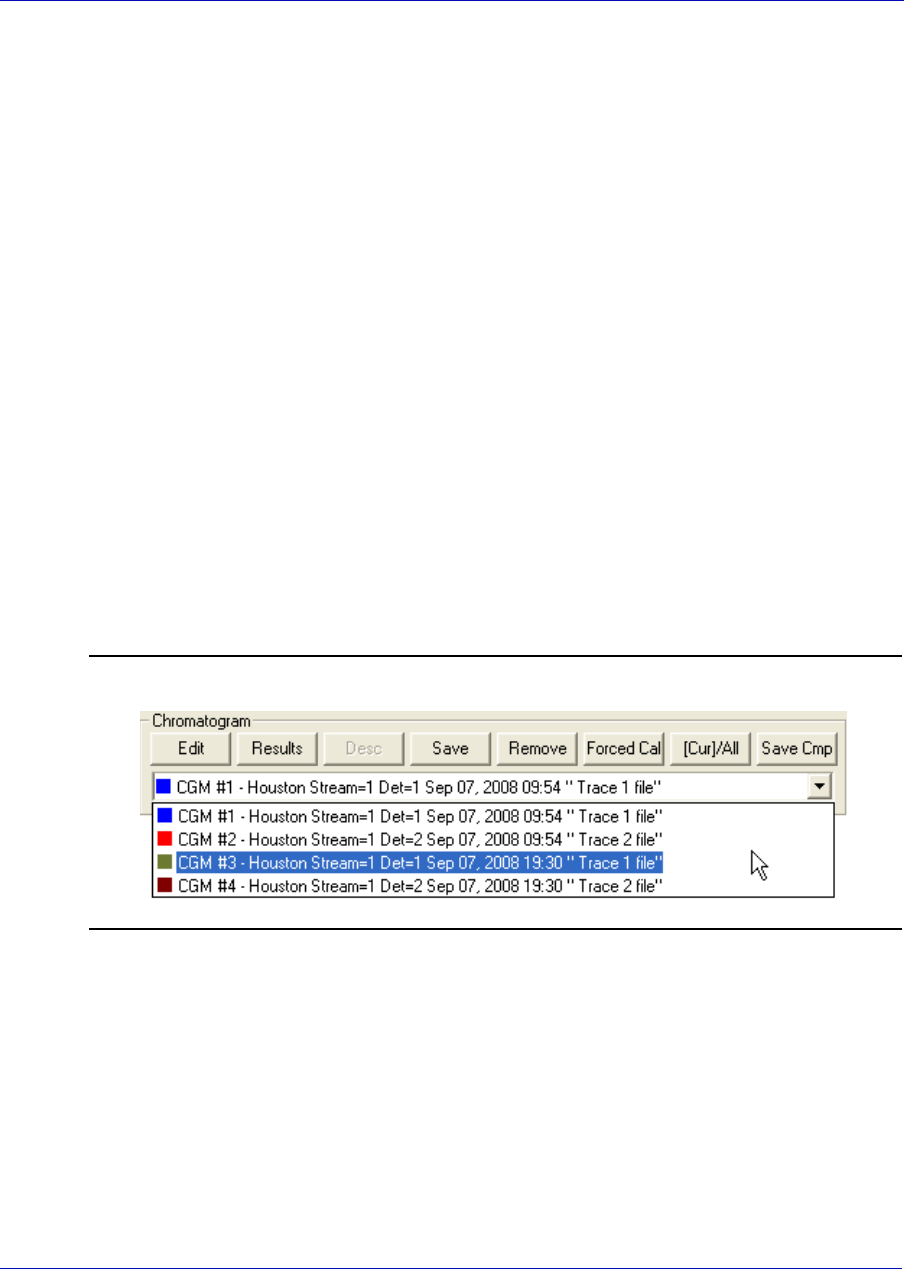
User Manual MON20/20 Software for Gas Chromatographs
3-9000-745 OCTOBER 2010
2-26
3. For convenience the file is given an auto-generated file name that
includes the trace’s creation date and time; however, you can give the
file any name that you choose. Click Save and the specified trace will
be saved.
2.4.4 Removing a chromatogram trace from view
To remove a live trace from the chromatogram window, do one of the
following:
• If you want to remove all live traces, click the View current CGM check
box to uncheck it.
• If you want to remove a single live trace, click the appropriate detector
checkbox beside the View current CGM check box.
To remove a saved or an archived trace from the chromatogram window
and to close the associated .xcgm file, do the following:
1. From the Chromatogram pull-down menu, select the trace that you
want to remove.
Figure 2-22. Chromatogram pull-down menu
2. Click Remove.
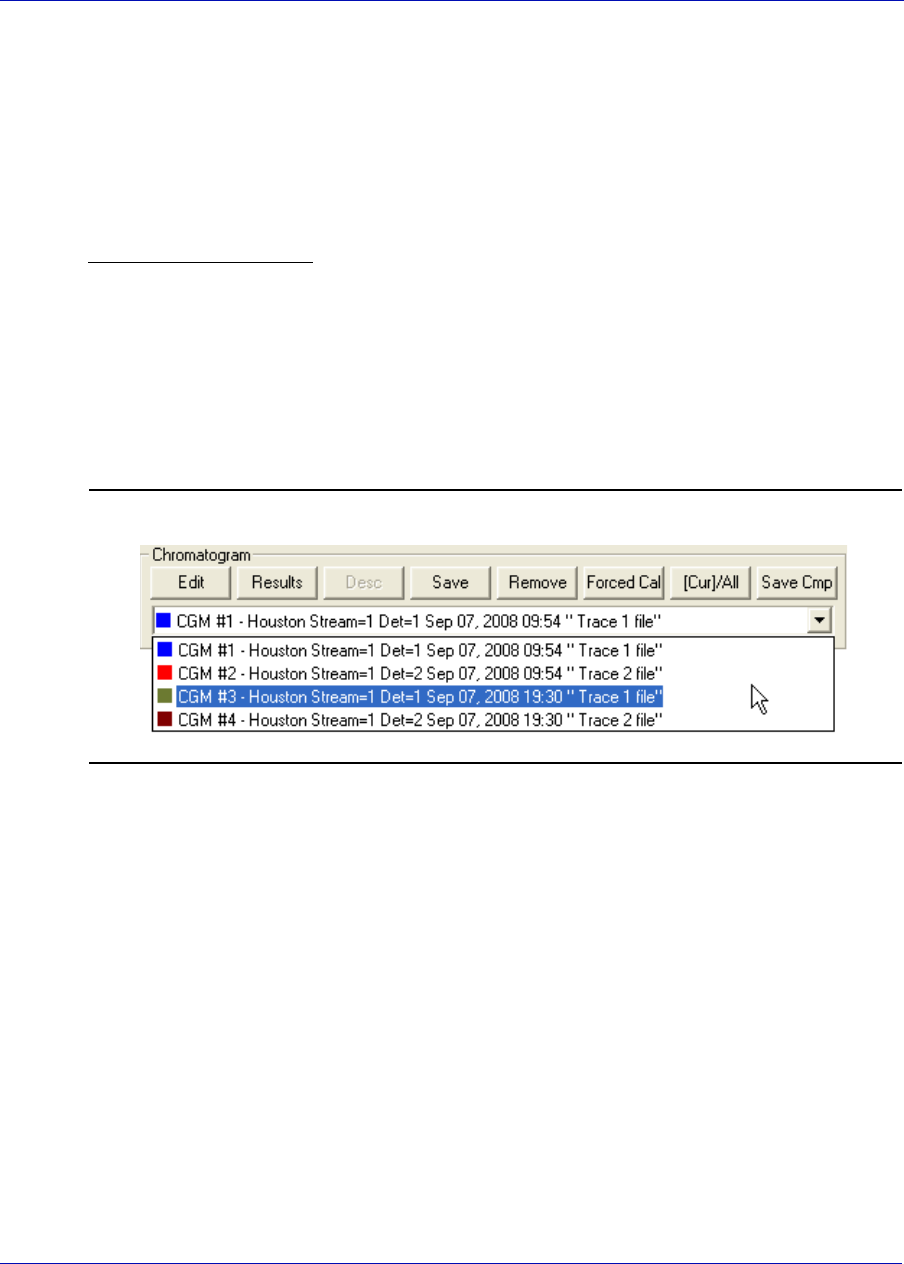
MON20/20 Software for Gas Chromatographs User Manual
OCTOBER 2010 3-9000-745
2-27
2.4.5 Forcing a calibration
The Forced Cal command uses an archived chromatogram’s raw data to
calibrate the GC. The calculation results are stored in the component
data table for the corresponding stream number.
A major benefit of a forced calibration is increased efficiency. Using a
previously validated calibration gas chromatogram removes the necessity
for the GC to perform a calibration and validation run before performing
an analysis.
To perform a forced calibration, do the following:
1. From the Chromatogram pull-down menu, select the trace that you
want to use to calibrate the GC.
Figure 2-23. Chromatogram pull-down menu
2. Click Forced Cal.
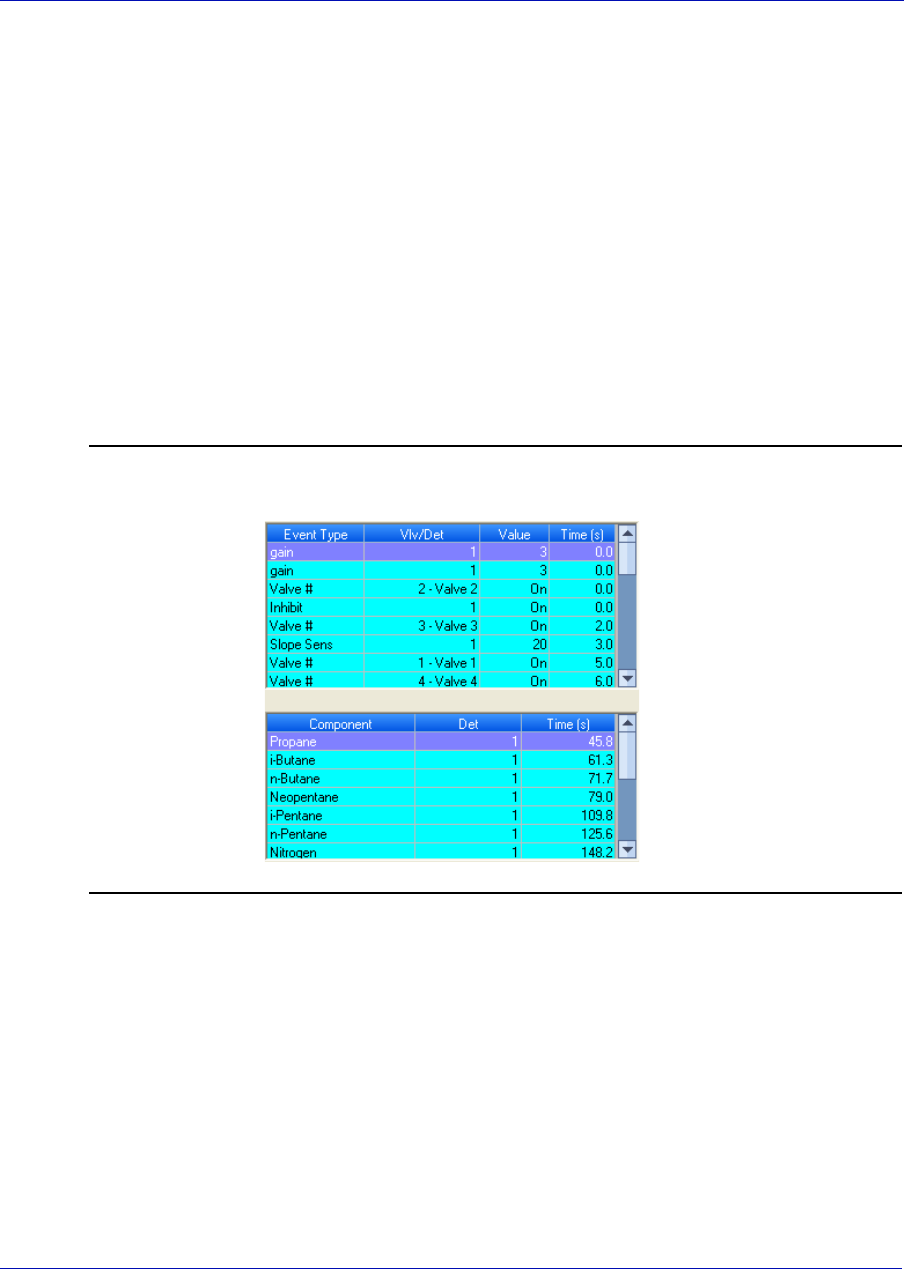
User Manual MON20/20 Software for Gas Chromatographs
3-9000-745 OCTOBER 2010
2-28
2.4.6 Controlling the display of data in the Timed Events and Compo-
nents tables
MON 20/20 can display two levels of information in the Timed Events and
component data tables:
• All timed events and all components for all open chromatograms.
• Timed events and components for the currently selected
chromatogram.
By default, the two tables show only the timed events and components for
the currently selected chromatogram.
Figure 2-24. Timed events and component data tables showing data for a currently
selected trace
To view the data for a different chromatogram, select the trace from the
Chromatogram pull-down menu.
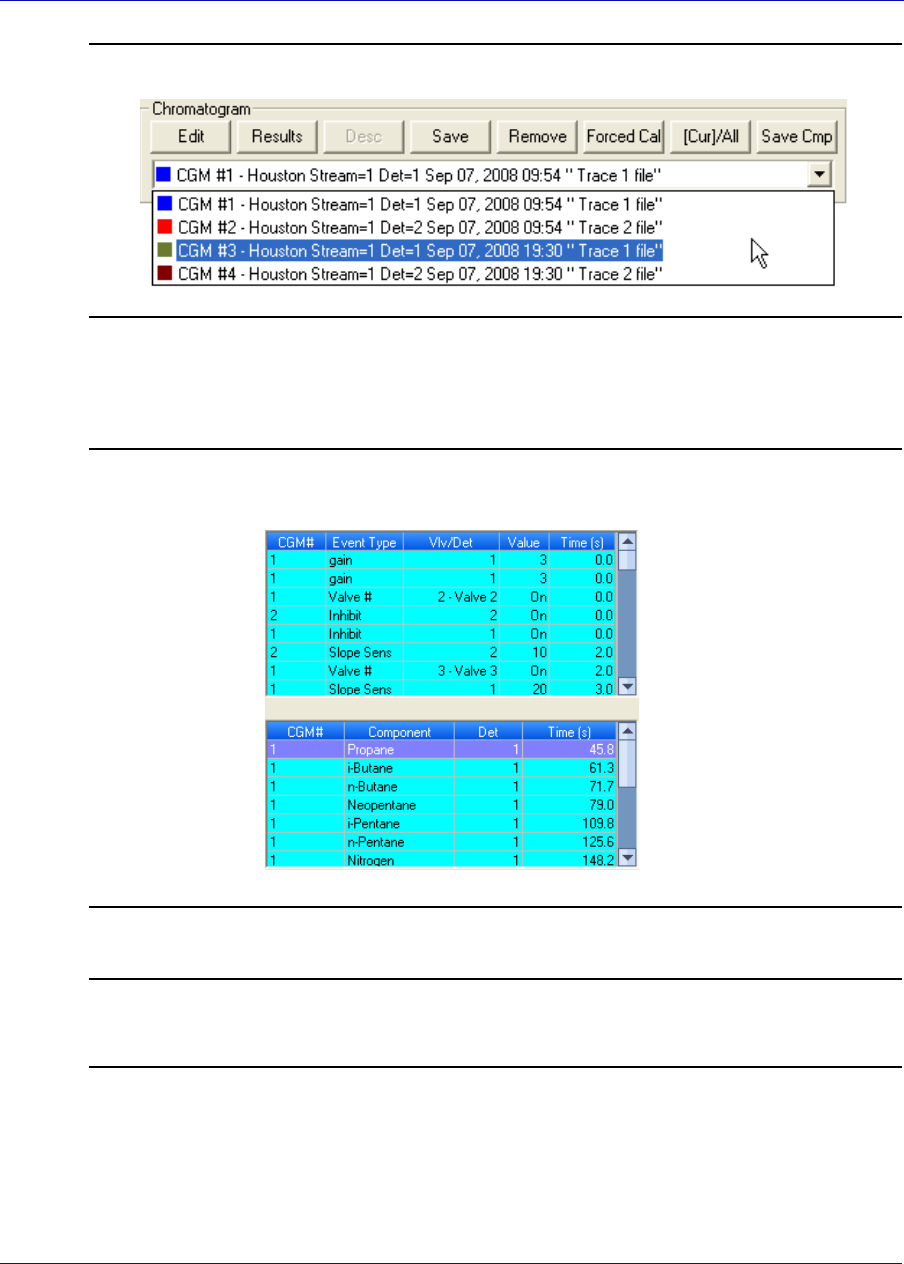
MON20/20 Software for Gas Chromatographs User Manual
OCTOBER 2010 3-9000-745
2-29
Figure 2-25. Chromatogram pull-down menu
To view all timed events and all components for all open chromatograms,
click Cur/All.
Figure 2-26. Timed events and component data tables showing data for all currently
open traces
Note
The brackets ([ ]) on the Cur/All button indicate which mode is being displayed in the
tables.
To toggle back to viewing only the timed events and components for the
currently selected chromatogram, click Cur/All again.

User Manual MON20/20 Software for Gas Chromatographs
3-9000-745 OCTOBER 2010
2-30
2.4.7 Saving a comparison file
A comparison file allows you to save your current view, including all open
chromatograms, for later review and reuse. To save a comparison file, do
the following:
1. Click Save Cmp. The Save As dialog appears.
2. Navigate to the folder in which you want to save the file.
3. For convenience the file is given an auto-generated file name that
includes the current date and time; however, you can give the file any
name that you choose.
4. Click Save.
2.4.8 Opening a comparison file
To open a comparison file, do the following:
1. Click PC File. The Open dialog displays.
2. Select XA CMP Files (*.xcmp) from the Files of type drop-down
menu.
3. Navigate to the folder that contains the comparison file that you want
to open and select the file.
4. Click Open.
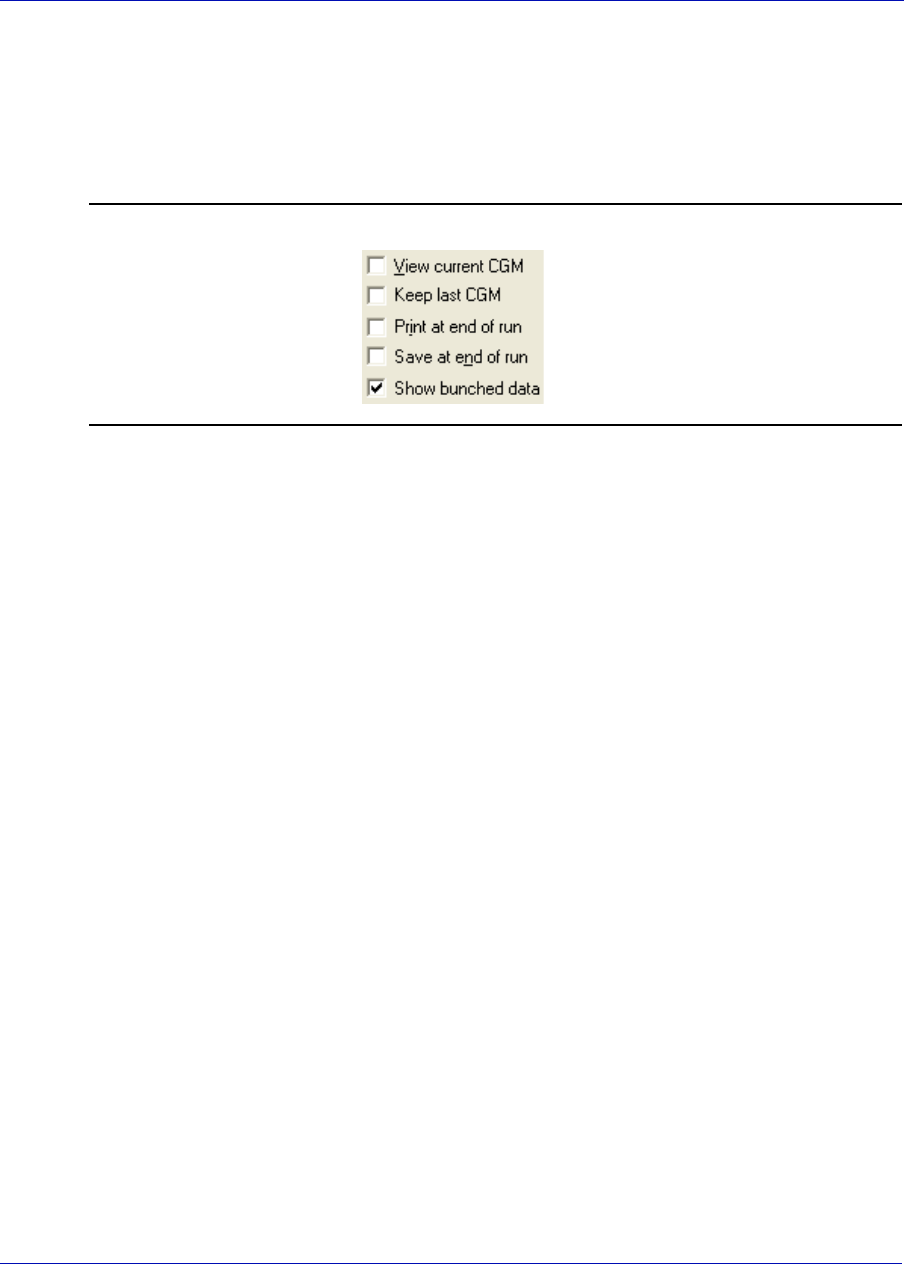
MON20/20 Software for Gas Chromatographs User Manual
OCTOBER 2010 3-9000-745
2-31
2.5 Miscellaneous commands
The series of check boxes to the right of the graph have the following
functions:
Figure 2-27. Miscellaneous options
•Keep last CGM - When viewing a live chromatogram, upon starting a
new run, MON 20/20 keeps the most recently completed
chromatogram on the graph for comparative purposes.
•Print at end of run - Prints the chromatogram to the PC's default
printer at the end of the run and is unchecked by default.
•Save at end of run - Saves the chromatogram to the Data folder at
the end of the run and is unchecked by default.
•Show bunched data - If this box is unchecked, then all of the raw
data points are plotted to the chromatogram window; if this box is
checked, which is the default option, then each point plotted on the
graph represents the average of a group of raw data values. The size
of the data group is determined by the peak width value listed in the
Timed Events table.
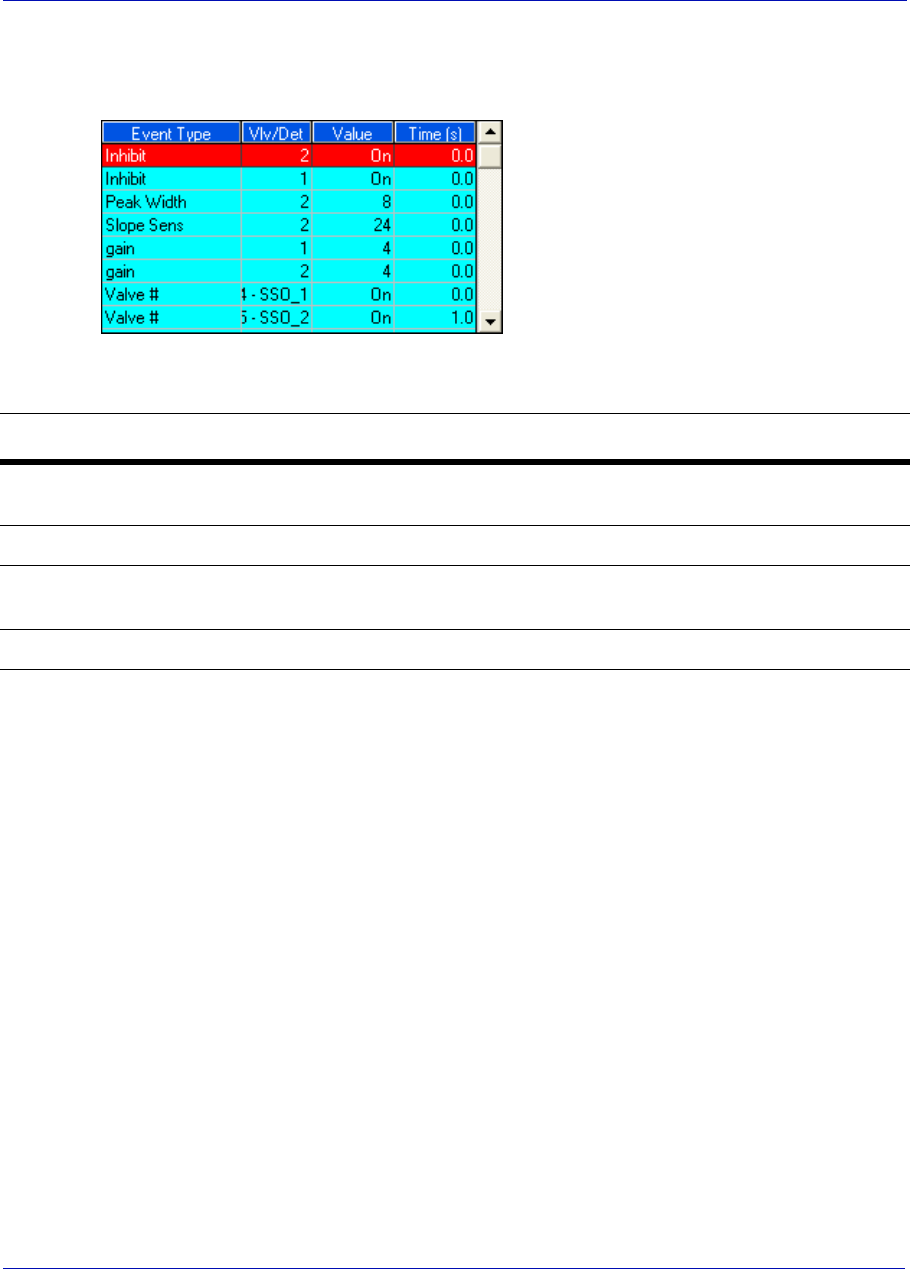
User Manual MON20/20 Software for Gas Chromatographs
3-9000-745 OCTOBER 2010
2-32
2.5.1 Working with the Timed Events table
The Chromatogram Viewer
displays a compact version of the
Timed Events table, located on
the upper right side of the
window. The events displayed in
the table are sorted by time. See
“Managing timed events” on
page 4-17 for more information.
The Timed Event table displays the following data for each event:
Timed events from live or archived chromatograms can be edited from the
Chromatogram Viewer by right-clicking on the Timed Events table. The
changes will affect the next analysis run. The following commands are
also available by right-clicking on the table:
•Auto Scroll - When checked, if a live trace has been selected from the
Chromatogram pull-down menu, the Timed Event table will keep its
focus on the event closest in time by highlighting that event in dark
blue.
•Save Sheet - Allows you to save the table to the PC in one of the
following formats: TXT, CSV, XLS, HTM, or XML.
•Copy to Clipboard - Allows you to copy the table to the clipboard .
This data can be pasted into another application such as Microsoft
Word or Microsoft Excel.
•Print Sheet - Allows you to print the table to your default printer.
Name Description
Event Type The type of timed event. These events are mapped to the Time Events window
and include Valve, Integration and Gain events.
Vlv/Det Identifies which valve or detector is involved in the event.
Value Setting of the event; for example, a valve was turned ON, or the gain was set to
4.
Time (s) The number of seconds into the cycle that the event occurred or will occur.

MON20/20 Software for Gas Chromatographs User Manual
OCTOBER 2010 3-9000-745
2-33
2.5.2 Editing Timed Events from the Time Events window
To launch the Timed Events dialog directly, right-click on the
Chromatogram Viewer’s Timed Events table and select Edit Timed
Events Table. The Timed Events dialog displays. See “Managing timed
events” on page 4-17 for more information.
2.5.3 Editing Timed Events from the Chromatogram Viewer
To edit timed events from the Chromatogram Viewer, do the following:
1. From the Chromatogram pull-down menu, select the chromatogram
whose timed events you want to edit.
2. Depending on the type of event that you want to edit, do the following:
-To edit valve events, right-click on the Timed Events table and
select Edit Timed Events (Valve Events). The Valve Events
table from the Timed Events dialog displays. See “Editing valve
events” on page 4-20 for more information.
-To edit integration events, right-click on the Timed Events table
and select Edit Timed Events (Integration Events). The
Integration Events table from the Timed Events dialog displays.
See “Editing integration events” on page 4-22 for more
information.
-To edit gain events, right-click on the Timed Events table and
select Edit Timed Events (Gain Events). The Spectrum Gain
Events table from the Timed Events dialog displays. See “Editing
spectrum gain events” on page 4-26 for more information.
3. To remove a selected event from the table, right-click on the event and
select Delete Row.
Note
This option is only available while in edit mode.
User Manual MON20/20 Software for Gas Chromatographs
3-9000-745 OCTOBER 2010
2-34
4. To insert an event above the currently select event, right-click on the
table and select Insert before. To insert an event below the
currently select event, right-click on the table and select Insert after.
The new row will be added. The options available for configuring the
new event depends upon which edit mode you are in—Valve,
Integration, or Gain.
Note
These options are only avialable while in edit mode.
5. To save your changes, right-click on the table and select Save
Changes. The changes will affect the next analysis run. To return to
the Timed Events table without saving your changes, select Discard
Changes.
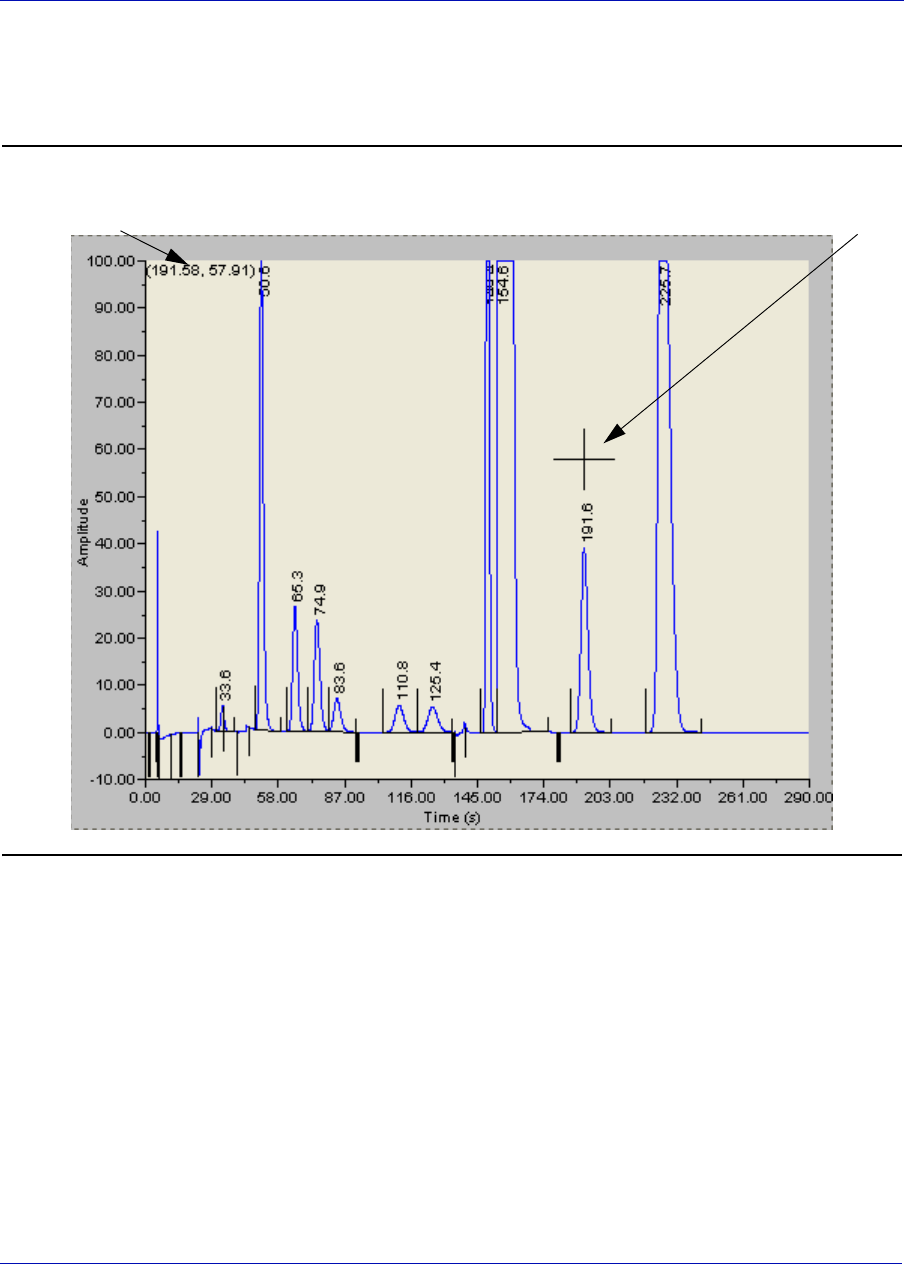
MON20/20 Software for Gas Chromatographs User Manual
OCTOBER 2010 3-9000-745
2-35
2.5.4 Using the Chromatogram Viewer’s cursor to update a Timed
Event
Figure 2-28. Chromatograph cursor
The Chromatogram Viewer has its own cursor that can be displayed by
double-clicking within the boundaries of the graph. Once the cursor is
displayed, it can be dragged to any point on the graph.
As the cursor moves across the chromatogram, the Timed Event table
automatically scrolls to the event that corresponds to the cursor’s
coordinates.
The cursor can be useful if you want to change a timed event based on the
data displayed by the chromatogram.
cursor
cursor coordinates
User Manual MON20/20 Software for Gas Chromatographs
3-9000-745 OCTOBER 2010
2-36
To update a timed event based on the location of the Chromatogram
Viewer’s cursor, do the following:
1. Select the live or archived trace that you want to use as the source for
changing the timed event.
2. Double-click on the graph to display the cursor. The cursor’s
coordinates display in the upper left corner of the graph. The x-
coordinate represents the analysis time in seconds. With this
information in mind, drag the cursor to the desired location.
Note
To toggle the cursor’s size between coarse movement (less accurate) and fine movement
(more accurate), click Cursor from the Graph bar.
3. Go to the Time Events table and right-click on the event.
4. Select Update Time from Cursor. The event’s time will be changed
to match the cursor’s time (x-coordinate).
5. To save your changes, right-click on the table and select Save
Changes. The changes will affect the next analysis run. To return to
the Timed Events table without saving your changes, select Discard
Changes.
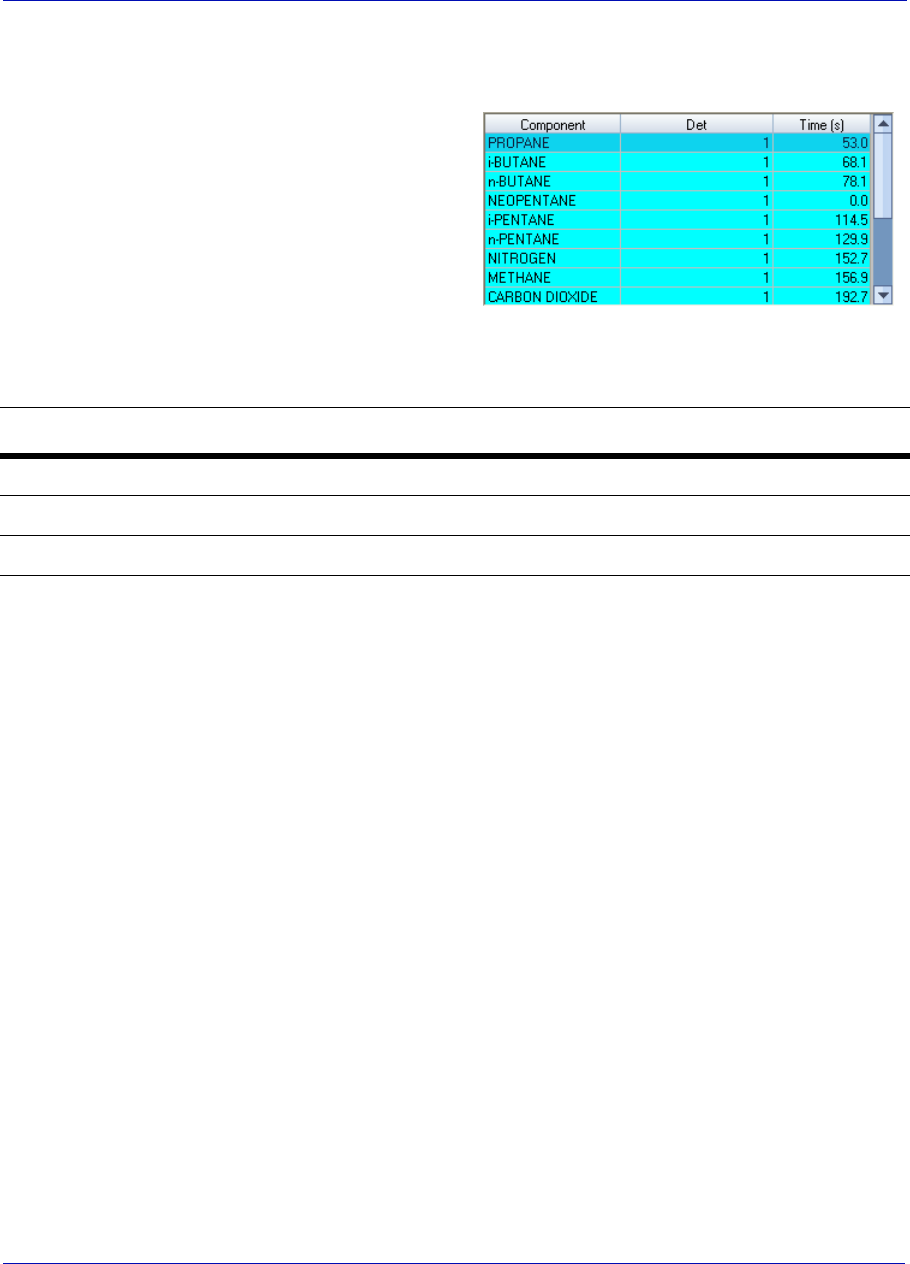
MON20/20 Software for Gas Chromatographs User Manual
OCTOBER 2010 3-9000-745
2-37
2.5.5 Working with the Component Data Table
The Chromatogram Viewer
displays a compact version of the
Component Data table beneath
the Timed Events table. See
“Managing Component Data
Tables” on page 4-5 for more
information.
The Component Data table
displays the following data for each component:
Retention times for components from live or archived chromatograms can
be edited from the Chromatogram Viewer by right-clicking on the
Component Data table. The changes will affect the next analysis run.
The following commands are also available by right-clicking on the table:
•Auto Scroll - When checked, if a live trace has been selected from the
Chromatogram pull-down menu, the Component Data table will keep
its focus on the component closest in time by highlighting that it in
dark blue.
•Save Sheet - Allows you to save the table to the PC in one of the
following formats: TXT, CSV, XLS, HTM, or XML.
•Copy to Clipboard - Allows you to copy the table to the clipboard .
This data can be pasted into another application such as Microsoft
Word or Microsoft Excel.
•Print Sheet - Allows you to print the table to your default printer.
Name Description
Componet The name of the component.
Det Identifies the detector associated with the component.
Time (s) The retention time for the component.
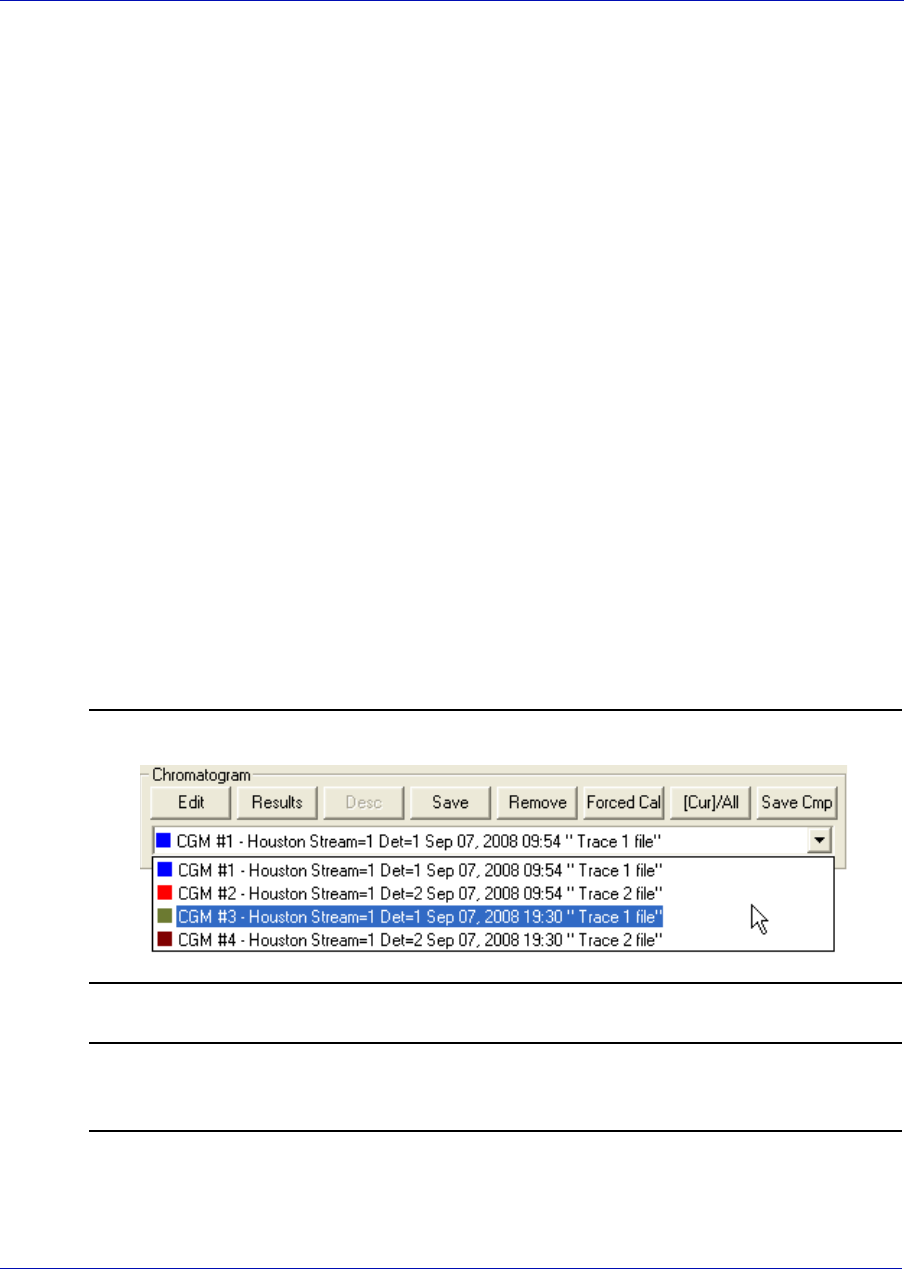
User Manual MON20/20 Software for Gas Chromatographs
3-9000-745 OCTOBER 2010
2-38
2.5.6 Editing retention times from the Chromatogram Viewer
To edit the retention time for a component, do the following:
1. Right-click on the Component Data table and select Edit Retention
Times. The Ret column turns white, indicating that its cells are
editable.
2. Click on the Ret cell for the component that you want edit, and enter a
new retention time value, in seconds. The value must be less than the
Analysis time.
3. To save your changes, right-click on the table and select Save
Changes. The changes will affect the next analysis run. To return to
the Component Data table without saving your changes, select
Discard Changes.
2.5.7 Viewing raw data
Use the Raw Data button to display the Raw Data table for the selected
trace.
1. Use the Chromatogram pull-down menu to select a specific trace.
Figure 2-29. Chromatogram pull-down menu
Note
Even though you are selecting a trace, the data that is displayed will be fore the
chromatogram, which may include more than one trace.
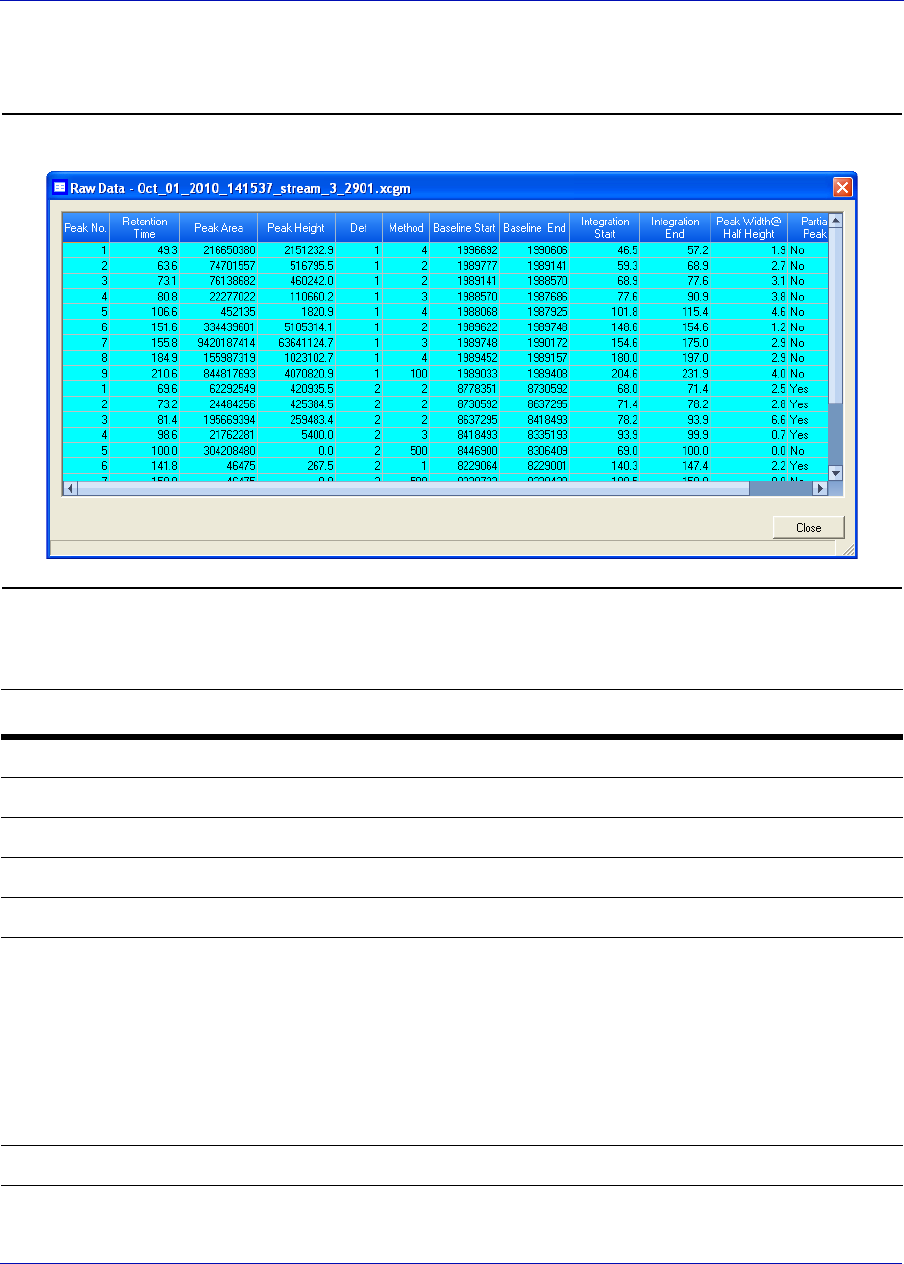
MON20/20 Software for Gas Chromatographs User Manual
OCTOBER 2010 3-9000-745
2-39
2. Click Raw Data. The Raw Data window displays and shows the raw
data for the selected chromatogram.
Figure 2-30. The Raw Data window
The following data displays for each peak from the trace:
Name Description
No. Numerical identifier for the peak, listed by the order of discovery.
Ret Time Time, in seconds, that the component eluted.
Peak Area The area under the peak.
Peak Height The maximum height of the peak.
Det The detector associated with the peak.
Method Method of peak detection. Options are:
• 1 (Baseline)
• 2 (Fused Peak)
• 3 (Last Fused Peak)
•4 (Tangent Skim)
• 100 (Inhibit)
• 300 (Forced Integration)
• 500 (Summation)
Integ. Start Time, in seconds, when integration started.
User Manual MON20/20 Software for Gas Chromatographs
3-9000-745 OCTOBER 2010
2-40
2.6 Setting the gas chromatograph’s date and time
When MON 20/20 connects to a gas chromatograph, the Status Bar
displays the gas chromatograph’s date and time.
Note
The date and time displayed for the GC may be different from the user’s date and time,
depending on the physical location of the GC.
To set the gas chromatograph’s date and time, do the following:
1. Select View/Set Date Time... from the Chromatograph menu. The
View/Set Date Time window displays.
Integ. Stop Time, in seconds, when integration stopped.
Peak Width Half Height The width of the peak taken at half of the peak’s height.
Is Partial Peak If Y, then the Partial Peak value is used in the summation
calculation; if N, then the Partial Peak value is not used in the
summation calculation.
Name Description
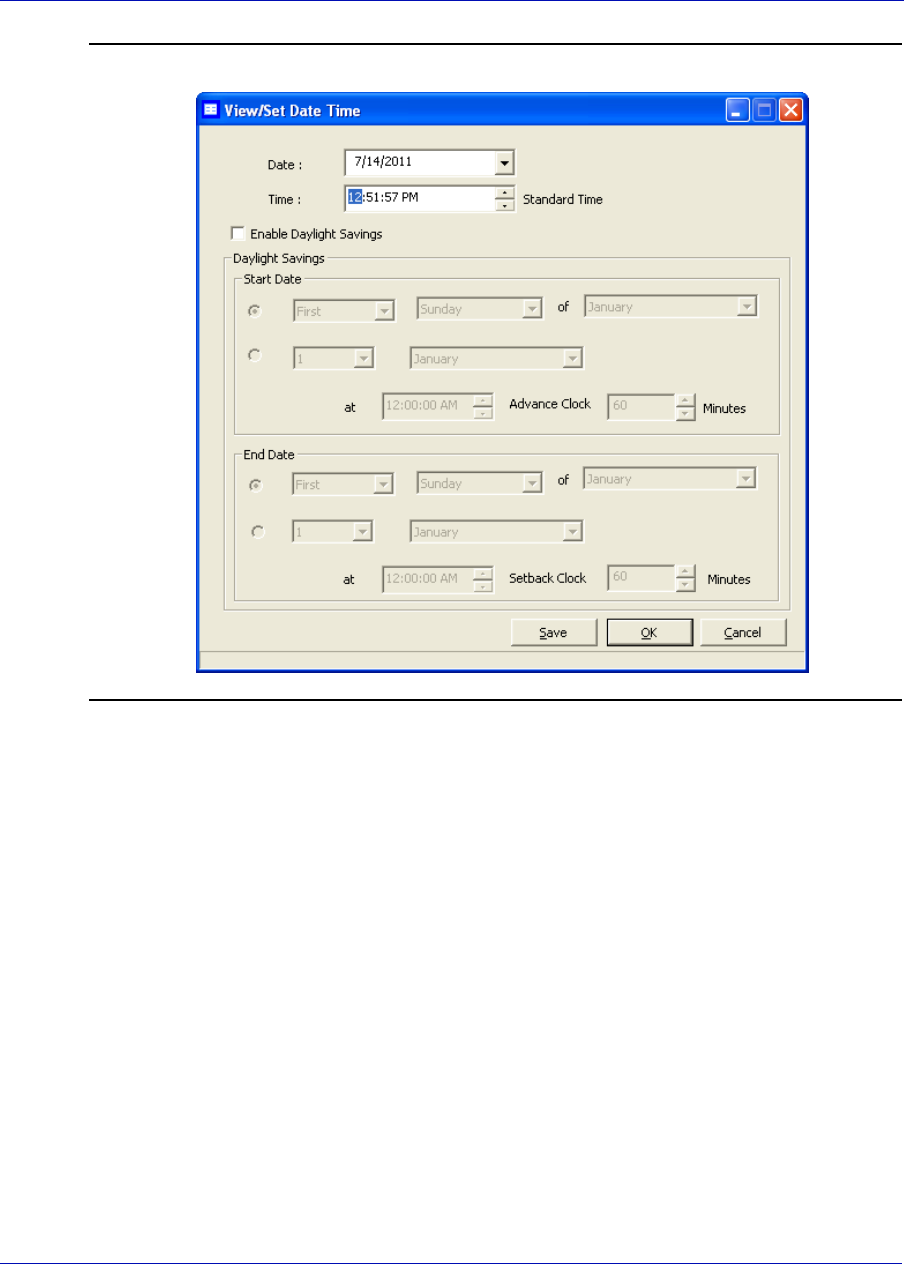
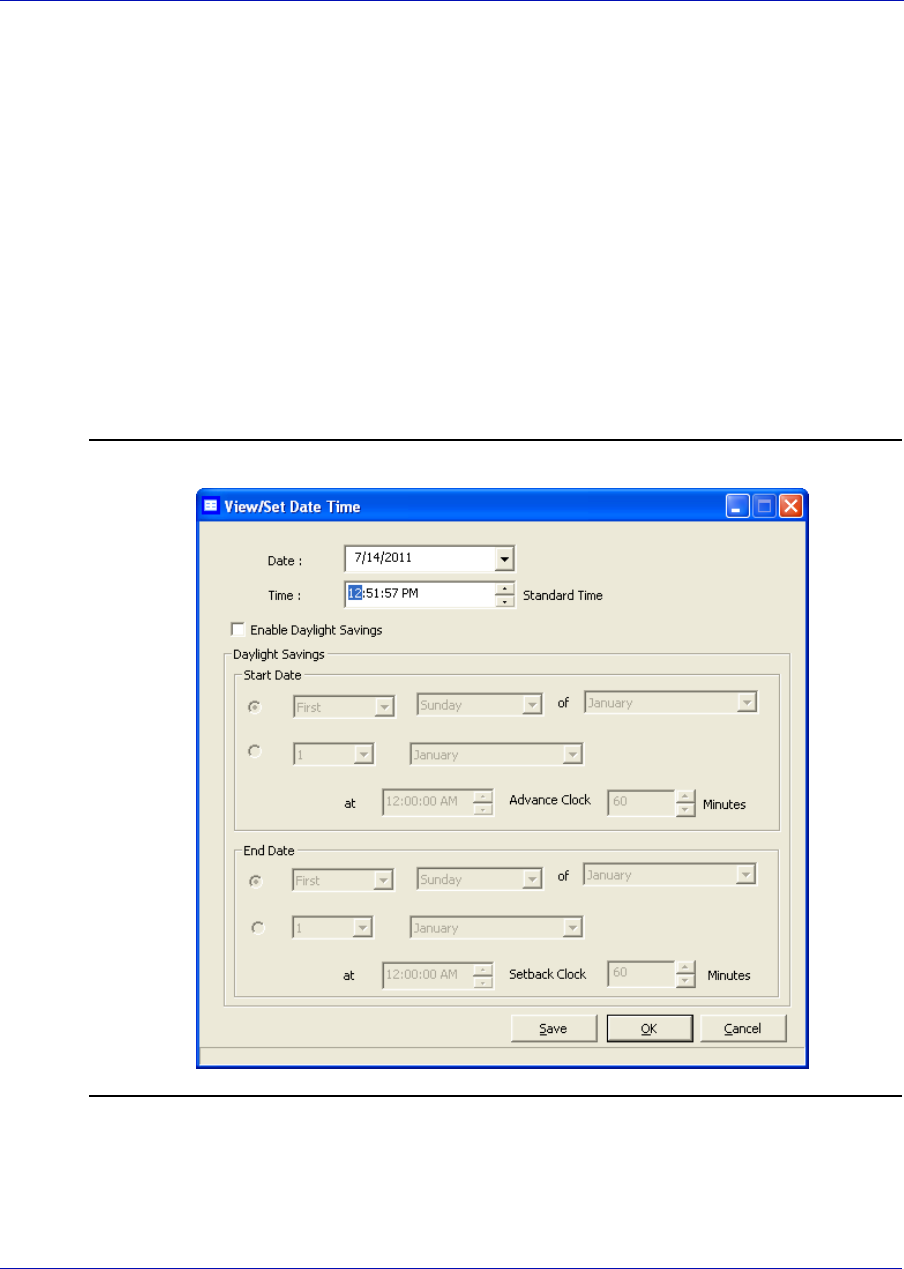
User Manual MON20/20 Software for Gas Chromatographs
3-9000-745 OCTOBER 2010
2-42
2.6.1 Adjusting daylight savings
Daylight savings time is the practice of temporarily advancing clocks so
that afternoons have more daylight and mornings have less. Typically
clocks are adjusted forward one hour near the start of spring and are
adjusted backward in autumn. Since the use of daylight savings time is
not universal, you have the option of enabling or disabling it in MON 20/
20.
To configure MON 20/20 to use daylight savings time, do the following:
1. Select View/Set Date Time... from the Chromatograph menu. The
View/Set Date Time window displays.
Figure 2-32. The View/Set Date Time window
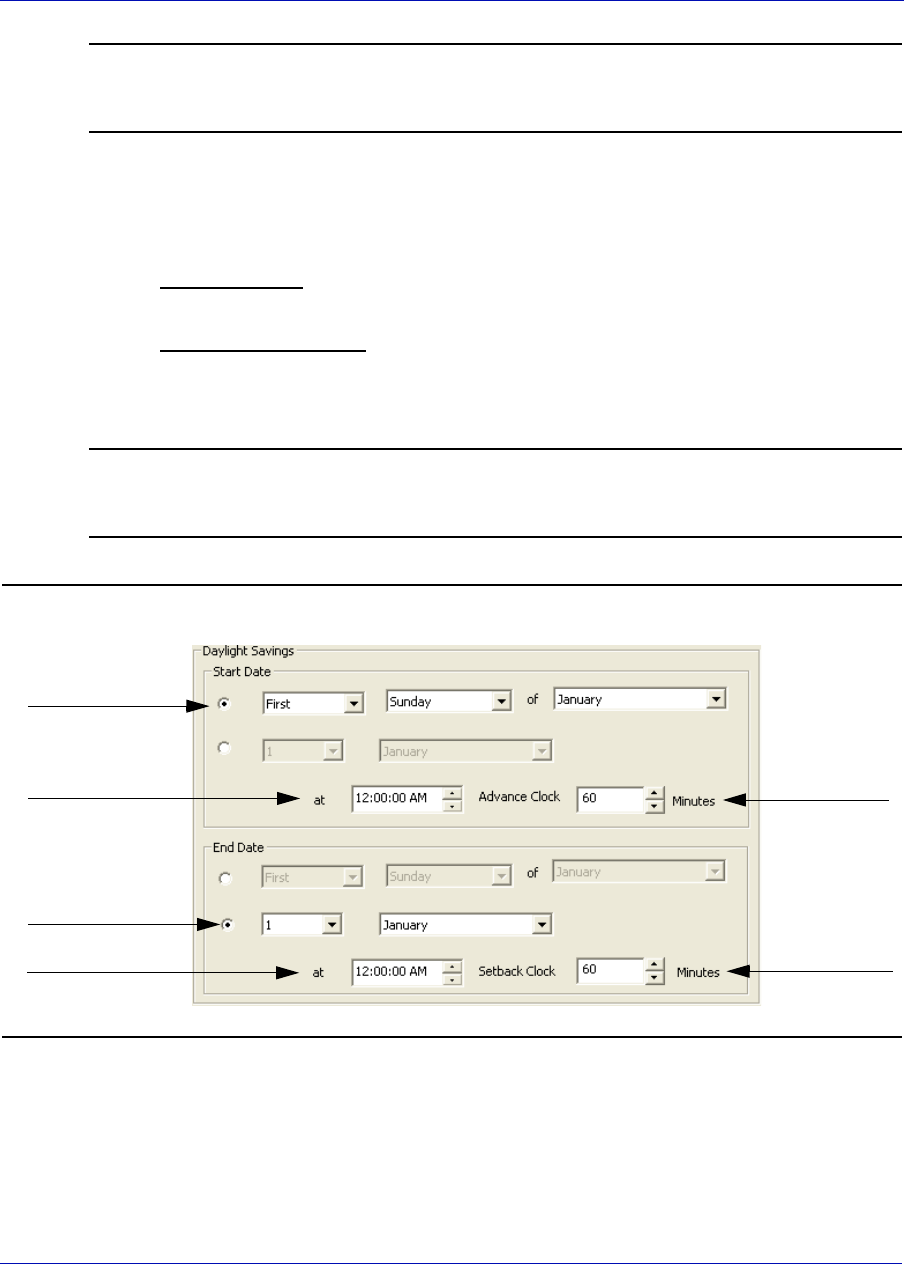
MON20/20 Software for Gas Chromatographs User Manual
OCTOBER 2010 3-9000-745
2-43
Note
Make sure the GC is set to the current date and time before enabling the daylight
savings feature.
2. Click the Enable Daylight Savings checkbox. The Daylight Savings
section will be enabled, giving you the following two options for setting
the start and end times for daylight savings:
• Week format. You can specify on which week day, of what week,
and of what month DST to start and end.
• Month/Day format. You can specify the exact day of the month and
the month number for which you want daylight savings to start
and end.
Note
These formats can be used interchangeably; for example, the Week format can be used
to specify the start date, and the Month/Day format can be used to specify the end date.
Figure 2-33. The Daylight Savings options
3. Set the start date for daylight savings time.
4. Set the start time and the advance time.
Week format
Start time Advance time
Set back time
Month/day time
End time
User Manual MON20/20 Software for Gas Chromatographs
3-9000-745 OCTOBER 2010
2-44
5. Set the end date for daylight savings time.
6. Set the end time and the setback time.
7. To implement your changes without closing the View/Set Date Time
window, click Save. To implement your changes and close the View/
Set Date Time window, click OK.
Note
Daylight savings time should be configured each time the feature is enabled; thereafter,
each year MON 20/20 will automatically compute the start and end times based on the
initial configuration.
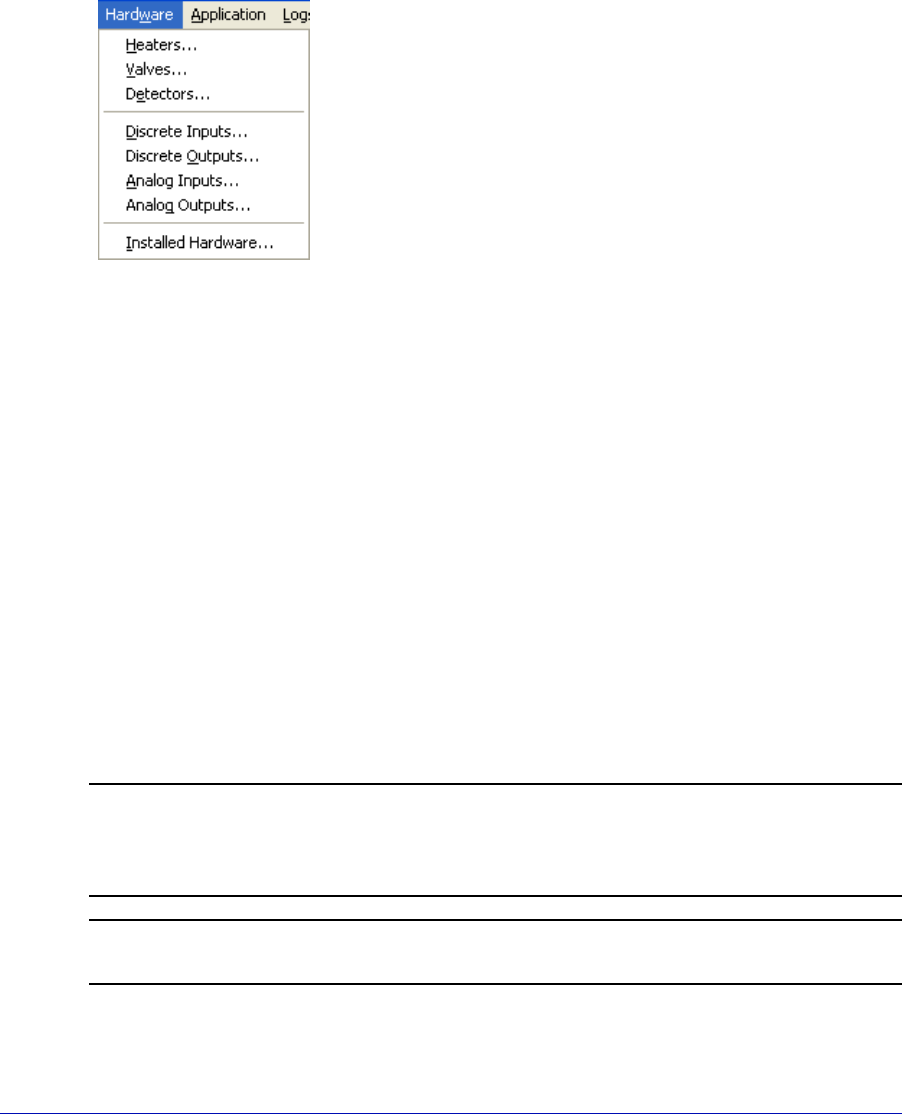
3-1
Section 3: Using the hardware functions
Many of a gas chromatograph’s hardware
components—such as its heaters, valves, and
discrete outputs—can be easily managed through
MON 20/20.
This chapter shows you how to view and
administer each of a gas chromatograph’s major
hardware components.
This chapter also shows you how to view an
inventory of all of a gas chromatograph’s installed
hardware components.
3.1 Controlling the temperature of the gas chromato-
graph’s heaters
By selecting Heaters... from the Hardware menu, you can set a heater’s
desired temperature or fix its power output.
Each heater can be set to one of the following modes:
•Auto - Allows you to set the desired tempature for the heater.
•Fixed On - Allows you to set the power output for the heater without
regard to temperature.
•Not Used - Removes the heater from service.
Note
This window contains a hidden column labelled Physical Name. For more information
about this column and how to display it, see “Viewing the Physical Name column” on
page 1-38.
Note
Typically, Heater 1 is the “high hat” heater, and Heater 2 is the column heater.
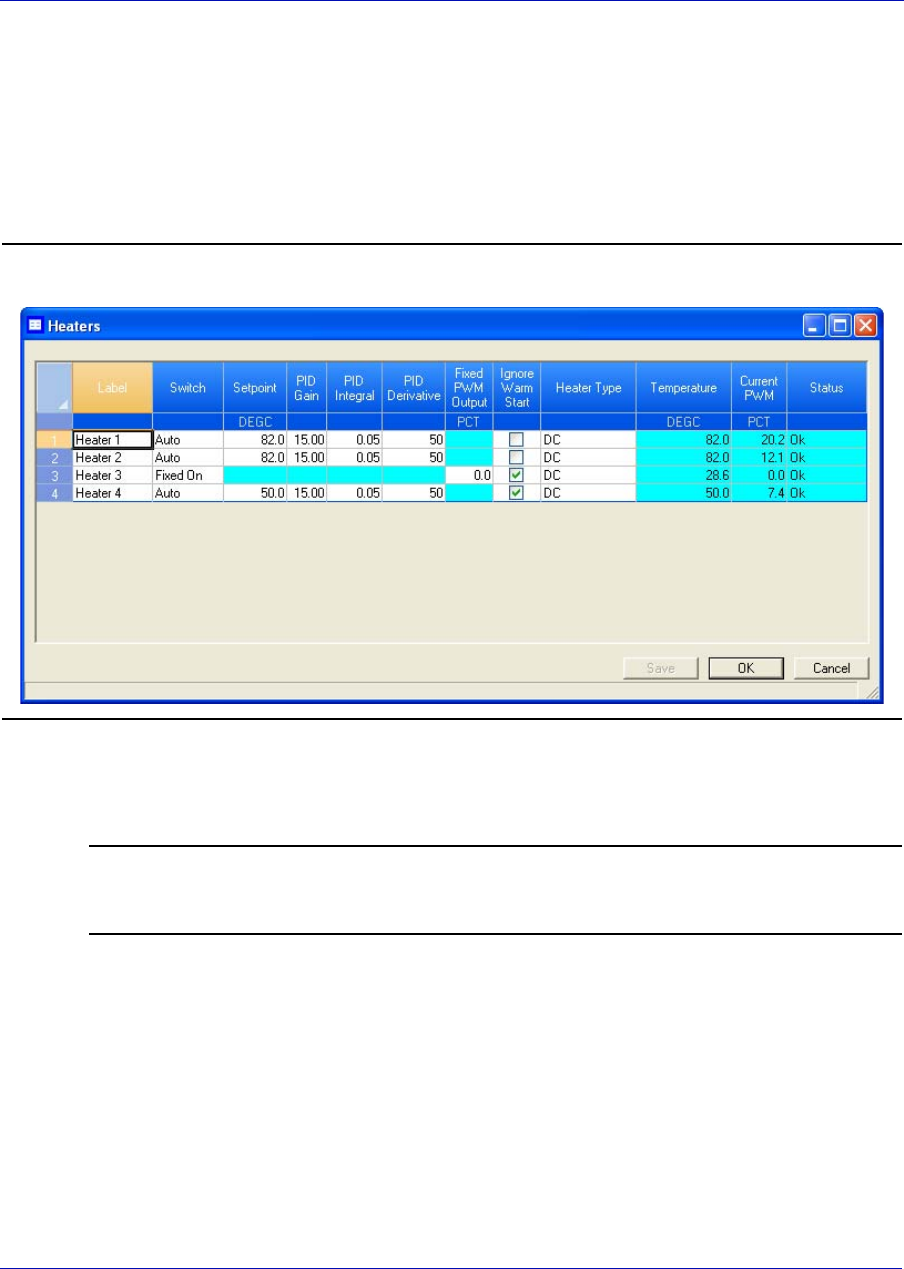
User Manual MON20/20 Software for Gas Chromatographs
3-9000-745 SEPTEMBER 2010
3-2
3.1.1 Renaming a heater
To assign an identifying label to a heater, do the following:
1. Select Heaters... from the Hardware menu. The Heaters window
displays.
Figure 3-1. The Heaters window
2. Double-click on the appropriate row under the Label column for the
heater that you want to name.
Note
The heaters are labelled Heater 1 - Heater N by default, where N equals the total
number of heaters available to the GC.
3. Type in a descriptive name for the heater. This name must be unique;
two heaters cannot share the same label.
4. Click OK.
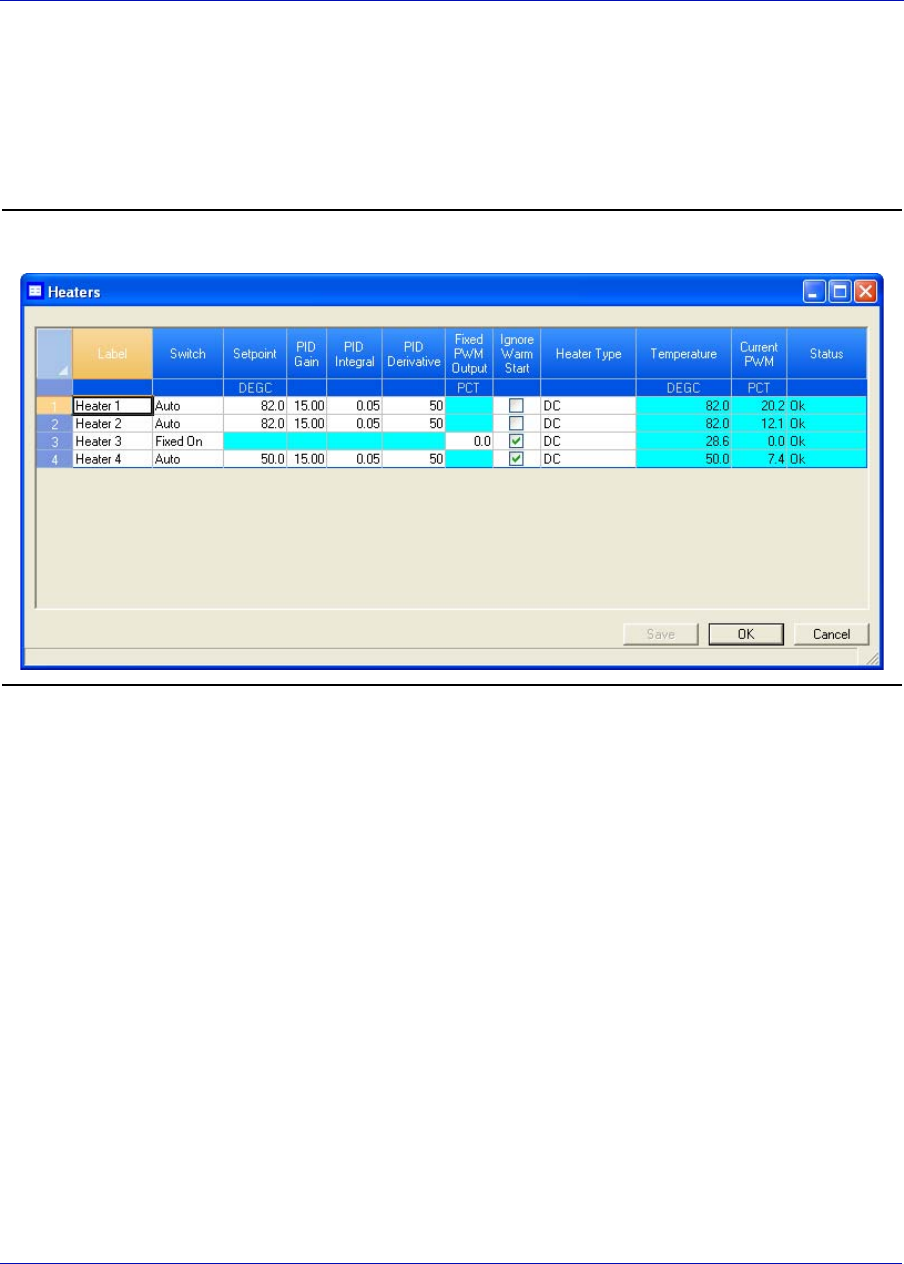
MON20/20 Software for Gas Chromatographs User Manual
SEPTEMBER 2010 3-9000-745
3-3
3.1.2 Setting the heater’s type
To set a heater’s type, do the following:
1. Select Heaters... from the Hardware menu.
Figure 3-2. The Heaters window
2. Click on the appropriate Heater Type cell and select AC or DC from
the drop-down list.
3. To save the changes without closing the window, click Save. To save
the changes and close the window, click OK.
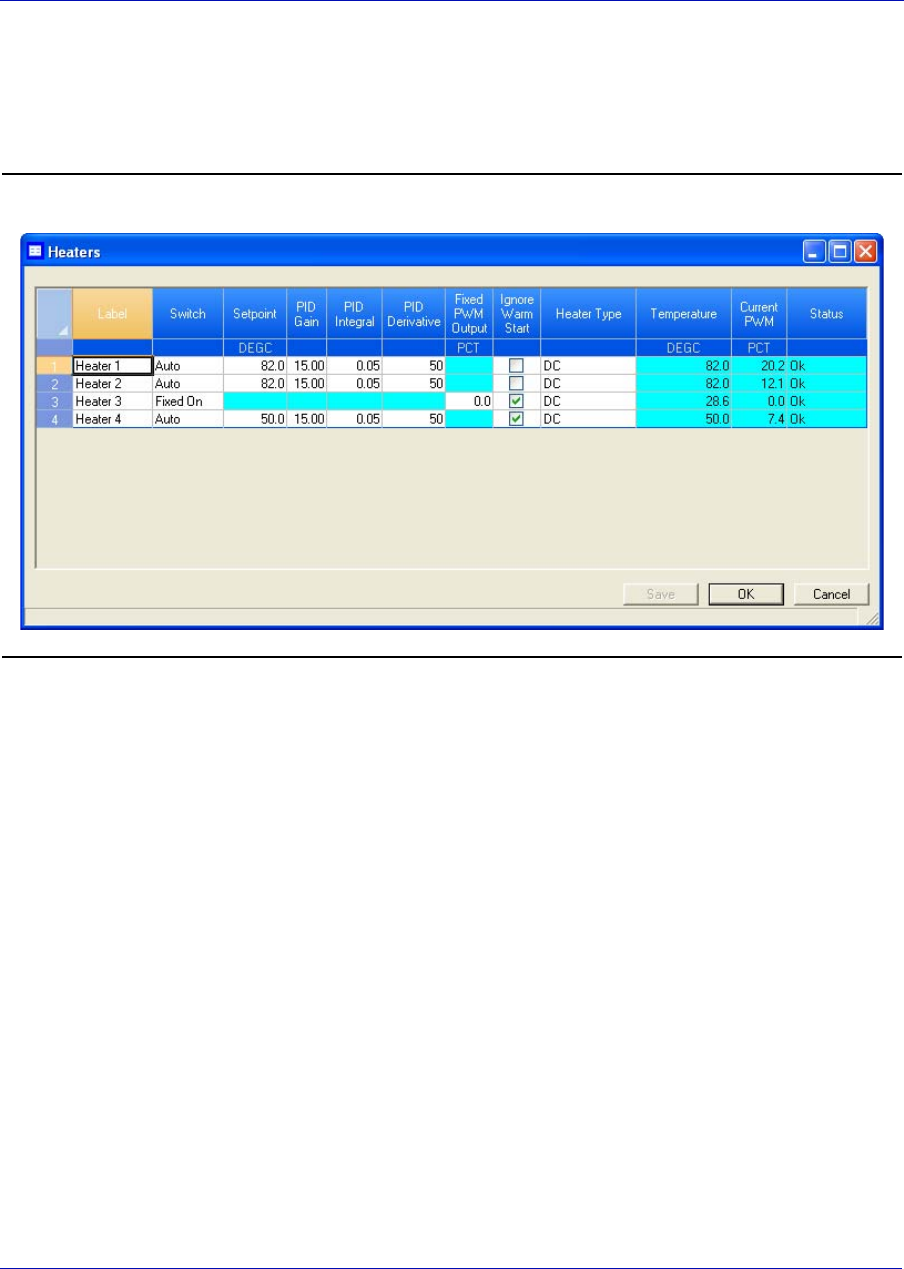
User Manual MON20/20 Software for Gas Chromatographs
3-9000-745 SEPTEMBER 2010
3-4
3.1.3 Monitoring the temperature of a heater
To check a heater’s temperature, select Heaters... from the Hardware
menu.
Figure 3-3. The Heaters window
The current temperature of each heater displays under the Temperature
column, and updates in real time. The percentage of the GC’s power
output that is being used by each heater displays under the Current PWM
column.
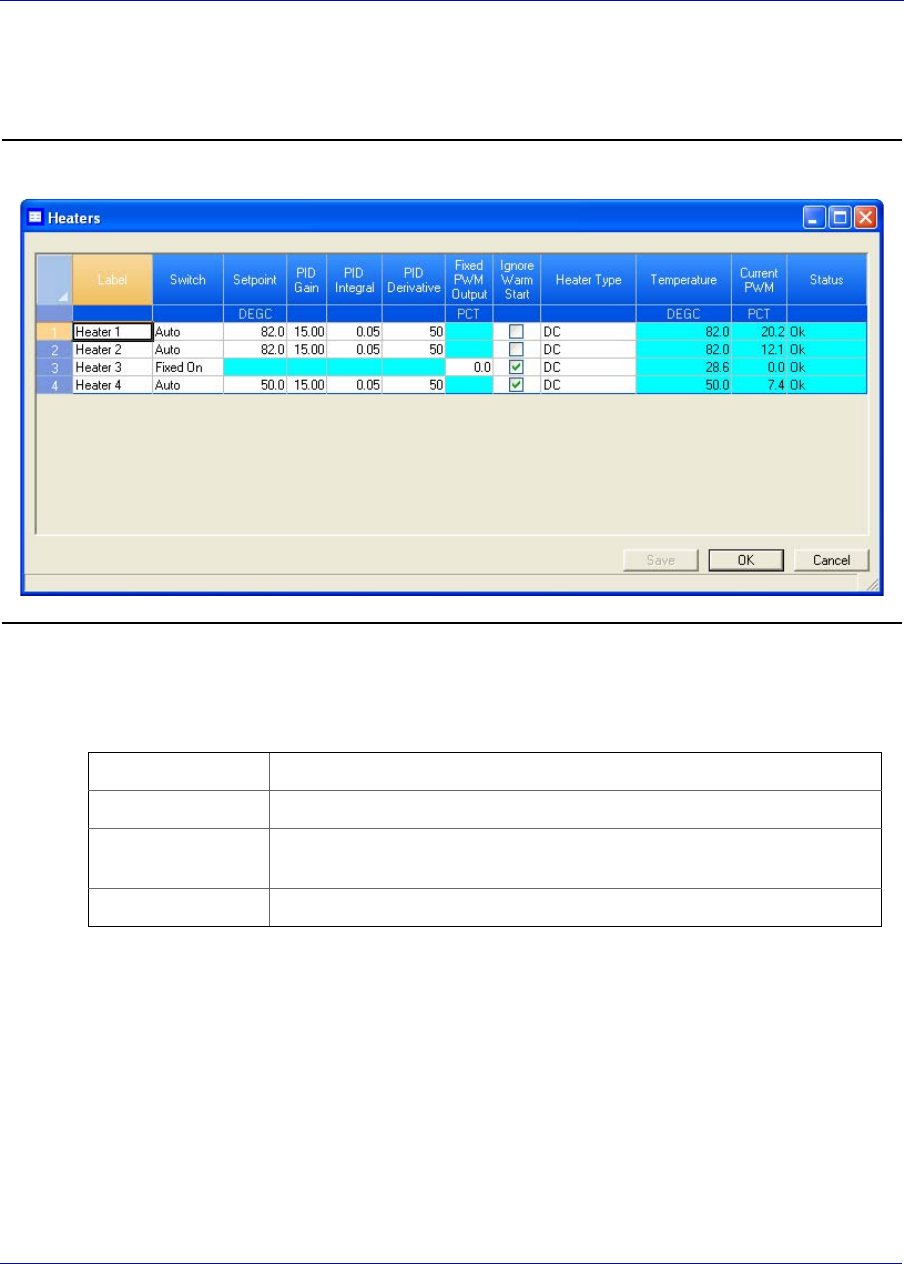
MON20/20 Software for Gas Chromatographs User Manual
SEPTEMBER 2010 3-9000-745
3-5
3.1.4 Monitoring the operational status of a heater
To check a heater’s status, select Heaters... from the Hardware menu.
Figure 3-4. The Heaters window
The status of each heater displays under the Status column. There are
four possible status states, and their meanings are as follows:
OK The heater’s control card is installed and is working correctly.
Not Installed The heater’s control card is not installed.
Out of Control The heater is running and is in the process of reaching its temperature
set point.
Error The GC cannot communicate with the heater.
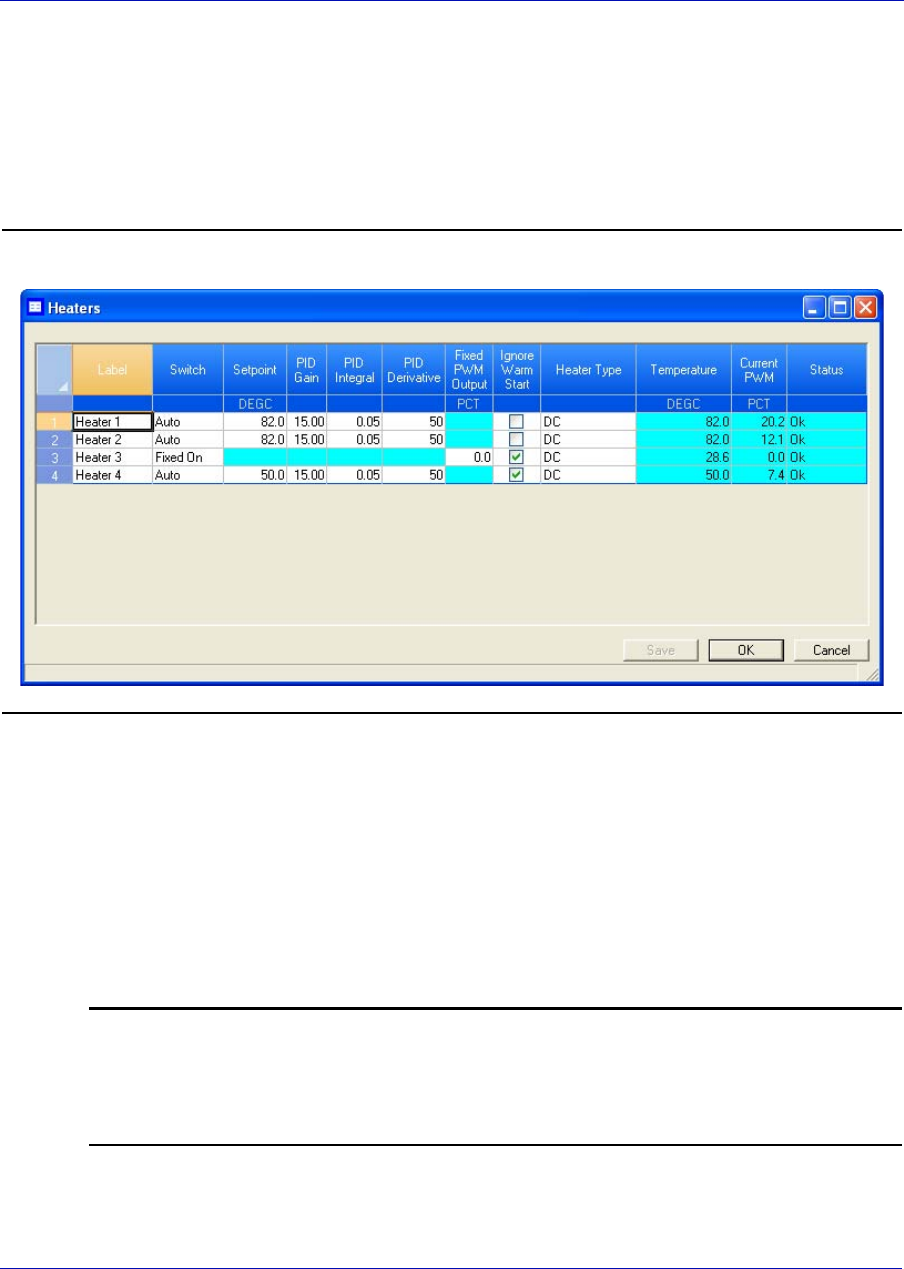
User Manual MON20/20 Software for Gas Chromatographs
3-9000-745 SEPTEMBER 2010
3-6
3.1.5 Setting the desired temperature
To set the desired temperature for a heater, do the following:
1. Select Heaters... from the Hardware menu. The Heaters window
displays.
Figure 3-5. The Heaters window
2. For each heater that you want to set, select Auto from the appropriate
row under the Switch column.
3. For each heater that you want to set, double-click on the appropriate
row under the Setpoint column, and enter the desired temperature, in
degrees Celsius. You can enter a value between 20 and 500.
4. To exclude a heater from the Warm Start process, select its Ignore
Warm Start check box.
Note
A warm start occurs when the GC restarts after having been shut down during an auto
sequence analysis run. The GC will activate the heaters and wait until they reach their
setpoints and the temperature stabilizes; the GC will then resume the auto sequence
run.

MON20/20 Software for Gas Chromatographs User Manual
SEPTEMBER 2010 3-9000-745
3-7
5. The appropriate rows under the PID Gain, PID Integral, and PID
Derivative columns can also be edited by double-clicking and entering
a new value. The value ranges for each column is as follows:
6. To save the changes and leave the window open so that you can
monitor the heaters’ status, click Save. The current temperature of
each heater displays in the Temperature column, and is updated in
real time.
7. To save the changes and close the window, click OK.
3.1.6 Setting PWM Output
Note
Pulse-Width Modulation (PWM) is a technique for providing intermediate amounts of
electrical power between fully on and fully off.
A heater needs voltage to operate. The amount of voltage that is
delivered to a heater can be controlled manually when the heater is set to
Fixed On mode. Setting a heater to Fixed On mode can be useful when
troubleshooting heater issues.
To set a heater’s PWM Output, do the following:
1. Select Heaters... from the Hardware menu. The Heaters window
displays.
PID Gain 0 - 500
PID Integral 0 - 500
PID Derivative 0 - 50000
Fixed On mode is not recommended for general GC operations. Switching a heater to
Fixed On mode removes its ability to maintain a constant temperature because the
power delivered to the heater will not fluctuate based on the temperature setpoint, but
will instead remain at the level set by the user.
CAUTION
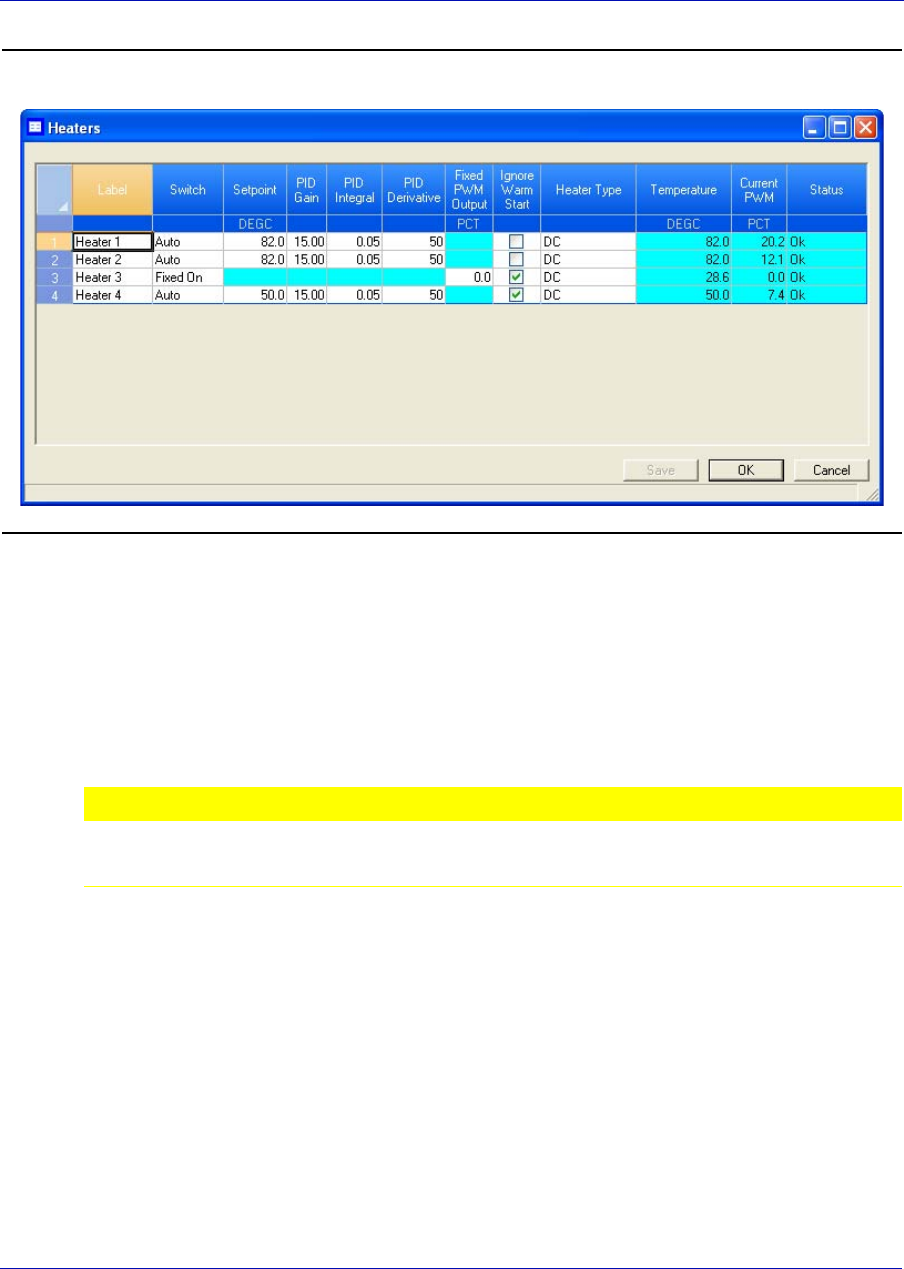
User Manual MON20/20 Software for Gas Chromatographs
3-9000-745 SEPTEMBER 2010
3-8
Figure 3-6. The Heaters window
2. For each heater that you want to set, select Fixed On from the
appropriate row under the Switch column.
3. For each heater that you want to set, double-click on the appropriate
row under the Fixed PWM Output column, and enter the desired
percentage of output. You can enter a decimal value between 0 and
100.
4. To save the changes and leave the window open so that you can
monitor the heaters’ status, click Save. The current temperature of
each heater displays in the Temperature column, and is updated in
real time.
5. To save the changes and close the window, click OK.
It is not recommended that a value of 95 or higher be used for a prolonged time, as this
may damage the equipment.
CAUTION
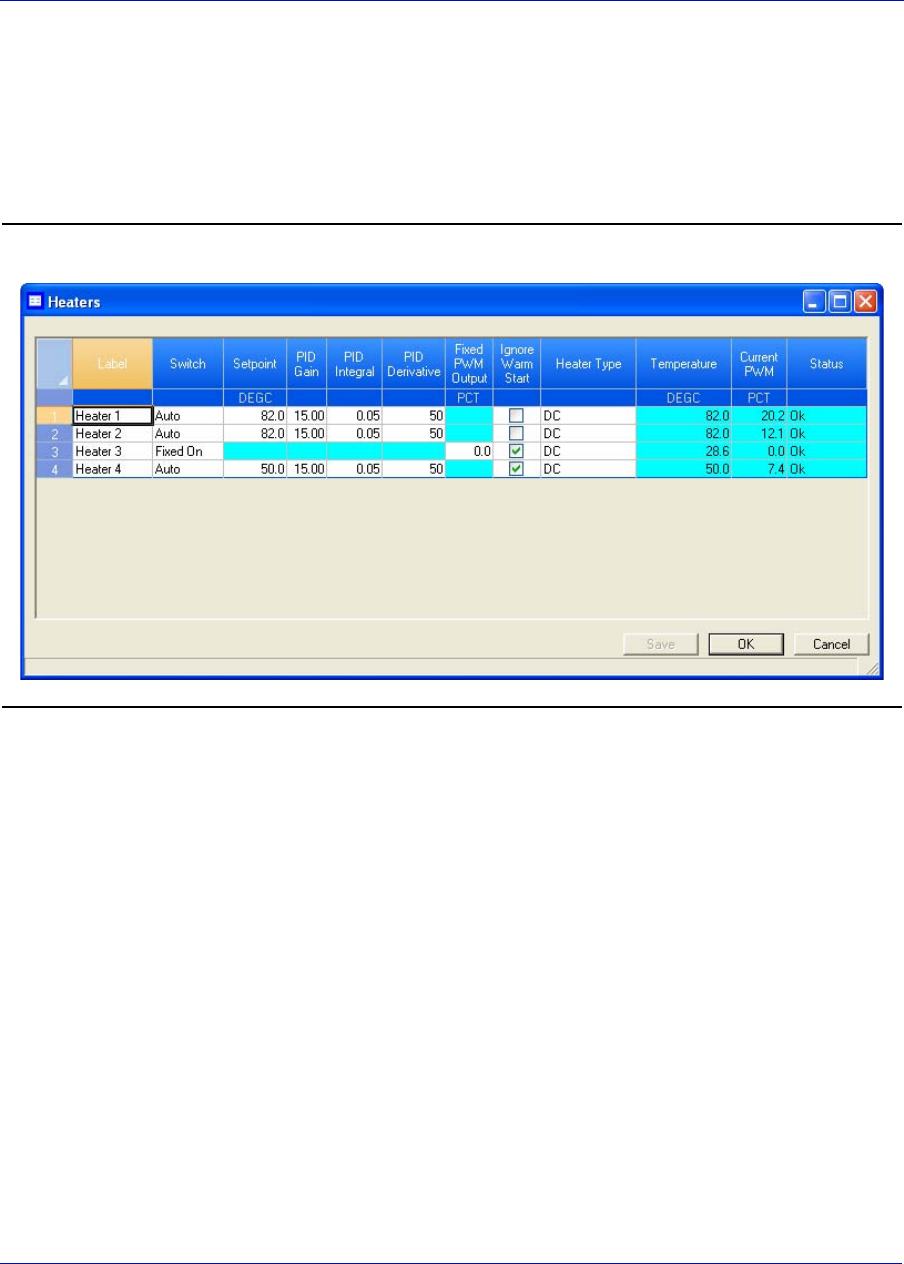
MON20/20 Software for Gas Chromatographs User Manual
SEPTEMBER 2010 3-9000-745
3-9
3.1.7 Removing a heater from service
To remove a heater from service, do the following:
1. Select Heaters... from the Hardware menu. The Heaters window
displays.
Figure 3-7. The Heaters window
2. For each heater that you want to set, select Not Used from the
appropriate row under the Switch column. The row turns turqoise,
indicating that it is no longer in service.
3. To save the changes without closing the window, click Save. To save
the changes and close the window, click OK.

User Manual MON20/20 Software for Gas Chromatographs
3-9000-745 SEPTEMBER 2010
3-10
3.2 Configuring the valves
MON 20/20 allows you to do the following from the Valves window:
• Assign identifying labels to each valve.
• Monitor valve operation.
• Control the operation modes for each valve.
Note
This window contains a hidden column labelled Physical Name. For more information
about this column and how to display it, see “Viewing the Physical Name column” on
page 1-38.
3.2.1 Renaming a valve
Give each valve a descriptive label to avoid confusing one valve for
another. To assign an identifying label, do the following:
1. Select Valves... from the Hardware menu. The Valves window
displays.
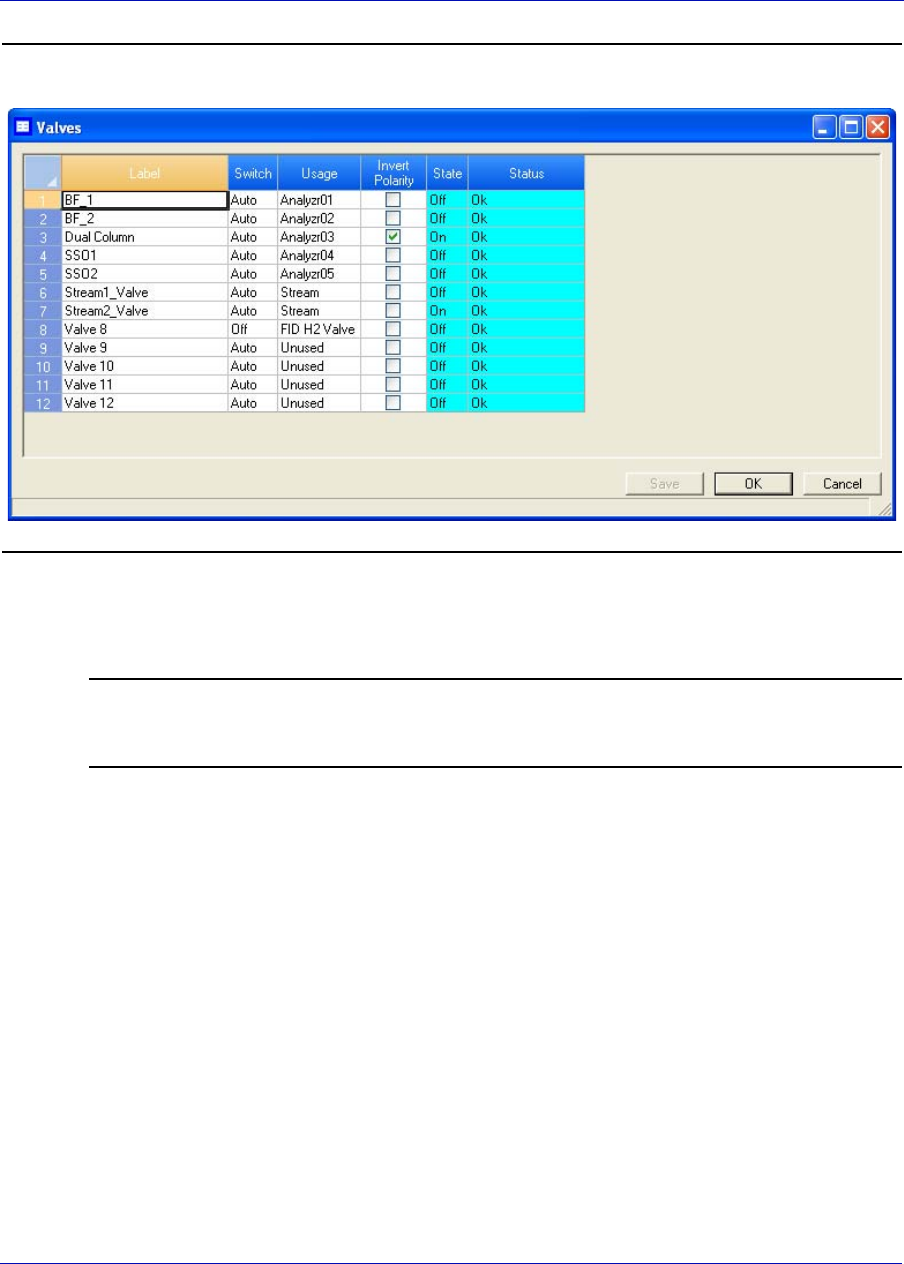
MON20/20 Software for Gas Chromatographs User Manual
SEPTEMBER 2010 3-9000-745
3-11
Figure 3-8. The Valves window with Physical Name column
2. Double-click on the appropriate row under the Label column for the
valve that you want to name.
Note
The valves are labelled Valve 1 - Valve N by default, where N equals the total number
of valves available to the GC.
3. Type in a new descriptive name for the valve.
4. Click OK.
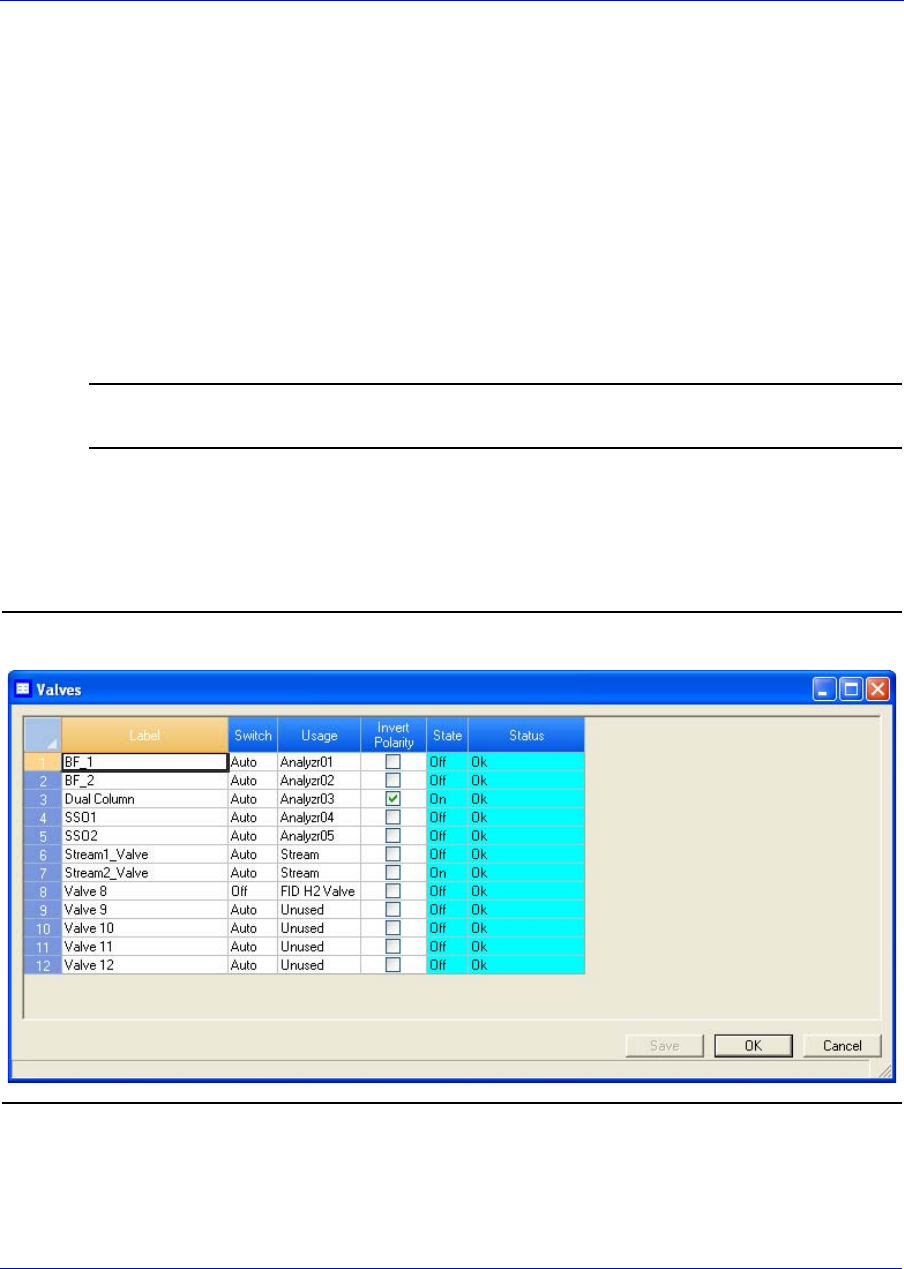
User Manual MON20/20 Software for Gas Chromatographs
3-9000-745 SEPTEMBER 2010
3-12
3.2.2 Setting a valve’s operational mode
A valve has three operational modes: Auto, On, and Off.
• Setting the valve to Off means that the valve will turn off and remain
off until the operational mode is changed.
• Setting the valve to Auto means that the valve will turn on and off
according to the Timed Events table.
• Setting the valve to On means that the valve will turn on and remain
on until the operational mode is changed.
Note
The GC’s switch panel valve settings override MON 20/20’s valve settings.
To set a valve’s operational mode, do the following:
1. Select Valves... from the Hardware menu. The Valves window
displays.
Figure 3-9. The Valves window
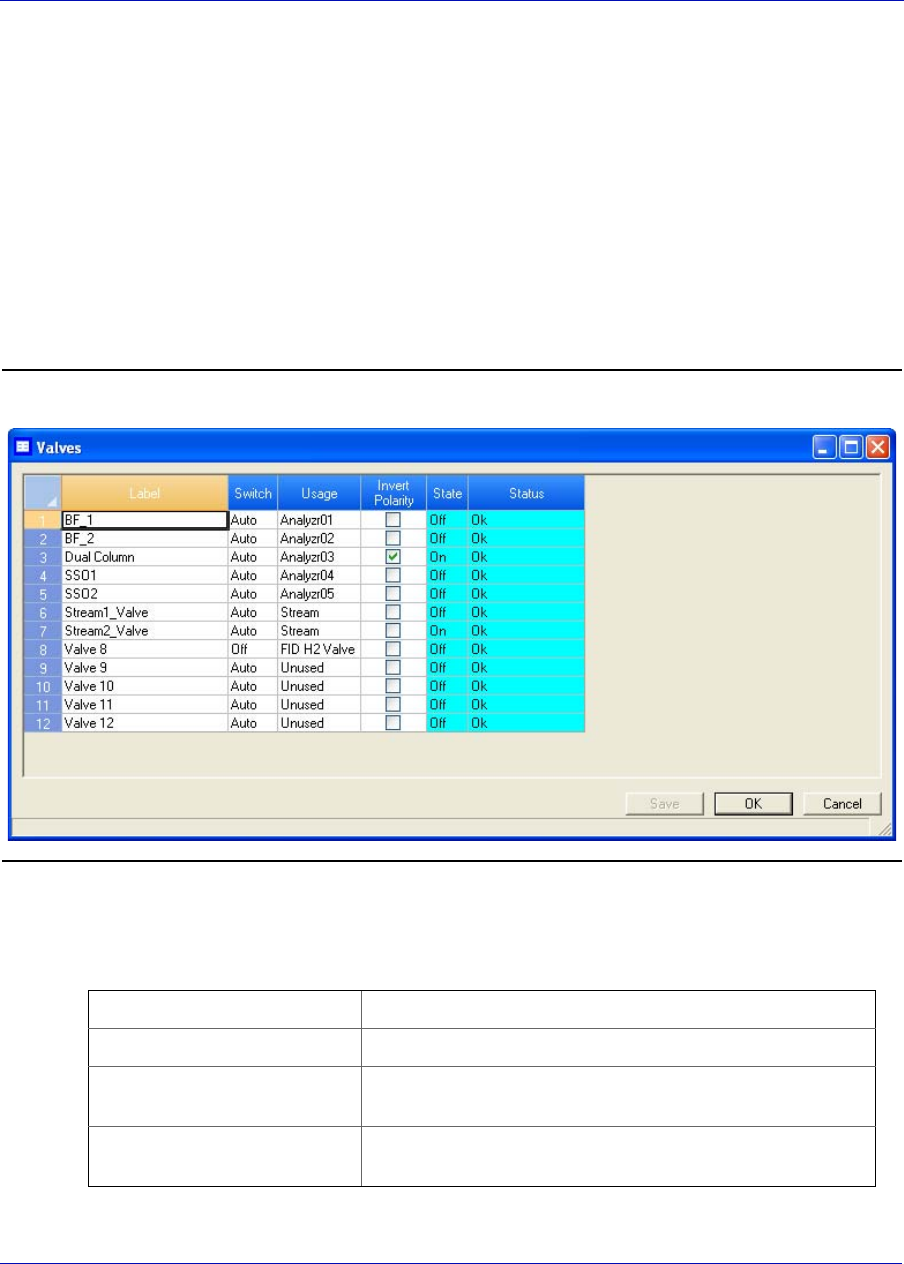
MON20/20 Software for Gas Chromatographs User Manual
SEPTEMBER 2010 3-9000-745
3-13
2. Select the desired mode from the drop-down menu under the Switch
cloumn for the valve.
3. To save the changes and leave the window open so that you can
monitor the valve’s progress, click Save. The current state of the valve
displays in the State column, and is updated in real time.
4. To save the changes and close the window, click OK.
3.2.3 Monitoring the operational status of a valve
To check a valve’s status, select Valves... from the Hardware menu.
Figure 3-10. The Valves window
The status of each valve displays under the Status column. There are five
possible status readings, and their meanings are as follows:
OK The valve is installed and is working correctly.
Not Installed The valve is not installed.
Under/Over Current Error Unable to switch the solenoid on or off. There is a potential
problem with the solenoid.
Error The Heater/Solenoid board is installed but the GC cannot
communicate with it.
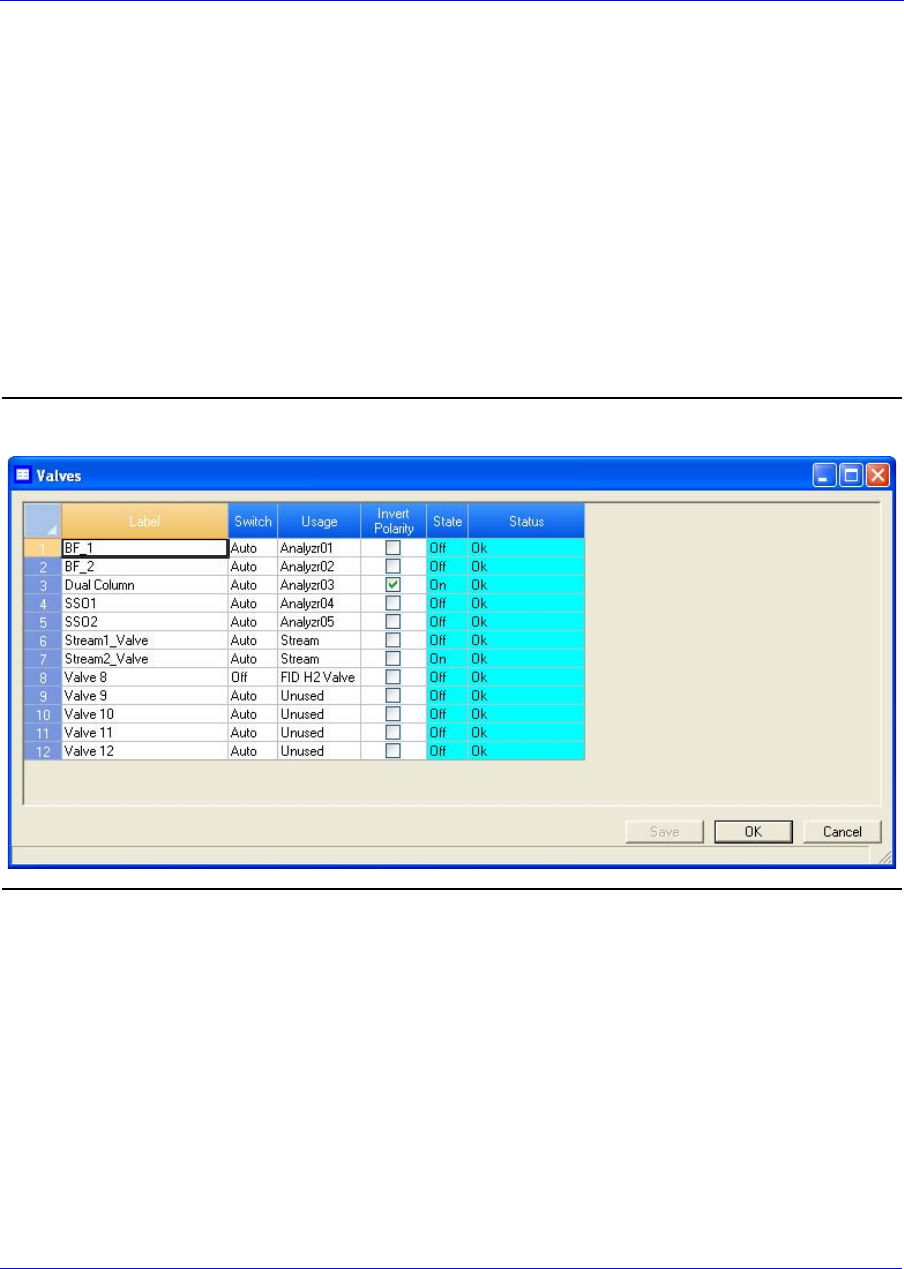
User Manual MON20/20 Software for Gas Chromatographs
3-9000-745 SEPTEMBER 2010
3-14
3.2.4 Inverting the polarity of a valve
The Invert Polariy option reverses the effect of switching a valve on or
off. By default, the Invert Polarity option is set to FALSE, which means
that switching a valve to ON activates it, and switching the valve to OFF
deactivates it. Setting Invert Polarity to TRUE means that switching a
valve to ON deactivates it, and switching the valve to OFF activates it.
To set the polarity of a valve, do the following:
1. Select Valves... from the Hardware menu. The Valves window
displays.
Figure 3-11. The Valves window
2. If the Invert Polarity checkbox is selected, it is set to True; to set it to
False, uncheck the box by clicking it. If the Invert Polarity checkbox is
not selected, it is set to False; to set it to True, click the box.
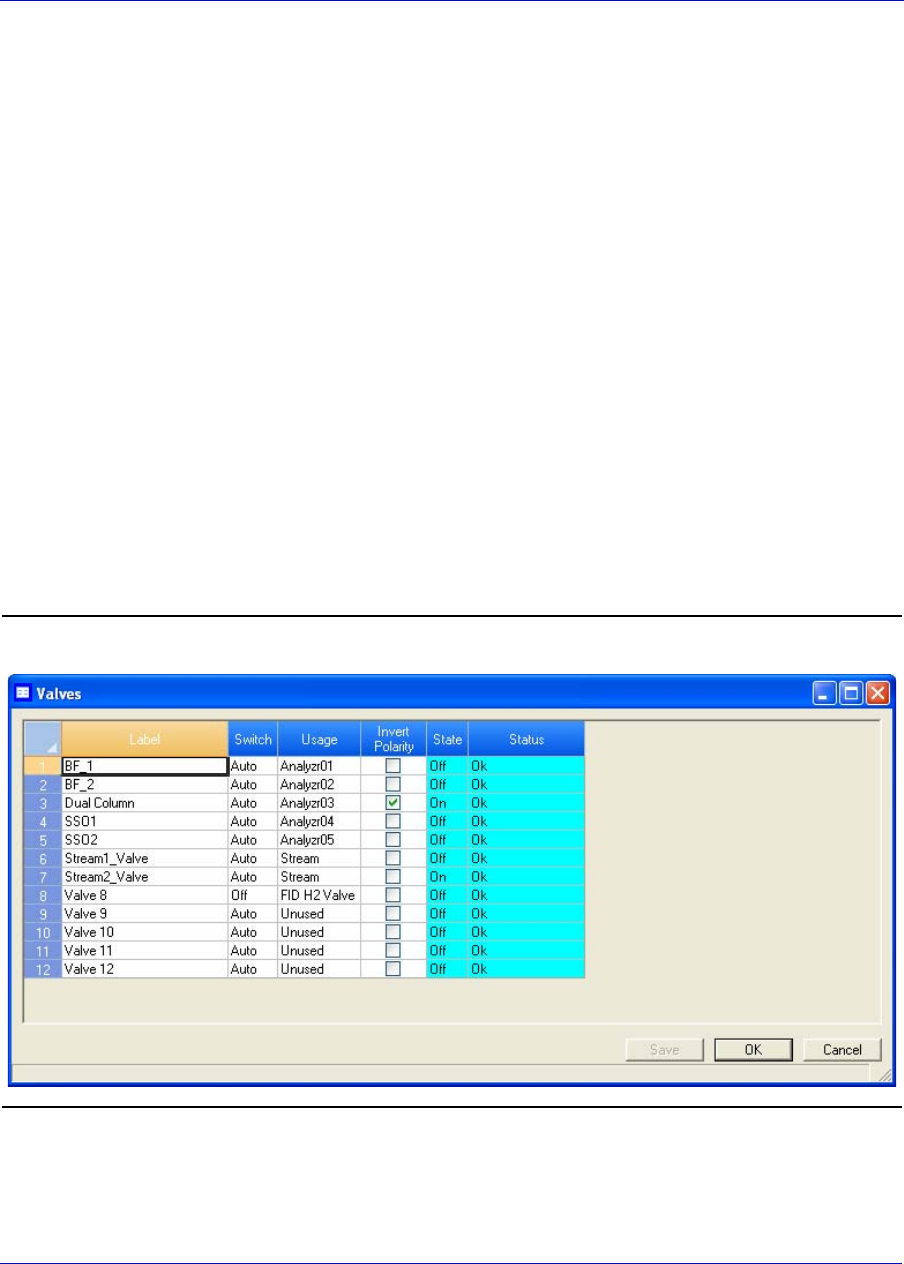
MON20/20 Software for Gas Chromatographs User Manual
SEPTEMBER 2010 3-9000-745
3-15
3.2.5 Setting the usage mode for a valve
A valve’s usage mode determines its general function, or role, during an
analysis run. A valve can be assigned one of the following usage modes:
•DO
•FID H2 Valve
• Common Alarm
• Stream
•Analyzer01
...
• Analyzer016
To set the usage mode for a valve, do the following:
1. Select Valves... from the Hardware menu. The Valves window
displays.
Figure 3-12. The Valves window

User Manual MON20/20 Software for Gas Chromatographs
3-9000-745 SEPTEMBER 2010
3-16
2. Select the desired mode from the drop-down menu under the Usage
cloumn for the valve.
3. To save the changes and leave the window open so that you can
monitor the valve’s progress, click Save. The current state of the valve
displays in the State column, and is updated in real time.
4. To save the changes and close the window, click OK.
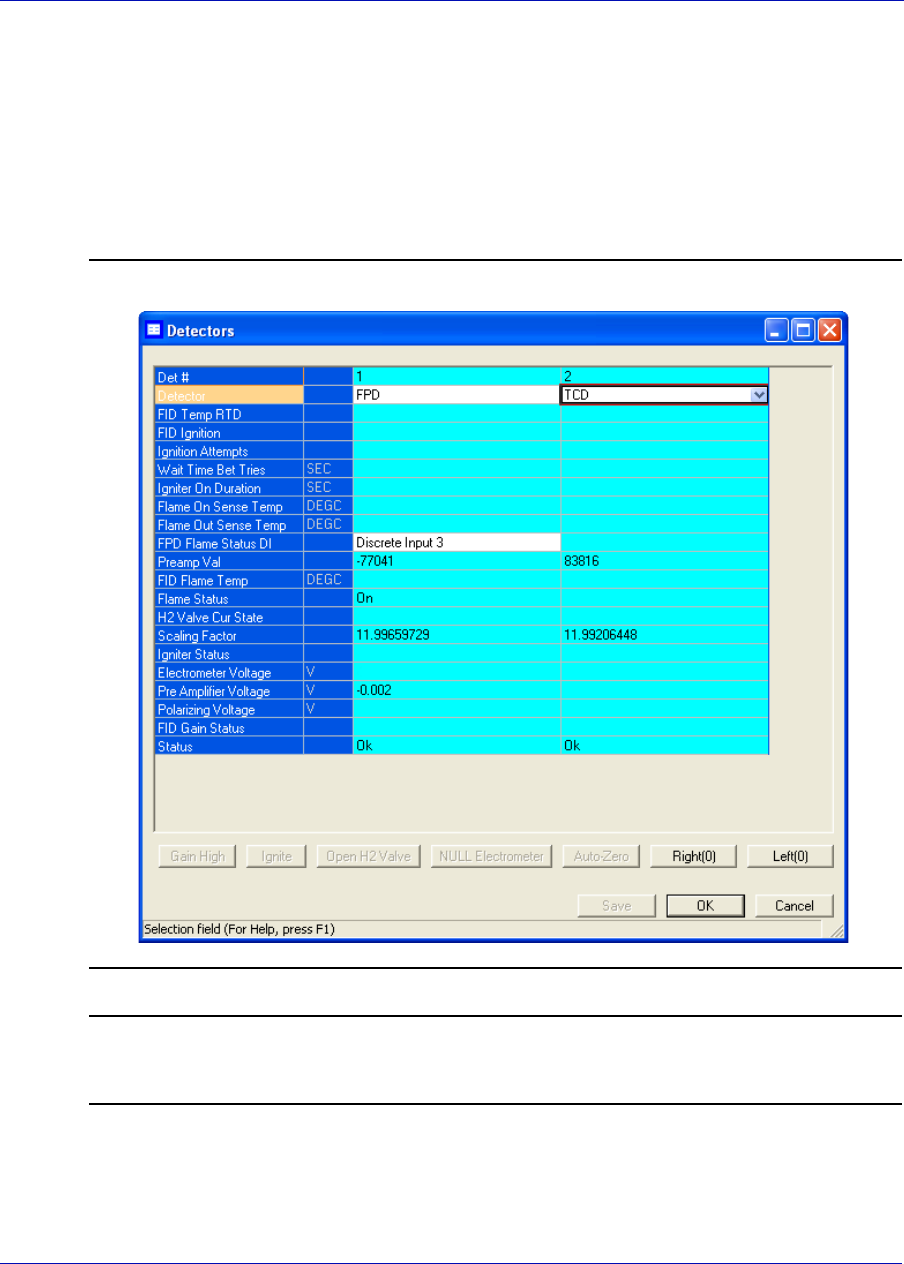
MON20/20 Software for Gas Chromatographs User Manual
SEPTEMBER 2010 3-9000-745
3-17
3.3 Controlling the detectors
Use the Detectors window to monitor the activity and status of the GC’s
detectors.
To view the Detectors window, select Detectors... from the Hardware
menu.
Figure 3-13. The Detectors window showing a TCD and an FID
Note
Before making any modifications to this window, halt the analysis. See “Halting an
analysis” on page 6-1 for more information.
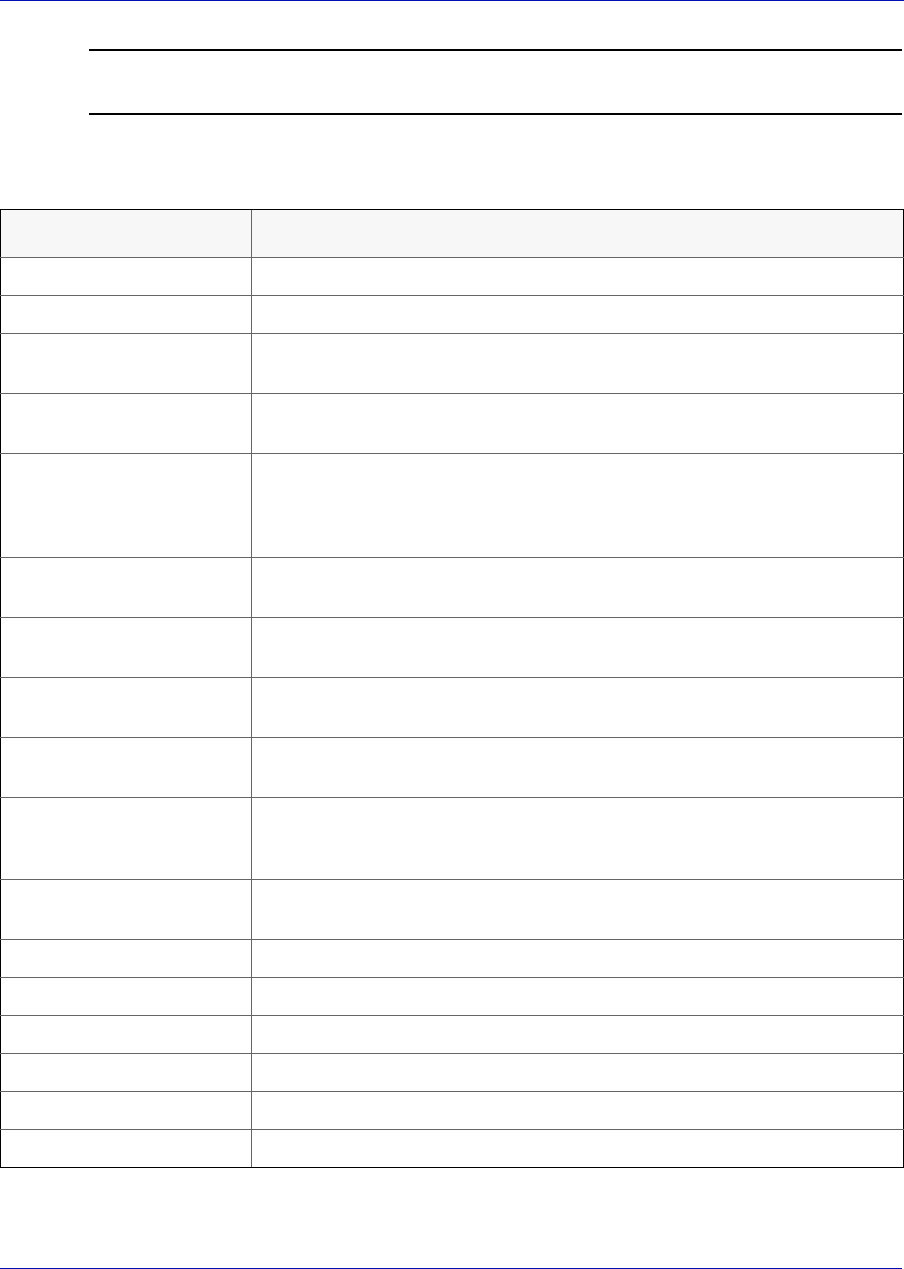
User Manual MON20/20 Software for Gas Chromatographs
3-9000-745 SEPTEMBER 2010
3-18
Note
Blue cells display read-only data; white cells display editable data.
The following data displays for each detector:
Name Description
Det # Numerical identifier for the detector to which the following data applies.
Detector Options, which depend on your GC’s configuration, are TCD, FPD, or FID.
FID Temp RTD Applies to FIDs only. Select the appropriate RTD from the drop-down list.
The RTD measures the temperature of the FID flame.
FID Ignition Applies to FIDs only. Select Manual if you want to control the ignition of
the FID; select Auto if you want the GC to control the ignition of the FID.
Ignition Attempts Applies to FIDs only. Indicates the number of times the GC will try to light
the flame. If an 'Auto' FID ignition sequence fails to light the flame after
the specified number of attempts, the GC will close the hydrogen valve,
switch the FID ignition parameter to Manual, and set an active alarm.
Wait Time Bet Tries Applies to FIDs only. Indicates the amount of time, in seconds, the GC will
wait between ignition attempts.
Igniter On Duration Applies to FIDs only. Indicates the length of time that the igniter will
remain on.
Flame On Sense Temp Applies to FIDs only. The flame ignites when the FID internal temperature
exceeds the value set in this field.
Flame Out Sense Temp Applies to FIDs only. The flame is extinguished when the FID internal
temperature falls below the value set in this field.
FPD Flame Status DI Applies to FPDs only. Allows you to select from a list of available digital
inputs. The digital input that is selected will receive the FPD’s flame status
value.
Preamp Val FID count. Read-only. See “Resetting the preamp value” on page 3-22 for
more information.
FID Flame Temp Temperature of the FID flame as read by the RTD. Read-only.
Flame Status Options are: Off, On, and Over Temperature. Read-only.
H2 Valve Cur State Options are: Open and Closed. Read-only.
Scaling Factor Preamp calibration factor.
Igniter Status Options are: Off and On. Read-only.
Electrometer Voltage Output at first stage of FID preamp. Read-only.
MON20/20 Software for Gas Chromatographs User Manual
SEPTEMBER 2010 3-9000-745
3-19
3.3.1 Offsetting the baseline
In some situations that involve TCD detectors the baseline may be
displayed either too high on the graph, in which case the tops of the peaks
are cut off, or too low on the graph, so that the bases of the peaks are cut
off. If this occurs it is possible to offset the baseline either up or down so
that the entire peak can be displayed on the graph. This offset will be
applied to all traces—live, archived and saved—that are displayed
thereafter.
To offset the baseline, do the following:
1. Select Detectors... from the Hardware menu. The Detectors window
displays.
Pre Amplifier Voltage Output at second stage of FID preamp. Read-only.
Polarizing Voltage Igniter voltage. Read-only.
FID Gain Status Options are: Low and High.
Status Options are: Ok, Not Installed and Internal Error. Read-only.
Name Description
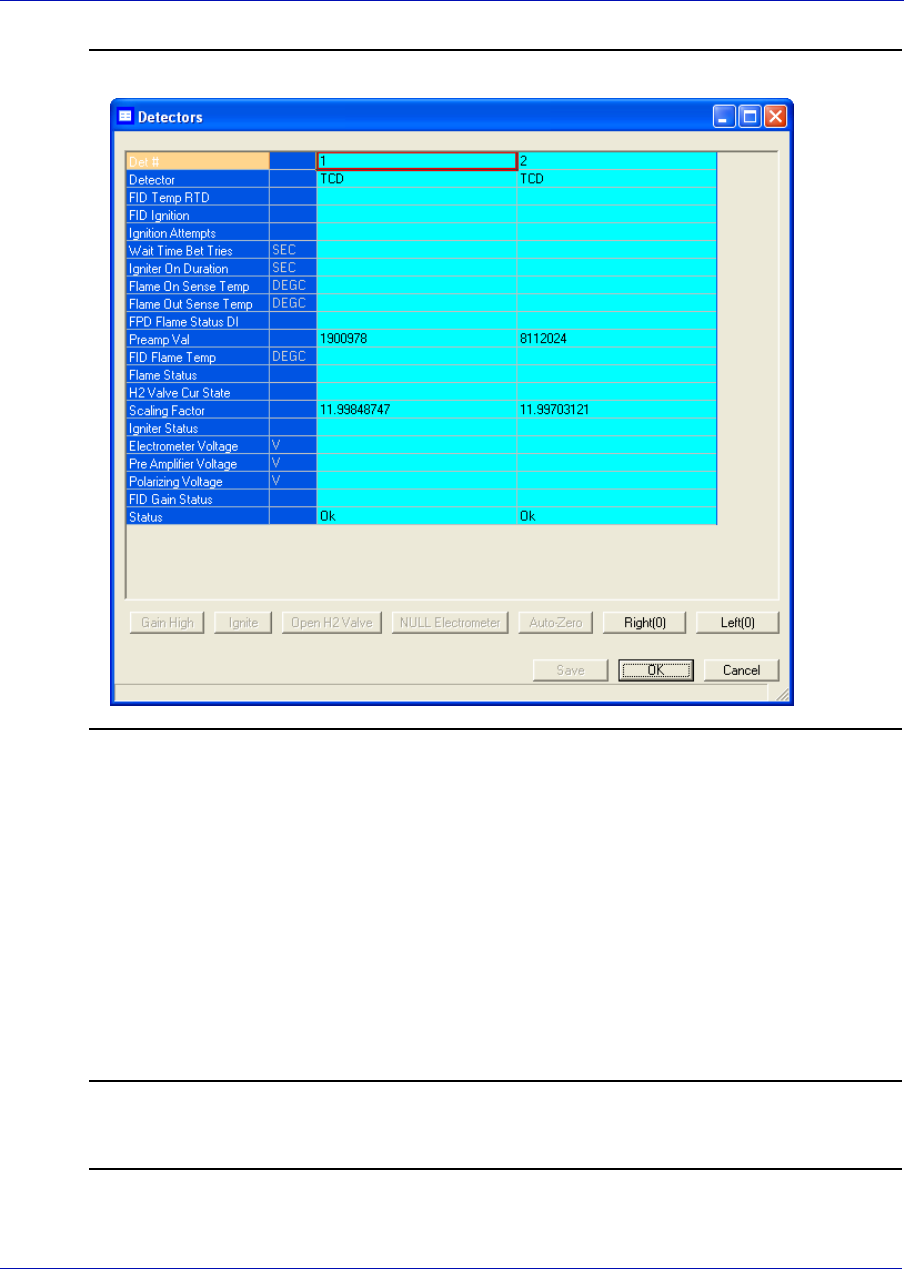
User Manual MON20/20 Software for Gas Chromatographs
3-9000-745 SEPTEMBER 2010
3-20
Figure 3-14. The Detectors window
2. Select the appropriate detector. It may be necessary to return to the
Chromatogram Viewer to learn which detector is the source of the
trace that needs to be offset.
3. To lower the baseline, click Left(N). Each time this button is clicked,
N is incremented by -1. For example, is this is the first time the
button has been clicked, Left(0) will be increment to Left(-1) and the
baseline will be lowered one step. If Right(N) was clicked previously,
then that button will be incremented by -1 first, until it reached
Right(0); at the point, Left(N) will be incremented by -1.
Note
To reset the baseline to its default setting, click Right(N) and Left(N) until they read
Right(0) and Left(0).

MON20/20 Software for Gas Chromatographs User Manual
SEPTEMBER 2010 3-9000-745
3-21
4. To raise the baseline, click Right(N). Each time this button is
clicked, N is incremented by 1. For example, is this is the first time
the button has been clicked, Right(0) will be increment to Right(1) and
the baseline will be raised one step. If Left(N) was clicked previously,
then that button will be incremented by 1 first, until it reaches Left(0);
at the point, Right(N) will be incremented by 1.
Note
To reset the baseline to its default setting, click Right(N) and Left(N) until they read
Right(0) and Left(0).
5. After the baseline has been raised or lowered to your satisfaction, click
OK.
3.3.2 Igniting the FID flame
If the FID Ignition field on the Detectors window is set to “Manual” and if
the Flame status field is set to “Off”, do the following to restart the flame:
1. Click Open H2 Valve. The H2 Valve Cur State field changes to
“Open”.
2. Click Ignite. The Flame Status field changes to “On” when the FID
internal temperature exceeds the value set in the Flame On Sense
Temp field.
Note
If the FID Ignition field is set to “Auto”, the GC will automatically restart the flame if it
goes out.

User Manual MON20/20 Software for Gas Chromatographs
3-9000-745 SEPTEMBER 2010
3-22
3.3.3 Resetting the preamp value
To reset the Preamp Val field on the Detectors window to 0, click Auto-
Zero.
3.3.4 Balancing the preamp
In some situations that involve TCD detectors the baseline may be
displayed either too high on the graph, in which case the tops of the peaks
are cut off, or too low on the graph, so that the bases of the peaks are cut
off. If this occurs it is possible to offset the baseline either up or down so
that the entire peak can be displayed on the graph. This offset will be
applied to all traces—live, archived and saved—that are displayed
thereafter.
To offset the baseline, do the following:
1. Select Detectors... from the Hardware menu. The Detectors window
displays.
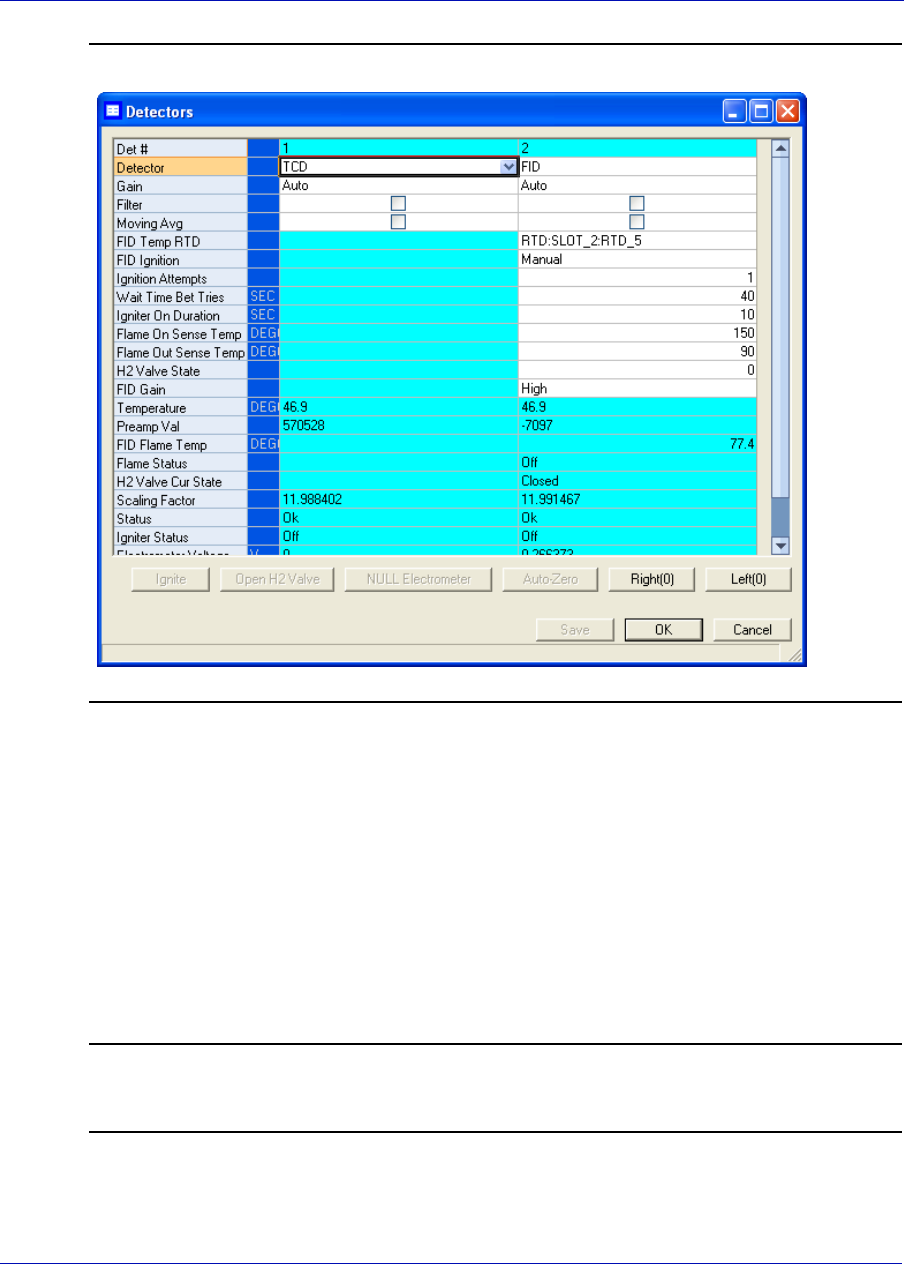
MON20/20 Software for Gas Chromatographs User Manual
SEPTEMBER 2010 3-9000-745
3-23
Figure 3-15. The Detectors window
2. Select the appropriate detector. It may be necessary to return to the
Chromatogram Viewer to learn which detector is the source of the
trace that needs to be offset.
3. To lower the baseline, click Left(N). Each time this button is clicked,
N is incremented by -1. For example, is this is the first time the
button has been clicked, Left(0) will be increment to Left(-1) and the
baseline will be lowered one step. If Right(N) was clicked previously,
then that button will be incremented by -1 first, until it reached
Right(0); at the point, Left(N) will be incremented by -1.
Note
To reset the baseline to its original setting, click Right(N) and Left(N) until they read
Right(0) and Left(0).

User Manual MON20/20 Software for Gas Chromatographs
3-9000-745 SEPTEMBER 2010
3-24
4. To raise the baseline, click Right(N). Each time this button is
clicked, N is incremented by 1. For example, is this is the first time
the button has been clicked, Right(0) will be increment to Right(1) and
the baseline will be raised one step. If Left(N) was clicked previously,
then that button will be incremented by 1 first, until it reaches Left(0);
at the point, Right(N) will be incremented by 1.
Note
To reset the baseline to its original setting, click Right(N) and Left(N) until they read
Right(0) and Left(0).
3.4 Managing your gas chromatograph’s discrete inputs
You can use MON 20/20 to assign labels to the GC’s discrete inputs and to
control the discrete inputs’ operational modes. The number of discrete
inputs available depends on the GC.
Note
This window contains a hidden column labelled Physical Name. For more information
about this column and how to display it, see “Viewing the Physical Name column” on
page 1-38.
3.4.1 Renaming a discrete input
Give each discrete input a descriptive label to avoid confusing one unit for
another. To assign an identifying label, do the following:
1. Select Discrete Inputs... from the Hardware menu. The Discrete
Inputs window displays.
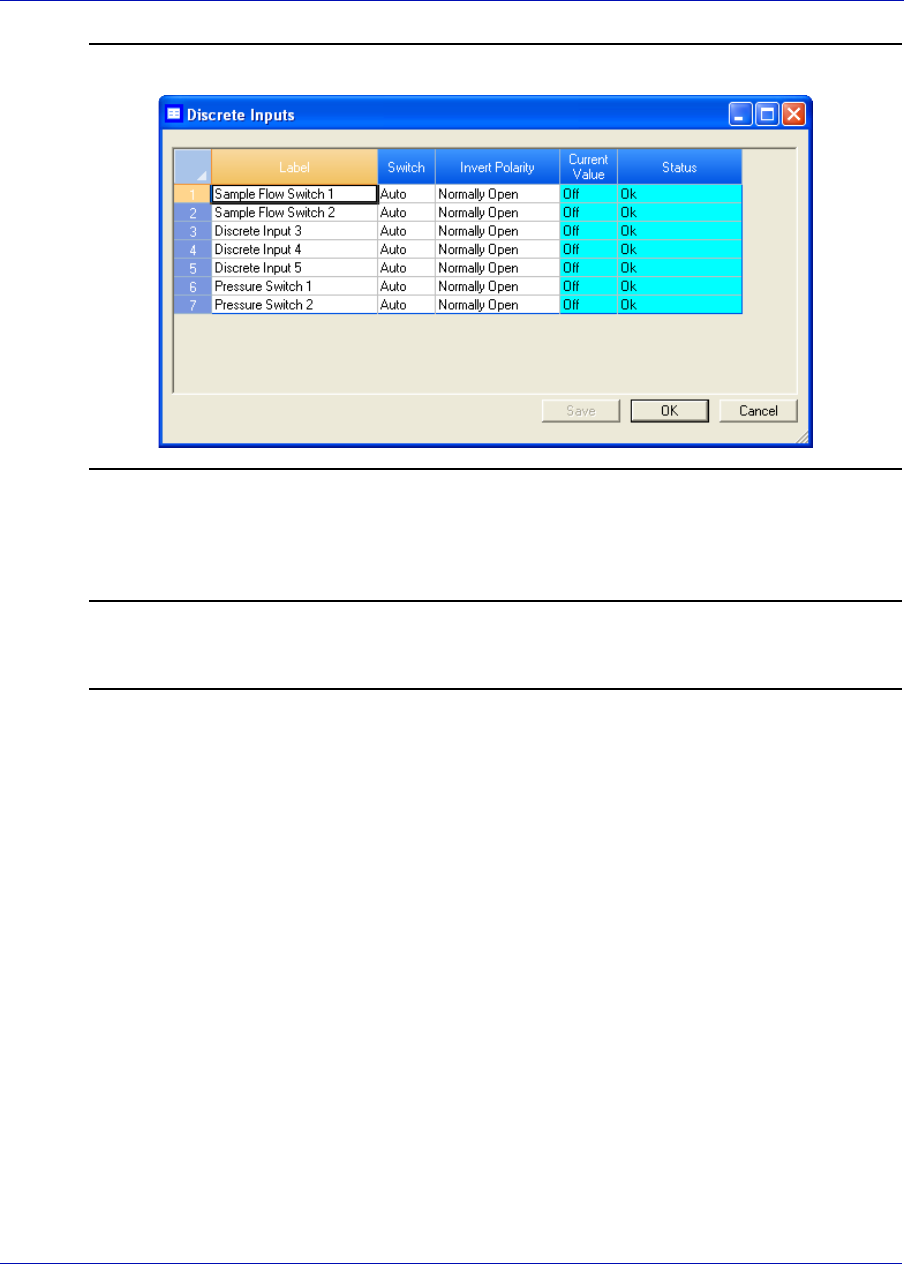
MON20/20 Software for Gas Chromatographs User Manual
SEPTEMBER 2010 3-9000-745
3-25
Figure 3-16. The Discrete Inputs window
2. Double-click on the appropriate row under the Label column for the
discrete input that you want to rename.
Note
The discrete inputs are labelled Discrete Input 1 - Discrete Input N by default,
where N equals the total number of discrete inputs available to the GC.
3. Type in a new descriptive name for the discrete input.
4. Click OK.
3.4.2 Setting a discrete input’s operational mode
A discrete input has three operational modes: Auto, On, and Off.
• Setting the discrete input to Off means that it will interpret all
incoming signals as OFF, despite the true nature of the signal.
• Setting the discrete input to Auto means that it will analyze the
incoming signal to determine whether it is ON or OFF.
• Setting the discrete input to On means that it will interpret all
incoming signals as ON, despite the true nature of the signal.
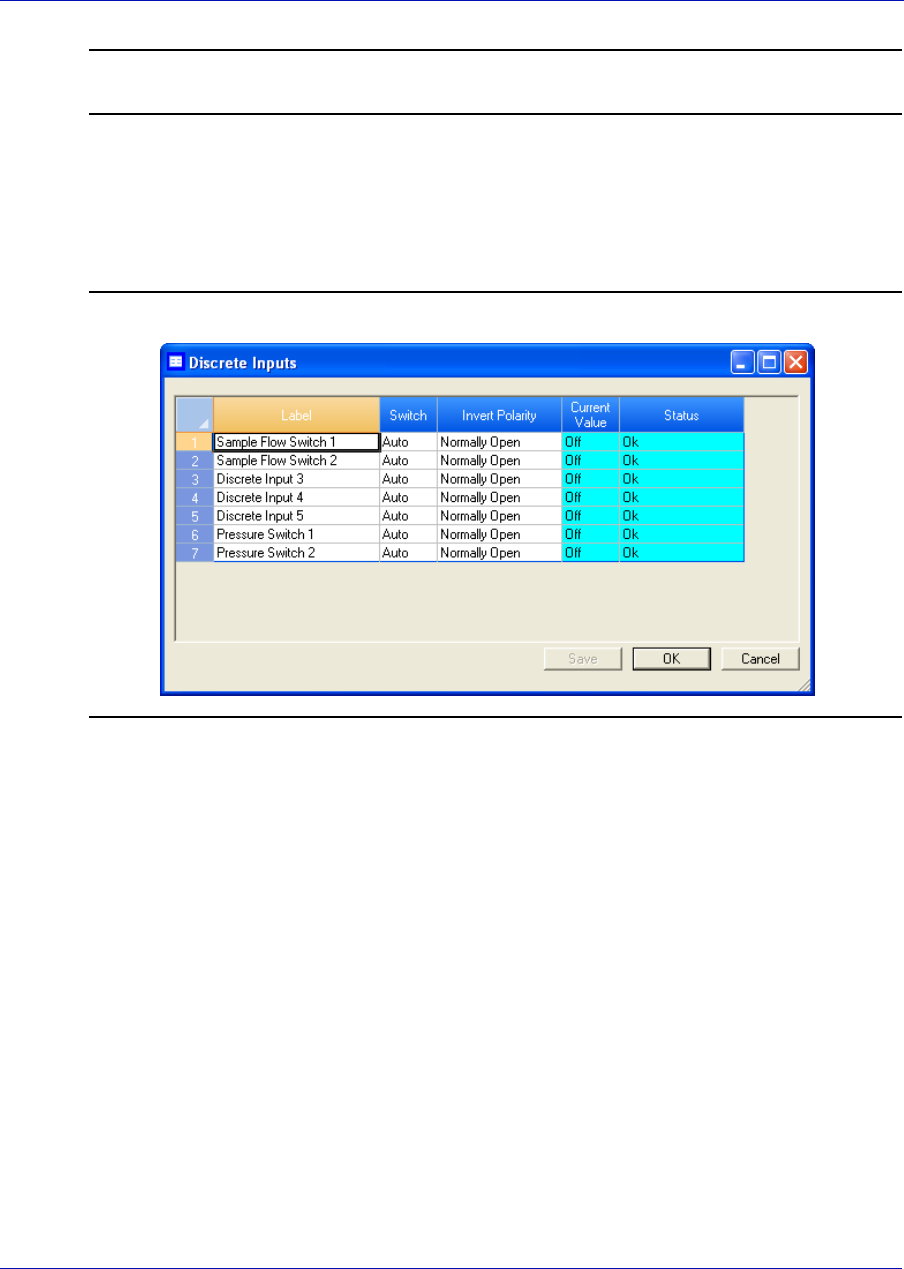
User Manual MON20/20 Software for Gas Chromatographs
3-9000-745 SEPTEMBER 2010
3-26
Note
The GC’s switch panel settings override MON 20/20’s settings.
To set a discrete input’s operational mode, do the following:
1. Select Discrete Input... from the Hardware menu. The Discrete
Input window displays.
Figure 3-17. The Discrete Inputs window
2. Select the desired mode from the drop-down menu under the Switch
cloumn for the discrete input.
3. To save the changes and leave the window open so that you can
monitor the discrete input’s progress, click Save. The current state of
the discrete input displays in the State column, and is updated in real
time.
4. To save the changes and close the window, click OK.
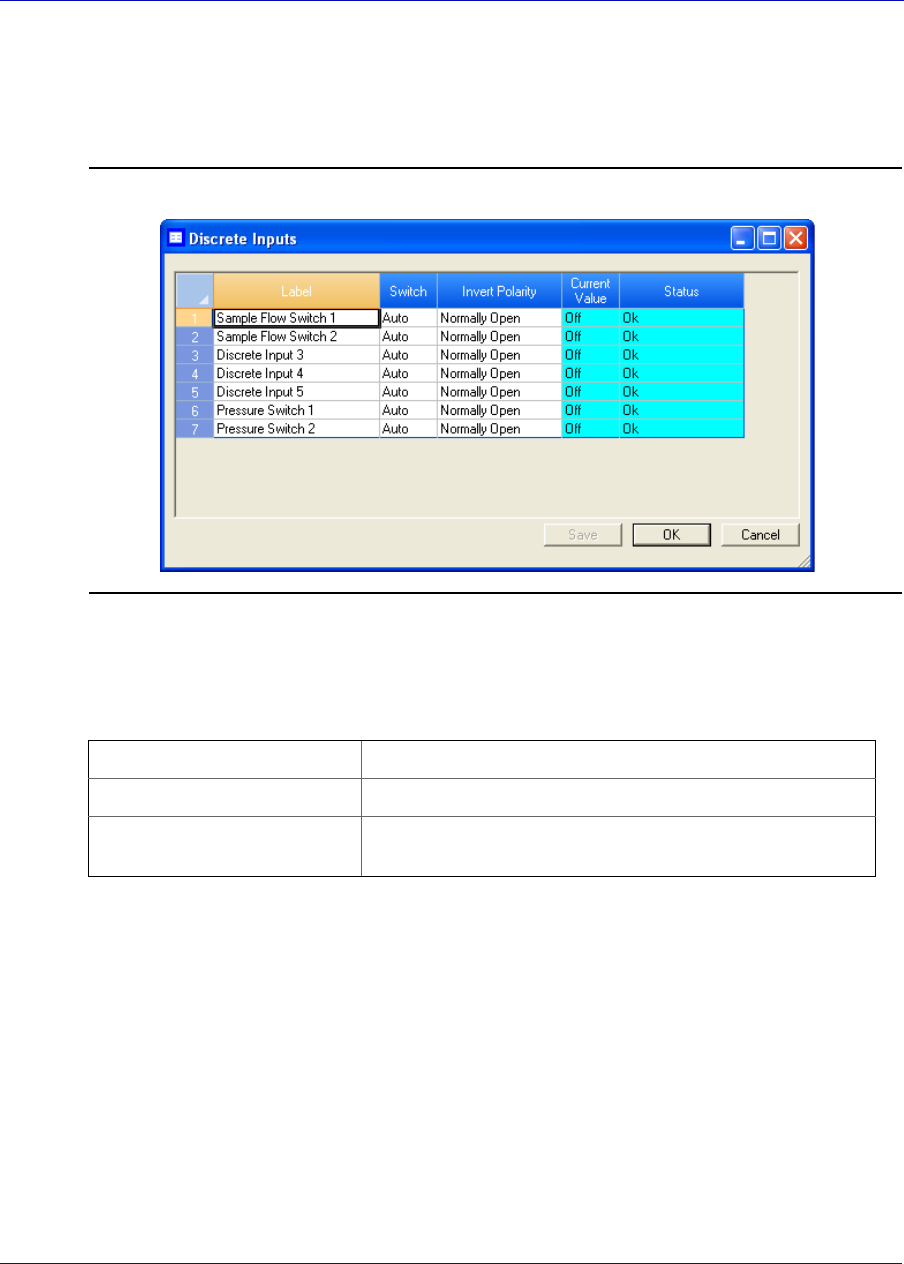
MON20/20 Software for Gas Chromatographs User Manual
SEPTEMBER 2010 3-9000-745
3-27
3.4.3 Monitoring the operational status of a discrete input
To check a valve’s status, select Discrete Input... from the Hardware
menu.
Figure 3-18. The Discrete Inputs window
The status of each discrete input displays under the Status column.
There are three possible status readings, and their meanings are as
follows:
OK The discrete input is installed and is working correctly.
Not Installed The discrete input is not installed.
Error The Heater/Solenoid board is installed but the GC cannot
communicate with it.
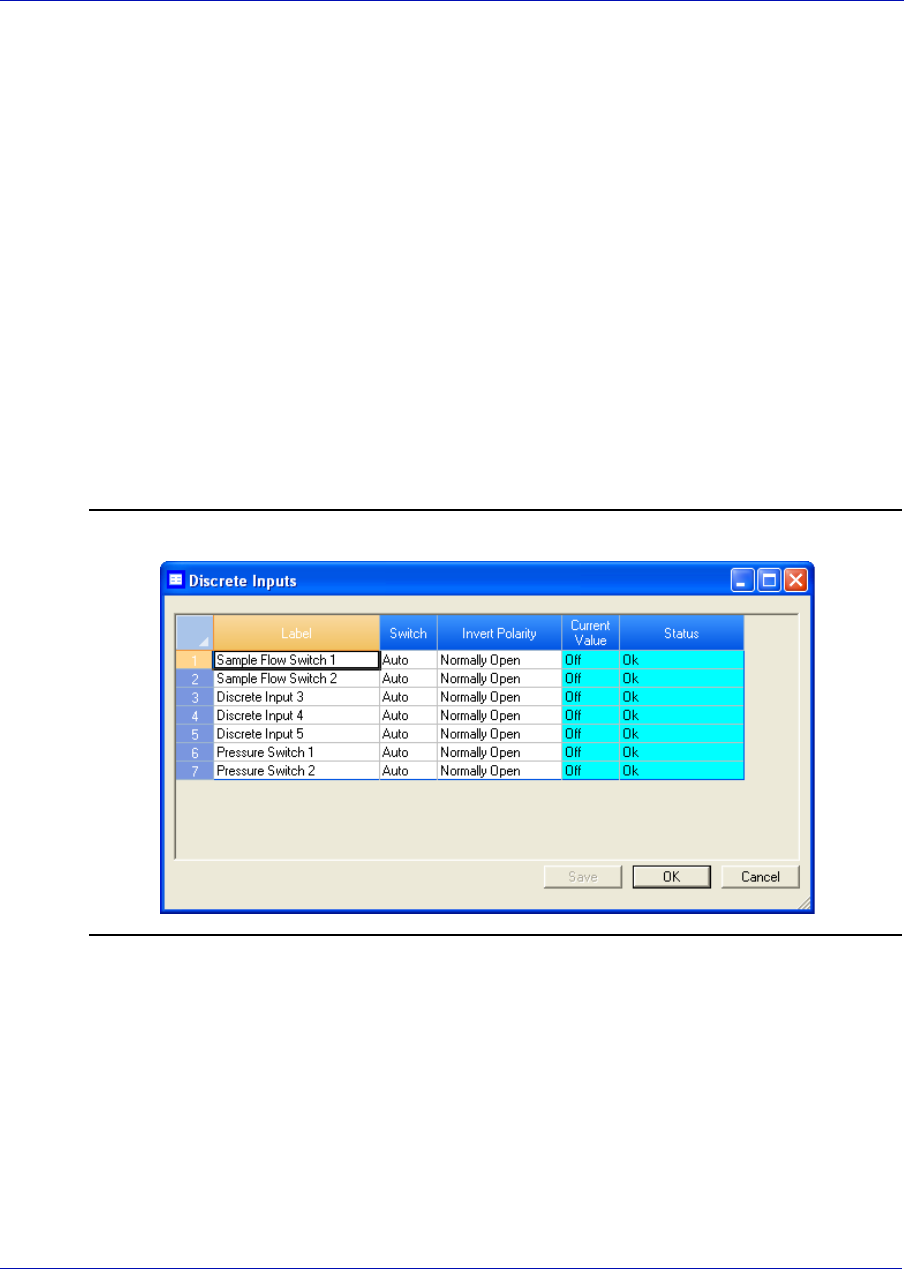
User Manual MON20/20 Software for Gas Chromatographs
3-9000-745 SEPTEMBER 2010
3-28
3.4.4 Inverting the polarity of a discrete input
The Invert Polariy option reverses the way a voltage signal is
interpreted by the discrete input. By default, the Invert Polarity option
is set to Normally Open, which means that a low voltage signal is
interpreted by the discrete input as ON, and a high voltage signal is
interpreted by the discrete input as OFF. Setting Invert Polarity to
Normally Closed means that a low voltage signal is interpreted by the
discrete input as OFF, and a high voltage signal is interpreted by the
discrete input as ON.
To set the polarity of a discrete input, do the following:
1. Select Discrete Input... from the Hardware menu. The Discrete
Inputs window displays.
Figure 3-19. The Discrete Inputs window
2. Select Normally Open or Normally Closed from the drop-down
menu under the Invert Polarity cloumn.
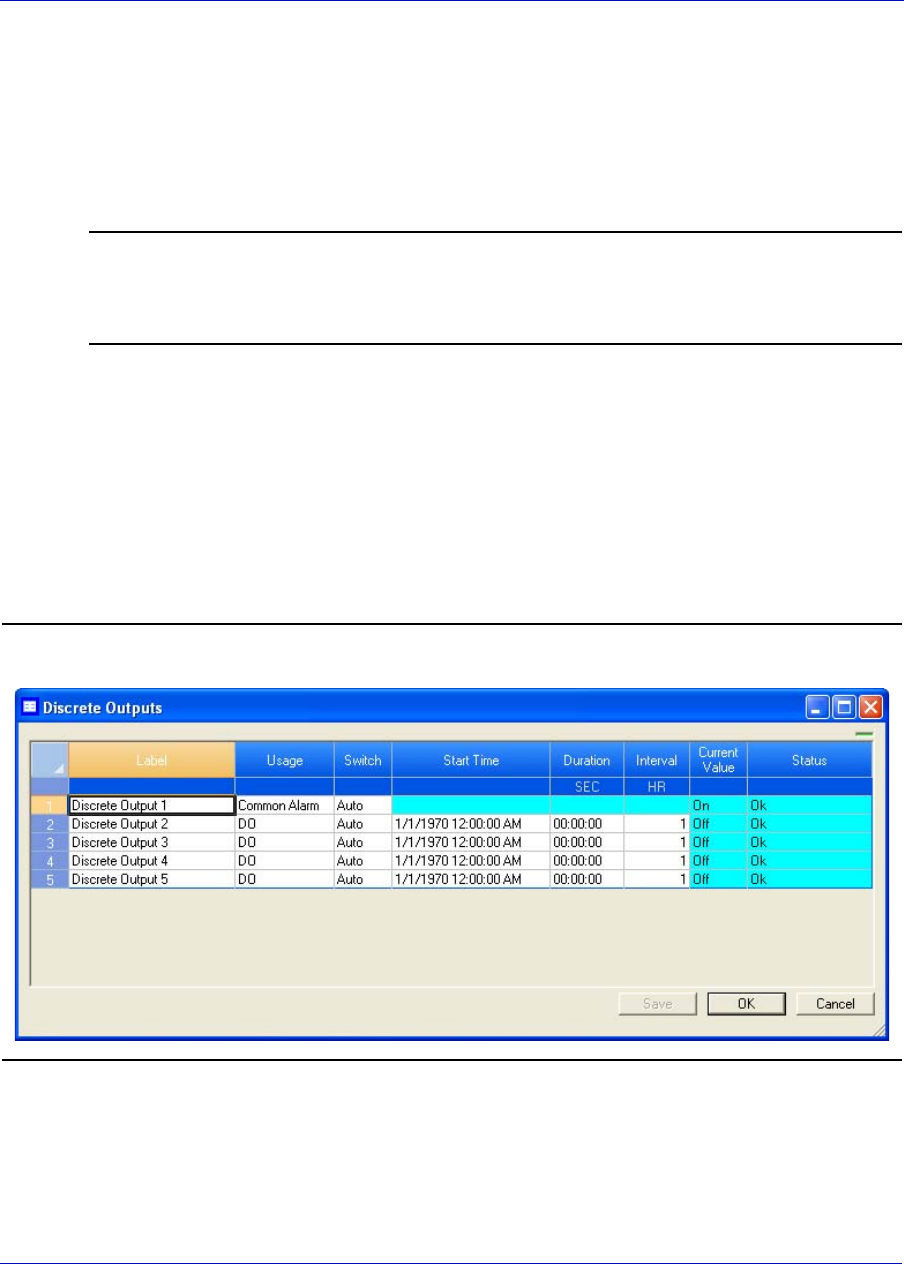
MON20/20 Software for Gas Chromatographs User Manual
SEPTEMBER 2010 3-9000-745
3-29
3.5 Managing your gas chromatograph’s discrete outputs
You can use MON 20/20 to assign labels to the GC’s discrete outputs and
to control the discrete outputs’ operational modes. The number of discrete
outputs available depends on the GC.
Note
This window contains a hidden column labelled Physical Name. For more information
about this column and how to display it, see “Viewing the Physical Name column” on
page 1-38.
3.5.1 Renaming a discrete output
Give each discrete output a descriptive label to avoid confusing one unit
for another. To assign an identifying label, do the following:
1. Select Discrete Outputs... from the Hardware menu. The Discrete
Outputs window displays.
Figure 3-20. The Discrete Outputs window
2. Double-click on the appropriate row under the Label column for the
discrete output that you want to rename.
User Manual MON20/20 Software for Gas Chromatographs
3-9000-745 SEPTEMBER 2010
3-30
Note
The discrete outputs are labeled Discrete Output 1 - Discrete Output N by default,
where N equals the total number of discrete outputs available to the GC.
3. Type in a new descriptive name for the discrete output.
4. Click OK.
3.5.2 Setting a discrete output’s operational mode
A discrete output has three operational modes: Auto, On, and Off.
• Setting the discrete output to Off means that the discrete output will
turn off and remain off until the operational mode is changed.
• Setting the discrete output to Auto means that the discrete output
will turn on and off according to the Timed Events table or the
Discrete Outputs table.
• Setting the discrete output to On means that the discrete output will
turn on and remain on until the operational mode is changed.
To set a discrete output’s operational mode, do the following:
1. Select Discrete Output... from the Hardware menu. The Discrete
Output window displays.
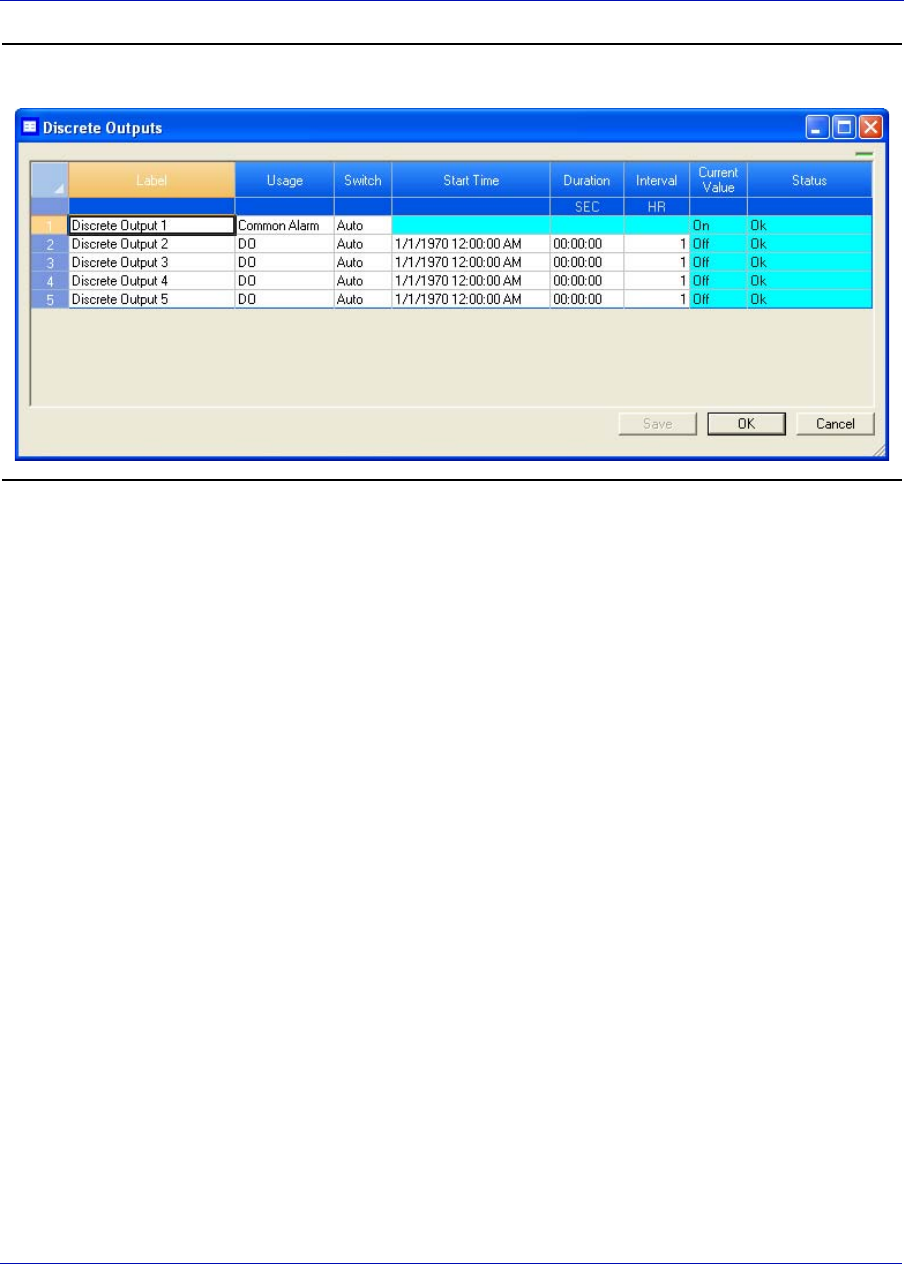
MON20/20 Software for Gas Chromatographs User Manual
SEPTEMBER 2010 3-9000-745
3-31
Figure 3-21. The Discrete Outputs window
2. Select the desired mode from the drop-down menu under the Switch
cloumn for the discrete output.
3. To save the changes and leave the window open so that you can
monitor the discrete output’s progress, click Save. To save the
changes and close the window, click OK. The current state of the
discrete output displays in the State column, and is updated in real
time.
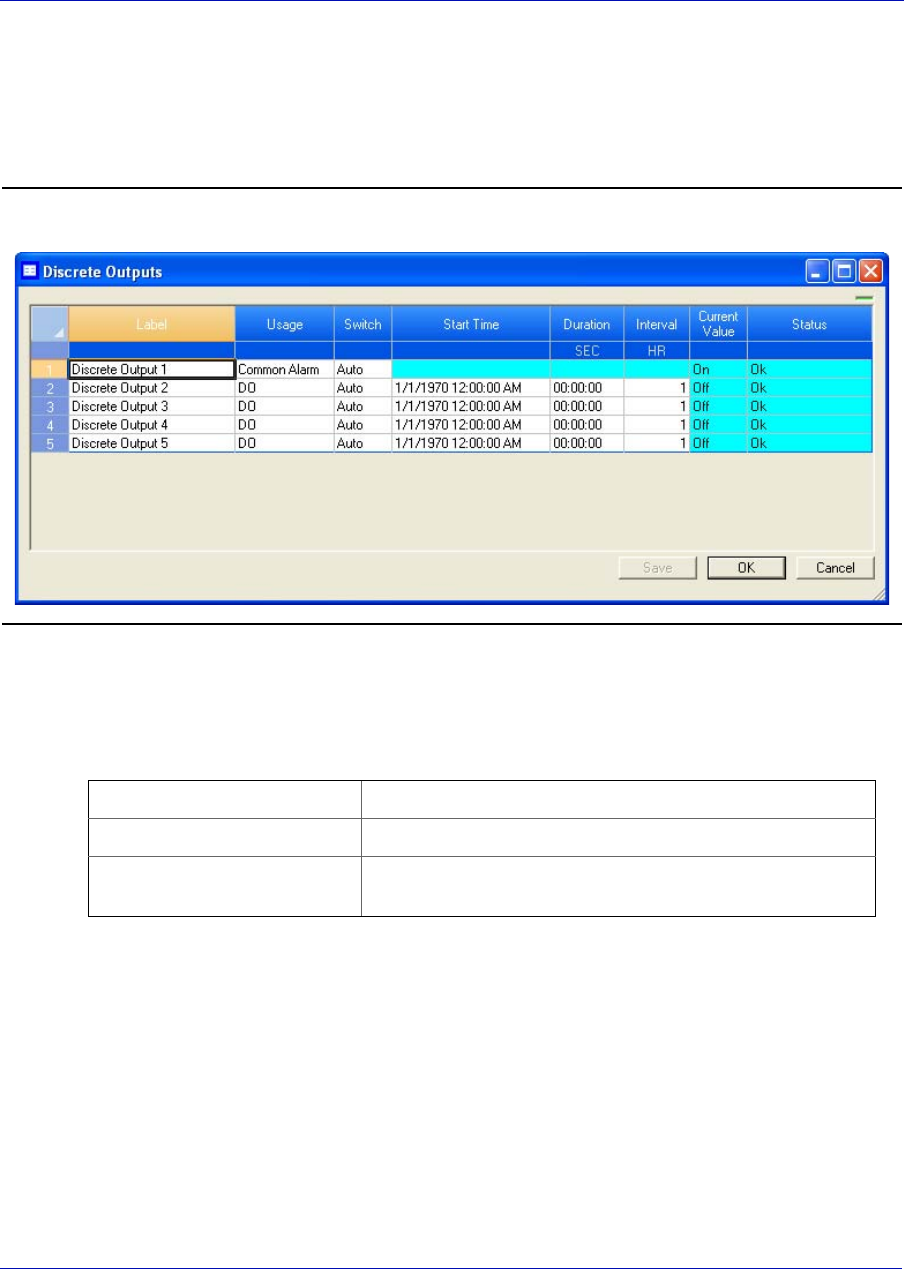
User Manual MON20/20 Software for Gas Chromatographs
3-9000-745 SEPTEMBER 2010
3-32
3.5.3 Monitoring the operational status of a discrete output
To check a valve’s status, select Discrete Output... from the Hardware
menu.
Figure 3-22. The Discrete Outputs window
The status of each discrete output displays under the Status column.
There are three possible status readings, and their meanings are as
follows:
OK The discrete output is installed and is working correctly.
Not Installed The discrete output is not installed.
Error The Heater/Solenoid board is installed but the GC cannot
communicate with it.
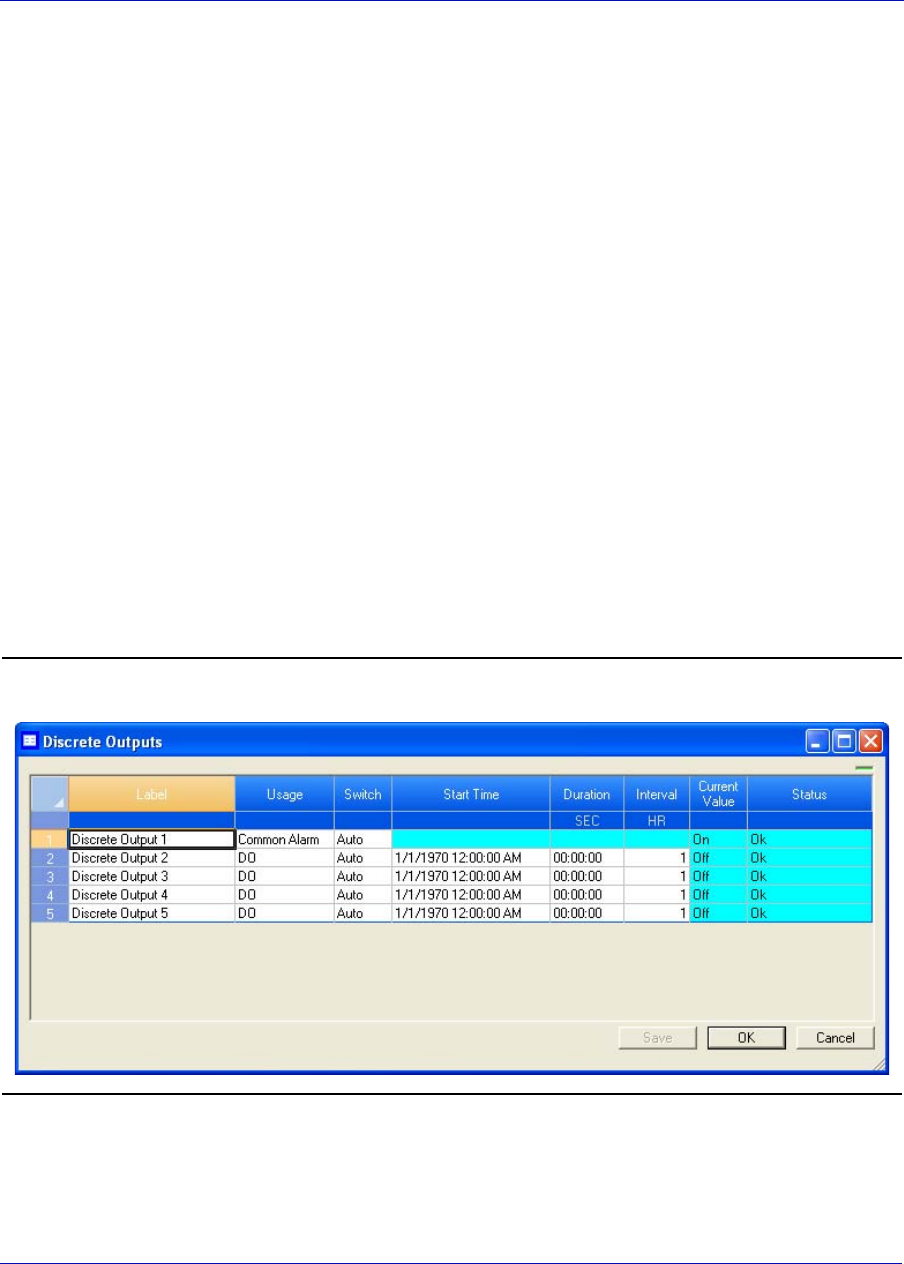
MON20/20 Software for Gas Chromatographs User Manual
SEPTEMBER 2010 3-9000-745
3-33
3.5.4 Setting the usage mode for a discrete output
A discrete output’s usage mode determines which signals are routed to it
via the Limited Alarm and Discrete Alarm functions. A discrete output
can be assigned one of the following usage modes:
•DO
•FID H2 Valve
• Common Alarm
• Stream
•Analyzer01
...
• Analyzer016
To set the usage mode for a discrete output, do the following:
1. Select Discrete Output... from the Hardware menu. The Discrete
Output window displays.
Figure 3-23. The Discrete Outputs window

User Manual MON20/20 Software for Gas Chromatographs
3-9000-745 SEPTEMBER 2010
3-34
2. Select the desired mode from the drop-down menu under the Usage
cloumn for the discrete output.
3. If you select DO for Usage, and Auto for Switch, then you must also
set the Start Time and Duration. Double-click on the appropriate row
under the Start Time column and enter the time that the digital
output should be turned on. Double-click on the appropriate row
under the Duration column and enter the amount of time, in seconds,
that the digital output should remain on. Double-click on the
appropriate row under the Interval column and enter the amount of
time, in hours, that should pass before the digital output turns on
again.
4. To save the changes and leave the window open so that you can
monitor the discrete output’s progress, click Save. To save the
changes and close the window, click OK. The current statr of the
discrete output displays in the State column, and is updated in real
time.
3.6 Managing your gas chromatograph’s analog inputs
With MON 20/20 you can control analog inputs in the following ways:
• Assign identifying labels.
• Assign scale ranges.
• Calibrate analog inputs for zero and full scale values.
Electrical current signals ranging from 4 to 20 mA (±10%) are accepted as
analog inputs.
Note
This window contains a hidden column labelled Physical Name. For more information
about this column and how to display it, see “Viewing the Physical Name column” on
page 1-38.
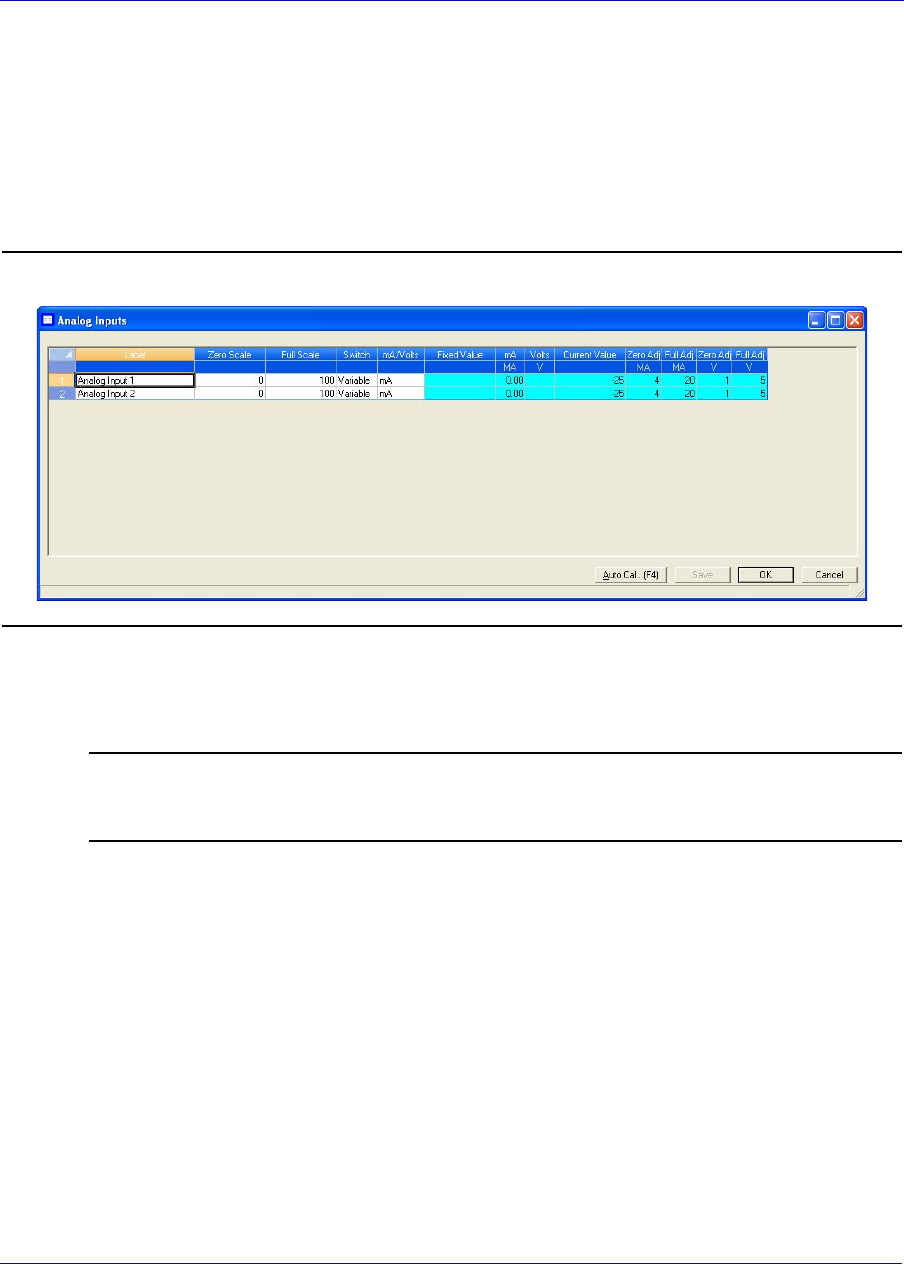
MON20/20 Software for Gas Chromatographs User Manual
SEPTEMBER 2010 3-9000-745
3-35
3.6.1 Renaming an analog input
Give each analog input a descriptive label to avoid confusing one unit for
another. To assign an identifying label, do the following:
1. Select Analog Inputs... from the Hardware menu. The Analog
Inputs window displays.
Figure 3-24. The Analog Inputs window
2. Double-click on the appropriate row under the Label column for the
analog input that you want to rename.
Note
The analog input devices are labelled Analog Input 1 and Analog Input N by default,
where N equals the total number of analog inputs available to the GC.
3. Type in a new descriptive name for the analog input.
4. Click OK.
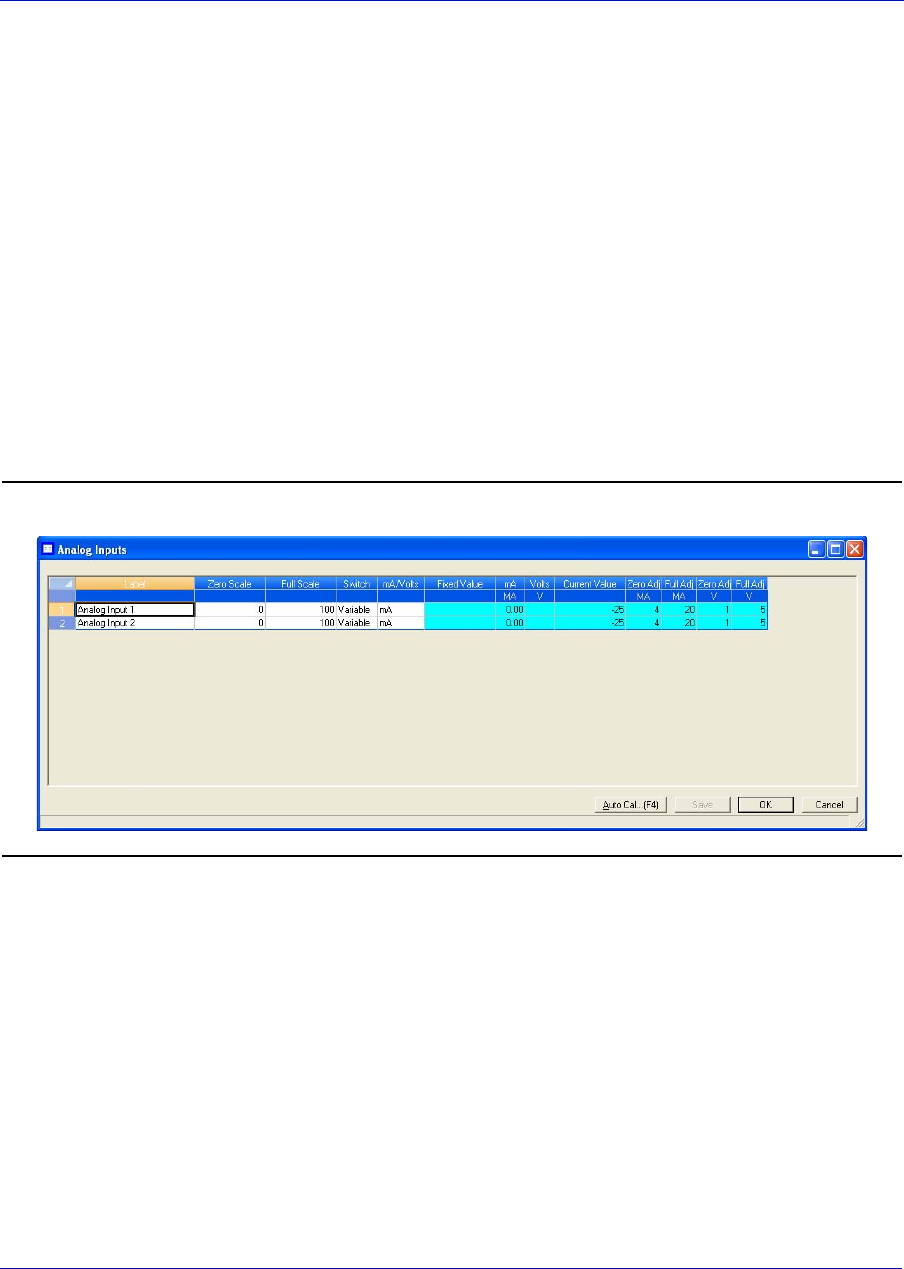
User Manual MON20/20 Software for Gas Chromatographs
3-9000-745 SEPTEMBER 2010
3-36
3.6.2 Setting a analog input’s operational mode
An analog input has two operational modes: Variable and Fixed.
• Setting the switch to Variable means that the analog input will be set
automatically, based on the signal it receives.
• Setting the switch to Fixed means that the analog input will be set to
the value that you enter in the appropriate row under the Fixed Value
column.
To set an analog input’s operational mode, do the following:
1. Select Analog Input... from the Hardware menu. The Analog Input
window displays.
Figure 3-25. The Analog Inputs window
2. Select the desired mode from the drop-down menu under the Switch
cloumn for the analog input.
3. To save the changes and leave the window open so that you can
monitor the analog input, click Save. To save the changes and close
the window, click OK. The current value of the analog input signal
displays in the Current Value column, and is updated in real time.
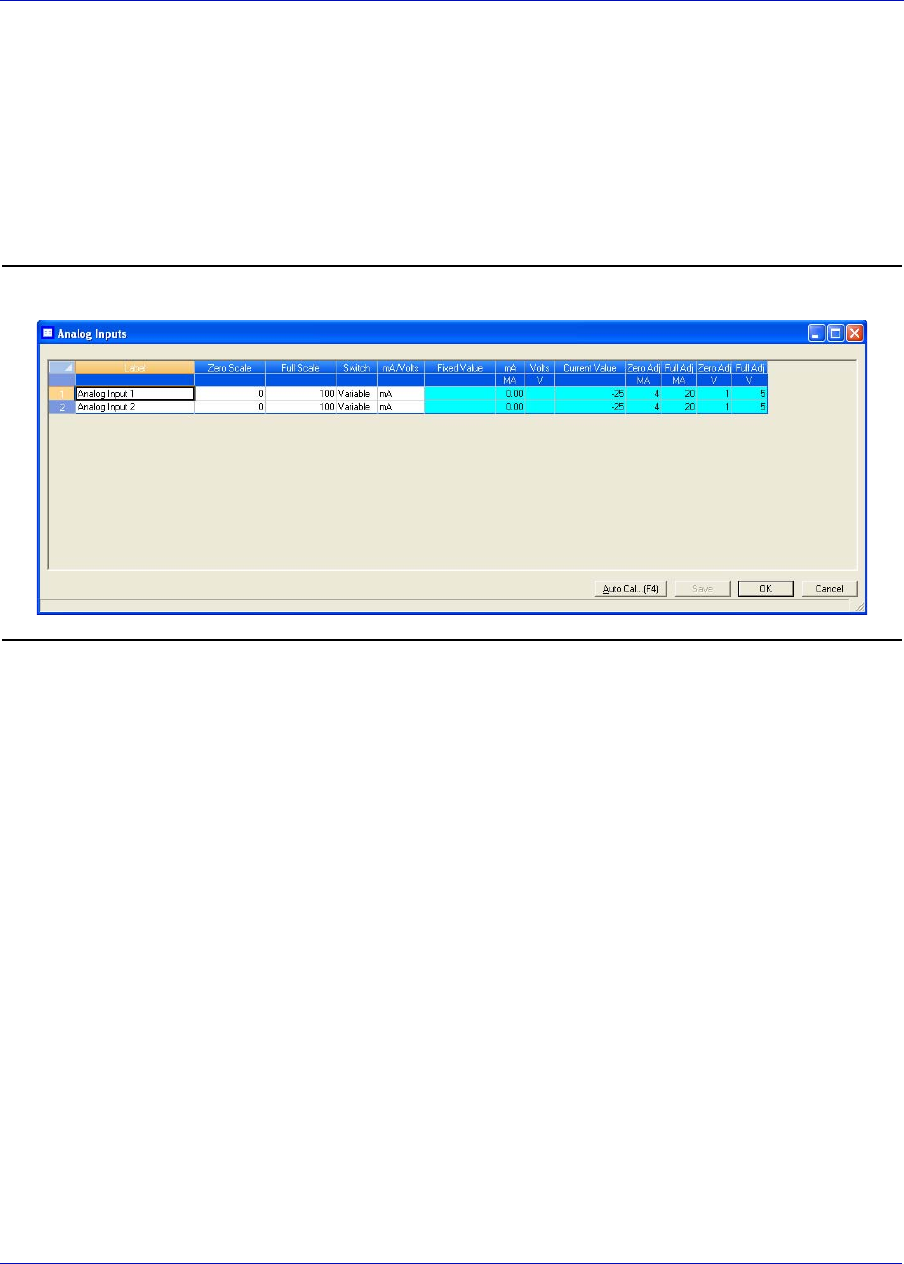
MON20/20 Software for Gas Chromatographs User Manual
SEPTEMBER 2010 3-9000-745
3-37
3.6.3 Setting the scale values for an analog input device
To set the zero scale and full scale, which are used when converting the
analog input value, do the following:
1. Select Analog Input... from the Hardware menu. The Analog Input
window displays.
Figure 3-26. The Analog Inputs window
2. Double-click on appropriate row under the Zero Scale column and
enter a zero scale value.
3. Double-click on appropriate row under the Full Scale column and
enter a full scale value.
4. To save the changes and leave the window open so that you can
monitor the analog input, click Save. To save the changes and close
the window, click OK.
3.6.4 Setting the type of analog input signal
The GC’s analog inputs can receive two types of signal: volts and a 4-20
mA current, which is the industry standard. To set the type of signal
generated by the analog input device, do the following:
1. Select Analog Input... from the Hardware menu. The Analog Input
window displays.
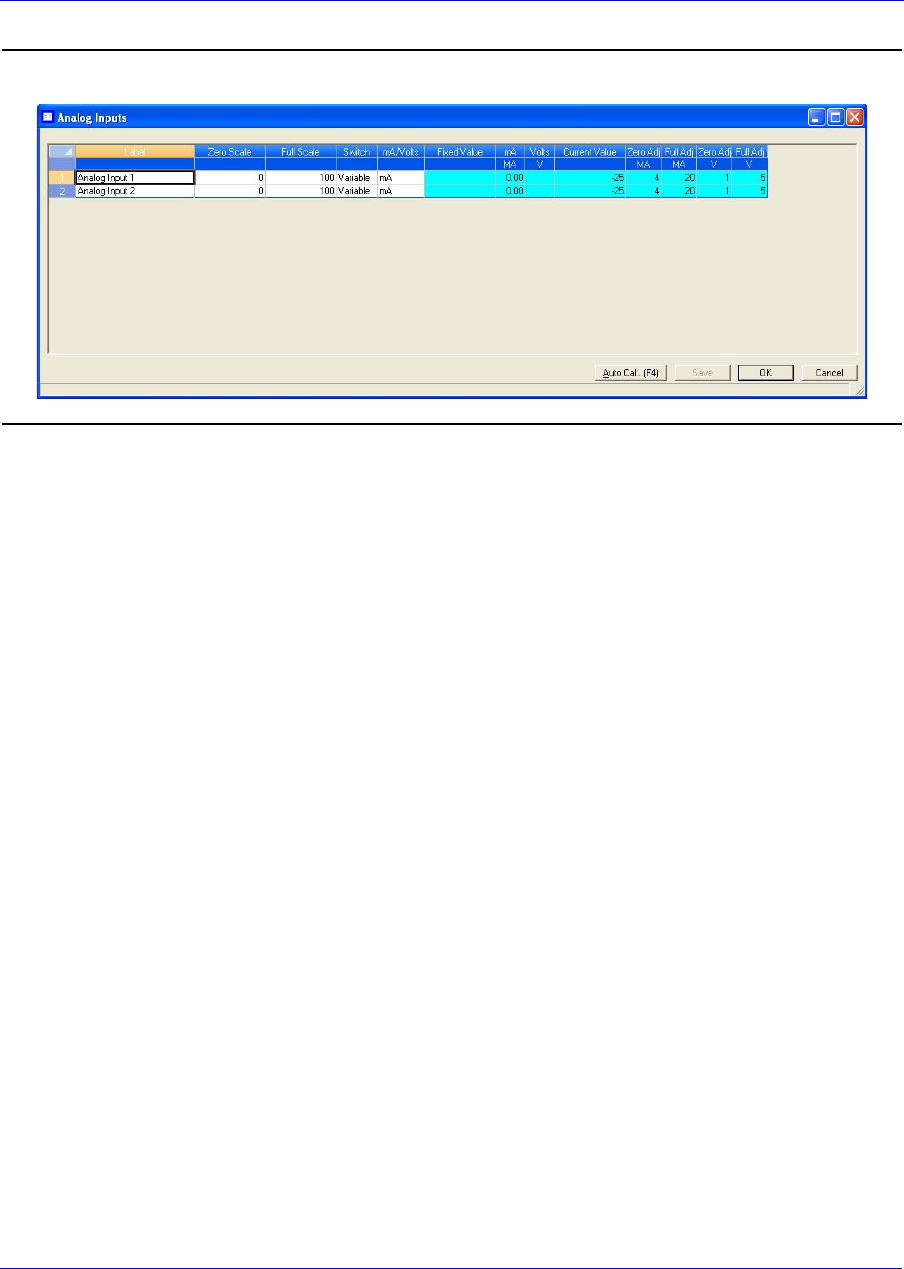
User Manual MON20/20 Software for Gas Chromatographs
3-9000-745 SEPTEMBER 2010
3-38
Figure 3-27. The Analog Inputs window
2. Select the signal type from the appropriate row under the mA/Volt
column.
3. To save the changes and leave the window open so that you can
monitor the analog input’s progress, click Save. To save the changes
and close the window, click OK. The type of signal being generated
displays in the mA/Volts column, and is updated in real time.

MON20/20 Software for Gas Chromatographs User Manual
SEPTEMBER 2010 3-9000-745
3-39
3.6.5 Monitoring the status of an analog input
To check an analog input’s status, select Analog Input... from the
Hardware menu.
Figure 3-28. The Analog Inputs window
The operational status of each analog input displays under the Status
column. There are three possible status readings, and their meanings are
as follows:
This window also displays other types of data, such as the following:
•mA/Volts - The type of analog input signal being received.
•mA - If mA displays in the mA/Volts column, then this column
displays the amount of current being received, in milliamperes.
•Volts - If Volts displays in the mA/Volts column, then this column
displays the amount of current being received, in volts.
•Cur Val - The current value of the analog input signal.
OK The analog input is installed and is working correctly.
Not Installed The analog input is not installed.
Error The analog input is installed but the GC cannot communicate
with it.
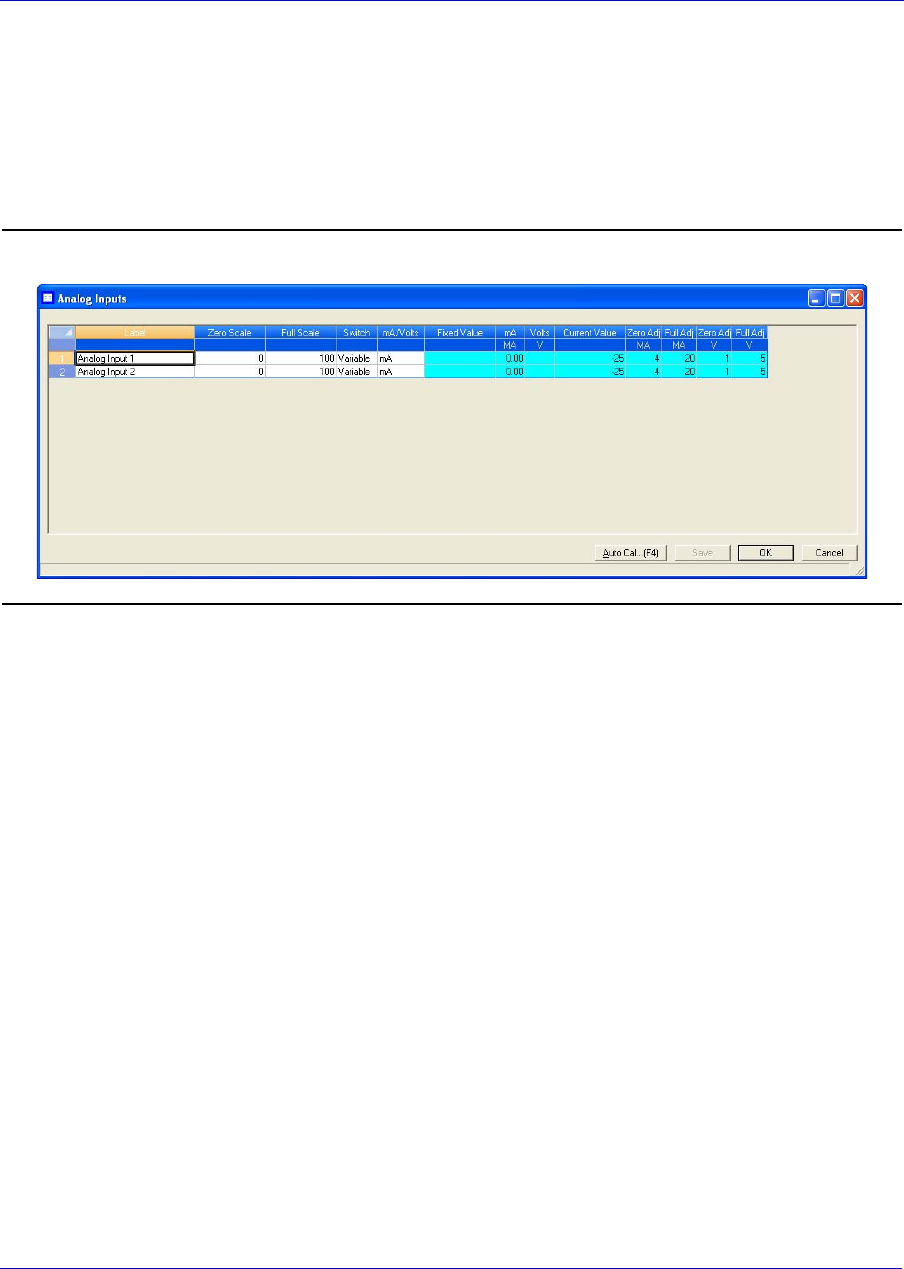
User Manual MON20/20 Software for Gas Chromatographs
3-9000-745 SEPTEMBER 2010
3-40
3.6.6 Calibrating an analog input
To calibrate an analog input, do the following:
1. Select Analog Input... from the Hardware menu. The Analog Input
window displays.
Figure 3-29. The Analog Inputs window
2. Click on the analog input that you want to calibrate.
3. Set the analog input’s Zero Scale by entering its minimum anticipated
value.
4. Set the analog input’s Full Scale by entering your maximum
anticipated value.
5. Click AutoCal...(F4) or press F4. The Analog Input Calibration
Wizard runs.
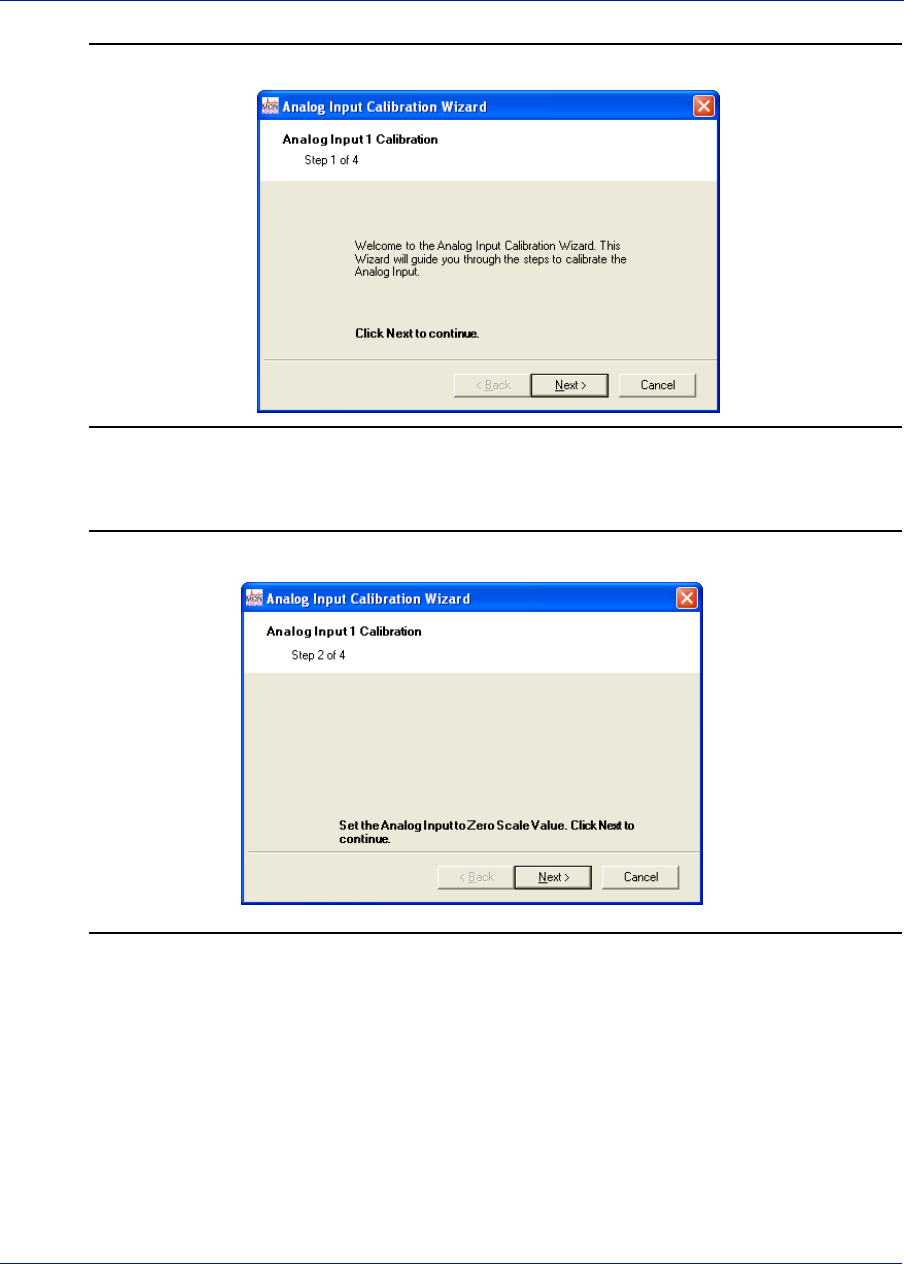
MON20/20 Software for Gas Chromatographs User Manual
SEPTEMBER 2010 3-9000-745
3-41
Figure 3-30. The Analog Input Calibration Wizard
6. Click Next. Step 2 of the Analog Input Calibration Wizard displays.
Figure 3-31. Step 2 of the Analog Input Calibration WIZARD
7. Click Next. Step 3 of the Analog Input Calibration Wizard displays.
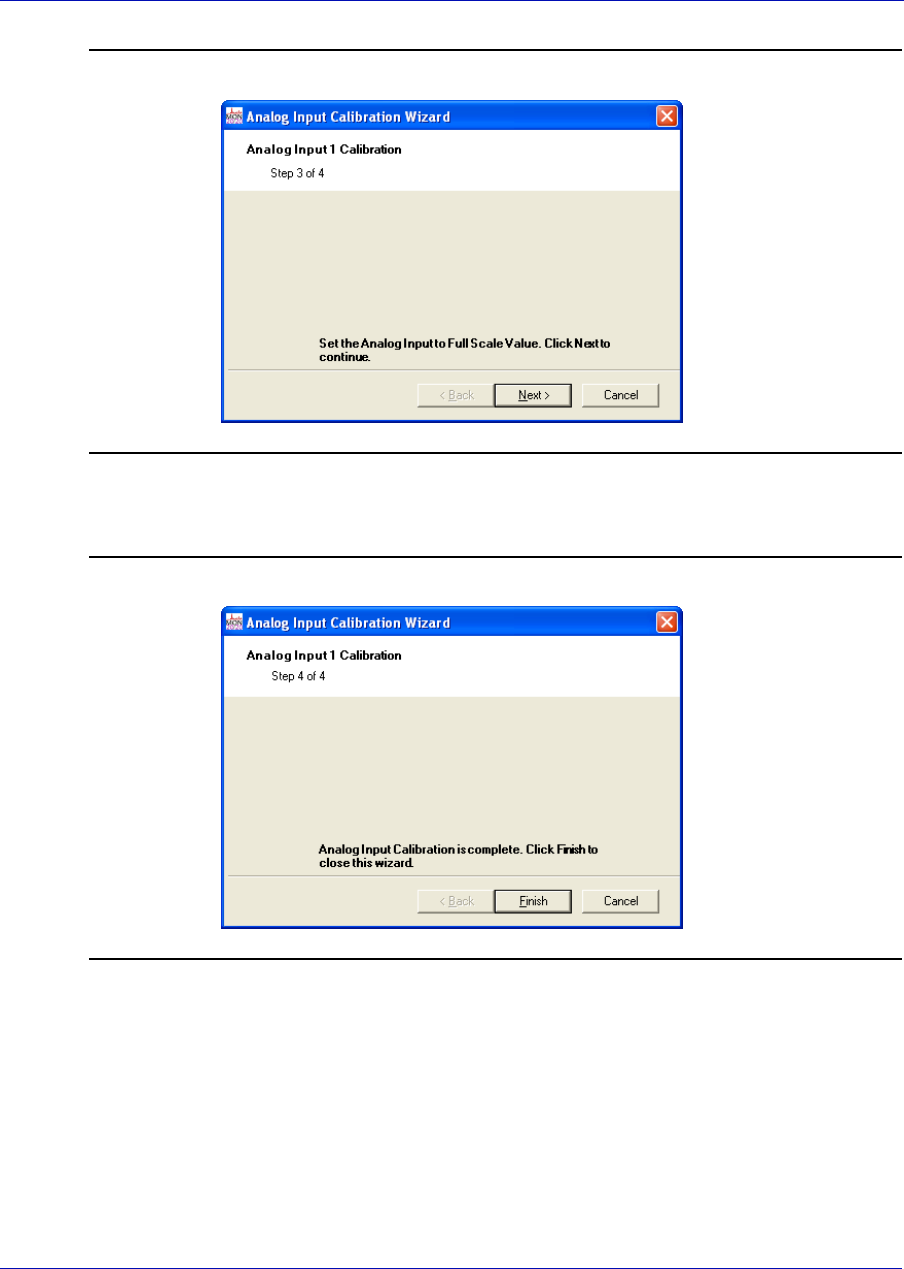
User Manual MON20/20 Software for Gas Chromatographs
3-9000-745 SEPTEMBER 2010
3-42
Figure 3-32. Step 3 of the Analog Input Calibration Wizard
8. Click Next. Step 4 of the Analog Input Calibration Wizard displays.
Figure 3-33. Step 4 of the Analog Input Calibration Wizard
9. Click Finish. The calibration is complete.
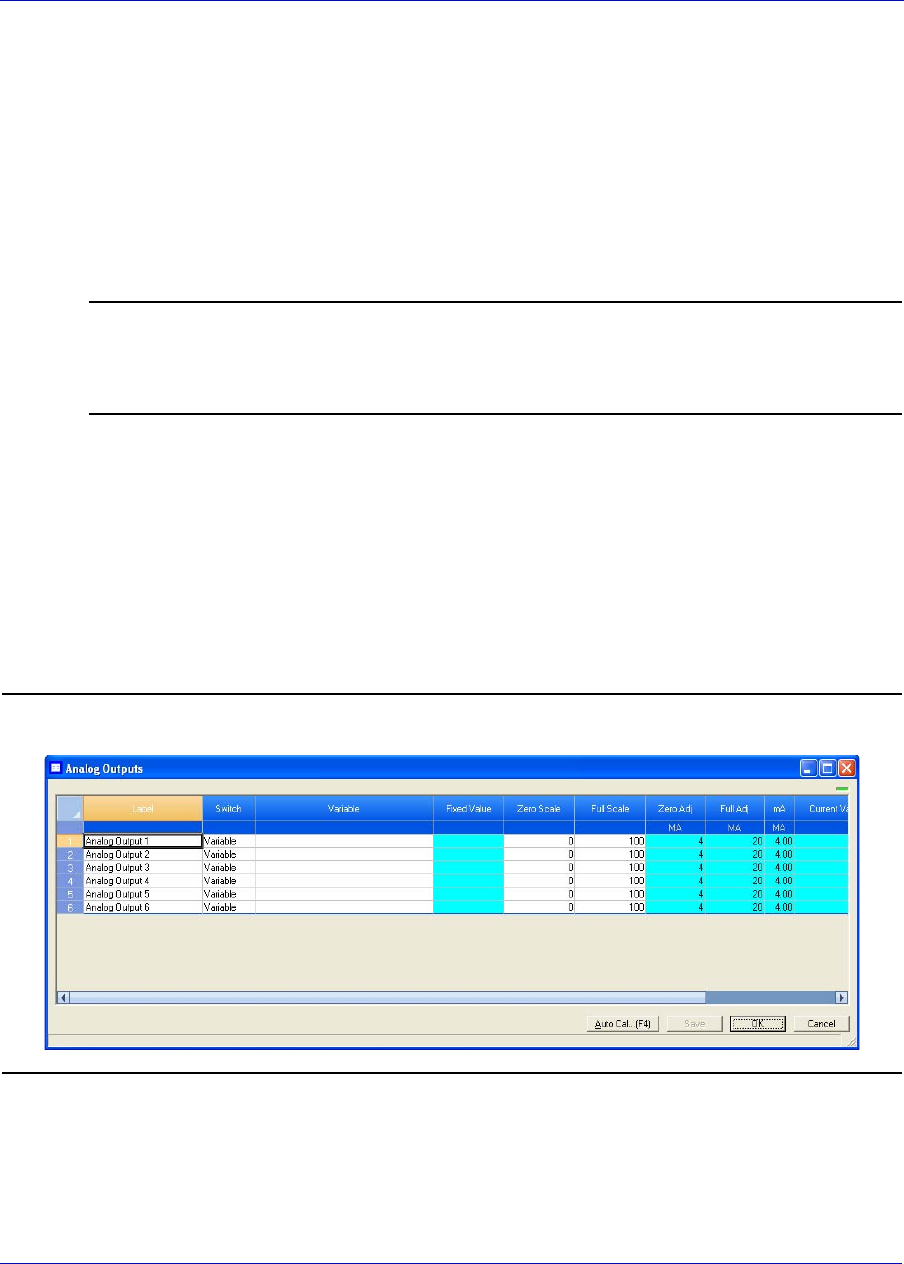
MON20/20 Software for Gas Chromatographs User Manual
SEPTEMBER 2010 3-9000-745
3-43
3.7 Managing your gas chromatograph’s analog outputs
With MON 20/20 you can control them in the following ways:
• Assign identifying labels.
• Assign scale ranges.
• Calibrate analog outputs for zero and full scale values.
Note
This window contains a hidden column labelled Physical Name. For more information
about this column and how to display it, see “Viewing the Physical Name column” on
page 1-38.
3.7.1 Renaming an analog output
Give each analog output a descriptive label to avoid confusing one unit for
another. To assign an identifying label, do the following:
10.Select Analog Outputs... from the Hardware menu. The Analog
Outputs window displays.
Figure 3-34. The Analog Outputs window
11.Double-click on the appropriate row under the Label column for the
analog output that you want to rename.
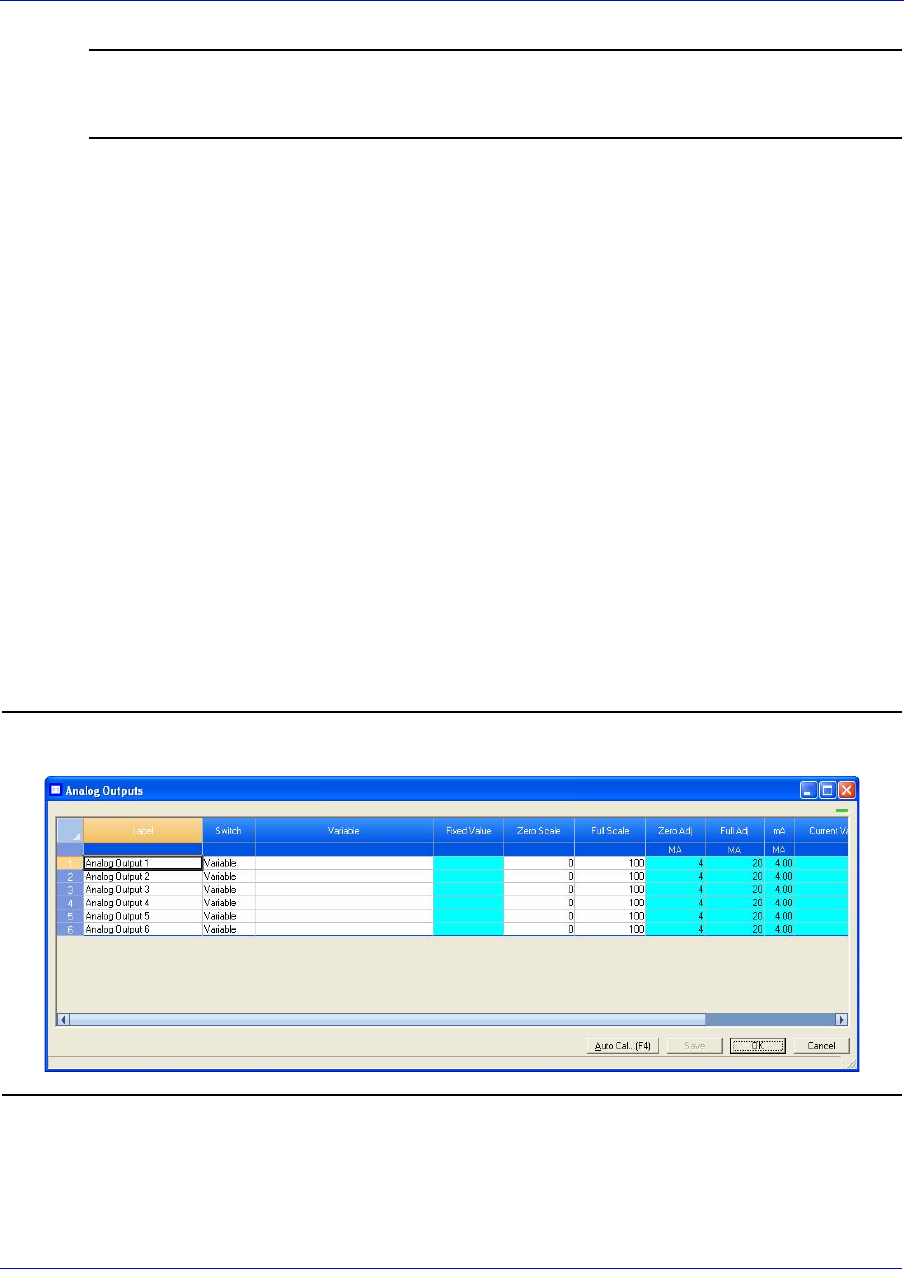
User Manual MON20/20 Software for Gas Chromatographs
3-9000-745 SEPTEMBER 2010
3-44
Note
The analog output devices are labelled Analog Output 1 - Analog Output N by
default, where N equals the total number of analog outputs available to the GC.
12.Type in a new descriptive name for the analog output.
13.Click OK.
3.7.2 Setting a analog output’s operational mode
An analog output has two operational modes: Variable and Fixed.
• Setting the switch to Variable means that the analog output will be
proportional to the variable selected in from the Variables column.
• Setting the switch to Fixed means that the analog output will be set
to the value that is entered in the appropriate row under the Fixed
Value column.
To set an analog output’s operational mode, do the following:
1. Select Analog Output... from the Hardware menu. The Analog
Output window displays.
Figure 3-35. The Analog Outputs window
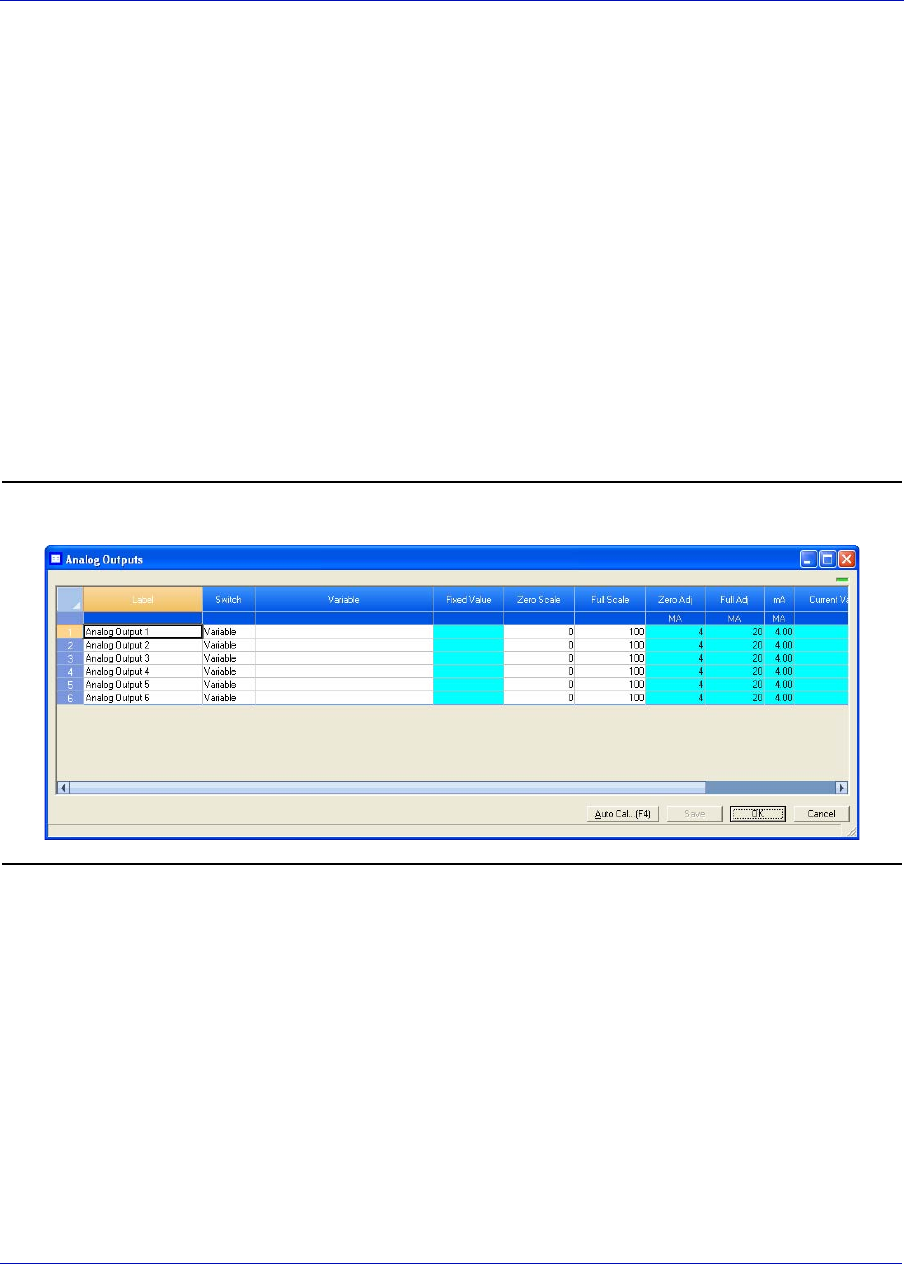
MON20/20 Software for Gas Chromatographs User Manual
SEPTEMBER 2010 3-9000-745
3-45
2. Select the desired mode from the drop-down menu under the Switch
cloumn for the analog output.
3. To save the changes and leave the window open so that you can
monitor the analog output, click Save. To save the changes and close
the window, click OK. The current value of the analog output displays
in the Cur Val column, and is updated in real time.
3.7.3 Setting the scale values for an analog output device
To set the zero scale and full scale, which are used when converting the
analog output value, do the following:
1. Select Analog Output... from the Hardware menu. The Analog
Output window displays.
Figure 3-36. The Analog Outputs window
2. Click on appropriate row under the Zero Scale column and enter a
zero scale value.
3. Click on appropriate row under the Full Scale column and enter a full
scale value.
4. To save the changes and leave the window open so that you can
monitor the analog input’s progress, click Save. To save the changes
and close the window, click OK.
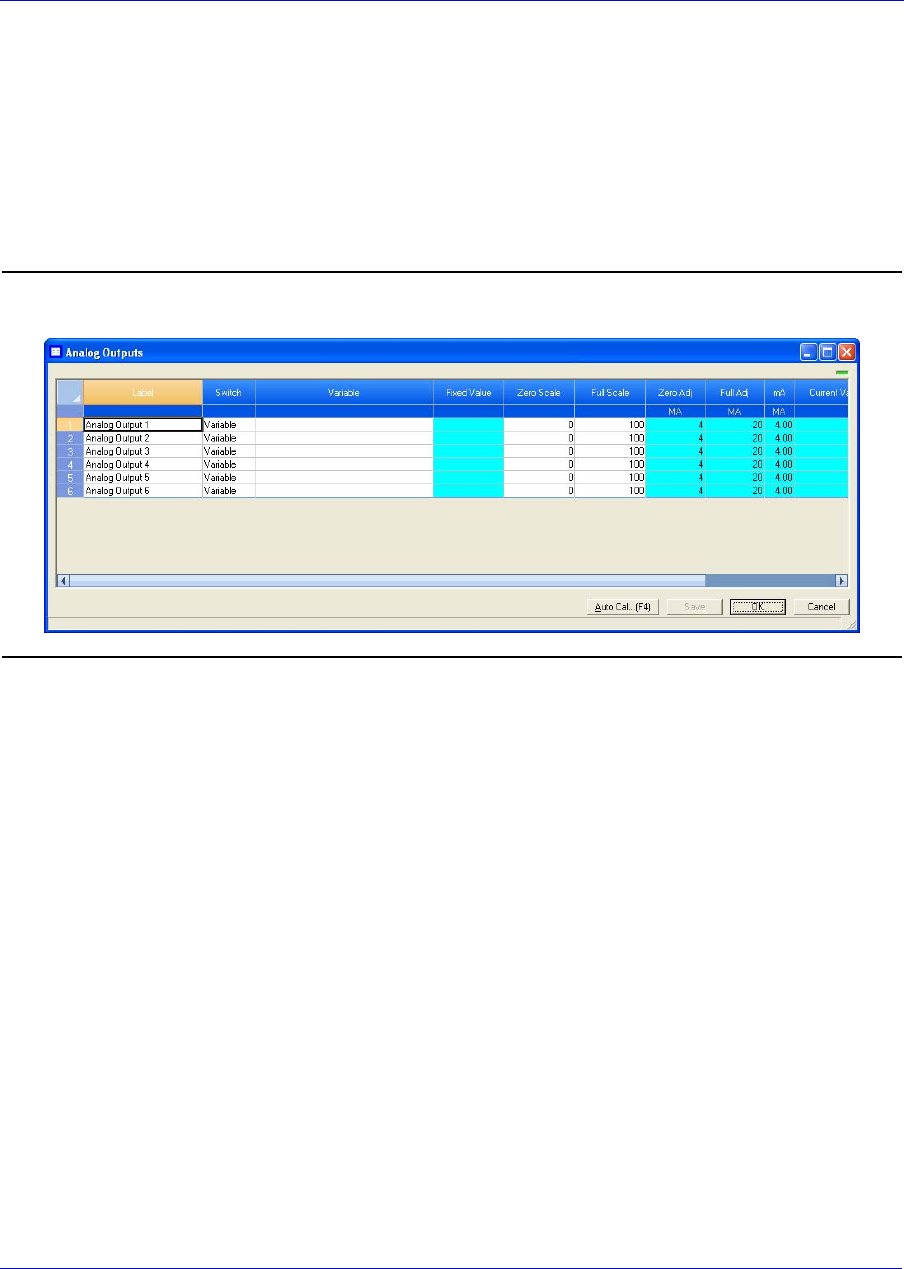
User Manual MON20/20 Software for Gas Chromatographs
3-9000-745 SEPTEMBER 2010
3-46
3.7.4 Mapping a system variable to an analog output
To select the system variable on which to base the signal level of the
analog output, do the following:
1. Select Analog Output... from the Hardware menu. The Analog
Output window displays.
Figure 3-37. The Analog Outputs window
2. Select a new variable by clicking on the appropriate drop-down list
under the Variable column. For a demonstration of how to use the
context-sensitive variable selector, see “Using the context-sensitive
variable selector” on page 1-42.
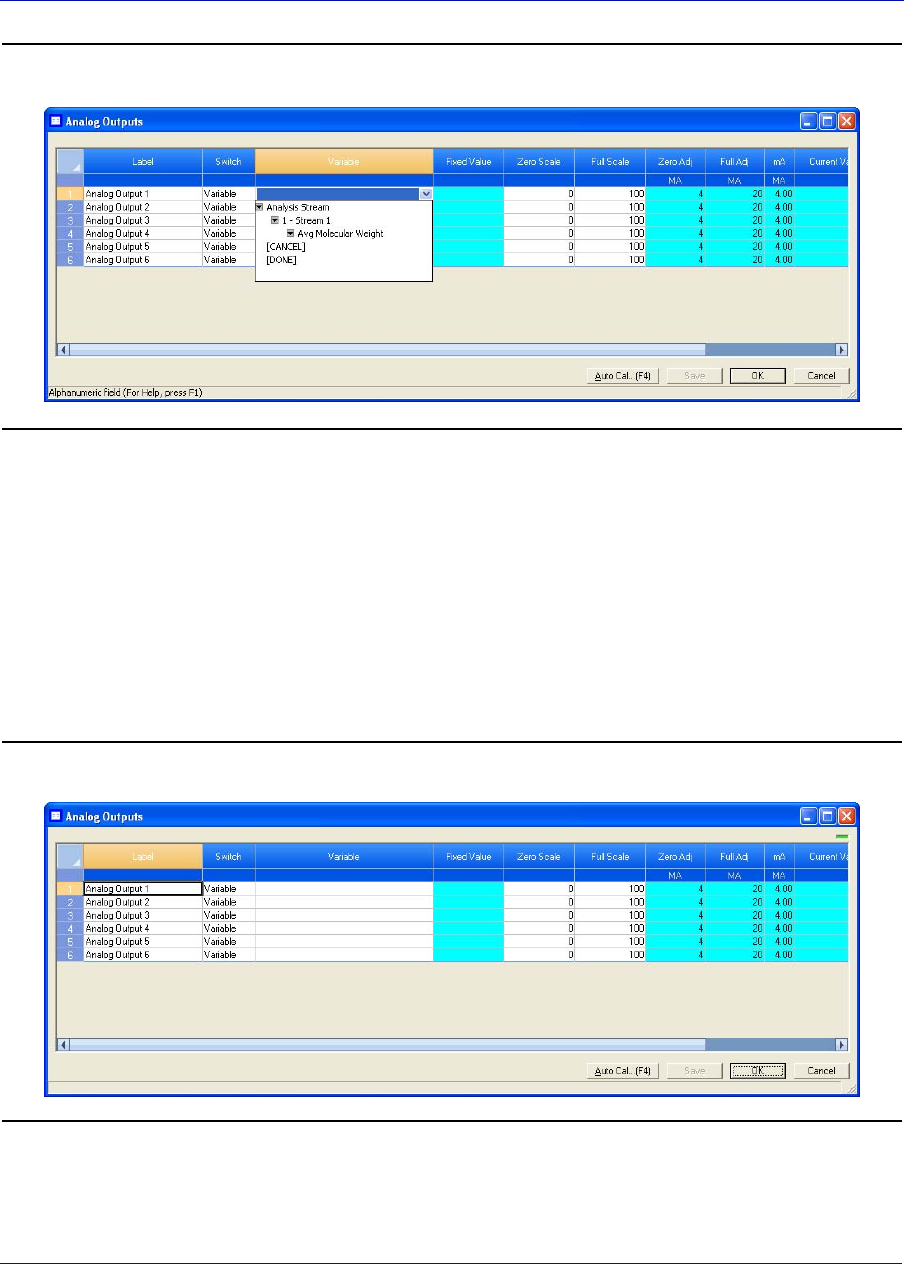
MON20/20 Software for Gas Chromatographs User Manual
SEPTEMBER 2010 3-9000-745
3-47
Figure 3-38. The Analog Outputs window with Variable drop-down menu
3. To save the changes and leave the window open so that you can
monitor the analog output’s progress, click Save. To save the changes
and close the window, click OK.
3.7.5 Monitoring the status of an analog output
To check an analog output device’s status, select Analog Output... from
the Hardware menu.
Figure 3-39. The Analog Outputs window
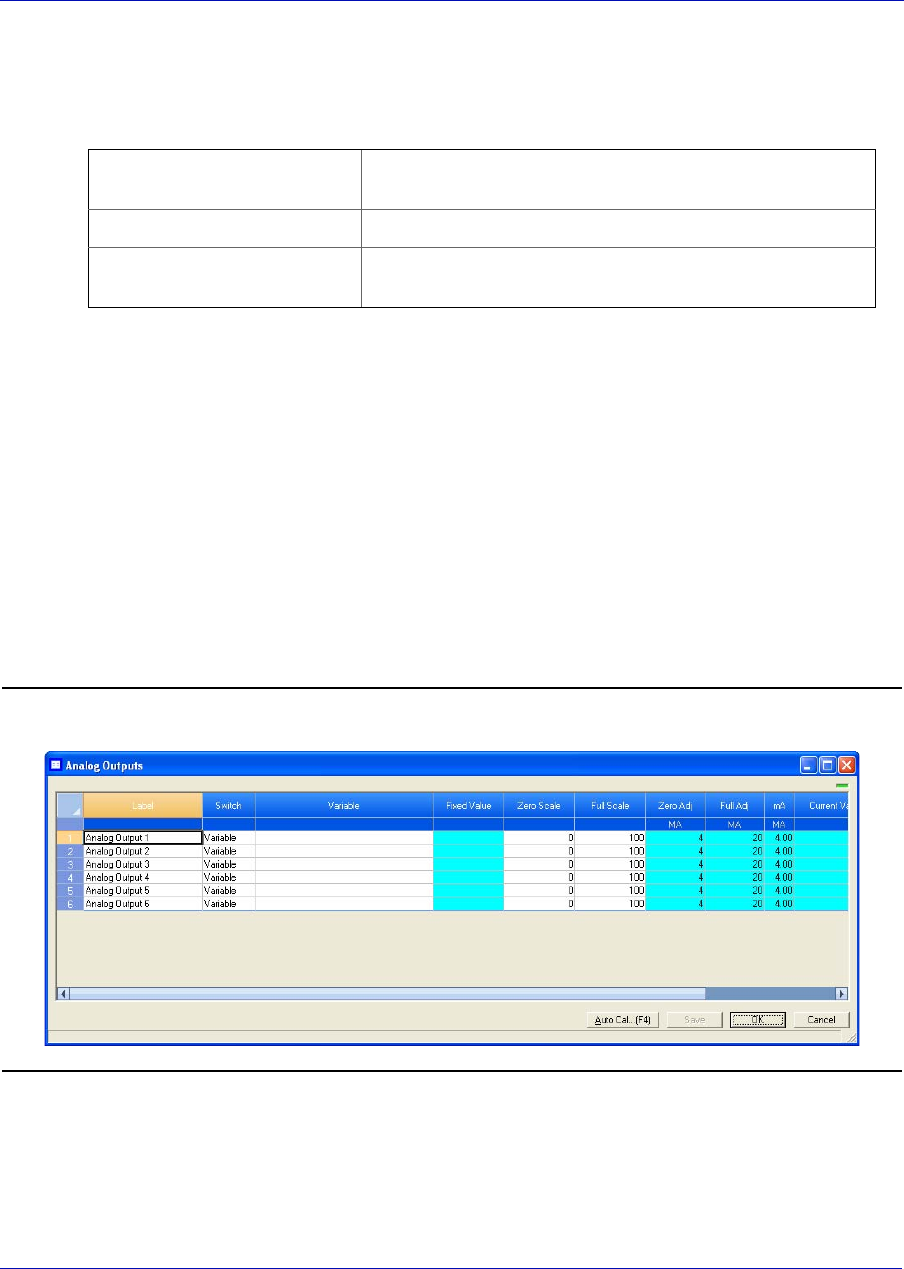
User Manual MON20/20 Software for Gas Chromatographs
3-9000-745 SEPTEMBER 2010
3-48
The operational status of each analog output displays under the Status
column. There are three possible status readings, and their meanings are
as follows:
This window also displays other types of data, such as the following:
•mA - The amount of current being generated in milliamperes.
•Cur Val - The current scaled value of the analog output signal.
3.7.6 Calibrating an analog output
To automatically calibrate an analog output, do the following:
1. Select Analog Output... from the Hardware menu. The Analog
Outputs window displays.
Figure 3-40. The Analog Outputs window
2. Click on the analog output that you want to calibrate.
OK The analog output device is installed and is working
correctly.
Not Installed The analog output device is not installed.
Error The Heater/Solenoid board is installed but the GC cannot
communicate with it.
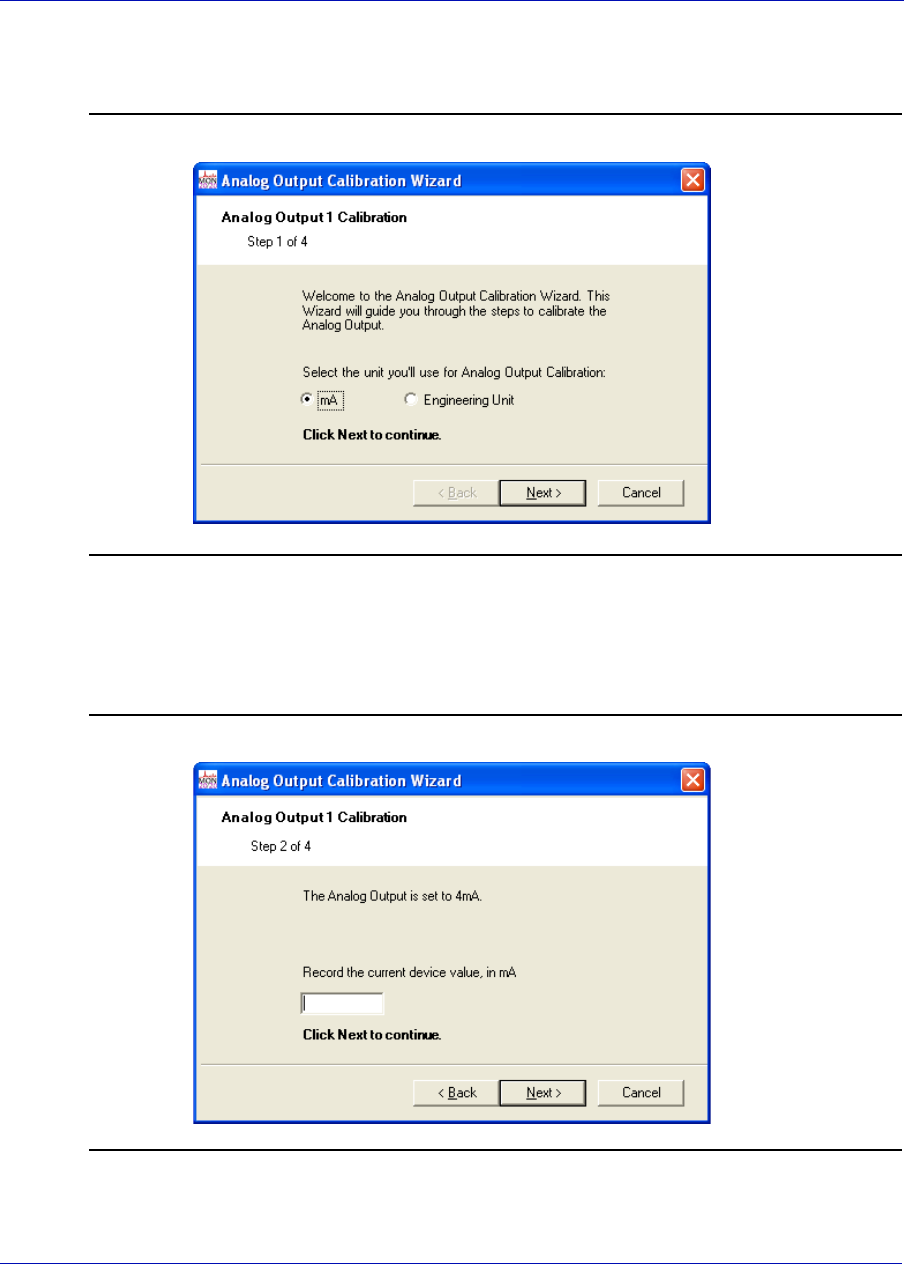
MON20/20 Software for Gas Chromatographs User Manual
SEPTEMBER 2010 3-9000-745
3-49
3. Click AutoCal...(F4) or press F4. The Analog Output Calibration
Wizard runs.
Figure 3-41. The Analog Output Calibration Wizard
4. Select the check box for the unit of measure you want to use for the
calibration and then click Next. Step 2 of the Analog Output
Calibration Wizard displays.
Figure 3-42. Step 2 of the Analog Output Calibration Wizard
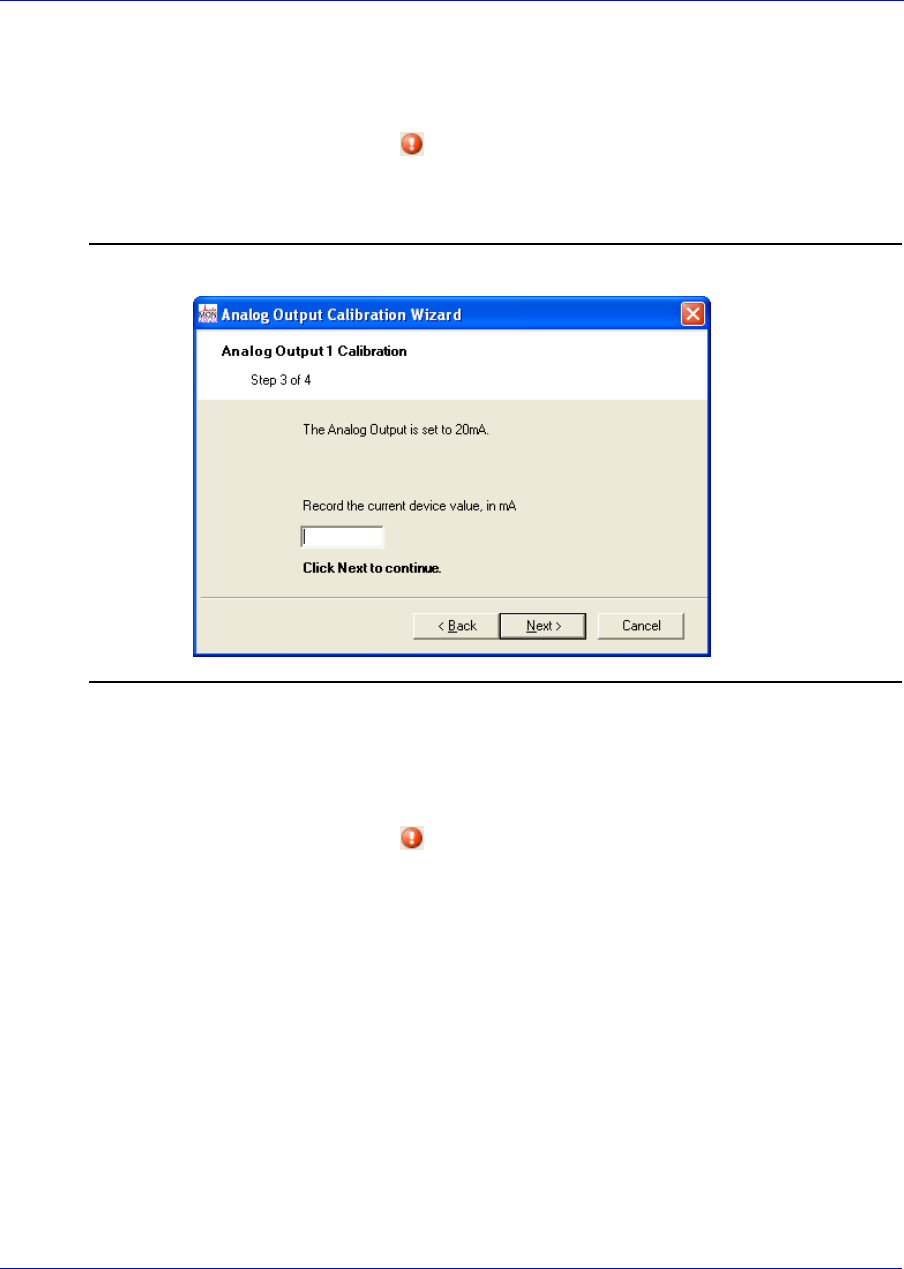
User Manual MON20/20 Software for Gas Chromatographs
3-9000-745 SEPTEMBER 2010
3-50
5. Enter the Zero Scale Adjustment value and then click Next. If the
value entered is within tolerance, it is accepted and Step 3 of the
Analog Output Calibration Wizard displays. If the value is not within
tolerance, an error icon ( ) appears beside the field. Tolerance is set
to ±1mA of the analog output’s default zero adjustment setting, which
is 4mA. Enter a different value and try again.
Figure 3-43. Step 3 of the Analog Output Calibration Wizard
6. Enter the Full Scale Adjustment value and then click Next. If the
value entered is within tolerance, it is accepted and Step 4 of the
Analog Output Calibration Wizard displays. If the value is not within
tolerance, an error icon ( ) appears beside the field. Tolerance is set
to ±1mA of the analog output’s default full adjustment setting, which
is 20mA. Enter a different value and try again.
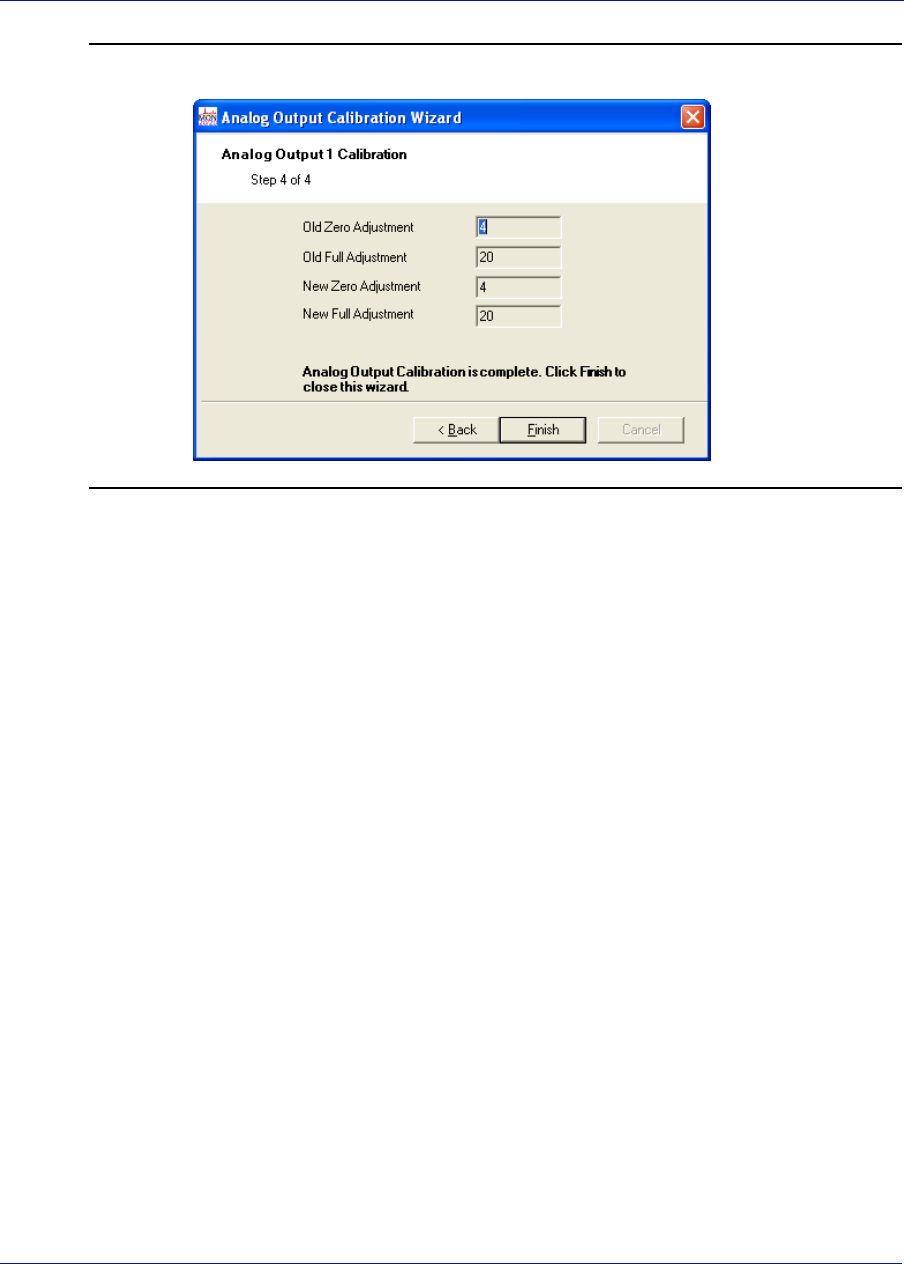
MON20/20 Software for Gas Chromatographs User Manual
SEPTEMBER 2010 3-9000-745
3-51
Figure 3-44. Step 4 of the Analog Output Calibration Wizard
7. Click Finish. The calibration is complete.
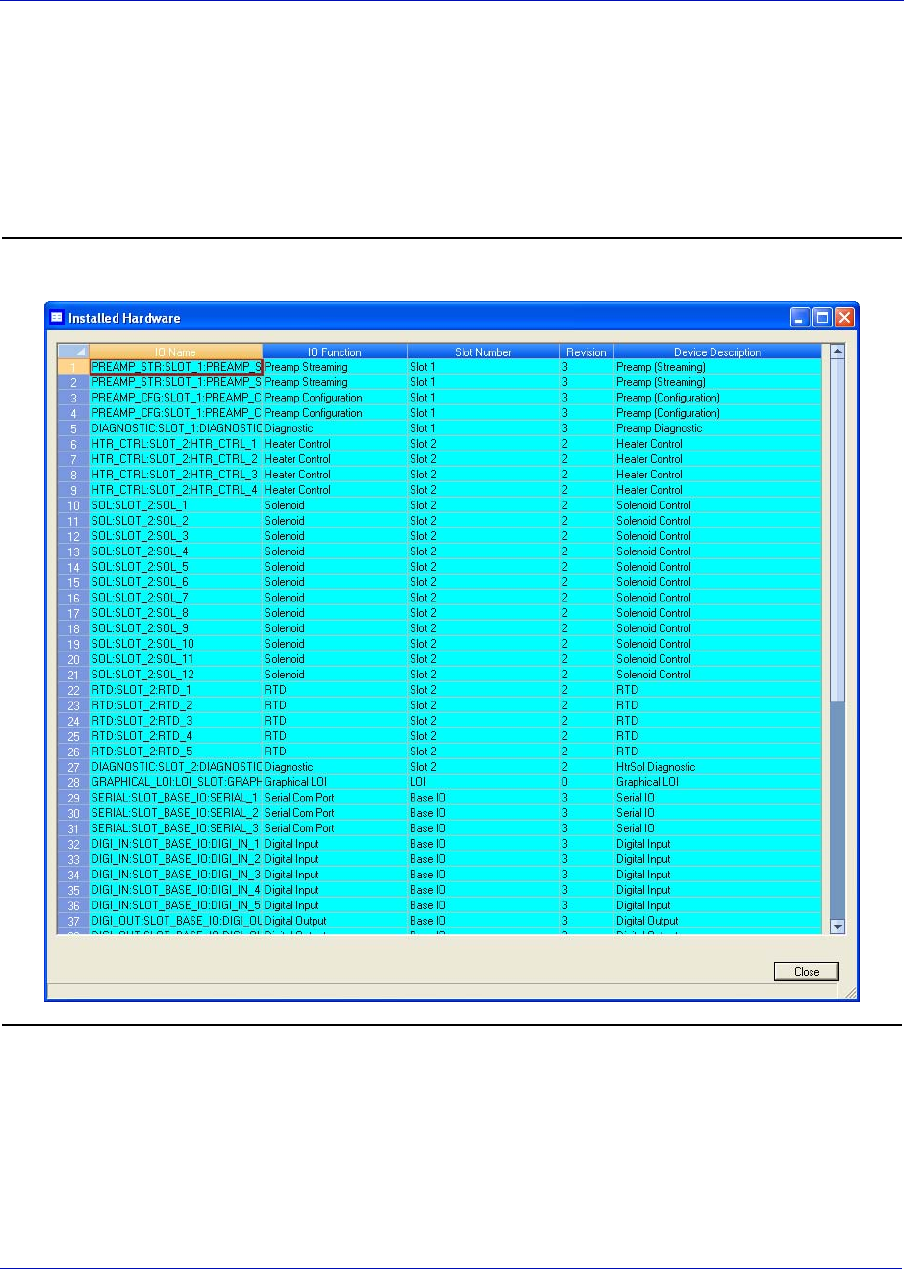
User Manual MON20/20 Software for Gas Chromatographs
3-9000-745 SEPTEMBER 2010
3-52
3.8 Reviewing the Hardware Inventory List
MON 20/20 can compile an inventory table of all hardware that is
installed on the GC. To view this table, select Installed Hardware...
from the Hardware menu.
Figure 3-45. The Installed Hardware window

MON20/20 Software for Gas Chromatographs User Manual
SEPTEMBER 2010 3-9000-745
3-53
The type of hardware installed is listed under the Device Description
column. The other types of information available on this screen are the
following:
•IO Function - Describes the function of the device.
•Slot Number - Describes the location of the device on the GC. The
slot number refers to the card cage assembly, which is located in the
GC’s lower enclosure and which has eight slots:
-Slot 1
-Slot 2
-Slot 3
-Slot 4
-Base IO
-ROC Expansion 1
-ROC Expansion 2
-CPU.
•Revision - The revision number of the backplane.

User Manual MON20/20 Software for Gas Chromatographs
3-9000-745 SEPTEMBER 2010
3-54
This page is intentionally left blank.
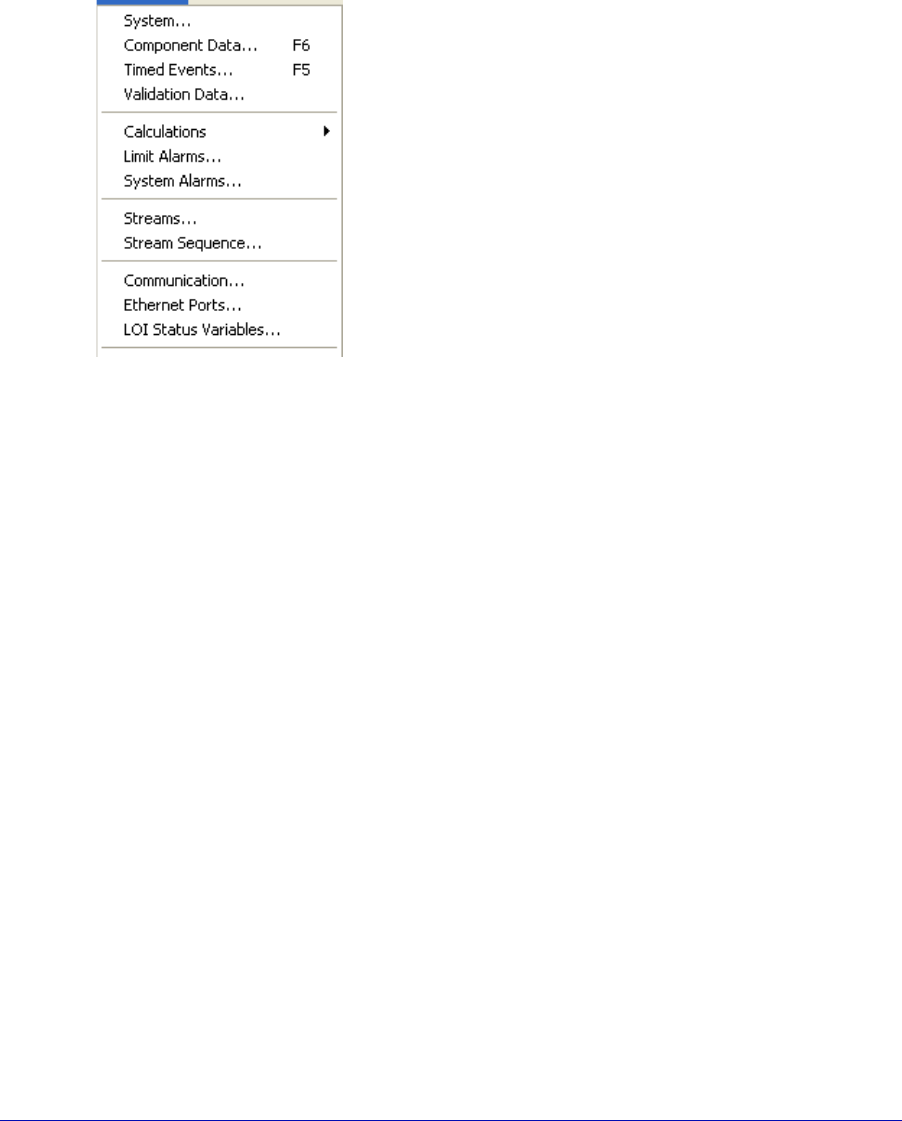
4-1
Section 4: Using the Application functions
Many of the variables that a gas chromatograph
uses during an analysis run—such as timed
events, stream sequence, and calculation
types—can be easily managed through MON
20/20.
This chapter explains how to do the following:
• View and edit general information about the
GC to which MON 20/20 is connected, such as
name, model, and default stream sequence.
• View and edit component data, validation
data, and timed event tables.
• View and change control, average, and user-
defined calculations.
• View and edit limit alarm data.
• View and change stream data.
• View and edit the stream sequence.
• View and edit communication and ethernet port data.
• View and map LOI status variables.
• View and map the Foundation Fieldbus Process Variables.
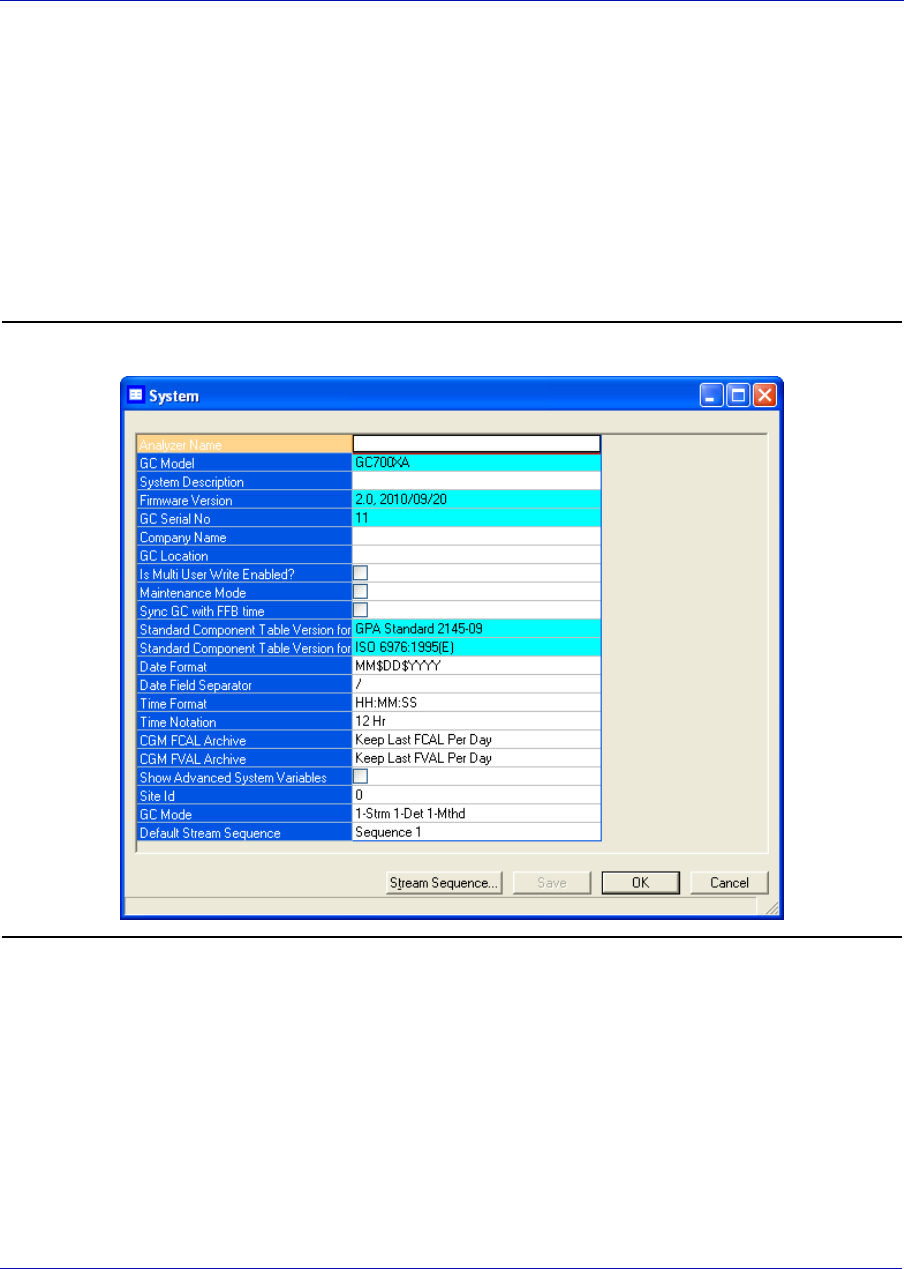
User Manual MON20/20 Software for Gas Chromatographs
3-9000-745 SEPTEMBER 2010
4-2
4.1 Managing the system
Use this function to select the default GC stream sequence and to set or
edit system-wide variables such as the GC’s name, serial number, and
system description. See Table 5-1 for a list of the items that are available
on the System window, along with their related functions.
To view the System window, select System... from the Application
menu.
Figure 4-1. The System window
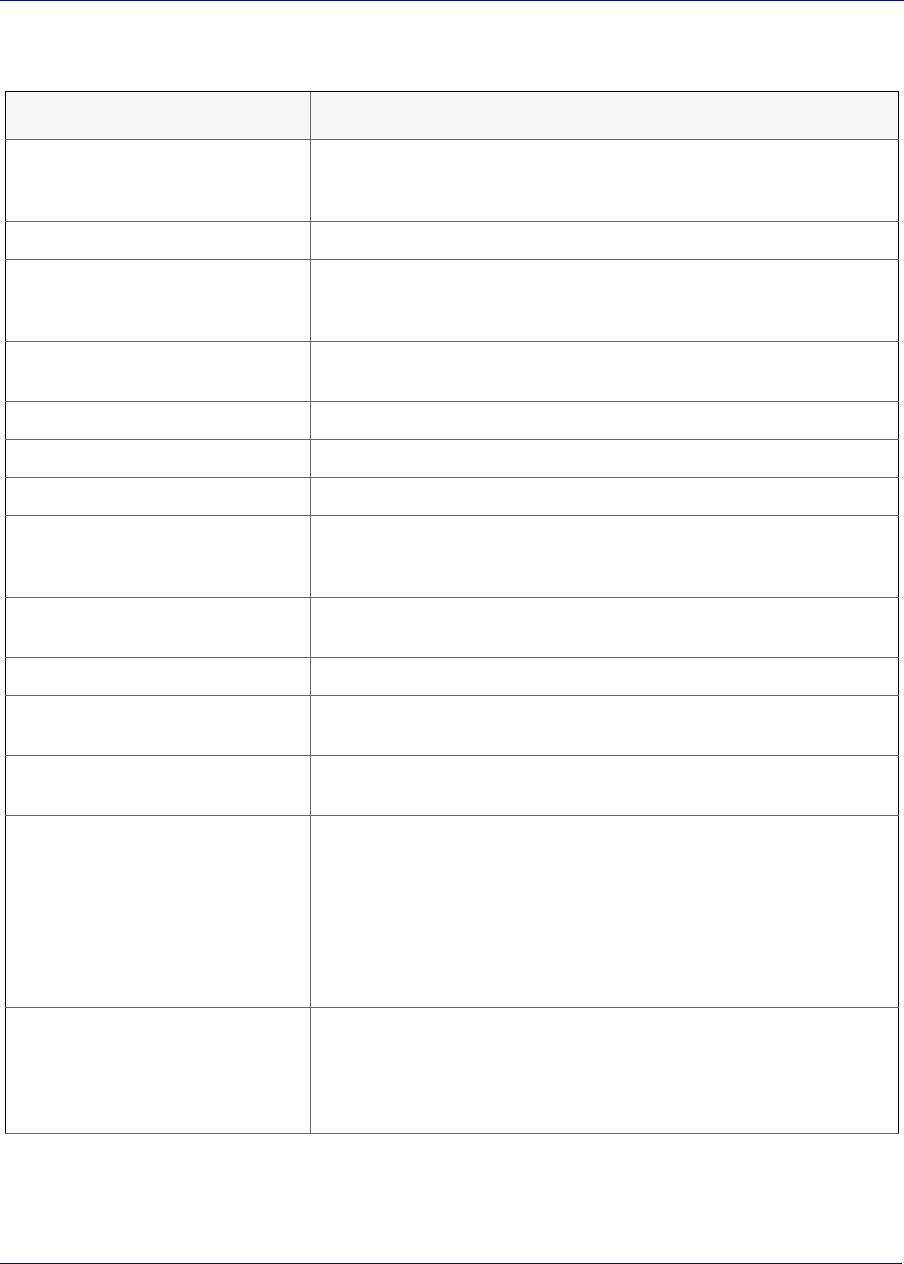
MON20/20 Software for Gas Chromatographs User Manual
SEPTEMBER 2010 3-9000-745
4-3
Table 4-1. List of fields from System window
Field Name Description
Analyzer Name Defines the GC name that appears in the Status Bar on the main
window when MON 20/20 is connected to the GC. Can contain up to
12 characters.
GC Model The model number of the GC to which MON 20/20 is connected.
System Description A field to record miscellaneous reference information to further
identify the currently connected system. Can contain up to 28
characters.
Firmware Version Revision level of firmware of the GC to which MON 20/20 is
connected.
GC Serial No Serial number of the GC to which MON 20/20 is connected.
Company Name The name of the company that operates the GC.
GC Location The physical location of the GC to which MON 20/20 is connected.
Is Multi User Write Enabled? Determines whether all supervisor-level users that connect to the
GC have write access, or just the first supervisor-level user to
connect. Options are True and False.
Maintenance Mode Switches the GC to maintenance mode and triggers an alarm that
the GC is down for maintenance.
Sync GC with FFB time Sets the GC’s time to match the Foundation Fieldbus’ time.
Standard Component Table
Version for GPA
Indicates which version of the GPA’s standard component table is
being used.
Standard Component Table
Version for ISO
Indicates which version of the ISO’s standard component table is
being used.
Date Format Defines how the date will be displayed. The options are:
• MM$$DD$$YYYY
•MM$DD$YY
• DD$MM$YYYY
• DD$MM$YY
• YYYY$MM$DD
•YY$MM$DD
$ is the Date Field Separator.
Date Field Separator Defines the text symbol that will be used as the separator when
displaying the date. The options are:
•/
•-
•.
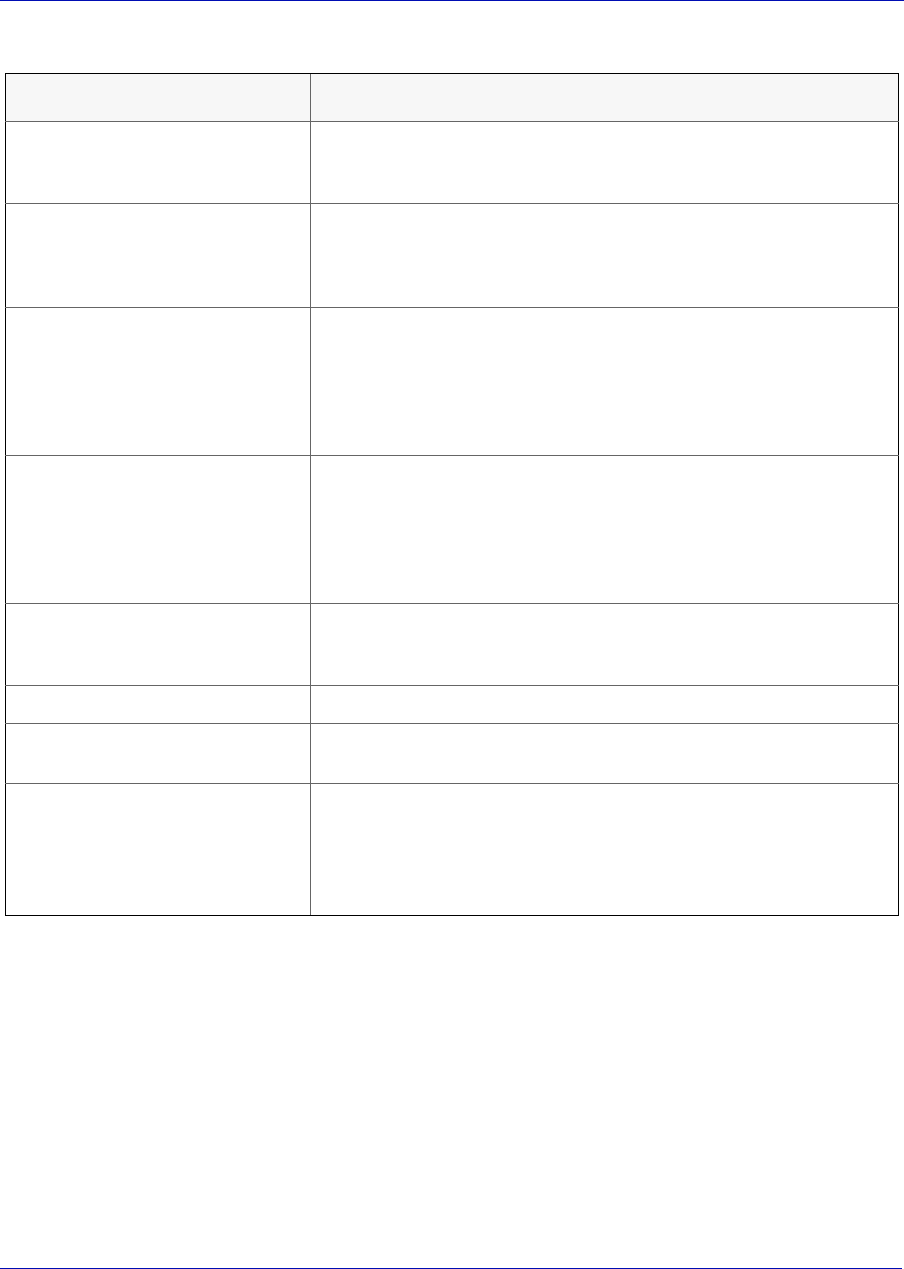
User Manual MON20/20 Software for Gas Chromatographs
3-9000-745 SEPTEMBER 2010
4-4
After making changes, click Save to save the changes without closing the
window. To save the changes and close the window, click OK.
Time Format Defines how the time will be displayed. The options are:
• HH:MM:SS
• HH:MM
Time Notation Defines the cycle of time to use when displaying the time. The
options are:
•12 Hr
•24 Hr
CGM FCAL Archive Sets the storage behavior for final calibration chromatograms. The
options are:
• Keep Last FCAL Per Day - Saves only the last final calibration
chromatogram of the day.
• Keep All FCAL Per Day - Saves all final calibration chromato-
grams.
CGM FVAL Archive Sets the storage behavior for final validation chromatograms. The
options are:
• Keep Last FVAL Per Day - Saves only the last final validation
chromatogram of the day.
• Keep All FVAL Per Day - Saves all final validation chromato-
grams.
Show Advanced System
Variables
Determines whether advanced system variables will be displayed
along with basic system variables. See “Basic and advanced system
variables” on page D-1 for more information.
Site Id Holds customer-defined site identification information.
GC Mode Allows you to select an operating mode for the GC. See “Operating
modes for MON 20/20” on page 1-38 for more information.
Default Stream Sequence Sets the default sequence to be used by the indicated detector
during auto-sequencing. To create a new stream sequence or to edit
an already-created sequence, click Stream Sequence....
See “Creating a stream sequence for a detector” on page 4-78 for
more information.
Table 4-1. List of fields from System window
Field Name Description
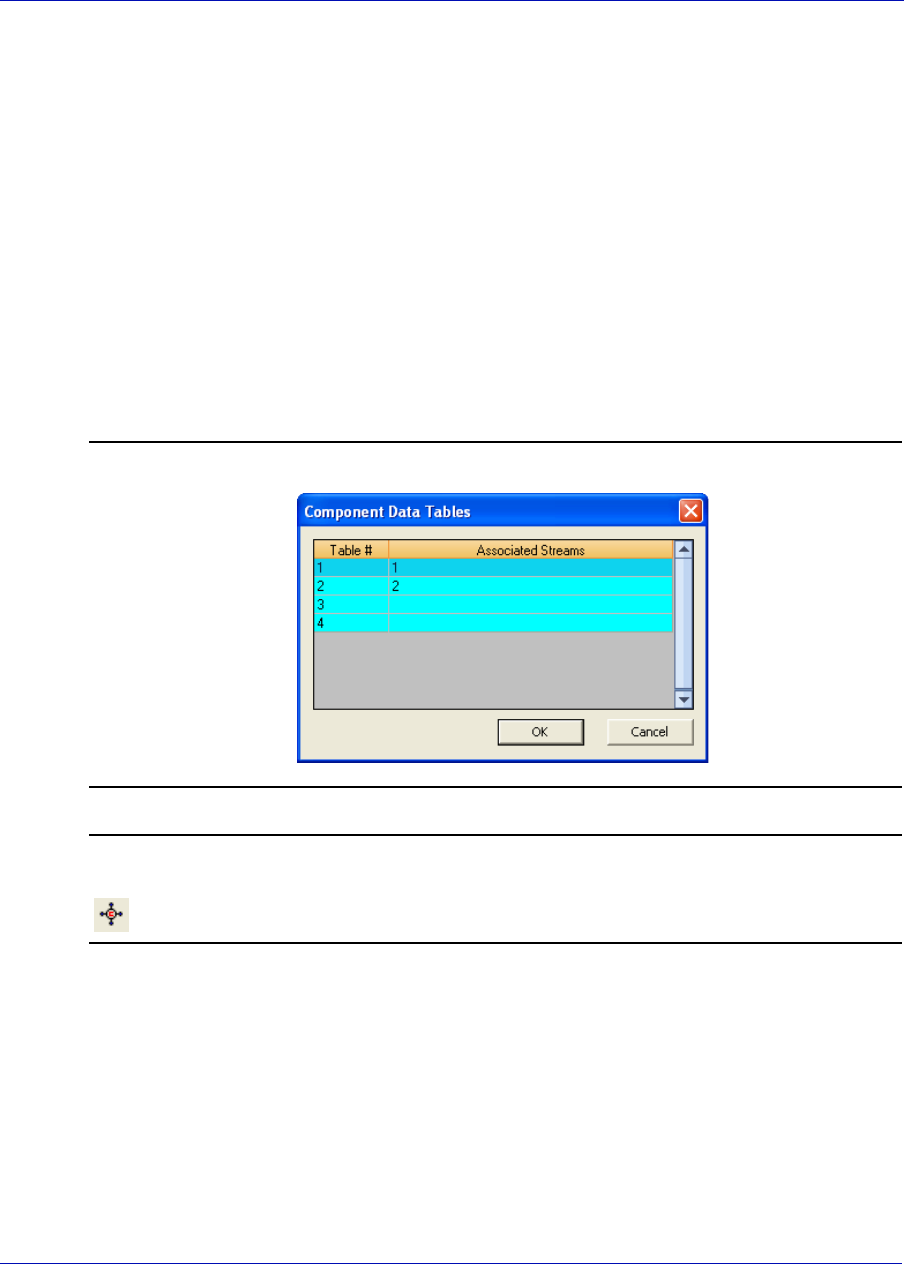
MON20/20 Software for Gas Chromatographs User Manual
SEPTEMBER 2010 3-9000-745
4-5
4.2 Managing Component Data Tables
MON 20/20 allows you to view and edit the component data tables. The
number of available component data tables depends on the GC unit
configuration.
To assign a component data table to a stream, see “Assigning a valve to a
stream and setting the relationship between the stream’s open state to
the valve’s On/Off state” on page 4-76.
1. To view a component data table, select Component Data... from the
Application menu. The Component Data Tables window appears,
displaying a list of available component data tables.
Figure 4-2. The Component Data Tables window
Note
Other ways of accessing the component data tables are by pressing F6 or by clicking
from the Toolbar.
2. Select the table that you want to view. The selected component data
table displays.
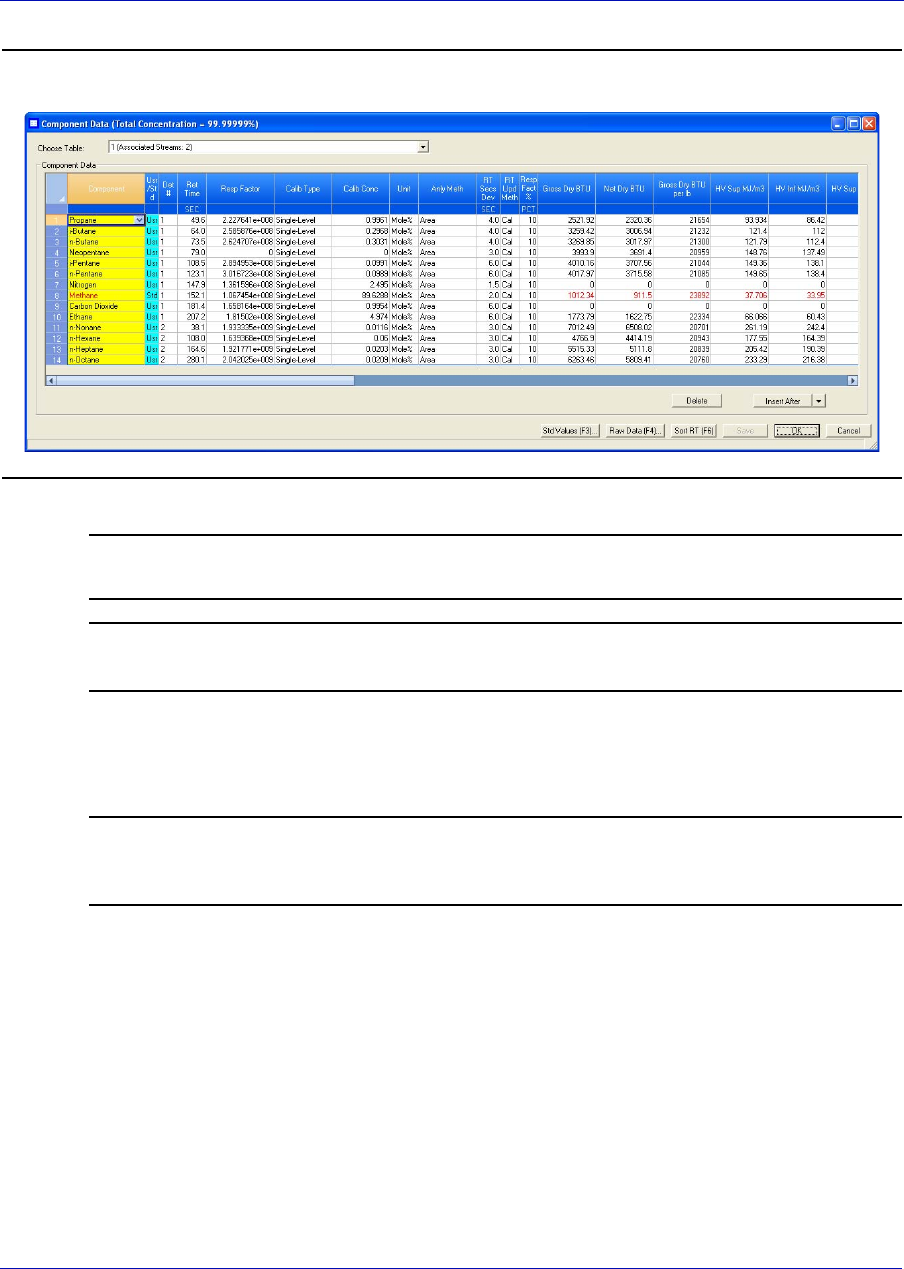
User Manual MON20/20 Software for Gas Chromatographs
3-9000-745 SEPTEMBER 2010
4-6
Figure 4-3. The selected component data table
Note
To see a different table, select it from the Choose table drown-down list.
Note
To sort the list of components by detector, and then by retention time, click Sort RT.
4.2.1 Editing a Component Data Table
Note
Table cells with a white background are editable; table cells with a turqoise background
are not editable.
To edit a cell, do the following:
1. Click on the cell. Depending on the cell type, you will either be
required to select a value from a drop-down list, or you will be able to
type in the value directly.
2. To save the changes without closing the window, click Save. To save
the changes and close the window, click OK.
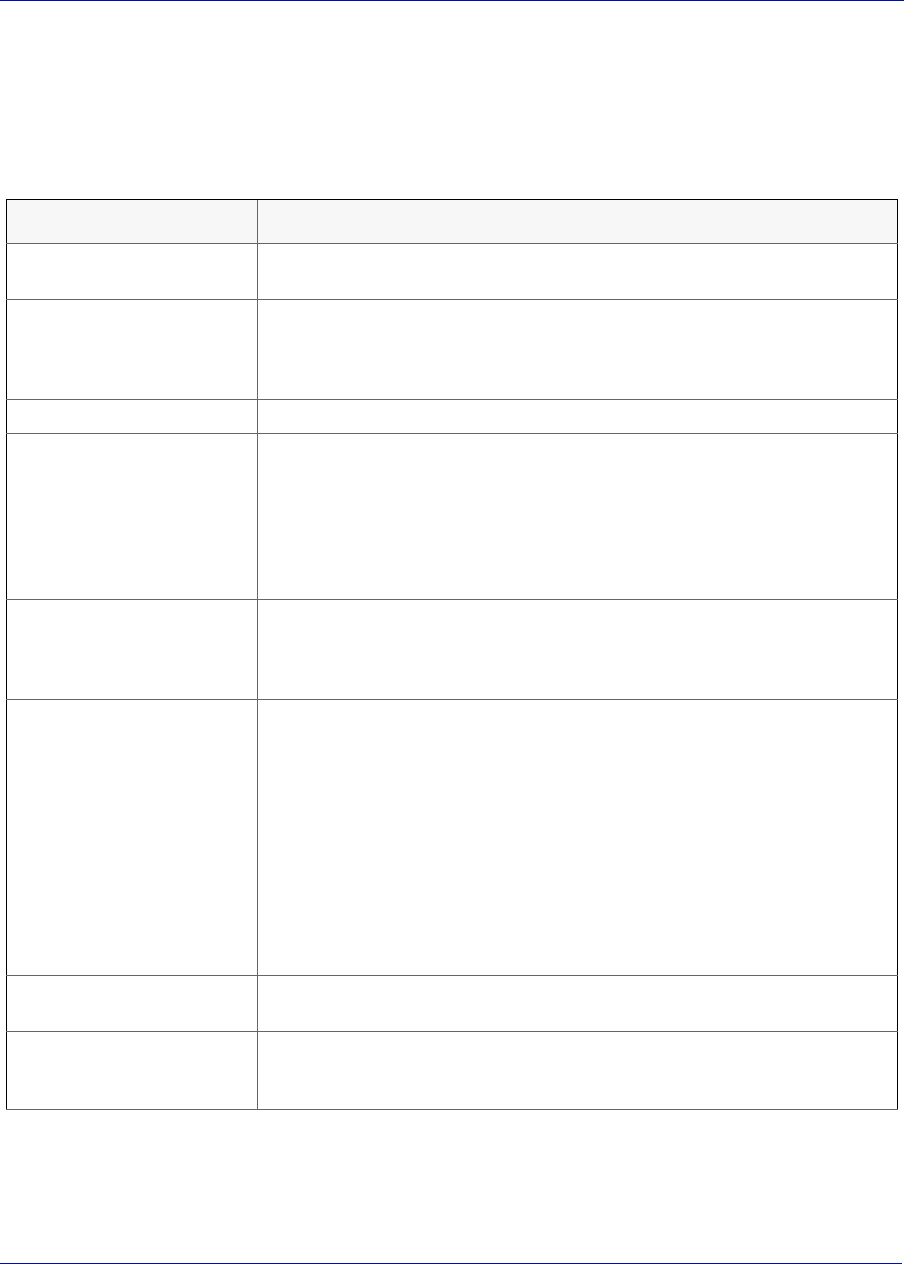
MON20/20 Software for Gas Chromatographs User Manual
SEPTEMBER 2010 3-9000-745
4-7
The following table lists all of the editable parameters that are available
on the component data table. The standard values for these parameters
were taken from the second editions of the Orifice Metering of Natural
Gas and Other Related Hydrocarbon Fluids and the Compressibility
Factors of Natural Gas and Other Related Hydrocarbon Gases.
Parameter Description
Component This drop-down list contains the complete catalog of available components
for the selected stream.
Usr Std Indicates the source of the component:
•Usr - The component was edited or defined by the user.
•Std - The component was selected from the standard list of components
and no changes were made to its standard data.
Det # The component’s detector number.
Ret Time Time in seconds before the apex of the component's peak will appear. The
rentention time can be set from 0 to 3600 seconds.
CAUTION: Ensure that the component retention times do not exceed the
analysis time, as defined by the Timed Events table. MON 20/20 does not
automatically prevent the user from defining excessive component
retention times.
Resp Fact A component’s response factor is equal to the raw data of the component's
peak divided by the component's concentration.
The maximum value is 1.0E+38.
Calib Type MON 20/20 can perform four types of calibrations:
•Single-Level - Uses the standard calibration in which the response
factor is needed to determine the mole percentage during the calibra-
tion.
•Fixed - During the calibration, the response factor is not updated.
•Relative - Calibration in which a reference component is used to
compute the mole percentage.
•Multi-Level - Uses a polynomial equation to compute the mole percent-
age during the calibration. Values must be entered in the Mult-level
Calib 'a', Mult-level Calib 'b', Mult-level Calib 'c', and Mult-level Calib
'd' cells. See “Multi-level calibration” on page B-13 for more informa-
tion.
Calib Conc The amount, in mole percent, parts per million (ppm) or parts per billion
(ppb), of the component that is present in the calibration gas.
Unit Indicates the unit of measure used when calculating and displaying the
component’s calibration concentration. Options are Mole%, ppm and
ppb.
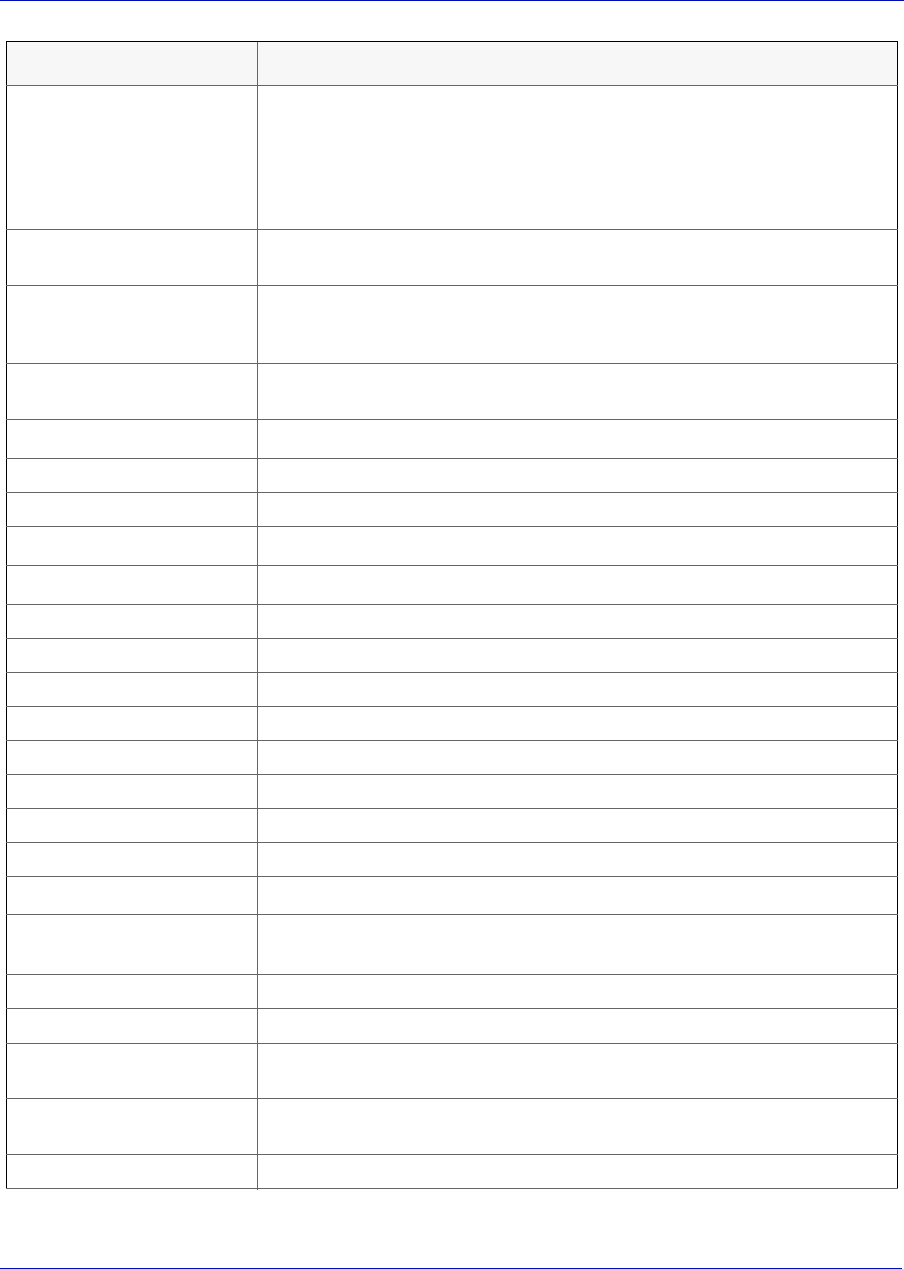
User Manual MON20/20 Software for Gas Chromatographs
3-9000-745 SEPTEMBER 2010
4-8
Anly Meth Used to determine the component’s raw data value. Options are:
•Area - Raw data value is proportional to the area under the peak.
•Height - Raw data value is proportional to the height of the peak.
•Fixed - Raw data value is proportional to a value that is set by the
user.
•Analog Input - Data signal comes from an external analyzer.
RT Secs Dev The maximum acceptable deviation time, in seconds, of the new retention
time from the current retention time.
RT Upd Meth Determines when the retention time will be updated. Options are:
•Cal - Updates the retention time only during the final calibration run.
•Anly - Updates after each analysis.
Resp Fact % The maximum acceptable percent of deviation between the new response
factor and the current response factor.
Gross Dry BTU Gross energy content per cubic foot (ft3), assuming no water is present.
Net Dry BTU Net energy content per cubic foot, assuming no water is present.
Gross Dry BTU per lb Gross energy content per pound, assuming no water is present.
HV Sup MJ/m3Gross heating value in megajoules per cubic meter (MJ/m3).
HV Inf MJ/m3Net heating value in megajoules per cubic meter (MJ/m3).
HV Sup MJ/kg Gross heating value in megajoules per kilogram (MJ/kg).
HV Inf MJ/kg Net heating value in megajoules per kilogram (MJ/kg).
Sum Factor Pri Used to calculate the compressibility factor.
Sum Factor Sec Used to calculate the compressibility factor.
CV Superior Pri Gross caloric value per kilojoule (kJ).
CV Inferior Pri Net caloric value per kilojoule (kJ).
CV Superior Sec Gross caloric value per kilojoule (kJ).
CV Inferior Sec Net caloric value per kilojoule (kJ).
Gals/1000 SCF Liquid equivalent volume in gallons/1000ft3.
Reid Vapor The component's vapor pressure in pounds per square inch (psia) at
100.0°F
LBs/Gallon Liquid density for the component at base conditions.
Rel Dens Gas The relative density of the gas phase for the component at base conditions.
Rel Dens Liquid The relative density of the liquid phase for the component at base
conditions.
Molecular Weight The molecular weight of the component, which is used to calculate the
weight percent of each component in the sample.
Carbon Weight The molecular weight of the carbon atoms in the component.
Parameter Description
MON20/20 Software for Gas Chromatographs User Manual
SEPTEMBER 2010 3-9000-745
4-9
AGA 8 Component The name of the component according to the American Gas Association,
which is used in the AGA 8 compressibility calculation.
Ref Comp The component not found in the calibration gas but in the sample gas for
indirect calibration. If 'none', normal (direct) calibration is used.
Not editable unless the calibration type is set to Relative.
Rel Resp Fact A fixed multiple of the response factor of the component found in the
sample gas for indirect calibration.
Not editable unless the calibration type is set to Relative.
Rel Dens Liquid 15C The relative density in kilograms per cubic meter (kg/m3) of the liquid
phase for the component at 15°C.
Molar Mass The mass of one mole of the component.
Mult-level Calib 'a' Third-order polynomial coefficient for multi-level calibrations.
Not editable unless the calibration type is set to Multi-Level.
Mult-level Calib 'b' Second-order polynomial coefficient for multi-level calibrations.
Not editable unless the calibration type is set to Multi-Level.
Mult-level Calib 'c' First-order polynomial coefficient for multi-level calibrations.
Not editable unless the calibration type is set to Multi-Level.
Mult-level Calib 'd' Zero-order polynomial coefficient for multi-level calibrations.
Not editable unless the calibration type is set to Multi-Level.
Component Code An index number that corresponds to the standard component numbers
taken from the American Gas Association. Up to 20 components can be
defined per data table.
Parameter Description
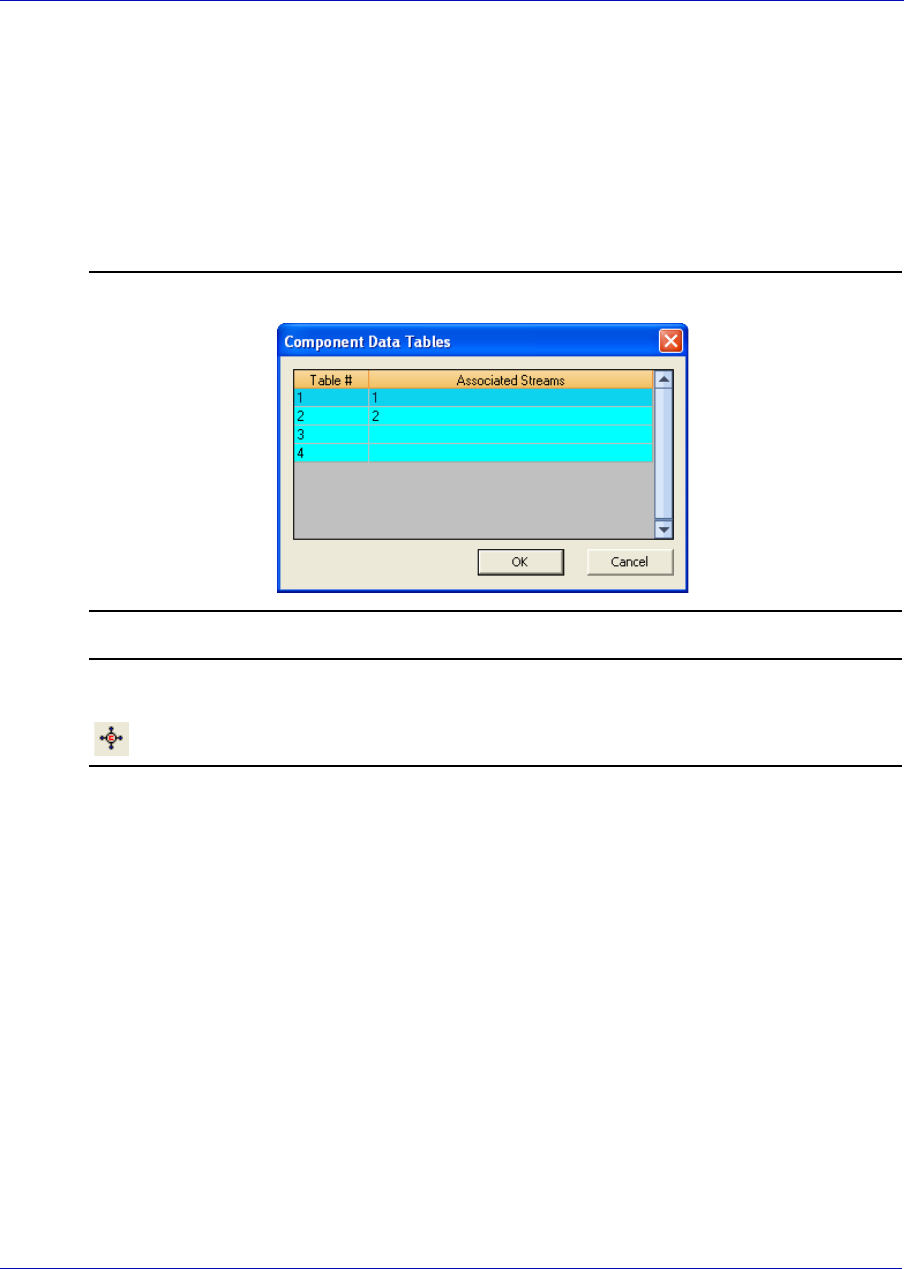
User Manual MON20/20 Software for Gas Chromatographs
3-9000-745 SEPTEMBER 2010
4-10
4.2.2 Adding a component to a Component Data Table
To add a component to a component data table, do the following:
1. Select Component Data... from the Application menu. The
Component Data Tables window appears, displaying a list of available
component data tables.
Figure 4-4. The Component Data Tables window
Note
Other ways of accessing the component data tables are by pressing F6 or by clicking
from the Toolbar.
2. Select the table that you want to view. The selected component data
table displays.
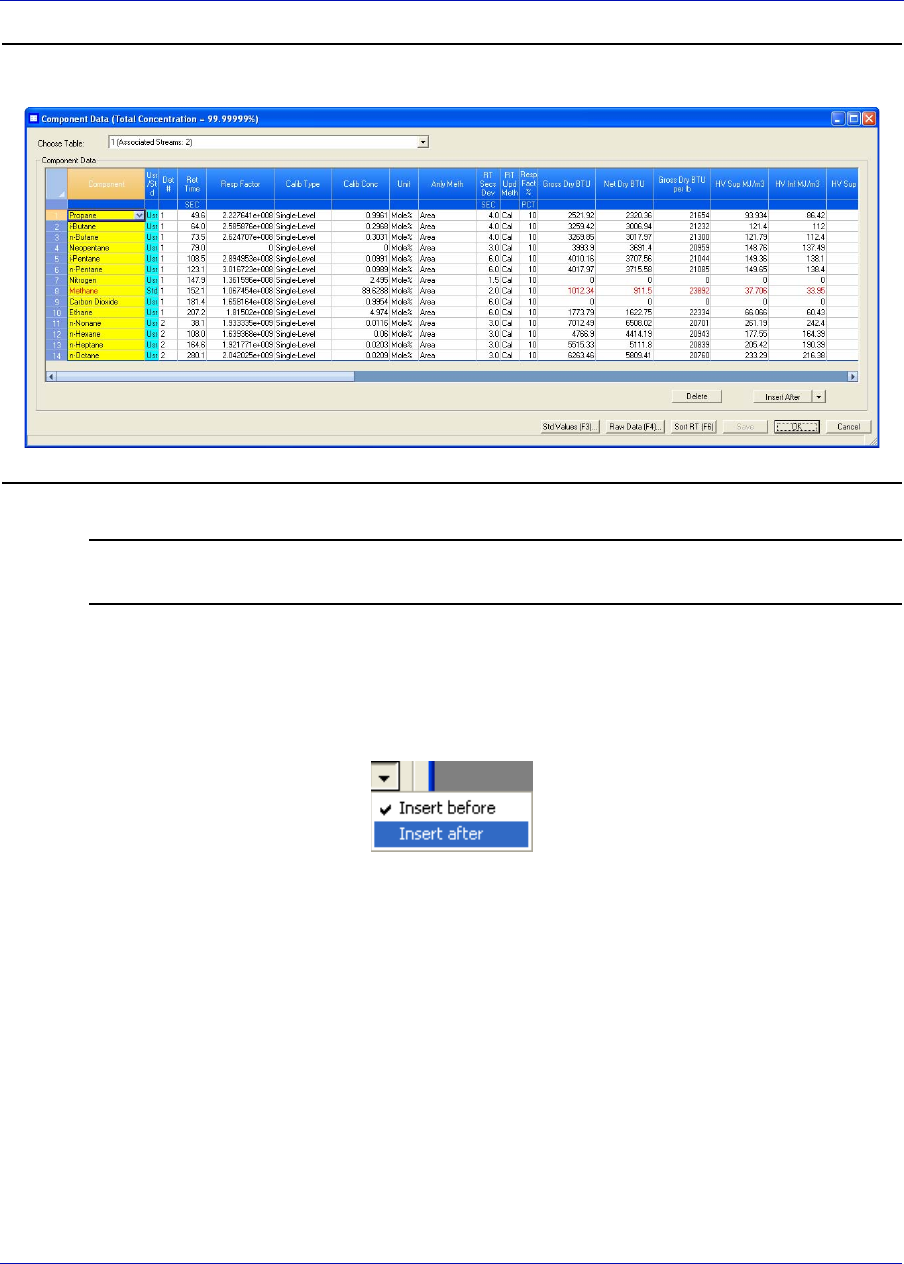
MON20/20 Software for Gas Chromatographs User Manual
SEPTEMBER 2010 3-9000-745
4-11
Figure 4-5. The selected component data table
Note
To sort the list of components by detector, and then by retention time, click Sort RT.
3. If you want to add the component above the currently selected
component, click Insert before. If you want to add the component
below the currently selected component, select Insert after from the
Insert arrow.
4. To save the changes without closing the window, click Save. To save
the changes and close the window, click OK.
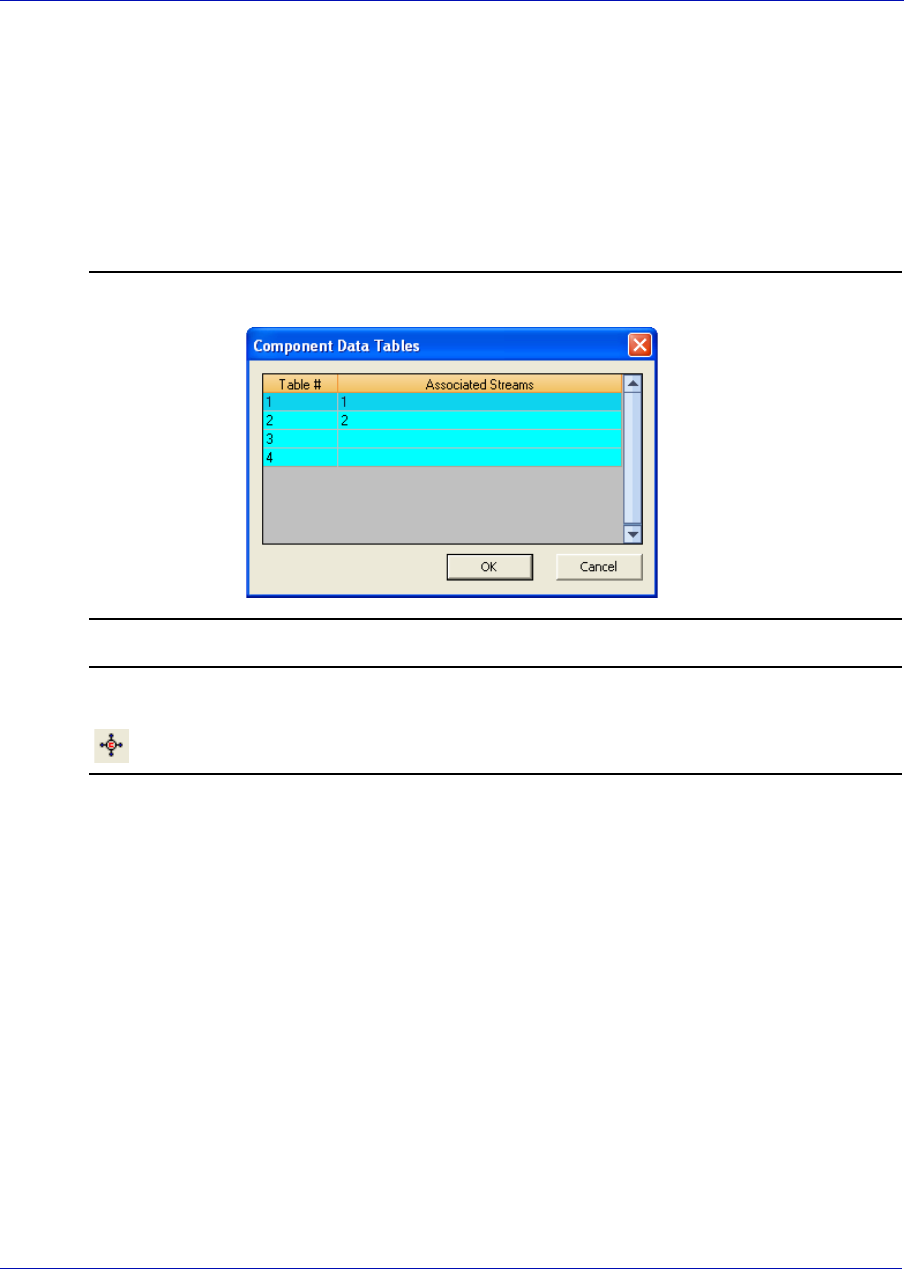
User Manual MON20/20 Software for Gas Chromatographs
3-9000-745 SEPTEMBER 2010
4-12
4.2.3 Removing a component from a Component Data Table
To remove a component from a component data table, do the following:
1. Select Component Data... from the Application menu. The
Component Data Tables window appears, displaying a list of available
component data tables.
Figure 4-6. The Component Data Tables window
Note
Other ways of accessing the component data tables are by pressing F6 or by clicking
from the Toolbar.
2. Select the table that you want to view. The selected component data
table displays.
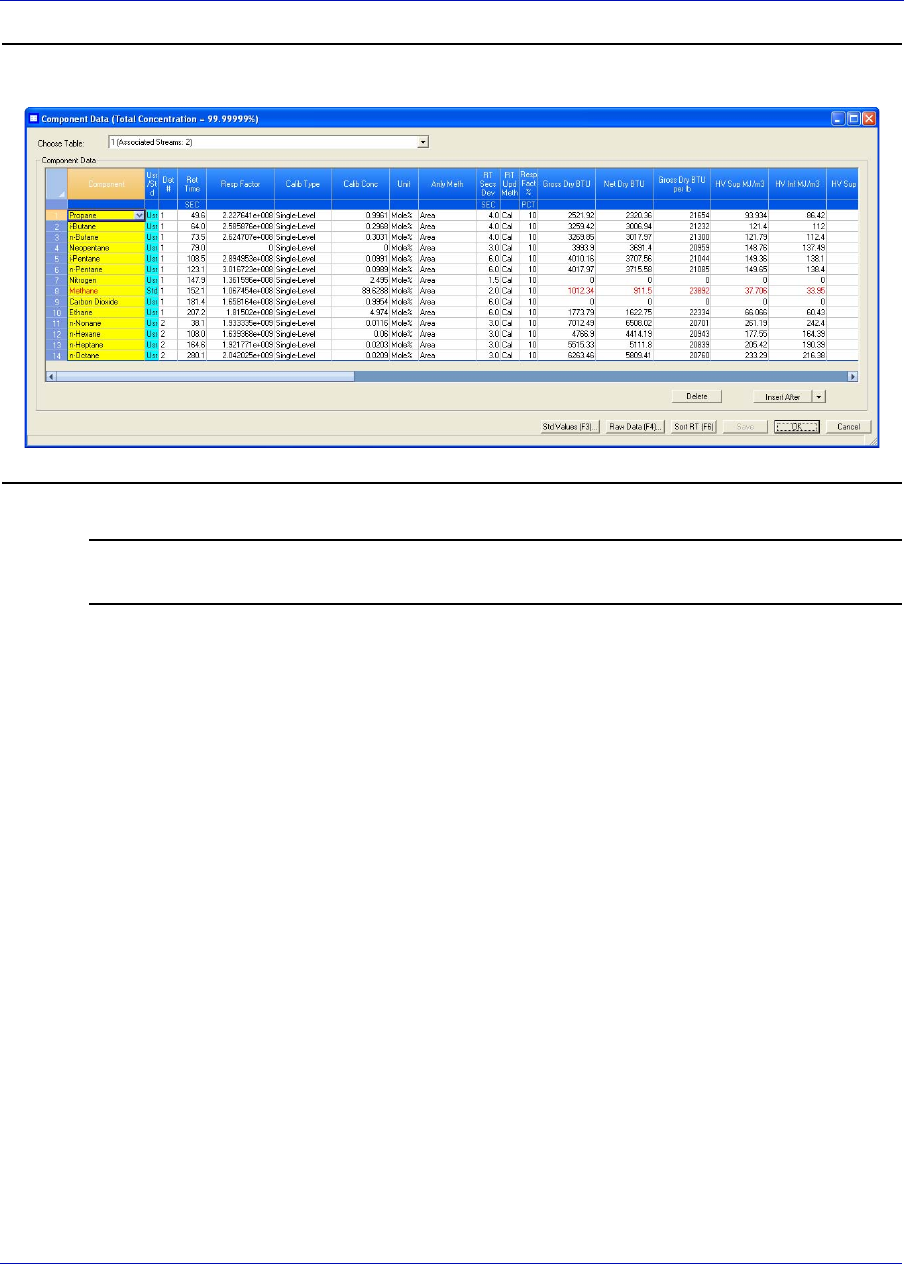
MON20/20 Software for Gas Chromatographs User Manual
SEPTEMBER 2010 3-9000-745
4-13
Figure 4-7. The selected component data table
Note
To sort the list of components by detector, and then by retention time, click Sort RT.
3. Select the component that you want to remove.
4. Click Delete.
5. To save the changes without closing the window, click Save. To save
the changes and close the window, click OK.
4.2.4 Viewing the standard values for a component
If a component’s values have been changed by the user, it is still possible
to view the standard values for that particular component. To view the
standard values for a component, do the following:
1. Select Component Data... from the Application menu. The
Component Data Tables window appears, displaying a list of available
component data tables.
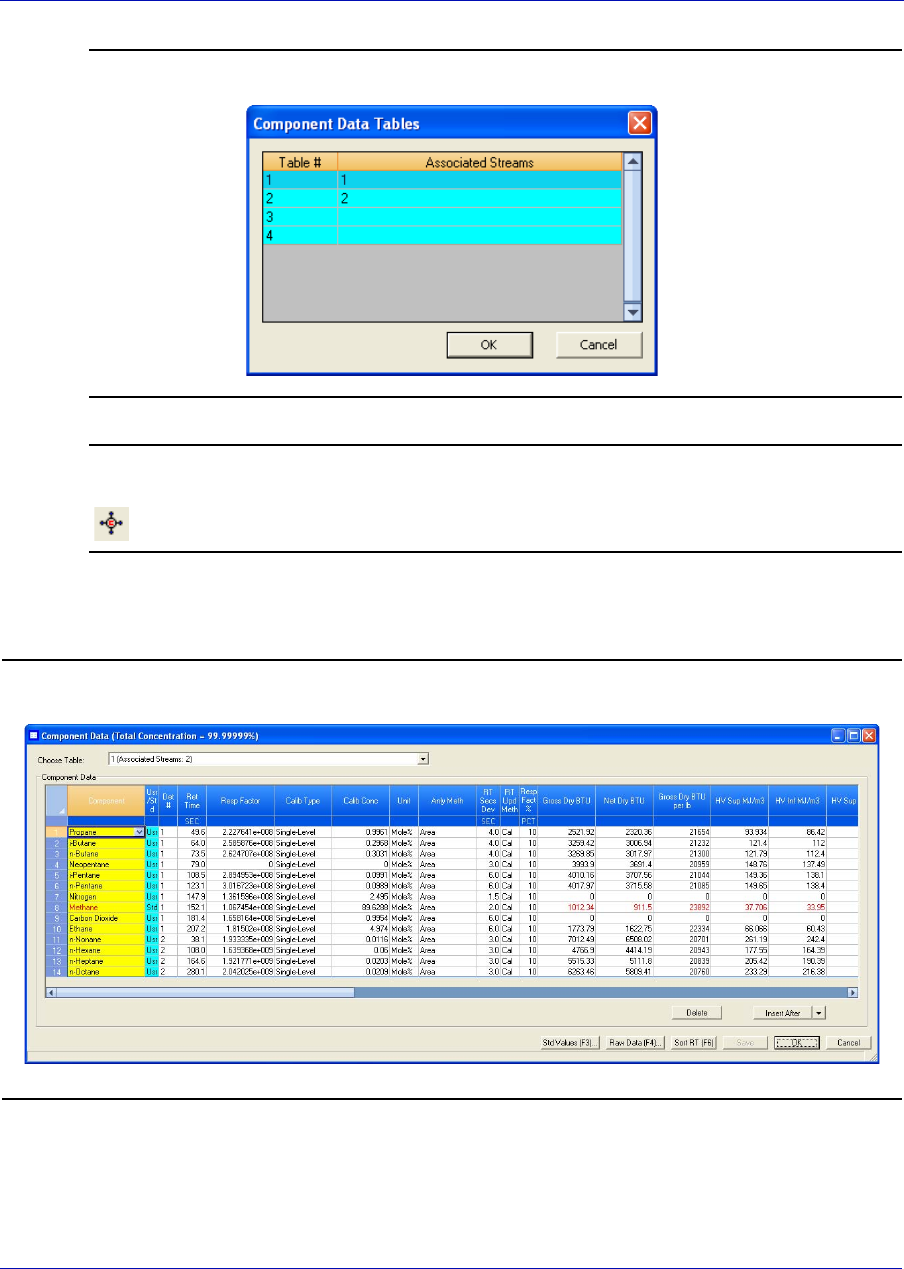
User Manual MON20/20 Software for Gas Chromatographs
3-9000-745 SEPTEMBER 2010
4-14
Figure 4-8. The Component Data Tables window
Note
Other ways of accessing the component data tables are by pressing F6 or by clicking
from the Toolbar.
2. Select the table that you want to view. The selected component data
table displays.
Figure 4-9. The selected component data table
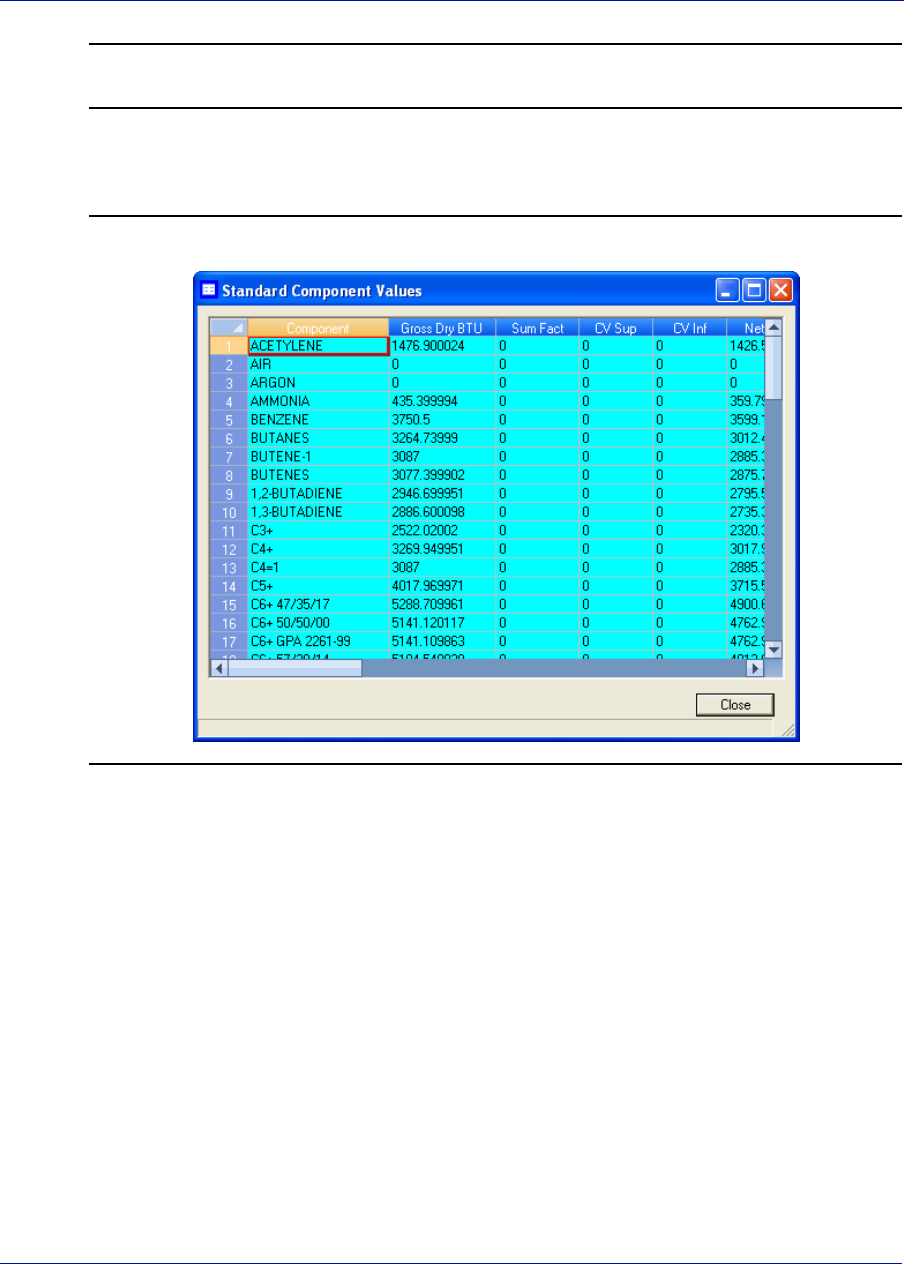
MON20/20 Software for Gas Chromatographs User Manual
SEPTEMBER 2010 3-9000-745
4-15
Note
To sort the list of components by detector, and then by retention time, click Sort RT.
3. Click Std Values (F3). The Standard Component Values window
displays.
Figure 4-10. The Standard Component Values window
4. Click Close.
4.2.5 Viewing raw data
To view the raw data for the displayed component data table, do the
following:
1. Click Raw Data (F4). The Select dialog displays, listing the streams
that are associated with the component data table.
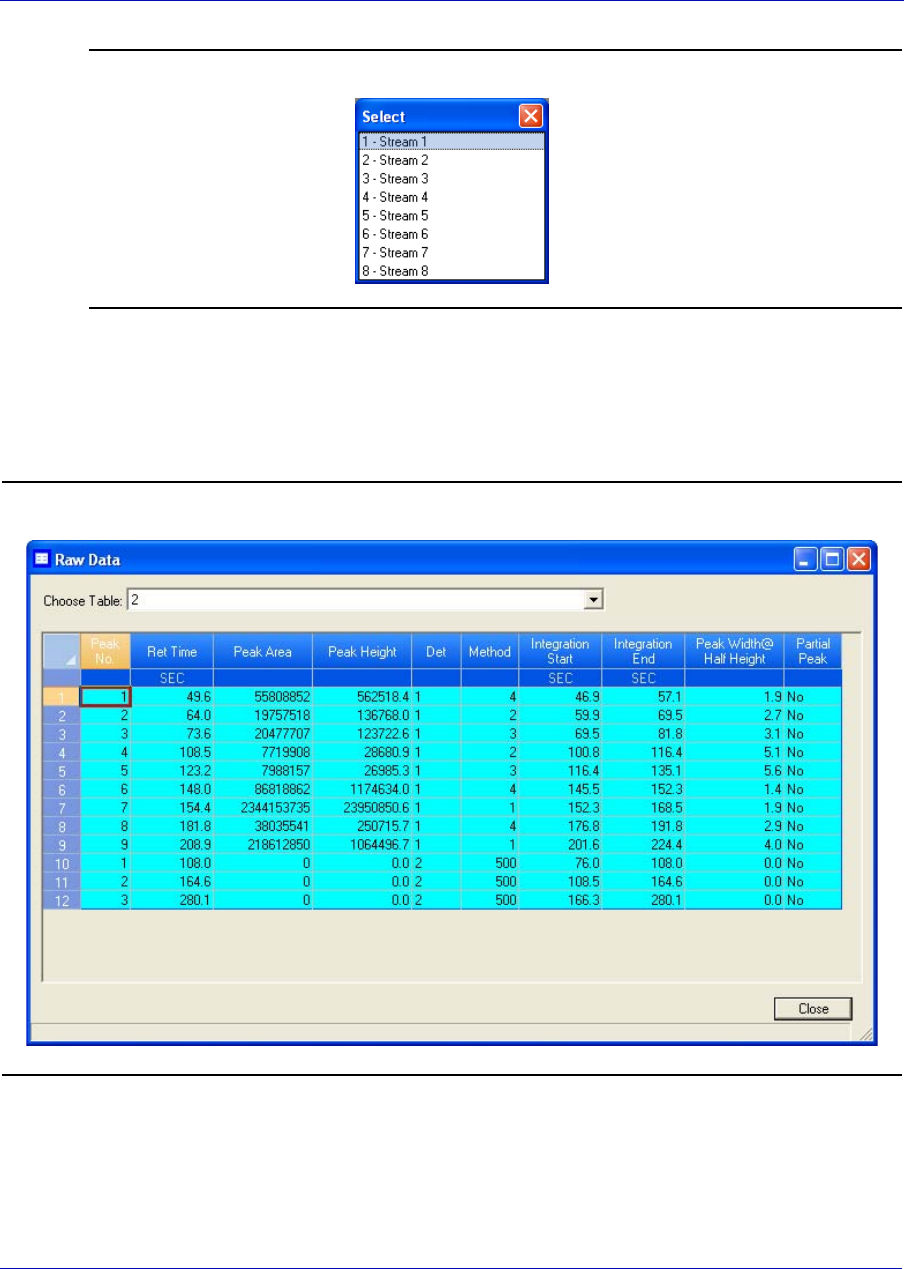
User Manual MON20/20 Software for Gas Chromatographs
3-9000-745 SEPTEMBER 2010
4-16
Figure 4-11. The Select dialog
2. Double-click the desired stream.
The Raw Data window appears, listing the peak raw data from the
last run of the stream represented by the component data table.
Figure 4-12. The Raw Data window
MON20/20 Software for Gas Chromatographs User Manual
SEPTEMBER 2010 3-9000-745
4-17
The following data displays for each peak:
3. Click Close to return to the component data table.
4.3 Managing timed events
Use this function to view and/or edit the timed events tables assigned to
and used by particular gas streams. The number of available timed
events depends on the GC unit configuration. The standard GC
application contains four timed events tables.
Note
See “Editing Timed Events from the Time Events window” on page 2-33 for more
information.
Name Description
Peak No Numerical identifier for the peak, listed by the order of discovery.
Ret Time Time, in seconds, that the component eluted.
Peak Area The area under the peak.
Peak Height The maximum height of the peak.
Det # The detector associated with the peak.
Method Method of peak end detection. Options are:
• 1 (Baseline)
• 2 (Fused Peak)
• 3 (Last Fused Peak)
•4 (Tangent Skim)
• 100 (Inhibit)
• 300 (Forced Integration)
• 500 (Summation)
Integration Start Time, in seconds, when integration started.
Integration Stop Time, in seconds, when integration stopped.
Peak Width Half Height The width of the peak taken at half of the peak’s height.
Is Partial Peak If Y, then the Partial Peak value is used in the summation calculation; if N,
then the Partial Peak value is not used in the summation calculation.
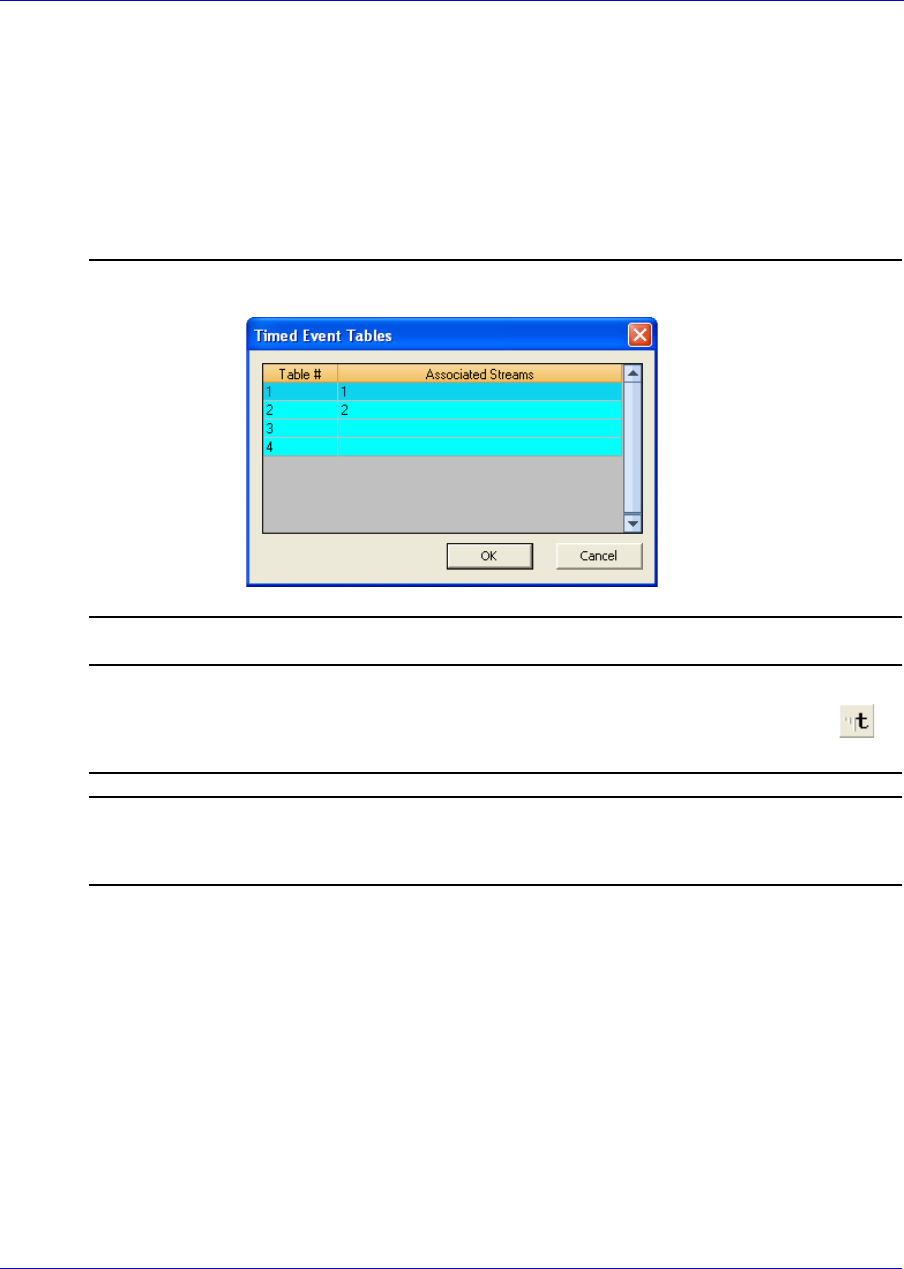
User Manual MON20/20 Software for Gas Chromatographs
3-9000-745 SEPTEMBER 2010
4-18
To assign a timed events table to a stream, see “Assigning a valve to a
stream and setting the relationship between the stream’s open state to
the valve’s On/Off state” on page 4-76.
1. Select Timed Events... from the Application menu. The Timed
Events Tables selector window appears, displaying a list of available
timed events tables.
Figure 4-13. The Timed Events Tables selector window
Note
Other ways of accessing the timed event tables are by pressing F5 or by clicking
from the Toolbar.
Note
If only one timed events table is available, it will display immediately, bypassing the
Timed Events Tables selector window.
2. Select the table that you want to view. The selected timed events
table displays.
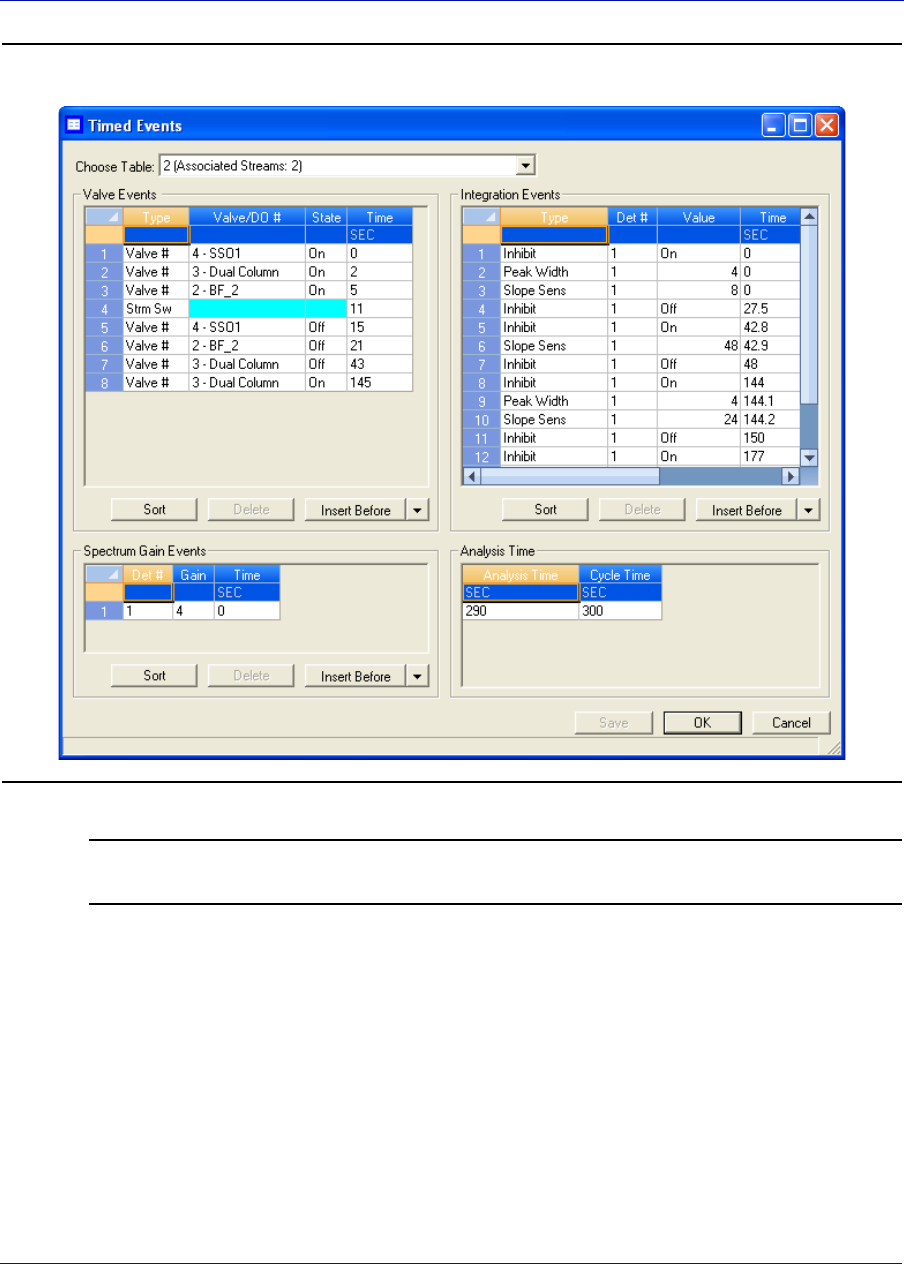
MON20/20 Software for Gas Chromatographs User Manual
SEPTEMBER 2010 3-9000-745
4-19
Figure 4-14. The Timed Events window
Note
To sort events by time, click the appropriate Sort button.
3. To see a different timed events table, select it from the Choose table
drop-down list.
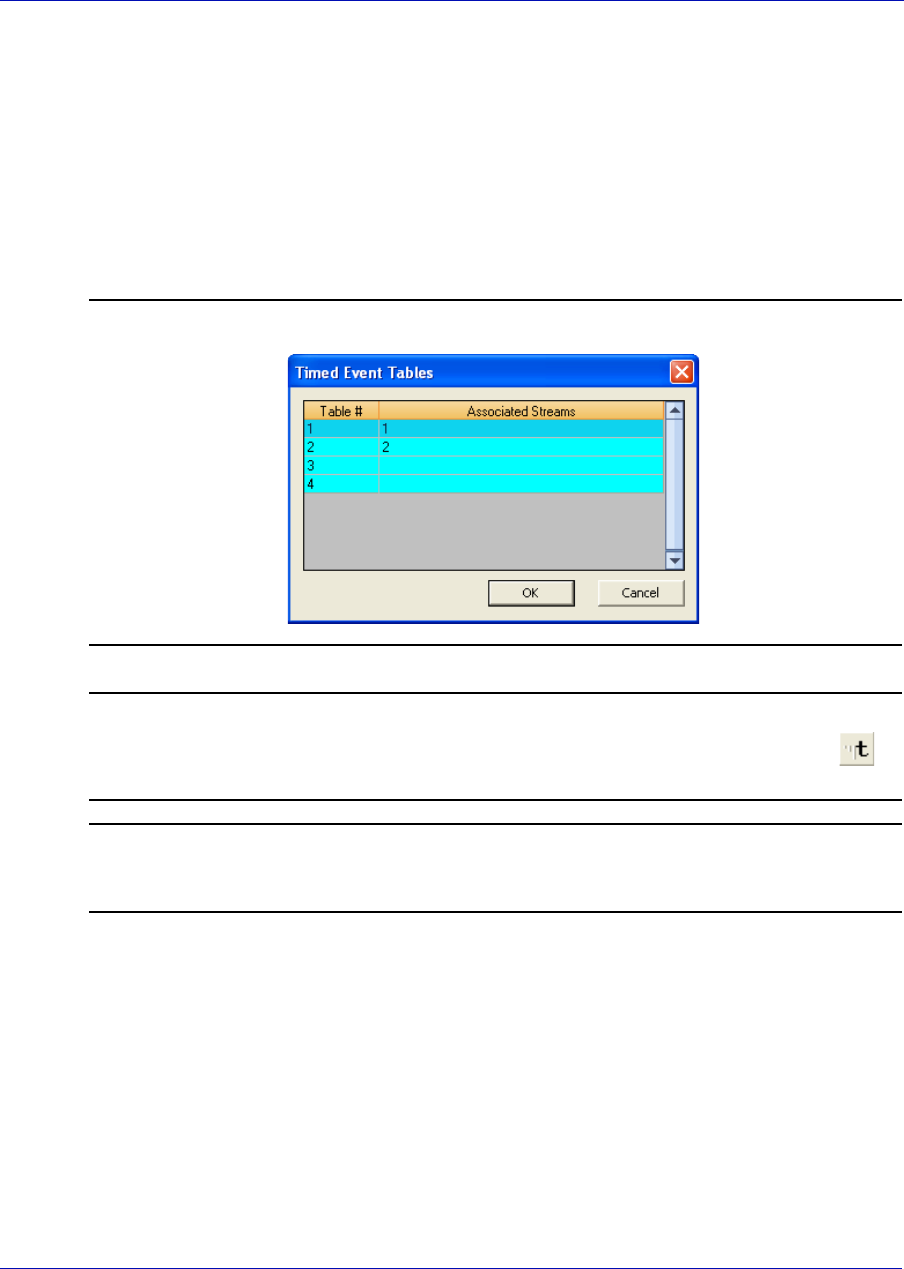
User Manual MON20/20 Software for Gas Chromatographs
3-9000-745 SEPTEMBER 2010
4-20
4.3.1 Editing valve events
Valve-related events are grouped on the upper left side of the Timed
Events window. To edit valve-related events, do the following:
1. Select Timed Events... from the Application menu. The Timed
Events Tables selector window appears, displaying a list of available
timed events tables.
Figure 4-15. The Timed Events Tables selector window
Note
Other ways of accessing the timed event tables are by pressing F5 or by clicking
from the Toolbar.
Note
If only one timed events table is available, it will display immediately, bypassing the
Timed Events Tables selector window.
2. Select the table that you want to view. The selected timed events
table displays.
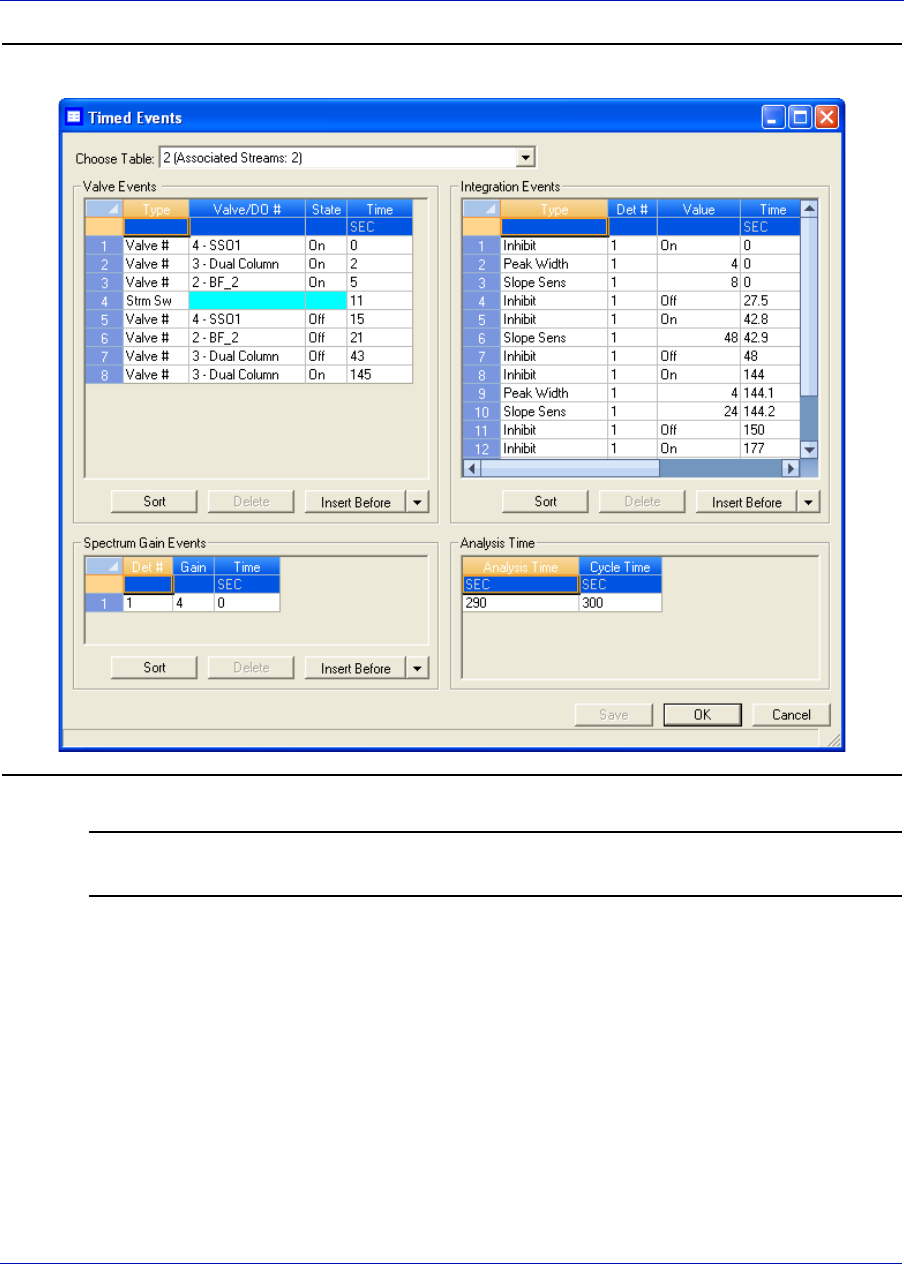
MON20/20 Software for Gas Chromatographs User Manual
SEPTEMBER 2010 3-9000-745
4-21
Figure 4-16. The Timed Events window
Note
To sort events by time, click the appropriate Sort button.
3. Click on the cell that you want to edit. Depending on the cell type, you
will either be required to select a value from a drop-down list, or you
will be able to type in the value directly.
4. To save the changes without closing the window, click Save. To save
the changes and close the window, click OK.
User Manual MON20/20 Software for Gas Chromatographs
3-9000-745 SEPTEMBER 2010
4-22
The following table describes the valve-related parameters that are
available on the timed events window.
4.3.2 Editing integration events
Integration-related events are grouped on the upper right side of the
Timed Events window. To edit integration-related events, do the
following:
1. Select Timed Events... from the Application menu. The Timed
Events Tables selector window appears, displaying a list of available
timed events tables.
Parameter Description
TEV Type The type of event. You have the following choices:
•Valve # - A valve.
•DO # - A discrete output.
•Strm Sw - Switches to the next stream in the sequence.
•FID Gain - Sets the FID to high or low gain.
•FID Auto Zero - Zeros the FID preamp after a gain change.
Valve/DO # Use the drop-down menu to select the specific valve or discrete output that should be
used for the event.
This column does not apply if Strm Sw, FID Gain or FID Auto Zero was selected from
the TEV Type column.
State Turns the valve or discrete output on or off, or sets the FID to high or low.
This column does not apply if Strm Sw or FID Auto Zero was selected from the TEV
Type column.
Time Indicates the time, in seconds, that the event should occur during the analysis. Enter a
value between 0.0 and 3600.0.
NOTE: Event times must be less than the analysis time.
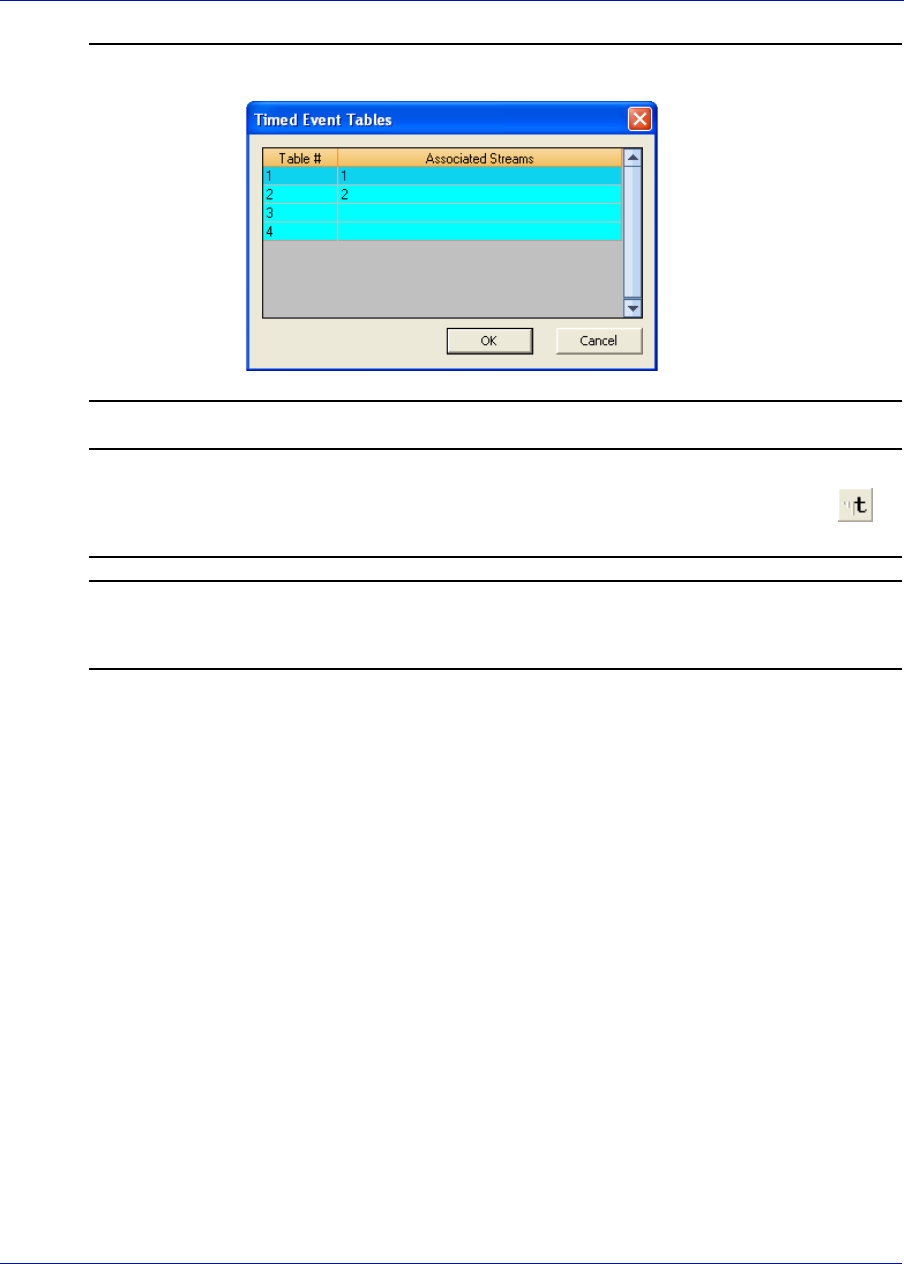
MON20/20 Software for Gas Chromatographs User Manual
SEPTEMBER 2010 3-9000-745
4-23
Figure 4-17. The Timed Events Tables selector window
Note
Other ways of accessing the timed event tables are by pressing F5 or by clicking
from the Toolbar.
Note
If only one timed events table is available, it will display immediately, bypassing the
Timed Events Tables selector window.
2. Select the table that you want to view. The selected timed events
table displays.
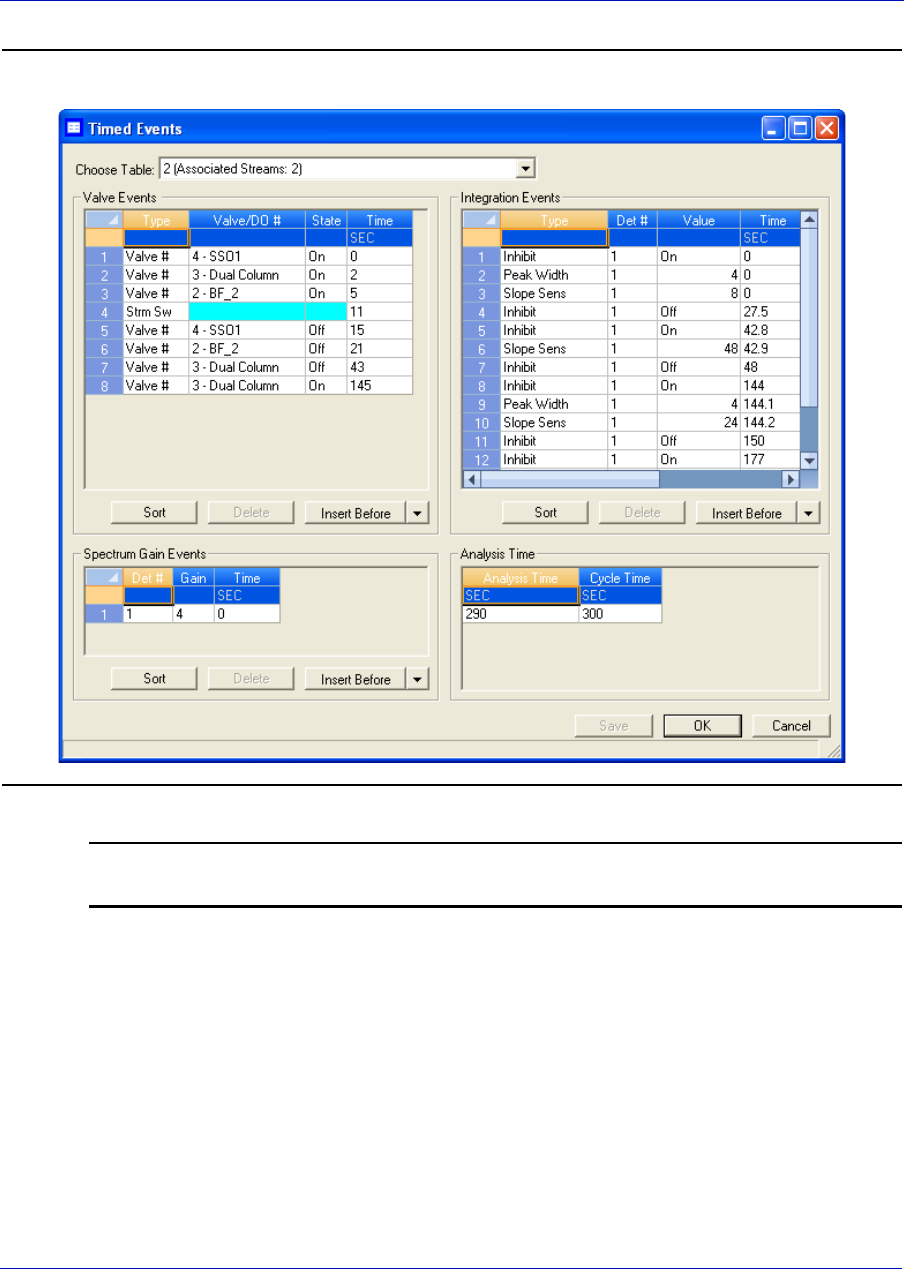
User Manual MON20/20 Software for Gas Chromatographs
3-9000-745 SEPTEMBER 2010
4-24
Figure 4-18. The Timed Events window
Note
To sort events by time, click the appropriate Sort button.
3. Double-click on the cell that you want to edit. Depending on the cell
type, you will either be required to select a value from a drop-down
list, or you will be able to type in the value directly.
4. To save the changes without closing the window, click Save. To save
the changes and close the window, click OK.
MON20/20 Software for Gas Chromatographs User Manual
SEPTEMBER 2010 3-9000-745
4-25
The following table describes the integration-related parameters that are
available on the timed events window.
Parameter Description
TEV Type The type of integration event. You have the following options:
• Inhibit: Set to Off to start a peak; set to On to end a peak.
• Integrate: Set to On and Off to set a region in which the area under the trace is
computed as a peak regardless of peak onset discovery. The resulting area is added to
the raw data as a peak with the retention time set to the Integration Off time.
• Summation: Set to On and Off to set a region in which the area of all peaks found will
be added together to create a single, larger, peak. The peaks that contribute to the
summation are marked as partial peaks in the raw data table, and the summation
total is added to the raw data as a new peak with the retention time set to the
Summation OFF time.
• Slope Sens: The peak starts when the slope of six consecutive points is greater than
the slope sensitivity value that is displayed in the Value column; the peak ends when
the slope of six consecutive points is less than the slope sensitivity value that is
displayed in the Value column.
• Peak Width: Each point displayed on the graph represents the average of N raw data
points, where N is the value displayed in the corresponding Value column.
• Single Base: Determines how the baseline is drawn under a peak.
•Off: The baseline is drawn from the point of peak onset to the point of
peak termination. This is not necessarily horizontal and if fact usually
has a slight slope. (Default)
•Bgn: Draws a horizontal baseline from the point of peak onset to a point
above or below the peak termination.
•End: Draws a horizontal baseline from a point above or below the peak
onset to the point of peak termination.
• Fused Ovrrd: Determines how the baseline is drawn when two or more peaks are
'fused' together.
•Off: A single baseline is drawn from the onset of the first peak of the
fused group to the termination of the last peak of the group. (Default)
•On: Causes a separate baseline to be drawn for each peak in the fused
group.
• Negative Peak: Determines whether peak detection will detect inverted peaks, which
are peaks that point downward from the baseline. At any given moment we can
detect positive or negative peaks but not both at once.
•Off: Detect positive peaks. (Default)
•On: Detective negative peaks.
• SW Auto Zero: Re-baselines the trace at the specified time for the specified detector.
Used after a FID gain change event or a spectrum gain change event.
Note: The Single Base and Fused Override events can act together to produce
multiple horizontal baselines, at different heights, for a fused peak group.
User Manual MON20/20 Software for Gas Chromatographs
3-9000-745 SEPTEMBER 2010
4-26
4.3.3 Editing spectrum gain events
The spectrum gain feature graphically magnifies the size of a
chromatogram’s peaks. The data itself is not affected; only the
presentation of the data. This feature can be useful for viewing peaks
that are otherwise too small to examine.
Spectrum gain-related events are grouped on the lower left side of the
Timed Events window. To edit spectrum gain-related events, do the
following:
1. Select Timed Events... from the Application menu. The Timed
Events Tables selector window appears, displaying a list of available
timed events tables.
Value The values available depend on the integration type selected from the TEV Type
column.
• Slope Sensitivity and Peak Width: Enter the number of points, between 1 and 99, to
be used.
• Single Baseline: Select Off, End, Bgn.
•SW Auto Zero: No options.
• All other integration types: Select On or Off.
Det # The ID number of the detector that will be affected by the event. Valid values are 1 and
2.
Time Indicates the time, in seconds, that the event should occur during the analysis. Enter a
value between 0.0 and 3600.0.
NOTE: Event times must be less than the analysis time.
Parameter Description
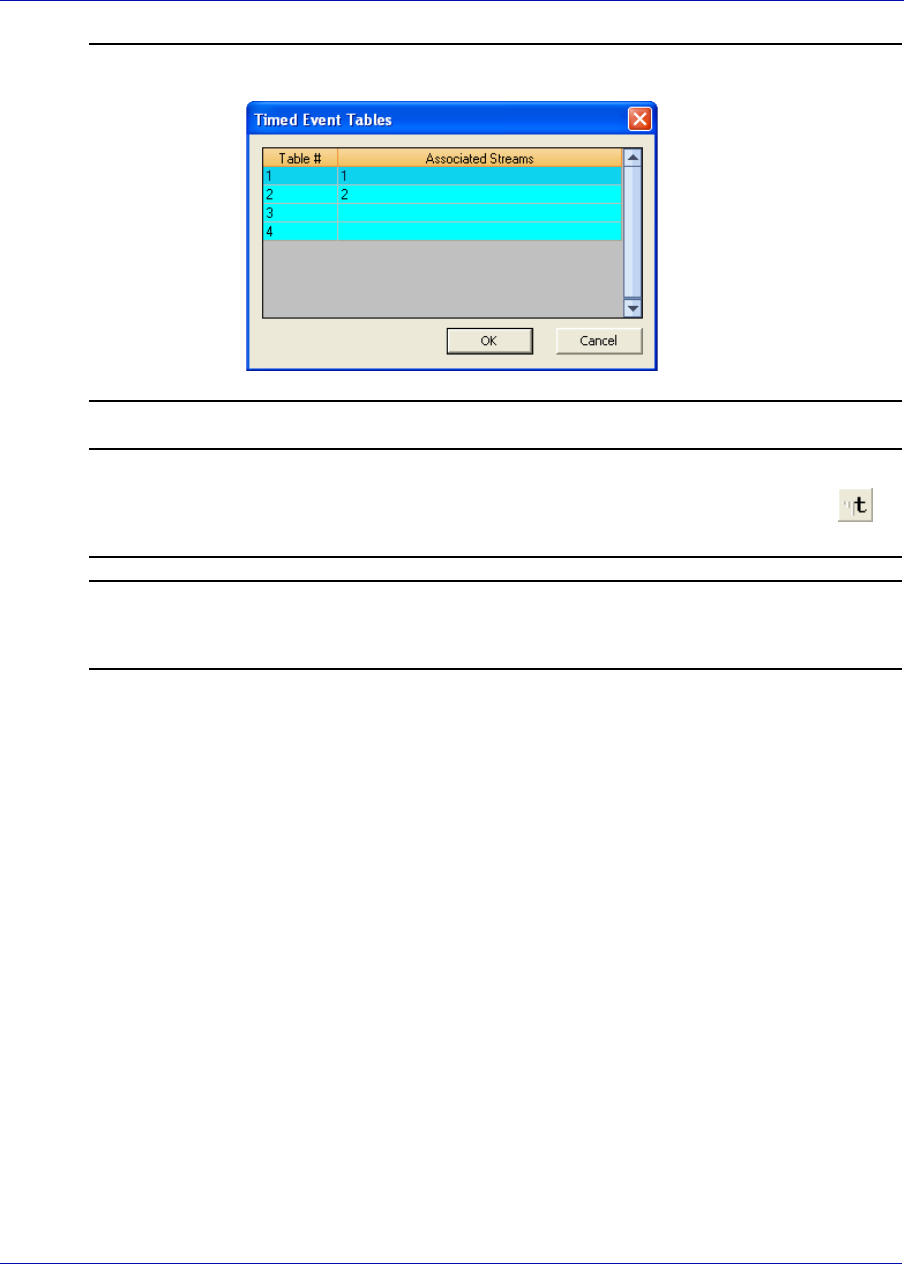
MON20/20 Software for Gas Chromatographs User Manual
SEPTEMBER 2010 3-9000-745
4-27
Figure 4-19. The Timed Events Tables selector window
Note
Other ways of accessing the timed event tables are by pressing F5 or by clicking
from the Toolbar.
Note
If only one timed events table is available, it will display immediately, bypassing the
Timed Events Tables selector window.
2. Select the table that you want to view. The selected timed events
table displays.
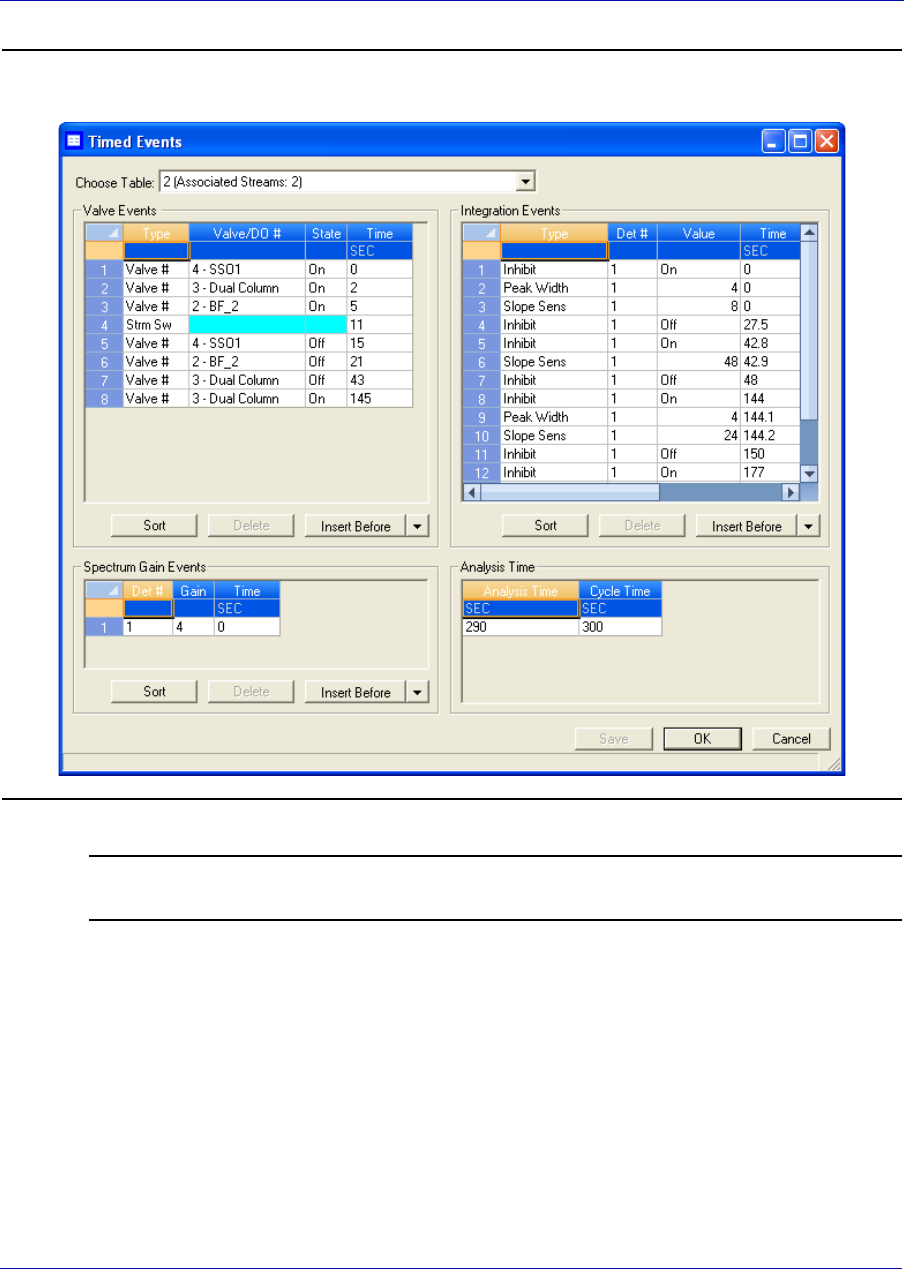
User Manual MON20/20 Software for Gas Chromatographs
3-9000-745 SEPTEMBER 2010
4-28
Figure 4-20. The Timed Events window
Note
To sort events by time, click the appropriate Sort button.
3. Click on the cell that you want to edit. Depending on the cell type, you
will either be required to select a value from a drop-down list, or you
will be able to type in the value directly.
4. To save the changes without closing the window, click Save. To save
the changes and close the window, click OK.
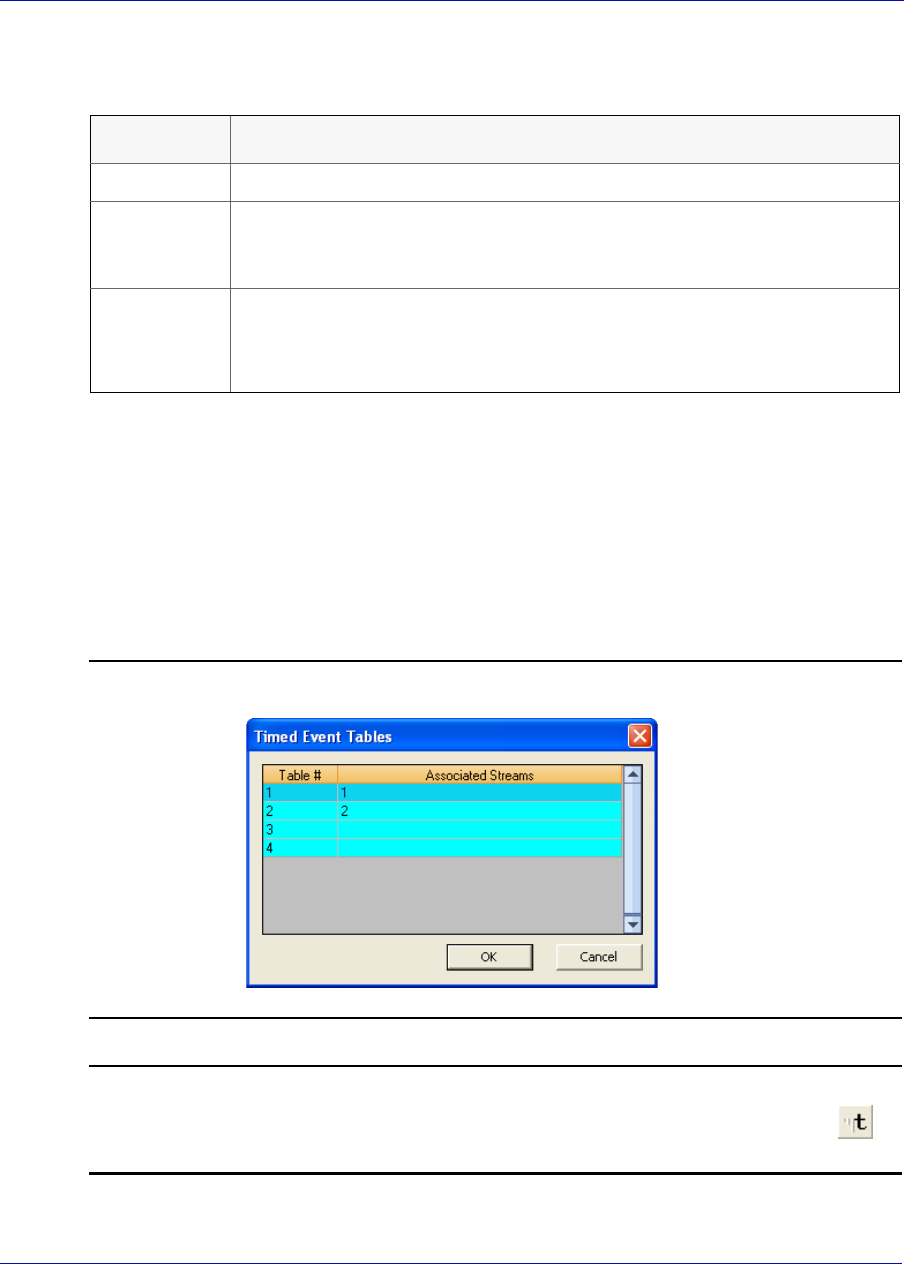
MON20/20 Software for Gas Chromatographs User Manual
SEPTEMBER 2010 3-9000-745
4-29
The following table describes the spectrum gain-related parameters that
are available on the timed events window.
4.3.4 Setting the cycle and analysis time
To set the cycle and analysis time, do the following:
1. Select Timed Events... from the Application menu. The Timed
Events Tables selector window appears, displaying a list of available
timed events tables.
Figure 4-21. The Timed Events Tables selector window
Note
Other ways of accessing the timed event tables are by pressing F5 or by clicking
from the Toolbar.
Parameter Description
Det # The ID number of the detector that will be affected by the event. Select 1 or 2.
Gain Enter a value between 0 and 64. This is the exponent value in the following
expression: 2gain value. For example, a value of 0 means no gain is applied; a
value of 5 means the gain is increased to 32 times it’s original value.
Time Indicates the time, in seconds, that the event should occur during the
analysis. Enter a value between 0.0 and 3600.0.
NOTE: Event times must be less than the analysis time.
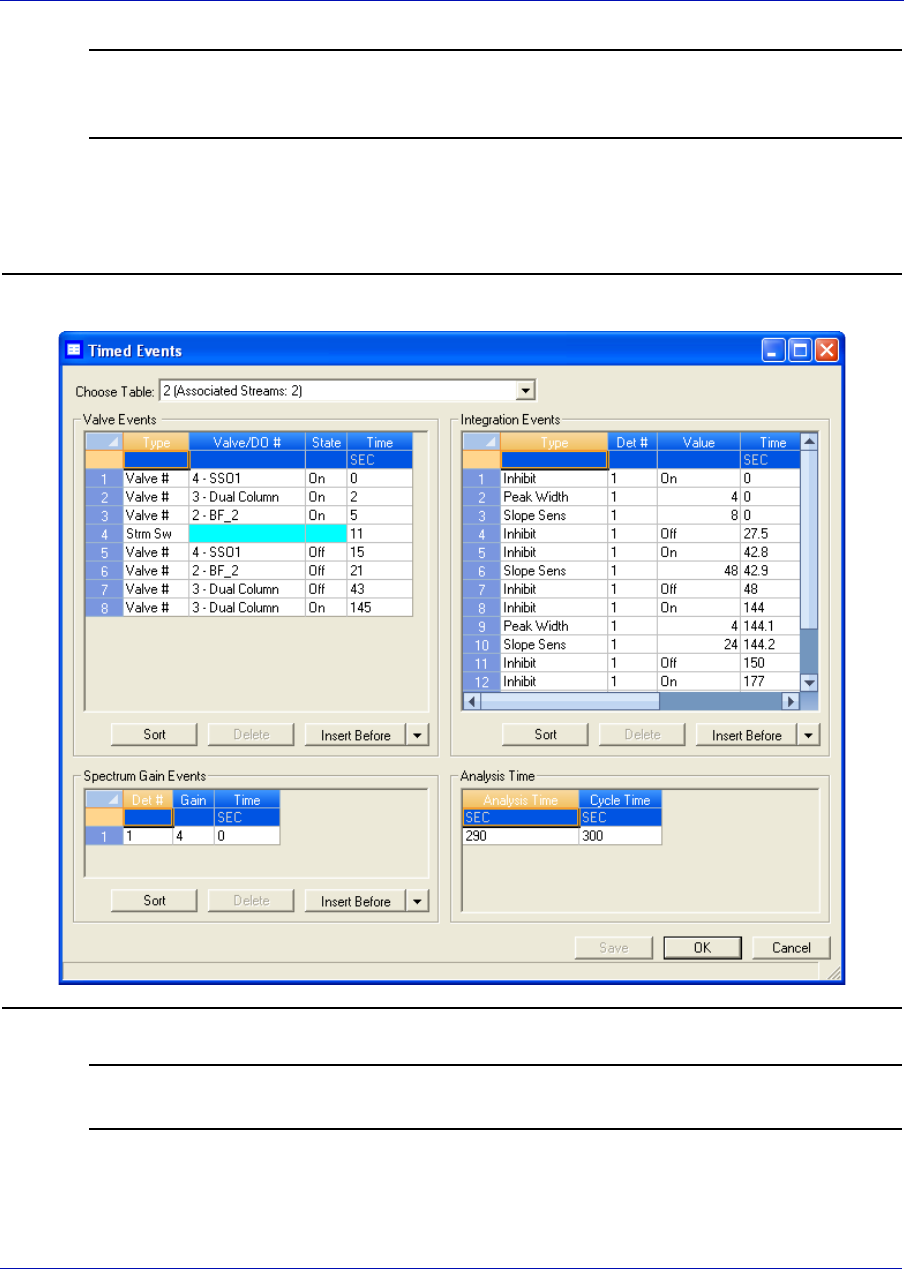
User Manual MON20/20 Software for Gas Chromatographs
3-9000-745 SEPTEMBER 2010
4-30
Note
If only one timed events table is available, it will display immediately, bypassing the
Timed Evetns Tables selector window.
2. Select the table that you want to view. The selected timed events
table displays. The Analysis Time section is located on the lower
right side of the Timed Events window.
Figure 4-22. The Timed Events window
Note
To sort events by time, click the appropriate Sort button.
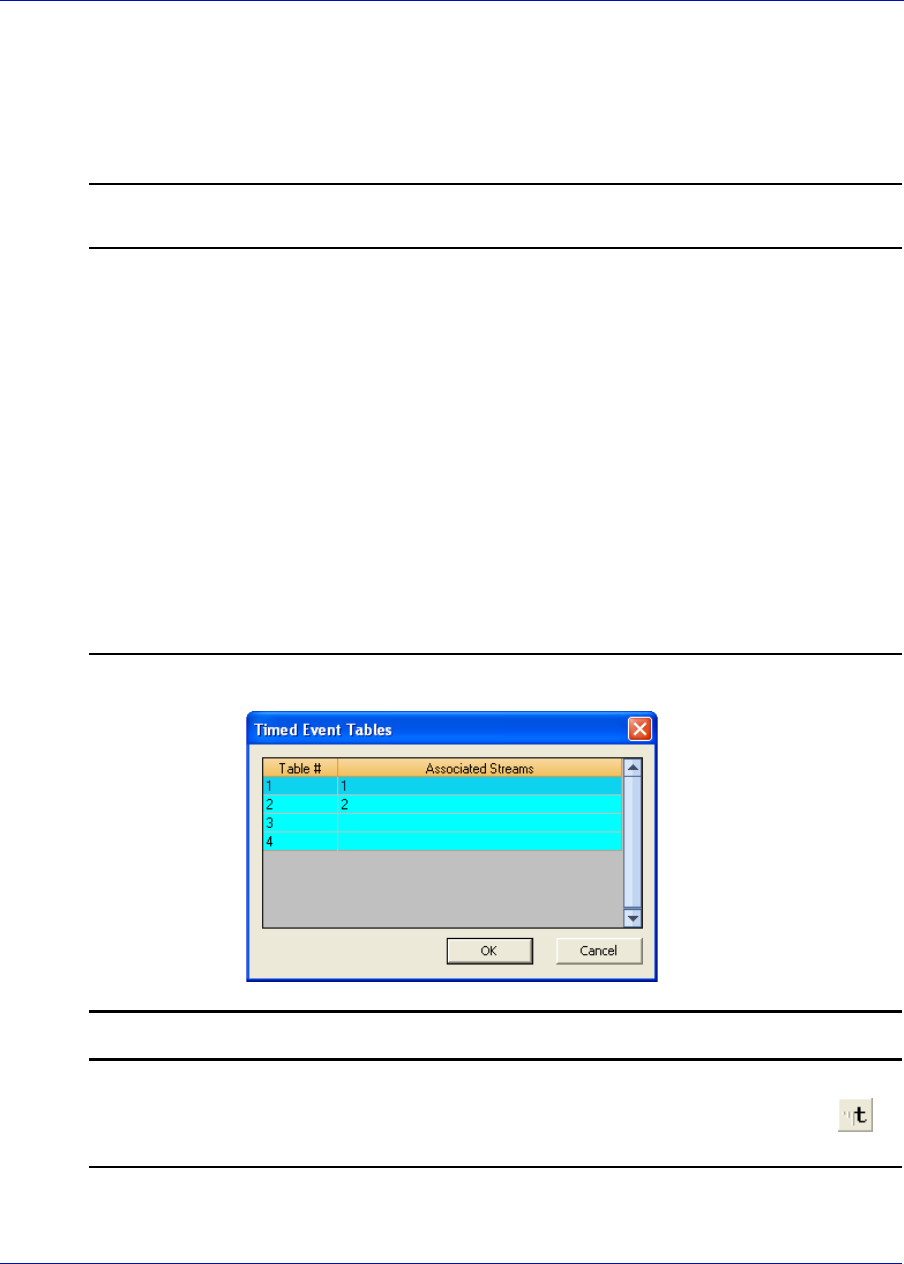
MON20/20 Software for Gas Chromatographs User Manual
SEPTEMBER 2010 3-9000-745
4-31
3. Click on the Analysis Time cell and enter a value, in seconds, between
0 and 3600.
4. Click on the Cycle Time cell and enter a value, in seconds, between 0
and 3620.
Note
The Cycle Time must be atleast 10 seconds greater than the Analysis Time.
5. To save the changes without closing the window, click Save. To save
the changes and close the window, click OK.
4.3.5 Removing an event from the Timed Event Table
To remove an event from one of the Valve Events, Integrate Events, or
Spectrum Gain Events tables on the Timed Events window, do the
following:
1. Select Timed Events... from the Application menu. The Timed
Events Tables selector window appears, displaying a list of available
timed events tables.
Figure 4-23. The Timed Events Tables selector window
Note
Other ways of accessing the timed event tables are by pressing F5 or by clicking
from the Toolbar.
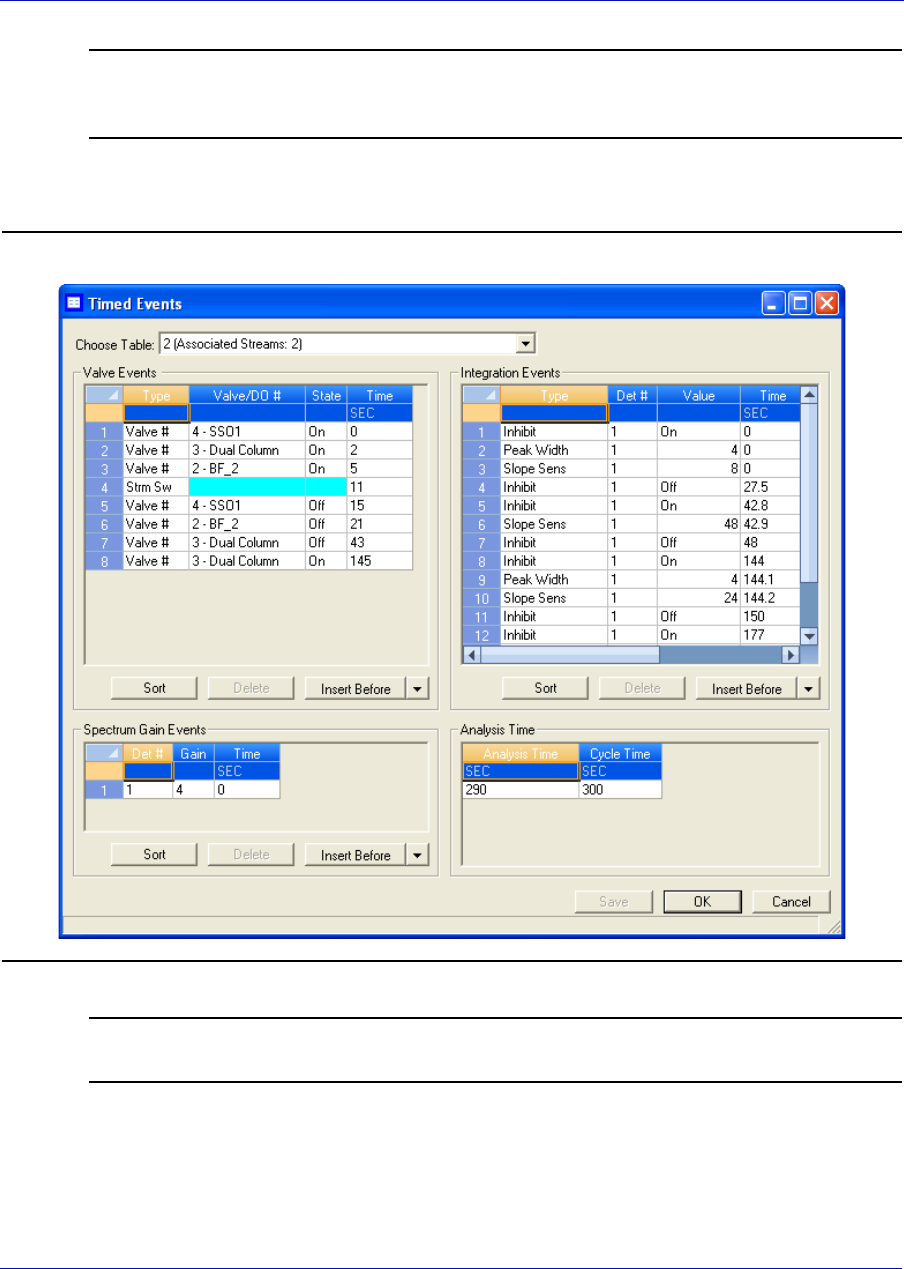
User Manual MON20/20 Software for Gas Chromatographs
3-9000-745 SEPTEMBER 2010
4-32
Note
If only one timed events table is available, it will display immediately, bypassing the
Timed Events Tables selector window.
2. Select the table that you want to view. The selected timed events
table displays.
Figure 4-24. The Timed Events window
Note
To sort events by time, click the appropriate Sort button.
3. Select the event that you want to delete.
4. Click the appropriate Delete button.
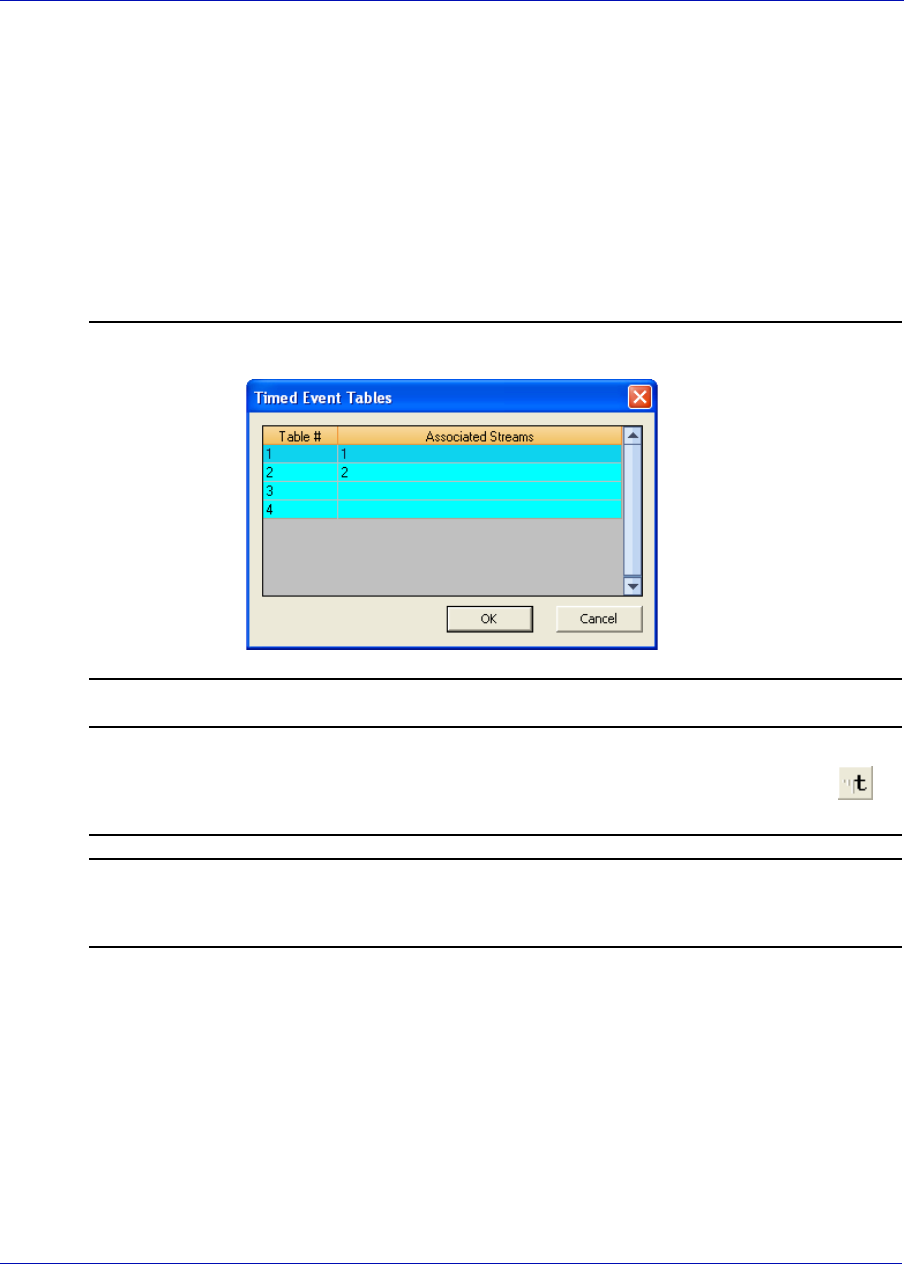
MON20/20 Software for Gas Chromatographs User Manual
SEPTEMBER 2010 3-9000-745
4-33
4.3.6 Adding an event to the Timed Event Table
To add an event to one of the Valve Events, Integrate Events, or
Spectrum Gain Events tables on the Timed Events window, do the
following:
1. Select Timed Events... from the Application menu. The Timed
Events Tables selector window appears, displaying a list of available
timed events tables.
Figure 4-25. The Timed Events Tables selector window
Note
Other ways of accessing the timed event tables are by pressing F5 or by clicking
from the Toolbar.
Note
If only one timed events table is available, it will display immediately, bypassing the
Timed Events Tables selector window.
2. Select the table that you want to view. The selected timed events
table displays.
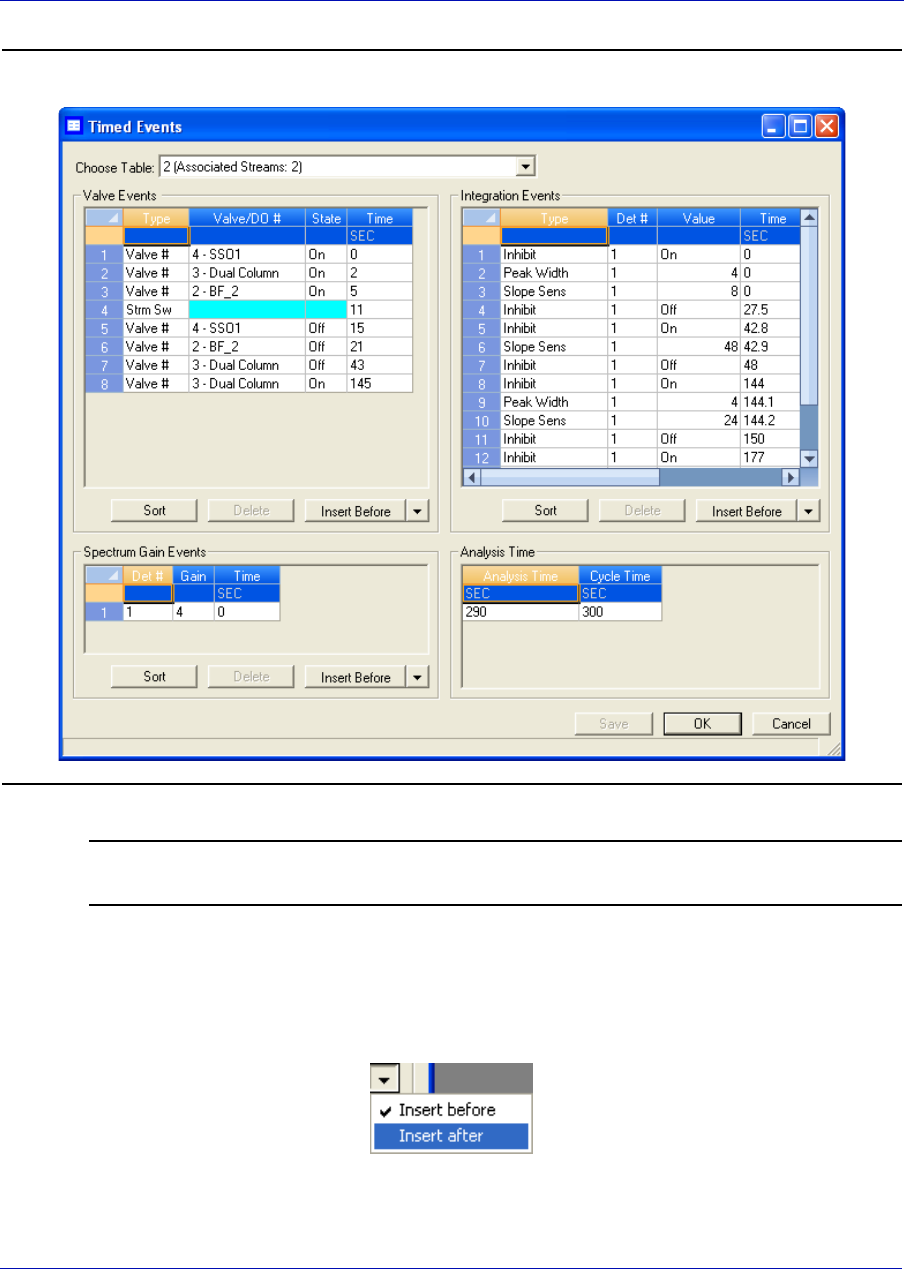
User Manual MON20/20 Software for Gas Chromatographs
3-9000-745 SEPTEMBER 2010
4-34
Figure 4-26. The Timed Events window
Note
To sort events by time, click the appropriate Sort button.
3. If you want to add the event above the currently selected event, click
the appropriate Insert before button. If you want to add the event
below the currently selected event, select Insert after from the
Insert arrow and then click the button.
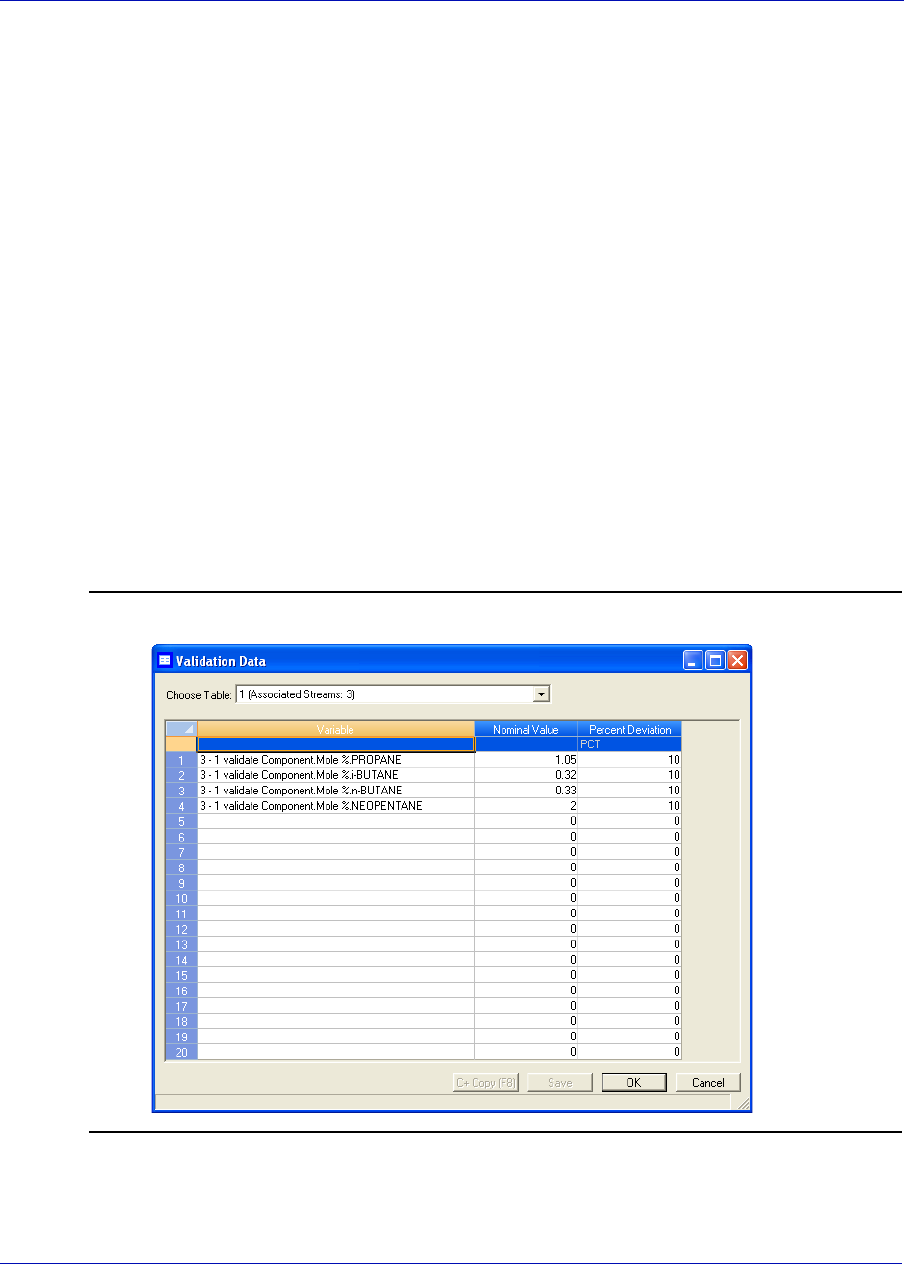
MON20/20 Software for Gas Chromatographs User Manual
SEPTEMBER 2010 3-9000-745
4-35
The new event will be added to the table.
4. Select a Type, Valve/DO#, and State for the event, if necessary, and
enter a new Time for the event also.
5. To save the changes without closing the window, click Save. To save
the changes and close the window, click OK.
4.4 Managing Validation Data Tables
Use the validation data table to hold information about the composition of
the gas that is used in the validation run. During a validation run, the
GC performs a test analysis of a gas with a known component
composition to verify that the GC is working properly.
To add a component to the validation data table, do the following:
1. Select Validation Data from the Application menu. The Validation
Data window displays.
Figure 4-27. The Validation Data window
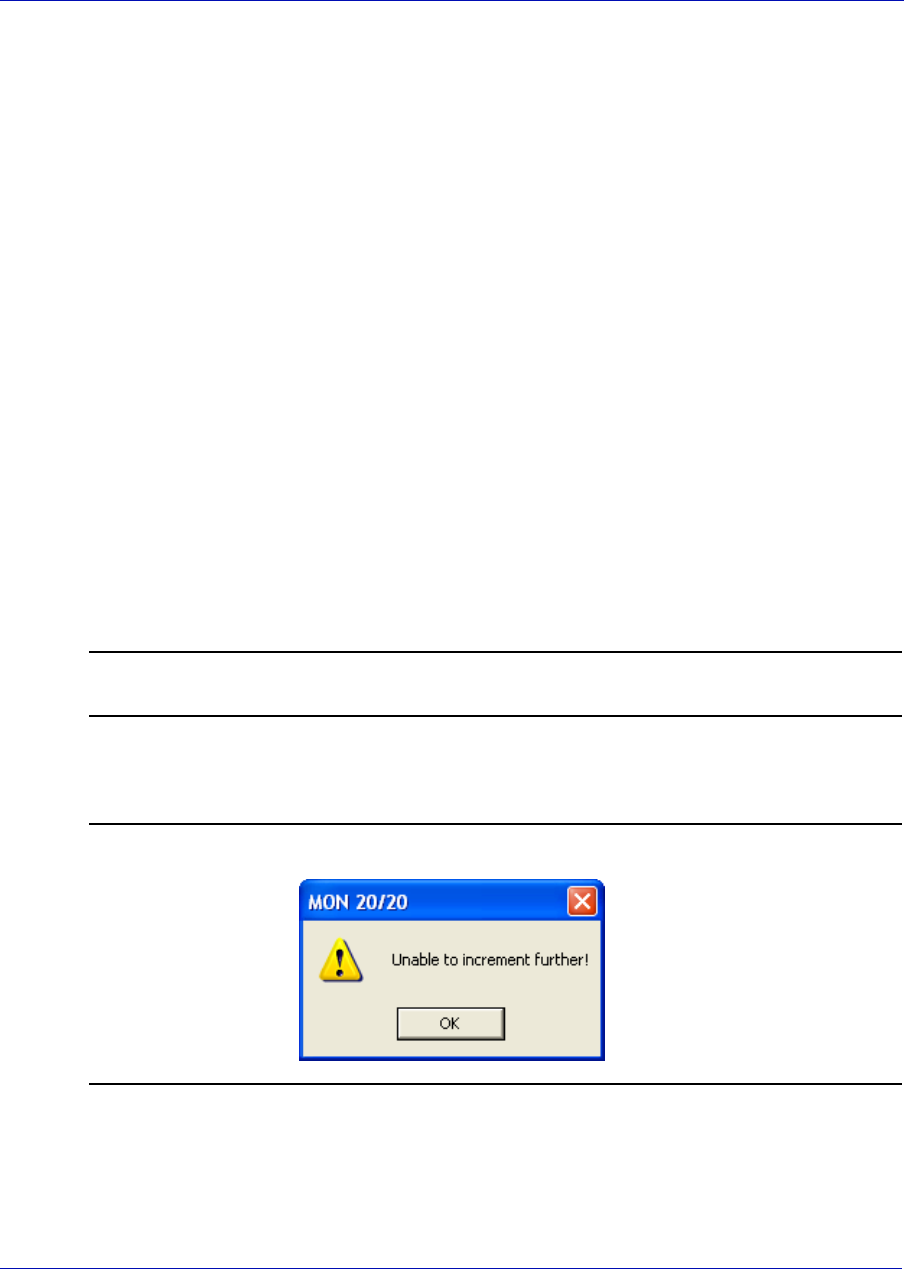
User Manual MON20/20 Software for Gas Chromatographs
3-9000-745 SEPTEMBER 2010
4-36
2. If the appropriate table is not displayed, select it from the Choose
Table drop-down list.
3. Select a new variable by clicking on the appropriate drop-down list
under the Variable column. For a demonstration of how to use the
context-sensitive variable selector, see “Using the context-sensitive
variable selector” on page 1-42.
4. Enter the component’s concentration percentage in the appropriate
cell under the Nominal Value column. To ensure accuracy, this value,
which is compared to the GC’s analysis results at the end of the
validation run, should be taken from the documentation provided with
the gas cylinder.
5. Enter a value in the appropriate Percent Deviation cell. If you enter
10 in this field, and the GC’s analysis result for the component differs
from the component’s Nominal Value by ±10% or more, then an alarm
is generated.
6. To copy a component variable to the next empty row, click C + Copy.
The component will be increment to the next available component—
for example, from Ammonia to Benzene. The Nominal Value and
Percent Deviation values will also be copied.
Note
You can select and copy more than one component at a time.
If there are no components available, instead of copying the
component, MON 20/20 will display the following message:
Figure 4-28. No components warning
7. To save the changes without closing the window, click Save. To save
the changes and close the window, click OK.
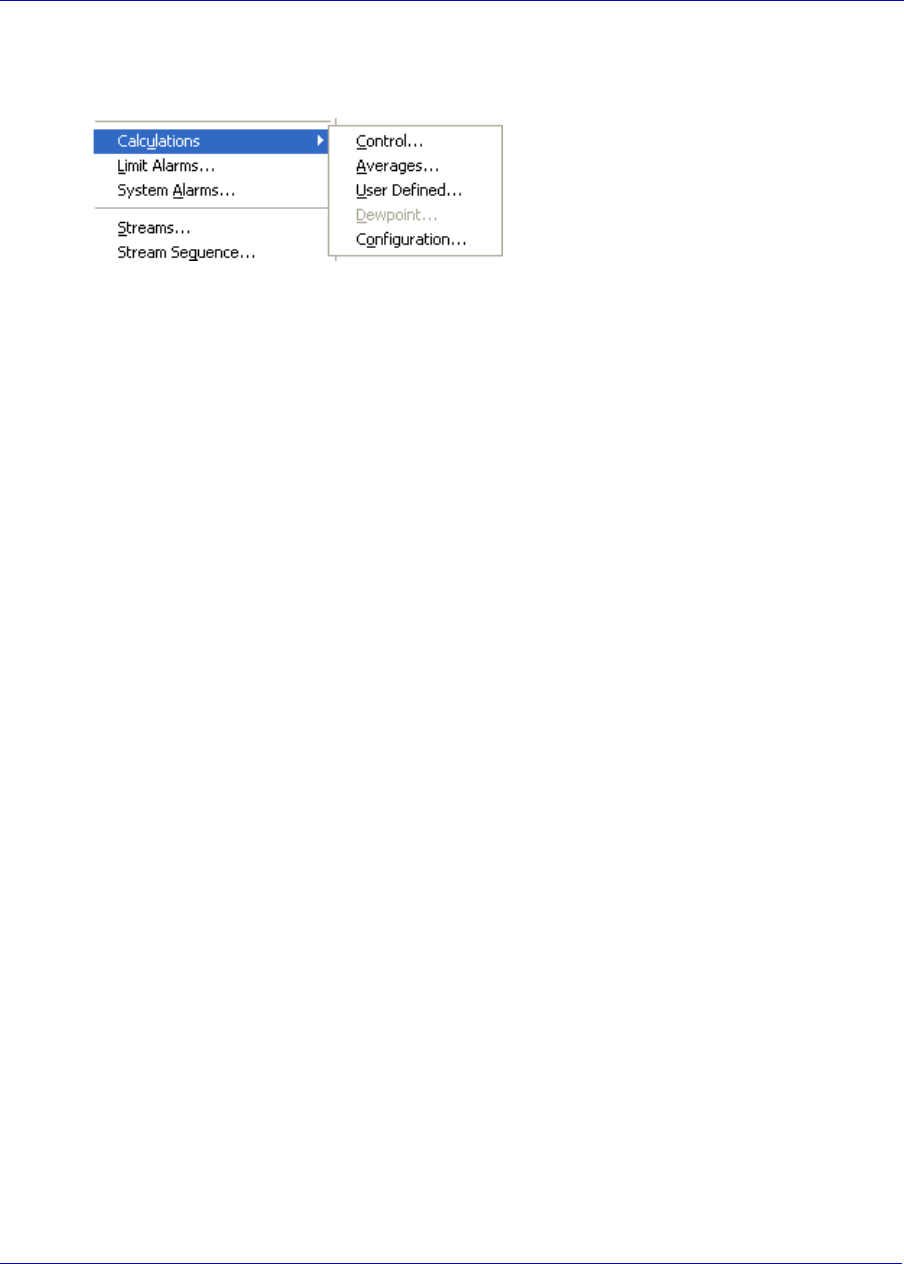
MON20/20 Software for Gas Chromatographs User Manual
SEPTEMBER 2010 3-9000-745
4-37
4.5 Managing calculations
MON 20/20’s Calculations
submenu allows you to activate
and define how the output of
standard or user-defined
chromatograph analysis data is
used in various calculations.
You can configure the following types of calculations:
•Control - Allows you to designate, by streams, the standard
calculations that should be performed from the analysis data.
•Averages - Allows you to designate, by streams and components,
averages of standard calculations MON 20/20 should perform.
•User Defined - Allows you to create and edit customized calculations
using analysis data.
•Dewpoint - This optional feature allows you to calculate dewpoint
temperatures and to estimate the cricondentherm, which is the
temperature above which no liquid will form at any pressure.
4.5.1 Setting standard calculations by stream
To designate, by streams, the standard calculations—for example, mole
percent, liquid volume, gas density, Wobbe index, etc.—that should be
performed from the analysis data, do the following:
1. Select Applications → Calculations → Control.... The Control
Calculations window appears.
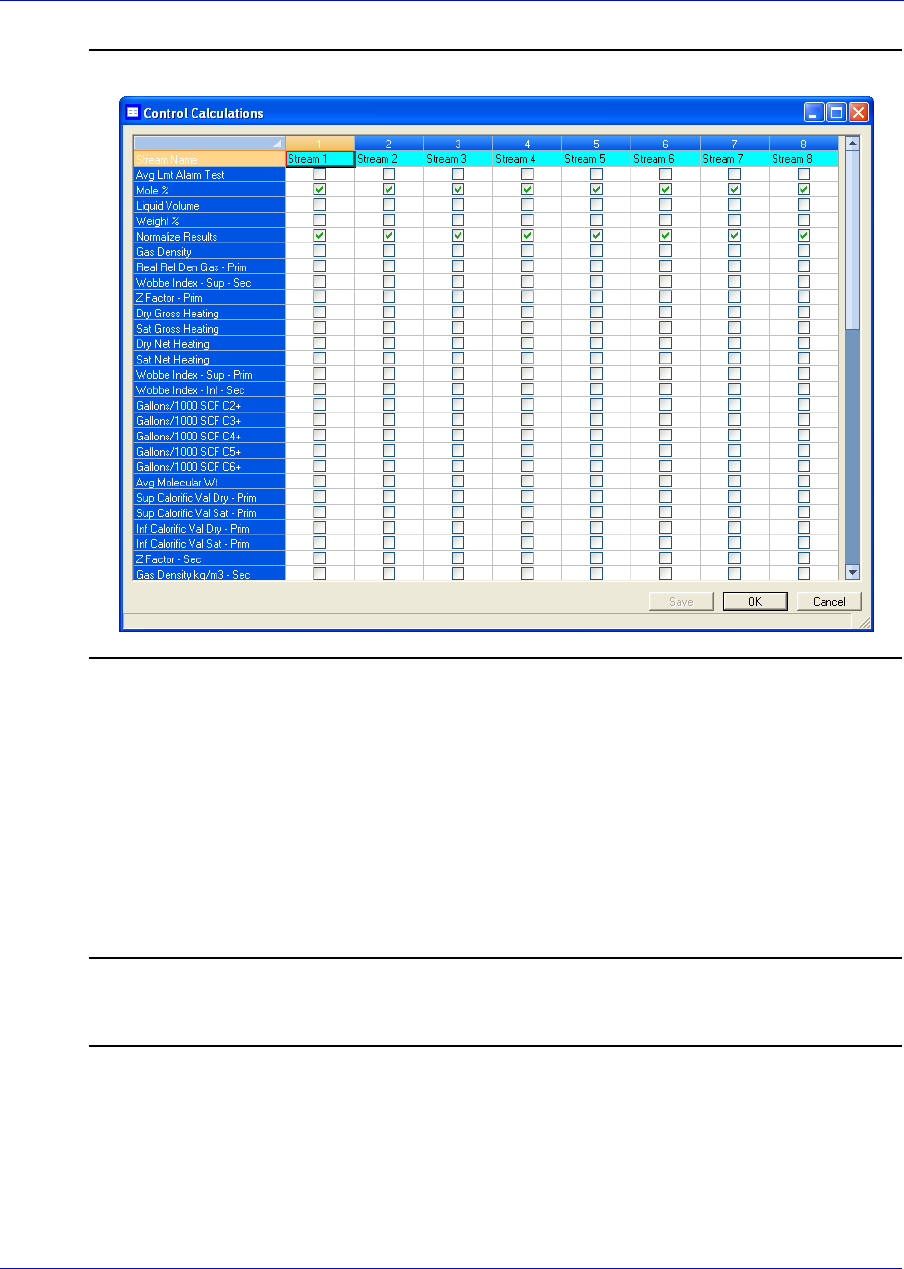
User Manual MON20/20 Software for Gas Chromatographs
3-9000-745 SEPTEMBER 2010
4-38
Figure 4-29. The Control Calculations window
2. Select a check box for a given stream to turn the calculation ON for
that stream; click to clear the check box for a given stream to turn the
calculation OFF for that stream.
You can use the arrow keys to move from one stream cell to another,
and you can press the space bar to toggle the calculation on or off.
3. To save the changes without closing the window, click Save. To save
the changes and close the window, click OK.
Note
To save the information on this screen to a tab-delimited text file, right-click on the table
and select Save Sheet from the right-click menu.
MON20/20 Software for Gas Chromatographs User Manual
SEPTEMBER 2010 3-9000-745
4-39
Note
To copy the information on this screen to the clipboard so that it can be pasted into
another application such Microsoft Word or Excel, right-click on the table and select
Copy to clipboard from the right-click menu.
Note
To print the information on this screen, right-click on the table and select Print Sheet
from the right-click menu.
4.5.2 Editing average calculations
To designate, by streams and components, averages of standard
calculations the GC should perform, do the following:
1. Select Applications → Calculations → Averages.... The Averages
Calculations window appears.
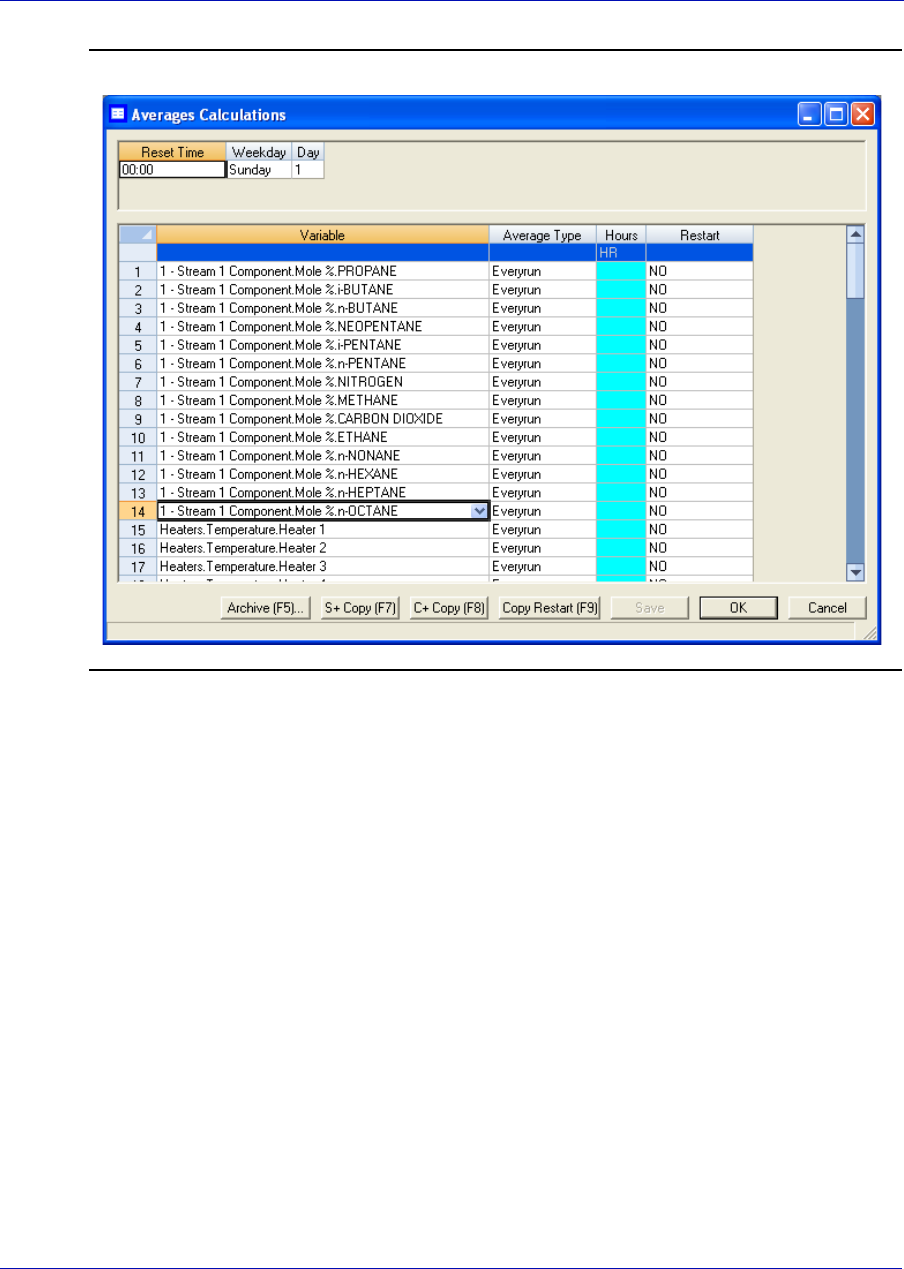
User Manual MON20/20 Software for Gas Chromatographs
3-9000-745 SEPTEMBER 2010
4-40
Figure 4-30. The Averages Calculations window
2. Select a new variable by clicking on the appropriate drop-down list
under the Variable column. For a demonstration of how to use the
context-sensitive variable selector, see “Using the context-sensitive
variable selector” on page 1-42.
3. Select the type of average to be calculated from the Average Type drop-
down list. You have the following options:
•Unused - An average will not be calculated for the variable.
•Hourly - Averages will start and stop every hour, beginning at the
time displayed in the Reset Time field from the Averages Reset
section.
•24 Hour - Averages will start and stop once a day at the time
displayed in the Reset Time field from the Averages Reset
section.

MON20/20 Software for Gas Chromatographs User Manual
SEPTEMBER 2010 3-9000-745
4-41
•Weekly - Averages will start and stop once a week at the time
displayed in the Reset Time field and on the day entered in the
Weekday field, from the Averages Reset section.
•Monthly - Averages will start and stop once a month at the time
displayed in the Reset Time field and on the day of the month
entered in the Day field, from the Averages Reset section.
•Variable - Averages will start and stop every hour at the time
entered in the Hours column, instead of at the Reset Time.
•Everyrun - No average will be stored; instead, the current value
at the end of the run will be stored.
4. To set a custom start and stop time for a particular calculation, set the
Average Type for the calculation to Variable and enter the desired
time in the Hours cell.
Note
The custom Hours setting overrides the Reset Time setting.
5. Set the appropriate Restart Flag to one of the following options:
•NO - The current average will not be reset.
•CUR - The current average will be cleared and a new average
calculation will start.
6. To save the changes without closing the window, click Save. To save
the changes and close the window, click OK.
Note
To save the information on this screen to a tab-delimited text file, right-click on the table
and select Save Sheet from the right-click menu.
Note
To copy the information on this screen to the clipboard so that it can be pasted into
another application such Microsoft Word or Excel, right-click on the table and select
Copy to clipboard from the right-click menu.
Note
To print the information on this screen, right-click on the table and select Print Sheet
from the right-click menu.
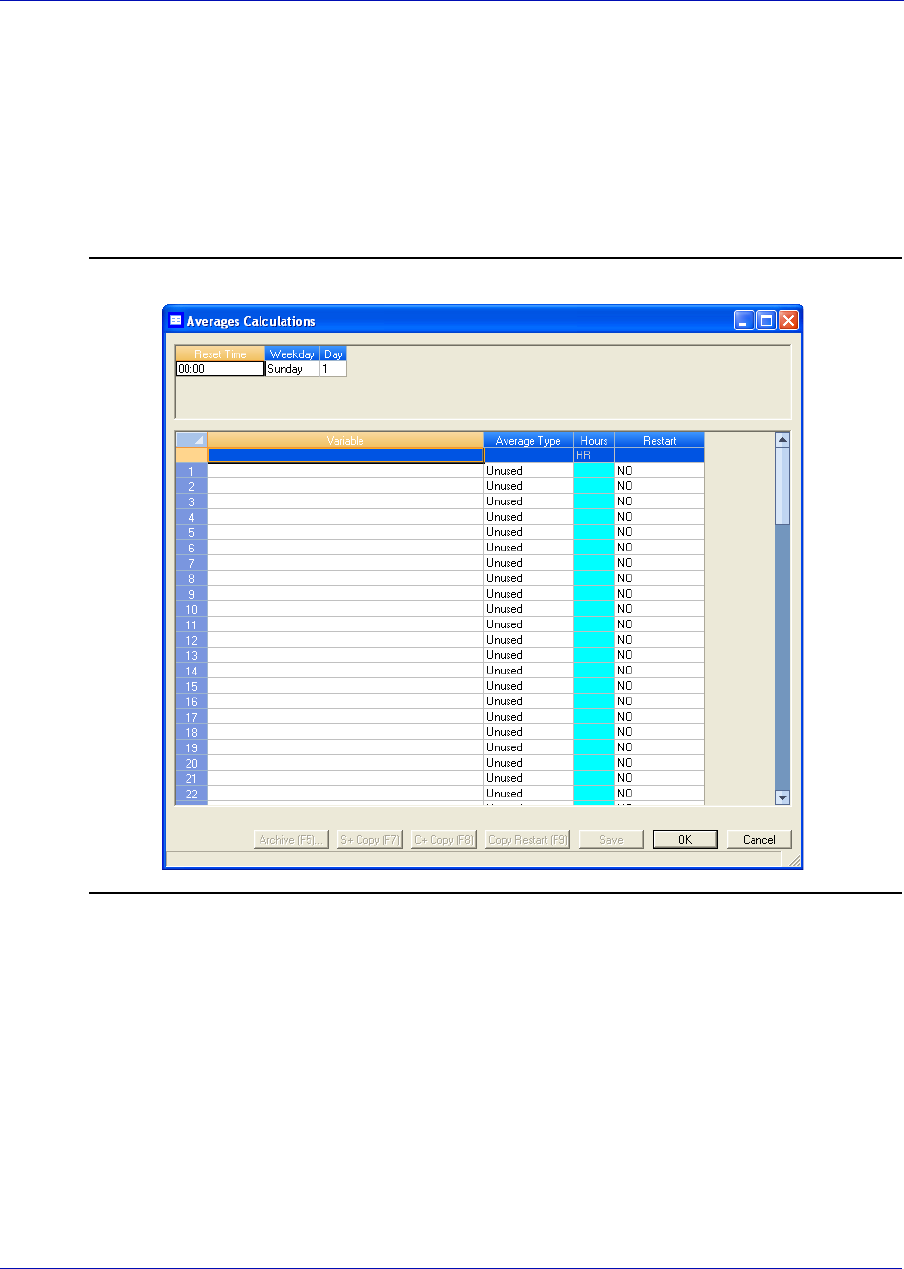
User Manual MON20/20 Software for Gas Chromatographs
3-9000-745 SEPTEMBER 2010
4-42
4.5.3 Viewing an archive of averages for a given variable
To view an archive of averages for a given variable, do the following:
1. Select Applications → Calculations → Averages.... The Averages
Calculations window appears.
Figure 4-31. The Averages Calculations window
2. Click on the desired variable to view its history.
3. Click Archive. The archive data screen appears.
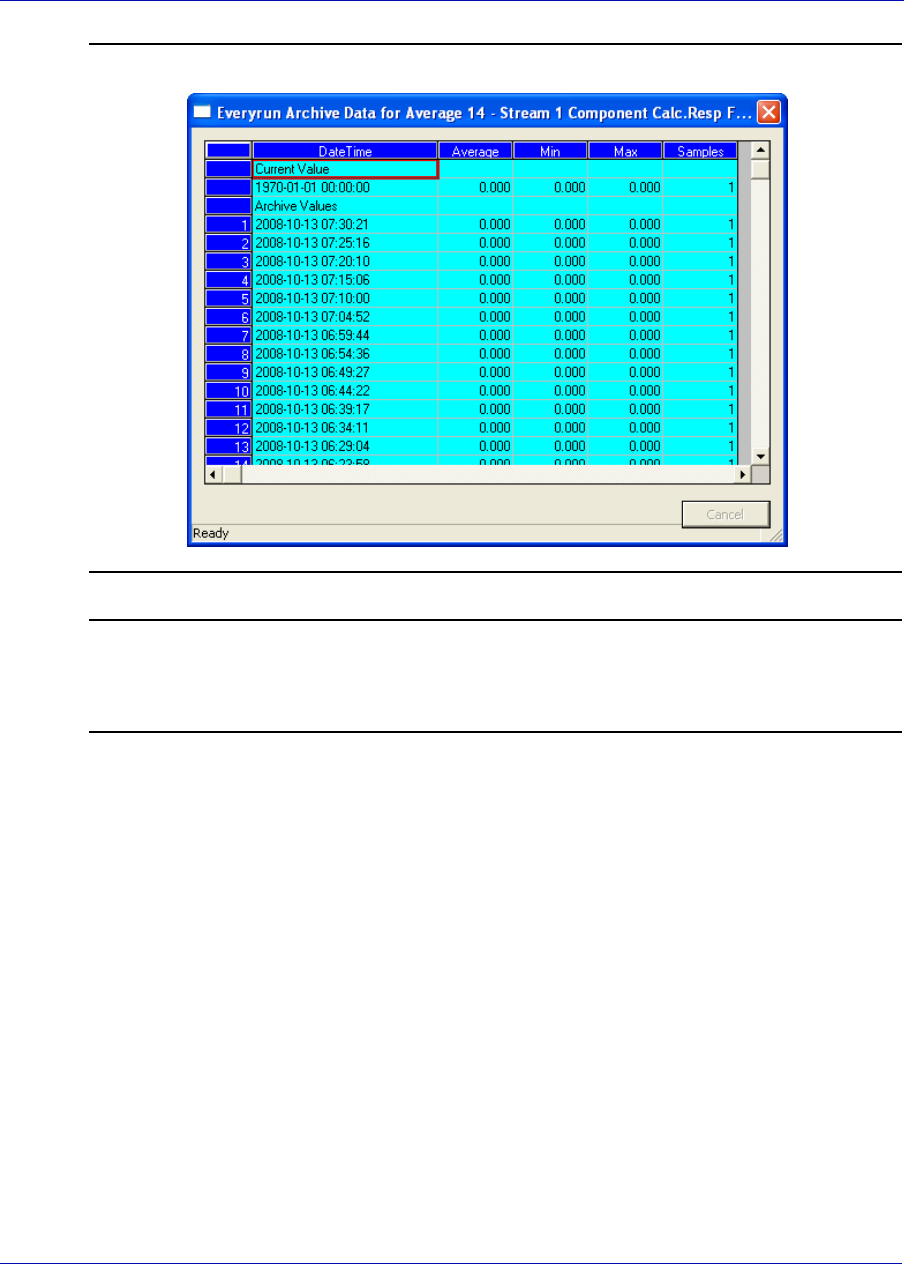
MON20/20 Software for Gas Chromatographs User Manual
SEPTEMBER 2010 3-9000-745
4-43
Figure 4-32. The archive data window
Note
To copy the information in this table to the clipboard so that it can be pasted into
another application such as Microsoft Word or Excel, select the cells that you want to
copy and then press CTRL + C to copy the information to the clipboard.
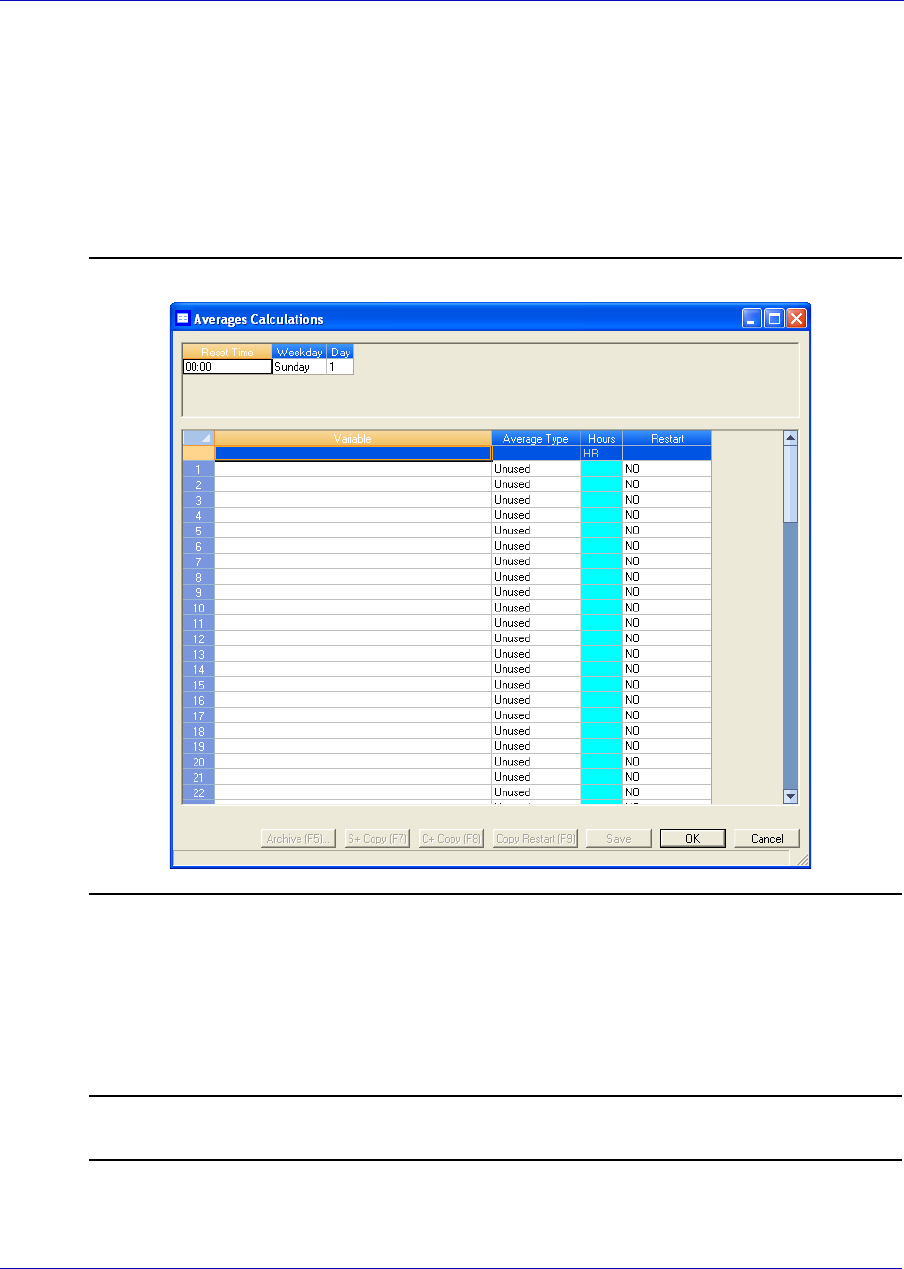
User Manual MON20/20 Software for Gas Chromatographs
3-9000-745 SEPTEMBER 2010
4-44
4.5.4 Copying stream settings
To copy the stream settings from a highlighted row and apply them to the
next row, do the following:
1. Select Applications → Calculations → Averages.... The Averages
Calculations window appears.
Figure 4-33. The Averages Calculations window
2. Select the row that you want to copy.
3. Click S + Copy. The stream will be copied to the next row and
incremented to the next available stream—for example, from Stream
2 to Stream 3.
Note
You can select and copy more than one stream at a time.
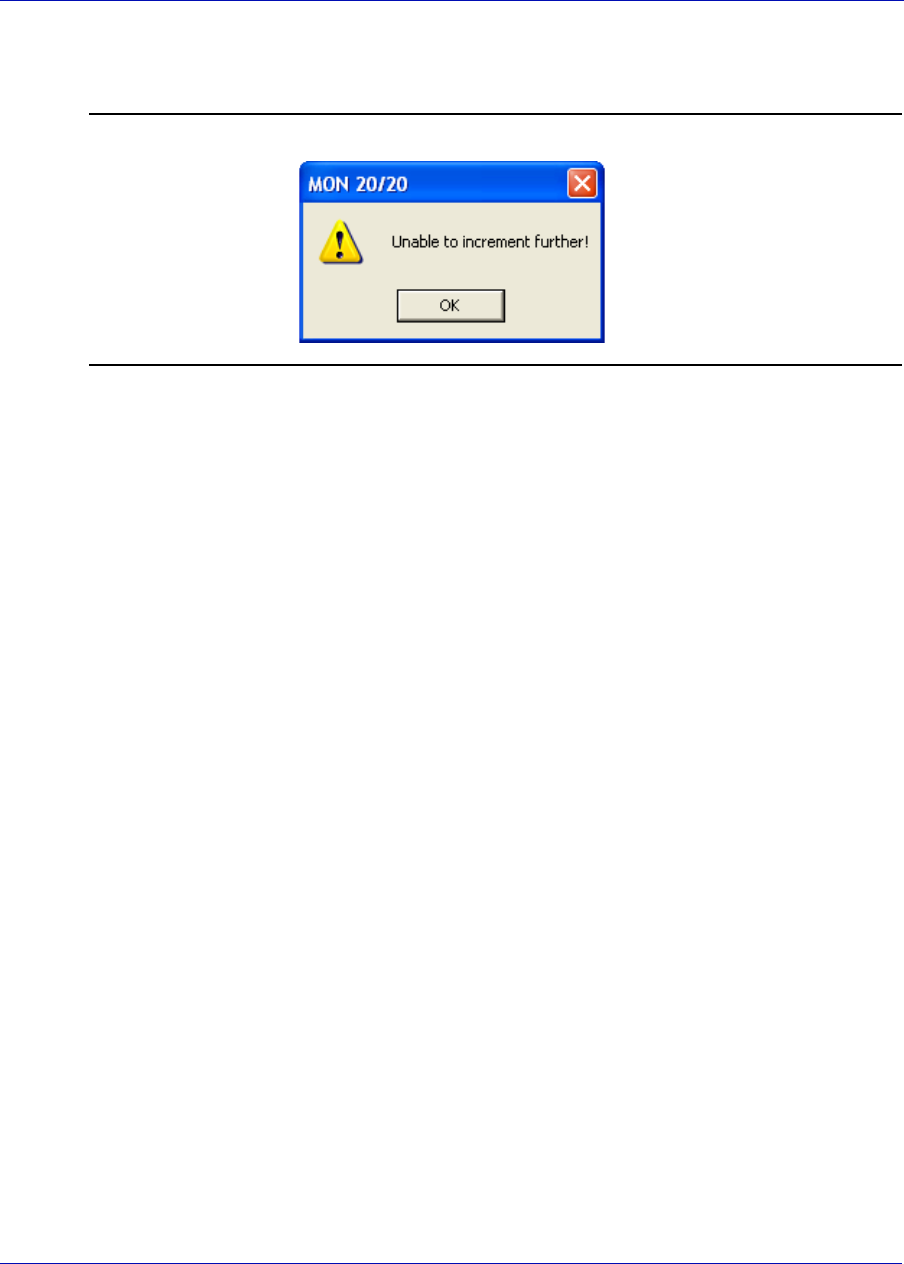
MON20/20 Software for Gas Chromatographs User Manual
SEPTEMBER 2010 3-9000-745
4-45
If there are no streams available, instead of copying the stream, MON
20/20 will display the following message:
Figure 4-34. No streams available warning
4. To save the changes without closing the window, click Save. To save
the changes and close the window, click OK.
4.5.5 Copying component settings
To copy the component settings from a highlighted row and apply them to
the next row, do the following:
1. Select Applications → Calculations → Averages.... The Averages
Calculations window appears.
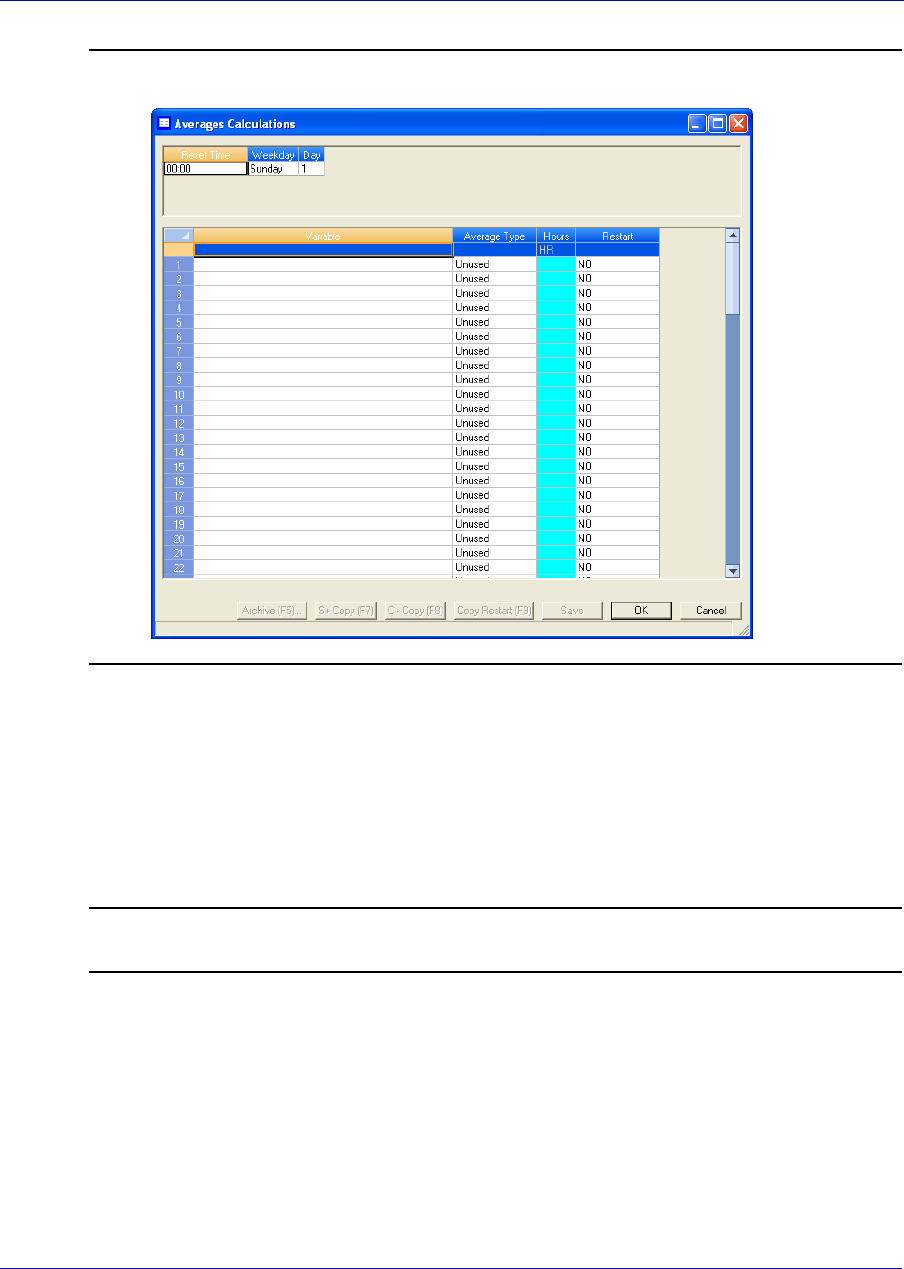
User Manual MON20/20 Software for Gas Chromatographs
3-9000-745 SEPTEMBER 2010
4-46
Figure 4-35. The Averages Calculations window
2. Select the row that contains the component that you want to copy.
3. Click the arrow beside the S + Copy button to switch it to C + Copy.
4. Click C + Copy. The component will be copied to the next row and
incremented to the next available component—for example, from
Ammonia to Benzene.
Note
You can select and copy more than one component at a time.
MON20/20 Software for Gas Chromatographs User Manual
SEPTEMBER 2010 3-9000-745
4-47
If there are no components available, instead of copying the
component, MON 20/20 will display the following message:
Figure 4-36. No components available warning
5. To save the changes without closing the window, click Save. To save
the changes and close the window, click OK.
4.6 Creating Custom Calculations
To create or edit a customized calculation using GC analysis data, do the
following:
1. Select Applications → Calculations → User Defined.... The User
Defined Calculations window appears, containing a list of all the user-
defined calculations that are available to the GC.
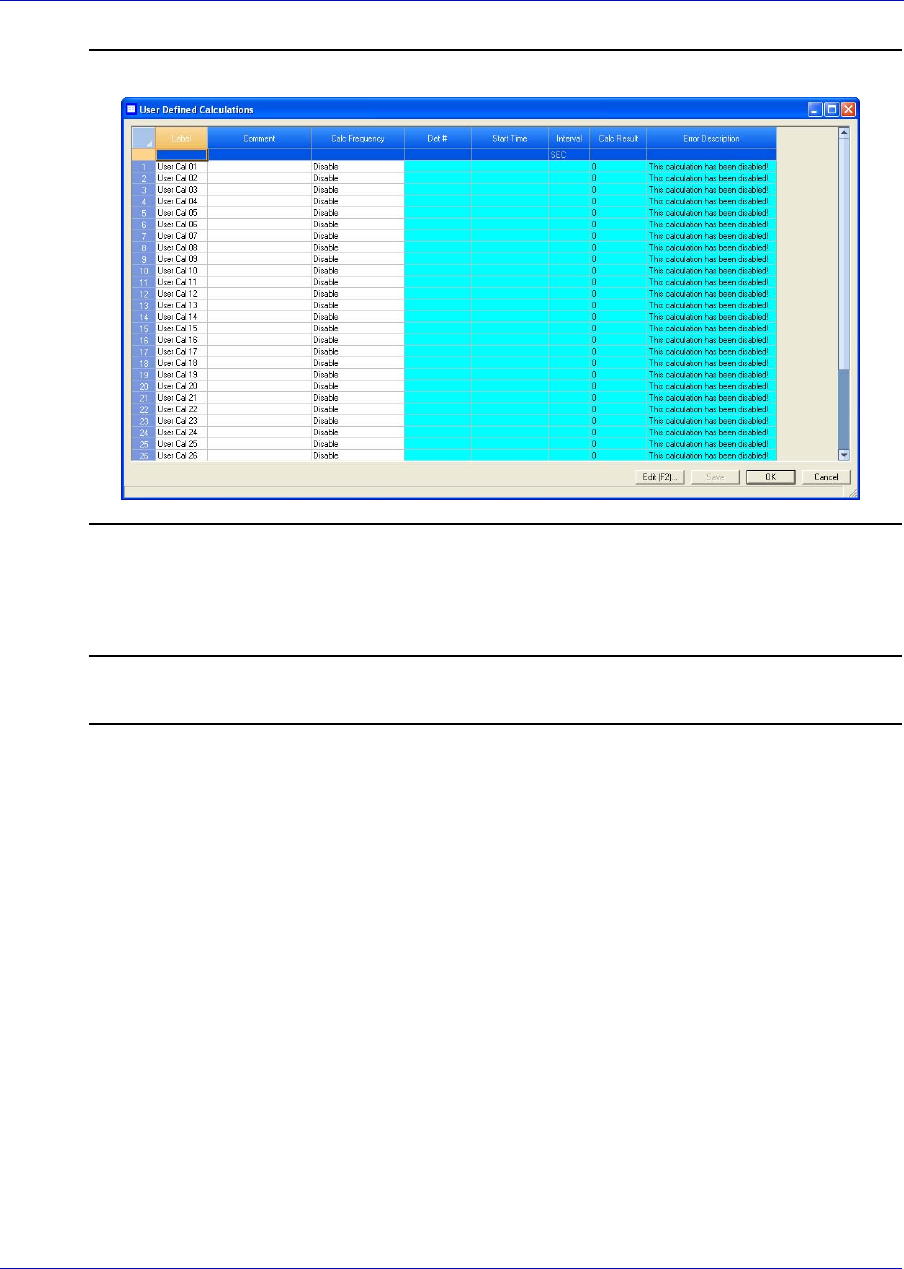
User Manual MON20/20 Software for Gas Chromatographs
3-9000-745 SEPTEMBER 2010
4-48
Figure 4-37. The User Defined Calculations window
2. Click Insert before to add a row to the User Defined Calculations
table.
Note
To delete this--or any--row from the table, click Delete.
3. Double-click the Label cell and enter a name for the calculation you
are about to create. If you want to enter a short description for the
new calculation, double-click the Comment cell and enter it there.
4. Click Edit. The Edit User-defined Calculation window appears.
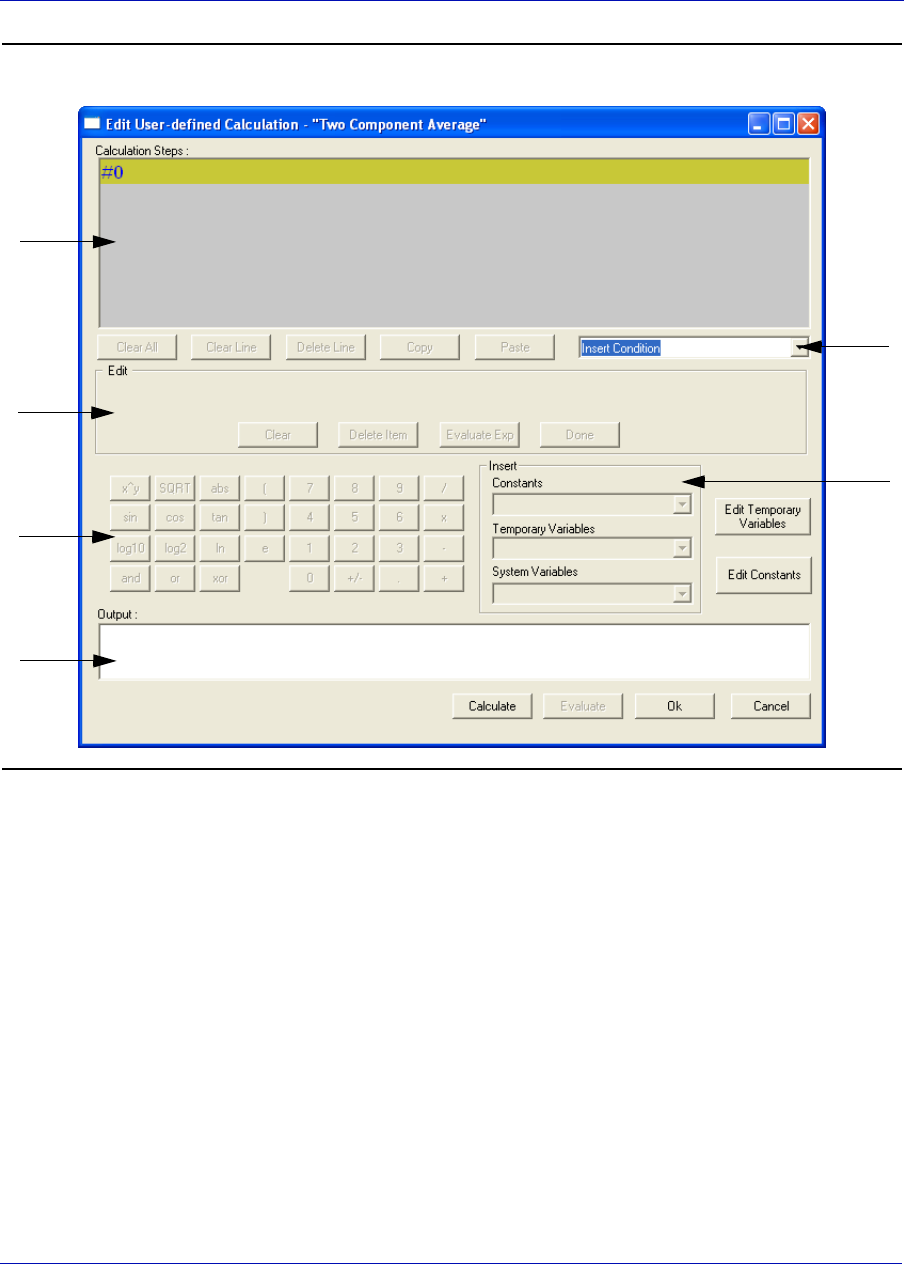
MON20/20 Software for Gas Chromatographs User Manual
SEPTEMBER 2010 3-9000-745
4-49
Figure 4-38. The Edit User-defined Calculation window
In MON 20/20, building a calculation is similar to building a simple
program. You have constants and two types of variables available, as
well as two calculation-building commands. You can also add
comments that will be ignored by the application but that can help you
explain the logic and structure of the calculation you are designing.
A
B
C
D
E
F

User Manual MON20/20 Software for Gas Chromatographs
3-9000-745 SEPTEMBER 2010
4-50
The following is a description of the design elements of the Edit User-
defined Calculation window:
•Element A - Called the Calculation Steps Viewer, this element
displays the line-by-line construction of the calculation as it is
being built. The following commands allow you to interact with
this area:
•Click Clear All to clear the content of the Calculation Steps
Viewer.
•Click Clear Line to clear the content of the selected line.
Note
If the selected line is an "If-Then" statement, then the entire condition is cleared. This
button is disabled when the cursor is on an "else" or "endif" condition.
•Click Delete Line to delete the selected line.
Note
If the selected line is the beginning of a conditional statement, then the entire "If-Then"
block will be deleted along with the expressions that constitute the "If-Then" construct.
If the selected line is part of the conditional "If-Then" construct—that is, the line only
has "Else" or "Endif" in it—then the entire "If-Then" construct will be deleted.
•Click Copy to copy the selected line to the clipboard. You cannot
copy keywords such as “else” or “endif.”
•Click Paste to paste the content of the clipboard into a selected
line. If the line already has a calculation in it, it is cleared before
the content of the clipboard is pasted into it.
•Element B - A drop-down menu with the following three
commands:
•Insert Comment - Adds a comment to the calculation. Each
comment is preceded by “//.”
•Insert Condition - Adds an “If-Then” statement to the
calculation.
•Insert Expression - Adds a mathematical expression to the
calculation.
•Element C - Also called the Expression Editor, this section is the
work area where the comment, condition or expression is built
before being added to the Calculation Steps Viewer. There are four
modes of the Expression Editor, depending upon what action is
being performed:
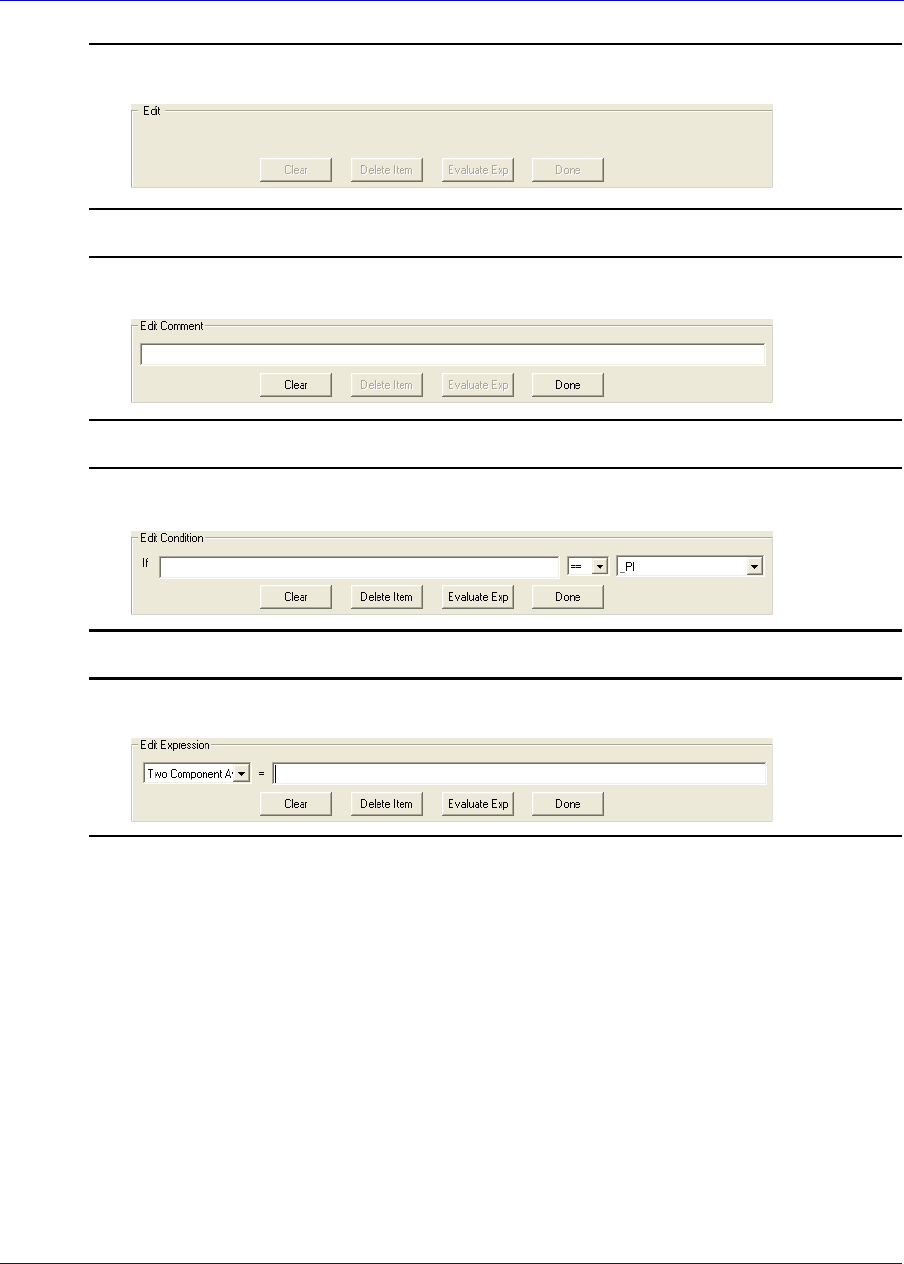
MON20/20 Software for Gas Chromatographs User Manual
SEPTEMBER 2010 3-9000-745
4-51
Figure 4-39. Expression Editor - No Action
Figure 4-40. Expression Editor - Insert Comment
Figure 4-41. Expression Editor - Insert Condition
Figure 4-42. Expression Editor - Insert Expression
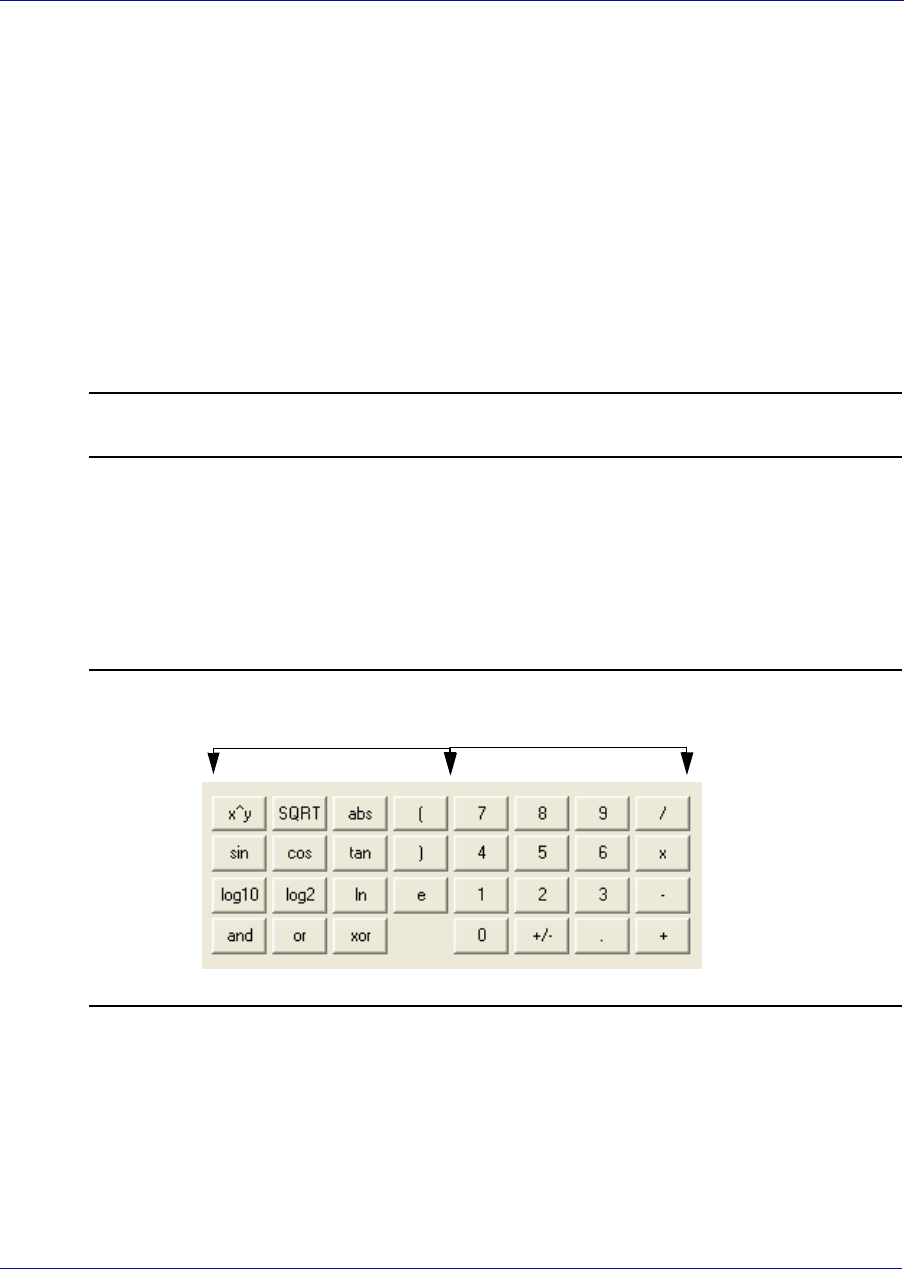
User Manual MON20/20 Software for Gas Chromatographs
3-9000-745 SEPTEMBER 2010
4-52
The following commands allow you to interact with the Expression
Editor:
•Click Clear to clear the content of the entire line. The line itself
is not deleted.
•Click Delete Item to delete the currently active token. Each
mathematical function, numeric data, and mathematical
operation is treated as a token. The token to the right of the
current cursor location is treated as the currently active token.
•Click Evaluate Exp to check the validity of the expression. If
any errors are detected in the syntax, then an error will be
reported in the Output window.
Note
This button is only active when the line being edited is an expression.
•Click Done to evaluate the expression and copy it to the
Calculations Steps Viewer. If there are any errors in the
expression, they are reported in the Output window.
•Element D - This section contains calculator functions that can be
used to build a mathematical expression. This section can be
divided into two parts:
Figure 4-43. Calculator functions
12
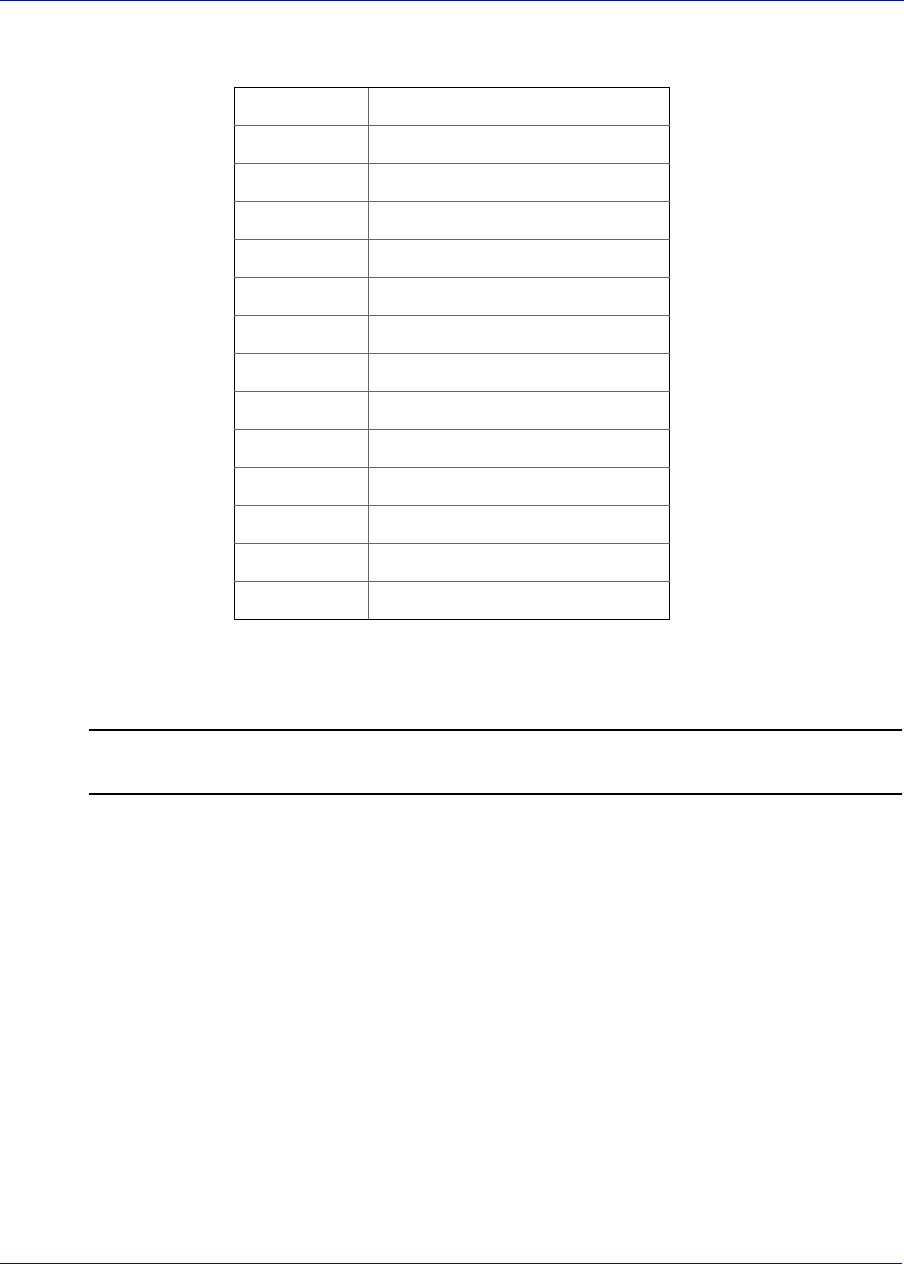
MON20/20 Software for Gas Chromatographs User Manual
SEPTEMBER 2010 3-9000-745
4-53
•Section 1 - This section contains the following keys:
•Section 2 - This section contains the traditional calculator keys
and can be used with your keyboard’s Numpad.
Note
Make sure to engage your keyboard’s Numlock before using the Numpad.
• Section E - This section contains drop-down menus and buttons
that allow you to create and select constants and variables that can
be added to your mathematical expressions.
x^y x to the power of y
SQRT Square Root
abs Absolute Value
sin Sine
cos Cosine
tan Tan
log10 Logarithm to the base 10
log2 Logarithm to the base 2
ln Logarithm to the base e
and Logical AND
or Logical OR
xor Logical XOR
(Open bracket
) Close bracket

User Manual MON20/20 Software for Gas Chromatographs
3-9000-745 SEPTEMBER 2010
4-54
•Constants - Allows you to select constants from a drop-down
list.
•Temporary Variables - Allows you to select temporary, user-
created variables from a drop-down list.
•System Variables - Allows you to select system variables.
•Edit Temporary Variables - Allows you to create variables.
•Edit Constants - Allows you to create system-wide constants
that can be used in user-defined calculations.
• Section F - This section, called the Output Display, displays
status information.
5. Use the following procedures to build your calculation in the
Calculation Steps Viewer:
•“Inserting a Comment” on page 4-54
•“Inserting a Conditional Statement” on page 4-56
•“Inserting an Expression” on page 4-59
•“Creating a Constant” on page 4-61
•“Creating or Editing a Temporary Variable” on page 4-63
•“Inserting a System Variable” on page 4-64
•“Using User-defined Calculations” on page 4-65
6. To see the result of the calculation, click Calculate. The results
display in the Output window. To validate the calculation for errors,
click Evaluate. The results of the validation check display in the
Output window. To save the calculation and to close the Edit User-
defined Calculation window, click OK.
7. On the User Defined Calculations window, to save the changes
without closing the window, click Save. To save the changes and close
the window, click OK.
4.6.1 Inserting a Comment
To add a comment to the calculation, do the following:
1. Click on the Insert drop-down list and select Insert Comment. A
new line will be added to the Calculation Steps Viewer and the
Expression Editor will switch to Edit Comment mode.
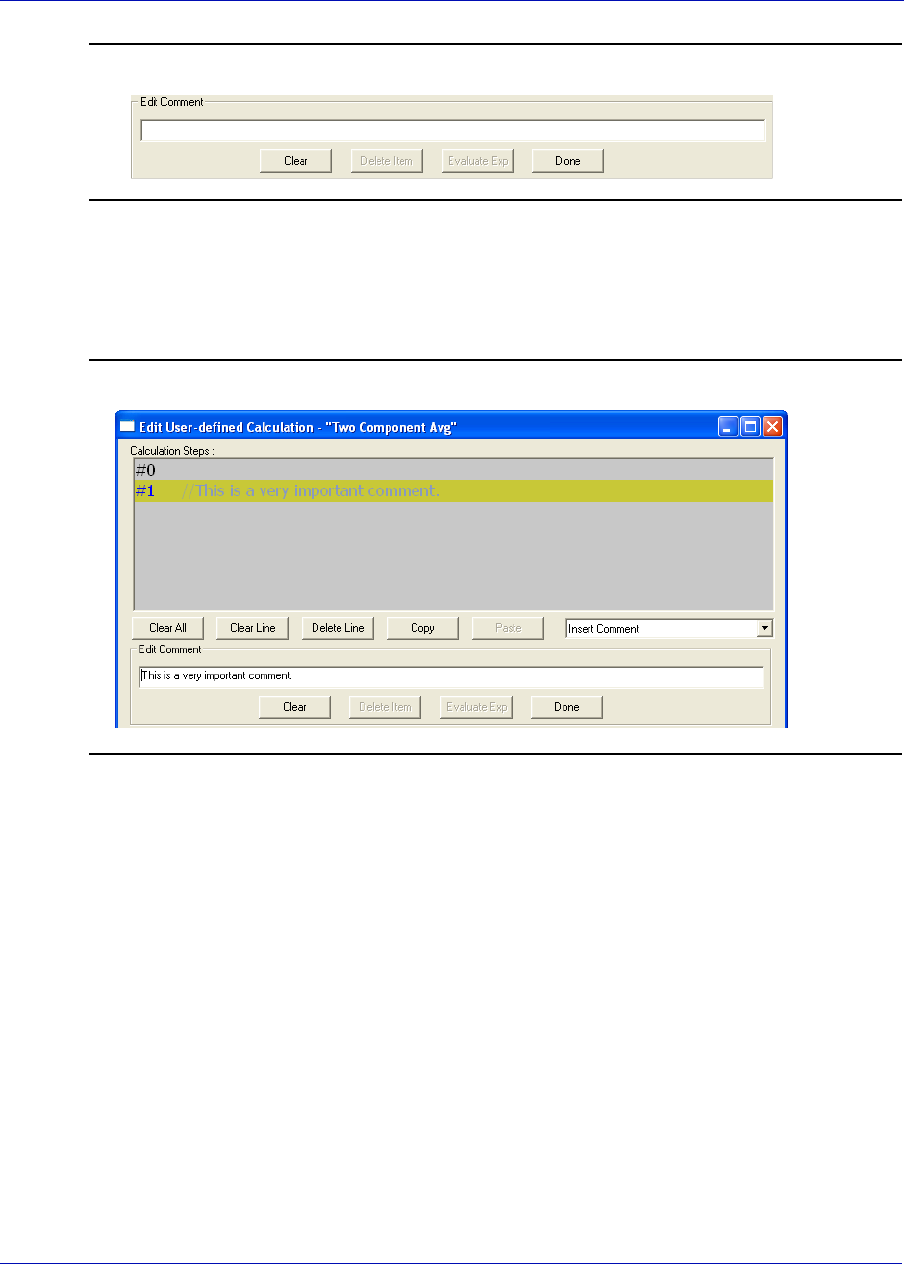
MON20/20 Software for Gas Chromatographs User Manual
SEPTEMBER 2010 3-9000-745
4-55
Figure 4-44. Edit Comment mode
2. Enter the comment into the Edit Comment textbox and then click
Done. The comment will be added to the Calculation Steps
Viewer.
Figure 4-45. Calculation Steps Viewer
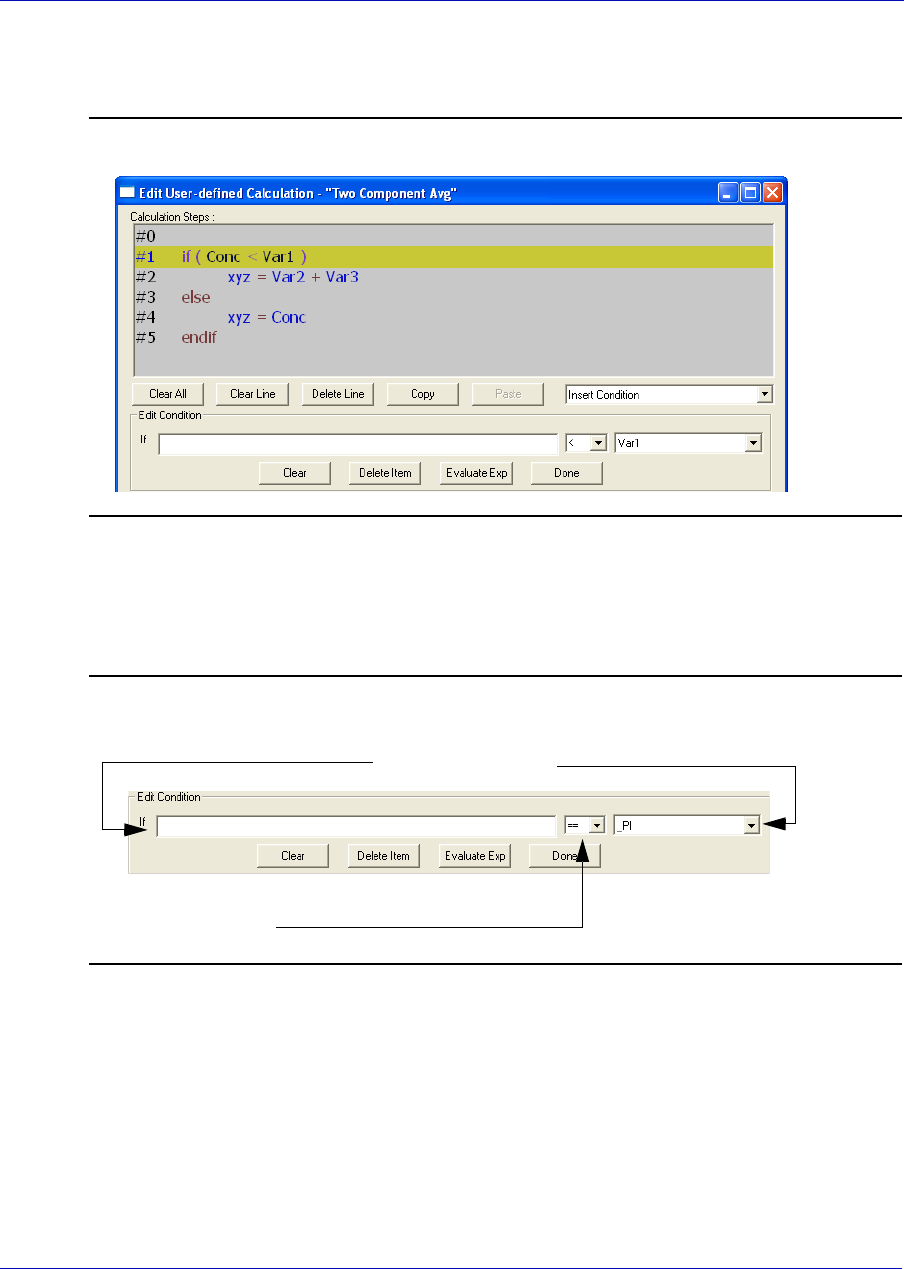
User Manual MON20/20 Software for Gas Chromatographs
3-9000-745 SEPTEMBER 2010
4-56
4.6.2 Inserting a Conditional Statement
Figure 4-46. An example of a conditional statement
The Expression Editor in Edit Condition mode allows you to build the
first line of the conditional statement:
Figure 4-47. The Expression Editor in Edit Condition mode
Regular expression
Relational operator
Variables/Constants
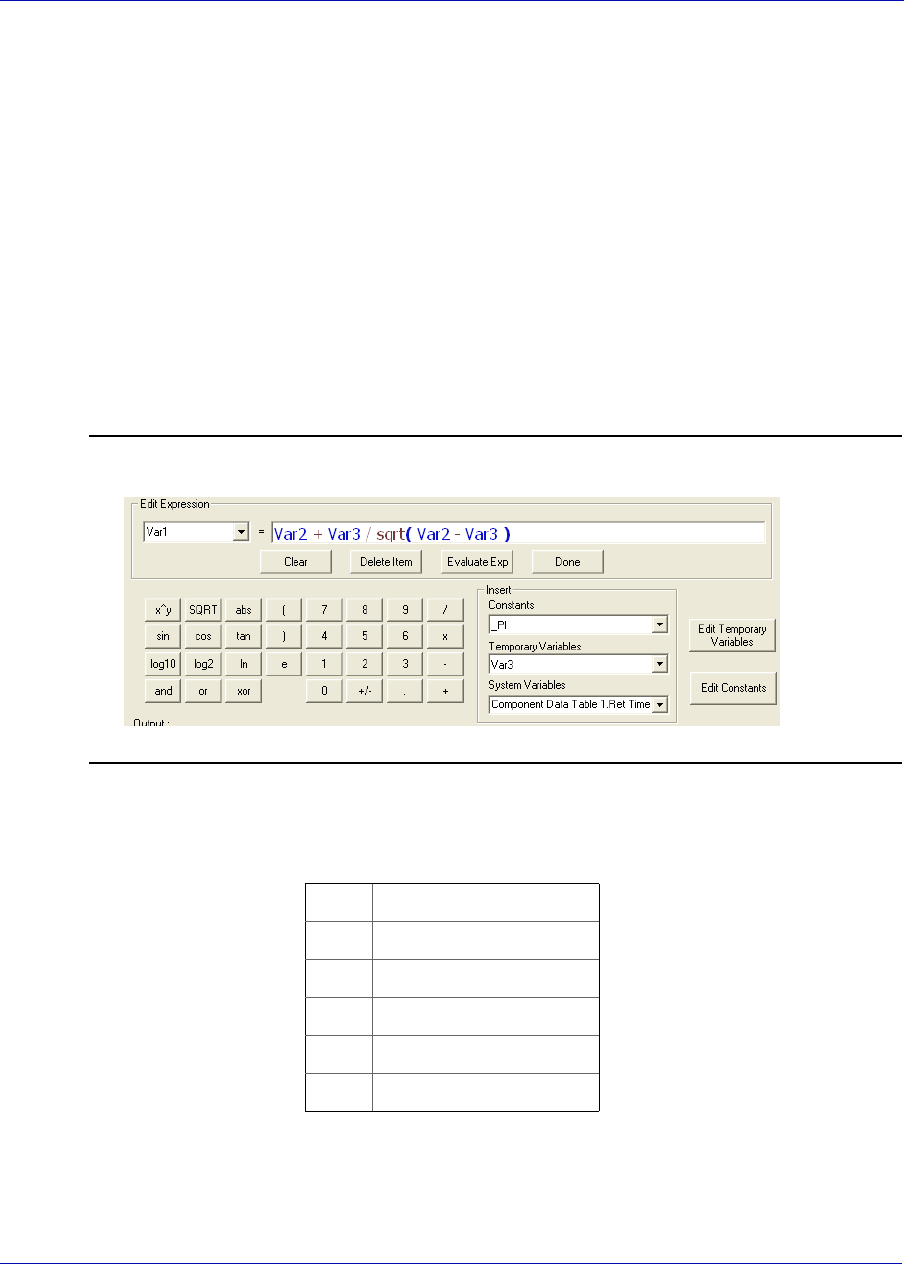
MON20/20 Software for Gas Chromatographs User Manual
SEPTEMBER 2010 3-9000-745
4-57
Expressions are built using the Expression Editor in Edit Expression
mode.
To add a conditional statement, do the following:
1. Click on the Insert drop-down list and select Insert Condition. A
new line is added to the Calculation Steps Viewer and the
Expression Editor switches to Edit Condition mode.
2. Add an expression. You can use constants, temporary variables,
system variables, and the calculator functions to build the expression.
For information on inserting system variables, see page 4-64. For
information on creating variables, see page 4-63. For information on
creating constants, see page 4-61.
Figure 4-48. Edit Expression area
3. Select a relational operator from the drop-down list. You have the
following options:
4. To add a variable or constant to the expression, click the Variable/
Constant drop-down list and select the appropriate item.
<Less than
<= Less than or equal
>Greater than
>= Greater than or equal
== Equal
!= Not equal
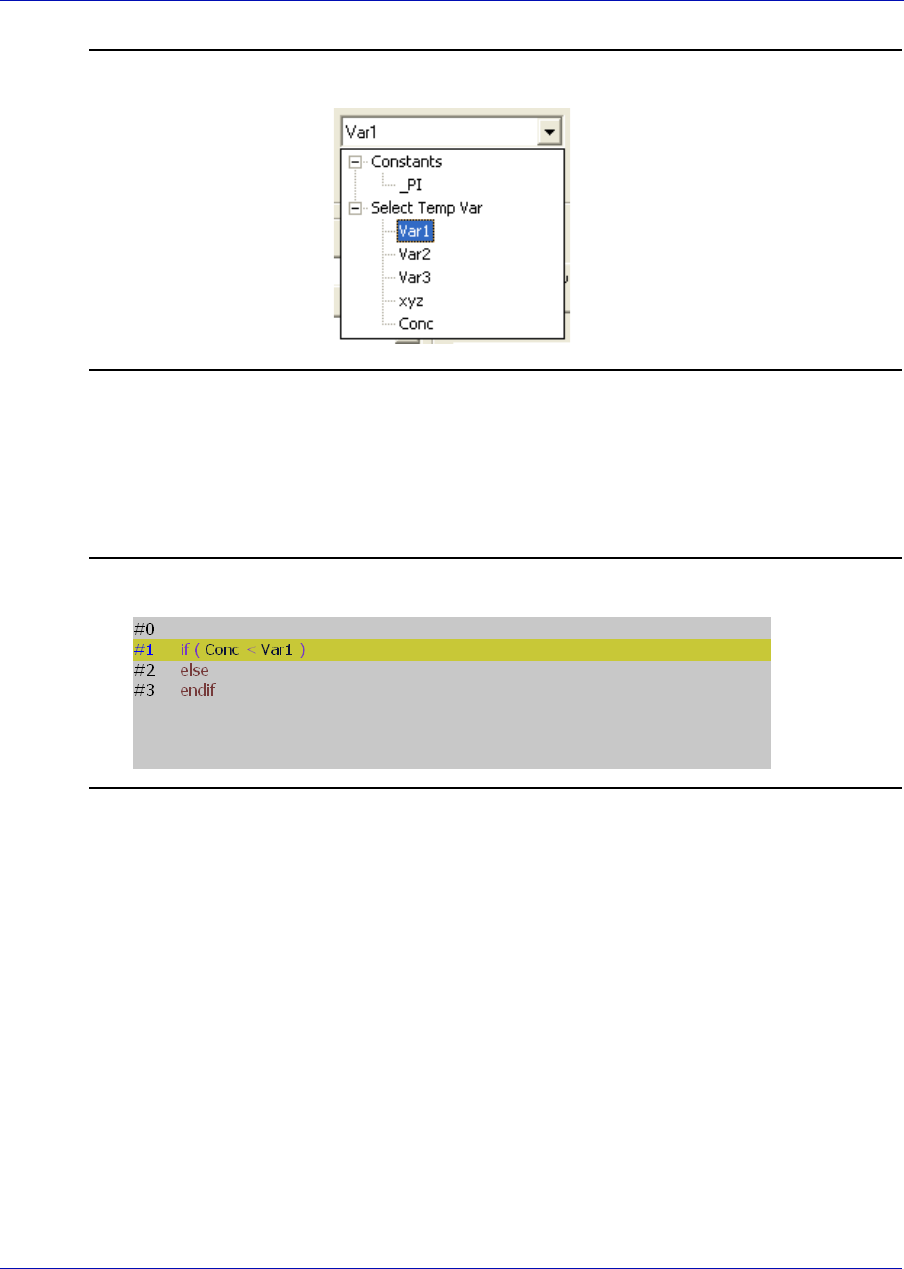
User Manual MON20/20 Software for Gas Chromatographs
3-9000-745 SEPTEMBER 2010
4-58
Figure 4-49. the Variable/Constant drop-down list
For information on creating variables, see page 4-63. For information
on creating constants, see page 4-61.
5. Click Done. MON 20/20 validates the statement and if there are no
errors, it adds it to the Calculation Steps Viewer.
Figure 4-50. Calculation Steps Viewer
To complete the conditional statement, use the Expression Editor in
Edit Expression mode to add the necessary mathematical expressions.
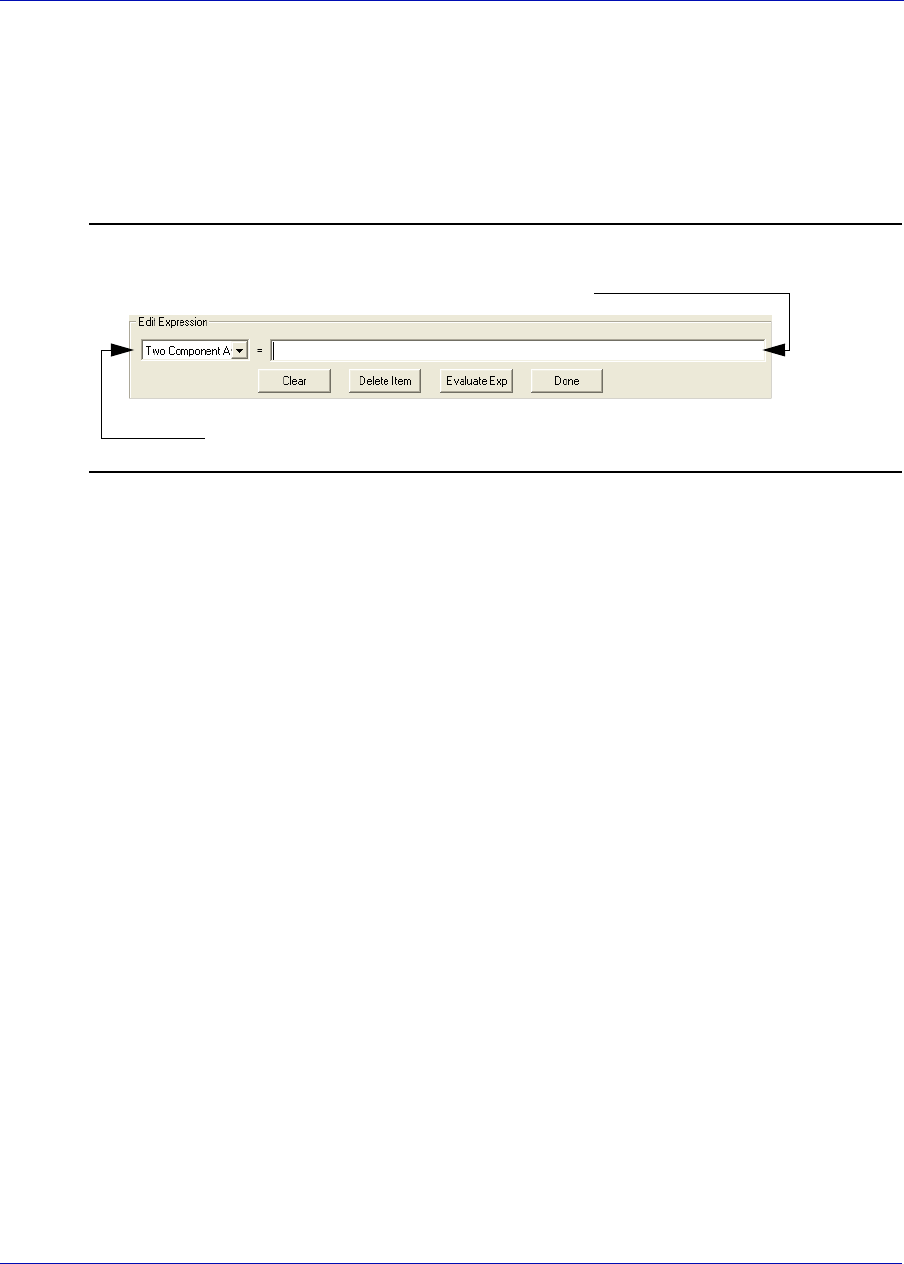
MON20/20 Software for Gas Chromatographs User Manual
SEPTEMBER 2010 3-9000-745
4-59
4.6.3 Inserting an Expression
A mathematical expression has the following structure:
Variable = Regular expression
Figure 4-51. Edit Expression area
To add an expression to a conditional statement or calculation, do the
following:
1. Click on the Insert drop-down list and select Insert Expression. A
new line is added to the Calculation Steps Viewer and the
Expression Editor switches to Edit Expression mode.
2. Select a variable from the Variable drop-down tree view. You can
select either a temporary variable or you can set the expression you
are building as the final result of your new user-defined calculation.
For instance, if the user-defined calculation you are building is called
‘User Calc 1,’ then you can select User Calc 1 from the Final Result
tree view. For information on creating variables, see “Creating or
Editing a Temporary Variable” on page 4-63.
regular expression
variable
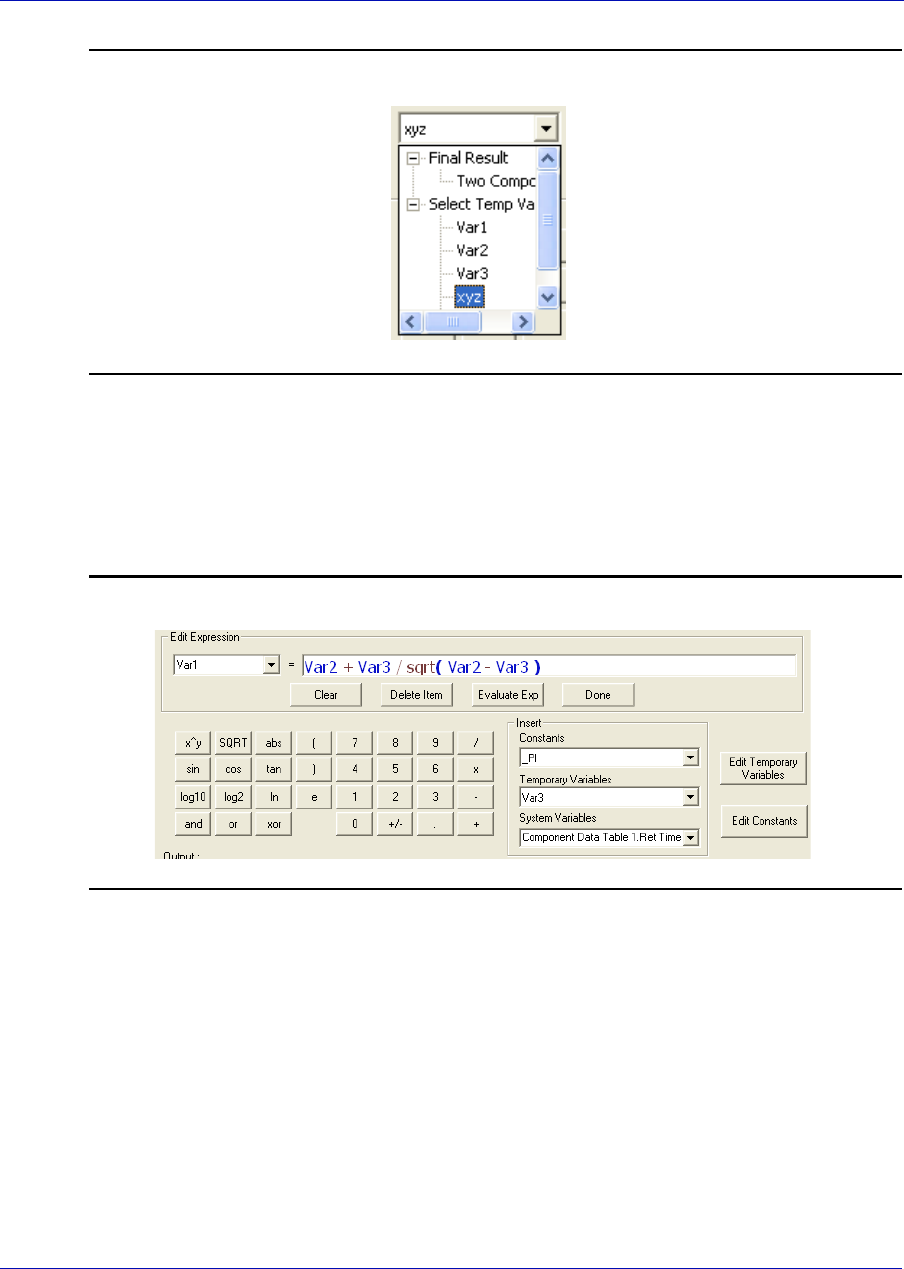
User Manual MON20/20 Software for Gas Chromatographs
3-9000-745 SEPTEMBER 2010
4-60
Figure 4-52. The Final Result tree view
3. Add a regular expression. You can use constants, temporary
variables, system variables, and the calculator functions to build the
expression. For information on inserting system variables, see page 4-
64. For information on creating variables, see page 4-63. For
information on creating constants, see page 4-61.
Figure 4-53. The Edit Expression area
4. Click Done. MON 20/20 validates the statement and if there are no
errors, it adds it to the Calculation Steps Viewer.
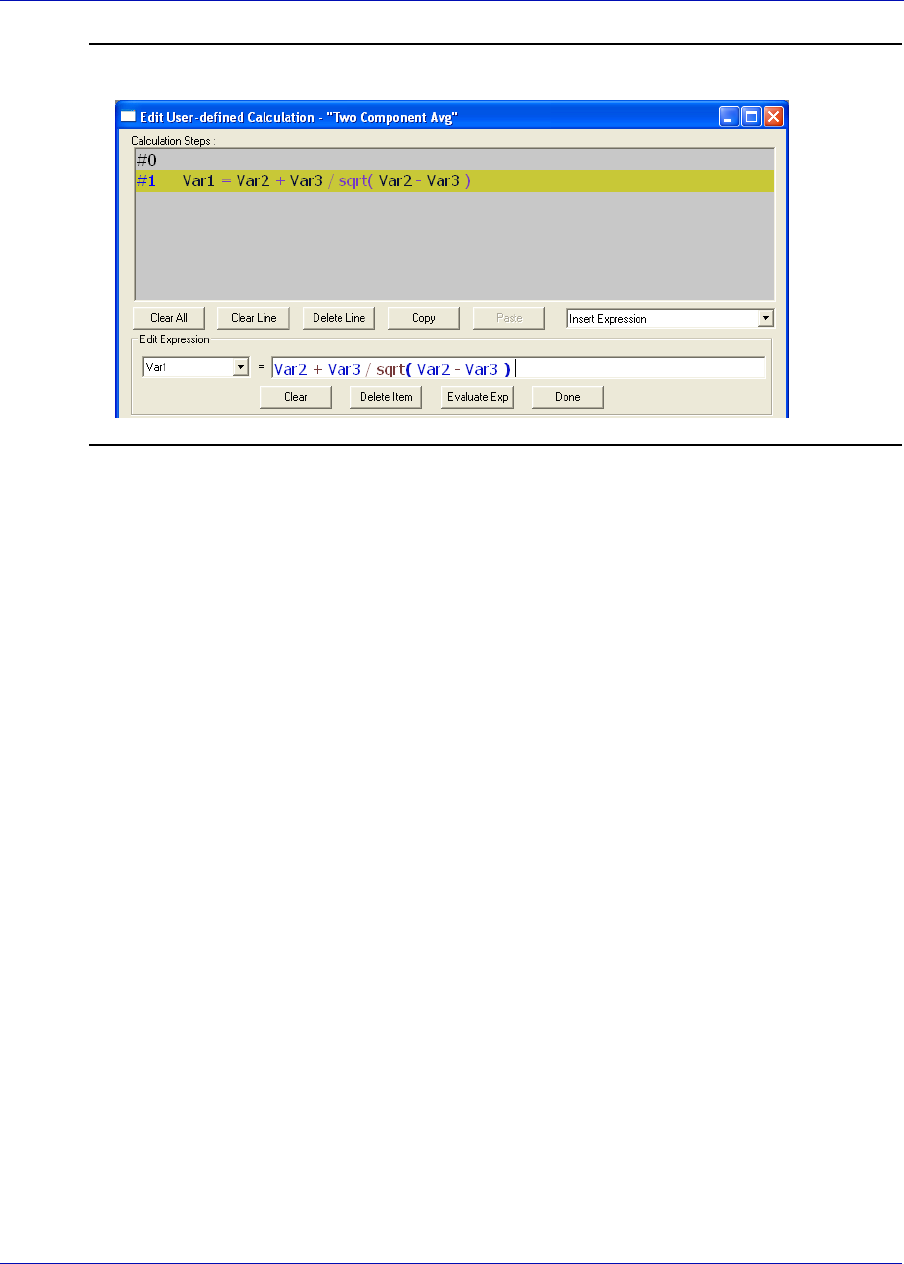
MON20/20 Software for Gas Chromatographs User Manual
SEPTEMBER 2010 3-9000-745
4-61
Figure 4-54. The Calculation Steps Viewer
4.6.4 Creating a Constant
To create a constant that you can use in building a calculation, do the
following:
1. From the Edit User-defined Calculation window, click Edit
Constants. The Edit Constants window displays, showing all the
constants that have been created so far for the GC.
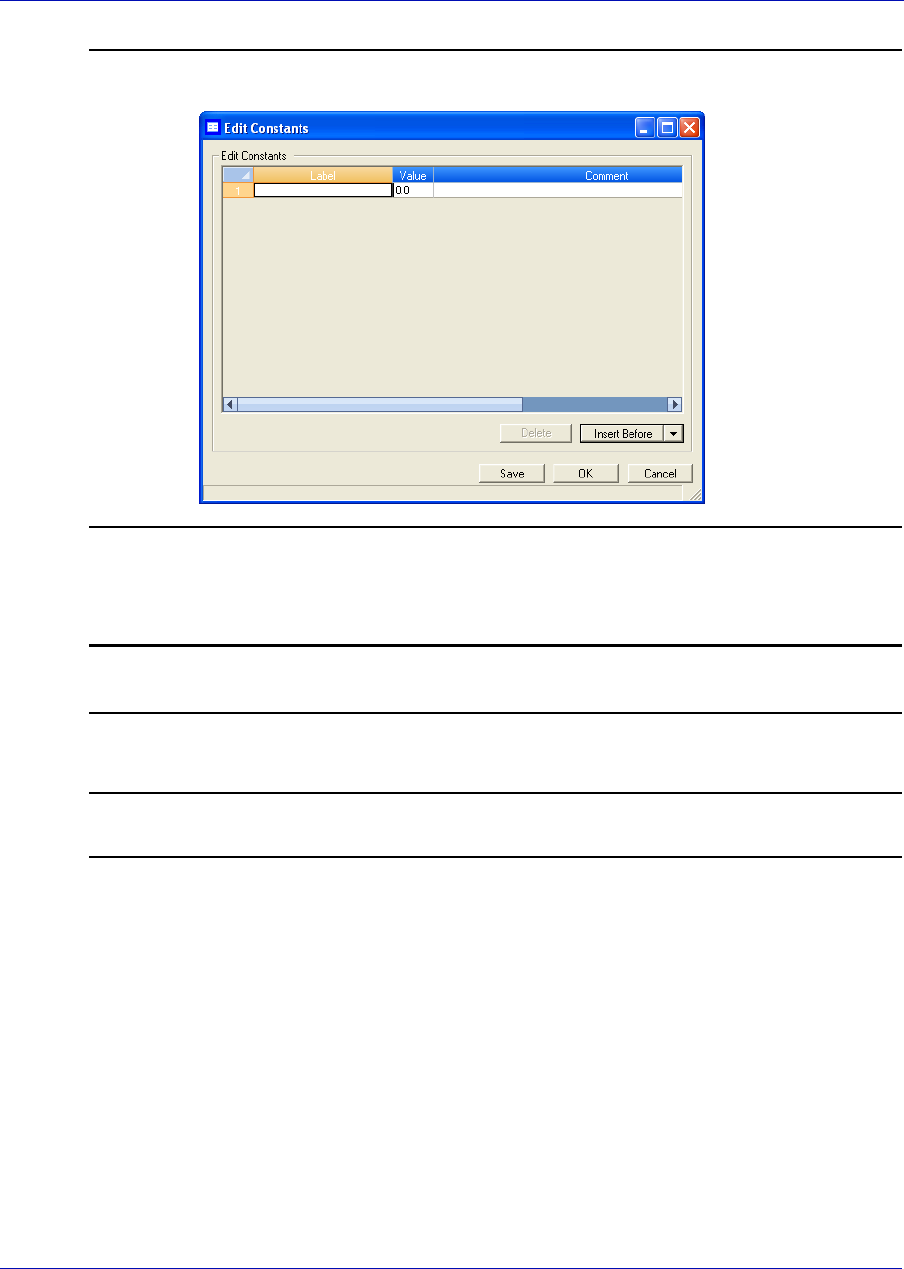
User Manual MON20/20 Software for Gas Chromatographs
3-9000-745 SEPTEMBER 2010
4-62
Figure 4-55. The Edit Constants window
2. To create a new constant, click Insert before. A new row will be
added to the USER_CALC_CONSTANTS table.
Note
To delete a constant, select it in the table and click Delete.
3. Double-click the Label cell and enter a name for the constant.
Note
To edit any cell, double-click it.
4. Double-click the Value cell and enter a value for the constant.
5. Use the Comment cell to store information that is relevant for the
constant.
6. To save the changes without closing the window, click Save. To save
the changes and close the window, click OK.
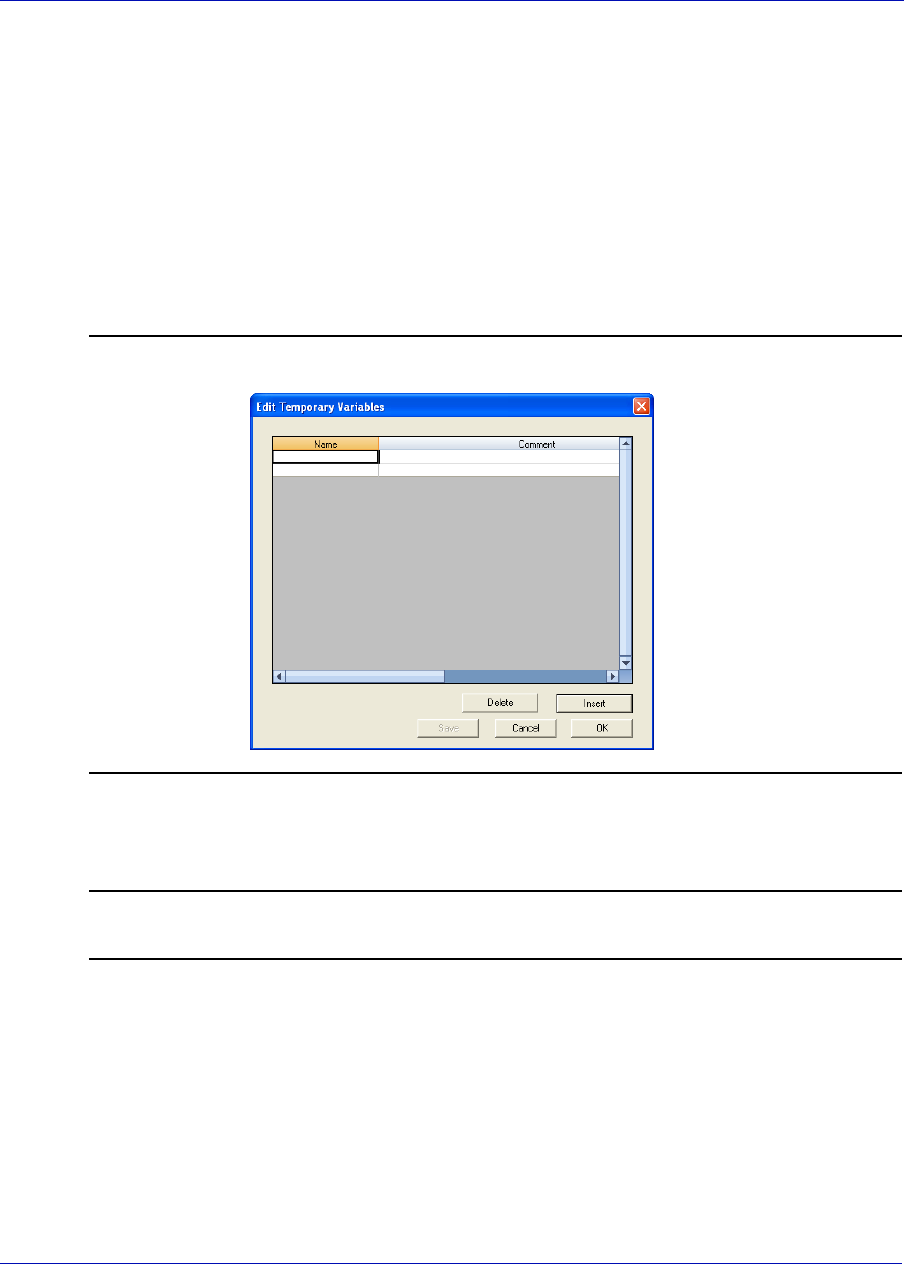
MON20/20 Software for Gas Chromatographs User Manual
SEPTEMBER 2010 3-9000-745
4-63
4.6.5 Creating or Editing a Temporary Variable
To create a temporary variable that you can use in building a calculation,
do the following:
1. From the Edit User-defined Calculation window, click Edit
Temporary Variables. The Edit Temporary Variables window
displays, showing all the temporary variables that have been created
so far for the user-defined calculation.
Figure 4-56. The Edit Temporary Variables window
2. To create a new temporary variable, click Insert. A new row will be
added to the table.
Note
To delete a variable from this window, select it in the table and click Delete.
3. Double-click the Name cell and enter a name for the variable.
4. Use the Comment cell to store information that is relevant for the
variable.
5. To save the changes without closing the window, click Save. To save
the changes and close the window, click OK.
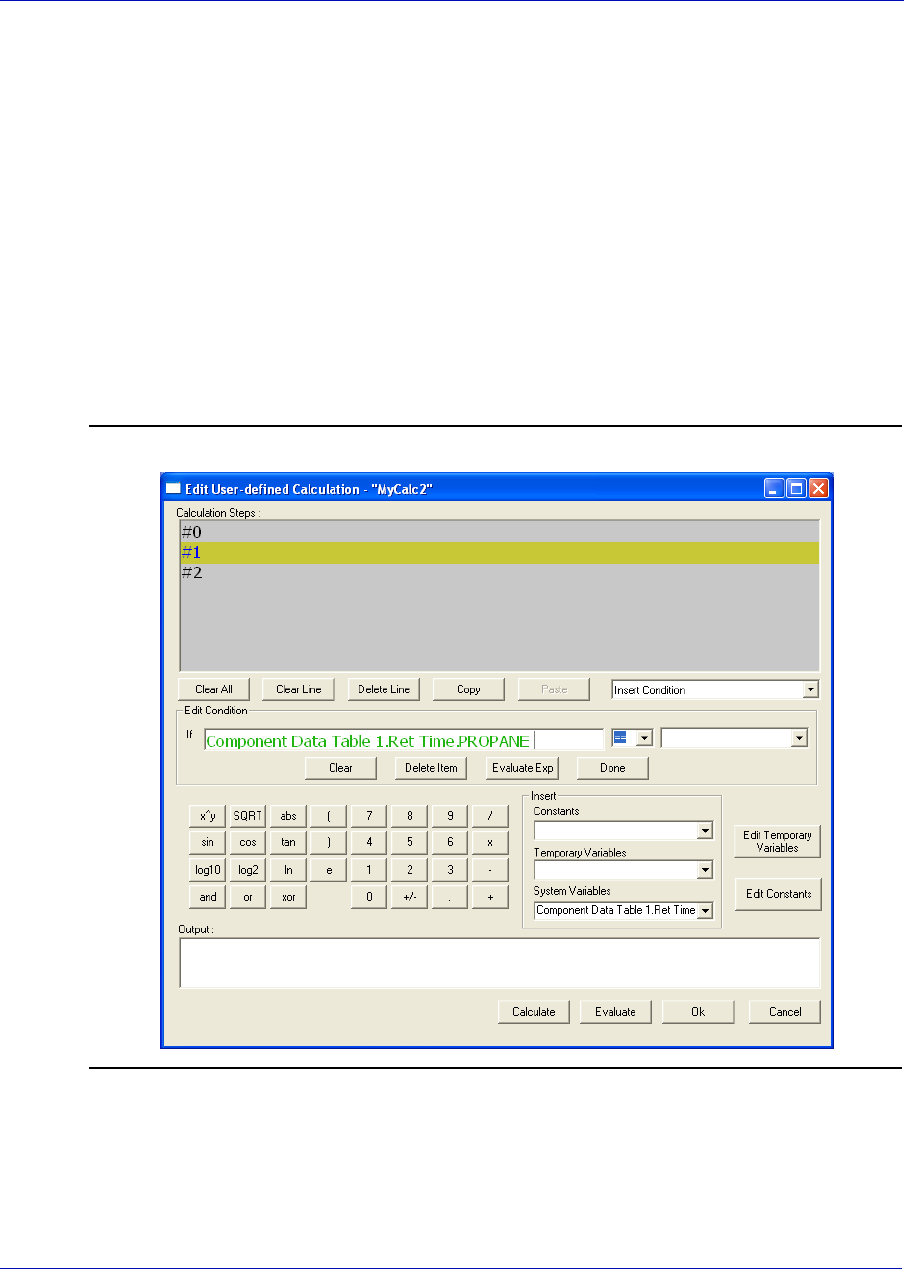
User Manual MON20/20 Software for Gas Chromatographs
3-9000-745 SEPTEMBER 2010
4-64
4.6.6 Inserting a System Variable
To insert a system variable into the Expression Editor, do the following:
From the Edit User-defined Calculation window, click on the System
Variables drop-down arrow.
For a demonstration of how to use the context-sensitive variable selector,
see “Using the context-sensitive variable selector” on page 1-42.
The selected system variable displays in the System Variables drop-down
box and in the Expression Editor.
Figure 4-57. The Expression Editor
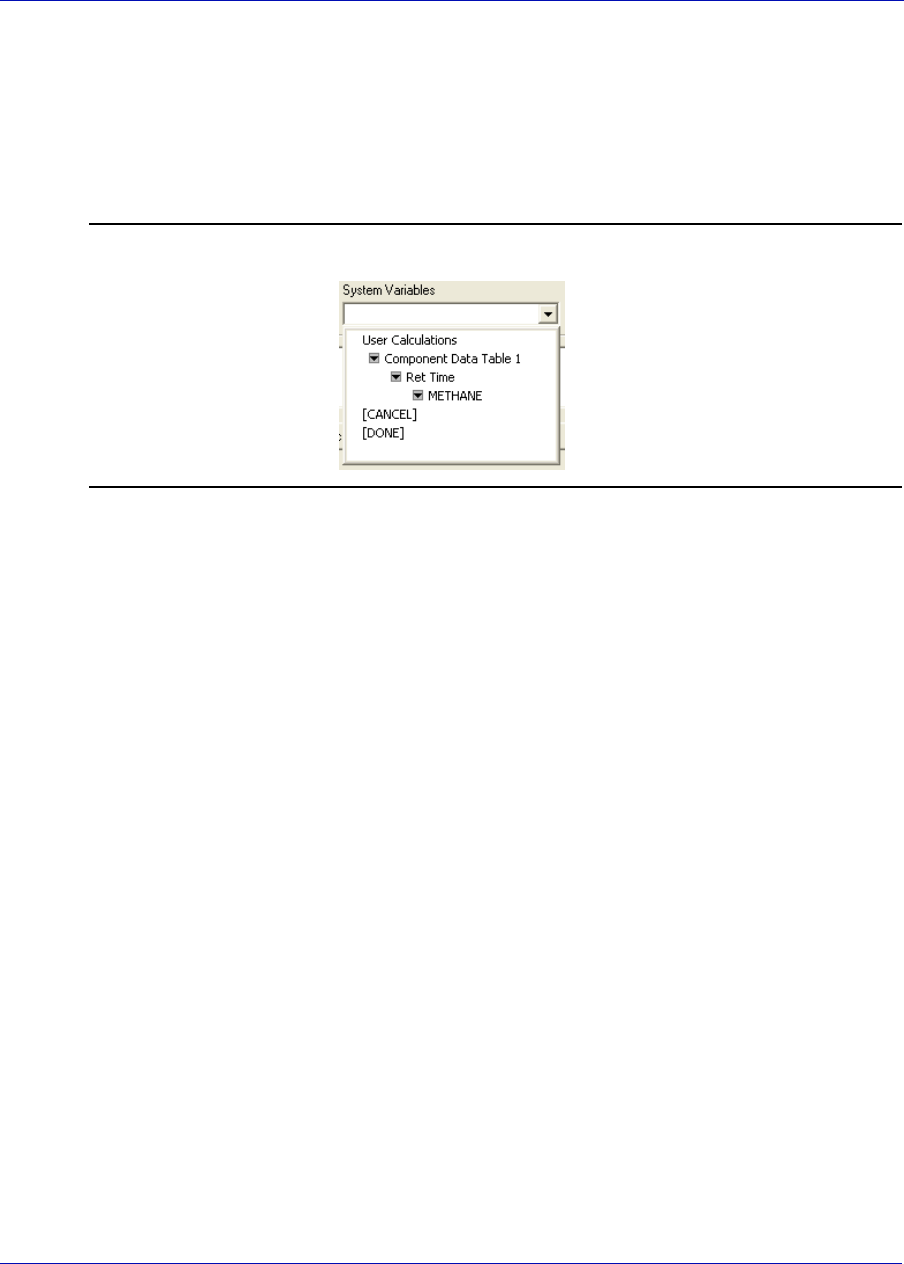
MON20/20 Software for Gas Chromatographs User Manual
SEPTEMBER 2010 3-9000-745
4-65
4.6.7 Using User-defined Calculations
You can use a previously-created user-defined calculation when building
new calculations by clicking on the System Variables drop-down arrow on
the Edit User-defined Calculation window.
Figure 4-58. System Variables drop-down menu
For a demonstration of how to use the context-sensitive variable selector,
see “Using the context-sensitive variable selector” on page 1-42.
The selected system variable displays in the System Variables drop-down
box and in the Expression Editor.
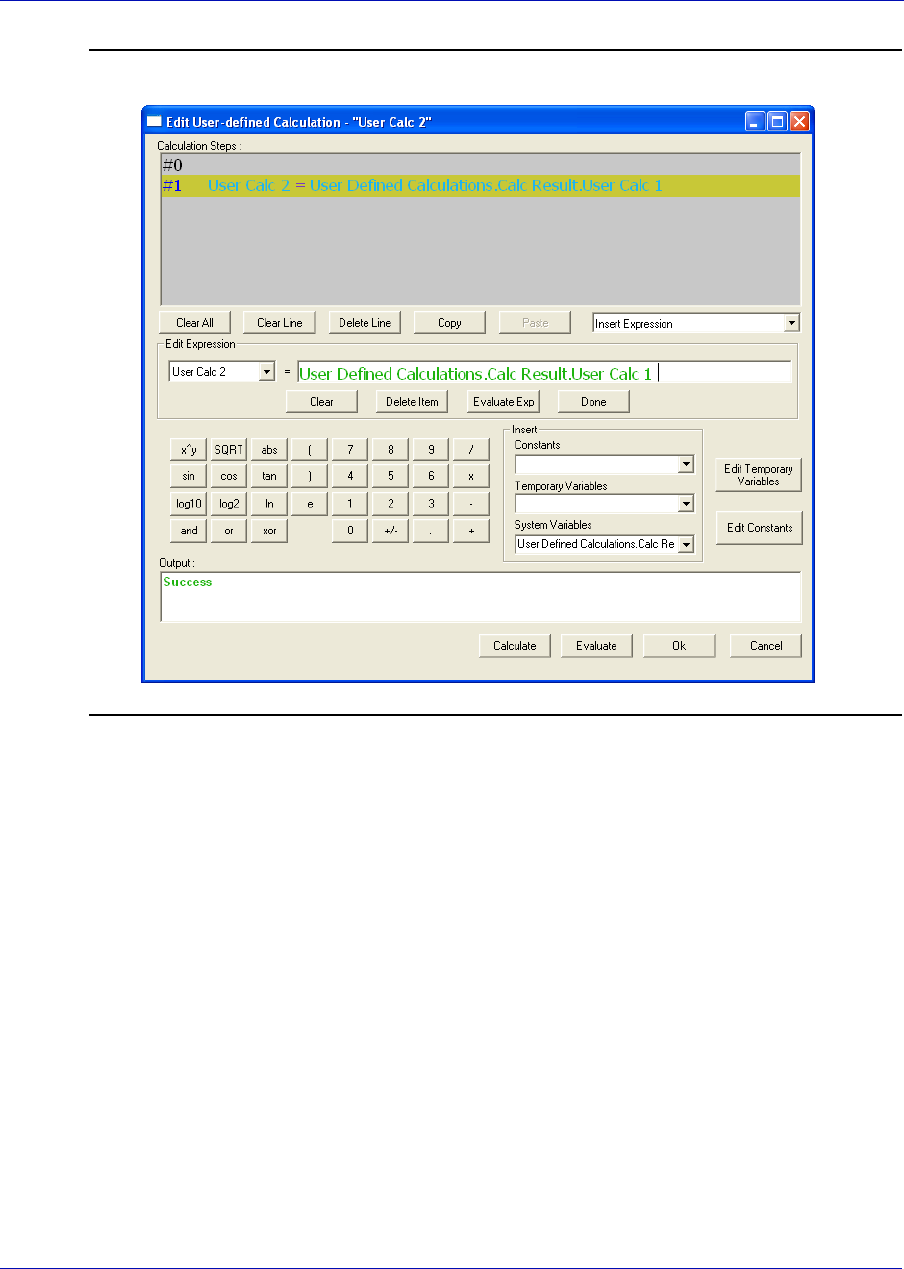
User Manual MON20/20 Software for Gas Chromatographs
3-9000-745 SEPTEMBER 2010
4-66
Figure 4-59. The Expression Editor
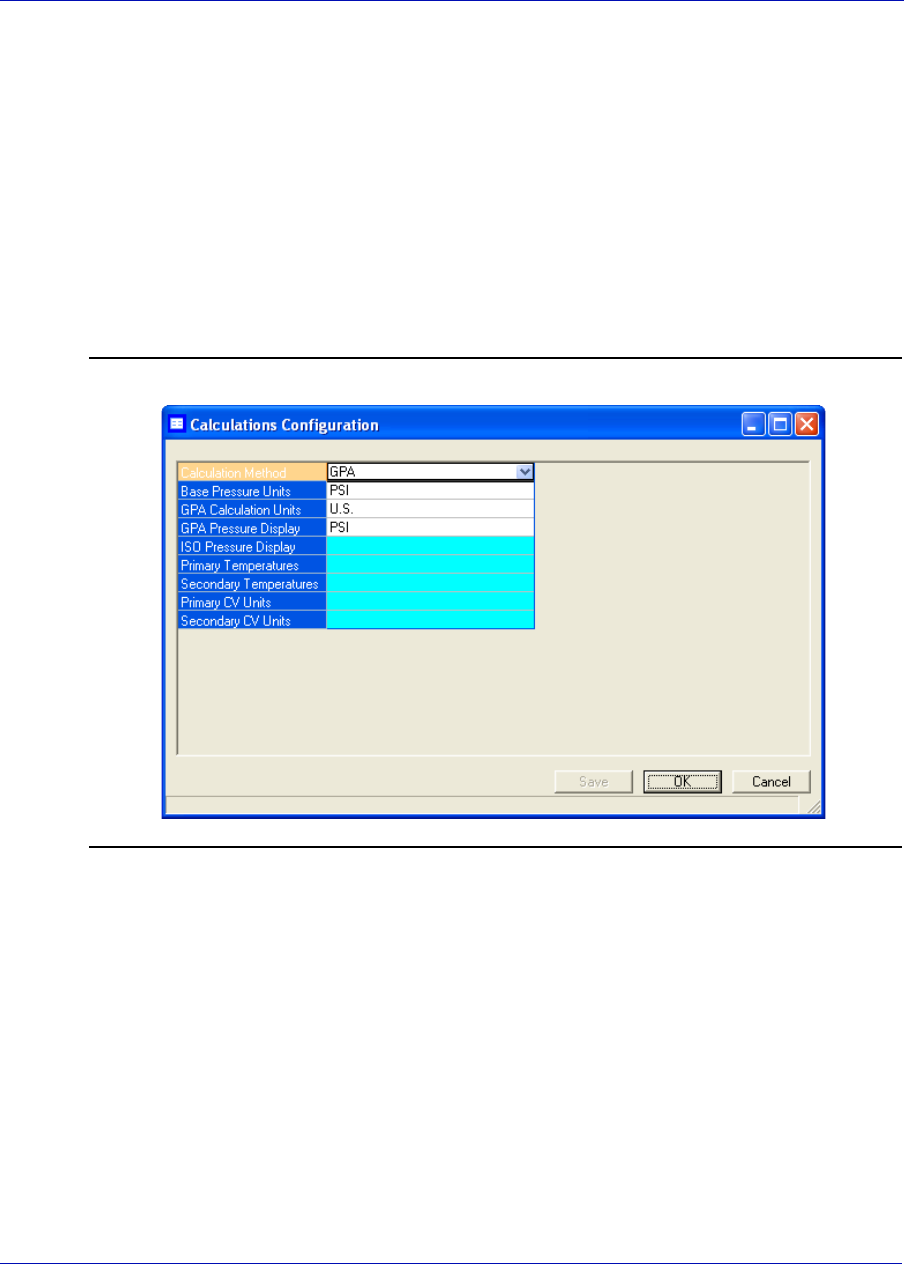
MON20/20 Software for Gas Chromatographs User Manual
SEPTEMBER 2010 3-9000-745
4-67
4.7 Setting the calculation method
MON 20/20 can be configured to perform GPA calculations, ISO
calculations, or both.
To set which type of calculation method MON 20/20 should use, do the
following:
1. Select Applications → Calculations → Configuration.... The
Calculations Configuration window displays.
Figure 4-60. The Calculations Configuration window
2. Select the method from the Calculation Method drop-down list. The
options are:
•GPA
•ISO
•GPA & ISO

User Manual MON20/20 Software for Gas Chromatographs
3-9000-745 SEPTEMBER 2010
4-68
3. Select a unit of measure from the Base Pressure Units drop-down list.
The options are:
•PSI
•Bar
•kPa
4. If you set the calculation method to GPA or GPA & ISO, you can also
set the following options:
• GPA Calculator Units (U.S. or S.I.)
• GPA Pressure Display (PSI, Bar or kPa)
5. If you set the calculation method to ISO or GPA & ISO, you can also
set the following options:
• ISO Pressure Display (Bar or kPa)
• Primary Temperatures
-0C/0C
-0C/15C
-0C/20C
-15C/0C
-15C/15C
-15C/20C
-20C/0C
-20C/15C
-20C/20C
-25C/0C
-25C/15C
-25C/20C
Note
Updating this field also updates the primary values—Sum Factor Pri, CV Superior Pri
and CV Inferior Pri—that display in the CDT.
• Secondary Temperatures (same options as Primary Temperatures)
Note
Updating this field also updates the secondary values—Sum Factor Sec, CV Superior
Sec and CV Inferior Sec—that display in the CDT.

MON20/20 Software for Gas Chromatographs User Manual
SEPTEMBER 2010 3-9000-745
4-69
• Primary CV Units
-kilojoules per cubic meter (kJ/m3)
-kilocalories per cubic meter (kCal/m3)
-kilowatt hours per cubic meter (kWhrs/m3)
-megajoule per cubic meter (MJ/m3)
-megajoule per kilogram (MJ/kg)
-megajoule per mole (MJ/mole)
• Secondary CV Units (same options as Primary CV Units)
6. Click Save to accept the changes without closing the window, or click
OK to accept the change and close the window.
4.8 Setting alarm limits
Use this function to set threshold limits for GC analysis data. When a
limit is exceeded, an alarm is activated and logged. See “Viewing the
alarm log” on page 5-4 for information on Alarm Logs.
To set an alarm limit for a variable, do the following:
1. Select Applications → Limit Alarms.... The Limit Alarms window
displays.
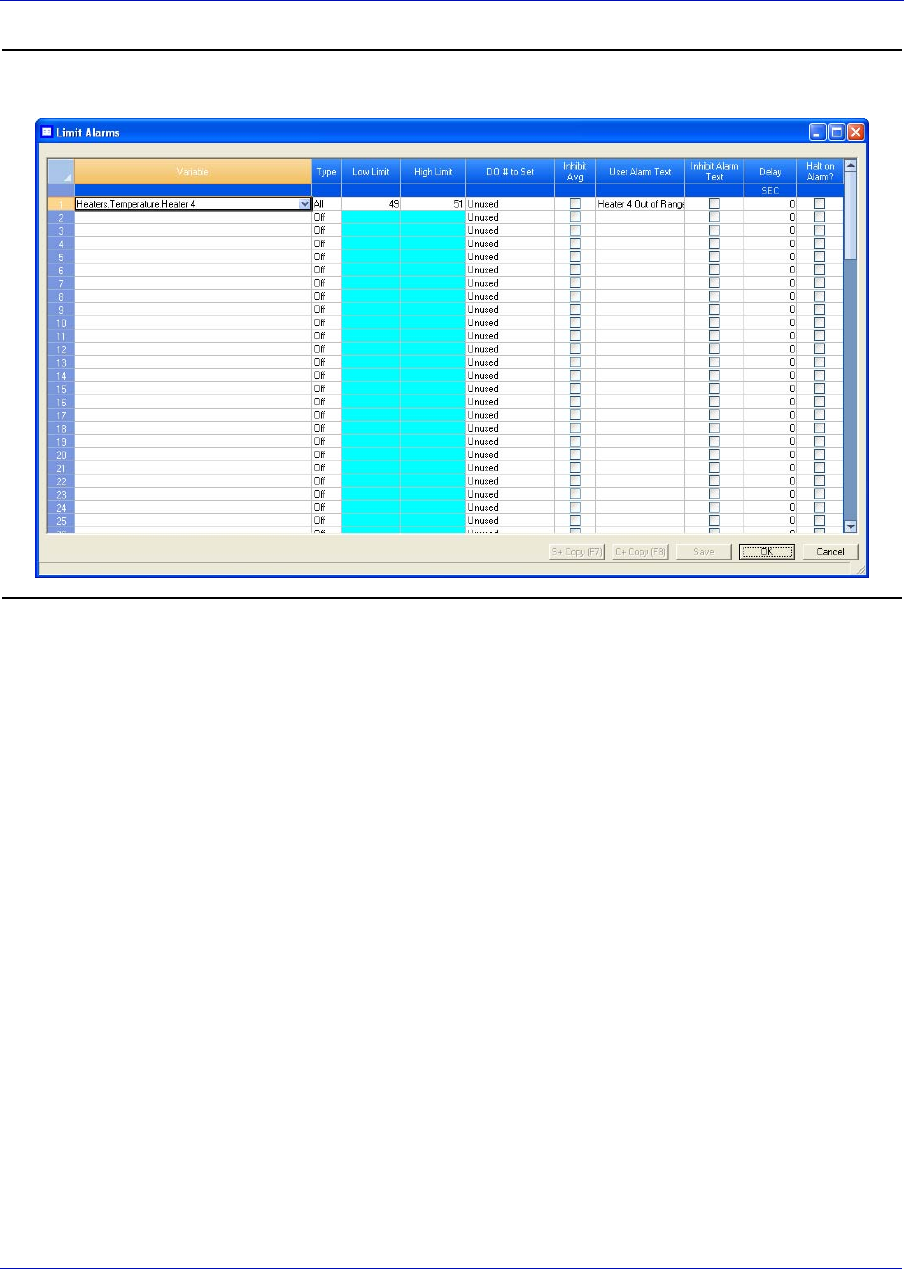
User Manual MON20/20 Software for Gas Chromatographs
3-9000-745 SEPTEMBER 2010
4-70
Figure 4-61. The Limit Alarms window
2. Select a new variable by clicking on the appropriate drop-down list
under the Variable column. For a demonstration of how to use the
context-sensitive variable selector, see “Using the context-sensitive
variable selector” on page 1-42.
3. To change the alarm type, click the appropriate cell under the Type
column. You have the following the options:
•Off - Turns off the alarm.
•All - Use high and low limits to activate alarms. Enter the lower
limit value in the appropriate cell under the Low Limit column.
Enter the upper limit value in the appropriate cell under the High
Limit column.
•High - If the status value of the variable rises above the value set
in the corresponding High Limit column, the high limit alarm is
activated.
•Low - If the status value of the variable falls below the value set in
the corresponding Low Limit column, the low limit alarm is
activated.
MON20/20 Software for Gas Chromatographs User Manual
SEPTEMBER 2010 3-9000-745
4-71
4. If you want a discrete output to activate when the alarm triggers, click
on the appropriate cell under the DO # to Set column and select it
from the drop-down list.
5. To prevent or allow averaging when the alarm triggers, double-click
on the appropriate cell under the Inhibit Avg column, and select one of
the following options:
•True - Inhibits averaging when the alarm is active.
•False - Allows averaging when the alarm is active.
6. To customize the text of the alarm message, enter the new text in the
appropriate cell under the User Alarm Text column. When the alarm
triggers, this text will display under the Alarm Message column on the
Unack/Active Alarms window.
Note
If an alarm message is changed, all affected alarm entries, including those previously
recorded, will include that change.
7. To enable or disable the use of the customized alarm text, select True
or False from the appropriate cell under the Inhibit Alarm Text
column.
8. To copy the stream settings from a highlighted row and apply them to
the next row, click S + Copy. The stream will be copied and
incremented to the next available stream--for example, from Stream 2
to Stream 3.
If there are no streams available, instead of copying the stream, MON
20/20 will display the following message:
Figure 4-62. No streams available warning
User Manual MON20/20 Software for Gas Chromatographs
3-9000-745 SEPTEMBER 2010
4-72
9. Click C + Copy. The component will be copied and incremented to the
next available component--for example, from Ammonia to Benzene.
If there are no more components available, instead of copying the
component, MON 20/20 will display the following message:
Figure 4-63. No components available warning
10.If you want the GC to halt after the current analysis when an alarm is
triggered, do the following:
(a.) Select the Halt on Alarm? checkbox.
(b.) Enter a value in the Delay column for the length of time, in
seconds, that the alarm condition should exist before the Halt
command is executed. You can enter a value between 0 and 1800.
11.To save the changes without closing the window, click Save. To save
the changes and close the window, click OK.
4.9 Managing system alarms
To edit system alarms, do the following:
1. Select System Alarms... from the Applications menu. The System
Limit Alarms window displays.
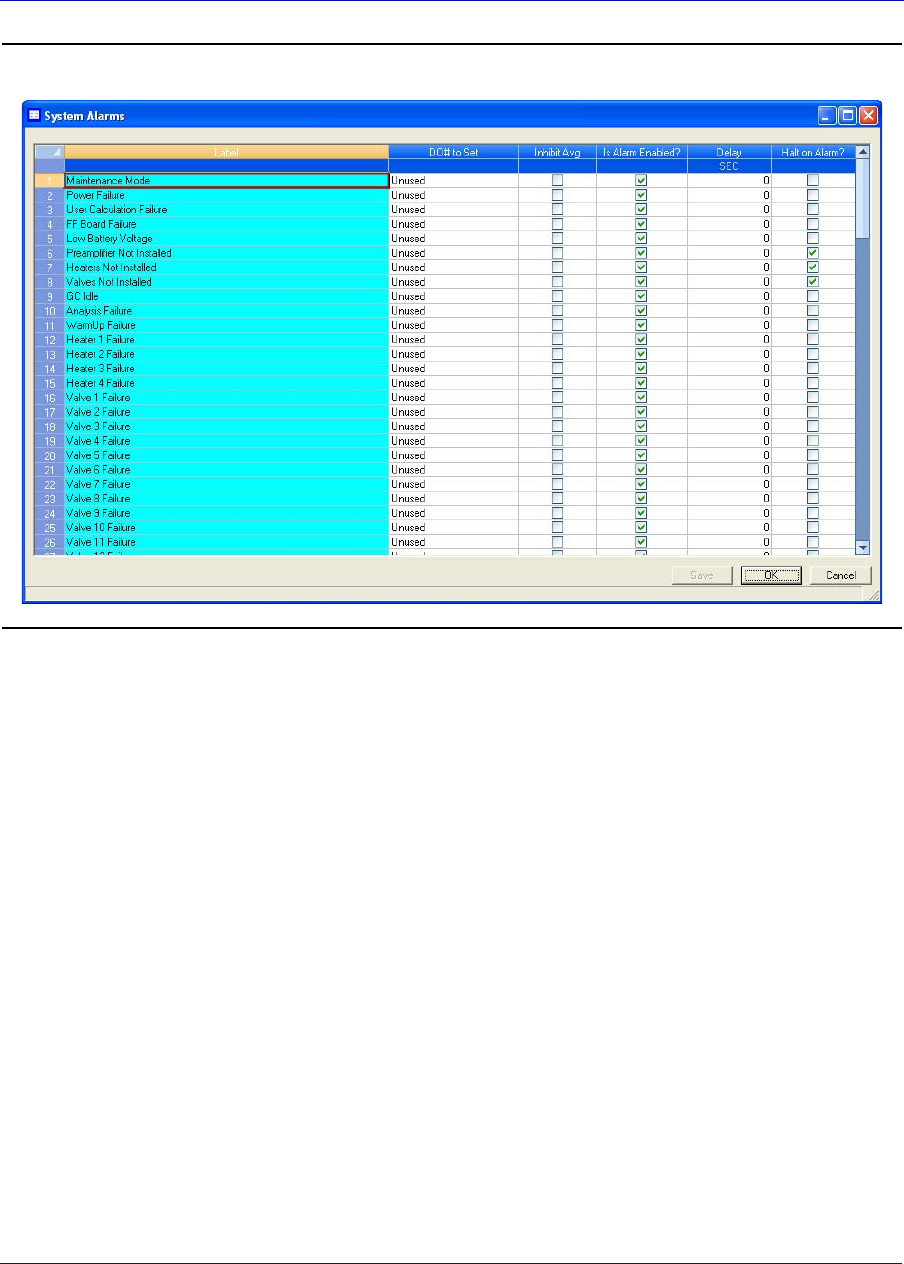
MON20/20 Software for Gas Chromatographs User Manual
SEPTEMBER 2010 3-9000-745
4-73
Figure 4-64. The Limit Alarms window
2. If you want a discrete output to activate when the alarm triggers, click
on the appropriate cell under the DO # to Set column and select it
from the drop-down list.
3. To prevent or allow averaging when the alarm triggers, double-click
on the appropriate cell under the Inhibit Avg column, and select one of
the following options:
•True - Inhibits averaging when the alarm is active.
•False - Allows averaging when the alarm is active.
4. To enable the alarm check the checkbox under the Is Alarm Enabled?
column; to disable the alarm, uncheck the checkbox under the Is
Alarm Enabled? column; to disable the alarm.

User Manual MON20/20 Software for Gas Chromatographs
3-9000-745 SEPTEMBER 2010
4-74
5. If you want the GC to halt after the current analysis when an alarm is
triggered, do the following:
(a.) Select the Halt on Alarm? checkbox.
(b.) Enter a value in the Delay column for the length of time, in
seconds, that the alarm condition should exist before the Halt
command is executed. You can enter a value between 0 and 1800.
6. To save the changes without closing the window, click Save. To save
the changes and close the window, click OK.
4.10 Managing streams
This function allows you to do the following:
• Assign component data tables, validation data tables, and timed
events tables to a particular stream.
• Designate a stream for analysis, validation, or calibration.
• Control automatic calibration or validation parameters, such as the
total number of runs, runs to be averaged, starting times, and time
between automatic calibrations and baseline runs.
• Define baseline pressure and temperature conditions that are
applicable to calculated GC analysis data, such as compressibility.
4.10.1 Designating how a stream will be used
To assign how a stream will be used, do the following:
1. Select Streams... from the Application menu. The Streams window
opens.
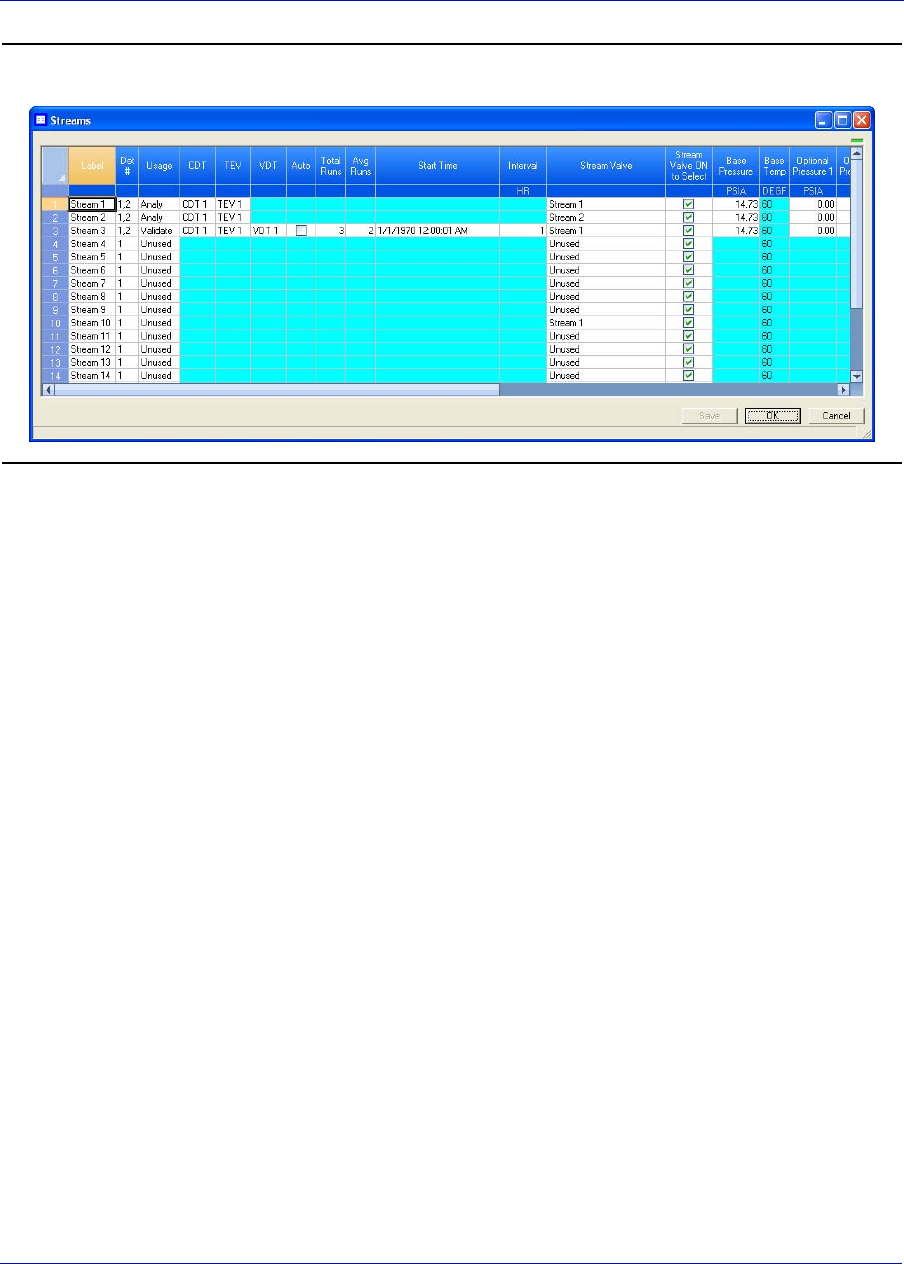
MON20/20 Software for Gas Chromatographs User Manual
SEPTEMBER 2010 3-9000-745
4-75
Figure 4-65. The Streams window
2. For the appropriate stream, select one of the following options from
the Usage column:
•Unused - Not used
•Cal - Calibration
•Analy - Analysis
•Validate - Validation
3. If you select Cal or Validation, you can also edit the following
parameters:
•Auto - If checked, the calibration or validation will be automatic.
•Tot Runs - The number of runs, from 1 to 10, to make for each
calibration.
•Avg Runs - The number of most-recent calibration runs to
average; for instance, if five calibration runs are performed and
Avg Run is set to 3, then the last three runs of the five will be used
to average the calibration results.
•Start Time - The time the first automatic calibration should be
performed.
•Interval - The number of hours between automatic calibrations.
•Auto Calib - Enable or disable the automatic calibration run.
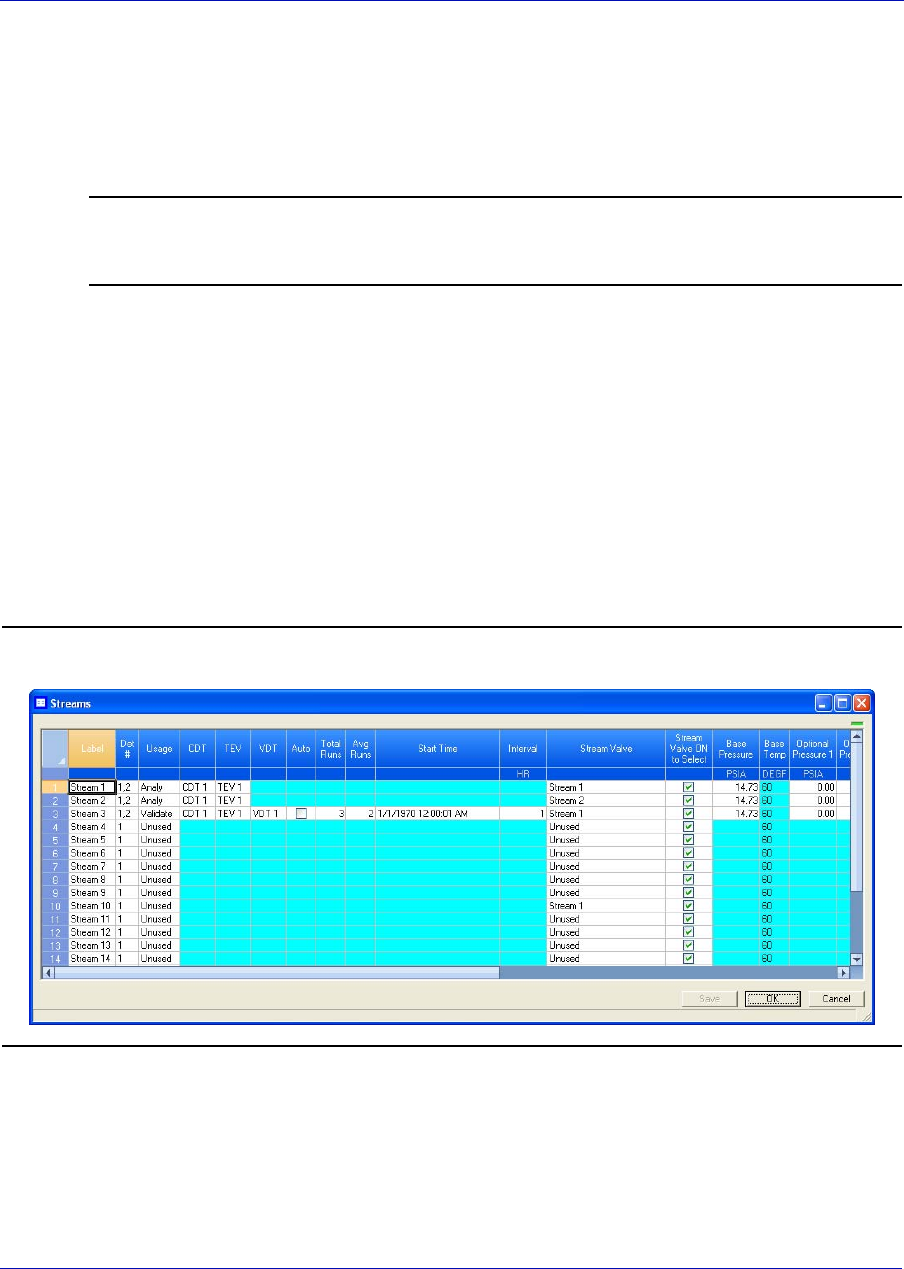
User Manual MON20/20 Software for Gas Chromatographs
3-9000-745 SEPTEMBER 2010
4-76
•Auto Baseline - Enable or disable the automatic baseline run.
The GC performs an additional calibration run (before the
calibration runs to be averaged) without the calibration gas. This
run evaluates the peaks caused by the GC valve action alone; any
peak areas found are subtracted from the subsequent analyses.
Note
Disabling the Auto Baseline setting will delete existing CDT baseline data for the
associated stream.
4. To save the changes without closing the window, click Save. To save
the changes and close the window, click OK.
4.10.2 Assigning a valve to a stream and setting the relationship
between the stream’s open state to the valve’s On/Off state
To assign a valve to a stream, do the following:
1. Select Streams... from the Application menu. The Streams window
opens.
Figure 4-66. The Streams window
2. Go to the Stream Valve column for the corresponding stream and
select the appropriate valve from the drop-down list.
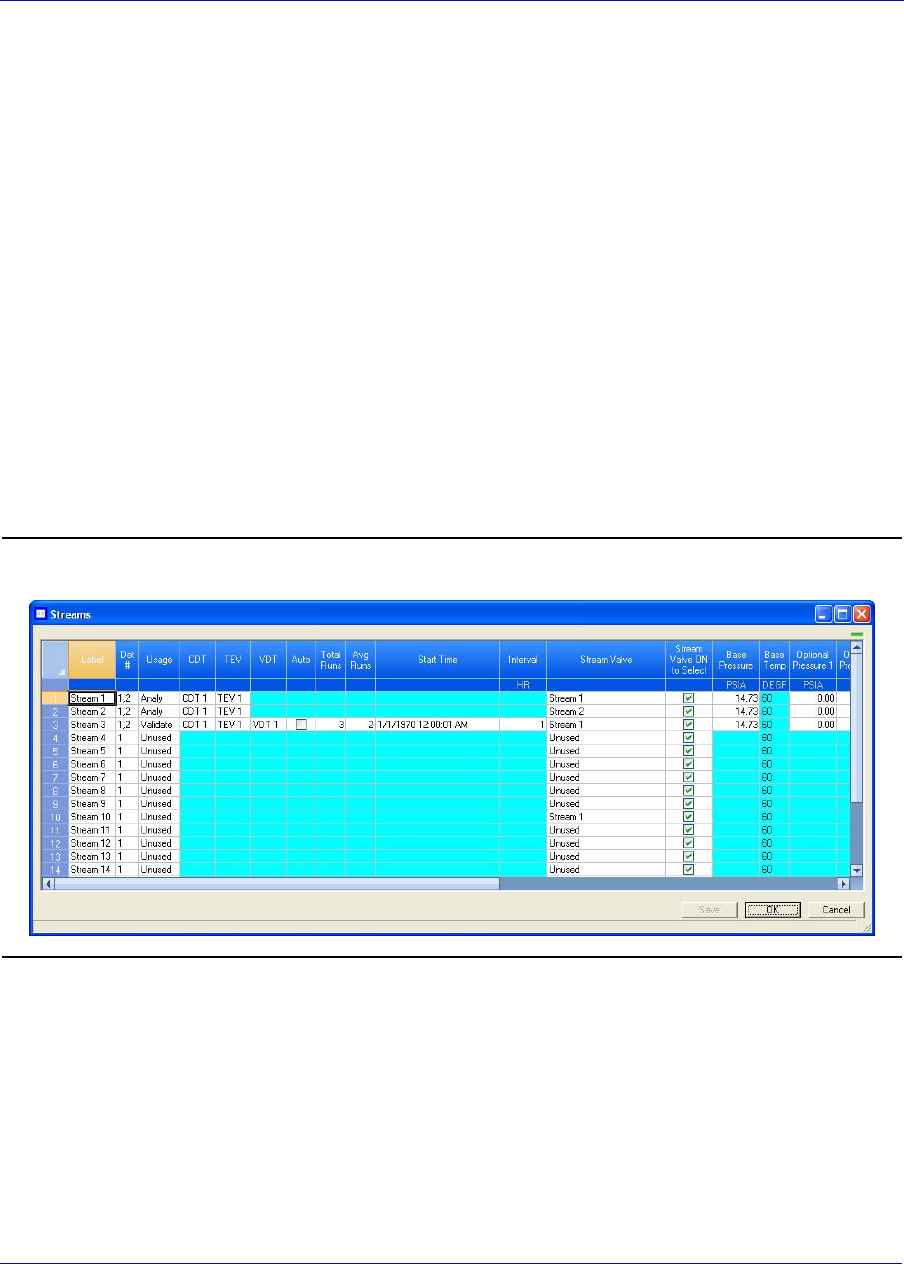
MON20/20 Software for Gas Chromatographs User Manual
SEPTEMBER 2010 3-9000-745
4-77
Details about the valves in the drop-down list can be viewed from the
Valves window.
3. To save the changes without closing the window, click Save. To save
the changes and close the window, click OK.
4. To have the stream open when the valve is ON, select the
corresponding Stream Valve On to Select checkbox; to have the stream
open when the valve is OFF, clear the corresponding Stream Valve On
to Select checkbox.
4.10.3 Assigning a data table to a particular stream
To assign a component data table, a validation data table, or a timed
events table to a stream, do the following:
1. Select Streams... from the Application menu. The Streams window
opens.
Figure 4-67. The Streams window
2. For the appropriate stream, if Usage is set to Cal or Analy, select a
component data table from the CDT column and a timed events table
from the TEV column.
3. For the appropriate stream, if Usage is set to Validate, select a
component data table from the CDT column, a timed events table from
the TEV column, and a validation data table from the VDT column.
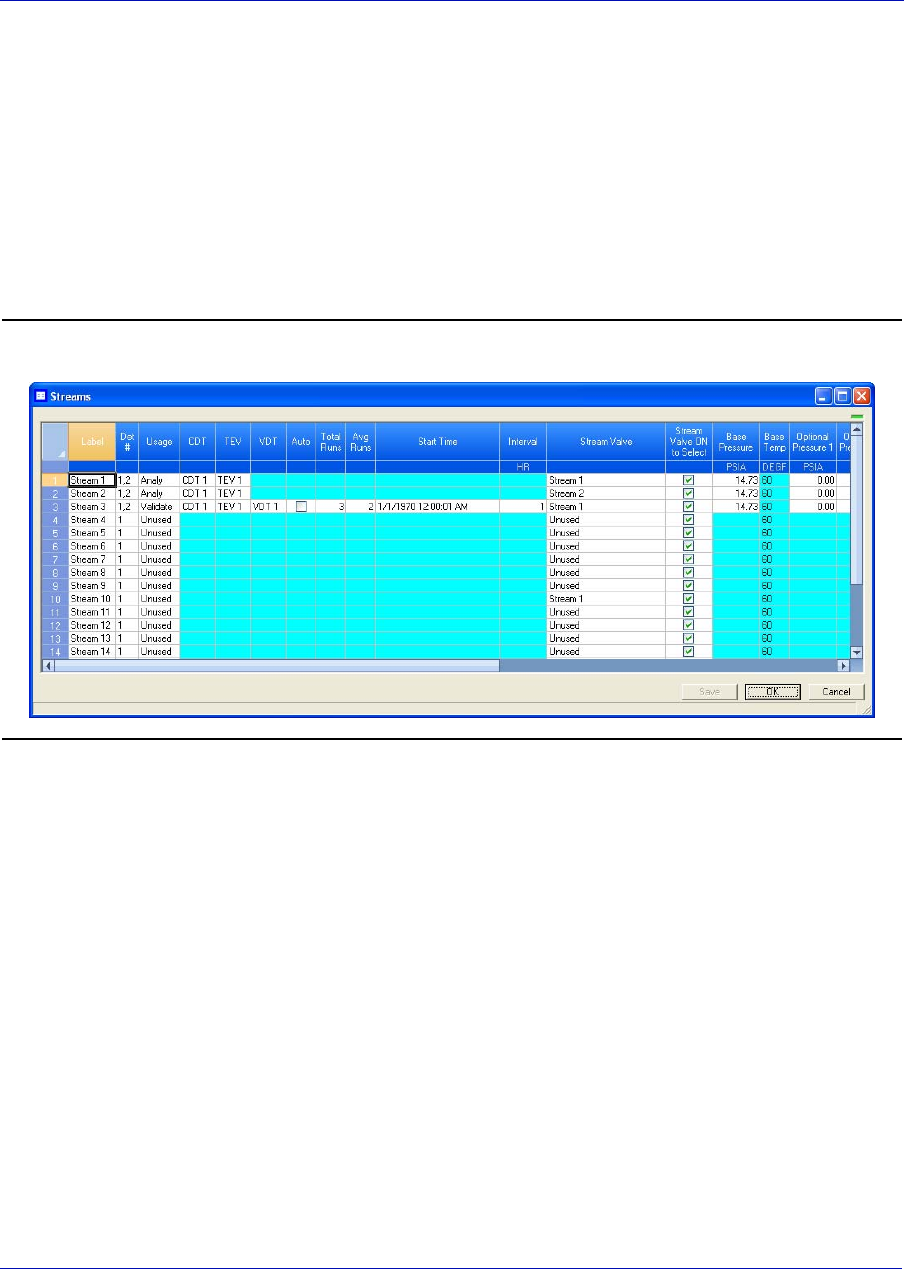
User Manual MON20/20 Software for Gas Chromatographs
3-9000-745 SEPTEMBER 2010
4-78
4. To save the changes without closing the window, click Save. To save
the changes and close the window, click OK.
4.10.4 Changing the base pressure for a stream
To change the base pressure for a stream, do the following:
1. Select Streams... from the Application menu. The Streams window
opens.
Figure 4-68. The Streams window
2. For the appropriate stream, double-click on the corresponding cell
under the Base Pressure column and enter an new value.
3. To save the changes without closing the window, click Save. To save
the changes and close the window, click OK.
4.11 Creating a stream sequence for a detector
A stream sequence defines the order of stream analysis for a detector. To
create or edit a stream sequence, do the following:
1. Select Stream Sequence... from the Application menu. The Stream
Sequence window displays.
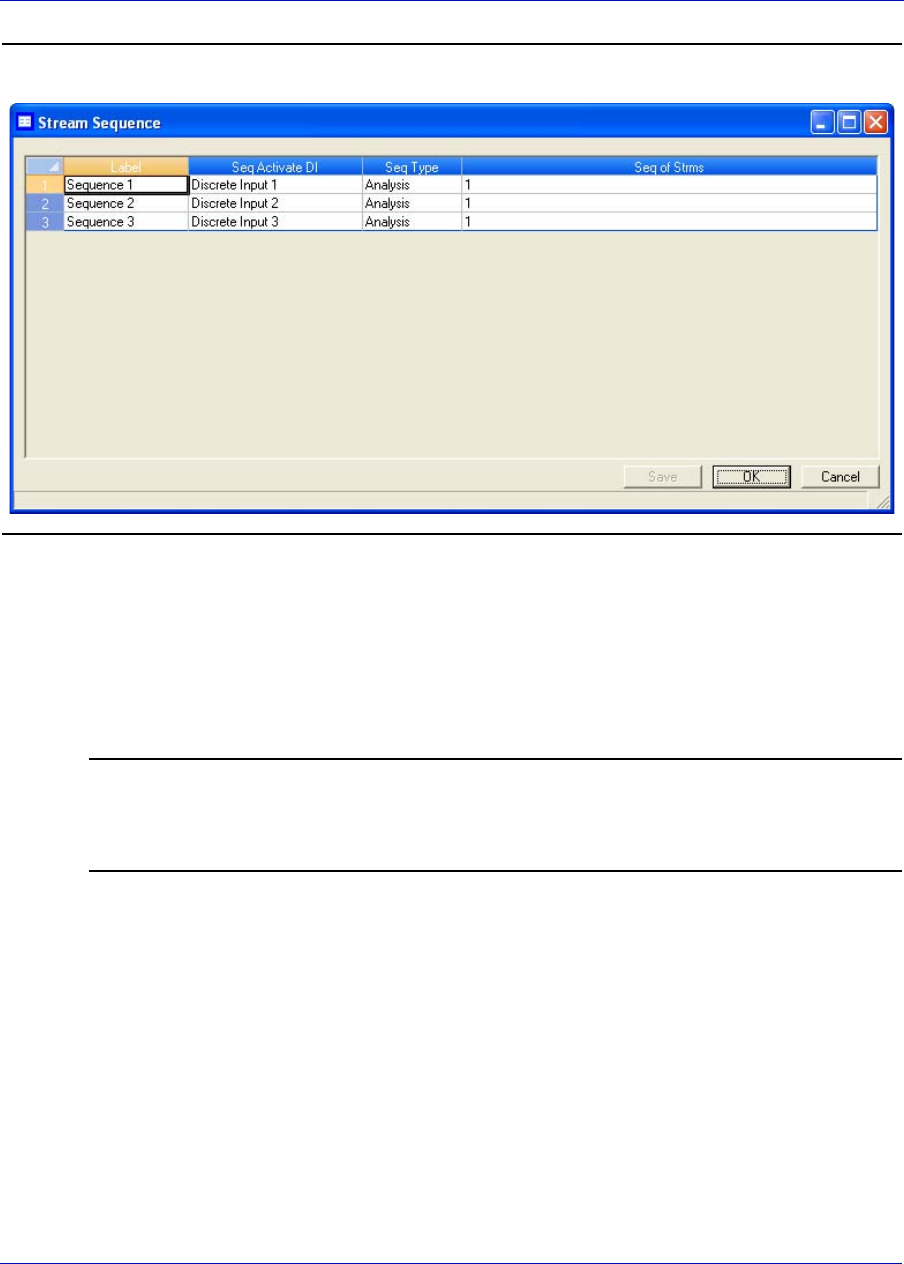
MON20/20 Software for Gas Chromatographs User Manual
SEPTEMBER 2010 3-9000-745
4-79
Figure 4-69. The Stream Sequence window
2. Each stream sequence table can contain up to three sequences--a
primary, or default, sequence, and two auxiliary sequences. The table
for detector that is designated as “1” displays by default. To display a
different table, select it from the Choose table: drop-down list.
3. To create a new stream sequence, click Insert before.
Note
There can only be three sequences per detector. If a detector already has three
sequences and you want to create a new one, you must edit or delete one of the existing
sequences. Click Delete to delete a sequence.
4. Double-click the appropriate cell under the Strm Seq Name column to
give your new sequence a name, or to edit the name of an existing
sequence. Type in the new name.
5. To define the order of analysis, double-click the appropriate cell under
the Seq of Strms column and the numbers for the streams, seperated
by commas, that should be analyzed.
6. To define which discrete input should activate the sequence, select it
from the drop-down list of the appropriate cell under the Seq Activate
DI column.
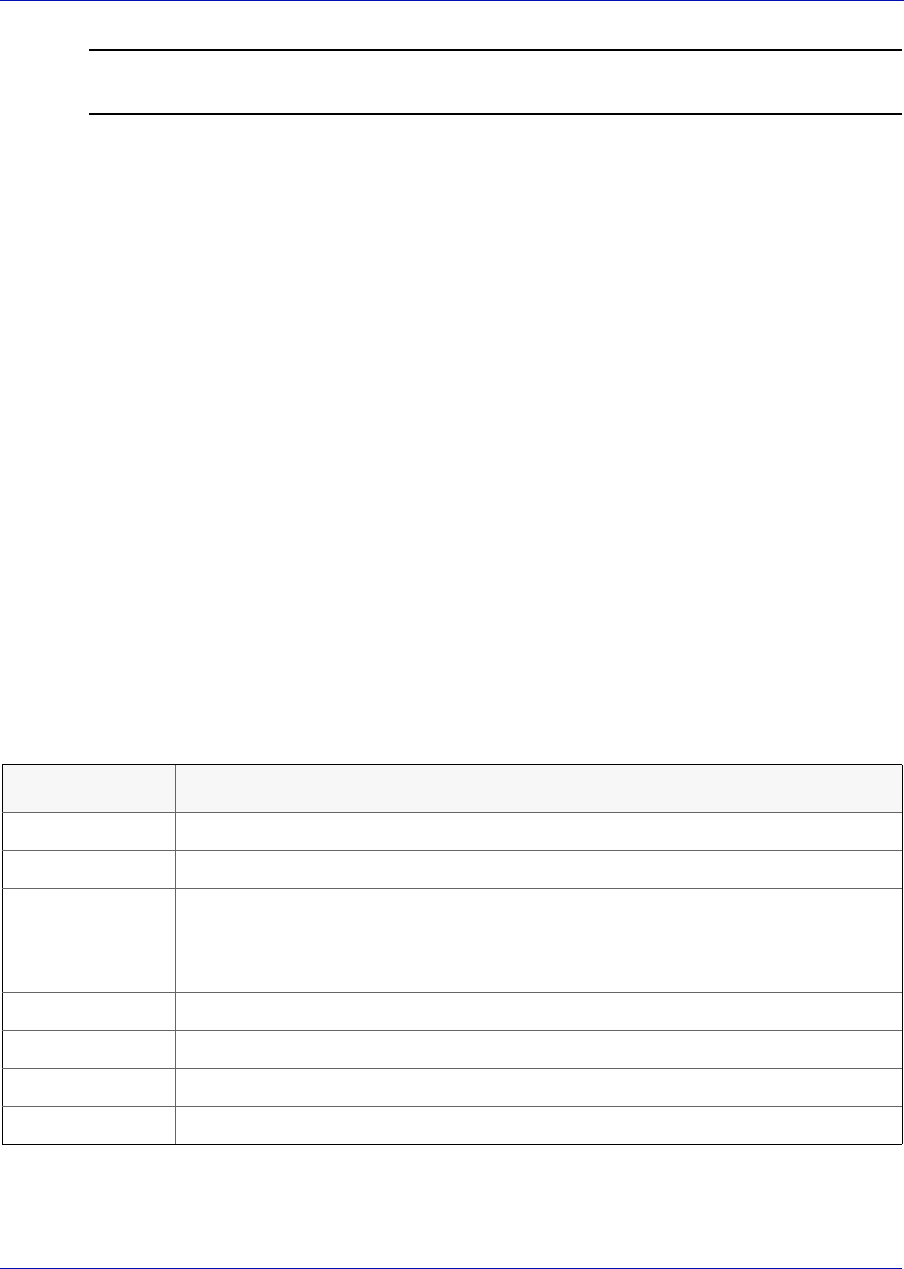
User Manual MON20/20 Software for Gas Chromatographs
3-9000-745 SEPTEMBER 2010
4-80
Note
No two sequences can be activated by the same discrete input.
7. Select the type of analysis the detector should perform when following
the sequence. There are two options:
•Analysis - The detector performs a real analysis of the streams.
•Validation - The detector performs a test analysis to verify that it
is working properly.
8. To save the changes without closing the window, click Save. To save
the changes and close the window, click OK.
4.12 Communications
Use this function to configure and manipulate the communication
settings the GC uses to connect with a Data Collection System (DCS).
To add a new communications port setting to the Communication
window, click Insert before. A new row will be added to the
Communication table.
The following table lists the parameters that can be edited for the
communications port setting:
Name Description
Label The name of the group of settings.
ModBus Id Identification number of the ModBus device.
Baud Rate The baud rate setting. Options are: 1200, 2400, 9600, 19200, 38400, and 57600.
For high performing PCs, set the baud rate to 38400. If you experience a
communications failure at this rate, set the baud rate to 9600. Baud rate settings
less than 9600 may result in real-time delivery that is unacceptably slow.
Data Bits The number of data bits. Options are 7 and 8 (default).
Stop Bit The number of stop bits. Options are 1 (default) and 2.
Parity The parity check method. Options are None (default), Even and Odd.
HW Flow Cntrl Allows you to enable or disable hardware handshaking signals (RTS/CTS).
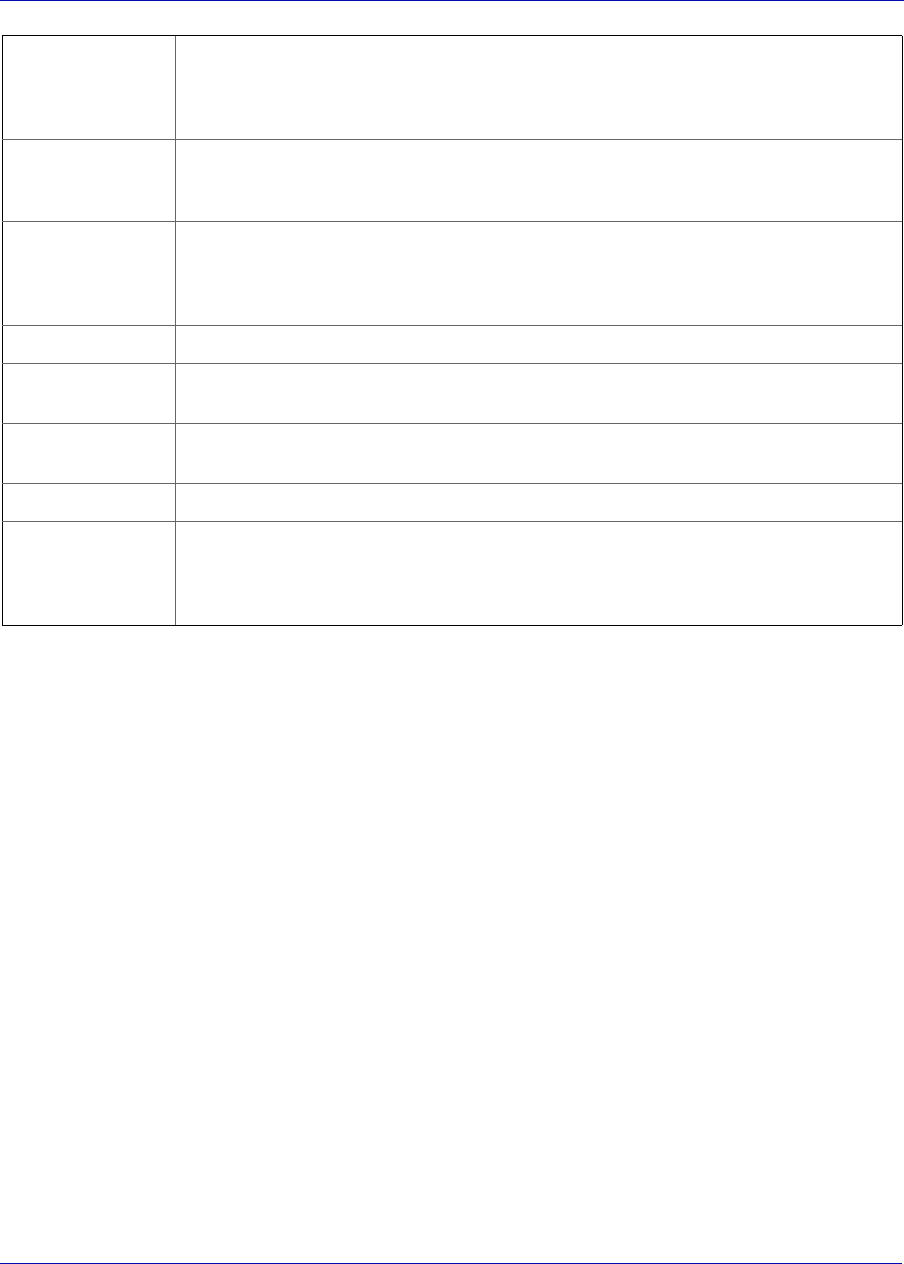
MON20/20 Software for Gas Chromatographs User Manual
SEPTEMBER 2010 3-9000-745
4-81
To delete a communications port setting from the Communication
window, click Delete. A selected row will be deleted from the
Communication table.
4.12.1 Creating or editing registers
You can map GC data to Modbus registers and generate MAP files, which
can then be associated with communications ports.
For a list of variable assignments made to all registers, consult the
Communication section of the PC Config Report.
RTS Off Dly The delay in milliseconds between RTS termination and the end of data
transmission.
Range: 0 to 1000
RTS ON Sly The delay in milliseconds between RTS activation and the start of data transmission
Range: 0 to 1000
Port Resp Dly The delay in milliseconds the communication port will wait before sending a
response back to device.
Range: 0 to 100
Port Avail Allows you to enable or disable the communication port.
Timeout The time interval in seconds within which the GC is required to read the response
from device.
Unit System Sets the type of measurement system to use. Options are U.S. Customary or
Metric.
MAP File Points to the file that contains the registers that should be used.
Port Allows you to set the type of protocol to be used for the port: RS232, RS422 or
RS485.
If the port is set to RS422 or RS485, additional configuration steps are required; see
your GC manual for more information
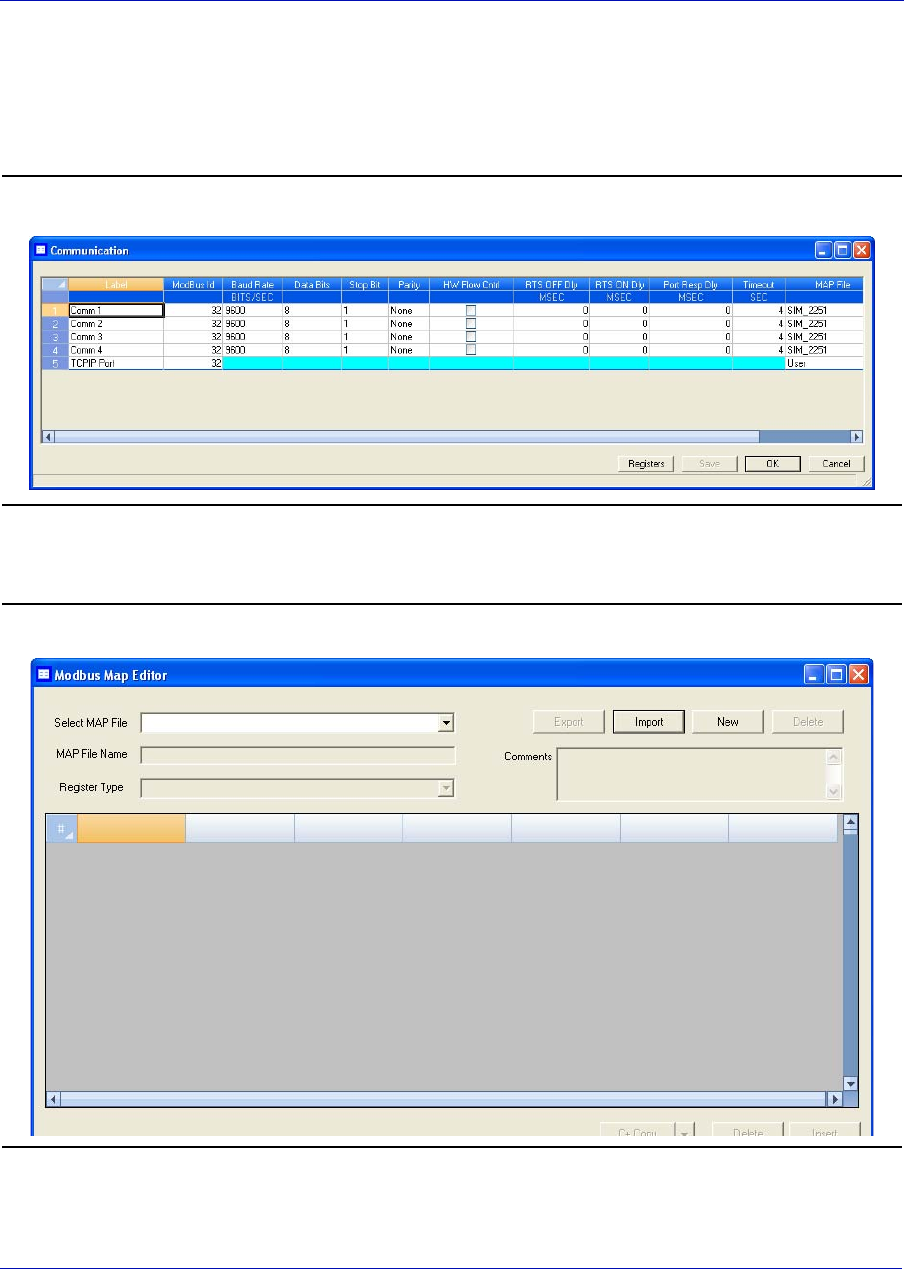
User Manual MON20/20 Software for Gas Chromatographs
3-9000-745 SEPTEMBER 2010
4-82
To map GC data to Modbus registers, do the following:
1. Select Communication... from the Application menu. The
Communication window appears.
Figure 4-70. The Communication window
2. Click Registers. The Modbus Map Editor window appears.
Figure 4-71. The Modbus Map Editor window
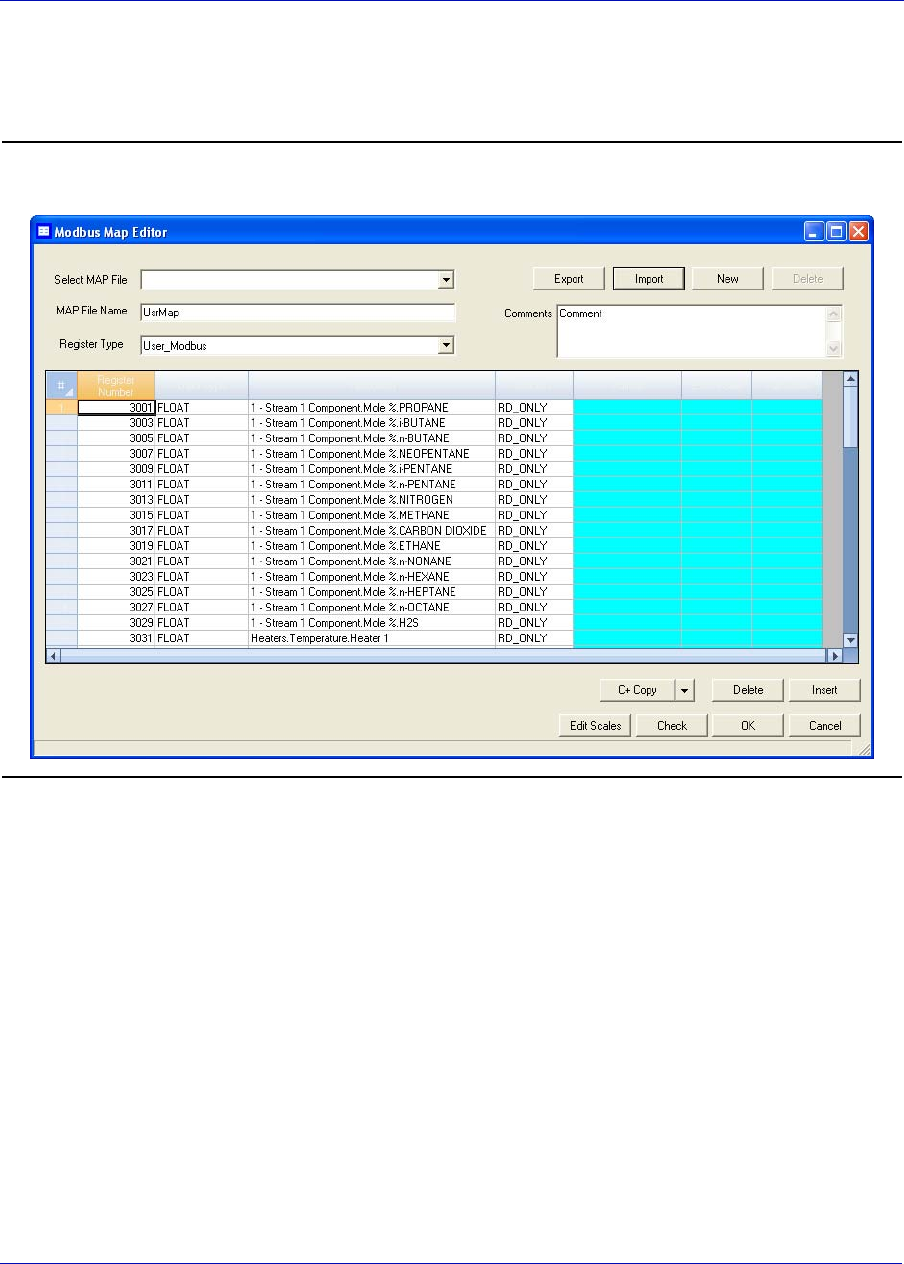
MON20/20 Software for Gas Chromatographs User Manual
SEPTEMBER 2010 3-9000-745
4-83
3. To view or edit registers that are contained in an existing MAP file,
click on the Select MAP File drop-down list and select the appropriate
file. The registers will load into the table.
Figure 4-72. The Modbus Map Editor window
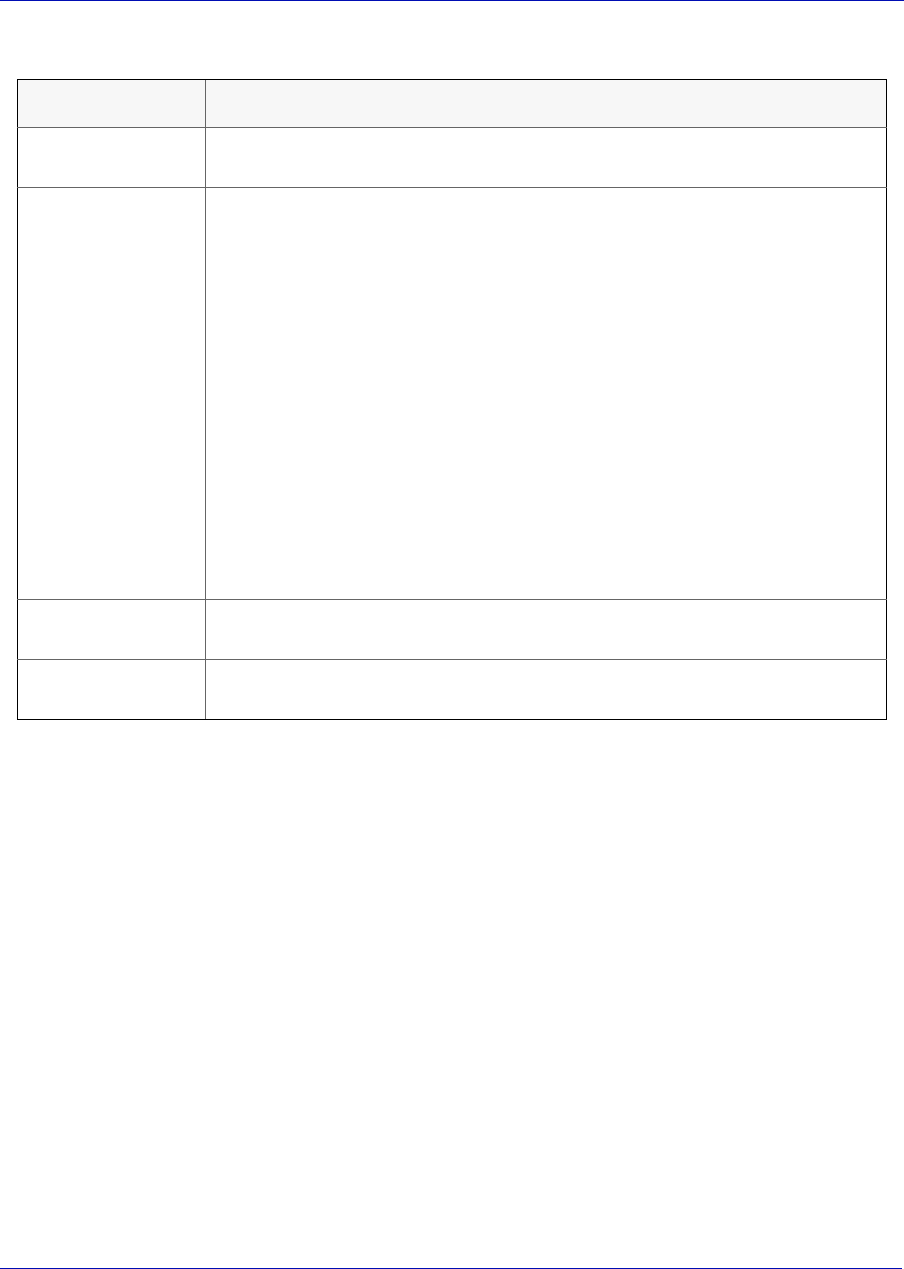
User Manual MON20/20 Software for Gas Chromatographs
3-9000-745 SEPTEMBER 2010
4-84
4. To edit a cell, double-click it. You can edit the following parameters:
5. To copy the component settings from a highlighted row and apply
them to the next row, click C + Copy. This feature also increments
the Component value to the next available component (e.g.,
incrementing from Ammonia to Benzene), per the GC application. An
error message displays when the last available component is reached.
6. To copy the stream settings from a highlighted row and apply them to
the next row, click S + Copy. This feature also increments the Stream
value to the next available stream (e.g., incrementing from Stream 2
to Stream 3), per the GC application. An error message displays when
the last available stream is reached.
7. To delete a row, click Delete.
8. To insert a row, click Insert.
Name Description
Register Number Displays the number for the Modbus register that will be polled by a connected
data acquisition system.
Data Type Describes the type of data that is stored in the register.
SIM_2251 and User_Modbus options are:
• BOOLEAN
•INT
•LONG
•FLOAT
• Bitmap(INT)
• Bitmap(LONG)
• SCALED_FP1
...
• SCALED_FP32
If one of the scaled floating point options is chosen, the Zero Scale and Full
Scale values for that option will display in the appropriate column cells.
The default User_Modbus data type is FLOAT, which means the value is not
converted to an integer and is stored in two adjacent registers. Data types
other than FLOAT require only one register per variable.
Variable(s) Displays the variable(s) whose value is to be stored in the register. To change
the variable, see “Assigning a variable to a register” on page 4-92.
Access Determines whether the register will be read-only (RD_ONLY) or read/write
(RD_WR).
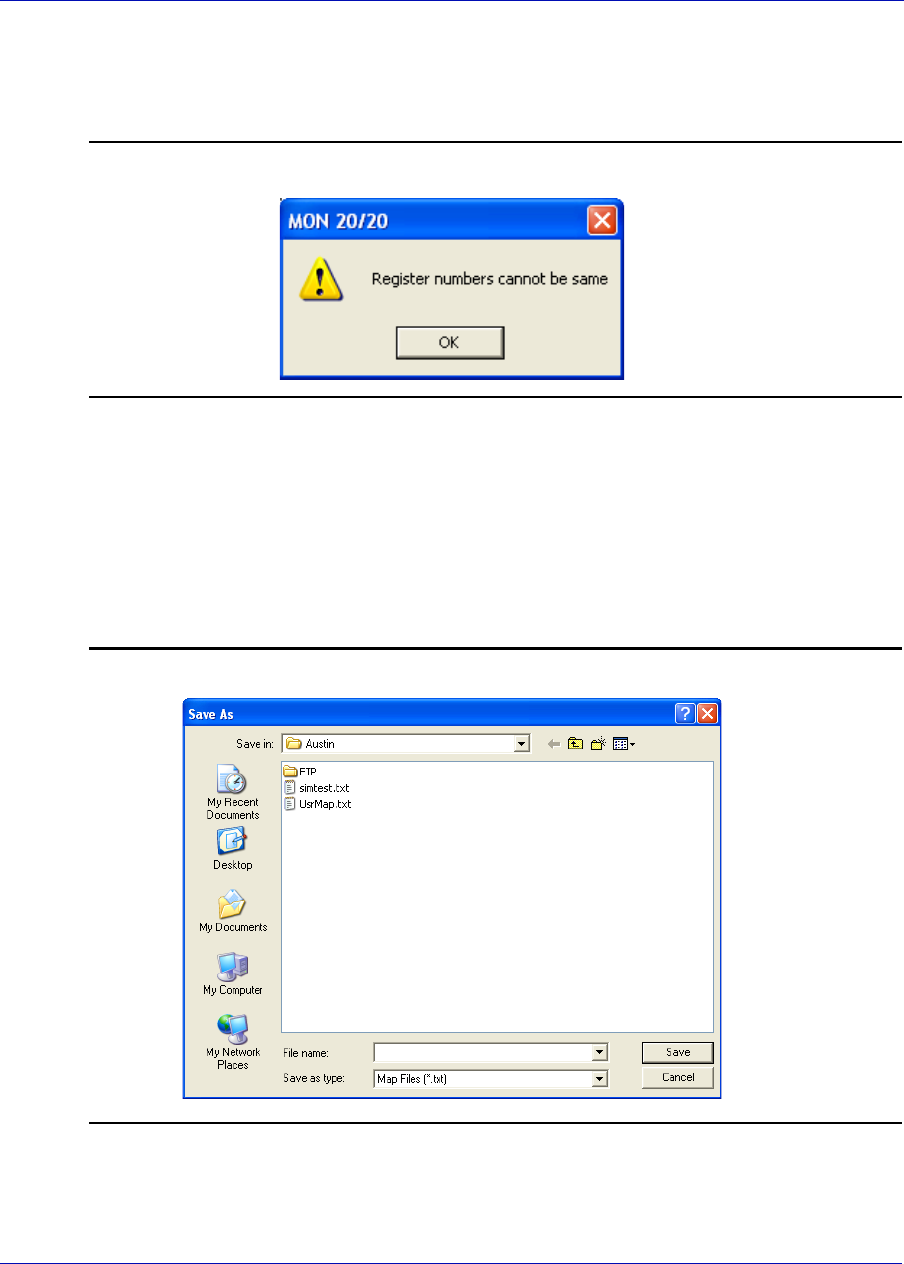
MON20/20 Software for Gas Chromatographs User Manual
SEPTEMBER 2010 3-9000-745
4-85
9. To check for conflicting register assignments, click Check. MON 20/
20 will check the table and if it encounters a conflict it will display the
following message:
Figure 4-73. Conflicting registers warning
Review the table to locate the conflicting registers and change one.
10.To save the MAP file, do the following:
(a.) Click Export. MON 20/20 validates the table for errors--for
instance, ensuring that no two registers share a register number.
If any errors are found MON 20/20 displays the appropriate error
message. When no errors are found, the Save As window displays.
Figure 4-74. The Save As window
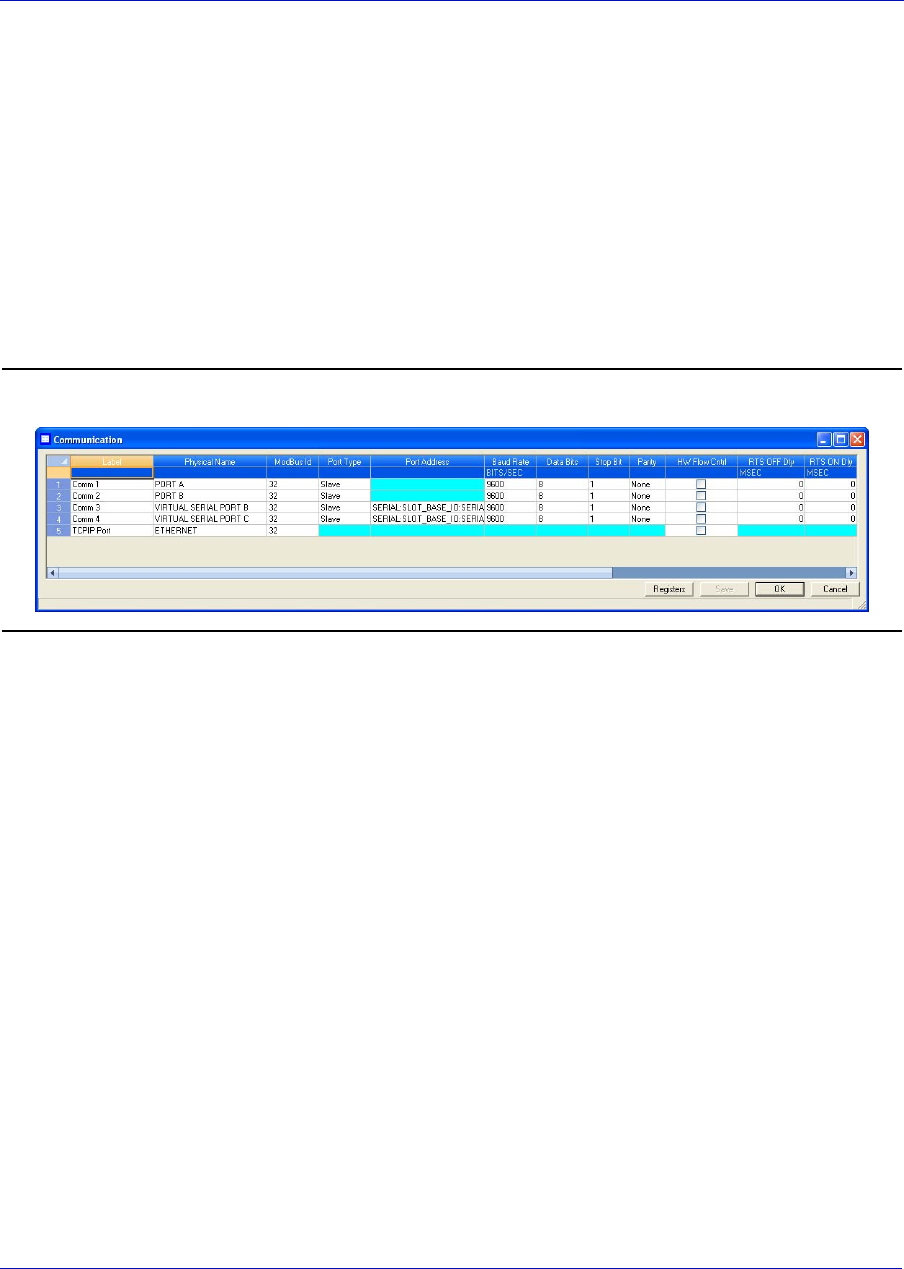
User Manual MON20/20 Software for Gas Chromatographs
3-9000-745 SEPTEMBER 2010
4-86
(b.) Enter a new name for the file or select the file that you want to
overwrite.
(c.) Click Save.
4.12.2 Creating a new map file
To create a new MAP file, do the following:
1. Select Communication... from the Application menu. The
Communication window appears.
Figure 4-75. The Communication window
2. Click Registers. The Modbus Map Editor window appears.
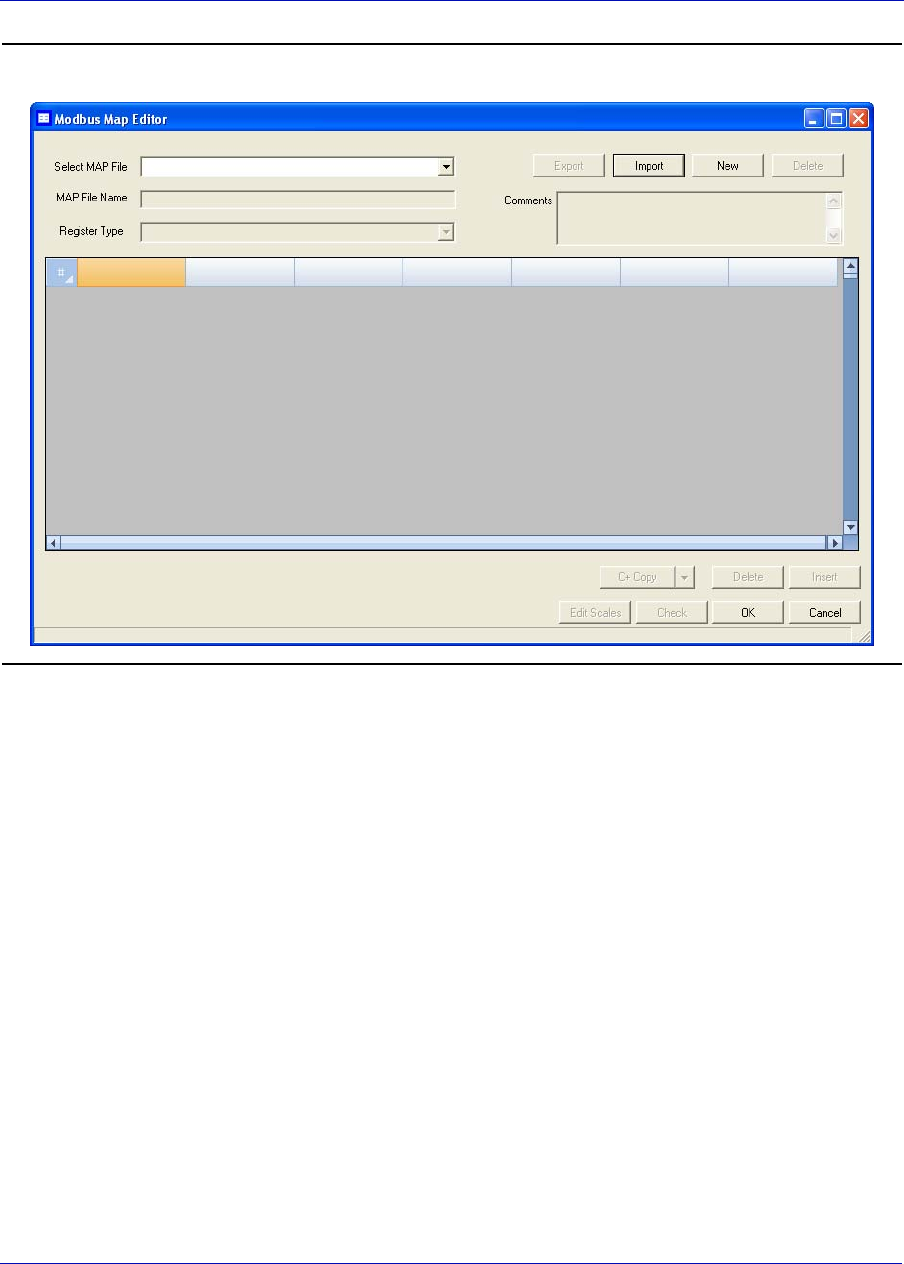
MON20/20 Software for Gas Chromatographs User Manual
SEPTEMBER 2010 3-9000-745
4-87
Figure 4-76. The Modbus Map Editor window
3. Click New. A new row will be added to the table and the column
headings will be empty.
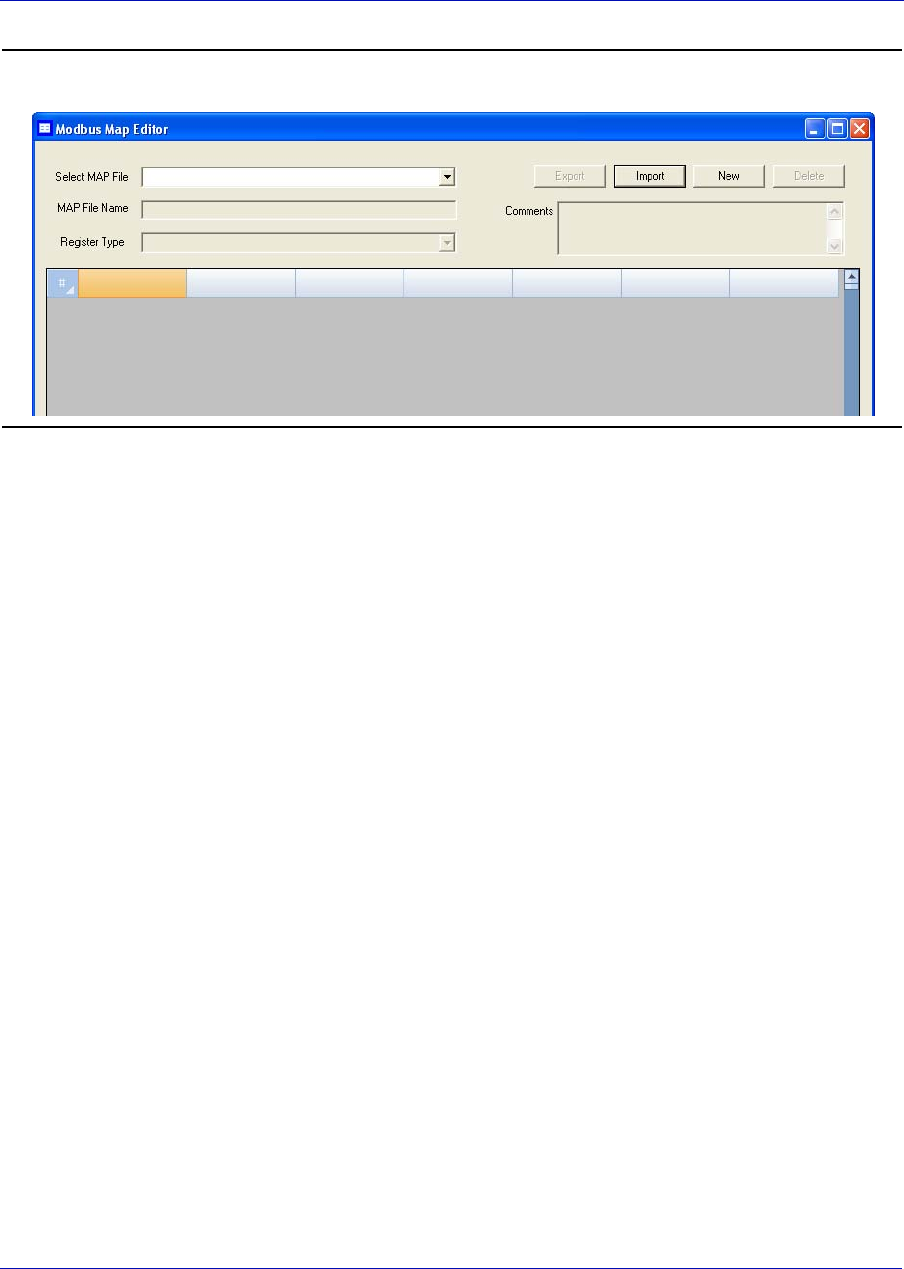
User Manual MON20/20 Software for Gas Chromatographs
3-9000-745 SEPTEMBER 2010
4-88
Figure 4-77. The Modbus Map Editor window
4. From the Register Type drop-down list, select the type of PLC
emulation protocol you want to use. You have two options:
User_Modbus, which is a PLC emulation Modbus protocol that can
use scaling to convert floating point numbers to integers, and
SIM_2251, which emulates the Daniel 2500 communication protocol
and is a simulation of the 2251 GC controller.
The table’s column headers change based on which protocol is
selected.
5. If you want to base the new MAP file on an existing MAP file, do the
following:
(a.) Click Import. The Open window displays.
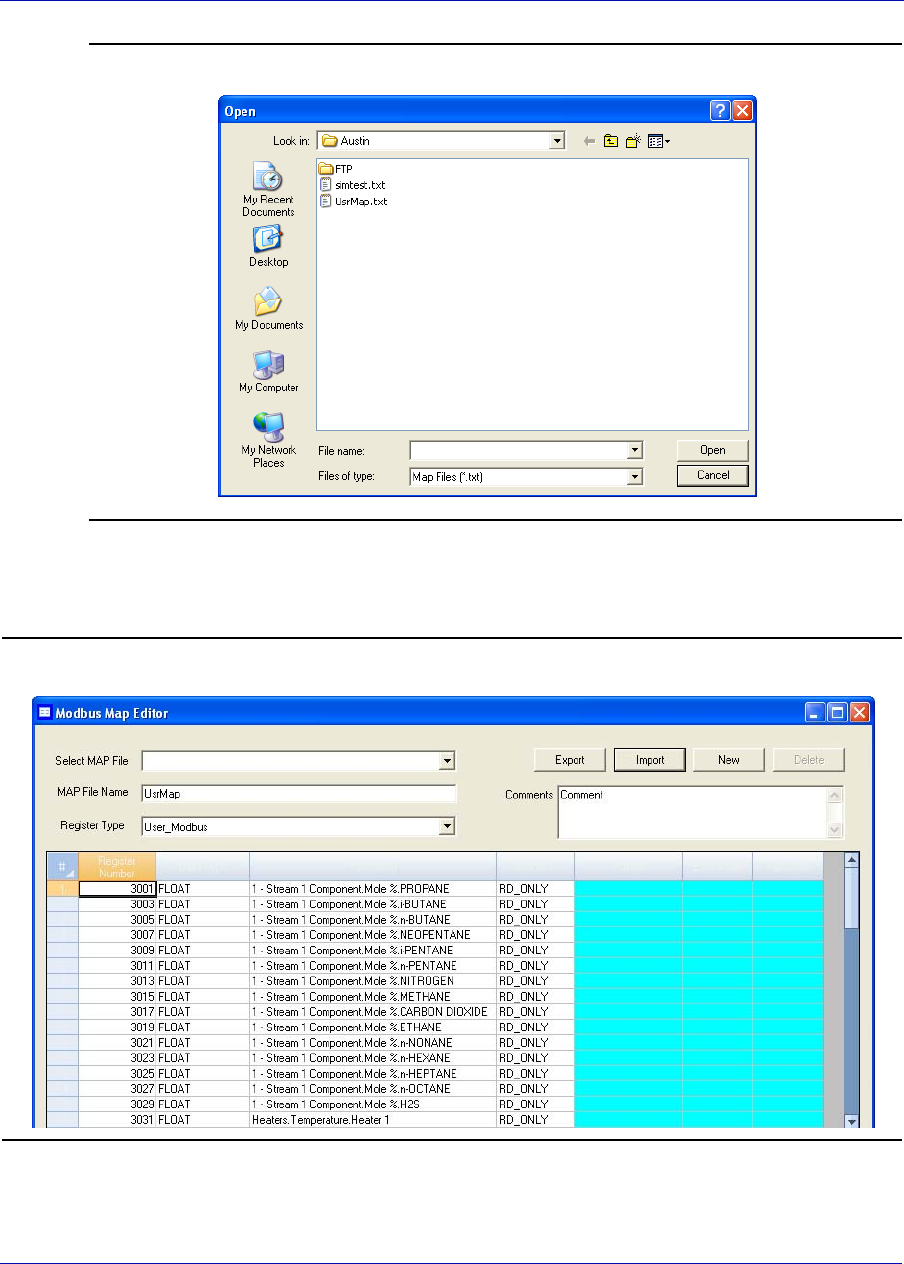
MON20/20 Software for Gas Chromatographs User Manual
SEPTEMBER 2010 3-9000-745
4-89
Figure 4-78. The Open window
(b.) Select the file that you want to import and click Open. The
registers from the selected file will load into the table.
Figure 4-79. The Modbus Map Editor
User Manual MON20/20 Software for Gas Chromatographs
3-9000-745 SEPTEMBER 2010
4-90
6. To edit a cell, double-click it. You can edit the following parameters:
7. To copy the component settings from a highlighted row and apply
them to the next row, click C + Copy. This feature also increments
the Component value to the next available component (e.g.,
incrementing from Ammonia to Benzene), per the GC application. An
error message displays when the last available component is reached.
8. To copy the stream settings from a highlighted row and apply them to
the next row, click S + Copy. This feature also increments the Stream
value to the next available stream (e.g., incrementing from Stream 2
to Stream 3), per the GC application. An error message displays when
the last available stream is reached.
9. To delete a row, click Delete.
10.To insert a row, click Insert.
Name Description
Register Number Displays the number for the Modbus register that will be polled by a connected
data acquisition system.
Data Type Describes the type of data that is stored in the register.
SIM_2251 registers use only one data type: FLOAT.
User_Modbus options are:
• BOOLEAN
•INT
•LONG
• FLOAT
•Bitmap(INT)
• Bitmap(LONG)
• SCALED_FP1
...
• SCALED_FP32
If one of the scaled floating point options is chosen, the Zero Scale and Full Scale
values for that option will display in the appropriate column cells.
The default User_Modbus data type is FLOAT, which means the value is not
converted to an integer and is stored in two adjacent registers. Data types other
than FLOAT require only one register per variable.
Variable(s) Displays the variable(s) whose value is to be stored in the register. To change the
variable, see “Assigning a variable to a register” on page 92.
Access Determines whether the register will be read-only (RD_ONLY) or read/write
(RD_WR).
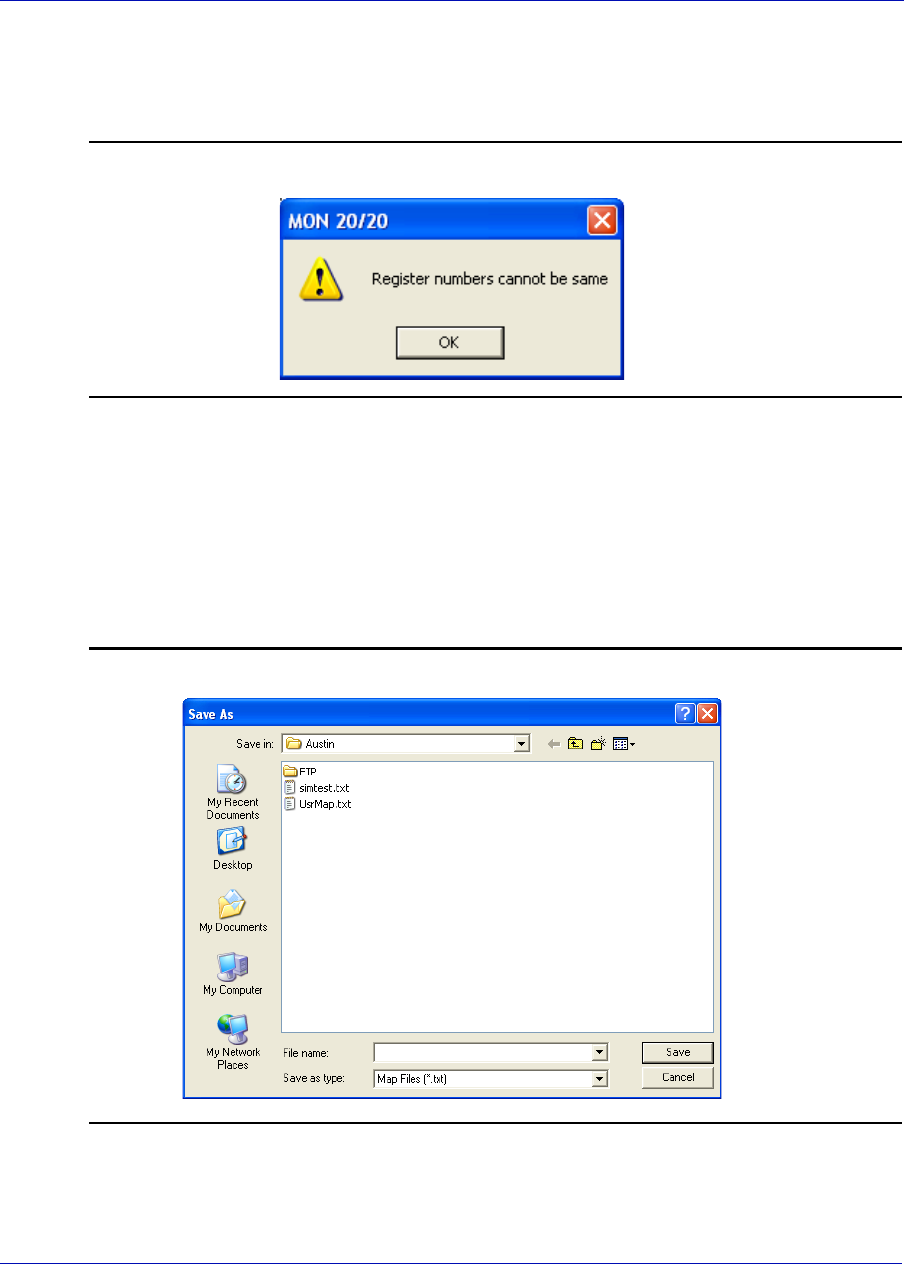
MON20/20 Software for Gas Chromatographs User Manual
SEPTEMBER 2010 3-9000-745
4-91
11.To check for conflicting register assignments, click Check. MON 20/
20 will check the table and if it encounters a conflict it will display the
following message:
Figure 4-80. Conflicting registers warning
Review the table to locate the conflicting registers and change one.
12.To save the MAP file, do the following:
(a.) Click Export. MON 20/20 validates the table for errors--for
instance, ensuring that no two registers share a register number.
If any errors are found MON 20/20 displays the appropriate error
message. When no errors are found, the Save As window displays.
Figure 4-81. The Save As window

User Manual MON20/20 Software for Gas Chromatographs
3-9000-745 SEPTEMBER 2010
4-92
(b.) Enter a new name for the file or select the file that you want to
overwirte.
(c.) Click Save.
4.12.3 Assigning a variable to a register
To assign a variable to a register, from the Modbus Map Editor window,
double-click the appropriate Variable(s) cell and select a new variable.
For a demonstration of how to use the context-sensitive variable selector,
see “Using the context-sensitive variable selector” on page 1-42.
4.12.4 Viewing or editing scales
Scales allow you to use one register to store floating point variables
instead of the customary two registers. By using a scale, floating point
data can then be converted to integer values.
MON 20/20 supports 32 different scales that are labelled SCALED_FP1
through SCALED_FP32. The Data Type column on the Modbus Map
Editor window displays the type of scale, if any, that is being used for a
particular register. If a scale is being used, the Zero Scale and Full Scale
columns will display the lower and upper values for the chosen scale.
To view the list of scales, select Application → Communication... →
Registers and click Edit Scales from the Modbus Map Editor window.
The Edit Scales window displays all of the scales, along with each scales
lower and upper values.
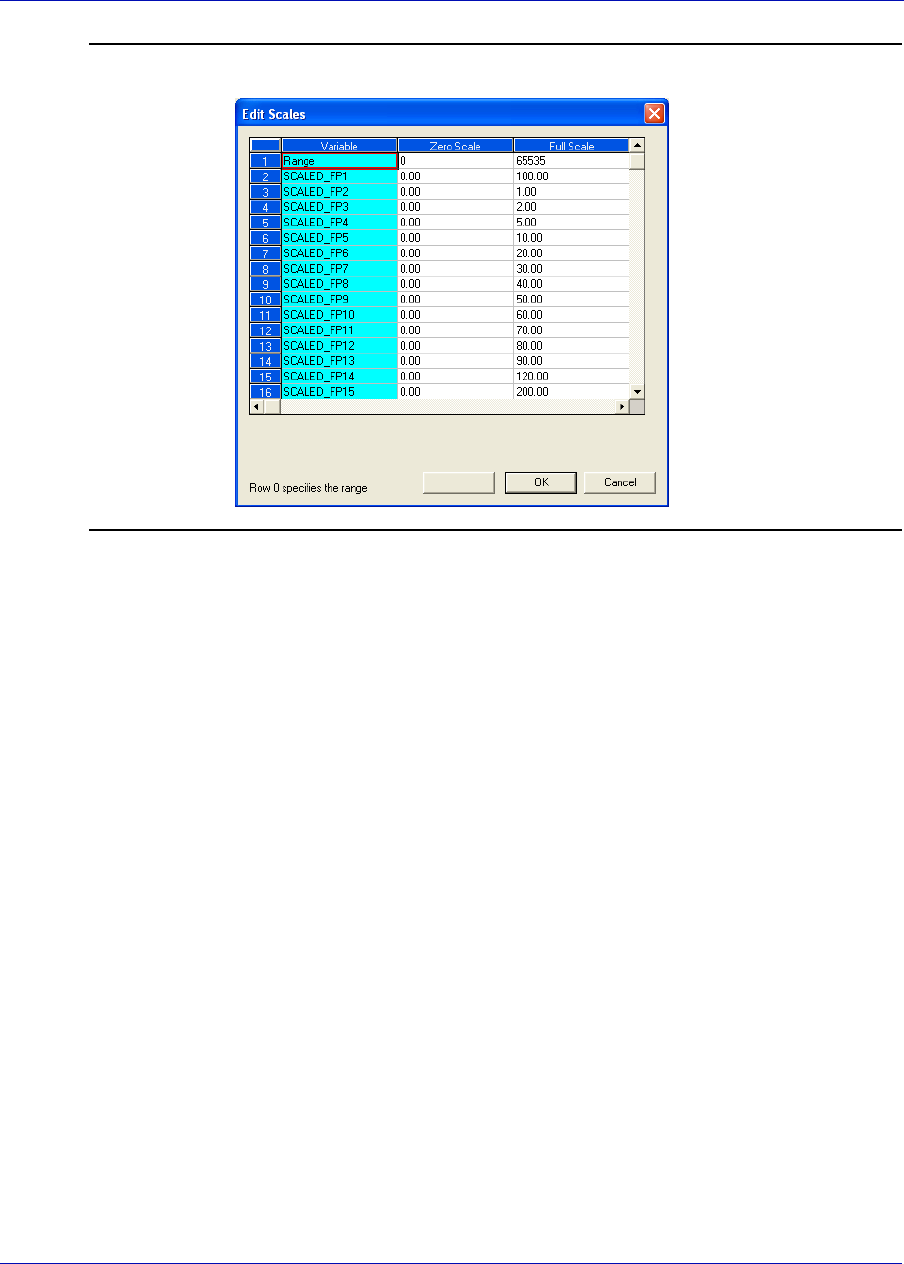
MON20/20 Software for Gas Chromatographs User Manual
SEPTEMBER 2010 3-9000-745
4-93
Figure 4-82. The Edit Scales window
Use the following formula to calculate the variable’s integer value:
where:
RF = Full Scale, range
RZ = Zero Scale, range
SF = Full Scale, scale
SZ = Zero Scale, scale
Dfp = Floating Point value
integer RFRZ
–
SFSZ
–
-------------------
⎝⎠
⎛⎞
=Dfp SZ
–()RZ
+
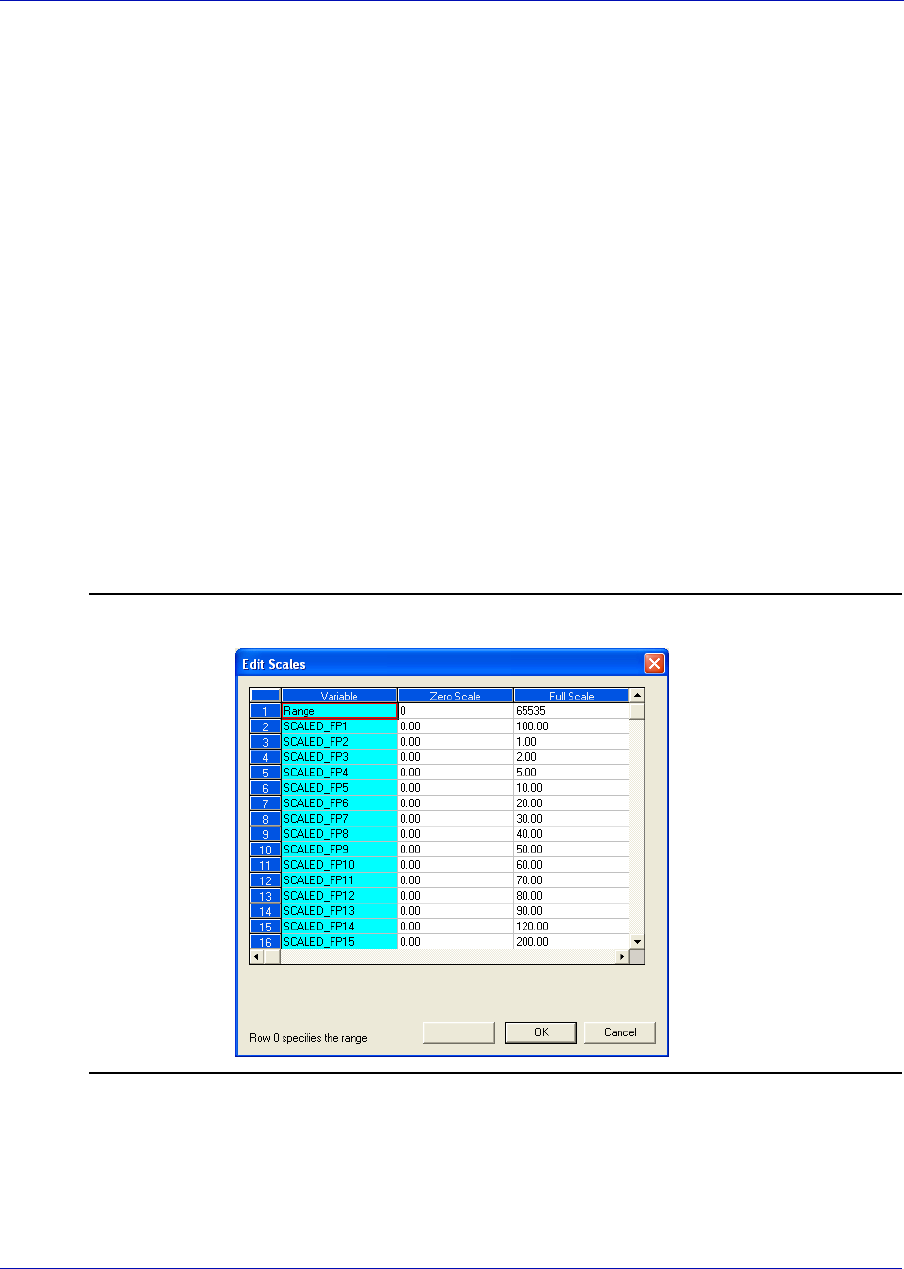
User Manual MON20/20 Software for Gas Chromatographs
3-9000-745 SEPTEMBER 2010
4-94
For example:
RF = 65535
RZ = 0
SF = 100 (from SCALED_FP1)
SZ = 0 (from SCALED_FP1)
Dfp = 97.13 (scaled percent for methane)
To edit or create your own scale, do the following:
1. Select Application → Communication... → Registers and click
Edit Scales from the Modbus Map Editor window.
Figure 4-83. The Edit Scales window
2. Double-click on the appropriate cell and enter a new value.
3. To save the changes and close the window, click OK.
63654 65535 0–
100 0–
------------------------
⎝⎠
⎛⎞
= 97.13 0–()0+
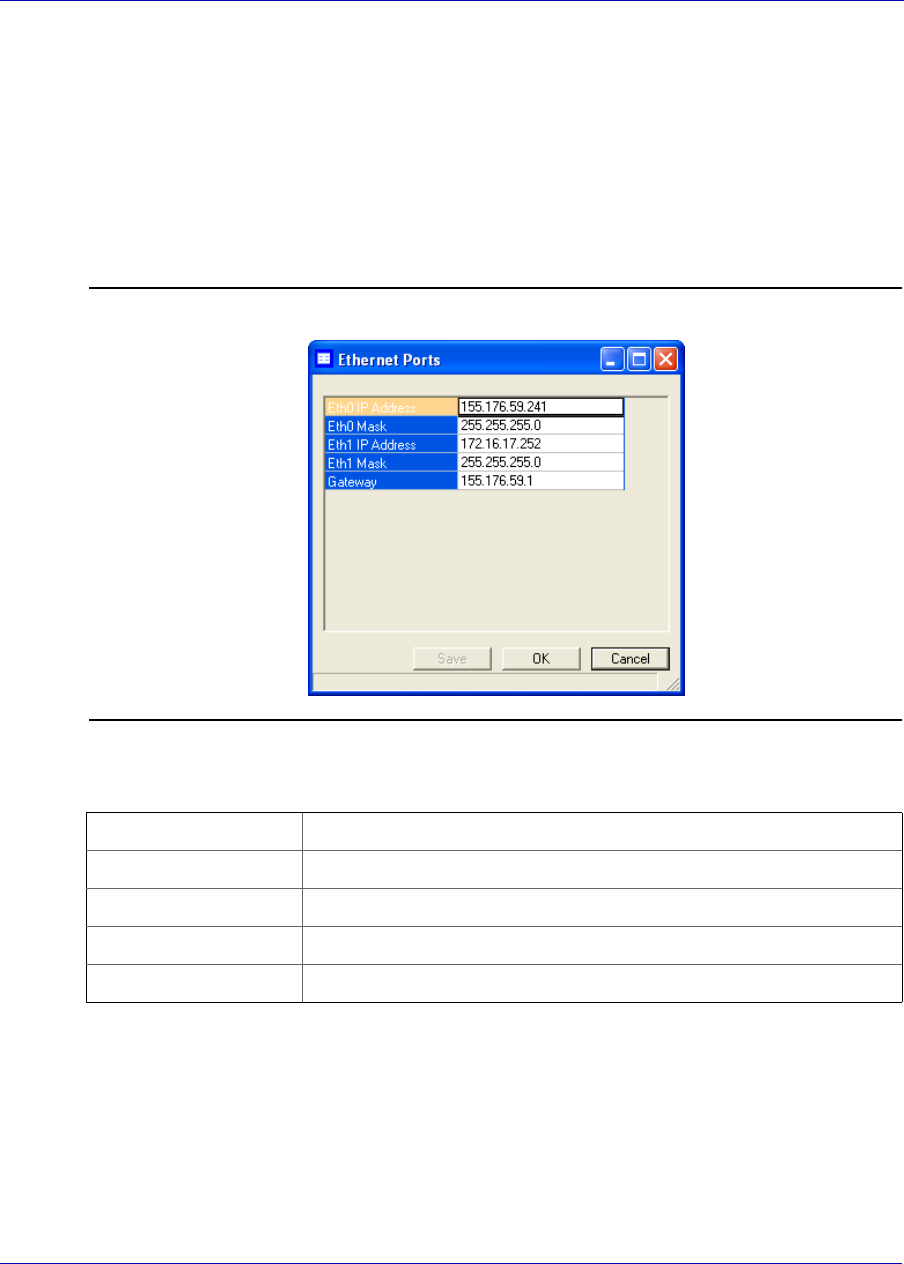
MON20/20 Software for Gas Chromatographs User Manual
SEPTEMBER 2010 3-9000-745
4-95
4.13 Configuring the gas chromatograph’s Ethernet port
The 700XA has two ethernet ports that can be used to connect the GC
with MON 20/20.
To configure one or both ethernet ports, select Ethernet Ports... from
the Application menu. The Ethernet Ports window displays.
Figure 4-84. The Ethernet Ports window
The following table describes the ethernet ports’ parameters:
Eth0 IP Address IP address to use to connect to the GC at port Eth0.
Eth0 Mask Subnet mask for the IP address at port Eth0.
Eth1 IP Address IP address to use to connect to the GC at port Eth1.
Eth1 Mask Subnet mask for the IP address at port Eth1.
Gateway Default gateway address for the network.
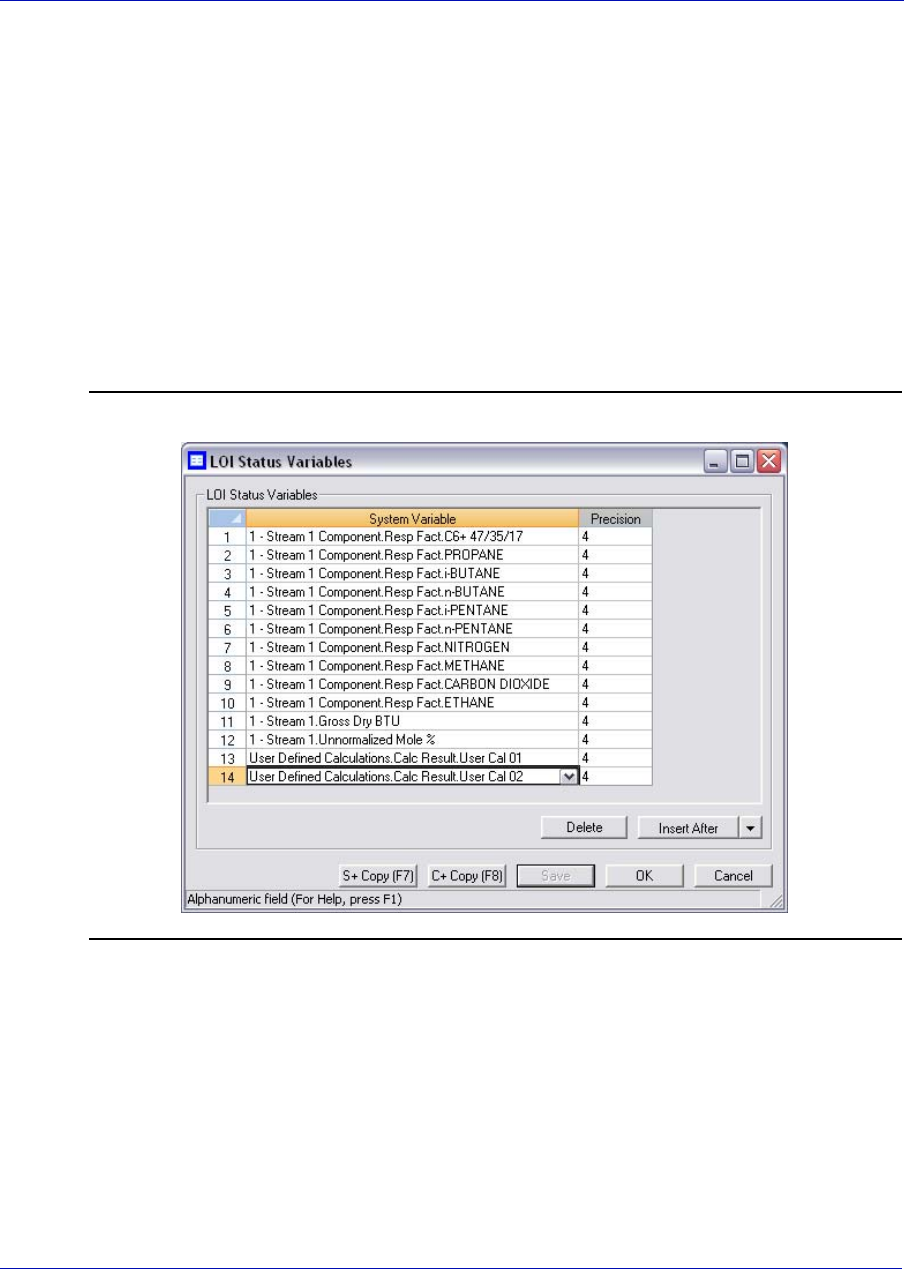
User Manual MON20/20 Software for Gas Chromatographs
3-9000-745 SEPTEMBER 2010
4-96
4.14 Working with local operator interface variables
Use this window to select and configure up to 25 GC parameters that you
would like to monitor using the LOI’s Display mode. Refer to the 700XA
Gas Chromatograph System Reference Manual (P/N# 3-9000-744) for
more information about the LOI.
To set an LOI parameter, do the following:
1. Select LOI Status Variables... from the Application menu. The
LOI Status Variables window appears.
Figure 4-85. The LOI Status Variables window
2. Select a new variable by clicking on the appropriate drop-down list
under the Variable column. For a demonstration of how to use the
context-sensitive variable selector, see “Using the context-sensitive
variable selector” on page 1-42.
MON20/20 Software for Gas Chromatographs User Manual
SEPTEMBER 2010 3-9000-745
4-97
Note
If Include Mole Percents for current stream is checked, the maximum number of
variables you can select is five; if Include Mole Percents for current stream is not
checked, you can choose up to 25 variables.
3. To copy the stream settings from a highlighted row and apply them to
the next row, click S + Copy. This feature also increments the Stream
value to the next available stream—for instance, incrementing from
Stream 2 to Stream 8, per the GC application.
4. To copy the component settings from a highlighted row and apply
them to the next row, click C + Copy. This feature also increments the
Component value to the next available component—incrementing
from Ammonia to Benzene, per the GC application.
5. Enter a value in the Precision column to indicate the number of
decimal places to display for this particular variable. For component
concentrations, the range of possible Precision values is between 2 and
6. For all other variables, the range of possible values is between 0
and 6.
6. To save the changes without closing the window, click Save. To save
the changes and close the window, click OK.
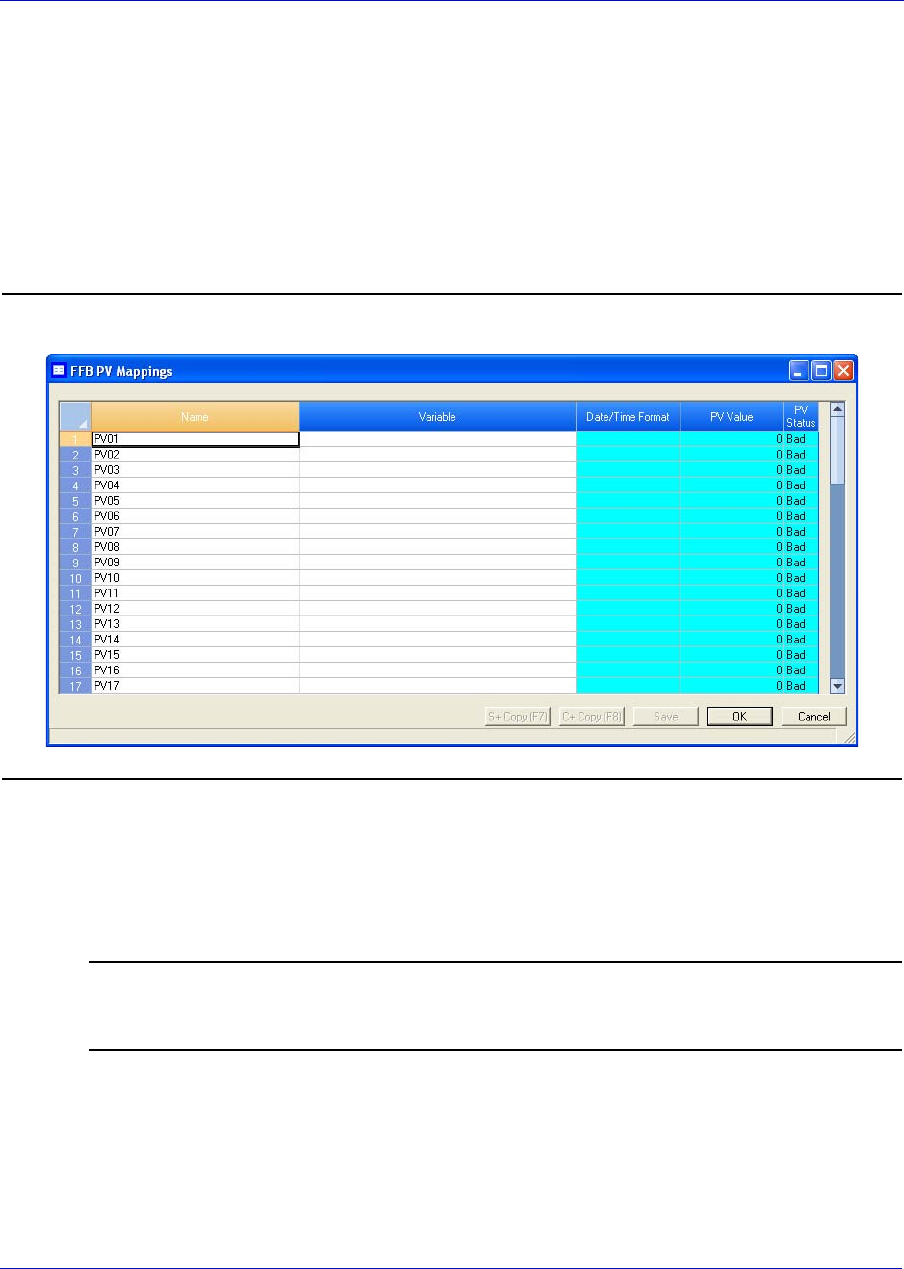
User Manual MON20/20 Software for Gas Chromatographs
3-9000-745 SEPTEMBER 2010
4-98
4.15 Mapping Foundation Fieldbus variables
To map a GC variable to a Foundation Fieldbus process variable (PV), do
the following:
1. Select FFB PV Mappings... from the Application menu. The FFB
PV Mappings window displays.
Figure 4-86. The FFB PV Mappings window
2. Select a new variable by clicking on the appropriate drop-down list
under the Variable column. For a demonstration of how to use the
context-sensitive variable selector, see “Using the context-sensitive
variable selector” on page 1-42.
Note
The PV Value column displays the current value of the GC variable indicated in the
Variable column.

MON20/20 Software for Gas Chromatographs User Manual
SEPTEMBER 2010 3-9000-745
4-99
Note
The PV Status column indicates the state of the data displayed in the PV Value column.
If the data was generated under predictable conditions, then the status for all mapped
process variables will be Good; if the data was generated under unpredictable
conditions—that is, if any alerts were triggered during the analysis cycle—then the
status for all mapped process variables will be Bad, because the GC cannot guarantee
the results of the analysis.
3. To copy the stream settings from a highlighted row and apply them to
the next row, click S + Copy. This feature also increments the Stream
value to the next available stream—for instance, incrementing from
Stream 2 to Stream 8, per the GC application.
4. To copy the component settings from a highlighted row and apply
them to the next row, click C + Copy. This feature also increments the
Component value to the next available component—incrementing
from Ammonia to Benzene, per the GC application.
5. If necessary, enter a date or time format into the Date/Time Format
column.
6. To save the changes without closing the window, click Save. To save
the changes and close the window, click OK.

User Manual MON20/20 Software for Gas Chromatographs
3-9000-745 SEPTEMBER 2010
4-100
This page is intentionally left blank.
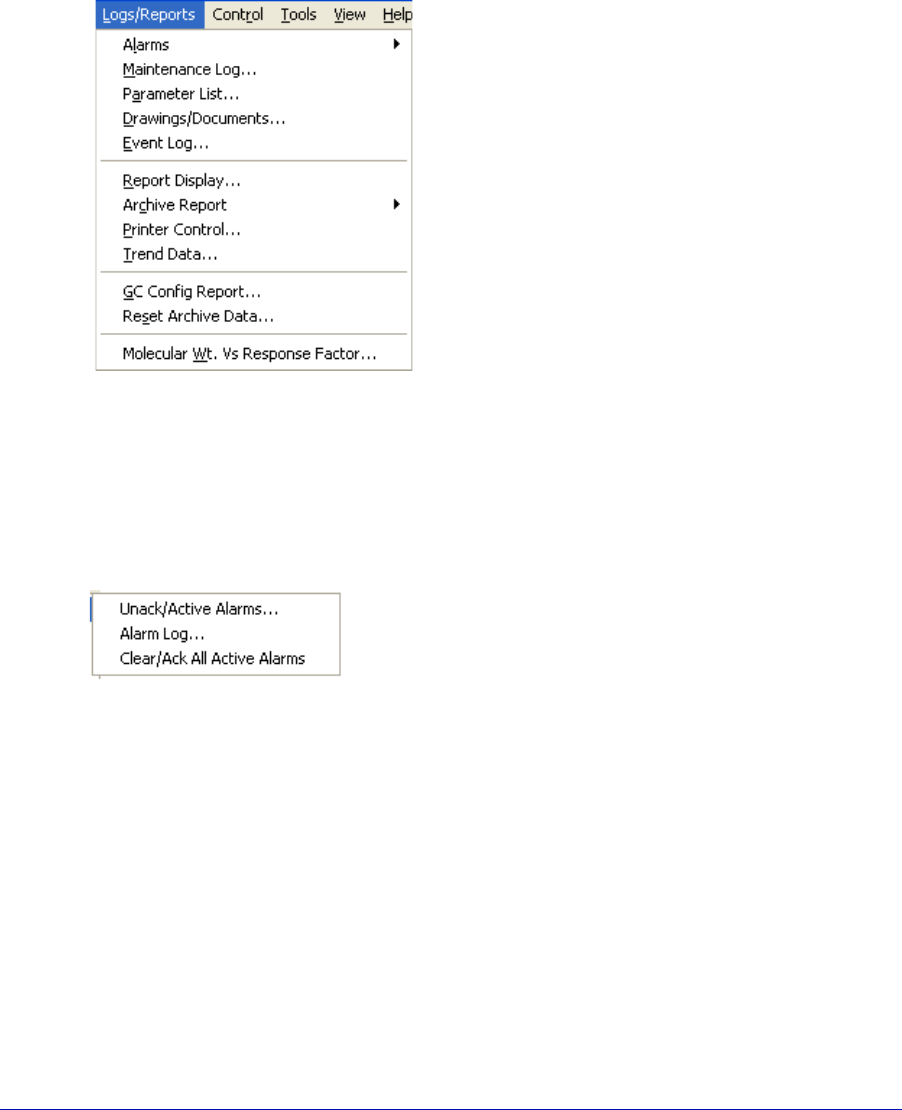
5-1
Section 5: Logs and reports
The options in the Logs/Reports menu
allow you to do the following:
•Keep a maintenance record.
•Keep a parameter record.
• View alarm, system and event logs.
•View and print trend data.
•View the GC Config report.
•View relevants drawings and diagrams.
•View archived analysis, calibration and
averages reports.
•Configure how and when certain
reports are printed.
5.1 Viewing and clearing alarms
Use this menu to view and/or clear
unacknowledged and active alarms, as well as
to view the Alarm Log.
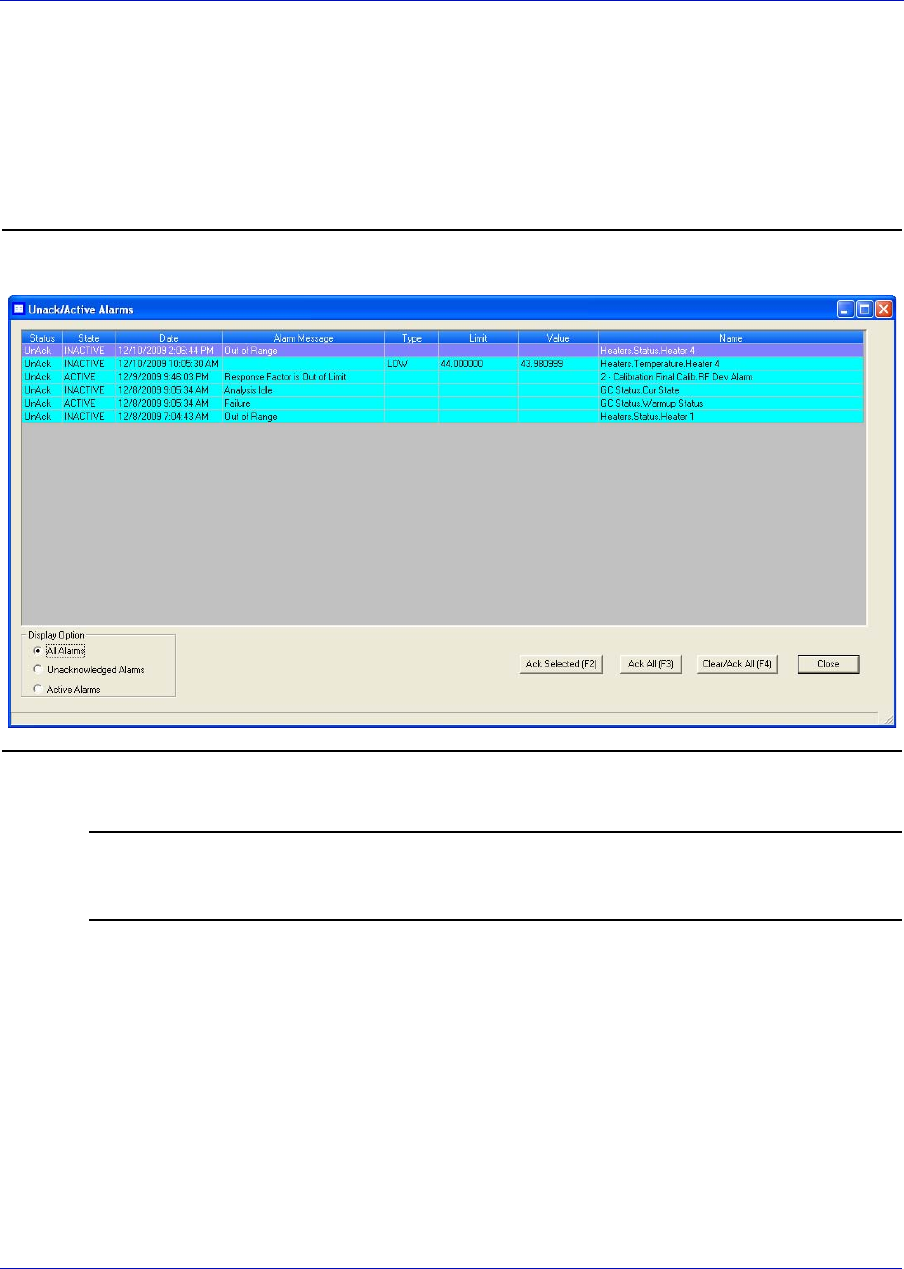
User Manual MON20/20 Software for Gas Chromatographs
3-9000-745 SEPTEMBER 2010
5-2
5.1.1 Viewing unacknowledged and active alarms
To view unacknowledged and active alarms, select Logs/Reports →
Alarms → Unack/Active Alarms.... The Unack/Active Alarms window
displays.
Figure 5-1. The Unack/Active Alarms window
Note
Double-clicking on the GC Status Bar from the main window also displays the Unack/
Active Alarms window.
There are three display options for viewing alarms on this window:
• To view both unacknowledged alarms and active alarms, check All
Alarms.
• To view unacknowledged alarms only, check Unacknowledged
Alarms.
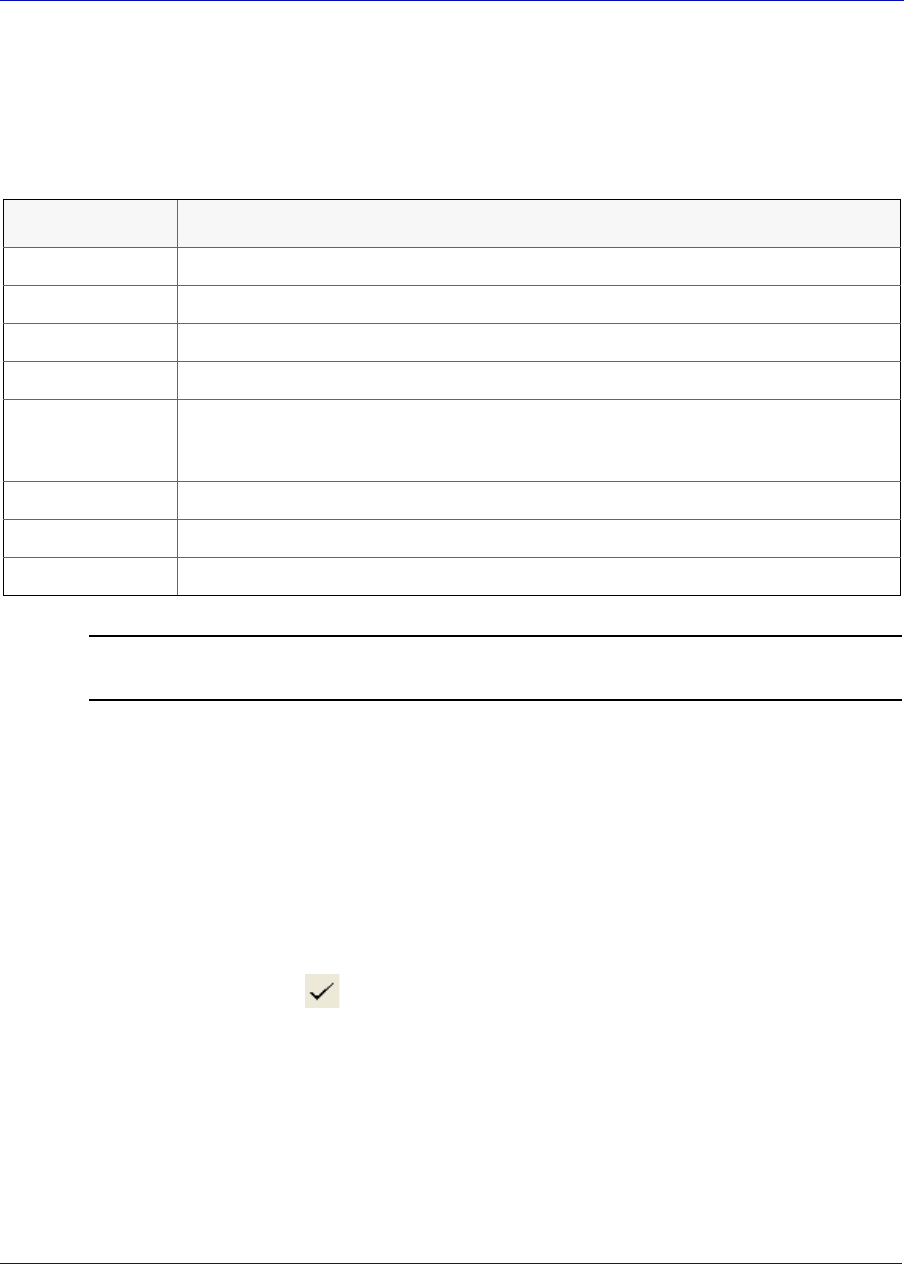
MON20/20 Software for Gas Chromatographs User Manual
SEPTEMBER 2010 3-9000-745
5-3
• To view active alarms only, check Active Alarms. This is the default
display option.
The Unack/Active Alarms window supplies the following data for each
alarm:
Note
Discrete alarms do not display Type, Limit, or Value data.
5.1.2 Acknowledging and clearing alarms
There are three ways to acknowledge and clear alarms:
• To acknowledge and clear alarms without viewing them, select Logs/
Reports → Alarms → Clear/Ack All Active Alarms.
• Another method to acknowledge and clear alarms without viewing
them is to click from the Toolbar.
• To view the alarms before acknowledging and clearing them, select
Logs/Reports → Alarms → Unack/Active Alarms.... The Unack/
Active Alarms window provides several options:
• To acknowledge an alarm, select it and then click Ack Selected
(F2).
Name Description
Status Indicates whether the alarm has been acknowledged or not.
State Indicates whether the alarm is ACTIVE or INACTIVE.
Date Indicates the date and time at the GC when the alarm condition began.
Alarm Message Describes the alarm condition.
Type Indicates whether a high limit or low limit alarm was trigger:
•HI means a high limit alarm was triggered.
•LO means a high limit alarm was triggered.
Limit Indicates the value that was set as the trigger for the alarm.
Value Indicates the current status value being output by the device.
Name Indicates the name of the variable that triggered the alarm.
User Manual MON20/20 Software for Gas Chromatographs
3-9000-745 SEPTEMBER 2010
5-4
Note
An alarm triggered by a user-defined value will continue to display as an active alarm
until that value is no longer in the alarm state.
• To acknowledge all the alarms displayed on the window, click Ack
All (F3).
• To acknowledge all the alarms displayed on the window and then
remove them from the table, click Clear/Ack All (F4).
Note
If an alarm is cleared before the condition has been resolved, MON 20/20 redisplays the
alarm entry as an active alarm.
5.1.3 Viewing the alarm log
The Alarm Log records every alarm triggered from the GC. The Alarm
Log window gives you the option of viewing the total list of alarms, or a
date-filtered list.
To view the Alarm Log, select Logs/Reports → Alarms → Alarm Log....
The Alarm Log window displays.
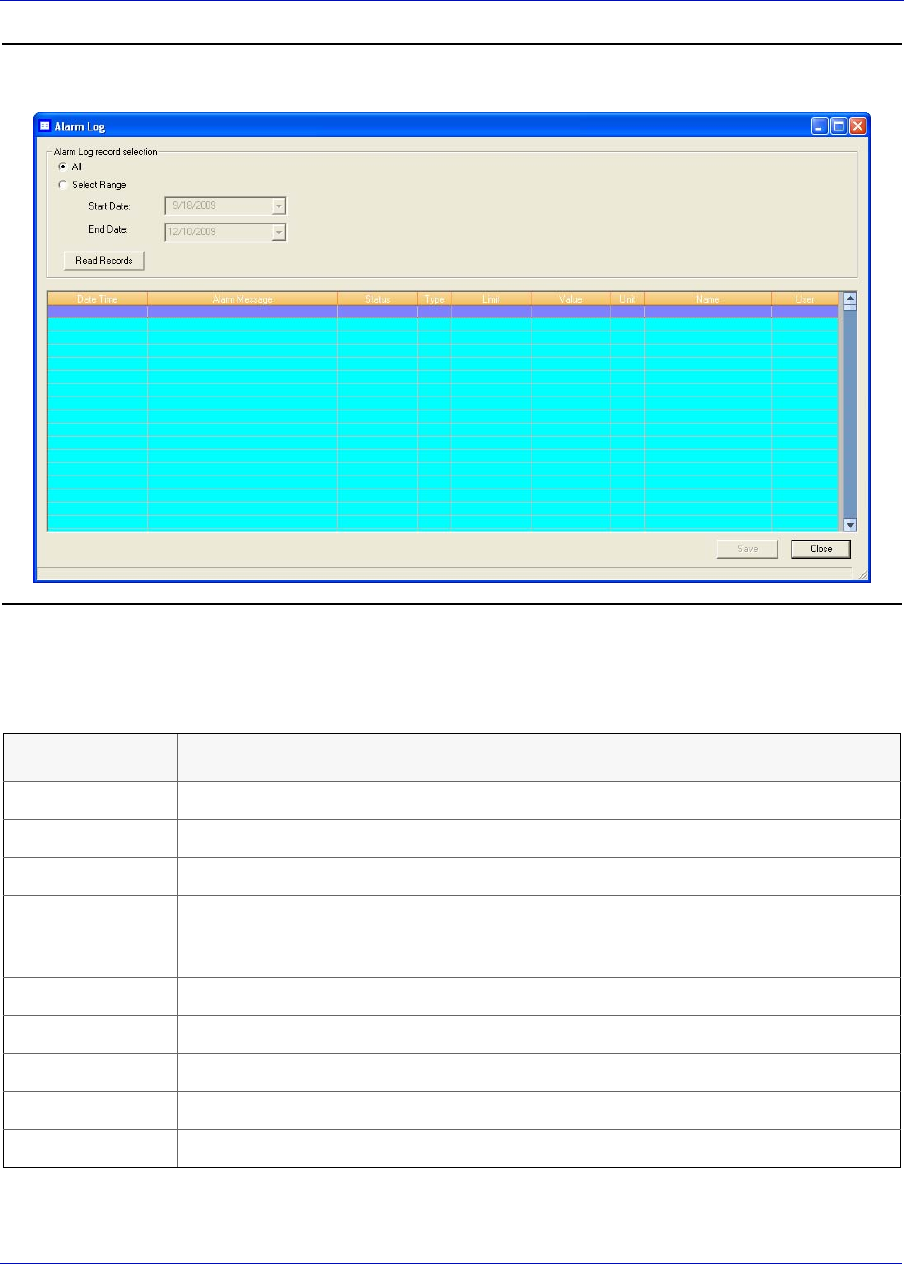
MON20/20 Software for Gas Chromatographs User Manual
SEPTEMBER 2010 3-9000-745
5-5
Figure 5-2. The Alarm Log window
The Alarm Log window supplies the following data for each alarm:
Name Description
Date Indicates the date and time at the GC when the alarm condition began.
Alarm Message Describes the alarm condition.
Status Indicates whether the alarm is SET (active) or CLR (inactive).
Type Indicates whether a high limit or low limit alarm was trigger:
•High means a high limit alarm was triggered.
•Low means a high limit alarm was triggered.
Limit Indicates the value that was set as the trigger for the alarm.
Value Indicates the current status value being output by the device.
Unit If applicable, unit of measurement for the displayed values.
Name Indicates the name of the variable that triggered the alarm.
User Indicates which user made the change.
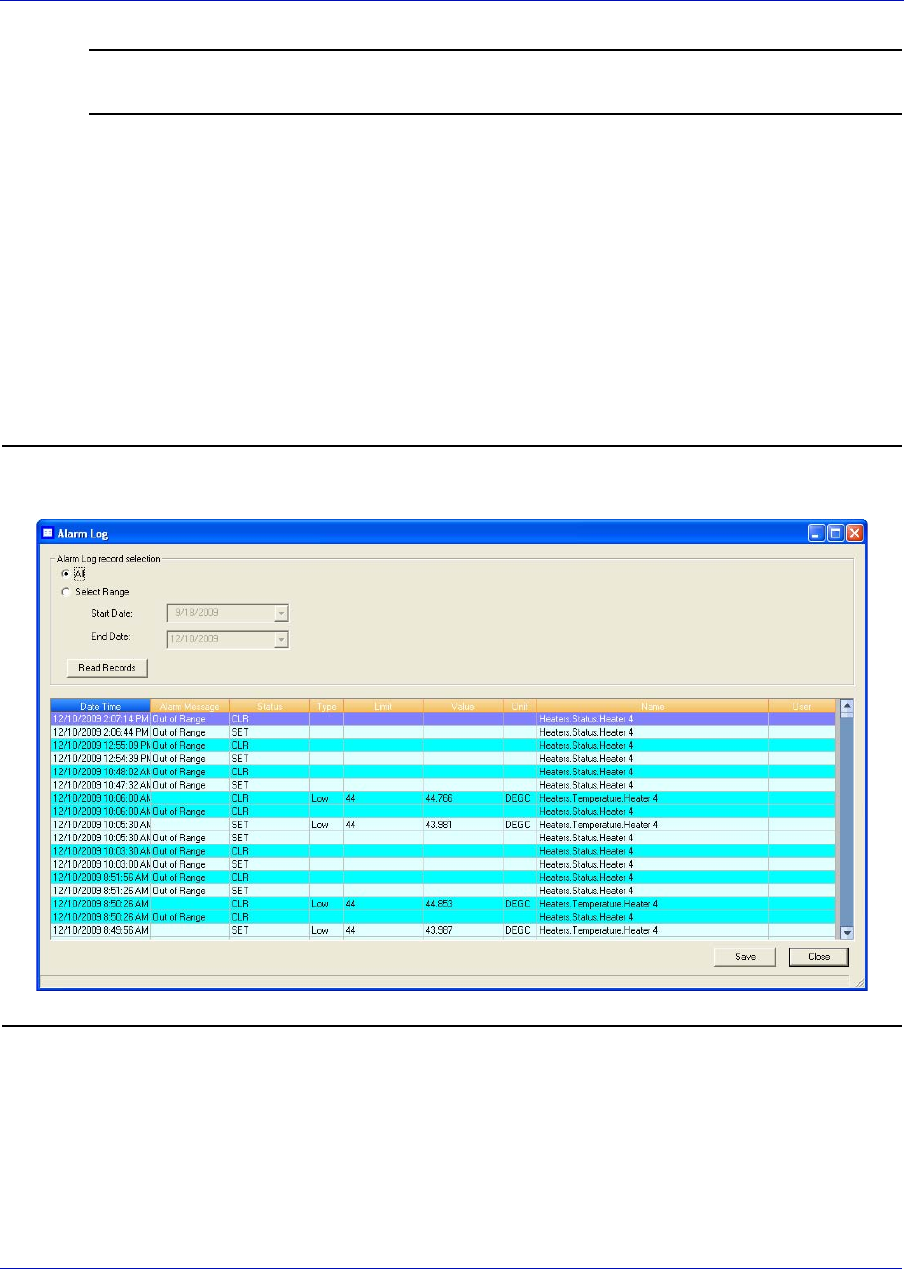
User Manual MON20/20 Software for Gas Chromatographs
3-9000-745 SEPTEMBER 2010
5-6
Note
Discrete alarms do not display Type, Limit, or Value data.
To view a list of alarms, do the following:
1. To view all alarms, select the All checkbox. Otherwise, select the
Select Range checkbox and use the Start Date and End Date drop-
down boxes to select a date range.
2. Click Read Records. The list of alarms display with the most recent
alarm at the top and the oldest alarm at the bottom. The alarms are
also sorted and color-coded by time so that alarms that occurred
simultaneously are grouped together.
Figure 5-3. The Alarm Log window
3. To save the list, click Save. The list can be saved in the following
formats:
• Tab-Delimited (.txt)
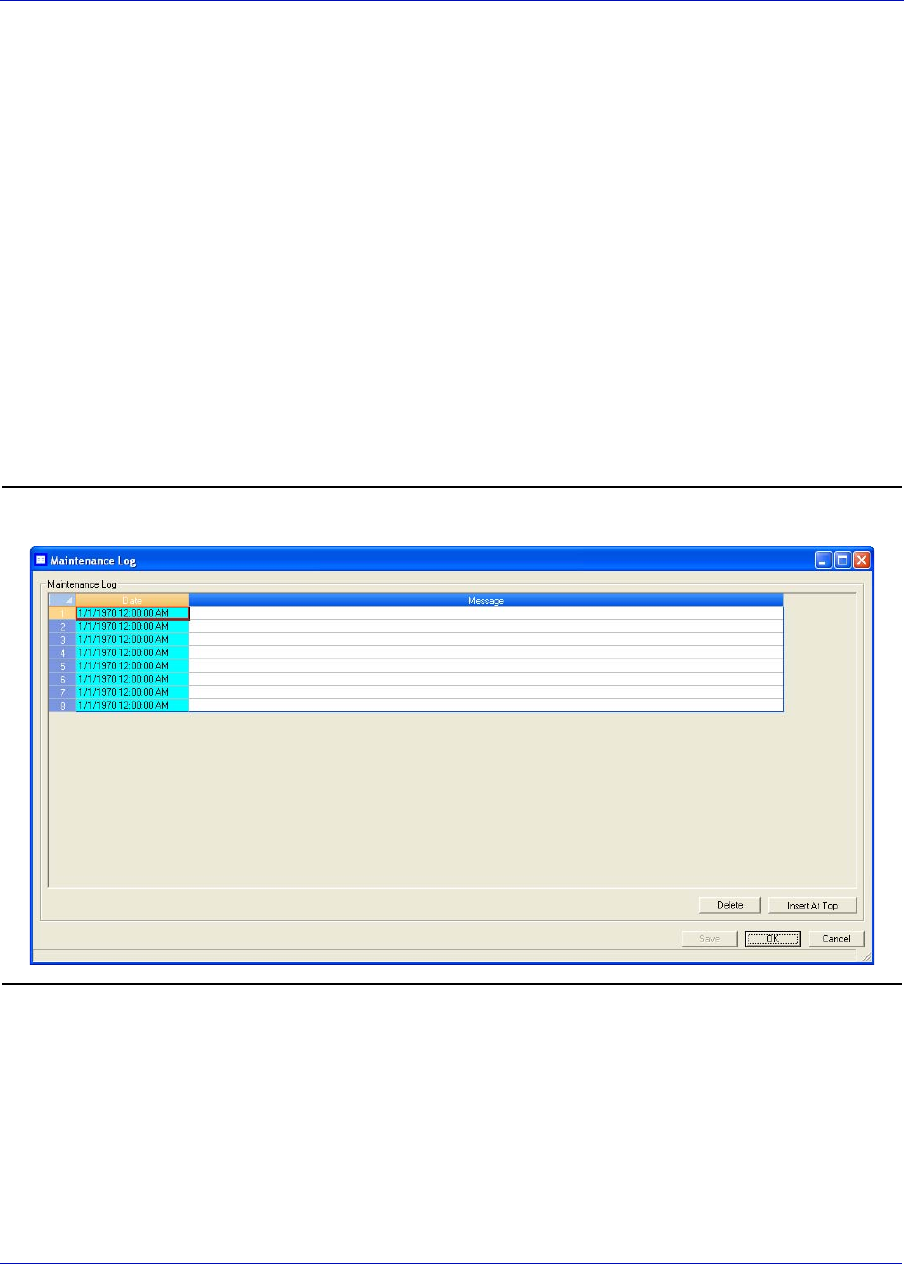
MON20/20 Software for Gas Chromatographs User Manual
SEPTEMBER 2010 3-9000-745
5-7
• Comma-Delimited (.csv)
• Microsoft Excel (.xls)
• HTML File (.html)
•XML File (.xml)
4. To close the window, click Close.
5.2 Viewing the maintenance log
Use this function to manually record and track maintenance activities
performed on a given GC unit.
To view the maintenance log, select Maintenance Log... from the Log/
Reports menu.
Figure 5-4. The Maintenance Log window
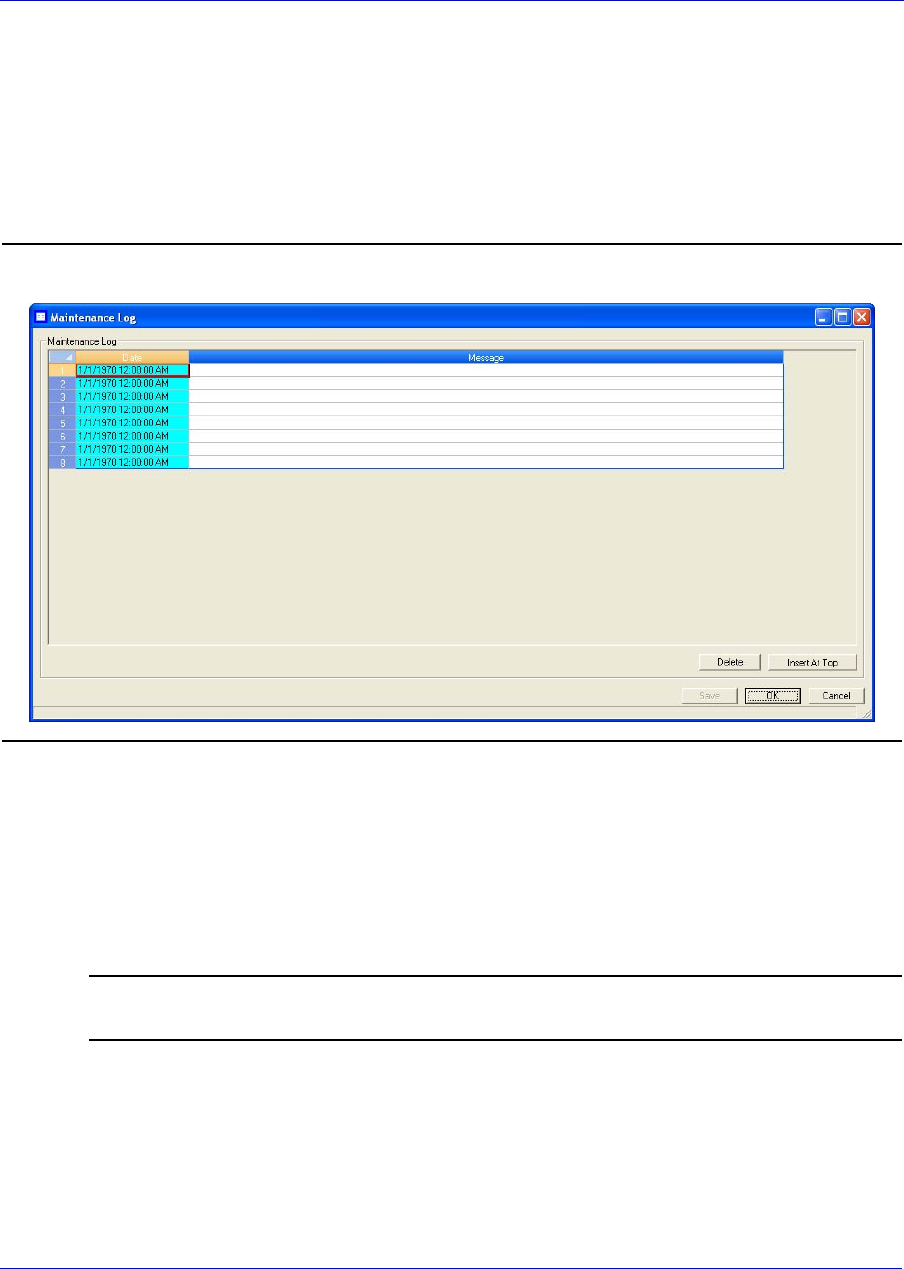
User Manual MON20/20 Software for Gas Chromatographs
3-9000-745 SEPTEMBER 2010
5-8
5.2.1 Adding an Entry to the Maintenance Log
To add an entry to the maintenance log, do the following:
1. Select Maintenance Log... from the Log/Reports menu. The
Maintenance Log window displays.
Figure 5-5. The Maintenance Log window
2. Click Insert At Top. A new row appears on the maintenance log
table. The Date field contains the GC’s current date and time, and is
editable.
3. Double-click the Message cell and enter the relevant information for
the log entry.
Note
NOTE: To edit an old log entry, click on it and the cell will become editable.
4. To save the changes and keep the window open, click Save. To save
the changes and close the window, click OK.
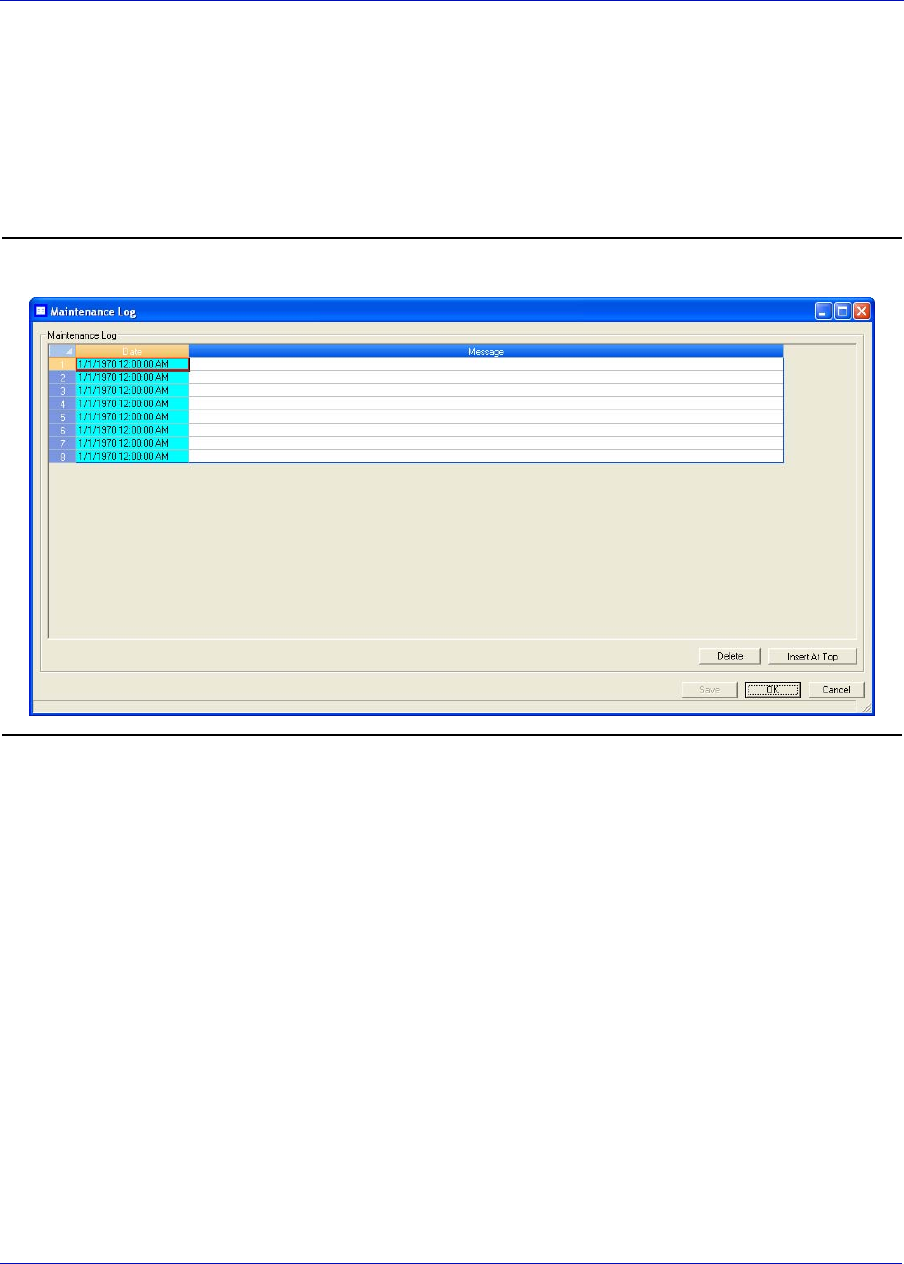
MON20/20 Software for Gas Chromatographs User Manual
SEPTEMBER 2010 3-9000-745
5-9
5.2.2 Deleting an entry from the maintenance log
To delete an entry from the maintenance log, do the following:
1. Select Maintenance Log... from the Log/Reports menu. The
Maintenance Log window displays.
Figure 5-6. The Maintenance Log window
2. Select the entry that you want to delete.
3. Click Delete. The entry is removed from the maintenance log.
4. To save the changes and keep the window open, click Save. To save
the changes and close the window, click OK.

User Manual MON20/20 Software for Gas Chromatographs
3-9000-745 SEPTEMBER 2010
5-10
5.3 Working with the parameter list
Use this feature to keep a record of the hardware components and
associated parameters for a given GC.
The Parameter List is a Microsoft Excel document that can be viewed and
edited from MON 20/20. Before attempting to edit the document, be sure
to review it first to get an idea of what sorts of data it contains.
The Parameter List may contain one or all of the following pages:
• Cover Sheet
• TE Rework
• App Data
• Programming
• Strm Data
•Col Data
• Cal Std Data
5.3.1 Viewing and editing the parameter list
To view and edit the Parameter List, do the following:
1. Select Parameter List... from the Logs/Reports menu. The
Parameter List window displays.
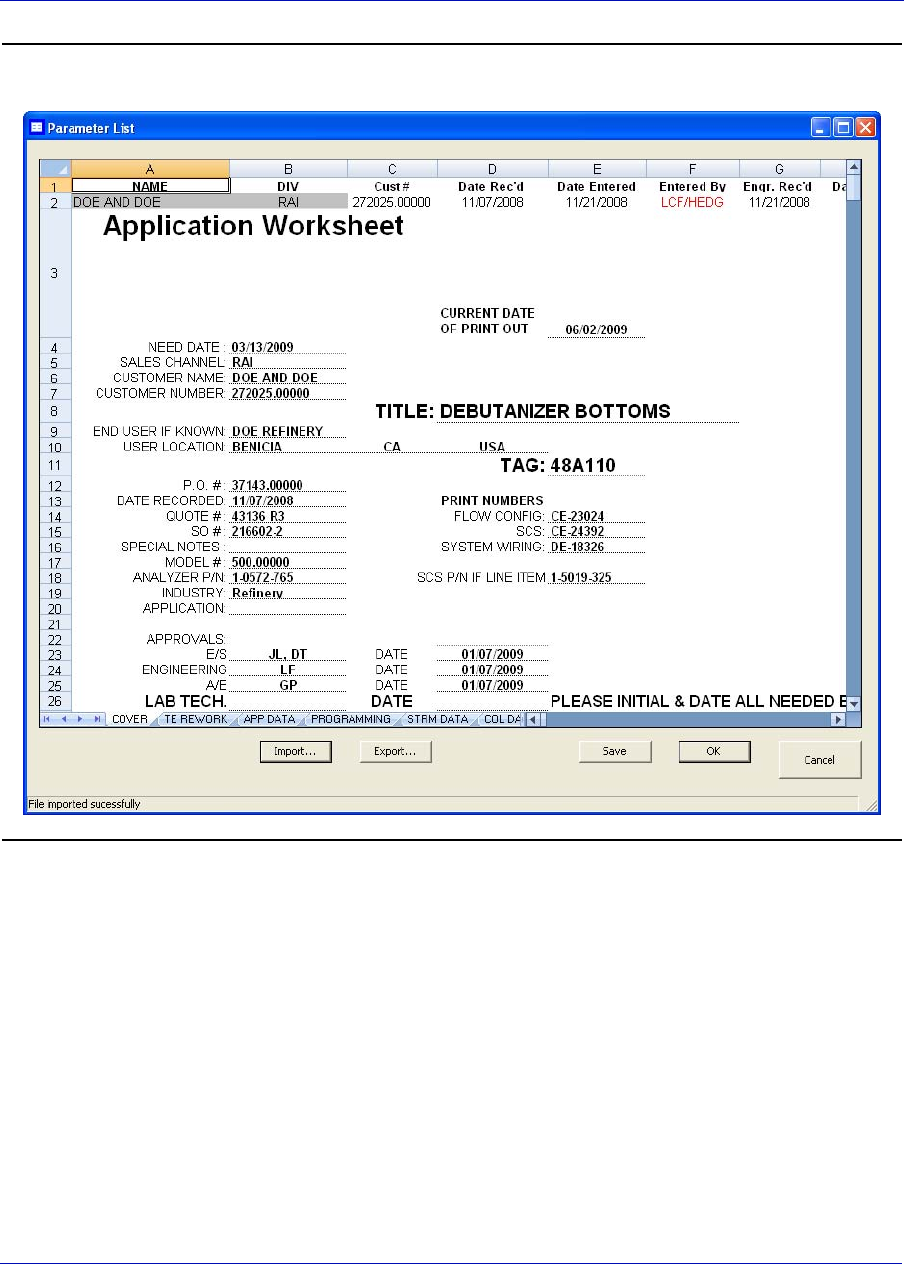
MON20/20 Software for Gas Chromatographs User Manual
SEPTEMBER 2010 3-9000-745
5-11
Figure 5-7. The Parameter List window
2. Make your changes to the Parameter List.
3. To save the changes and keep the window open, click Save. To save
the changes and close the window, click OK.
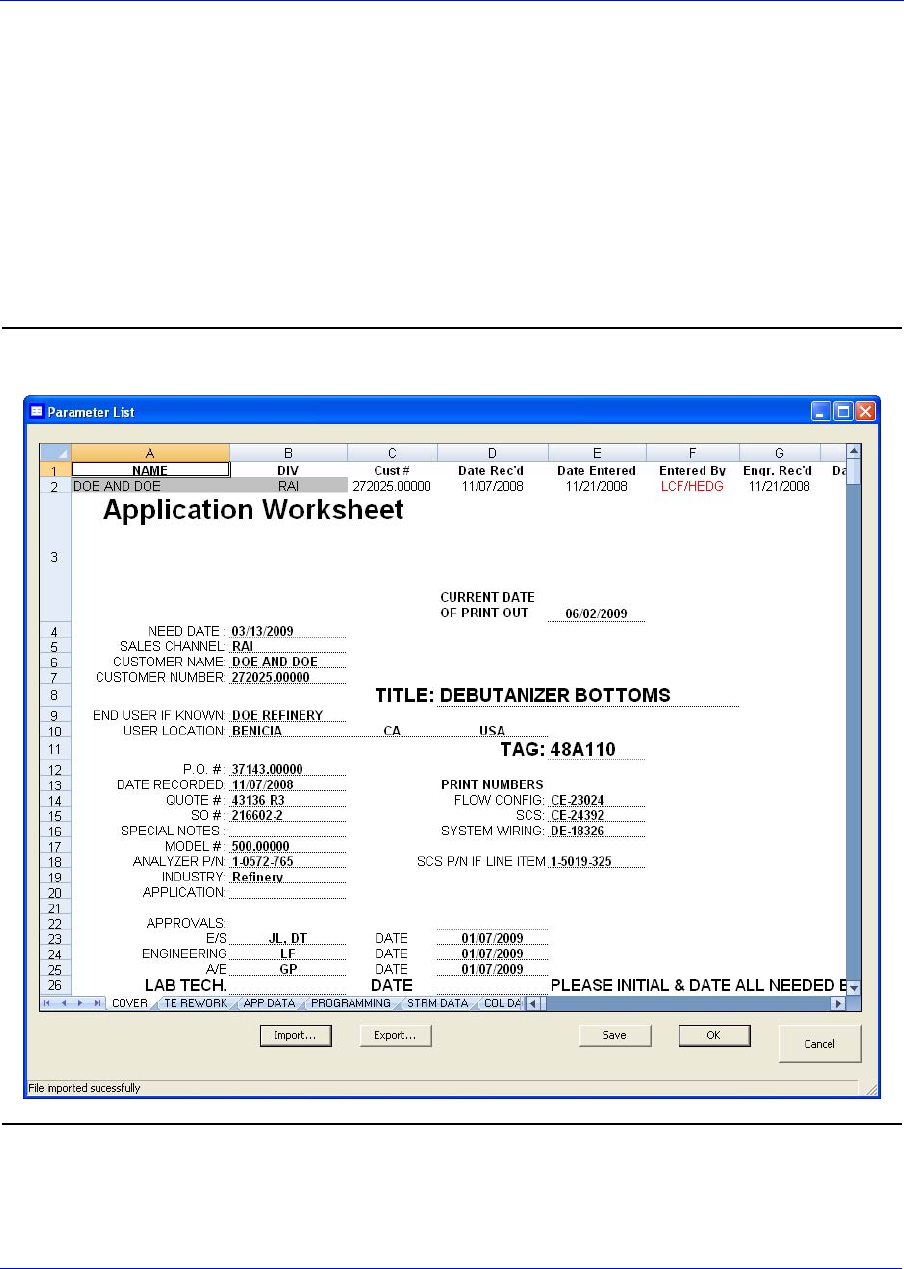
User Manual MON20/20 Software for Gas Chromatographs
3-9000-745 SEPTEMBER 2010
5-12
5.3.2 Importing and exporting the parameter list
The Parameter List is a Microsoft Excel document and is therefore saved
with the .xls extension.
To import a Parameter List, do the following:
1. Select Parameter List... from the Logs/Reports menu. The
Parameter List window displays.
Figure 5-8. The Parameter List window

MON20/20 Software for Gas Chromatographs User Manual
SEPTEMBER 2010 3-9000-745
5-13
2. Click Import.... The Open dialog displays.
3. Locate and select the Parameter List that you want to import.
4. Click Open and the document will be imported and displayed in the
Parameter List window.
5. To save the changes and keep the window open, click Save. To save
the changes and close the window, click OK. This Parameter List will
now be displayed by default whenever Parameter List... is selected
from the Logs/Reports menu.
To export the Parameter List, do the following:
1. Click Export.... The Save as dialog displays.
2. Navigate to the folder to which you want to save the file.
3. Click Save. The Parameter List will be saved with the .xls extension.
4. To save the changes and keep the window open, click Save. To save
the changes and close the window, click OK. This Parameter List will
now be displayed by default whenever Parameter List... is selected
from the Logs/Reports menu.
5.4 Working with drawings and documents
Use this feature to access GC-related drawings and documents such as
flow diagrams, the GC's sales order, assembly drawings, and electrical
diagrams. These items are stored on the GC in the following formats:
•PDF
•TIFF
• GC Trend file (.xtrd)
• XA CGM file (.xcgm)
• XA Comparison file (.xcpm)
• GC Configuration file (.xcfg)
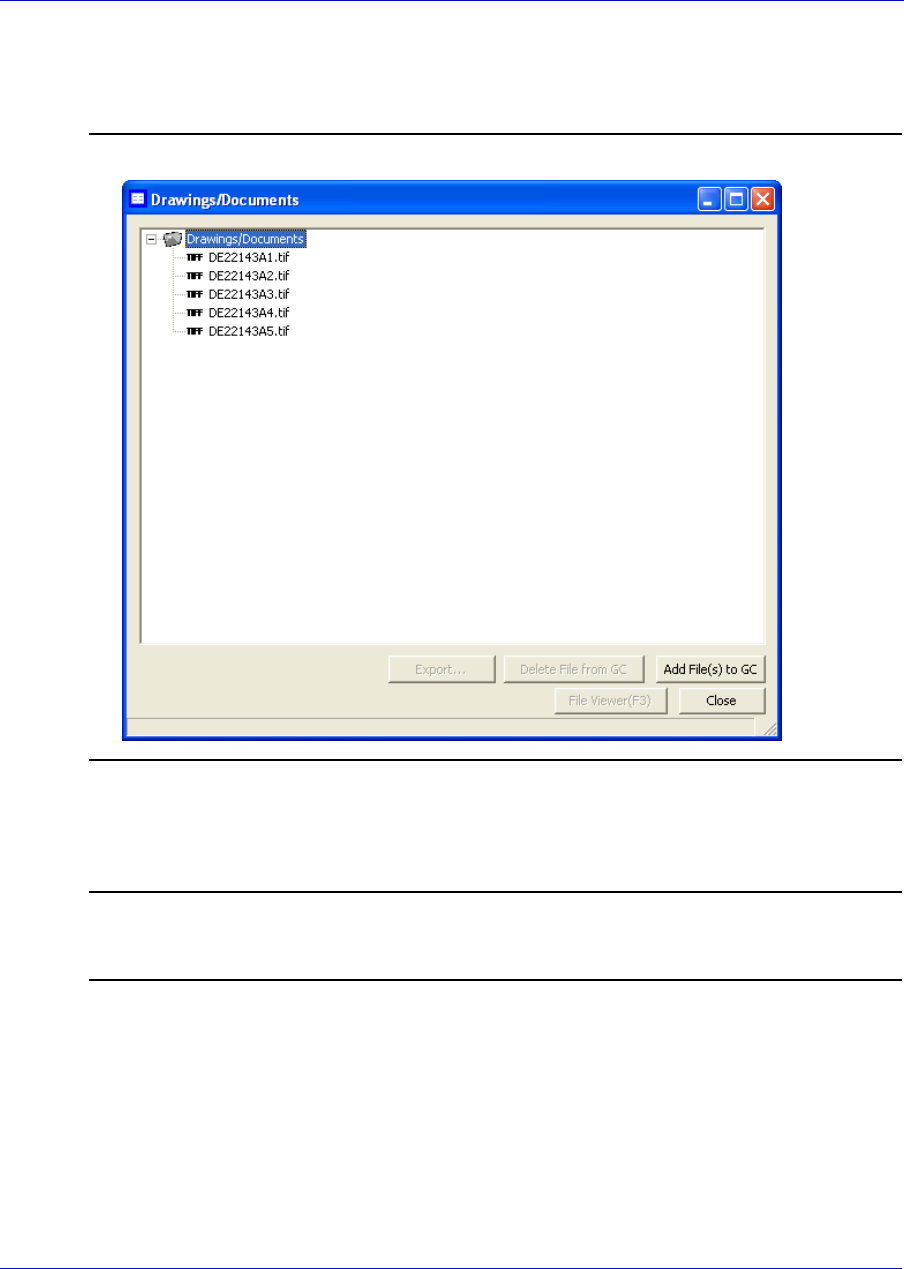
User Manual MON20/20 Software for Gas Chromatographs
3-9000-745 SEPTEMBER 2010
5-14
To find out which documents are available on the GC, select Drawings/
Documents... from the Logs/Reports menu. The Drawings/Documents
window displays.
Figure 5-9. The Drawings/Documents window
If the list of available documents does not display under Drawings/
Documents label, click the “+” beside the label.
Note
If no list displays under the Drawings/Documents label, and there is no “+” beside the
label, then this GC does not contain any documents.
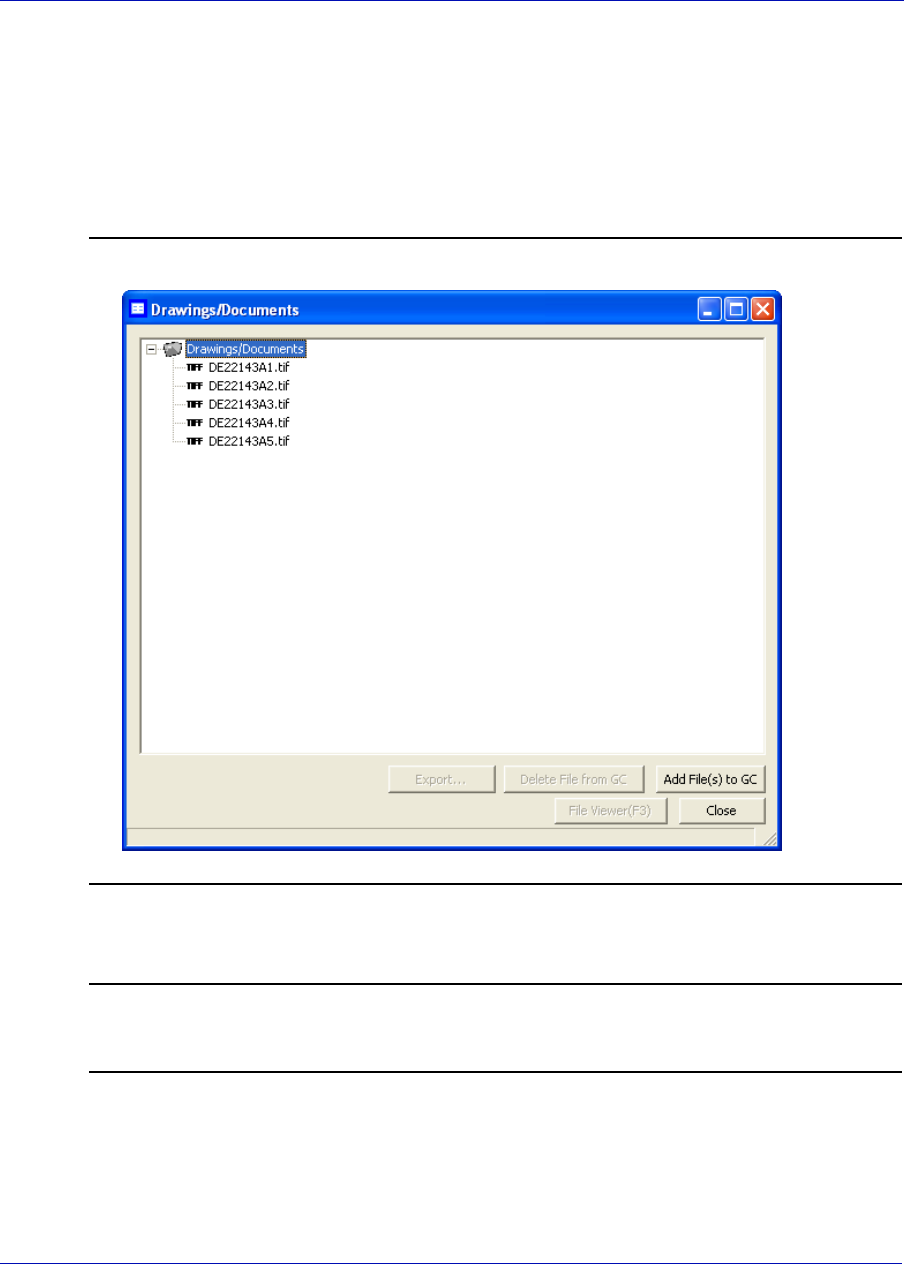
MON20/20 Software for Gas Chromatographs User Manual
SEPTEMBER 2010 3-9000-745
5-15
5.4.1 Viewing drawings or documents
To view a drawing, do the following:
1. Select Drawings/Documents... from the Logs/Reports menu. The
Drawings/Documents window displays.
Figure 5-10. The Drawings/Documents window
2. Select the drawing to view from the drop-down list.
Note
If no list displays under the Drawings/Documents label, and there is no “+” beside the
label, then this GC does not contain any documents.
3. Click File Viewer (F3). The drawing displays.
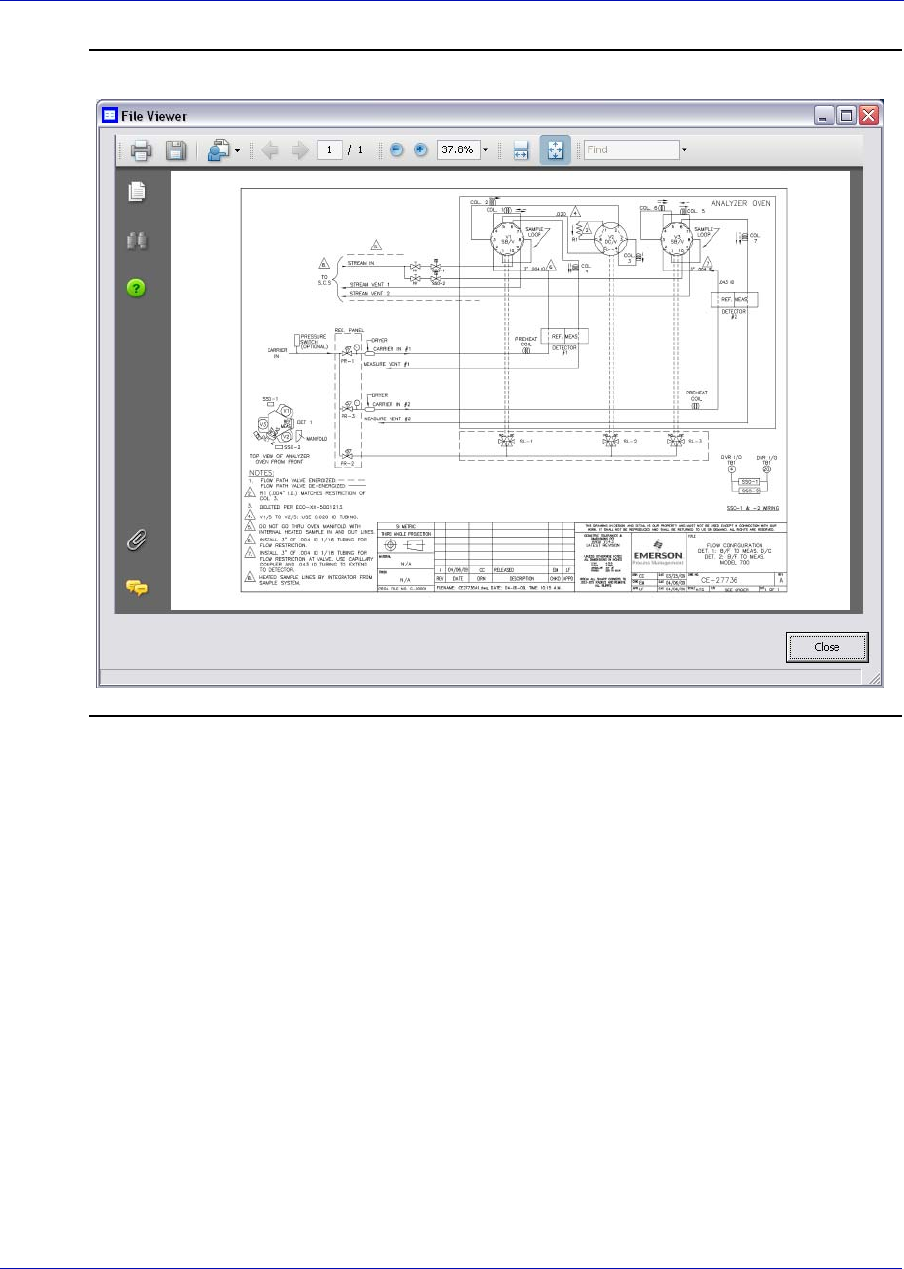
User Manual MON20/20 Software for Gas Chromatographs
3-9000-745 SEPTEMBER 2010
5-16
Figure 5-11. The File Viewer
4. Click Close to exit the window and to return to the Drawings/
Documents window.
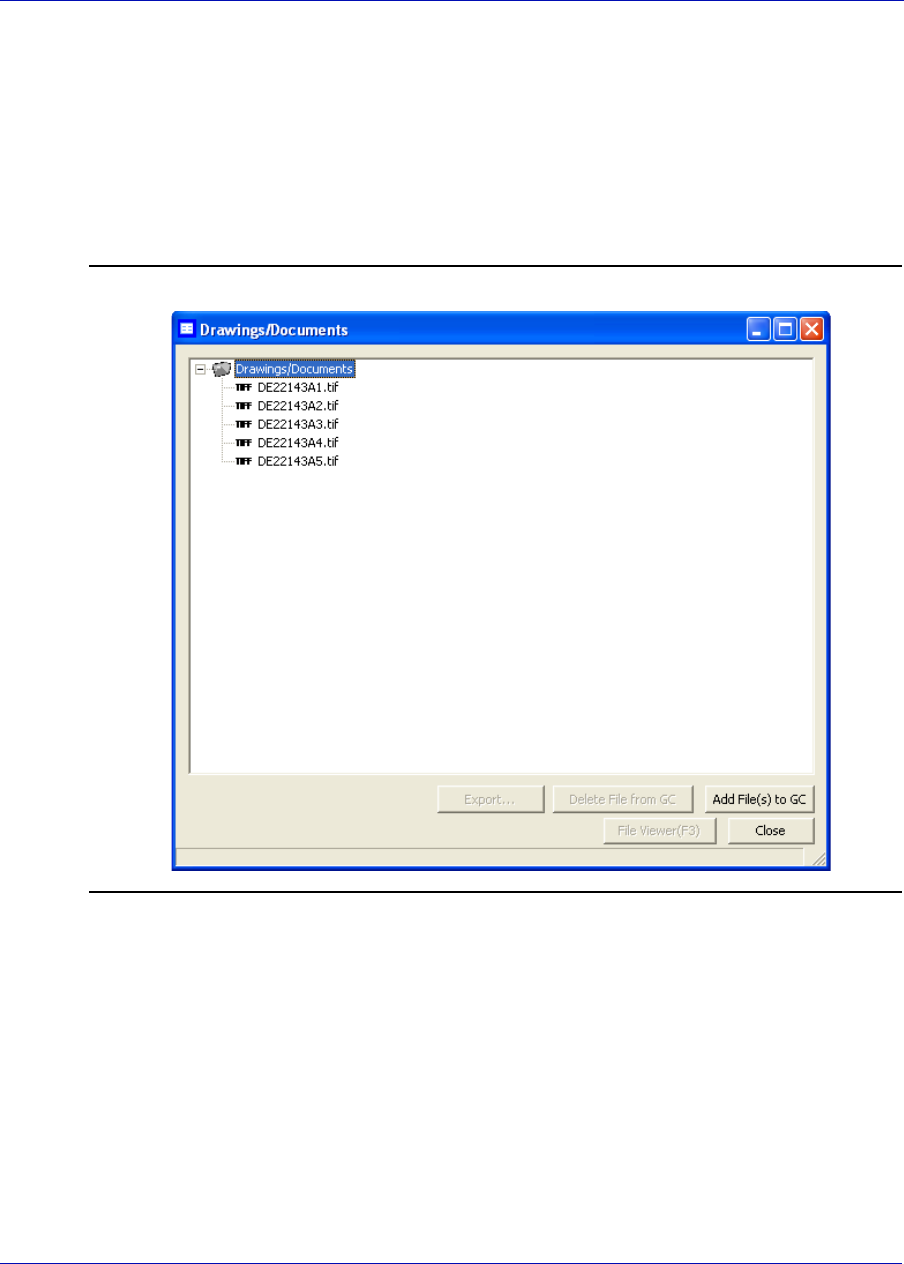
MON20/20 Software for Gas Chromatographs User Manual
SEPTEMBER 2010 3-9000-745
5-17
5.4.2 Adding files to the GC
To add files, such as new or updated drawings, to the GC, do the
following:
1. Select Drawings/Documents... from the Logs/Reports menu. The
Drawings/Documents window displays.
Figure 5-12. The Drawings/Documents window
2. Click Add File(s) to GC. The Open dialog displays.
3. Locate and select the file to add to the GC.
4. Click Open. The file will be saved to the GC and the Drawings/
Documents list will be updated.
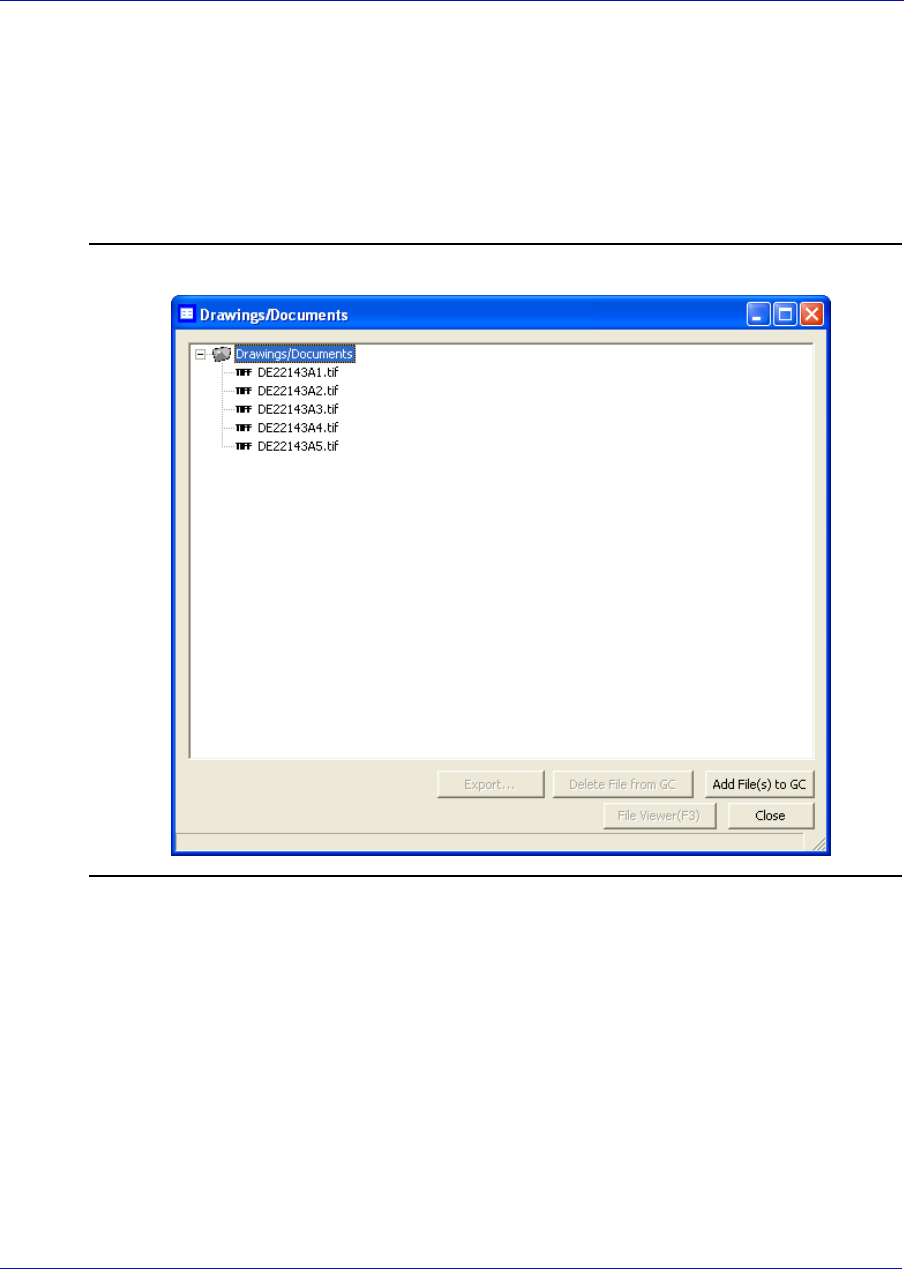
User Manual MON20/20 Software for Gas Chromatographs
3-9000-745 SEPTEMBER 2010
5-18
5.4.3 Deleting files from the GC
To delete drawings from the GC, do the following:
1. Select Drawings/Documents... from the Logs/Reports menu. The
Drawings/Documents window displays.
Figure 5-13. The Drawings/Documents window
2. Select the file to delete from the GC.
3. Click Delete File from GC. The Confirm message displays.
4. Click Yes. The file will be deleted from the GC and the Drawings/
Documents list will be updated.
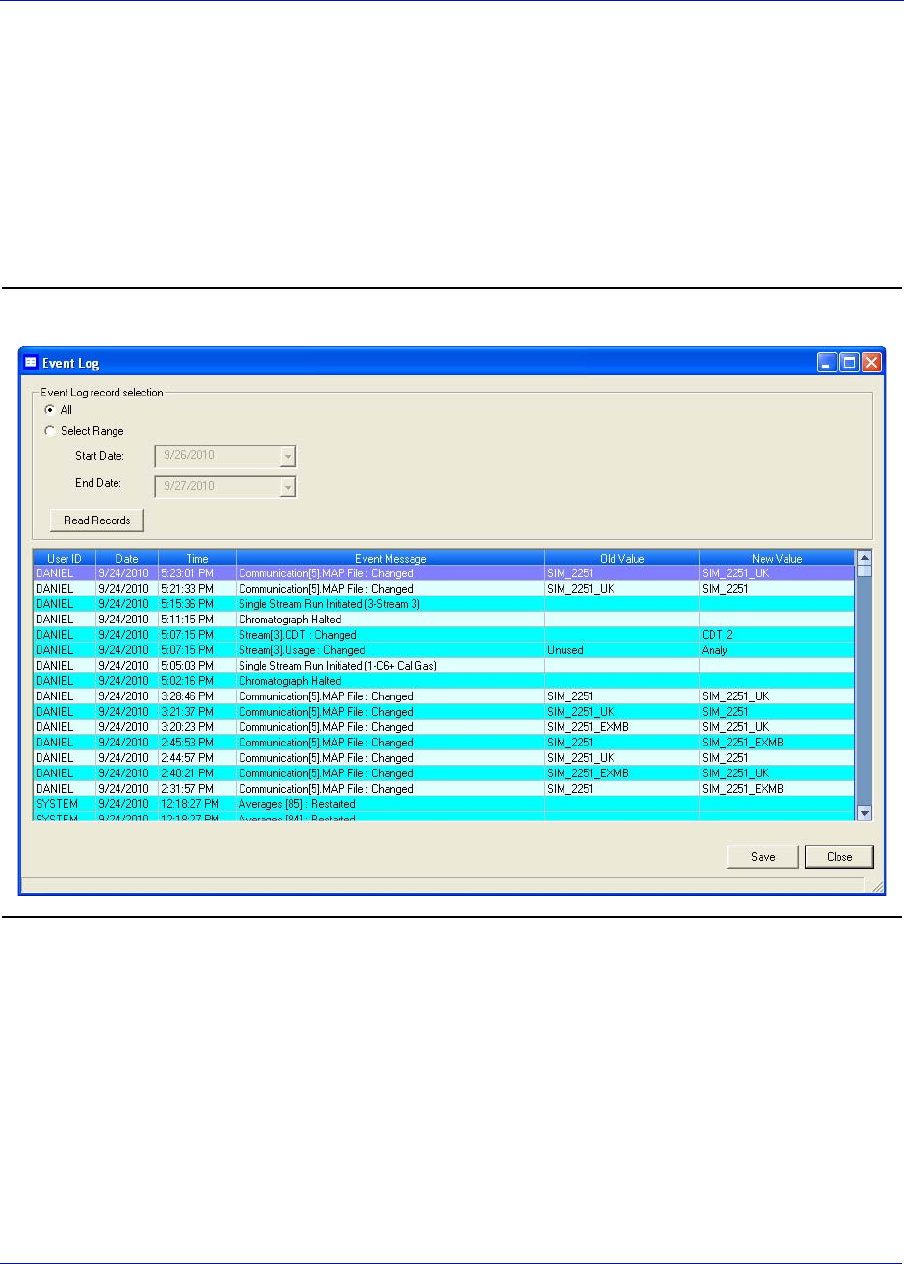
MON20/20 Software for Gas Chromatographs User Manual
SEPTEMBER 2010 3-9000-745
5-19
5.5 Viewing the event log
Use this function to track the changes that are made to the various tables
within the GC.
To view the Event Log, select Logs/Reports → Event Log.... The Event
Log window displays.
Figure 5-14. The Event Log window
User Manual MON20/20 Software for Gas Chromatographs
3-9000-745 SEPTEMBER 2010
5-20
The Event Log window gives you the option of viewing the total list of
change events, or a date-filtered list of events. The Event Log window
supplies the following data for each event:
To view the list of change events, do the following:
1. To view all events, select the All checkbox. Otherwise, select the
Select Range checkbox and use the Start Date and End Date drop-
down boxes to select a date range.
2. Click Read Records. The list of events display with the most recent
event at the top and the oldest event at the bottom. The events are
also sorted and color-coded by time so that events that occurred
simultaneously are grouped together.
Name Description
User ID Indicates which user made the change.
Date Indicates the date at the GC when the event occurred.
Time Indicates the time at the GC when the event occurred.
Event Message Provides a description of the event.
Old Value If applicable, indicates the value in the cell before the change.
New Value If applicable, indicates the value in the cell after change.
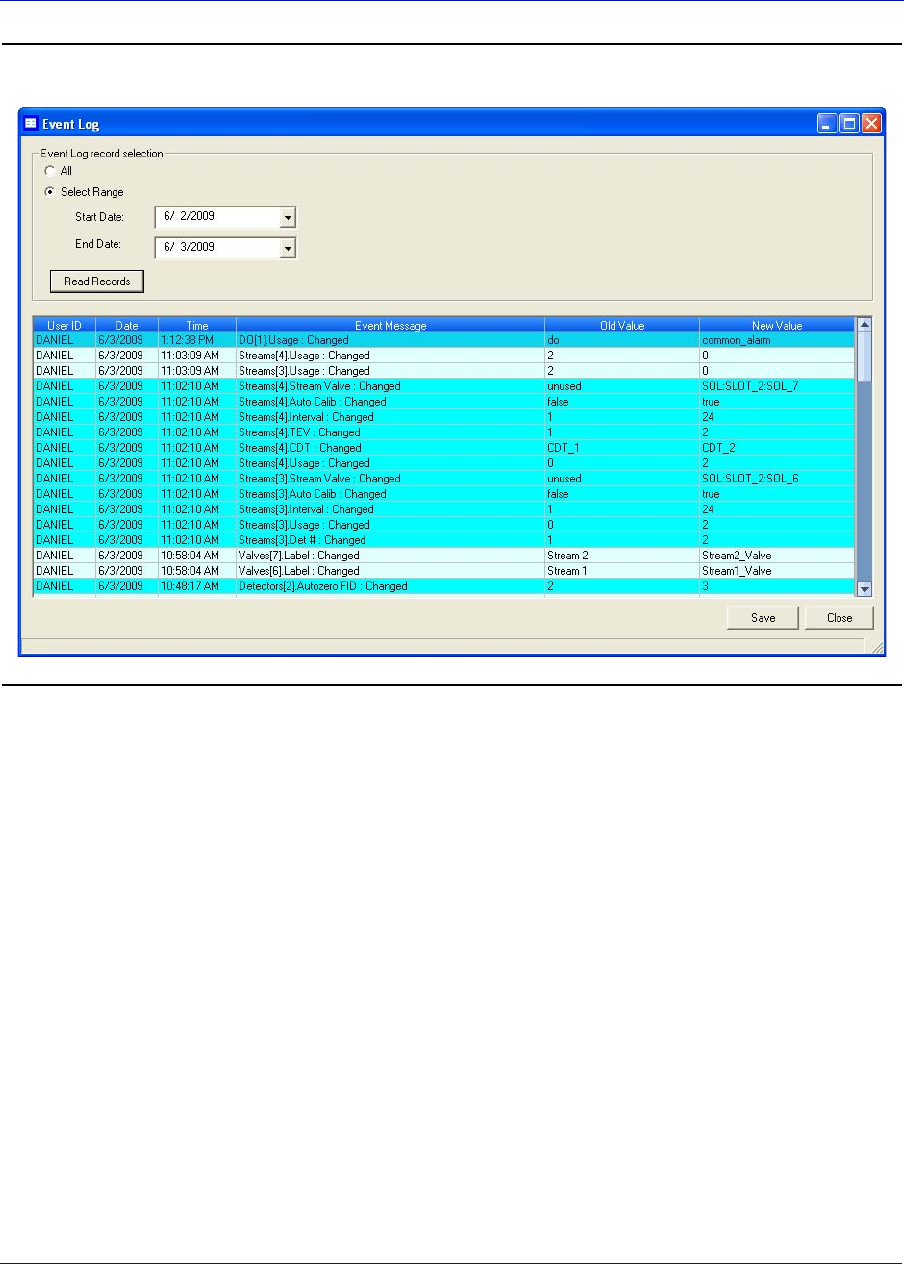
MON20/20 Software for Gas Chromatographs User Manual
SEPTEMBER 2010 3-9000-745
5-21
Figure 5-15. The Event Log
3. To save the list, click Save. The list can be saved in the following
formats:
• Tab-Delimited (.txt)
• Comma-Delimited (.csv)
• Microsoft Excel (.xls)
• HTML File (.html)
•XML File (.xml)

User Manual MON20/20 Software for Gas Chromatographs
3-9000-745 SEPTEMBER 2010
5-22
5.6 Displaying reports
This function allows you to immediately display, print, or store
preconfigured reports of GC analysis data. Data is reported in real-time
from the GC or from saved files.
5.6.1 Understanding report types
MON 20/20 can generate the following types of reports:
•Analysis: Displays a list of the components that were detected, based
on raw data. Displays a list of calculations for each component, based
on the table located at Application → Calculations → Control....
See “Setting standard calculations by stream” on page 4-37 for more
information.
There are two types of analysis reports: Analysis (GPA) and Analysis
(ISO). See page 5-25 for an example Analysis (GPA) report. See
page 5-26 for an example Analysis (ISO) report.
•Calibration: Displays a list of the components that were detected,
along with each component’s calibration concentration, raw data
value, new response factor, and new retention time. See page 5-27 for
an example report.
•Final Calibration: The Final Calibration report displays the list of
components along with each component’s old and new response
factors, and each component’s old and new retention times, based on
the averaged data. See page 5-28 for an example report.
•Validation: For the most recent validation cycle, displays the
Nominal Value, Allowed Percent Deviation, and the Measured Value
of each variable in the Validation Data table. See page 5-29 for an
example report.
Note
If the actual deviation is beyond the allowed amount, then the row will be flagged with
an *.

MON20/20 Software for Gas Chromatographs User Manual
SEPTEMBER 2010 3-9000-745
5-23
•Final Validation: For the most recent validation run, shows the
Nominal Value, Allowed Percent Deviation, and the Average Value of
each variable in the Validation Data table. See page 5-30 for an
example report.
Note
If the actual deviation is beyond the allowed amount, then the row will be flagged with
an *.
•Raw Data: Displays a list of data for each peak that was detected
during the run, including the retention time, peak area, and peak
height. See page 5-31 for an example report.
•Every Run: Displays a configurable list of calculations after each
run. See “Editing average calculations” on page 4-39 for more
information.
•Hourly: Displays a configurable list of average calculations each
hour, beginning at the time set in the Average Calculations window
at Application → Calculations → Averages.... See “Editing
average calculations” on page 4-39 for more information.
•24 Hour: Displays a configurable list of average calculations each
day, beginning at the time set in the Average Calculations window
at Application → Calculations → Averages.... See “Editing
average calculations” on page 4-39 for more information.
•Weekly: Displays a configurable list of average calculations each
week, beginning on the day set in the Average Calculations window
at Application → Calculations → Averages.... See “Editing
average calculations” on page 4-39 for more information.
•Monthly: Displays a configurable list of average calculations each
month, beginning on the day of the month set in the Average
Calculations window at Application → Calculations →
Averages.... See “Editing average calculations” on page 4-39 for more
information.
•Variable: Displays a configurable list of average calculations every
hour at the time entered in the Hours column in the Average
Calculations window at Application → Calculations →
Averages.... See “Editing average calculations” on page 4-39 for more
information.

User Manual MON20/20 Software for Gas Chromatographs
3-9000-745 SEPTEMBER 2010
5-24
Each report begins with the following header information:
•Date-Time: The GC’s date and time when the report was generated.
•Analysis Time: The duration, in seconds, of the analysis. Can be
configured at Application → Timed Events.... See “Setting the
cycle and analysis time” on page 4-29 for more information.
•Cycle Time: The duration, in seconds, between two consecutive
analyses. Can be configured at Application → Timed Events....
See “Setting the cycle and analysis time” on page 4-29 for more
information.
•Stream: The stream that was analyzed. Selected as part of the report
generation process. See “Viewing a saved report” on page 5-35 for
more information.
•Mode: Displays the operational status of the detector.
•Cycle Start Time: The date and time that the cycle started.
•Analyzer: Name of the GC that generated the data used for the
report.
•Stream Sequence: The identification and order of the streams that
were analyzed. Can be configured at Applications → Stream
Sequence.... See “Creating a stream sequence for a detector” on
page 4-78 for more information.
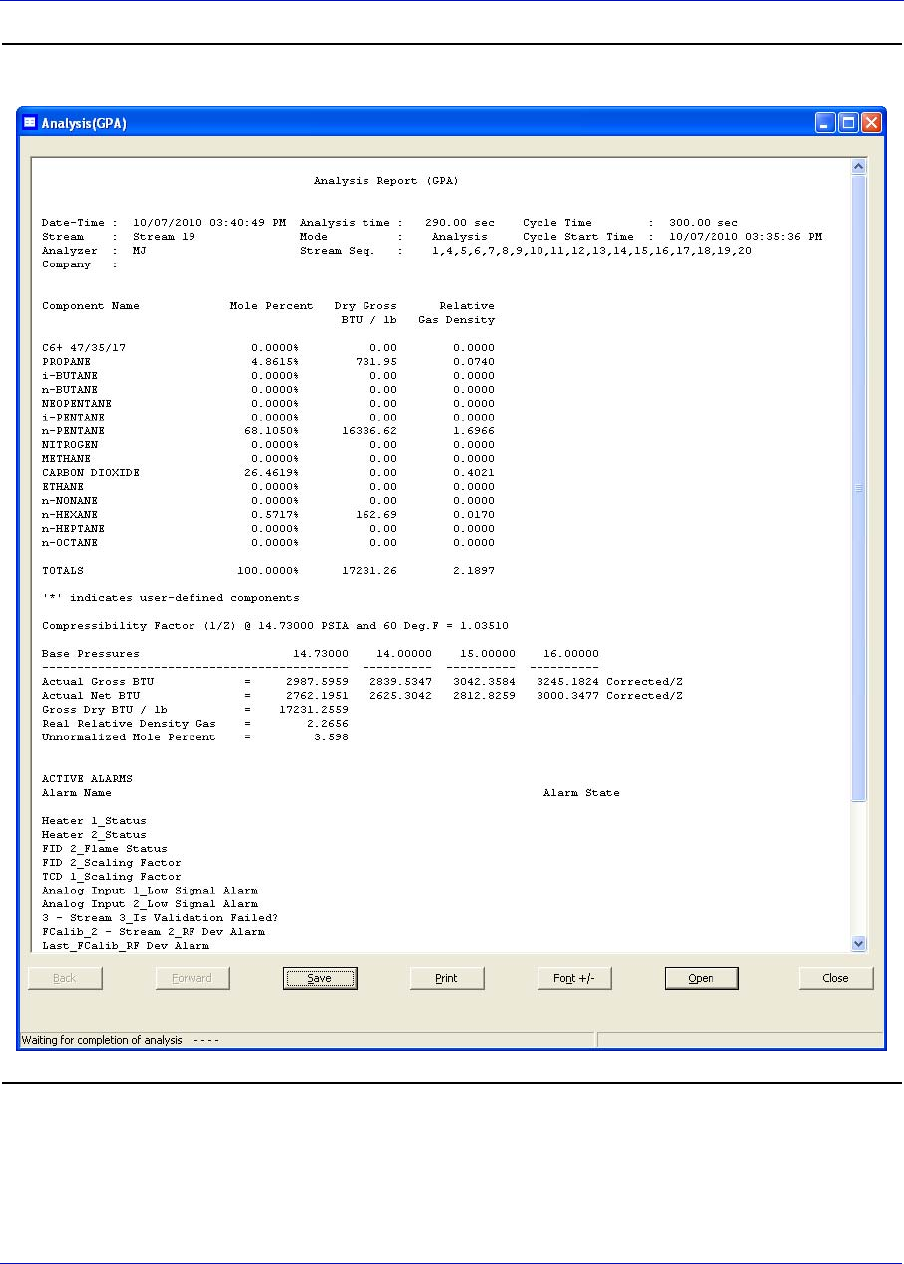
MON20/20 Software for Gas Chromatographs User Manual
SEPTEMBER 2010 3-9000-745
5-25
Figure 5-16. Analysis (GPA) sample report
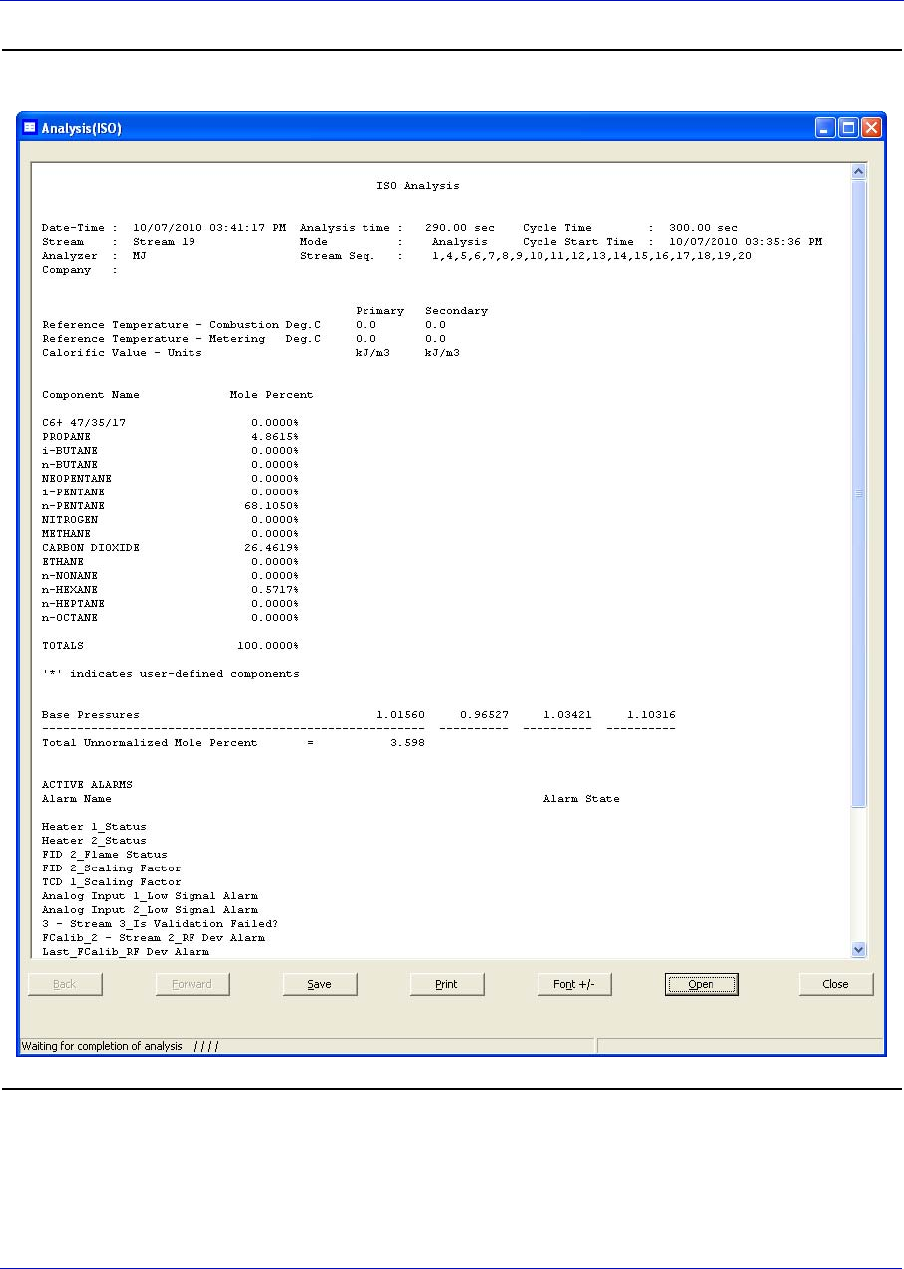
User Manual MON20/20 Software for Gas Chromatographs
3-9000-745 SEPTEMBER 2010
5-26
Figure 5-17. Analysis (ISO) sample report
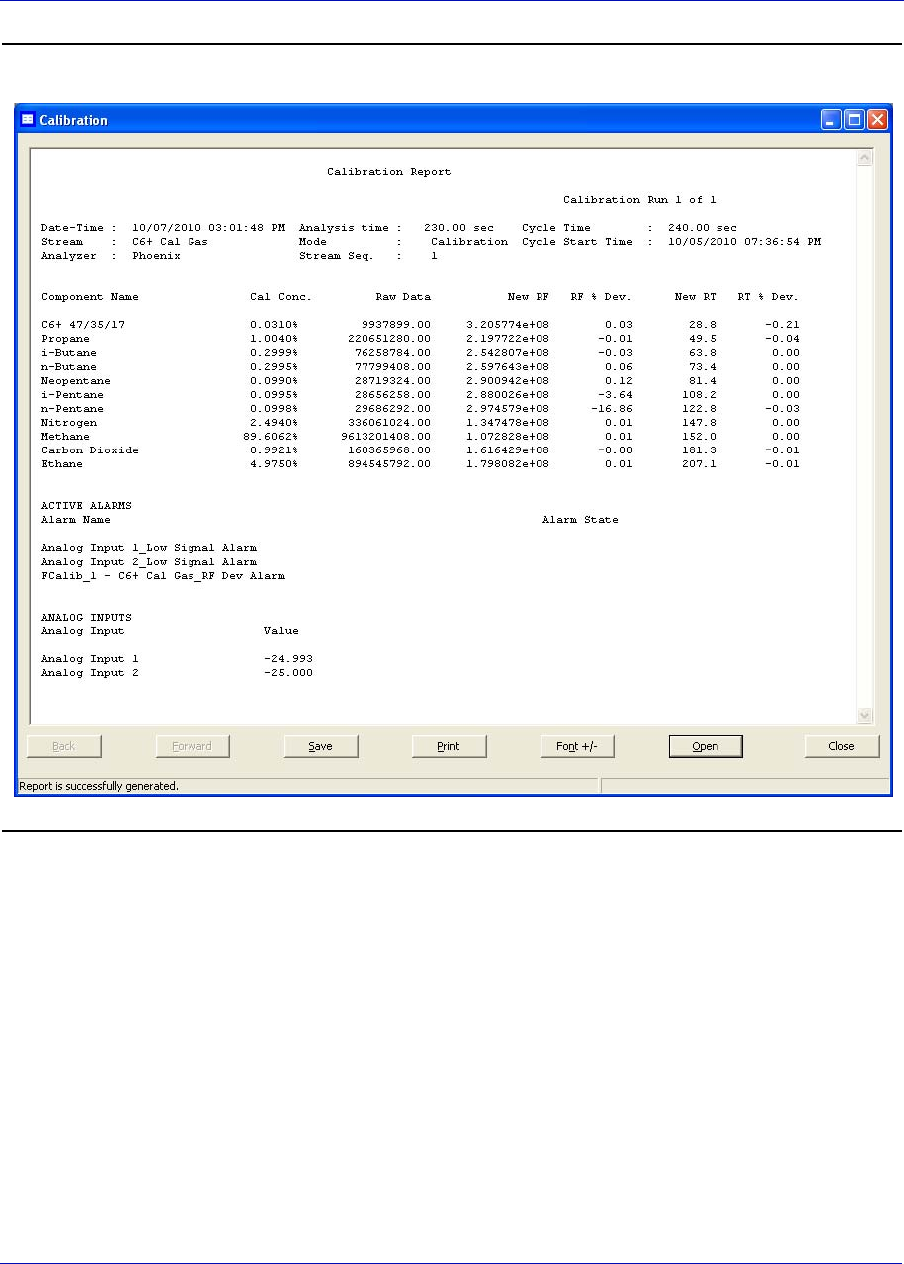
MON20/20 Software for Gas Chromatographs User Manual
SEPTEMBER 2010 3-9000-745
5-27
Figure 5-18. Calibration sample report
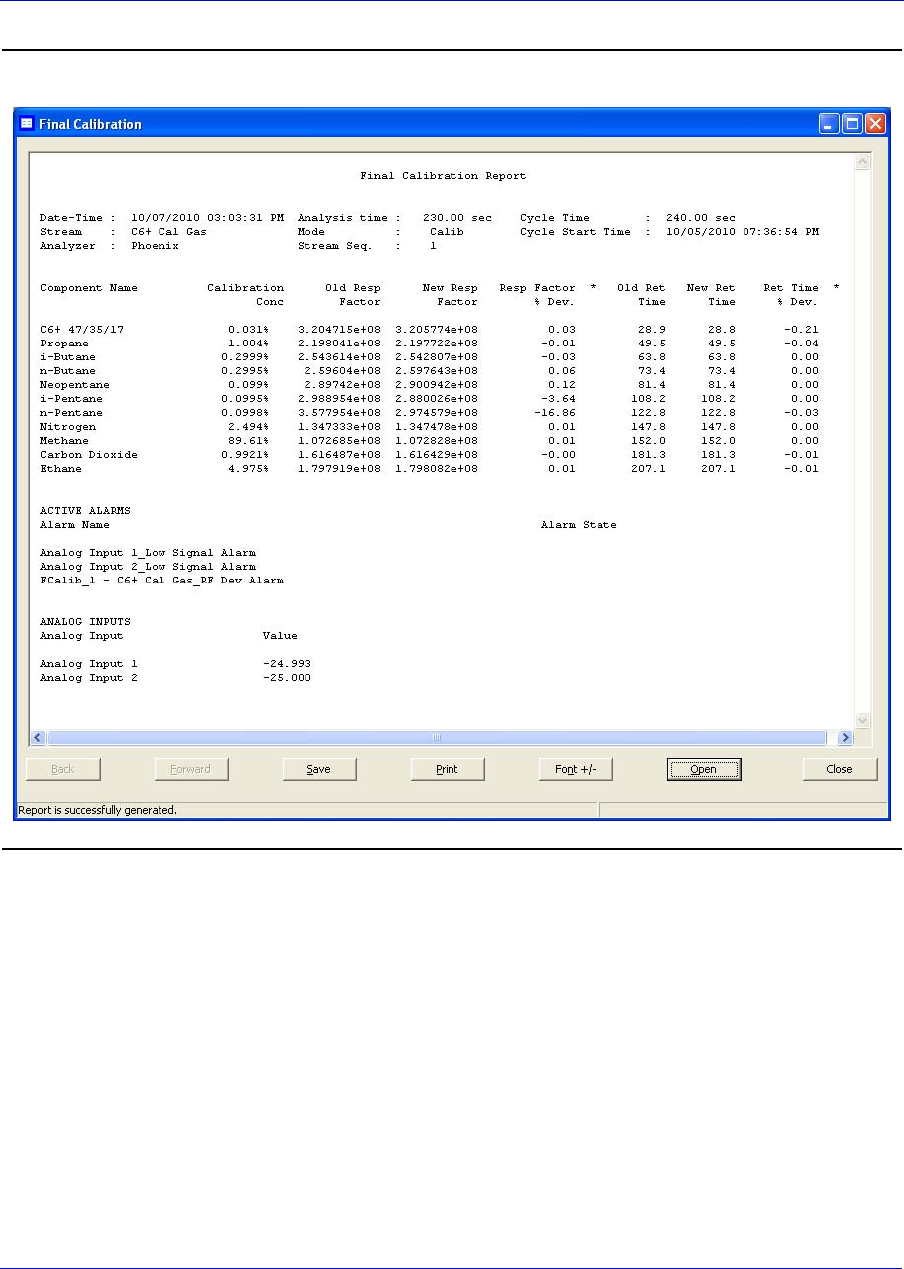
User Manual MON20/20 Software for Gas Chromatographs
3-9000-745 SEPTEMBER 2010
5-28
Figure 5-19. Final Calibration sample report
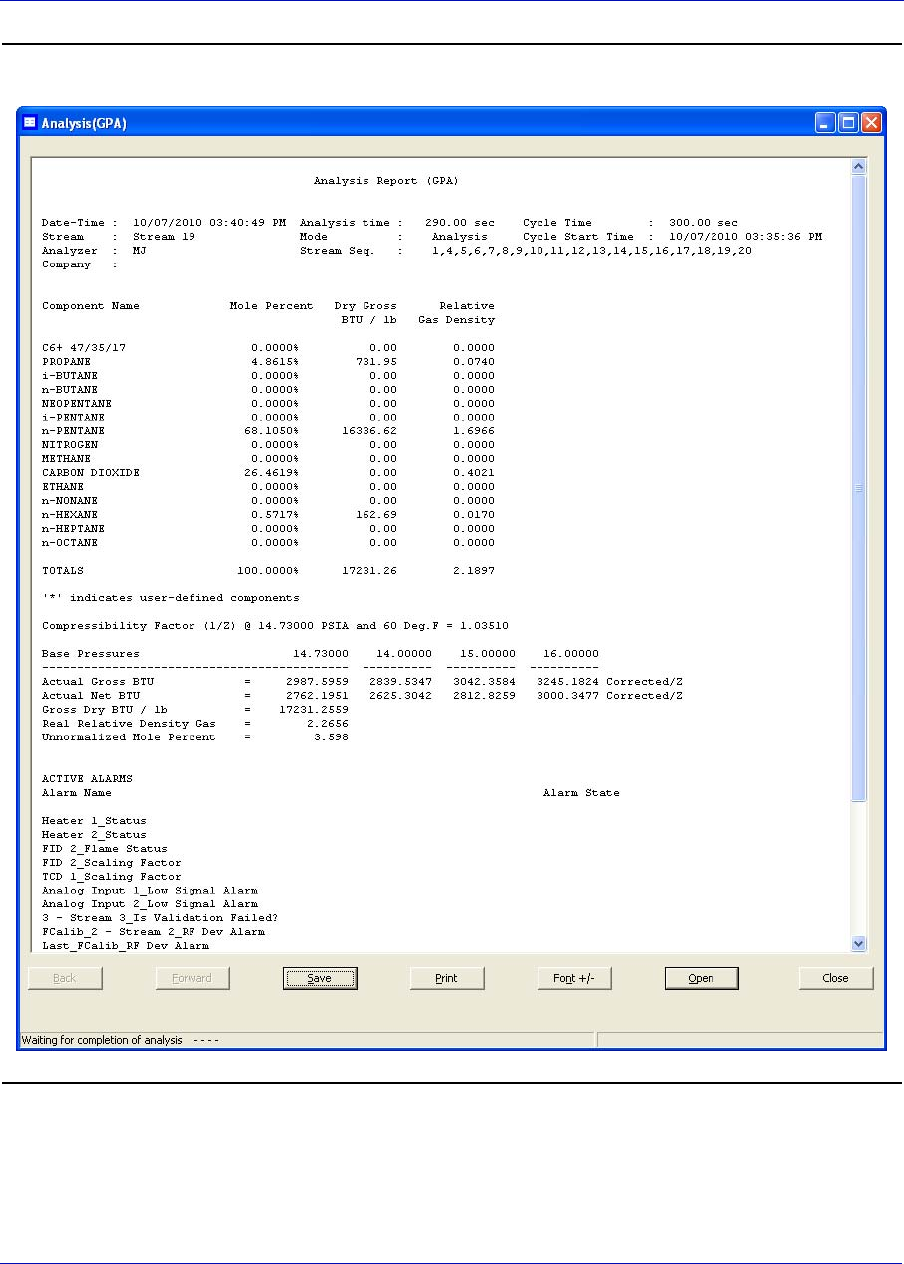
MON20/20 Software for Gas Chromatographs User Manual
SEPTEMBER 2010 3-9000-745
5-29
Figure 5-20. Validation sample report
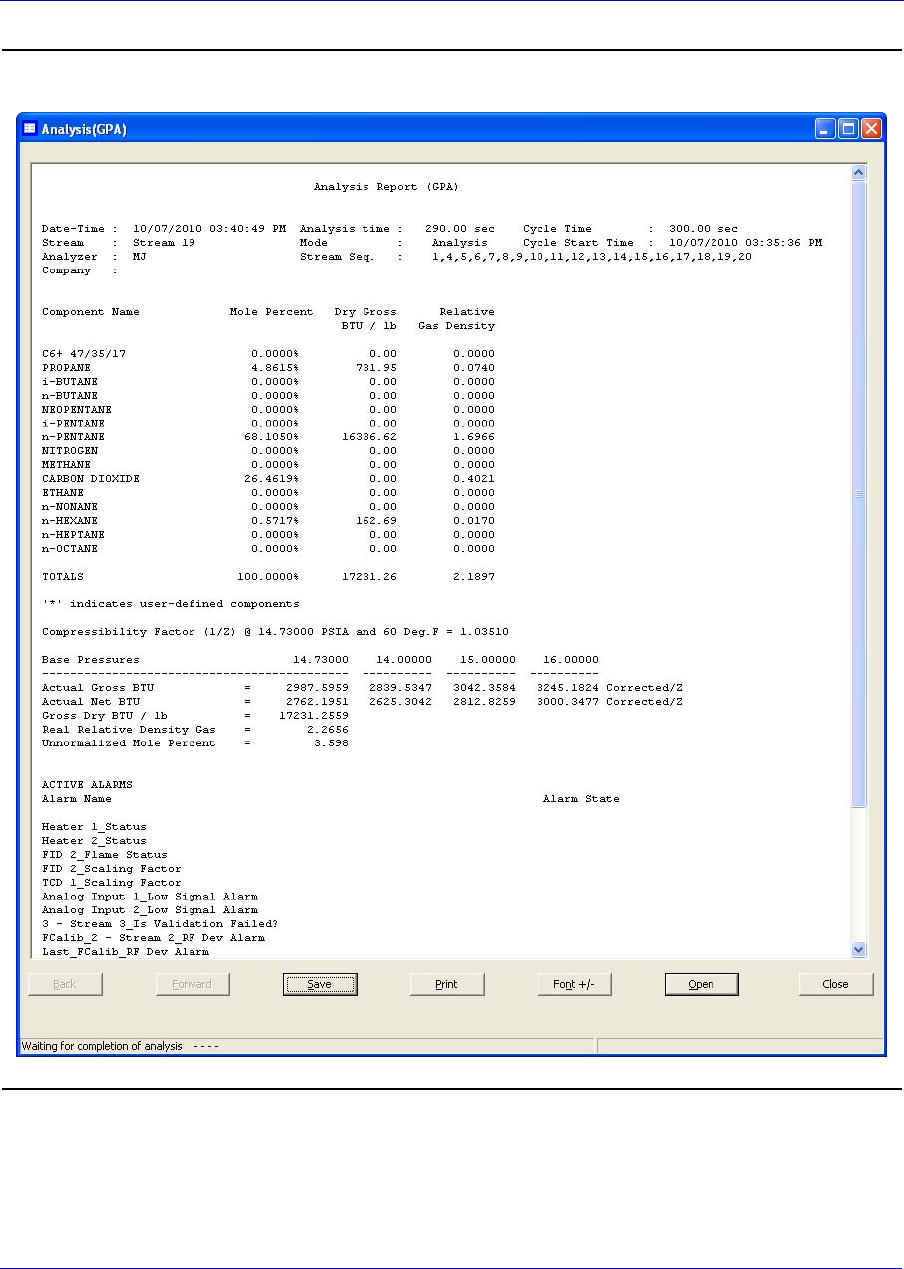
User Manual MON20/20 Software for Gas Chromatographs
3-9000-745 SEPTEMBER 2010
5-30
Figure 5-21. Final Validation sample report
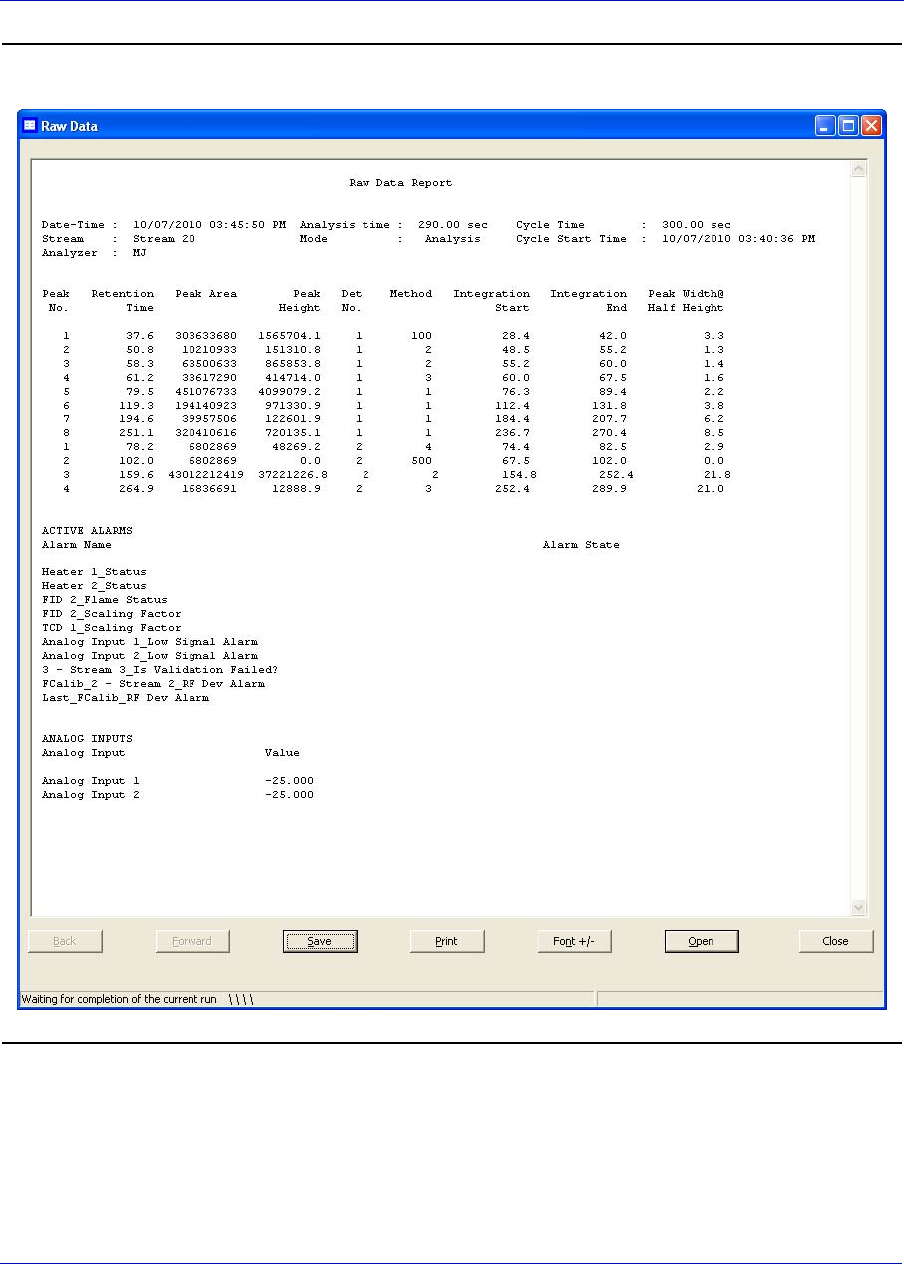
MON20/20 Software for Gas Chromatographs User Manual
SEPTEMBER 2010 3-9000-745
5-31
Figure 5-22. RawData sample report
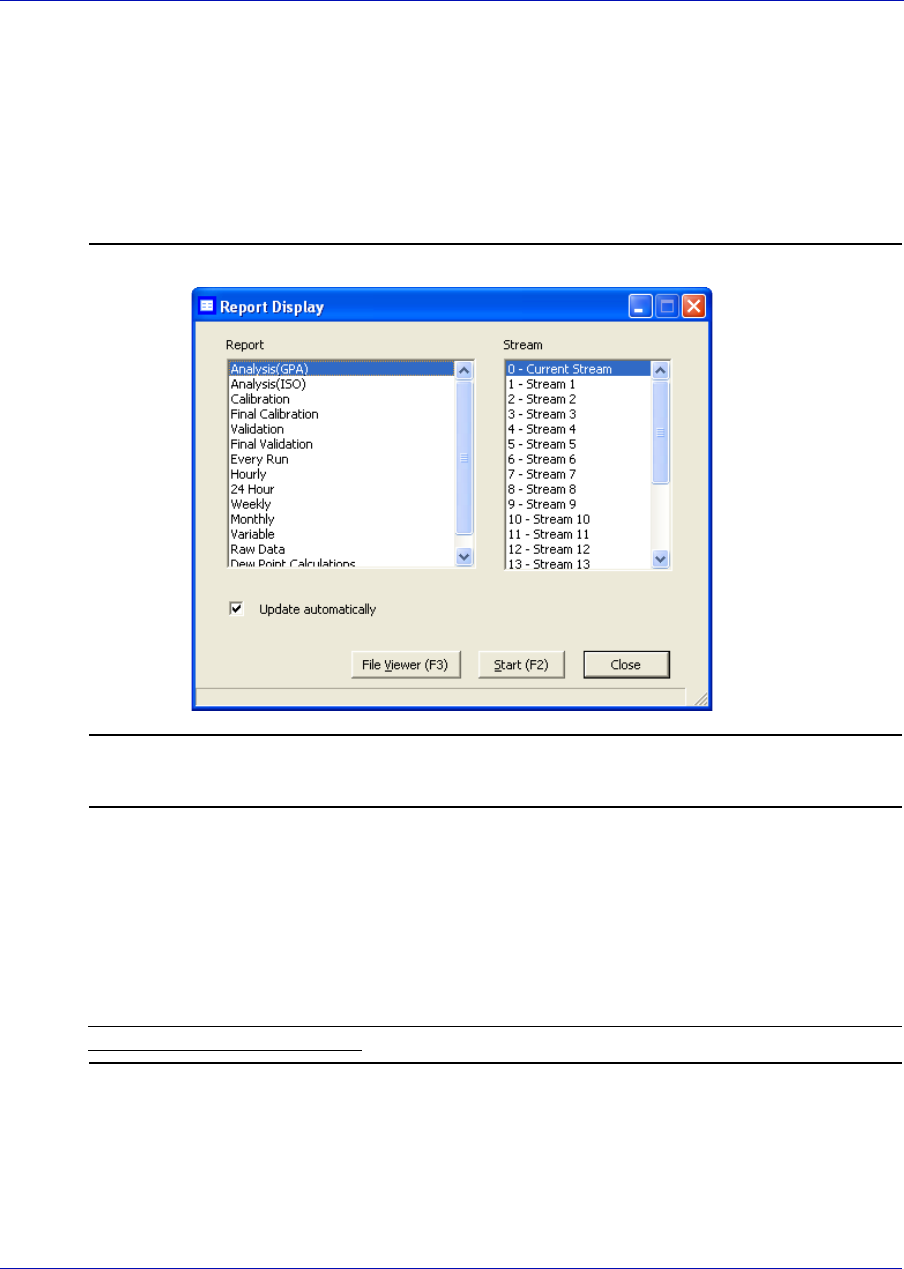
User Manual MON20/20 Software for Gas Chromatographs
3-9000-745 SEPTEMBER 2010
5-32
5.6.2 Viewing reports from live data
To view a report created from the most recent data, do the following:
1. Select Report Displays... from the Log/Reports menu. The Report
Display window appears.
Figure 5-23. The Report Display window
Note
By default, the Update automatically checkbox is selected. This means that when
viewing a report based on the most recent data, the report will refresh as new data is
created, based on the type of report that you select.
For example, in the Report Display window, if you select Analysis (GPA), the report
display will refresh each time the GC finishes an analysis of the selected stream.
The refresh function displays the newly generated report and deletes the previous report
(unless already saved to disk).

MON20/20 Software for Gas Chromatographs User Manual
SEPTEMBER 2010 3-9000-745
5-33
2. Select the type of report to view from the following list:
•Analysis (GPA)
• Analysis (ISO)
• Calibration
• Final Calibration
• Validation
• Final Validation
•Every Run
• Hourly
• 24 Hour
• Weekly
•Monthly
• Variable
• Raw data
3. Select the appropriate stream.
4. Click Start (F2). The report displays.
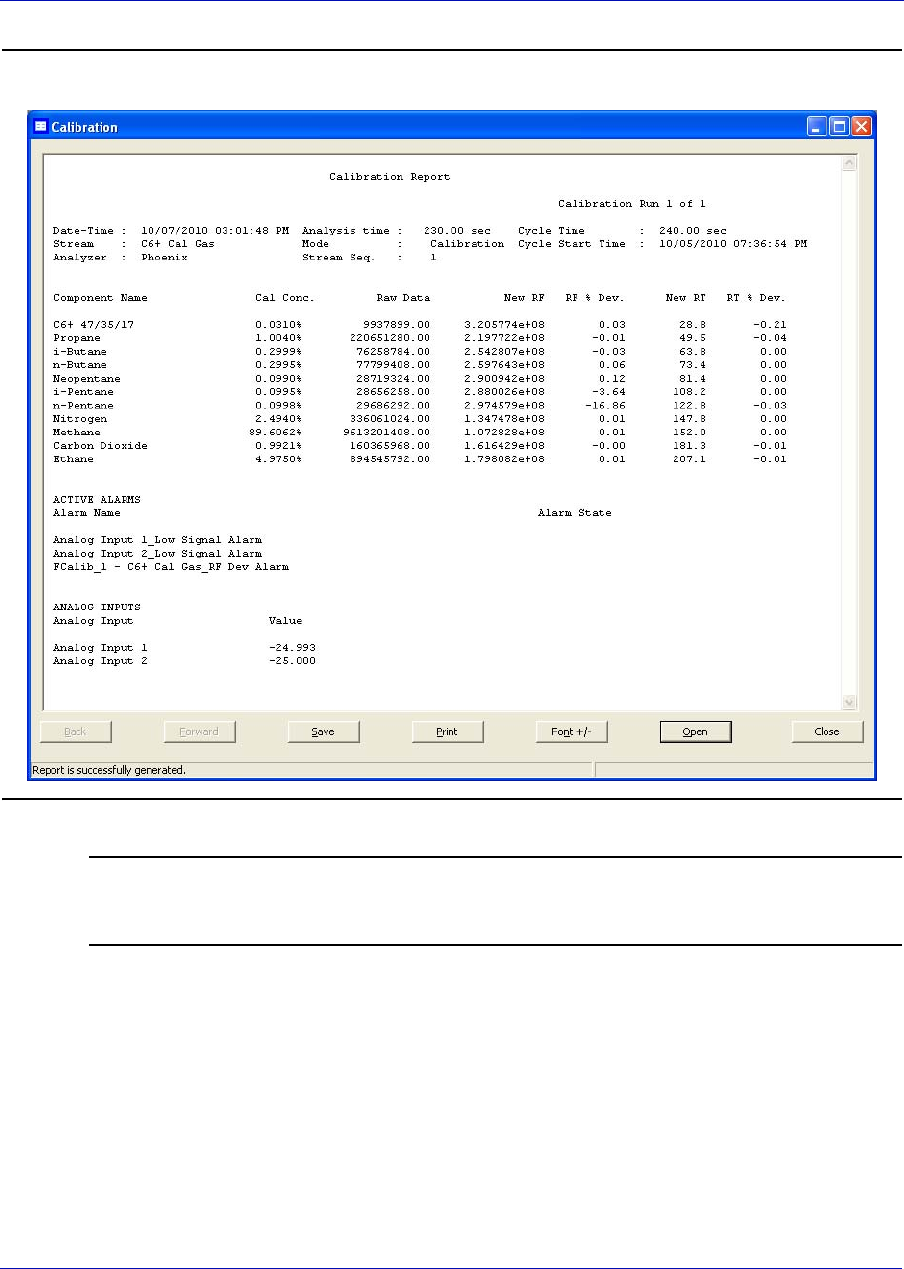
User Manual MON20/20 Software for Gas Chromatographs
3-9000-745 SEPTEMBER 2010
5-34
Figure 5-24. The report window
Note
If the report doesn’t appear right away, check the status of the report generation process
in the status bar, which is below the row of buttons on the report window.
5. To change the font size, click Font.. There are five preset font sizes
available. Continue to click Font to cycle through the sizes until you
are satisfied with the report’s readability.
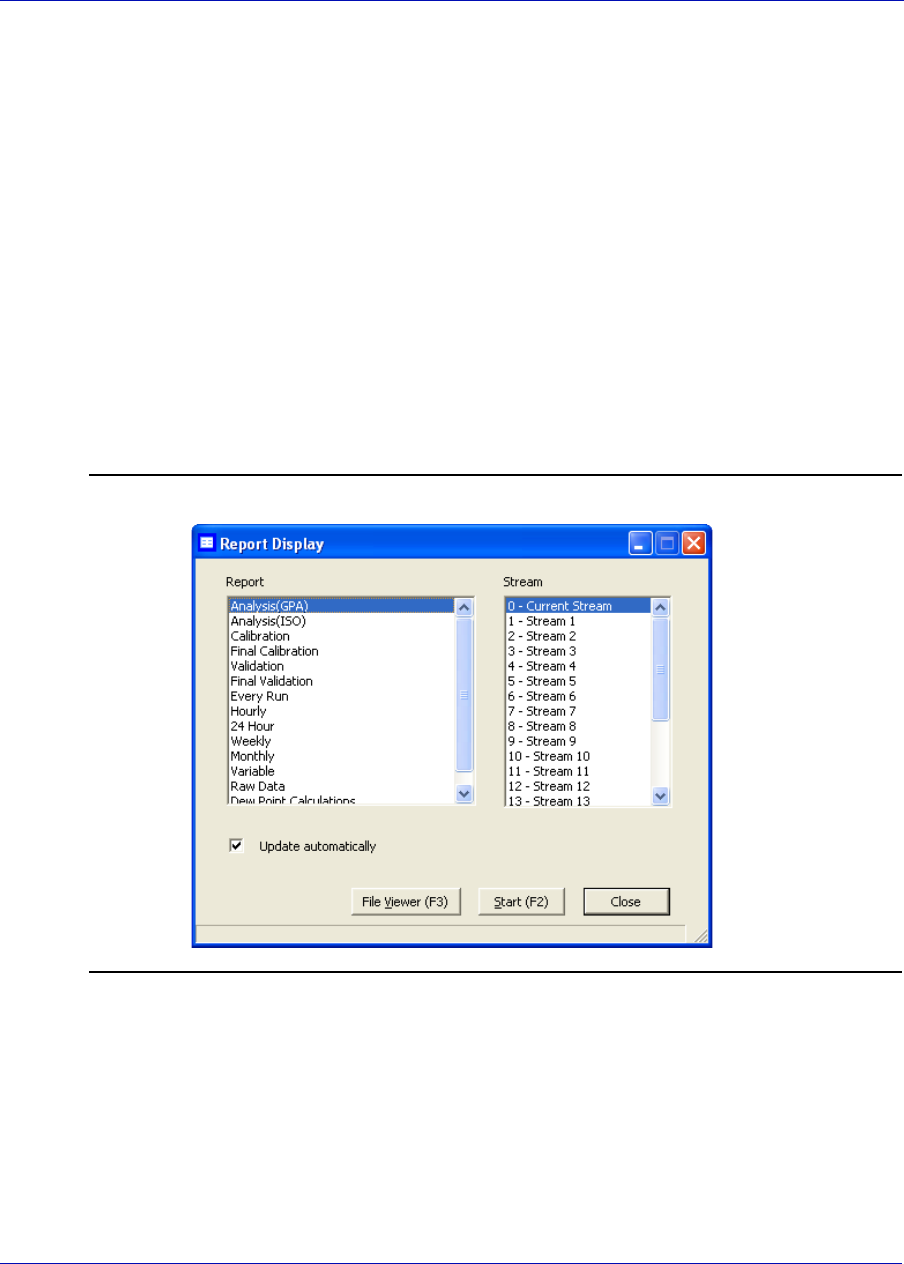
MON20/20 Software for Gas Chromatographs User Manual
SEPTEMBER 2010 3-9000-745
5-35
6. To save the file, click Save. The report can be saved in the following
file formats:
•TXT
•HTM
•HTML
•MHT
5.6.3 Viewing a saved report
To view a saved report, do the following:
1. Select Report Displays... from the Log/Reports menu. The Report
Display window appears.
Figure 5-25. The Report Display window
2. Click File Viewer (F3). The Report file viewer window displays.
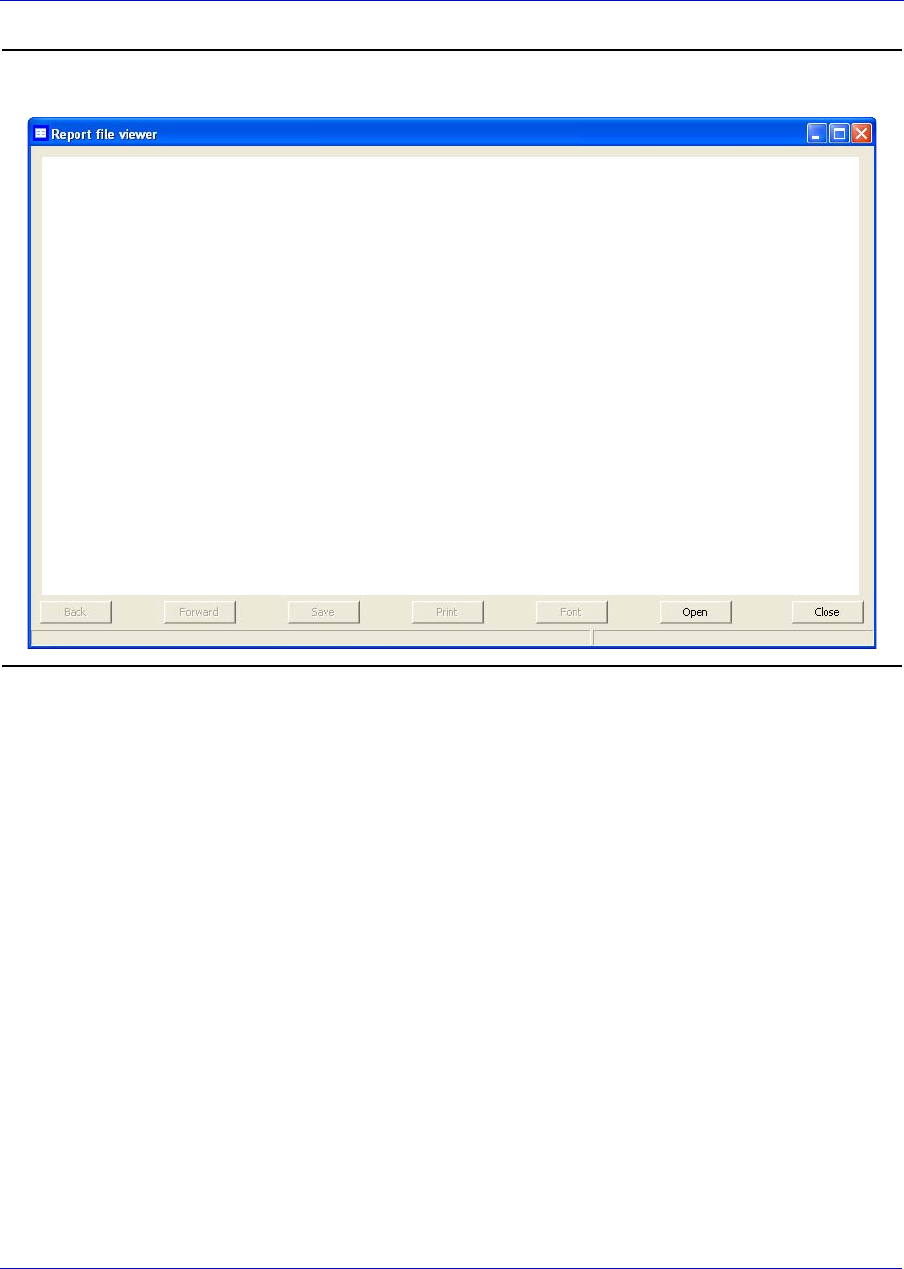
User Manual MON20/20 Software for Gas Chromatographs
3-9000-745 SEPTEMBER 2010
5-36
Figure 5-26. The Report file viewer window
3. Click Open. The Open dialog displays.
4. Locate and select the report that you want to view. Reports can be
found in the following file formats:
•TXT
•RPT
•HTM
•HTML
•MHT
5. Click Open. The report displays.
6. To change the font size, click Font.. There are five preset font sizes
available. Continue to click Font to cycle through the sizes until you
are satisfied with the report’s readability.
7. To print the report, click Print.
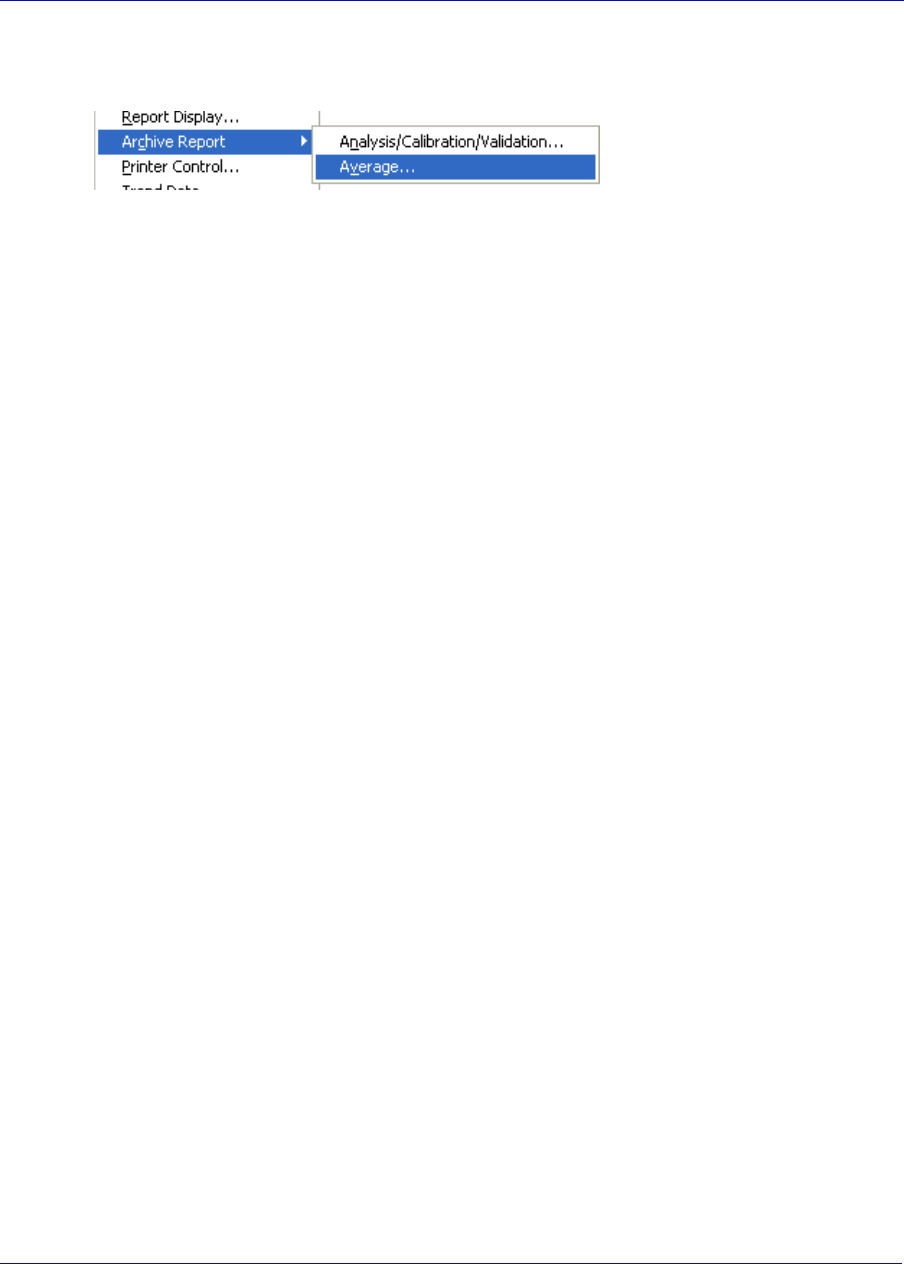
MON20/20 Software for Gas Chromatographs User Manual
SEPTEMBER 2010 3-9000-745
5-37
5.7 Viewing reports based on archived data
Use the Archive Report
commands to generate
analysis, calibration,
and average reports
based on archived GC runs.
5.7.1 Viewing analysis and calibration reports based on archived data
To generate and view an analysis or calibration report from archived
data, do the following:
1. Select Logs/Reports → Archive Report → Analysis/Calibration/
Validation.... The Analysis/Calibration/Validation Archive Report
window displays.
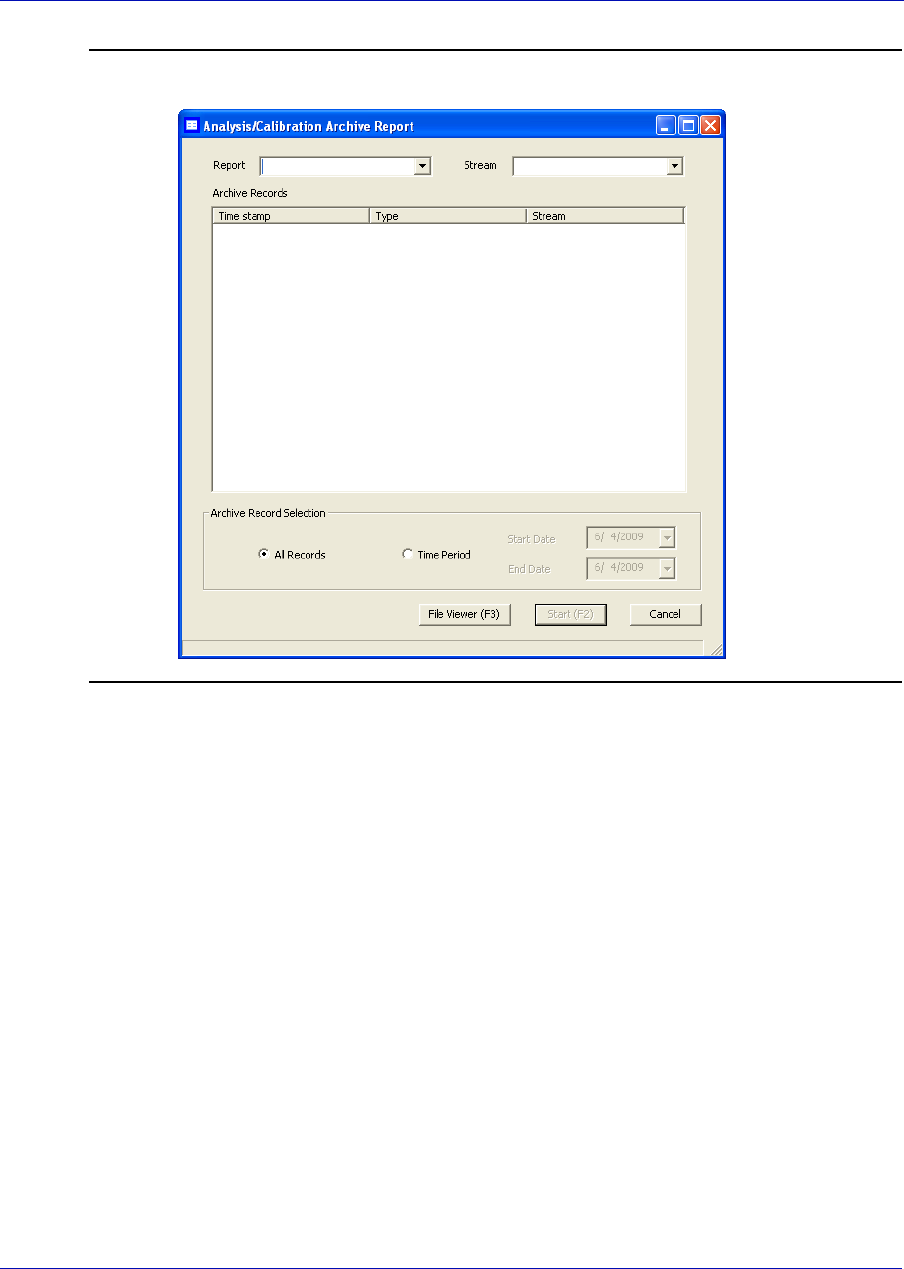
User Manual MON20/20 Software for Gas Chromatographs
3-9000-745 SEPTEMBER 2010
5-38
Figure 5-27. The Analysis/Calibration Archive Report window
2. Select a report type from the Report drop-down list. You can choose
from the following report types:
•Analysis
• Calibration
• Final Calibration
• Validation
• Final Validation
•Raw Data
• Dew Point Calculations (optional)
3. Select a stream from the Stream drop-down list. By default, the
Archive Records table displays all records for the selected report type
and stream.
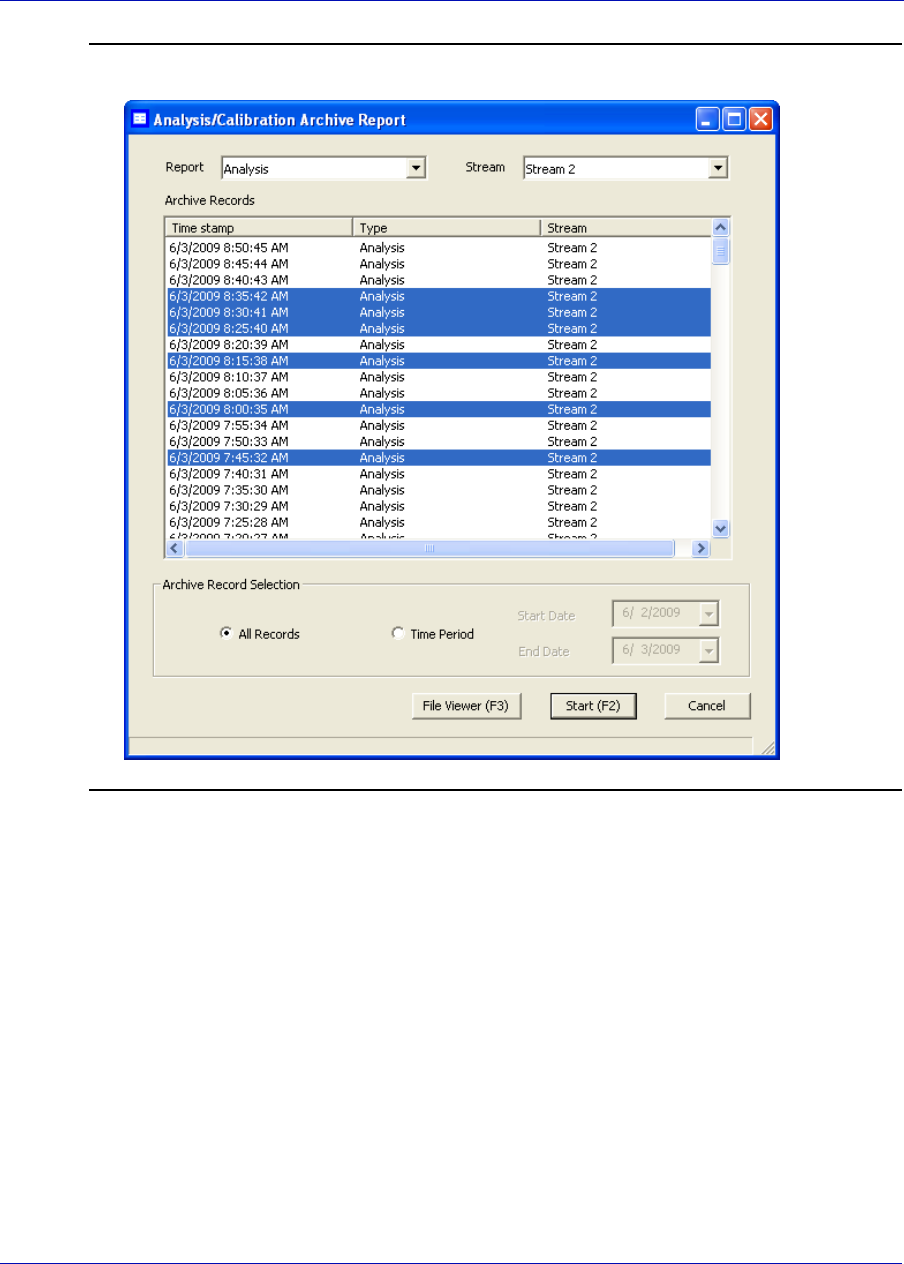
MON20/20 Software for Gas Chromatographs User Manual
SEPTEMBER 2010 3-9000-745
5-39
Figure 5-28. The Analysis/Calibration Archive Report window
4. To date-filter the list of records, select the Time Period checkbox and
use the Start Date and End Date drop-down boxes to select a date
range.
5. Select the record(s) that you want to view. To select several records,
hold down CTRL and select each record. To select several records in a
row, select the first record and then hold down SHIFT and select the
last record in the series.
6. Click Start (F2). The report displays. If more than one record was
selected, each report displays after that previous report on the same
page.
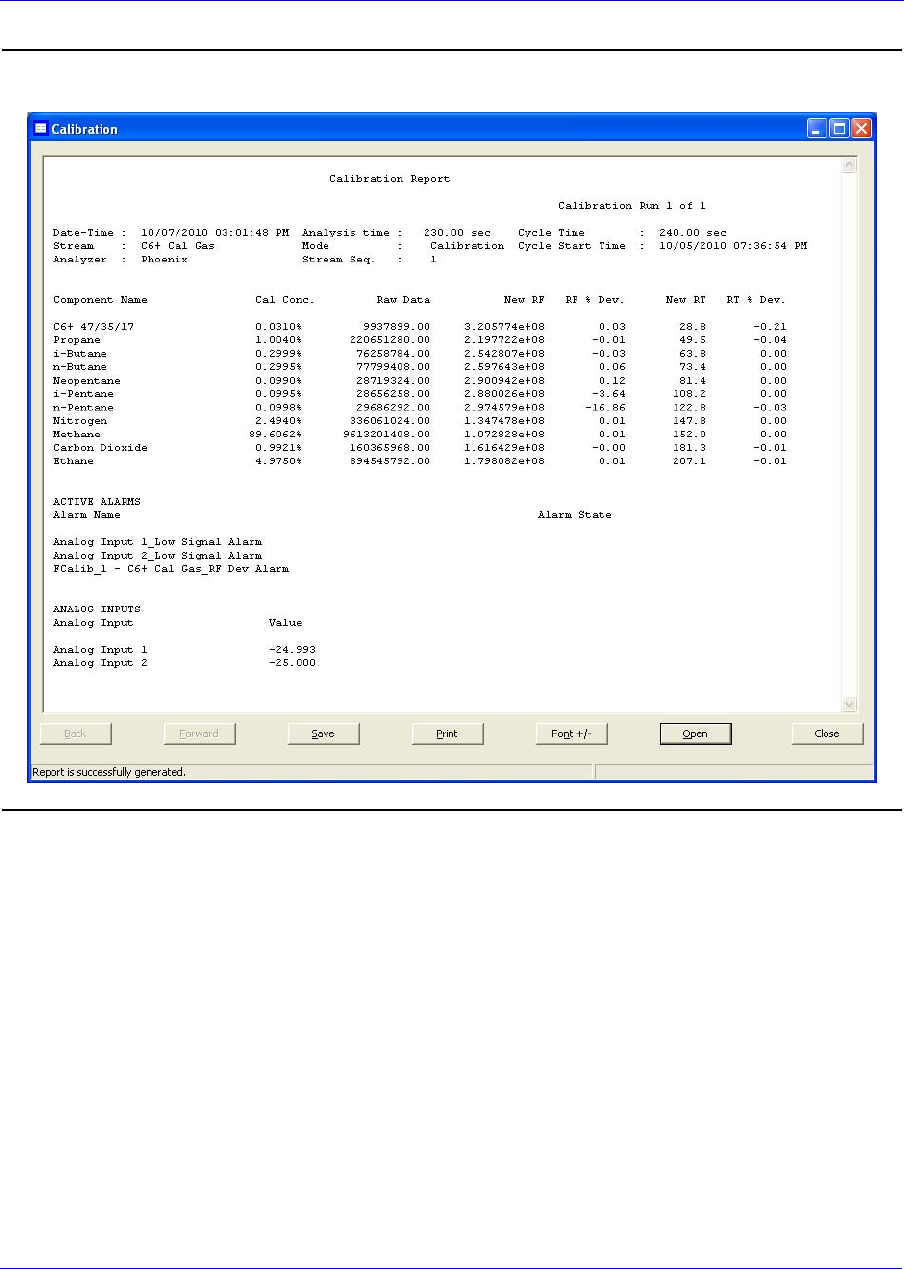
User Manual MON20/20 Software for Gas Chromatographs
3-9000-745 SEPTEMBER 2010
5-40
Figure 5-29. The report window
7. To change the font size, click Font.. There are five preset font sizes
available. Continue to click Font to cycle through the sizes until you
are satisfied with the report’s readability.
8. To print the report, click Print.

MON20/20 Software for Gas Chromatographs User Manual
SEPTEMBER 2010 3-9000-745
5-41
9. To save the file, click Save. The report can be saved in the following
file formats:
•TXT
•HTM
•HTML
•MHT
5.7.2 Viewing average reports based on archived data
To generate and view an average report from archived data, do the
following:
1. Select Logs/Reports → Archive Report → Average.... The Average
Archive Report window displays.
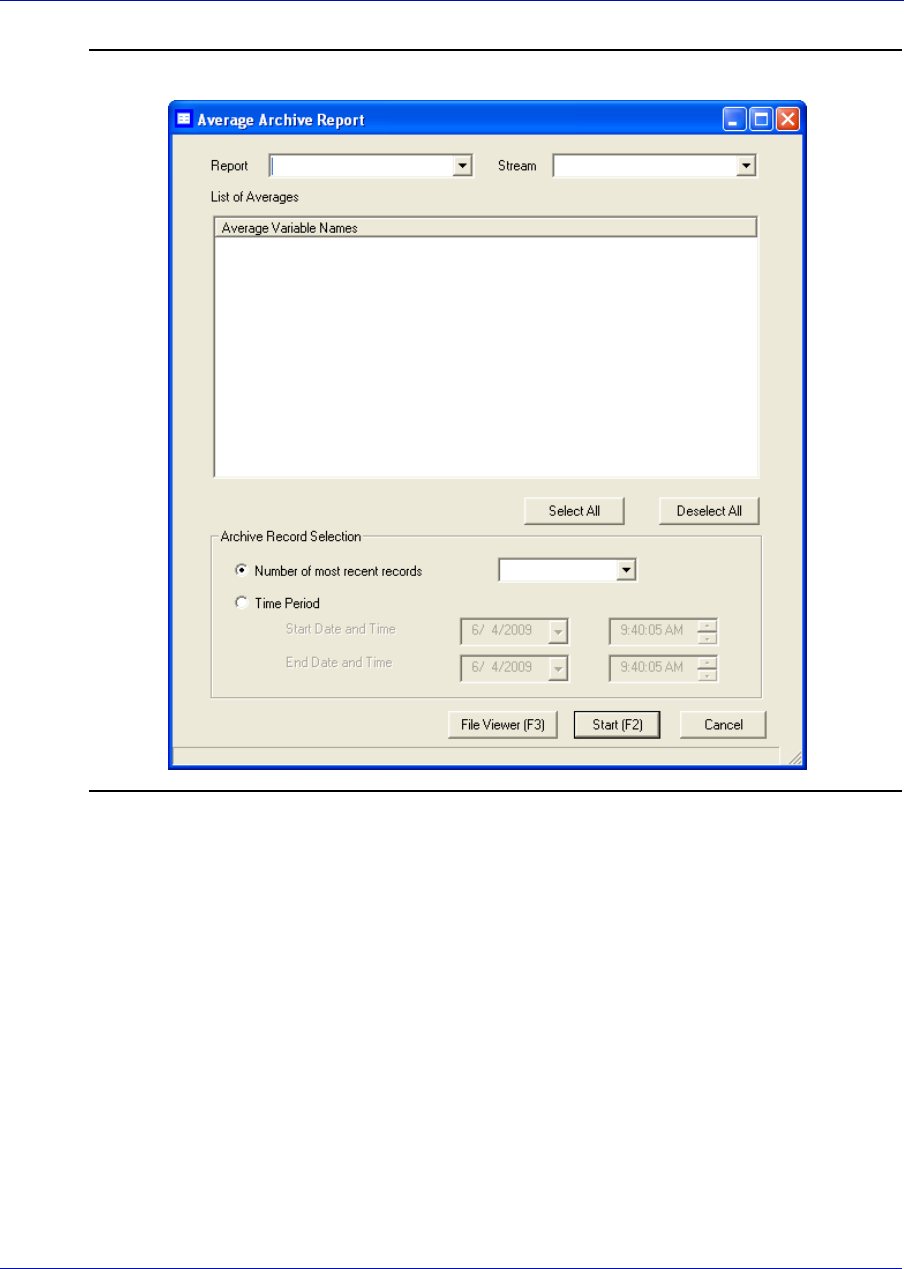
User Manual MON20/20 Software for Gas Chromatographs
3-9000-745 SEPTEMBER 2010
5-42
Figure 5-30. The Analysis/Calibration Archive Report window
2. Select a report type from the Report drop-down list. You can choose
from the following report types:
•Every Run
• Hourly
• 24 Hour
• Weekly
•Monthly
• Variable

MON20/20 Software for Gas Chromatographs User Manual
SEPTEMBER 2010 3-9000-745
5-43
3. Select a stream from the Stream drop-down list. By default, the List
of Averages table displays all records for the selected report type and
stream.
4. To date-filter the list of records, select the Time Period checkbox and
use the Start Date and End Date drop-down boxes to select a date
range.
5. Select the record(s) that you want to view. To select several records,
hold down CTRL and select each record. To select several records in a
row, select the first record and then hold down SHIFT and select the
last record in the series.
6. Click Start (F2). The report displays. If more than one record was
selected, each report displays after that previous report on the same
page.
7. To change the font size, click Font.. There are five preset font sizes
available. Continue to click Font to cycle through the sizes until you
are satisfied with the report’s readability.
8. To print the report, click Print.
9. To save the file, click Save. The report can be saved in the following
file formats:
•TXT
•HTM
•HTML
•MHT
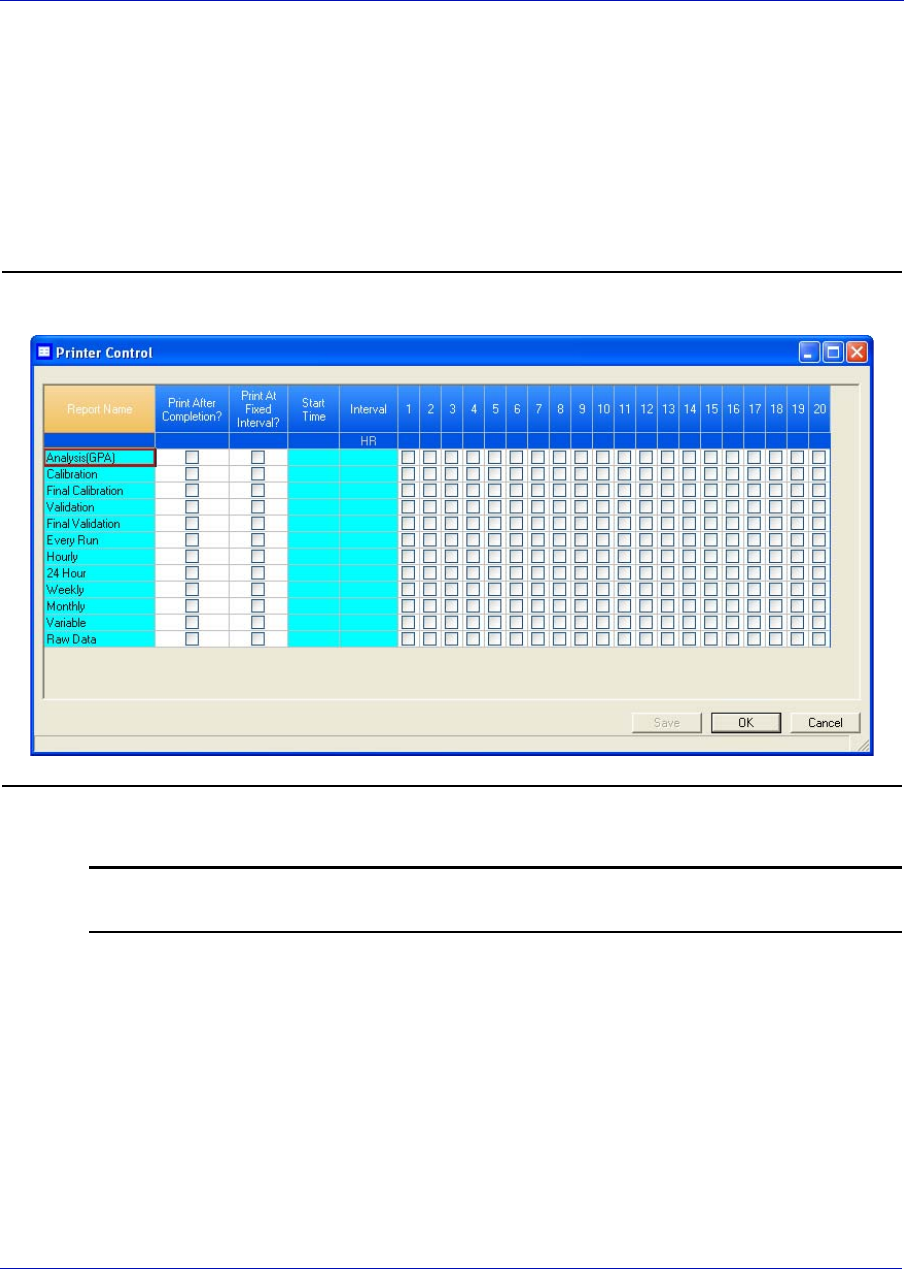
User Manual MON20/20 Software for Gas Chromatographs
3-9000-745 SEPTEMBER 2010
5-44
5.7.3 Printing reports automatically
To configure MON 20/20 to print a report of your choosing automatically
based on that report’s schedule of availability, do the following:
1. Select Printer Control... from the Logs/Reports menu. The Printer
Control window displays.
Figure 5-31. The Printer Control window
Note
MON 20/20 must be connected to the GC for the report to be printed.
MON20/20 Software for Gas Chromatographs User Manual
SEPTEMBER 2010 3-9000-745
5-45
2. The following types of potential reports are listed in the Report Name
column:
•Analysis (GPA) - An analysis report will print after an analysis
run is completed.
Note
If ISO is set in the Calculations Configuration screen, Analysis (ISO) will be listed
under the Report Name column instead of Analysis (GPA); if GPA & ISO is set in the
Calculations Configuration screen, the both Analysis (ISO) and Analysis (GPA) will be
listed under the Report Name column.
•Calibration - An calibration report will print after an calibration
run is completed.
•Final Calibration - An final calibration report will print after a
final calibration run is completed.
•Validation - An validation report will print after an validation
run is completed.
•Final Validation - An final validation report will print after a
final validation run is completed.
•Every Run - A report will be generated each time an Every Run
average calculation is run.
•Hourly: A report will be generated each time an Hourly average
calculation is run.
•24 Hour: A report will be generated each time a 24 Hour average
calculation is run.
•Weekly: A report will be generated each time a Weekly average
calculation is run.
•Monthly: A report will be generated each time a Monthly average
calculation is run.
•Variable: A report will be generated each time a Variable average
calculation is run.
•Raw Data - Each time raw data is generated, a report will be
printed.
3. To print a report after a run, check the appropriate checkbox from the
Print After Completion? column.

User Manual MON20/20 Software for Gas Chromatographs
3-9000-745 SEPTEMBER 2010
5-46
4. To print a report at a fixed interval, check the appropriate checkbox
from the Print At Fixed Interval? column.
(a.) Enter a start time in the Start Time column.
(b.) Enter an interval, in hours, in the Interval column.
5. Use the columns numbered 1 through 20 to select the streams that
you want to use for data collection.
6. To save the changes without closing the window, click Save. To save
the changes and close the window, click OK.
5.8 Viewing trend data
This function allows you to view, print, or save graphical representations,
or trend lines, of accumulated analysis data from the GC.
5.8.1 Viewing live trend data
Note
You cannot view a live trend if the corresponding analysis record does not exist in the
GC’s memory.
To view live trend data, do the following:
1. Select Trend Data... from the Logs/Reports menu. The Trend Data
window displays.
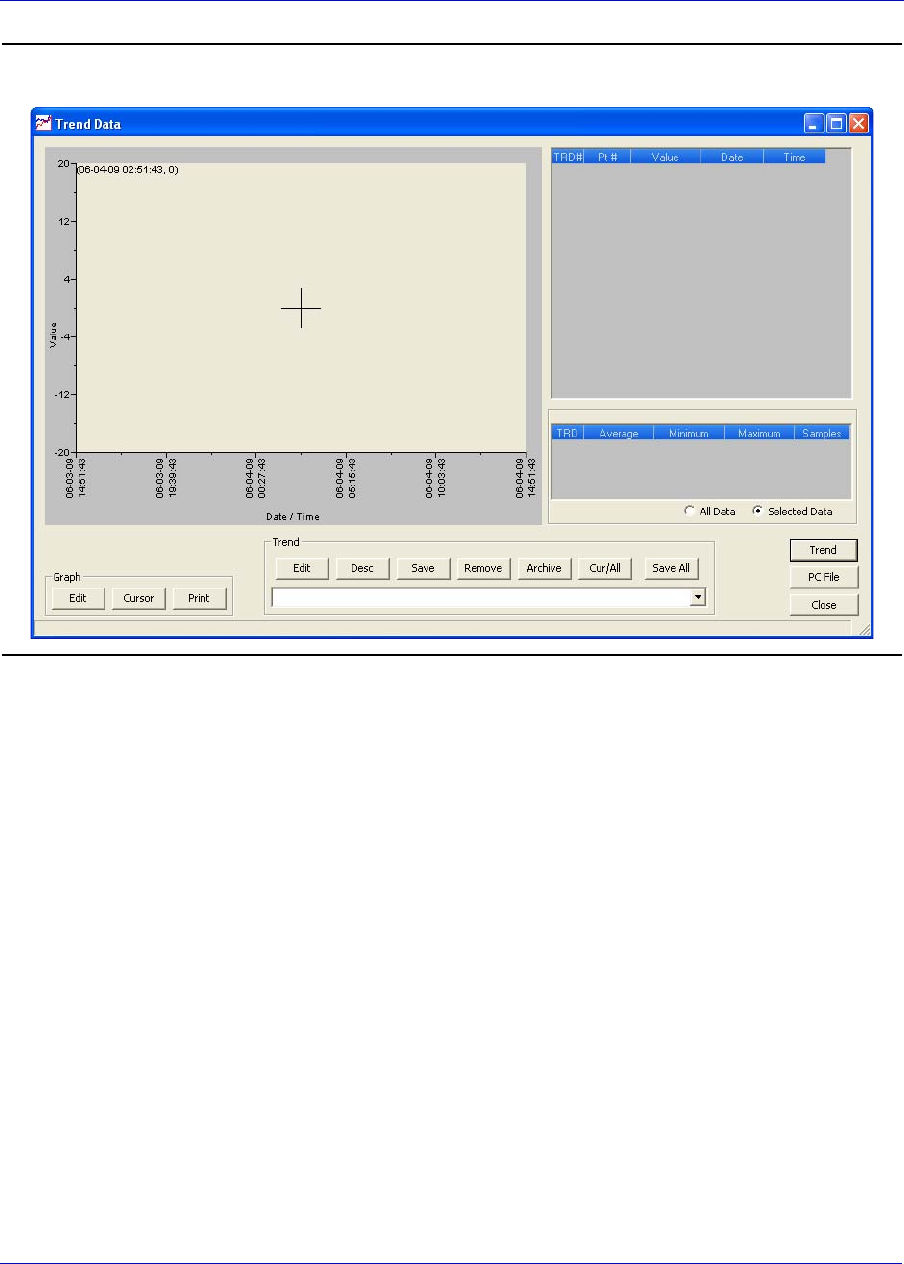
MON20/20 Software for Gas Chromatographs User Manual
SEPTEMBER 2010 3-9000-745
5-47
Figure 5-32. The Trend Data window
2. Click Trend. The Select records for Trending window displays.
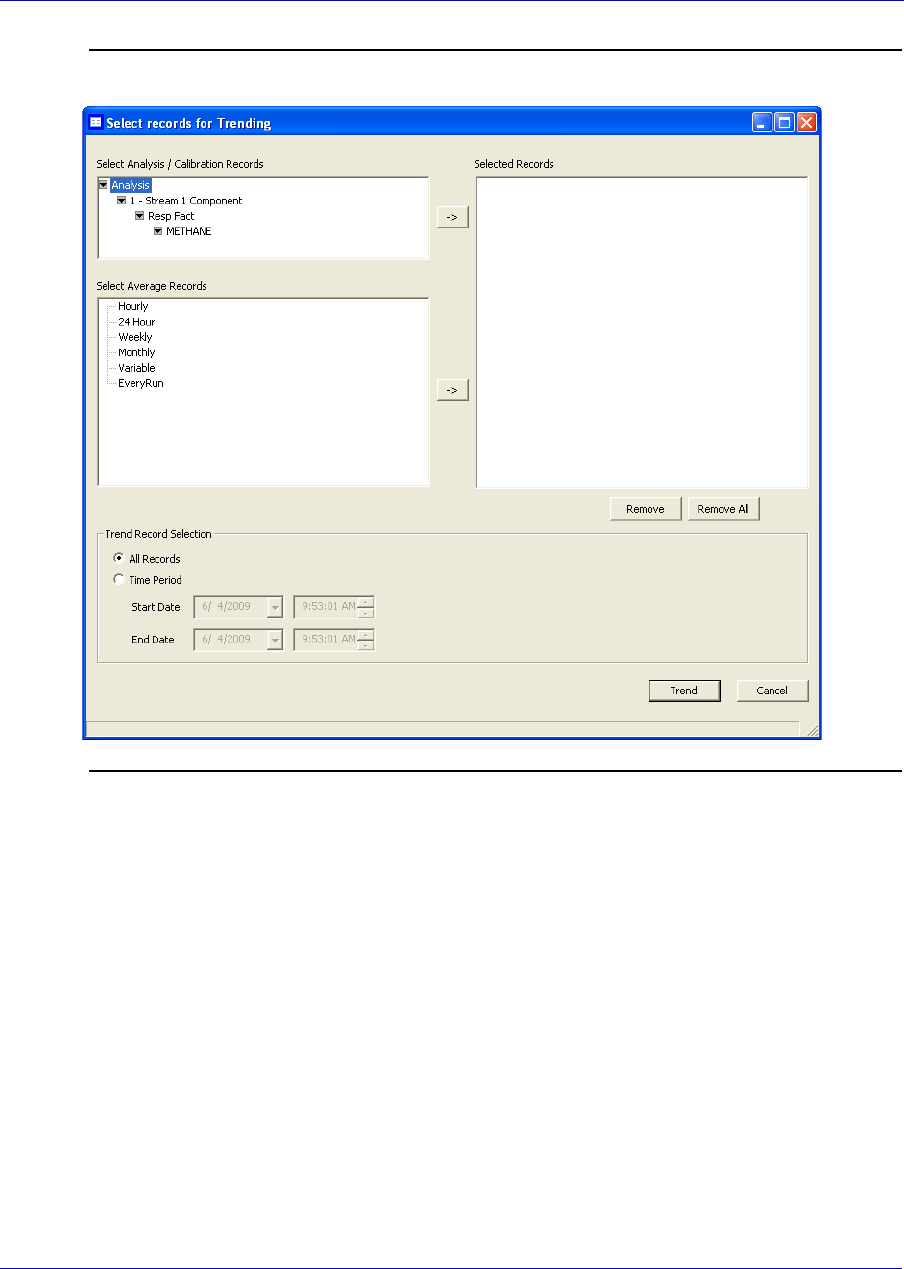
User Manual MON20/20 Software for Gas Chromatographs
3-9000-745 SEPTEMBER 2010
5-48
Figure 5-33. The Select records for Trending window
3. Select the analysis or calibration records that you want to trend from
the Select Analysis/Calibration Records selection menu. Click > to
move your selection to the Selected Records queue.
4. If applicable, select the type of average record that you want to trend
from the Select Average Records section. Click > to move your
selection to the Selected Records queue.
5. To remove a selection from the Selected Records queue, click
Remove. To remove all selections from the Selected Records
queue, click Remove All.
6. Click the All Records checkbox from the Trend Record Selection
section to use all data for the trend report, or click the Time Period
checkbox and select a Start Date and End Date for the data to be used.
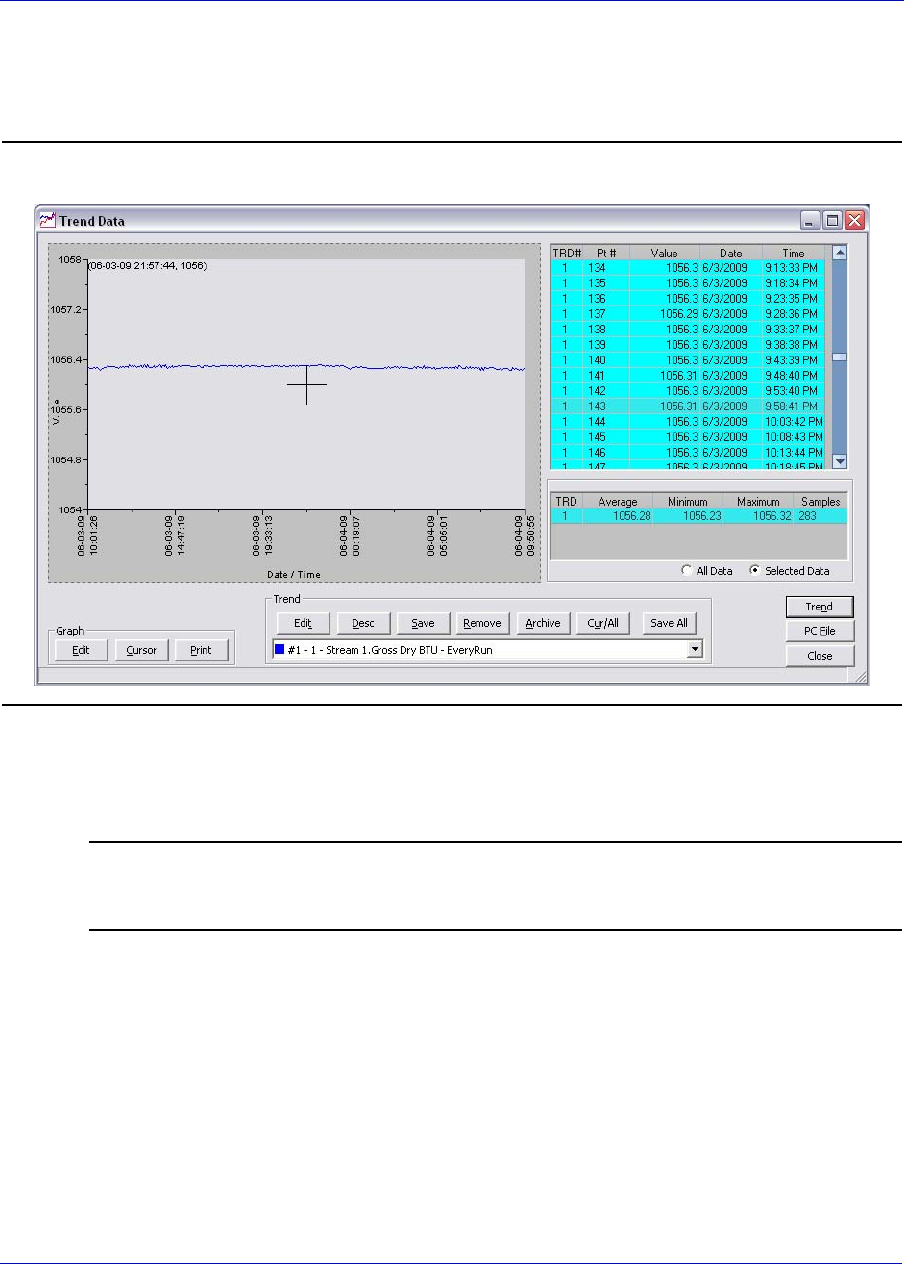
MON20/20 Software for Gas Chromatographs User Manual
SEPTEMBER 2010 3-9000-745
5-49
7. Click Trend. MON 20/20 reads the data from the GC and then closes
the Select records for Trending window and plots the trend data on the
graph section of the Trend Data window.
Figure 5-34. The Trend Data window with graphs
Each trend record is color-coded; use the Trend pull-down menu to
select a specific trend record.
Note
To view the chromatogram that is associated with a particular trend data point, locate
the data point in the table and double-click it while pressing the SHIFT key.
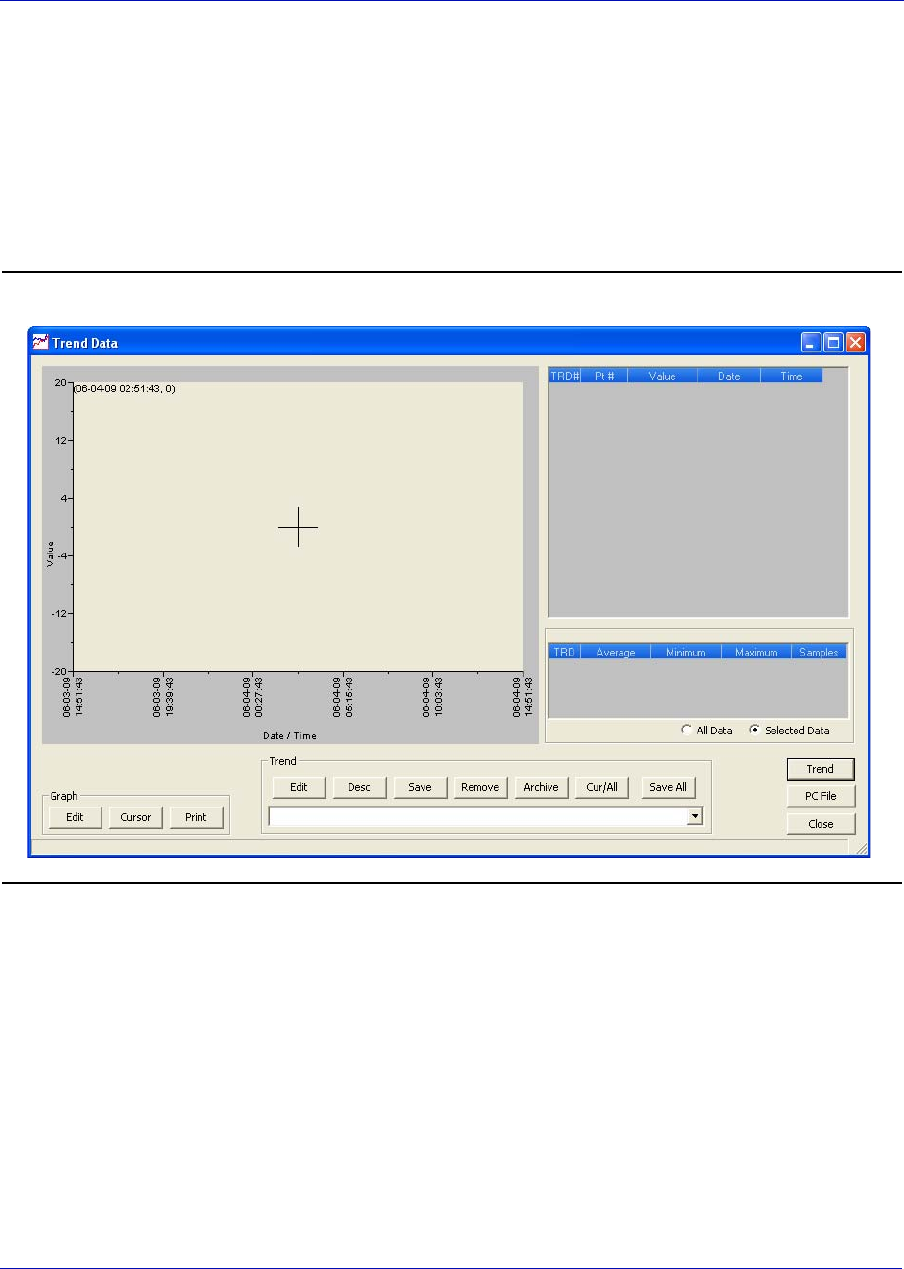
User Manual MON20/20 Software for Gas Chromatographs
3-9000-745 SEPTEMBER 2010
5-50
5.8.2 Viewing saved trend data
Trend data files are saved with the XTRD file extension. To view a saved
trend file, do the following:
1. Select Trend Data... from the Logs/Reports menu. The Trend Data
window displays.
Figure 5-35. The Trend Data window
2. Click PC File. The Open Trend File window displays.
3. Select the file that you want to view and click Open. The trend graph
displays.
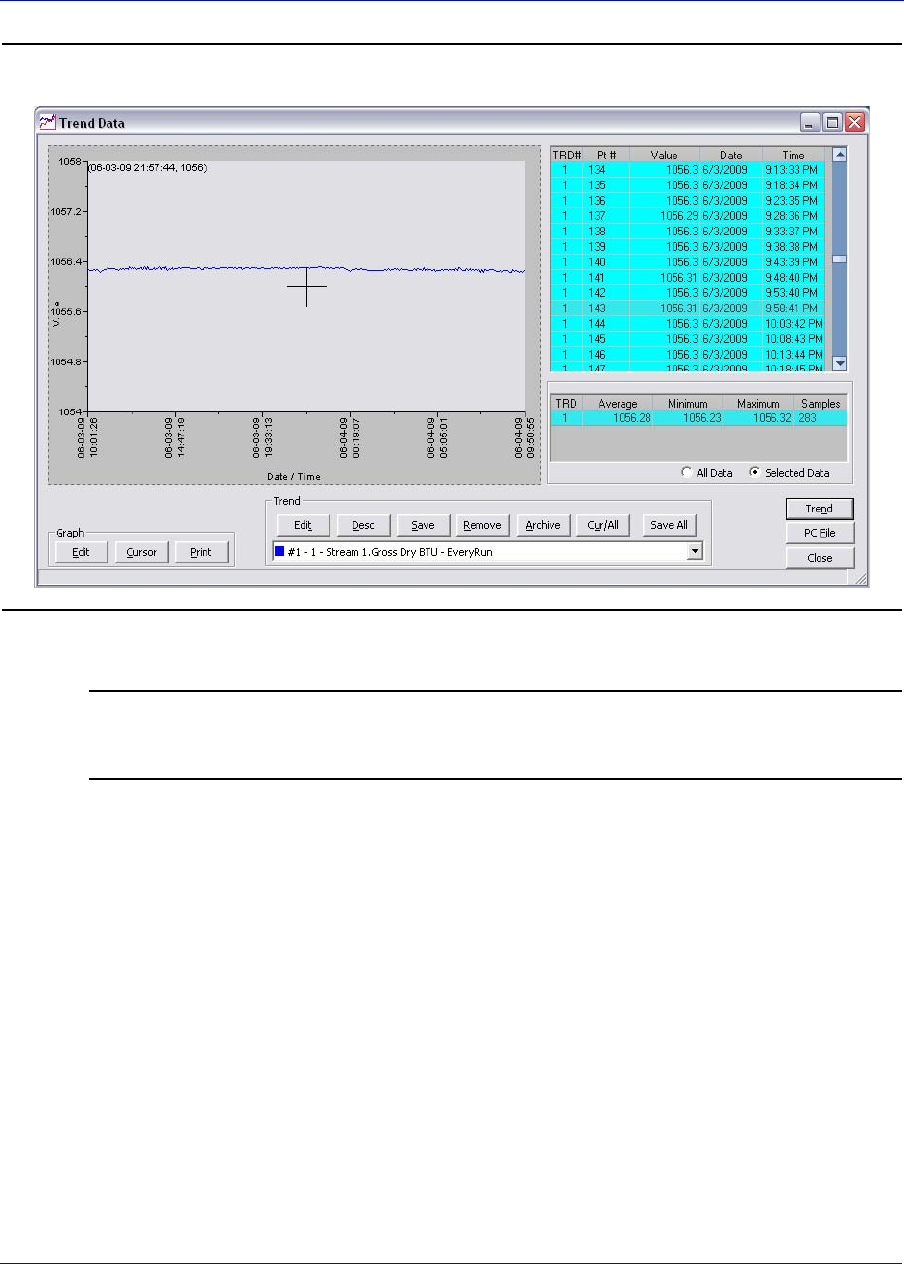
MON20/20 Software for Gas Chromatographs User Manual
SEPTEMBER 2010 3-9000-745
5-51
Figure 5-36. The Trend Data window
Note
To view the chromatogram that is associated with a particular trend data point, locate
the data point in the table and double-click it while pressing the SHIFT key.
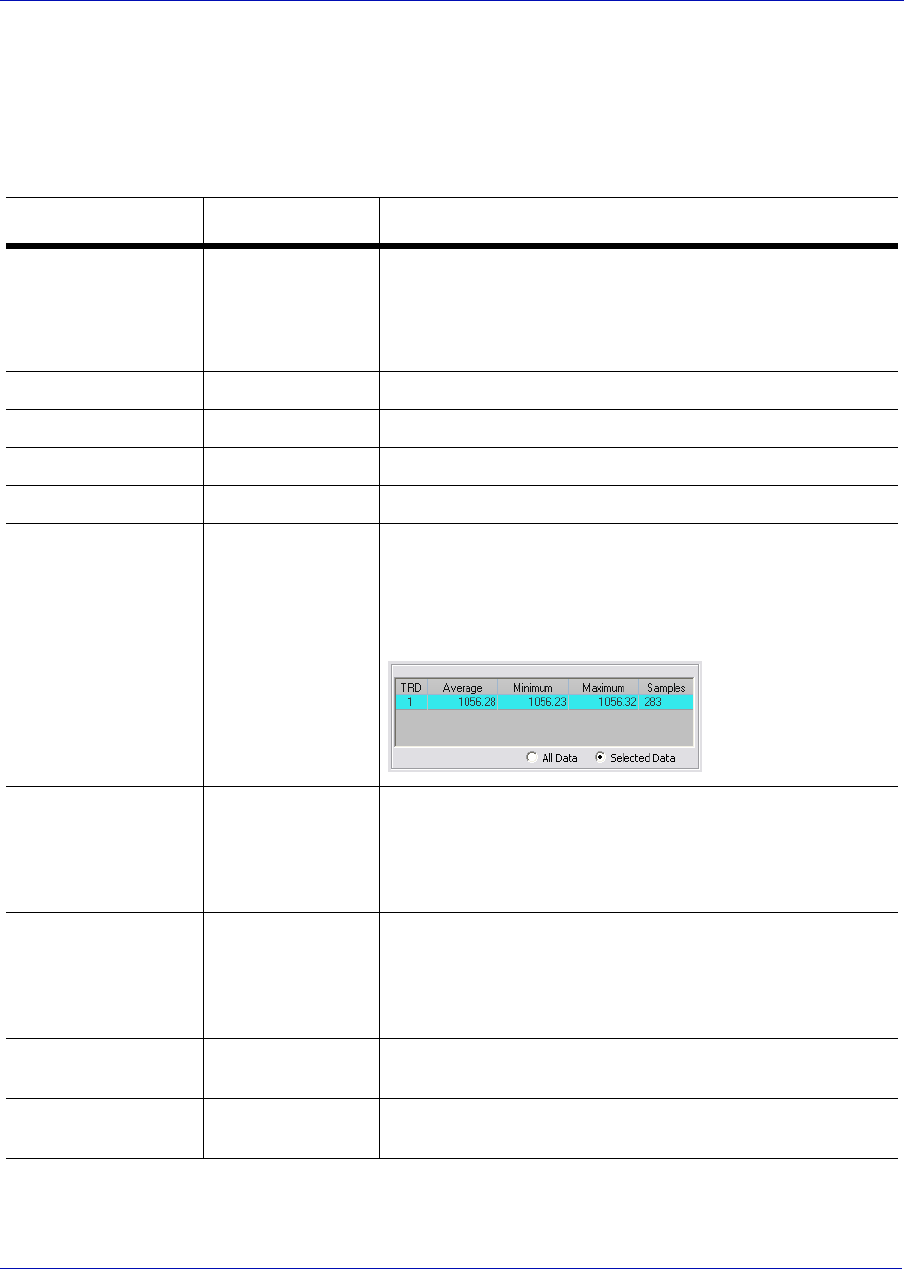
User Manual MON20/20 Software for Gas Chromatographs
3-9000-745 SEPTEMBER 2010
5-52
5.9 Working with the Trend Graph
Right-clicking with the mouse on the graph brings up the following
commands and keyboard shortcuts:
Command Name Shortcut Description
Zoom In “+” (NUMPAD) Zooms in on the entire graph.
NOTE: Another way to zoom in is by clicking and dragging
your mouse to select the region of the graph that you want
to zoom in on.
Zoom Out “-” (NUMPAD) Zooms out from the entire graph.
Zoom X In “6” (NUMPAD) Zooms in on the X axis.
Zoom X Out “4” (NUMPAD) Zooms out from the X axis.
Zoom Y In “8” (NUMPAD) Zooms in on the Y axis.
Zoom Y Out “2” (NUMPAD) Zooms out from the Y axis.
NOTE: When the Selected Data checkbox is selected, the
small table to the right of the graph displays the trend data
for the visible area of the graph when zooming in and out.
Save State CTRL + HOME Saves current or archived display settings for the selected
trend graph.
NOTE: The Save State function is available only when
viewing a live or archived trend graph.
Restore State HOME Restores the last saved display settings for the selected
trend graph.
NOTE: Pressing HOME returns the user to the saved
state.
Toggle Full Screen F11 Maximizes the display of the graph in the Trend Data
window.
Cursor to Nearest
Point
F8 Snaps the cursor to the nearest point on the trend graph in
both the X and Y directions.
MON20/20 Software for Gas Chromatographs User Manual
SEPTEMBER 2010 3-9000-745
5-53
Toggle Coarse/Fine
Cursor
F4 Toggles the cursor from coarse and less accurate to fine and
more accurate.
Toggle Lines/Dots
Displays
F9 Toggles the trend graph from lines to dots, or dots to lines.
Toggle Mouse
Position Tip
CTRL + F4 The graph’s cursor follows the movement of the mouse
while a hovering tooltip displays the exact coordinates of
the current point.
Toggle Nearest
Position Tip
CTRL + F9 The graph’s cursor follows the movement of the mouse
cursor.
Print CTRL + P Prints the trend graph.
Copy to clipboard CTRL + C Copies from the graph the raw detector data that was used
to plot the selected trend graph. This data can be pasted
into another application such as Microsoft Word or
Microsoft Excel.
Paste from clipboard CTRL + V Plots a range of points copied from another application such
as Microsoft Word or Microsoft Excel.
Command Name Shortcut Description
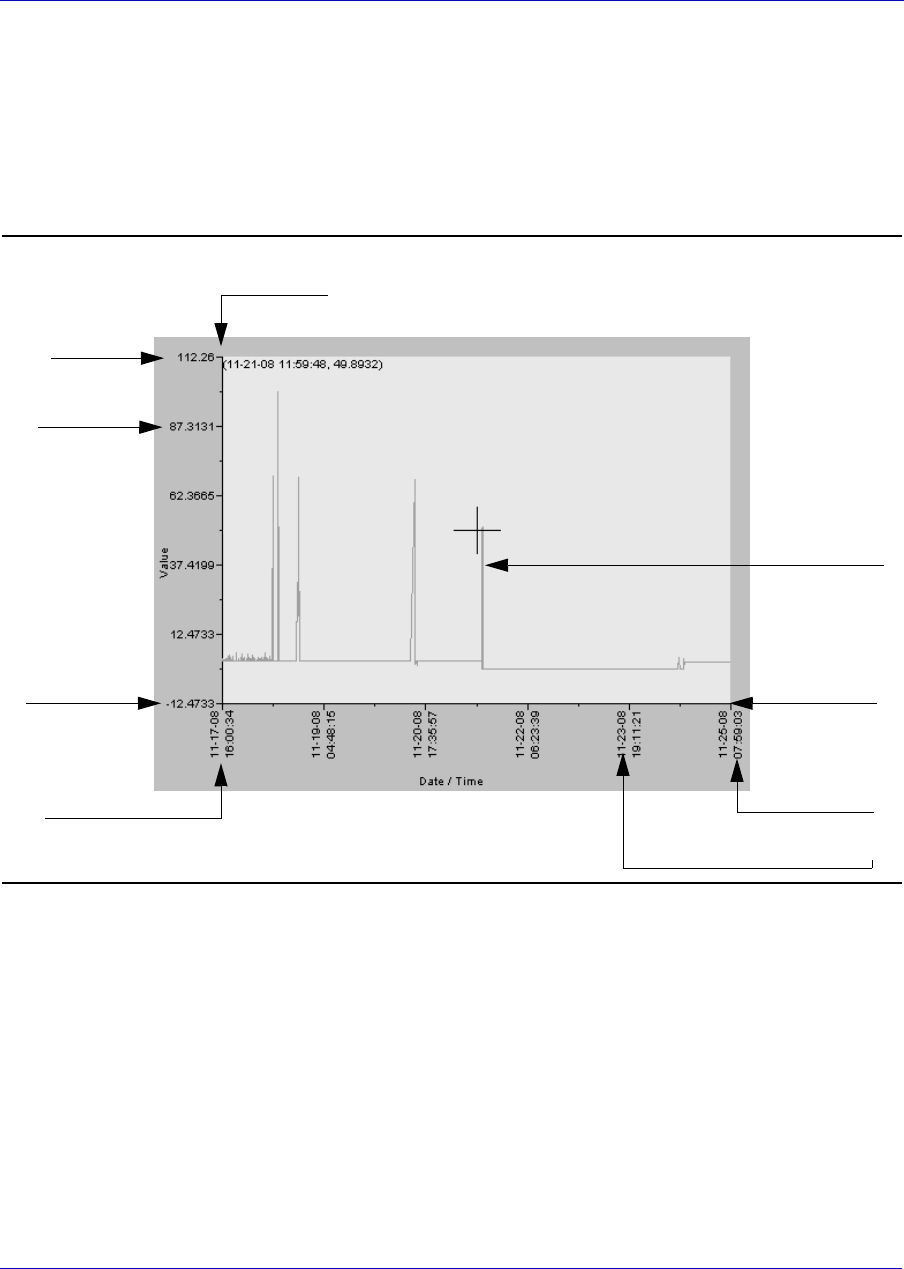
User Manual MON20/20 Software for Gas Chromatographs
3-9000-745 SEPTEMBER 2010
5-54
5.10 Editing the display properties of the graph
5.10.1 The graph bar
Use the graph bar buttons to change the display parameters of the graph.
Figure 5-37. The graph
Click Edit to view or change the display properties of the X and Y axes.
The Edit Graph window displays.
Y axis
X axisY Min
Y Max
X max
X Min
X interval
Y interval
color-coded
trend graph
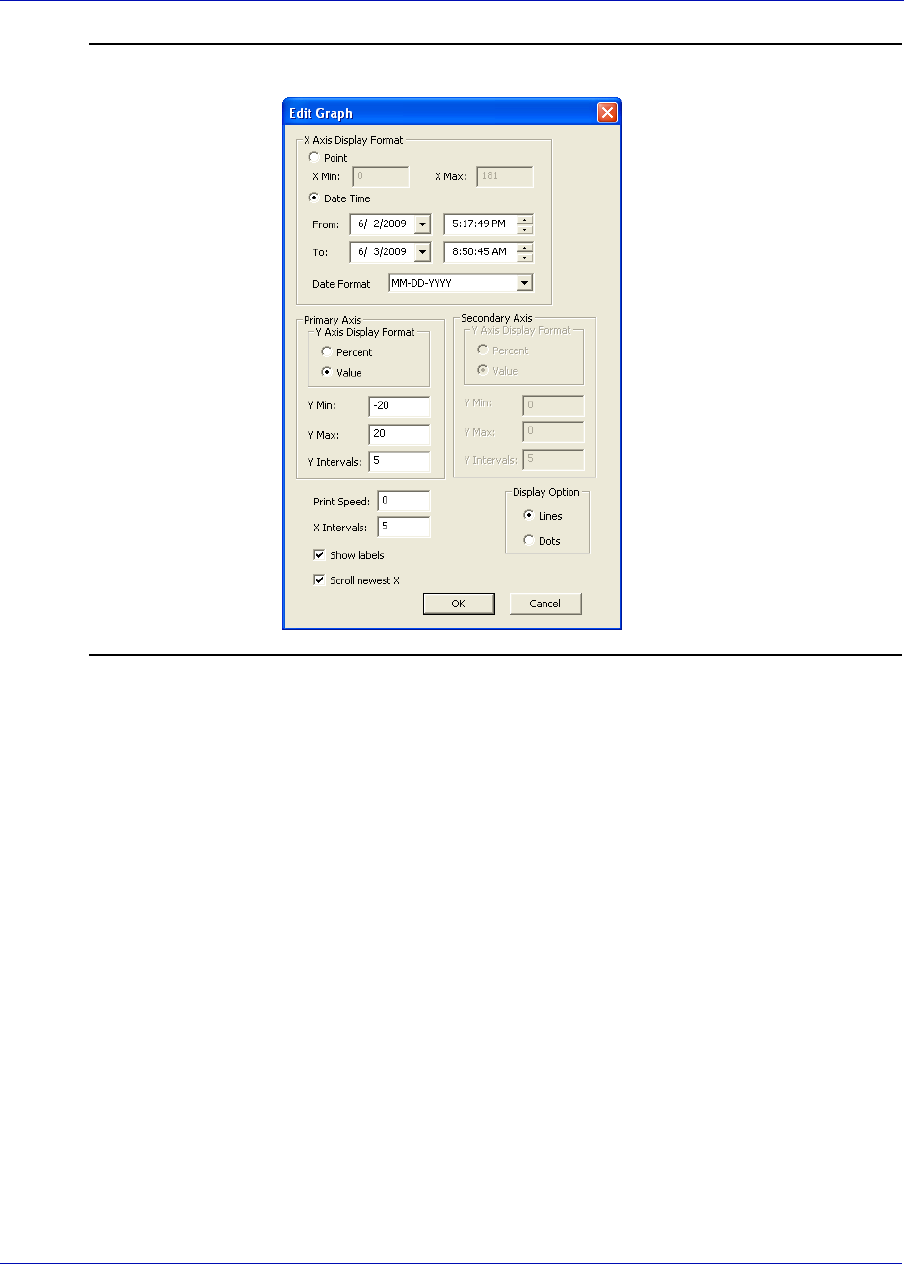
MON20/20 Software for Gas Chromatographs User Manual
SEPTEMBER 2010 3-9000-745
5-55
Figure 5-38. The Edit Graph window

User Manual MON20/20 Software for Gas Chromatographs
3-9000-745 SEPTEMBER 2010
5-56
The following table lists the parameters that can be edited:
The primary Y axis is the default axis for displaying trend graphs. The
secondary Y axis can be used to display a second graph whose minimum
and maximum values are different than the minimum and maximum
values of the first graph.
Command Description Default
Value
Point Sets the X-axis values to points. For the purposes of this graph,
each sample run is considered a data point. Therefore, if 2500
sample runs were used to generate the trend graph, then there are
2500 data points.
NOTE: The X-axis value for the first sample, or point, in the trend
graph is 0, not 1. The X-axis value for the final point in the trend
graph is N - 1, where N is the total number of points in the graph.
•X Min - Sets the minimum value for the X axis to the point
number of the first sample you want to use in the plot. Default
value is 0.
•X Max - Sets the maximum value for the X axis to the point
number of the last sample you want to use in the plot. Default
value is N - 1, where N is the total number of points in the graph.
Therefore, if there are 2500 points, then the X Max would be
2499.
0
Date Time Sets the X-axis values to the particular GC dates and times of each
sample runs.
•From - Sets the minimum value for the X axis to the date of the
first sample you want to use in the plot.
•To - Sets the maximum value for the X axis to the date of the
last sample you want to use in the plot.
•Date Format - Options are MM-DD-YYYY or DD-MM-YYYY.
N/A
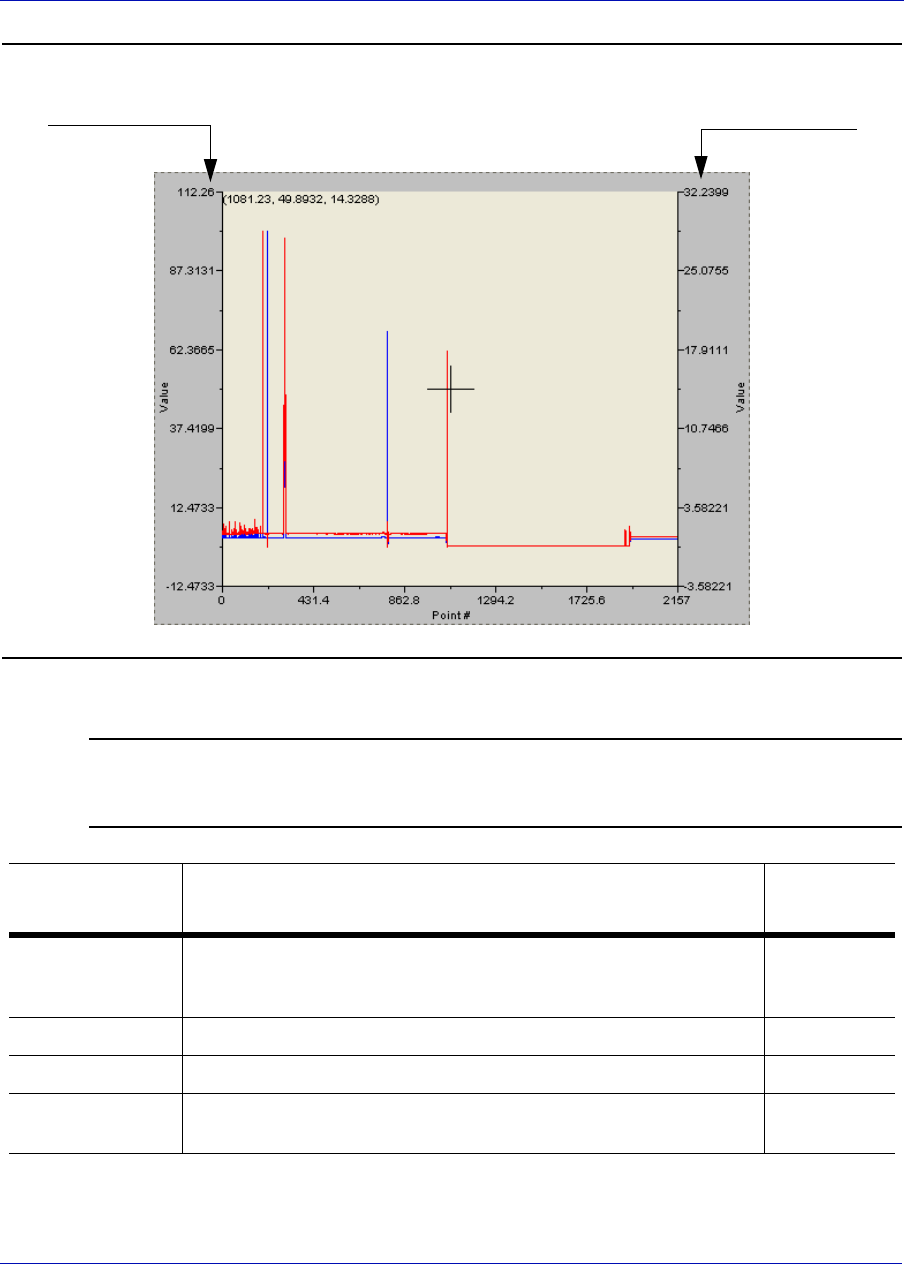
MON20/20 Software for Gas Chromatographs User Manual
SEPTEMBER 2010 3-9000-745
5-57
Figure 5-39. Primary axes
Note
If three or more graphs are displayed, only the second graph will be plotted using the
secondary Y axis; all other graphs will be plotted with the primary Y axis.
Command Description Default
Value
Y axis Display
Format
• Percent - Sets the Y-axis values to a percentage of the Y Max
value.
• Value - Sets the Y-axis values to the sample run values.
0
Y Min Sets the minimum value for the Y axis. N/A
Y Max Sets the maximum value for the Y axis. N/A
Y Intervals Sets the number of intervals to be displayed on the graph for the Y
axis.
N/A
primary Y axis secondary Y axis

User Manual MON20/20 Software for Gas Chromatographs
3-9000-745 SEPTEMBER 2010
5-58
To accept your changes, click OK.
Click Cursor to toggle the cursor size from coarse movement (less
accurate) to fine movement (more accurate).
Click Print to print the graph window.
5.11 Working with a trend graph
Figure 5-40. The Trend bar
The Trend bar contains a row of buttons that allows you to manipulate a
single trend trace. Below the row of buttons is the trace pull-down menu,
which contains a list of all of the currently displayed traces that make up
the trend graph. Before you can work with a trend trace you must first
select it from the pull-down menu.
Print Speed Sets the number of inches per second for the x-axis while printing a
chromatogram, similar to an XY plotter.
N/A
X Intervals Sets the number of intervals to be displayed on the graph for the X
axis.
10
Display Option Determines whether the chromatograph is displayed as a solid line
or as a dotted line.
Lines
Show labels Determines whether each axis is labelled. Checked
Scroll newest X Determined whether the graph’s window moves to focus on the
most recent data point along the x axis.
Checked
Command Description Default
Value

MON20/20 Software for Gas Chromatographs User Manual
SEPTEMBER 2010 3-9000-745
5-59
5.11.1 Editing a trend graph
You can use the Edit window to change the X and Y offset values for a
graph, change its color, and also set which Y axis should be used when
plotting it. These changes may be necessary to make the trend more
distinguishable from those that surround it, or to position a graph in
relation to a different graph for comparison.
To edit a trend trace, do the following:
1. From the Trend pull-down menu, select the graph that you want to
edit.
Figure 5-41. The Trend pull-down menu
2. Click Edit. The Edit Trend dialog displays.
Figure 5-42. The Edit Trend dialog
•X Offset - Enter a positive number to move the trend to the right,
or a negative number to move the trend to the left.
•Y Offset - Enter a positive number to move the trend up, or a
negative number to move the trend down.
•Color - Assigns a color to the trend.
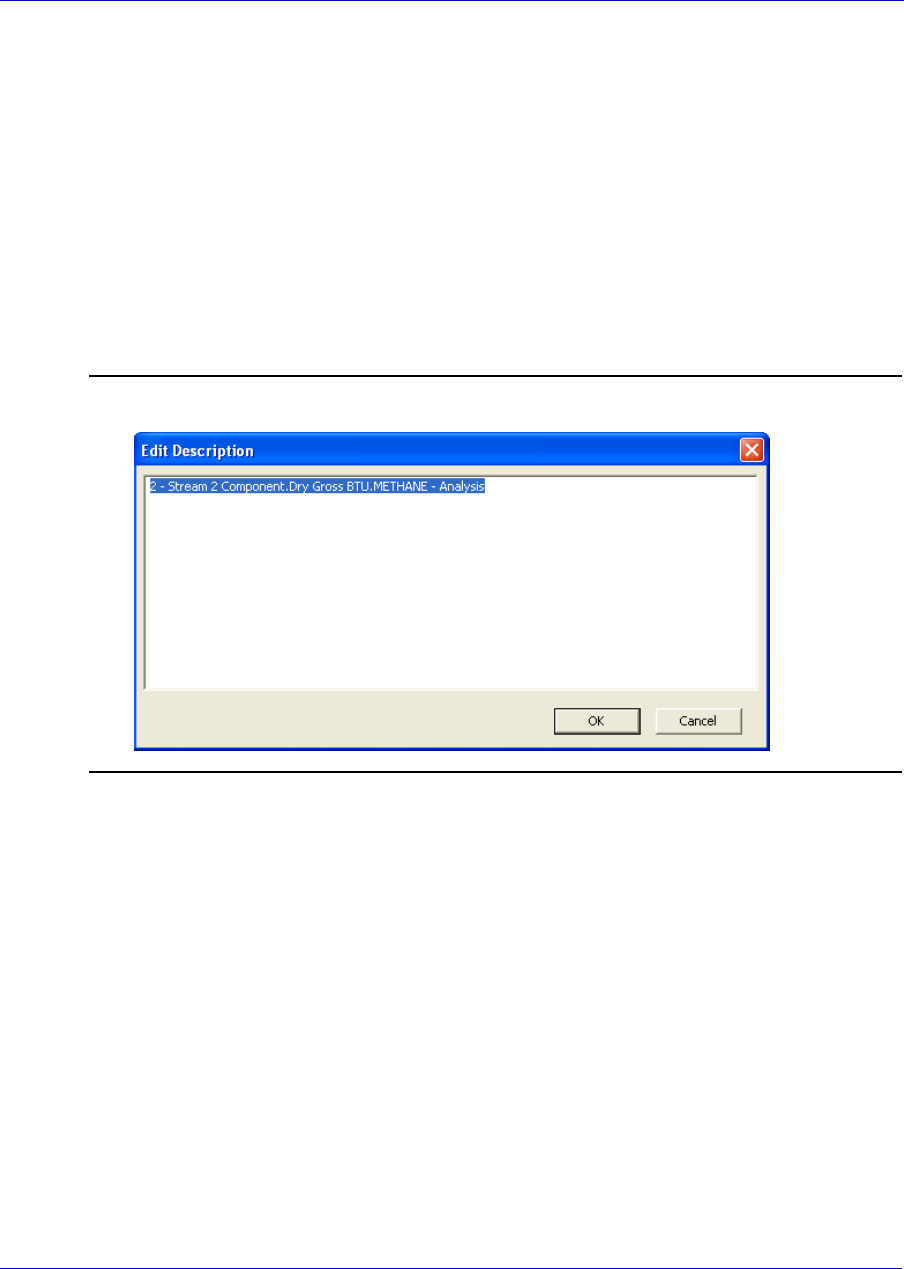
User Manual MON20/20 Software for Gas Chromatographs
3-9000-745 SEPTEMBER 2010
5-60
•Add Trace to - Sets which Y axis should be used when plotting
the graph. See “The graph bar” on page 5-54 for more information.
3. To accept your changes, click OK.
5.11.2 Entering a description for a trend graph
To add or change description text for a trend graph, do the following:
1. From the Trend bar, click Desc. The Edit Description window
displays.
Figure 5-43. The Edit Description window
2. Type or edit a description and then close the window.
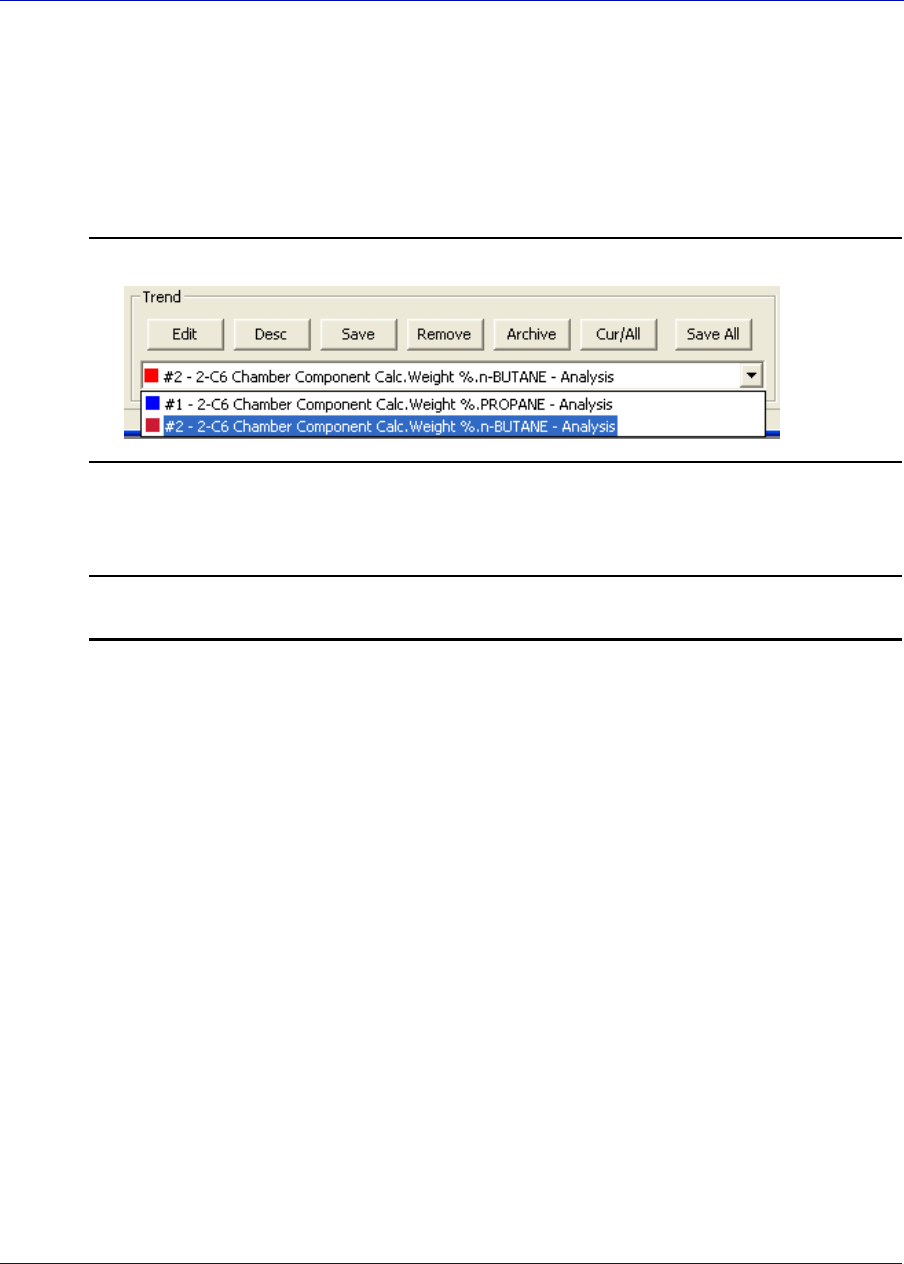
MON20/20 Software for Gas Chromatographs User Manual
SEPTEMBER 2010 3-9000-745
5-61
5.11.3 Saving a trend trace
To save a trend trace to disk, do the following:
1. From the Trend pull-down menu, select the trace that you want to
save.The Trend pull-down menu.
Figure 5-44. The Trend pull-down menu
2. Click Save. The Save Trend File window displays.
Note
To save all currently displayed trend traces into one file, click Save All.
3. For convenience the file is given an auto-generated file name that
includes the current date and time; however, you can give the file any
name that you choose. Click Save.
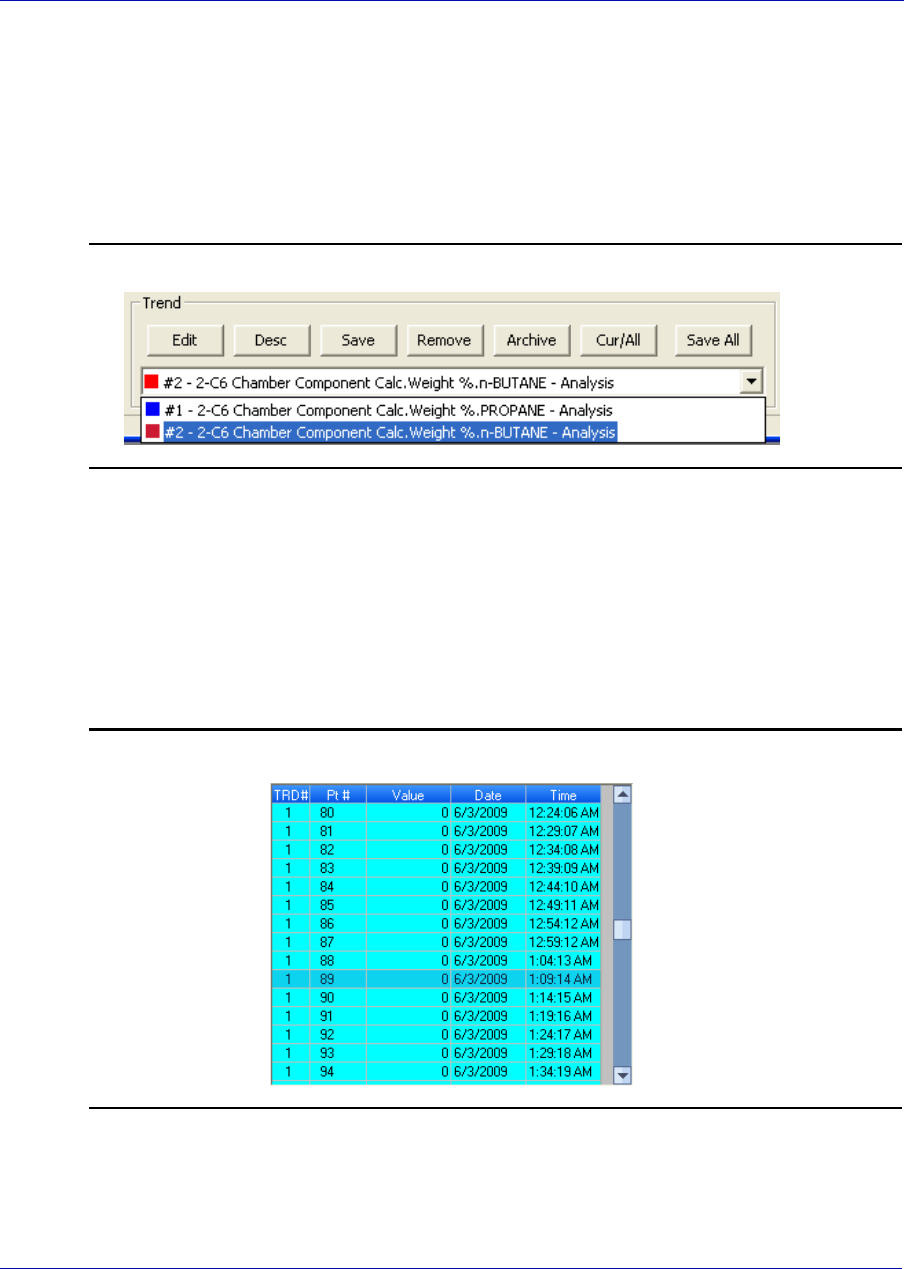
User Manual MON20/20 Software for Gas Chromatographs
3-9000-745 SEPTEMBER 2010
5-62
5.11.4 Removing a trend graph from view
To remove a trend graph from the graph display, do the following:
1. From the Trend pull-down menu, select the graph that you want to
remove.
Figure 5-45. The Trend pull-down menu
2. Click Remove.
5.11.5 Displaying trend data
The data used to plot the trend graphs displays in the table to the right of
the graph display area.
Figure 5-46. Trend data
MON20/20 Software for Gas Chromatographs User Manual
SEPTEMBER 2010 3-9000-745
5-63
The table contains the following columns:
Note
To view the chromatogram that is associated with a particular trend data point, locate
the data point in the table and double-click it while pressing the SHIFT key.
To view all trend data, click Cur/All. To view trend data for the trend
graph selected from the Trend drop-down list, click Cur/All again.
The second trend data table is useful when zooming in to or out of the
graph. When the Selected Data checkbox is selected, this table displays
the trend data for the visible area of the graph. As the example shows,
the table indicates that the trend data for five samples are visible after
zooming in to the graph.
Label Description
TRD Indicates the identifcation number of the trend graph.
Pt # For the purposes of trend graphs, each sample run is considered a data point. Therefore, if
2500 sample runs were used to generate the trend graph, then there are 2500 data points.
NOTE: The first sample, or point, is counted as 0, not 1. The final point is counted as N - 1,
where N is the total number of points in the graph.
Value The data point’s value.
Data The GC’s date when the sample was run and the value was calculated.
Time The GC’s time when the sample was run and the value was calculated.
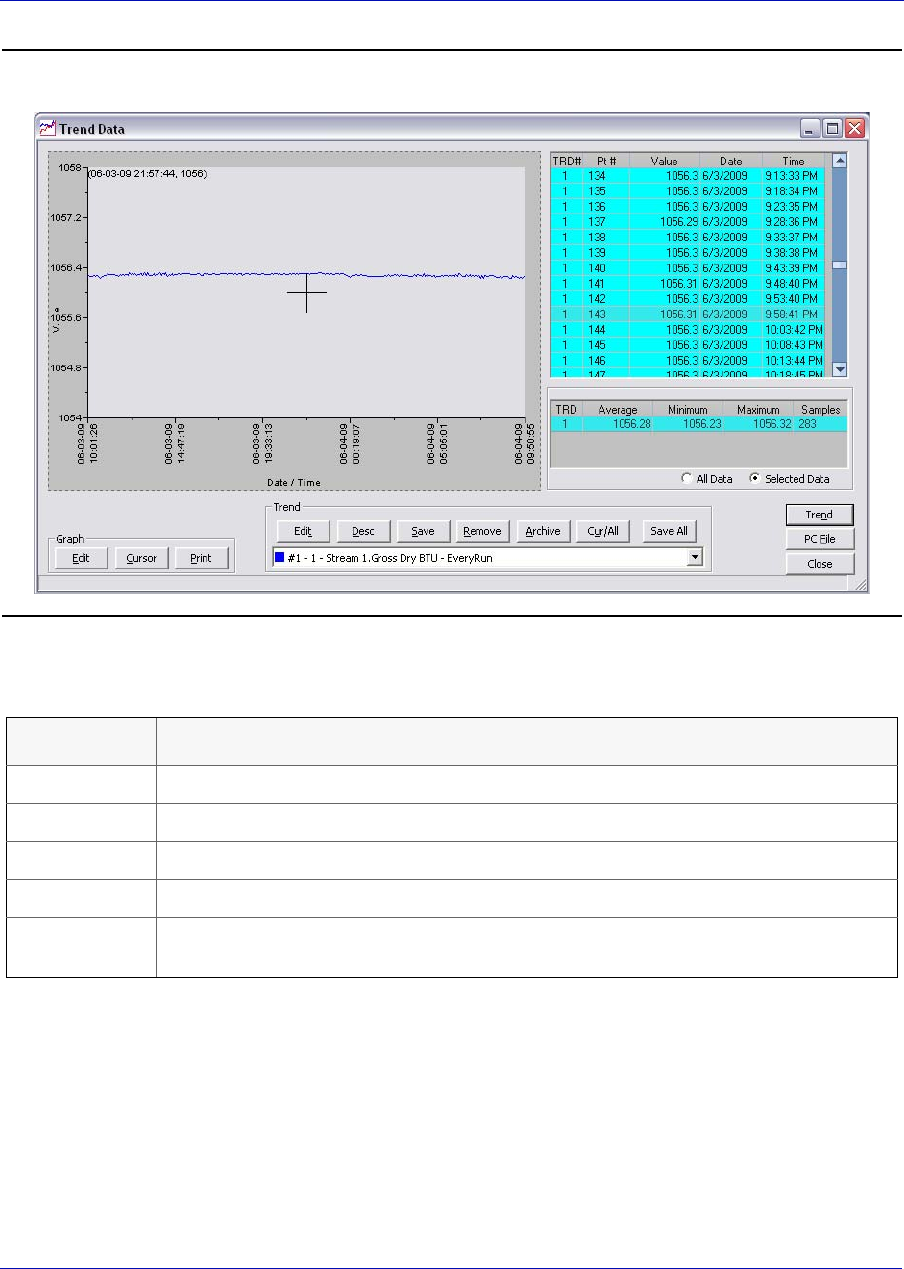
User Manual MON20/20 Software for Gas Chromatographs
3-9000-745 SEPTEMBER 2010
5-64
Figure 5-47. The Trend Data window
The table contains the following columns:
Label Description
TRD Indicates the identifcation number of the trend graph.
Average Indicates the average data point value of the selected samples.
Minimum Inidicates the lowest data point value of the selected samples.
Maximum Inidicates the highest data point value of the selected samples.
Samples Inidicates the number of samples that were selected and that are displayed in the
graph window.
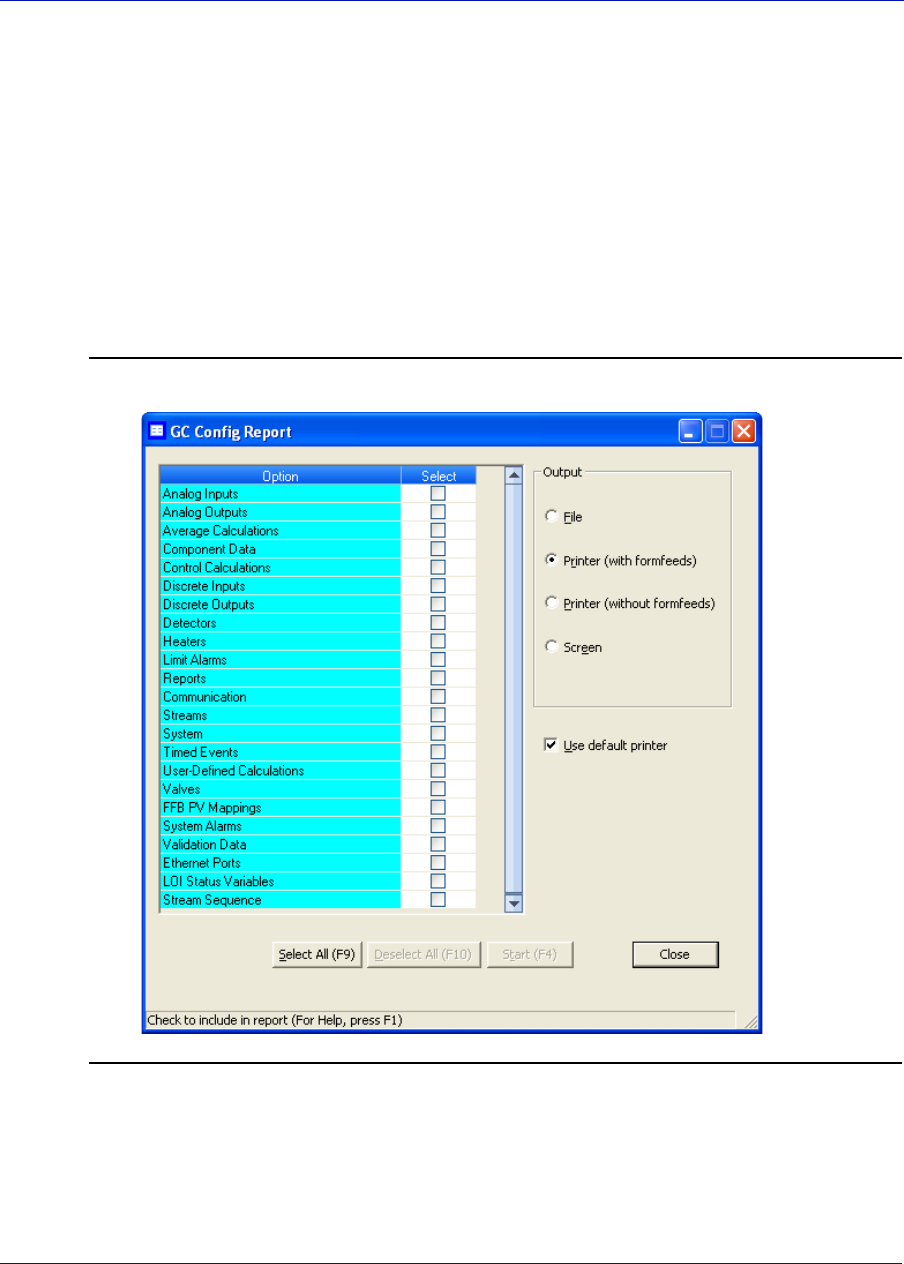
MON20/20 Software for Gas Chromatographs User Manual
SEPTEMBER 2010 3-9000-745
5-65
5.12 Generating a GC Configuration Report
A GC Config Report displays all current settings for the GC. This section
explains how to produce a GC Config Report and provides an example for
reference.
To generate a GC Config Report, do the following:
1. Select GC Config Report... from the Logs/Reports menu. The GC
Config Report window displays.
Figure 5-48. The GC Config Report window

User Manual MON20/20 Software for Gas Chromatographs
3-9000-745 SEPTEMBER 2010
5-66
2. Select the checkbox for each option that you want to include in the
report.
Note
To select all the options, click Select All (F2). To clear all options, click Clear All (F3).
3. Select the type of output you want for the report.
Note
When choosing a Printer option, if you want to use a printer different from the one that
you usually use, deselect the Use default printer checkbox and when the report is ready,
the printer configuration window will display.
Note
When choosing the File option, the Save window will display, allowing you to name the
text file and choose a location in which to save it.
4. Click Start (F4). MON 20/20 will generate the customized report and
print or save it, according to the output option you selected.
Note
A GC Config Report that includes all options can take several minutes to generate and
save. Printing a full report can take longer. If you press ESC, MON 20/20 will stop after
the current option is completed.
MON20/20 Software for Gas Chromatographs User Manual
SEPTEMBER 2010 3-9000-745
5-67
System Report from Model Austin [SAMPLE]
03/12/2009 12:51:58 PM
Description Value
Stream Sequence 1,2,3
Analyzer Name Austin
GC Model GC700XA
System Description
Firmware Version
GC Serial Number
Company Name
GC Location
Number of Valves 3
Number of Serial Ports 3
Daylight Saving Time
CGM Analog O/P Cfg. 0
Baseline Offset
Archive Days 0
****************************************
Component Data Table Report from Model Austin
03/12/2009 12:51:59 PM
Component Data Table #1
Component U/S Det # Retention Response Calibration Con
Time (sec) Factor
C6+ 47/35/17 Standard 1 38.00 891250 0.0000%
PROPANE Standard 1 50.16 4.655095e+07 0.9995%
i-BUTANE Standard 1 63.12 5.513906e+07 0.3000%
n-BUTANE Standard 1 70.88 5.610726e+07 0.3000%
NEOPENTANE Standard 1 0.00 0 0.0000%
i-PENTANE Standard 1 101.92 6.363212e+07 0.1000%
n-PENTANE Standard 1 113.84 6.487665e+07 0.1000%
NITROGEN Standard 1 141.68 3.865339e+07 2.4990%
METHANE Standard 1 145.80 2.679253e+07 89.5920%
CARBON DIOXIDE Standard 1 178.68 3.795704e+07 0.9997%
ETHANE Standard 1 206.20 4.166654e+07 5.0000%
n-NONANE Standard 2 34.80 9.057038e+08 0.0100%
n-HEXANE Standard 2 105.00 5.647477e+08 0.0598%
n-HEPTANE Standard 2 148.08 7.3743e+08 0.0200%
n-OCTANE Standard 2 255.96 7.554687e+08 0.0201%
Component Analysis RT Dev. RT Dev. Update Gross BTU Net Dry BTU
Method (sec) (%) Method
C6+ 47/35/17 Fixed 3 0.00 Cal 5288.7002 4900.6001
PROPANE Area 3 5.00 Cal 2522.0000 2320.3999
i-BUTANE Area 3 5.00 Cal 3259.5000 3006.8999

User Manual MON20/20 Software for Gas Chromatographs
3-9000-745 SEPTEMBER 2010
5-68
SAMPLE cont.
n-BUTANE Area 3 5.00 Cal 3269.8999 3018.0000
NEOPENTANE Fixed 3 5.00 Cal 3993.8999 3691.3999
i-PENTANE Area 3 5.00 Cal 4010.2000 3707.6001
n-PENTANE Area 3 5.00 Cal 4018.0000 3715.6001
NITROGEN Area 3 5.00 Cal 0.0000 0.0000
METHANE Area 3 5.00 Cal 1012.3000 911.1000
CARBON DIOXIDE Area 4 5.00 Cal 0.0000 0.0000
ETHANE Area 5 5.00 Cal 1773.8000 1622.8000
n-NONANE Area 3 0.00 Cal 7012.6001 6508.0000
n-HEXANE Area 3 0.00 Cal 4767.0000 4414.2002
n-HEPTANE Area 4 0.00 Cal 5515.2002 5111.7998
n-OCTANE Area 5 0.00 Cal 6263.3999 5809.3999
Component Molecular AGA 8 Reid Relative Relative
Weight Component Vapor Density Gas Density Lqd
C6+ 47/35/17 95.956 C6mix1 3.020 3.3135 0.6800
PROPANE 44.096 PROPANE 188.690 1.5227 0.5074
i-BUTANE 58.122 i-BUTANE 72.484 2.0071 0.5630
n-BUTANE 58.122 n-BUTANE 51.683 2.0071 0.5841
NEOPENTANE 72.150 i-PENTANE 35.900 2.4911 0.5967
i-PENTANE 72.149 i-PENTANE 20.456 2.4914 0.6246
n-PENTANE 72.149 n-PENTANE 15.558 2.4914 0.6311
NITROGEN 28.013 NITROGEN 0.000 0.9673 0.8069
METHANE 16.042 METHANE 5000.000 0.5540 0.3000
CARBON DIOXIDE 44.010 CO2 0.000 1.5197 0.8220
ETHANE 30.069 ETHANE 800.000 1.0383 0.3564
n-NONANE 128.260 n-NONANE 0.170 4.4289 0.7219
n-HEXANE 86.175 n-HEXANE 4.961 2.9758 0.6640
n-HEPTANE 100.200 n-HEPTANE 1.620 3.4601 0.6882
n-OCTANE 114.230 n-OCTANE 0.537 3.9445 0.7070
Component HV Sup HV Inf HV Sup HV Inf Relative
MJ/m3 MJ/m3 MJ/kg MJ/kg Response Factor
C6+ 47/35/17 196.980 182.520 48.558 44.989 0.0
PROPANE 93.936 86.419 50.370 46.340 0.0
i-BUTANE 121.400 112.010 49.389 45.568 0.0
n-BUTANE 121.790 112.400 49.547 45.726 0.0
NEOPENTANE 148.760 137.490 48.750 45.060 0.0
i-PENTANE 149.360 138.090 48.950 45.255 0.0
n-PENTANE 149.660 138.380 49.046 45.350 0.0
NITROGEN 0.000 0.000 0.000 0.000 0.0
METHANE 37.707 33.949 55.576 50.037 0.0
CARBON DIOXIDE 0.000 0.000 0.000 0.000 0.0
ETHANE 66.067 60.429 51.952 47.518 0.0
n-NONANE 261.190 242.400 48.153 44.689 0.0
n-HEXANE 177.550 164.400 48.717 45.108 0.0

MON20/20 Software for Gas Chromatographs User Manual
SEPTEMBER 2010 3-9000-745
5-69
SAMPLE cont.
n-HEPTANE 205.420 190.390 48.474 44.927 0.0
n-OCTANE 233.290 216.370 48.289 44.788 0.0
Component Reference MultiLevel MultiLevel MultiLevel MultiLevel
Component Calib 'a' Calib 'b' Calib 'c' Calib 'd'
C6+ 47/35/17 none
PROPANE none
i-BUTANE none
n-BUTANE none
NEOPENTANE none
i-PENTANE none
n-PENTANE none
NITROGEN none
METHANE none
CARBON DIOXIDE none
ETHANE none
n-NONANE none
n-HEXANE none
n-HEPTANE none
n-OCTANE none
Component Data Table #2
Component U/S Det # Retention Response Calibration Con
Time (sec) Factor
C6+ 47/35/17 Standard 1 26.50 7697800 0.0204
PROPANE Standard 1 46.90 4322000 0.4995
i-BUTANE Standard 1 57.40 4993200 0.1012
n-BUTANE Standard 1 64.30 5085100 0.1007
NEOPENTANE Standard 1 70.10 5673100 0.0503
i-PENTANE Standard 1 89.40 5683100 0.0499
n-PENTANE Standard 1 99.90 5731600 0.0503
NITROGEN Standard 1 143.40 3080000 0.5984
METHANE Standard 1 147.00 2362600 97.1310
CARBON DIOXIDE Standard 1 179.50 3568900 0.3991
ETHANE Standard 1 208.60 4078100 0.9992
H2S Standard 1 300.10 0 0.0000
Component Analysis RT Dev. RT Dev. Update Gross BTU Net Dry BTU
Method (sec) (%) Method
C6+ 47/35/17 area 0 5.00 Cal 5288.7100 4900.6201
PROPANE area 0 5.00 Cal 2522.0200 2320.3601
i-BUTANE area 0 5.00 Cal 3259.5000 3006.8999
n-BUTANE area 0 5.00 Cal 3269.9500 3017.9700
NEOPENTANE area 0 5.00 Cal 3993.8999 3691.3999
i-PENTANE area 0 5.00 Cal 4010.1599 3707.5601

User Manual MON20/20 Software for Gas Chromatographs
3-9000-745 SEPTEMBER 2010
5-70
SAMPLE cont.
n-PENTANE area 0 5.00 Cal 4017.9700 3715.5801
NITROGEN area 0 5.00 Cal 0.0000 0.0000
METHANE area 0 5.00 Cal 1012.3400 911.1030
CARBON DIOXIDE area 0 5.00 Cal 0.0000 0.0000
ETHANE area 0 5.00 Cal 1773.8000 1622.7500
H2S area 0 0.00 Cal 638.5800 588.1600
Component Molecular AGA 8 Reid Relative Relative
Weight Component Vapor Density Gas Density Lqd
C6+ 47/35/17 95.956 C6mix1 3.020 3.3135 0.6800
PROPANE 44.096 PROPANE 188.690 1.5227 0.5074
i-BUTANE 58.122 i-BUTANE 72.484 2.0071 0.5630
n-BUTANE 58.122 n-BUTANE 51.683 2.0071 0.5841
NEOPENTANE 72.150 i-PENTANE 35.900 2.4911 0.5967
i-PENTANE 72.149 i-PENTANE 20.456 2.4914 0.6246
n-PENTANE 72.149 n-PENTANE 15.558 2.4914 0.6311
NITROGEN 28.013 NITROGEN 0.000 0.9673 0.8069
METHANE 16.042 METHANE 5000.000 0.5540 0.3000
CARBON DIOXIDE 44.010 CO2 0.000 1.5197 0.8220
ETHANE 30.069 ETHANE 800.000 1.0383 0.3564
H2S 34.082 H2S 395.550 1.1769 0.8027
Component HV Sup HV Inf HV Sup HV Inf Relative
MJ/m3 MJ/m3 MJ/kg MJ/kg Response Factor
C6+ 47/35/17 196.980 182.520 48.558 44.989 0.0
PROPANE 93.936 86.419 50.370 46.340 0.0
i-BUTANE 121.400 112.010 49.389 45.568 0.0
n-BUTANE 121.790 112.400 49.547 45.726 0.0
NEOPENTANE 148.760 137.490 48.750 45.060 0.0
i-PENTANE 149.360 138.090 48.950 45.255 0.0
n-PENTANE 149.660 138.380 49.046 45.350 0.0
NITROGEN 0.000 0.000 0.000 0.000 0.0
METHANE 37.707 33.949 55.576 50.037 0.0
CARBON DIOXIDE 0.000 0.000 0.000 0.000 0.0
ETHANE 66.067 60.429 51.952 47.518 0.0
H2S 23.785 21.910 16.501 15.200 0.0
Component Reference MultiLevel MultiLevel MultiLevel MultiLevel
Component Calib 'a' Calib 'b' Calib 'c' Calib 'd'
C6+ 47/35/17 none
PROPANE none
i-BUTANE none
n-BUTANE none

MON20/20 Software for Gas Chromatographs User Manual
SEPTEMBER 2010 3-9000-745
5-71
SAMPLE cont.
NEOPENTANE none
i-PENTANE none
n-PENTANE none
NITROGEN none
METHANE none
CARBON DIOXIDE none
ETHANE none
H2S none
Component Data Table #3
Component Data Table #4
**************************************************************************************
Timed Event Table Report from Model Austin
03/12/2009 12:52:01 PM
Timed Event Table #1 -
Hardware TEV table 1
TEV Type Valve/ DO # State Time
(Sec)
Valve # SSO_1 On 0.0
Valve # SSO_2 On 1.0
Valve # DualColumn On 2.0
Valve # S/BF_1 On 5.0
Valve # S/BF_2 On 6.0
Strm Sw 11.0
Valve # SSO_1 Off 15.0
Valve # SSO_2 Off 16.0
Valve # S/BF_1 Off 26.5
Valve # S/BF_2 Off 28.0
Valve # DualColumn Off 43.5
Valve # DualColumn On 132.5
Software TEV table 1
TEV Type Value Det # Time
(Sec)
Inhibit On 2 0.0
Inhibit On 1 0.0
Peak Width 6 2 0.0
Slope Sens 24 2 0.0

User Manual MON20/20 Software for Gas Chromatographs
3-9000-745 SEPTEMBER 2010
5-72
SAMPLE cont.
Slope Sens 48 1 3.0
Peak Width 4 1 4.0
Inhibit Off 2 31.3
Inhibit Off 1 33.0
Inhibit On 2 38.5
Inhibit On 1 43.5
Inhibit Off 1 48.0
Inhibit Off 2 72.5
Summation On 2 72.6
Inhibit On 1 85.0
Inhibit Off 1 87.0
Summation Off 2 105.0
Inhibit On 1 133.0
Peak Width 2 1 134.0
Slope Sens 16 1 134.5
Inhibit Off 1 137.5
Inhibit On 2 170.0
Inhibit On 1 170.0
Peak Width 8 2 170.5
Inhibit Off 2 171.0
Peak Width 8 1 171.0
Slope Sens 48 1 171.5
Inhibit Off 1 172.0
Inhibit On 1 290.0
Inhibit On 2 291.0
Gain TEV table 1
Det # Gain Time
(Sec)
1 4 0.0
2 4 0.0
Timed Event Table #2 -
Hardware TEV table 2
TEV Type Valve/ DO # State Time
(Sec)
Valve # SSO_1 On 0.0
Valve # SSO_2 On 0.0
Valve # DualColumn On 2.0
Valve # S/BF_1 Off 5.0
Valve # S/BF_2 Off 6.0
Strm Sw 11.0
Valve # S/BF_2 Off 24.5
Valve # S/BF_1 Off 25.5
Valve # SSO_1 Off 40.0
Valve # SSO_2 Off 40.0
Valve # DualColumn Off 45.0
Valve # DualColumn On 157.0

MON20/20 Software for Gas Chromatographs User Manual
SEPTEMBER 2010 3-9000-745
5-73
SAMPLE cont.
Software TEV table 2
TEV Type Value Det # Time
(Sec)
Inhibit On 1 0.0
Inhibit On 2 0.0
Peak Width 2 1 0.0
Peak Width 2 2 0.0
Inhibit Off 1 0.1
Inhibit Off 2 0.1
Inhibit On 1 285.0
Inhibit On 2 285.0
Gain TEV table 2
Det # Gain Time
(Sec)
1 12 0.0
2 12 0.0
Timed Event Table #3 -
Hardware TEV table 3
TEV Type Valve/ DO # State Time
(Sec)
Valve # SSO_1 On 0.0
Valve # SSO_2 On 1.0
Valve # DualColumn On 2.0
Valve # S/BF_1 On 5.0
Valve # S/BF_2 On 6.0
Strm Sw 11.0
Valve # SSO_1 On 15.0
Valve # SSO_2 On 16.0
Valve # S/BF_1 On 26.5
Valve # S/BF_2 On 28.0
Valve # DualColumn Off 42.5
Valve # DualColumn On 133.0
Software TEV table 3
TEV Type Value Det # Time
(Sec)
Inhibit On 1 0.0
Inhibit On 2 0.0
Slope Sens 48 1 3.0
Peak Width 2 1 3.5
Slope Sens 48 2 4.0
Peak Width 2 2 4.5

User Manual MON20/20 Software for Gas Chromatographs
3-9000-745 SEPTEMBER 2010
5-74
SAMPLE cont.
Inhibit Off 1 5.0
Inhibit Off 2 5.5
Inhibit On 1 13.0
Inhibit On 2 13.5
Inhibit Off 1 25.0
Inhibit On 1 27.0
Inhibit Off 1 28.0
Inhibit Off 2 28.3
Inhibit On 2 31.5
Inhibit On 1 34.0
Inhibit On 1 45.0
Inhibit On 1 48.0
Inhibit Off 1 133.2
Inhibit On 1 141.5
Gain TEV table 3
Det # Gain Time
(Sec)
1 4 0.0
2 4 0.0
Timed Event Table #4 -
Hardware TEV table 4
Software TEV table 4
Gain TEV table 4
*************************************************
Calculation Control Report from Model Austin
03/12/2009 12:52:02 PM
Description 1 2 3 4 5 6 7 8
Average Limit Alarm Test N Y N N N N N N
Mole Percent Y Y N N Y Y Y Y
Liquid Volume Y Y N N N N N N
Weight Percent Y Y N N N N N N
Normalize Results N Y N N Y Y Y Y
Gas Density N N N N N N N N
Real Rel Den Gas Prim Y Y N N N N N N
Wobbe Index Sup Sec Y Y N N N N N N
Z Fact Prim Y Y N N N N N N
Dry Gross Heating Y Y N N N N N N
Sat Gross Heating Y Y N N N N N N
Wobbe Index Sup Prim Y Y N N N N N N
Wobbe Index Inf Sec Y Y N N N N N N
Gallons/1000 SCF C2+ Y Y N N N N N N
Gallons/1000 SCF C3+ Y Y N N N N N N
Gallons/1000 SCF C4+ Y Y N N N N N N
Gallons/1000 SCF C5+ Y Y N N N N N N
Gallons/1000 SCF C6+ Y Y N N N N N N
Avg Mol Wt Y Y N N N N N N

MON20/20 Software for Gas Chromatographs User Manual
SEPTEMBER 2010 3-9000-745
5-75
SAMPLE cont.
Sup Calorific Val Dry Prim N N N N N N N N
Sup Calorific Val Sat Prim N N N N N N N N
Inf Calorific Val Dry Prim N N N N N N N N
Inf Calorific Val Sat Prim N N N N N N N N
Sup Calorific Val Dry Sec N N N N N N N N
Sup Calorific Val Sat Sec N N N N N N N N
Inf Calorific Val Dry Sec N N N N N N N N
Inf Calorific Val Sat Sec N N N N N N N N
Wobbe Index Inf Prim N N N N N N N N
Real Rel Den Gas Sec N N N N N N N N
Gas Den Kg/m3 N N N N N N N N
**********************************************************
Calculation Average Report from Model Austin
03/12/2009 12:52:02 PM
Average Label Variable Name
Average 001 1-C9 Cal Gas.Gross Dry BTU
Average 002 Heaters.Temperature.Heater 1
Average 003 Heaters.Temperature.Heater 2
Average 004 Heaters.Temperature.Heater 3
Average 005 1-C9 Cal Gas Component.Peak Area.METHANE
Average 006 1-C9 Cal Gas Component.Peak Height.METHANE
Average Label Average Type Hours Restart Time Weekday Day
(hh:mm)
Average 001 Everyrun
Average 002 Everyrun
Average 003 Everyrun
Average 004 Everyrun
Average 005 Everyrun
Average 006 Everyrun
****************************************************************************
Calculation User-Defined Report from Model Austin
03/12/2009 12:52:03 PM
Label Comment
User Cal 01

User Manual MON20/20 Software for Gas Chromatographs
3-9000-745 SEPTEMBER 2010
5-76
SAMPLE cont.
Label Cal Freq. Start Time Interval
(mm-dd-yyyy hh:mm:ss) (sec)
User Cal 01 User Defined 01-01-1970 00:00:00 5
*************************************************************************
Limit Alarms Report from Model Austin
03/12/2009 12:52:04 PM
System Alarm Table -
Label Variable
Alarm 001 Electronic Pressure Control.Status.EPC1
Alarm 002 Electronic Pressure Control.Status.EPC2
Alarm 003 Electronic Pressure Control.Status.EPC3
Alarm 004 Electronic Pressure Control.Status.EPC4
Alarm 005 Electronic Pressure Control.Status.EPC5
Alarm 006 Valves.Status.S/BF_1
Alarm 007 Valves.Status.DualColumn
Alarm 008 Valves.Status.S/BF_2
Alarm 009 Valves.Status.SSO_1
Alarm 010 Valves.Status.SSO_2
Alarm 011 Valves.Status.Stream 1
Alarm 012 Valves.Status.Stream 2
Alarm 013 Valves.Status.Stream 3
Alarm 014 Valves.Status.Stream 4
Alarm 015 Valves.Status.unused 1
Alarm 016 Valves.Status.unused 2
Alarm 017 Valves.Status.unused 3
Alarm 018 Heaters.Status.Heater 1
Alarm 019 Heaters.Status.Heater 2
Alarm 020 Heaters.Status.Heater 3
Alarm 021 Heaters.Status.Heater 4
Alarm 022 Detectors.Status.TCD 1
Alarm 023 Detectors.Status.TCD 2
Alarm 024 Detectors.Scaling Factor.TCD 1
Alarm 025 Detectors.Scaling Factor.TCD 2
Alarm 026 Streams.Status.1-C9 Cal Gas
Alarm 027 Streams.Status.2-C6 Chamber
Alarm 028 Streams.Status.Stream 3
Alarm 029 Streams.Status.Stream 4
Alarm 030 Streams.Status.Stream 5
Alarm 031 Streams.Status.Stream 6
Alarm 032 Streams.Status.Stream 7
Alarm 033 Streams.Status.Stream 8
Alarm 034 GC Status.Status
Alarm 035 GC Status.Warmup Status
Alarm 036 GC Status.Is Last Calibration Run Invalid

MON20/20 Software for Gas Chromatographs User Manual
SEPTEMBER 2010 3-9000-745
5-77
SAMPLE cont.
Alarm 037 1-C9 Cal Gas Final Calib.RF Dev Alarm
Alarm 038 2-C6 Chamber Final Calib.RF Dev Alarm
Alarm 039 Stream 3 Final Calib.RF Dev Alarm
Alarm 040 Stream 4 Final Calib.RF Dev Alarm
Alarm 041 Stream 5 Final Calib.RF Dev Alarm
Alarm 042 Stream 6 Final Calib.RF Dev Alarm
Alarm 043 Stream 7 Final Calib.RF Dev Alarm
Alarm 044 Stream 8 Final Calib.RF Dev Alarm
Alarm 045 System Status.Is User Calculation Failed
Label Type Low Limit High Limit DO# to Set
Alarm 001 High 3
Alarm 002 High 3
Alarm 003 High 3
Alarm 004 High 3
Alarm 005 High 3
Alarm 006 High 3
Alarm 007 High 3
Alarm 008 High 3
Alarm 009 High 3
Alarm 010 High 3
Alarm 011 High 3
Alarm 012 High 3
Alarm 013 High 3
Alarm 014 High 3
Alarm 015 High 3
Alarm 016 High 3
Alarm 017 High 3
Alarm 018 High 3
Alarm 019 High 3
Alarm 020 High 3
Alarm 021 High 3
Alarm 022 High 4
Alarm 023 High 4
Alarm 024 High 12.19999981
Alarm 025 High 12.19999981
Alarm 026 High 1
Alarm 027 High 1
Alarm 028 High 1
Alarm 029 High 1
Alarm 030 High 1
Alarm 031 High 1
Alarm 032 High 1
Alarm 033 High 1
Alarm 034 High 1
Alarm 035 High 1
Alarm 036 High 2
Alarm 037 High 1

User Manual MON20/20 Software for Gas Chromatographs
3-9000-745 SEPTEMBER 2010
5-78
SAMPLE cont.
Alarm 038 High 1
Alarm 039 High 1
Alarm 040 High 1
Alarm 041 High 1
Alarm 042 High 1
Alarm 043 High 1
Alarm 044 High 1
Alarm 045 High 1
Label Inhibit Inhibit Inhibit User Alarm
Calcs Average Alarm Text Text
Alarm 001 False False False __MSG_SWITCH__{3:Config Error}{4:Out of
Control}{5:Internal Error}
Alarm 002 False False False __MSG_SWITCH__{3:Config Error}{4:Out of
Control}{5:Internal Error}
Alarm 003 False False False __MSG_SWITCH__{3:Config Error}{4:Out of
Control}{5:Internal Error}
Alarm 004 False False False __MSG_SWITCH__{3:Config Error}{4:Out of
Control}{5:Internal Error}
Alarm 005 False False False __MSG_SWITCH__{3:Config Error}{4:Out of
Control}{5:Internal Error}
Alarm 006 False False False __MSG_SWITCH__{3:Intrnl Err}{4:HAL Open
Failed}{5:HAL Close Failed}{6:HAL Intrnl Err}{7:Protocol Err}{8:Device Intrnl Err}{9:Unkn
own Device}{10:Under/Over Current}{11:Time Out}
Alarm 007 False False False __MSG_SWITCH__{3:Intrnl Err}{4:HAL Open
Failed}{5:HAL Close Failed}{6:HAL Intrnl Err}{7:Protocol Err}{8:Device Intrnl Err}{9:Unkn
own Device}{10:Under/Over Current}{11:Time Out}
Alarm 008 False False False __MSG_SWITCH__{3:Intrnl Err}{4:HAL Open
Failed}{5:HAL Close Failed}{6:HAL Intrnl Err}{7:Protocol Err}{8:Device Intrnl Err}{9:Unkn
own Device}{10:Under/Over Current}{11:Time Out}
Alarm 009 False False False __MSG_SWITCH__{3:Intrnl Err}{4:HAL Open
Failed}{5:HAL Close Failed}{6:HAL Intrnl Err}{7:Protocol Err}{8:Device Intrnl Err}{9:Unkn
own Device}{10:Under/Over Current}{11:Time Out}
Alarm 010 False False False __MSG_SWITCH__{3:Intrnl Err}{4:HAL Open
Failed}{5:HAL Close Failed}{6:HAL Intrnl Err}{7:Protocol Err}{8:Device Intrnl Err}{9:Unkn
own Device}{10:Under/Over Current}{11:Time Out}
Alarm 011 False False False __MSG_SWITCH__{3:Intrnl Err}{4:HAL Open
Failed}{5:HAL Close Failed}{6:HAL Intrnl Err}{7:Protocol Err}{8:Device Intrnl Err}{9:Unkn
own Device}{10:Under/Over Current}{11:Time Out}
Alarm 012 False False False __MSG_SWITCH__{3:Intrnl Err}{4:HAL Open
Failed}{5:HAL Close Failed}{6:HAL Intrnl Err}{7:Protocol Err}{8:Device Intrnl Err}{9:Unkn
own Device}{10:Under/Over Current}{11:Time Out}
Alarm 013 False False False __MSG_SWITCH__{3:Intrnl Err}{4:HAL Open
Failed}{5:HAL Close Failed}{6:HAL Intrnl Err}{7:Protocol Err}{8:Device Intrnl Err}{9:Unkn
own Device}{10:Under/Over Current}{11:Time Out}
Alarm 014 False False False __MSG_SWITCH__{3:Intrnl Err}{4:HAL Open
Failed}{5:HAL Close Failed}{6:HAL Intrnl Err}{7:Protocol Err}{8:Device Intrnl Err}{9:Unkn
own Device}{10:Under/Over Current}{11:Time Out}

MON20/20 Software for Gas Chromatographs User Manual
SEPTEMBER 2010 3-9000-745
5-79
SAMPLE cont.
Alarm 015 False False False __MSG_SWITCH__{3:Intrnl Err}{4:HAL Open
Failed}{5:HAL Close Failed}{6:HAL Intrnl Err}{7:Protocol Err}{8:Device Intrnl Err}{9:Unkn
own Device}{10:Under/Over Current}{11:Time Out}
Alarm 016 False False False __MSG_SWITCH__{3:Intrnl Err}{4:HAL Open
Failed}{5:HAL Close Failed}{6:HAL Intrnl Err}{7:Protocol Err}{8:Device Intrnl Err}{9:Unkn
own Device}{10:Under/Over Current}{11:Time Out}
Alarm 017 False False False __MSG_SWITCH__{3:Intrnl Err}{4:HAL Open
Failed}{5:HAL Close Failed}{6:HAL Intrnl Err}{7:Protocol Err}{8:Device Intrnl Err}{9:Unkn
own Device}{10:Under/Over Current}{11:Time Out}
Alarm 018 False False False __MSG_SWITCH__{3:Out of Range}{4:Intern
al Error}
Alarm 019 False False False __MSG_SWITCH__{3:Out of Range}{4:Intern
al Error}
Alarm 020 False False False __MSG_SWITCH__{3:Out of Range}{4:Intern
al Error}
Alarm 021 False False False __MSG_SWITCH__{3:Out of Range}{4:Intern
al Error}
Alarm 022 False False False Internal Error
Alarm 023 False False False Internal Error
Alarm 024 False False False Out Of Limit
Alarm 025 False False False Out Of Limit
Alarm 026 False False False Stream Skipped
Alarm 027 False False False Stream Skipped
Alarm 028 False False False Stream Skipped
Alarm 029 False False False Stream Skipped
Alarm 030 False False False Stream Skipped
Alarm 031 False False False Stream Skipped
Alarm 032 False False False Stream Skipped
Alarm 033 False False False Stream Skipped
Alarm 034 False False False __MSG_SWITCH__{1:Stream Sequence Table
Is Empty}{2:Undefined Stream Sequence}{3:Invalid Stream Sequence/Stream Not Configured}{4:
Stream Sequence is empty}{5:Invalid Stream Number}
Alarm 035 False False False __MSG_SWITCH__{0:Success}{1:Failure}
Alarm 036 False False False Missing Peak/Component During Calibration
Alarm 037 False False False Response Factor is Out of Limit
Alarm 038 False False False Response Factor is Out of Limit
Alarm 039 False False False Response Factor is Out of Limit
Alarm 040 False False False Response Factor is Out of Limit
Alarm 041 False False False Response Factor is Out of Limit
Alarm 042 False False False Response Factor is Out of Limit
Alarm 043 False False False Response Factor is Out of Limit
Alarm 044 False False False Response Factor is Out of Limit
Alarm 045 False False False User calculation failed

User Manual MON20/20 Software for Gas Chromatographs
3-9000-745 SEPTEMBER 2010
5-80
SAMPLE cont.
User Alarm Table -
***************************************************************************************
Streams Report from Model Austin
03/12/2009 12:52:06 PM
Name Use Det # CDT TEV Total Avg Start Time
Table Table Run Run (mm-dd-yyyy hh:mm:ss)
1-C9 Cal Gas Cal 1,2 CDT_1 TEV_1 1 1 01-01-1970 00:00:01
2-C6 Chamber Cal 1,2 CDT_1 TEV_1 1 1 01-01-1970 00:00:01
Stream 3 Unused 1
Stream 4 Unused 1
Stream 5 Unused 1
Stream 6 Unused 1
Stream 7 Unused 1
Stream 8 Unused 1
Base Conditions
Name Interval Auto Auto Base Pressure Base Temparature
(hour) Calib Baseline (PSI) (Deg. F)
1-C9 Cal Gas 1 False False 14.73 60
2-C6 Chamber 1 False False 14.73 60
Optional Base Pressures
Name Optional Base Optional Base Optional Base
Pressure 1 (PSI) Pressure 2 (PSI) Pressure 3 (PSI)
1-C9 Cal Gas 0.00 0.00 0.00
2-C6 Chamber 0.00 0.00 0.00
**************************************************************************************
Analog Input Report from Model Austin
03/12/2009 12:52:06 PM
Label Zero Scale Full Scale Switch mA/Volts Fixed
Value
Analog Input 1 0 1 Variable mA
Analog Input 2 0 1 Variable mA
**************************************************************************************

MON20/20 Software for Gas Chromatographs User Manual
SEPTEMBER 2010 3-9000-745
5-81
SAMPLE cont.
Analog Output Report from Model Austin
03/12/2009 12:52:07 PM
Label Variable
Analog Output 1
Analog Output 2
Analog Output 3
Analog Output 4
Analog Output 5
Analog Output 6
Analog Output 7
Analog Output 8
Analog Output 9
Analog Output 10
Label Switch Fixed Value Zero Scale Full Scale
Analog Output 1 Variable 0 0
Analog Output 2 Variable 0 0
Analog Output 3 Variable 0 0
Analog Output 4 Variable 0 0
Analog Output 5 Variable 0 0
Analog Output 6 Variable 0 0
Analog Output 7 Variable 0 100
Analog Output 8 Variable 0 100
Analog Output 9 Variable 0 100
Analog Output 10 Variable 0 100
***************************************************************************************
Discrete Input Report from Model Austin
03/12/2009 12:52:07 PM
Label Switch Invert Polarity
Discrete Input 1 Auto False
Discrete Input 2 Auto False
Discrete Input 3 Auto False
Discrete Input 4 Auto False
Discrete Input 5 Auto False
Discrete Input 1 Auto False
Discrete Input 2 Auto False
Discrete Input 3 Auto False
Discrete Input 4 Auto False
Discrete Input 5 Auto False
Discrete Input 11 Auto False
Discrete Input 12 Auto False
Discrete Input 13 Auto False

User Manual MON20/20 Software for Gas Chromatographs
3-9000-745 SEPTEMBER 2010
5-82
SAMPLE cont.
Discrete Input 14 Auto False
Discrete Input 15 Auto False
******************************************************
Discrete Output Report from Model Austin
03/12/2009 12:52:08 PM
Label Switch Invert Start Time Duration Interval
Polarity (mm-dd-yyyy hh:mm:ss) (hh:mm:ss) (hour)
Discrete Output 1 Auto False 01-01-1970 01:23:20 02:02:59 1
Discrete Output 2 Auto False 01-01-1970 00:00:00 00:00:00 1
Discrete Output 3 Auto False 01-01-1970 00:00:00 00:00:00 1
Discrete Output 4 Auto False 01-01-1970 00:00:00 00:00:00 1
Discrete Output 5 Auto False 01-01-1970 00:00:00 00:00:00 1
Discrete Output 6 Auto False 01-01-1970 00:00:00 00:00:00 1
Discrete Output 7 Auto False 01-01-1970 00:00:00 00:00:00 1
Discrete Output 8 Auto False 01-01-1970 00:00:00 00:00:00 1
Discrete Output 9 Auto False 01-01-1970 00:00:00 00:00:00 1
Discrete Output 10 Auto False 01-01-1970 00:00:00 00:00:00 1
Discrete Output 11 Auto False 01-01-1970 00:00:00 00:00:00 1
Discrete Output 12 Auto False 01-01-1970 00:00:00 00:00:00 1
Discrete Output 13 Auto False 01-01-1970 00:00:00 00:00:00 1
Discrete Output 14 Auto False 01-01-1970 00:00:00 00:00:00 1
Discrete Output 15 Auto False 01-01-1970 00:00:00 00:00:00 1
**************************************************************************************
Valve Report from Model Austin
03/12/2009 12:52:08 PM
Label Switch Usage Invert Polarity
S/BF_1 Auto analyzr01 False
DualColumn Auto analyzr02 False
S/BF_2 Auto analyzr03 False
SSO_1 Auto analyzr04 False
SSO_2 Auto analyzr05 False
Stream 1 Auto stream 1 False
Stream 2 Auto stream 2 False
Stream 3 Auto stream 3 False
Stream 4 Auto stream 4 False
unused 1 Off unused False
unused 2 Off unused False
unused 3 Off unused False
*************************************************************

MON20/20 Software for Gas Chromatographs User Manual
SEPTEMBER 2010 3-9000-745
5-83
SAMPLE cont.
Serial Port Report from Model Austin
03/12/2009 12:52:09 PM
Label Physical Name ModBus Unit System MAP File
ID
First PORT C 32 U.S. Customary UsrMap.txt
Label Port Type Port Address Port Available
First Slave Available
Label Baud Data Stop Parity HW Flow Ctrl Timeout
Rate Bits Bit (sec)
First 38400 8 1 None Disable 0
Label RTS ON Delay RTS OFF Delay Port Resp Delay
(msec) (msec) (msec)
First 0 0 0
File Name : UsrMap
Date : 8/4/2008
Version : 1.0
Author : daniel
Type : User_Modbus
Comment : Comment
Name Zero Scale Full Scale
Range 0.000000 65535.000000
SCALED_FP1 0.000000 100.000000
SCALED_FP2 0.000000 1.000000
SCALED_FP3 0.000000 2.000000
SCALED_FP4 0.000000 5.000000
SCALED_FP5 0.000000 10.000000
SCALED_FP6 0.000000 20.000000
SCALED_FP7 0.000000 30.000000
SCALED_FP8 0.000000 40.000000
SCALED_FP9 0.000000 50.000000
SCALED_FP10 0.000000 60.000000

User Manual MON20/20 Software for Gas Chromatographs
3-9000-745 SEPTEMBER 2010
5-84
SAMPLE cont.
SCALED_FP11 0.000000 70.000000
SCALED_FP12 0.000000 80.000000
SCALED_FP13 0.000000 90.000000
SCALED_FP14 0.000000 120.000000
SCALED_FP15 0.000000 200.000000
SCALED_FP16 0.000000 300.000000
SCALED_FP17 0.000000 400.000000
SCALED_FP18 0.000000 600.000000
SCALED_FP19 0.000000 700.000000
SCALED_FP20 0.000000 800.000000
SCALED_FP21 0.000000 900.000000
SCALED_FP22 0.000000 1000.000000
SCALED_FP23 0.000000 2000.000000
SCALED_FP24 0.000000 3000.000000
SCALED_FP25 0.000000 4000.000000
SCALED_FP26 0.000000 5000.000000
SCALED_FP27 0.000000 6000.000000
SCALED_FP28 0.000000 7000.000000
SCALED_FP29 0.000000 8000.000000
SCALED_FP30 0.000000 9000.000000
SCALED_FP31 0.000000 10000.000000
SCALED_FP32 0.000000 20000.000000
Register Variable
3001 1-C9 Cal Gas Component.Mole %.PROPANE
3003 1-C9 Cal Gas Component.Mole %.i-BUTANE
3005 1-C9 Cal Gas Component.Mole %.n-BUTANE
3007 1-C9 Cal Gas Component.Mole %.NEOPENTANE
3009 1-C9 Cal Gas Component.Mole %.i-PENTANE
3011 1-C9 Cal Gas Component.Mole %.n-PENTANE
3013 1-C9 Cal Gas Component.Mole %.NITROGEN
3015 1-C9 Cal Gas Component.Mole %.METHANE
3017 1-C9 Cal Gas Component.Mole %.CARBON DIOXIDE
3019 1-C9 Cal Gas Component.Mole %.ETHANE
3021 1-C9 Cal Gas Component.Mole %.n-NONANE
3023 1-C9 Cal Gas Component.Mole %.n-HEXANE
3025 1-C9 Cal Gas Component.Mole %.n-HEPTANE
3027 1-C9 Cal Gas Component.Mole %.n-OCTANE
3029 1-C9 Cal Gas Component.Mole %.H2S
3031 Heaters.Temperature.Heater 1
3033 Heaters.Temperature.Heater 2
3035 Heaters.Temperature.Heater 3
3037 Electronic Pressure Control.Current Pressure.EPC1
3039 Electronic Pressure Control.Current Pressure.EPC2
3041 Heaters.Setpoint.Heater 4
3043 1-C9 Cal Gas Component.Ret Time.PROPANE
3045 1-C9 Cal Gas Component.Ret Time.i-BUTANE
3047 1-C9 Cal Gas Component.Ret Time.n-BUTANE
3049 1-C9 Cal Gas Component.Ret Time.NEOPENTANE
3051 1-C9 Cal Gas Component.Ret Time.i-PENTANE
3053 1-C9 Cal Gas Component.Ret Time.n-PENTANE

MON20/20 Software for Gas Chromatographs User Manual
SEPTEMBER 2010 3-9000-745
5-85
SAMPLE cont.
3055 1-C9 Cal Gas Component.Ret Time.NITROGEN
3057 1-C9 Cal Gas Component.Ret Time.METHANE
3059 1-C9 Cal Gas Component.Ret Time.CARBON DIOXIDE
3061 1-C9 Cal Gas Component.Ret Time.ETHANE
3063 1-C9 Cal Gas Component.Ret Time.n-NONANE
3065 1-C9 Cal Gas Component.Ret Time.n-HEXANE
3067 1-C9 Cal Gas Component.Ret Time.n-HEPTANE
3069 1-C9 Cal Gas Component.Ret Time.n-OCTANE
3071 1-C9 Cal Gas Component.Ret Time.H2S
3073 1-C9 Cal Gas.Base Press
3075 1-C9 Cal Gas.Tot Gross BTU
3077 1-C9 Cal Gas.Gross Dry BTU
3079 2-C6 Chamber.Gross Sat BTU
3081 1-C9 Cal Gas.Act Gross BTU
3083 1-C9 Cal Gas.Net Dry BTU
3085 1-C9 Cal Gas.Tot Net BTU
3087 1-C9 Cal Gas.Net Sat BTU
3089 1-C9 Cal Gas.Act Net BTU
3091 2-C6 Chamber.Tot Liq Vol
3093 2-C6 Chamber.Gal/1000 SCF C2+
3095 1-C9 Cal Gas.Gal/1000 SCF C3+
3097 1-C9 Cal Gas.Gal/1000 SCF C4+
3099 1-C9 Cal Gas.Gal/1000 SCF C5+
3101 1-C9 Cal Gas.Gal/1000 SCF C6+
3103 1-C9 Cal Gas.Tot Sup MJ/m3
3105 1-C9 Cal Gas.Sup Dry MJ/m3
3107 1-C9 Cal Gas.Tot Inf MJ/m3
3109 1-C9 Cal Gas.Inf Dry Corr MJ/kg
3111 1-C9 Cal Gas.Sup Dry Corr MJ/kg
3113 1-C9 Cal Gas.Inf Dry MJ/kg
3115 1-C9 Cal Gas.Cycle Time
3117 1-C9 Cal Gas.Analysis Time
3119 1-C9 Cal Gas.Wobbe Index
3121 1-C9 Cal Gas.Real Rel Den Gas
3123 1-C9 Cal Gas.Unnormalized Mole %
3125 1-C9 Cal Gas.Z factor
Register Data Type Access Zero Scale Full Scale
3001 FLOAT RD_ONLY
3003 FLOAT RD_ONLY
3005 FLOAT RD_ONLY
3007 FLOAT RD_ONLY
3009 FLOAT RD_ONLY
3011 FLOAT RD_ONLY
3013 FLOAT RD_ONLY
3015 FLOAT RD_ONLY
3017 FLOAT RD_ONLY
3019 FLOAT RD_ONLY
3021 FLOAT RD_ONLY
3023 FLOAT RD_ONLY

User Manual MON20/20 Software for Gas Chromatographs
3-9000-745 SEPTEMBER 2010
5-86
SAMPLE cont.
3025 FLOAT RD_ONLY
3027 FLOAT RD_ONLY
3029 FLOAT RD_ONLY
3031 FLOAT RD_ONLY
3033 FLOAT RD_ONLY
3035 FLOAT RD_ONLY
3037 FLOAT RD_ONLY
3039 FLOAT RD_ONLY
3041 FLOAT RD_WR
3043 FLOAT RD_ONLY
3045 FLOAT RD_ONLY
3047 FLOAT RD_ONLY
3049 FLOAT RD_ONLY
3051 FLOAT RD_ONLY
3053 FLOAT RD_ONLY
3055 FLOAT RD_ONLY
3057 FLOAT RD_ONLY
3059 FLOAT RD_ONLY
3061 FLOAT RD_ONLY
3063 FLOAT RD_ONLY
3065 FLOAT RD_ONLY
3067 FLOAT RD_ONLY
3069 FLOAT RD_ONLY
3071 FLOAT RD_ONLY
3073 FLOAT RD_ONLY
3075 FLOAT RD_ONLY
3077 FLOAT RD_ONLY
3079 FLOAT RD_ONLY
3081 FLOAT RD_ONLY
3083 FLOAT RD_ONLY
3085 FLOAT RD_ONLY
3087 FLOAT RD_ONLY
3089 FLOAT RD_ONLY
3091 FLOAT RD_ONLY
3093 FLOAT RD_ONLY
3095 FLOAT RD_ONLY
3097 FLOAT RD_ONLY
3099 FLOAT RD_ONLY
3101 FLOAT RD_ONLY
3103 FLOAT RD_ONLY
3105 FLOAT RD_ONLY
3107 FLOAT RD_ONLY
3109 FLOAT RD_ONLY
3111 FLOAT RD_ONLY
3113 FLOAT RD_ONLY
3115 FLOAT RD_ONLY
3117 FLOAT RD_ONLY
3119 FLOAT RD_ONLY
3121 FLOAT RD_ONLY
3123 FLOAT RD_ONLY
3125 FLOAT RD_ONLY
***************************************************************************************

MON20/20 Software for Gas Chromatographs User Manual
SEPTEMBER 2010 3-9000-745
5-87
SAMPLE cont.
Report from Model Austin
03/12/2009 12:52:10 PM
Report Name Report Type
Analysis Analysis
Calibration Calibration
Final Calibration Final Calibration
Raw Data Raw Data
Every Run Everyrun Average
Hourly Hourly Average
24 Hour Daily Average
Weekly Weekly Average
Monthly Monthly Average
Variable Variable Average
Report Name Report Template
Analysis /home/Daniel/ReportTemplates/Default_AnalysisReport.xml
Calibration /home/Daniel/ReportTemplates/CalibrationReport.xml
Final Calibration /home/Daniel/ReportTemplates/FinalCalibrationReport.xml
Raw Data /home/Daniel/ReportTemplates/RawDataAvgReport.xml
Every Run /home/Daniel/ReportTemplates/EveryrunAvgReport.xml
Hourly /home/Daniel/ReportTemplates/HourlyAvgReport.xml
24 Hour /home/Daniel/ReportTemplates/DailyAvgReport.xml
Weekly /home/Daniel/ReportTemplates/WeeklyAvgReport.xml
Monthly /home/Daniel/ReportTemplates/MonthlyAvgReport.xml
Variable /home/Daniel/ReportTemplates/VariableAvgReport.xml
**************************************************************************************
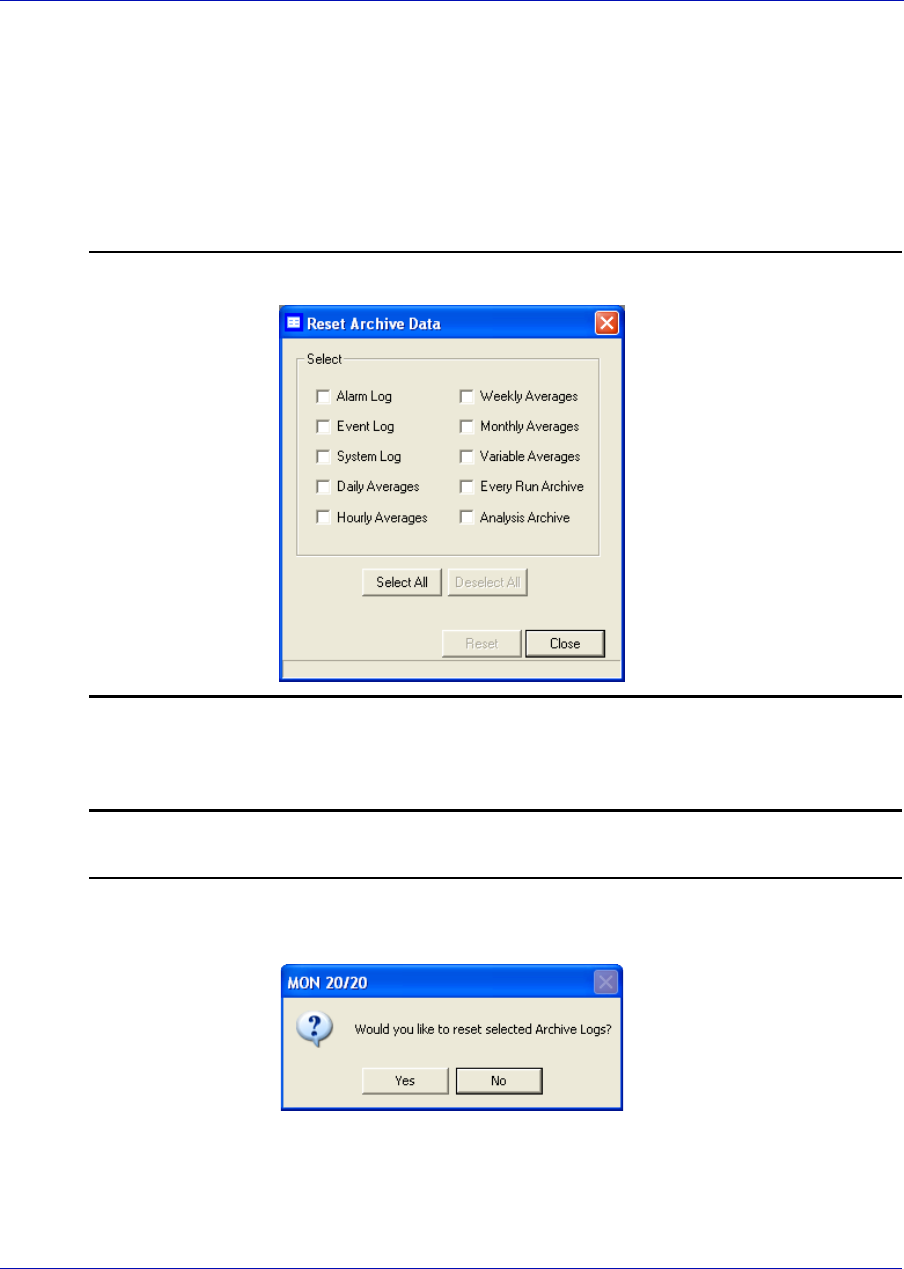
User Manual MON20/20 Software for Gas Chromatographs
3-9000-745 SEPTEMBER 2010
5-88
5.13 Deleting archived data from the gas chromatograph
To delete archived data and reset the GC memory, do the following:
1. Select Reset Archive Data... from the Logs/Reports menu. The
Reset Archive Data window displays.
Figure 5-49. The Reset Archive Data window
2. Select the types of data that you want to delete.
Note
To select all the options, click Select All. To clear all options, click Deselect All.
3. Click Reset. MON 20/20 displays a confirmation dialog.

MON20/20 Software for Gas Chromatographs User Manual
SEPTEMBER 2010 3-9000-745
5-89
4. Click Yes. MON 20/20 clears the GC’s memory. New archived records
will begin accumulating again as analysis and calibration runs occur.
5.14 The molecular weight vs. response factor graph
The Molecular Weight Vs. Response Factor window, which can be useful
in checking valve function, displays a graph that consists of the following
information:
• Log (Molecular Weight) vs. Log (Response Factor) scatter plot graph
showing the actual measured values for the following "normal"
alkanes:
-Methane (C1)
-Ethane (C2)
-Propane (C3)
-Butane (C4)
-Pentane (C5)
• A trend line (best fit straight line);
Note
The ideal trend line would be linear.
• R-squared correlation coefficient.
Note
The closer RSq is to 1, the better.
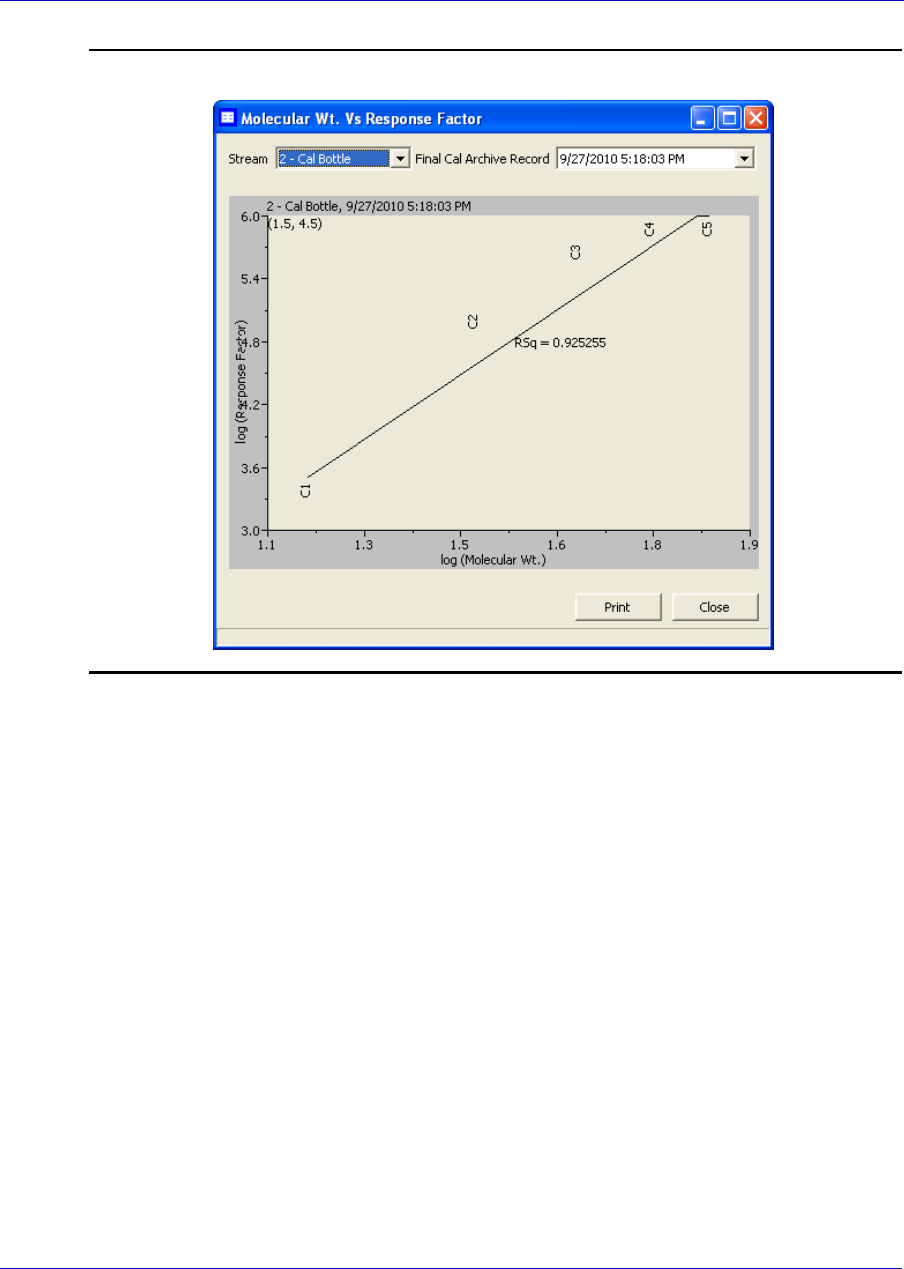
User Manual MON20/20 Software for Gas Chromatographs
3-9000-745 SEPTEMBER 2010
5-90
Figure 5-50. Molecular Weight vs. Response Factor window
This graph is only available for calibration streams, which can be selected
from the Stream drop-down list. By default, the newest final calibration
data is used to generate the graph, but any archived final calibration file
can be used by selecting it from the Final Calibration Record drop-down
list.
To print the graph, click Print.

MON20/20 Software for Gas Chromatographs User Manual
SEPTEMBER 2010 3-9000-745
5-91
This page is intentionally left blank.

User Manual MON20/20 Software for Gas Chromatographs
3-9000-745 SEPTEMBER 2010
5-92
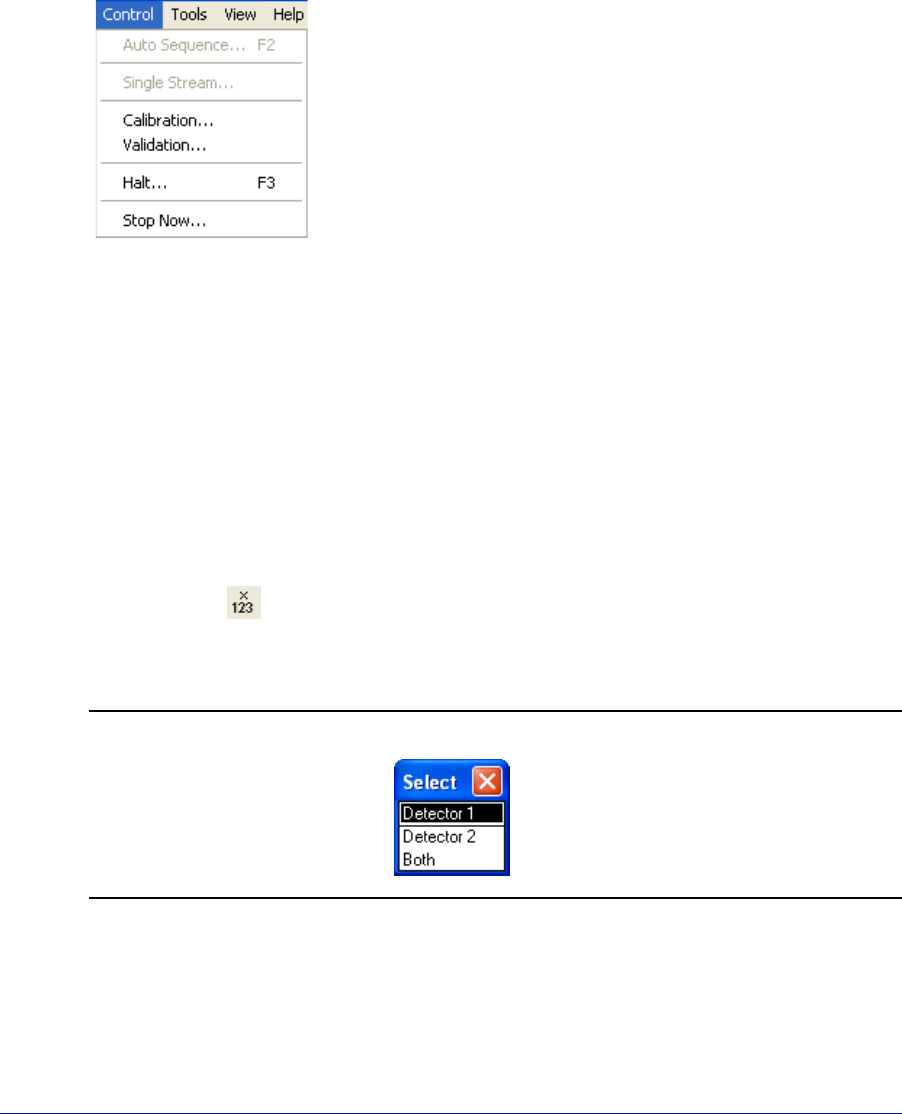
6-1
Section 6: Controlling Analyses
The options in the Control pull-down menu allow
you to manage analysis runs as well as calibration,
validation and baseline runs. Control menu
commands also allow you to stop an analysis run
immediately or at the end of the run.
6.1 Halting an analysis
Before a new analysis run can be initiated, the current analysis must be
stopped. To stop the current analysis at the end of its cycle, do the
following:
1. There are three ways to halt an analysis run:
• Select Halt... from the Control menu.
•Press F3.
• Click on the Toolbar.
If you running in a mode that uses two detectors, MON 20/20 displays
a selector window.
Figure 6-1. The selector window
2. Choose the appropriate detector. A confirmation message displays.
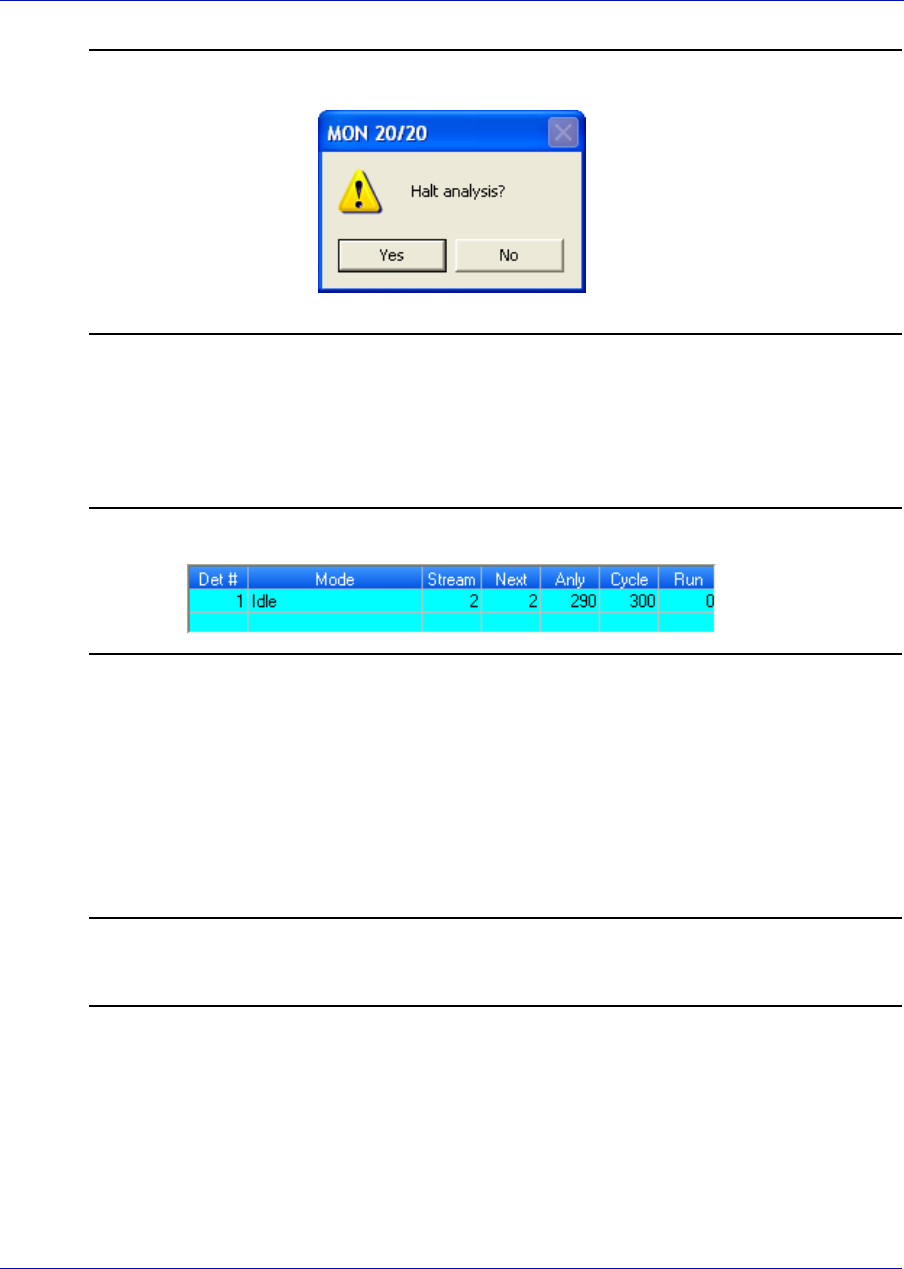
User Manual MON20/20 Software for Gas Chromatographs
3-9000-745 SEPTEMBER 2010
6-2
Figure 6-2. Confirmation message
3. Click Yes and the analysis will stop at the end of the current cycle.
Use the Mode column on the GC Status Bar to monitor the status of
the operation. When the analysis has halted, the Mode value will be
“Idle”.
Figure 6-3. The GC Status Bar
6.2 Auto sequencing
Use this function to start continuous GC analysis runs that follow a
predefined stream sequence. See “Creating a stream sequence for a
detector” on page 4-78 for detailed instructions on configuring the
predefined sequence.
Note
If an analysis run is in progress, it must be stopped before auto sequencing can be
started. See “Stopping an Analysis Run” on page 6-9 for more information.
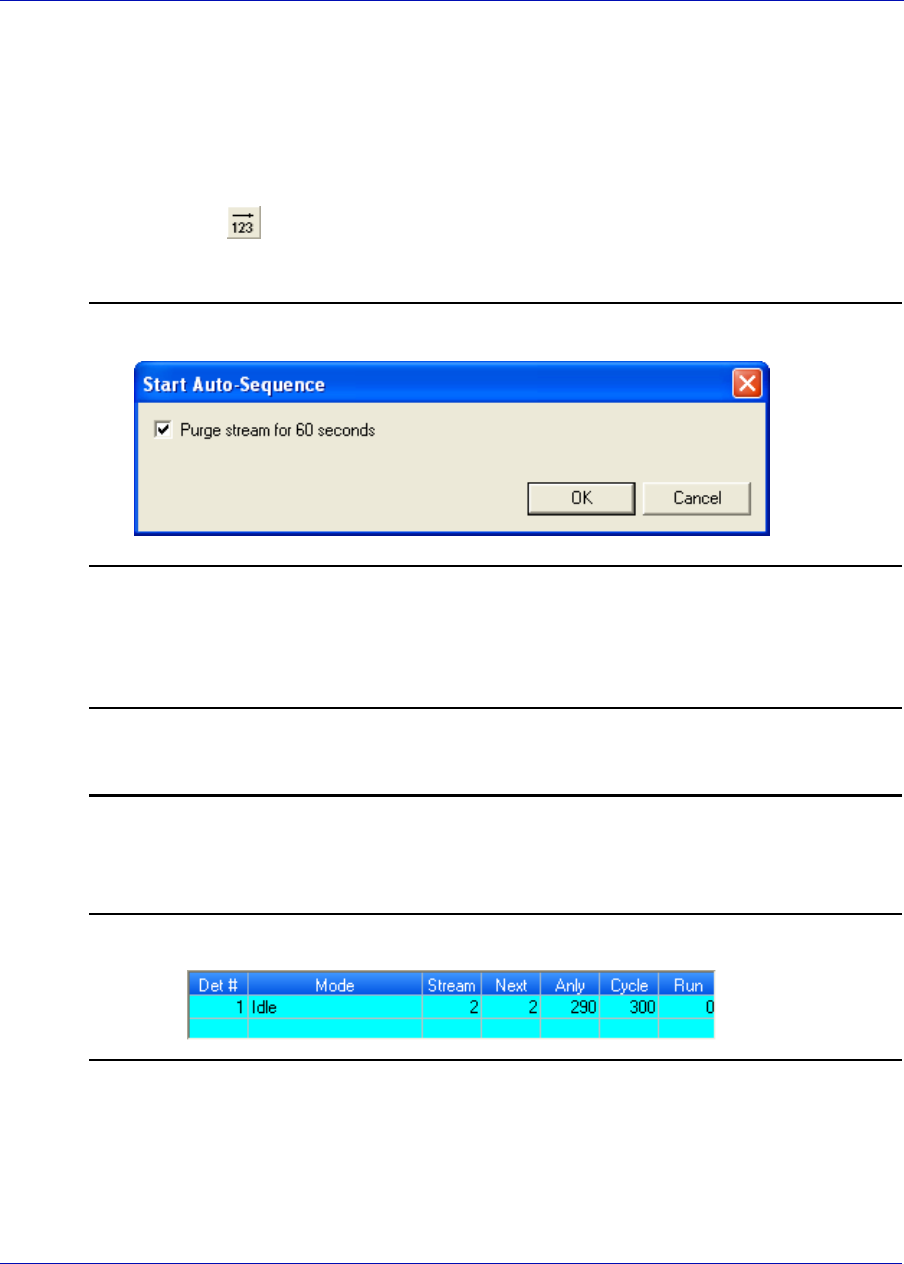
MON20/20 Software for Gas Chromatographs User Manual
SEPTEMBER 2010 3-9000-745
6-3
To initiate auto-sequencing, do the following:
1. There are three ways of initiating auto sequencing:
• Select Auto Sequence... from the Control menu.
•Press F2.
• Click on the Toolbar.
A confirmation message displays.
Figure 6-4. Confirmation message
2. Check the Purge stream for 60 seconds check box to set the purging
option. The checkbox is selected by default.
Note
Purging allows sample gas to flow through the sample loop for 60 seconds prior to
beginning the first analysis.
3. Click Yes and auto sequencing starts. Use the Mode column on the
GC Status Bar to monitor the status of the analysis run.
Figure 6-5. The GC Status Bar
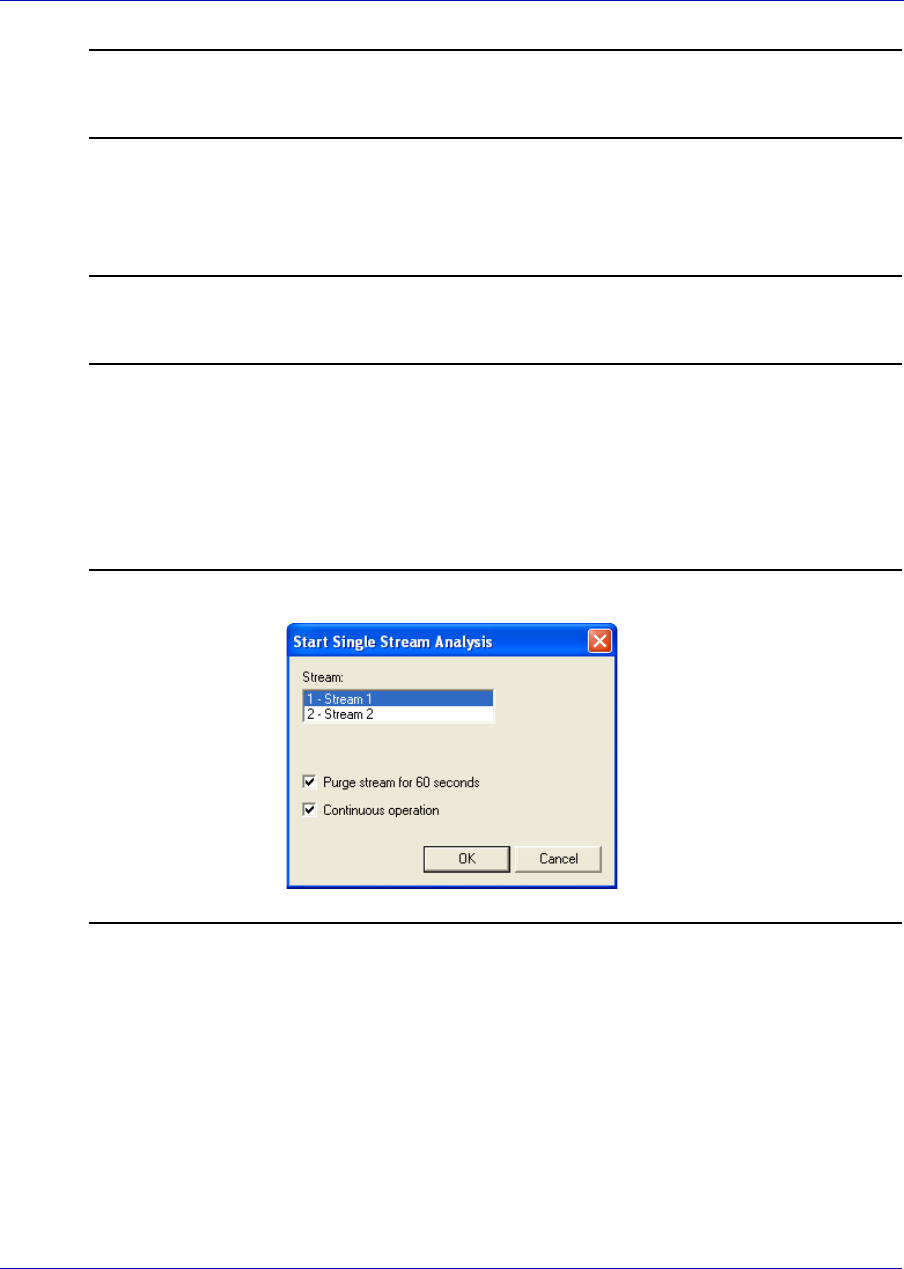
User Manual MON20/20 Software for Gas Chromatographs
3-9000-745 SEPTEMBER 2010
6-4
Note
To view the results of the Auto Sequence run, select Report Display from the Logs/
Reports menu.
6.3 Analyzing a single stream
Note
If an analysis run is in progress, it must be stopped before auto sequencing can be
started. See “Stopping an Analysis Run” on page 6-9 for more information.
To start an analysis run on a single calibration or sample stream, do the
following:
1. Select Single Stream... from the Control menu. A confirmation
message displays.
Figure 6-6. Confirmation message
2. Select a stream from the Stream menu.
3. Check the Purge stream for 60 seconds check box to set the purging
option. The checkbox is selected by default.
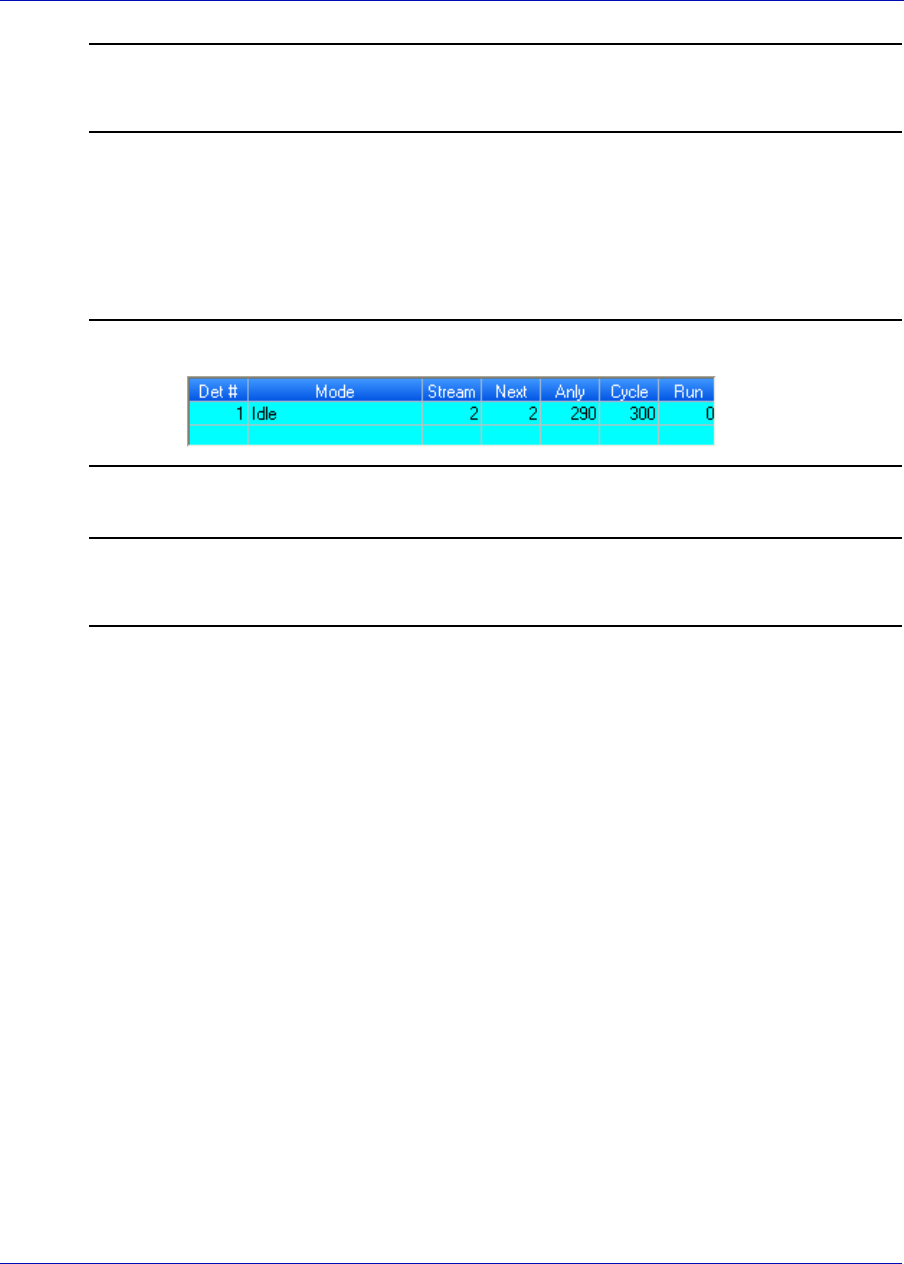
MON20/20 Software for Gas Chromatographs User Manual
SEPTEMBER 2010 3-9000-745
6-5
Note
Purging allows sample gas to flow through the sample loop for 60 seconds prior to
beginning the first analysis.
4. Check the Continuous operation check box to set or unset repetitive
analysis. The checkbox is selected by default.
5. Click OK and the analysis starts. Use the Mode column on the GC
Status Bar to monitor the status of the analysis run.
Figure 6-7. The GC Status Bar
Note
To view the results of the Auto Sequence run, select Report Display from the Logs/
Reports menu.
6.4 Calibrating the gas chromatograph
Calibration runs are determined by the CDT and Streams settings. See
“Managing Component Data Tables” on page 4-5 and “Creating a stream
sequence for a detector” on page 4-78 for detailed instructions on how to
edit these settings.
To calibrate a GC, do the following:
1. Select Calibration... from the Control menu. The Start Calibration
window displays.
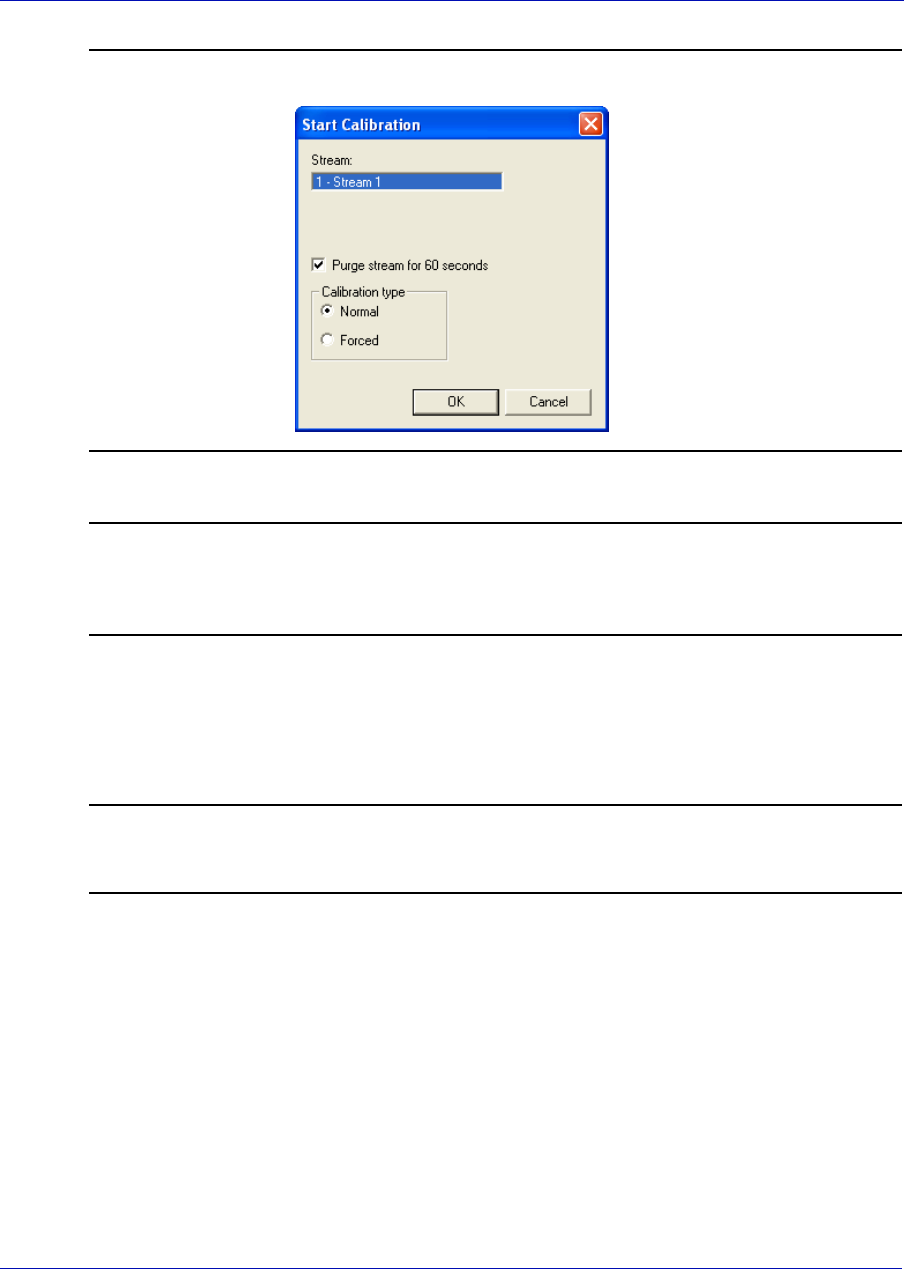
User Manual MON20/20 Software for Gas Chromatographs
3-9000-745 SEPTEMBER 2010
6-6
Figure 6-8. The Start Calibration window
Note
If the GC is in Auto Sequence mode, calibration will not start until two or more analysis
runs have been completed. This delay is required to complete the current analysis and
the analysis of the stream currently purging through the valve.
2. Select a stream from the Stream menu.
3. Check the Purge stream for 60 seconds check box to set the purging
option. The checkbox is selected by default.
Note
Purging allows sample gas to flow through the sample loop for 60 seconds prior to
beginning the first analysis.
4. Select the desired calibration type.
(a.) Select Normal to perform a manual calibration in which the CDT
for the selected stream(s) will be updated with calibration data
unless the data is outside the acceptable deviations, as listed on the
CDT. For more information, see “Managing Component Data
Tables” on page 4-5.
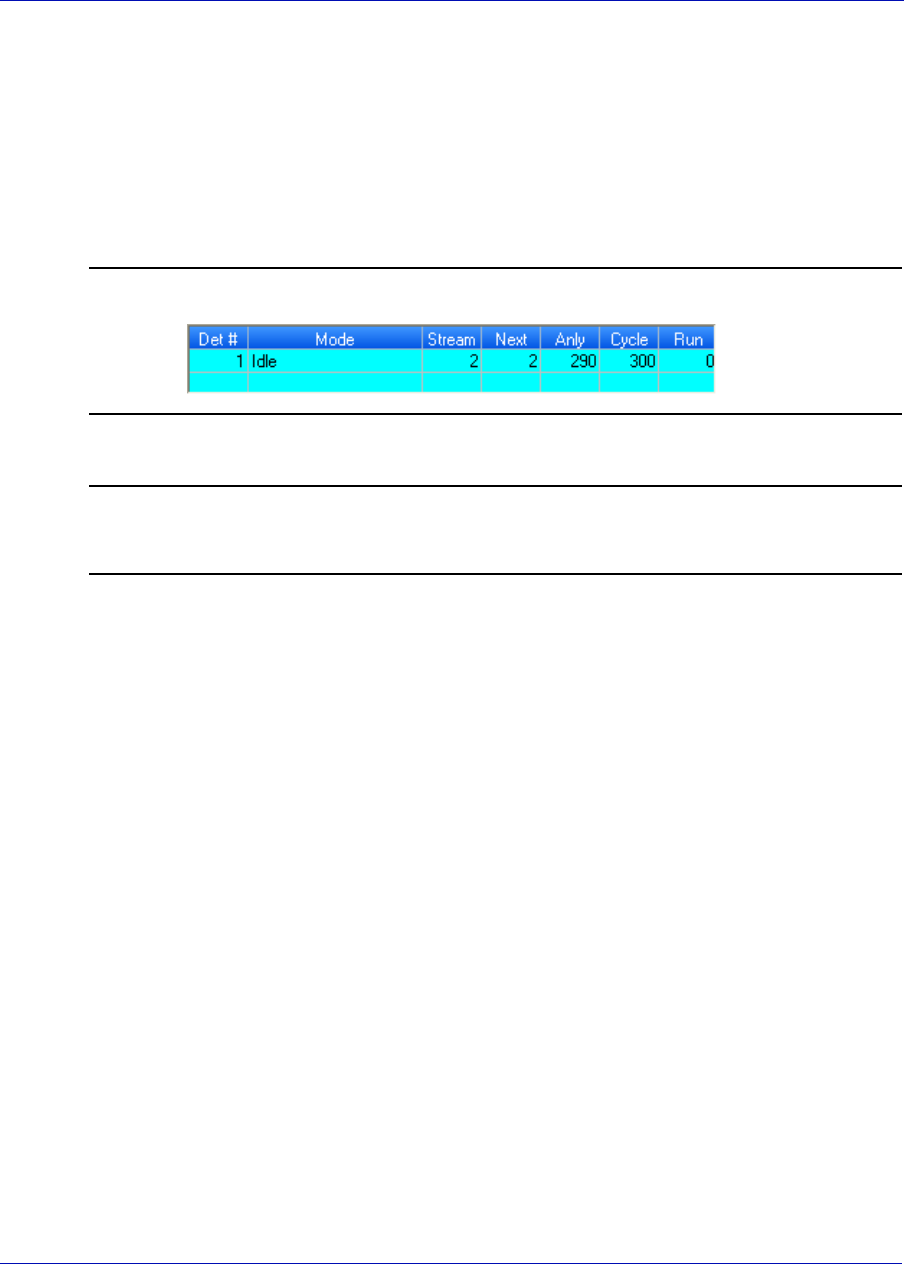
MON20/20 Software for Gas Chromatographs User Manual
SEPTEMBER 2010 3-9000-745
6-7
(b.) Select Forced to perform a manual calibration in which the CDT
for the selected stream(s) will be updated with calibration data
even if that data is outside the acceptable deviations, as listed on
the CDT. For more information, see “Managing Component Data
Tables” on page 4-5.
5. Click OK and the calibration starts. Use the Mode column on the GC
Status Bar to monitor the status of the operation.
Figure 6-9. The GC Status Bar
Note
To view the results of the Auto Sequence run, select Report Display from the Logs/
Reports menu.
6.5 Validating the Gas Chromatograph
During a validation run, the GC performs a test analysis to verify that it
is working properly. The test analysis is performed on a gas whose
component concentrations are already known; if the GC’s results deviate
significantly from the predetermined data, an alarm is generated.
Validation runs are determined by the validation data table and streams
settings. See “Managing Validation Data Tables” on page 4-35 and
“Creating a stream sequence for a detector” on page 4-78 for detailed
instructions on how to edit these settings.
To validate the GC, do the following:
1. Select Validation... from the Control menu. The Start Validation
window displays.
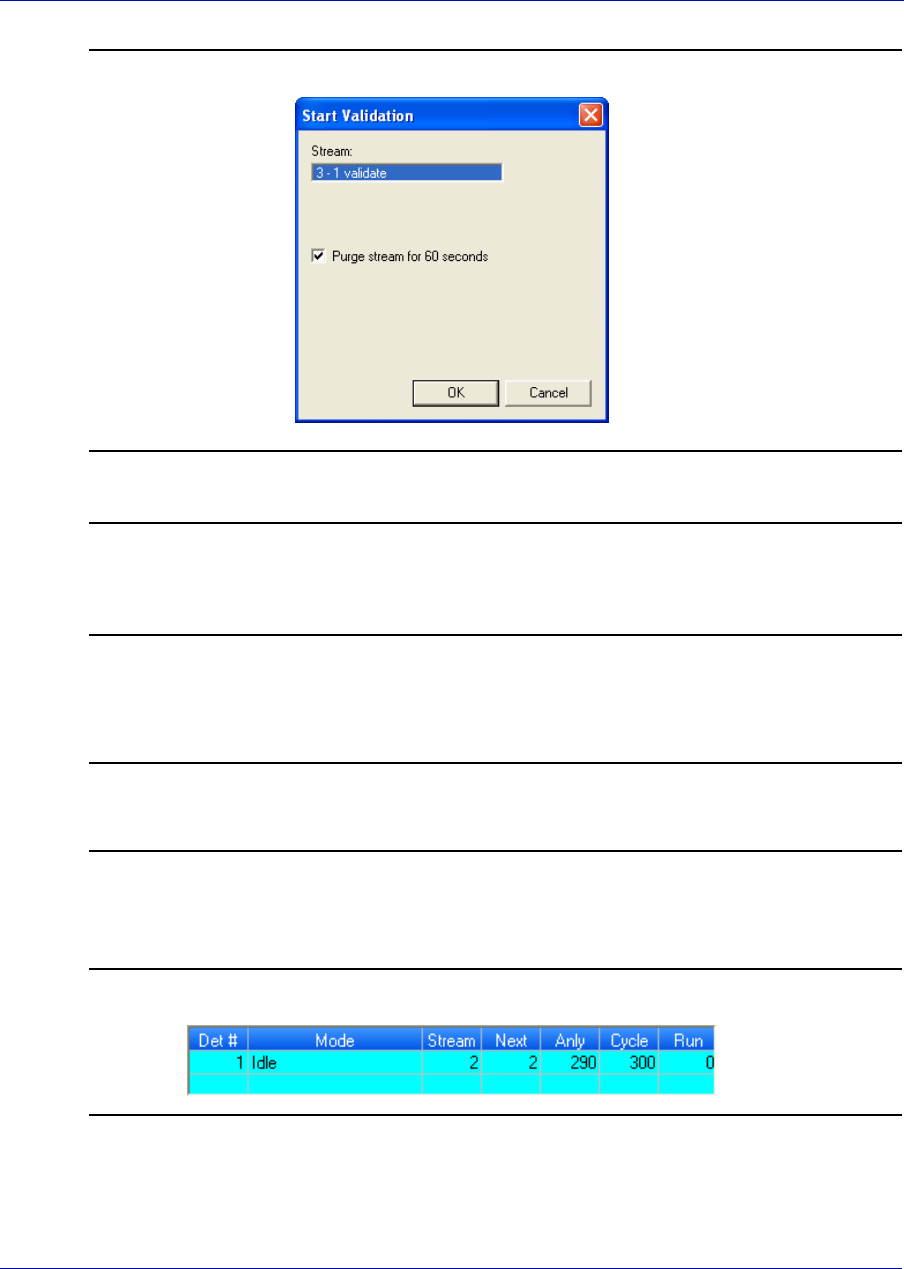
User Manual MON20/20 Software for Gas Chromatographs
3-9000-745 SEPTEMBER 2010
6-8
Figure 6-10. The Start Validation window
Note
If the GC is in Auto Sequence mode, validation will not start until two or more analysis
runs have been completed. This delay is required to complete the current analysis and
the analysis of the stream currently purging through the valve.
2. Check the Purge stream for 60 seconds check box to set the purging
option. The checkbox is selected by default.
Note
Purging allows sample gas to flow through the sample loop for 60 seconds prior to
beginning the first analysis.
3. Click OK and the validation starts. Use the Mode column on the GC
Status Bar to monitor the status of the operation.
Figure 6-11. The GC Status Bar
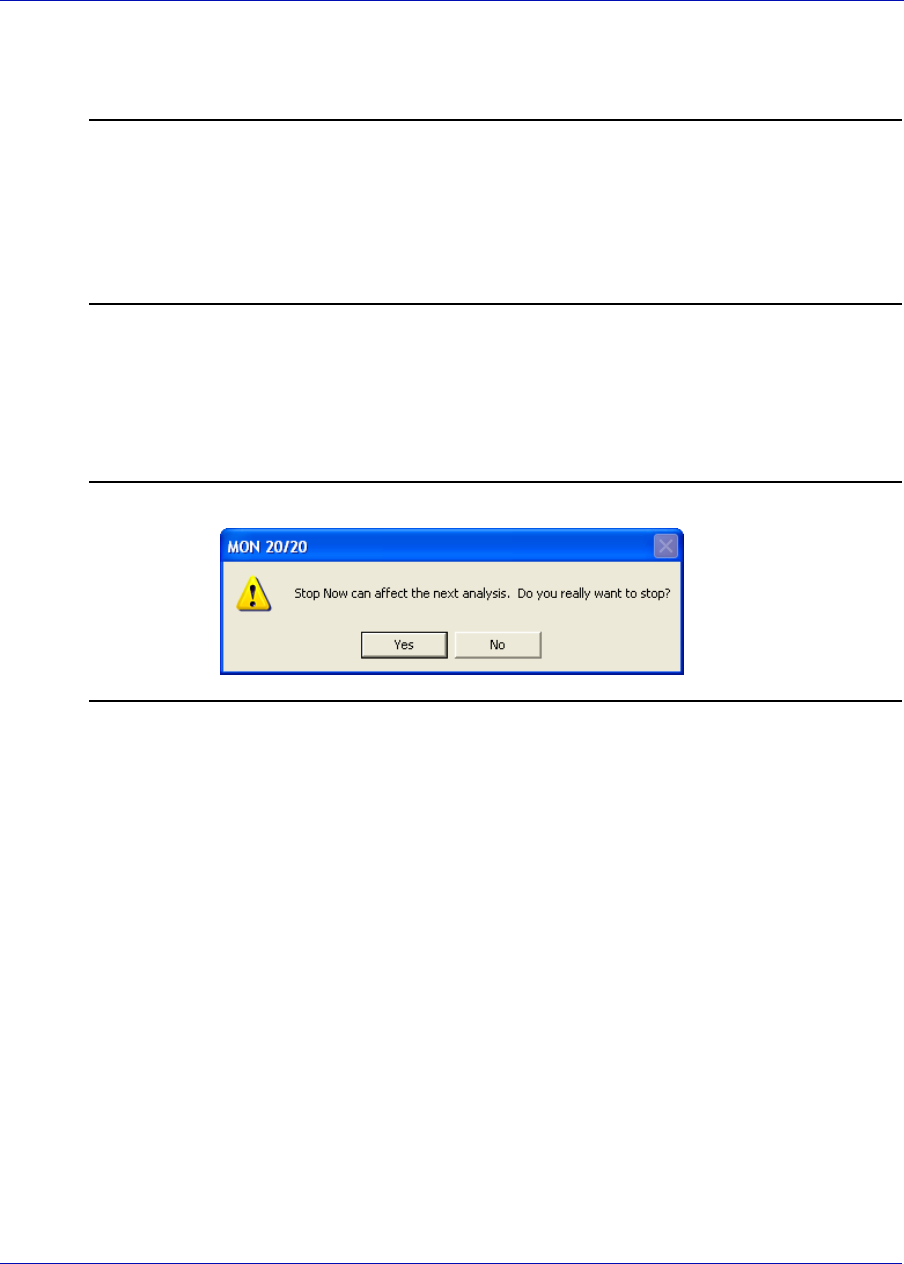
MON20/20 Software for Gas Chromatographs User Manual
SEPTEMBER 2010 3-9000-745
6-9
6.6 Stopping an Analysis Run
Note
This function forces the system into Idle mode. If Stop Now is performed while an
analysis is in progress, the components may continue to elute from the columns during.
No analysis data will be generated.
Do not perform a Stop Now unless absolutely necessary. Whenever possible, use the
Halt function.
To immediately stop an analysis run, do the following:
1. Select Stop Now... from the Control menu. A confirmation message
displays.
Figure 6-12. Confirmation message
2. Click Yes and the current analysis stops.

User Manual MON20/20 Software for Gas Chromatographs
3-9000-745 SEPTEMBER 2010
6-10
This page is intentionally left blank.
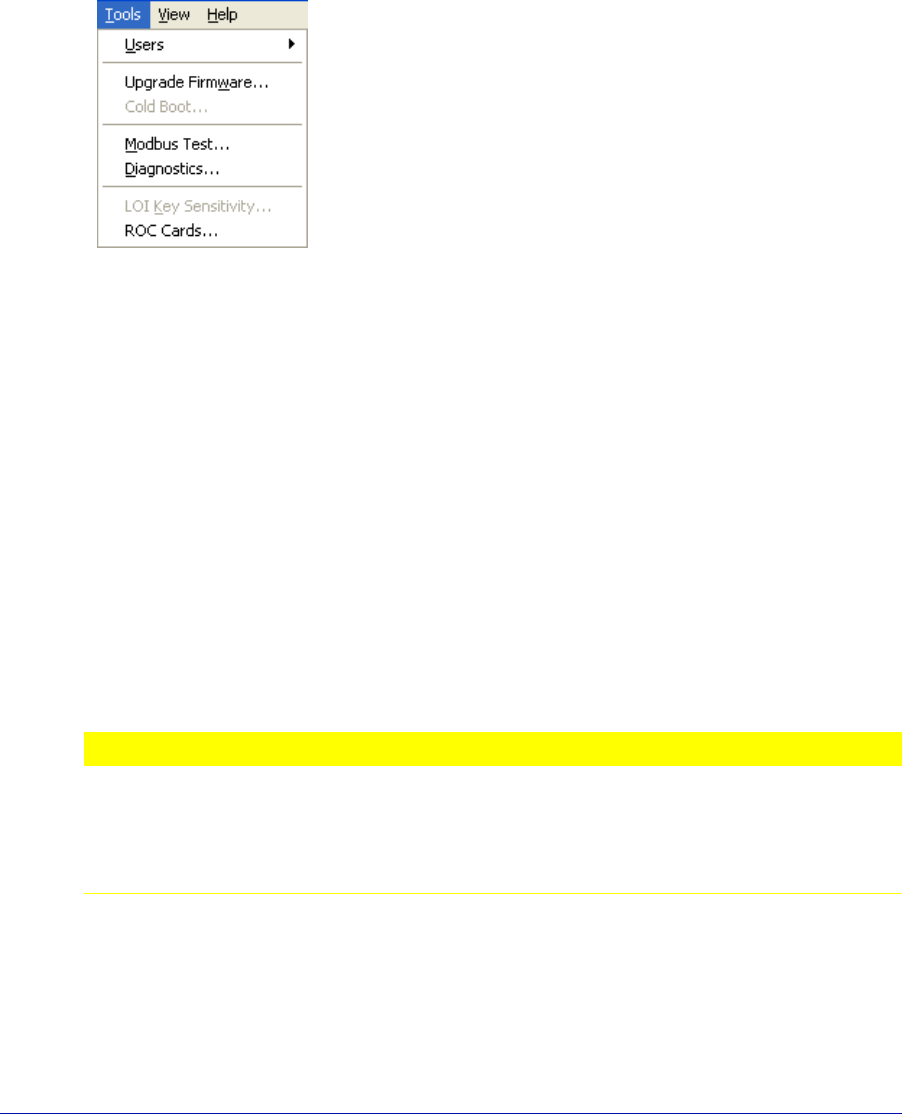
7-1
Section 7: Using MON 20/20 Tools
The options in the Tools pull-down menu allow you
to do the following:
•Use the Modbus Test program to confirm that
data is being accurately relayed from the gas
chromatograph to the PC.
•Manage users.
•Adjust the sensitivity of the LOI keys.
•Install upgrades to the GC.
7.1 Using the Modbus Test program
Use the Modbus program to poll the GC’s Modbus registers (or registers
from another device) to confirm that data is accurately relayed from the
gas chromatograph to the PC. Then, as necessary, assign data types to
the returned data. See “Assigning scale ranges to User_Modbus
registers” on page 7-15 for more information. You can save all settings to
a file for future reference.
You can use this program to facilitate software debugging or for special
installations. With this program, you can troubleshoot any device that
employs registers including the GC, an ultrasonic meter, or a flow
computer.
Traditionally, Modbus registers are polled by using a data collection
system (DCS). To facilitate installation and debugging, the Modbus
program emulates a DCS.
NOT REQIURED FOR NORMAL GC OPERATION
The Modbus Test is reserved for advanced functions. The Modbus Test function is not
required for normal GC operation. Skip this section unless you are developing software,
engaging in a software debugging process, or designing a custom installation that
directly accesses the GC Controller Modbus registers.
CAUTION
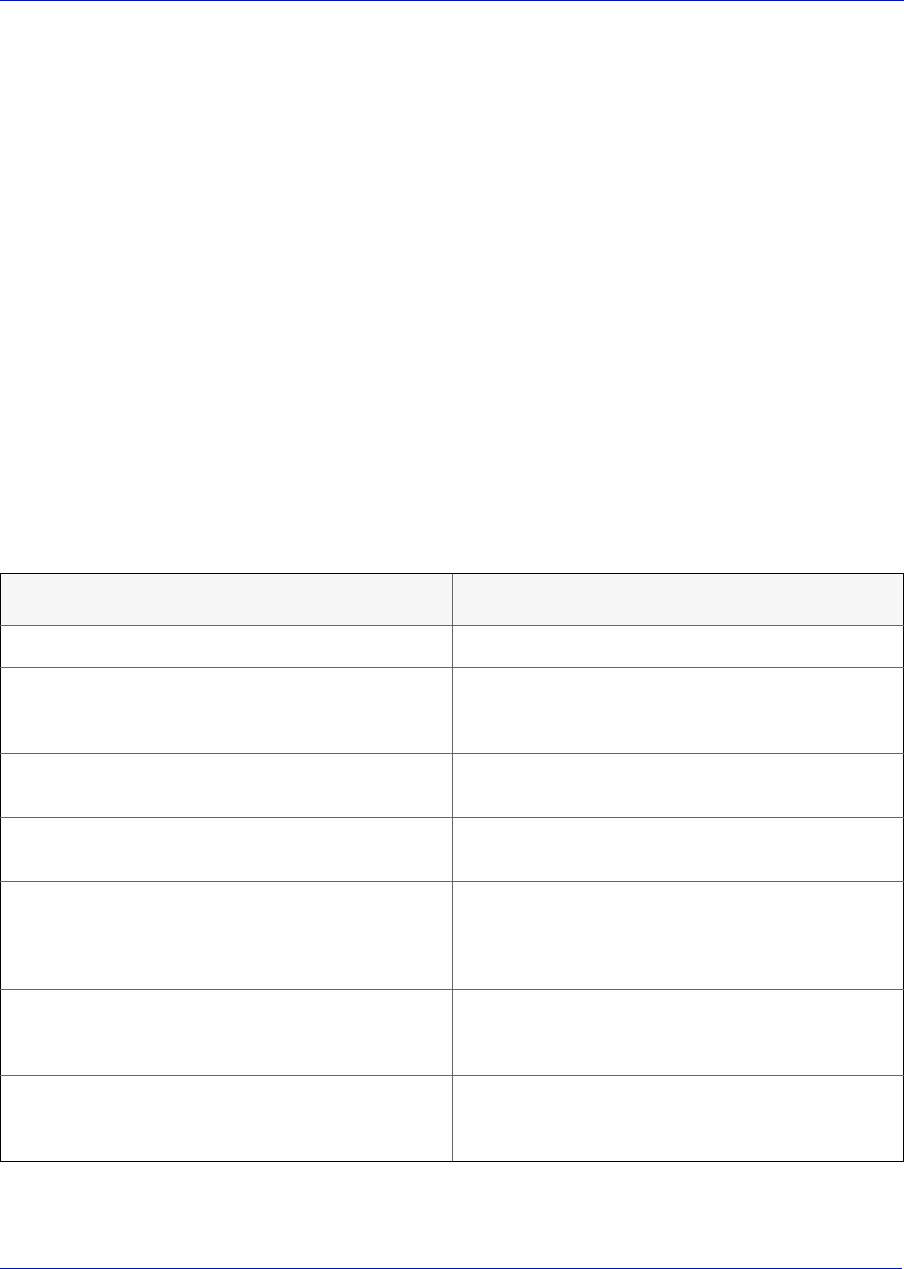
User Manual MON20/20 Software for Gas Chromatographs
3-9000-745 SEPTEMBER 2010
7-2
This section provides detailed instructions for using the Modbus program.
Use this program only if you are familiar with Modbus communication
protocol and the operation of MON 20/20.
7.1.1 Comparing Modbus protocols
MON 20/20 and the Modbus program can accommodate two different
Modbus protocols: SIM_2251 and User_Modbus. Separate Modbus
registers are reserved for each protocol; therefore, some settings for MON
20/20 and WinMB depend on which Modbus protocol is used.
The protocol you need depends, ultimately, on the hardware used for data
acquisition from the GC Modbus register contents.
The following comparison should help clarify the differences between the
two protocols as well as the utility of each.
Table 7-1. Comparing SIM_2251 and User_Modbus Protocols
SIM_2251 User_Modbus
Serial slave port Serial slave port
Modified protocol that allows floating point
numbers to be transmitted over Modbus via 2251
emulation slave type
Standard Gould protocol that accommodates PLC
Emulation LO-HI (PLC-LH)
Most register contents are predefined; some
registers can be user-defined
Predefined Boolean (coils)
User-defined Numeric (registers)
Data types are predefined for registers 1000 to
9000
Data types are user-defined
Variables assigned to registers can be listed in the
GC Config Report. For instructions and an
example report, see Section 5.12. See Appendix C
for more detail about individual registers.
Variables assigned to registers can be listed in the
GC Config Report. For instructions and an
example report, see Section 5.12. See Appendix C
for more detail about individual registers.
When using the Modbus program, set Register
Mode to “DANIEL” to view register contents.
When using the Modbus program, set Register
Mode to “PLC- LH” or “PLC-HL” to view register
contents.
It is not necessary to assign scales to registers. It may be necessary to assign scales to registers, to
convert floating point values to whole integer
representations.
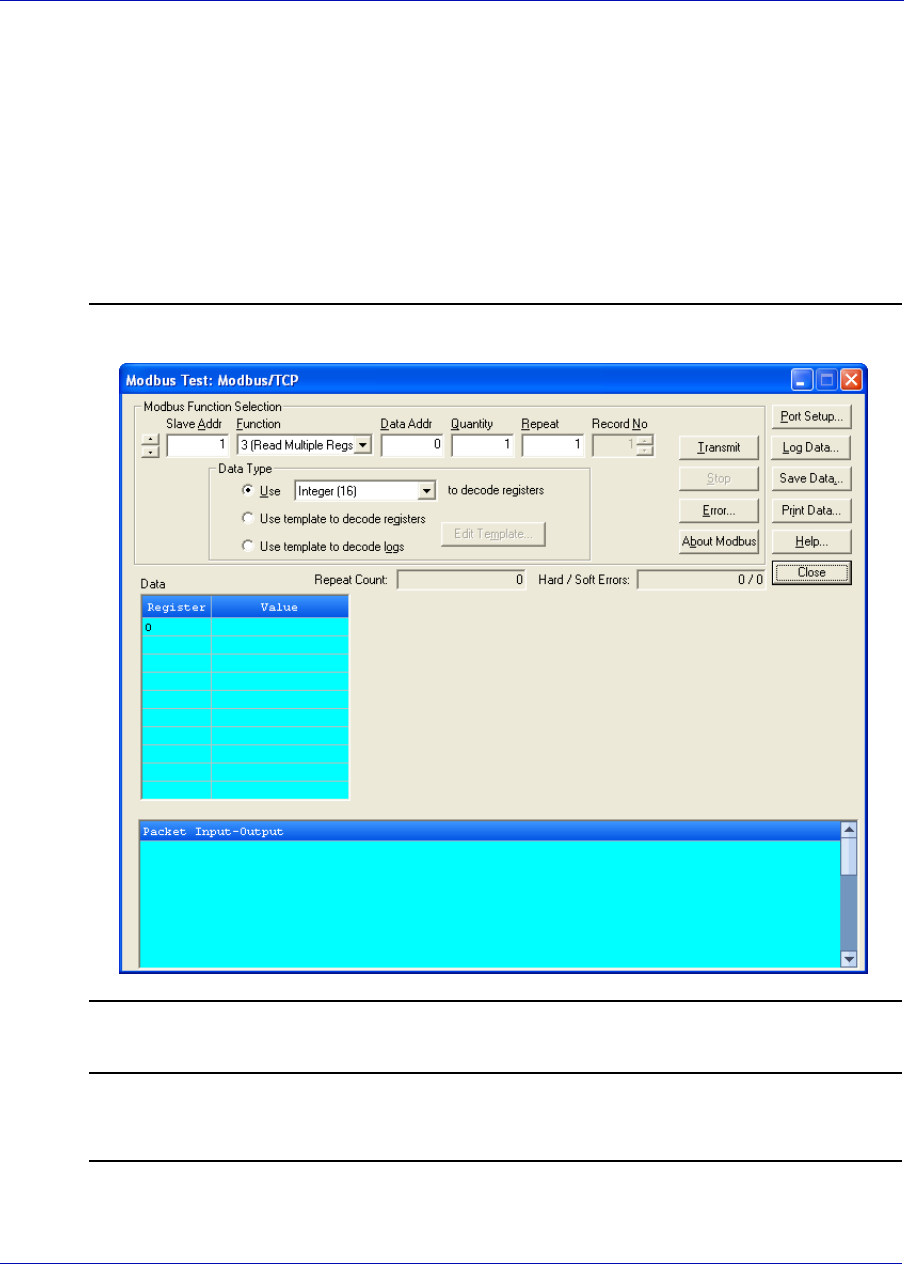
MON20/20 Software for Gas Chromatographs User Manual
SEPTEMBER 2010 3-9000-745
7-3
7.1.2 Setting communication parameters
To determine or reset the communications parameters used by the
Modbus program, do the following:
1. Select Modbus Test... from the Tools menu. The Modbus Test
Program window displays. The current port settings display in the
window’s title bar.
Figure 7-1. The Modbus Test Program window with current port setting in title bar
Note
If MON 20/20 displays an error message, verify the installation directory via the
Program Settings window (see Section 1.2.5).
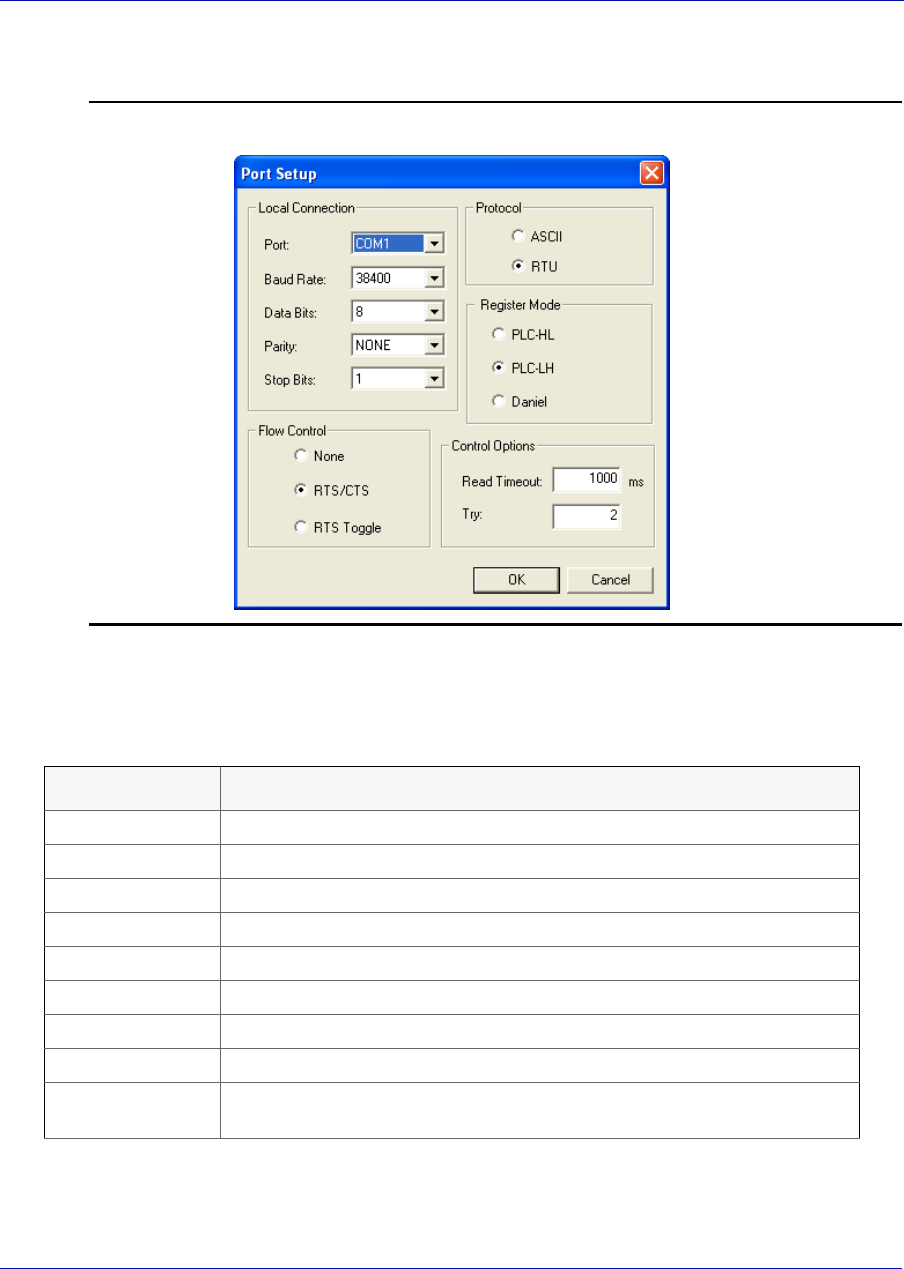
User Manual MON20/20 Software for Gas Chromatographs
3-9000-745 SEPTEMBER 2010
7-4
2. Click Port Setup. The Port Setup window appears.
Figure 7-2. The Port Setup window
3. Make the appropriate configuration changes. The following table lists
the typical setting for each parameter:
Parameter Typical Setting
Port COM1 or COM2
Baud Rate 9600
Data Bits 7 or 8
Parity Even or None
Stop Bits 1
Flow Control None
Read Timeout 500 ms
Try 2
Register Mode Daniel (SIM_2251)
PLC-LH (User_Modbus)

MON20/20 Software for Gas Chromatographs User Manual
SEPTEMBER 2010 3-9000-745
7-5
Note
For a direct connection to the GC, ensure that the port setting is the same as the Com ID
number of the serial port used.
4. Click OK.
7.1.3 Getting Modbus Data
To read or write register contents to the GC, or any other device, do the
following:
Note
Before retrieving data, print a GC Config Report (see Section 5.12) and review the
Communication section to learn the variable names that are assigned to the Modbus
registers.
Note
Modbus registers assigned to alarms are application-specific.
1. In the Slave Addr field, type the COM ID of the GC. The Modbus
program will accept a slave address value of 1 to 247.
To use Broadcast Mode, which directs the Modbus program to poll all
known devices, enter 0 in the Slave Addr field. Each device interprets
this poll attempt as an instruction to read and take action; however, a
response message may not be received by the Modbus program.
Note
Changes are applied to the corresponding register value at each device.
Protocol ASCII Modbus
RTU Modbus
Parameter Typical Setting
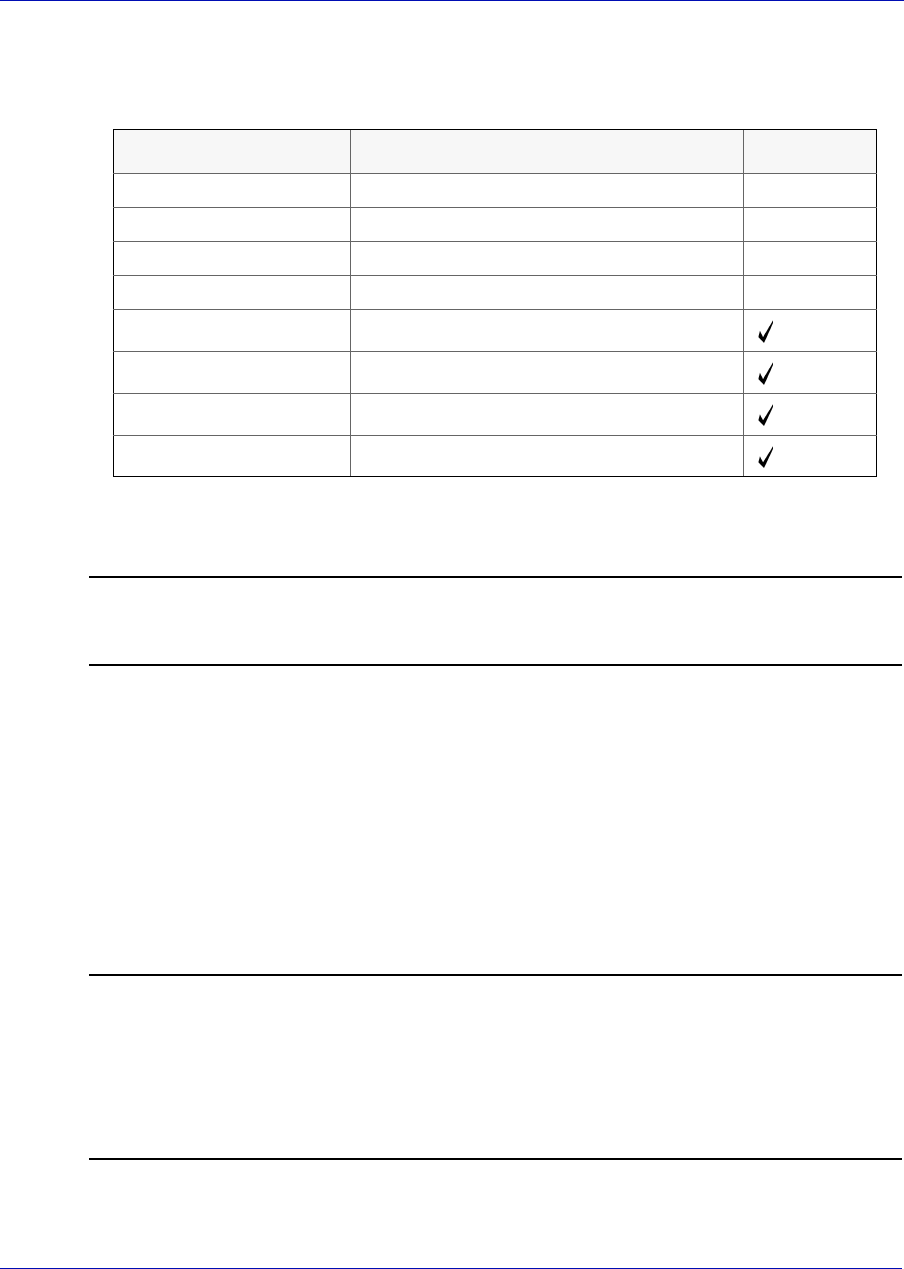
User Manual MON20/20 Software for Gas Chromatographs
3-9000-745 SEPTEMBER 2010
7-6
2. Select the desired read or write option from the Function pull down
menu.
3. Type the starting register value in the Data Addr field.
Note
The data type is set automatically by the Modbus program, based on the specified data
address.
4. In the Quantity field, type the number of registers to be retrieved. The
Modbus program will accept a quantity value of 1 to 2016. The
requested number of registers cannot exceed the amount contained by
the selected message block but you can retrieve a partial block. You
cannot cross a message block boundary.
Also, in Standard Modbus mode each register is 16 bits. Therefore,
integers (SHORT) consist of 1 register while floats (FLOAT) and long
integers (LONG) consist of 2 registers.
Note
Boolean registers are not user-defined (for either SIM_2251 or User_Modbus) and
primarily contain alarm flags useful for debugging. To view the contents of Boolean
registers, select the 1 (Read Coil) function code.
Numeric registers for User_Modbus can be user-defined. To view the contents of
Numeric registers, select the 3 (Read Regs) function code.
Function Code Description Broadcast
1 (Read Coil) Reads one or more coil values.
2 (Read Input Status) Reads one or more input status values.
3 (Read Multiple Regs) Reads one or more register values.
4 (Read Input Regs) Reads one or more input register values.
5 (Set Single Coil) set (write) one coil value
6 (Set Single Reg) set (write) one register value
15 (Set Multiple Coils) set (write) multiple coil values
16 (Set Multiple Regs) set (write) multiple register values

MON20/20 Software for Gas Chromatographs User Manual
SEPTEMBER 2010 3-9000-745
7-7
5. Type the desired repeat count, which is the number of times the
Modbus program should read or set the specified registers before
ceasing transmission, in the Repeat field. The Modbus program will
accept a repeat value of 1 to 9999. A value of –1 produces an infinite
polling loop that can be terminated by clicking Stop.
7.1.4 Transmitting using a single data type
To assign a data type to a group of registers you will read or edit, do the
following:
Note
Before retrieving data, print a GC Config Report (see Section 5.12) and review the
Communication section to learn the variable names that are assigned to the Modbus
registers.
1. In the Slave Addr field, type the COM ID of the GC. The Modbus
program will accept a slave address value of 1 to 247.
To use Broadcast Mode, which directs the Modbus program to poll all
known devices, enter 0 in the Slave Addr field. Each device interprets
this poll attempt as an instruction to read and take action; however, a
response message may not be received by the Modbus program.
Note
Changes are applied to the corresponding register value at each device.
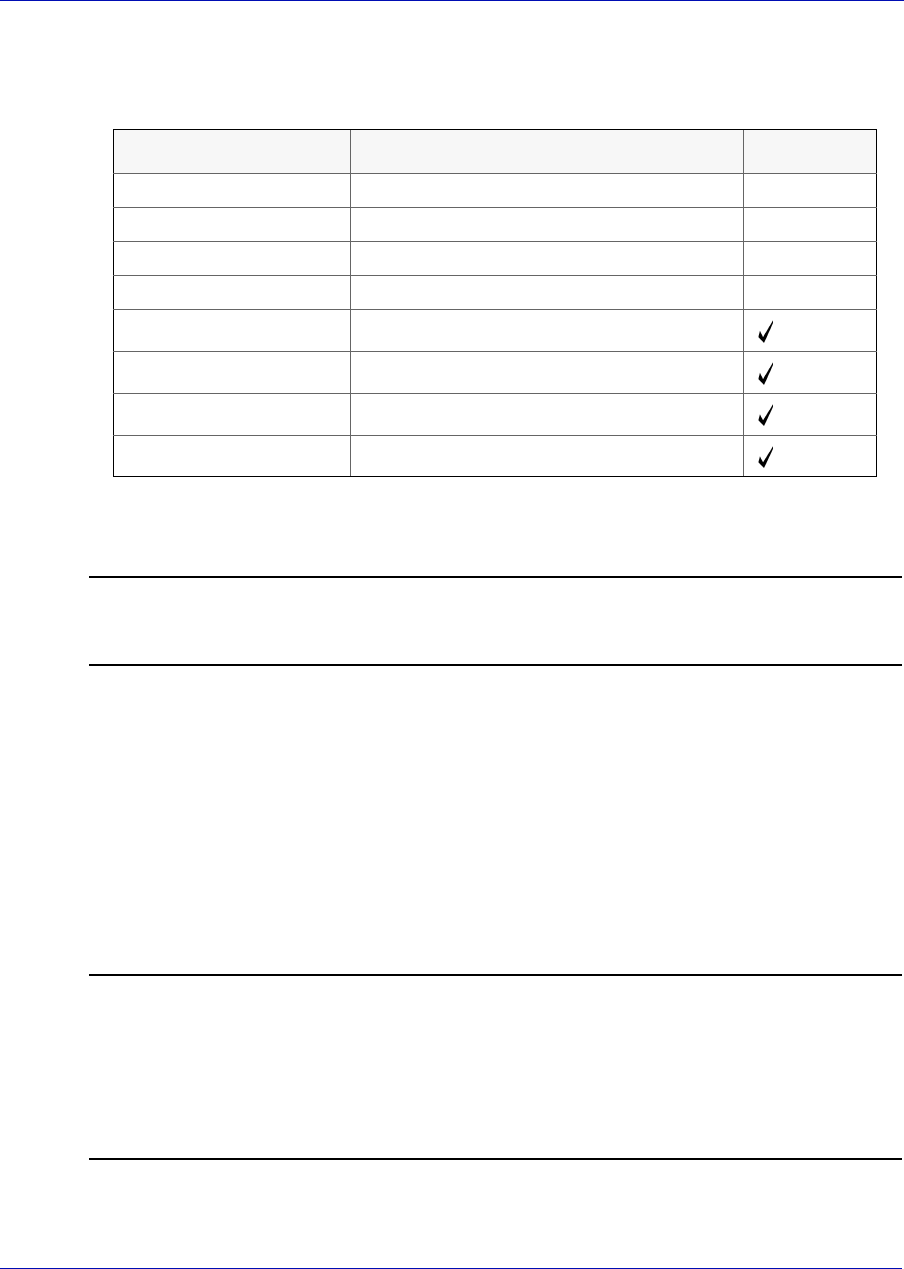
User Manual MON20/20 Software for Gas Chromatographs
3-9000-745 SEPTEMBER 2010
7-8
2. Select the desired read or write option from the Function pull down
menu.
3. Type the starting register value in the Data Addr field.
Note
The data type is set automatically by the Modbus program, based on the specified data
address.
4. In the Quantity field, type the number of registers to be retrieved. The
Modbus program will accept a quantity value of 1 to 2016. The
requested number of registers cannot exceed the amount contained by
the selected message block but you can retrieve a partial block. You
cannot cross a message block boundary.
Also, in Standard Modbus mode each register is 16 bits. Therefore,
integers (SHORT) consist of 1 register while floats (FLOAT) and long
integers (LONG) consist of 2 registers.
Note
Boolean registers are not user-defined (for either SIM_2251 or User_Modbus) and
primarily contain alarm flags useful for debugging. To view the contents of Boolean
registers, select the 1 (Read Coil) function code.
Numeric registers for User_Modbus can be user-defined. To view the contents of
Numeric registers, select the 3 (Read Regs) function code.
Function Code Description Broadcast
1 (Read Coil) Reads one or more coil values.
2 (Read Input Status) Reads one or more input status values.
3 (Read Multiple Regs) Reads one or more register values.
4 (Read Input Regs) Reads one or more input register values.
5 (Set Single Coil) set (write) one coil value
6 (Set Single Reg) set (write) one register value
15 (Set Multiple Coils) set (write) multiple coil values
16 (Set Multiple Regs) set (write) multiple register values
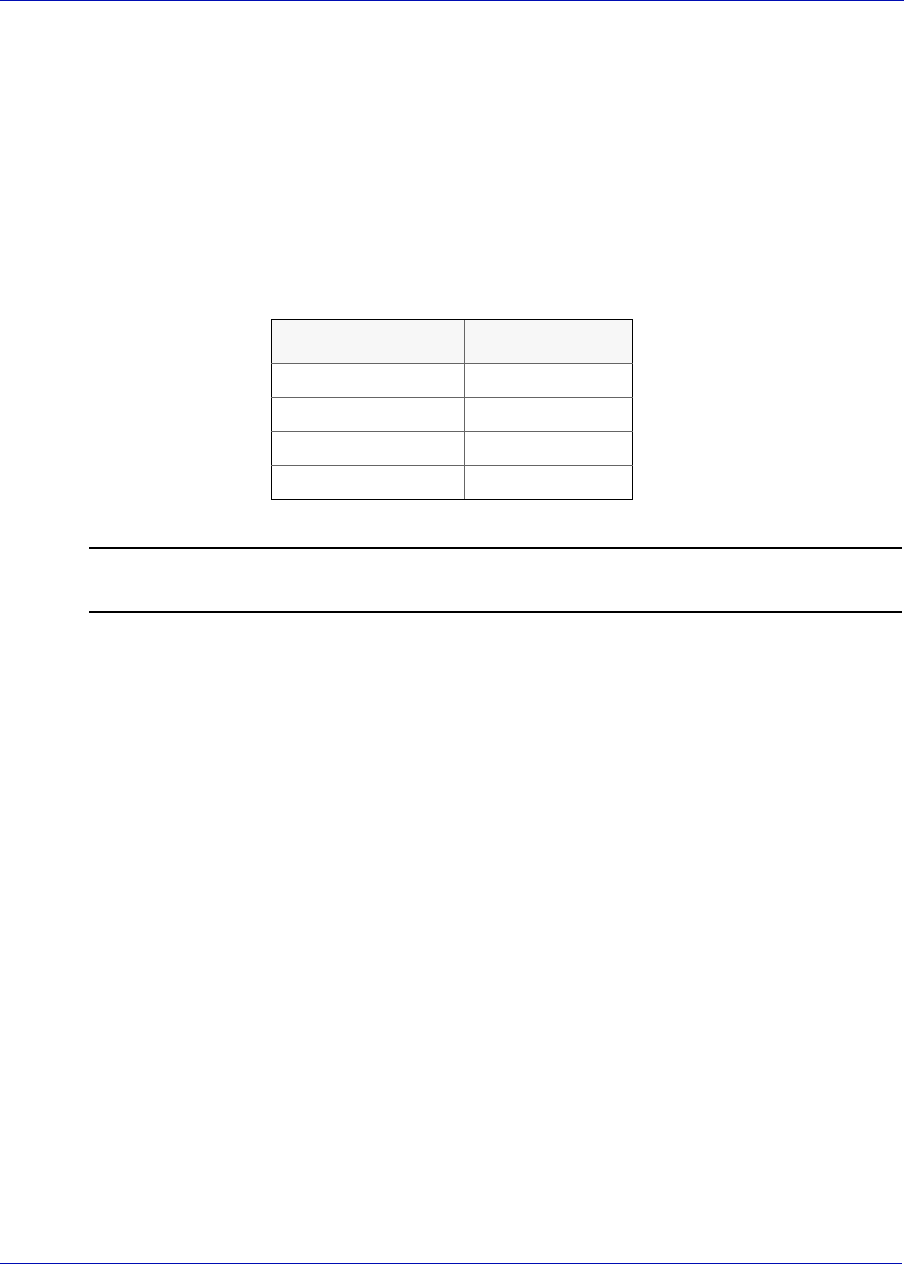
MON20/20 Software for Gas Chromatographs User Manual
SEPTEMBER 2010 3-9000-745
7-9
5. Type the desired repeat count, which is the number of times the
Modbus program should read or set the specified registers before
ceasing transmission, in the Repeat field. The Modbus program will
accept a repeat value of 1 to 9999. A value of –1 produces an infinite
polling loop that can be terminated by clicking Stop.
6. Select the Use <data type> to decode registers check box.
7. Select a data type from the pull-down menu. The following table lists
the default data types for each block of SIM_2251 registers.
Note
To ensure the best data type assignments, review a GC Config Report.
8. Click Transmit to retrieve the selected registers (i.e., the specified
data addresses) from the GC. The transmitted/received packet data
displays in the Packet Input-Output window.
9. Click Stop to end the transmission of the data and to return to the
Modbus Function Selection options.
Register Range Default Type
1000 – 2999 Boolean
3000 – 4999 Integer
5000 – 6900 Long
7000 – 8999 Float
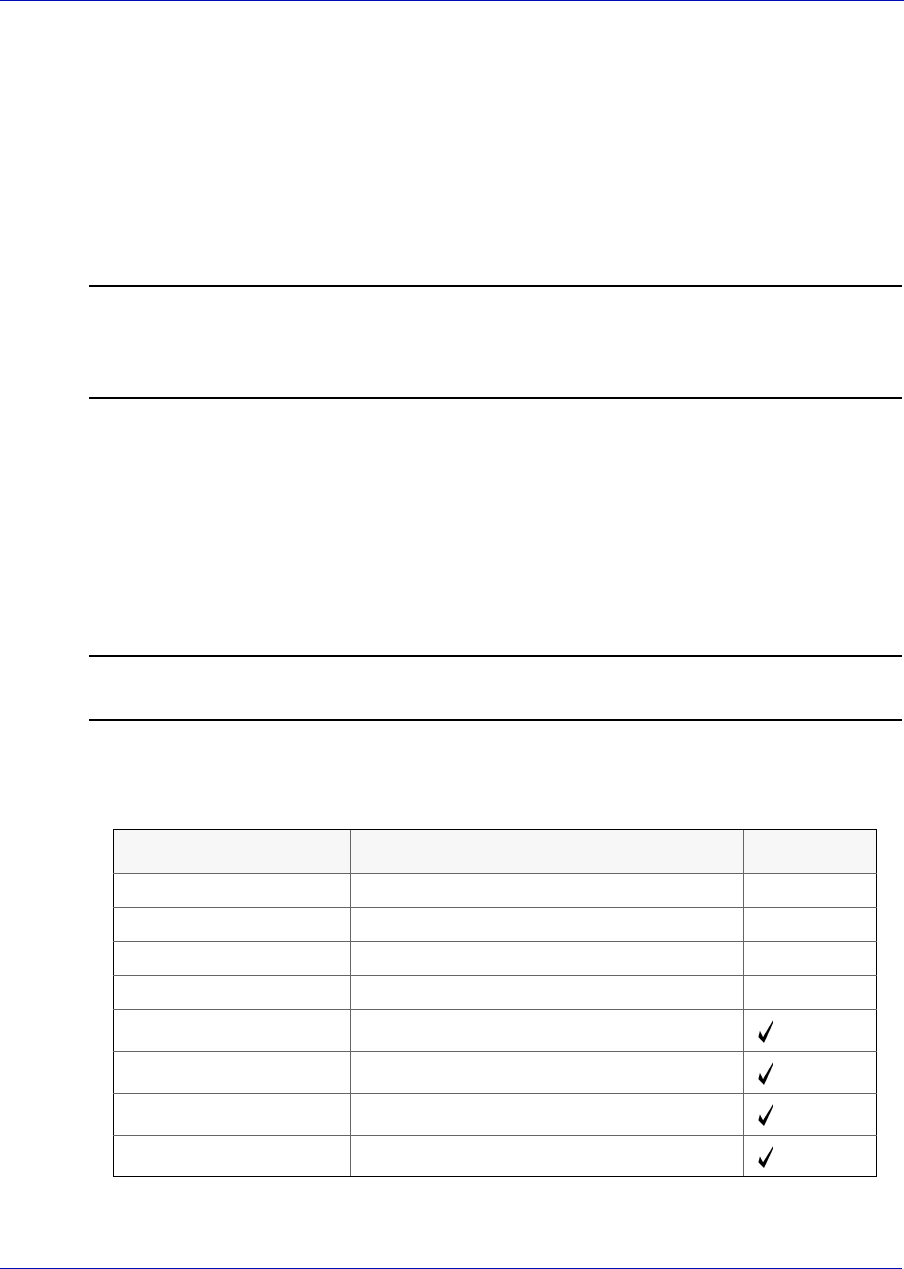
User Manual MON20/20 Software for Gas Chromatographs
3-9000-745 SEPTEMBER 2010
7-10
7.1.5 Transmitting using a template
Templates are best used when decoding mixed data types because the
template contains data that the Modbus program can use to determine
which data type should be assigned to which register.
To create a new template or to use an existing template, do the following:
Note
Before retrieving data, print a GC Config Report (see Section 5.12) and review the
Communication section to learn the variable names that are assigned to the Modbus
registers.
1. In the Slave Addr field, type the COM ID of the GC. The Modbus
program will accept a slave address value of 1 to 247.
To use Broadcast Mode, which directs the Modbus program to poll all
known devices, enter 0 in the Slave Addr field. Each device interprets
this poll attempt as an instruction to read and take action; however, a
response message may not be received by the Modbus program.
Note
Changes are applied to the corresponding register value at each device.
2. Select the desired read or write option from the Function pull down
menu.
Function Code Description Broadcast
1 (Read Coil) Reads one or more coil values.
2 (Read Input Status) Reads one or more input status values.
3 (Read Multiple Regs) Reads one or more register values.
4 (Read Input Regs) Reads one or more input register values.
5 (Set Single Coil) set (write) one coil value
6 (Set Single Reg) set (write) one register value
15 (Set Multiple Coils) set (write) multiple coil values
16 (Set Multiple Regs) set (write) multiple register values

MON20/20 Software for Gas Chromatographs User Manual
SEPTEMBER 2010 3-9000-745
7-11
3. Type the starting register value in the Data Addr field.
Note
The data type is set automatically by the Modbus program, based on the specified data
address.
4. In the Quantity field, type the number of registers to be retrieved. The
Modbus program will accept a quantity value of 1 to 2016. The
requested number of registers cannot exceed the amount contained by
the selected message block but you can retrieve a partial block. You
cannot cross a message block boundary.
Also, in Standard Modbus mode each register is 16 bits. Therefore,
integers (SHORT) consist of 1 register while floats (FLOAT) and long
integers (LONG) consist of 2 registers.
Note
Boolean registers are not user-defined (for either SIM_2251 or User_Modbus) and
primarily contain alarm flags useful for debugging. To view the contents of Boolean
registers, select the 1 (Read Coil) function code.
Numeric registers for User_Modbus can be user-defined. To view the contents of
Numeric registers, select the 3 (Read Regs) function code.
5. Type the desired repeat count, which is the number of times the
Modbus program should read or set the specified registers before
ceasing transmission, in the Repeat field. The Modbus program will
accept a repeat value of 1 to 9999. A value of –1 produces an infinite
polling loop that can be terminated by clicking Stop.
6. Depending on your intent, select Use template to decode registers or
Use template to decode logs. The Record No field becomes active.
7. Enter the desired record number in the Record No field. To verify
which record number should be entered, consult the Modbus
specifications for your device. For more information on GC Modbus
registers, see Appendix C.
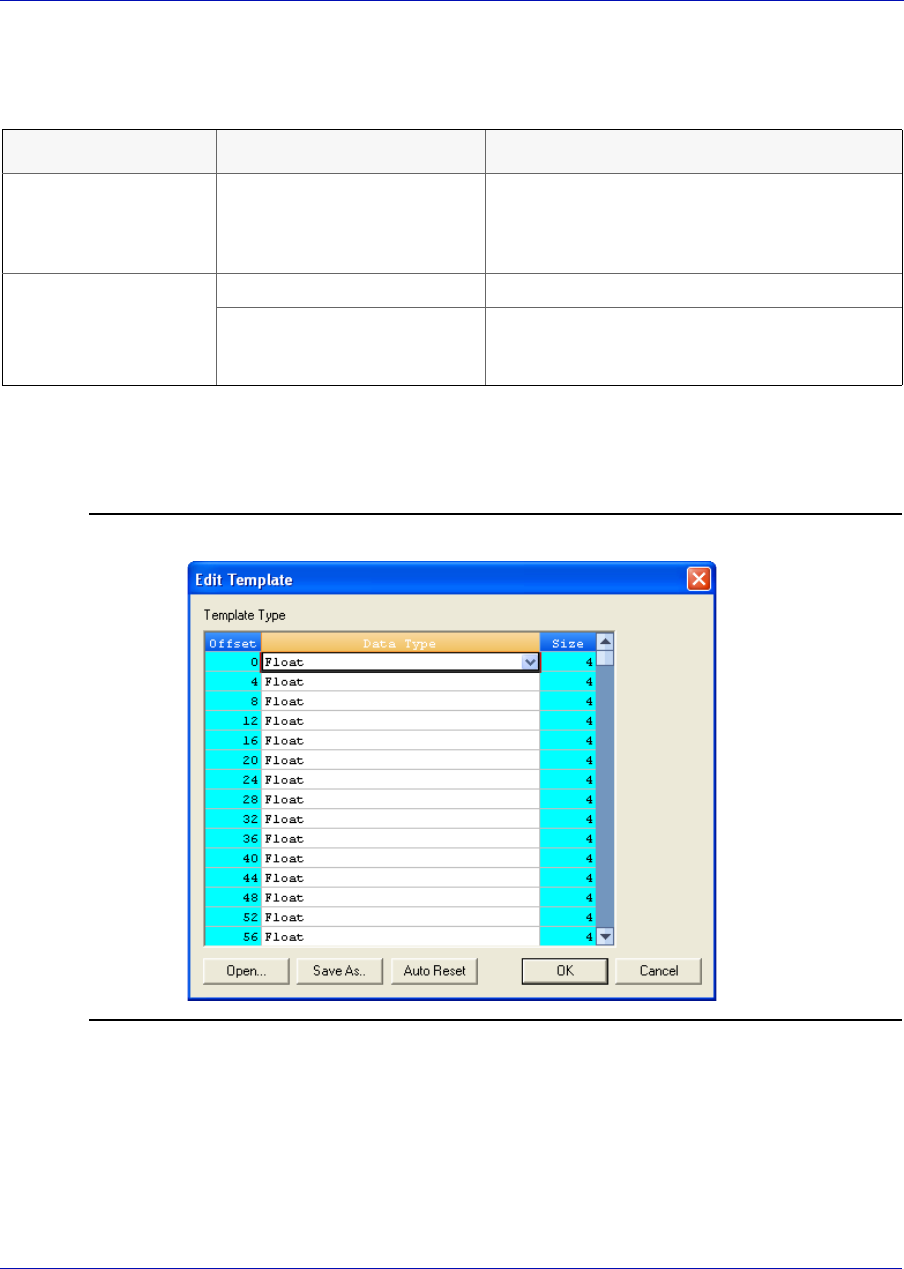
User Manual MON20/20 Software for Gas Chromatographs
3-9000-745 SEPTEMBER 2010
7-12
The following table describes the relationship between templates and
record numbers:
8. Click Edit Template. The Template File window displays with a new
template.
Figure 7-3. The Edit Template window
9. To open an existing template file, click Open. The Select Template
Configuration File dialog displays.
10.Locate and select the template file, and then click Open. Template
files are saved with the .cfg extension.
Data Type Setting Other Setting(s) Result
Register template • Enter Data Addr value.
• Enter Record No. value.
• Enter Quantity value.
Read Quantity fields (i.e., the number of fields
specified by the Quantity setting) from the
specified Record No. of the register (Data
Addr).
Log template • Enter Record No. value. Read all fields associated with the Record No.
• Enter Data Addr value.
• Enter “0” for the Record
No. value.
Read all fields in all records for the specified
log register (Data Addr).

MON20/20 Software for Gas Chromatographs User Manual
SEPTEMBER 2010 3-9000-745
7-13
11.To edit the template, select a data type for each desired offset.
12.To change all offsets to the same data type, change the first offset to
the desired data type, and then click Auto Reset. The data type for
the remainder of the offsets switch to the data type of the first offset.
13.To save the displayed file to disk, click Save As.... The Select
Template Configuration File dialog appears. Type in a filename and
click Save.
14.Click OK to apply your selections and return to the main window.
7.1.6 Setting the log parameters
The Log Data window allows you to log the polled data to a specified file.
Note
The Log Data function is not necessary to transmit Modbus data. To disable this
function, clear the Enable Logging ‘Data’ Registers and Values check box on the Log
Data window.
To set the log parameters for the Modbus program, do the following:
1. Click Log Data. The Log Data window displays.
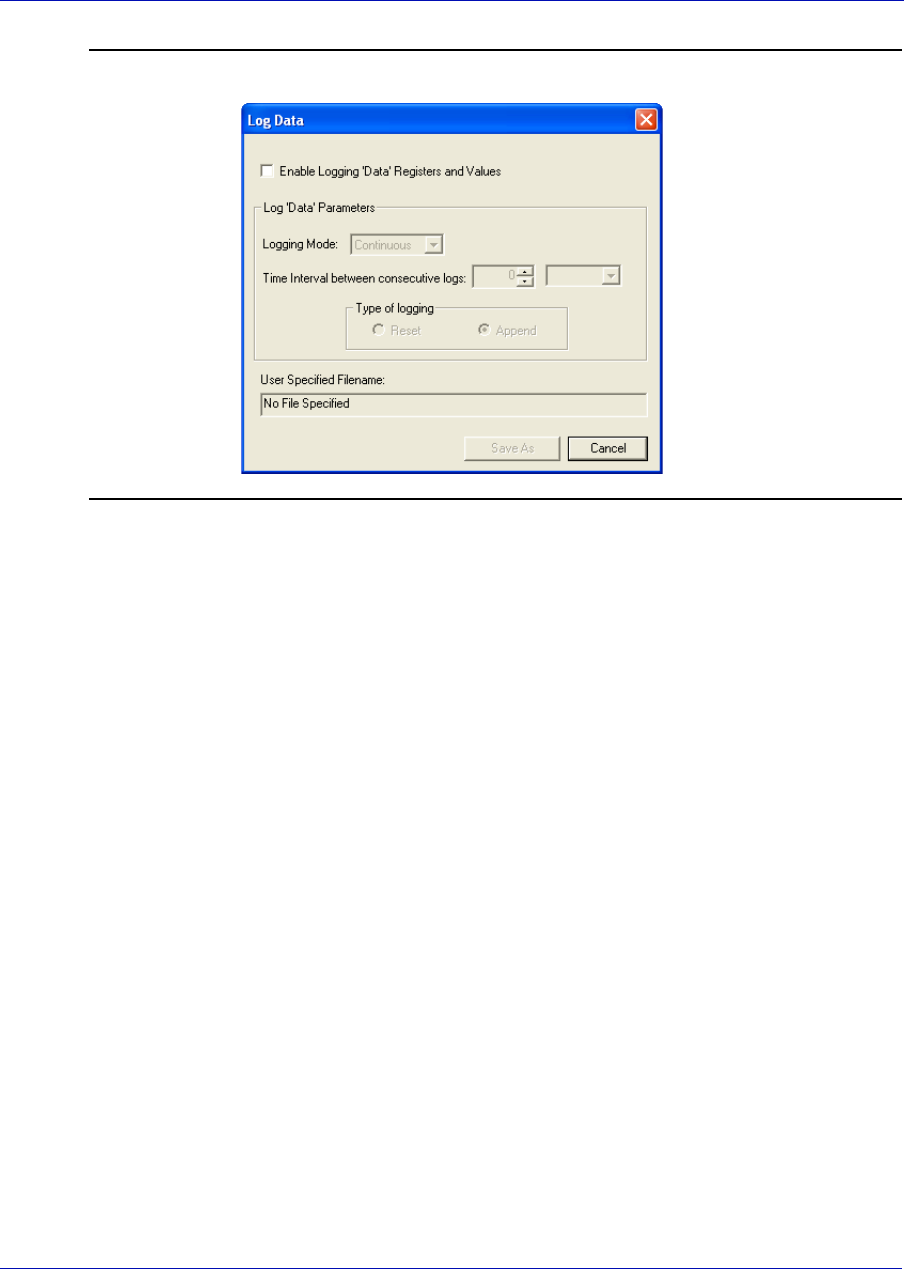
User Manual MON20/20 Software for Gas Chromatographs
3-9000-745 SEPTEMBER 2010
7-14
Figure 7-4. The Log Data window
2. Select the Enable Logging ‘Data’ Registers and Values check box to
enable data logging and to activate the Log Data Parameters
section.
3. Select a Logging Mode from the pull-down menu. You have the
following options:
•Continuous mode records the polled data continuously until the
connection is terminated or data logging is disabled by clearing
the Enable Logging ‘Data’ Registers and Values check box.
•Sampling mode records the polled data based on the time
interval that you set in the Time Interval between consecutive
logs text box. Time intervals can be set in seconds, minutes, or
hours.
4. Select a type of logging. You have the following options:
•Append adds this log to the file specified, preserving previously
logged data.
•Reset deletes the previously-logged data and saves only this new
log.
5. Click Save As.... The Save As window displays. The file can be saved
as a tab-delimited text file or a Microsoft Excel file. Type in a
filename and click Save.

MON20/20 Software for Gas Chromatographs User Manual
SEPTEMBER 2010 3-9000-745
7-15
7.1.7 Saving Modbus data
To save the data table to a separate file, do the following:
1. Click Save Data. The Save ‘Data’ Displayed As dialog appears. The
file can be saved as a tab-delimited text file, an HTML file or a
Microsoft Excel file.
2. Type in a filename and click Save.
7.1.8 Printing Modbus data
To print Modbus data, click Print Data. The standard print dialog
displays.
MON 20/20 prints the report to your previously configured printer. See
Section 1.7 for more information.
7.1.9 Assigning scale ranges to User_Modbus registers
By assigning scale ranges, floating point data can be converted to integer
values. This is an optional task that applies to applications using the
User_Modbus protocol.
Use the Register command described in Section 4.12.4, “Viewing or
editing scales” on page 92 to assign scale ranges. See Appendix C for more
information regarding the gas chromatograph’s Modbus registers.
7.2 Troubleshooting communication errors
The Modbus program’s Error Log is maintained in a circular buffer that
holds up to 512 entries.
The Modbus program tracks the errors for a given session but does not
store them. When you exit the Modbus program, all errors are cleared.
To view any communication errors that occurred during the data
transfer, do the following:
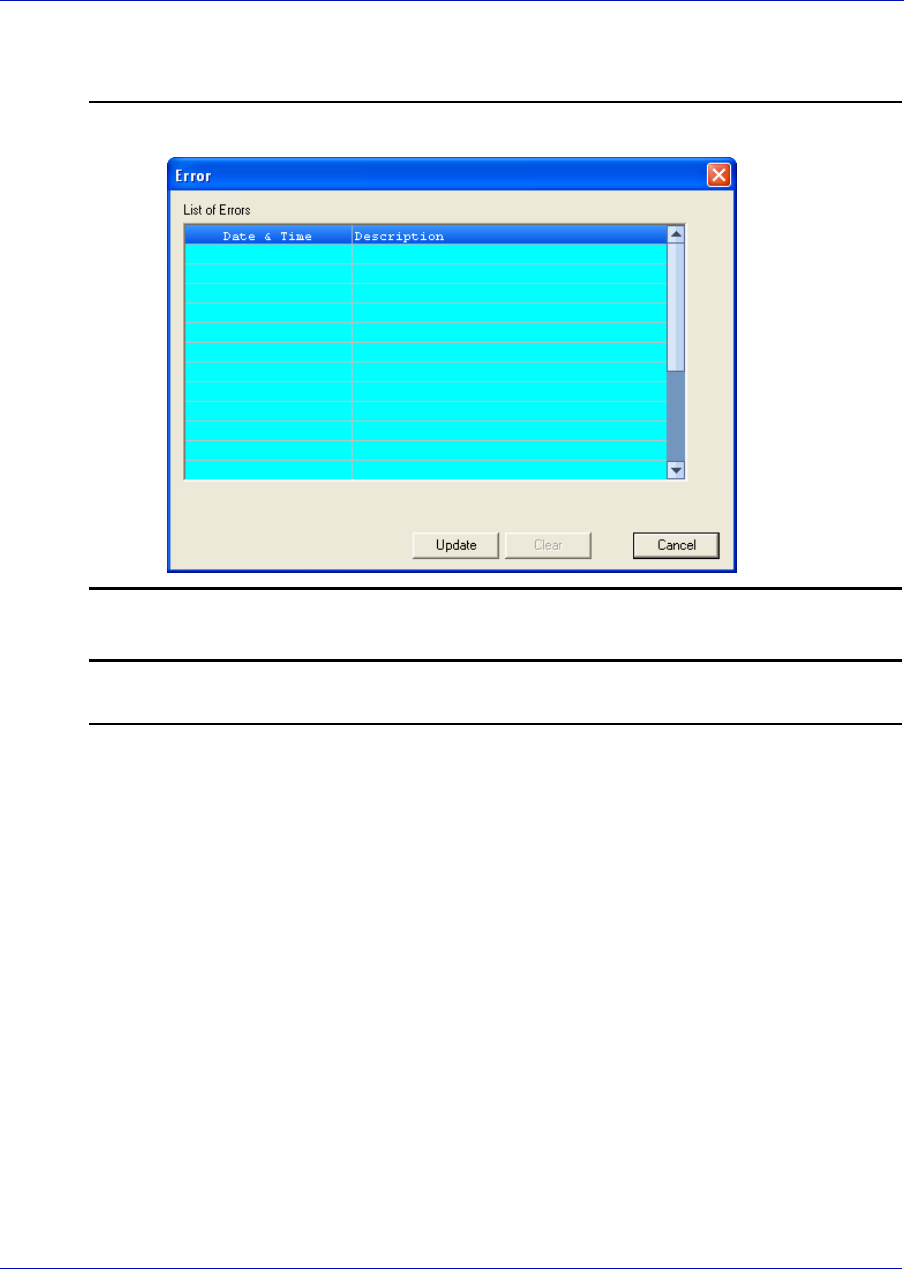
User Manual MON20/20 Software for Gas Chromatographs
3-9000-745 SEPTEMBER 2010
7-16
1. Click Error.... The Error window appears.
Figure 7-5. The Error window
Note
Double-click a Description cell to “scroll through” the displayed text.
2. To view all errors that have occurred in this session, click Update.
3. To delete all entries to date, click Clear.
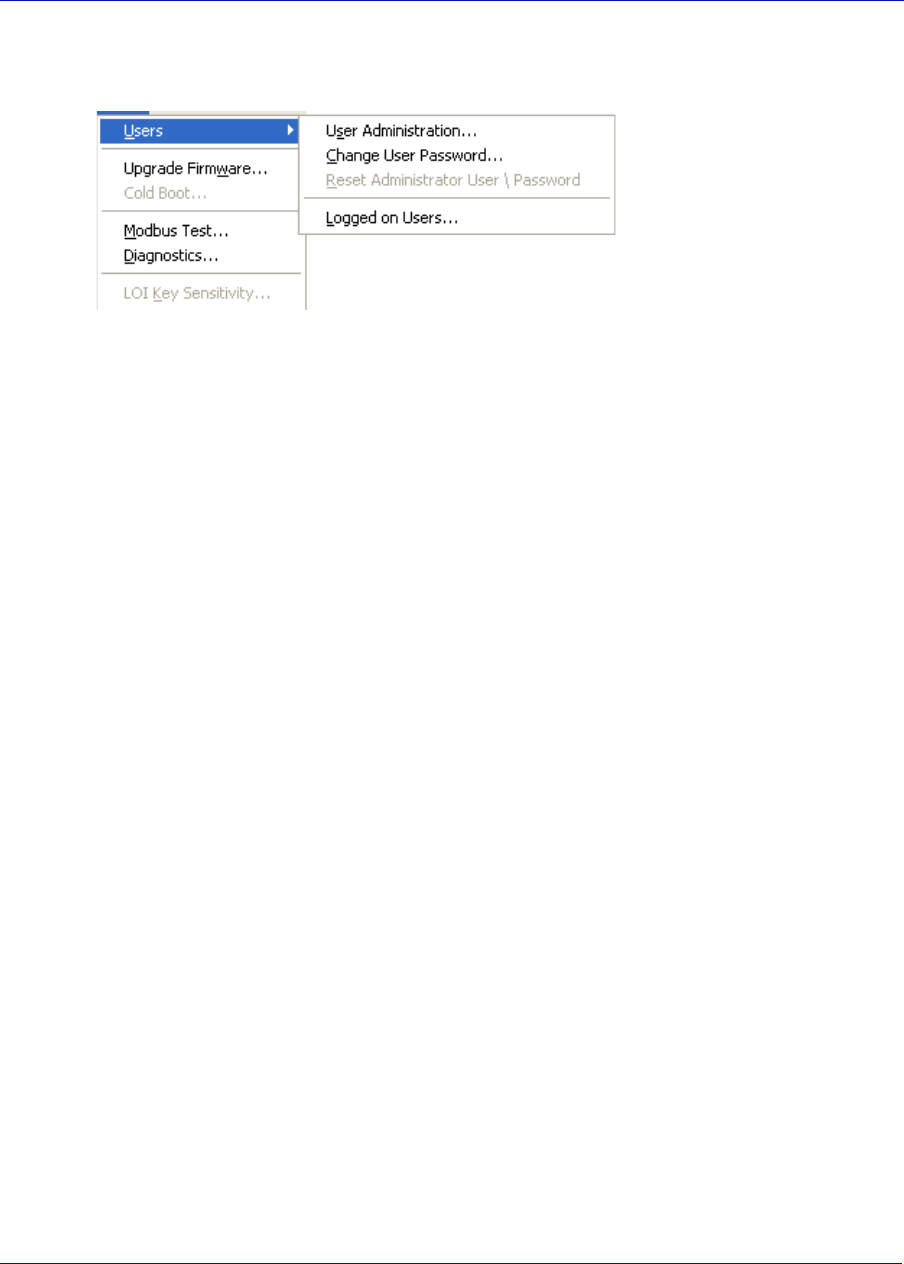
MON20/20 Software for Gas Chromatographs User Manual
SEPTEMBER 2010 3-9000-745
7-17
7.3 Managing users
Use the User
Administration
commands to create or
delete users, change
passwords, and to
monitor PC-to-GC
connections.
Login security is at the gas chromatograph level instead of at the
software level. This means that you no longer have to log in after starting
MON 20/20—but you do have to log in to the gas chromatograph to which
you are trying to connect. This also means that if you create a new user,
that user is only valid for the GC to which you are connected. You cannot
connect to any other GC unless you create the same user on it first.
MON 20/20 recognizes the following four user types, or roles, each with
an increasing level of access to functionality:
•Read-only - A read-only user has the lowest level of access and can
view data but cannot make any changes. A read-only user can change
his or her password only.
•Regular - A regular user has all of the privileges of a read-only user,
as well as the ability to acknowledge and clear alarms. A regular user
can also control the GC through MON 20/20’s Control menus. A
regular user can change his or her password only and cannot create or
delete other users.
•Super User - A super user has all of the privileges of a regular user,
as well as the ability to manage and control the GC through MON 20/
20’s Application and Hardware menus. A super user can change his or
her password only and cannot create or delete other users.
•Administrator - An administrator has complete access to all of MON
20/20’s commands and functions, as well as the ability to manage all
other users by creating or deleting user accounts, and changing
passwords.
User Manual MON20/20 Software for Gas Chromatographs
3-9000-745 SEPTEMBER 2010
7-18
Note
Each GC ships with two administrator accounts: daniel and emerson. By default,
these two accounts do not require a password, but a password can be added, if desired.
The following table lists in detail the functions and commands that
are available to each user role:
Menu Commands Admin
User
Super
User
Regular
User
Read-Only
User
File Connection Directory Y Y Y Y
Program Settings Y Y Y Y
Print Setup Y Y Y Y
Chromatograph Connect Y Y Y Y
Disconnect Y Y Y Y
Chromatogram Viewer Y Y Y Y
Chromatogram - Forced
Cal
YYN N
GC Time Y Y read-only read-only
Hardware Heaters Y Y read-only read-only
Valves Y Y read-only read-only
Detectors Y Y read-only read-only
Discrete Inputs Y Y read-only read-only
Discrete Outputs Y Y read-only read-only
Analog Inputs Y Y read-only read-only
Analog Outputs Y Y read-only read-only
Installed Hardware read-only read-only read-only read-only
Application System Y Y read-only read-only
Component Data Y Y read-only read-only
Timed Events Y Y read-only read-only
Calculations - Control Y Y read-only read-only
Calculations - Averages Y Y read-only read-only
MON20/20 Software for Gas Chromatographs User Manual
SEPTEMBER 2010 3-9000-745
7-19
Calculations - User
Defined
Y Y read-only read-only
Limit Alarms Y Y read-only read-only
System Alarms Y Y read-only read-only
Streams Y Y read-only read-only
Stream Sequence Y Y read-only read-only
Communication Y Y read-only read-only
Logs/Reports Unack/Active Alarms Y Y Y read-only
Alarm Logs read-only read-only read-only read-only
Ack/Clear Alarms Y Y Y N
Maintenance Log Y Y Y read-only
Event Log read-only read-only read-only read-only
Report Display read-only read-only read-only read-only
Archive Report read-only read-only read-only read-only
Printer Control Y Y Y read-only
Trend Data read-only read-only read-only read-only
Reset Archive Data Y N N N
Control Start Auto Seq Y Y Y N
Start Single Stream Y Y Y N
Halt Y Y Y N
Calibration Y Y Y N
Stop Y Y Y N
Tools User Administration Y N N N
Change User Password Any Own Own Own
Menu Commands Admin
User
Super
User
Regular
User
Read-Only
User
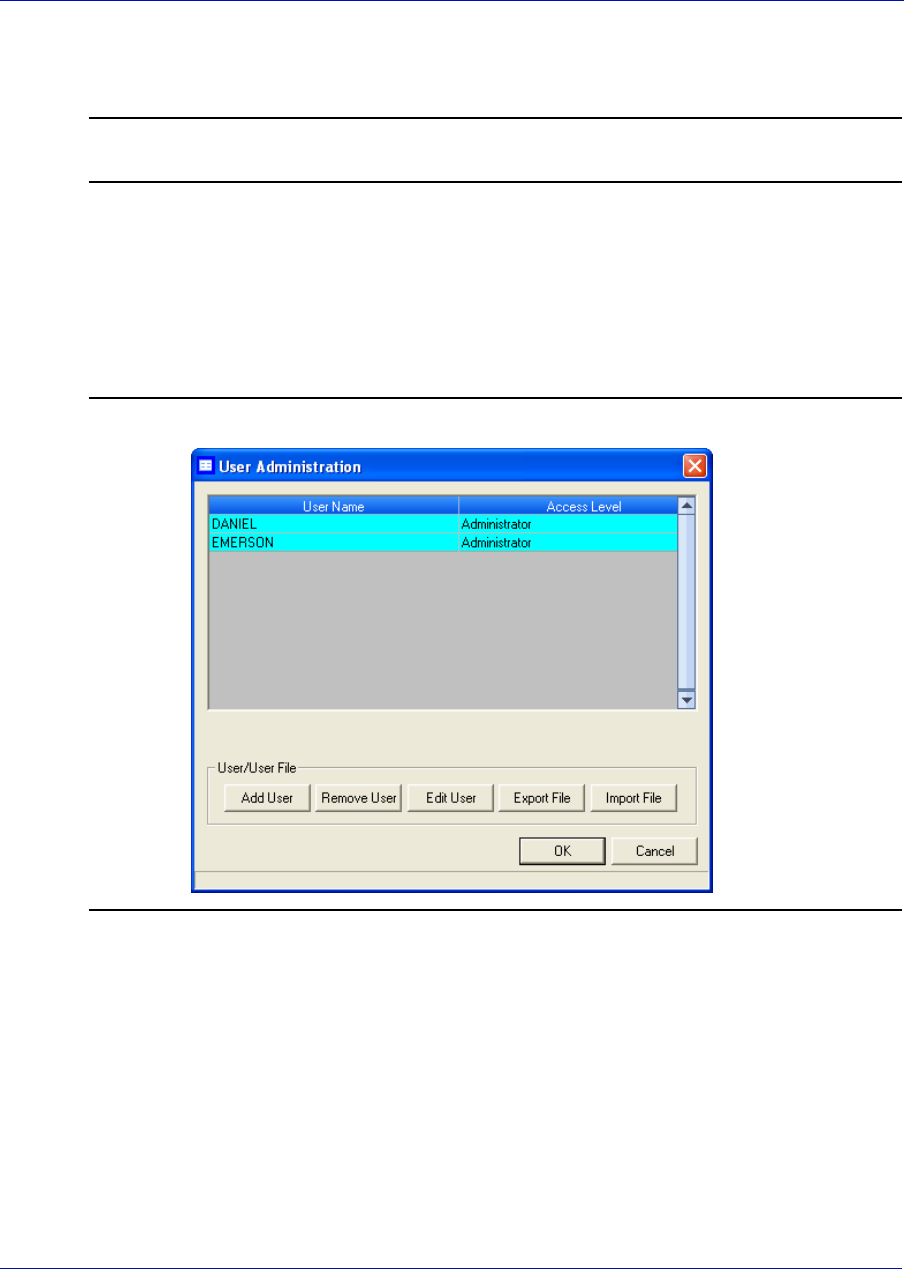
User Manual MON20/20 Software for Gas Chromatographs
3-9000-745 SEPTEMBER 2010
7-20
7.3.1 Creating users
Note
You must be logged in as an administrator.
To create a user, do the following:
1. Select Tools → Users → User Administration.... The User
Administration window appears, displaying a list of current users and
their role levels.
Figure 7-6. The User Administration window
2. To add a user, click Add User. The Add User window displays.
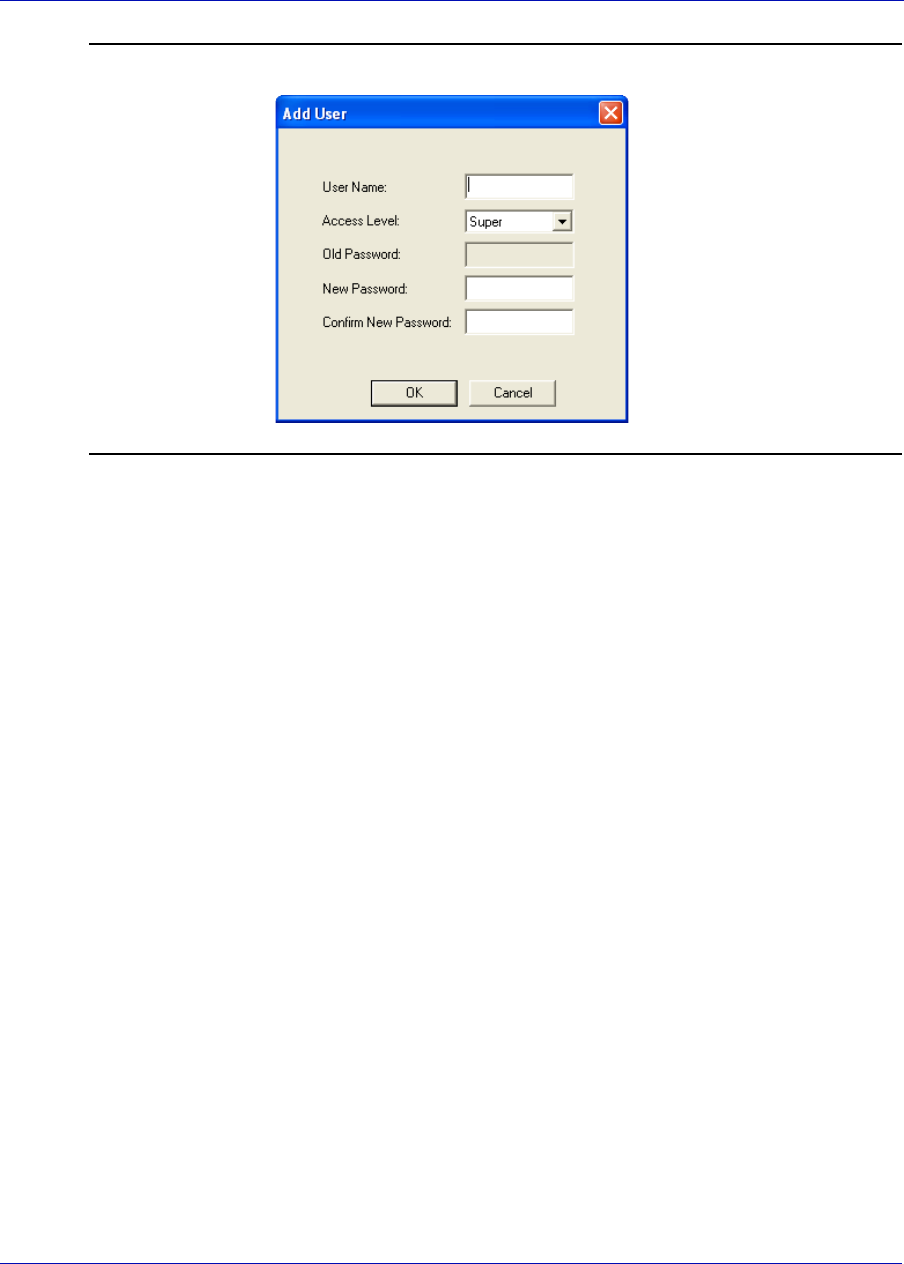
MON20/20 Software for Gas Chromatographs User Manual
SEPTEMBER 2010 3-9000-745
7-21
Figure 7-7. The Add User window
3. Enter the appropriate information into the text fields.
4. Click OK. MON 20/20 creates the new user and adds it to the User
table on the User Administration window.
7.3.2 Exporting a list of user profiles
To save a list of users, along with their role levels and passwords, do the
following:
1. Select Tools → Users → User Administration.... The User
Administration window appears, displaying a list of current users and
their role levels.
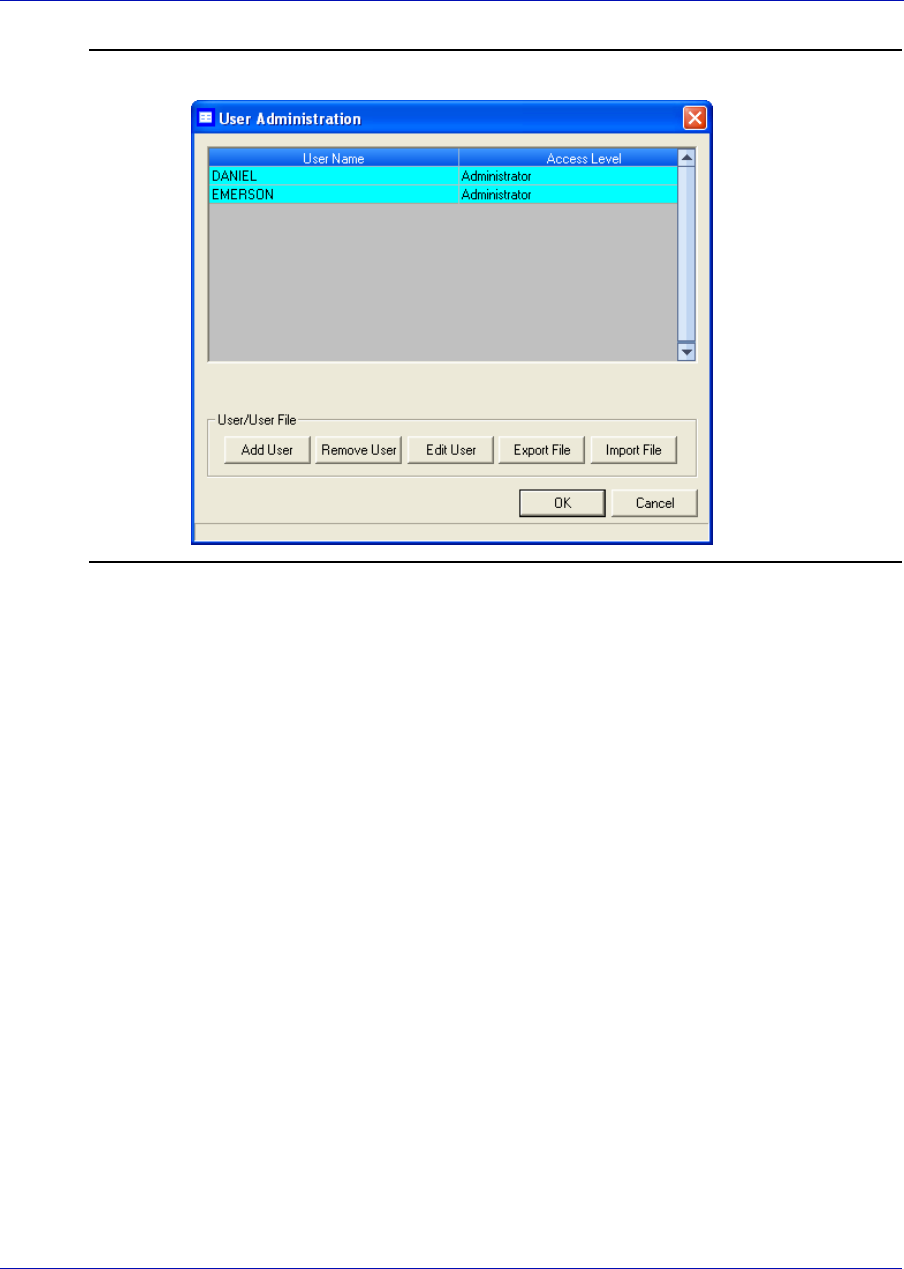
User Manual MON20/20 Software for Gas Chromatographs
3-9000-745 SEPTEMBER 2010
7-22
Figure 7-8. The User Administration window
2. Click Export File. The Export User File window displays.

MON20/20 Software for Gas Chromatographs User Manual
SEPTEMBER 2010 3-9000-745
7-23
Figure 7-9. The Export User File window
3. Navigate to where you want to save the file, if necessary.
4. Type in a file name or use the pre-generated name provided.
5. Click Save.
7.3.3 Importing a list of user profiles
To load a list of users, along with their role levels and passwords, do the
following:
1. Select Tools → Users → User Administration.... The User
Administration window appears, displaying a list of current users and
their role levels.
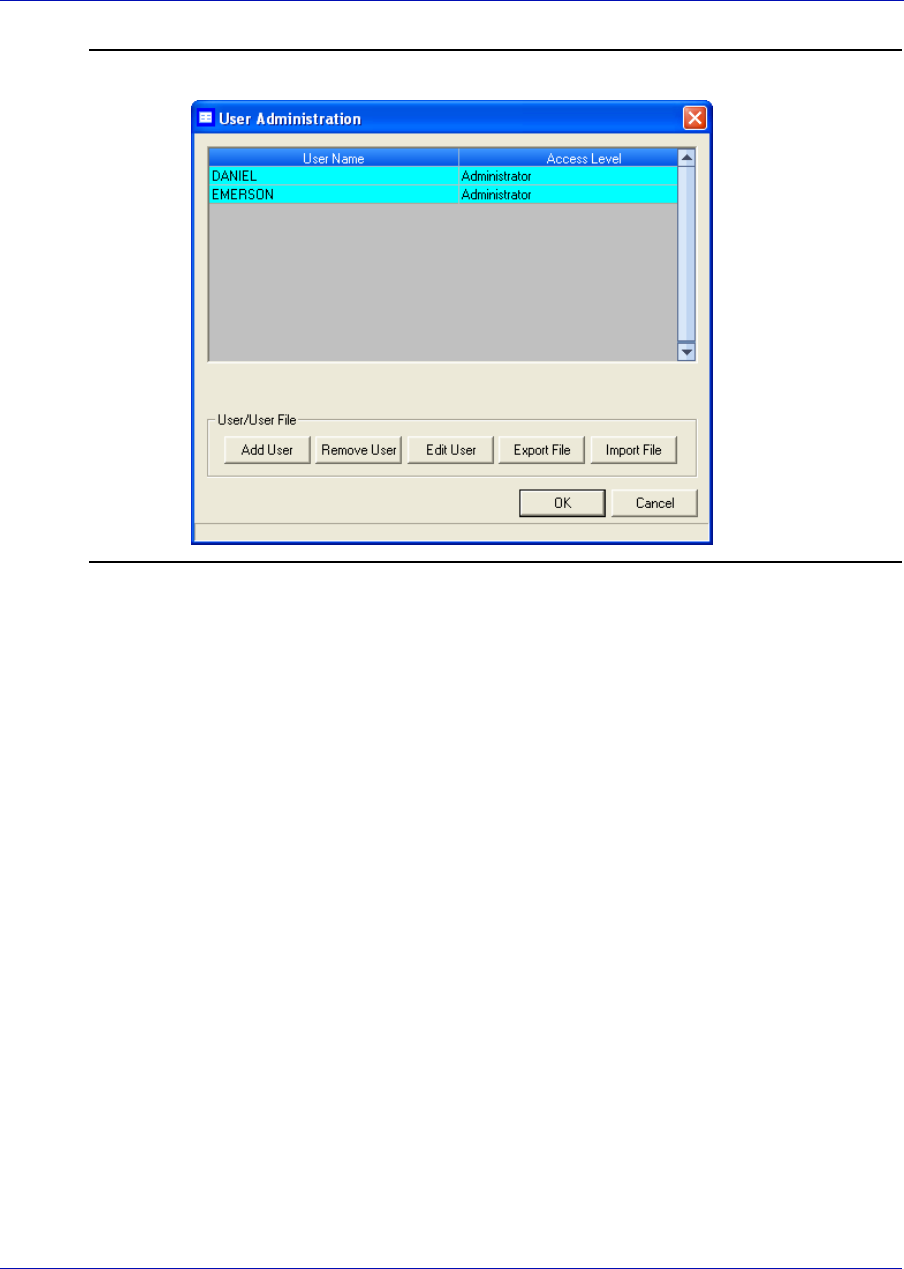
User Manual MON20/20 Software for Gas Chromatographs
3-9000-745 SEPTEMBER 2010
7-24
Figure 7-10. The User Administration window
2. Click Import File. The Import User File window displays.

MON20/20 Software for Gas Chromatographs User Manual
SEPTEMBER 2010 3-9000-745
7-25
Figure 7-11. The Import User File window
3. Navigate to where the file is located, if necessary.
Note
User files have the .xusr extension.
4. Click on the file to be loaded.
5. Click Open. The users will be added to the User Administration
window.
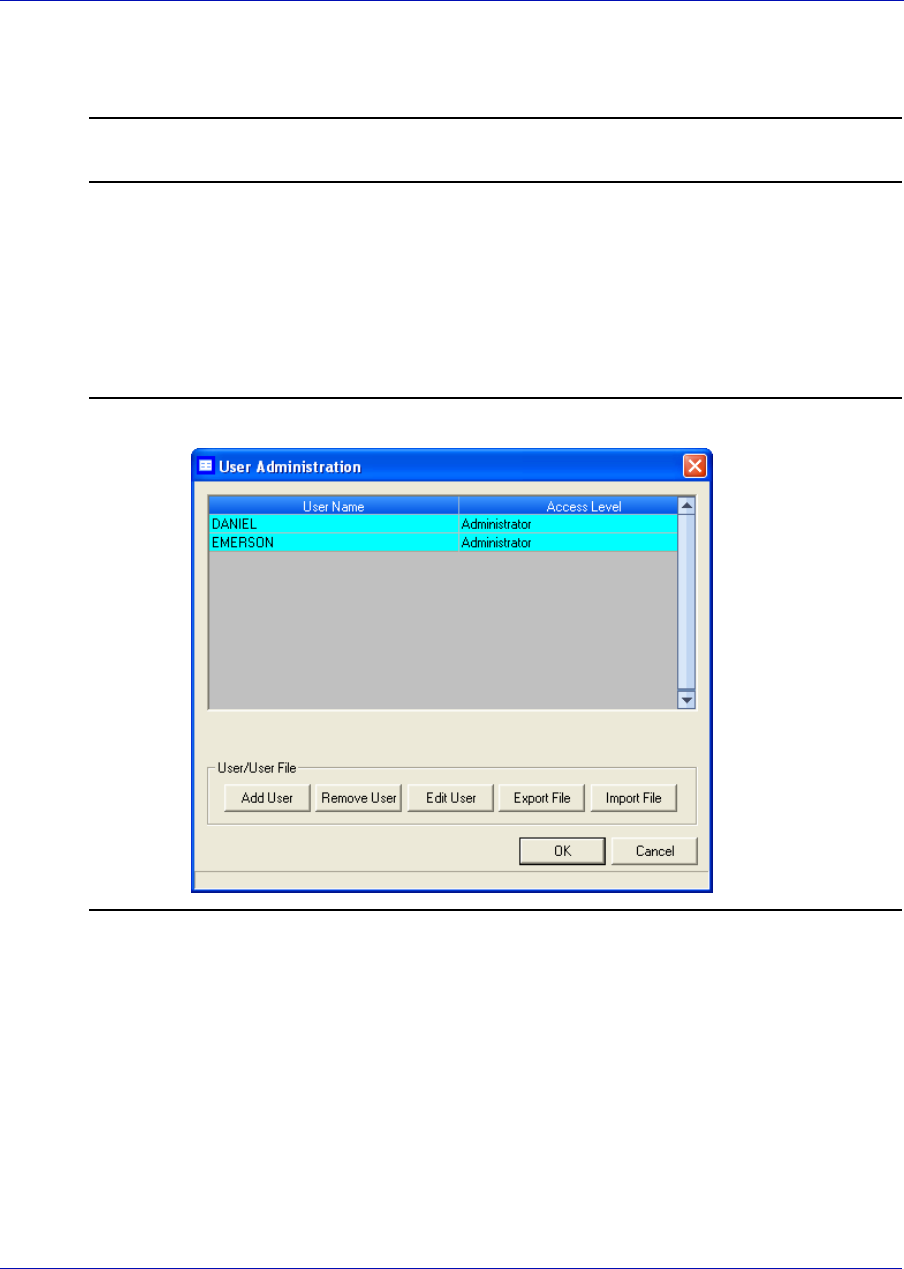
User Manual MON20/20 Software for Gas Chromatographs
3-9000-745 SEPTEMBER 2010
7-26
7.3.4 Editing users
Note
You must be logged in as an administrator.
To edit a user’s name, role level or password, do the following:
1. Select Tools → Users → User Administration.... The User
Administration window appears, displaying a list of current users and
their role levels.
Figure 7-12. The User Administration window
2. Select the user whose role you want to edit and click Edit User. The
Edit User window displays.
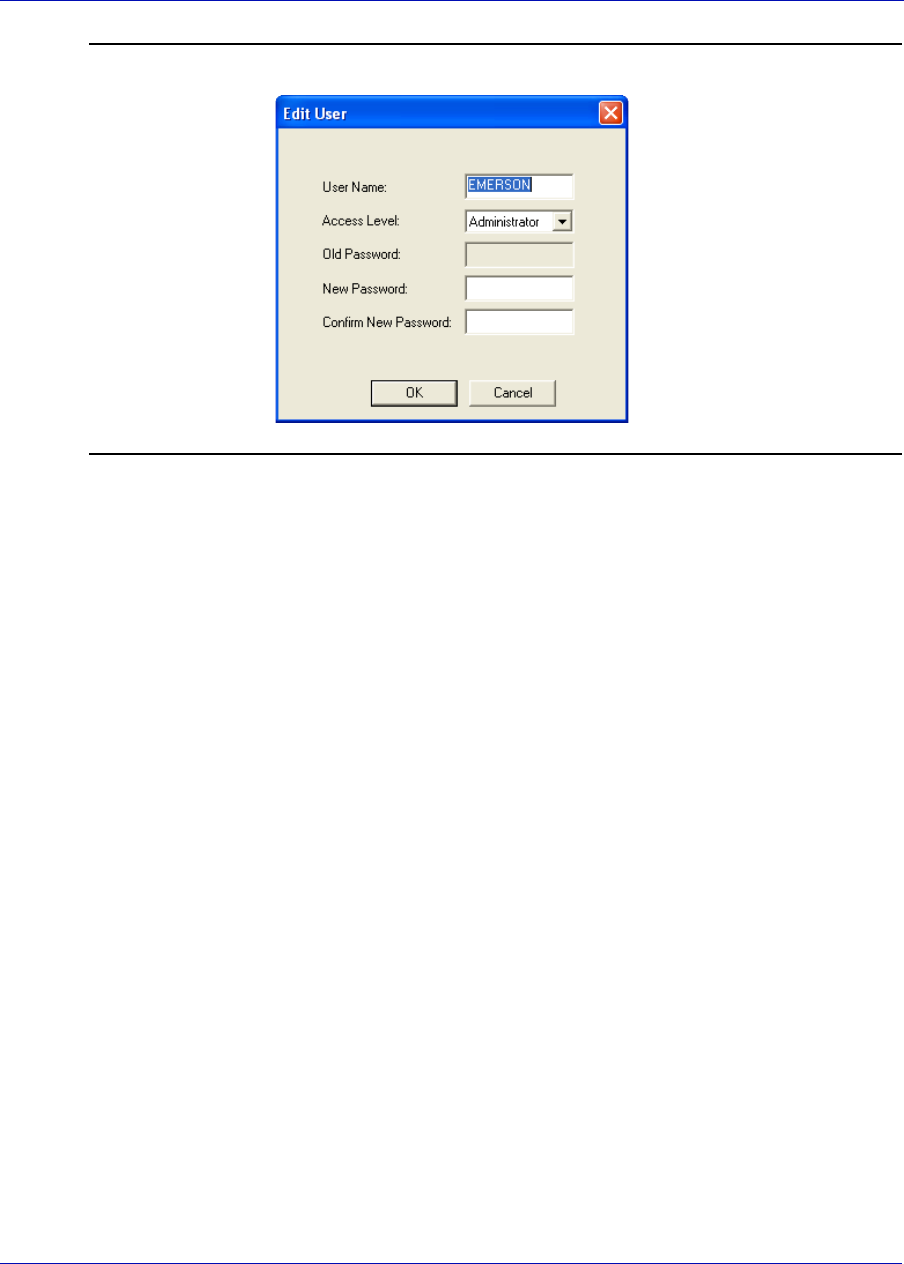
MON20/20 Software for Gas Chromatographs User Manual
SEPTEMBER 2010 3-9000-745
7-27
Figure 7-13. The Edit User window
3. Change the appropriate information as required.
4. Click OK. MON 20/20 makes the requested changes and returns to
the User Administration window.
7.3.5 Removing a user
To remove a user, do the following:
1. Select Tools → Users → User Administration.... The User
Administration window appears, displaying a list of current users and
their role levels.
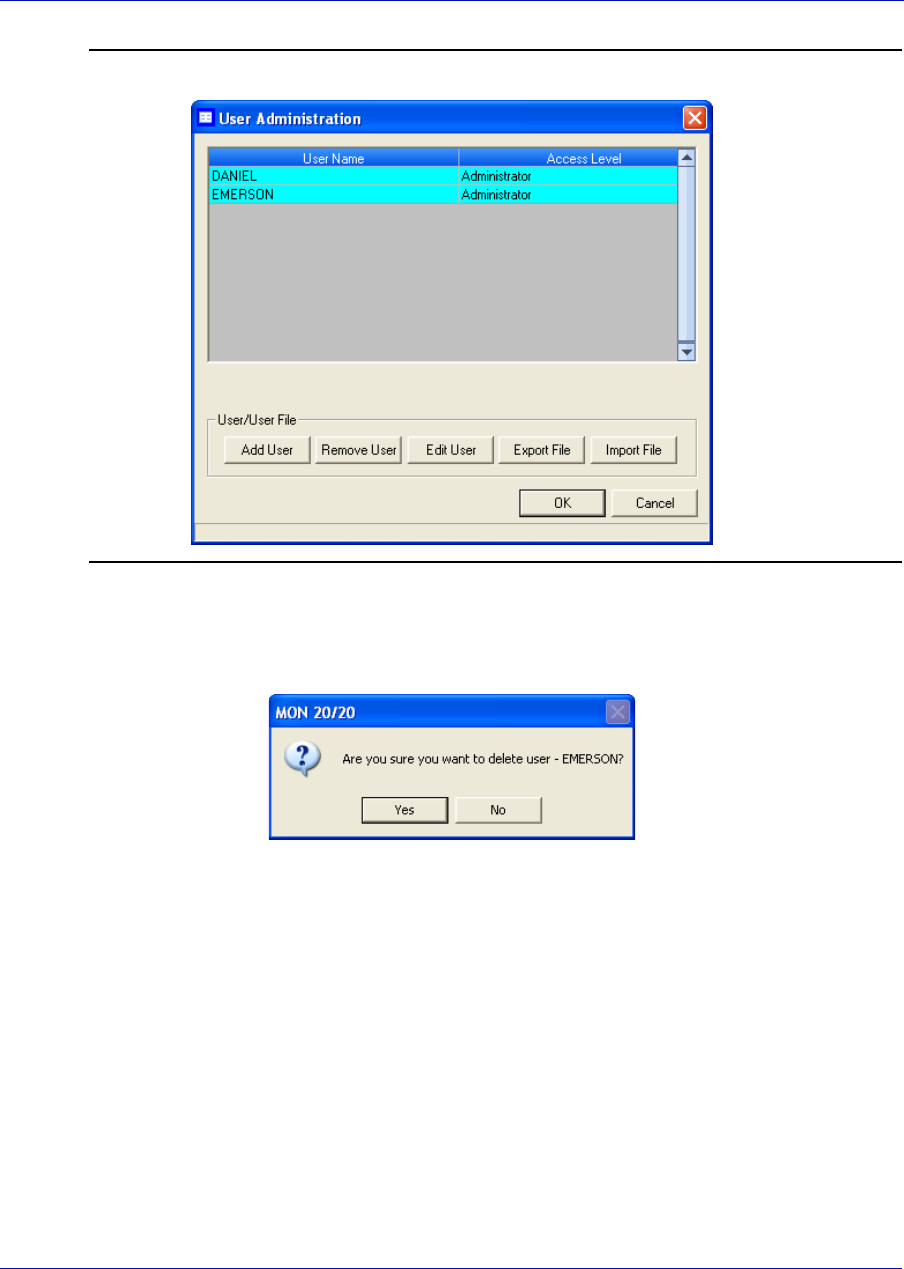
User Manual MON20/20 Software for Gas Chromatographs
3-9000-745 SEPTEMBER 2010
7-28
Figure 7-14. The User Administration window
2. Select the user you want to delete and click Remove User. A
confirmation message displays.
3. Click Yes. MON 20/20 deletes the user and returns to the User
Administration window.
7.3.6 Changing a user’s password
A user without administrator-level access can only change his or her
password.
1. Select Select Tools → Users → Change User Password.... The
Change User Password window displays.
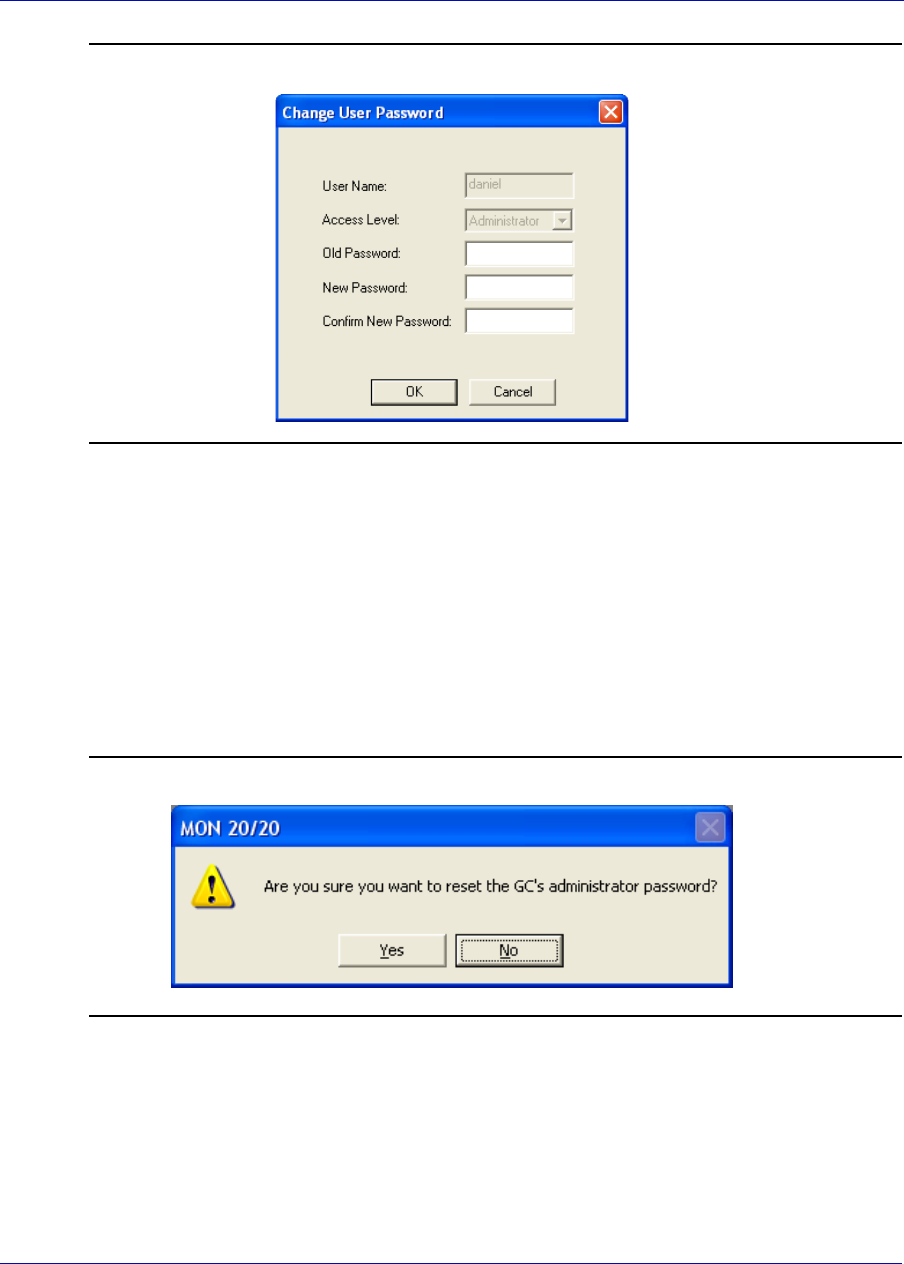
MON20/20 Software for Gas Chromatographs User Manual
SEPTEMBER 2010 3-9000-745
7-29
Figure 7-15. The Change User Password window
2. Enter the appropriate information in the text fields and click OK.
7.3.7 Resetting the adminstrator password
To reset an administrator password, do the following:
1. Start MON 20/20 and select Users → Reset Administrator User /
Password. The following warning displays:
Figure 7-16. Password reset warning message
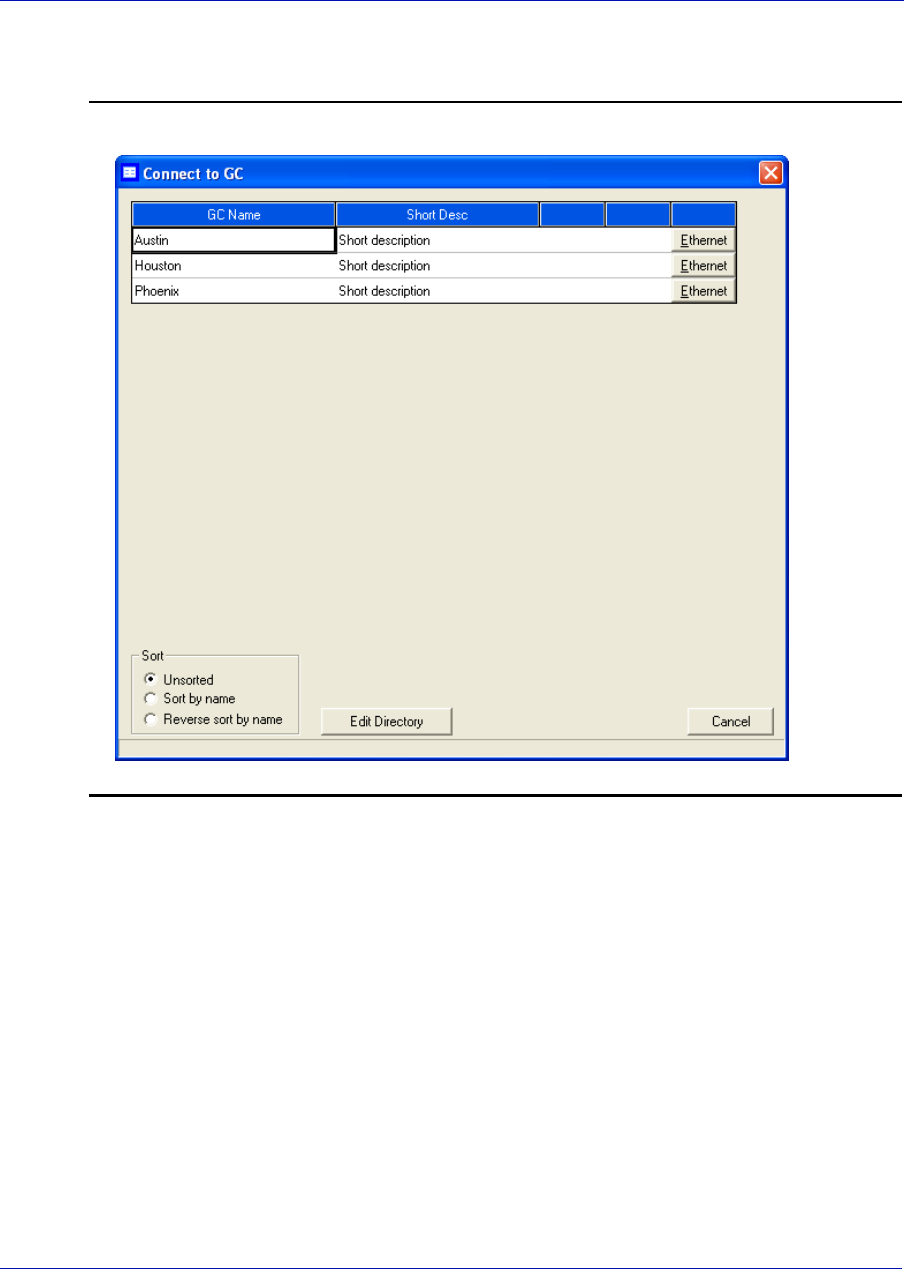
User Manual MON20/20 Software for Gas Chromatographs
3-9000-745 SEPTEMBER 2010
7-30
2. Click Yes. The Connect to GC window displays.
Figure 7-17. The Connect to GC window
3. Click the Ethernet button that corresponds to the GC whose
password you want to reset. MON 20/20 will connect to the GC and
generate a Password Reset Request ID. The MON 20/20 - Password
Reset window displays.
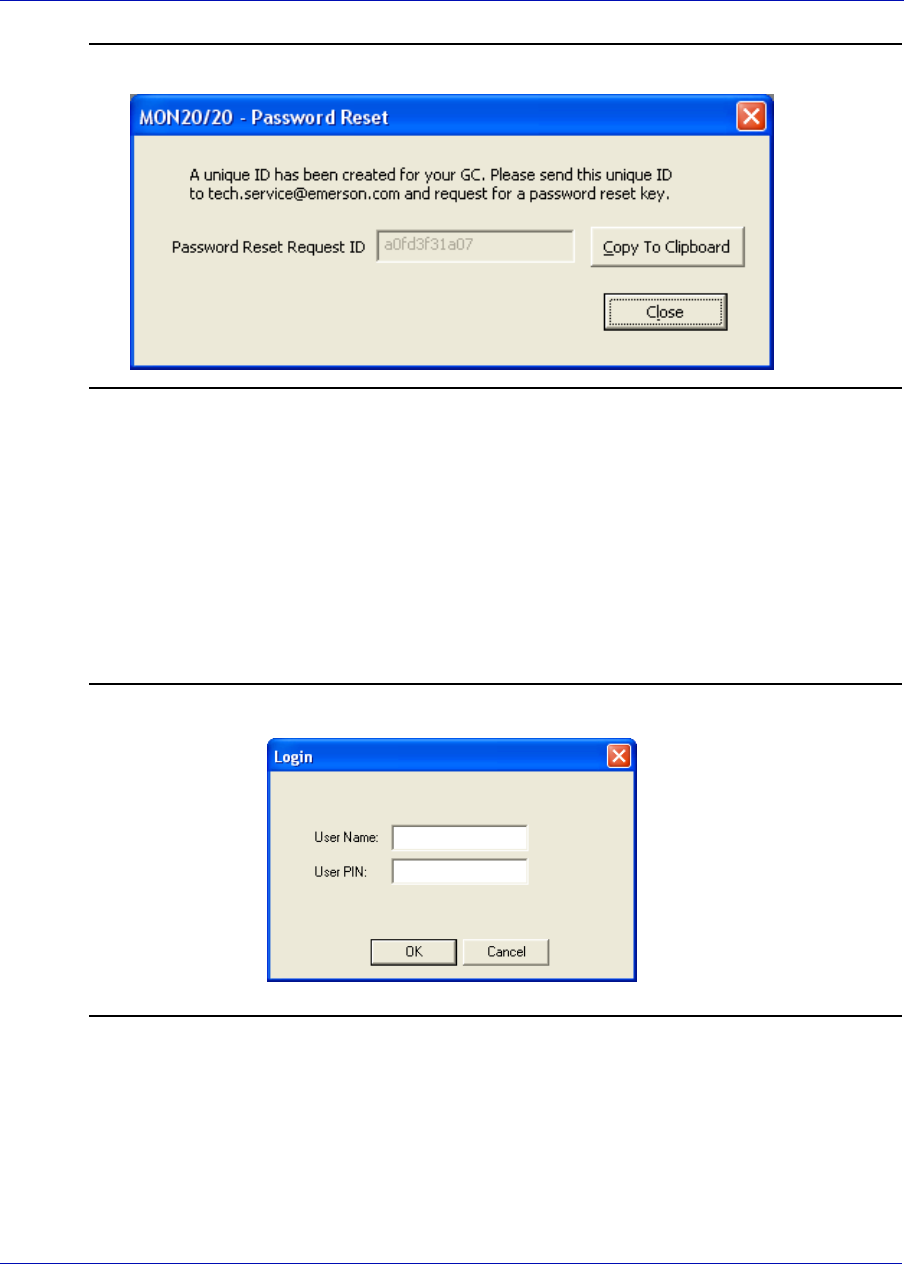
MON20/20 Software for Gas Chromatographs User Manual
SEPTEMBER 2010 3-9000-745
7-31
Figure 7-18. The MON 20/20 - Password Reset window
4. Click Copy to Clipboard and email the Password Reset Request ID
to tech.service@emerson.com. You will be sent a Password Reset
Key.
5. After you receive the Password Reset Key, return to the Connect to
GC window and again click the Ethernet button that corresponds to
the GC whose password you want to reset. The Login window
displays.
Figure 7-19. Login window
6. Enter the User Name and the Password Reset Key and click OK.
MON 20/20 will connect to the GC. To change the Password Reset
Key, see “Changing a user’s password” on page 7-28.
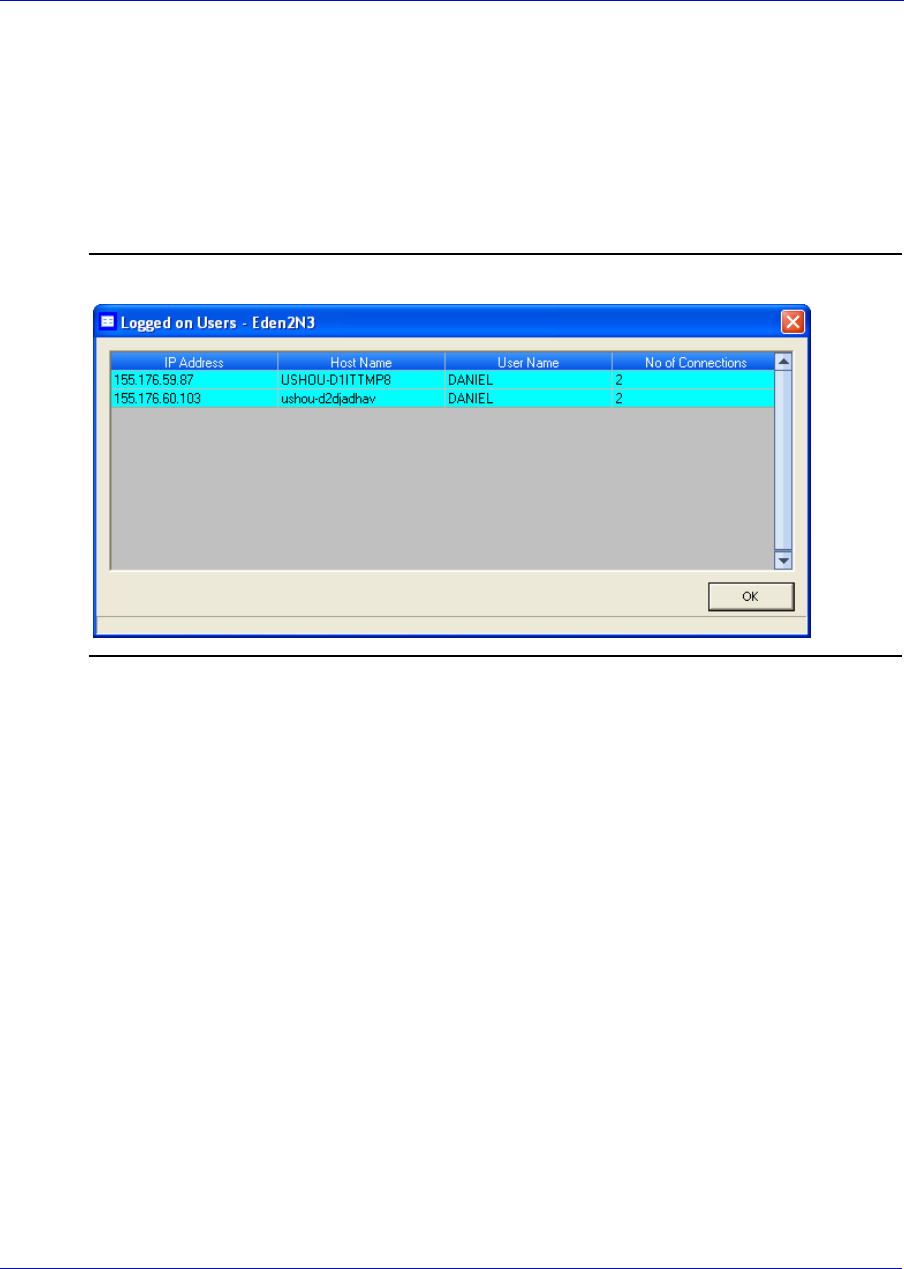
User Manual MON20/20 Software for Gas Chromatographs
3-9000-745 SEPTEMBER 2010
7-32
7.3.8 Finding out who is connected to the gas chromatograph
To ascertain which users are connect to the GC, select Tools → Users →
Logged on Users.... The Logged on Users window displays with a list of
the users who are currently logged on to the GC, along with each user’s IP
address.
Figure 7-20. The Logged on Users window
7.4 Upgrading the firmware
This command allows you to download upgrades to the GC’s firmware.
To download an upgrade, do the following:
1. Select Upgrade Firmware... from the Tools menu. The Upgrade
Firmware window displays. The Currently Install Versions section
details the status of the currently-installed applications.
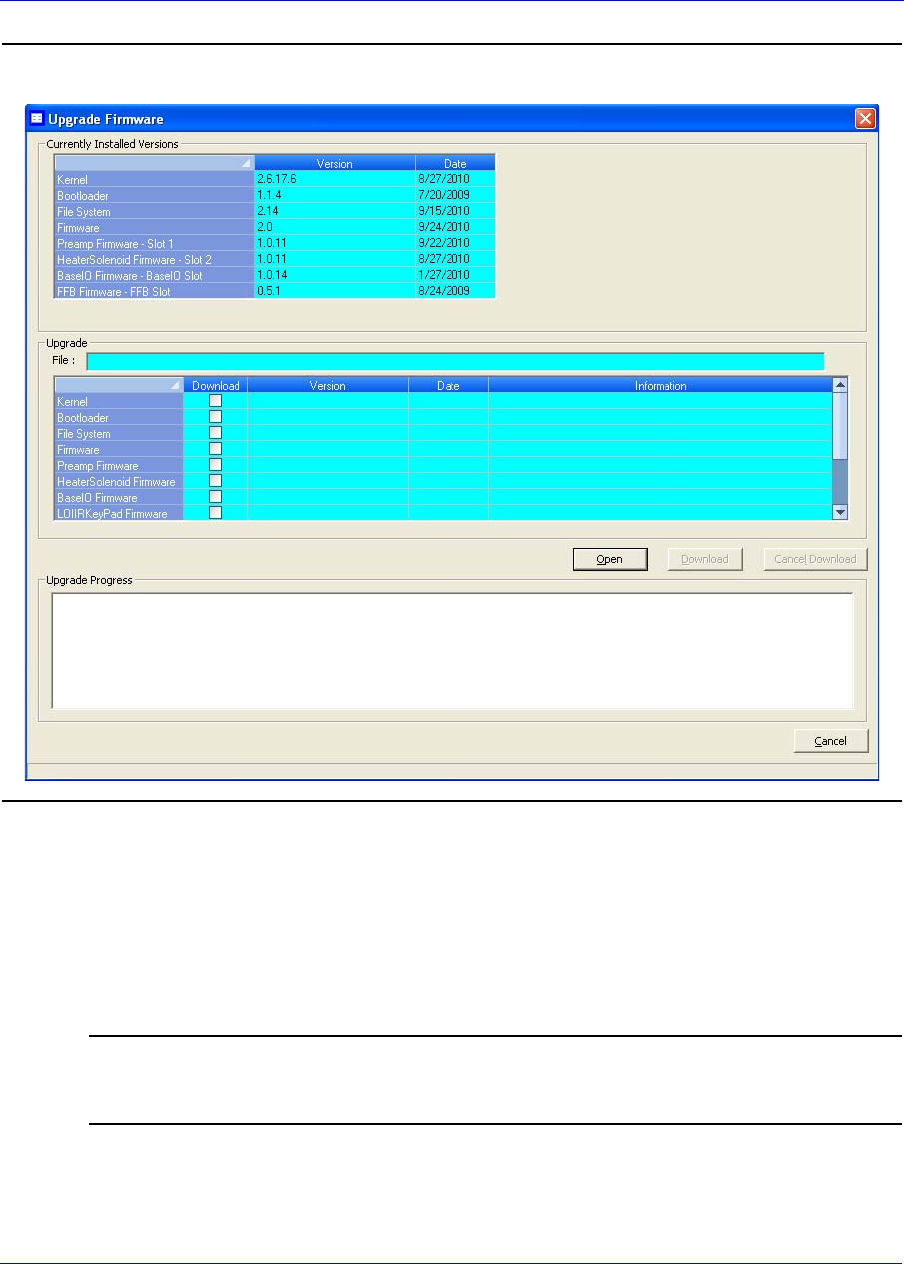
MON20/20 Software for Gas Chromatographs User Manual
SEPTEMBER 2010 3-9000-745
7-33
Figure 7-21. The Upgrade Firmware window
2. Click Open. The Open Download File dialog displays.
3. Locate and select the desired .zip file and click Open. The .zip file’s
content information displays in the Upgrade section of the Upgrade
Firmware window. The Information column will alert you to the new
files that should be selected and downloaded to the GC.
Note
If the upgrade file contains a program that is newer than what is currently installed on
the GC, it will automatically be selected to downloading.
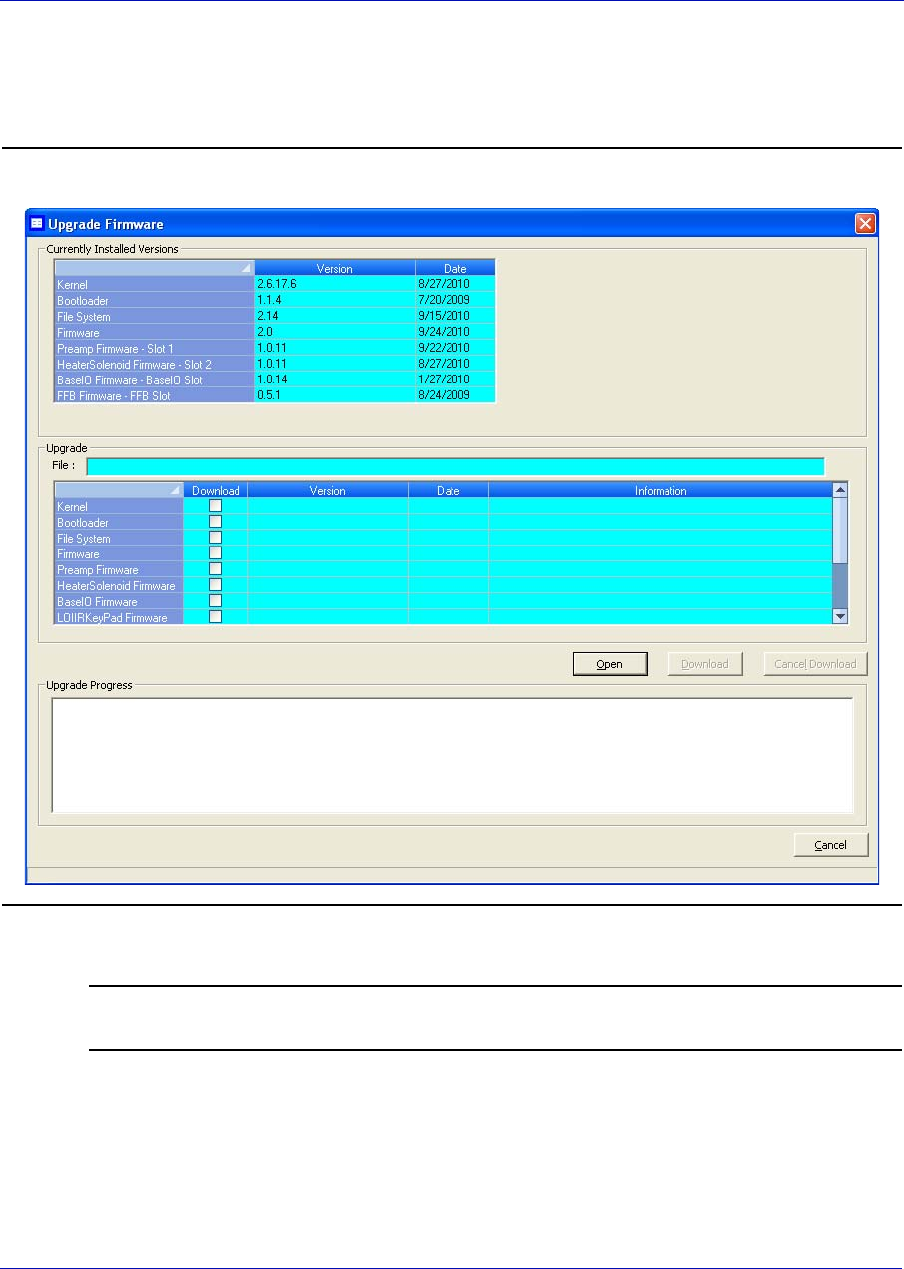
User Manual MON20/20 Software for Gas Chromatographs
3-9000-745 SEPTEMBER 2010
7-34
4. Select the check boxes for the files that you want to download to the
GC and click Download. While the files are downloading, you can
monitor their status in the Upgrade Progress section.
Figure 7-22. The Upgrade Firmware window
Note
If you want to halt the download, click Cancel Download.
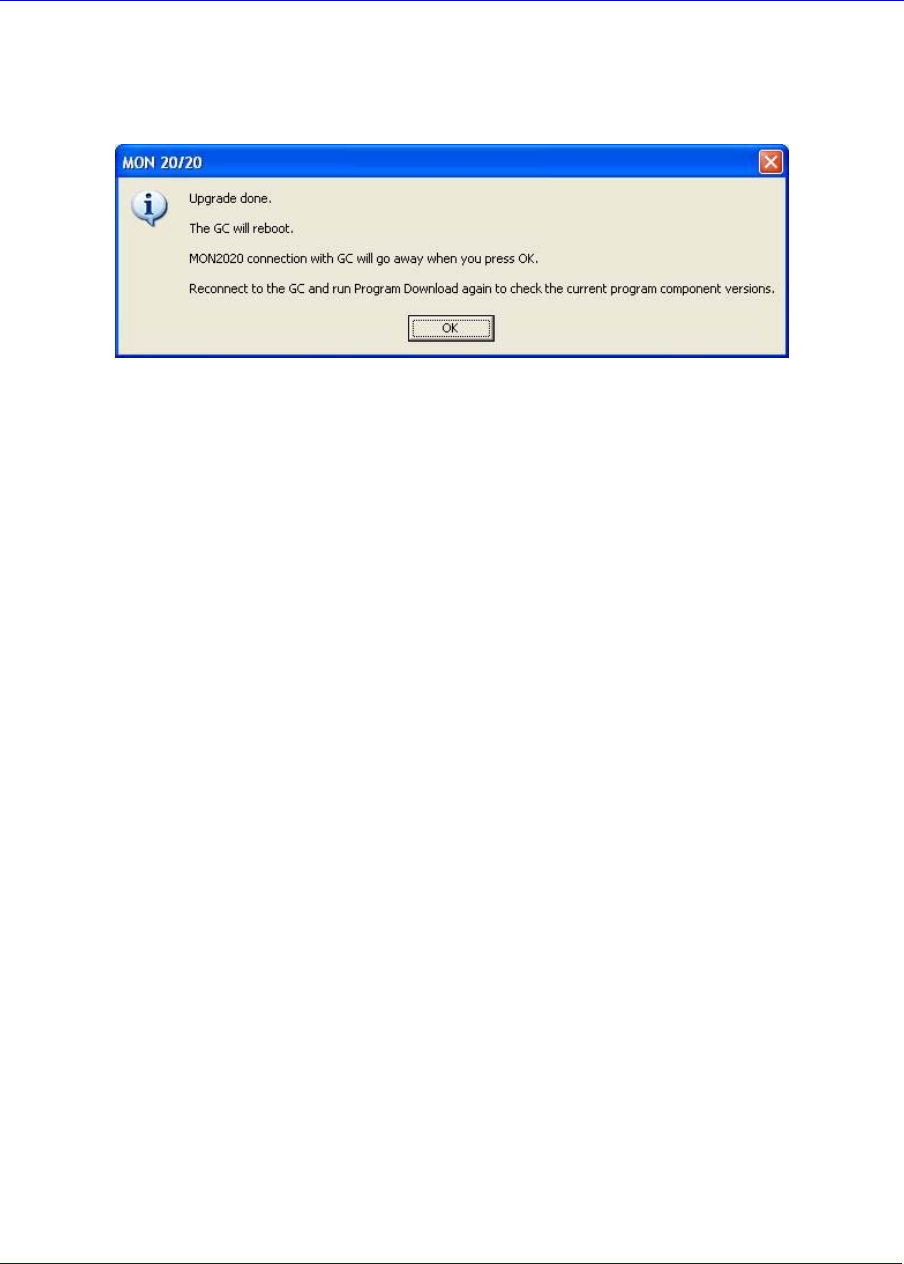
MON20/20 Software for Gas Chromatographs User Manual
SEPTEMBER 2010 3-9000-745
7-35
5. When the download completes successfully, a confirmation message
displays. Click OK. MON 20/20 disconnects from the GC and the GC
reboots.
7.5 Cold booting
Cold booting the GC clears all its stored analysis files and logs and resets
all the tables to the default settings. This is a necessary step towards
refurbishing the GC or CPU board.
7.6 Viewing diagnostics
MON 20/20 provides a diagnostics window that displays vital statistics
about the following software boards’ revision and voltage levels:
• Preamp board
• Heater/Solenoid board
• Base IO board
This information can be useful when troubleshooting maintenance issues
and in deciding if further action is required.
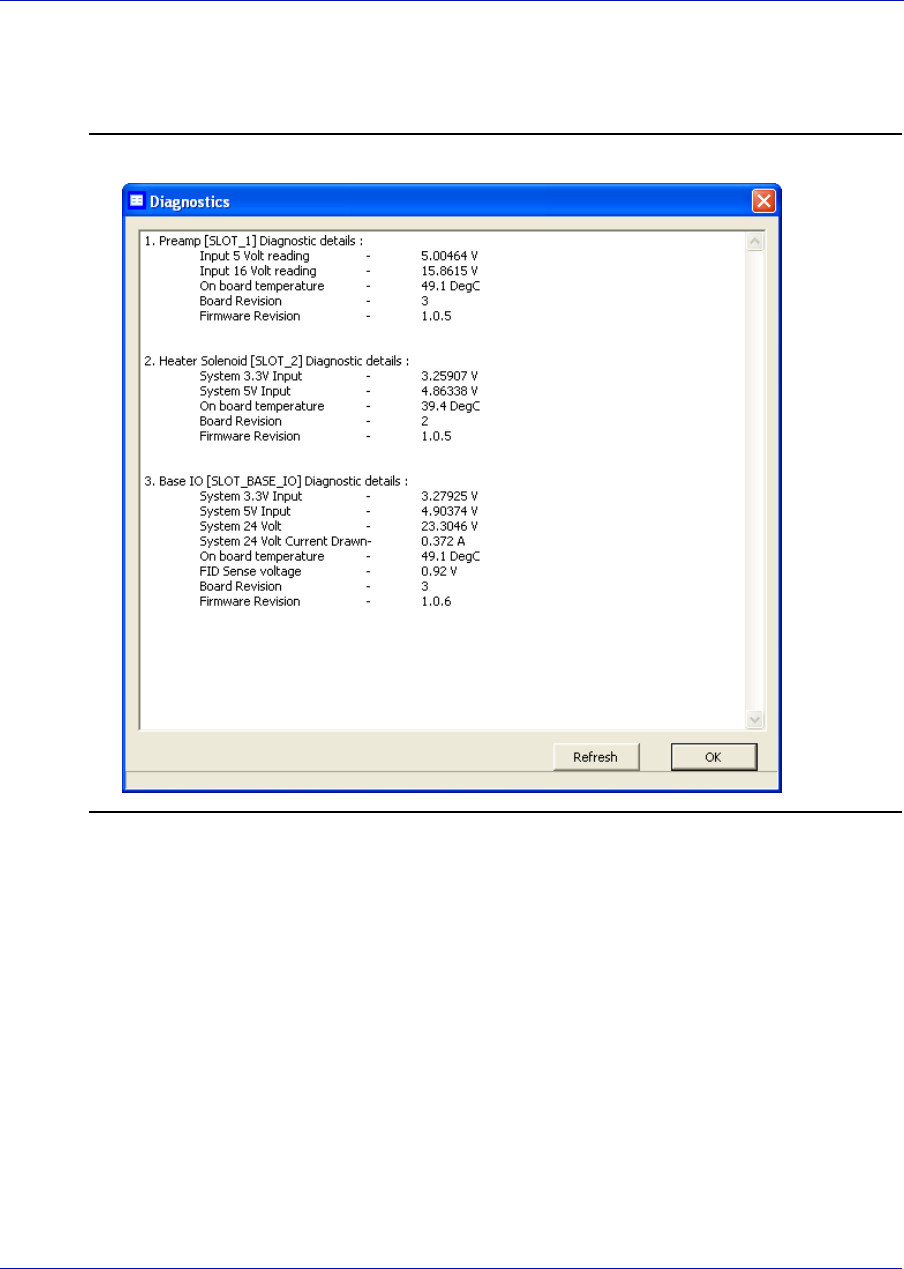
User Manual MON20/20 Software for Gas Chromatographs
3-9000-745 SEPTEMBER 2010
7-36
To view the Diagnostics window, select Diagnostics... from the Tools
menu.
Figure 7-23. The Diagnostics window
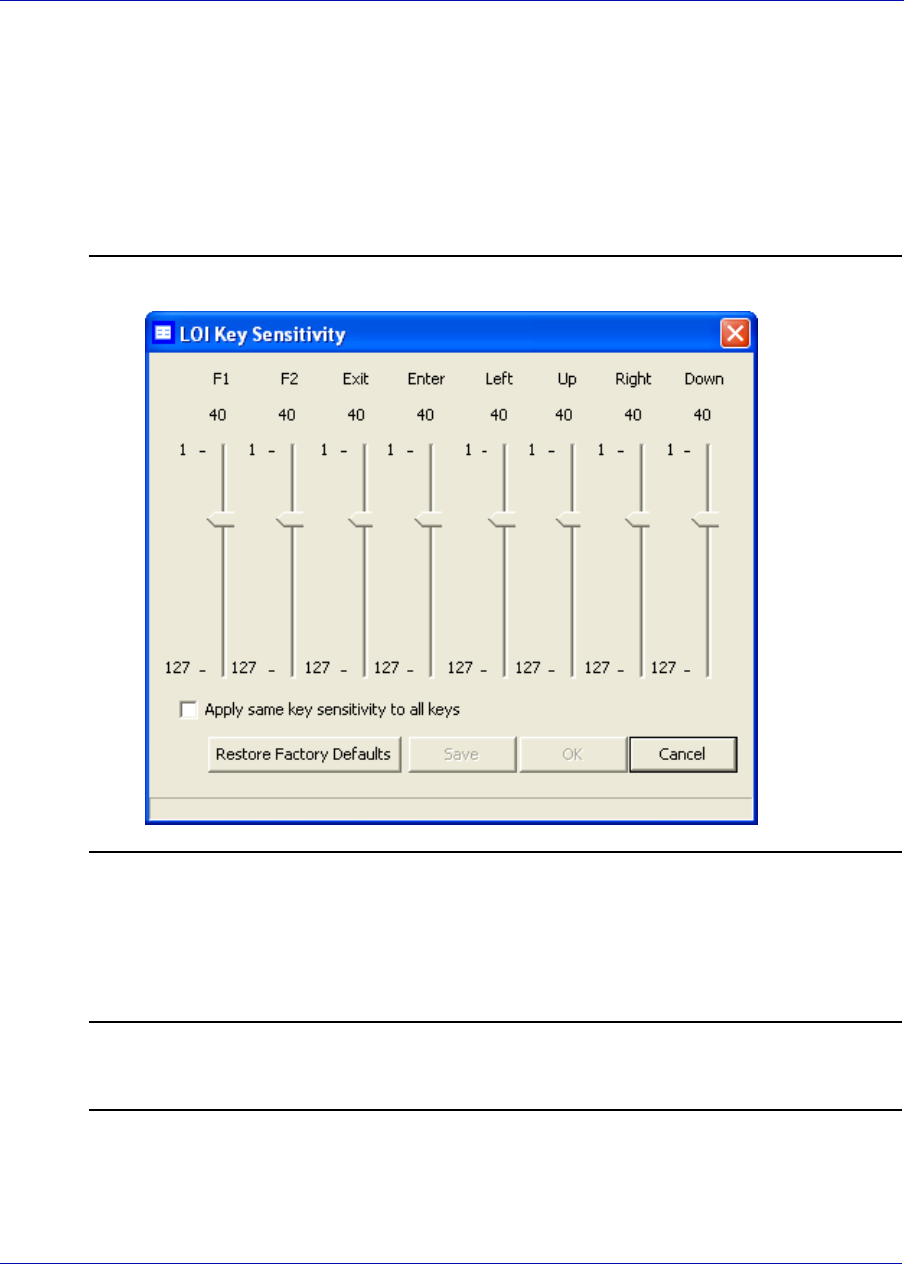
MON20/20 Software for Gas Chromatographs User Manual
SEPTEMBER 2010 3-9000-745
7-37
7.7 Adjusting the sensitivity of the LOI Keys
To adjust the sensitivity of the LOI keys, do the following:
1. Select LOI Key Sensitivity from the Tools menu. The LOI Key
Sensitivity window displays.
Figure 7-24. The LOI Key Sensitivity window
2. Adjust the sensitivity for a key by sliding the bar up or down. Raising
the bar increases the sensitivity or the key; lowering the bar decreases
the sensitivity.
Note
To manipulate all of the sliders togethers, select the Apply same key sensitivity to all
keys check box.
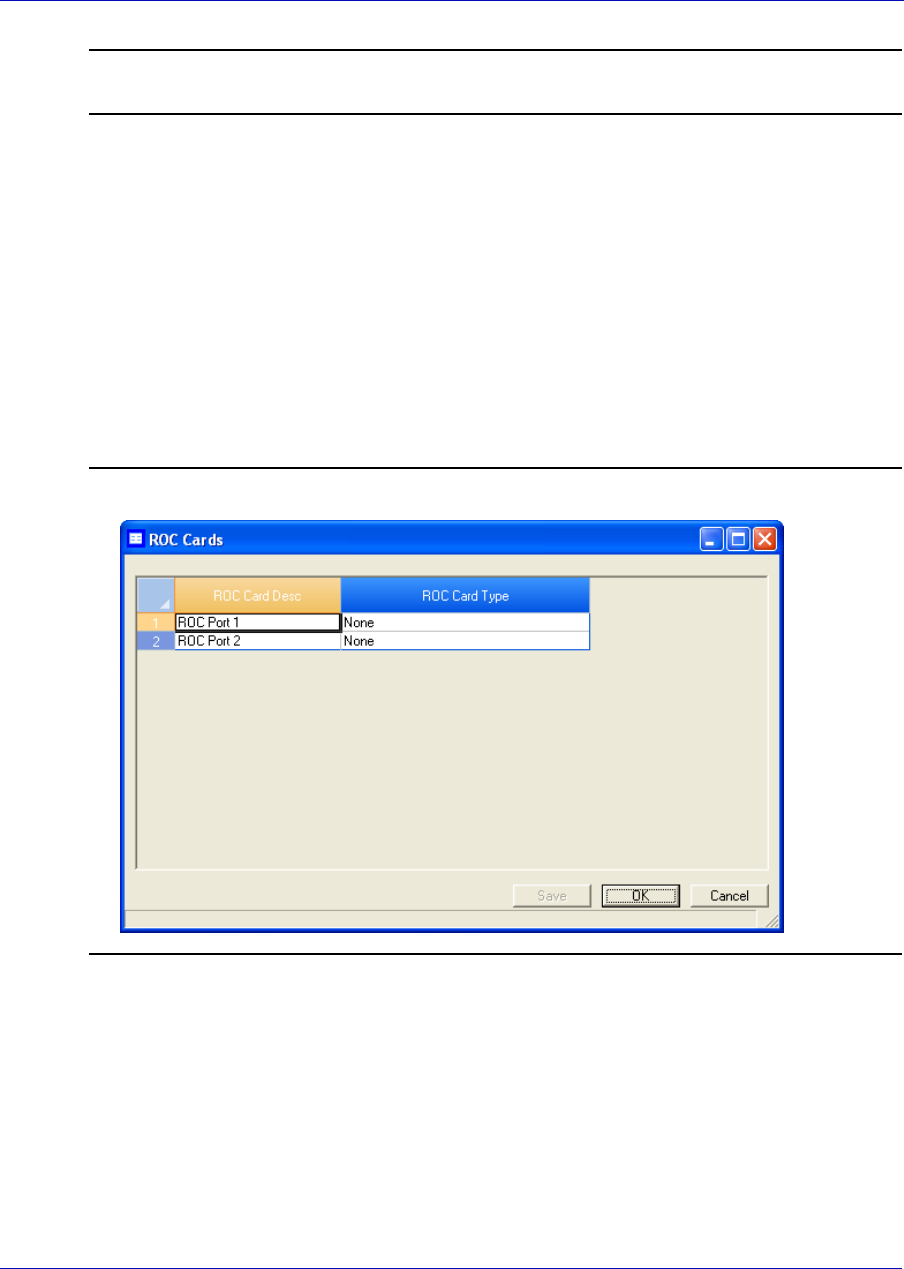
User Manual MON20/20 Software for Gas Chromatographs
3-9000-745 SEPTEMBER 2010
7-38
Note
Click Restore Factory Defaults to return the sliders to their original settings.
3. To save the changes without closing the window, click Save. To save
the changes and close the window, click OK.
7.8 Setting the ROC card type
To set the card type for a ROC card, do the following:
1. Select ROC Cards... from the Tools menu. The ROC Cards window
displays.
Figure 7-25. The Roc Cards window

MON20/20 Software for Gas Chromatographs User Manual
SEPTEMBER 2010 3-9000-745
7-39
2. Select the card type for the ROC card from the ROC Card Type drop-
down list. The options are:
• None (Default)
• ROC Analog Output
• ROC Communication Module RS-232
• ROC Communication Module RS-485
3. To save the changes without closing the window, click Save. To save
the changes and close the window, click OK.

User Manual MON20/20 Software for Gas Chromatographs
3-9000-745 SEPTEMBER 2010
7-40
A-1
A
Appendix A, Component Data Table
This appendix provides a sample standard component data table as well
as a table of the ISO-related components.
•Table A-1, Example Standard Component Data Table
•Table A-2, ISO Component Data Table
All values depend on a base pressure of 14.73 PSIA and a base
temperature of 60 oF (15.56 oC).
BTU components reference GPA Standard 2145-09.
Note
An asterisk (*) denotes components that are assigned temporary I.D. codes, starting
with 150, as they are used.
A-2 MON 20/20 Software for Gas Chromatographs
Component Data Table OCTOBER 2010
Table A-1 Example Standard Component Data Table
Component Name
Mol
Wt
Reid
Vapor
Rel Dens
Gas
Rel Dens
Liquid Lb/Gal GPM Factor
Gross Dry
BTU
Net Dry
BTU
AGA 8
Component
Daniel Sim
2251 I.D.
No.
Acetylene 26.04 0 0.899 0.615 0 0 1476.9 1426.5 Ethane 22
Air 28.9625 0 1 0.87586 7.3022 0.104759 0 0 AIRmix1 26
Argon 39.95 0 1.3792 0 0 0 0 0 Argon 46
Ammonia 17.03 212 0.588 0.6173 5.15 0.0874 435.4 359.8 None *
Benzene 78.11 3.224 2.6969 0.8844 7.373 0.2798 3750.5 3599.2 n-Hexane *
Butanes 58.1222 62.1055 2.0068 0.573515 4.78155 0.32117 3264.64 3012.45 n-Butane 33
Butene-1 56.11 63.05 1.9372 0.6013 5.013 0.2956 3087 2885.4 n-Butane 28
Butenes 56.11 55.448 1.9372 0.6097 5.0833 0.2916 3077.4 2875.73 n-Butane 32
1,2-Butadiene 54.09 20 1.8676 0.658 5.486 0.2604 2946.7 2795.5 n-Butane 35
1,3-Butadiene 54.09 60 1.8676 0.6272 5.229 0.2732 2886.6 2735.3 n-Butane 34
C3+ 44.0956 188.62 1.5225 0.50719 4.2285 0.275429 2521.92 2320.36 Propane 47
C4+ 58.1222 51.567 2.0068 0.5842 4.8706 0.315183 3269.85 3017.97 n-Butane 48
C4=1 56.11 63.05 1.9372 0.6013 5.013 0.2956 3087 2885.4 n-Butane 29
C5+ 72.1488 15.576 2.4911 0.63071 5.2584 0.362396 4017.97 3715.58 n-Pentane 49
C6+ 47/35/17 95.9558 3.01891 3.31309 0.679907 5.66853 0.446214 5288.71 4900.62 C6mix1 08
C6+ 50/50/00 93.1887 3.29 3.21755 0.676145 5.63715 0.43619 5141.12 4762.99 C6mix2 09
C6+ Gpa 2261-99 93.1887 3.51579 3.21755 0.67556 5.63228 0.436267 5141.09 4762.99 C6mix3 10
C6+ 57/28/14 94.1904 3.37386 3.25214 0.677036 5.64458 0.439881 5194.53 4812.82 C6mix4 11
Carbon Monoxide 28.01 0 0.9671 0.801 6.68 0 321.2 321.2 CO 15
Carbon Dioxide 44.0095 0 1.5195 0.81716 6.8129 0.170618 0 0 CO2 17
Cis-2-Butene 56.11 45.54 1.9372 0.6271 5.228 0.2835 3079.3 2877.6 n-Butane 31
A-3
MON 20/20 Software for Gas Chromatographs
OCTOBER 2010 Component Data Table
COS 60.08 0 0 0 0 0 0 0 None 42
CS2 76.14 0 2.6298 0 0 0 1267 1267 None 41
Cyclohexane 84.16 3.264 2.9057 0.7834 6.531 0.3403 4492.1 4189.4 n-Hexane *
Cyclopentane 70.14 9.914 2.4215 0.7504 6.256 0.2961 3772.4 3520.2 n-Pentane *
Diisobutyl 114.23 1.101 3.9439 0.6979 5.819 0.5185 6247.9 5793.9 n-Octane *
2,3-Dimethbutan 86.18 7.404 2.9753 0.6664 5.556 0.4096 4756 4403.1 n-Hexane *
2,2-Dimethpenta 100.21 3.492 3.4596 0.6782 5.654 0.4682 5494.6 5091.4 n-Heptane *
2,4-Dimethpenta 100.21 3.292 3.4596 0.6773 5.647 0.4686 5499.4 5096 n-Heptane *
3,3-Dimethpenta 100.2 2.773 3.4596 0.6976 5.816 0.455 5501.5 5098.2 n-Heptane *
Ethane 30.069 800 1.0382 0.35628 2.9704 0.267369 1773.79 1622.75 Ethane 01
Ethyl Alcohol 46.07 2.3 1.5906 0.794 6.62 0.1839 1602.8 1451.5 None *
Ethylbenzene 106.17 0.371 3.6655 0.8718 7.268 0.3858 5234.3 4982 n-Octane *
Ethylene 28.0532 0 0.9686 0 0 0 1603.4 1502.47 Ethane 21
Ethylene Oxide 44.05 0 1.49 0 0 0 1459.4 1410.2 None 36
3-Ethylpentane 100.21 2.012 3.4596 0.7028 5.859 0.4517 5513.4 5110.1 n-Heptane *
H2S 34.0809 395 1.1767 0.79886 6.6602 0.135156 638.57 588.15 H2S 40
HCL 36.46 925 1.2588 0.8558 7.135 0.1349 0 0 None *
Helium 4.0026 0 0.1382 0.12486 1.041 0.101559 0 0 Helium 13
Hydrogen 2.02 0 0.0696 0.07 0 0 325 274.4 Hydrogen 12
i-Butane 58.1222 72.644 2.0068 0.56283 4.6925 0.327158 3259.42 3006.94 i-Butane 03
i-Butene 56.11 63.4 1.9372 0.6004 5.006 0.296 3068.2 2866.5 n-Butane 27
i-Pentane 72.1488 20.474 2.4911 0.62514 5.212 0.365621 4010.16 3707.56 i-Pentane 05
Table A-1 Example Standard Component Data Table (Continued)
Component Name
Mol
Wt
Reid
Vapor
Rel Dens
Gas
Rel Dens
Liquid Lb/Gal GPM Factor
Gross Dry
BTU
Net Dry
BTU
AGA 8
Component
Daniel Sim
2251 I.D.
No.
A-4 MON 20/20 Software for Gas Chromatographs
Component Data Table OCTOBER 2010
i-Propylbenzene 120.19 0.188 4.1498 0.8663 7.223 0.4396 5976.6 5674 n-Nonane *
i-Octane 114.23 1.708 3.9439 0.6962 5.804 0.5199 6246.1 5792.2 n-Octane *
Methane 16.0425 5000 0.5539 0.3 2.5 0.169487 1012.34 911.5 Methane 00
Methyl Alcohol 32.04 4.63 1.1063 0.796 6.64 0.1275 868.7 767.9 None *
Methylcyclo C5 84.16 4.503 2.9057 0.7536 6.283 0.3538 4511.6 4209.1 n-Hexane *
Methylcyclo C6 98.19 1.609 3.39 0.774 6.453 0.4019 5228 4874.9 n-Heptane *
2-Methylhexane 100.21 2.271 3.4596 0.683 5.694 0.4647 5507.3 5104 n-Heptane *
3-Methylhexane 100.21 2.13 3.4596 0.6917 5.767 0.4589 5511.3 5107.8 n-Heptane *
m-Xylene 106.17 0.326 3.6655 0.8687 7.243 0.3871 5219.9 4967.8 n-Octane *
n-Butane 58.1222 51.567 2.0068 0.5842 4.8706 0.315183 3269.85 3017.97 n-Butane 04
n-Decane 142.2817 0.06148 4.9126 0.73458 6.1244 0.613636 7760.81 7206.63 n-Decane *
n-Heptane 100.2019 1.619 3.4597 0.68823 5.7379 0.461258 5515.33 5111.8 n-Heptane 45
n-Hexane 86.1754 4.961 2.9754 0.66406 5.5364 0.411121 4766.9 4414.19 n-Hexane 39
n-Nonane 128.2551 0.1809 4.4283 0.72224 6.0215 0.562592 7012.49 6508.02 n-Nonane 38
n-Octane 114.2285 0.5349 3.944 0.70655 5.8907 0.512168 6263.46 5809.41 n-Octane 20
n-Pentane 72.1488 15.576 2.4911 0.63071 5.2584 0.362396 4017.97 3715.58 n-Pentane 06
Neohexane 86.18 9.856 2.9753 0.654 5.453 0.4175 4747.2 4394.1 n-Hexane *
Neopentane 72.15 35.9 2.4911 0.5967 4.975 0.383 3993.9 3691.4 i-Pentane 07
Nitrogen 28.0134 0 0.9672 0.80687 6.7271 0.10999 0 0 Nitrogen 14
NO2 46 0 0 0 0 0 0 0 None 19
NO 30.01 0 0 0 0 0 0 0 None *
N2O 44.02 0 0 0 0 0 0 0 None 18
Table A-1 Example Standard Component Data Table (Continued)
Component Name
Mol
Wt
Reid
Vapor
Rel Dens
Gas
Rel Dens
Liquid Lb/Gal GPM Factor
Gross Dry
BTU
Net Dry
BTU
AGA 8
Component
Daniel Sim
2251 I.D.
No.
A-5
MON 20/20 Software for Gas Chromatographs
OCTOBER 2010 Component Data Table
o-Xylene 106.2 0.264 3.6655 0.8848 7.377 0.3801 5222 4969.7 n-Octane *
Oxygen 31.9988 0 1.1048 1.1423 9.5238 0.088739 0 0 Oxygen 16
1-Pentene 70.14 19.115 2.4215 0.6457 5.383 0.3441 3835.4 3583.3 n-Pentane 37
Propane 44.0956 188.62 1.5225 0.50719 4.2285 0.275429 2521.92 2320.36 Propane 02
Propadiene 40.07 0 1.411 0 0 0 2254.2 2254.2 Propane 24
Propylene 42.0797 227.3 1.4529 0.5226 4.3571 0.255087 2338.4 2187.05 Propane 23
Propyne 40.07 0 1.411 0 0 0 2246.2 2246.2 Propane 25
p-Xylene 106.17 0.342 3.6655 0.8657 7.218 0.3885 5220.8 4968.6 n-Octane *
Sulfur Dioxide 64.06 88 2.2117 1.397 11.65 0.1453 0 0 CO2 43
Styrene 104.15 0.24 3.5959 0.911 7.595 0.3622 5042.7 4841 n-Octane *
Toluene 92.14 1.032 3.1812 0.8718 7.268 0.3348 4485.4 4283.5 n-Heptane *
Trans-2-Butene 56.11 49.8 1.9372 0.61 5.086 0.2914 3075.1 2873.4 n-Butane 30
Triptane 100.21 3.374 3.4596 0.6946 5.791 0.4571 5496.2 5093 n-Heptane *
Water 18.0153 0.9505 0.62202 1 8.3372 0.057072 50.43 0 Water 44
Table A-1 Example Standard Component Data Table (Continued)
Component Name
Mol
Wt
Reid
Vapor
Rel Dens
Gas
Rel Dens
Liquid Lb/Gal GPM Factor
Gross Dry
BTU
Net Dry
BTU
AGA 8
Component
Daniel Sim
2251 I.D.
No.
A-6 MON 20/20 Software for Gas Chromatographs
Component Data Table OCTOBER 2010
Table A-2 ISO Component Data Table
Component
Name
Molar
Mass
Sum
Factor
(0°C)
Sum
Factor
(15°C)
Sum
Factor
(20°C)
CV Sup
kJ/Mol
(0°C)
CV Sup
kJ/Mol
(15°C)
CV Sup
kJ/Mol
(20°C)
CV Sup
kJ/Mol
(25°C)
CV Inf
kJ/Mol
(0°C)
CV Inf
kJ/Mol
(15°C)
CV Inf
kJ/Mol
(20°C)
CV Inf
kJ/Mol
(25°C)
Acetylene 26.038 0.0949 0.0837 0.0837 1301.86 1301.37 1301.21 1301.05 1256.79 1256.94 1256.98 1257.03
Air 28.9625 0 0 0 0 0 0 0 0 0 0 0
Argon 39.948 0.0316 0.0283 0.0265 0 0 0 0 0 0 0 0
Ammonia 17.0306 0.1225 0.1095 0.1049 384.57 383.51 383.16 382.81 316.96 316.86 316.82 316.79
Benzene 78.114 0.3017 0.272 0.253 3305.03 3302.86 3302.15 3301.43 3169.81 3169.56 3169.48 3169.38
Butanes 58.1222 0.2059 0.183 0.1743 2879.01 2875.17 2873.98 2872.8 2653.64 2653.01 2652.86 2652.72
Butene-1 56.108 0.1871 0.1732 0.1673 2721.55 2718.7 2717.75 2716.82 2541.25 2540.97 2540.86 2540.76
Butenes 56.108 0.1923 0.176 0.1717 2713.09 2710.23 2709.31 2708.36 2532.79 2532.49 2532.42 2532.27
1,2-Butadiene 54.092 0.2121 0.1924 0.1871 2597.13 2595.12 2594.45 2593.79 2461.91 2461.82 2461.78 2461.74
1,3-Butadiene 54.092 0.1844 0.1703 0.1643 2544.13 2542.1 2541.43 2540.77 2408.91 2408.8 2408.76 2408.72
C3+ 44.0956 0.1682 0.1534 0.147 2461.51 2458.25 2457.23 2456.16 2264.71 2264.52 2264.38 2264.25
C4+ 58.1222 0.2281 0.2049 0.1947 3081.63 3077.47 3076.32 3074.97 2841.63 2841.98 2841.83 2841.68
C4=1 56.108 0.1871 0.1732 0.1673 2721.55 2718.7 2717.75 2716.82 2541.25 2540.97 2540.86 2540.76
C5+ 72.1488 0.2999 0.2651 0.2505 3754.2 3749.68 3748.71 3746.71 3464.63 3468.87 3468.75 3468.52
C6+ 47/35/17 95.9558 0.389 0.3459 0.3331 4663.16 4657.69 4655.86 4654.08 4316.22 4315.67 4315.46 4315.27
C6+ 50/50/00 93.1887 0.3704 0.3305 0.3183 4533.05 4527.71 4525.93 4524.19 4194.99 4194.46 4194.25 4194.07
C6+ GPA 2261-
99
93.1887 0.3943 0.3503 0.3373 4697.93 4692.42 4690.58 4688.78 4348.61 4348.06 4347.84 4347.66
C6+ 57/28/14 94.1904 0.3781 0.3367 0.3243 4580.15 4574.76 4572.96 4571.2 4238.87 4238.34 4238.12 4237.94
Carbon Monoxide 28.01 0.0265 0.0224 0.02 282.8 282.91 282.95 282.98 282.8 282.91 282.95 282.98
Carbon Dioxide 44.0095 0.0819 0.0748 0.0728 0 0 0 0 0 0 0 0
Cis-2-Butene 56.108 0.1975 0.1817 0.1761 2714.9 2711.9 2711 2710 2534.6 2534.2 2534.1 2533.9
COS 60.076 0.1225 0.114 0.1095 548.01 548.15 548.19 548.23 548.01 548.15 548.19 548.23
A-7
MON 20/20 Software for Gas Chromatographs
OCTOBER 2010 Component Data Table
CS2 76.143 0.2145 0.1949 0.1871 1104.06 1104.32 1104.41 1104.49 1104.06 1104.32 1104.41 1104.49
Cyclohexane 84.161 0.3209 0.2864 0.2757 3960.67 3956.02 3954.47 3952.96 3690.23 3689.42 3689.13 3688.86
Cyclopentane 70.14 0.255 0.2302 0.2236 3326.14 3322.19 3320.88 3319.59 3100.77 3100.03 3099.76 3099.51
Diisobutyl 114.23 0 0 0 0 0 0 0 0 0 0 0
2,3-Dimethbutan 86.177 0.3 0.2739 0.2569 4193.63 4188.6 4186.93 4185.28 3878.11 3877.57 3877.36 3877.17
2,2-Dimethpenta 100.21 0 0 0 0 0 0 0 0 0 0 0
2,4-Dimethpenta 100.21 0 0 0 0 0 0 0 0 0 0 0
3,3-Dimethpenta 100.2 0 0 0 0 0 0 0 0 0 0 0
Ethane 30.069 0.1 0.0922 0.0894 1564.34 1562.14 1561.41 1560.69 1429.12 1428.84 1428.74 1428.64
Ethyl Alcohol 46.07 0 0 0 0 0 0 0 0 0 0 0
Ethylbenzene 106.167 0.4858 0.4207 0.4037 4613.14 4609.53 4608.32 4607.15 4387.77 4387.37 4387.2 4387.07
Ethylene 28.0532 0.0866 0.08 0.0775 1413.51 1412.11 1411.65 1411.18 1323.36 1323.24 1323.2 1323.15
Ethylene Oxide 44.05 0 0 0 0 0 0 0 0 0 0 0
3-Ethylpentane 100.21 0 0 0 0 0 0 0 0 0 0 0
H2S 34.0809 0.1 0.1 0.1 562.94 562.38 562.19 562.01 517.87 517.95 517.97 517.99
HCL 36.46 925 1.2588 0.8558 7.135 0.1349 0 0 0 0 0 0
Helium 4.0026 0.0006 0.0002 0 0 0 0 0 0 0 0 0
Hydrogen 2.0159 -0.004 -0.0048 -0.0051 286.63 286.15 285.99 285.83 241.56 241.72 241.76 241.81
i-Butane 58.1222 0.2049 0.1789 0.1703 2874.2 2870.58 2869.38 2868.2 2648.83 2648.42 2648.26 2648.12
i-Butene 56.108 0.1871 0.1703 0.1673 2704.8 2702 2701.1 2700.2 2524.5 2524.3 2524.2 2524.1
i-Pentane 72.1488 0.251 0.228 0.2168 3535.98 3531.68 3530.24 3528.83 3265.54 3265.08 3264.89 3264.73
i-Propylbenzene 120.19 0 0 0 0 0 0 0 0 0 0 0
i-Octane 114.23 0 0 0 0 0 0 0 0 0 0 0
Methane 16.0425 0.049 0.0447 0.0436 892.97 891.56 891.09 890.63 802.82 802.69 802.65 802.6
Table A-2 ISO Component Data Table
Component
Name
Molar
Mass
Sum
Factor
(0°C)
Sum
Factor
(15°C)
Sum
Factor
(20°C)
CV Sup
kJ/Mol
(0°C)
CV Sup
kJ/Mol
(15°C)
CV Sup
kJ/Mol
(20°C)
CV Sup
kJ/Mol
(25°C)
CV Inf
kJ/Mol
(0°C)
CV Inf
kJ/Mol
(15°C)
CV Inf
kJ/Mol
(20°C)
CV Inf
kJ/Mol
(25°C)
A-8 MON 20/20 Software for Gas Chromatographs
Component Data Table OCTOBER 2010
Methyl Alcohol 32.042 0.4764 0.3578 0.3286 766.59 765.09 764.59 764.09 676.44 676.22 676.14 676.06
Methylcyclo C5 84.161 0.313 0.2811 0.2702 3977.04 3972.46 3970.93 3969.44 3705.34 3705.59 3705.86 3706.6
Methylcyclo C6 98.188 0.3808 0.3376 0.3256 4600.64 4602.35 4604.09 4609.34 4292.53 4292.78 4293.06 4293.82
2-Methylhexane 100.21 0 0 0 0 0 0 0 0 0 0 0
3-Methylhexane 100.21 0 0 0 0 0 0 0 0 0 0 0
m-Xylene 106.167 0 0 0 0 0 0 0 0 0 0 0
n-Butane 58.1222 0.2069 0.1871 0.1783 2883.82 2879.76 2878.57 2877.4 2658.45 2657.6 2657.45 2657.32
n-Decane 142.2817 0.7523 0.645 0.614 6842.69 6834.9 6832.31 6829.77 6346.88 6346.14 6345.85 6345.59
n-Heptane 100.2019 0.4123 0.3661 0.3521 4862.87 4857.18 4855.29 4853.43 4502.28 4501.72 4501.49 4501.3
n-Hexane 86.1754 0.3286 0.295 0.2846 4203.23 4198.24 4196.58 4194.95 3887.71 3887.21 3887.01 3886.84
n-Nonane 128.2551 0.6221 0.5385 0.5148 6182.91 6175.82 6173.46 6171.15 5732.17 5731.49 5731.22 5730.99
n-Octane 114.2285 0.5079 0.445 0.4278 5522.4 5516.01 5513.88 5511.8 5116.73 5116.11 5115.87 5115.66
n-Pentane 72.1488 0.2864 0.251 0.2345 3542.89 3538.6 3537.17 3535.77 3272.45 3272 3271.83 3271.67
Neohexane 86.177 0.2898 0.2627 0.255 4185.84 4180.83 4179.15 4177.52 3870.32 3869.8 3869.59 3869.41
Neopentane 72.15 0.2387 0.2121 0.2025 3521.72 3517.43 3516.01 3514.61 3251.28 3250.83 3250.67 3250.51
Nitrogen 28.0134 0.0224 0.0173 0.0173 0 0 0 0 0 0 0 0
NO2 46.0006 0 0 0 0 0 0 0 0 0 0 0
NO 30.006 0 0 0 0 0 0 0 0 0 0 0
N2O 44.02 0 0 0 0 0 0 0 0 0 0 0
o-Xylene 106.167 0.5128 0.4427 0.4231 4602.17 4598.64 4597.48 4596.31 4376.8 4376.48 4376.34 4376.23
Oxygen 31.9988 0.0316 0.0283 0.0265 0 0 0 0 0 0 0 0
1-Pentene 70.14 0.249 0.2258 0.2191 3381.29 3377.75 3376.57 3375.42 3155.92 3155.59 3155.45 3155.34
Propane 44.0956 0.1453 0.1338 0.1288 2224.01 2221.1 2220.13 2219.17 2043.71 2043.37 2043.23 2043.11
Propadiene 40.065 0.1414 0.1304 0.1265 1945.25 1943.96 1943.53 1943.11 1855.1 1855.09 1855.08 1855.08
Table A-2 ISO Component Data Table
Component
Name
Molar
Mass
Sum
Factor
(0°C)
Sum
Factor
(15°C)
Sum
Factor
(20°C)
CV Sup
kJ/Mol
(0°C)
CV Sup
kJ/Mol
(15°C)
CV Sup
kJ/Mol
(20°C)
CV Sup
kJ/Mol
(25°C)
CV Inf
kJ/Mol
(0°C)
CV Inf
kJ/Mol
(15°C)
CV Inf
kJ/Mol
(20°C)
CV Inf
kJ/Mol
(25°C)
A-9
MON 20/20 Software for Gas Chromatographs
OCTOBER 2010 Component Data Table
Propylene 42.0797 0.1378 0.1265 0.1225 2061.57 2059.43 2058.72 2058.02 1926.35 1926.13 1926.05 1925.97
Propyne 40.065 0 0 0 0 0 0 0 0 0 0 0
p-Xylene 106.167 0 0 0 0 0 0 0 0 0 0 0
Sulfur Dioxide 64.065 0.1549 0.1449 0.1414 0 0 0 0 0 0 0 0
Styrene 104.15 0 0 0 0 0 0 0 0 0 0 0
Toluene 92.141 0.3886 0.3421 0.3286 3952.72 3949.81 3948.84 3947.89 3772.42 3772.08 3771.95 3771.83
Trans-2-Butene 56.108 0.1975 0.1789 0.1761 2711.1 2708.3 2707.4 2706.4 2530.8 2530.5 2530.5 2530.3
Triptane 100.21 0 0 0 0 0 0 0 0 0 0 0
Water 18.0153 0.2646 0.2345 0.2191 45.074 44.433 44.224 44.016 0 0 0 0
Table A-2 ISO Component Data Table
Component
Name
Molar
Mass
Sum
Factor
(0°C)
Sum
Factor
(15°C)
Sum
Factor
(20°C)
CV Sup
kJ/Mol
(0°C)
CV Sup
kJ/Mol
(15°C)
CV Sup
kJ/Mol
(20°C)
CV Sup
kJ/Mol
(25°C)
CV Inf
kJ/Mol
(0°C)
CV Inf
kJ/Mol
(15°C)
CV Inf
kJ/Mol
(20°C)
CV Inf
kJ/Mol
(25°C)

A-10 MON 20/20 Software for Gas Chromatographs
Component Data Table OCTOBER 2010
This page is intentionally left blank.

B-1
A
Appendix B, Data computations
B.1 Data acquisition
Every second, exactly 50 equally-spaced data samples are taken (i.e., one
data sample every 20 milliseconds) for analysis by the controller
assembly.
As a part of the data acquisition process, groups of incoming data samples
are averaged together before the result is stored for processing. Non-
overlapping groups of N samples are averaged and stored, and thus
reduce the effective incoming data rate to 40/N samples per second. For
example, if N = 5, then a total of 40/5 or 6 (averaged) data samples are
stored every second.
The value for the variable N is determined by the selection of a Peak
Width parameter (PW). The relationship is:
where PW is given in seconds. Allowable values of N are 1 to 63; this
range corresponds to PW values of 2 to 63 seconds.
The variable N is known as the integration factor. This term is used
because N determines how many points are averaged, or integrated, to
form a single value. The integration of data upon input, before storing,
serves two purposes:
• The statistical noise on the input signal is reduced by the square root
of N. In the case of N = 4, a noise reduction of two would be realized.
• The integration factor controls the bandwidth of the chromatograph
signal. It is necessary to match the bandwidth of the input signal to
that of the analysis algorithms in the controller assembly. This
prevents small, short-duration perturbations from being recognized as
true peaks by the program. It is therefore important to choose a Peak
Width that corresponds to the narrowest peak in the group under
consideration.
NPW=

User Manual MON20/20 Software for Gas Chromatographs
3-9000-745 OCTOBER 2010
B-2
B.2 Peak detection
For normal area or peak height concentration evaluation, the
determination of a peak's start point and end point is automatic. The
manual determination of start and end points is used only for area
calculations in the Forced Integration mode. Automatic determination of
peak onset or start is initiated whenever Integrate Inhibit is turned off.
Analysis is started in a region of signal quiescence and stability, such
that the signal level and activity can be considered as baseline values.
Note
The controller assembly software assumes that a region of signal quiescence and
stability will exist.
Having initiated a peak search by turning Integrate Inhibit off, the
controller assembly performs a point by point examination of the signal
slope. This is achieved by using a digital slope detection filter, a
combination low pass filter and differentiator. The output is continually
compared to a user-defined system constant called Slope Sensitivity. A
default value of 8 is assumed if no entry is made. Lower values make
peak onset detection more sensitive, and higher values make detection
less sensitive. Higher values (20 to 100) would be appropriate for noisy
signals, e.g. high amplifier gain.
Onset is defined where the detector output exceeds the baseline constant,
but peak termination is defined where the detector output is less than the
same constant.
Sequences of fused peaks are also automatically handled. This is done by
testing each termination point to see if the region immediately following
it satisfies the criteria of a baseline. A baseline region must have a slope
detector value less than the magnitude of the baseline constant for a
number of sequential points. When a baseline region is found, this
terminates a sequence of peaks.
A zero reference line for peak height and area determination is
established by extending a line from the point of the onset of the peak
sequence to the point of the termination. The values of these two points
are found by averaging the four integrated points just prior to the onset
point and just after the termination points, respectively.

MON20/20 Software for Gas Chromatographs User Manual
OCTOBER 2010 3-9000-745
B-3
The zero reference line will, in general, be non-horizontal, and thus
compensates for any linear drift in the system from the time the peak
sequence starts until it ends.
In a single peak situation, peak area is the area of the component peak
between the curve and the zero reference line. The peak height is the
distance from the zero reference line to the maximum point on the
component curve. The value and location of the maximum point is
determined from quadratic interpolation through the three highest points
at the peak of the discrete valued curve stored in the controller assembly.
For fused peak sequences, this interpolation technique is used both for
peaks, as well as, valleys (minimum points). In the latter case, lines are
dropped from the interpolated valley points to the zero reference line to
partition the fused peak areas into individual peaks.
The use of quadratic interpolation improves both area and height
calculation accuracy and eliminates the effects of variations in the
integration factor on these calculations.
For calibration, the controller assembly may average several analyses of
the calibration stream.
B.3 Analysis computations
There are two basic analysis algorithms included in the GC:
• Area Analysis – calculates area under component peak
• Peak Height Analysis – measures height of component peak

User Manual MON20/20 Software for Gas Chromatographs
3-9000-745 OCTOBER 2010
B-4
B.3.1 Concentration analysis with response factor
Calibration
The concentration calculations discussed as follows require a unique
response factor for each component in an analysis. These factors may be
manually entered by an operator or automatically calculated by
calibrating the system.
where
Calculated response factors are stored by the GC for use in the
concentration calculations, and are printed out in the configuration and
calibration reports.
or
ARFnArea response factor for component n in area per mole percent (%).
HRFnHeight response factor for component n.
AreanArea associated with component n in calibration gas.
HtnHeight associated with component n in mole percent in calibration gas.
CalnAmount of component n in mole percent of calibration gas.
ARFn
Arean
Caln
---------------
=HRFn
Htn
Caln
-----------
=
RFAVGn
RFi
i1=
k
∑
k
------------------
=

MON20/20 Software for Gas Chromatographs User Manual
OCTOBER 2010 3-9000-745
B-5
where
The percent deviation of new RF average from old RF average is
calculated in the following manner:
where the absolute value of percent deviation for alarm has been
previously entered by the operator.
Calculation in mole percent w/o normalization
Once response factors have been determined by the controller or entered
by the operator, component concentrations are determined for each
analysis using the following equations:
where
RFAVGnArea or height average response factor for component n.
RFiArea or height response factor for component n from the calibration
run.
kNumber of calibration runs actually used to calculate the response
factors.
or
CONCnConcentration of component n in mole percent.
AREAnArea of component n in unknown sample.
ARFnResponse factor of component n calculated from area of calibration sample.
Units are area per mole percent.
HtnPeak height of component n in unknown sample.
HRFnResponse factor of component n calculated from peak height of calibration
sample. Units are height per mole percent.
deviation RFnew RFold
–
RFold
----------------------------------- 100×=
CONCn
Arean
ARFn
---------------
=CONCn
Htn
HRFn
--------------
=

User Manual MON20/20 Software for Gas Chromatographs
3-9000-745 OCTOBER 2010
B-6
Note that the average concentration of each component will also be
calculated when data averaging is requested.
Component concentrations may be input through analog inputs 1 to 4 or
may be fixed. If a fixed value is used, the calibration for that component is
the mole percent that will be used for all analyses:.
where
B.4 Post analysis computations
B.4.1 Liquid equivalent computations
The equivalent liquid volume, in gallons per 1000 standard cubic feet
(GPM) is given by:
CONCNnNormalized concentration of component n in percent of total gas
concentration.
CONCnNon-normalized concentration of component n in mole percent.
CONCiNon-normalized concentration (in mole percent) from each of the k
components to be grouped into this normalization.
kNumber of components to be included in the normalization.
CONCNn
CONCn
CONCi
i1=
k
∑
---------------------------- 100×=
GPMnCONCNnLCFn
×BASEPRS
14.73
--------------------------
×BASETEMP 459.67+
60 459.67+
-------------------------------------------------------
×=

MON20/20 Software for Gas Chromatographs User Manual
OCTOBER 2010 3-9000-745
B-7
where
B.4.2 Heating value calculations
• Dry Gross BTU of Total Gas
where
• Ideal Gas Relative Density
GPMnGallons/1000 standard cubic feet of component n.
CONCNnNormalized (if selected) concentration of component n.
LCFnLiquid equivalent conversion factor for component n at 14.73 PSIA and 60
degrees F.
BASE PRS Base (contact) Pressure specified; defaults to 14.73.
DRYBTU/CF Uncorrected dry BTU content per cubic foot of total gas sample.
CONCNnNormalized (if selected) concentration of component n, calculated
from peak analysis.
BTU/CFnEnergy content per cubic foot of component n, stored in permanent
memory.
PTotal number of components to be used in calculation of total BTU/
CF.
100 Removed the 100 factored into the calculation of the concentration
earlier in the analysis.
DRYBTU CF
CONCN()
nBTU CF()
n
[]
n1=
P
∑
100
--------------------------------------------------------------------------
=
TOTALRD
CONCnRDn
()
n1=
P
∑
100
----------------------------------------------
=

User Manual MON20/20 Software for Gas Chromatographs
3-9000-745 OCTOBER 2010
B-8
where
• Real (corrected) Gas Relative Density
The Ideal Gas Relative Density, DI, is corrected to the Real Gas
Relative Density, DR, by dividing by the compressibility factor, Z, for
gas mixture at 60 oF and one atmosphere pressure and multiplying by
the compressibility factor of air at the same conditions:
where
• Compressibility Factor Dry BTU
Compressibility equations use calculations from the American Gas
Association’s Compressibility Factors of Natural Gas and Other
Related Hydrocarbon Gases: AGA Report #8.
RDnRelative Density of component “n”
TOTAL RD Relative Density of total gas sample
CONCNnNormalized (if selected) concentration of component n, calculated
from peak analysis.
PTotal number of components to be used in calculation of total BTU/
CF.
100 Removed the 100 factored into the calculation of the concentration
earlier in the analysis.
DIIdeal Gas Relative Density. See Appendix A for more information.
Zb(air) Compressibility factor of air, or 0.99959.
Zb(gas) Compressibility factor of gas mixture.
DR
DIZbair()
Zbgas()
---------------------
=
CORRDRYBTU DRYBTU
Z
------------------------
=

MON20/20 Software for Gas Chromatographs User Manual
OCTOBER 2010 3-9000-745
B-9
where
• Corrected Saturated BTU
where
• Compressibility and Base Pressure
Compressibility and base pressure corrections for Dry BTU are:
where
• BTU Calculations
Note that the BTU calculations apply to Gross dry, saturated, actual
BTU and Net dry, saturated, and actual BTU
DRYBTU Dry Gross BTU of Total Gas; see page 7 for details.
ZCompressibility factor.
BASE PRS Base (contract) pressure specified; defaults to 14.73 PSIA.
DRYBTU Dry Gross BTU of Total Gas; see page 7 for details.
CORRSATBTU Corrected saturated BTU content per cubic foot of total gas sample at
base conditions of BASE PRS and 60 °F.
ZCompressibility Factor Dry BTU; see page 8 for details.
BASEPRS Base (contract) pressure specified; defaults to 14.73 PSIA.
CORRDRYBTU Dry Gross BTU of Total Gas; see page 7 for details.
ZCompressibility Factor Dry BTU; see page 8 for details.
BASE PRESSURE Base (contract) pressure specified; defaults to 14.73 PSIA
CORRSATBTU DRYBTU()0.9826()
Z
---------------------------------------------------
=
CorrDryBTU DryBTUatBasePressure
Z
-----------------------------------------------------------------
⎝⎠
⎛⎞
=ContractPressure
BasePressure
------------------------------------------------
⎝⎠
⎛⎞
GrossActualBTU corr()GrossDryBTU corr()100 WVC()
100
------------------
–
⎝⎠
⎛⎞
×=

User Manual MON20/20 Software for Gas Chromatographs
3-9000-745 OCTOBER 2010
B-10
where
where
Note
All components in the sample must be measured in order to calculate weight percent.
where
WVC Water volume content provided by a “live analog input”.
W.I. Wobbe index value
CORRGROSSBTU Corrected Dry BTU for Total Gas Sample; see page 8 for details.
RD Real Relative Density; see page 8 for details.
WTpercentnWeight percent of component n.
CONCnConcentration in mole percent of component n.
MwnMolecular weight of component n.
Sum of weights of all components in sample.
WI CORR GROSS()BTU
RD
------------------------------------------------------
=
WTpercentn
CONCn
()MWn
()
CONCi
()
i1=
k
∑MWi
()
--------------------------------------------------100×=
i1=
k
∑
AVGMW CONCi
()MWi
()
i1=
k
∑
=

MON20/20 Software for Gas Chromatographs User Manual
OCTOBER 2010 3-9000-745
B-11
where
Note
All components in the sample must be measured in order to calculate liquid volume from
mole percent.
where
where
AVGMW Average molecular weight.
Sum of weights of all components in sample.
LV percent Liquid volume.
WT percent Weight percent.
DDensity.
Sum of all components in sample.
RVP Reid vapor pressure.
CONCiNormalized concentration of component i in mole percent.
VPiVapor pressure at 100 degrees F of component i (GPA2145 = 94).
i1=
k
∑
LVpercent WTpercentn
()Dn
()÷
WTpercenti
()Di
()÷
i1=
k
∑
--------------------------------------------------------------100×=
i1=
k
∑
RVP
CONCi
()VPi
()
i1=
k
∑
100
-----------------------------------------------
=

User Manual MON20/20 Software for Gas Chromatographs
3-9000-745 OCTOBER 2010
B-12
Note
All components in the sample must be measured in order to calculate LRDT.
where
Note
All components in the sample must be measured in order to calculate liquid density.
where
LRDTLiquid Relative Density of sample, relative to water at 60 °F.
LRDiLiquid Relative Density of component i (GPA2145-94).
LVpercent Liquid Volume Percent.
LDTLiquid Density of total sample in pounds per gallon
LDiLiquid Density of component i (GPA 2145-94).
LViLiquid Volume Percent of component i.
LRDT
LVpercenti
()LRDi
()
i1=
k
∑
100
--------------------------------------------------------------
=
LDT
LVi
()LDi
()
i1=
k
∑
100
--------------------------------------
=
GD RD()76.4976()=

MON20/20 Software for Gas Chromatographs User Manual
OCTOBER 2010 3-9000-745
B-13
where
B.4.3 Multi-level calibration
The properties of each gas component can be viewed using the
Component Data menu. Included with the component properties in the
Component Data Table are four coefficients labeled Multi-Level Calib 'a',
'b', 'c', and 'd', for each component. If these parameters are all set to zero,
then linear calibration is used. See Section B.3.1 for the Response Factor
calculations.
If any of these parameters have a value other than zero, then multi-level,
or polynomial calibration is used for that component.
The response factors are then calculated as:
where
The mole% value in the sample gas is then calculated as
GD Gas Density in lb/1000 ft3.
RD Relative Density (relative to air).
76.4976 Density of air at 14.73 PSIA and 60 °F, in lb/1000 ft3.
PPeak size from average calibration runs.
Coefficients:
a,b,c, and d
Calculated offline and entered after multi-level calibration using several--
typically seven--calibration gases.
NOTE: If the coefficient values are correct, the response factor will be close
to 1.
ResponseFactor aP3bP2cP d+++
CalibrationConcentration
----------------------------------------------------------------------
=(mol %)
Mole % = aP3bP2cP d+++
responsefactor
-----------------------------------------------

User Manual MON20/20 Software for Gas Chromatographs
3-9000-745 OCTOBER 2010
B-14
where
B.4.4 Indirect calibration
Component gases that are not found in the calibration gas, but may be
found in the sample gas, can be assigned a relative response factor that is
a fixed multiple of a reference component that is found in the calibration
gas.
The Relative Response Factors and Reference Component Values are
included in the Component Data Table. See Appendix A for more
information.
If the Reference Component is None, then normal (direct) calibration is
used.
If the Reference Component is defined, (e.g. Propane) then the mole%
value for the indirect component (e.g. neoC5), is calculated as:
where
PPeak size measured in sample gas.
Coefficients:
a,b,c, and d
Calculated offline and entered after multi-level calibration using
several--typically seven--calibration gases.
NOTE: If the coefficient values are correct, the response factor will be
close to 1.
PPeak size
RRF Relative Response Factor
mole% (neoC5) = mole% (Propane)
PneoC5()
P Propane()
-------------------------------
⎝⎠
⎛⎞
RRFneoC5()
C-1
A
Appendix C, Modbus registers list
There are two GC Modbus registers that may be of interest to the
developer: SIM_2251 and User_Modbus. Differences betweeb the two
registers are summarized in Table C-1.
C.1 User_Modbus register list
Table C-2 lists only variables included in the User_Modbus Boolean
Modbus registers. These registers are not user-defined and primarily
contain alarm flags that may be useful for debugging purposes. To use the
Modbus program to view the contents of these registers, you will need to
set the Function parameter to 1 (Read Coil). See Section 7.1 for details
on using the Modbus program.
All other User_Modbus registers can be defined by the user. To define
User_Modbus register contents, see Section 4.12.3.
Table C-1 Comparison of SIM_2251 and User_Modbus
SIM_2251 User_Modbus
Serial slave port. Serial slave port.
Modified protocol that allows floating point
numbers to be transmitted over Modbus via 2251
emulation slave type.
The standard Gould Modbus protocol that
accommodates PLC Emulation LO-HI.
Nearly all register contents are predefined; a few
9000-series registers can be user-defined (i.e.,
read-write).
Boolean (coils) are predefined. Numeric
(registers) are user-defined.
Variables assigned to registers can be listed in
the GC Config Report. For instructions and an
example report, see Section 5.12.
Variables assigned to registers can be listed in
the GC Config Report. For instructions and an
example report, see Section 5.12.
When using the Modbus Test program, set
Register Mode to “DANIEL” to view register
contents (see Section 7.1.2).
When using the Modbus Test software, set
Register Mode to “PLC LH” to view register
contents (see Section 7.1.2).
User Manual MON20/20 Software for Gas Chromatographs
3-9000-745 OCTOBER 2010
C-2
To obtain a complete list of register assignments, both SIM_2251 and
User_Modbus, print a GC Config Report. See “Generating a GC
Configuration Report” on page 5-65 for more information.
Table C-2 List of User_Modbus Registers
Slave Name USER_MODBUS
Modbus
Reg.
Variable
Name
Field Name Indices
S C
Boolean (Coils)
0 sysalarm_set 1 1 Application Checksum Failure
1 sysalarm_set 2 1 ROM Checksum Failure
2 sysalarm_set 3 1 RAM Diagnostics Failure
3 sysalarm_set 4 1 A/D Converter Failure
4 sysalarm_set 5 1 Detector Oven Failure
5 sysalarm_set 6 1 Liquid Sample Valve Heater
Failure
6 sysalarm_set 7 1 Sample System Oven Failure
7 sysalarm_set 8 1 Catalytic Converter Failure
8 sysalarm_set 9 1 Heater 5 Failure
9 sysalarm_set 10 1 Heater 6 Failure
10 sysalarm_set 11 1 Heater 1 Controller Failure
11 sysalarm_set 12 1 Heater 2 Controller Failure
12 sysalarm_set 13 1 Heater 3 Controller Failure
13 sysalarm_set 14 1 Heater 4 Controller Failure
14 sysalarm_set 15 1 Heater 5 Controller Failure
15 sysalarm_set 16 1 Heater 6 Controller Failure
16 sysalarm_set 17 1 FID Flame out
17 sysalarm_set 18 1 Warmstart Calibration Failure
18 sysalarm_set 19 1 Valve Timing Failure
19 sysalarm_set 20 1 Excess Response Factor Deviation
20 sysalarm_set 21 1 M200 Invalid Non-Volatile Data
21 sysalarm_set 22 1 M200 Invalid A Module Data
22 sysalarm_set 23 1 M200 Invalid B Module Data
23 sysalarm_set 24 1 M200 Bad Options
24 sysalarm_set 25 1 M200 Stack Overflow
MON20/20 Software for Gas Chromatographs User Manual
OCTOBER 2010 3-9000-745
C-3
25 sysalarm_set 26 1 M200 Hardware Shutdown
26 sysalarm_set 27 1 M200 Synchronization Failure
27 sysalarm_set 28 1 Preamp Input 1 Out of Range -
DET1
28 sysalarm_set 29 1 Preamp Input 2 Out of Range -
DET1
29 sysalarm_set 30 1 Preamp Input 3 Out of Range -
DET1
30 sysalarm_set 31 1 Preamp Input 4 Out of Range -
DET1
31 sysalarm_set 32 1 Preamp Failure - DET1
32 sysalarm_set 33 1 Analog Output 1 HIGH
33 sysalarm_set 34 1 Analog Output 2 HIGH
34 sysalarm_set 35 1 Analog Output 3 HIGH
35 sysalarm_set 36 1 Analog Output 4 HIGH
36 sysalarm_set 37 1 Analog Output 5 HIGH
37 sysalarm_set 38 1 Analog Output 6 HIGH
38 sysalarm_set 39 1 Analog Output 7 HIGH
39 sysalarm_set 40 1 Analog Output 8 HIGH
40 sysalarm_set 41 1 Analog Output 9 HIGH
41 sysalarm_set 42 1 Analog Output 10 HIGH
42 sysalarm_set 43 1 Analog Output 11 HIGH
43 sysalarm_set 44 1 Analog Output 12 HIGH
44 sysalarm_set 45 1 Analog Output 13 HIGH
45 sysalarm_set 46 1 Analog Output 14 HIGH
46 sysalarm_set 47 1 Analog Output 15 HIGH
47 sysalarm_set 48 1 Analog Output 16 HIGH
48 sysalarm_set 49 1 Analog Output 1 LOW
49 sysalarm_set 50 1 Analog Output 2 LOW
50 sysalarm_set 51 1 Analog Output 3 LOW
Table C-2 List of User_Modbus Registers
Slave Name USER_MODBUS
Modbus
Reg.
Variable
Name
Field Name Indices
S C
Boolean (Coils)
User Manual MON20/20 Software for Gas Chromatographs
3-9000-745 OCTOBER 2010
C-4
51 sysalarm_set 52 1 Analog Output 4 LOW
52 sysalarm_set 53 1 Analog Output 5 LOW
53 sysalarm_set 54 1 Analog Output 6 LOW
54 sysalarm_set 55 1 Analog Output 7 LOW
55 sysalarm_set 56 1 Analog Output 8 LOW
56 sysalarm_set 57 1 Analog Output 9 LOW
57 sysalarm_set 58 1 Analog Output 10 LOW
58 sysalarm_set 59 1 Analog Output 11 LOW
59 sysalarm_set 60 1 Analog Output 12 LOW
60 sysalarm_set 61 1 Analog Output 13 LOW
61 sysalarm_set 62 1 Analog Output 14 LOW
62 sysalarm_set 63 1 Analog Output 15 LOW
63 sysalarm_set 64 1 Analog Output 16 LOW
64 sysalarm_set 65 1 Analyzer Failure
65 sysalarm_set 66 1 Power Failure
66 sysalarm_set 67 1 Fused Peak Overflow - Noisy
Baseline
67 sysalarm_set 68 1 CPU Battery Low
68 sysalarm_set 69 1 GC Idle
69 sysalarm_set 70 1 Real-Time Clock Failure
70 sysalarm_set 71 1 Analog Input 1 HIGH
71 sysalarm_set 72 1 Analog Input 2 HIGH
72 sysalarm_set 73 1 Analog Input 3 HIGH
73 sysalarm_set 74 1 Analog Input 4 HIGH
74 sysalarm_set 75 1 Analog Input 1 LOW
75 sysalarm_set 76 1 Analog Input 2 LOW
76 sysalarm_set 77 1 Analog Input 3 LOW
77 sysalarm_set 78 1 Analog Input 4 LOW
78 sysalarm_set 79 1 NA
Table C-2 List of User_Modbus Registers
Slave Name USER_MODBUS
Modbus
Reg.
Variable
Name
Field Name Indices
S C
Boolean (Coils)
MON20/20 Software for Gas Chromatographs User Manual
OCTOBER 2010 3-9000-745
C-5
79 sysalarm_set 80 1 NA
80 sysalarm_set 81 1 NA
81 sysalarm_set 82 1 NA
82 sysalarm_set 83 1 NA
83 sysalarm_set 84 1 NA
84 sysalarm_set 85 1 NA
85 lmtalarm_set 1 1
86 lmtalarm_set 2 1
87 lmtalarm_set 3 1
88 lmtalarm_set 4 1
89 lmtalarm_set 5 1
90 lmtalarm_set 6 1
91 lmtalarm_set 7 1
92 lmtalarm_set 8 1
93 lmtalarm_set 9 1
94 lmtalarm_set 10 1
95 lmtalarm_set 11 1
96 lmtalarm_set 12 1
97 lmtalarm_set 13 1
98 lmtalarm_set 14 1
99 lmtalarm_set 15 1
100 lmtalarm_set 16 1
101 lmtalarm_set 17 1
102 lmtalarm_set 18 1
103 lmtalarm_set 19 1
104 lmtalarm_set 20 1
105 stream_data stream_togg 1 1
106 stream_data stream_togg 2 1
107 stream_data stream_togg 3 1
Table C-2 List of User_Modbus Registers
Slave Name USER_MODBUS
Modbus
Reg.
Variable
Name
Field Name Indices
S C
Boolean (Coils)
User Manual MON20/20 Software for Gas Chromatographs
3-9000-745 OCTOBER 2010
C-6
108 stream_data stream_togg 4 1
109 stream_data stream_togg 5 1
110 stream_data stream_togg 6 1
111 stream_data stream_togg 7 1
112 stream_data stream_togg 8 1
113 doutcur 1 1
114 doutcur 2 1
115 doutcur 3 1
116 doutcur 4 1
117 doutcur 5 1
Table C-2 List of User_Modbus Registers
Slave Name USER_MODBUS
Modbus
Reg.
Variable
Name
Field Name Indices
S C
Boolean (Coils)
MON20/20 Software for Gas Chromatographs User Manual
OCTOBER 2010 3-9000-745
C-7
C.2 SIM_2251 Modbus register list
To use the Modbus Test program and view the contents of SIM_2251
registers, set the Register Mode to “Daniel,” as noted in Table C-1.
For a complete list of register assignments, both SIM_2251 and
User_Modbus, print a GC Config Report. See “Generating a GC
Configuration Report” on page 5-65 for more information.
Note
The information in the following tables is derived from engineering specification number
ES-17128-005, “Model 2251 Enhanced Specification Chromatograph Controller Modbus
Communication Indices.”
Table C-3 List of SIM_2251 Registers
Reg. No. Description
3001 Component Table n (where n equals the CDT # used during the last run) - Component #1
3002 Component Table n (where n equals the CDT # used during the last run) - Component #2
3003 Component Table n (where n equals the CDT # used during the last run) - Component #3
3004 Component Table n (where n equals the CDT # used during the last run) - Component #4
3005 Component Table n (where n equals the CDT # used during the last run) - Component #5
3006 Component Table n (where n equals the CDT # used during the last run) - Component #6
3007 Component Table n (where n equals the CDT # used during the last run) - Component #7
3008 Component Table n (where n equals the CDT # used during the last run) - Component #8
3009 Component Table n (where n equals the CDT # used during the last run) - Component #9
3010 Component Table n (where n equals the CDT # used during the last run) - Component #10
3011 Component Table n (where n equals the CDT # used during the last run) - Component #11
3012 Component Table n (where n equals the CDT # used during the last run) - Component #12
3013 Component Table n (where n equals the CDT # used during the last run) - Component #13
3014 Component Table n (where n equals the CDT # used during the last run) - Component #14
3015 Component Table n (where n equals the CDT # used during the last run) - Component #15
3016 Component Table n (where n equals the CDT # used during the last run) - Component #16
3017 Component Table n (where n equals the CDT # used during the last run) - Component #1
3018 Component Table n (where n equals the CDT # used during the last run) - Component #2
3019 Component Table n (where n equals the CDT # used during the last run) - Component #3
User Manual MON20/20 Software for Gas Chromatographs
3-9000-745 OCTOBER 2010
C-8
3020 Component Table n (where n equals the CDT # used during the last run) - Component #4
3021 Component Table n (where n equals the CDT # used during the last run) - Component #5
3022 Component Table n (where n equals the CDT # used during the last run) - Component #6
3023 Component Table n (where n equals the CDT # used during the last run) - Component #7
3024 Component Table n (where n equals the CDT # used during the last run) - Component #8
3025 Component Table n (where n equals the CDT # used during the last run) - Component #9
3026 Component Table n (where n equals the CDT # used during the last run) - Component #10
3027 Component Table n (where n equals the CDT # used during the last run) - Component #11
3028 Component Table n (where n equals the CDT # used during the last run) - Component #12
3029 Component Table n (where n equals the CDT # used during the last run) - Component #13
3030 Component Table n (where n equals the CDT # used during the last run) - Component #14
3031 Component Table n (where n equals the CDT # used during the last run) - Component #15
3032 Component Table n (where n equals the CDT # used during the last run) - Component #16
3033 Analysis Time (in 1/30ths of a second)
3034 Current Stream
3035 Mask of streams associated with Component Table #1 (Bit 2n = 1 implies stream n
included)
3036 Current Month (1-12)
3037 Current day (1-31)
3038 Current Year (0-99)
3039 Current Hour (0-24)
3040 Current Minute (0-59)
3041 Cycle Start Time - Month
3042 Cycle Start Time - Day
3043 Cycle Start Time - Year
3044 Cycle Start Time - Hour
3045 Cycle Start Time - Minute
Table C-3 List of SIM_2251 Registers
Reg. No. Description
C-9
MON 20/20 Software for Gas Chromatographs
OCTOBER 2010 Modbus registers list
Table C-4 SIM_2251 MODBUS REGISTER LIST (BIT NUMBERS)
Reg.
No. Description
15 14 13 12 11 10 9 8 7 6 5 4 3 2 1 0
3046 checksum
failure
anlyzr
failure
D/A 3
high
D/A 3
low
D/A 2
high
D/A 2
low
D/A 1
high
D/A 1
low
spare spare A/D 2
high
A/D 2
low
A/D 1
high
A/D 1
low
spare spare
3047 spare spare spare spare spare spare spare spare spare spare spare spare adjust
preamp
preamp
failure
RF %
dev
power
failure
3048
Stream #1
#15
low
#14
low
#13
low
#12
low
#11
low
#10
low
#9
low
#8
low
#7
low
#6
low
#5
low
#4
low
#3
low
#2
low
O.D.A.
#1 low
3049
Stream #1
#15
high
#14
high
#13
high
#12
high
#11
high
#10
high
#9
high
#8
high
#7
high
#6
high
#5
high
#4
high
#3
high
#2
high
O.D.A.
#1 high
3050
Stream #2
#15
low
#14
low
#13
low
#12
low
#11
low
#10
low
#9
low
#8
low
#7
low
#6
low
#5
low
#4
low
#3
low
#2
low
O.D.A.
#1 low
3051
Stream #2
#15
high
#14
high
#13
high
#12
high
#11
high
#10
high
#9
high
#8
high
#7
high
#6
high
#5
high
#4
high
#3
high
#2
high
O.D.A.
#1 high
3052
Stream #3
#15
low
#14
low
#13
low
#12
low
#11
low
#10
low
#9
low
#8
low
#7
low
#6
low
#5
low
#4
low
#3
low
#2
low
O.D.A.
#1 low
3053
Stream #3
#15
high
#14
high
#13
high
#12
high
#11
high
#10
high
#9
high
#8
high
#7
high
#6
high
#5
high
#4
high
#3
high
#2
high
O.D.A.
#1 high
3054
Stream #4
#15
low
#14
low
#13
low
#12
low
#11
low
#10
low
#9
low
#8
low
#7
low
#6
low
#5
low
#4
low
#3
low
#2
low
O.D.A.
#1 low
3055
Stream #4
#15
high
#14
high
#13
high
#12
high
#11
high
#10
high
#9
high
#8
high
#7
high
#6
high
#5
high
#4
high
#3
high
#2
high
O.D.A.
#1 high
C-10 MON 20/20 Software for Gas Chromatographs
Modbus registers list OCTOBER 2010
3056
Stream #5
#15
low
#14
low
#13
low
#12
low
#11
low
#10
low
#9
low
#8
low
#7
low
#6
low
#5
low
#4
low
#3
low
#2
low
O.D.A.
#1 low
3057
Stream #5
#15
high
#14
high
#13
high
#12
high
#11
high
#10
high
#9
high
#8
high
#7
high
#6
high
#5
high
#4
high
#3
high
#2
high
O.D.A.
#1 high
3058 New data flag. Set upon completion of calculations.
3059 Cal/Analysis flag. Set to 1 if analysis data. Set to 0 if calculation data.
Table C-4 SIM_2251 MODBUS REGISTER LIST (BIT NUMBERS)
Reg.
No. Description
15 14 13 12 11 10 9 8 7 6 5 4 3 2 1 0
MON20/20 Software for Gas Chromatographs User Manual
OCTOBER 2010 3-9000-745
C-11
Note
The following registers contain no values until the completion of atleast one analysis
run.
Table C-5 SIM_2251 Modbus register list (32-bit integers)
Reg. No. Description
5001 Cycle time (in 1/30ths of a second)
5002 Calibration cycle time (in 1/30ths of a second)
Table C-6 SIM_2251 Modbus register list (floating point)
Reg. No. Description
7001 Mole % - Component #1
7002 Mole % - Component #2
7003 Mole % - Component #3
7004 Mole % - Component #4
7005 Mole % - Component #5
7006 Mole % - Component #6
7007 Mole % - Component #7
7008 Mole % - Component #8
7009 Mole % - Component #9
7010 Mole % - Component #10
7011 Mole % - Component #11
7012 Mole % - Component #12
7013 Mole % - Component #13
7014 Mole % - Component #14
7015 Mole % - Component #15
7016 Mole % - Component #16
7017 GPM or Weight % - Component #1
7018 GPM or Weight % - Component #2
7019 GPM or Weight % - Component #3
7020 GPM or Weight % - Component #4
7021 GPM or Weight % - Component #5
User Manual MON20/20 Software for Gas Chromatographs
3-9000-745 OCTOBER 2010
C-12
7022 GPM or Weight % - Component #6
7023 GPM or Weight % - Component #7
7024 GPM or Weight % - Component #8
7025 GPM or Weight % - Component #9
7026 GPM or Weight % - Component #10
7027 GPM or Weight % - Component #11
7028 GPM or Weight % - Component #12
7029 GPM or Weight % - Component #13
7030 GPM or Weight % - Component #14
7031 GPM or Weight % - Component #15
7032 GPM or Weight % - Component #16
7033 BTU Dry
7034 BTU Saturated
7035 Specific Gravity
7036 Compressibilty
7037 WOBBE Index
7038 Total Unnormalized Mole %
7039 Total GPM
7040 Calculation, User-defined #1
7041 Calculation, User-defined #2
7042 Calculation, User-defined #3
7043 Calculation, User-defined #4
7044 Calculation, User-defined #5
7045-7053 Unused
7054 Actual BTU
7055 Averages, User-defined #1
7056 Averages, User-defined #2
7057 Averages, User-defined #3
7058 Averages, User-defined #4
7059 Averages, User-defined #5
7060 Averages, User-defined #6
Table C-6 SIM_2251 Modbus register list (floating point)
Reg. No. Description
MON20/20 Software for Gas Chromatographs User Manual
OCTOBER 2010 3-9000-745
C-13
7061 Averages, User-defined #7
7062 Averages, User-defined #8
7063 Averages, User-defined #9
7064 Averages, User-defined #10
7065 Averages, User-defined #11
7066 Averages, User-defined #12
7067 Averages, User-defined #13
7068 Averages, User-defined #14
7069 Averages, User-defined #15
7070 First Archive of Average, User-defined #1
7071 First Archive of Average, User-defined #2
7072 First Archive of Average, User-defined #3
7073 First Archive of Average, User-defined #4
7074 First Archive of Average, User-defined #5
7075 First Archive of Average, User-defined #6
7076 First Archive of Average, User-defined #7
7077 First Archive of Average, User-defined #8
7078 First Archive of Average, User-defined #9
7079 First Archive of Average, User-defined #10
7080 First Archive of Average, User-defined #11
7081 First Archive of Average, User-defined #12
7082 First Archive of Average, User-defined #13
7083 First Archive of Average, User-defined #14
7084 First Archive of Average, User-defined #15
7085 Analog Input #1 - Current Value in Engineering Units
7086 Analog Input #2 - Current Value in Engineering Units
7087 Actual BTU (Last Calibration)
7088 Dry BTU (Last Calibration)
7089 Saturated BTU (Last Calibration)
7090 WOBBE Index (Last Calibration)
7091 Relative Density (Last Calibration)
Table C-6 SIM_2251 Modbus register list (floating point)
Reg. No. Description
User Manual MON20/20 Software for Gas Chromatographs
3-9000-745 OCTOBER 2010
C-14
7092 Compressibilty (Last Calibration)
7093 Total GPM (Last Calibration)
7094 Total Unnormalized (Last Calibration)
7095-7110 Response Factors (#1-16), Component Table n (where n equals the CDT # used during
the last run)
7111-7126 Response Factors (#1-16), Component Table n (where n equals the CDT # used during
the last run)
7127-7162 Averages, User-define 1-36
Note: Registers 7127-7141 are copies of registers 7055-7069.
7163-7198 Maximum values from averages, User-define 1-36
7199-7234 Minimum values from averages, User-define 1-36
7235-7270 First (most recent) archive of averages, User-define 1-36
Note: Registers 7235-7249 are copies of registers 7070-7084.
7271-7306 First (most recent) archive of maximum values from averages, User-define 1-36
7307-7342 First (most recent) archive of minimum values from averages, User-define 1-36
7343-7378 Second archive of averages, User-define 1-36
7379-7414 Second archive of maximum values from averages, User-define 1-36
7415-7450 Second archive of minimum values from averages, User-define 1-36
7451-7486 Third (oldest) archive of averages, User-define 1-36
7487-7522 Third (oldest) archive of maximum values from averages, User-define 1-36
7523-7558 Third (oldest) archive of minimum values from averages, User-define 1-36
Table C-7 SIM_2251 Modbus Communication Indices
Reg.
No.
Description: RW = read/write (1) or read-only (0)
LEN = length
REGS = number of Modbus registers required
RW TYPE LEN REGS VARIABLE NAME, POINTER, OR DESCRIPTION
9001 0 string 6 3 device model number
9004 0 string 4 2 software revision
9006 1 integer 2 1 system time month (1-12)
9007 1 integer 2 1 system time day (1-31)
9008 1 integer 2 1 system time year (0-99)
Table C-6 SIM_2251 Modbus register list (floating point)
Reg. No. Description
MON20/20 Software for Gas Chromatographs User Manual
OCTOBER 2010 3-9000-745
C-15
9009 1 integer 2 1 system time hour (0-23)
9010 1 integer 2 1 system time minutes (0-59)
9011 1 integer 2 1 system time seconds (0-59)
9012 1 integer 2 1 system time day (0-6)
9013 0 integer 2 1 plug ID (Modbus or Device ID, per DIP switch settings)
9014 1 long 4 2 site ID
9016 0 string 12 5 device serial number
9022 0 integer 2 1 analysis time 1
9023 0 integer 2 1 analysis time 2 (for dual detector system)
9024 0 integer 2 1 cycle time 1
9025 0 integer 2 1 cycle time 2 (for dual detector system)
9026 0 integer 2 1 run time 1
9027 0 integer 2 1 run time 2 (for dual detector system)
9028 0 integer 2 1 current stream 1
9029 0 integer 2 1 current stream 2 (for dual detector system)
9030 0 integer 2 1 system mode 1
9031 0 integer 2 1 system mode 2 (for dual detector system)
9032 0 integer 2 1 calibrating 1
9033 0 integer 2 1 calibrating 2 (for dual detector system)
9034 0 integer 2 1 active alarm (red light at GC controller)
9035 0 integer 2 1 unack’d alarm (yellow light at GC controller)
9036 0 integer 2 1 hourly average reset - year
9037 0 integer 2 1 hourly average reset - month
9038 0 integer 2 1 hourly average reset - day
9039 0 integer 2 1 hourly average reset - hour
9040 0 integer 2 1 hourly average reset - minutes
9041 0 integer 2 1 24-hour average reset - year
9042 0 integer 2 1 24-hour average reset - month
9043 0 integer 2 1 24-hour average reset - day
Table C-7 SIM_2251 Modbus Communication Indices
Reg.
No.
Description: RW = read/write (1) or read-only (0)
LEN = length
REGS = number of Modbus registers required
RW TYPE LEN REGS VARIABLE NAME, POINTER, OR DESCRIPTION
User Manual MON20/20 Software for Gas Chromatographs
3-9000-745 OCTOBER 2010
C-16
9044 0 integer 2 1 24-hour average reset - hour
9045 0 integer 2 1 24-hour average reset - minutes
9046 0 integer 2 1 weekly average reset - year
9047 0 integer 2 1 weekly average reset - month
9048 0 integer 2 1 weekly average reset - day
9049 0 integer 2 1 weekly average reset - hour
9050 0 integer 2 1 weekly average reset - minutes
9051 0 integer 2 1 monthly average reset - year
9052 0 integer 2 1 monthly average reset - month
9053 0 integer 2 1 monthly average reset - day
9054 0 integer 2 1 monthly average reset - hour
9055 0 integer 2 1 monthly average reset - minutes
9056 0 integer 2 1 variable average reset - year
9057 0 integer 2 1 variable average reset - month
9058 0 integer 2 1 variable average reset - day
9059 0 integer 2 1 variable average reset - hour
9060 0 integer 2 1 variable average reset - minutes
Table C-7 SIM_2251 Modbus Communication Indices
Reg.
No.
Description: RW = read/write (1) or read-only (0)
LEN = length
REGS = number of Modbus registers required
RW TYPE LEN REGS VARIABLE NAME, POINTER, OR DESCRIPTION

D-1
D
Appendix D, Basic and advanced system variables
D.1 GPA system variables
Group Basic Calculations Advanced Calculations
Analysis Component Mole %
Weight %
Weight % Carbon
Liquid Volume %
Gal/1000 SCF
GPA Real Rel Den Gas
HV Gross BTU Dry
HV Net BTU Dry
HV Gross BTU/lb Dry
HV Sup MJ/m3 Dry
HV Inf MJ/m3 Dry
HV Sup MJ/kg Dry
HV Inf MJ/kg Dry
Peak Area
Peak Height
Peak Width @ Half-Height
Component Number
Mole %
Weight %
Weight % Carbon
Liquid Volume %
Gal/1000 SCF
Response Factor
Retention Time
GPA Real Rel Den Gas
HV Gross BTU Dry
HV Net BTU Dry
HV Gross BTU/lb Dry
HV Sup MJ/m3 Dry
HV Inf MJ/m3 Dry
HV Sup MJ/kg Dry
HV Inf MJ/kg Dry
Peak Area
Peak Height
Peak Width @ Half-Height
Component Number
System Reference Manual 700XA Gas Chromatograph
3-9000-744 OCTOBER 2010
D-2
Analysis Stream Avg Molecular Weight
Base Pressure
Base Temperature
GPA Z Factor
GPA Real Rel Den Gas
GPA Wobbe Index
Gas Den lbm/1000 ft3
HV Gross BTU Dry
HV Gross BTU Sat
HV Net BTU Dry
HV Net BTU Sat
HV Gross BTU/lb Dry
HV Sup MJ/m3 Dry
HV Sup MJ/m3 Sat
HV Inf MJ/m3 Dry
HV Inf MJ/m3 Sat
HV Sup MJ/kg Dry
HV Inf MJ/kg Dry
HV Sup Kcal/kg Dry
HV Inf Kcal/kg Dry
Reid Vapor Press
Start Time
Total Unnormalized Conc
Weight % Carbon
Weight % C from Methane
Analysis Time
Avg Molecular Weight
Base Pressure
Base Temperature
CricondenTherm Pres
CricondenTherm Temp Cycle Time
Dewpoint Pres
Dewpoint Temp
GPA Z Factor
GPA Gas Den kg/m3
GPA Real Rel Den Gas
GPA Wobbe Index
Gal/1000 SCF C2+
Gal/1000 SCF C3+
Gal/1000 SCF C4+
Gal/1000 SCF C5+
Gal/1000 SCF C6+
Gas Den lbm/1000 ft3
HV Gross BTU Dry
HV Gross BTU Sat
HV Gross BTU Act
HV Net BTU Dry
HV Net BTU Sat
HV Net BTU Act
HV Gross BTU/lb Dry
Group Basic Calculations Advanced Calculations
700XA Gas Chromatograph System Reference Manual
OCTOBER 2010 3-9000-744
D-3
Analysis Stream
(cont.)
HV Sup MJ/m3 Dry
HV Sup MJ/m3 Sat
HV Sup MJ/m3 Act
HV Inf MJ/m3 Dry
HV Inf MJ/m3 Sat
HV Inf MJ/m3 Act
HV Sup MJ/kg Dry
HV Inf MJ/kg Dry
HV Sup Kcal/m3 Dry
HV Sup Kcal/m3 Sat
HV Sup Kcal/m3 Act
HV Inf Kcal/m3 Dry
HV Inf Kcal/m3 Sat
HV Inf Kcal/m3 Act
HV Sup Kcal/kg Dry
HV Inf Kcal/kg Dry
Liquid Density lb/gal
Liquid Density kg/m3
No of Peaks Found
No of Comp
Reid Vapor Press
Rel Den Liq @ 60F
Rel Den Liq @ 15C
Start Time
Total Unnormalized Conc
Weight % Carbon
Weight % C from Methane
Group Basic Calculations Advanced Calculations

System Reference Manual 700XA Gas Chromatograph
3-9000-744 OCTOBER 2010
D-4
Analysis Optional
Base Pressures
n/a Opt Base Pressure
Gal/1000 SCF C2+
Gal/1000 SCF C3+
Gal/1000 SCF C4+
Gal/1000 SCF C5+
Gal/1000 SCF C6+
HV Gross BTU Dry
HV Gross BTU Sat
HV Gross BTU Act
HV Net BTU Dry
HV Net BTU Sat
HV Net BTU Act
HV Sup MJ/m3 Dry
HV Sup MJ/m3 Sat
HV Sup MJ/m3 Act
HV Inf MJ/m3 Dry
HV Inf MJ/m3 Sat
HV Inf MJ/m3 Act
HV Sup Kcal/m3 Dry
HV Sup Kcal/m3 Sat
HV Sup Kcal/m3 Act
HV Inf Kcal/m3 Dry
HV Inf Kcal/m3 Sat
HV Inf Kcal/m3 Act
Calibration n/a Area or Height
Component n/a Resp Factor
Resp Factor % Dev
Ret Time
Ret Time % Dev
Component Number
Calibration Stream n/a Start Time
Final Calibration
Component
Calib Conc
Old Resp Factor
New Resp Factor
New RF Update Flag
Resp Factor % Dev
Old Ret Time
New Ret Time
New RT Update Flag
Ret Time % Dev
Component Number
Calib Conc
Old Resp Factor
New Resp Factor
New RF Update Flag
Resp Factor % Dev
Old Ret Time
New Ret Time
New RT Update Flag
Ret Time % Dev
Component Number
Group Basic Calculations Advanced Calculations

700XA Gas Chromatograph System Reference Manual
OCTOBER 2010 3-9000-744
D-5
Final Calibration
Stream
RF Dev Alarm
Start Time
GPA Z Factor
GPA Real Rel Den Gas
GPA Wobbe Index
HV Gross BTU Dry
HV Gross BTU Sat
RF Dev Alarm
Start Time
Total Unnormalized Conc
Last Analysis
Component
Mole %
Weight %
Weight % Carbon
Liquid Volume %
Gal/1000 SCF
GPA Real Rel Den Gas
HV Gross BTU Dry
HV Net BTU Dry
HV Gross BTU/lb Dry
HV Sup MJ/m3 Dry
HV Inf MJ/m3 Dry
HV Sup MJ/kg Dry
HV Inf MJ/kg Dry
Peak Area
Peak Height
Peak Width @ Half-Height
Component Number
Mole %
Weight %
Weight % Carbon
Liquid Volume %
Gal/1000 SCF
Response Factor
Retention Time
GPA Real Rel Den Gas
HV Gross BTU Dry
HV Net BTU Dry
HV Gross BTU/lb Dry
HV Sup MJ/m3 Dry
HV Inf MJ/m3 Dry
HV Sup MJ/kg Dry
HV Inf MJ/kg Dry
Peak Area
Peak Height
Peak Width @ Half-Ht
Component Number
Group Basic Calculations Advanced Calculations
System Reference Manual 700XA Gas Chromatograph
3-9000-744 OCTOBER 2010
D-6
Last Analysis Stream Avg Molecular Weight
Base Pressure
Base Temperature
GPA Z Factor
GPA Real Rel Den Gas
GPA Wobbe Index
Gas Den lbm/1000 ft3
HV Gross BTU Dry
HV Gross BTU Sat
HV Net BTU Dry
HV Net BTU Sat
HV Gross BTU/lb Dry
HV Sup MJ/m3 Dry
HV Sup MJ/m3 Sat
HV Inf MJ/m3 Dry
HV Inf MJ/m3 Sat
HV Sup MJ/kg Dry
HV Inf MJ/kg Dry
HV Sup Kcal/kg Dry
HV Inf Kcal/kg Dry
Is Cal Run
Reid Vapor Press
Start Time
Stream No
Total Unnormalized Conc
Weight % Carbon
Weight % C from Methane
Analysis Time
Avg Molecular Weight
Base Pressure
Base Temperature
CricondenTherm Pres
CricondenTherm Temp
Cycle Time
Dewpoint Pres
Dewpoint Temp
GPA Z Factor
GPA Gas Den kg/m3
GPA Real Rel Den Gas
GPA Wobbe Index
Gal/1000 SCF C2+
Gal/1000 SCF C3+
Gal/1000 SCF C4+
Gal/1000 SCF C5+
Gal/1000 SCF C6+
Gas Den lbm/1000 ft3
HV Gross BTU Dry
HV Gross BTU Sat
HV Gross BTU Act
HV Net BTU Dry
HV Net BTU Sat
HV Net BTU Act
HV Gross BTU/lb Dry
HV Sup MJ/m3 Dry
HV Sup MJ/m3 Sat
HV Sup MJ/m3 Act
HV Inf MJ/m3 Dry
HV Inf MJ/m3 Sat
HV Inf MJ/m3 Act
HV Sup MJ/kg Dry
HV Inf MJ/kg Dry
HV Sup Kcal/m3 Dry
HV Sup Kcal/m3 Sat
HV Sup Kcal/m3 Act
HV Inf Kcal/m3 Dry
HV Inf Kcal/m3 Sat
HV Inf Kcal/m3 Act
HV Sup Kcal/kg Dry
HV Inf Kcal/kg Dry
Is Cal Run
Liquid Density lb/gal
Liquid Density kg/m3
No of Peaks Found
No of Comp
Group Basic Calculations Advanced Calculations

700XA Gas Chromatograph System Reference Manual
OCTOBER 2010 3-9000-744
D-7
Last Analysis Stream
(cont.)
Reid Vapor Press
Rel Den Liq @ 60F
Rel Den Liq @ 15C
Start Time
Stream No
Total Unnormalized Conc
Weight % Carbon
Weight % C from Methane
Last Analysis
Optional Base
Pressures
n/a Opt Base Pressure
Gal/1000 SCF C2+
Gal/1000 SCF C3+
Gal/1000 SCF C4+
Gal/1000 SCF C5+
Gal/1000 SCF C6+
HV Gross BTU Dry
HV Gross BTU Sat
HV Gross BTU Act
HV Net BTU Dry
HV Net BTU Sat
HV Net BTU Act
HV Sup MJ/m3 Dry
HV Sup MJ/m3 Sat
HV Sup MJ/m3 Act
HV Inf MJ/m3 Dry
HV Inf MJ/m3 Sat
HV Inf MJ/m3 Act
HV Sup Kcal/m3 Dry
HV Sup Kcal/m3 Sat
HV Sup Kcal/m3 Act
HV Inf Kcal/m3 Dry
HV Inf Kcal/m3 Sat
HV Inf Kcal/m3 Act
Last Calibration
Component
n/a Area or Height
Resp Factor
Ret Time
Component Number
Last Calibration
Stream
n/a Start Time
Stream No
Last Final Calibration
Component
Calib Conc
Old Resp Factor
New Resp Factor
New RF Update Flag
Resp Factor % Dev
Old Ret Time
New Ret Time
New RT Update Flag
Ret Time % Dev
Component Number
Calib Conc
Old Resp Factor
New Resp Factor
New RF Update Flag
Resp Factor % Dev
Old Ret Time
New Ret Time
New RT Update Flag
Ret Time % Dev
Component Number
Group Basic Calculations Advanced Calculations
System Reference Manual 700XA Gas Chromatograph
3-9000-744 OCTOBER 2010
D-8
Last Final Calibration RF Dev Alarm
Start Time
GPA Z Factor
GPA Real Rel Den Gas
Stream Stream No GPA Wobbe Index
HV Gross BTU Dry
HV Gross BTU Sat
RF Dev Alarm
Start Time
Stream No
Total Unnormalized Conc
Hardware - Heaters Temperature Temperature
Hardware - Valves Current Value Current Value
Hardware - Discrete
Inputs
Current Value Current Value
Hardware - Discrete
Outputs
Current Value Current Value
Hardware - Analog
Inputs
Current Value Current Value
Hardware - Analog
Outputs
Current Value Current Value
Application - System Default Stream Sequence Default Stream Sequence
Application -
Component Data
Table
n/a Det #
Ret Time
Resp Fact
Calib Conc
RT Secs Dev
Resp Fact %
Gross Dry BTU
Net Dry BTU
Gross Dry BTU/lb
HV Sup MJ/m3
HV Inf MJ/m3
HV Sup MJ/kg
HV Inf MJ/kg
Gals/1000 SCF
Reid Vapor
LBs/Gallon
Rel Dens Gas
Rel Dens Liquid
Mole Weight
Carbon Weight
Rel Resp Fact
Multi-level Calib 'a'
Multi-level Calib 'b'
Multi-level Calib 'c'
Multi-level Calib 'd'
Group Basic Calculations Advanced Calculations

700XA Gas Chromatograph System Reference Manual
OCTOBER 2010 3-9000-744
D-9
Application -
Validation Data Table
n/a Nominal Value
Percent Deviation
Application -
Averages
Min
Max
Avg
Samples
Min
Max
Avg
Samples
Application - User
Defined Calculation
Calc Result Calc Result
Application - Limit
Alarms
Alarm Low On
Alarm High On
Alarm Low On
Alarm High On
Value Causing Alarm
Violated Alarm Limit
Date
Application - System
Alarms
Alarm On Alarm On
Value Causing Alarm
Violated Alarm Limit
Date
Application - Streams n/a Usage
TEV
Total Runs
Avg Runs
Start Time
Interval
Calibration Stream
Base Pressure
Base Temperature
Optional Pressure 1
Optional Pressure 2
Optional Pressure 3
Next Cal/Val Time
Status
Validation Average Value
Current Value
Average Value
Current Value
GC Control Auto Sequence
Halt
Single Stream
Calibration
Validation
Auto Sequence
Halt
Single Stream
Calibration
Validation
Group Basic Calculations Advanced Calculations

System Reference Manual 700XA Gas Chromatograph
3-9000-744 OCTOBER 2010
D-10
D.2 ISO system variables
GC Status Current Stream
Last Stream
Cycle Clock Counter
Cycle Time
Anly Time
Current Mode
Next Stream
Last Mode
Calibration Failed
Validation Failed
Cycle Complete Pulse
Current Day
Current Month
Current Year
Current Hour
Current Minute
Current Second
Active Alarm Flag
UnAck Alarm Flag
Current Stream
Last Stream
Cycle Clock Counter
Cycle Time
Anly Time
Current Mode
Next Stream
Last Mode
Calibration Failed
Validation Failed
Cycle Complete Pulse
Current Day
Current Month
Current Year
Current Hour
Current Minute
Current Second
Active Alarm Flag
UnAck Alarm Flag
Group Basic Calculations Advanced Calculations
Analysis Component Mole %
Weight %
Liquid Volume %
ISO CV Sup Dry - Pri
ISO CV Inf Dry - Pri
ISO CV Sup Dry - Sec
ISO CV Inf Dry - Sec
Peak Area
Peak Height
Peak Width @ Half-Height
Component Number
Mole %
Weight %
Liquid Volume %
Response Factor
Retention Time
ISO CV Sup Dry - Pri
ISO CV Inf Dry - Pri
ISO CV Sup Dry - Sec
ISO CV Inf Dry - Sec
Peak Area
Peak Height
Peak Width @ Half-Height
Component Number
Group Basic Calculations Advanced Calculations
700XA Gas Chromatograph System Reference Manual
OCTOBER 2010 3-9000-744
D-11
Analysis Stream Avg Molecular Weight
Base Pressure
Start Time
Total Unnormalized Conc
ISO Temp RefC - Pri
ISO Temp RefV - Pri
ISO CV Sup Dry - Pri
ISO CV Sup Sat - Pri
ISO CV Inf Dry - Pri
ISO CV Inf Sat - Pri
ISO Gas Den kg/m3 - Pri
ISO Real Rel Den Gas - Pri
ISO Wobbe Index Sup - Pri
ISO Wobbe Index Inf - Pri
Avg Molecular Weight
Base Pressure
Start Time
Total Unnormalized Conc
ISO Temp RefC - Pri
ISO Temp RefV - Pri
ISO CV Sup Dry - Pri
ISO CV Sup Sat - Pri
ISO CV Inf Dry - Pri
ISO CV Inf Sat - Pri
ISO Gas Den kg/m3 - Pri
ISO Real Rel Den Gas - Pri
ISO Wobbe Index Sup - Pri
ISO Wobbe Index Inf - Pri
ISO CV Sup Dry - Pri
ISO CV Sup Sat - Pri
ISO CV Inf Dry - Pri
ISO CV Inf Sat - Pri
ISO CV Sup Dry - Sec
ISO CV Sup Sat - Sec
ISO CV Inf Dry - Sec
ISO CV Inf Sat - Sec
ISO Z Factor - Pri
ISO Z Factor - Sec
ISO Gas Den kg/m3 - Pri
ISO Gas Den kg/m3 - Sec
ISO Real Rel Den Gas - Pri
ISO Real Rel Den Gas - Sec
ISO Wobbe Index Sup - Pri
ISO Wobbe Index Sup - Sec
ISO Wobbe Index Inf - Pri
ISO Wobbe Index Inf - Sec
ISO Soot Index
ISO Incomp Combustion Fact
ISO Latent Heat Cap Ratio
Analysis Optional
Base Pressures
n/a Opt Base Pressure
ISO CV Sup Dry - Pri
ISO CV Sup Sat - Pri
ISO CV Inf Dry - Pri
ISO CV Inf Sat - Pri
ISO CV Sup Dry - Sec
ISO CV Sup Sat - Sec
ISO CV Inf Dry - Sec
ISO CV Inf Sat - Sec
Calibration n/a Area or Height
Group Basic Calculations Advanced Calculations

System Reference Manual 700XA Gas Chromatograph
3-9000-744 OCTOBER 2010
D-12
Component n/a Resp Factor
Resp Factor % Dev
Ret Time
Ret Time % Dev
Component Number
Calibration Stream n/a Start Time
Final Calibration
Component
Calib Conc
Old Resp Factor
New Resp Factor
New RF Update Flag
Resp Factor % Dev
Old Ret Time
New Ret Time
New RT Update Flag
Ret Time % Dev
Component Number
Calib Conc
Old Resp Factor
New Resp Factor
New RF Update Flag
Resp Factor % Dev
Old Ret Time
New Ret Time
New RT Update Flag
Ret Time % Dev
Component Number
Final Calibration
Stream
RF Dev Alarm
Start Time
ISO CV Sup Dry - Pri
ISO CV Sup Sat - Pri
ISO Z Factor - Pri
ISO Real Rel Den Gas - Pri
ISO Wobbe Index Sup - Pri
RF Dev Alarm
Start Time
Total Unnormalized Conc
Last Analysis
Component
Mole %
Weight %
Liquid Volume %
ISO CV Sup Dry - Pri
ISO CV Inf Dry - Pri
ISO CV Sup Dry - Sec
ISO CV Inf Dry - Sec
Peak Area
Peak Height
Peak Width @ Half-Ht
Component Number
Mole %
Weight %
Liquid Volume %
Response Factor
Retention Time
ISO CV Sup Dry - Pri
ISO CV Inf Dry - Pri
ISO CV Sup Dry - Sec
ISO CV Inf Dry - Sec
Peak Area
Peak Height
Peak Width @ Half-Ht
Component Number
Group Basic Calculations Advanced Calculations
700XA Gas Chromatograph System Reference Manual
OCTOBER 2010 3-9000-744
D-13
Last Analysis Stream Avg Molecular Weight
Base Pressure
Is Cal Run
Start Time
Stream No
Total Unnormalized Conc
ISO Temp RefC - Pri
ISO Temp RefV - Pri
ISO CV Sup Dry - Pri
ISO CV Sup Sat - Pri
ISO CV Inf Dry - Pri
ISO CV Inf Sat - Pri
ISO Gas Den kg/m3 - Pri
ISO Real Rel Den Gas - Pri
ISO Wobbe Index Sup - Pri
ISO Wobbe Index Inf - Pri
Analysis Time
Avg Molecular Weight
Base Pressure
CricondenTherm Pres
CricondenTherm Temp
Cycle Time
Dewpoint Pres
Dewpoint Temp
Is Cal Run
No of Peaks Found
No of Comp
Reid Vapor Press
Rel Den Liq @ 60F
Rel Den Liq @ 15C
Start Time
Stream No
Total Unnormalized Conc
ISO Temp RefC - Pri
ISO Temp RefV - Pri
ISO Temp RefC - Sec
ISO Temp RefV - Sec
ISO CV Sup Dry - Pri
ISO CV Sup Sat - Pri
ISO CV Inf Dry - Pri
ISO CV Inf Sat - Pri
ISO CV Sup Dry - Sec
ISO CV Sup Sat - Sec
ISO CV Inf Dry - Sec
ISO CV Inf Sat - Sec
ISO Z Factor - Pri
ISO Z Factor - Sec
ISO Gas Den kg/m3 - Pri
ISO Gas Den kg/m3 - Sec
ISO Real Rel Den Gas - Pri
ISO Real Rel Den Gas - Sec
ISO Wobbe Index Sup - Pri
ISO Wobbe Index Sup - Sec
ISO Wobbe Index Inf - Pri
ISO Wobbe Index Inf - Sec
ISO Soot Index
ISO Incomp Combustion Fact
ISO Latent Heat Cap Ratio
Last Analysis
Optional Base
Pressures
n/a Opt Base Pressure
ISO CV Sup Dry - Pri
ISO CV Sup Sat - Pri
ISO CV Inf Dry - Pri
ISO CV Inf Sat - Pri
ISO CV Sup Dry - Sec
ISO CV Sup Sat - Sec
ISO CV Inf Dry - Sec
ISO CV Inf Sat - Sec
Group Basic Calculations Advanced Calculations
System Reference Manual 700XA Gas Chromatograph
3-9000-744 OCTOBER 2010
D-14
Last Calibration
Component
n/a Area or Height
Resp Factor
Ret Time
Component Number
Last Calibration
Stream
n/a Start Time
Stream No
Last Final Calibration
Component
Calib Conc
Old Resp Factor
New Resp Factor
New RF Update Flag
Resp Factor % Dev
Old Ret Time
New Ret Time
New RT Update Flag
Ret Time % Dev
Component Number
Calib Conc
Old Resp Factor
New Resp Factor
New RF Update Flag
Resp Factor % Dev
Old Ret Time
New Ret Time
New RT Update Flag
Ret Time % Dev
Component Number
Last Final Calibration RF Dev Alarm
Start Time
ISO CV Sup Dry - Pri
ISO CV Sup Sat - Pri
Stream Stream No ISO Z Factor - Pri
ISO Real Rel Den Gas - Pri
ISO Wobbe Index Sup - Pri
RF Dev Alarm
Start Time
Stream No
Total Unnormalized Conc
Hardware - Heaters Temperature Temperature
Hardware - Valves Current Value Current Value
Hardware - Discrete
Inputs
Current Value Current Value
Hardware - Discrete
Outputs
Current Value Current Value
Hardware - Analog
Inputs
Current Value Current Value
Hardware - Analog
Outputs
Current Value Current Value
Application - System Default Stream Sequence Default Stream Sequence
Group Basic Calculations Advanced Calculations

700XA Gas Chromatograph System Reference Manual
OCTOBER 2010 3-9000-744
D-15
Application -
Component Data
Table
n/a Det #
Ret Time
Resp Fact
Calib Conc
RT Secs Dev
Resp Fact %
Sum Factor - Pri
Sum Factor - Sec
CV Sup KJ/mol - Pri
CV Inf KJ/mol - Pri
CV Sup KJ/mol - Sec
CV Inf KJ/mol - Sec
Rel Dens Gas
Rel Dens Liquid
Mole Weight
Rel Resp Fact
Multi-level Calib 'a'
Multi-level Calib 'b'
Multi-level Calib 'c'
Multi-level Calib 'd'
Application -
Validation Data Table
n/a Percent Deviation
Percent Deviation
Application -
Averages
Min
Max
Avg
Samples
Min
Max
Avg
Samples
Application - User
Defined Calculation
Calc Result Calc Result
Application - Limit
Alarms
Alarm Low On
Alarm High On
Alarm Low On
Alarm High On
Value Causing Alarm
Violated Alarm Limit
Date
Application - System
Alarms
Alarm On Alarm On
Value Causing Alarm
Violated Alarm Limit
Date
Group Basic Calculations Advanced Calculations

System Reference Manual 700XA Gas Chromatograph
3-9000-744 OCTOBER 2010
D-16
Application - Streams n/a Usage
TEV
Total Runs
Avg Runs
Start Time
Interval
Calibration Stream
Base Pressure
Optional Pressure 1
Optional Pressure 2
Optional Pressure 3
Next Cal/Val Time
Status
Validation Average Value
Current Value
Average Value
Current Value
GC Control Auto Sequence
Halt
Single Stream
Calibration
Validation
Auto Sequence
Halt
Single Stream
Calibration
Validation
GC Status Current Stream
Last Stream
Cycle Clock Counter
Cycle Time
Anly Time
Current Mode
Next Stream
Last Mode
Calibration Failed
Validation Failed
Cycle Complete Pulse
Current Day
Current Month
Current Year
Current Hour
Current Minute
Current Second
Active Alarm Flag
UnAck Alarm Flag
Current Stream
Last Stream
Cycle Clock Counter
Cycle Time
Anly Time
Current Mode
Next Stream
Last Mode
Calibration Failed
Validation Failed
Cycle Complete Pulse
Current Day
Current Month
Current Year
Current Hour
Current Minute
Current Second
Active Alarm Flag
UnAck Alarm Flag
Group Basic Calculations Advanced Calculations

700XA Gas Chromatograph System Reference Manual
OCTOBER 2010 3-9000-744
D-17
This page is intentionally left blank.

System Reference Manual 700XA Gas Chromatograph
3-9000-744 OCTOBER 2010
D-18

E-1
Appendix E, Creating custom calculations
To create or edit a customized calculation using GC analysis data, do the
following:
1. Select Applications → Calculations → User Defined.... The User
Defined Calculations window appears, containing a list of all the user-
defined calculations that are available to the GC.
Figure E-1. The User Defined Calculations window
2. Click Insert before to add a row to the User Defined Calculations
table.
Note
To delete this--or any--row from the table, click Delete.
3. Double-click the Label cell and enter a name for the calculation you
are about to create. If you want to enter a short description for the
new calculation, double-click the Comment cell and enter it there.
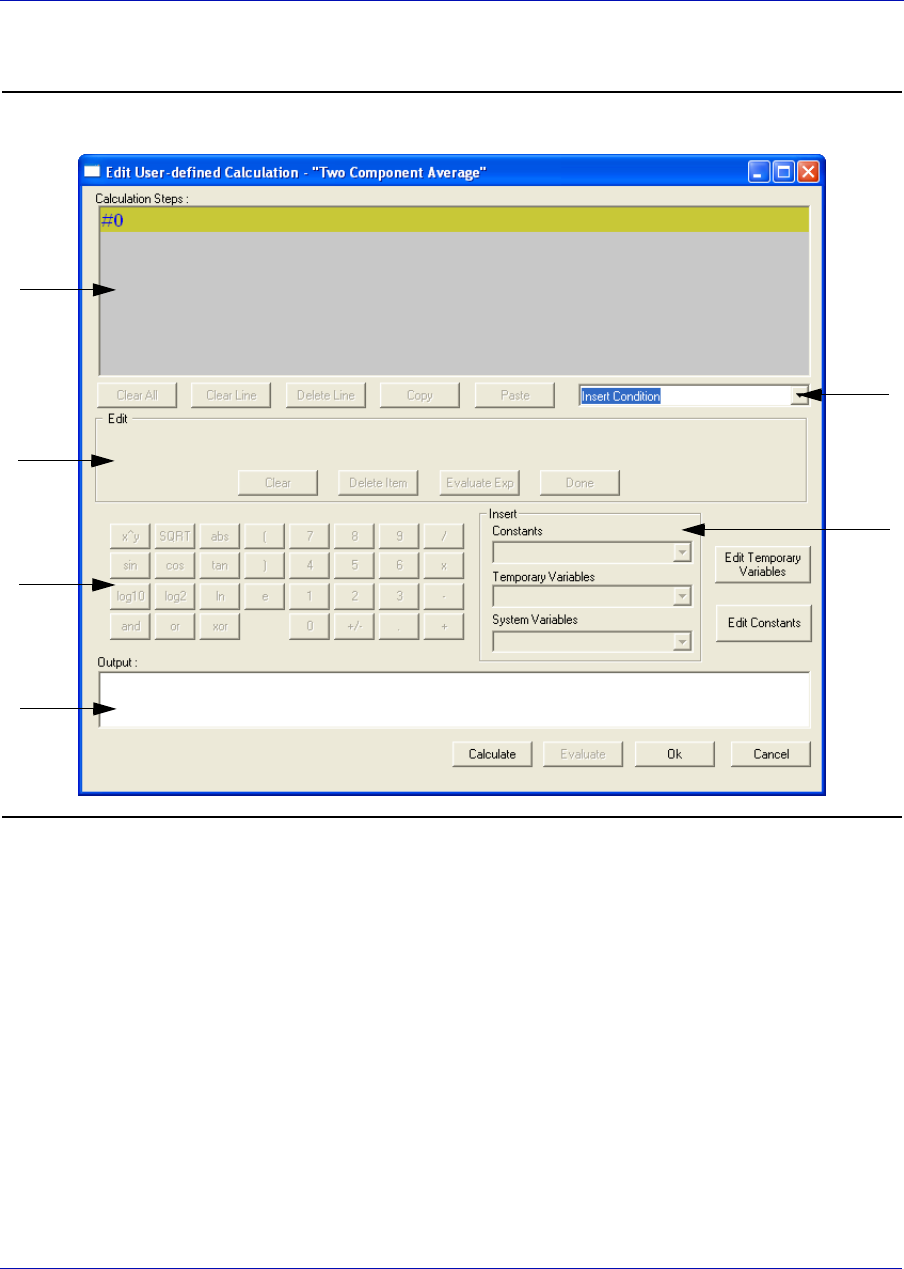
User Manual MON20/20 Software for Gas Chromatographs
3-9000-745 OCTOBER 2010
E-2
4. Click Edit. The Edit User-defined Calculation window appears.
Figure E-2. The Edit User-defined Calculation window
In MON 20/20, building a calculation is similar to building a simple
program. You have constants and two types of variables available, as
well as two calculation-building commands. You can also add
comments that will be ignored by the application but that can help you
explain the logic and structure of the calculation you are designing.
A
B
C
D
E
F

MON20/20 Software for Gas Chromatographs User Manual
OCTOBER 2010 3-9000-745
E-3
The following is a description of the design elements of the Edit User-
defined Calculation window:
•Element A - Called the Calculation Steps Viewer, this element
displays the line-by-line construction of the calculation as it is
being built. The following commands allow you to interact with
this area:
•Click Clear All to clear the content of the Calculation Steps
Viewer.
•Click Clear Line to clear the content of the selected line.
Note
If the selected line is an "If-Then" statement, then the entire condition is cleared. This
button is disabled when the cursor is on an "else" or "endif" condition.
•Click Delete Line to delete the selected line.
Note
If the selected line is the beginning of a conditional statement, then the entire "If-Then"
block will be deleted along with the expressions that constitute the "If-Then" construct.
If the selected line is part of the conditional "If-Then" construct—that is, the line only
has "Else" or "Endif" in it—then the entire "If-Then" construct will be deleted.
•Click Copy to copy the selected line to the clipboard. You cannot
copy keywords such as “else” or “endif.”
•Click Paste to paste the content of the clipboard into a selected
line. If the line already has a calculation in it, it is cleared before
the content of the clipboard is pasted into it.
•Element B - A drop-down menu with the following three
commands:
•Insert Comment - Adds a comment to the calculation. Each
comment is preceded by “//.”
•Insert Condition - Adds an “If-Then” statement to the
calculation.
•Insert Expression - Adds a mathematical expression to the
calculation.
•Element C - Also called the Expression Editor, this section is the
work area where the comment, condition or expression is built
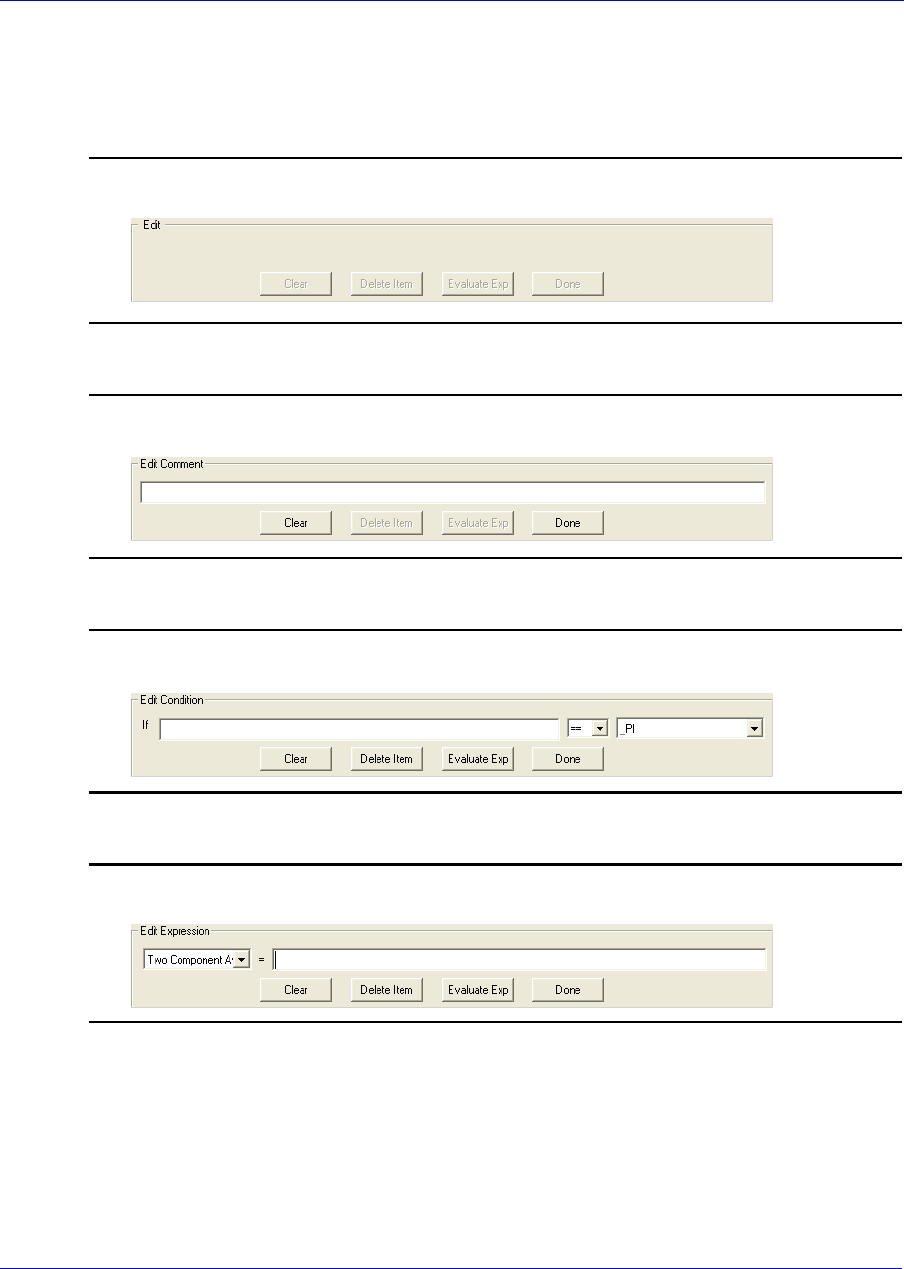
User Manual MON20/20 Software for Gas Chromatographs
3-9000-745 OCTOBER 2010
E-4
before being added to the Calculation Steps Viewer. There are four
modes of the Expression Editor, depending upon what action is
being performed:
Figure E-3. Expression Editor - No Action
Figure E-4. Expression Editor - Insert Comment
Figure E-5. Expression Editor - Insert Condition
Figure E-6. Expression Editor - Insert Expression
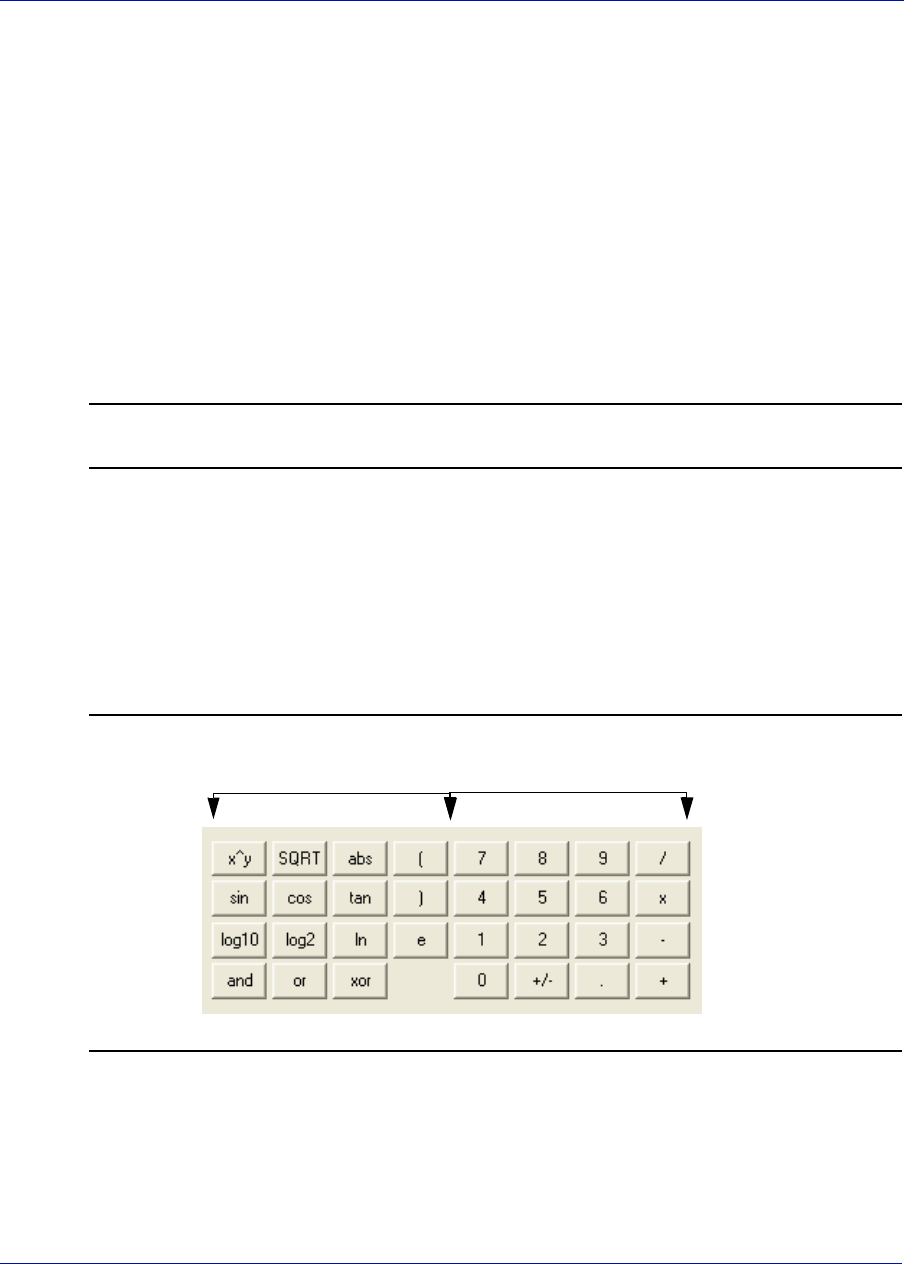
MON20/20 Software for Gas Chromatographs User Manual
OCTOBER 2010 3-9000-745
E-5
The following commands allow you to interact with the Expression
Editor:
•Click Clear to clear the content of the entire line. The line itself
is not deleted.
•Click Delete Item to delete the currently active token. Each
mathematical function, numeric data, and mathematical
operation is treated as a token. The token to the right of the
current cursor location is treated as the currently active token.
•Click Evaluate Exp to check the validity of the expression. If
any errors are detected in the syntax, then an error will be
reported in the Output window.
Note
This button is only active when the line being edited is an expression.
•Click Done to evaluate the expression and copy it to the
Calculations Steps Viewer. If there are any errors in the
expression, they are reported in the Output window.
•Element D - This section contains calculator functions that can be
used to build a mathematical expression. This section can be
divided into two parts:
Figure E-7. Calculator functions
12
User Manual MON20/20 Software for Gas Chromatographs
3-9000-745 OCTOBER 2010
E-6
•Section 1 - This section contains the following keys:
•Section 2 - This section contains the traditional calculator keys
and can be used with your keyboard’s Numpad.
Note
Make sure to engage your keyboard’s Numlock before using the Numpad.
• Section E - This section contains drop-down menus and buttons
that allow you to create and select constants and variables that can
be added to your mathematical expressions.
x^y x to the power of y
SQRT Square Root
abs Absolute Value
sin Sine
cos Cosine
tan Tan
log10 Logarithm to the base 10
log2 Logarithm to the base 2
ln Logarithm to the base e
and Logical AND
or Logical OR
xor Logical XOR
(Open bracket
) Close bracket

MON20/20 Software for Gas Chromatographs User Manual
OCTOBER 2010 3-9000-745
E-7
•Constants - Allows you to select constants from a drop-down
list.
•Temporary Variables - Allows you to select temporary, user-
created variables from a drop-down list.
•System Variables - Allows you to select system variables.
•Edit Temporary Variables - Allows you to create variables.
•Edit Constants - Allows you to create system-wide constants
that can be used in user-defined calculations.
• Section F - This section, called the Output Display, displays
status information.
5. Use the following procedures to build your calculation in the
Calculation Steps Viewer:
•“Inserting a comment” on page E-7
•“Inserting a conditional statement” on page E-9
•“Inserting an expression” on page E-11
•“Creating a constant” on page E-14
•“Creating or editing a temporary variable” on page E-15
•“Inserting a system variable” on page E-16
•“Using user-defined calculations” on page E-17
6. To see the result of the calculation, click Calculate. The results
display in the Output window. To validate the calculation for errors,
click Evaluate. The results of the validation check display in the
Output window. To save the calculation and to close the Edit User-
defined Calculation window, click OK.
7. On the User Defined Calculations window, to save the changes
without closing the window, click Save. To save the changes and close
the window, click OK.
E.1 Inserting a comment
To add a comment to the calculation, do the following:
1. Click on the Insert drop-down list and select Insert Comment. A
new line will be added to the Calculation Steps Viewer and the
Expression Editor will switch to Edit Comment mode.
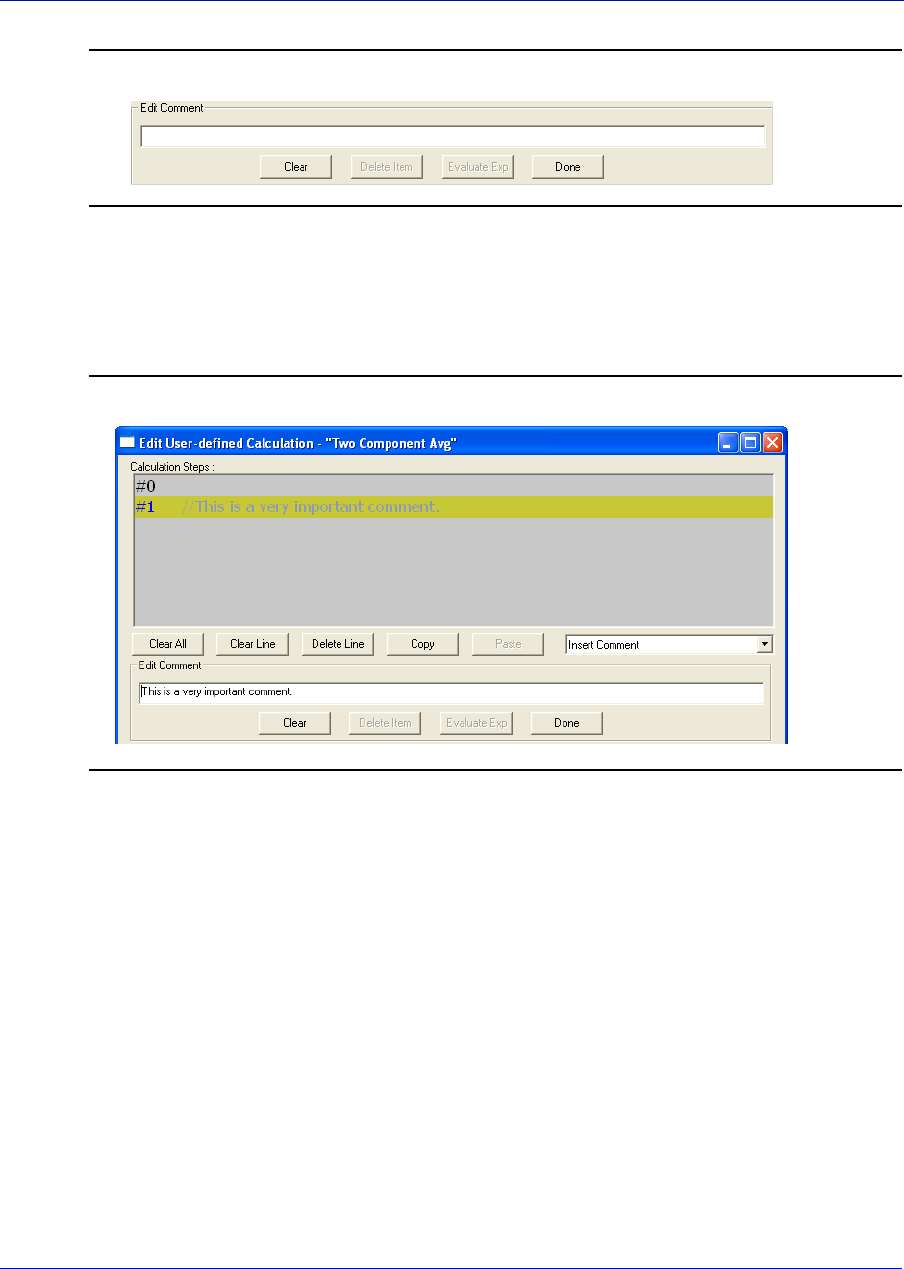
User Manual MON20/20 Software for Gas Chromatographs
3-9000-745 OCTOBER 2010
E-8
Figure E-8. Edit Comment mode
2. Enter the comment into the Edit Comment textbox and then click
Done. The comment will be added to the Calculation Steps
Viewer.
Figure E-9. Calculation Steps Viewer
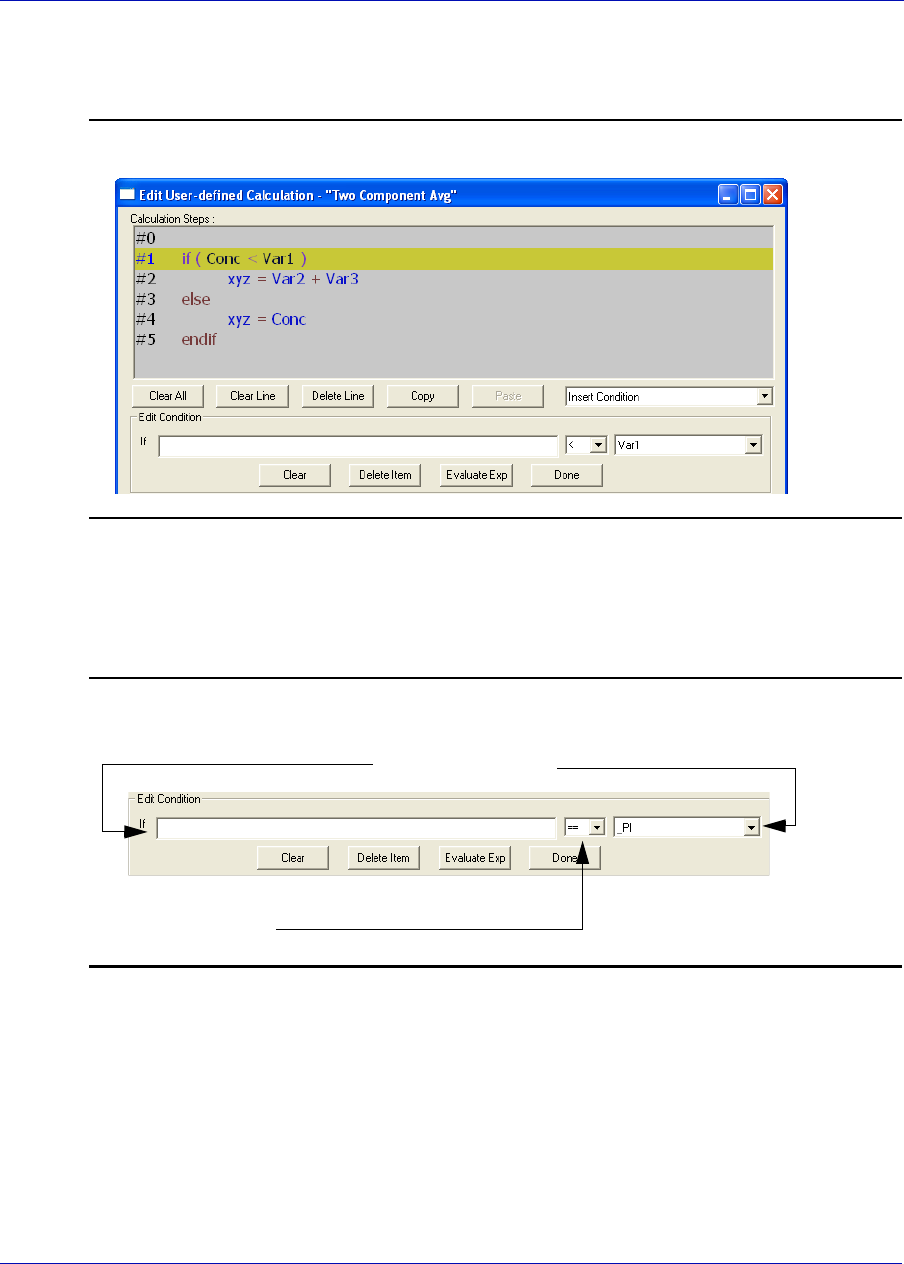
MON20/20 Software for Gas Chromatographs User Manual
OCTOBER 2010 3-9000-745
E-9
E.2 Inserting a conditional statement
Figure E-10. An example of a conditional statement
The Expression Editor in Edit Condition mode allows you to build the
first line of the conditional statement:
Figure E-11. The Expression Editor in Edit Condition mode
Expressions are built using the Expression Editor in Edit Expression
mode.
To add a conditional statement, do the following:
Regular expression
Relational operator
Variables/Constants
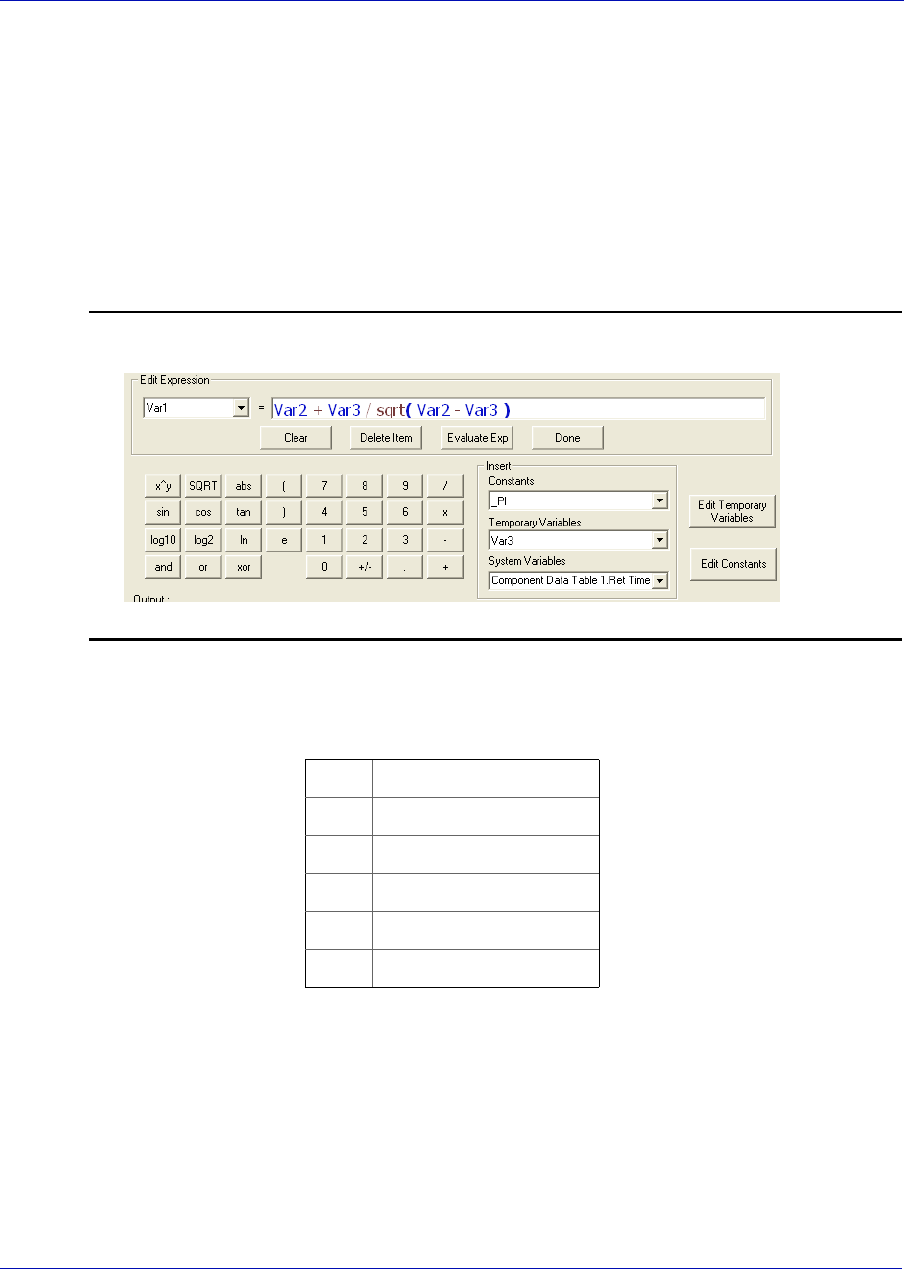
User Manual MON20/20 Software for Gas Chromatographs
3-9000-745 OCTOBER 2010
E-10
1. Click on the Insert drop-down list and select Insert Condition. A
new line is added to the Calculation Steps Viewer and the
Expression Editor switches to Edit Condition mode.
2. Add an expression. You can use constants, temporary variables,
system variables, and the calculator functions to build the expression.
For information on inserting system variables, see page E-16. For
information on creating variables, see page E-15. For information on
creating constants, see page E-14.
Figure E-12. Edit Expression area
3. Select a relational operator from the drop-down list. You have the
following options:
4. To add a variable or constant to the expression, click the Variable/
Constant drop-down list and select the appropriate item.
<Less than
<= Less than or equal
>Greater than
>= Greater than or equal
== Equal
!= Not equal
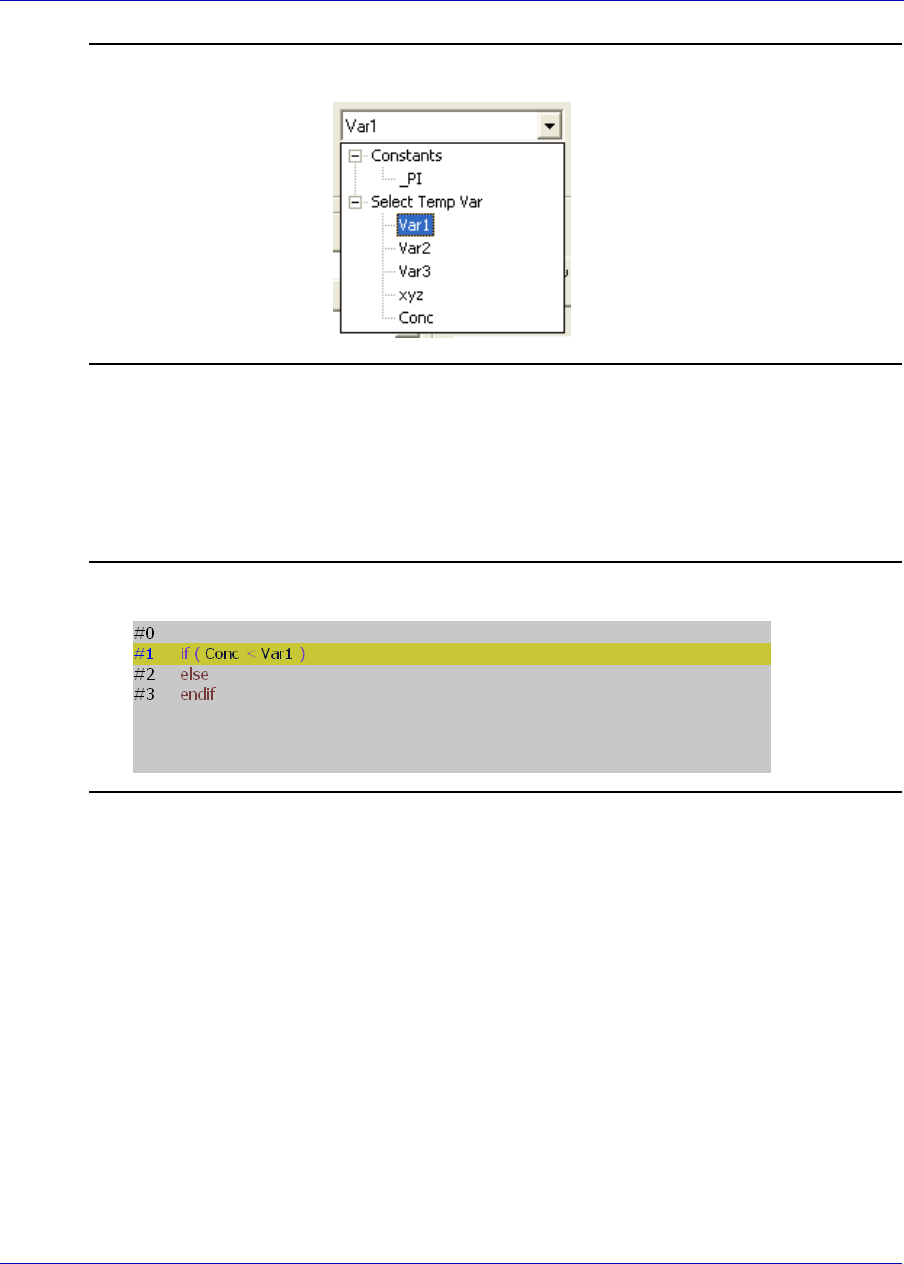
MON20/20 Software for Gas Chromatographs User Manual
OCTOBER 2010 3-9000-745
E-11
Figure E-13. the Variable/Constant drop-down list
For information on creating variables, see page E-15. For information
on creating constants, see page E-14.
5. Click Done. MON 20/20 validates the statement and if there are no
errors, it adds it to the Calculation Steps Viewer.
Figure E-14. Calculation Steps Viewer
To complete the conditional statement, use the Expression Editor in
Edit Expression mode to add the necessary mathematical expressions.
E.3 Inserting an expression
A mathematical expression has the following structure:
Variable = Regular expression
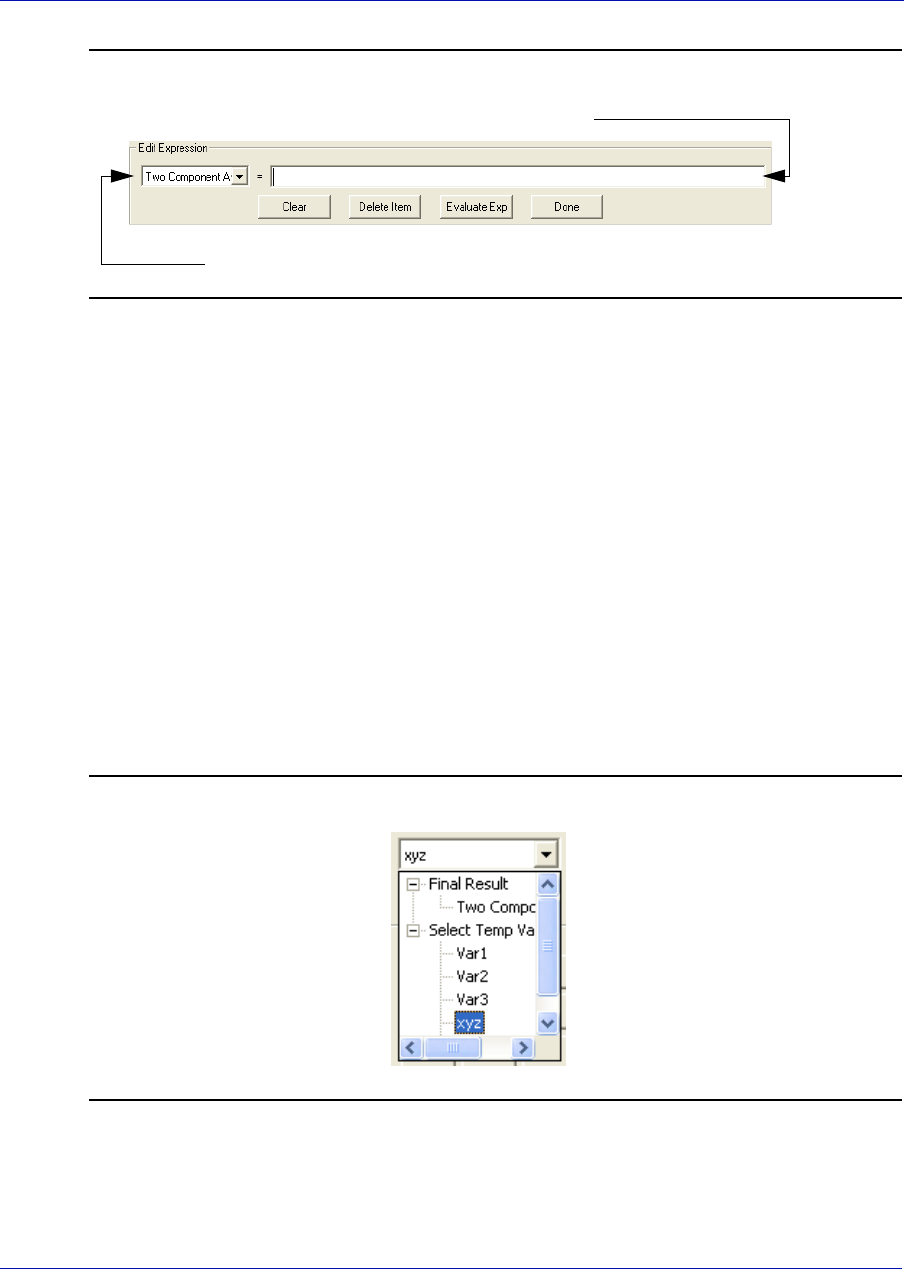
User Manual MON20/20 Software for Gas Chromatographs
3-9000-745 OCTOBER 2010
E-12
Figure E-15. Edit Expression area
To add an expression to a conditional statement or calculation, do the
following:
1. Click on the Insert drop-down list and select Insert Expression. A
new line is added to the Calculation Steps Viewer and the
Expression Editor switches to Edit Expression mode.
2. Select a variable from the Variable drop-down tree view. You can
select either a temporary variable or you can set the expression you
are building as the final result of your new user-defined calculation.
For instance, if the user-defined calculation you are building is called
‘User Calc 1,’ then you can select User Calc 1 from the Final Result
tree view. For information on creating variables, see “Creating or
editing a temporary variable” on page E-15.
Figure E-16. The Final Result tree view
regular expression
variable
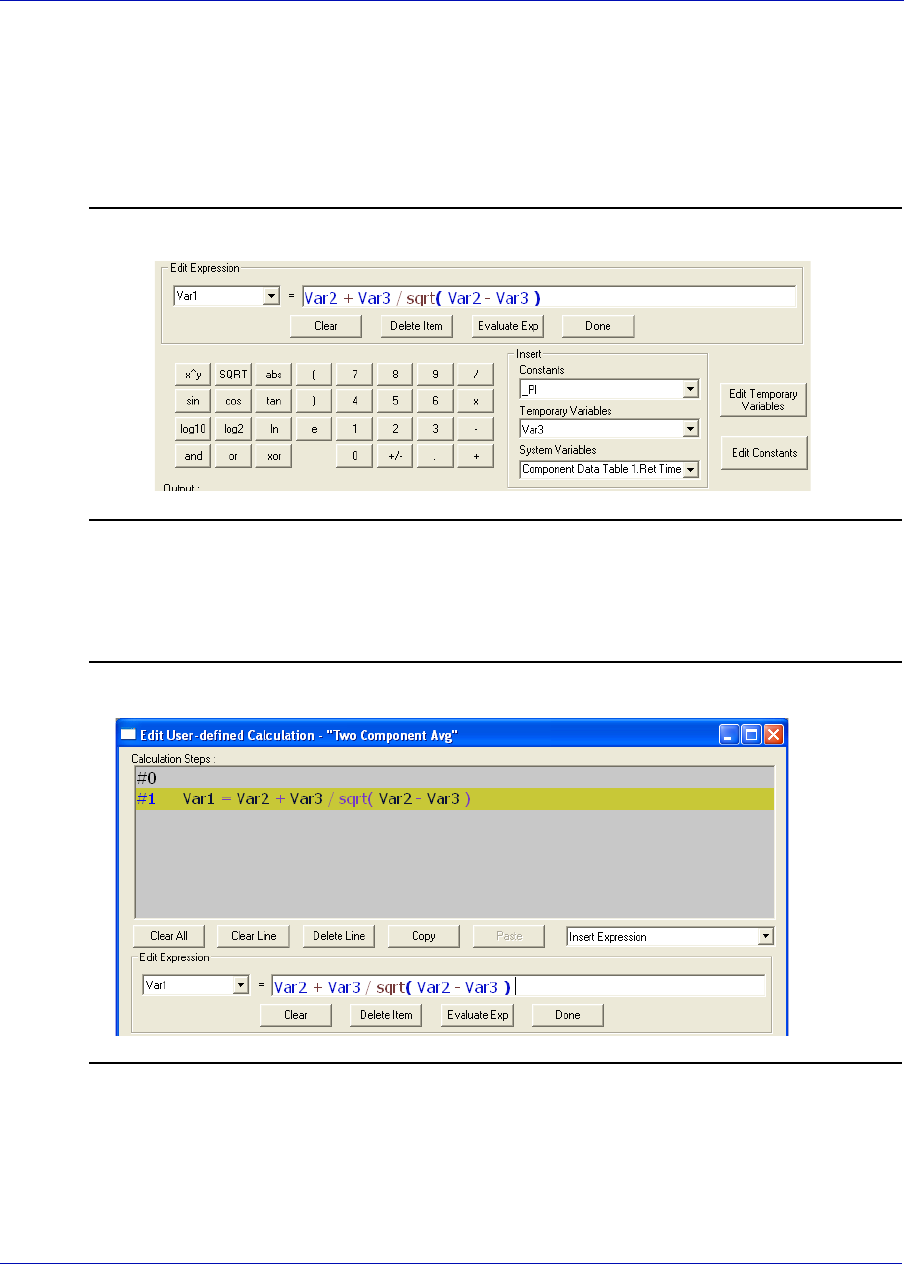
MON20/20 Software for Gas Chromatographs User Manual
OCTOBER 2010 3-9000-745
E-13
3. Add a regular expression. You can use constants, temporary
variables, system variables, and the calculator functions to build the
expression. For information on inserting system variables, see
page E-16. For information on creating variables, see page E-15. For
information on creating constants, see page E-14.
Figure E-17. The Edit Expression area
4. Click Done. MON 20/20 validates the statement and if there are no
errors, it adds it to the Calculation Steps Viewer.
Figure E-18. The Calculation Steps Viewer
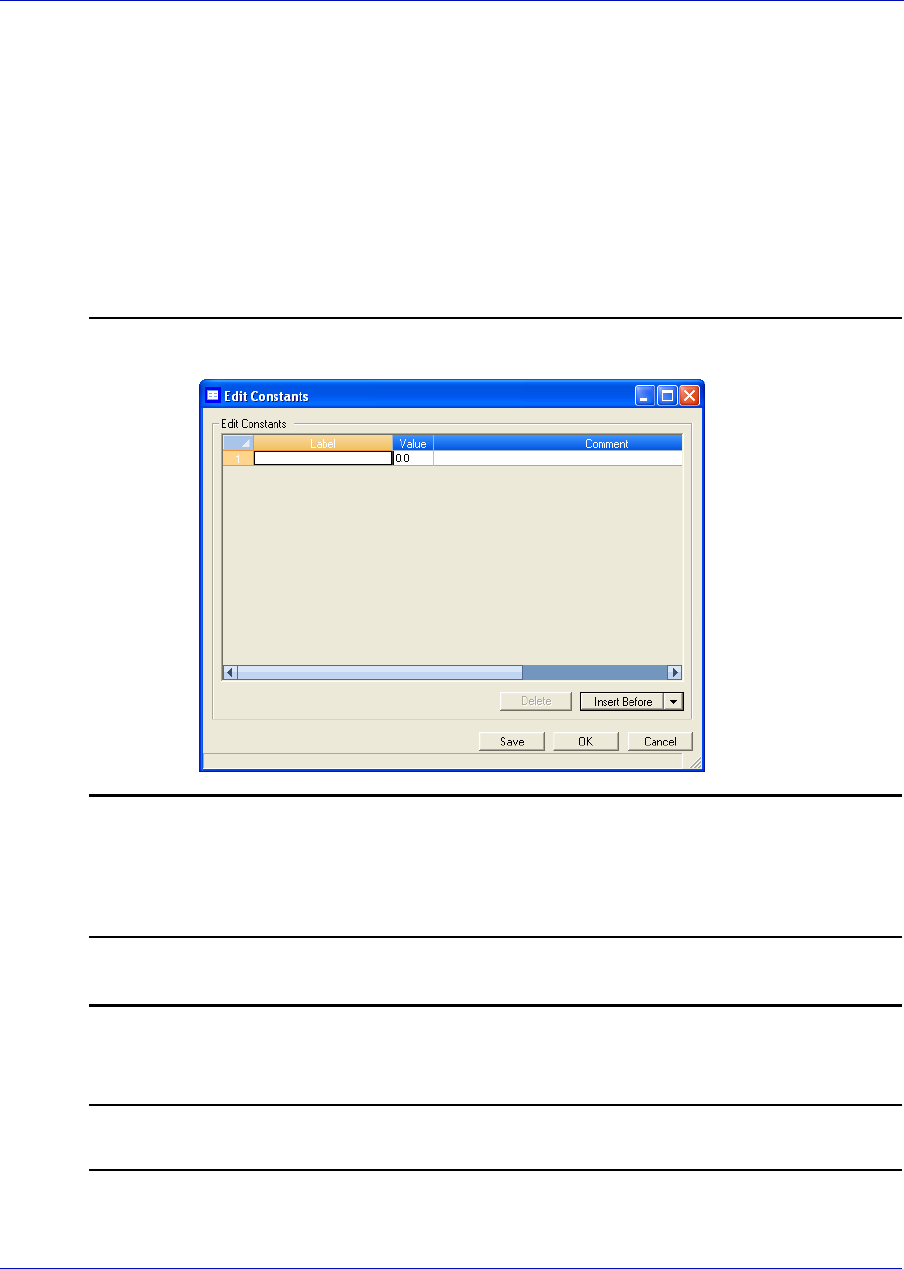
User Manual MON20/20 Software for Gas Chromatographs
3-9000-745 OCTOBER 2010
E-14
E.4 Creating a constant
To create a constant that you can use in building a calculation, do the
following:
1. From the Edit User-defined Calculation window, click Edit
Constants. The Edit Constants window displays, showing all the
constants that have been created so far for the GC.
Figure E-19. The Edit Constants window
2. To create a new constant, click Insert before. A new row will be
added to the USER_CALC_CONSTANTS table.
Note
To delete a constant, select it in the table and click Delete.
3. Double-click the Label cell and enter a name for the constant.
Note
To edit any cell, double-click it.
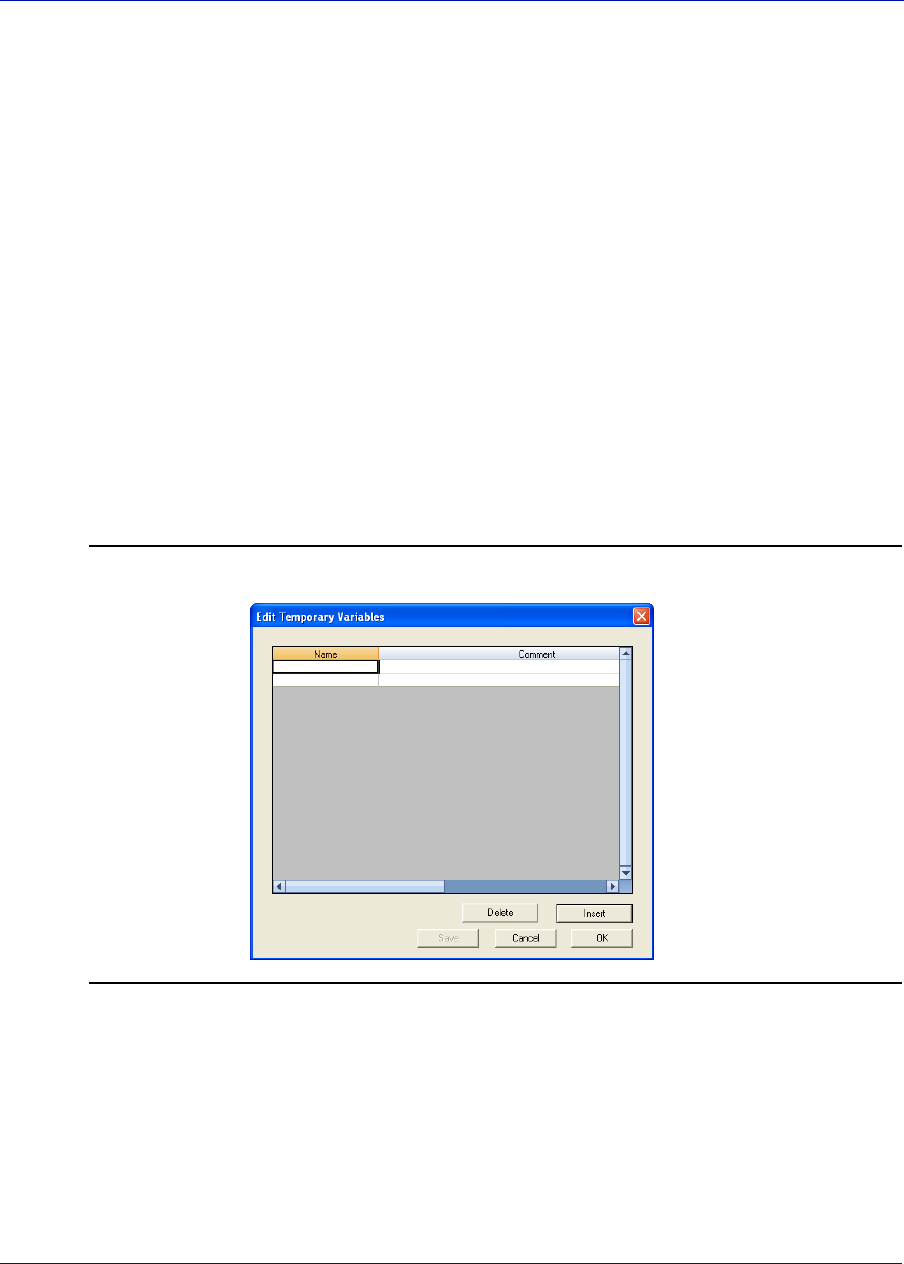
MON20/20 Software for Gas Chromatographs User Manual
OCTOBER 2010 3-9000-745
E-15
4. Double-click the Value cell and enter a value for the constant.
5. Use the Comment cell to store information that is relevant for the
constant.
6. To save the changes without closing the window, click Save. To save
the changes and close the window, click OK.
E.5 Creating or editing a temporary variable
To create a temporary variable that you can use in building a calculation,
do the following:
1. From the Edit User-defined Calculation window, click Edit
Temporary Variables. The Edit Temporary Variables window
displays, showing all the temporary variables that have been created
so far for the user-defined calculation.
Figure E-20. The Edit Temporary Variables window
2. To create a new temporary variable, click Insert. A new row will be
added to the table.
User Manual MON20/20 Software for Gas Chromatographs
3-9000-745 OCTOBER 2010
E-16
Note
To delete a variable from this window, select it in the table and click Delete.
3. Double-click the Name cell and enter a name for the variable.
4. Use the Comment cell to store information that is relevant for the
variable.
5. To save the changes without closing the window, click Save. To save
the changes and close the window, click OK.
E.6 Inserting a system variable
To insert a system variable into the Expression Editor, do the following:
From the Edit User-defined Calculation window, click on the System
Variables drop-down arrow.
For a demonstration of how to use the context-sensitive variable selector,
see “Using the context-sensitive variable selector” on page 1-42.
The selected system variable displays in the System Variables drop-down
box and in the Expression Editor.
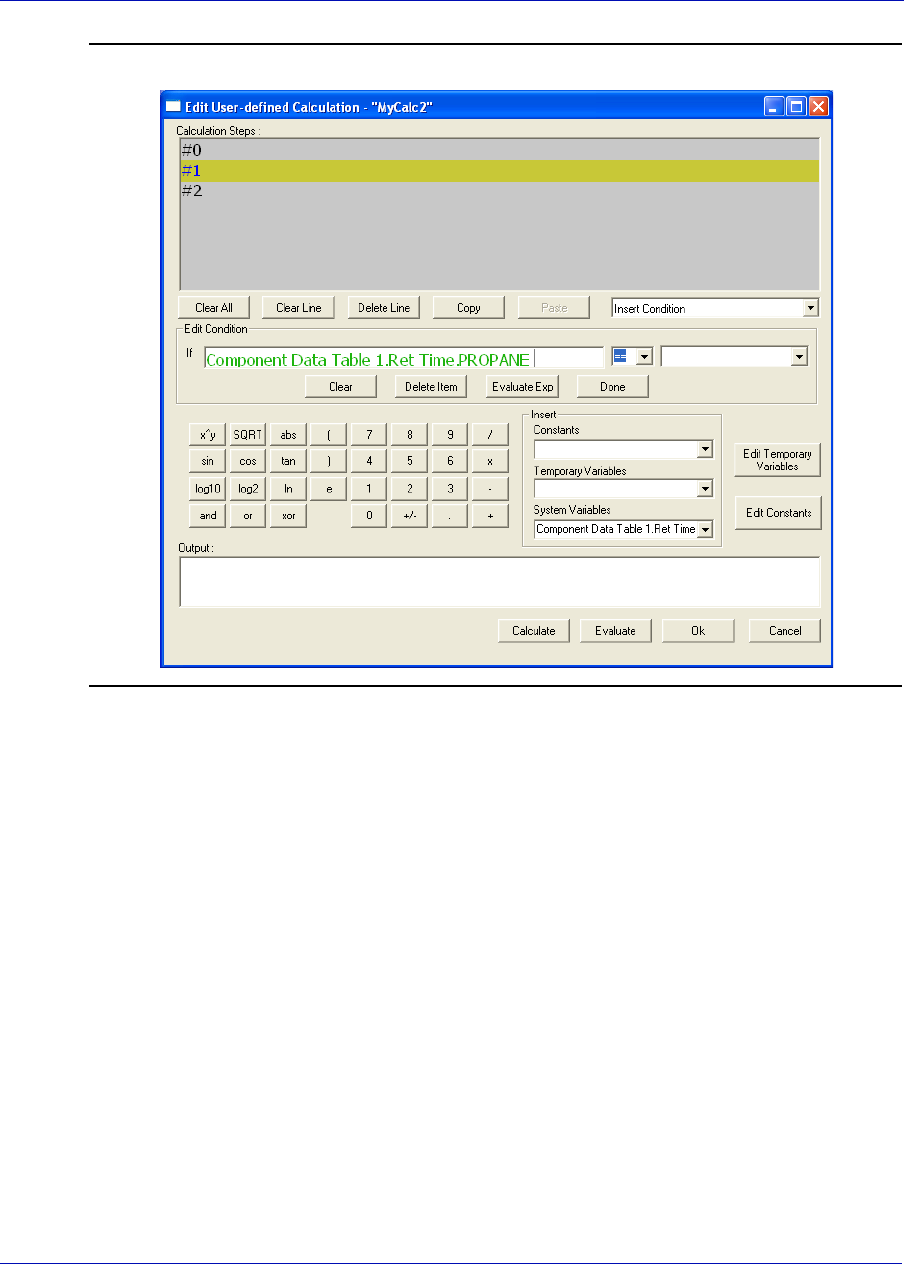
MON20/20 Software for Gas Chromatographs User Manual
OCTOBER 2010 3-9000-745
E-17
Figure E-21. The Expression Editor
E.7 Using user-defined calculations
You can use a previously-created user-defined calculation when building
new calculations by clicking on the System Variables drop-down arrow on
the Edit User-defined Calculation window.
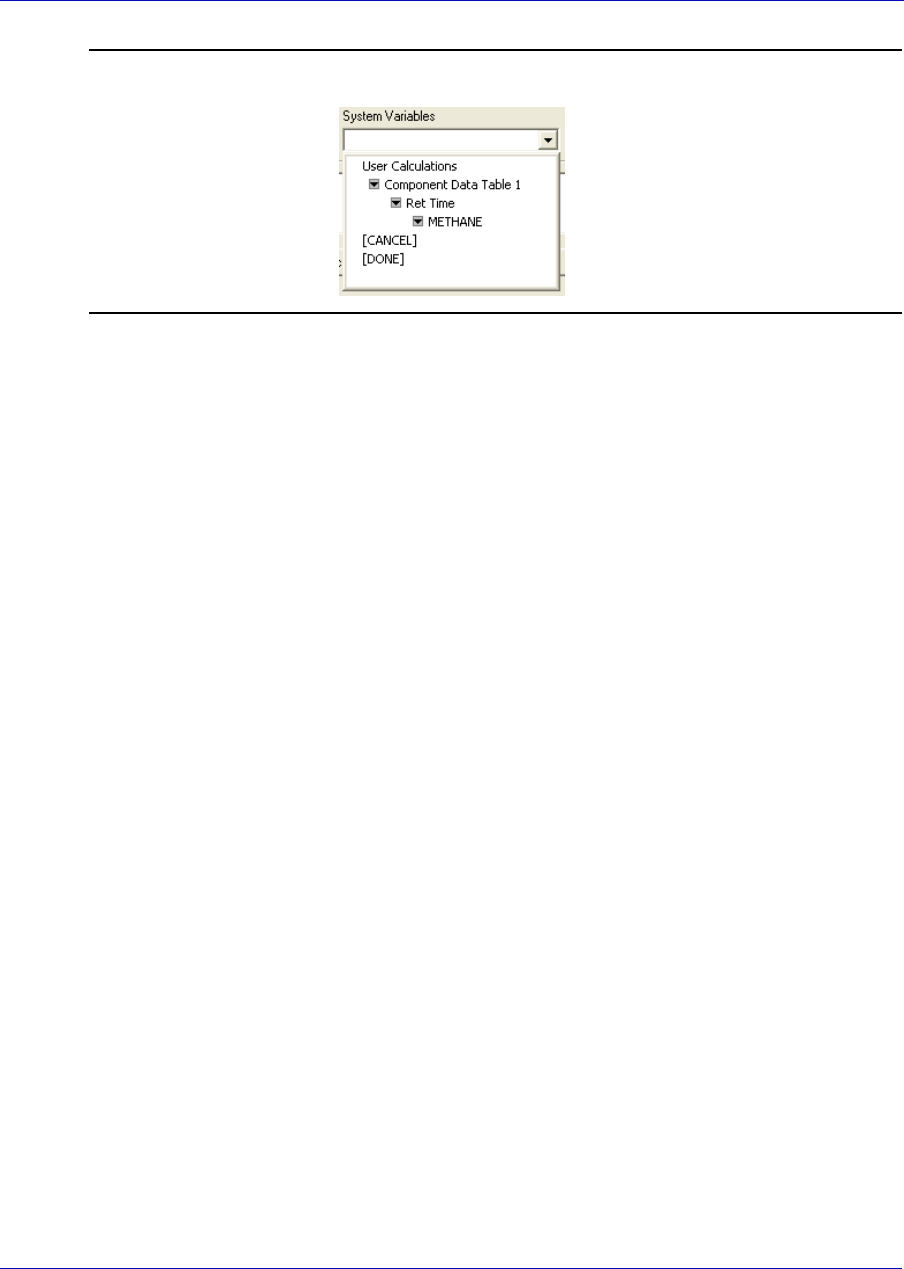
User Manual MON20/20 Software for Gas Chromatographs
3-9000-745 OCTOBER 2010
E-18
Figure E-22. System Variables drop-down menu
For a demonstration of how to use the context-sensitive variable selector,
see “Using the context-sensitive variable selector” on page 1-42.
The selected system variable displays in the System Variables drop-down
box and in the Expression Editor.

MON20/20 Software for Gas Chromatographs User Manual
OCTOBER 2010 3-9000-745
E-19
Figure E-23. The Expression Editor

User Manual MON20/20 Software for Gas Chromatographs
3-9000-745 OCTOBER 2010
E-20
WARRANTY CLAIM PROCEDURES
To make a warranty claim, you, the Purchaser, must:
1. Provide Daniel Measurement and Control, Inc. or Rosemount
Analytical, Inc. with proof of the Date of Purchase and proof of the
Date of Shipment of the product in question.
2. Return the product to Daniel Measurement Services (DMS) within 12
months of the date of original shipment of the product, or within 18
months of the date of original shipment of the product to destinations
outside of the United States. The Purchaser must prepay any shipping
charges. In addition, the Purchaser is responsible for insuring any
product shipped for return, and assumes the risk of loss of the product
during shipment.
3. To obtain warranty service or to locate the nearest DMS office, sales
office, or service center, do one of the following:
• Call (713) 827-6380
• Fax a request to (713) 827-6312
• Write to:
Daniel Measurement Services
11100 Brittmore Park Drive
Houston, Texas 77041
•Contact DMS via www.emersonprocess.com/daniel
4. When contacting DMS for product service, the Purchaser is asked to
provide information as indicated on the following page entitled
"Customer Repair Report".
5. For product returns from locations outside the United States, it will be
necessary for you to obtain the import consignment address so that
DMS's customs broker can handle the importation with the U.S.
Customs Service.
6. DMS offers both on call and contract maintenance service designed to
afford single source responsibility for all its products.
7. DMS reserves the right to make changes at any time to any product to
improve its design and to insure the best available product.

This page is intentionally left blank.
CUSTOMER REPAIR REPORT
FOR SERVICE, COMPLETE THIS FORM, AND RETURN IT ALONG WITH THE AFFECTED EQUIPMENT
TO CUSTOMER SERVICE AT THE ADDRESS INDICATED BELOW.
COMPANY NAME: ____________________________________________________________________________
TECHNICAL CONTACT:_____________________________________ PHONE: __________________________
REPAIR P. O. #:________________________ IF WARRANTY, UNIT S/N: ________________________________
INVOICE ADDRESS:___________________________________________________________________________
_____________________________________________________________________________________________
_____________________________________________________________________________________________
SHIPPING ADDRESS: __________________________________________________________________________
_____________________________________________________________________________________________
_____________________________________________________________________________________________
RETURN SHIPPING METHOD: __________________________________________________________________
EQUIPMENT MODEL #:____________________ S/N:__________________FAILURE DATE:_______________
DESCRIPTION OF PROBLEM:___________________________________________________________________
_____________________________________________________________________________________________
_____________________________________________________________________________________________
WHAT WAS HAPPENING AT TIME OF FAILURE?__________________________________________________
_____________________________________________________________________________________________
ADDITIONAL COMMENTS: ____________________________________________________________________
_____________________________________________________________________________________________
_____________________________________________________________________________________________
REPORT PREPARED BY:__________________________________ TITLE: ______________________________
IF YOU REQUIRE TECHNICAL ASSISTANCE, PLEASE FAX OR WRITE THE CUSTOMER SERVICE
DEPARTMENT AT:
DANIEL MEASUREMENT SERVICES
DIVISION OF EMERSON PROCESS MANAGEMENT PHONE: (713) 827-6380
ATTN: CUSTOMER SERVICE FAX: (713) 827-6312
11100 BRITTMOORE PARK DRIVE
HOUSTON, TEXAS 77041
FOR FASTEST SERVICE CONTACT DANIEL MEASUREMENT SERVICES VIA OUR WEBSITE:
www.emersonprocess.com/daniel

This page is intentionally left blank.

Daniel Measurement and Control, Inc., Daniel Measurement Services, Inc., and Rosemount Analytical
Inc., Divisions of Emerson Process Management, reserves the right to make changes to any of its products
or services at any time without prior notification in order to improve that product or service and to supply
the best product or service possible.
www.emersonprocess.com
