Emerson Process Management Micro Motion 2400S Users Manual Transmitters For DeviceNet
2400S to the manual 8ae40fb9-5bee-4b20-9ad6-8c9a2b39050d
2015-02-06
: Emerson-Process-Management Emerson-Process-Management-Micro-Motion-2400S-Users-Manual-540133 emerson-process-management-micro-motion-2400s-users-manual-540133 emerson-process-management pdf
Open the PDF directly: View PDF  .
.
Page Count: 188 [warning: Documents this large are best viewed by clicking the View PDF Link!]
- Contents
- Before You Begin
- Flowmeter Startup
- Using the Transmitter User Interface
- Connecting with ProLink II or Pocket ProLink Software
- Using a DeviceNet Tool
- Required Transmitter Configuration
- Using the Transmitter
- Optional Configuration
- 8.1 Overview
- 8.2 Configuring volume flow measurement for gas
- 8.3 Configuring cutoffs
- 8.4 Configuring the damping values
- 8.5 Configuring the flow direction parameter
- 8.6 Configuring events
- 8.7 Configuring slug flow limits and duration
- 8.8 Configuring status alarm severity
- 8.9 Configuring the display
- 8.10 Configuring digital communications
- 8.11 Configuring device settings
- 8.12 Configuring sensor parameters
- 8.13 Configuring the petroleum measurement application
- 8.14 Configuring the enhanced density application
- Pressure Compensation and Temperature Compensation
- Measurement Performance
- Troubleshooting
- 11.1 Overview
- 11.2 Guide to troubleshooting topics
- 11.3 Micro Motion customer service
- 11.4 Transmitter does not operate
- 11.5 Transmitter does not communicate
- 11.6 Checking the communication device
- 11.7 Diagnosing wiring problems
- 11.8 Zero or calibration failure
- 11.9 Fault conditions
- 11.10 Simulation mode for process variables
- 11.11 Transmitter LEDs
- 11.12 Status alarms
- 11.13 Checking process variables
- 11.14 Checking slug flow
- 11.15 Checking the sensor tubes
- 11.16 Checking the flow measurement configuration
- 11.17 Checking the characterization
- 11.18 Checking the calibration
- 11.19 Checking the test points
- 11.20 Checking sensor circuitry
- Default Values and Ranges
- Menu Flowcharts
- Device Profile
- C.1 Overview
- C.2 Analog Input Point Object (0x0A)
- C.3 Gas Standard Volume Object (0x64)
- C.4 Calibration Object (0x65)
- C.5 Diagnostics Object (0x66)
- C.6 Sensor Information Object (0x67)
- C.7 Local Display Object (0x68)
- C.8 API Object (0x69)
- C.9 Enhanced Density Object (0x6A)
- C.10 Totalizer and inventory measurement unit codes
- C.11 Process variable codes
- C.12 Alarm index codes
- Display Codes and Abbreviations
- Index

Configuration and Use Manual
P/N MMI-20007739, Rev. B
July 2008
Micro Motion®
Model 2400S Transmitters
for DeviceNet™
Configuration and Use Manual
©2008, Micro Motion, Inc. All rights reserved. ELITE and ProLink are registered trademarks, and MVD and MVD Direct Connect
are trademarks of Micro Motion, Inc., Boulder, Colorado. Micro Motion is a registered trade name of Micro Motion, Inc., Boulder,
Colorado. The Micro Motion and Emerson logos are trademarks and service marks of Emerson Electric Co. All other trademarks
are property of their respective owners.
Configuration and Use Manual i
Contents
Chapter 1 Before You Begin . . . . . . . . . . . . . . . . . . . . . . . . . . . . . . . . . . . . . 1
1.1 Overview . . . . . . . . . . . . . . . . . . . . . . . . . . . . . . . . . . . . . . . . . . . . . . . . . . . . . . . . . . . 1
1.2 Safety . . . . . . . . . . . . . . . . . . . . . . . . . . . . . . . . . . . . . . . . . . . . . . . . . . . . . . . . . . . . . 1
1.3 Determining transmitter information . . . . . . . . . . . . . . . . . . . . . . . . . . . . . . . . . . . . . . 1
1.4 DeviceNet functionality . . . . . . . . . . . . . . . . . . . . . . . . . . . . . . . . . . . . . . . . . . . . . . . . 2
1.5 Determining version information . . . . . . . . . . . . . . . . . . . . . . . . . . . . . . . . . . . . . . . . . 2
1.6 Communication tools. . . . . . . . . . . . . . . . . . . . . . . . . . . . . . . . . . . . . . . . . . . . . . . . . . 2
1.7 Planning the configuration. . . . . . . . . . . . . . . . . . . . . . . . . . . . . . . . . . . . . . . . . . . . . . 3
1.8 Pre-configuration worksheet . . . . . . . . . . . . . . . . . . . . . . . . . . . . . . . . . . . . . . . . . . . . 4
1.9 Flowmeter documentation. . . . . . . . . . . . . . . . . . . . . . . . . . . . . . . . . . . . . . . . . . . . . . 5
1.10 Micro Motion customer service . . . . . . . . . . . . . . . . . . . . . . . . . . . . . . . . . . . . . . . . . . 6
Chapter 2 Flowmeter Startup . . . . . . . . . . . . . . . . . . . . . . . . . . . . . . . . . . . . 7
2.1 Overview . . . . . . . . . . . . . . . . . . . . . . . . . . . . . . . . . . . . . . . . . . . . . . . . . . . . . . . . . . . 7
2.2 Setting the DeviceNet node address and baud rate . . . . . . . . . . . . . . . . . . . . . . . . . . 7
2.3 Bringing the transmitter online . . . . . . . . . . . . . . . . . . . . . . . . . . . . . . . . . . . . . . . . . . 7
Chapter 3 Using the Transmitter User Interface . . . . . . . . . . . . . . . . . . . . . . . . 9
3.1 Overview . . . . . . . . . . . . . . . . . . . . . . . . . . . . . . . . . . . . . . . . . . . . . . . . . . . . . . . . . . . 9
3.2 User interface without or with display . . . . . . . . . . . . . . . . . . . . . . . . . . . . . . . . . . . . . 9
3.3 Removing and replacing the transmitter housing cover . . . . . . . . . . . . . . . . . . . . . . 11
3.4 Using the optical switches. . . . . . . . . . . . . . . . . . . . . . . . . . . . . . . . . . . . . . . . . . . . . 11
3.5 Using the display. . . . . . . . . . . . . . . . . . . . . . . . . . . . . . . . . . . . . . . . . . . . . . . . . . . . 12
3.5.1 Display language . . . . . . . . . . . . . . . . . . . . . . . . . . . . . . . . . . . . . . . . . . . 12
3.5.2 Viewing process variables . . . . . . . . . . . . . . . . . . . . . . . . . . . . . . . . . . . . 12
3.5.3 Using display menus . . . . . . . . . . . . . . . . . . . . . . . . . . . . . . . . . . . . . . . . 13
3.5.4 Display password. . . . . . . . . . . . . . . . . . . . . . . . . . . . . . . . . . . . . . . . . . . 14
3.5.5 Entering floating-point values with the display . . . . . . . . . . . . . . . . . . . . . 14
Chapter 4 Connecting with ProLink II or Pocket ProLink Software . . . . . . . . . . 17
4.1 Overview . . . . . . . . . . . . . . . . . . . . . . . . . . . . . . . . . . . . . . . . . . . . . . . . . . . . . . . . . . 17
4.2 Requirements . . . . . . . . . . . . . . . . . . . . . . . . . . . . . . . . . . . . . . . . . . . . . . . . . . . . . . 17
4.3 Configuration upload/download. . . . . . . . . . . . . . . . . . . . . . . . . . . . . . . . . . . . . . . . . 17
4.4 Connecting to a Model 2400S DN transmitter. . . . . . . . . . . . . . . . . . . . . . . . . . . . . . 18
4.4.1 Connection options . . . . . . . . . . . . . . . . . . . . . . . . . . . . . . . . . . . . . . . . . 18
4.4.2 Service port connection parameters . . . . . . . . . . . . . . . . . . . . . . . . . . . . 18
4.4.3 Connecting via the service port clips . . . . . . . . . . . . . . . . . . . . . . . . . . . 18
4.4.4 Connecting via the IrDA port . . . . . . . . . . . . . . . . . . . . . . . . . . . . . . . . . . 20
4.5 ProLink II language . . . . . . . . . . . . . . . . . . . . . . . . . . . . . . . . . . . . . . . . . . . . . . . . . . 20
ii Micro Motion® Model 2400S Transmitters for DeviceNet™
Contents
Chapter 5 Using a DeviceNet Tool . . . . . . . . . . . . . . . . . . . . . . . . . . . . . . . . 21
5.1 Overview. . . . . . . . . . . . . . . . . . . . . . . . . . . . . . . . . . . . . . . . . . . . . . . . . . . . . . . . . . 21
5.2 Connecting to the Model 2400S DN transmitter . . . . . . . . . . . . . . . . . . . . . . . . . . . . 21
5.3 Using the DeviceNet device profile . . . . . . . . . . . . . . . . . . . . . . . . . . . . . . . . . . . . . . 21
5.4 Using a DeviceNet tool . . . . . . . . . . . . . . . . . . . . . . . . . . . . . . . . . . . . . . . . . . . . . . . 22
5.4.1 Type A tools . . . . . . . . . . . . . . . . . . . . . . . . . . . . . . . . . . . . . . . . . . . . . . . 22
5.4.2 Type B tools . . . . . . . . . . . . . . . . . . . . . . . . . . . . . . . . . . . . . . . . . . . . . . . 22
5.5 Default assemblies . . . . . . . . . . . . . . . . . . . . . . . . . . . . . . . . . . . . . . . . . . . . . . . . . . 23
Chapter 6 Required Transmitter Configuration . . . . . . . . . . . . . . . . . . . . . . . 25
6.1 Overview. . . . . . . . . . . . . . . . . . . . . . . . . . . . . . . . . . . . . . . . . . . . . . . . . . . . . . . . . . 25
6.2 Characterizing the flowmeter . . . . . . . . . . . . . . . . . . . . . . . . . . . . . . . . . . . . . . . . . . 25
6.2.1 When to characterize. . . . . . . . . . . . . . . . . . . . . . . . . . . . . . . . . . . . . . . . 25
6.2.2 Characterization parameters . . . . . . . . . . . . . . . . . . . . . . . . . . . . . . . . . . 25
6.2.3 How to characterize. . . . . . . . . . . . . . . . . . . . . . . . . . . . . . . . . . . . . . . . . 27
6.3 Configuring the measurement units . . . . . . . . . . . . . . . . . . . . . . . . . . . . . . . . . . . . . 28
6.3.1 Mass flow units . . . . . . . . . . . . . . . . . . . . . . . . . . . . . . . . . . . . . . . . . . . . 30
6.3.2 Volume flow units. . . . . . . . . . . . . . . . . . . . . . . . . . . . . . . . . . . . . . . . . . . 30
6.3.3 Density units . . . . . . . . . . . . . . . . . . . . . . . . . . . . . . . . . . . . . . . . . . . . . . 32
6.3.4 Temperature units . . . . . . . . . . . . . . . . . . . . . . . . . . . . . . . . . . . . . . . . . . 33
6.3.5 Pressure units . . . . . . . . . . . . . . . . . . . . . . . . . . . . . . . . . . . . . . . . . . . . . 33
Chapter 7 Using the Transmitter . . . . . . . . . . . . . . . . . . . . . . . . . . . . . . . . . 35
7.1 Overview. . . . . . . . . . . . . . . . . . . . . . . . . . . . . . . . . . . . . . . . . . . . . . . . . . . . . . . . . . 35
7.2 Recording process variables. . . . . . . . . . . . . . . . . . . . . . . . . . . . . . . . . . . . . . . . . . . 35
7.3 Viewing process variables. . . . . . . . . . . . . . . . . . . . . . . . . . . . . . . . . . . . . . . . . . . . . 36
7.3.1 With the display . . . . . . . . . . . . . . . . . . . . . . . . . . . . . . . . . . . . . . . . . . . . 36
7.3.2 With ProLink II . . . . . . . . . . . . . . . . . . . . . . . . . . . . . . . . . . . . . . . . . . . . . 36
7.3.3 With a DeviceNet tool . . . . . . . . . . . . . . . . . . . . . . . . . . . . . . . . . . . . . . . 37
7.4 Using the LEDs. . . . . . . . . . . . . . . . . . . . . . . . . . . . . . . . . . . . . . . . . . . . . . . . . . . . . 41
7.4.1 Using the module LED. . . . . . . . . . . . . . . . . . . . . . . . . . . . . . . . . . . . . . . 41
7.4.2 Using the network LED . . . . . . . . . . . . . . . . . . . . . . . . . . . . . . . . . . . . . . 42
7.5 Viewing transmitter status. . . . . . . . . . . . . . . . . . . . . . . . . . . . . . . . . . . . . . . . . . . . . 42
7.5.1 Using the status LED. . . . . . . . . . . . . . . . . . . . . . . . . . . . . . . . . . . . . . . . 42
7.5.2 Using ProLink II . . . . . . . . . . . . . . . . . . . . . . . . . . . . . . . . . . . . . . . . . . . . 43
7.5.3 Using a DeviceNet tool . . . . . . . . . . . . . . . . . . . . . . . . . . . . . . . . . . . . . . 43
7.6 Handling status alarms . . . . . . . . . . . . . . . . . . . . . . . . . . . . . . . . . . . . . . . . . . . . . . . 43
7.6.1 Using the display . . . . . . . . . . . . . . . . . . . . . . . . . . . . . . . . . . . . . . . . . . . 44
7.6.2 Using ProLink II . . . . . . . . . . . . . . . . . . . . . . . . . . . . . . . . . . . . . . . . . . . . 45
7.6.3 Using a DeviceNet tool . . . . . . . . . . . . . . . . . . . . . . . . . . . . . . . . . . . . . . 46
7.7 Using the totalizers and inventories . . . . . . . . . . . . . . . . . . . . . . . . . . . . . . . . . . . . . 47
7.7.1 Viewing current values for totalizers and inventories. . . . . . . . . . . . . . . . 48
7.7.2 Controlling totalizers and inventories. . . . . . . . . . . . . . . . . . . . . . . . . . . . 49
Configuration and Use Manual iii
Contents
Chapter 8 Optional Configuration . . . . . . . . . . . . . . . . . . . . . . . . . . . . . . . . 55
8.1 Overview . . . . . . . . . . . . . . . . . . . . . . . . . . . . . . . . . . . . . . . . . . . . . . . . . . . . . . . . . . 55
8.2 Configuring volume flow measurement for gas. . . . . . . . . . . . . . . . . . . . . . . . . . . . . 56
8.2.1 Using ProLink II . . . . . . . . . . . . . . . . . . . . . . . . . . . . . . . . . . . . . . . . . . . . 57
8.2.2 Using a DeviceNet tool . . . . . . . . . . . . . . . . . . . . . . . . . . . . . . . . . . . . . . 58
8.3 Configuring cutoffs . . . . . . . . . . . . . . . . . . . . . . . . . . . . . . . . . . . . . . . . . . . . . . . . . . 58
8.3.1 Cutoffs and volume flow. . . . . . . . . . . . . . . . . . . . . . . . . . . . . . . . . . . . . . 59
8.4 Configuring the damping values . . . . . . . . . . . . . . . . . . . . . . . . . . . . . . . . . . . . . . . . 59
8.4.1 Damping and volume measurement . . . . . . . . . . . . . . . . . . . . . . . . . . . . 60
8.5 Configuring the flow direction parameter . . . . . . . . . . . . . . . . . . . . . . . . . . . . . . . . . 60
8.6 Configuring events . . . . . . . . . . . . . . . . . . . . . . . . . . . . . . . . . . . . . . . . . . . . . . . . . . 61
8.6.1 Defining events . . . . . . . . . . . . . . . . . . . . . . . . . . . . . . . . . . . . . . . . . . . . 61
8.6.2 Checking and reporting event status . . . . . . . . . . . . . . . . . . . . . . . . . . . . 64
8.6.3 Changing event setpoints from the display . . . . . . . . . . . . . . . . . . . . . . . 64
8.7 Configuring slug flow limits and duration. . . . . . . . . . . . . . . . . . . . . . . . . . . . . . . . . . 64
8.8 Configuring status alarm severity . . . . . . . . . . . . . . . . . . . . . . . . . . . . . . . . . . . . . . . 65
8.9 Configuring the display . . . . . . . . . . . . . . . . . . . . . . . . . . . . . . . . . . . . . . . . . . . . . . . 67
8.9.1 Update period . . . . . . . . . . . . . . . . . . . . . . . . . . . . . . . . . . . . . . . . . . . . . 67
8.9.2 Language. . . . . . . . . . . . . . . . . . . . . . . . . . . . . . . . . . . . . . . . . . . . . . . . . 67
8.9.3 Enabling and disabling display functions . . . . . . . . . . . . . . . . . . . . . . . . . 67
8.9.4 Configuring the LCD backlight . . . . . . . . . . . . . . . . . . . . . . . . . . . . . . . . . 68
8.9.5 Configuring the display variables and display precision. . . . . . . . . . . . . . 69
8.10 Configuring digital communications . . . . . . . . . . . . . . . . . . . . . . . . . . . . . . . . . . . . . 70
8.10.1 DeviceNet node address . . . . . . . . . . . . . . . . . . . . . . . . . . . . . . . . . . . . . 70
8.10.2 DeviceNet baud rate . . . . . . . . . . . . . . . . . . . . . . . . . . . . . . . . . . . . . . . . 71
8.10.3 DeviceNet configurable input assembly. . . . . . . . . . . . . . . . . . . . . . . . . . 71
8.10.4 Modbus address . . . . . . . . . . . . . . . . . . . . . . . . . . . . . . . . . . . . . . . . . . . 72
8.10.5 Modbus ASCII support. . . . . . . . . . . . . . . . . . . . . . . . . . . . . . . . . . . . . . . 72
8.10.6 IrDA port usage . . . . . . . . . . . . . . . . . . . . . . . . . . . . . . . . . . . . . . . . . . . . 73
8.10.7 Digital communications fault action . . . . . . . . . . . . . . . . . . . . . . . . . . . . . 73
8.10.8 Fault timeout . . . . . . . . . . . . . . . . . . . . . . . . . . . . . . . . . . . . . . . . . . . . . . 74
8.11 Configuring device settings . . . . . . . . . . . . . . . . . . . . . . . . . . . . . . . . . . . . . . . . . . . . 74
8.12 Configuring sensor parameters. . . . . . . . . . . . . . . . . . . . . . . . . . . . . . . . . . . . . . . . . 75
8.13 Configuring the petroleum measurement application . . . . . . . . . . . . . . . . . . . . . . . . 75
8.13.1 About the petroleum measurement application . . . . . . . . . . . . . . . . . . . . 75
8.13.2 Configuration procedure . . . . . . . . . . . . . . . . . . . . . . . . . . . . . . . . . . . . . 77
8.14 Configuring the enhanced density application . . . . . . . . . . . . . . . . . . . . . . . . . . . . . 78
8.14.1 About the enhanced density application . . . . . . . . . . . . . . . . . . . . . . . . . 78
8.14.2 Configuration procedure . . . . . . . . . . . . . . . . . . . . . . . . . . . . . . . . . . . . . 80
Chapter 9 Pressure Compensation and Temperature Compensation . . . . . . . . . 83
9.1 Overview . . . . . . . . . . . . . . . . . . . . . . . . . . . . . . . . . . . . . . . . . . . . . . . . . . . . . . . . . . 83
9.2 Pressure compensation . . . . . . . . . . . . . . . . . . . . . . . . . . . . . . . . . . . . . . . . . . . . . . 83
9.2.1 Options. . . . . . . . . . . . . . . . . . . . . . . . . . . . . . . . . . . . . . . . . . . . . . . . . . . 83
9.2.2 Pressure correction factors . . . . . . . . . . . . . . . . . . . . . . . . . . . . . . . . . . . 84
9.2.3 Configuration . . . . . . . . . . . . . . . . . . . . . . . . . . . . . . . . . . . . . . . . . . . . . . 84
9.3 External temperature compensation . . . . . . . . . . . . . . . . . . . . . . . . . . . . . . . . . . . . . 85
9.4 Obtaining external pressure and temperature data. . . . . . . . . . . . . . . . . . . . . . . . . . 87
iv Micro Motion® Model 2400S Transmitters for DeviceNet™
Contents
Chapter 10 Measurement Performance . . . . . . . . . . . . . . . . . . . . . . . . . . . . . 89
10.1 Overview. . . . . . . . . . . . . . . . . . . . . . . . . . . . . . . . . . . . . . . . . . . . . . . . . . . . . . . . . . 89
10.2 Meter validation, meter verification, and calibration . . . . . . . . . . . . . . . . . . . . . . . . . 89
10.2.1 Meter verification . . . . . . . . . . . . . . . . . . . . . . . . . . . . . . . . . . . . . . . . . . . 90
10.2.2 Meter validation and meter factors . . . . . . . . . . . . . . . . . . . . . . . . . . . . . 90
10.2.3 Calibration . . . . . . . . . . . . . . . . . . . . . . . . . . . . . . . . . . . . . . . . . . . . . . . . 90
10.2.4 Comparison and recommendations. . . . . . . . . . . . . . . . . . . . . . . . . . . . . 91
10.3 Performing meter verification . . . . . . . . . . . . . . . . . . . . . . . . . . . . . . . . . . . . . . . . . . 91
10.3.1 Uncertainty limit and test results . . . . . . . . . . . . . . . . . . . . . . . . . . . . . . . 96
10.3.2 Additional ProLink II tools for meter verification. . . . . . . . . . . . . . . . . . . . 97
10.4 Performing meter validation . . . . . . . . . . . . . . . . . . . . . . . . . . . . . . . . . . . . . . . . . . . 97
10.5 Performing zero calibration . . . . . . . . . . . . . . . . . . . . . . . . . . . . . . . . . . . . . . . . . . . . 99
10.5.1 Preparing for zero . . . . . . . . . . . . . . . . . . . . . . . . . . . . . . . . . . . . . . . . . 100
10.5.2 Zero procedure . . . . . . . . . . . . . . . . . . . . . . . . . . . . . . . . . . . . . . . . . . . 100
10.6 Performing density calibration. . . . . . . . . . . . . . . . . . . . . . . . . . . . . . . . . . . . . . . . . 103
10.6.1 Preparing for density calibration . . . . . . . . . . . . . . . . . . . . . . . . . . . . . . 104
10.6.2 Density calibration procedures . . . . . . . . . . . . . . . . . . . . . . . . . . . . . . . 104
10.7 Performing temperature calibration. . . . . . . . . . . . . . . . . . . . . . . . . . . . . . . . . . . . . 109
Chapter 11 Troubleshooting . . . . . . . . . . . . . . . . . . . . . . . . . . . . . . . . . . . . 111
11.1 Overview. . . . . . . . . . . . . . . . . . . . . . . . . . . . . . . . . . . . . . . . . . . . . . . . . . . . . . . . . 111
11.2 Guide to troubleshooting topics . . . . . . . . . . . . . . . . . . . . . . . . . . . . . . . . . . . . . . . 111
11.3 Micro Motion customer service . . . . . . . . . . . . . . . . . . . . . . . . . . . . . . . . . . . . . . . . 112
11.4 Transmitter does not operate . . . . . . . . . . . . . . . . . . . . . . . . . . . . . . . . . . . . . . . . . 112
11.5 Transmitter does not communicate . . . . . . . . . . . . . . . . . . . . . . . . . . . . . . . . . . . . . 112
11.6 Checking the communication device. . . . . . . . . . . . . . . . . . . . . . . . . . . . . . . . . . . . 113
11.7 Diagnosing wiring problems . . . . . . . . . . . . . . . . . . . . . . . . . . . . . . . . . . . . . . . . . . 113
11.7.1 Checking the DeviceNet cable and connector. . . . . . . . . . . . . . . . . . . . 113
11.7.2 Checking grounding. . . . . . . . . . . . . . . . . . . . . . . . . . . . . . . . . . . . . . . . 114
11.8 Zero or calibration failure . . . . . . . . . . . . . . . . . . . . . . . . . . . . . . . . . . . . . . . . . . . . 114
11.9 Fault conditions. . . . . . . . . . . . . . . . . . . . . . . . . . . . . . . . . . . . . . . . . . . . . . . . . . . . 114
11.10 Simulation mode for process variables . . . . . . . . . . . . . . . . . . . . . . . . . . . . . . . . . . 114
11.11 Transmitter LEDs . . . . . . . . . . . . . . . . . . . . . . . . . . . . . . . . . . . . . . . . . . . . . . . . . . 115
11.12 Status alarms . . . . . . . . . . . . . . . . . . . . . . . . . . . . . . . . . . . . . . . . . . . . . . . . . . . . . 116
11.13 Checking process variables . . . . . . . . . . . . . . . . . . . . . . . . . . . . . . . . . . . . . . . . . . 119
11.14 Checking slug flow . . . . . . . . . . . . . . . . . . . . . . . . . . . . . . . . . . . . . . . . . . . . . . . . . 121
11.15 Checking the sensor tubes . . . . . . . . . . . . . . . . . . . . . . . . . . . . . . . . . . . . . . . . . . . 122
11.16 Checking the flow measurement configuration . . . . . . . . . . . . . . . . . . . . . . . . . . . . 122
11.17 Checking the characterization. . . . . . . . . . . . . . . . . . . . . . . . . . . . . . . . . . . . . . . . . 122
11.18 Checking the calibration . . . . . . . . . . . . . . . . . . . . . . . . . . . . . . . . . . . . . . . . . . . . . 122
11.19 Checking the test points . . . . . . . . . . . . . . . . . . . . . . . . . . . . . . . . . . . . . . . . . . . . . 122
11.19.1 Obtaining the test point values . . . . . . . . . . . . . . . . . . . . . . . . . . . . . . . 123
11.19.2 Evaluating the test points. . . . . . . . . . . . . . . . . . . . . . . . . . . . . . . . . . . . 123
11.19.3 Drive gain problems. . . . . . . . . . . . . . . . . . . . . . . . . . . . . . . . . . . . . . . . 124
11.19.4 Low pickoff voltage . . . . . . . . . . . . . . . . . . . . . . . . . . . . . . . . . . . . . . . . 124
11.20 Checking sensor circuitry . . . . . . . . . . . . . . . . . . . . . . . . . . . . . . . . . . . . . . . . . . . . 125
Configuration and Use Manual v
Contents
Appendix A Default Values and Ranges . . . . . . . . . . . . . . . . . . . . . . . . . . . . 131
A.1 Overview . . . . . . . . . . . . . . . . . . . . . . . . . . . . . . . . . . . . . . . . . . . . . . . . . . . . . . . . . 131
A.2 Most frequently used defaults and ranges . . . . . . . . . . . . . . . . . . . . . . . . . . . . . . . 131
Appendix B Menu Flowcharts . . . . . . . . . . . . . . . . . . . . . . . . . . . . . . . . . . . 135
B.1 Overview . . . . . . . . . . . . . . . . . . . . . . . . . . . . . . . . . . . . . . . . . . . . . . . . . . . . . . . . . 135
B.2 Version information . . . . . . . . . . . . . . . . . . . . . . . . . . . . . . . . . . . . . . . . . . . . . . . . . 135
Appendix C Device Profile . . . . . . . . . . . . . . . . . . . . . . . . . . . . . . . . . . . . . 143
C.1 Overview . . . . . . . . . . . . . . . . . . . . . . . . . . . . . . . . . . . . . . . . . . . . . . . . . . . . . . . . . 143
C.2 Analog Input Point Object (0x0A) . . . . . . . . . . . . . . . . . . . . . . . . . . . . . . . . . . . . . . 144
C.3 Gas Standard Volume Object (0x64). . . . . . . . . . . . . . . . . . . . . . . . . . . . . . . . . . . . 146
C.4 Calibration Object (0x65) . . . . . . . . . . . . . . . . . . . . . . . . . . . . . . . . . . . . . . . . . . . . 147
C.5 Diagnostics Object (0x66) . . . . . . . . . . . . . . . . . . . . . . . . . . . . . . . . . . . . . . . . . . . . 149
C.6 Sensor Information Object (0x67) . . . . . . . . . . . . . . . . . . . . . . . . . . . . . . . . . . . . . . 159
C.7 Local Display Object (0x68) . . . . . . . . . . . . . . . . . . . . . . . . . . . . . . . . . . . . . . . . . . 160
C.8 API Object (0x69) . . . . . . . . . . . . . . . . . . . . . . . . . . . . . . . . . . . . . . . . . . . . . . . . . . 162
C.9 Enhanced Density Object (0x6A) . . . . . . . . . . . . . . . . . . . . . . . . . . . . . . . . . . . . . . 163
C.10 Totalizer and inventory measurement unit codes . . . . . . . . . . . . . . . . . . . . . . . . . . 165
C.11 Process variable codes . . . . . . . . . . . . . . . . . . . . . . . . . . . . . . . . . . . . . . . . . . . . . . 166
C.12 Alarm index codes. . . . . . . . . . . . . . . . . . . . . . . . . . . . . . . . . . . . . . . . . . . . . . . . . . 167
Appendix D Display Codes and Abbreviations . . . . . . . . . . . . . . . . . . . . . . . . 169
D.1 Overview . . . . . . . . . . . . . . . . . . . . . . . . . . . . . . . . . . . . . . . . . . . . . . . . . . . . . . . . . 169
D.2 Codes and abbreviations. . . . . . . . . . . . . . . . . . . . . . . . . . . . . . . . . . . . . . . . . . . . . 169
Index . . . . . . . . . . . . . . . . . . . . . . . . . . . . . . . . . . . . . . . . . . . . . . . . . . . . 173
vi Micro Motion® Model 2400S Transmitters for DeviceNet™

Configuration and Use Manual 1
Startup Using ProLink IITransmitter User InterfaceBefore You Begin
Chapter 1
Before You Begin
1.1 Overview
This chapter provides an orientation to the use of this manual, and includes a configuration overview
flowchart and a pre-configuration worksheet. This manual describes the procedures required to start,
configure, use, maintain, and troubleshoot the Micro Motion® Model 2400S transmitter for
DeviceNet™ (the Model 2400S DN transmitter).
If you do not know what transmitter you have, see Section 1.3 for instructions on identifying the
transmitter type from the model number on the transmitter’s tag.
Note: Information on configuration and use of Model 2400S transmitters with different I/O options is
provided in separate manuals. See the manual for your transmitter.
1.2 Safety
Safety messages are provided throughout this manual to protect personnel and equipment. Read each
safety message carefully before proceeding to the next step.
1.3 Determining transmitter information
Transmitter type, user interface option, and output options are encoded in the model number located
on the transmitter tag. The model number is a string of the following form:
2400S*X*X******
In this string:
•2400S identifies the transmitter family.
•The first X (the seventh character) identifies the I/O option:
-C = DeviceNet
• The second X (the ninth character) identifies the user interface option:
-1 = Display with glass lens
-3 = No display
-4 = Display with non-glass lens
2Micro Motion® Model 2400S Transmitters for DeviceNet™
Before You Begin
1.4 DeviceNet functionality
The Model 2400S DN transmitter implements the following DeviceNet functionality:
•Baud rates:
- 125 kBaud
- 250 kBaud
- 500 kBaud
• I/O slave messaging:
- Polling
- Cyclic
• Configuration methods:
- Hardware switches
-EDS
- Custom software
1.5 Determining version information
Table 1-1 lists the version information that you may need and describes how to obtain the information.
1.6 Communication tools
Most of the procedures described in this manual require the use of a communication tool. The
following communication tools can be used:
• Transmitter display, if the transmitter was ordered with a display. The display provides only
partial configuration functionality.
•ProLink
®II software, v2.5 and later. ProLink II provides complete configuration functionality
for the transmitter, but does not provide DeviceNet configuration functionality.
• Pocket ProLink software, v1.3 and later. Pocket ProLink provides complete configuration
functionality for the transmitter, but does not provide DeviceNet configuration functionality.
• Customer-supplied DeviceNet tool. Capabilities depend on the tool.
Table 1-1 Obtaining version information
Component With ProLink II With DeviceNet tool(1)
(1) See Chapter 5 for more information.
With display
Transmitter software
revision(2)
(2) Also represents the core processor version.
ProLink II title bar or
View/Installed Options/
Software Revision
Identity Object (0x01)
Instance 1
Attribute 198
OFF-LINE MAINT/VER
Software revision
corresponding to revision
specified on ODVA
certificate
Not available Identity Object (0x01)
Instance 1
Attribute 4
Not available
Hardware revision Not available Identity Object (0x01)
Instance 1
Attribute 105
Not available

Configuration and Use Manual 3
Before You Begin
Startup Using ProLink IITransmitter User InterfaceBefore You Begin
In this manual:
• Basic information on using the transmitter’s user interface is provided in Chapter 3.
• Basic information on using ProLink II or Pocket ProLink, and connecting ProLink II or
Pocket ProLink to your transmitter, is provided in Chapter 4. For more information, see the
ProLink II or Pocket ProLink manual, available on the Micro Motion web site
(www.micromotion.com).
• Basic information on using a customer-supplied DeviceNet tool is provided in Chapter 5. For
more information, see the documentation provided with the tool.
1.7 Planning the configuration
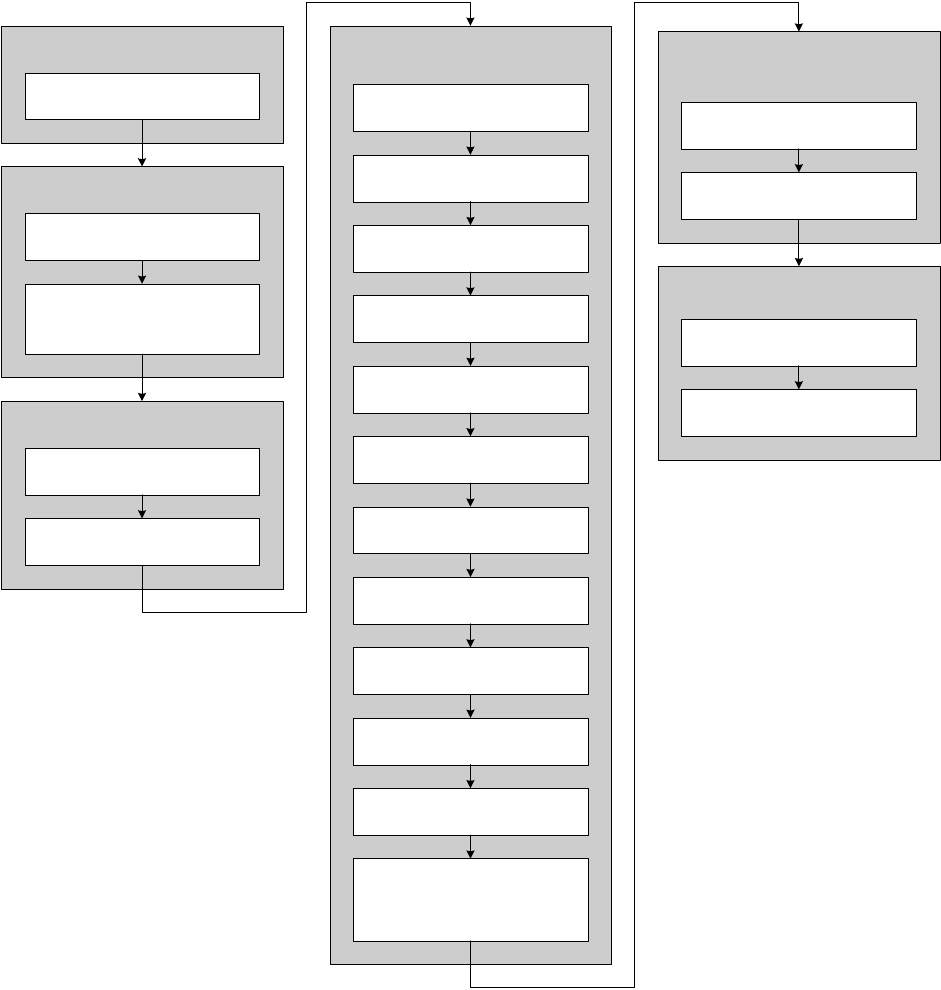
Refer to the configuration overview flowchart in Figure 1-1 to plan transmitter configuration. In
general, perform configuration steps in the order shown here.
Note: Depending on your installation and application, some configuration tasks may be optional.
Note: This manual provides information on topics that are not included in the configuration overview
flowchart, e.g.: using the transmitter, troubleshooting, and calibration procedures. Be sure to review
these topics as required.
4Micro Motion® Model 2400S Transmitters for DeviceNet™
Before You Begin
Figure 1-1 Configuration overview
1.8 Pre-configuration worksheet
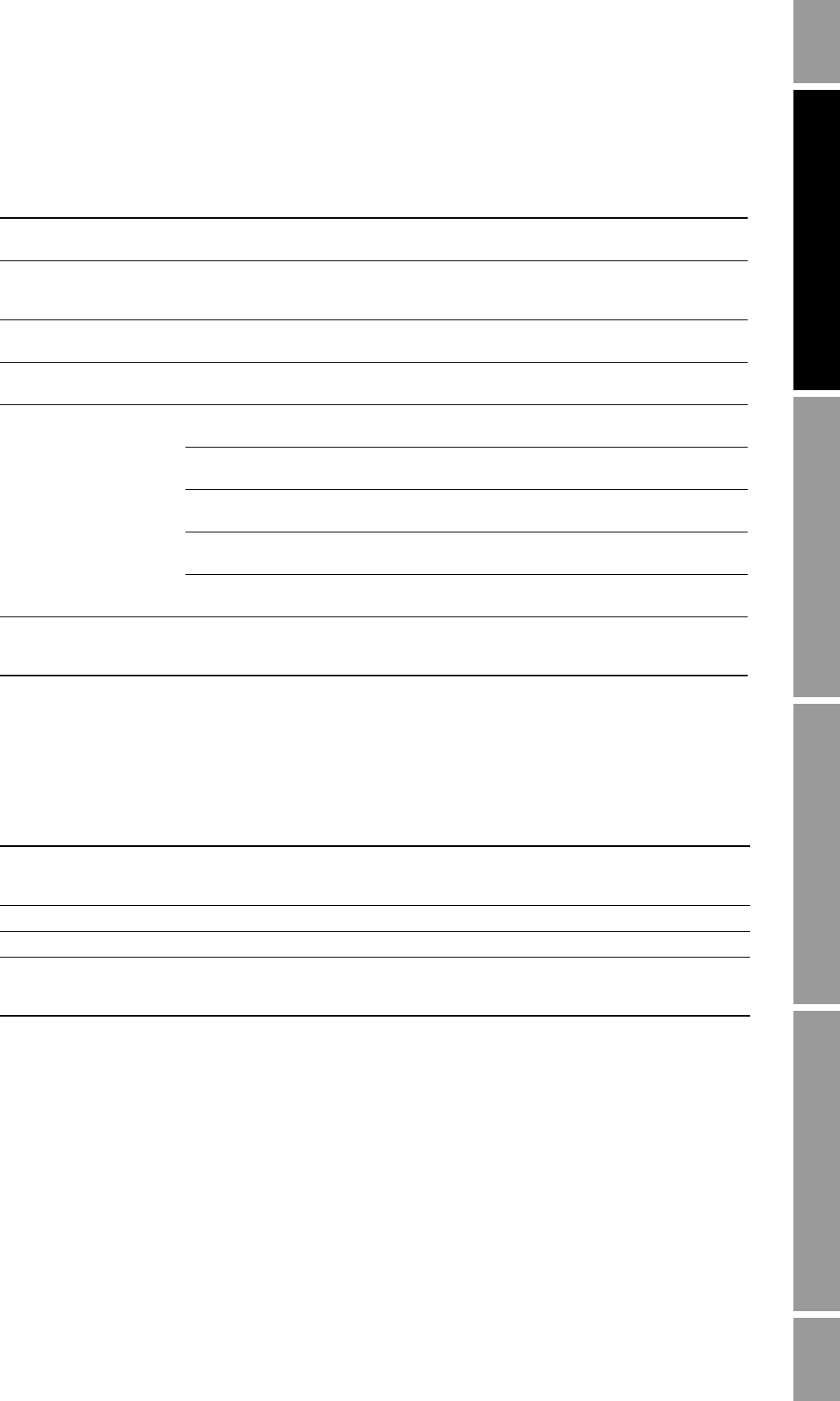
The pre-configuration worksheet provides a place to record basic information about your flowmeter
(transmitter and sensor) and your application. This information will affect your configuration options
as you work through this manual. You may need to consult with transmitter installation or application
process personnel to obtain the required information.
If you are configuring multiple transmitters, make copies of this worksheet and fill one out for each
individual transmitter.
Chapter 8
Optional Configuration
Chapter 2
Flowmeter Startup
Chapter 1
Before You Begin
Chapter 6
Required Configuration
Chapter 9
Pressure Compensation and
Temperature Compensation
Fill out pre-configuration
worksheet
Start the flowmeter
Configure DeviceNet
communications parameters
(optional)
Characterize the flowmeter
(if required)
Configure volume flow
measurement for gas
Configure cutoffs
Configure damping
Configure flow direction
Configure events
Configure slug flow
Configure status alarm severity
Configure display functionality
Configure digital
communications
Configure device settings
Configure sensor parameters
Configure petroleum
measurement application or
enhanced density application
Configure measurement units
Configure pressure
compensation (optional)
Configure temperature
compensation (optional)
Chapter 10
Measurement Performance
Perform initial meter
verification tests
Zero the flowmeter (optional)
Configuration and Use Manual 5
Before You Begin
Startup Using ProLink IITransmitter User InterfaceBefore You Begin
1.9 Flowmeter documentation
Table 1-2 lists documentation sources for additional information.
Pre-configuration worksheet Transmitter ____________________________
Item Configuration data
Transmitter model number ______________________________________
Core processor
(transmitter) software
revision ______________________________________
DeviceNet node address ______________________________________
DeviceNet baud rate ______________________________________
Measurement units Mass flow ______________________________________
Volume flow ______________________________________
Density ______________________________________
Pressure ______________________________________
Temperature ______________________________________
Installed applications Meter verification software
Petroleum measurement application
Enhanced density application
Table 1-2 Flowmeter documentation resources
Topic Document
DeviceNet device profile Micro Motion Model 2400S Transmitters for DeviceNet: Device Profile
shipped with the product or available on the Micro Motion web site
(www.micromotion.com)
Sensor installation Sensor documentation
Transmitter installation Micro Motion® Model 2400S Transmitters: Installation Manual
Hazardous area installation See the approval documentation shipped with the transmitter, or
download the appropriate documentation from the Micro Motion web
site (www.micromotion.com)
6Micro Motion® Model 2400S Transmitters for DeviceNet™
Before You Begin
1.10 Micro Motion customer service
For customer service, phone the support center nearest you:
• In the U.S.A., phone 800-522-MASS (800-522-6277) (toll-free)
• In Canada and Latin America, phone +1 303-527-5200
•In Asia:
- In Japan, phone 3 5769-6803
- In other locations, phone +65 6777-8211 (Singapore)
•In Europe:
- In the U.K., phone 0870 240 1978 (toll-free)
- In other locations, phone +31 (0) 318 495 555 (The Netherlands)
Customers outside the U.S.A. can also email Micro Motion customer service at
International.MMISupport@EmersonProcess.com.
Configuration and Use Manual 7
Startup Using ProLink IITransmitter User InterfaceBefore You Begin
Chapter 2
Flowmeter Startup
2.1 Overview
This chapter describes the following procedures:
• Setting the DeviceNet node address and baud rate – see Section 2.2
• Bringing the transmitter online – see Section 2.3
2.2 Setting the DeviceNet node address and baud rate
The default node address for the Model 2400S DN transmitter is 63. The default baud rate is
125 kBaud.
If desired, you can use the hardware switches on the face of the device to change these two settings
before bringing the transmitter online. See Sections 8.10.1 and 8.10.2 for more information.
Note: When the transmitter is online, you can change the node address and baud rate using a
DeviceNet tool. See Sections 8.10.1 and 8.10.2.
2.3 Bringing the transmitter online
The DeviceNet cable used to connect the Model 2400S DN transmitter to the network provides both
power and communications. The transmitter is prewired with a male sealed Micro Connector
(Eurofast).
To bring the transmitter online:
1. Follow appropriate procedures to ensure that the process of configuring and commissioning
the Model 2400S DN transmitter does not interfere with existing measurement and control
loops.
2. Ensure that all transmitter and sensor covers and seals are closed.
WARNING
Operating the flowmeter without covers in place creates electrical hazards
that can cause death, injury, or property damage.
To avoid electrical hazards, ensure that the transmitter housing cover and all other
covers are in place before connecting the transmitter to the network.
8Micro Motion® Model 2400S Transmitters for DeviceNet™
Flowmeter Startup
3. Insert an appropriate DeviceNet cable into the connector on the transmitter.
When the transmitter receives power, it will automatically perform diagnostic routines, and the
module LED flashes red and green. When the flowmeter has completed its power-up sequence,
the status LED will show a solid green. See Section 7.4 for information on LED behavior. If
the status LED exhibits different behavior, an alarm condition is present. See Section 7.5.
4. Ensure that the transmitter is visible on the network. For information on establishing
communications between the Model 2400S DN transmitter and a DeviceNet tool, see
Chapter 5.
Note: If this is the initial startup, or if power has been off long enough to allow components to reach
ambient temperature, the flowmeter is ready to receive process fluid approximately one minute after
power-up. However, it may take up to ten minutes for the electronics in the flowmeter to reach thermal
equilibrium. During this warm-up period, you may observe minor measurement instability or
inaccuracy.

Configuration and Use Manual 9
Startup Using ProLink IITransmitter User InterfaceBefore You Begin
Chapter 3
Using the Transmitter User Interface
3.1 Overview
This chapter describes the user interface of the Model 2400S DN transmitter. The following topics are
discussed:
• Transmitters without or with display – see Section 3.2
• Removing and replacing the transmitter housing cover – see Section 3.3
•Using the Scroll and Select optical switches – see Section 3.4
• Using the display – see Section 3.5
3.2 User interface without or with display
The user interface of the Model 2400S DN transmitter depends on whether it was ordered with or
without a display:
• If ordered without a display, there is no LCD panel on the user interface. The user interface
provides the following features and functions:
- Three LEDs: a status LED, a module LED, and a network LED
- Digital communications hardware switches, used to set the DeviceNet node address and
baud rate
- Service port clips
- Zero button
For all other functions, either ProLink II or a customer-supplied DeviceNet tool is required.
• If ordered with a display, no zero button is provided (you must zero the transmitter with the
display menu, ProLink II, or a DeviceNet tool) and the following features are added:
- An LCD panel, which displays process variable data and also provides access to the
off-line menu for basic configuration and management. Optical switches are provided for
LCD control.
- An IrDA port which provides wireless access to the service port
Note: The off-line menu does not provide access to all transmitter functionality; for access to all
transmitter functionality, either ProLink II or a DeviceNet tool must be used.
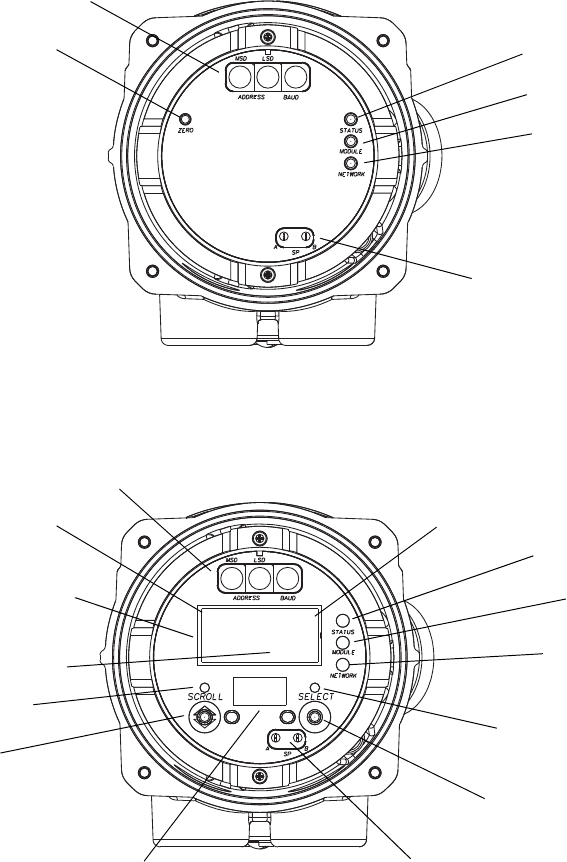
Figures 3-1 and 3-2 show the user interface of the Model 2400S DN transmitter without and with a
display. In both illustrations, the transmitter housing cover has been removed.
10 Micro Motion® Model 2400S Transmitters for DeviceNet™
Using the Transmitter User Interface
Figure 3-1 User interface – Transmitters without display
Figure 3-2 User interface – Transmitters with display
If the transmitter does not have a display, the transmitter housing cover must be removed to access all
user interface features and functions.
If the transmitter has a display, the transmitter housing cover has a lens. All of the features shown in
Figure 3-2 are visible through the lens, and the following functions may be performed through the
lens (i.e., with the transmitter housing cover in place):
• Viewing the LEDs
• Viewing the LCD panel
•Using the Select and Scroll optical switches
• Making a service port connection via the IrDA port
All other functions require removal of the transmitter housing cover.
Status LED
Service port clips
Zero button
Module LED
Network LED
Digital communications
hardware switches
3.237
G/S
FLOW
Current value
Unit of measure
Process variable
Scroll optical switch
Select optical switch
Optical switch indicator
Status LED
Service port clips
LCD panel
Optical switch indicator
Module LED
Network LED
Digital communications
hardware switches
IrDA port
Configuration and Use Manual 11
Using the Transmitter User Interface
Startup Using ProLink IITransmitter User InterfaceBefore You Begin
For information on:
• Using the digital communications hardware switches, see Section 8.10.
• Using the LEDs, see Section 7.4.
• Making a service port connection, see Chapter 4.
• Using the zero button, see Section 10.5.
3.3 Removing and replacing the transmitter housing cover
For some procedures, you must remove the transmitter housing cover. To remove the transmitter
housing cover:
1. If the transmitter is in a Division 2 or Zone 2 area, disconnect the DeviceNet cable to remove
power from the unit.
2. Loosen the four captive screws.
3. Lift the transmitter housing cover away from the transmitter.
When replacing the transmitter housing cover, first grease the gasket, then replace the cover. Tighten
the screws so that no moisture can enter the transmitter housing.
3.4 Using the optical switches
Note: This section applies only to transmitters with a display.
The Scroll and Select optical switches are used to navigate the display menus. To activate an optical
switch, touch the lens in front of the optical switch or move your finger over the optical switch close
to the lens. There are two optical switch indicators: one for each switch. When an optical switch is
activated, the associated optical switch indicator is a solid red.
WARNING
Removing the transmitter housing cover in a Division 2 or Zone 2 area while
the transmitter is powered up can cause an explosion.
To avoid the risk of an explosion, disconnect the DeviceNet cable to remove power
from the transmitter before removing the transmitter housing cover.
CAUTION
Attempting to activate an optical switch by inserting an object into the
opening can damage the equipment.
To avoid damage to the optical switches, do not insert an object into the openings.
Use your fingers to activate the optical switches.
12 Micro Motion® Model 2400S Transmitters for DeviceNet™
Using the Transmitter User Interface
3.5 Using the display
Note: This section applies only to transmitters with a display.
The display can be used to view process variable data or to access the transmitter menus for
configuration or maintenance.
3.5.1 Display language
The display can be configured for the following languages:
• English
•French
• Spanish
•German
Due to software and hardware restrictions, some English words and terms may appear in the
non-English display menus. For a list of the codes and abbreviations used on the display, see
Appendix D.
For information on configuring the display language, see Section 8.9.
In this manual, English is used as the display language.
3.5.2 Viewing process variables
In ordinary use, the Process variable line on the LCD panel shows the configured display variables,
and the Units of measure line shows the measurement unit for that process variable.
• See Section 8.9.5 for information on configuring the display variables.
• See Appendix D for information on the codes and abbreviations used for display variables.
If more than one line is required to describe the display variable, the Units of measure line alternates
between the measurement unit and the additional description. For example, if the LCD panel is
displaying a mass inventory value, the Units of measure line alternates between the measurement
unit (for example, G) and the name of the inventory (for example, MASSI).
Auto Scroll may or may not be enabled:
• If Auto Scroll is enabled, each configured display variable will be shown for the number of
seconds specified for Scroll Rate.
• Whether Auto Scroll is enabled or not, the operator can manually scroll through the configured
display variables by activating Scroll.
For more information on using the display to view process variables or manage totalizers and
inventories, see Chapter 7.
Configuration and Use Manual 13
Using the Transmitter User Interface
Startup Using ProLink IITransmitter User InterfaceBefore You Begin
3.5.3 Using display menus
Note: The display menu system provides access to basic transmitter functions and data. It does not
provide access to all functions and data. To access all functions and data, use either ProLink II or a
customer-supplied DeviceNet tool.
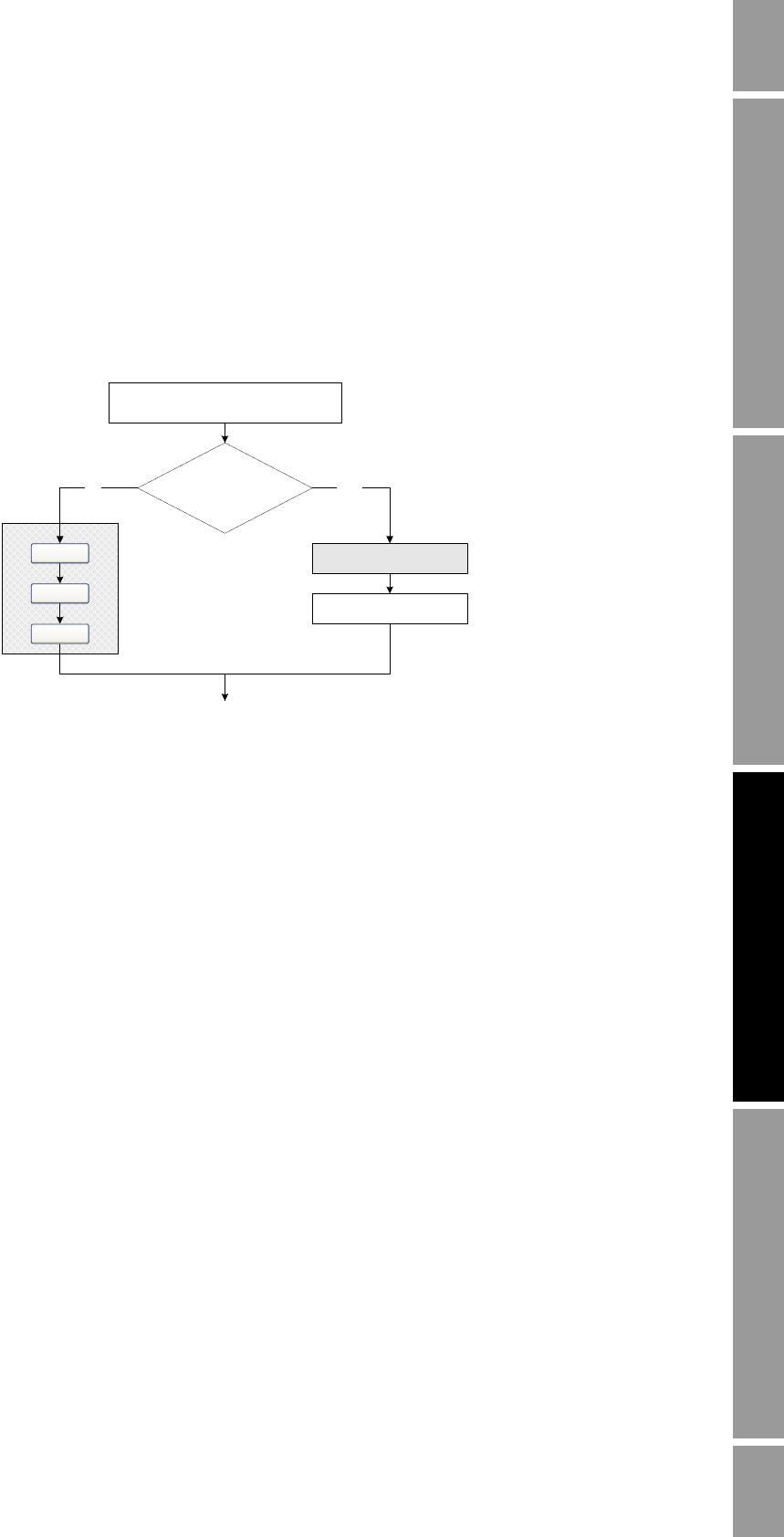
To enter the display menu system, see the flowchart shown in Figure 3-3.
Figure 3-3 Entering the display menu system
Note: Access to the display menu system may be enabled or disabled. If disabled, the OFF-LINE
MAINT option does not appear. For more information, see Section 8.9.
The unlock sequence prevents unintentional entry to the offline menu. A prompt is shown for each
step, and the user has 10 seconds to perform the action.
If no optical switch activity occurs for two minutes, the transmitter will exit the off-line menu system
and return to the process variable display.
To move through a list of options, activate Scroll.
To select from a list or to enter a lower-level menu, Scroll to the desired option, then activate Select.
If a confirmation screen is displayed:
• To confirm the change, activate Select.
• To cancel the change, activate Scroll.
To exit a menu without making any changes
•Use the EXIT option if available.
• Otherwise, activate Scroll at the confirmation screen.
Unlock
Display password
enabled?
Scroll and Select simultaneously
for 4 seconds
CODE?
Enter password
SEE ALARM or OFF-LINE MAINT
Scroll
Select
Scroll
YESNo

14 Micro Motion® Model 2400S Transmitters for DeviceNet™
Using the Transmitter User Interface
3.5.4 Display password
Some of the display menu functions, such as accessing the off-line menu, can be protected by a
display password. For information about enabling and setting the display password, refer to
Section 8.9.
If a password is required, the word CODE? appears at the top of the password screen. Enter the digits
of the password one at a time by using Scroll to choose a number and Select to move to the next
digit.
If you encounter the display password screen but do not know the password, wait 60 seconds without
activating any of the display optical switches. The password screen will time out automatically and
you will be returned to the previous screen.
3.5.5 Entering floating-point values with the display
Certain configuration values, such as meter factors or output ranges, are entered as floating-point
values. When you first enter the configuration screen, the value is displayed in decimal notation (as
shown in Figure 3-4) and the active digit is flashing.
Figure 3-4 Numeric values in decimal notation
To change the value:
1. Select to move one digit to the left. From the leftmost digit, a space is provided for a sign. The
sign space wraps back to the rightmost digit.
2. Scroll to change the value of the active digit: 1 becomes 2, 2 becomes 3, ..., 9 becomes 0, 0
becomes 1. For the rightmost digit, an E option is included to switch to exponential notation.
To change the sign of a value:
1. Select to move to the space that is immediately left of the leftmost digit.
2. Use Scroll to specify – (for a negative value) or [blank] (for a positive value).
In decimal notation, you can change the position of the decimal point up to a maximum precision of
four (four digits to the right of the decimal point). To do this:
1. Select until the decimal point is flashing.
2. Scroll. This removes the decimal point and moves the cursor one digit to the left.
3. Select to move one digit to the left. As you move from one digit to the next, a decimal point
will flash between each digit pair.
4. When the decimal point is in the desired position, Scroll. This inserts the decimal point and
moves the cursor one digit to the left.
SX.XXXX
Sign
For positive numbers, leave this space
blank. For negative numbers, enter a
minus sign (–).
Digits
Enter a number (maximum length: eight
digits, or seven digits and a minus sign).
Maximum precision is four.

Configuration and Use Manual 15
Using the Transmitter User Interface
Startup Using ProLink IITransmitter User InterfaceBefore You Begin
To change from decimal to exponential notation (see Figure 3-5):
1. Select until the rightmost digit is flashing.
2. Scroll to E, then Select. The display changes to provide two spaces for entering the exponent.
3. To enter the exponent:
a. Select until the desired digit is flashing.
b. Scroll to the desired value. You can enter a minus sign (first position only), values
between 0 and 3 (for the first position in the exponent), or values between 0 and 9 (for the
second position in the exponent).
c. Select.
Note: When switching between decimal and exponential notation, any unsaved edits are lost. The
system reverts to the previously saved value.
Note: While in exponential notation, the positions of the decimal point and exponent are fixed.
Figure 3-5 Numeric values in exponential notation
To change from exponential to decimal notation:
1. Select until the E is flashing.
2. Scroll to d.
3. Select. The display changes to remove the exponent.
To exit the menu:
• If the value has been changed, Select and Scroll simultaneously until the confirmation screen
is displayed.
-Select to apply the change and exit.
-Scroll to exit without applying the change.
• If the value has not been changed, Select and Scroll simultaneously until the previous screen
is displayed.
SX.XXXEYY
Sign
Digits
Enter a four-digit
number; three digits
must fall to the right
of the decimal point. E
Exponent
indicator
Sign or Digit (0–3)
Digit (0–9)
16 Micro Motion® Model 2400S Transmitters for DeviceNet™

Configuration and Use Manual 17
Startup Using ProLink IITransmitter User InterfaceBefore You Begin
Chapter 4
Connecting with ProLink II or Pocket ProLink
Software
4.1 Overview
ProLink II is a Windows-based configuration and management tool for Micro Motion transmitters. It
provides access to most transmitter functions and data. Pocket ProLink is a version of ProLink II that
runs on a Pocket PC.
This chapter provides basic information for connecting ProLink II or Pocket ProLink to your
transmitter. The following topics and procedures are discussed:
• Requirements – see Section 4.2
• Configuration upload/download – see Section 4.3
• Connecting to a Model 2400S DN transmitter – see Section 4.4
The instructions in this manual assume that users are already familiar with ProLink II or
Pocket ProLink software. For more information on using ProLink II, see the ProLink II manual. For
more information on using Pocket ProLink, see the Pocket ProLink manual. Instructions in this
manual will refer only to ProLink II.
4.2 Requirements
To use ProLink II with the Model 2400S DN transmitter, ProLink II v2.5 or later is required. In
addition, you must have either the ProLink II installation kit appropriate to your PC and connection
type, or the equivalent equipment. See the ProLink II manual or quick reference guide for details.
To use Pocket ProLink, v1.3 or later is required. In addition:
• If you will connect to the transmitter via the service port clips, you must have either the
Pocket ProLink installation kit or the equivalent equipment. See the Pocket ProLink manual or
quick reference guide for details.
• If you will connect via the IrDA port, no additional equipment is required.
4.3 Configuration upload/download
ProLink II and Pocket ProLink provide a configuration upload/download function which allows you
to save configuration sets to a file on the PC or Pocket PC. This allows:
• Easy backup and restore of transmitter configuration
• Easy replication of configuration sets
Micro Motion recommends that all transmitter configurations be saved to a file as soon as the
configuration is complete. See the ProLink II or Pocket ProLink manual for details.
18 Micro Motion® Model 2400S Transmitters for DeviceNet™
Connecting with ProLink II or Pocket ProLink Software
4.4 Connecting to a Model 2400S DN transmitter
To connect to the Model 2400S DN transmitter using ProLink II or Pocket ProLink, you must use a
service port connection.
4.4.1 Connection options
The service port can be accessed via the service port clips or the IrDA port.
The service port clips have priority over the IrDA port:
• If there is an active connection via the service port clips, access via the IrDA port is disabled.
• If there is an active connection via the IrDA port and a connection attempt is made via the
service port clips, the IrDA connection is terminated.
Additionally, access via the IrDA port may be disabled altogether. In this case, it is not available for
connections at any time. By default, access via the IrDA port is disabled. See Section 8.10.6 for more
information.
4.4.2 Service port connection parameters
The service port uses default connection parameters. Both ProLink II and Pocket ProLink
automatically use these default parameters when Protocol is set to Service Port.
Additionally, to minimize configuration requirements, the service port employs an auto-detection
scheme when responding to connection requests. The service port will accept all connection requests
within the limits described in Table 4-1. If you are connecting to the service port from another tool,
ensure that configuration parameters are set within these limits.
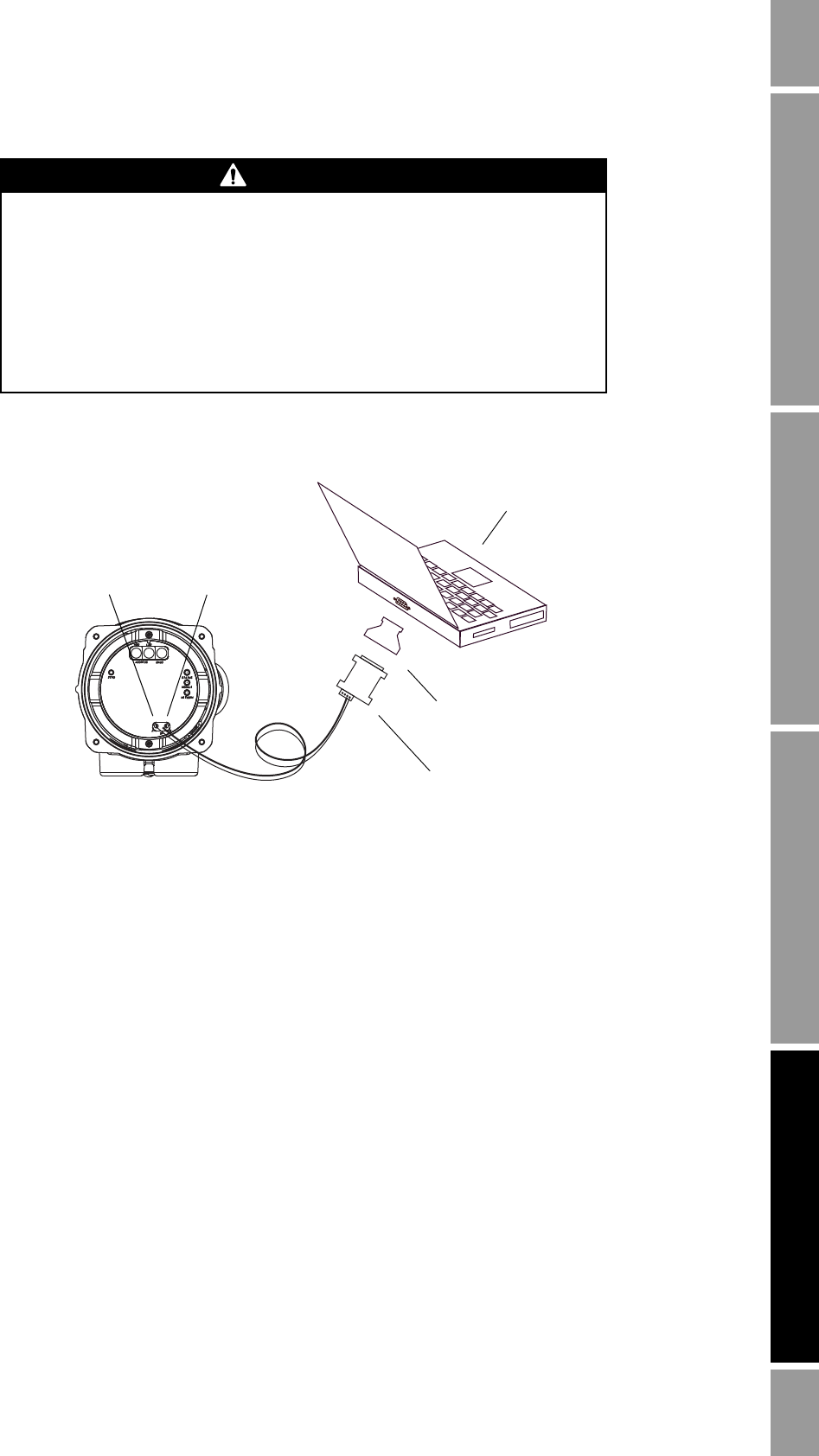
4.4.3 Connecting via the service port clips
To connect to the service port via the service port clips:
1. Attach the signal converter to the serial or USB port of your PC, using the appropriate
connectors or adapters (e.g., a 25-pin to 9-pin adapter or a USB connector).
2. Remove the transmitter housing cover from the transmitter (see Section 3.3), then connect the
signal converter leads to the service port clips. See Figure 4-1.
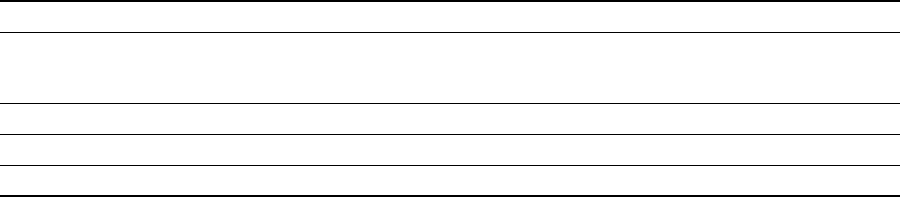
Table 4-1 Service port auto-detection limits
Parameter Option
Protocol Modbus ASCII or Modbus RTU(1)
(1) Service port support for Modbus ASCII may be disabled. See Section 8.10.5.
Address Responds to both:
• Service port address (111)
• Configured Modbus address (default=1)(2)
(2) See Section 8.10.4 for information on configuring the Modbus address.
Baud rate(3)
(3) This is the baud rate between the service port and the connecting program. It is not the DeviceNet baud rate.
Standard rates between 1200 and 38,400
Stop bits 1, 2
Parity Even, odd, none
Configuration and Use Manual 19
Connecting with ProLink II or Pocket ProLink Software
Startup Using ProLink IITransmitter User InterfaceBefore You Begin Startup Using ProLink IITransmitter User InterfaceBefore You Begin Startup Using ProLink IITransmitter User InterfaceBefore You Begin Startup Using ProLink IITransmitter User InterfaceBefore You Begin
Figure 4-1 Serial port connections to service port clips
3. Start ProLink II or Pocket ProLink. In the Connection menu, click Connect to Device. In the
screen that appears, specify:
•Protocol: Service Port
•COM Port: as appropriate
No other parameters are required.
4. Click Connect. The software will attempt to make the connection.
5. If an error message appears:
a. Swap the leads between the two service port clips and try again.
b. Ensure that you are using the correct COM port.
c. Check all the wiring between the PC and the transmitter.
d. Verify the RS-485 to RS-232 signal converter.
WARNING
Removing the transmitter housing cover in a hazardous area can cause an
explosion.
Because the transmitter housing cover must be removed to connect to the service
port clips, the service port clips should be used only for temporary connections,
e.g., for configuration or troubleshooting purposes.
When the transmitter is in an explosive atmosphere, use a different method to
connect to your transmitter.
Service port clips
RS-485 to RS-232
signal converter
25-pin to 9-pin serial port
adapter (if necessary)
RS-485/A RS-485/B
PC
20 Micro Motion® Model 2400S Transmitters for DeviceNet™
Connecting with ProLink II or Pocket ProLink Software
4.4.4 Connecting via the IrDA port
Note: The IrDA port is typically used with Pocket ProLink. To use the IrDA port with ProLink II, a
special device is required; the IrDA port built into many laptop PCs is not supported. For more
information on using the IrDA port with ProLink II, contact Micro Motion customer service.
To connect to the service port via the IrDA port:
1. Ensure that the IrDA port is enabled (see Section 8.10.6). By default, the IrDA port is disabled.
2. Ensure that there is no connection via the service port clips.
Note: Connections via the service port clips have priority over connections via the IrDA port. If you
are currently connected via the service port clips, you will not be able to connect via the IrDA port.
3. Position the IrDA device for communication with the IrDA port (see Figure 3-2). You do not
need to remove the transmitter housing cover.
4. Start Pocket ProLink software. In the Connection menu, click Connect to Device. In the
screen that appears, specify:
• Protocol: Service Port
•IrDA Port
No other parameters are required.
5. Click Connect. The software will attempt to make the connection.
Note: While you are connected to the IrDA port, both optical switch indicators will flash red, and both
the Scroll and Select optical switches are disabled.
6. If an error message appears:
a. Ensure that you are using the correct port.
b. Ensure that the IrDA port is enabled.
4.5 ProLink II language
ProLink II can be configured for the following languages:
• English
•French
•German
To configure the ProLink II language, use the Tools menu. See Figure B-1.
In this manual, English is used as the ProLink II language.

Configuration and Use Manual 21
Required Configuration Optional ConfigurationUsing the TransmitterUsing a DeviceNet Tool
Chapter 5
Using a DeviceNet Tool
5.1 Overview
A customer-supplied DeviceNet tool can be used to communicate with the Model 2400S DN
transmitter. This chapter provides basic information on using a customer-supplied DeviceNet tool.
However, because there are a variety of DeviceNet tools available, this chapter does not provide
detailed information for using any one tool. For detailed information on your DeviceNet tool, see the
documentation supplied with the tool.
5.2 Connecting to the Model 2400S DN transmitter
To connect to the Model 2400S DN transmitter:
1. Default connection values for this transmitter are as follows:
• DeviceNet node address = 63
•Baud rate = 125 kBaud
If required, use the digital communications hardware switches on the device to set the
DeviceNet node address and baud rate for this transmitter. To do this, see Sections 8.10.1 and
8.10.2.
2. Connect to the network where the transmitter is installed.
3. Using the same methods that you use for other DeviceNet devices, establish a connection to
the Model 2400S DN transmitter, using the appropriate node address and baud rate.
5.3 Using the DeviceNet device profile
All DeviceNet devices employ a device profile with an object-instance-attribute structure.
In general, process and configuration data is stored in attributes, and operational functions are
performed by using services or setting attributes to specific values.
Two standard services are used to read or write single attributes:
• The Get Single Attribute service (0x0E) performs an explicit read and returns a single value
from the transmitter.
• The Set Single Attribute service (0x10) performs an explicit write and writes a single value to
the transmitter.
In this manual, these two services are referenced as the Get and Set services.
Other services are used to reset values to 0, start or stop calibrations, to acknowledge alarms, etc.
These services are identified by name and by service code (a hexadecimal label).
Input assemblies are used to publish multiple values to the DeviceNet bus. A summary of the input
assemblies is provided in Table 7-2. Output assemblies can be used to read data from the DeviceNet
bus or to perform totalizer and inventory control. Summaries of the output assemblies are provided in
Tables 7-9 and 9-1.
22 Micro Motion® Model 2400S Transmitters for DeviceNet™
Using a DeviceNet Tool
For complete documentation of the Model 2400S DN transmitter’s device profile, including input and
output assemblies, see the manual entitled Micro Motion Model 2400S Transmitters for DeviceNet:
Device Profile.
5.4 Using a DeviceNet tool
Micro Motion supplies an Electronic Data Sheet (EDS) for the Model 2400S transmitter. The EDS
file is named MMI2400S-MassFlow.eds. The EDS presents the device profile in a format designed to
be read and interpreted by other devices.
DeviceNet tools fall into two basic categories:
• Type A: Tools that use the EDS to build a unique user interface for the specific device
• Type B: Tools that do not use the EDS, and instead rely on the user to supply the
object-instance-attribute information required to interact with the device
5.4.1 Type A tools
If you are using a Type A tool:
1. Use your tool’s standard methods to read or import the supplied EDS into the network
configuration tool (e.g., RSLinx).
2. Use your tool’s standard user interface to configure, view, and manage the transmitter.
3. If you want to perform a function that isn’t available through your tool, see the instructions for
Type B tools.
5.4.2 Type B tools
If you are using a Type B tool, or if you want to access features that are not available through your
tool’s user interface, you must reference the feature by class, instance, and attribute, use the
appropriate service, and supply an attribute value if required. Depending on the attribute, the value
may be a numeric or character value or a code. Values must be entered in the data type appropriate to
the attribute.
For example:
• To configure the mass flow cutoff, you must:
a. Specify the Analog Input Point class.
b. Specify the Mass Flow instance.
c. Specify the cutoff attribute.
d. Use the Set service to set the attribute value to the desired cutoff.
• To read the mass flow process variable, you can use either of the following methods:
- Use the Get service to read the value of the corresponding attribute.
- Use one of the input assemblies that contains the mass flow process variable.
This manual provides class, instance, attribute, data type, and service information for most
configuration parameters and for all procedures. Complete documentation of the Model 2400S DN
transmitter’s device profile is provided in the manual entitled Micro Motion Model 2400S
Transmitters for DeviceNet: Device Profile.
Configuration and Use Manual 23
Using a DeviceNet Tool
Required Configuration Optional ConfigurationUsing the TransmitterUsing a DeviceNet Tool
5.5 Default assemblies
The default assemblies used by the Model 2400S DN transmitter are listed and described in Table 5-1.
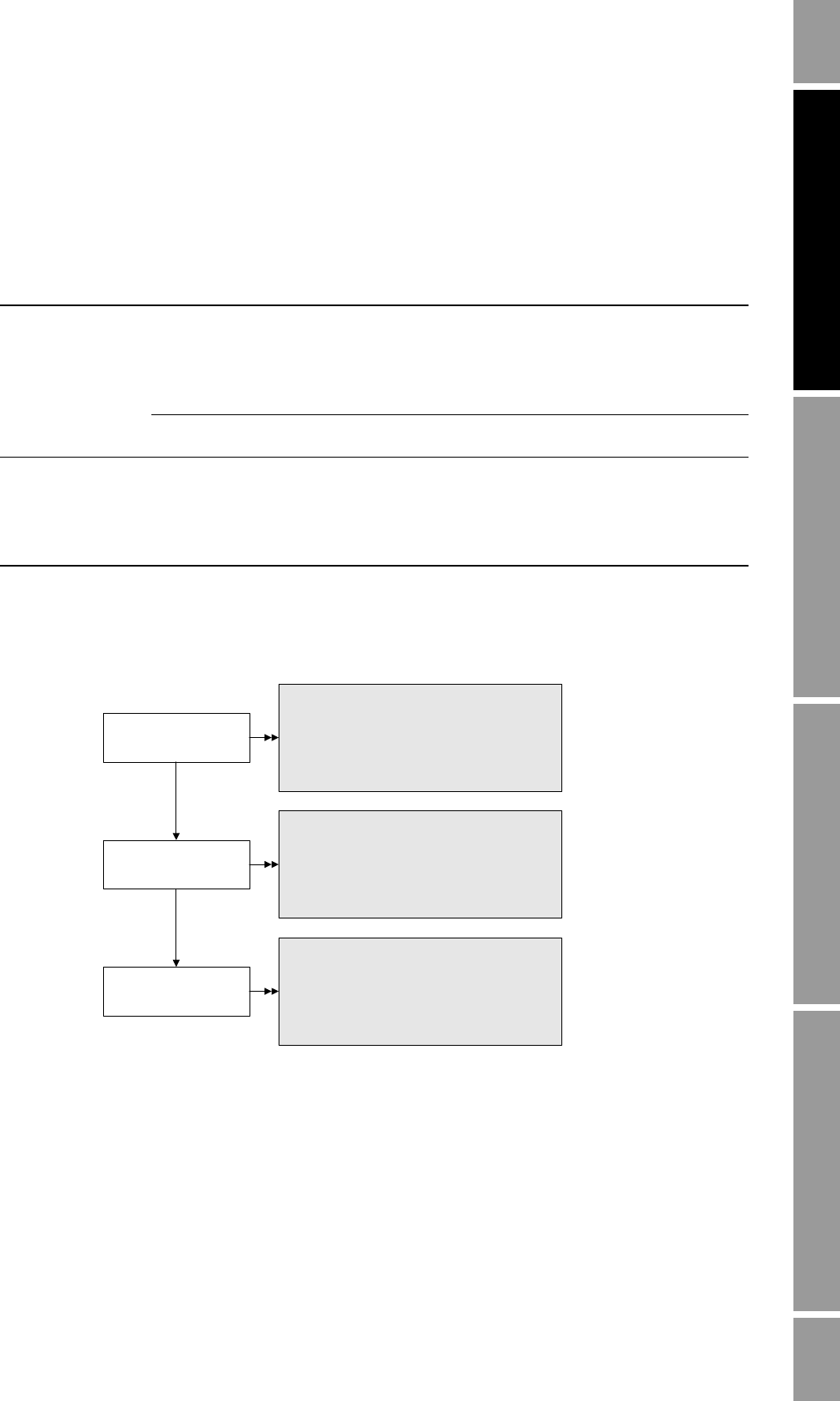
To change the default assemblies, see the flowchart in Figure 5-1.
Figure 5-1 Changing the default DeviceNet assemblies
Table 5-1 Default DeviceNet assemblies
Connection type Assembly type Instance ID Description Size (bytes) Data type
Polled Input 6 Status
Mass flow
Mass total
Mass inventory
Temperature
Density
21 BOOL
REAL
REAL
REAL
REAL
REAL
Output 54 Reset all totalizer
values 1BOOL
Cyclic Input 6 Status
Mass flow
Mass total
Mass inventory
Temperature
Density
21 BOOL
REAL
REAL
REAL
REAL
REAL
Polled connection:
Input assembly
Polled connection:
Output assembly
Class: Connection Object (0x95)
Instance: 1
Attribute ID: 100
Data type: UINT
Value: See Table 7-2
Service: Set
Cyclic connection:
Input assembly
Class: Connection Object (0x95)
Instance: 1
Attribute ID: 101
Data type: UINT
Value: See Tables 7-8 and 9-1
Service: Set
Class: Connection Object (0x95)
Instance: 1
Attribute ID: 102
Data type: UINT
Value: See Table 7-2
Service: Set
24 Micro Motion® Model 2400S Transmitters for DeviceNet™

Configuration and Use Manual 25
Required Configuration Optional ConfigurationUsing the TransmitterUsing a DeviceNet Tool
Chapter 6
Required Transmitter Configuration
6.1 Overview
This chapter describes the configuration procedures that are usually required when a transmitter is
installed for the first time.
The following procedures are discussed:
• Characterizing the flowmeter – see Section 6.2
• Configuring measurement units – see Section 6.3
This chapter provides basic flowcharts for each procedure. For more detailed flowcharts, see the
flowcharts for your communication tool, provided in the appendices to this manual.
For optional transmitter configuration parameters and procedures, see Chapter 8.
Note: All ProLink II procedures provided in this chapter assume that you have established
communication between ProLink II and the Model 2400S DN transmitter and that you are complying
with all applicable safety requirements. See Chapter 4 for more information.
Note: If you are using Pocket ProLink, the interface is similar to the ProLink II interface described in
this chapter.
Note: All DeviceNet tool procedures provided in this chapter assume that you have established
communication between the DeviceNet tool and the Model 2400S DN transmitter and that you are
complying with all applicable safety requirements. See Chapter 5 for more information.
6.2 Characterizing the flowmeter
Characterizing the flowmeter adjusts the transmitter to compensate for the unique traits of the sensor
it is paired with. The characterization parameters, or calibration factors, describe the sensor’s
sensitivity to flow, density, and temperature.
6.2.1 When to characterize
If the transmitter and sensor were ordered together, then the flowmeter has already been
characterized. You need to characterize the flowmeter only if the transmitter and sensor are being
paired together for the first time.
6.2.2 Characterization parameters
The characterization parameters that must be configured depend on your flowmeter’s sensor type:
“T-Series” or “Other” (also referred to as “Straight Tube” and “Curved Tube,” respectively), as listed
in Table 6-1. The “Other” category includes all Micro Motion sensors except T-Series.
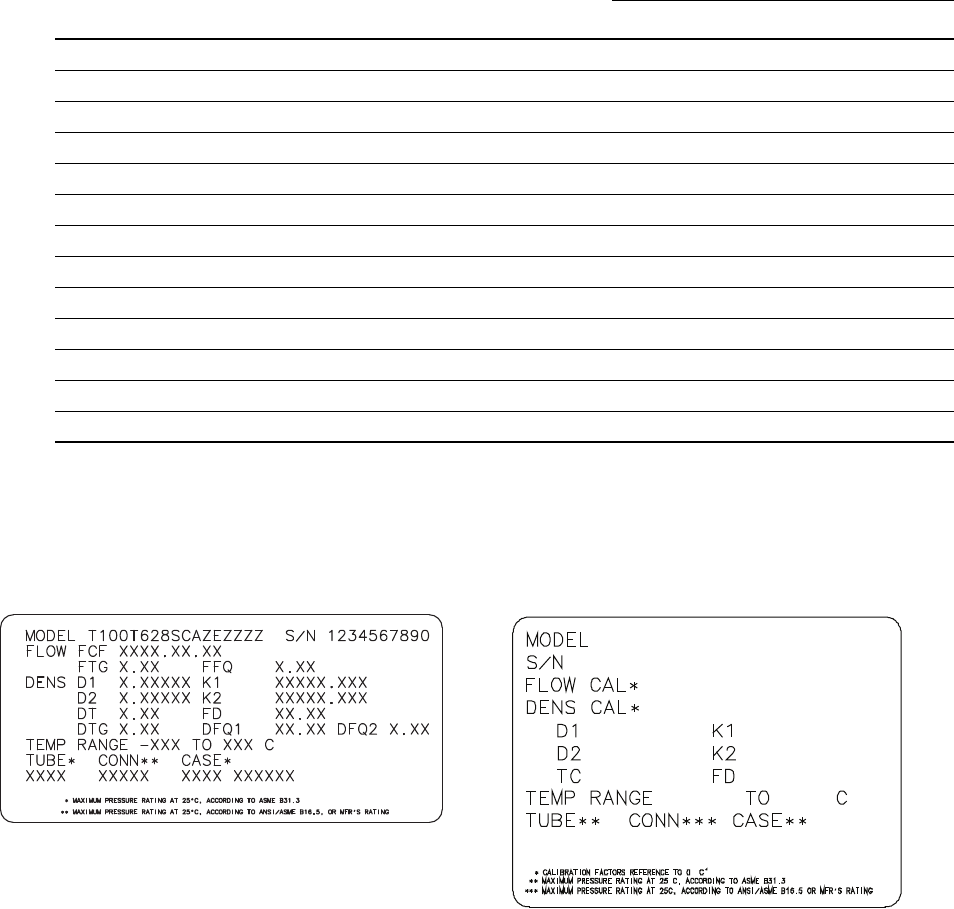
The characterization parameters are provided on the sensor tag. See Figure 6-1 for illustrations of
sensor tags.
26 Micro Motion® Model 2400S Transmitters for DeviceNet™
Required Transmitter Configuration
Figure 6-1 Sample calibration tags
Flow calibration values
Two factors are used to define flow calibration:
• The flow calibration factor, which is a 6-character string (five numbers and a decimal point)
• The temperature coefficient for flow, which is a 4-character string (three numbers and a
decimal point)
These values are concatenated on the sensor tag, but different labels are used for different sensors. As
shown in Figure 6-1:
• For T-Series sensors, the value is called the FCF value.
• For other sensors, the value is called the Flow Cal value.
Table 6-1 Sensor calibration parameters
Parameter
Sensor type
T-Series Other
K1 ✓✓
K2 ✓✓
FD ✓✓
D1 ✓✓
D2 ✓✓
Temp coeff (DT)(1)
(1) On some sensor tags, shown as TC.
✓✓
Flowcal ✓(2)
(2) See the section entitled “Flow calibration values.”
FCF ✓
FTG ✓
FFQ ✓
DTG ✓
DFQ1 ✓
DFQ2 ✓
Other sensors
19.0005.13
0.0010
0.9980 12502.000
14282.000
4.44000 310
12500142864.44
T-Series
Configuration and Use Manual 27
Required Transmitter Configuration
Required Configuration Optional ConfigurationUsing the TransmitterUsing a DeviceNet Tool
When configuring the flow calibration factor:
• With ProLink II, enter the concatenated 10-character string exactly as shown, including the
decimal points. For example, using the Flow Cal value from Figure 6-1, enter 19.0005.13.
• With a DeviceNet tool, enter the two factors separately, i.e., enter a 6-character string and a
4-character string. Include the decimal point in both strings. For example, using the Flow Cal
value from Figure 6-1:
-Enter
19.000 for the flow calibration factor.
-Enter
5.13 for the temperature coefficient for flow.
6.2.3 How to characterize
To characterize the flowmeter:
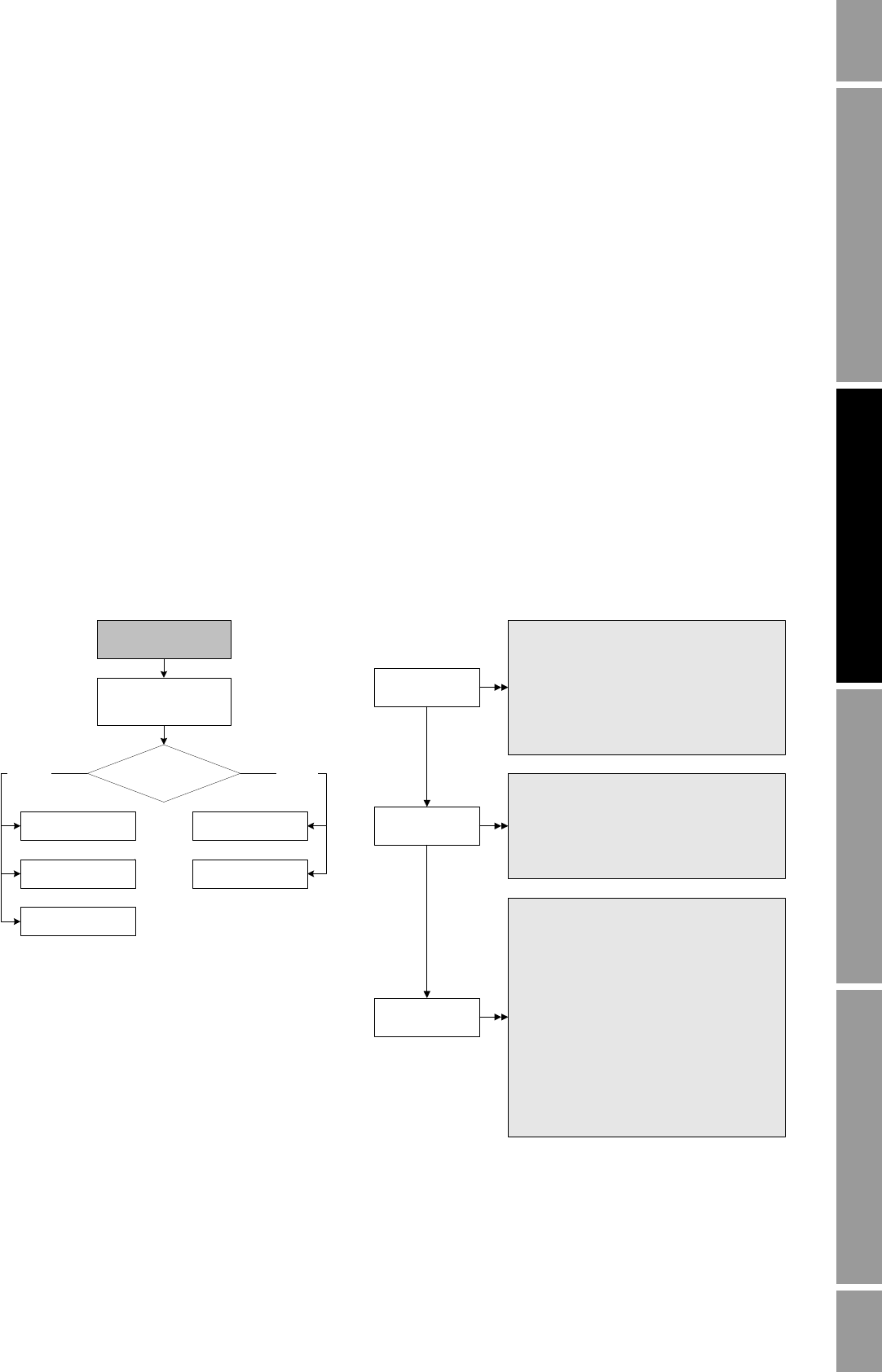
1. See the menu flowcharts in Figure 6-2.
2. Ensure that the correct sensor type is configured.
3. Set required parameters, as listed in Table 6-1.
Figure 6-2 Characterizing the flowmeter
Device
·Sensor type
Flow
T Series Config
Straight
tube Curved
tube
Sensor type?
Density
Flow
Density
ProLink >
Configuration
Sensor type
Flow values
Class: Sensor Information Object (0x67)
Instance: 1
Attribute ID: 3
Data type: USINT
Value:
· 0: Curved tube
· 1: Straight tube
Service: Set
Density values
Class: Calibration Object (0x65)
Instance: 1
Attribute ID 7: K1
Attribute ID 8: K2
Attribute ID 9: FD
Attribute ID 12: D1
Attribute ID 13: D2
Attribute ID 17: DT
Attribute ID 18: FTG
Attribute ID 19: FFQ
Attribute ID 20: DTG
Attribute ID 21: DFQ1
Attribute ID 22: DFQ2
Data type: REAL
Service: Set
Class: Calibration Object (0x65)
Instance: 1
Attribute ID 1: Flow calibration factor
Attribute ID 2: Temperature coefficient for flow
Data type: REAL
Service: Set
DeviceNet toolProLink II
28 Micro Motion® Model 2400S Transmitters for DeviceNet™
Required Transmitter Configuration
6.3 Configuring the measurement units
For each process variable, the transmitter must be configured to use the measurement unit appropriate
to your application.
To configure measurement units for process variables, see the menu flowcharts in Figure 6-3. For
details on measurement units for each process variable, see Sections 6.3.1 through 6.3.4.
The measurement units used for totalizers and inventories are assigned automatically, based on the
measurement unit configured for the corresponding process variable. For example, if kg/hr (kilograms
per hour) is configured for mass flow, the unit used for the mass flow totalizer and mass flow
inventory is kg (kilograms). DeviceNet codes used for the measurement units are listed in Tables C-12
through C-14.
Note: Pressure unit configuration is required only if you are using pressure compensation (see
Section 9.2) or you are using the Gas Wizard and you need to change the pressure units (see
Section 8.2).
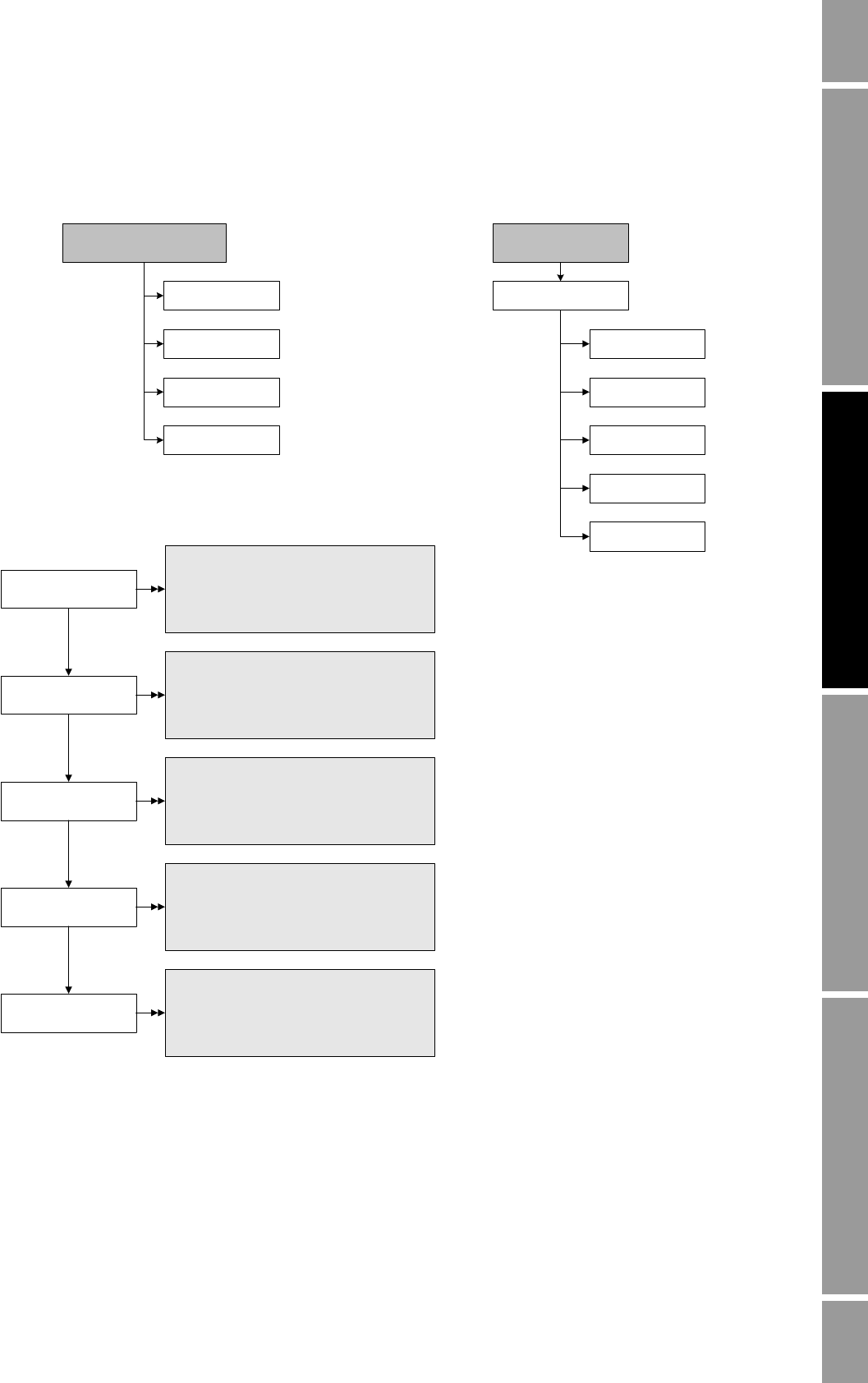
Configuration and Use Manual 29
Required Transmitter Configuration
Required Configuration Optional ConfigurationUsing the TransmitterUsing a DeviceNet Tool
Figure 6-3 Configuring measurement units
Density
Temperature
Flow
Pressure
ProLink >
Configuration
Mass flow unit
Volume flow unit
(liquid)
Class: Analog Input Point Object (0x0A)
Instance: 1
Attribute ID: 102
Value: See Table 6-2
Service: Set
Density unit
Class: Analog Input Point Object (0x0A)
Instance: 3
Attribute ID: 102
Value: See Table 6-5
Service: Set
Class: Analog Input Point Object (0x0A)
Instance: 2
Attribute ID: 102
Value: See Table 6-3
Service: Set
Temperature unit
Class: Analog Input Point Object (0x0A)
Instance: 4
Attribute ID: 102
Value: See Table 6-6
Service: Set
Pressure unit
Class: Calibration Object (0x65)
Instance: 1
Attribute ID: 29
Value: See Table 6-7
Service: Set
DeviceNet tool
DisplayProLink II
Units
Off-line maint >
Off-line config
Vol (or GSV)
Density
Mass
Temperature
Pressure
Note: To configure a volume flow
measurement unit for gas, see Section 8.2.
30 Micro Motion® Model 2400S Transmitters for DeviceNet™
Required Transmitter Configuration
6.3.1 Mass flow units
The default mass flow measurement unit is g/s. See Table 6-2 for a complete list of mass flow
measurement units.
6.3.2 Volume flow units
The default volume flow measurement unit is l/s (liters per second).
Two different sets of volume flow measurement units are provided:
• Units typically used for liquid volume – see Table 6-3
• Units typically used for gas standard volume – see Table 6-4
By default, only liquid volume flow units are listed. To access the gas standard volume flow units, you
must first configure Volume Flow Type, and additional configuration is required. See Section 8.2 for
more information.
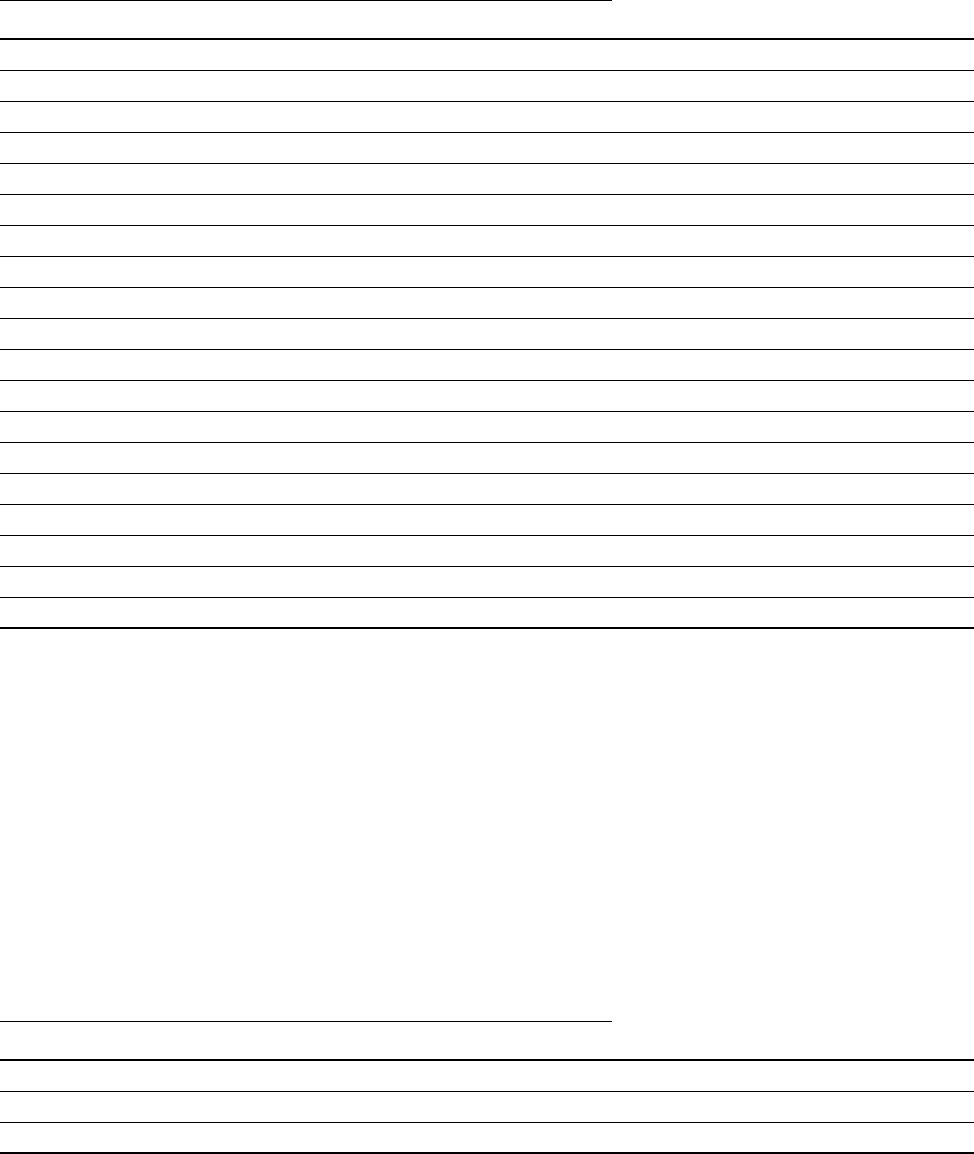
Table 6-2 Mass flow measurement units
Mass flow unit
Unit descriptionDisplay ProLink II DeviceNet tool DeviceNet code
G/S g/s g/s 0x0800 Grams per second
G/MIN g/min g/min 0x140F Grams per minute
G/H g/hr g/hr 0x0801 Grams per hour
KG/S kg/s kg/s 0x0802 Kilograms per second
KG/MIN kg/min kg/min 0x0803 Kilograms per minute
KG/H kg/hr kg/hr 0x1410 Kilograms per hour
KG/D kg/day kg/day 0x0804 Kilograms per day
T/MIN mTon/min MetTon/min 0x0805 Metric tons per minute
T/H mTon/hr MetTon/hr 0x0806 Metric tons per hour
T/D mTon/day MetTon/day 0x0807 Metric tons per day
LB/S lbs/s lb/s 0x140B Pounds per second
LB/MIN lbs/min lb/min 0x140C Pounds per minute
LB/H lbs/hr lb/hr 0x140D Pounds per hour
LB/D lbs/day lb/day 0x0808 Pounds per day
ST/MIN sTon/min ShTon/min 0x0809 Short tons (2000 pounds) per minute
ST/H sTon/hr ShTon/hr 0x080A Short tons (2000 pounds) per hour
ST/D sTon/day ShTon/dayr 0x080B Short tons (2000 pounds) per day
LT/H lTon/hr LTon/h 0x080C Long tons (2240 pounds) per hour
LT/D lTon/day LTon/day 0x080D Long tons (2240 pounds) per day
Table 6-3 Volume flow measurement units – Liquid
Volume flow unit
Display ProLink II DeviceNet tool DeviceNet code Unit description
CUFT/S ft3/sec ft3/s 0x0814 Cubic feet per second
CUF/MN ft3/min ft3/min 0x1402 Cubic feet per minute
CUFT/H ft3/hr ft3/hr 0x0815 Cubic feet per hour
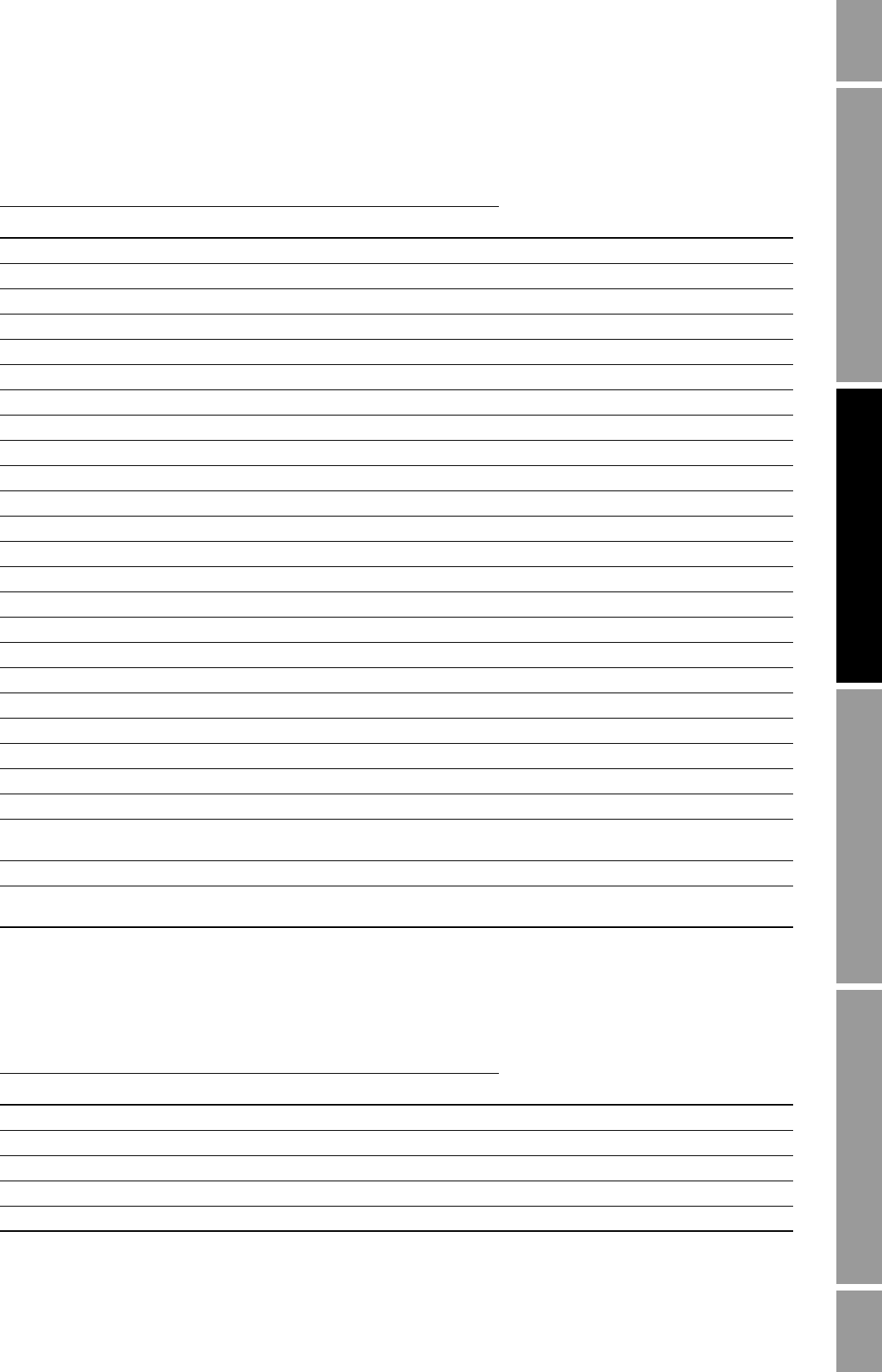
Configuration and Use Manual 31
Required Transmitter Configuration
Required Configuration Optional ConfigurationUsing the TransmitterUsing a DeviceNet Tool
CUFT/D ft3/day ft3/day 0x0816 Cubic feet per day
M3/S m3/sec m3/s 0x1405 Cubic meters per second
M3/MIN m3/min m3/min 0x080F Cubic meters per minute
M3/H m3/hr m3/hr 0x0810 Cubic meters per hour
M3/D m3/day m3/day 0x0811 Cubic meters per day
USGPS US gal/sec gal/s 0x1408 U.S. gallons per second
USGPM US gal/min gal/min 0x1409 U.S. gallons per minute
USGPH US gal/hr gal/hr 0x140A U.S. gallons per hour
USGPD US gal/d gal/day 0x0817 U.S. gallons per day
MILG/D mil US gal/day MillionGal/dday 0x0820 Million U.S. gallons per day
L/S l/sec l/s 0x1406 Liters per second
L/MIN l/min l/min 0x0812 Liters per minute
L/H l/hr l/hr 0x0813 Liters per hour
MILL/D mil l/day MillionL/day 0x0821 Million liters per day
UKGPS Imp gal/sec ImpGal/s 0x0818 Imperial gallons per second
UKGPM Imp gal/min ImpGal/min 0x0819 Imperial gallons per minute
UKGPH Imp gal/hr ImpGal/hr 0x081A Imperial gallons per hour
UKGPD Imp gal/day ImpGal/day 0x081B Imperial gallons per day
BBL/S barrels/sec bbl/s 0x081C Barrels per second(1)
BBL/MN barrels/min bbl/min 0x081D Barrels per minute(1)
BBL/H barrels/hr bbl/hr 0x081E Barrels per hour(1)
BBL/D barrels/day bbl/day 0x081F Barrels per day(1)
BBBL/S Beer barrels/sec Beer bbl/s 0x0853 Beer barrels per second(2)
BBBL/MN Beer
barrels/min Beer bbl/min 0x0854 Beer barrels per minute(2)
BBBL/H Beer barrels/hr Beer bbl/hr 0x0855 Beer barrels per hour(2)
BBBL/D Beer
barrels/day Beer bbl/day 0x0856 Beer barrels per day(2)
(1) Unit based on oil barrels (42 U.S. gallons).
(2) Unit based on beer barrels (31 U.S. gallons).
Table 6-4 Volume flow measurement units – Gas
Volume flow unit
Display ProLink II DeviceNet tool DeviceNet code Unit description
NM3/S Nm3/sec Nml m3/s 0x0835 Normal cubic meters per second
NM3/MN Nm3/min Nml m3/min 0x0836 Normal cubic meters per minute
NM3/H Nm3/hr Nml m3/hr 0x0837 Normal cubic meters per hour
NM3/D Nm3/day Nml m3/day 0x0838 Normal cubic meters per day
NLPS NLPS Nml l/s 0x083D Normal liter per second
Table 6-3 Volume flow measurement units – Liquid continued
Volume flow unit
Display ProLink II DeviceNet tool DeviceNet code Unit description
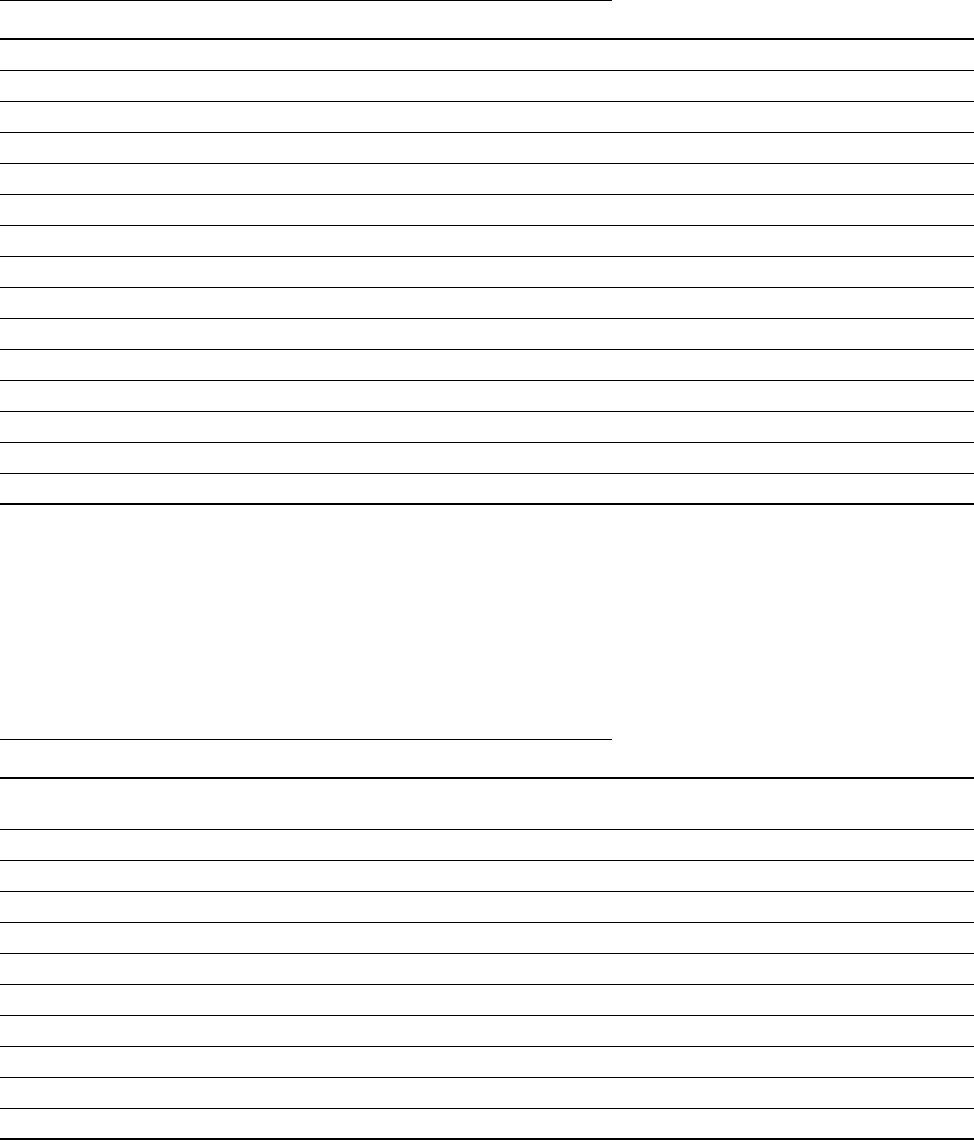
32 Micro Motion® Model 2400S Transmitters for DeviceNet™
Required Transmitter Configuration
6.3.3 Density units
The default density measurement unit is g/cm3. See Table 6-2 for a complete list of density
measurement units.
NLPM NLPM Nml l/min 0x1401 Normal liter per minute
NLPH NLPH Nml l/hr 0x083E Normal liter per hour
NLPD NLPD Nml l/day 0x083F Normal liter per day
SCFS SCFS Std ft3/s 0x0831 Standard cubic feet per second
SCFM SCFM Std ft3/min 0x0832 Standard cubic feet per minute
SCFH SCFH Std ft3/hr 0x0833 Standard cubic feet per hour
SCFD SCFD Std ft3/day 0x0834 Standard cubic feet per day
SM3/S Sm3/S Std m3/s 0x0839 Standard cubic meters per second
SM3/MN Sm3/min Std m3/min 0x083A Standard cubic meters per minute
SM3/H Sm3/hr Std m3/hr 0x083B Standard cubic meters per hour
SM3/D Sm3/day Std m3/day 0x083C Standard cubic meters per day
SLPS SLPS Std l/s 0x0840 Standard liter per second
SLPM SLPM Std l/min 0x0841 Standard liter per minute
SLPH SLPH Std l/hr 0x0842 Standard liter per hour
SLPD SLPD Std l/day 0x0843 Standard liter per day
Table 6-5 Density measurement units
Density unit
Unit descriptionDisplay ProLink II DeviceNet tool DeviceNet code
SGU SGU SGU 0x0823 Specific gravity unit (not temperature
corrected)
G/CM3 g/cm3 g/cm30x2F08 Grams per cubic centimeter
G/L g/l g/l 0x0828 Grams per liter
G/ML g/ml g/ml 0x0826 Grams per milliliter
KG/L kg/l kg/l 0x0827 Kilograms per liter
KG/M3 kg/m3 kg/m30x2F07 Kilograms per cubic meter
LB/GAL lbs/Usgal lb/gal 0x0824 Pounds per U.S. gallon
LB/CUF lbs/ft3 lb/ft30x0825 Pounds per cubic foot
LB/CUI lbs/in3 lb/in30x0829 Pounds per cubic inch
ST/CUY sT/yd3 ShTon/yd30x082A Short ton per cubic yard
D API degAPI degAPI 0x082B Degrees API
Table 6-4 Volume flow measurement units – Gas continued
Volume flow unit
Display ProLink II DeviceNet tool DeviceNet code Unit description
Configuration and Use Manual 33
Required Transmitter Configuration
Required Configuration Optional ConfigurationUsing the TransmitterUsing a DeviceNet Tool
6.3.4 Temperature units
The default temperature measurement unit is °C. See Table 6-6 for a complete list of temperature
measurement units.
6.3.5 Pressure units
The flowmeter does not measure pressure. You need to configure the pressure units if either of the
following is true:
• You will configure pressure compensation (see Section 9.2). In this case, configure the
pressure unit to match the pressure unit used by the external pressure device.
• You will use the Gas Wizard, you will enter a reference pressure value, and you need to change
the pressure unit to match the reference pressure value (see Section 8.2).
If you do not know whether or not you will use pressure compensation or the Gas Wizard, you do not
need to configure a pressure unit at this time. You can always configure the pressure unit later.
The default pressure measurement unit is PSI. See Table 6-7 for a complete list of pressure
measurement units.
Table 6-6 Temperature measurement units
Temperature unit
Unit descriptionDisplay ProLink II DeviceNet tool DeviceNet code
°C°C degC 0x1200 Degrees Celsius
°F°F degF 0x1201 Degrees Fahrenheit
°R°R degR 0x1202 Degrees Rankine
°K°K Kelvin 0x1203 Kelvin
Table 6-7 Pressure measurement units
Pressure unit
Unit descriptionDisplay ProLink II DeviceNet tool DeviceNet code
FTH2O Ft Water @ 68°FFtH2O(68F) 0x082D Feet water @ 68 °F
INW4C In Water @ 4°CInH2O(4C) 0x0858 Inches water @ 4 °C
INW60 In Water @ 60°FInH2O(60F) 0x0859 Inches water @ 60 °F
INH2O In Water @ 68°FInH2O(68F) 0x082C Inches water @ 68 °F
mmW4C mm Water @ 4°CmmH2O(4C) 0x085A Millimeters water @ 4 °C
mmH2O mm Water @ 68°FmmH2O(68F) 0x082E Millimeters water @ 68 °F
mmHG mm Mercury @ 0°CmmHg(0C) 0x1303 Millimeters mercury @ 0 °C
INHG In Mercury @ 0°CInHg(0C) 0x1304 Inches mercury @ 0 °C
PSI PSI psi 0x1300 Pounds per square inch
BAR bar bar 0x1307 Bar
mBAR millibar mbar 0x1308 Millibar
G/SCM g/cm2 g/cm20x082F Grams per square centimeter
KG/SCM kg/cm2 kg/cm20x0830 Kilograms per square centimeter
PA pascals PA 0x1309 Pascals
KPA Kilopascals kPA 0x130A Kilopascals

34 Micro Motion® Model 2400S Transmitters for DeviceNet™
Required Transmitter Configuration
MPA megapascals MPA 0x085B Megapascals
TORR Torr @ 0C torr 0x1301 Torr @ 0 °C
ATM atms ATM 0x130B Atmospheres
Table 6-7 Pressure measurement units continued
Pressure unit
Unit descriptionDisplay ProLink II DeviceNet tool DeviceNet code

Configuration and Use Manual 35
Required Configuration Optional ConfigurationUsing the TransmitterUsing a DeviceNet Tool
Chapter 7
Using the Transmitter
7.1 Overview
This chapter describes how to use the transmitter in everyday operation. The following topics and
procedures are discussed:
• Recording process variables – see Section 7.2
• Viewing process variables – see Section 7.3
• Viewing transmitter status and alarms – see Section 7.5
• Handling status alarms – see Section 7.6
• Viewing and controlling the totalizers and inventories – see Section 7.7
Note: All ProLink II procedures provided in this chapter assume that you have established
communication between ProLink II and the Model 2400S DN transmitter and that you are complying
with all applicable safety requirements. See Chapter 4 for more information.
Note: If you are using Pocket ProLink, the interface is similar to the ProLink II interface described in
this chapter.
Note: All DeviceNet tool procedures provided in this chapter assume that you have established
communication between the DeviceNet tool and the Model 2400S DN transmitter and that you are
complying with all applicable safety requirements. See Chapter 5 for more information.
7.2 Recording process variables
Micro Motion suggests that you make a record of the process variables listed below, under normal
operating conditions. This will help you recognize when the process variables are unusually high or
low, and may help in fine-tuning transmitter configuration.
Record the following process variables:
• Flow rate
• Density
•Temperature
• Tube frequency
• Pickoff voltage
•Drive gain
To view these values, see Section 7.3. For information on using this information in troubleshooting,
see Section 11.13.
36 Micro Motion® Model 2400S Transmitters for DeviceNet™
Using the Transmitter
7.3 Viewing process variables
Process variables include measurements such as mass flow rate, volume flow rate, mass total, volume
total, temperature, and density.
You can view process variables with the display (if your transmitter has a display), ProLink II, or a
DeviceNet tool.
Note: If the petroleum measurement application is enabled, two of the API process variables are
averages: Batch Weighted Average Density and Batch Weighted Average Temperature. For both of
these, the averages are calculated for the current totalizer period, i.e., since the last reset of the API
volume totalizer.
7.3.1 With the display
By default, the display shows the mass flow rate, mass total, volume flow rate, volume total,
temperature, density, and drive gain. If desired, you can configure the display to show other process
variables. See Section 8.9.5.
The LCD panel reports the abbreviated name of the process variable (e.g., DENS for density), the
current value of that process variable, and the associated unit of measure (e.g., G/CM3). See
Appendix D for information on the codes and abbreviations used for display variables.
To view a process variable with the display:
• If Auto Scroll is enabled, wait until the desired process variable appears on the LCD panel.
• If Auto Scroll is not enabled, Scroll until the name of the desired process variable either:
- Appears on the process variable line, or
- Begins to alternate with the units of measure
See Figure 3-2.
The display precision can be configured separately for each process variable (see Section 8.9.5). This
affects only the value shown on the display, and does not affect the actual value as reported by the
transmitter via digital communications.
Process variable values are displayed using either standard decimal notation or exponential notation:
• Values smaller than 100,000,000 are displayed in decimal notation (e.g., 1234567.89).
• Values greater than 100,000,000 are displayed using exponential notation (e.g., 1.000E08).
- If the value is less than the precision configured for that process variable, the value is
displayed as 0 (i.e., there is no exponential notation for fractional numbers).
- If the value is too large to be displayed with the configured precision, the displayed
precision is reduced (i.e., the decimal point is shifted to the right) as required so that the
value can be displayed.
7.3.2 With ProLink II
The Process Variables window opens automatically when you first connect to the transmitter. This
window displays current values for the standard process variables (mass, volume, density,
temperature, external pressure, and external temperature).
To view the standard process variables with ProLink II, if you have closed the Process Variables
window, click ProLink > Process Variables.
To view API process variables (if the petroleum measurement application is enabled), click ProLink >
API Process Variables.

Configuration and Use Manual 37
Using the Transmitter
Required Configuration Optional ConfigurationUsing the TransmitterUsing a DeviceNet Tool
To view enhanced density process variables (if the enhanced density application is enabled), click
ProLink > ED Process Variables. Different enhanced density process variables are displayed,
depending on the configuration of the enhanced density application.
7.3.3 With a DeviceNet tool
There are two methods that can be used to view process variables with a DeviceNet tool:
• You can execute Gets to read the current values of individual process variables from the
appropriate objects. Table 7-1 lists the most commonly used process variables, by class,
instance, attribute, and data type. For more information, see the manual entitled Micro Motion
Model 2400S Transmitters for DeviceNet: Device Profile.
• You can use the predefined input assemblies. The predefined input assemblies are summarized
in Table 7-2. For more information, see the manual entitled Micro Motion Model 2400S
Transmitters for DeviceNet: Device Profile.
Table 7-1 Process data in DeviceNet objects
Class Instance Attribute
ID Data
type Description
Analog Input Point
Object (0x04) 1 (mass) 3 REAL Mass flow rate
100 REAL Mass total
101 REAL Mass inventory
102 UINT Mass flow measurement unit
103 UINT Mass total and mass inventory
measurement unit
2 (liquid volume) 3 REAL Liquid volume flow rate
100 REAL Liquid volume total
101 REAL Liquid volume inventory
102 UINT Liquid volume flow measurement unit
103 UINT Liquid volume total and liquid volume inventory
measurement unit
3 (density) 3 REAL Density
102 UINT Density measurement unit
4 (temperature) 3 REAL Temperature
102 UINT Temperature measurement unit
Gas Standard Volume
Object (0x64) 1 (gas standard
volume) 1 REAL Gas standard volume flow rate
2 REAL Gas standard volume total
3 REAL Gas standard volume inventory
5 REAL Gas standard volume flow measurement unit
6 REAL Gas standard volume total and gas standard
volume inventory measurement unit
38 Micro Motion® Model 2400S Transmitters for DeviceNet™
Using the Transmitter
API Object (0x69)(1) 1 1 REAL Temperature-corrected density
2 REAL Temperature-corrected (standard) volume flow
3 REAL Temperature-corrected (standard) volume total
4 REAL Temperature-corrected (standard) volume
inventory
5 REAL Batch weighted average density
6 REAL Batch weighted average temperature
7 REAL CTL
Enhanced Density
Object (0x6A)(2) 1 1 REAL Density at reference temperature
2 REAL Density (fixed SG units)
3 REAL Standard volume flow rate
4 REAL Standard volume flow total
5 REAL Standard volume flow inventory
6 REAL Net mass flow rate
7 REAL Net mass flow total
8 REAL Net mass flow inventory
9 REAL Net volume flow rate
10 REAL Net volume flow total
11 REAL Net volume flow inventory
12 REAL Concentration
13 REAL Density (fixed Baume units)
(1) Requires petroleum measurement application. See Section 8.13
(2) Requires enhanced density application. See Section 8.14.
Table 7-2 Summary of input assemblies
Instance ID Data description Size (bytes) Data type Description
1 • Status
•Mass flow 5•BOOL
• REAL Mass flow
2(1) • Status
• Volume flow 5•BOOL
• REAL Volume flow
3 • Status
•Mass flow
• Mass total
9•BOOL
• REAL
• REAL
Mass flow and
total
4(1) • Status
• Volume flow
• Volume total
9•BOOL
• REAL
• REAL
Volume flow and
total
5(1) • Status
•Mass flow
• Temperature
• Density
• Volume flow
•Drive gain
21 • BOOL
• REAL
• REAL
• REAL
• REAL
• REAL
Basic process
variables
Table 7-1 Process data in DeviceNet objects continued
Class Instance Attribute
ID Data
type Description
Configuration and Use Manual 39
Using the Transmitter
Required Configuration Optional ConfigurationUsing the TransmitterUsing a DeviceNet Tool
6 • Status
• Mass flow
• Mass total
• Mass inventory
• Temperature
• Density
21 • BOOL
• REAL
• REAL
• REAL
• REAL
• REAL
Mass flow, mass
totals, and other
process
variables
7(1) • Status
• Volume flow
• Volume total
• Volume inventory
• Temperature
• Density
21 • BOOL
• REAL
• REAL
• REAL
• REAL
• REAL
Volume flow,
volume totals,
and other
process
variables
8(2) • Status
• Mass flow
• Mass total
• Temperature
• Gas standard volume flow
• Gas standard volume total
21 • BOOL
• REAL
• REAL
• REAL
• REAL
• REAL
Gas standard
volume flow
9(2) • Status
• Mass flow
• Temperature
• Gas standard volume flow
• Gas standard volume total
• Gas standard volume inventory
21 • BOOL
• REAL
• REAL
• REAL
• REAL
• REAL
Gas standard
volume flow
10(2) • Status
• Temperature
•Drive gain
• Gas standard volume flow
• Gas standard volume total
• Gas standard volume inventory
21 • BOOL
• REAL
• REAL
• REAL
• REAL
• REAL
Gas standard
volume flow
11(2) • Status
• Gas standard volume flow 5•BOOL
• REAL Gas standard
volume flow
12(2) • Status
• Gas standard volume flow
• Gas standard volume total
• Gas standard volume inventory
13 • BOOL
• REAL
• REAL
• REAL
Gas standard
volume flow
13(1)(3) • Status
• Volume flow
• Volume total
• Volume inventory
• API temperature-corrected volume flow
• API temperature-corrected volume total
21 • BOOL
• REAL
• REAL
• REAL
• REAL
• REAL
Petroleum
measurement
application
14(1)(3) • Status
• Volume flow
• Volume total
• API temperature-corrected density
• API temperature-corrected volume flow
• API temperature-corrected volume inventory
21 • BOOL
• REAL
• REAL
• REAL
• REAL
• REAL
Petroleum
measurement
application
15(1)(3) • Status
• Mass flow
• Mass total
• Volume flow
• Volume total
• API temperature-corrected density
21 • BOOL
• REAL
• REAL
• REAL
• REAL
• REAL
Petroleum
measurement
application
Table 7-2 Summary of input assemblies continued
Instance ID Data description Size (bytes) Data type Description
40 Micro Motion® Model 2400S Transmitters for DeviceNet™
Using the Transmitter
16(1)(3) • Status
• API temperature-corrected density
• API temperature-corrected volume flow
• API temperature-corrected volume inventory
• API average temperature-corrected density
• API average temperature
21 • BOOL
• REAL
• REAL
• REAL
• REAL
• REAL
Petroleum
measurement
application
17(1)(4) • Status
• Mass flow
• Volume flow
• Temperature
• Enhanced density reference density
• Enhanced density specific gravity
21 • BOOL
• REAL
• REAL
• REAL
• REAL
• REAL
Enhanced
density
application
18(1)(4) • Status
• Mass flow
• Volume flow
• Temperature
• Density
• Enhanced density concentration
21 • BOOL
• REAL
• REAL
• REAL
• REAL
• REAL
Enhanced
density
application
19(1)(4) • Status
• Mass flow
• Volume flow
• Temperature
• Density
• Enhanced density Baume
21 • BOOL
• REAL
• REAL
• REAL
• REAL
• REAL
Enhanced
density
application
20(4) • Status
• Temperature
• Density
• Enhanced density net mass flow
• Enhanced density net mass total
• Enhanced density net mass inventory
21 • BOOL
• REAL
• REAL
• REAL
• REAL
• REAL
Enhanced
density
application
21(4) • Status
• Temperature
• Density
• Enhanced density net volume flow
• Enhanced density net volume total
• Enhanced density net volume inventory
21 • BOOL
• REAL
• REAL
• REAL
• REAL
• REAL
Enhanced
density
application
22(4) • Status
•Mass Flow
• Temperature
• Density
• Enhanced density reference density
• Enhanced density net mass flow
21 • BOOL
• REAL
• REAL
• REAL
• REAL
• REAL
Enhanced
density
application
23(1)(4) • Status
• Volume flow
• Temperature
• Density
• Enhanced density reference density
• Enhanced density net volume flow
21 • BOOL
• REAL
• REAL
• REAL
• REAL
• REAL
Enhanced
density
application
Table 7-2 Summary of input assemblies continued
Instance ID Data description Size (bytes) Data type Description
Configuration and Use Manual 41
Using the Transmitter
Required Configuration Optional ConfigurationUsing the TransmitterUsing a DeviceNet Tool
7.4 Using the LEDs
The user interface module provides three LEDs: a status LED, a module LED, and a network LED
(see Figures 3-1 and 3-2).
• For transmitters with a display, the LEDs can be viewed with the transmitter housing cover in
place.
• For transmitters without a display, the transmitter housing cover must be removed to view the
LEDs (see Section 3.3).
For more information:
• On using the module LED, see Section 7.4.1.
• On using the network LED, see Section 7.4.2.
• On using the status LED, see Section 7.5.1.
7.4.1 Using the module LED
The module LED indicates whether or not the transmitter has power and is operating properly.
Table 7-3 lists the different states of the module LED, defines each state, and provides
recommendations for correcting problem states.
24(1)(4) • Status
•Mass flow
• Volume flow
• Density
• Enhanced density reference density
• Enhanced density standard volume flow
21 • BOOL
• REAL
• REAL
• REAL
• REAL
• REAL
Enhanced
density
application
25(4) • Status
• Mass flow
• Temperature
• Density
• Enhanced density reference density
• Enhanced density concentration
21 • BOOL
• REAL
• REAL
• REAL
• REAL
• REAL
Enhanced
density
application
26(5) • Status
• User-specified variable 1
• User-specified variable 2
• User-specified variable 3
• User-specified variable 4
• User-specified variable 5
21 • BOOL
• REAL
• REAL
• REAL
• REAL
• REAL
Configurable
assembly
(1) Available only if Gas Standard Volume is not enabled.
(2) Available only if Gas Standard Volume is enabled.
(3) Requires the petroleum measurement application.
(4) Requires the enhanced density application.
(5) Default variables are mass flow, temperature, density, volume flow, and drive gain, respectively. See Section 8.10.3 for information
on specifying the variables.
Table 7-2 Summary of input assemblies continued
Instance ID Data description Size (bytes) Data type Description
42 Micro Motion® Model 2400S Transmitters for DeviceNet™
Using the Transmitter
7.4.2 Using the network LED
The behavior of the network LED is standard, and is defined by the DeviceNet protocol. Table 7-4
lists the different states of the network LED and defines each state.
7.5 Viewing transmitter status
You can view transmitter status using the status LED, ProLink II, or a DeviceNet tool. Depending on
the method chosen, different information is displayed.
7.5.1 Using the status LED
The status LED shows transmitter status as described in Table 7-5. Note that the status LED does not
report event status or alarm status for alarms with severity level set to Ignore (see Section 8.8).
Table 7-3 Module LED states, definitions, and recommendations
Module LED state Definition Recommendations
Off No power Check the connection to the DeviceNet network.
Solid green No processor faults No action required.
Flashing green Needs DeviceNet configuration;
may be in Standby state Indicates an A006 alarm. Characterization
parameters are missing. See Section 6.2.
Solid red Non-recoverable fault Power cycle the transmitter. If condition does not
clear, call Micro Motion customer service.
Flashing red Recoverable fault Check for any status alarms.
Flashing red/green Device in self-test Wait until self-test is complete.
Check the Identity Object (0x01) for device states.
Table 7-4 Network LED states, definitions, and recommendations
Network LED state Definition Recommendations
Off Device not online The device is not connected to the network.(1) Check
the wiring if this LED is lit.
(1) If the transmitter is the only device on the network, and there is no host on the network, this is the expected LED state, and no action
is required.
Solid green Device online and connected No action required.
Flashing green Device online but not connected The device is connected to the network, but has not
been allocated by a host. No action required.
Solid red Critical link failure The most common cause is duplicate MAC IDs
(node addresses) on the network. Check for
duplicate MAC IDs.
Other causes include incorrect baud rate setting or
other network failure.
Flashing red Connection timeout Power cycle the device, or release and re-allocate
the device from the DeviceNet master.
If desired, increase the timeout value (Expected
Packet Rate) in the DeviceNet Object (0x03).
Flashing red/green Communication faulted state Not implemented in the Model 2400S DN transmitter.

Configuration and Use Manual 43
Using the Transmitter
Required Configuration Optional ConfigurationUsing the TransmitterUsing a DeviceNet Tool
7.5.2 Using ProLink II
ProLink II provides a Status window that displays:
• Device (alarm) status
•Event status
• Assorted other transmitter data
7.5.3 Using a DeviceNet tool
Status information is located in the Diagnostics Object (0x66), Instance 1. This Object includes,
among other data:
• Alarm status (Attributes 12–17, Attributes 40–41)
• Event status (Attribute 11)
• Drive gain (Attribute 20)
• Tube frequency (Attribute 21)
• Left and right pickoff voltages (Attributes 23 and 24)
Use the Get service to read the required data. See Table C-7, or see the manual entitled Micro Motion
Model 2400S Transmitters for DeviceNet: Device Profile for detailed information.
7.6 Handling status alarms
Specific process or flowmeter conditions cause status alarms. Each status alarm has an alarm code.
Status alarms are classified into three severity levels: Fault, Information, and Ignore. Severity level
controls how the transmitter responds to the alarm condition.
Note: Some status alarms can be reclassified, i.e., configured for a different severity level. For
information on configuring severity level, see Section 8.8.
Note: For detailed information on a specific status alarm, including possible causes and
troubleshooting suggestions, see Table 11-2. Before troubleshooting status alarms, first acknowledge
all alarms. This will remove inactive alarms from the list so that you can focus troubleshooting efforts
on active alarms.
The transmitter maintains two status flags for each alarm:
• The first status flag indicates “active” or “inactive.”
• The second status flag indicates “acknowledged” or “unacknowledged.”
Table 7-5 Transmitter status LED
Status LED state Alarm priority Definition
Green No alarm Normal operating mode
Flashing yellow A104 alarm Zero or calibration in progress
Solid yellow Low severity (information) alarm • Alarm condition: will not cause measurement error
• Digital communications report process data
Red High severity (fault) alarm • Alarm condition: will cause measurement error
• Digital communications go to configured fault
indicator (see Section 8.10.7)
44 Micro Motion® Model 2400S Transmitters for DeviceNet™
Using the Transmitter
In addition, the transmitter maintains alarm history for the 50 most recent alarm occurrences. Alarm
history includes:
• The alarm code
• The “alarm active” timestamp
• The “alarm inactive” timestamp
• The “alarm acknowledged” timestamp
When the transmitter detects an alarm condition, it checks the severity level of the specific alarm and
performs the actions described in Table 7-6.
When the transmitter detects that the alarm condition has cleared:
• The first status flag is set to “inactive.”
• Digital communications fault action is deactivated (Fault alarms only).
• The “alarm inactive” record is written to alarm history (Fault and Informational alarms only).
• The second status flag is not changed.
Operator action is required to return the second status flag to “acknowledged.” Alarm
acknowledgment is not necessary. If the alarm is acknowledged, the “alarm acknowledged” record is
written to alarm history.
7.6.1 Using the display
The display shows information only about active Fault or Informational alarms, based on alarm status
bits. Ignore alarms are filtered out, and you cannot access alarm history via the display.
To view or acknowledge alarms using the display menus, see the flowchart in Figure 7-1.
If the transmitter does not have a display, or if operator access to the alarm menu is disabled (see
Section 8.9.3), alarms can be viewed and acknowledged using ProLink II or a DeviceNet tool. Alarm
acknowledgment is not required.
Additionally, the display may be configured to enable or disable the Ack All function. If disabled, the
Ack All screen is not displayed and alarms must be acknowledged individually.
Table 7-6 Transmitter responses to status alarms
Alarm severity
level(1)
(1) See Section 8.8 for information on setting the alarm severity level.
Transmitter response
Status flags Alarm history Digital communications
fault action
Fault • “Alarm active” status flag set
immediately
• “Alarm unacknowledged” status
flag set immediately
“Alarm active” record
written to alarm history
immediately
Activated after configured fault
timeout has expired (if
applicable)(2)
(2) See Sections 8.10.7 and 8.10.8 for more information on digital communications fault action and fault timeout.
Informational • “Alarm active” status flag set
immediately
• “Alarm unacknowledged” status
flag set immediately
“Alarm active” record
written to alarm history
immediately
Not activated
Ignore • “Alarm active” status flag set
immediately
• “Alarm unacknowledged” status
flag set immediately
No action Not activated
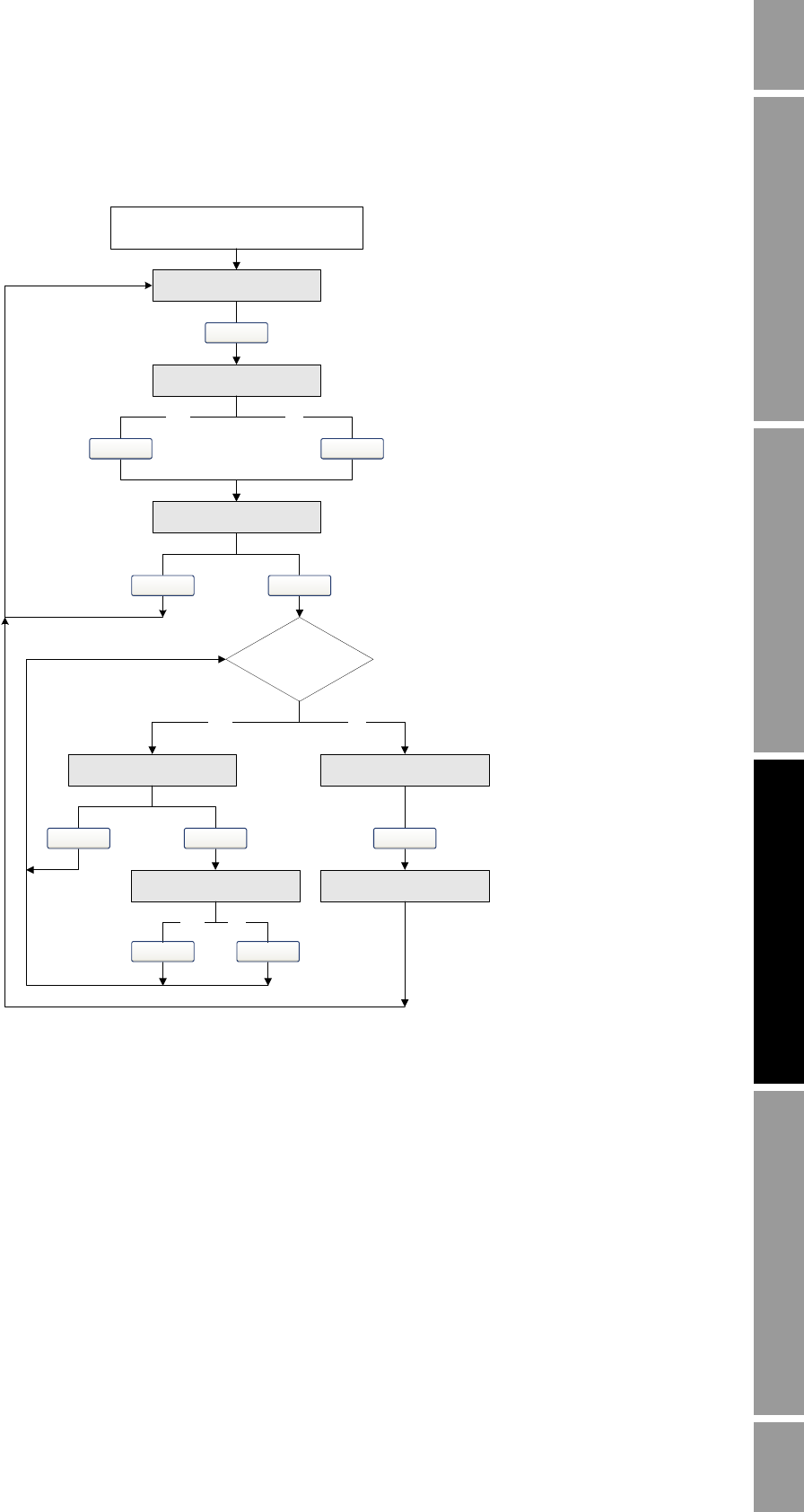
Configuration and Use Manual 45
Using the Transmitter
Required Configuration Optional ConfigurationUsing the TransmitterUsing a DeviceNet Tool
Figure 7-1 Viewing and acknowledging alarms with the display
7.6.2 Using ProLink II
ProLink II provides two ways to view alarm information:
• The Status window
• The Alarm Log window
Status window
The Status window displays the current status of the alarms considered to be most useful for
information, service, or troubleshooting, including Ignore alarms. The Status window reads alarm
status bits, and does not access alarm history. The Status window does not display acknowledgment
information, and you cannot acknowledge alarms from the Status window.
SEE ALARM
Scroll and Select simultaneously
for 4 seconds
ACK ALL(1)
Yes
EXIT
Select
No
Alarm code
Scroll
ACK
Yes
Select
No
Active/
unacknowledged
alarms?
NoYes
Select
NO ALARM
EXIT
Scroll
Scroll
Select
Scroll
ScrollSelect
(1) This screen is displayed only if the ACK ALL
function is enabled (see Section 8.9.3) and
there are unacknowledged alarms.
46 Micro Motion® Model 2400S Transmitters for DeviceNet™
Using the Transmitter
In the Status window:
• Alarms are organized into three categories: Critical, Informational, and Operational. Each
category is displayed on a separate panel.
• If one or more alarms is active on a panel, the corresponding tab is red.
• On a panel, a green LED indicates “inactive” and a red LED indicates “active.”
Note: The location of alarms on the Status panels is pre-defined, and is not affected by alarm severity.
To use the Status window:
1. Click ProLink > Status.
2. Click the tab for the alarm category you want to view.
Alarm Log window
The Alarm Log window selects information from alarm history, and lists all alarms of the following
types:
• All active Fault and Information alarms
• All inactive but unacknowledged Fault and Information alarms
Ignore alarms are never listed.
You can acknowledge alarms from the Alarm Log window.
In the Alarm Log window:
• The alarms are organized into two categories: High Priority and Low Priority. Each category is
displayed on a separate panel.
• On a panel, a green LED indicates “inactive but unacknowledged” and a red LED indicates
“active.”
Note: The location of alarms on the Alarm Log panels is pre-defined, and is not affected by alarm
severity.
To use the Alarm Log window:
1. Click ProLink > Alarm Log.
2. Click the tab for the alarm category you want to view.
3. To acknowledge an alarm, click the Ack checkbox. When the transmitter has processed the
command:
- If the alarm was inactive, it will be removed from the list.
- If the alarm was active, it will be removed from the list as soon as the alarm condition
clears.
7.6.3 Using a DeviceNet tool
Using the Diagnostics Object (0x66), you can view the status of a group of preselected alarms, view
information about a specific alarm, acknowledge an alarm, and retrieve information from alarm
history. For detailed information on the Diagnostics Object, see Table C-7, or see the manual entitled
Micro Motion Model 2400S Transmitters for DeviceNet: Device Profile.
To view the status of a group of preselected alarms, execute a Get for Attributes 12–17, 40, or 41.
Note: These are the same alarms that are displayed in the ProLink II Status window.

Configuration and Use Manual 47
Using the Transmitter
Required Configuration Optional ConfigurationUsing the TransmitterUsing a DeviceNet Tool
To view information about a single alarm:
1. Execute a Set for Attribute 18, specifying the code for the alarm you want to check.
2. Execute a Get for Attribute 42, and interpret the data using the following codes:
• 0x00 = Acknowledged and cleared
• 0x01 = Active and acknowledged
• 0x10 = Not acknowledged, but cleared
• 0x11 = Not acknowledged, and active
3. Other information about the indexed alarm is available in the following attributes:
• Attribute 43: Number of times this alarm has become active
• Attribute 44: The time this alarm was last posted
• Attribute 45: The time this alarm was last cleared
To acknowledge an alarm:
1. Execute a Set for Attribute 18, specifying the code for the alarm you want to acknowledge.
2. Execute a Set for Attribute 42, specifying a value of 0x00.
To retrieve information from alarm history:
1. Execute a Set for Attribute 46, specifying the number of the alarm record you want to check.
Valid values are 0–49.
Note: The alarm history is a circular buffer, and older records are overwritten by newer records. To
determine whether a record is newer or older than another record, you must compare their
timestamps.
2. Execute Gets for the following attributes:
• Attribute 47: The alarm type
• Attribute 49: The time that this alarm changed status
• Attribute 48: The type of status change:
-1 = Alarm posted
- 2 = Alarm cleared
7.7 Using the totalizers and inventories
The totalizers keep track of the total amount of mass or volume measured by the transmitter over a
period of time.
The inventories track the same values as the totalizers. Whenever totalizers are started or stopped, all
inventories (including the API volume inventory and enhanced density inventories) are started or
stopped automatically. However, when totalizers are reset, inventories are not reset automatically –
you must reset inventories separately. This allows you to use the inventories to keep running totals
across multiple totalizer resets.
You can view all totalizer and inventory values using any of the commmunication tools: the display,
ProLink II, or a DeviceNet tool. Specific starting, stopping, and resetting functionality depends on the
tool you are using.
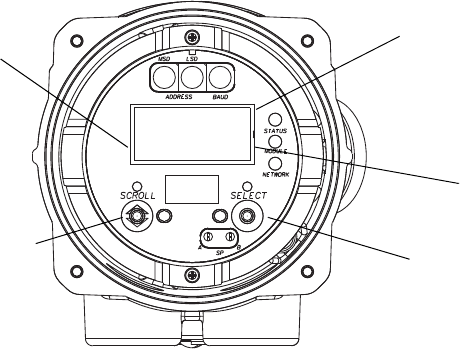
48 Micro Motion® Model 2400S Transmitters for DeviceNet™
Using the Transmitter
7.7.1 Viewing current values for totalizers and inventories
You can view current values for the totalizers and inventories with the display (if your transmitter has
a display), ProLink II, or a DeviceNet tool.
With the display
You cannot view current totalizer or inventory values with the display unless the display has been
configured to show them. See Section 8.9.5.
To view a totalizer or inventory value, refer to Figure 7-2 and:
1. Check for the word TOTAL in the lower left corner of the LCD panel.
• If Auto Scroll is enabled, wait until the desired value appears on the LCD panel. You can
also Scroll until the desired value appears.
• If Auto Scroll is not enabled, Scroll until the desired value appears.
2. Check the unit of measure to identify the process variable being displayed (e.g., mass, liquid
volume, gas standard volume).
3. Check the unit of measure line to determine whether you are viewing a totalizer value or an
inventory value:
• Totalizer value: the unit of measure is a steady display.
• Inventory value: the unit of measure alternates with one of the following:
-MASSI (for Mass Inventory)
-LVOLI (for Liquid Volume Inventory)
-GSV I (for Gas Standard Volume Inventory)
-TCORI (for API Temperature Corrected Inventory)
-STDVI (for ED Standard Volume Inventory)
-NETVI (for ED Net Volume Inventory)
-STDMI (for ED Net Mass Inventory)
4. Read the current value from the top line of the display.
Figure 7-2 Totalizer values on display
208772.63
L
TOTAL
Current value
Unit of measure
TOTAL
Scroll optical switch Select optical switch
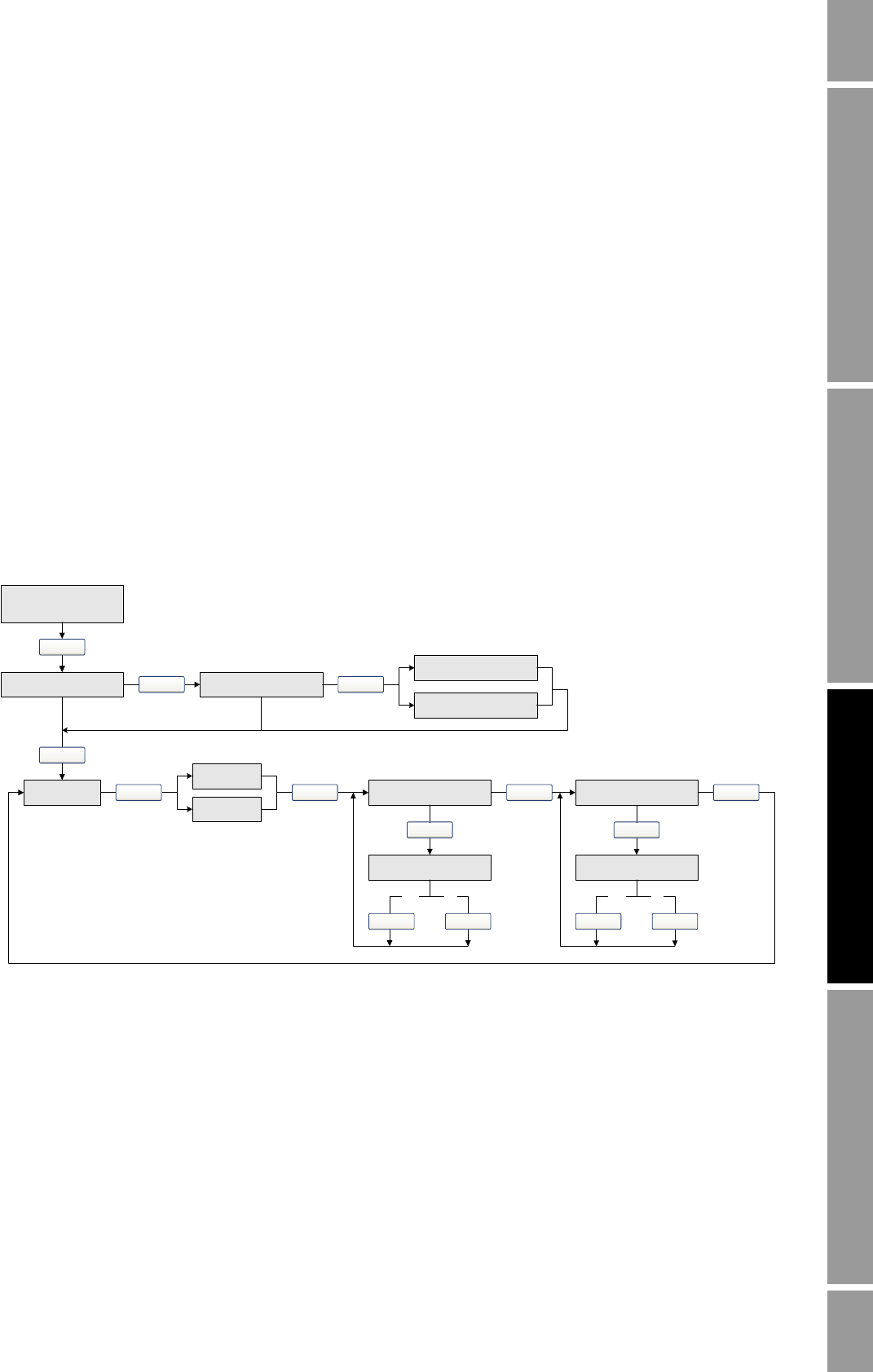
Configuration and Use Manual 49
Using the Transmitter
Required Configuration Optional ConfigurationUsing the TransmitterUsing a DeviceNet Tool
With ProLink II
To view current totals for the totalizers and inventories with ProLink II:
1. Click ProLink.
2. Select Process Variables, API Process Variables, or ED Process Variables.
With a DeviceNet tool
To view current totals for the totalizers and inventories with a DeviceNet tool, see Section 7.3.3.
7.7.2 Controlling totalizers and inventories
Specific starting, stopping, and resetting functionality depends on the tool you are using.
With the display
If the required value is shown on the display, you can use the display to start and stop all totalizers
and inventories simultaneously, or to reset individual totalizers. See the flowchart in Figure 7-3. You
cannot reset any inventories with the display.
Figure 7-3 Controlling totalizers and inventories with the display
RESET(6)(7)
Select
Scroll
STOP/START(4)(5)
RESET YES?
Process variable
display
STOP/START YES?
Scroll
Mass total(1) Volume total(1)
Scroll
Select
Yes No
Select Scroll
EXIT
Select
Yes No
Select Scroll
ED total(1)(2)
Scroll
API total(1)(2)
Scroll
E1--SP(3)
E2--SP(3)
Scroll Scroll
(1) Displayed only if configured as a display variable.
(2) The petroleum measurement application or enhanced density application must be enabled.
(3) The Event Setpoint screens can be used to define or change Setpoint A for Event 1 or Event 2 only. These screens are displayed
only for specific types of events. To change the setpoint for an event defined on mass total, you must enter the totalizer
management menu from the mass total screen. To change the setpoint for an event defined on volume total, you must enter the
totalizer management menu from the volume total screen. See Section 8.6.3 for more information.
(4) The display must be configured to allow stopping and starting. See Section 8.9.3.
(5) All totalizers and inventories will be stopped and started together, including API and enhanced density totalizers and inventories.
(6) The display must be configured to allow totalizer resetting. See Section 8.9.3.
(7) Only the totalizer currently shown on the display will be reset. No other totalizers will be reset, and no inventories will be reset.
Be sure that the totalizer you want to reset is displayed before performing this reset.
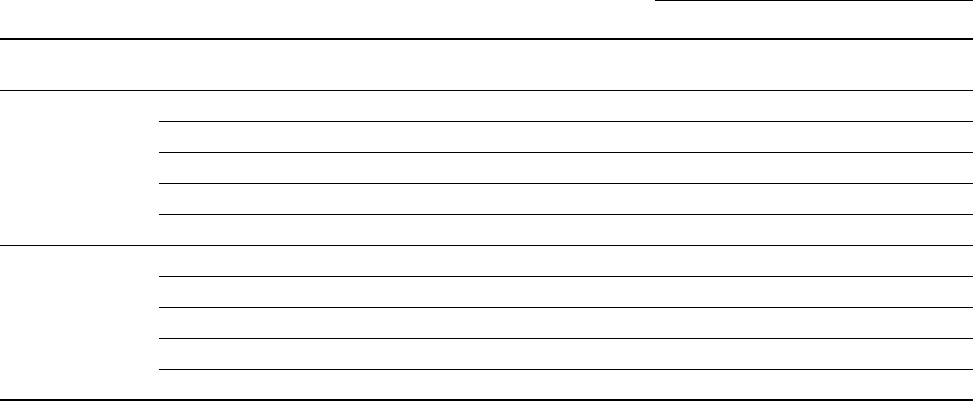
50 Micro Motion® Model 2400S Transmitters for DeviceNet™
Using the Transmitter
With ProLink II
The totalizer and inventory control functions available with ProLink II are listed in Table 7-7. Note
the following:
• ProLink II does not support separate resetting of the API volume totalizer and API volume
inventory. To reset these, you must reset all totalizers or all inventories.
• By default, the ability to reset inventories from ProLink II is disabled. To enable it:
a. Click View > Preferences.
b. Check the Enable Inventory Totals Reset checkbox.
c. Click Apply.
To start or stop all totalizers and inventories:
1. Click ProLink > Totalizer Control or ProLink > ED Totalizer Control (if the enhanced
density application is enabled).
2. Click the All Totals Start or All Totals Stop button.
Note: The All Totals functions are replicated in these two windows for convenience. You can start or
stop all totalizers and inventories from either window.
To reset all totalizers:
1. Click ProLink > Totalizer Control or ProLink > ED Totalizer Control (if the enhanced
density application is enabled).
2. Click the All Totals Reset button.
To reset all inventories:
1. Click ProLink > Totalizer Control or ProLink > ED Totalizer Control (if the enhanced
density application is enabled).
2. Click the All Totals Reset Inventories button.
Table 7-7 Totalizer and inventory control functions supported by ProLink II
Inventory reset
Object Function Disabled Enabled
Totalizers and
inventories Starting and stopping as a group ✓✓
Totalizers Resetting all ✓✓
Resetting mass totalizer separately ✓✓
Resetting volume totalizer separately ✓✓
Resetting enhanced density totalizers separately ✓✓
Resetting API volume totalizer separately Not supported Not supported
Inventories Resetting all ✓
Resetting mass inventory separately ✓
Resetting volume inventory separately ✓
Resetting enhanced density inventories separately ✓
Resetting API volume inventory separately Not supported Not supported
Configuration and Use Manual 51
Using the Transmitter
Required Configuration Optional ConfigurationUsing the TransmitterUsing a DeviceNet Tool
To reset an individual totalizer or inventory:
1. Click ProLink > Totalizer Control or ProLink > ED Totalizer Control (if the enhanced
density application is enabled).
2. Click the appropriate button (e.g., Reset Mass Total, Reset Volume Inventory, Reset Net
Mass Total).
With a DeviceNet tool
Using a DeviceNet tool, three methods are available for totalizer and inventory control:
• EDS – If you have imported the EDS into your DeviceNet tool, you can perform the following
functions from the EDS user interface:
- Reset mass totalizer
- Reset mass inventory
- Reset liquid volume totalizer
- Reset liquid volume inventory
- Reset API reference volume total
- Reset API reference volume inventory
- Reset gas standard volume totalizer
- Reset gas standard volume inventory
- Reset ED standard volume total
- Reset ED net mass total
- Reset ED net volume total
- Reset ED standard volume inventory
- Reset ED net mass inventory
- Reset ED net volume inventory
• Explicit write – Using a Set, a Reset Total, or a Reset Inventory service, you can perform the
functions listed in Table 7-8.
• Output assemblies – Five output assemblies are provided, supporting the functions listed in
Table 7-9. See the manual entitled Micro Motion Model 2400S Transmitters for DeviceNet:
Device Profile for detailed information.
Table 7-8 Totalizer and inventory control with a DeviceNet tool using explicit write
To accomplish this Use this device profile data
Stop all totalizers and inventories Analog Input Point Object (0x0A)
Instance: 0
Attribute ID: 100
Service: Set
Value: 0
Start all totalizers and inventories Analog Input Point Object (0x0A)
Instance: 0
Attribute ID: 100
Service: Set
Value: 1
Reset all totalizers Analog Input Point Object (0x0A)
Instance: 0
Attribute ID: 101
Service: Set
Value: 1
52 Micro Motion® Model 2400S Transmitters for DeviceNet™
Using the Transmitter
Reset all inventories Analog Input Point Object (0x0A)
Instance: 0
Attribute ID: 102
Service: Set
Value: 1
Reset mass totalizer Analog Input Point Object (0x0A)
Instance: 1
Service: Reset Total (0x32)
Reset mass inventory Analog Input Point Object (0x0A)
Instance: 1
Service: Reset Inventory (0x33)
Reset liquid volume totalizer Analog Input Point Object (0x0A)
Instance: 2
Service: Reset Total (0x32)
Reset liquid volume inventory Analog Input Point Object (0x0A)
Instance: 2
Service: Reset Inventory (0x33)
Reset gas standard volume totalizer Gas Standard Volume Object (0x64)
Instance: 1
Service: Reset Total (0x4B)
Reset gas standard volume inventory Gas Standard Volume Object (0x64)
Instance: 1
Service: Reset Inventory (0x4C)
Reset API reference volume total API Object (0x69)
Instance: 1
Service: Reset Total (0x4B)
Reset API reference volume inventory API Object (0x69)
Instance: 1
Service: Reset Inventory (0x4C)
Reset ED standard volume total Enhanced Density Object (0x6A)
Instance: 1
Service: Reset Total (0x4B)
Reset ED net mass total Enhanced Density Object (0x6A)
Instance: 1
Service: Reset Total (0x4C)
Reset ED net volume total Enhanced Density Object (0x6A)
Instance: 1
Service: Reset Total (0x4D)
Reset ED standard volume inventory Enhanced Density Object (0x6A)
Instance: 1
Service: Reset Inventory (0x4F)
Reset ED net mass inventory Enhanced Density Object (0x6A)
Instance: 1
Service: Reset Inventory (0x50)
Reset ED net volume inventory Enhanced Density Object (0x6A)
Instance: 1
Service: Reset Inventory (0x51)
Table 7-8 Totalizer and inventory control with a DeviceNet tool using explicit write continued
To accomplish this Use this device profile data

Configuration and Use Manual 53
Using the Transmitter
Required Configuration Optional ConfigurationUsing the TransmitterUsing a DeviceNet Tool
Table 7-9 Output assemblies used for totalizer and inventory control
Instance ID Data description Size (bytes) Data type
53 • Start/stop all totalizers and inventories 1 • BOOL
54 • Reset all totalizer values 1 • BOOL
55 • Reset all inventory values 1 • BOOL
56 • Start/stop all totalizers and inventories
• Reset all totalizer values 2•BOOL
•BOOL
57 • Start/stop all totalizers and inventories
• Reset all totalizer values
• Reset all inventory values
3•BOOL
•BOOL
•BOOL
54 Micro Motion® Model 2400S Transmitters for DeviceNet™
Configuration and Use Manual 55
Required Configuration Optional ConfigurationUsing the TransmitterUsing a DeviceNet Tool
Chapter 8
Optional Configuration
8.1 Overview
This chapter describes transmitter configuration parameters that may or may not be used, depending
on your application requirements. For required transmitter configuration, see Chapter 6.
Table 8-1 lists the parameters that are discussed in this chapter. Default values and ranges for the most
commonly used parameters are provided in Appendix A.
Note: All ProLink II procedures provided in this chapter assume that you have established
communication between ProLink II and the Model 2400S DN transmitter and that you are complying
with all applicable safety requirements. See Chapter 4 for more information.
Note: If you are using Pocket ProLink, the interface is similar to the ProLink II interface described in
this chapter.
Note: All DeviceNet tool procedures provided in this chapter assume that you have established
communication between the DeviceNet tool and the Model 2400S DN transmitter and that you are
complying with all applicable safety requirements. See Chapter 5 for more information.
Table 8-1 Configuration map
Tool
Topic Subtopic ProLink II DeviceNet tool Display Section
Volume flow
measurement for gas
✓✓ 8.2
Cutoffs ✓✓ 8.3
Damping ✓✓ 8.4
Flow direction ✓✓ 8.5
Events ✓✓ 8.6
Slug flow ✓✓ 8.7
Status alarm severity ✓✓ 8.8
56 Micro Motion® Model 2400S Transmitters for DeviceNet™
Optional Configuration
8.2 Configuring volume flow measurement for gas
Two types of volume flow measurement are available:
• Liquid volume (the default)
•Gas standard volume
Display(1) Update period ✓✓ ✓8.9.1
Display language ✓✓ ✓8.9.2
Totalizer start/stop ✓✓ ✓8.9.3
Totalizer reset ✓✓ ✓
Auto scroll ✓✓ ✓
Scroll rate ✓✓ ✓
Offline menu ✓✓ ✓
Password ✓✓ ✓
Alarm menu ✓✓ ✓
Ack all ✓✓ ✓
Backlight on/off ✓✓ ✓8.9.4
Backlight intensity ✓✓
Display variables ✓✓ 8.9.5
Display precision ✓✓
Digital
communication DeviceNet node address ✓(2) 8.10.1
DeviceNet baud rate ✓(2) 8.10.2
DeviceNet configurable input
assembly
✓8.10.3
Modbus address ✓✓ ✓8.10.4
Modbus ASCII support ✓✓ ✓8.10.5
IrDA port usage ✓✓ ✓8.10.6
Digital communications fault
action
✓✓ 8.10.78.10.
7
Fault timeout ✓✓ 8.10.8
Device settings ✓✓ 8.11
Sensor parameters ✓✓ 8.12
Petroleum
measurement
application
✓✓ 8.13
Enhanced density
application
✓✓ 8.14
(1) These parameters apply only to transmitters with a display.
(2) Cannot be set with the display menus, but can be set with digital communications hardware switches on the face of the transmitter.
Table 8-1 Configuration map continued
Tool
Topic Subtopic ProLink II DeviceNet tool Display Section

Configuration and Use Manual 57
Optional Configuration
Required Configuration Optional ConfigurationUsing the TransmitterUsing a DeviceNet Tool Required Configuration Optional ConfigurationUsing the TransmitterUsing a DeviceNet Tool Required Configuration Optional ConfigurationUsing the TransmitterUsing a DeviceNet Tool Required Configuration Optional ConfigurationUsing the TransmitterUsing a DeviceNet Tool
Only one type of volume flow measurement can be performed at a time (i.e., if liquid volume flow
measurement is enabled, gas standard volume flow measurement is disabled, and vice versa).
Different sets of volume flow measurement units are available, depending on which type of volume
flow measurement is enabled (see Tables 6-3 and 6-4). If you will use a gas standard volume flow
unit, additional configuration is required.
Note: If you will use the petroleum measurement application or the enhanced density application,
liquid volume flow measurement is required.
The method used to configure volume flow measurement for gas depends on the tool you are using:
ProLink II or a DeviceNet tool.
Note: For complete configuration of volume flow measurement for gas, you must use either ProLink II
or a DeviceNet tool. Using the display, you can only select a volume measurement unit from the set
available for the configured volume flow type.
8.2.1 Using ProLink II
To configure volume flow measurement for gas using ProLink II:
1. Click ProLink > Configure > Flow.
2. Set Vol Flow Type to Std Gas Volume.
3. Select the measurement unit you want to use from the Std Gas Vol Flow Units dropdown list.
The default is SCFM.
4. Configure the Std Gas Vol Flow Cutoff (see Section 8.3). The default is 0.
5. If you know the standard density of the gas that you are measuring, enter it in the Std Gas
Density field. If you do not know the standard density, you can use the Gas Wizard. See the
following section.
Note: The term “standard density” refers to the density of the gas at reference conditions.
Using the Gas Wizard
The Gas Wizard is used to calculate the standard density of the gas that you are measuring.
To use the Gas Wizard:
1. Click ProLink > Configure > Flow.
2. Click the Gas Wizard button.
3. If your gas is listed in the Choose Gas dropdown list:
a. Enable the Choose Gas radio button.
b. Select your gas.
4. If your gas is not listed, you must describe its properties.
a. Enable the Enter Other Gas Property radio button.
b. Enable the method that you will use to describe its properties: Molecular Weight,
Specific Gravity Compared to Air, or Density.
c. Provide the required information. Note that if you selected Density, you must enter the
value in the configured density units and you must provide the temperature and pressure at
which the density value was determined.
Note: Ensure that the values you enter are correct, and that fluid composition is stable. If either of
these conditions is not met, gas flow measurement accuracy will be degraded.
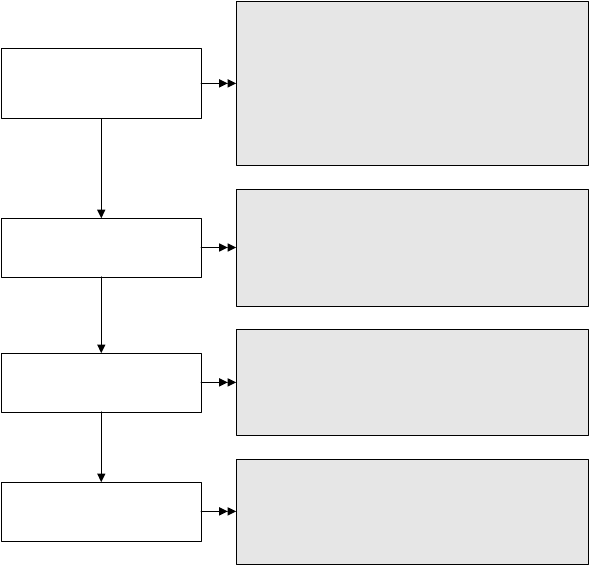
58 Micro Motion® Model 2400S Transmitters for DeviceNet™
Optional Configuration
5. Click Next.
6. Verify the reference temperature and reference pressure. If these are not appropriate for your
application, click the Change Reference Conditions button and enter new values for
reference temperature and reference pressure.
7. Click Next. The calculated standard density value is displayed.
• If the value is correct, click Finish. The value will be written to transmitter configuration.
• If the value is not correct, click Back and modify input values as required.
Note: The Gas Wizard displays density, temperature, and pressure in the configured units. If required,
you can configure the transmitter to use different units. See Section 6.3.
8.2.2 Using a DeviceNet tool
The Gas Standard Volume Object is used to configure volume flow measurement for gas. See the
flowchart in Figure 8-1.
Figure 8-1 Gas standard volume flow measurement – DeviceNet tool
8.3 Configuring cutoffs
Cutoffs are user-defined values below which the transmitter reports a value of zero for the specified
process variable. Cutoffs can be set for mass flow, liquid volume flow, gas standard volume flow, and
density.
See Table 8-2 for cutoff default values and related information. See Section 8.3.1 for information on
how the cutoffs interact with other transmitter measurements.
Enable gas standard
volume flow
measurement
Set unit
Class: Gas Standard Volume Object (0x64)
Instance: 1
Attribute ID: 7
Data type: BOOL
Value:
• 0 = disabled (and liquid volume flow enabled)
• 1 = enabled (and liquid volume flow disabled)
Service: Set
Set cutoff(1)
Class: Gas Standard Volume Object (0x64)
Instance: 1
Attribute ID: 8
Data type: REAL
Service: Set
Class: Gas Standard Volume Object (0x64)
Instance: 1
Attribute ID: 5
Data type: UINT
Value: See Table 6-4
Service: Set
Set reference density
of gas(2)
Class: Gas Standard Volume Object (0x64)
Instance: 1
Attribute ID: 4
Data type: REAL
Service: Set
(1) See Section 8.3.
(2) The Gas Wizard is provided only
with ProLink II. If you are not
using ProLink II, you must
supply the required reference
density.
Configuration and Use Manual 59
Optional Configuration
Required Configuration Optional ConfigurationUsing the TransmitterUsing a DeviceNet Tool Required Configuration Optional ConfigurationUsing the TransmitterUsing a DeviceNet Tool Required Configuration Optional ConfigurationUsing the TransmitterUsing a DeviceNet Tool Required Configuration Optional ConfigurationUsing the TransmitterUsing a DeviceNet Tool
To configure cutoffs:
• Using ProLink II, see Figure B-2.
• Using a DeviceNet tool, see Tables C-1, C-2, C-3, and C-5.
Note: This functionality is not available via the display menus.
8.3.1 Cutoffs and volume flow
If you are using liquid volume flow measurement:
• The density cutoff is applied to the volume flow calculation. Accordingly, if the density drops
below its configured cutoff value, the volume flow rate will go to zero.
• The mass flow cutoff is not applied to the volume flow calculation. Even if the mass flow
drops below the cutoff, and therefore the mass flow indicators go to zero, the volume flow rate
will be calculated from the actual mass flow process variable.
If you are using gas standard volume flow measurement, neither the mass flow cutoff nor the density
cutoff is applied to the volume flow calculation.
8.4 Configuring the damping values
A damping value is a period of time, in seconds, over which the process variable value will change to
reflect 63% of the change in the actual process. Damping helps the transmitter smooth out small,
rapid measurement fluctuations.
• A high damping value makes the output appear to be smoother because the output must change
slowly.
• A low damping value makes the output appear to be more erratic because the output changes
more quickly.
Damping can be configured for flow, density, and temperature.
When you change the damping value, the specified value is automatically rounded down to the nearest
valid damping value. Valid damping values are listed in Table 8-3.
Note: For gas applications, Micro Motion recommends a minimum flow damping value of 2.56.
Before setting the damping values, review Section 8.4.1 for information on how the damping values
affect other transmitter measurements.
Table 8-2 Cutoff default values
Cutoff type Default Comments
Mass flow 0.0 g/s Recommended setting: 5% of the sensor’s rated maximum flowrate
Liquid volume flow 0.0 L/s Limit: the sensor’s flow calibration factor in liters per second, multiplied by 0.2
Gas standard volume
flow 0.0 No limit
Density 0.2 g/cm3Range: 0.0–0.5 g/cm3

60 Micro Motion® Model 2400S Transmitters for DeviceNet™
Optional Configuration
To configure damping values:
• Using ProLink II, see Figure B-2.
• Using a DeviceNet tool, see Tables C-1, C-3, and C-4.
Note: This functionality is not available via the display menus.
8.4.1 Damping and volume measurement
When configuring damping values, note the following:
• Liquid volume flow is derived from mass and density measurements; therefore, any damping
applied to mass flow and density will affect liquid volume measurement.
• Gas standard volume flow is derived from mass flow measurement, but not from density
measurement. Therefore, only damping applied to mass flow will affect gas standard volume
measurement.
Be sure to set damping values accordingly.
8.5 Configuring the flow direction parameter
The flow direction parameter controls how the transmitter reports flow rate and how flow is added to
or subtracted from the totalizers, under conditions of forward flow, reverse flow, or zero flow.
•Forward (positive) flow moves in the direction of the arrow on the sensor.
•Reverse (negative) flow moves in the direction opposite of the arrow on the sensor.
Options for flow direction include:
• Forward only
•Reverse only
• Absolute value
• Bidirectional
• Negate/Forward only
• Negate/Bidirectional
For the effect of flow direction on flow totals and flow values, see Table 8-4.
Table 8-3 Valid damping values
Process variable Valid damping values
Flow (mass and volume) 0, 0.04, 0.08, 0.16, ... 40.96
Density 0, 0.04, 0.08, 0.16, ... 40.96
Temperature 0, 0.6, 1.2, 2.4, 4.8, ... 76.8
Configuration and Use Manual 61
Optional Configuration
Required Configuration Optional ConfigurationUsing the TransmitterUsing a DeviceNet Tool Required Configuration Optional ConfigurationUsing the TransmitterUsing a DeviceNet Tool Required Configuration Optional ConfigurationUsing the TransmitterUsing a DeviceNet Tool Required Configuration Optional ConfigurationUsing the TransmitterUsing a DeviceNet Tool
To configure flow direction:
• Using ProLink II, see Figure B-2.
• Using a DeviceNet tool, see Table C-1.
Note: This functionality is not available via the display menus.
8.6 Configuring events
An event occurs if the real-time value of a user-specified process variable varies above or below a
user-specified value, or inside or outside a user-specified range. You can configure up to five events.
You may optionally specify one or more actions that will occur if the event occurs. For example, if
Event 1 occurs, you may specify that the transmitter will stop all totalizers and inventories and reset
the mass totalizer.
8.6.1 Defining events
To define an event:
• Using ProLink II, see Figure B-3.
• Using a DeviceNet tool, event specifications reside in the Diagnostics Object (0x66),
Instance 1. See Table C-7.
The following general steps are required:
1. Select the event to define (Attribute 6).
2. Specify the event type (Attribute 7). Event Type options are defined in Table 8-5.
Table 8-4 Effect of flow direction on totalizers and flow values
Flow direction value
Forward flow(1)
(1) Process fluid flowing in same direction as flow direction arrow on sensor.
Flow totals Flow values
Forward only Increase Positive
Reverse only No change Positive
Bidirectional Increase Positive
Absolute value Increase Positive(2)
(2) Refer to the digital communications status bits for an indication of whether flow is positive or negative.
Negate/Forward only No change Negative
Negate/Bidirectional Decrease Negative
Flow direction value
Reverse flow(3)
(3) Process fluid flowing in opposite direction from flow direction arrow on sensor.
Flow totals Flow values
Forward only No change Negative
Reverse only Increase Negative
Bidirectional Decrease Negative
Absolute value Increase Positive(2)
Negate/Forward only Increase Positive
Negate/Bidirectional Increase Positive
62 Micro Motion® Model 2400S Transmitters for DeviceNet™
Optional Configuration
3. Assign a process variable to the event (Attribute 10).
4. Specify the event’s setpoint(s) – the value(s) at which the event will occur or switch state (ON
to OFF, or vice versa).
• If Event Type is High or Low, only Setpoint A is used (Attribute 8)
• If Event Type is In Range or Out of Range, both Setpoint A and Setpoint B (Attributes 9
and 10) are required.
5. Assign the event to an action or actions, if desired. Possible actions are listed in Table 8-6. To
do this:
• Using ProLink II, open the Discrete Input panel in the Configuration window, identify the
action to be performed, then specify the event using the dropdown list. See Figure B-3.
Note: For consistency with other Micro Motion products, the Discrete Input panel is used here even
though the Model 2400S DN transmitter does not provide a discrete input.
• Using the display, see Figure B-6 and use the ACT submenu.
• Using a DeviceNet tool, refer to Table C-7, use Attribute 84 to specify the action to be
performed, and set Attribute 85 to specify which event will initiate the action.
Table 8-5 Event types
Type DeviceNet
code Description
High (> A) 0 Default. Discrete event will occur if the assigned variable is greater than the
setpoint (A).(1)
(1) An event does not occur if the assigned variable is equal to the setpoint.
Low (< A) 1 Discrete event will occur if the assigned variable is less than the setpoint (A).(1)
In Range 2 Discrete event will occur if the assigned variable is greater than or equal to the low
setpoint (A) and less than or equal to the high setpoint (B).(2)
(2) An event occurs if the assigned variable is equal to the setpoint.
Out of Range 3 Discrete event will occur if the assigned variable is less than or equal to the low
setpoint (A) or greater than or equal to the high setpoint (B).(2)
Table 8-6 Event actions
ProLink II label Display label DeviceNet
code Description
Start sensor zero START ZERO 1 Initiates a zero calibration procedure
Reset mass total RESET MASS 2 Resets the value of the mass totalizer to 0
Reset volume total RESET VOL 3 Resets the value of the liquid volume totalizer to 0(1)
Reset gas std volume total RESET GSV 21 Resets the value of the gas standard volume totalizer
to 0(2)
Reset API ref vol total RESET TCORR 4 Resets the value of the API temperature-corrected
volume totalizer to 0(3)
Reset ED ref vol total RESET STD V 5 Resets the value of the ED standard volume totalizer
to 0(4)
Reset ED net mass total RESET NET M 6 Resets the value of the ED net mass totalizer to 0(4)
Reset ED net vol total RESET NET V 7 Resets the value of the ED net volume totalizer to 0(4)
Configuration and Use Manual 63
Optional Configuration
Required Configuration Optional ConfigurationUsing the TransmitterUsing a DeviceNet Tool Required Configuration Optional ConfigurationUsing the TransmitterUsing a DeviceNet Tool Required Configuration Optional ConfigurationUsing the TransmitterUsing a DeviceNet Tool Required Configuration Optional ConfigurationUsing the TransmitterUsing a DeviceNet Tool
Reset all totals RESET ALL 8 Resets the value of all totalizers to 0
Start/stop all totalization START STOP 9 If totalizers are running, stops all totalizers
If totalizers are not running, starts all totalizers
Increment current ED
curve INCR CURVE 18 Changes the active enhanced density curve from 1 to
2, from 2 to 3, etc.(4)
(1) Displayed only if Volume Flow Type = Liquid.
(2) Displayed only if Volume Flow Type = Gas.
(3) Available only if the petroleum measurement application is installed.
(4) Available only if the enhanced density application is installed.
Example Define Event 1 to be active when the mass flow rate in forward or
backward direction is less than 2 lb/min. Additionally, if this occurs, all
totalizers should be stopped.
Using ProLink II:
1. Specify lb/min as the mass flow unit. See Section 6.3.1.
2. Configure the Flow Direction parameter for bidirectional flow. See
Section 8.5.
3. Select Event 1.
4. Configure:
• Event Type = Low
• Process Variable (PV) = Mass Flow Rate
• Low Setpoint (A) = 2
5. In the Discrete Input panel, open the dropdown list for Start/Stop
All Totalization and select Discrete Event 1.
Using a DeviceNet tool:
1. Specify lb/min as the mass flow unit. See Section 6.3.1.
2. Configure the Flow Direction parameter for bidirectional flow. See
Section 8.5.
3. In the Diagnostics Object (0x66), Instance 1, set the following
attributes:
• Discrete event index (Attribute 6) = 0
• Discrete event action (Attribute 7) = 1
• Discrete event process variable (Attribute 10) = 0
• Discrete event setpoint A (Attribute 8) = 2
• Discrete event action code (Attribute 84) = 9
• Discrete event assignment (Attribute 85) = 57
Table 8-6 Event actions continued
ProLink II label Display label DeviceNet
code Description
64 Micro Motion® Model 2400S Transmitters for DeviceNet™
Optional Configuration
8.6.2 Checking and reporting event status
There are several ways that event status can be determined:
• ProLink II automatically displays event information on the Informational panel of the Status
window.
• The status of each event is stored in the Diagnostics Object (0x66), Instance 1, Attribute 11.
For more information, see Table C-7, or see the manual entitled Micro Motion Model 2400S
Transmitters for DeviceNet: Device Profile.
8.6.3 Changing event setpoints from the display
For Event 1 or Event 2 only, the value of Setpoint A can be changed from the display, under the
following circumstances:
• Mass total or volume total (gas or liquid) must be assigned to the event.
• The event type must be either High or Low.
• Mass total or volume total must be configured as a display variable (see Section 8.9.5).
Then, to reset Setpoint A from the display:
1. Referring to the totalizer management flowchart in Figure 7-3, Scroll to the appropriate
display screen:
• To reset the setpoint for an event defined on mass total, Scroll to the mass total screen.
• To reset the setpoint for an event defined on volume total, Scroll to the volume total
screen.
2. Select.
3. Enter the new setpoint value. See Section 3.5.5 for instructions on entering floating-point
values with the display.
8.7 Configuring slug flow limits and duration
Slugs – gas in a liquid process or liquid in a gas process – occasionally appear in some applications.
The presence of slugs can significantly affect the process density reading. The slug flow parameters
can help the transmitter suppress extreme changes in process variables, and can also be used to
identify process conditions that require correction.
Slug flow parameters are as follows:
•Slug flow low limit – the point below which a condition of slug flow will exist. Typically, this
is the lowest density point in your process’s normal density range. Default value is 0.0 g/cm3;
range is 0.0–10.0 g/cm3.
•Slug flow high limit – the point above which a condition of slug flow will exist. Typically, this
is the highest density point in your process’s normal density range. Default value is 5.0 g/cm3;
range is 0.0–10.0 g/cm3.
•Slug flow duration – the number of seconds the transmitter waits for a slug flow condition
(outside the slug flow limits) to return to normal (inside the slug flow limits). Default value is
0.0 sec; range is 0.0–60.0 sec.

Configuration and Use Manual 65
Optional Configuration
Required Configuration Optional ConfigurationUsing the TransmitterUsing a DeviceNet Tool Required Configuration Optional ConfigurationUsing the TransmitterUsing a DeviceNet Tool Required Configuration Optional ConfigurationUsing the TransmitterUsing a DeviceNet Tool Required Configuration Optional ConfigurationUsing the TransmitterUsing a DeviceNet Tool
If the transmitter detects slug flow:
• A slug flow alarm is posted immediately.
• During the slug duration period, the transmitter holds the mass flow rate at the last measured
pre-slug value, independent of the mass flow rate measured by the sensor. The reported mass
flow value is set to this value, and all internal calculations that include mass flow rate will use
this value.
• If slugs are still present after the slug duration period expires, the transmitter forces the mass
flow rate to 0, independent of the mass flow rate measured by the sensor. Mass flow rate is
reported as 0 and all internal calculations that include mass flow rate will use 0.
• When process density returns to a value within the slug flow limits, the slug flow alarm is
cleared and the mass flow rate reverts to the actual measured value.
To configure slug flow parameters:
• Using ProLink II, use the Density panel in the Configuration window. See Figure B-2.
• Using a DeviceNet tool, set Attributes 3, 4, and 5 in the Diagnostics Object (0x66), Instance 1.
See Table C-7.
Note: This functionality is not available via the display menus.
Note: The slug flow limits must be entered in g/cm3, even if another unit has been configured for
density. Slug flow duration is entered in seconds.
Note: Raising the low slug flow limit or lowering the high slug flow limit will increase the possibility
of slug flow conditions. Conversely, lowering the low slug flow limit or raising the high slug flow limit
will decrease the possibility of slug flow conditions.
Note: If slug flow duration is set to 0, the mass flow rate will be forced to 0 as soon as slug flow is
detected.
8.8 Configuring status alarm severity
The Model 2400S transmitter can report faults in the following ways:
• Setting the “alarm active” status bit
• Writing an “alarm active” record to alarm history
• Implementing the digital communications fault action (see Section 8.10.7)
Status alarm severity determines which methods the transmitter will use when a specific alarm
condition occurs, as described in Table 8-7. (See Section 7.6 for a more detailed discussion.)
Table 8-7 Alarm severity levels and fault reporting
Severity level
Transmitter action if condition occurs
“Alarm active”
status bit set? “Alarm active” record
written to history? Digital communications
fault action activated? (1)
(1) For some alarms, the digital communications fault action will not begin until the fault timeout has expired. To configure fault timeout,
see Section 8.10.8. Other fault reporting methods occur as soon as the fault condition is recognized. Table 8-8 includes information
on which alarms are affected by the fault timeout
Fault Yes Yes Yes
Informational Yes Yes No
Ignore Yes No No

66 Micro Motion® Model 2400S Transmitters for DeviceNet™
Optional Configuration
Some alarms can be reclassified. For example:
• The default severity level for Alarm A020 (calibration factors unentered) is Fault, but you can
reconfigure it to either Informational or Ignore.
• The default severity level for Alarm A102 (drive over-range) is Informational, but you can
reconfigure it to either Ignore or Fault.
For a list of all status alarms and default severity levels, see Table 8-8. (For more information on
status alarms, including possible causes and troubleshooting suggestions, see Table 11-2.)
To configure alarm severity:
• Using ProLink II, see Figure B-3.
• Using a DeviceNet tool, refer to Table C-7 and:
a. Set the alarm index (Attribute 18).
b. Set the severity for that alarm (Attribute 19).
Note: This functionality is not available via the display menus.
Table 8-8 Status alarms and severity levels
Alarm code ProLink II message Default
severity Configurable? Affected by
fault timeout?
A001 (E)EPROM Checksum Error (CP) Fault No No
A002 RAM Error (CP) Fault No No
A003 Sensor Failure Fault Yes Yes
A004 Temperature Sensor Failure Fault No Yes
A005 Input Overrange Fault Yes Yes
A006 Not Configured Fault Yes No
A008 Density Overrange Fault Yes Yes
A009 Transmitter Initializing/Warming Up Ignore Yes No
A010 Calibration Failure Fault No No
A011 Zero Too Low Fault Yes No
A012 Zero Too High Fault Yes No
A013 Zero Too Noisy Fault Yes No
A014 Transmitter Failed Fault No No
A016 Line RTD Temperature Out-of-Range Fault Yes Yes
A017 Meter RTD Temperature Out-of-Range Fault Yes Yes
A020 Calibration Factors Unentered (FlowCal) Fault Yes No
A021 Incorrect Sensor Type (K1) Fault No No
A029 PIC/Daughterboard Communication Failure Fault No No
A030 Incorrect Board Type Fault No No
A031 Low Power Fault No No
A032 Meter Verification/Outputs In Fault Fault No No
A033 Sensor OK, Tubes Stopped by Process Fault Yes Yes
A102 Drive Overrange/Partially Full Tube Info Yes No
A104 Calibration in Progress Info Yes(1) No
A105 Slug Flow Info Yes No
A107 Power Reset Occurred Info Yes No
Configuration and Use Manual 67
Optional Configuration
Required Configuration Optional ConfigurationUsing the TransmitterUsing a DeviceNet Tool Required Configuration Optional ConfigurationUsing the TransmitterUsing a DeviceNet Tool Required Configuration Optional ConfigurationUsing the TransmitterUsing a DeviceNet Tool Required Configuration Optional ConfigurationUsing the TransmitterUsing a DeviceNet Tool
8.9 Configuring the display
If your transmitter has a display, you can configure a variety of parameters that control the display
functionality.
8.9.1 Update period
The Update Period (or Display Rate) parameter controls how often the display is refreshed with
current data. The default is 200 milliseconds; the range is 100 milliseconds to 10,000 milliseconds
(10 seconds).
To configure Update Period:
• Using ProLink II, see Figure B-3.
• Using the display menus, see Figure B-6.
• Using a DeviceNet tool, see Table C-9.
8.9.2 Language
The display can be configured to use any of the following languages for data and menus:
• English
•French
•German
• Spanish
To set the display language:
• Using ProLink II, see Figure B-3.
• Using the display menus, see Figure B-6.
• Using a DeviceNet tool, see Table C-9.
8.9.3 Enabling and disabling display functions
Table 8-9 lists the display functions and describes their behavior when enabled (shown) or disabled
(hidden).
A116 API: Temperature Outside Standard Range Info Yes No
A117 API: Density Outside Standard Range Info Yes No
A120 ED: Unable to Fit Curve Data Info No No
A121 ED: Extrapolation Alarm Info Yes No
A131 Meter Verification/Outputs at Last Value Info Yes No
A132 Simulation Mode Active Info Yes No
A133 PIC UI EEPROM Error Info Yes No
(1) Can be set to either Informational or Ignore, but cannot be set to Fault.
Table 8-8 Status alarms and severity levels continued
Alarm code ProLink II message Default
severity Configurable? Affected by
fault timeout?
68 Micro Motion® Model 2400S Transmitters for DeviceNet™
Optional Configuration
To configure these parameters:
• Using ProLink II, see Figure B-3.
• Using the display menus, see Figure B-6.
• Using a DeviceNet tool, see Table C-9.
Note the following:
• If you use the display to disable access to the off-line menu, the off-line menu will disappear
as soon as you exit the menu system. If you want to re-enable access, you must use ProLink II
or a DeviceNet tool.
• Scroll Rate is used to control the speed of scrolling when Auto Scroll is enabled. Scroll Rate
defines how long each display variable (see Section 8.9.5) will be shown on the display. The
time period is defined in seconds; e.g., if Scroll Rate is set to 10, each display variable will be
shown on the display for 10 seconds.
• The off-line password prevents unauthorized users from gaining access to the off-line menu.
The password can contain up to four numbers.
• If you are using the display to configure the display:
- You must enable Auto Scroll before you can configure Scroll Rate.
- You must enable the off-line password before you can configure the password.
8.9.4 Configuring the LCD backlight
The backlight of the LCD panel on the display can be turned on or off. To turn the backlight on or off,
• Using ProLink II, see Figure B-3.
• Using the display menus, see Figure B-6.
• Using a DeviceNet tool, see Table C-9.
Table 8-9 Display functions
Parameter Enabled (shown) Disabled (hidden)
Totalizer start/stop Operators can start or stop totalizers using the
display. Operators cannot start or stop totalizers using
the display.
Totalizer reset Operators can reset the mass and volume
totalizers using the display. Operators cannot reset the mass and volume
totalizers using the display.
Auto scroll(1)
(1) If enabled, you may want to configure Scroll Rate.
The display automatically scrolls through each
process variable at a configurable rate. Operators must Scroll to view process
variables.
Off-line menu Operators can access the off-line menu (zero,
simulation, and configuration). Operators cannot access the off-line menu.
Off-line password(2)
(2) If enabled, the off-line password must also be configured.
Operators must use a password to access the
off-line menu. Operators can access the off-line menu
without a password.
Alarm menu Operators can access the alarm menu
(viewing and acknowledging alarms). Operators cannot access the alarm menu.
Acknowledge all
alarms Operators are able to acknowledge all current
alarms at once. Operators must acknowledge alarms
individually.
Configuration and Use Manual 69
Optional Configuration
Required Configuration Optional ConfigurationUsing the TransmitterUsing a DeviceNet Tool Required Configuration Optional ConfigurationUsing the TransmitterUsing a DeviceNet Tool Required Configuration Optional ConfigurationUsing the TransmitterUsing a DeviceNet Tool Required Configuration Optional ConfigurationUsing the TransmitterUsing a DeviceNet Tool
In addition, if you are using ProLink II or a DeviceNet tool, you can control the intensity of the
backlight. You can specify any value between 0 and 63; the higher the value, the brighter the
backlight. To control the intensity of the backlight:
• Using ProLink II, see Figure B-3.
• Using a DeviceNet tool, see Table C-9.
8.9.5 Configuring the display variables and display precision
The display can scroll through up to 15 process variables in any order. You can configure the process
variables to be displayed and the order in which they should appear. Additionally, you can configure
display precision for each display variable. Display precision controls the number of digits to the right
of the decimal place. Precision can be set to any value from 0 to 5.
• To configure display variables or display precision using ProLink II, see Figure B-3.
• To configure display variables using a DeviceNet tool, see Table C-9.
• To configure display precision using a DeviceNet tool, refer to Table C-9 and:
a. Set the process variable index (Attribute 29) to the process variable to be configured.
b. Set the precision (Attribute 30) for that process variable.
Note: This functionality is not available via the display menus.
Table 8-10 shows an example of a display variable configuration. Notice that you can repeat variables,
and you can also specify None for any display variable except Display Var 1. For information on how
the display variables will appear on the display, see Appendix D.
Table 8-10 Example of a display variable configuration
Display variable Process variable
Display variable 1(1)
(1) Display variable 1 cannot be set to None.
Mass flow
Display variable 2 Mass totalizer
Display variable 3 Volume flow
Display variable 4 Volume totalizer
Display variable 5 Density
Display variable 6 Temperature
Display variable 7 External temperature
Display variable 8 External pressure
Display variable 9 Mass flow
Display variable 10 None
Display variable 11 None
Display variable 12 None
Display variable 13 None
Display variable 14 None
Display variable 15 None
70 Micro Motion® Model 2400S Transmitters for DeviceNet™
Optional Configuration
8.10 Configuring digital communications
The digital communications parameters control how the transmitter will communicate using digital
communications. The following digital communications parameters can be configured:
• DeviceNet node address (MAC ID)
• DeviceNet baud rate
• DeviceNet configurable input assembly
• Modbus address
• Modbus ASCII support
• IrDA port usage
• Digital communications fault action
• Fault timeout
8.10.1 DeviceNet node address
The default node address for the Model 2400S DN transmitter is 63. The valid range of node
addresses is 0–63.
The DeviceNet node address can be set using digital communications hardware switches or a
DeviceNet tool.
Note: You cannot set the node address from ProLink II or the display.
To set the node address using digital communications hardware switches:
1. Remove the transmitter housing cover as described in Section 3.3.
2. Identify the two addresses switches (the left and center switches) on the user interface module
of your transmitter (see Section 3.3). The left switch, labeled MSD (Most Significant Digit),
sets the first digit of the node address, and the center switch, labeled LSD (Least Significant
Digit), sets the second digit.
3. For each switch, insert a small blade into the slot to rotate the arrow to the desired position. For
example, to set the node address to 60:
a. Rotate the arrow in the left switch to point to the digit 6.
b. Rotate the arrow in the center switch to point to the digit 0.
4. Replace the transmitter housing cover.
5. Either power cycle the transmitter or send a Reset service (0x05) to the Identity Object (0x01),
Instance 1.
Note: The new node address is not implemented until Step 5 is completed.
To set the node address using a DeviceNet tool:
1. Use the digital communications hardware switches to set the node address to any value in the
Program range (values 64–99). This essentially disables the digital communications hardware
switches and allows external control of the node address.
2. Set the MAC ID in the DeviceNet Object (0x03), Instance 1, Attribute 1, data type USINT.
3. Either power cycle the transmitter or send a Reset service (0x05) to the Identity Object (0x01),
Instance 1.
Note: If the digital communications hardware switches are not set to 64 or greater, the Set service will
return the error code 0x0E (Attribute Not Settable).
Note: The new node address is not implemented until Step 3 is completed.
Configuration and Use Manual 71
Optional Configuration
Required Configuration Optional ConfigurationUsing the TransmitterUsing a DeviceNet Tool Required Configuration Optional ConfigurationUsing the TransmitterUsing a DeviceNet Tool Required Configuration Optional ConfigurationUsing the TransmitterUsing a DeviceNet Tool Required Configuration Optional ConfigurationUsing the TransmitterUsing a DeviceNet Tool
8.10.2 DeviceNet baud rate
The default baud rate for the Model 2400S DN transmitter is 125 kBaud. Valid baud rates are listed in
Table 8-11.
The baud rate can be set using a digital communications hardware switch or a DeviceNet tool. If the
device cannot determine what its baud rate should be, it defaults to 500 kBaud.
Note: You cannot set the baud rate from ProLink II or the display.
To set the baud rate using the digital communications hardware switch:
1. Remove the transmitter housing cover as described in Section 3.3.
2. Identify the baud rate switch (the right switch) on the user interface module of your
transmitter. See Section 3.3.
3. Insert a small blade into the slot on the switch and rotate the arrow to the desired position. See
Table 8-11 for the baud rate codes. The arrow should point to the code representing the desired
baud rate.
4. Replace the transmitter housing cover.
5. Either power cycle the transmitter or send a Reset service (0x05) to the Identity Object (0x01),
Instance 1.
Note: The new baud rate is not implemented until Step 5 is completed.
To set the baud rate using a DeviceNet tool:
1. Use the digital communications hardware switch to set the baud rate to any value in the
Program range (values 3–9). This essentially disables the digital communications hardware
switch and allows external control of the baud rate.
2. Set the baud rate in the DeviceNet Object (0x03), Instance 1, Attribute 2, data type USINT.
Note: If the baud rate digital communications hardware switch is not in the Program range, the Set
service will return the error code 0x0E (Attribute Not Settable).
3. Either power cycle the transmitter or send a Reset service (0x05) to the Identity Object (0x01),
Instance 1.
Note: The new baud rate is not implemented until Step 3 is completed.
8.10.3 DeviceNet configurable input assembly
The Model 2400S transmitter provides 25 predefined input assemblies and one configurable input
assembly. The configurable input assembly allows you to specify five process variables to be
published to the network.
Note: For a listing of the predefined input assemblies and the default values for the configurable input
assembly, see Table 7-2.
Table 8-11 Baud rate codes
Switch position Baud rate
0 125 kBaud
1 250 kBaud
2 500 kBaud
3–9 (Program range) Controlled by DeviceNet system
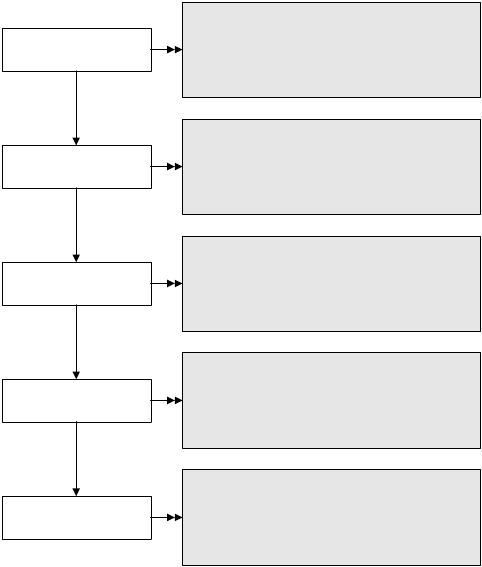
72 Micro Motion® Model 2400S Transmitters for DeviceNet™
Optional Configuration
The Assembly Object is used to configure the configurable input assembly. See the flowchart in
Figure 8-2.
Figure 8-2 Configurable input assembly – DeviceNet tool
8.10.4 Modbus address
Note: The Modbus address is applicable only when you are connecting to the service port from a tool
that uses Modbus protocol. After initial startup, service port connections are typically used only for
troubleshooting or for specific procedures such as temperature calibration. ProLink II is typically
used for service port connections, and by default ProLink II will use the standard service port address
rather than the configured Modbus address. See Section 4.4 for more information.
The set of valid Modbus addresses depends on whether or not support for Modbus ASCII is enabled
or disabled (see Section 8.10.5). Valid Modbus addresses are as follows:
• Modbus ASCII enabled: 1–15, 32–47, 64–79, 96–110
• Modbus ASCII disabled: 0–127
To configure the Modbus address:
• Using ProLink II, see Figure B-2.
• Using the display menus, see Figure B-6.
8.10.5 Modbus ASCII support
When support for Modbus ASCII is enabled, the service port can accept connection requests that use
either Modbus ASCII or Modbus RTU. When support for Modbus ASCII is disabled, the service port
cannot accept connection requests that use Modbus ASCII. Only Modbus RTU connections are
accepted.
User-specified
variable 1
User-specified
variable 2
Class: Assembly Object (0x0A)
Instance: 26
Attribute ID: 100
Value: See Table C-15
Service: Set
User-specified
variable 3
Class: Assembly Object (0x0A)
Instance: 26
Attribute ID: 102
Value: See Table C-15
Service: Set
Class: Assembly Object (0x0A)
Instance: 26
Attribute ID: 101
Value: See Table C-15
Service: Set
User-specified
variable 4
Class: Assembly Object (0x0A)
Instance: 26
Attribute ID: 103
Value: See Table C-15
Service: Set
User-specified
variable 5
Class: Assembly Object (0x0A)
Instance: 26
Attribute ID: 104
Value: See Table C-15
Service: Set
Configuration and Use Manual 73
Optional Configuration
Required Configuration Optional ConfigurationUsing the TransmitterUsing a DeviceNet Tool Required Configuration Optional ConfigurationUsing the TransmitterUsing a DeviceNet Tool Required Configuration Optional ConfigurationUsing the TransmitterUsing a DeviceNet Tool Required Configuration Optional ConfigurationUsing the TransmitterUsing a DeviceNet Tool
The primary reason to disable Modbus ASCII support is to allow a wider range of Modbus addresses
for the service port.
To enable or disable Modbus ASCII support:
• Using ProLink II, see Figure B-2.
• Using the display menus, see Figure B-6.
8.10.6 IrDA port usage
The IrDA port on the display can be enabled or disabled. If enabled, it can be set for read-only or
read/write access.
To enable or disable the IrDA port:
• Using ProLink II, see Figure B-2.
• Using the display menus, see Figure B-6.
• Using a DeviceNet tool, see Table C-9.
To configure the IrDA port for read-only or read-write access:
• Using ProLink II, see Figure B-2.
• Using the display menus, see Figure B-6.
• Using a DeviceNet tool, see Table C-9.
8.10.7 Digital communications fault action
Digital communications fault action controls how digital communications will be affected by fault
conditions. Table 8-12 lists the options for digital communications fault action.
Note: Digital communications fault action does not affect the alarm status bits. For example, if digital
communications fault action is set to None, the alarm status bits will still be set if an alarm occurs.
See Section 7.6 for more information.
Table 8-12 Digital communications fault action options
Option
DefinitionProLink II label DeviceNet label DeviceNet code
Upscale Upscale 0 Process variables indicate the value is greater than
the upper sensor limit. Totalizers stop counting.
Downscale Downscale 1 Process variables indicate the value is less than the
lower sensor limit. Totalizers stop counting.
Zero Zero 2 Flow rates go to the value that represents zero flow.
Density and temperature go to zero. Totalizers stop
counting.
Not-A-Number
(NAN) NAN 3 Process variables report IEEE NAN. Totalizers stop
counting.
Flow to Zero Flow goes to zero 4 Flow rates go to the value that represents zero flow;
other process variables are not affected. Totalizers
stop counting.
None (default) None 5 Process variables reported as measured.

74 Micro Motion® Model 2400S Transmitters for DeviceNet™
Optional Configuration
To configure digital communications fault action:
• Using ProLink II, see Figure B-2.
• Using a DeviceNet tool, see Table C-7.
Note: This functionality is not available via the display menus.
8.10.8 Fault timeout
By default, the transmitter activates the digital communications fault action as soon as the fault is
detected. The fault timeout allows you to delay the digital communications fault action for a specified
interval, for certain faults only. During the fault timeout period, digital communications behaves
normally.
Note: The fault timeout applies only to the digital communications fault action. The “alarm active”
status bit is set as soon as the fault is detected (all alarm severity levels), and the “alarm active”
record is written to history immediately (Fault and Informational alarms only). For more information
on alarm handling, see Section 7.6. For more information on alarm severity, see Section 8.8.
The fault timeout applies only to specific faults. Other faults are reported immediately, regardless of
the fault timeout setting. For information on which faults are affected by the fault timeout, see
Table 8-8.
To configure fault timeout:
• Using ProLink II, see Figure B-2.
• Using a DeviceNet tool, see Table C-7.
Note: This functionality is not available via the display menus.
8.11 Configuring device settings
The device settings are used to describe the flowmeter components. Table 8-13 lists and defines the
device settings.
To configure device settings, you must use ProLink II. See Figure B-2. If you are entering a date, use
the left and right arrows at the top of the calendar to select the year and month, then click on a date.
Note: This functionality is not available via the display menus or a DeviceNet tool.
Table 8-13 Device settings
Parameter Description
Descriptor Any user-supplied description. Not used in transmitter processing, and not required.
Maximum length: 16 characters.
Message Any user-supplied message. Not used in transmitter processing, and not required.
Maximum length: 32 characters.
Date Any user-selected date. Not used in transmitter processing, and not required.

Configuration and Use Manual 75
Optional Configuration
Required Configuration Optional ConfigurationUsing the TransmitterUsing a DeviceNet Tool Required Configuration Optional ConfigurationUsing the TransmitterUsing a DeviceNet Tool Required Configuration Optional ConfigurationUsing the TransmitterUsing a DeviceNet Tool Required Configuration Optional ConfigurationUsing the TransmitterUsing a DeviceNet Tool
8.12 Configuring sensor parameters
The sensor parameters are used to describe the sensor component of your flowmeter. They are not
used in transmitter processing, and are not required. The following sensor parameters can be changed:
• Serial number (can be set only once)
• Sensor material
• Sensor liner material
• Sensor flange type
To configure sensor parameters:
• Using ProLink II, see Figure B-2.
• Using a DeviceNet tool, see Table C-8.
Note: This functionality is not available via the display menus.
8.13 Configuring the petroleum measurement application
The API parameters determine the values that will be used in API-related calculations. The API
parameters are available only if the petroleum measurement application is enabled on your
transmitter.
Note: The petroleum measurement application requires liquid volume measurement units. If you plan
to use API process variables, ensure that liquid volume flow measurement is specified. See
Section 8.2.
8.13.1 About the petroleum measurement application
Some applications that measure liquid volume flow or liquid density are particularly sensitive to
temperature factors, and must comply with American Petroleum Institute (API) standards for
measurement. The petroleum measurement enables Correction of Temperature on volume of Liquids,
or CTL.
Terms and definitions
The following terms and definitions are relevant to the petroleum measurement application:
•API – American Petroleum Institute
•CTL – Correction of Temperature on volume of Liquids. The CTL value is used to calculate
the VCF value
•TEC – Thermal Expansion Coefficient
•VCF – Volume Correction Factor. The correction factor to be applied to volume process
variables. VCF can be calculated after CTL is derived
CTL derivation methods
There are two derivation methods for CTL:
• Method 1 is based on observed density and observed temperature.
• Method 2 is based on a user-supplied reference density (or thermal expansion coefficient, in
some cases) and observed temperature.
76 Micro Motion® Model 2400S Transmitters for DeviceNet™
Optional Configuration
API reference tables
Reference tables are organized by reference temperature, CTL derivation method, liquid type, and
density unit. The table selected here controls all the remaining options.
• Reference temperature:
- If you specify a 5x, 6x, 23x, or 24x table, the default reference temperature is 60 °F, and
cannot be changed.
- If you specify a 53x or 54x table, the default reference temperature is 15 °C. However, you
can change the reference temperature, as recommended in some locations (for example, to
14.0 or 14.5 °C).
• CTL derivation method:
- If you specify an odd-numbered table (5, 23, or 53), CTL will be derived using method 1
described above.
- If you specify an even-numbered table (6, 24, or 54), CTL will be derived using method 2
described above.
• The letters A, B, C, or D that are used to terminate table names define the type of liquid that the
table is designed for:
-A tables are used with generalized crude and JP4 applications.
-B tables are used with generalized products.
-C tables are used with liquids with a constant base density or known thermal expansion
coefficient.
-D tables are used with lubricating oils.
• Different tables use different density units:
-Degrees API
- Relative density (SG)
- Base density (kg/m3)
Configuration and Use Manual 77
Optional Configuration
Required Configuration Optional ConfigurationUsing the TransmitterUsing a DeviceNet Tool Required Configuration Optional ConfigurationUsing the TransmitterUsing a DeviceNet Tool Required Configuration Optional ConfigurationUsing the TransmitterUsing a DeviceNet Tool Required Configuration Optional ConfigurationUsing the TransmitterUsing a DeviceNet Tool
Table 8-14 summarizes these options.
8.13.2 Configuration procedure
The API configuration parameters are listed and defined in Table 8-15.
To configure the petroleum measurement application:
• Using ProLink II, see Figure B-3.
• Using a DeviceNet tool, see Table C-10.
Note: This functionality is not available via the display menus.
Table 8-14 API reference temperature tables
Table
CTL
derivation
method Base temperature
Density unit and range
Degrees API Base density Relative density
5A Method 1 60 °F, non-configurable 0 to +100
5B Method 1 60 °F, non-configurable 0 to +85
5D Method 1 60 °F, non-configurable –10 to +40
23A Method 1 60 °F, non-configurable 0.6110 to 1.0760
23B Method 1 60 °F, non-configurable 0.6535 to 1.0760
23D Method 1 60 °F, non-configurable 0.8520 to 1.1640
53A Method 1 15 °C, configurable 610 to 1075 kg/m3
53B Method 1 15 °C, configurable 653 to 1075 kg/m3
53D Method 1 15 °C, configurable 825 to 1164 kg/m3
Reference temperature Supports
6C Method 2 60 °F, non-configurable 60 °F Degrees API
24C Method 2 60 °F, non-configurable 60 °F Relative density
54C Method 2 15 °C, configurable 15 °C Base density in kg/m3
Table 8-15 API parameters
Variable Description
Table type Specifies the table that will be used for reference temperature and reference density unit. Select
the table that matches your requirements. See API reference tables.
User defined TEC(1)
(1) Configurable if Table Type is set to 6C, 24C, or 54C.
Thermal expansion coefficient. Enter the value to be used in CTL calculation.
Temperature units(2)
(2) In most cases, the temperature unit used by the API reference table should also be the temperature unit configured for the transmitter
to use in general processing. To configure the temperature unit, see Section 6.3.
Read-only. Displays the unit used for reference temperature in the reference table.
Density units Read-only. Displays the unit used for reference density in the reference table.
Reference
temperature Read-only unless Table Type is set to 53x or 54x. If configurable:
• Specify the reference temperature to be used in CTL calculation.
• Enter reference temperature in °C.
78 Micro Motion® Model 2400S Transmitters for DeviceNet™
Optional Configuration
For the temperature value to be used in CTL calculation, you can use the temperature data from the
sensor, or you can configure external temperature compensation to use either a static temperature
value or temperature data from an external temperature device.
• To use temperature data from the sensor, no action is required.
• To configure external temperature compensation, see Section 9.3.
8.14 Configuring the enhanced density application
Micro Motion sensors provide direct measurements of density, but not of concentration. The enhanced
density application calculates enhanced density process variables, such as concentration or density at
reference temperature, from density process data, appropriately corrected for temperature.
Note: For a detailed description of the enhanced density application, see the manual entitled
Micro Motion Enhanced Density Application: Theory, Configuration, and Use.
Note: The enhanced density application requires liquid volume measurement units. If you plan to use
enhanced density process variables, ensure that liquid volume flow measurement is specified. See
Section 8.2.
8.14.1 About the enhanced density application
The enhanced density calculation calculation requires an enhanced density curve, which specifies the
relationship between temperature, concentration, and density for the process fluid being measured.
Micro Motion supplies a set of six standard enhanced density curves (see Table 8-16). If none of these
curves is appropriate for your process fluid, you can configure a custom curve or purchase a custom
curve from Micro Motion.
The derived variable, specified during configuration, controls the type of concentration measurement
that will be produced. Each derived variable allows the calculation of a subset of enhanced density
process variables (see Table 8-17). The available enhanced density process variables can be used in
process control, just as mass flow rate, volume flow rate, and other process variables are used. For
example, an event can be defined on an enhanced density process variable.
• For all standard curves, the derived variable is Mass Conc (Dens).
• For custom curves, the derived variable may be any of the variables listed in Table 8-17.
The transmitter can hold up to six curves at any given time, but only one curve can be active (used for
measurement) at a time. All curves that are in transmitter memory must use the same derived variable.
Table 8-16 Standard curves and associated measurement units
Name Description Density unit Temperature unit
Deg Balling Curve represents percent extract, by mass, in
solution, based on °Balling. For example, if a wort
is 10 °Balling and the extract in solution is 100%
sucrose, the extract is 10% of the total mass.
g/cm3°F
Deg Brix Curve represents a hydrometer scale for sucrose
solutions that indicates the percent by mass of
sucrose in solution at a given temperature. For
example, 40 kg of sucrose mixed with 60 kg of
water results in a 40 °Brix solution.
g/cm3°C
Deg Plato Curve represents percent extract, by mass, in
solution, based on °Plato. For example, if a wort is
10 °Plato and the extract in solution is 100%
sucrose, the extract is 10% of the total mass.
g/cm3°F
Configuration and Use Manual 79
Optional Configuration
Required Configuration Optional ConfigurationUsing the TransmitterUsing a DeviceNet Tool Required Configuration Optional ConfigurationUsing the TransmitterUsing a DeviceNet Tool Required Configuration Optional ConfigurationUsing the TransmitterUsing a DeviceNet Tool Required Configuration Optional ConfigurationUsing the TransmitterUsing a DeviceNet Tool
HFCS 42 Curve represents a hydrometer scale for HFCS 42
(high fructose corn syrup) solutions that indicates
the percent by mass of HFCS in solution.
g/cm3°C
HFCS 55 Curve represents a hydrometer scale for HFCS 55
(high fructose corn syrup) solutions that indicates
the percent by mass of HFCS in solution.
g/cm3°C
HFCS 90 Curve represents a hydrometer scale for HFCS 90
(high fructose corn syrup) solutions that indicates
the percent by mass of HFCS in solution.
g/cm3°C
Table 8-17 Derived variables and available process variables
Available process variables
Derived variable – ProLink II label
and definition
Density at
reference
temperature
Standard
volume
flow rate
Specific
gravity Concentration Net
mass
flow rate
Net
volume
flow rate
Density @ Ref
Density at reference temperature
Mass/unit volume, corrected to a given
reference temperature
✓✓
SG
Specific gravity
The ratio of the density of a process fluid at
a given temperature to the density of water
at a given temperature. The two given
temperature conditions do not need to be
the same.
✓✓✓
Mass Conc (Dens)
Mass concentration derived from reference
density
The percent mass of solute or of material
in suspension in the total solution, derived
from reference density
✓✓ ✓ ✓
Mass Conc (SG)
Mass concentration derived from specific
gravity
The percent mass of solute or of material
in suspension in the total solution, derived
from specific gravity
✓✓✓✓ ✓
Volume Conc (Dens)
Volume concentration derived from
reference density
The percent volume of solute or of material
in suspension in the total solution, derived
from reference density
✓✓ ✓ ✓
Table 8-16 Standard curves and associated measurement units continued
Name Description Density unit Temperature unit
80 Micro Motion® Model 2400S Transmitters for DeviceNet™
Optional Configuration
8.14.2 Configuration procedure
Complete configuration instructions for the enhanced density application are provided in the manual
entitled Micro Motion Enhanced Density Application: Theory, Configuration, and Use. Because of the
complexity of this procedure, Micro Motion recommends using ProLink II for detailed configuration.
If it is necessary to use a DeviceNet tool, refer to the enhanced density manual for application
information, and to the manual entitled Micro Motion Model 2400S Transmitters for DeviceNet:
Device Profile for complete device profile information.
Basic information on setting up the enhanced density application using a DeviceNet tool is provided
in Figure 8-3.
Volume Conc (SG)
Volume concentration derived from specific
gravity
The percent volume of solute or of material
in suspension in the total solution, derived
from specific gravity
✓✓✓✓ ✓
Conc (Dens)
Concentration derived from reference
density
The mass, volume, weight, or number of
moles of solute or of material in
suspension in proportion to the total
solution, derived from reference density
✓✓ ✓
Conc (SG)
Concentration derived from specific gravity
The mass, volume, weight, or number of
moles of solute or of material in
suspension in proportion to the total
solution, derived from specific gravity
✓✓✓✓
Table 8-17 Derived variables and available process variables continued
Available process variables
Derived variable – ProLink II label
and definition
Density at
reference
temperature
Standard
volume
flow rate
Specific
gravity Concentration Net
mass
flow rate
Net
volume
flow rate
Configuration and Use Manual 81
Optional Configuration
Required Configuration Optional ConfigurationUsing the TransmitterUsing a DeviceNet Tool Required Configuration Optional ConfigurationUsing the TransmitterUsing a DeviceNet Tool Required Configuration Optional ConfigurationUsing the TransmitterUsing a DeviceNet Tool Required Configuration Optional ConfigurationUsing the TransmitterUsing a DeviceNet Tool
Figure 8-3 Configuring the enhanced density application – DeviceNet tool
Set transmitter temperature measurement unit to
match curve unit
· For standard curves, see Table 8-16
· For custom curves, see the information provided
with the curve
Set transmitter density measurement unit to
match curve unit
· For standard curves, see Table 8-16
· For custom curves, see the information provided
with the curve
Class: Analog Input Point Object (0x0A)
Instance: 4
Attribute ID: 102
Value: See Table 6-6
Service: Set
Set derived variable
· For standard curves, use Mass Conc (Dens)
· For custom curves, see the information provided
with the curve
Class: Enhanced Density Object (0x64)
Instance: 1
Attribute ID: 15
Data type: USINT
Value: See Table D-17
Service: Set
Class: Analog Input Point Object (0x0A)
Instance: 3
Attribute ID: 102
Value: See Table 6-5
Service: Set
Specify the active curve
Class: Enhanced Density Object (0x64)
Instance: 1
Attribute ID: 16
Data type: USINT
Value: 0 – 5
Service: Set
Enable the enhanced density application
Class: Enhanced Density Object (0x64)
Instance: 1
Attribute ID: 39
Data type: BOOL
Value:
· 0: Disabled
·1: Enabled
Service: Set
82 Micro Motion® Model 2400S Transmitters for DeviceNet™

Configuration and Use Manual 83
Measurement Performance DefaultsTroubleshootingCompensation
Chapter 9
Pressure Compensation
and Temperature Compensation
9.1 Overview
This chapter describes the following procedures:
• Configuring pressure compensation – see Section 9.2
• Configuring external temperature compensation – see Section 9.3
• Obtaining external pressure or temperature data – see Section 9.4
Note: All ProLink II procedures provided in this chapter assume that you have established
communication between ProLink II and the Model 2400S DN transmitter and that you are complying
with all applicable safety requirements. See Chapter 4 for more information.
Note: If you are using Pocket ProLink, the interface is similar to the ProLink II interface described in
this chapter.
Note: All DeviceNet tool procedures provided in this chapter assume that you have established
communication between the DeviceNet tool and the Model 2400S DN transmitter and that you are
complying with all applicable safety requirements. See Chapter 5 for more information.
9.2 Pressure compensation
The Model 2400S DN transmitter can compensate for the effect of pressure on the sensor flow tubes.
Pressure effect is defined as the change in sensor flow and density sensitivity due to process pressure
change away from calibration pressure.
Note: Pressure compensation is an optional procedure. Perform this procedure only if required by
your application.
9.2.1 Options
There are two ways to configure pressure compensation:
• If the operating pressure is a known static value, you can configure that value in the
transmitter.
• If the operating pressure varies significantly, you must write a pressure value to the transmitter
at appropriate intervals, using an appropriate output assembly. See Section 9.4.
Note: Ensure that your pressure value is accurate, or that your pressure measurement device is
accurate and reliable.
84 Micro Motion® Model 2400S Transmitters for DeviceNet™
Pressure Compensation and Temperature Compensation
9.2.2 Pressure correction factors
When configuring pressure compensation, you must provide the flow calibration pressure – the
pressure at which the flowmeter was calibrated (which therefore defines the pressure at which there
will be no effect on the calibration factor). Enter 20 PSI unless the calibration document for your
sensor indicates a different calibration pressure.
Two additional pressure correction factors may be configured: one for flow and one for density. These
are defined as follows:
• Flow factor – the percent change in the flow rate per psi
• Density factor – the change in fluid density, in g/cm3/psi
Not all sensors or applications require pressure correction factors. For the pressure correction values
to be used, obtain the pressure effect values from the product data sheet for your sensor, then reverse
the signs (e.g., if the pressure effect is 0.000004, enter a pressure correction factor of –0.000004).
9.2.3 Configuration
To enable and configure pressure compensation:
• With ProLink II, see Figure 9-1.
• With a DeviceNet tool, see Figure 9-2.
Figure 9-1 Configuring pressure compensation with ProLink II
Enter Flow factor
Configure
Enter Density factor
Enter Cal pressure
Set up output
assembly(2) Enter External
Pressure
Enable External Pressure
Compensation
Enable
Apply
Enter Pressure units
Set measurement unit(1)
Yes
Done
Apply
View >
Preferences ProLink >
Configuration >
Pressure
ProLink >
Configuration >
Pressure
Apply
Apply
Use static
pressure value?
No
(1) Pressure measurement unit must be configured to match pressure
unit used by external device. See Section 6.3.
(2) See Section 9.4.
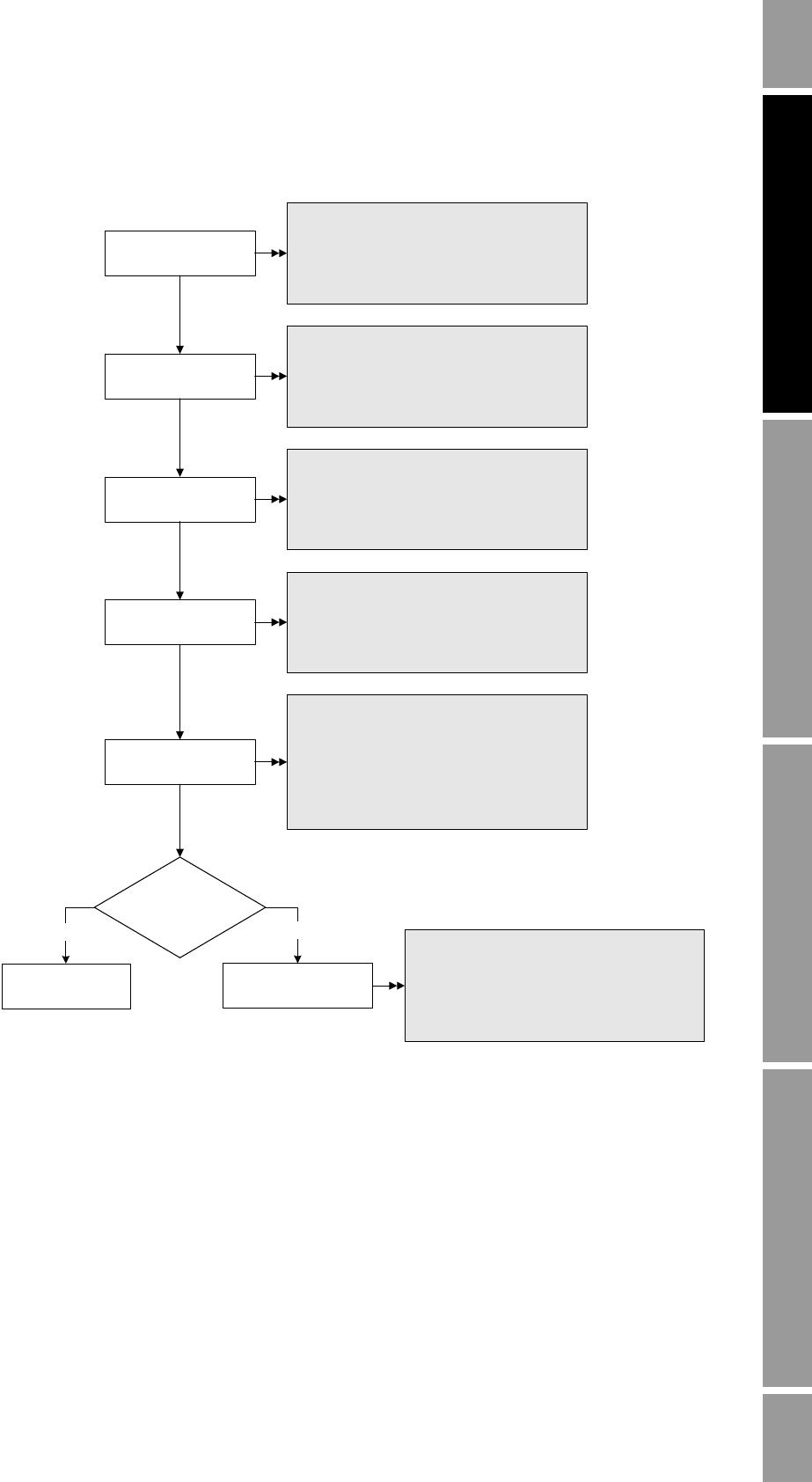
Configuration and Use Manual 85
Pressure Compensation and Temperature Compensation
Measurement Performance DefaultsTroubleshootingCompensation
Figure 9-2 Configuring pressure compensation with a DeviceNet tool
9.3 External temperature compensation
External temperature compensation can be used with the petroleum measurement application or the
enhanced density application.
Note: The external temperature value is used only for calculation of the derived variable in enhanced
density applications or the CTL value in petroleum measurement applications. The temperature value
from the sensor is used for all other calculations that require a temperature value.
Set flow calibration
pressure
Set flow factor
Class: Calibration Object (0x65)
Instance: 1
Attribute ID: 32
Data type: REAL
Service: Set
Set density factor
Class: Calibration Object (0x65)
Instance: 1
Attribute ID: 31
Data type: REAL
Service: Set
Class: Calibration Object (0x65)
Instance: 1
Attribute ID: 30
Data type: REAL
Service: Set
Enable pressure
compensation
Class: Calibration Object (0x65)
Instance: 1
Attribute ID: 27
Data type: BOOL
Value:
· 0 = disabled
· 1 = enabled
Set pressure unit
Class: Calibration Object (0x65)
Instance: 1
Attribute ID: 29
Value: See Table 6-7
Service: Set
Yes
Use static
pressure value?
No
Set up output
assembly(2)
Class: Calibration Object (0x65)
Instance: 1
Attribute ID: 28
Data type: REAL
Service: Set
Set static value
(1) Pressure measurement unit must
be configured to match pressure unit
used by external device. See
Section 6.3.
(2) See Section 9.4.
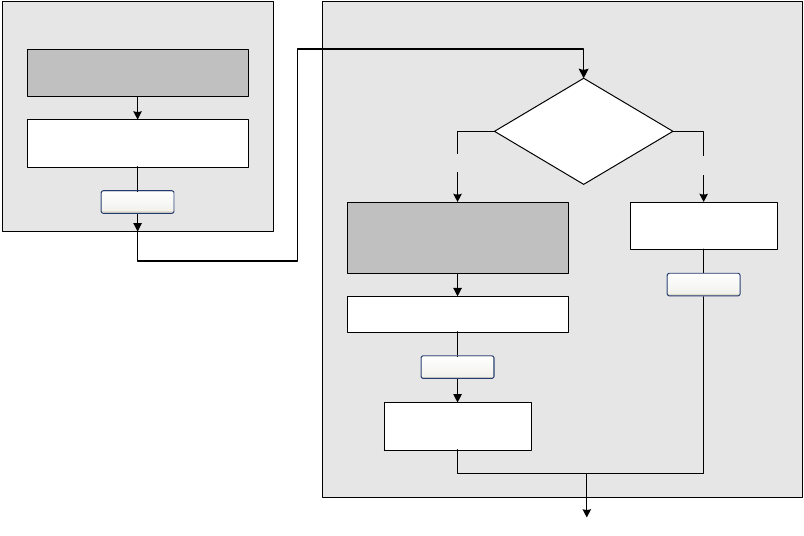
86 Micro Motion® Model 2400S Transmitters for DeviceNet™
Pressure Compensation and Temperature Compensation
There are two ways to configure external temperature compensation:
• If the operating temperature is a known static value, you can configure that value in the
transmitter.
• If the operating temperature varies significantly, you must write a temperature value to the
transmitter at appropriate intervals, using an appropriate output assembly. See Section 9.4.
Note: Ensure that your temperature value is accurate, or that your temperature measurement device is
accurate and reliable.
To enable and configure external temperature compensation:
• With ProLink II, see Figure 9-3.
• With a DeviceNet tool, see Figure 9-4.
Figure 9-3 Configuring external temperature compensation with ProLink II
Configure
Enable Use External
Temperature
Enable
Apply
Enter Temperature units(1)
Apply
View Menu >
Preferences
ProLink >
Configuration >
Temperature
Set up output
assembly(2)
Enter External
Temperature
Yes
Done
No
Use static
temp value?
Apply
(1) Temperature measurement unit must be
configured to match temperature unit
used by external device. See Section 6.3.
(2) See Section 9.4.
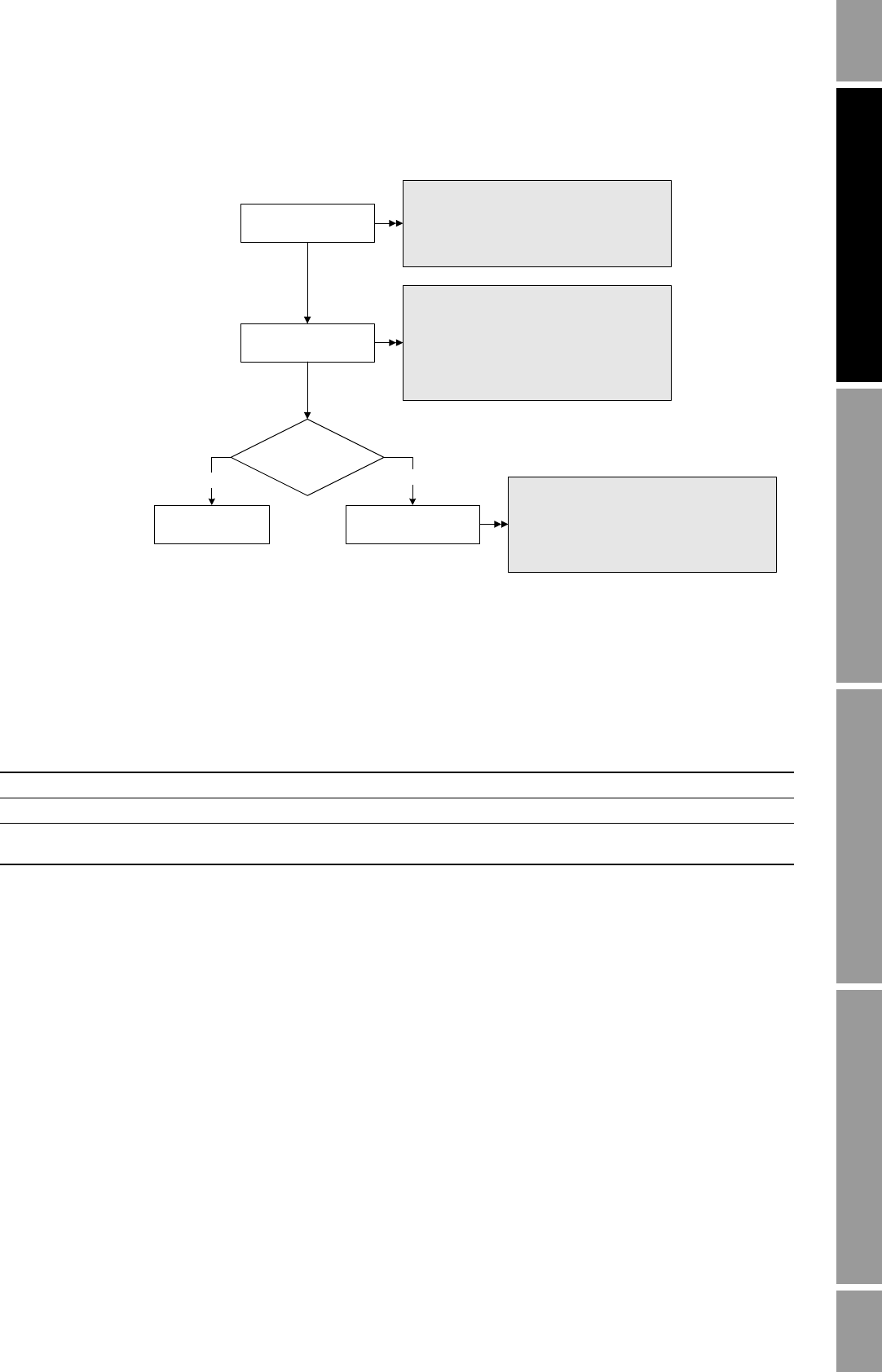
Configuration and Use Manual 87
Pressure Compensation and Temperature Compensation
Measurement Performance DefaultsTroubleshootingCompensation
Figure 9-4 Configuring external temperature compensation with a DeviceNet tool
9.4 Obtaining external pressure and temperature data
The DeviceNet output assemblies used to obtain external pressure and/or temperature data are listed
in Table 9-1. Use standard DeviceNet methods to implement the required connection.
Table 9-1 Output assemblies used for pressure or temperature compensation
Instance ID Data description Size Bytes Data type
50 External pressure 4 bytes Bytes 0–3 REAL
51 External temperature 4 bytes Bytes 0–3 REAL
52 External pressure
External temperature 8 bytes Bytes 0–3
Bytes 4–7 REAL
REAL
Enable temperature
compensation
Class: Calibration Object (0x65)
Instance: 1
Attribute ID: 25
Data type: BOOL
Value:
· 0 = disabled
· 1 = enabled
Set temperature unit
Class: Analog Input Point Object (0x0A)
Instance: 4
Attribute ID: 102
Value: See Table 6-6
Service: Set
Yes
Use static
temp value?
No
Set up output
assembly(2)
Class: Calibration Object (0x65)
Instance: 1
Attribute ID: 26
Data type: REAL
Service: Set
Set static value
(1) Temperature measurement unit
must be configured to match
temperature unit used by
external device. See
Section 6.3.
(2) See Section 9.4.
88 Micro Motion® Model 2400S Transmitters for DeviceNet™

Configuration and Use Manual 89
Measurement Performance DefaultsTroubleshootingCompensation
Chapter 10
Measurement Performance
10.1 Overview
This chapter describes the following procedures:
• Meter verification – see Section 10.3
• Meter validation and adjusting meter factors – see Section 10.4
• Zero calibration – see Section 10.5
• Density calibration – see Section 10.6
• Temperature calibration – see Section 10.7
Note: All ProLink II procedures provided in this chapter assume that you have established
communication between ProLink II and the Model 2400S DN transmitter and that you are complying
with all applicable safety requirements. See Chapter 4 for more information.
Note: If you are using Pocket ProLink, the interface is similar to the ProLink II interface described in
this chapter, with the exception that the additional meter verification functionality described in
Section 10.3.2 is not available.
Note: All DeviceNet tool procedures provided in this chapter assume that you have established
communication between the DeviceNet tool and the Model 2400S DN transmitter and that you are
complying with all applicable safety requirements. See Chapter 5 for more information.
10.2 Meter validation, meter verification, and calibration
The Model 2400S transmitter supports the following procedures for the evaluation and adjustment of
measurement performance:
•Meter verification – establishing confidence in the sensor’s performance by analyzing
secondary variables associated with flow and density
•Meter validation – confirming performance by comparing the sensor’s measurements to a
primary standard
•Calibration – establishing the relationship between a process variable (flow, density, or
temperature) and the signal produced by the sensor
Meter validation and calibration are available on all Model 2400S DN transmitters. Meter verification
is available only if the meter verification option was ordered with the transmitter.
These three procedures are discussed and compared in Sections 10.2.1 through 10.2.4. Before
performing any of these procedures, review these sections to ensure that you will be performing the
appropriate procedure for your purposes.
90 Micro Motion® Model 2400S Transmitters for DeviceNet™
Measurement Performance
10.2.1 Meter verification
Meter verification evaluates the structural integrity of the sensor tubes by comparing current tube
stiffness to the stiffness measured at the factory. Stiffness is defined as the load per unit deflection, or
force divided by displacement. Because a change in structural integrity changes the sensor’s response
to mass and density, this value can be used as an indicator of measurement performance. Changes in
tube stiffness are typically caused by erosion, corrosion, or tube damage.
Meter verification does not affect measurement in any way. Micro Motion recommends performing
meter verification at regular intervals.
10.2.2 Meter validation and meter factors
Meter validation compares a measurement value reported by the transmitter with an external
measurement standard. Meter validation requires one data point.
Note: For meter validation to be useful, the external measurement standard must be more accurate
than the sensor. See the sensor’s product data sheet for its accuracy specification.
If the transmitter’s mass flow, volume flow, or density measurement is significantly different from the
external measurement standard, you may want to adjust the corresponding meter factor. A meter
factor is the value by which the transmitter multiplies the process variable value. The default meter
factors are 1.0, resulting in no difference between the data retrieved from the sensor and the data
reported externally.
Meter factors are typically used for proving the flowmeter against a weights and measures standard.
You may need to calculate and adjust meter factors periodically to comply with regulations.
10.2.3 Calibration
The flowmeter measures process variables based on fixed points of reference. Calibration adjusts
those points of reference. Three types of calibration can be performed:
• Zero, or no flow
• Density calibration
• Temperature calibration
Density and temperature calibration require two data points (low and high) and an external
measurement for each. Zero calibration requires one data point. Calibration produces a change in the
offset and/or the slope of the line that represents the relationship between the actual process value and
the reported value.
Note: For density or temperature calibration to be useful, the external measurements must be
accurate.
Micro Motion flowmeters with the Model 2400S transmitter are calibrated at the factory, and
normally do not need to be calibrated in the field. Calibrate the flowmeter only if you must do so to
meet regulatory requirements. Contact Micro Motion before calibrating your flowmeter.
Note: Micro Motion recommends using meter validation and meter factors, rather than calibration, to
prove the meter against a regulatory standard or to correct measurement error.

Configuration and Use Manual 91
Measurement Performance
Measurement Performance DefaultsTroubleshootingCompensation
10.2.4 Comparison and recommendations
When choosing among meter verification, meter validation, and calibration, consider the following
factors:
• Process interruption
- Meter verification requires approximately four minutes to perform. During these four
minutes, flow can continue (provided sufficient stability is maintained); however, current
process data will not be reported.
- Meter validation for density does not interrupt the process. However, meter validation for
mass flow or volume flow requires process down-time for the length of the test.
- Calibration requires process down-time. In addition, density and temperature calibration
require replacing the process fluid with low-density and high density fluids, or
low-temperature and high-temperature fluids. Zero calibration requires stopping flow
through the sensor.
• External measurement requirements
- Meter verification does not require external measurements.
- Zero calibration does not require external measurements.
- Density calibration, temperature calibration, and meter validation require external
measurements. For good results, the external measurement must be highly accurate.
• Measurement adjustment
- Meter verification is an indicator of sensor condition, but does not change flowmeter
internal measurement in any way.
- Meter validation does not change flowmeter internal measurement in any way. If you
decide to adjust a meter factor as a result of a meter validation procedure, only the reported
measurement is changed – the base measurement is not changed. You can always reverse
the change by returning the meter factor to its previous value.
- Calibration changes the transmitter’s interpretation of process data, and accordingly
changes the base measurement. If you perform a zero calibration, you can return to the
previous zero or the factory zero. However, if you perform a density calibration or a
temperature calibration, you cannot return to the previous calibration factors unless you
have manually recorded them.
Micro Motion recommends that you purchase the meter verification option and perform meter
verification frequently.
10.3 Performing meter verification
The meter verification procedure can be performed on any process fluid. It is not necessary to match
factory conditions. Meter verification is not affected by any parameters configured for flow, density,
or temperature.
During the test, process conditions must be stable. To maximize stability:
• Maintain a constant temperature and pressure.
• Avoid changes to fluid composition (e.g., two-phase flow, settling, etc.).
• Maintain a constant flow. For higher test certainty, stop flow.
If stability varies outside test limits, the meter verification procedure will be aborted. Verify the
stability of the process and retry the test.
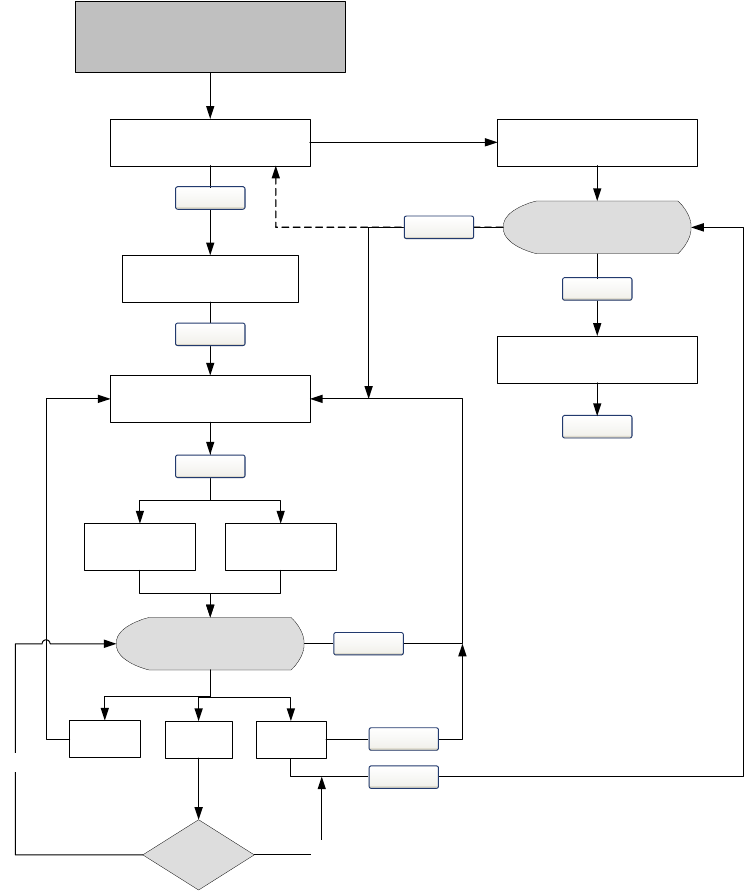
92 Micro Motion® Model 2400S Transmitters for DeviceNet™
Measurement Performance
During meter verification, you can choose between setting digital communications process variable
values to the configured fault indicator or the last measured value. The values will remain fixed for
the duration of the test (approximately four minutes). Disable all control loops for the duration of the
procedure, and ensure that any data reported during this period is handled appropriately.
To perform meter verification:
• Using ProLink II, follow the procedure illustrated in Figure 10-1.
• Using the display menu, follow the procedure illustrated in Figure 10-2. For a complete
illustration of the meter verification display menu, see Figure B-8.
• Using a DeviceNet tool, follow the procedure illustrated in Figure 10-3.
For a discussion of meter verification results, see Section 10.3.1.
Figure 10-1 Meter verification procedure – ProLink II
Verify configuration
parameters
Tools >
Meter Verification >
Structural Integrity Method
View previous test data
Next
Enter optional test data
Initialize and start meter
verification
Next
Abort
Next
Fault
configuration Hold last
value
Progress bar shows
test in progress
Next
Finish(2)
Graph of results
Rerun
test?
Yes
PassFail
No
Start
Back(1)
View report (option to print
or save)
Back
Abort
(1) If the graph was viewed at the beginning of the procedure,
clicking Back here will return to the beginning of the procedure
(along the dotted line).
(2) The results of the meter verification test are not saved until
Finish is clicked.
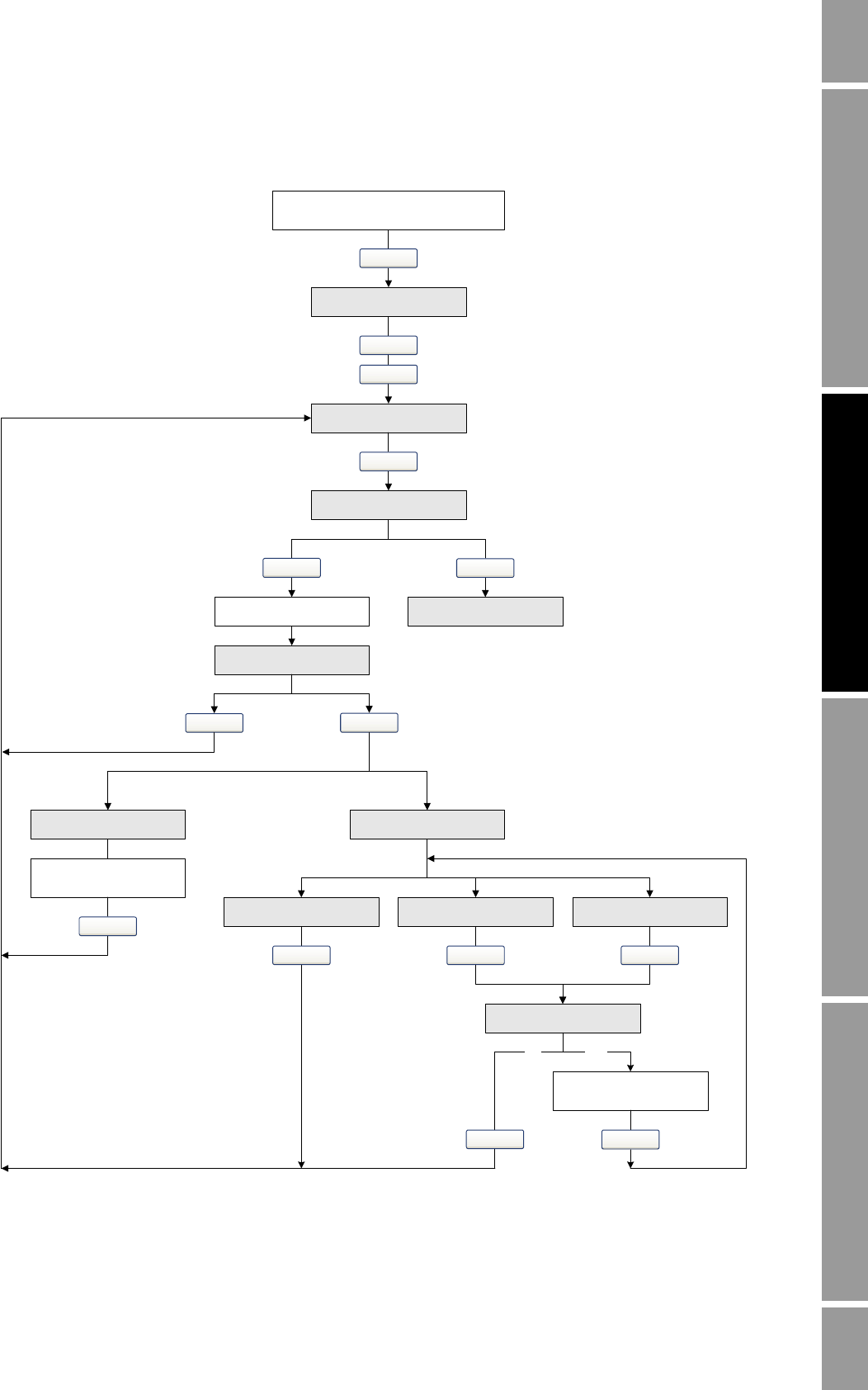
Configuration and Use Manual 93
Measurement Performance
Measurement Performance DefaultsTroubleshootingCompensation
Figure 10-2 Meter verification procedure – Display menu
Select
OFF-LINE MAINT
Scroll and Select simultaneously
for 4 seconds
Scroll
Select
Scroll
SENSOR VERFY
OUTPUTS
STOP MSMT/YES?
. . . . . . . . . . . . . . . x%(2)
UNSTABLE FLOW(1)
Select
PASS ABORTCAUTION
Scroll Scroll
RERUN/YES?
Yes
Scroll
No
Scroll
Select
Correct condition
Correct condition
Select
Scroll
Scroll
SENSOR EXIT
Scroll
Choose output setting
(1) Either Unstable Flow or Unstable Drive Gain may
be displayed, indicating that the standard deviation
of the flow or drive gain is outside limits.
(2) Represents the percentage completion of the
procedure.
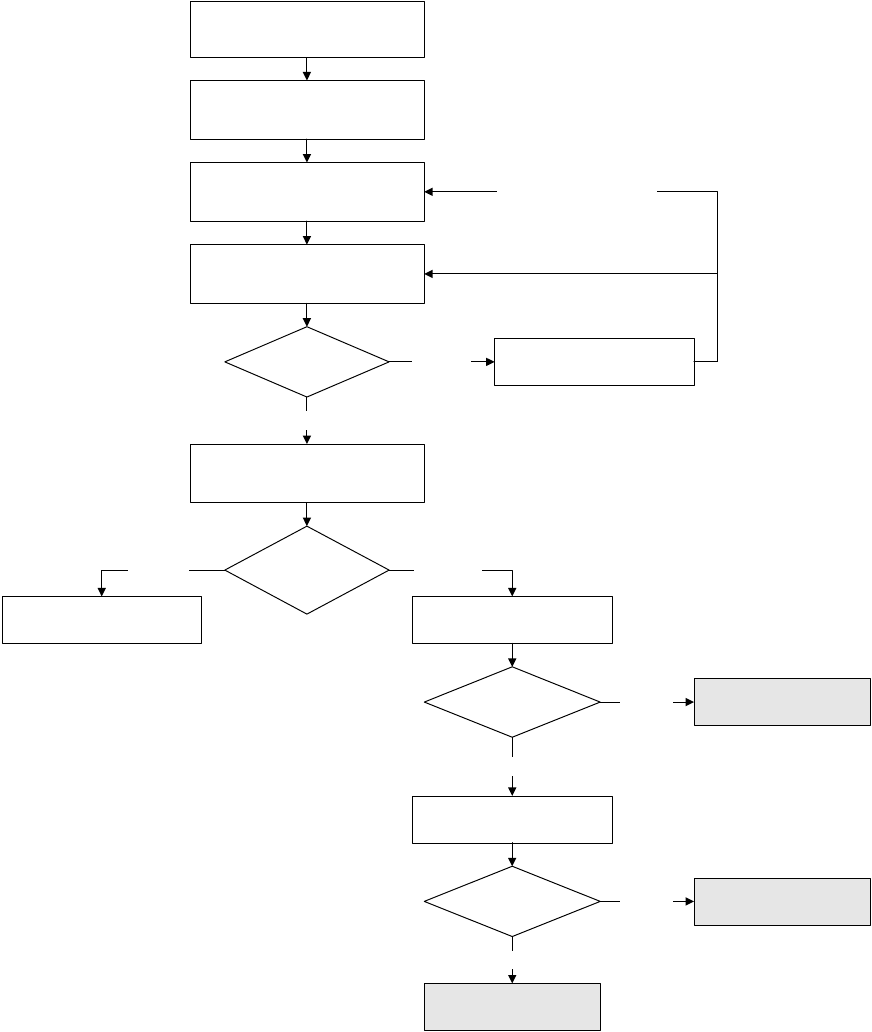
94 Micro Motion® Model 2400S Transmitters for DeviceNet™
Measurement Performance
Figure 10-3 Meter verification procedure – DeviceNet tool
Step 2
Set uncertainty limit (optional)
Step 3
Start/abort procedure
Step 1
Set output state (optional)
Able to
complete?
Step 9
Check abort code
CAUTION
Yes (>0)
Step 4
Check current algorithm state
Running? Step 5
Read percent complete
Yes (=16)
Step 7
Check inlet stiffness
Within limits? No (>0)
Yes (=0)
Step 8
Check outlet stiffness
Within limits? No (>0)
Yes (=0)
CAUTION
PASS
No (<16)
No (=0)
Manual abort (optional)
Step 6
Check algorithm abort state
See Table 10-1 for the device profile
information for each step.
Configuration and Use Manual 95
Measurement Performance
Measurement Performance DefaultsTroubleshootingCompensation
Table 10-1 DeviceNet interface for meter verification
Step number Step description Interface
1 Set output state Class: Diagnostics Object (0x66)
Instance: 1
Attribute ID: 58
Data type: USINT
Value:
• 0: Last measured value (default)
• 1: Fault
Service: Set
2 Set uncertainty limit Class: Diagnostics Object (0x66)
Instance: 1
Attribute ID: 59
Data type: REAL
Range: 0.0025 to 0.05
Default: 0.04
Service: Set
3 Start/abort procedure Class: Diagnostics Object (0x66)
Instance: 1
• 0: Abort
•1: Start
Service: 0x50
4 Check current algorithm state Class: Diagnostics Object (0x66)
Instance: 1
Attribute ID: 54
Data type: USINT
Service: Get
5 Read percent complete Class: Diagnostics Object (0x66)
Instance: 1
Attribute ID: 57
Data type: USINT
Service: Get
6 Check algorithm abort state Class: Diagnostics Object (0x66)
Instance: 1
Attribute ID: 56
Data type: USINT
Service: Get
7 Check inlet stiffness Class: Diagnostics Object (0x66)
Instance: 1
Attribute ID: 61
Data type: USINT
• 0: Within uncertainty limit
• 1: Outside uncertainty limit
Service: Get
8 Check outlet stiffness Class: Diagnostics Object (0x66)
Instance: 1
Attribute ID: 62
Data type: USINT
• 0: Within uncertainty limit
• 1: Outside uncertainty limit
Service: Get
9 Read abort code Class: Diagnostics Object (0x66)
Instance: 1
Attribute ID: 55
Data type: USINT
Codes: See Table C-7
Service: Get
96 Micro Motion® Model 2400S Transmitters for DeviceNet™
Measurement Performance
10.3.1 Uncertainty limit and test results
The result of the meter verification test will be a percent uncertainty of normalized tube stiffness. The
default limit for this uncertainty is ±4.0%. This limit is stored in the transmitter, and can be changed
with ProLink II or a DeviceNet tool when optional test parameters are entered. For most installations,
it is advisable to leave the uncertainty limit at the default value.
When the test is completed, the result will be reported as Pass, Fail/Caution (depending on the tool
you are using), or Abort:
•Pass – The test result is within the specified uncertainty limit. If transmitter zero and
configuration match factory values, the sensor will meet factory specifications for flow and
density measurement. It is expected that the meter will pass meter verification every time the
test is run.
•Fail/Caution – The test result is not within the specified uncertainty limit. Micro Motion
recommends that you immediately re-run the meter verification test. If the meter passes the
second test, the first Fail/Caution result can be ignored. If the meter fails the second test, the
flow tubes may be damaged. Use the knowledge of your process to consider the type of
damage and determine the appropriate action. These actions might include removing the meter
from service and physically inspecting the tubes. At minimum, you should perform a flow
validation (see Section 10.4) and a density calibration (see Section 10.6).
•Abort – A problem occurred with the meter verification test (e.g., process instability). Check
your process and retry the test.
ProLink II provides more detailed test data. See Section 10.3.2.

Configuration and Use Manual 97
Measurement Performance
Measurement Performance DefaultsTroubleshootingCompensation
10.3.2 Additional ProLink II tools for meter verification
In addition to the Pass, Fail/Caution, and Abort result provided by the procedure, ProLink II provides
the following additional meter verification tools:
• Test metadata – ProLink II allows you to enter a large amount of metadata about each test so
that past tests can be audited easily. ProLink II will prompt you for this optional data during
the test.
• Visibility of configuration and zero changes – ProLink II has a pair of indicators that show
whether the transmitter’s configuration or zero has changed since the last meter verification
test. The indicators will be green if configuration and zero are the same, and red otherwise.
You can find out more information about changes to configuration and zero by clicking the
button next to each indicator.
• Plotted data points – ProLink II shows the exact stiffness uncertainty on a graph. This allows
you to see not only whether the meter is operating within specification, but also where the
results fall within the specified limits. (The results are shown as two data points: Inlet and
Outlet. The trending of these two points can help identify if local or uniform changes are
occurring to the flow tubes.)
•Trending – ProLink II has the ability to store a history of meter verification data points. This
history is displayed on the results graph. The rightmost data points are the most recent. This
history lets you see how your meter is trending over time, which can be an important way of
detecting meter problems before they become severe. You can view the graph of past results at
either the beginning or the end of the meter verification procedure. The graph is shown
automatically at the end. Click View Previous Test Data to view the graph at the beginning.
•Data manipulation – You can manipulate the graphed data in various ways by double-clicking
the graph. When the graph configuration dialog is open, you can also export the graph in a
number of formats (including “to printer”) by clicking Export.
•Detailed report form – At the end of a meter verification test, ProLink II displays a detailed
report of the test, which includes the same recommendations for pass/caution/abort results that
are found in Section 10.3.1. You have the options of printing the report or saving it to disk as
an HTML file.
More information about using ProLink II to perform meter verification can be found in the ProLink II
manual and in the on-line ProLink II help system.
Note: Historical data (e.g., previous test results or whether zero has changed) are stored on the
computer on which ProLink II is installed. If you perform meter verification on the same transmitter
from a different computer, from the display, or from a DeviceNet tool, the historical data will not be
visible.
10.4 Performing meter validation
To perform meter validation:
1. Determine the meter factor(s) to use. You may set any combination of the mass flow, volume
flow, and density meter factors.
Note that all three meter factors are independent:
• The mass flow meter factor affects only the value reported for mass flow.
• The density meter factor affects only the value reported for density.
• The volume flow meter factor affects only the value reported for volume flow.
98 Micro Motion® Model 2400S Transmitters for DeviceNet™
Measurement Performance
Therefore, to adjust volume flow, you must set the meter factor for volume flow. Setting a
meter factor for mass flow and a meter factor for density will not produce the desired result.
The volume flow calculations are based on original mass flow and density values, before the
corresponding meter factors have been applied.
2. Calculate the meter factor as follows:
a. Sample the process fluid and record the process variable value reported by the flowmeter.
b. Measure the sample using an external standard.
c. Calculate the new meter factor using the following formula:
If you are calculating the volume flow meter factor, note that proving volume in the field may
be expensive, and the procedure may be hazardous for some process fluids. Therefore, because
volume is inversely proportional to density, an alternative to direct sampling and measurement
is to calculate the volume flow meter factor from the density meter factor. This method
provides partial correction by adjusting for any portion of the total offset that is caused by
density measurement offset. Use this method only when a volume flow reference is not
available, but a density reference is available. To use this method:
a. Calculate the meter factor for density, using the preceding formula.
b. Calculate the volume flow meter factor from the density meter factor, as shown below:
Note: This equation is mathematically equivalent to the equation shown below. You may use
whichever equation you prefer.
3. Ensure that the meter factor is between 0.8 and 1.2, inclusive. If the calculated meter factor is
outside these limits, contact Micro Motion customer service.
4. Configure the meter factor in the transmitter. To configure meter factors:
• Using ProLink II, see Figure B-2.
• Using the display menus, see Figure B-6.
• Using a DeviceNet tool, see Tables C-1, C-2, and C-3.
NewMeterFactor ConfiguredMeterFactor ExternalStandard
ActualFlowmeterMeasurement
---------------------------------------------------------------------------------
×=
MeterFactorVolume 1
MeterFactorDensity
-----------------------------------------------=
MeterFactorVolume ConfiguredMeterFactorDensity
DensityFlowmeter
DensityExternalStandard
-------------------------------------------------------
×=

Configuration and Use Manual 99
Measurement Performance
Measurement Performance DefaultsTroubleshootingCompensation
10.5 Performing zero calibration
Zeroing the flowmeter establishes the flowmeter’s point of reference when there is no flow. The meter
was zeroed at the factory, and should not require a field zero. However, you may wish to perform a
field zero to meet local requirements or to confirm the factory zero.
When you zero the flowmeter, you may need to adjust the zero time parameter. Zero time is the
amount of time the transmitter takes to determine its zero-flow reference point. The default zero time
is 20 seconds.
•A long zero time may produce a more accurate zero reference but is more likely to result in a
zero failure. This is due to the increased possibility of noisy flow, which causes incorrect
calibration.
•A short zero time is less likely to result in a zero failure but may produce a less accurate zero
reference.
For most applications, the default zero time is appropriate.
Note: Do not zero the flowmeter if a high-severity alarm is active. Correct the problem, then zero the
flowmeter. You may zero the flowmeter if a low-severity alarm is active. See Section 7.5 for
information on viewing transmitter status and alarms.
If the zero procedure fails, two recovery functions are provided:
• Restore prior zero, available only from the Calibration dialog box in ProLink II (see
Figure B-1), and only if you have not closed the Calibration window or disconnected from the
transmitter. Once you have closed the Calibration window or disconnected from the
transmitter, you can no longer restore the prior zero.
• Restore factory zero, available via:
- The display – see Figure B-7
- ProLink II – see Figure B-1
- A DeviceNet tool – use the Diagnostics Object (0x66), Instance 1, Service 0x52. For more
information, see the manual entitled Micro Motion Model 2400S Transmitters
for DeviceNet: Device Profile.
If desired, you can use one of these functions to return the meter to operation while you are
troubleshooting the cause of the zero failure (see Section 11.8).
Example The flowmeter is installed and proved for the first time. The flowmeter
mass measurement is 250.27 lb; the reference device measurement is
250 lb. A mass flow meter factor is determined as follows:
The first mass flow meter factor is 0.9989.
One year later, the flowmeter is proved again. The flowmeter mass
measurement is 250.07 lb; the reference device measurement is
250.25 lb. A new mass flow meter factor is determined as follows:
The new mass flow meter factor is 0.9996.
MassFlowMeterFactor 1 250
250.27
------------------
×0.9989==
MassFlowMeterFactor 0.9989 250.25
250.07
------------------
×0.9996==

100 Micro Motion® Model 2400S Transmitters for DeviceNet™
Measurement Performance
10.5.1 Preparing for zero
To prepare for the zero procedure:
1. Apply power to the flowmeter. Allow the flowmeter to warm up for approximately 20 minutes.
2. Run the process fluid through the sensor until the sensor temperature reaches the normal
process operating temperature.
3. Close the shutoff valve downstream from the sensor.
4. Ensure that the sensor is completely filled with fluid.
5. Ensure that the process flow has completely stopped.
10.5.2 Zero procedure
To zero the flowmeter:
• Using the zero button, see Figure 10-4.
• Using the display menu, see Figure 10-5. For a complete illustration of the display zero menu,
see Figure B-7.
• Using ProLink II, see Figure 10-6.
• Using a DeviceNet tool, see Figure 10-7.
Note the following:
• If the transmitter was ordered with a display:
- The zero button is not available.
- If the off-line menu has been disabled, you will not be able to zero the transmitter with the
display. For information about enabling and disabling the off-line menu, see Section 8.9.3.
- You cannot change the zero time with the display. If you need to change the zero time, you
must use ProLink II or a DeviceNet tool.
• If the transmitter was ordered without a display, the zero button is available.
- You cannot change the zero time with the zero button. If you need to change the zero time,
you must use ProLink II or a DeviceNet tool.
- The zero button is located on the user interface board, beneath the transmitter housing
cover (see Figure 3-1). For instructions on removing the transmitter housing cover, see
Section 3.3.
- To press the zero button, use a fine-pointed object that will fit into the opening (0.14 in or
3.5 mm). Hold the button down until the status LED on the user interface module begins to
flash yellow.
• During the zero procedure, the status LED on the user interface module flashes yellow.
CAUTION
If fluid is flowing through the sensor during zero calibration, the calibration
may be inaccurate, resulting in inaccurate process measurement.
To improve the sensor zero calibration and measurement accuracy, ensure that
process flow through the sensor has completely stopped.
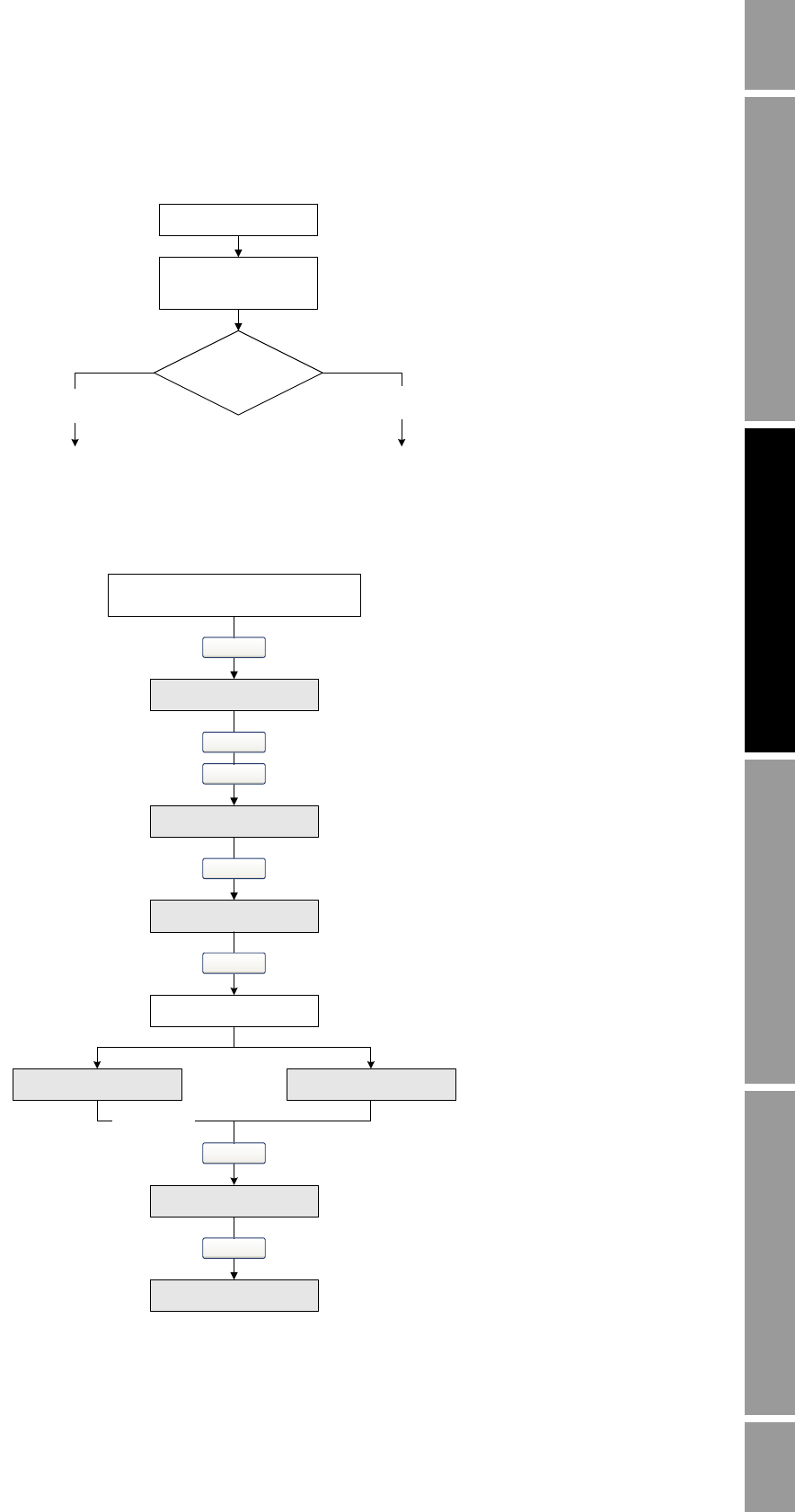
Configuration and Use Manual 101
Measurement Performance
Measurement Performance DefaultsTroubleshootingCompensation
Figure 10-4 Zero button – Flowmeter zero procedure
Figure 10-5 Display menu – Flowmeter zero procedure
Status LED
Status LED flashes
yellow
Done
Solid Green or
Solid Yellow
Troubleshoot
Solid
Red
Press ZERO button
………………….
OFF-LINE MAINT
Scroll and Select simultaneously
for 4 seconds
Scroll
Select
Select
ZERO
ZERO/YES?
CAL PASSCAL FAIL
EXIT
Scroll
Scroll
Select
ZERO
Troubleshoot
Select
102 Micro Motion® Model 2400S Transmitters for DeviceNet™
Measurement Performance
Figure 10-6 ProLink II – Flowmeter zero procedure
Modify zero time
if required
Calibration
Failure LED
Calibration in Progress
LED turns red
Green
Troubleshoot
Red
Perform Auto Zero
Done
ProLink >
Calibration >
Zero Calibration
Wait until Calibration in
Progress LED turns green
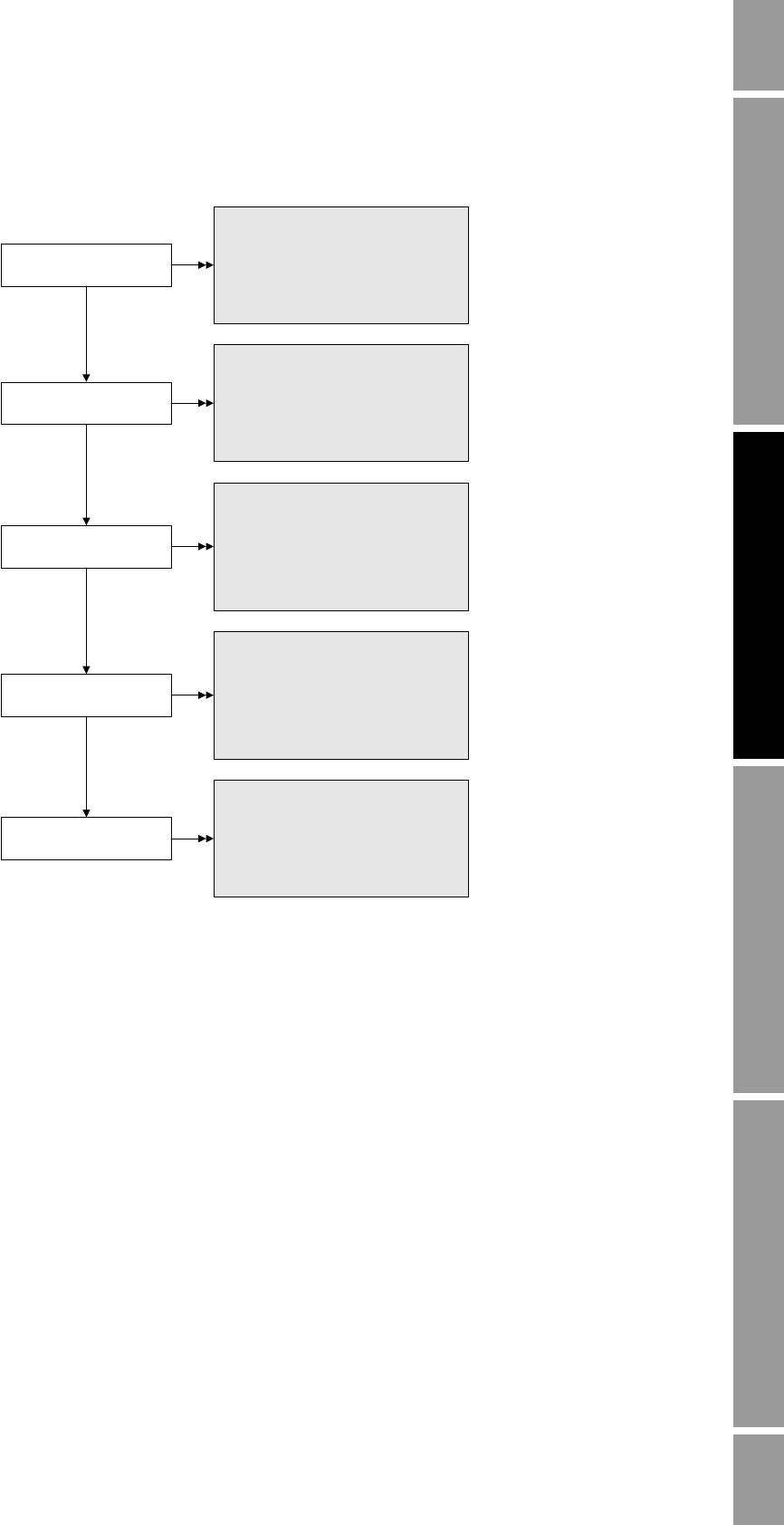
Configuration and Use Manual 103
Measurement Performance
Measurement Performance DefaultsTroubleshootingCompensation
Figure 10-7 DeviceNet tool – Flowmeter zero procedure
10.6 Performing density calibration
Density calibration includes the following calibration points:
• All sensors:
- D1 calibration (low-density)
- D2 calibration (high-density)
• T-Series sensors only:
- D3 calibration (optional)
- D4 calibration (optional)
For T-Series sensors, the optional D3 and D4 calibrations could improve the accuracy of the density
measurement. If you choose to perform the D3 and D4 calibration:
• Do not perform the D1 or D2 calibration.
• Perform D3 calibration if you have one calibrated fluid.
• Perform both D3 and D4 calibrations if you have two calibrated fluids (other than air and
water).
Modify zero time if
required
Perform zero
Class: Calibration Object (0x65)
Instance: 1
Attribute ID: 3
Data type: UINT
Units: seconds
Service: Set
Class: Calibration Object (0x65)
Instance: 1
Service: 0x4B (perform or abort zero)
Value:
· 0: Abort zero calibration
· 1: Start zero calibration
Check outcome
Class: Diagnostics Object (0x66)
Instance: 1
Attribute ID 12, Bit 0x0020
Value:
· 0: Zero succeeded
· 1: Zero failed
Data type: USINT
Check zero values
Class: Calibration Object (0x65)
Instance: 1
Attribute ID 4: Zero standard deviation
Attribute ID 5: Zero offset
Data type: REAL
Units: milliseconds
Check status
Class: Diagnostics Object (0x66)
Instance: 1
Attribute ID 16, Bit 0x8000
Value:
· 0: Zero complete
· 1: Zero in progress
Data type: USINT

104 Micro Motion® Model 2400S Transmitters for DeviceNet™
Measurement Performance
The calibrations that you choose must be performed without interruption, in the order listed here.
Note: Before performing the calibration, record your current calibration parameters. If you are using
ProLink II, you can do this by saving the current configuration to a file on the PC. If the calibration
fails, restore the known values.
You can calibrate for density with ProLink II or a DeviceNet tool.
10.6.1 Preparing for density calibration
Before beginning density calibration, review the requirements in this section.
Sensor requirements
During density calibration, the sensor must be completely filled with the calibration fluid, and flow
through the sensor must be at the lowest rate allowed by your application. This is usually
accomplished by closing the shutoff valve downstream from the sensor, then filling the sensor with
the appropriate fluid.
Density calibration fluids
D1 and D2 density calibration require a D1 (low-density) fluid and a D2 (high-density) fluid. You
may use air and water. If you are calibrating a T-Series sensor, the D1 fluid must be air and the D2
fluid must be water.
For D3 density calibration, the D3 fluid must meet the following requirements:
• Minimum density of 0.6 g/cm3
• Minimum difference of 0.1 g/cm3 between the density of the D3 fluid and the density of water.
The density of the D3 fluid may be either greater or less than the density of water
For D4 density calibration, the D4 fluid must meet the following requirements:
• Minimum density of 0.6 g/cm3
• Minimum difference of 0.1 g/cm3 between the density of the D4 fluid and the density of the
D3 fluid. The density of the D4 fluid must be greater than the density of the D3 fluid
• Minimum difference of 0.1 g/cm3 between the density of the D4 fluid and the density of water.
The density of the D4 fluid may be either greater or less than the density of water
10.6.2 Density calibration procedures
To perform a D1 and D2 density calibration:
• With ProLink II, see Figure 10-8.
• With a DeviceNet tool, see Figure 10-9.
To perform a D3 density calibration or a D3 and D4 density calibration:
• With ProLink II, see Figure 10-10.
• With a DeviceNet tool, see Figure 10-11.
CAUTION
For T-Series sensors, the D1 calibration must be performed on air and the D2
calibration must be performed on water.
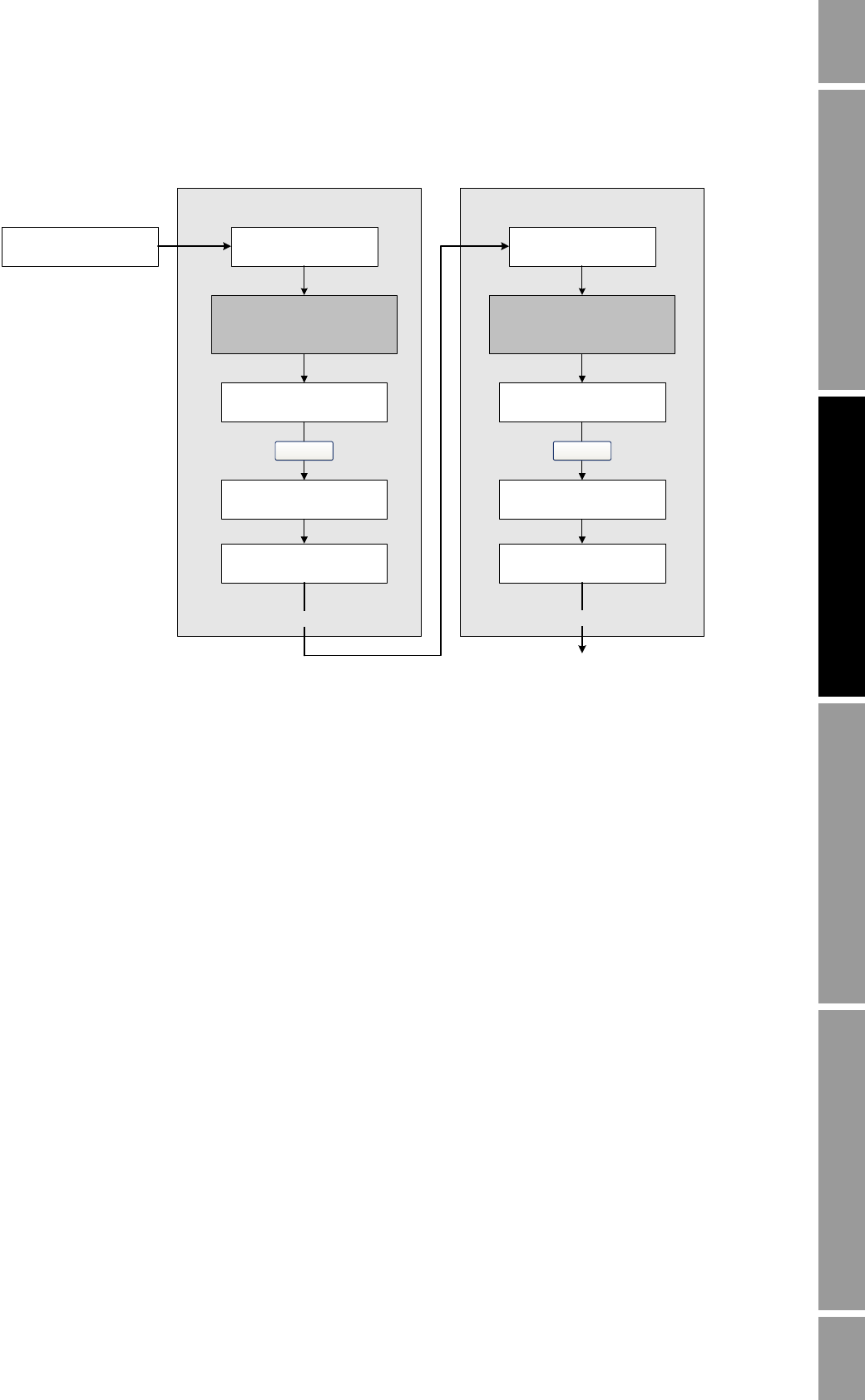
Configuration and Use Manual 105
Measurement Performance
Measurement Performance DefaultsTroubleshootingCompensation
Figure 10-8 D1 and D2 density calibration – ProLink II
Enter density of D1 fluid
Calibration in Progress
light turns green
Calibration in Progress
light turns red
D1 calibration
Close shutoff valve
downstream from sensor Fill sensor with D1 fluid Fill sensor with D2 fluid
Close
Enter density of D2 fluid
Calibration in Progress
light turns green
Calibration in Progress
light turns red
D2 calibration
Close
Done
Do Cal Do Cal
ProLink Menu >
Calibration >
Density cal – Point 1
ProLink Menu >
Calibration >
Density cal – Point 2
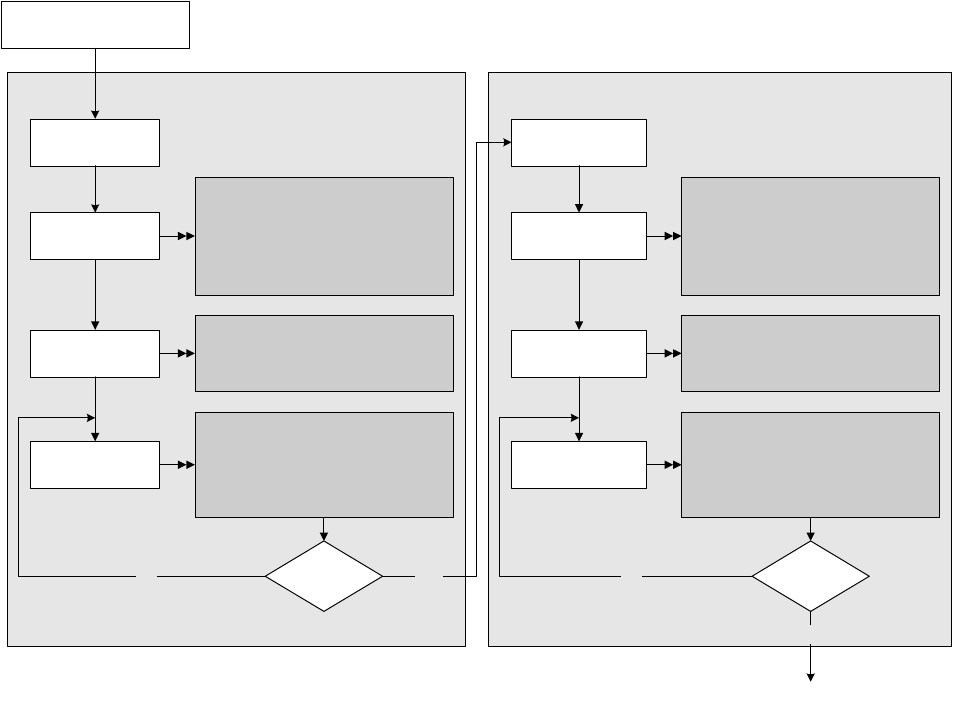
106 Micro Motion® Model 2400S Transmitters for DeviceNet™
Measurement Performance
Figure 10-9 D1 and D2 density calibration – DeviceNet tool
Enter density of
D1 fluid
Monitor status
D1 calibration
Close shutoff valve
downstream from sensor
Fill sensor with
D1 fluid Fill sensor with
D2 fluid
D2 calibration
Done
Object: Calibration object (0x65)
Instance: 1
Service: 0x4C
Start D1
calibration
Object: Calibration object (0x65)
Instance: 1
Attribute ID: 12
Data type: REAL
Service: Set
Yes
Object: Diagnostics object (0x66)
Instance: 1
Attribute ID: 16
Bit: 14
Service: Get
Bit 14 0ff?No
Enter density of
D2 fluid
Monitor status
Object: Calibration object (0x65)
Instance: 1
Service: 0x4D
Start D2
calibration
Object: Calibration object (0x65)
Instance: 1
Attribute ID: 13
Data type: REAL
Service: Set
Object: Diagnostics object (0x66)
Instance: 1
Attribute ID: 16
Bit: 13
Service: Get
Bit 13 0ff?
Yes
No
Configuration and Use Manual 107
Measurement Performance
Measurement Performance DefaultsTroubleshootingCompensation
Figure 10-10 D3 or D3 and D4 density calibration – ProLink II
Enter density of D3 fluid
Calibration in Progress
light turns green
Calibration in Progress
light turns red
D3 calibration
Close shutoff valve
downstream from sensor Fill sensor with D3 fluid
Close
Enter density of D4 fluid
Calibration in Progress
light turns green
Calibration in Progress
light turns red
D4 calibration
Close
Done
Do Cal Do Cal
Done
ProLink Menu >
Calibration >
Density cal – Point 3
Fill sensor with D4 fluid
ProLink Menu >
Calibration >
Density cal – Point 4
108 Micro Motion® Model 2400S Transmitters for DeviceNet™
Measurement Performance
Figure 10-11 D3 or D3 and D4 density calibration – DeviceNet tool
Enter density of
D3 fluid
Monitor status
D3 calibration
Close shutoff valve
downstream from sensor
Fill sensor with
D3 fluid Fill sensor with
D4 fluid
D4 calibration
Done
Object: Calibration Object (0x65)
Instance: 1
Service: 0x4F
Start D3
calibration
Object: Calibration Object (0x65)
Instance: 1
Attribute ID: 15
Data type: REAL
Service: Set
Yes
Object: Diagnostics Object (0x66)
Instance: 1
Attribute ID: 16
Bit: 7
Service: Get
Bit 7 0ff?No
Enter density of
D4 fluid
Monitor status
Object: Calibration Object (0x65)
Instance: 1
Service: 0x50
Start D4
calibration
Object: Calibration Object (0x65)
Instance: 1
Attribute ID: 16
Data type: REAL
Service: Set
Object: Diagnostics Object (0x66)
Instance: 1
Attribute ID: 16
Bit: 6
Service: Get
Bit 6 0ff?
Yes
No
Done
Configuration and Use Manual 109
Measurement Performance
Measurement Performance DefaultsTroubleshootingCompensation
10.7 Performing temperature calibration
Temperature calibration is a two-part procedure: temperature offset calibration and temperature slope
calibration. The entire procedure must be completed without interruption.
To perform temperature calibration, you must use ProLink II. See Figure 10-12.
Figure 10-12 Temperature calibration – ProLink II
Enter temperature of low-
temperature fluid
Temperature Offset calibration
Do Cal
Wait until sensor achieves
thermal equilibrium
Fill sensor with low-
temperature fluid
Calibration in Progress
light turns green
Calibration in Progress
light turns red
Close
Enter temperature of high-
temperature fluid
Temperature Slope calibration
Do Cal
Wait until sensor achieves
thermal equilibrium
Fill sensor with high-
temperature fluid
Calibration in Progress
light turns green
Calibration in Progress
light turns red
Close
Done
ProLink Menu >
Calibration >
Temp offset cal
ProLink Menu >
Calibration >
Temp slope cal
110 Micro Motion® Model 2400S Transmitters for DeviceNet™
Configuration and Use Manual 111
Measurement Performance DefaultsTroubleshootingCompensation
Chapter 11
Troubleshooting
11.1 Overview
This chapter describes guidelines and procedures for troubleshooting the flowmeter. The information
in this chapter will enable you to:
• Categorize the problem
• Determine whether you are able to correct the problem
• Take corrective measures (if possible)
• Contact the appropriate support agency
Note: All ProLink II procedures provided in this chapter assume that you have established
communication between ProLink II and the Model 2400S DN transmitter and that you are complying
with all applicable safety requirements. See Chapter 4 for more information.
Note: If you are using Pocket ProLink, the interface is similar to the ProLink II interface described in
this chapter.
Note: All DeviceNet tool procedures provided in this chapter assume that you have established
communication between the DeviceNet tool and the Model 2400S DN transmitter and that you are
complying with all applicable safety requirements. See Chapter 5 for more information.
11.2 Guide to troubleshooting topics
Refer to Table 11-1 for a list of troubleshooting topics discussed in this chapter.
WARNING
Using the service port clips to communicate with the transmitter in a
hazardous area can cause an explosion.
Before using the service port clips to communicate with the transmitter in a
hazardous area, make sure the atmosphere is free of explosive gases.
Table 11-1 Troubleshooting topics and locations
Section Topic
Section 11.4 Transmitter does not operate
Section 11.5 Transmitter does not communicate
Section 11.6 Checking the communication device
Section 11.7 Diagnosing wiring problems
Section 11.7.1 Checking the DeviceNet cable and connector
112 Micro Motion® Model 2400S Transmitters for DeviceNet™
Troubleshooting
11.3 Micro Motion customer service
To speak to a customer service representative, contact the Micro Motion customer service department.
Contact information is provided in Section 1.10.
Before contacting Micro Motion customer service, review the troubleshooting information and
procedures in this chapter, and have the results available for discussion with the technician.
11.4 Transmitter does not operate
If the transmitter is not receiving power, all three LEDs on the user interface will be off.
1. Check the DeviceNet connector (see Section 11.7.1).
2. Ensure that the network is providing sufficient power to the device.
If at least one LED is lit, perform all of the procedures in Section 11.7.
If the procedures do not indicate a problem with the electrical connections, contact the Micro Motion
customer service department.
11.5 Transmitter does not communicate
If the transmitter does not appear to be communicating, the wiring may be faulty or the
communications device may be incompatible. Check the wiring and the communication device. See
Chapter 4 for ProLink II and Pocket ProLink, or Chapter 5 for a DeviceNet tool.
If you are trying to communicate via the IrDA port, ensure that the port is enabled, that read-write
access is enabled, and that there is no active connection via the service port clips. See Section 8.10.6.
Section 11.7.2 Checking grounding
Section 11.8 Zero or calibration failure
Section 11.9 Fault conditions
Section 11.10 Simulation mode for process variables
Section 11.11 Transmitter LEDs
Section 11.12 Status alarms
Section 11.13 Checking process variables
Section 11.14 Checking slug flow
Section 11.15 Checking the sensor tubes
Section 11.16 Checking the flow measurement configuration
Section 11.17 Checking the characterization
Section 11.18 Checking the calibration
Section 11.19 Checking the test points
Section 11.20 Checking sensor circuitry
Table 11-1 Troubleshooting topics and locations continued
Section Topic
Configuration and Use Manual 113
Troubleshooting
Measurement Performance DefaultsTroubleshootingCompensation
If the transmitter is communicating via the service port but not via DeviceNet, if you are experiencing
intermittent DeviceNet communications, or if the transmitter appears to be operating normally but you
cannot establish a DeviceNet connection:
1. Verify the DeviceNet node address and baud rate for the transmitter. If necessary, change their
values using the digital communications hardware switches on the user interface (see Sections
8.10.1 and 8.10.2), and retry the connection using the new digital communications parameters.
2. Check the DeviceNet cable and connector as described in Section 11.7.1.
3. A variety of network issues can cause communications problems (e.g., bus errors, bus traffic,
too many nodes, insufficient power, shield voltage problems, or flat cable shorts). Follow your
site’s standard procedures for diagnosing and correcting these problems.
11.6 Checking the communication device
Ensure that your communication device is compatible with your transmitter.
ProLink II
ProLink II v2.5 or later is required. To check the version of ProLink II:
1. Start ProLink II.
2. Click Help > About ProLink.
Pocket ProLink
Pocket ProLink v1.3 or later is required. To check the version of Pocket ProLink:
1. Start Pocket ProLink.
2. Tap the Information icon (the question mark) at the bottom of the main screen.
DeviceNet tool
The Model 2400S DN transmitter is compatible with all DeviceNet tools. Check that your DeviceNet
tool is correctly configured and can make a connection to other devices on the network.
11.7 Diagnosing wiring problems
Use the procedures in this section to check the transmitter installation for wiring problems.
11.7.1 Checking the DeviceNet cable and connector
To check the DeviceNet cable and connector:
1. Follow appropriate procedures to ensure that the process of checking the DeviceNet cable and
connector does not interfere with existing measurement and control loops.
2. Disconnect the DeviceNet cable from the connector on the transmitter. See Figure 11-1.
WARNING
Removing the transmitter housing cover in explosive atmospheres while the
device is powered can subject the transmitter to environmental conditions
that can cause an explosion.
Before removing the transmitter housing cover in explosive atmospheres, be sure
to remove power from the device and wait five minutes.
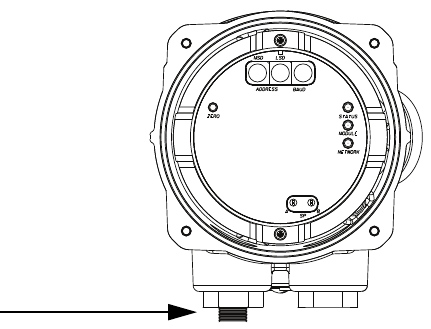
114 Micro Motion® Model 2400S Transmitters for DeviceNet™
Troubleshooting
3. Visually inspect the cable and connector. Ensure that contact is good at both ends, that the pins
are not bent, the cable is not crimped, and the cable covering is intact.
4. Retry the connection using a different cable.
Figure 11-1 DeviceNet connector
11.7.2 Checking grounding
The sensor / transmitter assembly must be grounded. See your sensor installation manual for
grounding requirements and instructions.
11.8 Zero or calibration failure
If a zero or calibration procedure fails, the transmitter will send a status alarm indicating the cause of
failure. See Section 11.12 for specific remedies for status alarms indicating calibration failure.
11.9 Fault conditions
If a fault is reported, determine the exact nature of the fault by checking the status alarms (see
Section 7.6). Once you have identified the status alarm(s) associated with the fault condition, refer to
Section 11.12.
Some fault conditions can be corrected by cycling power to the transmitter. A power cycle can clear
the following:
• Zero failure
• Stopped internal totalizer
11.10 Simulation mode for process variables
Simulation allows you to define arbitrary values for mass flow, temperature, and density. Simulation
mode has several uses:
• It can help determine if a problem is located in the transmitter or elsewhere in the system. For
example, signal oscillation or noise is a common occurrence. The source could be the PLC, the
meter, improper grounding, or a number of other factors. By setting up simulation to output a
flat signal, you can determine the point at which the noise is introduced.
• It can be used to analyze system response or to tune the loop.

Configuration and Use Manual 115
Troubleshooting
Measurement Performance DefaultsTroubleshootingCompensation
If simulation mode is active, the simulated values are stored in the same memory locations used for
process data from the sensor. Therefore, the simulated values will be used throughout transmitter
functioning. For example, simulation will affect:
• All mass flow, temperature, or density values shown on the display or reported via digital
communications
• The mass total and inventory values
• All volume calculations and data, including reported values, volume total, and volume
inventory
• All related values logged by Data Logger (a ProLink II utility)
Accordingly, do not enable simulation when your process cannot tolerate these effects, and be sure to
disable simulation when you have finished testing.
Note: Unlike actual mass flow and density values, the simulated values are not
temperature-compensated.
Simulation does not change any diagnostic values.
Simulation mode is available only via ProLink II. To set up simulation, refer to Figure B-3 and follow
the steps below.
1. Enable simulation mode.
2. For mass flow:
a. Specify the type of simulation you want: fixed value, sawtooth (triangular wave), or sine
wave.
b. Enter the required values.
• If you specified fixed value simulation, enter a fixed value.
• If you specified sawtooth or sine wave simulation, enter a minimum value, maximum
value, and wave period. Minimum and maximum values are entered in the current
measurement units; the wave period is entered in seconds.
3. Repeat Step 2 for temperature and density.
To use simulation mode for problem location, enable simulation mode and check the signal at various
points between the transmitter and the receiving device.
Be sure to disable simulation when testing is complete.
11.11 Transmitter LEDs
The user interface board includes three LEDs:
• A status LED. See Table 7-5 for information on status LED behavior. If the status LED
indicates an alarm condition:
a. View the alarm code using the procedures described in Section 7.5.
b. Identify the alarm (see Section 11.12).
c. Correct the condition.
d. If desired, acknowledge the alarm using the procedures described in Section 7.6.
• A module LED. See Table 7-3 for information on the behavior of the module LED and
suggestions on user response.
• A network LED. See Table 7-4 for information on the behavior of the network LED. The
network LED indicates the state of the device on the network, and does not indicate device
status. Troubleshooting should focus on the network rather than the device.
116 Micro Motion® Model 2400S Transmitters for DeviceNet™
Troubleshooting
11.12 Status alarms
Status alarm codes are reported on the LCD panel (for transmitters that have a display), and status
alarms can be viewed with ProLink II or a DeviceNet tool (see Section 7.6). All possible status alarms
are listed in Table 11-2, along with the ProLink II message, possible causes, and suggested remedies.
You may find it useful to acknowledge all alarms before beginning the troubleshooting procedures.
This will remove inactive alarms from the list and allow you to focus on active alarms.
Table 11-2 Status alarms and remedies
Alarm
code ProLink II
message Cause Suggested remedy
A001 (E)EPROM
Checksum Error
(CP)
An uncorrectable
checksum mismatch has
been detected
• Cycle power to the flowmeter.
• The flowmeter might need service. Contact Micro Motion.
See Section 11.3.
A002 RAM Error (CP) ROM checksum error or a
RAM location cannot be
written to
• Cycle power to the flowmeter.
• The flowmeter might need service. Contact Micro Motion.
See Section 11.3.
A003 Sensor Failure Continuity failure of drive
circuit, LPO, or RPO, or
LPO-RPO mismatch when
driving
• Check for slug flow. See Section 11.14.
• Check the test points. See Section 11.19.
• Check the sensor circuitry. See Section 11.20.
• Check sensor tubes for plugging.
• If the problem persists, contact Micro Motion. See
Section 11.3.
A004 Temperature
Sensor Failure Combination of A016 and
A017 • Check the sensor RTD circuitry. See Section 11.20.
• Verify that process temperature is within range of sensor
and transmitter.
• If the problem persists, contact Micro Motion. See
Section 11.3.
A005 Input Overrange The measured flow has
exceeded the maximum
flow rate of the sensor
(ΔT > 200 μs)
• If other alarms are present (typically, A003, A006, A008,
A102, or A105), resolve those alarm conditions first. If the
A005 alarm persists, continue with the suggestions here.
• Verify process and check for slug flow. See Section 11.14.
• Check the test points. See Section 11.19.
• Check the sensor circuitry. See Section 11.20.
• Check the sensor tubes for erosion. See Section 11.15.
• If the problem persists, contact Micro Motion. See
Section 11.3.
A006 Not Configured Combination of A020 and
A021 • Check the characterization. Specifically, verify the FCF
and K1 values. See Section 6.2.
• If the problem persists, contact Micro Motion. See
Section 11.3.
A008 Density Overrange The measured density has
exceeded 0–10 g/cm3• If other alarms are present (typically, A003, A006, A102, or
A105), resolve those alarm conditions first. If the A008
alarm persists, continue with the suggestions here.
• Verify process. Check for air in the flow tubes, tubes not
filled, foreign material in tubes, or coating in tubes (see
Section 11.15).
• Check for slug flow. See Section 11.14.
• Check the sensor circuitry. See Section 11.20.
• Verify calibration factors in transmitter configuration. See
Section 6.2.
• Check the test points. See Section 11.19.
• If the problem persists, contact Micro Motion. See
Section 11.3.
Configuration and Use Manual 117
Troubleshooting
Measurement Performance DefaultsTroubleshootingCompensation
A009 Transmitter
Initializing/Warming
Up
Transmitter in power-up
mode • Allow the flowmeter to warm up (approximately 30
seconds). The error should disappear once the flowmeter
is ready for normal operation.
• If alarm does not clear, make sure that the sensor is
completely full or completely empty.
• Check the sensor circuitry. See Section 11.20.
A010 Calibration Failure Mechanical zero: The
resulting zero was greater
than 3 μs.
Temperature/Density Cals:
many possible causes.
• If alarm appears during a transmitter zero, ensure that
there is no flow through the sensor, then retry.
• Cycle power to the flowmeter, then retry.
• If appropriate, restore the factory zero to return the
flowmeter to operation.
A011 Zero Too Low See A10 • Ensure that there is no flow through the sensor, then retry.
• Cycle power to the flowmeter, then retry.
• If appropriate, restore the factory zero to return the
flowmeter to operation.
A012 Zero Too High See A10 • Ensure that there is no flow through the sensor, then retry.
• Cycle power to the flowmeter, then retry.
• If appropriate, restore the factory zero to return the
flowmeter to operation.
A013 Zero Too Noisy See A10 • Remove or reduce sources of electromechanical noise,
then retry. Sources of noise include:
- Mechanical pumps
- Pipe stress at sensor
- Electrical interference
- Vibration effects from nearby machinery
• Cycle power to the flowmeter, then retry.
• If appropriate, restore the factory zero to return the
flowmeter to operation.
A014 Transmitter Failed Many possible causes • Cycle power to the flowmeter.
• The transmitter might need service. Contact Micro Motion.
See Section 11.3.
A016 Line RTD
Temperature
Out-Of-Range
The value computed for
the resistance of the Line
RTD is outside limits
• Check the sensor RTD circuitry. See Section 11.20.
• Verify that process temperature is within range of sensor
and transmitter.
• If the problem persists, contact Micro Motion. See
Section 11.3.
A017 Meter RTD
Temperature
Out-of-Range
The value computed for
the resistance of the
Meter/Case RTD is
outside limits
• Check the sensor RTD circuitry. See Section 11.20.
• Verify that process temperature is within range of sensor
and transmitter.
• Check the characterization. Specifically, verify the FCF
and K1 values. See Section 6.2.
• If the problem persists, contact Micro Motion. See
Section 11.3.
A020 Calibration Factors
Unentered
(FlowCal)
The flow calibration factor
and/or K1 has not been
entered since the last
master reset
• Check the characterization. Specifically, verify the FCF
and K1 values. See Section 6.2.
• If the problem persists, contact Micro Motion. See
Section 11.3.
A021 Incorrect Sensor
Type (K1) The sensor is recognized
as a straight tube but the
K1 value indicates a
curved tube, or vice versa
• Check the characterization. Specifically, verify the FCF
and K1 values. See Section 6.2.
• Check the sensor RTD circuitry. See Section 11.20.
• If the problem persists, contact Micro Motion. See
Section 11.3.
A029 PIC/Daughterboard
Communication
Failure
Transmitter electronics
failure • Cycle power to the flowmeter.
• Contact Micro Motion. See Section 11.3.
Table 11-2 Status alarms and remedies continued
Alarm
code ProLink II
message Cause Suggested remedy
118 Micro Motion® Model 2400S Transmitters for DeviceNet™
Troubleshooting
A030 Incorrect Board
Type The loaded software is not
compatible with the
programmed board type
• Contact Micro Motion. See Section 11.3.
A031 Low Power The transmitter is not
receiving enough power • Check power supply to transmitter. See Section 11.4.
A032 Meter
Verification/Outputs
In Fault
Meter verification in
progress, with outputs set
to fault
• Allow the procedure to complete.
• If desired, abort the procedure and restart with outputs set
to last measured value.
A033 Sensor OK, Tubes
Stopped by
Process
No signal from LPO or
RPO, suggesting that
sensor tubes are not
vibrating
• Verify process. Check for air in the flow tubes, tubes not
filled, foreign material in tubes, or coating in tubes (see
Section 11.15).
A102 Drive Overrange/
Partially Full Tube The drive power
(current/voltage) is at its
maximum
• Excessive drive gain. See Section 11.19.3.
• Check the sensor circuitry. See Section 11.20.
• If this is the only active alarm, it can be ignored. If desired,
reconfigure the alarm severity to Ignore (see Section 8.8).
A104 Calibration in
Progress A calibration procedure is
in progress • Allow the flowmeter to complete calibration.
• For zero calibration procedures, you may abort the
calibration, set the zero time parameter to a lower value,
and restart the calibration.
A105 Slug Flow The density has exceeded
the user-defined slug
(density) limits
• See Section 11.14.
A107 Power Reset
Occurred The transmitter has been
restarted • No action required.
• If desired, reconfigure the alarm severity to Ignore (see
Section 8.8).
A116 API: Temperature
Outside Standard
Range
The process temperature
is outside API-defined
extrapolation limits
• Verify process.
• Verify API reference table and temperature configuration.
See Section 8.13.
A117 API: Density
Outside Standard
Range
The process density is
outside API-defined
extrapolation limits
• Verify process.
• Verify API reference table and density configuration. See
Section 8.13.
A120 ED: Unable to Fit
Curve Data The configured values for
density curves do not
meet accuracy
requirements
• Verify enhanced density configuration. See Section 8.14.
A121 ED: Extrapolation
Alarm Enhanced density
calculations are outside
the configured data range
• Verify process temperature.
• Verify process density.
• Verify enhanced density configuration. See Section 8.14.
A131 Meter
Verification/Outputs
at Last Value
Meter verification in
progress, with outputs set
to last measured value
• Allow the procedure to complete.
• If desired, abort the procedure and restart with outputs set
to fault.
A132 Simulation Mode
Active Simulation mode is
enabled • Disable simulation mode. See Section 11.10.
A133 PIC UI EEPROM
Error EEPROM data on the user
interface module is corrupt • Contact Micro Motion. See Section 11.3.
Table 11-2 Status alarms and remedies continued
Alarm
code ProLink II
message Cause Suggested remedy
Configuration and Use Manual 119
Troubleshooting
Measurement Performance DefaultsTroubleshootingCompensation
11.13 Checking process variables
Micro Motion suggests that you make a record of the process variables listed below, under normal
operating conditions. This will help you recognize when the process variables are unusually high or
low.
• Flow rate
• Density
•Temperature
• Tube frequency
• Pickoff voltage
•Drive gain
To view these values:
• With ProLink II, use the Status window and the Diagnostic Information window. Both of these
windows are opened from the ProLink menu.
• Using the display, you must configure the display to show them. See Section 8.9.5.
• Using a DeviceNet tool, see Tables C-1 through C-5 and Table C-7.
For troubleshooting, check the process variables under both normal flow and tubes-full no-flow
conditions. Except for flow rate, you should see little or no change between flow and no-flow
conditions. If you see a significant difference, record the values and contact Micro Motion customer
service for assistance. See Section 11.3.
Unusual values for process variables may indicate a variety of different problems. Table 11-3 lists
several possible problems and suggested remedies.
Table 11-3 Process variables problems and remedies
Symptom Cause Suggested remedy
Steady non-zero flow rate under
no-flow conditions Misaligned piping (especially in new
installations) • Correct the piping.
Open or leaking valve • Check or correct the valve
mechanism.
Bad sensor zero • Rezero the flowmeter or restore the
factory zero or prior zero. See
Section 10.5.
120 Micro Motion® Model 2400S Transmitters for DeviceNet™
Troubleshooting
Erratic non-zero flow rate under
no-flow conditions Leaking valve or seal • Check pipeline.
Slug flow • See Section 11.14.
Plugged flow tube • Check drive gain and tube frequency.
Purge the flow tubes.
Incorrect sensor orientation • Sensor orientation must be
appropriate to process fluid. See the
installation manual for your sensor.
Wiring problem • Check the sensor circuitry. See
Section 11.20.
Vibration in pipeline at rate close to
sensor tube frequency • Check environment and remove
source of vibration.
Damping value too low • Check configuration. See Section 8.4.
Mounting stress on sensor • Check sensor mounting. Ensure:
- Sensor is not being used to support
pipe.
- Sensor is not being used to correct
pipe misalignment.
- Sensor is not too heavy for pipe.
Sensor cross-talk • Check environment for sensor with
similar (±0.5 Hz) tube frequency.
Erratic non-zero flow rate when flow
is steady Slug flow • See Section 11.14.
Damping value too low • Check configuration. See Section 8.4.
Plugged flow tube • Check drive gain and tube frequency.
Purge the flow tubes.
Excessive or erratic drive gain • See Section 11.19.3.
Output wiring problem • Verify wiring between transmitter and
receiving device. See the installation
manual for your transmitter.
Problem with receiving device • Test with another receiving device.
Wiring problem • Check the sensor circuitry. See
Section 11.20.
Inaccurate flow rate or batch total Bad flow calibration factor • Verify characterization. See
Section 6.2.
Inappropriate measurement unit • Check configuration. See
Section 11.16.
Bad sensor zero • Rezero the flowmeter or restore the
factory zero or prior zero. See
Section 10.5.
Bad density calibration factors • Verify characterization. See
Section 6.2.
Bad flowmeter grounding • See Section 11.7.2.
Slug flow • See Section 11.14.
Wiring problem • Check the sensor circuitry. See
Section 11.20.
Table 11-3 Process variables problems and remedies continued
Symptom Cause Suggested remedy
Configuration and Use Manual 121
Troubleshooting
Measurement Performance DefaultsTroubleshootingCompensation
11.14 Checking slug flow
A slug flow alarm is posted whenever the measured process density is outside the configured slug
flow limits (i.e., density is higher or lower than the configured normal range). Slug flow is typically
caused by gas in a liquid process or liquid in a gas process. See Section 8.7 for a discussion of slug
flow functionality.
Inaccurate density reading Problem with process fluid • Use standard procedures to check
quality of process fluid.
Bad density calibration factors • Verify characterization. See
Section 6.2.
Wiring problem • Check the sensor circuitry. See
Section 11.20.
Bad flowmeter grounding • See Section 11.7.2.
Slug flow • See Section 11.14.
Sensor cross-talk • Check environment for sensor with
similar (±0.5 Hz) tube frequency.
Plugged flow tube • Check drive gain and tube frequency.
Purge the flow tubes.
Incorrect sensor orientation • Sensor orientation must be
appropriate to process fluid. See the
installation manual for your sensor.
RTD failure • Check for alarm conditions and follow
troubleshooting procedure for
indicated alarm.
Physical characteristics of sensor have
changed • Check for corrosion, erosion, or tube
damage. See Section 11.15.
Temperature reading significantly
different from process temperature RTD failure • Check for alarm conditions and follow
troubleshooting procedure for
indicated alarm.
• Verify “Use external temperature”
configuration and disable if
appropriate. See Section 9.3.
Temperature reading slightly different
from process temperature Sensor leaking heat • Insulate the sensor.
Unusually high density reading Plugged flow tube • Check drive gain and tube frequency.
Purge the flow tubes.
Incorrect K2 value • Verify characterization. See
Section 6.2.
Unusually low density reading Slug flow • See Section 11.14.
Incorrect K2 value • Verify characterization. See
Section 6.2.
Unusually high tube frequency Sensor erosion • Contact Micro Motion. See
Section 11.3.
Unusually low tube frequency Plugged flow tube, corrosion, or erosion • Purge the flow tubes.
• Perform meter verification. See
Section 11.15.
Unusually low pickoff voltages Several possible causes • See Section 11.19.4.
Unusually high drive gain Several possible causes • See Section 11.19.3.
Table 11-3 Process variables problems and remedies continued
Symptom Cause Suggested remedy
122 Micro Motion® Model 2400S Transmitters for DeviceNet™
Troubleshooting
If slug flow occurs:
• Check the process for cavitation, flashing, or leaks.
• Change the sensor orientation.
• Monitor density.
• If desired, enter new slug flow limits (see Section 8.7).
- Raising the low slug flow limit or lowering the high slug flow limit will increase the
possibility of slug flow conditions.
- Lowering the low slug flow limit or raising the high slug flow limit will decrease the
possibility of slug flow conditions.
• If desired, increase slug duration (see Section 8.7).
11.15 Checking the sensor tubes
Corrosion, erosion, or damage to the sensor tubes can affect process measurement. To check for these
conditions, perform the meter verification procedure. See Chapter 10.
11.16 Checking the flow measurement configuration
Using an incorrect flow measurement unit can cause the transmitter to report unexpected process
variable values, with unpredictable effects on the process. Make sure that the configured flow
measurement unit is correct. Check the abbreviations; for example, g/min represents grams per
minute, not gallons per minute. See Section 6.3.
11.17 Checking the characterization
A transmitter that is incorrectly characterized for its sensor might report inaccurate process variable
values. Both the K1 and Flow Cal (FCF) values must be appropriate for the sensor. If these values are
incorrect, the sensor may not drive correctly or may send inaccurate process data.
If you discover that any of the characterization data are wrong, perform a complete characterization.
See Section 6.2.
11.18 Checking the calibration
Improper calibration can cause the transmitter to report unexpected process variable values. If the
transmitter appears to be operating correctly but sends unexpected process variable values, an
improper calibration may be the cause.
Micro Motion calibrates every transmitter at the factory. Therefore, you should suspect improper
calibration only if the transmitter has been calibrated after it was shipped from the factory. Before
performing a calibration, consider meter validation or meter verification and select the appropriate
procedure (see Section 10.2). Contact Micro Motion customer service for assistance.
11.19 Checking the test points
Some status alarms that indicate a sensor failure or overrange condition can be caused by problems
other than a failed sensor. You can diagnose sensor failure or overrange status alarms by checking the
flowmeter test points. The test points include left and right pickoff voltages, drive gain, and tube
frequency. These values describe the current operation of the sensor.

Configuration and Use Manual 123
Troubleshooting
Measurement Performance DefaultsTroubleshootingCompensation
11.19.1 Obtaining the test point values
To obtain the test point values:
• With the display, configure the required test points as display variables. See Section 8.9.5.
• With ProLink II
a. Click ProLink > Diagnostic Information.
b. Observe or record the values displayed for Tube Frequency, Left Pickoff, Right Pickoff,
and Drive Gain.
• With a DeviceNet tool, execute a Get for the attributes listed in Table 11-4.
11.19.2 Evaluating the test points
Use the following guidelines to evaluate the test points:
• If the drive gain is erratic, negative, or saturated, refer to Section 11.19.3.
• If the value for the left or right pickoff does not equal the appropriate value from Table 11-5,
based on the sensor flow tube frequency, refer to Section 11.19.4.
• If the values for the left and right pickoffs equal the appropriate values from Table 11-5, based
on the sensor flow tube frequency, record your troubleshooting data and contact Micro Motion
customer service. See Section 11.3.
Table 11-4 Test points with DeviceNet tool
Test point Class Instance Attribute
Drive gain Diagnostics Object (0x66) 1 20
Tube period 21
Left pickoff 23
Right pickoff 24
Table 11-5 Sensor pickoff values
Sensor(1)
(1) If your sensor is not listed, contact Micro Motion. See Section 11.3.
Pickoff value
ELITE® CMF sensors 3.4 mV peak-to-peak per Hz based on sensor flow tube frequency
F025, F050, F100 sensors 3.4 mV peak-to-peak per Hz based on sensor flow tube frequency
F200 sensors 2.0 mV peak-to-peak per Hz based on sensor flow tube frequency
H025, H050, H100 sensors 3.4 mV peak-to-peak per Hz based on sensor flow tube frequency
H200 sensors 2.0 mV peak-to-peak per Hz based on sensor flow tube frequency
R025, R050, or R100 sensors 3.4 mV peak-to-peak per Hz based on sensor flow tube frequency
R200 sensors 2.0 mV peak-to-peak per Hz based on sensor flow tube frequency
T-Series sensors 0.5 mV peak-to-peak per Hz based on sensor flow tube frequency
CMF400 I.S. sensors 2.7 mV peak-to-peak per Hz based on sensor flow tube frequency
124 Micro Motion® Model 2400S Transmitters for DeviceNet™
Troubleshooting
11.19.3 Drive gain problems
Problems with drive gain can appear in several different forms:
• Saturated or excessive (near 100%) drive gain
• Erratic drive gain (e.g., rapid shifting from positive to negative)
• Negative drive gain
See Table 11-6 for a list of possible problems and remedies.
11.19.4 Low pickoff voltage
Low pickoff voltage can be caused by several problems. See Table 11-7.
Table 11-6 Drive gain problems, causes, and remedies
Cause Possible remedy
Excessive slug flow • See Section 11.14.
Cavitation or flashing • Increase inlet or back pressure at the sensor.
• If a pump is located upstream from the sensor, increase the distance
between the pump and sensor.
Plugged flow tube • Purge the flow tubes.
Mechanical binding of sensor tubes • Ensure sensor tubes are free to vibrate. Possible problems include:
- Pipe stress. Check for pipe stress and eliminate if present.
- Lateral tube shift due to hammer effect. If this is a possibility,
contact Micro Motion. See Section 11.3.
- Warped tubes caused by overpressurization. If this is a possibility,
contact Micro Motion.
Incorrect sensor type configured • Verify sensor type configuration, then verify sensor characterization.
See Section 6.2.
Open drive or left pickoff sensor coil • Contact Micro Motion. See Section 11.3.
Drive board or module failure, cracked flow tube,
or sensor imbalance • Contact Micro Motion. See Section 11.3.
Table 11-7 Low pickoff voltage causes and remedies
Cause Possible remedy
Slug flow • See Section 11.14.
No tube vibration in sensor • Check for plugging.
Moisture in the sensor electronics • Eliminate the moisture in the sensor electronics.
Damaged sensor • Ensure sensor is free to vibrate (no mechanical binding). Possible
problems include:
- Pipe stress. Check for pipe stress and eliminate if present.
- Lateral tube shift due to hammer effect. If this is a possibility,
contact Micro Motion. See Section 11.3.
- Warped tubes caused by overpressurization. If this is a possibility,
contact Micro Motion.
• Test sensor circuitry. See Section 11.20.
• Contact Micro Motion.

Configuration and Use Manual 125
Troubleshooting
Measurement Performance DefaultsTroubleshootingCompensation
11.20 Checking sensor circuitry
Problems with sensor circuitry can cause several alarms, including sensor failure and a variety of
out-of-range conditions. Testing involves:
• Inspecting the cable that connects the transmitter to the sensor
• Measuring the resistances of the sensor's pin pairs and RTDs
• Ensuring that the circuits are not shorted to each other or to the sensor case
Note: To check the sensor circuitry, you must remove the transmitter from the sensor. Before
performing this test, ensure that all other applicable diagnostics have been performed. Diagnostic
capabilities of the Model 2400S transmitter have been greatly enhanced, and may provide more useful
information than these tests.
1. Follow appropriate procedures to ensure that the process of checking the sensor circuitry does
not interfere with existing measurement and control loops.
2. Disconnect the DeviceNet cable from the DeviceNet connector on the Model 2400S DN
transmitter.
3. If the transmitter is in a hazardous environment, wait five minutes.
4. Check the sensor cable and sensor connection:
a. Referring to Figure 11-2, loosen the four captive transmitter housing cover screws and
remove the transmitter housing cover.
b. Loosen the two captive user interface screws.
c. Gently lift the user interface module, disengaging it from the connector on the transmitter.
d. Two captive screws (2.5 mm hex head) hold the transmitter in the housing. Loosen the
screws and gently lift the transmitter away from the housing. Allow the transmitter to hang
by the cable.
e. Check the cable for any signs of damage.
f. Ensure that the cable is fully plugged in and making a good connection. If it is not, reseat
the cable, reassemble the transmitter and sensor, and check operation.
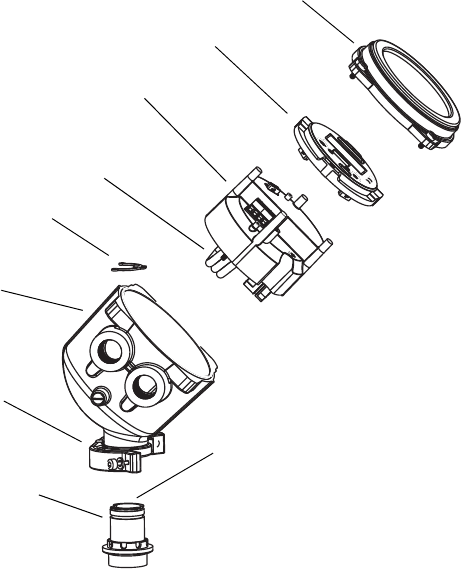
126 Micro Motion® Model 2400S Transmitters for DeviceNet™
Troubleshooting
Figure 11-2 Exploded view of transmitter and connection to sensor
5. If the problem is not resolved, unplug the cable from the feedthrough by removing the snap
clip (see Figure 11-2), then pulling the connector away from the feedthrough. Set the
transmitter aside.
Feedthrough
(mounted on sensor)
Transmitter
User interface module
Sensor cable for
feedthrough connection
Transmitter housing cover
Transmitter
housing
Clamp
Feedthrough pins
(inside housing)
Snap clip
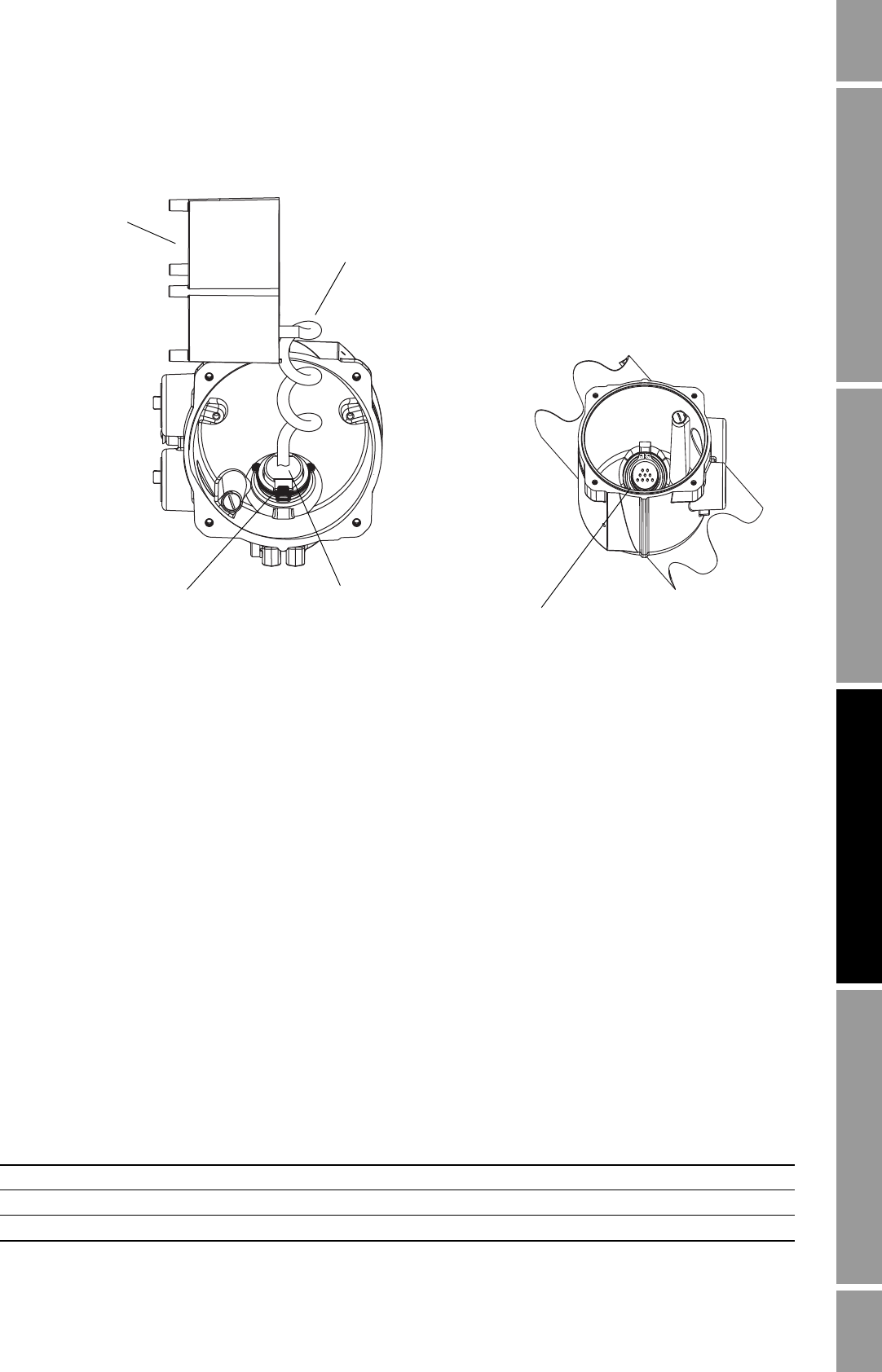
Configuration and Use Manual 127
Troubleshooting
Measurement Performance DefaultsTroubleshootingCompensation
Figure 11-3 Accessing the feedthrough pins
6. Using a digital multimeter (DMM), check the sensor internal resistances for each flowmeter
circuit. Table 11-8 defines the flowmeter circuits and the resistance range for each. Refer to
Figure 11-4 to identify the feedthrough pins. For each circuit, place the DMM leads on the pin
pairs and record the values.
Note: In order to access all feedthrough pins, you may need to remove the clamp and rotate the
transmitter to a different position.
In this test:
• There should be no open circuits, i.e., no infinite resistance readings.
• Nominal resistance values vary 40% per 100 °C. However, confirming an open or shorted
circuit is more important than any slight deviation from the resistance values shown here.
• The LPO and RPO circuit readings should be the same or very close (± 10%).
• The readings across pin pairs should be steady.
• Actual resistance values depend on the sensor model and date of manufacture. Contact
Micro Motion for more detailed data.
If a problem appears, or if any resistance is out of range, contact Micro Motion (see
Section 11.3).
Table 11-8 Nominal resistance ranges for flowmeter circuits
Circuit Pin pairs Nominal resistance range(1)
Drive Drive + and – 8–1500 Ω
Left pickoff Left pickoff + and – 16–1000 Ω
Right pickoff Right pickoff + and – 16–1000 Ω
Transmitter
(side view) Sensor cable for
feedthrough connection
Feedthrough connector
Snap clip (assembled)
Pull tab to remove Feedthrough pins
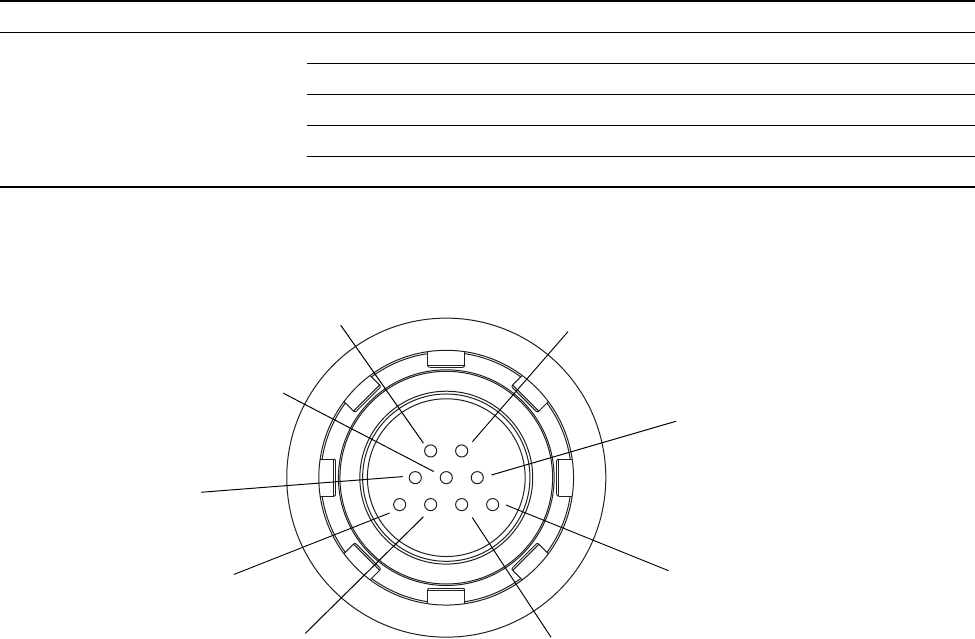
128 Micro Motion® Model 2400S Transmitters for DeviceNet™
Troubleshooting
Figure 11-4 Feedthrough pins
7. Using the DMM, check each pin as follows:
a. Check between the pin and the sensor case.
b. Check between the pin and other pins as described below:
• Drive + against all other pins except Drive –
• Drive – against all other pins except Drive +
• Left pickoff + against all other pins except Left pickoff –
• Left pickoff – against all other pins except Left pickoff +
• Right pickoff + against all other pins except Right pickoff –
• Right pickoff – against all other pins except Right pickoff +
• RTD + against all other pins except RTD – and LLC/RTD
• RTD – against all other pins except RTD + and LLC/RTD
• LLC/RTD against all other pins except RTD + and RTD –
Flow tube temperature sensor RTD + and RTD – 100 Ω at 0 °C + 0.38675 Ω / °C
LLC/RTD
• T-Series sensors RTD – and composite RTD 300 Ω at 0 °C + 1.16025 Ω / °C
• CMF400 I.S. sensors RTD – and fixed resistor 39.7–42.2 Ω
• F300 sensors RTD – and fixed resistor 44.3–46.4 Ω
• All other sensors RTD – and LLC 0
(1) Actual resistance values depend on the sensor model and date of manufacture. Contact Micro Motion for more detailed data.
Table 11-8 Nominal resistance ranges for flowmeter circuits continued
Circuit Pin pairs Nominal resistance range(1)
Left pickoff –
Right pickoff –
Drive – Drive +
Right pickoff +
Left pickoff +
LLC / Composite RTD /
Fixed resistor(1)
RTD +
(1) Lead length compensator (LLC) for all sensors except T-Series, CMF400 I.S., and F300. For T-Series sensors, functions
as composite RTD. For CMF400 I.S. and F300 sensors, functions as fixed resistor.
Return for RTD, LLC,
composite RTD, or fixed resistor

Configuration and Use Manual 129
Troubleshooting
Measurement Performance DefaultsTroubleshootingCompensation
With the DMM set to its highest range, there should be infinite resistance on each lead. If there
is any resistance at all, there is a short to case or a short between pins. See Table 11-9 for
possible causes and solutions. If the problem is not resolved, contact Micro Motion (see
Section 11.3).
To return to normal operation:
1. Follow appropriate procedures to ensure that reconnecting the transmitter does not interfere
with existing measurement and control loops.
2. Reach inside the transmitter housing and install the transmitter’s sensor connection onto the
feedthrough:
a. Rotate the connector until it engages the pins.
b. Push down until the connector shoulder is flush with the feedthrough notch.
c. Replace the snap clip by sliding the clip tab over the connector shoulder (see instruction
label).
3. Replace the transmitter in the transmitter housing, and tighten the screws.
4. Plug the user interface module onto the transmitter. There are four possible positions; select
the position that is most convenient.
5. Tighten the user interface screws.
6. Replace the transmitter housing cover on the user interface module, and tighten the screws.
7. Reinsert the DeviceNet cable into the DeviceNet connector on the transmitter.
Table 11-9 Sensor and cable short to case causes and remedies
Cause Possible remedy
Moisture inside the transmitter housing • Make sure that the transmitter housing is dry and no corrosion is
present.
Liquid or moisture inside the sensor case • Contact Micro Motion. See Section 11.3.
Internally shorted feedthrough (sealed passage
for wiring from sensor to transmitter) • Contact Micro Motion. See Section 11.3.
Faulty cable connecting sensor to transmitter • Visually inspect the cable for damage. To replace cable, contact
Micro Motion. See Section 11.3.
130 Micro Motion® Model 2400S Transmitters for DeviceNet™

Configuration and Use Manual 131
Measurement Performance DefaultsTroubleshootingCompensation
Appendix A
Default Values and Ranges
A.1 Overview
This appendix provides information on the default values for most transmitter parameters. Where
appropriate, valid ranges are also defined.
These default values represent the transmitter configuration after a master reset. Depending on how
the transmitter was ordered, certain values may have been configured at the factory.
A.2 Most frequently used defaults and ranges
The table below contains the default values and ranges for the most frequently used transmitter
settings.
Table A-1 Transmitter default values and ranges
Type Setting Default Range Comments
Flow Flow direction Forward
Flow damping 0.64 sec 0.0–40.96 sec User-entered value is
corrected to nearest lower
value in list of preset values.
For gas applications,
Micro Motion recommends a
minimum value of 2.56.
Flow calibration factor 1.00005.13 For T-Series sensors,this
value represents the FCF and
FT factors concatenated. See
Section 6.2.2.
Mass flow units g/s
Mass flow cutoff 0.0 g/s Recommended setting is 5%
of the sensor’s rated
maximum flowrate.
Volume flow type Liquid volume
Volume flow units L/s
Volume flow cutoff 0/0 L/s 0.0–x L/s x is obtained by multiplying
the flow calibration factor by
0.2, using units of liters per
second.
Meter factors Mass factor 1.00000
Density factor 1.00000
Volume factor 1.00000
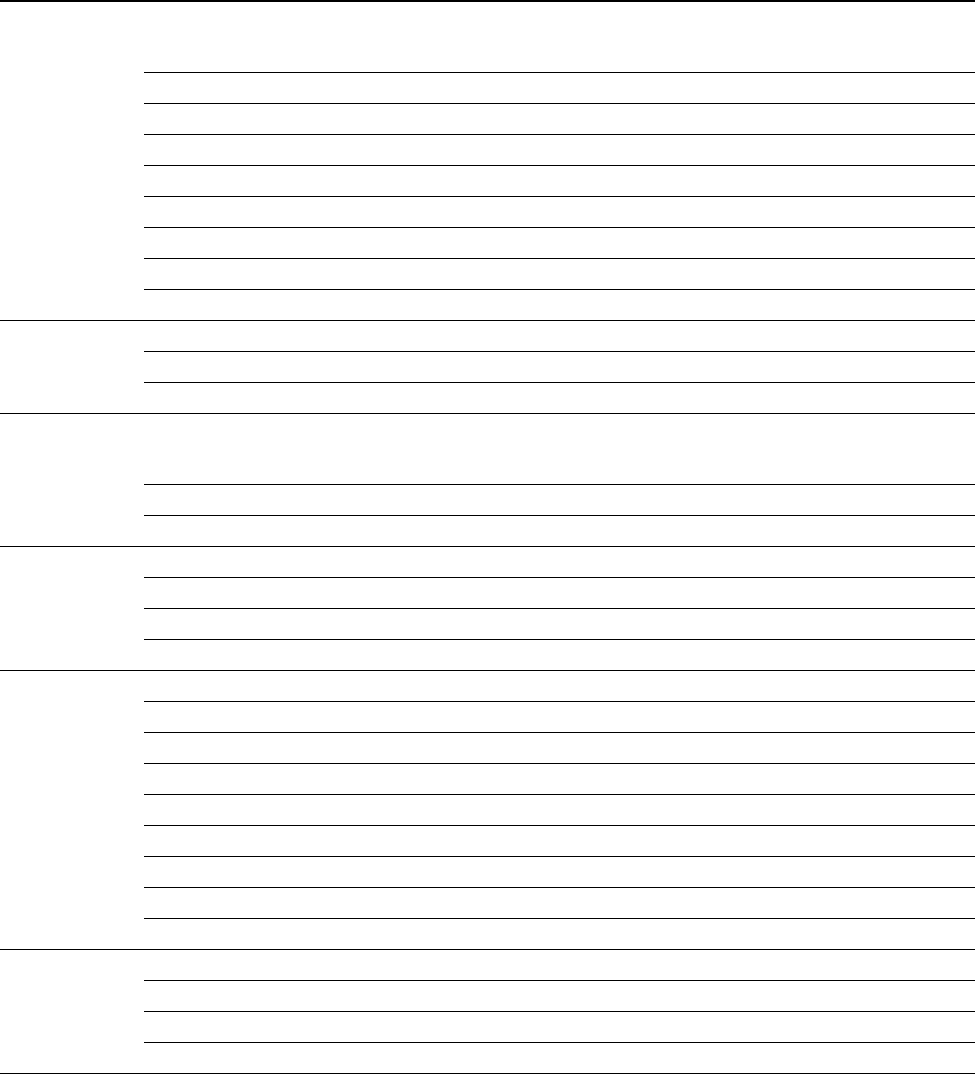
132 Micro Motion® Model 2400S Transmitters for DeviceNet™
Default Values and Ranges
Density Density damping 1.28 sec 0.0–40.96 sec User-entered value is
corrected to nearest value in
list of preset values.
Density units g/cm3
Density cutoff 0.2 g/cm30.0–0.5 g/cm3
D1 0.00000
D2 1.00000
K1 1000.00
K2 50,000.00
FD 0.00000
Temp Coefficient 4.44
Slug flow Slug flow low limit 0.0 g/cm30.0–10.0 g/cm3
Slug flow high limit 5.0 g/cm30.0–10.0 g/cm3
Slug duration 0.0 sec 0.0–60.0 sec
Temperature Temperature damping 4.8 sec 0.0–38.4 sec User-entered value is
corrected to nearest lower
value in list of preset values.
Temperature units Deg C
Temperature calibration factor 1.00000T0.0000
Pressure Pressure units PSI
Flow factor 0.00000
Density factor 0.00000
Cal pressure 0.00000
T-Series sensor D3 0.00000
D4 0.00000
K3 0.00000
K4 0.00000
FTG 0.00000
FFQ 0.00000
DTG 0.00000
DFQ1 0.00000
DFQ2 0.00000
Events 1–5 Type Low
Variable Density
Setpoint 0.0
Setpoint units g/cm3
Table A-1 Transmitter default values and ranges continued
Type Setting Default Range Comments

Configuration and Use Manual 133
Default Values and Ranges
Measurement Performance DefaultsTroubleshootingCompensation Measurement Performance DefaultsTroubleshootingCompensation Measurement Performance DefaultsTroubleshootingCompensation Measurement Performance DefaultsTroubleshootingCompensation
Display Backlight on/off On
Backlight intensity 63 0–63
Update period 200 milliseconds 100–10,000
milliseconds
Variable 1 Mass flow rate
Variable 2 Mass total
Variable 3 Volume flow rate
Variable 4 Volume total
Variable 5 Density
Variable 6 Temperature
Variable 7 Drive gain
Variable 8–15 None
Display totalizer start/stop Disabled
Display totalizer reset Disabled
Display auto scroll Disabled
Display offline menu Enabled
Display offline password Disabled
Display alarm menu Enabled
Display acknowledge all
alarms Enabled
Offline password 1234
Auto scroll rate 10 sec
Digital
communi-
cations
Fault action None
Fault timeout 0 seconds 0.0–60.0 sec
Modbus address 1
Modbus ASCII support Enabled
IrDA port enabled/disabled Disabled
IrDA port write-protect Disabled
Floating-point byte order 3–4–1–2
Table A-1 Transmitter default values and ranges continued
Type Setting Default Range Comments
134 Micro Motion® Model 2400S Transmitters for DeviceNet™

Configuration and Use Manual 135
Device Profile IndexDisplay CodesMenus
Appendix B
Menu Flowcharts
B.1 Overview
This appendix provides the following menu flowcharts for the Model 2400S DN transmitter:
• ProLink II menus
- Main menu – see Figure B-1
- Configuration menu – see Figures B-2 and B-3
• Display menus
- Off-line menu: Top level – see Figure B-4
- Off-line maintenance: Version information – see Figure B-5
- Off-line maintenance: Configuration – see Figure B-6
- Off-line maintenance: Zero – see Figure B-7
- Off-line maintenance: Meter verification – see Figure B-8
For information on the codes and abbreviations used on the display, see Appendix D.
B.2 Version information
These menu flowcharts are based on:
• Transmitter software v1.0
• ProLink II v2.5
Menus may vary slightly for different versions of these components.
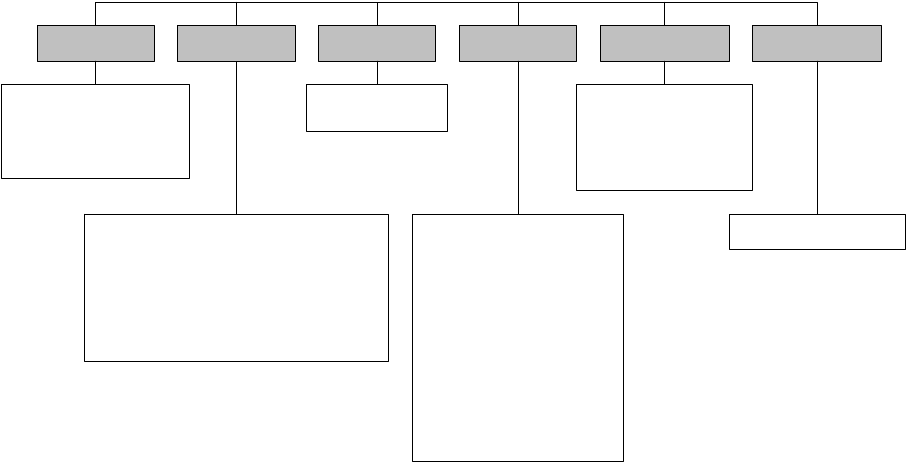
136 Micro Motion® Model 2400S Transmitters for DeviceNet™
Menu Flowcharts
Figure B-1 ProLink II main menu
File
Preferences
· Use External Temperature
· Enable Inventory Totals Reset
· Enable External Pressure Compensation
· Copper RTD
Installed options
Data Logging(1)
Load from Xmtr to File
Save to Xmtr from File
License
Connect to Device
Disconnect
View Connection
Meter Verification
Options
· ProLink II Language
· Error Log On
Tools Plug-insProLink
Configuration
Process Variables
Status
Alarm Log
Diagnostic Information
Calibration
Test
ED Totalizer Control(2)
Totalizer Control
Core Processor Diagnostics
API Process Variables(3)
ED Process Variables(2)
(1) For information about using the data logging
function, see the ProLink II manual.
(2) Available only if the enhanced density
application is installed.
(3) Available only if the petroleum measurement
application is installed.
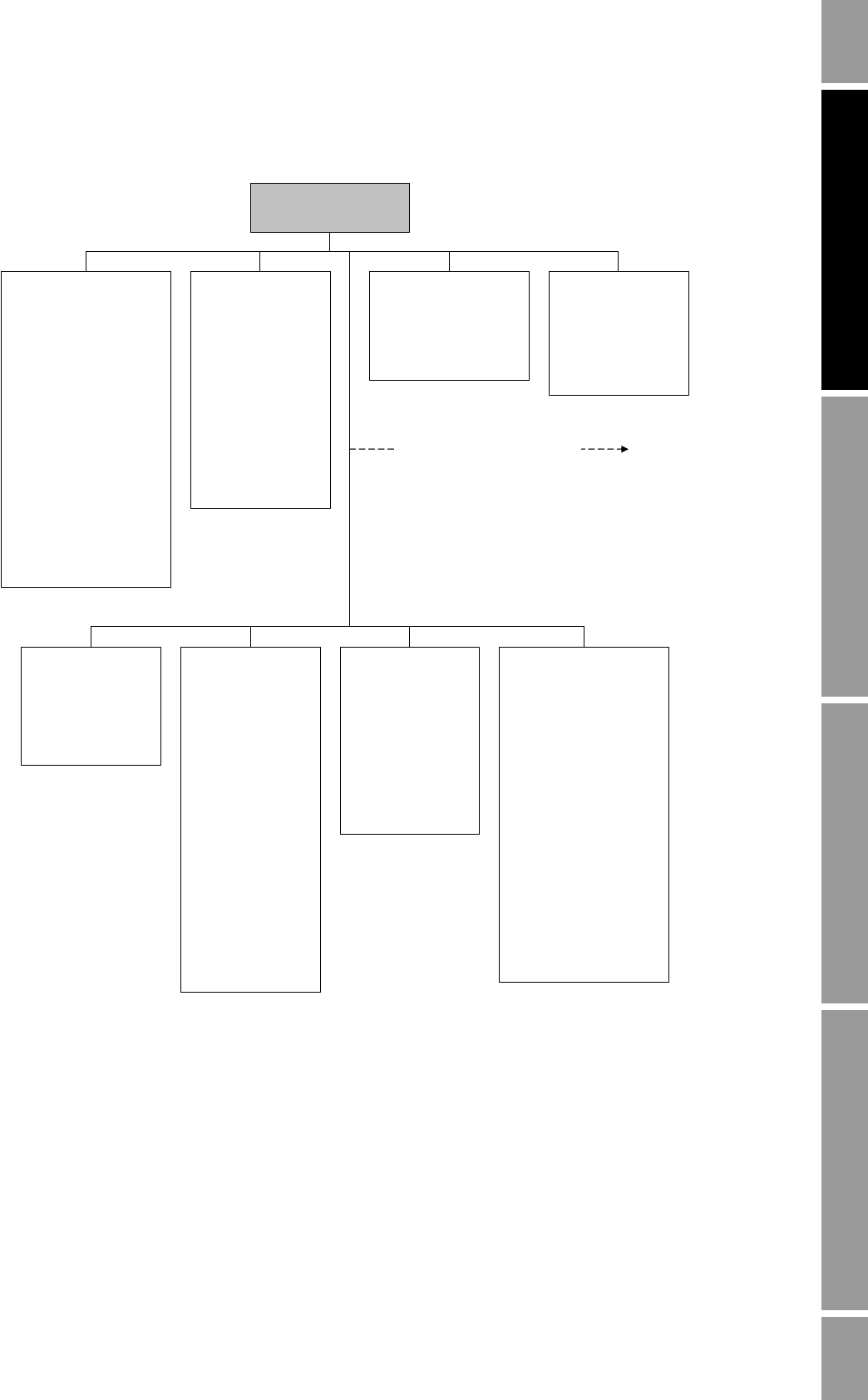
Configuration and Use Manual 137
Menu Flowcharts
Device Profile IndexDisplay CodesMenus
Figure B-2 ProLink II configuration menu
Flow
·Flow direction
· Flow damp
·Flow cal
· Mass flow cutoff
· Mass flow units
· Vol flow cutoff(1)
· Vol flow units(1)
· Vol flow type
· Std gas vol flow cutoff(2)
· Std gas flow units(2)
· Std gas density(2)
Gas wizard(2)
· Mass factor
· Dens factor
· Vol factor
Density
· Density units
· Density damping
· Slug high limit
· Slug low limit
· Slug duration
· Low density cutoff
·K1
·K2
·FD
·D1
·D2
· Temp coeff (DT)
Temperature
· Temp units
· Temp cal factor
· Temp damping
· External temperature
Pressure
·Flow factor
· Dens factor
· Cal pressure
· Pressure units
· External pressure
ProLink >
Configuration
Additional configuration options
Sensor
· Sensor s/n
· Sensor model num
· Sensor matl
· Liner matl
· Flange
Sensor Limits(3)
Mass flow
· Lower sensor limit
· Upper sensor limit
· Min span
Volume flow
· Lower sensor limit
· Upper sensor limit
· Min span
Density
· Lower sensor limit
· Upper sensor limit
· Min span
Temperature
· Lower sensor limit
· Upper sensor limit
· Min span
T Series
·FTG
·FFQ
·DTG
·DFQ1
·DFQ2
·K3
·D3
·D4
·K4
Device
·Tag
·Date
·Descriptor
· Message
· Floating pt ordering
· Add comm resp delay
· Transmitter serial #
Digital comm settings
· Fault setting
· Modbus address
· Disable Modbus ASCII
· Enable IrDA comm
· Enable write protect
IrDA port
Last measured value
timeout
(1) Displayed only if Vol Flow Type is set to Liquid Volume.
(2) Displayed only if Vol Flow Type is set to Standard Gas Volume.
(3) All values on this panel are read-only, and are displayed only for informational purposes.

138 Micro Motion® Model 2400S Transmitters for DeviceNet™
Menu Flowcharts
Figure B-3 ProLink II configuration menu continued
ProLink >
Configuration
Display
·Var1
·Var2
·…
· Var 15
Display precision
·Var
· Number of decimals
Display options
· Display start/stop totalizers
· Display totalizer reset
· Display auto scroll
· Display offline menu
· Display offline password
· Display alarm menu
· Display ack all alarms
· Display back light on/off
· Offline password
· Auto scroll rate
· Update period
· Backlight intensity
· Display language
Transmitter options
· Meter fingerprinting
· Cryogenic modulus
compensation
· Meter verification
Alarm
·Alarm
· Severity
Discrete events
· Event name
· Event type
· Process variable
· Low setpoint
· High setpoint
Sensor simulation
Enable simulation mode
Mass flow
· Wave form
· Fixed value
·Period
· Minimum
· Maximum
Density
· Wave form
· Fixed value
·Period
· Minimum
· Maximum
Temperatuare
· Fixed value
·Period
· Minimum
· Maximum
API setup(2)
· Table type
·Units
ED setup(3)
Global config
·Active curve
· Derived variable
· Lock/unlock ED curves
Curve specific config
· Curve configured
· Curve name
· Reference temperature
· Water reference temperature
· Water reference density
· Trim slope
· Trim offset
Extrapolation
· Alarm limit
· Enable density low
· Enable density high
· Enable temperature low
· Enable temperature high
Concentration
·Units
· Special unit string
ED curve(3)
Process fluid density at specified temperature
and concentration
· Curve being configured
· Curve fit max order
· Temperature isotherms
· Concentration
Curve fit results
· Accuracy
Process fluid density at reference temperature
and specified concentration
· Reference temperature
· Concentration
Discrete input(1)
· Start sensor zero
· Reset mass total
· Reset volume total
· Reset all totals
· Start/stop all totalization
· Reset gas standard volume total
· Reset API reference volume total
· Reset ED reference volume total
· Reset ED net mass total
· Reset ED net volume total
· Increment current ED curve
(1) Used to assign events to actions, even though the
Model 2400S DN transmitter does not provide a
discrete input.
(2) Available only if the petroleum measurement
application is installed.
(3) Available only if the enhanced density application is
installed.
Configuration and Use Manual 139
Menu Flowcharts
Device Profile IndexDisplay CodesMenus
Figure B-4 Display menu – Off-line menu, top level
Figure B-5 Display menu – Off-line maintenance – Version information
Scroll and Select simultaneously
for 4 seconds
VER
OFF-LINE MAINT
Select
SEE ALARM Scroll
Scroll
Scroll EXIT
CONFG Scroll ZERO Scroll SENSOR VERFY(1) Scroll EXIT
(1) This option is displayed only if the meter verification software is installed on the transmitter.
Scroll and Select simultaneously
for 4 seconds
VER
Yes
Version info
Scroll
Select
Yes
ETO info(1)
Scroll
API(1)
Scroll
SENSOR VERFY(1)
-0.75
Scroll
EXIT
OFF-LINE MAINT
Select
Scroll
ENHANCED DENS(1)
Scroll
(1) The option is displayed only if the
corresponding Engineering To Order (ETO)
or application is installed on the
transmitter.
140 Micro Motion® Model 2400S Transmitters for DeviceNet™
Menu Flowcharts
Figure B-6 Display menu – Off-line maintenance – Configuration
OFF-LINE MAINT
Scroll and Select
simultaneously
for 4 seconds
Scroll
Select
Select
Scroll
CONFG
MASS
UNITS
VOL(1)
DENS
TEMP
Select
Scroll
Scroll
Scroll
Scroll
PRESS
MASS
MTR F
DENS
Select
Scroll
EXIT
TOTALS RESET
DSPLY
TOTALS STOP
DISPLAY OFFLN
Select
Scroll
Scroll
Scroll
OFF-LINE PASSW
Scroll Scroll
VOL
Scroll
DISPLAY ALARM
Scroll
DISPLAY ACK
Scroll
AUTO SCRLL
Scroll
Scroll
EXIT
IRDA
Scroll
Scroll
DISPLAY RATE
DISPLAY BKLT
DISPLAY LANG
SCROLL RATE(4)
COMM
WRITE
ASCII MBUS
Scroll
Scroll
ADDR MBUS
Scroll
Scroll
Scroll
Scroll
Select
Scroll EXIT
CHNG PASSW(5)
Scroll
Scroll
ACT
START ZERO
RESET VOL(1)
Select
Scroll
RESET TCORR(2)
RESET MASS
Scroll
Scroll
Scroll
RESET NET M(3)
Scroll
RESET STD V(3)
Scroll
RESET NET V(3)
Scroll
Scroll
RESET ALL
INCR CURVE(3)
EXIT
START STOP
Scroll
EXIT
Scroll
EXIT
Scroll
Scroll
Scroll
(1) Either Vol or GSV is displayed, depending on Volume Flow Type. See Section 8.2.
(2) Displayed only if the petroleum measurement application is installed.
(3) Displayed only if the enhanced density application is installed.
(4) Displayed only if Auto Scroll is enabled.
(5) Displayed only Off-Line Password is enabled.
Configuration and Use Manual 141
Menu Flowcharts
Device Profile IndexDisplay CodesMenus
Figure B-7 Display menu – Off-line maintenance – Zero
………………….
OFF-LINE MAINT
Scroll and Select simultaneously
for 4 seconds
Scroll
Select
Select
CAL ZERO
Troubleshoot
ZERO/YES?
CAL PASSCAL FAIL
RESTORE ZERO
RESTORE ZERO/YES?
Current zero display
Factory zero display
Select
Select
Yes No
EXIT
Scroll
Select
Scroll
Scroll
Scroll
Yes
Select
No
Scroll
ZERO
Select
Scroll
RESTORE ZERO
Scroll Select
RESTORE EXIT
SelectScroll Scroll
142 Micro Motion® Model 2400S Transmitters for DeviceNet™
Menu Flowcharts
Figure B-8 Display menu – Off-line maintenance – Meter verification
Select
OFF-LINE MAINT
Scroll and Select simultaneously
for 4 seconds
Scroll
Select
Scroll
SENSOR VERFY
Scroll
OUTPUTS
LAST VALUE
FAULT
STOP MSMT/YES?
Scroll
Select
Select
. . . . . . . . . . . . . x%(2)
UNSTABLE FLOW(1)
Yes
Select
PASS ABORTCAUTION
Scroll Scroll
RERUN/YES?
Yes
Select
Scroll
ABORT/YES?
No
Scroll
Select
No
Scroll
Yes
Select
SENSOR EXIT
Select
Scroll
Scroll
Scroll
No
Scroll OFF-LINE EXIT
(1) Either Unstable Flow or Unstable Drive Gain may be
displayed, indicating that the standard deviation of the
flow or drive gain is outside limits. Check the process
and retry the procedure.
(2) Represents the percentage completion of the
procedure.

Configuration and Use Manual 143
Device Profile IndexDisplay CodesMenus
Appendix C
Device Profile
C.1 Overview
This appendix documents the most commonly used portions of the Model 2400S DN transmitter’s
device profile, including class/instance/attribute information and required codes.
The following object classes and instances are documented:
• Analog Input Point Object (0x0A), Instance 1 (mass flow) – see Table C-1
• Analog Input Point Object (0x0A), Instance 2 (liquid volume flow) – see Table C-2
• Analog Input Point Object (0x0A), Instance 3 (density) – see Table C-3
• Analog Input Point Object (0x0A), Instance 4 (temperature) – see Table C-4
• Gas Standard Volume Object (0x64), Instance 1 – see Table C-5
• Calibration Object (0x65), Instance 1 – see Table C-6
• Diagnostics Object (0x66), Instance 1 – see Table C-7
• Sensor Information Object (0x67), Instance 1 – see Table C-8
• Local Display Object (0x68), Instance 1 – see Table C-9
• API Object (0x69), Instance 1 – see Table C-10
• Enhanced Density Object (0x6A), Instance 1 – see Table C-11
Note: The listings for the Sensor Information and Enhanced Density Object instances are not
complete: only the most commonly used attributes are shown here.
The following codes are documented:
• Totalizer and inventory measurement unit codes – see Tables C-12 through C-14
• Process variable codes – see Table C-15
• Alarm index codes – see Table C-16
For measurement unit codes used for process variables, see Section 6.3.
For complete documentation of the device profile, see the manual entitled Micro Motion Model 2400S
Transmitters for DeviceNet: Device Profile.
144 Micro Motion® Model 2400S Transmitters for DeviceNet™
Device Profile
C.2 Analog Input Point Object (0x0A)
Table C-1 Analog Input Point Object (0x0A) – Instance 1 (mass flow)
Attrib
ID Name Data type Service Mem Description Comments
3 Value REAL Get V Current value of mass
flow process variable Based on Attribute 8
4 Status BOOL Get V Point status • 0 = Good
• 1 = Alarm state
8 Value data type USINT Get V Data type used to report
mass flow process
variable
• 1 = REAL
100 Process total REAL Get
Reset(1)
(1) Service code 0x4B.
V Current value of mass
total
101 Inventory total REAL Get
Reset(2)
(2) Service code 0x4C.
V Current value of mass
inventory
102 Value
engineering
units
UINT Set NV Mass flow measurement
unit See Table 6-2 for unit
codes.
103 Total
engineering
units
UINT Get V Mass total and inventory
units Transmitter
automatically
determines this based
on Attribute 102.
See Table C-12 for unit
codes.
104 Damping REAL Set NV Flow damping value • Unit = seconds
• Applied to both mass
flow and liquid volume
flow
105 Cutoff REAL Set NV Value below which mass
flow will be reported as 0
106 Meter factor REAL Set NV A multiplier to the
calculated mass flow
107 Flow direction USINT Set NV Determines how flow
direction affects reported
flow rate and flow totals
• 0 = Forward only
• 1 = Reverse only
• 2 = Bidirectional
• 3 = Absolute value
• 4 = Negate/forward
only
• 5 = Negate/
bidirectional
108 Reset mass total USINT Set V Resets the mass total • 1 = Reset
109 Reset mass
inventory USINT Set V Resets the mass
inventory • 1 = Reset
Configuration and Use Manual 145
Device Profile
Device Profile IndexDisplay CodesMenus
Table C-2 Analog Input Point Object (0x0A) – Instance 2 (liquid volume flow)
Attrib
ID Name Data type Service Mem Description Comments
3 Value REAL Get V Current value of liquid
volume flow process
variable
Based on Attribute 8
4 Status BOOL Get V Point status • 0 = Good
• 1 = Alarm state
8 Value data type USINT Get V Data type used to report
volume flow process
variable
1 (REAL)
100 Process total REAL Get
Reset(1)
(1) Service code 0x4B.
V Current value of liquid
volume total
101 Inventory total REAL Get
Reset(2)
(2) Service code 0x4C.
V Current value of liquid
volume inventory
102 Value
engineering
units
UINT Set NV Liquid volume flow
measurement unit See Table 6-3 for unit
codes.
103 Total
engineering
units
UINT Get V Liquid volume total and
inventory units Transmitter
automatically
determines this based
on Attribute 102.
See Table C-13 for unit
codes.
105 Cutoff REAL Set NV Value below which liquid
volume flow will be
reported as 0
106 Meter factor REAL Set NV A multiplier to the
calculated liquid volume
flow
108 Reset volume
total USINT Set V Resets the volume total • 1 = Reset
109 Reset volume
inventory USINT Set V Resets the volume
inventory • 1 = Reset
Table C-3 Analog Input Point Object (0x0A) – Instance 3 (density)
Attrib
ID Name Data type Service Mem Description Comments
3 Value REAL Get V Current value of density
process variable Based on Attribute 8
4 Status BOOL Get V Point status • 0 = Good
• 1 = Alarm state
8 Value data type USINT Get V Data type used to report
density process variable 1 (REAL)
102 Value
engineering
units
UINT Set NV Density measurement unit See Table 6-5 for unit
codes.
146 Micro Motion® Model 2400S Transmitters for DeviceNet™
Device Profile
C.3 Gas Standard Volume Object (0x64)
104 Damping REAL Set NV Density damping value Unit = seconds
105 Cutoff REAL Set NV Value below which density
will be reported as 0
106 Meter factor REAL Set NV A multiplier to the
calculated density
Table C-4 Analog Input Point Object (0x0A) – Instance 4 (temperature)
Attrib
ID Name Data type Service Mem Description Comments
3 Value REAL Get V Current value of
temperature process
variable
Based on Attribute 8
4 Status BOOL Get V Point status • 0 = Good
• 1 = Alarm state
8 Value data type USINT Get V Data type used to report
mass flow process
variable
• 1 = REAL
102 Value
engineering
units
UINT Set NV Temperature
measurement unit See Table 6-6 for unit
codes.
104 Damping REAL Set NV Temperature damping
value Unit = seconds
Table C-5 Gas Standard Volume Object (0x64) – Instance 1
Attrib
ID Name Data type Service Mem Description Comments
1 Gas standard
volume flow REAL Get V Current value of gas
standard volume flow
process variable
2 Gas standard
volume total REAL Get
Reset(1) V Current value of gas
standard volume total
3 Gas standard
volume
inventory
REAL Get
Reset(2) V Current value of gas
standard volume
inventory
4 Reference
density REAL Set NV Reference density of gas
being measured
5 Gas standard
volume flow
units
UINT Set NV Gas standard volume flow
measurement unit See Table 6-4 for unit
codes.
6 Gas standard
volume total and
inventory units
UINT Get V Gas standard volume total
and inventory units Transmitter
automatically
determines this based
on Attribute 102.
See Table C-14 for unit
codes.
Table C-3 Analog Input Point Object (0x0A) – Instance 3 (density) continued
Attrib
ID Name Data type Service Mem Description Comments
Configuration and Use Manual 147
Device Profile
Device Profile IndexDisplay CodesMenus
C.4 Calibration Object (0x65)
7 Enable gas
standard volume BOOL Set NV Enable or disable gas
standard volume
measurement(3)
•0 = Disabled
•1 = Enabled
8 Gas standard
volume low flow
cutoff
REAL Set NV Value below which gas
standard volume flow will
be reported as 0
9 Reset gas
standard volume
total
USINT Set V Resets the gas standard
volume total • 1 = Reset
10 Reset gas
standard volume
inventory
USINT Set V Resets the gas standard
volume inventory • 1 = Reset
(1) Service code 0x4B.
(2) Service code 0x4C.
(3) If gas standard volume measurement is enabled, liquid volume measurement is disabled, and vice versa.
Table C-6 Calibration Object (0x65) – Instance 1
Attrib
ID Name Data type Service Mem Description Comments
1 Flow calibration
factor REAL Set NV 6-character flow
calibration factor
2 Temperature
coefficient for
flow
REAL Set NV 4-character temperature
coefficient
3 Zero time UINT Set V Duration of the zero
calibration procedure Unit = seconds
4 Zero standard
deviation REAL Get NV The standard deviation
result of the zero
calibration service
5 Zero offset REAL Set NV The offset result of the
zero calibration service
6 Calibration failed
value REAL Get V The value of the
calibration parameter if
one of the calibration
services fails
7 K1 REAL Set NV Density calibration
constant 1 Unit = milliseconds
8 K2 REAL Set NV Density calibration
constant 2 Unit = milliseconds
9 FD REAL Set NV Flowing density
calibration constant Unit = milliseconds
10 K3 REAL Set NV Density calibration
constant 3 Unit = milliseconds
11 K4 REAL Set NV Density calibration
constant 4 Unit = milliseconds
12 D1 REAL Set NV The line-condition density
of D1 calibration service Unit = g/cm3
Table C-5 Gas Standard Volume Object (0x64) – Instance 1 continued
Attrib
ID Name Data type Service Mem Description Comments
148 Micro Motion® Model 2400S Transmitters for DeviceNet™
Device Profile
13 D2 REAL Set NV The line-condition density
of D2 calibration service Unit = g/cm3
14 FD REAL Set NV The line-condition density
of FD calibration service Unit = g/cm3
15 D3 REAL Set NV The line-condition density
of D3 calibration service Unit = g/cm3
16 D4 REAL Set NV The line-condition density
of D4 calibration service Unit = g/cm3
17 Density
temperature
coefficient
REAL Set NV The DT or TC calibration
factor
18 FTG REAL Set NV T-Series: flow TG
coefficient
19 FFQ REAL Set NV T-Series: flow FQ
coefficient
20 DTG REAL Set NV T-Series: density TG
coefficient
21 DFQ1 REAL Set NV T-Series: density FQ
coefficient #1
22 DFQ2 REAL Set NV T-Series: density FQ
coefficient #2
23 Temperature
offset REAL Set NV Temperature offset
24 Temperature
slope REAL Set NV Temperature slope
25 Enable
temperature
comp
BOOL Set NV Enable or disable
temperature
compensation
•0 = Disabled
•1 = Enabled
26 External
temperature REAL Set V The external temperature
value from output
assembly instance 51 or
52
27 Enable pressure
compensation BOOL Set NV Enable or disable
pressure compensation •0 = Disabled
•1 = Enabled
28 External
pressure REAL Set V The external pressure
value from output
assembly instance 50 or
52
29 Pressure units UINT Set NV Units used by external
pressure input See Table 6-7 for unit
codes.
30 Pressure factor
flow REAL Set NV The pressure correction
factor for flow
31 Pressure factor
density REAL Set NV The pressure correction
factor for density
32 Flow cal
pressure REAL Set NV The flow calibration
pressure
Table C-6 Calibration Object (0x65) – Instance 1 continued
Attrib
ID Name Data type Service Mem Description Comments
Configuration and Use Manual 149
Device Profile
Device Profile IndexDisplay CodesMenus
C.5 Diagnostics Object (0x66)
Table C-7 Diagnostics Object (0x66) – Instance 1
Attrib
ID Name Data type Service Mem Description Comments
1 Fault behavior USINT Set NV Specifies the behavior of
the process variables
when the device is in a
fault state
• 0 = Upscale
• 1 = Downscale
•2 = Zero
•3 = NAN
• 4 = Flow goes to zero
•5 = None
2 Fault timeout USINT Set NV The amount of time after a
fault ocurrs before the
fault behavior (Attribute 1)
is implemented
Unit = seconds
3 Slug time REAL Set NV The amount of time the
density is outside the slug
low limit and slug high
limit before a slug flow
condition is declared
Unit = seconds
4 Slug low limit REAL Set NV The lower limit of a slug
flow condition Unit = g/cm3
5 Slug high limit REAL Set NV The upper limit of a slug
flow condition Unit = g/cm3
6 Discrete event
index USINT Set V The index of the discrete
event that is being
configured. There are 5
discrete events with the
index starting at 0.
0, 1, 2, 3, 4
7 Discrete event
type USINT Set NV The type of the selected
discrete event • 0 = Greater than
Setpoint A
• 1 = Less than
Setpoint A
• 2 = In Range
(A=<x<=B)
• 3 = Out of Range
(A>=x or B<=x)
8 Discrete event
Setpoint A REAL Set NV Setpoint A of the selected
discrete event
9 Discrete event
Setpoint B REAL Set NV Setpoint B of the selected
discrete event
10 Discrete event
process variable USINT Set NV The process variable on
which the selected
discrete event is defined
See Table C-15 for
process variable codes.
All codes are valid
except for 52 (Input
voltage).
11 Discrete event
status USINT Get V Each bit contains the
status of the
corresponding discrete
event:
• 0 = Inactive
• 1 = Active
• 0x01 = Event 0
• 0x02 = Event 1
• 0x04 = Event 2
• 0x08 = Event 3
• 0x10 = Event 4

150 Micro Motion® Model 2400S Transmitters for DeviceNet™
Device Profile
12 Alarm status 1 UINT Get V A collection of status bits • 0x0001 = NV error
(CP)
• 0x0002 = RAM error
(CP)
• 0x0004 = RTI failure
• 0x0008 = Sensor
failure
• 0x0010 =
Temperature out of
range
• 0x0020 = Calibration
failed
• 0x0040 = Other
failure
• 0x0080 = Transmitter
initializing
• 0x0100 = Not used
• 0x0200 = Not used
• 0x0400 = Simulation
mode On
• 0x0800 = Not used
• 0x1000 = Watchdog
error
• 0x2000 = Not used
• 0x4000 = Not used
• 0x8000 = Fault
13 Alarm status 2 UINT Get V A collection of status bits • 0x0001 = Not used
• 0x0002 = Not used
• 0x0004 = Not used
• 0x0008 = Not used
• 0x0010 = Density out
of range
• 0x0020 = Drive out of
range
• 0x0040 = CEM
communications error
• 0x0080 = Not used
• 0x0100 = Non-volatile
memory error (CP)
• 0x0200 = RAM error
(CP)
• 0x0400 = Sensor
failure
• 0x0800 =
Temperature out of
range
• 0x1000 = Input out of
range
• 0x2000 = Not used
• 0x4000 = Transmitter
not characterized
• 0x8000 = RTI failure
Table C-7 Diagnostics Object (0x66) – Instance 1 continued
Attrib
ID Name Data type Service Mem Description Comments
Configuration and Use Manual 151
Device Profile
Device Profile IndexDisplay CodesMenus
14 Alarm status 3 UINT Get V A collection of status bits • 0x0001 = Not used
• 0x0002 = Power reset
• 0x0004 = Transmitter
initializing
• 0x0008 =
Transmitter/sensor
communications fault
(A28)
• 0x0010 = Not used
• 0x0020 = Not used
• 0x0040 = Not used
• 0x0080 =
Transmitter/sensor
communications fault
(A26)
• 0x0100 = Calibration
failed
• 0x0200 = Calibration
failed: Low
• 0x0400 = Calibration
failed: High
• 0x0800 = Calibration
failed: Noisy
• 0x1000 = Transmitter
failed
• 0x2000 = Data loss
• 0x4000 = Calibration
in progress
• 0x8000 = Slug flow
Table C-7 Diagnostics Object (0x66) – Instance 1 continued
Attrib
ID Name Data type Service Mem Description Comments
152 Micro Motion® Model 2400S Transmitters for DeviceNet™
Device Profile
15 Alarm status 4 UINT Get V A collection of status bits • 0x0001 = API:
Temperature out of
range
• 0x0002 = API:
Density out of range
• 0x0004 = Line RTD
out of range
• 0x0008 = Meter RTD
out of range
• 0x0010= Reverse
flow
• 0x0020 = Factory
data error
• 0x0040 = ED: bad
curve
• 0x0080 = LMV
override
• 0x0100 = ED:
Extrapolation error
• 0x0200 = Need
calibration factor
• 0x0400 = Non-volatile
memory error (2700)
• 0x0800 = RAM error
(2700)
• 0x1000= Transmitter
not characterized
• 0x2000 = Non-volatile
memory error (CP)
• 0x4000 = Non-volatile
memory error (CP)
• 0x8000 = Non-volatile
memory error (CP)
16 Alarm status 5 UINT Get V A collection of status bits • 0x0001 = Boot sector
(CP)
• 0x0002 = Not used
• 0x0004 = Not used
• 0x0008 = Not used
• 0x0010 = Not used
• 0x0020 = Not used
• 0x0040 = Not used
• 0x0080 = Not used
• 0x0100 = D3
calibration in progress
• 0x0200 = D4
calibration in progress
• 0x0400 =
Temperature slope
calibration in progress
• 0x0800 =
Temperature offset
calibration in progress
• 0x1000 = FD
calibration in progress
• 0x2000 = D2
calibration in progress
• 0x4000 = D1
calibration in progress
• 0x8000 = Zero
calibration in progress
Table C-7 Diagnostics Object (0x66) – Instance 1 continued
Attrib
ID Name Data type Service Mem Description Comments
Configuration and Use Manual 153
Device Profile
Device Profile IndexDisplay CodesMenus
17 Alarm status 6 UINT Get V A collection of status bits • 0x0001 = Not used
• 0x0002 = Not used
• 0x0004 = Not used
• 0x0008 = Not used
• 0x0010 = Not used
• 0x0020 = Not used
• 0x0040 = Not used
• 0x0080 = Not used
• 0x0100 = Discrete
event 0 active
• 0x0200 = Discrete
event 1 active
• 0x0400 = Discrete
event 2 active
• 0x0800 = Discrete
event 3 active
• 0x1000 = Discrete
event 4 active
• 0x2000 = Not used
• 0x4000 = Not used
• 0x8000 = Incorrect
board type
18 Alarm index USINT Set V Used to configure or read
alarm severity, or to
acknowledge alarms
See Table C-16 for
alarm index codes.
19 Alarm severity USINT Set NV The alarm severity of the
alarm that corresponds
with the alarm index
•0 = Ignore
•1 = Info
•2 = Fault
20 Drive gain REAL Get V The drive gain %
21 Raw tube period REAL Get V The tube frequency Unit = Hz
22 Live zero (mass
flow) REAL Get V The unfiltered value of
mass flow Configured mass flow
units
23 LPO voltage REAL Get V The left pickoff voltage Unit = volts
24 RPO voltage REAL Get V The right pickoff voltage Unit = volts
25 Board
temperature REAL Get V The temperature on the
board Unit = °C
26 Maximum
electronics
temperature
REAL Get V The maximum
temperature of the
electronics
Unit = °C
27 Minimum
electronics
temperature
REAL Get V The minimum
temperature of the
electronics
Unit = °C
28 Average
electronics
temperature
REAL Get V The average temperature
of the electronics Unit = °C
29 Maximum
sensor
temperature
REAL Get V The maximum
temperature of the sensor Unit = °C
30 Minimum sensor
temperature REAL Get V The minimum
temperature of the sensor Unit = °C
31 Average sensor
temperature REAL Get V The average temperature
of the sensor Unit = °C
Table C-7 Diagnostics Object (0x66) – Instance 1 continued
Attrib
ID Name Data type Service Mem Description Comments
154 Micro Motion® Model 2400S Transmitters for DeviceNet™
Device Profile
32 9-wire cable
RTD resistance REAL Get V The resistance of the
9-wire cable Unit = ohms
33 Meter RTD
resistance REAL Get V The resistance of the
meter RTD Unit = ohms
34 Number of
power cycles UINT Get V The number of transmitter
power cycles
35 Power on time Unsigned 32 Get
Reset(1) V The cumlative amount of
time the tranmitter has
been on since the last
reset (Class 0x01,
Attribute 0x05)
Seconds since last
reset
36 Line RTD REAL Get V The resistance of the
process line RTD Unit = ohms
37 Actual target
amplitude REAL Get V The amplitude the
transmitter is attempting
to drive the sensor
Unit = mV/HZ
38 Input voltage REAL Get V The number of volts on
the power input terminals Unit = volts
39 Drive current REAL Get V The drive current Unit = milliamps
40 Alarm 7 UINT Get V A collection of status bits • 0x0001 = K1/FCF
Combination
Unrecognized
• 0x0002 = Warming
Up
• 0x0004 = Low Power
• 0x0008 = Tube not
Full
• 0x0010 = Meter Ver
Fault
• 0x0020 = Meter Ver
Info
• 0x0040 =UI PROM
error
• 0x0080 = Not Used
• 0x0100 = Not Used
0x0200 = Not Used
• 0x0400 = Not Used
• 0x0800 = Not Used
• 0x1000 = Not Used
• 0x2000 = Not Used
• 0x4000 = Not Used
• 0x8000 = Not Used
Table C-7 Diagnostics Object (0x66) – Instance 1 continued
Attrib
ID Name Data type Service Mem Description Comments
Configuration and Use Manual 155
Device Profile
Device Profile IndexDisplay CodesMenus
41 Alarm 8 UINT Get V A collection of status bits • 0x0001 = Not used
• 0x0002 = Not used
• 0x0004 = Not used
• 0x0008 = Not used
• 0x0010 = Not used
• 0x0020 = Not used
• 0x0040 = Not used
• 0x0080 = Not used
• 0x0100 = Not used
• 0x0200 = Not used
• 0x0400 = Not used
• 0x0800 = Not used
• 0x1000 = Not used
• 0x2000 = Not used
• 0x4000 = Not used
• 0x8000 = Not used
42 Alarm status USINT Set V The status of the alarm
selected in Attribute 18.
Write 0x00 to
acknowledge the alarm
selected in Attribute 18.
• 0x00 = Acked
/Cleared
• 0x01 = Acked/Active
•0x10 = Not
Acked/Cleared
•0x11 = Not
Acked/Active
43 Alarm count UINT Get V The number of inactive-to-
active transitions of the
alarm selected in
Attribute 18
44 Alarm last
posted Unsigned 32 Get V The number of seconds
since the last reset that
the alarm selected in
Attribute 18 was posted
Seconds since last
reset
45 Alarm last
cleared Unsigned 32 Get V The number of seconds
since the last reset that
the alarm selected in
Attribute 18 was cleared
Seconds since last
reset
46 Alarm history
index USINT Set V The entry in the alarm
history log Range: 0–49
47 Alarm history
alarm number USINT Get V The alarm number that
corresponds to the alarm
history entry selected in
Attribute 45
1 = A001, 2 = A002,
etc.
48 Alarm history
alarm status
changed
USINT Get V The alarm status change
that corresponds to the
alarm history entry
selected in Attribute 45
•1 = Posted
• 2 = Cleared
49 Alarm history
alarm status
changed
timestamp
Unsigned 32 Get V The timestamp of the
alarm status change that
corresponds to the alarm
history entry selected in
Attribute 45
Seconds since last
reset
54 Meter
verification
algorithm state
USINT Get V The current state of the
meter verification routine 1–18
Table C-7 Diagnostics Object (0x66) – Instance 1 continued
Attrib
ID Name Data type Service Mem Description Comments
156 Micro Motion® Model 2400S Transmitters for DeviceNet™
Device Profile
55 Meter
verification abort
code
USINT Get V The reason the meter
verification routine
aborted
•0 = No error
• 1 = Manual abort
• 2 = Watchdog timeout
• 3 = Frequency drift
• 4 = High peak drive
voltage
• 5 = High drive current
standard deviation
• 6 = High drive current
mean
• 7 = Drive loop
reported error
• 8 = High Delta T
standard deviation
• 9 = High Delta T
value
• 10 = State running
• 11 = Verification
complete
• 12 = Wrong
verification enable
• 13 = No factory air
verification
• 14 = No factory water
verification
• 15 = Parameters not
set
56 Meter
verification
algorithm state
at abort
USINT Get V The state of the meter
verification routine when it
aborted
1–18
57 Meter
verification
percent
complete
USINT Get V The progress of the meter
verification routine %
58 Meter
verification
outputs state
USINT Set NV The state of the outputs
when the meter
verification routine is
running
• 0 = Last value
•1 = Fault
59 Meter
verification
stiffness limit
REAL Set NV The setpoint of the
stiffness limit. Represents
percentage.
Unitless
60 Meter
verification
validation
counter
UINT Get NV Indicates the number of
times the meter
verification routine has
successfully completed
61 Meter
verification inlet
stiffness out of
limits
USINT Get V Is the inlet stiffness out of
limits? •0 = No
•1 = Yes
62 Meter
verification
outlet stiffness
out of limits
USINT Get V Is the outlet stiffness out
of limits? •0 = No
•1 = Yes
Table C-7 Diagnostics Object (0x66) – Instance 1 continued
Attrib
ID Name Data type Service Mem Description Comments
Configuration and Use Manual 157
Device Profile
Device Profile IndexDisplay CodesMenus
63 Meter
verification –
current inlet
stiffness, mean
REAL Get NV The current inlet stiffness
calculated as a mean
64 Meter
verification –
current outlet
stiffness, mean
REAL Get NV The current outlet
stiffness calculated as a
mean
65 Meter
verification –
current
damping, mean
REAL Get NV The current damping
calculated as a mean
66 Meter
verification –
current inlet
mass, mean
REAL Get NV The current inlet mass
calculated as a mean
67 Meter
verification –
current outlet
mass, mean
REAL Get NV The current outlet mass
calculated as a mean
68 Meter
verification –
current inlet
stiffness, SD
REAL Get NV The current inlet stiffness
calculated as a standard
deviation
69 Meter
verification –
current outlet
stiffness, SD
REAL Get NV The current outlet
stiffness calculated as a
standard deviation
70 Meter
verification –
current
damping, SD
REAL Get NV The current damping
calculated as a standard
deviation
71 Meter
verification –
current inlet
mass, SD
REAL Get NV The current inlet mass
calculated as a standard
deviation
72 Meter
verification –
current outlet
mass, SD
REAL Get NV The current outlet mass
calculated as a standard
deviation
73 Meter
verification –
current inlet
stiffness, factory
cal of air, mean
REAL Get NV The inlet stiffness
calculated as a mean
during factory calibration
of air
74 Meter
verification –
current outlet
stiffness, factory
cal of air, mean
REAL Get NV The outlet stiffness
calculated as a mean
during factory calibration
of air
75 Meter
verification –
current
damping, factory
cal of air, mean
REAL Get NV The damping calculated
as a mean during factory
calibration of air
Table C-7 Diagnostics Object (0x66) – Instance 1 continued
Attrib
ID Name Data type Service Mem Description Comments
158 Micro Motion® Model 2400S Transmitters for DeviceNet™
Device Profile
76 Meter
verification –
current inlet
mass, factory cal
of air, mean
REAL Get NV The inlet mass calculated
as a mean during factory
calibration of air
77 Meter
verification –
current outlet
mass, factory cal
of air, mean
REAL Get NV The outlet mass
calculated as a mean
during factory calibration
of air
78 Meter
verification –
current inlet
stiffness, factory
cal of water,
mean
REAL Get NV The inlet stiffness
calculated as a mean
during factory calibration
of water
79 Meter
verification –
current outlet
stiffness, factory
cal of water,
mean
REAL Get NV The outlet stiffness
calculated as a mean
during factory calibration
of water
80 Meter
verification –
current
damping, factory
cal of water,
mean
REAL Get NV The damping calculated
as a mean during factory
calibration of water
81 Meter
verification –
current inlet
mass, factory cal
of water, mean
REAL Get NV The inlet mass calculated
as a mean during factory
calibration of water
82 Meter
verification –
current outlet
mass, factory cal
of water, mean
REAL Get NV The outlet mass
calculated as a mean
during factory calibration
of water
Table C-7 Diagnostics Object (0x66) – Instance 1 continued
Attrib
ID Name Data type Service Mem Description Comments
Configuration and Use Manual 159
Device Profile
Device Profile IndexDisplay CodesMenus
C.6 Sensor Information Object (0x67)
83 Factory flow
signal offset at
zero flow
REAL Get NV The flow signal offset at
zero flow when calibrated
at the factory
Unit = microseconds
84 Discrete event
action code USINT Set V The action that will be
performed by the event
specified in Attribute 85
• 1 = Start sensor zero
• 2 = Reset mass total
• 3 = Reset volume
total
• 4 = Reset API volume
total
• 5 = Reset ED volume
total
• 6 = Reset ED net
mass total
• 7 = Reset ED net
volume total
• 8 = Reset all totals
• 9 = Start/stop all
totals
• 18 = Increment ED
curve
• 21 = Reset GSV total
85 Discrete event
assignment USINT Set NV The discrete event that is
assigned to the action
referenced in Attribute 84
• 57 = Discrete event 1
• 58 = Discrete event 2
• 59 = Discrete event 3
• 60 = Discrete event 4
• 61 = Discrete event 5
• 251 = None
(1) Service code 0x4D.
Table C-8 Sensor Information Object (0x67) – Instance 1
Attrib
ID Name Data type Service Mem Description Comments
1 Sensor serial
number UDINT Set NV The serial number of the
sensor
2 Sensor type SHORT
STRING Get NV A string that represents
the type of sensor For example, F200,
CMF025
3 Sensor type
code USINT Set NV The type of sensor • 0 = Curved tube
• 1 = Straight tube
Table C-7 Diagnostics Object (0x66) – Instance 1 continued
Attrib
ID Name Data type Service Mem Description Comments
160 Micro Motion® Model 2400S Transmitters for DeviceNet™
Device Profile
C.7 Local Display Object (0x68)
4 Sensor material USINT Set NV The material of the
sensor’s case •0 = None
• 3 = Hastelloy C-22
•4 = Monel
• 5 = Tantalum
• 6 = Titanium
• 19 = 316L stainless
steel
• 23 = Inconel
• 252 = Unknown
• 253 = Special
5 Liner material USINT Set NV The material of the
sensor’s liner •0 = None
• 10 = PTFE (Teflon)
• 11 = Halar
• 16 = Tefzel
• 251 = None
• 252 = Unknown
• 253 = Special
6 Flange type USINT Set NV The type of process
connection on the sensor • 0 = ANSI 150
• 1 = ANSI 300
• 2 = ANSI 600
•5 = PN 40
• 7 = JIS 10K
• 8 = JIS 20K
• 9 = ANSI 900
• 10 = Sanitary clamp
fitting
• 11 = Union
• 12 = PN 100
• 252 = Unknown
• 253 = Special
Table C-9 Local Display Object (0x68) – Instance 1
Attrib
ID Name Data type Service Mem Description Comments
1 Scroll rate USINT Set NV The rate at which each
variable will be displayed Unit = seconds
2 Backlight control BOOL Set NV Whether the backlight is
on or off •0 = Off
•1 = On
3 Backlight
intensity USINT Set NV The brightness of the
backlight 0 (off) to 63 (full on)
4 Display variable
1USINT Set V Displays the variable
associated with the code
on the local display
See Table C-15 for
codes. All codes are
valid except for 251
(None).
Table C-8 Sensor Information Object (0x67) – Instance 1 continued
Attrib
ID Name Data type Service Mem Description Comments
Configuration and Use Manual 161
Device Profile
Device Profile IndexDisplay CodesMenus
5 Display
variable 2 USINT Set NV Displays the variable
associated with the code
on the local display
See Table C-15 for
codes. All codes are
valid.
6 Display
variable 3
7 Display
variable 4
8 Display
variable 5
9 Display
variable 6
10 Display
variable 7
11 Display
variable 8
12 Display
variable 9
13 Display
variable 10
14 Display
variable 11
15 Display
variable 12
16 Display
variable 13
17 Display
variable 14
18 Display
variable 15
19 Enable
start/stop totals BOOL Set NV Enable or disable the
ability to start and stop
totals from the local
display
•0 = Disabled
•1 = Enabled
20 Enable reset
totals BOOL Set NV Enable or disable the
ability to reset totals from
the local display
•0 = Disabled
•1 = Enabled
21 Enable auto
scroll BOOL Set NV Enable or disable the auto
scroll feature. The scroll
rate is set using
Attribute 1.
•0 = Disabled
•1 = Enabled
22 Enable offline
menu BOOL Set NV Enable or disable the
offline menu •0 = Disabled
•1 = Enabled
23 Enable alarm
menu BOOL Set NV Enable or disable the
alarm menu •0 = Disabled
•1 = Enabled
24 Enable ACK All
alarms BOOL Set NV Enable or disable the
ability to acknowledge all
the alarms at once
•0 = Disabled
•1 = Enabled
25 Enable IrDA
write protect BOOL Set NV Enable or disable the
write-protect feature on
the IrDA port
• 0 = Disabled (reading
and writing allowed)
• 1 = Enabled (read
only)
Table C-9 Local Display Object (0x68) – Instance 1 continued
Attrib
ID Name Data type Service Mem Description Comments
162 Micro Motion® Model 2400S Transmitters for DeviceNet™
Device Profile
C.8 API Object (0x69)
26 Enable offline
password BOOL Set NV Enable or disable the
password requirement to
access the offline menu
•0 = Disabled
•1 = Enabled
27 Offline password UINT Set NV The offline password for
entering the offline menu 0–9999
28 Update period UINT Set NV The period in which the
display is updated Unit = milliseconds
29 Process variable
index USINT Set V The process variable in
which the precision will be
set in Attribute 30
See Table C-15 for
codes.
30 Process variable
precision USINT Set NV The number of digits
displayed to the right of
the decimal point for the
process variable selected
with Attribute 29
0–5
31 Language USINT Set NV Display language
selection • 0 = English
•1 = German
•2 = French
• 3 = Katakana(1)
• 4 = Spanish
32 Enable IrDA port USINT Set NV Enable or disable the
IrDA port •0 = Disabled
•1 = Enabled
(1) Not available in this release.
Table C-10 API Object (0x69) – Instance 1
Attrib
ID Name Data type Service Mem Description Comments
1 Temperature
corrected
density
REAL Get V Current value
2 Temperature
corrected
(standard)
volume flow
REAL Get V Current value
3 Temperature
corrected
(standard)
volume total
REAL Get
Reset(1) V Current value
4 Temperature
corrected
(standard)
volume
inventory
REAL Get
Reset(2) V Current value
5 Batch weighted
average density REAL Get V Current value
6 Batch weighted
average
temperature
REAL Get V Current value
Table C-9 Local Display Object (0x68) – Instance 1 continued
Attrib
ID Name Data type Service Mem Description Comments
Configuration and Use Manual 163
Device Profile
Device Profile IndexDisplay CodesMenus
C.9 Enhanced Density Object (0x6A)
7 CTL REAL Get V Current value
8 API reference
temperature REAL Set NV The reference
temperature to use in the
API calculations
9API thermal
expansion
coefficient
REAL Set NV The thermal expansion
coefficient to use in the
API calculations
10 API 2540 CTL
table type USINT Set NV The table type to use in
the API calculations • 17 = Table 5A
• 18 = Table 5B
• 19 = Table 5D
• 36 = Table 6C
• 49 = Table 23A
• 50 = Table 23B
• 51 = Table 23D
• 68 = Table 24C
• 81 = Table 53A
• 82 = Table 53B
• 83 = Table 53D
• 100 = Table 54C
11 Reset API
reference
volume total
USINT Set V Resets the API reference
volume total • 1 = Reset
12 Reset API
reference
volume
inventory
USINT Set V Resets the API reference
volume inventory • 1 = Reset
(1) Service code 0x4B.
(2) Service code 0x4C.
Table C-11 Enhanced Density Object (0x6A) – Instance 1
Attrib
ID Name Data type Service Mem Description Comments
1 Density at
reference REAL Get V Current value
2 Density (fixed
SG units) REAL Get V Current value
3 Standard
volume flow rate REAL Get V Current value
4 Standard
volume total REAL Get
Reset(1) V Current value
5 Standard
volume
inventory
REAL Get
Reset(2) V Current value
6 Net mass flow
rate REAL Get V Current value
7 Net mass flow
total REAL Get
Reset(3) V Current value
Table C-10 API Object (0x69) – Instance 1 continued
Attrib
ID Name Data type Service Mem Description Comments
164 Micro Motion® Model 2400S Transmitters for DeviceNet™
Device Profile
8 Net mass flow
inventory REAL Get
Reset(4) V Current value
9 Net volume flow
rate REAL Get V Current value
10 Net volume flow
total REAL Get
Reset(5) V Current value
11 Net volume flow
inventory REAL Get
Reset(6) V Current value
12 Concentration REAL Get V Current value
13 Density (fixed
Baume units) REAL Get V Current value
15 Derived variable USINT Set NV • 0 = None
• 1 = Density at
reference
temperature
• 2 = Specific gravity
• 3 = Mass
concentration
(density)
• 4 = Mass
concentration
(specific gravity)
•5 = Volume
concentration
(density)
•6 = Volume
concentration
(specific gravity)
• 7 = Concentration
(density)
• 8 = Concentration
(specific gravity)
16 Active
calculation curve USINT Set NV The number of the curve
that is currently active 0–5
38 Curven ASCII
string SHORT
STRING Set NV The name of the active
curve 24 characters
maximum
39 Enable
enhanced
density
application
BOOL Set NV • 0 = Disabled
•1 = Enabled
47 Reset standard
volume total USINT Set V Resets the standard
volume total • 1 = Reset
48 Reset standard
volume
inventory
USINT Set V Resets the standard
volume inventory • 1 = Reset
49 Reset net mass
total USINT Set V Resets the net mass total • 1 = Reset
Table C-11 Enhanced Density Object (0x6A) – Instance 1 continued
Attrib
ID Name Data type Service Mem Description Comments

Configuration and Use Manual 165
Device Profile
Device Profile IndexDisplay CodesMenus
C.10 Totalizer and inventory measurement unit codes
50 Reset net mass
inventory USINT Set V Resets the net mass
inventory • 1 = Reset
51 Reset net
volume total USINT Set V Resets the net volume
total • 1 = Reset
52 Reset net
volume
inventory
USINT Set V Resets the net volume
inventory • 1 = Reset
(1) Service code 0x4B.
(2) Service code 0x4F.
(3) Service code 0x4C.
(4) Service code 0x50.
(5) Service code 0x4D.
(6) Service code 0x51.
Table C-12 Mass totalizer and mass inventory measurement unit codes
Code Description
0x2501 Gram
0x2500 Kilogram
0x2503 Metric ton
0x2505 Pound
0x2506 Short ton (2000 pounds)
0x080E Long ton (2240 pounds)
Table C-13 Liquid volume totalizer and liquid volume inventory measurement unit codes
Code Description
0x2E08 Gallon
0x2E02 Liter
0x0822 Imperial gallon
0x2E01 Cubic meter
0x2E0C Barrel(1)
(1) Unit based on oil barrels (42 U.S gallons).
0x2E06 Cubic foot
0x0857 Beer barrel(2)
(2) Unit based on beer barrels (31 U.S gallons).
Table C-11 Enhanced Density Object (0x6A) – Instance 1 continued
Attrib
ID Name Data type Service Mem Description Comments
166 Micro Motion® Model 2400S Transmitters for DeviceNet™
Device Profile
C.11 Process variable codes
Table C-14 Gas standard volume totalizer and gas standard volume inventory
measurement unit codes
Code Description
0x0844 Standard cubic feet
0x0845 Normal cubic meters
0x0846 Standard cubic meters
0x0847 Normal liter
0x0848 Standard liter
Table C-15 Process variable codes
Code Description
0 Mass flow rate
1 Temperature
2 Mass total
3Density
4 Mass inventory
5 Volume flow rate
6 Volume total
7 Volume inventory
15 API: Temperature-corrected density
16 API: Temperature-corrected (standard) volume flow
17 API: Temperature-corrected (standard) volume total
18 API: Temperature-corrected (standard) volume inventory
19 API: Batch weighted average temperature
20 API: Batch weighted average temperature
21 Enhanced density: Density at reference temperature
22 Enhanced density: Density (fixed SG units)
23 Enhanced density: Standard volume flow rate
24 Enhanced density: Standard volume total
25 Enhanced density: Standard volume inventory
26 Enhanced density: Net mass flow rate
27 Enhanced density: Net mass total
28 Enhanced density: Net mass inventory
29 Enhanced density: Net volume flow rate
30 Enhanced density: Net volume total
31 Enhanced density: Net volume inventory
32 Enhanced density: Concentration
33 API: CTL
46 Tube frequency
47 Drive gain
Configuration and Use Manual 167
Device Profile
Device Profile IndexDisplay CodesMenus
C.12 Alarm index codes
48 Case temperature
49 Left pickoff amplitude
50 Right pickoff amplitude
51 Board temperature
52 Input voltage
53 External pressure
55 External temperature
56 Enhanced density: Density (Baume)
62 Gas standard volume flow rate
63 Gas standard volume total
64 Gas standard volume inventory
69 Live zero
251 None
Table C-16 Alarm index codes
Code Description
1 (E)EPROM checksum error (CP)
2 RAM error (CP)
3 Sensor failure
4 Temperature sensor failure
5 Input overrange
6Not configured
7RTI failure
8Density overrange
9Transmitter initializing/warming up
10 Calibration failure
11 Zero too low
12 Zero too high
13 Zero too noisy
14 Transmitter failed
16 Line RTD Temperature out-of-range
17 Meter RTD temperature out-of-range
20 Incorrect sensor type (K1)
21 Invalid sensor type
22 NV error (CP)
23 NV error (CP)
24 NV error (CP)
25 Boot failure (core processor)
Table C-15 Process variable codes continued
Code Description

168 Micro Motion® Model 2400S Transmitters for DeviceNet™
Device Profile
26 Sensor/transmitter communications error
27 Security breach
28 Core processor exception
29 Core processor communications error
30 Invalid board type
31 Low power
32 Meter verification fault alarm
33 Tubes not full
42 Drive overrange
43 Data loss possible
44 Calibration in progress
45 Slug flow
47 Power reset
56 API: Temperature out of limits
57 API: Density out of limits
60 Enhanced density: bad fit
61 Enhanced density: extrapolation alarm
71 Meter verification info alarm
72 Simulation mode active
Table C-16 Alarm index codes continued
Code Description
Configuration and Use Manual 169
Device Profile IndexDisplay CodesMenus
Appendix D
Display Codes and Abbreviations
D.1 Overview
This appendix provides information on the codes and abbreviations used on the transmitter display.
Note: Information in this appendix applies only to transmitters that have a display.
D.2 Codes and abbreviations
Table D-1 lists and defines the codes and abbreviations that are used for display variables (see
Section 8.9.5 for information on configuring display variables).
Table D-2 lists and defines the codes and abbreviations that are used in the off-line menu.
Note: These tables do not list terms that are spelled out completely, or codes that are used to identify
measurement units. For the codes that are used to identify measurement units, see Section 6.3.
Table D-1 Display codes used for display variables
Code or abbreviation Definition Comment or reference
AVE_D Average density
AVE_T Average temperature
BRD T Board temperature
CONC Concentration
DGAIN Drive gain
EXT P External pressure
EXT T External temperature
GSV F Gas standard volume flow
GSV I Gas standard volume flow
inventory
LPO_A Left pickoff amplitude
LVOLI Volume inventory
LZERO Live zero flow
MASSI Mass inventory
MTR T Case temperature
NET M Net mass flow rate Enhanced density application only
NET V Net volume flow rate Enhanced density application only
NETMI Net mass inventory Enhanced density application only
NETVI Net volume inventory Enhanced density application only
PWRIN Input voltage Refers to power input to the core processor
170 Micro Motion® Model 2400S Transmitters for DeviceNet™
Display Codes and Abbreviations
RDENS Density at reference
temperature Enhanced density application only
RPO A Right pickoff amplitude
SGU Specific gravity units
STD V Standard volume flow rate Enhanced density application only
STD V Standard volume flow rate Enhanced density application only
STDVI Standard volume inventory Enhanced density application only
TCDEN Temperature-corrected
density Petroleum measurement application only
TCORI Temperature-corrected
inventory Petroleum measurement application only
TCORR Temperature-corrected total Petroleum measurement application only
TCVOL Temperature-corrected
volume Petroleum measurement application only
TUBEF Raw tube frequency
WTAVE Weighted average
Table D-2 Display codes used in off-line menu
Code or abbreviation Definition Comment or reference
ACK Display Ack All menu
ACK ALARM Acknowledge alarm
ACK ALL Acknowledge all
ACT Action Action assigned to the discrete input or to a
discrete event
AO Analog output
ADDR Address
BKLT, B LIGHT Display backlight
CAL Calibrate
CH A Channel A
CH B Channel B
CHANGE PASSW Change password Change the password required for access to
display functions
CONFG Configuration
CORE Core processor
CUR Z Current zero
CUSTODY XFER Custody transfer
DENS Density
DRIVE%, DGAIN Drive gain
DI Discrete input
DISBL Disable Select to disable
DO Discrete output
DSPLY Display
Table D-1 Display codes used for display variables
Code or abbreviation Definition Comment or reference
Configuration and Use Manual 171
Display Codes and Abbreviations
Device Profile IndexDisplay CodesMenus
ExEvent xRefers to Event 1 or Event 2 when setting the
setpoint.
ENABL Enable Select to enable
EXTRN External
EVNTxEvent x
FAC Z Factory zero
FCF Flow calibration factor
FLDIR Flow direction
FLSWT, FL SW Flow switch
FO Frequency output
FREQ Frequency
GSV Gas standard volume
GSV T Gas standard volume total
INTRN Internal
IO Inputs/outputs
IRDA Infrared
LANG Display language
M_ASC Modbus ASCII
M_RTU Modbus RTU
MAO mA output
MASS Mass flow
MBUS Modbus
MFLOW Mass flow
MSMT Measurement
MTR F Meter factor
OFF-LINE MAINT Off-line maintenance menu
OFFLN Display off-line menu
POLAR Polarity
PRESS Pressure
r. Revision
SENSR Sensor
SIM Simulation
SPECL Special
SrC Source Variable assignment for outputs
TEMPR Temperature
VER Version
VERFY Verify
VFLOW Volume flow
VOL Volume or volume flow
WRPRO Write protect
XMTR Transmitter
Table D-2 Display codes used in off-line menu
Code or abbreviation Definition Comment or reference
172 Micro Motion® Model 2400S Transmitters for DeviceNet™

Configuration and Use Manual 173
Device Profile IndexDisplay CodesMenus
Index
A
Alarm
See Status alarm
Alarm severity
See Status alarm severity
Analog Input Point Object 144
Instance 1 (mass flow) 144
Instance 2 (liquid volume flow) 145
Instance 3 (density) 145
Instance 4 (temperature) 146
API Object 162
Auto zero
See Zero calibration
Auto-detection 18
B
Baud rate
changing 7, 21, 71
default 7, 21, 71
Button
See Optical switch
C
Calibration 89, 90
calibration failure 114
density calibration procedure 103
temperature calibration procedure 109
troubleshooting 122
zero calibration procedure 100
Calibration Object 147
Characterizing
characterization parameters 25
flow calibration parameters 26
how to characterize 27
troubleshooting 122
when to characterize 25
Communication tools 2
troubleshooting 113
Configuration
API parameters 75
baud rate 71
configurable input assembly 71
cutoffs 58
damping 59
density measurement unit 32
device settings 74
digital communications parameters 70
display
entering floating-point values 14
language 67
parameters 67
precision 69
variables 69
enhanced density application 78
events 61
fault timeout 74
flow direction parameter 60
gas volume flow 56
IrDA port
enabling and disabling 73
read/write or read-only 73
liquid volume flow measurement unit 30
mass flow measurement unit 30
measurement units 28
meter factors 97
Modbus address 72
Modbus ASCII support 72
node address 70
optional 55
petroleum measurement application 75
planning 3
pre-configuration worksheet 4
pressure compensation 84
pressure measurement unit 33
required 25
saving to a file 17
sensor parameters 75
slug flow parameters 64
status alarm severity 65
temperature compensation 85
temperature measurement unit 33
update period 67
Configuration files
saving 17
upload and download 17
Configuration flowchart 3
Configuration tools 2
174 Micro Motion® Model 2400S Transmitters for DeviceNet™
Index
Connecting to the transmitter
service port connection parameters 18
via IrDA port 20
via service port clips 18
with a DeviceNet tool 21
with ProLink II or Pocket ProLink 18
Customer service 6, 112
Cutoffs 58
D
Damping 59
Default values 131
Density
cutoff 58
factor 84
measurement unit
configuration 32
list 32
Density calibration
failure 114
procedure 103
Device profile
alarm index codes 167
Analog Input Point Object 144
Instance 1 (mass flow) 144
Instance 2 (liquid volume flow) 145
Instance 3 (density) 145
Instance 4 (temperature) 146
API Object 162
Calibration Object 147
Diagnostics Object 149
Enhanced Density Object 163
Local Display Object 160
measurement unit codes
density 32
inventories 165
mass flow 30
pressure 33
temperature 33
totalizers 165
volume flow 30
process variable codes 166
Sensor Information Object 159
Device settings 74
DeviceNet
baud rates 2
configuration methods 2
default assemblies 23
changing 23
device profile 21, 143
digital communications hardware switches
baud rate 71
node address 70
EDS 22
input assemblies 38
configurable 71
messaging 2
output assemblies
pressure and temperature compensation 87
totalizer and inventory control 53
See also Device profile, DeviceNet tool
tool types 22
troubleshooting cable and connector 113
DeviceNet tool
connecting to Model 2400S DN transmitter 21
requirements 113
resetting
inventories 51
totalizers 51
starting and stopping
inventories 51
totalizers 51
status alarms 46
viewing
mass inventory value 49
mass total value 49
process variables 37
status 43
volume inventory value 49
volume total value 49
Diagnostics Object 149
Digital communications
fault action 73
fault timeout 74
hardware switches 9, 70, 71
parameters 70
Discrete event
See Events
Display
changing event setpoints 64
codes and abbreviations 169
decimal notation 14
entering floating-point values 14
exponential notation 14
functions, enabling and disabling 67
language 12, 67
LCD backlight 68
LCD intensity 68
menu flowcharts 135
optical switch 11
optional 9

Configuration and Use Manual 175
Index
Device Profile IndexDisplay CodesMenus
password 14
precision 69
resetting
inventories 49
totalizers 49
See also User interface
starting and stopping
inventories 49
totalizers 49
status alarms 44
unlock sequence 13
update period 67
using the menus 13
variables 69
viewing
mass inventory value 48
mass total value 48
process variables 36
volume inventory value 48
volume total value 48
viewing process variables 12
Display parameters
configuration 67
enabling and disabling display functions 67
Display variables 69
Documentation 5
Drive gain, troubleshooting 124
E
EDS 22
Electronic Data Sheet
See EDS
Enhanced density application
configuration 78
resetting inventories 49
starting and stopping totalizers and
inventories 49
viewing process variables 36
viewing totalizer and inventory values 48
Enhanced Density Object 163
Events
changing setpoints from the display 64
configuration 61
reporting status 64
External temperature compensation
See Temperature compensation
F
Fault action 73
Fault conditions 114
Fault timeout 74
Flow calibration parameters 26
Flow calibration pressure 84
Flow direction parameter 60
Flow factor 84
G
Gas volume flow
See Volume flow, gas
Grounding, troubleshooting 114
H
Hardware switch
See Digital communications hardware switches
I
Infrared port
See IrDA port
Input assemblies 38
changing default input assembly 23
configurable input assembly 71
Inventories
definition 47
measurement units 28
resetting 49
starting and stopping 49
viewing values 48
IrDA port
connecting from Pocket ProLink 20
enabling and disabling 73
read/write or read-only 73
L
Language
used by ProLink II 20
used on display 12, 67
LCD
backlight 68
intensity 68
LCD panel
See Display
LEDs 41
troubleshooting 115
Liquid volume flow
See Volume flow, liquid
Local Display Object 160
Low pickoff voltage 124
176 Micro Motion® Model 2400S Transmitters for DeviceNet™
Index
M
MAC ID
See Node address
Mass flow
cutoff 58
measurement unit
configuration 30
list 30
Measurement units 28
configuration 28
lists 28
Menu flowcharts
Display 135
ProLink II 135
Meter factors 90
configuration 97
Meter validation 89, 90
procedure 97
Meter verification 89, 90
procedure 91
ProLink II tools 97
results 96
uncertainty limit 96
Micro Motion customer service 6, 112
Modbus address 72
Modbus ASCII support 72
Model number 1
Module LED 41
N
Network LED 41, 42
Node address
changing 7, 21, 70
default 7, 21, 70
O
Optical switch 11
Output assemblies 87
changing default output assembly 23
used for pressure and temperature
compensation 87
used for totalizer and inventory control 53
P
Password 14
Petroleum measurement application
configuration 75
resetting inventories 49
starting and stopping totalizers and
inventories 49
viewing process variables 36
viewing totalizer and inventory values 48
Pickoff voltage 124
Pocket ProLink
configuration upload and download 17
connecting to Model 2400S DN transmitter 18
requirements 17, 113
saving configuration files 17
Pre-configuration worksheet 4
Pressure
measurement unit
configuration 33
list 33
Pressure compensation 83
configuration 84
output assemblies 87
pressure correction factors 84
Pressure effect 84
Process variable
recording 35
troubleshooting 119
viewing 36
ProLink II
configuration upload and download 17
connecting to Model 2400S DN transmitter 18
language 20
menu flowcharts 135
meter verification tools 97
requirements 17, 113
resetting
inventories 50
totalizers 50
saving configuration files 17
starting and stopping
inventories 50
totalizers 50
status alarms 45
viewing
mass inventory value 49
mass total value 49
process variables 36
status 43
volume inventory value 49
volume total value 49
S
Safety 1
Scroll optical switch 11
Select optical switch 11
Sensor circuitry, troubleshooting 125
Sensor Information Object 159
Sensor parameters 75
Sensor tubes 122

Configuration and Use Manual 177
Index
Device Profile IndexDisplay CodesMenus
Service port
auto-detection 18
connection parameters 18
Service port clips 18
connecting from ProLink II or
Pocket ProLink 18
Simulation mode 114
Slug flow 121
Slug flow parameters 64
Status alarm
alarm history 44
handling 43
list 116
severity 65
status flags 43
transmitter actions 43
Status LED 41, 42
Status, viewing 42
T
Temperature
measurement unit
configuration 33
list 33
Temperature calibration
failure 114
procedure 109
Temperature compensation 85
configuration 85
output assemblies 87
Test points 122
Totalizers
definition 47
measurement units 28
resetting 49
starting and stopping 49
viewing values 48
Transmitter
bringing online 7
configuration
optional 55
required 25
connecting
with a DeviceNet tool 21
with Pocket ProLink 18
with ProLink II 18
default assemblies 23
default values 131
model number 1
status alarm actions 43
type 1
using the EDS 22
Transmitter housing cover
removing and replacing 11
Troubleshooting
calibration 114, 122
characterization 122
communication device 113
DeviceNet cable and connector 113
drive gain problems 124
fault conditions 114
flow measurement configuration 122
grounding 114
LEDs 115
low pickoff voltage 124
process variables 119
sensor circuitry 125
sensor tubes 122
slug flow 121
status alarms 116
test points 122
transmitter does not communicate 112
transmitter does not operate 112
wiring problems 113
zero failure 114
U
Unlock sequence 13
Update period
configuration 67
User interface
features and functions 9
optional display 9
See also Display
V
Version information 2
Viewing
inventory values 48
process variables 36
with the display 12
status 42
totalizer values 48
Volume flow
See Volume flow, liquid
See Volume flow, gas
Volume flow, gas
configuration 56
cutoff 58
measurement unit list 31
Micro Motion Inc. USA
Worldwide Headquarters
7070 Winchester Circle
Boulder, Colorado 80301
T +1 303-527-5200
+1 800-522-6277
F +1 303-530-8459
Micro Motion Europe
Emerson Process Management
Neonstraat 1
6718 WX Ede
The Netherlands
T +31 (0) 318 495 555
F +31 (0) 318 495 556
Micro Motion Japan
Emerson Process Management
1-2-5, Higashi Shinagawa
Shinagawa-ku
Tokyo 140-0002 Japan
T +81 3 5769-6803
F +81 3 5769-6844
Micro Motion Asia
Emerson Process Management
1 Pandan Crescent
Singapore 128461
Republic of Singapore
T +65 6777-8211
F +65 6770-8003
Micro Motion United Kingdom
Emerson Process Management Limited
Horsfield Way
Bredbury Industrial Estate
Stockport SK6 2SU U.K.
T +44 0870 240 1978
F +44 0800 966 181
©2008, Micro Motion, Inc. All rights reserved. P/N MMI-20007739, Rev. B
*MMI-20007739*
For the latest Micro Motion product specifications, view the
PRODUCTS section of our web site at www.micromotion.com
