Eques Technology ELF Elf Smart Plug User Manual Elf Quick Guide new
Eques Technology Co., Limited Elf Smart Plug Elf Quick Guide new
User manual
Step 1
Search "Eques elf" on App store or Google
Play, download and install the app on your
phone or tablet.
Step 2
Ensure your phone or tablet and elf smart
plug are connected to the same Wi-Fi network,
which must be 2.4GHz.
Step 5 How To Reset Your elf smart plug
Once setup is complete, the blue light will
stop flashing and you will be prompted to
create a name for your Eques elf.
Step 4
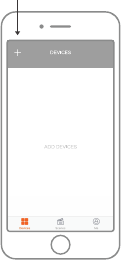
From the Eques elf app, click the “+” icon at
the upper left hand corner.
When plugged in, press and hold the power
button on the side for 5 seconds until the
blue light begins flashing. Use the Eques elf
app to reconfigure the network settings.
On the next screen, select
Eques elf, enter your
Wi-Fi password, and
begin setup.
Step 3
Plug in your elf smart plug then press and hold
the power button for five seconds until you see
the flashing blue light. This indicates it is ready
for setup.
If for some reason the setup fails, reset and
repeat the setup process.
Step 6
Within the Eques elf app, go to "Me" and
then tap "Upload configuration". This will
upload the configuration of your elf smart
plug to the cloud.
Compact
Design
Wi-Fi
Enabled
Turns
Appliances
and Devices
On/Off
Remotely
Compatible
with Standard
Outlets
Works with
Google Home &
Amazon Alexa Quick Start Guide
Indoor use only.
Do not use in wet or damp areas.
Do not use an extension cord. Plug directly into
electrical outlet.
Do not remove ground pin (middle pin).
Follow the recommended specifications.
Do not use in precision timing applications where
inaccurate timing could be dangerous.
(example: sunlamp, sauna etc.)
Do not use with devices that should not be
operated without supervision.
Remove elf smart plug from outlet before
cleaning.
Do not clean with liquid.
Safety Instructions
smart plug
TM
Address:
2100 Geng Road, Suite 210,
Palo Alto, CA 94303, USA
Customer Service Email:
cs@equeshome.com
Website:
www.equeshome.com
EQP01WTGY
Indoor use only.
Operating ambient
temperature:
32-104 F (0-40 C)
Type 1.B action.

My elf does not recognize my Wi-Fi network.
Check the quality of your Wi-Fi signal.
Check the distance between your elf and the router.
Adjust accordingly if the router is too far.
Check if there are any objects (e.g. heavy metal) near
your router that may interfere with the signal and move
them accordingly.
To Connect elf to Amazon Alexa To Connect elf to Google Home FAQs
1. Go to the Home page of Google Home then tap the
menu button again.
2. Tap “Explore”.
If for some reason, the elf smart plug still does
not seem to be recognized by Google Home,
these further steps need to be done:
3. Search for “Eques elf” then tap on it when it appears
on the results.
4. Check whether the “Eques elf” page says “Try it” or
“Link”. If it already says “Try it”, that means the account
is successfully linked. If you see “Link” instead, tap on it
and you will be prompted to link the account again.
1. Within the Amazon Alexa app, enable "Eques elf"
under smart home skills.
2. Within the Eques elf app, go to "Me" and then tap
"Upload configuration". This will upload the
configuration of your elf smart plug to the cloud.
3. Go back to the Alexa app, go to "Smart Home" and
then tap "Add Device". It will then start discovering
devices.
4. Once your elf smart plug has been discovered, you
should be able to give commands through Amazon
Alexa using the name you assigned to your smart plugs
(e.g. "Alexa, turn on Light1").
1. Within the Eques elf app, go to "Me" and then tap
"Upload configuration". This will upload the
configuration of your elf smart plug to the cloud.
2. On the home page of the Google Home app, tap on
the menu at the top lefthand corner.
3. Tap on "Home control".
4. Tap on the "+" button at the lower right corner.
It should allow you to add devices.
5. Within the list shown, search for "Eques elf".
6. Tap on "Eques elf".
7. You will be prompted to put in your login details.
Make sure you use the same details as the ones you use
on the Eques elf app.
8. Tap “Authorize” once you see "Authorize Application".
9. You should be able to see that your Eques elf account
is being linked.
10. Your list of Eques elf smart plugs should now show
on the screen (with the same names as you assigned on
the Eques elf app). Tap “Done” when you’re done
assigning to certain rooms. You can also skip assigning
rooms by just tapping on “Done” right away.
11. Tap "Got it" and you should be able to give
commands through your Google Home devices using
the name you assigned to your smart plugs
(e.g. "Ok Google, turn on Light1).
What should be done when my elf does not install?
Your internet connection is crucial in ensuring a
successful installation. elf only works with a 2.4 GHz
connection, thus, during installation, you need to ensure
that your smartphone is connected to the right network.
My elf does not recognize my smartphone.
The blue flashing light will be the best indication if your
elf is ready to pair up with your smartphone. Once this is
in place, you just need to follow the installation process
prompted on the Eques elf app.
Can I link my elf to several smartphones?
Yes, you can link to several smartphones as long as all
smartphones are using the same login details.
elf only works with 2.4 GHz (802.11g) Wi-Fi network.
If you see a 5G suffix on your Wi-Fi network, you are
more likely connecting to 5.0 GHz and will need to
connect to 2.4 GHz to be able to successfully install.
In case you are unsure what kind of network you have
(as in cases where you have modified the network
name), you can try to connect first, observe what will
happen, and change to other networks if needed.

FAQs
smart plug
TM
FCC Statement
This equipment has been tested and found to comply with the limits for a Class B
digital device, pursuant to part 15 of the FCC Rules. These limits are designed to
provide reasonable protection against harmful interference in a residential installation.
This equipment generates, uses and can radiate radio frequency energy and, if not
installed and used in accordance with the instructions, may cause harmful interference
to radio communications. However, there is no guarantee that interference will not
occur in a particular installation. If this equipment does cause harmful interference to
radio or television reception, which can be determined by turning the equipment off
and on, the user is encouraged to try to correct the interference by one or more of
the following measures:
—Reorient or relocate the receiving antenna.
—Increase the separation between the equipment and receiver.
—Connect the equipment into an outlet on a circuit different from that to
which the receiver is connected.
—Consult the dealer or an experienced radio/TV technician for help.
FCC Radiation Exposure Statement
This device complies with FCC radiation exposure limits set forth for an uncontrolled
environment and it also complies with Part 15 of the FCC RF Rules. This equipment
must be installed and operated in accordance with provided instructions and the
antenna(s) used for this transmitter must be installed to provide a separation distance
of at least 20 cm from all persons and must not be co-located or operating in
conjunction with any other antenna or transmitter. End-users and installers must be
provided with antenna installation instructions and consider removing the
no-collocation statement.
This device complies with Part 15 of the FCC Rules. Operation is subject to the
following two conditions: (1) this device may not cause harmful interference, and
(2) this device must accept any interference received, including interference that may
cause undesired operation.
Caution
Any changes or modifications not expressly approved by the party responsible for
compliance could void the user's authority to operate the equipment.
IC Statement
This device complies with Industry Canada’s licence-exempt RSSs.
Operation is subject to the following two conditions:
(1) This device may not cause interference; and (2) This device must accept any
interference, including interference that may cause undesired operation of the device.
Le présent appareil est conforme aux CNR d’Industrie Canada applicables aux
appareils radio exempts de licence. L’exploitation est autorisée aux deux conditions
suivantes : 1) l’appareil ne doit pas produire de brouillage; (2) l’utilisateur de l’appareil
doit accepter tout brouillage radioélectrique subi, même si le brouillage est
susceptible d’en compromettre le fonctionnement.
The device meets the exemption from the routine evaluation limits in section 2.5 of
RSS 102 and compliance with RSS-102 RF exposure, users can obtain Canadian
information on RF exposure and compliance.
Le dispositif rencontre l'exemption des limites courantes d'évaluation dans la section
2.5 de RSS 102 et la conformité à l'exposition de RSS-102 rf, utilisateurs peut obtenir
l'information canadienne sur l'exposition et la conformité de rf.This transmitter must
not be co-located or operating in conjunction with any other antenna or transmitter.
This equipment should be installed and operated with a minimum distance of 20
centimeters between the radiator and your body.
Cet émetteur ne doit pas être Co-placé ou ne fonctionnant en même temps qu'aucune
autre antenne ou émetteur. Cet équipement devrait être installé et actionné avec une
distance minimum de 20 centimètres entre le radiateur et votre corps.
Will I be able to revert back to my 5.0 GHz network
after installing my elf?
If your router is dual-band, turn off 5.0 GHz (or tap
"Forget" under your 5.0 GHz Wi-Fi network settings
on your phone) then select 2.4 GHz. Once setup is
successful, you may turn on the 5.0 GHz Wi-Fi
network again and that will not have any negative
impact on your elf's performance.
Only 1 smartphone can connect with my elf. What
could be the issue?
Please check the login details. All connected
smartphones must use the same login details on
the Eques elf app.
My elf does not seem to connect to my Amazon
Alexa device.
Within the Eques elf app, go to "Me" and then tap
"Upload configuration". This will upload the
configuration of your elf to the cloud which then
facilitate communication between your elf and
Amazon Alexa device.
My Amazon Alexa device can only discover 2 of my
elf units out of 10 that I have.
You will have to upload the configuration again
within the Eques elf app, as it may have just executed
partially when you did it earlier. Within the Eques elf
app, go to "Me" and then tap "Upload
configuration".
On the Eques elf app, I can only see and control 3 out
of the 10 elf units I have at home.
Please ensure that the setup process for each of your
elf units has been fully completed. Also, within the
Eques elf app, go to "Me" and then tap "Upload
configuration". This will upload the configuration of
your elf to the cloud.
What should I do if my elf suddenly appears offline
when I'm away?
If this happens, this is more likely caused by
intermittent issues with your internet connection at
home. You may need to contact your service
provider. Once your connection is back up, your elf
will reconnect automatically and function as normal.