Eques Technology R20 Smart Camera User Manual
Eques Technology Co., Limited Smart Camera Users Manual
User manual
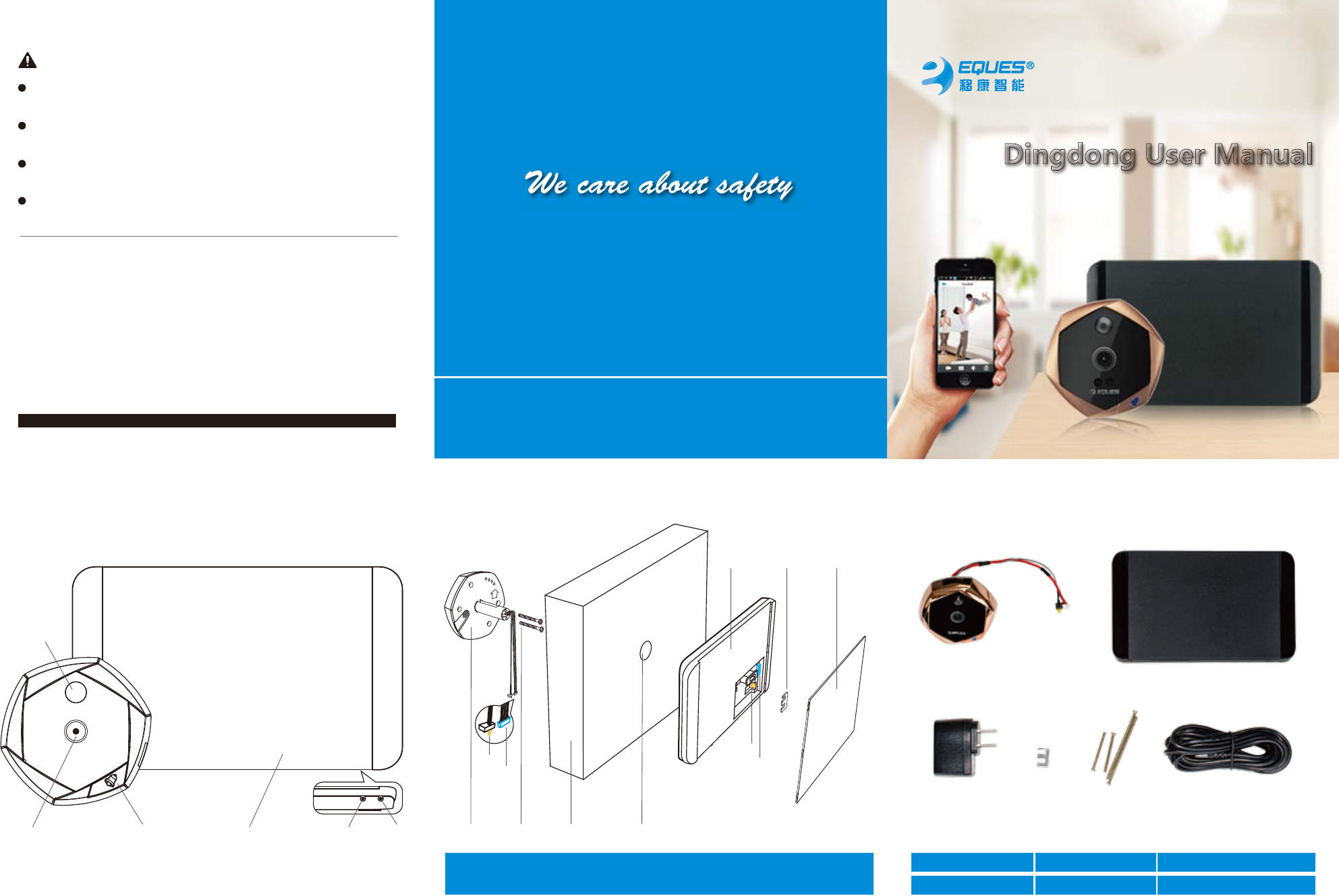
Our Door Part Indoor Part(battery)
Charger USB CableScrewsReinforced Shim
Outdoor Part
DoorbellCamera Reset Set
PIR intelligent
motion detection
Screws Door Peephole
Indoor Part Reinforced Shim Indoor Part Cover
1、Parts 2、Installation Diagram 3、Product List
UP
RESET SET
Indoor Part(battery)
White Plug
Copper Plug
Copper Plug
White Plug
www.eques.com.cn
Please don’t install the camera in harsh environment, such as high tempera-
ture, high humidity, lost of dust, smog, rain, or the camera will be damaged.
Please don’t squeeze lens and black round ball on the outdoor part, or the
hardware will be damaged.
During installation, please be careful not to pull the wire too hard, and please
also don’t scratch or cut the wire.
Please use the standard charger in the package. Other types of charger will fail
to recharge power or damage system.
Security Notice
Available Door Thickness
Door Hole Range: 12mm---50mm
Door Thickness Range:35mm----110mm
Before installation, please check the door thickness to choose the right
size screws.
Door thickness: 35mm—65mm,use 35mm screws
Door thickness: 65mm—95mm,use 65mm screws
Door thickness: 95mm—110mm,use 80mm screws (package excluded)
Out Door Part 1 Pieces
In Door Part 1 Pieces
Charger 1 Pieces
Reinforced Shim 1 Pieces
Screws 2Sets
USB Cable 1 Pieces
Wi-Fi remote visual doorbell
Dingdong User Manual
Screw the right screws into the outdoor part, tear out the viscose foam protective papers on the back, straighten out the
wire, and pass the wire and outdoor part through door hole to house ( tips: users can use the paper tube to lead the
wire to pass door hole) ,fix outdoor part, in the house, tighten the screws and fix the indoor part. Then insert the white
plug on the white outlet and copper plug into the copper hole. Installation is finished.
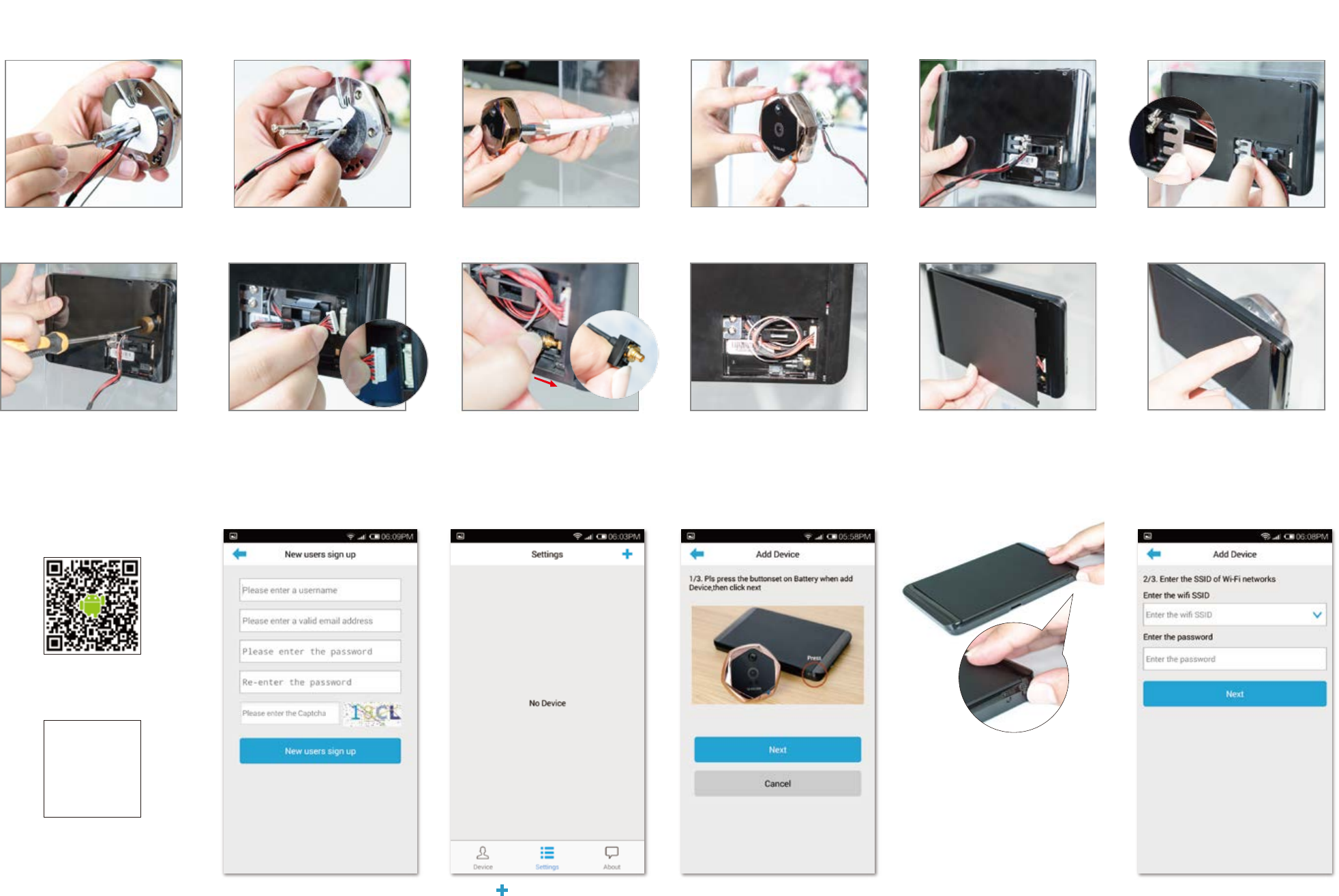
Outside the door, straighten out
the wire and pass it through
door hole
Download APP
Start APP
Register & Login Add Device Trigger Device Input Wi-Fi Account & Code
after the installation of APP, click logo to
start APP
Scan the following QR code, download
Android APP
Go to Android market, search “Dingdong
remote visual doorbell” and download it.
Scan the following QR code, download
IOS APP
Go to APP store, search dingdong and
download it
Press the to add new device
123456
5、
Sign Up And Add Device
1 2 5 6
11 12
3 4
4、Installation Steps
7 8 9 10
Screw the right screws into the
outdoor part
Tear out the viscose foam
protective papers on the back
Pass the wires and screws
though indoor part
Insert reinforced shim
( as show in figure, thinner
side is up)
Insert copper plug into
copper hole
Straighten out the wire
Tighten the screws and fix the
indoor part
Buckle up white plug on
white slot
Close the cover
( as shown in figure, notice
the direction)
When open the cover,
notice the defective part on
the indoor part
Fix outdoor part
Press “set” key and bind WiFi account
Firstly press SET key( under the black indoor part) , click “
next setp” after 3 seconds, then wait for device automatic
searching wifi network. If fail to add, please check the wifi
signal status at wifi peephole
Input the right wireless network password, then wait for
notice of successful sending wifi information
After success ful connection of network, APP will
automatically search and bind device. During the binding,
please notice the led light of device. If binding is failed,
please check the device working status.
FCCWarningStatement
Changesormodificationsnotexpresslyapprovedbythepartyresponsibleforcompliancecould
voidtheuser'sauthoritytooperatetheequipment.
ThisequipmenthasbeentestedandfoundtocomplywiththelimitsforaClassBdigitaldevice,
pursuanttoPart15oftheFCCRules.Theselimitsaredesignedtoprovidereasonable
protectionagainstharmfulinterferenceinaresidentialinstallation.Thisequipmentgenerates
usesandcanradiateradiofrequencyenergyand,ifnotinstalledandusedinaccordancewiththe
instructions,maycauseharmfulinterferencetoradiocommunications.However,thereisno
guaranteethatinterferencewillnotoccurinaparticularinstallation.Ifthisequipmentdoes
causeharmfulinterferencetoradioortelevisionreception,whichcanbedeterminedbyturning
theequipmentoffandon,theuserisencouragedtotrytocorrecttheinterferencebyoneor
moreofthefollowingmeasures:
‐‐Reorientorrelocatethereceivingantenna.
‐‐Increasetheseparationbetweentheequipmentandreceiver.
‐‐Connecttheequipmentintoanoutletonacircuitdifferentfromthattowhichthereceiveris
connected.
‐‐Consultthedealeroranexperiencedradio/TVtechnicianforhelp
FCCRadiationExposureStatement
Theantennasusedforthistransmittermustbeinstalledtoprovideaseparationdistanceofat
least20cmfromallpersonsandmustnotbeco‐locatedoroperatinginconjunctionwithany
otherantennaortransmitter.