EverFocus Electronics EVEREDR810-410 Digital Video Recorder User Manual

EverFocus Electronics Corp. Digital Video Recorder Users Manual

Users Manual

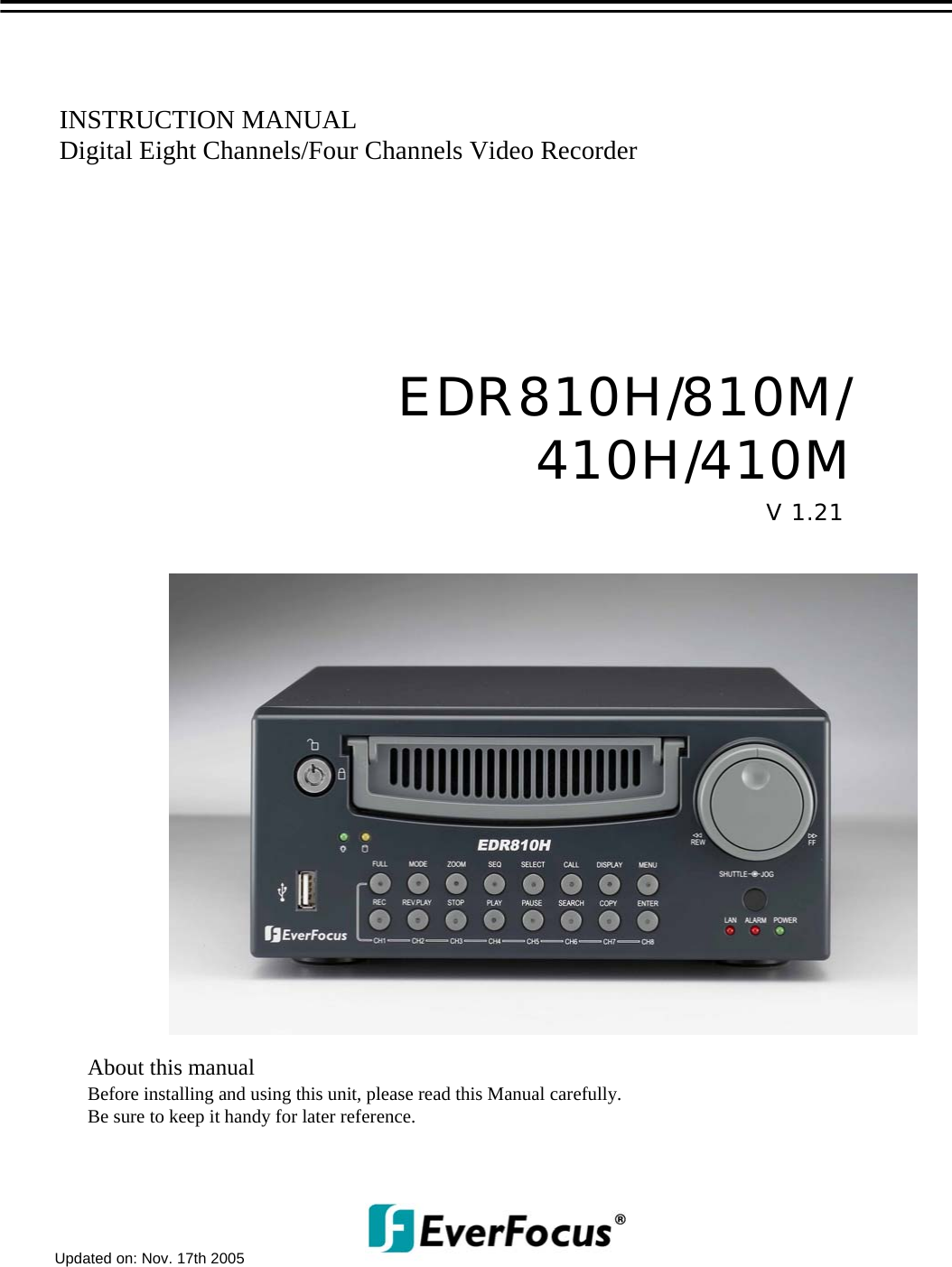
INSTRUCTION MANUALDigital Eight Channels/Four Channels Video RecorderAbout this manualBefore installing and using this unit, please read this Manual carefully.Be sure to keep it handy for later reference.V 1.21EDR810H/810M/410H/410MUpdated on: Nov. 17th 2005
Federal Communication Commission Interference StatementThis equipment has been tested and found to comply with the limits for a Class B digital device, pursuant to Part 15 of the FCC Rules. These limits are designed to provide reasonable protection against harmful interference in a residential installation. This equipment generates, uses and can radiate radio frequency energy and, if not installed and used in accordance with the instructions, may cause harmful interference to radio communications. However, there is no guarantee that interference will not occur in a particular installation. If this equipment does cause harmful interference to radio or television reception, which can be determined by turning the equipment off and on, the user is encouraged to try to correct the interference by one of the following measures :•Reorient or relocate the receiving antenna.•Increase the separation between the equipment and receiver.•Connect the equipment into an outlet on a circuit different from that to which the receiver isconnected.•Consult the dealer or an experienced radio/TV technician for help.FCC Caution : Any changes or modifications not expressly approved by the party responsible for compliance could void the users’s authority to operate this equipment.This device complies with Part 15 of the FCC Rules. Operation is subject to the following two conditions : (1) This device may not cause harmful interference, and (2) this device must accept any interference received, including interference that may cause undesired operation.This device and its antennas(s) must not be co-located or operating in conjunction with any other antenna or transmitter.
FCC Radiation Exposure Statement:This equipment complies with FCC radiation exposure limits set forth for an uncontrolled environment. This equipment should be installed and operated with minimum distance 20cm between the radiator & your body.
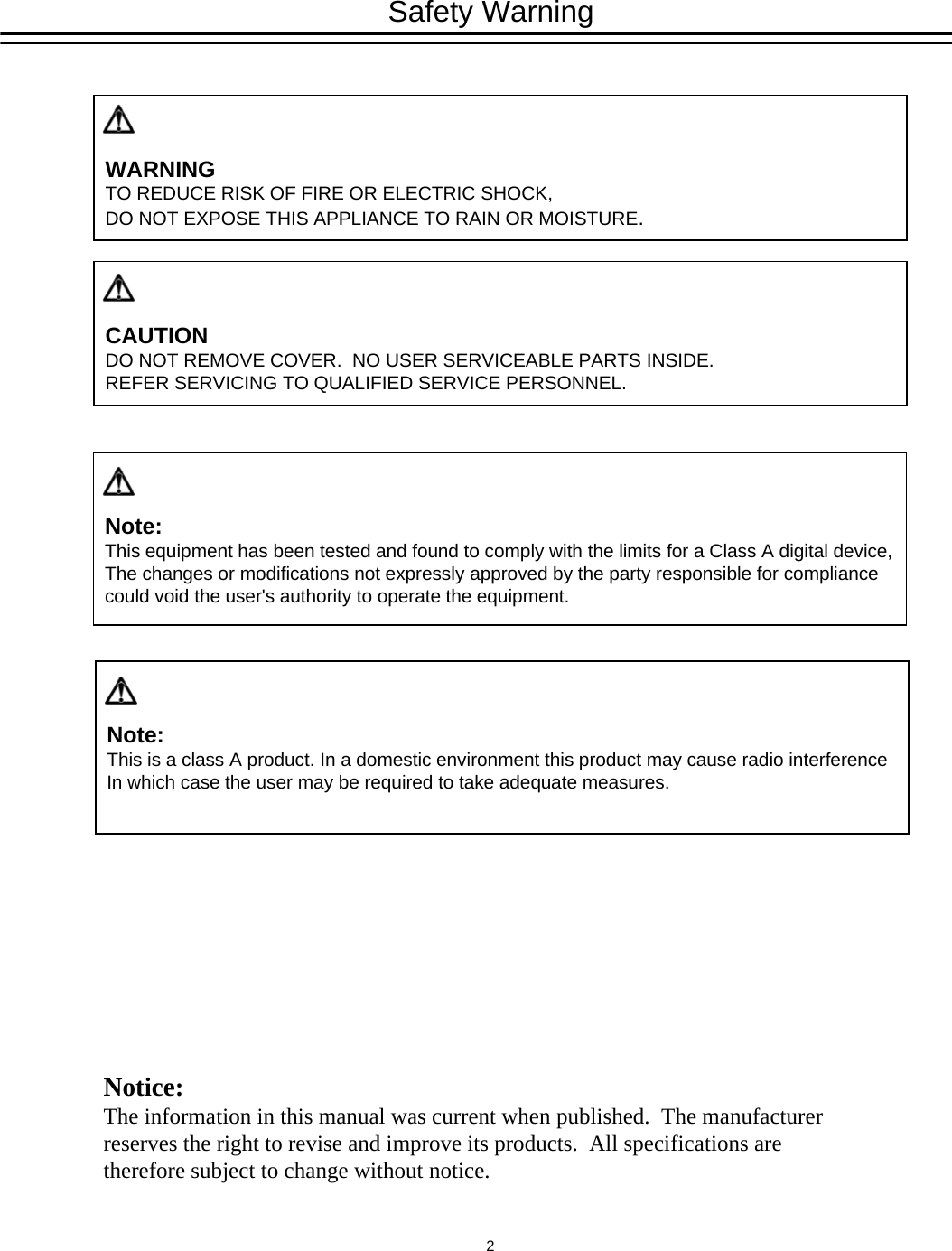
WARNINGTO REDUCE RISK OF FIRE OR ELECTRIC SHOCK, DO NOT EXPOSE THIS APPLIANCE TO RAIN OR MOISTURE.CAUTIONDO NOT REMOVE COVER.  NO USER SERVICEABLE PARTS INSIDE.REFER SERVICING TO QUALIFIED SERVICE PERSONNEL.Note:This equipment has been tested and found to comply with the limits for a Class A digital device, The changes or modifications not expressly approved by the party responsible for compliance could void the user's authority to operate the equipment. Notice:The information in this manual was current when published.  The manufacturer reserves the right to revise and improve its products.  All specifications are therefore subject to change without notice. Safety WarningNote:This is a class A product. In a domestic environment this product may cause radio interferenceIn which case the user may be required to take adequate measures. 2
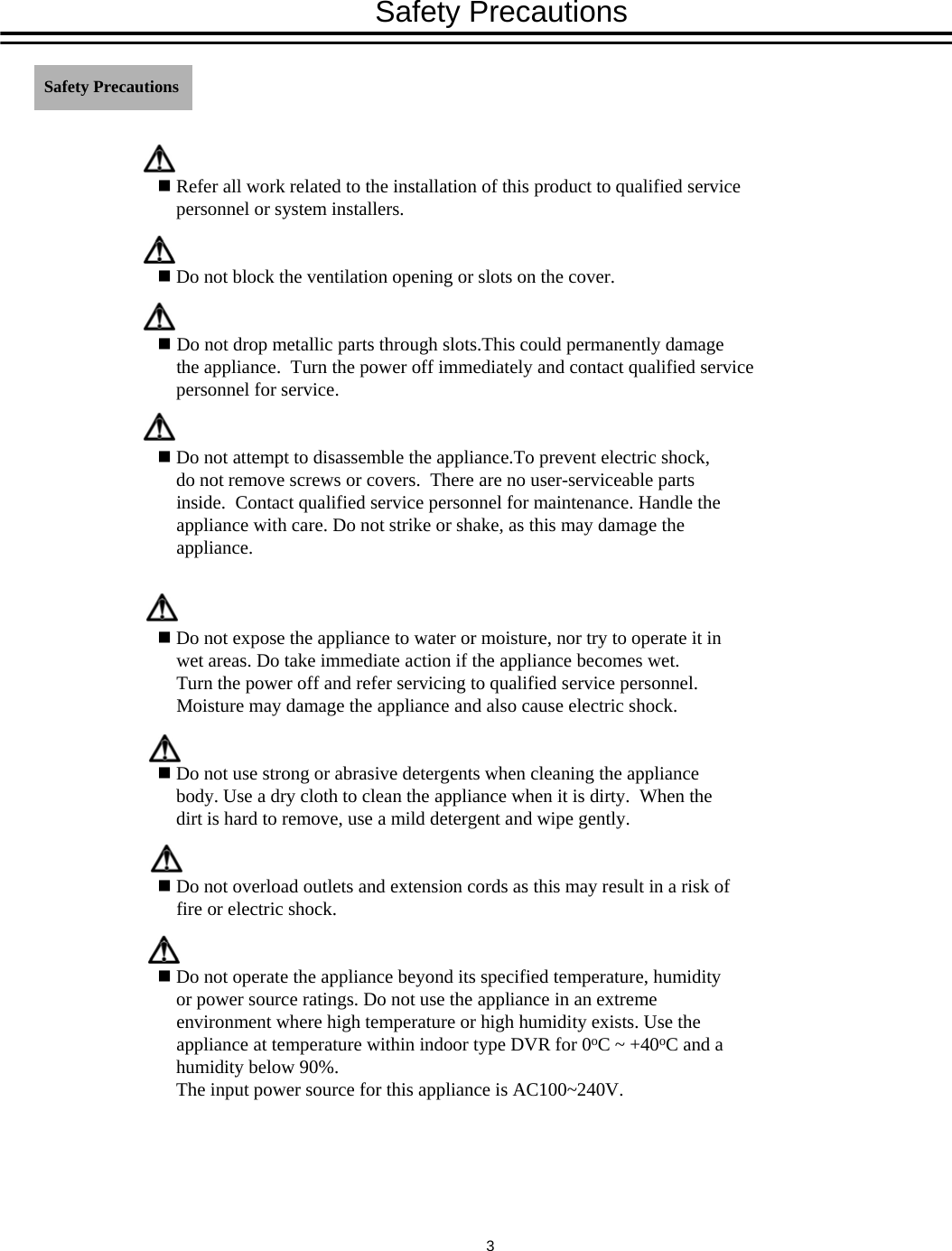
Refer all work related to the installation of this product to qualified service personnel or system installers.Do not block the ventilation opening or slots on the cover.Do not drop metallic parts through slots.This could permanently damage the appliance.  Turn the power off immediately and contact qualified service personnel for service.Do not attempt to disassemble the appliance.To prevent electric shock, do not remove screws or covers.  There are no user-serviceable parts inside.  Contact qualified service personnel for maintenance. Handle the appliance with care. Do not strike or shake, as this may damage the appliance.Do not expose the appliance to water or moisture, nor try to operate it in wet areas. Do take immediate action if the appliance becomes wet.  Turn the power off and refer servicing to qualified service personnel.  Moisture may damage the appliance and also cause electric shock.Do not use strong or abrasive detergents when cleaning the appliance body. Use a dry cloth to clean the appliance when it is dirty.  When the dirt is hard to remove, use a mild detergent and wipe gently.Do not overload outlets and extension cords as this may result in a risk of fire or electric shock.Do not operate the appliance beyond its specified temperature, humidity or power source ratings. Do not use the appliance in an extreme environment where high temperature or high humidity exists. Use the appliance at temperature within indoor type DVR for 0oC ~ +40oC and a humidity below 90%. The input power source for this appliance is AC100~240V.Safety Precautions Safety Precautions3
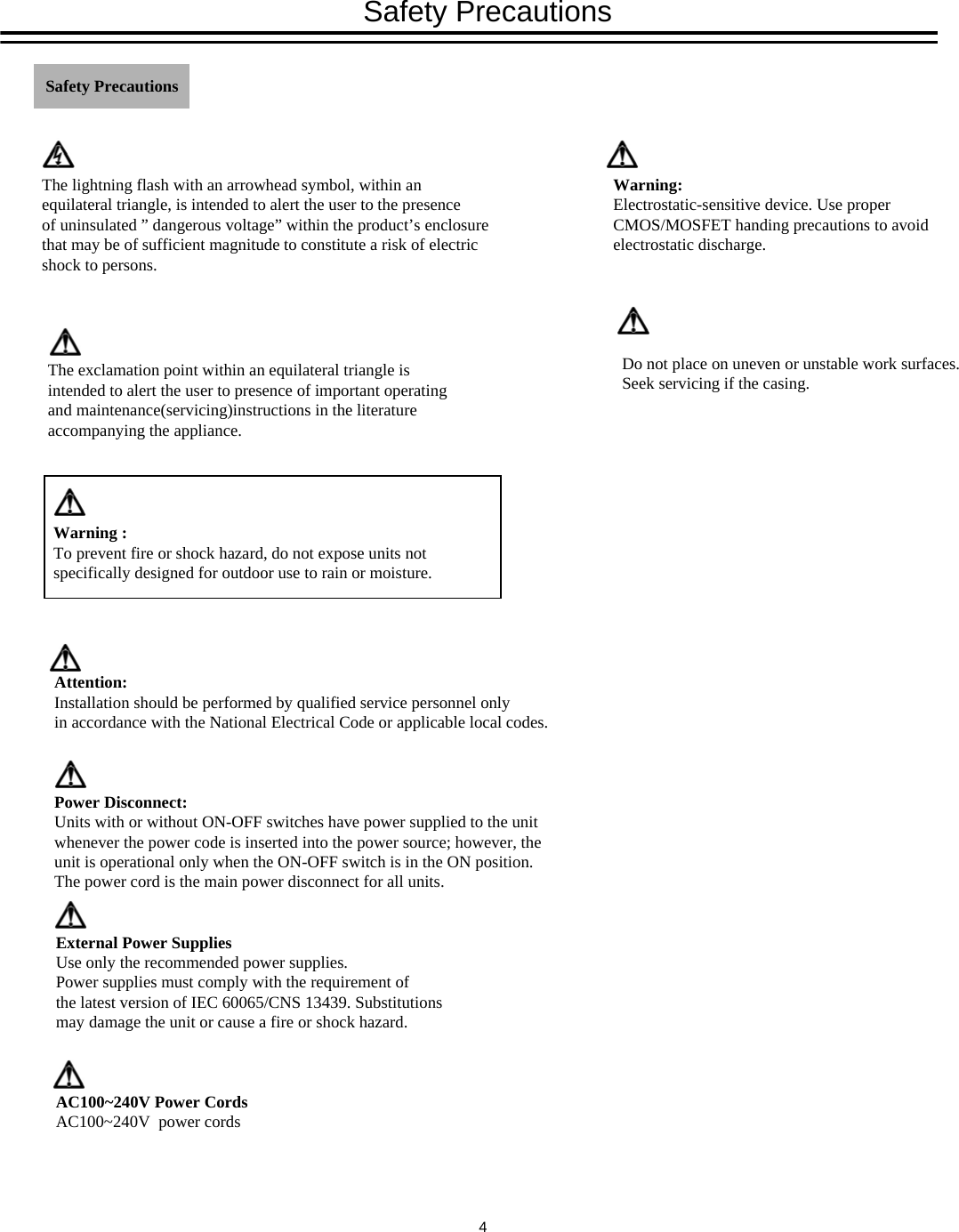
The exclamation point within an equilateral triangle is intended to alert the user to presence of important operating and maintenance(servicing)instructions in the literature accompanying the appliance.Warning :To prevent fire or shock hazard, do not expose units not specifically designed for outdoor use to rain or moisture.Safety PrecautionsThe lightning flash with an arrowhead symbol, within an equilateral triangle, is intended to alert the user to the presence of uninsulated ” dangerous voltage” within the product’s enclosure that may be of sufficient magnitude to constitute a risk of electric shock to persons.Attention:Installation should be performed by qualified service personnel only in accordance with the National Electrical Code or applicable local codes.Power Disconnect:Units with or without ON-OFF switches have power supplied to the unit whenever the power code is inserted into the power source; however, the unit is operational only when the ON-OFF switch is in the ON position. The power cord is the main power disconnect for all units.External Power SuppliesUse only the recommended power supplies. Power supplies must comply with the requirement of the latest version of IEC 60065/CNS 13439. Substitutions may damage the unit or cause a fire or shock hazard.AC100~240V Power CordsAC100~240V  power cordsWarning:Electrostatic-sensitive device. Use proper CMOS/MOSFET handing precautions to avoid electrostatic discharge.Safety PrecautionsDo not place on uneven or unstable work surfaces.Seek servicing if the casing.4
Important SafeguardsRead Instruction---All the safety and operating instructions should be read before the unit is operated.Retain Instructions---The safety and operating instructions should be retained for future reference.Heed Warnings—All warnings on the unit and in the operating instructions should be adhered to.Follow Instructions—All operating and use instructions should be followed.Cleaning—Unplug the unit from the outlet before cleaning. Do not use liquid cleaners or aerosol cleaners. Use a damp cloth for cleaningAttachments—Do not use attachment not recommended by the product manufacturer as they may cause hazards.Water and Moisture—Do not use this unit near water-for example, near a bath tub, wash bowl, kitchen sink, or laundry tub, in a wet basement, near a swimming pool, in an unprotected outdoor installation, or any area which is classified as a wet location.Servicing—Do not attempt to service this unit by yourself as opening or removing covers may expose you to dangerous voltage or other hazards. Refer all servicing to qualified service personnel.Power Cord Protection—Power supply cords should be routed so that they are not likely to be walked on or pinched by items placed upon or against them, playing particular attention to cords and plugs, convenience receptacles, and the point where they exit from the appliance.Object and Liquid Entry—Never push objects of any kind into this unit through openings as they may touch dangerousvoltage points or short-out parts that could result in a fire or electric shock.Never spill liquid of any kind on the unit.Important Safeguards5
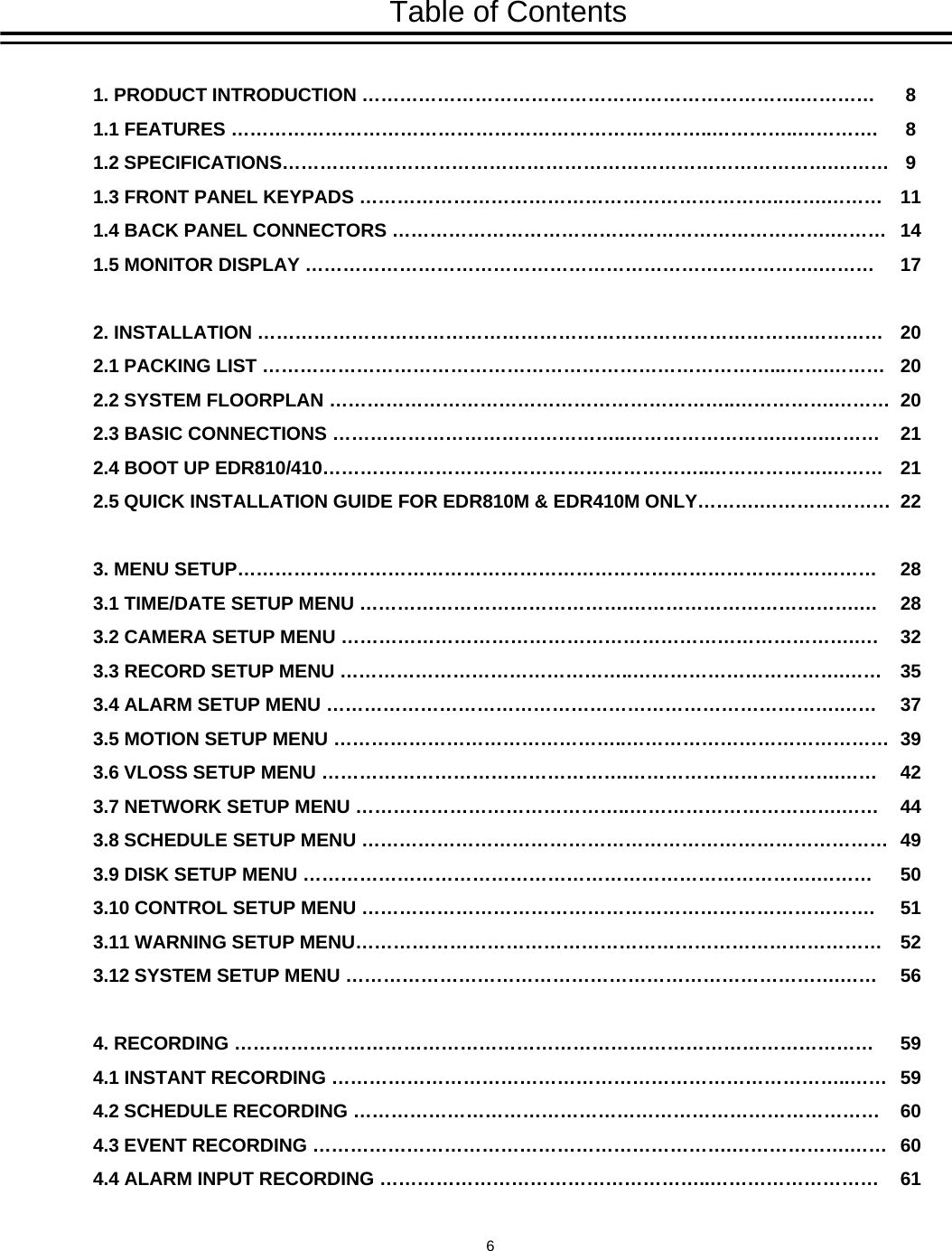
Table of Contents1. PRODUCT INTRODUCTION …………………………………………………………….…………1.1 FEATURES …………………………………………………………………..…………..………….1.2 SPECIFICATIONS…………………………………………………………………………….………1.3 FRONT PANEL KEYPADS …………………………………………………………..…….………1.4 BACK PANEL CONNECTORS …………………………………………………………….………1.5 MONITOR DISPLAY ……………………………………………………………………….………2. INSTALLATION …………………………………………………………………………….…………2.1 PACKING LIST ………………………………………………………………………...…….………2.2 SYSTEM FLOORPLAN ………………………………………………………..…………….………2.3 BASIC CONNECTIONS ………………………………………..…………………….…….………2.4 BOOT UP EDR810/410……………………………………………………..……………….………2.5 QUICK INSTALLATION GUIDE FOR EDR810M & EDR410M ONLY……….…………………3. MENU SETUP…………………………………………………………………………………………3.1 TIME/DATE SETUP MENU …………………………………….……………………………….…3.2 CAMERA SETUP MENU ……………………………………………………………………….….3.3 RECORD SETUP MENU ………………………………………..…………………………….……3.4 ALARM SETUP MENU ……………………………………………………………………….……3.5 MOTION SETUP MENU ………………………………………..……………………………………3.6 VLOSS SETUP MENU ………………………………………….…………………………….……3.7 NETWORK SETUP MENU ……………………………………..…………………………….……3.8 SCHEDULE SETUP MENU …………………………………………………………………………3.9 DISK SETUP MENU ……………………………………………………………………….………3.10 CONTROL SETUP MENU ……………………………………………………………………….3.11 WARNING SETUP MENU…………………………………………………………………………3.12 SYSTEM SETUP MENU …………………………………………………………………….……4. RECORDING …………………………………………………………………………………………4.1 INSTANT RECORDING ………………………………………………………………………..……4.2 SCHEDULE RECORDING …………………………………………………………………………4.3 EVENT RECORDING ………………………………………………………….……………….……4.4 ALARM INPUT RECORDING ……………………………………………..………………………8891114172020202121222828323537394244495051525659596060616
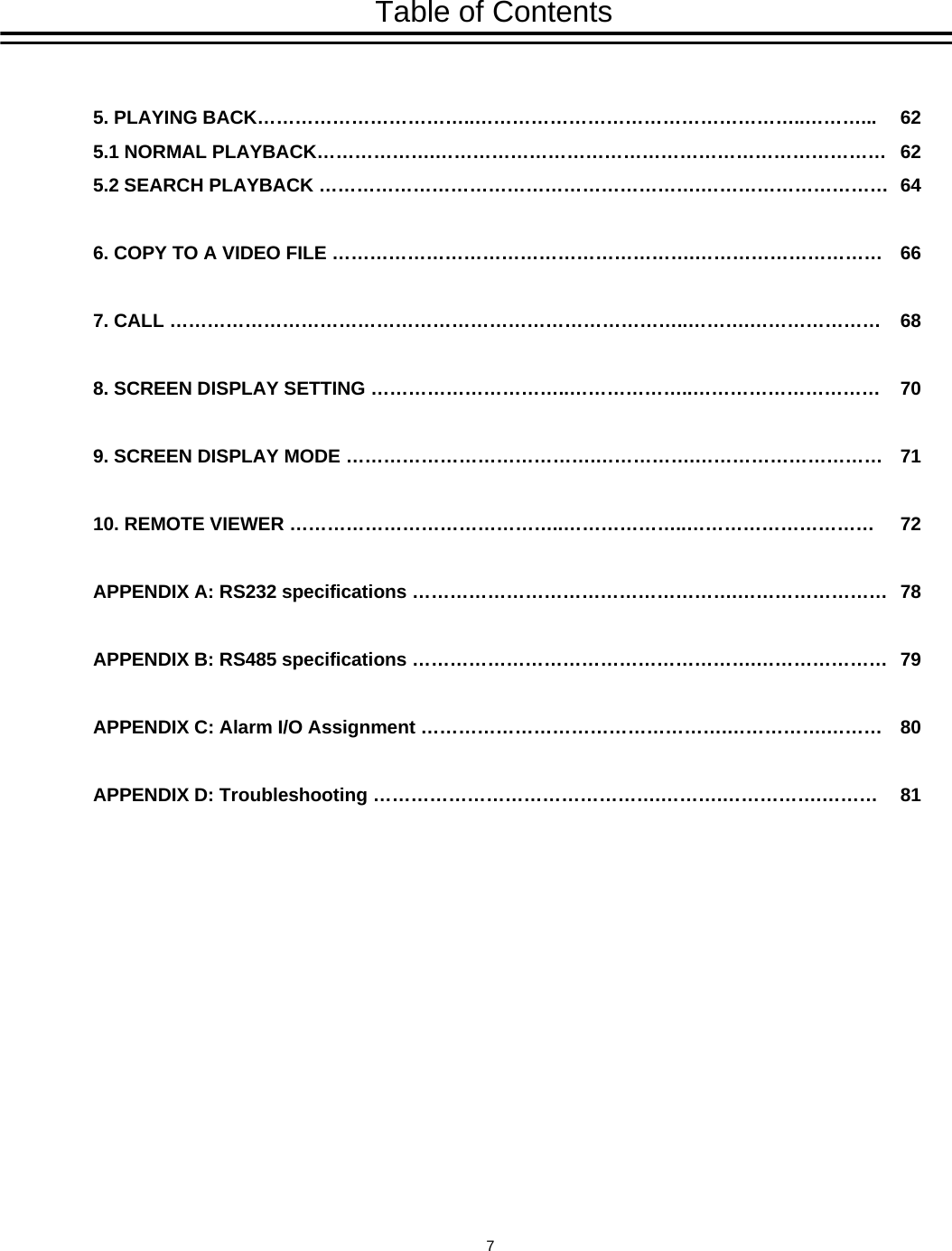
Table of Contents5. PLAYING BACK……………………………..……………………………………………..………...5.1 NORMAL PLAYBACK……………….………………………………………………………………5.2 SEARCH PLAYBACK …………………………………………………….…………………………6. COPY TO A VIDEO FILE ………………………………………………….…………………………7. CALL ………………………………………………………………………..……….…………………8. SCREEN DISPLAY SETTING …………………………..………………..…………………………9. SCREEN DISPLAY MODE ………………………………….…………….…………………………10. REMOTE VIEWER ……………………………………..………………..…………………………APPENDIX A: RS232 specifications …………………………………………….……………………APPENDIX B: RS485 specifications ……………………………………………….…………………APPENDIX C: Alarm I/O Assignment ………………………………………….…………….………APPENDIX D: Troubleshooting ……………………………………….……….…………….………6262646668707172787980817
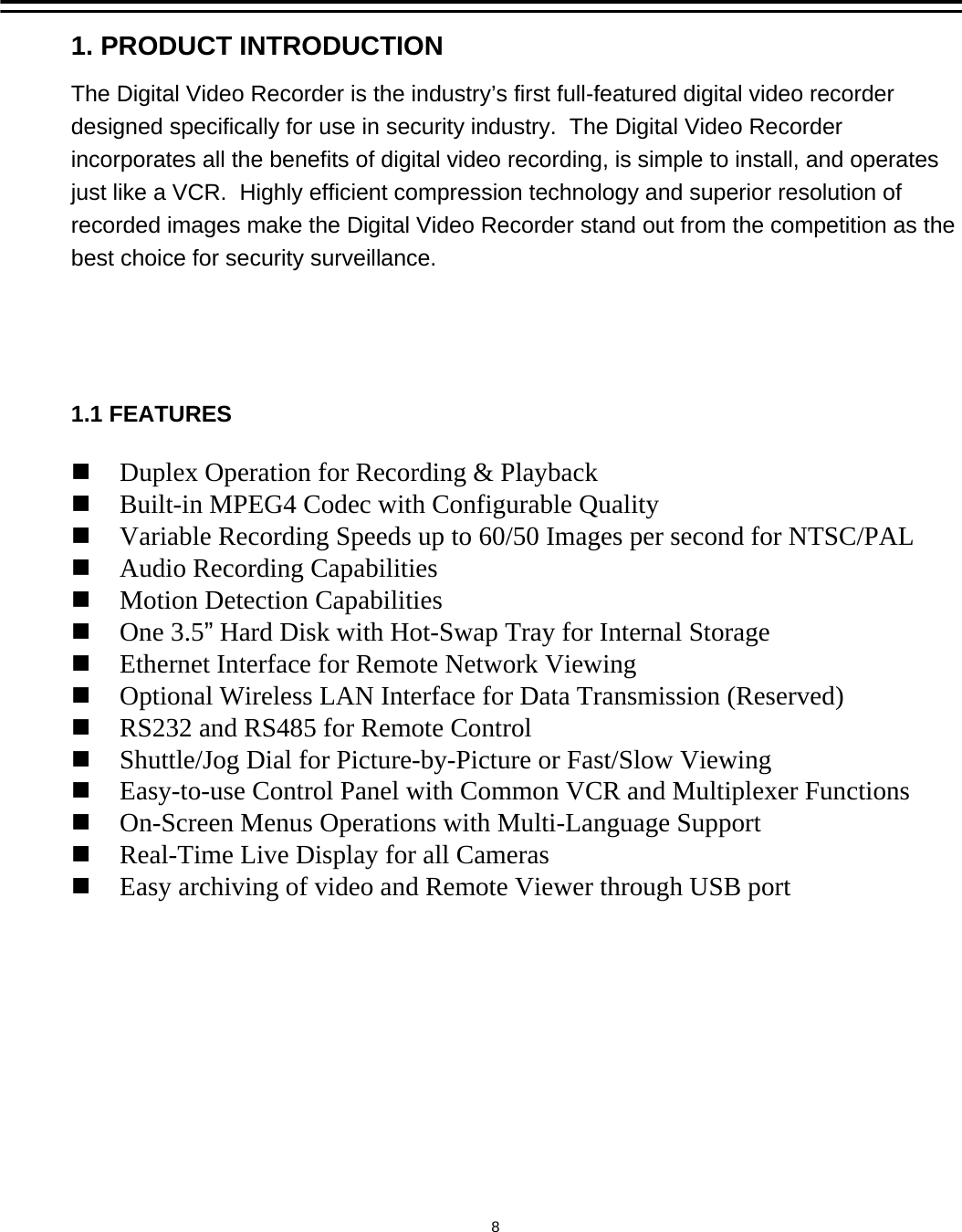
Duplex Operation for Recording & PlaybackBuilt-in MPEG4 Codec with Configurable QualityVariable Recording Speeds up to 60/50 Images per second for NTSC/PALAudio Recording CapabilitiesMotion Detection CapabilitiesOne 3.5”Hard Disk with Hot-Swap Tray for Internal StorageEthernet Interface for Remote Network ViewingOptional Wireless LAN Interface for Data Transmission (Reserved)RS232 and RS485 for Remote ControlShuttle/Jog Dial for Picture-by-Picture or Fast/Slow ViewingEasy-to-use Control Panel with Common VCR and Multiplexer FunctionsOn-Screen Menus Operations with Multi-Language SupportReal-Time Live Display for all CamerasEasy archiving of video and Remote Viewer through USB port1. PRODUCT INTRODUCTION1.1 FEATURESThe Digital Video Recorder is the industry’s first full-featured digital video recorder designed specifically for use in security industry.  The Digital Video Recorder incorporates all the benefits of digital video recording, is simple to install, and operates just like a VCR.  Highly efficient compression technology and superior resolution of recorded images make the Digital Video Recorder stand out from the competition as the best choice for security surveillance.8
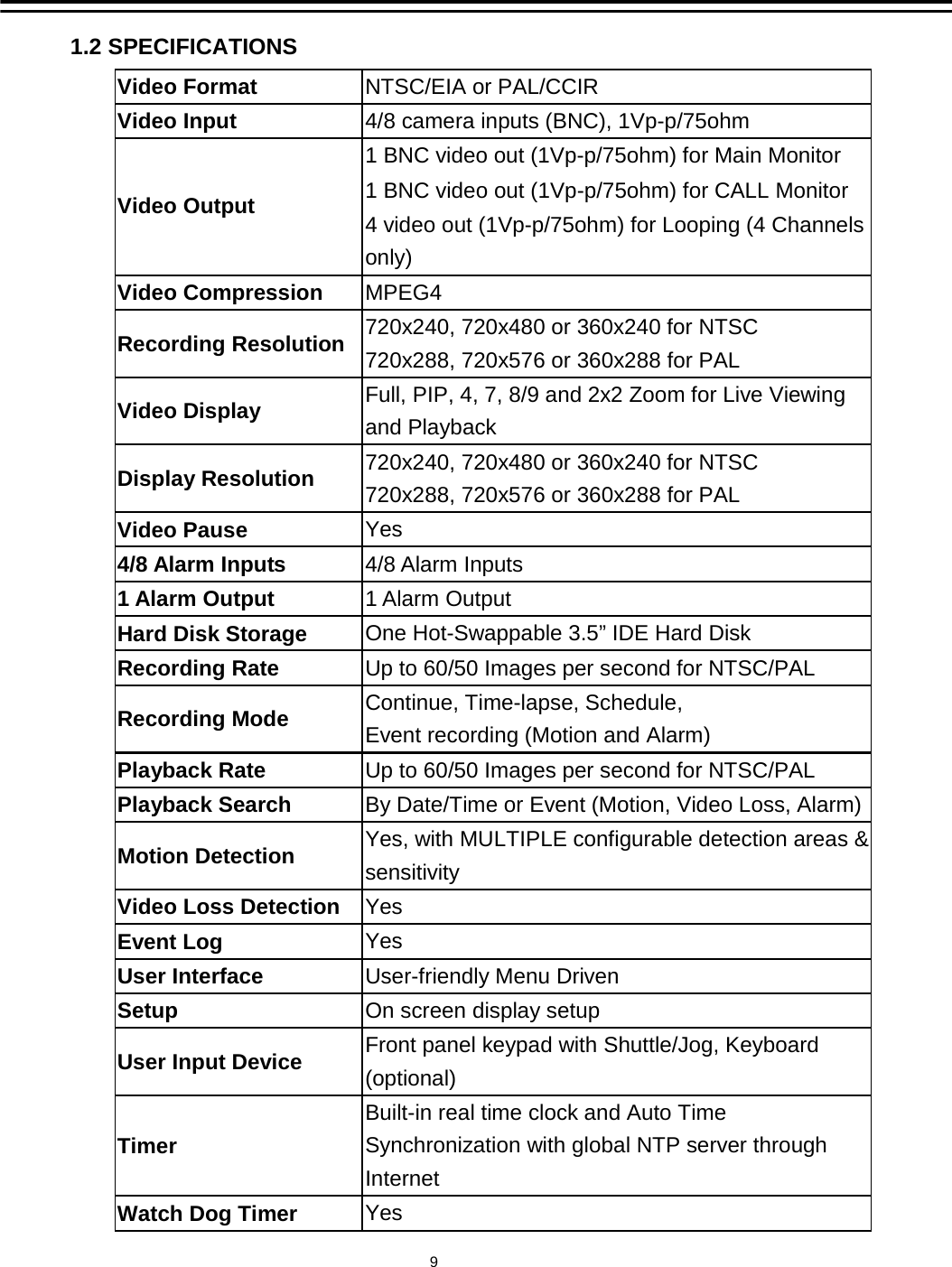
1.2 SPECIFICATIONS9Video Format  NTSC/EIA or PAL/CCIR Video Input  4/8 camera inputs (BNC), 1Vp-p/75ohm 1 BNC video out (1Vp-p/75ohm) for Main Monitor 1 BNC video out (1Vp-p/75ohm) for CALL Monitor Video Output  4 video out (1Vp-p/75ohm) for Looping (4 Channels only) Video Compression  MPEG4 Recording Resolution  720x240, 720x480 or 360x240 for NTSC 720x288, 720x576 or 360x288 for PAL Video Display    Full, PIP, 4, 7, 8/9 and 2x2 Zoom for Live Viewing and Playback   Display Resolution  720x240, 720x480 or 360x240 for NTSC 720x288, 720x576 or 360x288 for PAL Video Pause  Yes 4/8 Alarm Inputs  4/8 Alarm Inputs 1 Alarm Output  1 Alarm Output Hard Disk Storage  One Hot-Swappable 3.5” IDE Hard Disk Recording Rate  Up to 60/50 Images per second for NTSC/PAL Recording Mode  Continue, Time-lapse, Schedule,   Event recording (Motion and Alarm) Playback Rate  Up to 60/50 Images per second for NTSC/PAL Playback Search  By Date/Time or Event (Motion, Video Loss, Alarm) Motion Detection  Yes, with MULTIPLE configurable detection areas & sensitivity Video Loss Detection  Yes Event Log  Yes User Interface  User-friendly Menu Driven Setup  On screen display setup User Input Device  Front panel keypad with Shuttle/Jog, Keyboard (optional) Timer Built-in real time clock and Auto Time Synchronization with global NTP server through Internet Watch Dog Timer  Yes
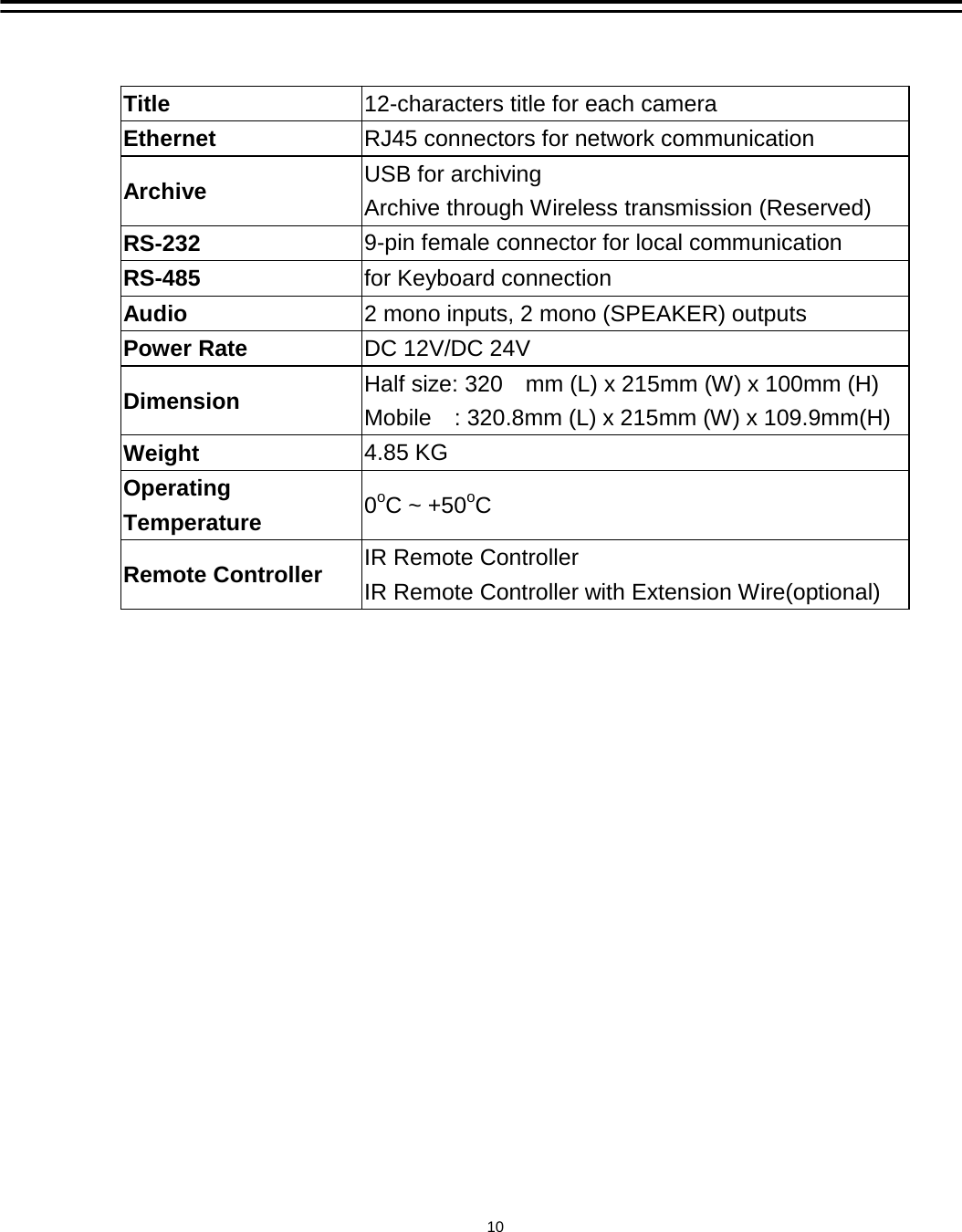
 Title  12-characters title for each camera Ethernet  RJ45 connectors for network communication   Archive  USB for archiving   Archive through Wireless transmission (Reserved) RS-232  9-pin female connector for local communication RS-485  for Keyboard connection Audio  2 mono inputs, 2 mono (SPEAKER) outputs Power Rate  DC 12V/DC 24V Dimension  Half size: 320    mm (L) x 215mm (W) x 100mm (H) Mobile    : 320.8mm (L) x 215mm (W) x 109.9mm(H) Weight  4.85 KG Operating Temperature  0oC ~ +50oC Remote Controller  IR Remote Controller   IR Remote Controller with Extension Wire(optional)  10
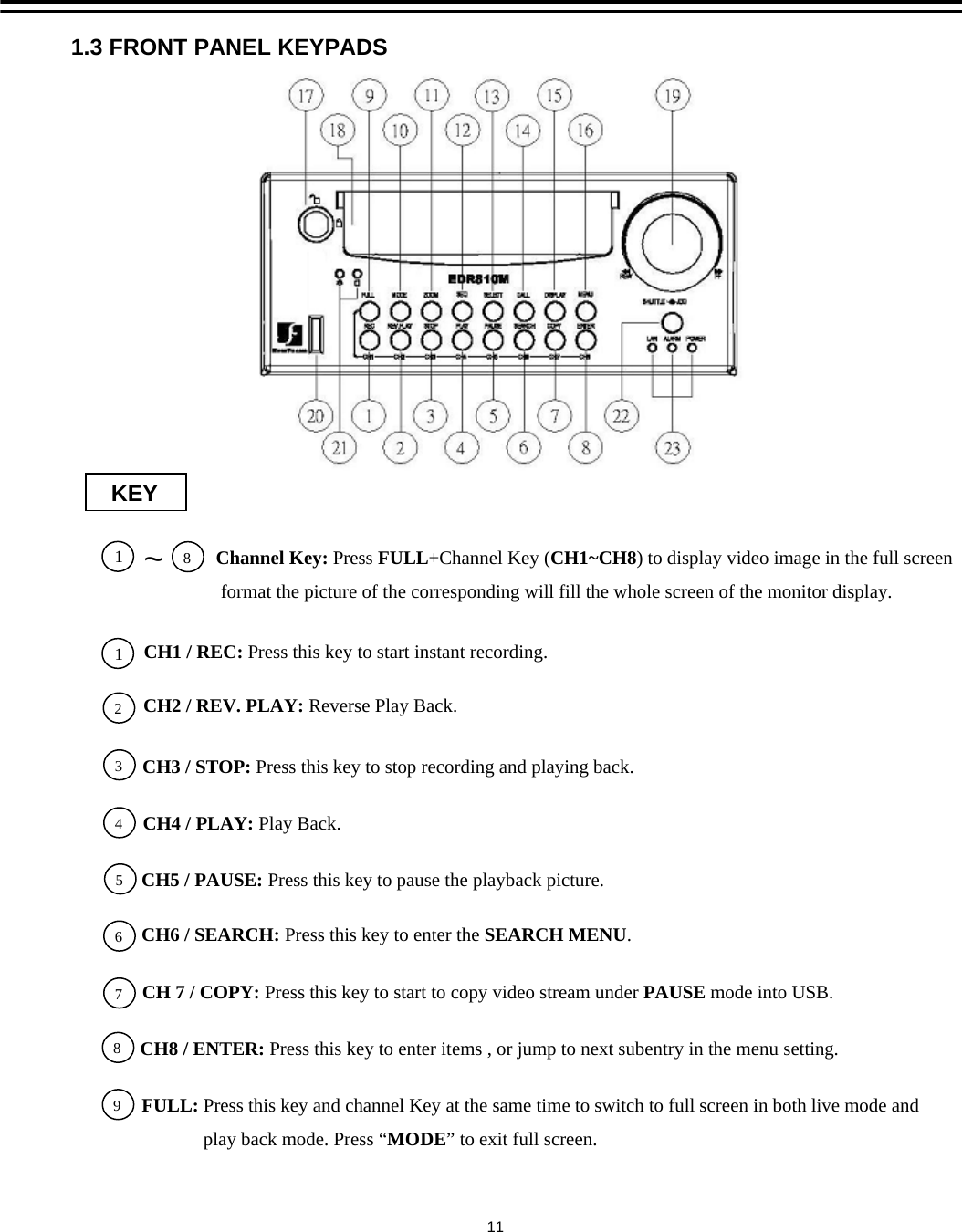
11.3 FRONT PANEL KEYPADSKEY23476589CH1 / REC: Press this key to start instant recording.   CH2 / REV. PLAY: Reverse Play Back.CH3 / STOP: Press this key to stop recording and playing back.CH4 / PLAY: Play Back. CH5 / PAUSE: Press this key to pause the playback picture.  CH6 / SEARCH: Press this key to enter the SEARCH MENU. CH 7 / COPY: Press this key to start to copy video stream under PAUSE mode into USB.CH8 / ENTER: Press this key to enter items , or jump to next subentry in the menu setting.Channel Key: Press FULL+Channel Key (CH1~CH8) to display video image in the full screenformat the picture of the corresponding will fill the whole screen of the monitor display.  18~FULL: Press this key and channel Key at the same time to switch to full screen in both live mode andplay back mode. Press “MODE” to exit full screen. 11
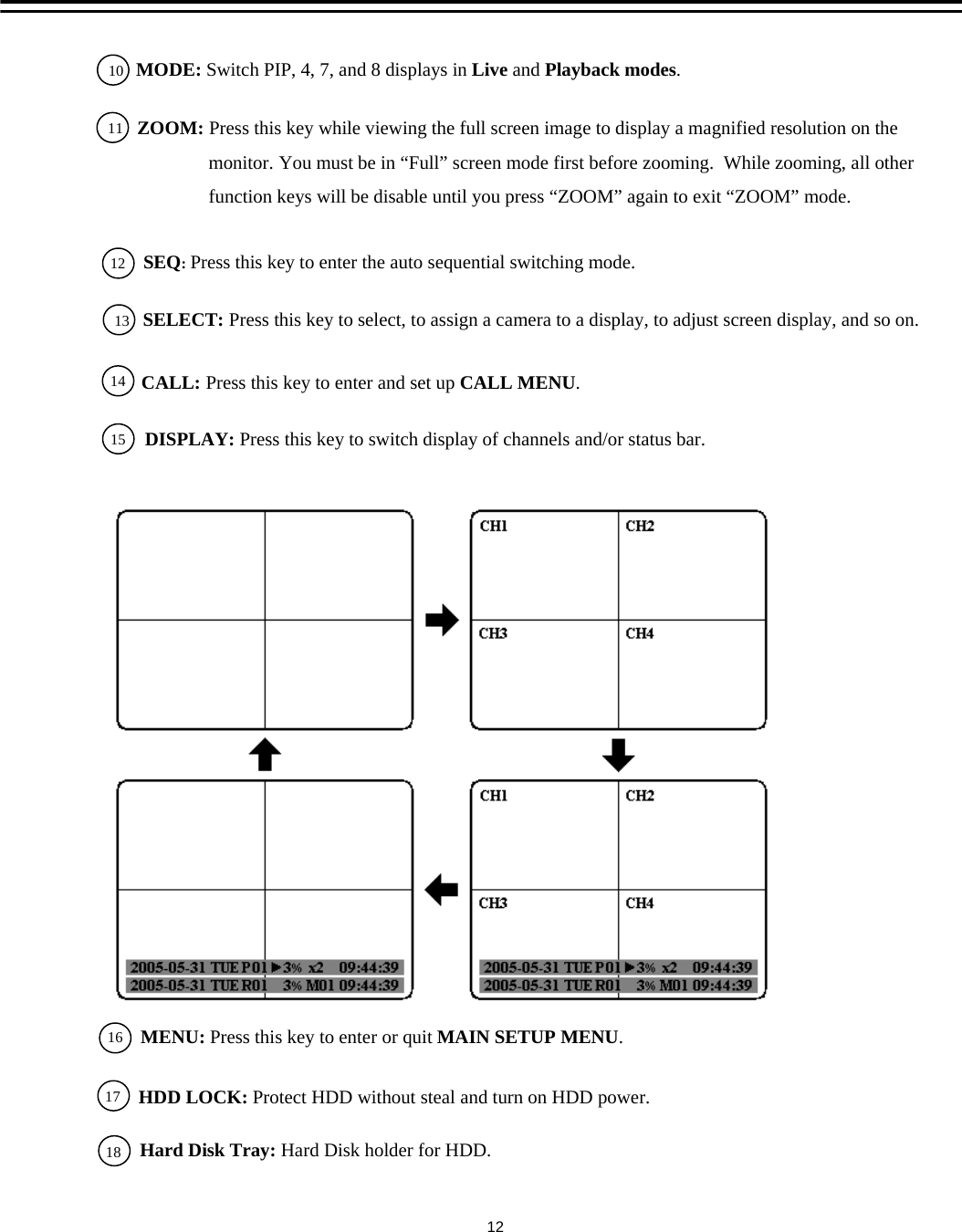
SEQ:Press this key to enter the auto sequential switching mode.SELECT: Press this key to select, to assign a camera to a display, to adjust screen display, and so on.12131514DISPLAY: Press this key to switch display of channels and/or status bar.1617 HDD LOCK: Protect HDD without steal and turn on HDD power.CALL: Press this key to enter and set up CALL MENU.18MENU: Press this key to enter or quit MAIN SETUP MENU. Hard Disk Tray: Hard Disk holder for HDD.1011MODE: Switch PIP, 4, 7, and 8 displays in Live and Playback modes.ZOOM: Press this key while viewing the full screen image to display a magnified resolution on the monitor. You must be in “Full” screen mode first before zooming.  While zooming, all other function keys will be disable until you press “ZOOM” again to exit “ZOOM” mode.12
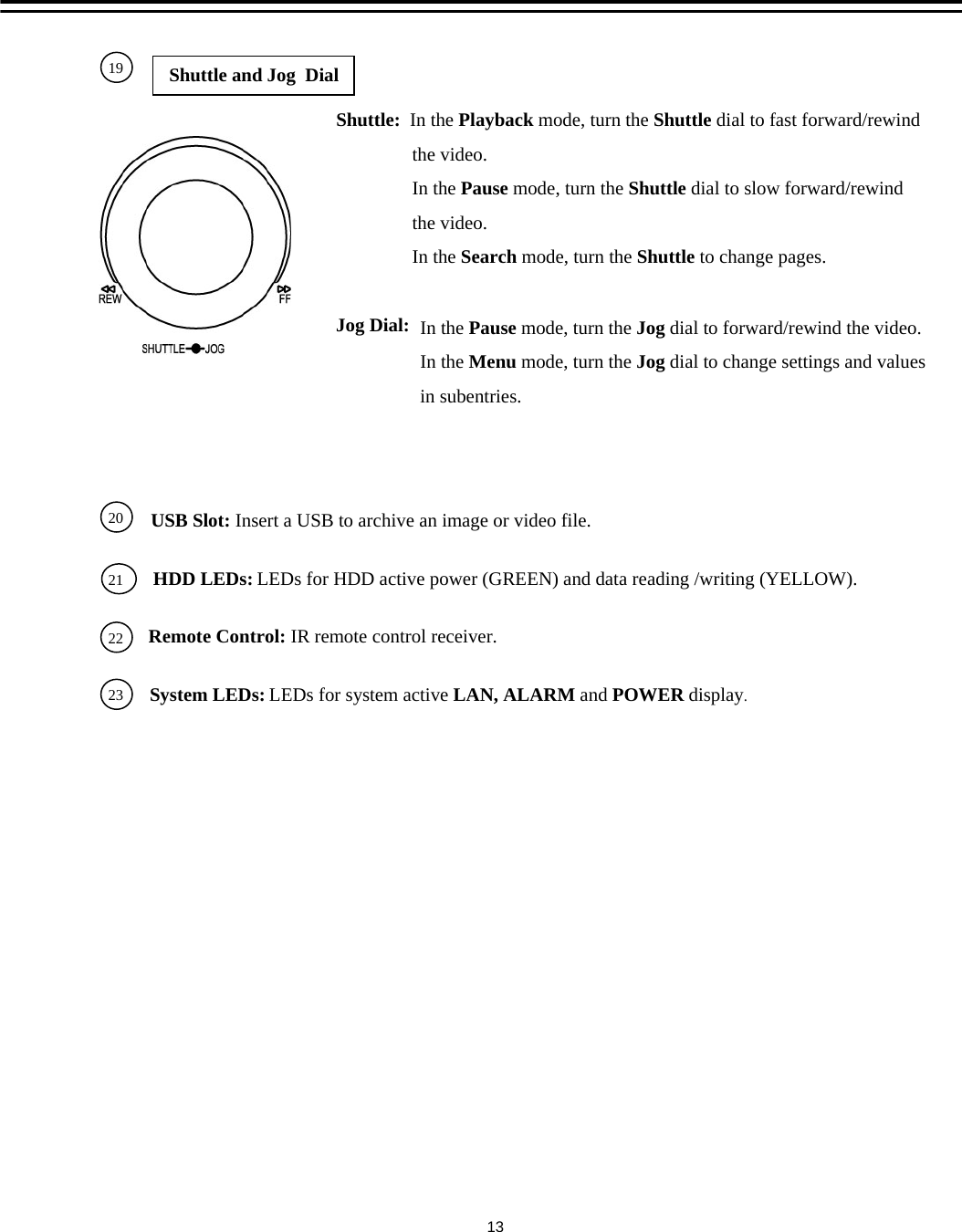
202122USB Slot: Insert a USB to archive an image or video file.HDD LEDs: LEDs for HDD active power (GREEN) and data reading /writing (YELLOW).Remote Control: IR remote control receiver.23 System LEDs: LEDs for system active LAN, ALARM and POWER display.19 Shuttle and Jog  DialShuttle:  In the Playback mode, turn the Shuttle dial to fast forward/rewindthe video.In the Pause mode, turn the Shuttle dial to slow forward/rewindthe video.In the Search mode, turn the Shuttle to change pages.Jog Dial: In the Pause mode, turn the Jog dial to forward/rewind the video.  In the Menu mode, turn the Jog dial to change settings and valuesin subentries.13
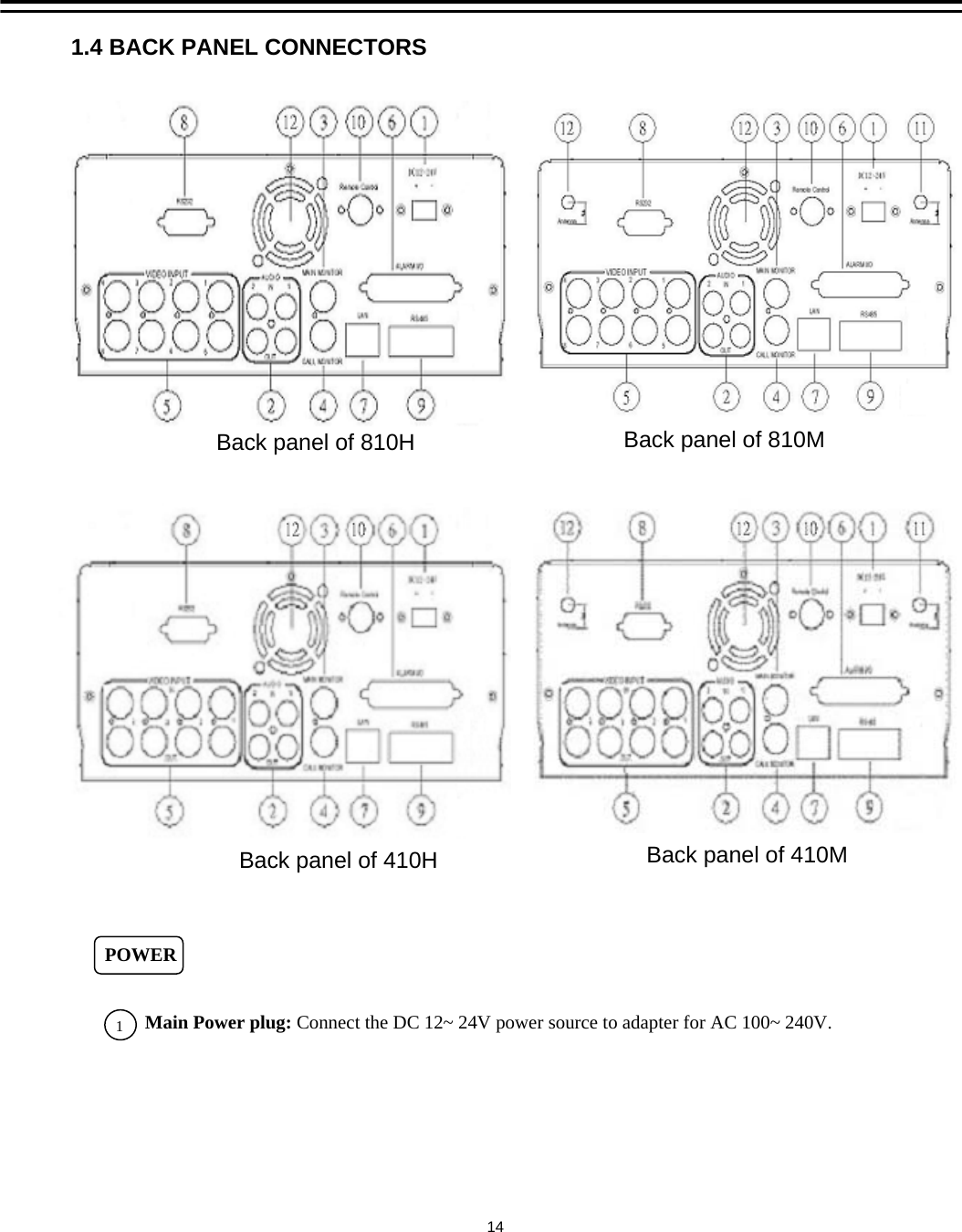
11.4 BACK PANEL CONNECTORSMain Power plug: Connect the DC 12~ 24V power source to adapter for AC 100~ 240V.POWERBack panel of 810H Back panel of 810M 14Back panel of 410H Back panel of 410M
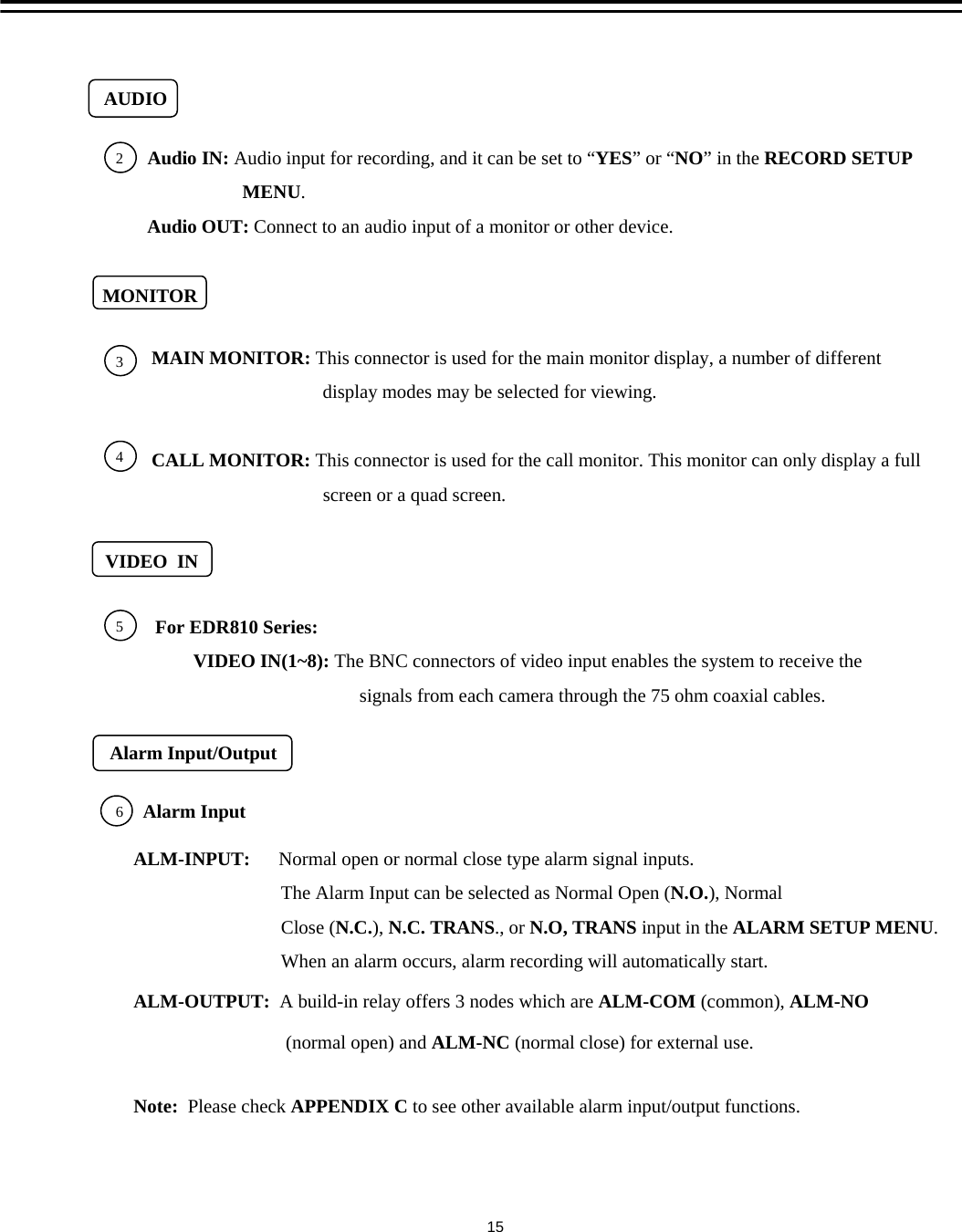
For EDR810 Series:VIDEO IN(1~8): The BNC connectors of video input enables the system to receive the signals from each camera through the 75 ohm coaxial cables.VIDEO  IN5ALM-INPUT:      Normal open or normal close type alarm signal inputs.The Alarm Input can be selected as Normal Open (N.O.), NormalClose (N.C.), N.C. TRANS., or N.O, TRANS input in the ALARM SETUP MENU.When an alarm occurs, alarm recording will automatically start.ALM-OUTPUT:  A build-in relay offers 3 nodes which are ALM-COM (common), ALM-NO(normal open) and ALM-NC (normal close) for external use. Note:  Please check APPENDIX C to see other available alarm input/output functions.Alarm Input/Output6Alarm Input 15MAIN MONITOR: This connector is used for the main monitor display, a number of differentdisplay modes may be selected for viewing.CALL MONITOR: This connector is used for the call monitor. This monitor can only display a fullscreen or a quad screen.MONITOR34Audio IN: Audio input for recording, and it can be set to “YES”or “NO”in the RECORD SETUPMENU.Audio OUT: Connect to an audio input of a monitor or other device. AUDIO2
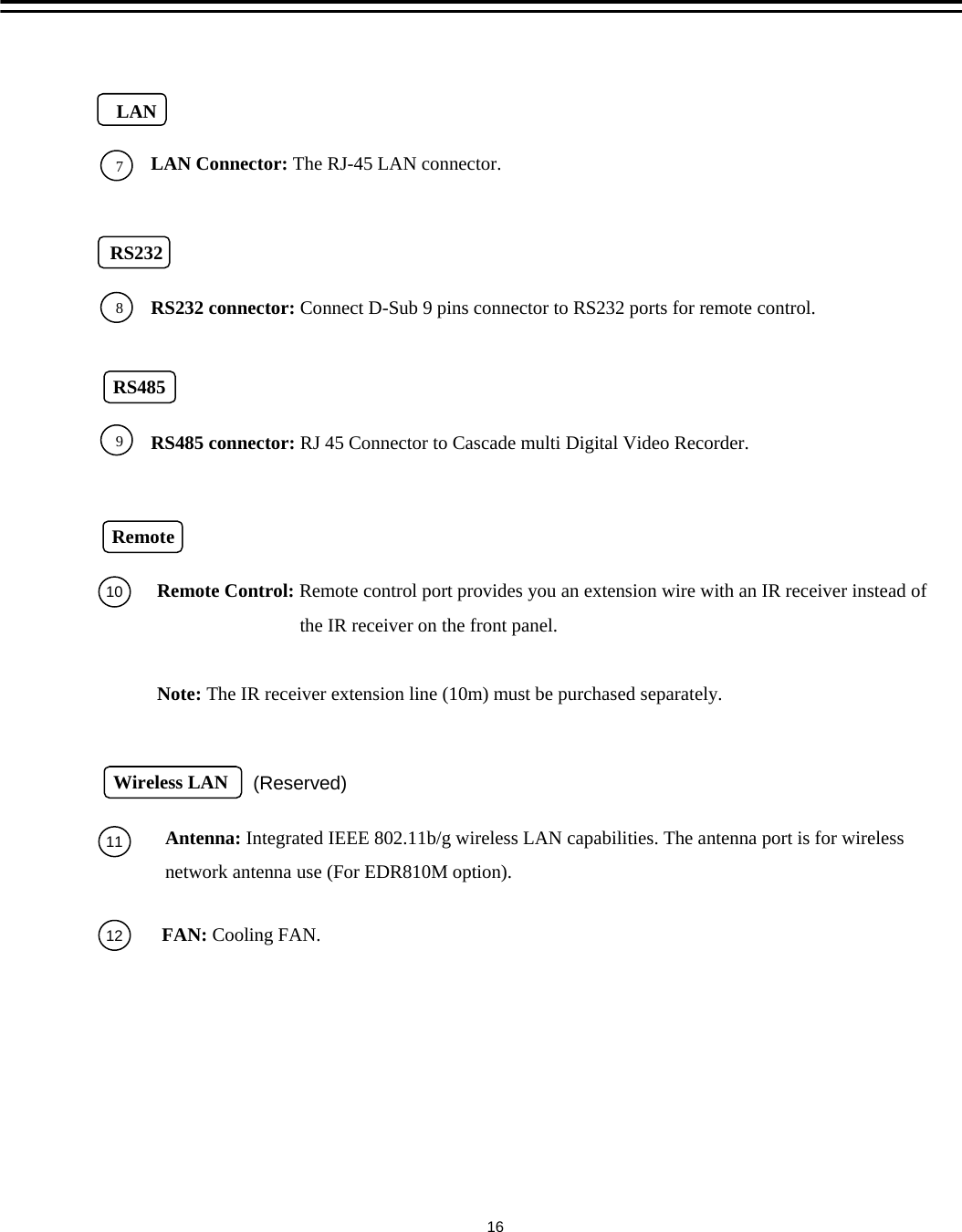
FAN: Cooling FAN.1112Remote Control: Remote control port provides you an extension wire with an IR receiver instead of the IR receiver on the front panel.Note: The IR receiver extension line (10m) must be purchased separately.Antenna: Integrated IEEE 802.11b/g wireless LAN capabilities. The antenna port is for wireless network antenna use (For EDR810M option).RemoteWireless LAN10(Reserved)16LAN Connector: The RJ-45 LAN connector.LAN7RS232RS232 connector: Connect D-Sub 9 pins connector to RS232 ports for remote control.8RS485RS485 connector: RJ 45 Connector to Cascade multi Digital Video Recorder.9
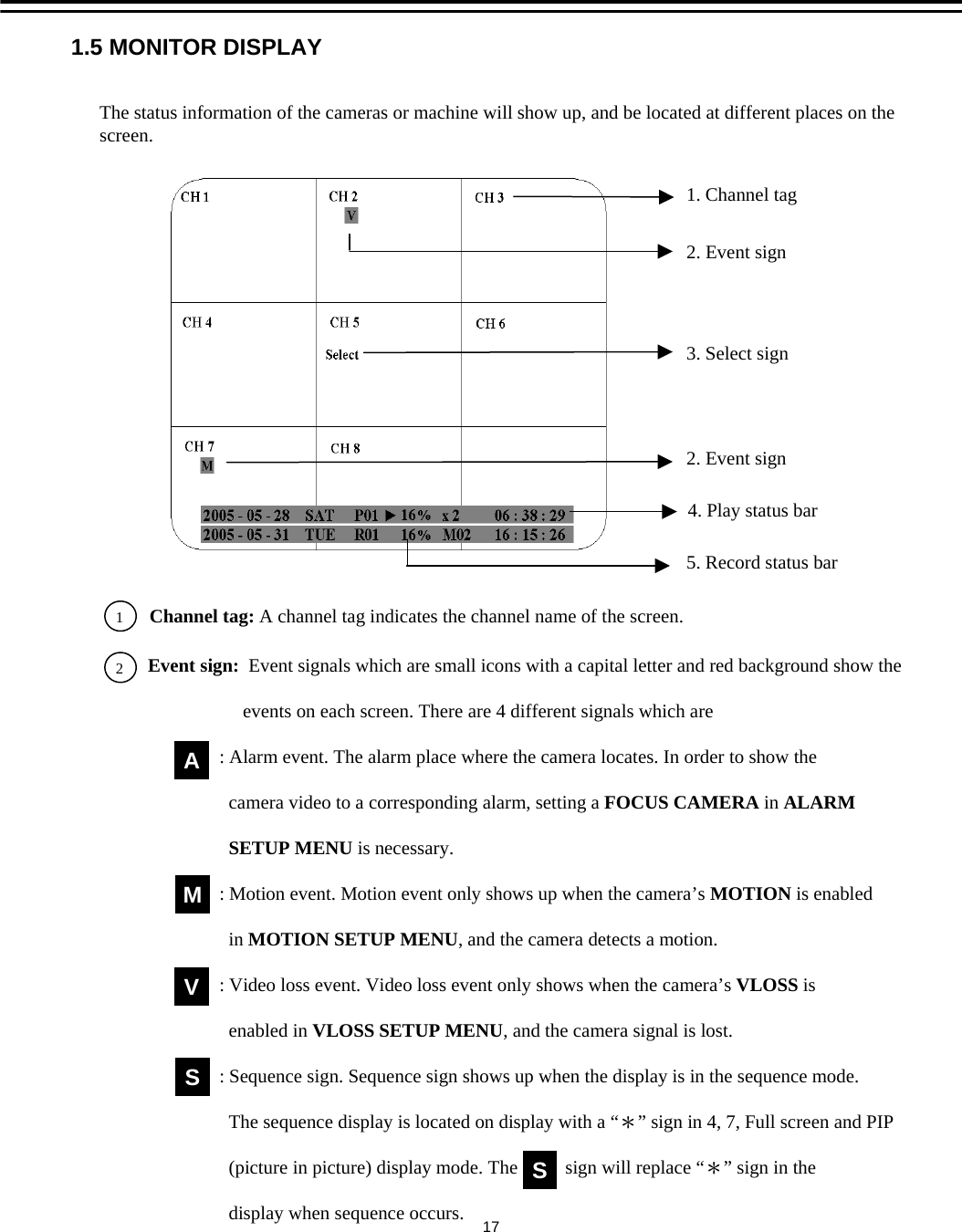
1.5 MONITOR DISPLAY1. Channel tag2. Event sign3. Select sign2. Event sign4. Play status bar5. Record status bar2Channel tag: A channel tag indicates the channel name of the screen.   Event sign:  Event signals which are small icons with a capital letter and red background show theevents on each screen. There are 4 different signals which are: Alarm event. The alarm place where the camera locates. In order to show thecamera video to a corresponding alarm, setting a FOCUS CAMERA in ALARMSETUP MENU is necessary.: Motion event. Motion event only shows up when the camera’s MOTION is enabledin MOTION SETUP MENU, and the camera detects a motion.: Video loss event. Video loss event only shows when the camera’s VLOSS isenabled in VLOSS SETUP MENU, and the camera signal is lost.: Sequence sign. Sequence sign shows up when the display is in the sequence mode. The sequence display is located on display with a “*” sign in 4, 7, Full screen and PIP(picture in picture) display mode. The       sign will replace “*” sign in the display when sequence occurs.MAVSSThe status information of the cameras or machine will show up, and be located at different places on the screen.  117
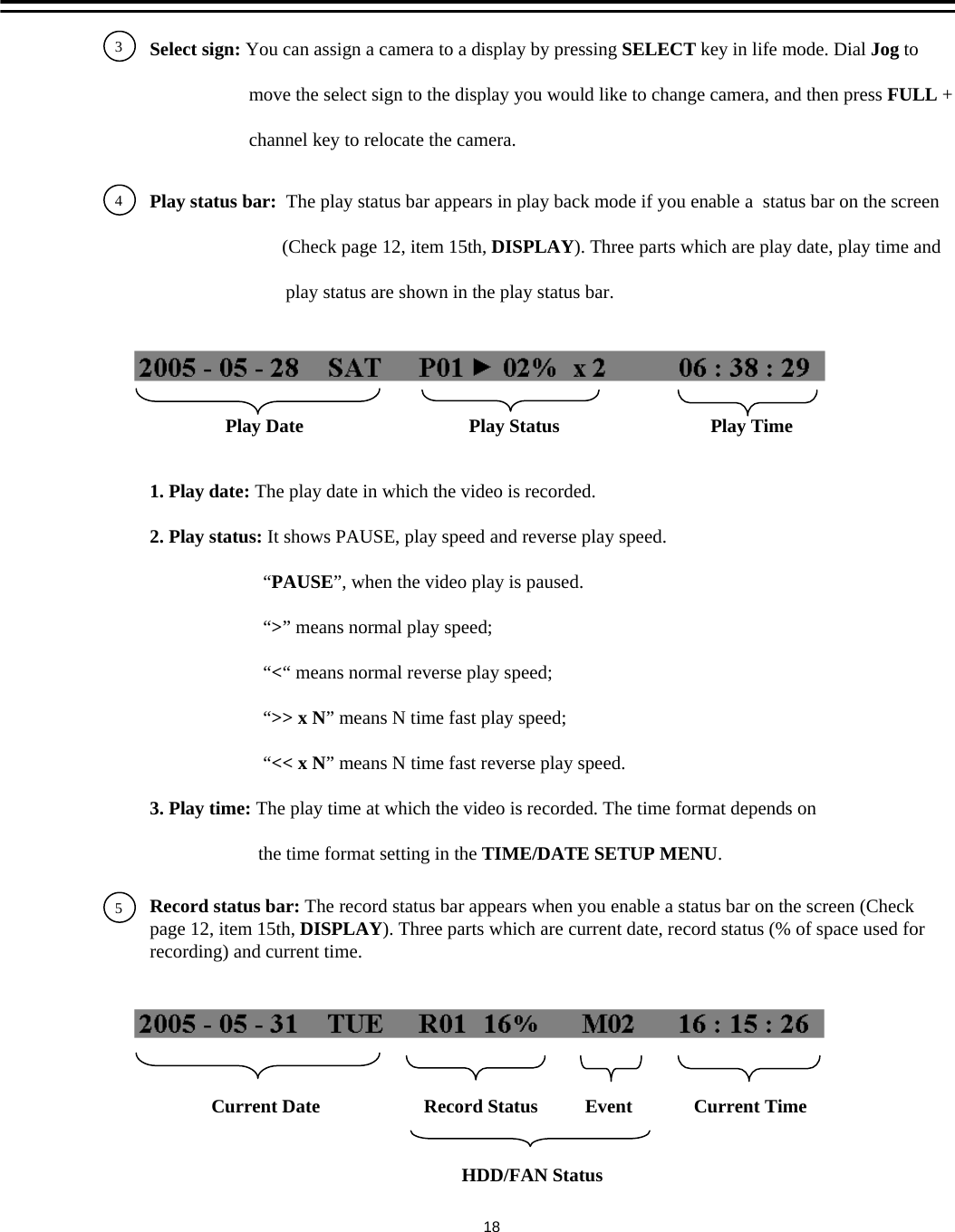
34Select sign: You can assign a camera to a display by pressing SELECT key in life mode. Dial Jog tomove the select sign to the display you would like to change camera, and then press FULL +channel key to relocate the camera.Play status bar:  The play status bar appears in play back mode if you enable a  status bar on the screen (Check page 12, item 15th, DISPLAY). Three parts which are play date, play time andplay status are shown in the play status bar.Play Date                                   Play Status          Play Time1. Play date: The play date in which the video is recorded.2. Play status: It shows PAUSE, play speed and reverse play speed.“PAUSE”, when the video play is paused.“>” means normal play speed;“<“ means normal reverse play speed;“>> x N” means N time fast play speed;“<< x N” means N time fast reverse play speed.3. Play time: The play time at which the video is recorded. The time format depends onthe time format setting in the TIME/DATE SETUP MENU.5Record status bar: The record status bar appears when you enable a status bar on the screen (Check page 12, item 15th, DISPLAY). Three parts which are current date, record status (% of space used for recording) and current time.Current Date                      Record Status          Event   Current Time18HDD/FAN Status
1. Current date: The current date which is set in the TIME/DATE SETUP MENU.2.  Record status: It shows REC and recording hard disk number.“REC”, it shows when machine is recording. “R01”, the recording hard disk number. There is only one hard disk available inthis model, so it always shows R01 when recording.3. Event: The last happened event.4. Current time: The current time which is set in the TIME/DATE SETUP MENU.5. HDD/Fan status:  “No Disk”, it shows when no disk is installed or detected.“No Fan”, it shows when cooling fan stops working.19
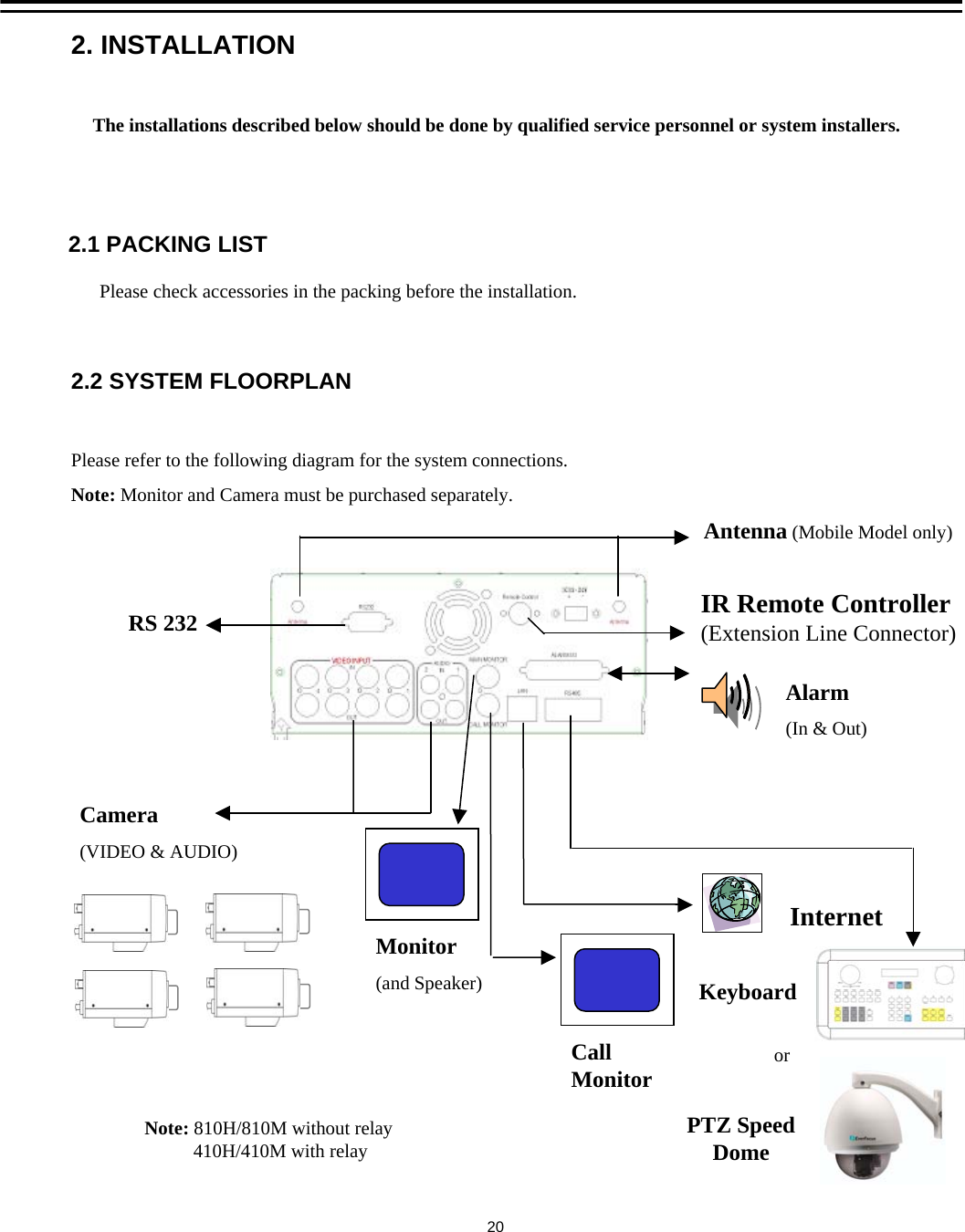
The installations described below should be done by qualified service personnel or system installers.2.1 PACKING LIST2. INSTALLATIONPlease check accessories in the packing before the installation.Camera(VIDEO & AUDIO)Monitor(and Speaker)InternetAlarm(In & Out)IR Remote Controller(Extension Line Connector)RS 232Please refer to the following diagram for the system connections.Note: Monitor and Camera must be purchased separately.2.2 SYSTEM FLOORPLANCall MonitorAntenna (Mobile Model only)KeyboardNote: 810H/810M without relay410H/410M with relay20PTZ Speed Domeor
(1)  Insert a HDD (IDE) for Video StorageInsert a HDD(IDE) for Video Storage. The HDD should be set as MASTER. After hard disk case isinserted into the hard disk tray, be sure to turn the tray key in lock position. Otherwise, HDD will notbe detected.Note: A HDD has to be installed before EDR810/410 is booted, or the EDR810/410 will not detect a HDD until you reboot it with a HDD.  Please make sure the HDD indicator light is ON.(2)  Connect cable for video/audio input and video/audio out.(3)  Turn on systemThe system will be turned on after connecting to power.SpeakerConnect the speaker or other audio devices.10/100M EthernetDigital Video Recorder is enabled control from the PC via Ethernet. Connect the LAN connector to a standard RJ45 connector Ethernet cable or wireless network (IEEE 802.11b/g). RS232/RS485Digital Video Recorder is enabled control from the PC or EverFocus keyboard via RS232/RS485.Main/Call MonitorConnect the Main/Call monitor output connector to a Main/Call  monitor. The Main/Call monitor displays selected live or recorded cameras in any available format.PowerConnect the power source or adapter into the power socket.CamerasConnect each camera video input connector to the video output from a camera or other composite video source. At least one camera must be connected before the system is running for the auto detection of video standard to take effect.Audio In/Out  The camera audio In/Output is connected to the audio input terminal at the rear panel.2.3 BASIC CONNECTIONS2.4 BOOT UP EDR810/41021
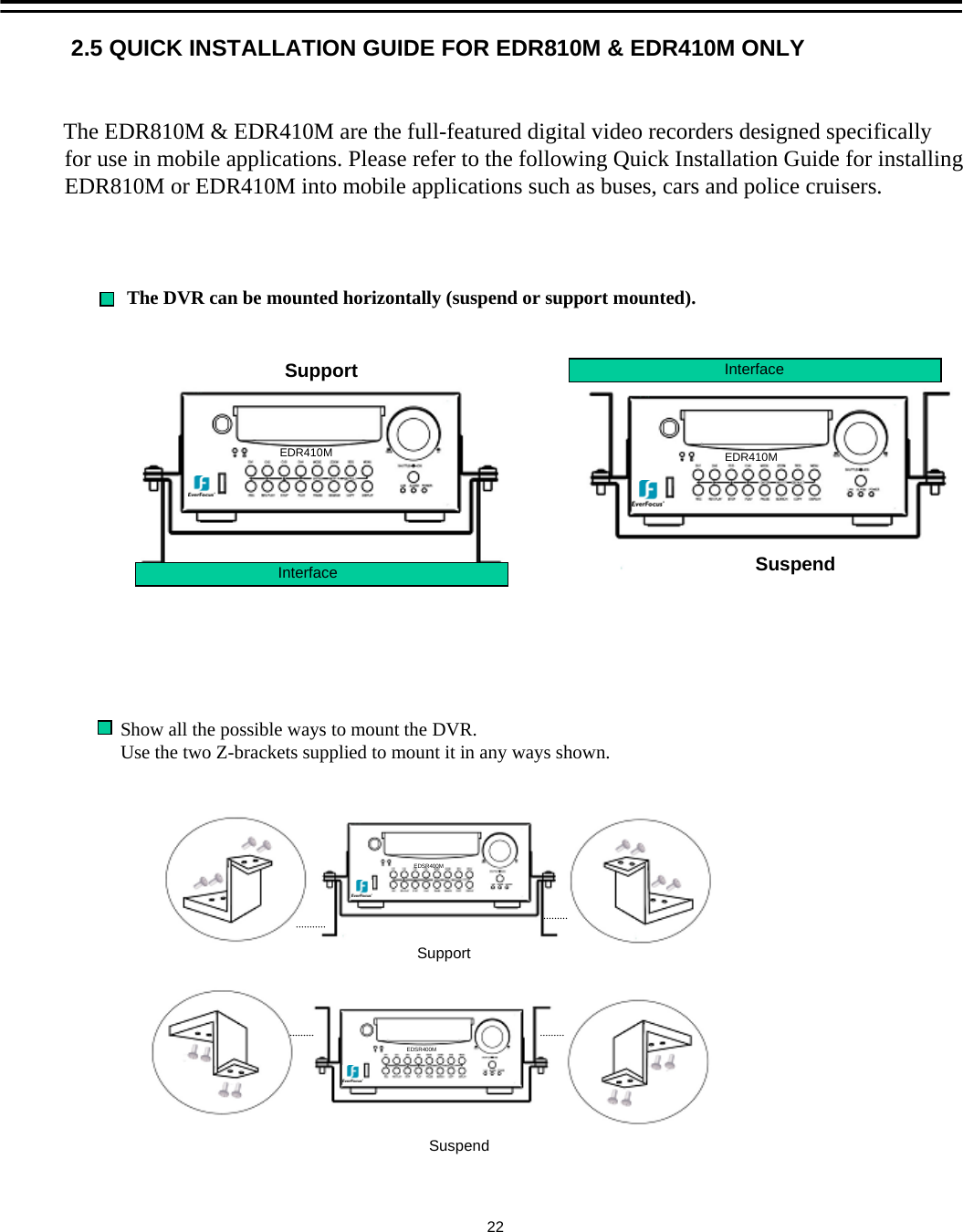
The EDR810M & EDR410M are the full-featured digital video recorders designed specificallyfor use in mobile applications. Please refer to the following Quick Installation Guide for installingEDR810M or EDR410M into mobile applications such as buses, cars and police cruisers. 2.5 QUICK INSTALLATION GUIDE FOR EDR810M & EDR410M ONLYThe DVR can be mounted horizontally (suspend or support mounted).Show all the possible ways to mount the DVR. Use the two Z-brackets supplied to mount it in any ways shown.SupportSuspendInterfaceInterfaceEDR410M EDR410MSupportSuspendEDSR400MEDSR400M22
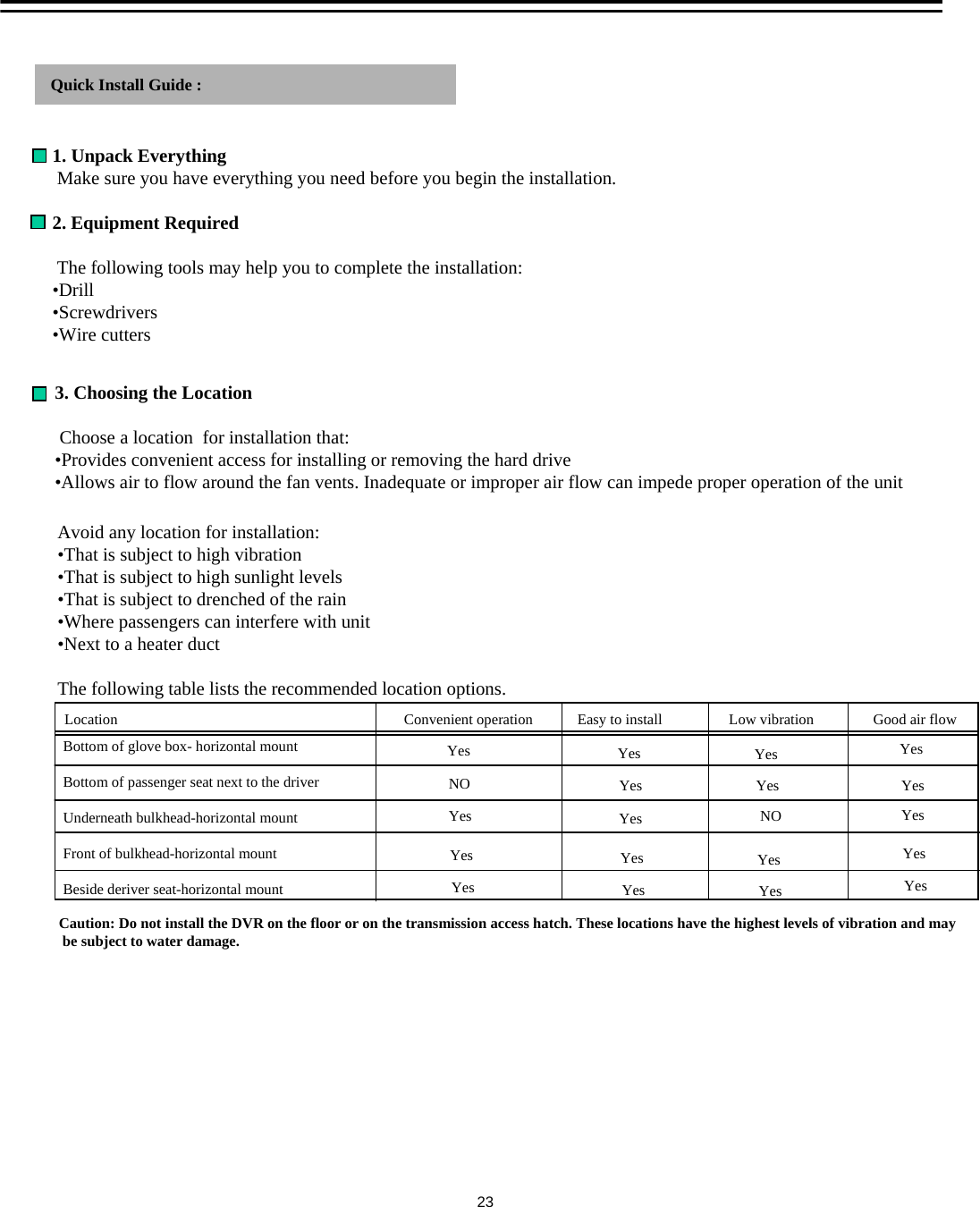
Quick Install Guide :1. Unpack EverythingMake sure you have everything you need before you begin the installation.2. Equipment RequiredThe following tools may help you to complete the installation:•Drill•Screwdrivers•Wire cutters3. Choosing the LocationChoose a location  for installation that:•Provides convenient access for installing or removing the hard drive•Allows air to flow around the fan vents. Inadequate or improper air flow can impede proper operation of the unitAvoid any location for installation:•That is subject to high vibration•That is subject to high sunlight levels•That is subject to drenched of the rain•Where passengers can interfere with unit•Next to a heater ductThe following table lists the recommended location options. Location                                                         Convenient operation            Easy to install                  Low vibration                Good air flowBottom of glove box- horizontal mountBottom of passenger seat next to the driverUnderneath bulkhead-horizontal mountFront of bulkhead-horizontal mountBeside deriver seat-horizontal mountYesYesYesYesYesYesYesYesYesYesYesYesYesYesYesYesYes YesNONOCaution: Do not install the DVR on the floor or on the transmission access hatch. These locations have the highest levels of vibration and may be subject to water damage.23
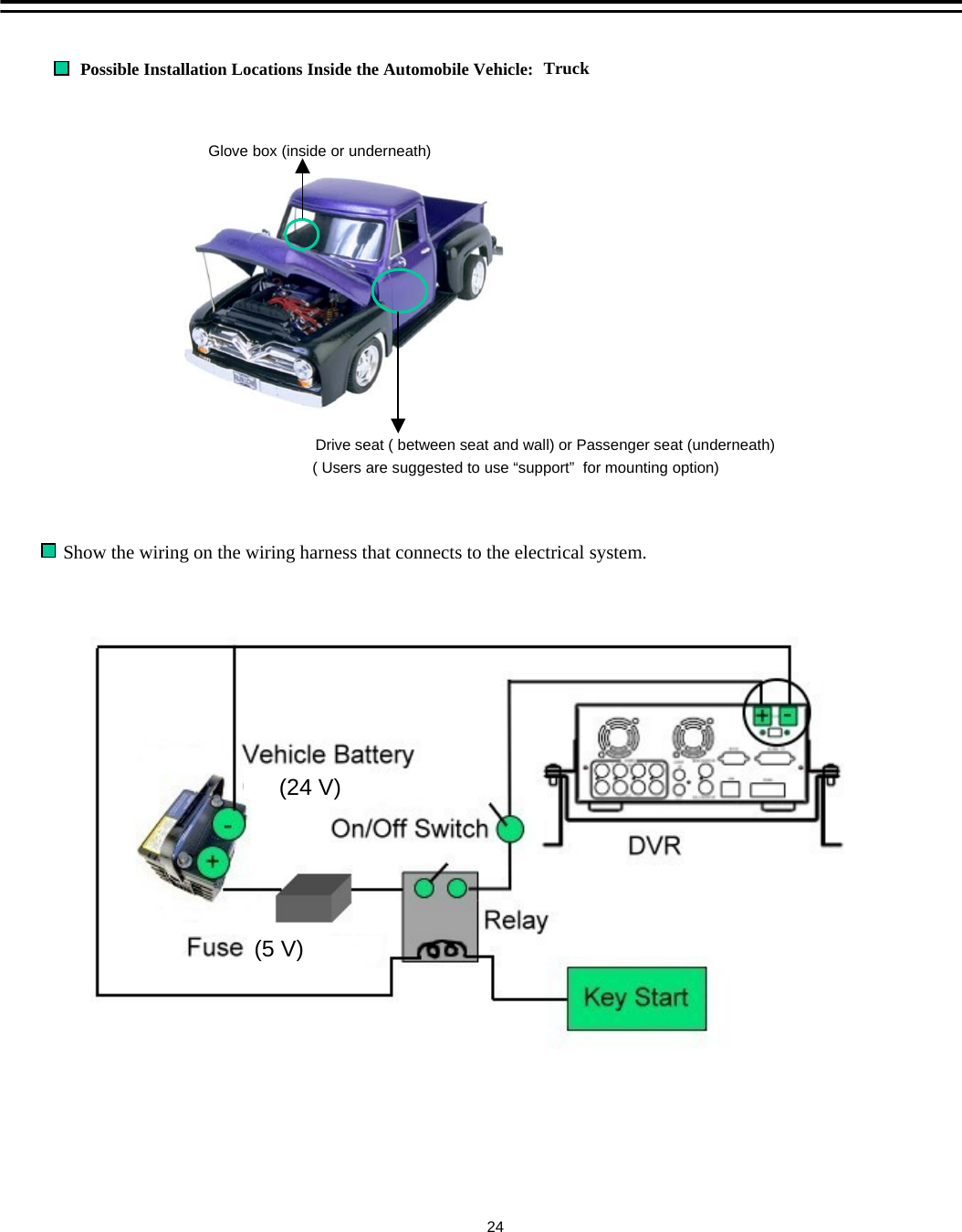
TruckDrive seat ( between seat and wall) or Passenger seat (underneath)( Users are suggested to use “support” for mounting option)Glove box (inside or underneath)Show the wiring on the wiring harness that connects to the electrical system.Possible Installation Locations Inside the Automobile Vehicle:  24(24 V)(5 V)
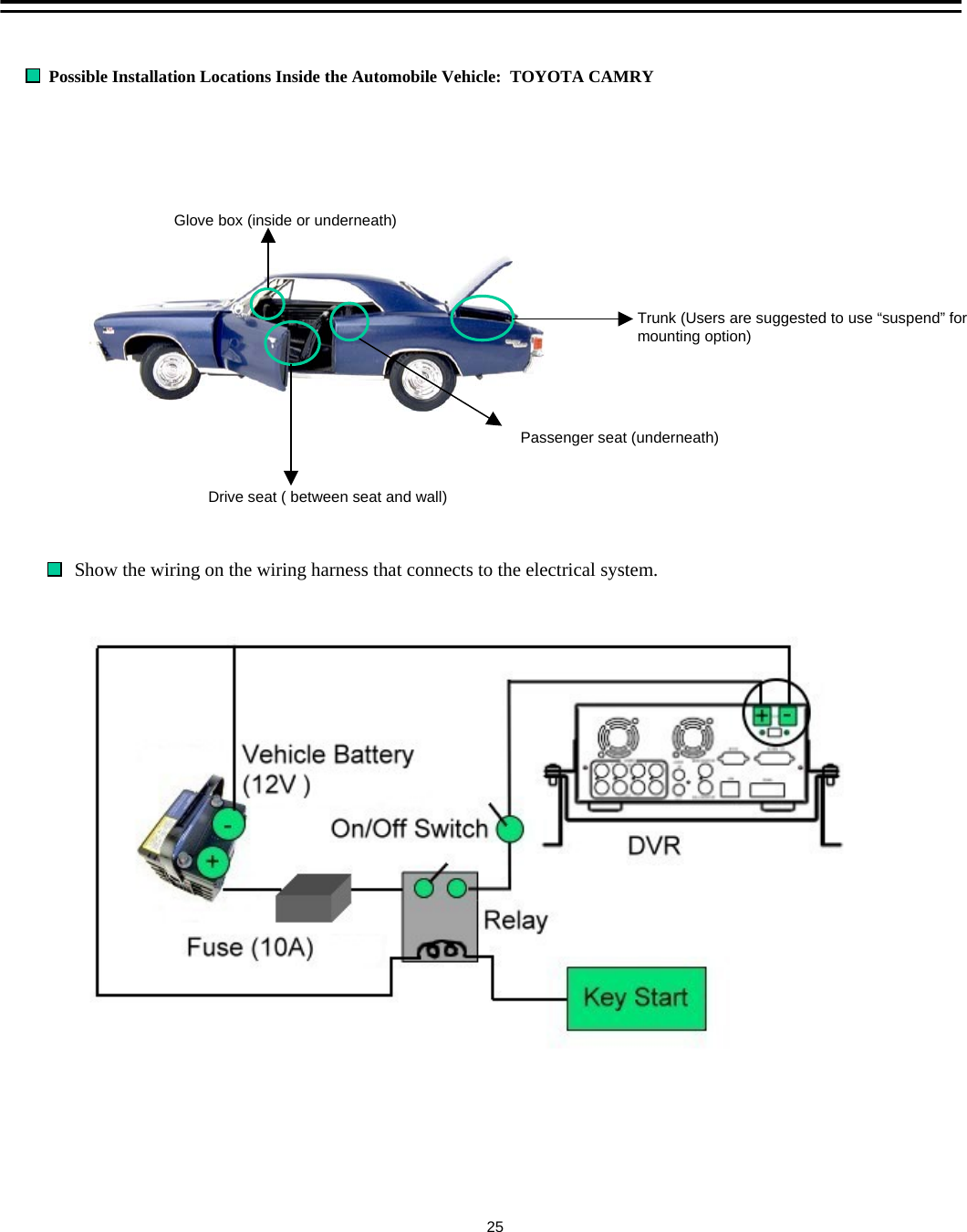
Possible Installation Locations Inside the Automobile Vehicle:  TOYOTA CAMRYDrive seat ( between seat and wall)Trunk (Users are suggested to use “suspend” formounting option)Glove box (inside or underneath)Passenger seat (underneath)Show the wiring on the wiring harness that connects to the electrical system.25
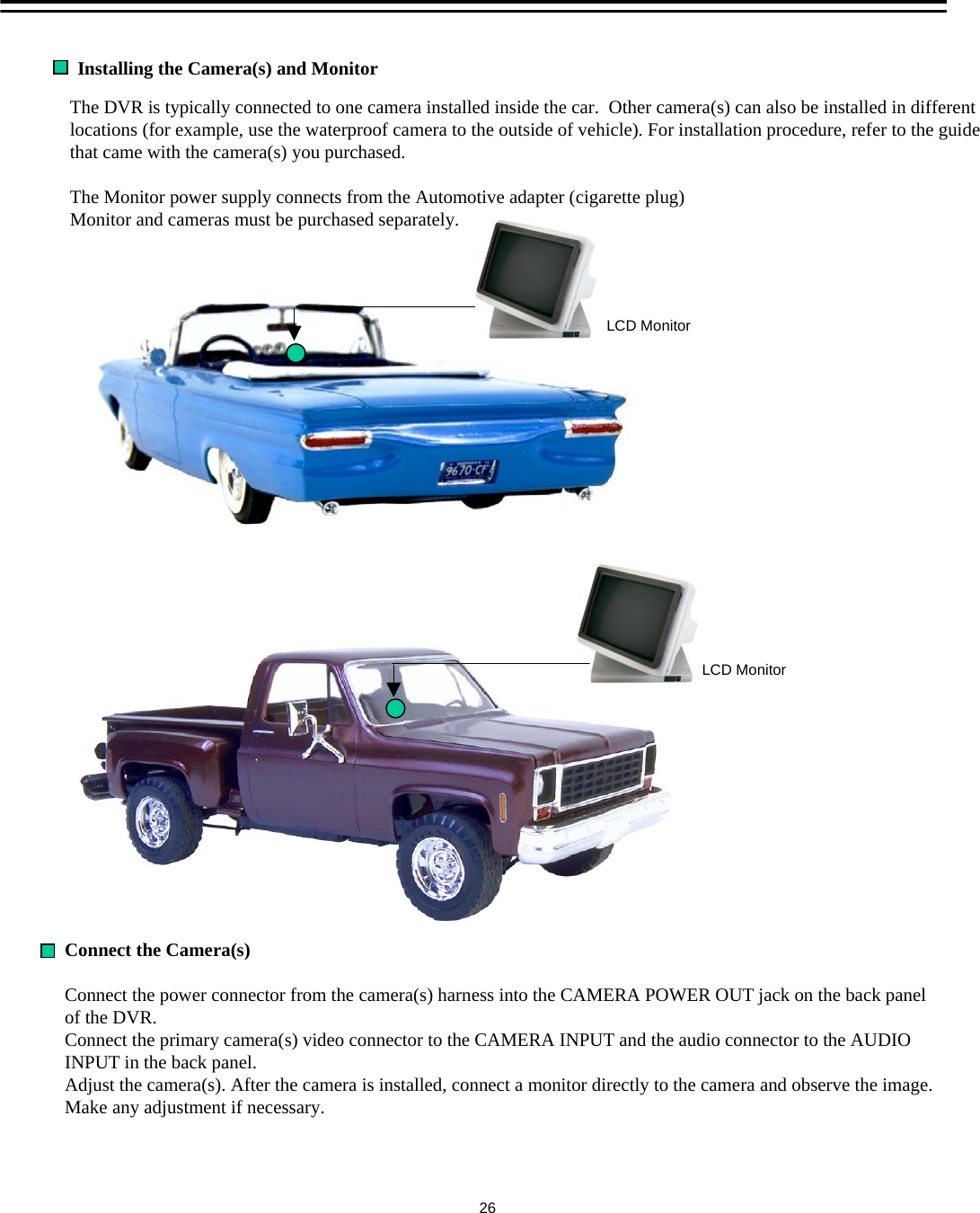
Connect the Camera(s)Connect the power connector from the camera(s) harness into the CAMERA POWER OUT jack on the back panel of the DVR. Connect the primary camera(s) video connector to the CAMERA INPUT and the audio connector to the AUDIO INPUT in the back panel.Adjust the camera(s). After the camera is installed, connect a monitor directly to the camera and observe the image.Make any adjustment if necessary.Installing the Camera(s) and Monitor The DVR is typically connected to one camera installed inside the car.  Other camera(s) can also be installed in different locations (for example, use the waterproof camera to the outside of vehicle). For installation procedure, refer to the guide that came with the camera(s) you purchased.The Monitor power supply connects from the Automotive adapter (cigarette plug)Monitor and cameras must be purchased separately.LCD MonitorLCD Monitor26
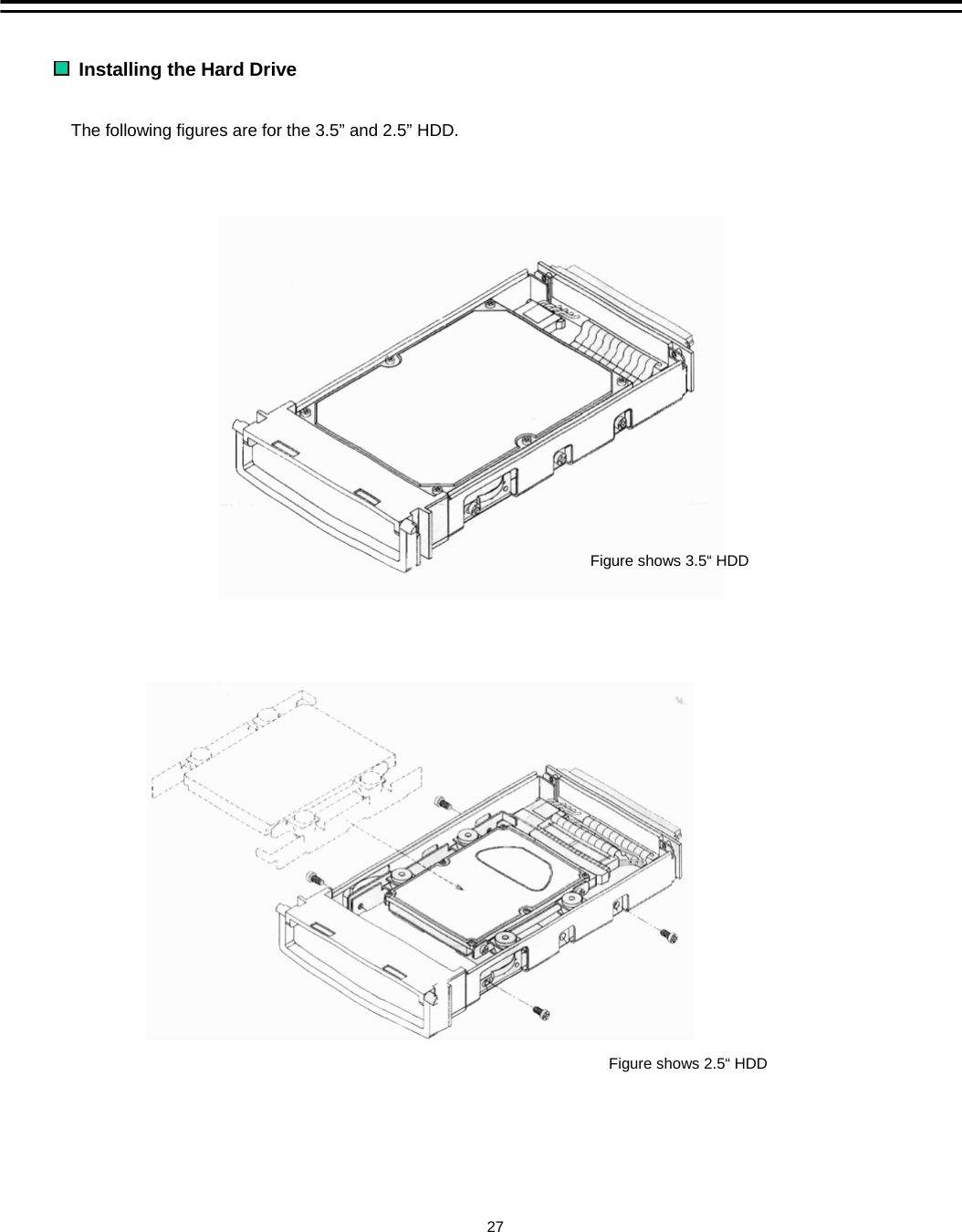
Installing the Hard Drive The following figures are for the 3.5” and 2.5” HDD.Figure shows 3.5“ HDDFigure shows 2.5“ HDD27
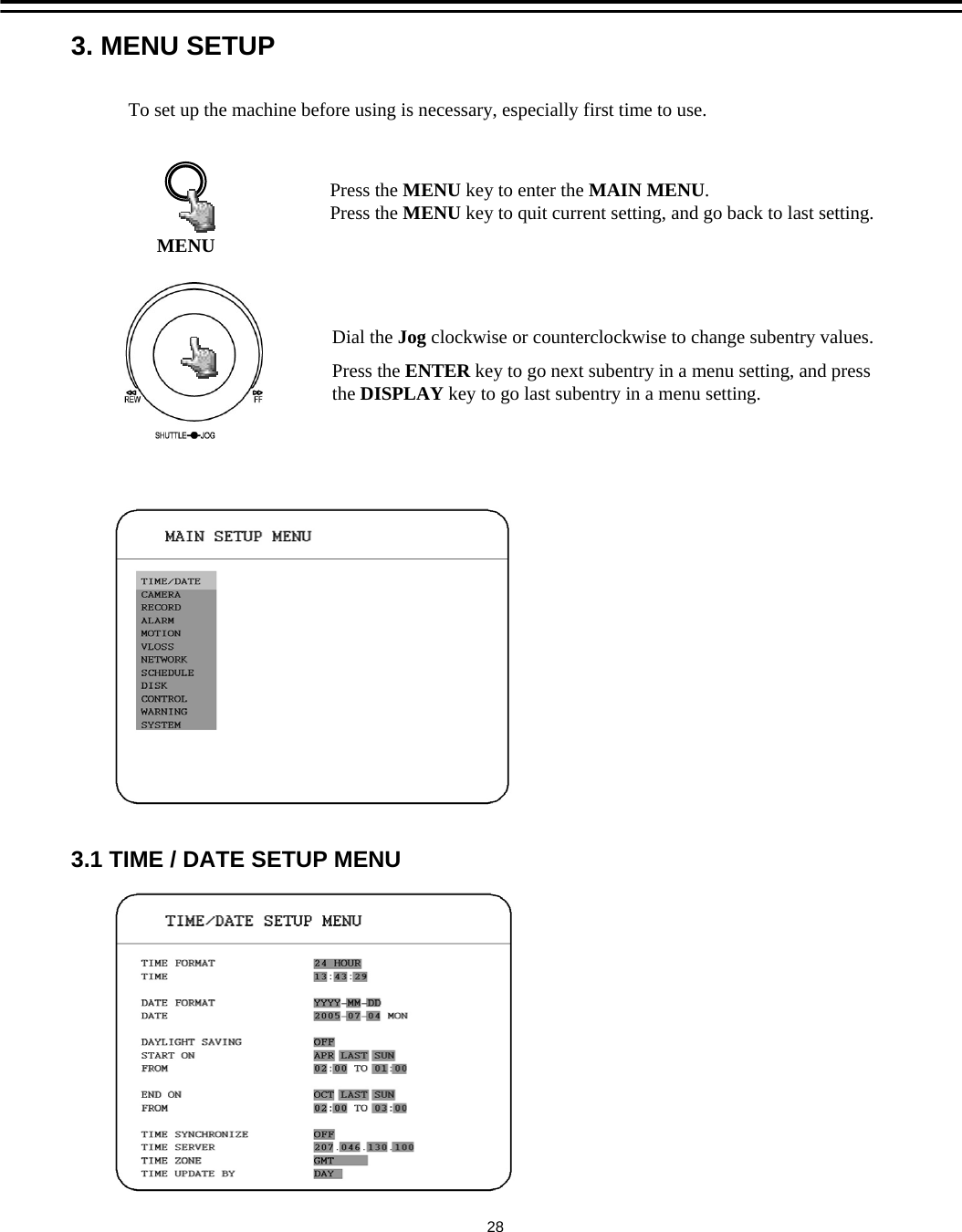
3. MENU SETUP3.1 TIME / DATE SETUP MENUMENUPress the MENU key to enter the MAIN MENU.Press the MENU key to quit current setting, and go back to last setting.Dial the Jog clockwise or counterclockwise to change subentry values. Press the ENTER key to go next subentry in a menu setting, and press the DISPLAY key to go last subentry in a menu setting.To set up the machine before using is necessary, especially first time to use.28
In the  TIME/DATE SETUP MENU, we define :(1) TIME FORMAT:  There are two time formats that are 12 HOUR and 24 HOUR to be selected.(2) TIME:  Current timeHour: 00 ~ 23 (1 ~ 12 if TIME FORMAT is 12 HOUR)               Minute : 00 ~ 59            Second: 00 ~ 59(3) DATE FORMAT:There are three date formats which are YYYY-MM-DD, MM-DD-YYYY and DD-MM-YYYY to be selected.(4) DATE:   Current dateDate: 01~31 Month:01~12 Year: 2000 ~ 2099      Day:Sun~Mon                    (5) DAYLIGHT SAVING: Select “ON”or “OFF” to enable or disable daylight saving time function.In order to set a daylight saving time zone, you need to disable daylight saving first. Enable thedaylight saving after finish setting the time zone.29
(7) END TIME: To set the end time of daylight saving time.To set the end time of daylight saving time: To set the end “FROM” time and “TO”time of daylight saving time.LASTTo set the end week of daylight saving time: Dial the jog to set the end week.1 ST 2 ND 3 RD 4 THTo set the end date of daylight saving time: Dial the jog to set the end date.THUSUN FRITUEMON WED SATTo set the end month of daylight saving time: Dial the jog to set the end month. FEB MARJAN APR MAY JUNDECNOVOCTSEPAUGJUL30LASTTo set the start week of daylight saving time: Dial the jog to set the start week.1 ST 2 ND 3 RD 4 THTo set the start date of daylight saving time: Dial the jog to set the start date.THUSUN FRITUEMON WED SATTo set the start month of daylight saving time: Dial the jog to set the start month. FEB MARJAN APR MAY JUNDECNOVOCTSEPAUGJULTo set the start time of daylight saving time: To set the start “FROM” time and “TO”time of daylight saving time.(6) START TIME: To set the start time of daylight saving time.
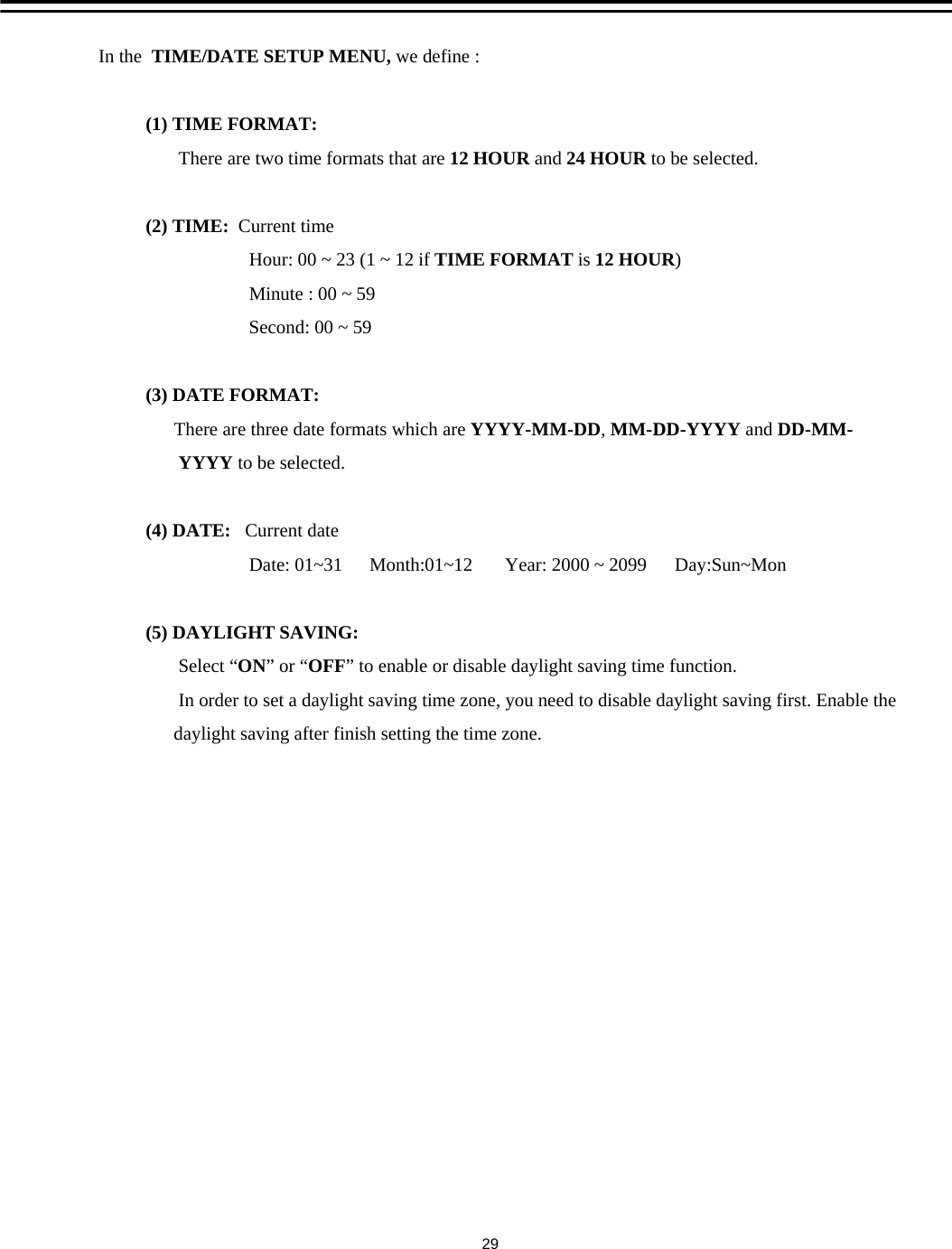
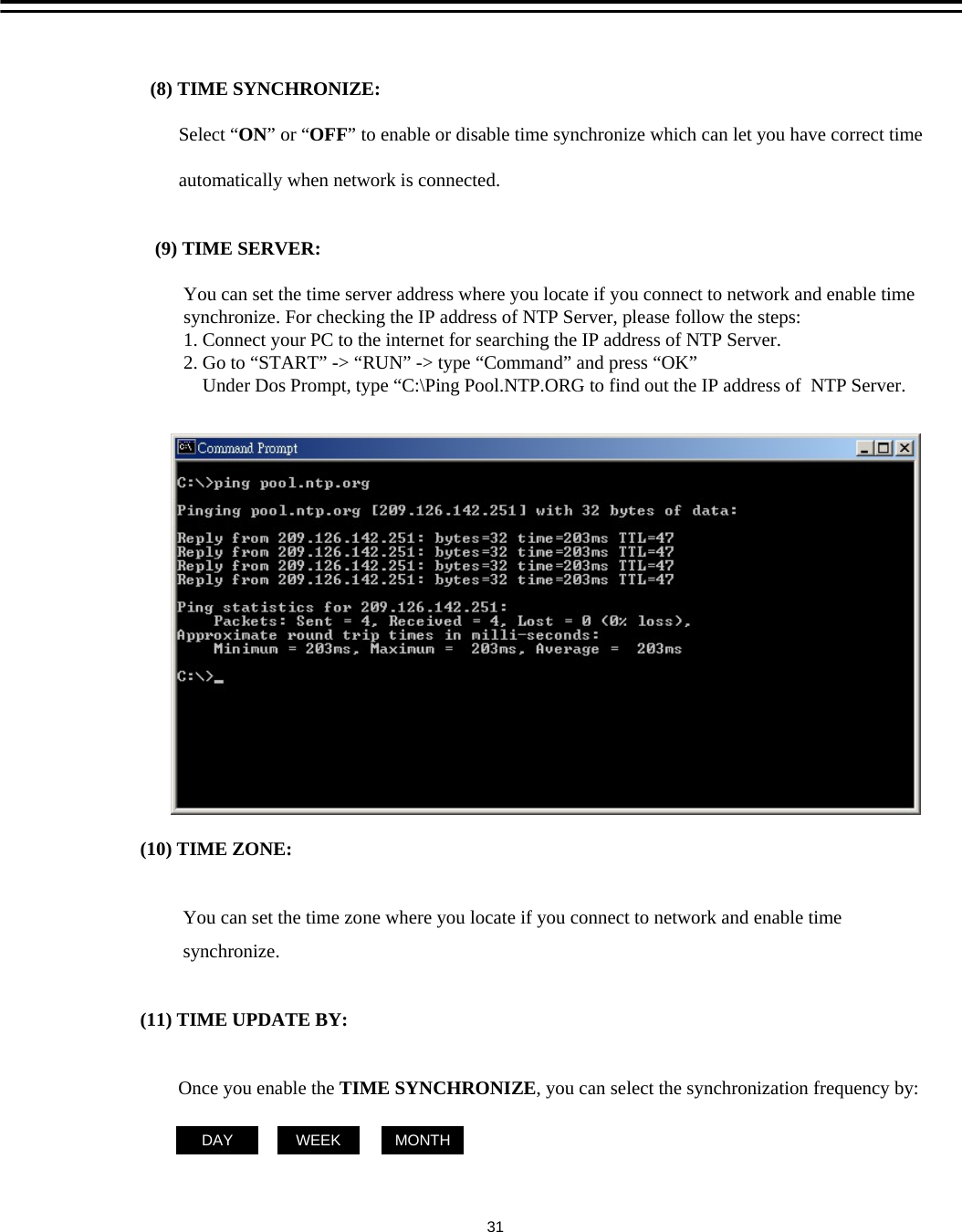
(10) TIME ZONE:You can set the time zone where you locate if you connect to network and enable timesynchronize. (11) TIME UPDATE BY:Once you enable the TIME SYNCHRONIZE, you can select the synchronization frequency by:DAY MONTHWEEK(8) TIME SYNCHRONIZE:  Select “ON”or “OFF” to enable or disable time synchronize which can let you have correct timeautomatically when network is connected.(9) TIME SERVER:You can set the time server address where you locate if you connect to network and enable timesynchronize. For checking the IP address of NTP Server, please follow the steps:1. Connect your PC to the internet for searching the IP address of NTP Server.2. Go to “START” -> “RUN” -> type “Command” and press “OK”Under Dos Prompt, type “C:\Ping Pool.NTP.ORG to find out the IP address of  NTP Server. 31
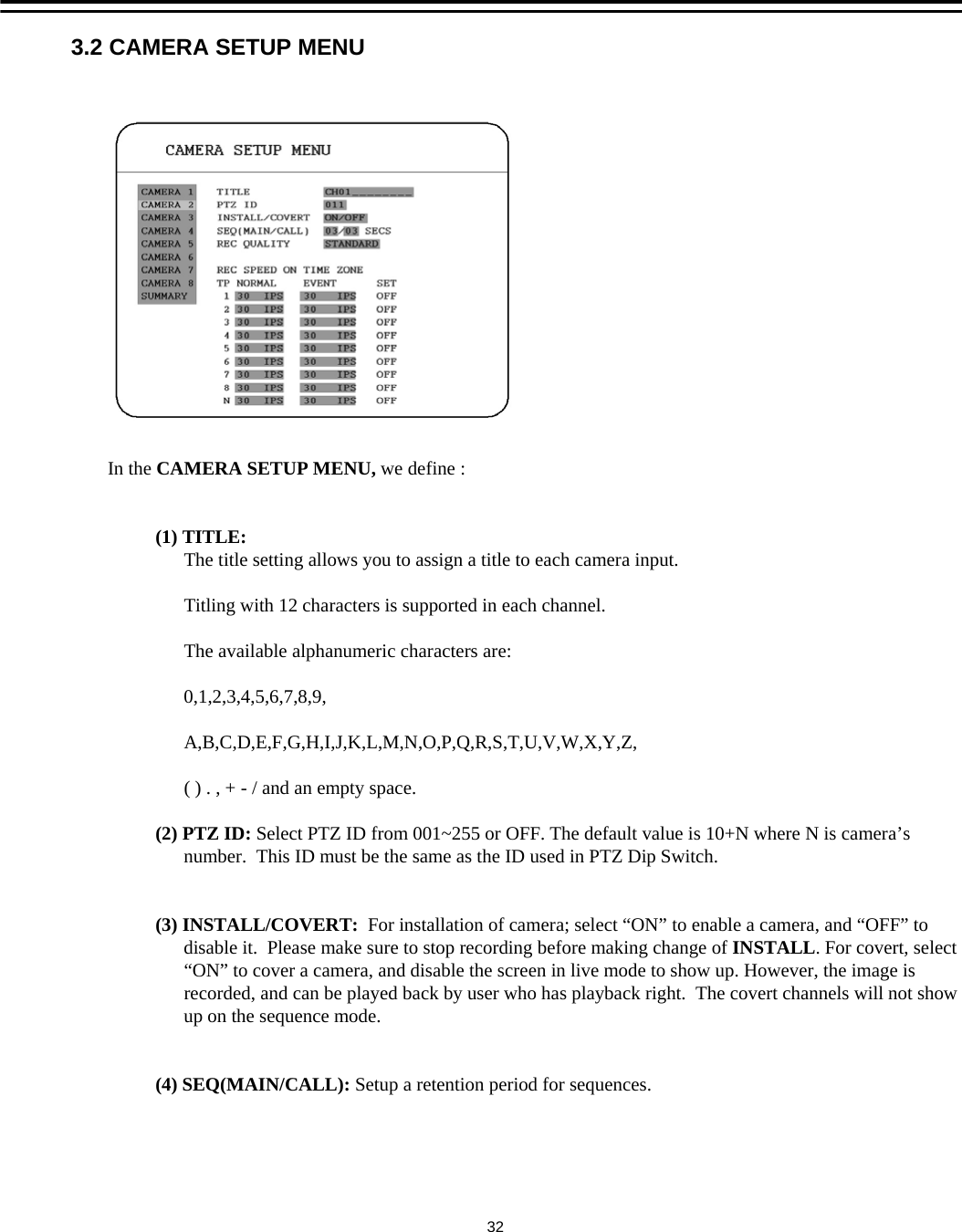
3.2 CAMERA SETUP MENUIn the CAMERA SETUP MENU, we define :(1) TITLE:The title setting allows you to assign a title to each camera input. Titling with 12 characters is supported in each channel.The available alphanumeric characters are:0,1,2,3,4,5,6,7,8,9,A,B,C,D,E,F,G,H,I,J,K,L,M,N,O,P,Q,R,S,T,U,V,W,X,Y,Z,( ) . , + - / and an empty space.(2) PTZ ID: Select PTZ ID from 001~255 or OFF. The default value is 10+N where N is camera’snumber.  This ID must be the same as the ID used in PTZ Dip Switch.(3) INSTALL/COVERT:  For installation of camera; select “ON” to enable a camera, and “OFF” todisable it.  Please make sure to stop recording before making change of INSTALL. For covert, select “ON” to cover a camera, and disable the screen in live mode to show up. However, the image isrecorded, and can be played back by user who has playback right.  The covert channels will not showup on the sequence mode.(4) SEQ(MAIN/CALL): Setup a retention period for sequences. 32
(6) REC SPEED ON TIME ZONE:TP: Scheduled recording time 1~8 which can be set in the SCHEDULE SETUP MENU. “N” in the column of “TP”is the normal recording time.NORMAL: Normal record speed (Images per second) up to 30 IPS. EDR810/410 will adjustto the maximum recording speed by calculating the total installed cameras thathave enabled in the CAMERA SETUP MENU.EVENT : Event record speed (Images per second) up to 30 IPS or “OFF”. Note: In order to validate a new record speed, you need to disable all record actions beforesetting up.SET:    Set “ON” when using schedule recording.Set “OFF” when not using schedule recording.Note: The status of  SET can only be changed in the SCHEDULE SETUP MENU.(5) REC QUALITY: Select an image quality for recording. Normal record image quality and event record image quality can be set individually. There are six different qualities available. A higher image quality needs more HDD space. The theory space needed per second lists below:ESTIMATE BIT SIZESUPERIOR     HIGH              STANDARD  BASIC            LOW               LOWERSince Variable Bit Rate (VBR) might be used, therefore this table is for your reference only. :    4.0 Mega Bits/sec:    3.5 Mega Bits/sec:    3.0 Mega Bits/sec:    2.5 Mega Bits/sec:    2.0 Mega Bits/sec:    1.5 Mega Bits/sec33
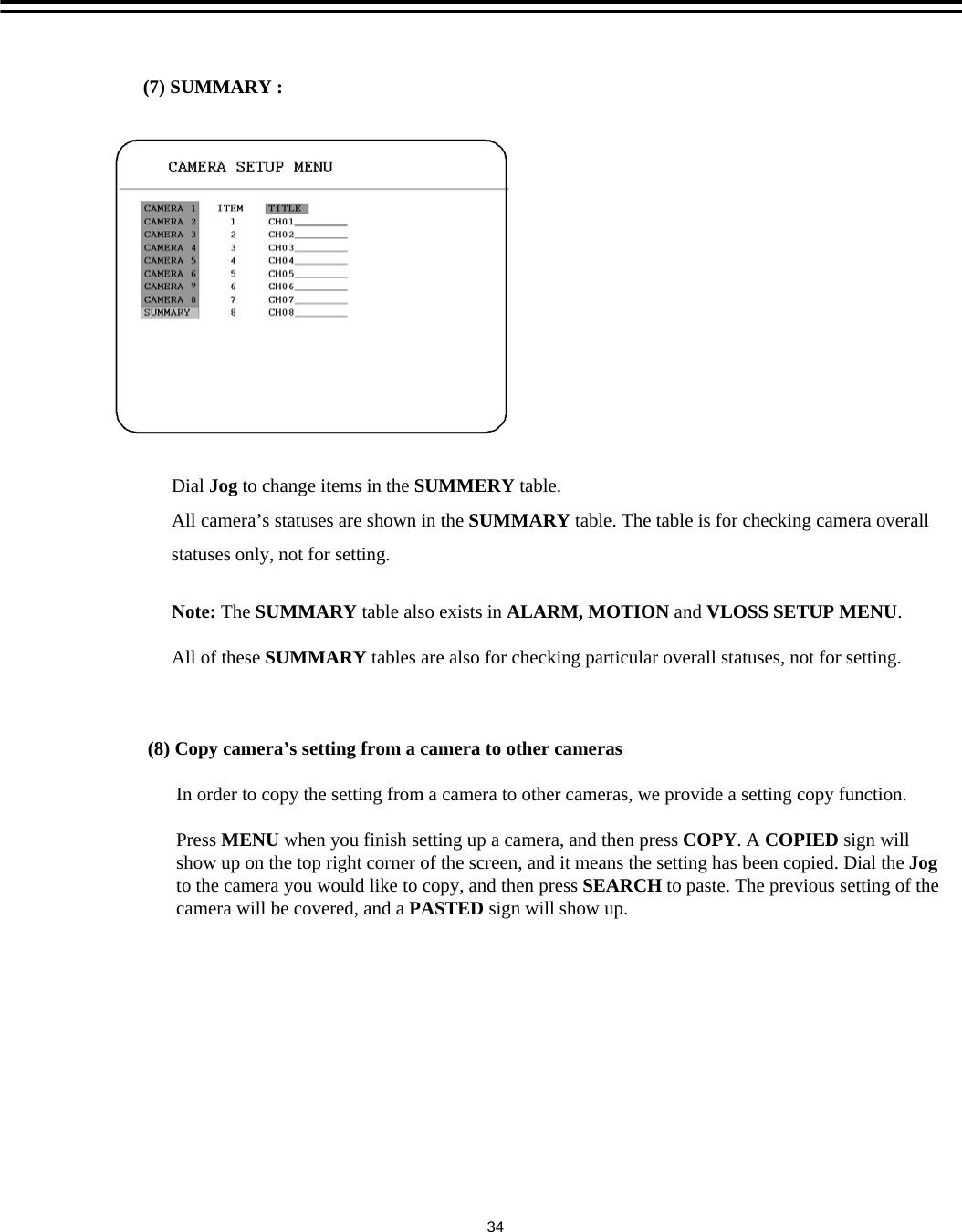
(7) SUMMARY :  Dial Jog to change items in the SUMMERY table.All camera’s statuses are shown in the SUMMARY table. The table is for checking camera overall statuses only, not for setting. Note: The SUMMARY table also exists in ALARM, MOTION and VLOSS SETUP MENU. All of these SUMMARY tables are also for checking particular overall statuses, not for setting.(8) Copy camera’s setting from a camera to other camerasIn order to copy the setting from a camera to other cameras, we provide a setting copy function. Press MENU when you finish setting up a camera, and then press COPY. A COPIED sign willshow up on the top right corner of the screen, and it means the setting has been copied. Dial the Jog to the camera you would like to copy, and then press SEARCH to paste. The previous setting of thecamera will be covered, and a PASTED sign will show up.34
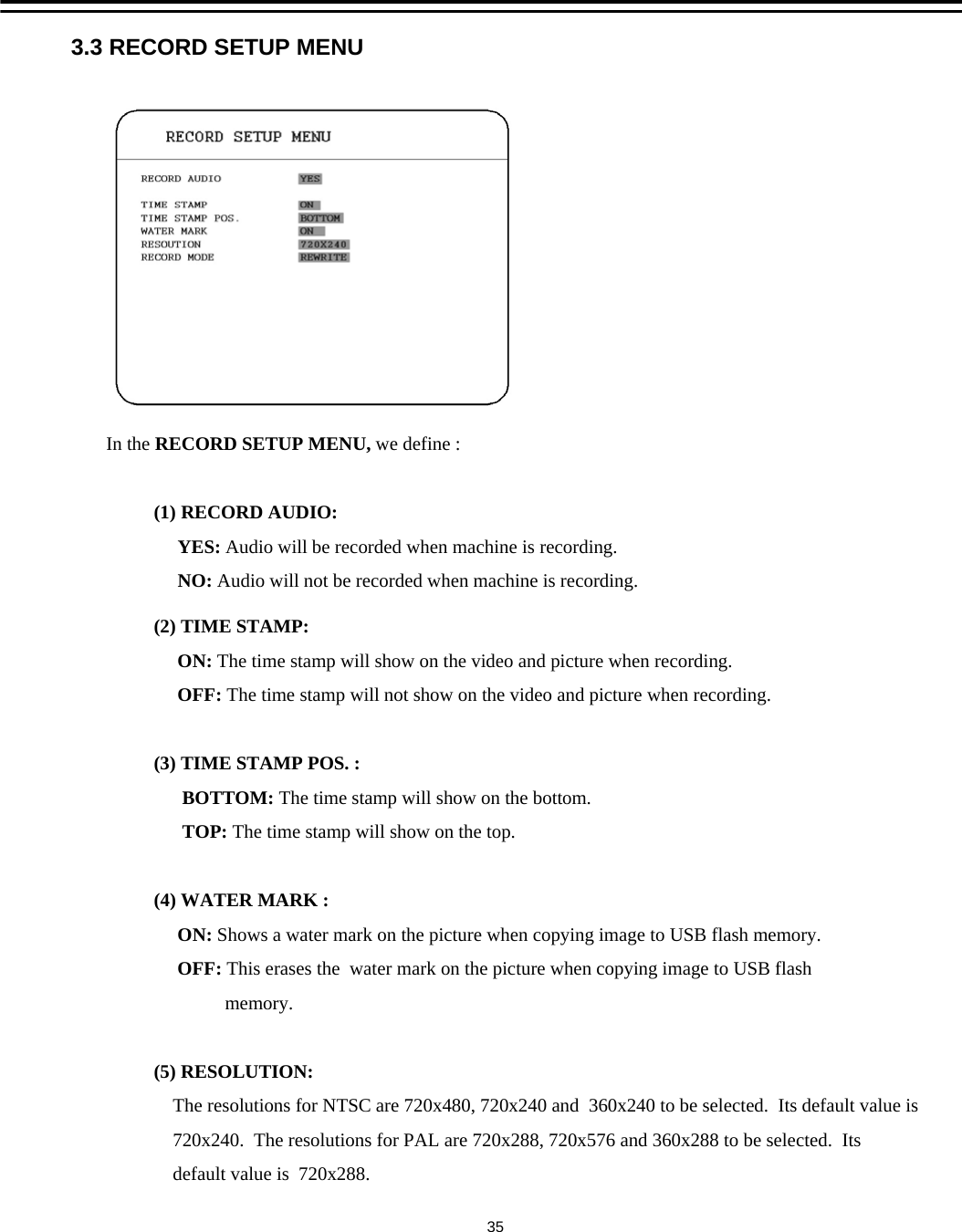
3.3 RECORD SETUP MENUIn the RECORD SETUP MENU, we define :(1) RECORD AUDIO: YES: Audio will be recorded when machine is recording.NO: Audio will not be recorded when machine is recording.(2) TIME STAMP:ON: The time stamp will show on the video and picture when recording. OFF: The time stamp will not show on the video and picture when recording. (3) TIME STAMP POS. :BOTTOM: The time stamp will show on the bottom.TOP: The time stamp will show on the top.(4) WATER MARK :ON: Shows a water mark on the picture when copying image to USB flash memory. OFF: This erases the  water mark on the picture when copying image to USB flash memory. (5) RESOLUTION:The resolutions for NTSC are 720x480, 720x240 and  360x240 to be selected.  Its default value is720x240.  The resolutions for PAL are 720x288, 720x576 and 360x288 to be selected.  Its default value is  720x288.35
(6) RECORD MODE:REWRITE: Continue recording. Disk will be overwritten if it is full.STOP: Stop recording when disk is full.36
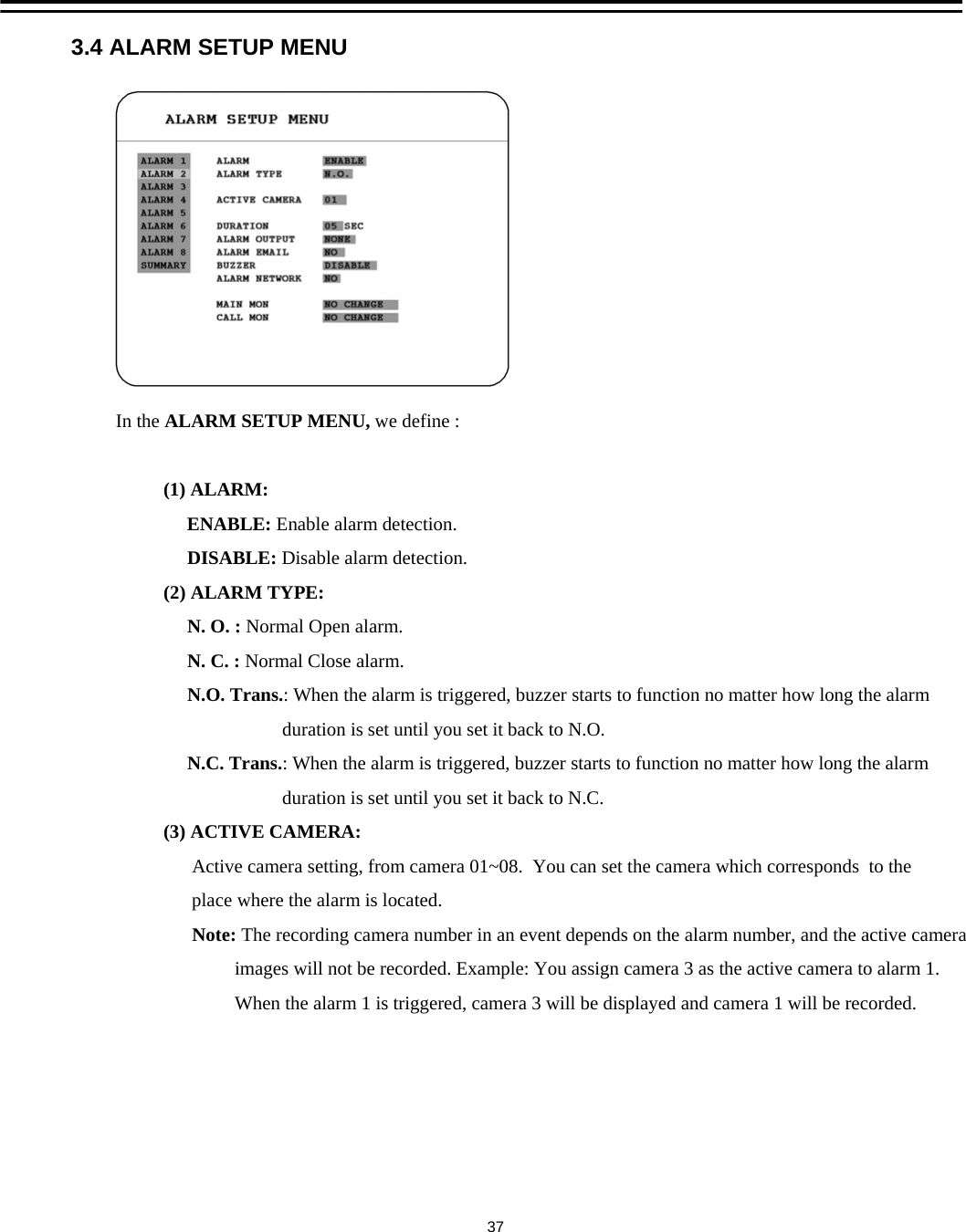
3.4 ALARM SETUP MENUIn the ALARM SETUP MENU, we define :(1) ALARM: ENABLE: Enable alarm detection.DISABLE: Disable alarm detection.(2) ALARM TYPE:N. O. : Normal Open alarm. N. C. : Normal Close alarm. N.O. Trans.: When the alarm is triggered, buzzer starts to function no matter how long the alarmduration is set until you set it back to N.O. N.C. Trans.: When the alarm is triggered, buzzer starts to function no matter how long the alarmduration is set until you set it back to N.C. (3) ACTIVE CAMERA:Active camera setting, from camera 01~08.  You can set the camera which corresponds  to the place where the alarm is located.Note: The recording camera number in an event depends on the alarm number, and the active cameraimages will not be recorded. Example: You assign camera 3 as the active camera to alarm 1.When the alarm 1 is triggered, camera 3 will be displayed and camera 1 will be recorded.37
(4) DURATION:Buzzer noise and event record duration of an alarm, from 1 sec to 99 seconds. The default value is5 seconds.(5) ALARM OUTPUT:The setting of alarms which are NONE and 1, where 1means the alarm is enabled.(6) ALARM EMAIL:Select “YES” for sending an email when alarm occurs. The email address can be set in theNETWORK SETUP MENU.(7) BUZZER: Alarm buzzer.ENABLE: To enable an alarm buzzer.DISABLE: To disable an alarm buzzer.(8) ALARM NETWORK:YES: Enable alarm network.NO: Disable alarm network.(9) MAIN MON: Display on a main monitor when an alarm occurs. NO CHANGE: Nothing changes on the display in the main monitor when an alarm occurs.FULLSCREEN: A full screen will pop up when an alarm occurs.(10) CALL MON: Display on a call monitor when an alarm occurs.NO CHANGE: Nothing changes on the display in the call monitor when an alarm occurs.SEQUENCE: Display in the sequence mode when an alarm occurs. ACTIVE CAMERA: Display the active camera in full screen mode to the call monitor. (11) SUMMARY :Dial Jog to change items in the SUMMARY table.All alarm’s statuses are shown in SUMMARY tables. These tables are for checking alarmoverall statuses, but not for setting. Note :   Please check APPENDIX C to see other available alarm input / output functions.38
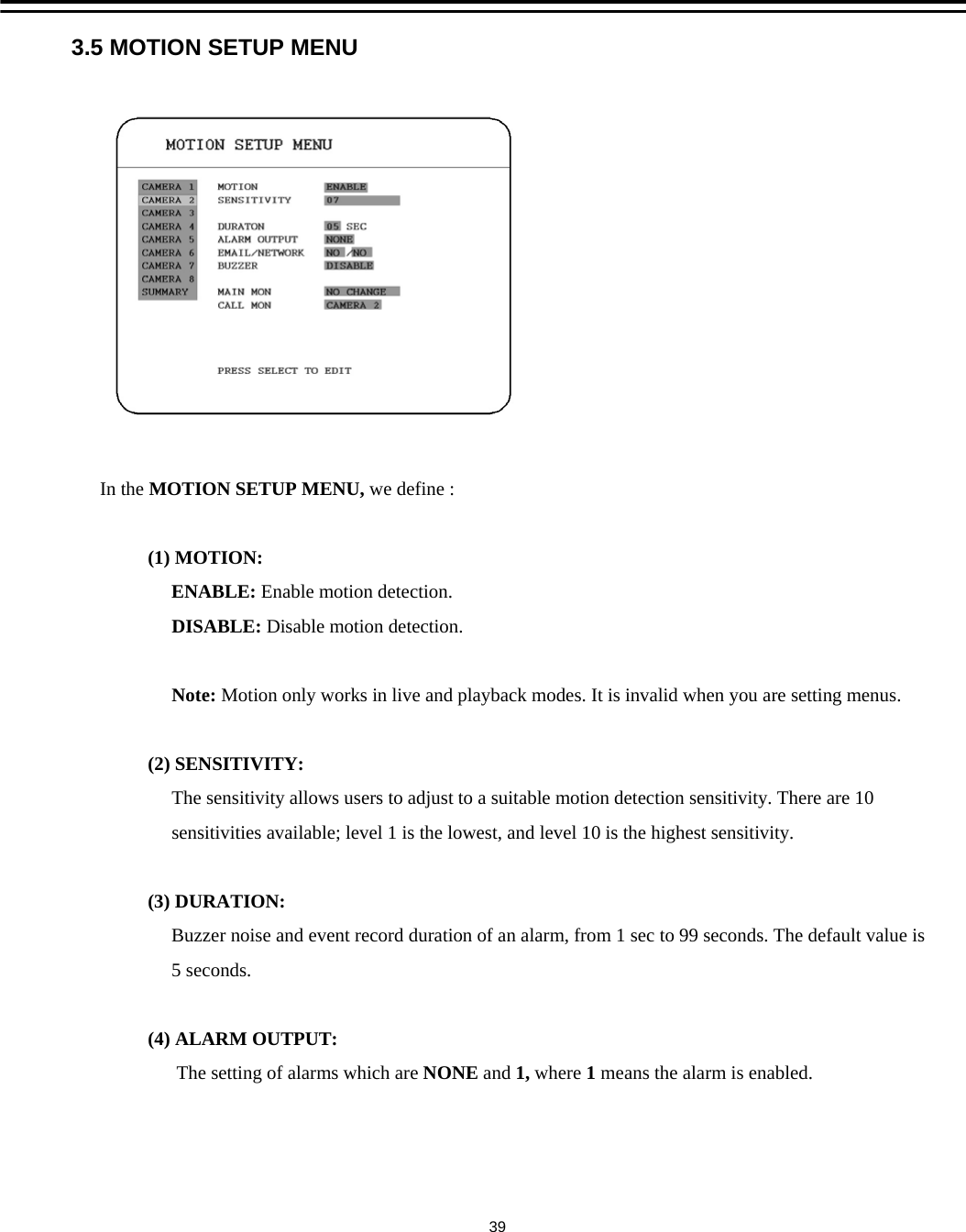
3.5 MOTION SETUP MENUIn the MOTION SETUP MENU, we define :(1) MOTION: ENABLE: Enable motion detection.DISABLE: Disable motion detection.Note: Motion only works in live and playback modes. It is invalid when you are setting menus.(2) SENSITIVITY: The sensitivity allows users to adjust to a suitable motion detection sensitivity. There are 10 sensitivities available; level 1 is the lowest, and level 10 is the highest sensitivity.(3) DURATION:Buzzer noise and event record duration of an alarm, from 1 sec to 99 seconds. The default value is5 seconds.(4) ALARM OUTPUT:The setting of alarms which are NONE and 1, where 1means the alarm is enabled.39
(5) EMAIL/NETWORK:YES: Send an email / Enable alarm network when an alarm occurs.NO: Do not send an email / Disable alarm network when an alarm occurs.The email address and e-mail server can be set in the NETWORK SETUP MENU.(6) BUZZER: Motion buzzer.ENABLE: To enable a motion buzzer.DISABLE: To disable a motion buzzer.(7) MAIN MON: Display on a main monitor when a motion occurs. NO CHANGE: Nothing changes on the display in the main monitor when a motion occurs.FULLSCREEN: A full screen pops up when a motion occurs.(8) CALL MON: Display on a call monitor when a motion occurs.NO CHANGE: Nothing changes on the display in the call monitor when a motion occurs.SEQUENCE: Display in the sequence mode when a motion occurs. ACTIVE CAMERA: Display the active camera in full screen mode to the call monitor. (9) SUMMARY:Dial Jog to change items in the SUMMERY table.All motion’s statuses are shown in SUMMARY tables. These tables are for checking motionoverall statuses, but not for setting. 40
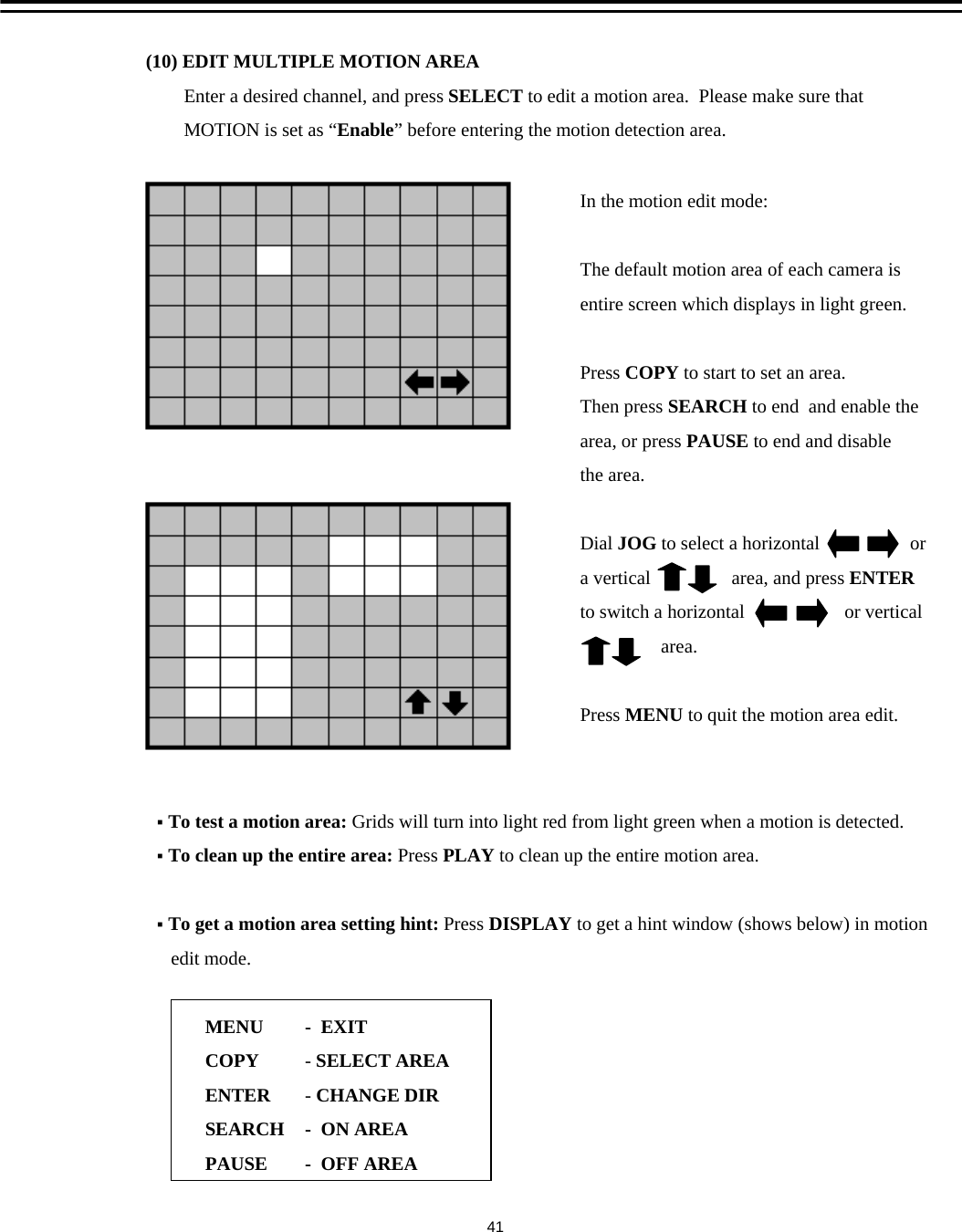
(10) EDIT MULTIPLE MOTION AREAEnter a desired channel, and press SELECT to edit a motion area.  Please make sure thatMOTION is set as “Enable” before entering the motion detection area.In the motion edit mode:The default motion area of each camera isentire screen which displays in light green.Press COPY to start to set an area. Then press SEARCH to end  and enable the area, or press PAUSE to end and disablethe area.Dial JOG to select a horizontal                   ora vertical                 area, and press ENTERto switch a horizontal                     or verticalarea.Press MENU to quit the motion area edit.To test a motion area: Grids will turn into light red from light green when a motion is detected.To clean up the entire area: Press PLAY to clean up the entire motion area.To get a motion area setting hint: Press DISPLAY to get a hint window (shows below) in motion edit mode.MENUCOPYENTERSEARCHPAUSE-EXIT-SELECT AREA-CHANGE DIR-ON AREA- OFF AREA41
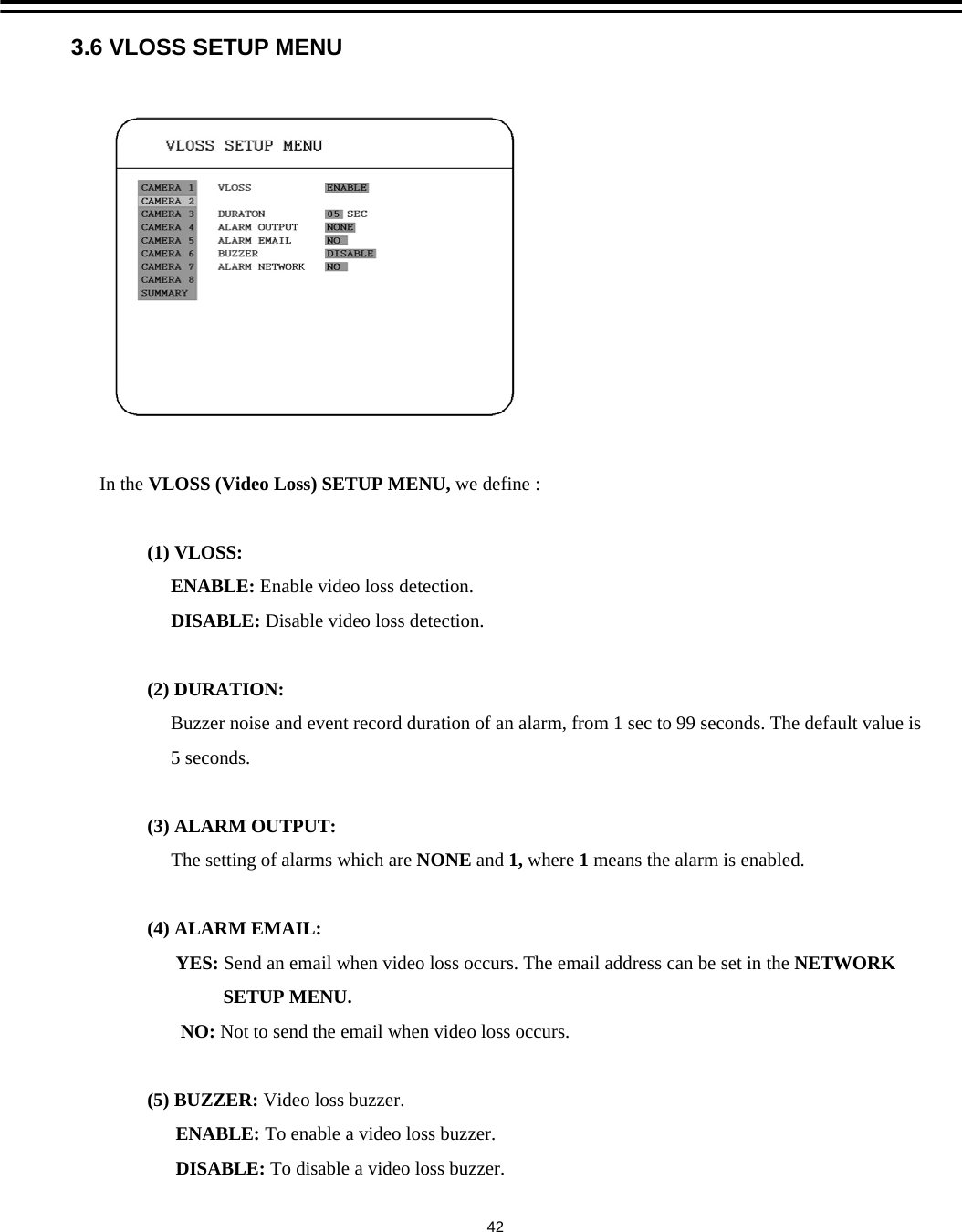
3.6 VLOSS SETUP MENUIn the VLOSS (Video Loss) SETUP MENU, we define :(1) VLOSS: ENABLE: Enable video loss detection.DISABLE: Disable video loss detection.(2) DURATION:Buzzer noise and event record duration of an alarm, from 1 sec to 99 seconds. The default value is5 seconds.(3) ALARM OUTPUT:The setting of alarms which are NONE and 1, where 1means the alarm is enabled.(4) ALARM EMAIL:YES: Send an email when video loss occurs. The email address can be set in the NETWORKSETUP MENU.NO: Not to send the email when video loss occurs. (5) BUZZER: Video loss buzzer.ENABLE: To enable a video loss buzzer.DISABLE: To disable a video loss buzzer.42
(6) ALARM NETWORK:YES: Enable alarm network.NO: Disable alarm network. (7) SUMMARY:All video loss’s statuses are shown in SUMMARY tables. These tables are for checking videoloss overall statuses, but not for setting. 43
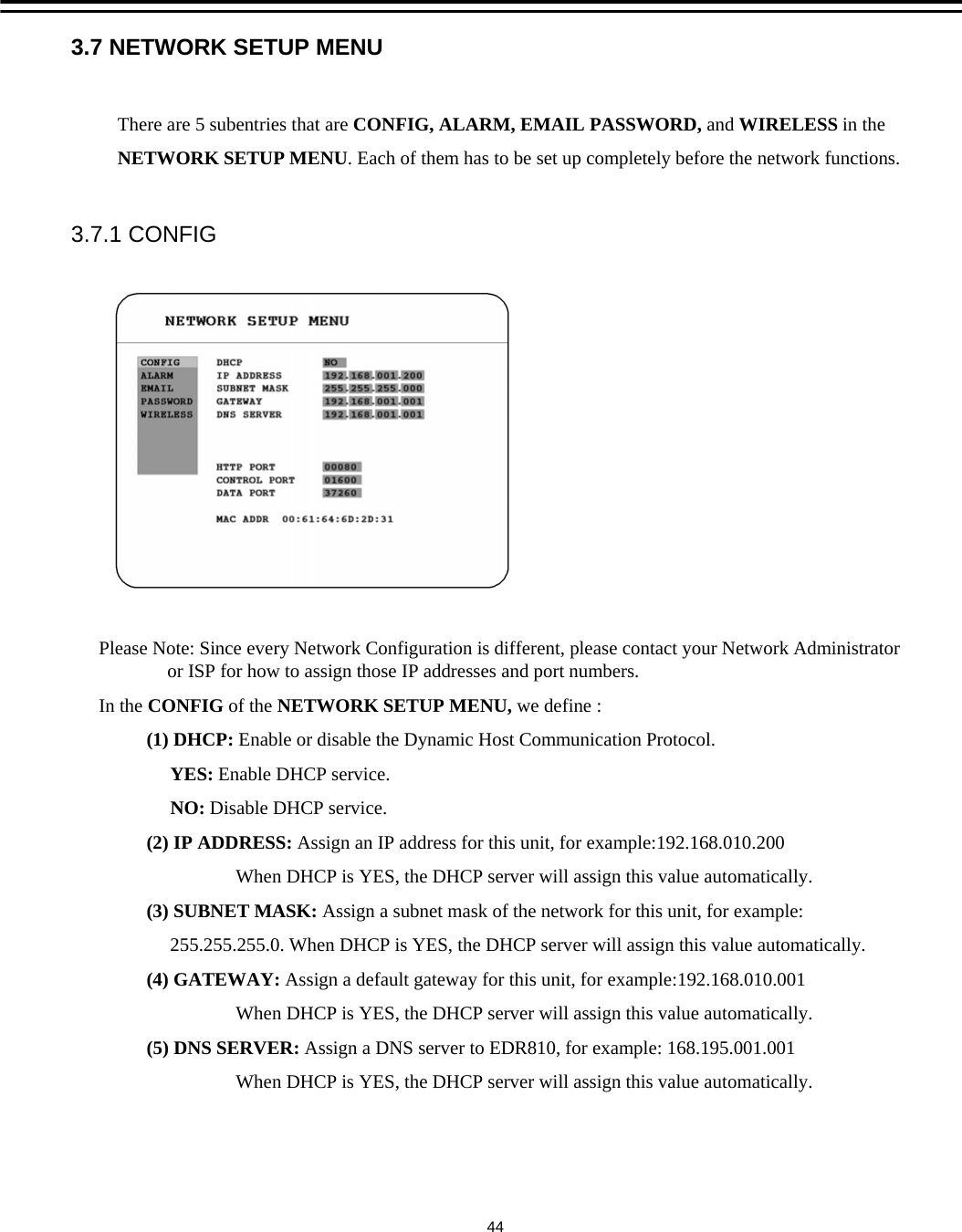
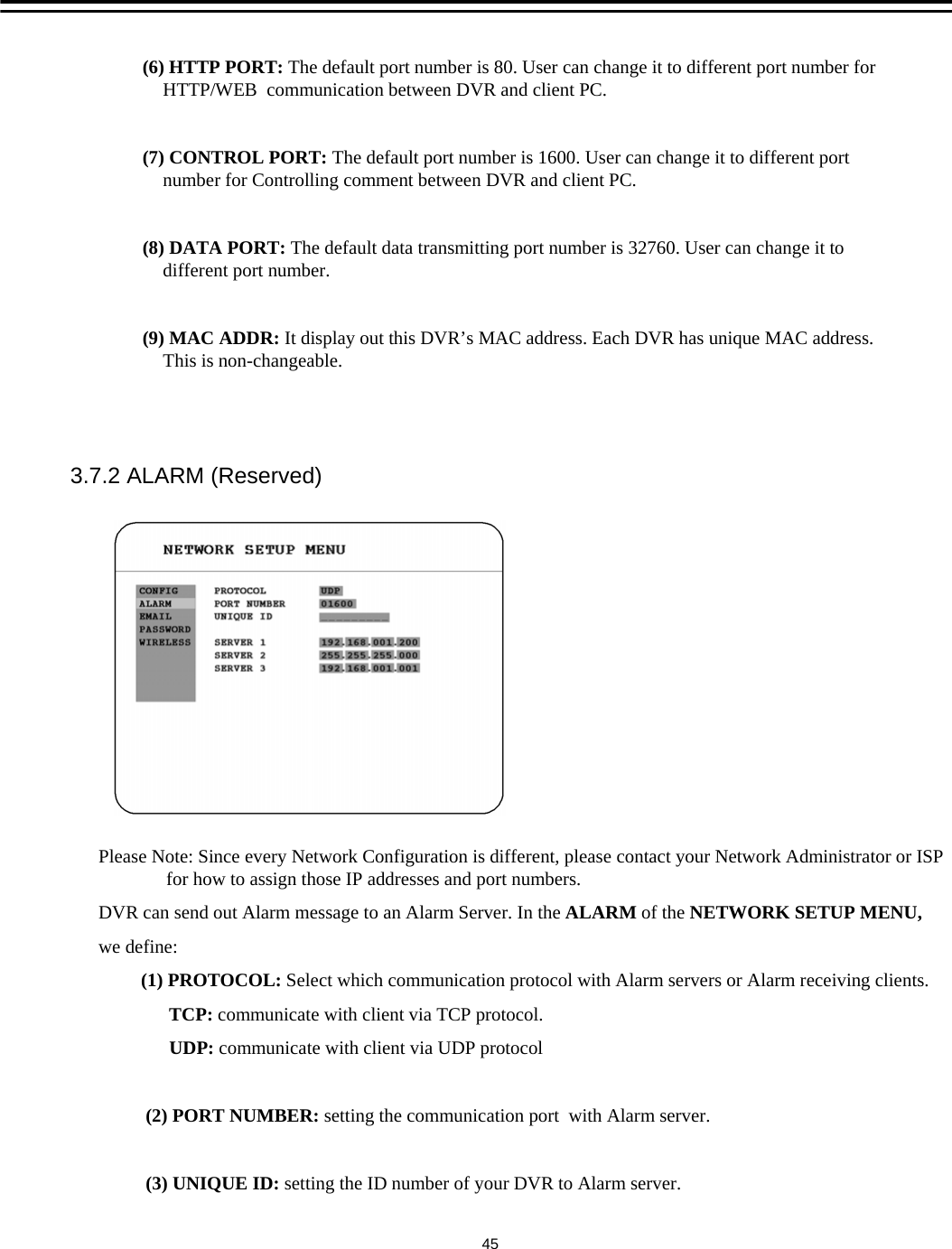
3.7 NETWORK SETUP MENUPlease Note: Since every Network Configuration is different, please contact your Network Administrator or ISP for how to assign those IP addresses and port numbers. In the CONFIG of the NETWORK SETUP MENU, we define :(1) DHCP: Enable or disable the Dynamic Host Communication Protocol. YES: Enable DHCP service.NO: Disable DHCP service.     (2) IP ADDRESS: Assign an IP address for this unit, for example:192.168.010.200When DHCP is YES, the DHCP server will assign this value automatically.(3) SUBNET MASK: Assign a subnet mask of the network for this unit, for example:255.255.255.0. When DHCP is YES, the DHCP server will assign this value automatically.(4) GATEWAY: Assign a default gateway for this unit, for example:192.168.010.001When DHCP is YES, the DHCP server will assign this value automatically.(5) DNS SERVER: Assign a DNS server to EDR810, for example: 168.195.001.001When DHCP is YES, the DHCP server will assign this value automatically.There are 5 subentries that are CONFIG, ALARM, EMAIL PASSWORD, and WIRELESS in theNETWORK SETUP MENU. Each of them has to be set up completely before the network functions.3.7.1 CONFIG44
(6) HTTP PORT: The default port number is 80. User can change it to different port number for HTTP/WEB  communication between DVR and client PC.(7) CONTROL PORT: The default port number is 1600. User can change it to different port number for Controlling comment between DVR and client PC.(8) DATA PORT: The default data transmitting port number is 32760. User can change it to different port number. (9) MAC ADDR: It display out this DVR’s MAC address. Each DVR has unique MAC address. This is non-changeable.Please Note: Since every Network Configuration is different, please contact your Network Administrator or ISP for how to assign those IP addresses and port numbers.DVR can send out Alarm message to an Alarm Server. In the ALARM of the NETWORK SETUP MENU, we define:(1) PROTOCOL: Select which communication protocol with Alarm servers or Alarm receiving clients.TCP: communicate with client via TCP protocol.UDP: communicate with client via UDP protocol(2) PORT NUMBER: setting the communication port  with Alarm server.(3) UNIQUE ID: setting the ID number of your DVR to Alarm server.3.7.2 ALARM (Reserved)45
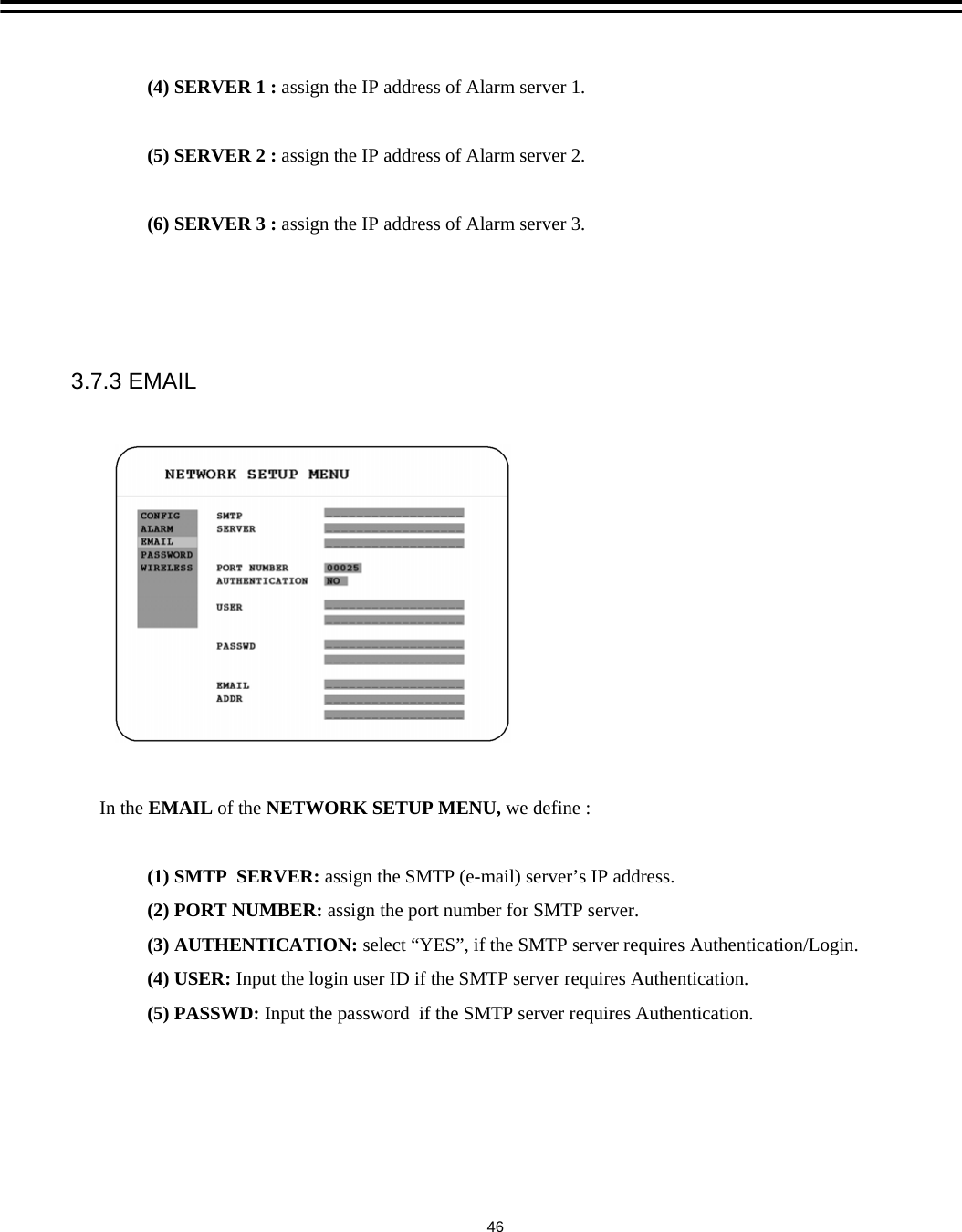
(4) SERVER 1 : assign the IP address of Alarm server 1.(5) SERVER 2 : assign the IP address of Alarm server 2.(6) SERVER 3 : assign the IP address of Alarm server 3.3.7.3 EMAILIn the EMAIL of the NETWORK SETUP MENU, we define :(1) SMTP  SERVER: assign the SMTP (e-mail) server’s IP address.                (2) PORT NUMBER: assign the port number for SMTP server.(3) AUTHENTICATION: select “YES”, if the SMTP server requires Authentication/Login.(4) USER: Input the login user ID if the SMTP server requires Authentication.(5) PASSWD: Input the password  if the SMTP server requires Authentication.46
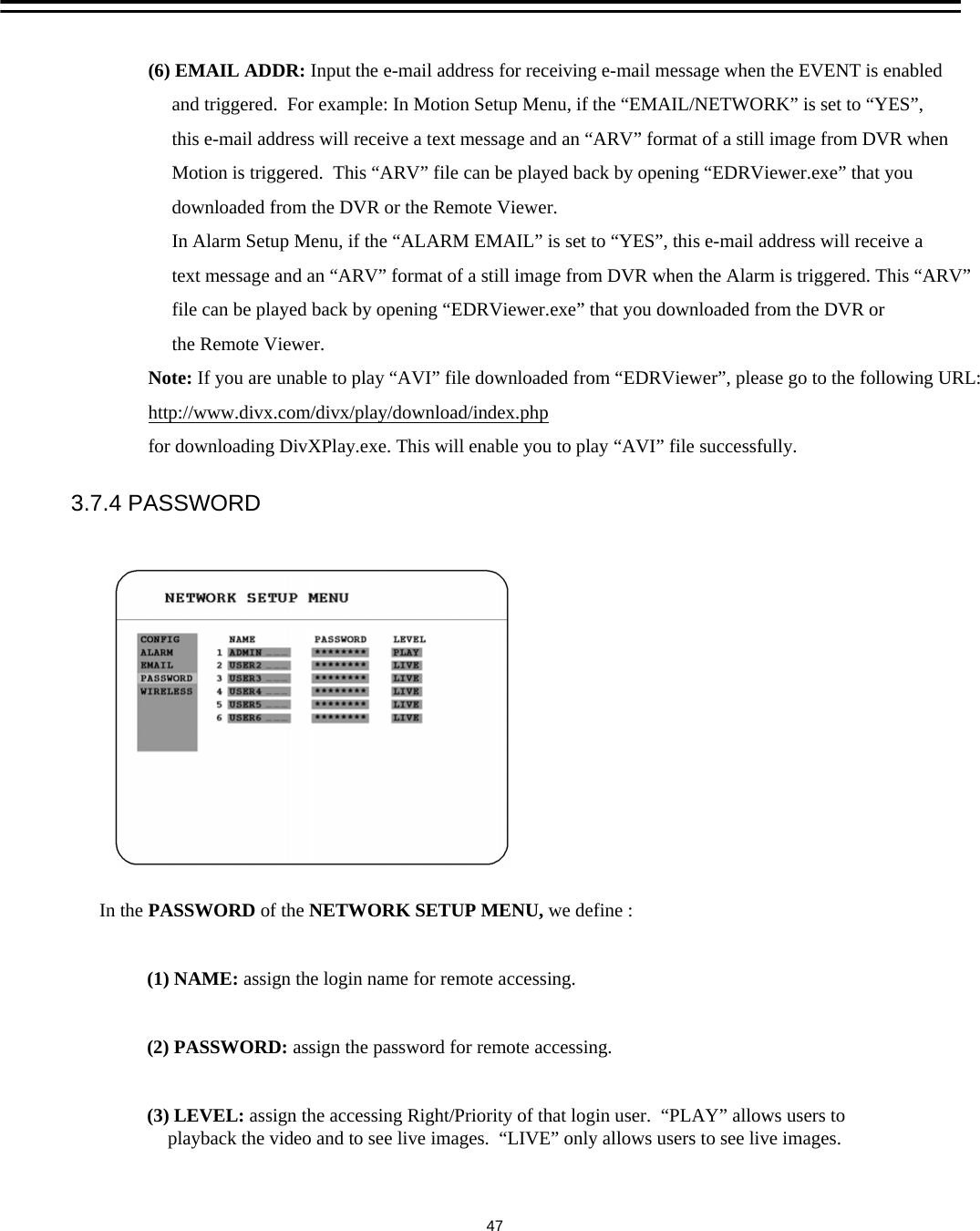
3.7.4 PASSWORDIn the PASSWORD of the NETWORK SETUP MENU, we define :(1) NAME: assign the login name for remote accessing. (2) PASSWORD: assign the password for remote accessing. (3) LEVEL: assign the accessing Right/Priority of that login user.  “PLAY” allows users to     playback the video and to see live images.  “LIVE” only allows users to see live images. 47(6) EMAIL ADDR: Input the e-mail address for receiving e-mail message when the EVENT is enabled and triggered.  For example: In Motion Setup Menu, if the “EMAIL/NETWORK” is set to “YES”, this e-mail address will receive a text message and an “ARV” format of a still image from DVR when Motion is triggered.  This “ARV” file can be played back by opening “EDRViewer.exe” that you downloaded from the DVR or the Remote Viewer. In Alarm Setup Menu, if the “ALARM EMAIL” is set to “YES”, this e-mail address will receive a text message and an “ARV” format of a still image from DVR when the Alarm is triggered. This “ARV”file can be played back by opening “EDRViewer.exe” that you downloaded from the DVR orthe Remote Viewer.Note: If you are unable to play “AVI” file downloaded from “EDRViewer”, please go to the following URL:http://www.divx.com/divx/play/download/index.phpfor downloading DivXPlay.exe. This will enable you to play “AVI” file successfully.
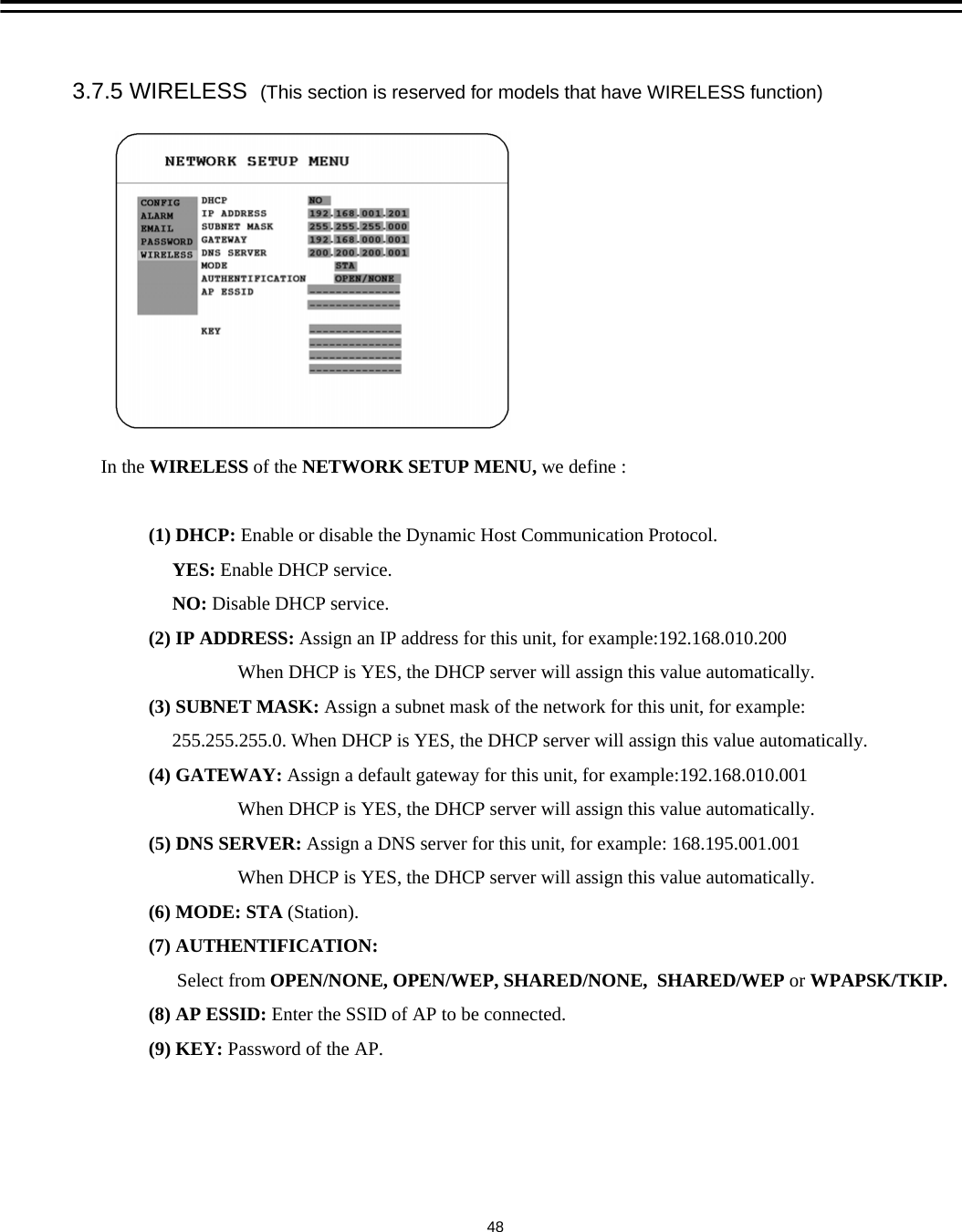
3.7.5 WIRELESS  (This section is reserved for models that have WIRELESS function) In the WIRELESS of the NETWORK SETUP MENU, we define :(1) DHCP: Enable or disable the Dynamic Host Communication Protocol. YES: Enable DHCP service.NO: Disable DHCP service.     (2) IP ADDRESS: Assign an IP address for this unit, for example:192.168.010.200When DHCP is YES, the DHCP server will assign this value automatically.(3) SUBNET MASK: Assign a subnet mask of the network for this unit, for example:255.255.255.0. When DHCP is YES, the DHCP server will assign this value automatically.(4) GATEWAY: Assign a default gateway for this unit, for example:192.168.010.001When DHCP is YES, the DHCP server will assign this value automatically.(5) DNS SERVER: Assign a DNS server for this unit, for example: 168.195.001.001When DHCP is YES, the DHCP server will assign this value automatically.(6) MODE: STA (Station).(7) AUTHENTIFICATION:Select from OPEN/NONE, OPEN/WEP, SHARED/NONE,  SHARED/WEP or WPAPSK/TKIP.(8) AP ESSID: Enter the SSID of AP to be connected.(9) KEY: Password of the AP.48
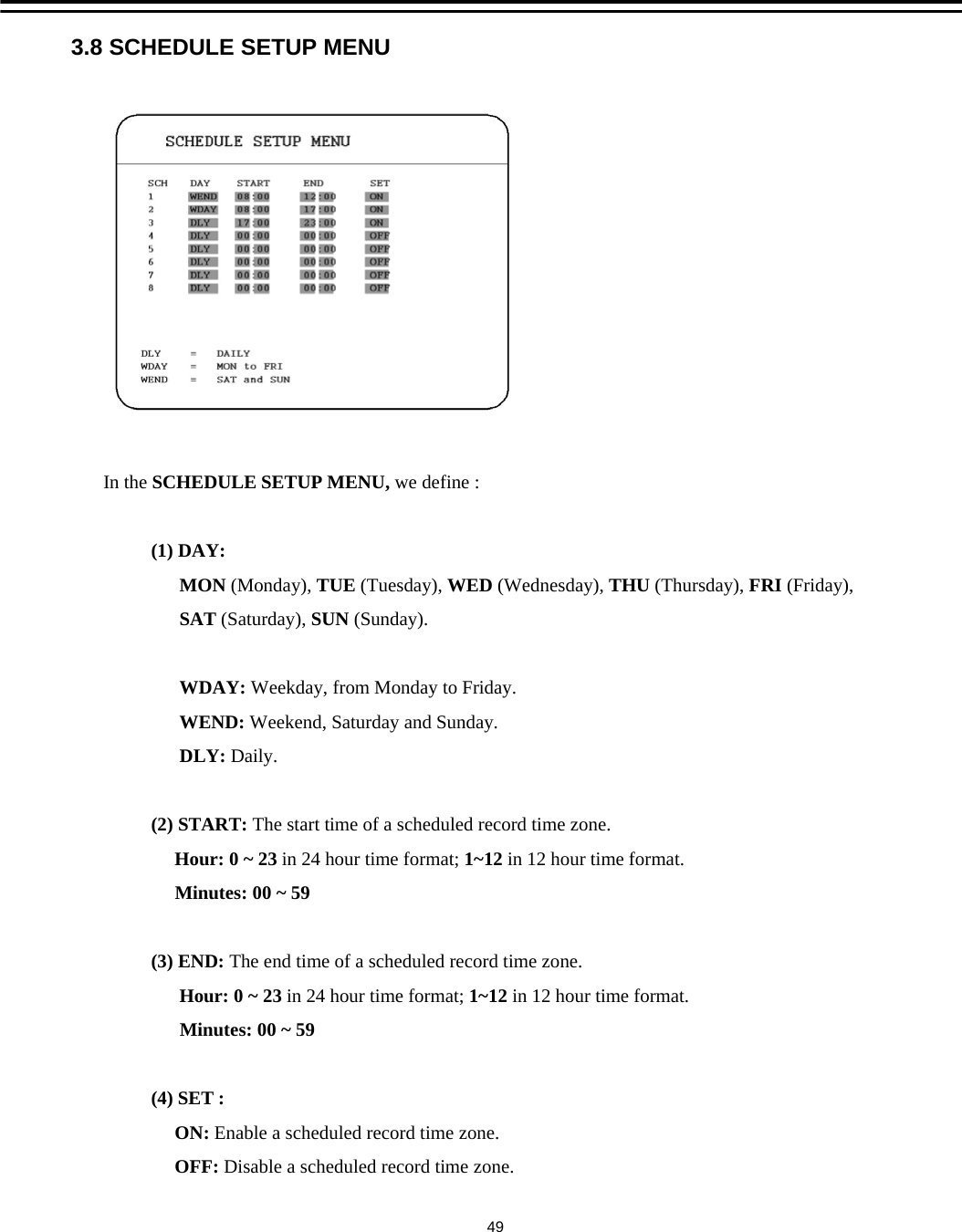
3.8 SCHEDULE SETUP MENUIn the SCHEDULE SETUP MENU, we define :(1) DAY: MON (Monday), TUE (Tuesday), WED (Wednesday), THU (Thursday), FRI (Friday),SAT (Saturday), SUN (Sunday).WDAY: Weekday, from Monday to Friday.WEND: Weekend, Saturday and Sunday.DLY: Daily.(2) START: The start time of a scheduled record time zone.Hour: 0 ~ 23 in 24 hour time format; 1~12 in 12 hour time format.Minutes: 00 ~ 59(3) END: The end time of a scheduled record time zone.Hour: 0 ~ 23 in 24 hour time format; 1~12 in 12 hour time format.Minutes: 00 ~ 59(4) SET : ON: Enable a scheduled record time zone.OFF: Disable a scheduled record time zone.49
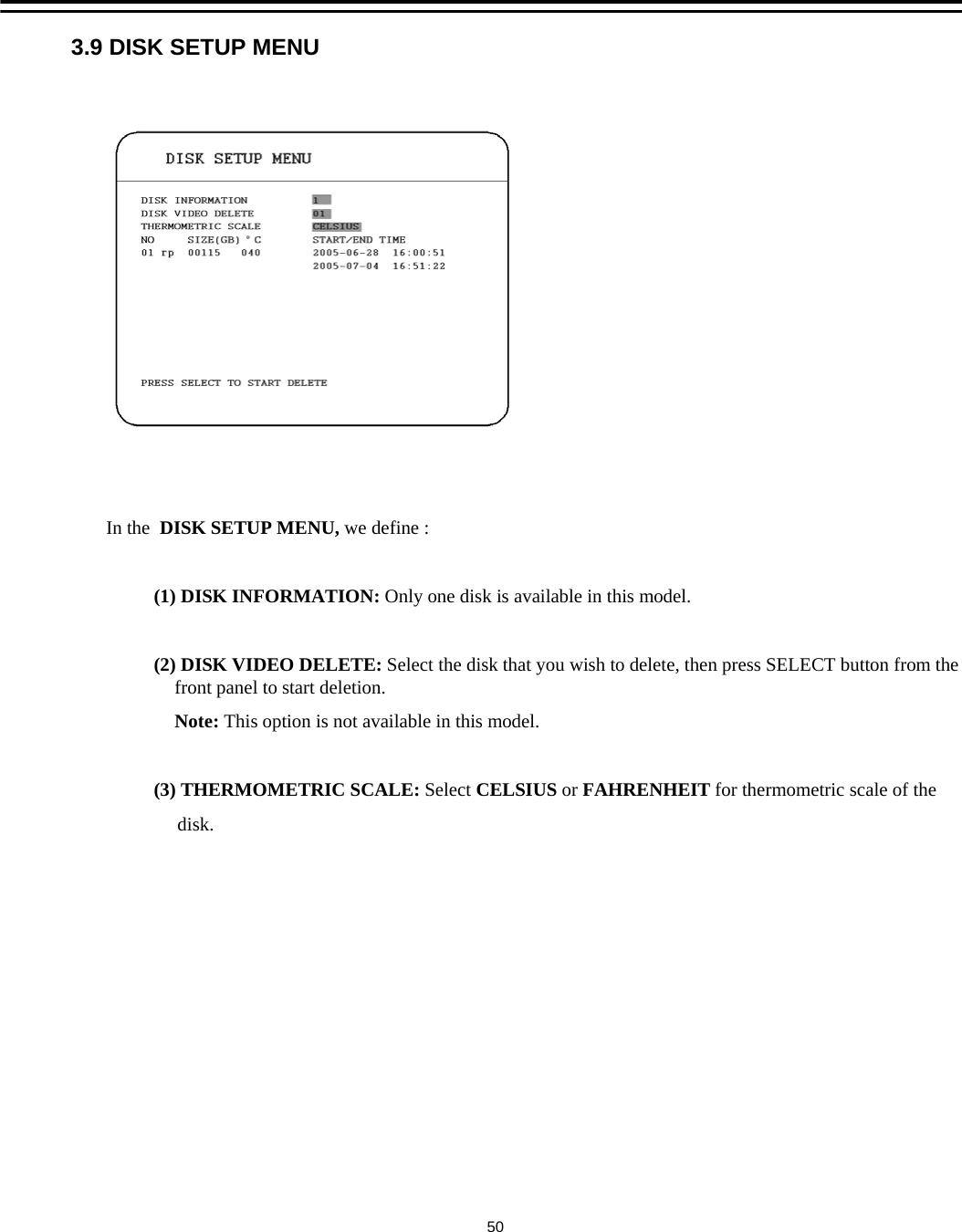
3.9 DISK SETUP MENUIn the  DISK SETUP MENU, we define :(1) DISK INFORMATION: Only one disk is available in this model.(2) DISK VIDEO DELETE: Select the disk that you wish to delete, then press SELECT button from the front panel to start deletion.Note: This option is not available in this model. (3) THERMOMETRIC SCALE: Select CELSIUS or FAHRENHEIT for thermometric scale of thedisk.50
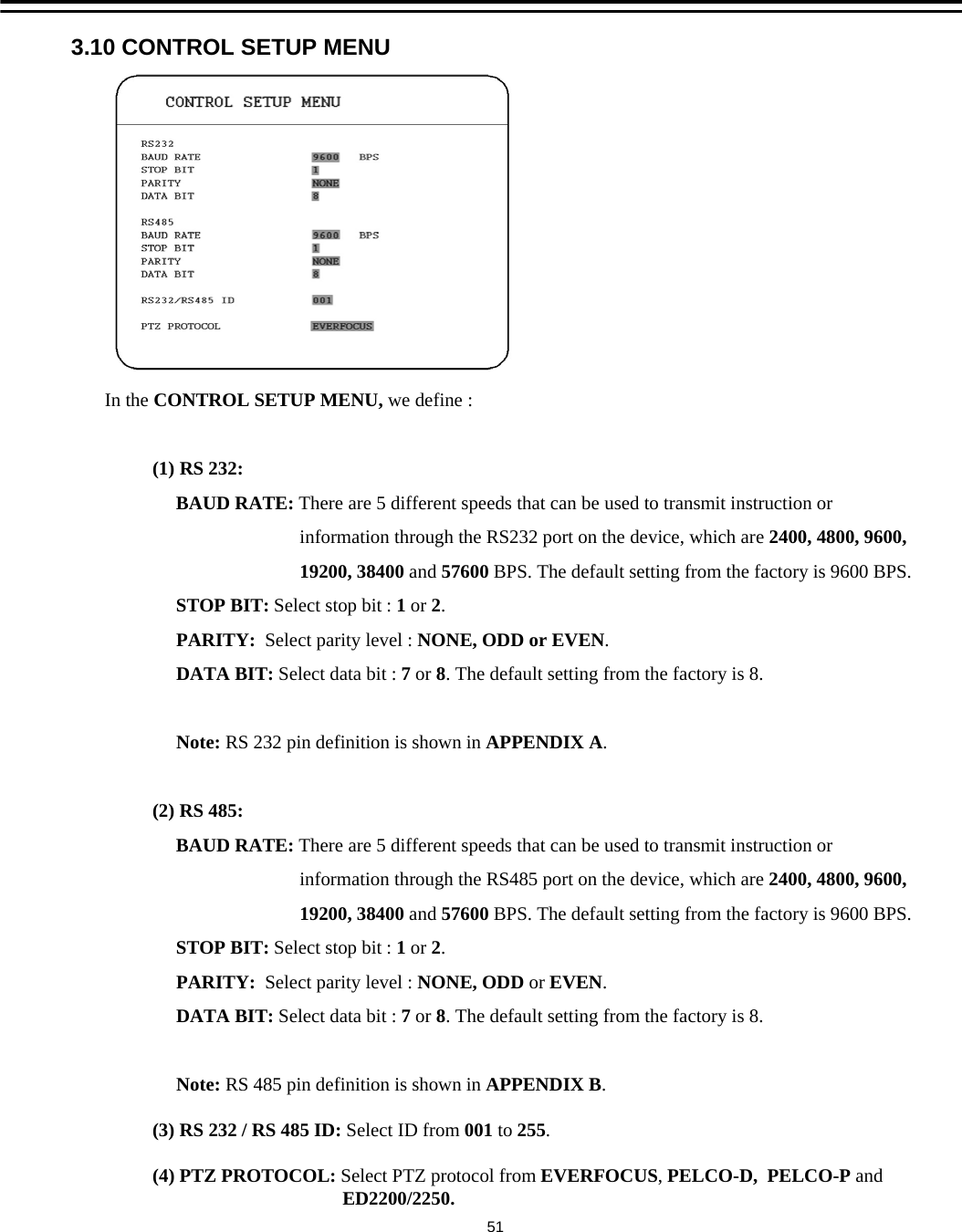
3.10 CONTROL SETUP MENUIn the CONTROL SETUP MENU, we define :(1) RS 232: BAUD RATE: There are 5 different speeds that can be used to transmit instruction or information through the RS232 port on the device, which are 2400, 4800, 9600,19200, 38400 and 57600 BPS. The default setting from the factory is 9600 BPS.STOP BIT: Select stop bit : 1or 2.PARITY: Select parity level : NONE, ODD or EVEN.DATA BIT: Select data bit : 7or 8. The default setting from the factory is 8.Note: RS 232 pin definition is shown in APPENDIX A.(2) RS 485:BAUD RATE: There are 5 different speeds that can be used to transmit instruction or information through the RS485 port on the device, which are 2400, 4800, 9600,19200, 38400 and 57600 BPS. The default setting from the factory is 9600 BPS.STOP BIT: Select stop bit : 1or 2.PARITY: Select parity level : NONE, ODD or EVEN.DATA BIT: Select data bit : 7or 8. The default setting from the factory is 8.Note: RS 485 pin definition is shown in APPENDIX B.(3) RS 232 / RS 485 ID: Select ID from 001 to 255.(4) PTZ PROTOCOL: Select PTZ protocol from EVERFOCUS, PELCO-D, PELCO-P andED2200/2250.51
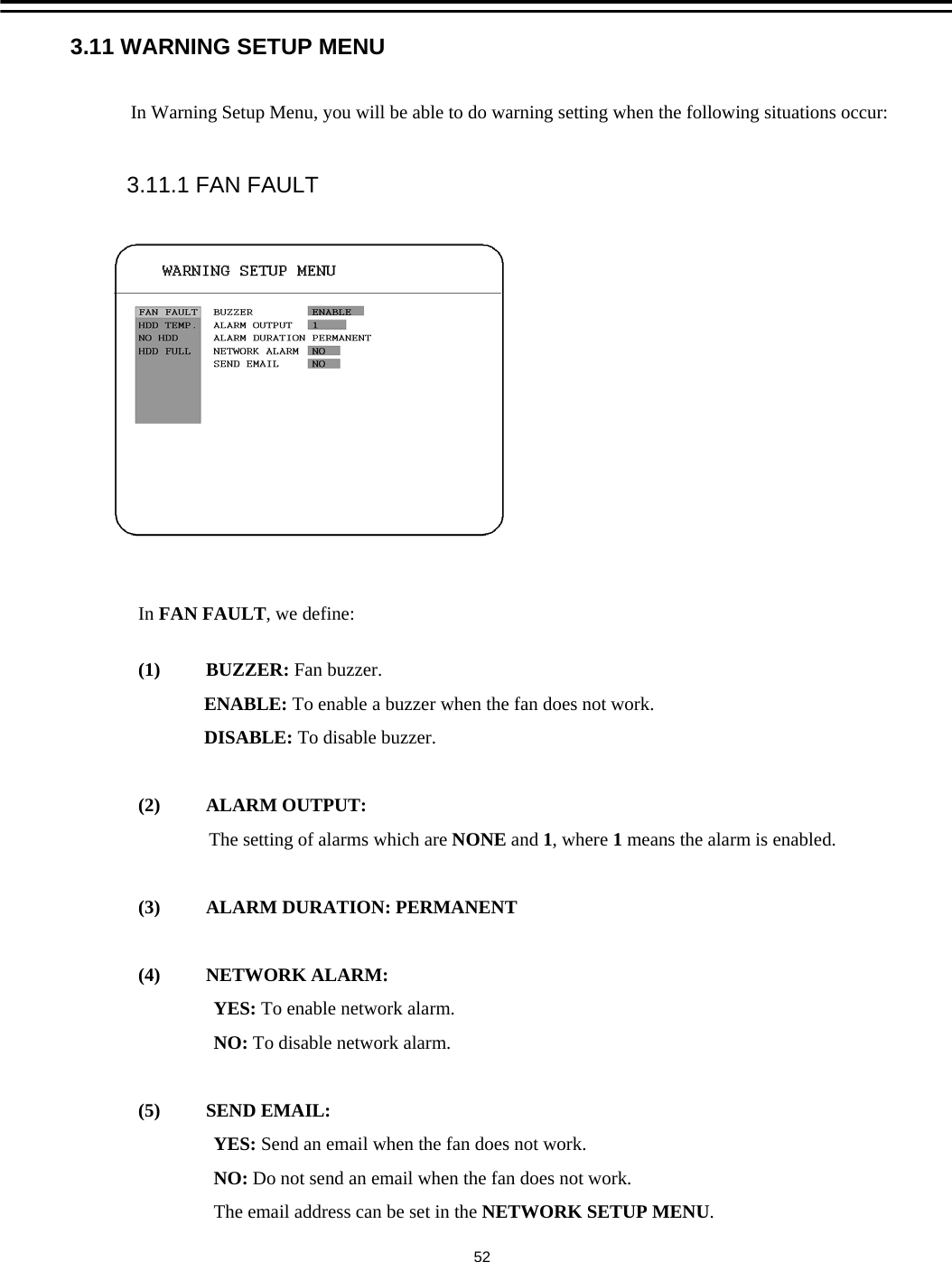
3.11 WARNING SETUP MENU523.11.1 FAN FAULTIn Warning Setup Menu, you will be able to do warning setting when the following situations occur:In FAN FAULT, we define:(1) BUZZER: Fan buzzer.ENABLE: To enable a buzzer when the fan does not work.DISABLE: To disable buzzer.(2) ALARM OUTPUT:The setting of alarms which are NONE and 1, where 1means the alarm is enabled.(3)  ALARM DURATION: PERMANENT(4) NETWORK ALARM: YES: To enable network alarm.NO: To disable network alarm.(5) SEND EMAIL:YES: Send an email when the fan does not work.NO: Do not send an email when the fan does not work.The email address can be set in the NETWORK SETUP MENU.
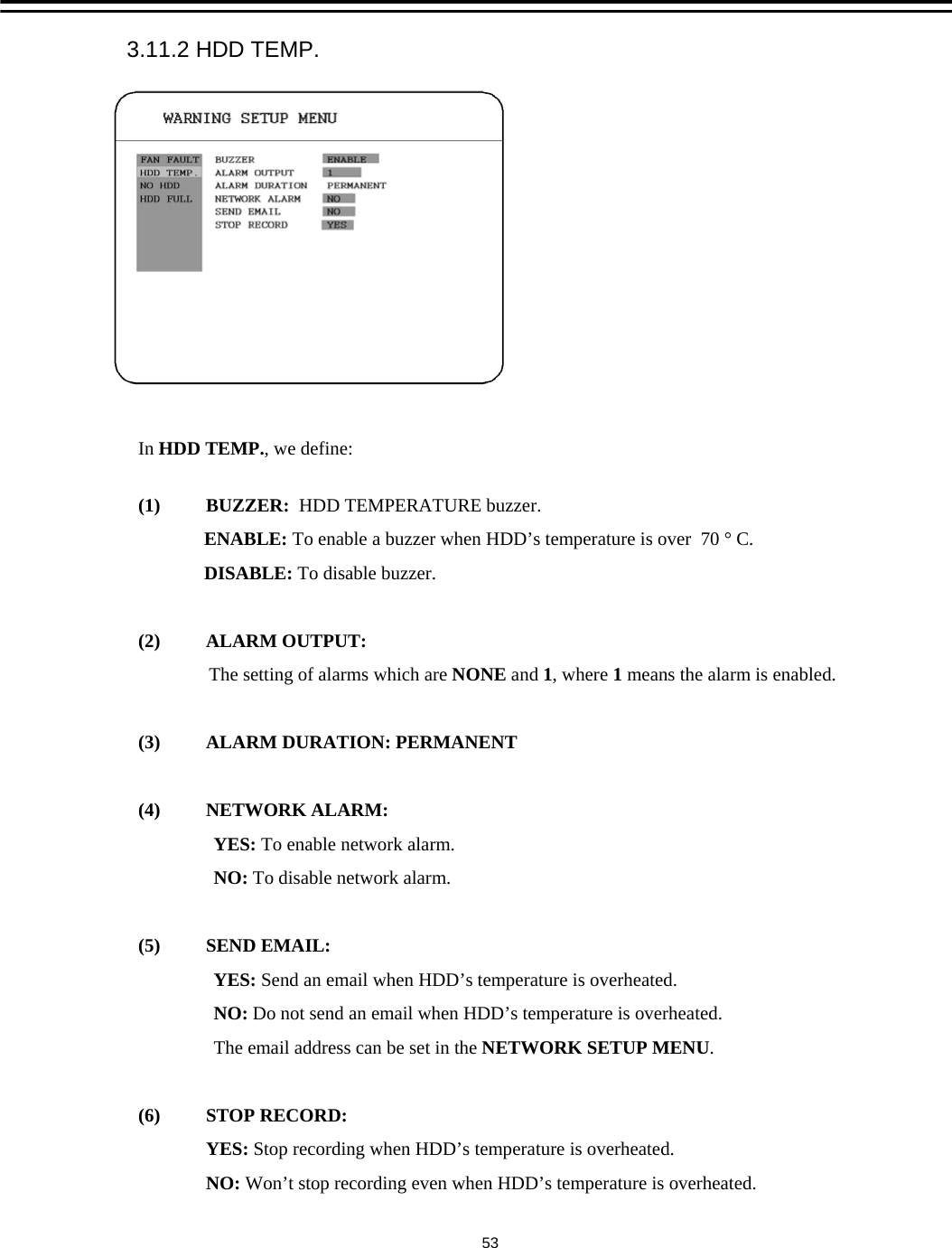
In HDD TEMP., we define:(1) BUZZER:  HDD TEMPERATURE buzzer.ENABLE: To enable a buzzer when HDD’s temperature is over  70 ° C.DISABLE: To disable buzzer.(2) ALARM OUTPUT:The setting of alarms which are NONE and 1, where 1means the alarm is enabled.(3)  ALARM DURATION: PERMANENT(4) NETWORK ALARM: YES: To enable network alarm.NO: To disable network alarm.(5) SEND EMAIL:YES: Send an email when HDD’s temperature is overheated.NO: Do not send an email when HDD’s temperature is overheated.The email address can be set in the NETWORK SETUP MENU. (6) STOP RECORD:YES: Stop recording when HDD’s temperature is overheated.NO: Won’t stop recording even when HDD’s temperature is overheated. 3.11.2 HDD TEMP.53
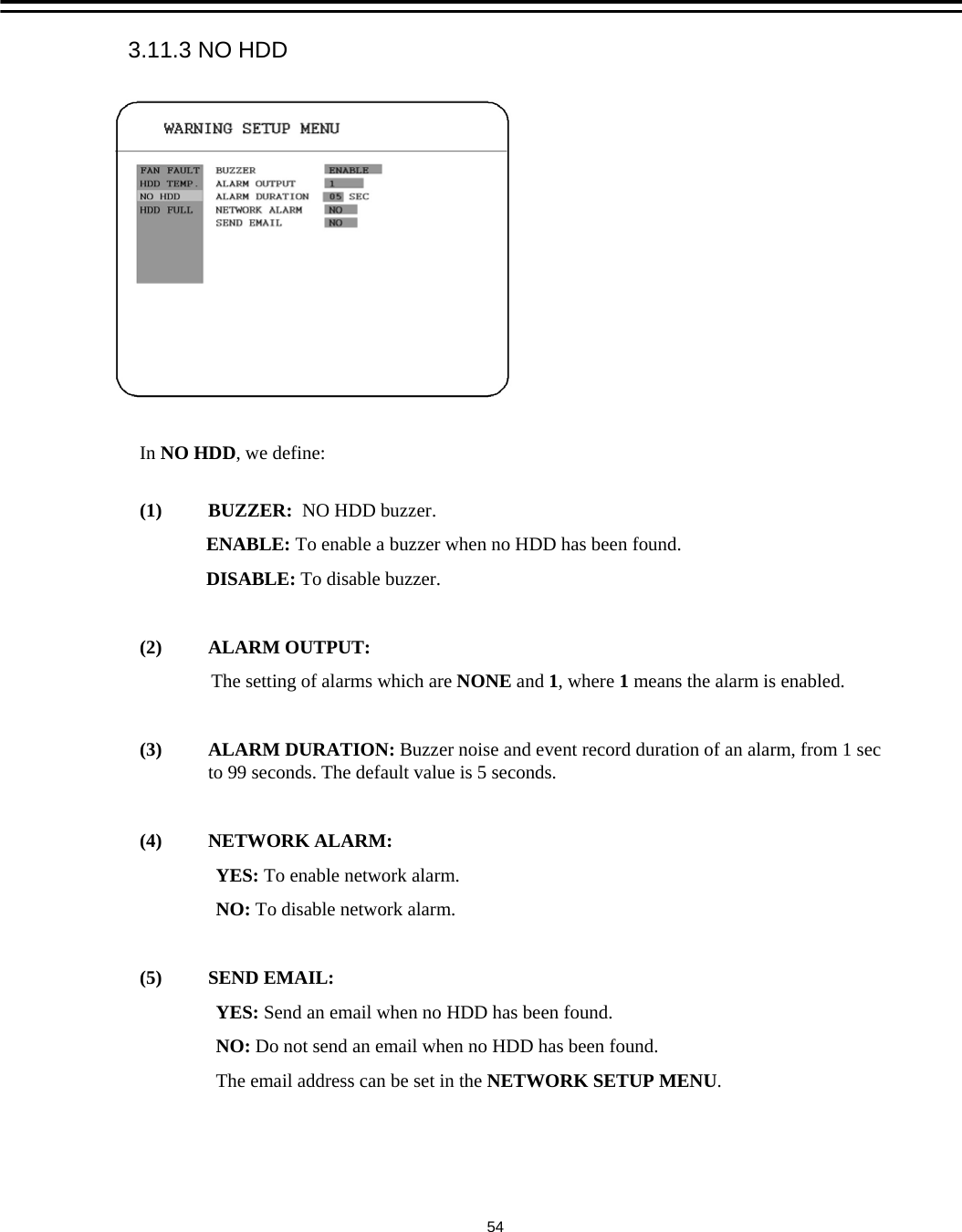
In NO HDD, we define:(1) BUZZER:  NO HDD buzzer.ENABLE: To enable a buzzer when no HDD has been found.DISABLE: To disable buzzer.(2) ALARM OUTPUT:The setting of alarms which are NONE and 1,where 1means the alarm is enabled.(3) ALARM DURATION: Buzzer noise and event record duration of an alarm, from 1 sec to 99 seconds. The default value is 5 seconds.(4) NETWORK ALARM: YES: To enable network alarm.NO: To disable network alarm.(5) SEND EMAIL:YES: Send an email when no HDD has been found.NO: Do not send an email when no HDD has been found.The email address can be set in the NETWORK SETUP MENU. 3.11.3 NO HDD54
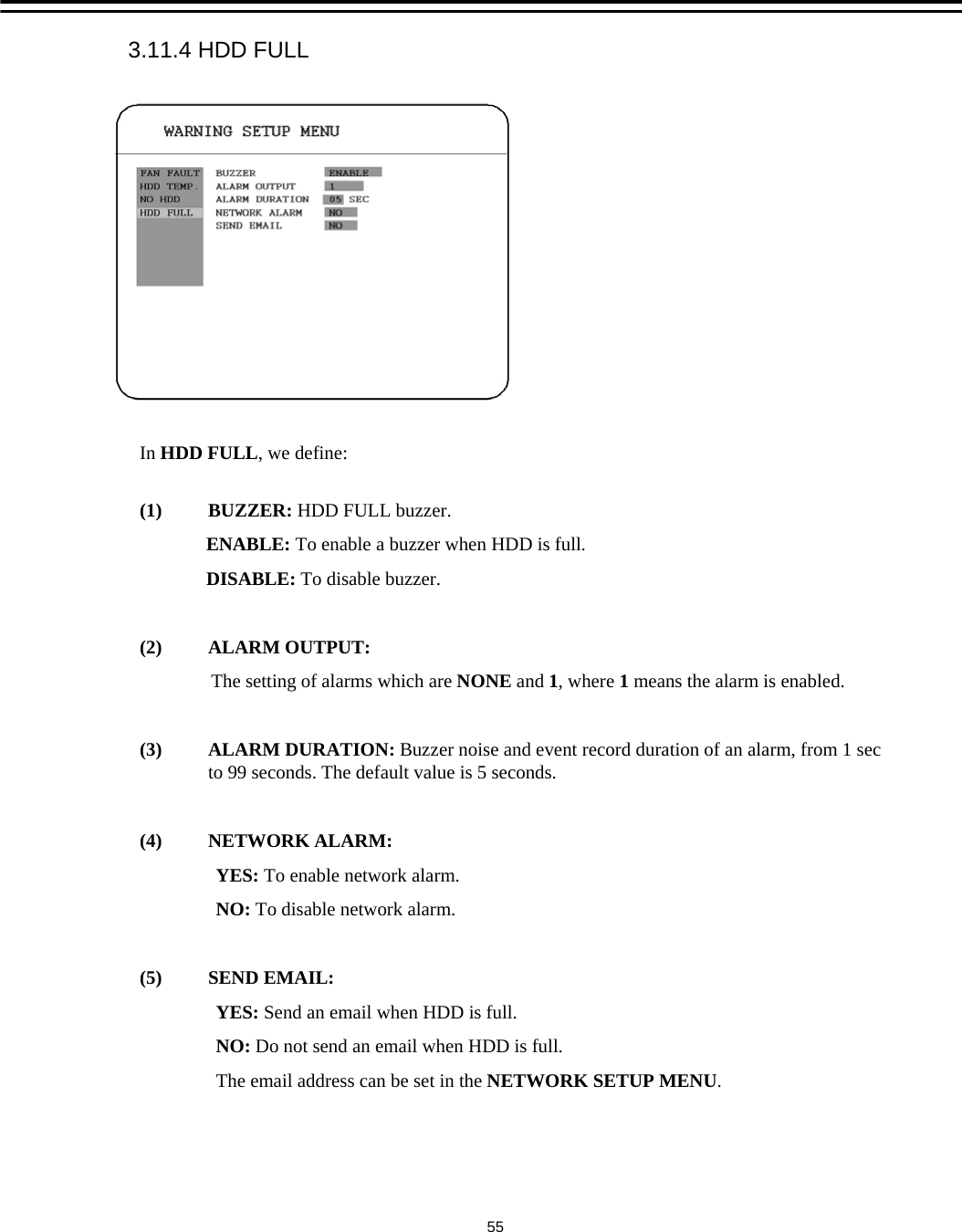
In HDD FULL, we define:(1) BUZZER: HDD FULL buzzer.ENABLE: To enable a buzzer when HDD is full.DISABLE: To disable buzzer.(2) ALARM OUTPUT:The setting of alarms which are NONE and 1, where 1means the alarm is enabled.(3) ALARM DURATION: Buzzer noise and event record duration of an alarm, from 1 sec to 99 seconds. The default value is 5 seconds.(4) NETWORK ALARM: YES: To enable network alarm.NO: To disable network alarm.(5) SEND EMAIL:YES: Send an email when HDD is full.NO: Do not send an email when HDD is full.The email address can be set in the NETWORK SETUP MENU. 3.11.4 HDD FULL55
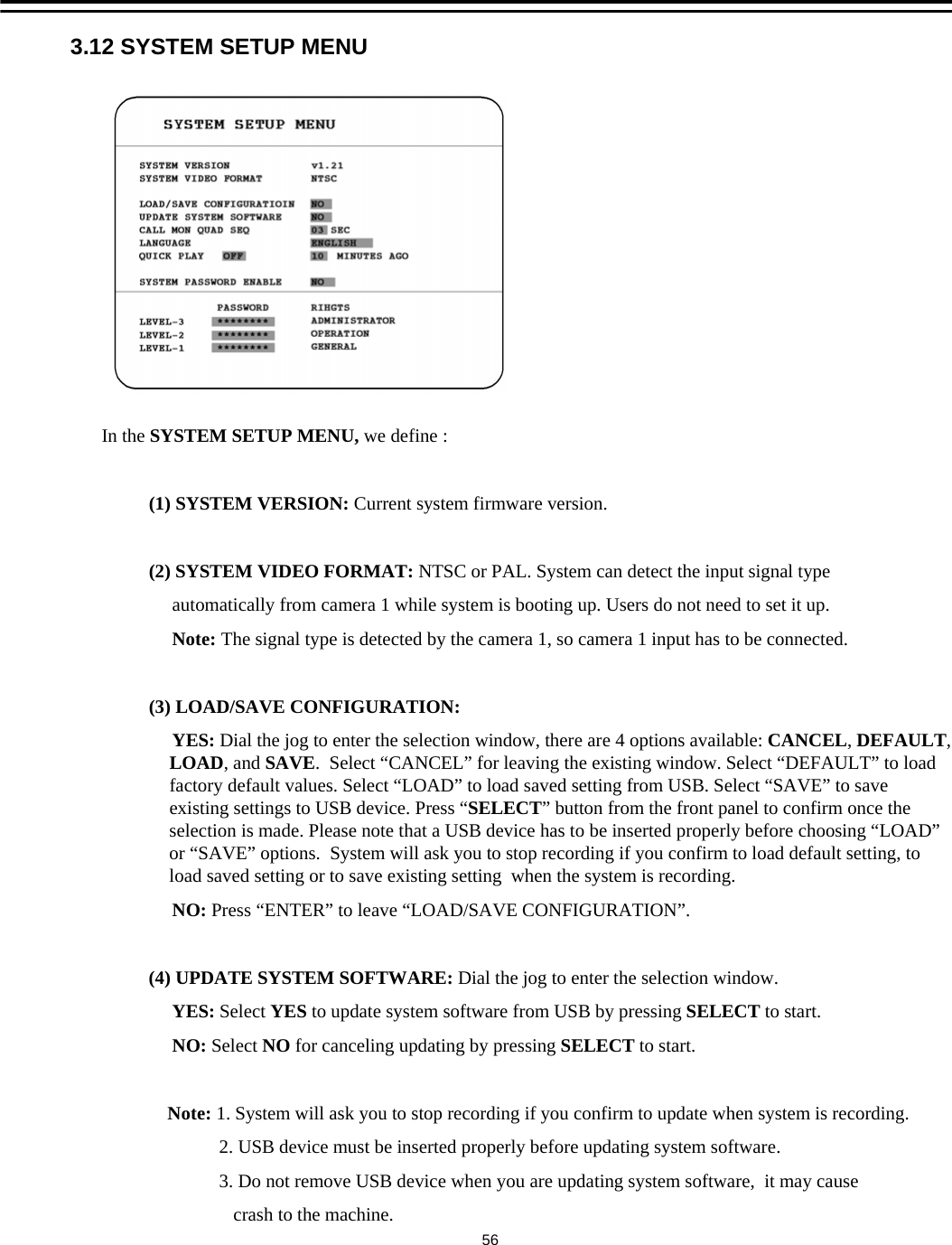
3.12 SYSTEM SETUP MENUIn the SYSTEM SETUP MENU, we define :(1) SYSTEM VERSION: Current system firmware version.(2) SYSTEM VIDEO FORMAT: NTSC or PAL. System can detect the input signal type automatically from camera 1 while system is booting up. Users do not need to set it up.Note: The signal type is detected by the camera 1, so camera 1 input has to be connected.(3) LOAD/SAVE CONFIGURATION: YES: Dial the jog to enter the selection window, there are 4 options available: CANCEL, DEFAULT, LOAD, and SAVE.  Select “CANCEL” for leaving the existing window. Select “DEFAULT” to load factory default values. Select “LOAD” to load saved setting from USB. Select “SAVE” to save existing settings to USB device. Press “SELECT” button from the front panel to confirm once the selection is made. Please note that a USB device has to be inserted properly before choosing “LOAD”or “SAVE” options.  System will ask you to stop recording if you confirm to load default setting, to load saved setting or to save existing setting  when the system is recording. NO: Press “ENTER” to leave “LOAD/SAVE CONFIGURATION”. (4) UPDATE SYSTEM SOFTWARE: Dial the jog to enter the selection window.YES: Select YES to update system software from USB by pressing SELECT to start.NO: Select NO for canceling updating by pressing SELECT to start.Note: 1. System will ask you to stop recording if you confirm to update when system is recording.2. USB device must be inserted properly before updating system software.3. Do not remove USB device when you are updating system software,  it may cause crash to the machine.56
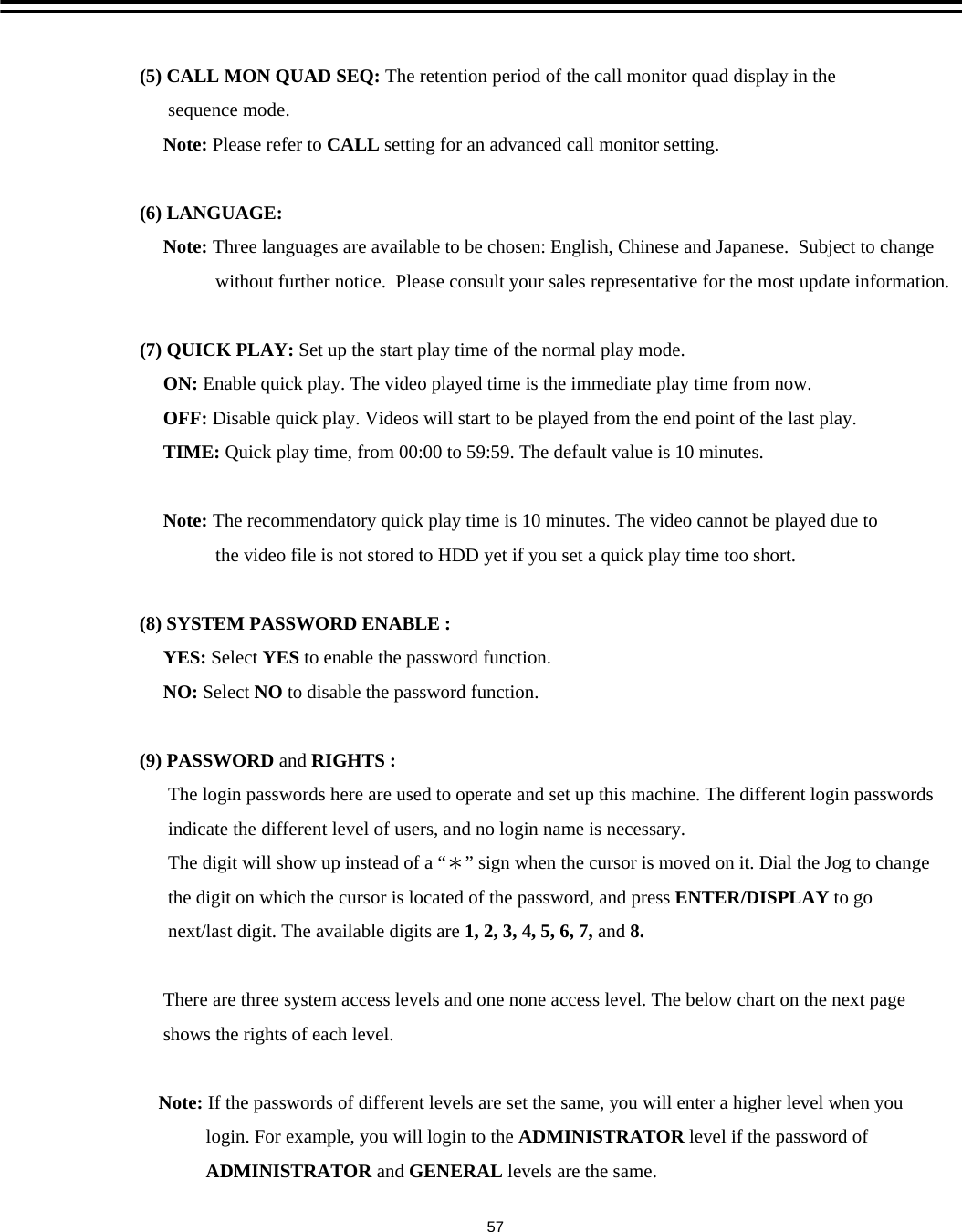
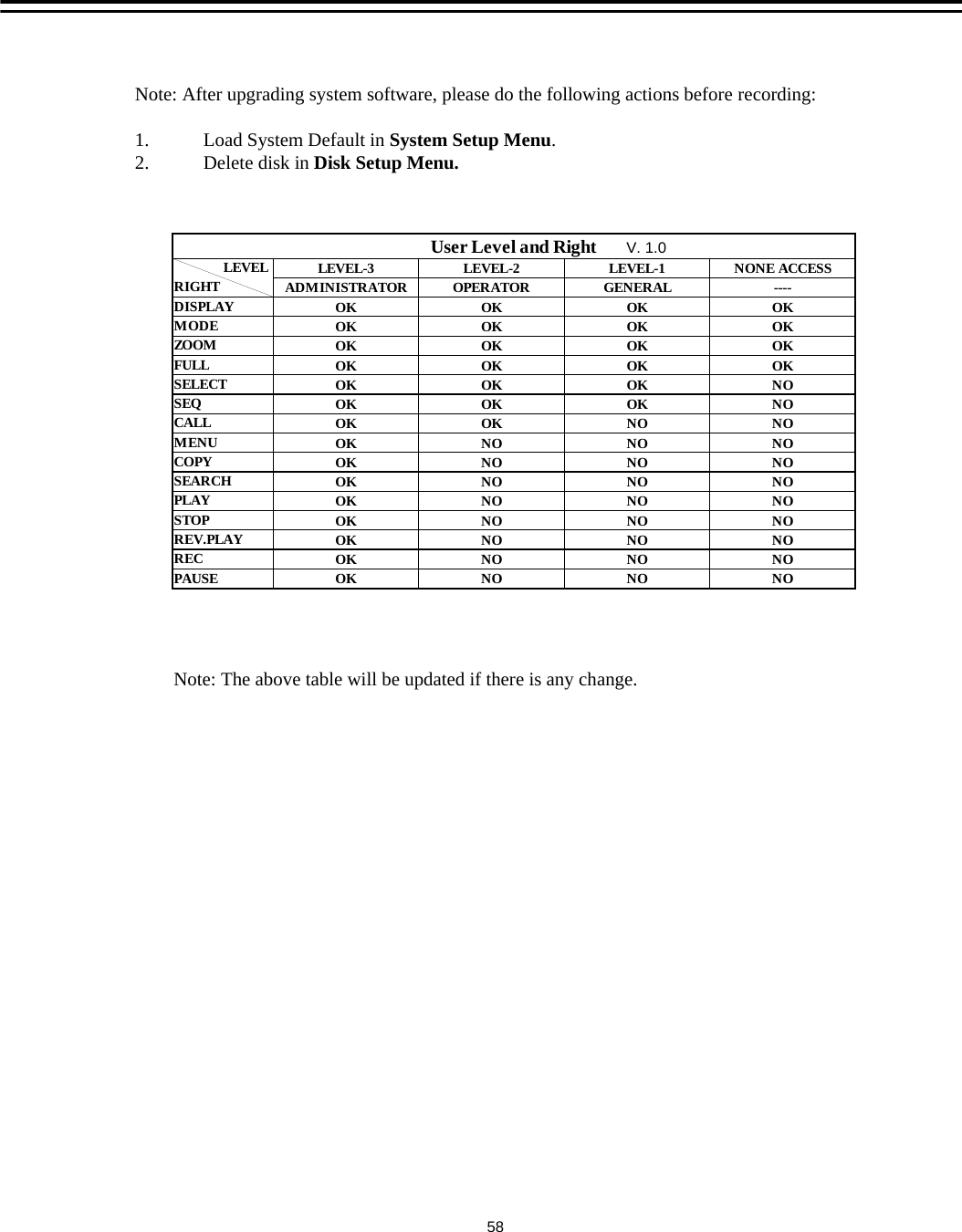
(5) CALL MON QUAD SEQ: The retention period of the call monitor quad display in thesequence mode. Note: Please refer to CALL setting for an advanced call monitor setting.(6) LANGUAGE: Note: Three languages are available to be chosen: English, Chinese and Japanese.  Subject to changewithout further notice.  Please consult your sales representative for the most update information.(7) QUICK PLAY: Set up the start play time of the normal play mode.ON: Enable quick play. The video played time is the immediate play time from now.OFF: Disable quick play. Videos will start to be played from the end point of the last play.TIME: Quick play time, from 00:00 to 59:59. The default value is 10 minutes.Note: The recommendatory quick play time is 10 minutes. The video cannot be played due to the video file is not stored to HDD yet if you set a quick play time too short.(8) SYSTEM PASSWORD ENABLE : YES: Select YES to enable the password function.NO: Select NO to disable the password function.(9) PASSWORD and RIGHTS :The login passwords here are used to operate and set up this machine. The different login passwordsindicate the different level of users, and no login name is necessary.The digit will show up instead of a “*” sign when the cursor is moved on it. Dial the Jog to changethe digit on which the cursor is located of the password, and press ENTER/DISPLAY to gonext/last digit. The available digits are 1, 2, 3, 4, 5, 6, 7, and 8.There are three system access levels and one none access level. The below chart on the next pageshows the rights of each level.Note: If the passwords of different levels are set the same, you will enter a higher level when youlogin. For example, you will login to the ADMINISTRATOR level if the password ofADMINISTRATOR and GENERAL levels are the same.57
LEVEL-3 LEVEL-2 LEVEL-1 NONE ACCESSADMINISTRATOR OPERATOR GENERAL ----DISPLAY OK OK OK OKMODE OK OK OK OKZOOM OK OK OK OKFULL OK OK OK OKSELECT OK OK OK NOSEQ OK OK OK NOCALL OK OK NO NOMENU OK NO NO NOCOPY OK NO NO NOSEARCH OK NO NO NOPLAY OK NO NO NOSTOP OK NO NO NOREV.PLAY OK NO NO NOREC OK NO NO NOPAUSEOKNONONO              LEVELRIGHTUser Level and RightNote: The above table will be updated if there is any change.V. 1.058Note: After upgrading system software, please do the following actions before recording:1. Load System Default in System Setup Menu.2. Delete disk in Disk Setup Menu.
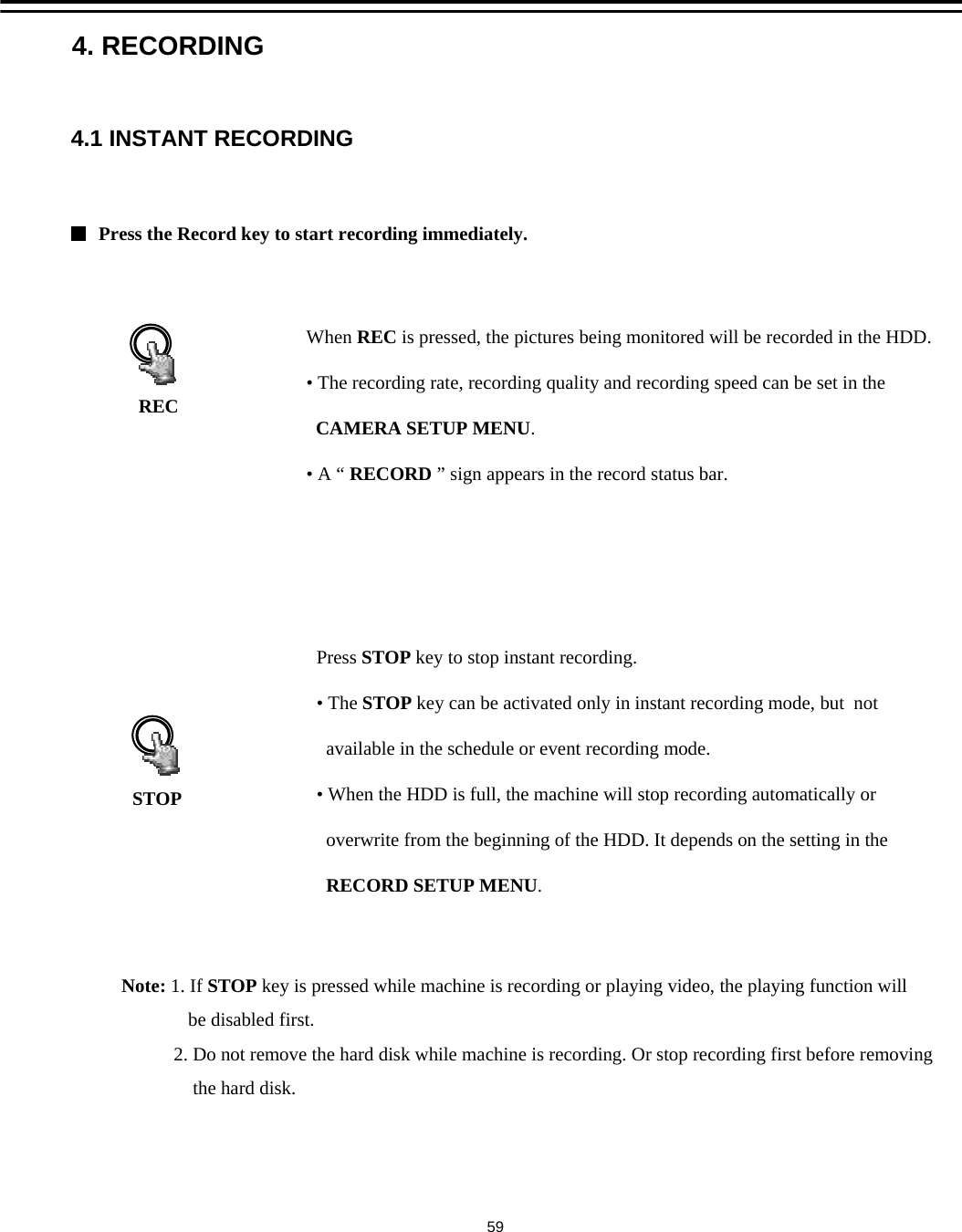
4.1 INSTANT RECORDINGWhen REC is pressed, the pictures being monitored will be recorded in the HDD.  • The recording rate, recording quality and recording speed can be set in the CAMERA SETUP MENU.•A “RECORD ” sign appears in the record status bar.Press STOP key to stop instant recording.  •The STOP key can be activated only in instant recording mode, but  not available in the schedule or event recording mode.• When the HDD is full, the machine will stop recording automatically or overwrite from the beginning of the HDD. It depends on the setting in the RECORD SETUP MENU.Press the Record key to start recording immediately.RECSTOP4. RECORDINGNote: 1. If STOP key is pressed while machine is recording or playing video, the playing function willbe disabled first.2. Do not remove the hard disk while machine is recording. Or stop recording first before removingthe hard disk. 59
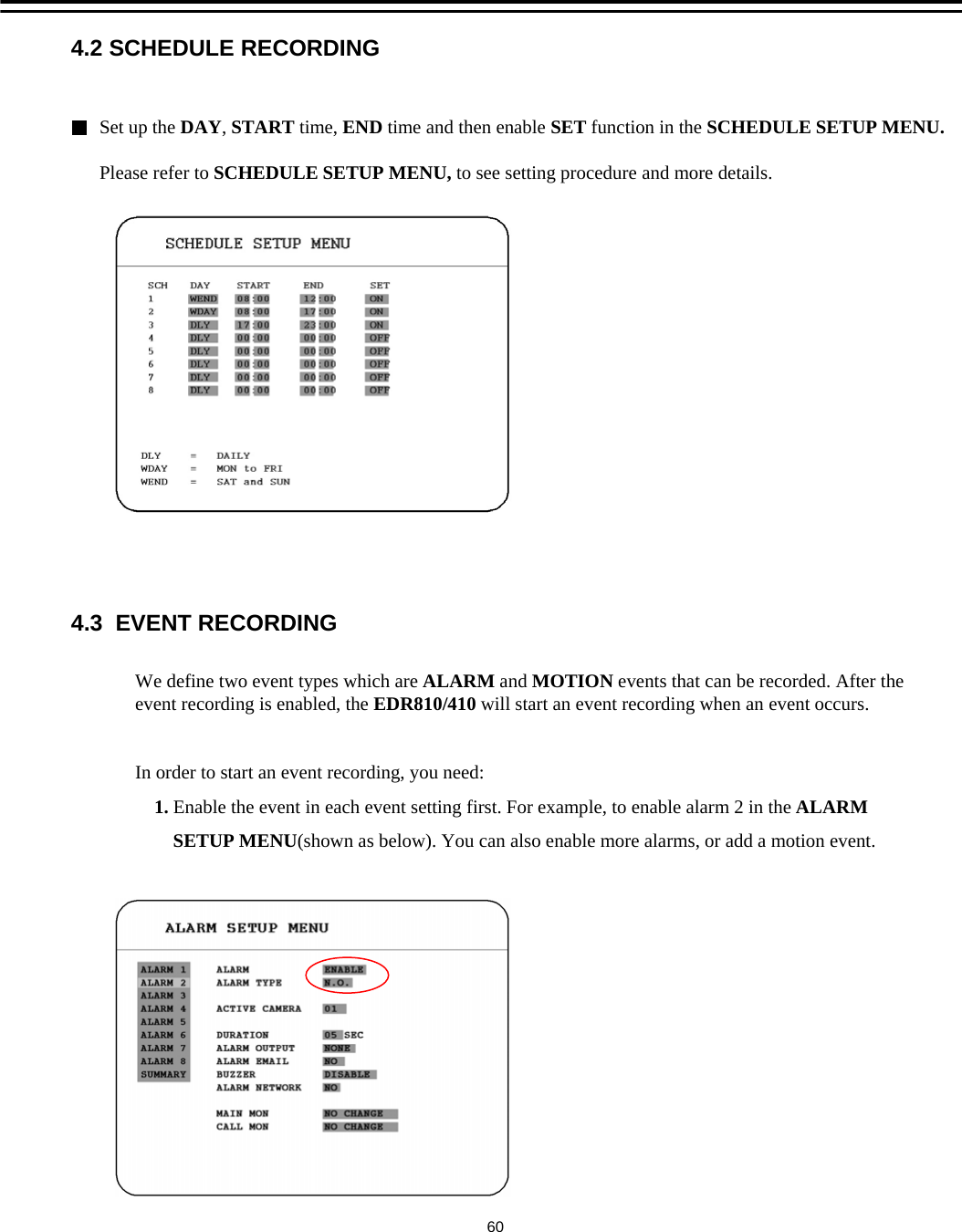
Set up the DAY,START time, END time and then enable SET function in the SCHEDULE SETUP MENU. Please refer to SCHEDULE SETUP MENU, to see setting procedure and more details.4.2 SCHEDULE RECORDING4.3  EVENT RECORDINGWe define two event types which are ALARM and MOTION events that can be recorded. After the event recording is enabled, the EDR810/410 will start an event recording when an event occurs. In order to start an event recording, you need:1. Enable the event in each event setting first. For example, to enable alarm 2 in the ALARMSETUP MENU(shown as below). You can also enable more alarms, or add a motion event. 60
2. After enable an event, you need to set a time zone in the SCHEDULE SETUP MENU. An eventrecording has to be included in a scheduled time zone. You can refer to SCHEDULE SETUP MENUto set  up a time zone which you would like to record when an event occurs.3. When the event and schedule are set, you can enter the CAMERA SETUP MENU to set the eventrecording speed (IPS) of a camera in the time zone you set. Note: You can set the time zone from 00:00 to 00:00 daily in the SCHEDULE SETUP MENU, and set thenormal record speed as 0 IPS in the CAMERA SETUP MENU if you only need events recordingall the time.4.4  ALARM INPUT RECORDING (Input trigger)EDR810/410 provides a record function which is triggered by external signal via the 19th pin of the ALARMINPUT / OUTPUT port. When the record input signal is pulled low constantly, EDR810/410 will start torecord. The system will stop recording when the record input signal is not pulled low.Note: Please check APPENDIX C to see other available alarm input/output functions.61
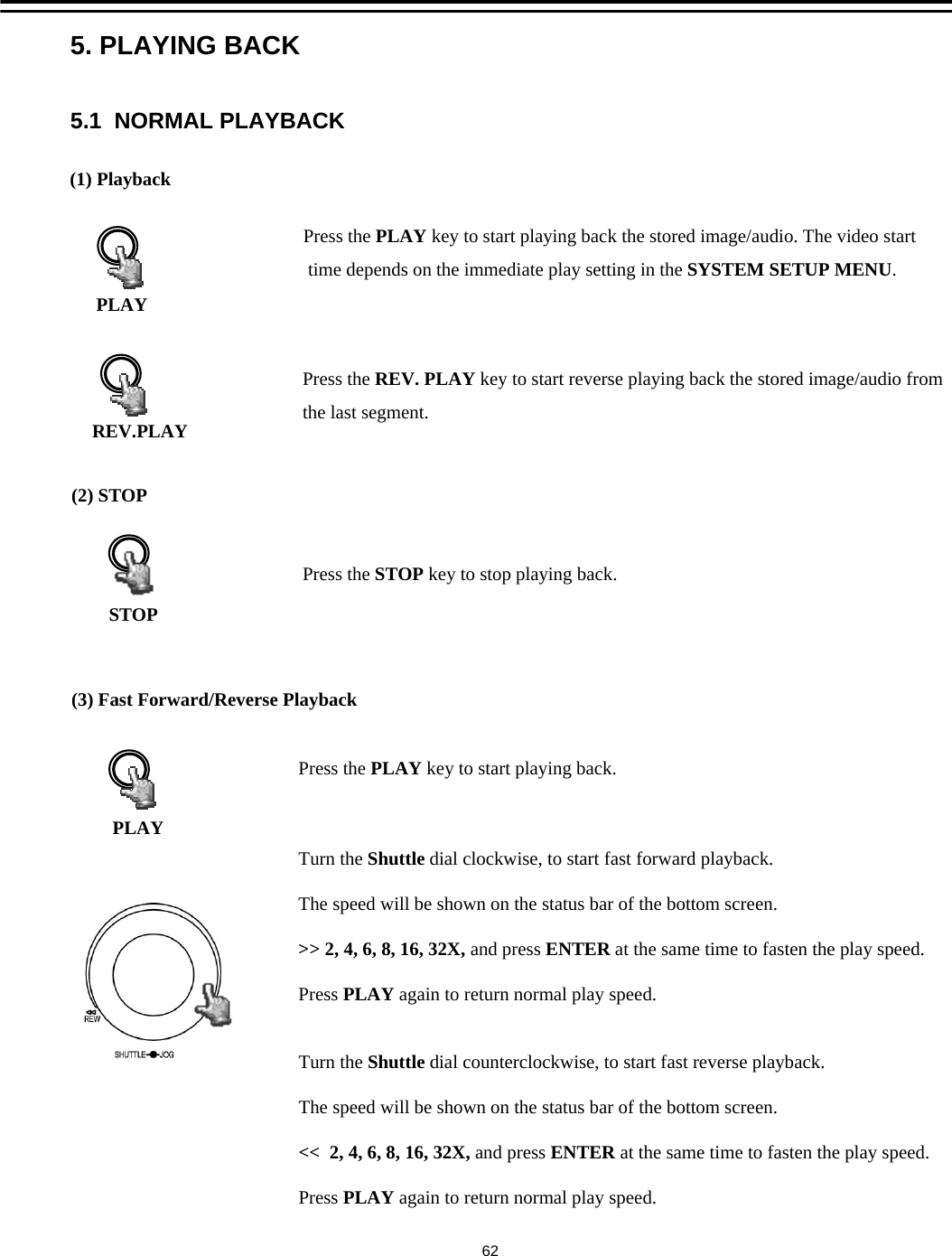
Press the PLAY key to start playing back the stored image/audio. The video starttime depends on the immediate play setting in the SYSTEM SETUP MENU.(1) PlaybackPress the REV. PLAY key to start reverse playing back the stored image/audio from the last segment.  Press the STOP key to stop playing back.(3) Fast Forward/Reverse PlaybackPress the PLAY key to start playing back.Turn the Shuttle dial clockwise, to start fast forward playback. The speed will be shown on the status bar of the bottom screen.>> 2, 4, 6, 8, 16, 32X, and press ENTER at the same time to fasten the play speed.Press PLAY again to return normal play speed.Turn the Shuttle dial counterclockwise, to start fast reverse playback.The speed will be shown on the status bar of the bottom screen.<<  2, 4, 6, 8, 16, 32X, and press ENTER at the same time to fasten the play speed.Press PLAY again to return normal play speed.REV.PLAYPLAYPLAYSTOP(2) STOP5. PLAYING BACK5.1  NORMAL PLAYBACK62
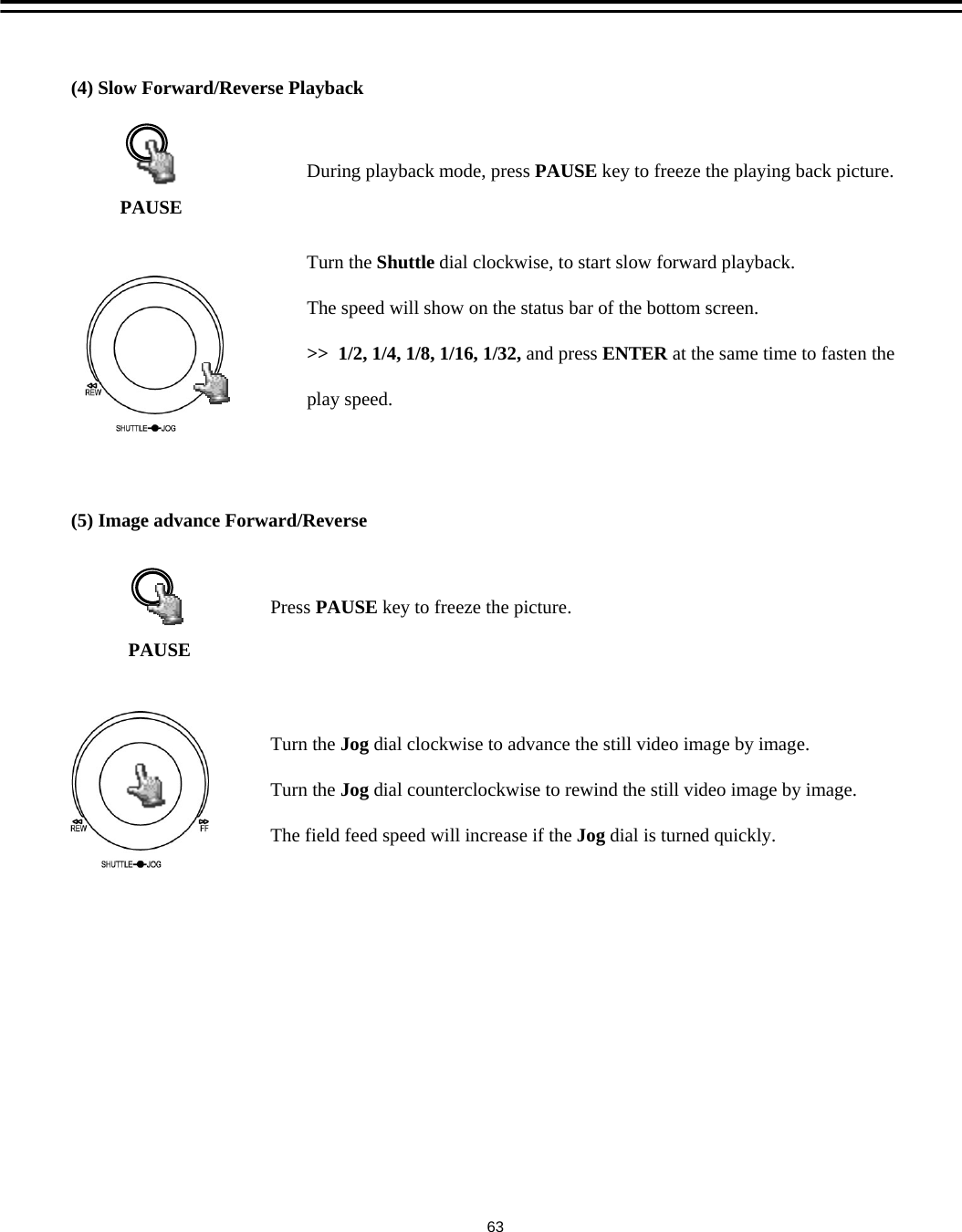
(4) Slow Forward/Reverse PlaybackDuring playback mode, press PAUSE key to freeze the playing back picture.Turn the Shuttle dial clockwise, to start slow forward playback. The speed will show on the status bar of the bottom screen.>>  1/2, 1/4, 1/8, 1/16, 1/32, and press ENTER at the same time to fasten the play speed.PAUSE(5) Image advance Forward/ReversePAUSEPress PAUSE key to freeze the picture.Turn the Jog dial clockwise to advance the still video image by image.Turn the Jog dial counterclockwise to rewind the still video image by image.The field feed speed will increase if the Jog dial is turned quickly.63
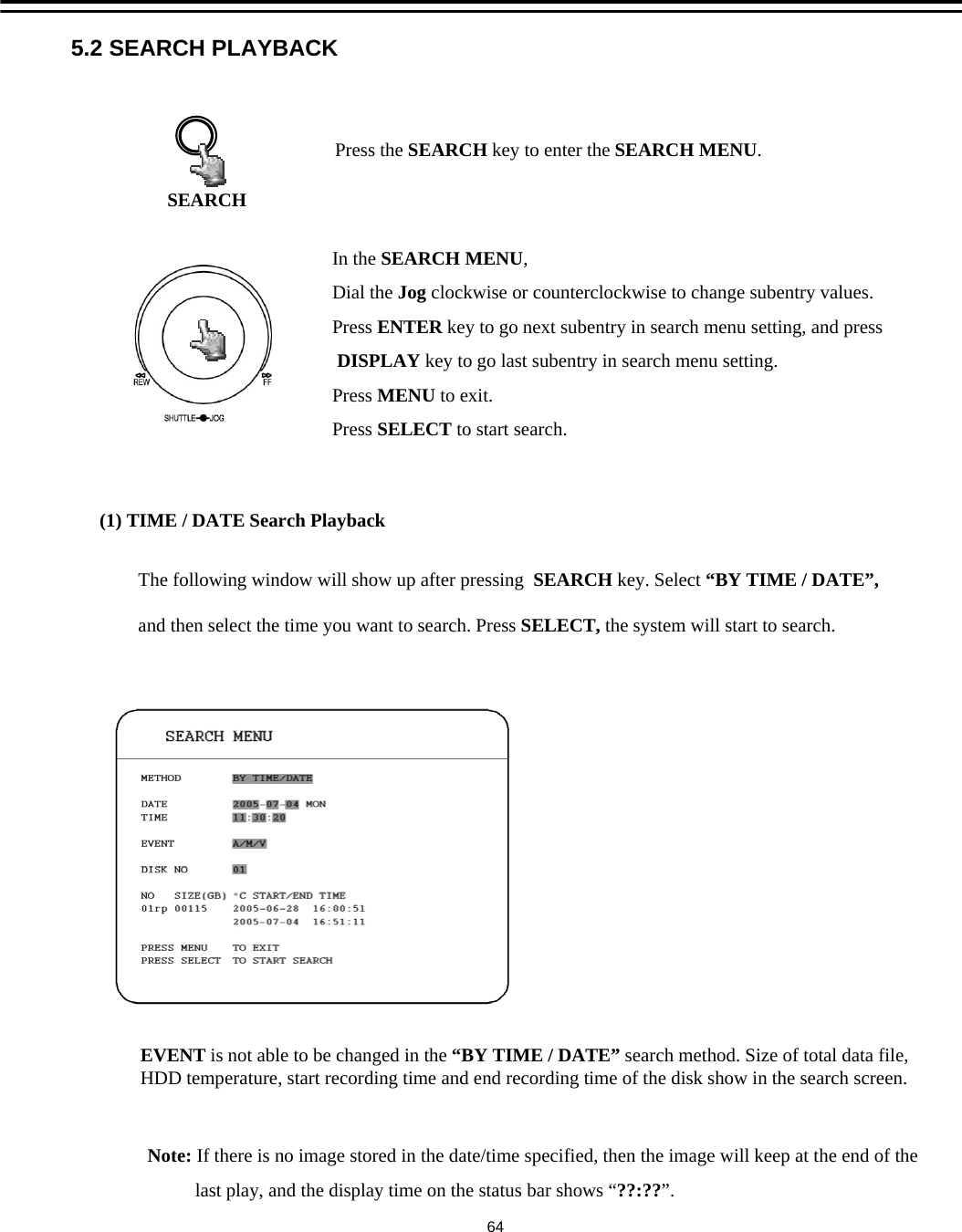
5.2 SEARCH PLAYBACK(1) TIME / DATE Search PlaybackPress the SEARCH key to enter the SEARCH MENU.SEARCHIn the SEARCH MENU,Dial the Jog clockwise or counterclockwise to change subentry values. Press ENTER key to go next subentry in search menu setting, and pressDISPLAY key to go last subentry in search menu setting.Press MENU to exit.Press SELECT to start search.Note: If there is no image stored in the date/time specified, then the image will keep at the end of thelast play, and the display time on the status bar shows “??:??”.EVENT is not able to be changed in the “BY TIME / DATE” search method. Size of total data file, HDD temperature, start recording time and end recording time of the disk show in the search screen.The following window will show up after pressing  SEARCH key. Select “BY TIME / DATE”,and then select the time you want to search. Press SELECT, the system will start to search.64
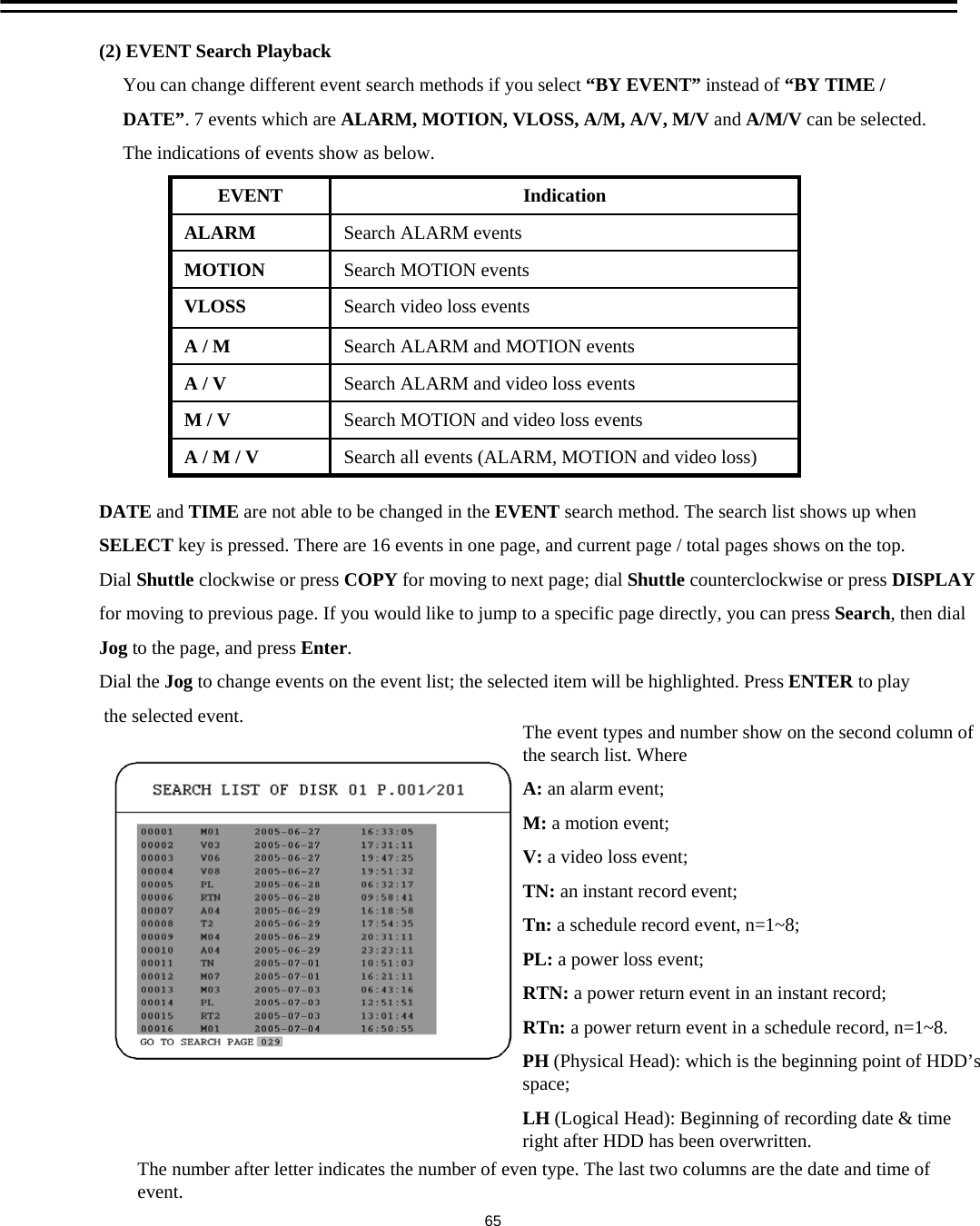
(2) EVENT Search PlaybackYou can change different event search methods if you select “BY EVENT” instead of “BY TIME /DATE”. 7 events which are ALARM, MOTION, VLOSS, A/M, A/V, M/V and A/M/V can be selected.The indications of events show as below.Search all events (ALARM, MOTION and video loss)A / M / VSearch MOTION and video loss eventsM / VSearch ALARM and video loss eventsA / VSearch ALARM and MOTION eventsA / MSearch video loss eventsVLOSSSearch MOTION eventsMOTIONSearch ALARM eventsALARMIndicationEVENTDATE and TIME are not able to be changed in the EVENT search method. The search list shows up when SELECT key is pressed. There are 16 events in one page, and current page / total pages shows on the top.Dial Shuttle clockwise or press COPY for moving to next page; dial Shuttle counterclockwise or press DISPLAYfor moving to previous page. If you would like to jump to a specific page directly, you can press Search, then dialJog to the page, and press Enter. Dial the Jog to change events on the event list; the selected item will be highlighted. Press ENTER to playthe selected event. The event types and number show on the second column of the search list. WhereA: an alarm event;M: a motion event;V: a video loss event;TN: an instant record event;Tn: a schedule record event, n=1~8;PL: a power loss event;RTN: a power return event in an instant record;RTn: a power return event in a schedule record, n=1~8.PH (Physical Head): which is the beginning point of HDD’s space;LH (Logical Head): Beginning of recording date & time right after HDD has been overwritten.The number after letter indicates the number of even type. The last two columns are the date and time of event.65
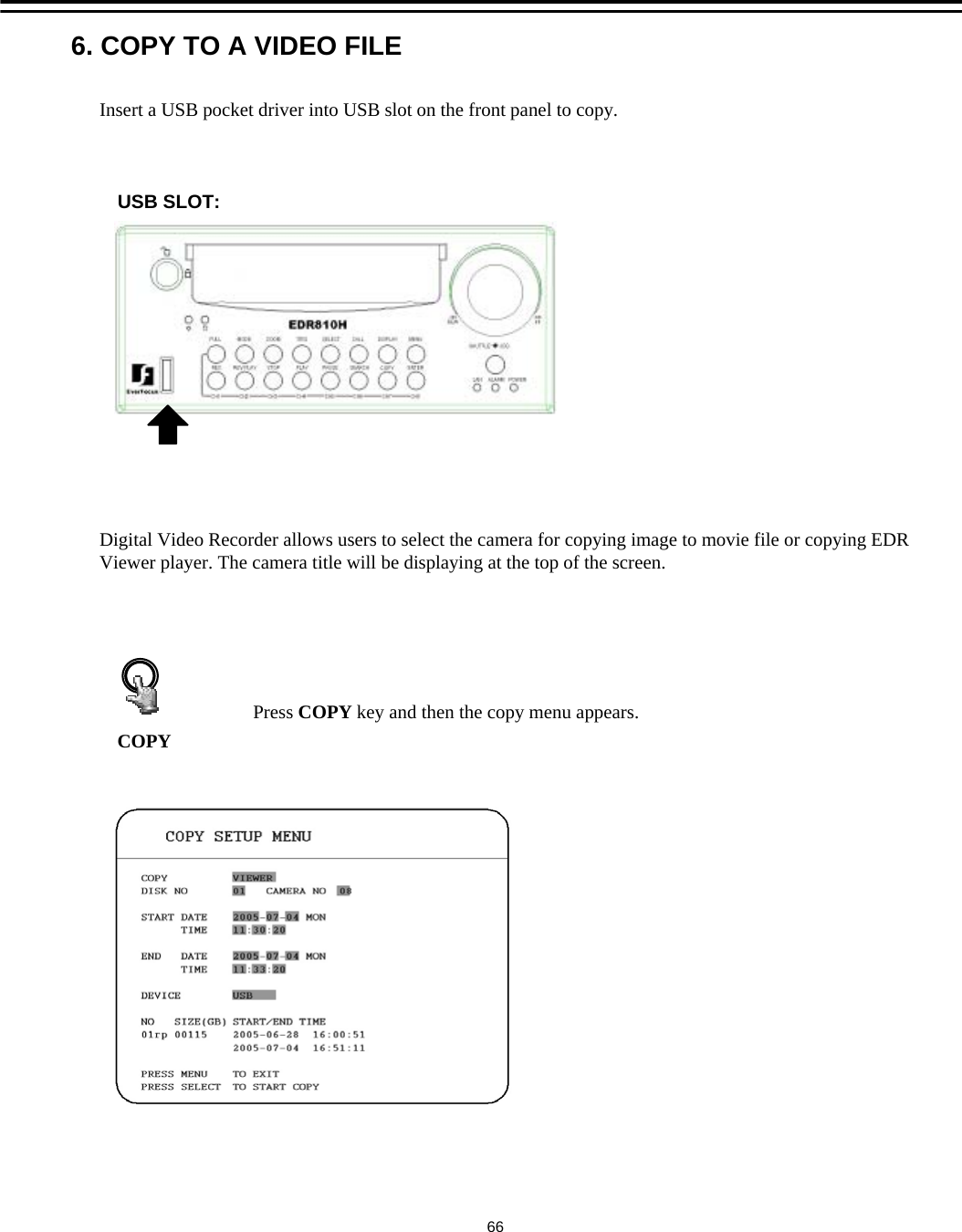
Insert a USB pocket driver into USB slot on the front panel to copy.COPYPress COPY key and then the copy menu appears.Digital Video Recorder allows users to select the camera for copying image to movie file or copying EDR Viewer player. The camera title will be displaying at the top of the screen.6. COPY TO A VIDEO FILE66USB SLOT:
In the COPY MENU, we define:COPY: Select Image for copying images to movie file.Select Viewer for copying EDR viewer player.DISK NO: Disk number. It is fixed as “01” in this series.CAMERA NO: Camera channel number. You can select the video of camera you would like to copy.START DATE & TIME: The start time of video you want to copy. END DATE & TIME: The end time of video you want to copy.DEVICE: The storage you want to store the file. The available device for this model is USB.Press SELECT to copy after setting up everything.An upload percentage will show up during video copy.Copying image in bookmark mode:1.            During playing back, press COPY button and it will bookmark the starting copy point. Then, STOP playing back. Press COPY button again, you will see the START TIME has been  changed to the “Bookmark time”.  The end time is preset to 5 minutes later. You can change itto other value as desire. 67
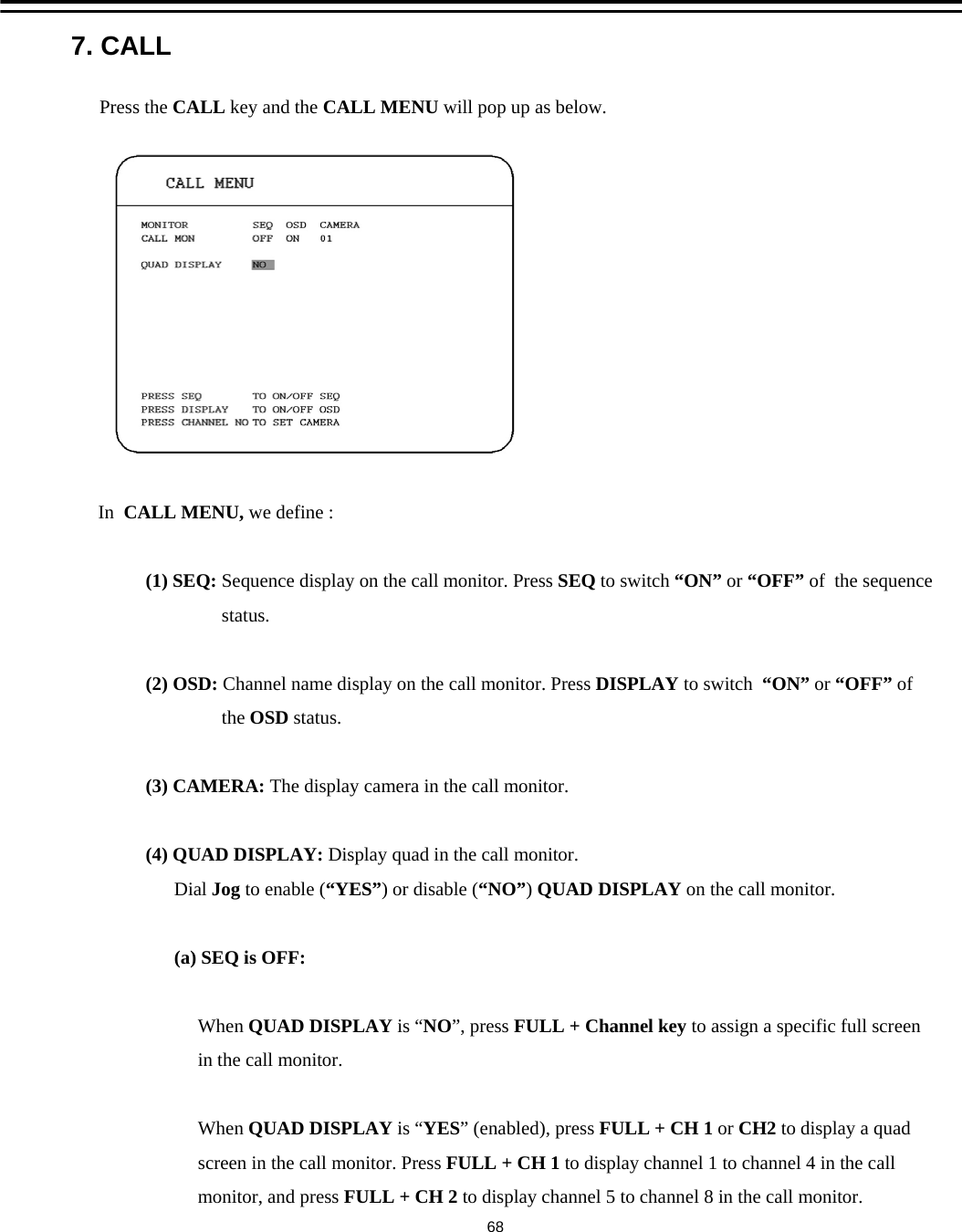
7. CALLPress the CALL key and the CALL MENU will pop up as below.In  CALL MENU, we define :(1) SEQ: Sequence display on the call monitor. Press SEQ to switch “ON” or “OFF” of  the sequencestatus.(2) OSD: Channel name display on the call monitor. Press DISPLAY to switch “ON” or “OFF” ofthe OSD status.(3) CAMERA: The display camera in the call monitor. (4) QUAD DISPLAY: Display quad in the call monitor.Dial Jog to enable (“YES”) or disable (“NO”) QUAD DISPLAY on the call monitor.(a) SEQ is OFF:When QUAD DISPLAY is “NO”, press FULL + Channel key to assign a specific full screenin the call monitor.When QUAD DISPLAY is “YES” (enabled), press FULL + CH 1 or CH2 to display a quadscreen in the call monitor. Press FULL + CH 1 to display channel 1 to channel 4 in the callmonitor, and press FULL + CH 2 to display channel 5 to channel 8 in the call monitor.68
(b) SEQ is ON:When QUAD DISPLAY is “NO”, the call monitor displays a sequence full screen of each channel.When QUAD DISPLAY is “YES” (enabled), the call monitor displays a sequence quad screen.69
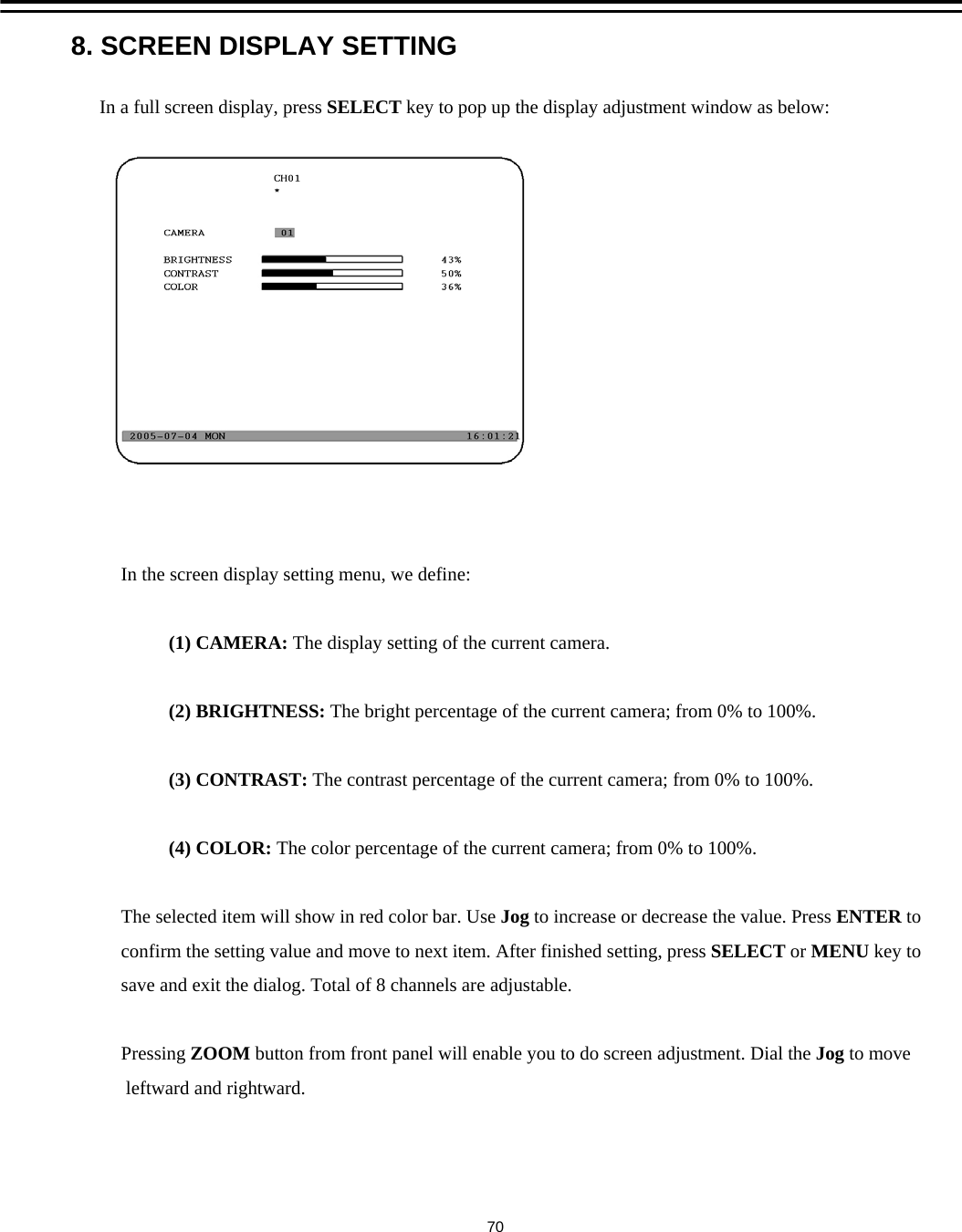
8. SCREEN DISPLAY SETTINGIn a full screen display, press SELECT key to pop up the display adjustment window as below:In the screen display setting menu, we define:(1) CAMERA: The display setting of the current camera.(2) BRIGHTNESS: The bright percentage of the current camera; from 0% to 100%.(3) CONTRAST: The contrast percentage of the current camera; from 0% to 100%.(4) COLOR: The color percentage of the current camera; from 0% to 100%.The selected item will show in red color bar. Use Jog to increase or decrease the value. Press ENTER toconfirm the setting value and move to next item. After finished setting, press SELECT or MENU key tosave and exit the dialog. Total of 8 channels are adjustable.Pressing ZOOM button from front panel will enable you to do screen adjustment. Dial the Jog to moveleftward and rightward.70
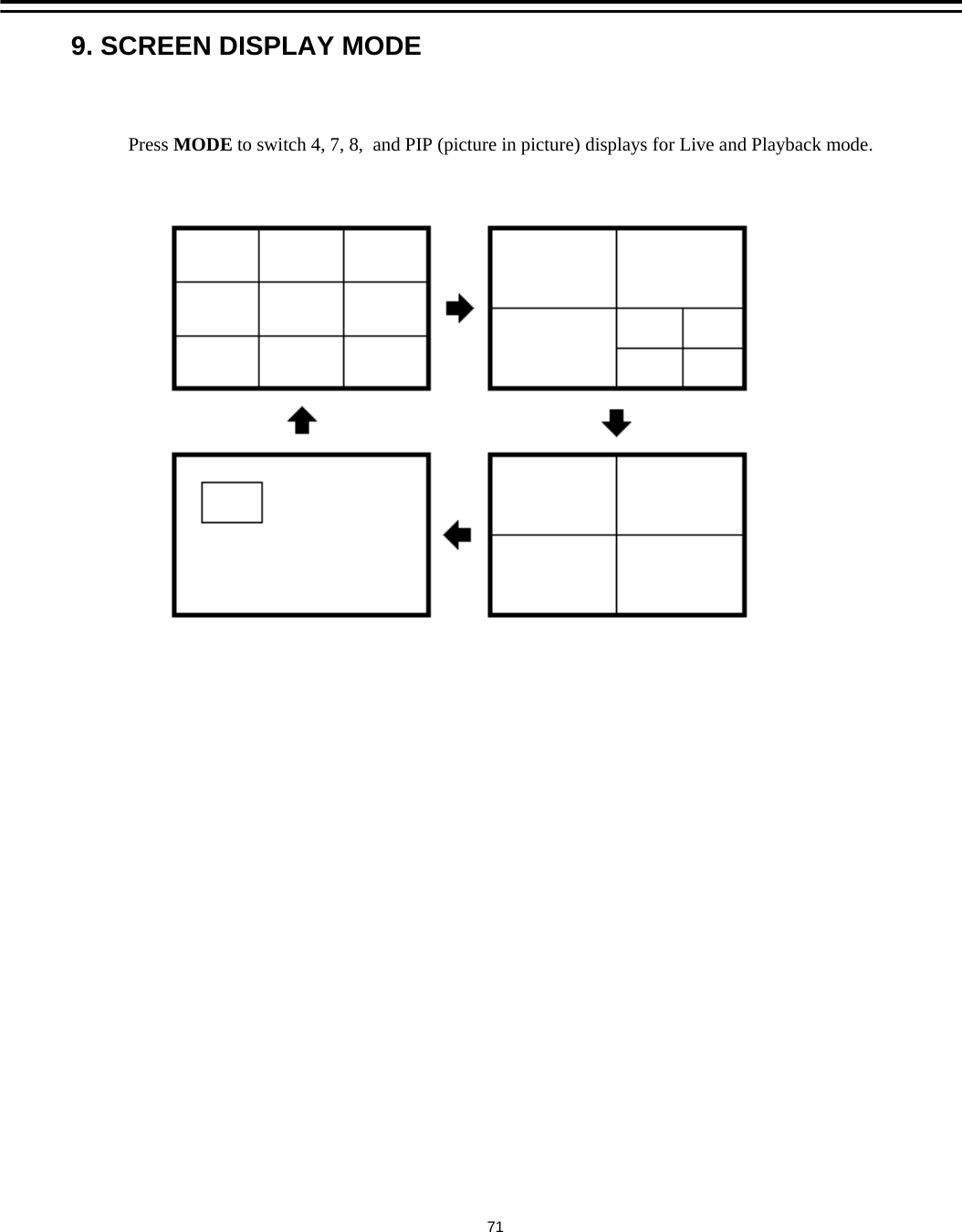
9. SCREEN DISPLAY MODEPress MODE to switch 4, 7, 8,  and PIP (picture in picture) displays for Live and Playback mode.71
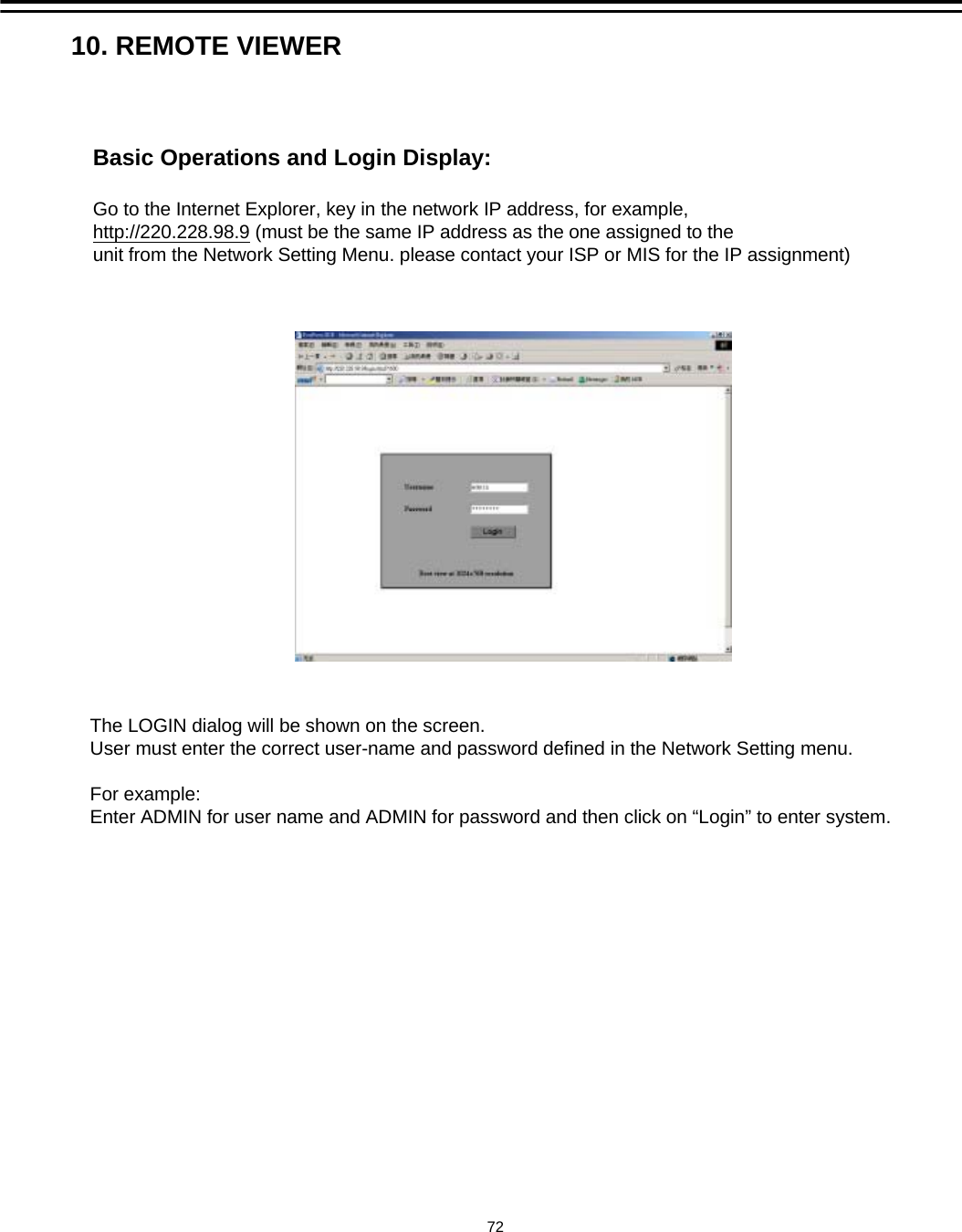
Basic Operations and Login Display:Go to the Internet Explorer, key in the network IP address, for example,http://220.228.98.9 (must be the same IP address as the one assigned to the unit from the Network Setting Menu. please contact your ISP or MIS for the IP assignment)The LOGIN dialog will be shown on the screen.User must enter the correct user-name and password defined in the Network Setting menu.For example:Enter ADMIN for user name and ADMIN for password and then click on “Login” to enter system. 10. REMOTE VIEWER72
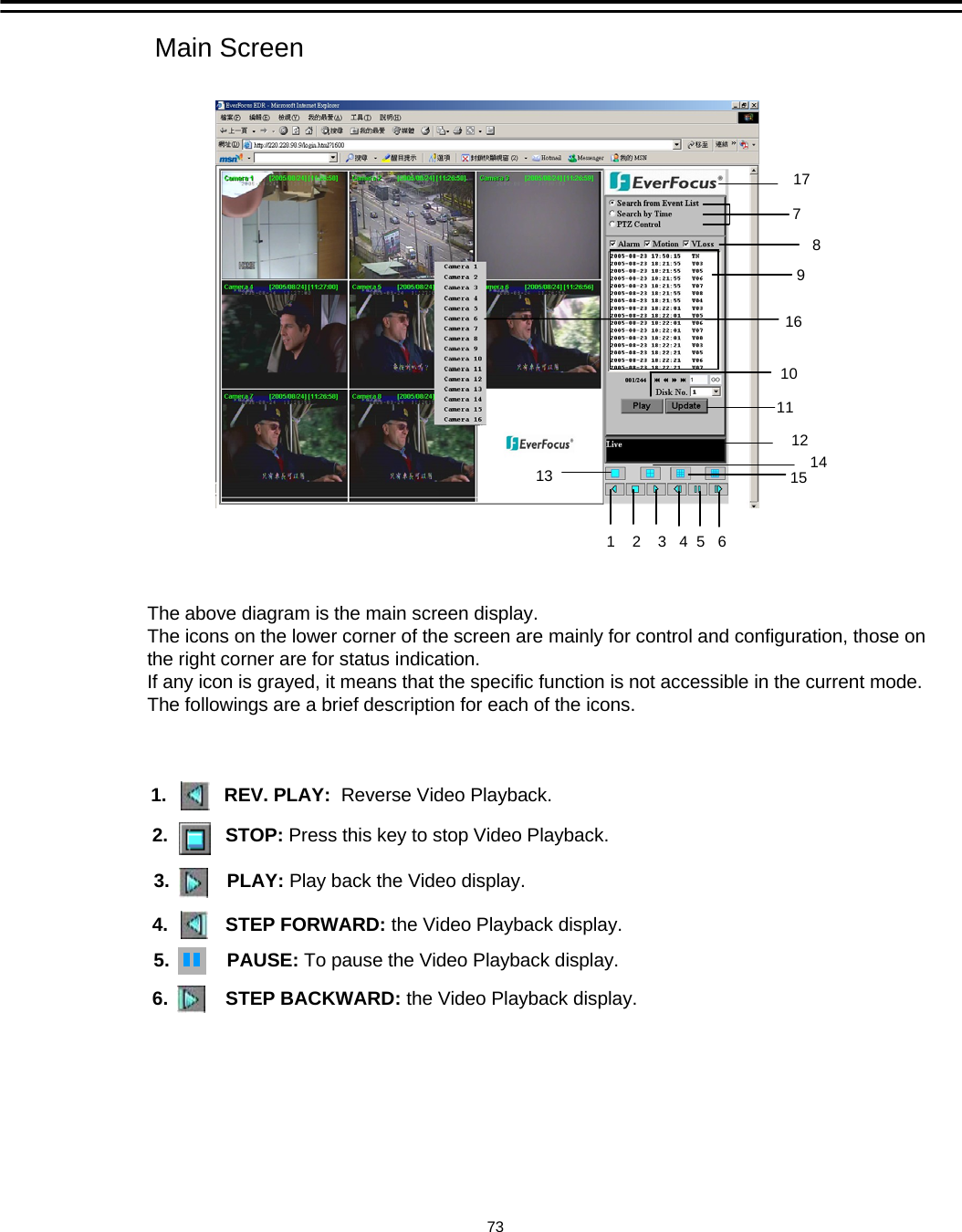
Main ScreenThe above diagram is the main screen display.The icons on the lower corner of the screen are mainly for control and configuration, those on the right corner are for status indication.If any icon is grayed, it means that the specific function is not accessible in the current mode.The followings are a brief description for each of the icons.2.           STOP: Press this key to stop Video Playback.3.           PLAY: Play back the Video display.1.           REV. PLAY:  Reverse Video Playback.4.           STEP FORWARD: the Video Playback display.6. STEP BACKWARD: the Video Playback display.5. PAUSE: To pause the Video Playback display. 737910111    2    3   4  5   6 121613 1415817
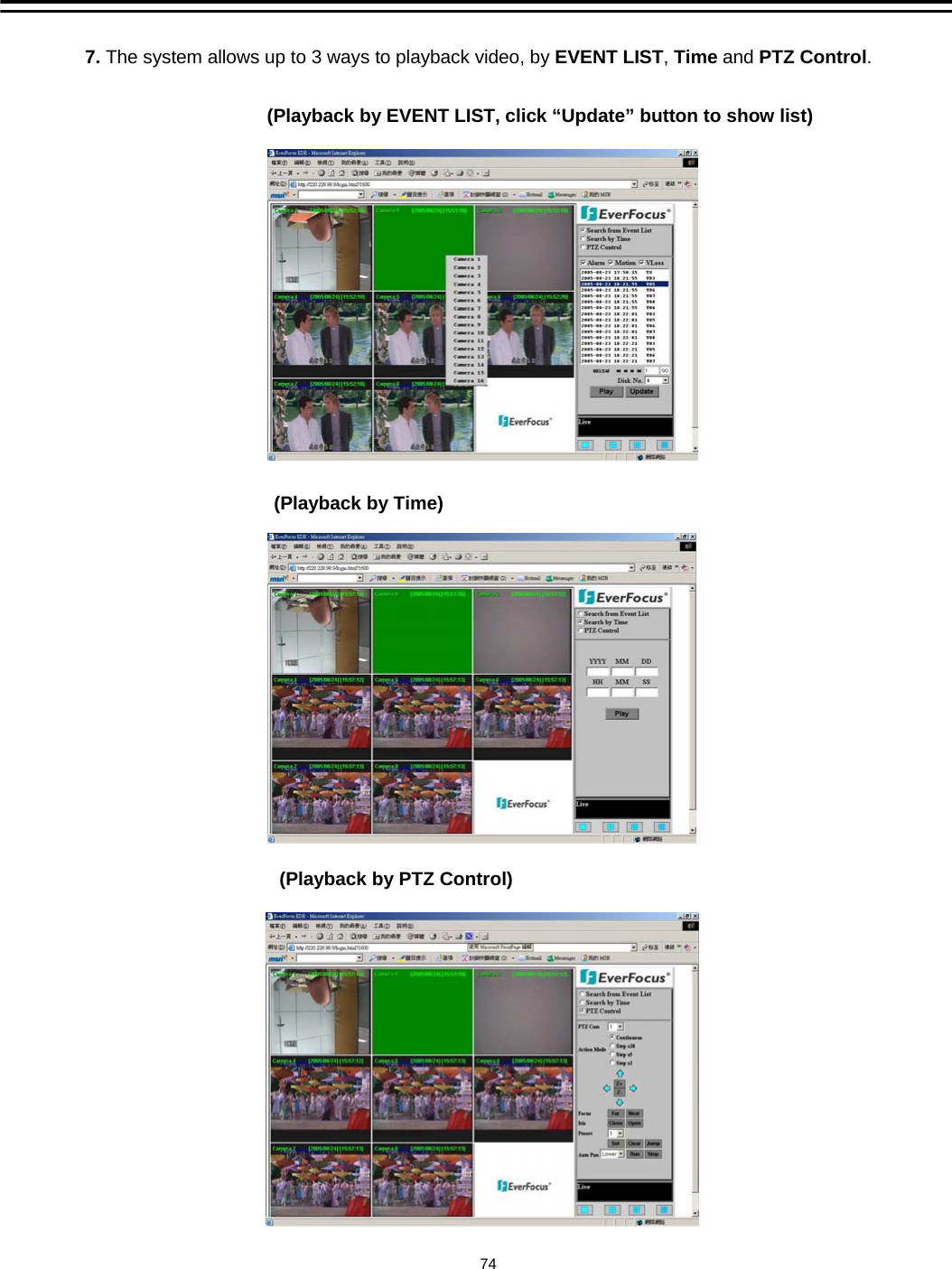
7. The system allows up to 3 ways to playback video, by EVENT LIST,Time and PTZ Control.(Playback by EVENT LIST, click “Update” button to show list)(Playback by PTZ Control)(Playback by Time)74
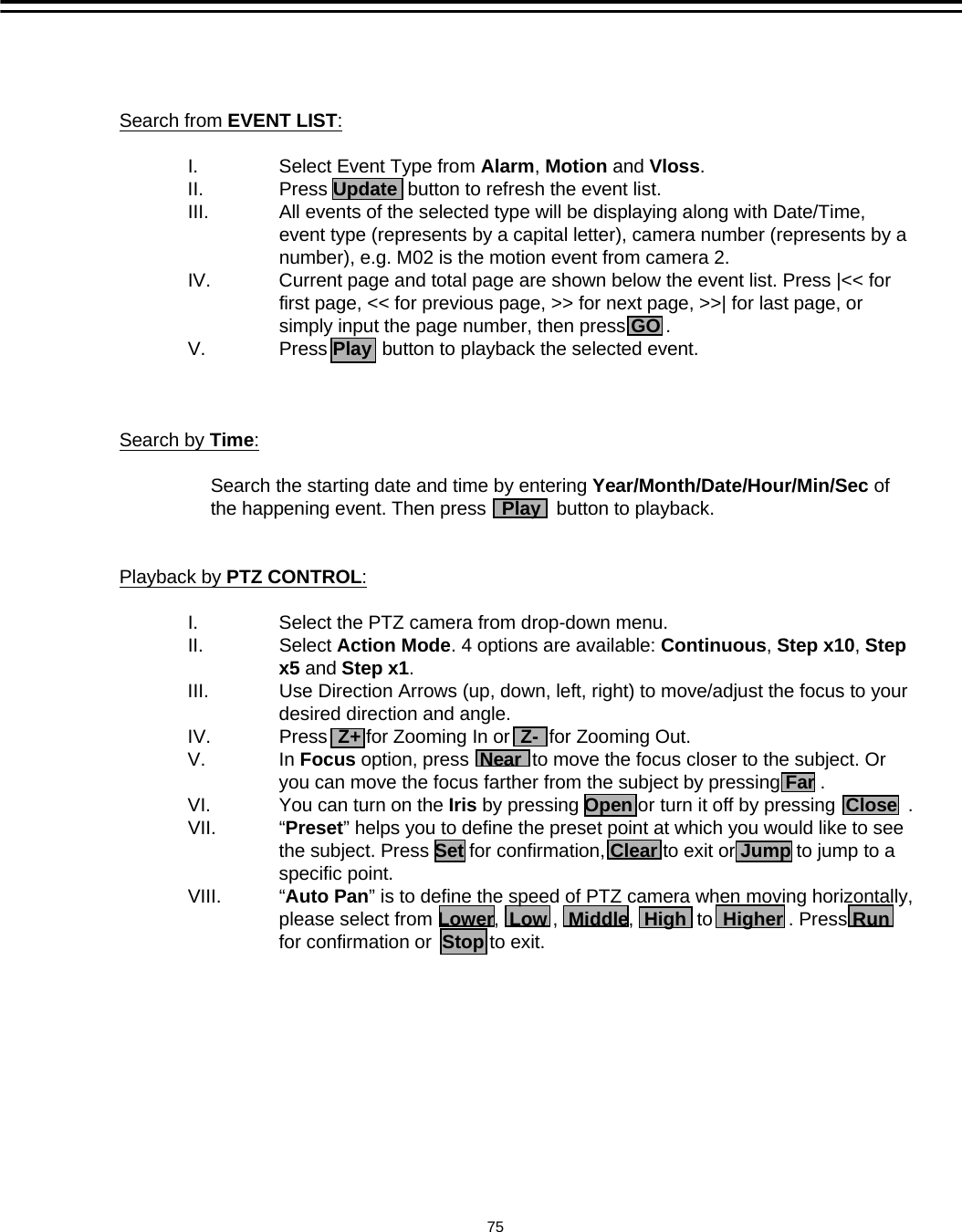
75Search from EVENT LIST:I. Select Event Type from Alarm, Motion and Vloss.II. Press Update button to refresh the event list. III. All events of the selected type will be displaying along with Date/Time, event type (represents by a capital letter), camera number (represents by a number), e.g. M02 is the motion event from camera 2.IV. Current page and total page are shown below the event list. Press |<< for first page, << for previous page, >> for next page, >>| for last page, or simply input the page number, then press GO .V. Press Play button to playback the selected event. Search by Time:Search the starting date and time by entering Year/Month/Date/Hour/Min/Sec of the happening event. Then press   Play button to playback. Playback by PTZ CONTROL:I. Select the PTZ camera from drop-down menu. II. Select Action Mode. 4 options are available: Continuous, Step x10, Step x5 and Step x1. III. Use Direction Arrows (up, down, left, right) to move/adjust the focus to your desired direction and angle. IV. Press  Z+ for Zooming In or  Z- for Zooming Out.V. In Focus option, press  Near to move the focus closer to the subject. Or you can move the focus farther from the subject by pressing Far .VI. You can turn on the Iris by pressing Open or turn it off by pressing  Close .VII. “Preset” helps you to define the preset point at which you would like to see the subject. Press Set for confirmation, Clear to exit or Jump to jump to a specific point.  VIII. “Auto Pan” is to define the speed of PTZ camera when moving horizontally, please select from Lower,  Low ,  Middle,  High to  Higher . Press Runfor confirmation or  Stop to exit.
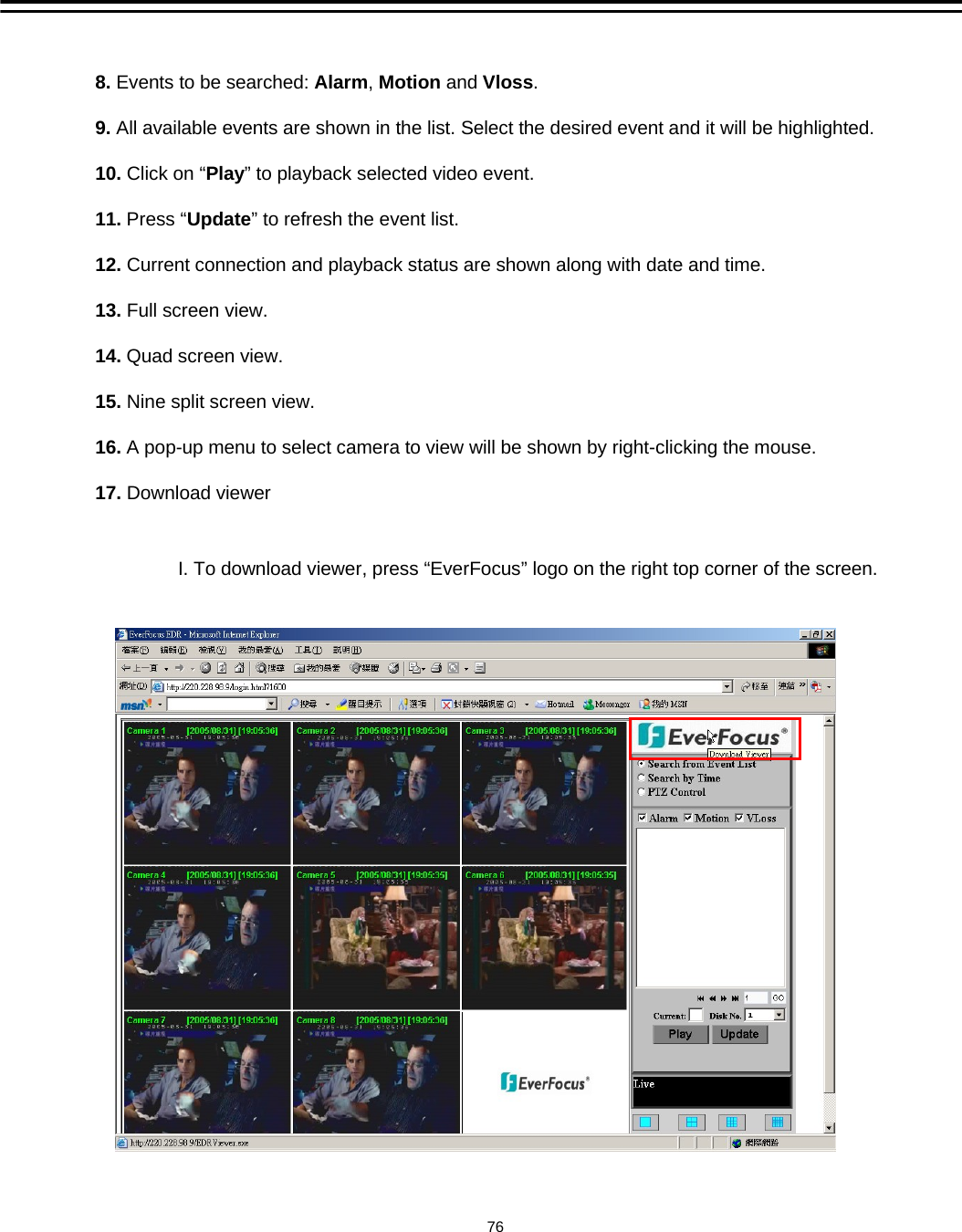
8. Events to be searched: Alarm, Motion and Vloss.9. All available events are shown in the list. Select the desired event and it will be highlighted. 10. Click on “Play” to playback selected video event.11. Press “Update” to refresh the event list.12. Current connection and playback status are shown along with date and time.13. Full screen view.14. Quad screen view.15. Nine split screen view.16. A pop-up menu to select camera to view will be shown by right-clicking the mouse.17. Download viewer76I. To download viewer, press “EverFocus” logo on the right top corner of the screen.
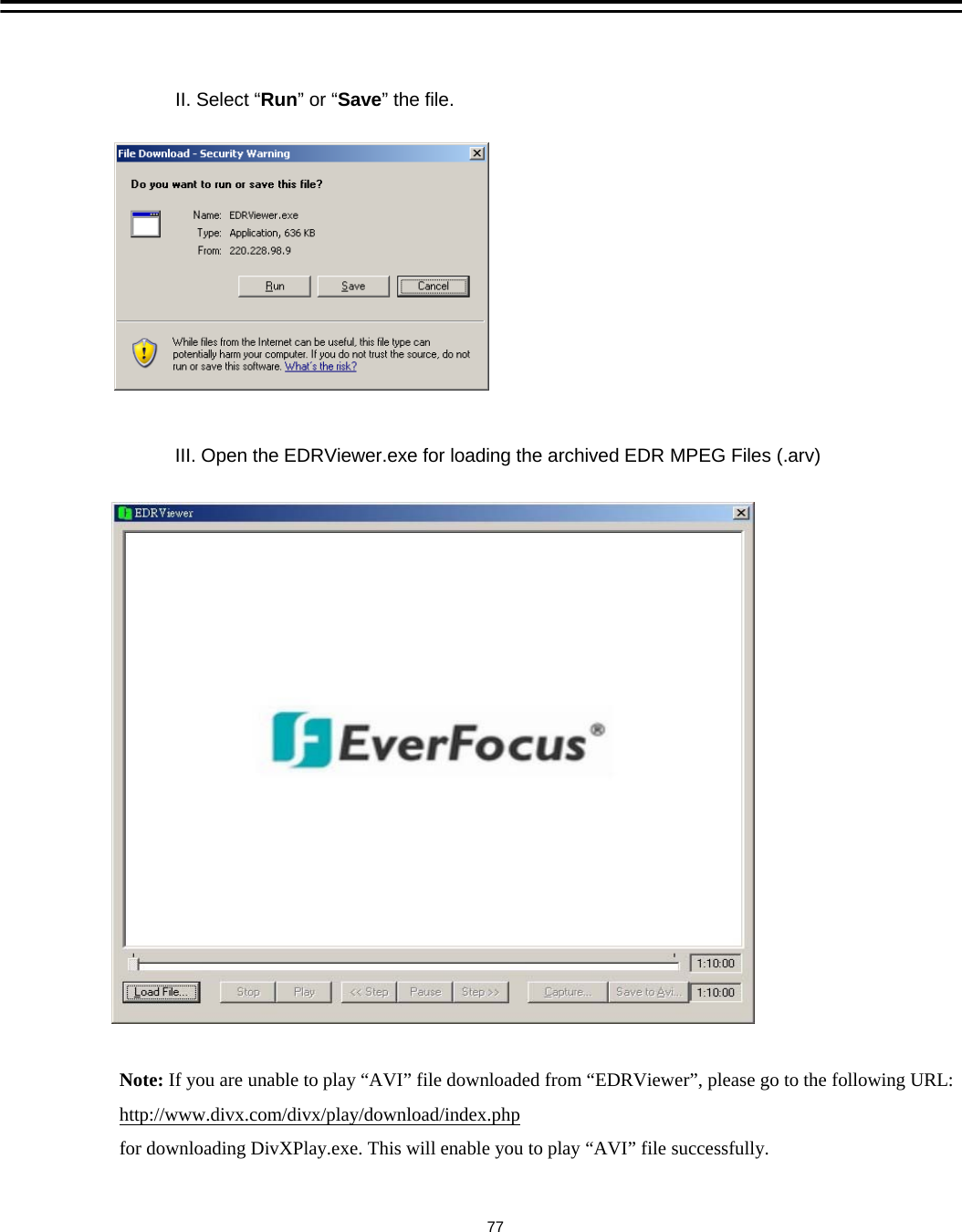
II. Select “Run”or “Save” the file.III. Open the EDRViewer.exe for loading the archived EDR MPEG Files (.arv) 77Note: If you are unable to play “AVI” file downloaded from “EDRViewer”, please go to the following URL:http://www.divx.com/divx/play/download/index.phpfor downloading DivXPlay.exe. This will enable you to play “AVI” file successfully.
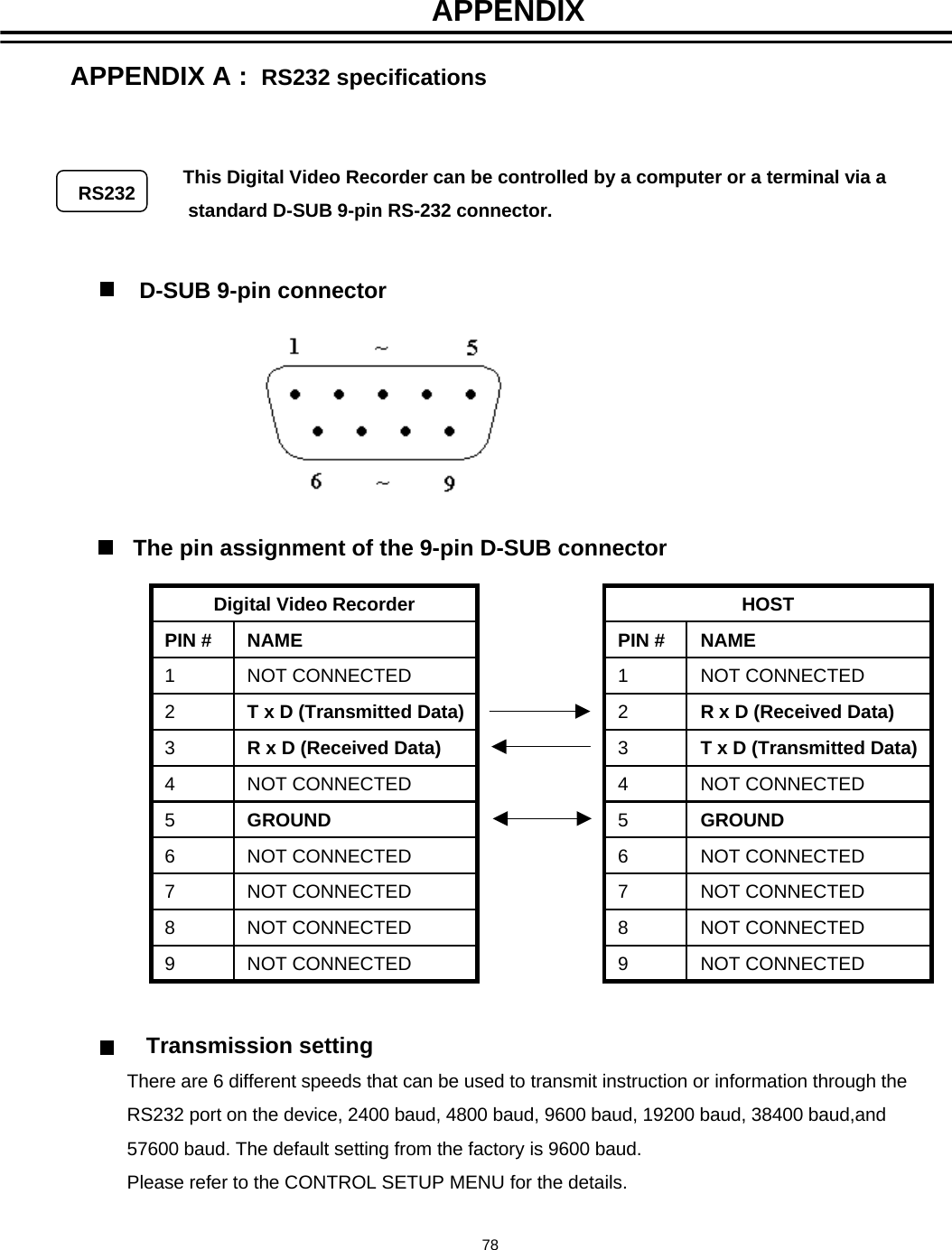
APPENDIXRS232The pin assignment of the 9-pin D-SUB connectorD-SUB 9-pin connectorThis Digital Video Recorder can be controlled by a computer or a terminal via astandard D-SUB 9-pin RS-232 connector.Transmission settingThere are 6 different speeds that can be used to transmit instruction or information through theRS232 port on the device, 2400 baud, 4800 baud, 9600 baud, 19200 baud, 38400 baud,and57600 baud. The default setting from the factory is 9600 baud.Please refer to the CONTROL SETUP MENU for the details.NOT CONNECTED9NOT CONNECTED8NOT CONNECTED7NOT CONNECTED6GROUND5NOT CONNECTED4R x D (Received Data)3T x D (Transmitted Data)2NOT CONNECTED1NAMEPIN #Digital Video RecorderNOT CONNECTED9NOT CONNECTED8NOT CONNECTED7NOT CONNECTED6GROUND5NOT CONNECTED4T x D (Transmitted Data)3R x D (Received Data)2NOT CONNECTED1NAMEPIN #HOSTAPPENDIX A :  RS232 specifications78
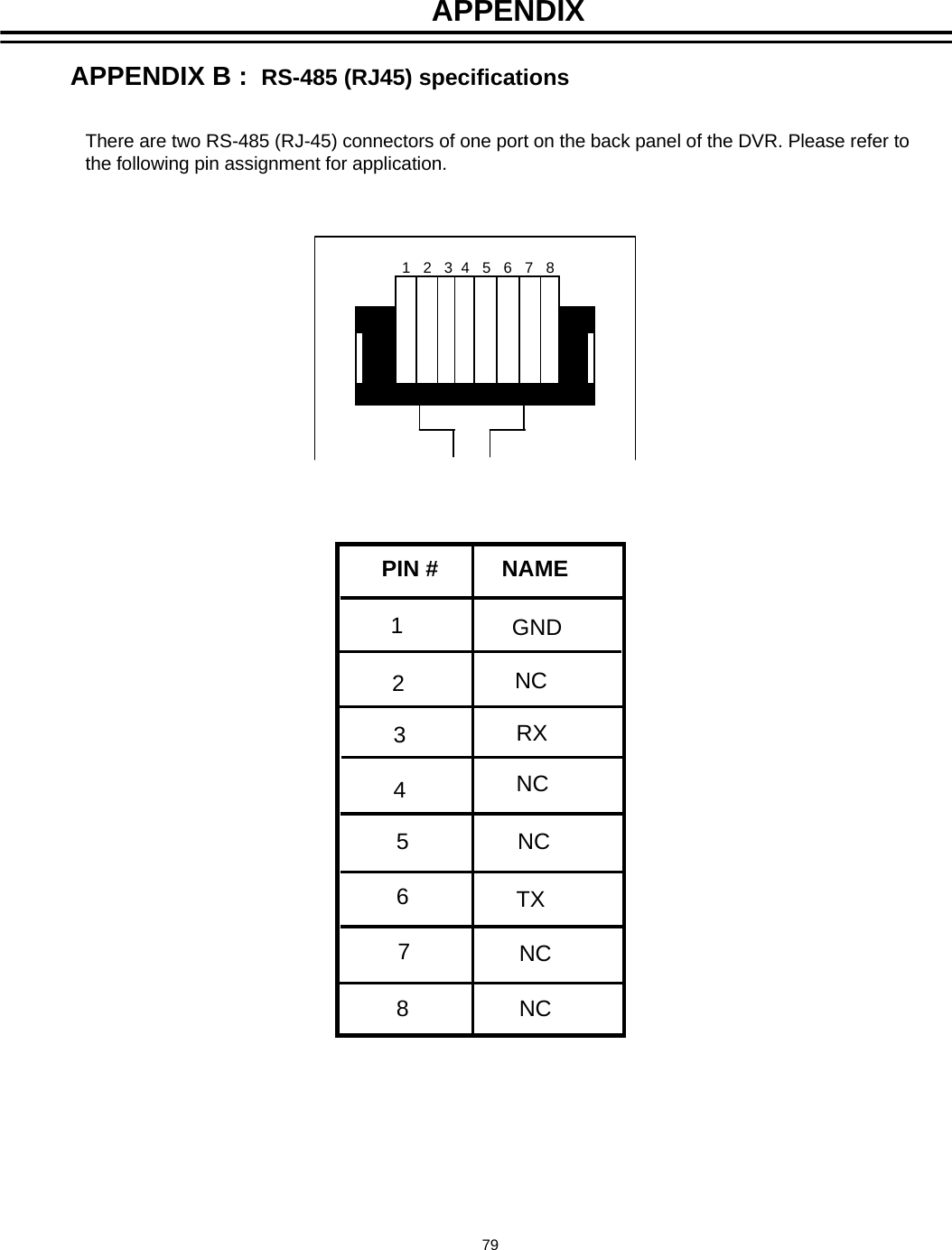
APPENDIX B :  RS-485 (RJ45) specificationsAPPENDIXThere are two RS-485 (RJ-45) connectors of one port on the back panel of the DVR. Please refer to the following pin assignment for application.1   2   3  4   5   6   7   8PIN #          NAME12354678GNDNCNCNCNCNCRXTX79
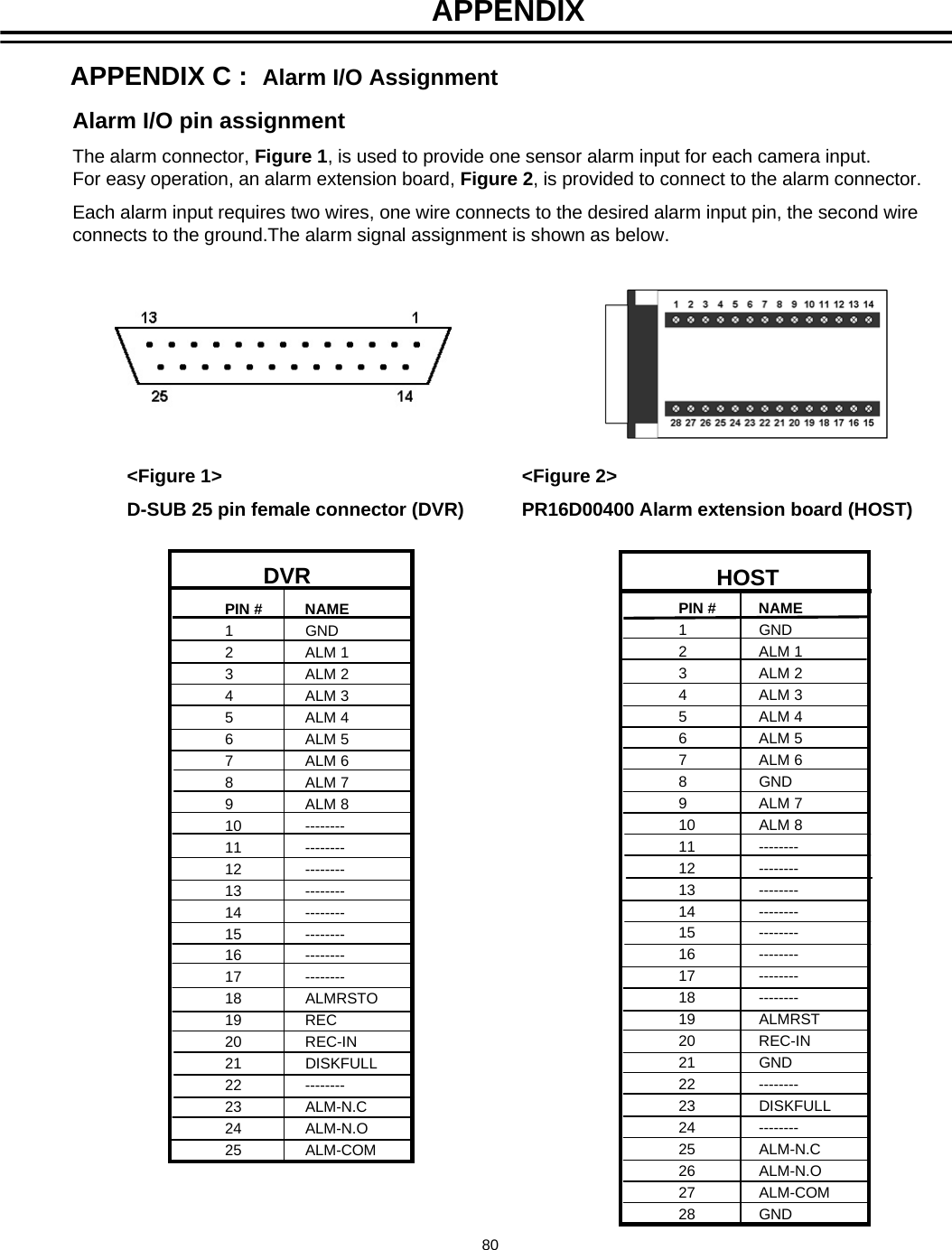
Alarm I/O pin assignmentThe alarm connector, Figure 1, is used to provide one sensor alarm input for each camera input.For easy operation, an alarm extension board, Figure 2, is provided to connect to the alarm connector.   Each alarm input requires two wires, one wire connects to the desired alarm input pin, the second wire connects to the ground.The alarm signal assignment is shown as below.   <Figure 1>D-SUB 25 pin female connector (DVR)<Figure 2>PR16D00400 Alarm extension board (HOST)PIN #          NAME1GND2ALM 13ALM 24ALM 35ALM 46ALM 57ALM 68ALM 79ALM 810 --------11 --------12 --------13 --------14 --------15 --------16 --------17 --------18 ALMRSTO19 REC20 REC-IN21 DISKFULL22 --------23 ALM-N.C24 ALM-N.O25 ALM-COMDVR HOSTPIN #          NAME1GND2ALM 13ALM 24ALM 35ALM 46ALM 57ALM 68GND9ALM 710 ALM 811 --------12 --------13 --------14 --------15 --------16 --------17 --------18 --------19 ALMRST20 REC-IN21 GND22 --------23 DISKFULL24 --------25 ALM-N.C26 ALM-N.O27 ALM-COM28 GNDAPPENDIX C :  Alarm I/O AssignmentAPPENDIX80
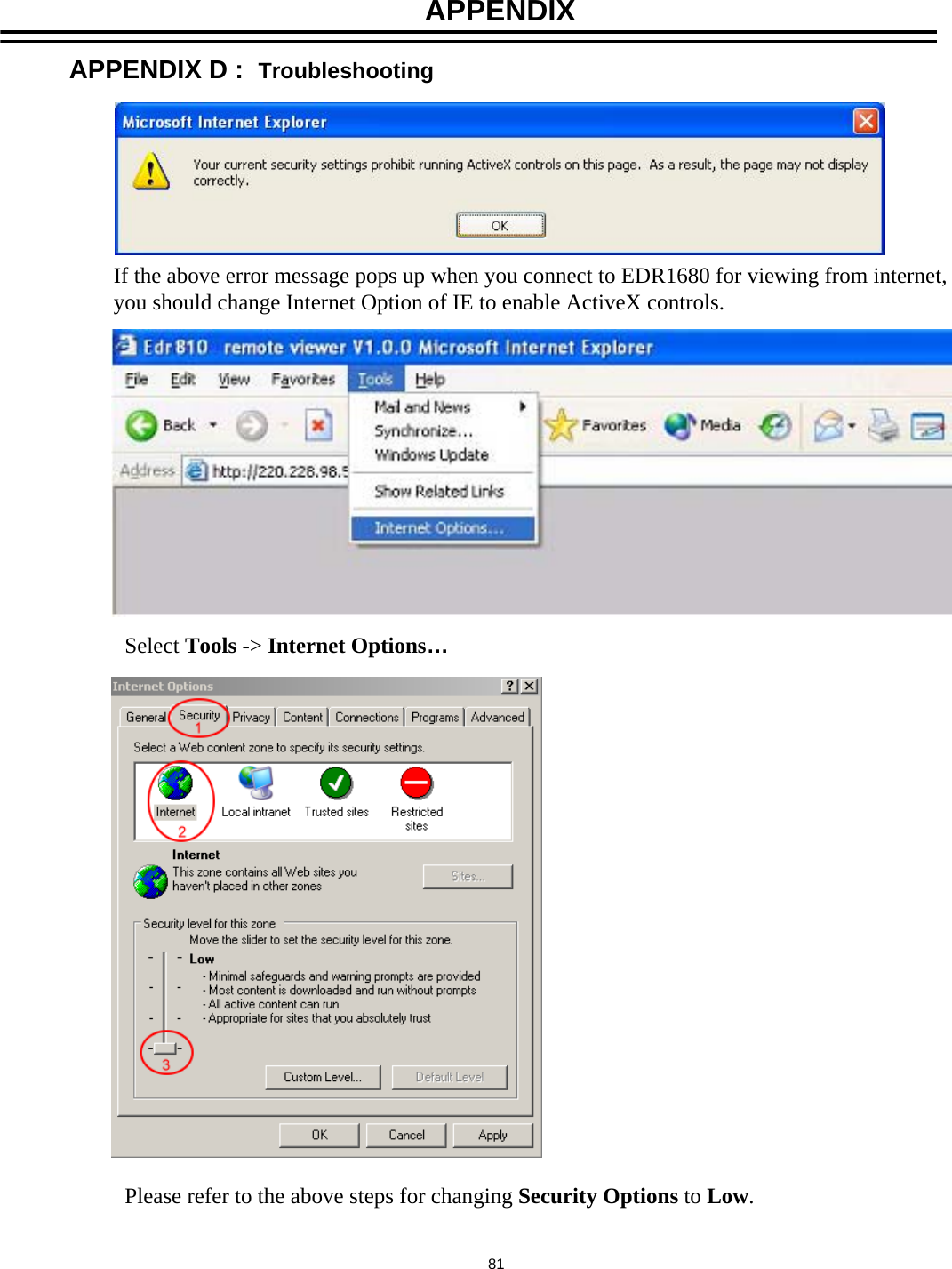
If the above error message pops up when you connect to EDR1680 for viewing from internet,you should change Internet Option of IE to enable ActiveX controls.Select Tools -> Internet Options…Please refer to the above steps for changing Security Options to Low. 81APPENDIX D :  TroubleshootingAPPENDIX
EverFocus Electronics Corp.Head Office:12F, No.79 Sec. 1 Shin-Tai Wu Road,Hsi-Chih, Taipei, TaiwanTEL: +886-2-26982334FAX: +886-2-26982380www.everfocus.com.twUSA Office:1801 Highland Ave. Unit ADuarte, CA 91010, U.S.A.TEL: +1-626-844-8888FAX: +1-626-844-8838www.everfocus.comEuropean Office:Albert-Einstein-Strasse 1D-46446 Emmerich, GermanyTEL: 49-2822-9394-0www.everfocus.deChina Office:Room 609, Technology Trade Building,Shandgdi Information Industry Base,Haidian District, Beijing,ChinaTEL: +86-10-62971096FAX: +86-10-62971432www.everfocus.com.cnJapan Office:1809 WBG MARIBU East 18F,2-6 Nakase.Mihama-ku.Chiba city 261-7118, JapanTEL :  +81-43-212-8188FAX :  +81-43-297-0081 www.everfocus.comEverFocus®P/N: M41HG0010DYour EverFocus product is designed and manufactured with high quality materials and components which can be recycled and reused.This symbol means that electrical and electronic equipment, at their end-of-life, should be disposed of separately from your household waste.Please, dispose of this equipment at your local community waste collection/recycling centre.In the European Union there are separate collection systems for used electrical and electronic product.Please, help us to conserve the environment we live in!Ihr EverFocus Produkt wurde entwickelt und hergestellt mit qualitativ hochwertigen Materialien und Komponenten, die recycelt und wieder verwendet werden können.Dieses Symbol bedeutet, dass elektrische und elektronische Geräte am Ende ihrer Nutzungsdauer vom Hausmüll getrennt entsorgt werden sollen.Bitte entsorgen Sie dieses Gerät bei Ihrer örtlichen kommunalen Sammelstelle oder im Recycling Centre.Helfen Sie uns bitte, die Umwelt zu erhalten, in der wir leben!

Navigation menu