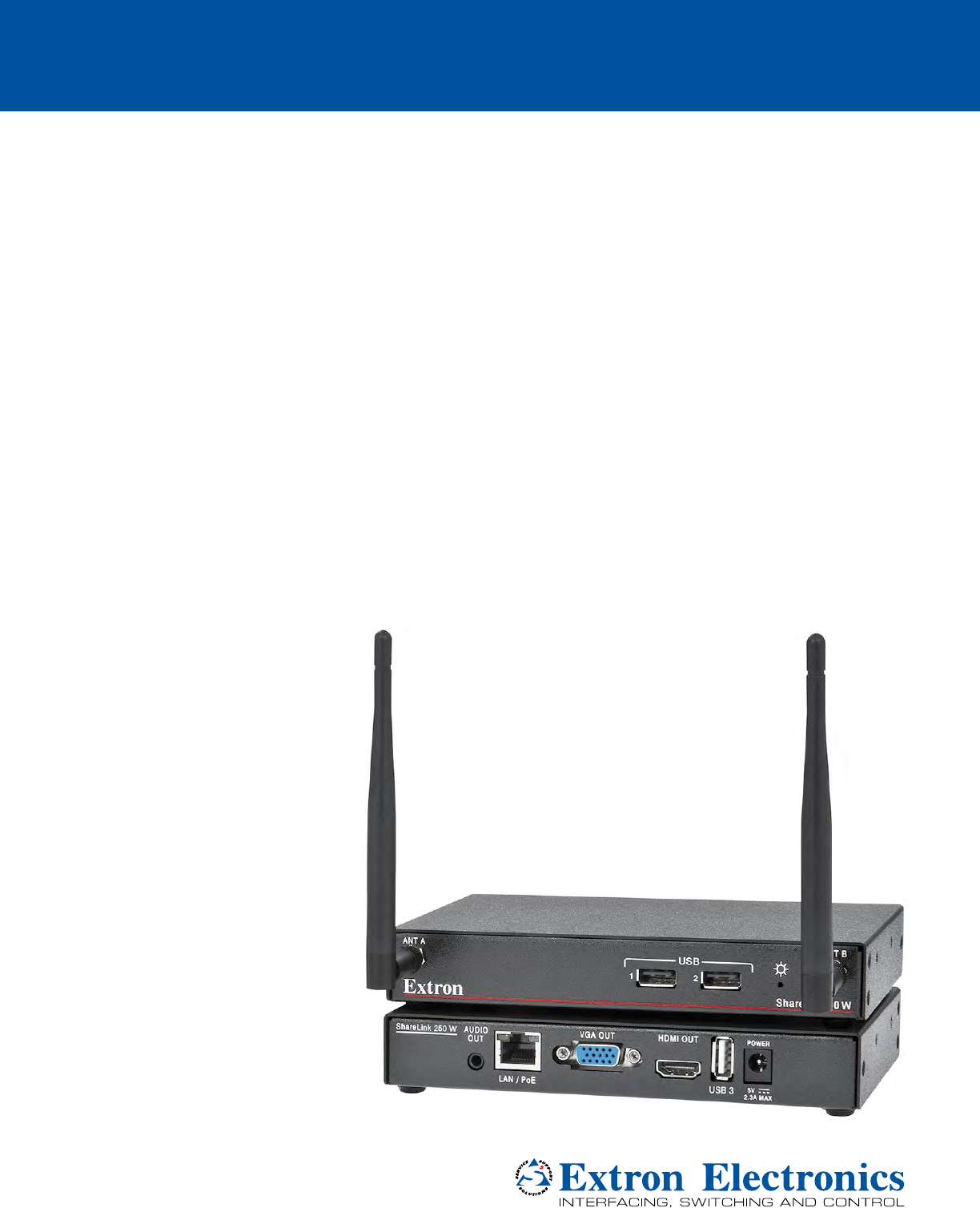
Extron Electronics EXTSL250W Wireless Collaboration Gateway User Manual
Extron Electronics Wireless Collaboration Gateway
User Manual
User Guide
ShareLink 250 W
Wireless Collaboration Systems
Wireless Collaboration Gateway
Safety Instructions
Safety Instructions • English
WARNING: This symbol, , when used on the product, is intended to
alert the user of the presence of uninsulated dangerous voltage within the
product’s enclosure that may present a risk of electric shock.
ATTENTION: This symbol, , when used on the product, is intended
to alert the user of important operating and maintenance (servicing)
instructions in the literature provided with the equipment.
For information on safety guidelines, regulatory compliances, EMI/EMF
compatibility, accessibility, and related topics, see the Extron Safety and
Regulatory Compliance Guide, part number 68-290-01, on the Extron website,
www.extron.com.
Instructions de sécurité • Français
AVERTISSEMENT : Ce pictogramme, , lorsqu’il est utilisé sur le
produit, signale à l’utilisateur la présence à l’intérieur du boîtier du produit
d’une tension électrique dangereuse susceptible de provoquer un choc
électrique.
ATTENTION : Ce pictogramme, , lorsqu’il est utilisé sur le produit, signale
à l’utilisateur des instructions d’utilisation ou de maintenance importantes
qui se trouvent dans la documentation fournie avec le matériel.
Pour en savoir plus sur les règles de sécurité, la conformité à la réglementation,
la compatibilité EMI/EMF, l’accessibilité, et autres sujets connexes, lisez les
informations de sécurité et de conformité Extron, réf. 68-290-01, sur le site
Extron, www.extron.com.
Sicherheitsanweisungen • Deutsch
WARNUNG: Dieses Symbol auf dem Produkt soll den Benutzer darauf
aufmerksam machen, dass im Inneren des Gehäuses dieses Produktes
gefährliche Spannungen herrschen, die nicht isoliert sind und die einen
elektrischen Schlag verursachen können.
VORSICHT: Dieses Symbol auf dem Produkt soll dem Benutzer in der
im Lieferumfang enthaltenen Dokumentation besonders wichtige Hinweise
zur Bedienung und Wartung (Instandhaltung) geben.
Weitere Informationen über die Sicherheitsrichtlinien, Produkthandhabung,
EMI/EMF-Kompatibilität, Zugänglichkeit und verwandte Themen finden Sie in
den Extron-Richtlinien für Sicherheit und Handhabung (Artikelnummer
68-290-01) auf der Extron-Website, , www.extron.com.
Instrucciones de seguridad • Español
ADVERTENCIA: Este símbolo, , cuando se utiliza en el producto,
avisa al usuario de la presencia de voltaje peligroso sin aislar dentro del
producto, lo que puede representar un riesgo de descarga eléctrica.
ATENCIÓN: Este símbolo, , cuando se utiliza en el producto, avisa
al usuario de la presencia de importantes instrucciones de uso y
mantenimiento recogidas en la documentación proporcionada con el
equipo.
Para obtener información sobre directrices de seguridad, cumplimiento
de normativas, compatibilidad electromagnética, accesibilidad y temas
relacionados, consulte la Guía de cumplimiento de normativas y seguridad de
Extron, referencia 68-290-01, en el sitio Web de Extron, www.extron.com.
Инструкция по технике безопасности • Русский
ПРЕДУПРЕЖДЕНИЕ: Данный символ, , если указан
на продукте, предупреждает пользователя о наличии
неизолированного опасного напряжения внутри корпуса
продукта, которое может привести к поражению
электрическим током.
ВНИМАНИЕ: Данный символ, , если указан на продукте,
предупреждает пользователя о наличии важных инструкций
по эксплуатации и обслуживанию в руководстве,
прилагаемом к данному оборудованию.
Для получения информации о правилах техники безопасности,
соблюдении нормативных требований, электромагнитной
совместимости (ЭМП/ЭДС), возможности доступа и других
вопросах см. руководство по безопасности и соблюдению
нормативных требований Extron на сайте Extron: , www.extron.com,
номер по каталогу - 68-290-01.
安全说明 • 简体中文
警告:产品上的这个标志意在警告用户该产品机壳内有暴露的危险 电压,
有触电危险。
注意:产品上的这个标志意在提示用户设备随附的用户手册中有
重要的操作和维护(维修)说明。
关于我们产品的安全指南、遵循的规范、EMI/EMF 的兼容性、无障碍
使用的特性等相关内容,敬请访问 Extron 网站 , www.extron.com,参见
Extron 安全规范指南,产品编号 68-290-01。
安全記事 • 繁體中文
警告: 若產品上使用此符號,是為了提醒使用者,產品機殼內存在著
可能會導致觸電之風險的未絕緣危險電壓。
注意 若產品上使用此符號,是為了提醒使用者,設備隨附的用戶手冊中有重
要的操作和維護(維修)説明。
有關安全性指導方針、法規遵守、EMI/EMF 相容性、存取範圍和相關主題的詳細資
訊,請瀏覽 Extron 網站:www.extron.com,然後參閱《Extron 安全性與法規
遵守手冊》,準則編號 68-290-01。
安全上のご注意 • 日本語
警告: この記号 が製品上に表示されている場合は、筐体内に絶縁されて
いない高電圧が流れ、感電の危険があることを示しています。
注意: この記号 が製品上に表示されている場合は、本機の取扱説明書
に 記載されている重要な操作と保守(整備)の指示についてユーザーの
注 意 を 喚 起 する も ので す。
安全上のご注意、法規厳守、EMI/EMF適合性、その他の関連項目に
つ い て は 、エクストロ ンの ウェブ サ イト www.extron.com より 『 Extron Safety
and Regulatory Compliance Guide』 ( P/N 68-290-01) をご覧ください 。
안전 지침 • 한국어
경고: 이 기호 가 제품에 사용될 경우, 제품의 인클로저 내에 있는
접지되지 않은 위험한 전류로 인해 사용자가 감전될 위험이 있음을
경고합니다.
주의: 이 기호 가 제품에 사용될 경우, 장비와 함께 제공된 책자에 나와
있는 주요 운영 및 유지보수(정비) 지침을 경고합니니.
안전 가이드라인, 규제 준수, EMI/EMF 호환성, 접근성, 그리고 관련 항목에
대한 자세한 내용은 Extron 웹 사이트(www.extron.com)의 Extron 안전 및
규제 준수 안내서, 68-290-01 조항을 참조하십시오.

FCC Class B Notice
NOTE: This device complies with part 15 of the FCC rules. Operation is subject to the
following two conditions: (1) This device may not cause harmful interference, and (2)
This device must accept any interference received, including interference that may
cause undesired operation.
This equipment has been tested and found to comply with the limits for a Class B digital
device, pursuant to part15 of the FCC rules. These limits provide reasonable protection
against harmful interference in a residential installation. This equipment generates, uses,
and can radiate radio frequency energy and, if not installed and used in accordance with
the instructions, may cause harmful interference to radio communications. There is no
guarantee that interference will not occur. If this equipment does cause interference to radio
or television reception, which can be determined by turning the equipment off and on, you
are encouraged to try to correct the interference by one or more of the following measures:
• Reorient or relocate the receiving antenna.
• Increase the separation between the equipment and receiver.
• Connect the equipment into an outlet on a circuit different from that to which the receiver is
connected.
• Consult the dealer or an experienced radio/TV technician for help.
In order to maintain compliance with FCC regulations, shielded cables must be used with
this equipment. Operation with non-approved equipment or unshielded cables is likely to
result in interference to radio and TV reception. The user is cautioned that changes and
modifications made to the equipment without the approval of the manufacturer could void
the user’s authority to operate this equipment.
FCC Radio Frequency Interference — Safety Notices
This device is restricted to indoor use due to its operation in the 5.15 to 5.25 GHz frequency
range. FCC requires this product to be used indoors for the frequency range 5.15 to 5.25
GHz to reduce the potential for harmful interference to co-channel Mobile Satellite systems.
Antenna Warnings
WARNING: The radiated output power of the wireless network device is far below the FCC
radio frequency exposure limits. Nevertheless, the unit should be used in such a manner
that the potential for human contact during normal operation is minimized. To avoid the
possibility of exceeding the FCC radio frequency exposure limits, you should keep a
distance of at least 20 cm between you (or any other person in the vicinity) and the antenna
that is built into the unit. Details of the authorized congurations can be found at https://
www.fcc.gov/general/fcc-id-search-page#block-menu-block-4 by entering the
FCC ID number on the device.
AVERTISSEMENT: La puissance de sortie rayonnée de l’appareil réseau sans l est
bien inférieure aux limites d’exposition aux radiofréquences de l’organisme américain
FCC (FederalCommunicationsCommission). Néanmoins, l’unité doit être utilisée de
telle sorte que le contact humain éventuel durant le fonctionnement régulier de l’appareil
soit réduit. An d’éviter toute possibilité de dépassement des limites d’exposition aux
radiofréquences de la FCC, vous êtes tenu de conserver une distance de 20cm (8’) au
minimum entre vous (ou toute autre personne située à proximité) et l’antenne intégrée à
l’unité. Des informations détaillées relatives aux congurations autorisées sont disponibles
sur https://www.fcc.gov/general/fcc-id-search-page#block-menu-block-4 en entrant le
numéro d’identicationFCC inscrit sur l’appareil.
NOTE: The wireless network device must be installed and used in strict accordance with Extron
Electronics’ instructions as described in the user documentation that comes with the product.
Any other installation or use will violate FCC Part 15 regulations.
Local Restrictions on 802.11a, 802.11b, 802.11g, and 802.11n Radio Usage
CAUTION: Due to the fact that the frequencies used by 802.11a, 802.11b, 802.11g, and
802.11n wireless LAN devices may not yet be harmonized in all countries, 802.11a,
802.11b, 802.11g, and 802.11n products are designed for use only in specic countries,
and are not allowed to be operated in countries other than those of designated use. As a
user of these products, you are responsible for ensuring that the products are used only in
the countries for which they were intended and for verifying that they are congured with
the correct selection of frequency and channel for the country of use. Any deviation from
the permissible power and frequency settings for the country of use is an infringement of
national law and may be punished as such.
ATTENTION: Étant donné que les fréquences utilisées par les appareils LAN sans l
compatibles avec les normes 802.11a, 802.11b, 802.11g, et 802.11n peuvent ne pas être
identiques dans tous les pays, les produits 802.11a, 802.11b, 802.11g, et 802.11n sont
adaptés à une utilisation dans certains pays uniquement et ne peuvent être utilisés dans
d’autres pays que ceux dans lesquels l’utilisation est prévue. En tant qu’utilisateur de ces
produits, vous devez vous assurer que les produits sont utilisés uniquement dans les pays
dans lesquels leur utilisation est prévue, et vérier qu’ils sont congurés avec le choix
correct de fréquence et de canal pour le pays d’utilisation. Toute entorse aux paramètres
autorisés de gestion de l’alimentation et de fréquence pour le pays d’utilisation constitue
une violation de la législation nationale et peut entraîner à ce titre une sanction.

Compliance IC
Canada, Industry Canada (IC) Notices
CAN ICES-3 (B)/NMB-3(B)
This device complies with Industry Canada licence-exempt RSS standard(s). Operation is
subject to the following two conditions: (1) this device may not cause interference, and (2)
this device must accept any interference, including interference that may cause undesired
operation of the device.
This device complies with RSS247 of Industry Canada.
This Class B digital apparatus complies with Canadian ICES-003, Issue 4, and RSS-247,
No 4.
To prevent radio interference to the licensed service, this device is intended to be operated
indoors and away from windows to provide maximum shielding. Equipment (or its transmit
antenna) that is installed outdoors is subject to licensing.
IC Antenna Statement
Under Industry Canada regulations, this radio transmitter may only operate using an antenna
of a type and maximum (or lesser) gain approved for the transmitter by Industry Canada.
To reduce potential radio interference to other users, the antenna type and its gain should
be so chosen that the equivalent isotropically radiated power (e.i.r.p.) is not more than that
necessary for successful communication.
This radio transmitter has been approved by Industry Canada to operate with the antenna
types listed below with the maximum permissible gain and required antenna impedance for
each antenna type indicated. Antenna types not included in this list, having a gain greater
than the maximum gain indicated for that type, are strictly prohibited for use with this device.
Type: Dipole
Maximum Peak Gain: 2 dBi
Impedance: 50 Ohm
Radio Frequency (RF) Exposure Information
This equipment complies with IC RSS-102 radiation exposure limits set forth for an
uncontrolled environment. This equipment should be installed and operated with minimum
distance 20 cm between the antenna and your body.

IC conformité
Canada, avis d’Industry Canada (IC)
CAN ICES-3 (B)/NMB-3(B)
Cet appareil est conforme aux normes des cahiers des charges sur les normes
radioélectriques (CNR) de l’ISDE applicables aux appareils exempts de licence. Son
utilisation est subordonnée aux deux conditions suivantes: (1)Cet appareil ne doit
provoquer aucune interférence, et (2)cet appareil doit accepter toute interférence, y compris
l’interférence susceptible de compromettre son fonctionnement.
Cet appareil est conforme aux normes CNR-247 de l’ISDE.
Cet appareil numérique de classeB est conforme aux normes canadiennes NMB-003,
4ème édition, et CNR-247, 4ème édition.
Afin d’éviter toute interférence électromagnétique avec le service faisant l’objet d’une
licence, cet appareil doit être utilisé dans des applications intérieures et être éloigné
des fenêtres afin de garantir une protection maximale. L’équipement (ou son antenne
d’émission) installé dans des applications extérieures fait l’objet d’une licence.
Note du ministère ISDECanada relative aux antennes
En vertu de la réglementation d’Industrie Canada, cet émetteur radio doit être utilisé
uniquement avec une antenne d’un certain type et d’un gain maximal (ou inférieur)
approuvé pour l’émetteur par le ministère. Afin de réduire les éventuelles interférences
électromagnétiques préjudiciables aux autres utilisateurs, il est essentiel de choisir le type
d’antenne et son gain de telle sorte que la puissance isotrope rayonnée équivalente (EIRP)
se révèle inférieure aux besoins requis pour garantir une communication satisfaisante.
Le fonctionnement de l’émetteur radio avec les types d’antenne listés ci-dessous a été
approuvé par Industrie Canada. Le gain maximal autorisé et l’impédance requise pour
chaque antenne sont par ailleurs indiqués. L’utilisation des types d’antenne non inclus dans
cette liste, qui possèdent un gain supérieur au gain maximal indiqué pour chaque type, est
strictement interdite avec cet appareil.
Type: dipôle
Gain d’antenne maximal: 2dBi
Impédance: 50ohms
Informations sur les limites d’exposition aux radiofréquences
Cet équipement est conforme aux limites d’exposition aux radiations CNR-102 établies pour
un environnement non contrôlé. Il doit être installé et contrôlé à une distance minimale de
20cm entre l’antenne et votre corps.
European Union
The low band 5.15 -5.35 GHz is for indoor use only.
This equipment complies with the essential requirements of the European Union directive
(see the Declaration of Conformity at www.extron.com)
Union européenne
La bande faible de fréquence comprise entre 5,15 et 5,35 GHz est destinée à un usage en
intérieur uniquement.
Cet appareil est conforme aux exigences essentielles de la directive de l’Union européenne
(consultez la déclaration de conformité sur www.extron.fr)
Conventions Used in this Guide
Notifications
The following notifications are used in this guide:
ATTENTION:
• Risk of property damage.
• Risque de dommages matériels.
NOTE: A note draws attention to important information.
Specifications Availability
Product specifications are available on the Extron website, www.extron.com.
Copyright
© 2016 Extron Electronics. All rights reserved.
Trademarks
All trademarks mentioned in this guide are the properties of their respective owners.
The following registered trademarks®, registered service marks(SM), and trademarks(TM) are the property of
RGBSystems, Inc. or Extron Electronics:
Registered Trademarks (®)
Extron, AVTrac, Cable Cubby, CrossPoint, DTP, eBUS, EDID Manager, EDID Minder, Flat Field, FlexOS, Global Configurator, GlobalViewer,
Hideaway, Inline, IP Intercom, IP Link, Key Minder, LinkLicense, LockIt, MediaLink, MediaPort, NetPA, PlenumVault, PoleVault, PowerCage,
PURE3, Quantum, SoundField, SpeedMount, SpeedSwitch, System INTEGRATOR, TeamWork, TouchLink, V-Lock, VersaTools, VN-Matrix,
VoiceLift, WallVault, WindoWall, XTP, XTP Systems
Registered Service Mark(SM) : S3 Service Support Solutions
Trademarks (™)
AAP, AFL (Accu-Rate Frame Lock), ADSP (Advanced Digital Sync Processing), Auto-Image, CableCover, CDRS (Class D Ripple Suppression),
DDSP (Digital Display Sync Processing), DMI (Dynamic Motion Interpolation), Driver Configurator, DSP Configurator, DSVP (Digital Sync
Validation Processing), eLink, Entwine, EQIP, FastBite, FOX, FOXBOX, IP Intercom HelpDesk, MAAP, MicroDigital, ProDSP, QS-FPC
(QuickSwitch Front Panel Controller), Room Agent, Scope-Trigger, ShareLink, SIS, Simple Instruction Set, Skew-Free, SpeedNav, Triple-Action
Switching, True4K, Vector™ 4K, WebShare, XTRA, ZipCaddy, ZipClip

viiiShareLink 250 W• Contents
Contents
Introduction............................................................ 1
About the ShareLink 250 W ................................ 1
Features ............................................................. 2
Installation .............................................................. 3
Rear Panel Features and Cabling ........................ 3
Front Panel Features and Cabling ....................... 5
Bottom Panel Features ....................................... 5
Setting Up the Standby Screen .......................... 6
Using the Calibration Tool ............................... 7
Using the Screen Resize Tool .......................... 8
Using the Whiteboard Feature......................... 9
Using the USB Player ................................... 10
Operation Using a Computer .......................... 11
Connecting a Computer to the
ShareLink 250 W ............................................. 11
Connecting through the ShareLink 250 W
Internal WAP................................................ 11
Connecting through an External WAP ........... 11
Connecting through a Network Hub,
Switch, or Router ......................................... 11
Setting Up the ShareLink 250 W Software ........ 12
Running the ShareLink 250 W
Lite Software ............................................... 12
Downloading and Installing the
ShareLink 250 W Pro Software .................... 13
Using the ShareLink 250 W Software................ 15
Presenting the Computer Screen
(Share my Screen Tab) ................................. 15
Presenting a Media File (Share Media Tab) .... 16
Using the Software Menu.............................. 17
Sharing on Multiple Screens ......................... 18
Creating a USB Thumb-drive App .................... 18
Creating a Room File ........................................ 19
Operation Using a Mobile Device ................... 20
Downloading MirrorOp for Extron ShareLink ..... 20
Using MirrorOp for Extron ShareLink ................. 20
Connecting to a Receiver .............................. 20
Main Menu Overview .................................... 22
Presenting Documents and Photos............... 23
Presenting Files from a Cloud Storage .......... 26
Presenting Web Pages ................................. 30
Presenting the Device Camera ...................... 31
Presenting Device Screenshots..................... 31
Making Annotations ...................................... 32
Settings ........................................................ 32
Downloading MirrorOp Sender for Galaxy ......... 33
Using MirrorOp Sender for Galaxy .................... 33
Using the Embedded Web Pages ................... 34
Opening the Embedded Web Pages ................. 34
Watching a Presentation (WebShare) ................ 35
Moderating a Presentation ................................ 36
Moderating through the Moderator
Control Web Page ....................................... 36
Moderating through an Extron ShareLink
Driver ........................................................... 37
Configuring ShareLink 250 W Settings .............. 38
Device Setup ................................................ 40
Network Setup ............................................. 41
WiFi Setup .................................................... 42
SNMP Setup ................................................ 45
OSD Setup ................................................... 46
WebShare Setup .......................................... 47
Web Page Moderator Setup ......................... 48
Admin Password .......................................... 48
Firmware Update .......................................... 49
Reset to Default ............................................ 50
Reboot System ............................................. 50

ShareLink 250 W • Contents ix
Reference Information ...................................... 51
Mounting .......................................................... 51
Wall Mounting ............................................... 51
Rack Mounting ............................................. 52
Under-desk and Furniture Mounting .............. 52
Downloading ShareLink 250 W Firmware ......... 53
Firewall Traversal............................................... 54
Available Wi-Fi Channels ................................... 55
2.4 GHz Band — Channel Selection ............. 55
5 GHz Band — Channel Selection ................ 55
Extron Warranty .................................................. 57
ShareLink 250 W • Introduction 1
Introduction
This section covers the following:
• About the ShareLink 250 W
• Features
About the ShareLink 250 W
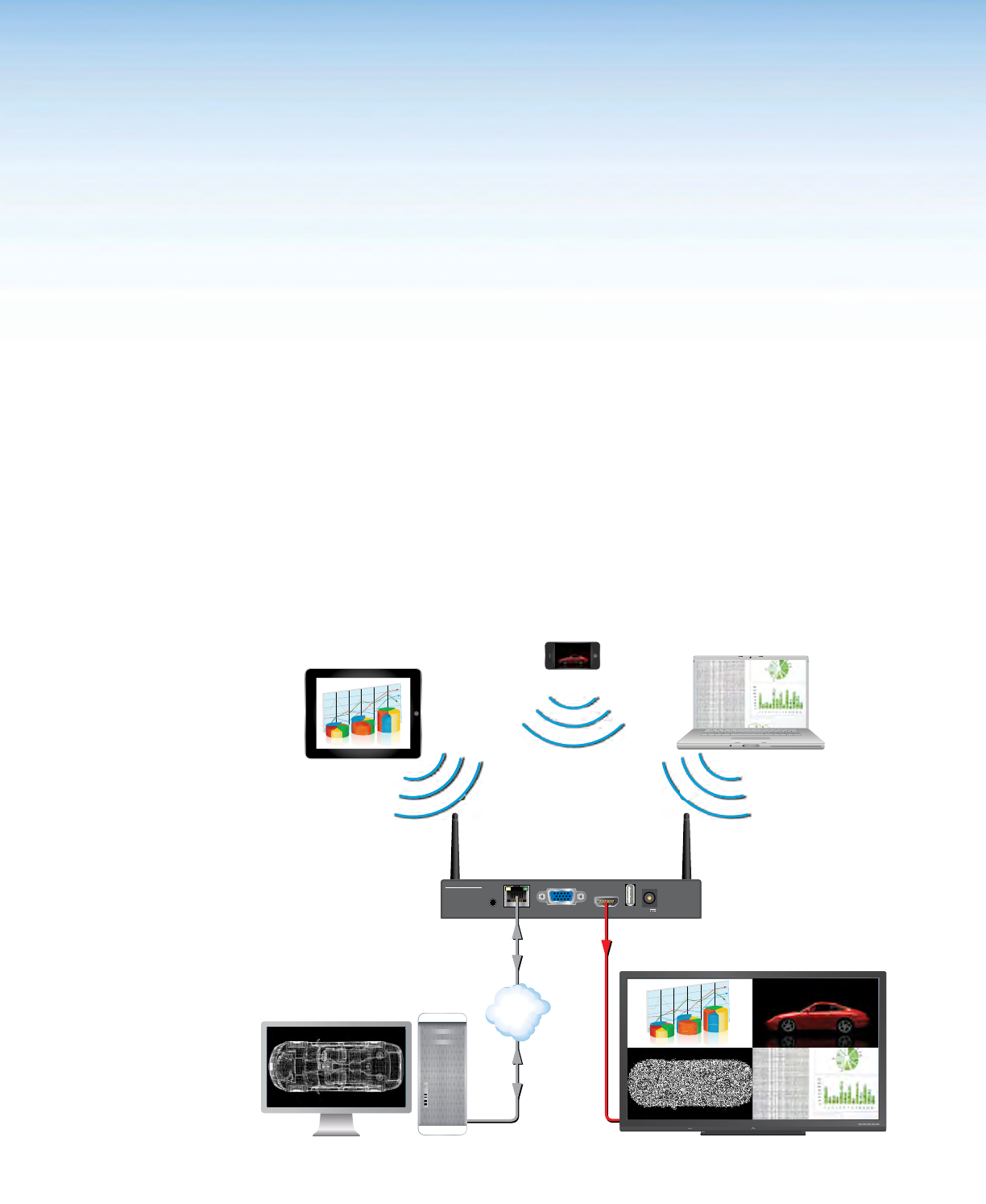
The Extron ShareLink 250 W Wireless Collaboration Gateway allows users to present
wirelessly from their mobile device or computer onto a display device. The
ShareLink 250 W is compatible with Windows® and OS X® computers as well as AndroidTM
and Apple® smartphones and tablets.
The ShareLink 250 W model includes an integrated wireless access point (WAP). Users
connect directly to the ShareLink 250 W through a Wi-Fi connection. A Gigabit Ethernet port
provides a high-speed network connection. The ShareLink 250 W wireless model is ideal
for creating a stand-alone wireless collaboration and presentation system or adding wireless
capabilities to a more traditional wired solution.
This model can operate on the 5 GHz or 2.4 GHz wireless band (see WiFi Setup on page 42
for instructions on wireless band configuration).
ShareLink 250 W AUDIO
OUT
LAN / PoE
VGA OUT HDMI OUT
USB 3
POWER
5V
2.3A MAX
MODEL 80
FLAT PANEL
Wireless
WirelessWireless
Network
Extron
ShareLink 250 W
Wireless Collaboration
Gateway
Ethernet
Ethernet
HDMI
DisplayComputer
Laptop
Tablet
Smartphone
Figure 1. ShareLink 250 W Application Diagram

ShareLink 250 W • Introduction 2
Features
• Wirelessly share content from personal mobile devices — Allows users to
connect a wide variety of devices to the system wirelessly or through a wired LAN
connection.
• Wireless 5G support — Configurable for transmission on the 5 GHz or 2.4 GHz
wireless band.
• Outputs — HDMI connector, 15-pin HD connector, 3.5 mm stereo audio mini jack
• Supports Microsoft® Windows and OS X® computers as well as Apple and
Android smartphones and tablets
• Full screen or four-window display — Full screen display of content from a single
personal device or simultaneous display of multiple devices into four windows on a
single display.
• Dropbox®, Google DriveTM, iCloud®, and OneDriveTM integration within the
MirrorOp® for Extron ShareLink app — Provides easy access to content stored in
the cloud.
• Content sharing from a computer to as many as four ShareLink 250 W
units — Allows a Windows or OS X computer to send content to multiple
ShareLink 250 W units on the network, supporting up to four displays.
• Full-motion video playback from laptops — Enables a Windows or OS X
computer to send full motion video with audio to the display for a smooth viewing
experience.
• Supports display of documents, graphics, images, and videos directly from
a USB flash drive — Enables content presentation without requiring a laptop or
computer.
• WebShare™ technology allows attendees to view slide images on personal
devices via a Web browser — ShareLink 250 W enables meeting content to display
on each participant’s mobile device, ensuring visibility regardless of sight lines.
• Power over Ethernet, or PoE, eliminates the need for a local power
supply — Offers easy installation, reduced labor, and fewer devices to install. Data and
power are delivered over the single cable.
• Integrated wireless access point — Offers a local connection point for attendees,
enabling segmentation of guest and private networks.
• USB ports for peripheral support — Allows connection of a USB keyboard or
mouse, and enables simple annotation capabilities with devices such as an interactive
whiteboard.
• HDMI and VGA video outputs — Offers flexibility to work with digital and analog
display devices or a system switcher to easily add wireless capabilities to existing video
systems.
• SNMP support for remote monitoring — Supports network monitoring for the
operational health of network-attached devices.
ShareLink 250 W • Installation 3
Installation
This section covers the following:
• Rear Panel Features and Cabling
• Front Panel Features and Cabling
• Bottom Panel Features
• Setting up the Standby Screen
Rear Panel Features and Cabling
The following section covers rear panel features and cabling procedures. If mounting is
necessary before connecting cables, see Mounting on page 51.
BB
ShareLink 250 W AUDIO
OUT
LAN / PoE
VGA OUT HDMI OUT
USB 3
POWER
5V
2.3A MAX
Extron
ANT A ANT B
12
USB
ShareLink 250 W
CC
AA BB CC DD EEFF
AA
Figure 2. Rear Panel
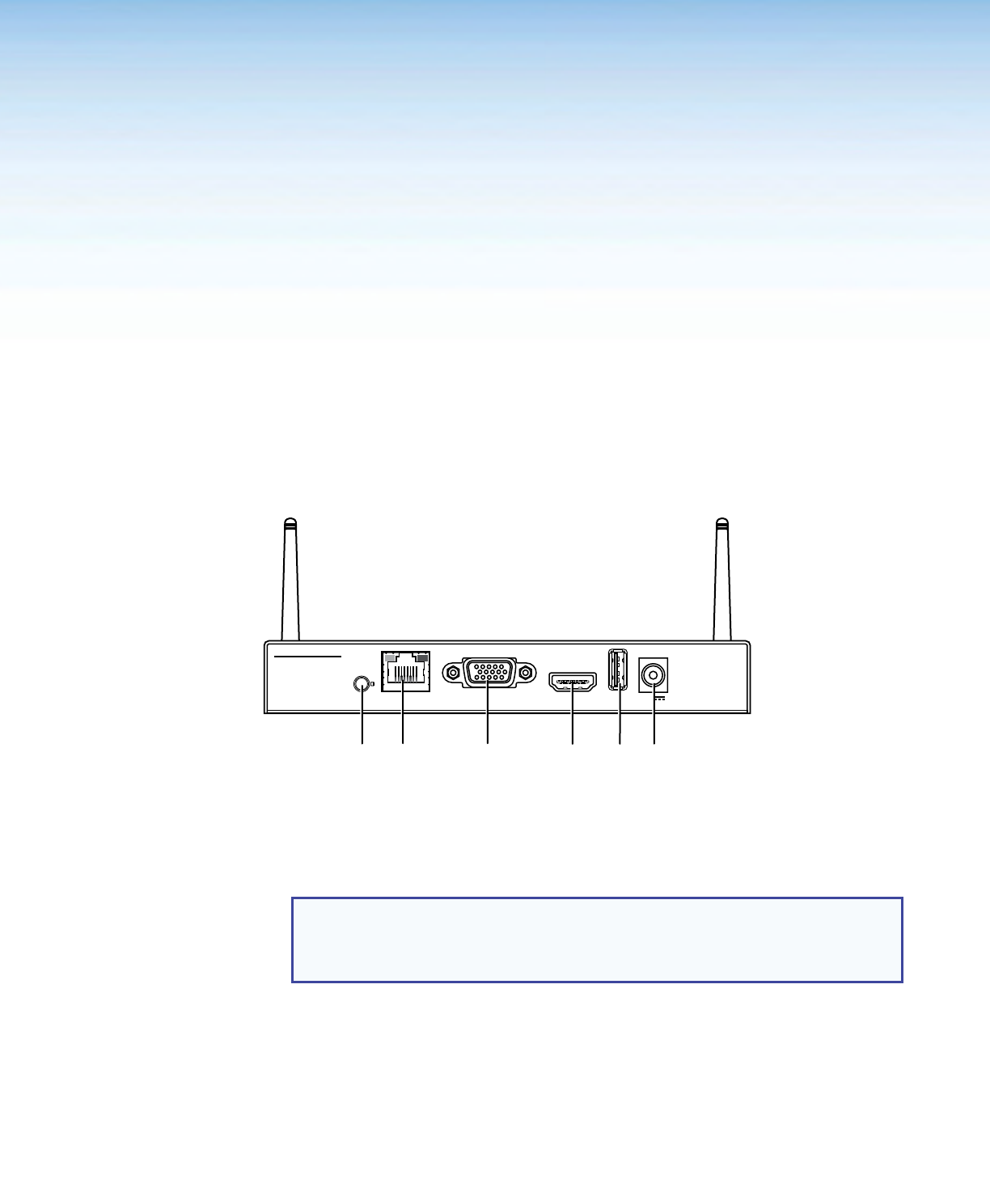
A Audio output — (Optional) connect a 3.5 mm audio output cable between this female
audio jack and the audio input of a display or audio amplifier.
B RJ-45 connector — Use an Ethernet cable to connect a network switch, hub, router,
or PC to this female RJ-45 connector.
NOTE: When the ShareLink 250 W is connected to a wired or wireless network, by
default it functions as a wireless access point, allowing access to the
ShareLink 250 W from all network computers. This feature can be disabled in the
WiFi Setup configuration settings (see figure 41, 1, on page 42).
C VGA output — (Optional) Connect a VGA display device or touchscreen into this
female VGA connector.
D HDMI output — Connect an HDMI display device or touchscreen into this female
HDMI connector.
E USB port — (Optional) Connect a USB flash drive to present documents, photos,
videos, or audio files using the ShareLink USB player feature (figure 4, 5 on page 6).
F Power input — Connect the included power supply to the power input (see the NOTE
and ATTENTION on the next page for important information).
ShareLink 250 W • Installation 4
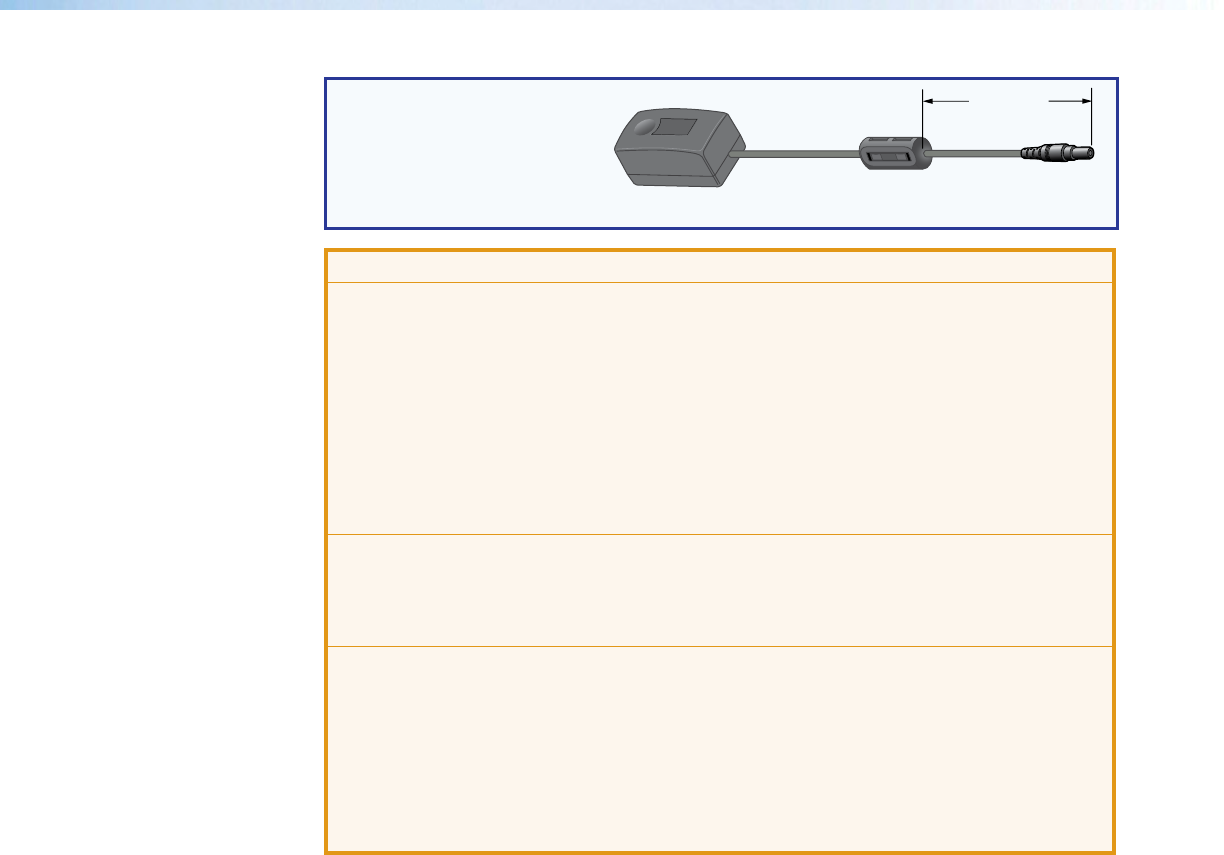
NOTE: Snap the included
ferrite bead onto the
power supply cable at a
distance of 6 inches
(15.2 cm) from the end of
the DC connector.
6 inches
(15.2 cm)
ATTENTION:
• This product is intended to be supplied by a Listed Power Unit marked “Class 2”
or “LPS,” rated 5 VDC, 2.6 A minimum. Always use a power supply supplied by
or specified by Extron. Use of an unauthorized power supply voids all regulatory
compliance certification and may cause damage to the supply and the end product.
• Ce produit est destiné à une utilisation avec une source d’alimentation listéeUL
avec l’appellation «Classe2» ou «LPS» et normée 5Vcc, 2,6A minimum. Utilisez
toujours les sources d’alimentation recommandées par Extron. L’utilisation d’une
source d’alimentation non autorisée annule toute conformité réglementaire et peut
endommager la source d’alimentation ainsi que le produit final.
• Unless otherwise stated, the AC/DC adapters are not suitable for use in air handling
spaces or in wall cavities.
• Sauf mention contraire, les adaptateurs AC/DC ne sont pas appropriés pour une
utilisation dans les espaces d’aération ou dans les cavités murales.
• The installation must always be in accordance with the applicable provisions of
National Electrical Code ANSI/NFPA 70, article 725 and the Canadian Electrical
Code part 1, section 16. The power supply shall not be permanently fixed to a
building structure or similar structure.
• Cette installation doit toujours être en accord avec les mesures qui s’applique
au National Electrical Code ANSI/NFPA70, article725, et au Canadian Electrical
Code, partie1, section16. La source d’alimentation ne devra pas être fixée de
façon permanente à une structure de bâtiment ou à une structure similaire.
ShareLink 250 W • Installation 5
Front Panel Features and Cabling
BB
ShareLink 250 W AUDIO
OUT
LAN / PoE
VGA OUT HDMI OUT
USB 3
POWER
5V
2.3A MAX
Extron
ANT A ANT B
12
USB
ShareLink 250 W
CC
AA BB CC DD EEFF
AA
Figure 3. Front Panel
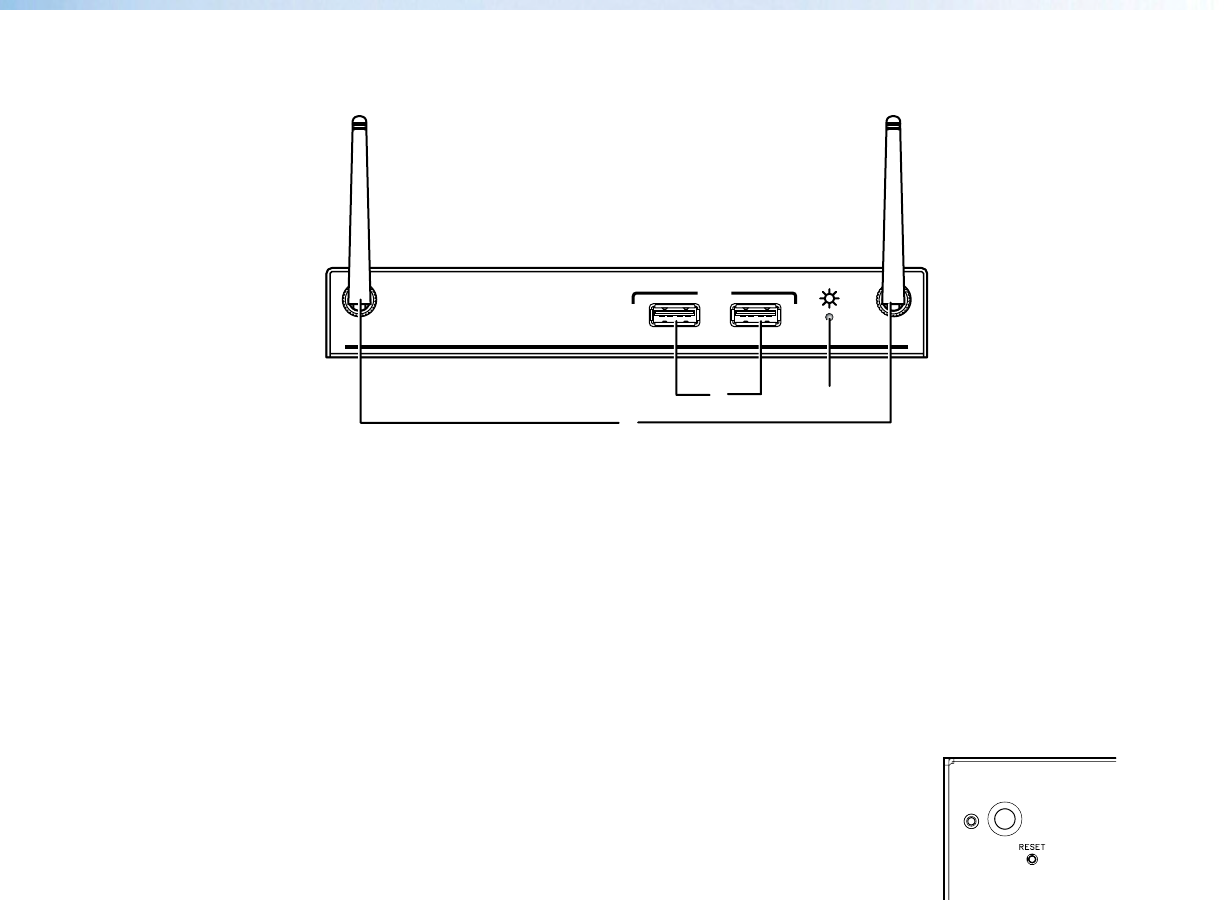
A Wi-Fi antenna jacks — Attach the included antennae to these receptacles.
B USB ports — Connect a USB keyboard, mouse, or touchscreen to these USB ports to
set up and control the ShareLink 250 W, and to use the Whiteboard feature (see
figure 4, 4 on the next page).
C Power LED — Lights green when the unit is powered on.
Bottom Panel Features
The bottom panel contains a Reset button for resetting the device, if necessary. To reset
the ShareLink 250 W:
1. Disconnect power from the device.
2. Press the Reset button using a small tool (such as a paperclip).
3. While pressing the Reset button, apply power to the device and
hold the Reset button down for at least 10 seconds. After 10
seconds, the reset process starts on the device.
ShareLink 250 W • Installation 6
Setting Up the Standby Screen
Once the ShareLink 250 W is connected and powered on, the default standby screen
(figure 4) appears on the display.
Figure 4. Standby Screen
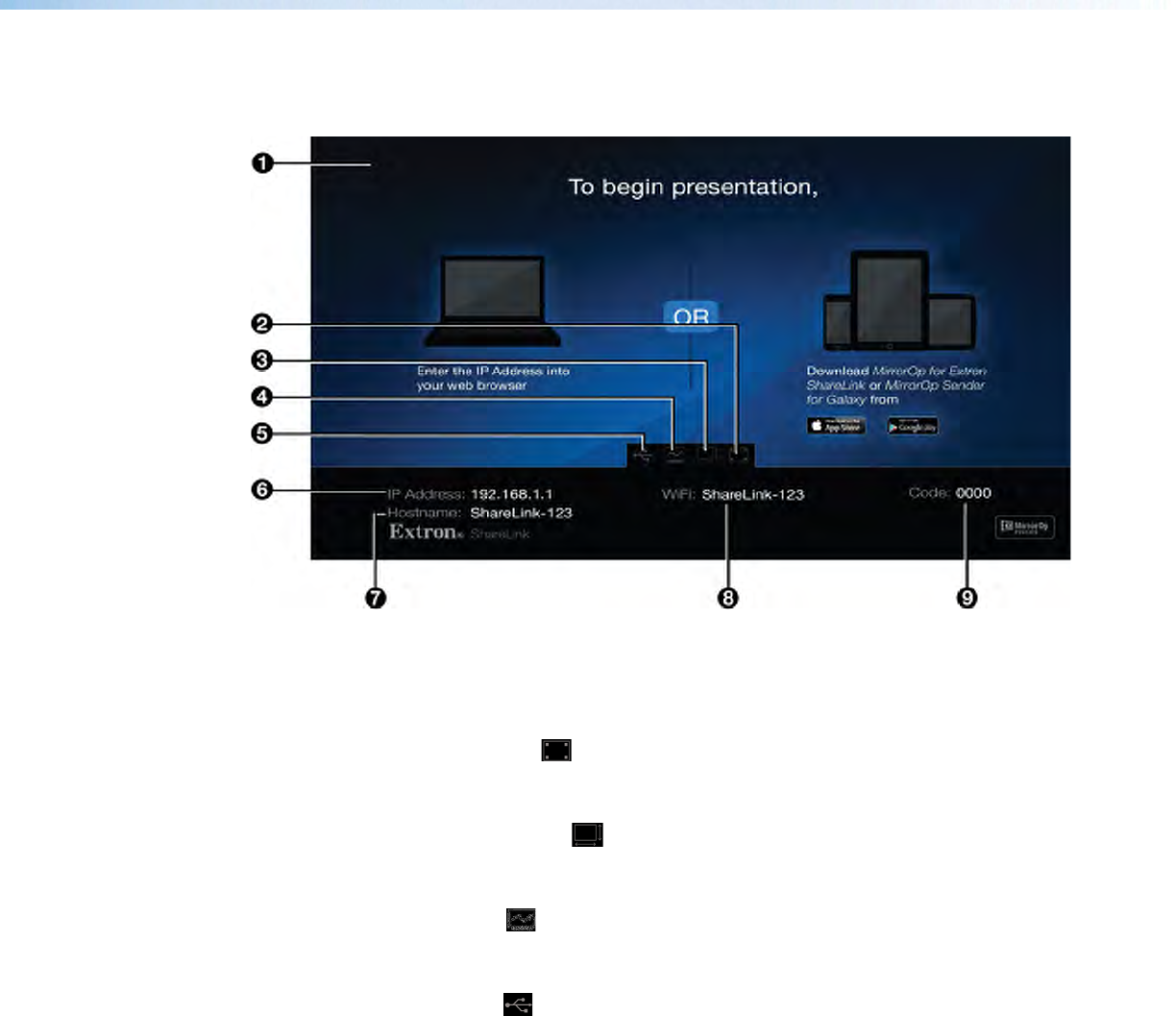
1 Instructional screen — Provides instructions for starting a presentation. The
background image of the instructional screen can be customized (see OSD Setup on
page 46).
2 Calibration tool icon ( )— Double-click to open the Calibration tool (for
touchscreens only). This feature allows you to calibrate a touchscreen for accuracy, if
needed (see Using the Calibration Tool on the next page).
3 Screen Resize tool icon ( )— Double-click to use the screen resize tool. This
feature allows you to change the size of the screen presented on the display (see Using
the Screen Resize Tool on page 8).
4 Whiteboard icon ( )— Double-click to use the display as a whiteboard. This feature
allows the presenter to draw on a blank screen using a mouse or touchscreen (see
Using the Whiteboard Feature on page 9).
5 USB Player icon ( )— Double-click to access the USB Player. This feature allows
the presenter to access photos, videos, audio files, and documents directly from the
connected USB flash drive (see Using the USB Player on page 10).
6 IP Address — Use this IP address to identify and access the ShareLink 250 W during
connection (see Setting up the ShareLink 250 W Software on page 12).
7 Hostname — Use this Hostname to identify and access the ShareLink 250 W during
connection through the ShareLink software. This hostname can be customized in the
configuration pages (see Network Setup, 1 on page 41).
8 WiFi — Use this Wi-Fi name (SSID) to identify and access the ShareLink 250 W during
connection.
9 Code — Use this code to access the ShareLink 250 W device through the software
(see Connecting to the ShareLink 250 W Receiver on page 14). The code can
be customized or disabled (see Device Setup on page 40).
ShareLink 250 W • Installation 7
Using the Calibration Tool
This feature allows you to calibrate a touchscreen for accuracy, if needed. To calibrate:
1. Ensure that the touchscreen is connected to the ShareLink 250 W as follows:
a. Connect the touchscreen to the HDMI or VGA port on the rear panel of the
ShareLink (see figure 2, C and D, on page 3).
b. Connect the touchscreen to the USB port on the front panel of the ShareLink
(see figure 3, B on page 5).
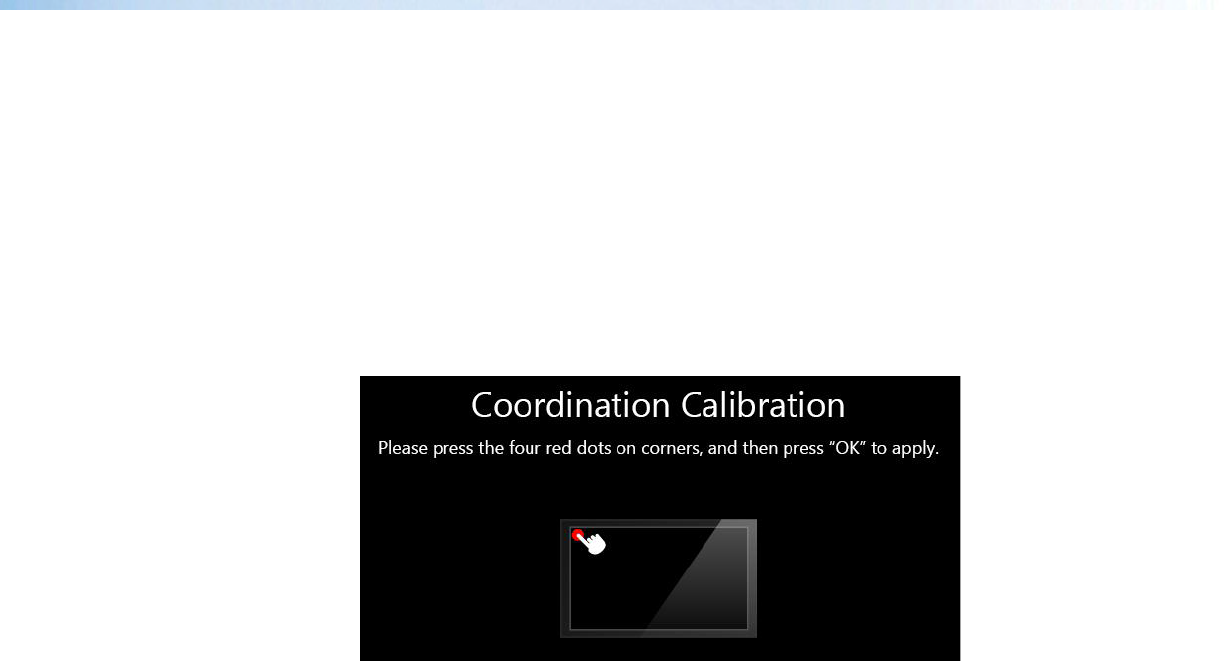
2. Press the calibration icon twice on the standby screen (see figure 4, 2, on the previ-
ous page). The calibration screen appears:
Figure 5. Calibration Screen
3. Press the four red dots that appear on the corners of the screen. Each dot turns green after
it has been pressed. The OK button appears after all four dots are pressed.
4. Press the OK button to return to the standby screen.
ShareLink 250 W • Installation 8
Using the Screen Resize Tool
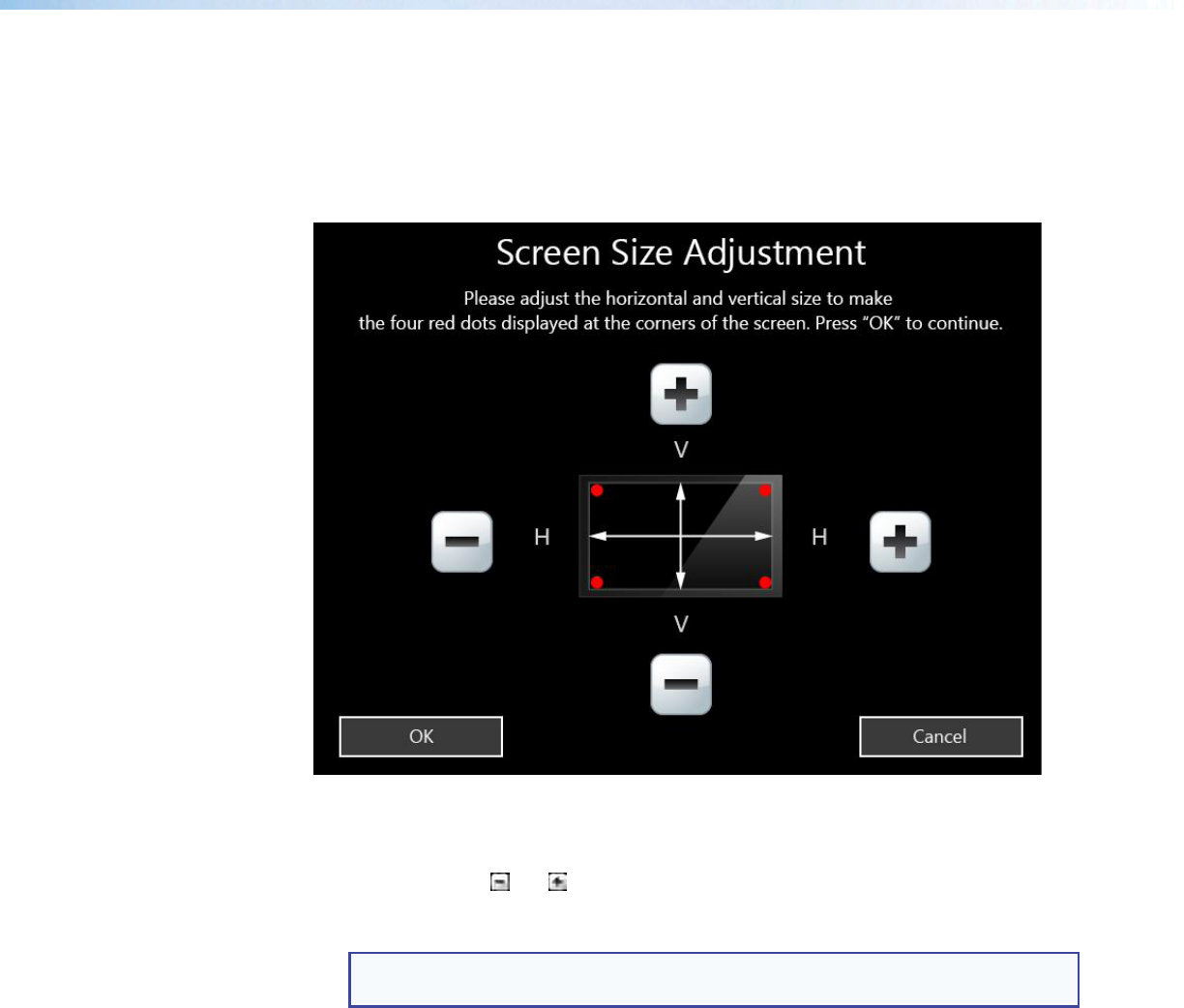
This feature allows you to change the size of the screen presented on the display. To adjust
the screen size, double-click or press the Screen Resize tool icon (see figure 4, 3, on
page 6).
The following screen appears:
Figure 6. Screen Resize Tool
To adjust the screen size:
1. Click or press the and buttons to adjust the screen horizontally and vertically. The four
red dots on the corners indicate the size of the screen.
2. Press the OK button to return to the standby screen.
NOTE: The standby screen is not resized. Only the Whiteboard screen and all
other presentation screens are resized.
ShareLink 250 W • Installation 9
Using the Whiteboard Feature
To use the Whiteboard feature, double-click or press the Whiteboard icon on the standby
screen (figure 4, 4, on page 6).
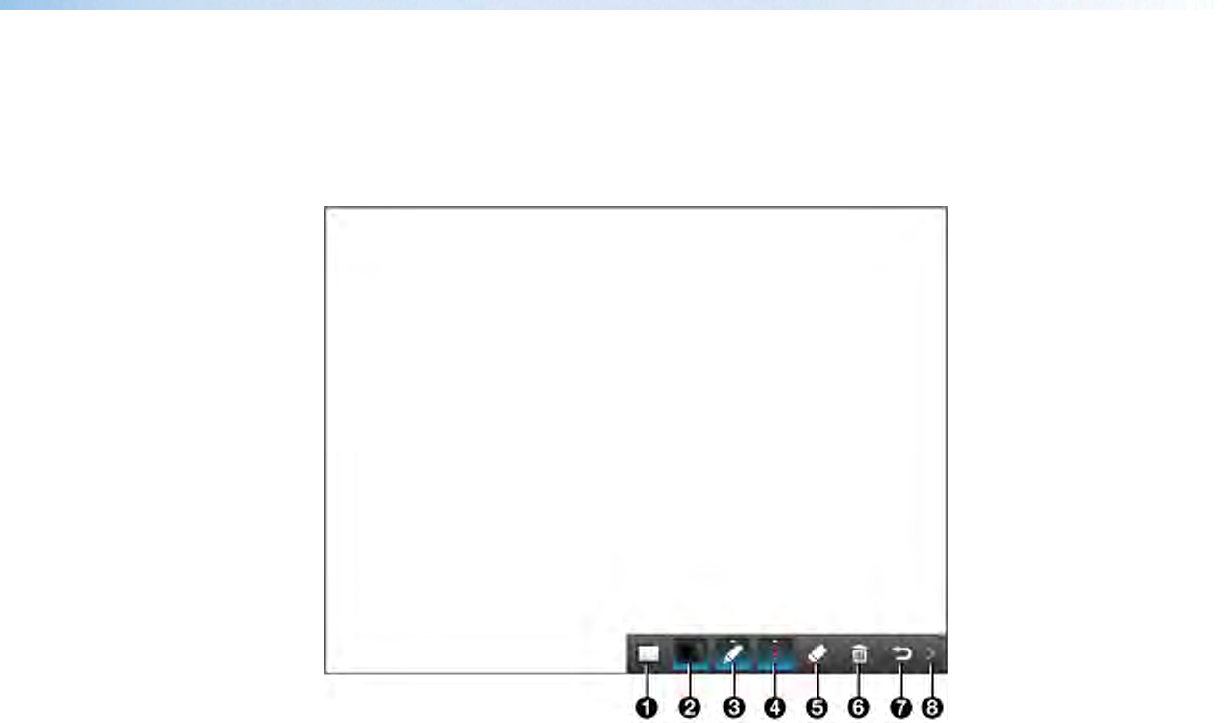
The Whiteboard screen appears:
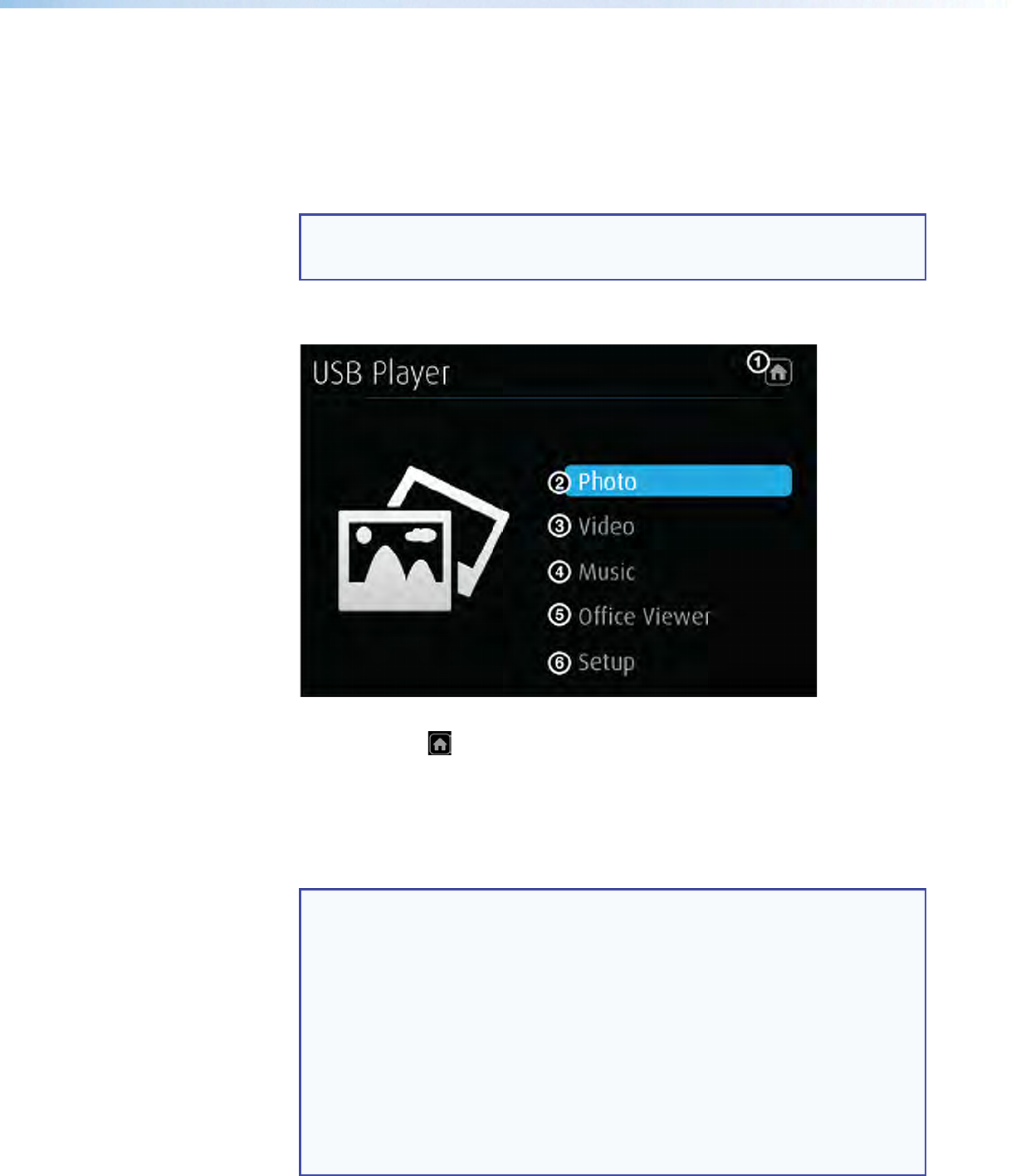
Figure 7. Whiteboard Screen
1 Whiteboard — draw on a white background
2 Blackboard— draw on a black background
3 Pen mode — there are two modes for using the pen (click this button to switch
between modes):
• Default mode: allows the user to draw without erasing previous strokes.
• One-stroke mode: allows the user to draw only one stroke at a time (the previous
annotation is cleared when a new stroke is made).
4 Pen color and size — select pen color (red, green, or blue), and pen size
5 Eraser — erase selected parts within drawing
6 Delete — delete entire drawing on the screen
7 Return — return to the standby screen
8 Minimize/Open — minimize or open the menu
ShareLink 250 W • Installation 10
Using the USB Player
This feature allows the presenter to display photos, videos, audio files, and documents from
a USB flash drive connected to the rear panel USB port (see figure 2, E on page 3). To
use the USB Player:
1. Ensure that a USB drive is connected to the USB port on the rear panel (see
figure 2, E).
NOTE: The USB drive connected to this port must be FAT32 formatted and single
partition. Also, external hard drives must use external power (hard drives cannot
be powered from this USB port).
2. Click the USB Player icon on the standby screen (see figure 4, 5 on page 6). The
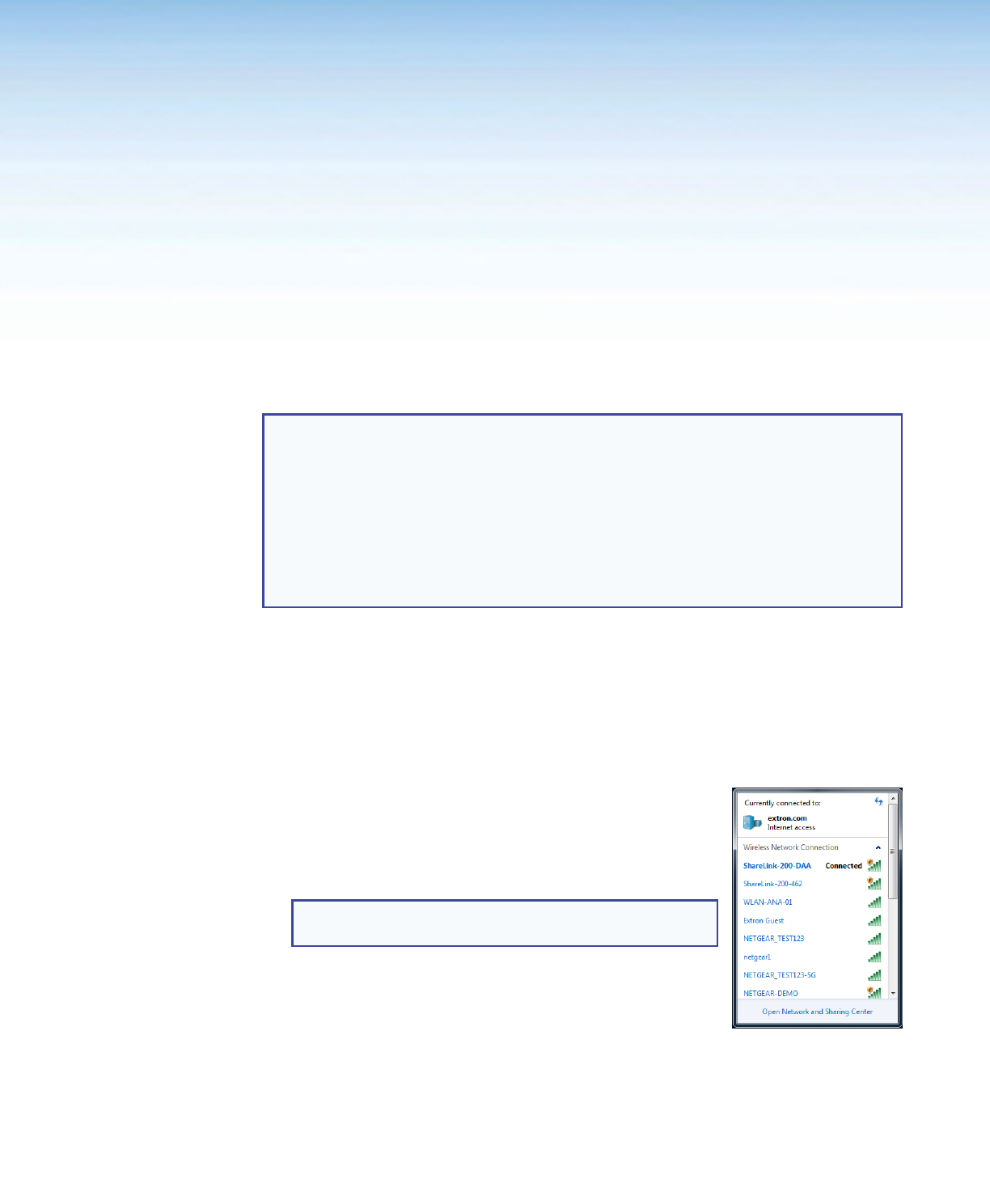
USB Player screen opens:
Figure 8. USB Player Screen
1 Home icon ( ) – return to standby screen
2 Photo – open photo viewer
3 Video – open video player
4 Music – open music player
5 Office Viewer – open Office Viewer (to view Microsoft Office documents)
6 Setup – open Setup page
NOTE:
The following file formats are supported:
• Image: JPG, BMP, PNG, GIF
• Video: MP4, MPG, MPEG, AVI, MOV, MKV, WMV
• Audio: MP3, WAV, WMA, AAC
• Document: Microsoft Word (.doc, .docx), PowerPoint (.ppt, .pptx), Excel
(.xls, xlsx); PDF
The following codecs are supported:
• Image: JPG, BMP, PNG, GIF
• Video: MPEG-2, MPEG-4 (Microsoft MPEG-4 v1-3 is not supported),
Motion JPEG, WMV9 (only WMV3/WVC1 is supported)
• Audio: LPCM, AAC, MP3, WMA
ShareLink 250 W • Operation Using a Computer 11
Operation Using a
Computer
Users can present from a Windows or Mac computer using the ShareLink 250 W software.
This section covers the following:
• Connecting a Computer to the ShareLink 250 W
• Setting Up the ShareLink 250 W Software
• Using the ShareLink 250 W Software
NOTES:
Mac computer minimum system requirements:
• Dual Core, 1.4 GHz processor or better
• Mac OS X 10.7 - 10.10
• Graphics card with 64MB VRAM or better
Windows computer minimum requirements:
• Dual Core, 1.8 GHz processor or better
• Microsoft Windows 7 or 8
• Graphics card with 64MB VRAM or better
Connecting a Computer to the ShareLink 250 W
There are three ways to connect a computer to the ShareLink 250 W:
• Wirelessly, through the ShareLink 250 W internal wireless access point (WAP)
• Wirelessly, through an external WAP
• Wired through a network device
See instructions below for your preferred connection method.
Connecting through the ShareLink 250 W Internal WAP
1. Ensure that the ShareLink 250 W is powered and that wireless
network capability is enabled on your computer.
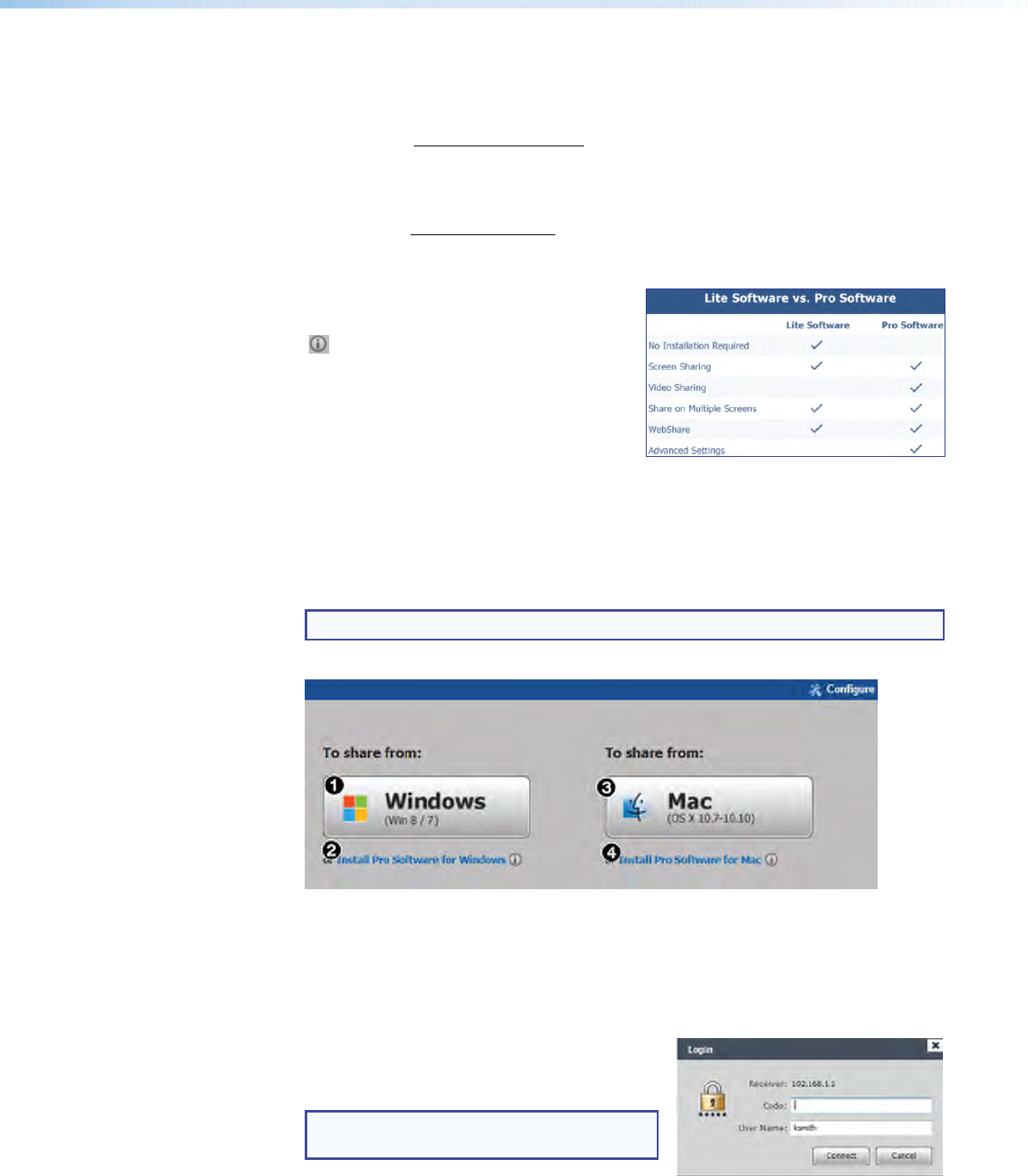
2. Open the wireless networks on your computer (see image at
right) and connect to the ShareLink 250 W unit.
NOTE: The ShareLink Wi-Fi name (SSID) is shown on the
standby screen (figure 4, 8 on page 6).
Connecting through an External WAP
1. Ensure that the external WAP and the ShareLink 250 W are
wired to the same network.
2. Ensure that the ShareLink 250 W is powered on and that
wireless network capability is enabled on your computer.
3. Open the wireless networks on your PC and connect to the external WAP.
Connecting through a Network Hub, Switch, or Router
1. Ensure that your computer is connected to the network through a hub, switch, or router.
2. Connect the RJ-45 connector of the ShareLink 250 W to the network device using an
RJ-45 cable.
ShareLink 250 W • Operation Using a Computer 12
Setting Up the ShareLink 250 W Software
There are two versions of the ShareLink 250 W software:
• Lite version: No installation required. Users can run the Lite software from the
embedded Web pages without having to install the software on the PC. Since
installation is not required, users do not need admin rights to run the Lite software (see
“Running the ShareLink 250 W Lite Software” below).
• Pro version: Installation required. The executable software file can be downloaded
from the embedded Web pages or from the Extron website (see Downloading and
Installing the ShareLink 250 W Pro Software on the next page).
To see a list of the different Lite and Pro
software features, click the information
( ) icon on the landing page (see figure 9).
An information window opens as shown at
right.
Running the ShareLink 250 W Lite Software
1. Ensure that the computer is connected to the ShareLink 250 W device, either through
an external WAP or through a physical network connection. The computer and the
ShareLink 250 W must be on the same network.
2. Launch your Web browser and enter the IP address of the ShareLink in the browser.
NOTE: The IP address is shown on the standby screen (see figure 4, 6, page 6).
The ShareLink 250 W landing page opens as shown below:
Figure 9. ShareLink 250 W Landing Page
3. Click Windows (1) or Mac (3), depending on your operating system, to launch the
software.
4. Follow the instructions on the Web browser to run the the executable ShareLink 250 W
software file. When the Lite software opens, it automatically attempts to connect to your
ShareLink receiver.
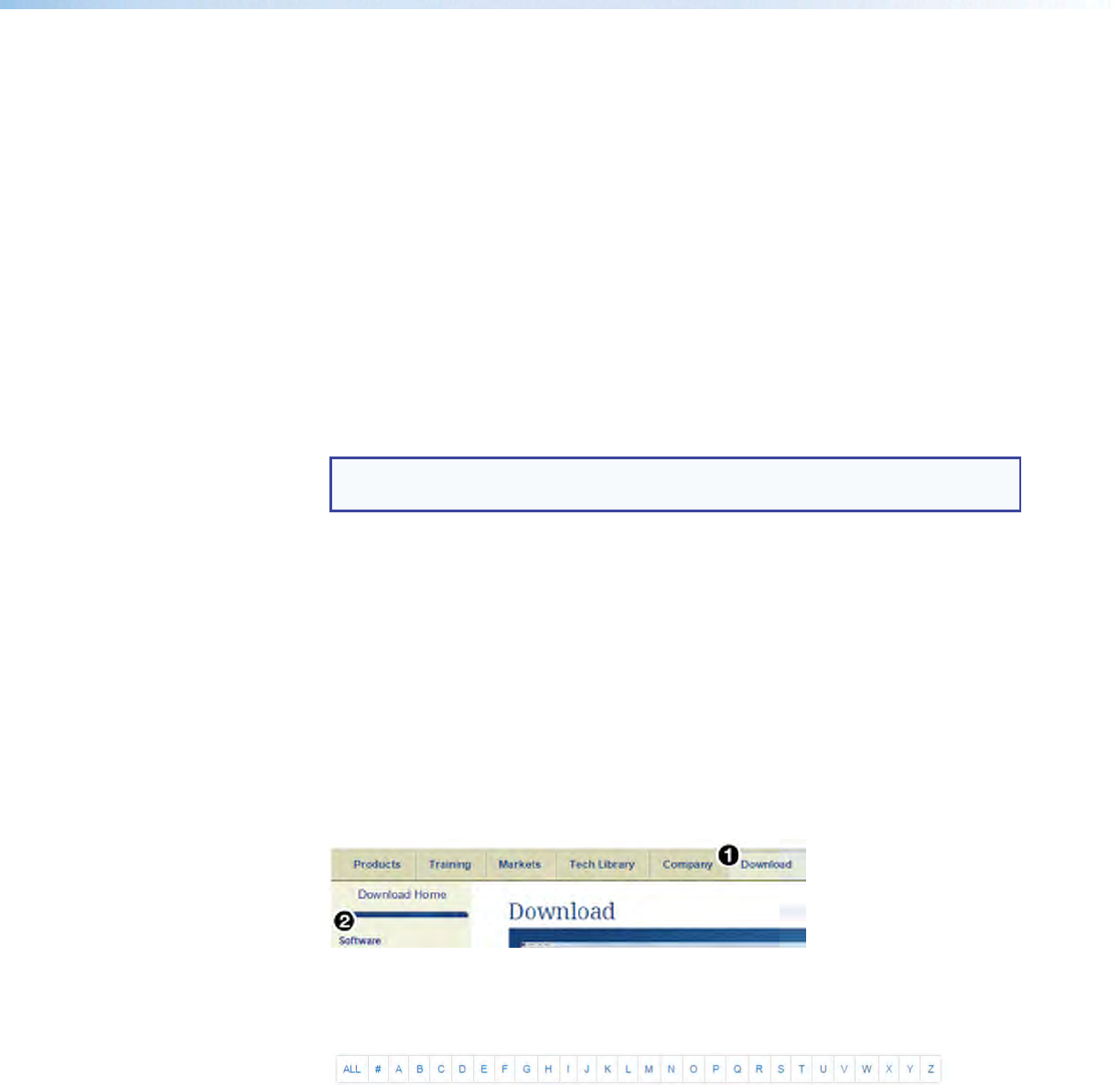
5. If the Login window opens (as shown at right),
enter the login code into the Code field and
click Connect.
NOTE: The login code is shown on the
standby screen (see figure 4, 9, page 6).
ShareLink 250 W • Operation Using a Computer 13
When a connection is established, the software window opens. This window has two
sections:
• Share my Screen tab (see Presenting the Computer Screen on page 15
for instructions).
• Software menu (see Using the Software Menu on page 17).
Downloading and Installing the ShareLink 250 W Pro Software
The ShareLink 250 W software can be downloaded from the embedded Web pages or from
the Extron website. Follow the instructions below for your preferred download method.
Downloading the software from the embedded Web pages
1. Ensure that your computer is connected to the ShareLink 250 W device, either through
Wi-Fi or through a physical network connection. The computer and the
ShareLink 250 W must be on the same network.
2. Launch your internet browser and enter the IP address of the ShareLink 250 W into the
browser.
NOTE: The IP address is shown on the standby screen (see figure 4, 6 on
page 6).
The ShareLink 250 W landing page appears on the browser (see figure 9 on the
previous page).
3. Click Install Pro software for Windows (see figure 9, 2) or Install Pro
software for Mac (figure 9, 4), depending on your operating system, to launch
the software installer on your computer.
4. Follow the instructions on the Web browser to run the the executable ShareLink 250 W
Software installer file.
5. Follow the steps on the installation wizard to install the software.
Downloading the software from the Extron website
1. Go to www.extron.com and click the Download tab at the top of the page (see
figure 10, 1).
Figure 10. Download Page on the Extron Website
2. Click Software on the left menu (2).
3. Scroll down to the alphabetical menu and click the letter S.
4. Scroll down to the software names and look for ShareLink 250 W. Click Download in
the ShareLink 250 W section.
5. On the next screen (Download Center), enter the requested information and click the
download button.
6. When download is complete, open the executable ShareLink 250 W Software installer
file and follow the steps on the installation wizard to install the software.
ShareLink 250 W • Operation Using a Computer 14
Connecting to the ShareLink 250 W receiver
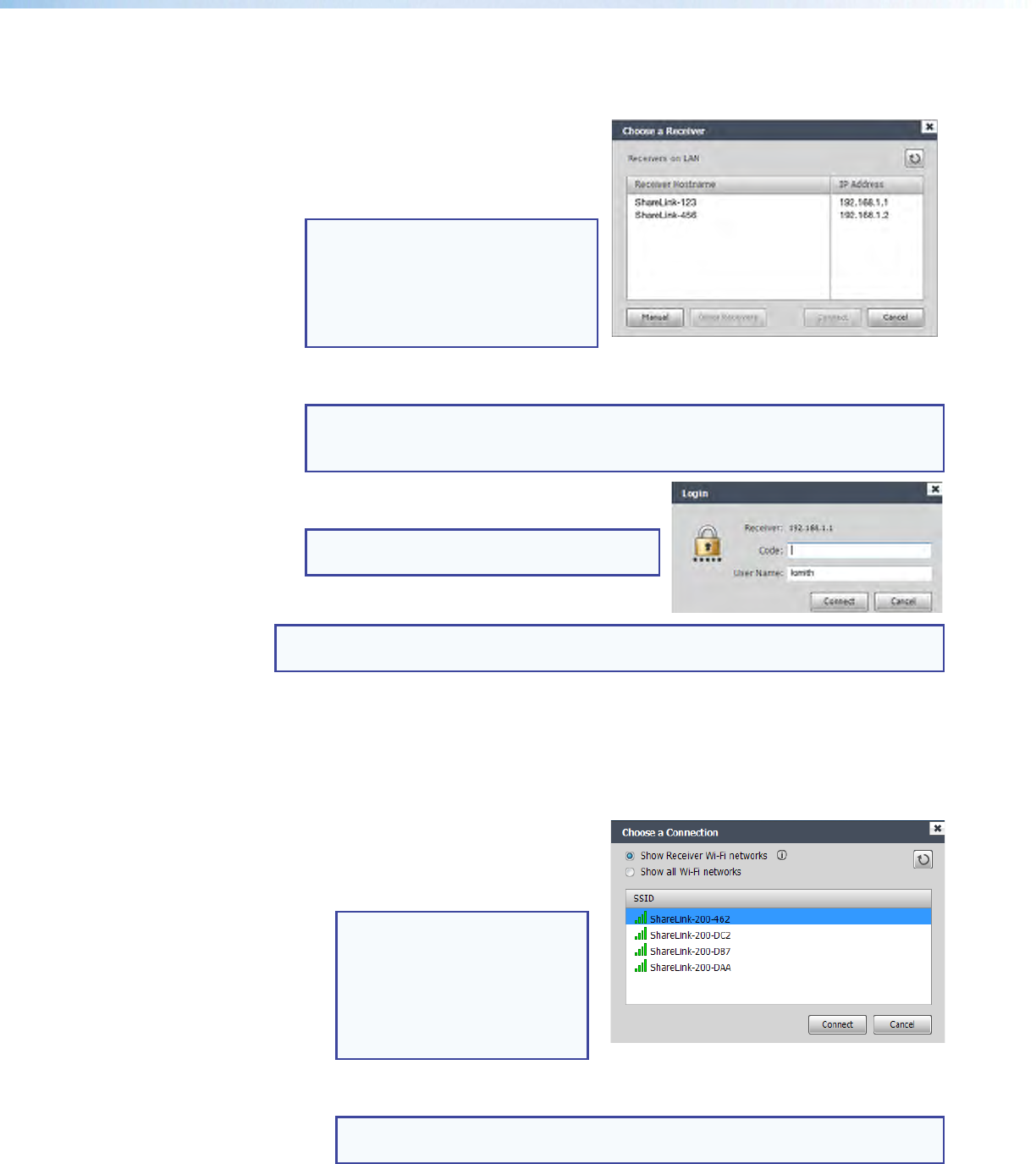
Use the software to connect to the ShareLink 250 W receiver as follows:
1. Open the ShareLink 250 W software.
The software searches for available
receivers on your network and the
Choose a Receiver dialog box
opens as shown at right.
NOTE: The Other Receivers
button allows Wi-Fi users to
search and connect to ShareLink
receivers on other Wi-Fi networks
(see Other Receivers below for
instructions).
2. Select your ShareLink 250 W device from the Receiver Hostame section and click
Connect.
NOTE: The receiver name is shown on the standby screen. If your ShareLink unit is
not listed, click the refresh button. If the device still does not appear, click Manual
and enter the receiver IP address manually.
3. If the login dialog box appears, enter the login
code into the Code field and click Connect.
NOTE: The login code is shown on the
standby screen (see figure 4 on page 6).
NOTE: A room file can be created for the ShareLink 250 W software to connect
automatically to a designated receiver (see Creating a Room File on page 19).
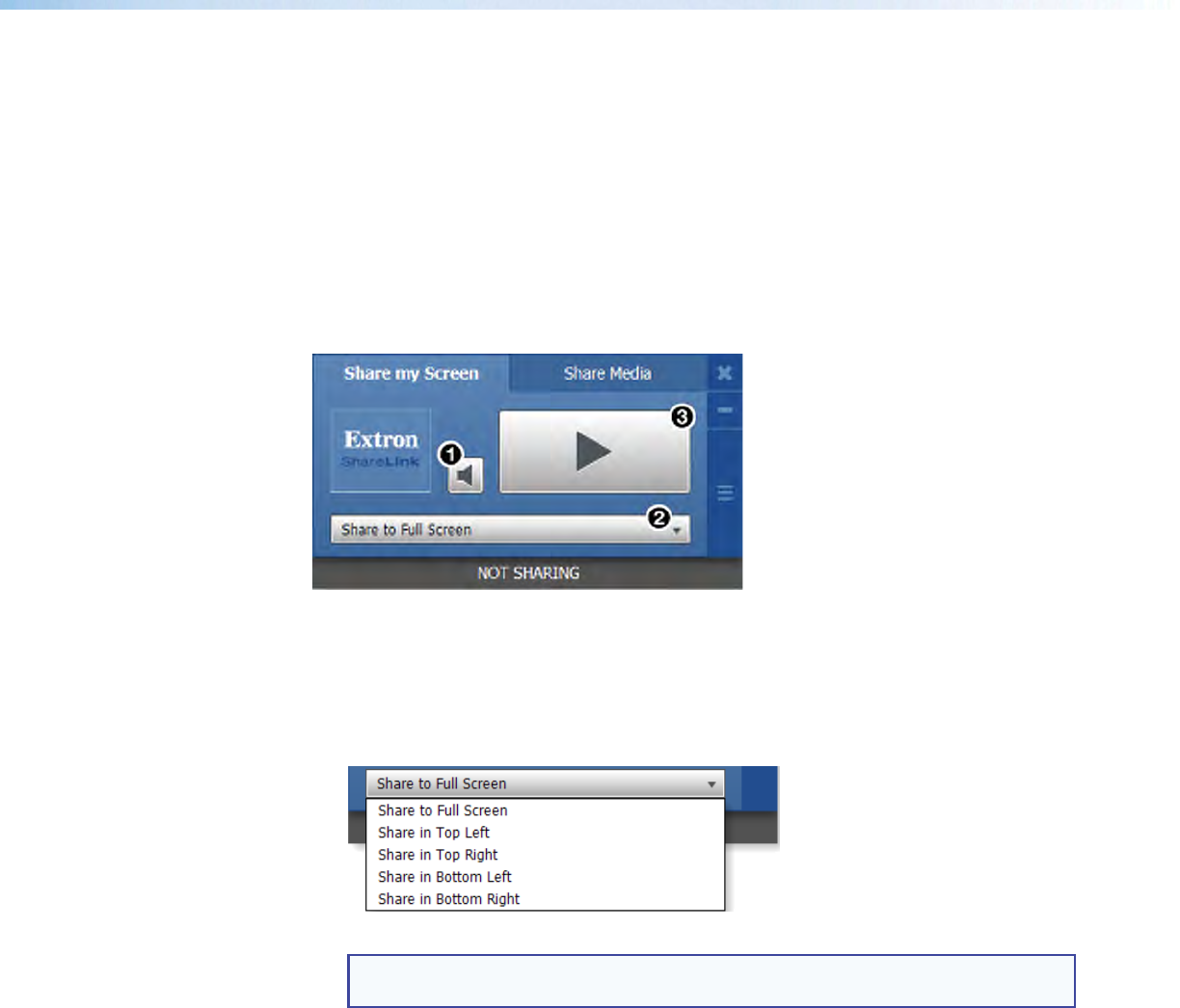
Other receivers
The Other Receivers button allows Wi-Fi users to search and connect to ShareLink
receivers on all available Wi-Fi networks. To do so:
1. Click Other Receivers. The Choose a Connection dialog box opens as shown
below.
• Select Show Receiver
Wi-Fi networks to see a list
of the ShareLink receivers on all
available Wi-Fi networks.
NOTE: This option filters
by SSID name. It only lists
receivers whose SSID starts
with “ShareLink.” If the SSID is
changed and no longer starts
with “ShareLink,” the receiver
is not shown.
• Select Show all Wi-Fi networks to see a list of the ShareLink receivers as
well as a list of all available Wi-Fi networks.
NOTE: If you connect to a Wi-Fi network, and the Wi-Fi network is
password-protected, you are asked to enter the network password.
2. Click on your ShareLink receiver or network, and click Connect.
ShareLink 250 W • Operation Using a Computer 15
Using the ShareLink 250 W Software
When connection is established, the control screen appears. This screen has three main
sections:
• Share my Screen tab (see “Presenting the Computer Screen” below)
• Share Media tab (see Presenting a Media File on the next page)
• Software menu (see Using the Software Menu on page 17)
Presenting the Computer Screen (Share my Screen Tab)
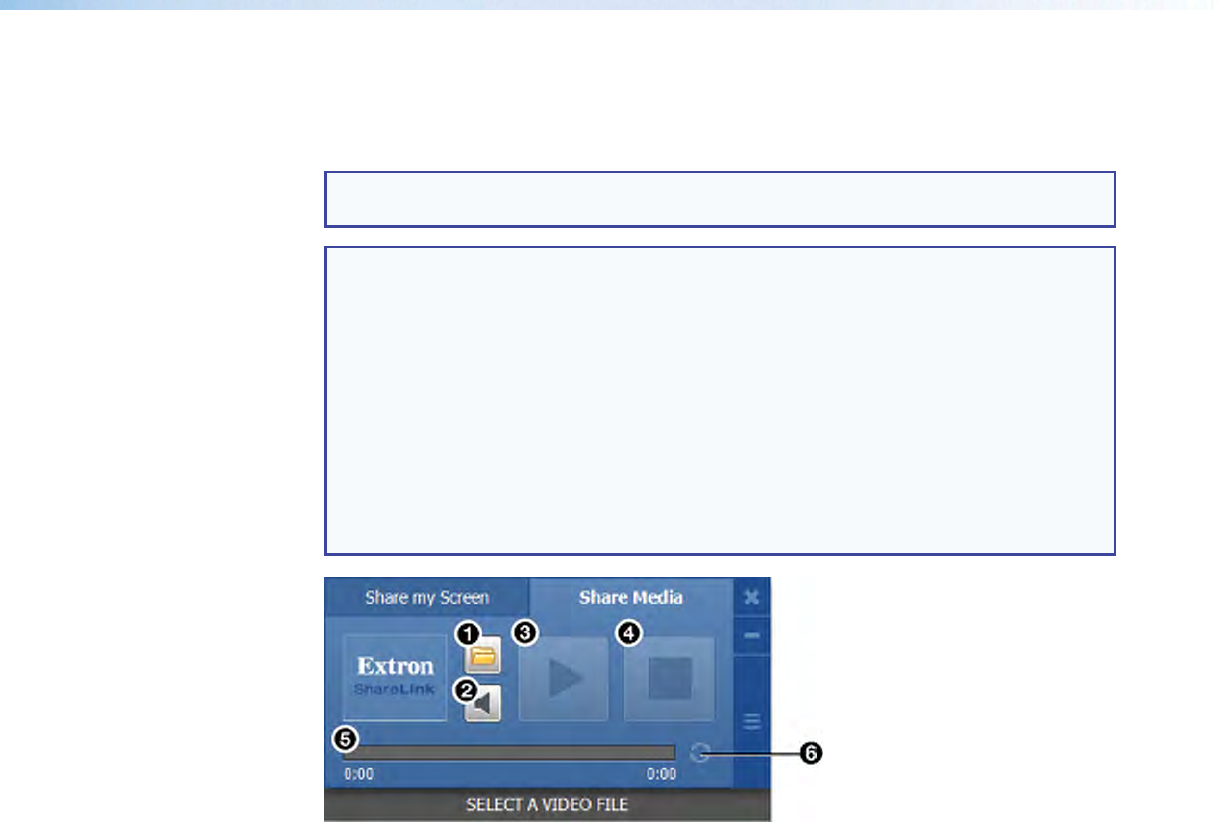
Use the Share my Screen tab to present your computer screen on the display device.
Figure 11. Share my Screen Tab
1 Mute button — Click to mute or unmute the source device audio.
2 Drop-down list — Click to see the presentation options shown in figure 12.
One computer screen can be shared full screen on the main display (default option), or
up to four screens can be shared simultaneously on separate quadrants (top left, top
right, bottom left, or bottom right).
Figure 12. Drop-Down List
NOTE: When multiple screens are shared, audio is output from the first (top left)
quadrant only.
3 Play button — Click to display the screen as specified in the drop-down menu. The
button becomes a Stop button, which can be clicked to stop displaying the screen.
ShareLink 250 W • Operation Using a Computer 16
Presenting a Media File (Share Media Tab)
Use the Share Media tab to stream a media file from your computer onto the display
device.
NOTE: This feature requires the source device and receiver to be on the same subnet.
The file does not play if the source device and receiver are not on the same subnet.
NOTE:
The following file formats are supported:
• Image: JPG, BMP, PNG, GIF
• Video: MP4, MPG, MPEG, AVI, MOV, MKV, WMV
• Audio: MP3, WAV, WMA, AAC
The following codecs are supported:
• Image: JPG, BMP, PNG, GIF
• Video: MPEG-2, MPEG-4 (Microsoft MPEG-4 v1-3 is not supported), Motion
JPEG, WMV9 (only WMV3/WVC1 is supported)
• Audio: LPCM, AAC, MP3, WMA
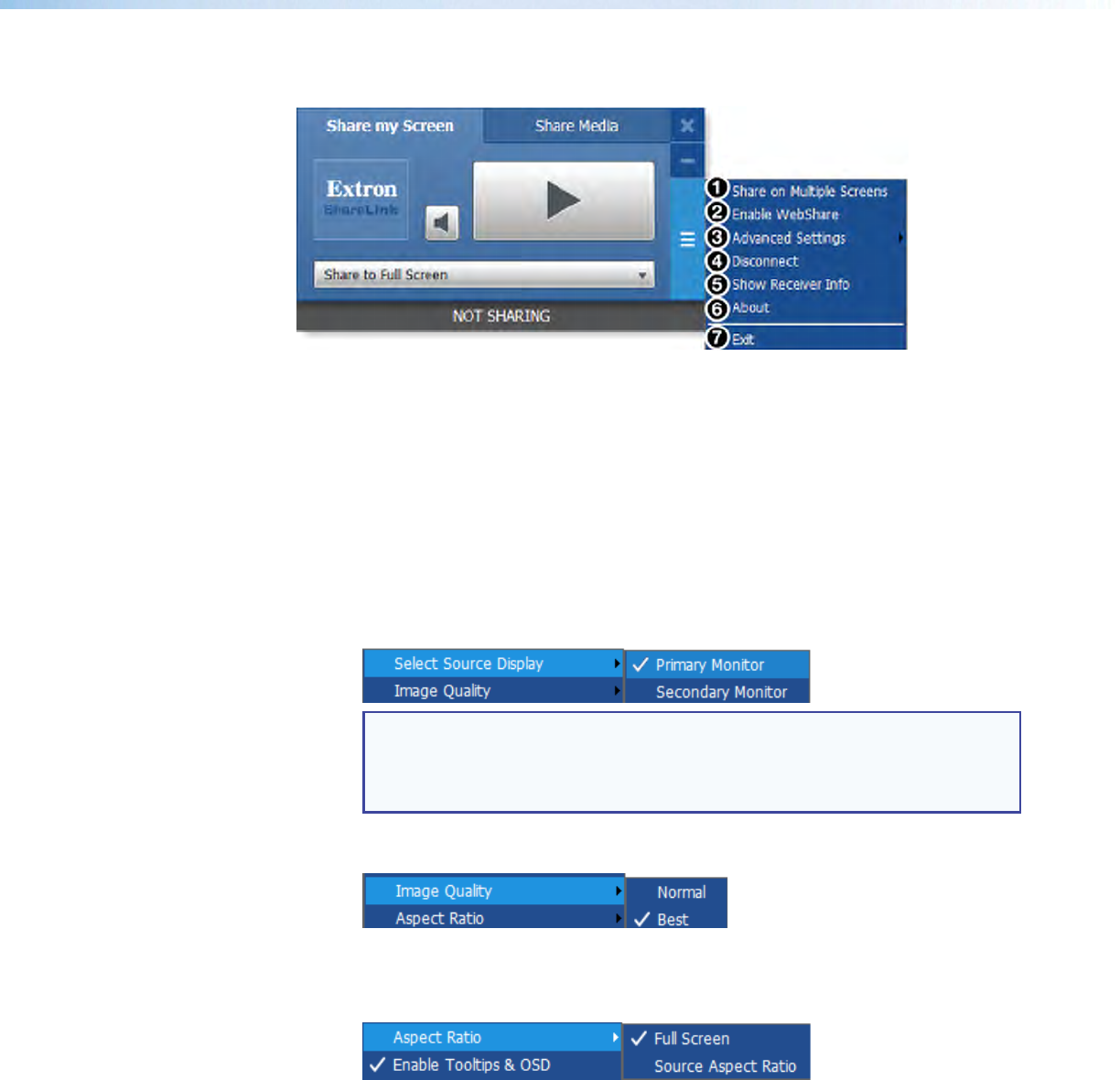
Figure 13. Share a Video Tab
1 File folder icon — Click to browse for and select a media file.
2 Volume button — Click to control the volume of the video or audio file.
3 Play button — Click to play the selected media file. This button is disabled until a
media file is selected.
4 Stop button — Click to stop playing the file. This button is disabled until a file is
selected.
5 Progress bar — Displays the progress of the video or audio playback. When a file is
selected, an icon indicates the playback time on the progress bar. You can click and
drag the icon on the progress bar to skip ahead or to go back to a specific point.
6 Repeat icon — Click to automatically replay the video or audio when it is finished.
ShareLink 250 W • Operation Using a Computer 17
Using the Software Menu
Click the icon on the bottom right side of the control screen to open the software menu.
Figure 14. ShareLink 250 W Software Menu
This menu includes the following options:
1 Share on Multiple Screens — Allows the computer screen or media file to be
shared on up to four displays connected to other ShareLink receivers (see Sharing on
Multiple Screens on the next page for instructions).
2 Enable WebShare — Click to enable WebShare, which allows your computer screen to
be shared to connected devices during a presentation (see Watching a Presentation
(WebShare) on page 35 for instructions).
3 Advanced Settings — Click to open a submenu with the following options:
• Select Source Display — Click Primary Monitor to present the main screen,
or click Secondary Monitor to present a screen connected to the main monitor.
NOTES:
• Not all operating systems support the extended screen function.
• If sharing the secondary monitor, select Secondary Monitor prior to
sharing in order to keep the software window on the primary monitor.
• Image Quality — This option adjusts the image encoding level. Best provides
better image quality and consumes more network bandwidth.
• Aspect Ratio — Choose Full Screen to display the image full screen.
Choose Source Aspect Ratio to maintain the aspect ratio of the source image (for
example, if the source image is 4:3, and the output resolution is 16:9, the image is
displayed with black vertical bars on each side).
• Enable Tooltips & OSD — Tooltips are shown when the mouse cursor hovers
over certain items on the computer screen. Enable this option to show tooltips on the
display when sharing your computer screen.
• Create USB Thumb-drive App — This feature allows a user to load the
ShareLink 250 W software into a USB drive, and to run the software directly from
the drive (instead of having to install the software on a PC). See Creating a USB
Thumb-drive App on the next page for instructions.
• ShareLink 250 W Device Admin — Click to go to the ShareLink 250 W admin
(configuration) pages (see Configuring ShareLink 250 W Settings on page 38).
ShareLink 250 W • Operation Using a Computer 18
4 Disconnect — Click to disconnect from any connected receivers.
5 Show Receiver Info — Click this to show the receiver information (IP address, SSID,
and login code) briefly on the screen during a presentation, if necessary. The receiver
information overlays on top of the screen for 30 seconds, then disappears.
6 About — Click to see the ShareLink 250 W software version number.
7 Exit — Click to exit the software program.
Sharing on Multiple Screens
This feature allows the computer screen or media file to be shared on up to four screens
connected to other ShareLink recievers.
To use this feature:
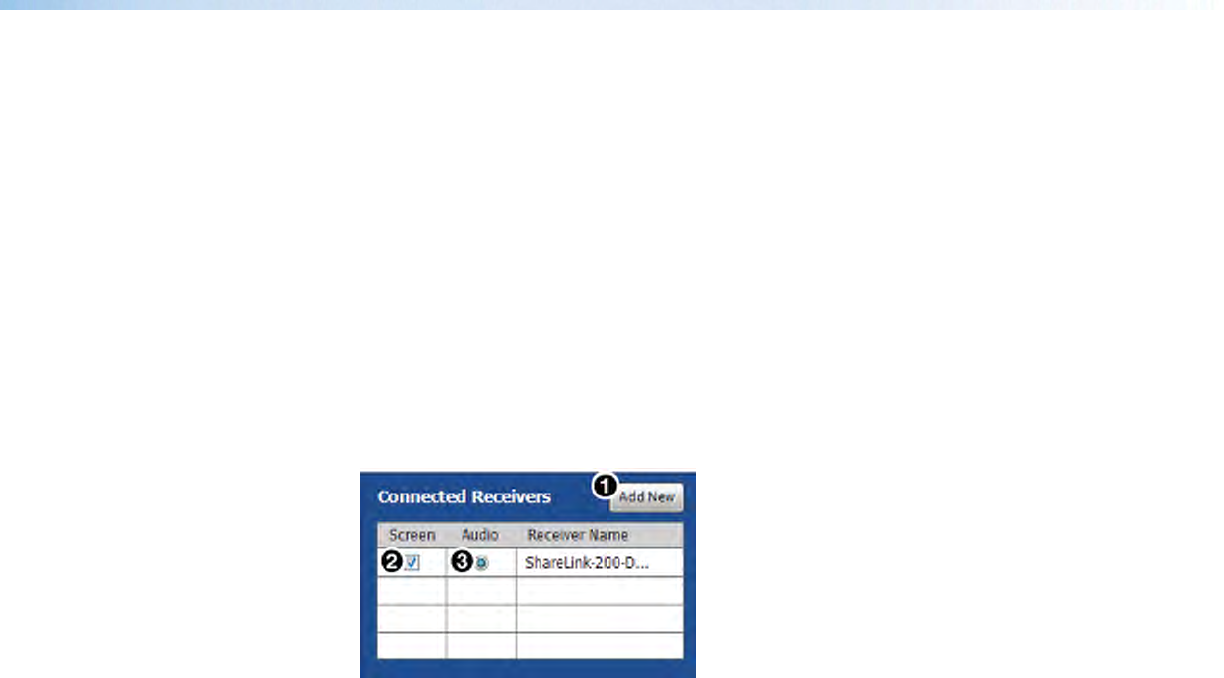
1. Click Share on Multiple Screens on the software menu. The Connected
Receivers dialog box opens:
Figure 15. Connected Receivers Dialog Box
2. Click Add New (1) to add a new reciever. Up to four receivers can be added.
3. Check the Screen (2) checkbox to share content to that receiver. Content is only
shared to the selected receivers.
4. Click the Audio radio button (3) to share audio to a receiver. Audio can only be
shared to one receiver.
Creating a USB Thumb-drive App
This feature allows a user to load the ShareLink 250 W software into a USB drive, and to run
the software directly from the drive (instead of having to install the software on a PC).
Follow these steps to load the software into, and to run the software from, a USB drive:
1. Click Create USB Thumb-drive App in the ShareLink 250 W software Advanced
Settings menu. The USB Auto Setup Wizard window opens.
2. Follow the steps in the wizard screen to save the software to your USB drive. The
software requires approximately 25 MB of space.
3. When software loading is complete, a folder named ShareLink 250 W is saved to
the USB drive.
4. To run the software:
a. Plug in the USB drive to the PC that will be used for presentation.
b. Open the folder named ShareLink 250 W that was saved to the USB drive.
c. Open the ShareLink250.exe file in the folder to run the software.
ShareLink 250 W • Operation Using a Computer 19
Creating a Room File
A room file can be created for the ShareLink 250 W software to connect automatically to a
designated receiver. This file provides a shortcut to open the software and directly connect
to the receiver.
Follow these steps to create the room file:
1. Create and save a text (.txt) file, using a word processing program, and enter the
information as it appears below (replace the information in itallics with the ShareLink
receiver IP address and login code):
<?xml version=“1.0”?>
<Devices>
<Device>
<IP>192.168.168.171</IP>
<LoginCode>1234</LoginCode>
</Device>
</Devices>
NOTE: In order to use the room file, the login code must be static (not set to
random). To set the login code, see Device Setup, 1 on page 40.
2. Windows users:
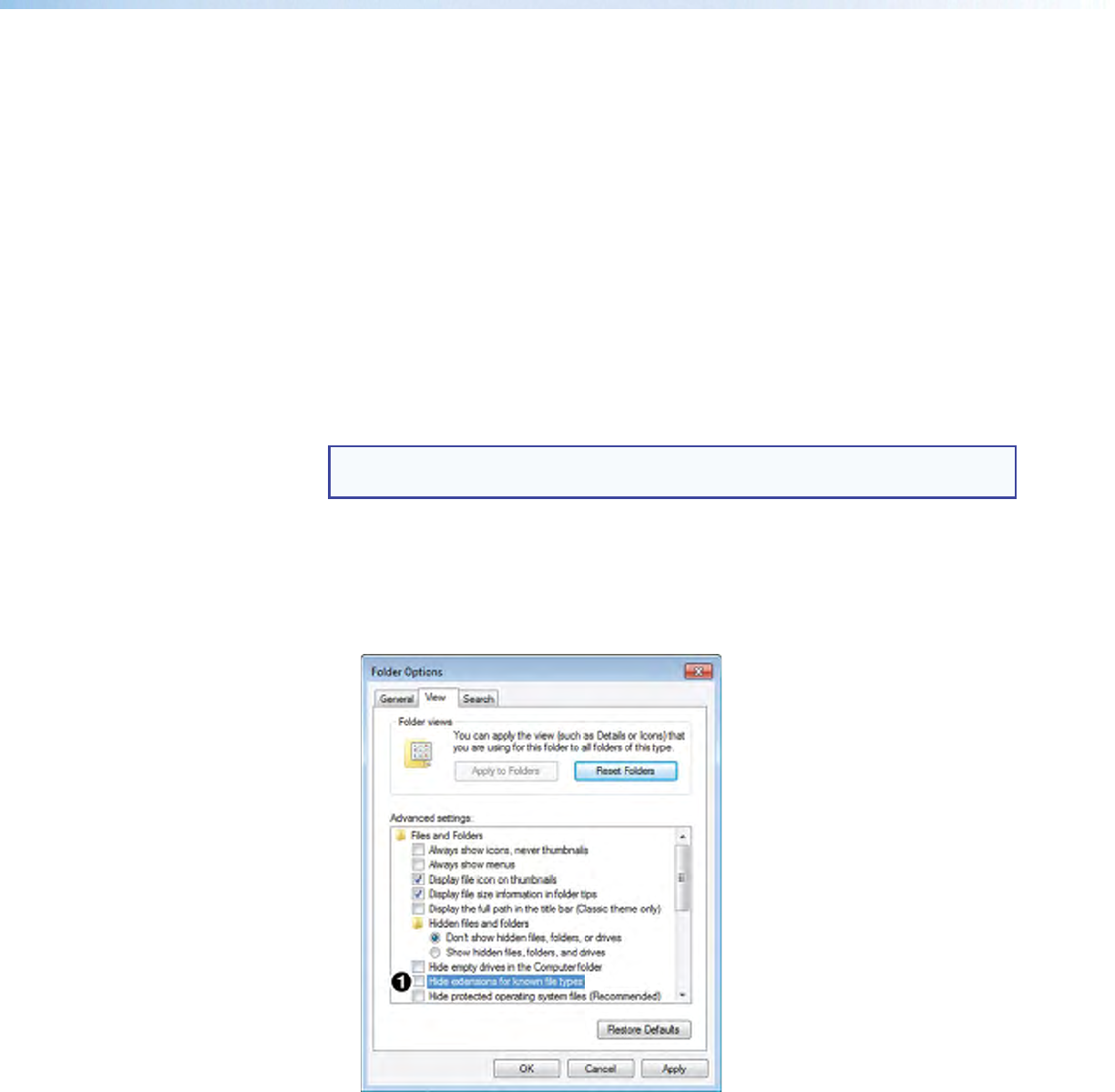
a. Open Control Panel > Appearance and Personalization > Folder
Options. The Folder Options dialog box opens (figure 16).
b. Click the View tab and make sure that Hide extensions for known file
types option is unchecked as shown in figure 16, 1.
Figure 16. Folder Options Window
3. Go to the text file that you created and change the extension from .txt to .link.
4. Double click or execute the file to open the ShareLink 250 W software. The software
then connects to the designated receiver automatically.

ShareLink 250 W • Operation Using a Mobile Device 20
Operation Using a
Mobile Device
Two mobile apps can be used with the ShareLink 250 W:
• MirrorOp for Extron ShareLink (for Android and Apple devices) allows you to
present photos, documents, Web pages, device screenshots, and the device camera.
• MirrorOp Sender for Galaxy (compatible with Samsung Galaxy devices only) allows
you to mirror your mobile device screen onto the display.
This section covers the following:
• Downloading MirrorOp for Extron ShareLink
• Using MirrorOp for Extron ShareLink
• Downloading MirrorOp Sender for Galaxy
• Using MirrorOp Sender for Galaxy
Downloading MirrorOp for Extron ShareLink
This app is supported by Android and Apple mobile devices, including iPad and iPhone.
Follow these steps to download the app:
1. Open the Google Play app store on your Android device, or the App Store on your
Apple mobile device.
2. Search for MirrorOp for Extron ShareLink.
3. Install the app on your mobile device.
Using MirrorOp for Extron ShareLink
Connecting to a Receiver
Follow these steps to connect your mobile device to the ShareLink 250 W using the app:
1. Ensure that the ShareLink 250 W is powered and connected to the network.
2. Connect your mobile device to the ShareLink 250 W unit through Wi-Fi. You may
connect through either of the following options:
a. Connect to the ShareLink’s built-in WAP: Open the Wi-Fi networks list on
your device and look for your ShareLink receiver SSID. The SSID is shown on the
standby screen (figure 4, page 6).
b. Connect to an external WAP that is on the same network as the
ShareLink. Ensure that the external WAP and the ShareLink 250 W are wired to
the same network. Open the Wi-Fi networks list and connect your device to the
external WAP.
ShareLink 250 W • Operation Using a Mobile Device 21
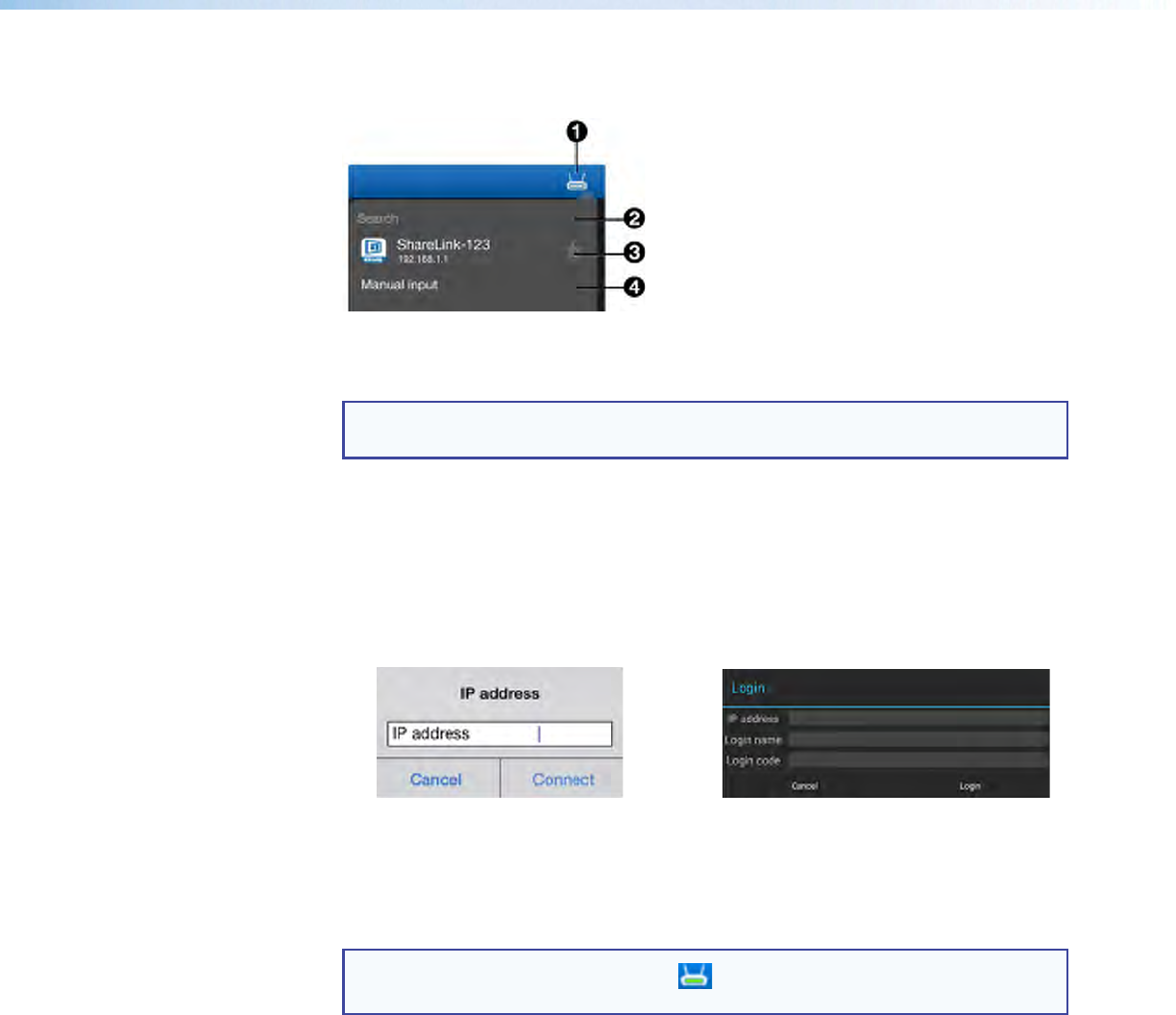
3. Open MirrorOp and press the receiver icon (figure 17, 1) on the top right to open the
receiver selection window.
Figure 17. MirrorOp Menu
4. Select your ShareLink 250 W receiver from the discovered receivers list. To refresh the list,
drag down and release the receivers list.
NOTE: Press the star (figure 17, 3) to save the receiver as a favorite. The favorite
receivers appear at the top of the list next time the app is open.
If your receiver does not appear, you may search for the receiver as follows:
• If the ShareLink 250 W receiver is on the same network and subnet, you can search
for it by entering the Wi-Fi name (SSID) or IP address in the search bar (2).
• If the ShareLink 250 W receiver is on the same network but on a different subnet,
press Manual input (4). The following window appears:
Apple devices: Android devices:
Enter the IP address and press
Connect.
Enter the IP address and Login code;
then, press Login. By default, the app
uses the device name as the Login
Name. You can enter a new Login Name
if necessary.
NOTE: The receiver icon turns green ( ) and the main menu appears when the
device is connected to a receiver.
ShareLink 250 W • Operation Using a Mobile Device 22
Main Menu Overview
NOTE: The images in this section show the mobile app layout for tablets. The layout is
arranged differently for smaller devices, such as phones.
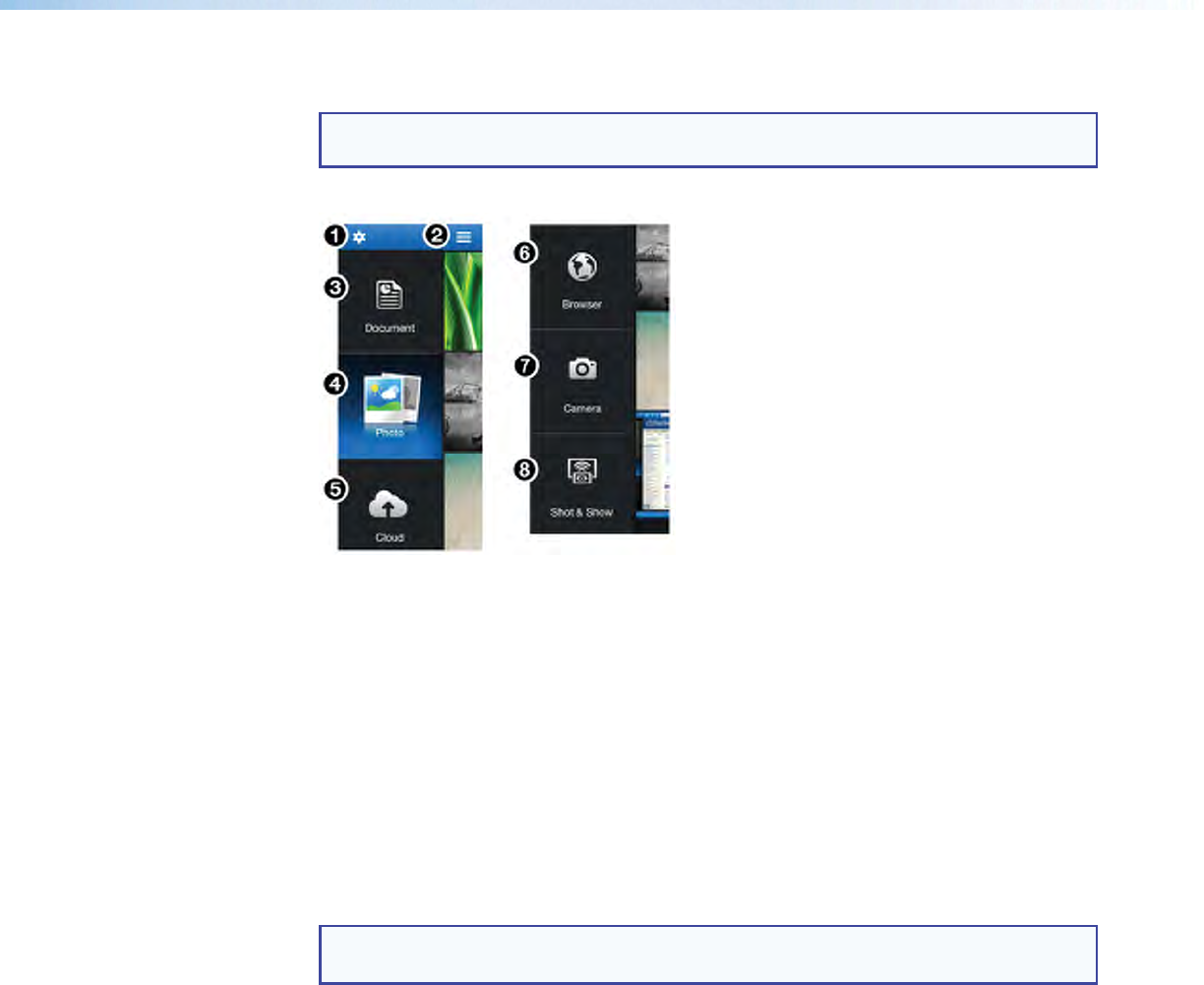
The Main Menu on the left side of the screen contains the following options:
Figure 18. MirrorOp Home Screen
1 Settings – see Settings on page 32
2 Menu – tap to hide or unhide the main menu
3 Document – see Presenting Documents and Photos on the next page
4 Photo – see Presenting Documents and Photos on the next page
5 Cloud – see Presenting Files from a Cloud Storage on page 26
6 Browser – see Presenting Web Pages on page 30
7 Camera – see Presenting the Device Camera on page 31
8 Shot & Show – see Presenting Device Screenshots on page 31
NOTE: The Cloud (5) and Browser (6) features require internet access (see
Connecting to a Receiver, step 2b, on page 20).
ShareLink 250 W • Operation Using a Mobile Device 23
Presenting Documents and Photos
Import the document or photo to your device
NOTE: The following file types are supported:
• Documents: Microsoft Word (.doc, .docx), PowerPoint (.ppt, .pptx),
Excel (.xls, .xlsx), and PDF
• Photos: JPEG and PNG
There are three ways to import a document or photo file to your mobile device. See the
instructions below for your preferred method.
Option 1: Transfer the file from your computer to your device (Android devices)
1. Connect the mobile device to your computer.
2. Locate the file in your computer and copy it to the mobile device storage.
3. Present the Document or Photo as shown on page 25.
Option 2: Transfer the file from your computer to your device using iTunes (iOS
devices)
1. Connect the iPad or iPhone to your computer.
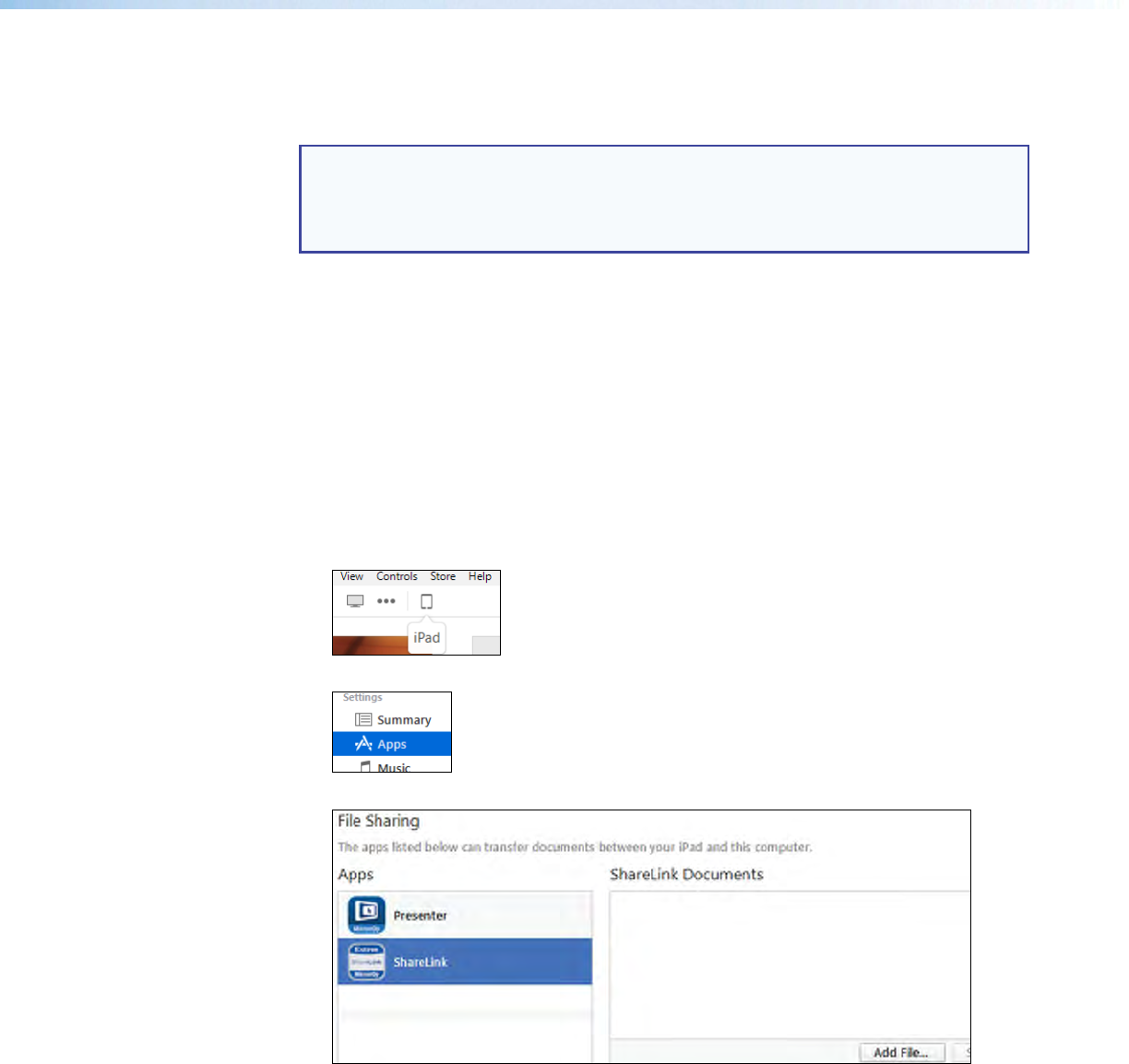
2. Open iTunes and click the iPhone or iPad icon:
3. Click Apps on the left hand Settings menu in iTunes:
4. On the Apps page, scroll down to the File Sharing section and click ShareLink:
5. Click Add File. Browse to and select the file you wish present. The file is listed in the
ShareLink Documents panel and added to the Document section of the app.
6. Present the Document or Photo as shown on page 24.
Option 3: Import the document from an email attachment
1. On your mobile device, open the email containing the attached file that you wish to
present.
ShareLink 250 W • Operation Using a Mobile Device 24
2. Import the attachment as follows:
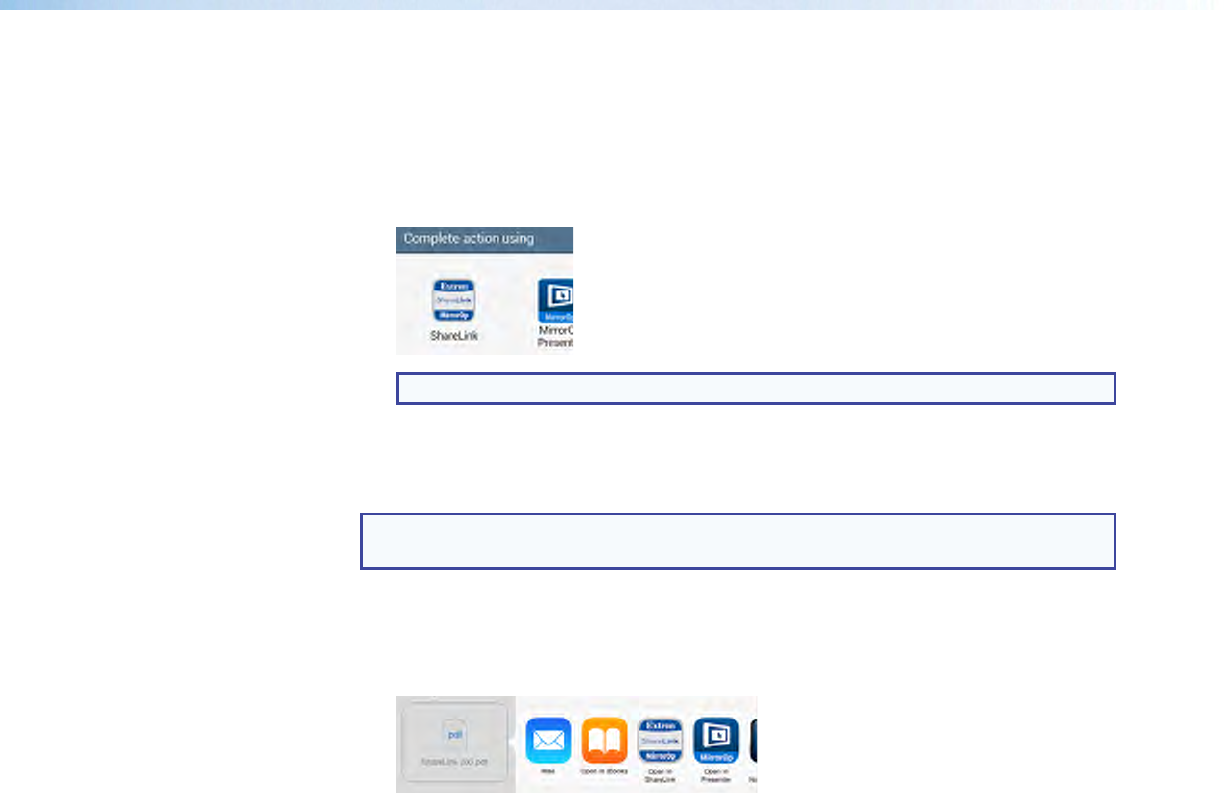
For Android devices, you can either:
• save the file to the device storage and proceed to the next section (Present the
Document or Photo on the next page)
• or open the file directly from the email using the ShareLink app:
NOTE: Options may vary depending on the email app used.
Then, proceed to step 3 of the next section (Present the Document or Photo,
on the next page).
For iOS devices:
NOTE: The following steps apply to the native email app in iOS devices. Results
and options may vary depending on the email app used.
a. In the email, locate the attachment icon and press Tap to Download (if the
download does not start automatically).
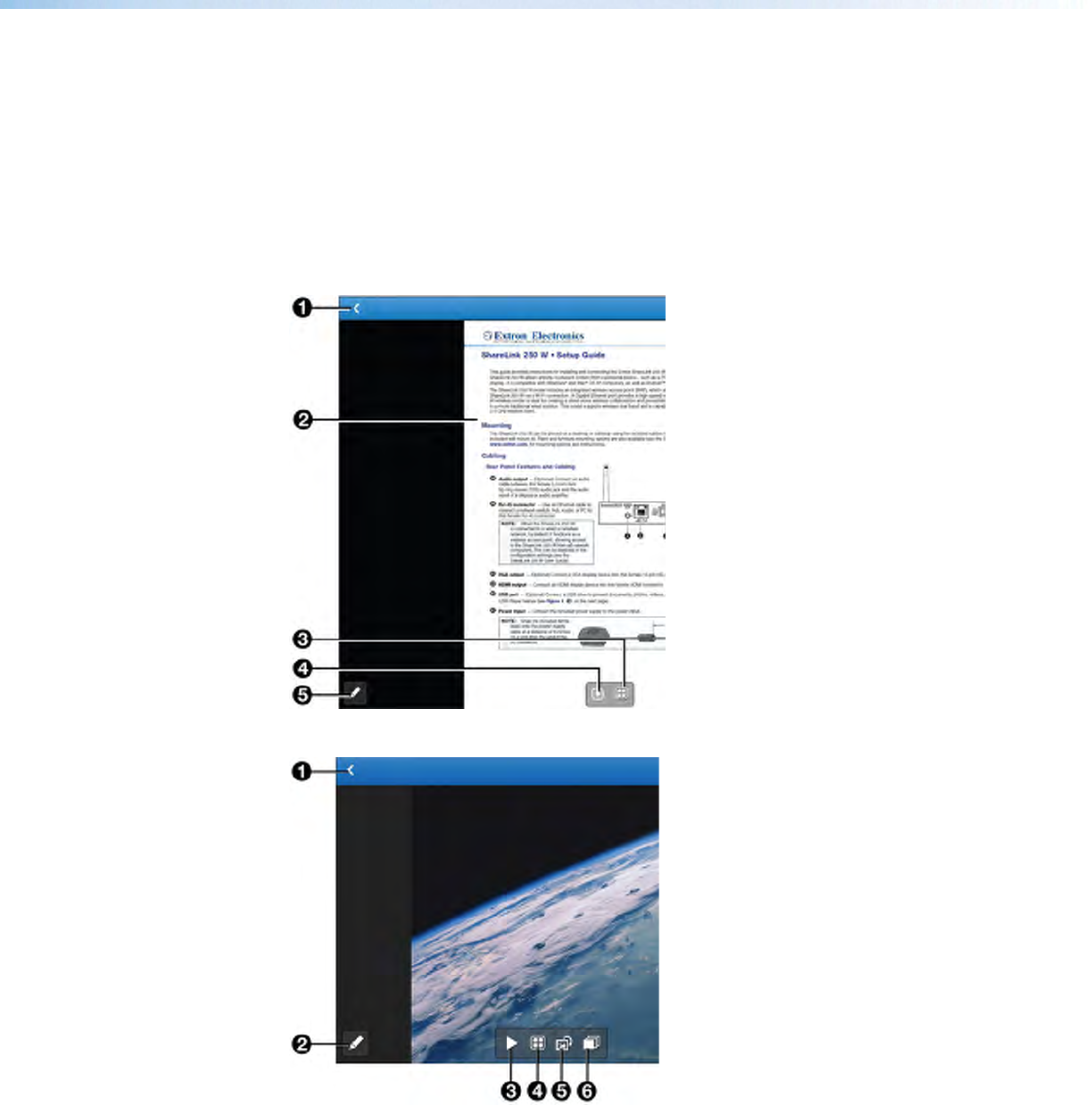
b. When download is complete, press and hold the attachment icon. A box opens,
showing installed apps that can open the file:
c. Select Open in ShareLink, and proceed to step 3 of the next section, (Present
the Document or Photo on the next page).
ShareLink 250 W • Operation Using a Mobile Device 25
Present the document or photo
1. Open MirrorOp and select Document or Photo on the main menu (see figure 18, 3
or 4, on page 22), depending on your file type. All recognized document and photo
files (and folders containing these files) are displayed.
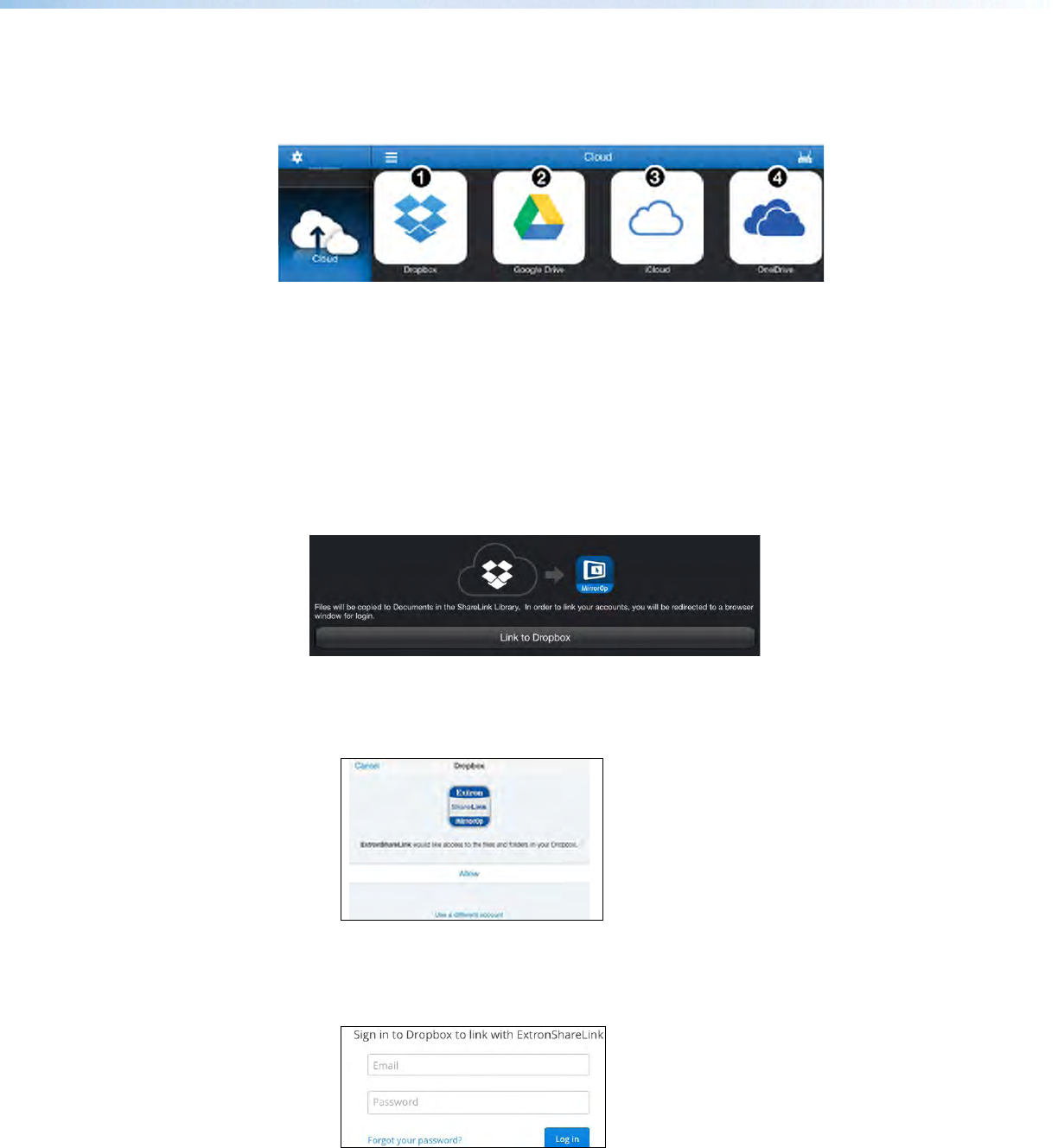
2. Select the folder containing the file you wish to present, and select the desired file. The
presentation screen appears as shown in figure 19 (for documents) and figure 20 (for
photos).
3. Select the Play button (4 on figure 19, and 3 on figure 20) to begin presenting. The
Play button becomes a Pause button, which can be pressed to stop the presentation.
Figure 19. Document View Screen
Figure 20. Photo View Screen
1 Back – Exit document and return to
the previous screen.
2 Document view screen – This
section is displayed during
presentation.
3 Quadrant view – Choose whether
to present the document full-screen
(default) or on a quadrant (top left,
top right, bottom left, or bottom
right) for multiple user presentations.
4 Play – Start or stop presentation.
5 Annotation tool – Make
annotations on the document
during presentation (see Making
Annotations on page 32).
1 Back – Exit document and return to
the previous screen.
2 Annotation tool – Make
annotations on the image during
presentation (see Making
Annotations on page 32).
3 Play – Start or stop presentation.
4 Quadrant view – Choose whether
to present the image full-screen
(default) or on a quadrant (top left,
top right, bottom left, or bottom
right) for multiple user presentations.
5 Rotate – Rotate the image
clockwise.
6 Slideshow – Start a slideshow of
all the images in the current folder.
ShareLink 250 W • Operation Using a Mobile Device 26
Presenting Files from a Cloud Storage
Select Cloud on the main menu. The following screen opens, showing the supported cloud
storage services:
Figure 21. Cloud Services
1 Dropbox – See “Presenting Files from Dropbox,” below.
2 Google Drive – See Presenting Files from Google Drive on the next page.
3 iCloud – See Presenting Files from iCloud (iOS devices only) on page 28.
4 OneDrive – See Presenting Files from OneDrive on page 29.
Presenting files from Dropbox
1. Select Dropbox on the Cloud screen, and select Link to Dropbox in the following
screen:
Figure 22. Link to Dropbox
• If you are already logged into a Dropbox account on your device, the following
screen appears, asking for permission to access the files and folders in this Dropbox
account.
If this is the Dropbox account you wish to use, choose Allow. If not, select Use a
different account.
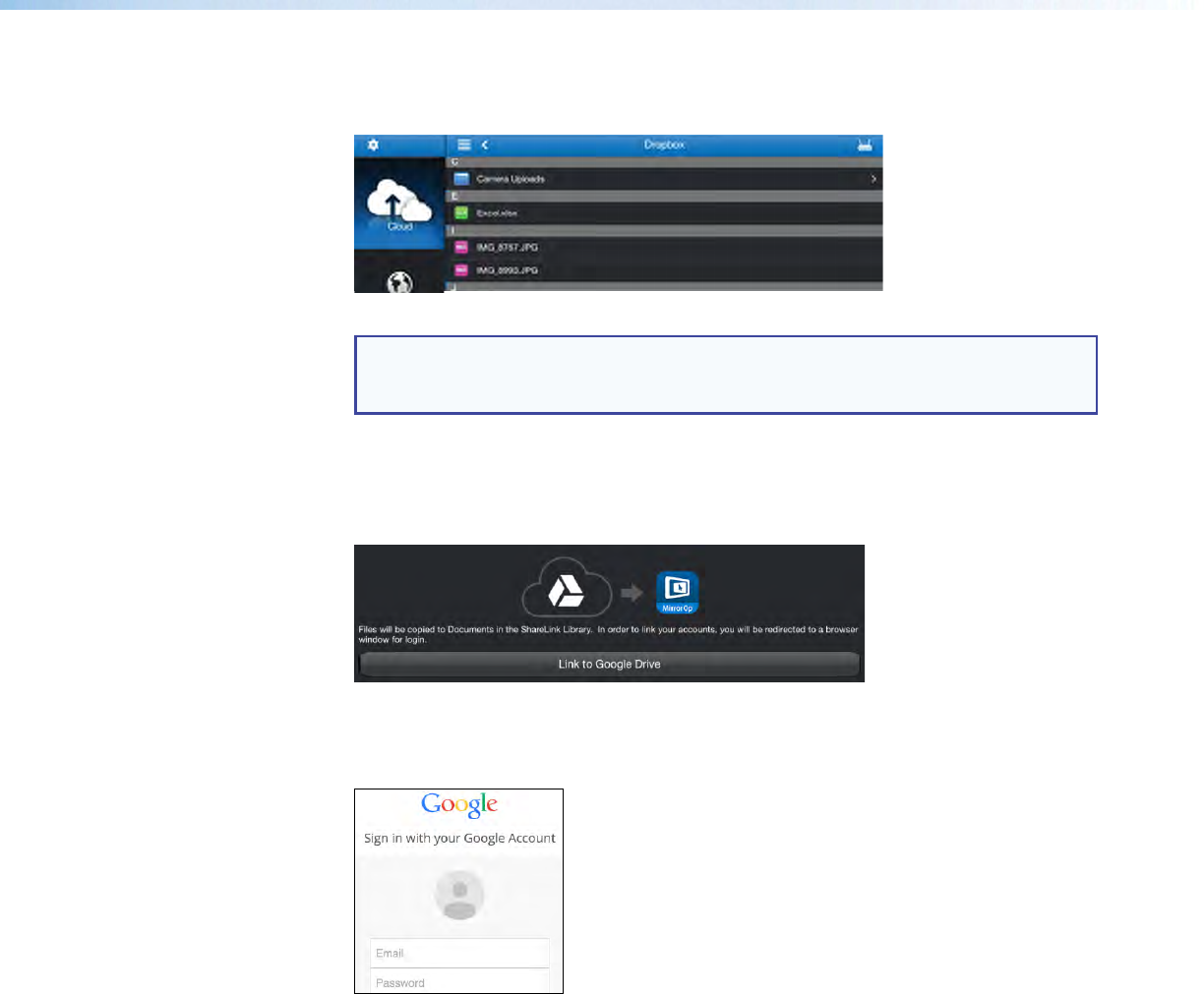
• If you are not logged in to a Dropbox account, a login screen appears as shown
below. Enter your Dropbox account login information.
ShareLink 250 W • Operation Using a Mobile Device 27
Once logged in, a list of folders and files in the Dropbox account appears (see figure 23).
2. Browse to and select the document or photo you wish to present.
Figure 23. Dropbox Files
NOTE: iOS devices only: When you open a file from the Dropbox section, the
file is automatically copied to the iPad or iPhone and is listed in the Document
section of the app.
Presenting Files from Google Drive
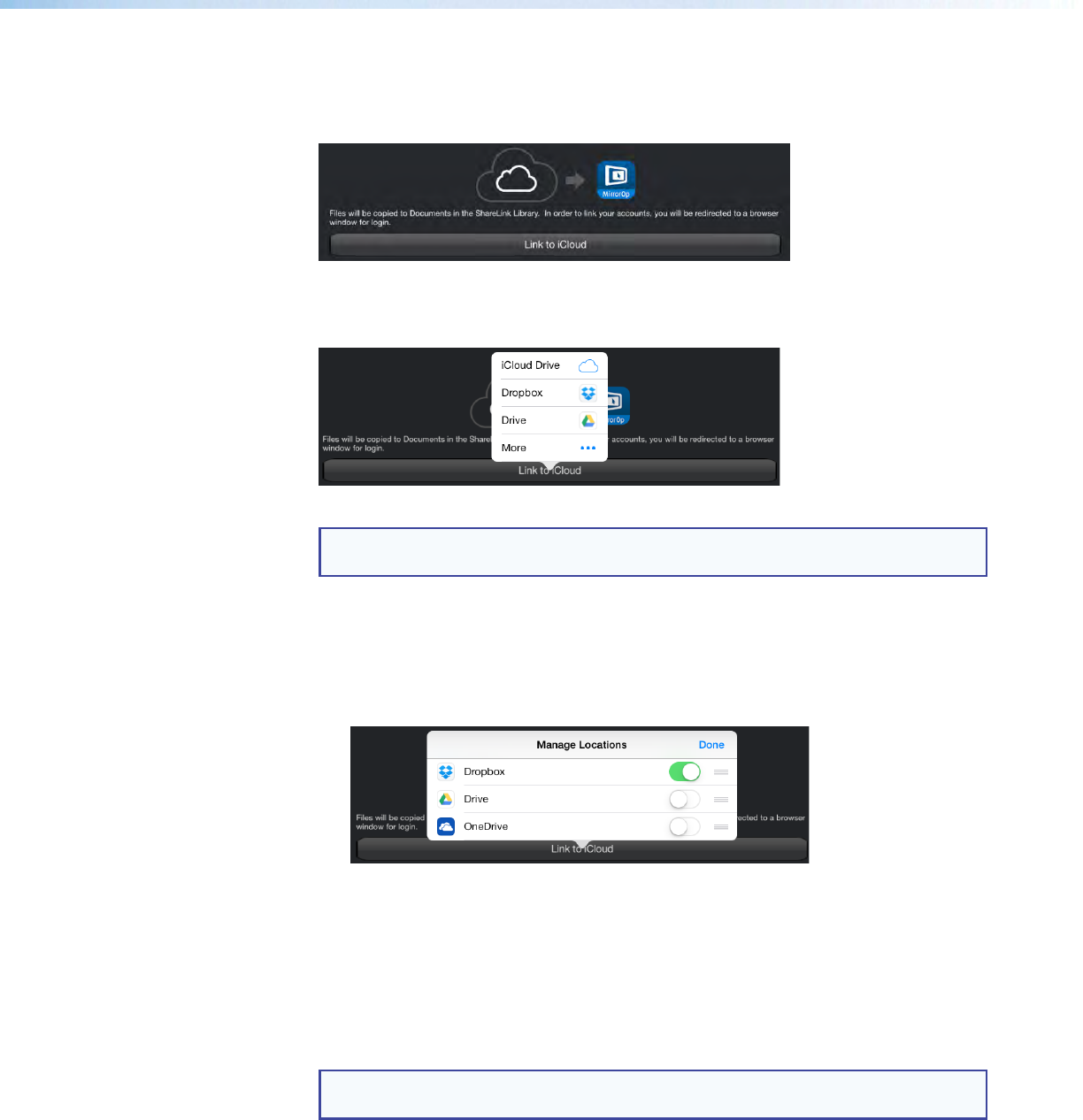
1. Select Google Drive on the Cloud screen, and select Link to Google Drive in
the following screen:
Figure 24. Link to Google Drive
A login screen appears as shown below.
2. Enter your Google account login information.
Once logged in, a list of folders and files in the Google Drive account appears.
3. Browse to and select the document or photo you wish to present.
ShareLink 250 W • Operation Using a Mobile Device 28
Presenting Files from iCloud (iOS devices only)
1. Select iCloud on the Cloud screen, and select Link to iCloud in the following
screen:
Figure 25. Link to iCloud
The following menu opens, showing a link to iCloud as well as shortcuts to other cloud
drives (such as Dropbox and Google Drive) that are linked to the device:
Figure 26. Cloud Selection Screen
NOTE: All cloud drives are automatically linked to iCloud. You can unlink specific
cloud drives by going to the device settings.
If necessary, you can manage the cloud drive shortcuts that appear on this cloud
selection screen as follows:
a. Click More on the cloud selection screen (figure 26, above).
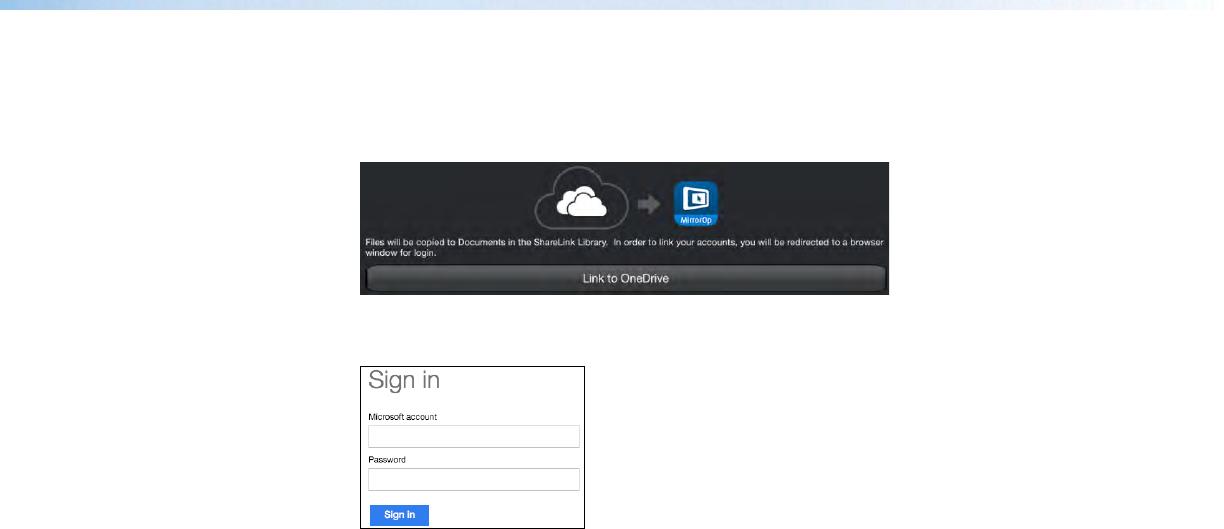
b. The Manage Locations menu opens as shown below, listing all the cloud drives
that are linked to iCloud:
Figure 27. Manage Locations Menu
On this screen, you can select which shortcuts to display on the cloud selection
screen.
To enable a shortcut, press the round icon next to the cloud drive on the list. The
icon turns green, indicating that the shortcut is enabled on the cloud selection
screen.
2. On the cloud selection screen, select iCloud or any other cloud drive you wish to
access. A list of folders and files in the cloud drive appears.
NOTE: If you are not logged into the cloud drive account, the app prompts you to
enter your login information.
3. Browse to and select the document or photo you wish to present.
ShareLink 250 W • Operation Using a Mobile Device 29
Presenting files from OneDrive
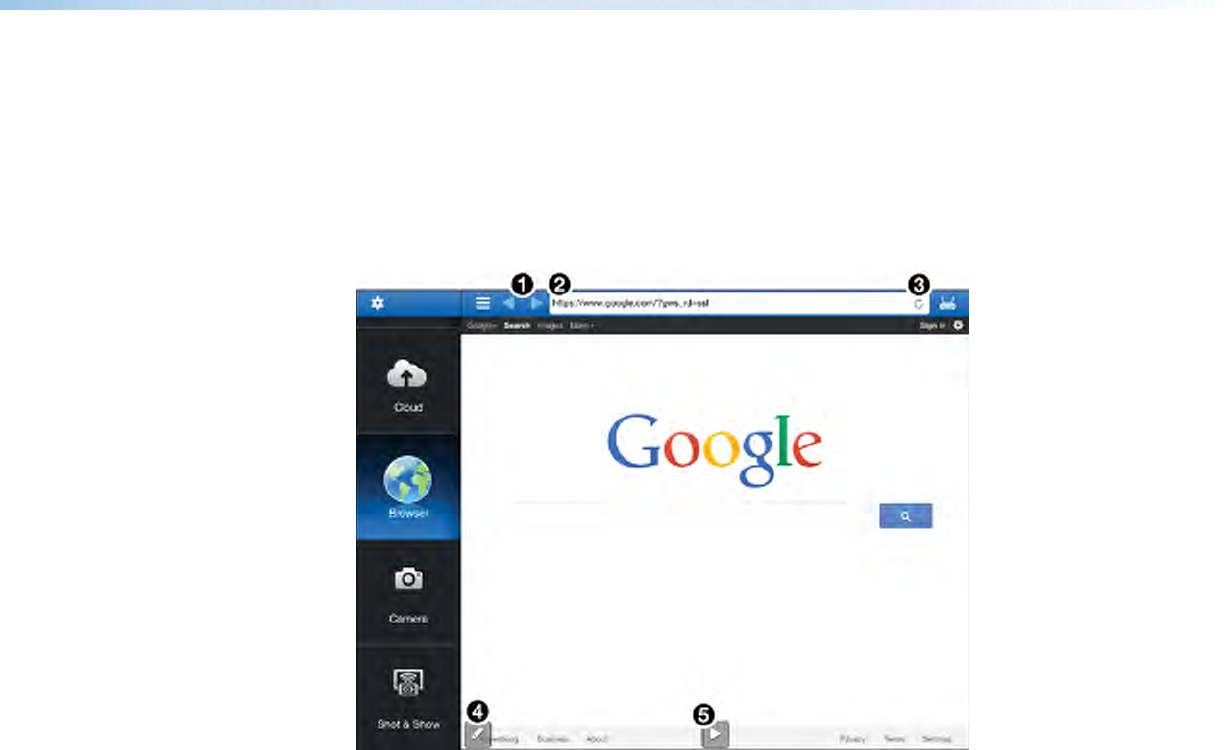
1. Select OneDrive on the Cloud screen, and select Link to OneDrive in the
following screen:
Figure 28. Link to OneDrive
A login screen appears as shown below. Enter your Microsoft account login information.
Once logged in, a list of folders and files in the OneDrive account appears.
2. Browse to and select the document or photo you wish to present.
ShareLink 250 W • Operation Using a Mobile Device 30
Presenting Web Pages
1. Select Browser on the main menu. The MirrorOp built-in browser opens (see figure 29).
2. On the address bar (see figure 29, 2), enter the Web address for the page you wish to
present.
3. Press the Play (5) button to begin presenting the Web page. The Play button
becomes a Pause button, which can be clicked to stop the presentation.
Figure 29. MirrorOp Browser
1 Navigation buttons – Navigate between Web pages
2 Address Bar – Enter the Web address
3 Refresh – Refresh the Web page
4 Annotation tool – Make annotations on the Web page during presentation (see
Making Annotations on page 32 for instructions)
5 Play – Start or stop presentation
ShareLink 250 W • Operation Using a Mobile Device 31
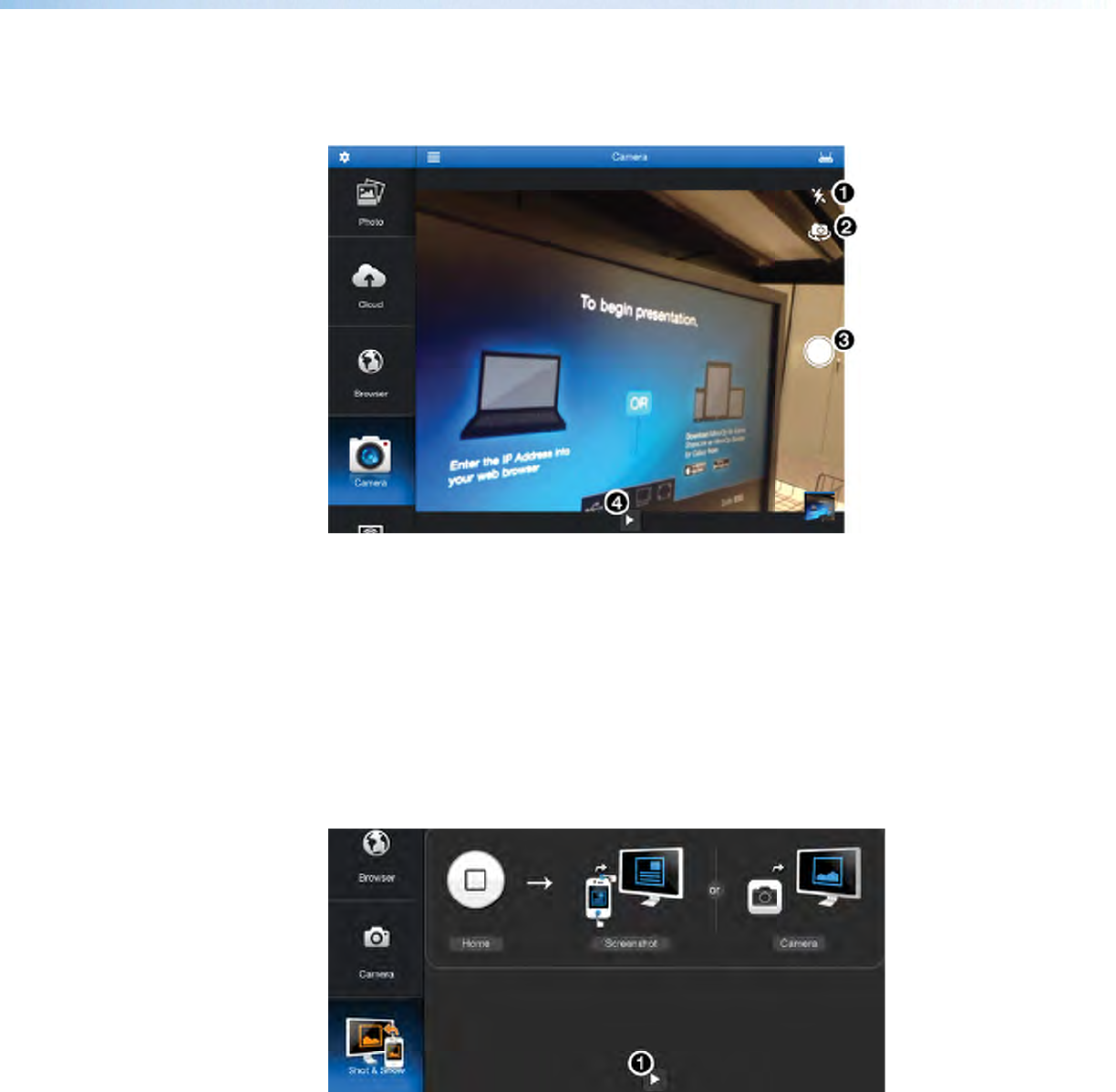
Presenting the Device Camera
1. Select Camera on the main menu. The camera view opens (see figure 30).
2. Press play (see figure 30, 4) to present the camera view on the display.
Figure 30. Camera View
1 Flash – Turn camera flash on or off, if flash is available on the device.
2 Switch camera view – Switch between front and rear camera.
3 Take picture – Take a picture using the camera. The picture can also be
presented.
4 Play – Start or stop presentation.
Presenting Device Screenshots
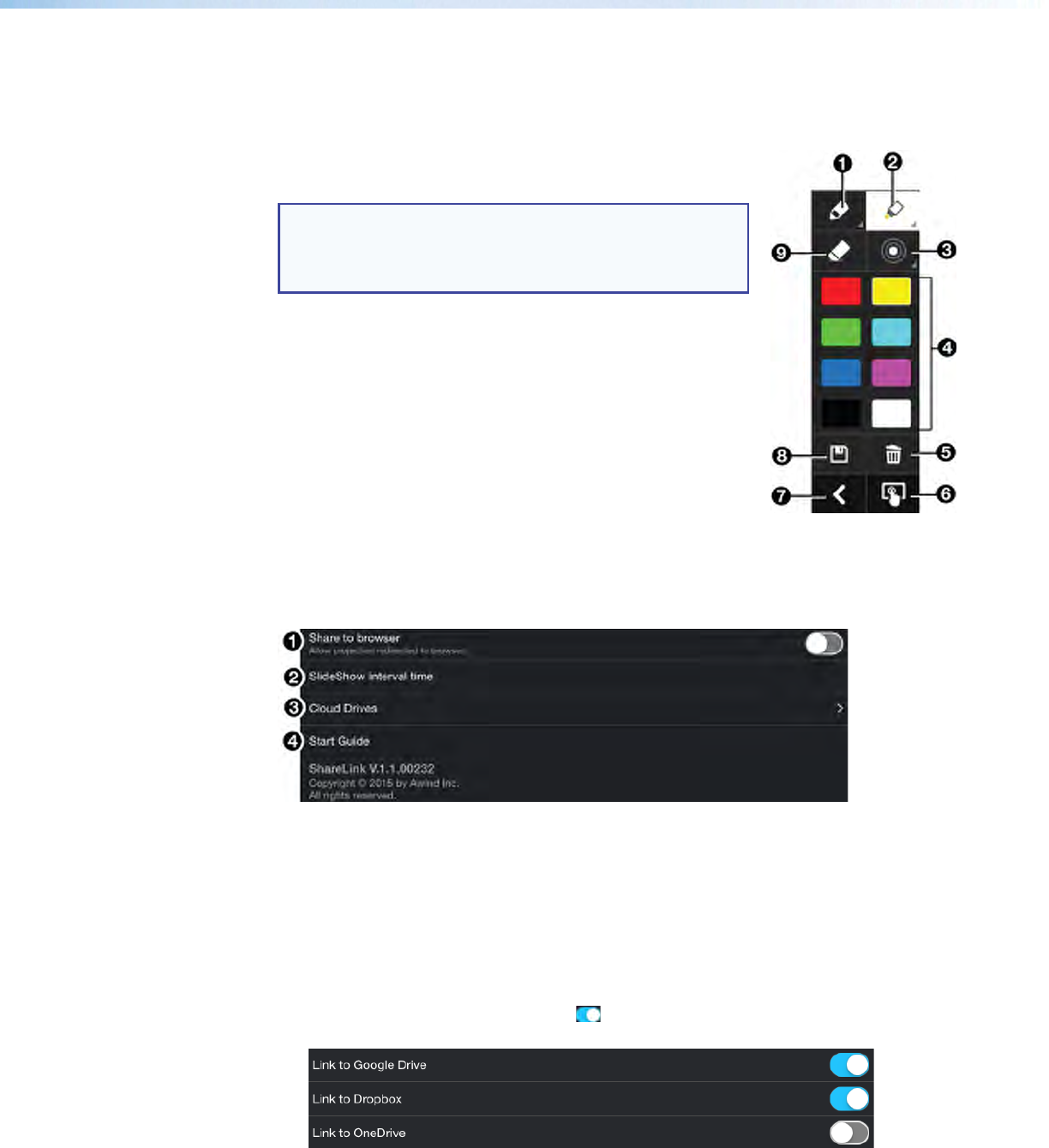
1. Choose Shot & Show on the main menu and press play (see figure 31 1) in the Shot
& Show instruction screen. The instruction screen appears on the display.
Figure 31. Shot & Show Instruction Screen
2. Press the Home button on your mobile device to go to the home screen, and navigate
to the screen that is to be shared.
3. Take the screenshot by pressing the appropriate buttons on your mobile device. The
screenshot is shared on the display automatically. You can also take a picture with the
device camera, and the picture displays automatically.
4. To pause the presentation, return to the app and press the Play/Pause button (1).
ShareLink 250 W • Operation Using a Mobile Device 32
Making Annotations
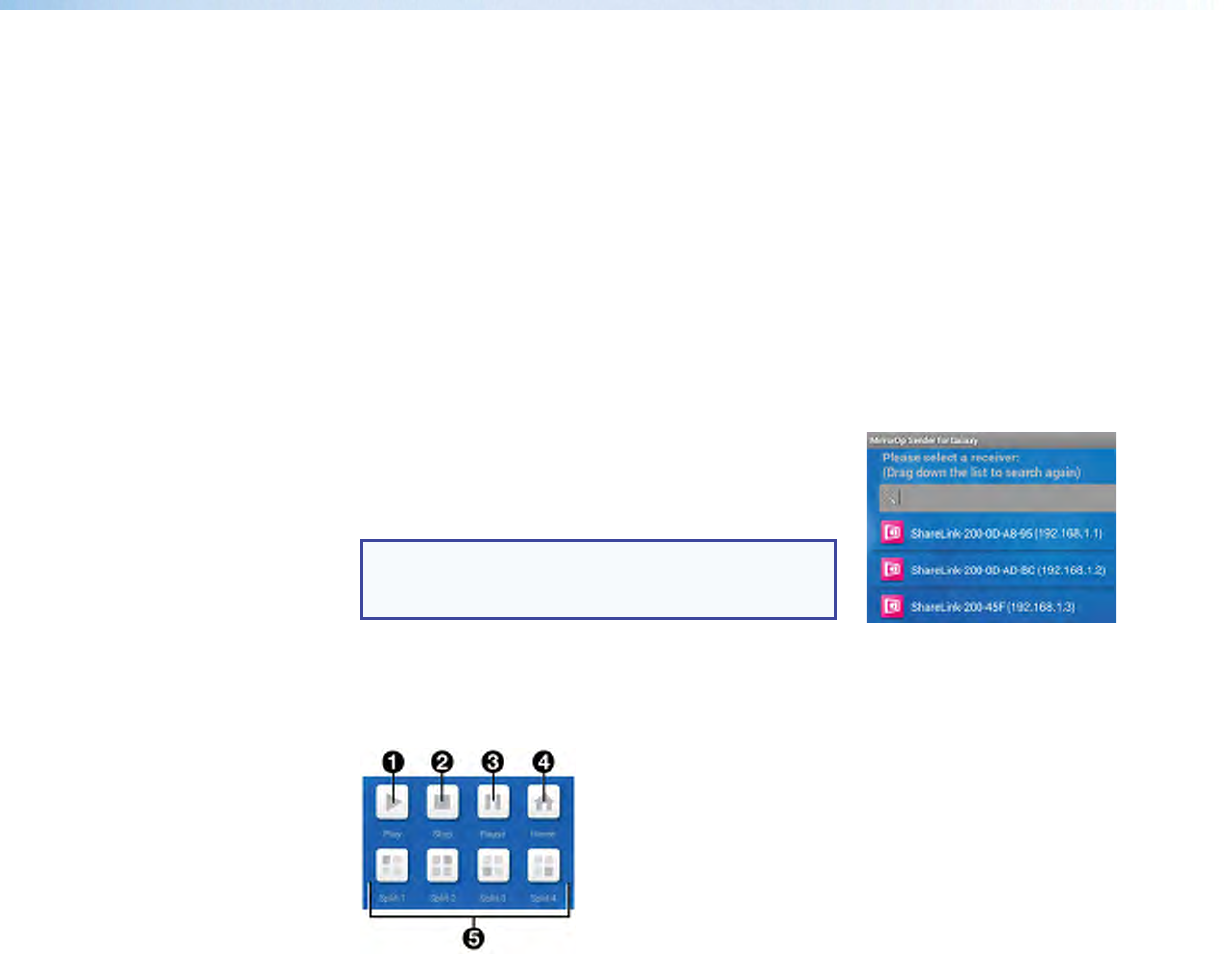
The annotation tool allows the presenter to draw or highlight items on the screen. Click the
Annotation tool icon to expand the tools menu shown below:
1 Pen
2 Highlighter
NOTE: One stroke mode: Tap the Pen or Highlighter
icon to enable one-stroke mode. This allows you to draw
one stroke at a time (the previous annotation is cleared
when a new stroke is made).
3 Size — Select pen or highlighter size (small, medium, or
large).
4 Color — Select pen or highlighter color.
5 Delete all — Delete all annotations in the current image.
6 Exit annotation mode
7 Hide annotations menu
8 Save — Save current image with annotations. The file is
saved as an image file in the mobile device storage.
9 Eraser — Erase selected portions of the drawing.
Settings
Press the Settings button to access the following options:
Figure 32. Settings
1 Share to browser — Enable the Share to browser feature by tapping the icon on
the right. This feature allows the presentation to be viewed on individual user devices
connected to the ShareLink 250 W (see Watching a Presentation (WebShare) on
page 35).
2 SlideShow interval time — Choose the interval time between each photo during a
slideshow.
3 Cloud Drives — Press to open a list of cloud services available on the device, as
shown below. Press the round icon ( ) to allow MirrorOp to link to the cloud service
listed.
4 Start Guide — Access the Start Guide that is shown at startup.
ShareLink 250 W • Operation Using a Mobile Device 33
Downloading MirrorOp Sender for Galaxy
This app is supported by Samsung Galaxy devices. Follow these steps to download the
app:
1. Open the Google Play app store on your Galaxy device.
2. Search for MirrorOp Sender for Galaxy.
3. Install the app on your mobile device.
Using MirrorOp Sender for Galaxy
1. Ensure that the ShareLink 250 W is powered and connected to the network.
2. Connect your device to the ShareLink 250 W through Wi-Fi (see step 2 of Connecting
to a Receiver on page 20).
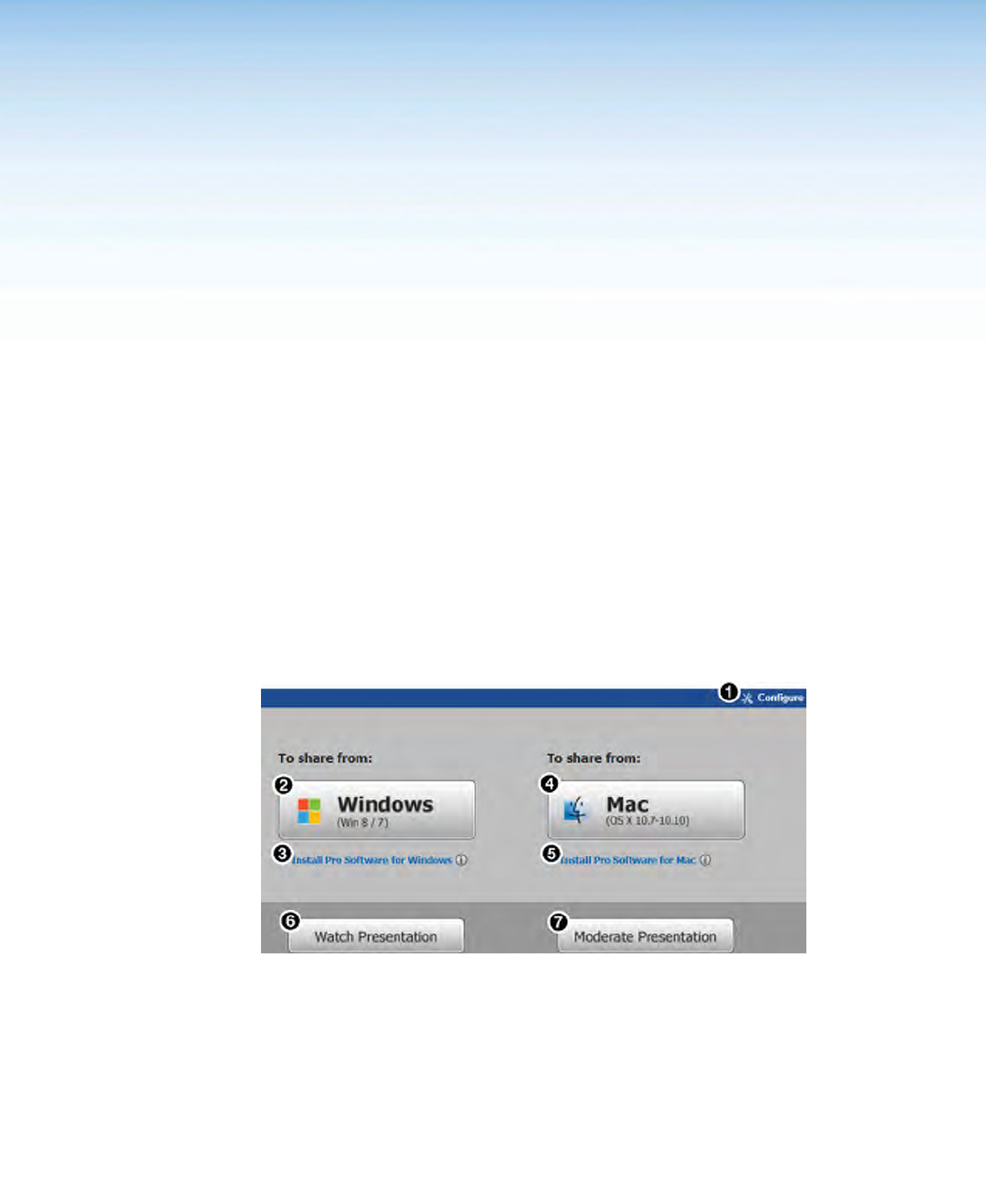
3. Open the app. The discovered receivers list appears as
shown at right.
4. Select your ShareLink 250 W receiver from the
discovered receivers list.
NOTE: To refresh the list, drag down and release
the list. You may also search for the receiver by
entering the SSID in the search bar.
The login screen appears after a receiver is selected.
5. If the login code is activated, enter the login code shown on the standby screen (see
figure 4, 9, page 6) and press Connect. After login, the main menu appears as
shown below.
Figure 33. MirrorOp Sender Menu
1 Play – Press to begin sharing your screen.
2 Stop – Press to stop sharing your screen.
3 Pause – Press to pause or unpause screen sharing. This allows the presenter to
navigate through the mobile device while the menu screen remains on the display
device.
4 Home – Go to the mobile device home screen.
5 Split icons – For multiple user presentations, choose one of the split (quadrant)
icons to share your screen on the top left, top right, bottom left, or bottom right
of the display. This allows up to four users to present their screens on the display
simultaneously.
ShareLink 250 W • Using the Embedded Web Pages 34
Using the Embedded
Web Pages
The ShareLink 250 W embedded Web pages contain the following features:
• WebShare: allows users to view a presentation remotely on their mobile devices or
computers.
• Moderator control: allows a designated moderator to play or stop user presentations,
and to choose where to display the presentations on the main screen.
• Admin mode: allows a designated administrator to configure ShareLink 250 W settings.
This section covers the following:
• Opening the Embedded Web Pages
• Watching a Presentation (WebShare)
• Moderating a Presentation
• Configuring ShareLink 250 W Settings
Opening the Embedded Web Pages
To access the embedded Web pages, enter the ShareLink IP address (shown on the standby
screen) into the Web browser.
The landing page appears on the computer screen as shown here:
Figure 34. ShareLink 250 W Landing Page
1 Configure — Click to access the Admin pages and configure presentation settings (see
Configuring ShareLink 250 W Settings on page 38).
2 Windows — Click to run the Lite version of the ShareLink 250 W software for Windows.
3 Install Pro Software for Windows
4 Mac — Click to run the Lite version of the ShareLink 250 W software for Mac.
5 Install Pro Software for Mac
6 Watch Presentation — Click to access the WebShare feature. See Watching a
Presentation on the next page.
7 Moderate Presentation — See Moderating a Presentation on page 36.
ShareLink 250 W • Using the Embedded Web Pages 35
Watching a Presentation (WebShare)
WebShare allows audience members to view a presentation on their computers or mobile
devices using a Web browser. The presenter may broadcast the presentation so that the
image shown on the display can be viewed remotely.
NOTES:
• WebShare must be enabled on the client software or mobile app in order for the
presentation to be viewed remotely by other users.
• Each user connected through WebShare adds to the wireless bandwidth of the
ShareLink 250 W. It is recommended that the device be connected to an Ethernet
network or bridged to a router for best performance.
Audience members must follow these steps to watch a presentation:
1. Open a Web browser on the mobile device or computer and connect to the IP address
of the ShareLink 250 W.
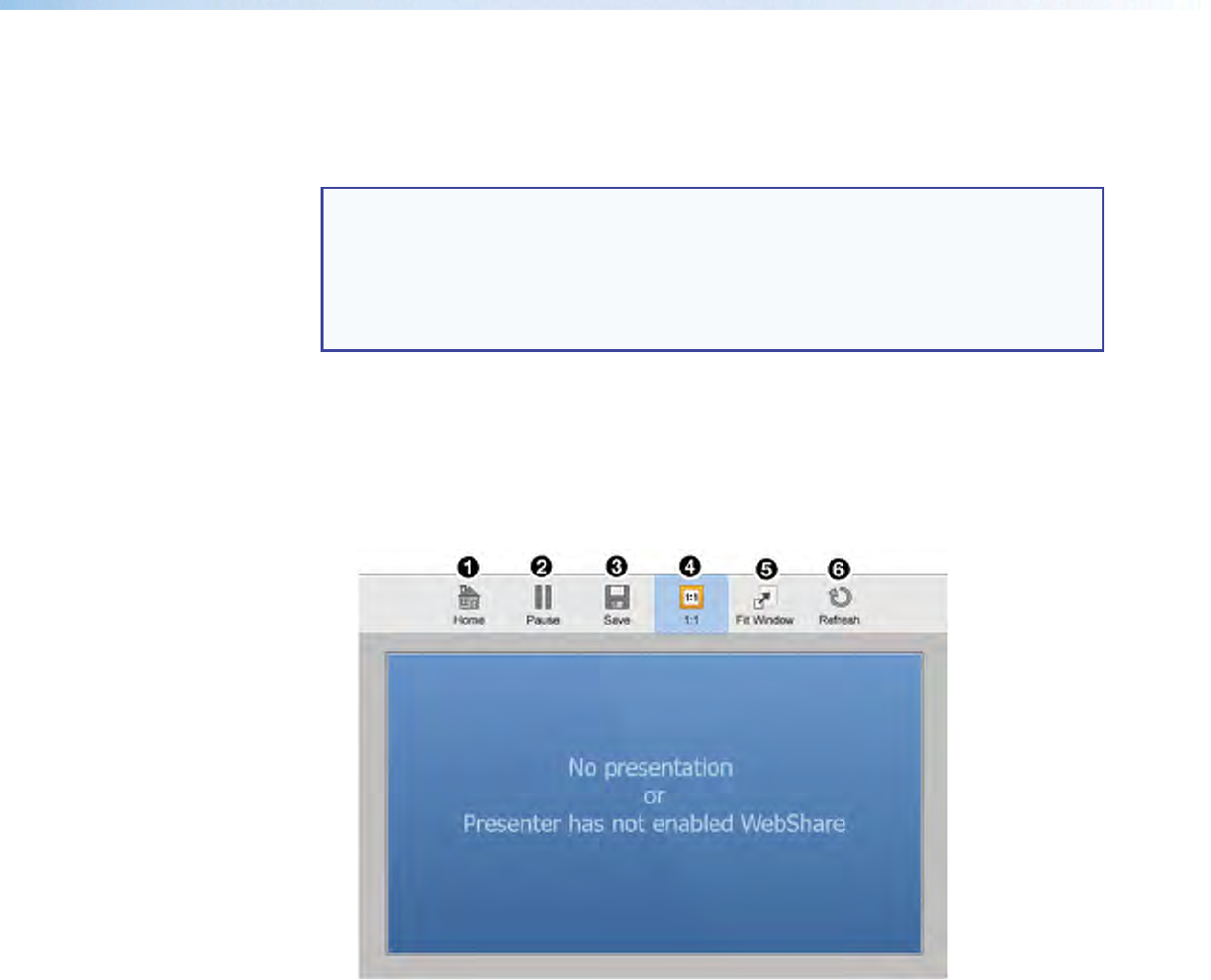
2. On the landing page, click Watch Presentation. The presentation page (figure 35)
opens in the Web browser.
3. Click the 1:1 button (4) to watch the presentation.
Figure 35. Presentation Page
1 Home — Click to go to the ShareLink 250 W landing page.
2 Pause — Click to pause the presentation.
3 Save — Click to save the slide being presented.
4 1:1 — Click to watch the presentation.
5 Fit Window — Click to enlarge the presentation screen to the size of the browser
window.
6 Refresh — Click to refresh the presentation, if necessary.
ShareLink 250 W • Using the Embedded Web Pages 36
Moderating a Presentation
Moderator control allows a single user to control the presentation of all connected users.
There are two ways to moderate user presentations:
• Through the Moderator Control Web Page (see instructions below)
• Through an Extron ShareLink driver (see Moderating through an Extron ShareLink
Driver on the next page)
Moderating through the Moderator Control Web Page
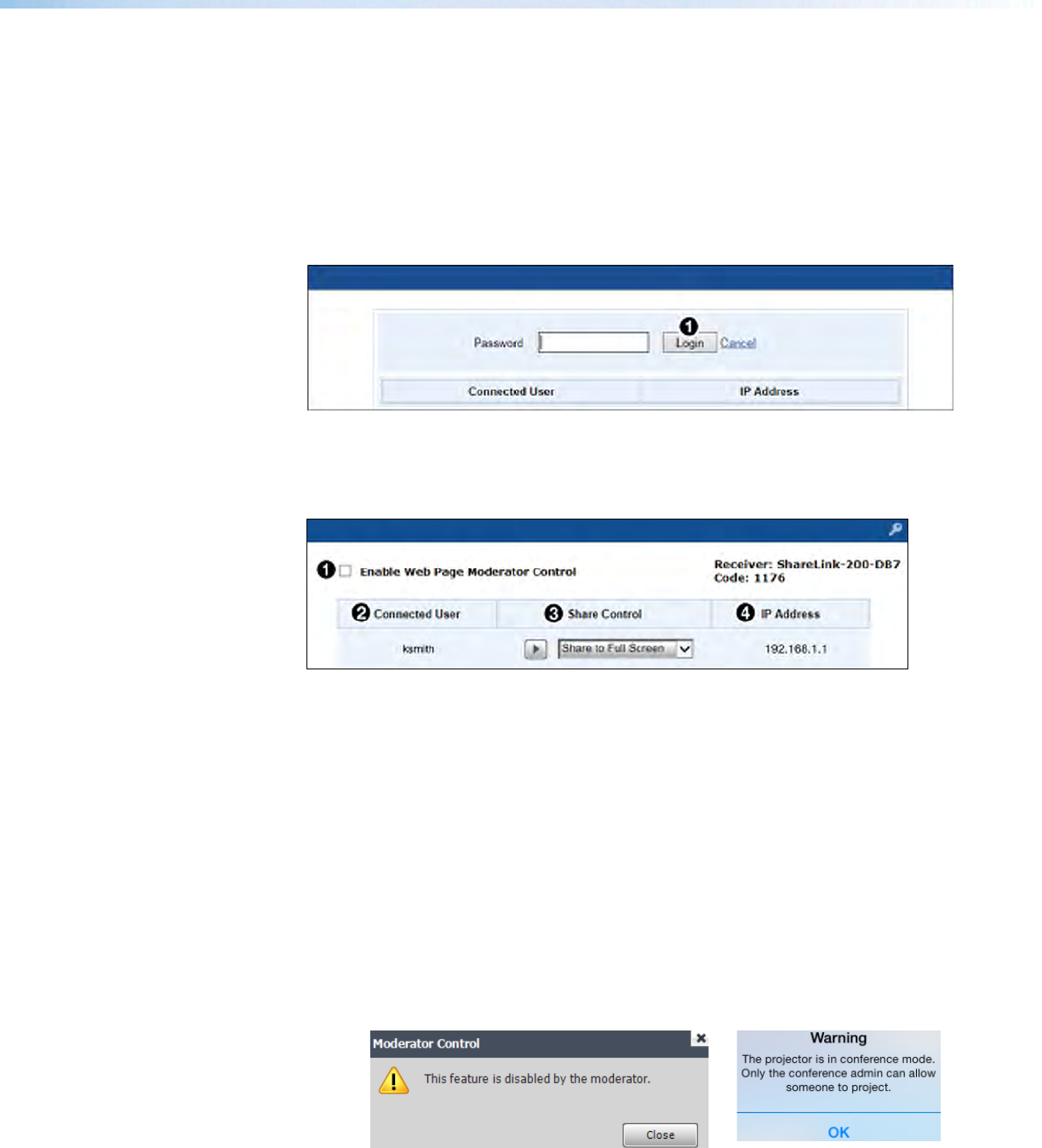
1. Click Moderate Presentation on the landing page. The Login page opens:
Figure 36. Login Page
2. Enter the password and click Login (see figure 36, 1). The default password is
“moderate.” This password can be changed (see Web Page Moderator Setup on
page 48). After login, the following page appears:
Figure 37. Moderator Page
1 Enable Web Page Moderator Control
2 Connected User column (see the next page)
3 Share Control column (see the next page)
4 IP Address column (see the next page)
1
Enable Web Page Moderator Control — This option is unchecked by default,
meaning that all connected users are free to start presentations. The moderator may
also control presentations when this box is unchecked.
Check this box to enable moderator control, which allows only the moderator to
control presentations from this Web page. When this option is enabled:
• Only the moderator can start user presentations. If a user tries to share a
presentation when this feature is enabled, the following message appears:
ShareLink Software: ShareLink app:
• The moderator can start or stop user presentations. However, individual users
may choose to stop their presentations from their devices.
ShareLink 250 W • Using the Embedded Web Pages 37
2
Connected User — This column shows the user names of all users connected to
the ShareLink 250 W.
3
Share Control — This column allows the moderator to do the following:
• Play or stop a user presentation: Click play ( ) in the Share Control
section next to the Connected User that you wish to present. The row becomes
green and the play button becomes a stop button. Click the stop button to
stop sharing content.
• Choose where on the screen to display the presentation (full screen,
top left, top right, bottom left, or bottom right): Click the drop-down menu
and select where to display the presentation (Share to Full Screen is
selected by default).
4 IP Address — This column shows the IP Address of each connected user device.
Moderating through an Extron ShareLink Driver
You can moderate presentations remotely from an Extron touchpanel control system using
an Extron ShareLink driver (see www.extron.com for optional touchpanel control systems
and to download the Extron ShareLink driver).
The driver allows the moderator to have full control of user presentations and to monitor
activity on the moderator control Web page.
NOTE: Web page moderator control can only be enabled or disabled from the Web
page, by checking or unchecking the Enable Web Page Moderator Control
box (see figure 37, 1 on the previous page).
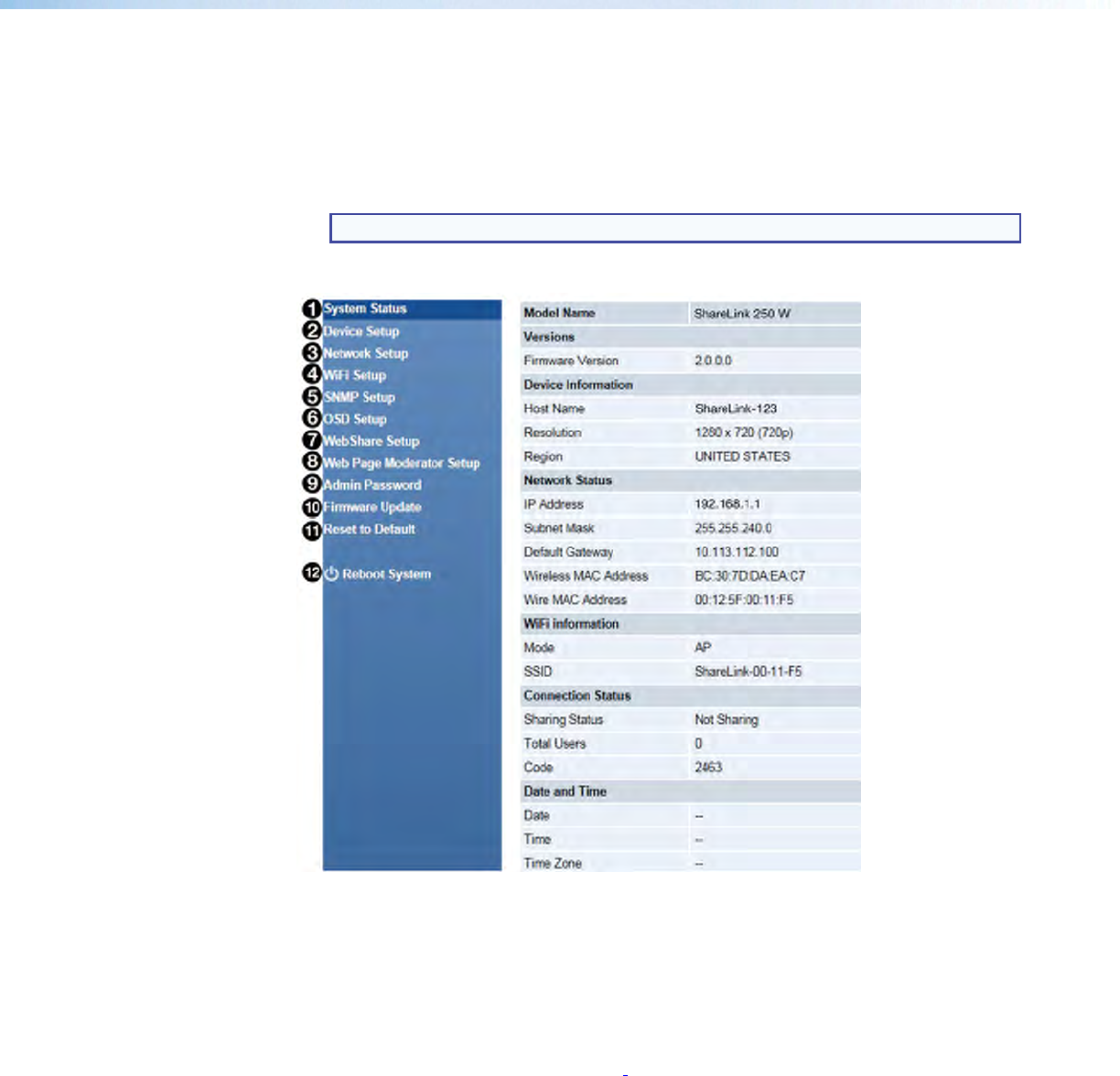
ShareLink 250 W • Using the Embedded Web Pages 38
Configuring ShareLink 250 W Settings
To access the ShareLink 250 W admin (configuration) pages:
1. Click the Configure button on the top right hand corner of the landing page
(figure 34, 1, page 34). The Login page opens.
2. Enter the password and click Login. The default password is “configure.”
NOTE: This password can be changed (see Admin Password on page 48).
After login, the following admin pages appear:
Figure 38. ShareLink 250 W Admin Pages
1 System Status — The System Status page appears by default. This page displays
basic information about the ShareLink 250 W model, network status, connection status,
and date and time.
2 Device Setup — Use this page to adjust the ShareLink 250 W output resolution, login
code, date and time, and to reboot settings (see Device Setup on the page 40).
3 Network Setup — Use this page to adjust network settings for the ShareLink 250 W,
such as host name, domain name, IP settings, DHCP settings, and GateKeeper (see
Network Setup on page 41).
4 WiFi Setup — Use this page to adjust Wi-Fi settings, including wireless LAN, AP and
Client mode, access point, and Wi-Fi client settings (see WiFi Setup on page 42).
5 SNMP Setup — Use this page to enable or disable SNMP service, and to configure
settings for managing the ShareLink 250 W via SNMP (see SNMP Setup on page 45).
6 OSD Setup — Use this page to upload a custom standby image or reset the stanby
image to default, and to choose which device information to display on the standby
screen (see OSD Setup on page 46).

ShareLink 250 W • Using the Embedded Web Pages 39
7 WebShare Setup — Use this page to set the auto refresh interval and the Access
Password Code for WebShare (see WebShare Setup on page 47).
8 Web Page Moderator Setup — Use this page to change the Moderator password
and to enable or disable Moderator Mode (see Web Page Moderator Setup on page
48).
9 Admin Password — Use this page to change the Admin password (see Admin
Passwords on page 48).
¢ Firmware Update — Use this page to update the ShareLink 250 W firmware. (see
Firmware Update on page 49).
£ Reset to Default — Use this page to reset the ShareLink 250 W to its factory default
settings (see Reset to Default on page 50).
¤ Reboot System — Use this page to reboot the ShareLink 250 W (see Reboot
System on page 50).
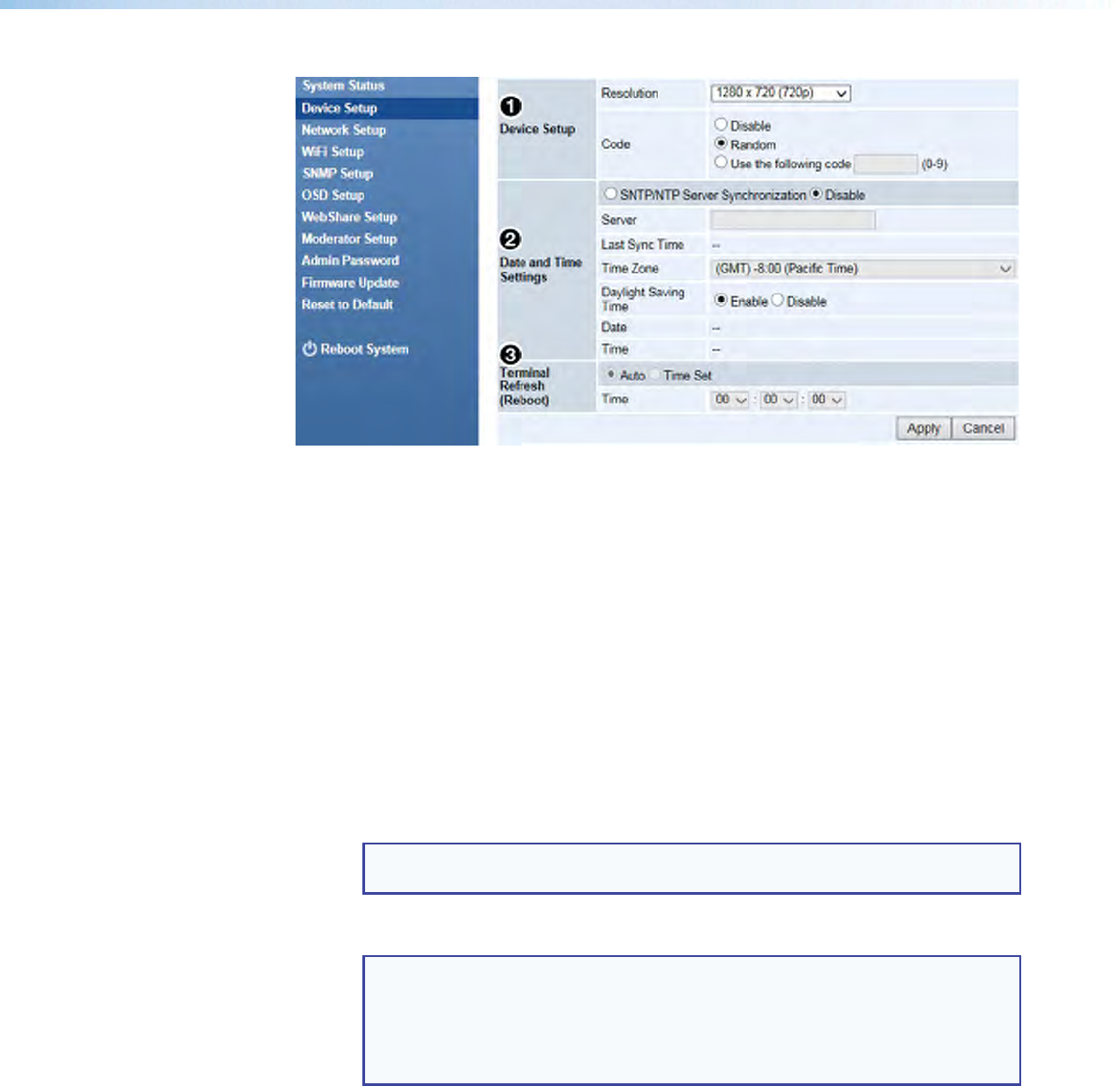
ShareLink 250 W • Using the Embedded Web Pages 40
Device Setup
Figure 39. Device Setup Panel
1 Device Setup Panel
• Resolution: Change the output resolution (resolution is set to 720p by default).
Click the drop-down menu to show other resolutions.
• Code: Customize the login code that is displayed on the standby screen at startup
(see figure 4, 9, page 6). Three options are available for the login code:
• Disable – No login code is required to connect to the ShareLink 250 W.
• Random (default) – A new random code is generated when the last user
disconnects from the ShareLink 250 W. (For example: User 1 logs in with the
current code, then user 2 logs in with the same code. When users 1 and 2
disconnect from the ShareLink, a new code is generated.)
• Use the following code: enter a custom 4-digit login code.
2 Date and Time Settings Panel
• Choose SNTP/NTP Server Synchronization to specify the time server, or
choose Disable to disable this feature.
NOTE: SNTP/NTP (Simple Network Time Protocol/Network Tie Protocol) is
used for synchronizing the clocks of computer systems over networks.
If SNTP/NTP Server Synchronization is enabled:
• Server: Enter the NTP server address into this field.
NOTES:
• If the NTP server address is in the form of a URL, a DNS server address is
required to sync to the NTP server (for example, enter “pool.ntp.org”).
• If the NTP server address is in the form of an IP address, a DNS server
address is not required to sync to the NTP server.
• Time Zone: Select the appropriate time zone.
3 Terminal Refresh (Reboot) Panel
This feature refreshes the terminal and reboots the system. The terminal refreshes when
a user is not connected and no user is sharing content.
• Auto (default) – Device automatically refreshes when a user is not connected and
no user is sharing.
• Time Set – Schedule a specific time to refresh the terminal (specify that time in
the Time field using the drop-down lists).
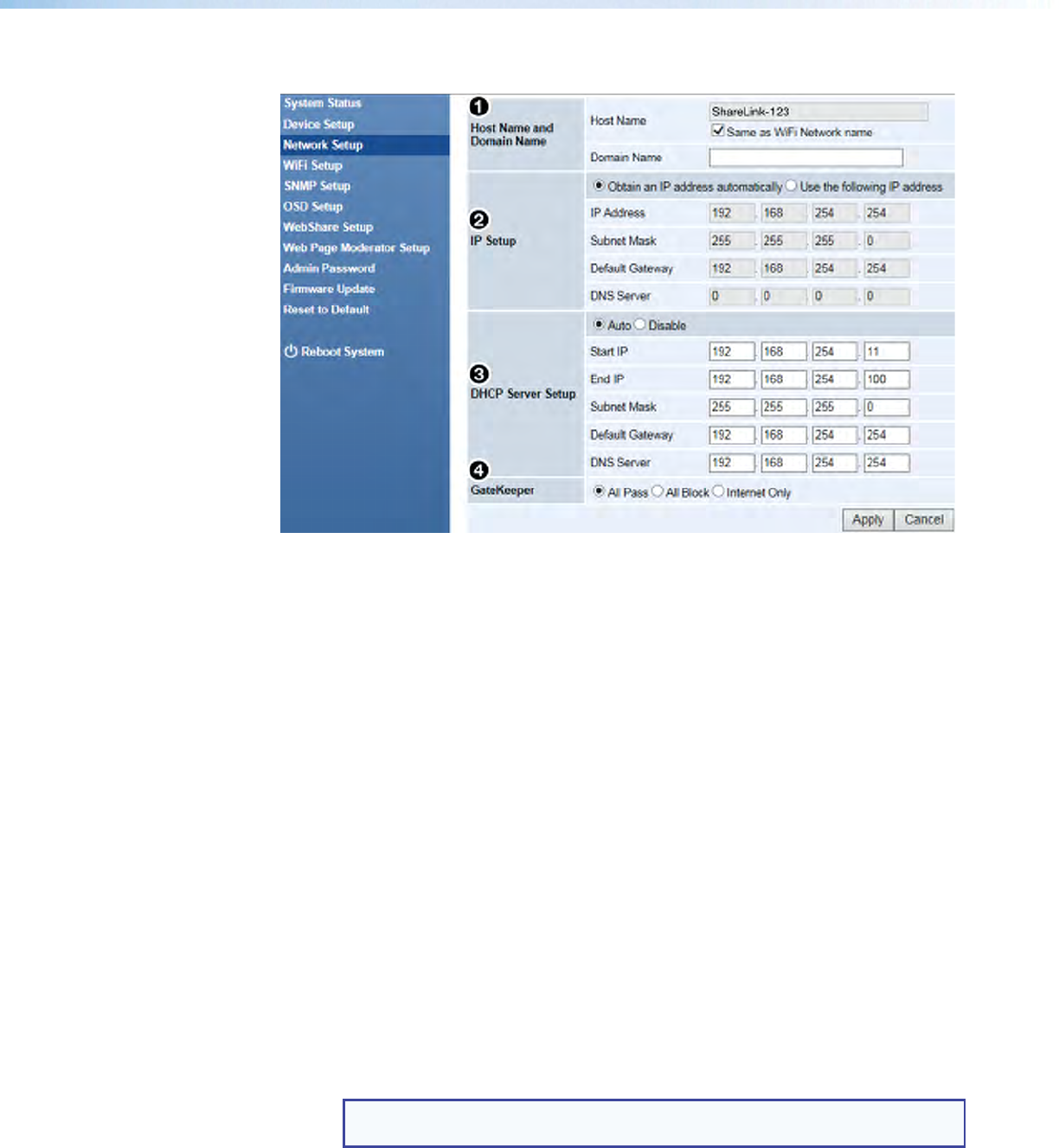
ShareLink 250 W • Using the Embedded Web Pages 41
Network Setup
Figure 40. Network Setup
1 Host Name and Domain Name Panel
• Host Name: Enter a host name for the ShareLink 250 W device or check Same
as WiFi Network name to use the default SSID name.
• Domain Name: Enter the domain name for the DNS server.
2 IP Setup Panel
• Obtain an IP address automatically (default setting): select this option
to obtain an IP address automatically from a DHCP server. The default settings are
as follows:
IP Address: 192.168.254.254 Subnet Mask: 255.255.255.0,
Default Gateway: 192.168.254.254 DNS Server: 0.0.0.0
• Use the following IP address: Select this option to enter a static IP
address. Enter the corresponding subnet mask, default gateway, and DNS server.
3 DHCP Server Setup Panel
• Auto (default setting): If a DHCP server is available on the network, the
ShareLink 250 W uses an IP address assigned by the server. If a DHCP server is
not available on the network, the ShareLink 250 W uses its internal DHCP server to
assign IP addresses to network devices. The default settings are as follows:
Start IP: 192.168.254.11 End IP: 192.168.254.100
Subnet Mask: 255.255.255.0 Default Gateway: 192.168.254.254
DNS Server: 192.168.254.254
NOTE: In Auto mode, you may use the default settings above or customize the
settings, if needed.
• Disable: Disables the internal DHCP server.
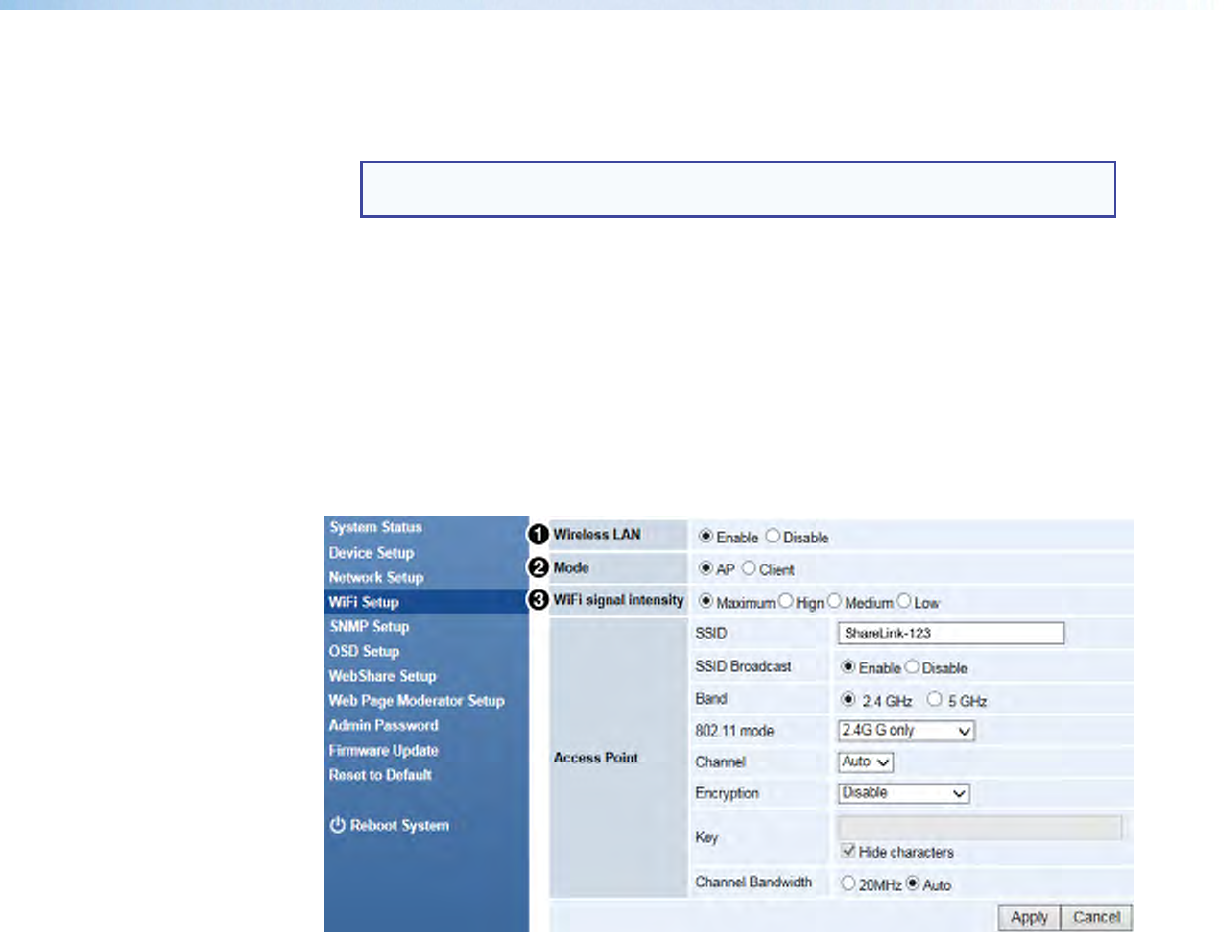
ShareLink 250 W • Using the Embedded Web Pages 42
4 GateKeeper Panel: GateKeeper provides network security settings for the
ShareLink 250 W, as well as basic data management between the wireless LAN and the
ethernet LAN.
NOTE: Regardless of which GateKeeper setting is selected, users can connect to
the ShareLink 250 W through its internal wireless access point.
• All Pass: Users connected to the wireless LAN can connect to the
ShareLink 250 W and can access the wired (ethernet) LAN.
• All Block: Users connected to the wireless LAN can connect to the
ShareLink 250 W, but cannot access the wired LAN. All data is blocked, including
port 80, which is typically used for internet access.
• Internet Only: Users connected to the wireless LAN can connect to the
ShareLink 250 W and can access port 80 (for internet access only). All other data is
blocked.
WiFi Setup
Figure 41. WiFi Setup Panel
1 Wireless LAN Panel:
Wireless LAN is enabled by default. Choose Disable to disable wireless LAN
connection.
2 Mode Panel
There are three Wi-Fi modes for the ShareLink 250 W:
• AP (Access Point) mode (see AP (Access Point) mode on the next page)
• Client mode (see Client mode on page 44)
3 WiFi signal intensity:
Select Maximum, High, Medium, or Low
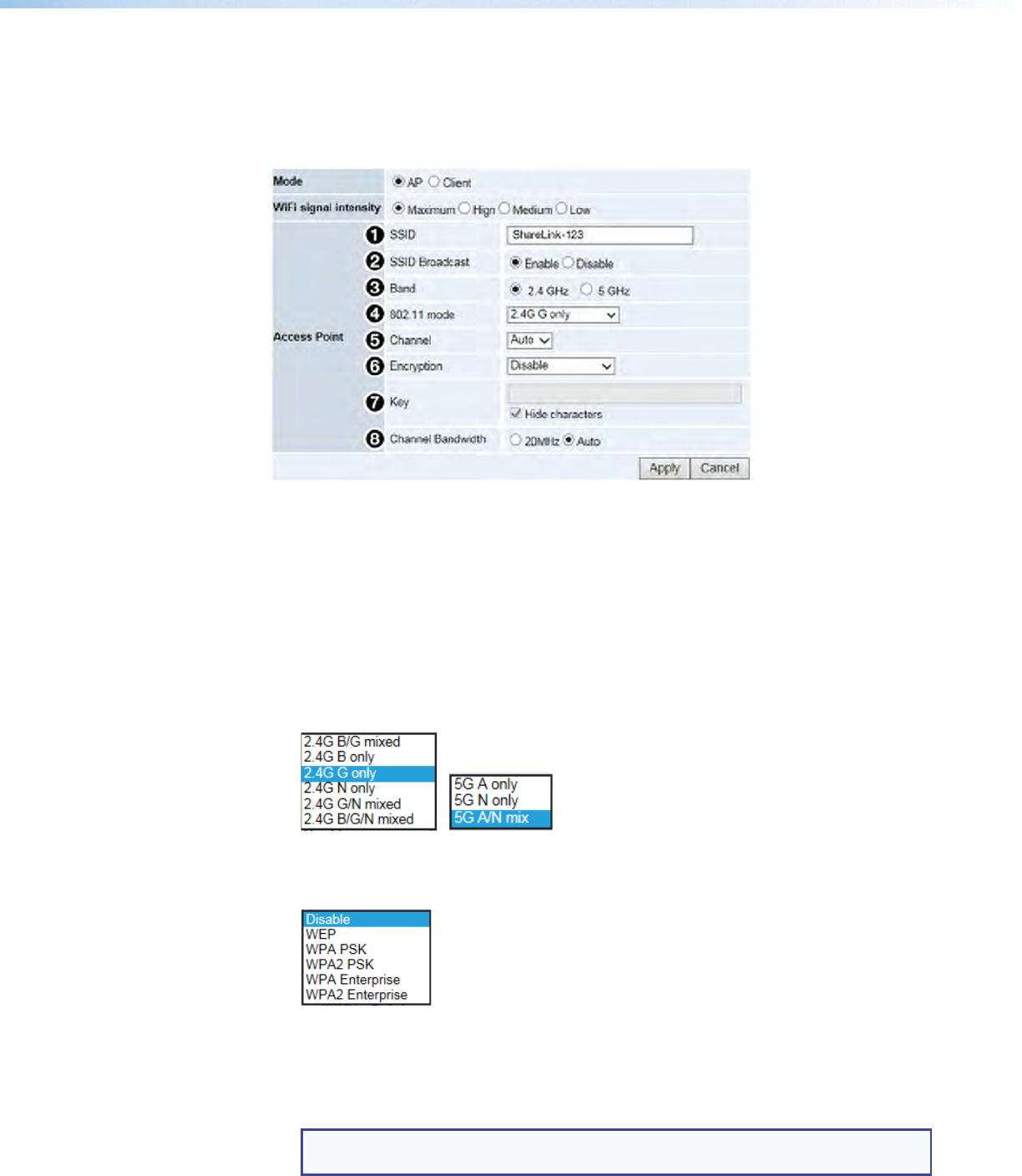
ShareLink 250 W • Using the Embedded Web Pages 43
AP (Access Point) mode
In AP mode, the ShareLink 250 W is configured as a wireless access point. If the ShareLink
is wired to the network, wireless devices may access the network by connecting to the
ShareLink through Wi-Fi.
When AP mode is selected, the Access Point panel appears with the following options:
Figure 42. Access Point Mode
1 SSID: Displays the default SSID of the ShareLink 250 W unit. To change the SSID, type
in the desired SSID and click Apply.
2 SSID Broadcast: Makes the access point visible to wireless clients. SSID broadcast is
enabled by default. Choose Disable to disable SSID broadcast.
3 Band: Select the 2.4 GHz or 5 GHz wireless band.
4 802.11 mode: Default mode is 2.4G G only for the 2.4 GHz band and 5G A/N
mix for the 5 GHz band. Click the drop-down list to display other modes for the 802.11
standard and select the preferred mode for your wireless band:
5 Channel: See Available Wi-Fi Channels on page 55 for details and instructions.
6 Encryption: Click the drop-down list to display these encryption protocol options:
7 Key: After selecting an encryption protocol, enter the network security key.
8 Channel Bandwidth: Set to Auto by default. Each channel has a bandwidth of
20 MHz or 40 MHz. In auto mode, the device automatically determines which
bandwidth to use. Alternatively, you may select the 20 MHz option.
NOTE: The 40 MHz bandwidth increases data throughput, but also increases the
potential for interference from adjacent channels.
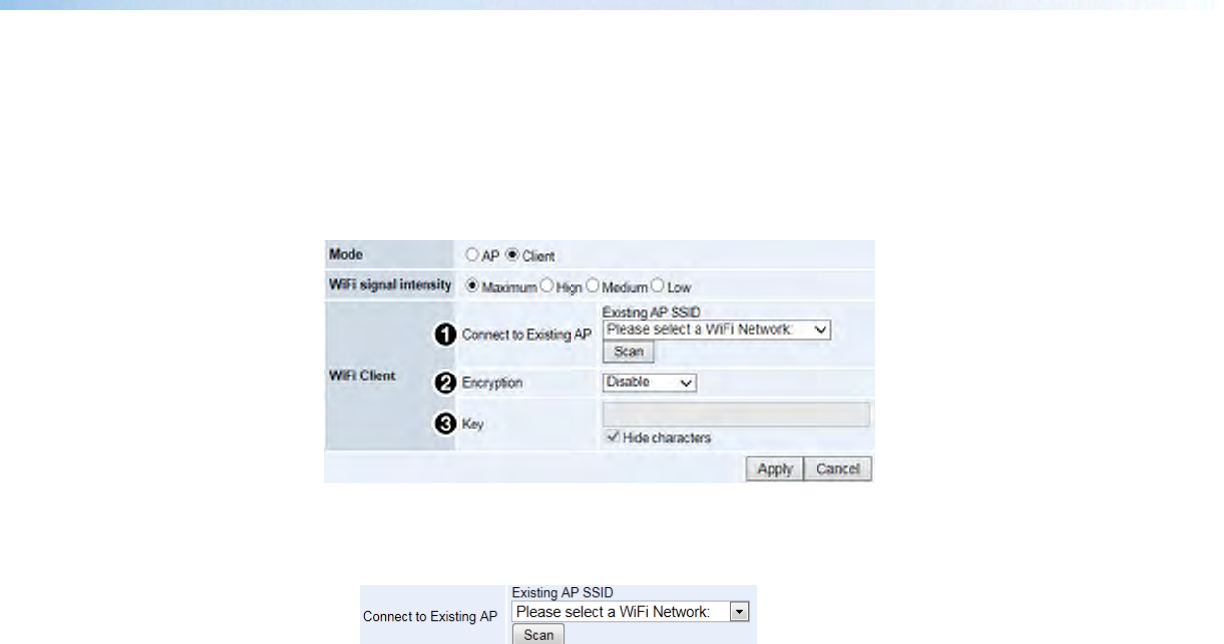
ShareLink 250 W • Using the Embedded Web Pages 44
Client mode
In Client mode, the ShareLink 250 W scans for existing access points and connects to one
as a client. In this mode, the ShareLink 250 W is no longer configured as an AP and does
not appear as a WAP on user devices. In order to connect to the ShareLink 250 W, users
must connect to the LAN network.
When Client mode is enabled, the Wi-Fi Client panel appears with the following options:
Figure 43. Client Mode
1 Connect to Existing AP: Click Scan to search for available Wi-Fi networks. When
scanning is complete, a drop-down menu with available Wi-Fi networks appears.
Select the desired Wi-Fi network from the drop-down menu.
2 Encryption: If the access point that you are trying to connect to has encryption
enabled, you must select the encryption type from the drop-down menu and enter the
network security key in Key section (below).
3 Key: After selecting an encryption protocol, enter the network security key.
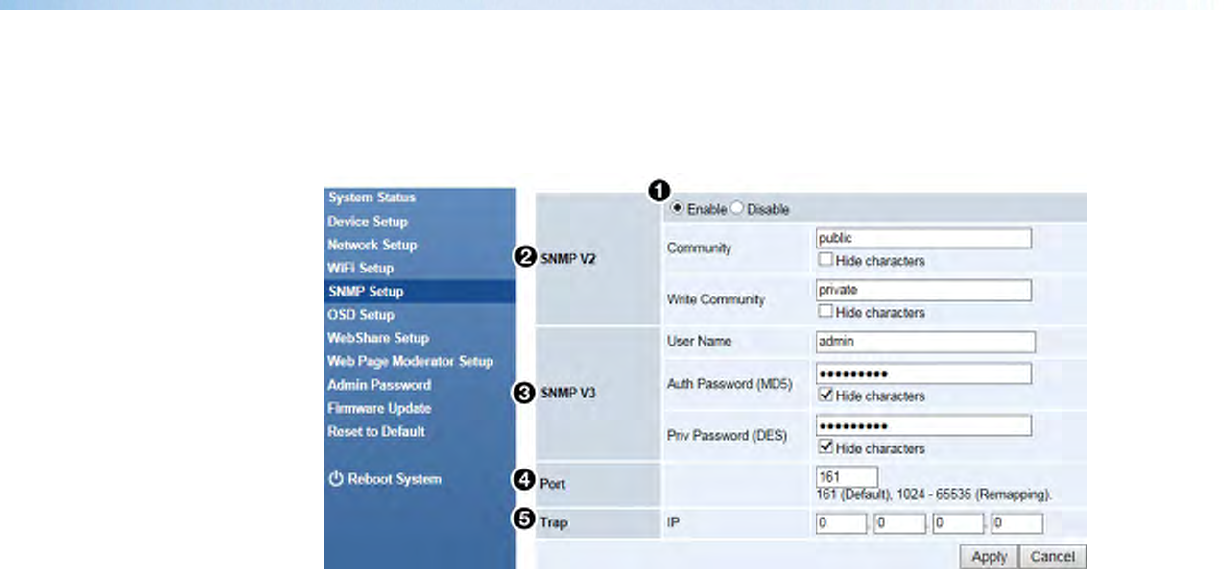
ShareLink 250 W • Using the Embedded Web Pages 45
SNMP Setup
Simple Network Management Protocol (SNMP) facilitates the exchange of basic network
management information to provide monitoring, control, and to collect error information.
Figure 44. SNMP Setup
1 Enable or Disable: SNMP is enabled by default. To disable SNMP, choose Disable.
2 SNMP V2 Panel: The SNMP Community and Write Community values act as
passwords, granting public (read-only) and private (read-write) access to the network
management system.
• Community: Default value is set to “public.”
• Write Community: Default value is set to “private.”
3 SNMP V3 Panel
• User Name: Configure the user name of the person in charge of managing the
ShareLink 250 W through SNMP.
• Auth Password (MD5): Configure the Auth password.
• Priv Password (DES): Configure the Priv password.
4 Port: See Firewall Traversal on page 54 for a list of ports and their functions.
5 Trap: Configure the trap receiver IP.
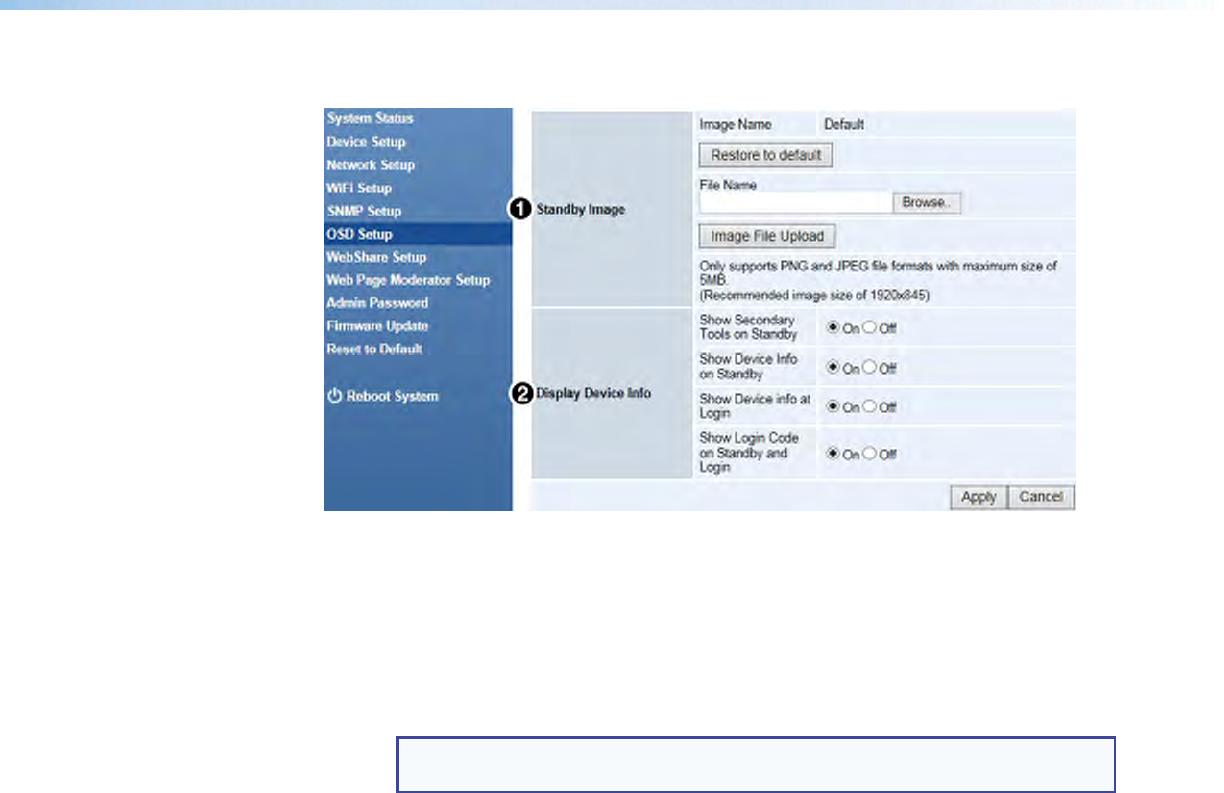
ShareLink 250 W • Using the Embedded Web Pages 46
OSD Setup
Figure 45. OSD Setup
1 Standby Image Panel
Use this section to change the background image of the standby screen (see figure 4,
page 6).
• Restore to default: Click to restore default standby screen image.
• Browse: Click to select the image file for the Standby Screen. Browse to the image
file location, select the file, then click Image File Upload.
NOTE: The image file can be JPEG or PNG format with a maximum size of
5 MB and recommended resolution of 1920x845.
2 Display Device Info Panel
Use this section to choose which items to show on the standby or Login screen,
including:
• Show Secondary Tools on Standby: When this option is set to Off, the four
icons on the standby screen (USB Player, Whiteboard, Resize, and Calibration) are
hidden.
• Show Device Info on Standby: When this option is set to On, the receiver IP
address and SSID are shown on the bottom portion of the standby screen. When
this option is set to Off, these items are hidden.
• Show Device Info at Login: When this option is set to On, the IP address, SSID,
and login code are overlaid on top of the shared content for 30 seconds. Every time
a new user connects to the ShareLink, the Device Info reappears for 30 seconds.
Also, on the client software, the “Show Receiver Info” feature is enabled.
(See Using the Software Menu on page 17. The Show Receiver Info
option is in the Advanced Settings Menu.)
Select Off to disable this feature as well as the “Show Receiver Info” option on the
client software.
• Show Code on Standby and Login: When this option is set to Off, the login
code is hidden from the standby screen. The “Show Receiver Info” option remains
enabled, allowing the IP address and SSID to be displayed.
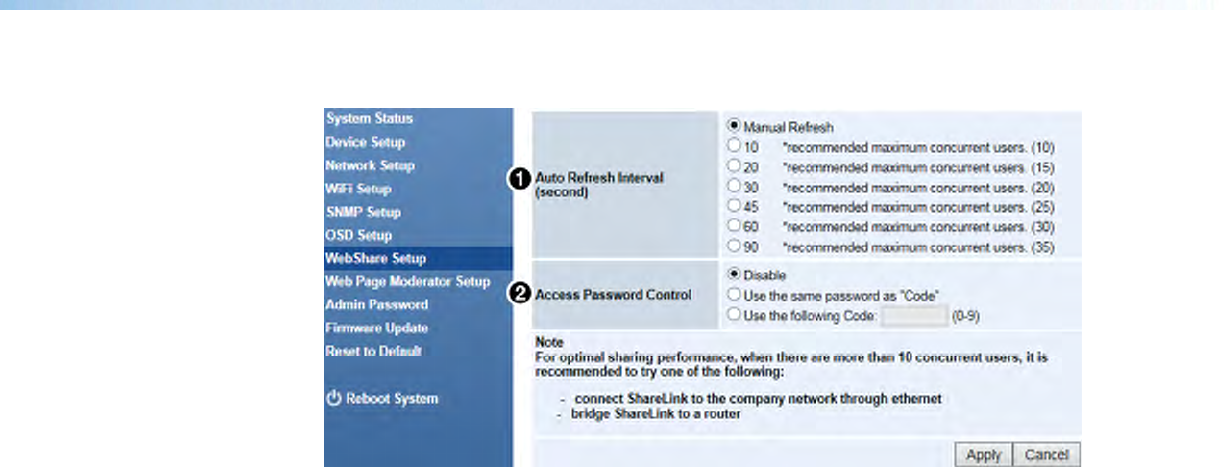
ShareLink 250 W • Using the Embedded Web Pages 47
WebShare Setup
Figure 46. WebShare Setup
1 Auto Refresh Interval (second) Panel
Use this section to configure the refresh interval time (the amount of time that elapses
before the ShareLink 250 W refreshes).
• Manual Refresh
• 10 - 90 (seconds): Select the best option for the amount of users.
2 Access Password Control Panel
Use this section to disable or configure the WebShare access password (this is the
password required when connecting to the ShareLink 250 W through WebShare):
• Disable: Select to disable the password. This allows users to connect to the
ShareLink 250 W through WebShare without a password.
• Use the same password as “Code”: Select this option to make the
WebShare access password the same as the Code on the standby screen.
• Use the following Code: Enter a custom code to use as the WebShare
access password.
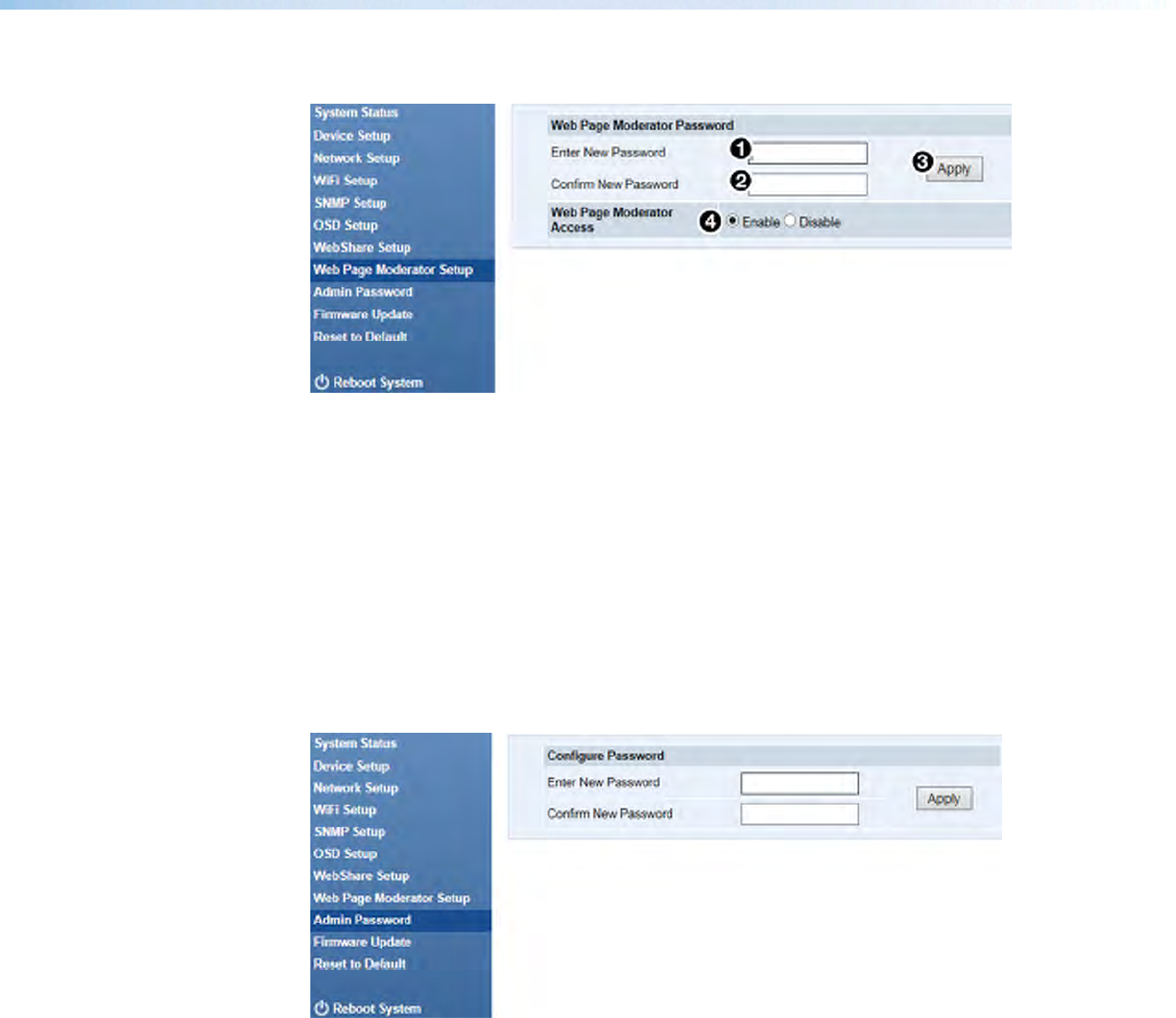
ShareLink 250 W • Using the Embedded Web Pages 48
Web Page Moderator Setup
Figure 47. Web Page Moderator Setup
The Web Page Moderator password is used to access the moderator page. Use this screen
to change the moderator password as follows:
To change the moderator password:
1. Enter the new password in the New Password field (see figure 47, 1).
2. Re-enter the password in the Confirm New Password field (2).
3. Click Apply (3) to activate the new moderator control password.
You may also enable or disable Web Page Moderator Access by clicking the Enable
or Disable radio buttons (4).
Admin Password
Figure 48. Admin Password
The Admin password is used to access the Configuration pages. Use this screen to change
the Admin password as follows:
1. Enter the new password in the New Password field.
2. Re-enter the password in the Confirm New Password field.
3. Click Apply to activate the new moderator control password.
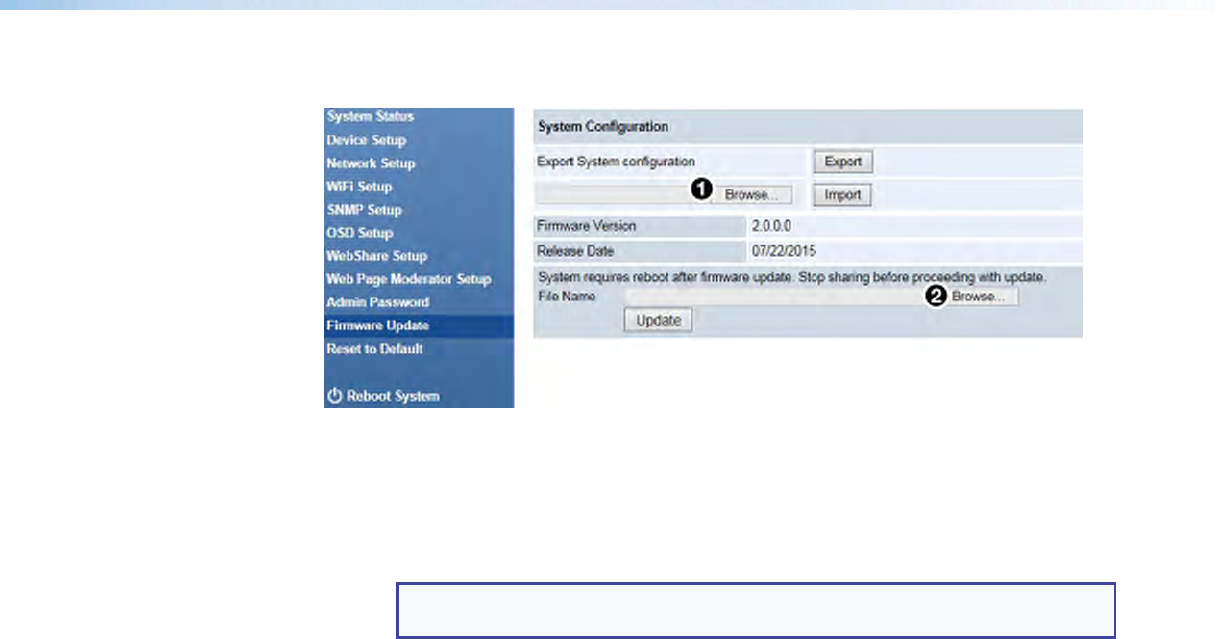
ShareLink 250 W • Using the Embedded Web Pages 49
Firmware Update
Figure 49. Firmware Update
1 Export System Configuration
Use this section to export or import the system configuration file.
Export System configuration:
• Export: Click to export the system configuration to a configuration file.
NOTE: This option does not export the custom standby image (if one has been
loaded on the standby screen).
• Import: Click to import the system configuration file to the ShareLink 250 W.
2 Firmware Update
Use this section to update the ShareLink 250 W firmware. Follow these instructions to
update the firmware:
1. Download latest firmware file from the Extron website (see Downloading
ShareLink 250 W Firmware on page 53).
2. Click Browse... (2) to browse to the firmware file location, and select the
firmware file.
3. Click Update to start firmware update. A warning message and counter are shown
on the screen. After a few minutes, “Complete” is shown on the screen.
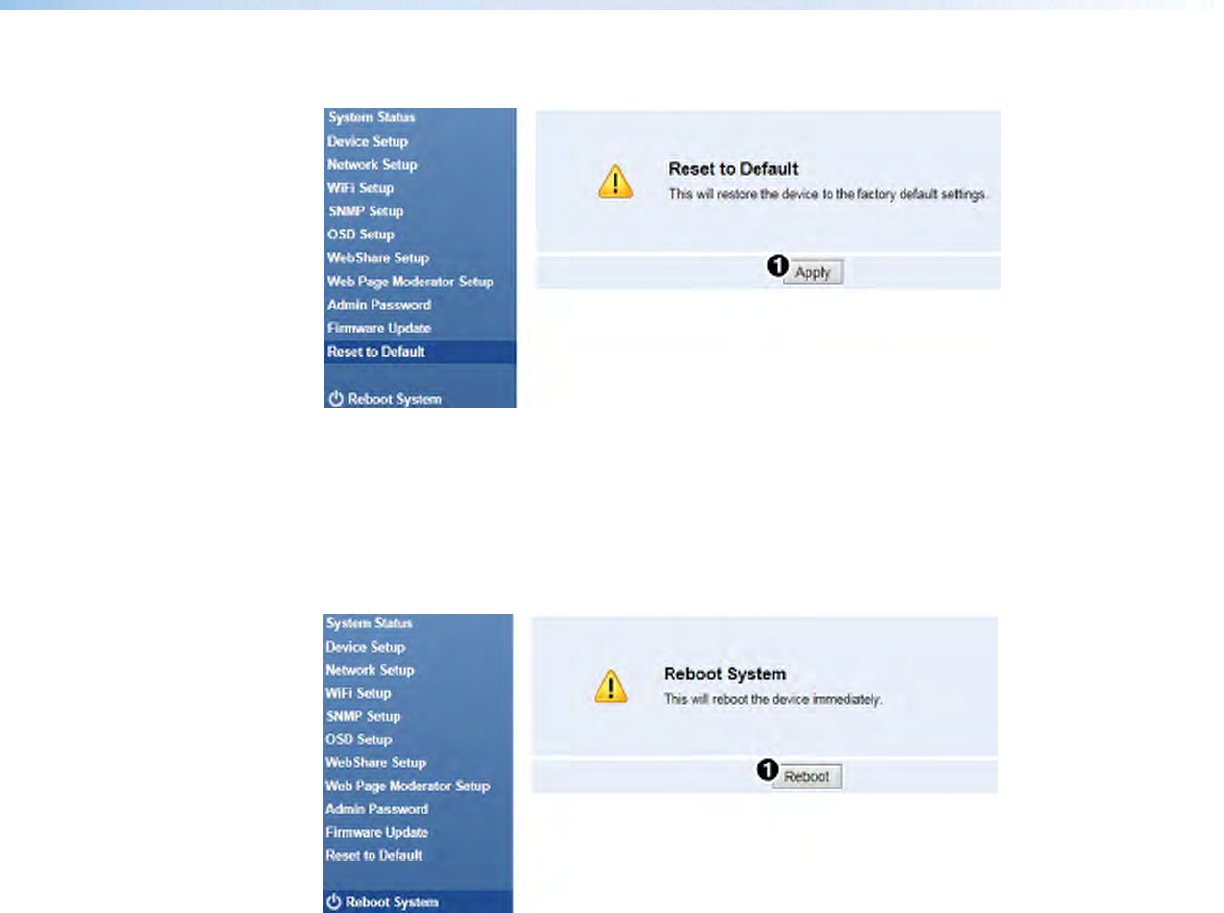
ShareLink 250 W • Using the Embedded Web Pages 50
Reset to Default
Figure 50. Reset to Default
Use this screen to restore factory default settings by clicking Apply (see figure 50, 1).
You can also restore factory default settings using the Reset button on the bottom of the
ShareLink 250 W (see Bottom Panel Features on page 5).
Reboot System
Figure 51. Reboot System
Use this screen to reboot the ShareLink 250 W by clicking Reboot (see figure 51, 1).
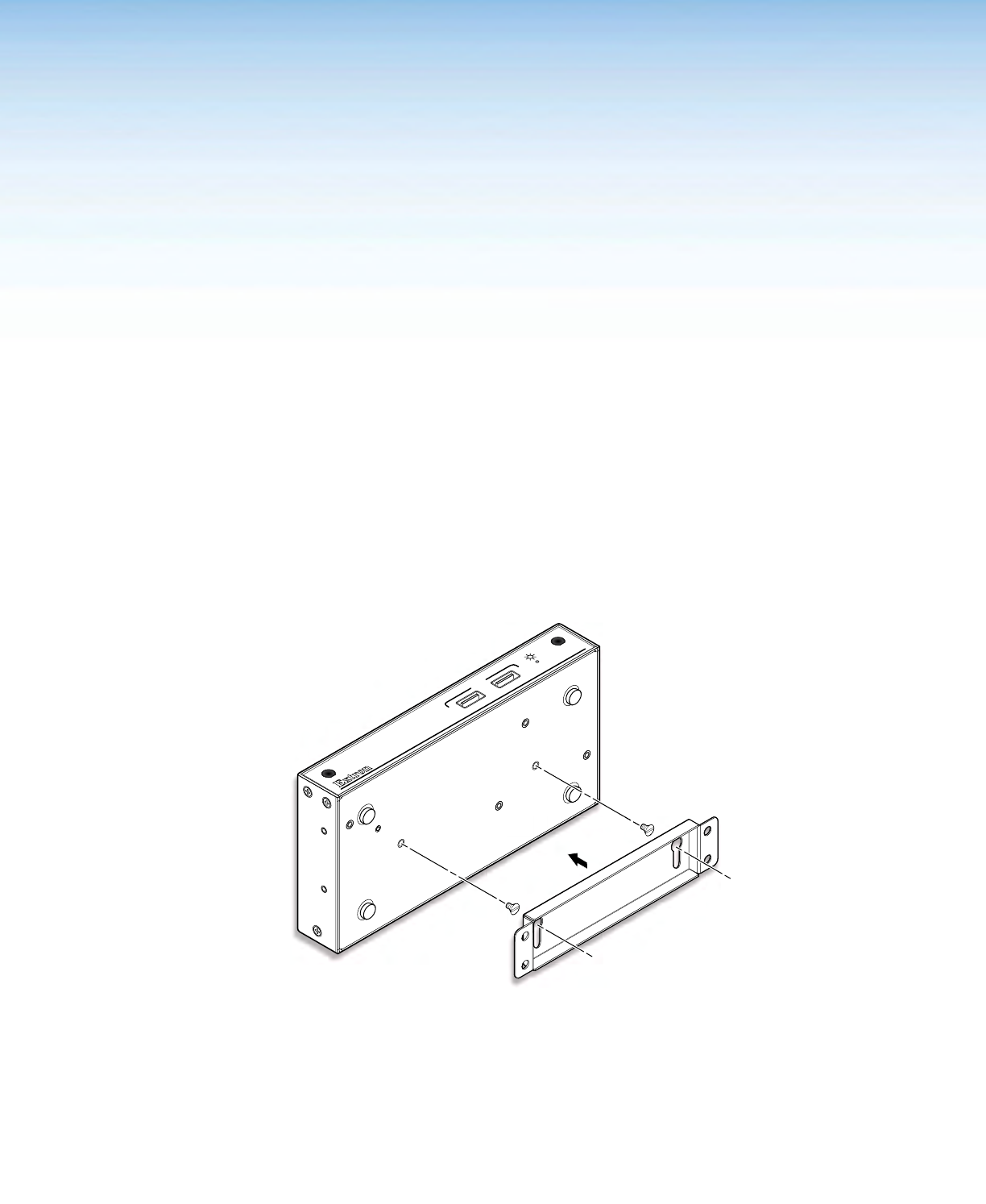
ShareLink 250 W • Reference Information 51
Reference
Information
Mounting
Wall Mounting
Follow these steps to mount the ShareLink 250 W on a wall using the included wall mount
kit:
1. Secure the bracket to the wall using the four supplied bracket screws. Be sure to install
the bracket with the large keyhole facing upward as shown below.
2. Tighten the two small mounting screws on the bottom panel of the ShareLink 250 W as
shown below.
3. Insert the screwheads into the wall mount bracket. Ensure that the ShareLink 250 W
receiver sits securely on the bracket.
ShareLink 250 W
ANT A ANT B
USB
2
1
RESET
Figure 52. ShareLink 250 W Wall Mount Kit
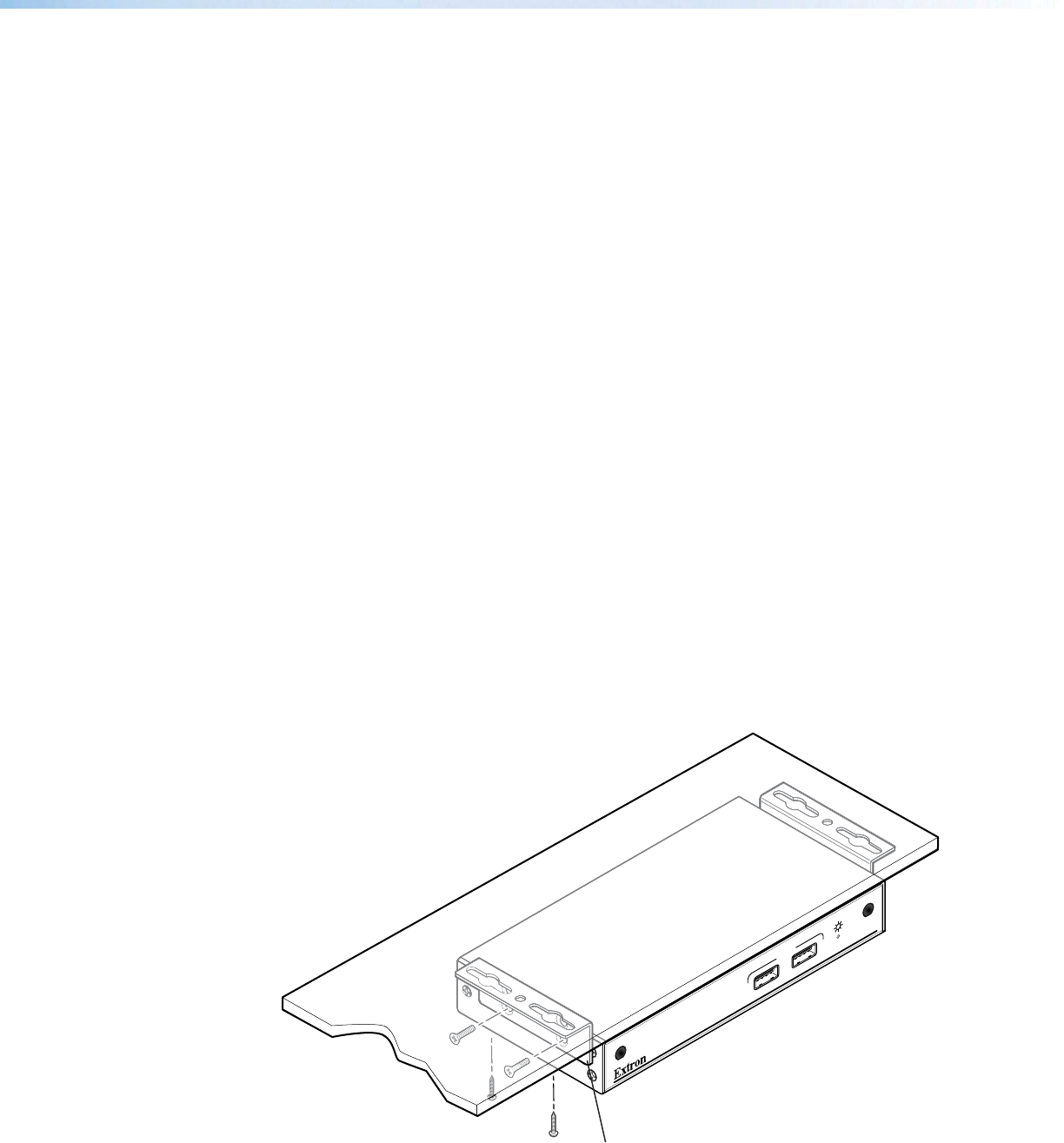
ShareLink 250 W • Reference Information
52
Rack Mounting
UL Guidelines for Rack Mounting
The following Underwriters Laboratories (UL) guidelines are relevant to the safe installation of
these products in a rack:
• Elevated operating ambient temperature — If the unit is installed in a closed or
multi-unit rack assembly, the operating ambient temperature of the rack environment
may be greater than room ambient temperature. Therefore, install the equipment in an
environment compatible with the maximum ambient temperature
(TMA = +122 °F, +50°C) specified by Extron.
• Reduced air flow — Install the equipment in the rack so that safe operation and
adequate air flow is provided to the unit.
• Mechanical loading — Mount the equipment in the rack so that a hazardous
condition is not achieved due to uneven mechanical loading.
• Circuit overloading — Connect the equipment to the supply circuit and consider the
effect that circuit overloading might have on overcurrent protection and supply wiring.
Consider the equipment nameplate ratings when addressing this concern.
• Reliable earthing (grounding) — Maintain reliable grounding of rack-mounted
equipment. Pay particular attention to supply connections other than direct
connections.
Rack Mounting Procedure
The ShareLink 250 W can be mounted in a rack, using an optional Extron rack mounting kit
(see www.extron.com for part numbers). Follow the instructions provided with the kit.
Under-desk and Furniture Mounting
The ShareLink 250 W can be mounted under a desk or podium (see figure 53), using
an optional Extron mounting kit (see www.extron.com for part numbers). Follow the
instructions provided with the kit.
ShareLink 250 W
12
USB
ANT A
ShareLink 250 W
MBU 125
Mounting Bracket
Figure 53. ShareLink 250 W with Optional MBU 125
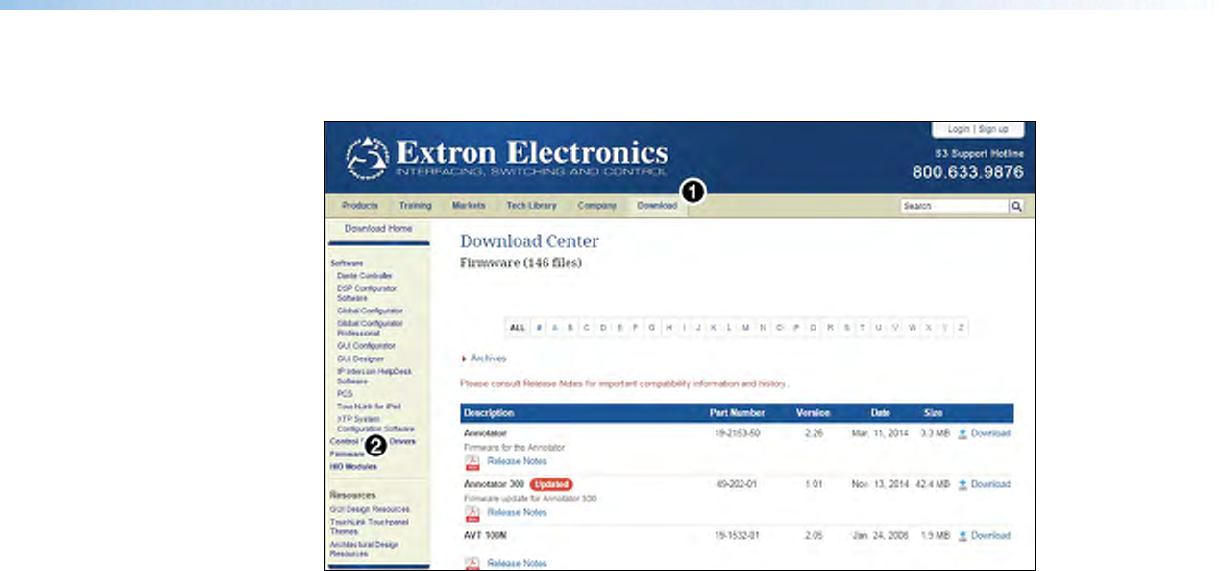
ShareLink 250 W • Reference Information
53
Downloading ShareLink 250 W Firmware
Figure 54. Firmware Link on the Download Tab
To download the latest firmware for the ShareLink 250 W:
1. Visit www.extron.com and click the Download link (1) at the top of the page.
2. Click Firmware (2) on the left sidebar menu.
3. On the Download Center screen, click S in the alphabet menu and locate the section for
the ShareLink 250 W firmware.
4. (Optional) click Release Notes. These notes show the issues that are addressed by
the latest update. If these issues do not affect you, you may decide not to upgrade the
firmware.
5. Click the ShareLink 250 W Download link.
6. On the next screen, enter the requested user information, then click Download.
7. Follow the instructions on the rest of the download screens to save the executable
firmware file to your computer. Note the location to which the file was saved.
8. In Windows Explorer or another file browser, locate the downloaded executable file, and
double-click to open it.
9. Follow the instructions on the Installation Wizard screens to install the new firmware. A
Release Notes file and a set of instructions for updating the firmware are also loaded.

ShareLink 250 W • Reference Information
54
Firewall Traversal
In order for the ShareLink 250 W gateway to function correctly with the ShareLink
application, it is recommended that the following firewall rules be used to allow traffic to
pass. The table below details the ports and their functions.
PortType Direction Function Open Notes
389
443
3268
TCP Both Command Required
For best performance, it is
recommended that ports 389, 443,
and 3268 be open. At a minimum,
one of the three needs to be
open for the gateway to function
properly. If one port is open and
that port is used by another
application, the ShareLink 250 W
does not function properly.
445
515
8080
TCP Both Data Required This port is used to screen data.
1041 TCP Outbound Video Required This port is used for video data.
1047
1048
1049
UDP Inbound Discover Optional
These ports are used for discovery
of the gateway. If closed, the
discovery process could be
impacted.
1688 TCP Both DLNA Required This port is used for audio data.
2869
49152
49153
TCP Both DLNA Required These ports are used for streaming
video data to the ShareLink 250 W.
1900
50000-
65000
UDP Both DLNA Required These ports are used for streaming
video data to the ShareLink 250 W.
80 TCP Both Web
services Required This port is used to access the
embedded webpages.
42891
42892 TCP Both Update
utility Required These ports are used for batch
update of firmware.
1689 TCP Both Debug Optional This port is used for the debugging
log.
19996 TCP Both Command Required This port is required for Moderator
control.
31865 TCP Both Data Optional This port is used by Android mobile
devices.
137 UDP Both NetBIOS Optional This port is used by NetBIOS for
naming service.
161 UDP Both SNMP Optional This port is used for SNMP
management.
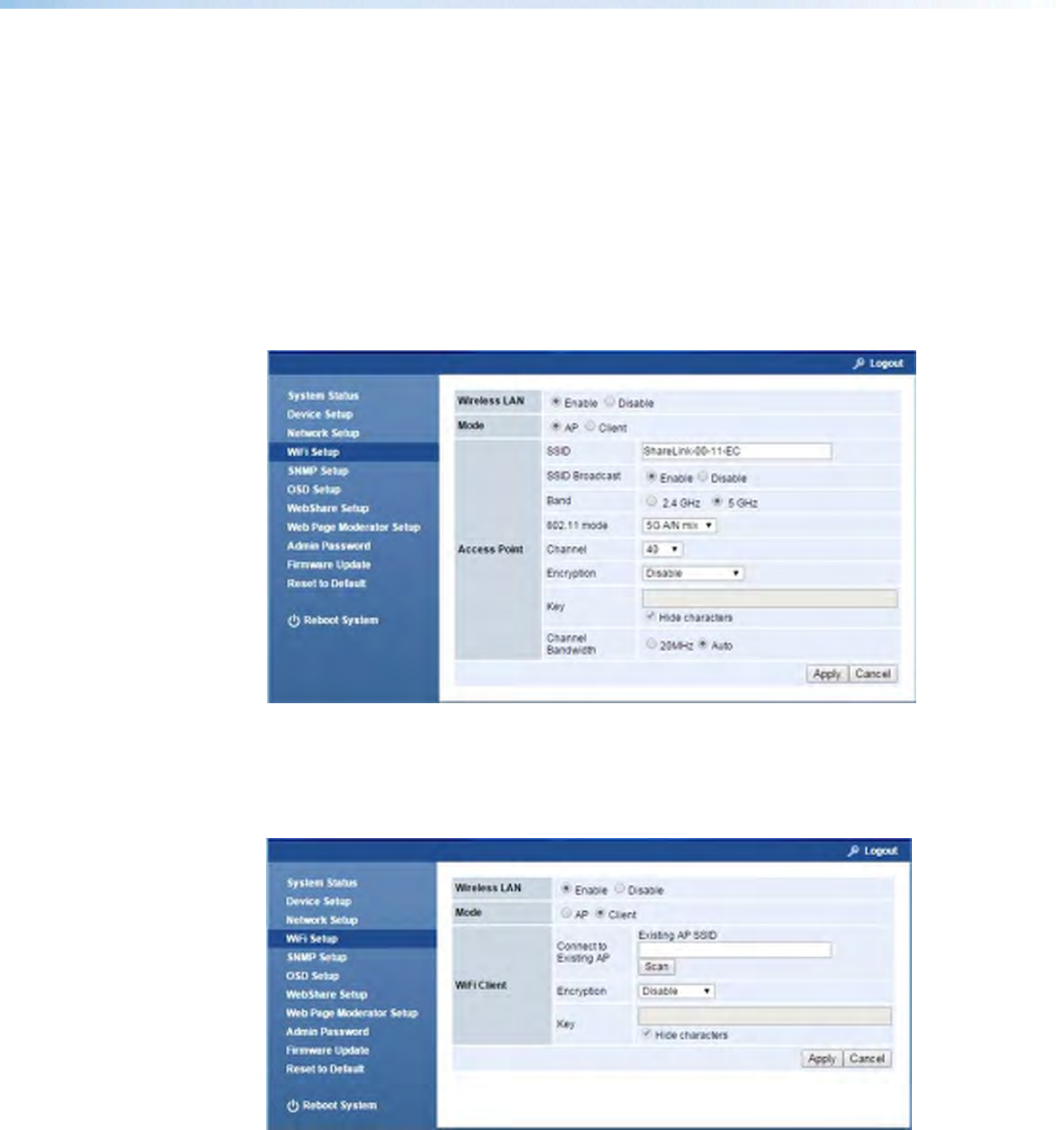
ShareLink 250 W • Reference Information
55
Available Wi-Fi Channels
This section provides instructions and information on selecting Wi-Fi channels for each
wireless band, 2.4 GHz and 5 GHz (see below).
To access the Wi-Fi settings, go to the WiFi Setup section of the Configuration pages (see
WiFi Setup on page 42).
2.4 GHz Band — Channel Selection
When the 2.4 GHz band is used (figure 55, 1), Channel is set to Auto by default (2). In
Auto mode, the ShareLink 250 W selects the best channel to operate in (this is done at
system startup).
Figure 55. WiFi Setup Panel (2.4 GHz band)
Alternatively, you may select Wi-Fi channel 1 - 11 manually from the drop-down menu (2).
5 GHz Band — Channel Selection
When the 5 GHz band is enabled (figure 56, 1), channel 36 is selected by default (2).
Figure 56. WiFi Setup Panel (5 GHz band)
You may select a different Wi-Fi channel from the drop-down menu (figure 56, 2). The table
on the next page lists the 5 GHz non-overlapping channels available in each region.

ShareLink 250 W • Reference Information
56
Channel Region
US/Canada EU
36
XX
40
XX
44
XX
48
XX
149 X
153 X
157 X
161 X
165 X
Extron Headquarters
+1.800.633.9876 (Inside USA/Canada Only)
Extron USA - West Extron USA - East
+1.714.491.1500 +1.919.850.1000
+1.714.491.1517 FAX +1.919.850.1001 FAX
Extron Europe
+800.3987.6673
(Inside Europe Only)
+31.33.453.4040
+31.33.453.4050 FAX
Extron Asia
+65.6383.4400
+65.6383.4664 FAX
Extron Japan
+81.3.3511.7655
+81.3.3511.7656 FAX
Extron China
+86.21.3760.1568
+86.21.3760.1566 FAX
Extron Middle East
+971.4.299.1800
+971.4.299.1880 FAX
Extron Korea
+82.2.3444.1571
+82.2.3444.1575 FAX
Extron India
1800.3070.3777
(Inside India Only)
+91.80.3055.3777
+91.80.3055.3737 FAX
© 2016 Extron Electronics All rights reserved. www.extron.com
Extron Warranty
Extron Electronics warrants this product against defects in materials and workmanship for a period of three years
from the date of purchase. In the event of malfunction during the warranty period attributable directly to faulty
workmanship and/or materials, Extron Electronics will, at its option, repair or replace said products or components,
to whatever extent it shall deem necessary to restore said product to proper operating condition, provided that it is
returned within the warranty period, with proof of purchase and description of malfunction to:
USA, Canada, South America,
and Central America:
Extron Electronics
1230 South Lewis Street
Anaheim, CA 92805
U.S.A.
Japan:
Extron Electronics, Japan
Kyodo Building, 16 Ichibancho
Chiyoda-ku, Tokyo 102-0082
Japan
Europe and Africa:
Extron Europe
Hanzeboulevard 10
3825 PH Amersfoort
The Netherlands
China:
Extron China
686 Ronghua Road
Songjiang District
Shanghai 201611
China
Asia:
Extron Asia Pte Ltd
135 Joo Seng Road, #04-01
PM Industrial Bldg.
Singapore 368363
Singapore
Middle East:
Extron Middle East
Dubai Airport Free Zone
F13, PO Box 293666
United Arab Emirates, Dubai
This Limited Warranty does not apply if the fault has been caused by misuse, improper handling care, electrical
or mechanical abuse, abnormal operating conditions, or if modifications were made to the product that were not
authorized by Extron.
NOTE: If a product is defective, please call Extron and ask for an Application Engineer to receive an RA (Return
Authorization) number. This will begin the repair process.
USA: 714.491.1500 or 800.633.9876 Europe: 31.33.453.4040
Asia: 65.6383.4400 Japan: 81.3.3511.7655
Units must be returned insured, with shipping charges prepaid. If not insured, you assume the risk of loss or damage
during shipment. Returned units must include the serial number and a description of the problem, as well as the
name of the person to contact in case there are any questions.
Extron Electronics makes no further warranties either expressed or implied with respect to the product and its quality,
performance, merchantability, or fitness for any particular use. In no event will Extron Electronics be liable for direct,
indirect, or consequential damages resulting from any defect in this product even if Extron Electronics has been
advised of such damage.
Please note that laws vary from state to state and country to country, and that some provisions of this warranty may
not apply to you.