FDY Digital Electronics 605 MULTIMEDIA SPEAKER User Manual

Shenzhen FDY Digital Electronics Co.,Ltd. MULTIMEDIA SPEAKER

User manual

SML605INSTRUCTION MANUALwww.singingmachine.comThe Singing Machine® is a registered trademark of The Singing Machine Co., Inc.
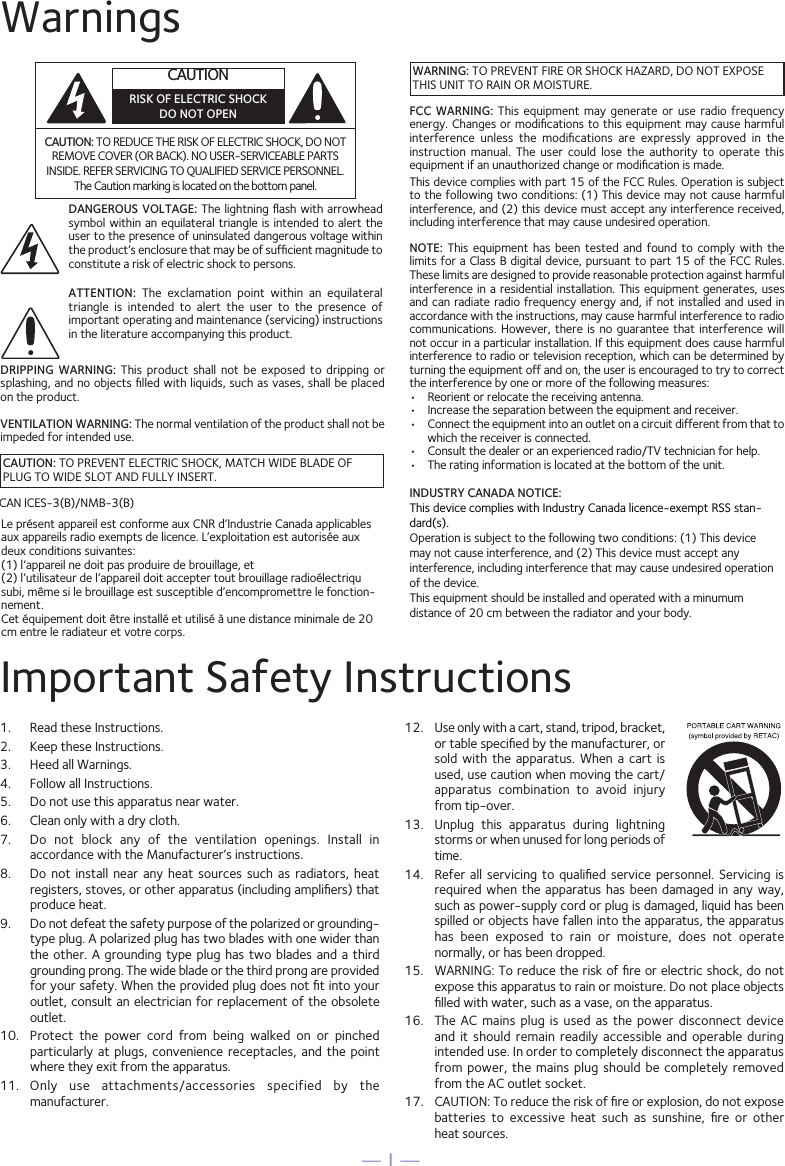
— 1 —Important Safety Instructions1.  Read these Instructions.2.   Keep these Instructions.3.   Heed all Warnings.4.   Follow all Instructions.5.   Do not use this apparatus near water.6.   Clean only with a dry cloth.7.   Do  not  block  any  of  the  ventilation  openings.  Install  in accordance with the Manufacturer’s instructions.8.   Do not  install  near  any  heat  sources  such  as  radiators,  heat registers, stoves, or other apparatus (including amplifiers) that produce heat.9.   Do not defeat the safety purpose of the polarized or grounding-type plug. A polarized plug has two blades with one wider than the other. A grounding type plug has  two  blades  and  a  third grounding prong. The wide blade or the third prong are provided for your safety. When the provided plug does not fit into your outlet, consult an electrician for replacement of the obsolete outlet.10.   Protect  the  power  cord  from  being  walked  on  or  pinched particularly at  plugs,  convenience  receptacles,  and the point where they exit from the apparatus.11.   Only  use  attachments/accessories  specified  by  the manufacturer.12.   Use only with a cart, stand, tripod, bracket, or table specified by the manufacturer, or sold  with  the  apparatus. When  a  cart  is used, use caution when moving the cart/apparatus  combination  to  avoid  injury from tip-over.13.   Unplug  this  apparatus  during  lightning storms or when unused for long periods of time.14.   Refer all servicing  to  qualified  service  personnel.  Servicing is required when the apparatus has been damaged in any way, such as power-supply cord or plug is damaged, liquid has been spilled or objects have fallen into the apparatus, the apparatus has  been  exposed  to  rain  or  moisture,  does  not  operate normally, or has been dropped.15.   WARNING: To reduce the risk of fire or electric shock, do not expose this apparatus to rain or moisture. Do not place objects filled with water, such as a vase, on the apparatus.16.   The  AC  mains plug  is  used  as the  power  disconnect  device and  it  should  remain readily  accessible  and  operable during intended use. In order to completely disconnect the apparatus from power, the mains plug should be completely removed from the AC outlet socket.17.   CAUTION: To reduce the risk of fire or explosion, do not expose batteries  to  excessive  heat  such  as  sunshine,  fire  or  other  heat sources.WarningsCAUTION: TO REDUCE THE RISK OF ELECTRIC SHOCK, DO NOT REMOVE COVER (OR BACK). NO USER-SERVICEABLE PARTS INSIDE. REFER SERVICING TO QUALIFIED SERVICE PERSONNEL. The Caution marking is located on the bottom panel.DANGEROUS VOLTAGE: The  lightning flash  with arrowhead symbol within an equilateral triangle is intended to alert the user to the presence of uninsulated dangerous voltage within the product’s enclosure that may be of sufficient magnitude to constitute a risk of electric shock to persons.CAUTION: TO PREVENT ELECTRIC SHOCK, MATCH WIDE BLADE OF PLUG TO WIDE SLOT AND FULLY INSERT.WARNING: TO PREVENT FIRE OR SHOCK HAZARD, DO NOT EXPOSE THIS UNIT TO RAIN OR MOISTURE.ATTENTION:  The  exclamation  point  within  an  equilateral triangle  is  intended  to  alert  the  user  to  the  presence  of important operating and maintenance (servicing) instructions in the literature accompanying this product.FCC  WARNING:  This  equipment  may  generate or  use  radio  frequency energy. Changes or modifications to this equipment may cause harmful interference  unless  the  modifications  are  expressly  approved  in  the instruction  manual.  The  user  could  lose  the  authority  to  operate  this equipment if an unauthorized change or modification is made.This device complies with part 15 of the FCC Rules. Operation is subject to the following two conditions: (1) This device may not cause harmful interference, and (2) this device must accept any interference received, including interference that may cause undesired operation.DRIPPING  WARNING:  This  product  shall  not  be  exposed  to  dripping  or splashing, and no objects filled with liquids, such as vases, shall be placed on the product.VENTILATION WARNING: The normal ventilation of the product shall not be impeded for intended use.NOTE:  This  equipment  has  been tested  and  found  to  comply with  the limits for a Class B digital device, pursuant to part 15 of the FCC Rules. These limits are designed to provide reasonable protection against harmful interference in  a residential  installation. This  equipment generates, uses and can radiate radio  frequency energy  and, if  not installed and used in accordance with the instructions, may cause harmful interference to radio communications. However, there is  no  guarantee  that interference will not occur in a particular installation. If this equipment does cause harmful interference to radio or television reception, which can be determined by turning the equipment off and on, the user is encouraged to try to correct the interference by one or more of the following measures:•  Reorient or relocate the receiving antenna.•  Increase the separation between the equipment and receiver.•  Connect the equipment into an outlet on a circuit different from that to which the receiver is connected.•  Consult the dealer or an experienced radio/TV technician for help.•  The rating information is located at the bottom of the unit.CAN ICES-3(B)/NMB-3(B)CAUTIONRISK OF ELECTRIC SHOCKDO NOT OPENINDUSTRY CANADA NOTICE: This device complies with Industry Canada licence-exempt RSS stan-dard(s). Operation is subject to the following two conditions: (1) This device may not cause interference, and (2) This device must accept any interference, including interference that may cause undesired operation of the device.This equipment should be installed and operated with a minumum distance of 20 cm between the radiator and your body.Le présent appareil est conforme aux CNR d’Industrie Canada applicables aux appareils radio exempts de licence. L’exploitation est autorisée aux deux conditions suivantes: (1) l’appareil ne doit pas produire de brouillage, et (2) l’utilisateur de l’appareil doit accepter tout brouillage radioélectriqu subi, même si le brouillage est susceptible d’encompromettre le fonction-nement.Cet équipement doit être installé et utilisé à une distance minimale de 20 cm entre le radiateur et votre corps.
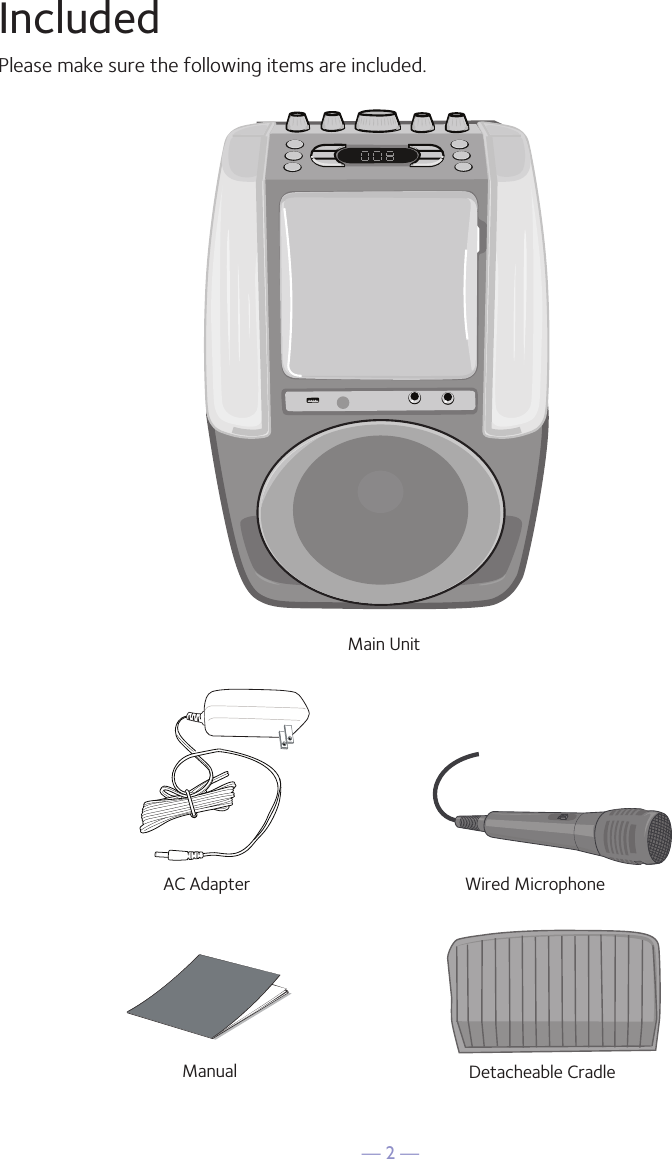
— 2 —IncludedPlease make sure the following items are included.Main UnitDetacheable CradleAC AdapterManualWired Microphone
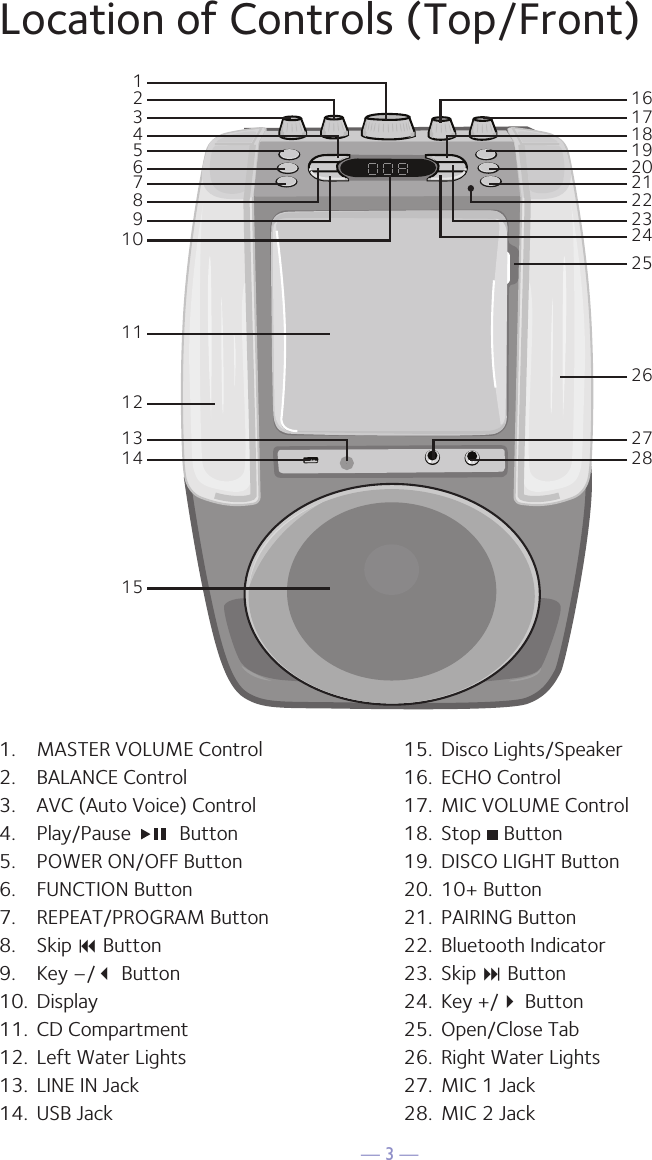
— 3 —Location of Controls (Top/Front)354216789101114131215171918162021222324282726251.  MASTER VOLUME Control2.  BALANCE Control3.  AVC (Auto Voice) Control4.  Play/Pause    Button5.  POWER ON/OFF Button6.  FUNCTION Button7.  REPEAT/PROGRAM Button8.  Skip 9 Button9.  Key –/ Button10.  Display11.  CD Compartment12.  Left Water Lights13.  LINE IN Jack14.  USB Jack15.  Disco Lights/Speaker16.  ECHO Control17.  MIC VOLUME Control18.  Stop   Button19.  DISCO LIGHT Button20.  10+ Button21.  PAIRING Button22.  Bluetooth Indicator23.  Skip : Button24.  Key +/ Button25.  Open/Close Tab26.  Right Water Lights27.  MIC 1 Jack 28.  MIC 2 Jack
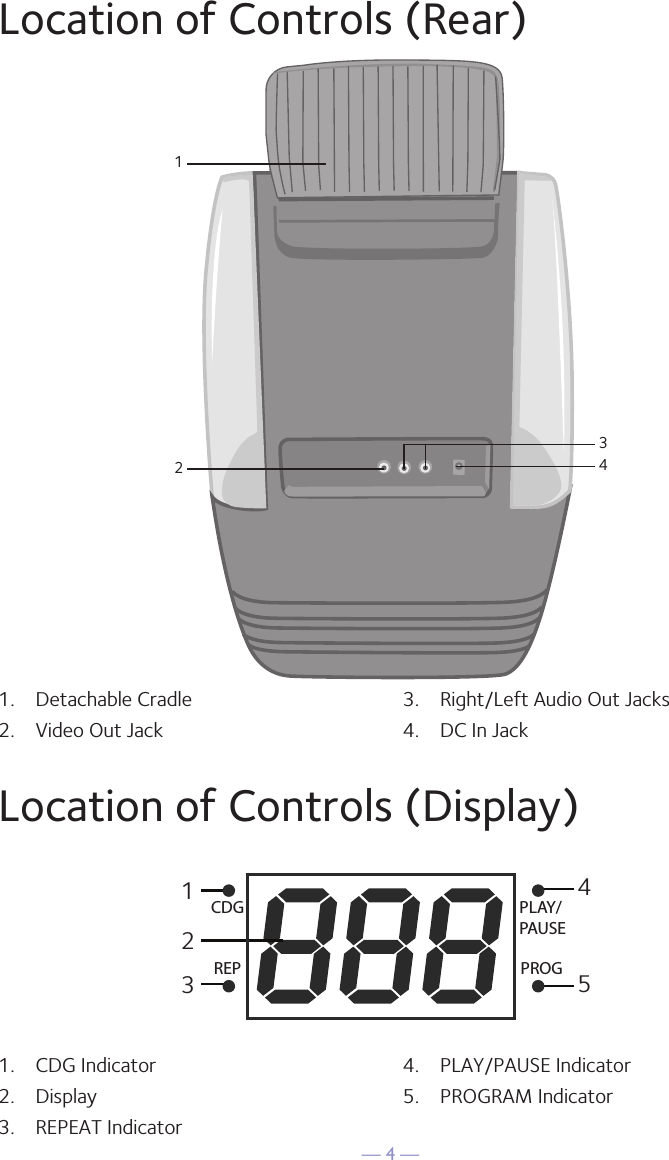
— 4 —Location of Controls (Rear)12431.  CDG Indicator2.  Display3.  REPEAT Indicator4.  PLAY/PAUSE Indicator5.  PROGRAM Indicator1.  Detachable Cradle2.  Video Out Jack3.  Right/Left Audio Out Jacks4.  DC In JackLocation of Controls (Display)45132CDGREPPLAY/PAUSEPROG
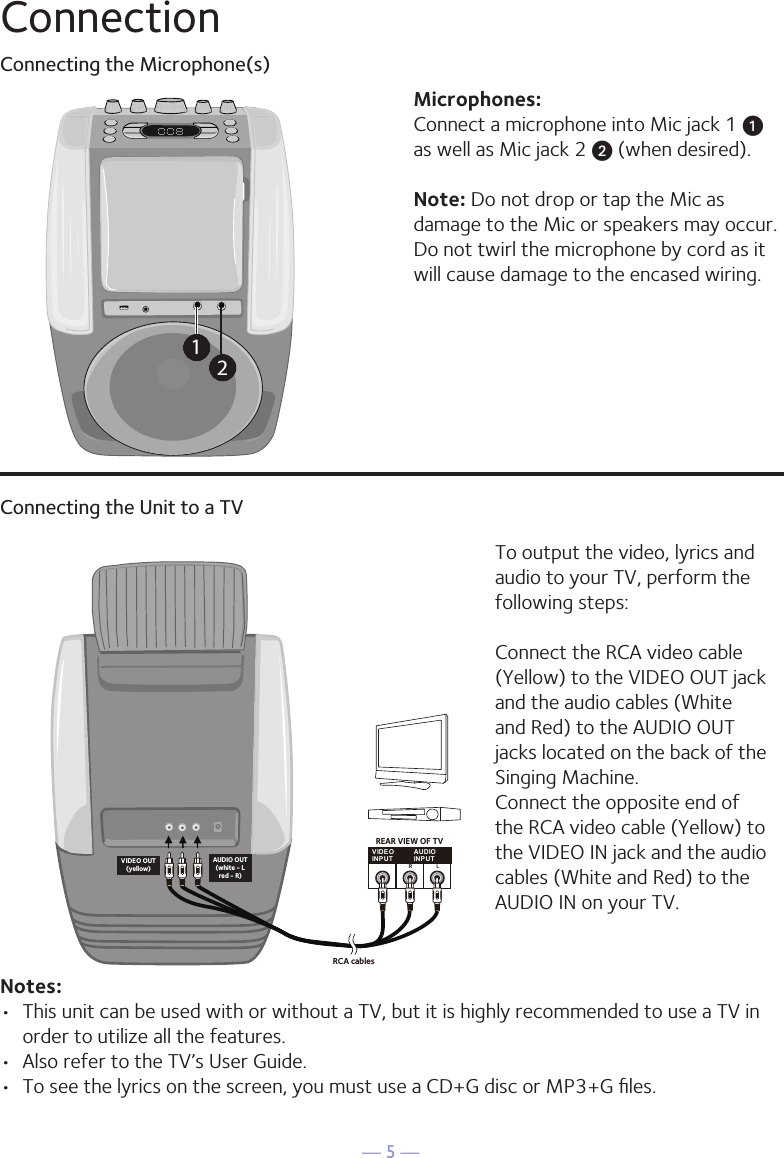
— 5 —ConnectionConnecting the Microphone(s)Microphones:Connect a microphone into Mic jack 1 u  as well as Mic jack 2 v (when desired). Note: Do not drop or tap the Mic as damage to the Mic or speakers may occur. Do not twirl the microphone by cord as it will cause damage to the encased wiring.12Connecting the Unit to a TVVIDEOINPUTAUDIOINPUTR LRCA cablesVIDEO OUT(yellow)AUDIO OUT(white - Lred - R)REAR VIEW OF TVTo output the video, lyrics and audio to your TV, perform the following steps: Connect the RCA video cable (Yellow) to the VIDEO OUT jack and the audio cables (White and Red) to the AUDIO OUT jacks located on the back of the Singing Machine.Connect the opposite end of the RCA video cable (Yellow) to the VIDEO IN jack and the audio cables (White and Red) to the AUDIO IN on your TV.Notes: •  This unit can be used with or without a TV, but it is highly recommended to use a TV in order to utilize all the features.•  Also refer to the TV’s User Guide. •  To see the lyrics on the screen, you must use a CD+G disc or MP3+G files.
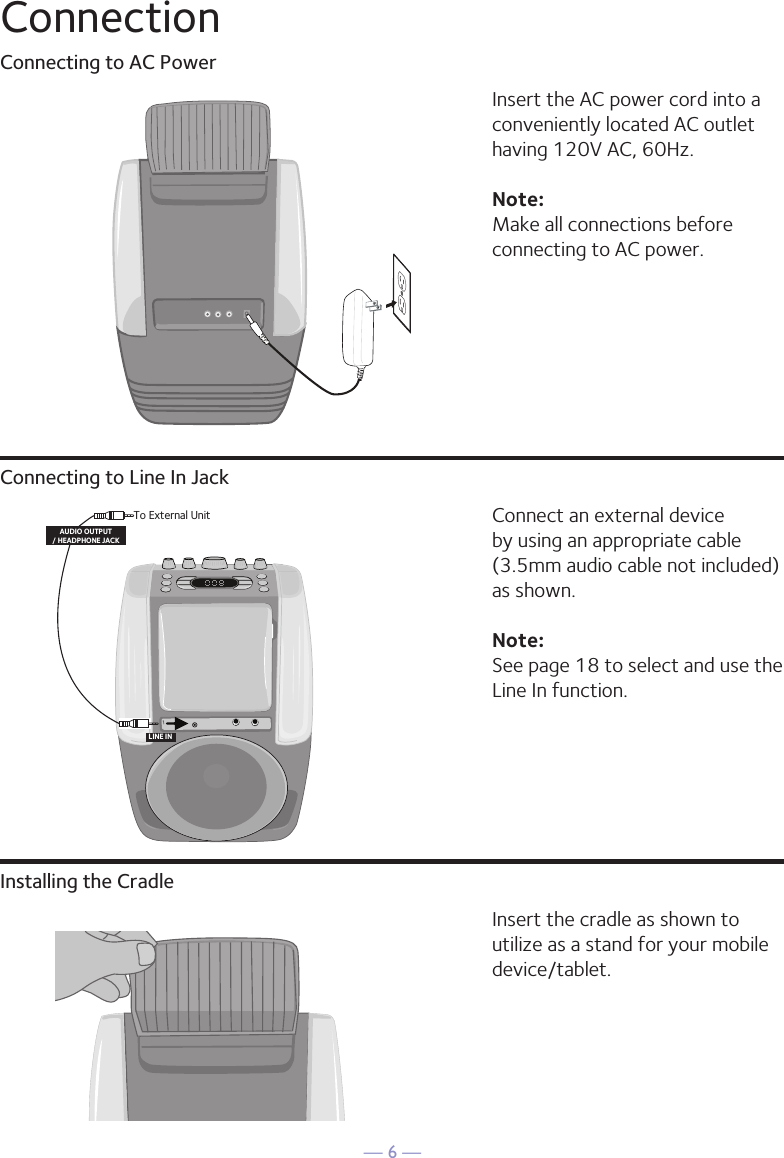
— 6 —ConnectionConnecting to AC PowerConnecting to Line In JackInstalling the CradleInsert the AC power cord into a conveniently located AC outlet having 120V AC, 60Hz. Note: Make all connections before connecting to AC power. Connect an external device by using an appropriate cable (3.5mm audio cable not included) as shown.Note: See page 18 to select and use the Line In function.Insert the cradle as shown to utilize as a stand for your mobile device/tablet.To External UnitAUDIO OUTPUT/ HEADPHONE JACKLINE IN
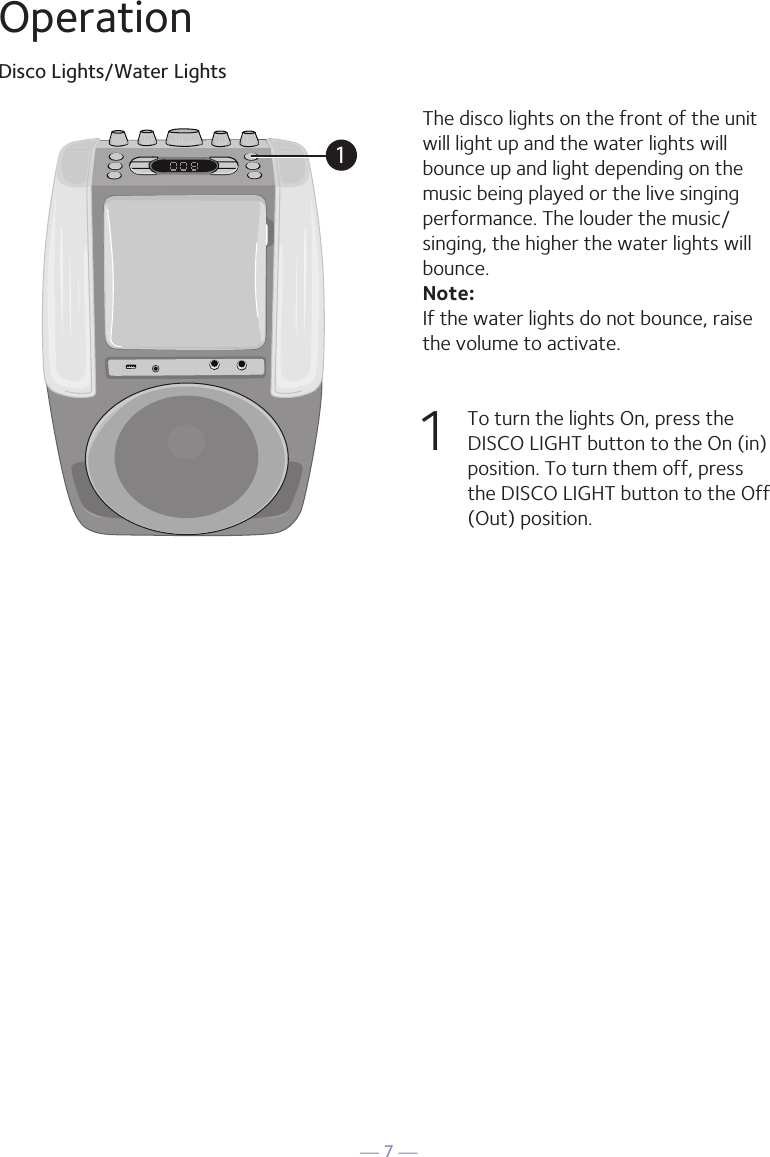
— 7 —OperationDisco Lights/Water LightsThe disco lights on the front of the unit will light up and the water lights will bounce up and light depending on the music being played or the live singing performance. The louder the music/singing, the higher the water lights will bounce. Note: If the water lights do not bounce, raise the volume to activate.1   To turn the lights On, press the DISCO LIGHT button to the On (in) position. To turn them off, press the DISCO LIGHT button to the Off (Out) position. 1
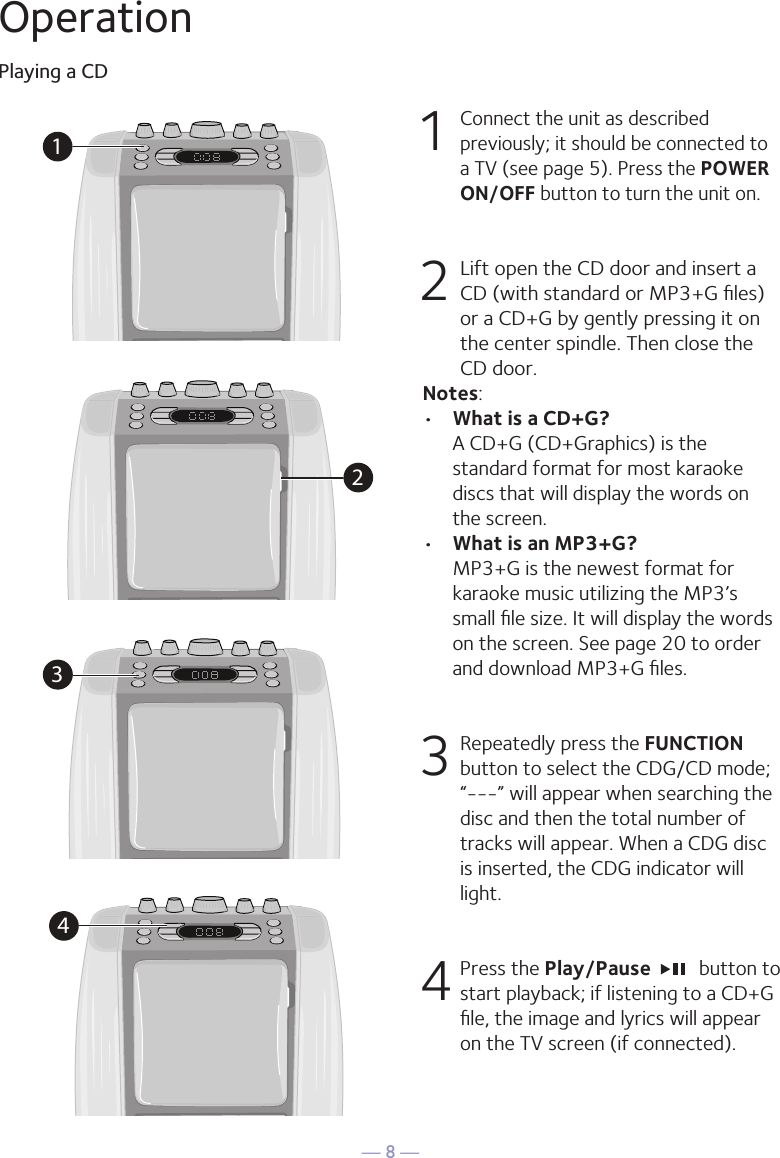
— 8 —OperationPlaying a CD1 Connect the unit as described previously; it should be connected to a TV (see page 5). Press the POWER ON/OFF button to turn the unit on.  2  Lift open the CD door and insert a CD (with standard or MP3+G files) or a CD+G by gently pressing it on the center spindle. Then close the CD door. Notes: •  What is a CD+G?  A CD+G (CD+Graphics) is the standard format for most karaoke discs that will display the words on the screen.•  What is an MP3+G?  MP3+G is the newest format for karaoke music utilizing the MP3’s small file size. It will display the words on the screen. See page 20 to order and download MP3+G files.  3  Repeatedly press the FUNCTION button to select the CDG/CD mode; “---” will appear when searching the disc and then the total number of tracks will appear. When a CDG disc is inserted, the CDG indicator will light.4 Press the Play/Pause    button to start playback; if listening to a CD+G file, the image and lyrics will appear on the TV screen (if connected).1234
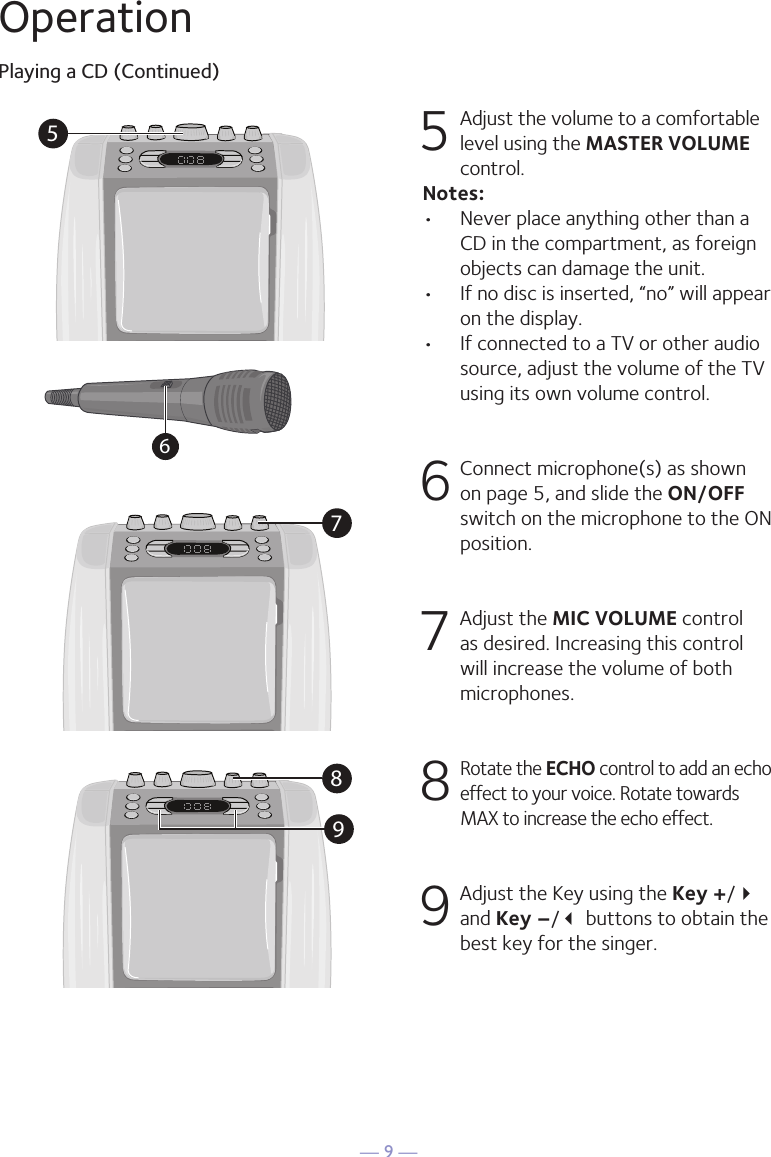
— 9 —57896OperationPlaying a CD (Continued)5 Adjust the volume to a comfortable level using the MASTER VOLUME control.    Notes:•  Never place anything other than a CD in the compartment, as foreign objects can damage the unit.•  If no disc is inserted, “no” will appear on the display.•   If connected to a TV or other audio source, adjust the volume of the TV using its own volume control. 6  Connect microphone(s) as shown on page 5, and slide the ON/OFF switch on the microphone to the ON position.7  Adjust the MIC VOLUME control as desired. Increasing this control will increase the volume of both microphones.8  Rotate the ECHO control to add an echo effect to your voice. Rotate towards MAX to increase the echo effect.9  Adjust the Key using the Key +/ and Key –/ buttons to obtain the best key for the singer.
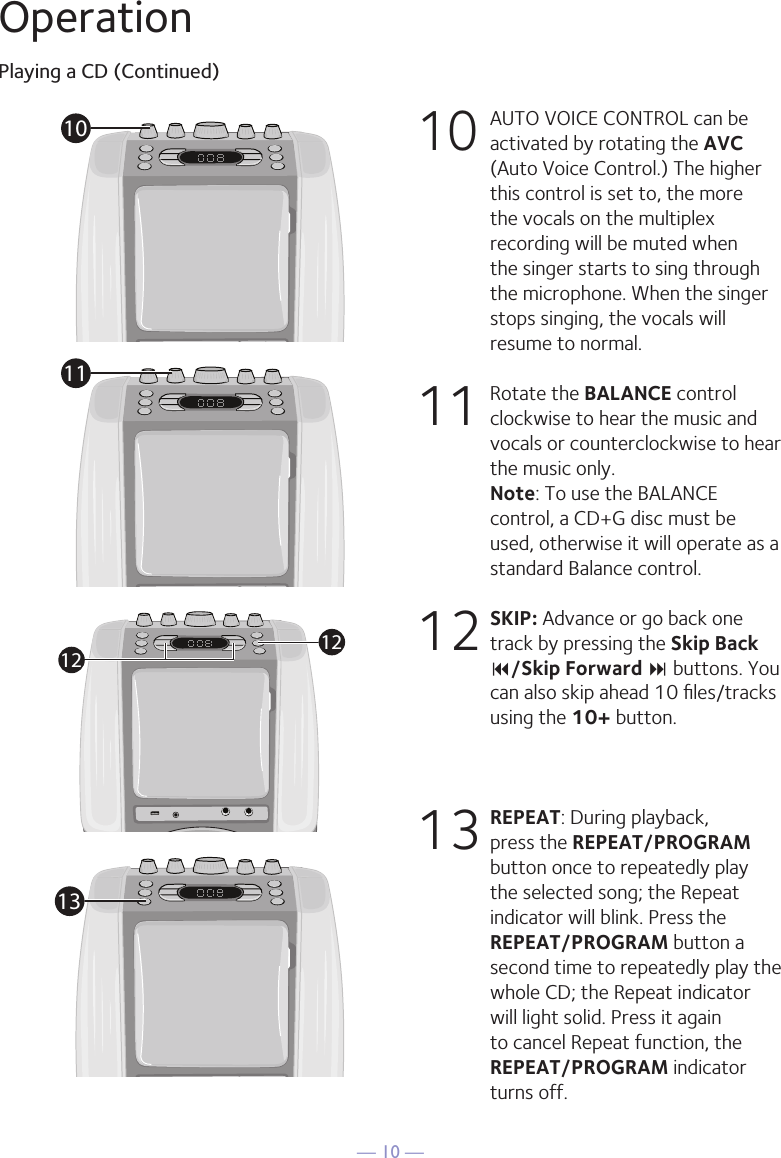
— 10 —OperationPlaying a CD (Continued)10 AUTO VOICE CONTROL can be activated by rotating the AVC (Auto Voice Control.) The higher this control is set to, the more the vocals on the multiplex recording will be muted when the singer starts to sing through the microphone. When the singer stops singing, the vocals will resume to normal.11  Rotate the BALANCE control clockwise to hear the music and vocals or counterclockwise to hear the music only. Note: To use the BALANCE control, a CD+G disc must be used, otherwise it will operate as a standard Balance control.12 SKIP: Advance or go back one track by pressing the Skip Back 9/Skip Forward : buttons. You can also skip ahead 10 files/tracks using the 10+ button.13 REPEAT: During playback, press the REPEAT/PROGRAM button once to repeatedly play the selected song; the Repeat indicator will blink. Press the REPEAT/PROGRAM button a second time to repeatedly play the whole CD; the Repeat indicator will light solid. Press it again to cancel Repeat function, the REPEAT/PROGRAM indicator turns off.1011121213
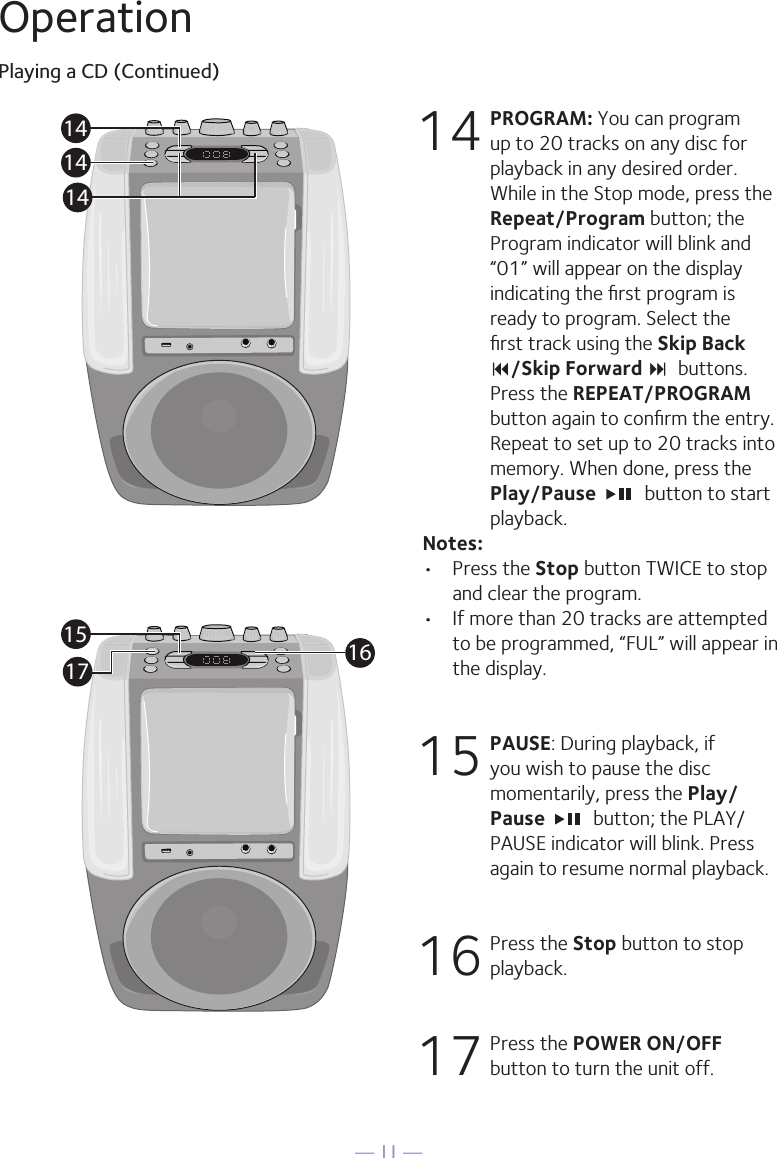
— 11 —OperationPlaying a CD (Continued)14 PROGRAM: You can program up to 20 tracks on any disc for playback in any desired order. While in the Stop mode, press the Repeat/Program button; the Program indicator will blink and “01” will appear on the display indicating the first program is ready to program. Select the first track using the Skip Back 9/Skip Forward :  buttons. Press the REPEAT/PROGRAM button again to confirm the entry. Repeat to set up to 20 tracks into memory. When done, press the Play/Pause    button to start playback.Notes: •  Press the Stop button TWICE to stop and clear the program.•  If more than 20 tracks are attempted to be programmed, “FUL” will appear in the display.15  PAUSE: During playback, if you wish to pause the disc momentarily, press the Play/Pause   button; the PLAY/PAUSE indicator will blink. Press again to resume normal playback.16  Press the Stop button to stop playback.17  Press the POWER ON/OFF button to turn the unit off.141414161517
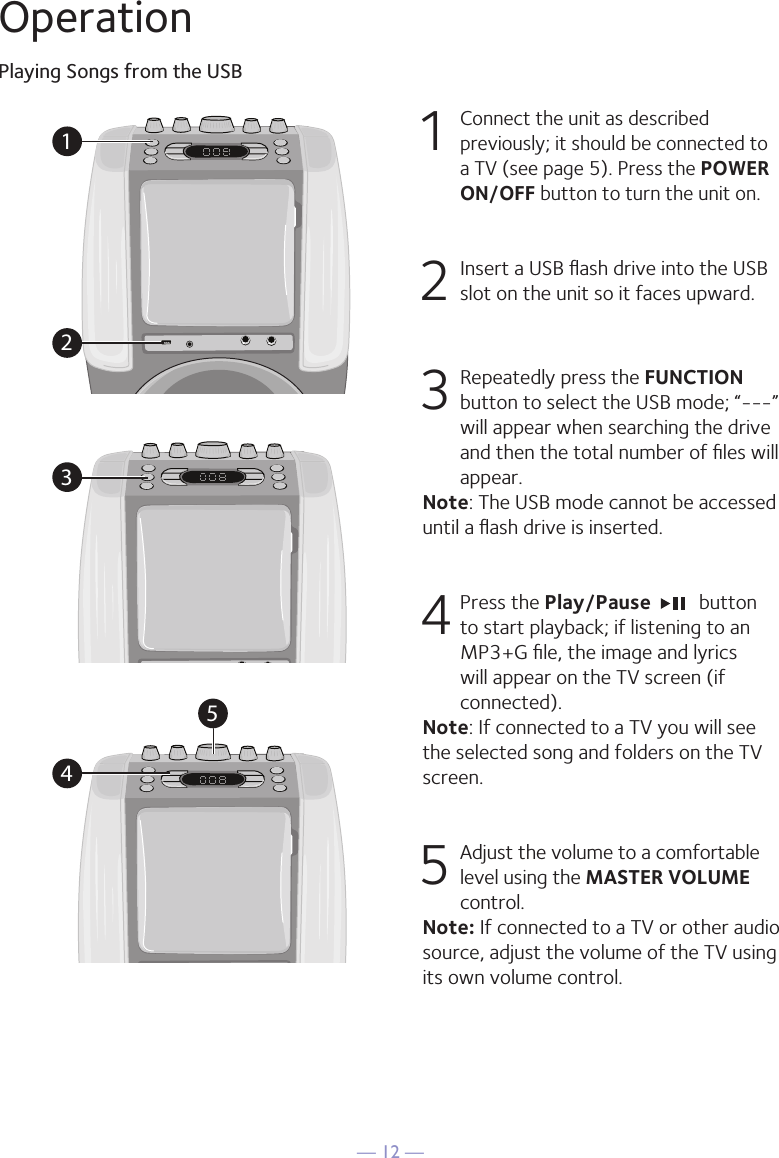
— 12 —OperationPlaying Songs from the USB1 Connect the unit as described previously; it should be connected to a TV (see page 5). Press the POWER ON/OFF button to turn the unit on.  2   Insert a USB flash drive into the USB slot on the unit so it faces upward.3  Repeatedly press the FUNCTION button to select the USB mode; “---” will appear when searching the drive and then the total number of files will appear.Note: The USB mode cannot be accessed until a flash drive is inserted. 4  Press the Play/Pause    button to start playback; if listening to an MP3+G file, the image and lyrics will appear on the TV screen (if connected).Note: If connected to a TV you will see the selected song and folders on the TV screen.5 Adjust the volume to a comfortable level using the MASTER VOLUME control.    Note: If connected to a TV or other audio source, adjust the volume of the TV using its own volume control.12345
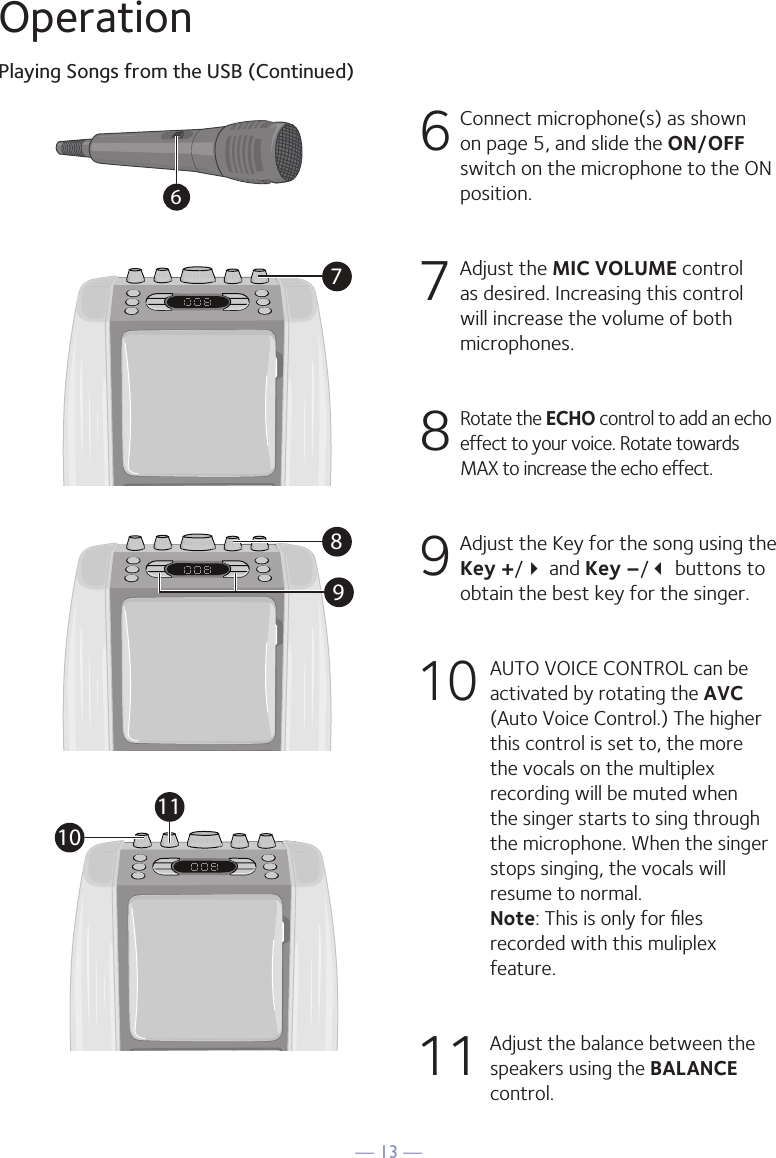
— 13 —OperationPlaying Songs from the USB (Continued)6  Connect microphone(s) as shown on page 5, and slide the ON/OFF switch on the microphone to the ON position.7  Adjust the MIC VOLUME control as desired. Increasing this control will increase the volume of both microphones.8  Rotate the ECHO control to add an echo effect to your voice. Rotate towards MAX to increase the echo effect.9  Adjust the Key for the song using the Key +/ and Key –/ buttons to obtain the best key for the singer.10 AUTO VOICE CONTROL can be activated by rotating the AVC (Auto Voice Control.) The higher this control is set to, the more the vocals on the multiplex recording will be muted when the singer starts to sing through the microphone. When the singer stops singing, the vocals will resume to normal.  Note: This is only for files recorded with this muliplex feature.11  Adjust the balance between the speakers using the BALANCE control.67891011
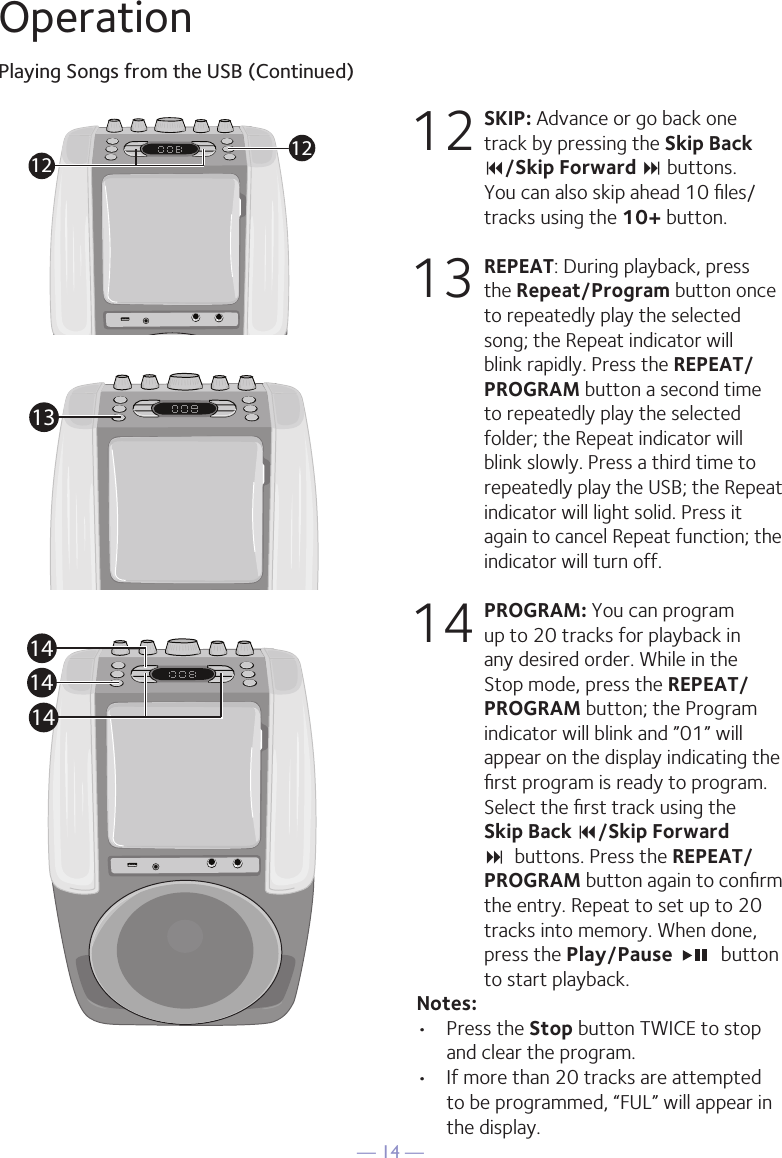
— 14 —OperationPlaying Songs from the USB (Continued)12 SKIP: Advance or go back one track by pressing the Skip Back 9/Skip Forward : buttons.  You can also skip ahead 10 files/tracks using the 10+ button.13 REPEAT: During playback, press the Repeat/Program button once to repeatedly play the selected song; the Repeat indicator will blink rapidly. Press the REPEAT/PROGRAM button a second time to repeatedly play the selected folder; the Repeat indicator will blink slowly. Press a third time to repeatedly play the USB; the Repeat indicator will light solid. Press it again to cancel Repeat function; the indicator will turn off.14 PROGRAM: You can program up to 20 tracks for playback in any desired order. While in the Stop mode, press the REPEAT/PROGRAM button; the Program indicator will blink and ”01” will appear on the display indicating the first program is ready to program. Select the first track using the Skip Back 9/Skip Forward :  buttons. Press the REPEAT/PROGRAM button again to confirm the entry. Repeat to set up to 20 tracks into memory. When done, press the Play/Pause    button to start playback.Notes: •  Press the Stop button TWICE to stop and clear the program.•  If more than 20 tracks are attempted to be programmed, “FUL” will appear in the display.121213141414
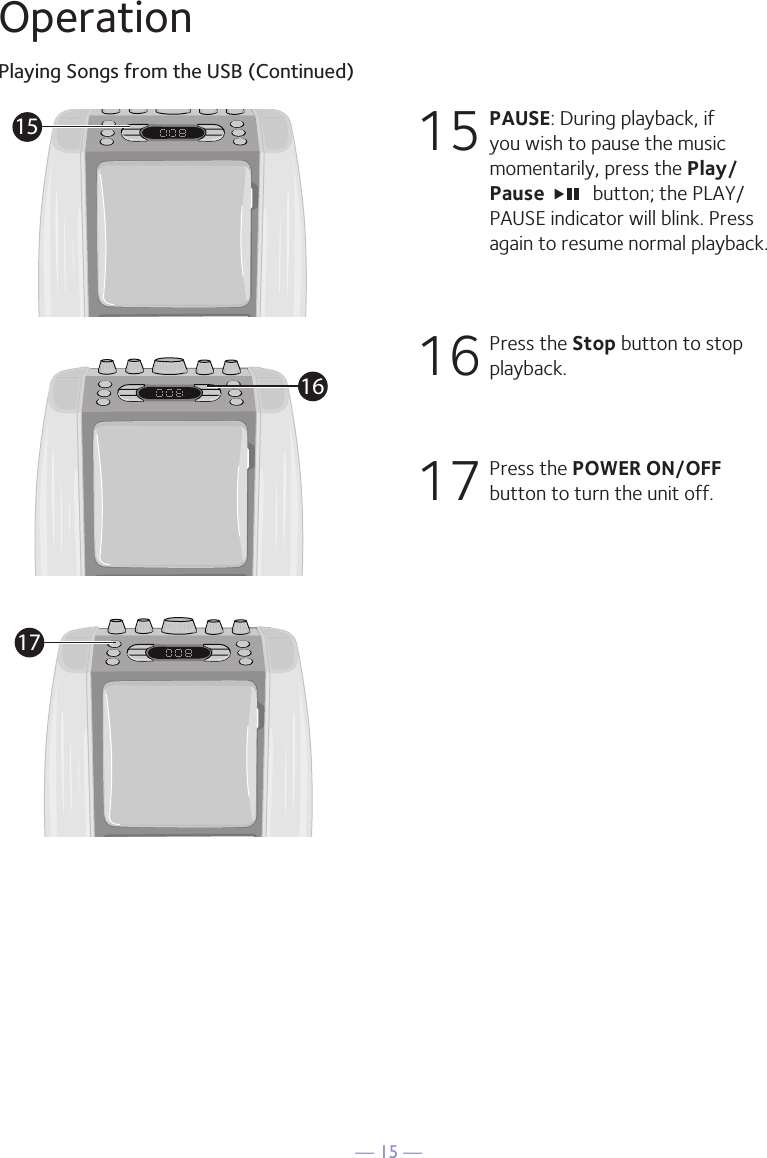
— 15 —OperationPlaying Songs from the USB (Continued)15  PAUSE: During playback, if you wish to pause the music momentarily, press the Play/Pause   button; the PLAY/PAUSE indicator will blink. Press again to resume normal playback.16  Press the Stop button to stop playback.17  Press the POWER ON/OFF button to turn the unit off.151617
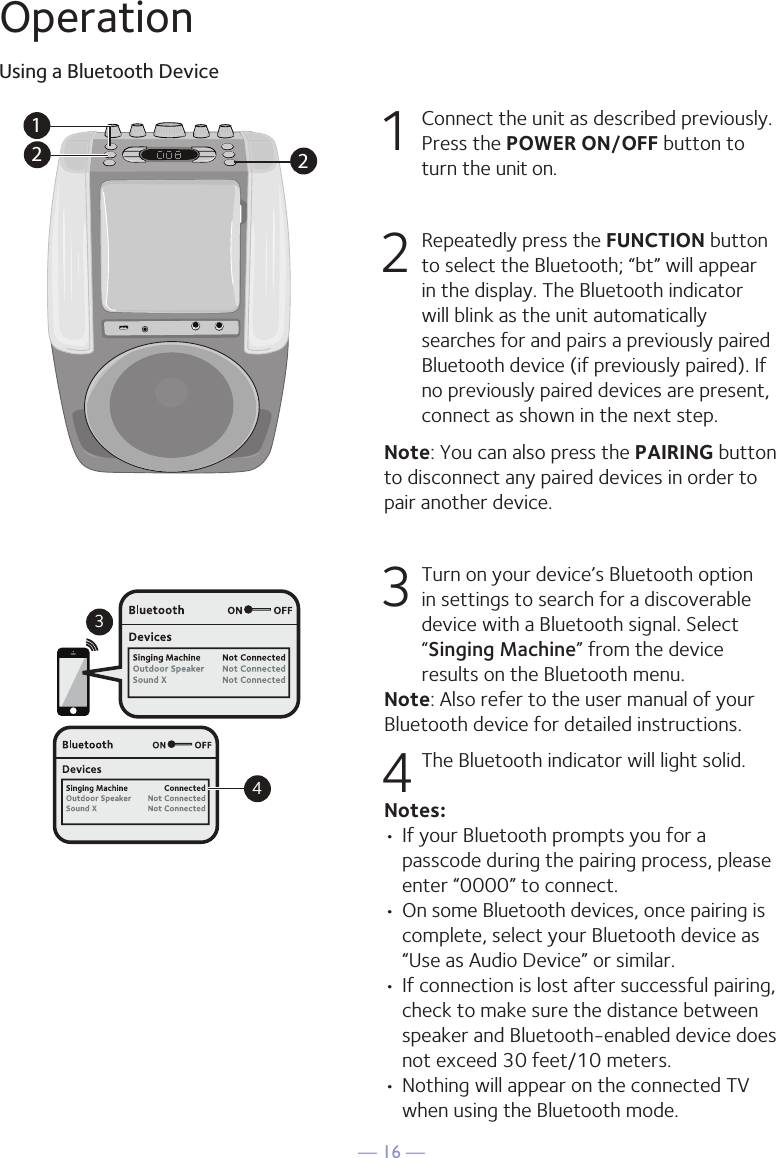
— 16 —OperationUsing a Bluetooth Device1  Connect the unit as described previously. Press the POWER ON/OFF button to turn the unit on.2  Repeatedly press the FUNCTION button to select the Bluetooth; “bt” will appear in the display. The Bluetooth indicator will blink as the unit automatically searches for and pairs a previously paired Bluetooth device (if previously paired). If no previously paired devices are present, connect as shown in the next step.Note: You can also press the PAIRING button to disconnect any paired devices in order to pair another device.  3 Turn on your device’s Bluetooth option in settings to search for a discoverable device with a Bluetooth signal. Select “Singing Machine” from the device results on the Bluetooth menu. Note: Also refer to the user manual of your Bluetooth device for detailed instructions.  4 The Bluetooth indicator will light solid.Notes: • If your Bluetooth prompts you for a passcode during the pairing process, please enter “0000” to connect. •  On some Bluetooth devices, once pairing is complete, select your Bluetooth device as “Use as Audio Device” or similar.• If connection is lost after successful pairing, check to make sure the distance between speaker and Bluetooth-enabled device does not exceed 30 feet/10 meters.• Nothing will appear on the connected TV when using the Bluetooth mode.Please connect your Music DeviceYour Music Device is connected34Please connect your Music DeviceYour Music Device is connected212
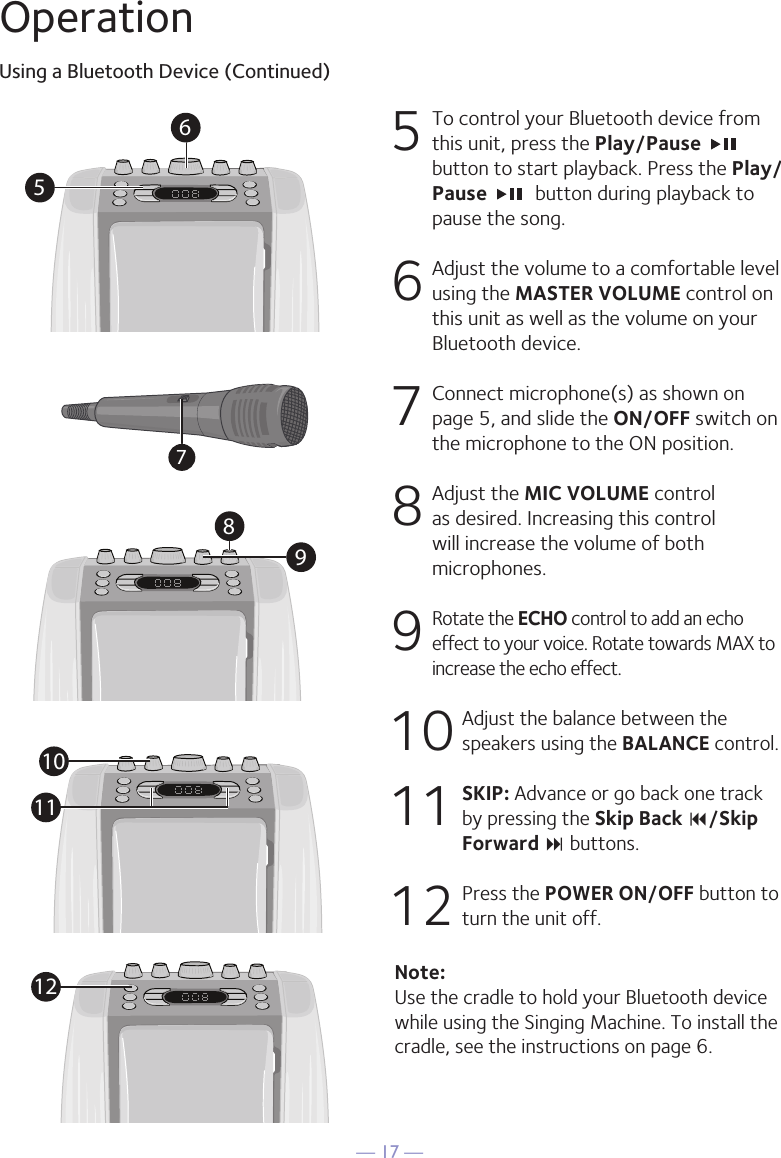
— 17 —OperationUsing a Bluetooth Device (Continued)5  To control your Bluetooth device from this unit, press the Play/Pause   button to start playback. Press the Play/Pause   button during playback to pause the song. 6  Adjust the volume to a comfortable level using the MASTER VOLUME control on this unit as well as the volume on your Bluetooth device.  7   Connect microphone(s) as shown on page 5, and slide the ON/OFF switch on the microphone to the ON position.8  Adjust the MIC VOLUME control as desired. Increasing this control will increase the volume of both microphones.9 Rotate the ECHO control to add an echo effect to your voice. Rotate towards MAX to increase the echo effect.10  Adjust the balance between the speakers using the BALANCE control.11 SKIP: Advance or go back one track by pressing the Skip Back 9/Skip Forward : buttons.12  Press the POWER ON/OFF button to turn the unit off.Note: Use the cradle to hold your Bluetooth device while using the Singing Machine. To install the cradle, see the instructions on page 6.56981011127
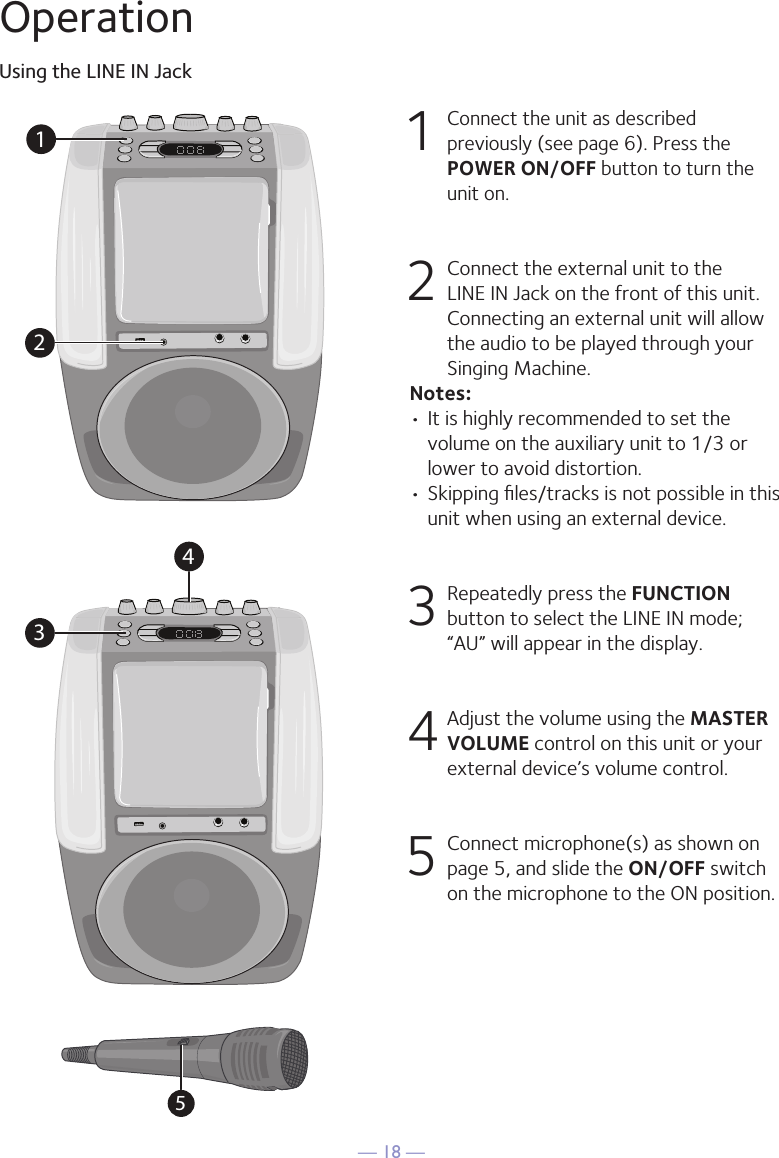
— 18 —OperationUsing the LINE IN Jack1 Connect the unit as described previously (see page 6). Press the POWER ON/OFF button to turn the unit on. 2   Connect the external unit to the LINE IN Jack on the front of this unit. Connecting an external unit will allow the audio to be played through your Singing Machine.Notes:• It is highly recommended to set the volume on the auxiliary unit to 1/3 or lower to avoid distortion.• Skipping files/tracks is not possible in this unit when using an external device.3 Repeatedly press the FUNCTION button to select the LINE IN mode; “AU” will appear in the display.4 Adjust the volume using the MASTER VOLUME control on this unit or your external device’s volume control.5  Connect microphone(s) as shown on page 5, and slide the ON/OFF switch on the microphone to the ON position.12345
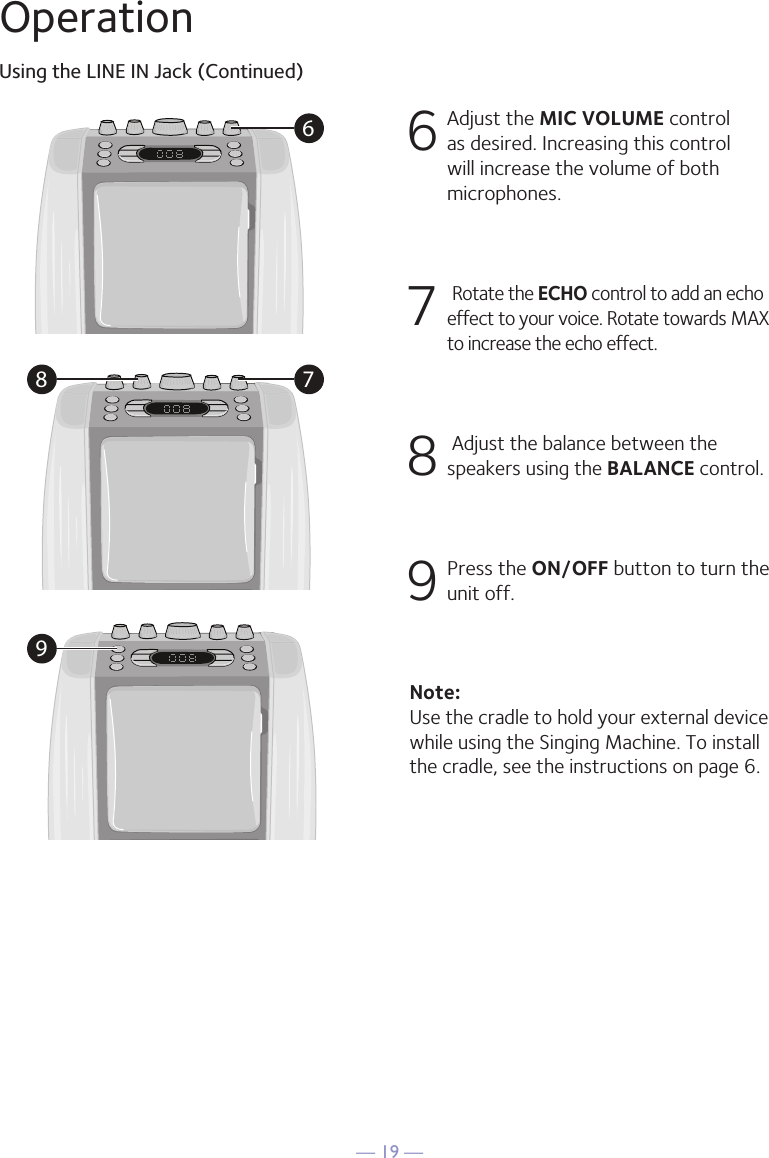
— 19 —OperationUsing the LINE IN Jack (Continued)6 Adjust the MIC VOLUME control as desired. Increasing this control will increase the volume of both microphones.7  Rotate the ECHO control to add an echo effect to your voice. Rotate towards MAX to increase the echo effect.8  Adjust the balance between the speakers using the BALANCE control.9 Press the ON/OFF button to turn the unit off.Note: Use the cradle to hold your external device while using the Singing Machine. To install the cradle, see the instructions on page 6.68 79
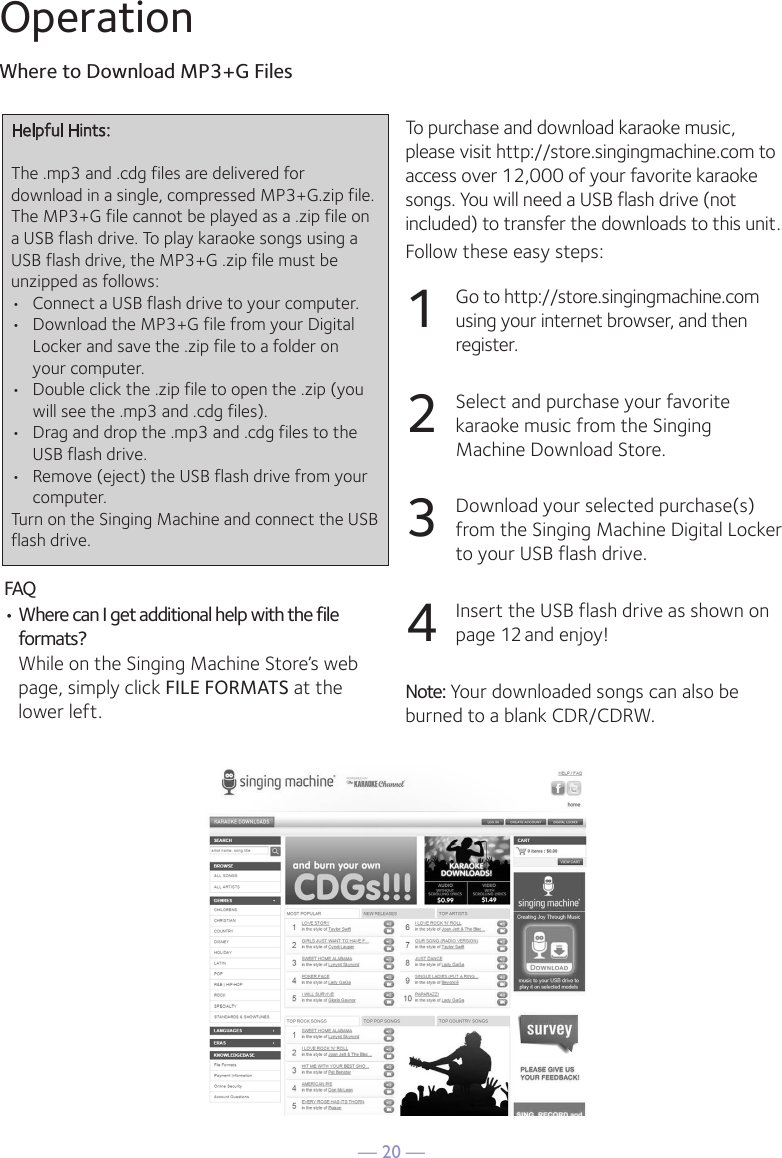
— 20 —OperationWhere to Download MP3+G Files24OperationTo purchase and download karaoke music,please visit http://store.singingmachine.com toaccess over 12,000 of your favorite karaokesongs. You will need a USB flash drive (notincluded) to transfer the downloads to this unit. Follow these easy steps:1Go to http://store.singingmachine.comusing your internet browser, and thenregister.2Select and purchase your favoritekaraoke music from the SingingMachine Download Store.3Download your selected purchase(s)from the Singing Machine Digital Lockerto your USB flash drive.4Insert the USB flash drive as shown onpage 12 and enjoy!Note: Your downloaded songs can also beburned to a blank CDR/CDRW.Where to Download MP3+G FilesFAQ• Where can I get additional help with the fileformats?While on the Singing Machine Store’s webpage, simply click FILE FORMATS at thelower left.Helpful Hints:The .mp3 and .cdg files are delivered fordownload in a single, compressed MP3+G.zip file.The MP3+G file cannot be played as a .zip file ona USB flash drive. To play karaoke songs using aUSB flash drive, the MP3+G .zip file must beunzipped as follows:• Connect a USB flash drive to your computer.• Download the MP3+G file from your Digital Locker and save the .zip file to a folder onyour computer.• Double click the .zip file to open the .zip (you will see the .mp3 and .cdg files).• Drag and drop the .mp3 and .cdg files to the USB flash drive.• Remove (eject) the USB flash drive from your computer.Turn on the Singing Machine and connect the USBflash drive.
— 21 —Troubleshooting GuideShould this unit exhibit a problem, check the following before seeking service:No Power•  Power is not on; press the POWER ON/OFF button to turn power on.•  Confirm the AC adapter is connected securely to the back of the unit.•  Connect the unit to a different outlet.No Sound – General•  Master Volume is set to minimum; raise volume.•  Correct Function was not selected; select using the FUNCTION button.•  If using an external device, raise the volume..No Sound – If connected to a TV•  Volume on the TV is muted or too low.•  Correct source (usually AV) was not selected on the TV’s menu.Lyrics do not appear on the TV screen•  If connected to a TV, Video plug is not connected properly; see page 5.•  If connected to a TV, select the correct source on the TV (usually AV).•  The file/track being played is not a track recording with lyrics. These are the only files that allow you to view the lyrics on the TV screen.•  Nothing will appear on the TV screen when using Line In or Bluetooth.No sound from the microphone•  Make sure the microphone is firmly connected to the MIC 1 or MIC 2 jack.•  Make sure the Mic’s ON/OFF switch on the Mic is set to the ON position.•  Make sure the MIC VOLUME setting is not set too low.•  MASTER VOLUME is set to minimum; raise volume.File(s) on USB jack not playing•  The file is corrupted; replace the file.•  The file is not in a format this unit will play.•  The connected USB device is not supported by the product.The Bluetooth device cannot be paired or connected with the unit•  You have not activated the Bluetooth function of your device; see page 16 or refer to the Bluetooth device user’s manual. •  The system is not in pairing mode; press the PAIRING button to restart pairing.The Music is not available on the unit after successfully connecting the Bluetooth•  Ensure your Bluetooth device can support the A2DP Bluetooth profile.•  The volume on the external Bluetooth device is set to low or muted; raise as desired.
— 22 —SpecificationsAUDIOOutput Power ................................................................................................................... 5 Watts (RMS)Output Impedance ........................................................................................................................4 OhmsCD SECTIONFrequency Response ..................................................................................................... 100Hz - 20kHzSignal-to-Noise Ratio ................................................................................................... 50dB (A-WTD)Number of Programs ...........................................................20 Step Random Access ProgrammingSampling System ..............................................................................................8 Times Over SamplingBLUETOOTHBluetooth Version ...................................................................................................................V2.1 + EDRWorking Distance ...........................................Up to 30 feet/10 meters measured in open spaceUSBFormat .................................................................................................................................................FAT32Maximum Capacity ...........................................................................................................................32GBGENERALPower ........................................................................................................ DC12V 1.5A Positive CenterDimensions - Main Unit ....................................14.5 x 11 x 7.4 inches (36.8 x 27.9 x 18.7cm)Weight - Main Unit ..................................................................................................6.28Lbs (2.85kgs)Microphone ........................-74 dB 600 Ohms impedance with 6.3 mm Dynamic MicrophoneAux In .......................................................................................................................... 3.5mm Stereo JackSpecifications are subject to change without notice.
— 23 —Visit Our Website: www.singingmachine.comThe Singing Machine Company, Inc.4060 E Jurupa Street, Unit BOntario, CA 91761-1413 USAPRINTED IN CHINA605-1508-ENG01

Navigation menu