FTR System BIGFOOT Intelligent tracking robot User Manual
FTR System (Shanghai), Inc. Intelligent tracking robot Users Manual
Users Manual

For more support and information please call (702) 982-6598, email support@caddytrek.com, or go to www.caddytrek.com
Visit our website at www.caddytrek.com
Training Reference Guide for CaddyTrek Bigfoot
Powering on and off:
Press handset power button
Press unit power button
Manual (Pushcart) use:
Turn both handset and unit off to use cart manually
Remote control functions:
Power button
When four lights are all going off it means it's looking for a connection.
Lights on handset: SB= Standby, RC= Remote Control, FL = Follow, OA (not applicable).
Hold down left directional button for RC mode.
Stop button (very important). Press stop 2 times to put into SB mode.
Use RC mode in parking lots, on hills, on gravel, over streets, around buildings and around
groups of people.
To keep handset from errant beeping, put handset in SB mode.
Allow user to use RC, run it forward and back, emphasizing STOP.
Follow mode:
Explain where sensors on handset and unit are, there must always be a clear signal from handset
to the unit.
Follow button. Hold down until it beeps to start, hold down until it beeps again to stop.
Must be a clear path from handset sensor to unit sensor to follow correctly. No blocking from
things such as clothing, jackets, and towels.
Clip handset to belt before turning on Follow function. User must set themselves up in front of
unit before starting Follow function.
Use follow mode to show user how to take wider turns and not to turn too fast or sensor will
disconnect. Allow user to test follow mode.
Explain how there are different interferences that may cause unit to lose connection. Use RC if
Follow continues to disconnect.
When stopping to take a shot or get a club, turn off follow mode by hitting the FOLLOW button
or pressing stop button.
Interference can occur near walls, groups of people, tunnels, cell phone or radio towers, and
some Wi-Fi networks.
Follow mode intended for open course, only.
It will take at a couple of holes to get used to the unit. Run it around everywhere the first couple of
holes to understand the unit and commands better.
Unit can go down curbs but cannot go up curbs.
For more support and information please call (702) 982-6598, email support@caddytrek.com, or go to www.caddytrek.com
Visit our website at www.caddytrek.com
Maintenance & Support Guide
Battery Charging
When charging the Bigfoot unit, always plug the handset into accessory box to charge.
Charge for 1-2 hours in between rounds or every 18 holes.
When not in use, leave Bigfoot on the charger.
If the unit begins to act slow, loses power, or beeps 3 times, check the battery level. It may be
time to charge the unit.
Handset
Keep clean.
Do not get wet.
Check to see if all buttons and modes are functional before play.
To sync handset, turn on handset, then turn on unit, then hold stop down and while pressing the
directional up button 3 times.
If your handset completely loses sync or you cannot switch modes shut off both the handset
and cart for 5-10 seconds then power on.
If your handset cannot sync, remove the battery for 5-10 seconds, re-insert it, then try again.
Do not pair/sync units simultaneously.
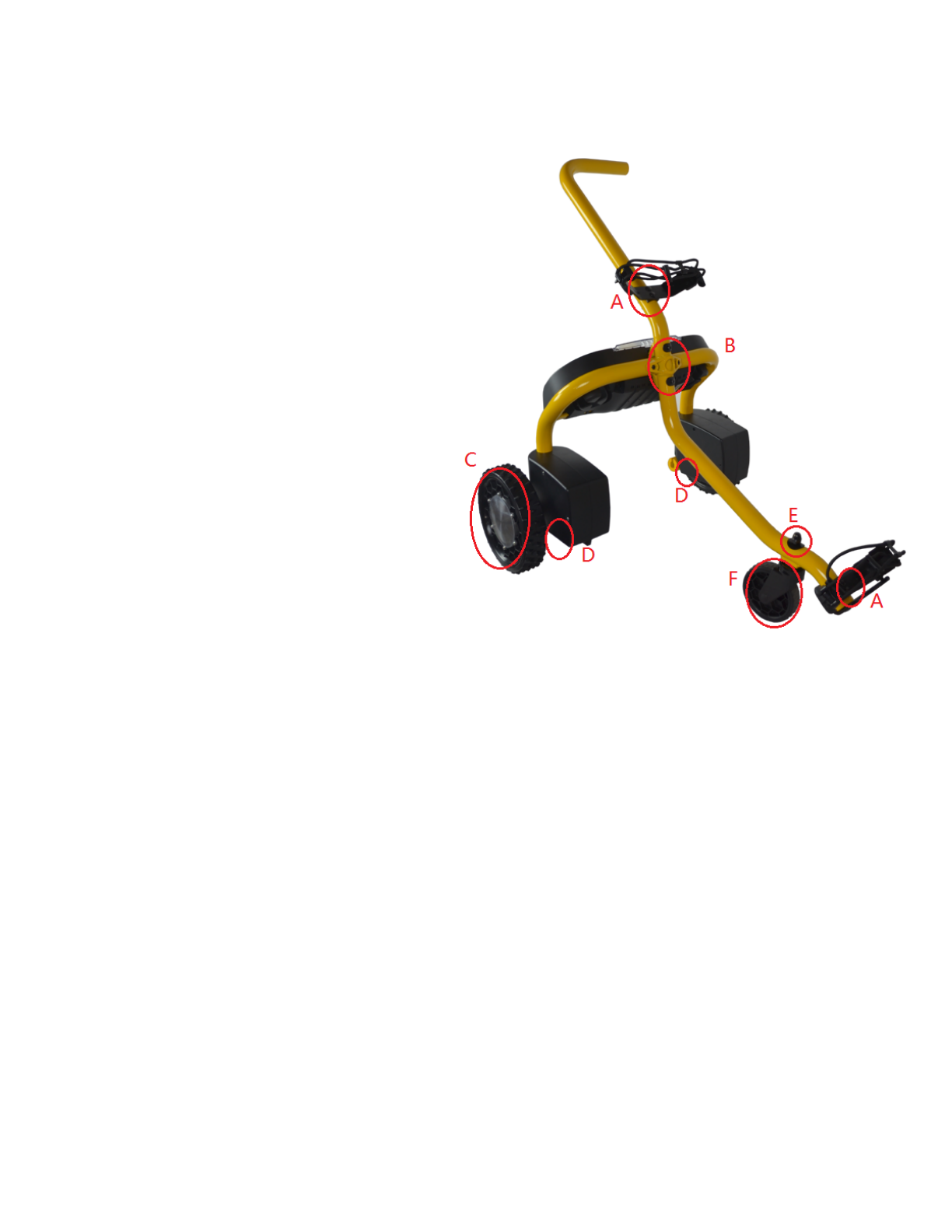
A. Bag Support Joints
B. Spine-Frame Connecting
Bolts
C. Motor Wheel
D. Motor Wheel-Motor Joints
E. Caster Wheel Bolt
F. Caster Wheel
Once a day check if any bolts or joints
are loose and tighten accordingly.
(A, B, D, E)
Brush dirt and grass off of motor wheels
and caster wheels after use (C, F)

FCC Information and Copyright
This equipment has been tested and found to comply with the limits for a Class B digital device,
pursuant to part 15 of the FCC Rules.
These limits are designed to provide reasonable protection against harmful interference in a residential
installation. This equipment generates,
uses and can radiate radio frequency energy and, if not installed and used in accordance with the
instructions, may cause harmful interference
to radio communications. However, there is no guarantee that interference will not occur in a particular
installation. If this equipment does
cause harmful interference to radio or television reception, which can be determined by turning the
equipment off and on, the user is
encouraged to try to correct the interference by one or more of the following measures:
—Reorient or relocate the receiving antenna.
—Increase the separation between the equipment and receiver.
—Connect the equipment into an outlet on a circuit different from that to which the receiver is
connected.
—Consult the dealer or an experienced radio/TV technician for help.
15.19 Labelling requirements.
This device complies with part 15 of the FCC Rules. Operation is subject to the
following two conditions:
(1)This device may not cause harmful interference, and
(2) this device must accept any interference received, including interference that may
cause undesired operation.
changes or modifications not expressly approved by the party responsible for compliance could
void the user's authority to operate the equipment.
FCC RF warning statement: the device has been evaluated to meet general RF exposure
requirement , The device can be used in portable exposure condition without restriction.