FUZHOU ESUN ELECTRONIC EN8818 3D Digital Alarm Clock User Manual Users manual

FUZHOU ESUN ELECTRONIC CO.,LTD 3D Digital Alarm Clock Users manual

Users manual

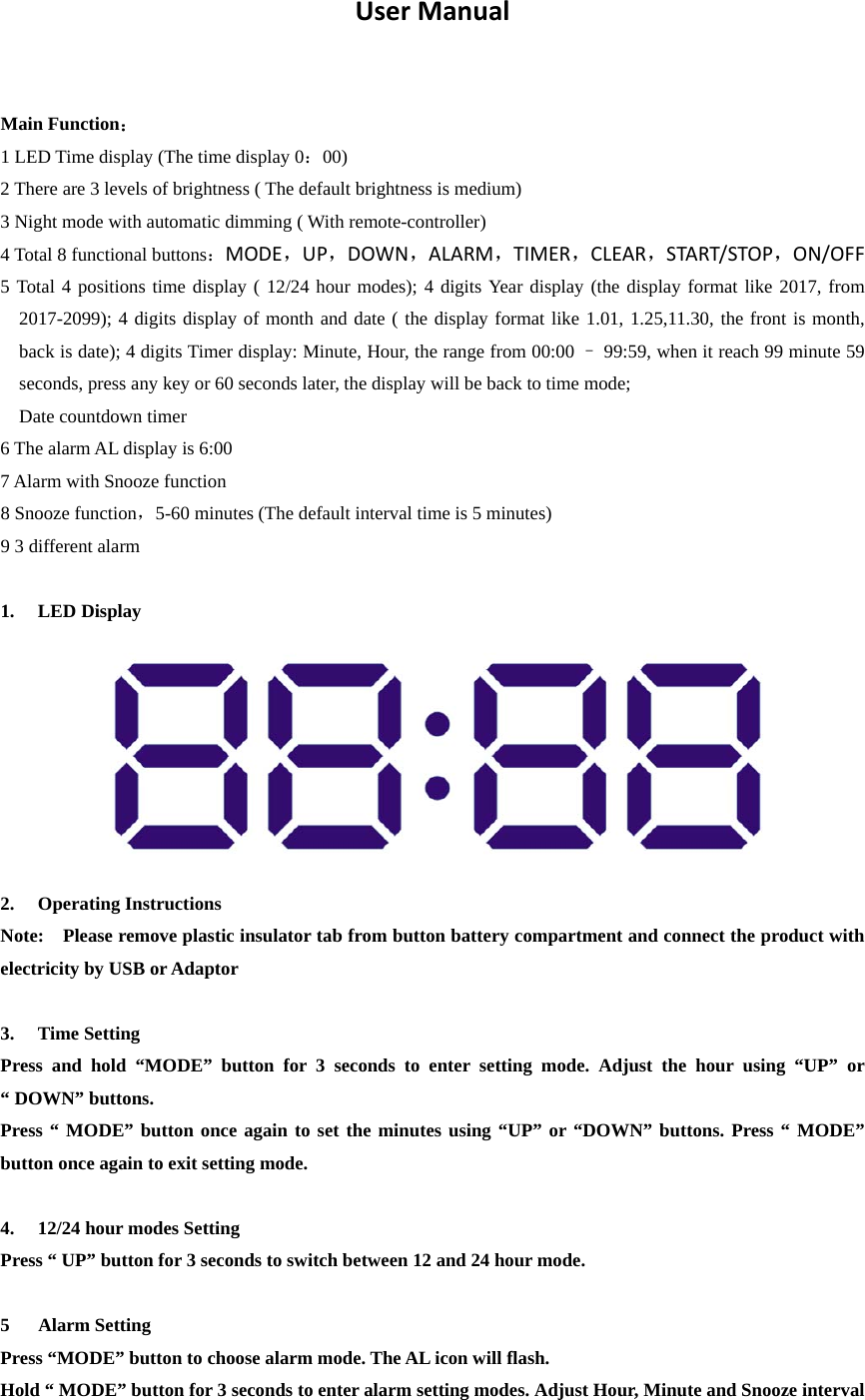
 User Manual  Main Function: 1 LED Time display (The time display 0:00) 2 There are 3 levels of brightness ( The default brightness is medium) 3 Night mode with automatic dimming ( With remote-controller) 4 Total 8 functional buttons:MODE,UP,DOWN,ALARM,TIMER,CLEAR,START/STOP,ON/OFF 5 Total 4 positions time display ( 12/24 hour modes); 4 digits Year display (the display format like 2017, from 2017-2099); 4 digits display of month and date ( the display format like 1.01, 1.25,11.30, the front is month, back is date); 4 digits Timer display: Minute, Hour, the range from 00:00 – 99:59, when it reach 99 minute 59 seconds, press any key or 60 seconds later, the display will be back to time mode;   Date countdown timer 6 The alarm AL display is 6:00 7 Alarm with Snooze function 8 Snooze function,5-60 minutes (The default interval time is 5 minutes) 9 3 different alarm  1. LED Display         2. Operating Instructions Note:    Please remove plastic insulator tab from button battery compartment and connect the product with electricity by USB or Adaptor  3. Time Setting Press and hold “MODE” button for 3 seconds to enter setting mode. Adjust the hour using “UP” or “ DOWN” buttons. Press “ MODE” button once again to set the minutes using “UP” or “DOWN” buttons. Press “ MODE” button once again to exit setting mode.  4. 12/24 hour modes Setting Press “ UP” button for 3 seconds to switch between 12 and 24 hour mode.  5   Alarm Setting Press “MODE” button to choose alarm mode. The AL icon will flash. Hold “ MODE” button for 3 seconds to enter alarm setting modes. Adjust Hour, Minute and Snooze interval
 by using “UP” or “ DOWN” to set the desired values and press “MODE” to jump to the next parameter. The Snooze interval can be adjusted from 5 to 60 minutes. Press “ MODE” once again to exit setting mode. Press “DOWN” to activate the alarm. The AL icon will light up.  6. When the alarm beeps: Press “MODE” to activate the snooze function. The AL icon will flash. Or press “ DOWN” to turn off the alarm. The AL icon will turn off.  7. Night Mode The clock will be automatically dim during the night mode. Press “ MODE” twice times to adjust the night mode settings. Press “UP” or “ DOWN” to turn ON/OFF the night mode. The default night mode time is from 18:00 to 6:00, if you want to change this values, Press twice times “ MODE” to enter the night mode settings, turn the setting to “ON”, hold “ MODE” for 3 seconds, use “ UP” or “DOWN” to adjust the dimming starting time ( the top center dot of the display will light up). Press “MODE” to adjust the dimming ending time ( the bottom center dot of the display will light up). Press “ MODE” once again to exit setting mode.  8. Brightness Setting There are 3 levels of brightness. The default brightness is medium. Under time mode, press “UP” to choose the brightness level.  FCC Statement   This equipment has been tested and found to comply with the limits for a Class B digital device, pursuant to part 15 of the FCC rules. These limits are designed to provide reasonable protection against harmful interference in a residential installation. This equipment generates, uses and can radiate radio frequency energy and, if not installed and used in accordance with the instructions, may cause harmful interference to radio communications. However, there is no guarantee that interference will not occur in a particular installation. If this equipment does cause harmful interference to radio or television reception, which can be determined by turning the equipment off and on, the user is encouraged to try to correct the interference by one or more of the following measures:   -Reorient or relocate the receiving antenna. -Increase the separation between the equipment and receiver. -Connect the equipment into an outlet on a circuit different from that to which the receiver is connected.   -Consult the dealer or an experienced radio/TV technician for help. To assure continued compliance, any changes or modifications not expressly approved by the party. Responsible for compliance could void the user’s authority to operate this equipment. (Example- use only shielded interface cables when connecting to computer or peripheral devices).   This equipment complies with Part 15 of the FCC Rules. Operation is subject to the following two conditions:     (1) This device may not cause harmful interference, and   (2) This device must accept any interference received, including interference that may cause undesired operation.

Navigation menu