Fanvil Technology I30 IP DoorPhone User Manual
Fanvil Technology Co., LTD. IP DoorPhone
Contents
- 1. User manual i20S
- 2. User manual i30
User manual i20S
[键入文字]
i20S IP DoorPhone
User Manual V3.0

[键入文字]
Document VER
Firmware VER
Explanation
Time
V1.0
2.0.0.2485
Initial issue
20160830
V2.0
2.1.1.2898
Add FDMS, video linkage function.
Changed default in passive mode to the electric-lock.
20170726
V3.0
2.1.1.2898
Change company address and add IP scan tool download
address in QIG
20171027

[键入文字]
Safety Notices
1. Please use the specified power adapter. If you need to use the power adapter provided by other
manufacturers under special circumstances, please make sure that the voltage and current provided is
in accordance with the requirements of this product, meanwhile, please use the safety certificated
products, otherwise may cause fire or get an electric shock.
2. When using this product, please do not damage the power cord either by forcefully twist it, stretch
pull, banding or put it under heavy pressure or between items, otherwise it may cause damage to the
power cord, lead to fire or get an electric shock.
3. Before using, please confirm that the temperature and environment is humidity suitable for the
product to work. (Move the product from air conditioning room to natural temperature, which may
cause this product surface or internal components produce condense water vapor, please open power
use it after waiting for this product is natural drying).
4. Please do not let non-technical staff to remove or repair. Improper repair may cause electric shock,
fire, malfunction, etc. It will lead to injury accident or cause damage to your product.
5. Do not use fingers, pins, wire, other metal objects or foreign body into the vents and gaps. It may
cause current through the metal or foreign body, which may even cause electric shock or injury
accident. If any foreign body or objection falls into the product please stop using.
6. Please do not discard the packing bags or store in places where children could reach, if children trap
his head with it, may cause nose and mouth blocked, and even lead to suffocation.
7. Please use this product with normal usage and operating, in bad posture for a long time to use this
product may affect your health.
8. Please read the above safety notices before installing or using this phone. They are crucial for the safe
and reliable operation of the device.

[键入文字]
FCC Statement
This equipment has been tested and found to comply with the limits for a Class B digital device, pursuant to part
15 of the FCC Rules. These limits are designed to provide reasonable protection against harmful interference in a
residential installation. This equipment generates uses and can radiate radio frequency energy and, if not
installed and used in accordance with the instructions, may cause harmful interference to radio communications.
However, there is no guarantee that interference will not occur in a particular installation. If this equipment does
cause harmful interference to radio or television reception, which can be determined by turning the equipment off
and on, the user is encouraged to try to correct the interference by one or more of the following measures:
—Reorient or relocate the receiving antenna.
—Increase the separation between the equipment and receiver.
—Connect the equipment into an outlet on a circuit different from that to which the receiver is connected.
—Consult the dealer or an experienced radio/TV technician for help.
FCC Statement
This device complies with Part 15 of the FCC Rules. Operation is subject to the following two conditions: (1) this
device may not cause harmful interference, and (2) this device must accept any interference received, including
interference that may cause undesired operation.
Caution!
Any changes or modifications not expressly approved by the party responsible for compliance could void the
user's authority to operate the equipment.
FCC Radiation Exposure Statement
This device complies with FCC radiation exposure limits set forth for an uncontrolled environment and it also
complies with Part 15 of the FCC RF Rules. This equipment must not be co-located or operating in conjunction
with any other antenna or transmitter. End-users and installers must be provide with antenna installation
instructions and consider removing the no-collocation statement.

[键入文字]
Directory
I. Product introduction ............................................................................................................................ 6
1. Appearance of the product .............................................................................................................. 6
2. Description ...................................................................................................................................... 6
II. Start Using .......................................................................................................................................... 7
1. Confirm the connection ................................................................................................................... 7
1) Power, Electric Lock, Indoor switch port ........................................................................................ 7
2) Driving mode of electric-lock(Default in passive mode) ................................................................. 7
3) Wiring instructions ....................................................................................................................... 8
2. Quick Setting ................................................................................................................................... 9
III. Basic operation ................................................................................................................................ 10
1. Answer a call ................................................................................................................................. 10
2. Call ................................................................................................................................................ 10
3. End call .......................................................................................................................................... 10
4. Open the door operation ............................................................................................................... 10
IV. Page settings ................................................................................................................................... 11
1. Browser configuration ................................................................................................................... 11
2. Password Configuration ................................................................................................................. 11
3. Configuration via WEB ................................................................................................................... 12
(1) System ...................................................................................................................................... 12
a) Information ............................................................................................................................. 12
b) Account .................................................................................................................................. 13
c) Configurations ......................................................................................................................... 14
d) Upgrade .................................................................................................................................. 14
e) Auto Provision ........................................................................................................................ 15
f) FDMS ...................................................................................................................................... 17
g) Tools ....................................................................................................................................... 17
(2) Network .................................................................................................................................... 19
a) Basic ....................................................................................................................................... 19
b) VPN ........................................................................................................................................ 21
(3) Line ........................................................................................................................................... 22
a) SIP .......................................................................................................................................... 22
b) Basic Settings .......................................................................................................................... 27
c) Dial peer ................................................................................................................................. 28

[键入文字]
(4) EGS Setting ............................................................................................................................... 30
a) Features.................................................................................................................................. 30
b) Audio ...................................................................................................................................... 33
c) Video ...................................................................................................................................... 34
d) MCAST .................................................................................................................................... 35
e) Action URL .............................................................................................................................. 38
f) Time/Date ............................................................................................................................... 38
(5) EGS Access ................................................................................................................................ 40
(6) EGS Logs ................................................................................................................................... 42
(7) Function Key ............................................................................................................................. 43
V. Appendix .......................................................................................................................................... 45
1. Technical parameters ..................................................................................................................... 45
2. Basic functions .............................................................................................................................. 46
3. Schematic diagram ........................................................................................................................ 46
VI. Other instructions ............................................................................................................................ 47
1. Open door modes .......................................................................................................................... 47
2. Management of card ..................................................................................................................... 47
[键入文字]
6 / 51
I. Product introduction
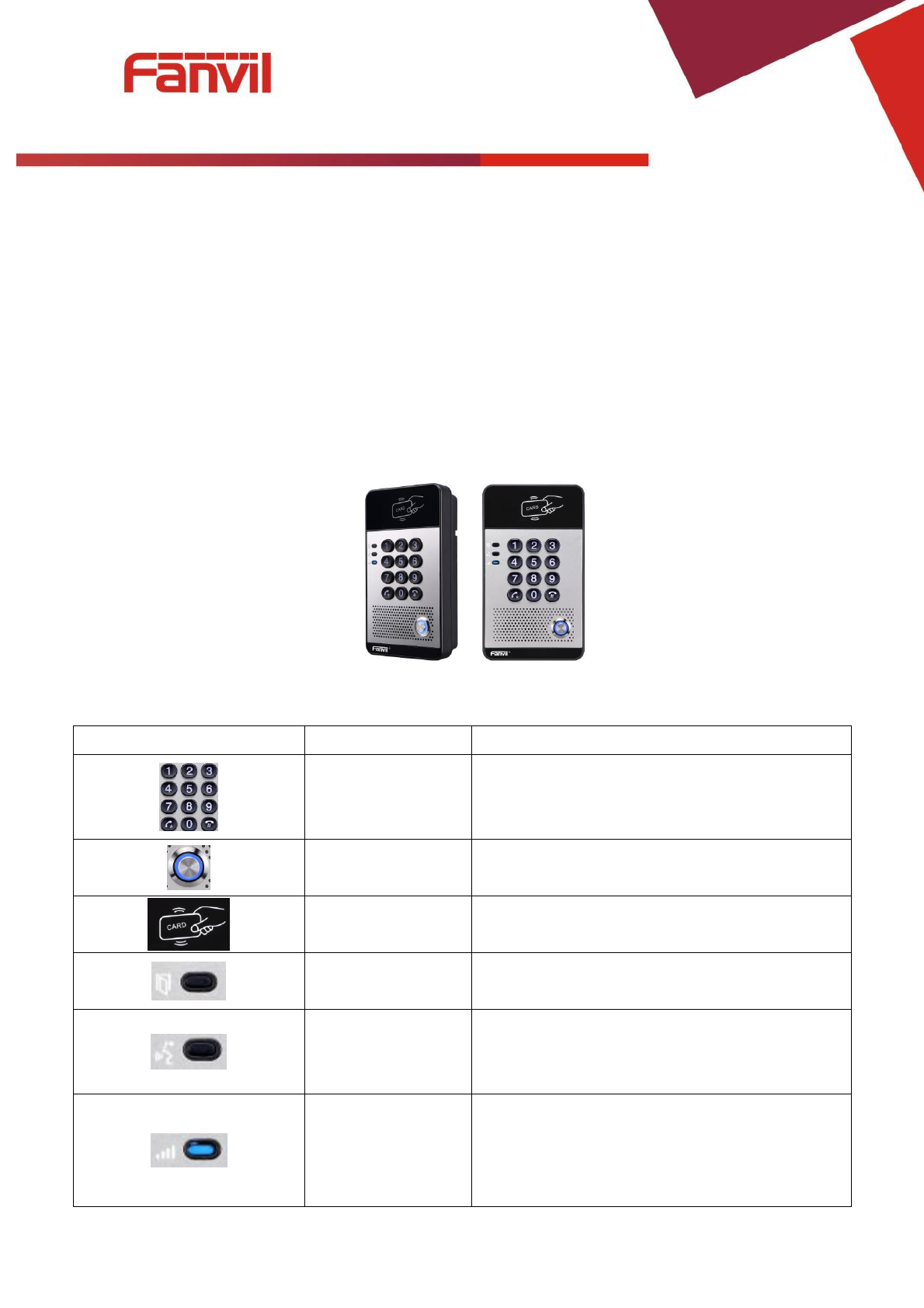
i20S voice access is a full digital network door phone, with its core part adopts mature VoIP
solution (Broadcom chip), stable and reliable performance, hands-free adopting digital full-duplex
mode, voice loud and clear, generous appearance, solid durable, easy for installation,
comfortable keypad and low power consumption.
i20S voice access supports entrance guard control, voice intercom, ID card and keypad remote
to open the door.
1. Appearance of the product
2. Description
Buttons and icons
Description
Function
Numeric keyboard
Input password to open the door or to call.
programmable keys
Can be set to a variety of functions, in order to
meet the needs of different occasions
induction zone
RFID induction area
Lock Status
Door unlocking: On
Door locking: Off
Call/Ring status
Standby: Off
Calls: On
Ringing: Blink with 1s
Network/SIP
Registration
Network error: Blink with 1s
Network running: Off
Registration failed: Blink with 3s
Registration succeeded: On
[键入文字]
7 / 51
II. Start Using
Before you start to use the equipment, please make the following installation.
1. Confirm the connection
Confirm whether the equipment of the power cord, network cable, electric lock control line
connection and the boot-up is normal. (Check the network state of light)
1) Power, Electric Lock, Indoor switch port
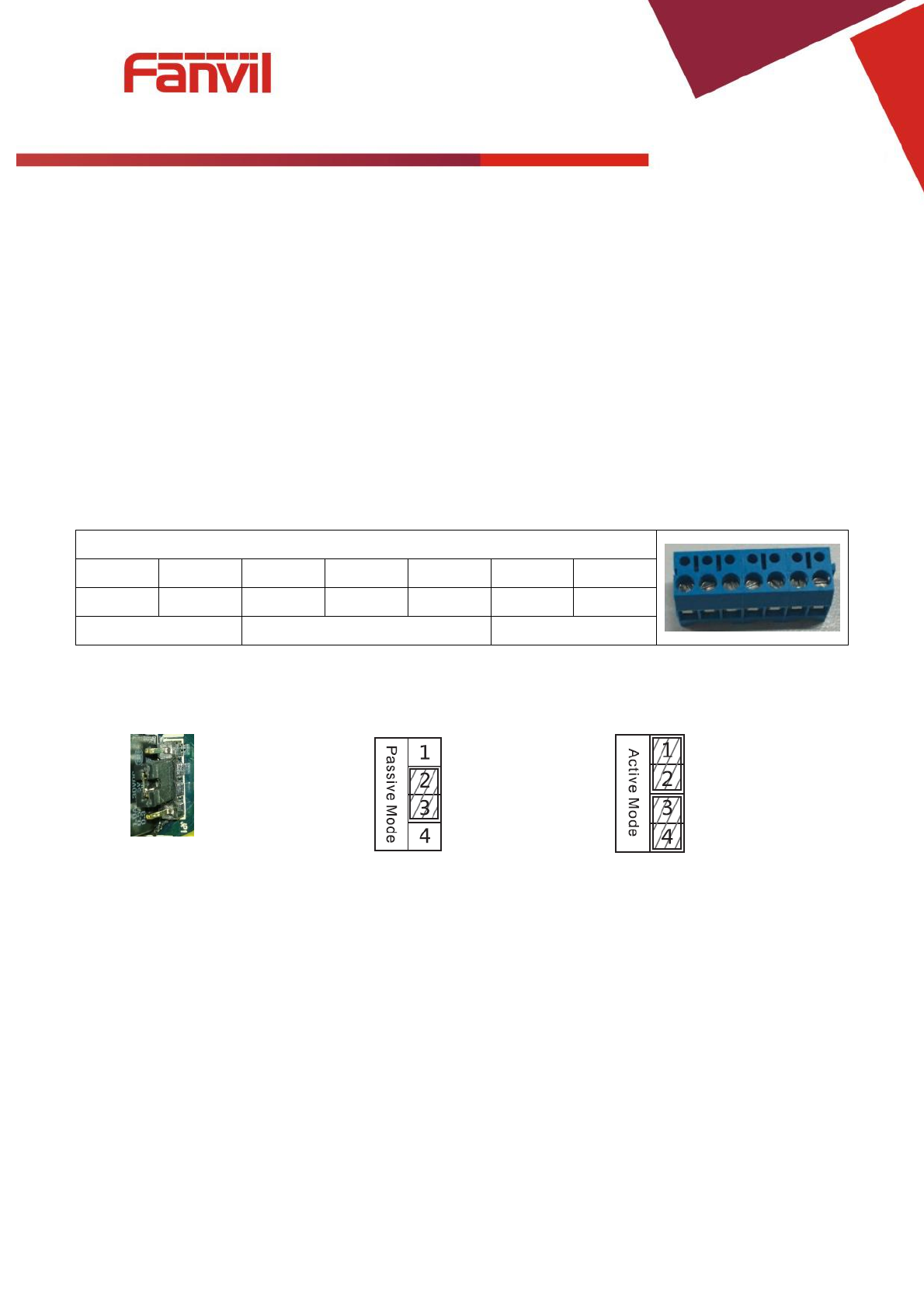
Voice access the power supply ways: 12v/DC or POE.
CN7
1
2
3
4
5
6
7
+12V
VSS
NC
COM
NO
S_IN
S_OUT
12V 1A/DC
Electric-lock switch
Indoor switch
2) Driving mode of electric-lock(Default in passive mode)
【Note】When the device is in active mode, it can drive 12V/700mA switch output maximum, to which a
standard electric-lock or another compatible electrical appliance can be connected.
When using the active mode, it is 12V DC in output.
When using the passive mode, output is short control (normally open mode or normally close mode).
Jumper in passive mode
Jumper in active mode
[键入文字]
8 / 51
3) Wiring instructions
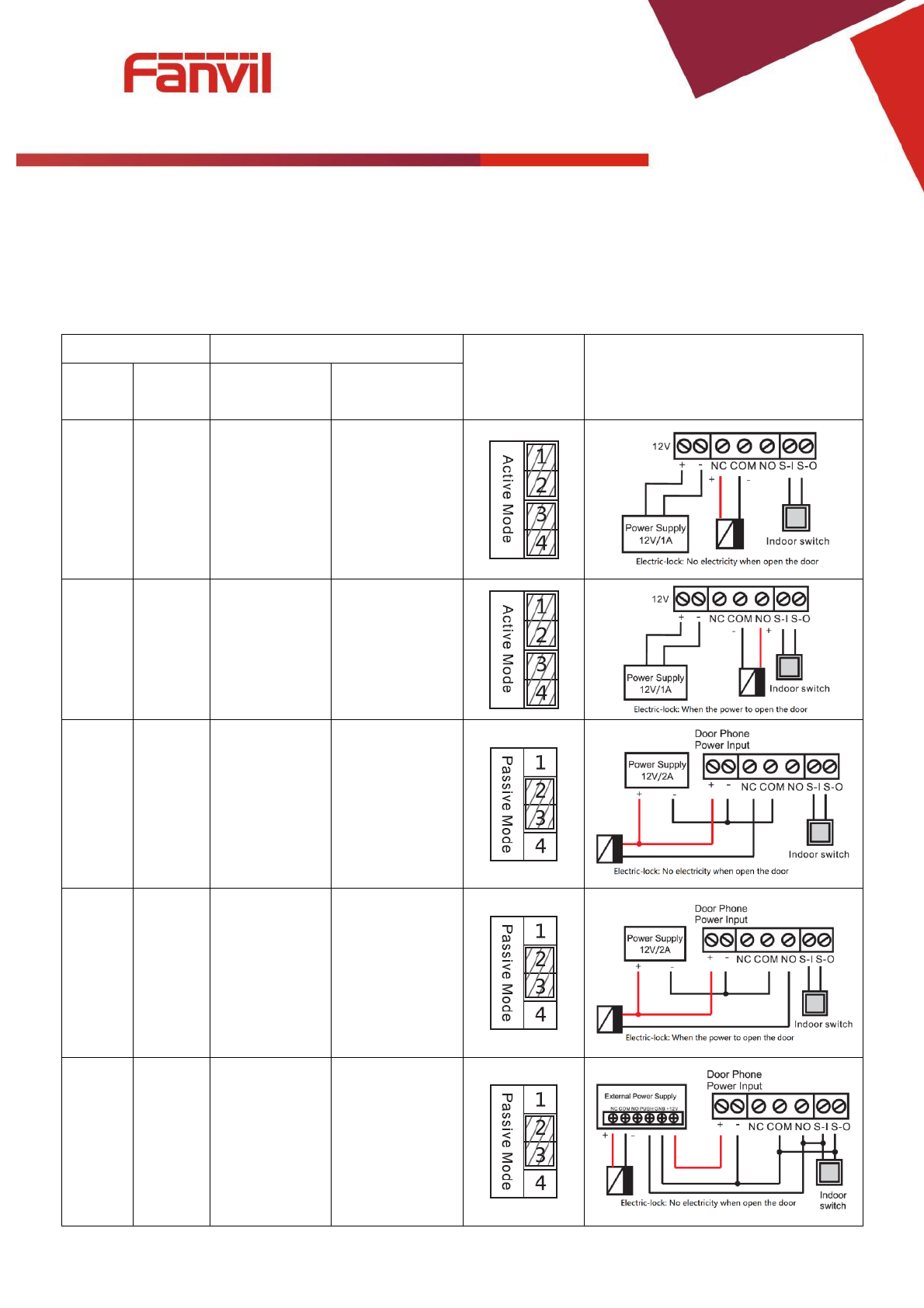
NO: Normally Open Contact.
COM: Common Contact.
NC: Normally Close Contact.
Driving Mode
Electric lock
Jumper port
Connections
Active
Passive
No electricity
when open
When the
power to open
√
√
√
√
√
√
√
√
√
[键入文字]
9 / 51
2. Quick Setting
The product provides a complete function and parameter setting. Users may need to have the
network and SIP protocol knowledge to understand the meaning represented by all parameters. In
order to let equipment users enjoy the high quality of voice service and low cost advantage brought by
the device immediately, here we list some basic but compulsory setting options in this section to let
users know how to operate without understanding such complex SIP protocols.
In prior to this step, please make sure your broadband Internet online can be normal operated,
and complete the connection of the network hardware. The product factory default network mode is
DHCP. Thus, only connect equipment with DHCP network environment that network can be
automatically connected.
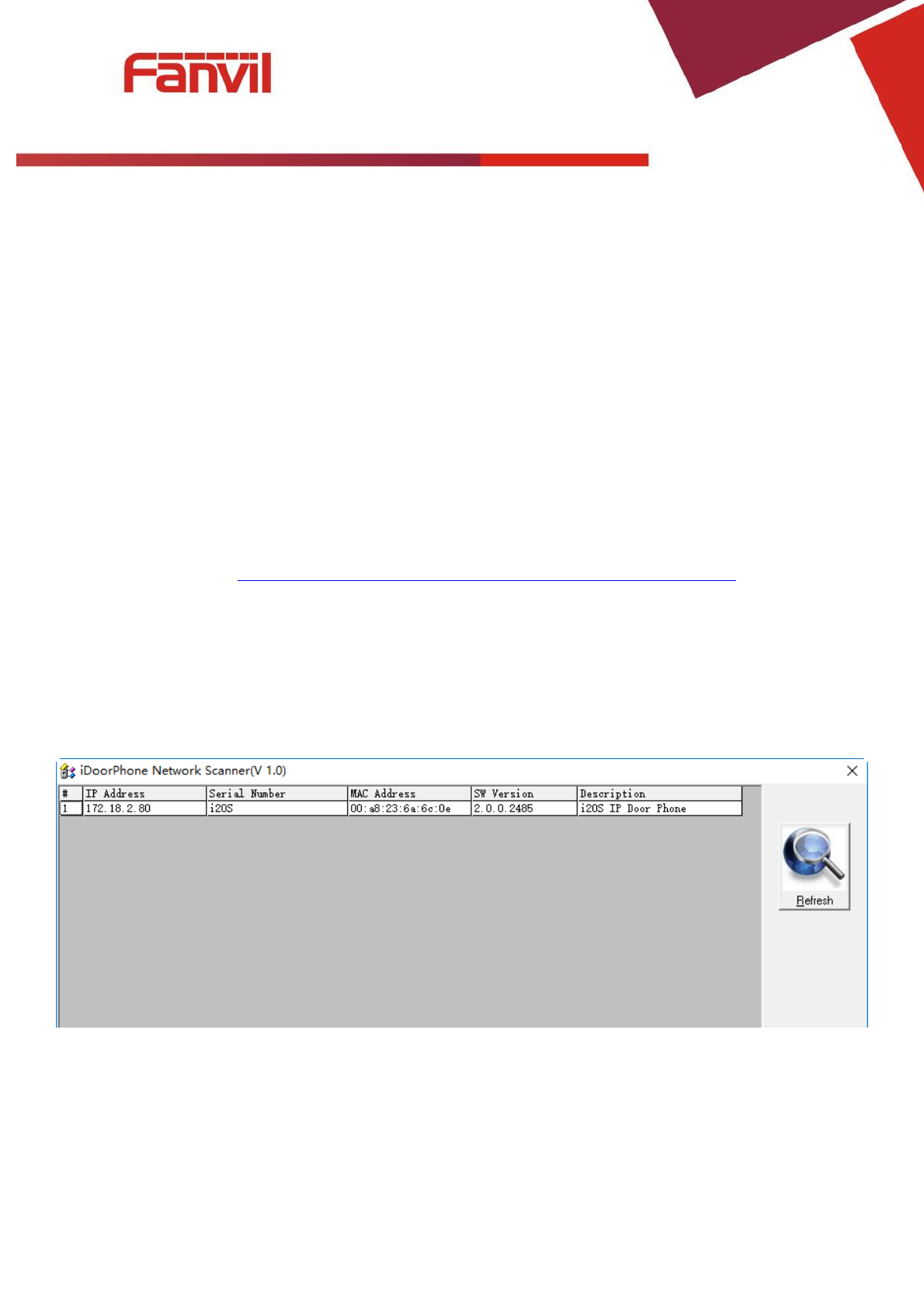
Press and hold “#” key for 3 seconds and the door phone will report the IP address by voice, or use
the "iDoorPhoneNetworkScanner.exe" software to find the IP address of the device.
(Download address http://download.fanvil.com/tool/iDoorPhoneNetworkScanner.exe )
Note: when power on, 30s waiting is needed for device running.
Log on to the WEB device configuration.
In a Line page configuration service account, user name, parameters that are required for server
address register.
You can set DSS key in the Function key page.
You can set Door Phone parameters in the Webpage (EGS Setting-> Features).

[键入文字]
10 / 51
III. Basic operation
1. Answer a call
When a call comes in, the device will answer automatically. If you cancel auto answer feature and set
auto answer time, you will hear the bell ring at the set time and the device will auto answer after a
timeout.
2. Call
Configure shortcut key as hot key and setup a number, then press shortcut key can call the
configured number.
3. End call
Enable Release key hang up to end call.
4. Open the door operation
Through the following seven ways to open the door:
1) Input password on the keyboard to open the door.
2) Access to call the owner and the owner enter the remote password to open the door.
3) Owner/other equipment call the access control and enter the access code to open the door. (access
code should be included in the list of access configuration, and enable for remote calls to open the
door)
4) Swipe the RFID cards to open the door.
5) By means of indoor switch to open the door.
6) Private access code to open the door.
Enable for local authentication, and set private access code. Input the access code directly under
standby mode to open the door. In this way, the door log will record corresponding card number
and user name.
7) Active URL control command to open the door.
URL is “http://user:pwd@host/cgi-bin/ConfigManApp.com?key=F_LOCK&code=openCode”
a. User and pwd is Web the user name and password.
b. “openCode” is the remote control code to open the door.
Example: “http://admin:admin@172.18.3.25/cgi-bin/ConfigManApp.com?key=*”
If access code is input correctly, the device will play sirens sound to prompt access control and the
remote user, while input error by low-frequency short chirp.
Password input successfully followed by high-frequency sirens sound, while input error is followed by
[键入文字]
11 / 51
high-frequency short chirp.
When door has been opened, the device will play sirens sound to prompt.
IV. Page settings
1. Browser configuration
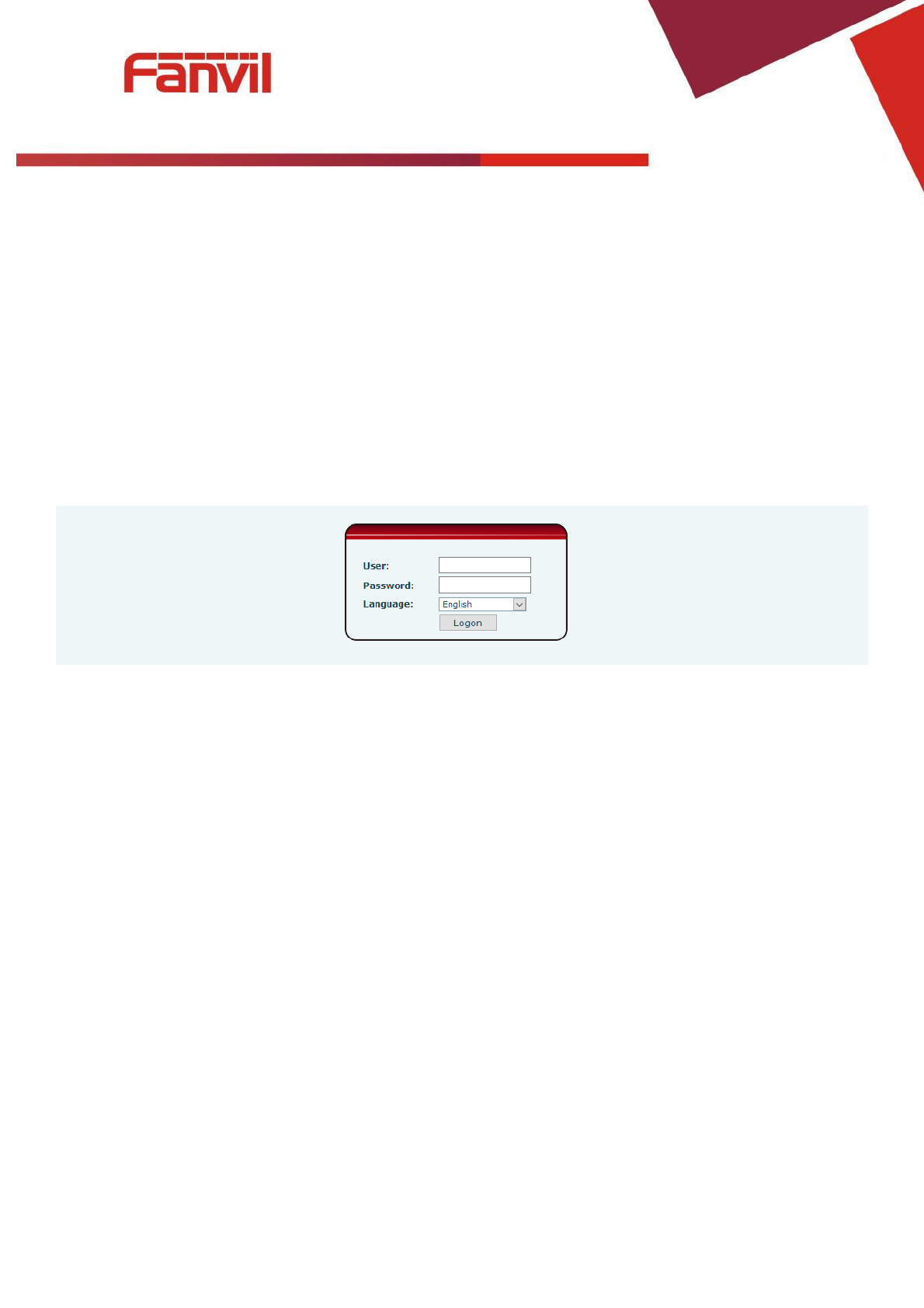
When the device and your computer are successfully connected to the network, enter the IP address
of the device on the browser as http://xxx.xxx.xxx.xxx/ and you can see the login interface of the web page
management.
Enter the user name and password and click the [logon] button to enter the settings screen.
2. Password Configuration
There are two levels of access: root level and general level. A user with root level access can
browse and set all configuration parameters, while a user with general level can set all configuration
parameters except server parameters for SIP.
Default user with general level: The default is not set, are free to add.
Default user with root level:
User name: admin
Password: admin
[键入文字]
12 / 51
3. Configuration via WEB
(1) System
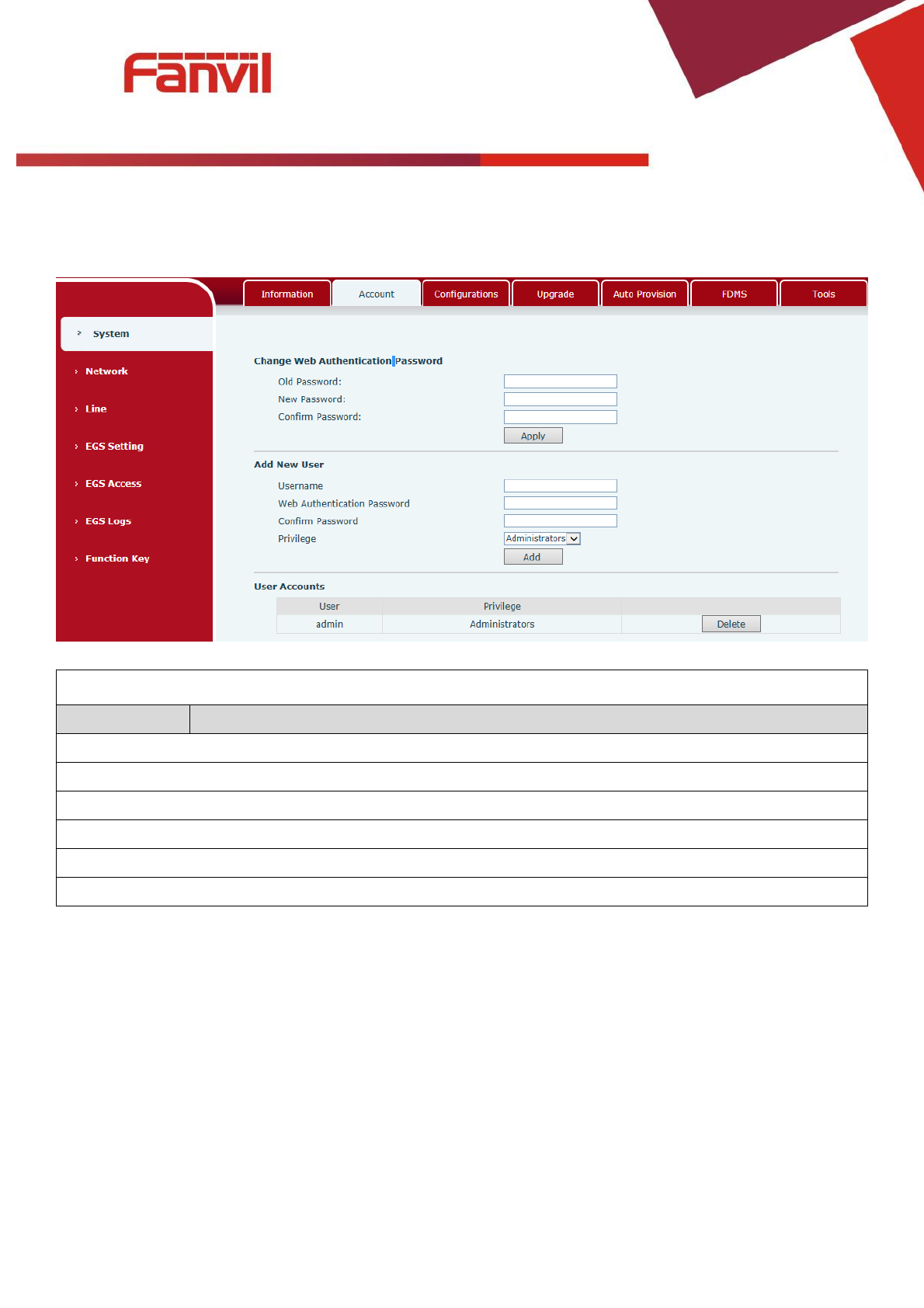
a) Information
Information
Field Name
Explanation
System Information
Display equipment model, hardware version, software version, uptime, Last
uptime and MEMinfo.
Network
Shows the configuration information for WAN port, including connection mode of
WAN port (Static, DHCP, PPPoE), MAC address, IP address of WAN port.
SIP Accounts
Shows the phone numbers and registration status for the 2 SIP LINES.
[键入文字]
13 / 51
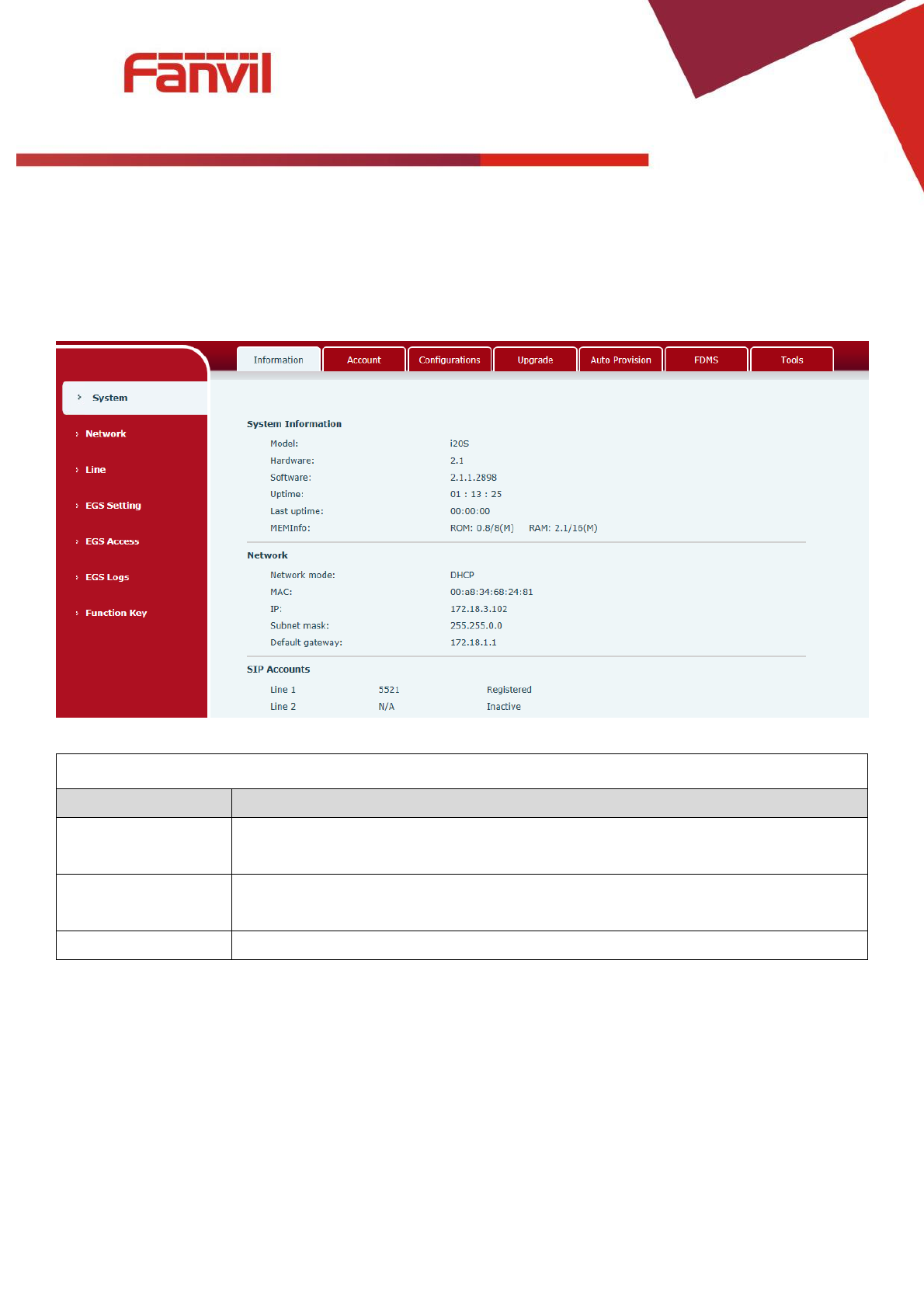
b) Account
Through this page, user can add or remove users depends on their needs and can modify existing user
permission.
Account
Field Name
Explanation
Change Web Authentication Password
You Can modify the login password to the account
Add New User
You can add new user
User Accounts
Show the existing user information
[键入文字]
14 / 51
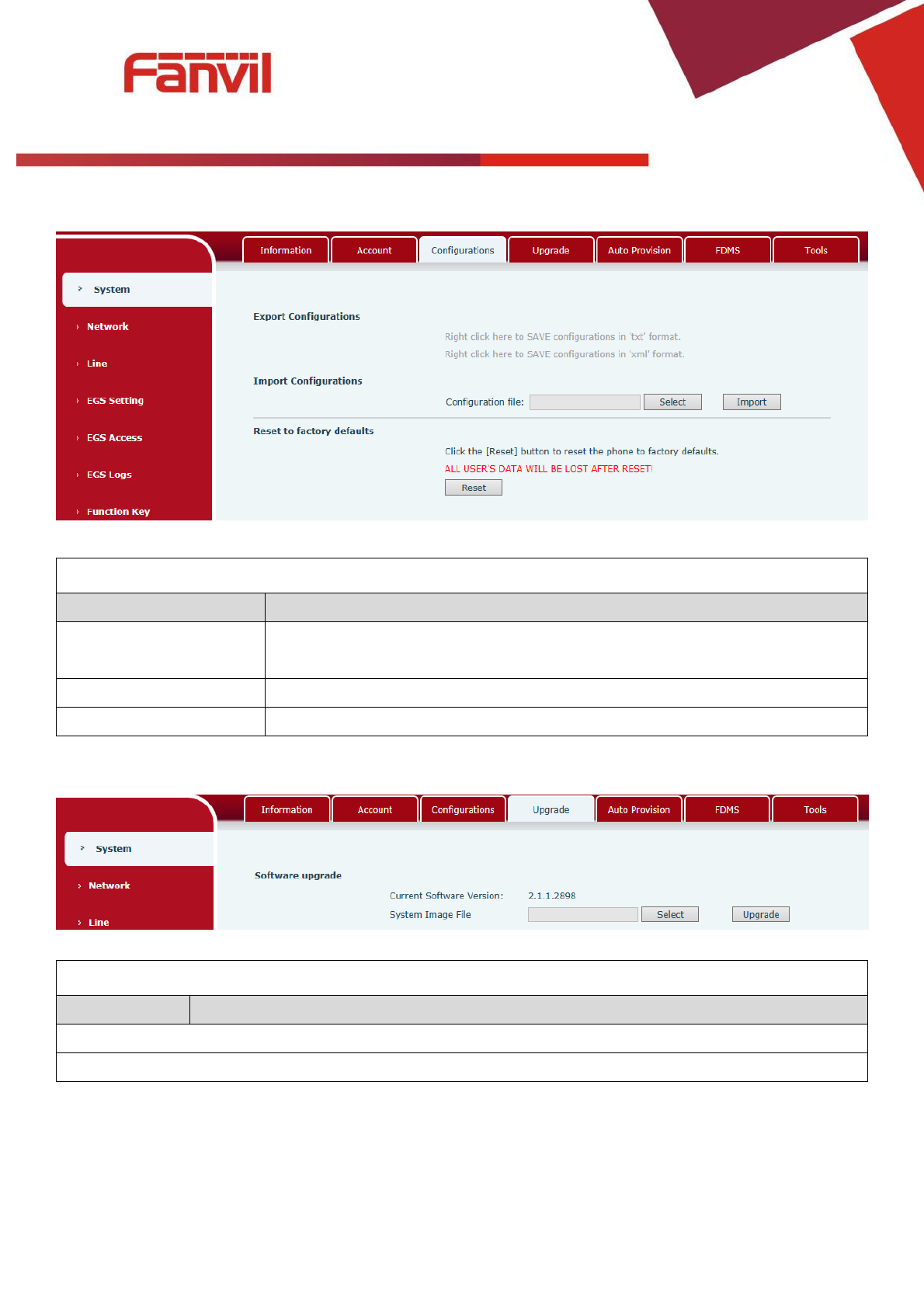
c) Configurations
Configurations
Field Name
Explanation
Export Configurations
Save the equipment configuration to a txt or xml file. Please note to Right
click on the choice and then choose “Save Link As.”
Import Configurations
Browse to the config file, and press Update to load it to the equipment.
Reset to factory defaults
This will restore factory default and remove all configuration information.
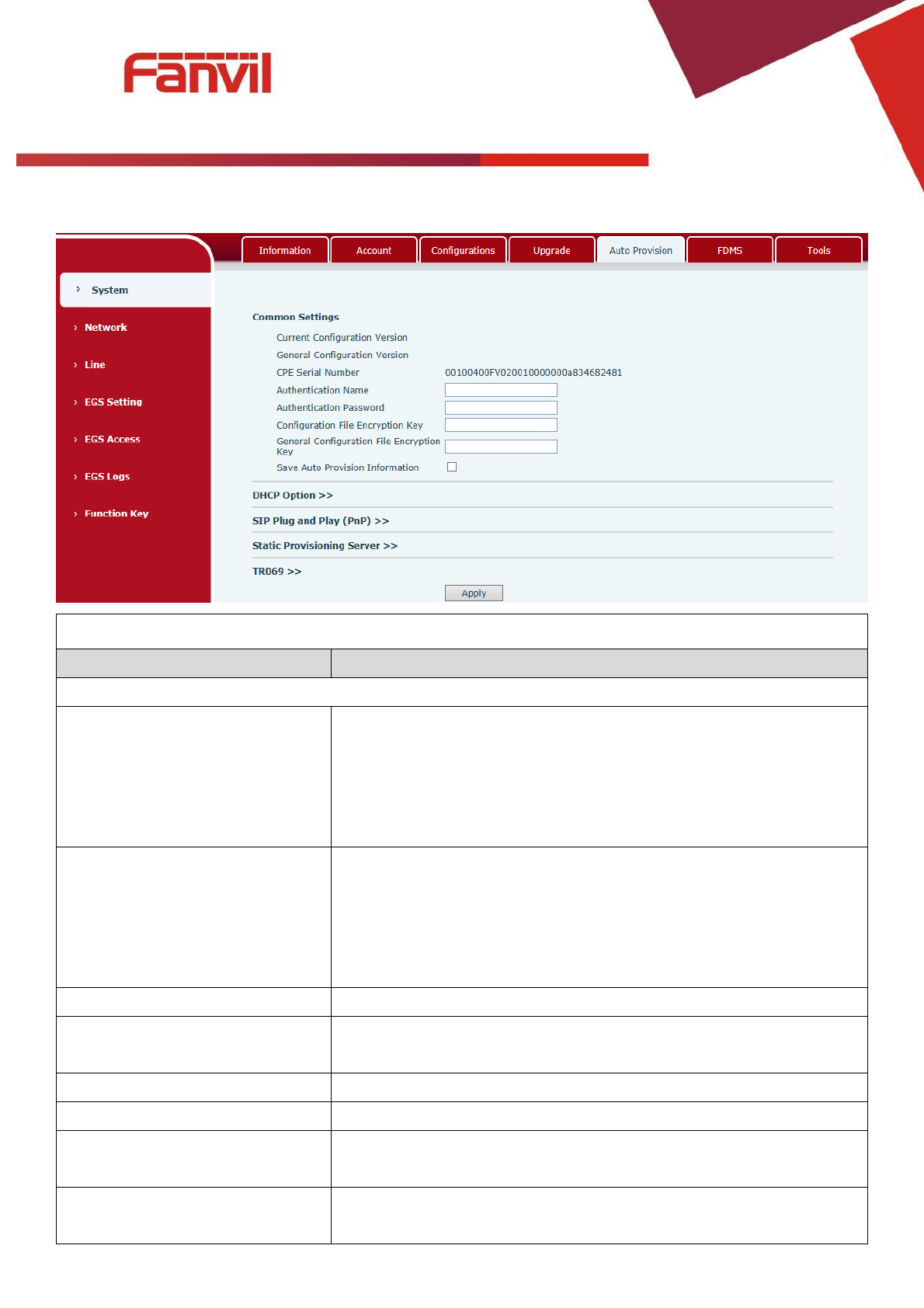
d) Upgrade
Upgrade
Field Name
Explanation
Software upgrade
Browse to the firmware, and press Update to load it to the equipment.
[键入文字]
15 / 51
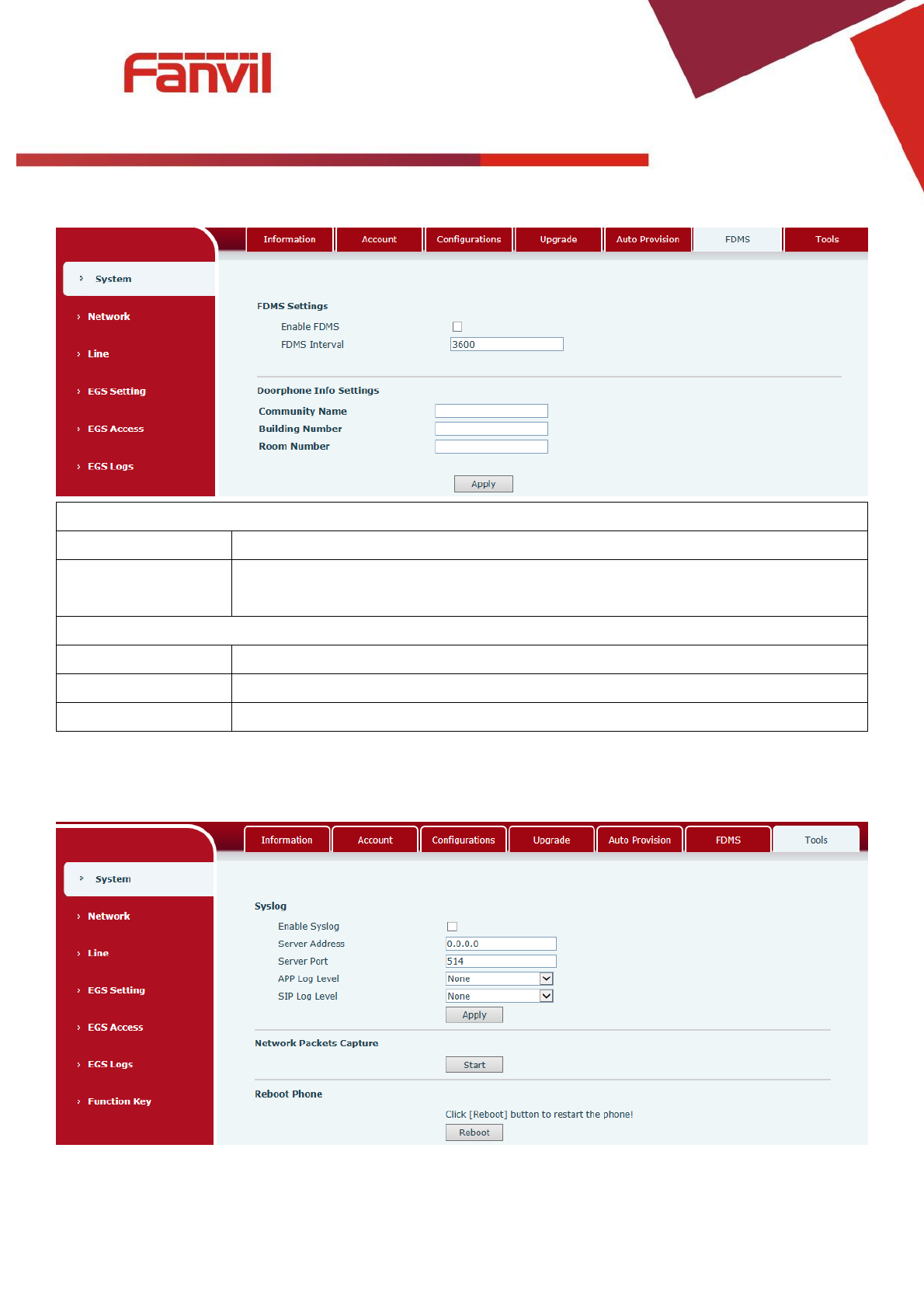
e) Auto Provision
Auto Provision
Field Name
Explanation
Common Settings
Current Configuration Version
Show the current config file’s version. If the version of configuration
downloaded is higher than this, the configuration will be upgraded.
If the endpoints confirm the configuration by the Digest method, the
configuration will not be upgraded unless it differs from the current
configuration
General Configuration Version
Show the common config file’s version. If the configuration
downloaded and this configuration is the same, the auto provision
will stop. If the endpoints confirm the configuration by the Digest
method, the configuration will not be upgraded unless it differs from
the current configuration.
CPE Serial Number
Serial number of the equipment
Authentication Name
Username for configuration server. Used for FTP/HTTP/HTTPS. If this
is blank the phone will use anonymous
Authentication Password
Password for configuration server. Used for FTP/HTTP/HTTPS.
Configuration File Encryption Key
Encryption key for the configuration file
General Configuration File
Encryption Key
Encryption key for common configuration file
Save Auto Provision Information
Save the auto provision username and password in the phone until
the server url changes

[键入文字]
16 / 51
DHCP Option
Option Value
The equipment supports configuration from Option 43, Option 66,
or a Custom DHCP option. It may also be disabled.
Custom Option Value
Custom option number. Must be from 128 to 254.
SIP Plug and Play (PnP)
Enable SIP PnP
If this is enabled, the equipment will send SIP SUBSCRIBE messages
to a multicast address when it boots up. Any SIP server
understanding that message will reply with a SIP NOTIFY message
containing the Auto Provisioning Server URL where the phones can
request their configuration.
Server Address
PnP Server Address
Server Port
PnP Server Port
Transportation Protocol
PnP Transfer protocol – UDP or TCP
Update Interval
Interval time for querying PnP server. Default is 1 hour.
Static Provisioning Server
Server Address
Set FTP/TFTP/HTTP server IP address for auto update. The address
can be an IP address or Domain name with subdirectory.
Configuration File Name
Specify configuration file name. The equipment will use its MAC ID
as the config file name if this is blank.
Protocol Type
Specify the Protocol type FTP, TFTP or HTTP.
Update Interval
Specify the update interval time. Default is 1 hour.
Update Mode
1. Disable – no update
2. Update after reboot – update only after reboot.
3. Update at time interval – update at periodic update interval
TR069
Enable TR069
Enable/Disable TR069 configuration
ACS Server Type
Select Common or CTC ACS Server Type.
ACS Server URL
ACS Server URL.
ACS User
User name for ACS.
ACS Password
ACS Password.
TR069 Auto Login
Enable/Disable TR069 Auto Login.
INFORM Sending Period
Time between transmissions of “Inform” Unit is seconds.
[键入文字]
17 / 51
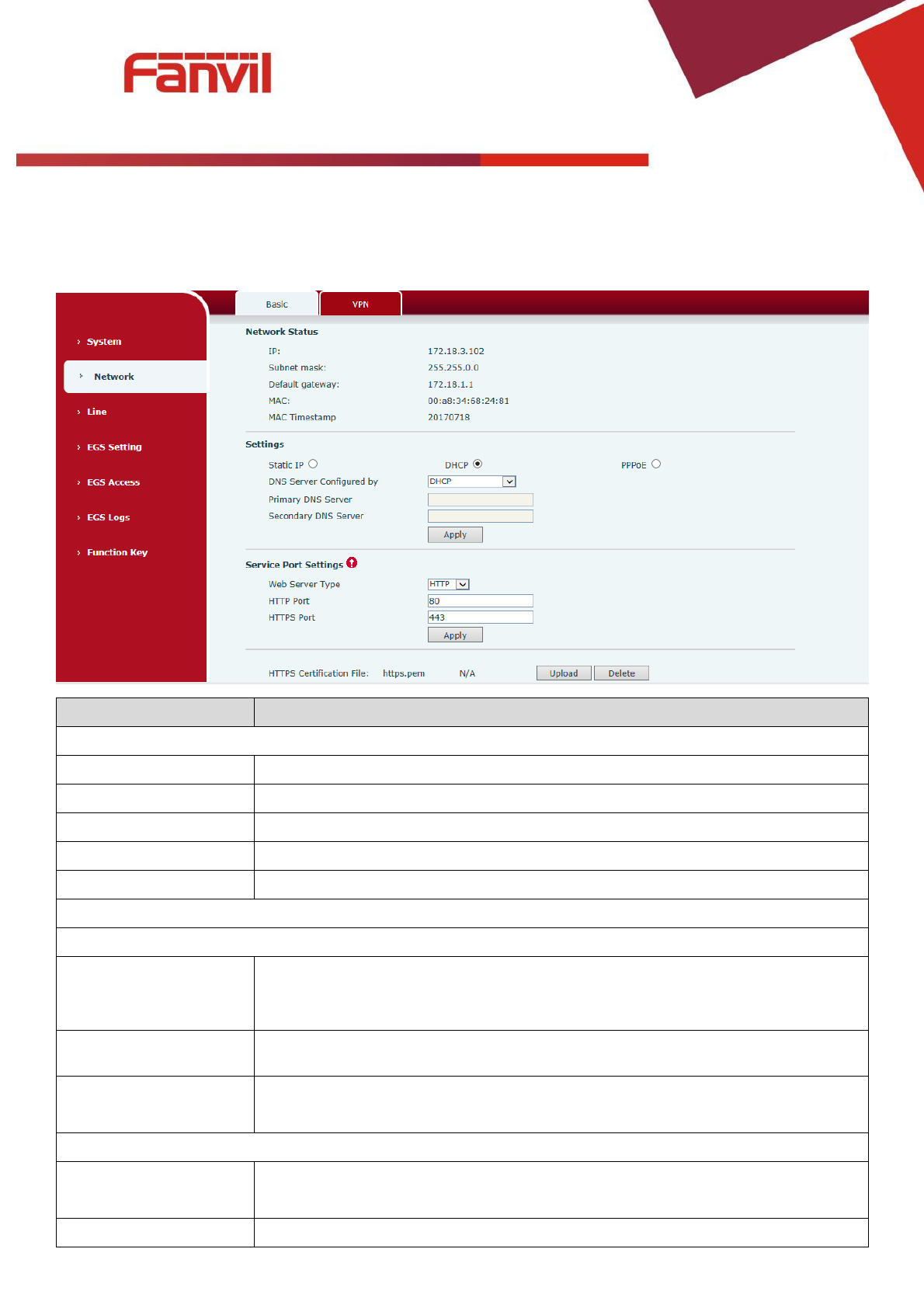
f) FDMS
FDMS Settings
Enable FDMS
Enable/Disable FDMS configuration
FDMS Interval
The time to send sip Subscribe information to the FDMS server on a regular basis.
Unit seconds
Doorphone Info Settings
Community Name
The name of the community where the device is installed
Building Number
The name of the building where the equipment is installed
Room Number
The name of the room where the equipment is installed
g) Tools

[键入文字]
18 / 51
Syslog is a protocol used to record log messages using a client/server mechanism. The Syslog server
receives the messages from clients, and classifies them based on priority and type. Then these messages
will be written into a log by rules which the administrator has configured.
There are 8 levels of debug information.
Level 0: emergency; System is unusable. This is the highest debug info level.
Level 1: alert; Action must be taken immediately.
Level 2: critical; System is probably working incorrectly.
Level 3: error; System may not work correctly.
Level 4: warning; System may work correctly but needs attention.
Level 5: notice; It is the normal but significant condition.
Level 6: Informational; It is the normal daily messages.
Level 7: debug; Debug messages normally used by system designer. This level can only be displayed
via telnet.
Tools
Field Name
Explanation
Syslog
Enable Syslog
Enable or disable system log.
Server Address
System log server IP address.
Server Port
System log server port.
APP Log Level
Set the level of APP log.
SIP Log Level
Set the level of SIP log.
Network Packets Capture
Capture a packet stream from the equipment. This is normally used to troubleshoot problems.
Reboot Phone
Some configuration modifications require a reboot to become effective. Clicking the Reboot button will
lead to reboot immediately.
Note: Be sure to save the configuration before rebooting.
[键入文字]
19 / 51
(2) Network
a) Basic
Field Name
Explanation
Network Status
IP
The current IP address of the equipment
Subnet mask
The current Subnet Mask
Default gateway
The current Gateway IP address
MAC
The MAC address of the equipment
MAC Timestamp
Get the MAC address of time.
Settings
Select the appropriate network mode. The equipment supports three network modes:
Static IP
Network parameters must be entered manually and will not change. All
parameters are provided by the ISP.
DHCP
Network parameters are provided automatically by a DHCP server.
PPPoE
Account and Password must be input manually. These are provided by your
ISP.
If Static IP is chosen, the screen below will appear. Enter values provided by the ISP.
DNS Server Configured
by
Select the Configured mode of the DNS Server.
Primary DNS Server
Enter the server address of the Primary DNS.
[键入文字]
20 / 51
Secondary DNS Server
Enter the server address of the Secondary DNS.
After entering the new settings, click the APPLY button. The equipment will save the new settings and
apply them. If a new IP address was entered for the equipment, it must be used to login to the phone
after clicking the APPLY button.
Service Port Settings
Web Server Type
Specify Web Server Type – HTTP or HTTPS
HTTP Port
Port for web browser access. Default value is 80. To enhance security, change
this from the default. Setting this port to 0 will disable HTTP access.
Example: The IP address is 192.168.1.70 and the port value is 8090, the
accessing address is http://192.168.1.70:8090.
HTTPS Port
Port for HTTPS access. Before using https, an https authentication certification
must be downloaded into the equipment.
Default value is 443. To enhance security, change this from the default.
Note:
1) Any changes made on this page require a reboot to become active.
2) It is suggested that changes to HTTP Port be values greater than 1024.Values less than 1024 are
reserved.
3) If the HTTP port is set to 0, HTTP service will be disabled.
[键入文字]
21 / 51
b) VPN
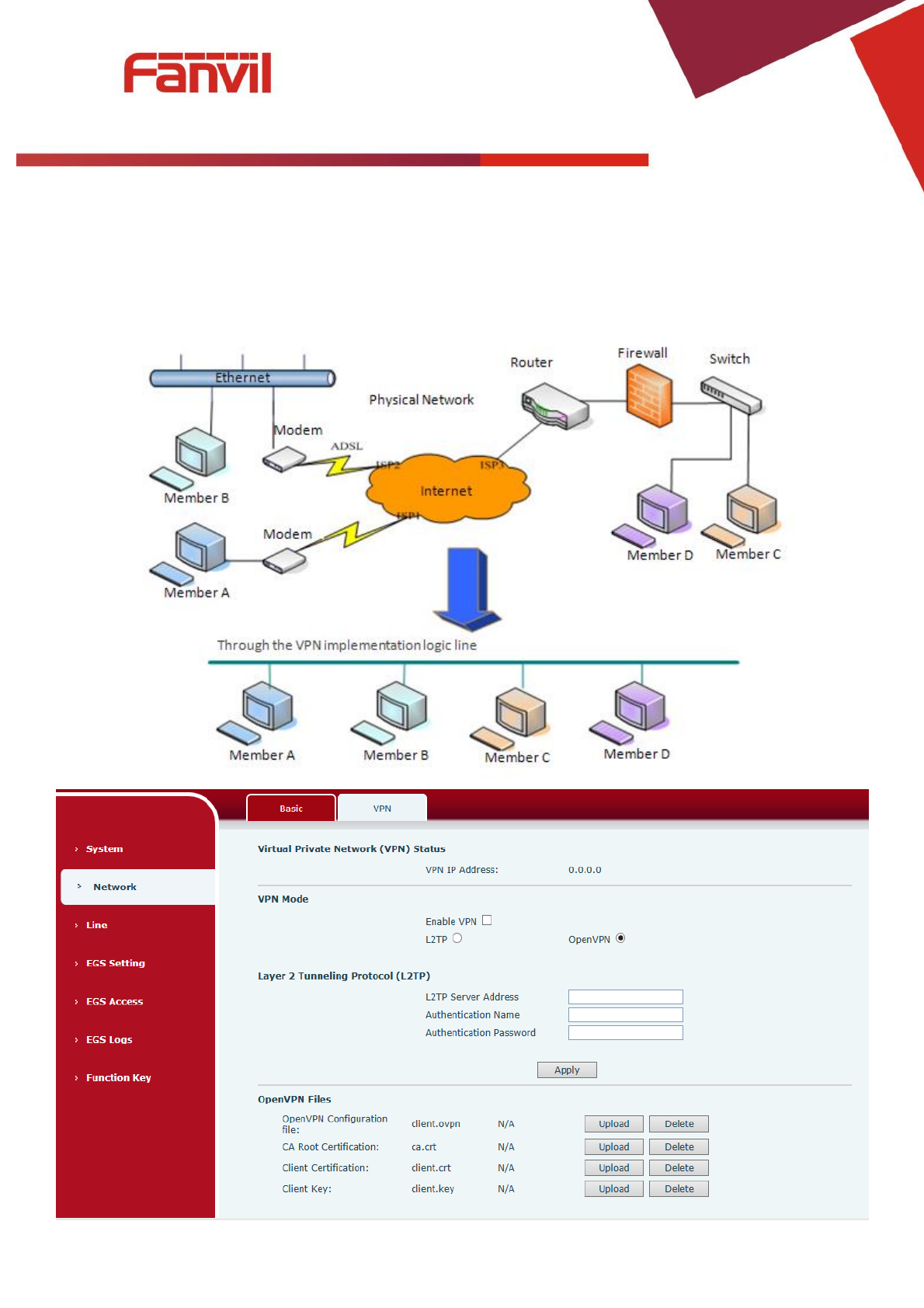
The device supports remote connection via VPN. It supports both Layer 2 Tunneling Protocol (L2TP)
and OpenVPN protocol. This allows users at remote locations on the public network to make secure
connections to local networks.
[键入文字]
22 / 51
Field Name
Explanation
VPN IP Address
Shows the current VPN IP address.
VPN Mode
Enable VPN
Enable/Disable VPN.
L2TP
Select Layer 2 Tunneling Protocol
OpenVPN
Select OpenVPN Protocol. (Only one protocol may be activated. After the
selection is made, the configuration should be saved and the phone be
rebooted.)
Layer 2 Tunneling Protocol (L2TP)
L2TP Server Address
Set VPN L2TP Server IP address.
Authentication Name
Set User Name access to VPN L2TP Server.
Authentication Password
Set Password access to VPN L2TP Server.
Open VPN Files
Upload or delete Open VPN Certification Files
(3) Line
a) SIP
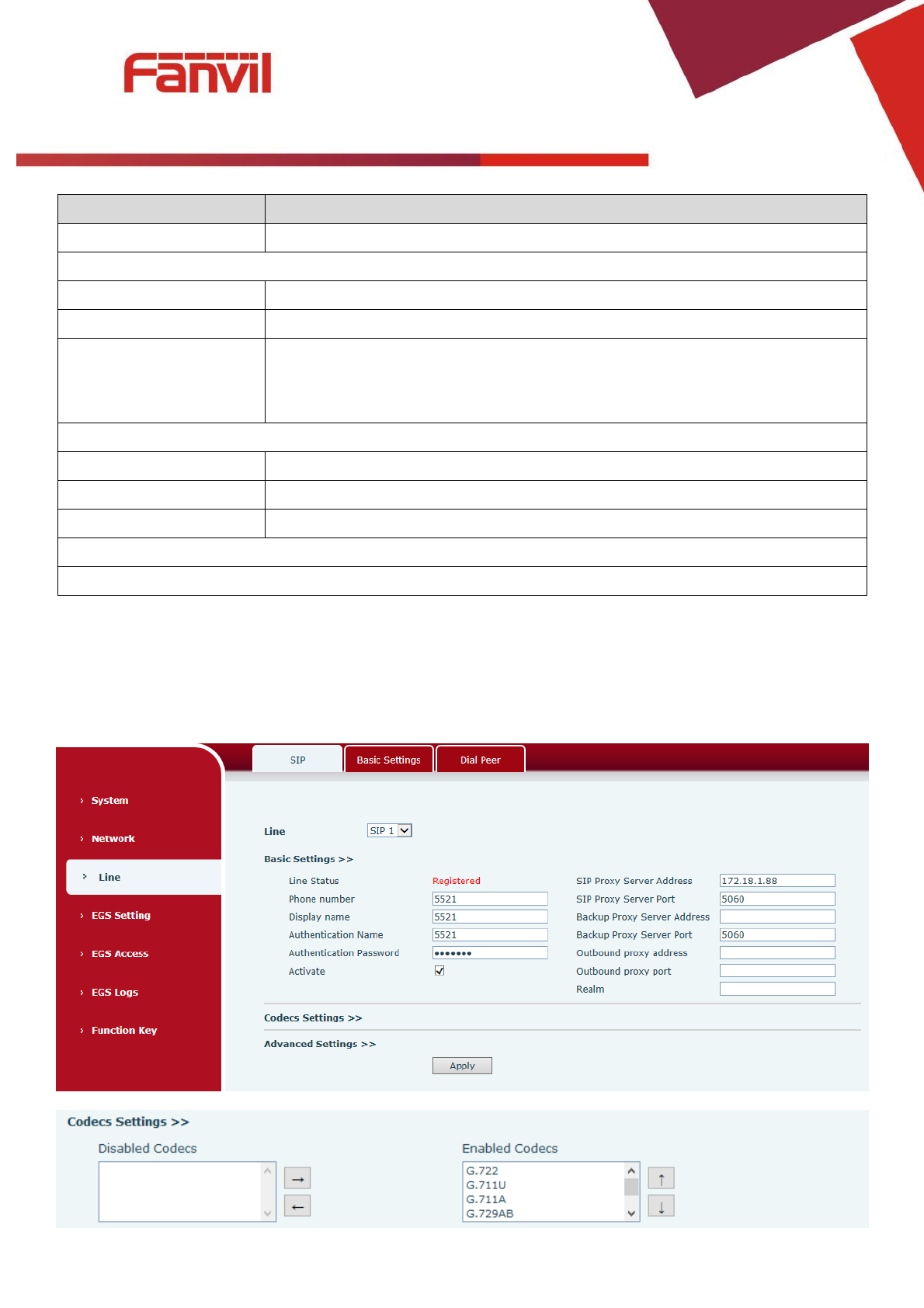
Configure a SIP server on this page.
[键入文字]
23 / 51
SIP
Field Name
Explanation
Basic Settings (Choose the SIP line to configured)
Line Status
Display the current line status at page loading. To get the up to date line
status, user has to refresh the page manually.

[键入文字]
24 / 51
Username
Enter the username of the service account.
Display name
Enter the display name to be sent in a call request.
Authentication Name
Enter the authentication name of the service account
Authentication Password
Enter the authentication password of the service account
Activate
Whether the service of the line should be activated
SIP Proxy Server Address
Enter the IP or FQDN address of the SIP proxy server
SIP Proxy Server Port
Enter the SIP proxy server port, default is 5060
Outbound proxy address
Enter the IP or FQDN address of outbound proxy server provided by the
service provider
Outbound proxy port
Enter the outbound proxy port, default is 5060
Realm
Enter the SIP domain if requested by the service provider
Codecs Settings
Set the priority and availability of the codecs by adding or remove them from the list.
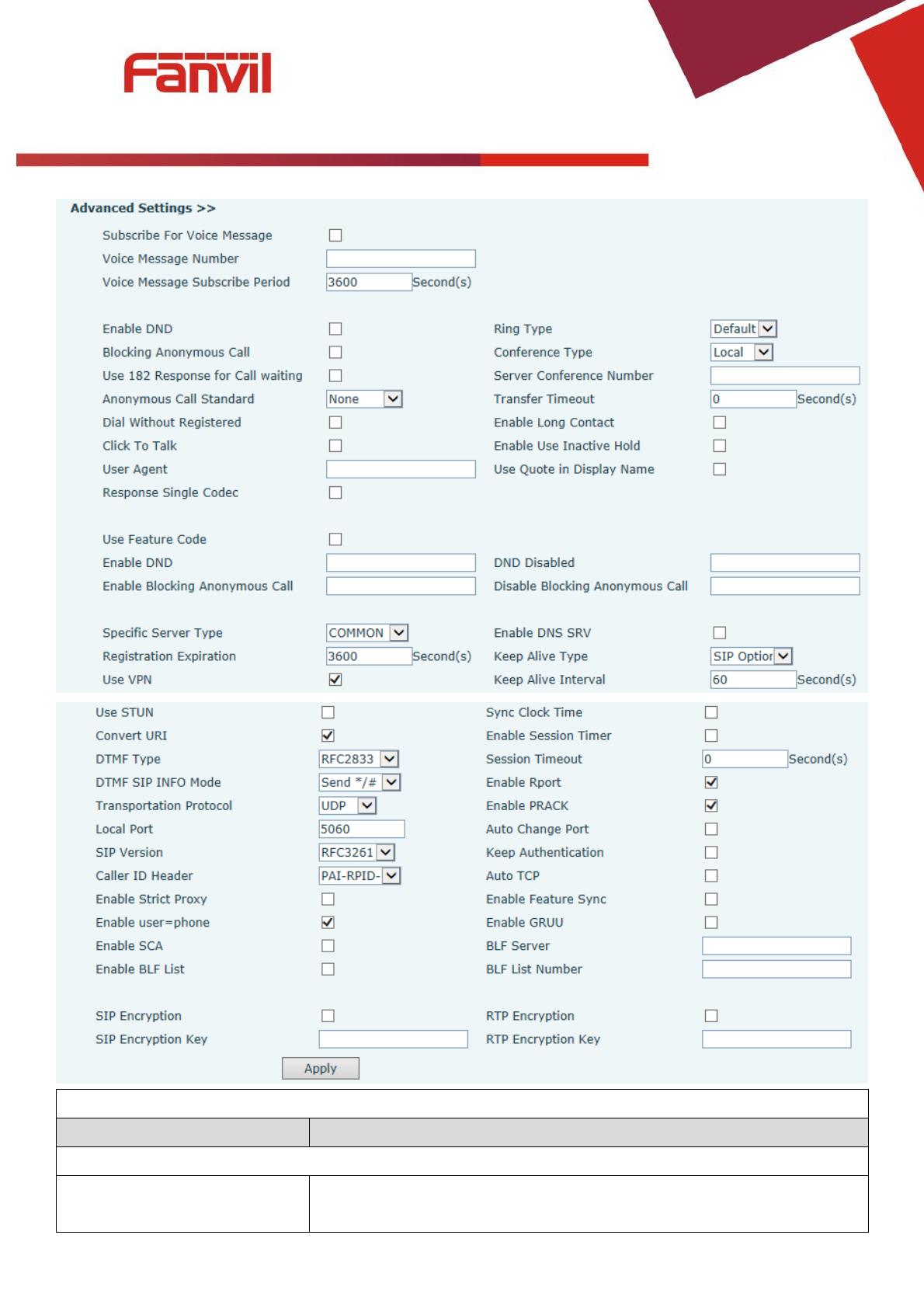
Advanced Settings
Call Forward Unconditional
Enable unconditional call forward, all incoming calls will be forwarded
to the number specified in the next field
Call Forward Number for
Unconditional
Set the number of unconditional call forward
Call Forward on Busy
Enable call forward on busy, when the phone is busy, any incoming call
will be forwarded to the number specified in the next field
Call Forward Number for Busy
Set the number of call forward on busy
Call Forward on No Answer
Enable call forward on no answer, when an incoming call is not
answered within the configured delay time, the call will be forwarded
to the number specified in the next field
Call Forward Number for No
Answer
Set the number of call forward on no answer
Call Forward Delay for No
Answer
Set the delay time of not answered call before being forwarded
Hotline Delay
Set the delay for hotline before the system automatically dialed it
Enable Auto Answering
Enable auto-answering, the incoming calls will be answered
automatically after the delay time
Auto Answering Delay
Set the delay for incoming call before the system automatically
answered it
Subscribe For Voice Message
Enable the device to subscribe a voice message waiting notification, if
enabled, the device will receive notification from the server if there is
voice message waiting on the server
Voice Message Number
Set the number for retrieving voice message

[键入文字]
25 / 51
Voice Message Subscribe
Period
Set the interval of voice message notification subscription
Enable Hotline
Enable hotline configuration, the device will dial to the specific number
immediately at audio channel opened by off-hook handset or turn on
hands-free speaker or headphone
Hotline Number
Set the hotline dialing number
Enable DND
Enable Do-not-disturb, any incoming call to this line will be rejected
automatically
Blocking Anonymous Call
Reject any incoming call without presenting caller ID
Use 182 Response for Call
waiting
Set the device to use 182 response code at call waiting response
Anonymous Call Standard
Set the standard to be used for anonymous
Dial Without Registered
Set call out by proxy without registration
Click To Talk
Set Click To Talk
User Agent
Set the user agent, the default is Model with Software Version.
Use Quote in Display Name
Whether to add quote in display name
Ring Type
Set the ring tone type for the line
Conference Type
Set the type of call conference, Local=set up call conference by the
device itself, maximum supports two remote parties, Server=set up call
conference by dialing to a conference room on the server
Server Conference Number
Set the conference room number when conference type is set to be
Server
Transfer Timeout
Set the timeout of call transfer process
Enable Long Contact
Allow more parameters in contact field per RFC 3840
Enable Missed Call Log
If enabled, the phone will save missed calls into the call history record.
Response Single Codec
If setting enabled, the device will use single codec in response to an
incoming call request
Use Feature Code
When this setting is enabled, the features in this section will not be
handled by the device itself but by the server instead. In order to
control the enabling of the features, the device will send feature code
to the server by dialing the number specified in each feature code field.
Specific Server Type
Set the line to collaborate with specific server type
Registration Expiration
Set the SIP expiration interval
Use VPN
Set the line to use VPN restrict route
Use STUN
Set the line to use STUN for NAT traversal
Convert URI
Convert not digit and alphabet characters to %hh hex code
DTMF Type
Set the DTMF type to be used for the line

[键入文字]
26 / 51
DTMF SIP INFO Mode
Set the SIP INFO mode to send ‘*’ and ‘#’ or ‘10’ and ‘11’
Transportation Protocol
Set the line to use TCP or UDP for SIP transmission
SIP Version
Set the SIP version
Caller ID Header
Set the Caller ID Header
Enable Strict Proxy
Enables the use of strict routing. When the phone receives packets
from the server, it will use the source IP address, not the address in via
field.
Enable user=phone
Sets user=phone in SIP messages.
Enable SCA
Enable/Disable SCA (Shared Call Appearance )
Enable BLF List
Enable/Disable BLF List
Enable DNS SRV
Set the line to use DNS SRV which will resolve the FQDN in proxy server
into a service list
Keep Alive Type
Set the line to use dummy UDP or SIP OPTION packet to keep NAT
pinhole opened
Keep Alive Interval
Set the keep alive packet transmitting interval
Enable Session Timer
Set the line to enable call ending by session timer refreshment. The call
session will be ended if there is not new session timer event update
received after the timeout period
Session Timeout
Set the session timer timeout period
Enable Rport
Set the line to add rport in SIP headers
Enable PRACK
Set the line to support PRACK SIP message
Keep Authentication
Keep the authentication parameters from previous authentication
Auto TCP
Using TCP protocol to guarantee usability of transport for SIP messages
above 1500 bytes
Enable Feature Sync
Feature Sycn with server
Enable GRUU
Support Globally Routable User-Agent URI (GRUU)
BLF Server
The registered server will receive the subscription package from
ordinary application of BLF phone.
Please enter the BLF server, if the sever does not support subscription
package, the registered server and subscription server will be
separated.
BLF List Number
BLF List allows one BLF key to monitor the status of a group. Multiple
BLF lists are supported.
SIP Encryption
Enable SIP encryption such that SIP transmission will be encrypted
SIP Encryption Key
Set the pass phrase for SIP encryption
RTP Encryption
Enable RTP encryption such that RTP transmission will be encrypted
RTP Encryption Key
Set the pass phrase for RTP encryption
[键入文字]
27 / 51
b) Basic Settings
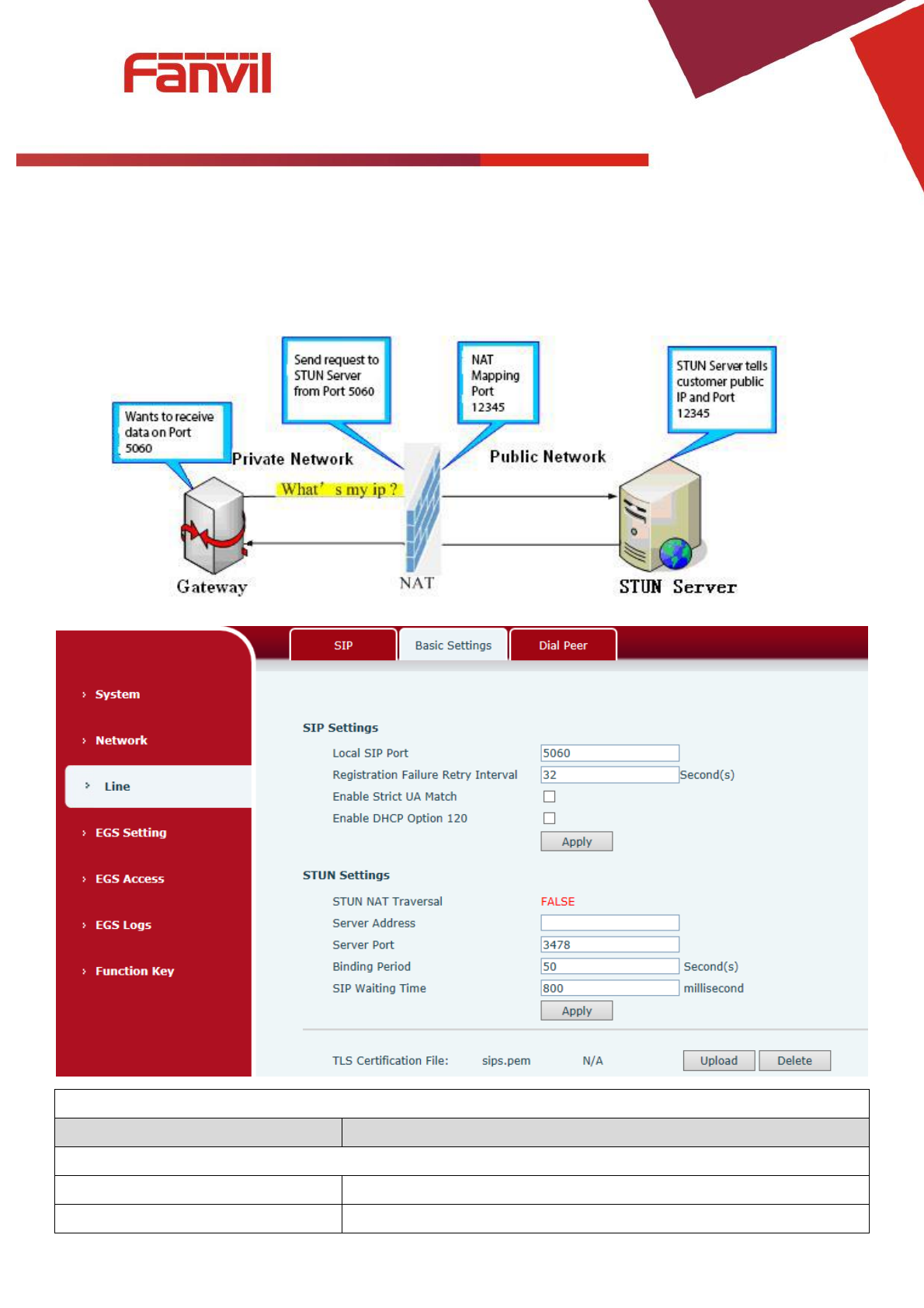
STUN – Simple Traversal of UDP through NAT –A STUN server allows a phone in a private network to
know its public IP and port as well as the type of NAT being used. The equipment can then use this
information to register itself to a SIP server so that it can make and receive calls while in a private
network.
Basic Settings
Field Name
Explanation
SIP Settings
Local SIP Port
Set the local SIP port used to send/receive SIP messages.
Registration Failure Retry Interval
Set the retry interval of SIP REGISTRATION when registration failed.
[键入文字]
28 / 51
Enable Strict UA Match
Enable or disable Strict UA Match
STUN Settings
Server Address
STUN Server IP address
Server Port
STUN Server Port – Default is 3478.
Binding Period
STUN blinding period – STUN packets are sent at this interval to
keep the NAT mapping active.
SIP Waiting Time
Waiting time for SIP. This will vary depending on the network.
TLS Certification File
Upload or delete the TLS certification file used for encrypted SIP transmission.
Note: the SIP STUN is used to achieve the SIP penetration of NAT, is the realization of a service, when the
equipment configuration of the STUN server IP and port (usually the default is 3478), and select the Use
Stun SIP server, the use of NAT equipment to achieve penetration.
c) Dial peer
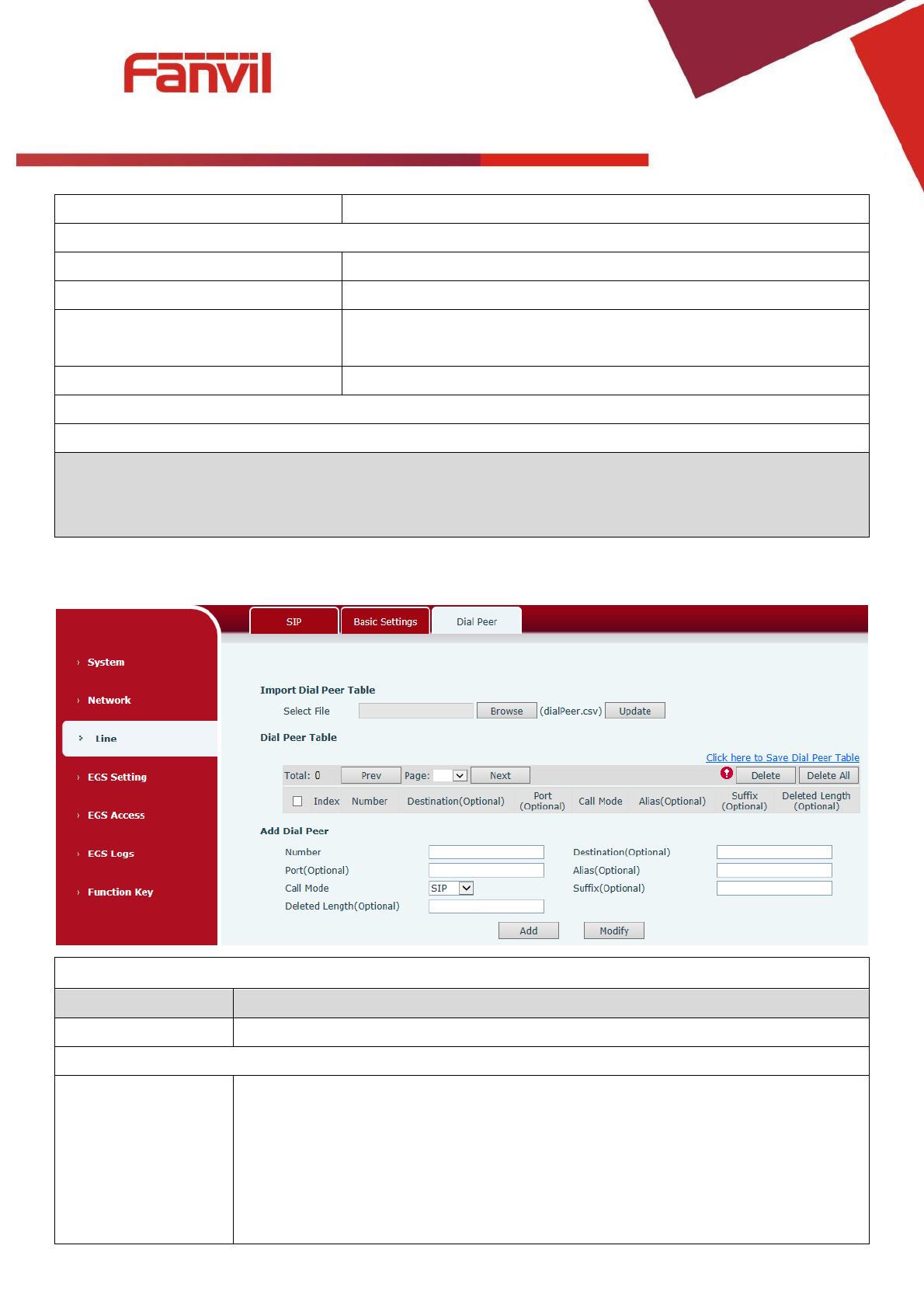
Import Dial peer Table
Field Name
Explanation
Select File
Select an existing dialing rule file. The file type must be a .CSV
Add Dial Peer
Number
In order to add an outgoing call number, the outgoing call number can be divided
into two types: one is the exact match, and after the exact match, if the number is
exactly the same as the user dialing the called number, the device will use the IP
address of this number mapping or (This is the area code prefix function of the
PSTN). If the number matches the N-bit (prefix number length) of the called
number, the device uses the IP address or configuration mapped to this number.
[键入文字]
29 / 51
Make a call. Configuration prefix matching needs to be followed by a prefix
number to match the exact match number; the longest support of 30 bits; also
supports the use of x format and range of numbers.
Destination
Configure the destination address and, if configured as a point-to-point call, write
the peer IP address directly. Can also be set to domain name, by the device DNS
server to resolve the specific IP address. If it is not configured, the IP address is
0.0.0.0. This is an optional configuration item
Port
Configure the signaling port of the other party. This is an optional configuration
item. The default is 5060v
Alias
Configure aliases, this is an optional item: the replacement number used when
the prefix is prefixed, and no alias when configured
Note: aliases are divided into four types and must be combined with the replacement length:
1) add: xxx, add xxx before the number. This can help users save dialing length;
2) all: xxx, all replaced by xxx; can achieve speed dial, such as user configuration dial-up 1, then by
configuring all: number to change the actual call out the number;
3) del, delete the number before the n bit, n by the replacement length set;
4) rep: xxx, the number n before the number is replaced by xxx, n is set by the replacement length. For
example, if the user wants to dial the PSTN (010-62281493) through the floor service provided by the
VoIP operator, and the actual call should be 010-62281493, then we can configure the called number 9T,
then rep: 010, and then delete the length Set to 1. Then all users call the 9 at the beginning of the phone
will be replaced with 010 + number sent. To facilitate the user to call the habit of thinking mode;
Call Mode
Configuration selection of different signaling protocols, SIP / IAX2;
Suffix
Configure the suffix, this is optional configuration items: that is, after the dial-up
number to add this suffix, no configuration shows no suffix;
Deleted Length
Configure the replacement / delete length, the number entered by the user is
replaced / deleted by this length; this is an optional configuration item;
[键入文字]
30 / 51
(4) EGS Setting
a) Features
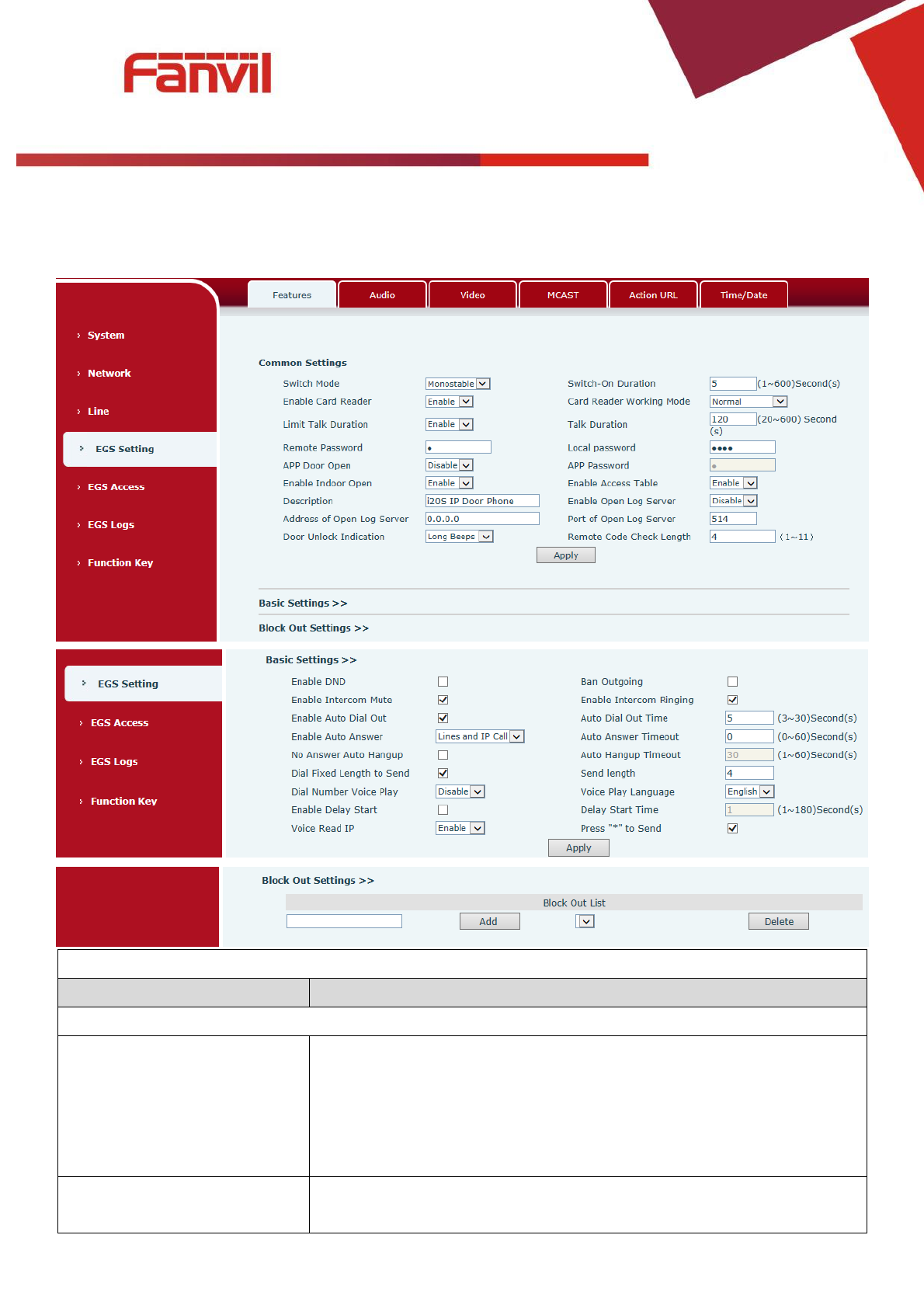
Features
Field Name
Explanation
Common Settings
Switch Mode
Monostable: there is only one fixed action status for door unlocking.
Bistable: there are two actions and statuses, door unlocking and door
locking. Each action might be triggered and changed to the other
status. After changed, the status would be kept.
Initial Value is Monostable
Switch-On Duration
Door unlocking time for Monostable mode only. If the time is up, the
door would be locked automatically. Initial Value is 5 seconds.

[键入文字]
31 / 51
Enable Card Reader
Enable or disable card reader for RFID cards.
Card Reader Working Mode
Set ID card stats:
Normal: This is the work mode, after the slot card can to open the
door.
Card Issuing: This is the issuing mode, after the slot card can to add ID
cards.
Card Revoking: This is the revoking mode, after the slot card can to
delete ID cards.
Limit Talk Duration
If enabled, calls would be forced ended after talking time is up.
Talk Duration
The call will be ended automatically when time up. Initial Value is 120
seconds
Remote Password
Remote door unlocking password. Initial Value is “*”.
Local password
Local door unlocking password via keypad, the default password length
is 4. Initial Value is “6789”.
APP Door Open
Enable or disable the APP Door Open
APP password
APP door unlocking password. Initial Value is “*”.
Enable Indoor Open
Enable or disable to use indoor switch to unlock the door.
Enable Access Table
Enable Access Table: enter <Access Code> for opening door during
calls.
Disable Access Table: enter <Remote Password> for opening door
during calls.
Default Enable.
Description
Device description displayed on IP scanning tool software. Initial Value
is “i20S IP Door Phone”.
Enable Open Log Server
Enable or disable to connect with log server
Address of Open Log Server
Log server address(IP or domain name)
Port of Open Log Server
Log server port (0-65535) , Initial Value is 514.
Door Unlock Indication
Indication tone for door unlocked. There are 3 type of tone:
silent/short beeps/long beeps.
Remote Code Check Length
The remote access code length would be restricted with it. If the input
access code length is matched with it, system would check it
immediately. Initial Value is 4.
Basic Settings
Enable DND
DND might be disabled phone for all SIP lines, or line for SIP
individually. But the outgoing calls will not be affected
Ban Outgoing
If enabled, no outgoing calls can be made.
Enable Intercom Mute
If enabled, mutes incoming calls during an intercom call.

[键入文字]
32 / 51
Enable Intercom Ringing
If enabled, plays intercom ring tone to alert to an intercom call.
Enable Auto Dial Out
Enable Auto Dial Out
Auto Dial Out Time
Set Auto Dial Out Time
Enable Auto Answer
Enable Auto Answer function
Auto Answer Timeout
Set Auto Answer Timeout
No Answer Auto Hangup
Enable automatically hang up when no answer
Auto Hangup Timeout
Configuration in a set time, automatically hang up when no answer
Dial Fixed Length to Send
Enable or disable dial fixed length to send.
Send length
The number will be sent to the server after the specified numbers of
digits are dialed.
Dial Number Voice Play
Configuration Open / Close Dial Number Voice Play
Voice Play Language
Set language of the voice prompt
Enable Delay Start
Enable or disable the start delay
Delay Start Time
Set start delay time
Voice Read IP
Enable or disable voice broadcast IP address
Press "*" to Send
Enable or disable the Press "*" to Send, Initial Value is enable
Block Out Settings
Add or delete blocked numbers – enter the prefix of numbers which should not be dialed by the phone.
For example, if 001 is entered, the phone would not dial any number beginning with 001.
X and x are wildcards which match single digit. For example, if 4xxx or 4XXX is entered, the phone would
not dial any 4 digits numbers beginning with 4. It would dial numbers beginning with 4 which are longer
or shorter than 4 digits.
[键入文字]
33 / 51
b) Audio
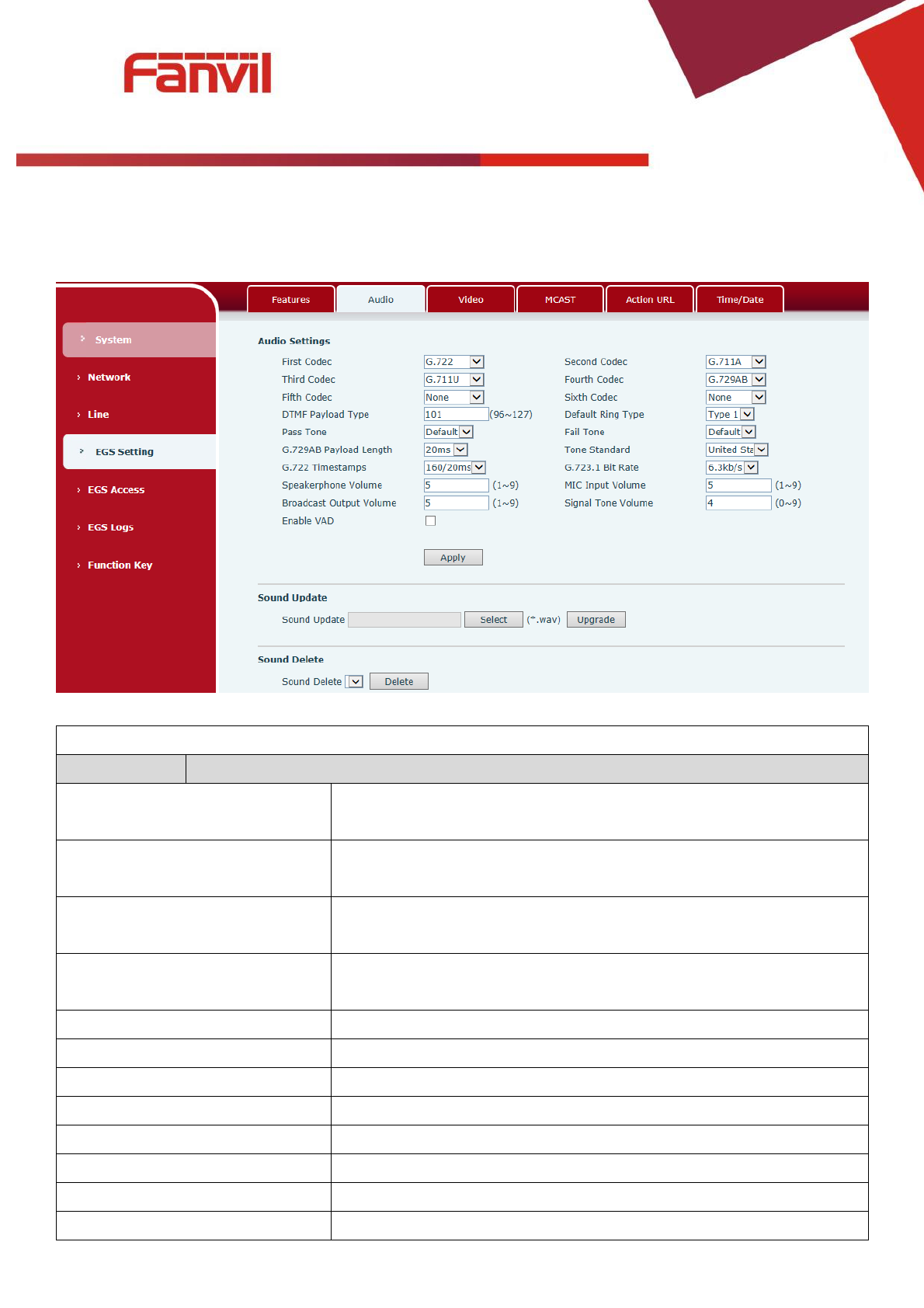
This page configures audio parameters such as voice codec, speak volume, mic volume and ringer
volume.
Audio Setting
Field Name
Explanation
First Codec
The first codec choice: G.711A/U, G.722, G.723.1, G.726-32,
G.729AB
Second Codec
The second codec choice: G.711A/U, G.722, G.723.1, G.726-32,
G.729AB, None
Third Codec
The third codec choice: G.711A/U, G.722, G.723.1, G.726-32,
G.729AB, None
Fourth Codec
The forth codec choice: G.711A/U, G.722, G.723.1, G.726-32,
G.729AB, None
DTMF Payload Type
The RTP Payload type that indicates DTMF. Default is 101
Default Ring Type
Ring Sound – There are 9 standard types and 3 User types.
G.729AB Payload Length
G.729AB Payload Length – Adjusts from 10 – 60 mSec.
Tone Standard
Configure tone standard area.
G.722 Timestamps
Choices are 160/20ms or 320/20ms.
G.723.1 Bit Rate
Choices are 5.3kb/s or 6.3kb/s.
Speakerphone Volume
Set the speaker calls the volume level.
MIC Input Volume
Set the MIC calls the volume level.
[键入文字]
34 / 51
Broadcast Output Volume
Set the broadcast the output volume level.
Signal Tone Volume
Set the audio signal the output volume level.
Enable VAD
Enable or disable Voice Activity Detection (VAD). If VAD is enabled,
G729 Payload length cannot be set greater than 20 mSec.
c) Video
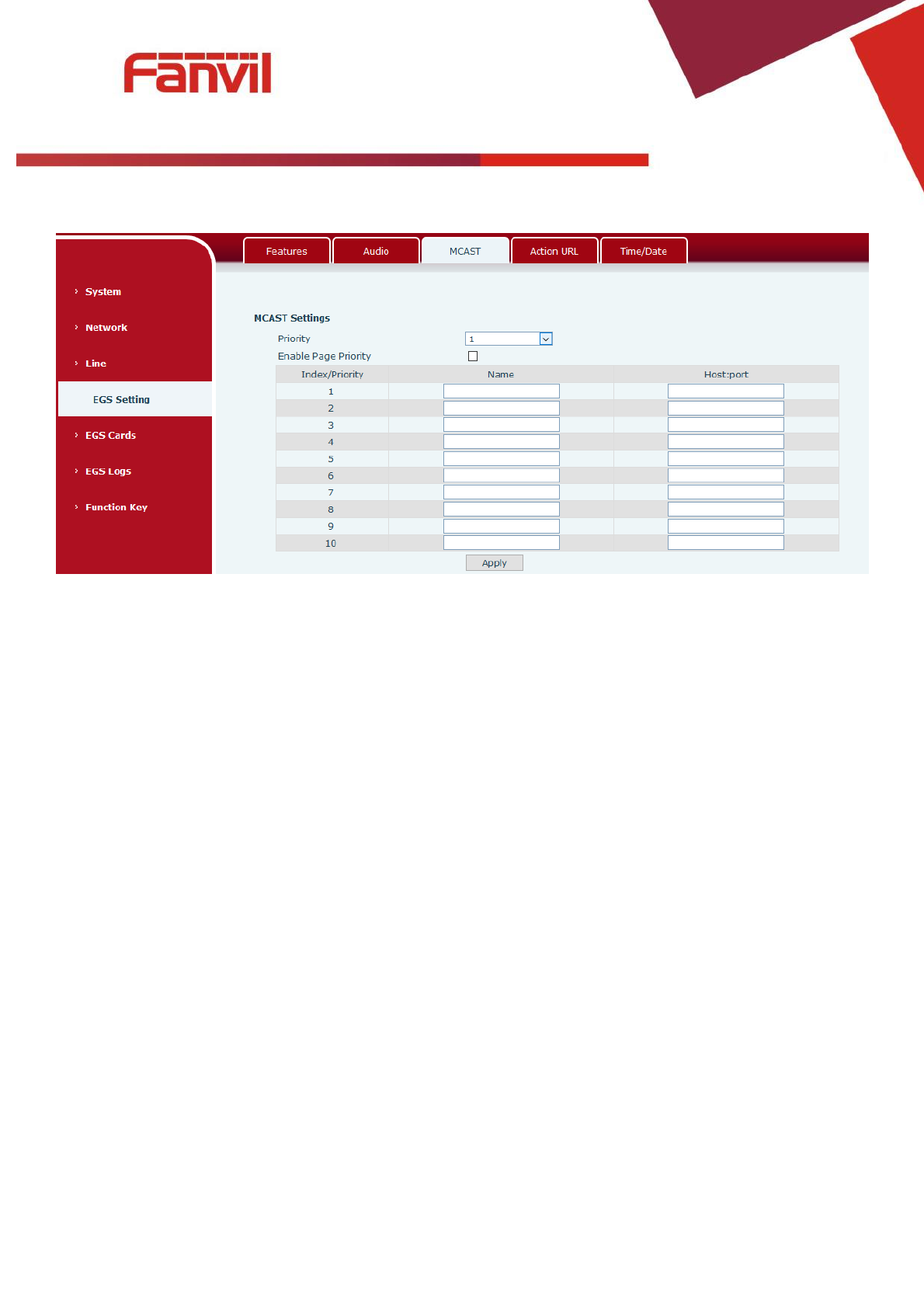
Connection mode
Select external, click [Apply], restart the device
IP Camera Settings(External Mode)
Field Name
Explanation
User name
External camera login required account
Password
External camera login password required
Camera type
Select the camera manufacturers
IP address
IP address of the camera, please use the camera matching scan tool to obtain
the IP address
Port
Camera port number
RTSP information
Click [Apply], the connection automatically shows the camera does not show
the reverse
Preview
Copy and paste the main stream or sub-stream Url into the VLC player, or click
[Preview] to display the current camera video
[键入文字]
35 / 51
d) MCAST
It is easy and convenient to use multicast function to send notice to each member of the multicast via
setting the multicast key on the device and sending multicast RTP stream to pre-configured multicast
address. By configuring monitoring multicast address on the device, monitor and play the RTP stream
which sent by the multicast address.
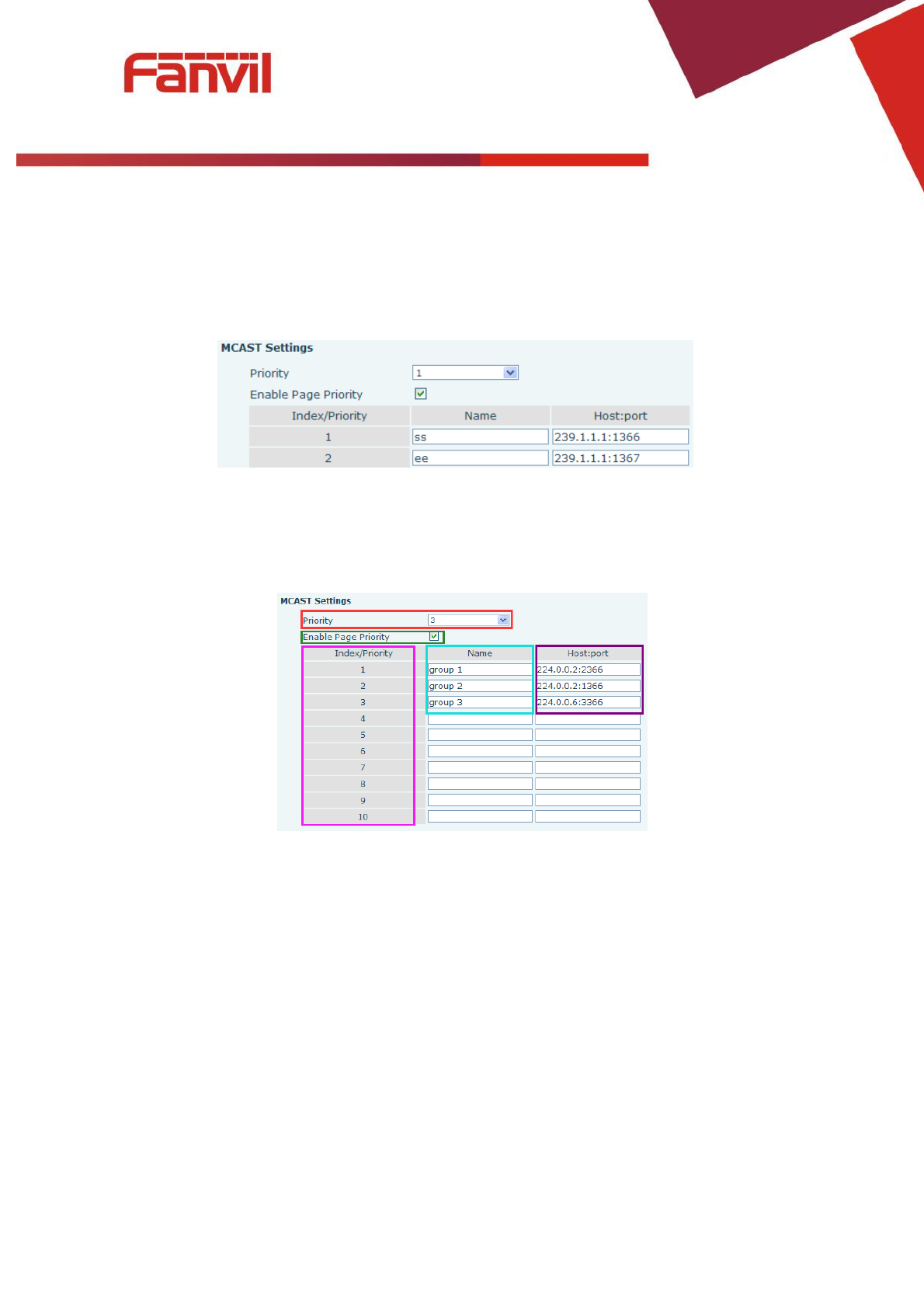
MCAST Settings
Equipment can be set up to monitor up to 10 different multicast addresses, used to receive the
multicast RTP stream sent by the multicast address.
Here are the ways to change equipment receiving multicast RTP stream processing mode in the Web
interface: set the ordinary priority and enable page priority.
Priority:
In the drop-down box to choose priority of ordinary calls the priority, if the priority of the incoming
flows of multicast RTP, lower precedence than the current common calls, device will automatically ignore
the group RTP stream. If the priority of the incoming flow of multicast RTP is higher than the current
common calls priority, device will automatically receive the group RTP stream, and keep the current
common calls in state. You can also choose to disable in the receiving threshold drop-down box, the
device will automatically ignore all local network multicast RTP stream.
The options are as follows:
1-10: To definite the priority of the common calls, 1 is the top level while 10 is the lowest
Disable: ignore all incoming multicast RTP stream
Enable the page priority:
Page priority determines the device how to deal with the new receiving multicast RTP stream
[键入文字]
36 / 51
when it is in multicast session currently. When Page priority switch is enabled, the device will
automatically ignore the low priority multicast RTP stream but receive top-level priority multicast RTP
stream, and keep the current multicast session in state; If it is not enabled, the device will
automatically ignore all receiving multicast RTP stream.
Web Settings:
The multicast SS priority is higher than that of EE, which is the highest priority.
Note: when pressing the multicast key for multicast session, both multicast sender and receiver will
beep.
Listener configuration
Blue part (name)
"Group 1","Group 2" and "Group 3" are your setting monitoring multicast name.The group name will
be displayed on the screen when you answer the multicast. If you have not set, the screen will display the
IP: port directly.
Purple part (host: port)
It is a set of addresses and ports to listen, separated by a colon.
Pink part (index / priority)
Multicast is a sign of listening, but also the monitoring multicast priority. The smaller number refers to
higher priority.
Red part (priority)
It is the general call, non multicast call priority. The smaller number refers to high priority. The
followings will explain how to use this option:
The purpose of setting monitoring multicast "Group 1" or "Group 2" or "Group 3" launched a multicast
call.

[键入文字]
37 / 51
All equipment has one or more common non multicast communication.
When you set the Priority for the disable, multicast any level will not answer, multicast call is rejected.
when you set the Priority to a value, only higher than the priority of multicast can come in, if you set
the Priority is 3, group 2 and group 3 for priority level equal to 3 and less than 3 were rejected, 1
priority is 2 higher than ordinary call priority device can answer the multicast message at the same
time, keep the hold the other call.
Green part (Enable Page priority)
Set whether to open more priority is the priority of multicast, multicast is pink part number. Explain
how to use:
The purpose of setting monitoring multicast "group 1" or "3" set up listening "group of 1" or "3"
multicast address multicast call.
All equipment has been a path or multi-path multicast phone, such as listening to "multicast
information group 2".
If multicast is a new "group of 1", because "the priority group 1" is 2, higher than the current call
"priority group 2" 3, so multicast call will can come in.
If multicast is a new "group of 3", because "the priority group 3" is 4, lower than the current call
"priority group 2" 3, "1" will listen to the equipment and maintain the "group of 2".
Multicast service
Send: when configured ok, our key press shell on the corresponding equipment, equipment directly
into the Talking interface, the premise is to ensure no current multicast call and 3-way of the case, the
multicast can be established.
Lmonitor: IP port and priority configuration monitoring device, when the call is initiated and incoming
multicast, directly into the Talking interface equipment.
[键入文字]
38 / 51
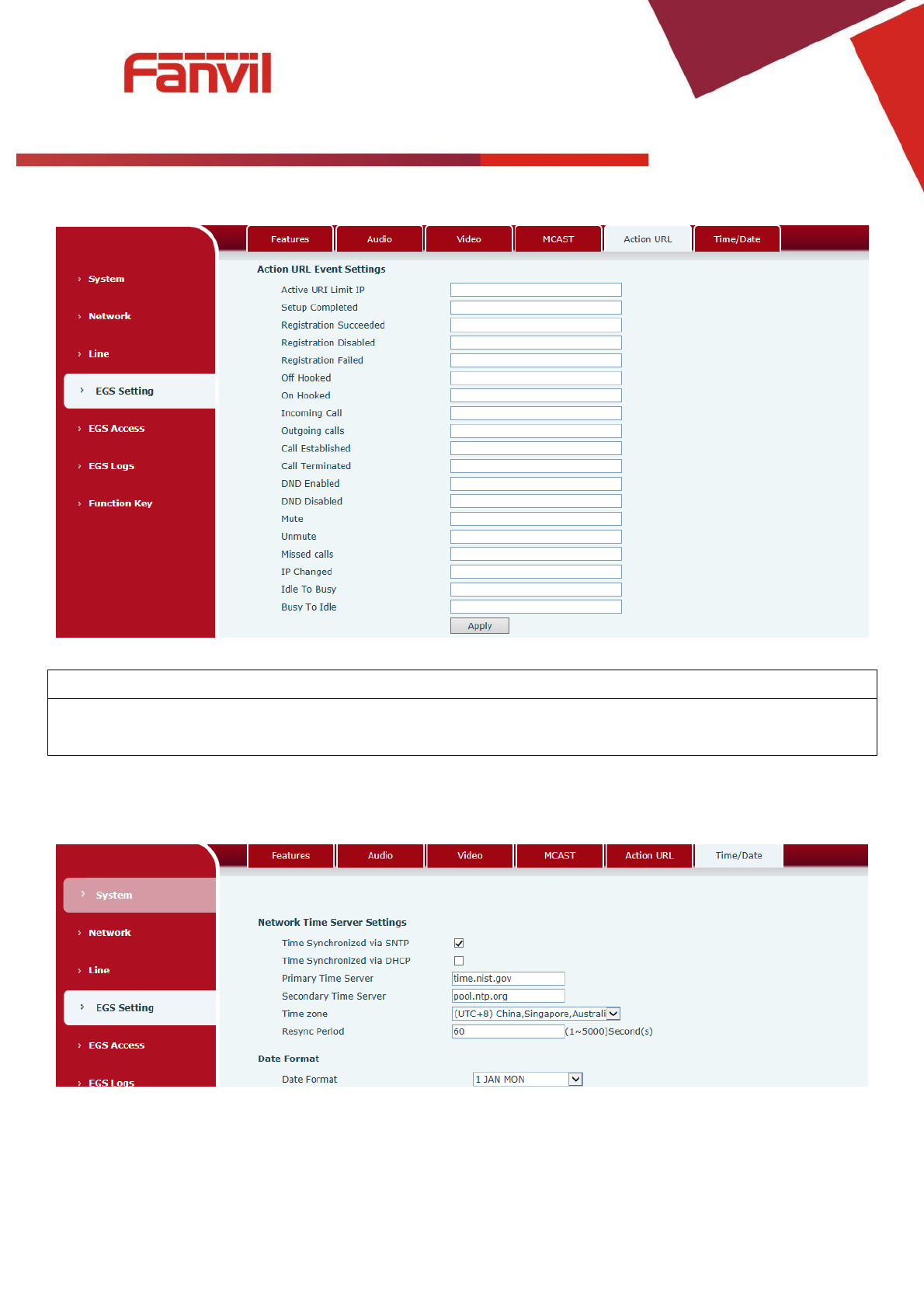
e) Action URL
Action URL Event Settings
URL for various actions performed by the phone. These actions are recorded and sent as xml files to the
server. Sample format is http://InternalServer /FileName.xml
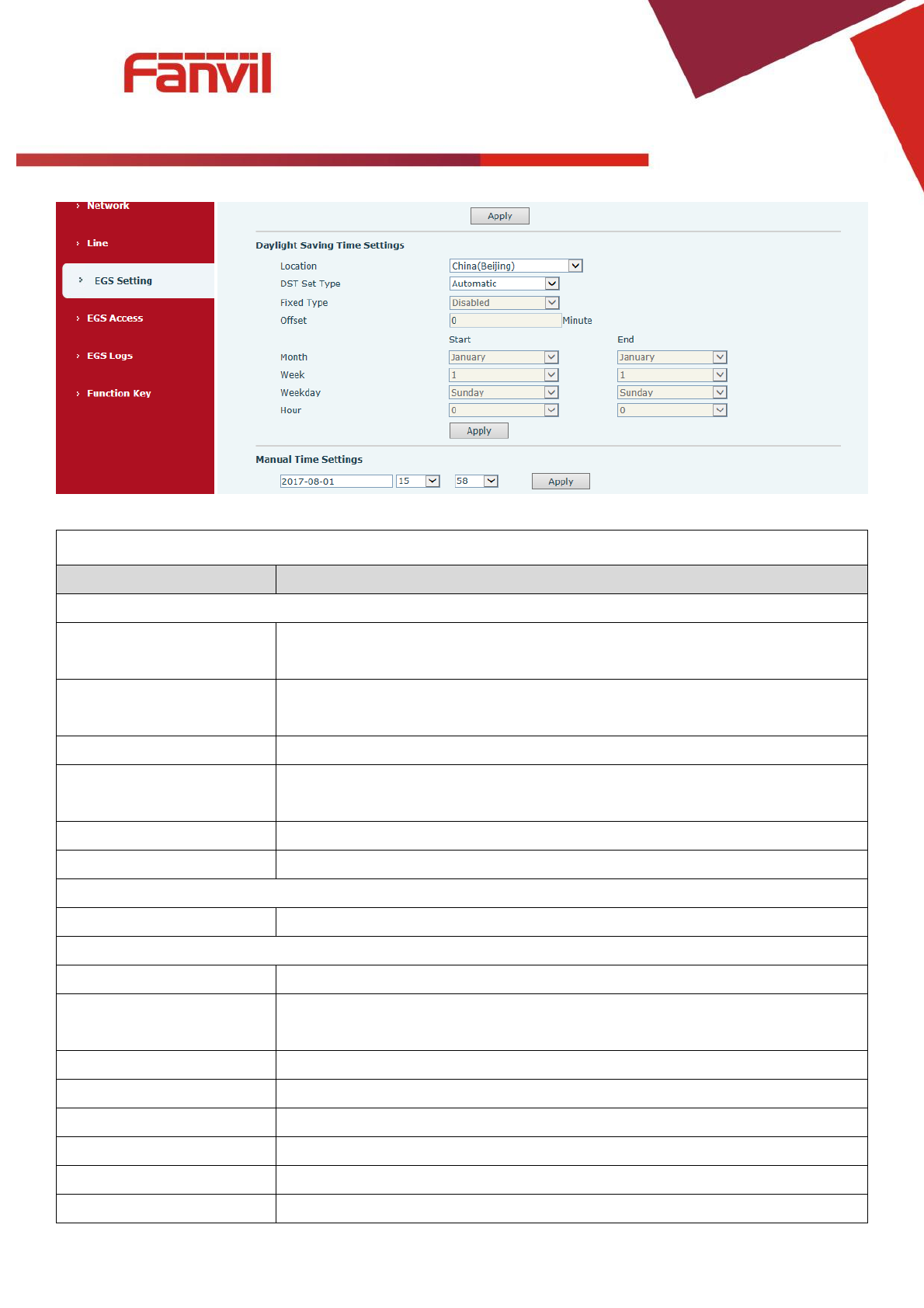
f) Time/Date
[键入文字]
39 / 51
Time/Date
Field Name
Explanation
Network Time Server Settings
Time Synchronized via
SNTP
Enable time-sync through SNTP protocol
Time Synchronized via
DHCP
Enable time-sync through DHCP protocol
Primary Time Server
Set primary time server address
Secondary Time Server
Set secondary time server address, when primary server is not reachable, the
device will try to connect to secondary time server to get time synchronization.
Time zone
Select the time zone
Resync Period
Time of re-synchronization with time server
Date Format
Date Format
Select the time/date display format
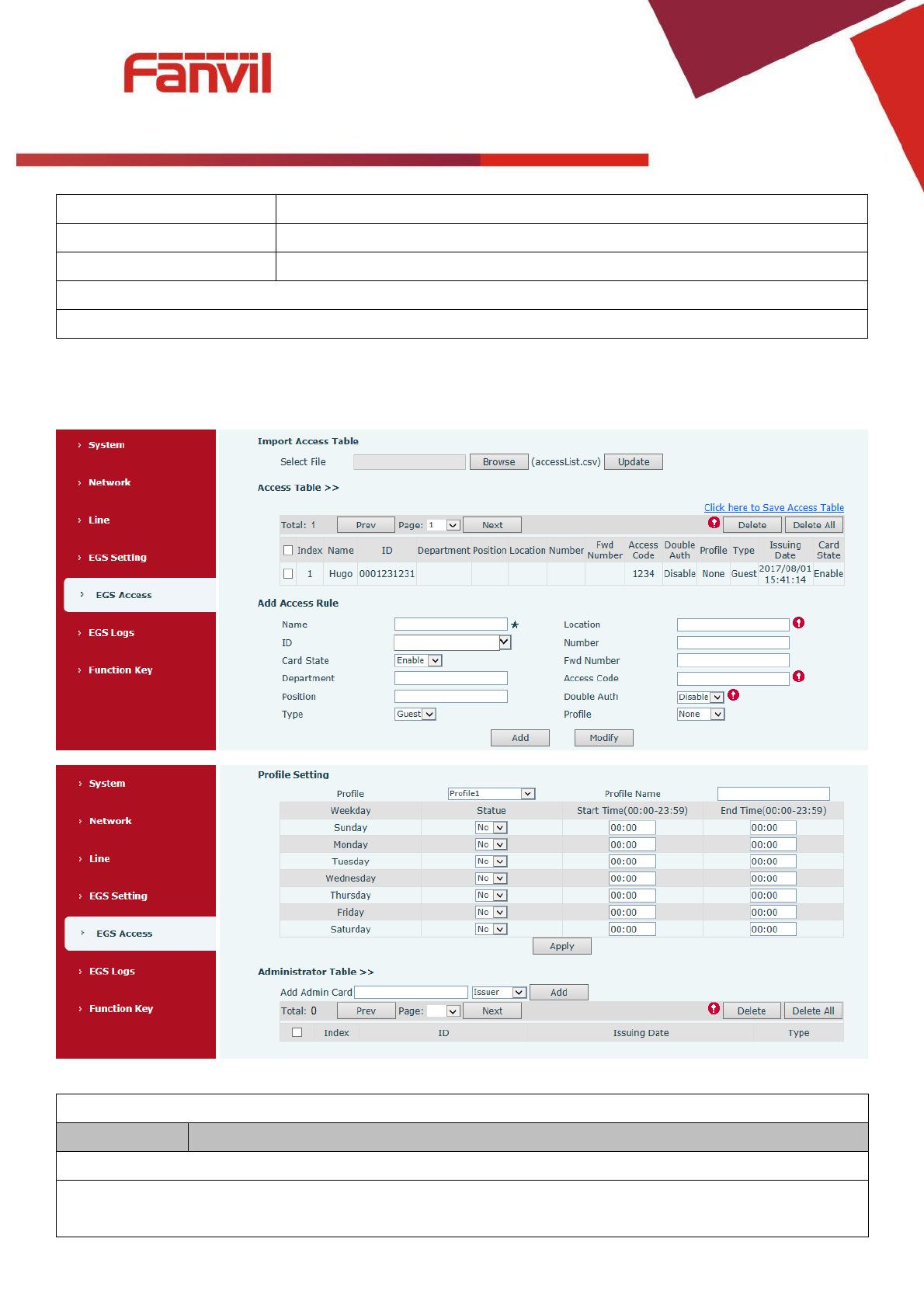
Daylight Saving Time Settings
Location
Select the user's time zone specific area
DST Set Type
Select automatic DST according to the preset rules of DST, or the manually
input rules
Offset
The DST offset time
Month Start
The DST start month
Week Start
The DST start week
Weekday Start
The DST start weekday
Hour Start
The DST start hour
Month End
The DST end month
[键入文字]
40 / 51
Week End
The DST end week
Weekday End
The DST end weekday
Hour End
The DST end hour
Manual Time Settings
The time set by hand, need to disable SNTP service first.
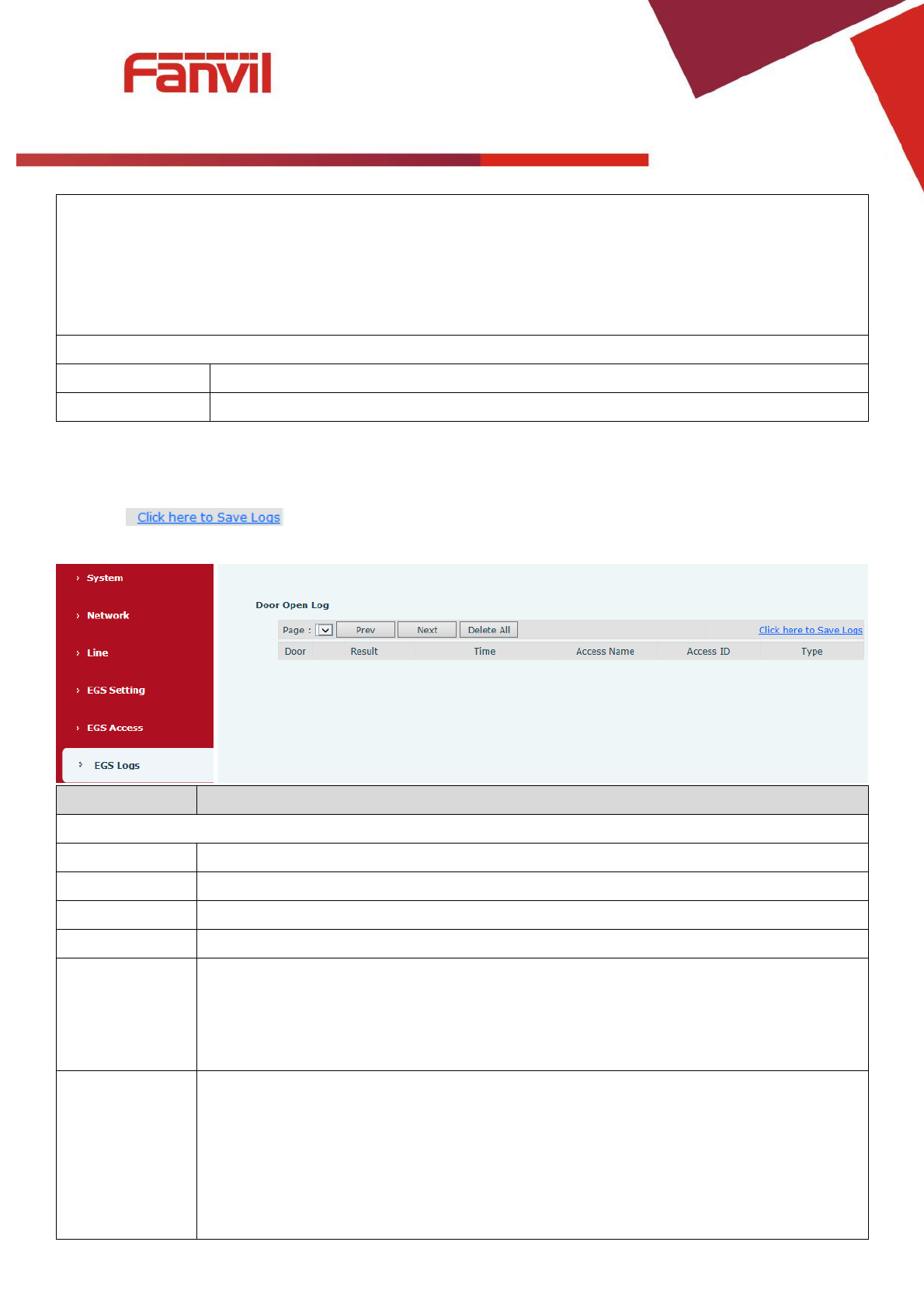
(5) EGS Access
EGS Access
Field Name
Explanation
Import Access Table
Click the <Browse> to choose to import remote access list file (access List.csv) and then clicking <Update>
can batch import remote access rule.

[键入文字]
41 / 51
Access Table
According to entrance guard access rules have been added, you can choose single or multiple rules on
this list to delete operation.
Add Access Rule
Name(necessary)
User name
Location
Virtual extension number, used to make position call instead of real number.
It might be taken with unit number, or room number.
ID
RFID card number. You can manually fill in the first 10 digits of the card number or
select the existing card number
Number
User phone number
Card State
Enable or disable holder's RFID card
Fwd Number
Call forwarding number when above phone number is unavailable.
Department
Card holder's department
Access Code
1/ When the door phone answers the call from the corresponding <Phone Num> user,
then the <Phone Num> user can input the access code via keypad to unlock the door
remotely.
2/ The user’s private password should be input via keypad for local door unlocking.
The private password format is Location*Access Code.
Position
Card holder's position
Double Auth
When the feature is enabled, private password inputting and RFID reading must be
matched simultaneously for door unlocking.
Type
Host: the door phone would answer all call automatically.
Guest: the door phone would ring for incoming call, if the auto answer is disabled.
Profile
It is valid for user access rules (including RFID, access code, etc) within corresponding
time section. If NONE is selected, the feature would be taken effect all day.
Profile Setting
Profile
There are 4 sections for time profile configuration
Profile Name
The name of profile to help administrator to remember the time definition
Status
If it is yes, the time profile would be taken effect. Other time sections not included in
the profiles would not allow users to open door
Start Time
The start time of section
End Time
The end time of section
Administrator Table
Add Admin Card
You should input the top 10 digits of RFID card numbers. for example, 0004111806,
selected the type of admin card , click <add>.
Type: Issuer and revocation
When entrance guard is in normal state, swipe card (issuing card) would make entrance guard into the
[键入文字]
42 / 51
issuing state, and then you can swipe a new card, which the card would be added into the database;
when you swipe the issuing card again after cards added done, entrance guard would return to normal
state. Delete card operation is the same with issuing card.
The device can support up to 10 admin cards, 1000 copies of ordinary cards.
Note: in the issuing state, swiping deleted card is invalid.
Shows the ID, Issuing Date and Type of admin card
Delete
Clicking <Delete> would delete the admin card list of the selected ID cards.
Delete All
Click <Delete All>, to delete all admin card lists.
(6) EGS Logs
According to open event log, can record up to 20W open event, after more than cover the old
records. Right click on the links to select save target as the door log can export CSV
format.
Field Name
Explanation
Door Open Log
Result
Show the results of the open the door (Success or Failed)
Time
Open the door of time.
Duration
Duration of open the door.
Access Name
If is the open the door for slot card or remote, will display remote access the name.
Access ID
1. If open the door way to brush card shows card number
2. If the door way to open the door for the remote display the phone number of the
door.
3. If open the door way to open the door for local, no display information.
Type
Open type: 1. local, 2. Remote, 3. Brush card (Temporary Card, Valid Card and Illegal
Card).
Note: there are three kinds of credit card feedback results.
1. Temporary Card (Only add the card number, without adding other rules )
2. Valid Card (Has been added access rules)
3. Illegal Card (Did not add information)
[键入文字]
43 / 51
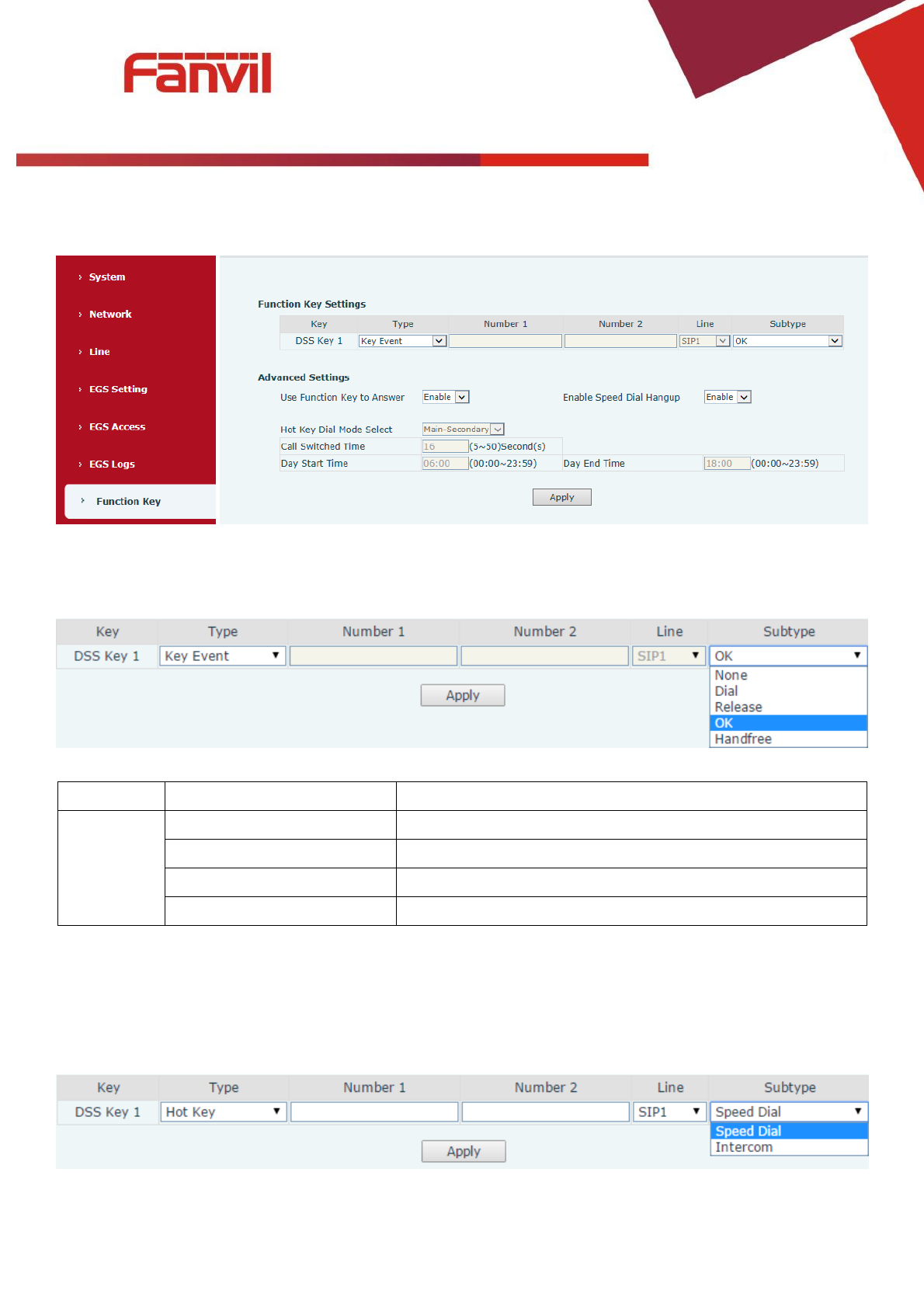
(7) Function Key
Key Event
Set the key type to the Key Event.
Type
Subtype
Usage
Key Event
None
No responding
Dial
Dialing function
Release
Delete password input, cancel dialing input and end call
OK
identification key
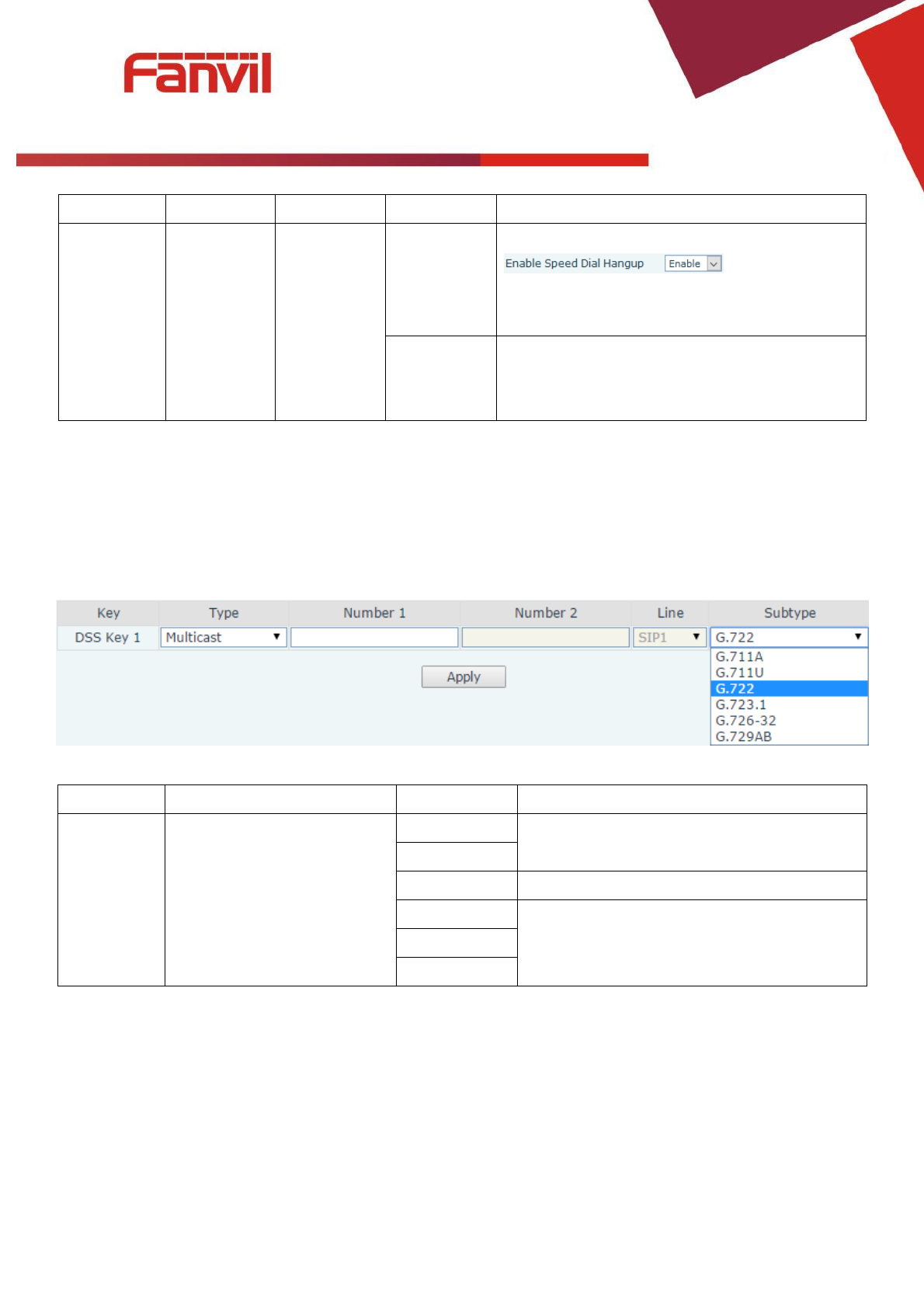
Hot Key
Enter the phone number in the input box, when you press the shortcut key, equipment will dial set
telephone number. This button can also be used to set the IP address, press the shortcut key IP direct dial
call.
[键入文字]
44 / 51
Type
Number
Line
Subtype
Usage
Hot Key
Fill the
called
party’s SIP
account or
IP address
The SIP
account
correspondi
ng lines
Speed Dial
Using Speed Dial mode together with
, can define
whether this call is allowed to be hung up by
re-pressing the speed dial key.
Intercom
In Intercom mode, if the caller’s IP phone
supports Intercom feature, the device can
automatically answer the Intercom calls
Multicast
Multicast function is launched will voice messages sent to set the multicast address, all equipment to
monitor the group multicast address can receive sponsors speech information, etc. Using multicast
functionality can be simple and convenient to send notice to each member in the multicast.
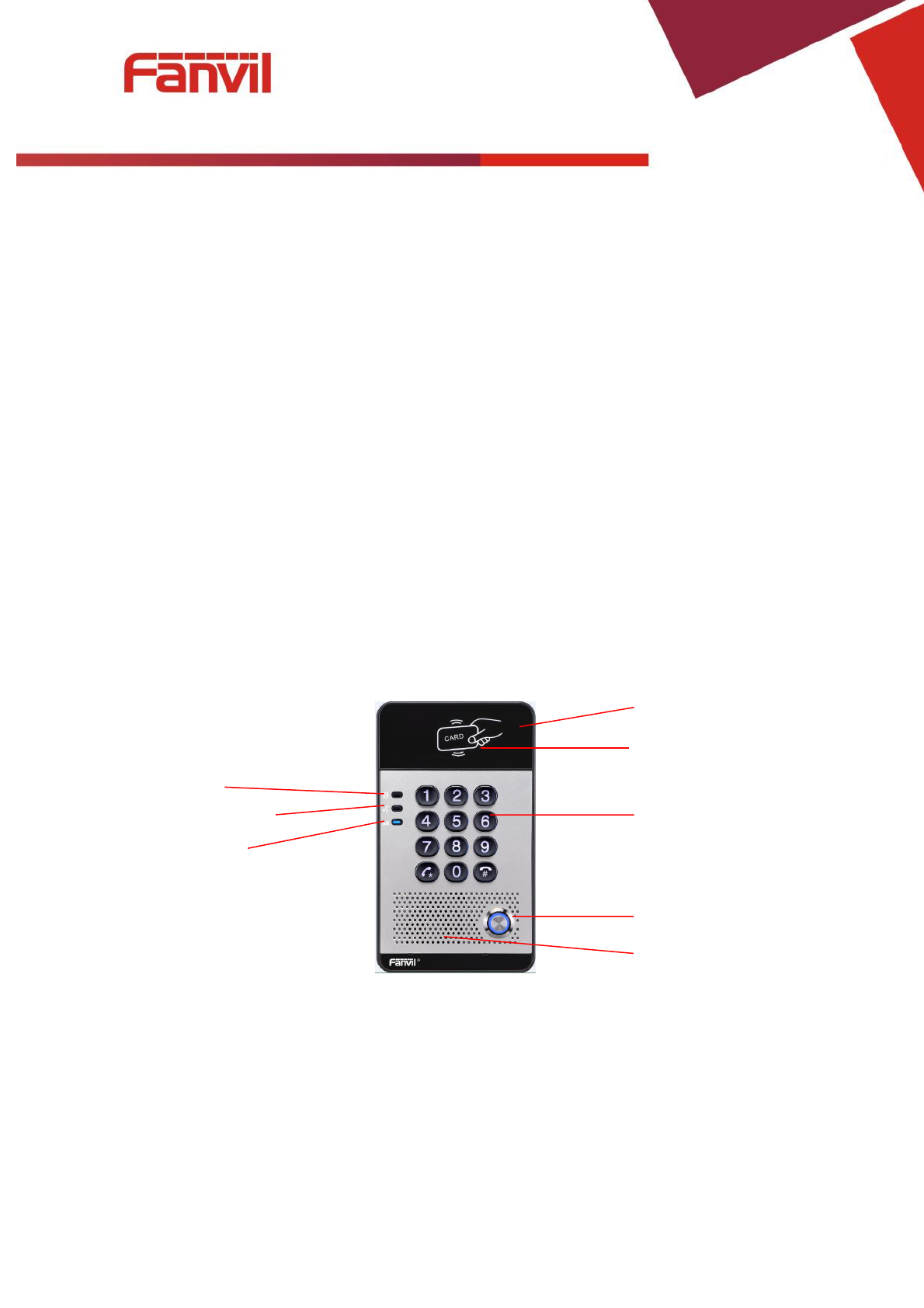
Through the DSS Key configuration multicast calling WEB is as follows:
Type
Number
Subtype
Usage
Multicast
Set the host IP address and
port number, the middle
separated by a colon
G.711A
Narrowband speech coding (4Khz)
G.711U
G.722
Wideband speech coding (7Khz)
G.723.1
Narrowband speech coding (4Khz)
G.726-32
G.729AB
operation mechanism
Device through the DSS Key configuration of multicast address and port and started coding; set by
WEB to monitor the multicast address and port; device sends a multicast, listens to the address of the
device can receive the multicast content.
calling configuration
The call is already exists, and three party or initiated multicast communication, so it will not be able
to launch a new multicast call.

[键入文字]
45 / 51
V. Appendix
1. Technical parameters
Communication protocol
SIP 2.0(RFC-3261)
Main chipset
Broadcom
Keys
DSS Key
1(Stainless steel)
Numeric keyboard
Support
Audio
MIC
1
Speaker
3W/4Ω
Volume control
Adjustable
Full duplex speakerphone
Support (AEC)
Speech
flow
Protocols
RTP
Decoding
G.729、G.723、G.711、G.722、G.726
Ports
Active Switched Output
12V/700mA DC
WAN
10/100BASE-TX s Auto-MDIX, RJ-45
RFID/IC card reader
EM4100 (125Khz)
MIFARE One(13.56Mhz)
Power supply mode
12V / 1A DC or PoE
PoE
PoE 802.3af (Class 3 - 6.49~12.95W)
Cables
CAT5 or better
Shell Material
Metal panel, ABS face-piece and back shell
Working temperature
-10°C to 60°C
Working humidity
10% - 90%
Storage temperature
-40°C to 70°C
Installation way
Wall-mounting
External size
160 x 93 x 35mm
Package size
209 x 118 x 64mm
Gross weight
420g
[键入文字]
46 / 51
2. Basic functions
2 SIP Lines
PoE Enabled
Full-duplex speakerphone (HF)
Numeric keypad (Dial pad or Password input)
Intelligent DSS Keys (Speed Dial/intercom etc)
Wall-mounting
Integrated RFID Card reader
1 indoor switch interface
1 electric lock relay
External power supply
Door phone: call, password, RFID card, indoor switch
Protection level: IP65,CE/FCC
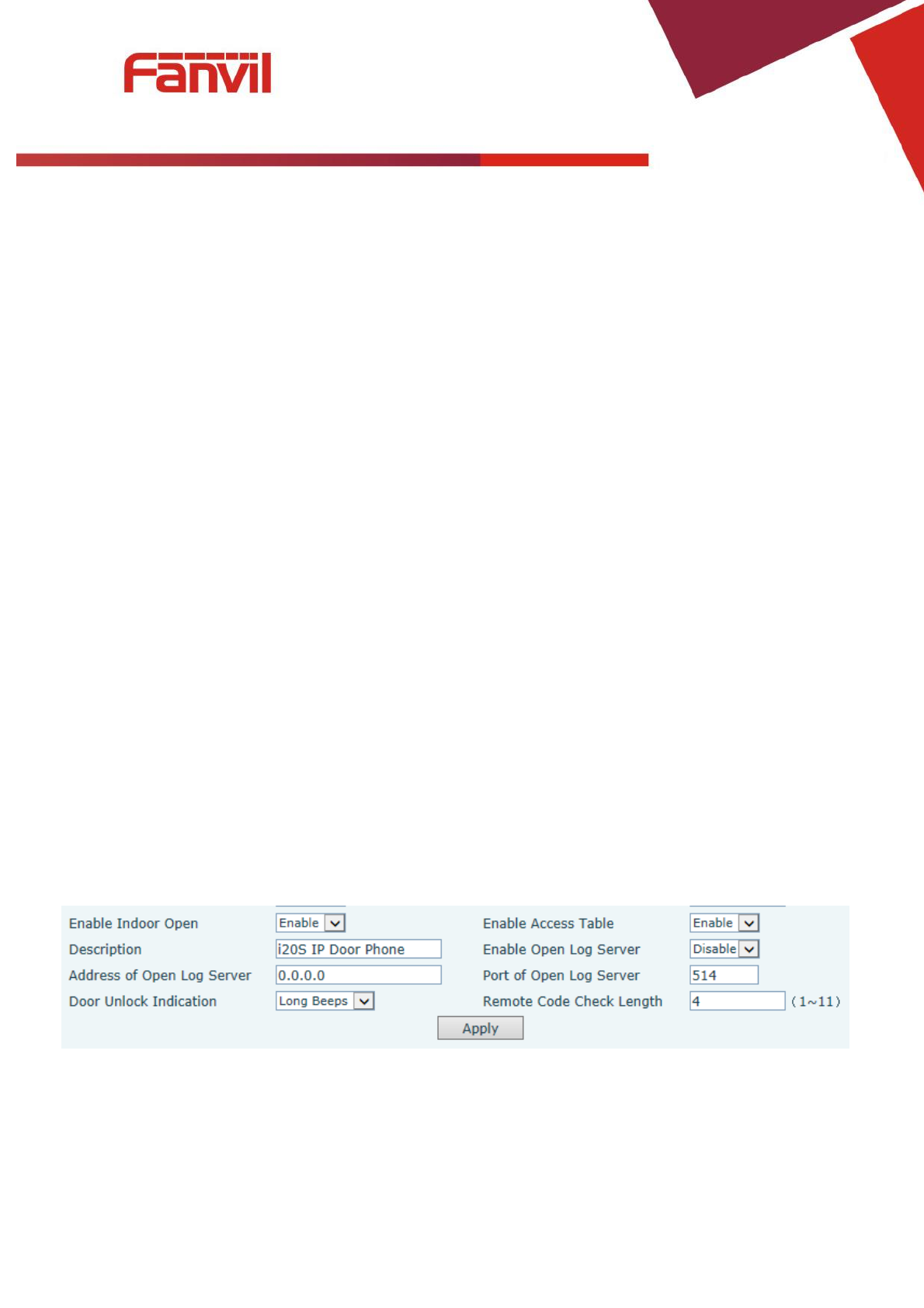
3. Schematic diagram
MIC
Numeric keypad
(password or dialing)
DSS key with LED
Speaker
Lock status
Call and Ring status
Network and
Registration status
RFID area
[键入文字]
47 / 51
VI. Other instructions
1. Open door modes
Local control
1) Local Password
Set <Local Password> (the password is "6789" by default) via DOOR PHONE\DOOR PHONE as
above.
Input password via keypad and press the "#" key, then the door will be unlocked.
2) Private access code
Set <Add Access Rule\Access Code> and enable local authentication.
Input access code via keypad and press the "#" key, then the door will be unlocked.
Remote control
1) Visitors call the owner
Visitors can call the owner via position speed dial or phone number. (After setting the speed dial
key, visitors can press it to call direct.)
The owner answers the call and presses the "*" key to unlock the door for visitors.
2) Owner calls visitors
Owner calls visitors via SIP phone.
SIP door phone answers the call automatically.
Owner inputs corresponding <Access codes> via SIP phone keypad to unlock the door.
Swiping cards
Use pre-assigned RFID cards to unlock the door, by touching RFID area of the device.
Indoor switch
Press indoor switch, which is installed and connected with the device, to unlock the door.
2. Management of card
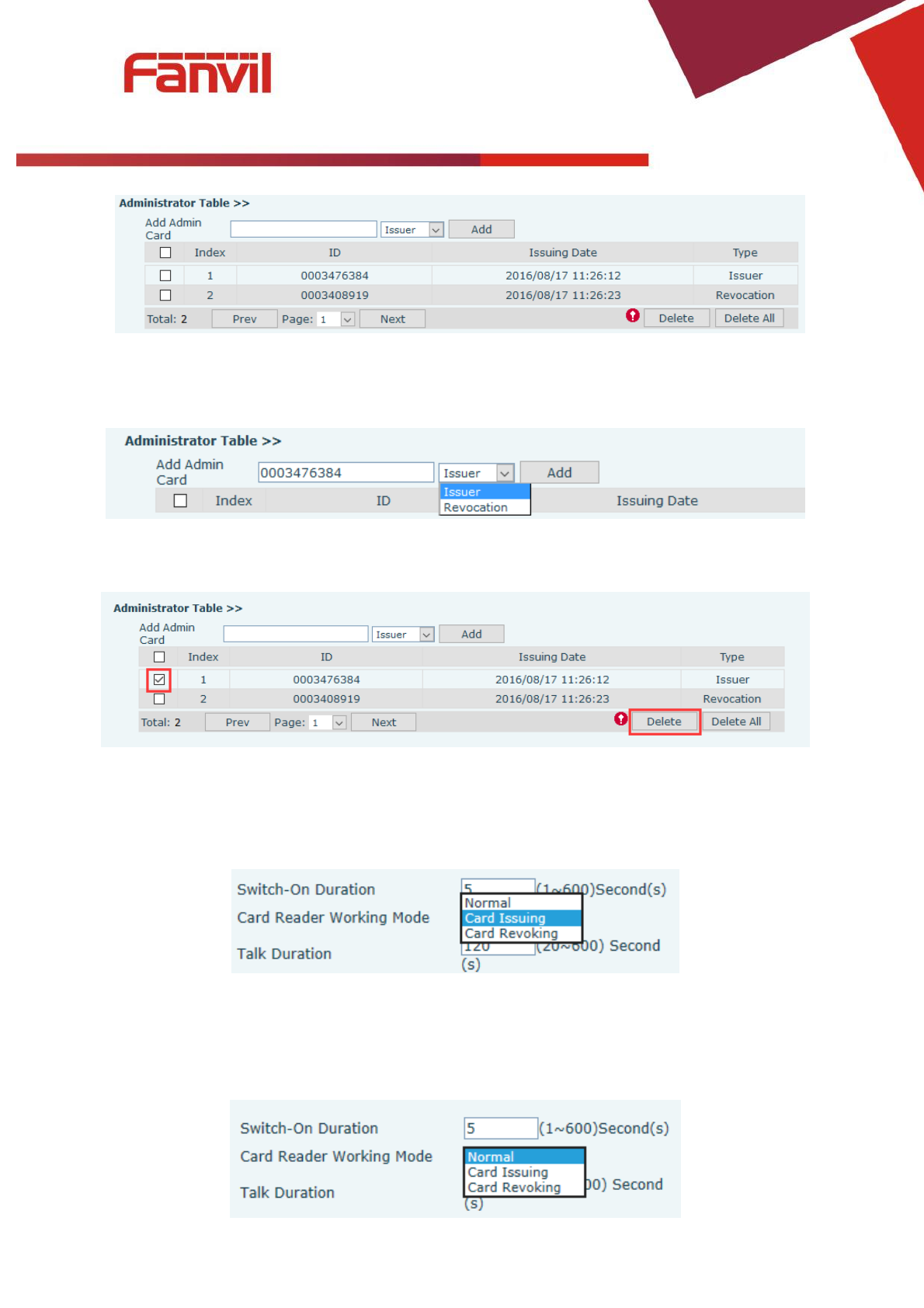
1) Administrator Table
<Issuer> and <Revocation>
[键入文字]
48 / 51
Add Administrator cards
Input a card’s ID, selected <Issuer> or <Revocation> in the types and Clicked <Add>, you can add
administrator card.
Delete Administrator cards
Select the admin card of need to delete, click <Delete>.
2) Add user cards
Method 1: used to add cards for starters typically
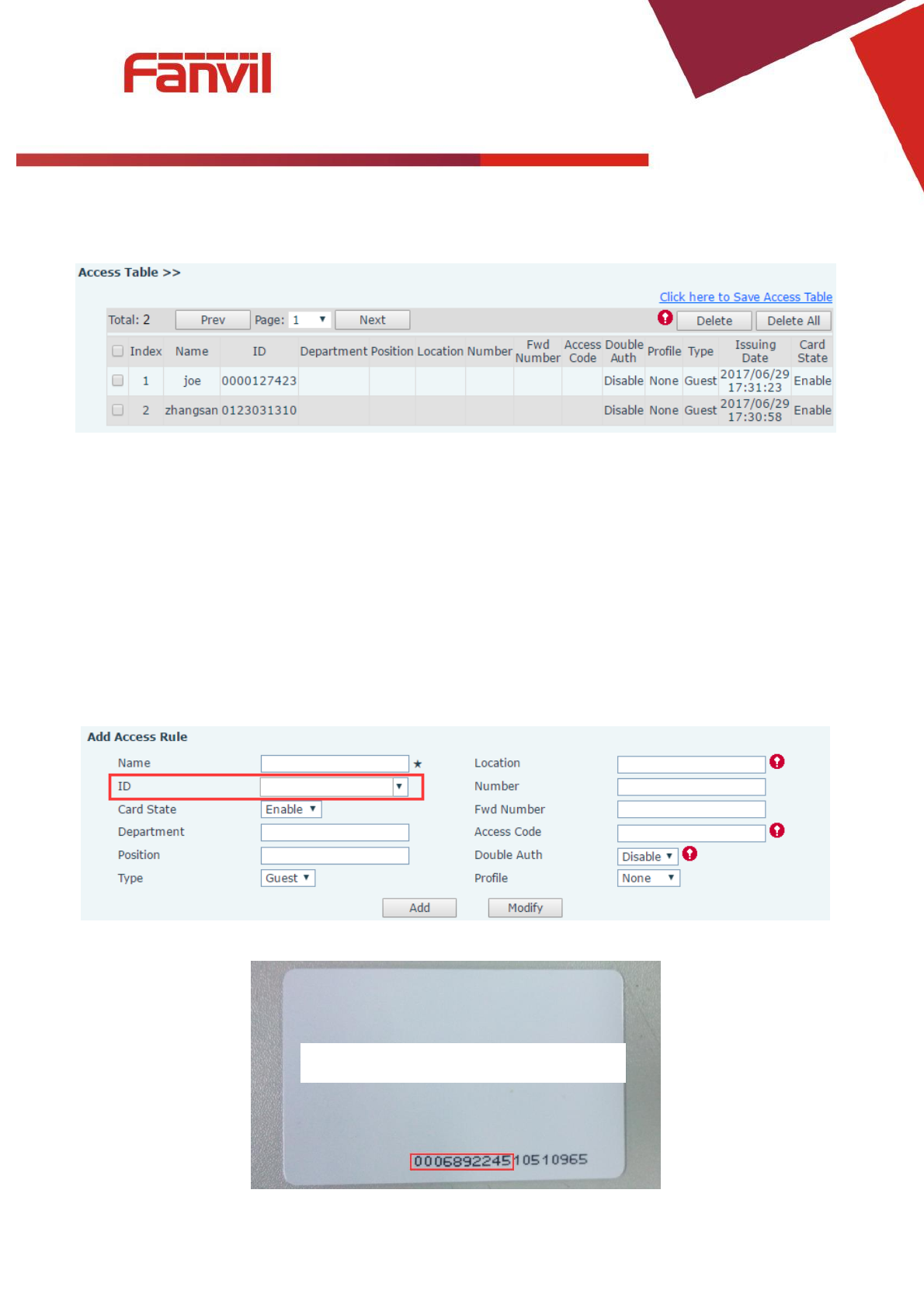
In web page < EGS Setting →Features →Card Reader Working Mode > option, select <Card Issuing>.
Click <Apply>, Card Reader would be entered the issuing status.
Use new card to touch card reader induction area, and then you might hear the confirmed indication
tone from the device. Repeat step can to add more cards.
In web page < EGS Setting →Features →Card Reader Working Mode > option, select <Normal>.
[键入文字]
49 / 51
Click <Apply>, Card Reader would be back to the Normal status.
The issuing records can be found from the door card table list.
Methods 2: used to add cards for professionals
Use <Issuer admin card> to touch card reader induction area, and it would be entered issuing card
status.
Use new card to touch card reader induction area, and you might hear the confirmed indication tone
from the device. Repeat step 2 to add more cards.
Use <Issuer admin card> to touch card reader induction area again, it would be back to normal
working status.
Method 3: use to add few cards
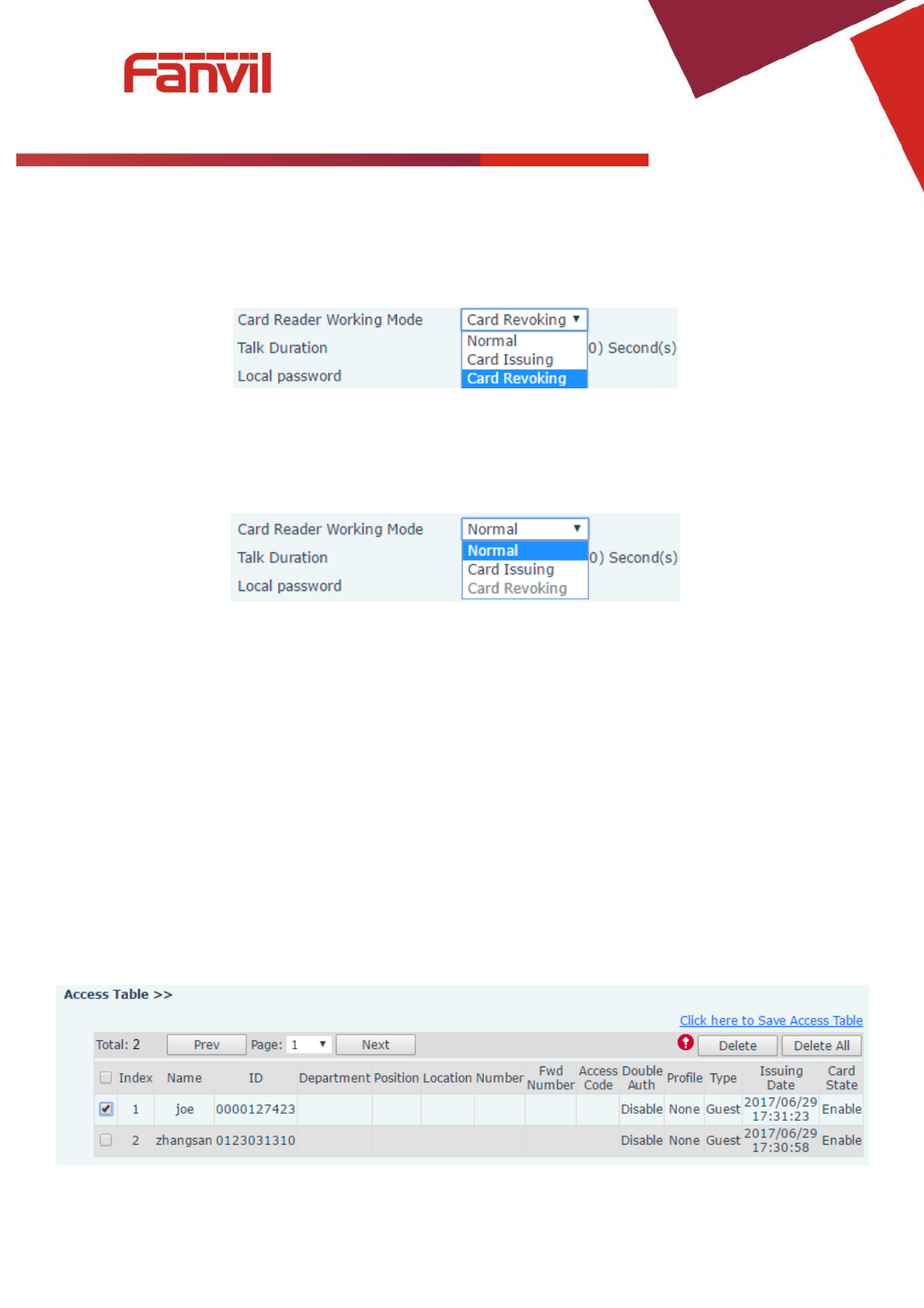
Input cards number in <EGS Setting\Add Access Rule\ID> page, and then click <Add>
Note: you can also use the USB card reader connected with PC to get cards ID automatically.
Only need to input the top 10 numbers.
[键入文字]
50 / 51
3) Delete user cards
Method 1: used to batch delete cards for starters.
In web page < EGS Setting →Features →Card Reader Working Mode > option, select <Card
Revoking>.
Click <Apply>, Card Reader would be entered the revoking status.
Use card to touch card reader induction area, and you might hear the card reader confirmed
indication tone. Repeat step can to delete more cards.
In web page <EGS Setting →Features →Card Reader Working Mode >option, select <Normal>.
Click <Apply>, Card Reader would be back to the Normal status.
Method 2: used to batch add cards for intermediates.
Use < Revocation admin card> to touch card reader induction area, and it would be entered revoking
card status.
Use the cards you want to delete from system, to touch card reader induction area, and you might
hear the card reader confirmed indication tone. Repeat step 2 to delete cards.
Use <Revocation admin card> to touch card reader induction area, and it would be back to card read
only status.
Method 3: use to bulk delete or partially delete card records
In web page<EGS Cards →Door Card Table>select the card ID and then click <Delete>.
Note: If you click <Delete All>, system will delete all the ID card records.