Fanvision Entertainment LEGEND Legend User Manual

Fanvision Entertainment LLC Legend

User manual

Legend   LE-01VSM-S-RE User Manual 1.1.1  Turning the Phone On and Off To turn on or off the phone please hold down the Power key. If your USIM/SIM card have set a PIN cord, input PIN cord to turn on. To turn off the phone please hold down the Power key. 1.2  Screen control You can through the screen of a series of operations to control your phone.   Click: you can choose the screen by clicking on the screen of the project, and the open application, use the buttons below the screen input.   Sliding: you can pass on the screen horizontal or vertical sliding, realize the pages up and down, or displayed around.   Long press: you can through the long by some projects get its available menu. In the long press application programming interface program icon, can the application shortcuts to add to the main screen.   Drag: you can drag on the screen through some projects achieve certain operation.   Did screen switching: you can flip through mobile phone screen display of switching namely. Did display function only in some interface effective, such as text input interface, surf the web interface, etc. 2  Function Menu 2.1  Contact You can use the phonebook function to save contact information. You can view or management your contacts. NOTICE: SIM card number of records storage capacity and its related  2.2  Phone features 2.2.1.1  Call using the contacts 1. Press the Home key, click on “ ” open the contact.   2. Press the Menu key -> Search, Search for the contacts in the contact list 3. Click on the contact -> select the SIM card call. 2.2.1.2  Answer a call When  you  received  a  call  from  contacts,  click  on  “ ”  answer  the  call.  If  the
headset is plugged in, you can also use the button on the headset to answer the call. 2.2.1.3  End the call When you received a call from contacts, click on ”” refused to call.Dial and call in, click on the " " to end the current call. 2.3  WLAN 2.3.1  Open the WLAN and connect to a wireless network 1. Press the Home key, click on “ ” -> Settings-> Wireless & networks. 2. Select WLAN check box, to open Wi-Fi. The phone will automatically scan can be used a wireless network. 3. Click on the Wi-Fi settings.    3  Application 3.1.1  New contact Contacts->Menu key or click on” ”->new contact. Then enter the new Contact screen. You can fill the items with contact’s corresponding information such as name,phone number, address, and so on. To add more items, touch the icon”  ”. Input the contact information, click finish can. NOTE: 1. Touch Big-head Photos to select a photo to set as the contact’s big-head photo. 2. You can add multiple phone numbers, e-mail addresses, and so on. 3.1.2  Send SMS 1. Messaging ->Compose new message. 2. In  the recipient  field, enter the  recipient number. You  can  also  click  “ ” Select recipients from your contacts. 3. Click on a column of input, enter the message content. 4. Click send. 5. Select SIM card. 3.2  Setting 3.2.1  WLAN  Wi-Fi: select on or off.  Wi-Fi settings: Set up and management wireless access points, etc.  Wi-Fi Direct settings: Set up and management WLAN Direct.   Tethering &  portable hotspot: Will you move data  connection through  cell  phone
USB or as a portable WLAN hot share.   VPN settings: Setup and manage virtual private network.  3.3  Camera 3.3.1  Camera Your mobile phone and camera with dual, it is equipped with a high vivid camera picture which you can use to take pictures at anytime or place and then save them on your mobile phone. 1. During the view-finding mode, adjust the lens to allow what is being photographed to appear in the viewfinder. 2. After framing the picture you wish to take, keep the camera steady and press”  “ to take pictures.       3. After taking photos. You can appear in the menu for the following operation:  3.4  Manage application Click  on  management  application,  running  services,  storage  space  use  can  now show  the  download,  all,  On  SD  card  and  running  program,  click  on  the  program  can choose to stop operating procedures, etc. 1. Downloaded: Show the current already downloaded program. 2. All: Show all of the processes in cell phones. 3. On SD card: Show some of SD card program. 4. Running: Show the current operation procedure.  4  Troubleshooting If  anything  unusual  occurs  while  using  your  Smart  Phone,  please  refer  to  the following table. Frequently Occurring Problems Cause How to Fix Poor reception Using the Smart Phone in an area with  poor  reception  such  as  near tall  buildings  or  in  a  basement where  radio  waves  cannot  be transmitted. Try to avoid. Using  the  SmartPhone  when the network is busy, such as during rush  hour,  when  the  lines  are  full making it impossible to get through. Try to avoid.
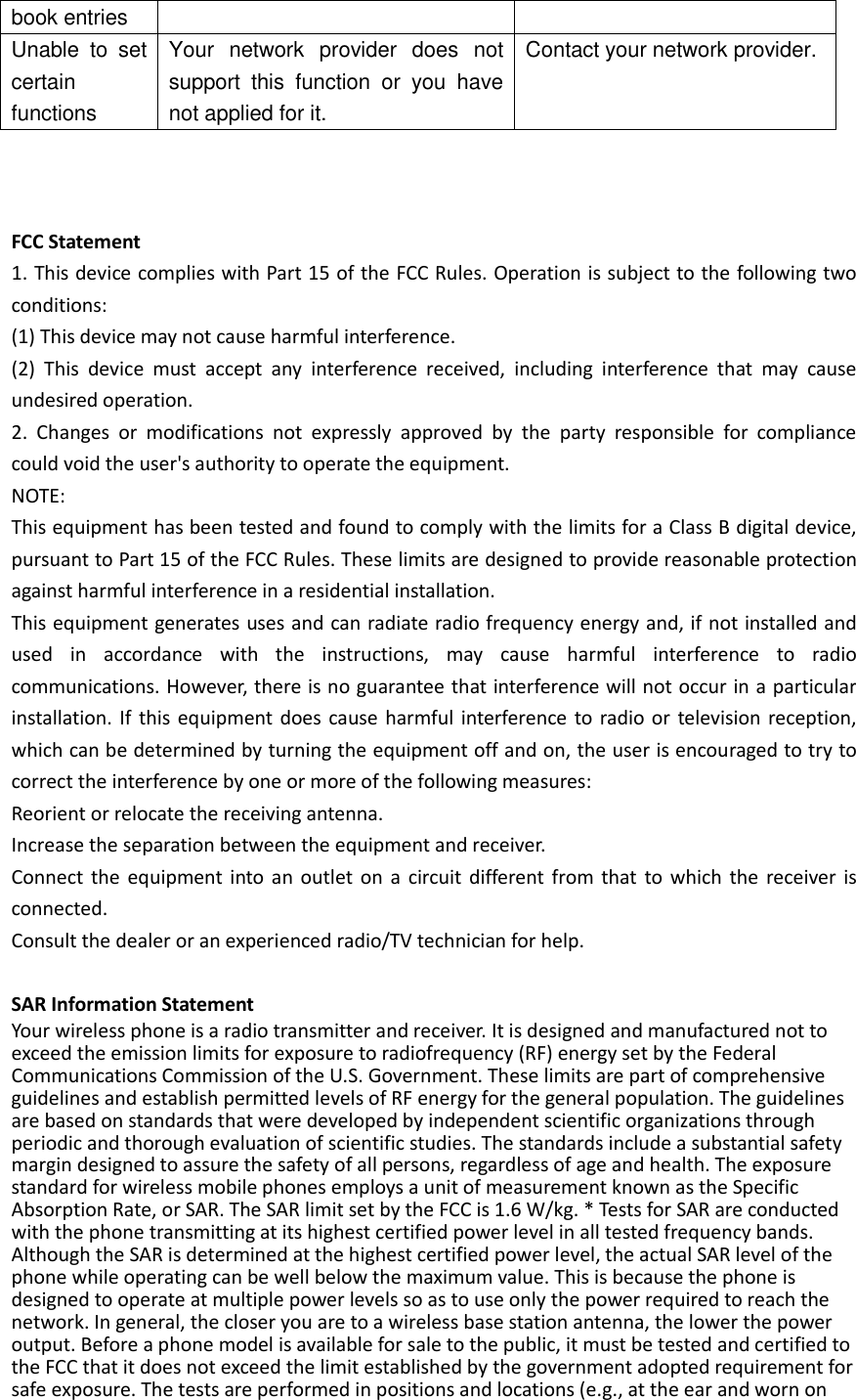
Related  to  the  distance  from  the base station built by the network. You  can  request  that  the network  service  provider provide a service area plan. Echo or noise   Caused  by  poor  network  relay,  a regional problem. Hang up and redial, if the relay is changed then the line may be better. Some  calling  regions  have  poor lines. Shortening  of the  standby time Standby  time  is  related  to  the network system. Please temporarily turn off your Smart  Phone,  as  you  are located  in  an  area  with  poor reception. Batteries need to be replaced Replace the batteries When you cannot get a signal, the phone  will  continue  to  transmit  in order to find a base station, thereby expending  large  amounts  of electricity  will  cause  the  standby time to decrease. Please move to an area with a strong signal or temporarily turn off your Smart Phone. Unable to turn on the phone The battery is empty.   Look at the remaining electricity or recharge. SIM  card malfunction SIM card is damaged. Contact  your  network  service provider.   SIM card is not properly inserted. Confirm  SIM  card  is  properly inserted. There  is  a  dirty  substance  on  the metal surface of the SIM card. Use a clean cloth to wipe off the metal contact point of the SIM card. Unable  to connect  with the network Expired SIM card Contact your network provider.   Outside the GSM service area Consult  your  network  provider on the service area. Poor signal. Please move to a place with a better signal and try again. Unable  to make a call Using the call bar function Cancel the call bar function. Using the fixed dial function. Cancel  the  fixed  call setting. Incorrect  PIN number Consecutively  enter  the  wrong password three times. Contact your network provider. Unable  to charge The Battery or charger is damaged. Replace the battery or charger. Recharging  in  the  environment  of less than -10℃or higher than 55℃. Change  the  charging environment. Poor contact Check  if  the  plug  is  properly connected Unable to add new  phone The  storage  space  of  the  phone book is full Delete  a  portion  of  the  phone number entries
book entries Unable  to  set certain functions Your  network  provider  does  not support  this  function  or  you  have not applied for it. Contact your network provider.    FCC Statement 1. This device complies with Part 15 of the FCC Rules. Operation is subject to the following two conditions: (1) This device may not cause harmful interference. (2)  This  device  must  accept  any  interference  received,  including  interference  that  may  cause undesired operation. 2.  Changes  or  modifications  not  expressly  approved  by  the  party  responsible  for  compliance could void the user's authority to operate the equipment. NOTE:   This equipment has been tested and found to comply with the limits for a Class B digital device, pursuant to Part 15 of the FCC Rules. These limits are designed to provide reasonable protection against harmful interference in a residential installation. This equipment generates uses and can radiate radio frequency energy and, if not installed and used  in  accordance  with  the  instructions,  may  cause  harmful  interference  to  radio communications. However, there is no guarantee that interference will not occur in a particular installation. If this equipment does  cause harmful interference to radio or  television reception, which can be determined by turning the equipment off and on, the user is encouraged to try to correct the interference by one or more of the following measures: Reorient or relocate the receiving antenna. Increase the separation between the equipment and receiver. Connect the  equipment into  an outlet on  a circuit different from that to  which  the receiver  is connected.   Consult the dealer or an experienced radio/TV technician for help.  SAR Information Statement Your wireless phone is a radio transmitter and receiver. It is designed and manufactured not to exceed the emission limits for exposure to radiofrequency (RF) energy set by the Federal Communications Commission of the U.S. Government. These limits are part of comprehensive guidelines and establish permitted levels of RF energy for the general population. The guidelines are based on standards that were developed by independent scientific organizations through periodic and thorough evaluation of scientific studies. The standards include a substantial safety margin designed to assure the safety of all persons, regardless of age and health. The exposure standard for wireless mobile phones employs a unit of measurement known as the Specific Absorption Rate, or SAR. The SAR limit set by the FCC is 1.6 W/kg. * Tests for SAR are conducted with the phone transmitting at its highest certified power level in all tested frequency bands. Although the SAR is determined at the highest certified power level, the actual SAR level of the phone while operating can be well below the maximum value. This is because the phone is designed to operate at multiple power levels so as to use only the power required to reach the network. In general, the closer you are to a wireless base station antenna, the lower the power output. Before a phone model is available for sale to the public, it must be tested and certified to the FCC that it does not exceed the limit established by the government adopted requirement for safe exposure. The tests are performed in positions and locations (e.g., at the ear and worn on
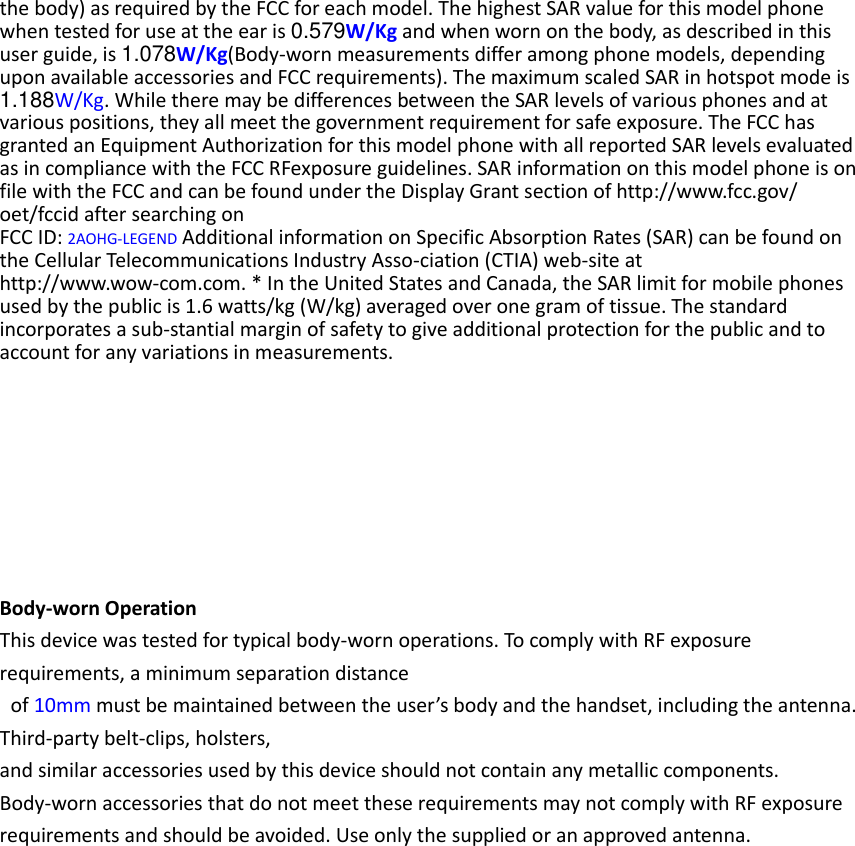
the body) as required by the FCC for each model. The highest SAR value for this model phone when tested for use at the ear is 0.579W/Kg and when worn on the body, as described in this user guide, is 1.078W/Kg(Body-worn measurements differ among phone models, depending upon available accessories and FCC requirements). The maximum scaled SAR in hotspot mode is 1.188W/Kg. While there may be differences between the SAR levels of various phones and at various positions, they all meet the government requirement for safe exposure. The FCC has granted an Equipment Authorization for this model phone with all reported SAR levels evaluated as in compliance with the FCC RFexposure guidelines. SAR information on this model phone is on file with the FCC and can be found under the Display Grant section of http://www.fcc.gov/ oet/fccid after searching on   FCC ID: 2AOHG-LEGEND Additional information on Specific Absorption Rates (SAR) can be found on the Cellular Telecommunications Industry Asso-ciation (CTIA) web-site at http://www.wow-com.com. * In the United States and Canada, the SAR limit for mobile phones used by the public is 1.6 watts/kg (W/kg) averaged over one gram of tissue. The standard incorporates a sub-stantial margin of safety to give additional protection for the public and to account for any variations in measurements.        Body-worn Operation This device was tested for typical body-worn operations. To comply with RF exposure requirements, a minimum separation distance   of 10mm must be maintained between the user’s body and the handset, including the antenna. Third-party belt-clips, holsters,   and similar accessories used by this device should not contain any metallic components. Body-worn accessories that do not meet these requirements may not comply with RF exposure requirements and should be avoided. Use only the supplied or an approved antenna.

Navigation menu