FarmTek M106X Light Curtain User Manual

FarmTek Inc Light Curtain

Users Manual

  1 DOG AGILITY SOFTWARE VERSION 1.0 AKC OR CKC VENUE  Standard & JWW Classes Setup Procedure  With the Timer stopped, press SETUP to open the menu Press ENTER to select Dog Agility Rules Press ENTER to select AKC or CKC RULES Press ENTER for STANDARD COURSE TIME Key in the STANDARD COURSE TIME using the numbers in the lower left hand corner of each keypad key HINT: Press and hold the clear key to reset the time to “0" in the event you put in the incorrect time Press ENTER after you have selected the correct time HINT: The Maximum Course Time will automatically be set at 1.5 times the Standard Course Time per AKC and CKC Rules Press ENTER for Faults/Second Default is preset at 1 Fault/Second. If you do not have computer scoring, this can be set at 1 Fault/Second for Novice, 2 Faults per second for Open or 3 Faults/Second for Excellent to calculate Time Faults. HINT: Press NEXT CHOICE on the Keypad to pass any menu choice that does not need to be set or reset   Press ENTER to Set Finish Eye Press Enter the Finish Eye Menu If the last obstacle is not used on course as any other obstacle, select Stop on Pass 1 If the last obstacle is used once on course before the last jump, press NEXT CHOICE and select Stop on Pass 2 If the last obstacle is used twice on course before the last jump, press NEXT CHOICE twice and select Stop on Pass 3 HINTS:  1 - Press SETUP at any time to exit the SETUP mode 2 - An asterisk will identify the selected mode - e.g. *AKC Rules or *Stop on Pass 1 3 - All parameters can be updated individually and in any order desired 4 - All changes are automatically stored in the timer until changed again in the future  Operating Procedures for Human Timer  Verify that  the eyes are adjusted to the correct jump height at the beginning of the class and with each jump height change.  Assuming everything goes normally, the time will automatically start and stop - simply show the time to the scribe to copy down. If the time does not start, press the HORN key to stop the run before the third obstacle. If a dog takes the last obstacle out of sequence or if the Timer stops in error, press RESTART on the keypad to resume timing as if the timer had never been stopped. If a dog is excused or fails to complete the course, press the START/STOP key to stop the time and report “no time” to the scribe.  HINTS:  1 - There is no need to clear the time after each run. 2 - If a closed tunnel or a broad jump is the last obstacle, the timer will need to stop the time manually with the START/STOP key when the dog crosses the finish line. 3 - Use the PREV & NEXT keys to scan back and forth through previous times - this can be done and viewed in the lower window even while a dog is running.
  2 DOG AGILITY SOFTWARE VERSION 1.0 USDAA, AAC, ASCA and NADAC VENUES  Standard & JWW Classes Setup Procedure  With the timer stopped, press SETUP to open the menu Press ENTER to select Dog Agility Rules Press ENTER to select USDAA, AAC, ASCA or NADAC RULES Press ENTER for STANDARD COURSE TIME Key in the STANDARD COURSE TIME using the numbers in the lower left hand corner of each keypad key HINTS: Press and hold the clear key to reset the time to “0" in the event you put in the incorrect time If you leave STANDARD COURSE TIME at 0.00, be sure to select No Game Horns in the Game Horn Menu Press ENTER after you have selected the correct time Press ENTER for MAXIMUM COURSE TIME Key in the MAXIMUM COURSE TIME using the numbers in the lower left hand corner of each keypad key HINT: If you leave this set at 0.00, there will not be a maximum course time Press ENTER after you have selected the correct time Press ENTER for Faults/Second Default is preset at 1 Fault/Second.  HINT: Press NEXT CHOICE on the Keypad to pass any menu choice that does not need to be set or reset   Press ENTER to Set Finish Eye Press Enter If the last obstacle is not used on course as any other obstacle, select Stop on Pass 1 If the last obstacle is used once on course before the last jump, press NEXT CHOICE and select Stop on Pass 2 If the last obstacle is used twice on course before the last jump, press NEXT CHOICE twice and select Stop on Pass 3 Press SETUP to exit the Setup menu  HINTS:  1 - Press SETUP at any time to exit the SETUP mode 2 - An asterisk will identify the selected mode - e.g. *AKC Rules or *Stop on Pass 1 3 - All parameters can be updated individually and in any order desired 4 - All changes are automatically stored in the timer until changed again in the future  Operating Procedures for Human Timer  Verify that  the eyes are adjusted to the correct jump height at the beginning of the class and with each jump height change.  Assuming everything goes normally, the time will automatically start and stop - simply show the time to the scribe to copy down. If the time does not start, press the HORN key to stop the run before the third obstacle. If a dog takes the last obstacle out of sequence or if the Timer stops in error, press RESTART on the keypad to resume timing as if the timer had never been stopped. If a dog is excused or fails to complete the course, press the START/STOP key to stop the time and report “no time” to the scribe.  HINTS:  1 - There is no need to clear the time after each run. 2 - If a closed tunnel or a broad jump is the last obstacle, the timer will need to stop the time manually with the START/STOP key when the dog crosses the finish line. 3 - Use the PREV & NEXT keys to scan back and forth through previous times - this can be done and viewed in the lower window even while a dog is running.
  3  Gambler’s Class Setup Procedure  If the start line is the length of the ring, place the timer at either end of the start line With the timer stopped, press SETUP to open the menu Press ENTER to select Dog Agility Rules Press ENTER to select USDAA, AAC, ASCA or NADAC RULES Press NEXT CHOICE to skip STANDARD COURSE TIME Press NEXT CHOICE to skip MAXIMUM COURSE TIME Press NEXT CHOICE to skip Faults/Second Press NEXT CHOICE to skip Set Finish Eye Press ENTER to Set Game Horns If you have not keyed in Optional Horn Times in advance, proceed as follows: Press NEXT CHOICE until you get to Key-In Times to set each course time individually Press ENTER to Key-In Time for Horn 1 Key in HORN 1 time - this is the opening sequence time before the gamble Press ENTER after you have selected the correct time Key in HORN 2 time - this is the total time including the opening sequence (add the opening sequence time and the gamble time to calculate this number) Press ENTER after you have selected the correct time If you have entered Options for the Horn times in the Advanced Menu (see instruction under Advanced Menu on pages 5 and 6): Press NEXT CHOICE until you get to the Option 1 through 8 that you desire and press ENTER to select it  HINTS:  1 - Press SETUP at any time to exit the SETUP mode 2 - An asterisk will identify the selected mode - e.g. *AKC Rules or *Stop on Pass 1 3 - All parameters can be updated individually and in any order desired 4 - All changes are automatically stored in the timer until changed again in the future  Operating Procedures for Human Timer  Verify that  the eyes are adjusted to the correct jump height at the beginning of the class and with each jump height change.  If the start line is the full length of the ring, start the time manually using the START/STOP key when the dog crosses the start line. Assuming everything goes normally, the horns will go off and the time will stop automatically - simply show the time to the scribe to copy down. If the time does not start, press the HORN key to stop the run before the third obstacle. If a dog is excused or fails to complete the course, press the START/STOP key to stop the time and report “no time” to the scribe.  HINTS:  1 - There is no need to clear the time after each run. 2 - If a closed tunnel, table or a broad jump is the last obstacle, the timer will need to stop the time manually with the START/STOP key when the dog crosses the finish line. 3 - Use the PREV & NEXT keys to scan back and forth through previous times - this can be done and viewed in the lower window even while a dog is running. 4 - The Finish Eye will be turned off until after the first horn sounds.
  4 Snooker Class Setup Procedure  If the start line is the length of the ring, place the timer at either end of the start line With the timer stopped, press SETUP to open the menu Press ENTER to select Dog Agility Rules Press ENTER to select USDAA, AAC, ASCA or NADAC RULES Press NEXT CHOICE to skip STANDARD COURSE TIME Press NEXT CHOICE to skip MAXIMUM COURSE TIME Press NEXT CHOICE to skip Faults/Second Press NEXT CHOICE to skip Set Finish Eye Press ENTER to Set Game Horns If you have not keyed in Optional Horn Times in advance, proceed as follows: Press NEXT CHOICE until you get to Key-In Times to set each course time individually Press ENTER to Key-In Time for Horn 1 Key in HORN 1 time - this is the opening sequence time before the gamble Press ENTER after you have selected the correct time Key in HORN 2 time of 0.00 Press ENTER after you have selected the correct time If you have entered Options for the Horn times in the Advanced Menu (see instruction under Advanced Menu on pages 5 and 6): Press NEXT CHOICE until you get to the Option 1 through 8 that you desire and press ENTER to select it  HINTS:  1 - Press SETUP at any time to exit the SETUP mode 2 - An asterisk will identify the selected mode - e.g. *AKC Rules or *Stop On Pass 1 3 - All parameters can be updated individually and in any order desired 4 - All changes are automatically stored in the timer until changed again in the future  Operating Procedures for Human Timer  Verify that  the eyes are adjusted to the correct jump height at the beginning of the class and with each jump height change.  If the start line is the full length of the ring, start the time manually using the START/STOP key when the dog crosses the start line. Assuming everything goes normally, the horn will go off and the time is to be stopped manually using the START/STOP key - simply show the time to the scribe to copy down. If the time does not start, press the HORN key to stop the run before the third obstacle. If a dog is excused or fails to complete the course, press the START/STOP key to stop the time and report “no time” to the scribe.  HINTS:  1 - There is no need to clear the time after each run. 2 - If a closed tunnel, table or a broad jump is the last obstacle, the timer will need to stop the time manually with the START/STOP key when the dog crosses the finish line. 3 - Use the PREV & NEXT keys to scan back and forth through previous times - this can be done and viewed in the lower window even while a dog is running.
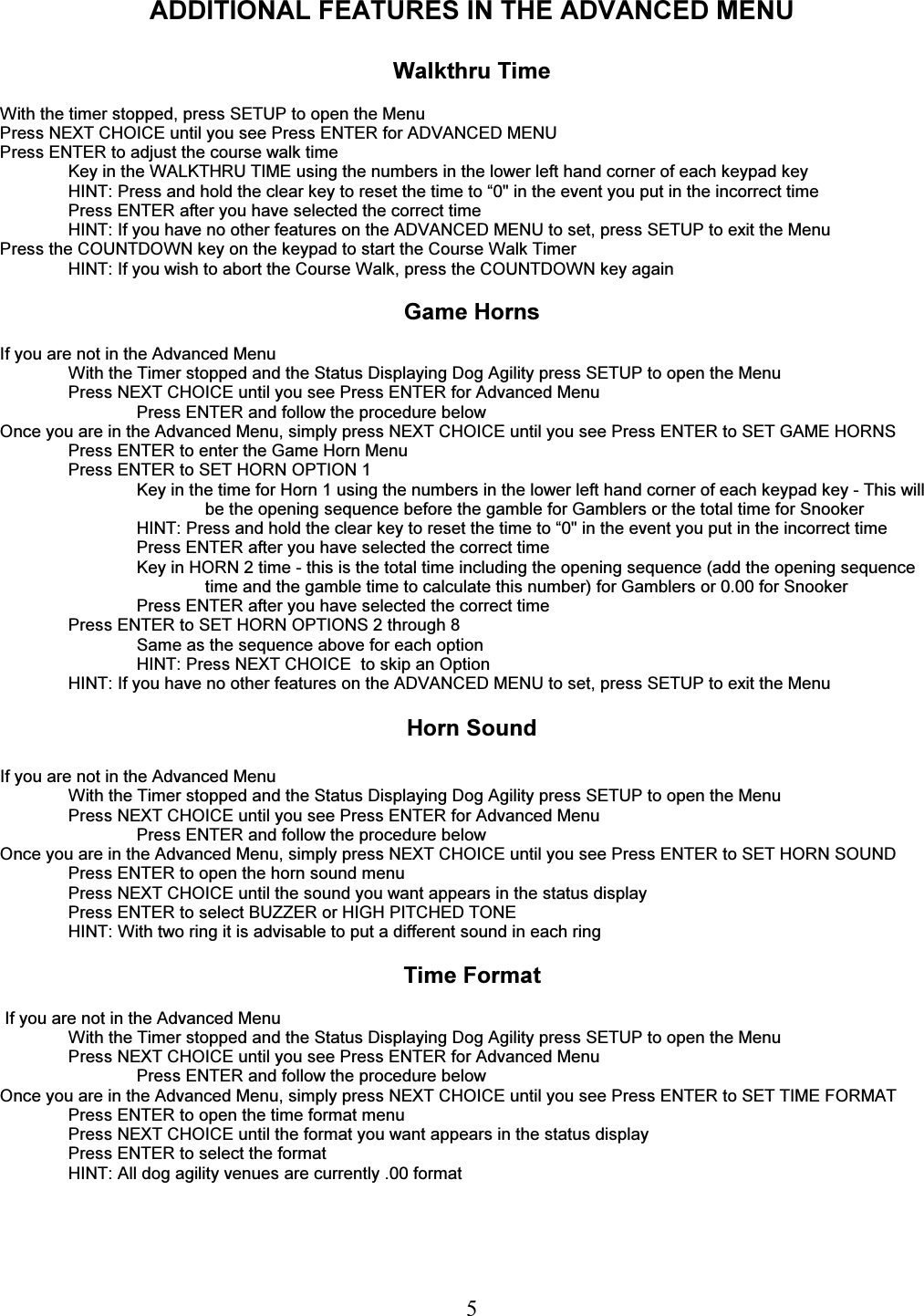
  5 ADDITIONAL FEATURES IN THE ADVANCED MENU  Walkthru Time  With the timer stopped, press SETUP to open the Menu  Press NEXT CHOICE until you see Press ENTER for ADVANCED MENU Press ENTER to adjust the course walk time Key in the WALKTHRU TIME using the numbers in the lower left hand corner of each keypad key HINT: Press and hold the clear key to reset the time to “0" in the event you put in the incorrect time Press ENTER after you have selected the correct time HINT: If you have no other features on the ADVANCED MENU to set, press SETUP to exit the Menu Press the COUNTDOWN key on the keypad to start the Course Walk Timer HINT: If you wish to abort the Course Walk, press the COUNTDOWN key again  Game Horns  If you are not in the Advanced Menu With the Timer stopped and the Status Displaying Dog Agility press SETUP to open the Menu Press NEXT CHOICE until you see Press ENTER for Advanced Menu Press ENTER and follow the procedure below   Once you are in the Advanced Menu, simply press NEXT CHOICE until you see Press ENTER to SET GAME HORNS Press ENTER to enter the Game Horn Menu Press ENTER to SET HORN OPTION 1 Key in the time for Horn 1 using the numbers in the lower left hand corner of each keypad key - This will be the opening sequence before the gamble for Gamblers or the total time for Snooker HINT: Press and hold the clear key to reset the time to “0" in the event you put in the incorrect time Press ENTER after you have selected the correct time Key in HORN 2 time - this is the total time including the opening sequence (add the opening sequence time and the gamble time to calculate this number) for Gamblers or 0.00 for Snooker Press ENTER after you have selected the correct time Press ENTER to SET HORN OPTIONS 2 through 8 Same as the sequence above for each option HINT: Press NEXT CHOICE  to skip an Option HINT: If you have no other features on the ADVANCED MENU to set, press SETUP to exit the Menu  Horn Sound  If you are not in the Advanced Menu With the Timer stopped and the Status Displaying Dog Agility press SETUP to open the Menu Press NEXT CHOICE until you see Press ENTER for Advanced Menu Press ENTER and follow the procedure below   Once you are in the Advanced Menu, simply press NEXT CHOICE until you see Press ENTER to SET HORN SOUND Press ENTER to open the horn sound menu Press NEXT CHOICE until the sound you want appears in the status display Press ENTER to select BUZZER or HIGH PITCHED TONE HINT: With two ring it is advisable to put a different sound in each ring  Time Format   If you are not in the Advanced Menu With the Timer stopped and the Status Displaying Dog Agility press SETUP to open the Menu Press NEXT CHOICE until you see Press ENTER for Advanced Menu Press ENTER and follow the procedure below   Once you are in the Advanced Menu, simply press NEXT CHOICE until you see Press ENTER to SET TIME FORMAT Press ENTER to open the time format menu Press NEXT CHOICE until the format you want appears in the status display Press ENTER to select the format HINT: All dog agility venues are currently .00 format
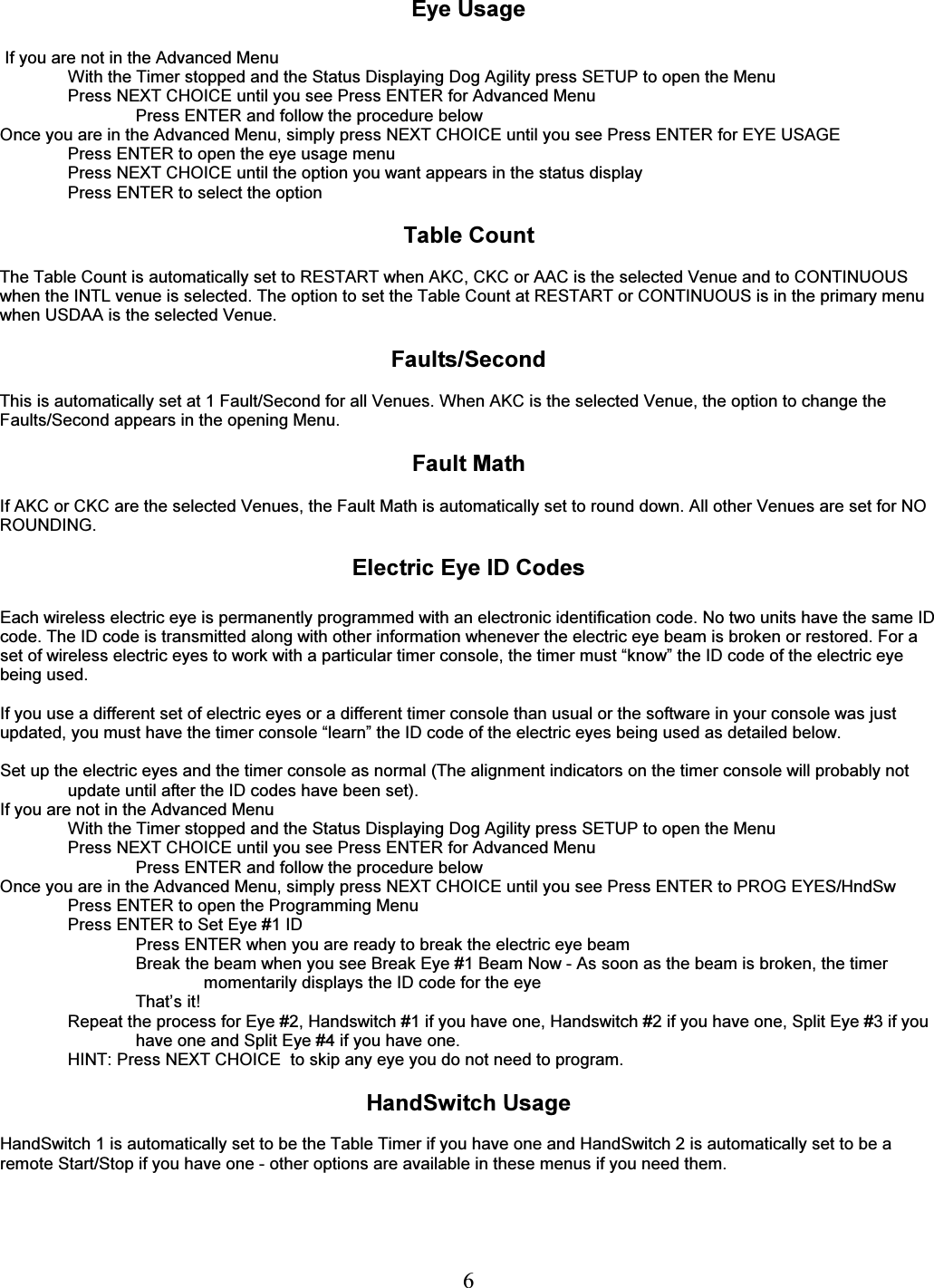
  6  Eye Usage   If you are not in the Advanced Menu With the Timer stopped and the Status Displaying Dog Agility press SETUP to open the Menu Press NEXT CHOICE until you see Press ENTER for Advanced Menu Press ENTER and follow the procedure below   Once you are in the Advanced Menu, simply press NEXT CHOICE until you see Press ENTER for EYE USAGE Press ENTER to open the eye usage menu Press NEXT CHOICE until the option you want appears in the status display Press ENTER to select the option  Table Count  The Table Count is automatically set to RESTART when AKC, CKC or AAC is the selected Venue and to CONTINUOUS when the INTL venue is selected. The option to set the Table Count at RESTART or CONTINUOUS is in the primary menu when USDAA is the selected Venue.  Faults/Second  This is automatically set at 1 Fault/Second for all Venues. When AKC is the selected Venue, the option to change the Faults/Second appears in the opening Menu.  Fault Math  If AKC or CKC are the selected Venues, the Fault Math is automatically set to round down. All other Venues are set for NO ROUNDING.  Electric Eye ID Codes  Each wireless electric eye is permanently programmed with an electronic identification code. No two units have the same ID code. The ID code is transmitted along with other information whenever the electric eye beam is broken or restored. For a set of wireless electric eyes to work with a particular timer console, the timer must “know” the ID code of the electric eye being used.  If you use a different set of electric eyes or a different timer console than usual or the software in your console was just updated, you must have the timer console “learn” the ID code of the electric eyes being used as detailed below.  Set up the electric eyes and the timer console as normal (The alignment indicators on the timer console will probably not update until after the ID codes have been set). If you are not in the Advanced Menu With the Timer stopped and the Status Displaying Dog Agility press SETUP to open the Menu Press NEXT CHOICE until you see Press ENTER for Advanced Menu Press ENTER and follow the procedure below   Once you are in the Advanced Menu, simply press NEXT CHOICE until you see Press ENTER to PROG EYES/HndSw Press ENTER to open the Programming Menu  Press ENTER to Set Eye #1 ID  Press ENTER when you are ready to break the electric eye beam Break the beam when you see Break Eye #1 Beam Now - As soon as the beam is broken, the timer momentarily displays the ID code for the eye That’s it! Repeat the process for Eye #2, Handswitch #1 if you have one, Handswitch #2 if you have one, Split Eye #3 if you have one and Split Eye #4 if you have one. HINT: Press NEXT CHOICE  to skip any eye you do not need to program.  HandSwitch Usage   HandSwitch 1 is automatically set to be the Table Timer if you have one and HandSwitch 2 is automatically set to be a remote Start/Stop if you have one - other options are available in these menus if you need them.
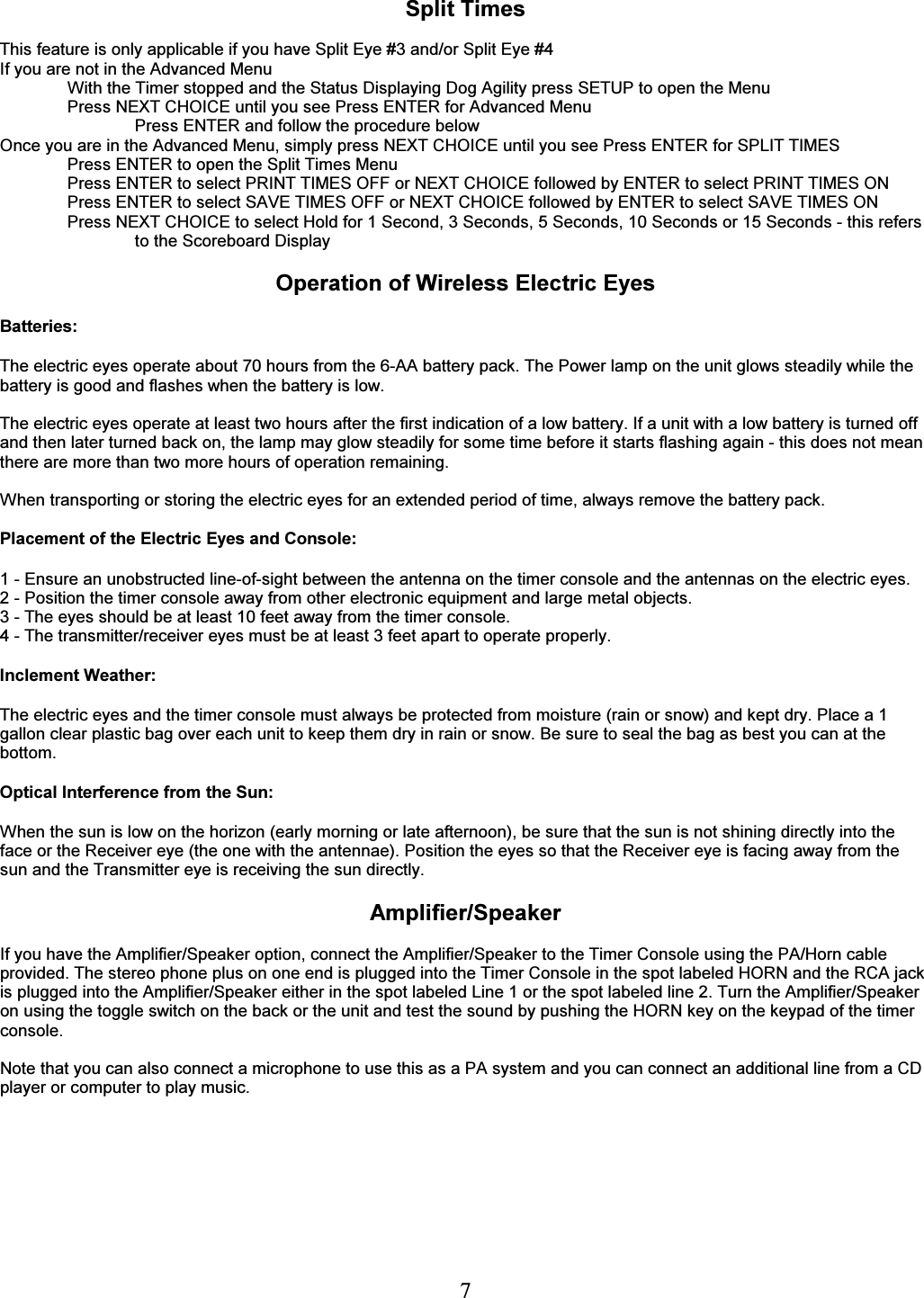
  7 Split Times  This feature is only applicable if you have Split Eye #3 and/or Split Eye #4 If you are not in the Advanced Menu With the Timer stopped and the Status Displaying Dog Agility press SETUP to open the Menu Press NEXT CHOICE until you see Press ENTER for Advanced Menu Press ENTER and follow the procedure below   Once you are in the Advanced Menu, simply press NEXT CHOICE until you see Press ENTER for SPLIT TIMES Press ENTER to open the Split Times Menu Press ENTER to select PRINT TIMES OFF or NEXT CHOICE followed by ENTER to select PRINT TIMES ON Press ENTER to select SAVE TIMES OFF or NEXT CHOICE followed by ENTER to select SAVE TIMES ON Press NEXT CHOICE to select Hold for 1 Second, 3 Seconds, 5 Seconds, 10 Seconds or 15 Seconds - this refers to the Scoreboard Display    Operation of Wireless Electric Eyes  Batteries:  The electric eyes operate about 70 hours from the 6-AA battery pack. The Power lamp on the unit glows steadily while the battery is good and flashes when the battery is low.  The electric eyes operate at least two hours after the first indication of a low battery. If a unit with a low battery is turned off and then later turned back on, the lamp may glow steadily for some time before it starts flashing again - this does not mean there are more than two more hours of operation remaining.  When transporting or storing the electric eyes for an extended period of time, always remove the battery pack.  Placement of the Electric Eyes and Console:  1 - Ensure an unobstructed line-of-sight between the antenna on the timer console and the antennas on the electric eyes. 2 - Position the timer console away from other electronic equipment and large metal objects. 3 - The eyes should be at least 10 feet away from the timer console. 4 - The transmitter/receiver eyes must be at least 3 feet apart to operate properly.  Inclement Weather:  The electric eyes and the timer console must always be protected from moisture (rain or snow) and kept dry. Place a 1 gallon clear plastic bag over each unit to keep them dry in rain or snow. Be sure to seal the bag as best you can at the bottom.  Optical Interference from the Sun:  When the sun is low on the horizon (early morning or late afternoon), be sure that the sun is not shining directly into the face or the Receiver eye (the one with the antennae). Position the eyes so that the Receiver eye is facing away from the sun and the Transmitter eye is receiving the sun directly.  Amplifier/Speaker  If you have the Amplifier/Speaker option, connect the Amplifier/Speaker to the Timer Console using the PA/Horn cable provided. The stereo phone plus on one end is plugged into the Timer Console in the spot labeled HORN and the RCA jack is plugged into the Amplifier/Speaker either in the spot labeled Line 1 or the spot labeled line 2. Turn the Amplifier/Speaker on using the toggle switch on the back or the unit and test the sound by pushing the HORN key on the keypad of the timer console.  Note that you can also connect a microphone to use this as a PA system and you can connect an additional line from a CD player or computer to play music.
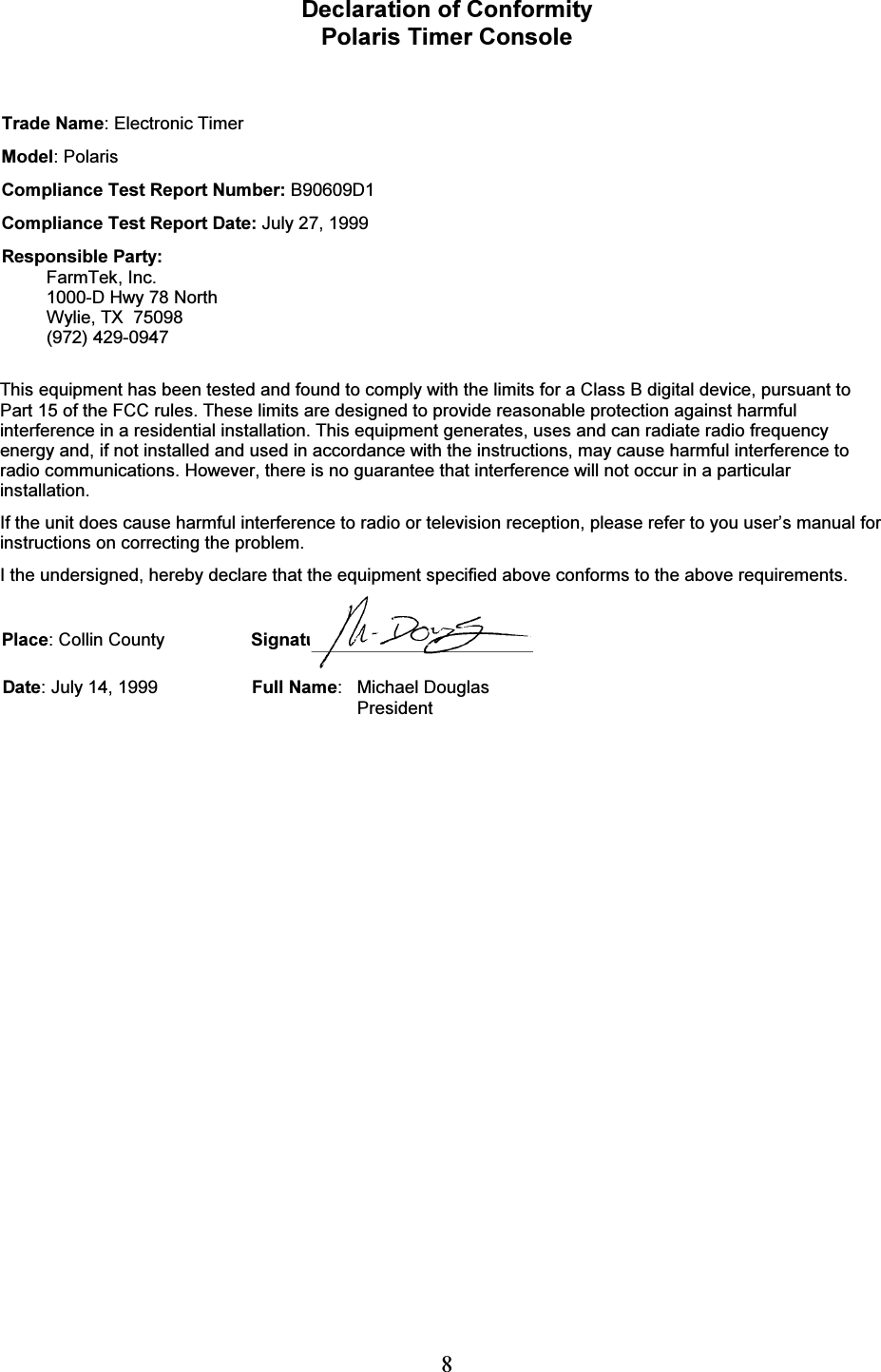
  8 Declaration of Conformity Polaris Timer Console   Trade Name: Electronic Timer Model: Polaris Compliance Test Report Number: B90609D1 Compliance Test Report Date: July 27, 1999 Responsible Party: FarmTek, Inc. 1000-D Hwy 78 North Wylie, TX  75098 (972) 429-0947  This equipment has been tested and found to comply with the limits for a Class B digital device, pursuant to Part 15 of the FCC rules. These limits are designed to provide reasonable protection against harmful interference in a residential installation. This equipment generates, uses and can radiate radio frequency energy and, if not installed and used in accordance with the instructions, may cause harmful interference to radio communications. However, there is no guarantee that interference will not occur in a particular installation. If the unit does cause harmful interference to radio or television reception, please refer to you user’s manual for instructions on correcting the problem. I the undersigned, hereby declare that the equipment specified above conforms to the above requirements.  Place: Collin County  Signature: Date: July 14, 1999  Full Name: Michael Douglas  President
  9 FCC Information Light Curtain Photo-Receiver    FCC ID: NWNMI06X (Light Curtain Photo-Receiver) This device complies with Part 15 of the FCC Rules. Operation is subject to the following two conditions: (1)  This device may not cause harmful interference and, (2)   this device must accept any interference received, including interference that my cause undesired operation.     This equipment has been tested and found to comply with the limits for a Class B digital device, pursuant to Part 15 of the FCC Rules. These limits are designed to provide reasonable protection against harmful interference when the equipment is operated in a residential installation. This equipment generates, uses, and can radiate radio frequency energy and, if not installed and used in accordance with the instruction manual, may cause harmful interference to radio communications. However, there is no guarantee that interference will not occur in a particular installation.   If this equipment does cause harmful interference to radio or television reception, the user is encouraged to try to correct the interference by one or more of the following measures:  (1)  Reorient or relocate the receiving antenna.  (2)  Increase the separation between the equipment and the receiver.  (3)   Consult the dealer or radio/TV technician for help. CAUTION: Changes made or modifications not expressly approved by the party responsible for FCC compliance of this equipment could void the user’s authority to operate the equipment.

Navigation menu