Firstview Electronic JHPC1104617V MID User Manual
Shenzhen Firstview Electronic Co. Ltd. MID Users Manual
Users Manual

Seven inch MID User Guide
1
User Manual
English Ver:2.0

Seven inch MID User Guide
2
Note:We have pasted transparent protector on the
screen, it's up to the user whether to keep it or remove
it when they get the device
Our Company spares no efforts to improve the product quality.
Therefore, if there is any difference between the delivered
product and the contents of the User’s Guide because of the
upgrading of the software, the former shall prevail. Thank you for
your understanding in this respect!
Table of Contents
Table of Contents........................................................................................2
1 Outlook Description................................................................................4
2 Power Button Usage................................................................................4
3 Touch-Screen Navigation .......................................................................5
4 Transfer Box ............................................................................................5
5 Using microSD Card ...............................................................................6
6 Getting Started ........................................................................................6
Charge the device............................................................................6
Turn the device on...........................................................................7
Wi-Fi Network Setup......................................................................7
7 DESKTOP................................................................................................7
8 Screen Lock..............................................................................................8
9 Pre-loaded Applications..........................................................................8
10 Desktop Function Menu......................................................................10
11 Application Management ...................................................................11
Install Android Applications ........................................................11
Download Android Applications direct from a Website............12
Uninstalling Android Applications..............................................12
12 WmtWeather .......................................................................................13
13 CLOCK ................................................................................................13
Alarm..............................................................................................13
14 APP MARKET ....................................................................................15
Download Applications.................................................................15
App Market Function Menu........................错误!未定义书签。
15 BROWSER...........................................................................................15
16 CALENDAR ........................................................................................16
Add Event ......................................................................................16

Seven inch MID User Guide
3
17 CAMERA.............................................................................................16
Function Menu ..............................................................................17
18 CALCULATOR...................................................................................17
19 EMAIL..................................................................................................17
Add Email accounts ......................................................................17
Email Inbox....................................................................................18
Edit Email Account.......................................................................19
Delete Email Accounts ..................................................................19
20 FILE BROWSER ................................................................................20
Copy Media between Computer and Tablet...............................21
Delete files ......................................................................................21
21 MY MUSIC..........................................................................................22
Play Music......................................................................................22
The Operation with Music and Playlist......................................22
22 MY VIDEO ..........................................................................................23
Play Video ......................................................................................23
The Operation with Video and Playlist.......................................23
23 MY PHOTO.........................................................................................24
Doodle.............................................................................................24
24 CONTACTS.........................................................................................25
Add New Contacts.........................................................................25
Add Contact to Favorites .............................................................25
Edit Contacts .................................................................................25
Delete Contacts..............................................................................26
25 PICTURE CAPTURE.........................................................................26
26 PK MANAGER ...................................................................................26
Stopping Applications ...................................................................26
Uninstall Applications...................................................................27
27 YouTube...............................................................................................27
28 SETTINGS...........................................................................................27
Frequently Asked Questions ...................................................................30
Battery Management................................................................................31
Important Safety Precautions.................................................................32
Seven inch MID User Guide
4
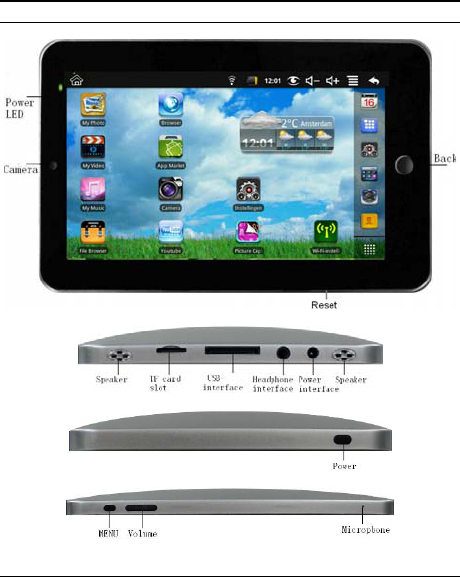
1 Outlook Description
Front:
Right side:
Left side:
Top:
2 Power Button Usage
Turn On: Press the power button and hold for 2 seconds.
Turn Off: Press the power button and hold for 2 seconds, →tap Power
off.
Sleep Mode On/Off: Press & release the power button quickly to turn
sleep mode on and off.
Seven inch MID User Guide
5
Force Off: If device does not respond, press and hold the power button for
8 seconds.
Note: If it is necessary, we don’t suggest use Force Off. You should follow
the steps to perform the shutdown.
Reset Button: Press the reset button to reset the device. Reset will erase all
data on the device, please caution this feature. (Note: Current the reset
function can not be restart, so after reset you need to press the power
button to re-boot.)
3 Touch-Screen Navigation
The touch-screen allows for quick, easy and convenient navigation
for all applications.
☆ The smaller the point that comes in contact with the screen, the
more precise object selection can be. If you do not have long
enough fingers nails to be used for precise tapping, we
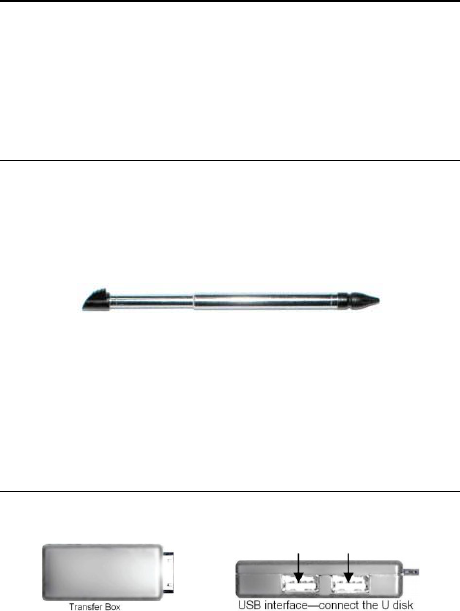
recommend using the stylus or non-sharp pointed instrument to
increase the precision of navigation.
Throughout the User Guide, you are instructed to use the following
tap or touch navigation methods:
Tap: Quick tap & release on an item on the screen.
Finger slide: Touch & slide your finger across the screen and then
release.
Touch & hold: Touch and hold in place approx 2 seconds, and then
release to display an options window.
☆ To avoid scratching or crushing, do not place objects on the
touch screen surface.
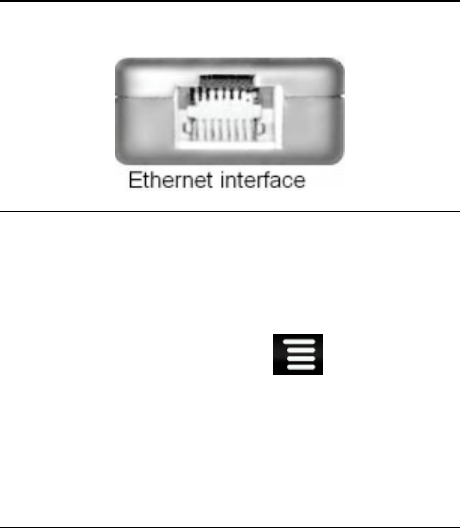
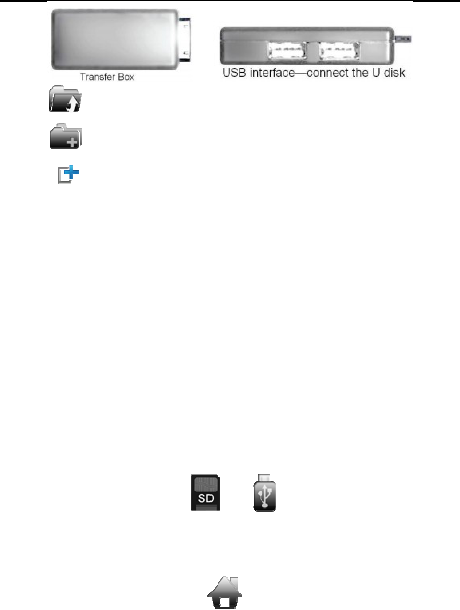
4 Transfer Box
You must use the transfer box if you want to use a USB storage
device (U-disk) for accessing/storing your photos, musics or video
files.
U-Disk
Insert your U-disk to the transfer box, → insert the transfer
box into the Tablet. When ready for use, it’s OK.
Seven inch MID User Guide
6
☆ Don’t insert and remove the U-disk repeatedly in a short
time, as this may cause damage to the U-disk.
The transfer box is also used for Ethernet network connections.
5 Using microSD Card
☆ The device supports a maximum 32GB microSD card.
Insert your card into the microSD slot until it clicks into place. it’s
OK
Remove microSD Card
Use one of the following methods for moving the microSD
card.
Close all applications or documents which have been
opened on the card. Tap → Settings → SD
card & device storage → Unmount SD card. Press
the card lightly; it is partially ejected allowing you to pull
the card out.
☆ Don’t insert and remove the U-disk repeatedly in a
short time, as this may cause damage to the card.
☆ We recommend using major brands of memory cards to
avoid incompatibility.
6 Getting Started
Charge the device
☆ You cannot charge the battery using the USB cable.
☆ You can use the device while the battery is charging,
although the charging time is longer when operating and
charging at the same time.
Plug the power adapter into an electrical wall outlet, and then
connect to the device to fully charge the battery before use.
While charging, the battery indicator light is red. When fully
Seven inch MID User Guide
7
charged, the battery indicator light is green.
Turn the device on
Press the power button and hold for 2 seconds.
Wi-Fi Network Setup
Since many features require a Wi-Fi connection, we
recommend you set up your Wi-Fi network now.
1. Tap , → Settings, → Wireless & network.
2. Select Wi-Fi to turn on.
The device automatically scans and lists all local Wi-Fi
Network found. A indicates secure networks that
require login name/password to connect.
3. Tap the desired network to which you want to connect,
→ enter the Network Password if applicable, → tap
Connect.
4. Tap to return to the Desktop screen.
☆ If your Wi-Fi network is set as hidden,
it won’t be found by the auto scan. Tap
Add Wi-Fi network and follow the prompts
to add your network.
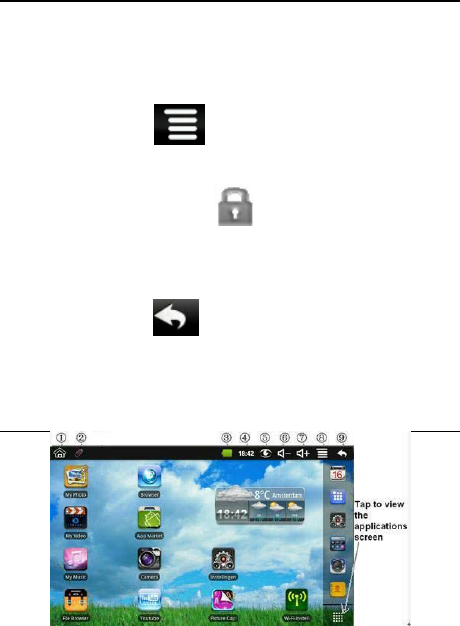
7 DESKTOP
① Return to Desktop from other apps
② SD card or U-disk is inserted and ready for use
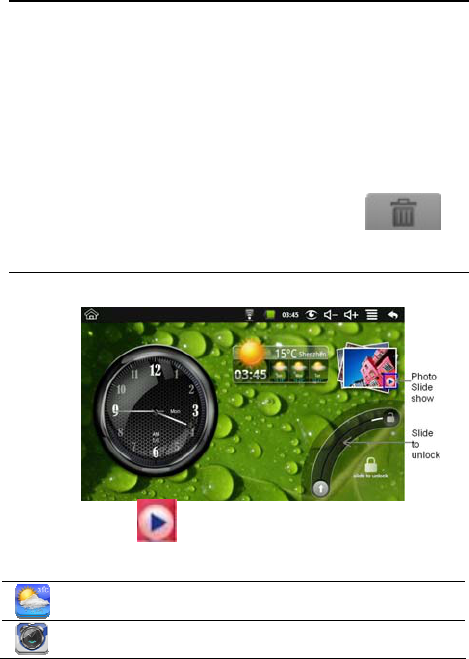
Seven inch MID User Guide
8
③ Battery charge status
④ Current Time
⑤ Picture capture icon
⑥ Volume reduction icon
⑦ Volume increase icon
⑧ Function Menu icon
⑨ Back icon
☆ Tap on any application icon to launch it.
☆ Touch, hold and then slide icons to reposition
then on the screen.
☆ Touch, hold and slide icons onto to
remove them from the Desktop screen.
8 Screen Lock
Can be set to automatically lock screen or quickly press the power
button to manually lock screen. Lock screen displays the following:
Tap the icon to enter My Photo to do slide show. And slide
the track like the picture to unlock.
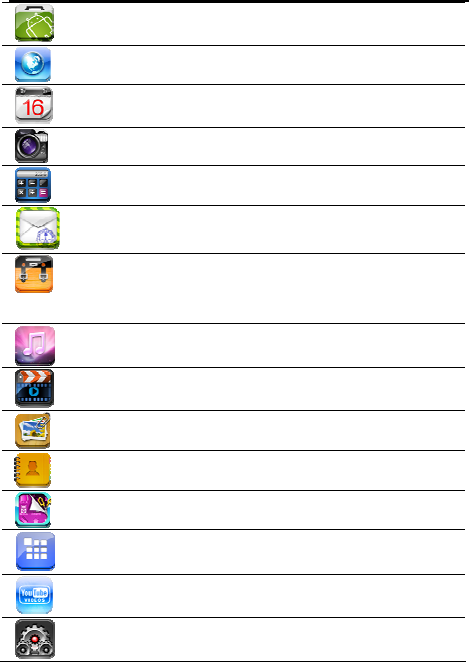
9 Pre-loaded Applications
Wmtweather Display the weather.
Clock Use as alarm clock with scheduled
alarms.
Seven inch MID User Guide
9
App
Market Downloaded applications quickly &
easily.
Browser Access the Internet and “surf the web”
whenever desired.
Calendar Calendar with ability to set events.
Camera Take photos and save to internal memory
or your memory device.
Calculator Do calculation.
Email Send/Receive email using your existing
email addresses.
File
Browser
File manager application for viewing and
managing files and apps. Use to install
Android apps, and to backup files to
your SD card.
My
Music Play and manage audio files.
My
Video Play and manage video files.
My
Photo View and manage photo files.
Contacts Create a list of personal contacts, which
can also be linked with your email.
Picture
Capture Capture image of the screen.
PK
Manager Application manager for managing
processes.
YouTube Quick launch to YouTube.com videos.
Settings Multiple settings for personalizing and
enhancing your Device.
Seven inch MID User Guide
10
☆ To move an icon to the Desktop screen, touch & hold
on the icon, and then release it when it appears
on the Desktop screen.
☆ Touch, hold and then slide icons to reposition then
on the screen.
☆ Touch, hold and slide icons onto to remove
them from the Desktop screen.
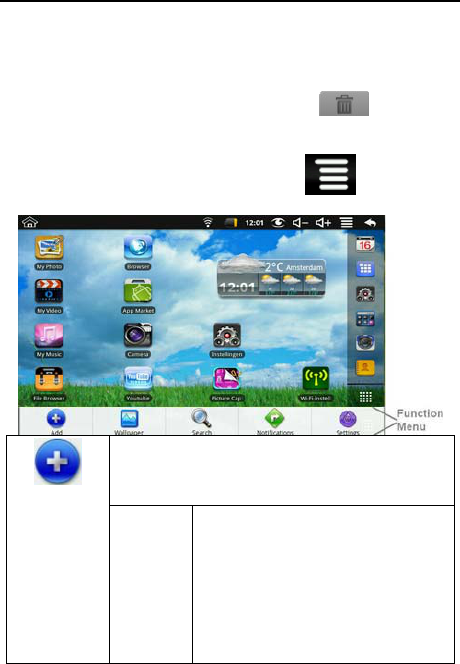
10 Desktop Function Menu
On the Desktop screen, you can tap to display the
Function Menu.
The viewable portion of the Desktop screen allows
only 16 icons. In order to add more items, finger
slide the screen horizontally to expose available
space, and then tap the Add button again.
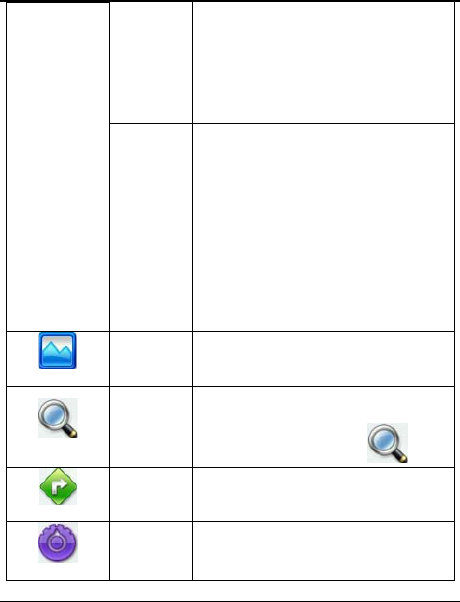
Add
Shortcuts
Add quick launch shortcuts on the
Desktop to applications, bookmarks or
settings.
☆ If you select items that
are shortcuts already on
the Desktop screen, they
will be duplicated,
resulting in multiple
icons for the same item.
Seven inch MID User Guide
11
Widgets
Analog clock: Add a round analog
clock.
Calendar: Add a calendar widget to
display current date & events.
Music Player: Add a music widget to
quickly begin playing music without
launching the music application.
Folders
New Folder: Add a folder into which
you can add applications as desired. To
move applications on the Desktop
screen into the folder, touch, hold &
drag the icons directly on top of the
folder icon.
To add applications from the All
Application screen, first tap on the
folder to open it, open the All
Application screen, and then touch &
hold on an application icon. It is copied
into the folder.
Wallpaper Select wallpaper from Picture and
Wallpapers.
Search
Perform a quick Google search.
Tap in the entry field, → enter the
desired search text, → tap .
Notifications
List any pending notifications (i.e., new
email, calendar events, etc).
Settings
See “Settings” on page 24.
11 Application Management
Install Android Applications
☆ There are many interesting and free Android
applications that can be found on the web. Just launch
Seven inch MID User Guide
12
your web browser and do a search for “Android
applications”.
Purchased or free Android applications that you have
downloaded to your computer can be installed quickly &
easily on your Tablet using the File Browser
application.
1. Copy the .apk files that you want to install onto a SD
card or USB device, → insert or connect to your
Device.
2. Tap the File Browser application icon.
3. Tap or and locate the folder in which
the .apk application files were saved.
4. Tap on a .apk file → Install.
The application is installed and the application icon is
added to the Applications screen.
5. Tap Open to launch the application now, or tap Done
to return to the File Browser screen.
Download Android Applications direct from a Website
You can download Android applications directly from
websites, and then quickly and easily install them on your
device.
1. Tap the Web application icon to launch the
internet browser.
2. Enter the desired website URL, and tap the download
link for the application you want to install on your
device.
3. After the download is complete, touch & hold on the
download file (in the Download history screen), →
tap Open → Install.
Uninstalling Android Applications
You can also quickly and easily uninstall the Android
applications that you have installed.
Seven inch MID User Guide
13
1. Tap → Settings → Applications →
Manage applications.
2. Tap the application you want to uninstall, →
Uninstall.
3. Tap OK to confirm the Uninstall.
12 WmtWeather
Tap the WmtWeather application icon.
General setting
You can set Temperature Unit(℃), Update frequency and
Auto Wallpaper.
My cities
You can add city and set it to be my city.
You can make the weather displayed on the Desktop through
adding widget. The way is: tap → Add → Widgets →
WmtWeather。
13 CLOCK
Tap the Clock application icon. You can see the time and
date. Alarm
You can use your device as an alarm clock by setting
multiple alarms.
☆ This clock icon displayed at the
top of screens indicates that one or more
alarms have been set and are active.
Seven inch MID User Guide
14
Add Alarm
1. Tap the Clock application icon.
2. Tap → Add alarm.
3. Set up your alarm as desired.
☆ If you don’t select a repeat, the
alarm is automatically deleted after
it is activated.
4. Tap Turn on alarm.
5. Tap Done.
Shut Off Alarm Alert
When a scheduled alarm is activated, a pop-up
window with the alarm title appears.
Tap Snooze if you want to be reminded again in 10
minutes.
Tap Dismiss to cancel the alert.
De-activate Alarms
On alarms that you have set to repeat, you may want
to temporarily de-activate alarms rather than delete
them.
1. In the Alarm screen, tap on the alarm(s)
you want to de-activate.
2. Tap to re-activate.
Edit Alarm
1. Tap the Clock application icon.
2. Tap on the alarm you want to edit, → make
desired edits.
Delete Alarm
1. Tap the Clock application icon.
2. Tap on the alarm you want to delete.
Seven inch MID User Guide
15
3. Tap → Delete alarm.
Tap to return to the Desktop screen.
14 APP MARKET
The App Market has many applications that you can quickly and
easily download to your Tablet.
Download Applications
1. Tap the App Market application icon.
2. You can select applications from the default Featured
group, by Categories, Top (latest, hottest, random), or
search by name.
3. Tap on an application, → Download.
☆ The first time, you are prompted for your App
Market login information. If you have not yet
registered an account, tap Register an Account.
Otherwise, enter your login information and tap
Yes.
4. After the app is downloaded, tap Install.
5. Tap Open to launch now, or Done to return to the App
Market screen.
History
After downloading apps, tap on History to manage
the installed applications. You can add and/or view
comments from other users, launch apps, and uninstall
them.
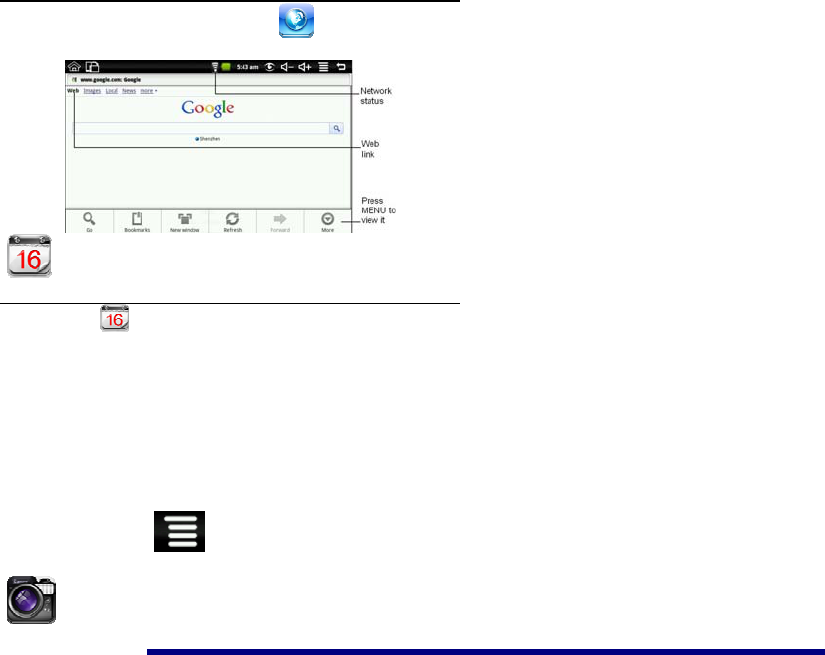
15 BROWSER
Users can connect to the Internet through a browser.
Seven inch MID User Guide
16
Click the browser icon on the Desktop , and then you can open
the Web browser.
16 CALENDAR
Tap the Calendar application icon.
For the first time using the Calendar, you need to add an Exchange
account. Enter account email address and password. Click Next and
follow the prompts to complete the account configuration. Then you
can use the Calendar.
Add Event
1. On the Calendar screen, tap on the date to which you
want to add an event.
2. Tap on the event time, → tap in each entry field to
enter the desired event information.
3. Tap Done.
4. Tap to select desired Calendar screen.
☆ Dates with green bars indicate scheduled events.
17 CAMERA
Seven inch MID User Guide
17
1. Tap the Camera application icon.
2. Aim the top of the device at your intended subject, → tap
to take the picture.
3. The picture will be saved.
Note: Please insert an SD card before using the camera.
Function Menu
Tap Menu button to display the camera function menu.
Switch to video
Switches to video mode, allowed you to immediately
take a video rather a picture.
Gallery
Display all pictures you have taken with the camera.
18 CALCULATOR
1. Tap the Calculator application icon.
2. Tap the numbers and sign of operation to do the calculation.
3. Tap CLEAR to clear the result.
19 EMAIL
☆ POP3 and SMTP accounts are supported.
Add Email accounts
You can enter one or more personal email addresses that you
would like to access through your Tablet.
1. Tap the Email application icon.
2. On the Your Accounts screen, tap Next.
3. Tap in the Email address entry field, → enter your
Seven inch MID User Guide
18
email address.
4. Tap in the Password entry field, → enter your email
password.
5. Tap Done.
6. Manual Setup (optional): The server settings are
automatically populated based on your email account
provider (i.e., gmail.com, etc). However, if you need to
change the server settings tap Manual Setup and make
necessary changes.
7. Tap Next.
8. Optional: Enter a name for the account.
9. Enter name for outgoing message, → tap Done.
☆ After setup, if you are unable to connect to a free email
account, check with your email provider to make sure
their servers support free accounts on Post Office
Protocol (POP) or Simple Mail Transfer Protocol
(SMTP).
Email Inbox
1. Tap the Email application icon.
2. If you set up only one email account, it opens
immediately. If you set up multiple accounts, they are
listed in the Accounts screen.
3. Tap on the desired email account, → tap Inbox.
Open Email Message
1. On the Inbox screen, tap on an email to open it.
2. For attachments, tap Open to launch
appropriate application, or tap Save to save
attachment to a SD card.
3. To replay, tap Reply or Reply all.
a. Tap in the Compose Mail entry field to enter
your reply message.
b. Tap Send to send immediately, Save as draft
to save without send or Discard to discard
without saving or sending.
4. To delete the email immediately, tap Delete.
Compose New Email Message
Seven inch MID User Guide
19
1. On the Inbox screen, tap → Compose.
2. Tap in the To entry field and then enter the
recipient’s email address.
3. Optionally, if you want to add Cc or Bcc
recipients, tap → Add Cc/Bcc, and then
enter the recipient’s email address.
4. Tap in the Subject entry field to enter your
desired subject title.
5. Tap in the Compose Mail area to enter your
personal message.
6. If desired, tap → Add Attachment to
attach a file.
7. When ready to send the email, tap →
Send.
Edit Email Account
1. Tap the Email application icon.
2. On the Inbox screen, tap → Account settings.
3. Set your desired preferences to customize your email
account.
4. Tap to return to the Inbox screen.
Delete Email Accounts
☆ If you have multiple accounts, and you delete the account
designated as the default account, the next email listed is
automatically set as the default.
1. Tap the Email application icon.
2. On the Inbox screen, tap → Accounts.
3. Touch & hold on the account you want to delete.
4. In the pop-up Account options window, tap Remove
Seven inch MID User Guide
20
account.
5. Tap OK to confirm the deletion.
Set Default Email Account
You must always have one account designated as the default
account, so if you have multiple email accounts, you can
select any one as the default.
1. Tap the Email application icon.
2. On the Inbox screen, tap → Account
Settings.
3. Tap Default Account to select it.
If you delete the account that was designated as the default
account, the next email listed is automatically designated as
the default.
20 FILE BROWSER
Tap the File Browser application icon to view the files on all
storage devices (Internal memory, SD card, USB device), and to
quickly & easily install Android application on your Tablet.
Use the icons across the top of the screen as follows:
Local disk (Internal memory)
Your SD card
U-disk/USB flash drive (using the included transfer
box)
Seven inch MID User Guide
21
Display precious folder
Create a new folder
Allows you to multi-select items
Copy Media between Computer and Tablet
You can use the File Browser to copy files between an
external storage devices and your computer. You must first
copy the desired files onto a SD card or USB device.
☆ The internal device storage is titled
“LocalDisk”, a memory card “sdcard”,
and a USB storage device is titled
“udisk”.
☆ The instructions below are for copying
from a SD card or USB storage device into
the device. You can use the same method
to copy from the device to a SD card or
USB storage device, and then connect the
storage device to your computer to
transfer the files into the desired
folder on your computer.
1. Tap the or to display the contents of
your storage device.
2. Tap and hold in the folder/file you want to copy, →
tap Copy.
3. Tap on the Internal Memory, → tap on the
folder into which you want to copy the file, → tap
Paste.
Delete files
Seven inch MID User Guide
22
Tap and hold on the folder/file you want to delete, → tap
Delete → OK to confirm the deletion.
21 MY MUSIC
☆ Audio file formats supported: MP2, MP3, WAV,
AAC, WMA.
Play Music
1. Tap the My Music application icon.
2. Select an audio file from
All/Albums/Artists/Directories/My Favourites/User
Defined Playlists to play it.
3. To stop the music, tap the Pause icon.
4. To leave the music playing and return to previous
screens, tap or tap to return to the
Desktop screen.
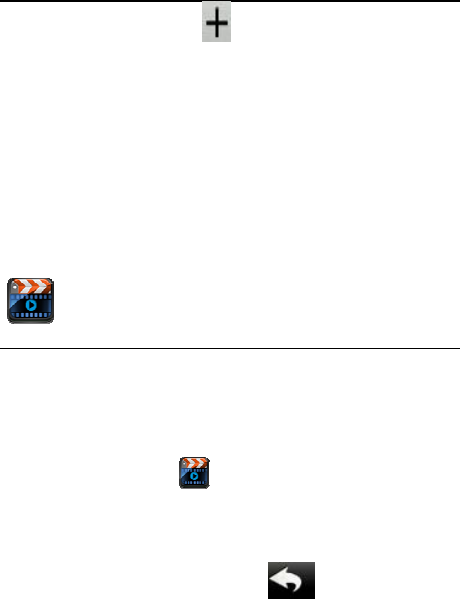
Tap the photo on the left corner can enter the Music Player
interface. It shows like:
At this interface, you can do: view the lyrics, play / pause,
switch to the previous / next, added to favorites, loop and
random operation etc.
The Operation with Music and Playlist
Add playlist
Seven inch MID User Guide
23
1. Tap on the left corner.
2. Input the playlist name.
3. Tap Add.
Rename or Delete playlist
Tap and hold in the playlist, → tap Rename or
Delete.
Add music
1. Tap and hold in the music you want to add, →
tap Add.
2. Click the following item to add music in it (if
you don’t want to add, tap Cancel).
Delete music
Tap and hold in the music you want to delete, → tap
Delete.
22 MY VIDEO
☆ Video file formats supported: MPEG1/2/4
、
MJPG
、
H263
、
H264. In addition to H264 which is
supported by (720× 480) resolution, the other
video formats are supported (1280×720)
resolution.
Play Video
1. Tap the My Video application icon.
2. Select a video file from All/ Directories/My
Favourites/User Defined Playlists to play it.
3. Tap on the screen to display video controls (adjust
volume, pause/play, previous/next, adjust brightness).
4. Tap Back button or to return to the My
Video screen.
The Operation with Video and Playlist
Add playlist
Seven inch MID User Guide
24
1. Tap on the left corner.
2. Input the playlist name.
3. Tap Add.
Rename or Delete playlist
Tap and hold in the playlist, → tap Rename or
Delete.
Add video
1. Tap and hold in the video you want to add, →
tap Add.
2. Click the following item to add video in it (if
you don’t want to add, tap Cancel).
Delete video
Tap and hold in the video you want to delete, → tap
Delete.
23 MY PHOTO
☆ Photo file formats support: JPG, JPEG, BMP, and
PNG.
1. Tap the My Photo application icon, → tap on a photo
group.
2. To view individual photo, tap on the desired photo.
3. Tap Back button to return to the photo gallery screen.
4. Tap to make slideshow. There is Normal play,
Reminiscently, Activity, Romantic, Tranquil and Fresh.
5. Tap to make the picture sort by color.
6. Tap to make the picture sort by time.
7. Tap to make the picture sort by name.
Doodle
In My Photo you can do doodle.
Seven inch MID User Guide
25
Click the icon to enter doodle interface. You can
select different doodle operations, including: word balloons,
titles, stickers and brush.
24 CONTACTS
You can create an address book of your personal contacts, including
personal notes as desired.
Add New Contacts
1. Tap the Contacts application icon.
2. Tap → New Contact.
3. Tap in the name fields to enter the contact’s first & last
name.
4. Tap at the right of options to reveal additional
choices.
5. Tap on the option name to reveal choices.
6. Tap in the option entry fields to enter the contact’s
information.
7. Tap Done.
Add Contact to Favorites
1. In the Contacts screen, tap on the desired contact
name.
2. Tap in the upper right corner.
3. Tap to return to the Contacts screen.
4. Tap Favorites to view list of favorite contacts.
Edit Contacts
1. In the Contacts screen, tap on the desired contact
Seven inch MID User Guide
26
name you want to edit.
2. Tap → Edit Contact.
3. Make desired changes, → tap Done.
Delete Contacts
1. In the Contacts screen, touch & hold on the contact,
→ tap Delete contact.
OR
In the Contacts screen, tap on the contact you want to
delete, tap → Delete Contact.
2. Tap OK to confirm the deletion.
25 PICTURE CAPTURE
You can capture a screen image by tapping at any time.
Tap the Picture Capture application icon to set options
for a screen capture.
●Select a delay timer to automatically capture the screen in
desired number of seconds.
●Select the default storage device for saving your images.
After the images are saved, they can be viewed though
My Photo application.
26 PK MANAGER
Use PK Manager to manager applications and widgets.
Stopping Applications
Seven inch MID User Guide
27
Android does not automatically stop applications after they
are loaded, so you can manually stop the applications as
desired.
1. Tap the PK Manager application icon. The
list of applications that are running is displayed.
2. Tap on an application you want to stop, → tap Force
stop.
Uninstall Applications
1. Tap the PK Manager application icon. The
list of applications that are running is displayed.
2. Tap , → tap Third Party or All to list more
applications.
3. Tap on an application you want to uninstall, → tap
Uninstall.
4. Tap OK to confirm uninstall.
27 YouTube
1. Tap the YouTube application icon to view
YuTube.com videos.
2. Tap on a video to launch it.
3. Tap on the screen to display video controls (adjust volume,
pause/play, previous/next, adjust brightness).
4. Tap Back button to return to the YouTube screen.
28 SETTINGS
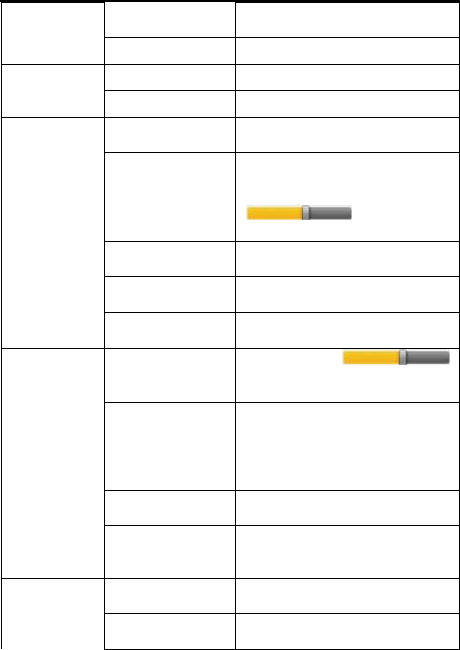
Wireless & Wi-Fi Turn on Wi-Fi.
Seven inch MID User Guide
28
Wi-Fi Settings Set up & manage wireless access
points.
networks
Airplane mode Disable all wireless connections.
Mass storage Configure USB to mass storage.
USB ADB Configure USB to ADB.
Silent mode Silence all sounds except media
& alarms.
volume
To adjust the Media volume,
Alarm volume and Notification
volume. Tap & slide
and then tap
OK.
Notification
ringtone Select desired ringtone sound.
Audible selection Select to enable a sound when
making a screen selection.
Sound
Screen lock
sounds Play sounds when locking and
unlocking the screen.
Brightness Tap & slide
to adjust the screen brightness as
desired, and then tap OK.
Auto-rotate
screen
When selected, the orientation of
the screen switches between
Portrait and Landscape
automatically when you rotate
the device.
Screen timeout Adjust the delay before the
screen automatically turns off.
Display
Suspend timeout Adjust the delay before the
device automatically suspend
after the screen turn off.
Set up screen
lock Lock screen with a pattern, PIN,
or password.
Security
Visible
passwords Show password as you type.
Seven inch MID User Guide
29
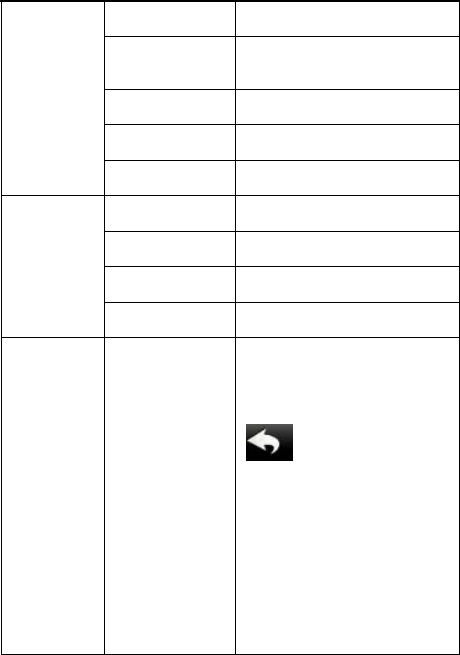
Select device
administrators Add or remove device
administrators.
Use secure
credential
Allow applications to access
secure certificates and other
credentials.
Install from
SD card Install encrypted certificates
from SD card.
Set password Set or change the credential
storage password.
Clear storage Clear credential storage of all
contents and rest its password.
Unknown
sources Allow installation of non-Market
applications.
Manage
applications Manage and remove installed
applications.
Running services View and control currently
running services.
Applications
Development Set options for application
development.
Privacy Factory data
reset
Tap to reset the device to its
initial factory state, erasing all
data and downloaded
applications. Tap Reset Device
to proceed with reset, or tap
to cancel and return to
previous screen.
WARNING! The following will
be erased during the factory
reset: ~ Google account
~ System and application
data and settings
~ Downloaded
applications
The factory reset will NOT
Seven inch MID User Guide
30
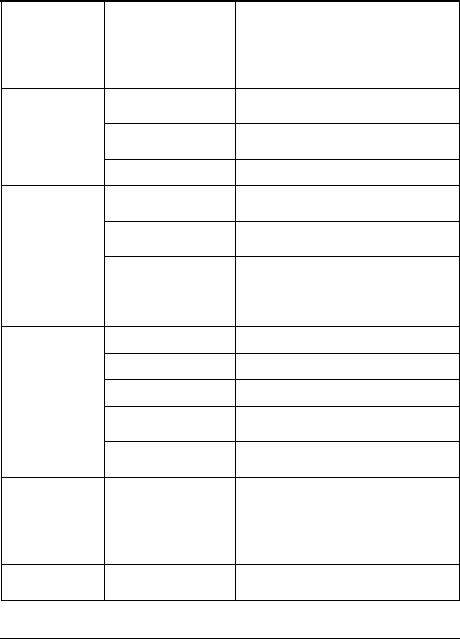
erased:
~ Current system software
and bundled applications
~ SD card files, such as
music or photos
Total space,
Available space It values appears when a SD card
is inserted in device.
Unmount SD
card When the SD card is inserted, tap
it to safety remove the SD card.
SD card &
device
storage
Format SD card N/A for this device.
Select language Select the language and region
according to your location.
Android
keyboard Onscreen keyboard settings.
Language &
keyboard
User dictionary
You can add words to a personal
dictionary, words that may not be
included in the default
dictionary.
Set date Set the date.
Select time zone Select the time zone.
Set time Set the time.
Use 24-hour
format You can choose to use 24-hour
format or 12-hour format.
Date & time
Select date
format You can select the date format.
About
device
View Status (Battery, Wi-Fi,
etc), Battery use, Legal
information, Model number,
Android version, Kernel version
and Build number.
Touchpanel
calibration Calibrate the touch screen.
Frequently Asked Questions
Android

Seven inch MID User Guide
31
Q: What Android OS version is on my Device?
A: 2.2
Basic Device Function
Q: Do I have to charge the battery before use?
A: You should charge the battery for at least 4 hours, but you
can use the device while it’s charging. Use the include
power adapter to charge; this device does not charge via
the USB cable.
Email
Q: Can I use any of my personal email addresses to
send/receive email?
A: The device supports POP3 and SMTP accounts. Some
free email accounts are not supported on mobile devices.
Check with your email provider to see if you account is
supported.
Media Cards
Q: Which media cards are compatible with my Device?
A: micro SD cards.
Photos
Q: What type of photo files can I view on my device?
A: JPG,JPEG, BMP and PNG
Remark: This device can support flash 10.1
Battery Management
The battery is not fully charged out of the box, so it is recommended
that you charge the battery for at least 4 hours before you start to
use the device.
The rechargeable battery is designed and manufactured to be used
and recharged frequently. As with all batteries, the capacity of the
battery reduces each time it is charged/depleted. However, you can
still try to prolong the battery’s lifetime by following the
suggestions below:
● Use your Tablet at least once a week.
● Charge the battery regularly and fully.
● Never leave the battery fully discharged for a long period
of time.
● Always keep the device and the battery away from heat.

Seven inch MID User Guide
32
Charge battery
Plug the power adapter into an electrical wall outlet, and then
connect to the device to fully charge the battery before use
(approx. 4hour).
☆ You cannot charge the battery using the USB cable.
When fully charged, the battery icon displays as: .
A fully discharged battery takes approximately 5 hours to
fully charge, but you can use the device while plugged in
when desired.
Important Safety Precautions
Always follow these basic safety precautions when using your
Tablet. This reduces the risk of fire, electric shock, and injury.
● Do not expose this product to rain or moisture.
● Keep the device out of direct sunlight and heat sources.
● Protect the power cord. Route power cords so that they
are not likely to be walked on or pinched by items
placed on or against them. Pay particular attention to
the point where the cord attaches to the device.
● Only use the AC adapter included with the device.
Using any other power adapter voids your warranty.
● Do not remove the cover. There are no user-serviceable
parts inside.
Clean your Device
Treat the screen gently. To clean fingerprints or dust from the
screen, we recommend using a soft, non-abrasive cloth such
as a camera lens cloth.

Seven inch MID User Guide
33
Federal Communications Commission (FCC) Statement
This device complies with part 15 of the FCC Rules. Operation is subject
to the following two conditions: (1) This device may not cause harmful
interference, and (2) this device must accept any interference received,
including interference that may cause undesired operation.
Note: This equipment has been tested and found to comply with the limits
for a Class B digital device, pursuant to part 15 of the FCC Rules. These
limits are designed to provide reasonable protection against harmful
interference in a residential installation. This equipment generates, uses
and can radiate radio frequency energy and, if not installed and used in
accordance with the instructions, may cause harmful interference to radio
communications. However, there is no guarantee that interference will not
occur in a particular installation. If this equipment does cause harmful
interference to radio or television reception, which can be determined by
turning the equipment off and on, the user is encouraged to try to correct
the interference by one or more of the following measures:
z Reorient or relocate the receiving antenna.
z Increase the separation between the equipment and receiver.
z Connect the equipment into an outlet on a circuit different from that
to which the receiver is connected.
z Consult the dealer or an experienced radio/TV technician for help.
Warning: Changes or modifications made to this device not expressly
approved by Shenzhen Firstview Electronic Co.Ltd. may void the FCC
authorization to operate this device.
Note: The manufacturer is not responsible for any radio or tv interference
caused by unauthorized modifications to this equipment. Such
modifications could void the user’s authority to operate the equipment.