Fitlight Dashboard Manual
2016-08-09
: Fitlight Dashboard Manual Dashboard Manual
Open the PDF directly: View PDF  .
.
Page Count: 20
INDEX
1
FITLIGHT Trainer™ See The Light www.fitlighttraining.com
MANUAL OVERVIEW 2
WHAT IS THE FITLIGHT Trainer™ DASHBOARD? 3
DATA UPLOAD OVERVIEW 4
FITLIGHT Trainer™ APP UPDATE OVERVIEW 5
QUICK SETUP GUIDE 6
DETAILED SETUP GUIDE 7
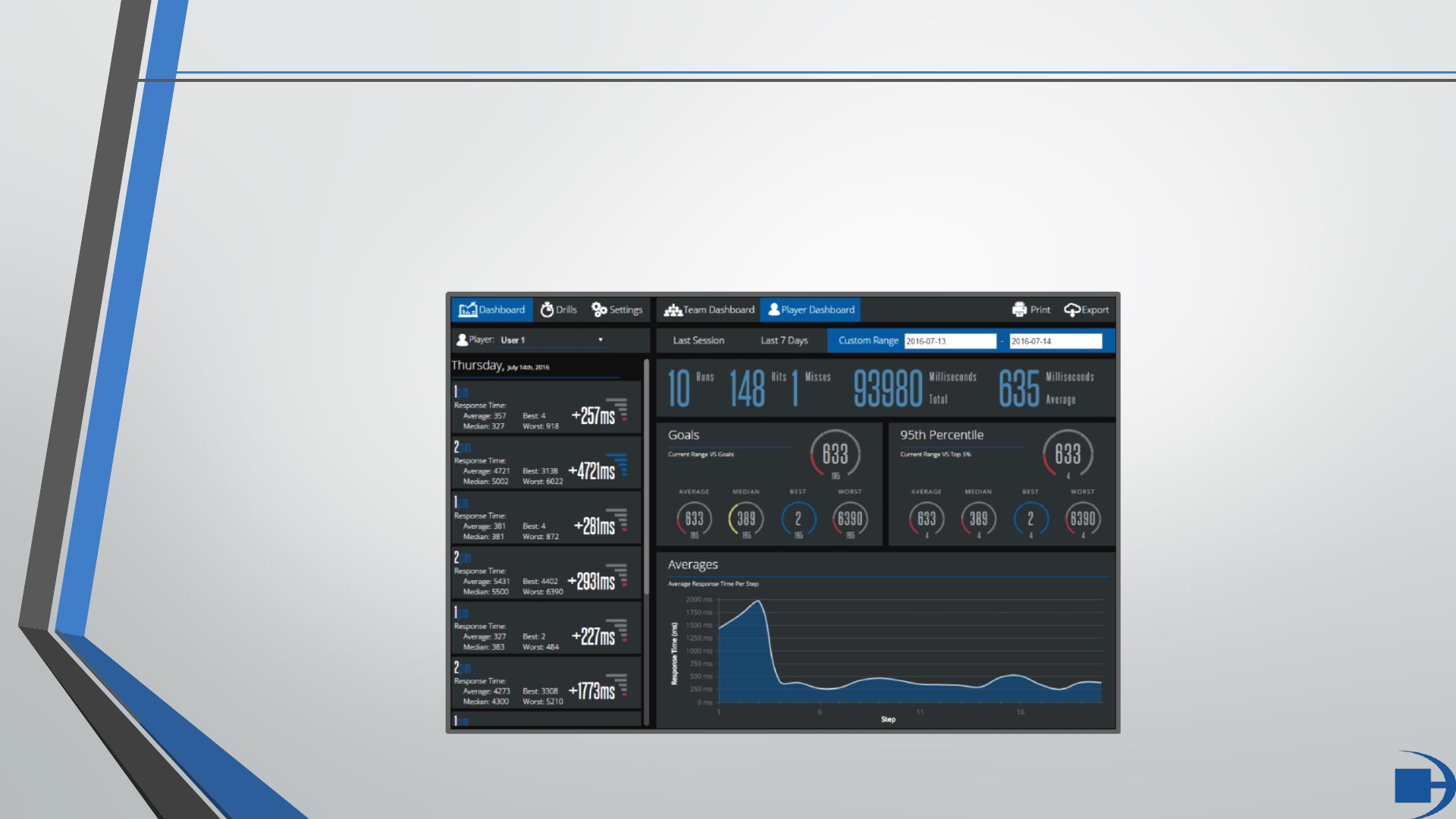
DASHBOARD OVERVIEW 10
PLAYER DASHBOARD OVERVIEW 11
TEAM DASHBOARD OVERVIEW 12
DRILLS DASHBOARD OVERVIEW 13
DRILL MANAGEMENT 14
PLAYER MANAGEMENT 15
TEAM MANAGEMENT 16
SESSION MANAGEMENT 17
EXPORTING DATA 18
PRINTING DATA 19
INTERFACE OVERVIEW
SETTINGS OVERVIEW
SETUP

MANUAL OVERVIEW
2
This manual is intended to give users a complete overview of the
FITLIGHT Trainer™ Dashboard from initial setup to exporting data.
FITLIGHT Trainer™ See The Light www.fitlighttraining.com
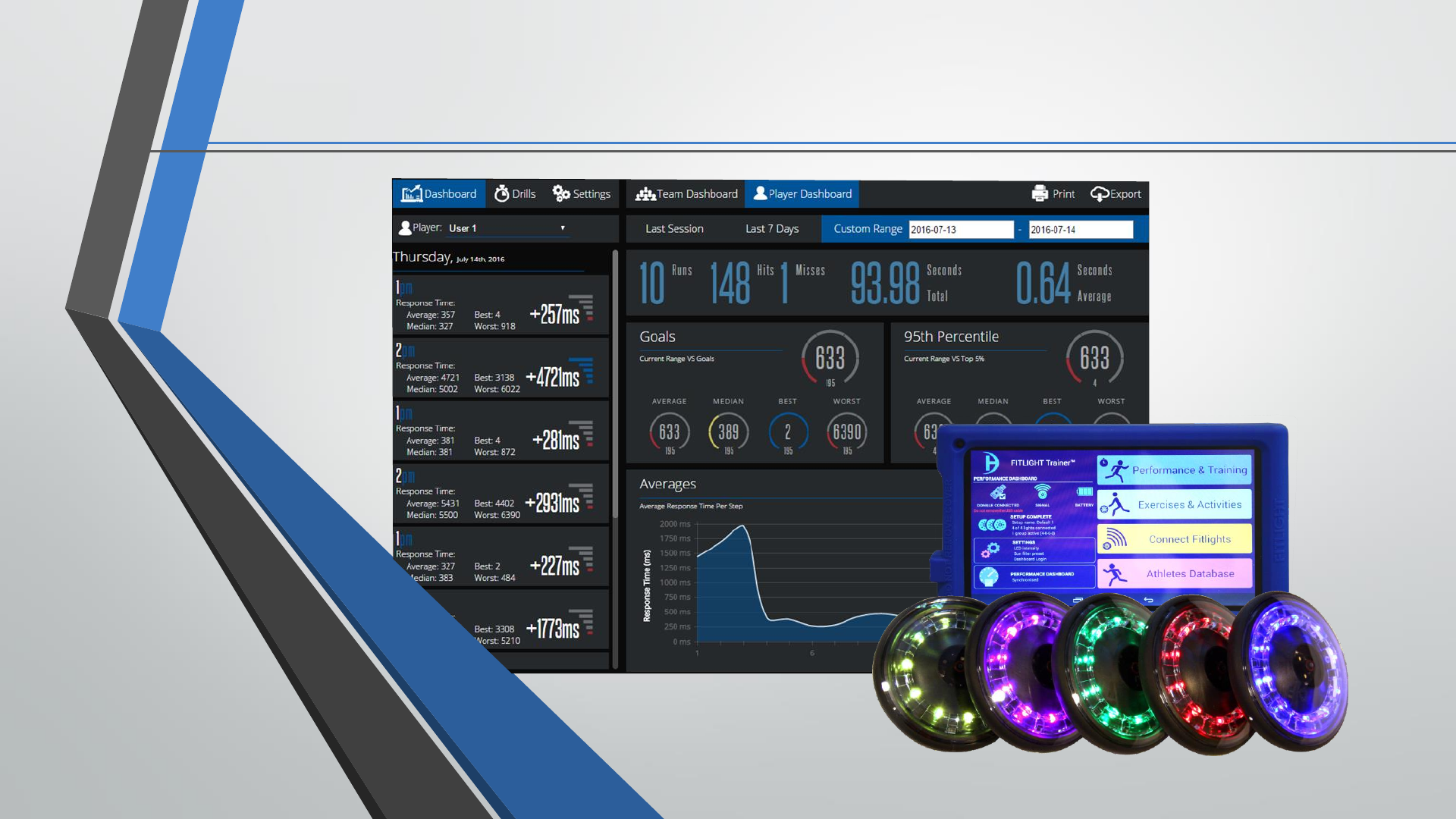
WHAT IS THE FITLIGHT Trainer™ DASHBOARD?
The FITLIGHT Trainer™ Dashboard is a cloud-based utility that offers
users a central location to view and analyze all of their training data.
FITLIGHT Trainer™ See The Light www.fitlighttraining.com 3
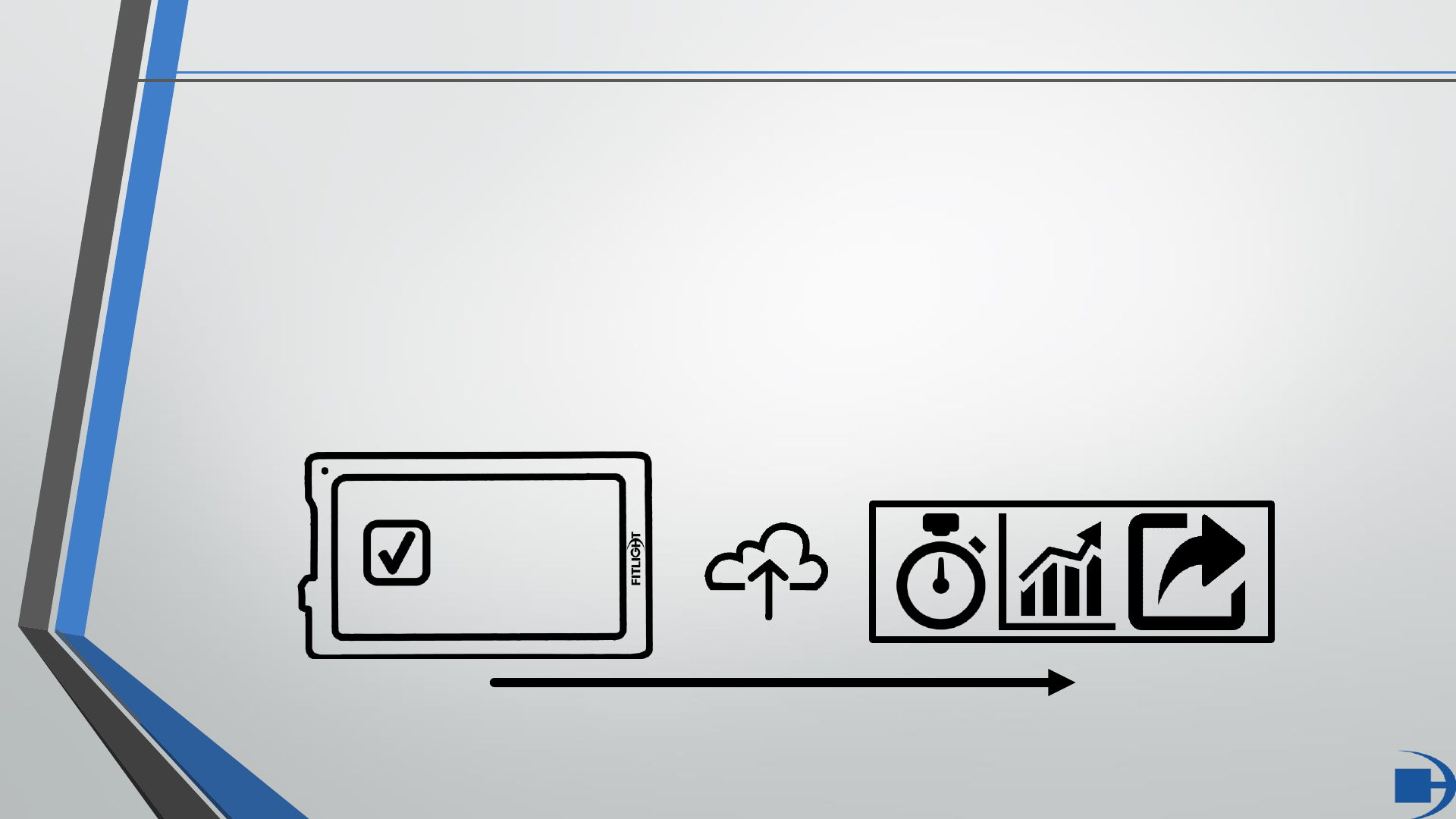
DATA UPLOAD OVERVIEW
4
Uploaded automatically after each saved session, training
data is quickly and easily accessed online giving users the
freedom to view, analyze, compare, and export as they see fit.
FITLIGHT Trainer™ See The Light www.fitlighttraining.com
DASHBOARD
SAVE DATA
FITLIGHT Trainer™ APP UPDATE OVERVIEW
5
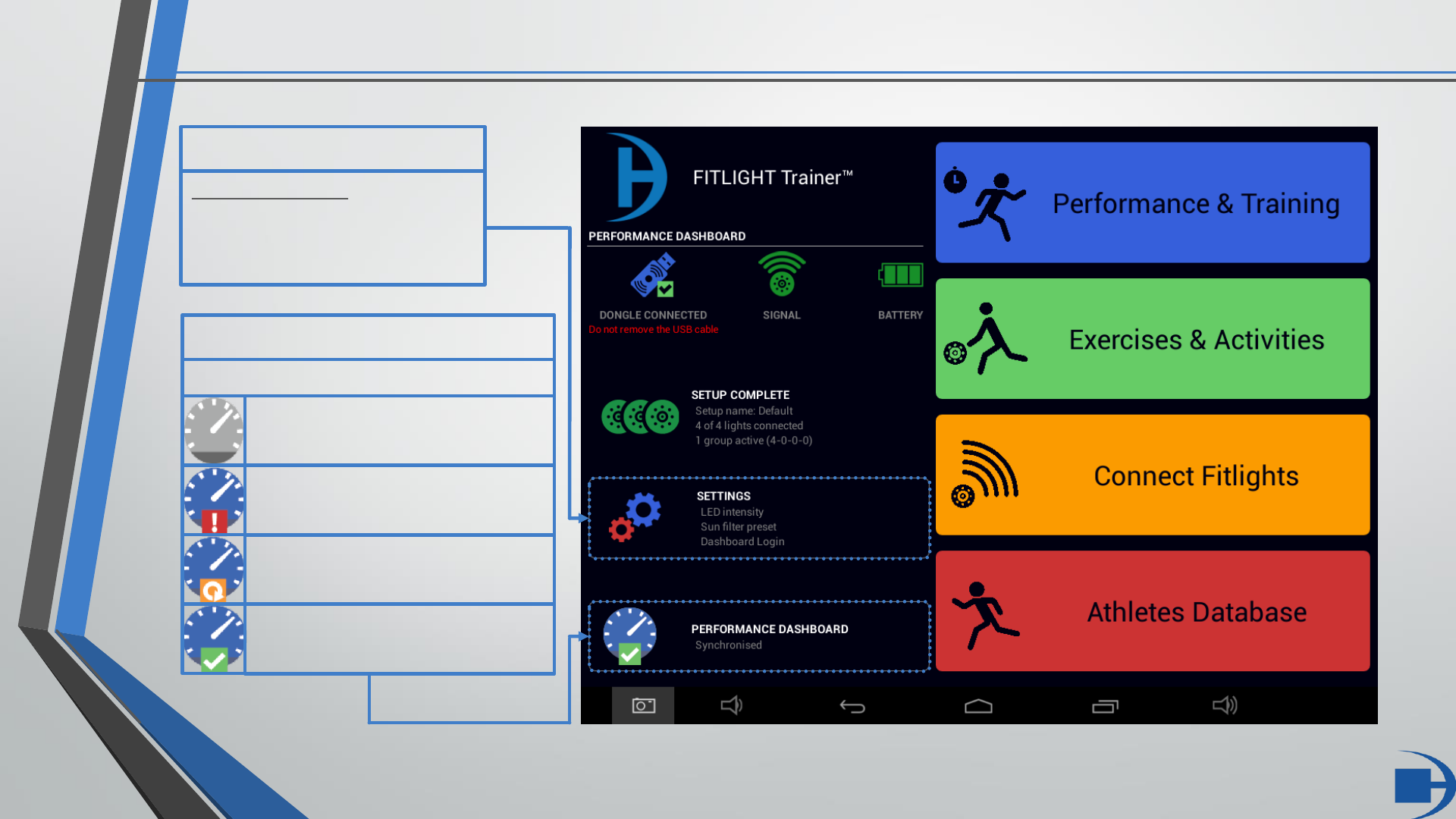
SETTINGS
Dashboard Login
Advanced Settings
Check for Update
About
PERFORMANCE DASHBOARD
Status of dashboard synchronisation
Disabled
Unavailable
Sync in Progress
Sync Successful
FITLIGHT Trainer™ See The Light www.fitlighttraining.com
QUICK SETUP GUIDE
6
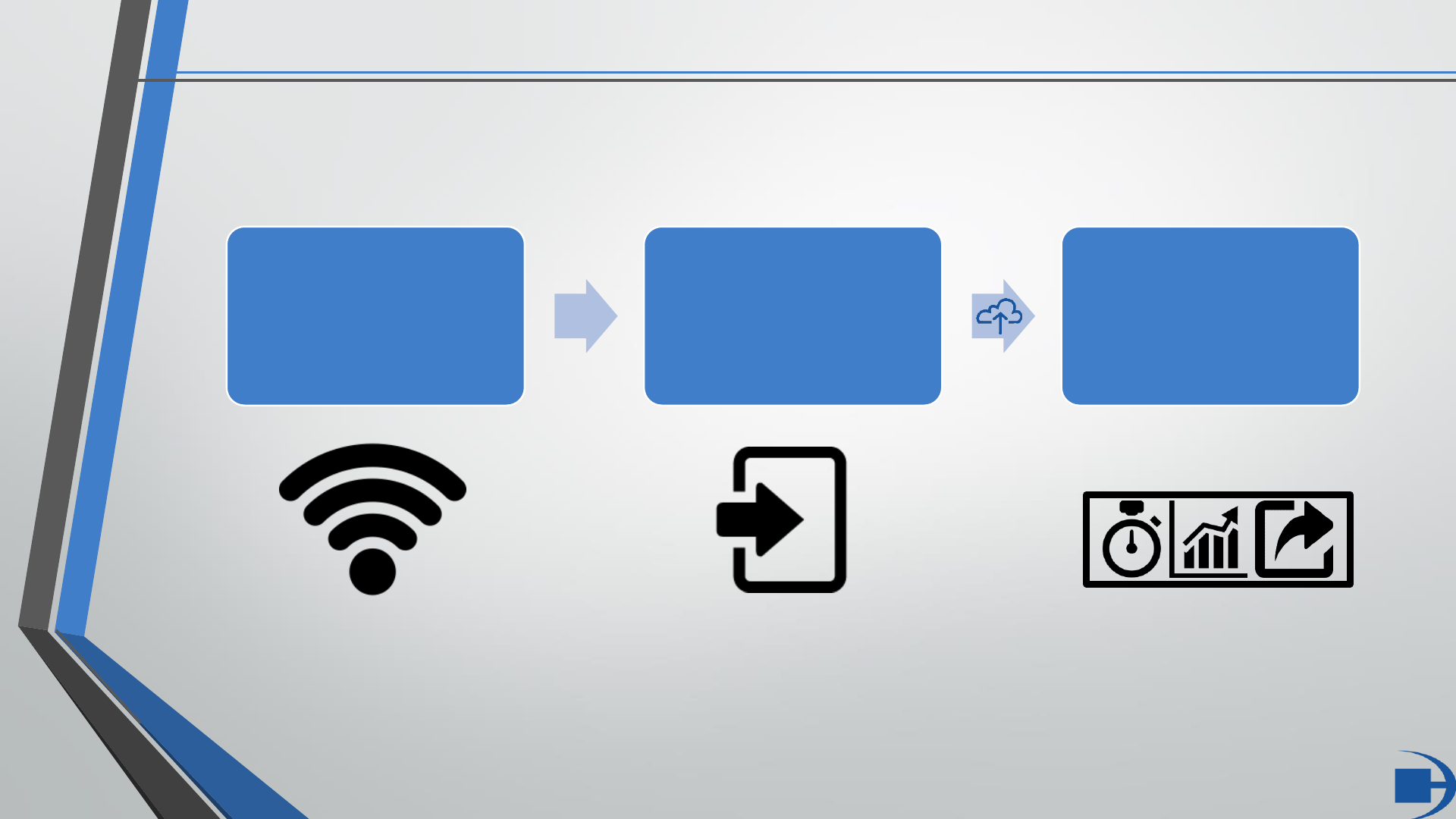
Establish
Tablet Wi-Fi
Connection
Login to
Dashboard on
Tablet
Access
Dashboard
Online
DASHBOARD
FITLIGHT Trainer™ See The Light www.fitlighttraining.com
Sync
DETAILED SETUP GUIDE
7
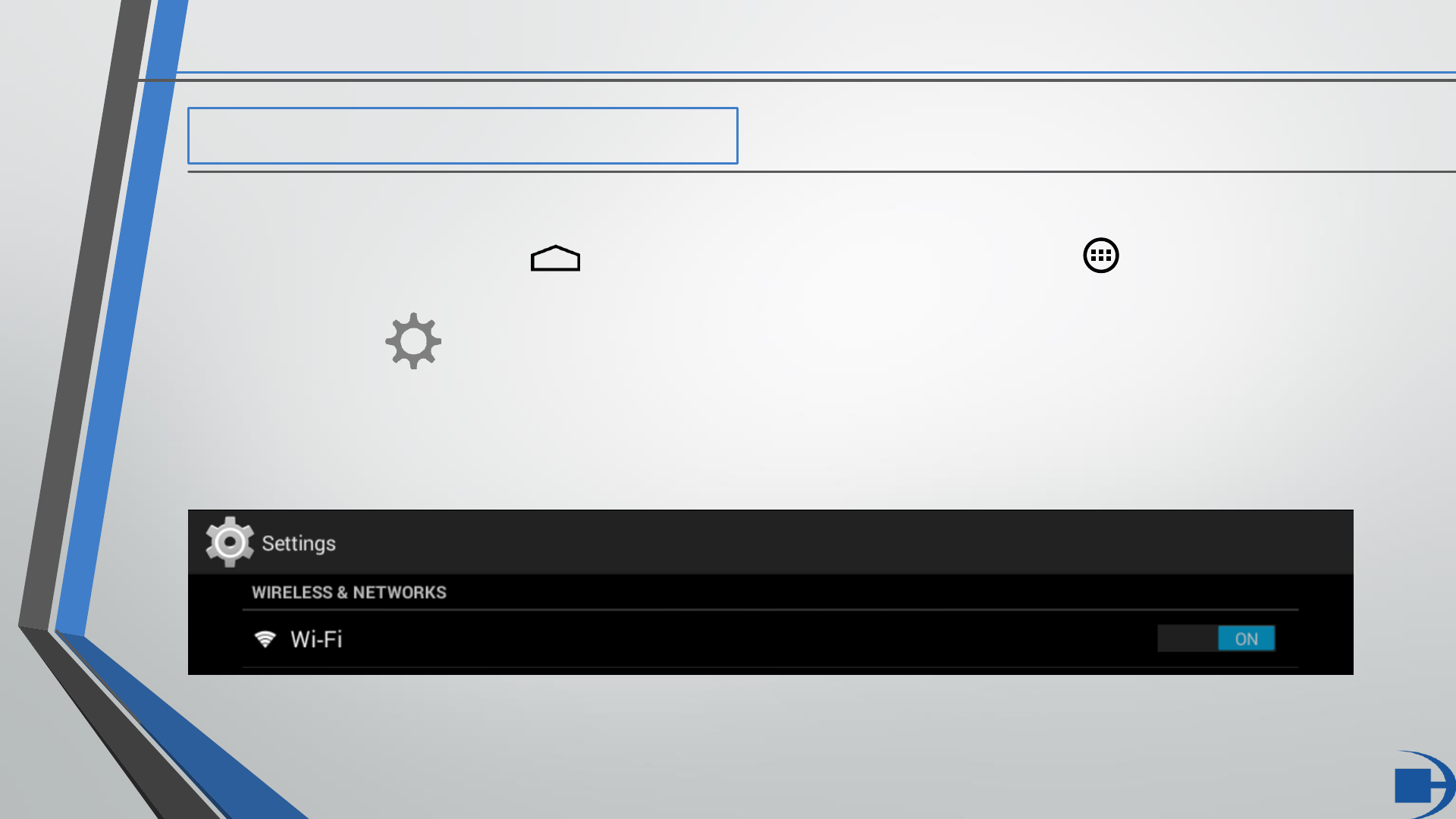
1. ESTABLISH WI-FI CONNECTION
To ensure that you have a Wi-Fi connection established, you must first open the tablet ‘SETTINGS’.
This is found by pressing the icon at the bottom of your screen, then the icon on the right side of the
screen, which opens your apps folder.
Next, select the icon, opening the tablet ‘SETTINGS’.
Under ‘SETTINGS’ you’ll find ‘WIRELESS & NETWORKS’, with the option to turn the Wi-Fi ON/OFF. Ensure
that this is turned “ON”, then by clicking on “Wi-Fi” you will be directed to a list of available connections.
FITLIGHT Trainer™ See The Light www.fitlighttraining.com
DETAILED SETUP GUIDE
8
2. LOGGING IN TO THE DASHBOARD ON THE TABLET
FITLIGHT Trainer™ See The Light www.fitlighttraining.com
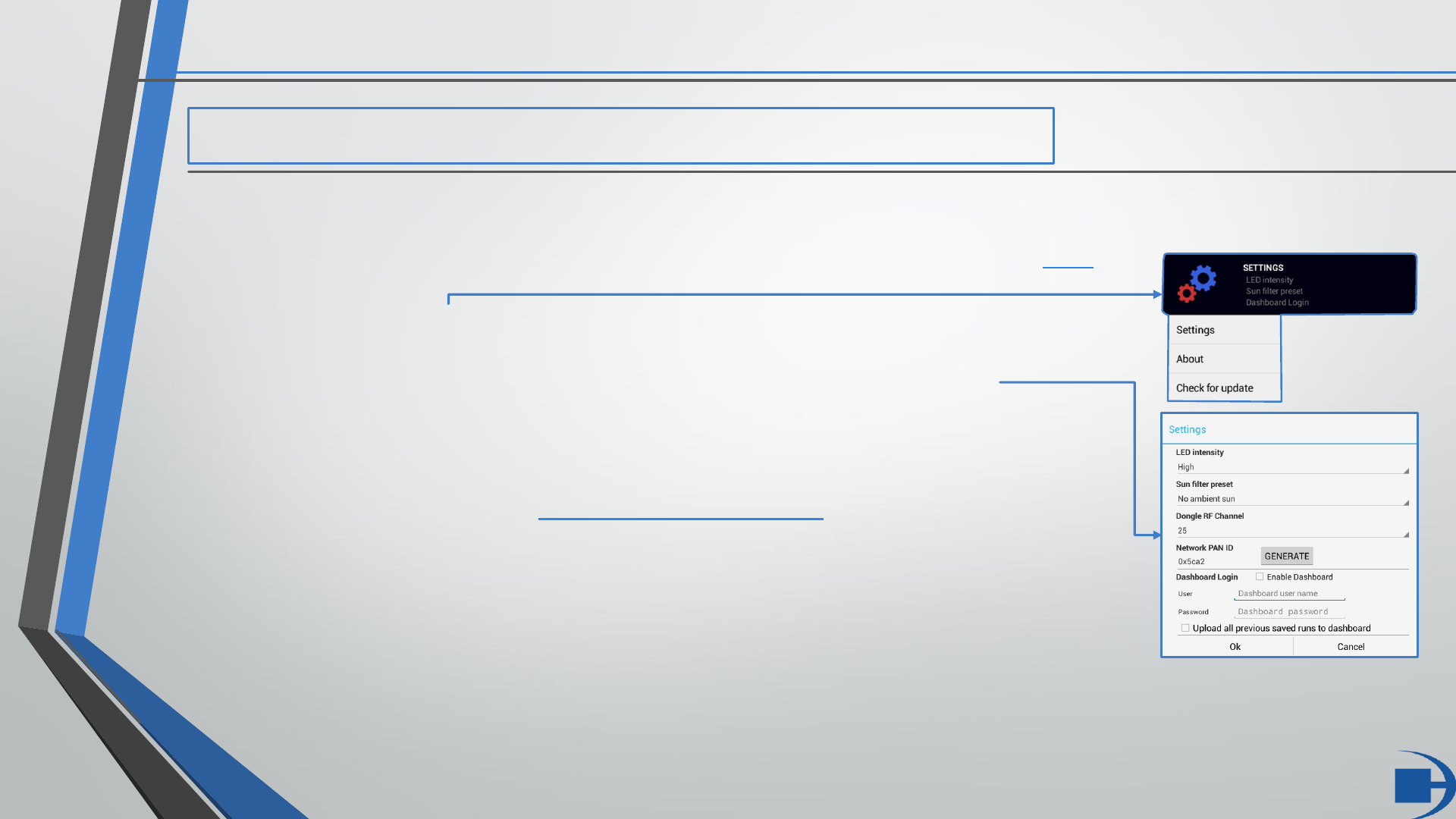
In order to log in to the Dashboard on the tablet, you must first open the FITLIGHT Trainer™ program.
Once the app is running, you’ll notice an updated user interface as pictured here.
By selecting the “SETTINGS” button, you will be prompted with a drop-down menu:
Choose “Settings” in this menu which will open the “Settings” window.
Here you will find the Dashboard Login. In order for the tablet to properly sync
with the Dashboard you must use your User Login and password (the same which
you registered your system at www.fitlighttraining.com with).
Once you have entered your login information, select “Enable Dashboard”, and if
desired select “Upload all previous saved runs to dashboard”. Selecting this option
will upload any runs you have previously saved on the tablet to the Dashboard.
You can now select “Ok” which will close the “Settings” window and begin the data upload to the Dashboard.
DETAILED SETUP GUIDE
9
3. LOGGING IN TO THE DASHBOARD ONLINE
FITLIGHT Trainer™ See The Light www.fitlighttraining.com
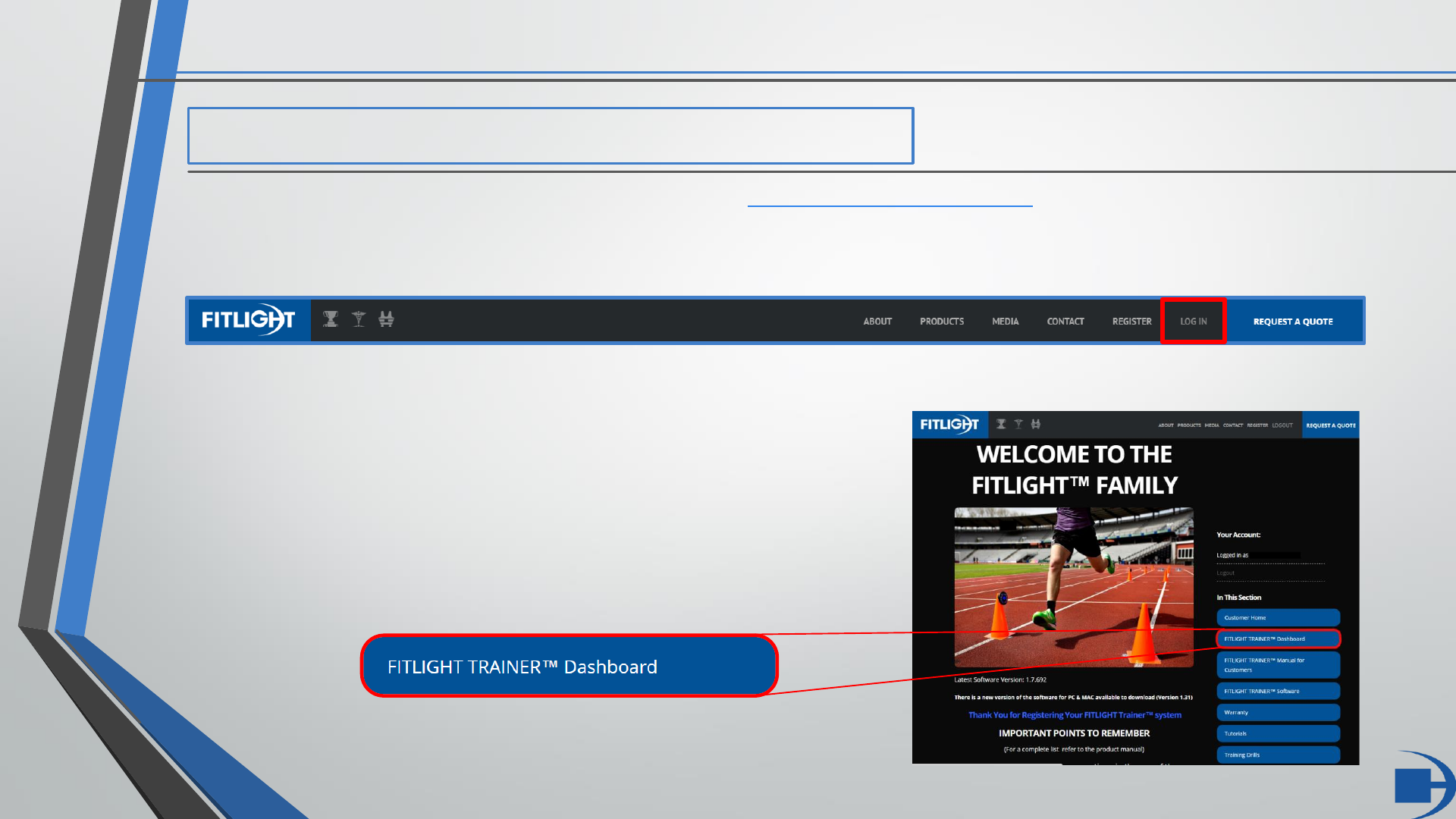
The Dashboard is accessed through our website: www.fitlighttraining.com
Once on our website you can find the customer ‘LOG IN’ button located in the top right of the toolbar.
By selecting ‘LOG IN’ you will be prompted for your Username and Password. This is the same information you
used when registering your FITLIGHT Trainer™ System.
Once you have successfully logged in you will be shown your
customer Home Page. You can then find the Dashboard
button 2nd from the top in the list of buttons along the right
side of the page.
DASHBOARD OVERVIEW
10
FITLIGHT Trainer™ See The Light www.fitlighttraining.com
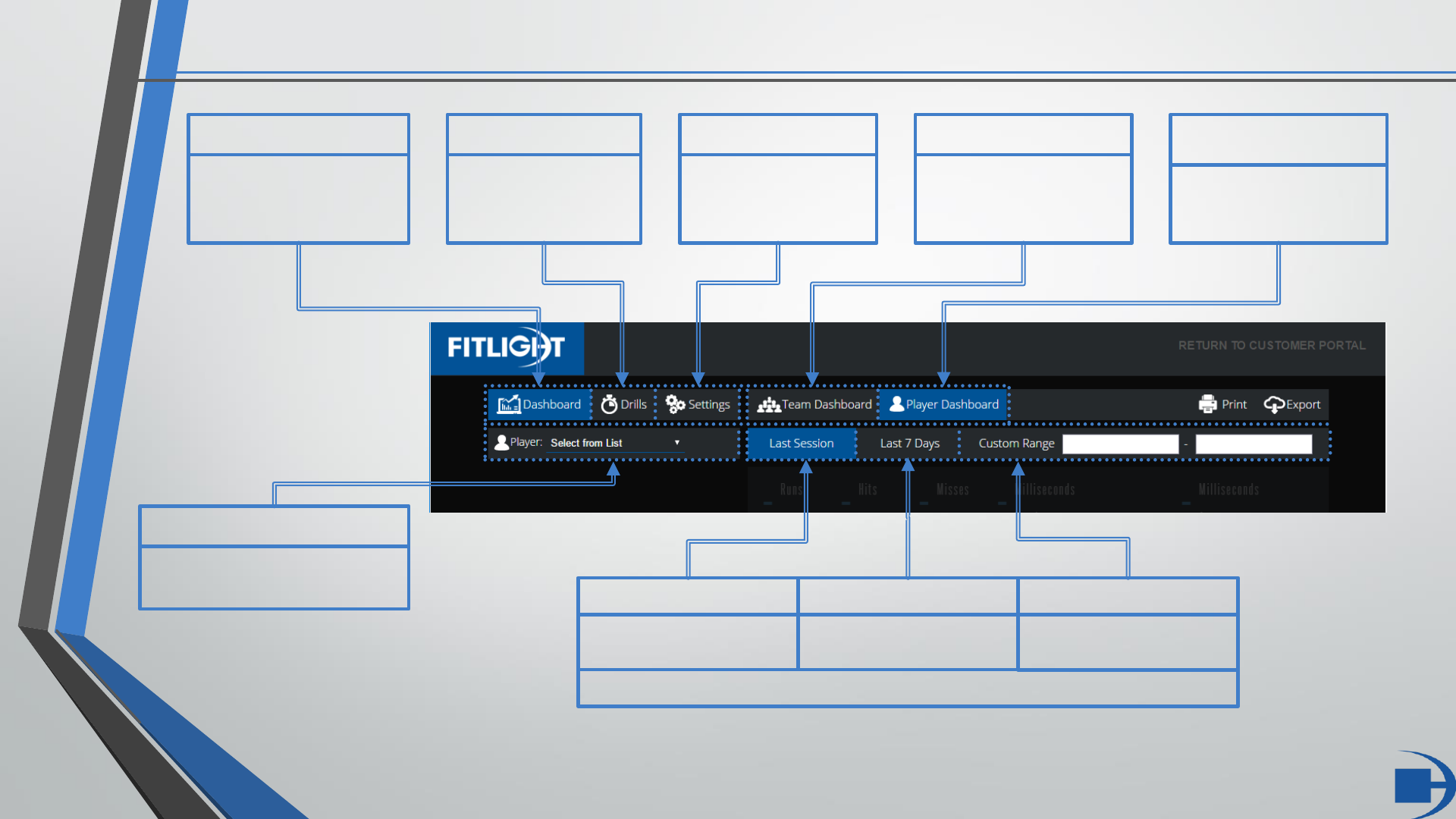
Player Dashboard
Select to view players
individually
Team Dashboard
Select to view teams
of players, as set
under ‘Settings’
Select Player
Choose an individual player
from your Athlete Database
Dashboard
The main page to view
either Player or Team
training data and drills
Drills
View training data
by drill, as assigned
under ‘Settings’
Settings
Edit Drills, Player
Info, Team info, and
session uploads
Last Session
Displays data from the
last uploaded session
Time Period Selection
Last 7 Days
Displays data uploaded
from the previous 7 days
Custom Range
Displays data based on a
range set by the user
PLAYER DASHBOARD OVERVIEW
FITLIGHT Trainer™ See The Light www.fitlighttraining.com 11
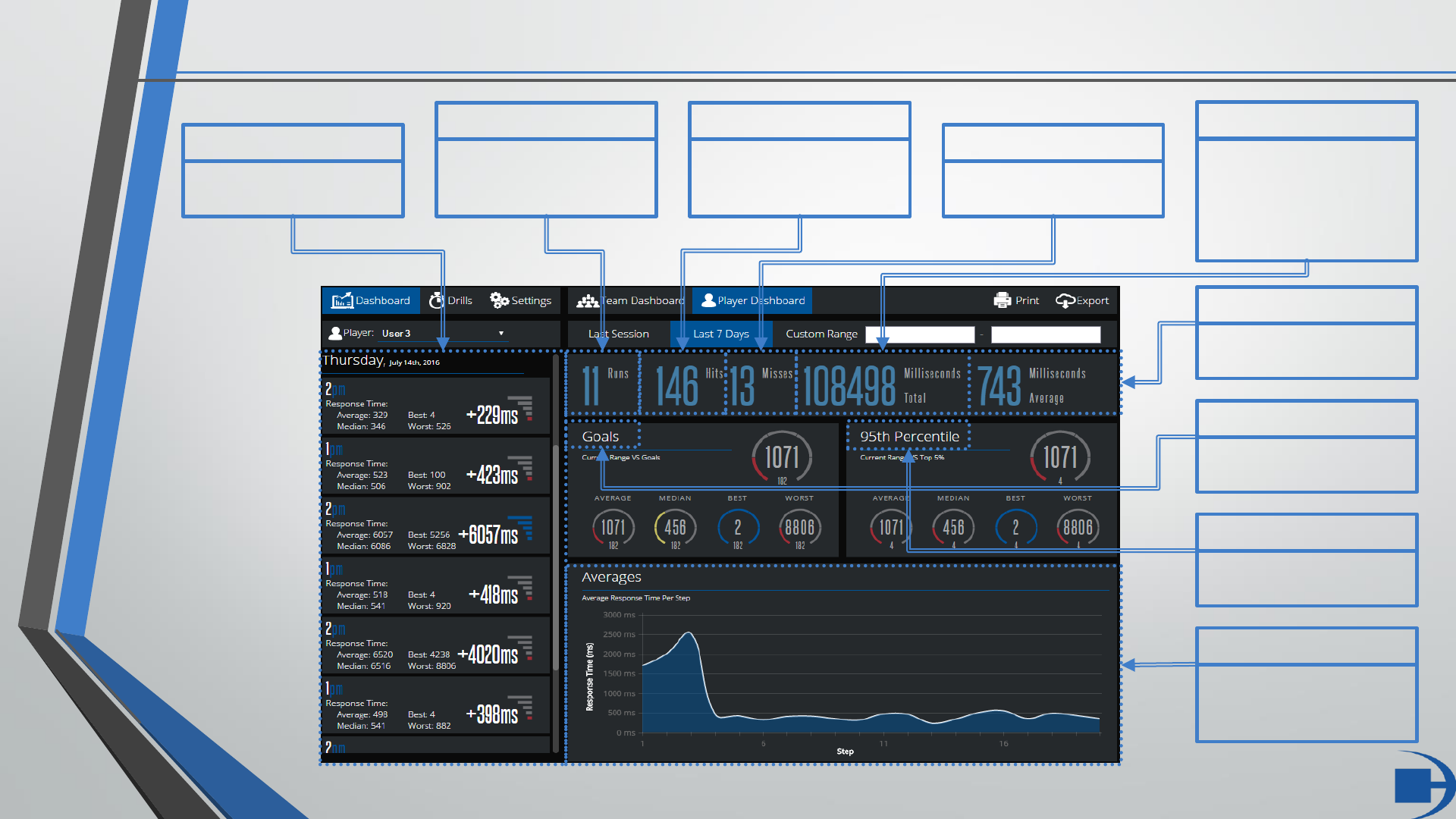
Goals
User data compared to set
goals
Runs
Total number of runs
included in the selected
time period
Data
List of runs based on the
selected time period
95th Percentile
Data compared to the top
5% best user results
Averages
Graphical view of average
response time per step of
program
Hits
Total number of light
deactivations included in
the selected time period
Misses
List of misses based on
the selected time period
Total
Cumulative time of all
runs in selected time
period
Average
Average time per run in
selected time period
TIP: Click to toggle between
milliseconds and seconds
TEAM DASHBOARD OVERVIEW
FITLIGHT Trainer™ See The Light www.fitlighttraining.com 12
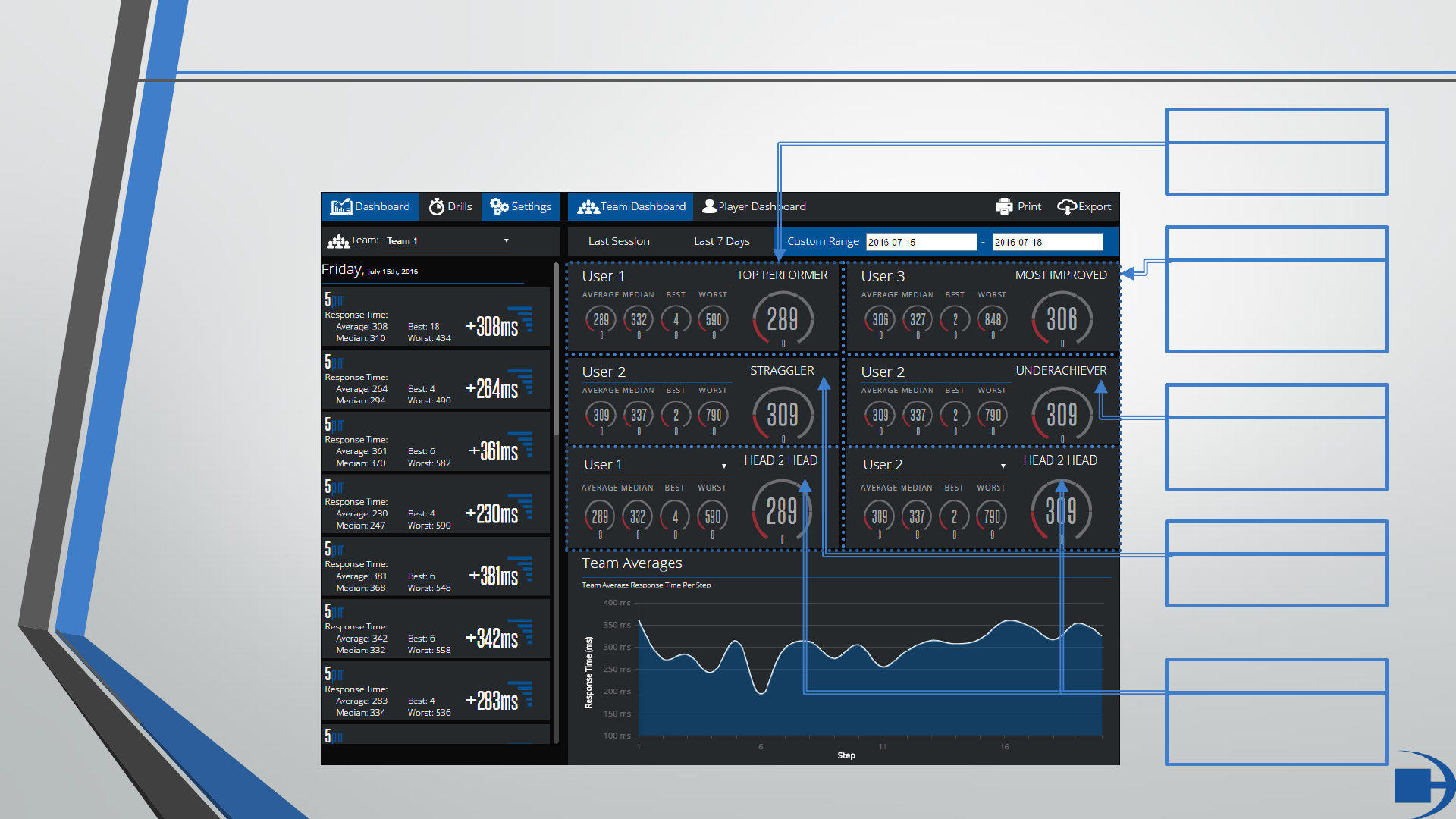
Top Performer
Displays the top performing
team member
Most Improved
Displays the team member
with the most improved
stats over the selected time
range
Straggler
Displays the lowest
performing team member
Underachiever
Displays the team member
whose performance is
declining
Head 2 Head
Compare the stats of two
team members against one
another
DRILLS DASHBOARD OVERVIEW
FITLIGHT Trainer™ See The Light www.fitlighttraining.com 13
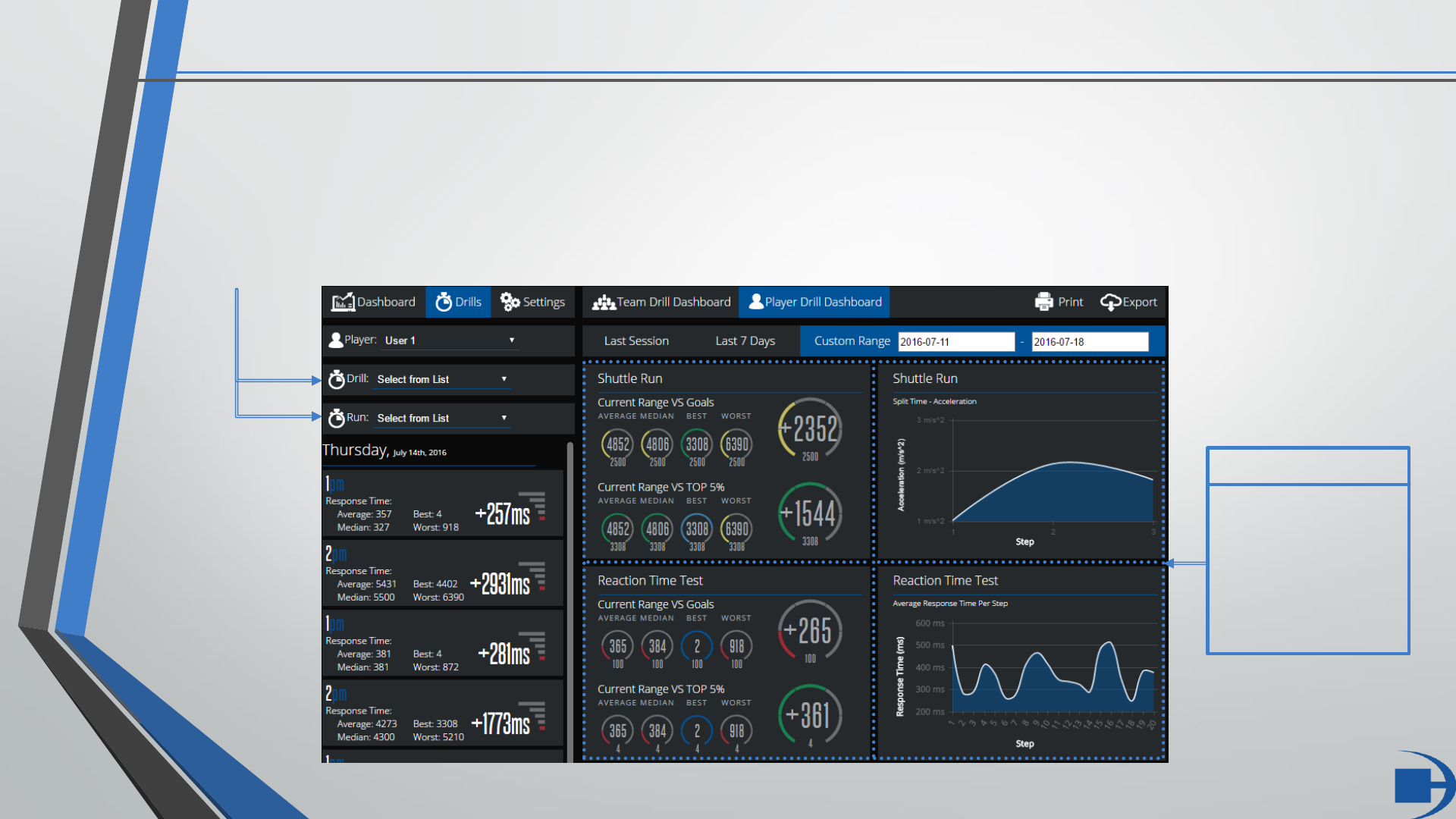
The Drills page allows for viewing of Programmed Sequence training data and sessions that have had a Drill
assigned to them via the “Session Management” configuration (under “Settings”).
Specific Drills and Runs (based on the selected time range) can be selected via the drop down menus.
These can also be left blank to display a general overview of the data.
TIP
Clicking each of the
4 quadrants allows
the user to cycle
through different
display options for
the data!
DRILL MANAGEMENT
FITLIGHT Trainer™ See The Light www.fitlighttraining.com 14
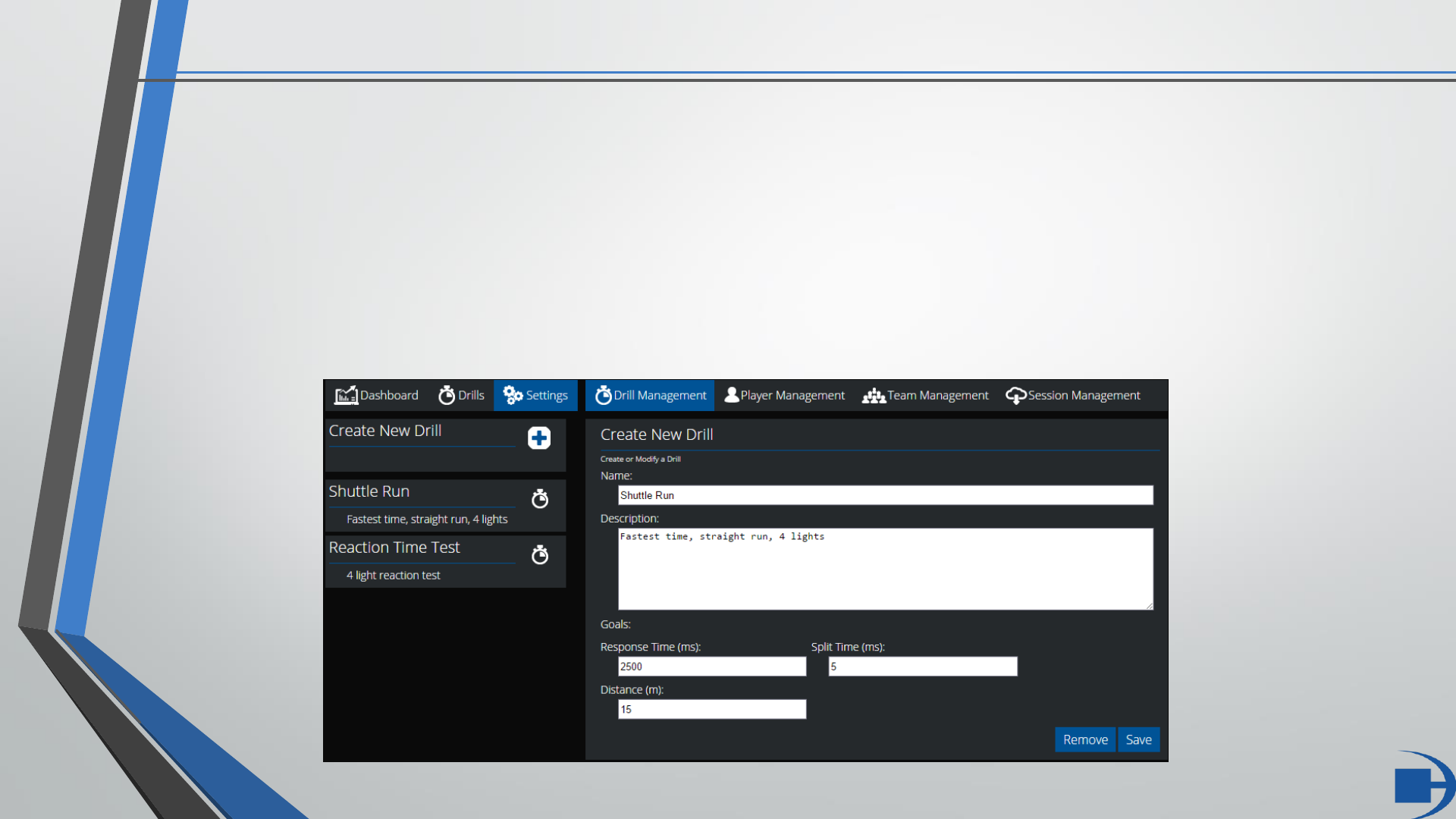
The Drill Management tab allows for the creation, editing, and removal of Drills.
User created Programmed Sequences will appear here when data is saved after a run.
The Response Time goal can be set for any Drill/Programmed Sequence.
The Split Time and Distance goals are relevant only to Split Time and other custom routines involving distance.
PLAYER MANAGEMENT
FITLIGHT Trainer™ See The Light www.fitlighttraining.com 15
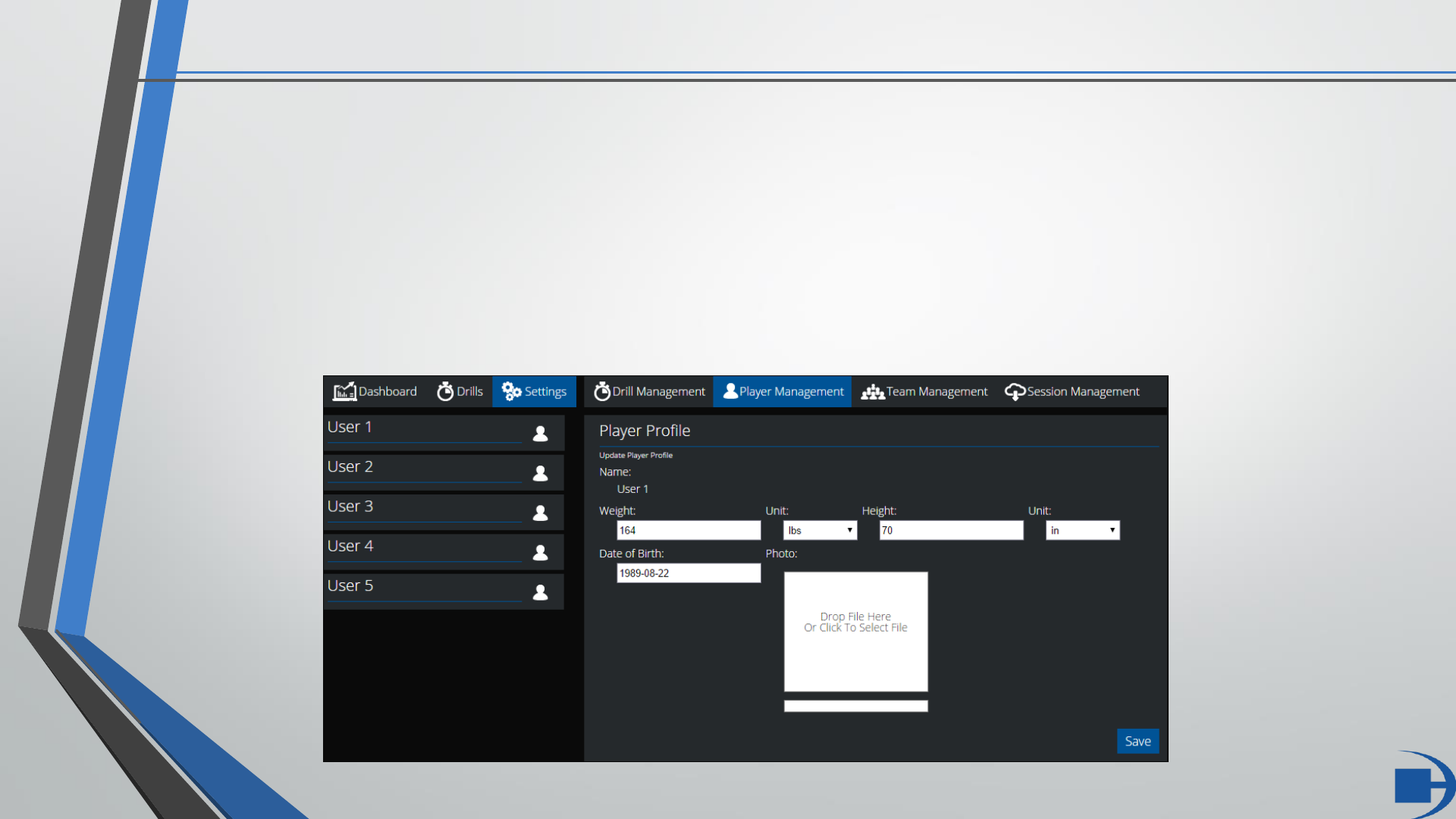
The Player Management tab allows for the adding/editing of information for all users in the Athlete Database.
Users can add weight (lbs/kgs), height (in/cm), date of birth, and a photo for each Athlete.
Be sure to select ‘Save’ once you have finished entering the information for each Athlete.
TEAM MANAGEMENT
FITLIGHT Trainer™ See The Light www.fitlighttraining.com 16
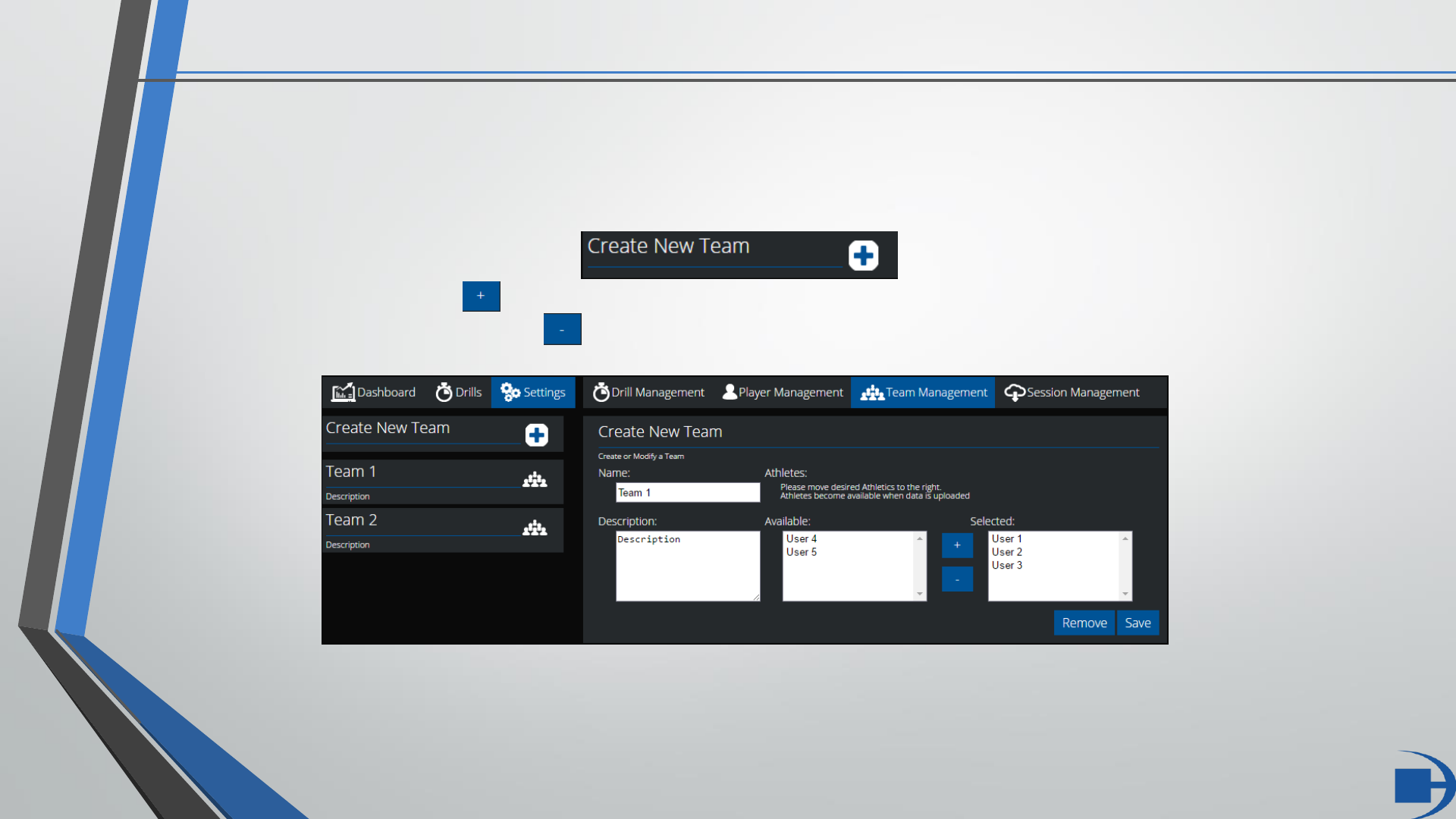
The Team Management tab allows for the creation, editing and removal of user created teams.
The team can have a name and description as defined by the user.
Teams are created by clicking the icon, then selecting an “Available” athlete from
the list and clicking the icon. Similarly, athletes can be removed from a team by selecting an athlete in the
“Selected” list and clicking the icon.
SESSION MANAGEMENT
FITLIGHT Trainer™ See The Light www.fitlighttraining.com 17
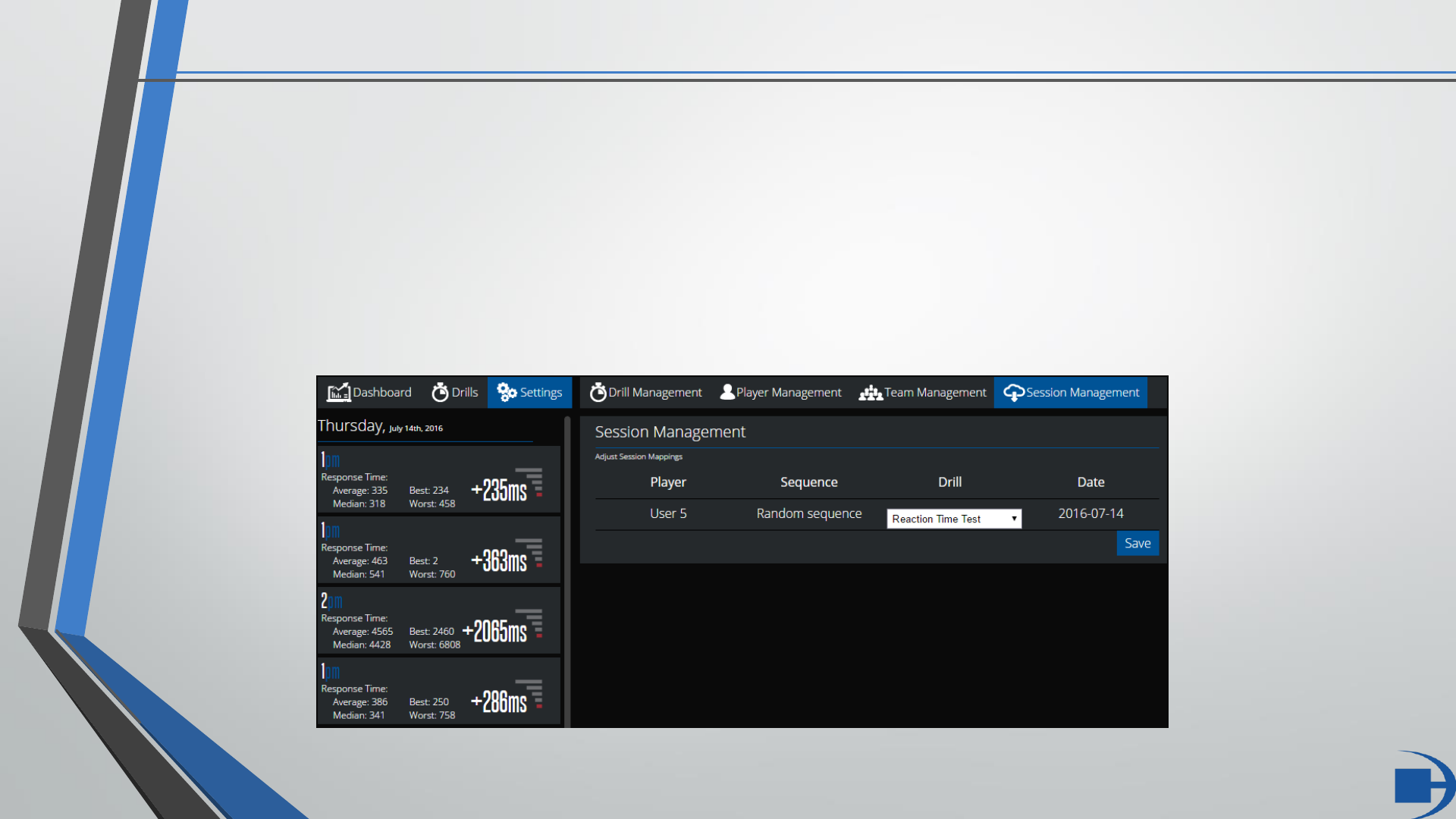
The Session Management tab allows for users to assign Drills to uploaded Random Training and Split Time Test runs,
or assign a different Drill to a Programmed Sequence upload.
By assigning a Drill to an uploaded session users can then compare their training results against set goals.
To do so, select a specific run from the list of uploads (sorted chronologically) on the left, it will then display whether
it was a Random Sequence, Split Time Test or a custom Programmed Sequence. Select the desired Drill from the
drop down menu and click ‘Save’.
EXPORTING DATA
18
FITLIGHT Trainer™ See The Light www.fitlighttraining.com
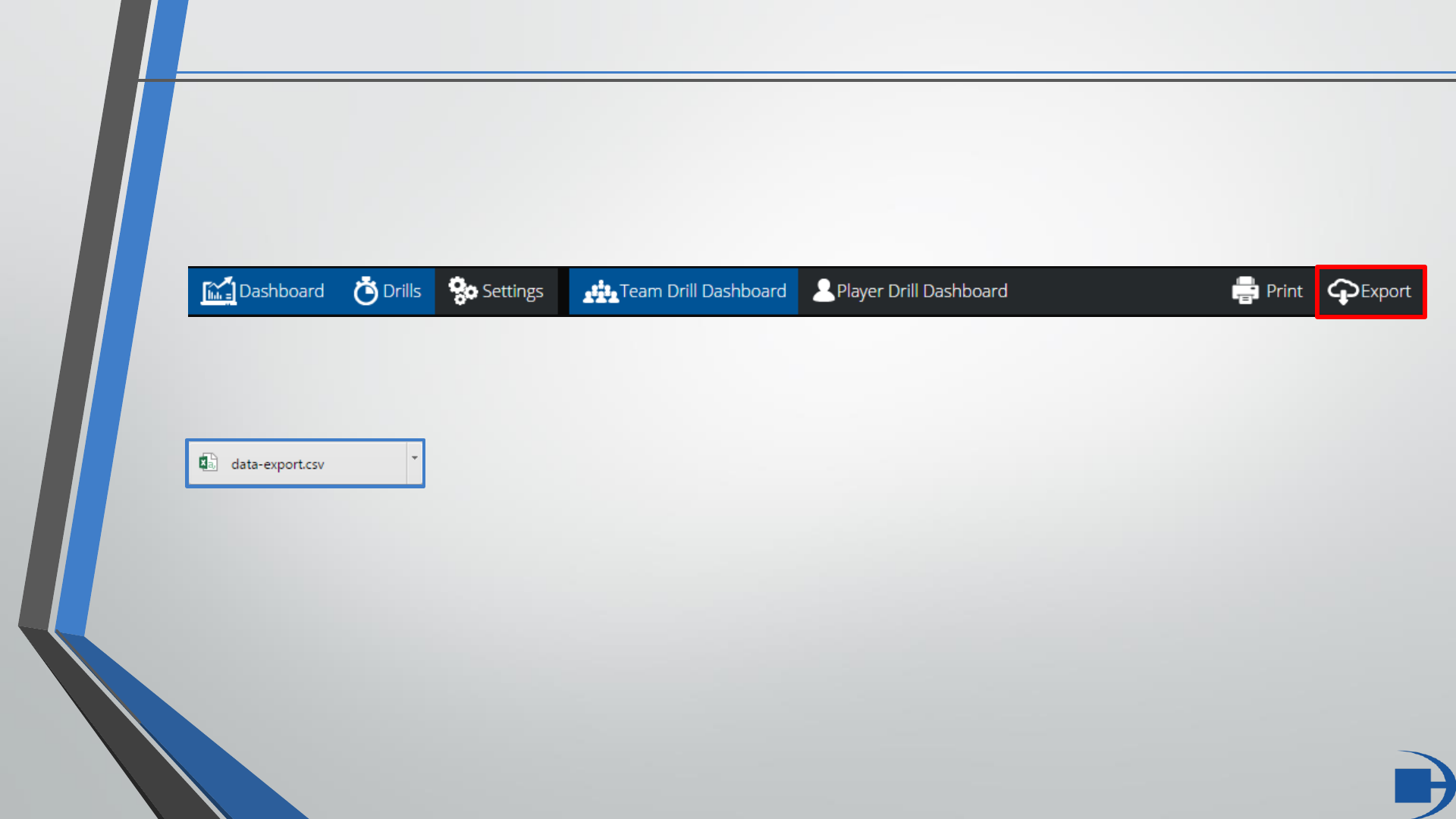
If at any point you wish to export the data in your Dashboard, simply click the “Export” button located in the
top right of the user interface.
This will export data from the current configuration that you are viewing. For example, if you are viewing data
for a set team, clicking “Export” will then provide a .csv file containing all relevant session data for that team.
You can now freely access the data and perform any further analysis as desired.
PRINTING DATA
FITLIGHT Trainer™ See The Light www.fitlighttraining.com 19
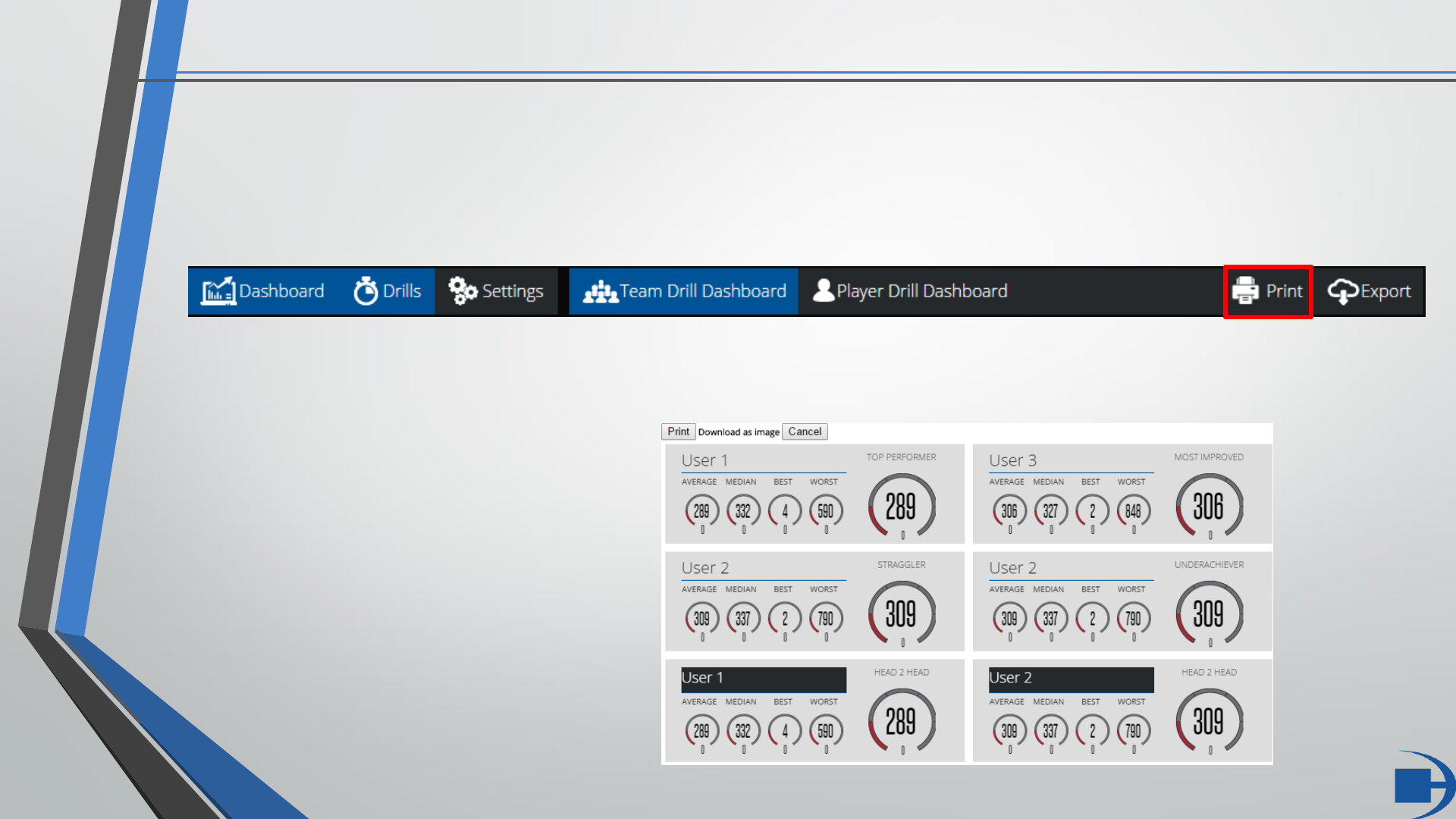
If at any point you wish to print the data in your Dashboard, simply click the “Print” button located in the top
right of the user interface.
This will print the data from the current configuration that you are viewing. For example, if you are viewing
data for a set team, clicking “Print” will then provide an image of your current view which can either be saved,
saved as a PDF, or printed out.
Selecting “Print” in this window will print
the image.
Selecting “Download as
image” will save the image for you.
Selecting “Cancel” will return you to the
previously viewed page.
