Flaircomm Technologies BTHF102 Bluetooth Handsfree Carkit User Manual

Flaircomm Technologies Inc. Bluetooth Handsfree Carkit

User Manual

                                                                    BlueToneTM BTHF102/202 User Manual   .       1             Bluetooth Handsfree User Manual     Model:BlueToneTM BTHF102/202             Declaration: Without written permission from Flaircomm Technologies Inc., reproduction, transfer, distribution or storage of part or all of the contents in this document in any form is prohibited。 The company reserves rights to make any changes and improvements to the product described in this document without prior notice.
                                                                    BlueToneTM BTHF102/202 User Manual   .       2    Notice : Please make sure your mobile phone and network operator supports the functions described in this manual, otherwise the relative functions can not be realized on this Handsfree device.  Certification and Safety Approvals This product has been tested and found to comply with Bluetooth BQB requirements, part 15 of FCC rules, R&TTE Directive(99/5/EC) or CE marked requirements.  Warning:Users should not make changes or modify the device in any way. Changes or modifications without expressly approved by the original manufacturer will void the user’s authority to operate the device.  Federal Communications Commission (FCC) Statement  15.105(b)  This equipment has been tested and found to comply with the limits for a Class B digital device, pursuant to part 15 of the FCC rules. These limits are designed to provide reasonable protection against harmful interference in a residential installation. This equipment generates, uses and can radiate radio frequency energy and, if not installed and used in accordance with the instructions, may cause harmful interference to radio communications. However, there is no guarantee that interference will not occur in a particular installation. If this equipment does cause harmful interference to radio or television reception, which can be determined by turning the equipment off  and on, the user is encouraged to try to correct the interference by one or more of the following measures:  -Reorient or relocate the receiving antenna.  -Increase the separation between the equipment and receiver. -Connect the equipment into an outlet on a circuit different from that to which the receiver is connected.  -Consult the dealer or an experienced radio/TV technician for help.   Operation is subject to the following two conditions:  1) this device may not cause interference and 2) this device must accept any interference, including interference that may cause undesired operation of the device.   FCC RF Radiation Exposure Statement:  This equipment complies with FCC radiation exposure limits set forth for an uncontrolled environment. End users must follow the specific operating instructions for satisfying RF exposure compliance. This transmitter must not be co-located or operating in conjunction with any other antenna or transmitter.
                                                                    BlueToneTM BTHF102/202 User Manual   .       3    Safety z Check the laws and regulations on the use of mobile phones and handsfree equipment in the areas where you drive. Always give full attention to driving and pull off the road and park before making or answering a call if driving conditions require. z Do not allow children to play with your Bluetooth car handsfree since it contains small parts that could become detached and create a choking hazard z This device contains a Li-polymer battery. Please keep it away from fire anytime (including discarding the device) or the battery may explode z The handsfree, especially the embedded battery must be properly disposed or may be recycled, contact your local recycling centers for disposal methods.
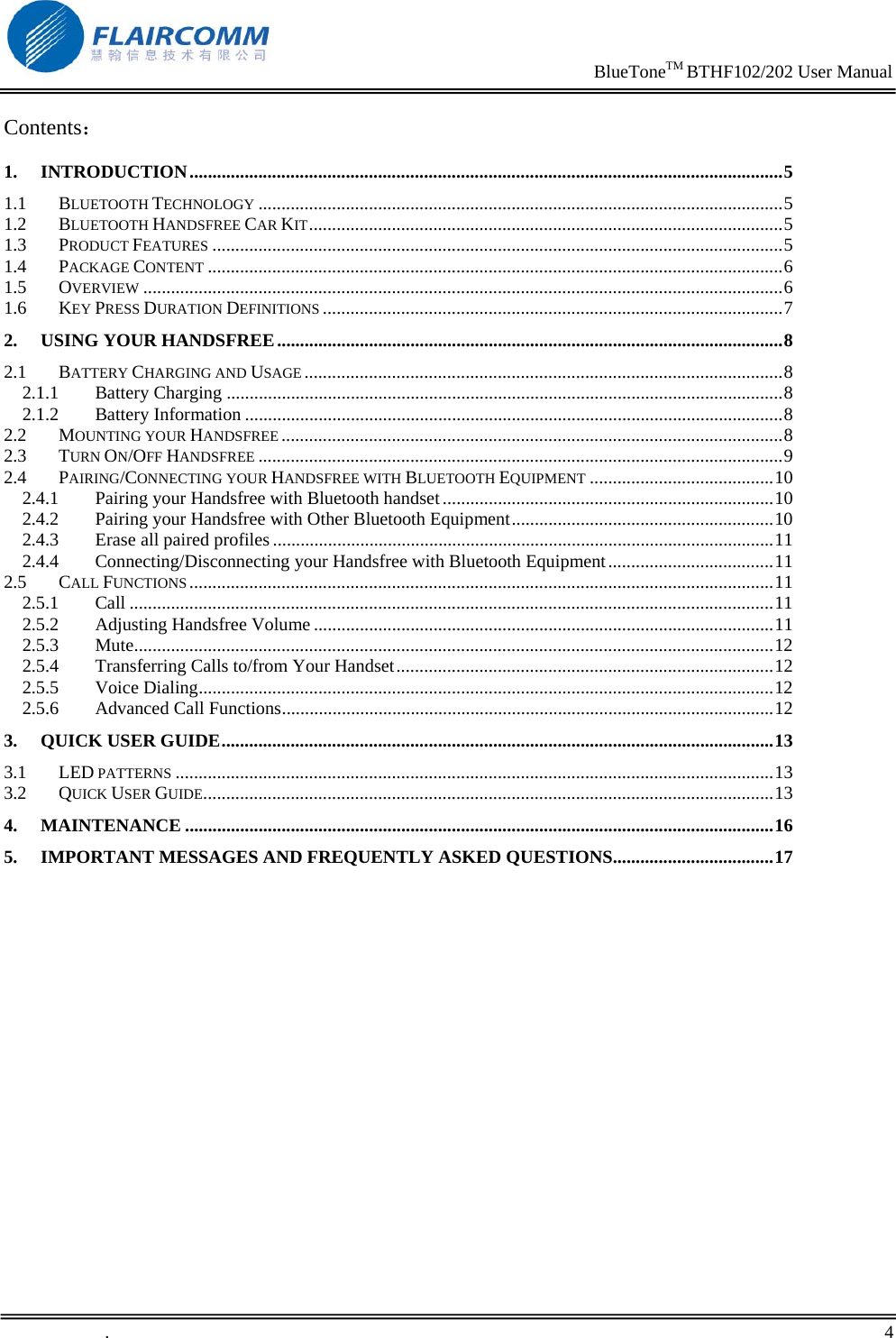
                                                                    BlueToneTM BTHF102/202 User Manual   .       4    Contents: 1. INTRODUCTION.................................................................................................................................5 1.1 BLUETOOTH TECHNOLOGY ..................................................................................................................5 1.2 BLUETOOTH HANDSFREE CAR KIT.......................................................................................................5 1.3 PRODUCT FEATURES ............................................................................................................................5 1.4 PACKAGE CONTENT .............................................................................................................................6 1.5 OVERVIEW ...........................................................................................................................................6 1.6 KEY PRESS DURATION DEFINITIONS ....................................................................................................7 2. USING YOUR HANDSFREE..............................................................................................................8 2.1 BATTERY CHARGING AND USAGE ........................................................................................................8 2.1.1 Battery Charging .........................................................................................................................8 2.1.2 Battery Information .....................................................................................................................8 2.2 MOUNTING YOUR HANDSFREE .............................................................................................................8 2.3 TURN ON/OFF HANDSFREE ..................................................................................................................9 2.4 PAIRING/CONNECTING YOUR HANDSFREE WITH BLUETOOTH EQUIPMENT ........................................10 2.4.1 Pairing your Handsfree with Bluetooth handset........................................................................10 2.4.2 Pairing your Handsfree with Other Bluetooth Equipment.........................................................10 2.4.3 Erase all paired profiles .............................................................................................................11 2.4.4 Connecting/Disconnecting your Handsfree with Bluetooth Equipment....................................11 2.5 CALL FUNCTIONS ...............................................................................................................................11 2.5.1 Call ............................................................................................................................................11 2.5.2 Adjusting Handsfree Volume ....................................................................................................11 2.5.3 Mute...........................................................................................................................................12 2.5.4 Transferring Calls to/from Your Handset..................................................................................12 2.5.5 Voice Dialing.............................................................................................................................12 2.5.6 Advanced Call Functions...........................................................................................................12 3. QUICK USER GUIDE........................................................................................................................13 3.1 LED PATTERNS ..................................................................................................................................13 3.2 QUICK USER GUIDE............................................................................................................................13 4. MAINTENANCE ................................................................................................................................16 5. IMPORTANT MESSAGES AND FREQUENTLY ASKED QUESTIONS...................................17
                                                                    BlueToneTM BTHF102/202 User Manual   .       5    1. Introduction 1.1 Bluetooth Technology Bluetooth is an internationally standardized technology supporting short distance wireless communications. Any two Bluetooth-compatible equipment, such as mobile phone, PDA、PC, headset, mouse, keyboard, printer, etc. can wirelessly communicate with each other via Bluetooth connection. To ensure worldwide compatibility, Bluetooth operates on the globally available ISM (Industrial Scientific and Medical) frequency band. Within 2.4 GHz and 2.48 GHz,  Bluetooth transmits data up to either 10 meters (CLASS II mode) or 100 meters (CLASS I mode) using 79 frequency hopping channels. Though line-of-sight is not required, Bluetooth connections could be subject to interferences from obstructions such as walls, human body, and other electronic devices. In addition, due to variations on product implementation, it is likely that Bluetooth equipments from different manufactures have interoperability issues. In that case, you may consult with manufactures to check product compatibility. Note that, there could be some restrictions imposing on using Bluetooth devices in some countries. Please check with your local authorities. 1.2 Bluetooth Handsfree Car Kit Flaircomm’s Bluetooth product is a specially designed BlueToneTM series product allowing car drivers to make and receive calls without holding a mobile phone. It provides a clean wireless audio connection with your Bluetooth mobile phone and PDA. The product can also be used in the office or home, besides of vehicle environment.  In addition to vehicle environment applications, this portable equipment, supported by an internal rechargeable Li-ion battery, can also be used in office environment as a normal handsfree equipment to make/receive phone calls without bothering holding the mobile handset. It can also be placed beside a Bluetooth-enabled PC to make voice calls over the Internet. 1.3 Product Features z Bluetooth v1.2 compliant, interference-tolerable with WLAN devices  z Class II, operation range up to 10 meters z Best-in-class voice quality ensured by cutting-edge noise suppression and echo cancellation techniques  z Voice dialing and user friendly operation keys ideal for car drivers to make/receive calls  z Supports call waiting/conference functions z Voice security ensured by using 128-bit encryption  z Better portability with internal rechargeable Li-ion battery  z Talk/standby time up to 10/900 for BTHF102 (5.5/500 for BTHF202)  hours with internal battery z Easy-to-mount with stylish mounting dock, hang-strip, and Double-side Sticker  z Robust performance, fast connection, accurate and sensible search of devices in range z Stylish, portable, lightweight, mini-sized, suitable for vehicle and office environment
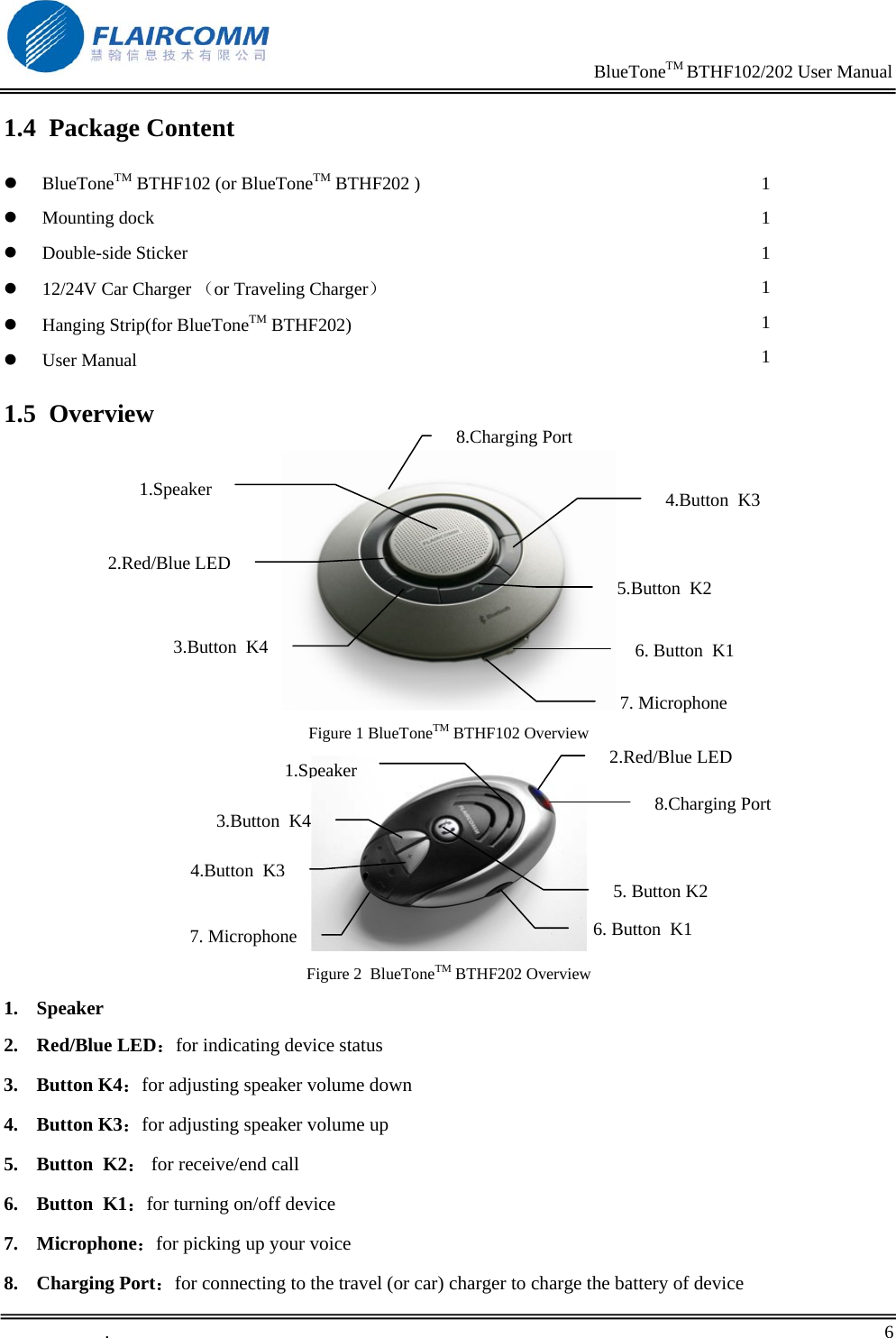
                                                                    BlueToneTM BTHF102/202 User Manual   .       6    1.4 Package Content z BlueToneTM BTHF102 (or BlueToneTM BTHF202 ) z Mounting dock z Double-side Sticker z 12/24V Car Charger (or Traveling Charger) z Hanging Strip(for BlueToneTM BTHF202) z User Manual  1 1 1 1 1 1 1.5 Overview  Figure 1 BlueToneTM BTHF102 Overview  Figure 2  BlueToneTM BTHF202 Overview 1. Speaker  2. Red/Blue LED:for indicating device status 3. Button K4:for adjusting speaker volume down 4. Button K3:for adjusting speaker volume up 5. Button  K2: for receive/end call 6. Button  K1:for turning on/off device  7. Microphone:for picking up your voice 8. Charging Port:for connecting to the travel (or car) charger to charge the battery of device 4.Button  K3 3.Button  K4 5.Button  K2 6. Button  K1 1.Speaker 2.Red/Blue LED7. Microphone 8.ChargingPort6. Button  K1 3.ButtonK44.ButtonK35. Button K2 2.Red/Blue LED 7. Microphone 1.Speaker8.Charging Port
                                                                    BlueToneTM BTHF102/202 User Manual   .       7    1.6 Key Press Duration Definitions z Short press (SP): press and release a button quickly. z Long press (LP): press and hold a button for at least 3 seconds, then release. z Very long press (VP): press and hold a button for at least 6 seconds, then release.
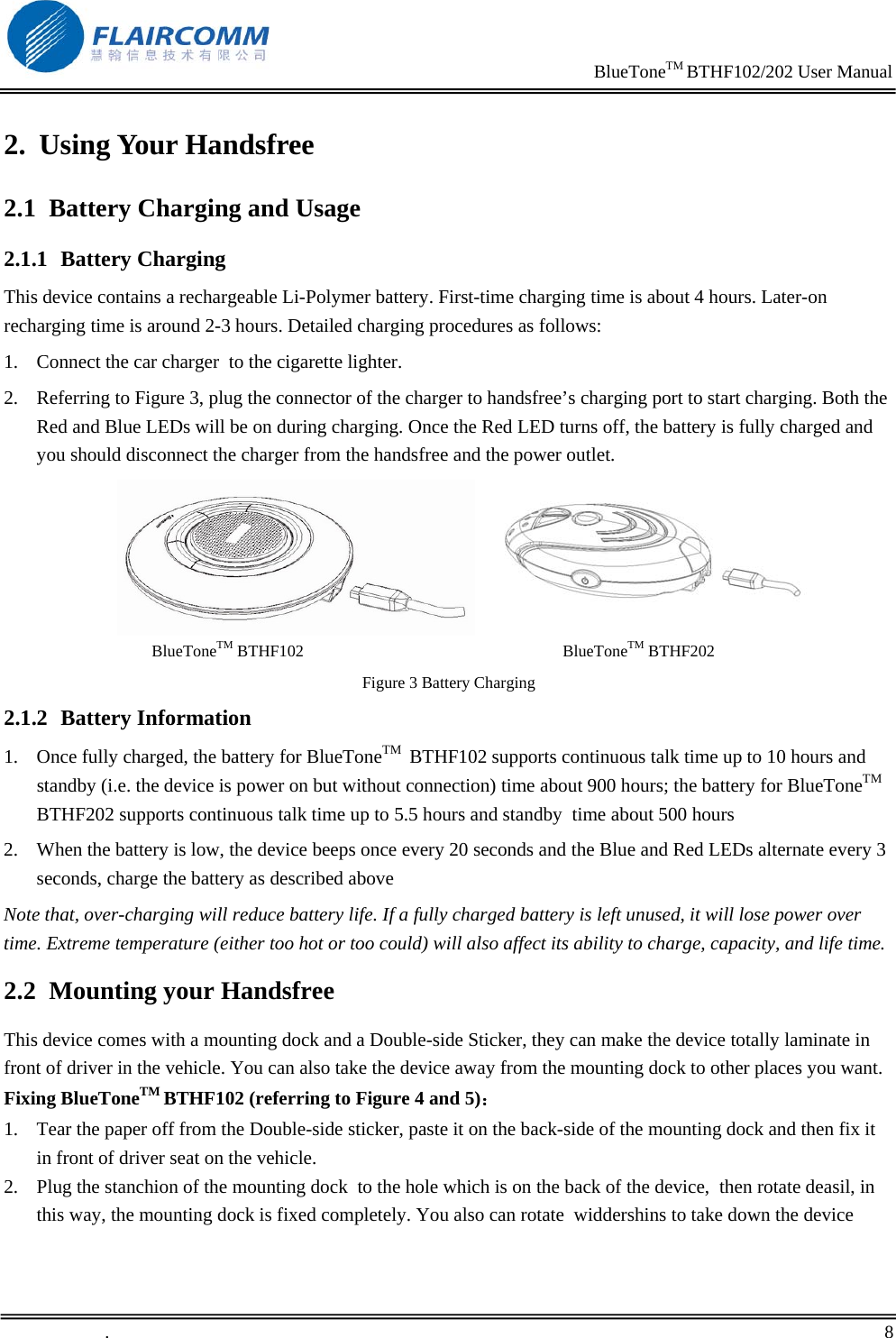
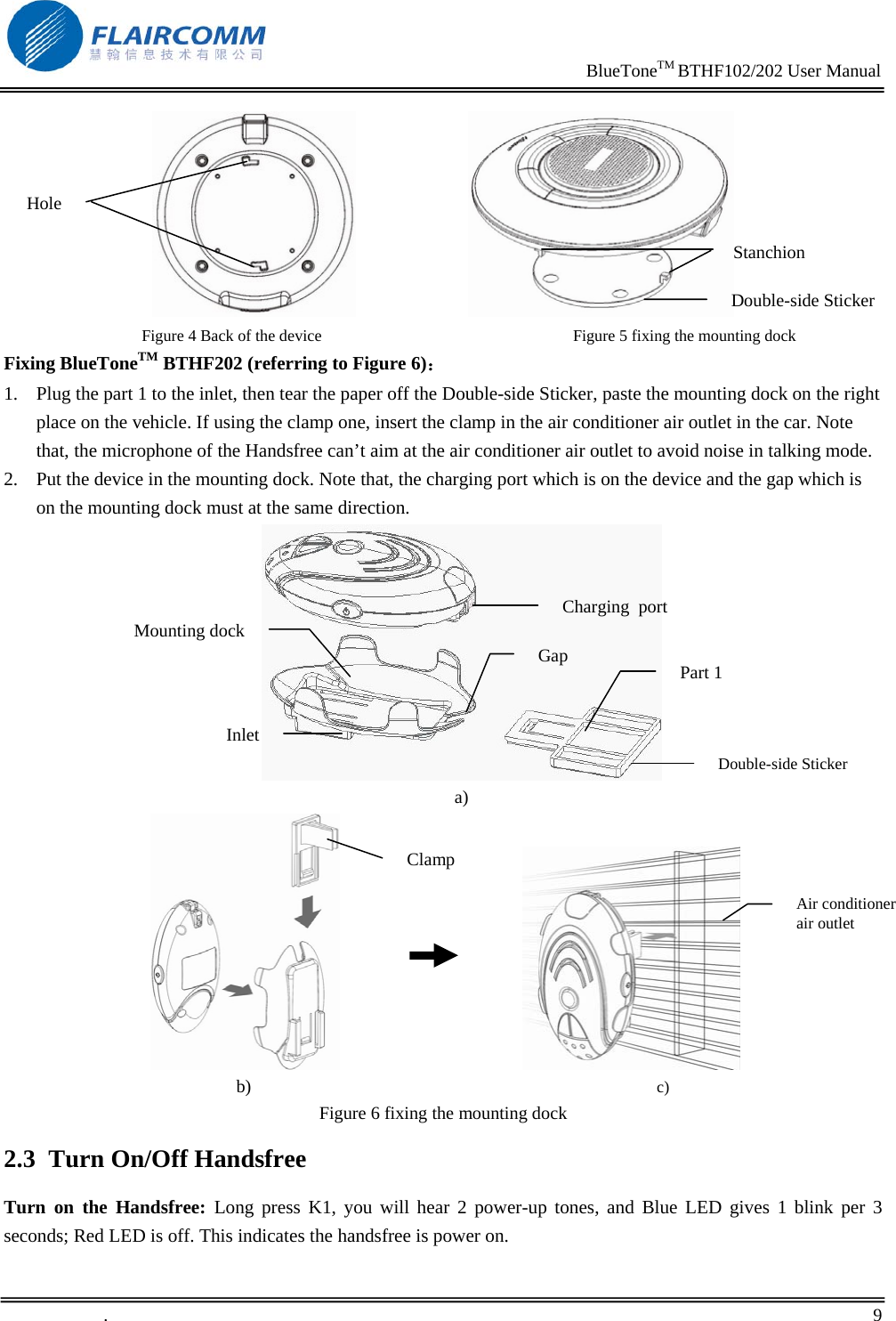
                                                                    BlueToneTM BTHF102/202 User Manual   .       8    2. Using Your Handsfree 2.1 Battery Charging and Usage 2.1.1 Battery Charging This device contains a rechargeable Li-Polymer battery. First-time charging time is about 4 hours. Later-on recharging time is around 2-3 hours. Detailed charging procedures as follows:  1. Connect the car charger  to the cigarette lighter. 2. Referring to Figure 3, plug the connector of the charger to handsfree’s charging port to start charging. Both the Red and Blue LEDs will be on during charging. Once the Red LED turns off, the battery is fully charged and you should disconnect the charger from the handsfree and the power outlet.  BlueToneTM BTHF102                                                               BlueToneTM BTHF202  Figure 3 Battery Charging 2.1.2 Battery Information 1. Once fully charged, the battery for BlueToneTM  BTHF102 supports continuous talk time up to 10 hours and standby (i.e. the device is power on but without connection) time about 900 hours; the battery for BlueToneTM  BTHF202 supports continuous talk time up to 5.5 hours and standby  time about 500 hours 2. When the battery is low, the device beeps once every 20 seconds and the Blue and Red LEDs alternate every 3 seconds, charge the battery as described above Note that, over-charging will reduce battery life. If a fully charged battery is left unused, it will lose power over time. Extreme temperature (either too hot or too could) will also affect its ability to charge, capacity, and life time. 2.2 Mounting your Handsfree This device comes with a mounting dock and a Double-side Sticker, they can make the device totally laminate in front of driver in the vehicle. You can also take the device away from the mounting dock to other places you want. Fixing BlueToneTM BTHF102 (referring to Figure 4 and 5): 1. Tear the paper off from the Double-side sticker, paste it on the back-side of the mounting dock and then fix it in front of driver seat on the vehicle. 2. Plug the stanchion of the mounting dock  to the hole which is on the back of the device,  then rotate deasil, in this way, the mounting dock is fixed completely. You also can rotate  widdershins to take down the device
                                                                    BlueToneTM BTHF102/202 User Manual   .       9                               Figure 4 Back of the device                                                              Figure 5 fixing the mounting dock Fixing BlueToneTM BTHF202 (referring to Figure 6): 1. Plug the part 1 to the inlet, then tear the paper off the Double-side Sticker, paste the mounting dock on the right place on the vehicle. If using the clamp one, insert the clamp in the air conditioner air outlet in the car. Note that, the microphone of the Handsfree can’t aim at the air conditioner air outlet to avoid noise in talking mode. 2. Put the device in the mounting dock. Note that, the charging port which is on the device and the gap which is on the mounting dock must at the same direction.                                 a)                                                                                              b)                                                                                                    c) Figure 6 fixing the mounting dock 2.3 Turn On/Off Handsfree Turn on the Handsfree: Long press K1, you will hear 2 power-up tones, and Blue LED gives 1 blink per 3 seconds; Red LED is off. This indicates the handsfree is power on. Hole Double-side StickerStanchion Inlet Mounting dock Part 1 Double-side Sticker  Charging  port Gap Clamp Air conditioner air outlet
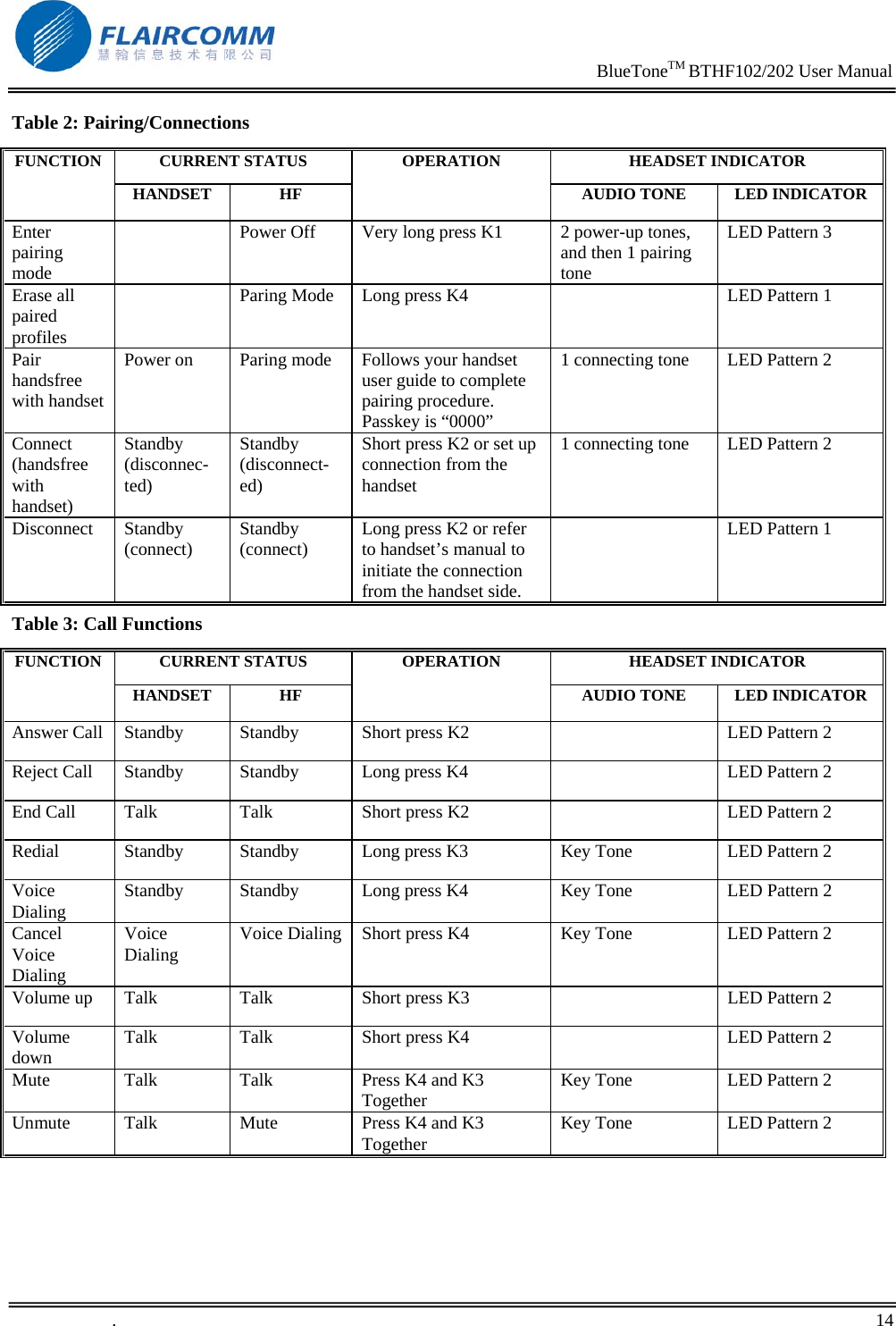
                                                                    BlueToneTM BTHF102/202 User Manual   .       10    Turn off the Handsfree: Long press K1, you will hear 2 power-down tones, and All LEDs are off. This indicates the handsfree is power off. 2.4 Pairing/Connecting your Handsfree with Bluetooth Equipment  2.4.1 Pairing your Handsfree with Bluetooth handset Before making and answering calls, you must pair your handsfree and phone. Paring sets up a unique relationship between your handsfree and your handset. The handset will memorize the handsfree’s unique ID (or passkey). This ensures that a unique and encrypted wireless link between your handsfree and handset will be used during calls.  Detailed operation procedures are as follows: 1. Place your handsfree close to your Bluetooth handset, and ensure your handsfree is power off, your handset is power on 2. Press and hold K1 for at least 6 seconds until the Blue and Red LEDs alternate continuously. You will hear 2 power-up tones and a pairing tone to indicate that the handsfree has successfully entered the paring mode    3. Following your phone user guide to active Bluetooth device search on the phone side, on your phone screen you will see a list of Bluetooth equipment found by the phone at the end of the searching process. 4. Select this Bluetooth Handsfree from the list  (for  BlueToneTM BTHF102 ,the sign is ’BTHF102’ , and for BlueToneTM BTHF202 the sign is ’BTHF202’)and initiate pairing following handset’s on-screen prompts.  5. Continue to follow on-screen prompts to enter passkey “0000”and confirm to pair the handsfree with your handset. Once the pairing procedure is completed, you will hear a connecting tone, and then Blue LED gives 3 quick blinks per 2 seconds. This indicates that the handsfree device and the handset are paired and connected. Note: 1. If pairing is successful, handsfree’s Red LED is off. The Blue LED gives 3 quick blinks per 2 seconds. If paring is failed,the Blue and Red LEDs alternate continuously (for about 2 minutes). You need to go back to above steps 3-5 to repeat the paring process. 2. Your handsfree will remain in the pairing mode for about 2 minutes. If paring cannot be finished within 2 minutes, the handsfree will enter into the standby mode (without Bluetooth connection in this case). You need to repeat the above steps 2-5 to restart the pairing process. 2.4.2 Pairing your Handsfree with Other Bluetooth Equipment In addition to Bluetooth phone, your handsfree can also pair with other Bluetooth equipment for realizing short distance wireless communications. Similar pairing procedures described in the previous Section can be used. You can follow the user guide of the Bluetooth equipment to complete paring operations on the equipment side.  This handsfree can paired with up to 8 Bluetooth equipments (including mobile handsets). The corresponding 8 sets of pairing information are recorded by the handsfree. Each paired equipment can wireless communicated with the handsfree after setting up a Bluetooth connection. Please check Section 2.4.4 on procedures to set up a Bluetooth connection.
                                                                    BlueToneTM BTHF102/202 User Manual   .       11    2.4.3 Erase all paired profiles This handsfree can paired with up to 8 Bluetooth equipments. When Handsfree in the Paring Mode, long press K4, it will erase all paired profiles and quit pairing mode. At this time, Blue LED gives 1 blink per 3 seconds. 2.4.4 Connecting/Disconnecting your Handsfree with Bluetooth Equipment When working with a bluetooth equipment using HFP, your handsfree cannot communicate with the equipment without bluetooth connection established in advance.  Connecting your Handsfree with Bluetooth Handset: Bluetooth connection can be set up by initiating request from either the handsfree or the handset, detailed operations are as follows:  1. Initiating connection request from the Handsfree: Place the handsfree close to the Bluetooth handset and then short press K2.  2. Initiating connection request from the Bluetooth handset: Place the handsfree close to the Bluetooth handset and then follow the handset user guide to find the handsfree and send connection request.  After connecting, you will hear a connecting tone, and then Blue LED gives 3 quick blinks per 2 seconds Disconnecting your Handsfree with Bluetooth Handset: When handsfree connected with bluetooth handset, you can disconnect them as follows: 1. Long press K2. 2. Refer to handset’s manual to initiate the connection from the handset side. After disconnecting, you will hear a disconnecting tone, and then Blue LED gives 1 blink per 3 seconds. 2.5 Call Functions 2.5.1 Call Before dialing, both your handsfree and handset must be power on.  And you also need to ensure your handsfree and handset has been linked with Bluetooth connection. Answer Call: Short press K2. Reject Call: Long press K4. End Call: Short press K2. Redial: Long press K3. 2.5.2 Adjusting Handsfree Volume In the talking mode,you can short press K3/K4 to increase/decrease your speaker volume. You can repeat the above operation to speaker volume to a desirable level. Note: For most Bluetooth headset, handsfree volume control will synchronize with the handset. That is, your handsfree volume can also be controlled your handset, vice versa. However, this may not be always true due to variations on handset implementations chosen by different manufactures.
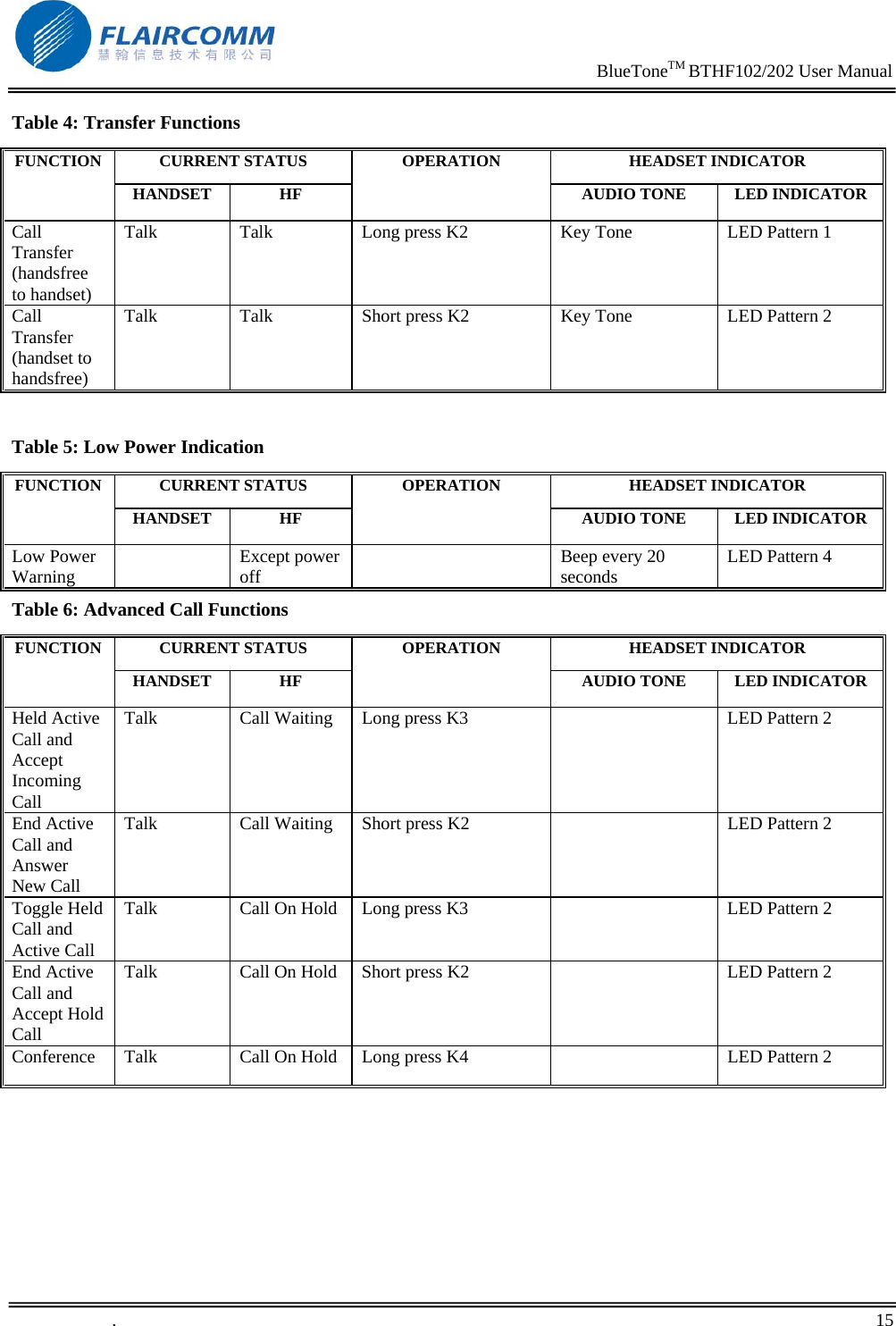
                                                                    BlueToneTM BTHF102/202 User Manual   .       12    2.5.3 Mute You can mute or un-mute an ongoing call by simultaneously quick pressing K3 and K4. 2.5.4 Transferring Calls to/from Your Handset Transferring calls to your handset: long press K2, Blue LED gives 1 blink per 3 seconds. Transferring calls from your handset: short press K2, Blue LED gives 1 blink per 3 seconds. 2.5.5 Voice Dialing If your mobile phone supports voice dialing, you can make a call via voice dialing from your Handsfree: Voice Dialing:Long press K4,you will hear key tone,and Blue LED gives 3 quick blinks per 2 seconds, then follow your handset user guide to complete voice dialing. Cancel Voice Dialing:Short press K4. 2.5.6 Advanced Call Functions If your mobile phone has call waiting/conference functions, this Bluetooth Handsfree can support the function by following operations: 1. A new call comes in, While you are in talk : 1) Long press K3, to hold active call and accept incoming call.  2) Short press K2, to end active call and answer new call. 2. When two calls come in, one is active and the other is on hold: 1) Long press K3, to toggle hold call and active call. 2) Short press K2, to end active call and accept hold call. 3) Long press K4, to make conference.
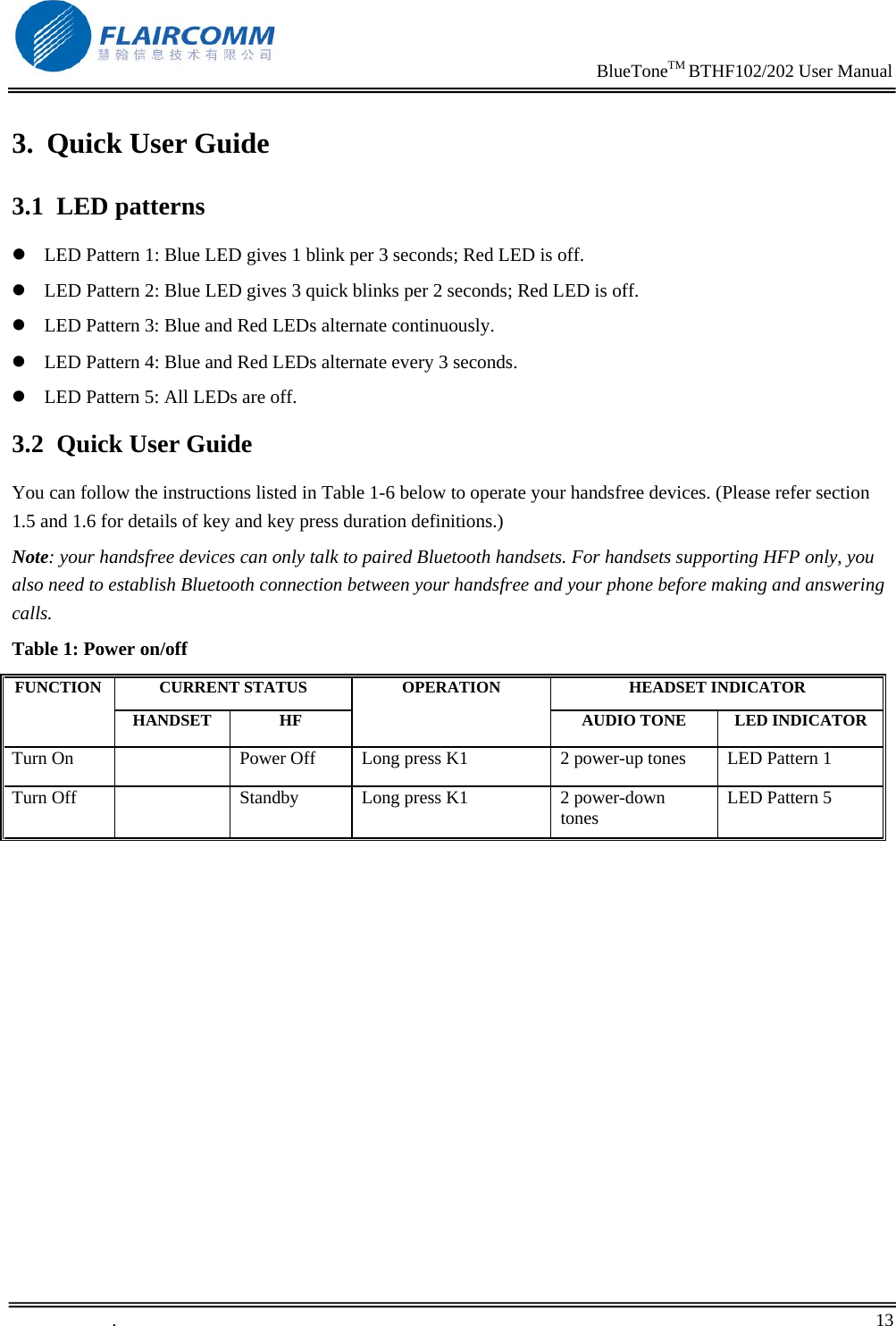
                                                                    BlueToneTM BTHF102/202 User Manual   .       13    3. Quick User Guide 3.1 LED patterns z LED Pattern 1: Blue LED gives 1 blink per 3 seconds; Red LED is off. z LED Pattern 2: Blue LED gives 3 quick blinks per 2 seconds; Red LED is off. z LED Pattern 3: Blue and Red LEDs alternate continuously. z LED Pattern 4: Blue and Red LEDs alternate every 3 seconds. z LED Pattern 5: All LEDs are off. 3.2 Quick User Guide You can follow the instructions listed in Table 1-6 below to operate your handsfree devices. (Please refer section 1.5 and 1.6 for details of key and key press duration definitions.) Note: your handsfree devices can only talk to paired Bluetooth handsets. For handsets supporting HFP only, you also need to establish Bluetooth connection between your handsfree and your phone before making and answering calls. Table 1: Power on/off CURRENT STATUS  HEADSET INDICATOR FUNCTION HANDSET HF OPERATION AUDIO TONE  LED INDICATORTurn On    Power Off  Long press K1  2 power-up tones  LED Pattern 1 Turn Off    Standby  Long press K1  2 power-down tones  LED Pattern 5
                                                                    BlueToneTM BTHF102/202 User Manual   .       14    Table 2: Pairing/Connections CURRENT STATUS  HEADSET INDICATOR FUNCTION HANDSET HF OPERATION AUDIO TONE  LED INDICATOREnter pairing mode   Power Off  Very long press K1  2 power-up tones, and then 1 pairing tone LED Pattern 3 Erase all paired profiles   Paring Mode  Long press K4    LED Pattern 1 Pair handsfree with handset Power on  Paring mode  Follows your handset user guide to complete pairing procedure. Passkey is “0000” 1 connecting tone  LED Pattern 2 Connect (handsfree with handset) Standby (disconnec-ted) Standby (disconnect-ed) Short press K2 or set up connection from the handset 1 connecting tone  LED Pattern 2 Disconnect Standby (connect)  Standby (connect)  Long press K2 or refer to handset’s manual to initiate the connection from the handset side.   LED Pattern 1 Table 3: Call Functions CURRENT STATUS  HEADSET INDICATOR FUNCTION HANDSET HF OPERATION AUDIO TONE  LED INDICATORAnswer Call  Standby  Standby  Short press K2     LED Pattern 2 Reject Call  Standby  Standby   Long press K4    LED Pattern 2 End Call  Talk  Talk  Short press K2    LED Pattern 2 Redial  Standby  Standby  Long press K3  Key Tone  LED Pattern 2 Voice Dialing  Standby  Standby  Long press K4  Key Tone  LED Pattern 2 Cancel Voice Dialing Voice Dialing  Voice Dialing  Short press K4  Key Tone  LED Pattern 2 Volume up  Talk  Talk  Short press K3    LED Pattern 2 Volume down  Talk  Talk  Short press K4    LED Pattern 2 Mute  Talk  Talk  Press K4 and K3 Together  Key Tone  LED Pattern 2 Unmute  Talk  Mute  Press K4 and K3 Together  Key Tone  LED Pattern 2
                                                                    BlueToneTM BTHF102/202 User Manual   .       15    Table 4: Transfer Functions CURRENT STATUS  HEADSET INDICATOR FUNCTION HANDSET HF OPERATION AUDIO TONE  LED INDICATORCall Transfer (handsfree to handset) Talk  Talk  Long press K2  Key Tone  LED Pattern 1 Call Transfer (handset to handsfree) Talk  Talk  Short press K2  Key Tone  LED Pattern 2  Table 5: Low Power Indication CURRENT STATUS  HEADSET INDICATOR FUNCTION HANDSET HF OPERATION AUDIO TONE  LED INDICATORLow Power Warning   Except power off    Beep every 20 seconds  LED Pattern 4 Table 6: Advanced Call Functions CURRENT STATUS  HEADSET INDICATOR FUNCTION HANDSET HF OPERATION AUDIO TONE  LED INDICATORHeld Active Call and Accept Incoming Call Talk  Call Waiting  Long press K3    LED Pattern 2 End Active Call and Answer New Call Talk  Call Waiting  Short press K2    LED Pattern 2 Toggle Held Call and Active Call Talk  Call On Hold  Long press K3    LED Pattern 2 End Active Call and Accept Hold Call Talk  Call On Hold  Short press K2    LED Pattern 2 Conference  Talk  Call On Hold  Long press K4    LED Pattern 2
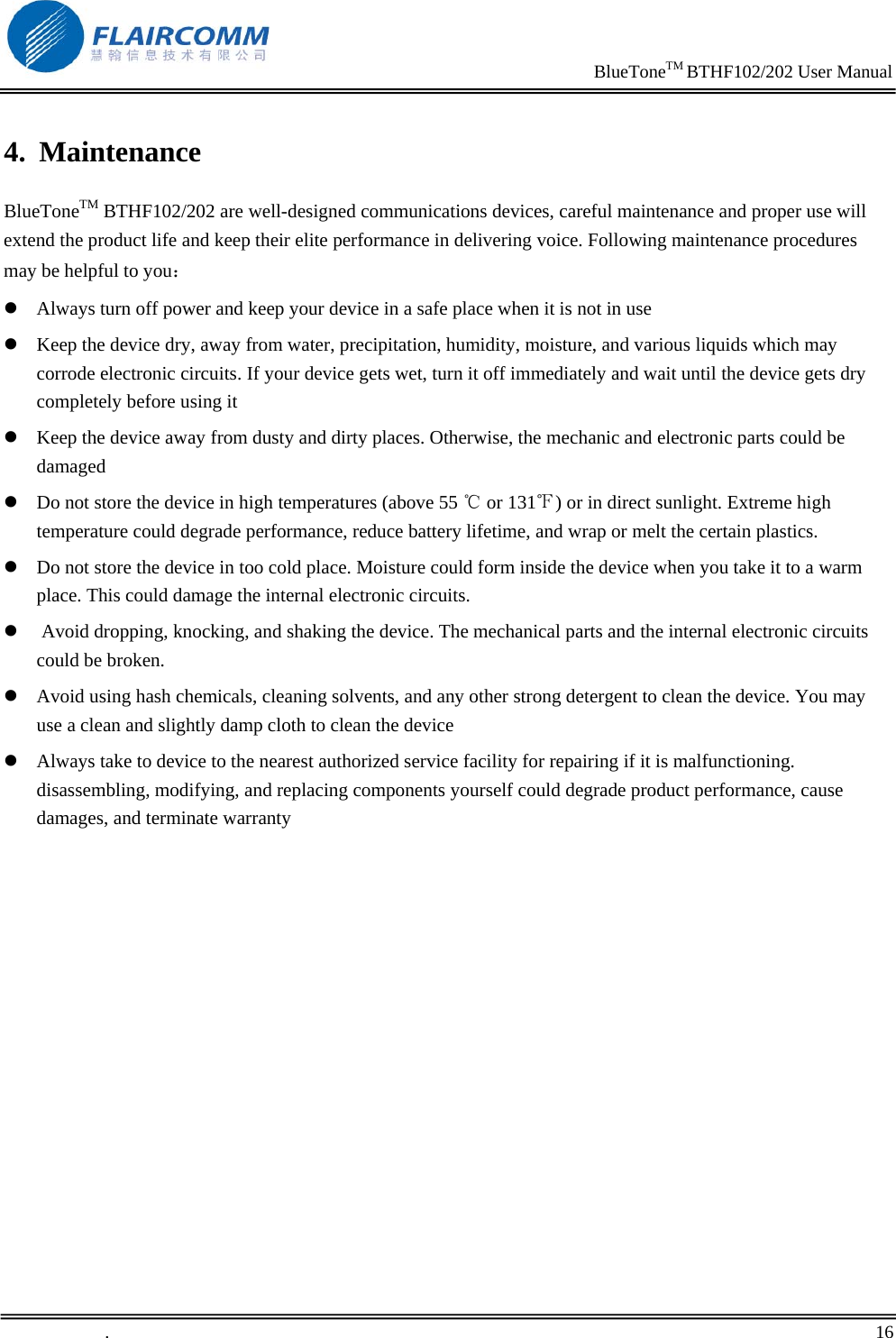
                                                                    BlueToneTM BTHF102/202 User Manual   .       16    4. Maintenance BlueToneTM BTHF102/202 are well-designed communications devices, careful maintenance and proper use will extend the product life and keep their elite performance in delivering voice. Following maintenance procedures may be helpful to you: z Always turn off power and keep your device in a safe place when it is not in use z Keep the device dry, away from water, precipitation, humidity, moisture, and various liquids which may corrode electronic circuits. If your device gets wet, turn it off immediately and wait until the device gets dry completely before using it z Keep the device away from dusty and dirty places. Otherwise, the mechanic and electronic parts could be damaged  z Do not store the device in high temperatures (above 55   or 131 ) or in direct sunlight. Extreme high ℃℉temperature could degrade performance, reduce battery lifetime, and wrap or melt the certain plastics.  z Do not store the device in too cold place. Moisture could form inside the device when you take it to a warm place. This could damage the internal electronic circuits. z  Avoid dropping, knocking, and shaking the device. The mechanical parts and the internal electronic circuits could be broken.  z Avoid using hash chemicals, cleaning solvents, and any other strong detergent to clean the device. You may use a clean and slightly damp cloth to clean the device  z Always take to device to the nearest authorized service facility for repairing if it is malfunctioning. disassembling, modifying, and replacing components yourself could degrade product performance, cause damages, and terminate warranty
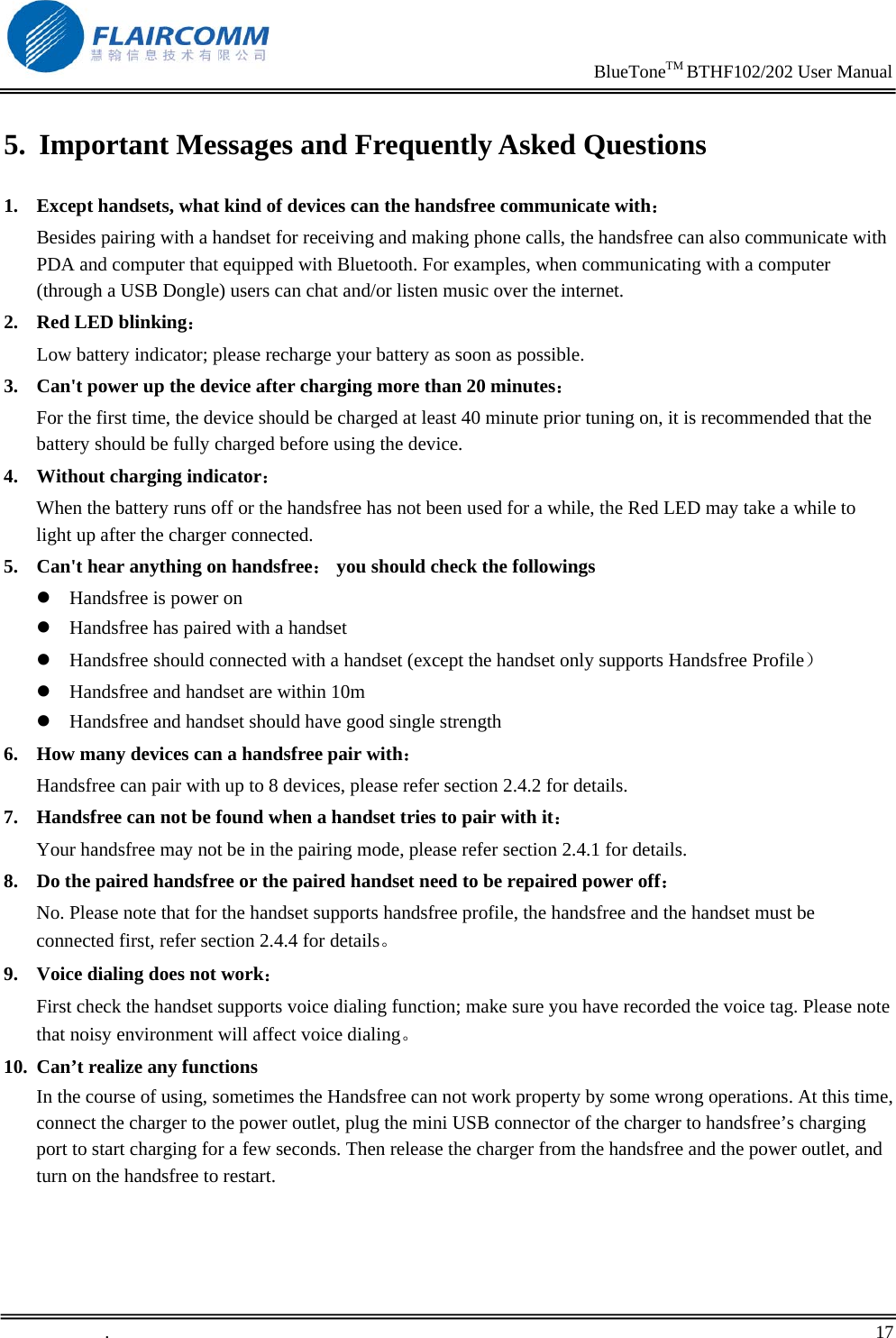
                                                                    BlueToneTM BTHF102/202 User Manual   .       17    5. Important Messages and Frequently Asked Questions 1. Except handsets, what kind of devices can the handsfree communicate with:         Besides pairing with a handset for receiving and making phone calls, the handsfree can also communicate with PDA and computer that equipped with Bluetooth. For examples, when communicating with a computer (through a USB Dongle) users can chat and/or listen music over the internet. 2. Red LED blinking:                                                                    Low battery indicator; please recharge your battery as soon as possible. 3. Can't power up the device after charging more than 20 minutes: For the first time, the device should be charged at least 40 minute prior tuning on, it is recommended that the battery should be fully charged before using the device. 4. Without charging indicator:                                                       When the battery runs off or the handsfree has not been used for a while, the Red LED may take a while to light up after the charger connected. 5. Can't hear anything on handsfree: you should check the followings z Handsfree is power on z Handsfree has paired with a handset z Handsfree should connected with a handset (except the handset only supports Handsfree Profile) z Handsfree and handset are within 10m z Handsfree and handset should have good single strength 6. How many devices can a handsfree pair with: Handsfree can pair with up to 8 devices, please refer section 2.4.2 for details. 7. Handsfree can not be found when a handset tries to pair with it: Your handsfree may not be in the pairing mode, please refer section 2.4.1 for details. 8. Do the paired handsfree or the paired handset need to be repaired power off: No. Please note that for the handset supports handsfree profile, the handsfree and the handset must be connected first, refer section 2.4.4 for details。 9. Voice dialing does not work: First check the handset supports voice dialing function; make sure you have recorded the voice tag. Please note that noisy environment will affect voice dialing。 10. Can’t realize any functions In the course of using, sometimes the Handsfree can not work property by some wrong operations. At this time, connect the charger to the power outlet, plug the mini USB connector of the charger to handsfree’s charging port to start charging for a few seconds. Then release the charger from the handsfree and the power outlet, and turn on the handsfree to restart.

Navigation menu