Flextronics Special Business Solutions MWS-1000 Client (slave) unit User Manual MWB1300v3 12 100 UserGuide

Flextronics Special Business Solutions Ltd. Client (slave) unit MWB1300v3 12 100 UserGuide

User manual

     Design. Build. Ship. Service   MWB1300 Wireless Video Extender Kit User’s Guide   Version 3.12.100
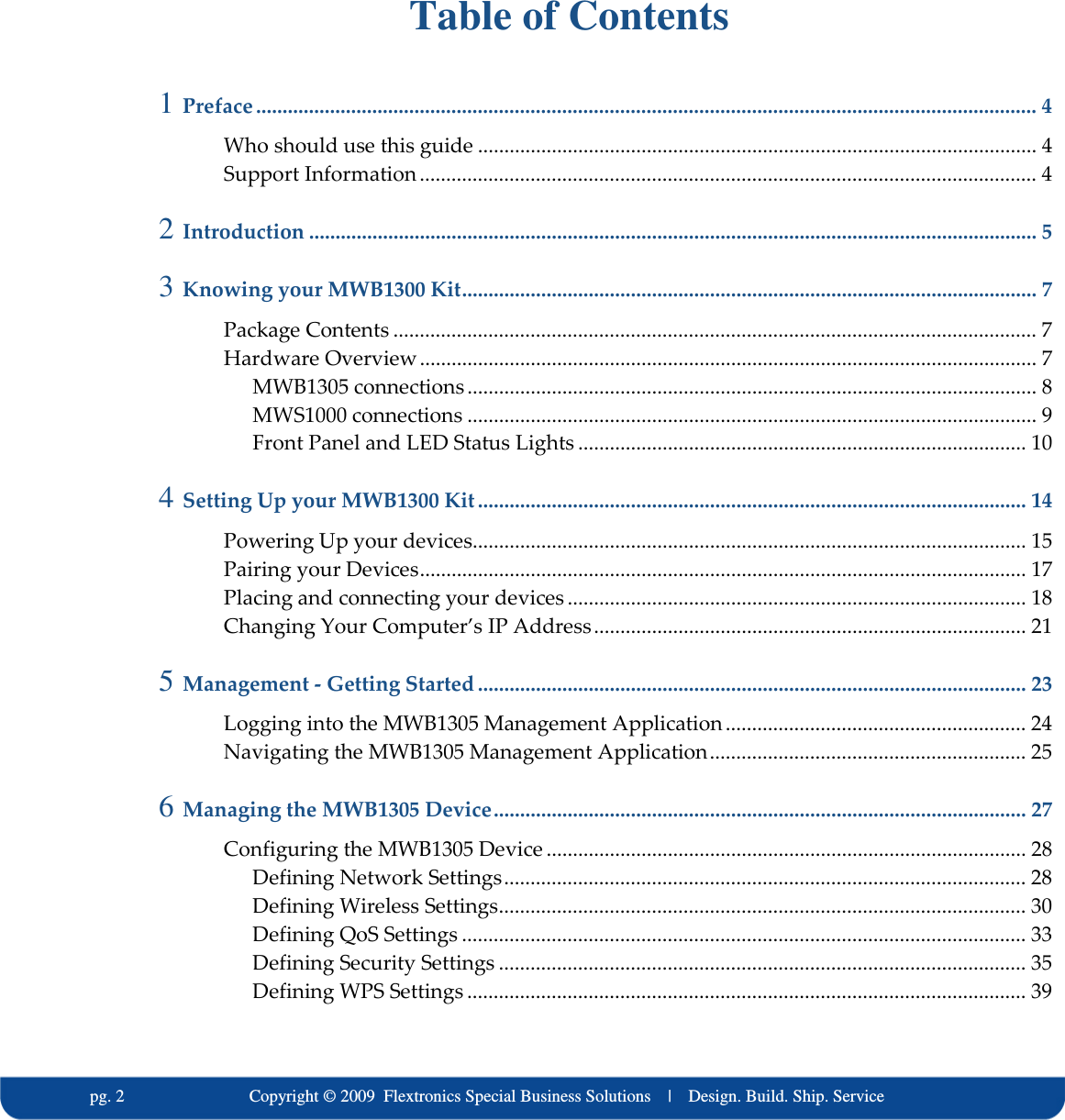
  pg. 2                             Copyright © 2009  Flextronics Special Business Solutions    |    Design. Build. Ship. Service  Table of Contents 1 Preface .................................................................................................................................................... 4 Who should use this guide .......................................................................................................... 4 Support Information ..................................................................................................................... 4 2 Introduction .......................................................................................................................................... 5 3 Knowing your MWB1300 Kit............................................................................................................. 7 Package Contents .......................................................................................................................... 7 Hardware Overview..................................................................................................................... 7 MWB1305 connections ............................................................................................................ 8 MWS1000 connections ............................................................................................................ 9 Front Panel and LED Status Lights ..................................................................................... 10 4 Setting Up your MWB1300 Kit ........................................................................................................ 14 Powering Up your devices......................................................................................................... 15 Pairing your Devices................................................................................................................... 17 Placing and connecting your devices ....................................................................................... 18 Changing Your Computer’s IP Address.................................................................................. 21 5 Management - Getting Started ........................................................................................................ 23 Logging into the MWB1305 Management Application......................................................... 24 Navigating the MWB1305 Management Application............................................................ 25 6 Managing the MWB1305 Device..................................................................................................... 27 Configuring the MWB1305 Device ........................................................................................... 28 Defining Network Settings................................................................................................... 28 Defining Wireless Settings.................................................................................................... 30 Defining QoS Settings ........................................................................................................... 33 Defining Security Settings .................................................................................................... 35 Defining WPS Settings .......................................................................................................... 39
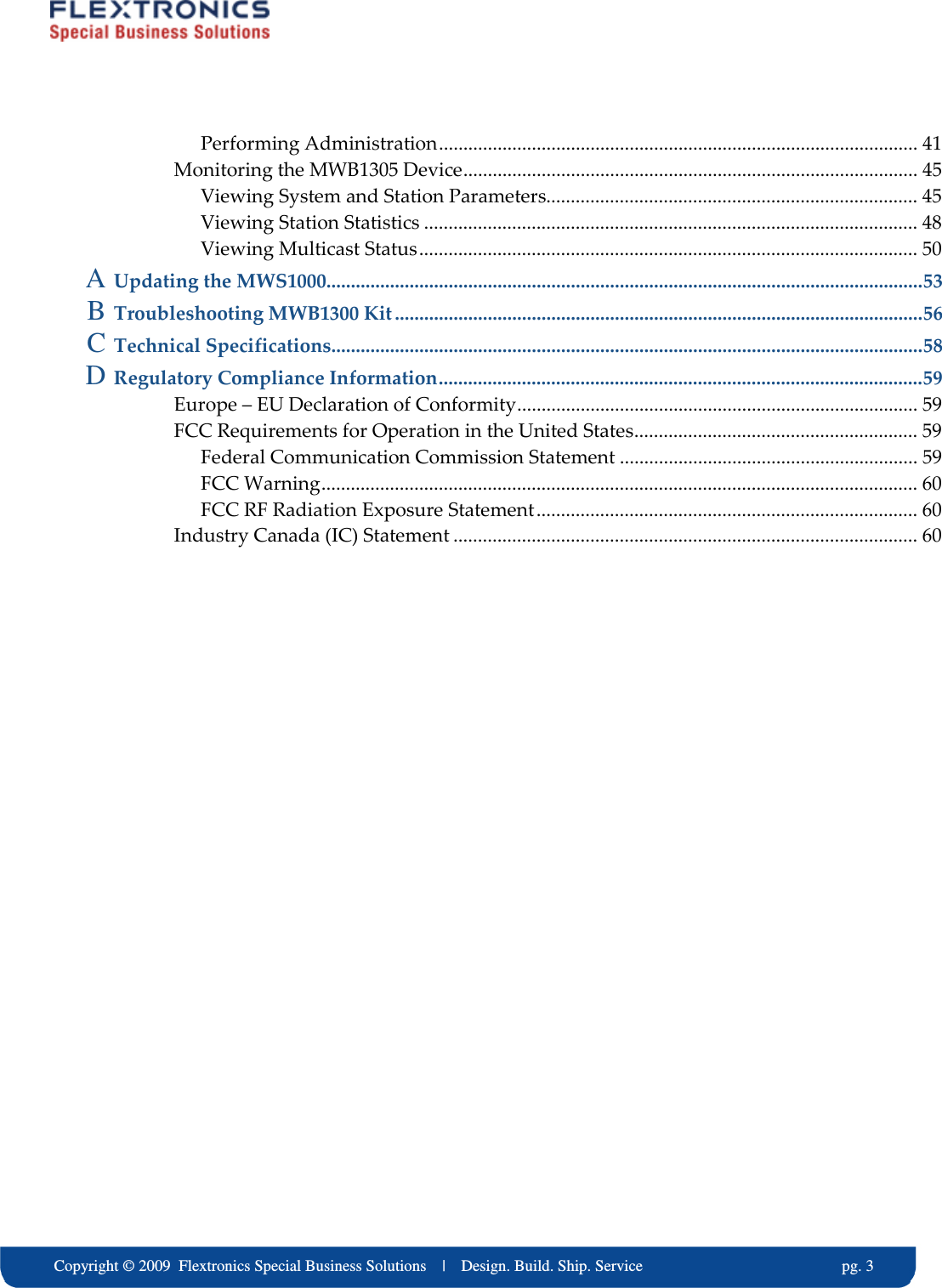
    Copyright © 2009  Flextronics Special Business Solutions    |    Design. Build. Ship. Service                                                  pg. 3 Performing Administration.................................................................................................. 41 Monitoring the MWB1305 Device............................................................................................. 45 Viewing System and Station Parameters............................................................................ 45 Viewing Station Statistics ..................................................................................................... 48 Viewing Multicast Status...................................................................................................... 50 A Updating the MWS1000..........................................................................................................................53 B Troubleshooting MWB1300 Kit............................................................................................................56 C Technical Specifications.........................................................................................................................58 D Regulatory Compliance Information...................................................................................................59 Europe – EU Declaration of Conformity.................................................................................. 59 FCC Requirements for Operation in the United States.......................................................... 59 Federal Communication Commission Statement ............................................................. 59 FCC Warning.......................................................................................................................... 60 FCC RF Radiation Exposure Statement.............................................................................. 60 Industry Canada (IC) Statement ............................................................................................... 60
  pg. 4                             Copyright © 2009  Flextronics Special Business Solutions    |    Design. Build. Ship. Service Preface Welcome to the Wireless Video Extender solution set from Flextronics. The User’s Guide will help you to understand the Wireless Video Extender solution, how to install it, configure it and troubleshoot problems.  Who should use this guide This User’s Guide assumes that the reader has basic to intermediate computer and internet skills. All the basic computer networking, Internet, and other information required to configure the home network and the devices is provided herein. Support Information Flextronics Special Buisness Solutions Hatasia 1 St Ramat Gavriel Ind. Zone . P.O. Box 23108 Migdal Haemek Israel Tel.: +972-4-644-8212 Fax: +972-4-604-0850
    Copyright © 2009  Flextronics Special Business Solutions    |    Design. Build. Ship. Service                                                  pg. 5  1 Introduction The Wireless Video Extender solution set enables service providers and consumers to quickly and simply deploy wireless home networks that can securely deliver multiple streams of carrier-quality SDTV and HDTV, and any other multimedia content throughout the home. The solution is optimized toward Quality of Experience (QoE) and performance consistency in both capacity and coverage. The Wireless Video Extender solution set  includes a “Celeno-Powered” MWB-1305 “Access Point” and a MWS-1000 “Client” which enable distribution of high-definition video streams from one central location to a TV set in the house without replacing existing routers, gateways, set top boxes or laying out new cables across the house.
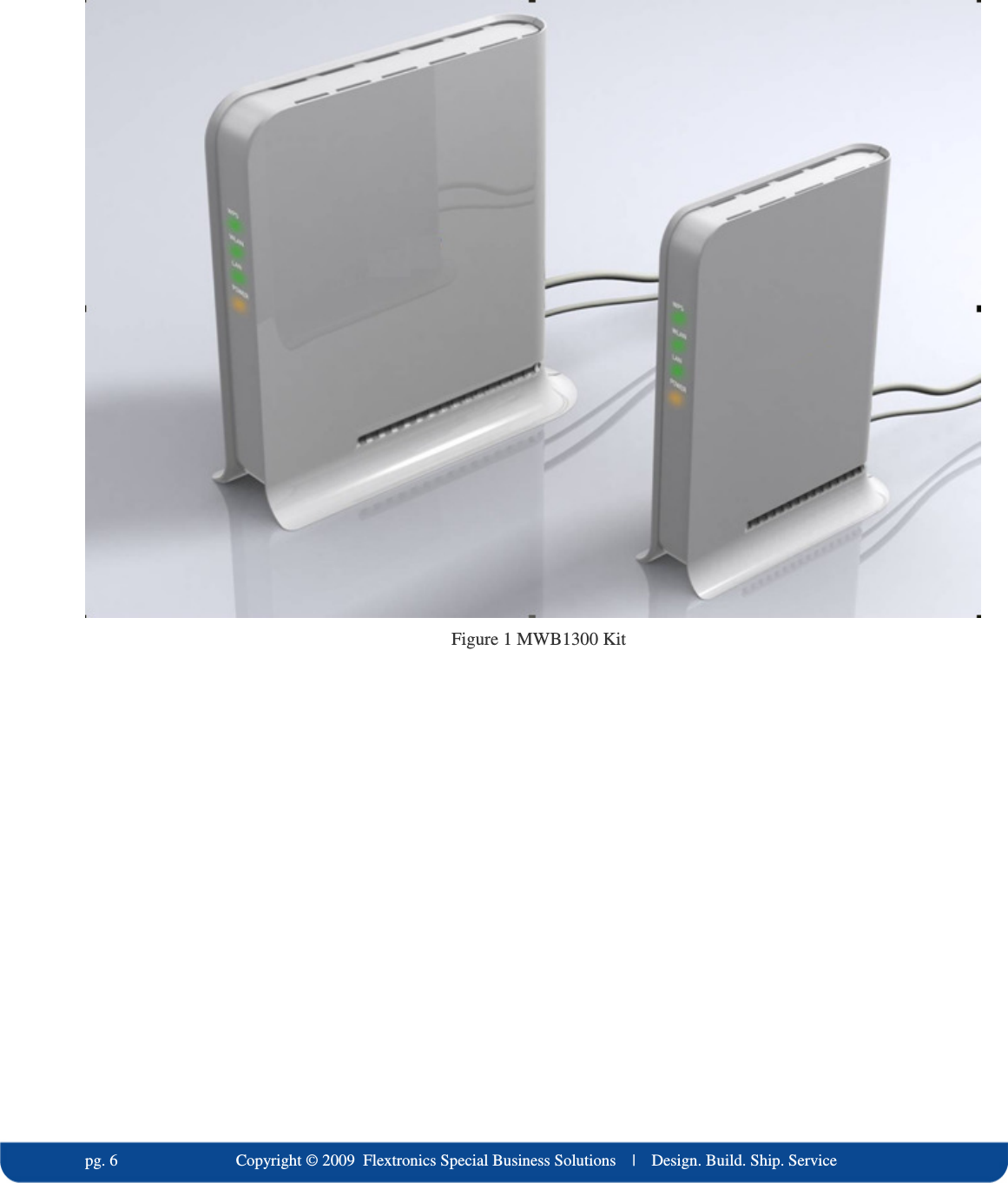
  pg. 6                             Copyright © 2009  Flextronics Special Business Solutions    |    Design. Build. Ship. Service  Figure 1 MWB1300 Kit
    Copyright © 2009  Flextronics Special Business Solutions    |    Design. Build. Ship. Service                                                  pg. 7 2 Knowing your MWB1300 Kit Package Contents  Your MWB1300 Kit contains the following items: 1. MWB1305 Wireless Video Extender “Access Point” 2. MWS1000 Wireless Video Extender “Client” 3. Two CAT5 cables 4. 1 Power Transformer for the MWB1305 device 5. 1 Power Transformers for the MWS1000 device 6. Quick Installation Guide Hardware Overview The MWB1300 Kit is comprised from a MWB1305 access point device and a MWS1000 client device . The MWB1305 is powered by Celeno’s CL1300 WiFi chipset that employs sophisticated algorithms and techniques such as implicit Beam Forming to reliably stream High Definition video to any location in the home. The MWB1305 connects to the video source that can be a gateway or a cable/DSL modem. The MWS1000 is a standard “off the shelf” WiFi client device. The MWB1000 connects to the video receiving set top box device. The MWB1300 devices has been designed to be placed on a desktop. All of the cables exit from the rear of the devices. The status display LEDs are located at the front of the devices and are easily visible.
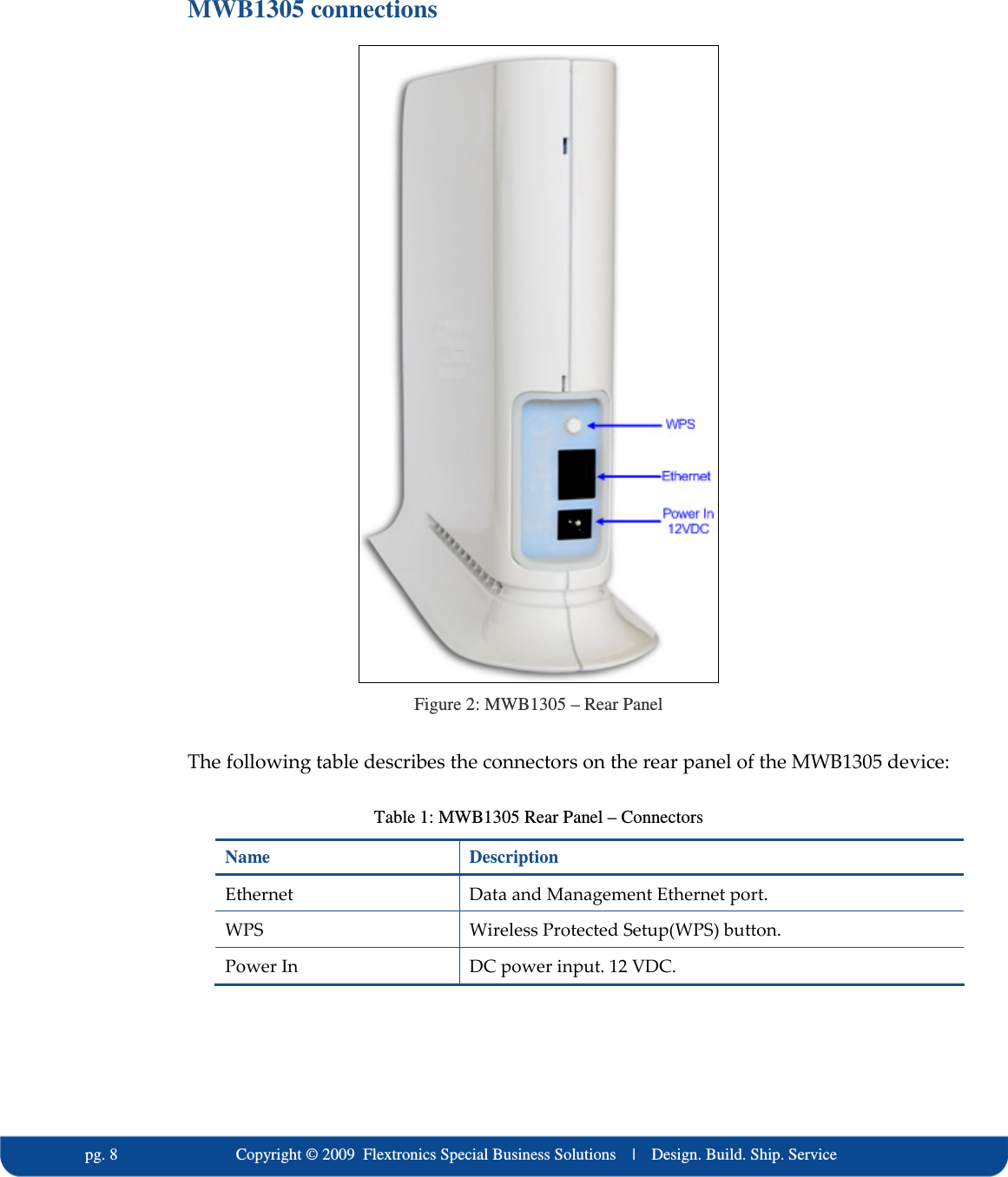
  pg. 8                             Copyright © 2009  Flextronics Special Business Solutions    |    Design. Build. Ship. Service MWB1305 connections  Figure 2: MWB1305 – Rear Panel The following table describes the connectors on the rear panel of the MWB1305 device: Table 1: MWB1305 Rear Panel – Connectors Name  Description Ethernet   Data and Management Ethernet port. WPS  Wireless Protected Setup(WPS) button. Power In  DC power input. 12 VDC.
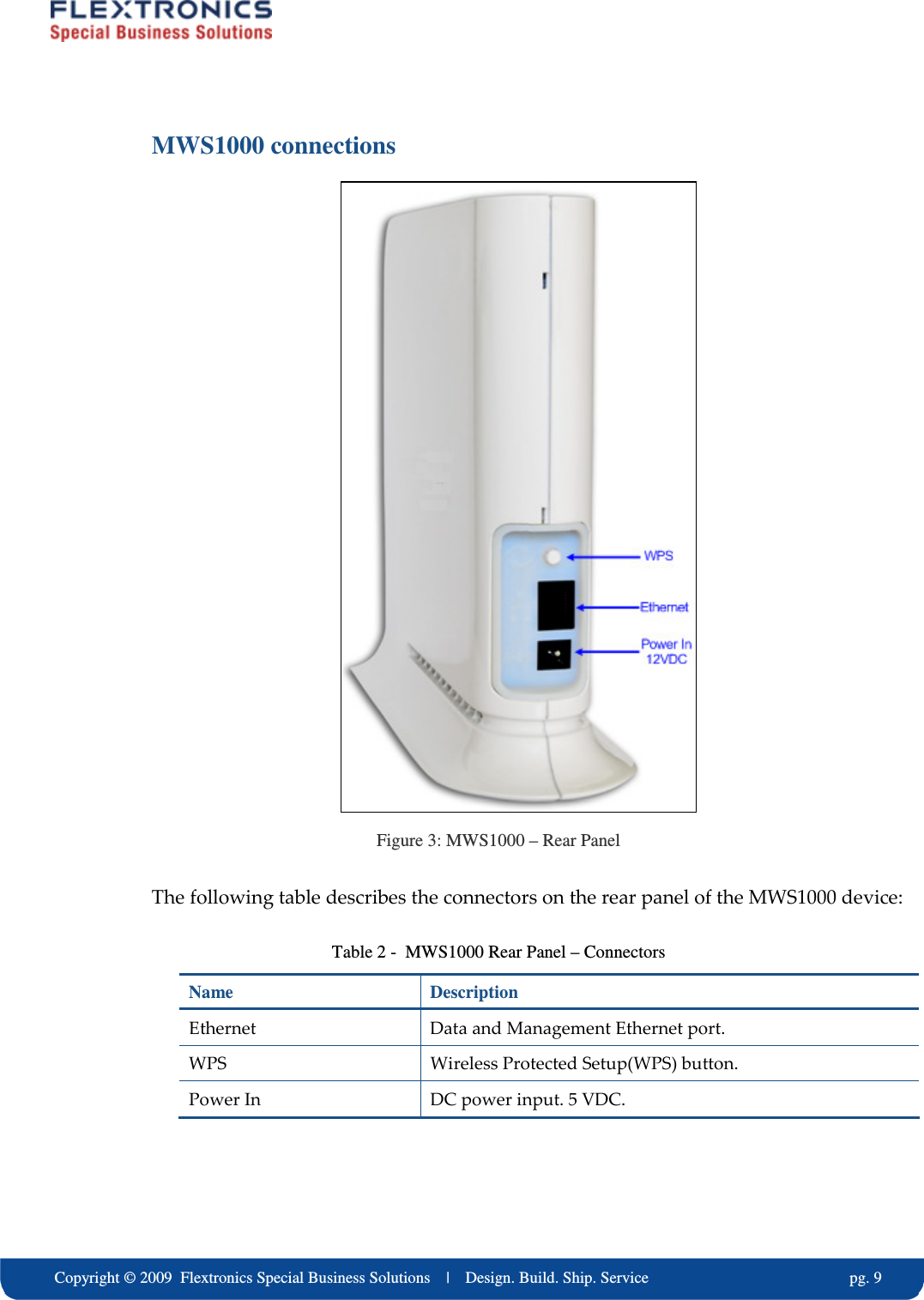
    Copyright © 2009  Flextronics Special Business Solutions    |    Design. Build. Ship. Service                                                  pg. 9 MWS1000 connections  Figure 3: MWS1000 – Rear Panel The following table describes the connectors on the rear panel of the MWS1000 device: Table 2 -  MWS1000 Rear Panel – Connectors Name  Description Ethernet   Data and Management Ethernet port. WPS  Wireless Protected Setup(WPS) button. Power In  DC power input. 5 VDC.
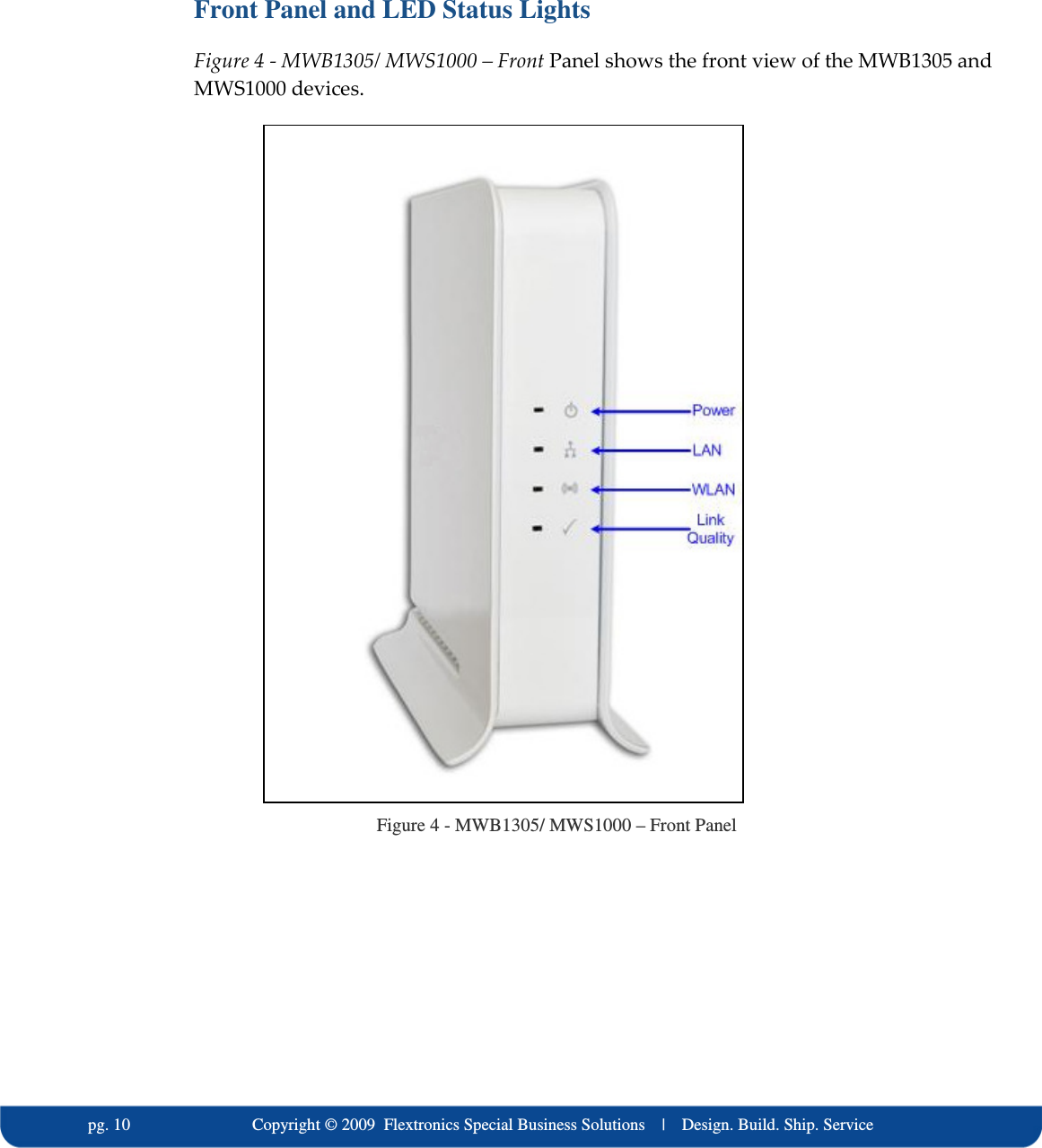
  pg. 10                             Copyright © 2009  Flextronics Special Business Solutions    |    Design. Build. Ship. Service  Front Panel and LED Status Lights  Figure 4 - MWB1305/ MWS1000 – Front Panel shows the front view of the MWB1305 and MWS1000 devices.  Figure 4 - MWB1305/ MWS1000 – Front Panel
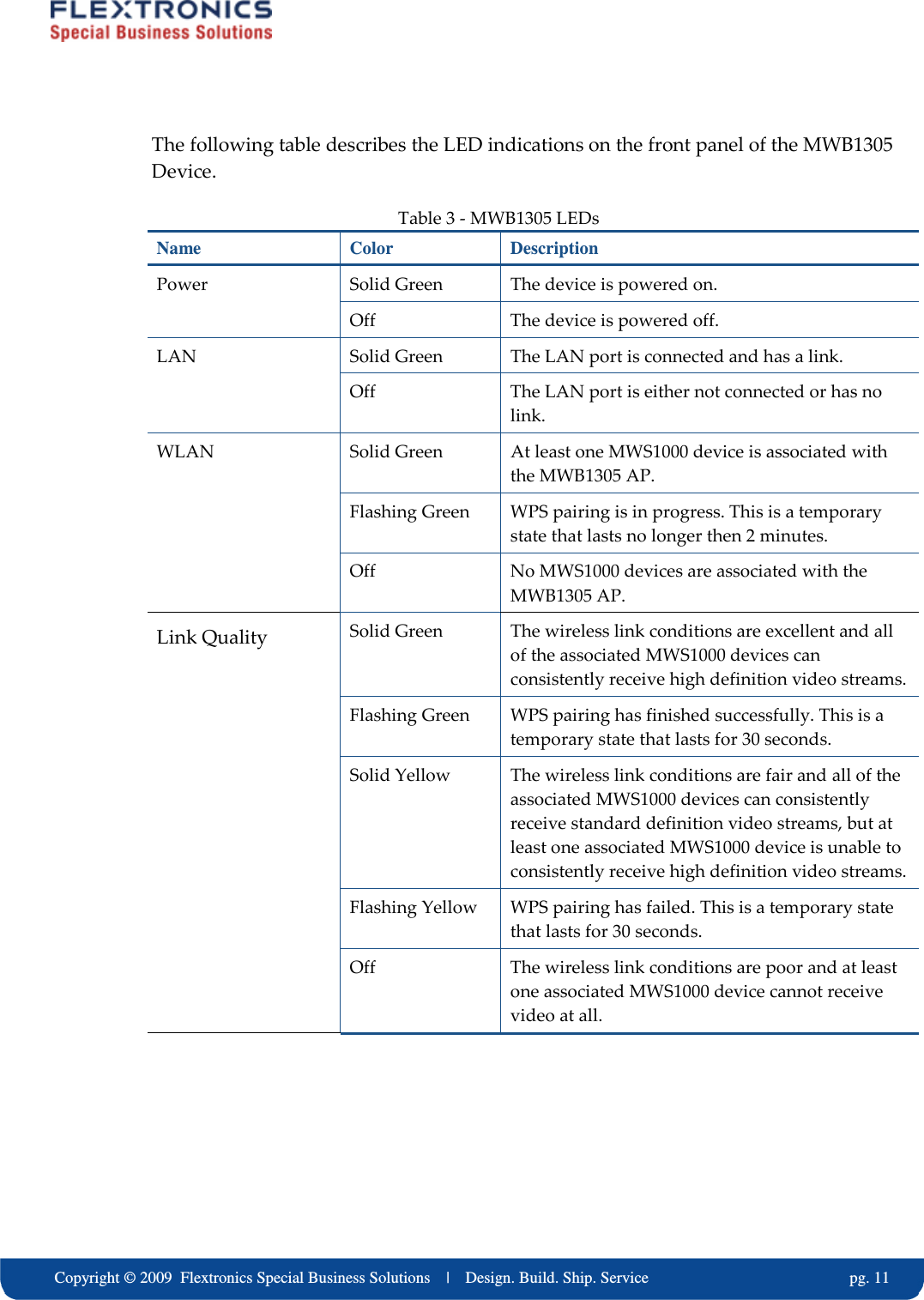
    Copyright © 2009  Flextronics Special Business Solutions    |    Design. Build. Ship. Service                                                  pg. 11 The following table describes the LED indications on the front panel of the MWB1305 Device.  Table 3 - MWB1305 LEDs Name  Color  Description Solid Green  The device is powered on. Power Off  The device is powered off. Solid Green  The LAN port is connected and has a link. LAN Off  The LAN port is either not connected or has no link. Solid Green  At least one MWS1000 device is associated with the MWB1305 AP. Flashing Green  WPS pairing is in progress. This is a temporary state that lasts no longer then 2 minutes.  WLAN Off  No MWS1000 devices are associated with the MWB1305 AP. Solid Green  The wireless link conditions are excellent and all of the associated MWS1000 devices can consistently receive high definition video streams. Flashing Green  WPS pairing has finished successfully. This is a temporary state that lasts for 30 seconds. Solid Yellow  The wireless link conditions are fair and all of the associated MWS1000 devices can consistently receive standard definition video streams, but at least one associated MWS1000 device is unable to consistently receive high definition video streams. Flashing Yellow  WPS pairing has failed. This is a temporary state that lasts for 30 seconds. Link Quality Off  The wireless link conditions are poor and at least one associated MWS1000 device cannot receive video at all.
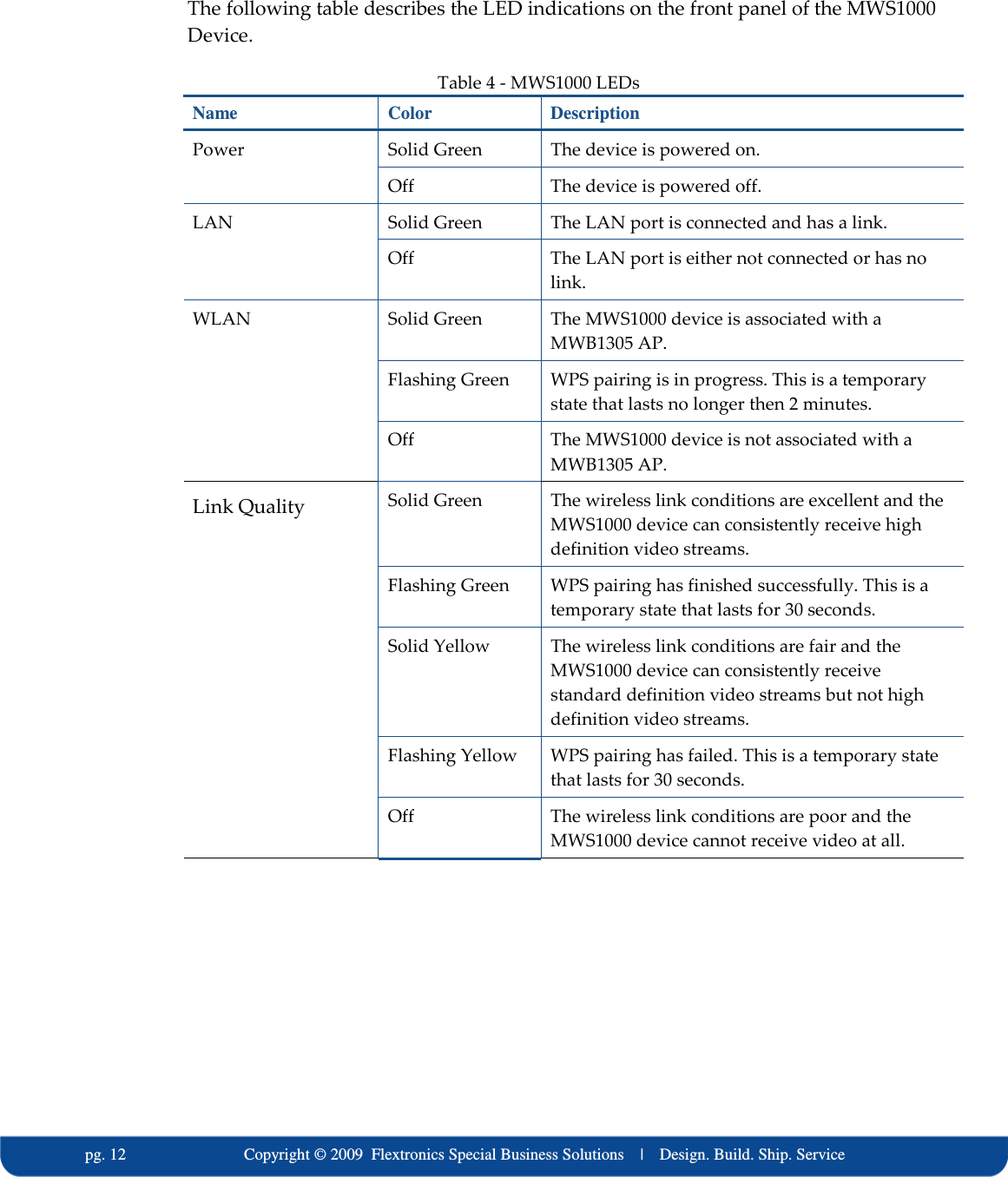
  pg. 12                             Copyright © 2009  Flextronics Special Business Solutions    |    Design. Build. Ship. Service The following table describes the LED indications on the front panel of the MWS1000 Device.  Table 4 - MWS1000 LEDs Name  Color  Description Solid Green  The device is powered on. Power Off  The device is powered off. Solid Green  The LAN port is connected and has a link. LAN Off  The LAN port is either not connected or has no link. Solid Green  The MWS1000 device is associated with a MWB1305 AP. Flashing Green  WPS pairing is in progress. This is a temporary state that lasts no longer then 2 minutes. WLAN Off  The MWS1000 device is not associated with a MWB1305 AP. Solid Green  The wireless link conditions are excellent and the MWS1000 device can consistently receive high definition video streams. Flashing Green  WPS pairing has finished successfully. This is a temporary state that lasts for 30 seconds. Solid Yellow  The wireless link conditions are fair and the MWS1000 device can consistently receive standard definition video streams but not high definition video streams. Flashing Yellow  WPS pairing has failed. This is a temporary state that lasts for 30 seconds. Link Quality Off  The wireless link conditions are poor and the MWS1000 device cannot receive video at all.
    Copyright © 2009  Flextronics Special Business Solutions    |    Design. Build. Ship. Service                                                  pg. 13  The following LED combinations describe special indications: Combination – The Power LED is solid green, the LAN and WLAN LEDs are flashing green and the link quality LED is flashing yellow. The flashing is simultaneous. Description – The device is experiencing a severe malfunction. Please contact your service provider or local dealer.  Combination – The Power LED is solid green, the LAN, WLAN and Link quality LEDs are flashing green. The lashing is in sequence. Description – The device is undergoing a software upgrade process.    “Do not unplug the device from the power outlet or reset it while software upgrade is in progress”.
  pg. 14                             Copyright © 2009  Flextronics Special Business Solutions    |    Design. Build. Ship. Service  Setting Up your MWB1300 Kit Setting up the system involves the following steps:  Powering up your devices  Pairing your devices  Placing and connecting your devices After performing these steps, you can start streaming High Definition video through the MWB1300 Kit.  Changing your computer’s IP address After performing this additional step, you can use the MWB1305 Management Application to configure and manage your MWB1305 device. (refer to Managing the MWB1305 Device on page 27).
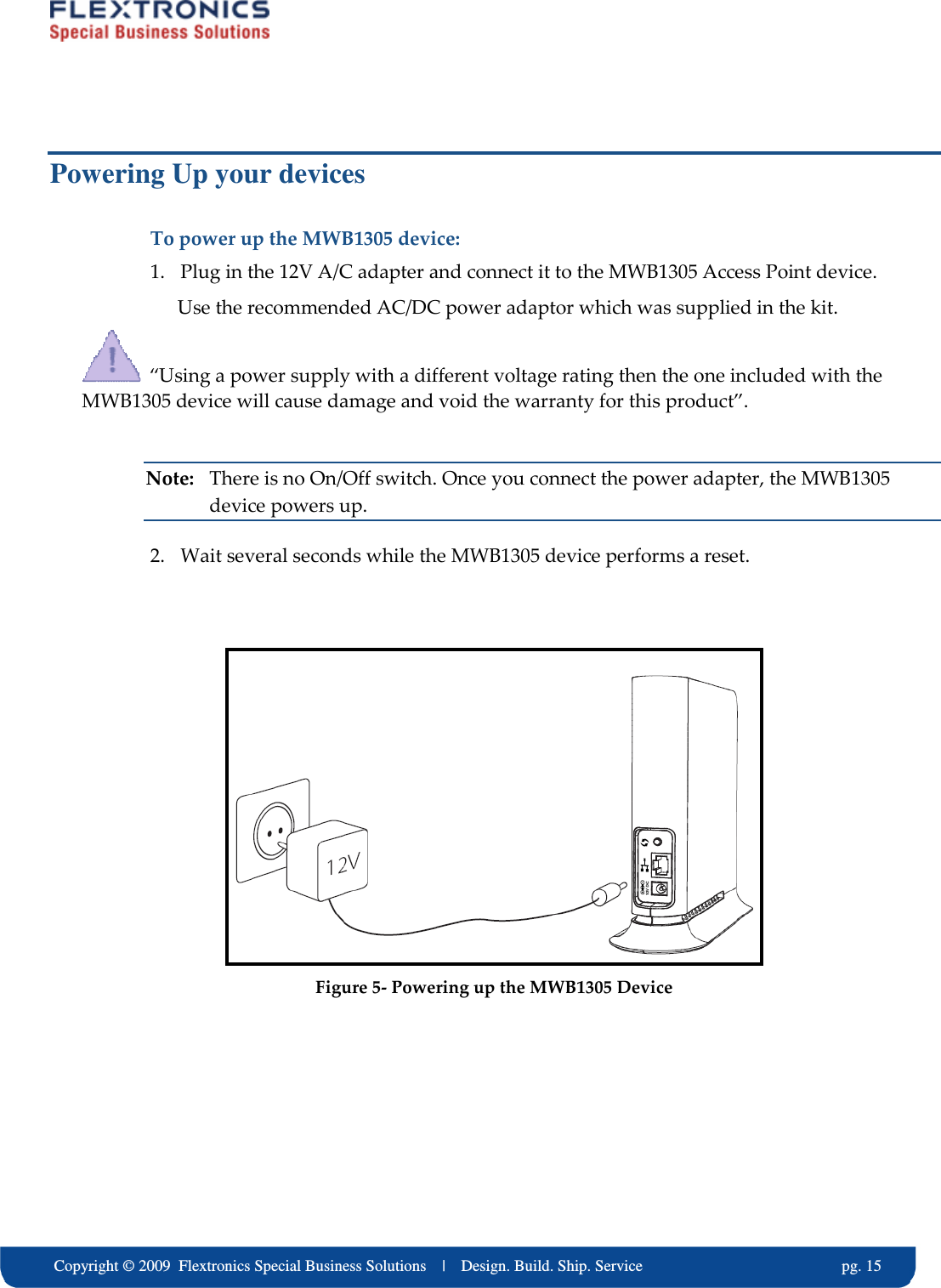
    Copyright © 2009  Flextronics Special Business Solutions    |    Design. Build. Ship. Service                                                  pg. 15 Powering Up your devices To power up the MWB1305 device: 1. Plug in the 12V A/C adapter and connect it to the MWB1305 Access Point device. Use the recommended AC/DC power adaptor which was supplied in the kit.   “Using a power supply with a different voltage rating then the one included with the MWB1305 device will cause damage and void the warranty for this product”.  Note:  There is no On/Off switch. Once you connect the power adapter, the MWB1305 device powers up. 2. Wait several seconds while the MWB1305 device performs a reset.    Figure 5- Powering up the MWB1305 Device
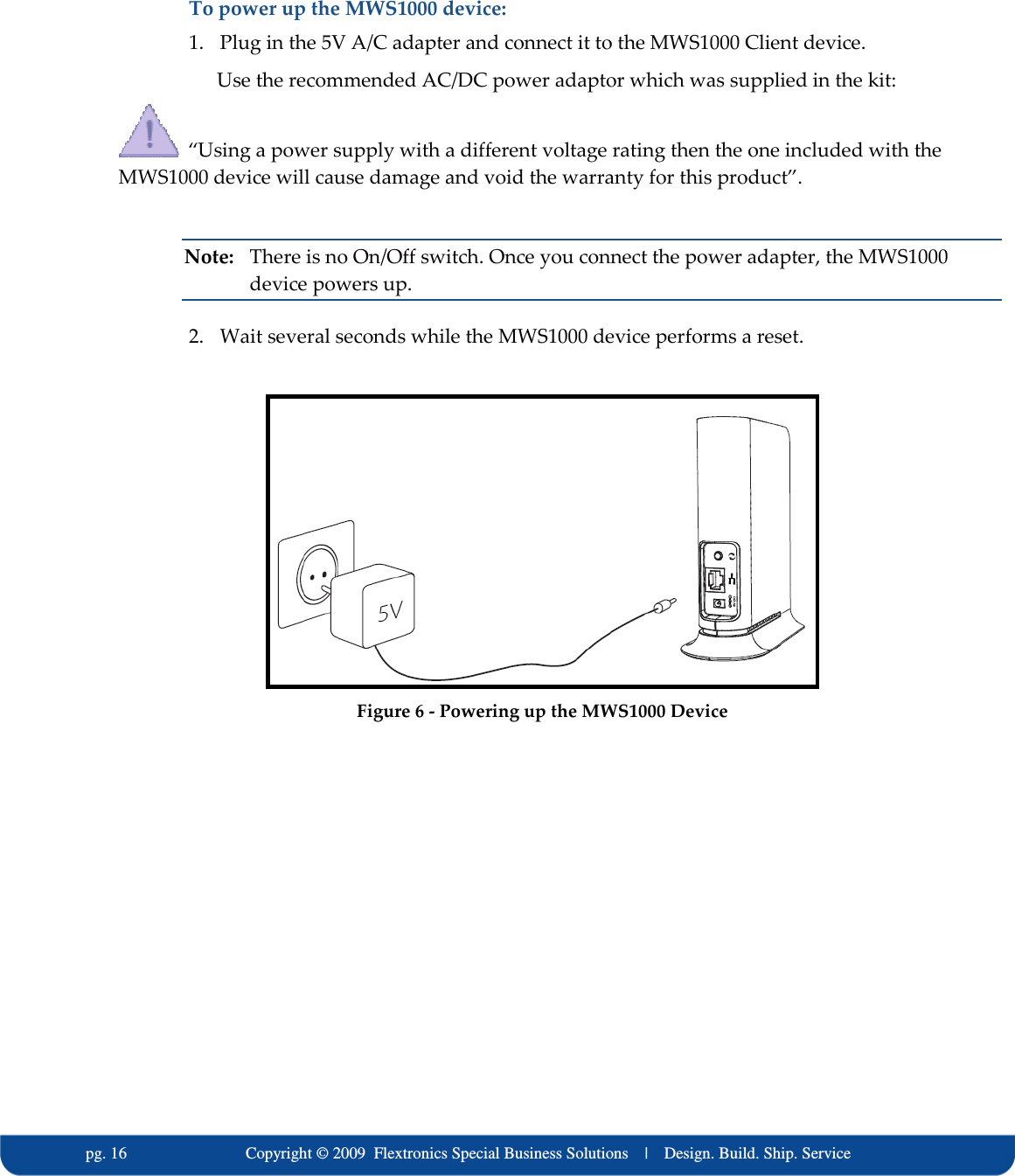
  pg. 16                             Copyright © 2009  Flextronics Special Business Solutions    |    Design. Build. Ship. Service To power up the MWS1000 device: 1. Plug in the 5V A/C adapter and connect it to the MWS1000 Client device. Use the recommended AC/DC power adaptor which was supplied in the kit:   “Using a power supply with a different voltage rating then the one included with the MWS1000 device will cause damage and void the warranty for this product”.  Note:  There is no On/Off switch. Once you connect the power adapter, the MWS1000 device powers up. 2. Wait several seconds while the MWS1000 device performs a reset.   Figure 6 - Powering up the MWS1000 Device
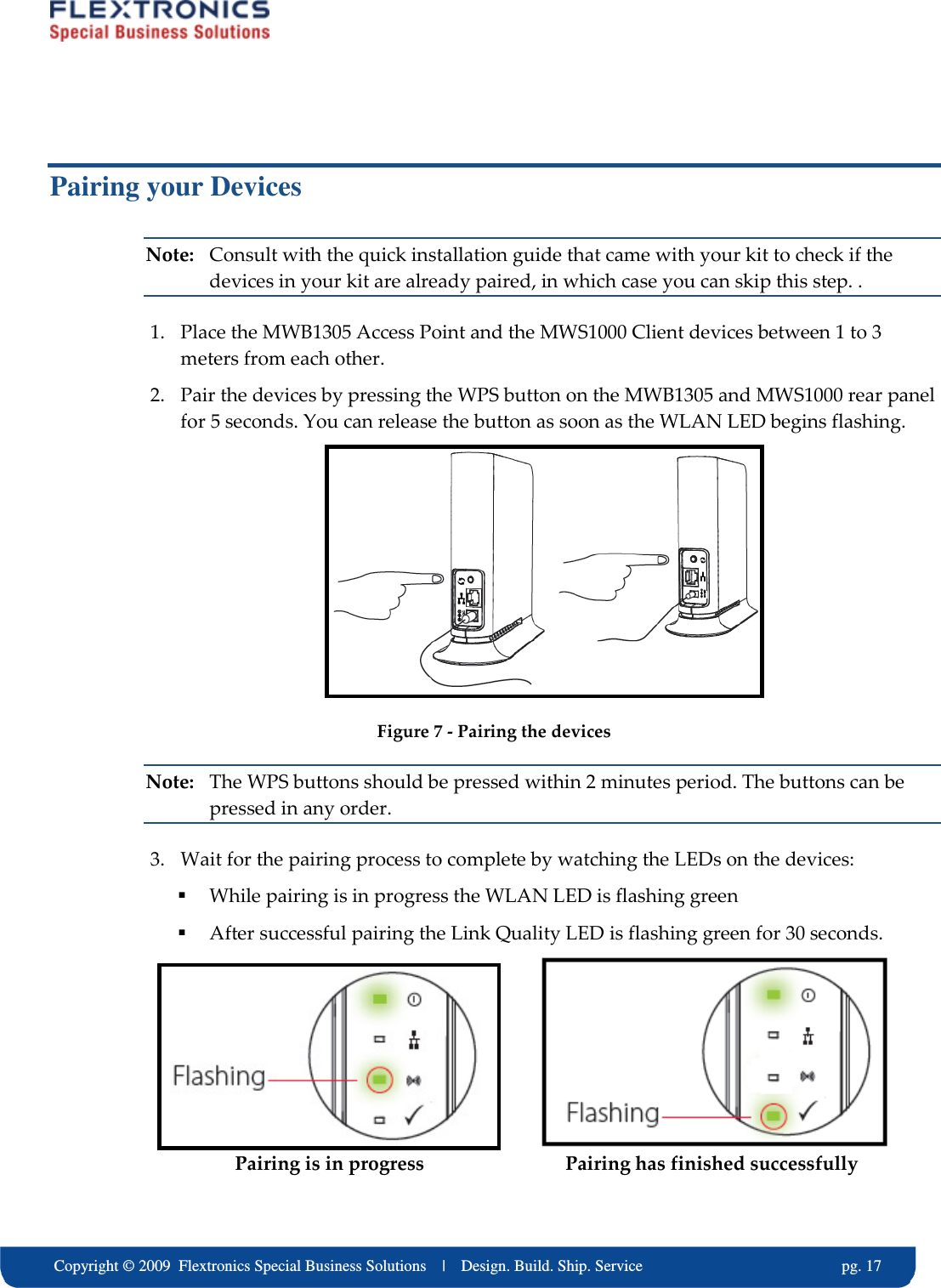
    Copyright © 2009  Flextronics Special Business Solutions    |    Design. Build. Ship. Service                                                  pg. 17 Pairing your Devices Note:  Consult with the quick installation guide that came with your kit to check if the devices in your kit are already paired, in which case you can skip this step. . 1. Place the MWB1305 Access Point and the MWS1000 Client devices between 1 to 3 meters from each other. 2. Pair the devices by pressing the WPS button on the MWB1305 and MWS1000 rear panel for 5 seconds. You can release the button as soon as the WLAN LED begins flashing.  Figure 7 - Pairing the devices Note:  The WPS buttons should be pressed within 2 minutes period. The buttons can be pressed in any order. 3. Wait for the pairing process to complete by watching the LEDs on the devices:  While pairing is in progress the WLAN LED is flashing green  After successful pairing the Link Quality LED is flashing green for 30 seconds.                                                        Pairing is in progress                             Pairing has finished successfully
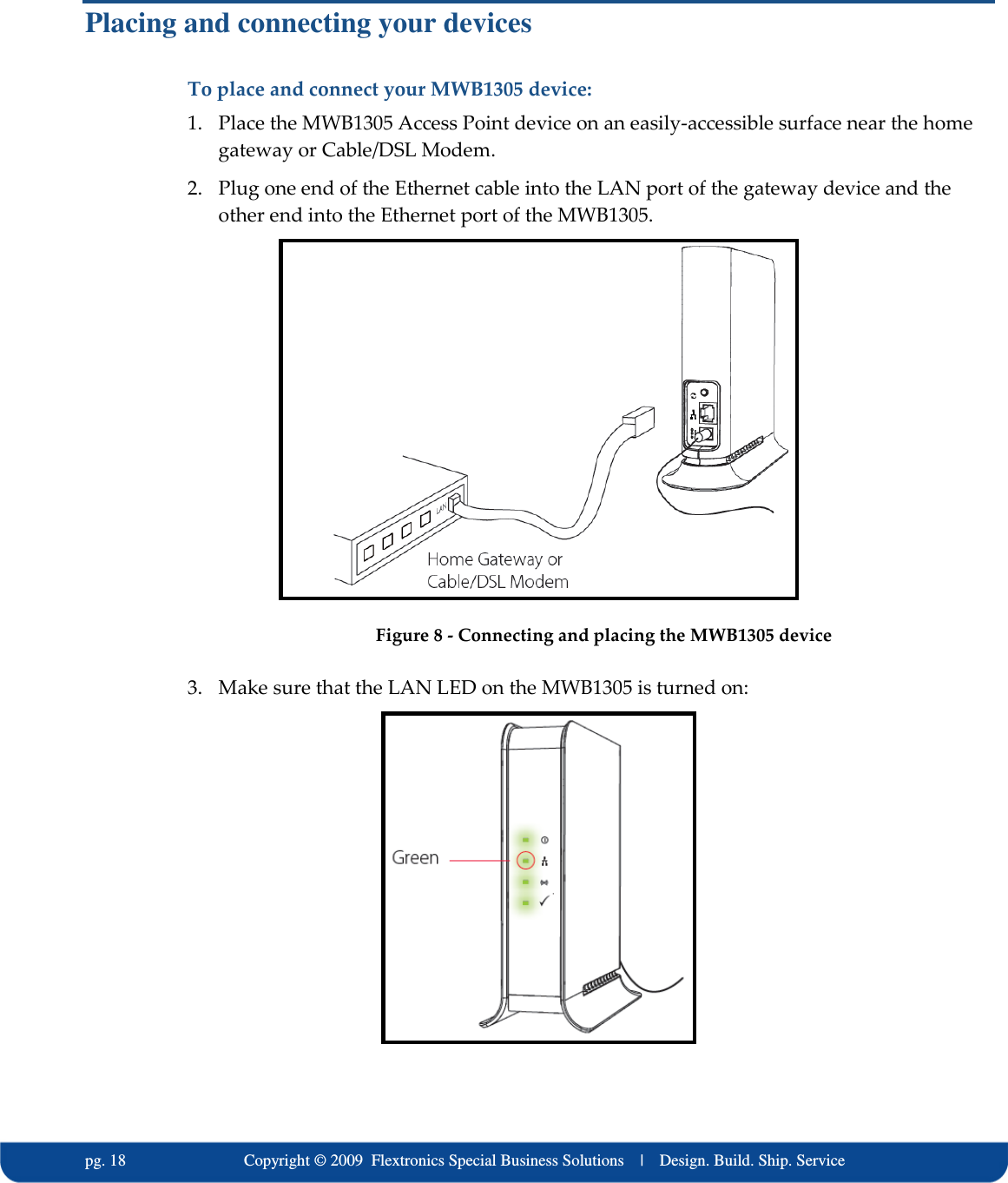
  pg. 18                             Copyright © 2009  Flextronics Special Business Solutions    |    Design. Build. Ship. Service Placing and connecting your devices To place and connect your MWB1305 device: 1. Place the MWB1305 Access Point device on an easily-accessible surface near the home gateway or Cable/DSL Modem. 2. Plug one end of the Ethernet cable into the LAN port of the gateway device and the other end into the Ethernet port of the MWB1305.  Figure 8 - Connecting and placing the MWB1305 device  3. Make sure that the LAN LED on the MWB1305 is turned on:
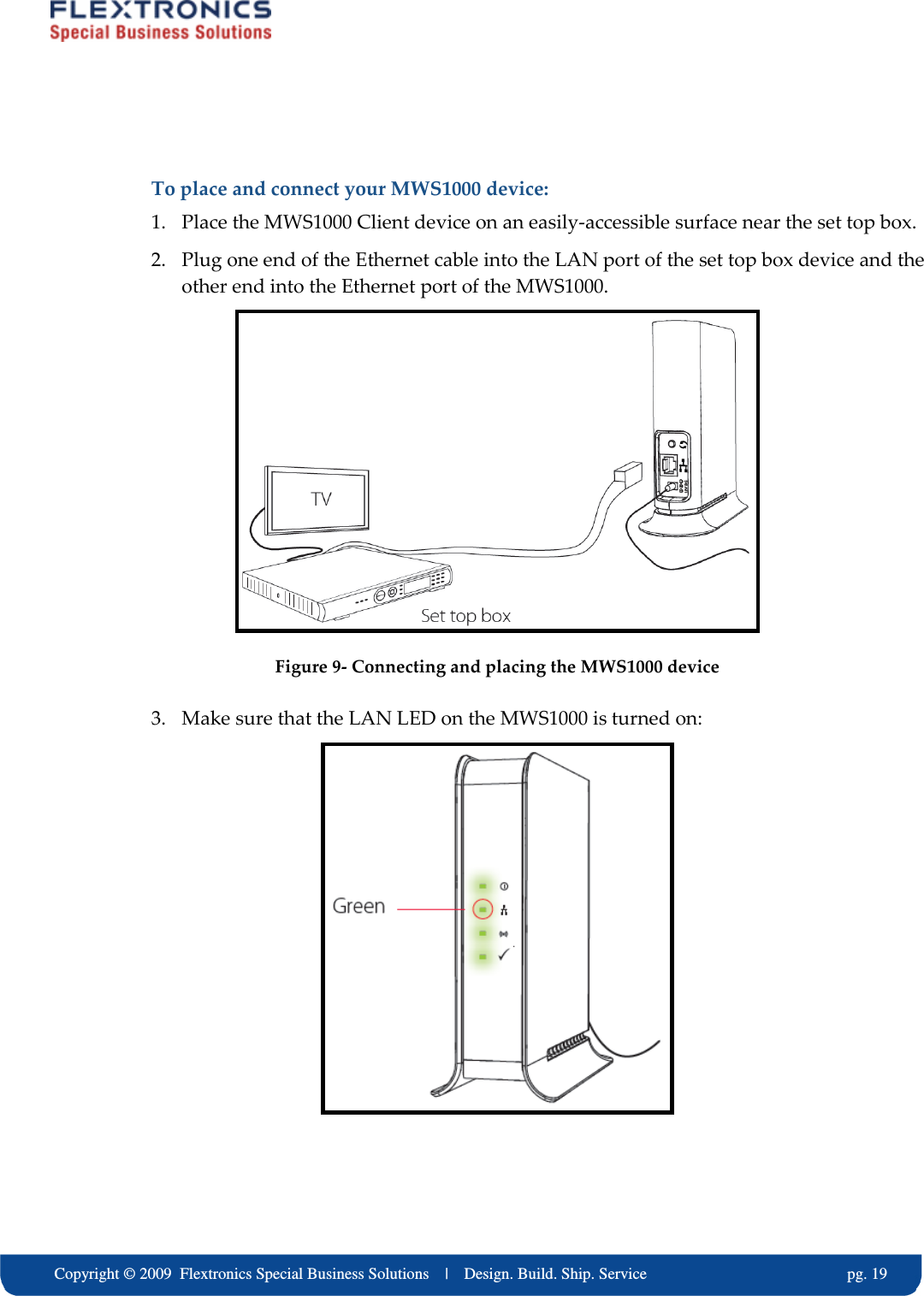
    Copyright © 2009  Flextronics Special Business Solutions    |    Design. Build. Ship. Service                                                  pg. 19  To place and connect your MWS1000 device: 1. Place the MWS1000 Client device on an easily-accessible surface near the set top box. 2. Plug one end of the Ethernet cable into the LAN port of the set top box device and the other end into the Ethernet port of the MWS1000.  Figure 9- Connecting and placing the MWS1000 device  3. Make sure that the LAN LED on the MWS1000 is turned on:
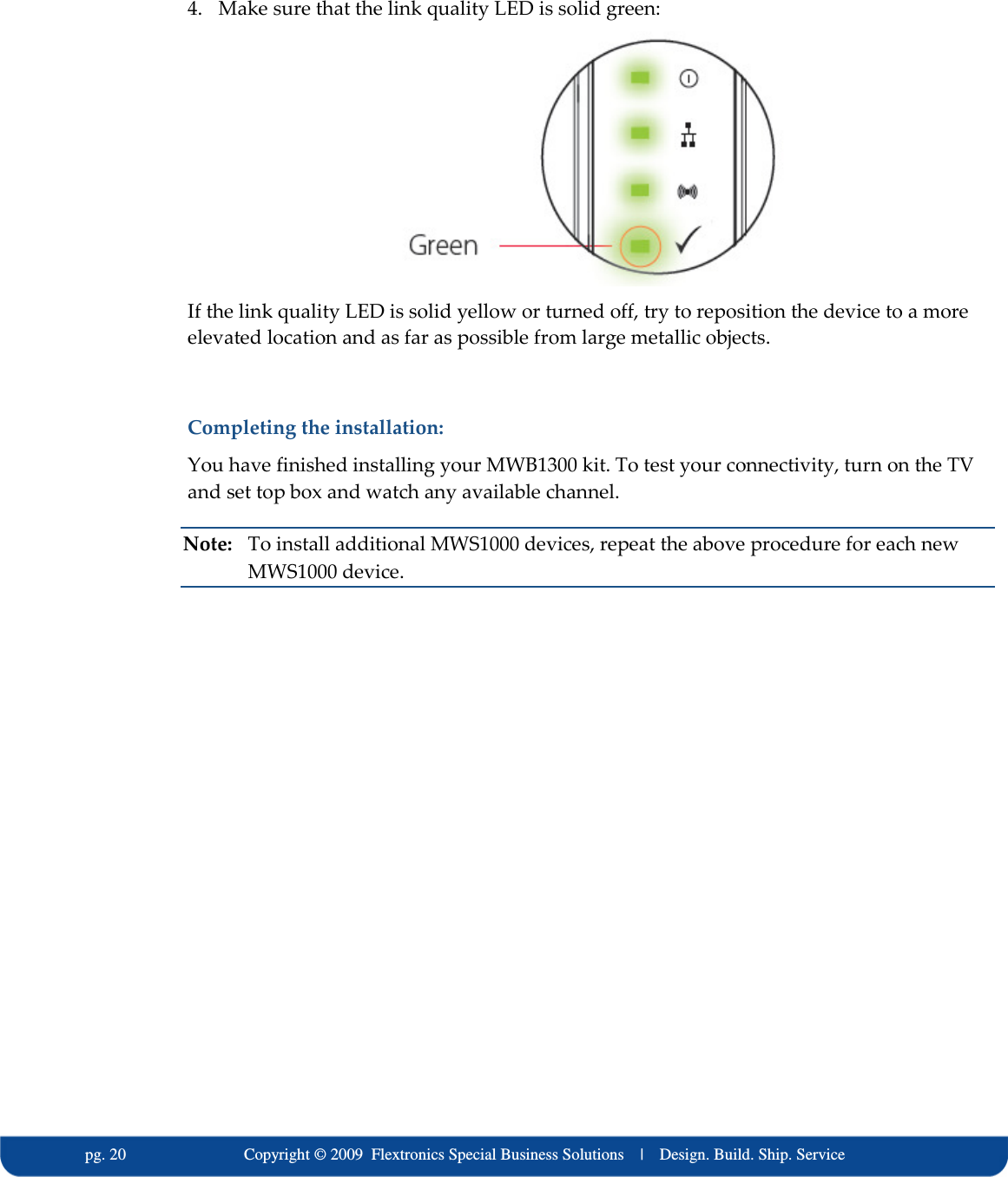
  pg. 20                             Copyright © 2009  Flextronics Special Business Solutions    |    Design. Build. Ship. Service 4. Make sure that the link quality LED is solid green:   If the link quality LED is solid yellow or turned off, try to reposition the device to a more elevated location and as far as possible from large metallic objects.  Completing the installation: You have finished installing your MWB1300 kit. To test your connectivity, turn on the TV and set top box and watch any available channel. Note:  To install additional MWS1000 devices, repeat the above procedure for each new MWS1000 device.
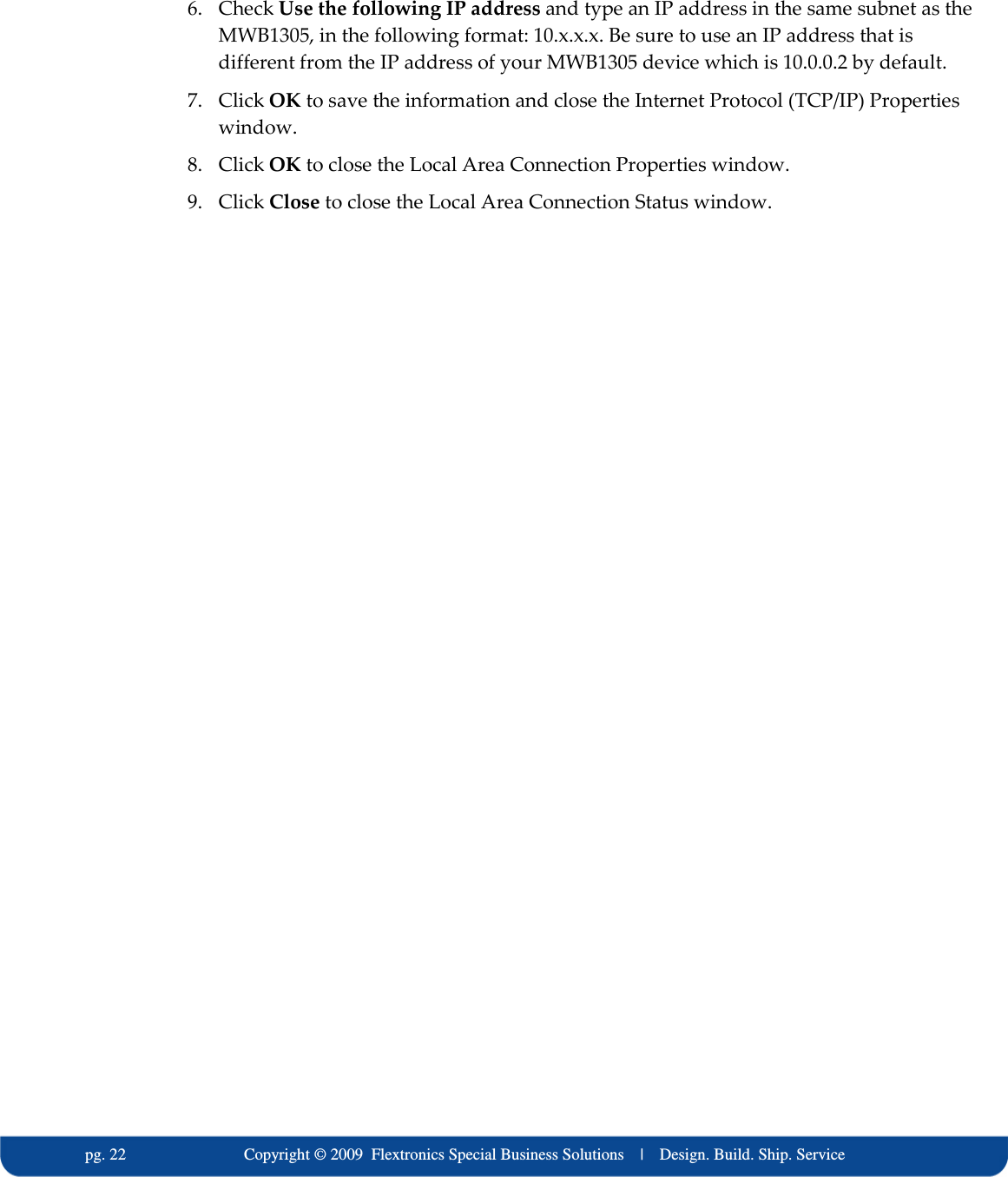
    Copyright © 2009  Flextronics Special Business Solutions    |    Design. Build. Ship. Service                                                  pg. 21 Changing Your Computer’s IP Address In order to connect your management computer to the MWB1305 device, you must change the IP address of your computer so that it is on the same subnet as the MWB1305 device (by default 10.x.x.x). Since this disconnects your computer from your computer network, you may need to restore this setting later. To change the IP address of your computer: 1. Connect an Ethernet cable between the Ethernet port of the MWB1305 device and the Ethernet port of your computer. 2. From your computer’s desktop, click Start > Settings > Network Connections and double-click the LAN connection for your computer network. The Local Area Connection Status window appears. 3. From the General tab, click Properties. The Local Area Connection Properties window appears. 4. Select Internet Protocol (TCP/IP) and click Properties. The Internet Protocol (TCP/IP) Properties window appears.  Figure 10: Internet Protocol (TCP/IP) Properties Window 5. Make a note of the current settings in this window. You will need to know these settings when reconnecting your computer to your computer network.
  pg. 22                             Copyright © 2009  Flextronics Special Business Solutions    |    Design. Build. Ship. Service 6. Check Use the following IP address and type an IP address in the same subnet as the MWB1305, in the following format: 10.x.x.x. Be sure to use an IP address that is different from the IP address of your MWB1305 device which is 10.0.0.2 by default. 7. Click OK to save the information and close the Internet Protocol (TCP/IP) Properties window. 8. Click OK to close the Local Area Connection Properties window. 9. Click Close to close the Local Area Connection Status window.
    Copyright © 2009  Flextronics Special Business Solutions    |    Design. Build. Ship. Service                                                  pg. 23 3 Management - Getting Started The MWB1305 Management Application is a web-based tool that enables you to manage and configure your MWB1305 device. This chapter describes how to navigate through the MWB1305 Management Application: Note:  Ensure that you have connected an Ethernet cable between your computer and the MWB1305 device.
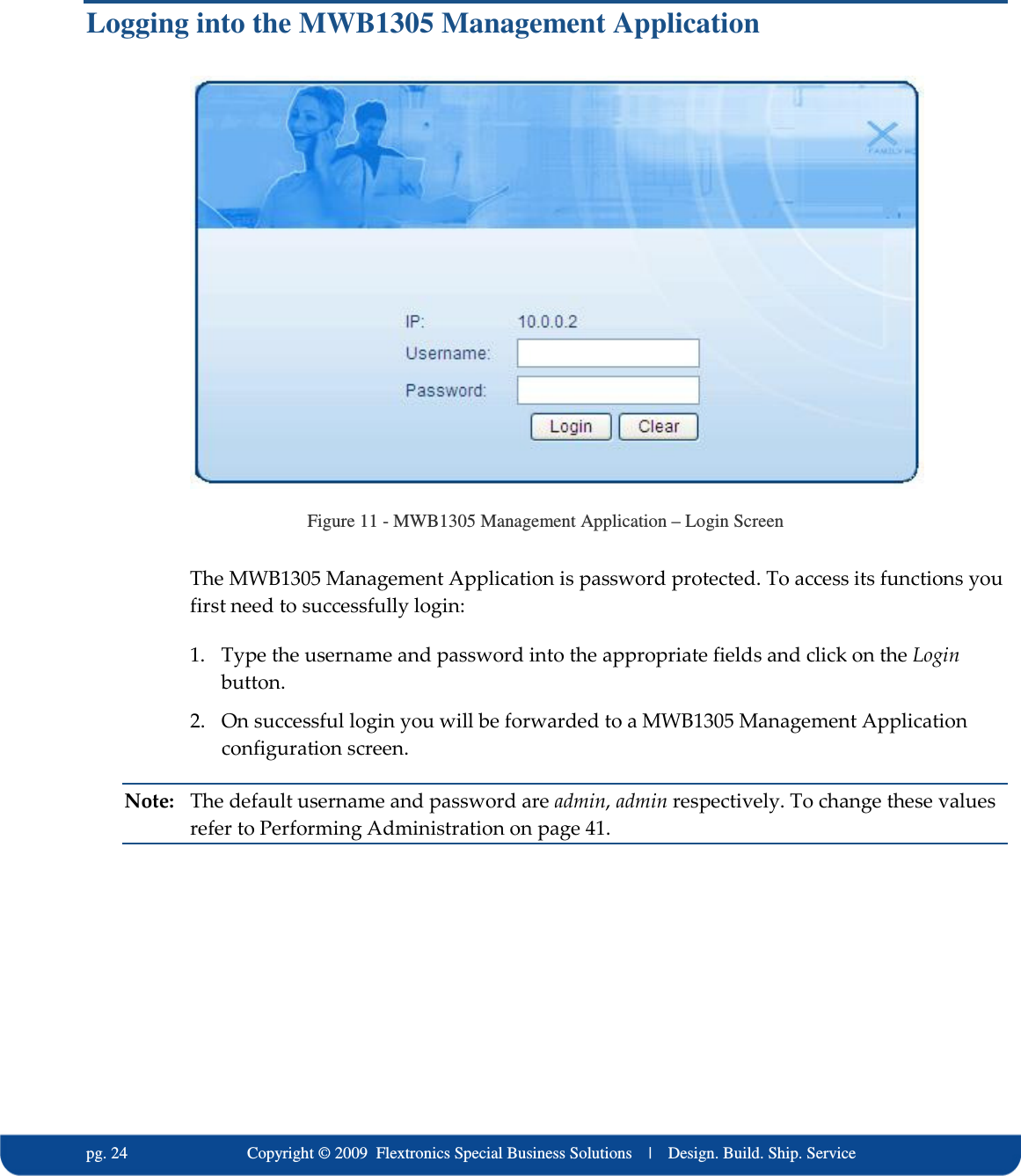
  pg. 24                             Copyright © 2009  Flextronics Special Business Solutions    |    Design. Build. Ship. Service Logging into the MWB1305 Management Application  Figure 11 - MWB1305 Management Application – Login Screen The MWB1305 Management Application is password protected. To access its functions you first need to successfully login: 1. Type the username and password into the appropriate fields and click on the Login button. 2. On successful login you will be forwarded to a MWB1305 Management Application configuration screen. Note:  The default username and password are admin, admin respectively. To change these values refer to Performing Administration on page 41.
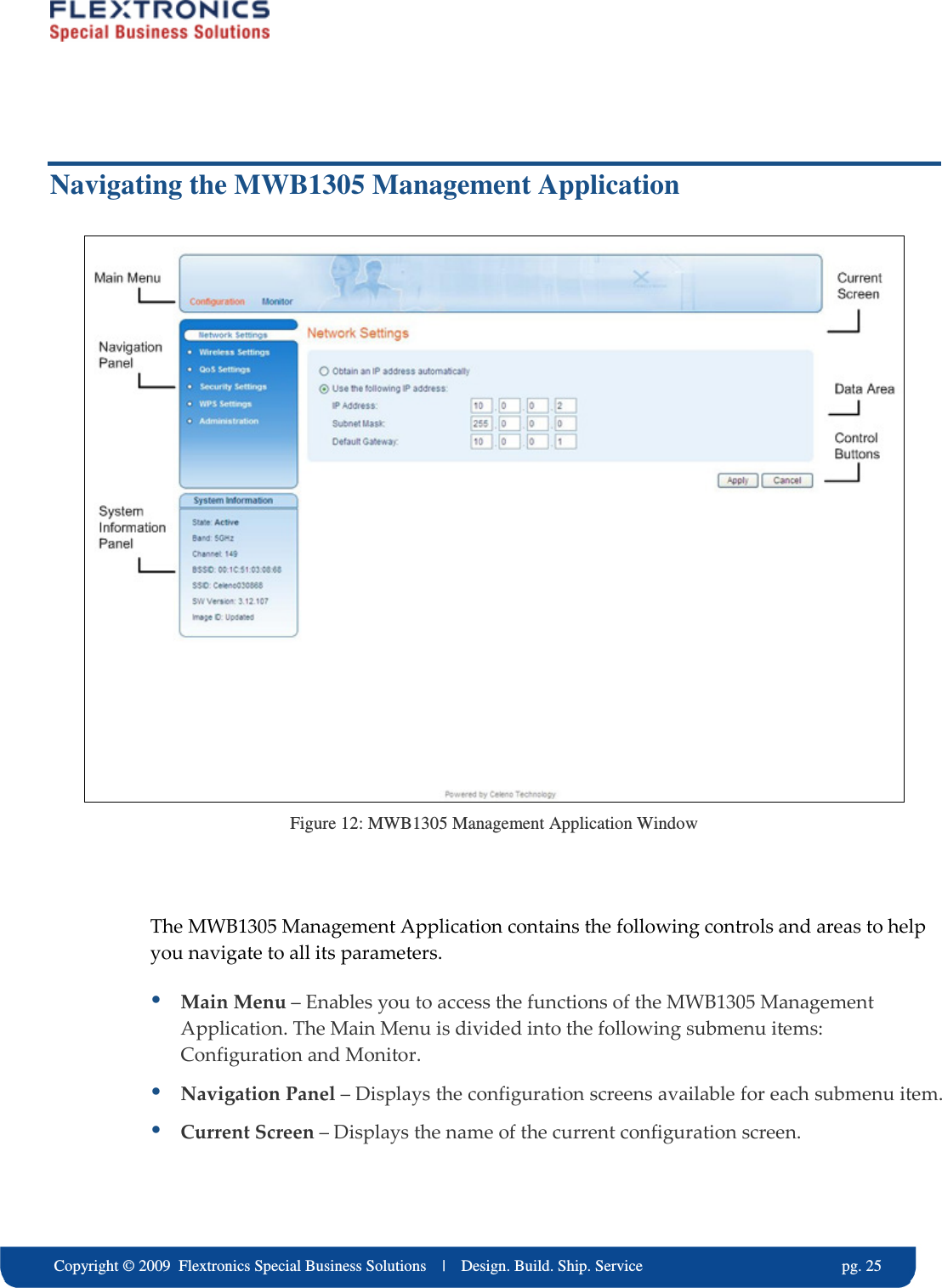
    Copyright © 2009  Flextronics Special Business Solutions    |    Design. Build. Ship. Service                                                  pg. 25 Navigating the MWB1305 Management Application  Figure 12: MWB1305 Management Application Window  The MWB1305 Management Application contains the following controls and areas to help you navigate to all its parameters.  Main Menu – Enables you to access the functions of the MWB1305 Management Application. The Main Menu is divided into the following submenu items: Configuration and Monitor.  Navigation Panel – Displays the configuration screens available for each submenu item.  Current Screen – Displays the name of the current configuration screen.
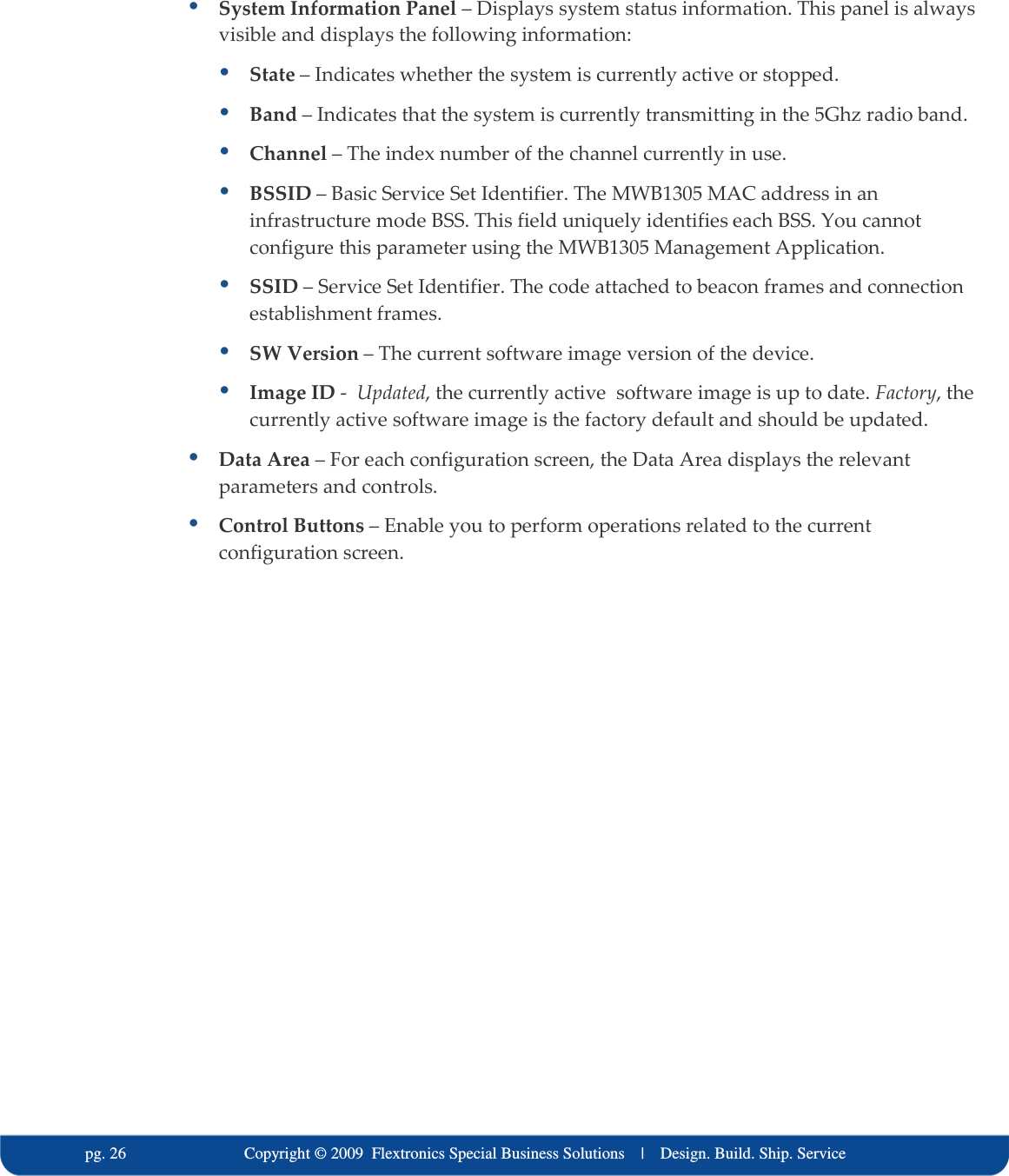
  pg. 26                             Copyright © 2009  Flextronics Special Business Solutions    |    Design. Build. Ship. Service  System Information Panel – Displays system status information. This panel is always visible and displays the following information:  State – Indicates whether the system is currently active or stopped.  Band – Indicates that the system is currently transmitting in the 5Ghz radio band.  Channel – The index number of the channel currently in use.  BSSID – Basic Service Set Identifier. The MWB1305 MAC address in an infrastructure mode BSS. This field uniquely identifies each BSS. You cannot configure this parameter using the MWB1305 Management Application.  SSID – Service Set Identifier. The code attached to beacon frames and connection establishment frames.  SW Version – The current software image version of the device.  Image ID -  Updated, the currently active  software image is up to date. Factory, the currently active software image is the factory default and should be updated.   Data Area – For each configuration screen, the Data Area displays the relevant parameters and controls.  Control Buttons – Enable you to perform operations related to the current configuration screen.
    Copyright © 2009  Flextronics Special Business Solutions    |    Design. Build. Ship. Service                                                  pg. 27 4 Managing the MWB1305 Device The MWB1305 Management Application is a user-friendly application that enables you to configure and control all the parameters of the MWB1305. The main menu contains the following options:  Configuration  Monitor Note:  Clicking Cancel in any of the MWB1305 Management Application windows discards any unsaved changes you have made. The MWB1305 Management Application then re-queries the MWB1305 device and refreshes the display.
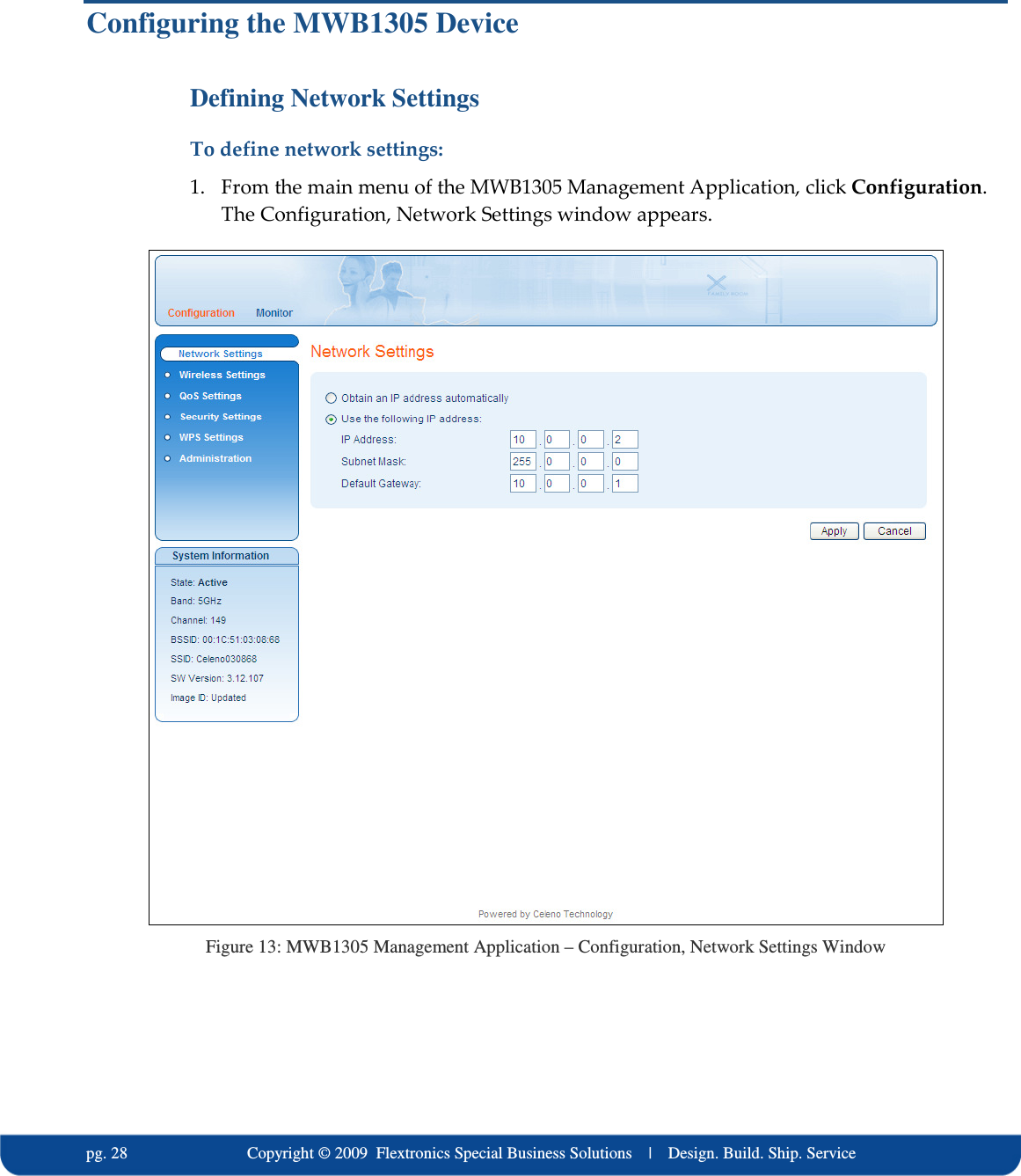
  pg. 28                             Copyright © 2009  Flextronics Special Business Solutions    |    Design. Build. Ship. Service Configuring the MWB1305 Device Defining Network Settings To define network settings: 1. From the main menu of the MWB1305 Management Application, click Configuration. The Configuration, Network Settings window appears.  Figure 13: MWB1305 Management Application – Configuration, Network Settings Window
    Copyright © 2009  Flextronics Special Business Solutions    |    Design. Build. Ship. Service                                                  pg. 29 The following table describes the parameters you can configure from this window: Table 5: MWB1305 Configuration – Network Parameters Parameter  Description Obtain an IP address automatically When selected, the device IP address is obtained automatically using DHCP. Use the following IP address When selected, the device IP address is set manually. IP Address  The IP address of the MWB1305 device. Subnet Mask  The subnet mask of the MWB1305 device. Default Gateway  The default gateway of the MWB1305 device. 2. Click Apply to update the settings immediately. The system displays an update message. 3. Click Yes and wait several seconds for the system to restart.
  pg. 30                             Copyright © 2009  Flextronics Special Business Solutions    |    Design. Build. Ship. Service Defining Wireless Settings To define wireless settings: 1. From the main menu of the MWB1305 Management Application, click Configuration and from the Navigation Panel, click Wireless Settings. The Configuration, Wireless Settings window appears.  Figure 14: MWB1305 Management Application – Configuration, Wireless Settings Window The Wireless Settings window is divided into Immediately Effective settings that can be updated while the device is running and Effective After Restart settings that are stored and updated only after the MWB1305 device is restarted.
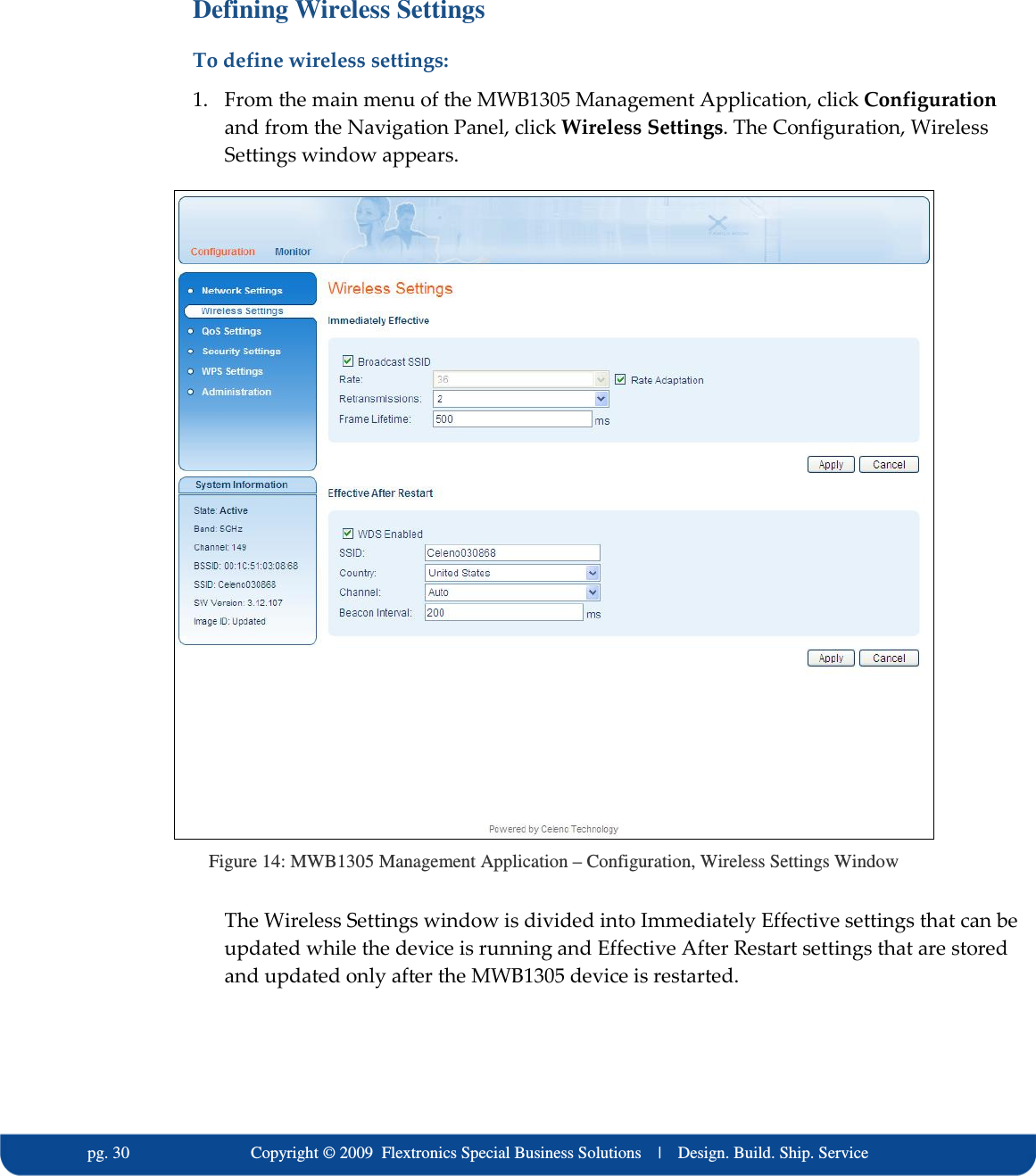
    Copyright © 2009  Flextronics Special Business Solutions    |    Design. Build. Ship. Service                                                  pg. 31 The following table describes the parameters you can configure in the Immediately Effective area: Table 6: MWB1305 Configuration – Immediately Effective Wireless Parameters Parameter  Description Broadcast SSID  When checked, the system broadcast its SSID in beacon and probe response frames. Rate  The transmission rate. Possible values: 6, 9, 12, 18, 24, 36, 48, and 54 Mbps. Rate Adaptation  When checked, the system dynamically adapts the transmission rate to suit current network conditions. Retransmissions  The number of retries in the case of transmission failure. Possible values: 0 – 6. Frame Lifetime  The maximum amount of time that a frame can be stored in the MWB1305 before it is discarded. Possible values: 10 – 500 milliseconds. 2. Click Apply to update the settings immediately. The system displays an update message. 3. Click OK to close the message and refresh the current window. The following table describes the parameters you can configure in the Effective After Restart area: Table 7: MWB1305 Configuration – Effective after Restart Wireless Parameters Parameter  Description WDS Enabled  When checked, the system works as a Wireless Distribution System thus providing a Transparent Bridge Functionality. SSID  Service set identifier. The code attached to beacon frames and connection establishment frames. The SSID is a string of ASCII characters. Entering an empty string restores the value of the SSID field to factory default. Country  Your country of operation.   This device will automatically limit the allowable channels determined by the current country of operation. Incorrectly entering the country  of operation may result in illegal operation and may cause harmful interference  to other systems. Channel  Select the desired channel from the dropdown list, or let the system select the best working channel automatically by choosing ‘Auto’ from the drop down list.
  pg. 32                             Copyright © 2009  Flextronics Special Business Solutions    |    Design. Build. Ship. Service Parameter  Description Beacon Interval  The time interval between beacon frames sent out by the system. Possible values: 100 – 1000 milliseconds in steps of 100 milliseconds. 4. Click Apply to update the settings. The system stores the new settings and prompts you to restart the system. 5. Click YES and wait several seconds for the system to restart.
    Copyright © 2009  Flextronics Special Business Solutions    |    Design. Build. Ship. Service                                                  pg. 33 Defining QoS Settings To define QoS settings: 1. From the main menu of the MWB1305 Management Application, click Configuration and from the Navigation Panel, click QoS Settings. The Configuration, QoS Settings window appears.  Figure 15: MWB1305 Management Application – Configuration, QoS Settings Window
  pg. 34                             Copyright © 2009  Flextronics Special Business Solutions    |    Design. Build. Ship. Service The following table describes the parameters you can configure from this window: Table 8: MWB1305 Configuration – QoS Parameters Parameter  Description Enhanced Mode  When checked, the system works in burst scheduling mode, increasing system capacity. If cleared, the Block Ack Mode is inactive and grayed out. Block Ack Mode  When checked, the system works in 802.11e Block Ack Mode, further increasing system capacity. Allowed Station  When checked, only the MWS1000s listed in the Station QoS Properties table are allowed to communicate with the MWB1305. When cleared, any MWS1000 can communicate with the MWB1305. Station  The number of the MWS1000 communicating with the MWB1305. MAC Address  The MAC address of the MWS1000 communicating with the MWB1305. Type  The type of data transported to the MWS1000. Possible values: Data, Video. Note:   The new settings will take effect after restarting the system. 2. Click Apply to update the settings offline. The system stores the new settings and prompts you to restart the system. 3. Click YES and wait several seconds for the system to restart.
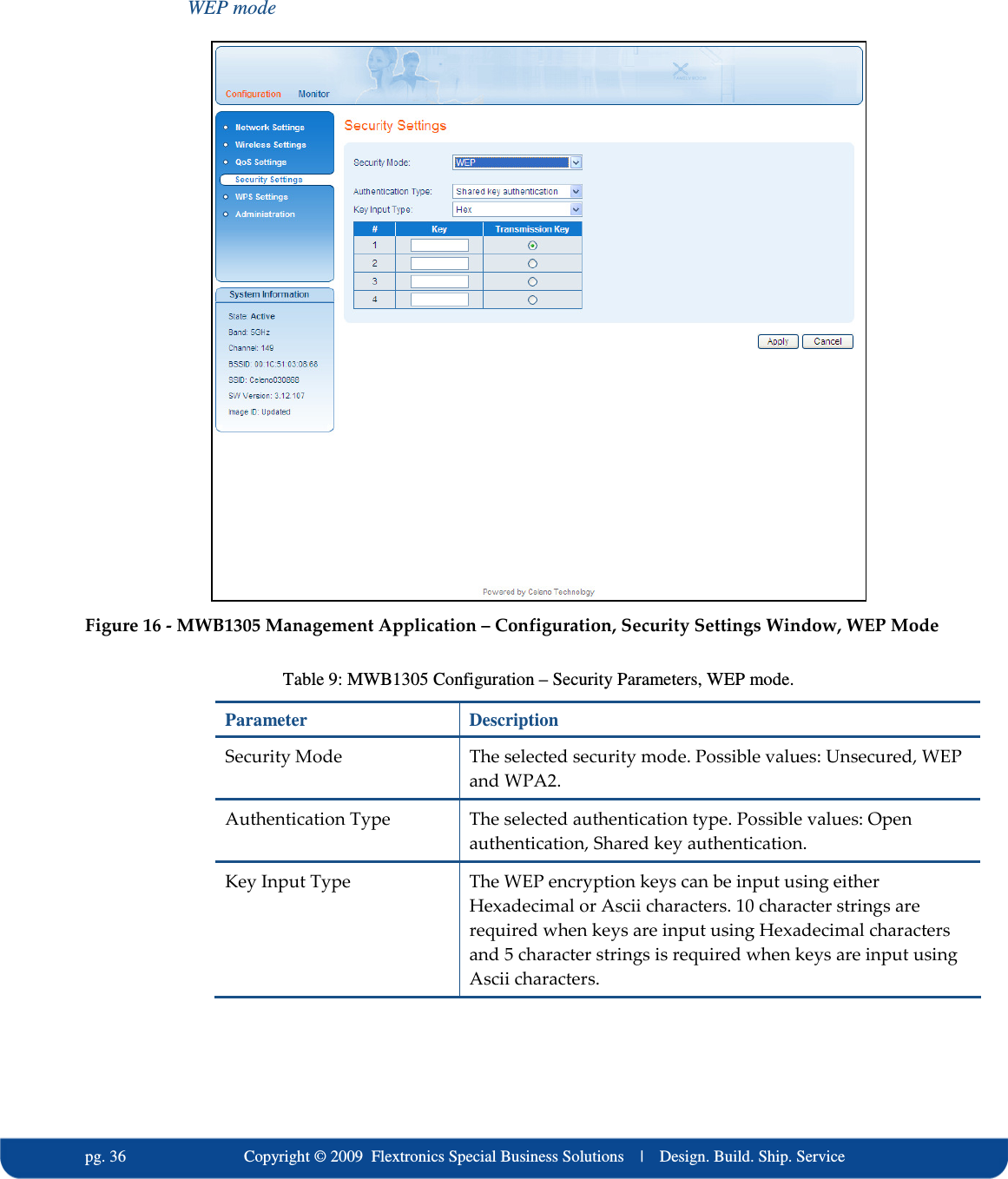
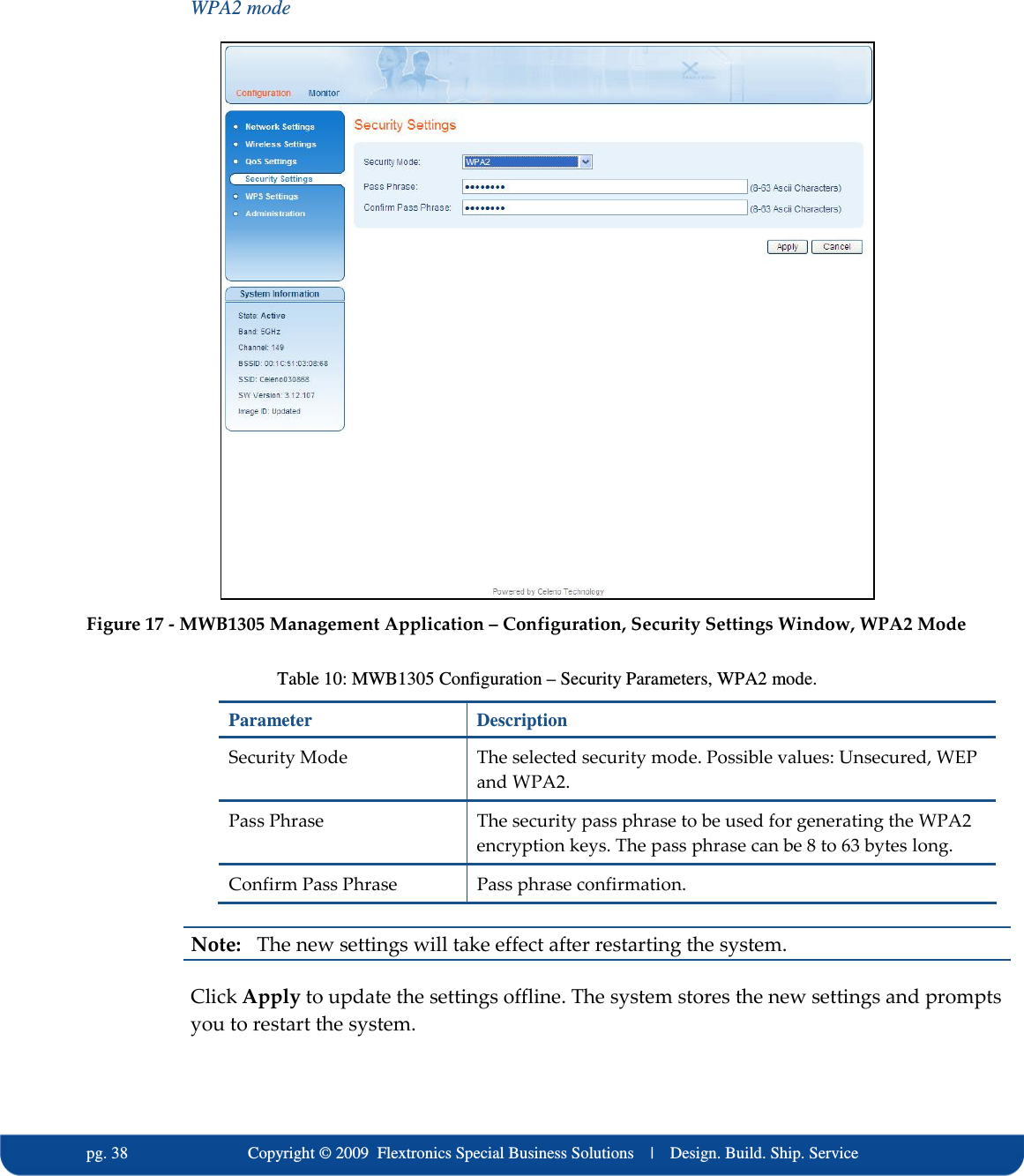
    Copyright © 2009  Flextronics Special Business Solutions    |    Design. Build. Ship. Service                                                  pg. 35 Defining Security Settings To define Security settings: From the main menu of the MWB1305 Management Application, click Configuration and from the Navigation Panel, click Security Settings. The Configuration, Security Settings window appears. The MWB1305 device can be configured to operate in one of the following security modes:  Unsecured – Wireless security is disabled, any client can associate to the MWB1305 Access Point and the wireless signal is passed unencrypted.  WEP – Stands for Wired Equivalent Privacy. It is based on the IEEE 802.11 standard and uses RC4 encryption algorithm. WEP provides moderate security to your system and has been deprecated by WPA2.  WPA2 – Stands for WiFi Protected Access. It is based on the IEEE 802.11i standard and uses AES encryption algorithm. WPA2 is much more secure then WEP, it provides better encryption and user authentication which is generally missing in WEP. It is recommended that you enable WPA2 at all times.    “To be able to use Wireless Protected Setup(WPS) features (See Defining WPS Settings at page 39), it is required that you enable the WPA2 security mode ”.  Each security mode has its own configuration parameters, and the layout of the Security Settings screen is changed according to the selection of the security mode:
  pg. 36                             Copyright © 2009  Flextronics Special Business Solutions    |    Design. Build. Ship. Service WEP mode  Figure 16 - MWB1305 Management Application – Configuration, Security Settings Window, WEP Mode Table 9: MWB1305 Configuration – Security Parameters, WEP mode. Parameter  Description Security Mode  The selected security mode. Possible values: Unsecured, WEP and WPA2. Authentication Type  The selected authentication type. Possible values: Open authentication, Shared key authentication. Key Input Type  The WEP encryption keys can be input using either Hexadecimal or Ascii characters. 10 character strings are required when keys are input using Hexadecimal characters and 5 character strings is required when keys are input using Ascii characters.
    Copyright © 2009  Flextronics Special Business Solutions    |    Design. Build. Ship. Service                                                  pg. 37 Parameter  Description Keys table  It is possible to configure up to 4 different keys into the MWB1305. The MWB1305 will be able to decipher incoming transmissions that were encrypted using any of these keys. Key  A WEP encryption key. Transmission key  When selected, this key will be used by the MWB1305 for encrypting its transmissions over the wireless medium.
  pg. 38                             Copyright © 2009  Flextronics Special Business Solutions    |    Design. Build. Ship. Service WPA2 mode  Figure 17 - MWB1305 Management Application – Configuration, Security Settings Window, WPA2 Mode Table 10: MWB1305 Configuration – Security Parameters, WPA2 mode. Parameter  Description Security Mode  The selected security mode. Possible values: Unsecured, WEP and WPA2. Pass Phrase  The security pass phrase to be used for generating the WPA2 encryption keys. The pass phrase can be 8 to 63 bytes long. Confirm Pass Phrase  Pass phrase confirmation.  Note:   The new settings will take effect after restarting the system. Click Apply to update the settings offline. The system stores the new settings and prompts you to restart the system.
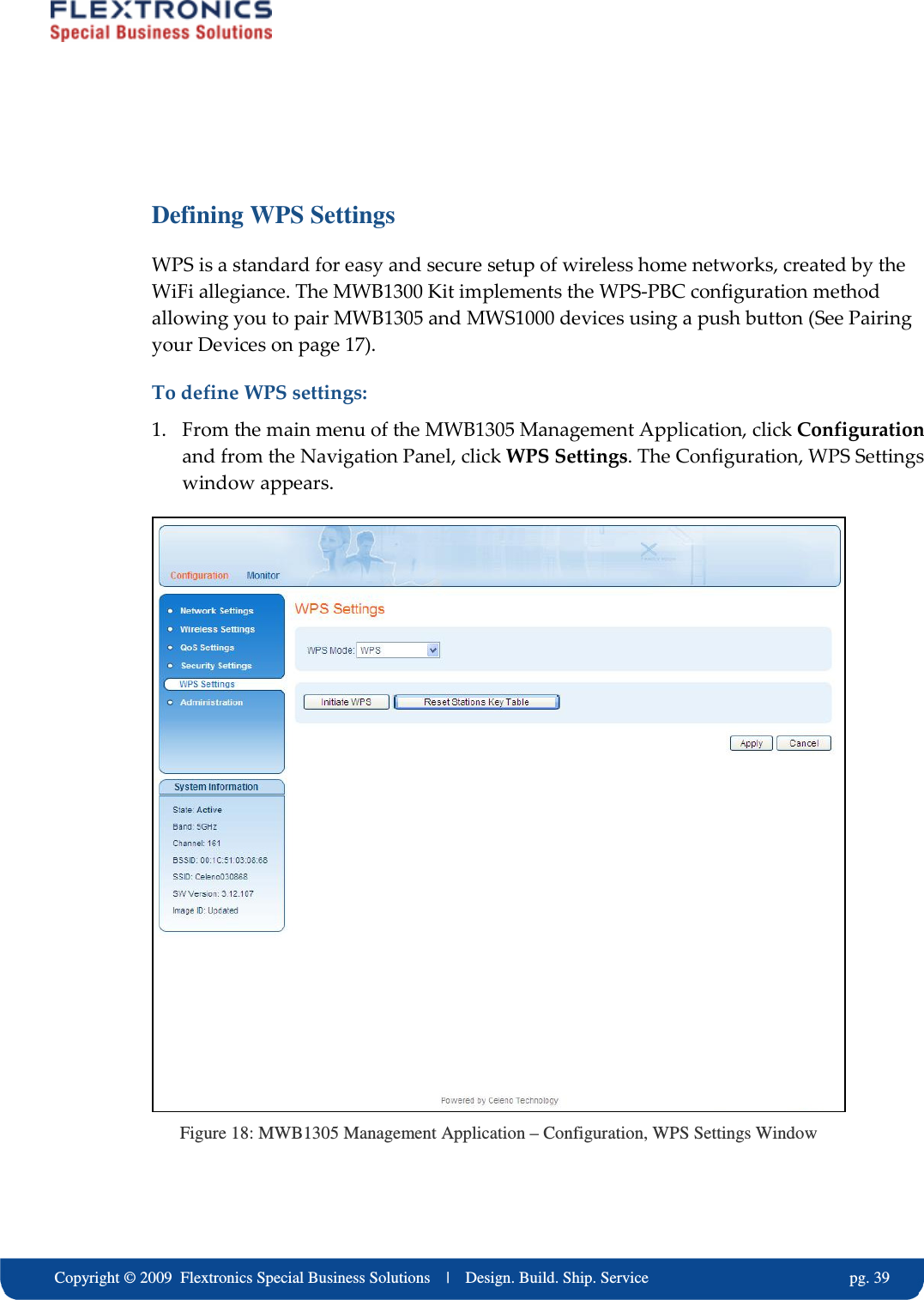
    Copyright © 2009  Flextronics Special Business Solutions    |    Design. Build. Ship. Service                                                  pg. 39  Defining WPS Settings WPS is a standard for easy and secure setup of wireless home networks, created by the WiFi allegiance. The MWB1300 Kit implements the WPS-PBC configuration method allowing you to pair MWB1305 and MWS1000 devices using a push button (See Pairing your Devices on page 17).  To define WPS settings: 1. From the main menu of the MWB1305 Management Application, click Configuration and from the Navigation Panel, click WPS Settings. The Configuration, WPS Settings window appears.  Figure 18: MWB1305 Management Application – Configuration, WPS Settings Window
  pg. 40                             Copyright © 2009  Flextronics Special Business Solutions    |    Design. Build. Ship. Service The following table describes the actions that can be performed from this window: Table 11: MWB1305 Configuration – WPS Parameters Parameter  Description WPS Mode  Enable / Disable WPS. Initiate WPS  Initiate a WPS pairing process. This has the same effect as pushing the WPS button on the device. Reset Stations Key Table  Erases all previous pairings between MWS1000 Clients and the MWB1305 Access Point. Note:   The new settings will take effect after restarting the system. 2. Click Apply to update the settings offline. The system stores the new settings and prompts you to restart the system. Click YES and wait several seconds for the system to restart.
    Copyright © 2009  Flextronics Special Business Solutions    |    Design. Build. Ship. Service                                                  pg. 41 Performing Administration To perform  administration: 1. From the main menu of the MWB1305 Management Application, click Configuration and from the Navigation Panel, click Administration. The Configuration, Administration window appears.  Figure 19 - MWB1305 Management Application – Configuration, Administration Window The Configuration, Administration window is divided into the following sections:  Software Upgrade  Flash Components  Control Buttons
  pg. 42                             Copyright © 2009  Flextronics Special Business Solutions    |    Design. Build. Ship. Service To perform Software Upgrade: 1. Click the browse button, select the new image file and press Open. 2. Click the Start Upgrade Button, confirm the action by pressing OK in the confirmation window and wait for the action to finish. 3. After the Software Upgrade finishes you can see the new software version number in the System Information Panel.   “Do not power off or reset the MWB1305 device while Software Upgrade is in progress”.
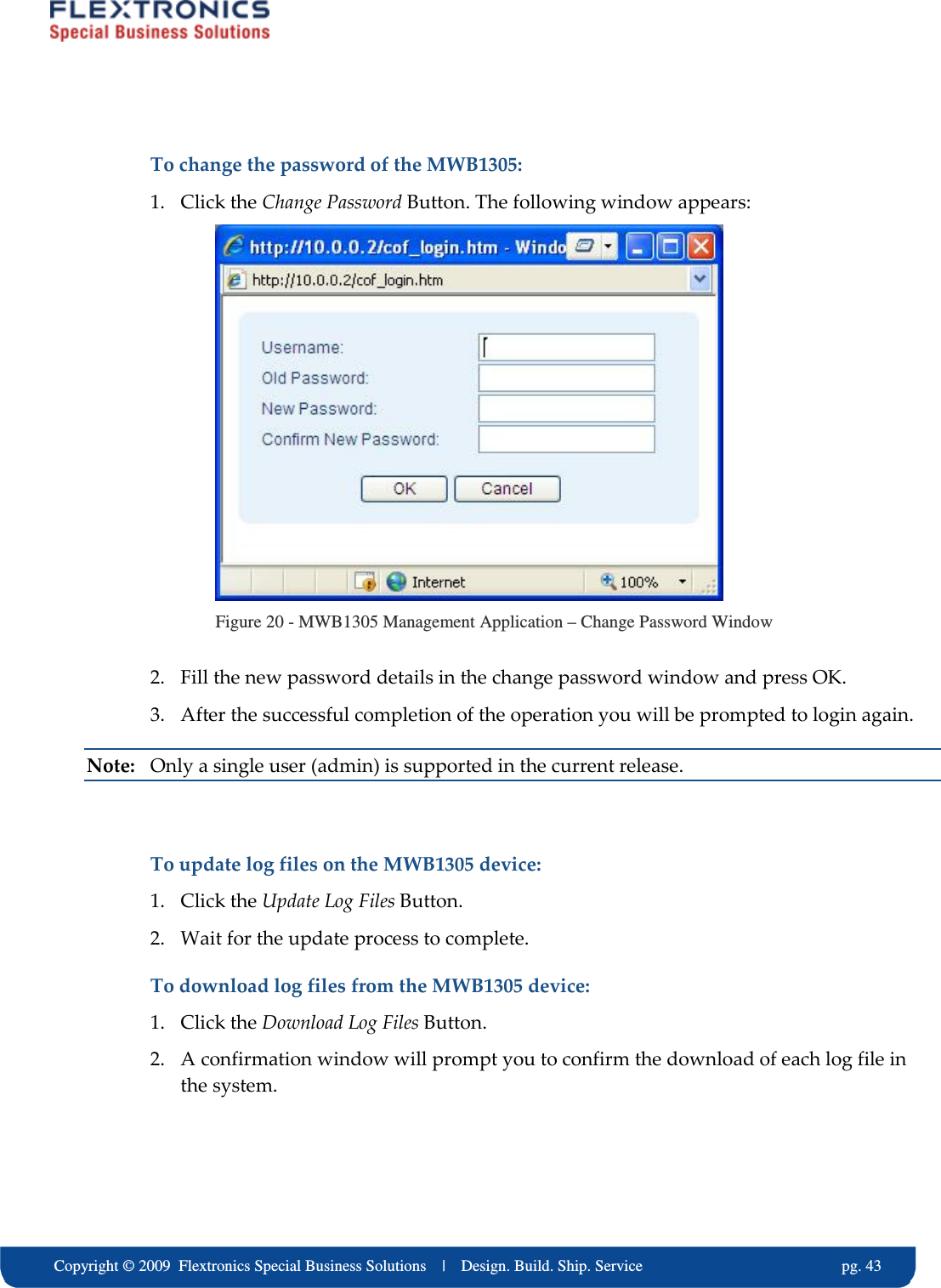
    Copyright © 2009  Flextronics Special Business Solutions    |    Design. Build. Ship. Service                                                  pg. 43 To change the password of the MWB1305: 1. Click the Change Password Button. The following window appears:  Figure 20 - MWB1305 Management Application – Change Password Window 2. Fill the new password details in the change password window and press OK. 3. After the successful completion of the operation you will be prompted to login again. Note:  Only a single user (admin) is supported in the current release.  To update log files on the MWB1305 device: 1. Click the Update Log Files Button.  2. Wait for the update process to complete. To download log files from the MWB1305 device: 1. Click the Download Log Files Button.  2. A confirmation window will prompt you to confirm the download of each log file in the system.
  pg. 44                             Copyright © 2009  Flextronics Special Business Solutions    |    Design. Build. Ship. Service To restore the MWB1305 configuration to factory defaults: 1. Click the Restore Defaults Button, confirm the action by pressing OK in the confirmation window and wait for the action to finish. To reset the MWB1305 device: 1. Click the Reset Button, confirm the action by pressing OK in the confirmation window and wait for the action to finish.  The values under Flash Components Versions provide detailed information about the internal revisions of various components on the MWB1305 flash.
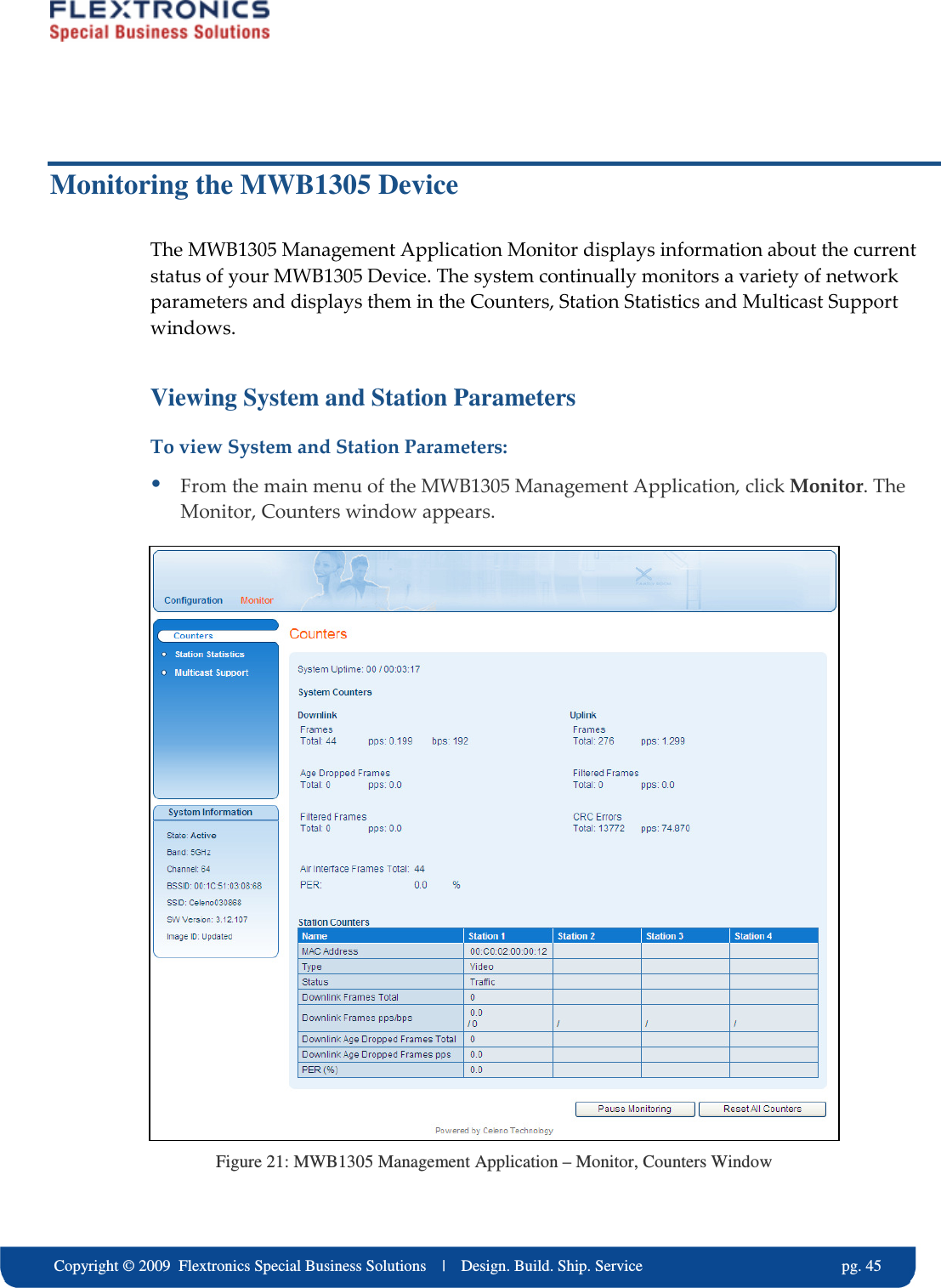
    Copyright © 2009  Flextronics Special Business Solutions    |    Design. Build. Ship. Service                                                  pg. 45 Monitoring the MWB1305 Device The MWB1305 Management Application Monitor displays information about the current status of your MWB1305 Device. The system continually monitors a variety of network parameters and displays them in the Counters, Station Statistics and Multicast Support windows. Viewing System and Station Parameters To view System and Station Parameters:  From the main menu of the MWB1305 Management Application, click Monitor. The Monitor, Counters window appears.  Figure 21: MWB1305 Management Application – Monitor, Counters Window
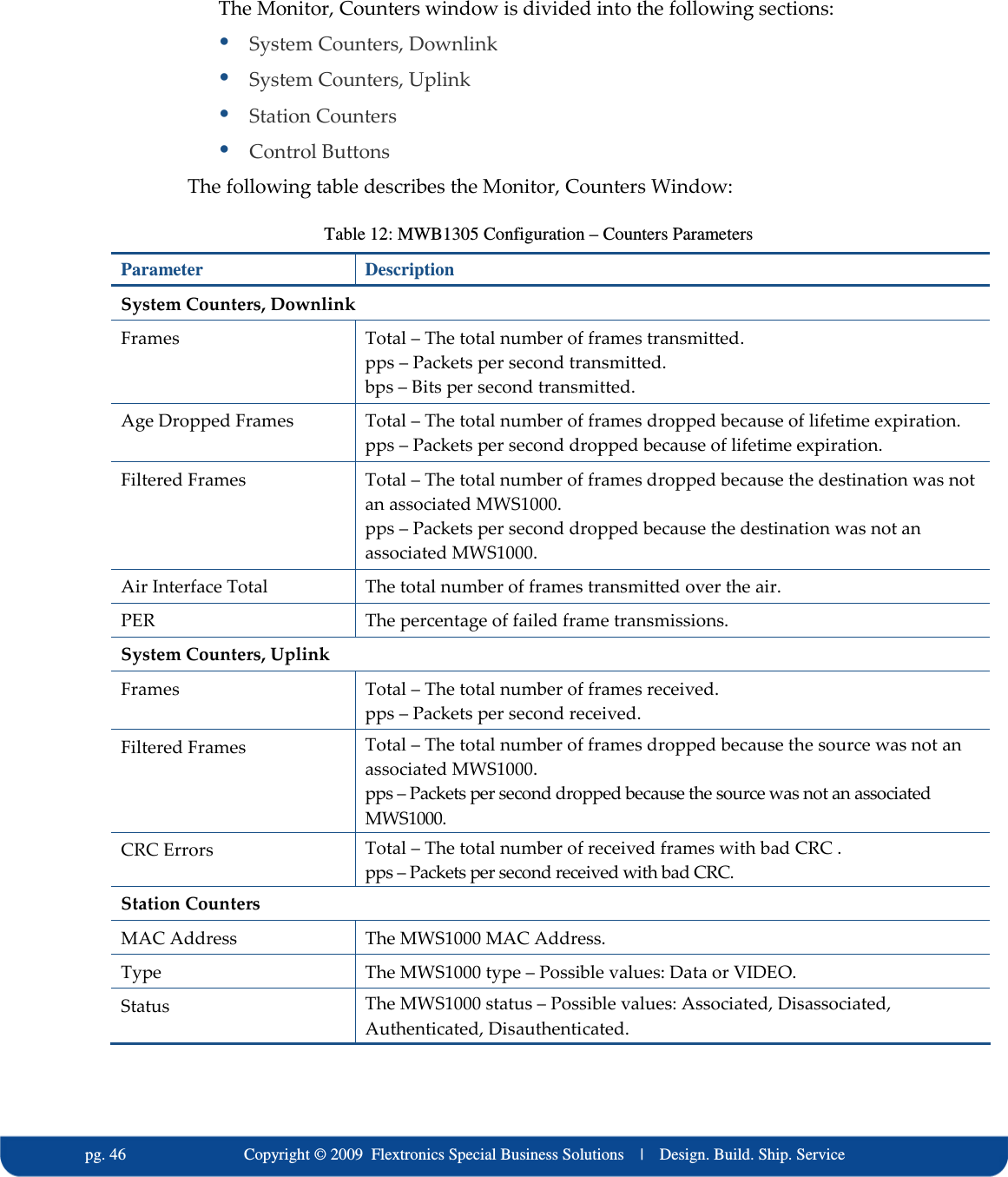
  pg. 46                             Copyright © 2009  Flextronics Special Business Solutions    |    Design. Build. Ship. Service The Monitor, Counters window is divided into the following sections:  System Counters, Downlink  System Counters, Uplink  Station Counters  Control Buttons The following table describes the Monitor, Counters Window: Table 12: MWB1305 Configuration – Counters Parameters Parameter  Description System Counters, Downlink Frames  Total – The total number of frames transmitted. pps – Packets per second transmitted. bps – Bits per second transmitted. Age Dropped Frames  Total – The total number of frames dropped because of lifetime expiration. pps – Packets per second dropped because of lifetime expiration. Filtered Frames  Total – The total number of frames dropped because the destination was not an associated MWS1000. pps – Packets per second dropped because the destination was not an associated MWS1000. Air Interface Total  The total number of frames transmitted over the air. PER  The percentage of failed frame transmissions. System Counters, Uplink Frames  Total – The total number of frames received. pps – Packets per second received. Filtered Frames  Total – The total number of frames dropped because the source was not an associated MWS1000. pps – Packets per second dropped because the source was not an associated MWS1000. CRC Errors  Total – The total number of received frames with bad CRC . pps – Packets per second received with bad CRC. Station Counters MAC Address  The MWS1000 MAC Address. Type  The MWS1000 type – Possible values: Data or VIDEO. Status  The MWS1000 status – Possible values: Associated, Disassociated, Authenticated, Disauthenticated.
    Copyright © 2009  Flextronics Special Business Solutions    |    Design. Build. Ship. Service                                                  pg. 47 Parameter  Description Downlink Frames Total  The total number of frames transmitted to the MWS1000. Downlink Frames pps/bps  pps – Packets per second transmitted to the MWS1000. bps – Bits per second transmitted to the MWS1000. Downlink Age Dropped Frames Total The total number of frames dropped because of lifetime expiration. Downlink Age Dropped Frames pps Packets per second dropped because of lifetime expiration. PER (%)  The percentage of failed frame transmissions to MWS1000.  The Monitor, Parameters window also provides controls to reset the parameter counters and logs. To reset the monitor parameter counters:  Click  . To pause monitoring:  Click  . The Resume Monitoring button is displayed. To resume monitoring:  Click  . The Pause Monitoring button is displayed.
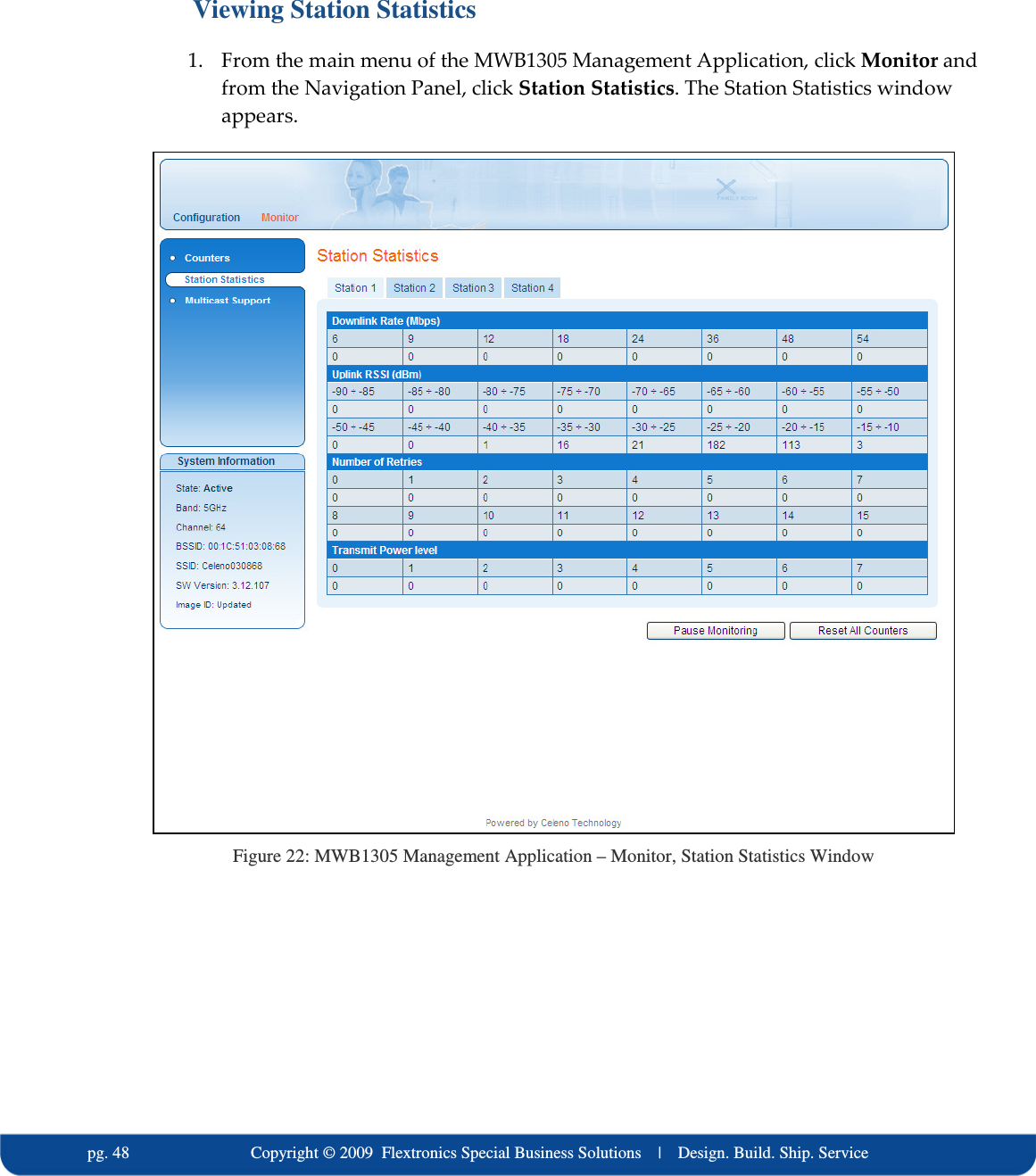
  pg. 48                             Copyright © 2009  Flextronics Special Business Solutions    |    Design. Build. Ship. Service Viewing Station Statistics 1. From the main menu of the MWB1305 Management Application, click Monitor and from the Navigation Panel, click Station Statistics. The Station Statistics window appears.  Figure 22: MWB1305 Management Application – Monitor, Station Statistics Window
    Copyright © 2009  Flextronics Special Business Solutions    |    Design. Build. Ship. Service                                                  pg. 49 The following table describes the Monitor, Station Statistics Window: Table 13: MWB1305 Configuration – Station Statistics Parameters Parameter  Description Downlink Rate (Mbps)  The number of packets transmitted (to a specific MWS1000) at a specified data rate. Uplink RSSI (dBm)  The number of packets received from the client at a specified range of received signal levels. Number of Retries  The number of retransmissions to a specific client. Transmit Power Level  The number of packets transmitted to the client at a specified transmission power level. 2. Click the various station tabs to view information for the different MWS1000s.
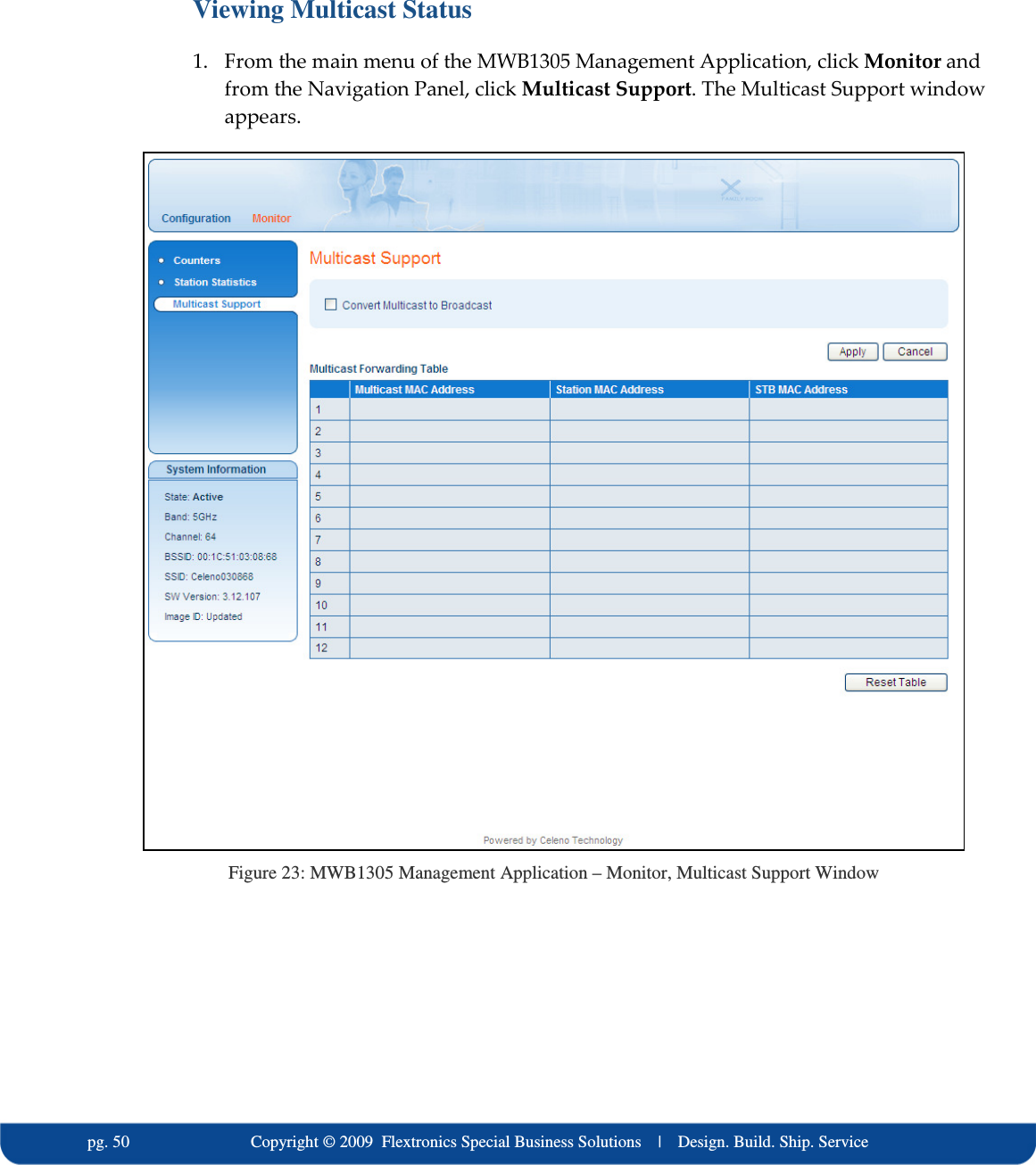
  pg. 50                             Copyright © 2009  Flextronics Special Business Solutions    |    Design. Build. Ship. Service Viewing Multicast Status 1. From the main menu of the MWB1305 Management Application, click Monitor and from the Navigation Panel, click Multicast Support. The Multicast Support window appears.  Figure 23: MWB1305 Management Application – Monitor, Multicast Support Window
    Copyright © 2009  Flextronics Special Business Solutions    |    Design. Build. Ship. Service                                                  pg. 51 The following table describes the Monitor, Multicast Support Window: Table 14: MWB1305 Configuration – Station Statistics Parameters Parameter  Description Convert Multicast to Broadcast When checked, unmapped Multicast streams are converted to broadcast. When cleared, unmapped Multicast streams are dropped. Multicast MAC Address  The MAC address of the Multicast video stream. Station MAC Address  The MAC address of the Station that receives the Multicast stream. STB MAC Address  The MAC address of the Set Top Box  that receives the Multicast stream.
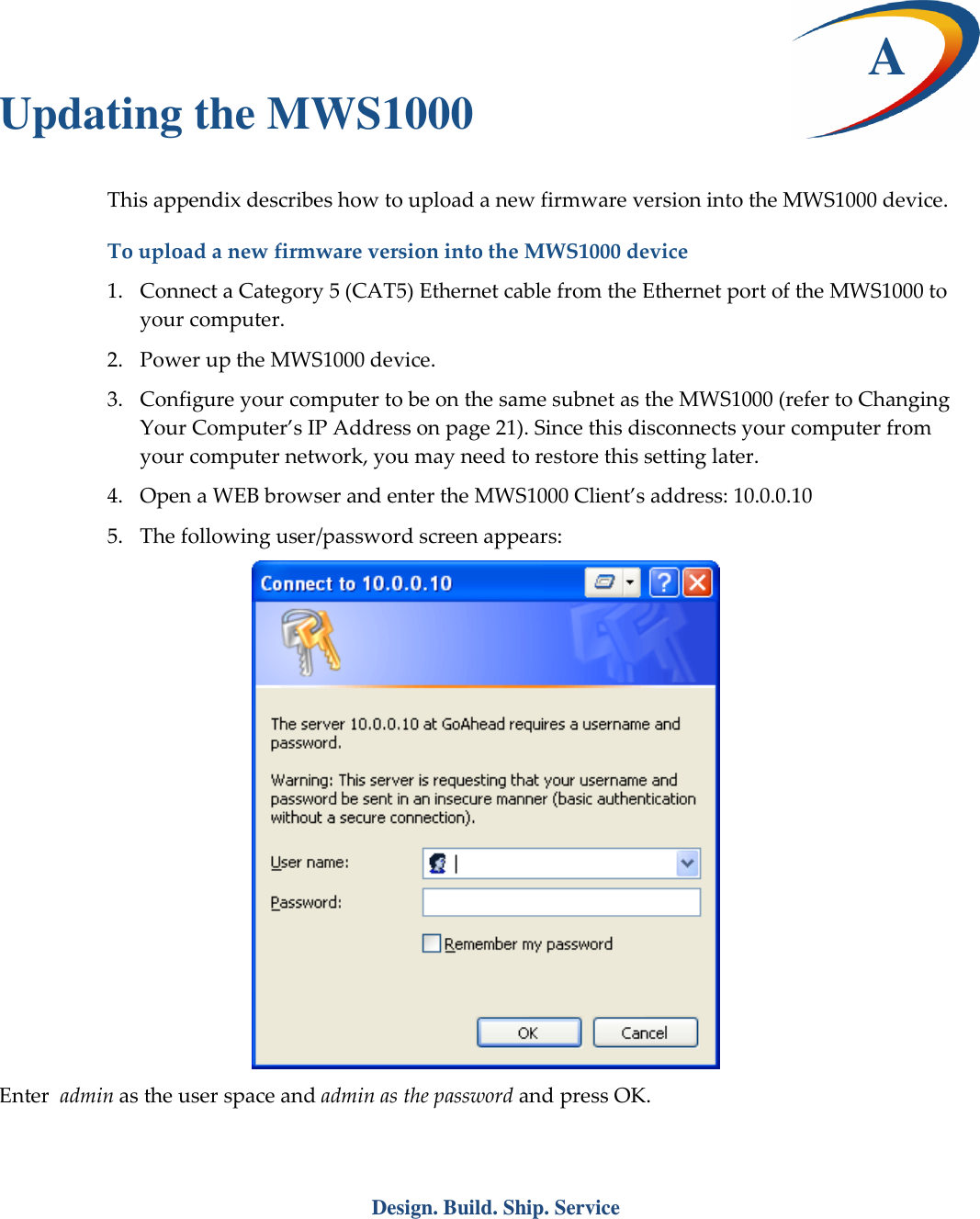
 Design. Build. Ship. Service  A Updating the MWS1000 This appendix describes how to upload a new firmware version into the MWS1000 device. To upload a new firmware version into the MWS1000 device 1. Connect a Category 5 (CAT5) Ethernet cable from the Ethernet port of the MWS1000 to your computer. 2. Power up the MWS1000 device. 3. Configure your computer to be on the same subnet as the MWS1000 (refer to Changing Your Computer’s IP Address on page 21). Since this disconnects your computer from your computer network, you may need to restore this setting later. 4. Open a WEB browser and enter the MWS1000 Client’s address: 10.0.0.10 5. The following user/password screen appears:  Enter  admin as the user space and admin as the password and press OK.
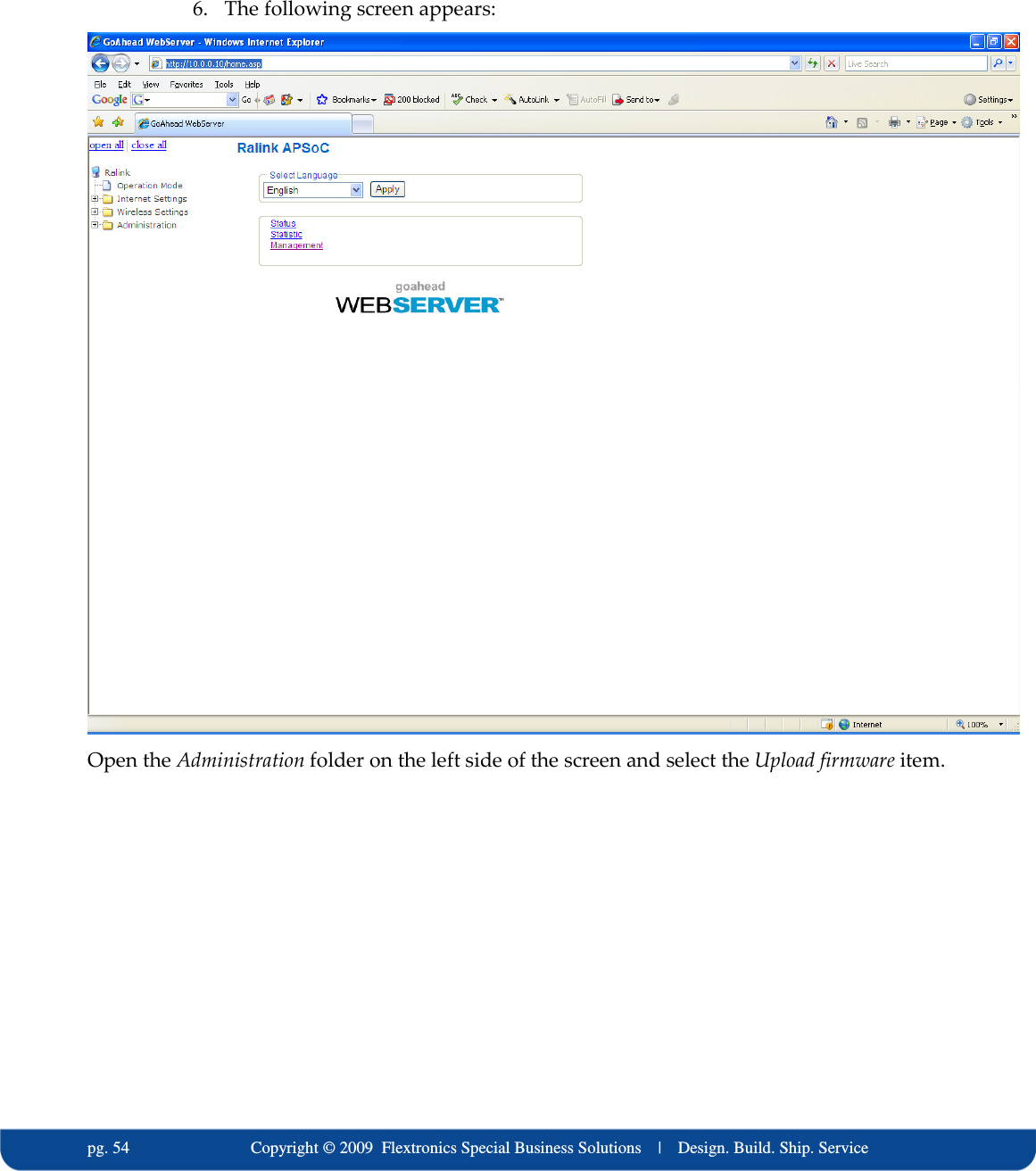
  pg. 54                             Copyright © 2009  Flextronics Special Business Solutions    |    Design. Build. Ship. Service  6. The following screen appears:  Open the Administration folder on the left side of the screen and select the Upload firmware item.
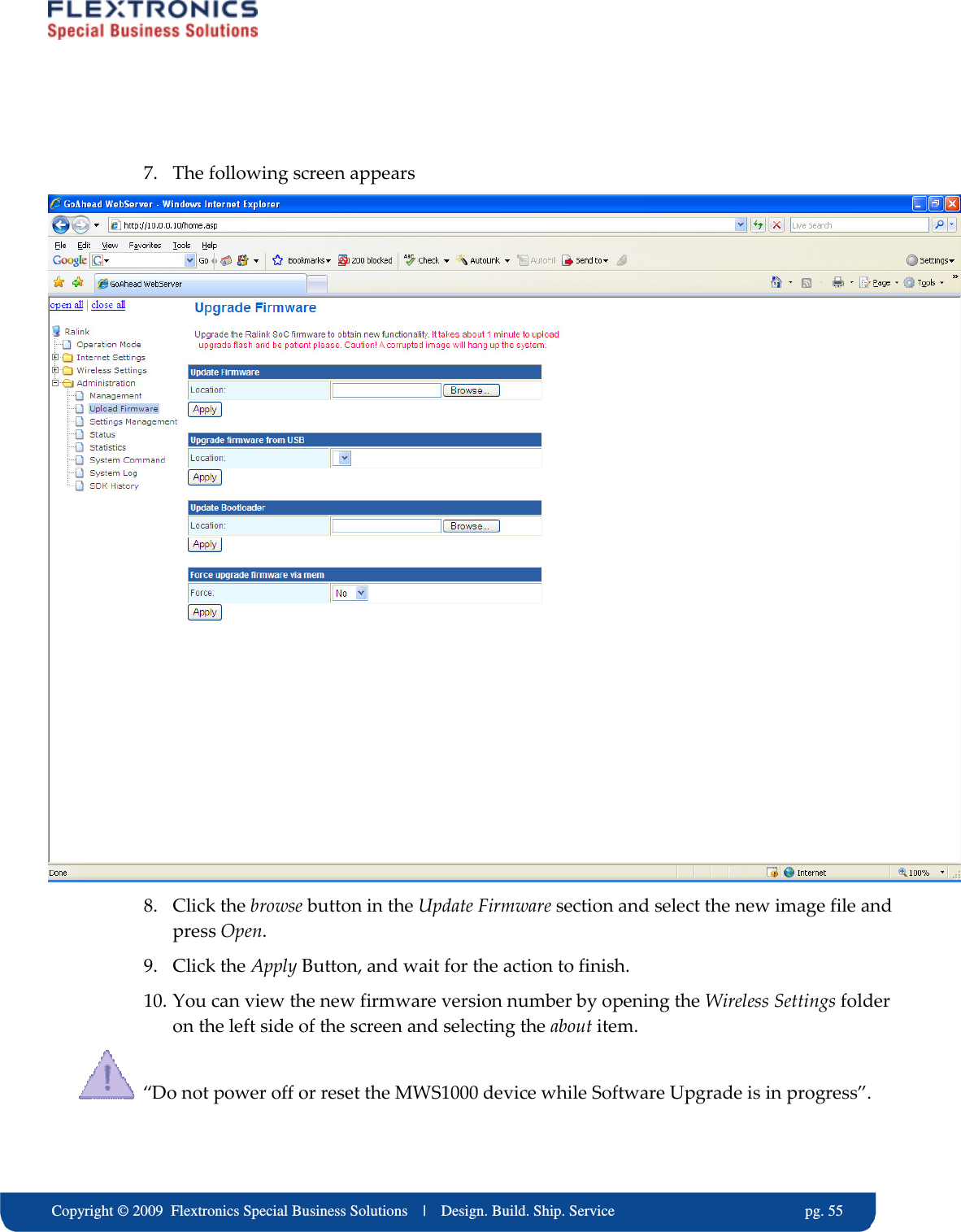
    Copyright © 2009  Flextronics Special Business Solutions    |    Design. Build. Ship. Service                                                  pg. 55  7. The following screen appears  8. Click the browse button in the Update Firmware section and select the new image file and press Open. 9. Click the Apply Button, and wait for the action to finish. 10. You can view the new firmware version number by opening the Wireless Settings folder on the left side of the screen and selecting the about item.   “Do not power off or reset the MWS1000 device while Software Upgrade is in progress”.
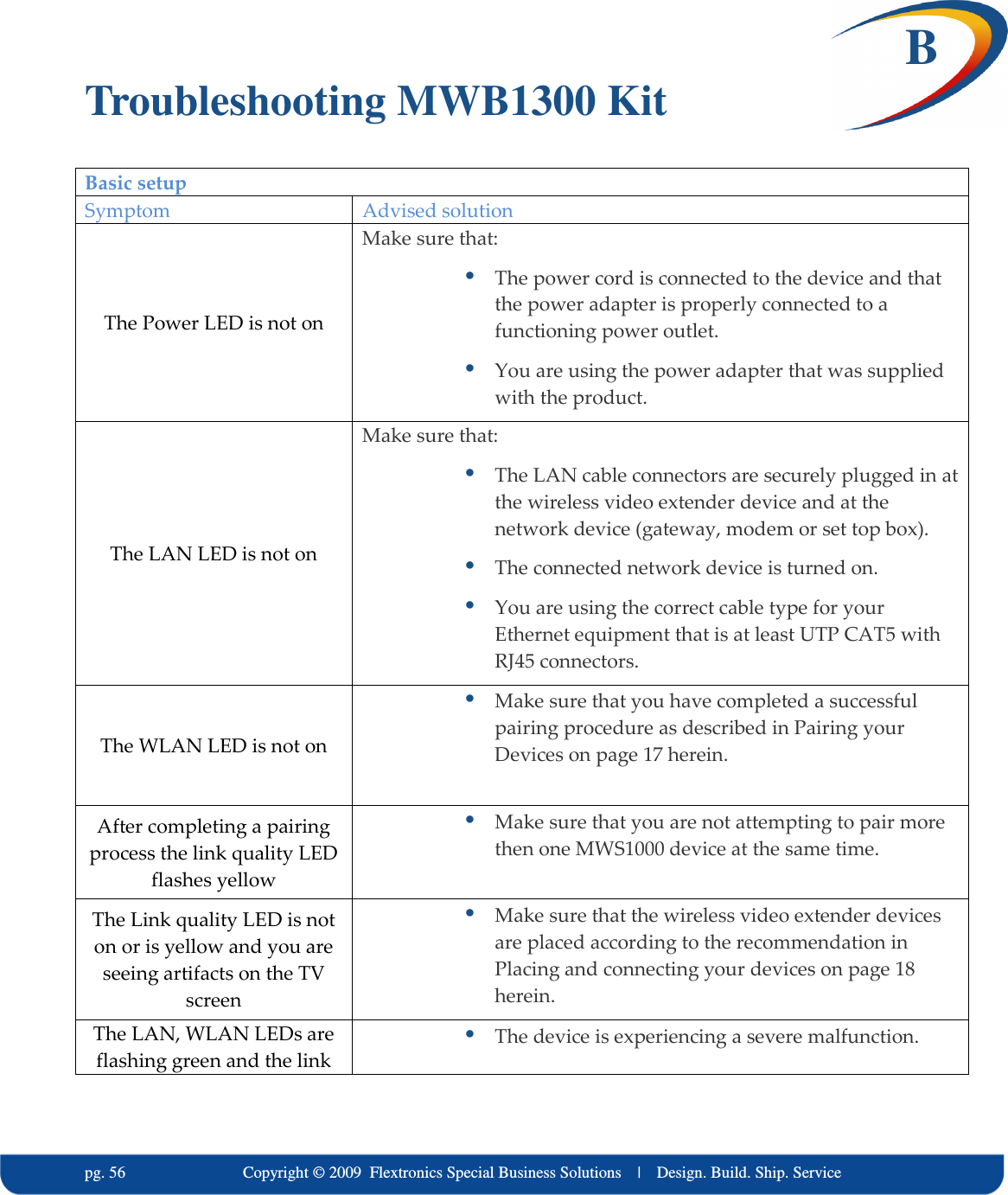
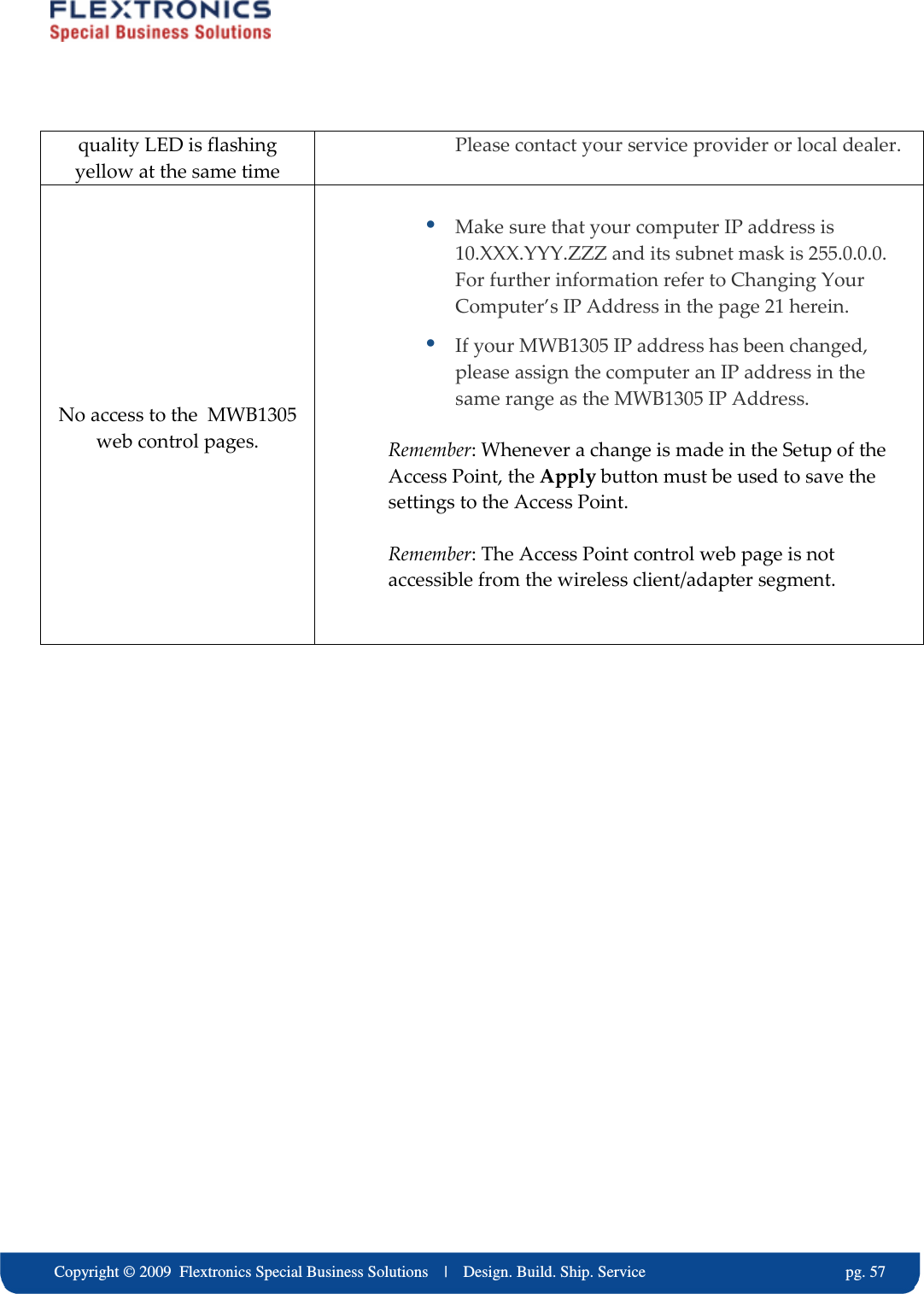
  pg. 56                             Copyright © 2009  Flextronics Special Business Solutions    |    Design. Build. Ship. Service B Troubleshooting MWB1300 Kit Basic setup Symptom  Advised solution The Power LED is not on Make sure that:  The power cord is connected to the device and that the power adapter is properly connected to a functioning power outlet.  You are using the power adapter that was supplied with the product. The LAN LED is not on Make sure that:  The LAN cable connectors are securely plugged in at the wireless video extender device and at the network device (gateway, modem or set top box).  The connected network device is turned on.  You are using the correct cable type for your Ethernet equipment that is at least UTP CAT5 with RJ45 connectors. The WLAN LED is not on  Make sure that you have completed a successful pairing procedure as described in Pairing your Devices on page 17 herein.  After completing a pairing process the link quality LED flashes yellow  Make sure that you are not attempting to pair more then one MWS1000 device at the same time.  The Link quality LED is not on or is yellow and you are seeing artifacts on the TV screen  Make sure that the wireless video extender devices are placed according to the recommendation in Placing and connecting your devices on page 18 herein. The LAN, WLAN LEDs are flashing green and the link  The device is experiencing a severe malfunction.
    Copyright © 2009  Flextronics Special Business Solutions    |    Design. Build. Ship. Service                                                  pg. 57 quality LED is flashing yellow at the same time Please contact your service provider or local dealer.  No access to the  MWB1305 web control pages.   Make sure that your computer IP address is 10.XXX.YYY.ZZZ and its subnet mask is 255.0.0.0. For further information refer to Changing Your Computer’s IP Address in the page 21 herein.  If your MWB1305 IP address has been changed, please assign the computer an IP address in the same range as the MWB1305 IP Address. Remember: Whenever a change is made in the Setup of the Access Point, the Apply button must be used to save the settings to the Access Point. Remember: The Access Point control web page is not accessible from the wireless client/adapter segment.
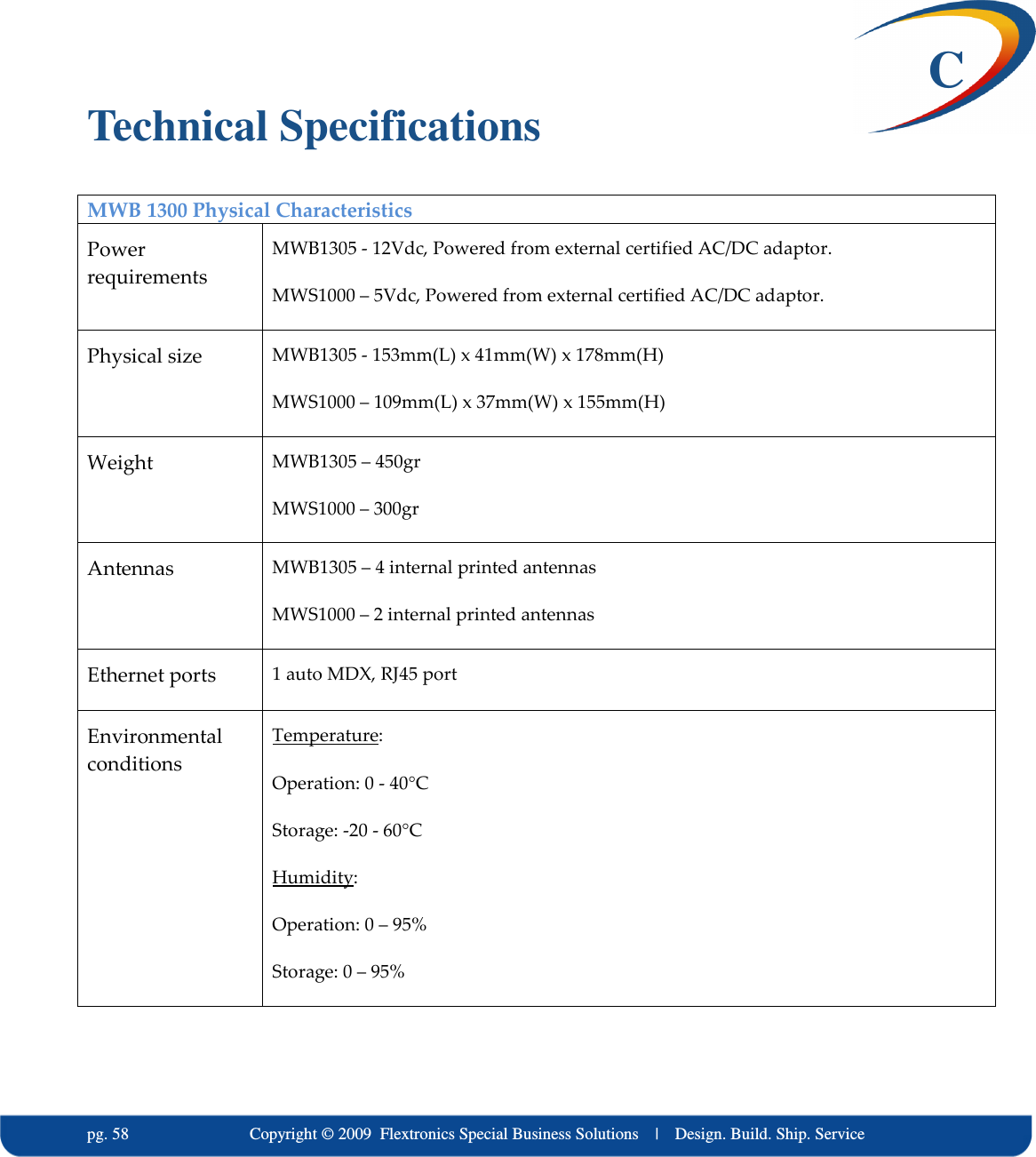
  pg. 58                             Copyright © 2009  Flextronics Special Business Solutions    |    Design. Build. Ship. Service  C Technical Specifications MWB 1300 Physical Characteristics Power requirements MWB1305 - 12Vdc, Powered from external certified AC/DC adaptor. MWS1000 – 5Vdc, Powered from external certified AC/DC adaptor. Physical size  MWB1305 - 153mm(L) x 41mm(W) x 178mm(H) MWS1000 – 109mm(L) x 37mm(W) x 155mm(H) Weight  MWB1305 – 450gr MWS1000 – 300gr Antennas  MWB1305 – 4 internal printed antennas MWS1000 – 2 internal printed antennas Ethernet ports  1 auto MDX, RJ45 port Environmental conditions Temperature: Operation: 0 - 40°C Storage: -20 - 60°C Humidity: Operation: 0 – 95% Storage: 0 – 95%
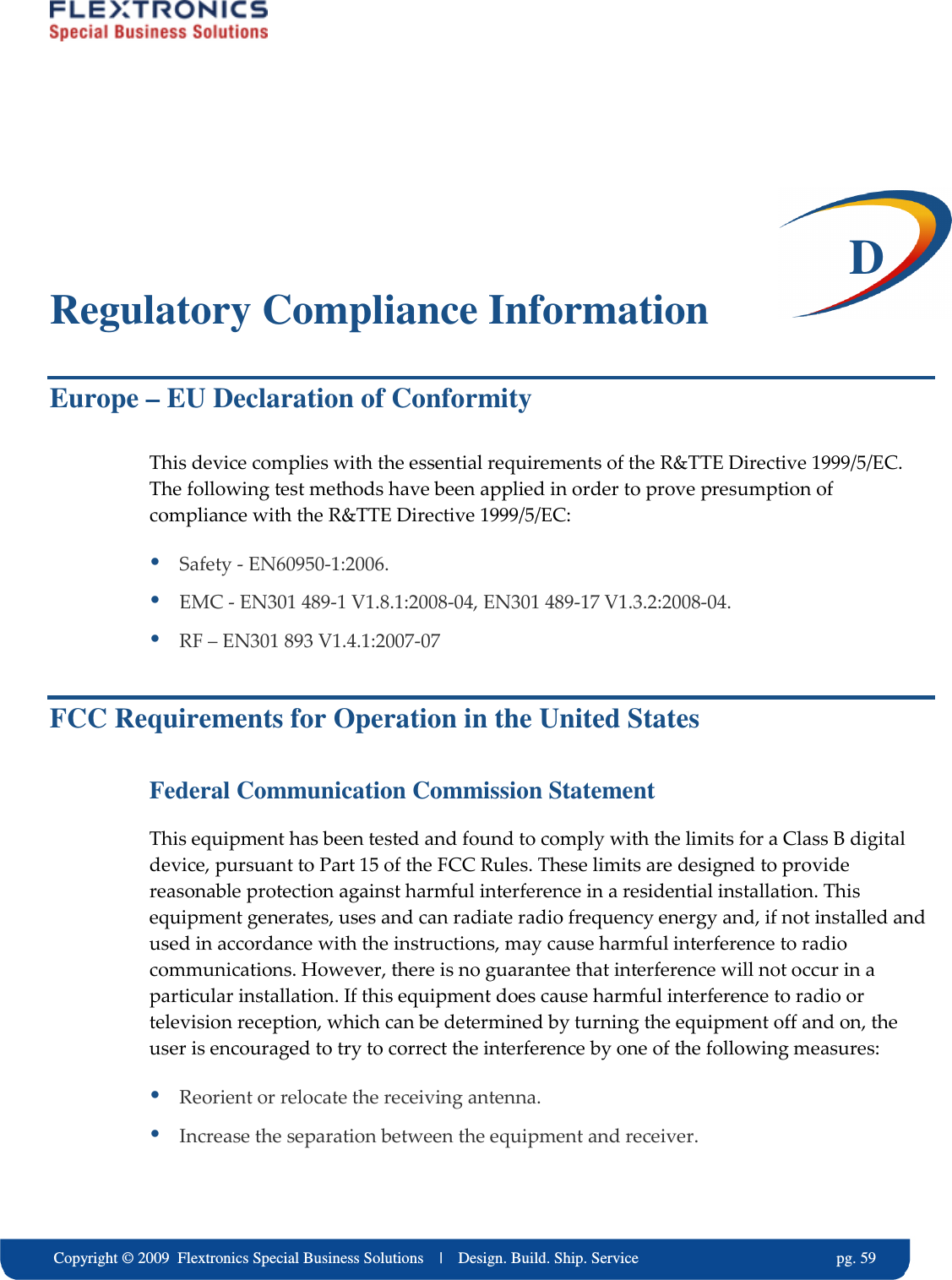
    Copyright © 2009  Flextronics Special Business Solutions    |    Design. Build. Ship. Service                                                  pg. 59  D Regulatory Compliance Information Europe – EU Declaration of Conformity This device complies with the essential requirements of the R&TTE Directive 1999/5/EC. The following test methods have been applied in order to prove presumption of compliance with the R&TTE Directive 1999/5/EC:  Safety - EN60950-1:2006.  EMC - EN301 489-1 V1.8.1:2008-04, EN301 489-17 V1.3.2:2008-04.  RF – EN301 893 V1.4.1:2007-07 FCC Requirements for Operation in the United States Federal Communication Commission Statement This equipment has been tested and found to comply with the limits for a Class B digital device, pursuant to Part 15 of the FCC Rules. These limits are designed to provide reasonable protection against harmful interference in a residential installation. This equipment generates, uses and can radiate radio frequency energy and, if not installed and used in accordance with the instructions, may cause harmful interference to radio communications. However, there is no guarantee that interference will not occur in a particular installation. If this equipment does cause harmful interference to radio or television reception, which can be determined by turning the equipment off and on, the user is encouraged to try to correct the interference by one of the following measures:  Reorient or relocate the receiving antenna.  Increase the separation between the equipment and receiver.
  pg. 60                             Copyright © 2009  Flextronics Special Business Solutions    |    Design. Build. Ship. Service  Connect the equipment into an outlet on a circuit different from that to which the receiver  is connected.  Consult the dealer or an experienced radio/TV technician for help. FCC Warning Changes or modifications not expressly approved by the party responsible for compliance could void the user’s authority to operate the equipment. FCC RF Radiation Exposure Statement This equipment complies with FCC radiation exposure limits set forth for uncontrolled equipment and meets the FCC radio frequency (RF) Exposure Guidelines in Supplement C to OET65. This equipment should be installed and operated with at least 20cm and more between the radiator and person’s body (excluding extremities: hands, wrists, feet and legs). This transmitter must not be co-located or operating in conjunction with any other antenna or transmitter. Industry Canada (IC) Statement The wireless radio of this device complies with RSS 139 & RSS 210 Industry Canada. This Class B digital apparatus complies with Canadian ICES-003. Operation is subject to the following two conditions: (1) this device may not cause interference, and (2) this device must accept any interference, including interference that may cause undesired operation of the device. Cet appareil numérique de la classe B conforme á la norme NMB-003 du Canada.

Navigation menu