Fluke 190 202 Users Manual
The-Fluke-190-504-S-500-MHz-ScopeMeter®--Tool-User-Manual-Brochure The-Fluke-190-504-S-500-MHz-ScopeMeter%c2%ae--Tool-User-Manual-Brochure
The-Fluke-190-102-S-ScopeMeter®--Tool-User-Manual-Brochure The-Fluke-190-102-S-ScopeMeter%c2%ae--Tool-User-Manual-Brochure
The-Fluke-190-104-S-ScopeMeter®--Tool-User-Manual-Brochure The-Fluke-190-104-S-ScopeMeter%c2%ae--Tool-User-Manual-Brochure
The-Fluke-190-202-ScopeMeter®--Tool-User-Manual-Brochure The-Fluke-190-202-ScopeMeter%c2%ae--Tool-User-Manual-Brochure
The-Fluke-190-502-S-ScopeMeter®--Tool-User-Manual-Brochure The-Fluke-190-502-S-ScopeMeter%c2%ae--Tool-User-Manual-Brochure
2015-09-09
: Fluke Fluke-190-202-Users-Manual-808865 fluke-190-202-users-manual-808865 fluke pdf
Open the PDF directly: View PDF  .
.
Page Count: 156 [warning: Documents this large are best viewed by clicking the View PDF Link!]
- ScopeMeter® Test Tool 190 Series II Users Manual
- Safety
- 1. Using the Scope and Meter
- Chapter 1
- Powering the Test Tool
- Resetting the Test Tool
- Navigating a Menu
- Hiding Key Labels and Menus
- Key Illumination
- Input Connections
- Making Input Connections
- Adjusting the Probe Type Settings
- Selecting an Input Channel
- Displaying an Unknown Signal with Connect-and-View™
- Making Automatic Scope Measurements
- Freezing the Screen
- Using Average, Persistence and Glitch Capture
- Acquiring Waveforms
- Pass - Fail Testing
- Analyzing Waveforms
- Making Automatic Meter Measurements (for models 190-xx4)
- Making Multimeter Measurements (for models 190-xx2)
- 2. Using The Recorder Functions
- 3. Using Replay, Zoom and Cursors
- 4. Triggering on Waveforms
- 5. Using Memory and PC
- About this Chapter
- Using the USB Ports
- Saving and Recalling
- Saving Screens with Associated Setups
- Saving Screens in .bmp Format (Print Screen)
- Deleting Screens with Associated Setups
- Recalling Screens with Associated Setups
- Recalling a Setup Configuration
- Viewing Stored Screens
- Renaming Stored Screens and Setup Files
- Copying-Moving Stored Screens and Setup Files
- Using FlukeView®
- Connecting to a Computer
- 6. Tips
- About this Chapter
- Using the Standard Accessories
- Using the Independently Floating Isolated Inputs
- Using the Tilt Stand
- Kensington®-lock
- Fixing the Hangstrap
- Resetting the Test Tool
- Suppressing Key Labels and Menu’s
- Changing the Information Language
- Adjusting the Contrast and Brightness
- Changing Date and Time
- Saving Battery Life
- Changing the Auto Set Options
- 7. Maintaining the Test Tool
- 8. Specifications
- Appendices

May 2011, Rev.2, 1/14
© 2011-2014 Fluke Corporation. All rights reserved. Specifications are subject to change without notice.
All product names are trademarks of their respective companies.
ScopeMeter® Test Tool 190 Series II
Fluke 190-062, -102, -104, -202, -204, -502, -504
Users Manual
hpp00.eps
LIMITED WARRANTY & LIMITATION OF LIABILITY
Each Fluke product is warranted to be free from defects in material and workmanship under normal use and service. The warranty period is three years for the
test tool and one year for its accessories. The warranty period begins on the date of shipment. Parts, product repairs and services are warranted for 90 days.
This warranty extends only to the original buyer or end-user customer of a Fluke authorized reseller, and does not apply to fuses, disposable batteries or to any
product which, in Fluke's opinion, has been misused, altered, neglected or damaged by accident or abnormal conditions of operation or handling. Fluke warrants
that software will operate substantially in accordance with its functional specifications for 90 days and that it has been properly recorded on non-defective media.
Fluke does not warrant that software will be error free or operate without interruption.
Fluke authorized resellers shall extend this warranty on new and unused products to end-user customers only but have no authority to extend a greater or
different warranty on behalf of Fluke. Warranty support is available if product is purchased through a Fluke authorized sales outlet or Buyer has paid the
applicable international price. Fluke reserves the right to invoice Buyer for importation costs of repair/replacement parts when product purchased in one country
is submitted for repair in another country.
Fluke's warranty obligation is limited, at Fluke's option, to refund of the purchase price, free of charge repair, or replacement of a defective product which is
returned to a Fluke authorized service center within the warranty period.
To obtain warranty service, contact your nearest Fluke authorized service center or send the product, with a description of the difficulty, postage and insurance
prepaid (FOB Destination), to the nearest Fluke authorized service center. Fluke assumes no risk for damage in transit. Following warranty repair, the product
will be returned to Buyer, transportation prepaid (FOB Destination). If Fluke determines that the failure was caused by misuse, alteration, accident or abnormal
condition of operation or handling, Fluke will provide an estimate of repair costs and obtain authorization before commencing the work. Following repair, the
product will be returned to the Buyer transportation prepaid and the Buyer will be billed for the repair and return transportation charges (FOB Shipping Point).
THIS WARRANTY IS BUYER'S SOLE AND EXCLUSIVE REMEDY AND IS IN LIEU OF ALL OTHER WARRANTIES, EXPRESS OR IMPLIED, INCLUDING
BUT NOT LIMITED TO ANY IMPLIED WARRANTY OF MERCHANTABILITY OR FITNESS FOR A PARTICULAR PURPOSE. FLUKE SHALL NOT BE LIABLE
FOR ANY SPECIAL, INDIRECT, INCIDENTAL OR CONSEQUENTIAL DAMAGES OR LOSSES, INCLUDING LOSS OF DATA, WHETHER ARISING FROM
BREACH OF WARRANTY OR BASED ON CONTRACT, TORT, RELIANCE OR ANY OTHER THEORY.
Since some countries or states do not allow limitation of the term of an implied warranty, or exclusion or limitation of incidental or consequential damages, the
limitations and exclusions of this warranty may not apply to every buyer. If any provision of this Warranty is held invalid or unenforceable by a court of competent
jurisdiction, such holding will not affect the validity or enforceability of any other provision.
Fluke Corporation, P.O. Box 9090, Everett, WA 98206-9090 USA, or
Fluke Industrial B.V., P.O. Box 90, 7600 AB, Almelo, The Netherlands
SERVICE CENTERS
To locate an authorized service center, visit us on the World Wide Web:
http://www.fluke.com
or call Fluke using any of the phone numbers listed below:
+1-888-993-5853 in U.S.A. and Canada
+31-40-2675200 in Europe
+1-425-446-5500 from other countries
i
Table of Contents
Chapter Title Page
Chapter 1................................................................................................................................... 1-11
1 Using the Scope and Meter ......................................................................................... 1-11
Powering the Test Tool .................................................................................................. 1-11
Resetting the Test Tool .................................................................................................. 1-12
Navigating a Menu ......................................................................................................... 1-13
Hiding Key Labels and Menus ........................................................................................ 1-14
Key Illumination .............................................................................................................. 1-15
Input Connections .......................................................................................................... 1-15
Making Input Connections .............................................................................................. 1-16
Adjusting the Probe Type Settings ................................................................................. 1-18
Selecting an Input Channel ............................................................................................ 1-18
Displaying an Unknown Signal with Connect-and-View™ .............................................. 1-19
Making Automatic Scope Measurements ....................................................................... 1-20
Freezing the Screen ....................................................................................................... 1-22
Using Average, Persistence and Glitch Capture ............................................................ 1-23

ScopeMeter® Test Tool 190 Series II
Users Manual
ii
Using Average for Smoothing Waveforms ................................................................ 1-23
Smart average .......................................................................................................... 1-23
Using Persistence, Envelope and Dot-Join to Display Waveforms ........................... 1-24
Displaying Glitches ................................................................................................... 1-25
Suppressing High Frequency Noise .......................................................................... 1-26
Acquiring Waveforms ..................................................................................................... 1-27
Setting the Acquisition Speed and Waveform Memory Depth .................................. 1-27
Selecting AC-Coupling .............................................................................................. 1-27
Reversing the Polarity of the Displayed Waveform ................................................... 1-28
Variable Input Sensitivity ........................................................................................... 1-28
Working with Noisy Waveforms ................................................................................ 1-29
Using Mathematics Functions +, -, x, XY-mode ........................................................ 1-30
Using Mathematics Function Spectrum (FFT)........................................................... 1-31
Comparing Waveforms ............................................................................................. 1-33
Pass - Fail Testing ......................................................................................................... 1-35
Analyzing Waveforms .................................................................................................... 1-35
Making Automatic Meter Measurements (for models 190-xx4) ...................................... 1-36
Selecting a Meter Measurement ............................................................................... 1-36
Making Relative Meter Measurements ...................................................................... 1-37
Making Multimeter Measurements (for models 190-xx2) ............................................... 1-39
Making Meter Connections ....................................................................................... 1-39
Measuring Resistance Values .................................................................................. 1-39
Making a Current Measurement................................................................................ 1-40
Selecting Auto/Manual Ranges ................................................................................. 1-42
Making Relative Meter Measurements ...................................................................... 1-43
2 Using The Recorder Functions ................................................................................... 2-41
Opening the Recorder Main Menu ................................................................................. 2-41
Plotting Measurements Over Time (TrendPlot™) .......................................................... 2-42
Starting a TrendPlot Function ................................................................................... 2-42

Contents (continued)
iii
Displaying Recorded Data ......................................................................................... 2-44
Changing the Recorder Options ................................................................................ 2-44
Turning Off the TrendPlot Display ............................................................................. 2-44
Recording Scope Waveforms In Deep Memory (Scope Record) ................................... 2-45
Starting a Scope Record Function ............................................................................. 2-45
Displaying Recorded Data ......................................................................................... 2-46
Using Scope Record in Single Sweep Mode ............................................................. 2-46
Using Triggering to Start or Stop Scope Record ....................................................... 2-47
Analyzing a TrendPlot or Scope Record ........................................................................ 2-48
3 Using Replay, Zoom and Cursors ............................................................................... 3-49
Replaying the 100 Most Recent Scope Screens ............................................................ 3-49
Replaying Step-by-Step ............................................................................................. 3-50
Replaying Continuously ............................................................................................. 3-51
Turning Off the Replay Function ................................................................................ 3-51
Capturing 100 Intermittents Automatically ................................................................. 3-51
Zooming in on a Waveform ............................................................................................ 3-52
Turning Off the Zoom Function .................................................................................. 3-52
Making Cursor Measurements ....................................................................................... 3-53
Using Horizontal Cursors on a Waveform ................................................................. 3-53
Using Vertical Cursors on a Waveform ...................................................................... 3-54
Using Cursors on a Mathematical Result (+ - x) Waveform ....................................... 3-55
Using Cursors on Spectrum Measurements .............................................................. 3-55
Making Rise Time Measurements ............................................................................. 3-56
4 Triggering on Waveforms ............................................................................................ 4-57
Setting Trigger Level and Slope ..................................................................................... 4-58
Using Trigger Delay or Pre-trigger ................................................................................. 4-59
Automatic Trigger Options .............................................................................................. 4-60
Triggering on Edges ....................................................................................................... 4-61

ScopeMeter® Test Tool 190 Series II
Users Manual
iv
Triggering on Noisy Waveforms ................................................................................ 4-62
Making a Single Acquisition ...................................................................................... 4-62
N-Cycle Triggering .................................................................................................... 4-63
Triggering on External Waveforms (models 190-xx2) .................................................... 4-64
Triggering on Video Signals ........................................................................................... 4-65
Triggering on Video Frames ..................................................................................... 4-66
Triggering on Video Lines ......................................................................................... 4-66
Triggering on Pulses ...................................................................................................... 4-67
Detecting Narrow Pulses .......................................................................................... 4-67
Finding Missing Pulses ............................................................................................. 4-68
5 Using Memory and PC ................................................................................................. 5-71
Using the USB Ports ...................................................................................................... 5-71
Saving and Recalling ..................................................................................................... 5-72
Saving Screens with Associated Setups ................................................................... 5-74
Saving Screens in .bmp Format (Print Screen) ......................................................... 5-77
Deleting Screens with Associated Setups ................................................................. 5-78
Recalling Screens with Associated Setups ............................................................... 5-79
Recalling a Setup Configuration ................................................................................ 5-80
Viewing Stored Screens ............................................................................................ 5-81
Renaming Stored Screens and Setup Files .............................................................. 5-81
Copying-Moving Stored Screens and Setup Files ..................................................... 5-82
Using FlukeView® .......................................................................................................... 5-83
Connecting to a Computer ........................................................................................ 5-83
Using the Standard Accessories .................................................................................... 6-81
Using the Independently Floating Isolated Inputs .......................................................... 6-83
Measuring Using Independently Floating Isolated Inputs .......................................... 6-83
Using the Tilt Stand ....................................................................................................... 6-86
Kensington®-lock ........................................................................................................... 6-87
Fixing the Hangstrap ...................................................................................................... 6-87

Contents (continued)
v
Resetting the Test Tool .................................................................................................. 6-88
Suppressing Key Labels and Menu’s ............................................................................. 6-88
Changing the Information Language .............................................................................. 6-89
Adjusting the Contrast and Brightness ........................................................................... 6-89
Changing Date and Time ............................................................................................... 6-90
Saving Battery Life ......................................................................................................... 6-91
Setting the Power Down Timer .................................................................................. 6-91
Setting the Display AUTO-off Timer .......................................................................... 6-92
Changing the Auto Set Options ...................................................................................... 6-93
7 Maintaining the Test Tool ............................................................................................ 7-95
Cleaning the Test Tool ................................................................................................... 7-95
Storing the Test Tool ...................................................................................................... 7-95
Charging the Batteries .................................................................................................... 7-96
Replacing the Battery Pack ............................................................................................ 7-97
Calibrating the Voltage Probes ....................................................................................... 7-99
Displaying Version and Calibration Information .............................................................. 7-101
Displaying Battery Information ....................................................................................... 7-101
Parts and Accessories .................................................................................................... 7-102
Replacement Parts .................................................................................................... 7-102
Optional Accessories ................................................................................................. 7-105
Troubleshooting ............................................................................................................. 7-108
The Test Tool Shuts Down After a Short Time .......................................................... 7-108
The Screen Remains Black ....................................................................................... 7-108
The Test Tool Cannot Be Turned Off ........................................................................ 7-108
FlukeView® Does Not Recognize The Test Tool ....................................................... 7-108
Battery Operated Fluke Accessories Do Not Function .............................................. 7-109
8 Specifications ............................................................................................................... 8-111
Introduction .................................................................................................................... 8-111

ScopeMeter® Test Tool 190 Series II
Users Manual
vi
Oscilloscope .................................................................................................................. 8-112
Isolated Inputs A,B, C and D (Vertical) ..................................................................... 8-112
Horizontal .................................................................................................................. 8-112
Trigger and Delay ..................................................................................................... 8-114
Automatic Connect-and-View Trigger ....................................................................... 8-114
Edge Trigger ............................................................................................................. 8-114
Isolated External Trigger (190-xx2) ........................................................................... 8-114
Video Trigger ............................................................................................................ 8-115
Pulse Width Trigger .................................................................................................. 8-115
Continuous Auto Set ................................................................................................. 8-115
Automatic Capturing Scope Screens ........................................................................ 8-115
Automatic Scope Measurements ................................................................................... 8-116
General ..................................................................................................................... 8-116
DC Voltage (VDC) ..................................................................................................... 8-116
AC Voltage (VAC) ..................................................................................................... 8-116
AC+DC Voltage (True RMS) ..................................................................................... 8-117
Amperes (AMP) ........................................................................................................ 8-118
Peak .......................................................................................................................... 8-118
Frequency (Hz) ......................................................................................................... 8-118
Duty Cycle (DUTY) ................................................................................................... 8-118
Pulse Width (PULSE) ................................................................................................ 8-118
Vpwm ........................................................................................................................ 8-118
V/Hz .......................................................................................................................... 8-119
Power (A and B, C and D) ........................................................................................ 8-119
Phase (A and B, C and D) ........................................................................................ 8-119
Temperature (TEMP) ................................................................................................ 8-119
Decibel (dB) .............................................................................................................. 8-119
Meter Measurements for Fluke 190-xx4 ....................................................................... 8-120
Meter Measurements for Fluke 190-xx2 ........................................................................ 8-120

Contents (continued)
vii
Meter Input (Banana Jacks) ...................................................................................... 8-120
Meter Functions ......................................................................................................... 8-120
General ...................................................................................................................... 8-120
Ohms (Ω) ................................................................................................................... 8-121
Continuity (CONT) ..................................................................................................... 8-121
Diode ......................................................................................................................... 8-121
Temperature (TEMP) ................................................................................................. 8-121
DC Voltage (VDC) ..................................................................................................... 8-121
AC Voltage (VAC) ...................................................................................................... 8-121
AC+DC Voltage (True RMS) ..................................................................................... 8-122
Amperes (AMP) ......................................................................................................... 8-122
Recorder ........................................................................................................................ 8-122
TrendPlot (Meter or Scope) ....................................................................................... 8-122
Scope Record ............................................................................................................ 8-122
Zoom, Replay and Cursors ............................................................................................ 8-123
Zoom ......................................................................................................................... 8-123
Replay ....................................................................................................................... 8-123
Cursor Measurements ............................................................................................... 8-123
Miscellaneous ................................................................................................................ 8-124
Display ....................................................................................................................... 8-124
Power ................................................................................................................. 8-124
Probe Calibration ....................................................................................................... 8-124
Internal Memory......................................................................................................... 8-125
External Memory ....................................................................................................... 8-125
Mechanical ................................................................................................................ 8-125
Interface Ports ........................................................................................................... 8-125
Environmental ................................................................................................................ 8-126
Certifications .................................................................................................................. 8-126
Safety ..................................................................................................................... 8-127

ScopeMeter® Test Tool 190 Series II
Users Manual
viii
10:1 Probe VPS410 ....................................................................................................... 8-129
Accuracy ................................................................................................................... 8-129
Electromagnetic Immunity ............................................................................................. 8-130
Introduction
1
Introduction
Warning
Read “Safety Information” before using this
instrument.
The descriptions and instructions in this manual apply to
all ScopeMeter® Test Tool 190 Series II versions
(hereafter referred to as the instrument or as the test tool).
The versions are listed below. The version 190-x04
appears in most illustrations.
Input C and Input D, and the Input C and Input D selection
keys (
C
and
D
) are only present on the
versions 190-x04.
Version Description
190-062 Two 60 MHz Scope Inputs (BNC),
One Meter Input (banana jacks).
190-102 Two 100 MHz Scope Inputs (BNC),
One Meter Input (banana jacks).
190-104 Four 100 MHz Scope Inputs (BNC)
190-202 Two 200 MHz Scope Inputs (BNC),
One Meter Input (banana jacks).
190-204 Four 200 MHz Scope Inputs (BNC).
190-502 Two 500 MHz Scope Inputs (BNC),
One Meter Input (banana jacks).
190-504 Four 500 MHz Scope Inputs (BNC).
ScopeMeter® Test Tool 190 Series II
Users Manual
2
Unpacking the Test Tool Kit
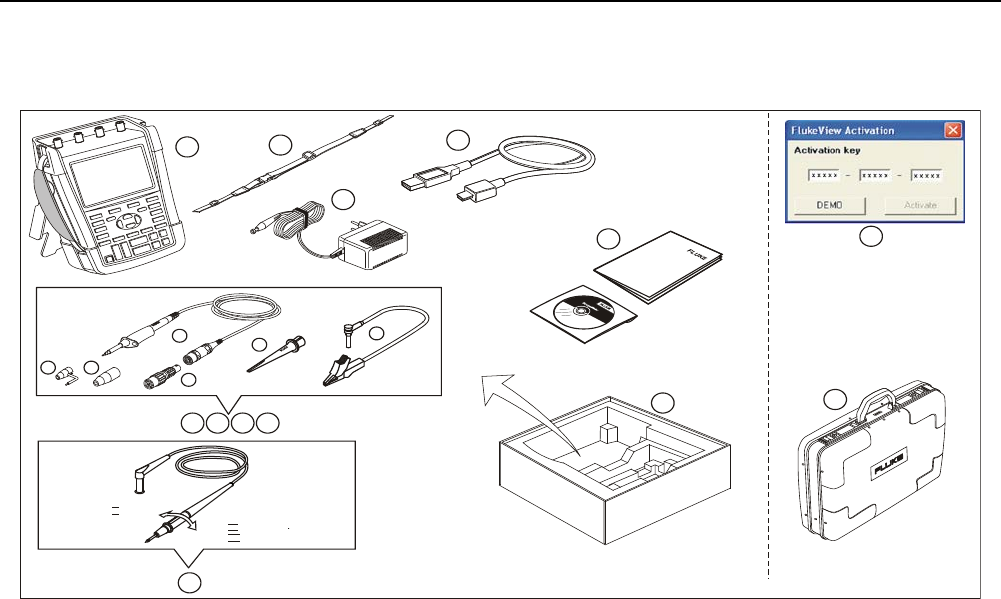
The items in Figure 1 are included in your test tool kit:
Note
When new, the rechargeable Li-ion battery is not
fully charged. See Chapter 7.
1
3
4
5
6
2
12345 - 12345 - 12345
7 8 9 10
e
d
abc
11
13
12
CAT II 1000V
CAT III 1000V
CAT IV 600V
f
Figure 1. Test Tool Kit
Unpacking the Test Tool Kit
3
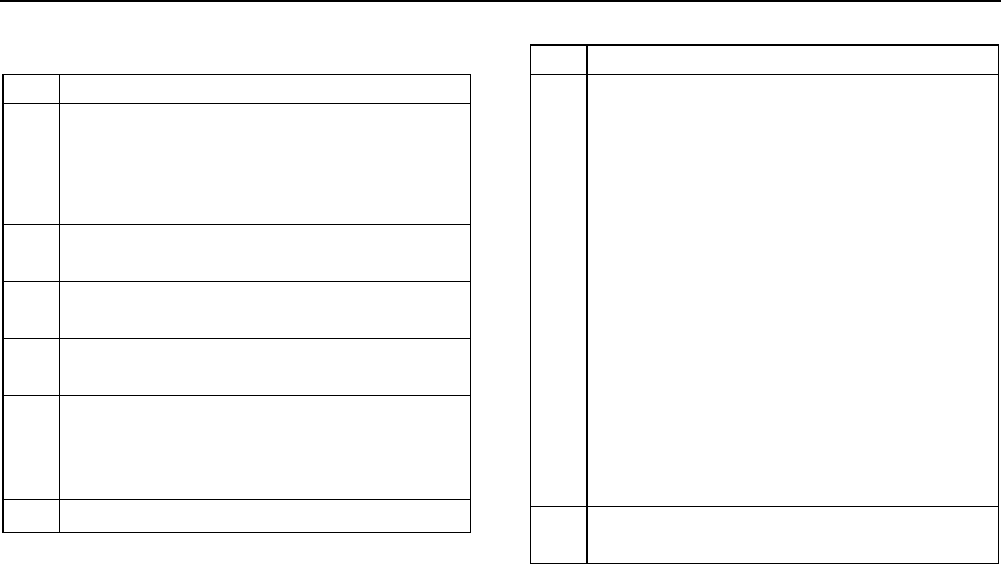
All Fluke 190 Series II versions include the following items:
#
Description
1 Test Tool including
− side strap
− battery pack BP290 (models 190-xx2) or
BP291 (models 190-xx4 and 190-5xx)
2 Hang Strap (see Chapter 6 for mounting
instructions)
3 Power Adapter (country dependent, may vary
from what is shown in Figure 1)
4 USB interface cable for PC connection (USB-A
to mini-USB-B)
5 Safety Information sheet + CD ROM with Users
Manual (multi-language) and FlukeView®
ScopeMeter® Software for Windows demo
package (with restricted functionality)
6 Shipment box (basic version only)
# Description
7
8
9
10
Voltage Probe Set (red)
Voltage Probe Set (blue)
Voltage Probe Set (gray), not for 190-xx2
Voltage Probe Set (green), not for 190-xx2
Each set includes:
a) Fluke 190-50x:
10:1 Voltage Probe, 500 MHz (red or blue or
gray or green)
Other models:
10:1 Voltage Probe, 300 MHz (red or blue or
gray or green)
b) Hook Clip for Probe Tip (black)
c) Ground Lead with Mini Alligator Clip (black)
d) Ground Spring for Probe Tip (black)
e) Insulation Sleeve (black)
f) Fluke 190-50x:
50 Ohm (1 W) Terminator
11 Test Leads with test pins (one red, one black),
for models 190-xx2 only.

ScopeMeter® Test Tool 190 Series II
Users Manual
4
Fluke 190-xxx /S versions include also the following items
(SCC290 kit):
#
Description
12 FlukeView® ScopeMeter® Software for Windows
activation key (converts FlukeView® DEMO
status into full operational status).
13 Hard Shell Carrying Case
Safety Information: Read First
Read all safety information before you use the product.
Specific warning and caution statements, where they
apply, appear throughout the manual.
A “Warning” identifies conditions and actions
that pose hazard(s) to the user.
A “Caution” identifies conditions and actions
that may damage the product.
Safety Information: Read First
5
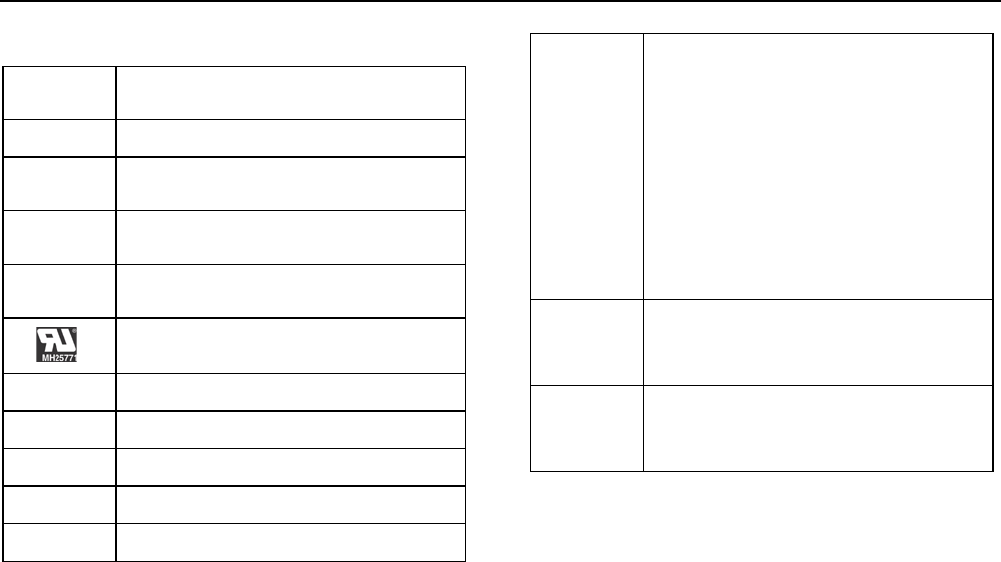
The following international symbols are used on the
product and in this manual.
Risk of Danger. Important information.
See Manual.
Double Insulated
Conforms to relevant North American
Safety Standards.
Conforms to relevant Australian
standards.
Conforms to relevant South Korean EMC
Standards.
Battery Safety Approval
Earth Ground
Recycling information.
Conforms to European Union directives
DC (Direct Current)
AC or DC (Alternating or Direct Current)
This product complies with the WEEE
Directive (2002/96/EC) marking
requirements. The affixed label indicates
that you must not discard this
electrical/electronic product in domestic
household waste. Product Category: With
reference to the equipment types in the
WEEE Directive Annex I, this product is
classed as category 9 "Monitoring and
Control Instrumentation" product. Do not
dispose of this product as unsorted
municipal waste. Go to Fluke’s website for
recycling information.
CAT III
Measurement Category III is applicable to
test and measuring circuits connected to
the distribution part of the building’s low-
voltage MAINS installation.
CAT IV
Measurement Category IV is applicable to
test and measuring circuits connected at
the source of the building’s low-voltage
MAINS installation.

ScopeMeter® Test Tool 190 Series II
Users Manual
6
Warning
To avoid electrical shock or fire:
• Use only the Fluke power supply, Model
BC190 (Power Adapter).
• Before use, check that the selected/indicated
range on the BC190 matches the local line
power voltage and frequency.
• For the BC190/808 and BC190/820 universal
Power Adapters only use line cords that
comply with the local safety regulations.
Note:
To accommodate connection to various line
power sockets, the BC190/808 and BC190/820
universal Power Adapters are equipped with a
male plug that must be connected to a line cord
appropriate for local use. Since the adapter is
isolated, the line cord does not need to be
equipped with a terminal for connection to
protective ground. Since line cords with a
protective grounding terminal are more commonly
available you might consider using these anyhow.
Warning
To avoid electrical shock or fire if a product
input is connected to more than 42 V peak
(30 Vrms) or 60 V dc:
• Use only insulated voltage probes, test leads
and adapters supplied with the product, or
indicated by Fluke as suitable for the Fluke
190 Series II ScopeMeter® Test Tool series.
• Before use, inspect voltage probes, test leads
and accessories for mechanical damage and
replace when damaged.
• Remove all probes, test leads and
accessories that are not in use.
• Always connect the power adapter first to the
ac outlet before connecting it to the product.
• Do not touch voltages >30 V ac rms, 42 V ac
peak, or 60 V dc.
• Do not connect the ground spring (figure 1,
item d) to voltages higher than 42 V peak
(30 Vrms) from earth ground.
• When using the ground reference lead with
any of the probes, make sure that the black
isolation sleeve (Figure 1, item. 10e) is over
the probe tip.

Safety Information: Read First
7
• Do not apply more than the rated voltage,
between the terminals or between each
terminal and earth ground.
• Do not apply input voltages above the rating
of the instrument. Use caution when using
1:1 test leads because the probe tip voltage
will be directly transmitted to the product.
• Do not use exposed metal BNC or banana
plug connectors. Fluke offers cables with
plastic, safety designed BNC connectors
suitable for the ScopeMeter® Test Tool
product, see Chapter 7 ‘Optional
accessories’.
• Do not insert metal objects into connectors.
• Use the product only as specified, or the
protection supplied by the product can be
compromised.
• Carefully read all instructions.
• Do not use the product if it operates
incorrectly.
• Do not use the product or its accessories in
case of any damage.
• Disable the product or its accessories in case
of any damage.
• Keep fingers behind the finger guards on the
probes.
• Use only correct measurement category
(CAT), voltage, and current rated probes, test
leads, and adapters for the measurement.
• Do not exceed the Measurement Category
(CAT) rating of the lowest rated individual
component of a product, probe, or accessory.
• Do not use the product around explosive gas,
vapor, or in damp or wet environments.
• Measure a known voltage first to make sure
that the product operates correctly.
• Examine the case before you use the product.
Look for cracks or missing plastic. Carefully
look at the insulation around the terminals.
• Do not work alone.
• Comply with local and national safety codes.
Use personal protective equipment (approved
rubber gloves, face protection, and
flame resistant clothes) to prevent shock and
arc blast injury where hazardous live
conductors are exposed.
• The battery door must be closed and locked
before you operate the product.

ScopeMeter® Test Tool 190 Series II
Users Manual
8
• Do not operate the product with covers
removed or the case open. Hazardous voltage
exposure is possible.
• Remove the input signals before you clean
the product.
• Use only specified replacement parts.
Voltage ratings that are mentioned in the warnings are
given as limits for “working voltage”. They represent
V ac rms (50-60 Hz) for ac sinewave applications and as
V dc for dc applications.
Measurement Category IV refers to the overhead or
underground utility service of an installation.
Measurement Category III refers to distribution level and
fixed installation circuits inside a building.
Measurement Category II refers to local level, which is
applicable for appliances and portable equipment.
The terms ‘Isolated’ or ‘Electrically floating’ are used in this
manual to indicate a measurement in which the product
input BNC is connected to a voltage different from earth
ground.
The isolated input connectors have no exposed metal and
are fully insulated to protect against electrical shock.
The BNC jacks can independently be connected to a
voltage above earth ground for isolated (electrically
floating) measurements and are rated up to 1000 Vrms
CAT III and 600 Vrms CAT IV above earth ground.
If Safety Features are Impaired
Use of the product in a manner not specified may impair
the protection provided by the equipment.
Do not use test leads if they are damaged. Examine the
test leads for damaged insulation, exposed metal, or if the
wear indicator shows.
Whenever it is likely that safety has been impaired, the
product must be turned off and disconnected from the line
power. The matter should then be referred to qualified
personnel. Safety is likely to be impaired if, for example,
the product fails to perform the intended measurements or
shows visible damage.
Safe Use of Li-ion battery pack
The battery pack Fluke model BP290 (26 Wh)/BP291
(52 Wh) has been tested in accordance with the UN
Manual of Tests and Criteria Part III Subsection 38.3
(ST/SG/AC.10/11/Rev.3) – more commonly known as the
UN T1..T8 – tests, and have been found to comply with
the stated criteria. The battery pack has been tested acc.

Safe Use of Li-ion battery pack
9
to EN/IEC62133. As a result they can be shipped
unrestricted internationally by any means.
Recommendations to safe storage of battery pack.
• Do not store battery packs near heat or fire. Do not
store in sunlight.
• Do not remove a battery pack from its original
packaging until required for use.
• When possible, remove the battery pack from the
equipment when not in use.
• Fully charge the battery pack before storing it for an
extended period to avoid a defect.
• After extended periods of storage, it may be
necessary to charge and discharge the battery packs
several times to obtain maximum performance.
• Keep the battery pack out of the reach of children and
animals.
• Seek medical advise if a battery or part of it has been
swallowed.
Recommendations to safe use of the battery pack.
• The battery pack needs to be charged before use.
Use only Fluke approved power adapters to charge
the battery pack. Refer to Fluke’s safety instructions
and Users Manual for proper charging instructions.
• Do not leave a battery on prolonged charge when not
in use.
• The battery pack gives the best performance when
operated at normal room temperature 20 °C ± 5 °C
(68 °F ± 9 °F).
• Do not put battery packs near heat or fire. Do not put
in sunlight.
• Do not subject battery packs to severe impacts such
as mechanical shock.
• Keep the battery pack clean and dry. Clean dirty
connectors with a dry, clean cloth
• Do not use any charger other than that specifically
provided for use with this equipment.
• Do not use any battery which is not designed or
recommended by Fluke for use with the Product.
• Take careful notice of correct placement of the battery
in the product or the External Battery Charger.
• Do not short-circuit a battery pack. Do not keep
battery packs in a place where the terminals can be
shorted by metal objects (e.g. coins, paperclips, pens
or other).
• Never use a battery pack or charger showing visible
damage.
• Batteries contain hazardous chemicals that can cause
burns or explode. If exposure to chemicals occurs,
clean with water and get medical aid. Repair the
product before use if the battery leaks.

ScopeMeter® Test Tool 190 Series II
Users Manual
10
• Alteration of battery pack: there shall be no attempt to
open, modify, reform or repair a battery pack, which
appears to be malfunctioning, or which has been
physically damaged.
• Do not disassemble or crush battery packs
• Use the battery only in the application for which it is
intended.
• Retain the original product information for future
reference.
Recommendations to safe transport of battery packs
• The battery pack must adequately be protected
against short-circuit or damage during transport.
• Always consult the IATA guidelines describing safe air
transport of Li-ion batteries. Refer also to the section
in the beginning of this paragraph on safe use of the
battery pack.
• Check-in luggage: battery packs are only allowed
when installed in the Product.
• Hand carried luggage: a number of battery packs as
required for normal and individual use is allowed.
• Always consult national/local guidelines that are
applicable for shipment by mail or other transporters.
• A maximum of 3 battery packs may be shipped by
mail. The package must be marked as follows:
PACKAGE CONTAINS LITHIUM-ION BATTERIES
(NO LITHIUM METAL).
Recommendations to safe disposal of a battery pack.
• A failed battery pack shall be properly disposed of in
accordance with local regulations.
• Dispose of properly: do not dispose of the battery as
unsorted municipal waste. Go to Fluke’s website for
recycling information.
• Dispose in discharged condition and cover the battery
terminals with isolation tape.
11
Chapter 1
Using the Scope and Meter
About this Chapter
This chapter provides a step-by-step introduction to the
scope and meter functions of the test tool. The
introduction does not cover all of the capabilities of the
functions but gives basic examples to show how to use the
menus and perform basic operations.
Powering the Test Tool
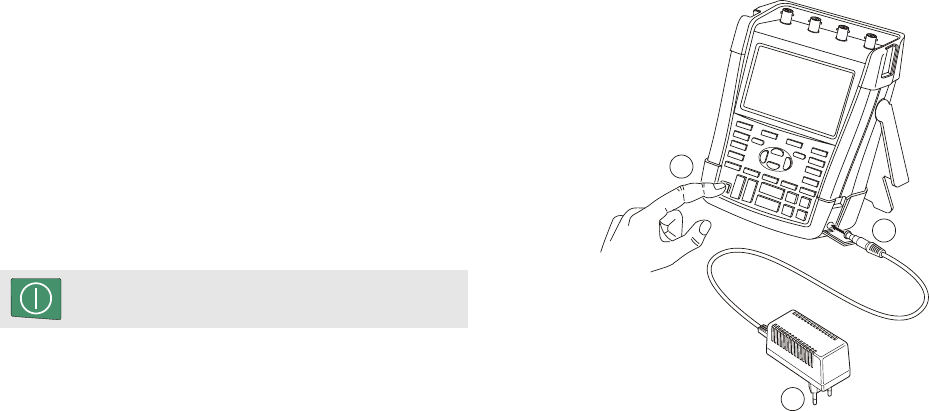
Follow the procedure (steps 1 through 3) in Figure 2 to
power the test tool from a standard ac outlet.
See Chapter 6 for instructions on using battery power.
Turn the test tool on with the on/off key.
The test tool powers up in its last setup configuration.
The menus to adjust date, time and information language
are switched on automatically when the test tool is
powered on for the first time. See Figure 2.
BC190
1
3
2
Figure 2. Powering the Test Tool
ScopeMeter® Test Tool 190 Series II
Users Manual
12
Resetting the Test Tool
If you want to reset the test tool to the factory settings, do
the following:
1 Turn the test tool off.
2
USER
Press and hold the USER key.
3
Press and release.
The test tool turns on, and you should hear a double beep,
indicating the reset was successful.
4
USER
Release the USER key.
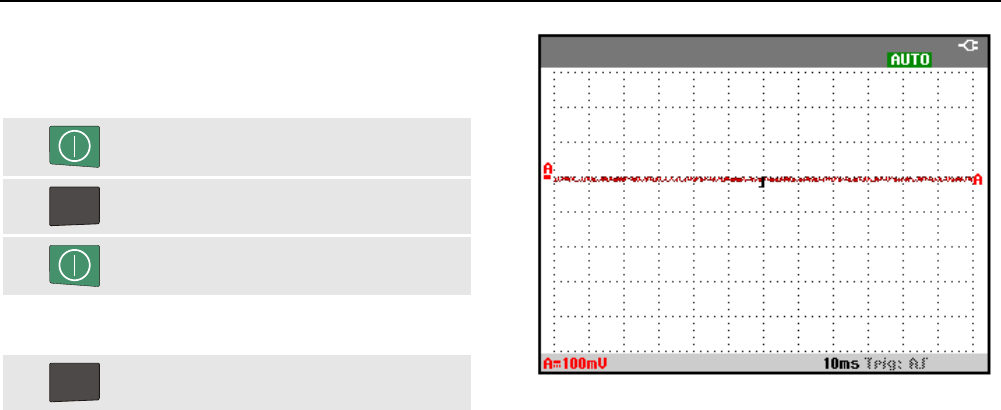
Now look at the display; you will see a screen that looks
like Figure 3.
Figure 3. The Screen After Reset
Using the Scope and Meter
Navigating a Menu 1
13
Navigating a Menu
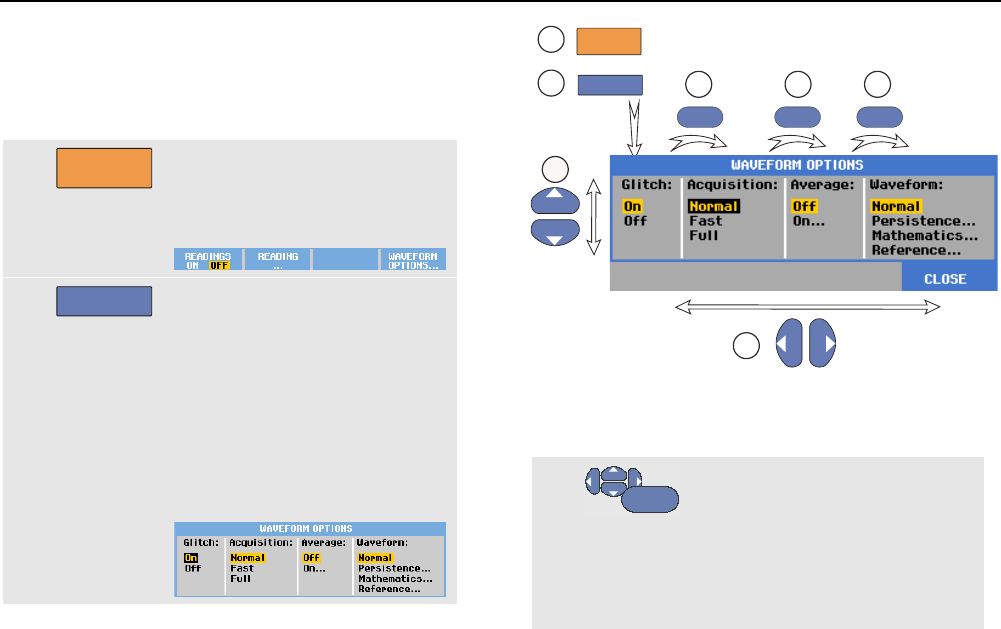
The following example shows how to use the test tool's
menus to select a function. Sequently follow steps
1 through 3 to open the scope menu and to choose an item.
1
SCOPE
Press the SCOPE key to display
the labels that define the present
use for the four blue function keys
at the bottom of the screen.
2
F4
Open the Waveform Options
menu. This menu is displayed at
the bottom of the screen. Actual
settings are shown on a yellow
background. The setting on a
black background can be
changed upon operation of the
blue arrow keys and confirmed
with the ENTER key. See
Figure 4.
1
3b 3b 3b
3a
3a
F4
SCOPE
2
ENTER ENTER ENTER
Figure 4. Basic Navigation
3a
3b
ENTER
Use the blue arrow keys to
highlight the item.
Press the blue ENTER key to
accept the selection. The next
option will be selected. After the
last option the menu will be
closed.
ScopeMeter® Test Tool 190 Series II
Users Manual
14
Note
To exit the menu at any moment press
F4
(CLOSE).
Hiding Key Labels and Menus
You can close a menu or hide key label at any time:
CLEAR
Hide any key label, press again to display the
key label again (toggle function).
A displayed menu will be closed.
To display menus or key labels, press one of the yellow
menu keys, e.g. the SCOPE key.
You can close most menus using the
F4
soft key
CLOSE.
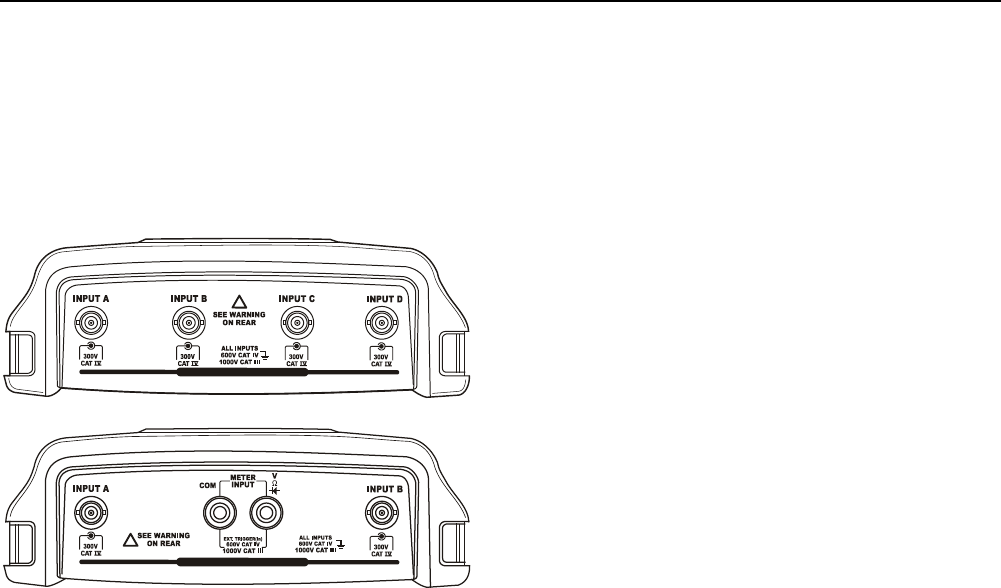
Key Illumination
Some keys are provided with an illumination LED. For an
explanation of the LED function see the table below.
On: The display is off, test tool is running.
See Chapter 6 ‘Tips’ section ‘Setting the
Display AUTO-Off timer ‘.
Off: in all other situations
HOLD
RUN
On: Measurements are stopped, the screen
is frozen. (HOLD)
Off: Measurements are running. (RUN)
A
B
C
D
On: The range key, the move up/down key,
and the F1…F4 key labels, apply to the
illuminated channel key(s).
Off: -
MANUAL
AUTO
On: Manual operating mode.
Off: Automatic operating mode, optimizes
the waveform position, range, time
base and triggering (Connect-and-
View
TM
)
TRIGGER
On: Signal is triggered
Off: Signal is not triggered
Flashing: waiting for a trigger at
‘Single Shot’
or ‘On Trigger’ waveform update.
Using the Scope and Meter
Input Connections 1
15
Input Connections
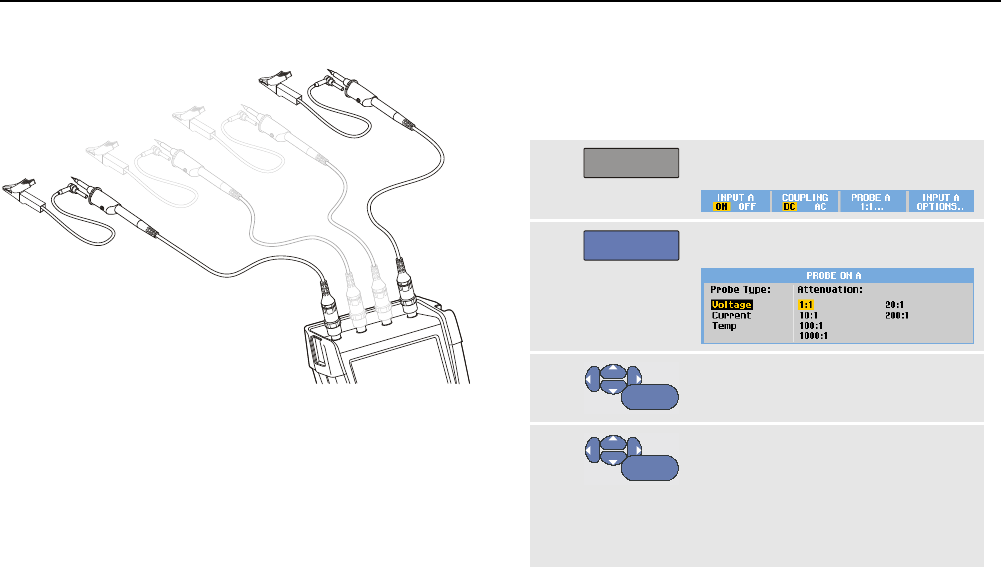
Look at the top of the test tool. The test tool has four
safety BNC jack signal inputs (models 190–xx4), or two
safety BNC jack inputs and two safety 4-mm banana jack
inputs (models 190-xx2). See Figure 5.
Isolated input architecture allows independent floating
measurements with each input.
ALL INPUTS ISOLATED
!
ALL INPUTS ISOLATED
!
Figure 5. Measurement Connections
Making Input Connections
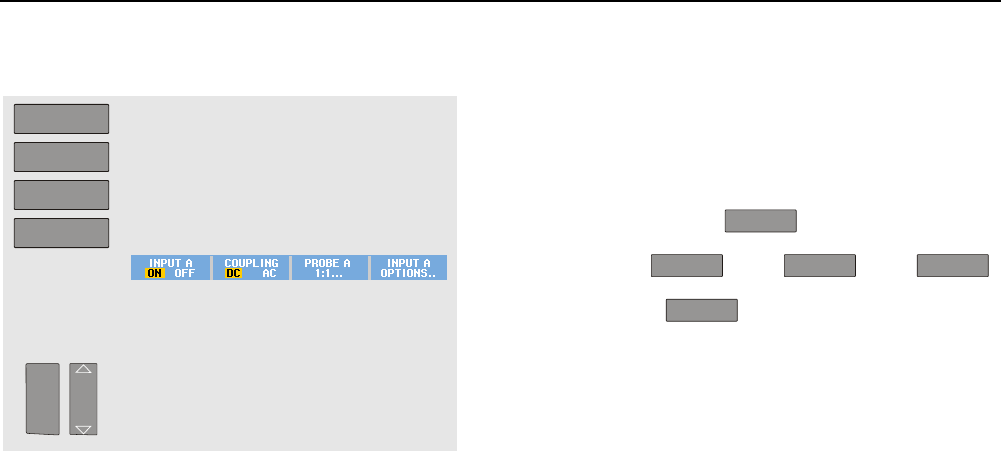
To make scope measurements connect the red voltage
probe to input A, the blue voltage probe to input B, the
grey voltage probe to input C and the green voltage probe
to input D. Connect the short ground leads of each voltage
probe to its own reference potential (See Figure 6).
For Meter measurements refer to the applicable section in
this chapter.
Warning
To avoid electrical shock use the insulation
sleeve (Figure 1 item e)) if you use the probes
without the hook clip or the ground spring.
Notes
− To maximally benefit from having
independently isolated floating inputs and to
avoid problems caused by improper use,
read Chapter 6: “Tips”.
− For an accurate indication of the measured
signal, it is necessary to match the probe to
the test tool’s input channel. See section
‘Calibrating the voltage Probes’ in Chapter 7.
ScopeMeter® Test Tool 190 Series II
Users Manual
16
Figure 6. Scope Connections
Adjusting the Probe Type Settings
To obtain correct measurement results the test tool probe
type settings must correspond to the connected probe
types. To select the input A probe setting do the following:
1
A
Display the INPUT A key labels.
2
F3
Open the PROBE ON A menu.
3
ENTER
Select the probe type Voltage,
Current, or Temp.
4
ENTER
Voltage: select the voltage probe
attenuation factor.
Current and Temp: select the
current probe or temperature
probe sensitivity.
Using the Scope and Meter
Selecting an Input Channel 1
17
Selecting an Input Channel
To select an input channel, do the following:
A
B
C
D
Press the required channel key (A…D):
- the channel is turned on
- labels for the F1…F4 keys are
shown. Press the channel key again
to turn the labels off/on (toggle).
- the channel key illumination is turned
on.
mV
V
RANGE
MOVE
If the channel key is illuminated, the
RANGE and MOVE UP/DOWN keys
are now assigned to the indicated
channel.
Tip
To set multiple channels to the same range
(V/div) as, for example, input A, do the following:
− Select the input A measurement function,
probe setting and input options for all
involved channels
− press and hold
A
− press
B
and/or
C
and/or
D
− release
A
Notice that all pressed keys are illuminated now.
The MOVE UP/DOWN key and the RANGE
mV/V key applies to all involved input channels.
ScopeMeter® Test Tool 190 Series II
Users Manual
18
Displaying an Unknown Signal with
Connect-and-View™
The Connect-and-View feature lets the test tool display
complex, unknown signals automatically. This function
optimizes the position, range, time base, and triggering
and assures a stable display of virtually any waveform. If
the signal changes, the setup is automatically adjusted to
maintain the best display result. This feature is especially
useful for quickly checking several signals.
To enable the Connect-and-View feature when the test
tool is in MANUAL mode, do the following:
1
MANUAL
AUTO
Perform an Auto Set. AUTO appears at
the top right of the screen, the key
illumination is off.
The bottom line shows the range, the time base, and the
trigger information.
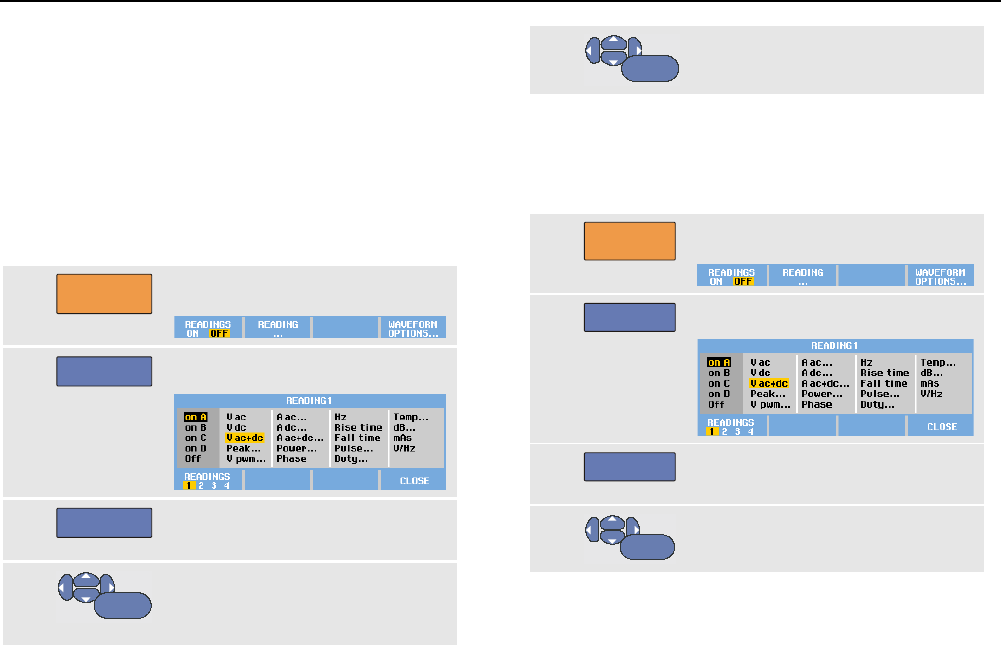
The waveform identifier (A) is visible on the right side of
the screen, as shown in Figure 7. The input A zero icon -
at the left side of the screen identifies the ground level of
the waveform.
2
MANUAL
AUTO
Press a second time to select the
manual range again. MANUAL appears
at the top right of the screen, the key
illumination is on.
Figure 7. The Screen After an Auto Set
Use the light-gray RANGE, TIME and MOVE keys at the
bottom of the keypad to change the view of the waveform
manually.
Using the Scope and Meter
Making Automatic Scope Measurements 1
19
Making Automatic Scope Measurements
The test tool offers a wide range of automatic scope
measurements. In addition to the waveforms you can
display four numeric readings: READING 1 … 4. These
readings are selectable independently, and the
measurements can be done on the input A, input B, input
C or input D waveform.
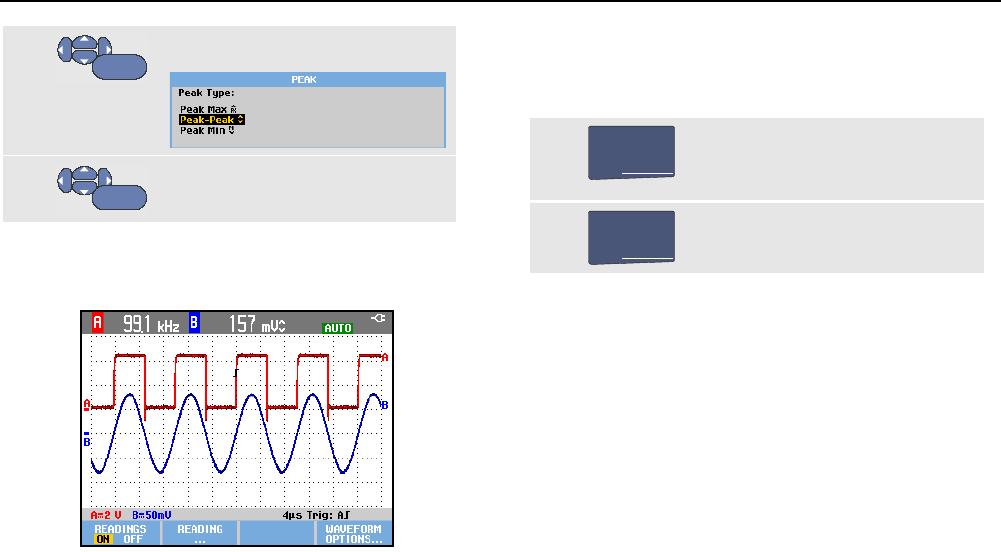
To choose a frequency measurement for input A, do the
following:
1
SCOPE
Display the SCOPE key labels.
2
F2
Open the READING .. menu.
3
F1
Select the reading number to be
displayed, for example READING 1.
4
ENTER
Select on A. Observe that the
highlight jumps to the present
measurement.
5
ENTER
Select the Hz measurement.
Observe that the top left of the screen displays the Hz
measurement. (See Figure 8.)
To choose also a Peak-Peak measurement for Input B as
second reading, do the following:
1
SCOPE
Display the SCOPE key labels.
2
F2
Open the READING .. menu.
3
F1
Select the reading number to be
displayed, for example READING 2
4
ENTER
Select on B. The highlight jumps
to the measurements field.
ScopeMeter® Test Tool 190 Series II
Users Manual
20
5
ENTER
Open the PEAK menu.
6
ENTER
Select the Peak-Peak
measurement.
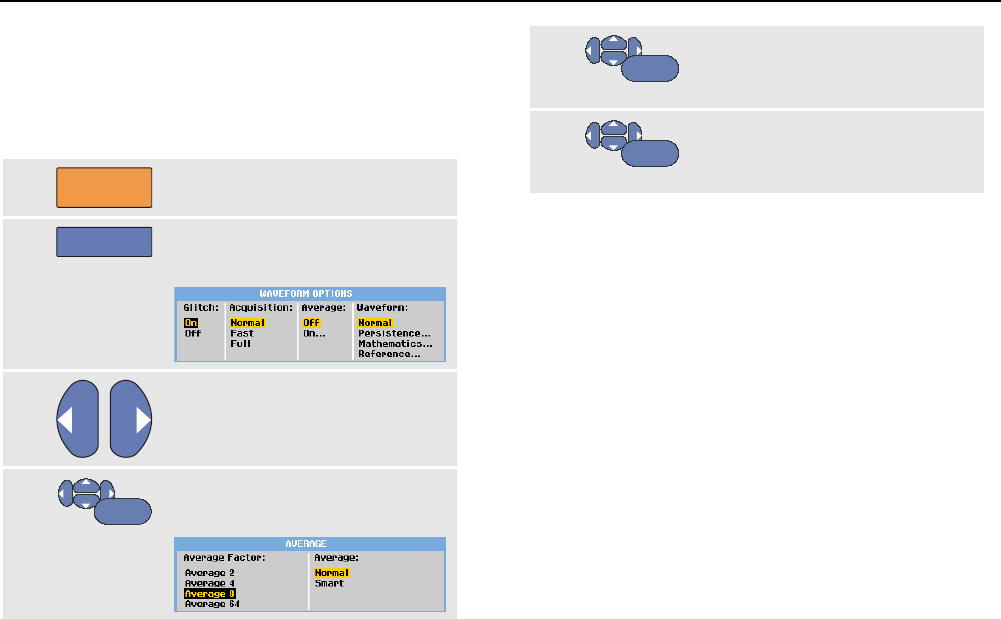
Figure 8 shows an example of the screen with two
readings. The character size will be reduced when more
than two readings are on.
Figure 8. Hz and V peak-peak as Scope Readings
Freezing the Screen
You can freeze the screen (all readings and waveforms) at
any time.
1
HOLD
RUN
Freeze the screen. HOLD appears
at the right of the reading area.
The key illumination is on.
2
HOLD
RUN
Resume your measurement. The
key illumination is off.
Using the Scope and Meter
Using Average, Persistence and Glitch Capture 1
21
Using Average, Persistence and Glitch
Capture
Using Average for Smoothing Waveforms
To smooth the waveform, do the following:
1
SCOPE
Display the SCOPE key labels.
2
F4
Open the WAVEFORM OPTIONS
menu.
3
Jump to Average:
4
ENTER
Select On... to open the AVERAGE
menu.
5
ENTER
Select Average factor: Average
64. This averages the outcomes
of 64 acquisitions.
6
ENTER
Select Average: Normal (normal
average) or Smart (smart
average, see below).
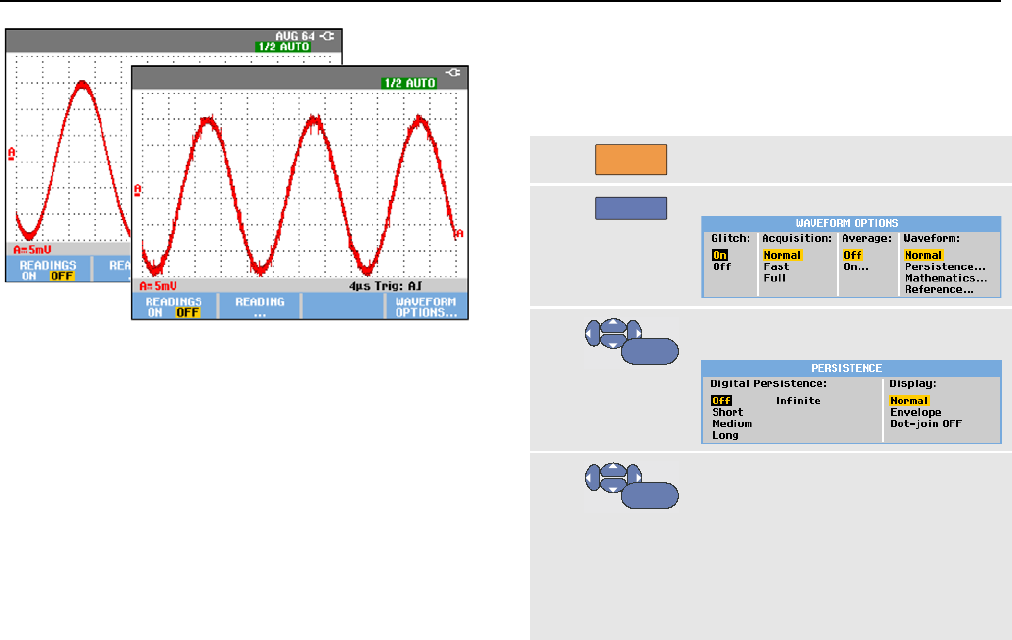
You can use the average functions to suppress random or
uncorrelated noise in the waveform without loss of
bandwidth. Waveform samples with and without smoothing
are shown in Figure 9.
Smart average
In the normal average mode occasional deviations in a
waveform just distort the averaged wave shape, and do
not show up on screen clearly. When a signal really
changes, for instance when you probe around, it takes
quite some time before the new wave shape is stable.
With smart averaging you can quickly probe around, and
incidental waveform changes like a line flyback in video
show up on screen instantly.
ScopeMeter® Test Tool 190 Series II
Users Manual
22
Figure 9. Smoothing a Waveform
Using Persistence, Envelope and Dot-Join to
Display Waveforms
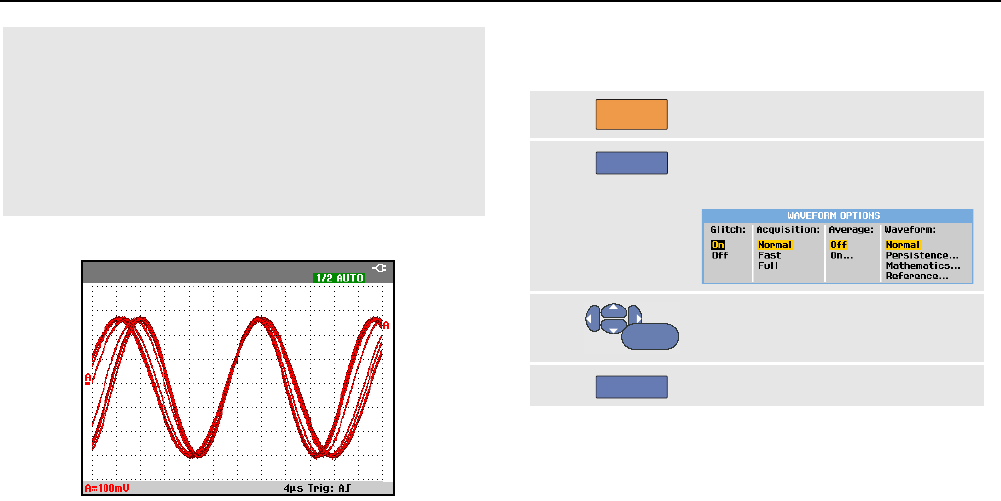
You can use Persistence to observe dynamic signals. See
Figure 10.
1
SCOPE
Display the SCOPE key labels.
2
F4
Open the WAVEFORM OPTIONS menu.
3
ENTER
Jump to Waveform: and open the
Persistence... menu.
4
ENTER
Select Digital Persistence: Short,
Medium, Long or Infinite to observe
dynamic waveforms like on an analog
oscilloscope.
Select Digital Persistence: Off,
Display: Envelope to see the upper
and lower boundaries of dynamic
waveforms (envelope mode).
Using the Scope and Meter
Using Average, Persistence and Glitch Capture 1
23
Select Display: Dot-join: Off to
display measured samples only. Dot
join off may be useful when
measuring for example modulated
signals or video signals.
Select Display: Normal to turn the
envelope mode off and the dot-join
function on.
Figure 10. Using Persistence to Observe Dynamic
Signals
Displaying Glitches
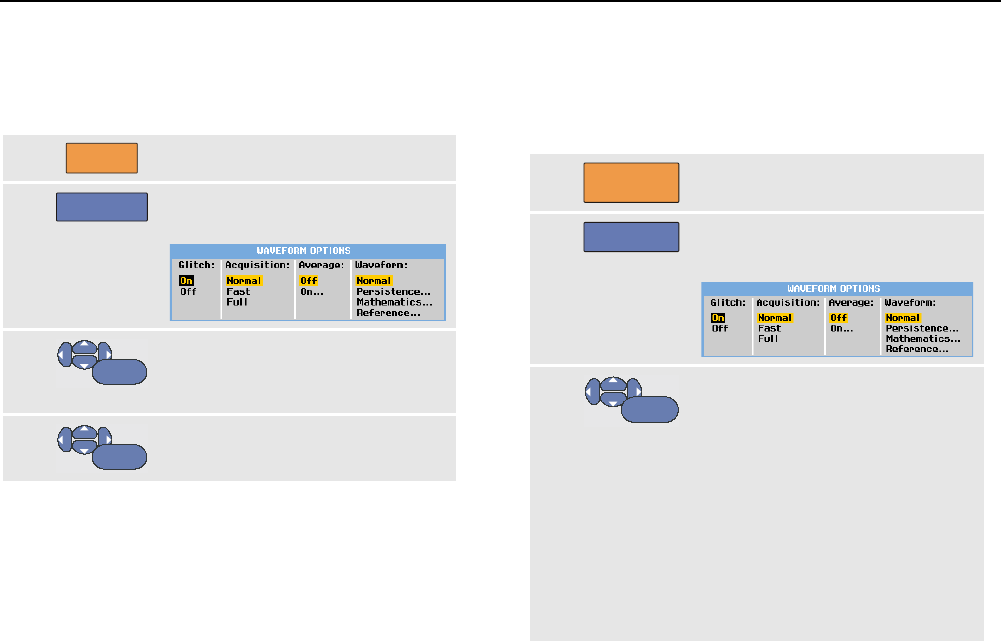
To capture glitches on a waveform, do the following:
1
SCOPE
Display the SCOPE key labels.
2
F4
Open the WAVEFORM OPTIONS
menu.
3
ENTER
Select Glitch: On.
4
F4
Exit the menu.
You can use this function to display events (glitches or
other asynchronous waveforms) of 8 ns (8 nanoseconds,
due to ADC’s with 125 MS/s sampling speed) or wider, or
you can display HF modulated waveforms.
When you select the 2 mV/div range Glitch Detect will
automatically be turned Off. In the 2 mV/div range you can
set Glitch Detect On manually.
ScopeMeter® Test Tool 190 Series II
Users Manual
24
Suppressing High Frequency Noise
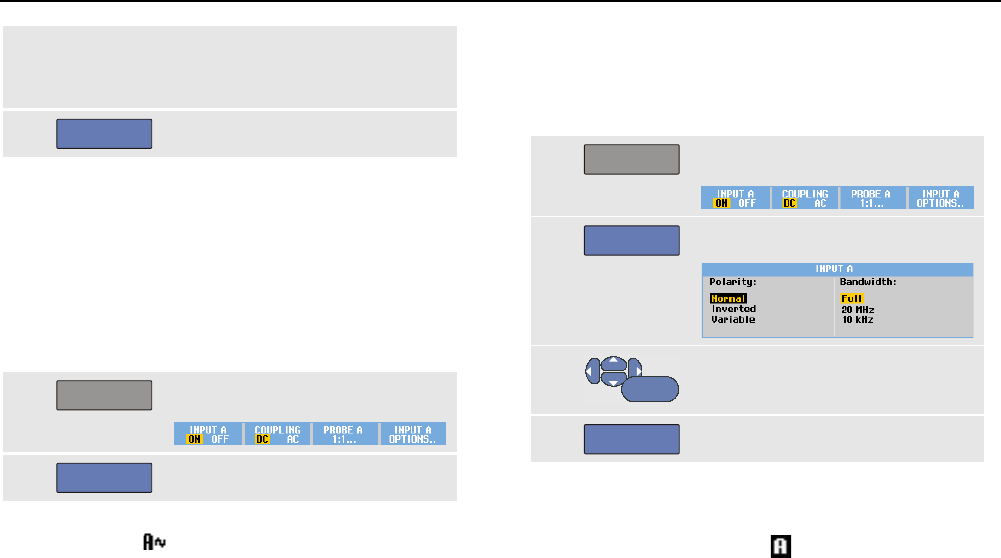
Switching the glitch detection off (Glitch: Off) will
suppress the high frequency noise on a waveform.
Averaging will suppress the noise even more.
1
SCOPE
Display the SCOPE key labels.
2
F4
Open the WAVEFORM OPTIONS
menu.
3
ENTER
Select Glitch: Off, then select
Average: On… o open the
AVERAGE menu.
4
ENTER
Select Average 8.
See also Using Average for Smoothing Waveforms
on page 21.
Glitch capture and average do not affect bandwidth.
Further noise suppression is possible with bandwidth
limiting filters. See Working with Noisy Waveforms on
page 27.
Acquiring Waveforms
Setting the Acquisition Speed and Waveform
Memory Depth
To set the acquisition speed, do the following:
1
SCOPE
Display the SCOPE key labels.
2
F4
Open the WAVEFORM OPTIONS
menu.
3
ENTER
Select Acquisition:
Fast – for fast waveform update
rate; shortest record length,
decreased zoom rate, no
readings possible.
Full – maximum waveform detail;
10,000 samples per waveform
record length, maximum zoom
rate, lower waveform update rate.
Using the Scope and Meter
Acquiring Waveforms 1
25
Normal – optimal waveform
update rate and zoom range
combination
4
F4
Exit the menu.
See also Table 2 in Chapter 8.
Selecting AC-Coupling
After a reset, the test tool is dc-coupled so that ac and dc
voltages appear on the screen.
Use ac-coupling when you wish to observe a small ac
signal that rides on a dc signal. To select ac-coupling, do
the following:
1
A
Display the INPUT A key labels.
2
F2
Highlight AC.
Observe that the bottom left of the screen displays the
ac-coupling icon: .
You can define how Auto Set affects this setting, see
Chapter 6 ‘Changing the Auto Set Options’.
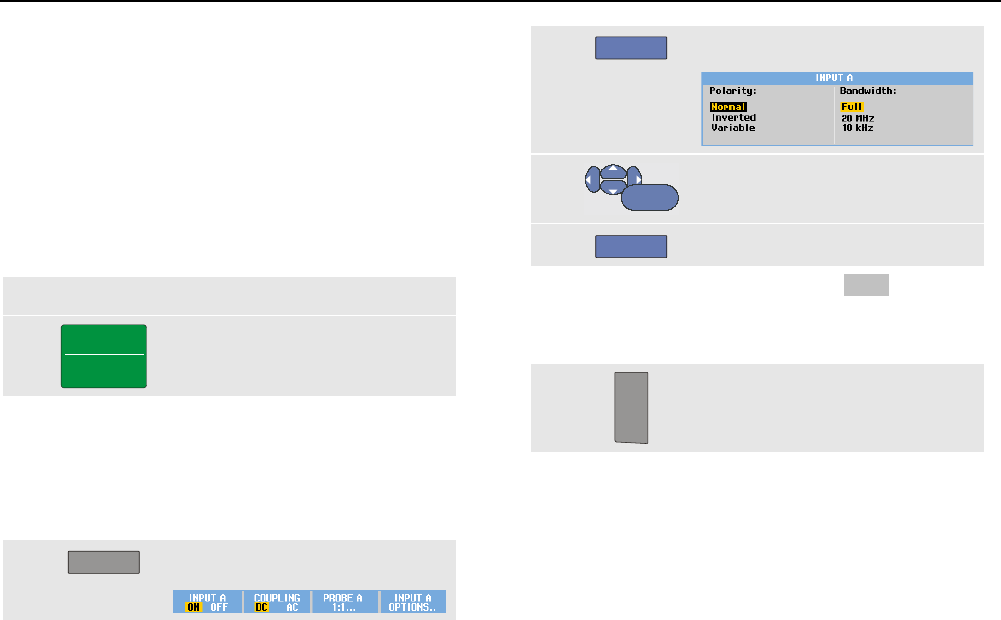
Reversing the Polarity of the Displayed
Waveform
To invert, for example the input A waveform, do the
following:
1
A
Display the INPUT A key labels.
2
F4
Open the INPUT A menu.
3
ENTER
Select Inverted and accept
inverted waveform display.
4
F4
Exit the menu.
For example, a negative-going waveform is displayed as
positive-going waveform which may provide a more
meaningful view. An inverted display is identified by an
inversed waveform identifier ( ) at the right of the
waveform, and in the status line below the waveform.
ScopeMeter® Test Tool 190 Series II
Users Manual
26
Variable Input Sensitivity
The variable input sensitivity allows you to adjust any input
sensitivity continuously, for example to set the amplitude
of a reference signal to exactly 6 divisions.
The input sensitivity of a range can be increased up to 2.5
times, for example between 10 mV/div and 4 mV/div in the
10 mV/div range.
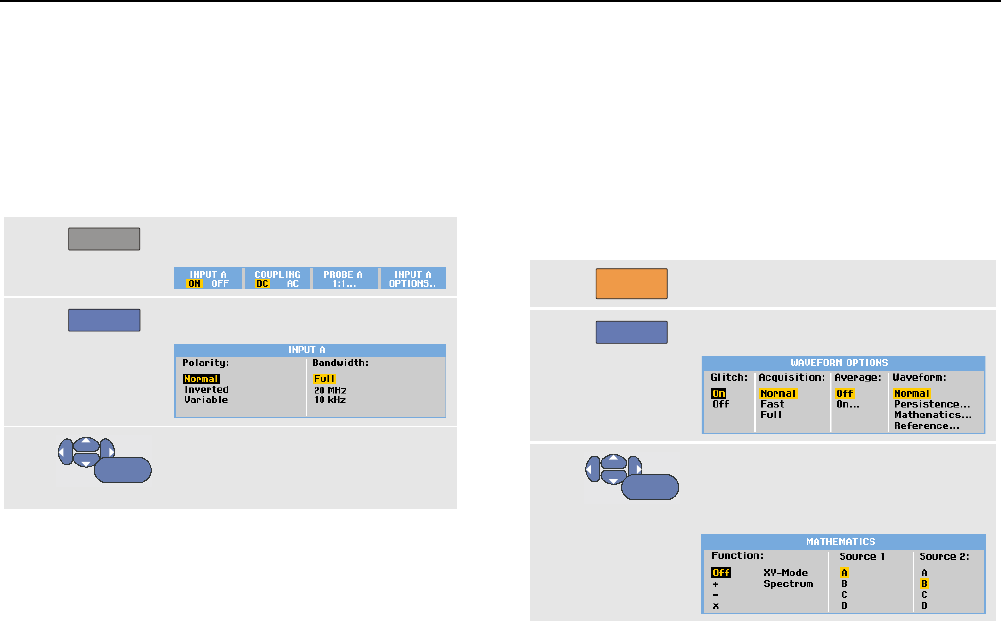
To use the variable input sensitivity on for example
input A, do the following:
1 Apply the input signal.
2
MANUAL
AUTO
Perform an Auto Set (AUTO must
appear at the top of the screen).
An Auto Set will turn off the variable input sensitivity. You
can now select the required input range. Keep in mind that
the sensitivity will increase when you start adjusting the
variable sensitivity (the displayed waveform amplitude will
increase).
3
A
Display the INPUT A key labels.
4
F4
Open the INPUT A menu.
5
ENTER
Select and accept Variable.
6
F4
Exit the menu.
At the bottom left of the screen the text A Var is displayed.
Selecting Variable will turn off cursors and automatic input
ranging.
7
mV
V
RANGE
Press mV to increase the
sensitivity, press V to decrease
the sensitivity.
Note
Variable input sensitivity is not available in the
Mathematics functions (+ - x and Spectrum).
Using the Scope and Meter
Acquiring Waveforms 1
27
Working with Noisy Waveforms
To suppress high frequency noise on waveforms, you can
limit the working bandwidth to 10 kHz or 20 MHz. This
function smoothes the displayed waveform. For the same
reason, it improves triggering on the waveform.
To choose the 10 kHz bandwidth on for example input A,
do the following:
1
A
Display the INPUT A key labels.
2
F4
Open the INPUT A menu.
3
ENTER
Jump to Bandwidth: and select
10kHz to accept the bandwidth
limitation.
Tip
To suppress noise without loss of bandwidth,
use the average function or turn off Display
Glitches.
Using Mathematics Functions +, -, x, XY-mode
You can add (+), subtract (-), or multiply (x) two
waveforms. The test tool will display the mathematical
result waveform and the source waveforms.
The XY-mode provides a plot with one input on the
vertical axis and the second input on the horizontal axis.
The Mathematics functions perform a point-to-point
operation on the involved waveforms.
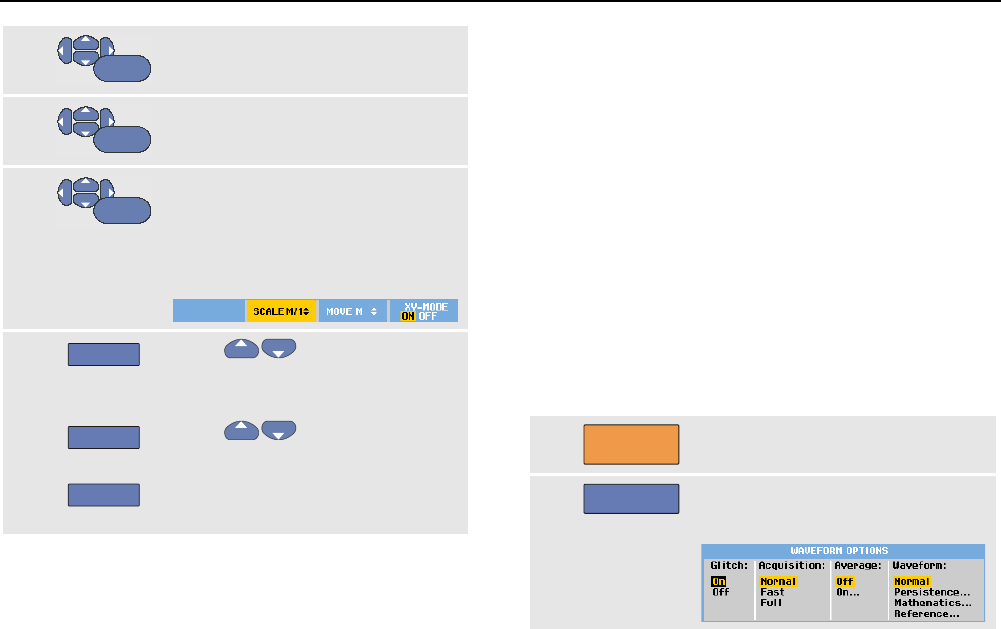
To use a Mathematics function, do the following:
1
SCOPE
Display the SCOPE key labels.
2
F4
Open the WAVEFORM OPTIONS menu.
3
ENTER
Jump to Waveform: and Select
Mathematics... to open the
Mathematics menu.
ScopeMeter® Test Tool 190 Series II
Users Manual
28
4
ENTER
Select Function: +, -, x or XY-
mode.
5
ENTER
Select the first waveform:
Source 1: A, B, C or D
6
ENTER
Select the second waveform:
Source 2: A, B, C or D
The mathematical function key
labels will be displayed now:
7
F2
F3
F4
Press to select a scale
factor to fit the result waveform
onto the display.
Press to move the result
waveform up or down.
Switch the result waveform on/off
(toggle).
The sensitivity range of the mathematical result is equal to
the sensitivity range of the least sensitive input divided by
the scale factor.
Using Mathematics Function Spectrum (FFT)
The Spectrum function shows the spectral content of the
input A, B, C or D waveform in the input waveform color. It
performs an FFT (Fast Fourier Transform) to transform the
amplitude waveform from the time domain into the
frequency domain.
To reduce the effect of side-lobes (leakage) it is
recommended to use Auto windowing. This will
automatically adapt the part of the waveform that is
analyzed to a complete number of cycles
Selecting Hanning, Hamming or no windowing results in a
faster update, but also in more leakage.
Ensure that the entire waveform amplitude remains on the
screen.
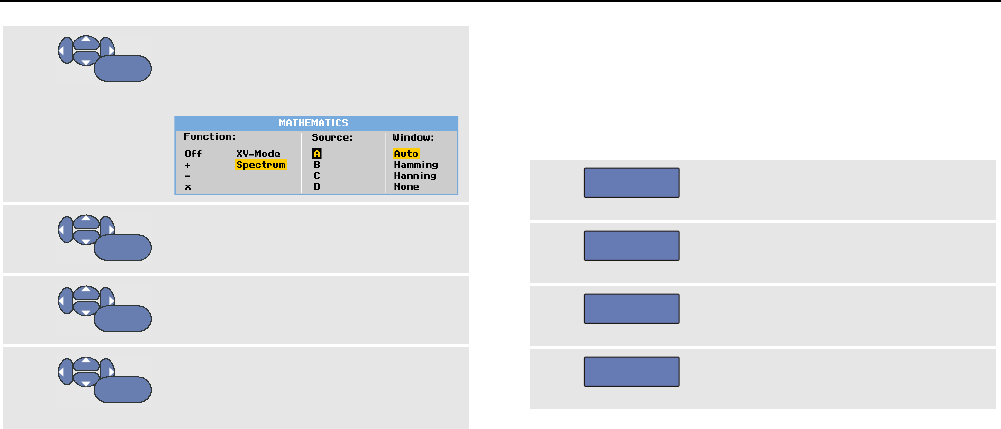
To use the Spectrum function, do the following:
1
SCOPE
Display the SCOPE key labels.
2
F4
Open the Waveform Options
menu.
Using the Scope and Meter
Acquiring Waveforms 1
29
3
ENTER
Jump to Waveform: and select
Mathematics... to open the
Mathematics menu.
4
ENTER
Select Function: Spectrum.
5
ENTER
Select the source waveform for the
spectrum: Source : A, B, C or D
6
ENTER
Select Window: Auto (automatic
windowing), Hanning, Hamming,
or None (no windowing).
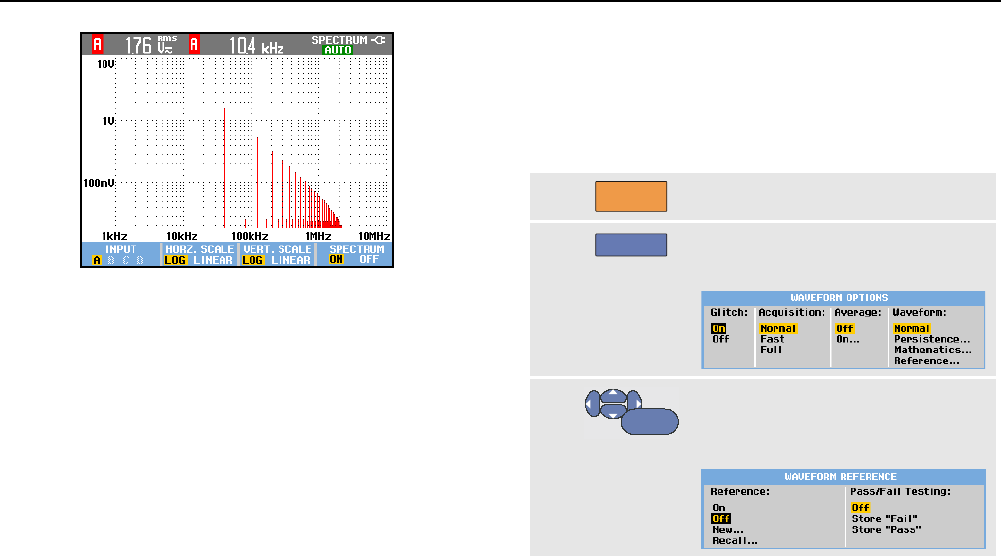
You will see a screen that looks like Figure 11.
Observe that the top right of the screen displays
SPECTRUM.
If it displays LOW AMPL a spectrum measurement cannot
be done as the waveform amplitude is too low.
If it displays WRONG TB the time base setting does not
enable the test tool to display an FFT result. It is either too
slow, which can result in aliasing, or too fast, which results
in less than one signal period on the screen.
7
F1
Perform a spectrum analysis on
waveform A, B, C or D.
8
F2
Set the horizontal amplitude scale
to linear or logarithmic.
9
F3
Set the vertical amplitude scale to
linear or logarithmic.
10
F4
Turn the spectrum function off/on
(toggle function).
ScopeMeter® Test Tool 190 Series II
Users Manual
30
Figure 11. Spectrum Measurement
Comparing Waveforms
You can display a fixed reference waveform with the actual
waveform for comparison.
To create a reference waveform and to display it with the
actual waveform, do the following:
1
SCOPE
Display the SCOPE key labels.
2
F4
Open the Waveform Options
menu.
3
ENTER
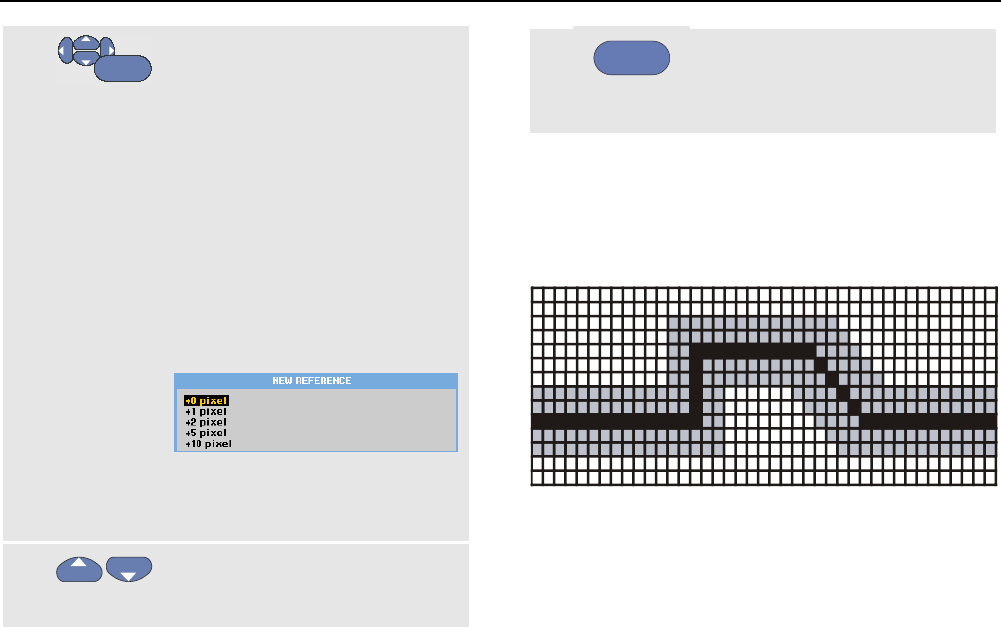
Jump to the Waveform field and
select Reference… to open the
WAVEFORM REFERENCE menu.
Using the Scope and Meter
Acquiring Waveforms 1
31
4
ENTER
Select On to display the reference
waveform. This can be:
- the last used reference waveform
(if not available no reference
waveform will be shown).
- the envelope waveform if the
persistence function Envelope is
on.
Select Recall… to recall a saved
waveform (or waveform envelope)
from memory and use it as a
reference waveform.
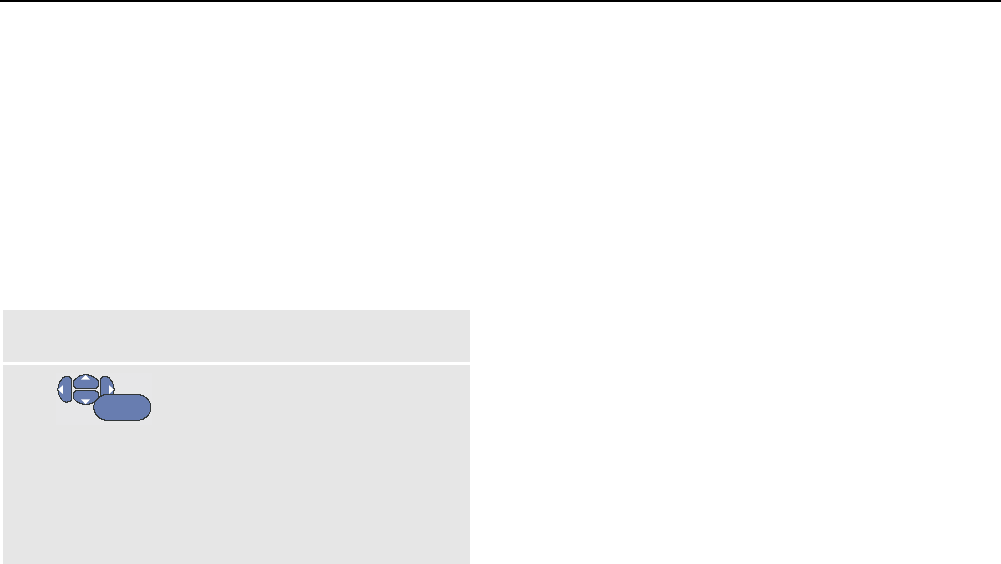
Select New… to open the NEW
REFERENCE menu.
If you selected New… continue at
step 5, else go to step 6.
5
Select the width of an additional
envelope to be added to the
momentary waveform.
6
ENTER
Store the momentary waveform
and display it permanently for
reference. The display also shows
the actual waveform.
To recall a saved waveform from memory and use it as a
reference waveform, refer also to Chapter 5 Recalling
Screens with Associated Setups.
Example of reference waveform with an additional
envelope of ±2 pixels:
black pixels: basic waveform
gray pixels: ± 2 pixels envelope
1 vertical pixel on the display is 0.04 x range/div
1 horizontal pixel on the display is 0.0333 x range/div.
ScopeMeter® Test Tool 190 Series II
Users Manual
32
Pass - Fail Testing
You can use a reference waveform as a test template for
the actual waveform. If at least one sample of a waveform
is outside the test template, the failed or passed scope
screen will be stored. Up to 100 screens can be stored. If
the memory is full, the first screen will be deleted in favor
of the new screen to be stored.
The most appropriate reference waveform for the
Pass-Fail test is a waveform envelope.
To use the Pass - Fail function using a waveform
envelope, do the following:
1 Display a reference waveform as described in the
previous section “Comparing Waveforms”
2
ENTER
From the Pass Fail Testing: menu
select
Store “Fail” : each scope screen
with samples outside the reference
will be stored
Store “Pass” : each scope screen
with no samples outside the
reference will be stored
Each time a scope screen is stored you will hear a beep.
Chapter 3 provides information on how to analyze the
stored screens.
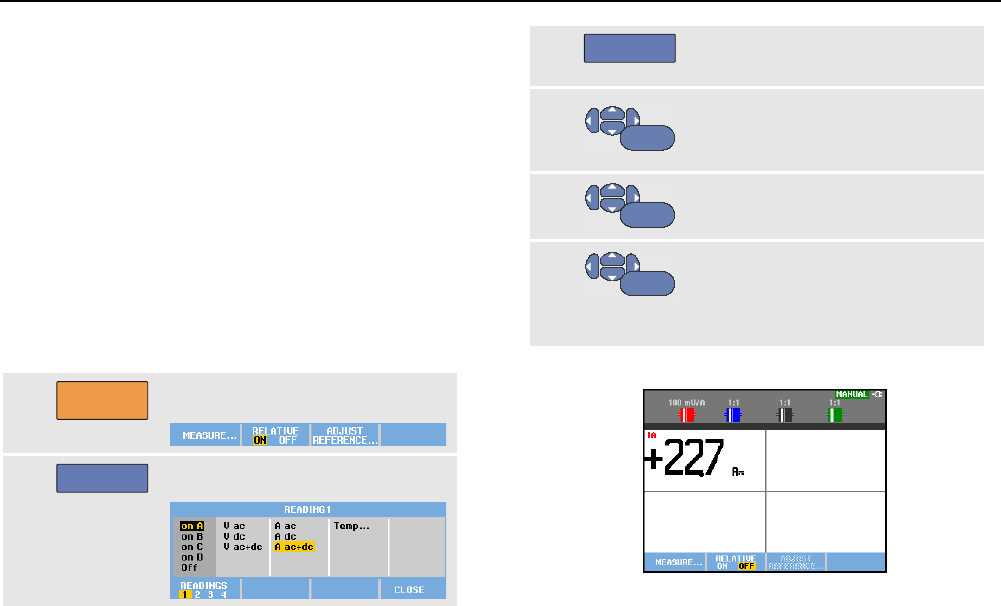
Analyzing Waveforms
You can use the analysis functions CURSOR, ZOOM and
REPLAY to perform detailed waveform analysis. These
functions are described in Chapter 3: “Using Cursors,
Zoom and Replay”.
Using the Scope and Meter
Making Automatic Meter Measurements (for models 190-xx4) 1
33
Making Automatic Meter Measurements
(for models 190-xx4)
The test tool offers a wide range of automatic meter
measurements. You can display four large numeric
readings: READING 1 … 4. These readings are selectable
independently, and the measurements can be done on the
input A, B, C or input D waveform. In METER mode the
waveforms are not displayed. The 10 kHz HF rejection
filter (see Working with Noisy Waveforms on page 27)
is always on in the METER mode.
Selecting a Meter Measurement
To choose a current measurement for input A, do the
following:
1
METER
Display the METER key labels.
2
F1
Open the Reading .. menu.
3
F1
Select the reading number to be
displayed, for example READING 1
4
ENTER
Select on A. Observe that the
highlight jumps to the present
measurement.
5
ENTER
Select the A dc… measurement.
6
ENTER
Select a current probe sensitivity
that matches the connected
current probe (see Adjusting the
Probe Type Settings on page 16.)
You will see a screen like in Figure 12.
Figure 12. Meter Screen
ScopeMeter® Test Tool 190 Series II
Users Manual
34
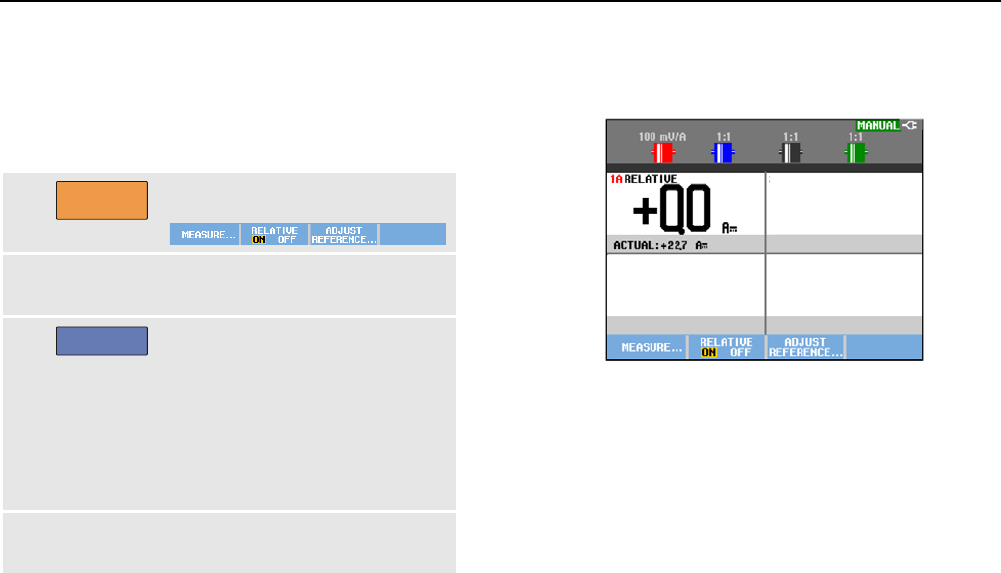
Making Relative Meter Measurements
A relative measurement displays the present
measurement result relative to a defined reference value.
The following example shows how to perform a relative
voltage measurement. First obtain a reference value:
1
METER
Display the METER key labels.
2 Measure a voltage to be used as
reference value.
3
F2
Set RELATIVE to ON. (ON is
highlighted.) This stores the
reference value as reference for
subsequent measurements.
Observe the ADJUST REFERENCE
soft key (F3) that enables you to
adjust the reference value (see
step 5 below).
4 Measure the voltage to be
compared to the reference.
Now the large reading is the actual input value minus the
stored reference value. The actual input value is displayed
below the large reading (ACTUAL: xxxx), see Figure 13.
Figure 13. Making a Relative Measurement
You can use this feature when, for example, you need to
monitor input activity (voltage, temperature) in relation to a
known good value.
Using the Scope and Meter
Making Multimeter Measurements (for models 190-xx2) 1
35
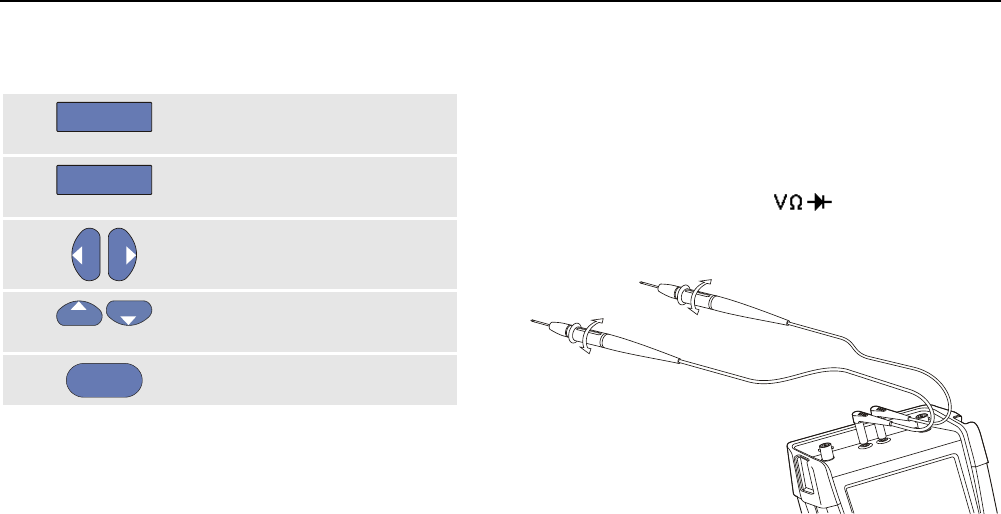
Adjusting the reference value
To adjust the reference value, do the following:
5
F3
Display the Adjust Reference
menu.
6
F1
Select the applicable relative
measurement reading.
7
Select the digit you want to
adjust.
8 Adjust the digit. Repeat step 7
and step 8 until finished.
9
ENTER
Enter the new reference value.
Making Multimeter Measurements (for
models 190-xx2)
The screen displays the numeric readings of the
measurements on the meter input.
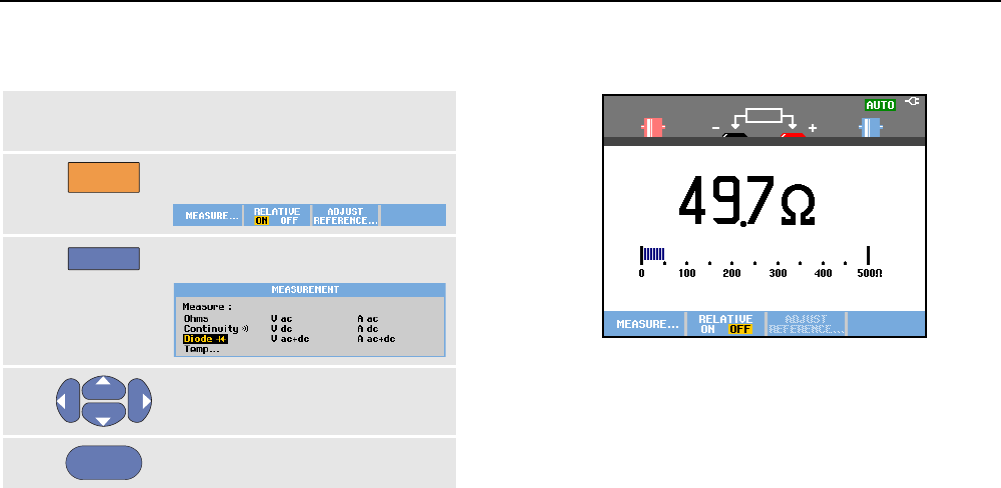
Making Meter Connections
Use the two 4-mm safety red ( ) and black (COM)
banana jack inputs for the Meter functions.
(See Figure 14.)
CAT III 1000V
CAT IV 600V
CAT II 1000V
Figure 14. Meter Connections
ScopeMeter® Test Tool 190 Series II
Users Manual
36
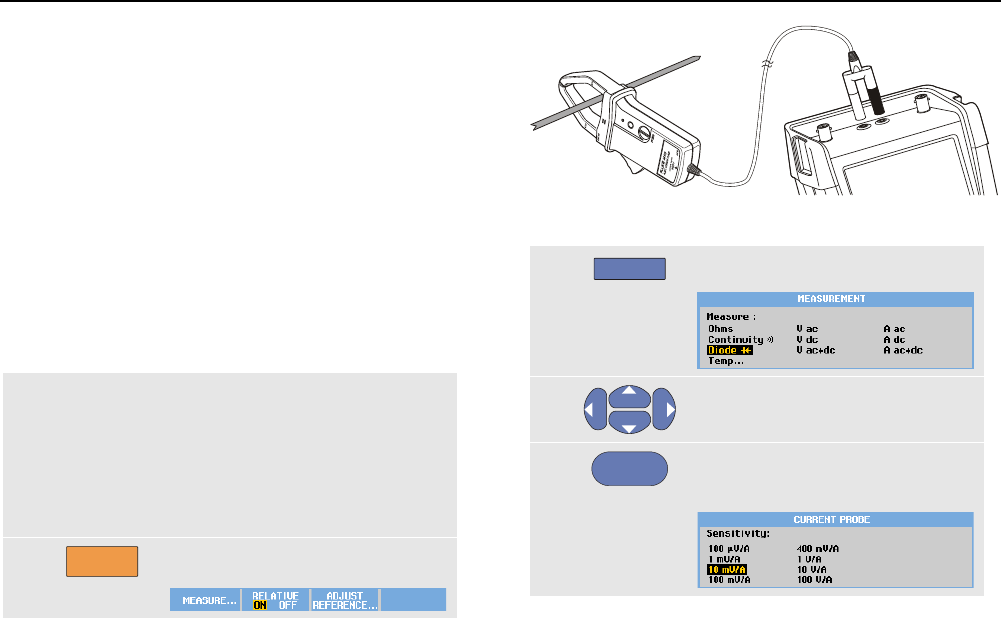
Measuring Resistance Values
To measure a resistance, do the following:
1 Connect the red and black test leads from the
4-mm banana jack inputs to the resistor.
2
METER
Display the METER key labels.
3
F1
Open the MEASUREMENT menu.
4
Highlight Ohms.
5
ENTER
Select Ohms measurement.
The resistor value is displayed in ohms. Observe also that
the bargraph is displayed. (See 15.)
Figure 15. Resistor Value Readings
Using the Scope and Meter
Making Multimeter Measurements (for models 190-xx2) 1
37
Making a Current Measurement
You can measure current in both Scope mode and Meter
mode. Scope mode has the advantage of waveforms
being displayed while you perform measurements.
Meter mode has the advantage of high measurement
resolution.
The next example explains a typical current measurement
in Meter mode.
Warning
Carefully read the instructions about the
current probe you are using.
To set up the test tool, do the following:
1 Connect a current probe (e.g. Fluke i410,
optional) between the 4-mm banana jack inputs
and the conductor to be measured.
Ensure that the red and black connectors
correspond to the red and black banana jack
inputs. (See Figure 16.)
2
METER
Display the METER key labels.
Figure 16. Measurement Setup
3
F1
Open the MEASUREMENT menu.
4
Highlight A ac.
5
ENTER
Open the
CURRENT PROBE
submenu.
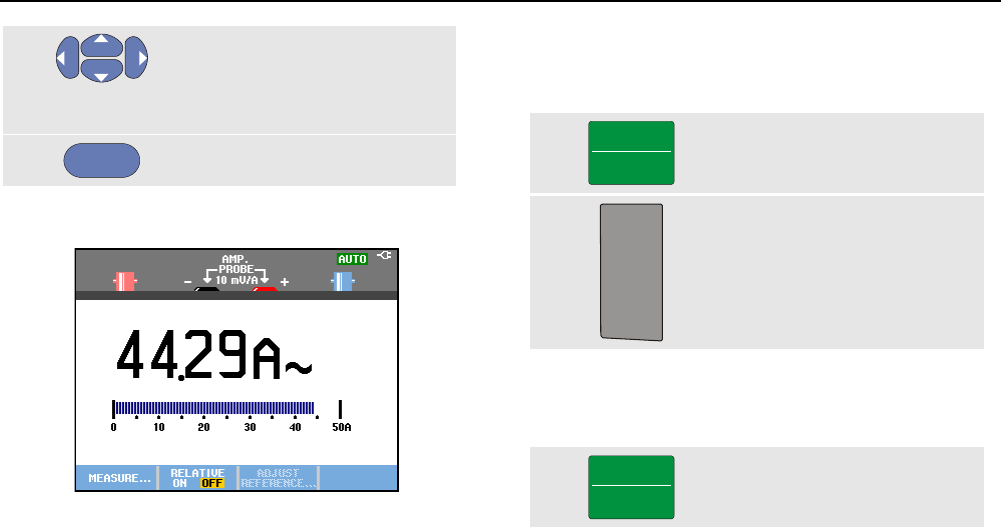
ScopeMeter® Test Tool 190 Series II
Users Manual
38
6
Observe the sensitivity of the
current probe. Highlight the
corresponding sensitivity in the
menu, e.g. 1 mV/A.
7
ENTER
Accept the current measurement.
Now, you will see a screen like in Figure 17.
Figure 17. Ampere Measurement Readings
Selecting Auto/Manual Ranges
To activate manual ranging, do the following during any
Meter measurement:
1
MANUAL
AUTO
Activate manual ranging.
2
mV
V
RANGE
Increase (V) or decrease (mV) the
range.
Observe how the bargraph sensitivity changes.
Use manual ranging to set a fixed bargraph sensitivity and
decimal point.
3
MANUAL
AUTO
Choose auto ranging again.
When in auto ranging, the bargraph sensitivity and decimal
point are automatically adjusted while checking different
signals.
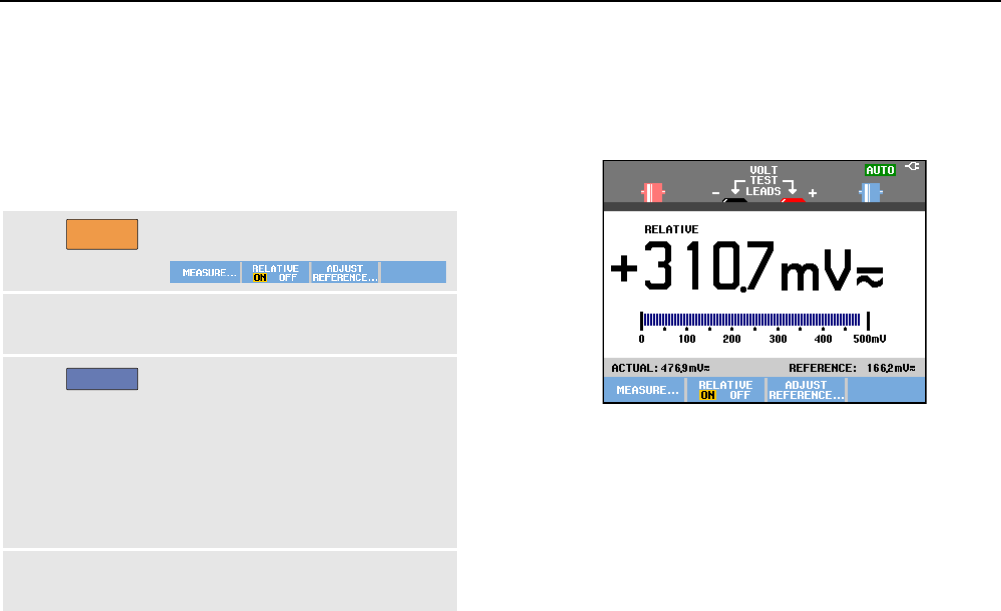
Using the Scope and Meter
Making Multimeter Measurements (for models 190-xx2) 1
39
Making Relative Meter Measurements
A relative measurement displays the present
measurement result relative to a defined reference value.
The following example shows how to perform a relative
voltage measurement. First obtain a reference value:
1
METER
Display the METER key labels.
2 Measure a voltage to be used as
reference value.
3
F2
Set RELATIVE to ON. (ON is
highlighted.) This stores the
reference value as reference for
subsequent measurements.
Observe the ADJUST REFERENCE
soft key (F3) that enables you to
adjust the reference value (see
step 5 below).
4 Measure the voltage to be
compared to the reference.
Now the large reading is the actual input value minus the
stored reference value. The bargraph indicates the actual
input value. The actual input value and the reference value
are displayed below the large reading (ACTUAL: xxxx
REFERENCE: xxx), see Figure 18.
Figure 18. Making a Relative Measurement
You can use this feature when, for example, you need to
monitor input activity (voltage, temperature) in relation to a
known good value.
ScopeMeter® Test Tool 190 Series II
Users Manual
40
Adjusting the reference value
To adjust the reference value, do the following:
5
F3
Display the Adjust Reference
menu.
6
Select the digit you want to
adjust.
7 Adjust the digit. Repeat step 6
and step 7 until finished.
8
ENTER
Enter the new reference value.
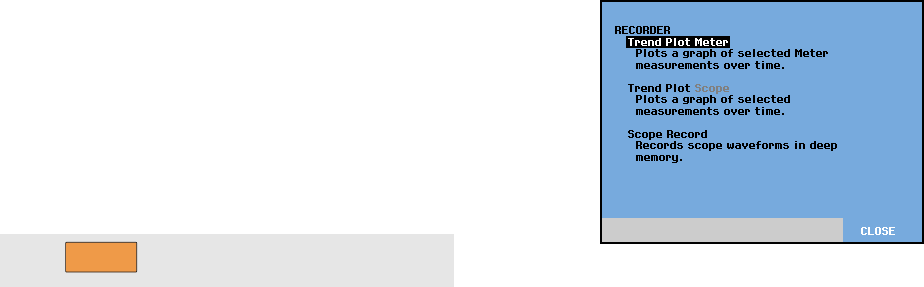
41
Chapter 2
Using The Recorder Functions
About this Chapter
This chapter provides a step-by-step introduction to the
recorder functions of the test tool. The introduction gives
examples to show how to use the menus and perform
basic operations.
Opening the Recorder Main Menu
First choose a measurement in scope or meter mode. Now
you can choose the recorder functions from the recorder
main menu. To open the main menu, do the following:
1
RECORDER
Open the recorder main menu.
(See Figure 19).
Figure 19. Recorder Main Menu
Trendplot Meter is only present in models 190-xx2.
ScopeMeter® Test Tool 190 Series II
Users Manual
42
Plotting Measurements Over Time
(TrendPlot™)
Use the TrendPlot function to plot a graph of Scope or
Meter measurements (readings) as function of time.
Note
Because the navigations for the TrendPlot Scope
and the TrendPlot Meter are identical, only Scope
TrendPlot is explained in the next sections.
Starting a TrendPlot Function
To start a TrendPlot, do the following:
1
Make automatic Scope or Meter measurements,
see Chapter 1. The readings will be plotted!
2
RECORDER
Open the
RECORDER
main menu.
3
Highlight Trend Plot.
4
ENTER
Start the TrendPlot recording.
The test tool continuously records the digital readings of
the measurements and displays these as a graph. The
TrendPlot graph rolls from right to left like a paper chart
recorder.
Observe that the recorded time from start appears at the
bottom of the screen. The present reading appears on top
of the screen. (See Figure 20.)
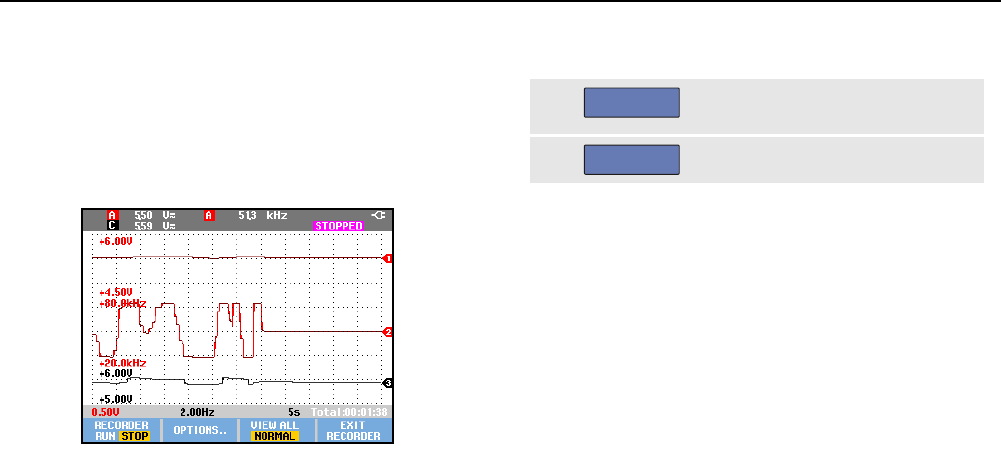
Using The Recorder Functions
Plotting Measurements Over Time (TrendPlot™) 2
43
Note
When simultaneously TrendPlotting two readings,
the screen area is split into two sections of four
divisions each. When simultaneously
TrendPlotting three or four readings, the screen
area is split into three or four sections of two
divisions each.
Figure 20. TrendPlot Reading
When the test tool is in automatic mode, automatic vertical
scaling is used to fit the TrendPlot graph on the screen.
5
F1
Set
RECORDER
to
STOP
to freeze
the recorder function.
6
F1
Set
RECORDER
to
RUN
to restart.
Note
Scope TrendPlot is not possible on cursor related
measurements. As an alternative you may use
the PC software FlukeView® ScopeMeter®.
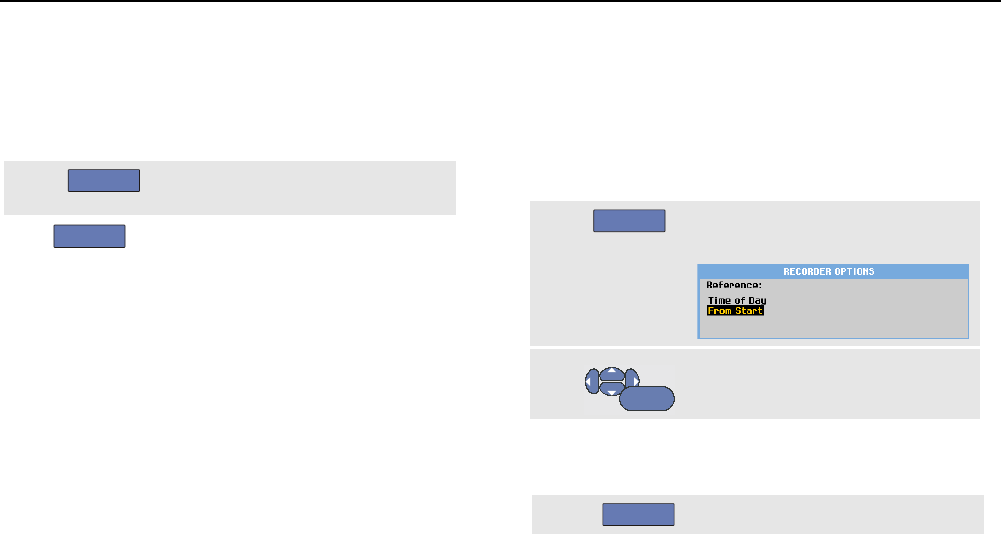
ScopeMeter® Test Tool 190 Series II
Users Manual
44
Displaying Recorded Data
When in normal view (NORMAL), only the twelve most
recently recorded divisions are displayed on screen. All
previous recordings are stored in memory.
VIEW ALL shows all data in memory:
7
F3
Display an overview of the full
waveform.
Press
F3
repeatedly to toggle between normal view
(NORMAL) and overview (VIEW ALL).
When the recorder memory is full, an automatic
compression algorithm is used to compress all samples
into half of the memory without loss of transients. The
other half of the recorder memory is free again to continue
recording.
Changing the Recorder Options
At the lower right of the display, the status line indicates a
time. You can choose this time to represent either the start
time of the recording (‘Time of Day’) or the time elapsed
since the start of the recording (‘From Start’).
To change the time reference, proceed from step 6 as
follows:
7
F2
Open the
RECORDER OPTIONS
menu.
8
ENTER
Select Time of Day or From
Start.
Turning Off the TrendPlot Display
9
F4
Exit the recorder function.
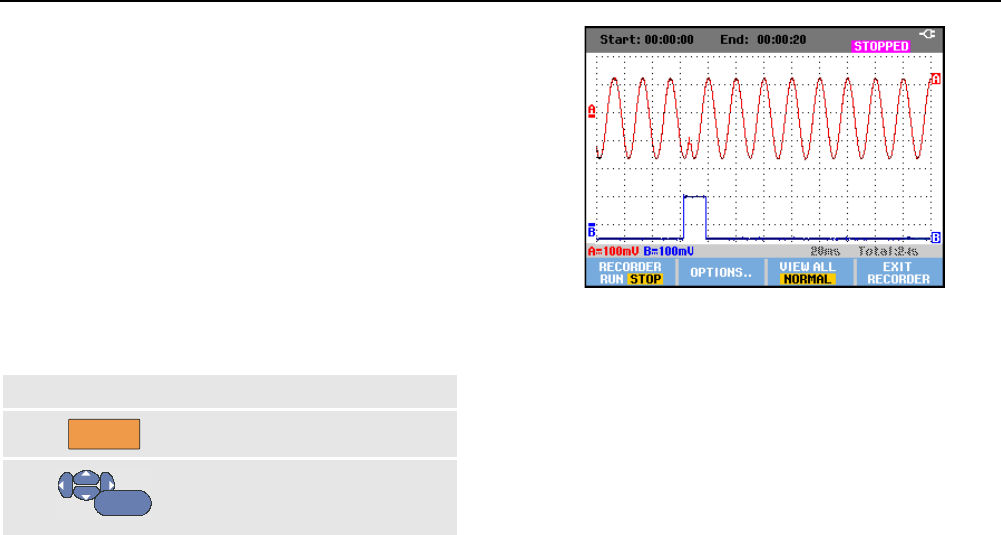
Using The Recorder Functions
Recording Scope Waveforms In Deep Memory (Scope Record) 2
45
Recording Scope Waveforms In Deep
Memory (Scope Record)
The SCOPE RECORD function is a roll mode that logs a long
waveform of each active input. This function can be used
to monitor waveforms like motion control signals or the
power-on event of an Uninterruptable Power Supply
(UPS). During recording, fast transients are captured.
Because of the deep memory, recording can be done for
more than one day. This function is similar to the roll mode
in many DSO’s but has deeper memory and better
functionality.
Starting a Scope Record Function
To record for example the input A and input B waveform,
do the following:
1
Apply a signal to input A and input B.
2
RECORDER
Open the
RECORDER
main menu.
3
ENTER
From the Recorder main menu,
highlight Scope Record and Start
the recording.
The waveform moves across the screen from right to left
like on a normal chart recorder. (See Figure 21).
Figure 21. Recording Waveforms
Observe that the screen displays the following:
• Time from start at the top of the screen.
• The status at the bottom of the screen which includes
the time/div setting as well as the total timespan that
fits the memory.
Note
For accurate recordings it is advised to let the
instrument first warm up for five minutes.
ScopeMeter® Test Tool 190 Series II
Users Manual
46
Displaying Recorded Data
In Normal view, the samples that roll off the screen are
stored in deep memory. When the memory is full,
recording continues by shifting the data in memory and
deleting the first samples out of memory.
In View All mode, the complete memory contents are
displayed on the screen.
4
F3
Press to toggle between
VIEW ALL
(overview of all recorded
samples) and NORMAL view.
You can analyze the recorded waveforms using the
Cursors and Zoom functions. See Chapter 3: “Using
Replay, Zoom and Cursors”.
Using Scope Record in Single Sweep Mode
Use the recorder Single Sweep function to automatically
stop recording when the deep memory is full.
Continue from step 3 of the previous section:
4
F1
Stop recording to unlock the
OPTIONS… softkey.
5
F2
Open the
RECORDER OPTIONS
menu.
6
ENTER
Jump to the Mode field, select
Single Sweep and accept the
recorder options.
7
F1
Start recording.
Using The Recorder Functions
Recording Scope Waveforms In Deep Memory (Scope Record) 2
47
Using Triggering to Start or Stop Scope Record
To record an electrical event that causes a fault, it might
be useful to start or stop recording on a trigger signal:
Start on trigger to start recording; recording stops when
the deep memory is full
Stop on trigger to stop recording.
Stop when untriggered to continue recording as long as
a next trigger comes within 1 division in view all mode.
For the models 190-xx4 the signal on the BNC input that
has been selected as trigger source must cause the
trigger.
For the models 190-xx2 the signal applied to the banana
jack inputs (EXT TRIGGER (in)). signal must cause the
trigger. The trigger source is automatically set to Ext.
(external).
To set up the test tool, continue from step 3 of the
previous section:
4
Apply the signal to be recorded to the BNC
input(s).
5
F1
Stop recording to unlock the
OPTIONS… softkey.
6
F2
Open the
RECORDER OPTIONS
menu.
7
ENTER
Jump to the Mode: field, select
on Trigger… (models 190-xx4) or
on Ext. (models 190-xx2) to open
the START SINGLE SWEEP ON
TRIGGERING or the START SINGLE
SWEEP ON EXT. menu.
8
ENTER
Select one of the Conditions:
and accept the selection.
For external triggering (190-xx2) continue at step 9.
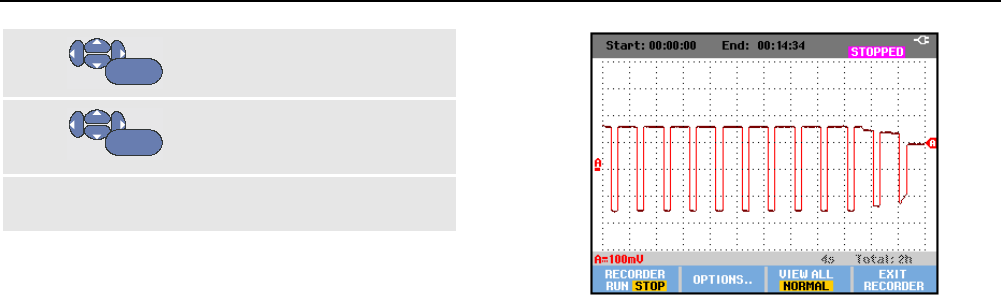
ScopeMeter® Test Tool 190 Series II
Users Manual
48
9
ENTER
Select the desired trigger slope
(Slope:) and jump to Level:.
10
ENTER
Select the 0.12V or 1.2V trigger
level and accept all recorder
options.
11
Apply a trigger signal to the red and black ext.
trigger banana inputs.
During recording samples are continuously saved in deep
memory. The last twelve recorded divisions are displayed
on the screen. See Figure 22. Use View All to display the
full memory contents.
Note
To learn more about the Single Shot trigger
function, see Chapter 4 “Triggering on
Waveforms”.
Figure 22. Triggered Single Sweep Recording
Analyzing a TrendPlot or Scope Record
From a TrendPlot or Scope Record you can use the
analysis functions CURSORS and ZOOM to perform
detailed waveform analysis. These functions are described
in Chapter 3: “Using Replay, Zoom and Cursors”.
49
Chapter 3
Using Replay, Zoom and Cursors
About this Chapter
This chapter covers the capabilities of the analysis
functions Cursor, Zoom, and Replay. These functions
can be used with one or more of the primary functions
Scope, TrendPlot or Scope Record.
It is possible to combine two or three analysis functions. A
typical application using these functions follows:
• First replay the last screens to find the screen of
special interest.
• Then zoom in on the signal event.
• Finally, make measurements using the cursors.
Replaying the 100 Most Recent Scope
Screens
When you are in scope mode, the test tool automatically
stores the 100 most recent screens. When you press the
HOLD key or the REPLAY key, the memory contents are
frozen. Use the functions in the REPLAY menu to “go back
in time” by stepping through the stored screens to find the
screen of your interest. This feature lets you capture and
view signals even if you did not press HOLD.
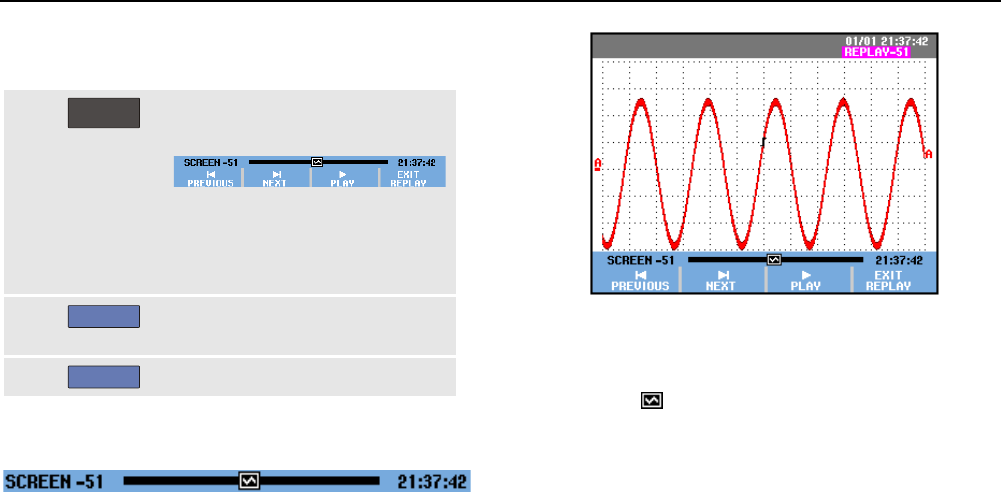
ScopeMeter® Test Tool 190 Series II
Users Manual
50
Replaying Step-by-Step
To step through the last scope screens, do the following:
1
REPLAY
From scope mode, open the
REPLAY menu.
Observe that the waveform is
frozen and that REPLAY appears at
the top of the screen (see Figure
23).
2
F1
Step through the previous
screens.
3
F2
Step through the next screens.
Observe that the bottom of the waveform area displays the
replay bar with a screen number and related time stamp:
Figure 23. Replaying a Waveform
The replay bar represents all 100 stored screens in
memory. The icon represents the picture being
displayed on the screen (in this example: SCREEN -51). If
the bar is partly white, the memory is not completely filled
with 100 screens.
From this point you can use the zoom and cursor functions
to study the signal in more detail.
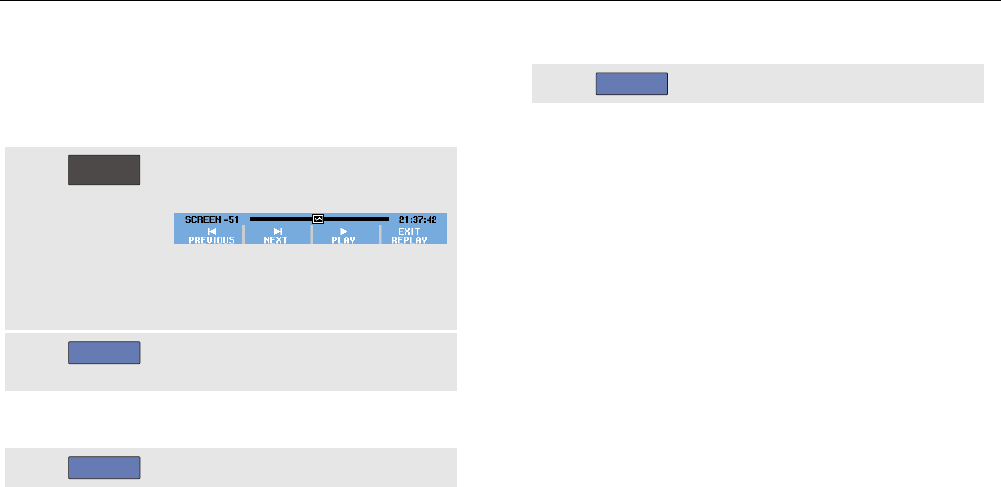
Using Replay, Zoom and Cursors
Replaying the 100 Most Recent Scope Screens 3
51
Replaying Continuously
You can also replay the stored screens continuously, like
playing a video tape.
To replay continuously, do the following:
1
REPLAY
From Scope mode, open the
REPLAY menu.
Observe that the waveform is
frozen and REPLAY appears at the
top of the screen.
2
F3
Continuously replay the stored
screens in ascending order.
Wait until the screen with the signal event of interest
appears.
3
F3
Stop the continuous replay.
Turning Off the Replay Function
4
F4
Turn off REPLAY.
Capturing 100 Intermittents Automatically
When you use the test tool in triggered mode, 100
triggered screens are captured.
By combining the trigger possibilities with the capability of
capturing 100 screens for later replay, you can leave the
test tool unattended to capture intermittent signal
anomalies. This way you could use Pulse Triggering to
trigger and capture 100 intermittent glitches or you could
capture 100 UPS startups.
For triggering, see Chapter 4: “Triggering on Waveforms”.
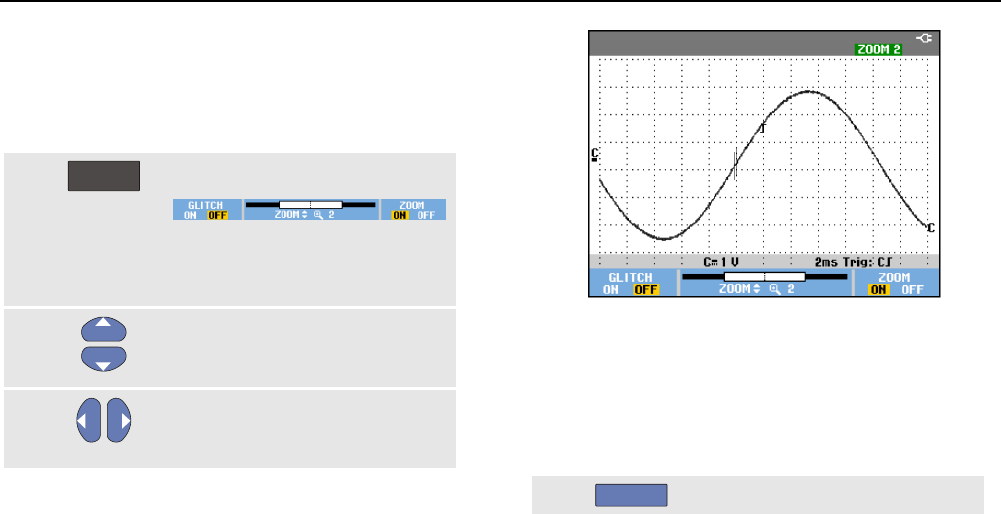
ScopeMeter® Test Tool 190 Series II
Users Manual
52
Zooming in on a Waveform
To obtain a more detailed view of a waveform, you can
zoom in on a waveform using the ZOOM function.
To zoom in on a waveform, do the following:
1
ZOOM
Display the ZOOM key labels.
ZOOM appears at the top of the
screen, and the waveform is
magnified.
2
Enlarge (decrease the time/div) or
shrink (increase the time/div) the
waveform.
3
Scroll. A position bar displays the
position of the zoomed part in
relation to the total waveform.
Tip
Even when the key labels are not displayed at the
bottom of the screen, you can still use the arrow
keys to zoom in and out. You can also use the s
TIME ns key to zoom in and out.
Figure 24. Zooming in a Waveform
Observe that the bottom of the waveform area displays the
zoom ratio, position bar, and time/div (see Figure 24). The
zoom range depends on the amount of data samples
stored in memory.
Turning Off the Zoom Function
4
F4
Turn off the ZOOM function.
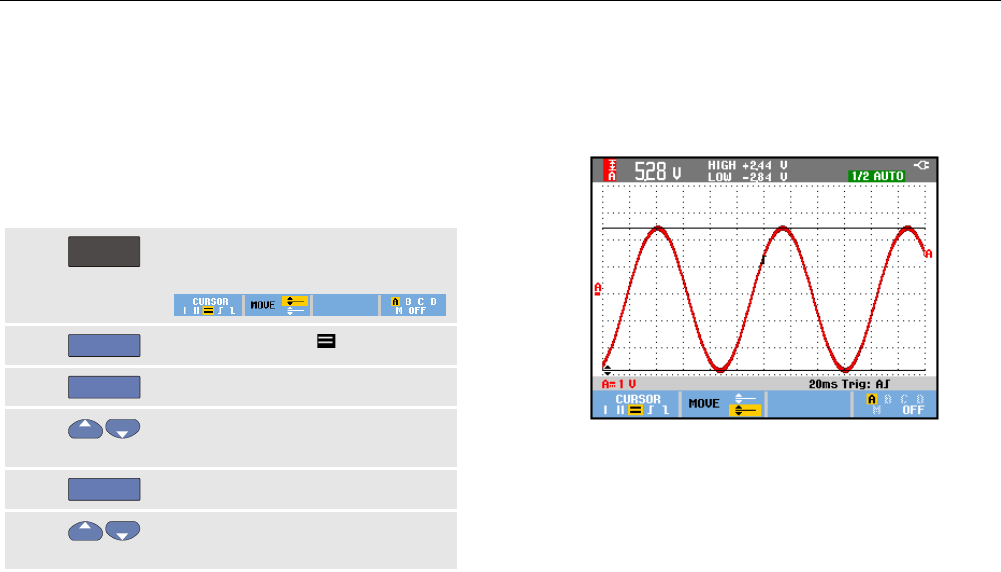
Using Replay, Zoom and Cursors
Making Cursor Measurements 3
53
Making Cursor Measurements
Cursors allow you to make precise digital measurements
on waveforms. This can be done on live waveforms,
recorded waveforms, and on saved waveforms.
Using Horizontal Cursors on a Waveform
To use the cursors for a voltage measurement, do the
following:
1
CURSOR
From scope mode, display the
cursor key labels.
2
F1
Press to highlight
3
F2
Highlight the upper cursor.
4 Move the upper cursor to the
desired position on the screen.
5
F2
Highlight the lower cursor.
6 Move the lower cursor to the
desired position on the screen.
Note
Even when the key labels are not displayed at the
bottom of the screen, you still can use the arrow
keys. This allows full control of both cursors while
having full screen view.
Figure 25. Voltage Measurement with Cursors
The screen shows the voltage difference between the two
cursors and the voltage at the cursors. (See Figure 25.)
Use horizontal cursors to measure the amplitude, high or
low value, or overshoot of a waveform.
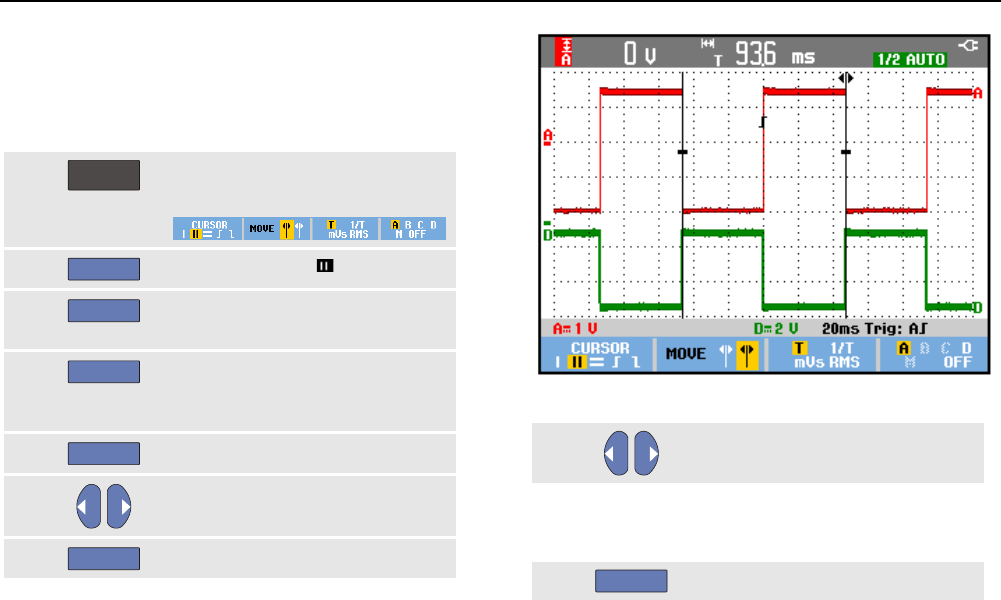
ScopeMeter® Test Tool 190 Series II
Users Manual
54
Using Vertical Cursors on a Waveform
To use the cursors for a time measurement (T, 1/T), for a
mVs-mAs-mWs measurement, or for an RMS
measurement of the waveform section between the
cursors, do the following:
1
CURSOR
From scope mode, display the
cursor key labels.
2
F1
Press to highlight
3
F3
Choose, for example, time
measurement: T.
4
F4
Choose the waveform that you
want the markers to be placed on:
A, B, C, D or M (Mathematics).
5
F2
Highlight the left cursor.
6
Move the left cursor to the desired
position on the waveform.
7
F2
Highlight the right cursor.
Figure 26. Time Measurement with Cursors
8
Move the right cursor to the
desired position on the waveform.
The screen shows the time difference between the cursors
and the voltage difference between the two markers. (See
Figure 26.)
9
F4
Select OFF to turn off the cursors.
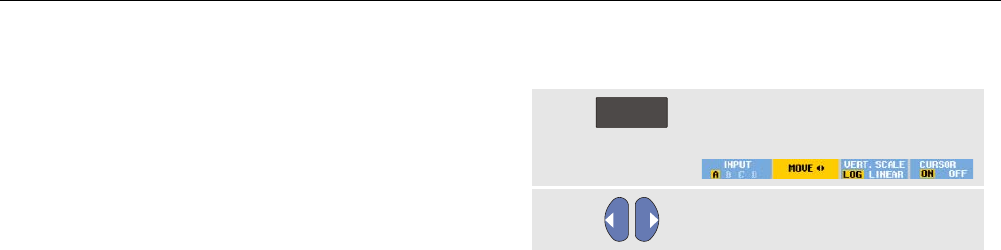
Using Replay, Zoom and Cursors
Making Cursor Measurements 3
55
Notes
− For mVs select probe type ‘Voltage’.
− For mAs select probe type ‘Current’.
− For mWs select mathematical function x,
and probe type ‘Voltage’ for one channel
and ‘Current’ for the other channel.
Using Cursors on a Mathematical Result (+ - x)
Waveform
Cursor measurements on, for examle, a AxB waveform
give a reading in Watts if input A measures (milli)Volts and
input B measures (milli)Amperes.
For other cursor measurements on, for example, a A+B,
A-B or AxB waveform no reading will be available if the
input A and input B measurement unit are different.
Using Cursors on Spectrum Measurements
To do a cursor measurent on a spectrum, do the following:
1
CURSOR
From Spectrum measurement
display the cursor key label.
2
Move the cursor and observe the
readings at the top of the screen.
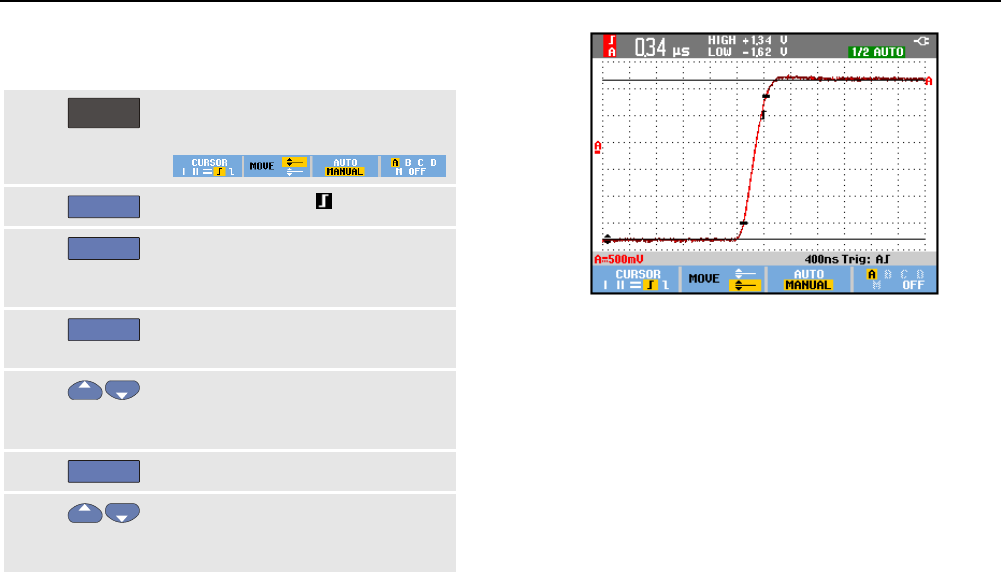
ScopeMeter® Test Tool 190 Series II
Users Manual
56
Making Rise Time Measurements
To measure rise time, do the following:
1
CURSOR
From scope mode, display the
cursor key labels.
2
F1
Press to highlight
3
F4
For multiple waveforms select the
required waveform A, B, C, D or
M (if a math function is active).
4
F3
Select MANUAL or AUTO (this
automatically does steps 5 to 7).
5 Move the upper cursor to 100% of
the waveform height. A marker is
shown at 90%.
6
F2
Highlight the other cursor.
7 Move the lower cursor to 0% of
the waveform height. A marker is
shown at 10%.
The reading shows the risetime from 10%-90% of the
waveform amplitude.
Figure 27. Risetime Measurement
Note
Direct access to Rise time or Fall time with
cursors on is possible via the key sequence
SCOPE, F2 – READING, and then selection of
Rise or Fall time.
57
Chapter 4
Triggering on Waveforms
About this Chapter
This chapter provides an introduction to the trigger
functions of the test tool. Triggering tells the test tool when
to begin displaying the waveform. You can use fully
automatic triggering, take control of one or more main
trigger functions (semi-automatic triggering), or you can
use dedicated trigger functions to capture special
waveforms.
Following are some typical trigger applications:
• Use the Connect-and-View™ function to have full
automatic triggering and instant display of virtually any
waveform.
• If the signal is unstable or has a very low frequency,
you can control the trigger level, slope, and trigger
delay for a better view of the signal. (See next
section.)
• For dedicated applications, use one of the four
manual trigger functions:
• Edge triggering
• Video triggering
• Pulse Width triggering
• External Triggering (models 190-xx2 only)
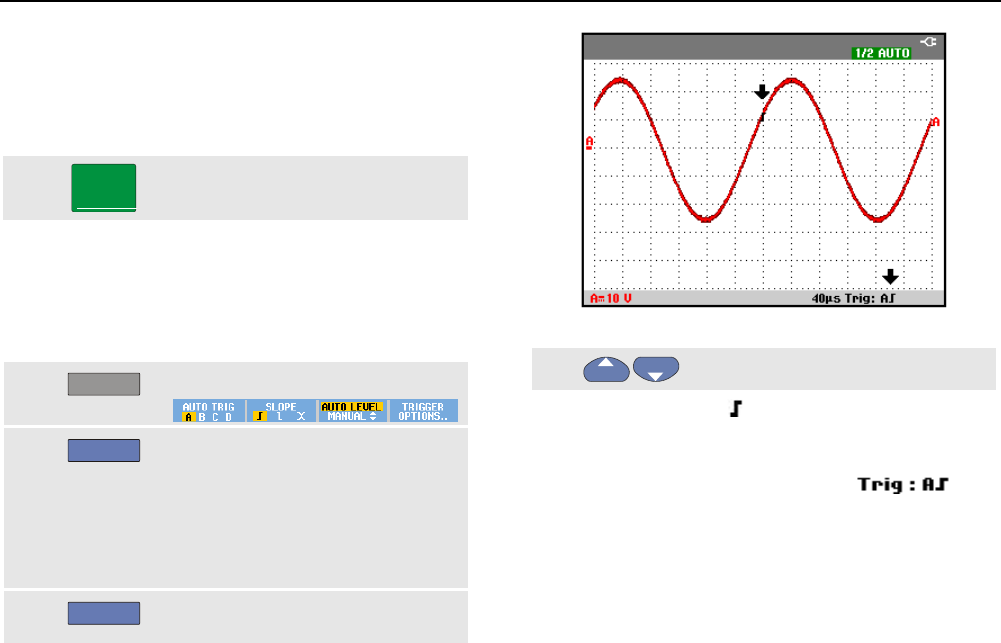
ScopeMeter® Test Tool 190 Series II
Users Manual
58
Setting Trigger Level and Slope
The Connect-and-View™ function enables hands-off
triggering to display complex unknown signals.
When your test tool is in manual range, do the following:
MANUAL
AUTO
Perform an auto set. AUTO appears
at the top right of the screen.
Automatic triggering assures a stable display of virtually
any signal.
From this point, you can take over the basic trigger
controls such as level, slope and delay. To optimize trigger
level and slope manually, do the following:
1
TRIGGER
Display the TRIGGER key labels.
2
F2
Trigger on either positive slope or
negative slope of the chosen
waveform.
In Dual Slope Triggering ( X ) the
test tool triggers on both positive
slope and negative slope.
3
F3
Enable the arrow keys for manual
trigger level adjustment.
Figure 28. Screen with all Trigger Information
4 Adjust the trigger level.
Observe the trigger icon that indicates the trigger
position, trigger level, and slope.
At the bottom of the screen the trigger parameters are
displayed (See Figure 28). For example,
means that input A is used as the trigger source with a
positive slope.
When a valid trigger signal is found, the trigger key will be
lit and the trigger parameters appear in black.
When no trigger is found, the trigger parameters appear in
gray, ands the key light will be off.
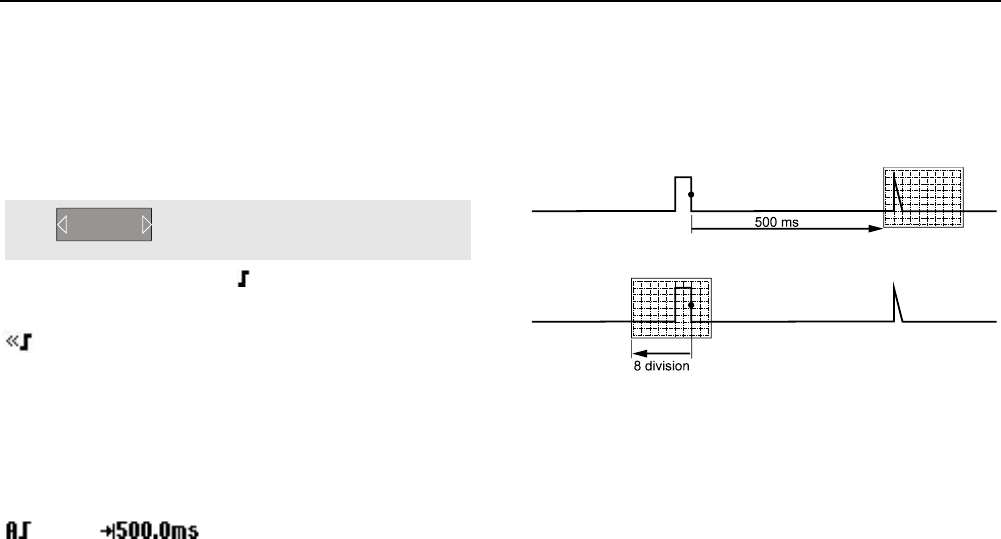
Triggering on Waveforms
Using Trigger Delay or Pre-trigger 4
59
Using Trigger Delay or Pre-trigger
You can begin to display the waveform some time before
or after the trigger point has been detected. Initially, you
have a half screen (6 divisions) of pre-trigger view
(negative delay).
To set the trigger delay, do the following:
5
MOVE
Hold down to adjust the trigger
delay.
Observe that the trigger icon on the screen moves to
show the new trigger position. When the trigger position
moves left off of the screen, the trigger icon changes into
to indicate that you have selected a trigger delay.
Moving the trigger icon to the right on the display gives
you a pre-trigger view. This allows you to see what
happened before the trigger event, or what caused the
trigger.
In case of a trigger delay, the status at the bottom of the
screen will change. For example:
This means that input A is used as the trigger source with
a positive slope. The 500.0 ms indicates the (positive)
delay between trigger point and waveform display.
When a valid trigger signal is found, the trigger key will be
lit and the trigger parameters appear in black.
When no trigger is found, the trigger parameters appear in
gray, ands the key light will be off.
Figure 29. Trigger Delay or Pre-trigger View
Figure 29 shows an example of a trigger delay of 500 ms
(top) and an example of pre-trigger view of 8 divisions
(bottom).
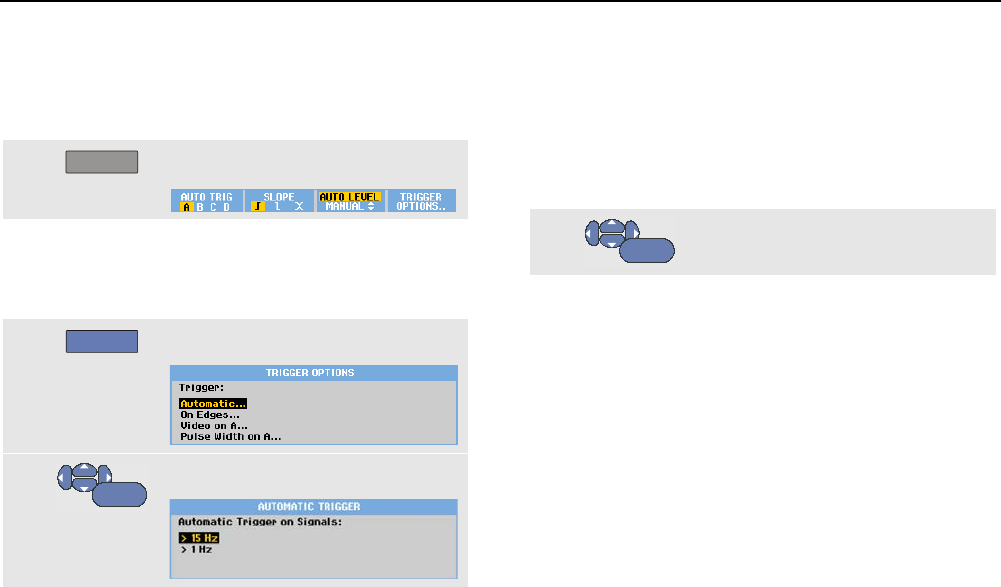
ScopeMeter® Test Tool 190 Series II
Users Manual
60
Automatic Trigger Options
In the trigger menu, settings for automatic triggering can
be changed as follows. (See also Chapter 1: “Displaying
an Unknown Signal with Connect-and-View”)
1
TRIGGER
Display the TRIGGER key labels.
Note
The TRIGGER key labels can differ depending on
the latest trigger function used.
2
F4
Open the TRIGGER OPTIONS menu.
3
ENTER
Open the AUTOMATIC TRIGGER menu.
If the frequency range of the automatic triggering is set to
> 15 Hz, the Connect-and-View™ function responds more
quickly. The response is quicker because the test tool is
instructed not to analyze low frequency signal
components. However, when you measure frequencies
lower than 15 Hz, the test tool must be instructed to
analyze low frequency components for automatic
triggering:
4
ENTER
Select > 1 HZ and return to the
measurement screen.
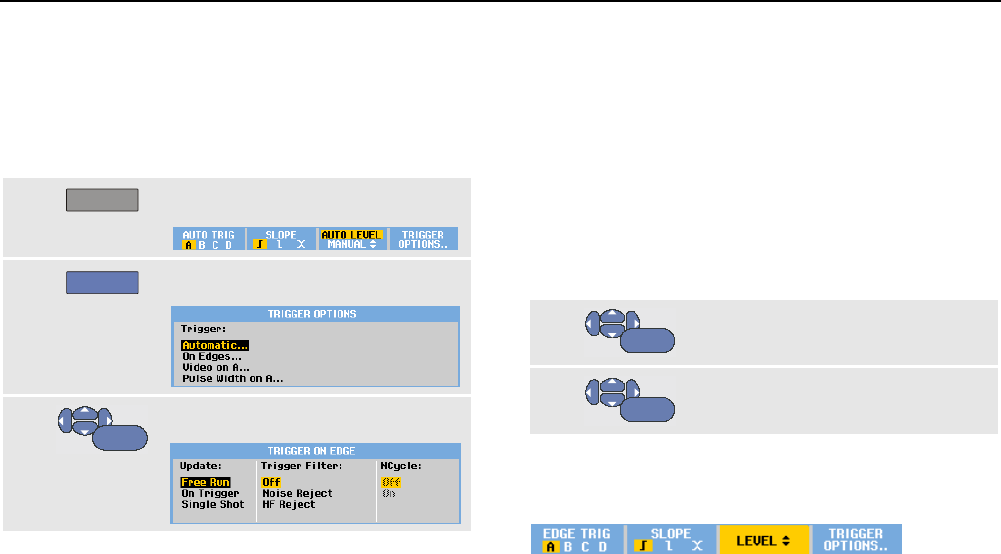
Triggering on Waveforms
Triggering on Edges 4
61
Triggering on Edges
If the signal is unstable or has a very low frequency, use
edge triggering to obtain full manual trigger control.
To trigger on rising edges of the input A waveform, do the
following:
1
TRIGGER
Display the TRIGGER key labels.
2
F4
Open the TRIGGER OPTIONS menu.
3
ENTER
Open the TRIGGER ON EDGE menu.
When Free Run is selected, the test tool updates the
screen even if there are no triggers. A waveform always
appears on the screen.
When On Trigger is selected, the test tool needs a trigger
to display a waveform. Use this mode if you want to
update the screen only when valid triggers occur.
When Single Shot is selected, the test tool waits for a
trigger. After receiving a trigger, the waveform is displayed
and the instrument is set to HOLD.
In most cases it is advised to use the Free Run mode:
4
ENTER
Select Free Run, jump to Trigger
Filter.
5
ENTER
Set Trigger Filter to Off.
Observe that the key labels at the bottom of the screen
have adapted to allow further selection of specific edge
trigger settings:
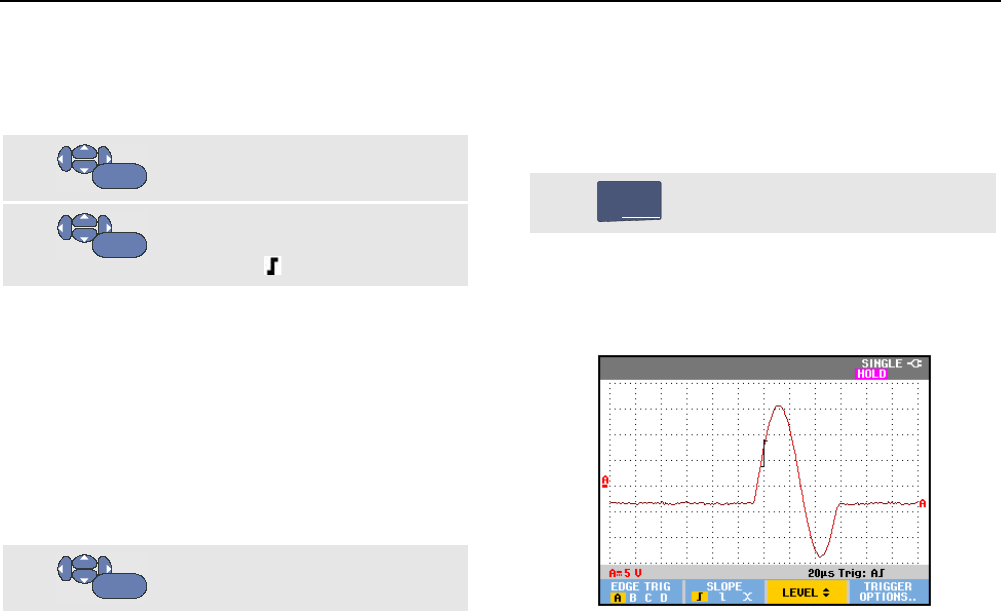
ScopeMeter® Test Tool 190 Series II
Users Manual
62
Triggering on Noisy Waveforms
To reduce jitter on the screen when triggering on noisy
waveforms, you can use a trigger filter. Continue from step
3 of the previous example as follows:
4
ENTER
Select On Trigger, jump to Trigger
Filter.
5
ENTER
Set Noise Reject or HF Reject to
On. This is indicated by a taller
trigger icon .
When Noise Reject is on, an increased trigger gap will be
applied.
When HF Reject is on, HF noise on the (internal) trigger
signal will be suppressed.
Making a Single Acquisition
To catch single events, you can perform a single shot
acquisition (one-time screen update). To set up the test
tool for a single shot of the input A waveform, continue
from step 3 (page 61) again:
4
ENTER
Select Single Shot.
The word MANUAL appears at the top of the screen
indicating that the test tool is waiting for a trigger. As soon
as the test tool receives a trigger, the waveform is
displayed and the instrument is set to hold. This is
indicated by the word HOLD at top of the screen.
The test tool will now have a screen like Figure 30.
5
HOLD
RUN
Arm the test tool for a new single
shot.
Tip
The test tool stores all single shots in the replay
memory. Use the Replay function to look at all
the stored single shots (see Chapter 3).
Figure 30. Making a Single Shot Measurement
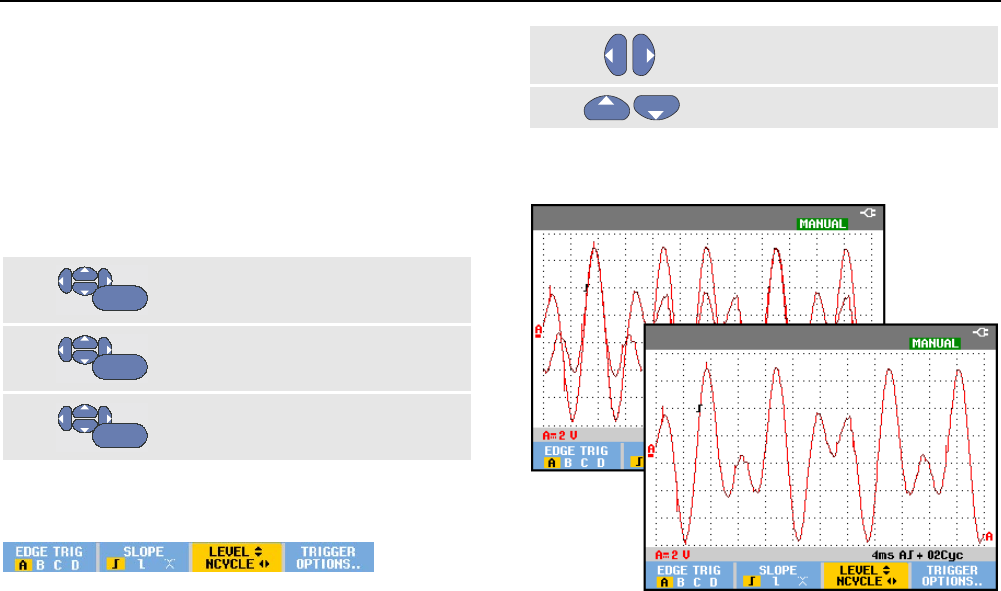
Triggering on Waveforms
Triggering on Edges 4
63
N-Cycle Triggering
N-Cycle triggering enables you to create a stable picture of
for example n-cycle burst waveforms.
Each next trigger is generated after the waveform has
crossed the trigger level N times in the direction that
complies with the selected trigger slope.
To select N-Cycle triggering, continue from step 3 (page
61) again:
4
ENTER
Select On Trigger or Single Shot,
jump to Trigger Filter.
5
ENTER
Select a Trigger Filter or set it Off.
6
ENTER
Set NCycle to On.
Observe that the key labels at the bottom of the screen
have been changed to allow further selection of specific
N-Cycle trigger settings:
7 Set the number of cycles N
8 Adjust the trigger level
Waveforms with N-Cycle triggering (N=2) and without N-
Cycle triggering are shown in Figure 31.
Figure 31. N-Cycle triggering
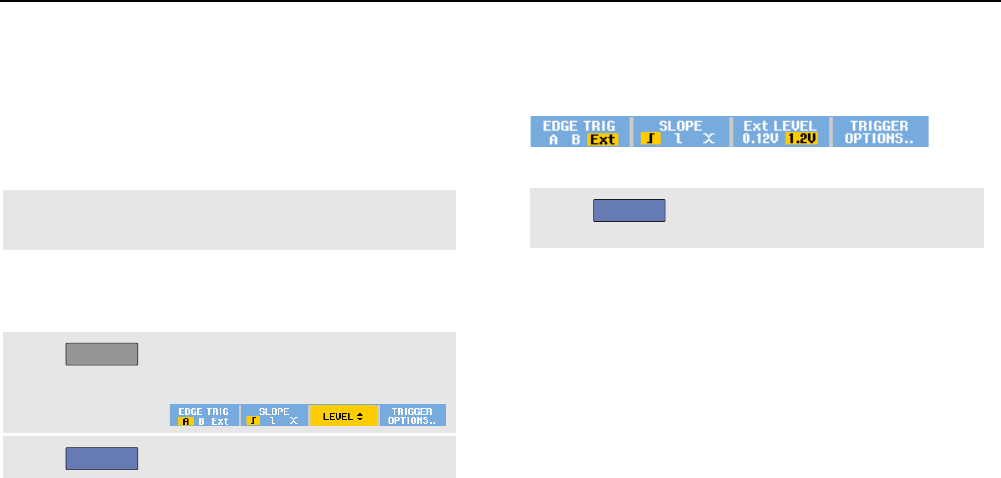
ScopeMeter® Test Tool 190 Series II
Users Manual
64
Triggering on External Waveforms
(models 190-xx2)
Use external triggering when you want to display
waveforms on inputs A and B while triggering on a third
signal. You can choose external triggering with automatic
triggering or with edge triggering.
1 Supply a signal to the red and black 4-mm
banana jack inputs.
In this example you continue from the Trigger on Edges
example. To choose the external signal as trigger source,
continue as follows:
2
TRIGGER
Display the TRIGGER (On Edges)
key labels.
3
F1
Select Ext (external) edge trigger.
Observe that the key labels at the bottom of the screen
have been adapted to allow selection of two different
external trigger levels: 0.12 V and 1.2 V:
4
F3
Select 1.2V under the Ext LEVEL
label.
From this point the trigger level is fixed and is compatible
with logic signals.
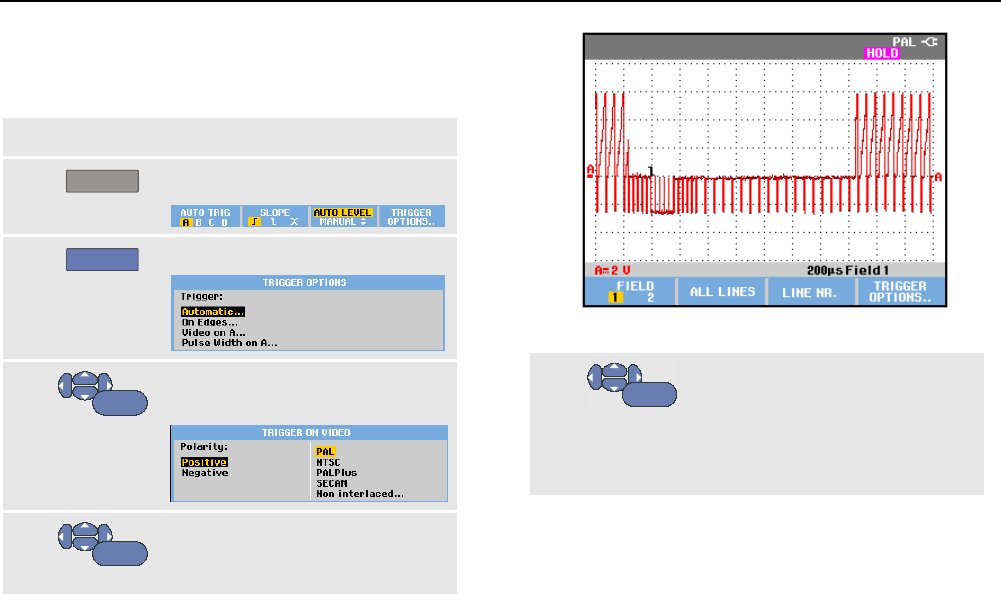
Triggering on Waveforms
Triggering on Video Signals 4
65
Triggering on Video Signals
To trigger on a video signal, first select the standard of the
video signal you are going to measure:
1 Apply a video signal to the red input A.
2
TRIGGER
Display the TRIGGER key labels.
3
F4
Open the Trigger Options menu.
4
ENTER
Select Video on A … to open the
TRIGGER ON VIDEO menu.
5
ENTER
Select positive signal polarity for
video signals with negative going
sync pulses.
Figure 32. Measuring Interlaced Video Signals
6
ENTER
Select a video standard or Non
interlaced… and return.
If you select Non interlaced a
scan rate selection menu will
open.
Trigger level and slope are now fixed.
Observe that the key labels at the bottom of the screen
have been changed to allow further selection of specific
video trigger settings.
ScopeMeter® Test Tool 190 Series II
Users Manual
66
Triggering on Video Frames
Use FIELD 1 or FIELD 2 to trigger either on the first half of
the frame (odd) or on the second half of the frame
(even).To trigger on the second half of the frame, do the
following:
7
F1
Choose FIELD 2.
The signal part of the even field is displayed on the
screen.
Triggering on Video Lines
Use ALL LINES to trigger on all line synchronization
pulses (horizontal synchronization).
7
F2
Choose ALL LINES.
The signal of one line is displayed on the screen. The
screen is updated with the signal of the next line
immediately after the test tool triggers on the horizontal
synchronization pulse.
To view a specific video line in more detail, you can select
the line number. For example, to measure on video line
123, continue from step 6 as follows:
7
F3
Enable video line selection.
8 Select number 123.
The signal of line 123 is displayed on the screen. Observe
that the status line now also shows the selected line
number. The screen is continuously updated with the
signal of line 123.
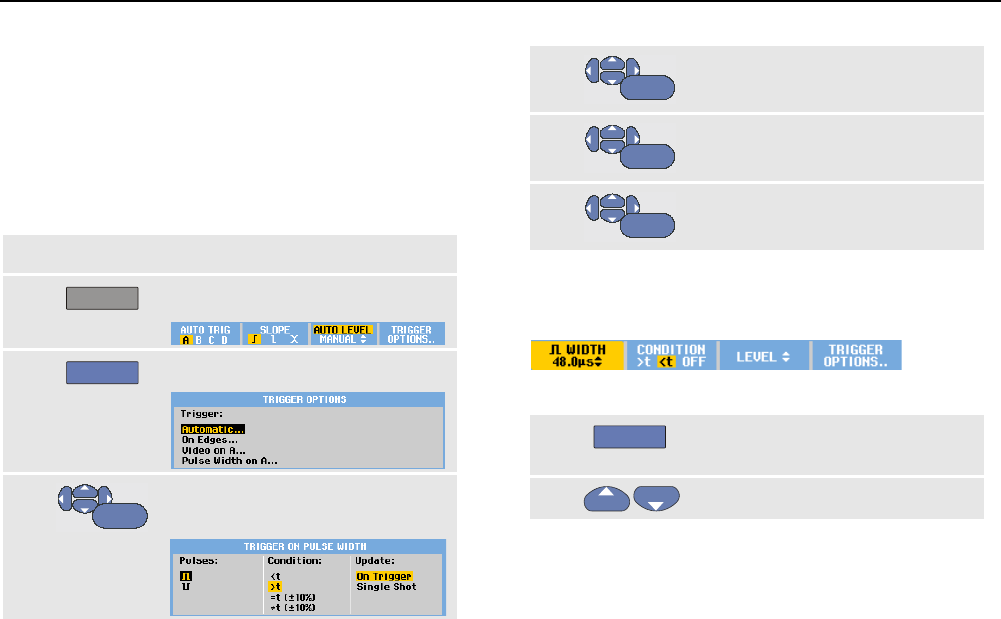
Triggering on Waveforms
Triggering on Pulses 4
67
Triggering on Pulses
Use pulse width triggering to isolate and display specific
pulses that you can qualify by time, such as glitches,
missing pulses, bursts or signal dropouts.
Detecting Narrow Pulses
To set the test tool to trigger on narrow positive pulses
shorter than 5 ms, do the following:
1 Apply a video signal to the red input A.
2
TRIGGER
Display the TRIGGER key labels.
3
F4
Open the TRIGGER OPTIONS menu.
4
ENTER
Select Pulse Width on A... to open
the trigger on pulse width menu.
5
ENTER
Select the positive pulse icon,
then jump to Condition.
6
ENTER
Select <t, then jump to Update.
7
ENTER
Select On Trigger.
The test tool is now prepared to trigger on narrow pulses
only. Observe that the trigger key labels at the bottom of
the screen have been adapted to set the pulse conditions:
To set the pulse width to 5 ms, do the following:
8
F1
Enable the arrow keys to adjust
the pulse width.
9
Select 5 ms.
All narrow positive pulses shorter than 5 ms are now
displayed on the screen. (See Figure 33).
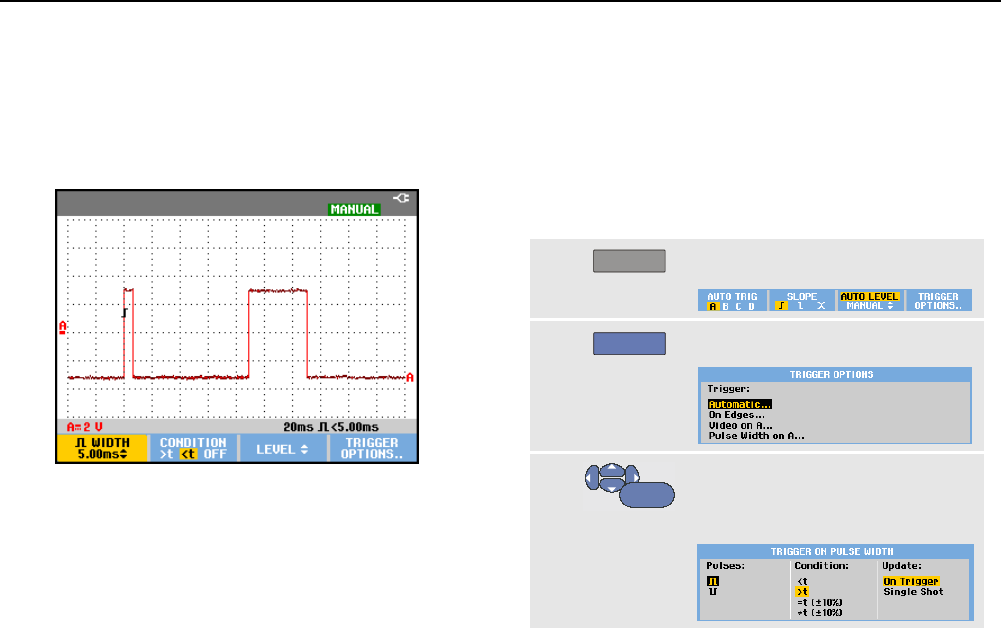
ScopeMeter® Test Tool 190 Series II
Users Manual
68
Tip
The test tool stores all triggered screens in the
replay memory. For example, if you setup your
triggering for glitches, you can capture 100
glitches with time stamps. Use the REPLAY key to
look at all the stored glitches.
Figure 33. Triggering on Narrow Glitches
Finding Missing Pulses
The next example covers finding missing pulses in a train
of positive pulses. In this example it is assumed that the
pulses have a 100 ms distance between the rising edges.
If the time accidently increases to 200 ms, a pulse is
missing. To set the test tool to trigger on such missing
pulses, let it trigger on gaps bigger than about 110 ms.
Do the following:
1
TRIGGER
Display the TRIGGER key labels.
2
F4
Open the TRIGGER OPTIONS menu.
3
ENTER
Select Pulse Width on A... to
open the TRIGGER ON PULSE WIDTH
menu.
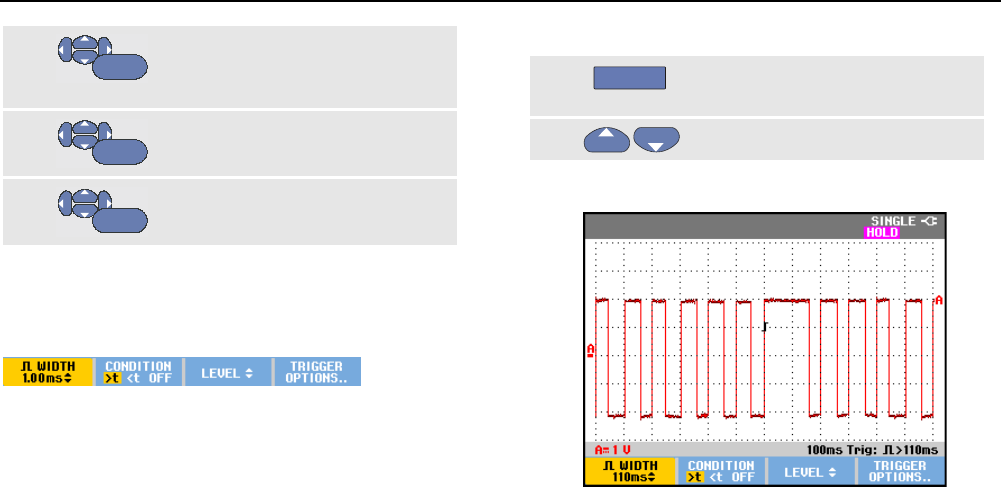
Triggering on Waveforms
Triggering on Pulses 4
69
4
ENTER
Select the positive pulse icon to
trigger on a positive pulse, then
jump to Condition: .
5
ENTER
Select >t, then jump to Update: .
6
ENTER
Select On Trigger and exit the
menu.
The test tool is now prepared to trigger on pulses that are
more than a selectable time in duration. Observe that the
trigger menu at the bottom of the screen has been
adapted to set the pulse condition:
To set the pulse width to 110 ms, continue as follows:
7
F1
Enable the arrow keys to adjust
the pulse width.
8 Select 110 ms.
Figure 34. Triggering on Missing Pulses

ScopeMeter® Test Tool 190 Series II
Users Manual
70
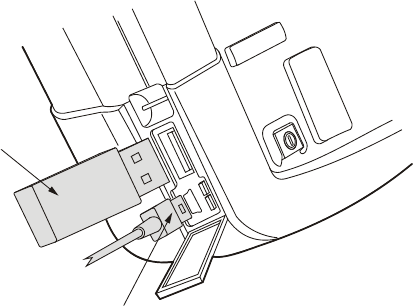
71
Using Memory and PC
About this Chapter
This chapter provides a step-by-step introduction to the
general functions of the test tool that can be used in the
three main modes: Scope, Meter, or Recorder. You will
find information on computer communication at the end of
this chapter.
Using the USB Ports
The test tool is provided with two USB ports:
• a USB-host port to connect an external flash memory
drive (‘USB-stick’) for data storage.
• a mini-USB-B port which allows you to connect the
test tool to a PC for remote control and data transfer
under PC-control, see Using FlukeView® on page 79.
The ports are fully isolated from the input channels and
are covered with dust covers when not in use.
USB stick
Mini USB
Figure 35. Test Tool USB Connections

ScopeMeter® Test Tool 190 Series II
Users Manual
72
Saving and Recalling
You can:
• Save screens and setups to internal memory, and
recall them again from memory. The test tool has 30
‘screen and setup’ memories, 10 ‘record and setup’
memories, and 9 screen image memories. See also
•
• Table 1.
• Save up to 256 screens and setups to a USB memory
device, and recall them again from memory.
• Name saved screens and setups according to your
own preferences.
• Recall screens and recordings to analyze the screen
image at a later date.
• Recall a setup to continue a measurement with the
recalled operating configuration.
Notes
Saved data is stored in non-volatile Flash
memory.
Not saved instrument data is stored in RAM
memory and will be kept at least 30 seconds
when the battery is removed when no power is
supplied via the BC190 power adapter.
Table 1. Test Tool Internal Memory
Mode
Memory locations
30x
10x
9x
METER Setup +
1 screen
- Screen image
SCOPE Setup +
1 screen
Setup +
100 replay
screens
Screen image
SCOPE REC - Setup +
record data
Screen image
TRENDPLOT - Setup +
trendplot data
Screen image
Notes:
- In persistence mode, the most recent
waveform will be saved, not all
waveforms that build the persistence
display.
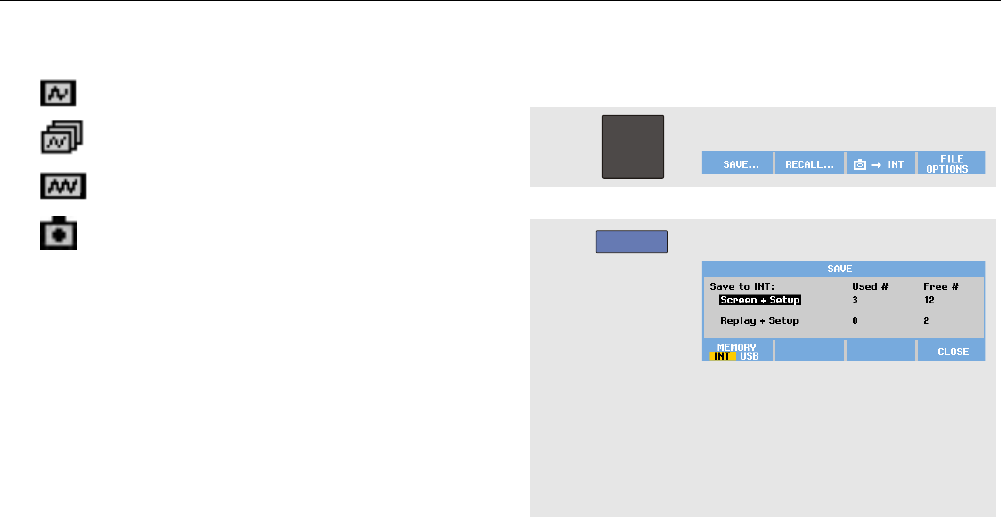
Using Memory and PC
Saving and Recalling
73
- In the displayed file list of stored data
the following symbols are used:
setup + 1 screen
setup + replay screens/record data
setup + trendplot data
screen image (imagexxx.bmp
- a screen image can be copied to a USB
stick connected to the test tool. The
USB stick connected to a PC allows
you to insert the image for instance
into a text document. The copying
function is available under SAVE and
F4 – File OPTIONS. A screen image
can not be recalled on to the screen.
Saving Screens with Associated Setups
To save for example a screen+setup in Scope mode, do
the following:
1
SAVE
Display the SAVE key labels.
From this point the screen is frozen.
2
F1
Open the SAVE menu.
Observe the number of available
and used memory locations.
In METER mode the SAVE AS menu
will be shown now as only a
setup+screen can be saved, see
step 4.
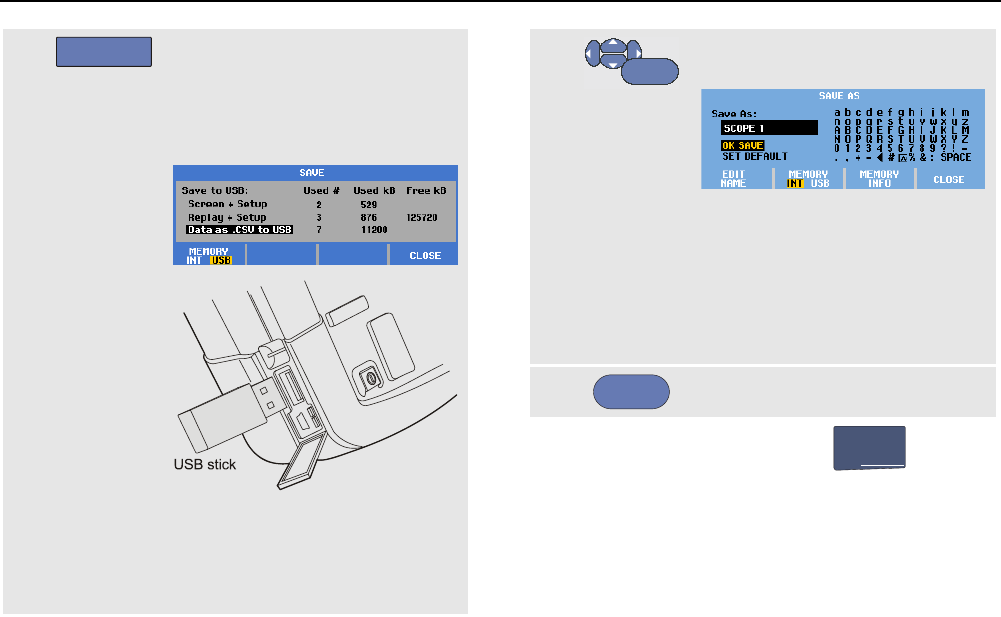
ScopeMeter® Test Tool 190 Series II
Users Manual
74
3
F1
Select the target memory INT
(internal memory) or USB (USB
device).
Observe the new SAVE menu if you
select USB.
You can save data in .csv format to
a USB stick. The saved .csv file
can be used to analyze the data in
e.g. FlukeView® ScopeMeter® or in
Excel.
4
ENTER
Select Screen+Setup and open
the SAVE AS menu.
Below Save As: the default name +
serial number and OK SAVE are
already selected.
To modify the name for this
particular Screen+Setup or to
modify the default name see below
‘Editing Names’.
5
ENTER
Save the Screen+setup.
To resume your measurements press
HOLD
RUN
.
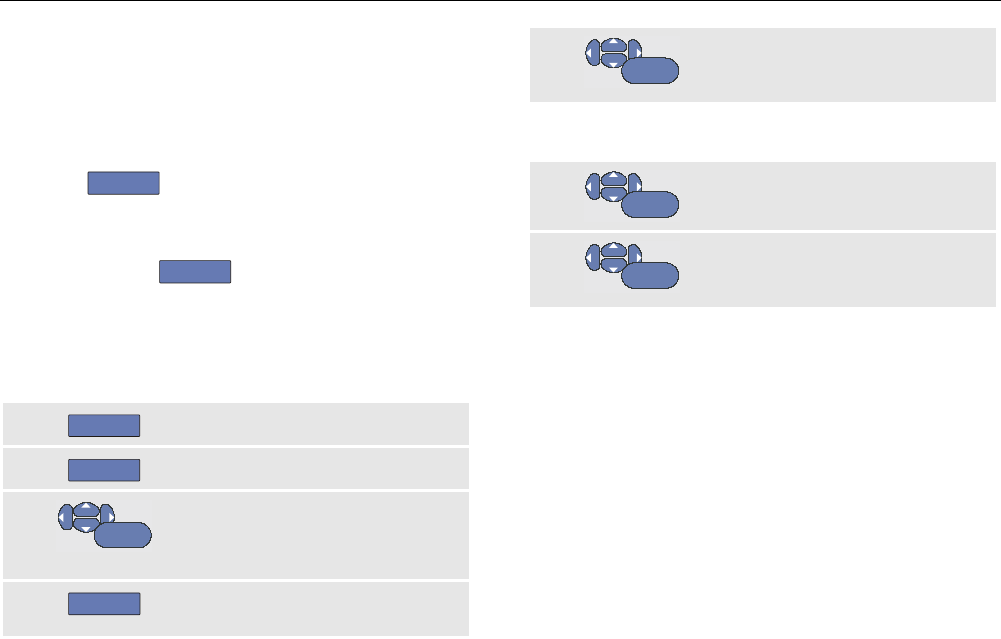
Using Memory and PC
Saving and Recalling
75
All memories in use
If no free memory locations are available a message pops
up that proposes to you to overwrite the oldest data set.
Do one of the following:
If you don’t want to overwrite the oldest data set,
- press
F3
, the delete one or more memory
locations, and save again.
If you want to overwrite the oldest data set,
- press
F4
.
Editing names
To name the screen+setup according to your own
preferences, continue from step 4 as follows:
5
F1
Open the EDIT NAME menu.
6
F2
Skip to a new character position.
7
ENTER
Select another character and press
ENTER to accept your choice.
Repeat 6 and 7 until done.
8
F1
Accept the name and return to the
SAVE AS menu.
9
ENTER
Highlight OK SAVE to save the
actual screen using the edited
name.
To modify the default name generated by the test tool,
continue from step 8 as follows:
9
ENTER
Highlight SET DEFAULT to save
the new default name.
10
ENTER
Highlight OK SAVE to save the
actual screen using the new default
name.
Notes
The ‘record+setup’ memory locations store
more than just what is visible on the screen.
In TrendPlot or Scope Record mode the full
recording is saved. In scope mode you can
save all 100 replay screens in a single
record+setup memory location. The table below
shows what you can store for the various test
tool modes.
To save a TrendPlot press STOP first.
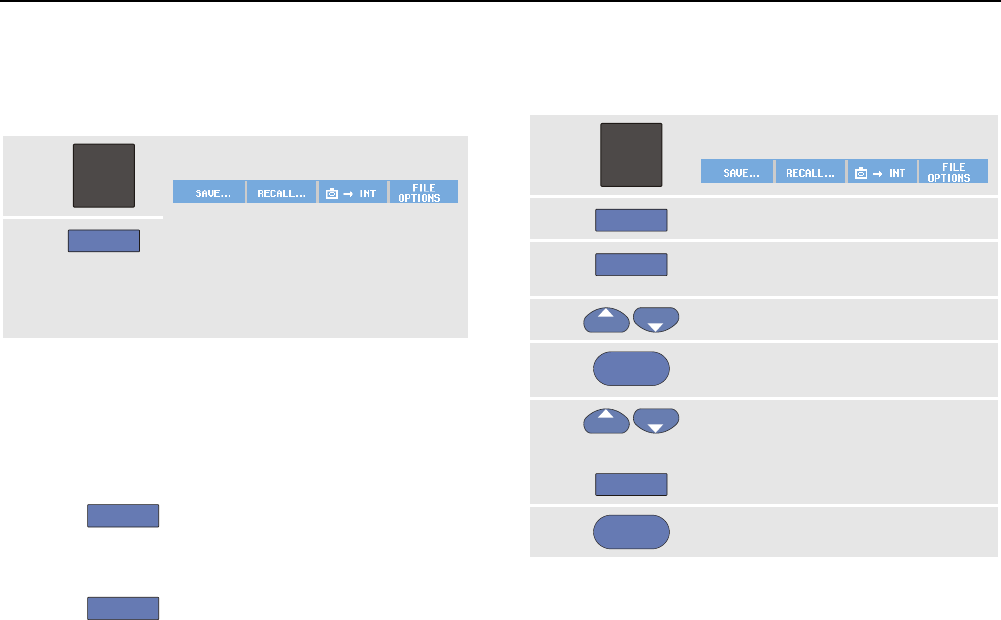
ScopeMeter® Test Tool 190 Series II
Users Manual
76
Saving Screens in .bmp Format (Print
Screen)
To save a screen in bitmap (.bmp) format, do the
following:
1
SAVE
Display the SAVE key labels.
2
F3
Save the screen to:
- Internal memory (INT) if no
USB device is connected.
-
a USB device if connected.
The file is saved using a fixed name (IMAGE) and a serial
number, for example IMAGE004.bmp.
If no free memory locations are available a message pops
up that proposes to you to overwrite the oldest data set.
Do one of the following:
If you don’t want to overwrite the oldest data set,
- press
F3
, then delete one or more memory
locations, and save again.
- If you want to overwrite the oldest data set,
- press
F4
.
Deleting Screens with Associated
Setups
To delete a screen and associated setup, do the following:
1
SAVE
Display the SAVE key labels.
2
F4
Open the FILE OPTIONS menu.
3
F1
Select the source, internal memory
(INT) or a USB device.
4 Highlight DELETE ,
5
ENTER
Accept your choice and jump to the
filename field
6
F2
Select the file to be deleted,
Or
Select all files for deletion.
7
ENTER
Delete the selected files.
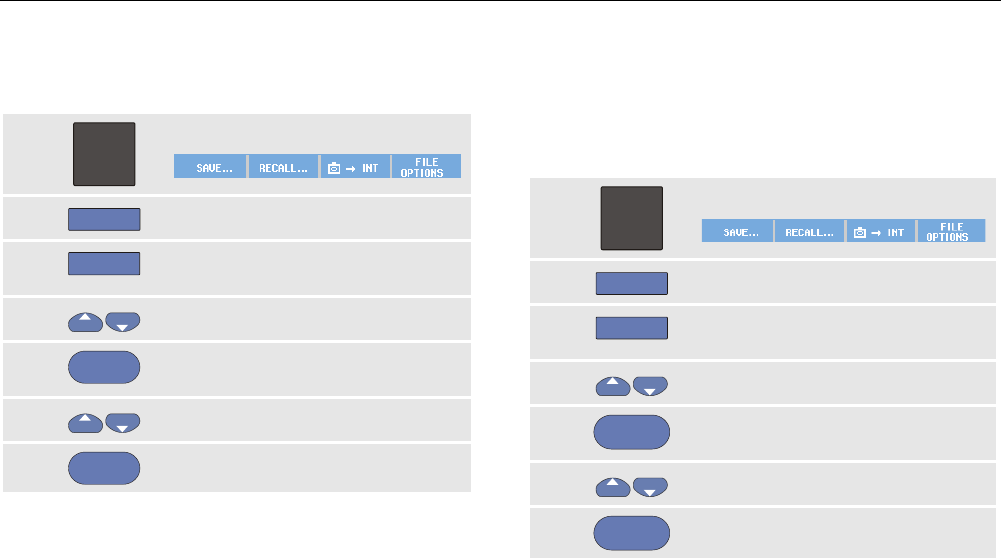
Using Memory and PC
Saving and Recalling
77
Recalling Screens with Associated
Setups
To recall a screen+setup, do the following:
1
SAVE
Display the SAVE key labels.
2
F2
Open the RECALL menu.
3
F1
Select the source, internal memory
(INT) or a USB device.
4 Highlight DATA .
5
ENTER
Accept your choice and jump to the
filename field
6
Select the file to be recalled.
7
ENTER
Recall the selected screen+setup.
Observe that the recalled waveform is displayed and that
HOLD appears on the screen. From this point you can use
cursors and zoom for analysis or you can print the recalled
screen.
To recall a screen as a reference waveform to compare it
to an actually measured waveform, see Chapter 1
‘Comparing Waveforms’.
Recalling a Setup Configuration
To recall a setup configuration, do the following:
1
SAVE
Display the SAVE key labels.
2
F2
Open the RECALL menu.
3
F1
Select the source, internal memory
(INT) or a USB device.
4 Highlight setup .
5
ENTER
Accept your choice and jump to the
filename field.
6
Select the file to be recalled,
7
ENTER
Recall the selected setup.
From this point you continue in the new operating
configuration.
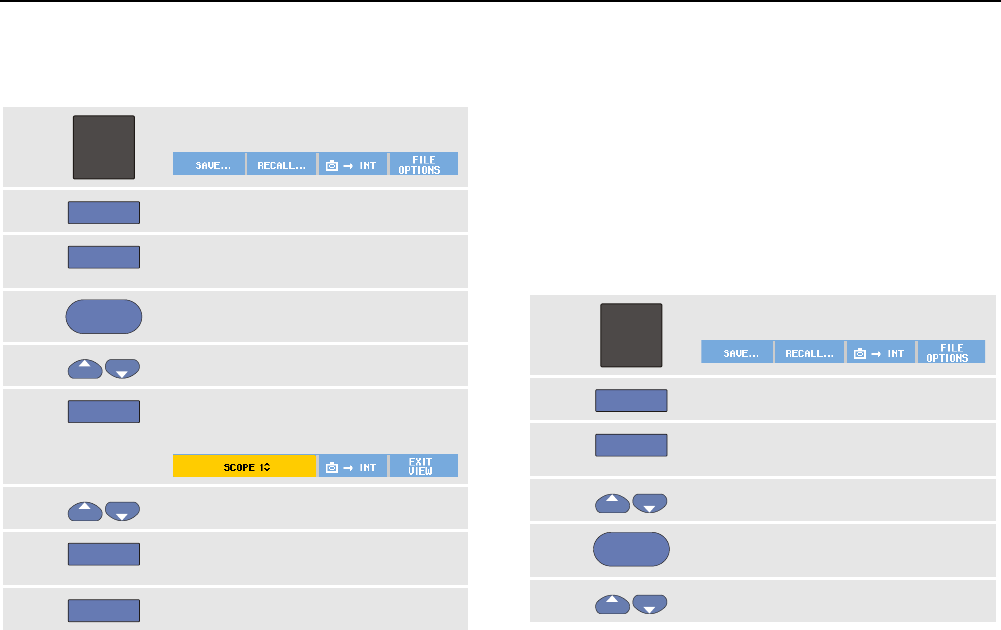
ScopeMeter® Test Tool 190 Series II
Users Manual
78
Viewing Stored Screens
To scroll through the memories while looking at the stored
screens, do the following:
1
SAVE
Display the SAVE key labels.
2
F2
Open the RECALL menu.
3
F1
Select the source, internal memory
(INT) or a USB device.
4
ENTER
Jump to the filename field.
5 Highlight a file.
6
F2
View the screen, and open the
viewer.
7
Scroll through all stored screens.
8
F3
Save the screen to USB device (if
connected) or internal memory.
9
F4
Exit the View mode.
Note:
In the VIEW mode the replay screens of a
saved ‘record+setup’ cannot be viewed! Only
the screen at the instant of saving can be
reviewed in this way. To see all replay screens
recall them from memory using the RECALL
option.
Renaming Stored Screens and Setup
Files
To modify the name of stored files, do the following:
1
SAVE
Display the SAVE key labels.
2
F4
Open the FILE OPTIONS menu.
3
F1
Select the source, internal memory
(INT) or a USB device.
4
Highlight RENAME.
5
ENTER
Accept your choice and jump to the
filename field.
6 Highlight the file to be renamed.
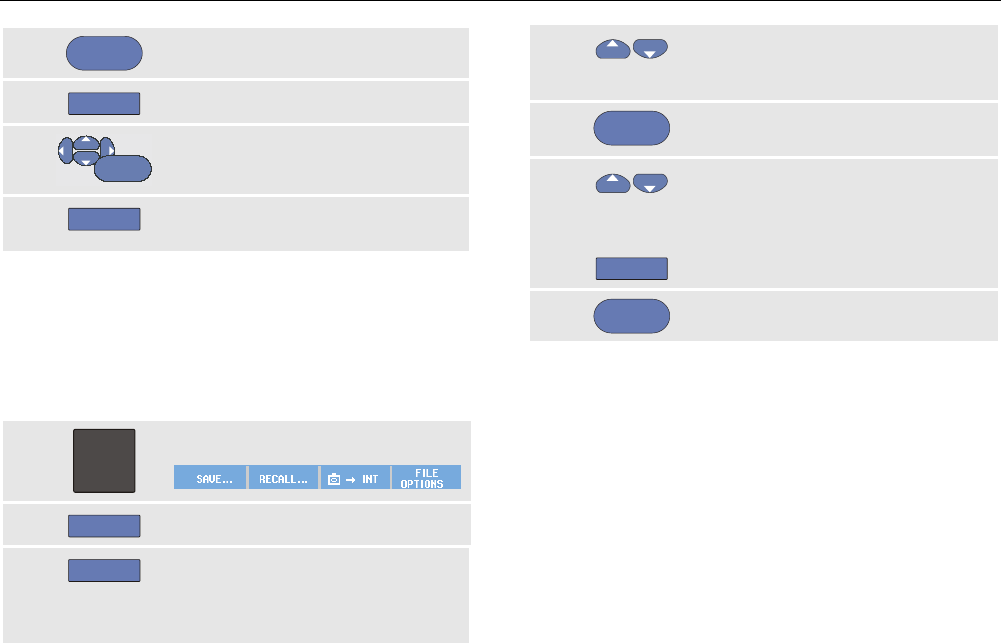
Using Memory and PC
Using FlukeView®
79
7
ENTER
Open the RENAME menu.
8
F2
Skip to a new character position.
9
ENTER
Select another character.
Repeat 8 and 9 until done.
10
F1
Accept the name and return to the
RENAME menu.
Copying-Moving Stored Screens and
Setup Files
You can copy or move a file from internal memory to a
USB device or from a USB device to internal memory.
To copy or to move a file, do the following:
1
SAVE
Display the SAVE key labels.
2
F4
Open the FILE OPTIONS menu.
3
F1
Select the source, internal memory
(INT) or a USB device. The other
memory will become the
destination.
4 Highlight COPY to copy or MOVE to
move (copy and delete source) a
file.
5
ENTER
Accept your choice and jump to the
filename field.
6
F2
Select the file to be copied or
moved,
Or
Select all files
7
ENTER
Copy or delete the selected files.
Using FlukeView®
With the FlukeView® software you can upload waveform
data and screen bitmaps to your PC or notebook computer
for further processing.
USB drivers for the test tool and a FlukeView® Demo
version with restricted functionality are available on the
CD-ROM included in the shipment.
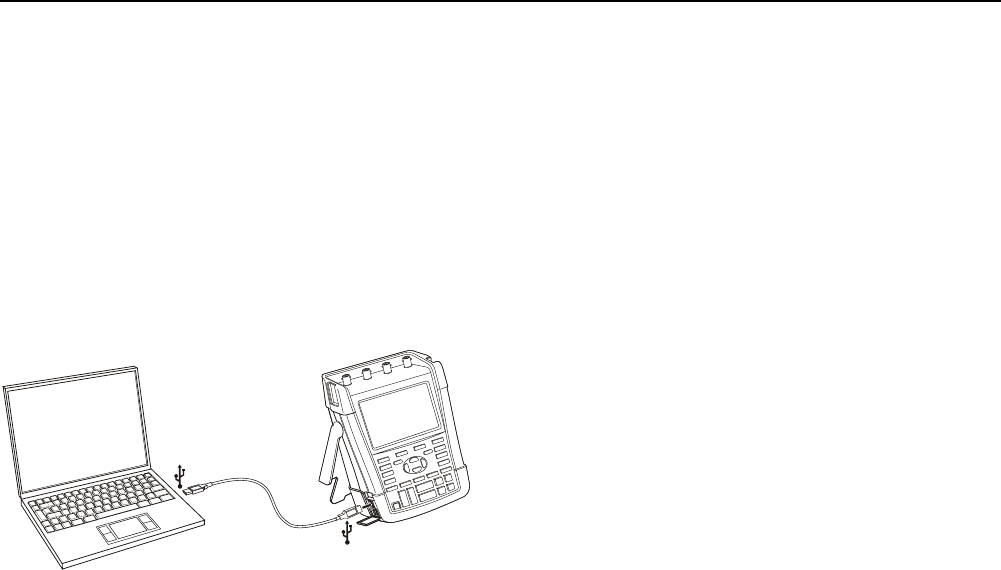
ScopeMeter® Test Tool 190 Series II
Users Manual
80
Connecting to a Computer
To connect the test tool to a PC or notebook computer and
use the FlukeView software for Windows® (SW90W), do
the following:
• Use a USB-A to mini-USB-B interface cable to
connect a computer to the mini USB PORT of the test
tool (See Figure 36).
• Install the test tool USB drivers, see Appendix A.
• Install the FlukeView® Demo version. For information
about installing and using the FlukeView®.
ScopeMeter® software see the FlukeView® Users
Manual on the CD ROM.
Figure 36. Connecting a Computer
Notes
- The optional kit SCC290 contains an
activation code to convert the
FlukeView® Demo version into a fully
operational version.
- A complete FlukeView® version can be
ordered using ordering code SW90W.
For use with the Fluke Series II
ScopeMeter®test tools
FlukeView®ScopeMeter®release V5.1
or higher is required.
- The test tool input channels are
electrically isolated from the USB port.
- Remote control and data transfer via
mini-USB is not possible while saving
or recalling data to or from the USB-
stick.
81
Chapter 6
Tips
About this Chapter
This chapter gives you information and tips on how you
can make the best use of the test tool.
Using the Standard Accessories
The following illustrations show the use of the standard
accessories such as voltage probes, test leads, and the
various clips.
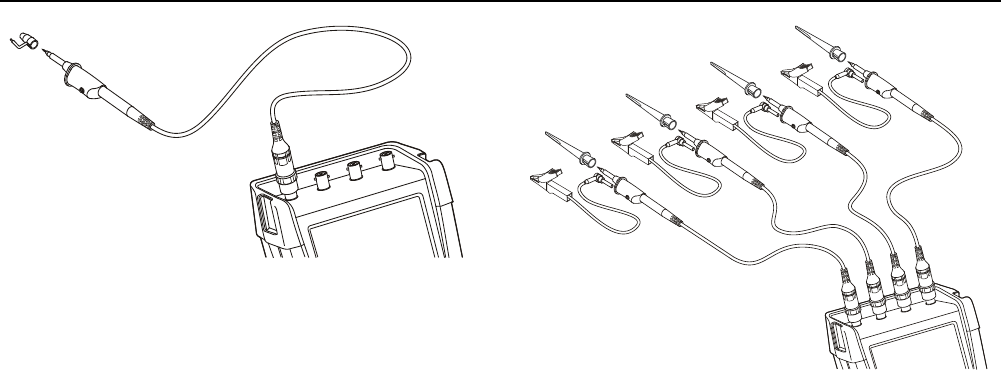
ScopeMeter® Test Tool 190 Series II
Users Manual
82
A
Figure 37. HF Voltage Probe Connection Using
Ground Spring
Warning
To avoid electrical shock or fire, do not
connect the ground spring to voltages higher
than 30 Vrms from earth ground.
Figure 38. Electronic Connections for Measurements
Using Hook Clips and Alligator Clip Grounding
Warning
To avoid electrical shock, re-apply the insulation
sleeve (Figure 1, item e) over the probe tip when
the hook clip is not used. This also avoids the
risk of accidently interconnecting the reference
contact of multiple probes when groundleads
are connected or avoids short-circuiting any
circuitry via the bare ground ring of the probe..

Tips
Using the Independently Floating Isolated Inputs 6
83
Using the Independently Floating
Isolated Inputs
You can use the independently floating isolated inputs to
measure signals that are independently floating from each
other.
Independently floating isolated inputs offer additional
safety and measurement capabilities compared to inputs
with common references or grounds.
Measuring Using Independently Floating Isolated
Inputs
The test tool has independently floating isolated inputs.
Each input section (A, B, C, D – A, B, METER INPUT) has
its own signal input and its own reference input. The
reference input of each input section is electrically isolated
from the reference inputs of the other input sections. The
isolated input architecture makes the test tool about as
versatile as having four independent instruments. The
advantages of having independently floating isolated
inputs are:
• It allows simultaneous measurement of independently
floating signals.
• Additional safety. Since the commons are not directly
connected, the chance of causing short circuit when
measuring multiple signals is greatly reduced.
• Additional safety. When measuring in systems with
multiple grounds, the ground currents induced are
kept to a minimum.
Because the references are not connected together inside
the test tool, each reference of the used inputs must be
connected to a reference voltage.
Independently floating isolated inputs are still coupled by
parasitic capacitance. This can occur between the input
references and the environment, and between the input
references mutually (see Figure 39). For this reason, you
should connect the references to a system ground or
another stable voltage. If the reference of an input is
connected to a high speed and / or high voltage signal,
you should be aware of parasitic capacitance. (See Figure
39, Figure 41, Figure 42 and Figure 43.)
Note
The input channels are electrically isolated from
the USB port and from the power adapter input.
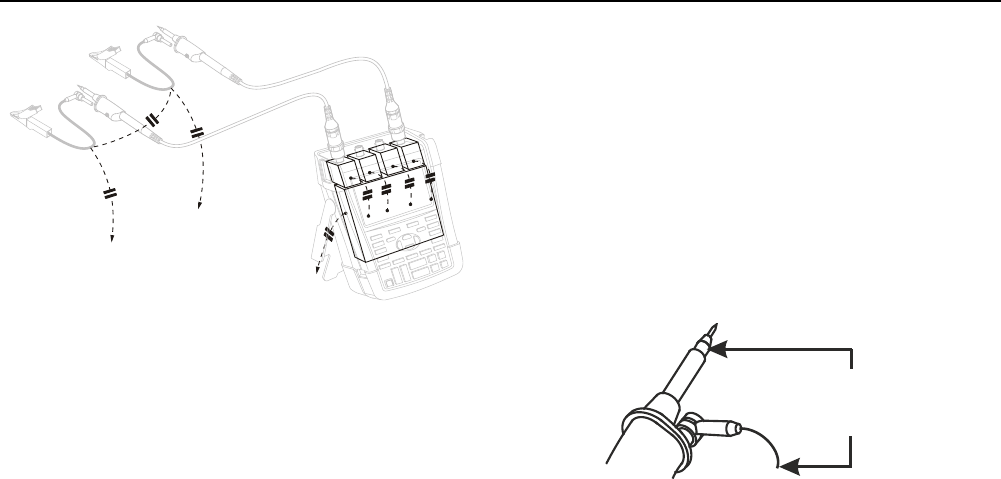
ScopeMeter® Test Tool 190 Series II
Users Manual
84
ABCD
Figure 39. Parasitic capacitance between probes,
instrument and environment
Note:
Parasitic capacitances such as shown in Figure
39, 41 and 43 can cause ringing on the signal.
Ringing can be limited by adding a ferrite bead
around the probe cable.
Warning
To avoid electrical shock, always use the
insulation sleeve (Figure 1, item e) or the
hook clip when using the probe reference
(ground) lead. The voltage applied to the
reference lead is also present on the ground
ring near the probe tip as shown in Figure 40.
The isolation sleeve avoids the risk of
accidently interconnecting the reference
contact of multiple probes when groundleads
are connected or short-circuiting any circuitry
via the bare ground ring..
SAME
POTENTIAL
Figure 40. Probe Tip
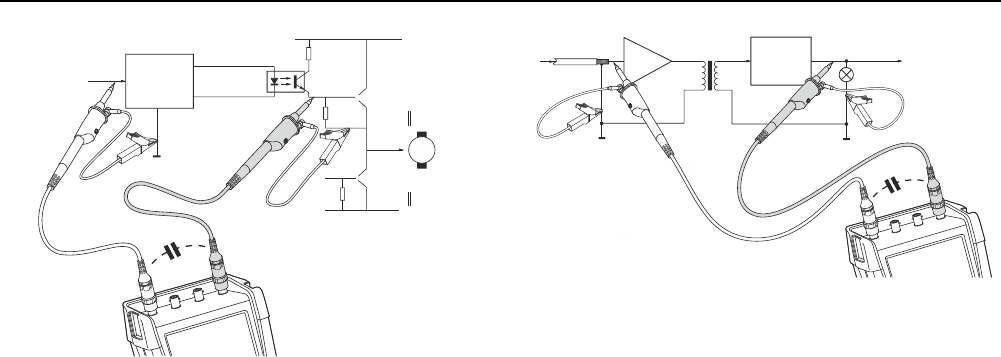
Tips
Using the Independently Floating Isolated Inputs 6
85
M
MOTION/MOTOR CONTROLLER DC BUS
DC BUS
DIGITAL
GROUND
+
-
A
D
Figure 41. Parasitic capacitance between analog and
digital reference
ANALOG INPUT DIGITAL CONTROLLER
ANALOG
GROUND
DIGITAL
GROUND
A
D
Figure 42. Correct connection of reference leads
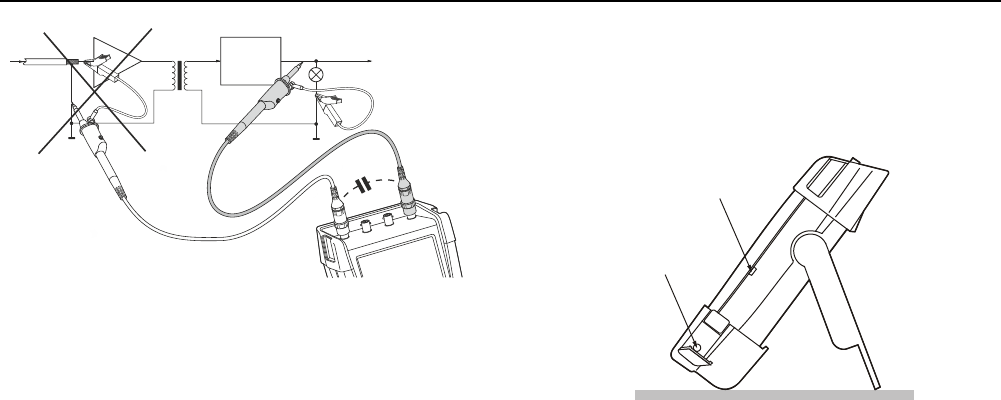
ScopeMeter® Test Tool 190 Series II
Users Manual
86
ANALOG INPUT DIGITAL CONTROLLER
ANALOG
GROUND
DIGITAL
GROUND
A
D
Figure 43. Wrong connection of reference leads
Noise that is picked up by reference lead D can be
transmitted by parasitic capacitance to the analog input
amplifier.
Using the Tilt Stand
The test tool is equipped with a tilt stand, allowing viewing
from an angle while placed on a table. The typical position
is shown in Figure 44.
Kensington lock
support
®
Power adapter input
Figure 44. Using the Tilt Stand
Note
An optional Hanging Hook, ordering code HH290,
can be attached to the rear of the test tool. The
hook enables you to hang the test tool at a
convenient viewing position, for example a
cabinet door or a separation wall.
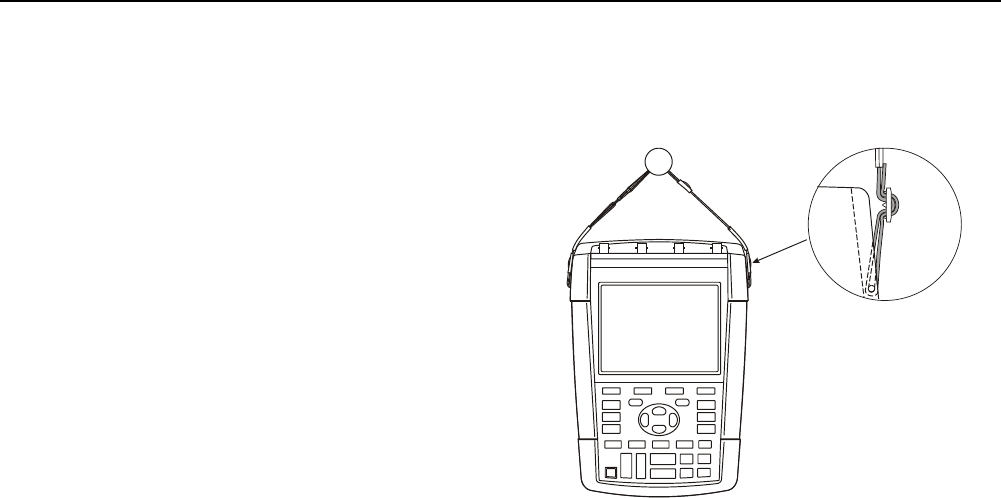
Tips
Kensington®-lock 6
87
Kensington®-lock
The test tool is provided with a security slot compatible
with a Kensington® lock, see Figure 44.
The Kensington Security Slot along with a locking cable
provides physical security against thefts of opportunity.
Locking cables can be obtained from, for example, laptop
computer accessory dealers.
Fixing the Hangstrap
A hang strap is supplied with the test tool. The figure
below shows how to attach the strap correctly to the test
tool.
Figure 45. Fixing the Hangstrap
ScopeMeter® Test Tool 190 Series II
Users Manual
88
Resetting the Test Tool
If you want to reset the test tool to the factory settings,
without clearing the memories, do the following:
1
Turn the test tool off.
2
USER
Press and hold.
3
Press and release.
The test tool turns on, and you should hear a double beep,
indicating the reset was successful.
4
USER
Release.
Suppressing Key Labels and Menu’s
You can close a menu or hide key label at any time:
CLEAR
Hide any key label, press again to display the
key label again (toggle function).
A displayed menu will be closed.
To display menus or key labels, press one of the yellow
menu keys, e.g. the SCOPE key.
You can also close a menu using the
F4
softkey
CLOSE.
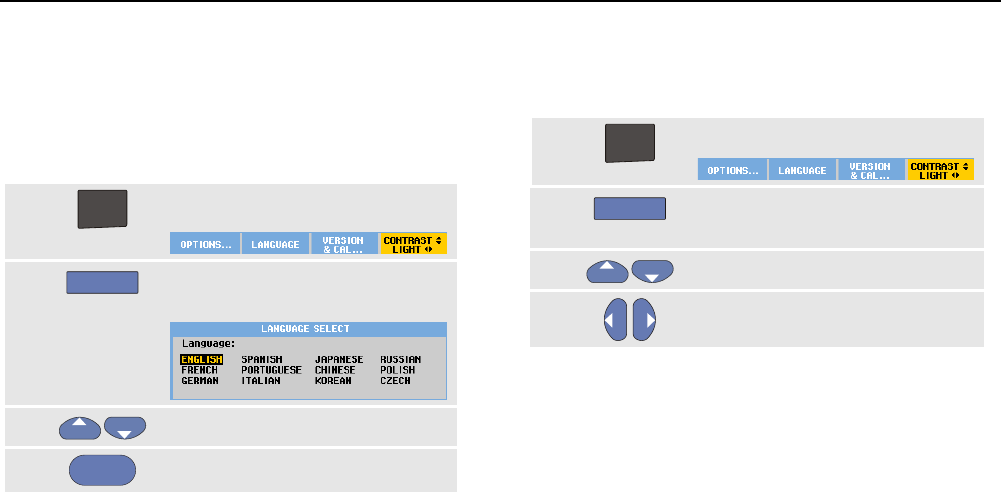
Tips
Changing the Information Language 6
89
Changing the Information Language
During operation of the test tool, messages may appear at
the bottom of the screen. You can select the language in
which these messages are displayed. In this example you
can select English or French. To change the language
from English to French, do the following:
1
USER
Display the USER key labels.
2
F2
Open the LANGUAGE SELECT
menu.
3
Highlight FRENCH.
4
ENTER
Accept French as the language.
Note
The languages available in your test tool may
differ from this example.
Adjusting the Contrast and Brightness
To adjust the contrast and backlight brightness, do the
following:
1
USER
Display the USER key labels.
2
F4
Enable the arrow keys for manual
contrast and backlight adjustment.
3
Adjust the contrast of the screen.
4
Change the backlight.
Note
The new contrast and brightness are stored until
a new adjustment is made.
To save battery power, the test tool is in economic
brightness mode when operated on the battery. The high
brightness intensity increases when you connect the
power adapter.
Note
Using dimmed light lengthens battery power
operating time. See Chapter 8 ‘Specifications’,
section ‘Miscellaneous’.
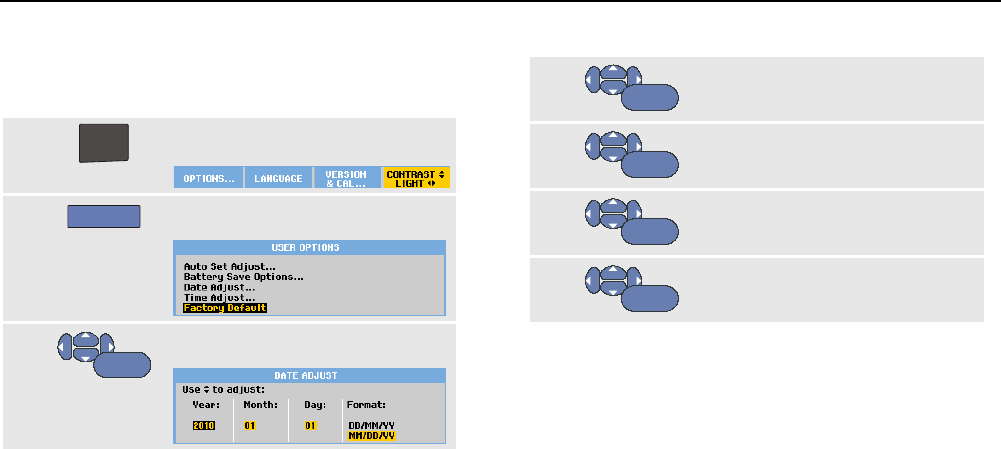
ScopeMeter® Test Tool 190 Series II
Users Manual
90
Changing Date and Time
The test tool has a date and time clock. For example, to
change the date to 19 April, 2013, do the following:
1
USER
Display the USER key labels.
2
F1
Open the USER OPTIONS menu.
3
ENTER
Open the DATE ADJUST menu.
4
ENTER
Choose 2013, jump to Month: .
5
ENTER
Choose 04, jump to Day: .
6
ENTER
Choose 19, jump to Format: .
7
ENTER
Choose DD/MM/YY, accept the new
date.
You can change the time in a similar way by opening the
Time Adjust… menu (steps 2 and 3.)
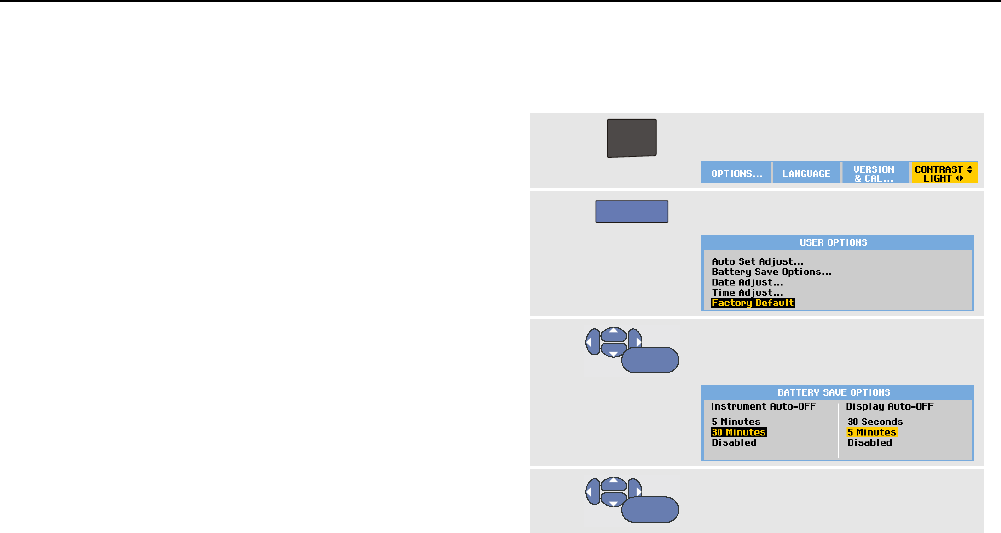
Tips
Saving Battery Life 6
91
Saving Battery Life
When operated on the battery, the test tool conserves power
by shutting itself down. If you have not pressed a key for at
least 30 minutes, the test tool turns itself off automatically.
Automatic power shutdown will not occur if TrendPlot or
Scope Record is on, but the backlight will dim. Recording
will continue even if the battery is low, and retention of
memories is not jeopardized.
To save battery life without automatic power shutdown you
can use the display AUTO-off option. The display will be
turned off after the selected time (30 seconds or 5
minutes).
Note
If the power adapter is connected, there is no
automatic power shutdown, and the display
AUTO-off function is inactive.
Setting the Power Down Timer
Initially the power shutdown time is 30 minutes. You can set
the power shutdown time to 5 minutes as following:
1
USER
Display the USER key labels.
2
F1
Open the USER OPTIONS menu.
3
ENTER
Open the BATTERY SAVE OPTIONS
menu.
4
ENTER
Select Instrument Auto-OFF
5 Minutes.
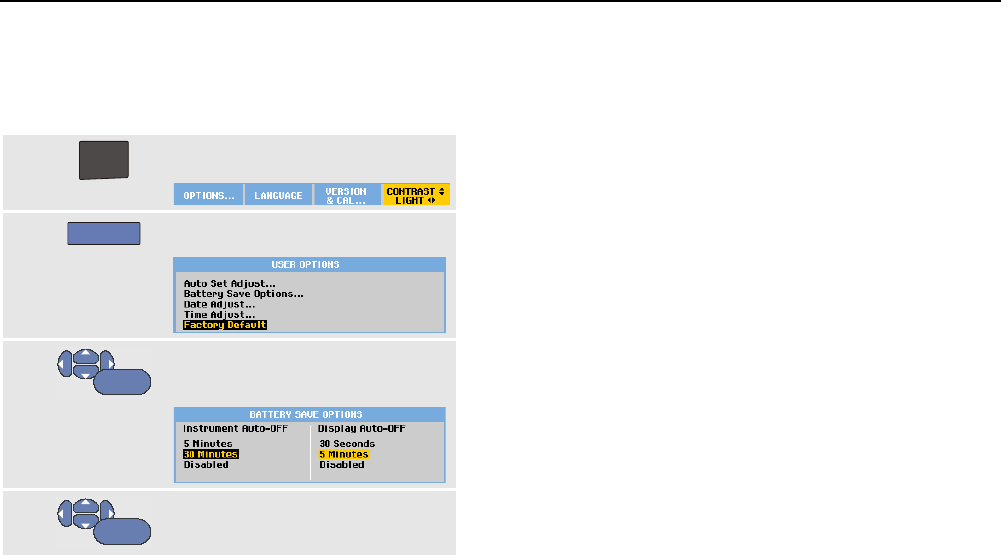
ScopeMeter® Test Tool 190 Series II
Users Manual
92
Setting the Display AUTO-off Timer
Initially the display AUTO-off timer is disabled (no automatic
display turn off). You can set the display AUTO-off timer to
30 seconds or to 5 minutes as following:
1
USER
Display the USER key labels.
2
F1
Open the USER OPTIONS menu.
3
ENTER
Open the BATTERY SAVE OPTIONS
menu.
4
ENTER
Select Display Auto-OFF
30 Seconds or 5 Minutes.
The display will be turned off after the selected time is
elapsed.
To turn on the display again do one of the following:
• Press any key. The Display will be visible again and
the Display Auto-Off timer starts again. The display
will be turned off again when the time has elapsed.
• Connect the power adapter; the Auto-Off timer is
inactive now.
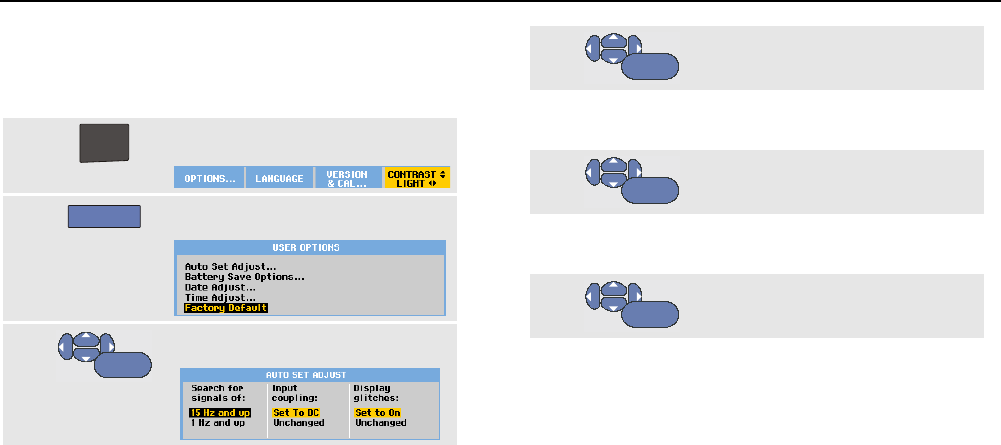
Tips
Changing the Auto Set Options 6
93
Changing the Auto Set Options
With the next procedure you can choose how auto set
behaves when you press the AUTO-MANUAL (auto set) key.
1
USER
Display the USER key labels.
2
F1
Open the USER OPTIONS menu.
3
ENTER
Open the AUTO SET ADJUST menu.
If the frequency range is set to > 15 Hz, the Connect-and-
View function responds more quickly. The response is
quicker because the test tool is instructed not to analyze
low frequency signal components. However, when you
measure frequencies lower than 15 Hz, the test tool must
be instructed to analyze low frequency components for
automatic triggering:
4
ENTER
Select 1 Hz and up, then jump to
Input Coupling:
When you press the AUTO-MANUAL (auto set) key, the input
coupling can either be set to dc or left unchanged:
5
ENTER
Select Unchanged.
When you press the AUTO-MANUAL (auto set) key glitch
capture can either be set to On or left unchanged:
6
ENTER
Select Unchanged.
Note
The auto set option for the signal frequency is
similar to the automatic trigger option for the
signal frequency. (See Chapter 4: “Automatic
Trigger Options”). However, the auto set option
determines the behavior of the auto set function
and shows only effect when you press the auto
set key.

ScopeMeter® Test Tool 190 Series II
Users Manual
94

95
Chapter 7
Maintaining the Test Tool
About this Chapter
This chapter covers basic maintenance procedures that
can be performed by the user. For complete service,
disassembly, repair, and calibration information, see the
Service Manual. (www.fluke.com)
Warning
• Have an approved technician repair the
product.
• Use only specified replacement parts.
• Before carrying out any maintenance,
carefully read the safety information at
the beginning of this manual.
Cleaning the Test Tool
Warning
Remove the input signals before you clean
the test tool.
Clean the test tool with a damp cloth and a mild soap. Do
not use abrasives, solvents, or alcohol. These may
damage the text on the test tool.
Storing the Test Tool
If you are storing the test tool for an extended period of
time, charge the Li-ion (Lithium-ion) batteries before
storing.
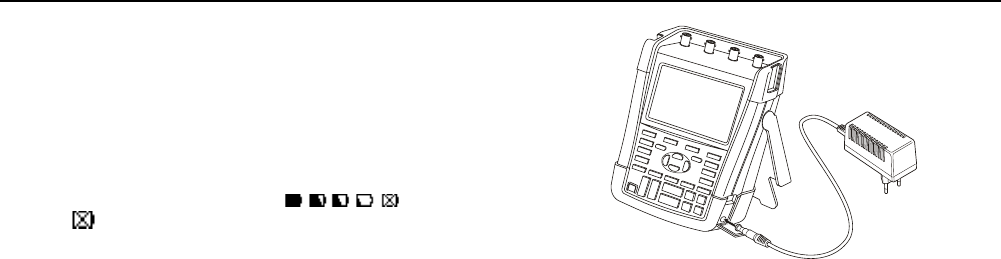
ScopeMeter® Test Tool 190 Series II
Users Manual
96
Charging the Batteries
At delivery, the Li-ion batteries may be empty and must be
charged for 5 hours (with the test tool turned off) to reach full
charge.
When battery power is used, the battery indicator at the
top of the screen informs you about the condition of the
batteries. The battery symbols are: . The
symbol indicates that there are typically five minutes
of operating time left. See also Displaying Battery
Information on page 101.
To charge the batteries and power the instrument, connect
the power adapter as shown in Figure 46. To charge the
batteries more quickly, turn off the test tool.
Caution
To avoid overheating of the batteries during
charging, do not exceed the allowable
ambient temperature given in the
specifications.
Note
No damage will occur if the power adapter is
connected for long periods, e.g., during the
weekend. The instrument then automatically
switches to trickle charging.
Figure 46. Charging the Batteries
Alternatively, you may choose to exchange the battery
(Fluke accessory BP290 or BP291) with a fully charged
one, and use the external battery charger EBC290
(optional Fluke accessory).
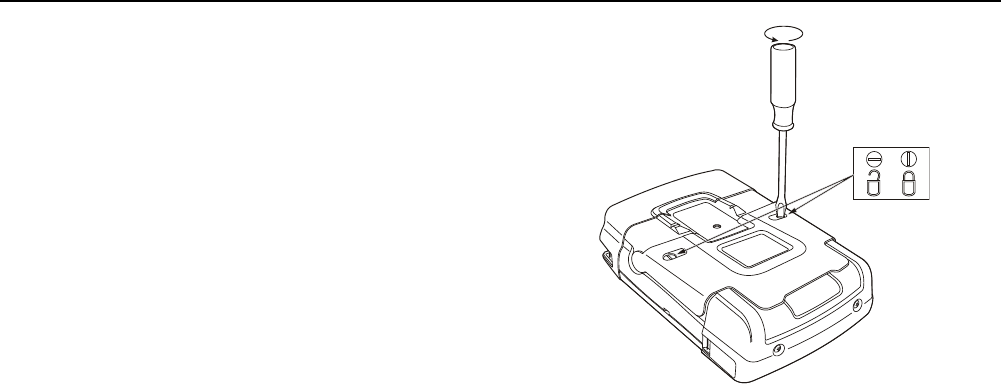
Maintaining the Test Tool
Replacing the Battery Pack 7
97
Replacing the Battery Pack
Warning
Use only the Fluke BP290 (not recommended
for 190-xx4) or BP291 for replacement!
When no adapter power is supplied, data not yet saved in
the test tool memory is maintained if the battery is
replaced within 30 seconds. To avoid loss of data, do one
of the following actions before removing the battery:
− Store the data in the test tool’s non volatile flash
memory, on a computer or a USB stick.
− Connect the power adapter.
To replace the battery pack, proceed as follows:
1. Remove all probes and/or test leads
2. Remove the standup or fold it to the test tool
3. Unlock the battery cover (Figure 47)
4. Lift the battery cover and remove it, (Figure 48)
5. Lift one side of the battery and remove it (Figure 49)
6. Install a battery and close the battery cover.
Figure 47. Unlocking the Battery Cover
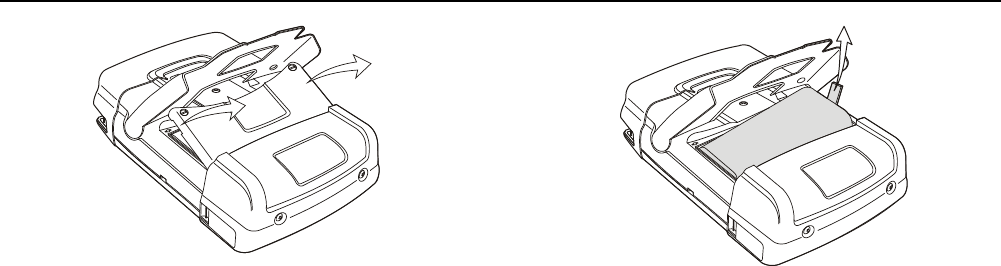
ScopeMeter® Test Tool 190 Series II
Users Manual
98
Figure 48. Removing the Battery Cover
Figure 49. Removing the Battery
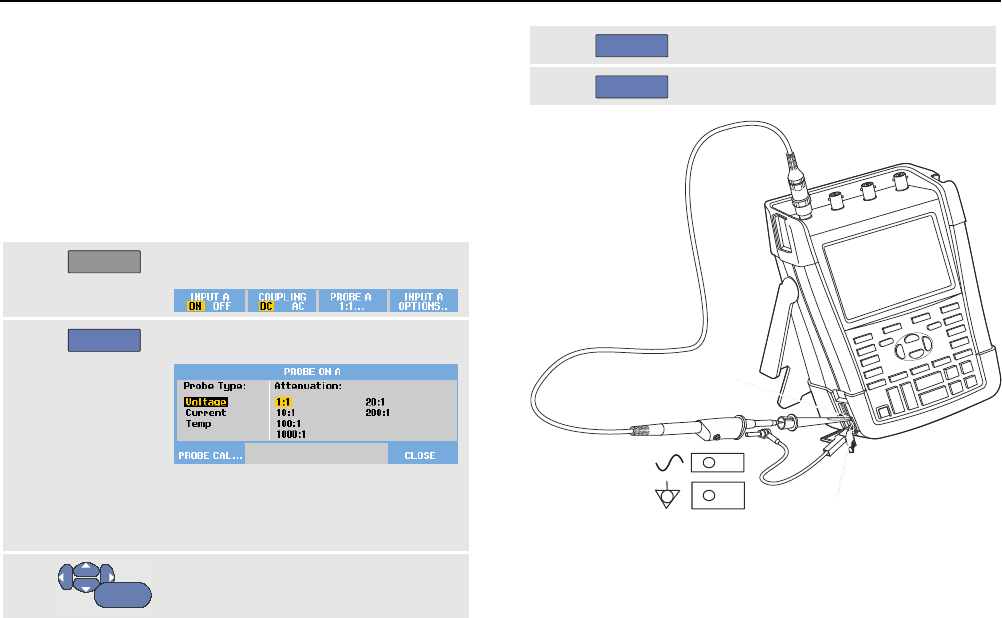
Maintaining the Test Tool
Calibrating the Voltage Probes 7
99
Calibrating the Voltage Probes
To fully meet user specifications, you need to adjust the
voltage probes for optimal response. The calibration
consists of a high frequency adjustment and a dc
calibration for 10:1 probes and 100:1 probes. The probe
calibration matches the probe to the input channel.
This example shows how to calibrate the 10:1 voltage
probes:
1
A
Display the input A key labels.
2
F3
Open the PROBE ON A menu.
If the correct probe type is already
selected (yellow shaded) you can
continue at step 5.
3
ENTER
Select Probe Type: Voltage, and
Attenuation: 10:1.
4
F3
Open the PROBE ON A menu again.
5
F1
Select PROBE CAL…
Probe Cal
Probe Cal Ref.
Figure 50. Adjusting Voltage Probes
Note
it is necessary to connect both the hook clip and
the zero reference contact.
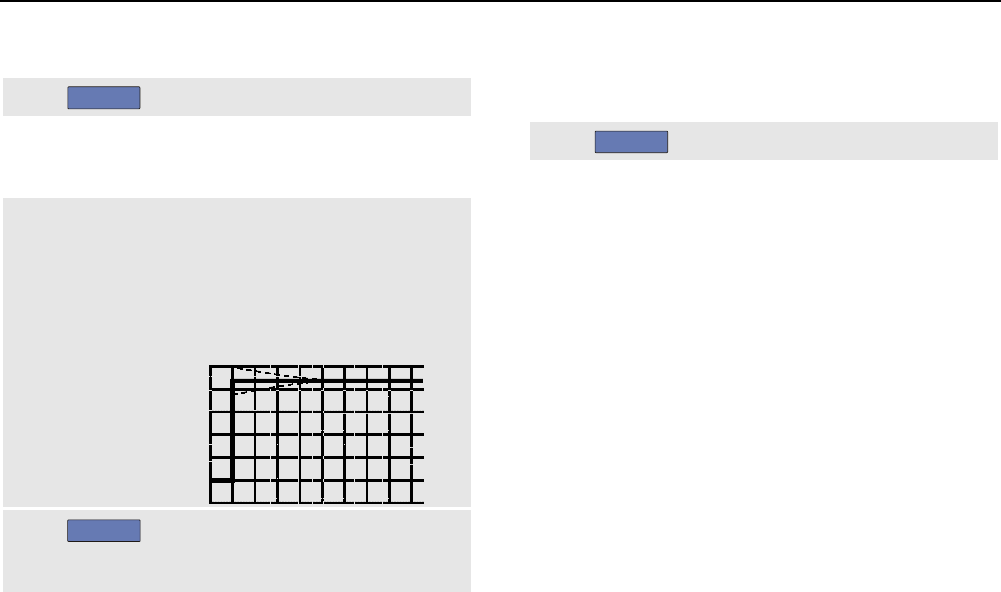
ScopeMeter® Test Tool 190 Series II
Users Manual
100
A message appears asking you whether to start the 10:1
probe calibration.
6
F4
Start the probe calibration.
A message appears telling you how to connect the probe.
Connect the red 10:1 voltage probe to input A and to the
probe calibration reference signal as shown in Figure 50.
7 Adjust the trimmer screw in the
probe housing until a pure square
wave is displayed.
For instructions to access the
trimmer screw in the probe housing
see the probe instruction sheet.
8
F4
Continue with DC calibration.
Automatic DC calibration is only
possible for 10:1 voltage probes.
The test tool automatically calibrates itself to the probe.
During calibration you should not touch the probe. A
message indicates when the DC calibration has completed
successfully.
9
F4
Return.
Repeat the procedure for the blue 10:1 voltage probe on
input B, the gray 10:1 voltage probe on input C and the
green 10:1 voltage probe on input D.
Note
When using 100:1 voltage probes, choose 100:1
attenuation to perform an adjustment.
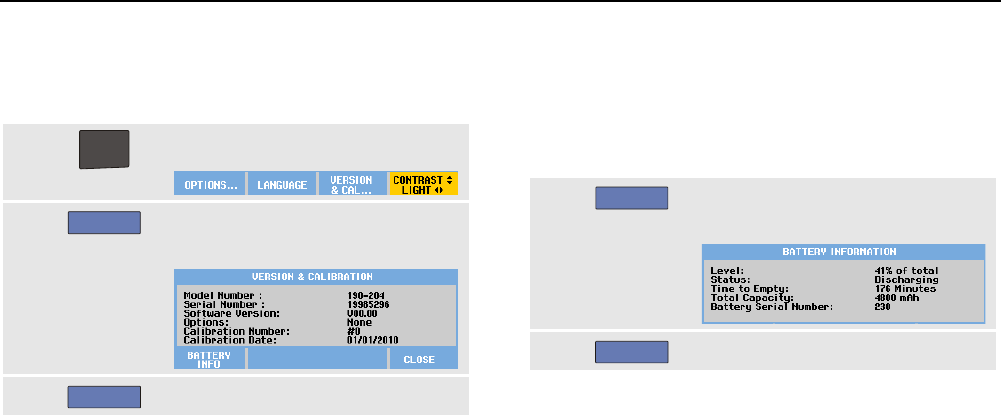
Maintaining the Test Tool
Displaying Version and Calibration Information 7
101
Displaying Version and Calibration
Information
You can display version number and calibration date:
1
USER
Display the USER key labels.
2
F3
Open the VERSION & CALIBRATION
screen.
3
F4
Close the screen.
The screen gives you information about the model number
with software version, the serial number, the calibration
number with latest calibration date, and installed (software)
options.
The test tool specifications (see Chapter 8) are based on a
1 year calibration cycle.
Recalibration must be carried out by qualified personnel.
Contact your local Fluke representative for recalibration.
Displaying Battery Information
The battery information screen provides information about
the batterystatus and battery serial number.
To display the screen proceed from step 2 in the previous
section as follows:
3
F1
Open the BATTERY INFORMATION
menu.
4
F4
Return to the previous screen.
‘Level’ indicates the available battery capacity as a
percentage of the present maximum battery capacity.
‘Time to Empty’ indicates a calculated estimate for the
remaining operating time.
ScopeMeter® Test Tool 190 Series II
Users Manual
102
Parts and Accessories
The following tables list the user-replaceable parts and specific optional accessories for the various test tool models. For
more optional accessories, see www.fluke.com.
To order replacement parts or additional accessories, contact your Fluke representative.
Replacement Parts
Item
Ordering Code
Power Adapter available models:
Universal Europe 230 V, 50 and 60 Hz
North America 120 V, 50 and 60 Hz
United Kingdom 240 V, 50 and 60 Hz
Japan 100 V, 50 and 60 Hz
Australia 240 V, 50 and 60 Hz
Universal 115 V/230 V, 50 and 60 Hz *
* UL listing applies to BC190/808 and BC190/820 with UL listed line
plug adapter for North America.
The 230 V rating of the BC190/808 and BC190/820 are not for use
in North America.
For other countries, a line plug adapter complying with the
applicable National Requirements must be used.
BC190/801
BC190/813
BC190/804
BC190/806
BC190/807
BC190/808
BC190/820
Test Leads with test pins (one red, one black)
TL175
Maintaining the Test Tool
Parts and Accessories 7
103
Replacement Parts (continued)
Voltage Probe Set (Red or Blue or Gray or Green)
The set includes the following items (not available separately):
• 10:1 Voltage Probe, 500 MHz (red or blue)
• Hook Clip for Probe Tip (black)
• Ground Lead with Mini Alligator Clip (black)
• Ground Spring for Probe Tip (black)
• Insulation Sleeve (black)
See Figure 1 on page 2 for item reference.
See the VPS410-II instruction sheet for voltage/CAT ratings.
VPS410-II-R (red)
VPS410-II-B (blue)
VPS410-II-G (gray)
VPS410-II-V (green)
ScopeMeter® Test Tool 190 Series II
Users Manual
104
Replacement Parts (continued)
Replacement Set for Voltage Probe VPS410 and VPS410-II
The set includes the following items (not available separately):
• 1x Hook Clip for Probe Tip (black)
• 1x Ground Lead with Mini Alligator Clip (black)
• 2x Ground Spring for Probe Tip (black)
• 2x Insulation Sleeve for Probe Tip (black)
See Figure 1 on page 2 for item reference.
See the VPS410 instruction sheet for voltage/CAT ratings.
RS400
BNC Feedthrough 50 Ohm (1 Watt) terminator (set of two pieces, black)
TRM50
Li-ion battery (26 Wh, not recommended for models 190-xx4)
BP290
Li-ion battery (52 Wh)
BP291
Hangstrap 946769
Maintaining the Test Tool
Parts and Accessories 7
105
Optional Accessories
Item
Ordering Code
Voltage Probe Set, designed for use with the Fluke 190-50x test tool.
The set includes the following items (not available separately):
• 10:1 Voltage Probe, 500 MHz (red or blue or gray or green)
• Hook Clip for Probe Tip (black)
• Ground Lead with Mini Alligator Clip (black)
• Ground Spring for Probe Tip (black)
• Insulation Sleeve (black)
• Probe Tip to BNC Adapter
VPS510-R (red)
VPS510-B (blue)
VPS510-G (gray)
VPS510-V (green)
Replacement Set for Voltage Probe VPS510
The set includes the following items (not available separately):
• 1x Hook Clip for Probe Tip (black)
• 1x Ground Lead with Mini Alligator Clip (black)
• 2x Ground Spring for Probe Tip (black)
• 2x Insulation Sleeve for Probe Tip (black)
• 2x Probe Tip to BNC Adapter
RS500
ScopeMeter® Test Tool 190 Series II
Users Manual
106
Optional accessories (continued)
Probe Accessory Extension Set – VPS410, VPS410-II
The set includes the following items (not available separately):
• 1x Industrial Alligator for Probe Tip (black)
• 1x 2-mm Test Probe for Probe Tip (black)
• 1x 4-mm Test Probe for Probe Tip (black)
• 1x Industrial Alligator for 4 mm Banana Jack (black)
• 1x Ground Lead with 4-mm Banana Jack (black)
AS400
Software & Carrying Case Kit.
Set contains the following parts:
• FlukeView Software activation key, to convert the FlukeView
demo version into an operational version.
• Hard Shell Carrying Case C290
SCC290
FlukeView
®
ScopeMeter
®
Software for Windows
®
(full version)
SW90W
Hard Shell Carrying Case
C290
External Battery Charger, charges BP290/BP291 externally using BC190
EBC290
High Working Voltage Ruggedized Probe, 100:1, (available in 4 colors),
150 MHz, category rating 1000V CAT III / 600V CAT IV, working voltage
(between probe tip and reference lead) 2000V in a CAT III environment/
1200V in a CAT IV environment.
VPS420-R (red)
VPS420-B (blue)
VPS420-G (gray)
VPS420-V (green)
Maintaining the Test Tool
Parts and Accessories 7
107
Optional accessories (continued)
Hanging Hook; allows the test tool to be hung on a cabinet door or
separation wall.
HH290
50 Ohm Coaxial Cable Set; includes 3 cables (1 red, 1 gray, 1 black),
1.5 m length with safety designed insulated BNC connectors.
PM9091
50 Ohm Coaxial Cable Set; includes 3 cables (1 red, 1 gray, 1 black),
0.5 m length with safety designed insulated BNC connectors.
PM9092
Safety designed BNC T-piece, Male BNC to dual female BNC (fully
isolated).
PM9093
BNC Feedthrough 50 Ohm (1 W) terminator (set of two pieces, black)
TRM50
10:1 200 MHz voltage probe, 2.5 m.
VPS212-R (red), VPS212-G (gray)
1:1 30 MHz voltage probe, 1.2 m.
VPS101
Dual Banana Plug male to female BNC
PM9081
Dual Banana Jack female to male BNC
PM9082
Automotive Troubleshooting Kit
SCC298
Service Kit Meter and Drive Applications
SKMD001
ScopeMeter® Test Tool 190 Series II
Users Manual
108
Troubleshooting
The Test Tool Shuts Down After a Short Time
• The batteries may be empty. Check the battery
symbol at the top right of the screen. A symbol
indicates that the batteries are empty and must be
charged. Connect the BC190 power adapter.
• The test tool is still on but the ‘display auto off’ timer is
active, see Chapter 6 ‘Setting the Display AUTO-off
Timer’. To turn the display on press any key (restarts
the ‘display AUTO-off’ timer), or connect the BC190
power adapter.
• The power down timer is active, see Chapter 6
‘Setting the Power Down timer’.
Press to turn the test tool on.
The Screen Remains Black
• Make sure that the test tool is on (press )
• You might have a problem with the screen contrast.
Press
USER
, then press
F4
. Now you can use
the arrow keys to adjust the contrast.
• The display ‘auto off’ timer is active, see Chapter 6
‘Setting the Display AUTO-off Timer’. To turn the
display on press any key (restarts the ‘display AUTO -
off’ timer), or connect the BC190 power adapter.
The Test Tool Cannot Be Turned Off
If the test tool cannot be turned off due to a software
hangup, do the following:
• Keep the ON/OFF key pressed for at least 5 seconds.
FlukeView® Does Not Recognize The Test Tool
• Make sure that the test tool is turned on.
• Make sure that the interface cable is properly
connected between the test tool and the PC. Use only
the test tool mini USB port for communication with a
computer!
• Make sure that no SAVE/RECAL/COPY/MOVE action
from or to a USB-stick is being performed.
• Make sure that the USB drivers have been correctly
installed, see Appendix A.

Maintaining the Test Tool
Troubleshooting 7
109
Battery Operated Fluke Accessories Do Not
Function
• When using battery operated Fluke accessories,
always first check the battery condition of the
accessory with a Fluke multimeter or follow the
procedure given for that particular accessory.

ScopeMeter® Test Tool 190 Series II
Users Manual
110
111
Chapter 8
Specifications
Introduction
Performance Characteristics
FLUKE guarantees the properties expressed in numerical
values with the stated tolerance. Specified non-tolerance
numerical values indicate those that could be nominally
expected from the mean of a range of identical
ScopeMeter® test tools.
The Test Tool meets the specified accuracy 30 minutes
and two complete acquisitions after power on.
Specifications are based on a 1-year calibration cycle.
Environmental Data
The environmental data mentioned in this manual are
based on the results of the manufacturer’s verification
procedures.
Safety Characteristics
The test tool has been designed and tested in accordance
with Standards EN/IEC 61010-1, EN/IEC 61010-2-030,
EN/IEC 61010-31, Safety Requirements for Electrical
Equipment for Measurement, Control, and Laboratory Use.
This manual contains information and warnings that must
be followed by the user to ensure safe operation and to
keep the instrument in a safe condition. Use of this
equipment in a manner not specified by the manufacturer
may impair protection provided by the equipment.

ScopeMeter® Test Tool 190 Series II
Users Manual
112
Oscilloscope
Isolated Inputs A,B, C and D (Vertical)
Number of Channels
Fluke 190-xx2 .................................................... 2 (A, B)
Fluke 190-xx4 .............................................. 4 (A,B,C,D)
Bandwidth, DC Coupled
FLUKE 190-50x ................................... 500 MHz (-3 dB)
FLUKE 190-2xx .................................... 200 MHz (-3 dB)
FLUKE 190-1xx .................................... 100 MHz (-3 dB)
FLUKE 190-062 ..................................... 60 MHz (-3 dB)
Lower Frequency Limit, AC Coupled
with 10:1 probe ......................................... <2 Hz (-3 dB)
direct (1:1) ................................................. <5 Hz (-3 dB)
Rise Time
FLUKE 190-50x ................................................... 0.7 ns
FLUKE 190-2xx .................................................... 1.7 ns
FLUKE 190-1xx .................................................... 3.5 ns
FLUKE 190-062 ................................................... 5.8 ns
Analog Bandwidth Limiters ................ 20 MHz and 10 kHz
Input Coupling ....................................................... AC, DC
Polarity .................................................... Normal, Inverted
Sensitivity Ranges
with 10:1 probe .............................. 20 mV to 1000 V/div
direct (1:1) .......................................... 2 mV to 100 V/div
Dynamic Range ................................. > ±8 div (< 10 MHz)
.................................................... > ±4 div (> 10 MHz)
Waveform Positioning Range ......................... ±4 divisions
Input Impedance on BNC, DC Coupled
4-channel models .......... 1 MΩ (±1 %)//14 pF (±2.25 pF)
2-channel models .......... 1 MΩ (±1 %)//15 pF (±2.25 pF)
Max. Input Voltage
For detailed specifications, see “Safety” on page 126
Vertical Accuracy ...................... ±(2.1 % + 0.04 range/div)
2 mV/div: .... ±(2.9 % + 0.08 range/div)
For voltage measurements with 10:1 probe, add probe
accuracy, see section ‘10:1 Probe’ on page 129
Digitizer Resolution ..................... 8 bits, separate digitizer
for each input
Horizontal
Minimum Time Base Speed (Scope Record) ..... 2 min/div
Real Time Sampling Rate
FLUKE 190-50x
5 ns to 4 µs /div (3 or 4 channels) ...... up to 1.25 GS/s
2 ns to 4 µs /div (2 channels)................ up to 2.5 GS/s
1 ns to 4 µs /div (1 channel) .................... up to 5 GS/s
10 µs to 120 s/div ......................................... 125 MS/s
FLUKE190-202,-204:
2 ns to 4 µs /div (1 or 2 channels) ........ up to 2.5 GS/s
5 ns to 4 µs /div (3 or 4 channels) ...... up to 1.25 GS/s
10 µs to 120 s/div ......................................... 125 MS/s
Specifications
Oscilloscope 8
113
FLUKE 190-102, -104:
5 ns to 4 µs /div (all channels) ............ up to 1.25 GS/s
10 µs to 120 s/div ......................................... 125 MS/s
FLUKE 190-062:
10 ns to 4 µs /div (all channels) ........... up to 625 MS/s
10 µs to 120 s/div ......................................... 125 MS/s
Glitch Detection
4 µs to 120 s/div ........... displays glitches as fast as 8 ns
Waveform Display ............................................ A, B, C, D,
Math (+, -, x, X-Y mode, spectrum)
Normal, Average, Persistence, Reference
Time Base Accuracy ...................... ±(100 ppm + 0.04 div)
Record Length (all models): see table below.
Table 2. Record Length (all models, Samples/points per input)
Mode Glitch Detect On Glitch Detect Off Max. Samplerate
Scope - Normal 300 min/max pairs 3k true samples compressed
into 1 screen (300 samples per
screen)
190-062: 625 MS/s
190-102/104: 1.25 GS/s
190-202/204: 2.5 GS/s (1 or 2 channels
on)
190-204: 1.25 GS/s (3 or 4
channels on)
190-50x: 5 GS/s (1 channel on)
190-50x: 2.5 GS/s (2 channels on)
190-504: 1.25 GS/s (3 or 4
channels on)
Scope - Fast
300 min/max pairs
-
Scope - Full 300 min/max pairs 10k true samples, compressed
into 1 screen.
Use Zoom and Scroll to see
waveform details
Scope Record Roll
30k samples
4x 125 MS/s
Trend Plot > 18k min/max/ average values
per measurement
Up to 5 measurements per second

ScopeMeter® Test Tool 190 Series II
Users Manual
114
Trigger and Delay
Trigger Modes........................................ Automatic, Edge,
Video, Pulse Width, N-Cycle,
External (190-xx2)
Trigger Delay ................................. up to +1200 divisions
Pre Trigger View ............................. one full screen length
Delay ................................................. -12 div to +1200 div
Max. Delay .................................................. 48 s at 4 s/div
Automatic Connect-and-View Trigger
Source .............................................................. A, B, C, D
EXT (190-xx2)
Slope .......................................... Positive, Negative, Dual
Edge Trigger
Screen Update ............Free Run, On Trigger, Single Shot
Source ...................................... A, B, C, D, EXT (190-xx2)
Slope ........................................... Positive, Negative, Dual
Trigger Level Control Range .......................... ±4 divisions
Trigger Sensitivity
DC to 5 MHz at >5 mV/div .......................... 0.5 divisions
DC to 5 MHz at 2 mV/div and 5 mV/div ........... 1 division
500 MHz (FLUKE 190-50x) ............................. 1 division
600 MHz (FLUKE 190-50x) ........................... 2 divisions
200 MHz (FLUKE 190-2xx) ............................. 1 division
250 MHz (FLUKE 190-2xx) ........................... 2 divisions
100 MHz (FLUKE 190-1xx) ............................. 1 division
150 MHz (FLUKE 190-1xx) ........................... 2 divisions
60 MHz (FLUKE 190-062) ............................... 1 division
100 MHz (FLUKE 190-062) ........................... 2 divisions
Isolated External Trigger (190-xx2)
Bandwidth .............................................................. 10 kHz
Modes .................................................... Automatic, Edge
Trigger Levels (DC to 10 kHz) .................... 120 mV, 1.2 V

Specifications
Oscilloscope 8
115
Video Trigger
Standards .... PAL, PAL+, NTSC, SECAM, Non-interlaced
Modes ...................... Lines, Line Select, Field 1 or Field 2
Source ........................................................................... A
Polarity ................................................. Positive, Negative
Sensitivity ....................................... 0.7 division sync level
Pulse Width Trigger
Screen Update .............................On Trigger, Single Shot
Trigger Conditions ............ <T, >T, =T (±10 %), ≠T(±10 %)
Source ........................................................................... A
Polarity ..................................... Positive or negative pulse
Pulse Time Adjustment Range ........... 0.01 div. to 655 div.
with a minimum of 300 ns (<T, >T) or 500 ns (=T, ≠T),
a maximum of 10 s,
and a resolution of 0.01 div. with a minimum of 50 ns
Continuous Auto Set
Autoranging attenuators and time base, automatic
Connect-and-View™ triggering with automatic source
selection.
Modes
Normal .................................... 15 Hz to max. bandwidth
Low Frequency ......................... 1 Hz to max. bandwidth
Minimum Amplitude A, B, C, D
DC to 1 MHz ........................................................ 10 mV
1 MHz to max. bandwidth .................................... 20 mV
Automatic Capturing Scope Screens
Capacity ............................................ 100 Scope Screens
For viewing screens, see Replay function.

ScopeMeter® Test Tool 190 Series II
Users Manual
116
Automatic Scope Measurements
The accuracy of all readings is within ± (% of reading +
number of counts) from 18 °C to 28 °C. Add 0.1x (specific
accuracy) for each °C below 18 °C or above 28 °C. For
voltage measurements with 10:1 probe, add probe
accuracy, see section ‘10:1 Probe’ on page 129. At least
1.5 waveform period must be visible on the screen.
General
Inputs ............................................................. A, B, C and D
DC Common Mode Rejection (CMRR) .................. >100 dB
AC Common Mode Rejection at 50, 60, or 400 Hz ...... >60 dB
DC Voltage (VDC)
Maximum Voltage
with 10:1 probe ..................................................... 1000 V
direct (1:1) ............................................................... 300 V
Maximum Resolution
with 10:1 probe ........................................................ 1 mV
direct (1:1) ............................................................. 100 µV
Full Scale Reading ............................................. 999 counts
Accuracy at 4 s to 10 µs/div, FLUKE 190-xx2
2 mV/div ......................................... ±(1.5 % + 10 counts)
5 mV/div to 100 V/div ........................ ±(1.5 % + 6 counts)
Accuracy at 4 s to 10 µs/div, FLUKE 190-xx4
2 mV/div ............................................ ±(3 % + 10 counts)
5 mV/div to 100 V/div ........................... ±(3 % + 6 counts)
Normal Mode AC Rejection at 50 or 60 Hz ............. >60 dB
AC Voltage (VAC)
Maximum Voltage
with 10:1 probe ................................................... 1000 V
direct (1:1) ............................................................ 300 V
Maximum Resolution
with 10:1 probe ...................................................... 1 mV
direct (1:1) .......................................................... 100 µV
Full Scale Reading .......................................... 999 counts
Accuracy, FLUKE 190-xx2
DC coupled:
DC to 60 Hz ................................ ±(1.5 % +10 counts)
AC coupled, low frequencies:
50 Hz direct (1:1) ............ ±(1.5 % + 10 counts) - 0.6%
60 Hz direct (1:1) ............ ±(1.5 % + 10 counts) - 0.4%
With the 10:1 probe the low frequency roll off point will
be lowered to 2 Hz, which improves the AC accuracy
for low frequencies. When possible use DC coupling
for maximum accuracy.

Specifications
Automatic Scope Measurements 8
117
AC or DC coupled, high frequencies:
60 Hz to 20 kHz ......................... ±(2.5 % + 15 counts)
20 kHz to 1 MHz ........................... ±(5 % + 20 counts)
1 MHz to 25 MHz ....................... ±(10 % + 20 counts)
For higher frequencies the instrument’s frequency roll
off starts affecting accuracy.
Accuracy, FLUKE 190-xx4
DC coupled:
DC to 60 Hz ................................... ±(3 % +10 counts)
AC coupled, low frequencies:
50 Hz direct (1:1) ............... ±(3 % + 10 counts) - 0.6%
60 Hz direct (1:1) .............. ±(3 % + 10 counts) – 0.4%
With the 10:1 probe the low frequency roll off point will
be lowered to 2 Hz, which improves the AC accuracy
for low frequencies. When possible use DC coupling
for maximum accuracy.
AC or DC coupled, high frequencies:
60 Hz to 20 kHz ............................ ±(4 % + 15 counts)
20 kHz to 1 MHz ........................... ±(6 % + 20 counts)
1 MHz to 25 MHz ....................... ±(10 % + 20 counts)
For higher frequencies the instrument’s frequency roll
off starts affecting accuracy.
Normal Mode DC Rejection .................................. >50 dB
All accuracies are valid if:
• The waveform amplitude is larger than one division
• At least 1.5 waveform period is on the screen
AC+DC Voltage (True RMS)
Maximum Voltage
with 10:1 probe ................................................... 1000 V
direct (1:1) ............................................................ 300 V
Maximum Resolution
with 10:1 probe ...................................................... 1 mV
direct (1:1) .......................................................... 100 µV
Full Scale Reading ........................................ 1100 counts
Accuracy, FLUKE 190-xx2
DC to 60 Hz .................................. ±(1.5 % + 10 counts)
60 Hz to 20 kHz ............................ ±(2.5 % + 15 counts)
20 kHz to 1 MHz .............................. ±(5 % + 20 counts)
1 MHz to 25 MHz ........................... ±(10 % + 20 counts)
For higher frequencies the instrument’s frequency roll off
starts affecting accuracy.
Accuracy, FLUKE 190-xx4
DC to 60 Hz ..................................... ±(3 % + 10 counts)
60 Hz to 20 kHz ............................... ±(4 % + 15 counts)
20 kHz to 1 MHz .............................. ±(6 % + 20 counts)
1 MHz to 25 MHz ........................... ±(10 % + 20 counts)
For higher frequencies the instrument’s frequency roll off
starts affecting accuracy.

ScopeMeter® Test Tool 190 Series II
Users Manual
118
Amperes (AMP)
With Optional Current Probe or Current Shunt
Ranges ............................. same as VDC, VAC, VAC+DC
Probe Sensitivity ................. 100 µV/A, 1 mV/A, 10 mV/A,
100 mV/A, 400 mV/A, 1 V/A, 10 V/A, and 100 V/A
Accuracy ........................... same as VDC, VAC, VAC+DC
(add current probe or current shunt accuracy)
Peak
Modes .................... Max peak, Min peak, or peak-to-peak
Maximum Voltage
with 10:1 probe .................................................. 1000 V
direct (1:1) ............................................................ 300 V
Maximum Resolution
with 10:1 probe ................................................... 10 mV
direct (1:1) ............................................................. 1 mV
Full Scale Reading .......................................... 800 counts
Accuracy
Max peak or Min peak ................................ ±0.2 division
Peak-to-peak.............................................. ±0.4 division
Frequency (Hz)
Range ...................................... 1.000 Hz to full bandwidth
Full Scale Reading .......................................... 999 counts
Accuracy
1 Hz to full bandwidth ...................... ±(0.5 % +2 counts)
(4 s/div to 10 ns/div and 10 periods on the screen).
Duty Cycle (DUTY)
Range ..................................................... 4.0 % to 98.0 %
Resolution ............................. 0.1 % (when period > 2 div)
Full Scale Reading ................. 999 counts (3-digit display)
Accuracy (logic or pulse) .................... ±(0.5 % +2 counts)
Pulse Width (PULSE)
Resolution (with GLITCH off) ........................ 1/100 division
Full Scale Reading .......................................... 999 counts
Accuracy
1 Hz to full bandwidth ...................... ±(0.5 % +2 counts)
Vpwm
Purpose ................. to measure on pulse width modulated
signals, like motor drive inverter outputs
Principle ......... readings show the effective voltage based
on the average value of samples over a
whole number of periods of the fundamental
frequency
Accuracy ............................ as Vrms for sinewave signals

Specifications
Automatic Scope Measurements 8
119
V/Hz
Purpose .................... to show the measured Vpwm value
(see Vpwm) divided by the fundamental frequency
on Variable AC Motor Speed drives.
Accuracy ................................................... %Vrms + %Hz
Note
AC motors are designed for use with a rotating
magnetic field of constant strength. This strength
depends on the applied vottage (Vpwm) divided
by the fundamental frequency of the appied
voltage (Hz). The nominal Volt and Hz value are
shown on the motor type plate.
Power (A and B, C and D)
Power Factor ........................ ratio between Watts and VA
Range ........................................................ 0.00 to 1.00
Watt ................................... RMS reading of multiplication
corresponding samples of input A or C (volts)
and Input B or D (amperes)
Full Scale Reading ....................................... 999 counts
VA ................................................................ Vrms x Arms
Full Scale Reading ....................................... 999 counts
VA Reactive (VAR) ....................................... √((VA)2-W2)
Full Scale Reading ....................................... 999 counts
Phase (A and B, C and D)
Range ............................................. -180 to +180 degrees
Resolution .......................................................... 1 degree
Accuracy
0.1 Hz to 1 MHz ........................................... ±2 degrees
1 MHz to 10 MHz ......................................... ±3 degrees
Temperature (TEMP)
With Optional Temperature Probe (
°
F not for Japan)
Ranges (°C or °F) .................................. -40.0 to +100.0 °
-100 to +250 °
-100 to +500 °
-100 to +1000 °
-100 to + 2500 °
Probe Sensitivity ............................. 1 mV/°C and 1 mV/°F
Accuracy ........................................... ±(1.5 % + 5 counts)
(add temperature probe accuracy for overall accuracy)
Decibel (dB)
dBV ................................................ dB relative to one volt
dBm .................... dB relative to one mW in 50 Ω or 600 Ω
dB on .......................................... VDC, VAC, or VAC+DC
Accuracy .......................... same as VDC, VAC, VAC+DC

ScopeMeter® Test Tool 190 Series II
Users Manual
120
Meter Measurements for Fluke 190-xx4
Four of the Automatic Scope Measurements as defined
above may be displayed at the same time, using larger
screen area for convenient reading, suppressing the scope
waveform information. For specifications see Automatic
scope Measurements above.
Meter Measurements for Fluke 190-xx2
The accuracy of all measurements is within ± (% of
reading + number of counts) from 18 °C to 28 °C.
Add 0.1x (specific accuracy) for each °C below 18 °C or
above 28 °C.
Meter Input (Banana Jacks)
Input Coupling ..............................................................DC
Frequency Response ....................... DC to 10 kHz (-3 dB)
Input Impedance ................ 1 MΩ (±1 %)//14 pF (±1.5 pF)
Max. Input Voltage ............................ 1000 V CAT III
600 V CAT IV
(For detailed specifications, see “Safety”)
Meter Functions
Ranging ........................................................ Auto, Manual
Modes .................................................... Normal, Relative
General
DC Common Mode Rejection (CMRR) .................. >100 dB
AC Common Mode Rejection at 50, 60, or 400 Hz ...... >60 dB

Specifications
Meter Measurements for Fluke 190-xx2 8
121
Ohms (
Ω
)
Ranges ................................. 500.0 Ω, 5.000 kΩ, 50.00 kΩ,
500.0 kΩ, 5.000 MΩ, 30.00 MΩ
Full Scale Reading
500 Ω to 5 MΩ ............................................... 5000 counts
30 MΩ ........................................................... 3000 counts
Accuracy ............................................... ±(0.6 % +6 counts)
Measurement Current ....................0.5 mA to 50 nA, ±20 %
decreases with increasing ranges
Open Circuit Voltage .................................................... <4 V
Continuity (CONT)
Beep ........................................................... <50 Ω (±30 Ω)
Measurement Current .................................. 0.5 mA, ±20 %
Detection of shorts of ................................................ ≥1 ms
Diode
Maximum Voltage Reading ...................................... 2.8 V
Open Circuit Voltage ................................................. <4 V
Accuracy ............................................... ±(2 % +5 counts)
Measurement Current ............................... 0.5 mA, ±20 %
Temperature (TEMP)
With Optional Temperature Probe
Ranges (°C or °F) .................................. -40.0 to +100.0 °
-100.0 to +250.0 °
-100.0 to +500.0 °
-100 to +1000 °
-100 to + 2500 °
Probe Sensitivity ............................. 1 mV/°C and 1 mV/°F
DC Voltage (VDC)
Ranges ...... 500.0 mV, 5.000 V, 50.00 V, 500.0 V, 1100 V
Full Scale Reading ........................................ 5000 counts
Accuracy ............................................ ±(0.5 % +6 counts)
Normal Mode AC Rejection at 50 or 60 Hz ±1 %..... >60 dB
AC Voltage (VAC)
Ranges ...... 500.0 mV, 5.000 V, 50.00 V, 500.0 V, 1100 V
Full Scale Reading ........................................ 5000 counts
Accuracy
15 Hz to 60 Hz .................................. ±(1 % +10 counts)
60 Hz to 1 kHz ............................... ±(2.5 % +15 counts)
For higher frequencies the frequency roll off of the
Meter input starts affecting accuracy.
Normal Mode DC Rejection ................................... >50 dB

ScopeMeter® Test Tool 190 Series II
Users Manual
122
AC+DC Voltage (True RMS)
Ranges ..... 500.0 mV, 5.000 V, 50.00 V, 500.0 V, 1100 V
Full Scale Reading ........................................ 5000 counts
Accuracy
DC to 60 Hz ..................................... ±(1 % +10 counts)
60 Hz to 1 kHz ...............................±(2.5 % +15 counts)
For higher frequencies the frequency roll off of the Meter
input starts affecting accuracy.
All accuracies are valid if the waveform amplitude is
larger than 5 % of full scale.
Amperes (AMP)
With Optional Current Probe or Current Shunt
Ranges ............................. same as VDC, VAC, VAC+DC
Probe Sensitivity ................. 100 µV/A, 1 mV/A, 10 mV/A,
100 mV/A, 1 V/A, 10 V/A, and 100 V/A
Accuracy ........................... same as VDC, VAC, VAC+DC
(add current probe or current shunt accuracy)
Recorder
TrendPlot (Meter or Scope)
Chart recorder that plots a graph of min and max values of
Meter or Scope measurements over time.
Measurement Speed ......................... >5 measurements/s
Time/Div ............................................ 5 s/div to 30 min/div
Record Size (min, max, average) ................. 19200 points
Recorded Time Span ........................ 64 min to 546 hours
.........................................................................................
Time Reference ..................... time from start, time of day
Scope Record
Records scope waveforms in deep memory while
displaying the waveform in Roll mode.
Source ...................................................... Input A, B, C, D
Max. Sample Speed (4 ms/div to 1 min/div) ....... 125 MS/s
Glitch capture (4 ms/div to 2 min/div) ......................... 8 ns
Time/Div in normal mode ................. 4 ms/div to 2 min/div
Record Size ............................... 30k points per waveform
Recorded Time Span ............................. 4.8 s to 40 hours

Specifications
Zoom, Replay and Cursors 8
123
Acquisition Modes ....................................... Single Sweep
Continuous Roll
Start/Stop on Trigger
Time Reference ..................... time from start, time of day
Zoom, Replay and Cursors
Zoom
Zoom ranges from full record overview to detailed view of
individual samples
Replay
Displays a maximum of 100 captured quad input Scope
screens.
Replay modes ........... Step by Step, Replay as Animation
Cursor Measurements
Cursor Modes ...................................single vertical cursor
dual vertical cursors
dual horizontal cursors (Scope mode)
Markers ....................... automatic markers at cross points
Measurements ....................................... value at cursor 1
value at cursor 2
difference between values at cursor 1 and 2
time between cursors,
RMS between cursors
Time of Day (Recorder modes)
Time from Start (Recorder modes)
Rise Time, fall time
A x s (current over time between cursors)
V x s (voltage over time between cursors)
W x s (power over time between cursors using
powerwaveform AxB or CxD)

ScopeMeter® Test Tool 190 Series II
Users Manual
124
Miscellaneous
Display
View Area .............. 126.8 x 88.4 mm (4.99 x 3.48 inches)
Resolution ............................................... 320 x 240 pixels
Backlight ...................... LED (Temperature compensated)
Brightness ............................... Power Adapter: 200 cd/m2
Battery Power: 90 cd/ m2
Display Auto-OFF time (battery saving) ......... 30 seconds,
5 minutes or disabled
Power
FLUKE 190-xx4, -50x: Rechargeable Li-ion Battery (model
BP291):
Operating Time ................. up to 7 hours (Low Intensity)
Charging Time ................................................... 5 hours
Capacity/Voltage .................................... 52 Wh / 10.8 V
FLUKE 190-062, -102, -202: Rechargeable Li-ion Battery
(model BP290):
Operating Time ................. up to 4 hours (Low Intensity)
Charging Time ................................................ 2.5 hours
Capacity/Voltage .................................... 26 Wh / 10.8 V
Rechargeable Li-ion Battery (model BP 290 and BP291):
Life Time (> 80 % capacity) ........ 300x charge/discharge
Allowable ambient
temperature during charging: ..... 0 to 40 °C (32 to 104 °F)
Auto power down
time (battery saving): .............. 5 min, 30 min or disabled
Power Adapter BC190:
• BC190/801 European line plug 230 V ±10 %
• BC190/813 North American line plug 120 V ±10 %
• BC190/804 United Kingdom line plug 230 V ±10 %
• BC190/806 Japanese line plug 100 V ±10 %
• BC190/807 Australian line plug 230 V ±10 %
• BC190/808 Universal switchable adapter 115 V ±10 %
or 230 V ±10 %, with plug EN60320-2.2G
• BC190/820 Universal adapter 100...240 V ±10 %, with
plug EN60320-2.2G
Line Frequency .......................................... 50 and 60 Hz
Probe Calibration
Manual pulse adjustment and automatic DC adjustment
with probe check
Generator Output ............................... 1.225 Vpp / 500 Hz
square wave

Specifications
Miscellaneous 8
125
Internal Memory
Number of Scope Memories ......................................... 30
Each memory can contain 2/4 waveforms plus
corresponding setups
Number of Recorder Memories ..................................... 10
Each memory can contain:
• a 2/4 channel input TrendPlot
• a 2/4 channel input Scope Record
• 100 2/4 channel input Scope screens (Replay)
Number of Screen Image memories ............................... 9
Each memory can contain one screen image
External Memory
USB stick, 2GB max
Mechanical
Size ..................... 265 x 190 x 70 mm (10.5 x 7.5 x 2.8 in)
Weight
FLUKE 190-xx4 ........... 2.2 kg (4.8 lbs) including battery
FLUKE 190-5xx ........... 2.2 kg (4.8 lbs) including battery
FLUKE 190-xx2 ........... 2.1 kg (4.6 lbs) including battery
Interface Ports
Two USB ports provided. Ports are fully insulated from
instrument’s floating measurement circuitry.
• A USB-host port directly connects to external flash
memory drive (‘USB-stick’, ≤ 2 GB) for storage of
waveform data, measurement results, instrument
settings and screen copies.
• A mini-USB-B is provided which allows for
interconnection to PC for remote control and data
transfer using SW90W (FlukeView® software for
Windows ®).
• One port can be active at the same time, therefor
remote control and data transfer via mini-USB is not
possible when saving or recalling data to or from the
USB-stick.

ScopeMeter® Test Tool 190 Series II
Users Manual
126
Environmental
Environmental .......................... MIL-PRF-28800F, Class 2
Temperature
Operating:
battery installed .................... 0 to 40 °C (32 to 104 °F)
no battery installed ............... 0 to 50 °C (32 to 122 °F)
Storage ............................. -20 to +60 °C (-4 to +140 °F)
Humidity (Maximum Relative)
Operating:
0 to 10 °C (32 to 50 °F) ....................... noncondensing
10 to 30 °C (50 to 86 °F) ....................... 95 % (± 5 %)
30 to 40 °C (86 to 104 °F) ...................... 75 % (± 5 %)
40 to 50 °C (104 to 122 °F) .................... 45 % (± 5 %)
Storage:
-20 to +60 °C (-4 to +140 °F) ............... noncondensing
Altitude
Operating:
CATIII 600V, CATII 1000V ............. 3 km (10 000 feet)
CATIV 600V, CATIII 1000V .............. 2 km (6 600 feet)
Storage ........................................... 12 km (40 000 feet)
Vibration (Sinusoidal) .......................................... max. 3 g
Vibration (Random) .......................................... 0.03 g2/Hz
Shock ................................................................ max. 30 g
Electromagnetic Environment .................. EN/IEC61326-1
(Portable Equipment)
Enclosure Protection ......................... IP51, ref: IEC60529
Standards
Conforms to ..............................
Electromagnetic Compatibility .........Applies to use in Korea only.
Class A Equipment (Industrial
Broadcasting &
Communication Equipment) [1]
[1] This product meets requirements
for industrial (Class A)
electromagnetic wave equipment
and the seller or user should take
notice of it. This equipment is
intended for use in business
environments and is not to be used
in homes.
Specifications
Safety 8
127
Safety
Designed for 1000 V Measurement Category III, 600 V
Measurement Category IV (with supplied 10:1 probes) per:
• EN/IEC 61010-1, Pollution Degree 2
• EN/IEC61010-2-030
• IEC61010-031
Max. Input Voltages
BNC Input A, B, (C, D) directly ................... 300 V CAT IV
Via VPS410 .............................................. 1000 V CAT III
600 V CAT IV
METER/EXT banana input ....................... 1000 V CAT III
600 V CAT IV
Max. Floating Voltage
FLUKE 190-xxx (test tool or test tool + VPS410)
From any terminal to earth ground ......... 1000 V CAT III
600 V CAT IV
Between any terminal ............................. 1000 V CAT III
600 V CAT IV
FLUKE 190-xxx + VPS510
From any terminal to earth ground ........... 300 V CAT III
Between any terminal ............................... 300 V CAT III
Voltage ratings are given as “working voltage”. They
should be read as Vac-rms (50-60 Hz) for AC sinewave
applications and as Vdc for DC applications.
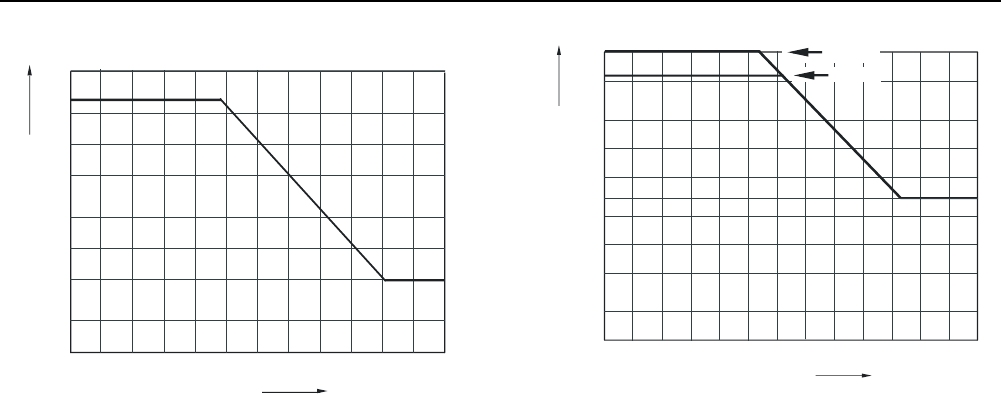
ScopeMeter® Test Tool 190 Series II
Users Manual
128
MAX. INPUT
VOLTAGE (Vrms)
FREQUENCY (MHz)
0.01 0.02 0.05 0.1 0.2 0.5 1 2 5 10 20 50 100
500
200
100
50
20
10
5
2
1
Figure 51. Max. Input Voltage vs. Frequency
CAT IV
CAT III
VOLTAGE (Vrms)
FREQUENCY (kHz)
1000
500
200
100
50
30
20
10
5
2
1
0.01 0.02 0.05 0.1 0.2 0.5 1 2 510 20 50 100 200
Figure 52. Safe Handling: Max. Voltage Between
Scope References, and Between Scope References
and earth ground.

Specifications
10:1 Probe VPS410 8
129
10:1 Probe VPS410
Accuracy
Probe accuracy when adjusted on the test tool:
DC to 20 kHz .......................................................... ±1 %
20 kHz to 1 MHz..................................................... ±2 %
1 MHz to 25 MHz ................................................... ±3 %
For higher frequencies the probe’s roll off starts affecting
the accuracy.
For further probe specifications see the instruction
sheet supplied with the VPS410 probe set.
ScopeMeter® Test Tool 190 Series II
Users Manual
130
Electromagnetic Immunity
The Fluke 190 Series II test tools, including standard accessories are compliant to EN61326-1, with the addition of the
following table
Scope Mode (10 ms/div: Waveform disturbance with VPS410 voltage probe shorted. (Table 3)
Table 3. (E = 3V/m)
Frequency No Disturbance Disturbance < 10% of full scale Disturbance > 10% of full scale
80 MHz – 450 MHz
≥ 500 mV/d
100, 200 mV/div
2, 5, 10, 20, 50 mV/div
450 MHz – 1 GHz
All ranges
1.4 GHz – 2 GHz
All ranges
2 GHz – 2.7 GHz (1 V/m)
All Ranges
Appendices
Appendix Title Page
A Installing USB Drivers ............................................................................................ A-1
B Battery Pack MSDS ................................................................................................ B-1
C Instrument Security Procedures ........................................................................... C-1

ScopeMeter® Test Tool 190 Series II
Users Manual
A-1
Appendix A
Installing USB Drivers
Introduction
The Fluke 190 Series II ScopeMeter® comes with a USB
interface (connector: USB type “B mini”) for
communication with a computer. To be able to
communicate with the instrument, drivers need to be
loaded onto the computer. This document describes how
to install the drivers on a Windows XP computer.
Installing on other Windows versions will be similar.
Drivers for Windows XP, Vista and Win 7 are available
from the Windows Driver Distribution Center, and can be
downloaded automatically if your computer is connected
to the internet.
The drivers have passed Windows Logo Verification and
are signed by Microsoft Windows Hardware Compatibility
Publisher. This is required for installation on Win 7.
Note
The Fluke 190 Series II instrument requires two
drivers to be loaded in sequence.
− 1st it requires installation of the Fluke 190
ScopeMeter® USB driver
− 2nd it requires installation of the Fluke USB
Serial port
Both of these drivers need to be installed to be
able to communicate with the ScopeMeter®!
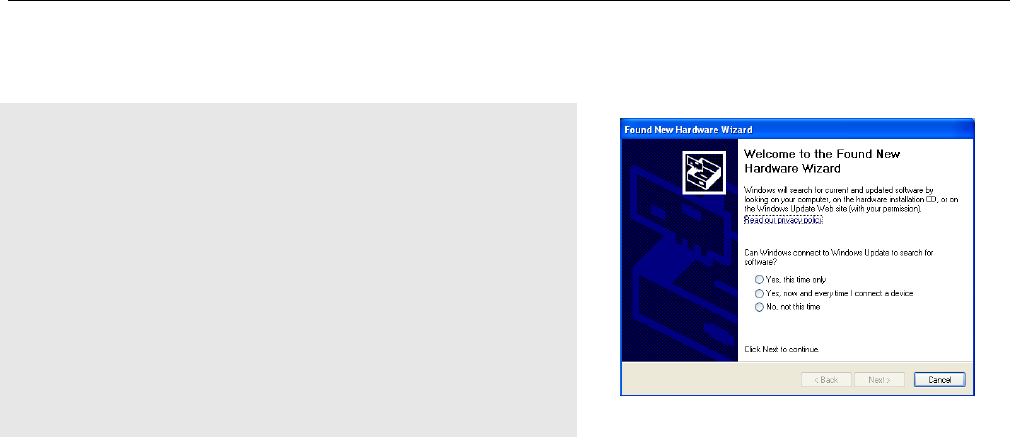
ScopeMeter® Test Tool 190 Series II
Users Manual
A-2
Installing the USB Drivers
To install the USB drivers, do the following:
1 Connect the Fluke 190 Series II instrument to the PC. The USB
cable can be plugged in and out (hot-swap) when both the
computer and the instrument are on. It is not required to power
off.
When there is no driver loaded for the Fluke 190 Series II
instrument, Windows will show that there is New Hardware
detected, and the Wizard for installing new hardware will open.
Depending on your PC settings, Windows may ask for
permission to search the Windows Update Web site on the
internet for the latest revision. When you have an internet
connection it is advised to select “Yes” and click Next. To install
drivers from the CD-ROM or from a location on the hard drive
select “No, not this time”.
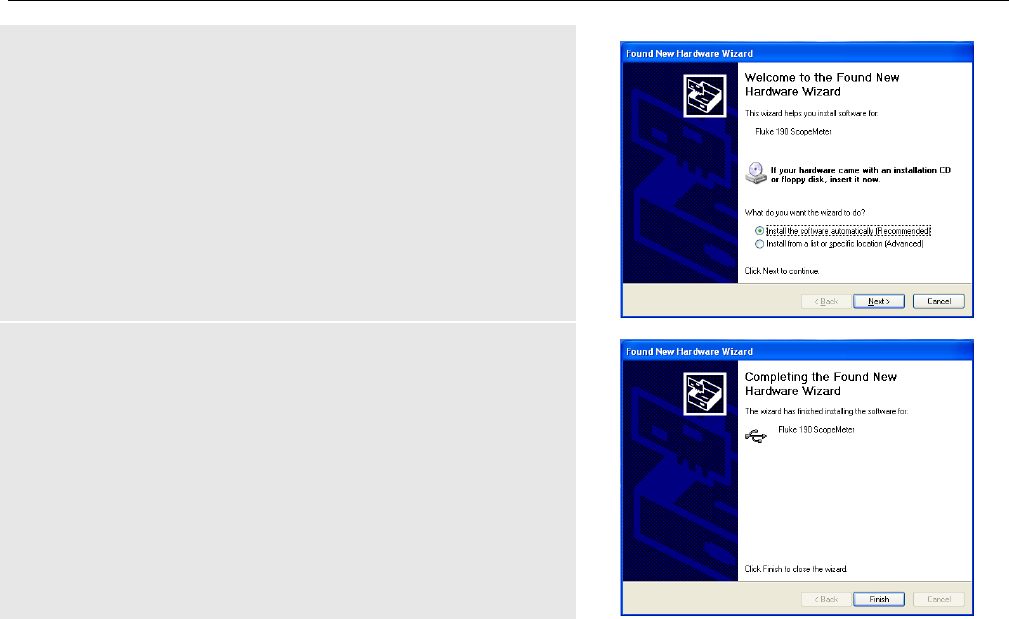
Appendices
Installing USB Drivers A
A-3
2 In the following window click ‘Next’ to install the software
automatically.
Windows will download the drivers automatically from the
Windows Driver Distribution Center on the internet. If there is
no connection to the internet, you need to load the CD-ROM,
supplied with the ScopeMeter®, which contains the drivers.
3 Follow the instructions on screen.
When the driver has finished installation click ‘Finish’ to
complete the first step of the driver installation.
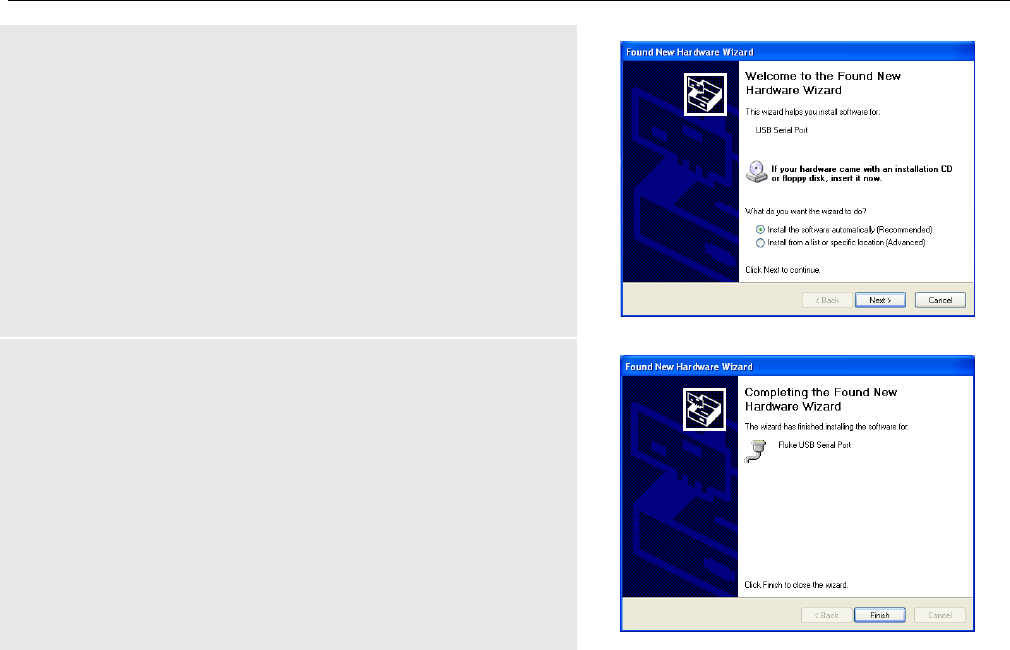
ScopeMeter® Test Tool 190 Series II
Users Manual
A-4
4 After completing the first step the New Hardware Wizard will
start again to install the USB Serial Port Driver.
Click ‘Next’ to install the software automatically.
Windows will download the drivers automatically from the
Windows Driver Distribution Center on the internet. If there is
no connection to the internet, you need to load the CD-ROM,
supplied with the ScopeMeter®, which contains the drivers.
5 Follow the instructions on screen.
When the driver finished installation click ‘Finish’ to complete
the final step of the driver installation.
You are now ready to use the ScopeMeter® with FlukeView®
Software SW90W from version V5.1 onwards.
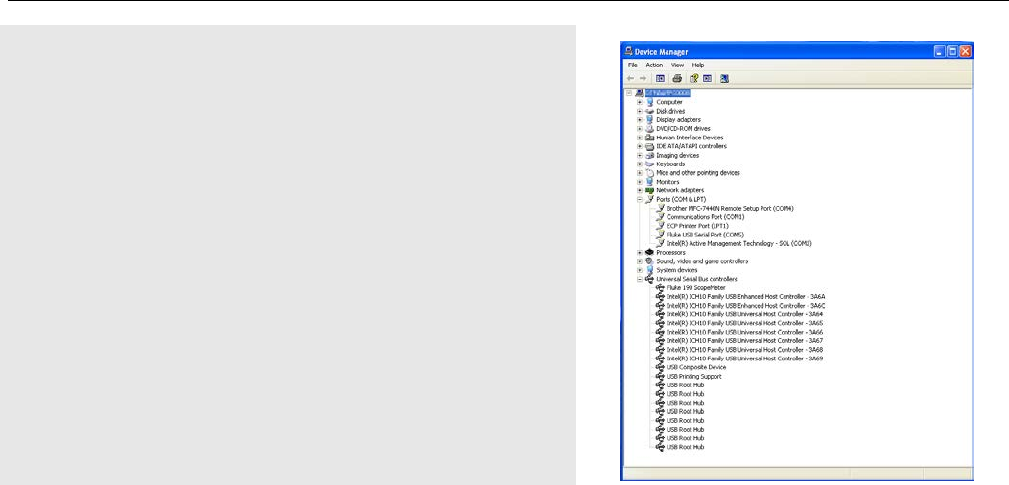
Appendices
Installing USB Drivers A
A-5
6 To check if the drivers are loaded properly, connect the
ScopeMeter® 190 Series II to your computer and open the
Device Manager. (See the Help file of your computer how to
open the device manager for your Windows version)
From the device manager click on the + sign to Expand the
‘Universal Serial Bus controllers’. The ‘Fluke 190 ScopeMeter®’
should be listed here.
From the device manager click on the + sign to Expand the
‘Ports (COM & LPT)’ Universal Serial Bus controllers. The
‘Fluke USB Serial Port COM(5)’ should be listed here.
Note that the COM port number may differ and is automatically
assigned by Windows.

ScopeMeter® Test Tool 190 Series II
Users Manual
A-6
Notes
1) Sometimes application software may require a different port number. (for example in the range Com 1..4).
In this situation the COM port number can be changed manually.
To manually assign a different COM port number right click on ‘Fluke USB Serial Port COM(5)’ and select
properties. From the Properties menu, select the Port Settings tab, and click ‘Advanced…’ to change the
port number.
2) Sometimes other applications installed on the PC automatically occupy the newly created port. On most
situations it is sufficient to unplug the Fluke 190 Series II ScopeMeter® USB cable shortly and then re-
connect the cable.

Appendices
Battery Pack MSDS B
B-1
Appendix B
Battery Pack MSDS
Li-ion Battery Pack
Contact Fluke for a Battery Material Safety Data Sheet
(MSDS) or Compliance Information.

ScopeMeter® Test Tool 190 Series II
Users Manual
B-2

Appendices
Instrument Security Procedures C
C-1
Appendix C
Instrument Security Procedures
Memory
The 190 Series II ScopeMeter® test tool has the
following memory devices:
1. D4000 Controller “Spider”. Contains a mask ROM
4kx32 with a initial program with the operating code
for the product and a RAM 1kx32 to temporarily store
stack values for computing actions.
2. D4001: 1 x 4 Mb SRAM memory used to store:
- the actual screen and instrument setup.
- saved screens and instrument setups.
3. D5000, D5002:
2 x 64 Mb Flash EEPROM.
Non-volatile memory used to store operating code
(instrument firmware) for the product, and to store
calibration constants.
4. D5001, D5003: 2 x 8 Mb SRAM memory used to
store:
- the actual screen and instrument setup
- saved screens and instrument setups
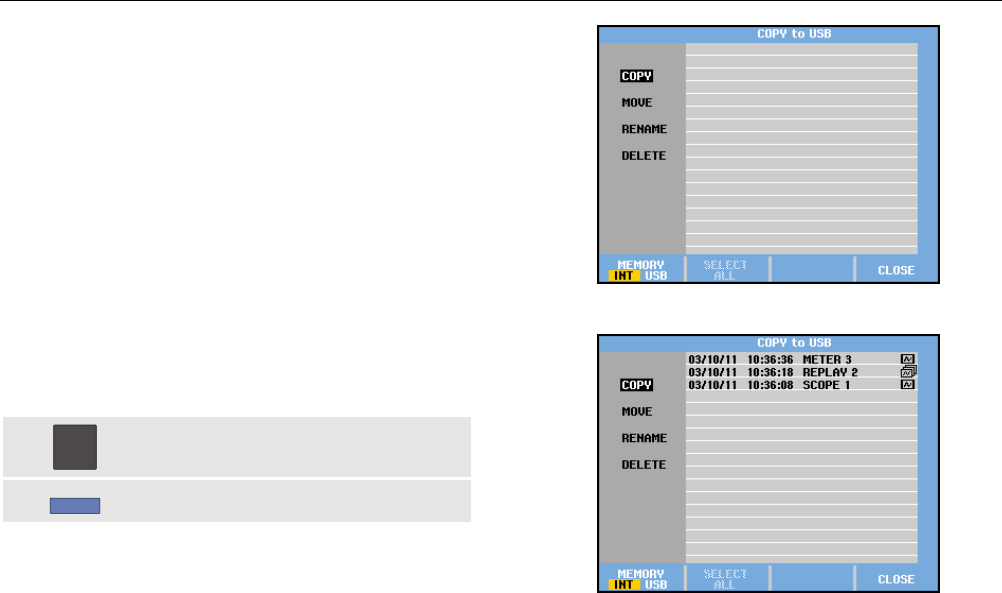
ScopeMeter® Test Tool 190 Series II
Users Manual
C-2
Security Summary
The operating code (instrument firmware) stored in
D5000, D5002 can be read using dedicated remote
interface commands (only available for use by Product
Development).
The instrument firmware can be loaded using a dedicated
Fluke software program (only available for Fluke
(authorized) workshops).
Calibration constants stored in D5000, D5002 can be
read using special remote interface commands (only
available for use by Product Development). The
calibration constants are generated when the meter is
sent through its calibration process and are fundamental
to the test tool operation.
To clear the saved screens and instrument setups:
1
SAVE
Push the SAVE button.
2
F4
Press F4 – FILE OPTIONS…
If you see a screen like figure C-1, no screens and
instrument setups are stored. Press the F4 key (CLOSE)
to exit.
If you see a screen like figure C-2, continue at step 3
below.
Figure C-1. Screen if memory is empty
Figure C-2. Screen if memory is not empty
Appendices
Instrument Security Procedures C
C-3
3
Select DELETE with the up/down
arrow keys.
4
ENTER
Press ENTER.
5
F2
Press F2 – SELECT ALL.
6
ENTER
Press ENTER.
7
F4
Press F4 – YES to confirm the Clear
action.
If the test tool is not powered through its Power Adapter
removing the battery for 10 minutes will clear all data
stored in SRAM. For this proceed as follows: disconnect
the Test Tool from all voltage sources, open the battery
door present at the rear panel and lift the battery out of
the instrument.

ScopeMeter® Test Tool 190 Series II
Users Manual
C-4
