Formosa Teletek BT112FTT06 BLUETOOTH FLASH DISK User Manual MANUAL
Formosa Teletek Corporation BLUETOOTH FLASH DISK MANUAL
MANUAL

Formosa Teletek Corporation
BTW User’s Guide
Version: 1.3
Formosa Teletek Corporation
358, Huaya 2nd Rd., Gueishan
Shiang, Taoyuan, Taiwan
Tel: 886-3-3280800
Fax: 886-3-3281231
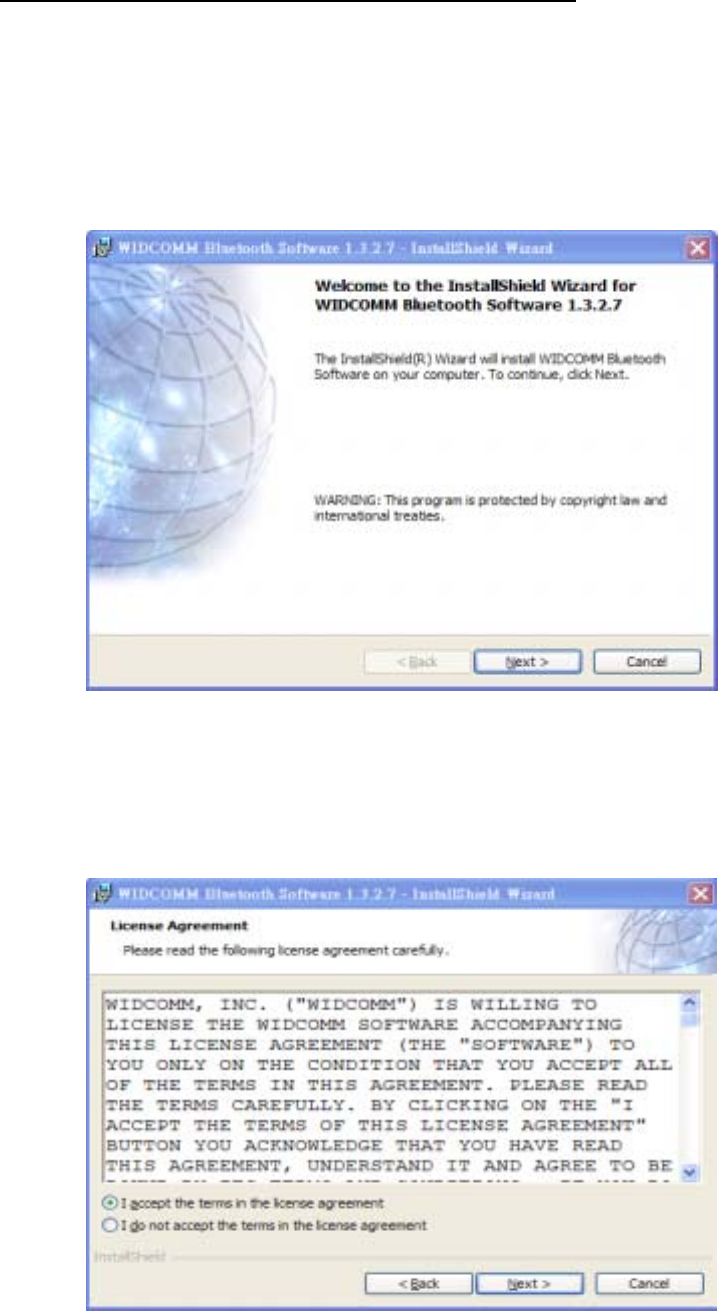
Software & Driver Installation(98/ME/2000/XP)
1. Close any open programs and insert the utility CD into your CD-ROM
Driver.
2. Click on the My Computer icon on your desktop.
(a) Click on the icon representing your CD-ROM to open it.
(b) Double click on the “SETUP” icon.
3. The Welcome screen informs you that the WIDCOMM Bluetooth Software
Setup program is ready to begin. Click on the “Next” button.
4. I n the License Agreement screen, click on the radio button to the left of ”I
accept the terms in the license agreement”. Click on the ”Next” button.
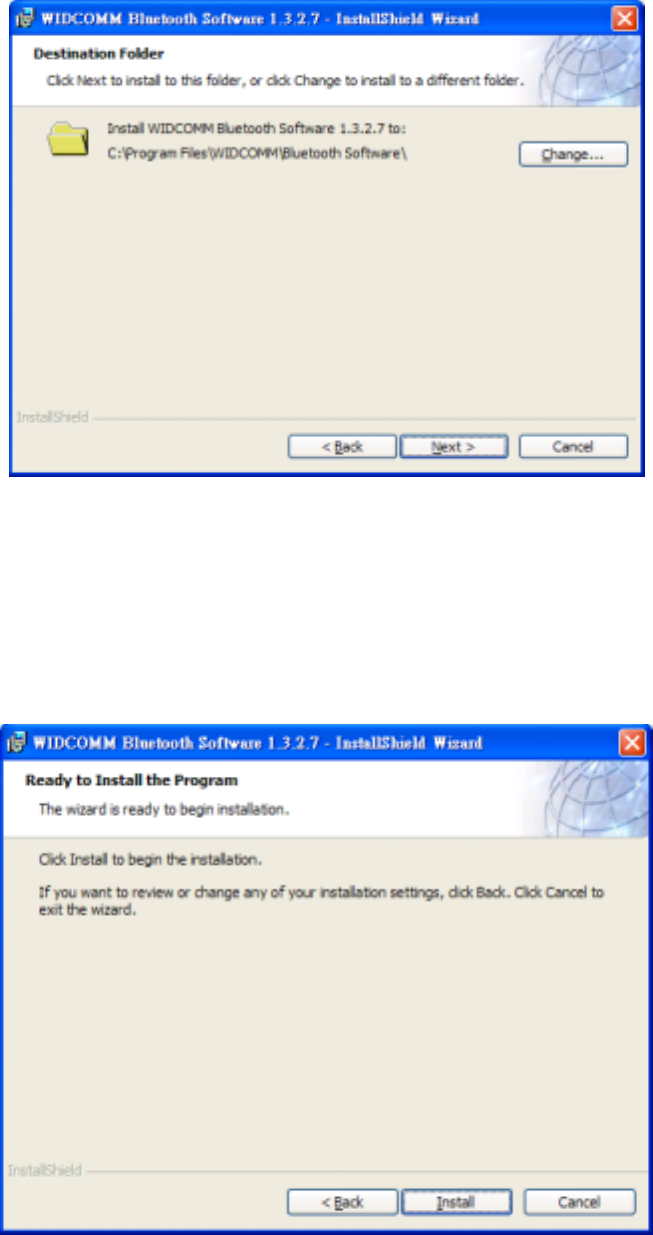
5. In the Destination Folder screen you are asked to confirm the application
software. If you would like, you may change the destination folder to
another location as the directory. Click on the ”Next” button.
6. The Ready to install the Program screen informs you that the driver is
ready for installation. Click on the “Install” button to continue.
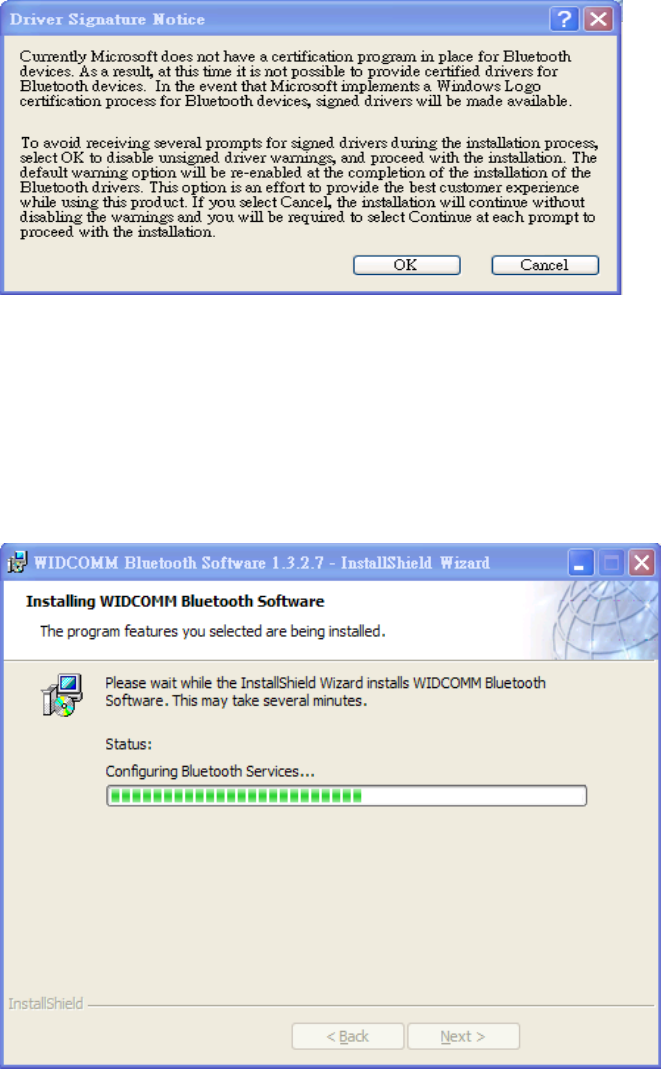
Note:
Please click on “OK” button from the Driver Signature Notice dialog box to
proceed with driver installation in Win2000 and WinXP operating system.
7. After you click “OK” button from the Driver Signature Notice dialog box at
previous step, the InstallShield Wizard will continue to install WIDCOMM
Bluetooth Software.
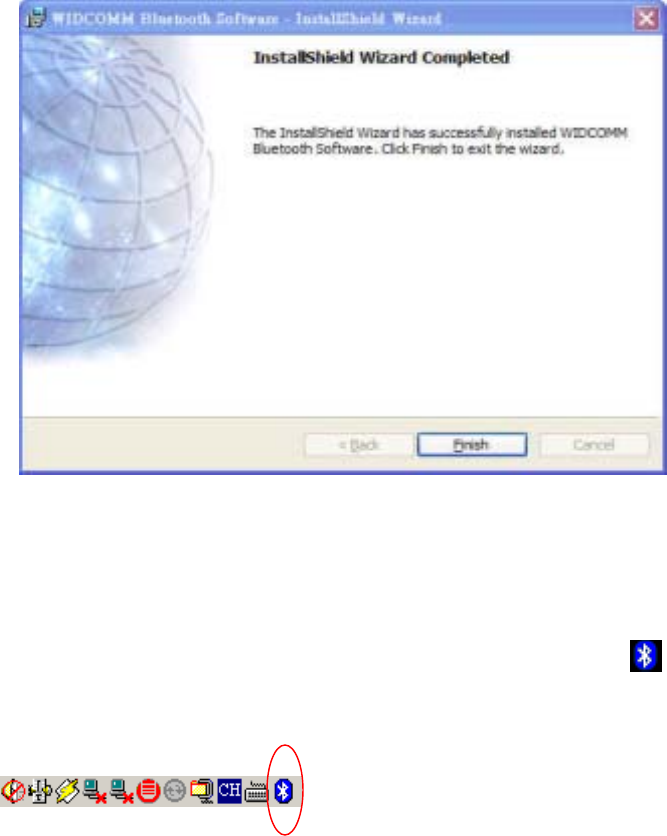
8. When the files have been copied, you will be presented with a screen
informing of its completion.
Click on the ”Finish” button, a pop-up dialog box will on the screen.
9. After you click on the ”Finish” button, the FORMOSA TELETEK USB
DONGLE Driver will finish installation and the ”Bluetooth Icon” Btw.ico
resides in the Windows system tray.
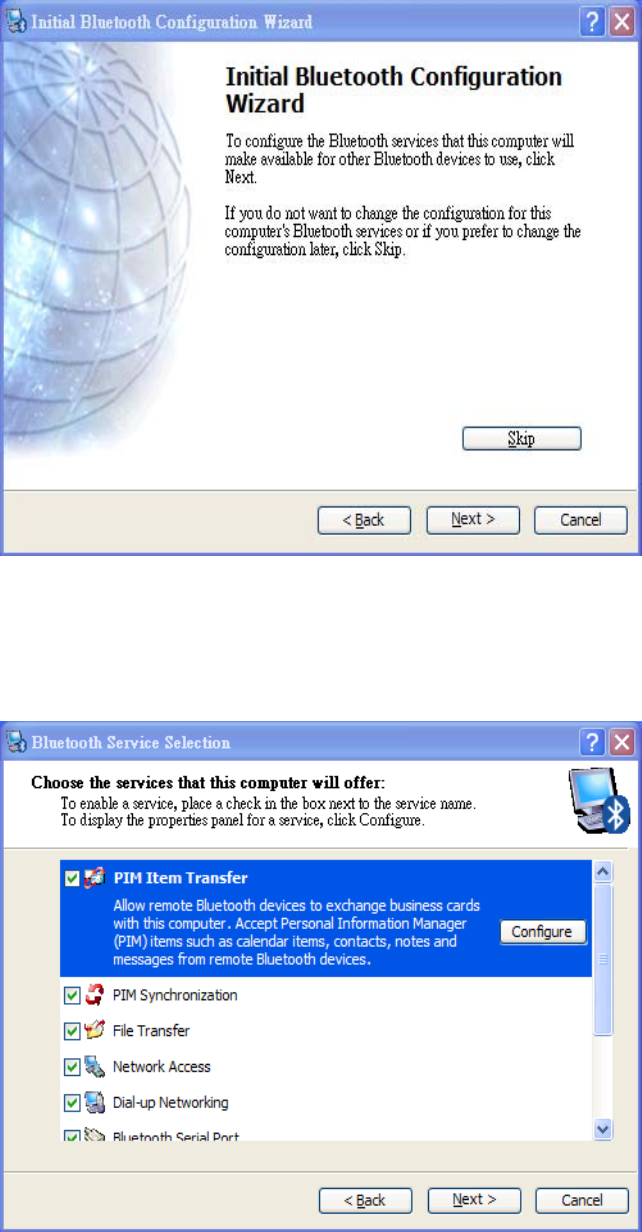
10. Double click the ”Bluetooth Icon” Btw.ico resides in the Windows system
tray or on the Desktop to perform some initial setup.
Click on the check button you want the Bluetooth feature on your
computer. Then click on the ”Next” button.
11. Enter a unique name for this computer, and select a computer type from
the drop-down menu. Click on the ”Next” button.
12. Click on the ”Next” button to configure the Bluetooth services.
13. Enable a service, place a check in the box next to the service name.
Click on the ”Next” button.
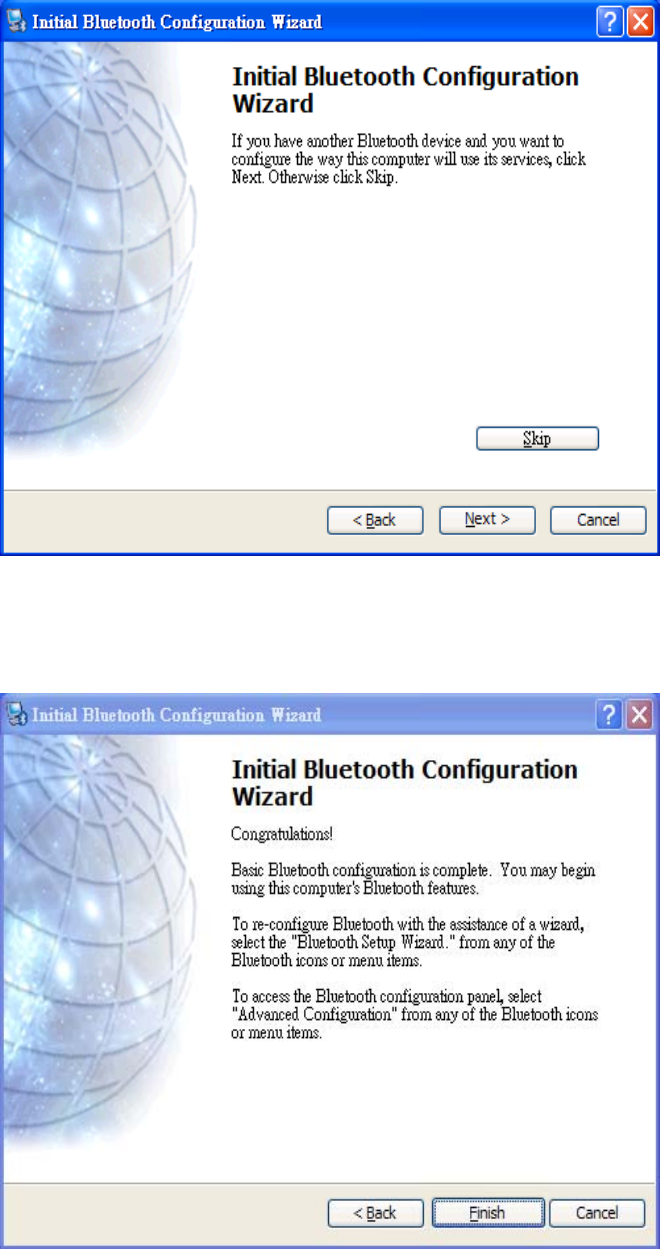
14. Click on the ”Next” button to configure the way this computer will use its
services. Otherwise click on the “Skip” button.
15. Click on the ”Finish” button, Initial Bluetooth Configuration Wizard will
finish.
Notice: The changes or modifications not expressly approved by the party
responsible for compliance could void the user’s authority to operate
the equipment.
User Information
This device complies with part 15 of FCC Rules. Operation is subject to the
following two conditions:
(1) This device may not cause harmful interference, and
(2) This device must accept any interference received, including
interference that may cause undesired operation.
The FCC require the user to be notified that any changes or modification
made to this device that are not expressly approved by FORMOSA TELETEK
CORPORATION may void the user’s authority to operate the equipment.