Formosa Teletek BTCA02 Bluetooth USB Adapter User Manual FB CA01 ver1 0

Formosa Teletek Corporation Bluetooth USB Adapter FB CA01 ver1 0

User Manual

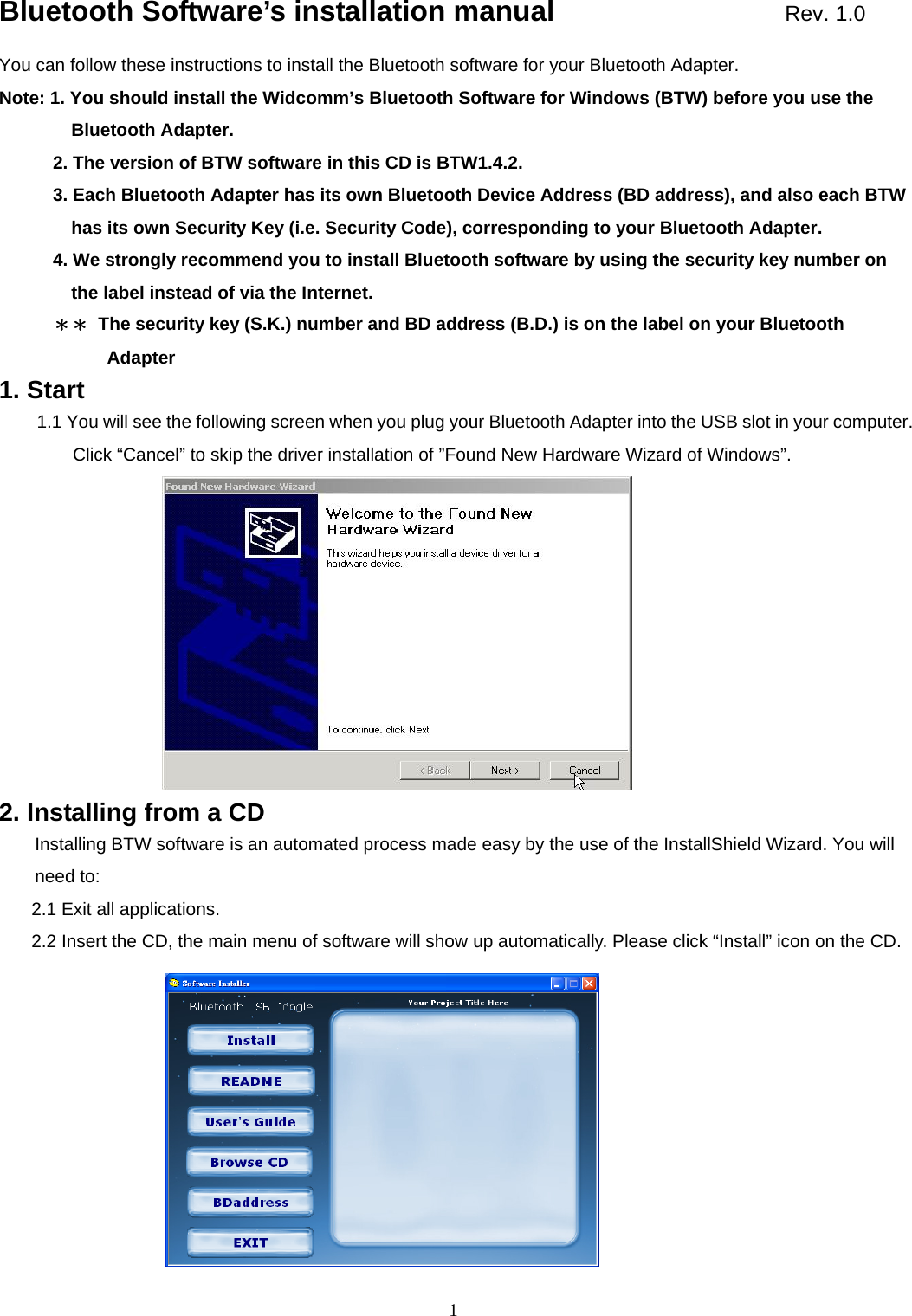
 1Bluetooth Software’s installation manual                Rev. 1.0 You can follow these instructions to install the Bluetooth software for your Bluetooth Adapter. Note: 1. You should install the Widcomm’s Bluetooth Software for Windows (BTW) before you use the Bluetooth Adapter.             2. The version of BTW software in this CD is BTW1.4.2.             3. Each Bluetooth Adapter has its own Bluetooth Device Address (BD address), and also each BTW has its own Security Key (i.e. Security Code), corresponding to your Bluetooth Adapter.             4. We strongly recommend you to install Bluetooth software by using the security key number on the label instead of via the Internet. **  The security key (S.K.) number and BD address (B.D.) is on the label on your Bluetooth Adapter 1. Start 1.1 You will see the following screen when you plug your Bluetooth Adapter into the USB slot in your computer. Click “Cancel” to skip the driver installation of ”Found New Hardware Wizard of Windows”.                 2. Installing from a CD Installing BTW software is an automated process made easy by the use of the InstallShield Wizard. You will need to: 2.1 Exit all applications. 2.2 Insert the CD, the main menu of software will show up automatically. Please click “Install” icon on the CD.
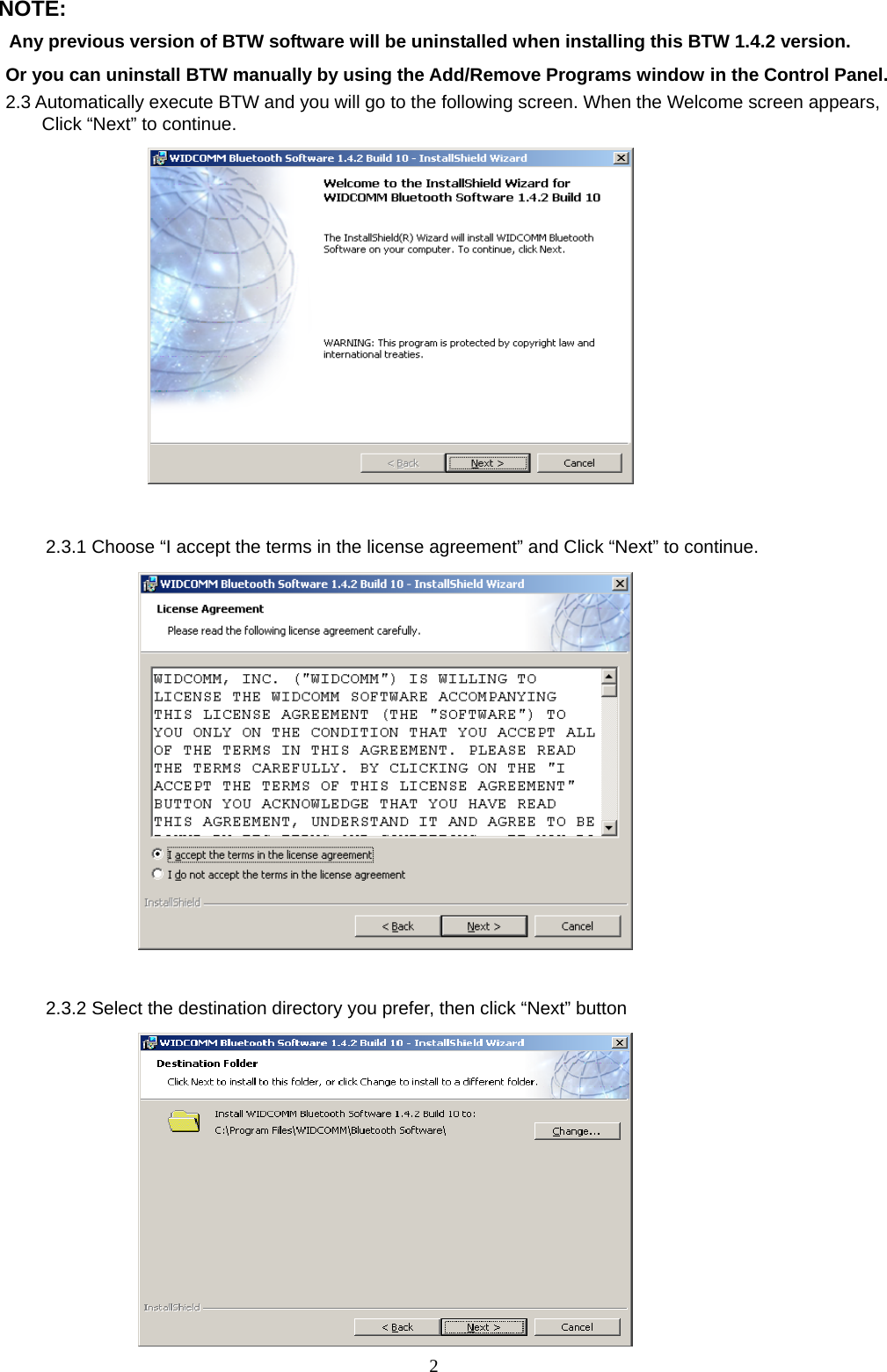
 2NOTE: Any previous version of BTW software will be uninstalled when installing this BTW 1.4.2 version. Or you can uninstall BTW manually by using the Add/Remove Programs window in the Control Panel. 2.3 Automatically execute BTW and you will go to the following screen. When the Welcome screen appears,   Click “Next” to continue.                        2.3.1 Choose “I accept the terms in the license agreement” and Click “Next” to continue.                             2.3.2 Select the destination directory you prefer, then click “Next” button
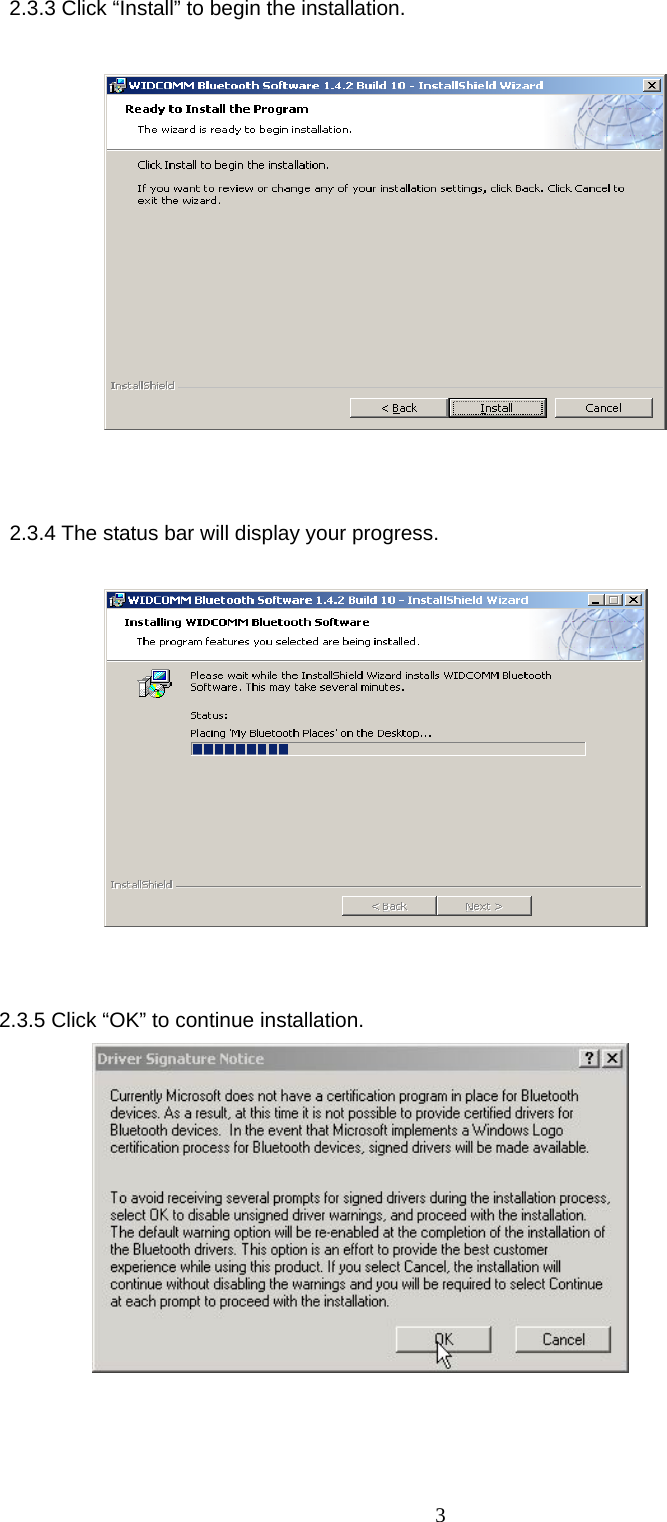
 3           2.3.3 Click “Install” to begin the installation.                                 2.3.4 The status bar will display your progress.                                                                   2.3.5 Click “OK” to continue installation.
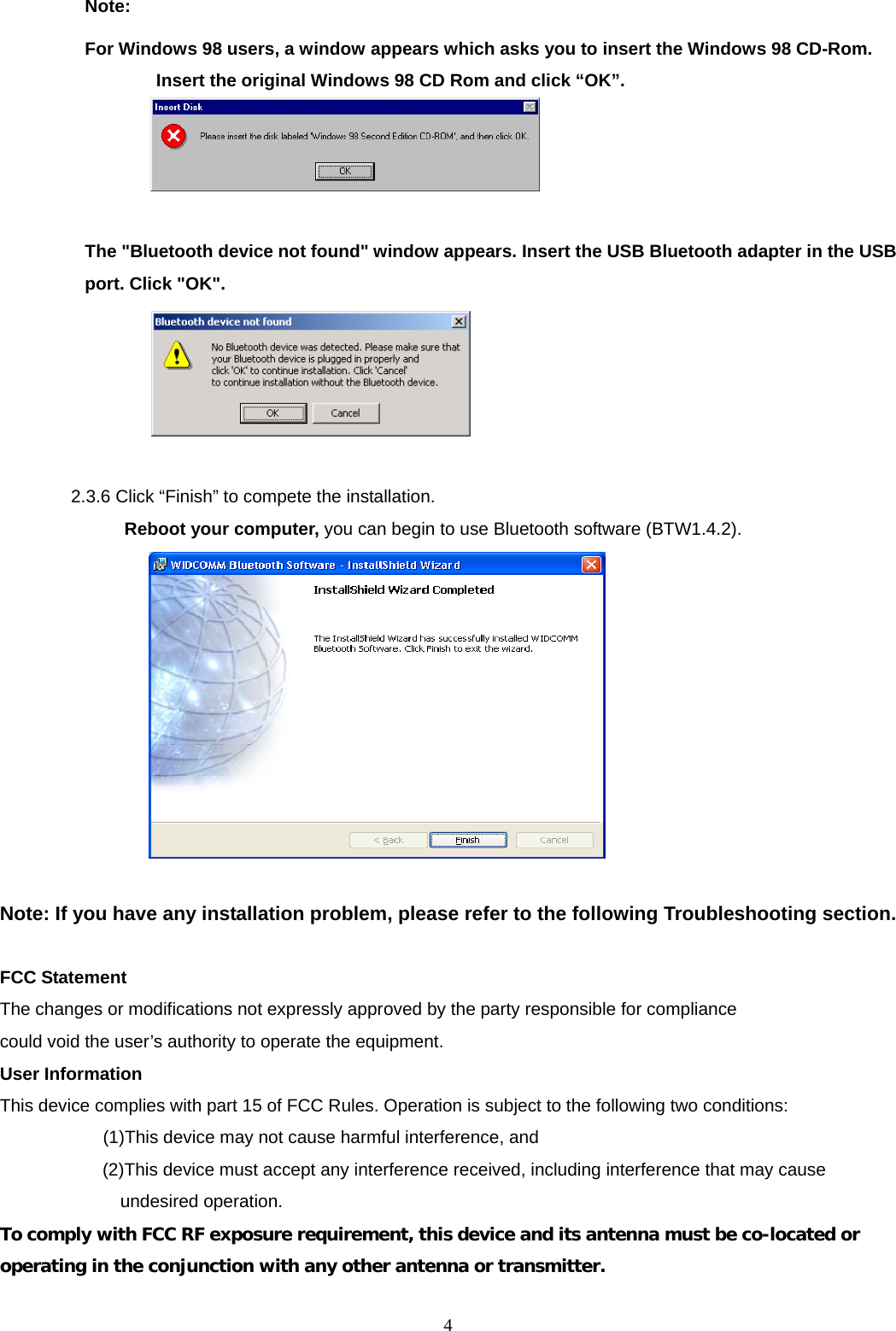
 4Note:   For Windows 98 users, a window appears which asks you to insert the Windows 98 CD-Rom. Insert the original Windows 98 CD Rom and click “OK”.   The "Bluetooth device not found" window appears. Insert the USB Bluetooth adapter in the USB port. Click "OK".   2.3.6 Click “Finish” to compete the installation.   Reboot your computer, you can begin to use Bluetooth software (BTW1.4.2).   Note: If you have any installation problem, please refer to the following Troubleshooting section.  FCC Statement The changes or modifications not expressly approved by the party responsible for compliance could void the user’s authority to operate the equipment. User Information This device complies with part 15 of FCC Rules. Operation is subject to the following two conditions:       (1)This device may not cause harmful interference, and   (2)This device must accept any interference received, including interference that may cause undesired operation. To comply with FCC RF exposure requirement, this device and its antenna must be co-located or operating in the conjunction with any other antenna or transmitter.

Navigation menu