Fowke Innovation Technology X50W Video camera User Manual

Shenzhen Fowke Electronic Technology Co., Ltd Video camera

User manual

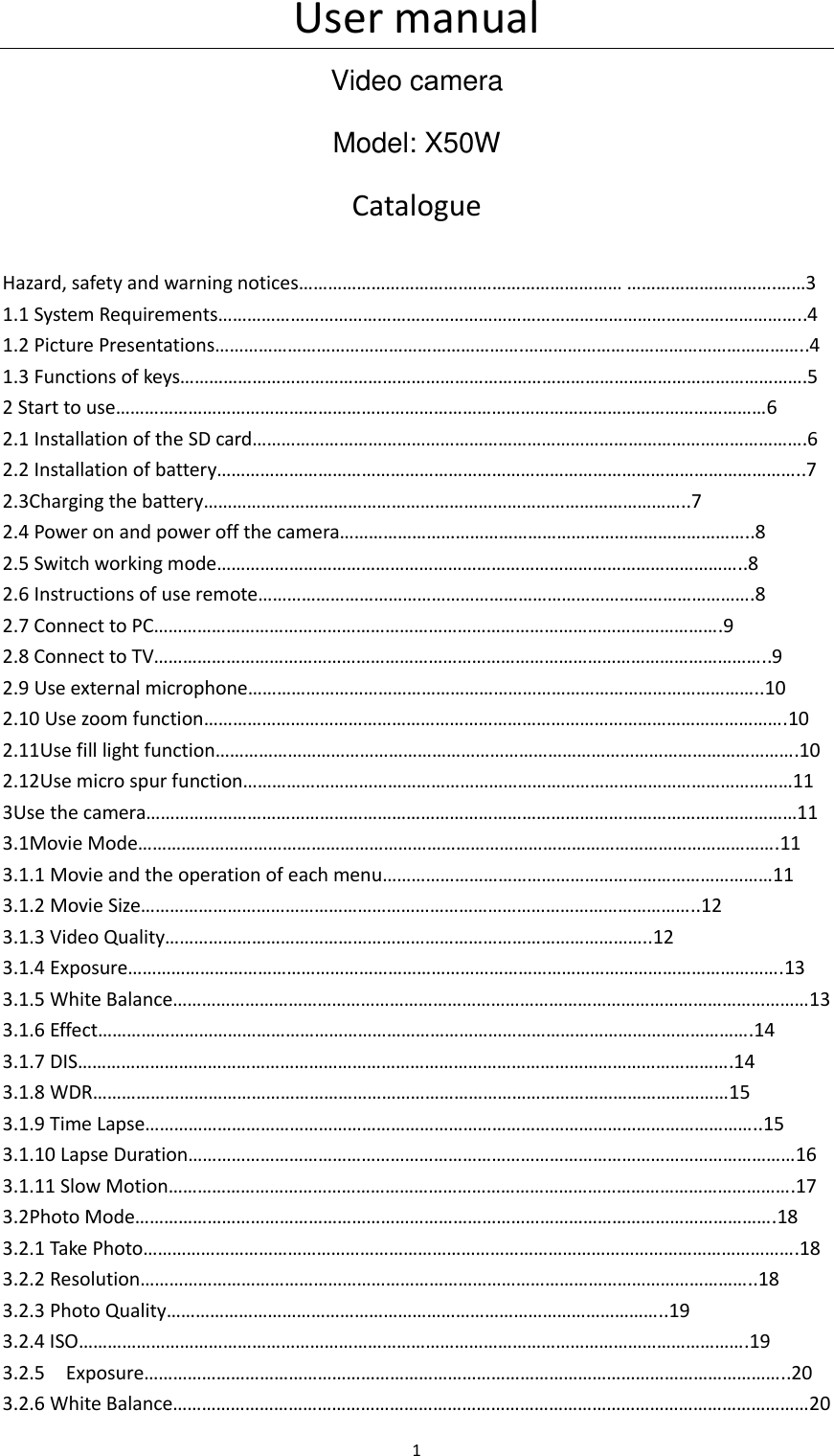
User manual 1 Video camera Model: X50W Catalogue Hazard, safety and warning notices…………………………….…………………………… ………………………….……3 1.1 System Requirements…………………………………………………………………………………………………………..4 1.2 Picture Presentations……………………………………………………….…………………………………………………..4 1.3 Functions of keys………………………………………………………………………………………………………………….5 2 Start to use………………………………………………………………………………………………………………………6     2.1 Installation of the SD card…………………………………………………………………………………………………….6   2.2 Installation of battery…………………………………………………………………………………………………………..7 2.3Charging the battery………………………………………………………………………………………..7     2.4 Power on and power off the camera…………………………………………………………………………..8 2.5 Switch working mode………………………………………………………………………………………………..8 2.6 Instructions of use remote………………………………………………………………………………………….8 2.7 Connect to PC……………………………………………………………………………………………………….9   2.8 Connect to TV………………………………………………………………………………………………………………..9 2.9 Use external microphone……………………………………………………………………………………………..10 2.10 Use zoom function………………………………………………………………………………………………………….10     2.11Use fill light function………………………………………………………………………………………………………….10 2.12Use micro spur function……………………………………………………………………………………………………11 3Use the camera………………………………………………………………………………………………………………………11 3.1Movie Mode…………………………………………………………………………………………………………………….11 3.1.1 Movie and the operation of each menu………………………………………………………………………11 3.1.2 Movie Size……………………………………………………………………………………………………..12 3.1.3 Video Quality………………………………………………………………………………………..12 3.1.4 Exposure……………………………………………………………………………………………………………………….13 3.1.5 White Balance……………………………………………………………………………………………………………………13 3.1.6 Effect……………………………………………………………………………………………………………………….14 3.1.7 DIS……………………………………………………………………………………………………………………….14 3.1.8 WDR……………………………………………………………………………………………………………………15 3.1.9 Time Lapse………………………………………………………………………………………………………………..15 3.1.10 Lapse Duration………………………………………………………………………………………………………………16 3.1.11 Slow Motion………………………………………………………………………………………………………………….17 3.2Photo Mode…………………………………………………………………………………………………………………….18 3.2.1 Take Photo……………………………………………………………………………………………………………………….18 3.2.2 Resolution………………………………………………………………………………………………………………..18 3.2.3 Photo Quality…………………………………………………………………………………………..19 3.2.4 ISO………………………………………………………………………………………………………………………….19 3.2.5    Exposure……………………………………………………………………………………………………………………..20 3.2.6 White Balance……………………………………………………………………………………………………………………20
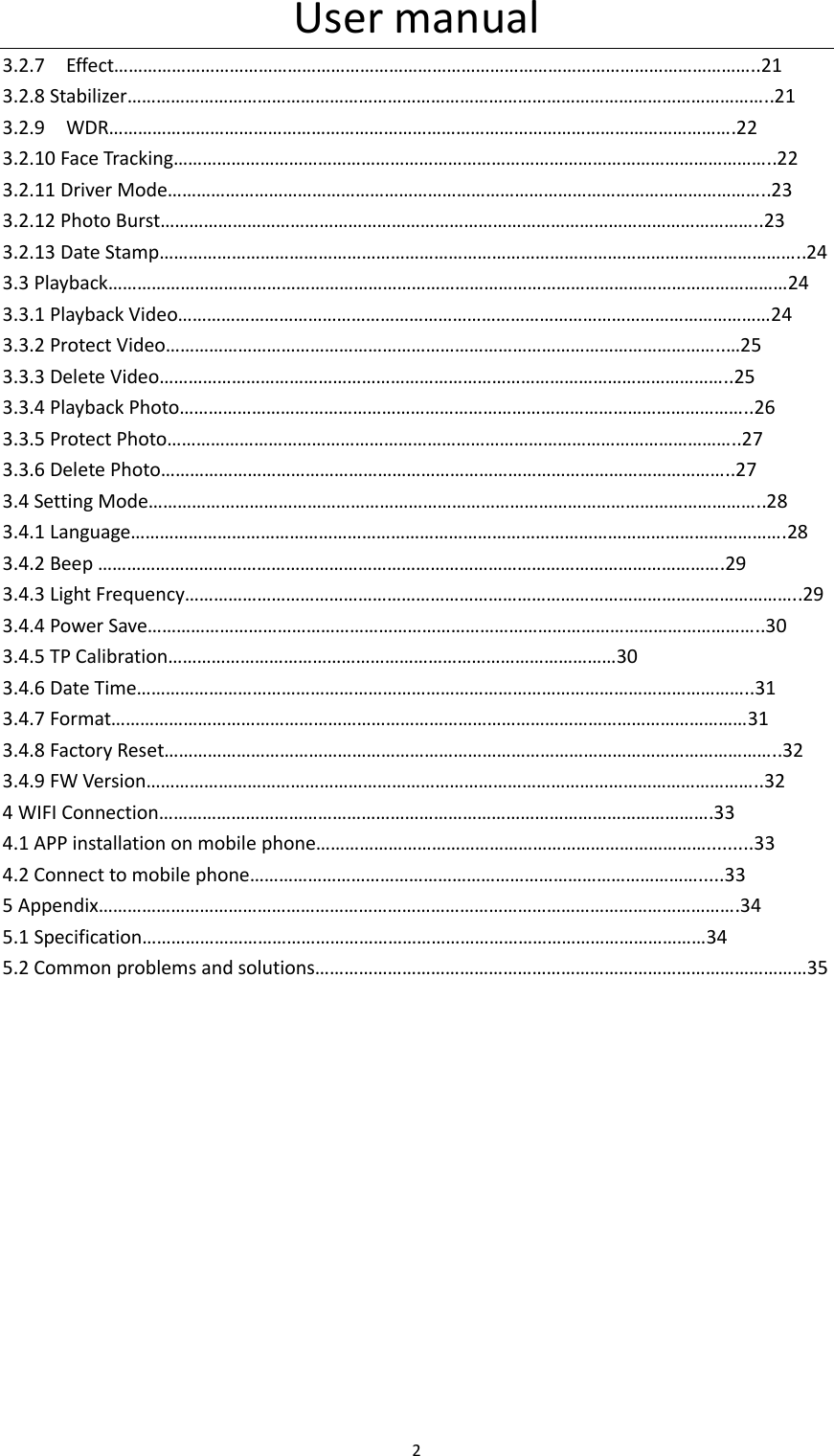
User manual 2  3.2.7    Effect……………………………………………………………………………………………………………………..21 3.2.8 Stabilizer……………………………………………………………………………………………………………………..21 3.2.9    WDR………………………………………………………………………………………………………………….22 3.2.10 Face Tracking……………………………………………………………………………………………………………..22 3.2.11 Driver Mode……………………………………………………………………………………………………………..23 3.2.12 Photo Burst……………………………………………………………………………………………………………..23 3.2.13 Date Stamp……………………………………………………………………………………………………………………..24 3.3 Playback……………………………………………………………………………………………………………………………24 3.3.1 Playback Video……………………………………………………………………………………………………………24 3.3.2 Protect Video……………………………………………………………………………………………………..…25 3.3.3 Delete Video………………………………………………………………………………………………………..25 3.3.4 Playback Photo………………………………………………………………………………………………………..26 3.3.5 Protect Photo………………………………………………………………………………………………………..27 3.3.6 Delete Photo………………………………………………………………………………………………………..27 3.4 Setting Mode………………………………………………………………………………………………………………..28 3.4.1 Language……………………………………………………………………………………………………………………….28 3.4.2 Beep ………………………………………………………………………………………………………………….29 3.4.3 Light Frequency………………………………………………………………………………………………………………..29 3.4.4 Power Save………………………………………………………………………………………………………………..30 3.4.5 TP Calibration…………………………………………………………………………………30 3.4.6 Date Time………………………………………………………………………………………………………………..31 3.4.7 Format……………………………………………………………………………………………………………………31 3.4.8 Factory Reset………………………………………………………………………………………………………………..32 3.4.9 FW Version………………………………………………………………………………………………………………..32 4 WIFI Connection…………………………………………………………………………………………………….33 4.1 APP installation on mobile phone……………………………………………………………………….........33   4.2 Connect to mobile phone………………………………………………………………………………….....33 5 Appendix…………………………………………………………………………………………………………………….34 5.1 Specification………………………………………………………………………………………………………34       5.2 Common problems and solutions…………………………………………………………………………………………35
User manual 3       Hazard, safety and warning notices  Incorrect  use of the camera  and  accessories  is dangerous for you and  others and can  damage, destroy the camera or cause serious accident .We therefore ask you to read and strictly observe the following hazards ,safety and warning notices.  Hazards for children and persons with limited ability to operate this camera ◇Children  and  persons  with  limited ability  are  forbidden  to touch  this  camera,  accessory  and packaging.  These  are  not  toys  for  children  which  would  cause  dangers  of  electrocutions, poisoning  and  suffocation.  Please  make  sure  camera,  accessory  and  packaging  stay  away from children and persons with limited ability. ◇Never  let  children  or  persons  with  limited  abilities  operate  this  camera  or  accessory.  The camera and accessory can only be operated by persons physically and mentally able to operate it safely.   Power supply and electrical hazard ◇Switch  off  the  camera  and  remove  the  batteries  if  a  foreign  body  or  liquid  has  entered  the camera. Otherwise have danger of fire or electrocution. ◇Switch  off  the  camera  and  remove  the  batteries  once  camera  has  been  dropped  down  and housing broken. Otherwise have danger of fire or electrocution. ◇A  plugged  in  power  adaptor  (no  supplied)  can  continue  to  provide  power  and  therefore represents  a  hazard  source.  Anything  was  forbidden  to  cover  the  power  adaptor  when  using. Keep it airy at all times. Otherwise it may represent a fire hazard.   ◇The  power  supply  can’t  be  used  during  thunder  or  lightning.  Otherwise  have  danger  of electrocution.  LCD screen ◇LCD screen is glass product, easily damaged, please protect it carefully. ◇If  LCD  screen  broken,  never  touch  the  outflow  liquid.  In  case  of  contact  with  skin,  rinse immediately with lots of clean water. ◇In  case  of  contact  with  eyes ,  rinse  immediately  with  lots of  clean  water  and  go see  doctor immediately. ◇In case of swallowing the liquid, rinse the mouth with clean waters, drink lots of clear water and go see doctor immediately.   Safety use warnings ◇Do not fall, hit or puncture the camera, otherwise the camera can be damaged.
User manual 4  ◇Do not use any corrosive cleaners to clean the camera, otherwise the camera can be damaged. ◇Avoid direct LED light, strong light can impair eyesight. ◇None of camera’s components can be repaired by users themselves. Do not open the housing or repair by themselves. If any failures occur, please look for professional person to repair to contact the dealer.    Use and storage environment ◇This camera is intended for taking digital photos and video clips. It is designed for private use and not suitable for commercial purposes. This camera is suitable to work in the environment of temperature between 0℃~45℃(32℉~113℉)and humidity under  ≦70%.Do not use or store in below environments : A place of moisture or dust       A place of High temperature or sun exposure A place of low temperature A place with strong vibration  Proper disposal of waste ◇Do not fling camera, accessory and packaging casually. ◇Electronic waste can’t be disposed like domestic waste. Please comply to the local laws and environmental requirements, dispose different wastes separately. ◇Waste  batteries can’t  be disposed  like  domestic  waste. Consumers  are  obliged to return waste batteries to communal collection points or battery retailers. ◇Please use the collection points of local community or contact battery retailers from whom you purchased. This prevents potentially harmful effects on the environment and health as a result of incorrect disposal. For further information, contact the respective government of local community.    Pre-use inspection In  order  to  ensure  your  benefit,  please  make  test  shot  with  SD  card  before  use  in  important occasion. We will not be responsible for any accidents that caused by incorrect use.      About this manual   ◇This manual only serves as a general guide to the use of products. The picture is for reference only; specifications are subject to actual products.   ◇The content of this manual might be inconsistent with the camera due to product update or software upgrade; Please refer to the camera object, no further notice.  Trademark information and Copyright statement We reserve the right of final explanation of this manual. No unit or individual may reproduce, disseminate or distribute in any form without our written consent.
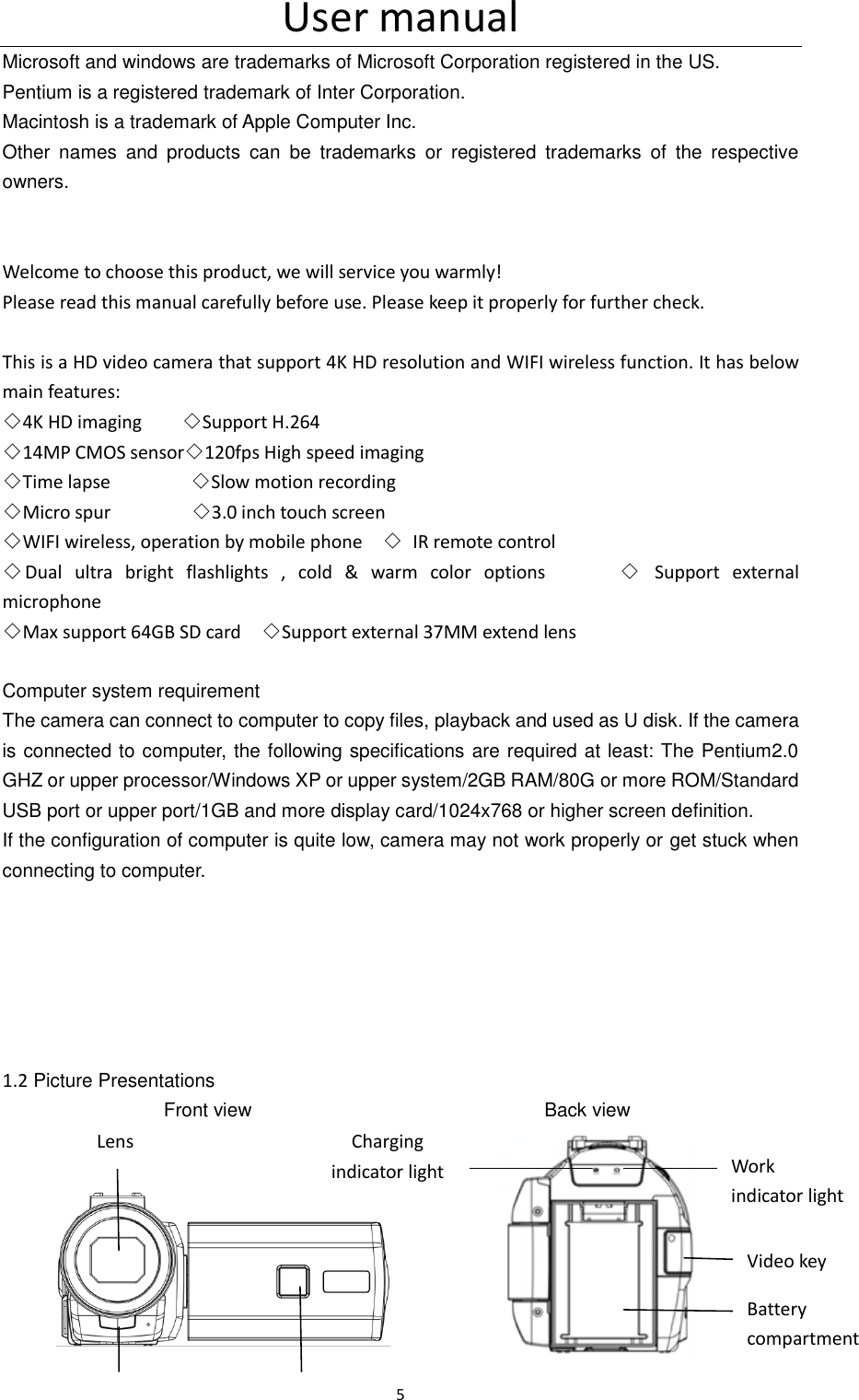
User manual 5  Microsoft and windows are trademarks of Microsoft Corporation registered in the US. Pentium is a registered trademark of Inter Corporation. Macintosh is a trademark of Apple Computer Inc. Other  names  and  products  can  be  trademarks  or  registered  trademarks  of  the  respective owners.   Welcome to choose this product, we will service you warmly! Please read this manual carefully before use. Please keep it properly for further check.  This is a HD video camera that support 4K HD resolution and WIFI wireless function. It has below main features: ◇4K HD imaging        ◇Support H.264 ◇14MP CMOS sensor◇120fps High speed imaging ◇Time lapse                ◇Slow motion recording ◇Micro spur                ◇3.0 inch touch screen ◇WIFI wireless, operation by mobile phone    ◇  IR remote control ◇Dual  ultra  bright  flashlights  ,  cold  &  warm  color  options            ◇  Support  external microphone ◇Max support 64GB SD card    ◇Support external 37MM extend lens  Computer system requirement The camera can connect to computer to copy files, playback and used as U disk. If the camera is connected to computer, the following specifications are required at least: The Pentium2.0 GHZ or upper processor/Windows XP or upper system/2GB RAM/80G or more ROM/Standard USB port or upper port/1GB and more display card/1024x768 or higher screen definition. If the configuration of computer is quite low, camera may not work properly or get stuck when connecting to computer.       1.2 Picture Presentations                 Front view                             Back view                                                    Lens Work indicator light Charging indicator light Video key Battery compartment
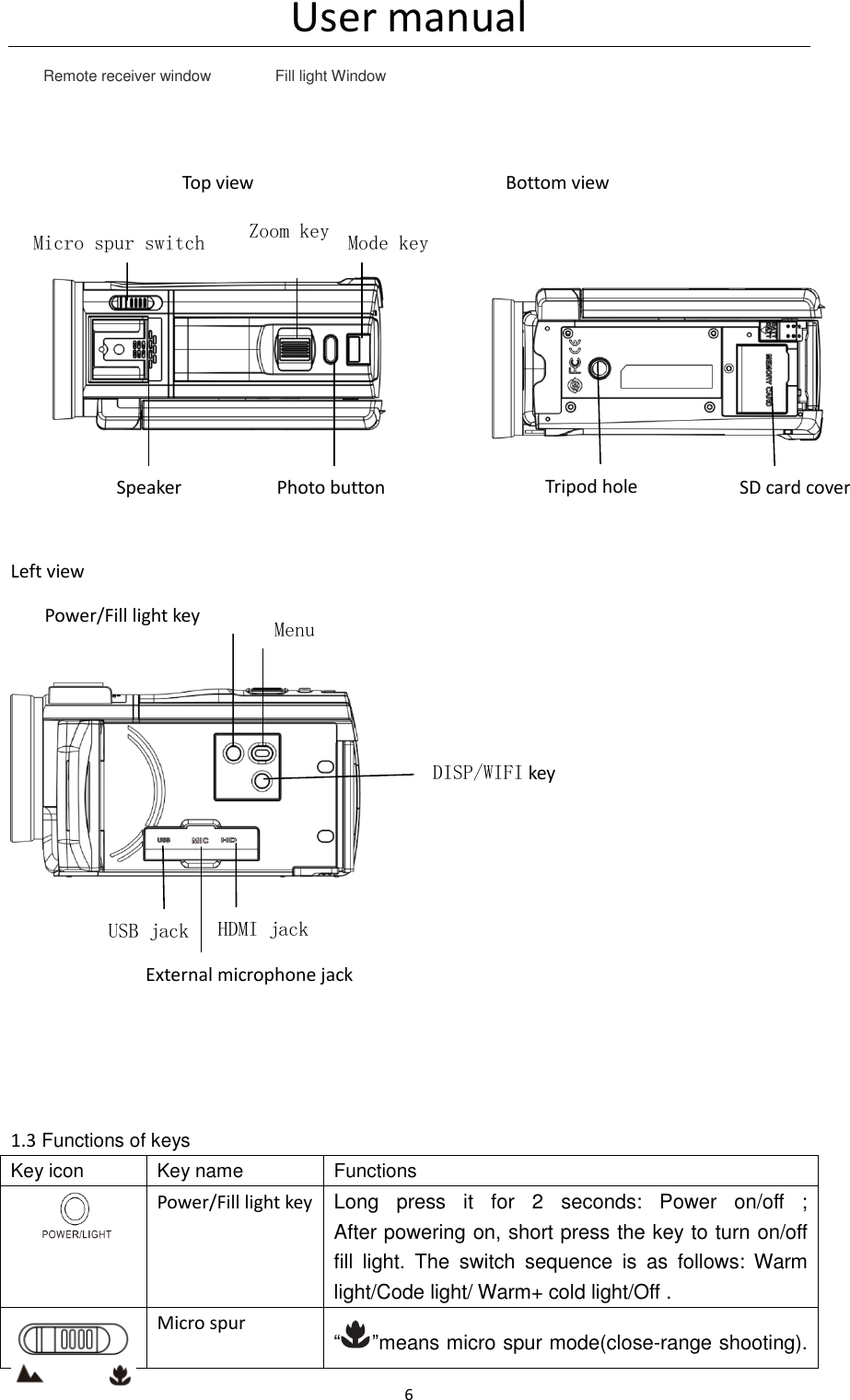
User manual 6                                        Top view                                                  Bottom view                                                                         Left view                                                                                                                     1.3 Functions of keys Key icon Key name Functions     Power/Fill light key  Long  press  it  for  2  seconds:  Power  on/off  ;                                         After powering on, short press the key to turn on/off fill  light.  The  switch  sequence  is  as  follows:  Warm light/Code light/ Warm+ cold light/Off .  Micro spur “ ”means micro spur mode(close-range shooting).                                                                 Remote receiver window Fill light Window Micro spur switch Zoom key Mode key Speaker Photo button Tripod hole SD card cover Power/Fill light key  Menu DISP/WIFI key USB jack External microphone jack HDMI jack
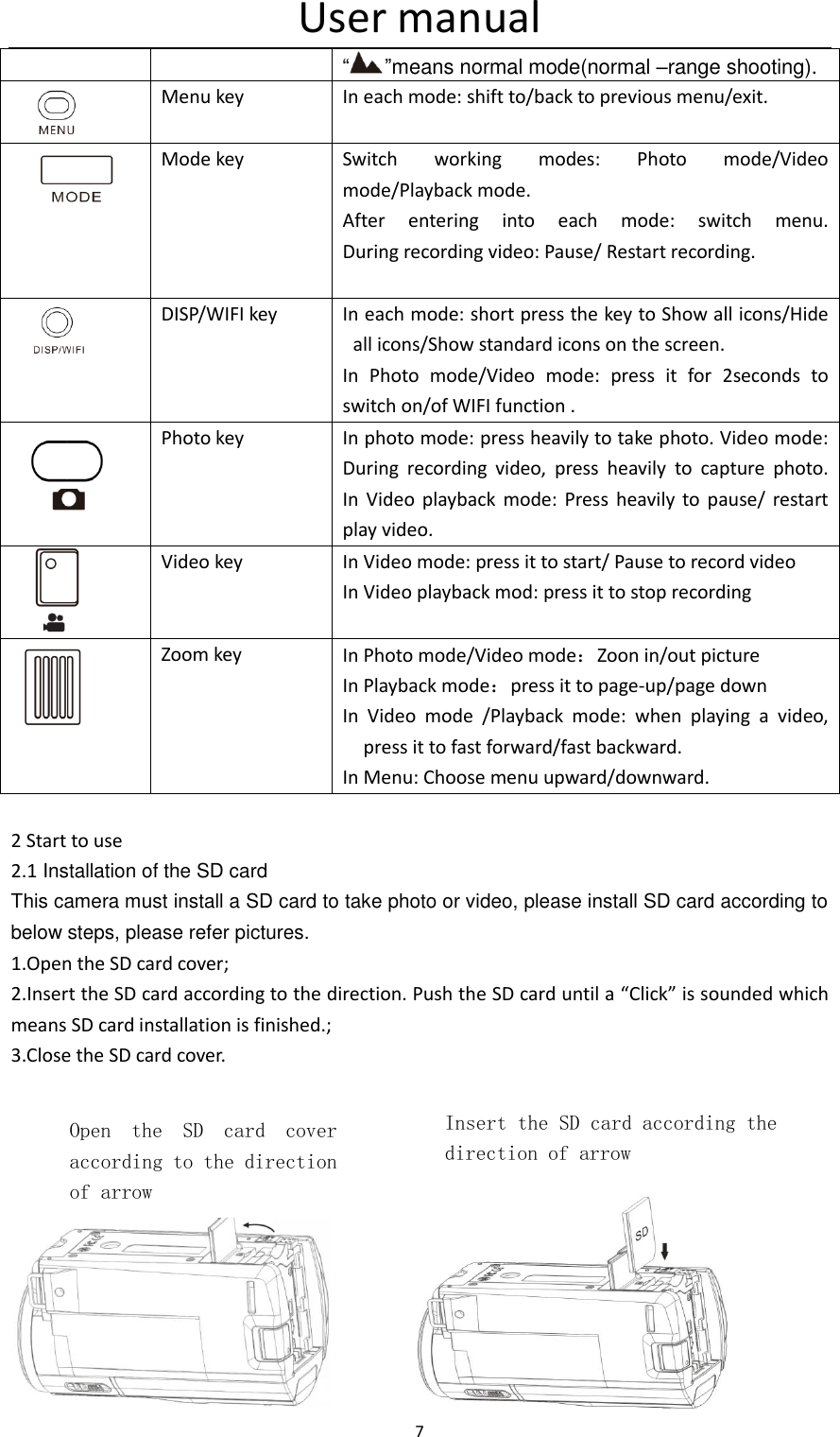
User manual 7  “ ”means normal mode(normal –range shooting).  Menu key In each mode: shift to/back to previous menu/exit.     Mode key Switch  working  modes:  Photo  mode/Video mode/Playback mode. After  entering  into  each  mode:  switch  menu.               During recording video: Pause/ Restart recording.   DISP/WIFI key In each mode: short press the key to Show all icons/Hide all icons/Show standard icons on the screen. In  Photo  mode/Video  mode:  press  it  for  2seconds  to switch on/of WIFI function .      Photo key In photo mode: press heavily to take photo. Video mode: During  recording  video,  press  heavily  to  capture  photo.                                                                                 In  Video  playback  mode:  Press  heavily  to  pause/  restart play video.   Video key In Video mode: press it to start/ Pause to record video In Video playback mod: press it to stop recording    Zoom key In Photo mode/Video mode:Zoon in/out picture In Playback mode:press it to page-up/page down In  Video  mode  /Playback  mode:  when  playing  a  video, press it to fast forward/fast backward. In Menu: Choose menu upward/downward.  2 Start to use 2.1 Installation of the SD card This camera must install a SD card to take photo or video, please install SD card according to below steps, please refer pictures. 1.Open the SD card cover; 2.Insert the SD card according to the direction. Push the SD card until a “Click” is sounded which means SD card installation is finished.; 3.Close the SD card cover.                                                                                           Open  the  SD  card  cover according to the direction of arrow Insert the SD card according the direction of arrow
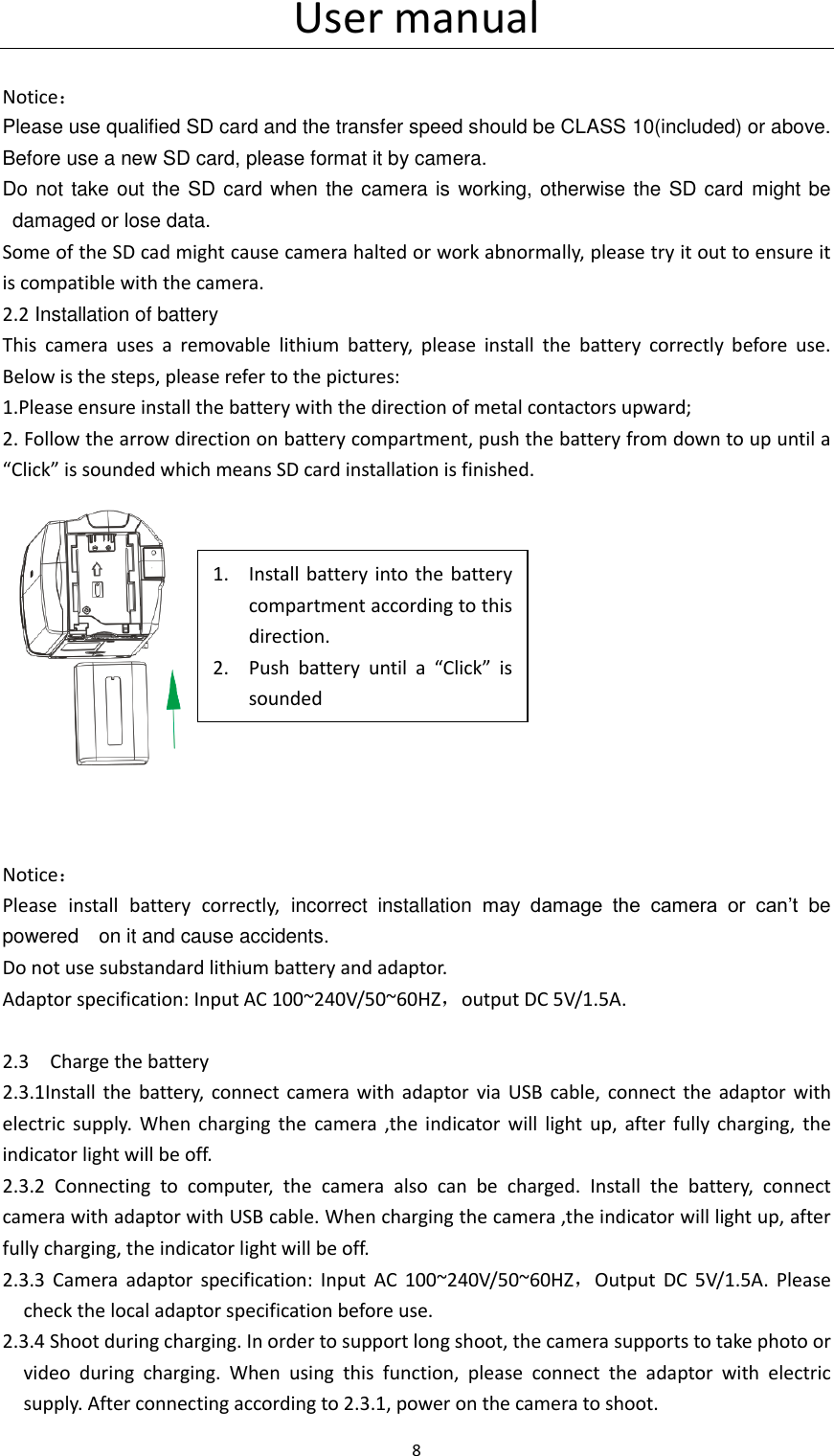
User manual 8                                    Notice: Please use qualified SD card and the transfer speed should be CLASS 10(included) or above. Before use a new SD card, please format it by camera. Do not take out the SD card when the camera is working, otherwise the SD card  might be damaged or lose data. Some of the SD cad might cause camera halted or work abnormally, please try it out to ensure it is compatible with the camera.   2.2 Installation of battery This  camera  uses  a  removable  lithium  battery,  please  install  the  battery  correctly  before  use. Below is the steps, please refer to the pictures:   1.Please ensure install the battery with the direction of metal contactors upward; 2. Follow the arrow direction on battery compartment, push the battery from down to up until a “Click” is sounded which means SD card installation is finished.    Notice: Please  install  battery  correctly,  incorrect  installation  may  damage  the  camera  or  can’t  be powered    on it and cause accidents. Do not use substandard lithium battery and adaptor. Adaptor specification: Input AC 100~240V/50~60HZ,output DC 5V/1.5A.                                             2.3    Charge the battery 2.3.1Install  the  battery,  connect  camera  with  adaptor  via  USB  cable, connect  the  adaptor  with electric  supply.  When  charging  the  camera  ,the  indicator  will  light  up,  after  fully  charging,  the indicator light will be off.   2.3.2  Connecting  to  computer,  the  camera  also  can  be  charged.  Install  the  battery,  connect camera with adaptor with USB cable. When charging the camera ,the indicator will light up, after fully charging, the indicator light will be off.   2.3.3  Camera  adaptor  specification:  Input  AC 100~240V/50~60HZ,Output  DC  5V/1.5A.  Please check the local adaptor specification before use. 2.3.4 Shoot during charging. In order to support long shoot, the camera supports to take photo or video  during  charging.  When  using  this  function,  please  connect  the  adaptor  with  electric supply. After connecting according to 2.3.1, power on the camera to shoot. 1. Install battery into  the  battery compartment according to this direction. 2. Push  battery  until  a  “Click”  is sounded
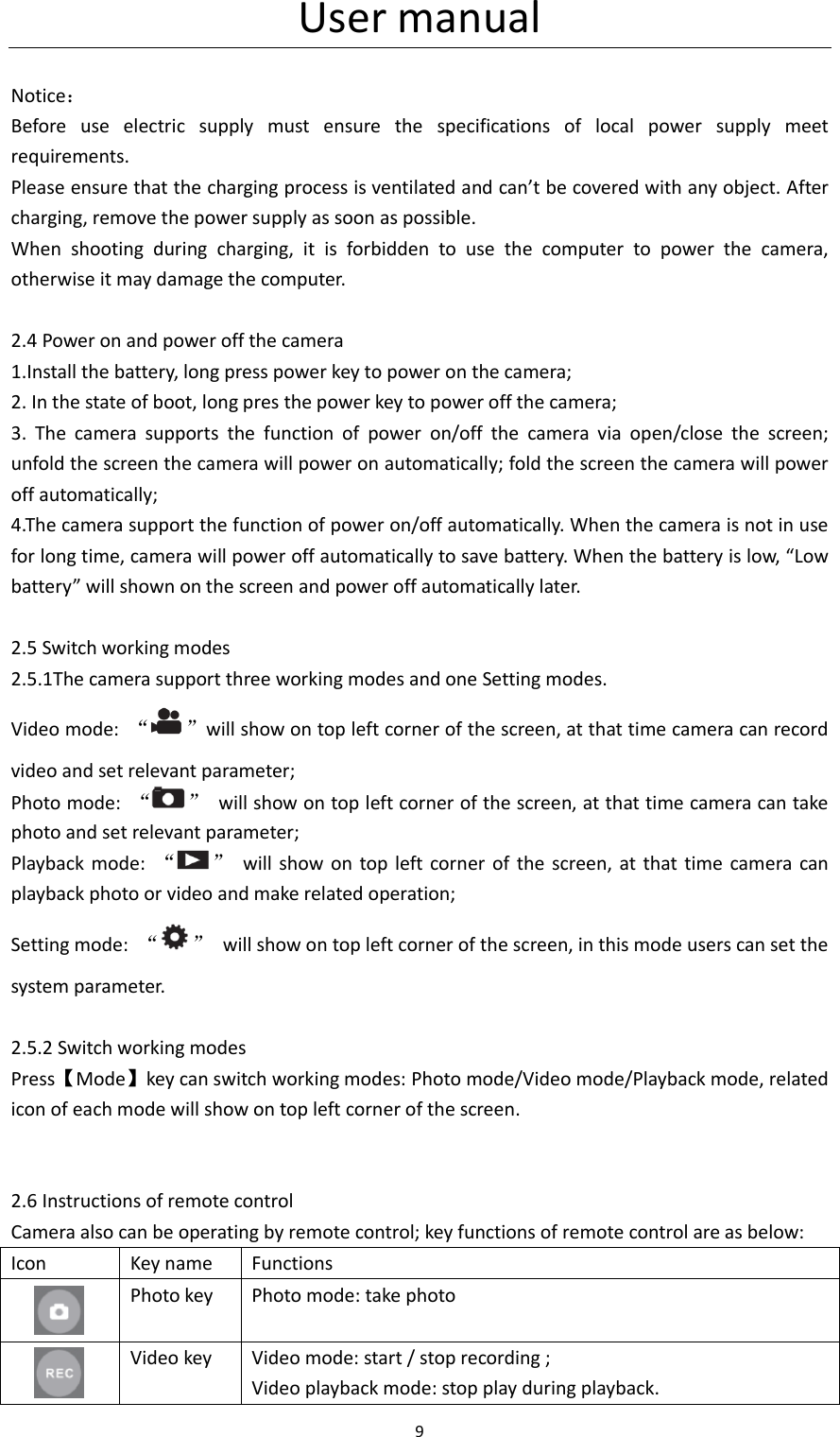
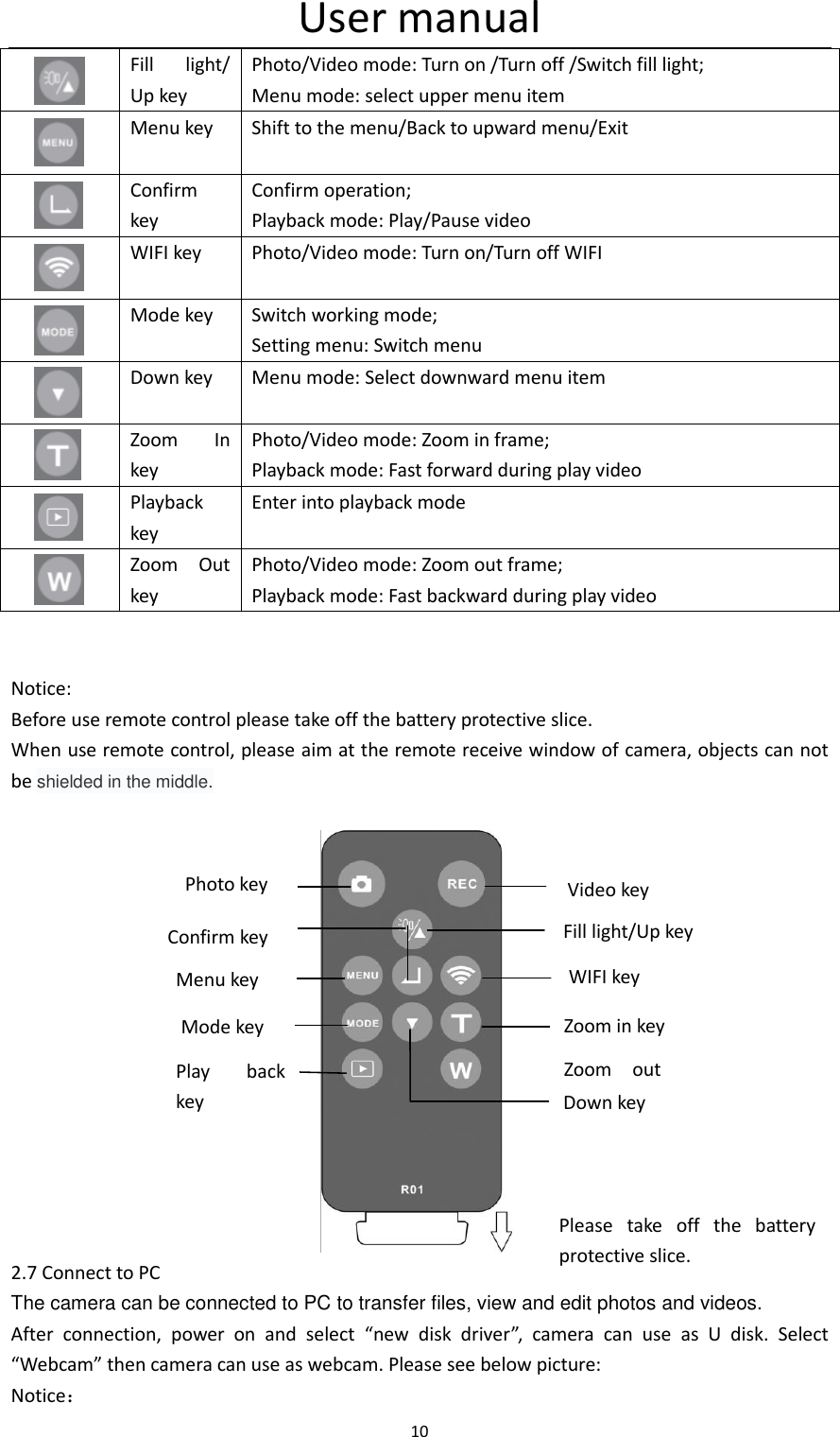
User manual 9   Notice: Before  use  electric  supply  must  ensure  the  specifications  of  local  power  supply  meet requirements. Please ensure that the charging process is ventilated and can’t be covered with any object. After charging, remove the power supply as soon as possible. When  shooting  during  charging,  it  is  forbidden  to  use  the  computer  to  power  the  camera, otherwise it may damage the computer.  2.4 Power on and power off the camera 1.Install the battery, long press power key to power on the camera; 2. In the state of boot, long pres the power key to power off the camera; 3.  The  camera  supports  the  function  of  power  on/off  the  camera  via  open/close  the  screen; unfold the screen the camera will power on automatically; fold the screen the camera will power off automatically; 4.The camera support the function of power on/off automatically. When the camera is not in use for long time, camera will power off automatically to save battery. When the battery is low, “Low battery” will shown on the screen and power off automatically later.  2.5 Switch working modes 2.5.1The camera support three working modes and one Setting modes. Video mode:  “ ”will show on top left corner of the screen, at that time camera can record video and set relevant parameter; Photo mode:  “ ”  will show on top left corner of the screen, at that time camera can take photo and set relevant parameter; Playback  mode:  “ ”  will show on top left corner of  the  screen,  at that time camera can playback photo or video and make related operation; Setting mode:  “ ”  will show on top left corner of the screen, in this mode users can set the system parameter.  2.5.2 Switch working modes   Press【Mode】key can switch working modes: Photo mode/Video mode/Playback mode, related icon of each mode will show on top left corner of the screen.                2.6 Instructions of remote control Camera also can be operating by remote control; key functions of remote control are as below: Icon Key name Functions  Photo key Photo mode: take photo     Video key Video mode: start / stop recording ; Video playback mode: stop play during playback.
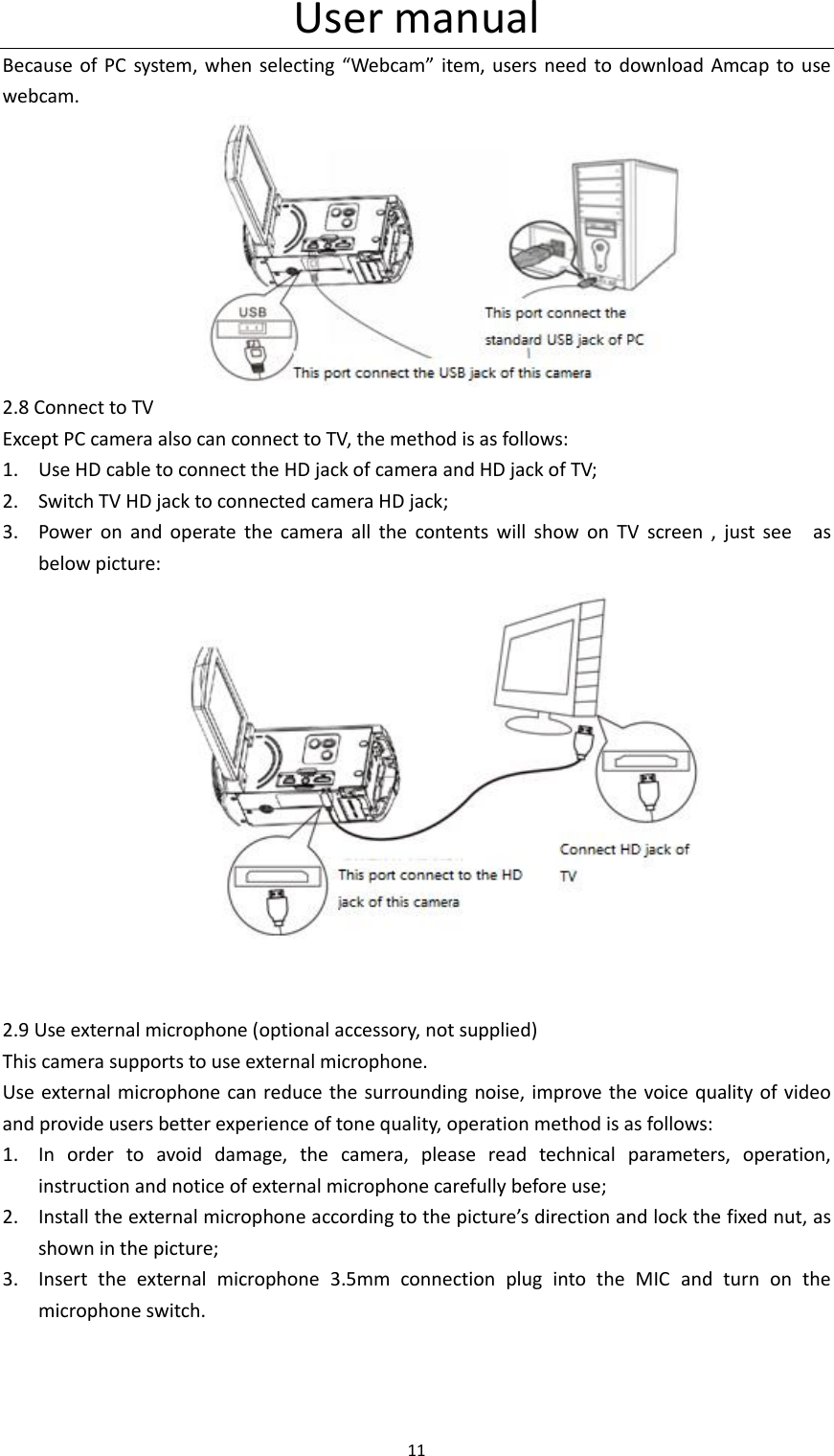
User manual 10   Fill  light/ Up key Photo/Video mode: Turn on /Turn off /Switch fill light; Menu mode: select upper menu item     Menu key Shift to the menu/Back to upward menu/Exit       Confirm key Confirm operation;           Playback mode: Play/Pause video     WIFI key Photo/Video mode: Turn on/Turn off WIFI     Mode key Switch working mode;     Setting menu: Switch menu     Down key Menu mode: Select downward menu item     Zoom  In key Photo/Video mode: Zoom in frame; Playback mode: Fast forward during play video     Playback key Enter into playback mode     Zoom  Out key Photo/Video mode: Zoom out frame;     Playback mode: Fast backward during play video   Notice: Before use remote control please take off the battery protective slice. When use remote control, please aim at the remote receive window of camera, objects can not be shielded in the middle.                                                              2.7 Connect to PC The camera can be connected to PC to transfer files, view and edit photos and videos. After  connection,  power  on  and  select  “new  disk  driver”,  camera  can  use  as  U  disk.  Select “Webcam” then camera can use as webcam. Please see below picture: Notice: Photo key Video key Fill light/Up key Menu key WIFI key Zoom in key Zoom  out key Mode key Play  back key Confirm key Down key Please  take  off  the  battery protective slice. 使用前请将电池保护片取下
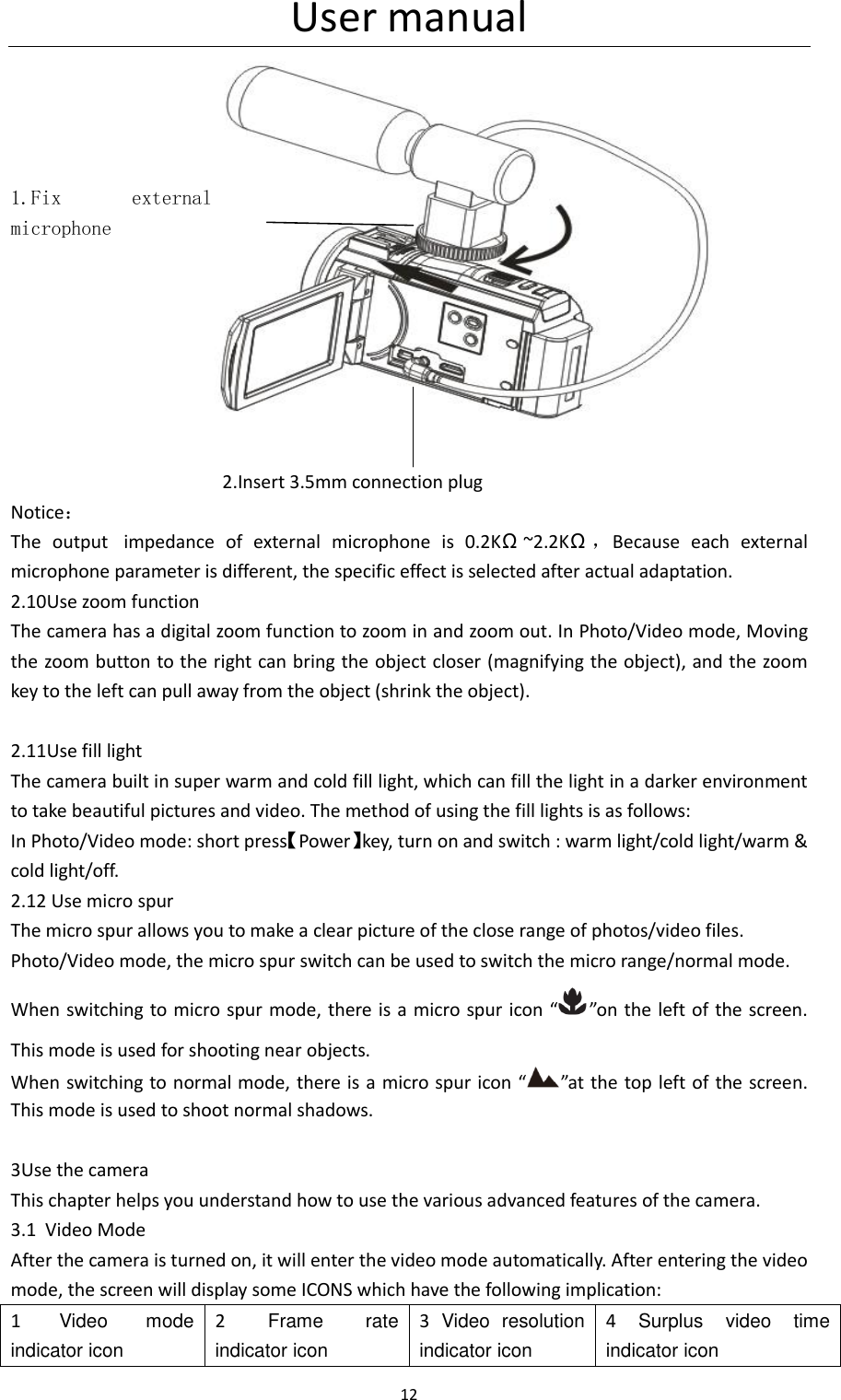
User manual 11  Because of PC  system, when selecting “Webcam”  item,  users need to download Amcap  to use webcam.                      2.8 Connect to TV Except PC camera also can connect to TV, the method is as follows: 1. Use HD cable to connect the HD jack of camera and HD jack of TV; 2. Switch TV HD jack to connected camera HD jack; 3. Power  on  and  operate  the  camera  all  the  contents  will  show  on  TV  screen  ,  just  see    as below picture:                                    2.9 Use external microphone (optional accessory, not supplied) This camera supports to use external microphone. Use external microphone can reduce the surrounding noise, improve the voice quality of video and provide users better experience of tone quality, operation method is as follows: 1. In  order  to  avoid  damage,  the  camera,  please  read  technical  parameters,  operation, instruction and notice of external microphone carefully before use; 2. Install the external microphone according to the picture’s direction and lock the fixed nut, as shown in the picture; 3. Insert  the  external  microphone  3.5mm  connection  plug  into  the  MIC  and  turn  on  the microphone switch.
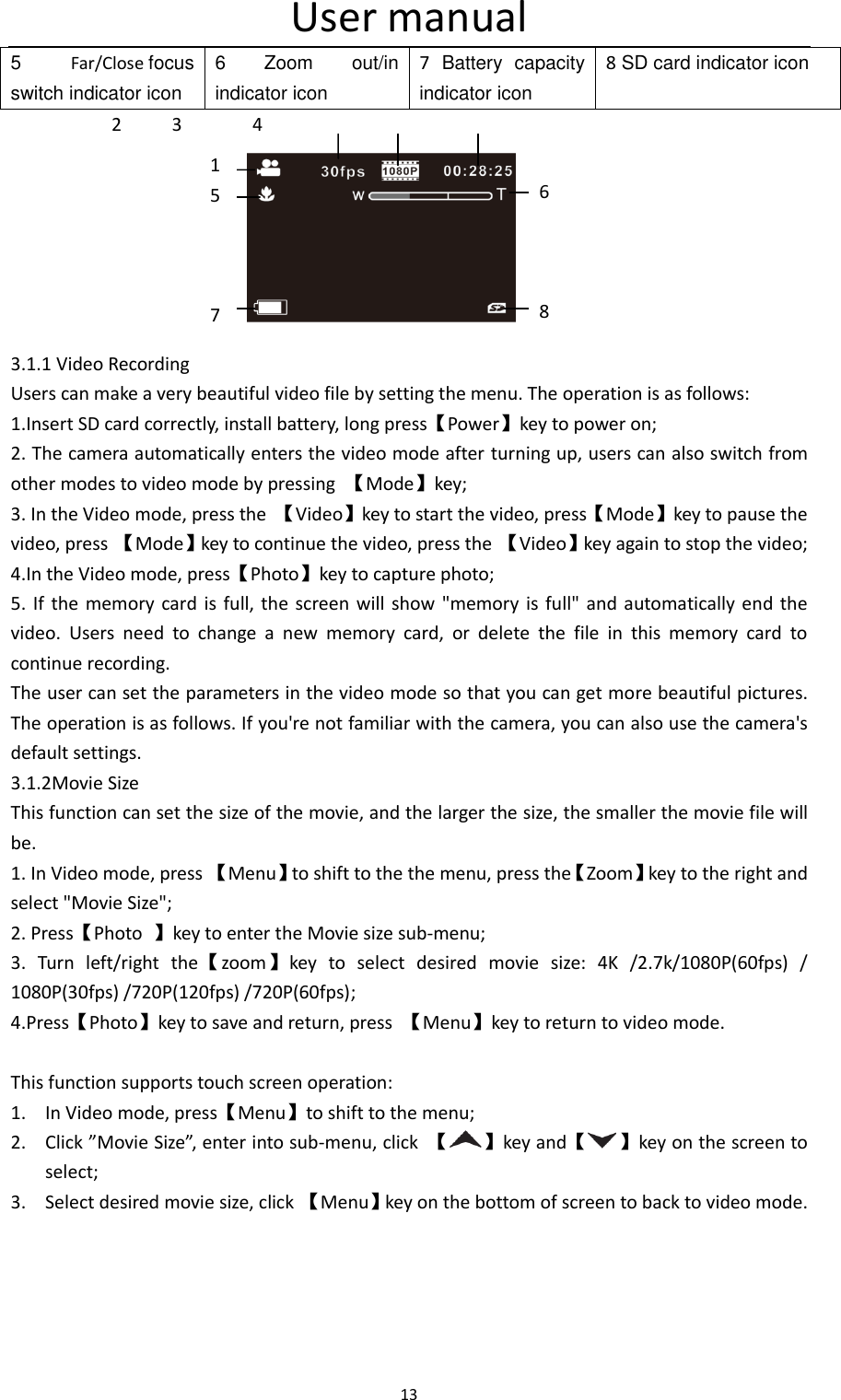
User manual 12                                                                       2.Insert 3.5mm connection plug Notice: The  output   impedance  of  external  microphone  is  0.2KΩ~2.2KΩ,Because  each  external microphone parameter is different, the specific effect is selected after actual adaptation. 2.10Use zoom function The camera has a digital zoom function to zoom in and zoom out. In Photo/Video mode, Moving the zoom button to the right can bring the object closer (magnifying the object), and the zoom key to the left can pull away from the object (shrink the object).  2.11Use fill light The camera built in super warm and cold fill light, which can fill the light in a darker environment to take beautiful pictures and video. The method of using the fill lights is as follows: In Photo/Video mode: short press【Power】key, turn on and switch : warm light/cold light/warm & cold light/off. 2.12 Use micro spur The micro spur allows you to make a clear picture of the close range of photos/video files. Photo/Video mode, the micro spur switch can be used to switch the micro range/normal mode. When switching to micro spur mode, there  is a micro spur icon “ ”on the left of the screen. This mode is used for shooting near objects. When switching  to normal mode, there is a micro spur icon “ ”at the top left of the  screen. This mode is used to shoot normal shadows.  3Use the camera This chapter helps you understand how to use the various advanced features of the camera. 3.1 Video Mode After the camera is turned on, it will enter the video mode automatically. After entering the video mode, the screen will display some ICONS which have the following implication: 1  Video  mode indicator icon 2  Frame  rate indicator icon 3  Video  resolution indicator icon 4  Surplus  video  time indicator icon    1.Fix  external microphone
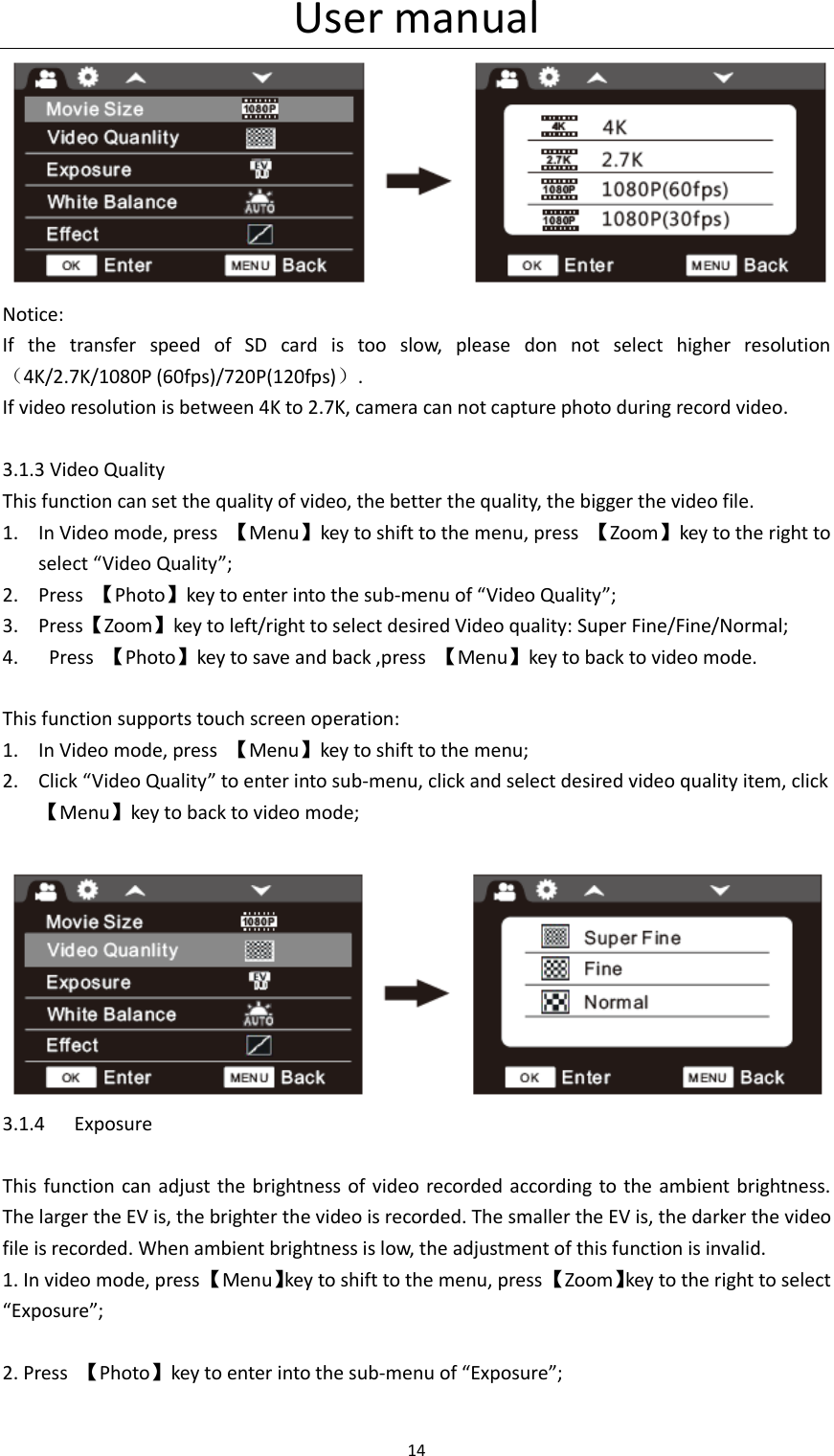
User manual 13  5  Far/Close focus switch indicator icon 6  Zoom  out/in   indicator icon 7  Battery  capacity indicator icon 8 SD card indicator icon           2     3       4                3.1.1 Video Recording Users can make a very beautiful video file by setting the menu. The operation is as follows: 1.Insert SD card correctly, install battery, long press【Power】key to power on; 2. The camera automatically enters the video mode after turning up, users can also switch from other modes to video mode by pressing  【Mode】key; 3. In the Video mode, press the  【Video】key to start the video, press【Mode】key to pause the video, press 【Mode】key to continue the video, press the  【Video】key again to stop the video; 4.In the Video mode, press【Photo】key to capture photo; 5. If  the memory  card is  full,  the  screen will show "memory is  full"  and automatically  end  the video.  Users  need  to  change  a  new  memory  card,  or  delete  the  file  in  this  memory  card  to continue recording. The user can set the parameters in the video mode so that you can get more beautiful pictures. The operation is as follows. If you're not familiar with the camera, you can also use the camera's default settings. 3.1.2Movie Size This function can set the size of the movie, and the larger the size, the smaller the movie file will be. 1. In Video mode, press 【Menu】to shift to the the menu, press the【Zoom】key to the right and select "Movie Size"; 2. Press【Photo  】key to enter the Movie size sub-menu; 3.  Turn  left/right  the【zoom】key  to  select  desired  movie  size:  4K  /2.7k/1080P(60fps)  / 1080P(30fps) /720P(120fps) /720P(60fps);   4.Press【Photo】key to save and return, press  【Menu】key to return to video mode.  This function supports touch screen operation: 1. In Video mode, press【Menu】to shift to the menu; 2. Click ”Movie Size”, enter into sub-menu, click  【 】key and【 】key on the screen to select; 3. Select desired movie size, click 【Menu】key on the bottom of screen to back to video mode.   1   5    7 6    8
User manual 14   Notice: If  the  transfer  speed  of  SD  card  is  too  slow,  please  don  not  select  higher  resolution(4K/2.7K/1080P (60fps)/720P(120fps)). If video resolution is between 4K to 2.7K, camera can not capture photo during record video.    3.1.3 Video Quality This function can set the quality of video, the better the quality, the bigger the video file. 1. In Video mode, press  【Menu】key to shift to the menu, press  【Zoom】key to the right to select “Video Quality”; 2. Press  【Photo】key to enter into the sub-menu of “Video Quality”; 3. Press【Zoom】key to left/right to select desired Video quality: Super Fine/Fine/Normal; 4.   Press  【Photo】key to save and back ,press  【Menu】key to back to video mode.  This function supports touch screen operation: 1. In Video mode, press  【Menu】key to shift to the menu; 2. Click “Video Quality” to enter into sub-menu, click and select desired video quality item, click   【Menu】key to back to video mode;   3.1.4 Exposure  This function can adjust the  brightness of  video recorded according to the  ambient brightness. The larger the EV is, the brighter the video is recorded. The smaller the EV is, the darker the video file is recorded. When ambient brightness is low, the adjustment of this function is invalid. 1. In video mode, press 【Menu】key to shift to the menu, press 【Zoom】key to the right to select “Exposure”;  2. Press  【Photo】key to enter into the sub-menu of “Exposure”;
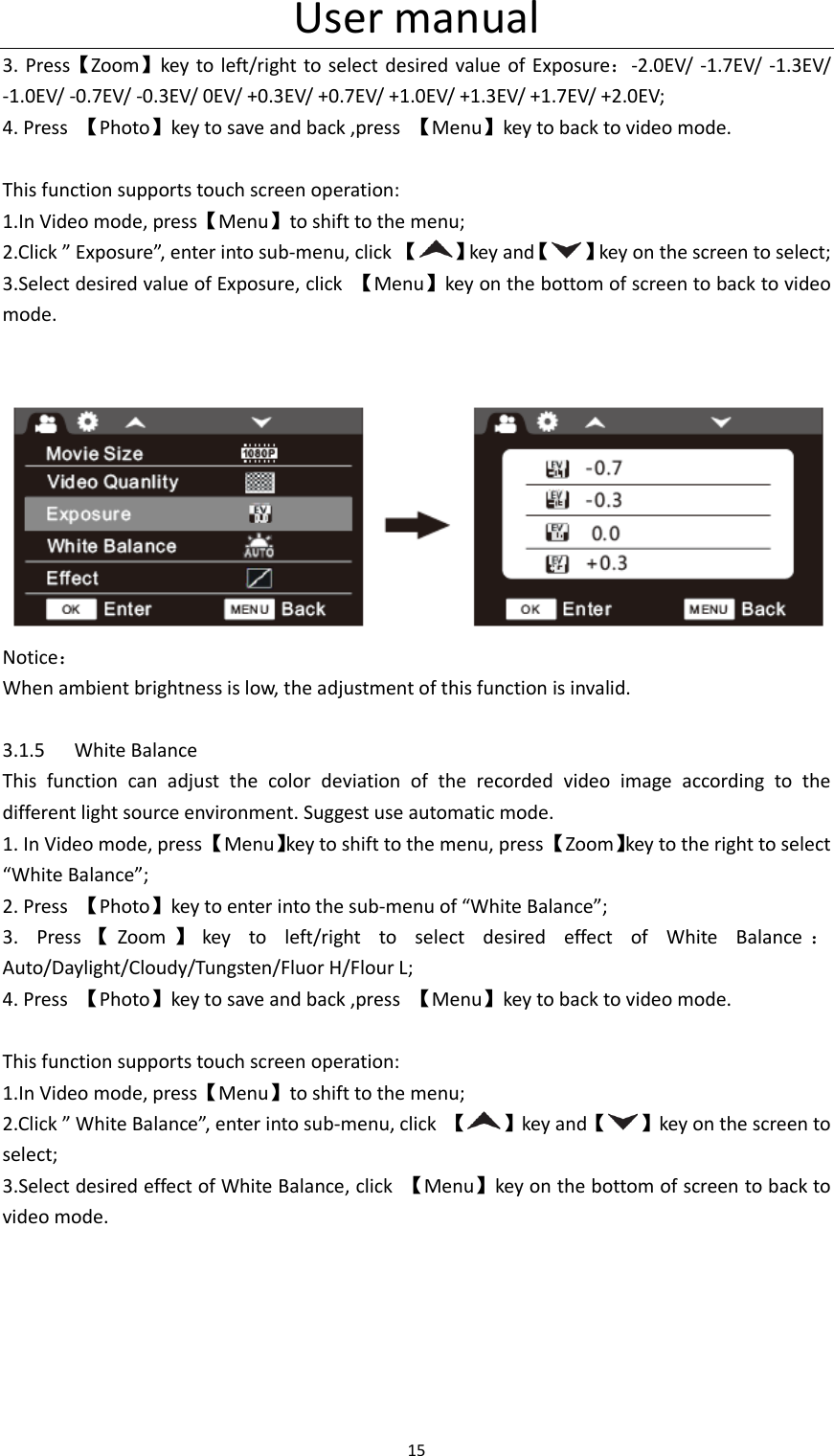
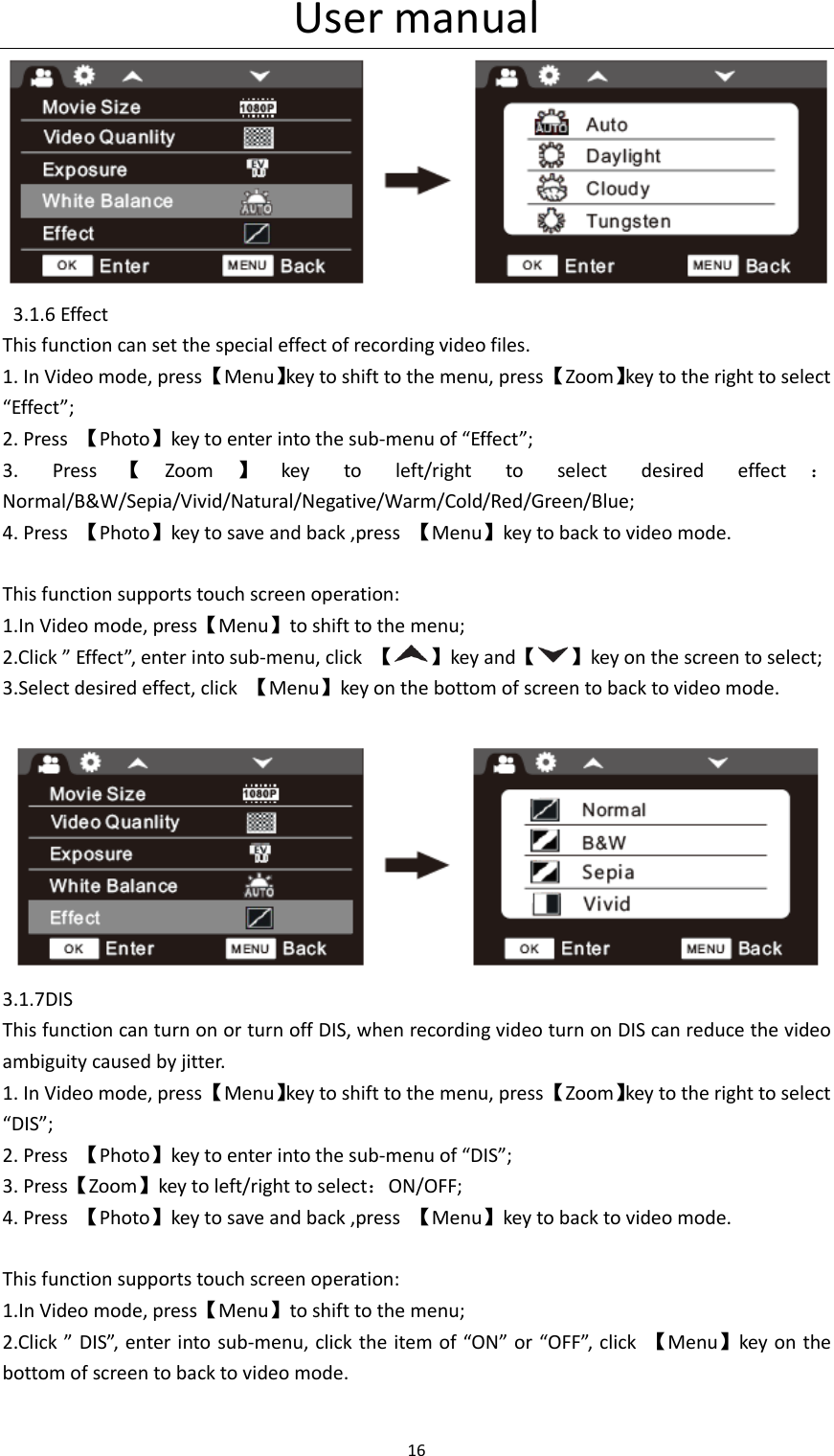
User manual 15  3. Press【Zoom】key to left/right  to select desired value  of  Exposure:-2.0EV/  -1.7EV/  -1.3EV/ -1.0EV/ -0.7EV/ -0.3EV/ 0EV/ +0.3EV/ +0.7EV/ +1.0EV/ +1.3EV/ +1.7EV/ +2.0EV; 4. Press  【Photo】key to save and back ,press  【Menu】key to back to video mode.  This function supports touch screen operation: 1.In Video mode, press【Menu】to shift to the menu; 2.Click ” Exposure”, enter into sub-menu, click 【 】key and【 】key on the screen to select; 3.Select desired value of Exposure, click  【Menu】key on the bottom of screen to back to video mode.    Notice: When ambient brightness is low, the adjustment of this function is invalid.  3.1.5 White Balance This  function  can  adjust  the  color  deviation  of  the  recorded  video  image  according  to  the different light source environment. Suggest use automatic mode. 1. In Video mode, press 【Menu】key to shift to the menu, press 【Zoom】key to the right to select “White Balance”; 2. Press  【Photo】key to enter into the sub-menu of “White Balance”; 3.  Press 【Zoom 】key  to  left/right  to  select  desired  effect  of  White  Balance :Auto/Daylight/Cloudy/Tungsten/Fluor H/Flour L; 4. Press  【Photo】key to save and back ,press  【Menu】key to back to video mode.  This function supports touch screen operation: 1.In Video mode, press【Menu】to shift to the menu; 2.Click ” White Balance”, enter into sub-menu, click  【 】key and【 】key on the screen to select; 3.Select desired effect of White Balance, click  【Menu】key on the bottom of screen to back to video mode.
User manual 16     3.1.6 Effect This function can set the special effect of recording video files. 1. In Video mode, press 【Menu】key to shift to the menu, press 【Zoom】key to the right to select “Effect”; 2. Press  【Photo】key to enter into the sub-menu of “Effect”; 3.  Press 【Zoom 】key  to  left/right  to  select  desired  effect :Normal/B&W/Sepia/Vivid/Natural/Negative/Warm/Cold/Red/Green/Blue; 4. Press  【Photo】key to save and back ,press  【Menu】key to back to video mode.  This function supports touch screen operation: 1.In Video mode, press【Menu】to shift to the menu; 2.Click ” Effect”, enter into sub-menu, click  【 】key and【 】key on the screen to select; 3.Select desired effect, click  【Menu】key on the bottom of screen to back to video mode.   3.1.7DIS This function can turn on or turn off DIS, when recording video turn on DIS can reduce the video ambiguity caused by jitter. 1. In Video mode, press 【Menu】key to shift to the menu, press 【Zoom】key to the right to select “DIS”; 2. Press  【Photo】key to enter into the sub-menu of “DIS”; 3. Press【Zoom】key to left/right to select:ON/OFF; 4. Press  【Photo】key to save and back ,press  【Menu】key to back to video mode.  This function supports touch screen operation: 1.In Video mode, press【Menu】to shift to the menu; 2.Click ” DIS”, enter  into sub-menu, click the item of “ON” or “OFF”, click  【Menu】key on the bottom of screen to back to video mode.
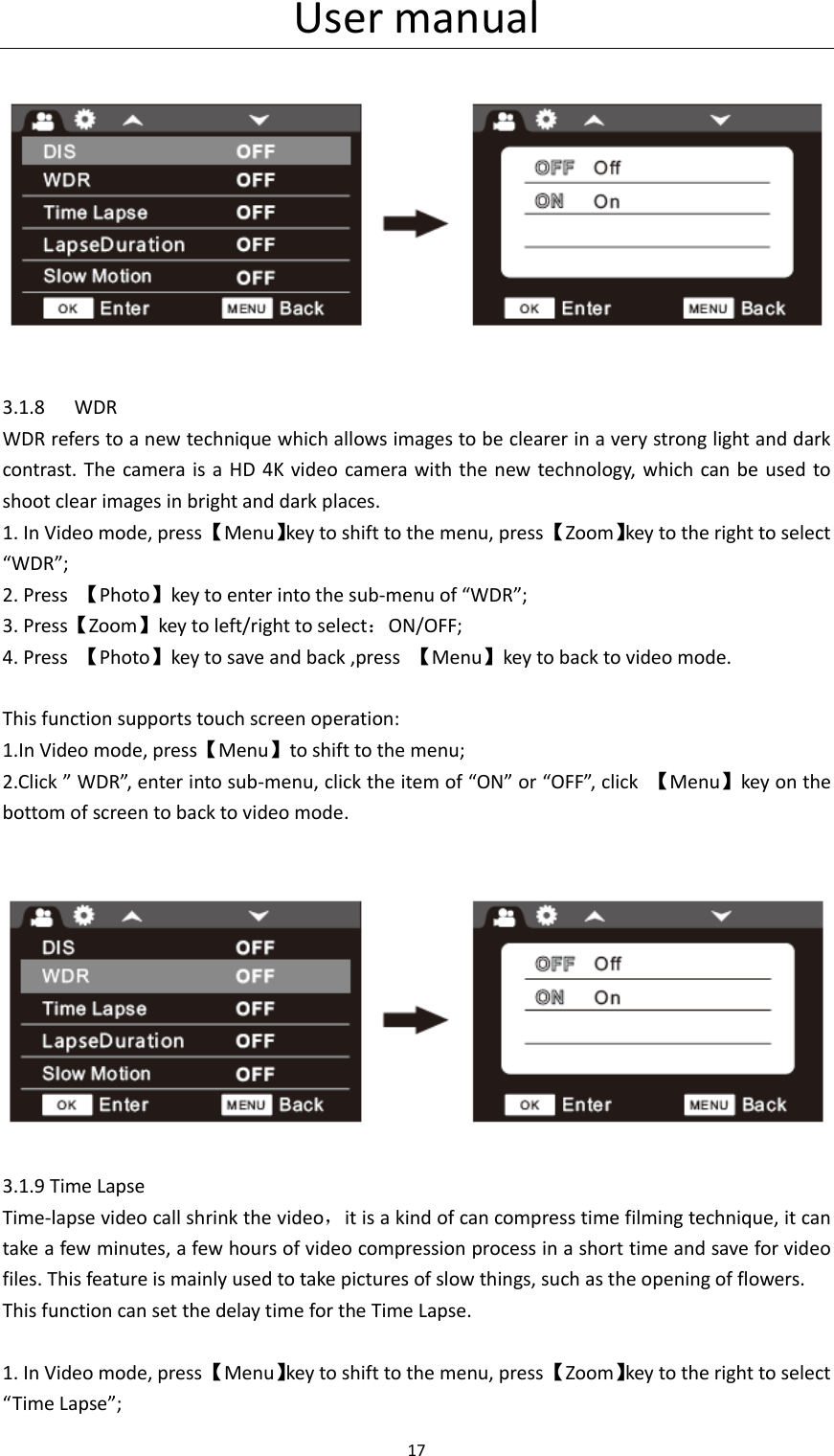
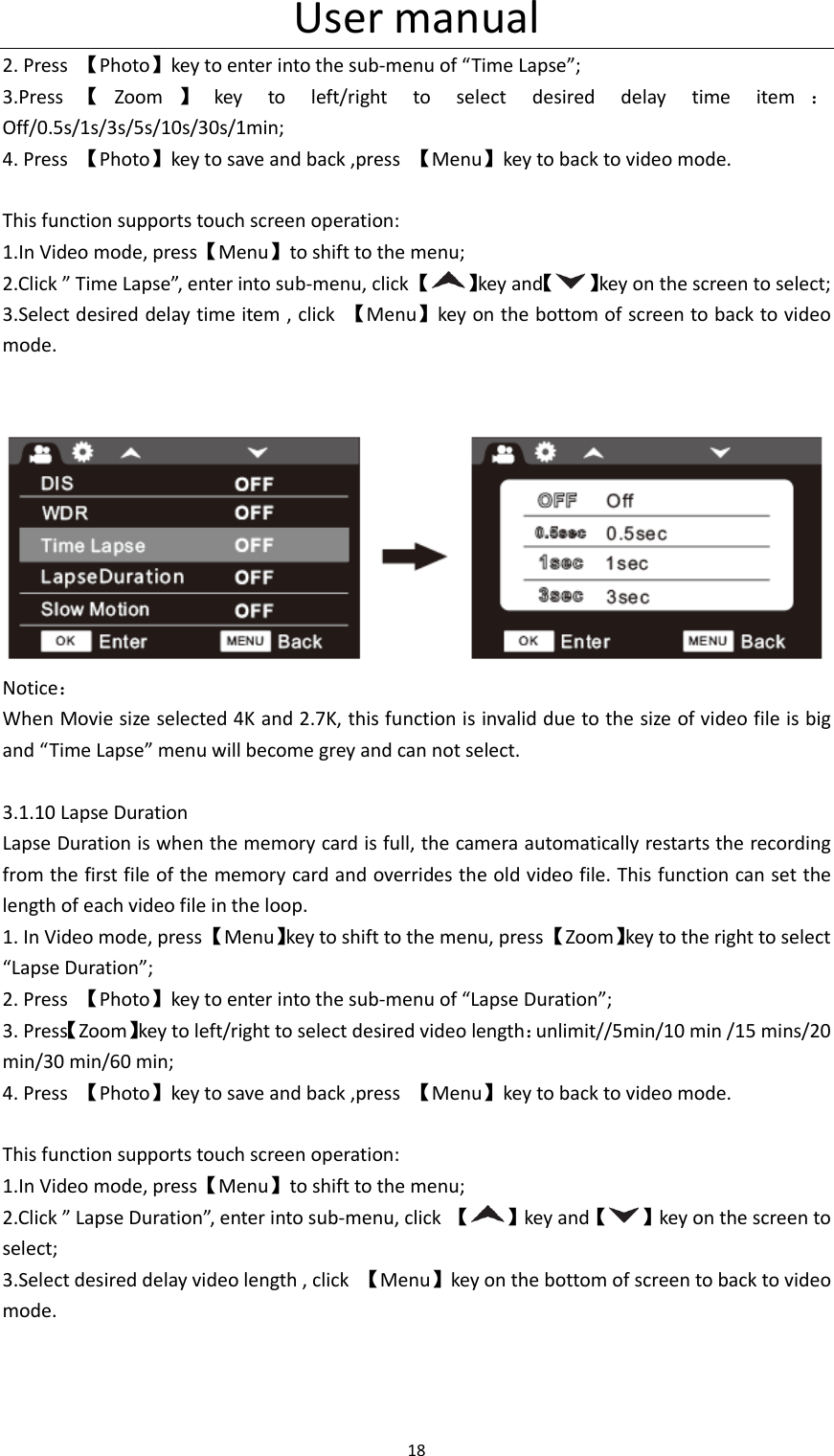
User manual 17        3.1.8 WDR WDR refers to a new technique which allows images to be clearer in a very strong light and dark contrast.  The  camera  is a  HD  4K video camera with the new technology, which can  be  used to shoot clear images in bright and dark places. 1. In Video mode, press 【Menu】key to shift to the menu, press 【Zoom】key to the right to select “WDR”; 2. Press  【Photo】key to enter into the sub-menu of “WDR”; 3. Press【Zoom】key to left/right to select:ON/OFF; 4. Press  【Photo】key to save and back ,press  【Menu】key to back to video mode.  This function supports touch screen operation: 1.In Video mode, press【Menu】to shift to the menu; 2.Click ” WDR”, enter into sub-menu, click the item of “ON” or “OFF”, click  【Menu】key on the bottom of screen to back to video mode.        3.1.9 Time Lapse Time-lapse video call shrink the video,it is a kind of can compress time filming technique, it can take a few minutes, a few hours of video compression process in a short time and save for video files. This feature is mainly used to take pictures of slow things, such as the opening of flowers. This function can set the delay time for the Time Lapse.  1. In Video mode, press 【Menu】key to shift to the menu, press 【Zoom】key to the right to select “Time Lapse”;
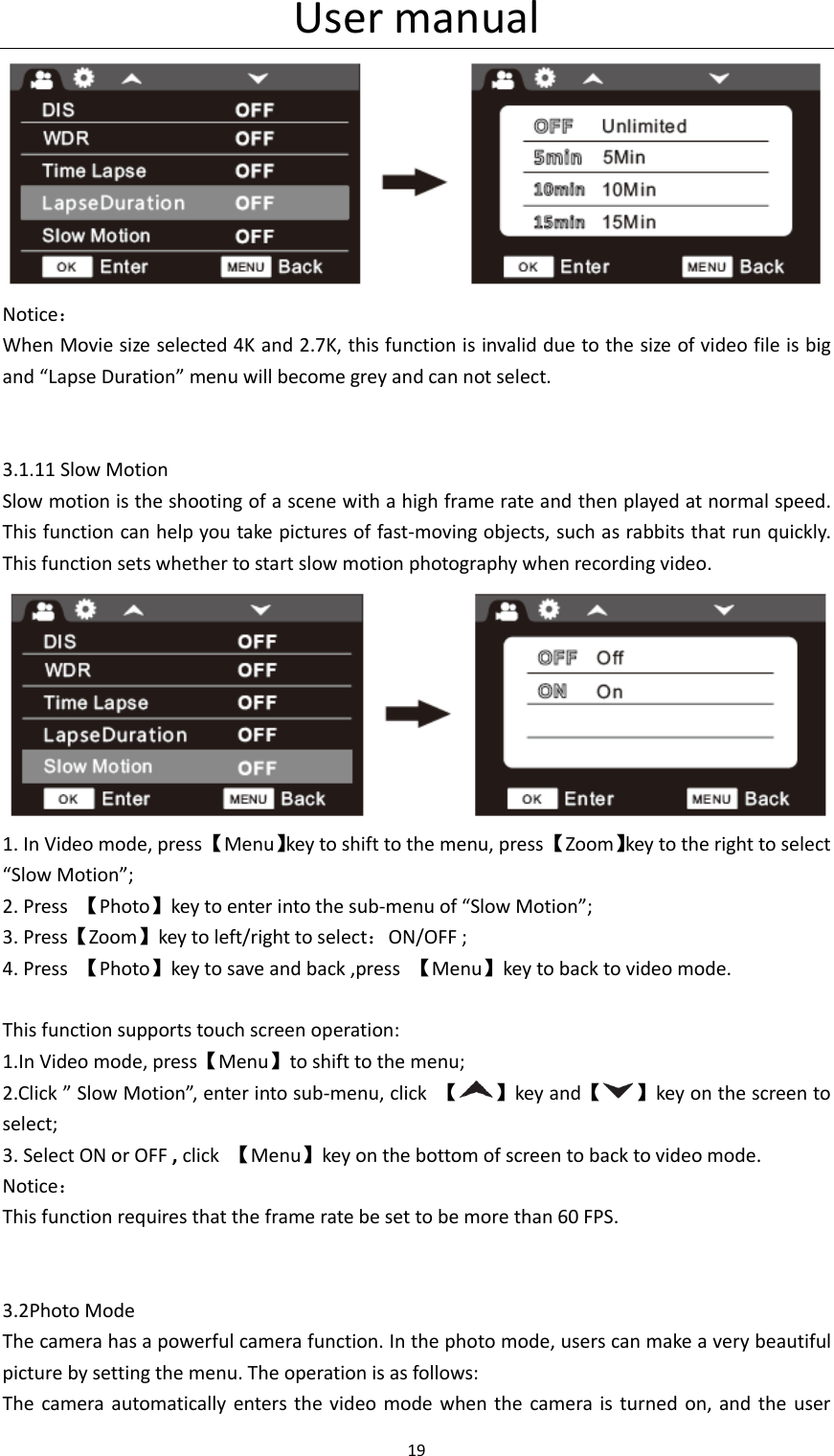
User manual 18  2. Press  【Photo】key to enter into the sub-menu of “Time Lapse”; 3.Press 【Zoom 】key  to  left/right  to  select  desired  delay  time  item :Off/0.5s/1s/3s/5s/10s/30s/1min; 4. Press  【Photo】key to save and back ,press  【Menu】key to back to video mode.  This function supports touch screen operation: 1.In Video mode, press【Menu】to shift to the menu; 2.Click ” Time Lapse”, enter into sub-menu, click 【 】key and【 】key on the screen to select; 3.Select desired delay time item , click  【Menu】key on the bottom of screen to back to video mode.    Notice: When Movie size selected 4K and 2.7K, this function is invalid due to the size of video file is big and “Time Lapse” menu will become grey and can not select.    3.1.10 Lapse Duration Lapse Duration is when the memory card is full, the camera automatically restarts the recording from the first file of the memory card and overrides the old video file. This function can set the length of each video file in the loop. 1. In Video mode, press 【Menu】key to shift to the menu, press 【Zoom】key to the right to select “Lapse Duration”; 2. Press  【Photo】key to enter into the sub-menu of “Lapse Duration”; 3. Press【Zoom】key to left/right to select desired video length:unlimit//5min/10 min /15 mins/20 min/30 min/60 min; 4. Press  【Photo】key to save and back ,press  【Menu】key to back to video mode.  This function supports touch screen operation: 1.In Video mode, press【Menu】to shift to the menu; 2.Click ” Lapse Duration”, enter into sub-menu, click  【 】key and【 】key on the screen to select; 3.Select desired delay video length , click  【Menu】key on the bottom of screen to back to video mode.
User manual 19   Notice: When Movie size selected 4K and 2.7K, this function is invalid due to the size of video file is big and “Lapse Duration” menu will become grey and can not select.          3.1.11 Slow Motion Slow motion is the shooting of a scene with a high frame rate and then played at normal speed. This function can help you take pictures of fast-moving objects, such as rabbits that run quickly. This function sets whether to start slow motion photography when recording video.  1. In Video mode, press 【Menu】key to shift to the menu, press 【Zoom】key to the right to select “Slow Motion”; 2. Press  【Photo】key to enter into the sub-menu of “Slow Motion”; 3. Press【Zoom】key to left/right to select:ON/OFF ; 4. Press  【Photo】key to save and back ,press  【Menu】key to back to video mode.  This function supports touch screen operation: 1.In Video mode, press【Menu】to shift to the menu; 2.Click ” Slow Motion”, enter into sub-menu, click  【 】key and【 】key on the screen to select; 3. Select ON or OFF , click  【Menu】key on the bottom of screen to back to video mode. Notice: This function requires that the frame rate be set to be more than 60 FPS.                 3.2Photo Mode The camera has a powerful camera function. In the photo mode, users can make a very beautiful picture by setting the menu. The operation is as follows: The  camera  automatically enters the video  mode  when the  camera  is turned  on,  and  the  user
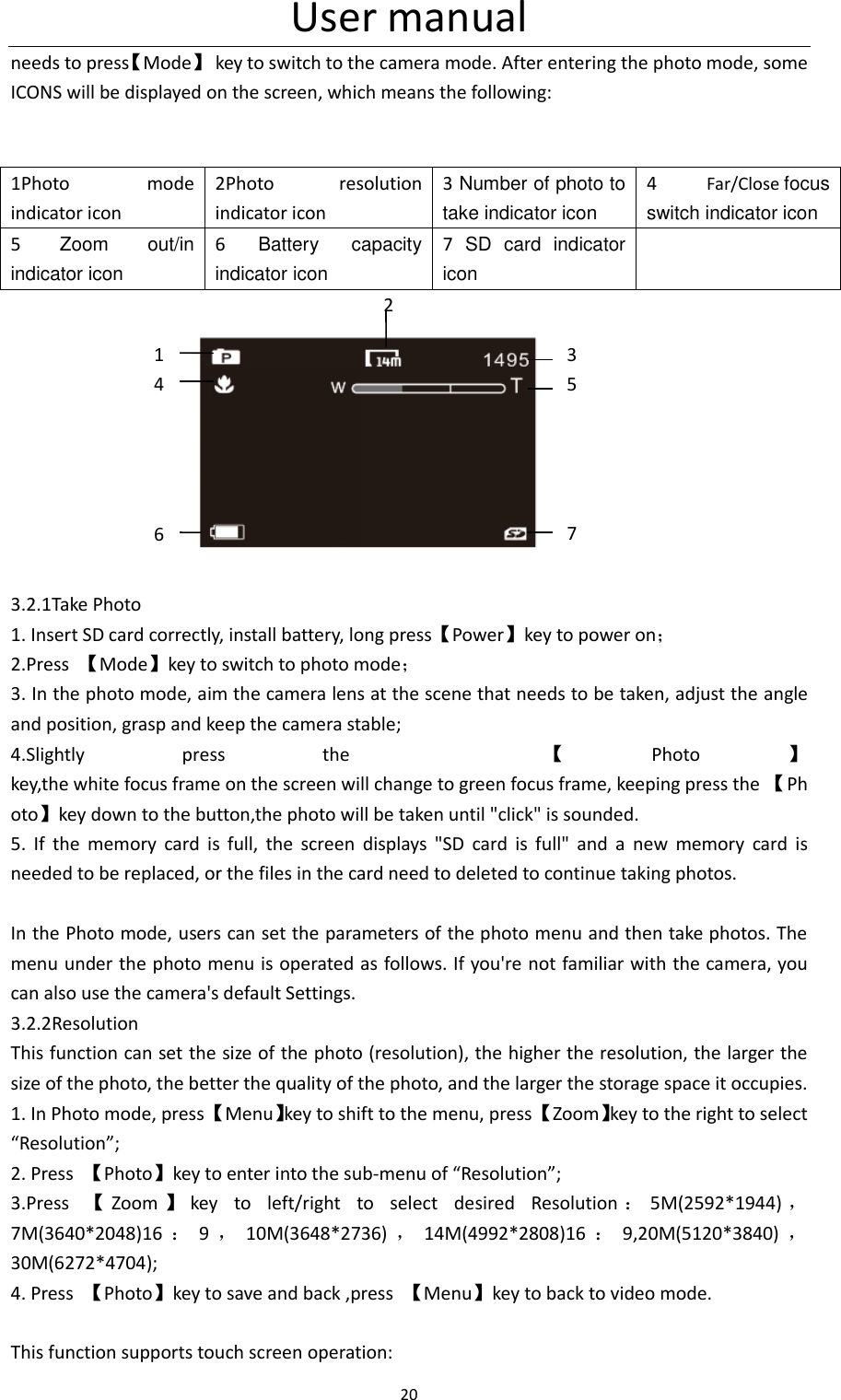
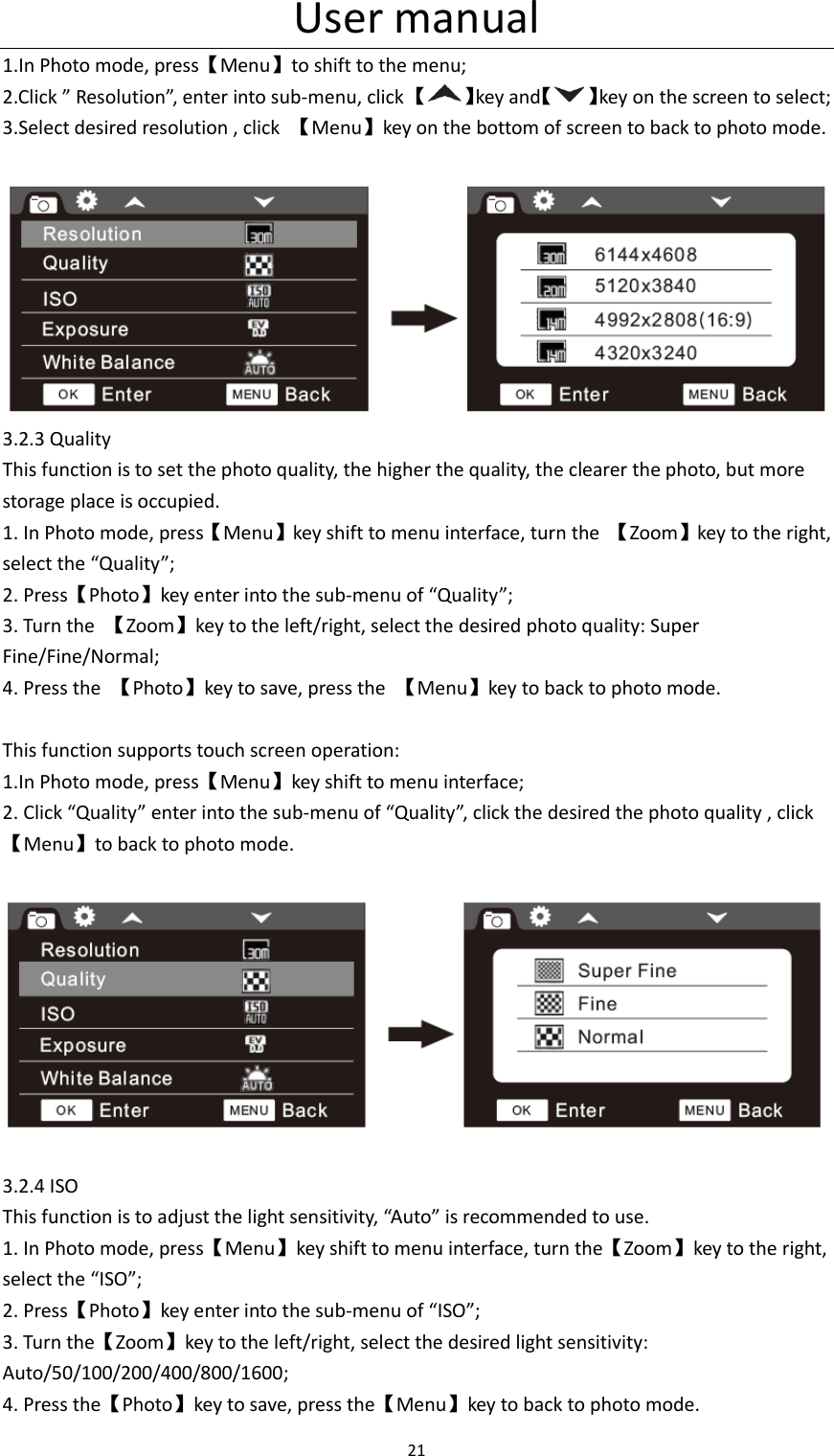
User manual 20  needs to press【Mode】  key to switch to the camera mode. After entering the photo mode, some ICONS will be displayed on the screen, which means the following:   1Photo  mode indicator icon 2Photo  resolution indicator icon 3 Number of photo to take indicator icon 4  Far/Close focus switch indicator icon 5  Zoom  out/in   indicator icon 6  Battery  capacity indicator icon 7  SD  card  indicator icon                                       2                           3.2.1Take Photo 1. Insert SD card correctly, install battery, long press【Power】key to power on; 2.Press  【Mode】key to switch to photo mode; 3. In the photo mode, aim the camera lens at the scene that needs to be taken, adjust the angle and position, grasp and keep the camera stable; 4.Slightly  press  the    【Photo 】key,the white focus frame on the screen will change to green focus frame, keeping press the 【Photo】key down to the button,the photo will be taken until "click" is sounded.   5.  If  the  memory  card  is  full,  the  screen  displays  "SD  card  is  full"  and  a  new  memory  card  is needed to be replaced, or the files in the card need to deleted to continue taking photos.  In the Photo mode, users can set the parameters of the photo menu and then take photos. The menu under the photo menu is operated as follows. If you're not familiar with the camera, you can also use the camera's default Settings. 3.2.2Resolution This function can set the size of the photo (resolution), the higher the resolution, the larger the size of the photo, the better the quality of the photo, and the larger the storage space it occupies. 1. In Photo mode, press 【Menu】key to shift to the menu, press 【Zoom】key to the right to select “Resolution”; 2. Press  【Photo】key to enter into the sub-menu of “Resolution”; 3.Press  【Zoom 】key  to  left/right  to  select  desired  Resolution :5M(2592*1944) ,7M(3640*2048)16 :9,10M(3648*2736) ,14M(4992*2808)16 :9,20M(5120*3840) ,30M(6272*4704); 4. Press  【Photo】key to save and back ,press  【Menu】key to back to video mode.  This function supports touch screen operation:          1         4             6    3 5     7
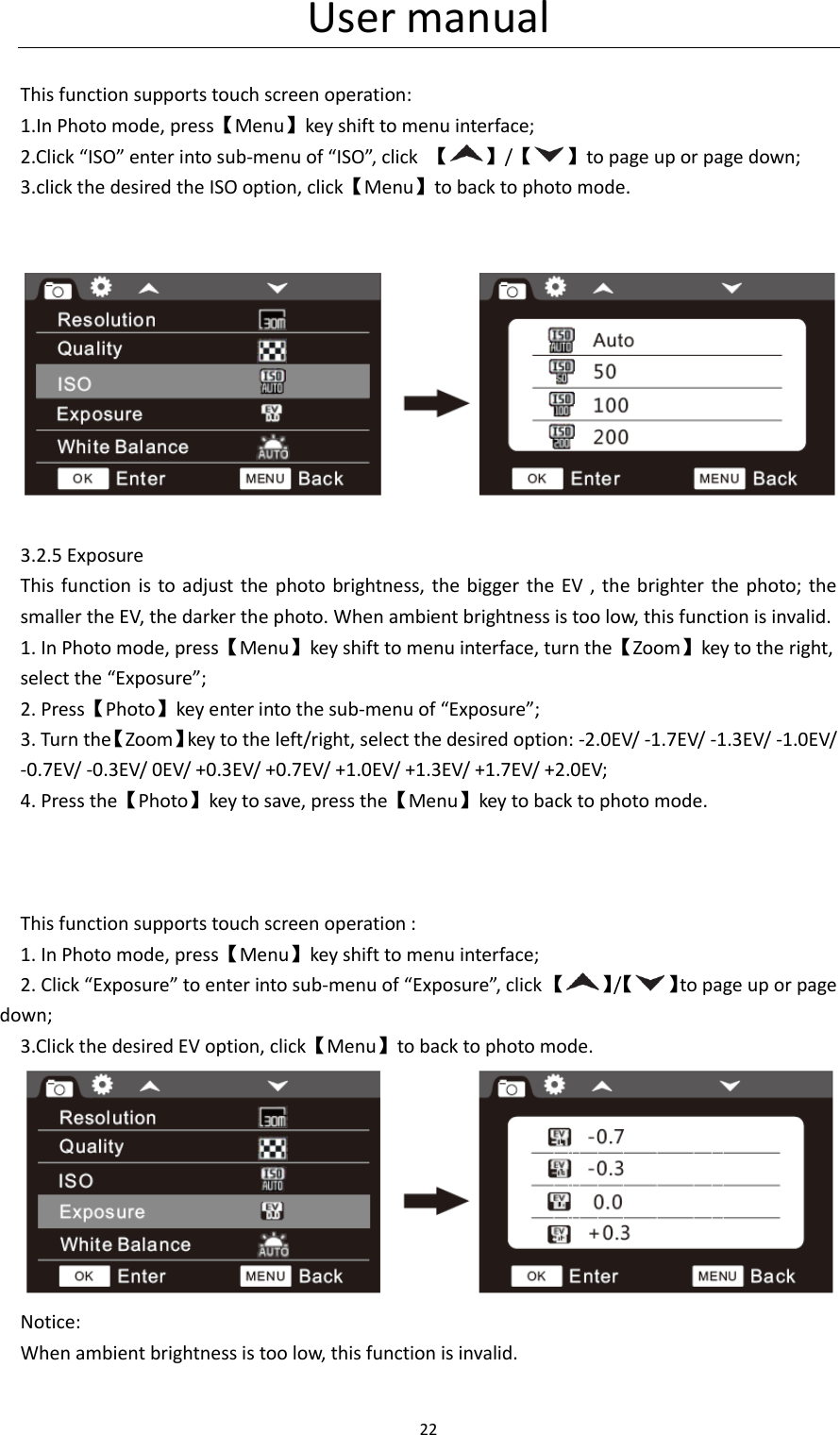
User manual 21  1.In Photo mode, press【Menu】to shift to the menu; 2.Click ” Resolution”, enter into sub-menu, click 【 】key and【 】key on the screen to select; 3.Select desired resolution , click  【Menu】key on the bottom of screen to back to photo mode.   3.2.3 Quality This function is to set the photo quality, the higher the quality, the clearer the photo, but more storage place is occupied. 1. In Photo mode, press【Menu】key shift to menu interface, turn the  【Zoom】key to the right, select the “Quality”; 2. Press【Photo】key enter into the sub-menu of “Quality”; 3. Turn the  【Zoom】key to the left/right, select the desired photo quality: Super Fine/Fine/Normal; 4. Press the  【Photo】key to save, press the  【Menu】key to back to photo mode.  This function supports touch screen operation: 1.In Photo mode, press【Menu】key shift to menu interface; 2. Click “Quality” enter into the sub-menu of “Quality”, click the desired the photo quality , click【Menu】to back to photo mode.      3.2.4 ISO This function is to adjust the light sensitivity, “Auto” is recommended to use. 1. In Photo mode, press【Menu】key shift to menu interface, turn the【Zoom】key to the right, select the “ISO”; 2. Press【Photo】key enter into the sub-menu of “ISO”; 3. Turn the【Zoom】key to the left/right, select the desired light sensitivity: Auto/50/100/200/400/800/1600; 4. Press the【Photo】key to save, press the【Menu】key to back to photo mode.
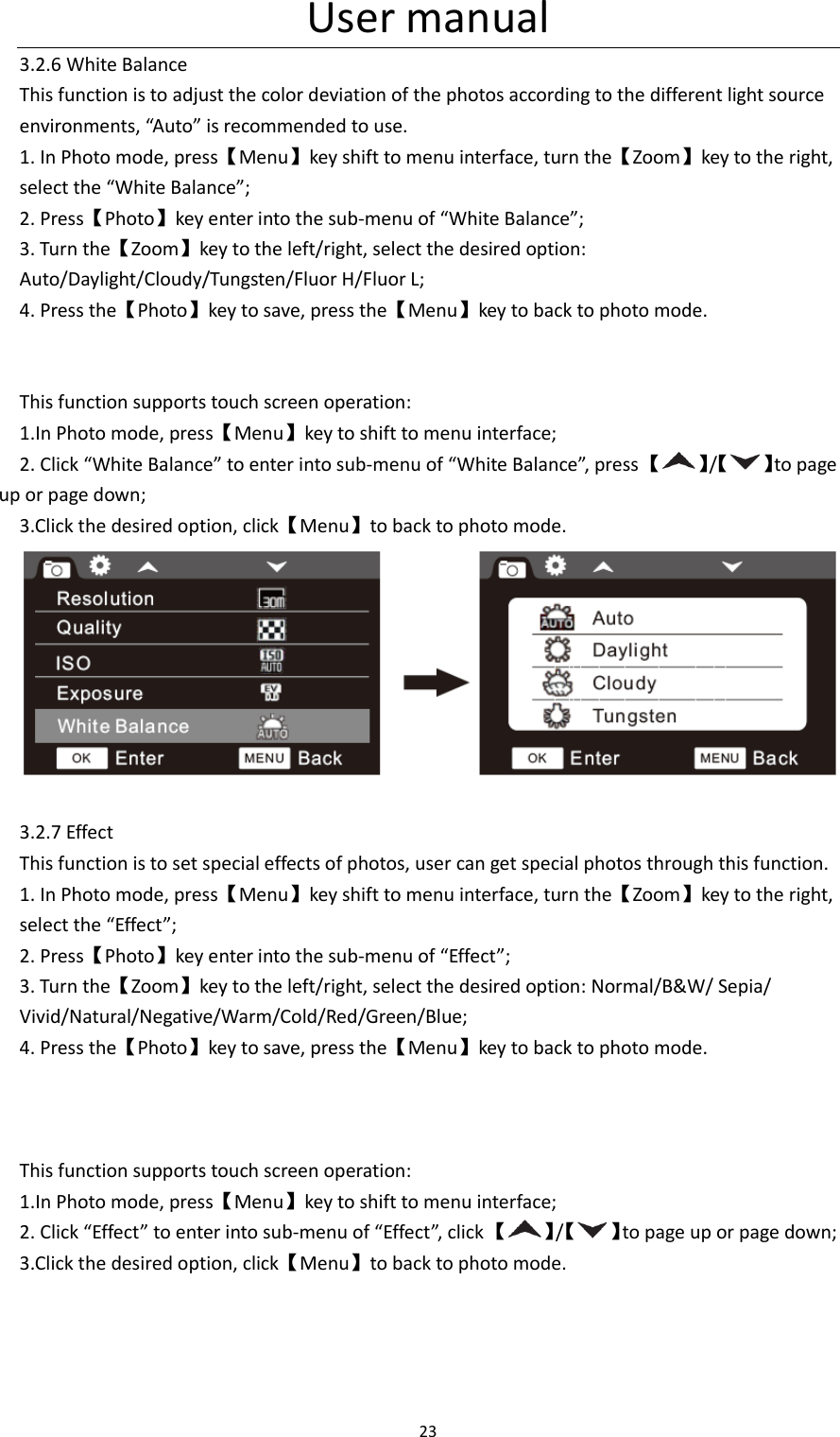
User manual 22   This function supports touch screen operation: 1.In Photo mode, press【Menu】key shift to menu interface; 2.Click “ISO” enter into sub-menu of “ISO”, click 【 】/【 】to page up or page down; 3.click the desired the ISO option, click【Menu】to back to photo mode.     3.2.5 Exposure This function is to adjust  the photo brightness,  the bigger the EV , the brighter  the photo;  the smaller the EV, the darker the photo. When ambient brightness is too low, this function is invalid. 1. In Photo mode, press【Menu】key shift to menu interface, turn the【Zoom】key to the right, select the “Exposure”; 2. Press【Photo】key enter into the sub-menu of “Exposure”; 3. Turn the【Zoom】key to the left/right, select the desired option: -2.0EV/ -1.7EV/ -1.3EV/ -1.0EV/ -0.7EV/ -0.3EV/ 0EV/ +0.3EV/ +0.7EV/ +1.0EV/ +1.3EV/ +1.7EV/ +2.0EV; 4. Press the【Photo】key to save, press the【Menu】key to back to photo mode.    This function supports touch screen operation : 1. In Photo mode, press【Menu】key shift to menu interface; 2. Click “Exposure” to enter into sub-menu of “Exposure”, click 【 】/【 】to page up or page down; 3.Click the desired EV option, click【Menu】to back to photo mode.  Notice: When ambient brightness is too low, this function is invalid.
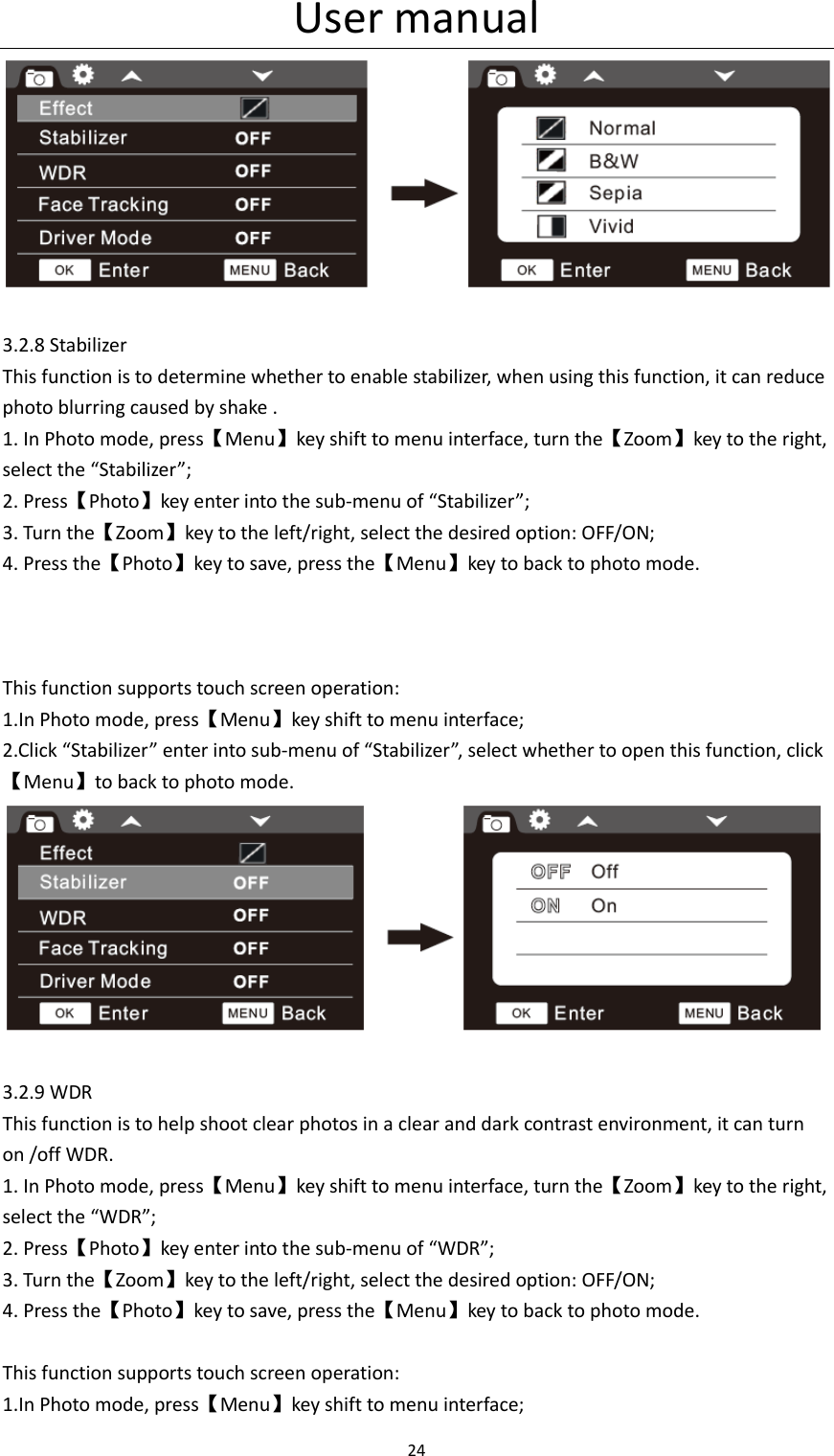
User manual 23  3.2.6 White Balance This function is to adjust the color deviation of the photos according to the different light source environments, “Auto” is recommended to use. 1. In Photo mode, press【Menu】key shift to menu interface, turn the【Zoom】key to the right, select the “White Balance”; 2. Press【Photo】key enter into the sub-menu of “White Balance”; 3. Turn the【Zoom】key to the left/right, select the desired option: Auto/Daylight/Cloudy/Tungsten/Fluor H/Fluor L; 4. Press the【Photo】key to save, press the【Menu】key to back to photo mode.   This function supports touch screen operation: 1.In Photo mode, press【Menu】key to shift to menu interface; 2. Click “White Balance” to enter into sub-menu of “White Balance”, press 【 】/【 】to page up or page down; 3.Click the desired option, click【Menu】to back to photo mode.   3.2.7 Effect This function is to set special effects of photos, user can get special photos through this function. 1. In Photo mode, press【Menu】key shift to menu interface, turn the【Zoom】key to the right, select the “Effect”; 2. Press【Photo】key enter into the sub-menu of “Effect”; 3. Turn the【Zoom】key to the left/right, select the desired option: Normal/B&W/ Sepia/ Vivid/Natural/Negative/Warm/Cold/Red/Green/Blue; 4. Press the【Photo】key to save, press the【Menu】key to back to photo mode.    This function supports touch screen operation: 1.In Photo mode, press【Menu】key to shift to menu interface; 2. Click “Effect” to enter into sub-menu of “Effect”, click 【 】/【 】to page up or page down; 3.Click the desired option, click【Menu】to back to photo mode.
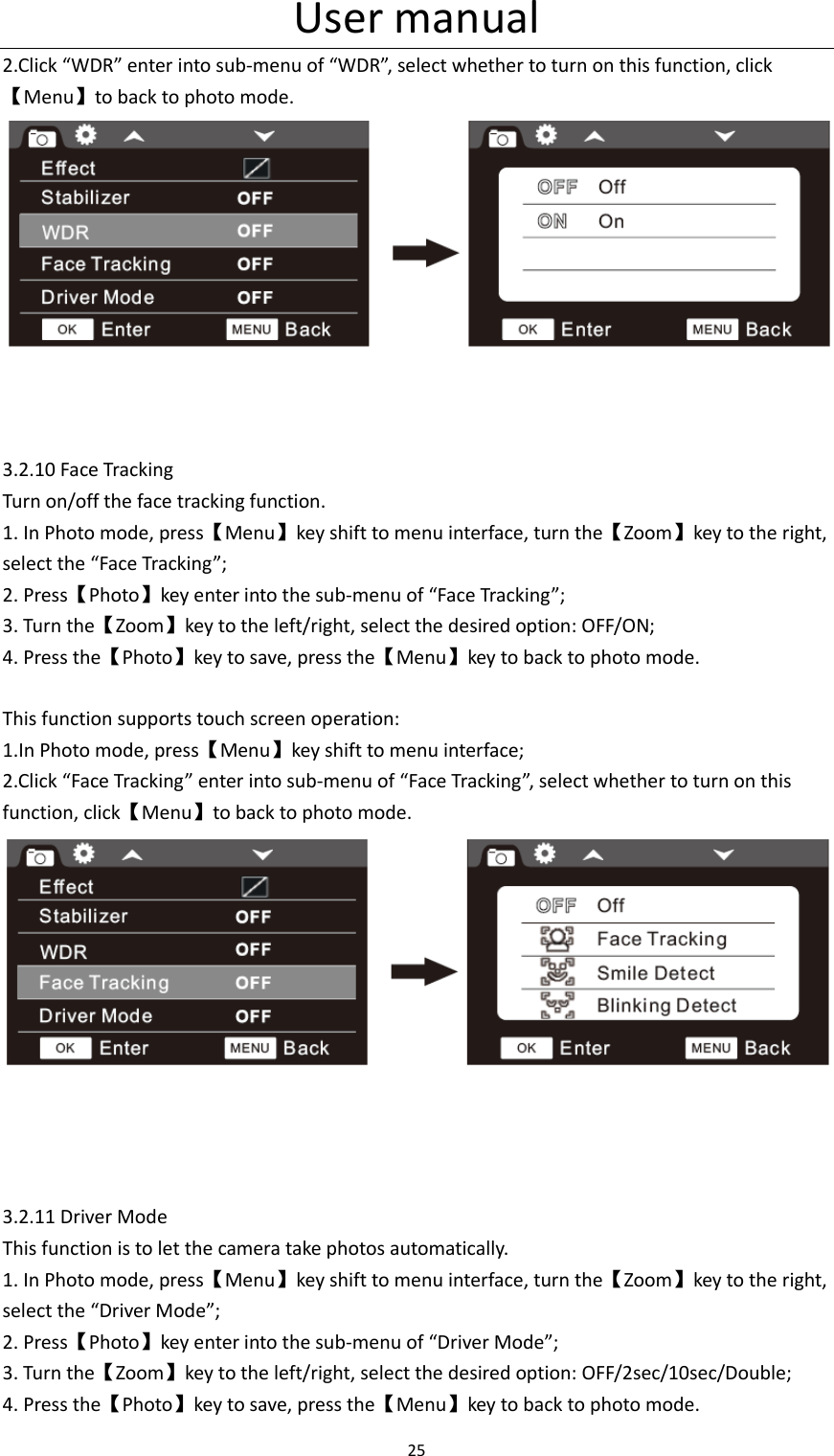
User manual 24    3.2.8 Stabilizer This function is to determine whether to enable stabilizer, when using this function, it can reduce photo blurring caused by shake . 1. In Photo mode, press【Menu】key shift to menu interface, turn the【Zoom】key to the right, select the “Stabilizer”; 2. Press【Photo】key enter into the sub-menu of “Stabilizer”; 3. Turn the【Zoom】key to the left/right, select the desired option: OFF/ON; 4. Press the【Photo】key to save, press the【Menu】key to back to photo mode.    This function supports touch screen operation: 1.In Photo mode, press【Menu】key shift to menu interface; 2.Click “Stabilizer” enter into sub-menu of “Stabilizer”, select whether to open this function, click【Menu】to back to photo mode.  3.2.9 WDR This function is to help shoot clear photos in a clear and dark contrast environment, it can turn on /off WDR. 1. In Photo mode, press【Menu】key shift to menu interface, turn the【Zoom】key to the right, select the “WDR”; 2. Press【Photo】key enter into the sub-menu of “WDR”; 3. Turn the【Zoom】key to the left/right, select the desired option: OFF/ON; 4. Press the【Photo】key to save, press the【Menu】key to back to photo mode.  This function supports touch screen operation: 1.In Photo mode, press【Menu】key shift to menu interface;
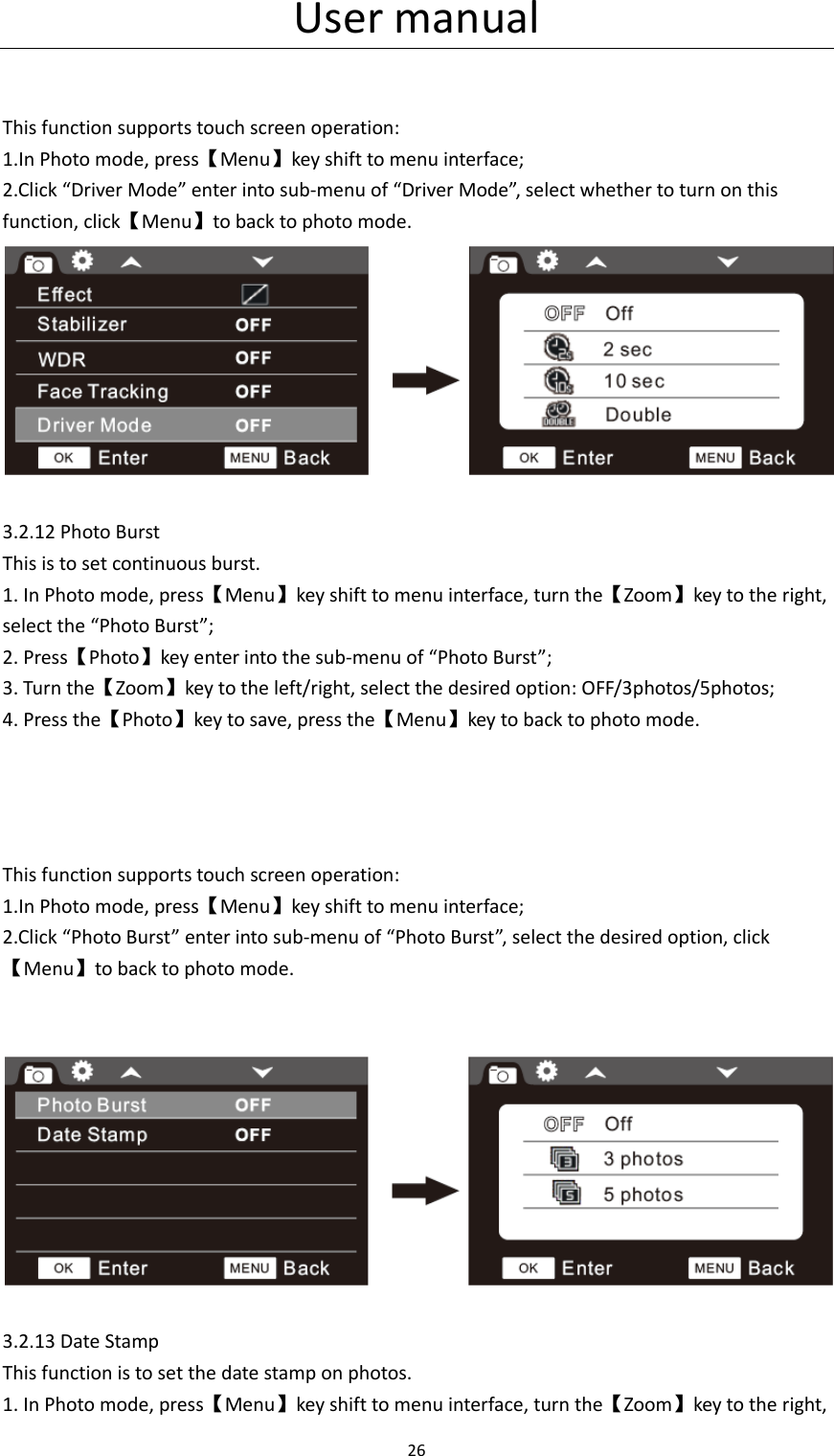
User manual 25  2.Click “WDR” enter into sub-menu of “WDR”, select whether to turn on this function, click【Menu】to back to photo mode.     3.2.10 Face Tracking Turn on/off the face tracking function. 1. In Photo mode, press【Menu】key shift to menu interface, turn the【Zoom】key to the right, select the “Face Tracking”; 2. Press【Photo】key enter into the sub-menu of “Face Tracking”; 3. Turn the【Zoom】key to the left/right, select the desired option: OFF/ON; 4. Press the【Photo】key to save, press the【Menu】key to back to photo mode.  This function supports touch screen operation: 1.In Photo mode, press【Menu】key shift to menu interface; 2.Click “Face Tracking” enter into sub-menu of “Face Tracking”, select whether to turn on this function, click【Menu】to back to photo mode.      3.2.11 Driver Mode This function is to let the camera take photos automatically.   1. In Photo mode, press【Menu】key shift to menu interface, turn the【Zoom】key to the right, select the “Driver Mode”; 2. Press【Photo】key enter into the sub-menu of “Driver Mode”; 3. Turn the【Zoom】key to the left/right, select the desired option: OFF/2sec/10sec/Double; 4. Press the【Photo】key to save, press the【Menu】key to back to photo mode.
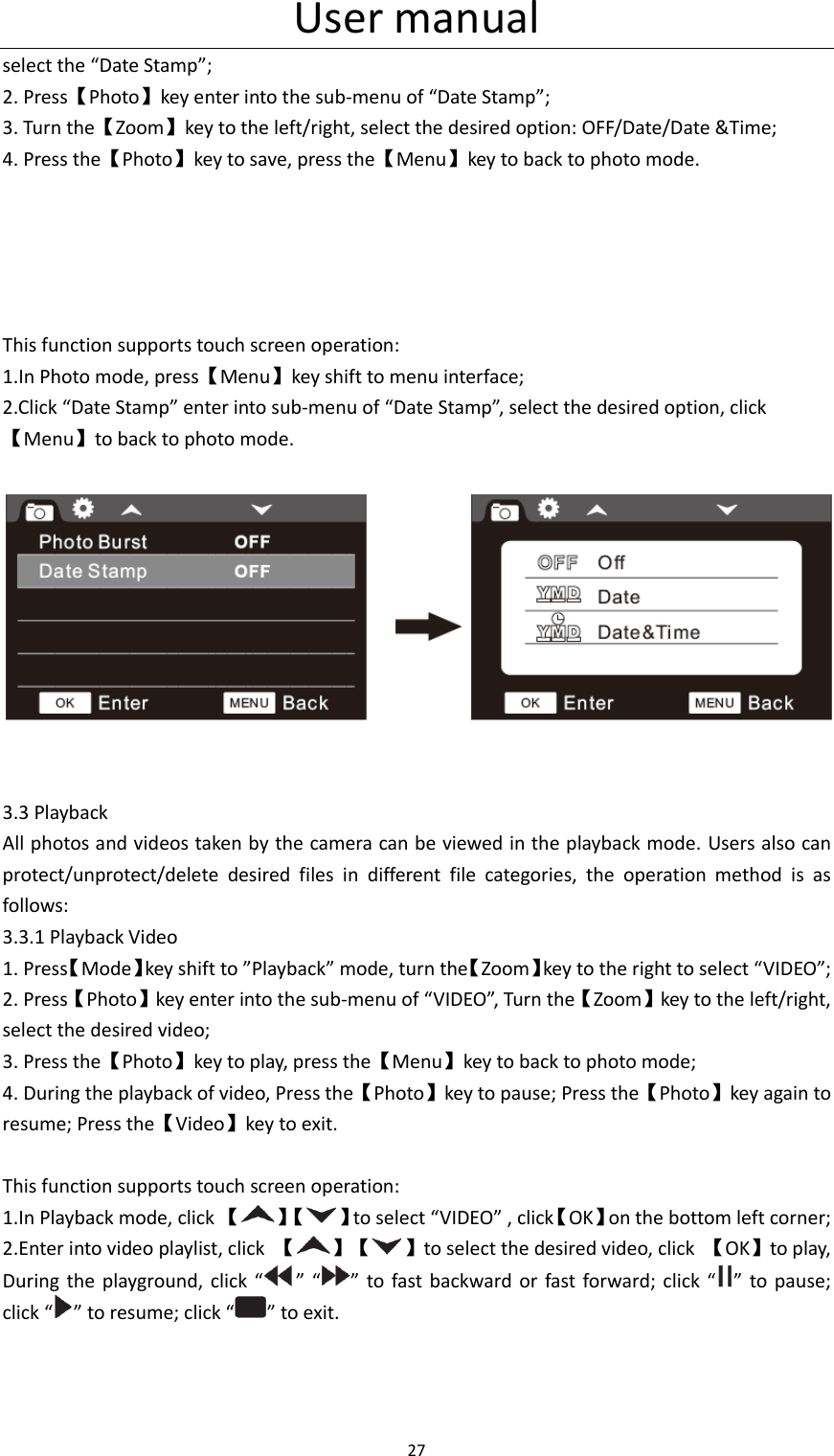
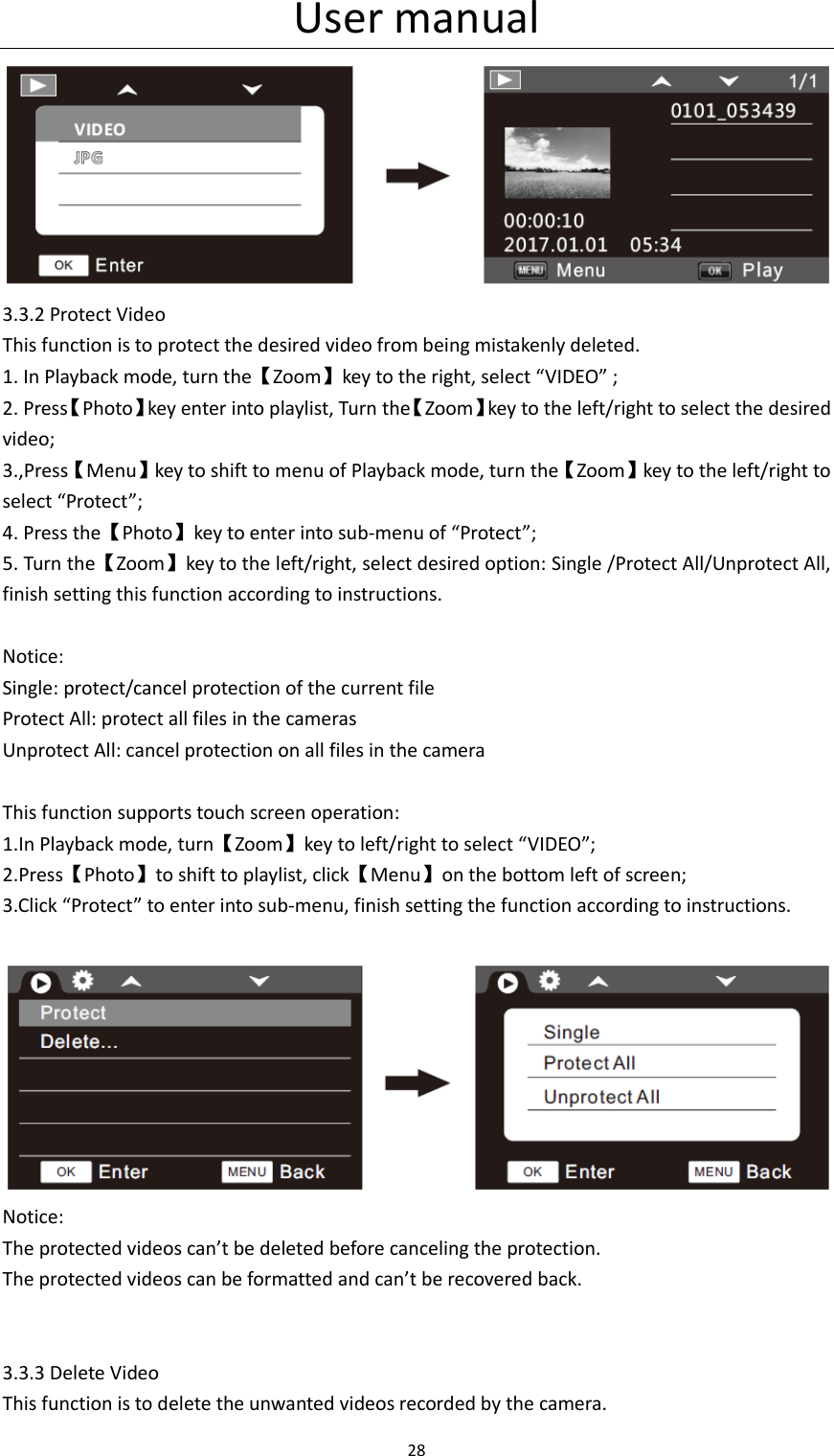
User manual 26    This function supports touch screen operation: 1.In Photo mode, press【Menu】key shift to menu interface; 2.Click “Driver Mode” enter into sub-menu of “Driver Mode”, select whether to turn on this function, click【Menu】to back to photo mode.   3.2.12 Photo Burst This is to set continuous burst. 1. In Photo mode, press【Menu】key shift to menu interface, turn the【Zoom】key to the right, select the “Photo Burst”; 2. Press【Photo】key enter into the sub-menu of “Photo Burst”; 3. Turn the【Zoom】key to the left/right, select the desired option: OFF/3photos/5photos; 4. Press the【Photo】key to save, press the【Menu】key to back to photo mode.     This function supports touch screen operation: 1.In Photo mode, press【Menu】key shift to menu interface; 2.Click “Photo Burst” enter into sub-menu of “Photo Burst”, select the desired option, click【Menu】to back to photo mode.     3.2.13 Date Stamp This function is to set the date stamp on photos. 1. In Photo mode, press【Menu】key shift to menu interface, turn the【Zoom】key to the right,
User manual 27  select the “Date Stamp”; 2. Press【Photo】key enter into the sub-menu of “Date Stamp”; 3. Turn the【Zoom】key to the left/right, select the desired option: OFF/Date/Date &Time; 4. Press the【Photo】key to save, press the【Menu】key to back to photo mode.      This function supports touch screen operation: 1.In Photo mode, press【Menu】key shift to menu interface; 2.Click “Date Stamp” enter into sub-menu of “Date Stamp”, select the desired option, click【Menu】to back to photo mode.         3.3 Playback All photos and videos taken by the camera can be viewed in the playback mode. Users also can protect/unprotect/delete  desired  files  in  different  file  categories,  the  operation  method  is  as follows: 3.3.1 Playback Video 1. Press【Mode】key shift to ”Playback” mode, turn the【Zoom】key to the right to select “VIDEO”; 2. Press【Photo】key enter into the sub-menu of “VIDEO”, Turn the【Zoom】key to the left/right, select the desired video; 3. Press the【Photo】key to play, press the【Menu】key to back to photo mode; 4. During the playback of video, Press the【Photo】key to pause; Press the【Photo】key again to resume; Press the【Video】key to exit.  This function supports touch screen operation: 1.In Playback mode, click 【】【 】to select “VIDEO” , click【OK】on the bottom left corner; 2.Enter into video playlist, click  【】【 】to select the desired video, click  【OK】to play, During the  playground,  click  “ ” “ ”  to fast  backward  or fast  forward; click “ ”  to pause; click “ ” to resume; click “ ” to exit.
User manual 28   3.3.2 Protect Video   This function is to protect the desired video from being mistakenly deleted. 1. In Playback mode, turn the【Zoom】key to the right, select “VIDEO” ; 2. Press【Photo】key enter into playlist, Turn the【Zoom】key to the left/right to select the desired video; 3.,Press【Menu】key to shift to menu of Playback mode, turn the【Zoom】key to the left/right to select “Protect”; 4. Press the【Photo】key to enter into sub-menu of “Protect”; 5. Turn the【Zoom】key to the left/right, select desired option: Single /Protect All/Unprotect All, finish setting this function according to instructions.    Notice: Single: protect/cancel protection of the current file Protect All: protect all files in the cameras Unprotect All: cancel protection on all files in the camera  This function supports touch screen operation: 1.In Playback mode, turn【Zoom】key to left/right to select “VIDEO”; 2.Press【Photo】to shift to playlist, click【Menu】on the bottom left of screen; 3.Click “Protect” to enter into sub-menu, finish setting the function according to instructions.   Notice: The protected videos can’t be deleted before canceling the protection. The protected videos can be formatted and can’t be recovered back.   3.3.3 Delete Video This function is to delete the unwanted videos recorded by the camera.
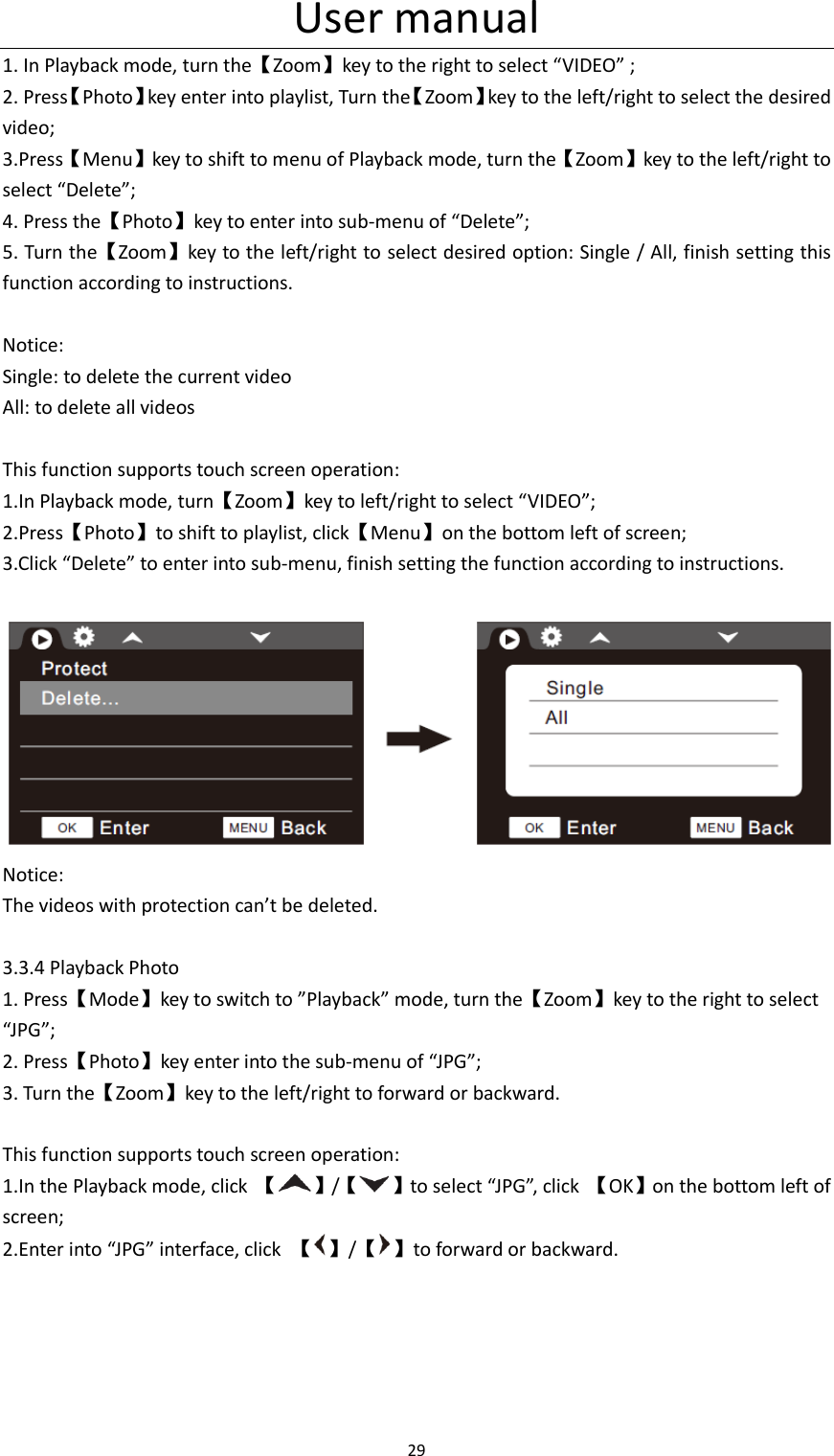
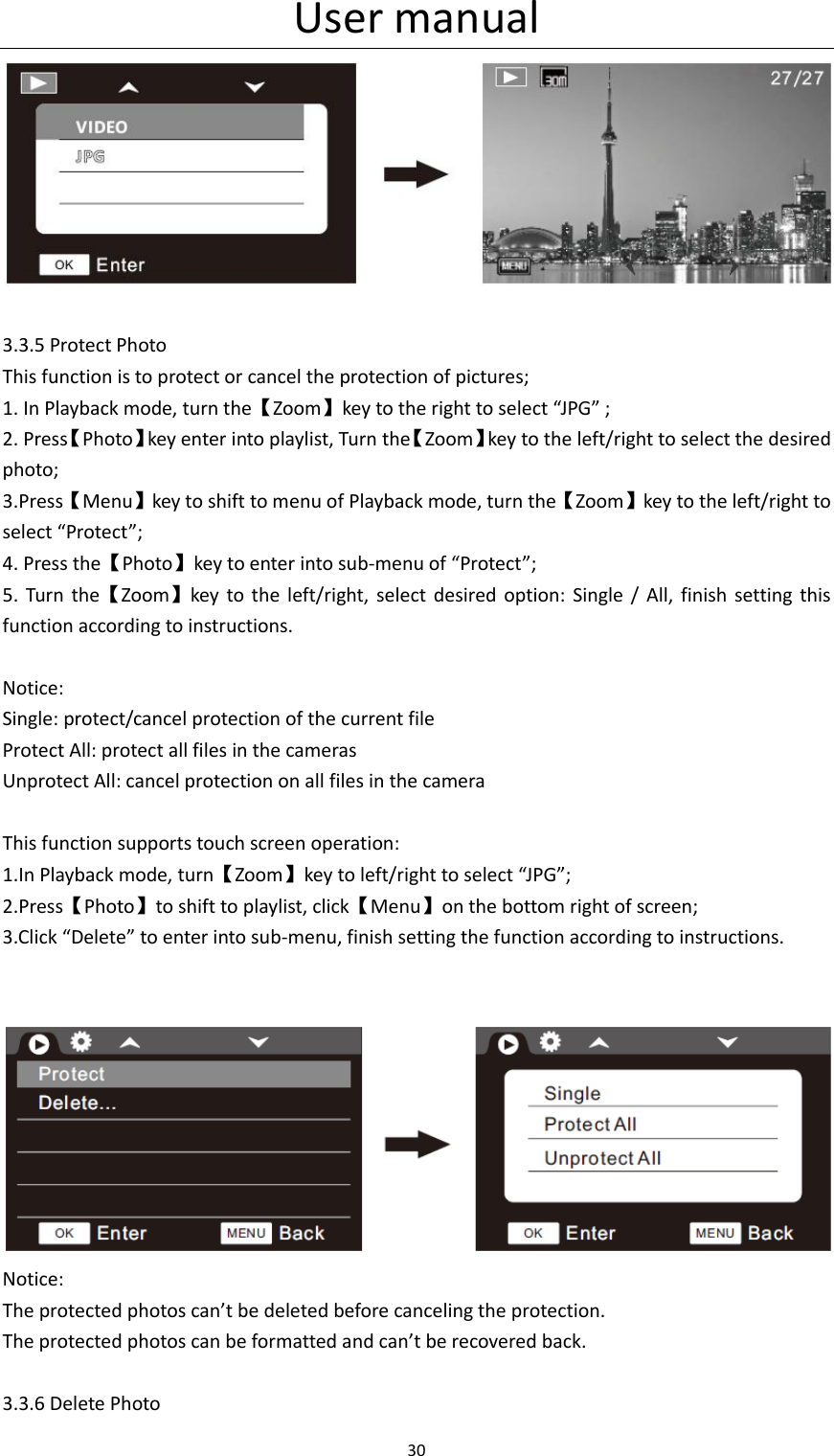
User manual 29  1. In Playback mode, turn the【Zoom】key to the right to select “VIDEO” ; 2. Press【Photo】key enter into playlist, Turn the【Zoom】key to the left/right to select the desired video; 3.Press【Menu】key to shift to menu of Playback mode, turn the【Zoom】key to the left/right to select “Delete”; 4. Press the【Photo】key to enter into sub-menu of “Delete”; 5. Turn the【Zoom】key to the left/right to select desired option: Single / All, finish setting this function according to instructions.  Notice: Single: to delete the current video All: to delete all videos  This function supports touch screen operation: 1.In Playback mode, turn【Zoom】key to left/right to select “VIDEO”; 2.Press【Photo】to shift to playlist, click【Menu】on the bottom left of screen; 3.Click “Delete” to enter into sub-menu, finish setting the function according to instructions.   Notice: The videos with protection can’t be deleted.  3.3.4 Playback Photo 1. Press【Mode】key to switch to ”Playback” mode, turn the【Zoom】key to the right to select “JPG”; 2. Press【Photo】key enter into the sub-menu of “JPG”; 3. Turn the【Zoom】key to the left/right to forward or backward.  This function supports touch screen operation: 1.In the Playback mode, click  【 】/【 】to select “JPG”, click  【OK】on the bottom left of screen; 2.Enter into “JPG” interface, click  【 】/【 】to forward or backward.
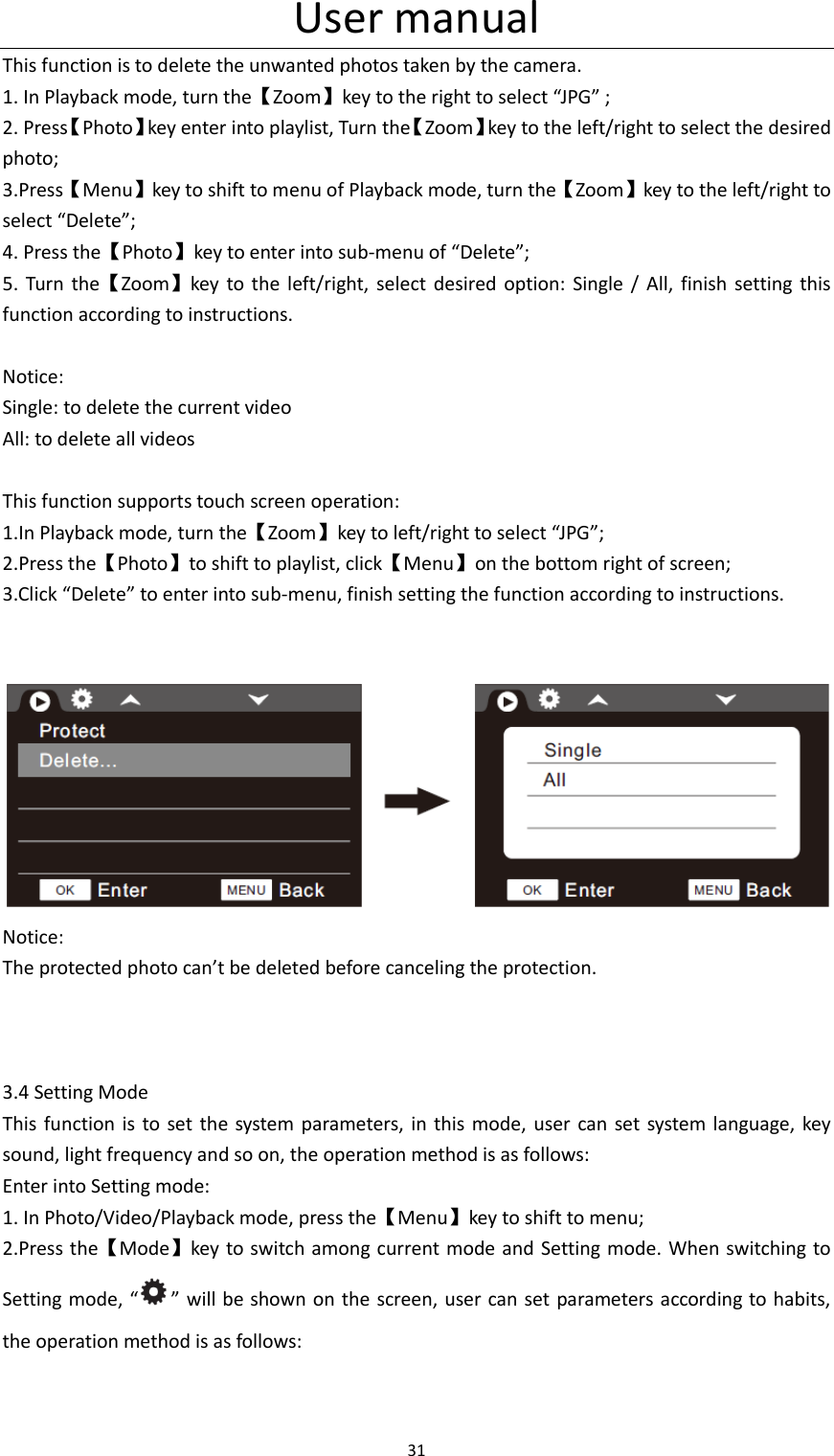
User manual 30    3.3.5 Protect Photo This function is to protect or cancel the protection of pictures; 1. In Playback mode, turn the【Zoom】key to the right to select “JPG” ; 2. Press【Photo】key enter into playlist, Turn the【Zoom】key to the left/right to select the desired photo; 3.Press【Menu】key to shift to menu of Playback mode, turn the【Zoom】key to the left/right to select “Protect”; 4. Press the【Photo】key to enter into sub-menu of “Protect”; 5.  Turn  the【Zoom】key  to  the  left/right, select  desired  option:  Single /  All,  finish  setting this function according to instructions.  Notice: Single: protect/cancel protection of the current file Protect All: protect all files in the cameras Unprotect All: cancel protection on all files in the camera  This function supports touch screen operation: 1.In Playback mode, turn【Zoom】key to left/right to select “JPG”; 2.Press【Photo】to shift to playlist, click【Menu】on the bottom right of screen; 3.Click “Delete” to enter into sub-menu, finish setting the function according to instructions.    Notice: The protected photos can’t be deleted before canceling the protection. The protected photos can be formatted and can’t be recovered back.  3.3.6 Delete Photo
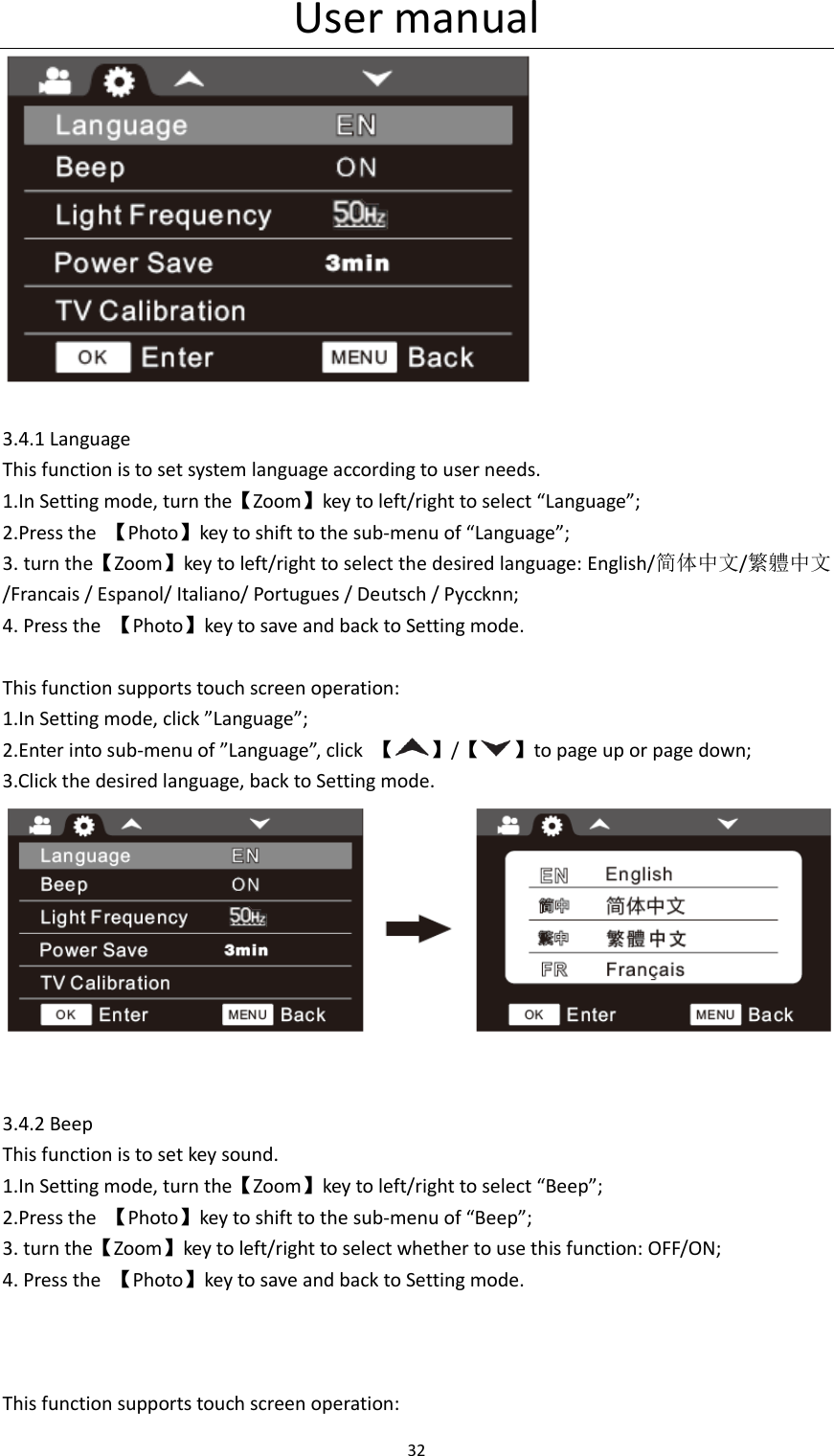
User manual 31  This function is to delete the unwanted photos taken by the camera. 1. In Playback mode, turn the【Zoom】key to the right to select “JPG” ; 2. Press【Photo】key enter into playlist, Turn the【Zoom】key to the left/right to select the desired photo; 3.Press【Menu】key to shift to menu of Playback mode, turn the【Zoom】key to the left/right to select “Delete”; 4. Press the【Photo】key to enter into sub-menu of “Delete”; 5.  Turn  the【Zoom】key  to  the  left/right, select  desired  option:  Single /  All,  finish  setting this function according to instructions.  Notice: Single: to delete the current video All: to delete all videos  This function supports touch screen operation: 1.In Playback mode, turn the【Zoom】key to left/right to select “JPG”; 2.Press the【Photo】to shift to playlist, click【Menu】on the bottom right of screen; 3.Click “Delete” to enter into sub-menu, finish setting the function according to instructions.    Notice: The protected photo can’t be deleted before canceling the protection.    3.4 Setting Mode This function is  to set  the  system parameters, in this mode, user can set system language, key sound, light frequency and so on, the operation method is as follows: Enter into Setting mode: 1. In Photo/Video/Playback mode, press the【Menu】key to shift to menu; 2.Press the【Mode】key to switch among current mode and  Setting mode. When switching to Setting mode,  “ ” will be shown on the screen, user can set parameters according to habits, the operation method is as follows:
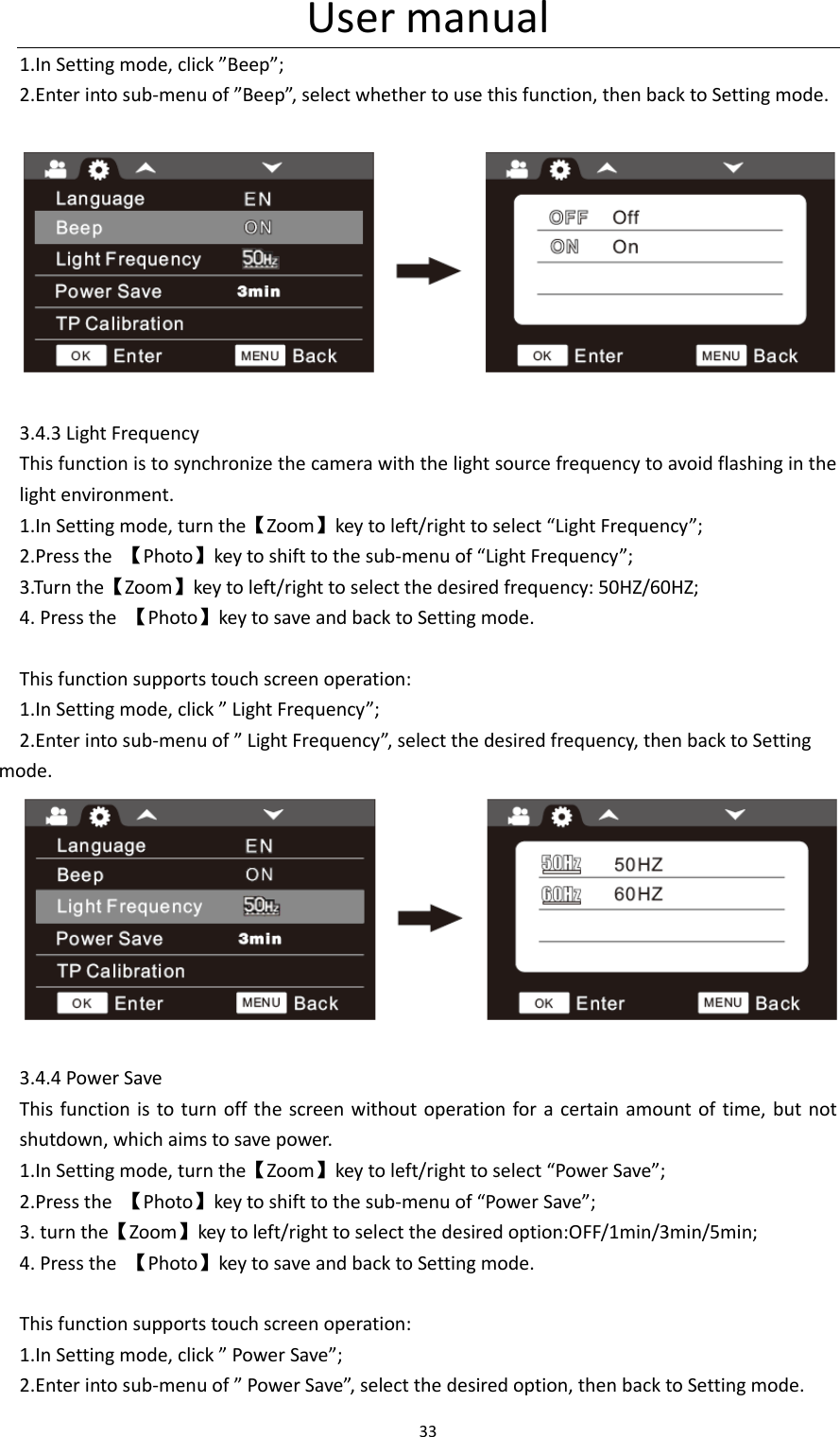
User manual 32    3.4.1 Language This function is to set system language according to user needs. 1.In Setting mode, turn the【Zoom】key to left/right to select “Language”; 2.Press the  【Photo】key to shift to the sub-menu of “Language”; 3. turn the【Zoom】key to left/right to select the desired language: English/简体中文/繁軆中文/Francais / Espanol/ Italiano/ Portugues / Deutsch / Pyccknn; 4. Press the  【Photo】key to save and back to Setting mode.  This function supports touch screen operation: 1.In Setting mode, click ”Language”; 2.Enter into sub-menu of ”Language”, click  【 】/【 】to page up or page down; 3.Click the desired language, back to Setting mode.    3.4.2 Beep This function is to set key sound. 1.In Setting mode, turn the【Zoom】key to left/right to select “Beep”; 2.Press the  【Photo】key to shift to the sub-menu of “Beep”; 3. turn the【Zoom】key to left/right to select whether to use this function: OFF/ON; 4. Press the  【Photo】key to save and back to Setting mode.    This function supports touch screen operation:
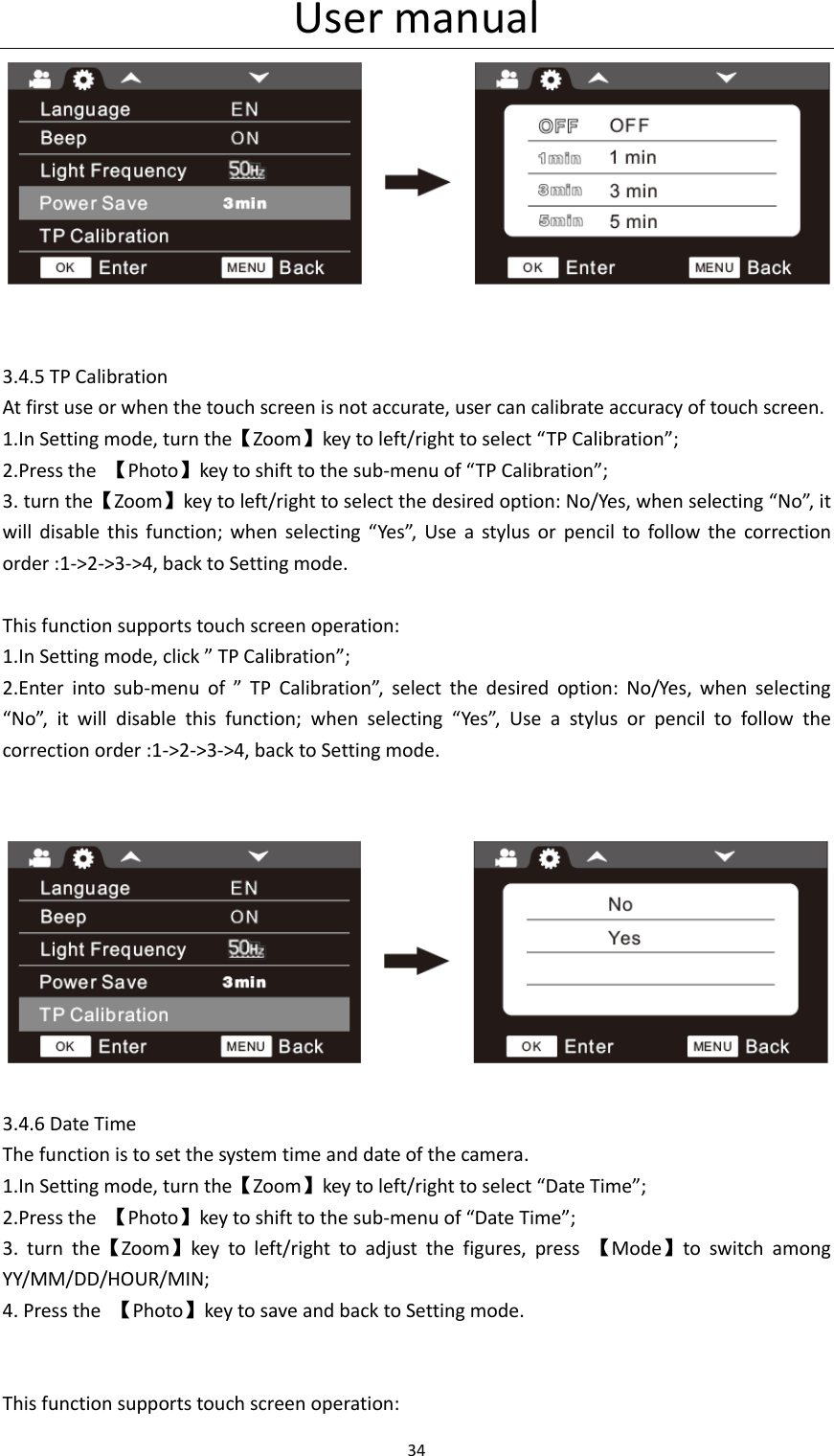
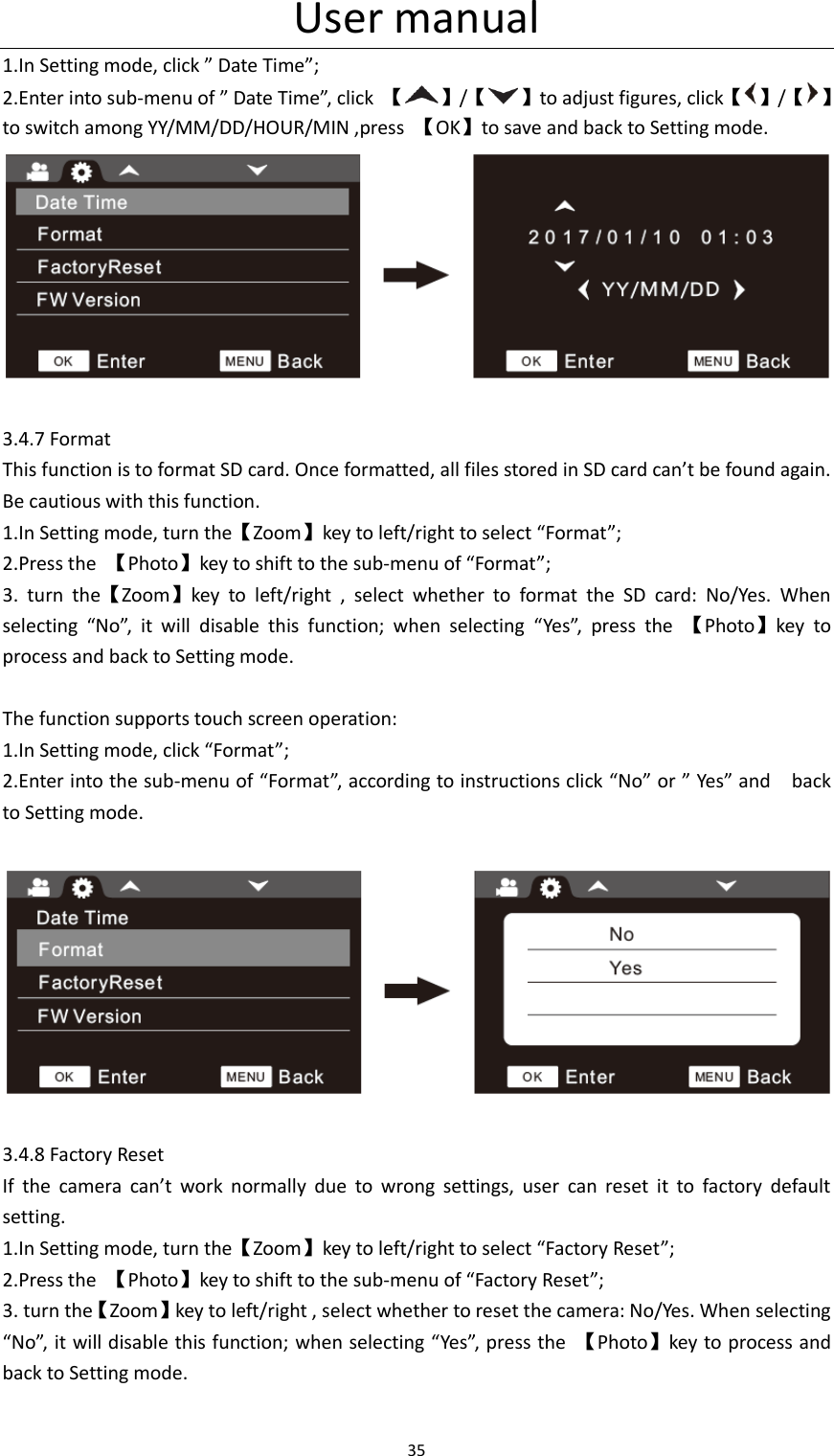
User manual 33  1.In Setting mode, click ”Beep”; 2.Enter into sub-menu of ”Beep”, select whether to use this function, then back to Setting mode.    3.4.3 Light Frequency This function is to synchronize the camera with the light source frequency to avoid flashing in the light environment. 1.In Setting mode, turn the【Zoom】key to left/right to select “Light Frequency”; 2.Press the  【Photo】key to shift to the sub-menu of “Light Frequency”; 3.Turn the【Zoom】key to left/right to select the desired frequency: 50HZ/60HZ; 4. Press the  【Photo】key to save and back to Setting mode.  This function supports touch screen operation: 1.In Setting mode, click ” Light Frequency”; 2.Enter into sub-menu of ” Light Frequency”, select the desired frequency, then back to Setting mode.   3.4.4 Power Save This function is  to turn off the screen  without  operation for a certain amount of  time, but not shutdown, which aims to save power. 1.In Setting mode, turn the【Zoom】key to left/right to select “Power Save”; 2.Press the  【Photo】key to shift to the sub-menu of “Power Save”; 3. turn the【Zoom】key to left/right to select the desired option:OFF/1min/3min/5min; 4. Press the  【Photo】key to save and back to Setting mode.  This function supports touch screen operation: 1.In Setting mode, click ” Power Save”; 2.Enter into sub-menu of ” Power Save”, select the desired option, then back to Setting mode.
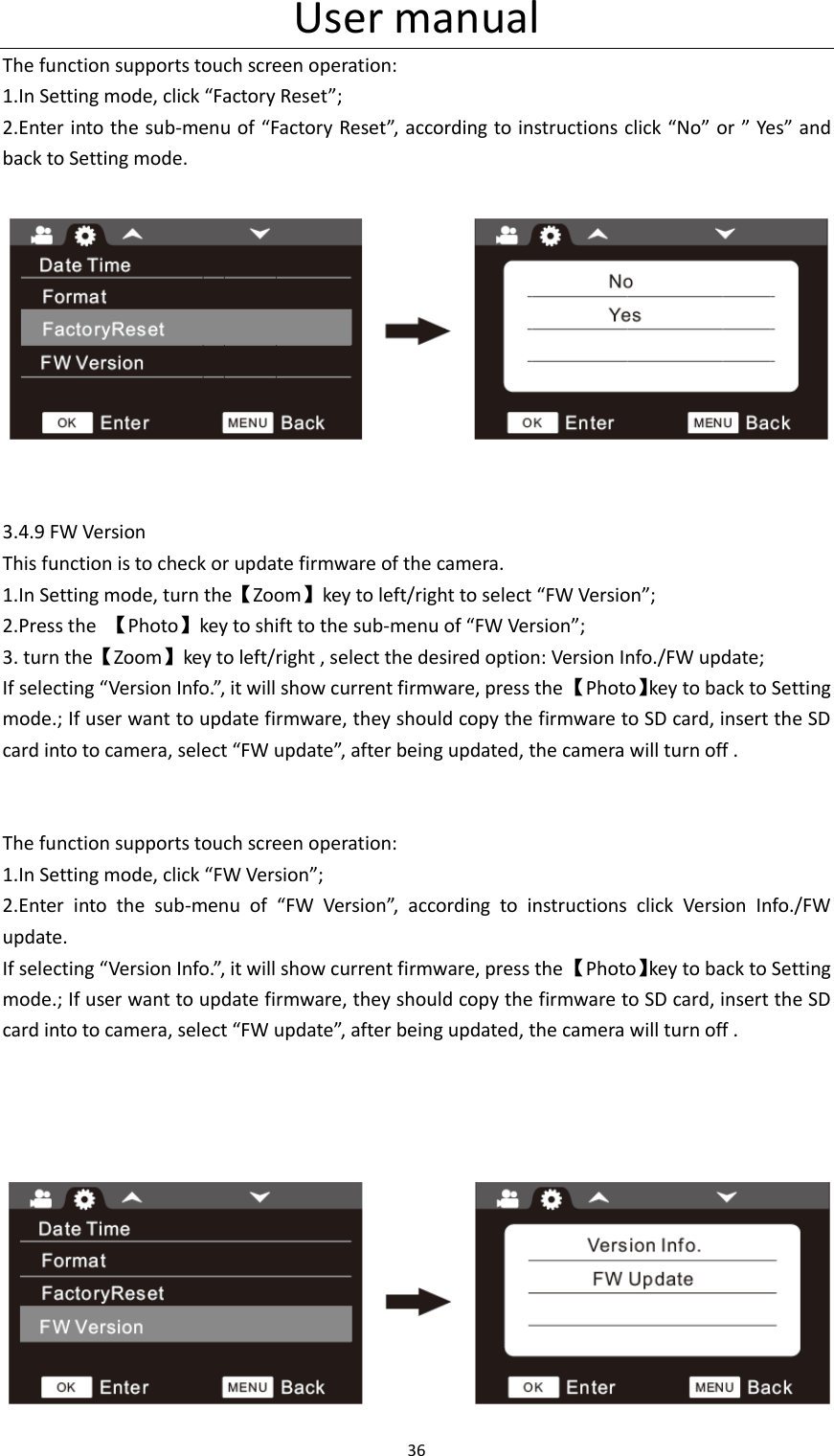
User manual 34     3.4.5 TP Calibration At first use or when the touch screen is not accurate, user can calibrate accuracy of touch screen. 1.In Setting mode, turn the【Zoom】key to left/right to select “TP Calibration”; 2.Press the  【Photo】key to shift to the sub-menu of “TP Calibration”; 3. turn the【Zoom】key to left/right to select the desired option: No/Yes, when selecting “No”, it will  disable  this  function;  when  selecting  “Yes”,  Use  a  stylus  or  pencil  to  follow  the  correction order :1->2->3->4, back to Setting mode.  This function supports touch screen operation: 1.In Setting mode, click ” TP Calibration”; 2.Enter  into  sub-menu  of  ”  TP  Calibration”,  select  the  desired  option:  No/Yes,  when  selecting “No”,  it  will  disable  this  function;  when  selecting  “Yes”,  Use  a  stylus  or  pencil  to  follow  the correction order :1->2->3->4, back to Setting mode.     3.4.6 Date Time The function is to set the system time and date of the camera. 1.In Setting mode, turn the【Zoom】key to left/right to select “Date Time”; 2.Press the  【Photo】key to shift to the sub-menu of “Date Time”; 3.  turn  the【Zoom】key  to  left/right  to  adjust  the  figures,  press  【Mode】to  switch  among YY/MM/DD/HOUR/MIN; 4. Press the  【Photo】key to save and back to Setting mode.   This function supports touch screen operation:
User manual 35  1.In Setting mode, click ” Date Time”; 2.Enter into sub-menu of ” Date Time”, click  【 】/【 】to adjust figures, click【 】/【 】 to switch among YY/MM/DD/HOUR/MIN ,press  【OK】to save and back to Setting mode.   3.4.7 Format This function is to format SD card. Once formatted, all files stored in SD card can’t be found again. Be cautious with this function. 1.In Setting mode, turn the【Zoom】key to left/right to select “Format”; 2.Press the  【Photo】key to shift to the sub-menu of “Format”; 3.  turn  the【Zoom】key  to  left/right  ,  select  whether  to  format  the  SD  card:  No/Yes.  When selecting  “No”,  it  will  disable  this  function;  when  selecting  “Yes”,  press  the  【Photo】key  to process and back to Setting mode.  The function supports touch screen operation: 1.In Setting mode, click “Format”; 2.Enter into the sub-menu of “Format”, according to instructions click “No” or ” Yes” and    back to Setting mode.    3.4.8 Factory Reset If  the  camera  can’t  work  normally  due  to  wrong  settings,  user  can  reset  it  to  factory  default setting. 1.In Setting mode, turn the【Zoom】key to left/right to select “Factory Reset”; 2.Press the  【Photo】key to shift to the sub-menu of “Factory Reset”; 3. turn the【Zoom】key to left/right , select whether to reset the camera: No/Yes. When selecting “No”, it will disable this function; when selecting “Yes”, press the  【Photo】key to process and back to Setting mode.
User manual 36  The function supports touch screen operation: 1.In Setting mode, click “Factory Reset”; 2.Enter into the sub-menu of “Factory Reset”, according to instructions click “No” or ” Yes” and back to Setting mode.     3.4.9 FW Version This function is to check or update firmware of the camera. 1.In Setting mode, turn the【Zoom】key to left/right to select “FW Version”; 2.Press the  【Photo】key to shift to the sub-menu of “FW Version”; 3. turn the【Zoom】key to left/right , select the desired option: Version Info./FW update; If selecting “Version Info.”, it will show current firmware, press the 【Photo】key to back to Setting mode.; If user want to update firmware, they should copy the firmware to SD card, insert the SD card into to camera, select “FW update”, after being updated, the camera will turn off .   The function supports touch screen operation: 1.In Setting mode, click “FW Version”; 2.Enter  into  the  sub-menu  of  “FW  Version”,  according  to  instructions  click  Version  Info./FW update. If selecting “Version Info.”, it will show current firmware, press the 【Photo】key to back to Setting mode.; If user want to update firmware, they should copy the firmware to SD card, insert the SD card into to camera, select “FW update”, after being updated, the camera will turn off .
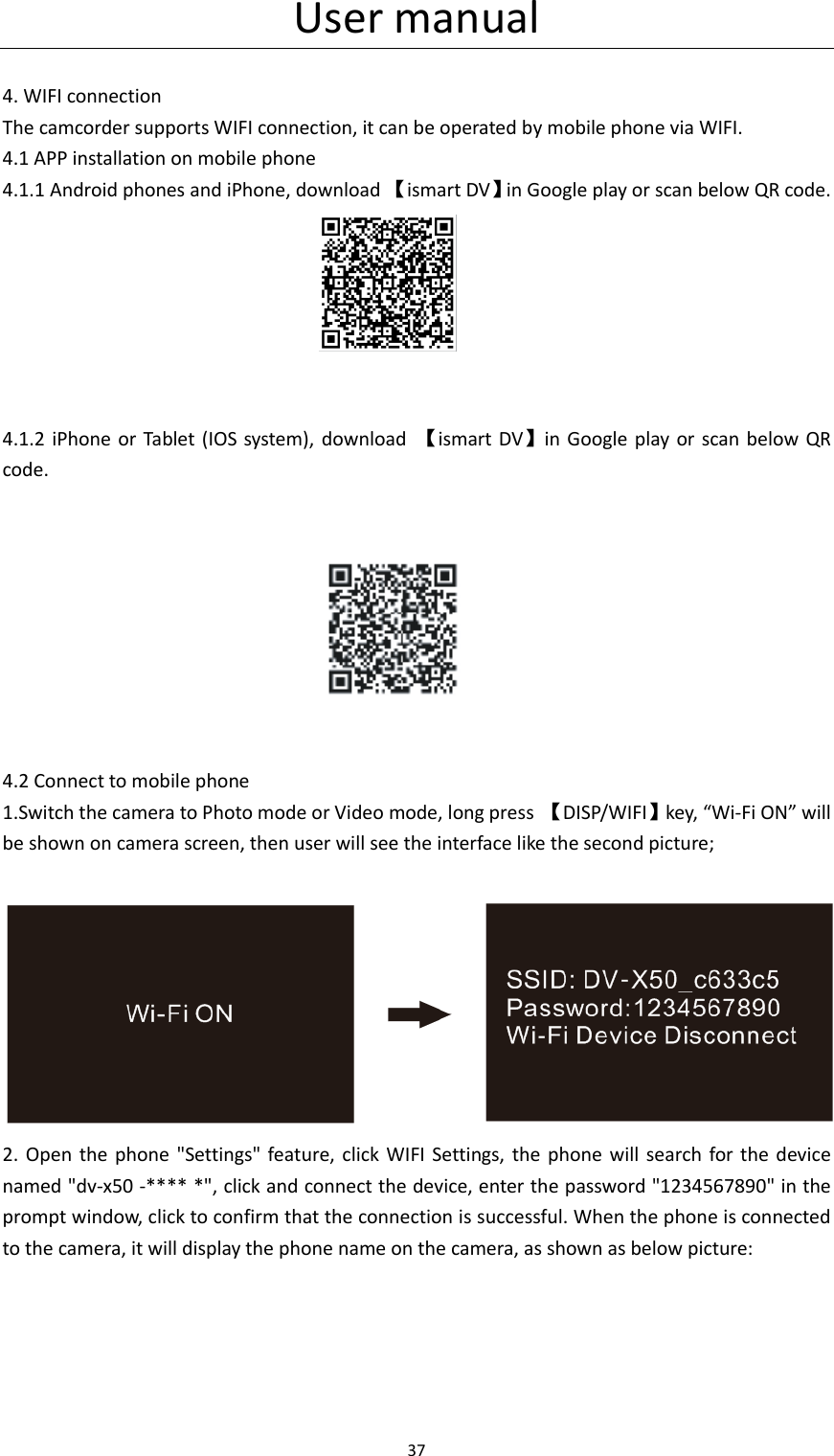
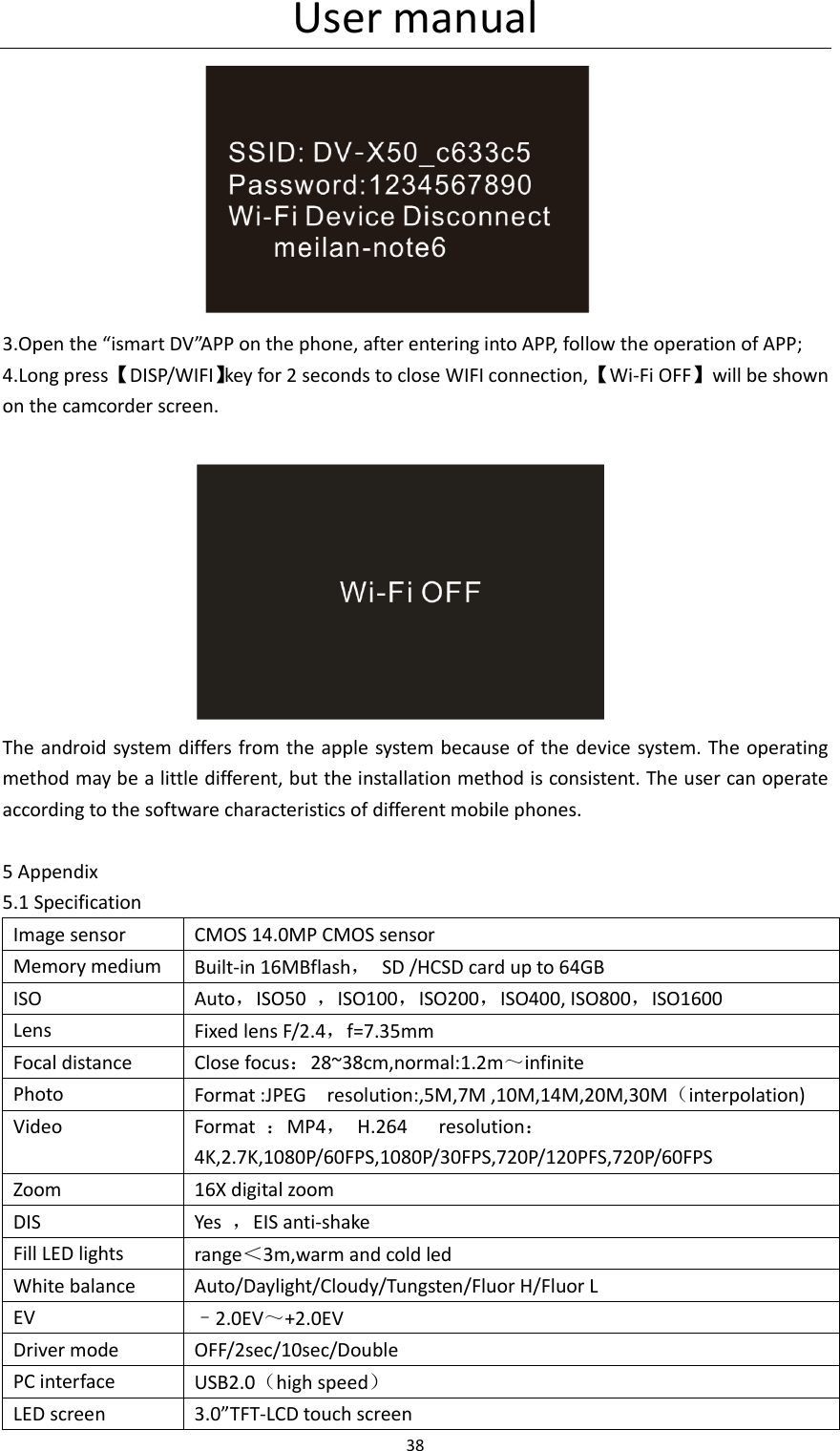
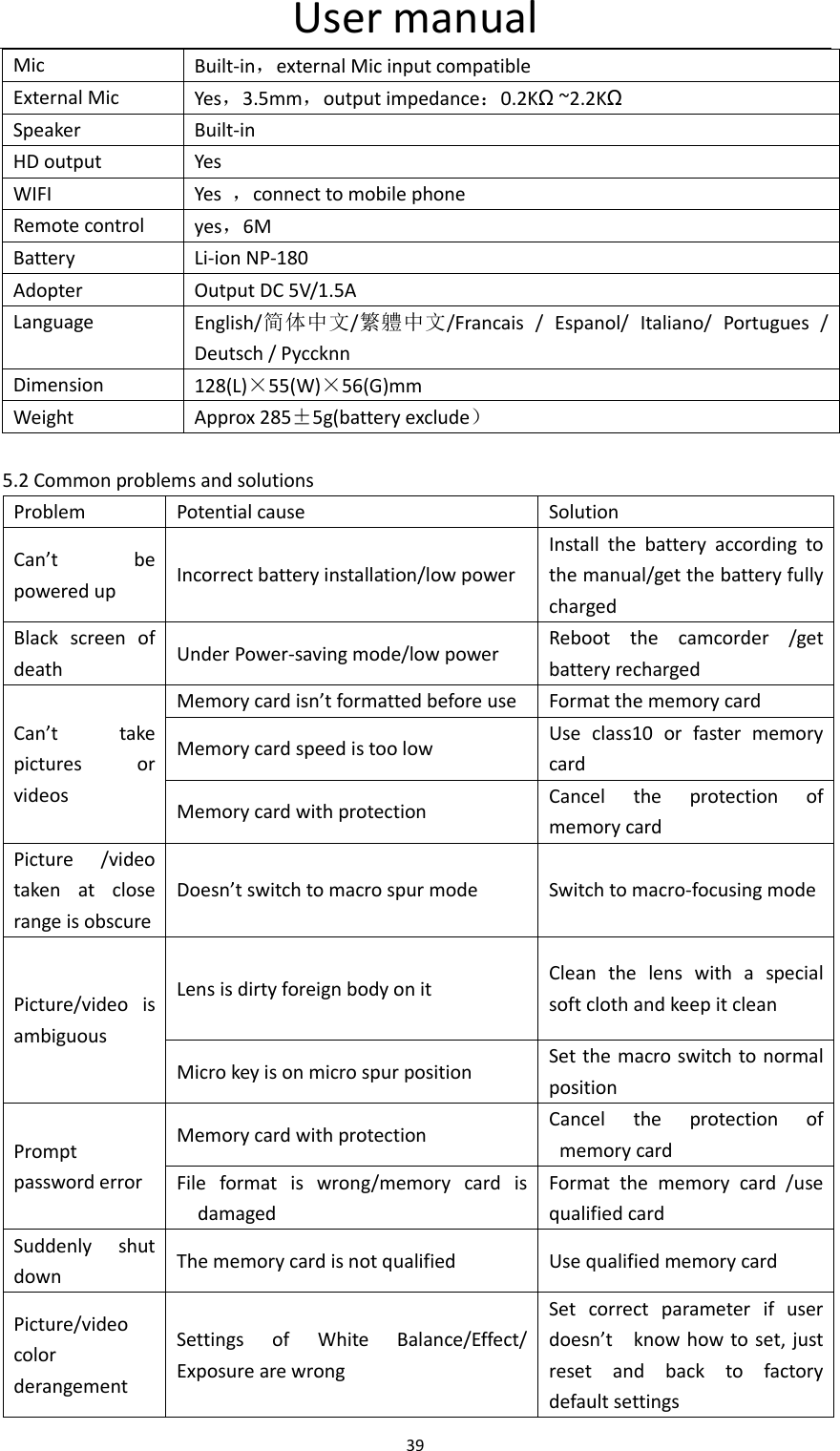
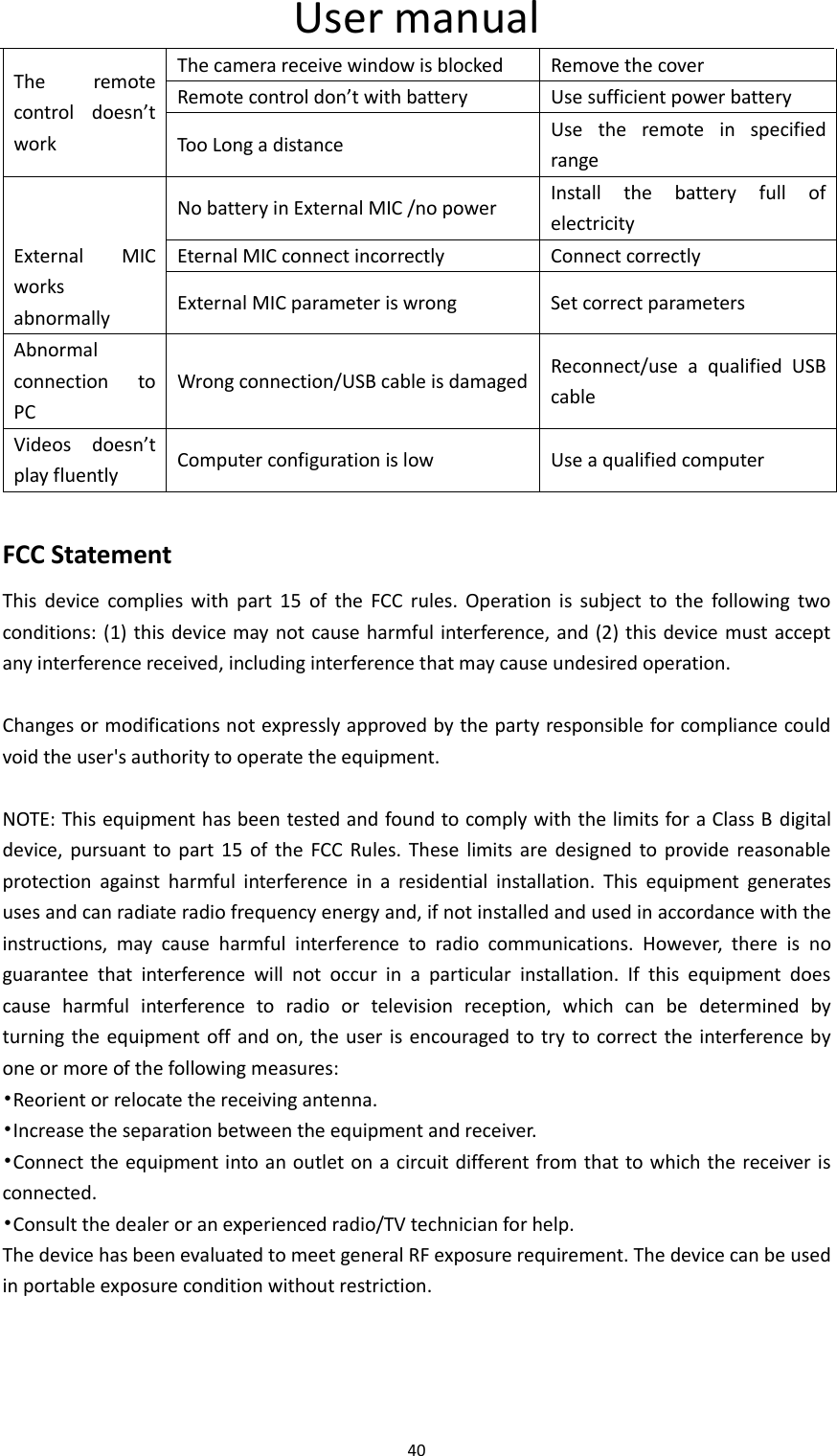
User manual 37   4. WIFI connection The camcorder supports WIFI connection, it can be operated by mobile phone via WIFI. 4.1 APP installation on mobile phone 4.1.1 Android phones and iPhone, download 【ismart DV】in Google play or scan below QR code.                                   4.1.2 iPhone or Tablet  (IOS system),  download  【ismart DV】in Google play  or  scan below QR code.                                    4.2 Connect to mobile phone 1.Switch the camera to Photo mode or Video mode, long press  【DISP/WIFI】key, “Wi-Fi ON” will   be shown on camera screen, then user will see the interface like the second picture;                2.  Open  the phone  "Settings"  feature, click  WIFI  Settings,  the  phone will  search  for the device named "dv-x50 -**** *", click and connect the device, enter the password "1234567890" in the prompt window, click to confirm that the connection is successful. When the phone is connected to the camera, it will display the phone name on the camera, as shown as below picture:
User manual 38   3.Open the “ismart DV”APP on the phone, after entering into APP, follow the operation of APP; 4.Long press 【DISP/WIFI】key for 2 seconds to close WIFI connection, 【Wi-Fi OFF】  will be shown on the camcorder screen.                         The android system differs from the apple system because of the device system. The operating method may be a little different, but the installation method is consistent. The user can operate according to the software characteristics of different mobile phones.  5 Appendix 5.1 Specification Image sensor CMOS 14.0MP CMOS sensor Memory medium Built-in 16MBflash,  SD /HCSD card up to 64GB ISO Auto,ISO50  ,ISO100,ISO200,ISO400, ISO800,ISO1600 Lens Fixed lens F/2.4,f=7.35mm Focal distance Close focus:28~38cm,normal:1.2m~infinite Photo Format :JPEG    resolution:,5M,7M ,10M,14M,20M,30M(interpolation) Video Format  :MP4,  H.264      resolution:4K,2.7K,1080P/60FPS,1080P/30FPS,720P/120PFS,720P/60FPS Zoom 16X digital zoom DIS Yes  ,EIS anti-shake Fill LED lights range<3m,warm and cold led White balance Auto/Daylight/Cloudy/Tungsten/Fluor H/Fluor L EV –2.0EV~+2.0EV Driver mode OFF/2sec/10sec/Double PC interface USB2.0(high speed) LED screen 3.0”TFT-LCD touch screen
User manual 39  Mic Built-in,external Mic input compatible External Mic Yes,3.5mm,output impedance:0.2KΩ~2.2KΩ Speaker Built-in HD output Yes WIFI Yes  ,connect to mobile phone Remote control yes,6M Battery Li-ion NP-180 Adopter Output DC 5V/1.5A Language English/简体中文/繁軆中文/Francais  /  Espanol/  Italiano/  Portugues  / Deutsch / Pyccknn Dimension 128(L)×55(W)×56(G)mm Weight Approx 285±5g(battery exclude)  5.2 Common problems and solutions Problem                 Potential cause Solution Can’t  be powered up Incorrect battery installation/low power Install  the  battery  according  to the manual/get the battery fully charged Black  screen  of death Under Power-saving mode/low power Reboot  the  camcorder  /get battery recharged Can’t  take pictures  or videos Memory card isn’t formatted before use Format the memory card Memory card speed is too low Use  class10  or  faster  memory card Memory card with protection Cancel  the  protection  of memory card Picture  /video taken  at  close range is obscure Doesn’t switch to macro spur mode Switch to macro-focusing mode Picture/video  is ambiguous Lens is dirty foreign body on it Clean  the  lens  with  a  special soft cloth and keep it clean Micro key is on micro spur position     Set the macro switch to normal position Prompt password error Memory card with protection Cancel  the  protection  of memory card File  format  is  wrong/memory  card  is damaged Format  the  memory  card  /use qualified card Suddenly  shut down The memory card is not qualified Use qualified memory card Picture/video color derangement Settings  of  White  Balance/Effect/ Exposure are wrong Set  correct  parameter  if  user doesn’t    know  how to set, just reset  and  back  to  factory default settings
User manual 40  The  remote control  doesn’t   work The camera receive window is blocked Remove the cover Remote control don’t with battery Use sufficient power battery Too Long a distance Use  the  remote  in  specified range  No battery in External MIC /no power Install  the  battery  full  of electricity External  MIC works abnormally Eternal MIC connect incorrectly Connect correctly External MIC parameter is wrong Set correct parameters Abnormal connection  to PC Wrong connection/USB cable is damaged Reconnect/use  a  qualified  USB cable Videos  doesn’t play fluently Computer configuration is low Use a qualified computer  FCC Statement This  device  complies  with  part  15  of  the  FCC  rules.  Operation  is  subject  to  the  following  two conditions: (1)  this device may not cause harmful interference, and (2) this device must  accept any interference received, including interference that may cause undesired operation.    Changes or modifications not expressly approved by the party responsible for compliance could void the user's authority to operate the equipment.  NOTE: This equipment has been tested and found to comply with the limits for a Class B  digital device,  pursuant  to  part  15  of  the  FCC  Rules.  These  limits are  designed to provide reasonable protection  against  harmful  interference  in  a  residential  installation.  This  equipment  generates uses and can radiate radio frequency energy and, if not installed and used in accordance with the instructions,  may  cause  harmful  interference  to  radio  communications.  However,  there  is  no guarantee  that  interference  will  not  occur  in  a  particular  installation.  If  this  equipment  does cause  harmful  interference  to  radio  or  television  reception,  which  can  be  determined  by   turning the equipment off and on, the user is encouraged  to try to correct the  interference by one or more of the following measures: •Reorient or relocate the receiving antenna. •Increase the separation between the equipment and receiver. •Connect the equipment into an outlet on a circuit different from that to which the receiver is connected. •Consult the dealer or an experienced radio/TV technician for help. The device has been evaluated to meet general RF exposure requirement. The device can be used in portable exposure condition without restriction.

Navigation menu