Freedom Scientific BLV Group 450OX REMOTE CONTROL TRANSMITTER User Manual USERS MANUAL

Freedom Scientific BLV Group REMOTE CONTROL TRANSMITTER USERS MANUAL

USERS MANUAL

Part #440378-001 Revision A     ONYX™ Swing-arm User’s Guide         Freedom Scientific Blind/Low Vision Group, LLC June 2007
ONYX Swing-arm User’s Guide ii PUBLISHED BY Freedom Scientific 11800 31st Court North St. Petersburg, Florida 33716-1805 USA http://www.FreedomScientific.com Information in this document is subject to change without notice. No part of this publication may be reproduced or transmitted in any form or by any means electronic or mechanical, for any purpose, without the express written permission of Freedom Scientific. © 2007 Freedom Scientific Blind/Low Vision Group, LLC. All Rights Reserved. ONYX™ and EyeMerge™ are trademarks of Freedom Scientific Blind/Low Vision Group, LLC in the United States and other countries.  MAGic  is a registered trademark of Freedom Scientific Blind/Low Vision Group, LLC in the United States and other countries.
ONYX Swing-arm User’s Guide iii Federal Communications Commission Notice This equipment has been tested and found to comply with the limits for a Class B digital device, pursuant to Part 15 of the FCC Rules. These limits are designed to provide reasonable protection against harmful interference in a residential installation. This equipment generates, uses, and can radiate radio frequency energy and, if not installed and used in accordance with the instructions, may cause harmful interference to radio communications. However, there is no guarantee that interference will not occur in a particular installation. If this equipment does cause harmful interference to radio or television reception, which can be determined by turning the equipment off and on, the user is encouraged to try to correct the interference by one or more of the following measures:  Increase the separation between the equipment and receiver.  Connect the equipment into an outlet on a circuit different from that to which the receiver is connected.  Reorient or relocate the receiving antenna.  Consult the dealer or an experienced radio or television technician for help. Note:  Unit has been designed for connection to an IT power distribution system. Do Not Make Modifications to Remote Control Changes or modifications not expressly approved by the party responsible for compliance could void the user’s authority to operate the equipment.
ONYX Swing-arm User’s Guide iv Table of Contents Overview ............................................................................................................................ 1 ONYX Swing-arm Components .......................................................................................... 2 What’s in the Box ................................................................................................................ 2 Safety and Maintenance ..................................................................................................... 3 Getting Started .................................................................................................................. 5 Assembling ONYX .............................................................................................................. 5 Camera Assembly ............................................................................................................... 5 Video to Television Connections ......................................................................................... 8 Camera to Video Box Connection ....................................................................................... 9 Video Box Power Connection ........................................................................................... 10 Turning ONYX Swing-arm On ........................................................................................... 10 Positioning Camera for Long Distance or Close-up Work ................................................ 11 Camera Positions and Settings ..................................................................................... 11 Basic Operation Using the ONYX Remote Control ...................................................... 13 Turning ONYX Swing-arm On and Off .............................................................................. 13 Changing Magnification .................................................................................................... 13 Adjusting Brightness ......................................................................................................... 14 Changing Viewing Modes ................................................................................................. 14 Centering on a Distant Image ........................................................................................... 15 Flipping an Image ............................................................................................................. 15 Using the Freeze Button ................................................................................................... 16 Using the Masking Menu .................................................................................................. 16 Reading Lines ─ Marker 1 and Marker 2 .......................................................................... 17
ONYX Swing-arm User’s Guide v Exiting the Menu ............................................................................................................... 18 Adjusting Enhanced Image Contrast ................................................................................ 19 Saving Camera Settings ................................................................................................... 19 ONYX Remote Control Functions .................................................................................. 20 Power/Function LED ......................................................................................................... 21 Mode Button (Blue) ........................................................................................................... 21 Find Button (Gray) ............................................................................................................. 22 Flip (Light Blue) ................................................................................................................. 22 Zoom Buttons (Black) ....................................................................................................... 23 Brightness Buttons (Yellow) .............................................................................................. 23 Freeze and Focus Lock Button (Orange) .......................................................................... 24 Menu Button (Brown) ........................................................................................................ 25 Power Button (Green) ....................................................................................................... 26 Service and Support ....................................................................................................... 27 Troubleshooting ................................................................................................................ 28 General Information – ONYX Models ............................................................................ 33
 ONYX Swing-arm User’s Guide 1 Overview The ONYX™ Camera makes seeing printed type, pictures, handwriting, and small details easier than ever before. The ONYX includes the following features:  Document reading  Distance reading  Self viewing  Auto Focus creates the clearest view without any need to make adjustments.   Adjust pre-set video modes for high contrast text that is most comfortable for your individual eyesight.   Increase or decrease brightness  Masking  Reading lines  Freeze frame  Find function to easily target distant objects
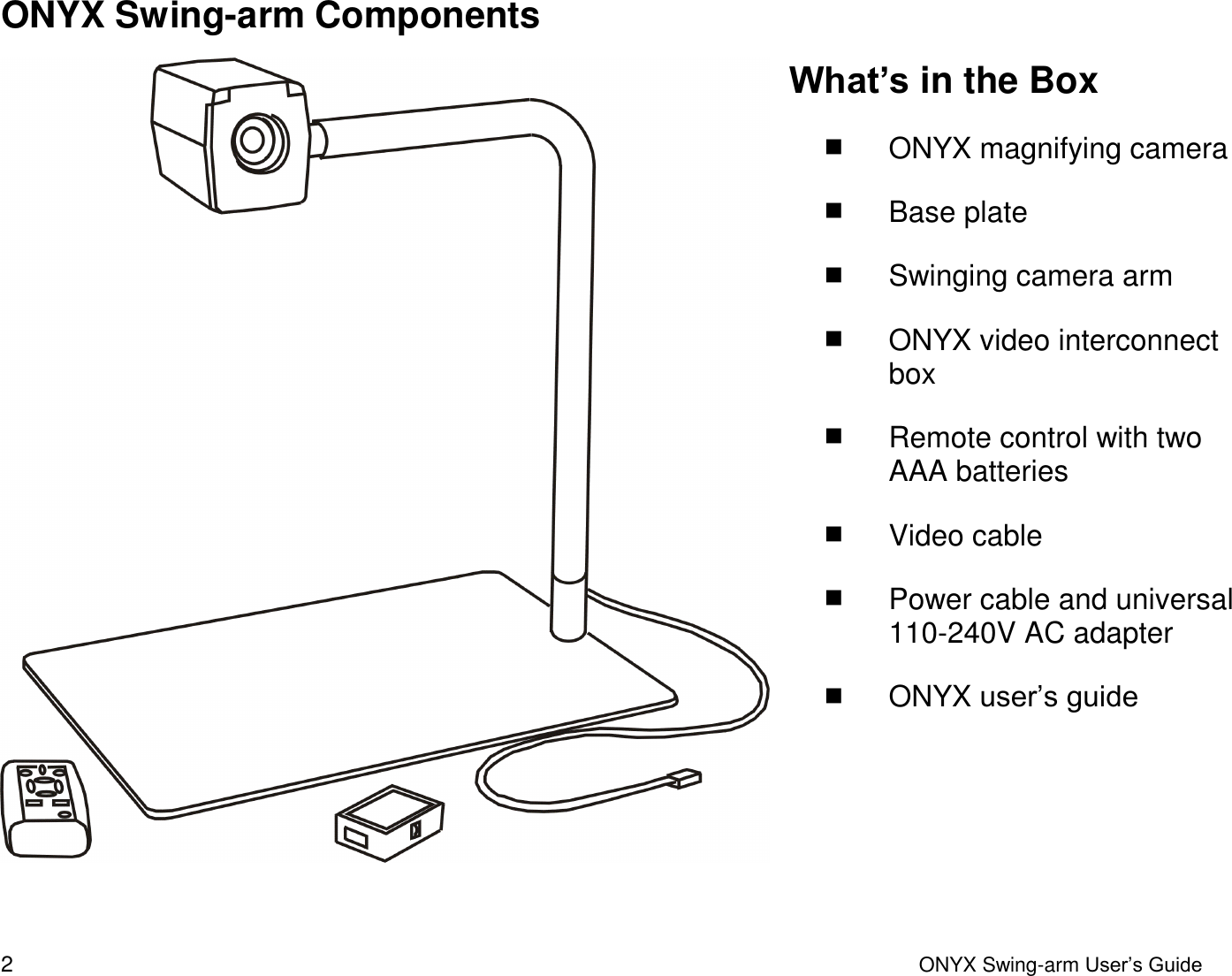
 2  ONYX Swing-arm User’s Guide ONYX Swing-arm Components  What’s in the Box  ONYX magnifying camera  Base plate  Swinging camera arm   ONYX video interconnect box  Remote control with two AAA batteries  Video cable  Power cable and universal 110-240V AC adapter  ONYX user’s guide
 ONYX Swing-arm User’s Guide 3 Safety and Maintenance To keep the unit in good condition and to ensure safe usage, observe the following guidelines:  Read the instructions in this user’s guide before attempting to use the unit.  Do not attempt to repair the unit or open its case. This product contains no user serviceable parts.   Do not attempt to modify the remote control. Changes or modifications not expressly approved by the party responsible for compliance could void the user’s authority to operate the equipment.  Keep the unit away from wet areas, rain, and other sources of liquids or high humidity. Do not submerge the unit.  Always operate the unit in a place where the temperature is between 10° and 40° C (50° and 104° F).   Always store the unit in a place where the temperature is between -20° and 65° C  (-4° and 149° F). Do not store in a parked car, because the temperature often exceeds this range.  Always use the unit on a stable, level, hard surface such as a desk or table.   Never force connectors into the unit’s ports. All appropriate connectors should fit easily into the ports. It the connector does not fit, turn it around, and try again.
 4  ONYX Swing-arm User’s Guide  Use only the power cable that came with your unit. Other adapters may damage the unit.  When cleaning the unit, make sure it is unplugged. To clean it, lightly dampen a soft, clean cloth with water or mild detergent.
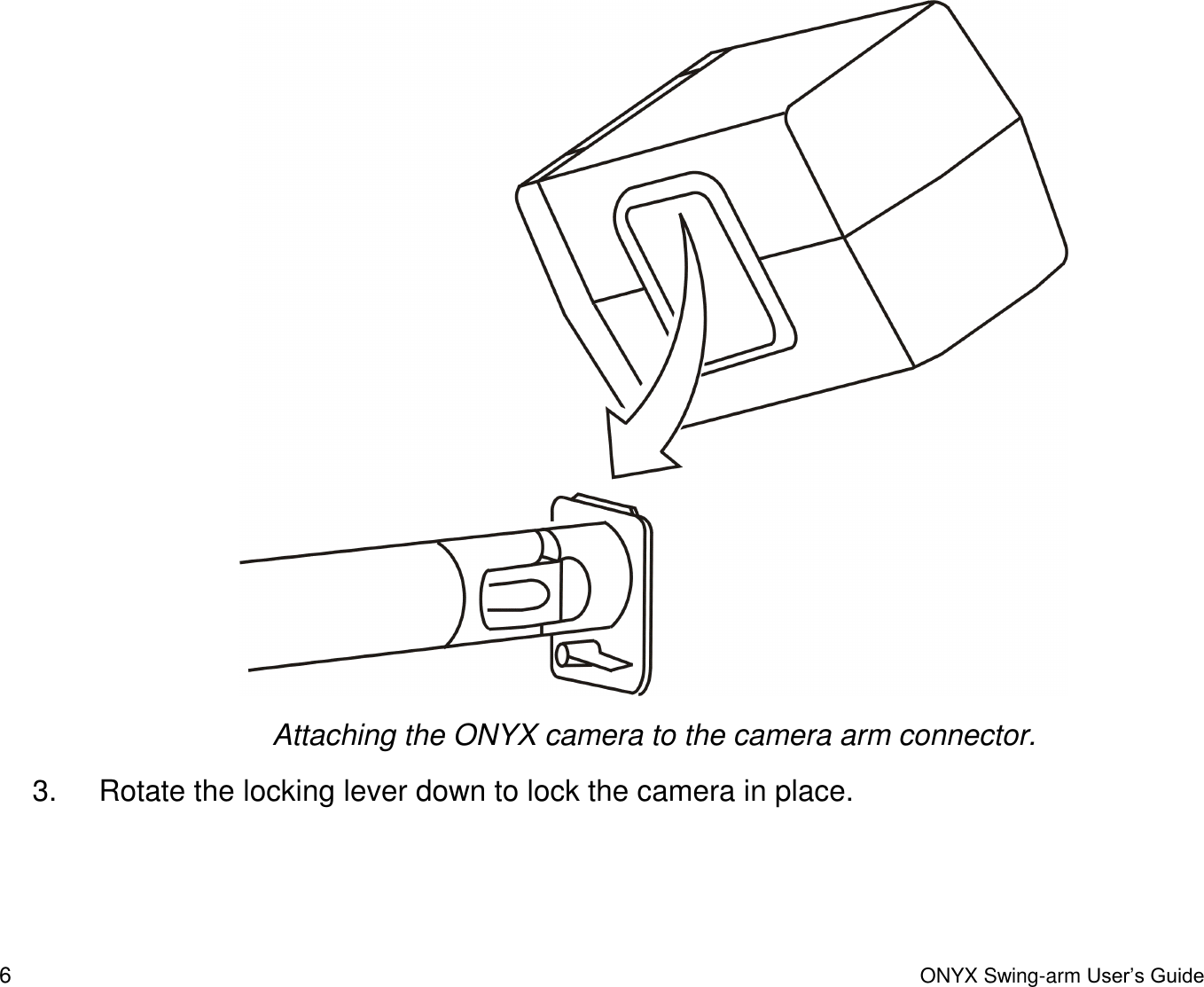
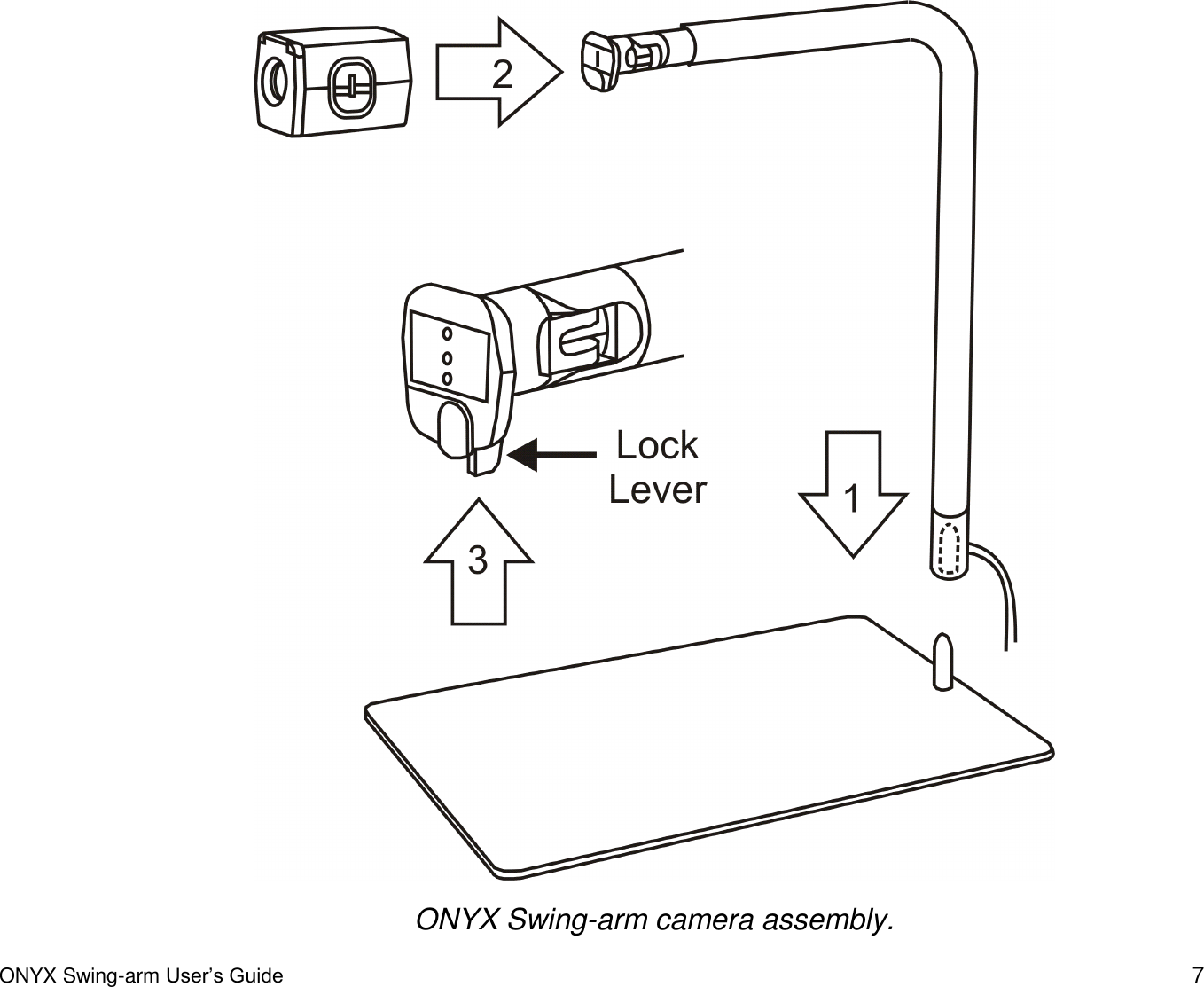
 ONYX Swing-arm User’s Guide 5 Getting Started Assembling ONYX Before beginning the assembly, place the ONYX components on a sturdy and stable work surface, such as a desk or table. Assembly is straightforward and will be very familiar to you after setting it up for use and breaking it down for travel.  Camera Assembly 1.  Place the base plate flat on the table and place the camera arm on to the base plate pin. Make sure to seat it completely down over the pin. 2.  Attach the camera to the camera arm connector.  Note: The camera and camera arm connector have a tongue and groove design. Make sure that the top groove on the camera’s connector fits snuggly over the top of the camera arm connector as shown in the following diagram.
 6  ONYX Swing-arm User’s Guide  Attaching the ONYX camera to the camera arm connector. 3. Rotate the locking lever down to lock the camera in place.
 ONYX Swing-arm User’s Guide 7  ONYX Swing-arm camera assembly.
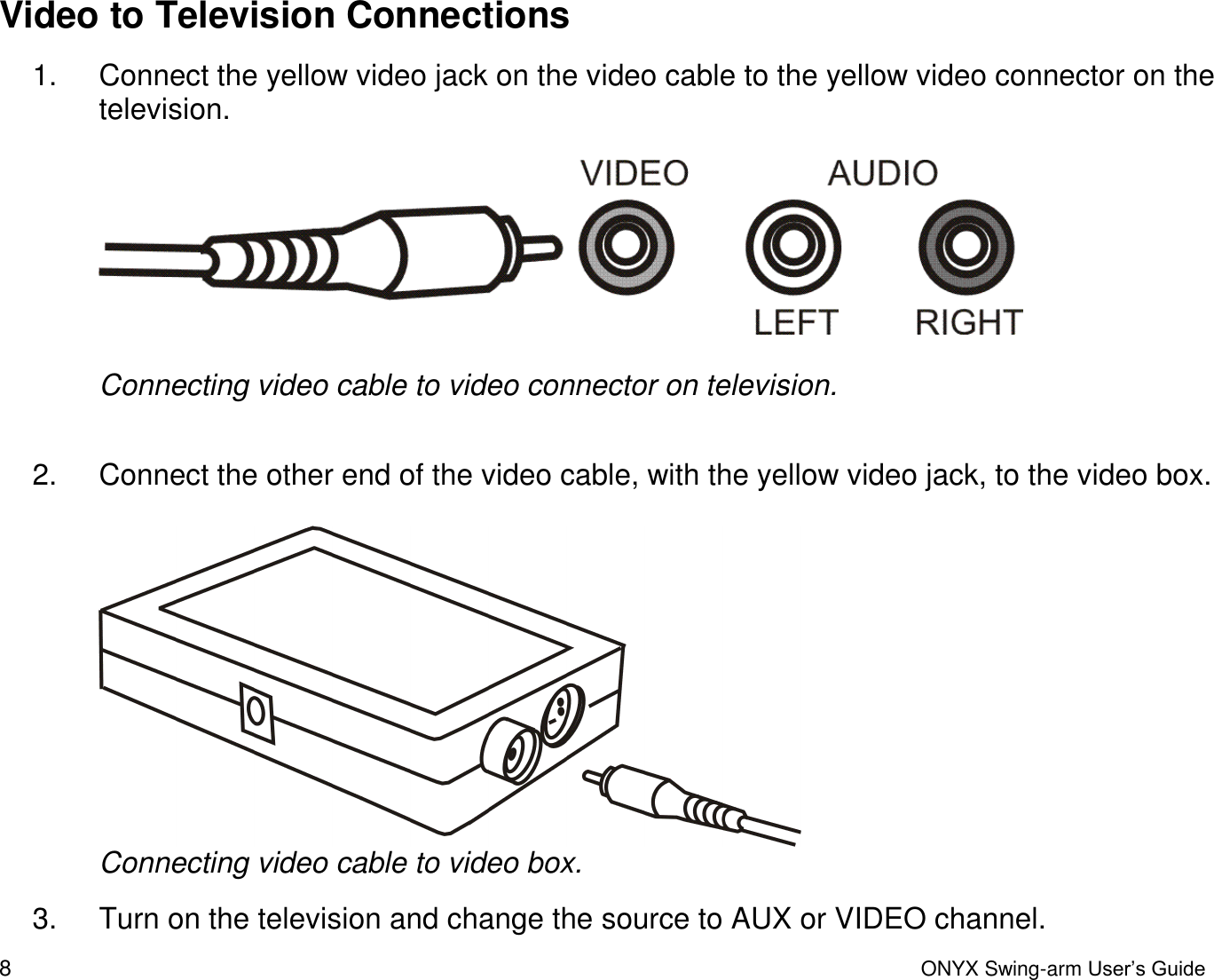
 8  ONYX Swing-arm User’s Guide Video to Television Connections 1.  Connect the yellow video jack on the video cable to the yellow video connector on the television.      Connecting video cable to video connector on television.  2.  Connect the other end of the video cable, with the yellow video jack, to the video box.    Connecting video cable to video box. 3.  Turn on the television and change the source to AUX or VIDEO channel.
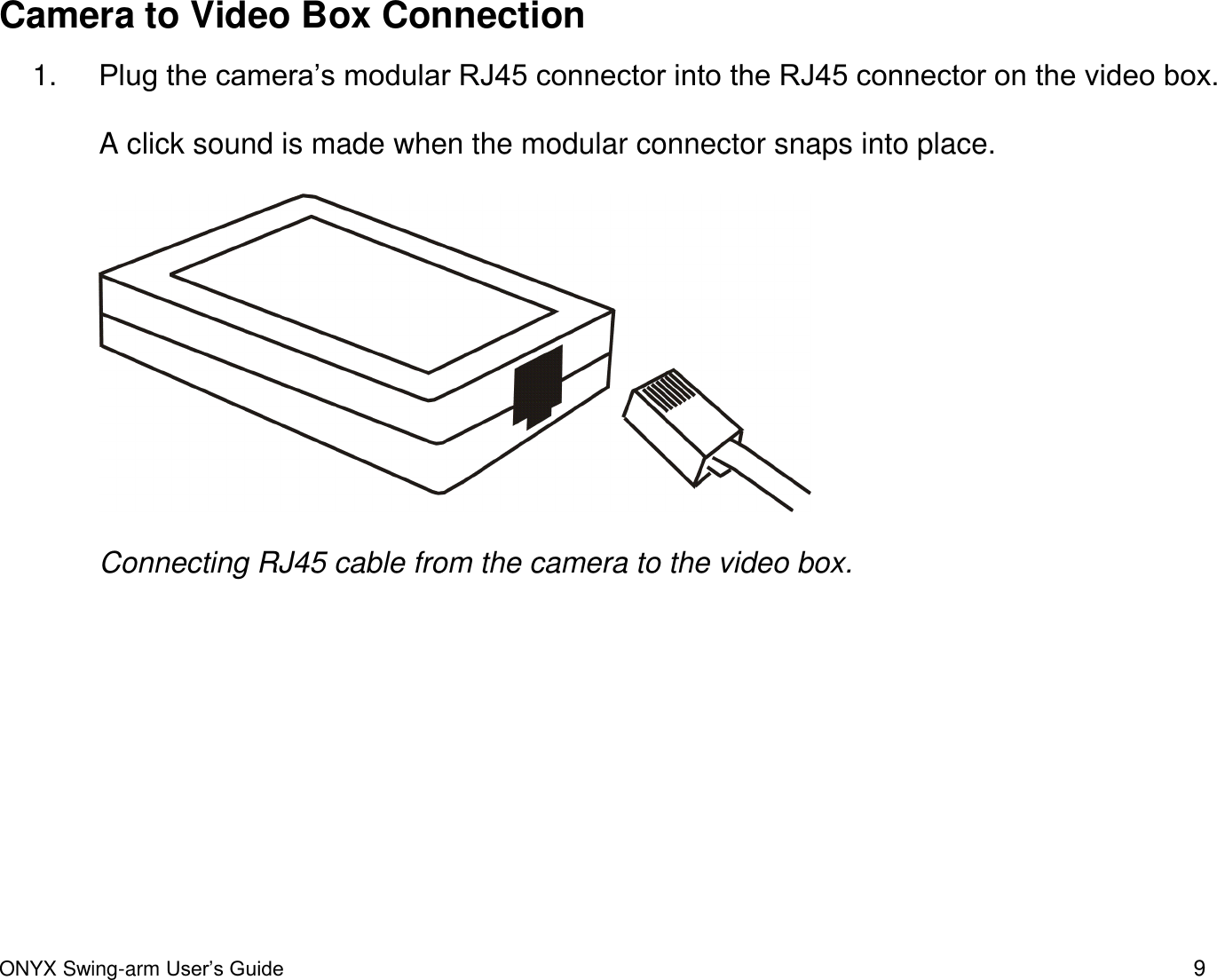
 ONYX Swing-arm User’s Guide 9 Camera to Video Box Connection 1. Plug the camera’s modular RJ45 connector into the RJ45 connector on the video box.   A click sound is made when the modular connector snaps into place.    Connecting RJ45 cable from the camera to the video box.
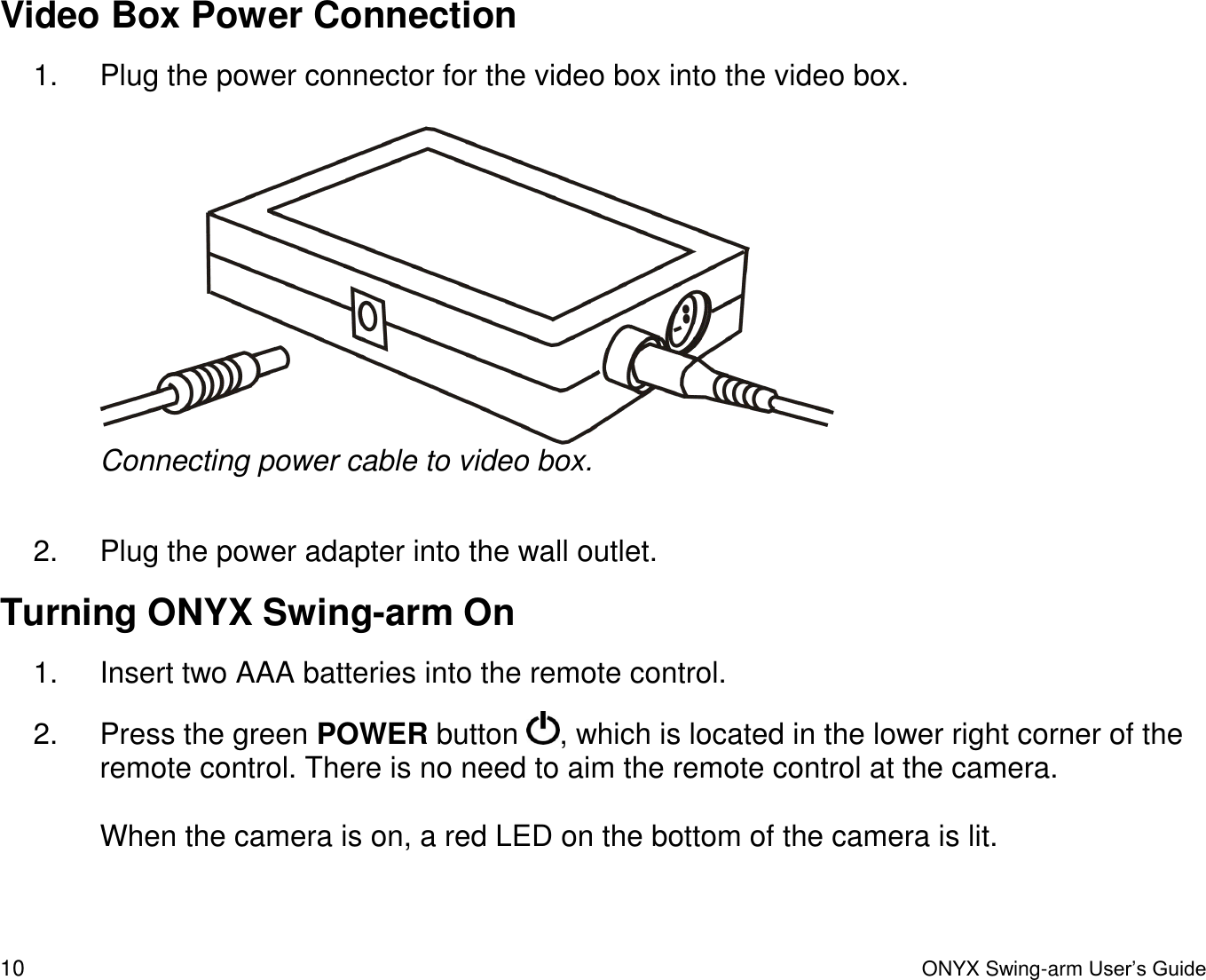
 10  ONYX Swing-arm User’s Guide Video Box Power Connection 1.  Plug the power connector for the video box into the video box.   Connecting power cable to video box.  2.  Plug the power adapter into the wall outlet.  Turning ONYX Swing-arm On 1.  Insert two AAA batteries into the remote control. 2.  Press the green POWER button  , which is located in the lower right corner of the remote control. There is no need to aim the remote control at the camera.  When the camera is on, a red LED on the bottom of the camera is lit.
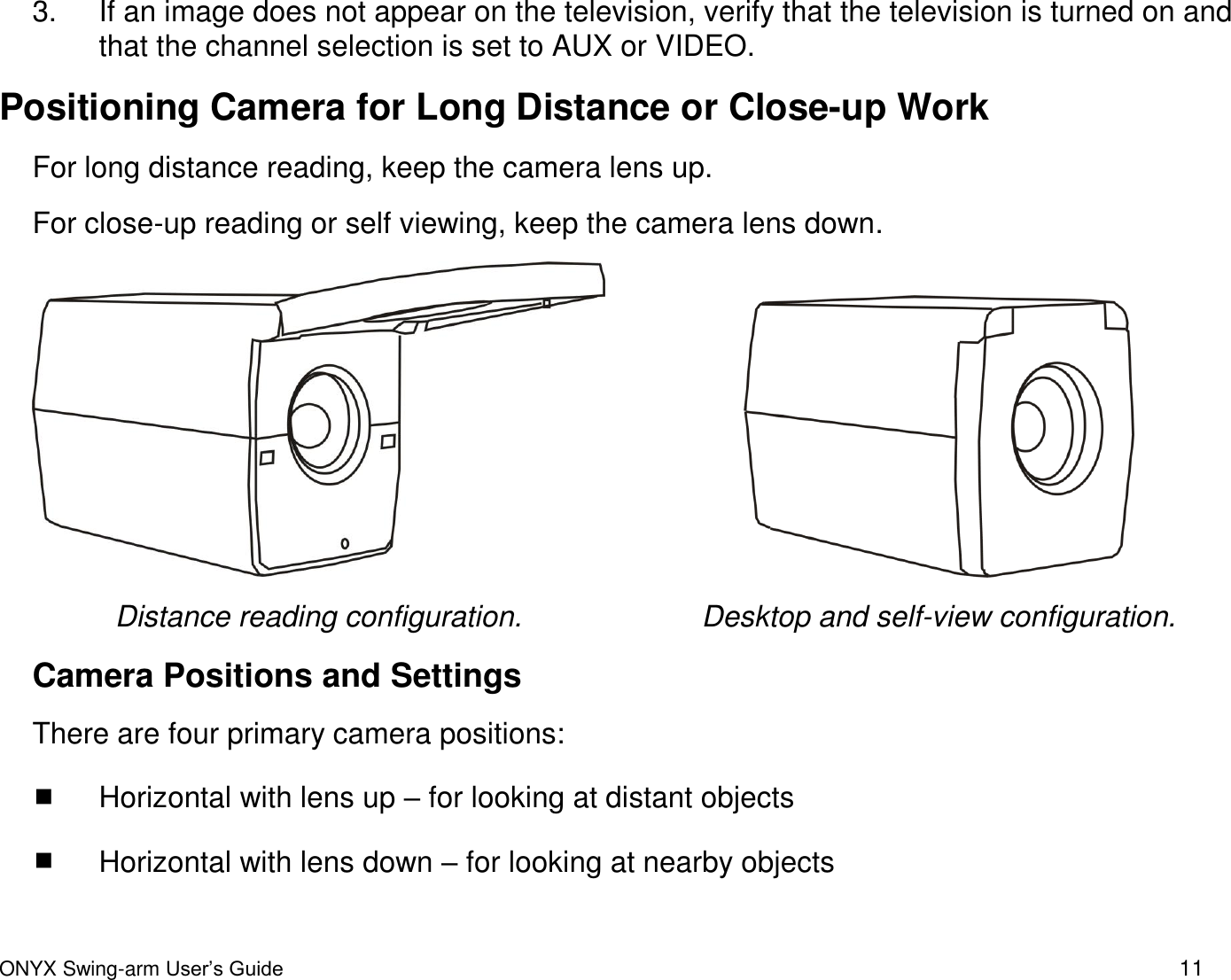
 ONYX Swing-arm User’s Guide 11 3.  If an image does not appear on the television, verify that the television is turned on and that the channel selection is set to AUX or VIDEO.    Positioning Camera for Long Distance or Close-up Work For long distance reading, keep the camera lens up. For close-up reading or self viewing, keep the camera lens down.     Distance reading configuration. Desktop and self-view configuration. Camera Positions and Settings There are four primary camera positions:  Horizontal with lens up – for looking at distant objects  Horizontal with lens down – for looking at nearby objects
 12  ONYX Swing-arm User’s Guide  Vertical and facing down – for when the camera is rotated to look down at an object on the base plate or desktop  Horizontal and upside down with lens down – for when the camera is rotated and pointed at yourself for self viewing When the camera is placed into each of these different positions, it recalls the brightness, magnification, viewing mode, mask, reading lines, and other essential settings that you created for that specific position. This allows you to make a separate camera configuration for distance viewing, in which the magnification and brightness are adapted for that situation, while also having a separate configuration for desktop viewing, one that takes magnification, viewing mode, and brightness into account when reading a book.  Important:  Any changes made to the camera while it is in a given position are automatically saved and used the next time you move the camera to that position. To permanently save these settings, you must power the ONYX off using the POWER button on the remote control.
 ONYX Swing-arm User’s Guide 13 Basic Operation Using the ONYX Remote Control Turning ONYX Swing-arm On and Off 1.  Connect all cables as previously described in the Getting Started section. 2.  Turn on the television and select the appropriate channel.  3.  Press the green POWER button   on the remote control. The red LED on the bottom of the camera turns on. 4.  Press the green POWER button   again to turn the ONYX Swing-arm off.  Changing Magnification  Press the black PLUS button  , which is located in the center of the remote control, to zoom-in and enlarge the object that appears on the screen.   Press the black MINUS button  , also located in the center of the remote control, to zoom away from the object on the screen.
 14  ONYX Swing-arm User’s Guide Adjusting Brightness  To make the image lighter, press the RIGHT ARROW button  , which is located in the center of the remote control.  To make the image darker, press the LEFT ARROW button  , which is located in the center of the remote control. Changing Viewing Modes  Press the blue MODE button, located in the upper left corner of the remote control,  to cycle through the following viewing modes:   Color     Inverted Color    Black and White Positive   White and Black Negative
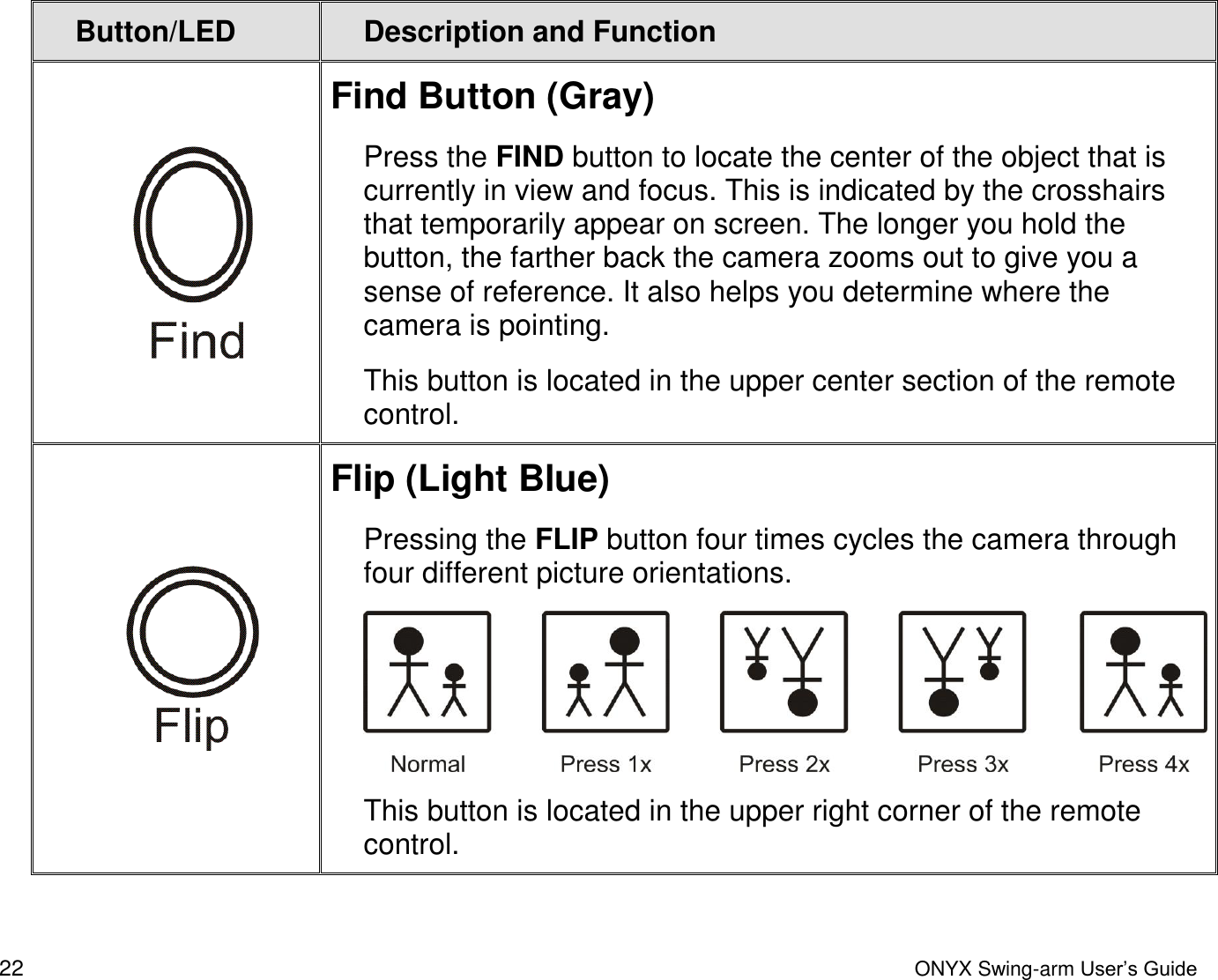
 ONYX Swing-arm User’s Guide 15 Centering on a Distant Image To locate the center of the image that appears on the screen, do the following:  1.  Press and hold the gray FIND button, which is located in the upper center section of the remote control.   The camera zooms out and crosshairs temporarily appear on the screen indicating the center of the image on the screen.  2.  Center the crosshairs on the object you wish to view, and release the gray FIND button to zoom in. Flipping an Image With the ONYX camera, you can change the screen orientation so that the image is flipped and mirrored both horizontally and vertically. (Note that the camera is configured so that it will flip to a mirror image when rotated into the self-viewing position.) This function is useful when the object you are viewing is upside down. For example, if you receive a heavy package, it may be easier to flip the image around instead of turning over the package.    Press the light blue FLIP button, located in the upper right corner of the remote control, four times to cycle through the four different picture orientations.  Note: The camera will remember this setting the next time you rotate it back to this position.
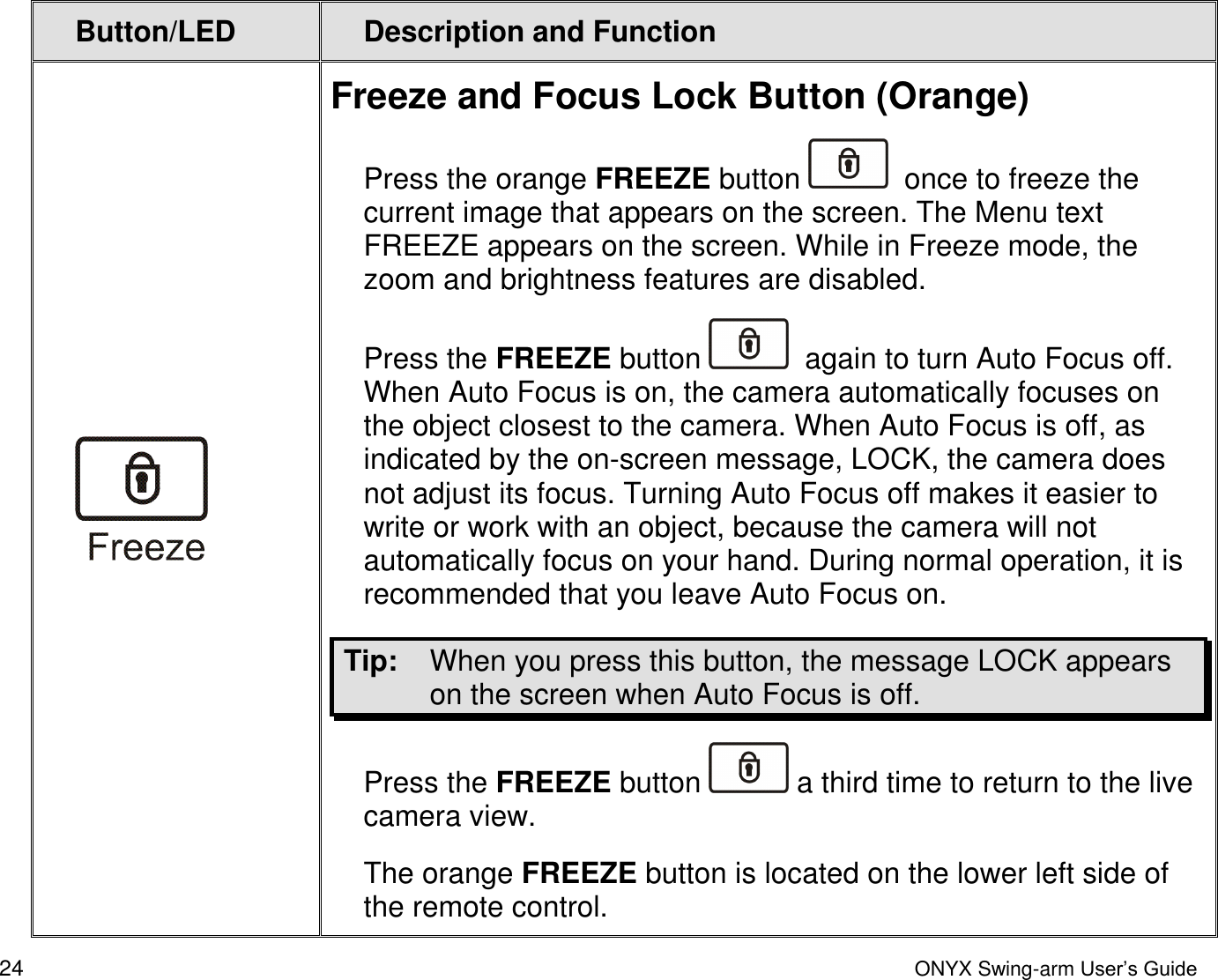
 16  ONYX Swing-arm User’s Guide Using the Freeze Button The FREEZE button has two primary functions. The first is to freeze the current image that appears on the screen. This is useful when viewing distant images such as text on a blackboard. The second is to turn on or off Auto Focus. This is useful when working or writing under the camera. 1.  Press the orange FREEZE button  , which is located on the lower left side of the remote control, once to freeze the current image that appears on the screen. The Menu text FREEZE appears in the lower left corner of the screen. 2.  Press the FREEZE button    again to turn Auto Focus off. The image unfreezes and the Menu text LOCK appears in the lower left corner of the screen. 3.  Press the FREEZE   button a third time to return to the camera’s standard Auto Focus live view.  Using the Masking Menu Masking blocks the upper and lower halves of the screen, making it easier for you to focus on a specific area of the screen and reducing glare.  1.  To turn on masking, press the brown MENU button, which is located on the lower right side of the remote control.   The word MASK appears on the screen.
 ONYX Swing-arm User’s Guide 17 2.  To adjust the mask, do one of the following:   Press the black MINUS button   to narrow the mask.   Press the black PLUS   to widen the mask.  3.  To toggle the mask on and off, press the blue MODE button.  4.  Press the brown MENU button to exit the menu.  Reading Lines ─ Marker 1 and Marker 2 Reading lines are used to help you maintain your place while reading text. The ONYX is capable of showing two different reading lines known as Marker 1 and Marker 2.  To turn on a single reading line, do the following: 1.  Press the brown MENU button, which is located on the lower right side of the remote control. 2.  Press the yellow RIGHT ARROW button   until MARKER 1 appears.  3.  Press the blue MODE button. The reading line appears.  To turn on the second reading line, do the following: 1.  Press the yellow RIGHT ARROW button   until MARKER 2 appears.
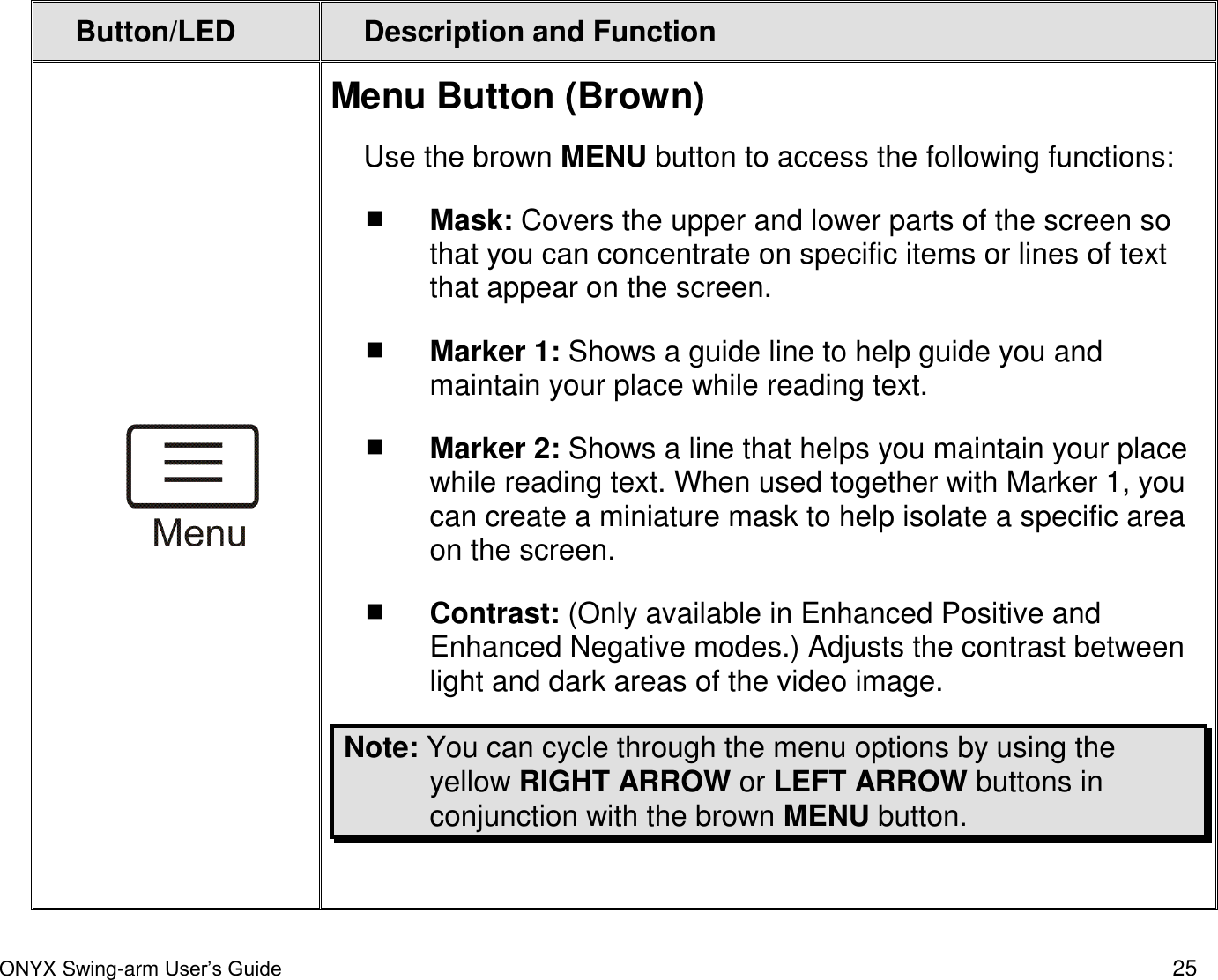
 18  ONYX Swing-arm User’s Guide 2.  Press the blue MODE button. The second reading line appears.  To move a reading line, do the following:  1.  Press the brown MENU button, which is located on the lower right side of the remote control. 2.  Press the yellow RIGHT ARROW button   until MARKER 1 or MARKER 2 appears.  3.  Press the black PLUS button   to move the selected reading line up. 4.  Press the black MINUS button   to move the selected reading line down.  To turn off a reading line, do the following:  While in Menu mode, with MARKER 1 or MARKER 2 appearing on the screen, press the blue MODE button, which is located in the upper left corner of the remote control. Exiting the Menu To clear Menu text from the screen, do the following:  Press the brown MENU button, which is located on the lower right side of the remote control.
 ONYX Swing-arm User’s Guide 19 Adjusting Enhanced Image Contrast 1.  Press the blue MODE button until the Enhanced Positive or Enhanced Negative image appears.   2.  Press the brown MENU button.  3.  Press the yellow RIGHT ARROW button   until the word CONTRAST appears. 4.  Press the black PLUS button   to increase contrast. 5.  Press the black MINUS button   to decrease contrast.  Saving Camera Settings  To save camera settings, turn ONYX off using the green POWER button  , which is located in the lower right corner of the remote control.  Note:  Camera settings are unique to the camera’s position. For example, if reading lines are used while reading a document in the desktop position, they may not appear when the camera is rotated and aimed at a blackboard or yourself.   If you unplug ONYX from the wall outlet without turning it off first, any recently configured camera settings are discarded. To save camera settings, always use the POWER button to turn off the ONYX.  For more information about camera settings, see Camera Positions and Settings on page 11.
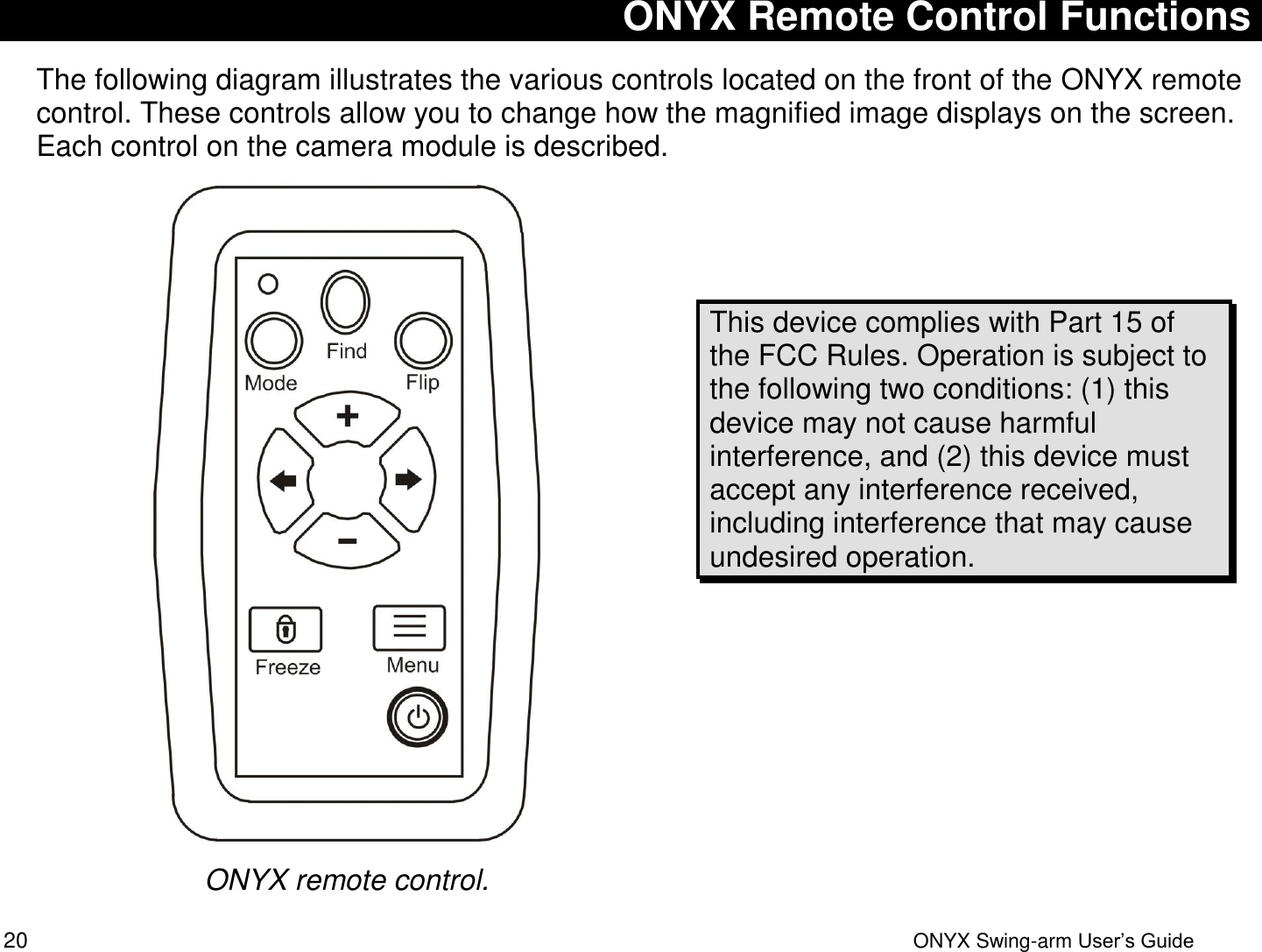
 20  ONYX Swing-arm User’s Guide ONYX Remote Control Functions The following diagram illustrates the various controls located on the front of the ONYX remote control. These controls allow you to change how the magnified image displays on the screen. Each control on the camera module is described.  ONYX remote control.   This device complies with Part 15 of the FCC Rules. Operation is subject to the following two conditions: (1) this device may not cause harmful interference, and (2) this device must accept any interference received, including interference that may cause undesired operation.
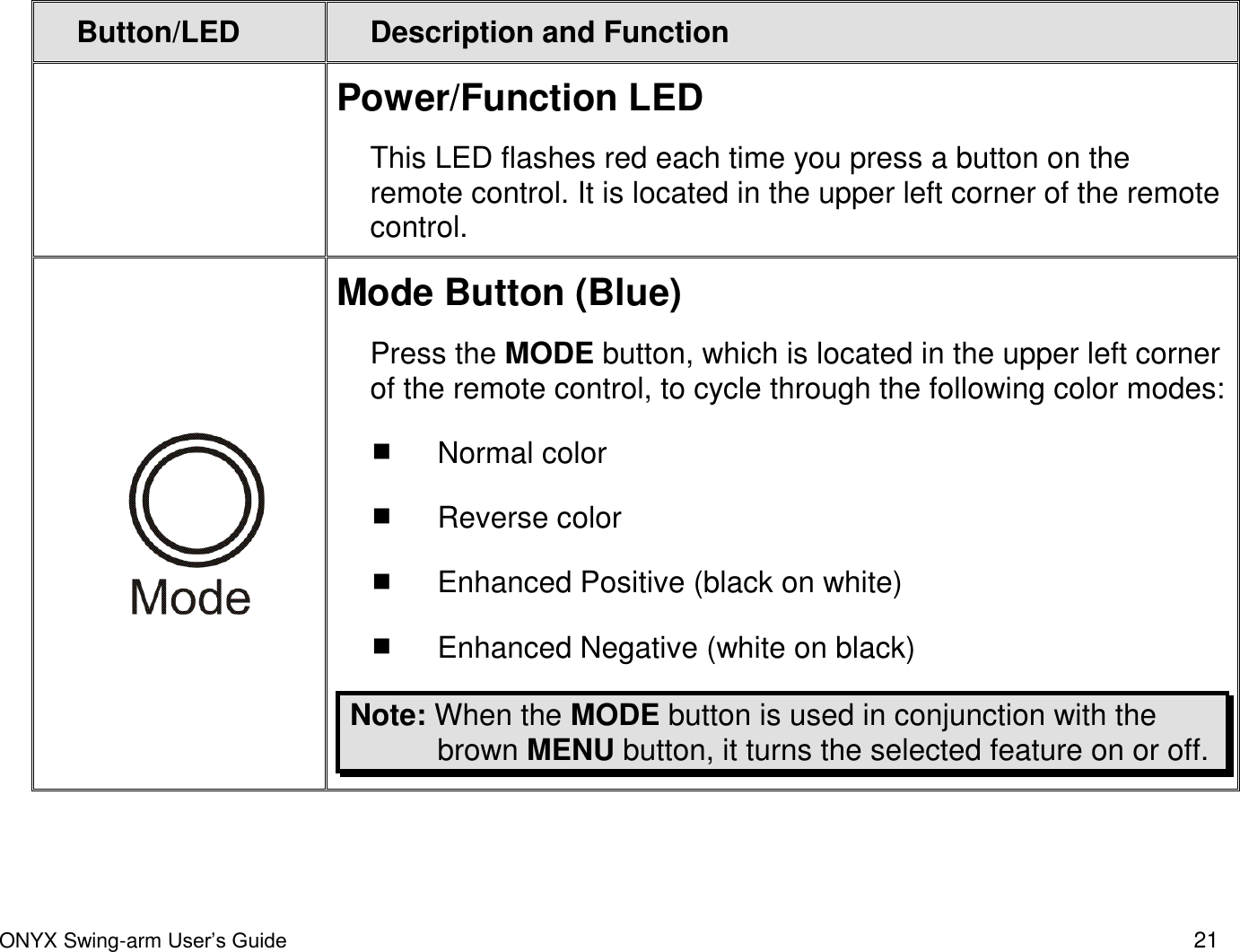
 ONYX Swing-arm User’s Guide 21  Button/LED Description and Function  Power/Function LED  This LED flashes red each time you press a button on the remote control. It is located in the upper left corner of the remote control.  Mode Button (Blue) Press the MODE button, which is located in the upper left corner of the remote control, to cycle through the following color modes:   Normal color  Reverse color  Enhanced Positive (black on white)  Enhanced Negative (white on black) Note: When the MODE button is used in conjunction with the brown MENU button, it turns the selected feature on or off.
 22  ONYX Swing-arm User’s Guide Button/LED Description and Function  Find Button (Gray) Press the FIND button to locate the center of the object that is currently in view and focus. This is indicated by the crosshairs that temporarily appear on screen. The longer you hold the button, the farther back the camera zooms out to give you a sense of reference. It also helps you determine where the camera is pointing.  This button is located in the upper center section of the remote control.  Flip (Light Blue) Pressing the FLIP button four times cycles the camera through four different picture orientations.   This button is located in the upper right corner of the remote control.
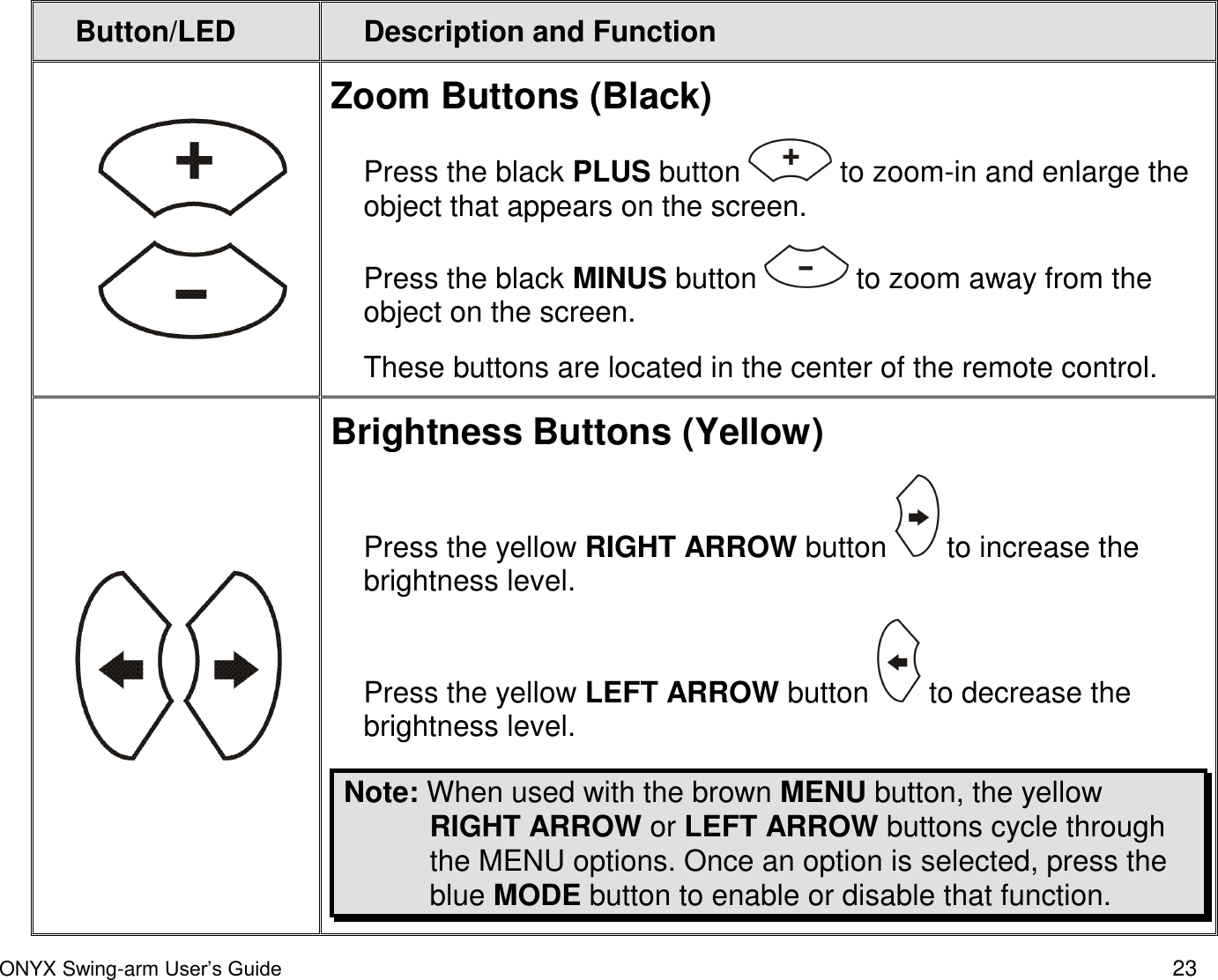
 ONYX Swing-arm User’s Guide 23 Button/LED Description and Function   Zoom Buttons (Black) Press the black PLUS button   to zoom-in and enlarge the object that appears on the screen.  Press the black MINUS button   to zoom away from the object on the screen. These buttons are located in the center of the remote control.    Brightness Buttons (Yellow) Press the yellow RIGHT ARROW button   to increase the brightness level.  Press the yellow LEFT ARROW button   to decrease the brightness level.  Note: When used with the brown MENU button, the yellow RIGHT ARROW or LEFT ARROW buttons cycle through the MENU options. Once an option is selected, press the blue MODE button to enable or disable that function.
 24  ONYX Swing-arm User’s Guide Button/LED Description and Function  Freeze and Focus Lock Button (Orange) Press the orange FREEZE button    once to freeze the current image that appears on the screen. The Menu text FREEZE appears on the screen. While in Freeze mode, the zoom and brightness features are disabled.  Press the FREEZE button    again to turn Auto Focus off. When Auto Focus is on, the camera automatically focuses on the object closest to the camera. When Auto Focus is off, as indicated by the on-screen message, LOCK, the camera does not adjust its focus. Turning Auto Focus off makes it easier to write or work with an object, because the camera will not automatically focus on your hand. During normal operation, it is recommended that you leave Auto Focus on. Tip:   When you press this button, the message LOCK appears on the screen when Auto Focus is off. Press the FREEZE button   a third time to return to the live camera view.  The orange FREEZE button is located on the lower left side of the remote control.
 ONYX Swing-arm User’s Guide 25 Button/LED Description and Function  Menu Button (Brown) Use the brown MENU button to access the following functions:  Mask: Covers the upper and lower parts of the screen so that you can concentrate on specific items or lines of text that appear on the screen.  Marker 1: Shows a guide line to help guide you and maintain your place while reading text.   Marker 2: Shows a line that helps you maintain your place while reading text. When used together with Marker 1, you can create a miniature mask to help isolate a specific area on the screen.   Contrast: (Only available in Enhanced Positive and Enhanced Negative modes.) Adjusts the contrast between light and dark areas of the video image. Note: You can cycle through the menu options by using the yellow RIGHT ARROW or LEFT ARROW buttons in conjunction with the brown MENU button.
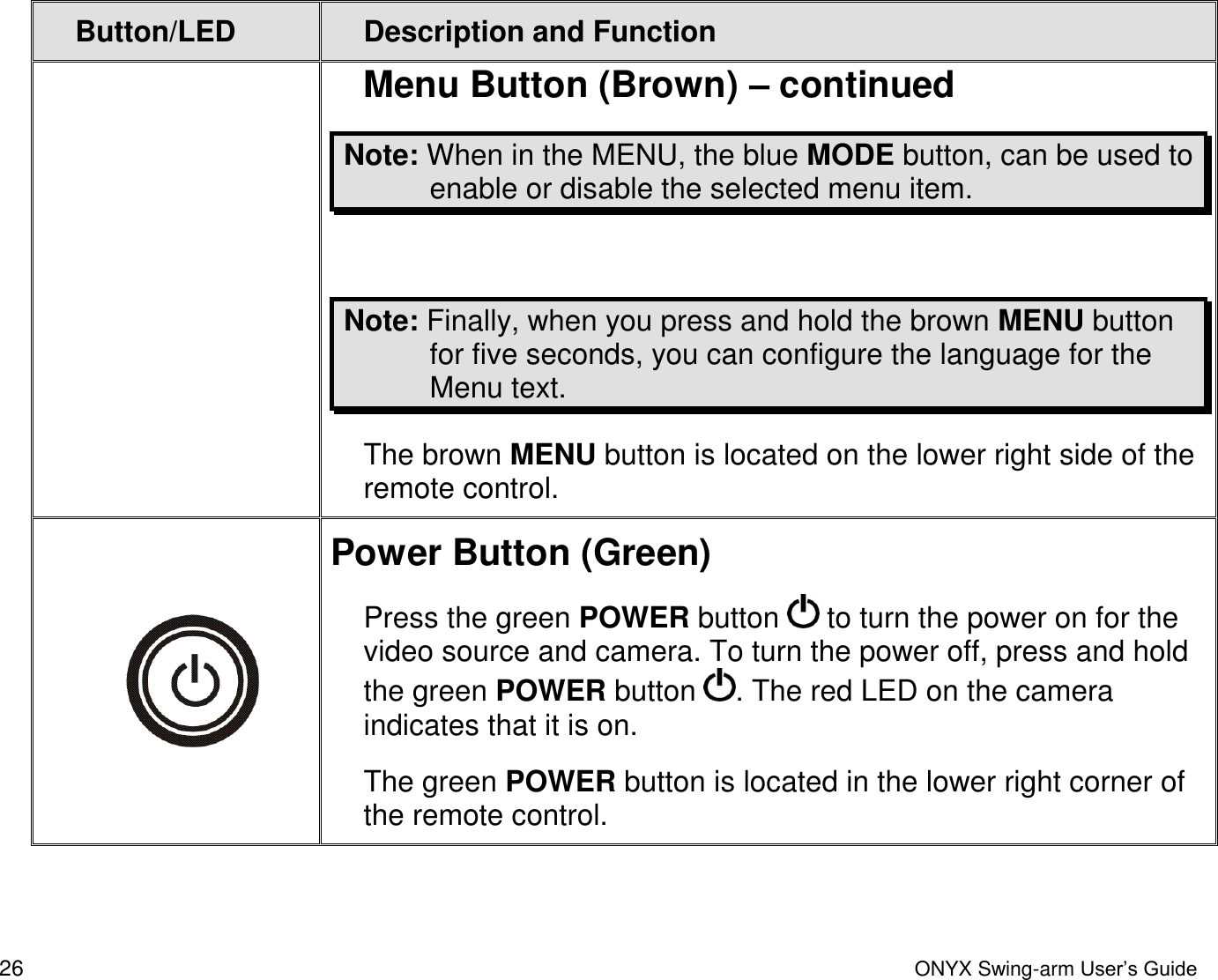
 26  ONYX Swing-arm User’s Guide Button/LED Description and Function Menu Button (Brown) – continued Note: When in the MENU, the blue MODE button, can be used to enable or disable the selected menu item.  Note: Finally, when you press and hold the brown MENU button for five seconds, you can configure the language for the Menu text. The brown MENU button is located on the lower right side of the remote control.  Power Button (Green) Press the green POWER button   to turn the power on for the video source and camera. To turn the power off, press and hold the green POWER button  . The red LED on the camera indicates that it is on.  The green POWER button is located in the lower right corner of the remote control.
 ONYX Swing-arm User’s Guide 27 Service and Support You can contact Freedom Scientific Technical Support to receive technical assistance with ONYX. Before contacting Technical Support, it is recommended that you refer to Troubleshooting on page 28 to try to resolve your problem quickly.  If you cannot resolve your issue, you can visit www.FreedomScientific.com. Choose the Support link to search the Knowledge Base. The Knowledge Base contains articles that address many common questions and technical issues concerning Freedom Scientific products.  Note:  This device has no user-serviceable components. Any unauthorized attempt to service or replace internal components will void the product warranty. To contact Freedom Scientific Technical Support by telephone, customers in the United States can call (727) 803-8600, Monday through Friday, from 8:30 A.M. to 7:00 P.M. (Eastern Time). Alternatively, you can receive support by e-mail. Send your questions and problems to Support@FreedomScientific.com. When you call, have your documentation ready and be prepared to provide the following information:  Product name  What you were doing when the problem occurred  How you tried to solve the problem
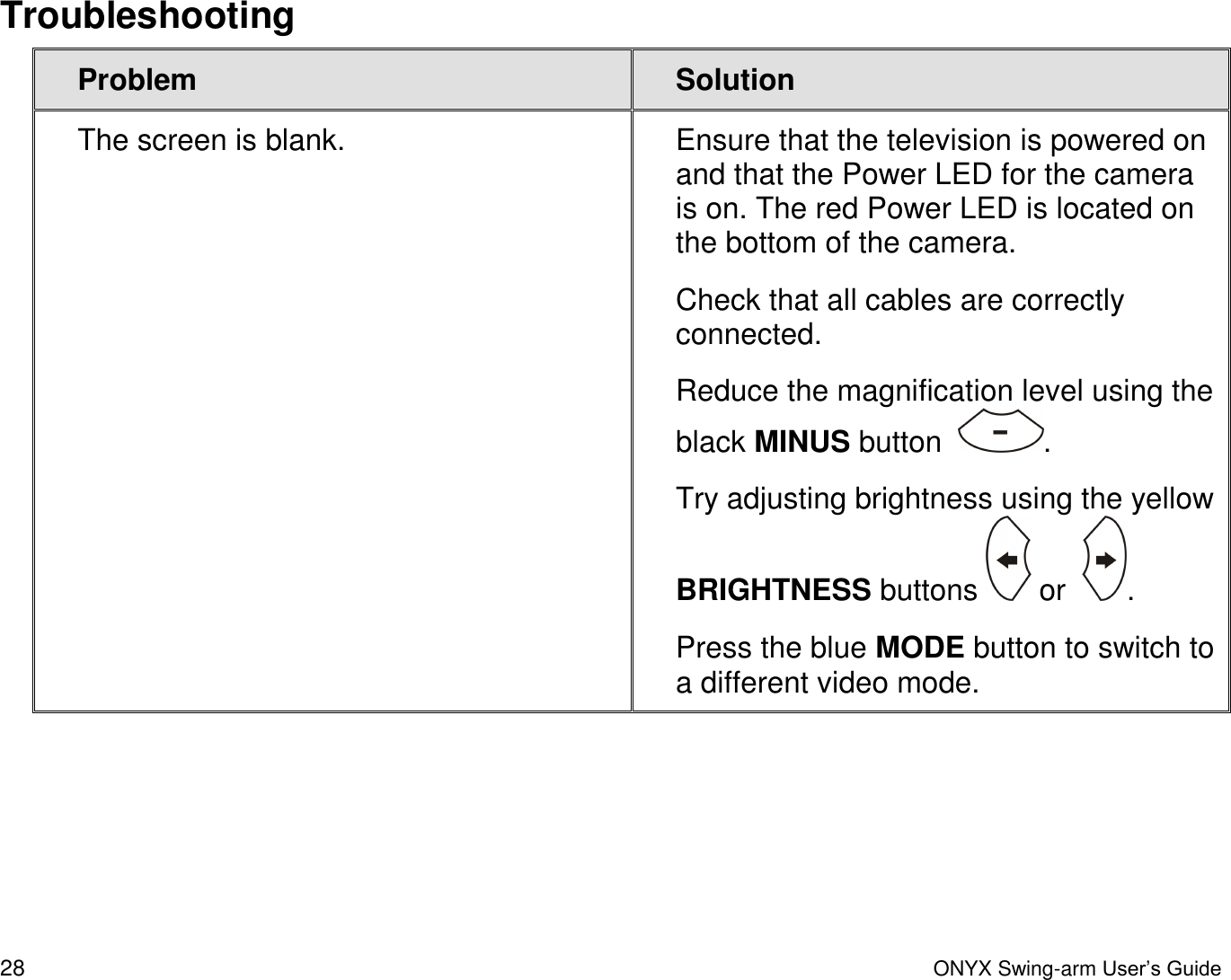
 28  ONYX Swing-arm User’s Guide Troubleshooting Problem Solution The screen is blank. Ensure that the television is powered on and that the Power LED for the camera is on. The red Power LED is located on the bottom of the camera.  Check that all cables are correctly connected. Reduce the magnification level using the black MINUS button   . Try adjusting brightness using the yellow BRIGHTNESS buttons   or   . Press the blue MODE button to switch to a different video mode.
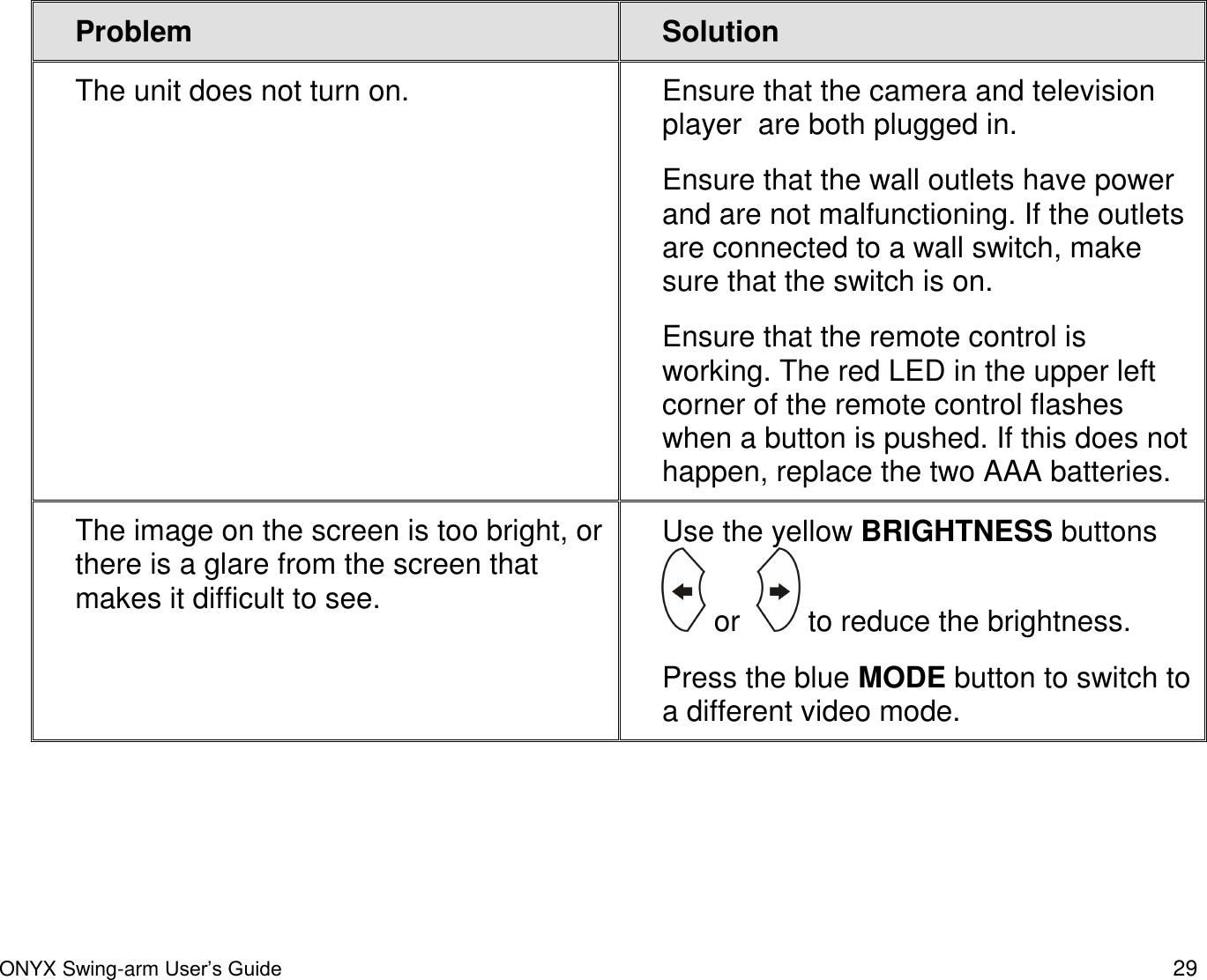
 ONYX Swing-arm User’s Guide 29 Problem Solution The unit does not turn on. Ensure that the camera and television player  are both plugged in. Ensure that the wall outlets have power and are not malfunctioning. If the outlets are connected to a wall switch, make sure that the switch is on. Ensure that the remote control is working. The red LED in the upper left corner of the remote control flashes when a button is pushed. If this does not happen, replace the two AAA batteries. The image on the screen is too bright, or there is a glare from the screen that makes it difficult to see. Use the yellow BRIGHTNESS buttons   or    to reduce the brightness.  Press the blue MODE button to switch to a different video mode.
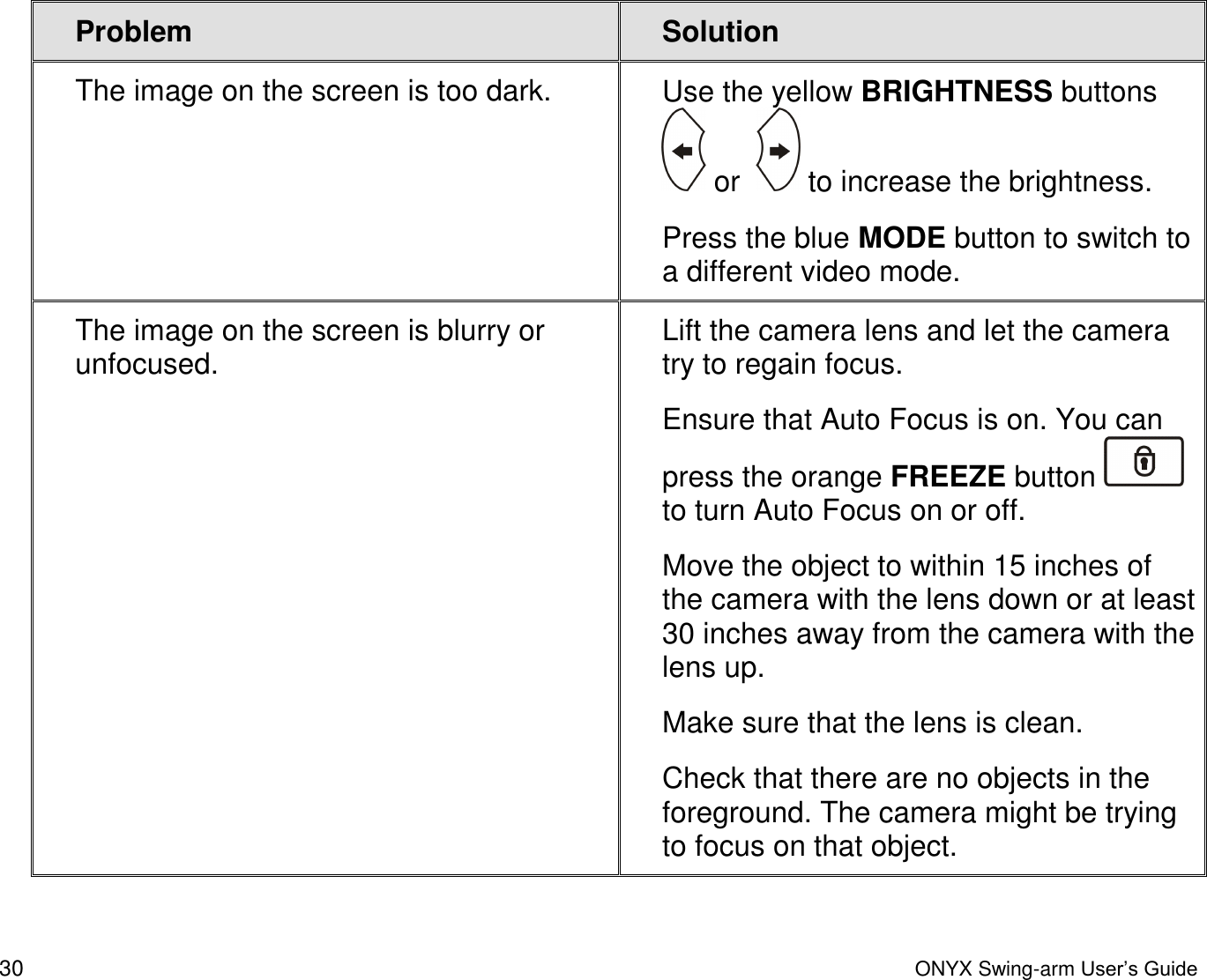
 30  ONYX Swing-arm User’s Guide Problem Solution The image on the screen is too dark. Use the yellow BRIGHTNESS buttons   or    to increase the brightness. Press the blue MODE button to switch to a different video mode. The image on the screen is blurry or unfocused. Lift the camera lens and let the camera try to regain focus. Ensure that Auto Focus is on. You can press the orange FREEZE button   to turn Auto Focus on or off. Move the object to within 15 inches of the camera with the lens down or at least 30 inches away from the camera with the lens up. Make sure that the lens is clean. Check that there are no objects in the foreground. The camera might be trying to focus on that object.
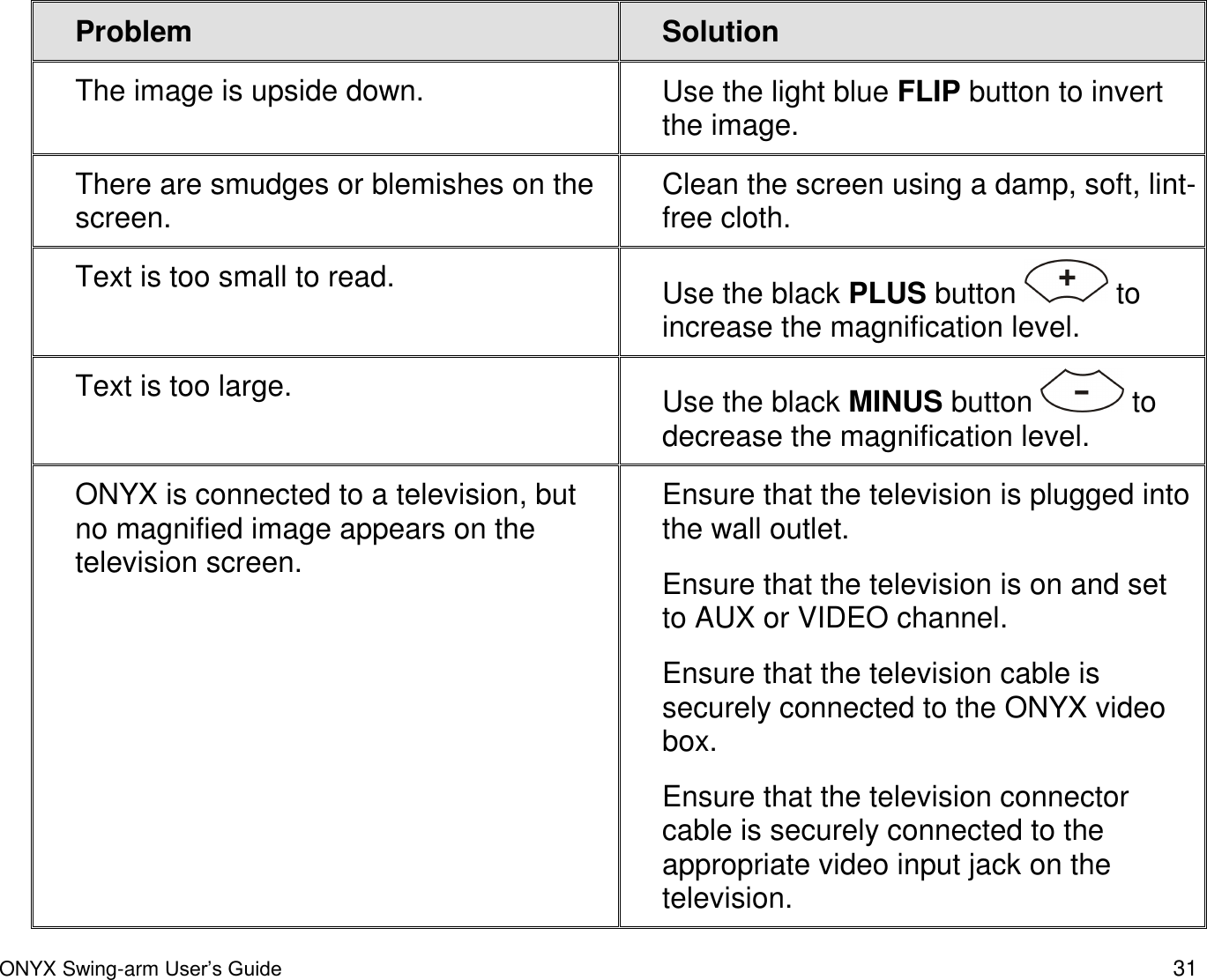
 ONYX Swing-arm User’s Guide 31 Problem Solution The image is upside down. Use the light blue FLIP button to invert the image. There are smudges or blemishes on the screen. Clean the screen using a damp, soft, lint-free cloth.  Text is too small to read. Use the black PLUS button   to increase the magnification level.  Text is too large. Use the black MINUS button   to decrease the magnification level.  ONYX is connected to a television, but no magnified image appears on the television screen.  Ensure that the television is plugged into the wall outlet. Ensure that the television is on and set to AUX or VIDEO channel.  Ensure that the television cable is securely connected to the ONYX video box. Ensure that the television connector cable is securely connected to the appropriate video input jack on the television.
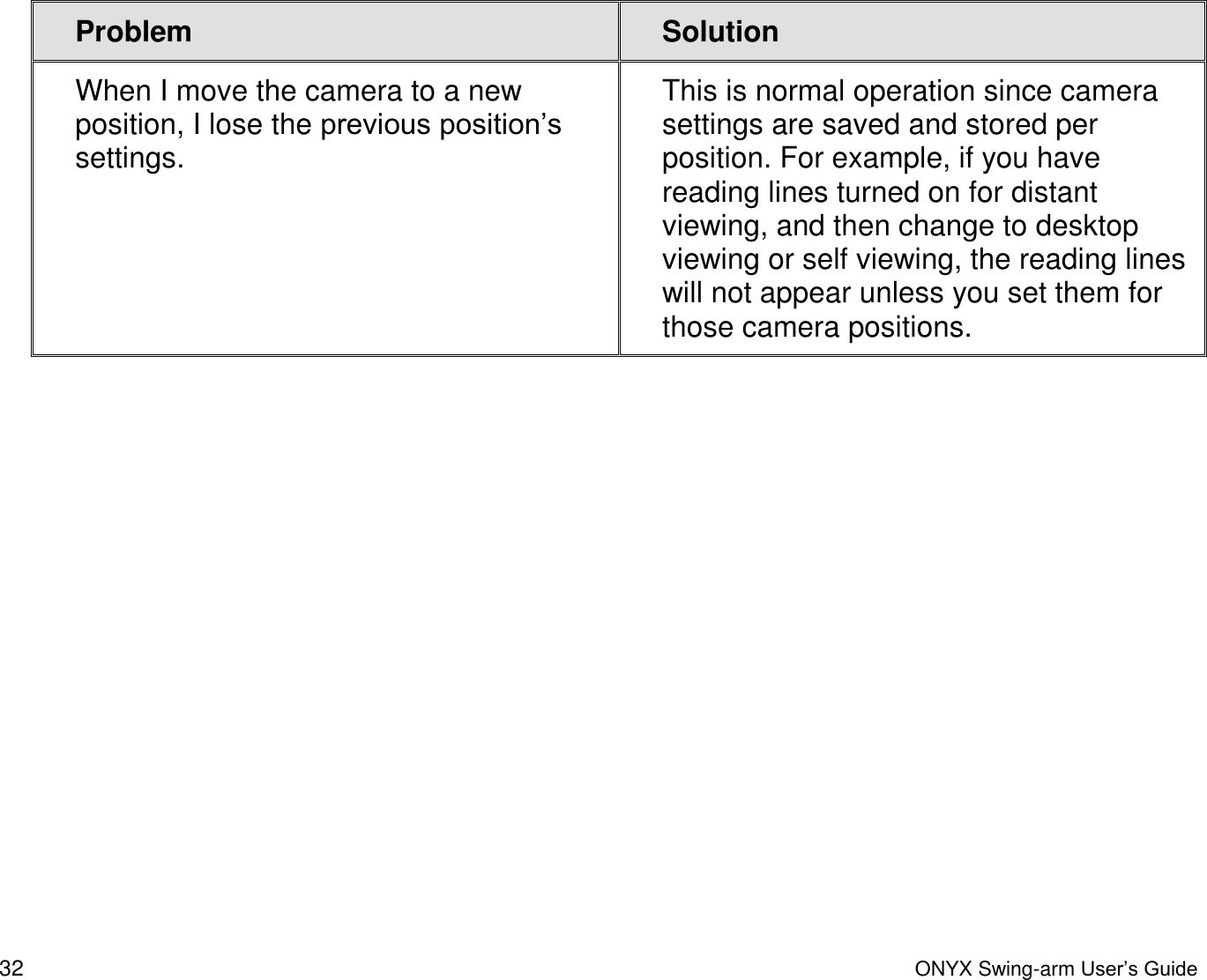
 32  ONYX Swing-arm User’s Guide Problem Solution When I move the camera to a new position, I lose the previous position’s settings. This is normal operation since camera settings are saved and stored per position. For example, if you have reading lines turned on for distant viewing, and then change to desktop viewing or self viewing, the reading lines will not appear unless you set them for those camera positions.
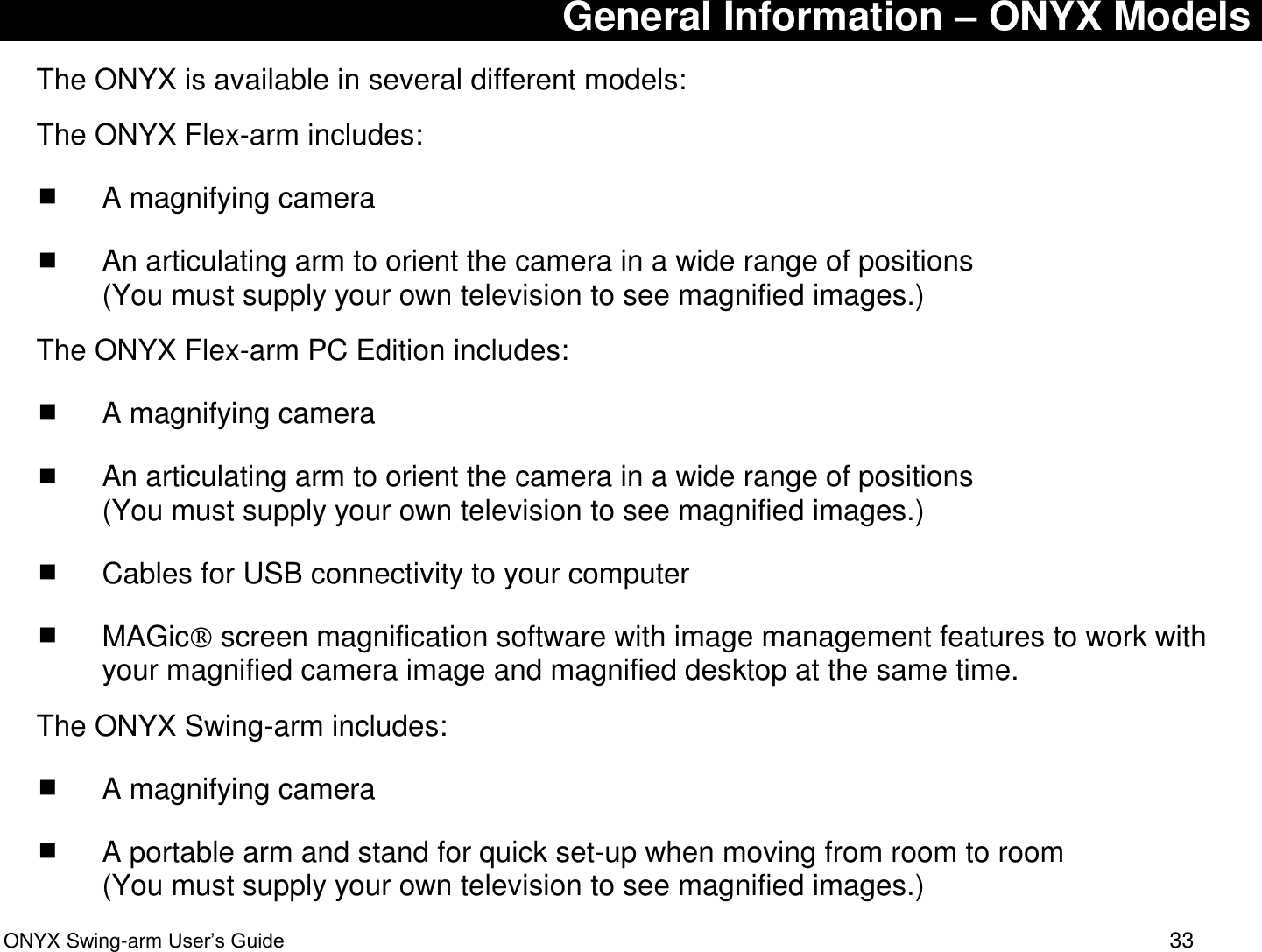
 ONYX Swing-arm User’s Guide 33 General Information – ONYX Models The ONYX is available in several different models: The ONYX Flex-arm includes:  A magnifying camera  An articulating arm to orient the camera in a wide range of positions  (You must supply your own television to see magnified images.) The ONYX Flex-arm PC Edition includes:  A magnifying camera  An articulating arm to orient the camera in a wide range of positions  (You must supply your own television to see magnified images.)  Cables for USB connectivity to your computer   MAGic  screen magnification software with image management features to work with your magnified camera image and magnified desktop at the same time. The ONYX Swing-arm includes:  A magnifying camera  A portable arm and stand for quick set-up when moving from room to room (You must supply your own television to see magnified images.)
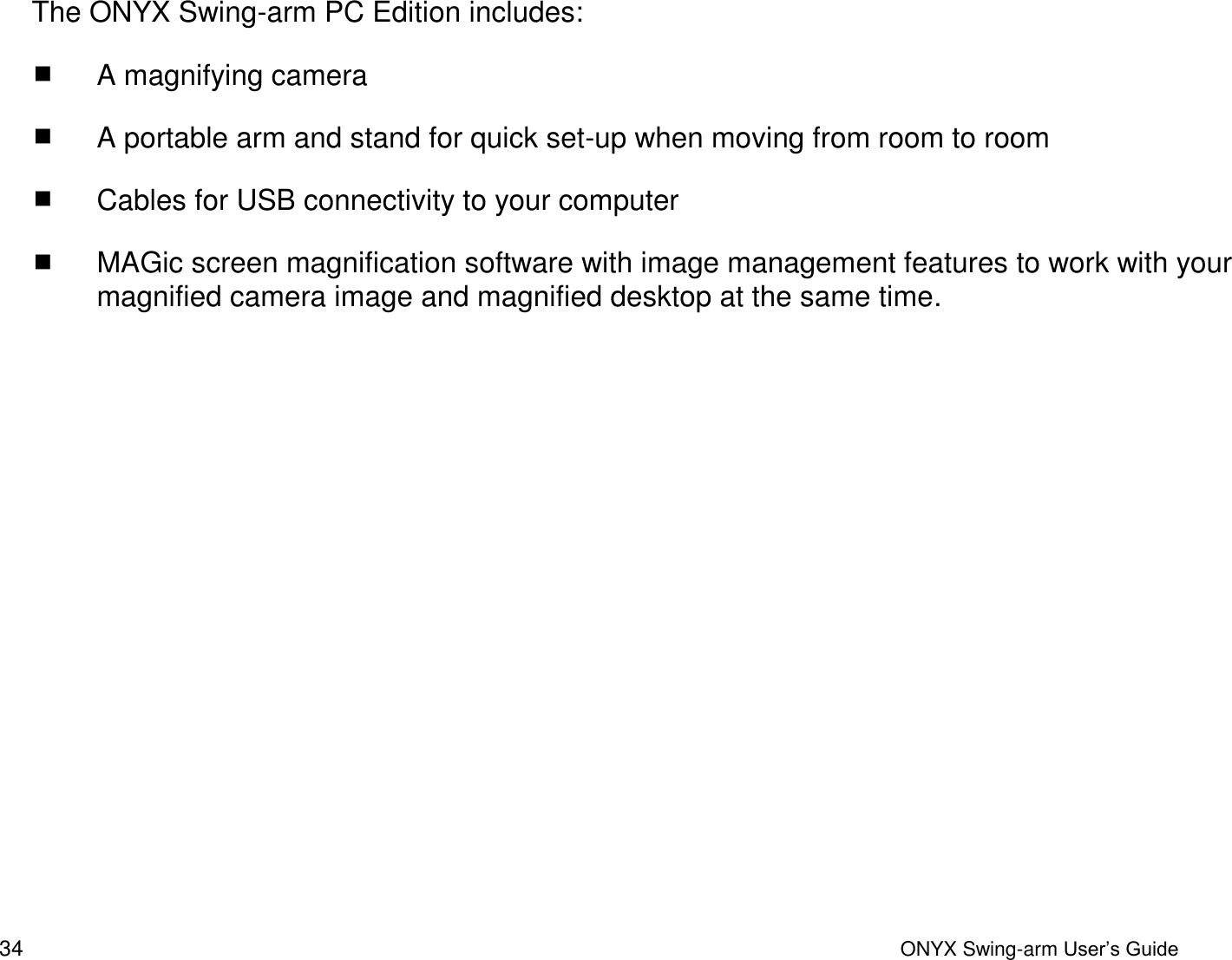
 34  ONYX Swing-arm User’s Guide The ONYX Swing-arm PC Edition includes:  A magnifying camera  A portable arm and stand for quick set-up when moving from room to room  Cables for USB connectivity to your computer   MAGic screen magnification software with image management features to work with your magnified camera image and magnified desktop at the same time.

Navigation menu