Fujikon BT-400 SYBARIS Bluetooth Gaming Headset User Manual User Mannual HT SYB ANECBK 11 English
Fujikon Industrial Co., Ltd. SYBARIS Bluetooth Gaming Headset User Mannual HT SYB ANECBK 11 English
Fujikon >
Contents
- 1. User manual
- 2. User Mannual_HT-SYB-ANECBK-11(English)
User Mannual_HT-SYB-ANECBK-11(English)
--ENGLISH
Congratulations on purchasing Tt eSPORTS professional SYBARIS Hybrid Gaming
Headset. This is a universal gaming headset compatible with Bluetooth mobile device
and Mac/Windows PCs. The superior stereo sound with advanced audio bass
enhancements and crystal-clear communication over your mobile device and PC
provide both wired and wireless enjoyment for all gamers.
System Requirements:
◎ Mobile device / Computer with available 3.5mm audio port
◎ Compatible with Bluetooth 3.0 or later and supports HSP/HFP/A2DP/AVRCP/CVC
Package Contents:
1. SYBARIS gaming headset.
2. Removable microphone boom.
3. Multi-language quick installation guide.
3. USB charging cable.
4. 3.5mm audio cable for PC.
5. 3.5mm audio cable for Mobile
6. Carrying bag
Keys and parts
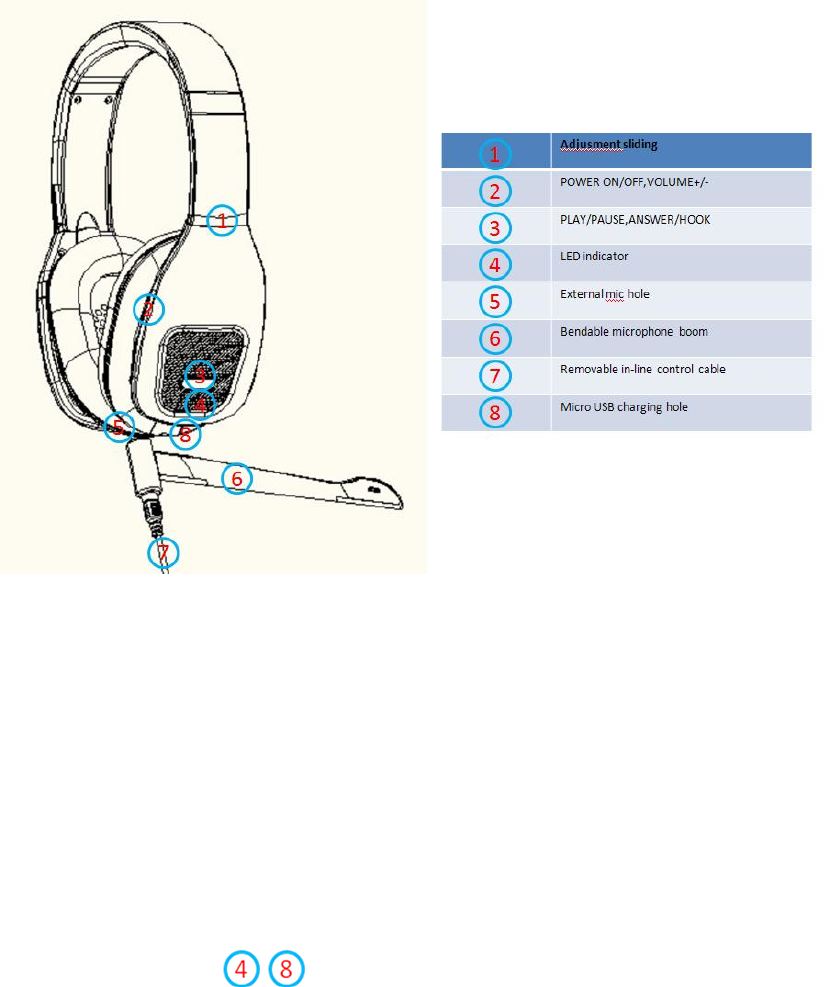
The headphone contains several technological features to improve the
experience of the user.
The following section is an overview of the parts:
Before using the headphone wirelessly you must fully charge the battery and
connect the headset to your respective Bluetooth device.
Charge the Battery
The headphone contains a battery capable of up to 14 hours of usage.
To charge the battery, the headset has to be connected with the included USB
cable. The cable has two different-sized ends.
First, take the Micro USB end and plug it into the USB entry port on the right
side of the headset.

The point of entry is covered by a protective layer which needs to be
temporarily removed.
Gently pull the protection away so that the Micro USB can be inserted.
The other end of the cable is fitted with a standard USB plug which needs to be
compatible with the respective unit. Plug the end in the USB port of the
computer, wall charger with USB port or other compatible device.
The indicating light on the right side of the headset will now flash. When the
battery is fully charged, the indicating light will turn off and nothing will display.
If the battery is charging the LED lamp will blink green.
Turn on the headphones
When you want to turn the unit on, locate the On/Off button on the right side of
the headphones. The button is located just above the volume controller. To
turn on the headphones, press the button and hold it for 3 seconds and the
indicating light will show a constant blue flash followed by a red blink. The
headphone is now turned on and ready for Bluetooth pairing.
Pairing of wireless devices
To pair the headphone with your music player, ensure that the respective
device is turned on and the Bluetooth function is active.
When setting the headphone for pairing mode, press down the button and hold
for 5 seconds.
The indicating light will show the below process.
1. First the light will show a constant blue
2. Then for a few seconds it will flash red
3. After red it will blink blue and the headphone is now in pairing mode
On your respective device you should search for the signal and use the
device's functions to connect. On the list of found devices you should select
"SYBARIS HYBRID GAMING HEADSET" to establish the connection.
Some devices require a passcode to connect with a newly established
Bluetooth apparatus.
Enter passcode: 0000 if necessary.
When the connection is established, the headphone's light indicator will flash a
blue light two times every 5 seconds to verify the connection.
Pairing with NFC Bluetooth
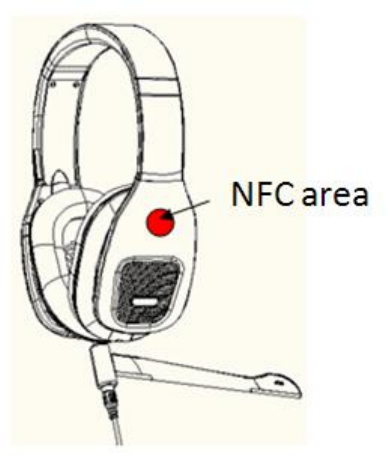
The speaker has the newest NFC (Near Field Communication) Bluetooth
technology incorporated and can be used if your respective music device is
compatible. The NFC is a new technology only available in a limited amount of
products and is built-in to the speaker. If you would like to pair with this new
ability please follow these steps:
1. Enable the NFC function on your music device.
2. Gently let the speaker and your music device meet, by holding them close
together. The NFC is located on the right side of the speaker when looking
directly at the front of the speaker with the multifunctional key and the volume
adjustment.
3. Your music device should now recognize the signal from the speaker.
a. If the music device and the speaker are pairing for the first time, you will

need to accept the pairing on the music device
4. When the signal has been accepted on your gadget, the speaker will be
paired and ready for use.
5. Turn on the headphones by pressing and holding the On/Off button for 3
seconds. The indicating light on the right will flash a blue light followed by red
blinks.
Bluetooth functions introduction: Listening to music or communicating -
volume control
Your connection should now be established and the headset can be used to
listen to music, accept phone calls and much more.
To adjust the volume of the headset use the volume button located on the right
side of the headphones. The button will display a plus (+) and minus (-) symbol.
The upper end of the button is related to the plus symbol and will turn up the
volume if pressed. The lower part of the volume button is related to the minus
symbol and will turn down the volume of the headphone.
-Use of the multifunctional key
The headphone is installed with a multifunctional key located on the right side
of the headphones. Listening to music or general use of the headset can be
improved by use of this key. The key should be pressed lightly when used.
The key holds several functions and the following is an overview and user
guide of these:
i. Play and pause music
When the headphone is connected to your music player, you can
easily and quickly start listening to music by pushing the key one time.
The headphone will make a brief sound indicating the pause of the
song which will be further revealed with the missing sound in the
headphones.
When you want to resume the paused song, you push the key once
again and the song will begin.
ii. Next and previous track
The multifunctional key can also easily be used to navigate between
the various songs on your music player.
If you wish to skip to the next track, push the key two times.
If you wish to go back to the previous song, push the key three
times.
iii. Receive calls
If the headphone is connected to your smartphone you can use it to
answer phone calls. You can again use the multifunctional key to
navigate your incoming calls.
Making a call - in order to make a call when your headphone is
connected to your cell, you will have to use your mobile in the
normal way or by using voice dialing (if enabled by your
respective phone).
Answering a call - to answer an incoming call press the
multifunctional key one time.
To end a call - when finishing the call press the key once more.
Rejecting a call - if you wish to reject an incoming call you have
to press the key and hold for 2 seconds.
iv. Disconnect the headphone
If you wish to disconnect the established connection between the
headphone and your respective device, simply enter the Bluetooth
function on your music player and shut down the connection.
v. Switch off headphone
If you wish to turn off the unit, you should initially locate the On/Off
button on the right side of the headphones. Press the button and hold
for 3 seconds until the indicator will show a constant red light. Let go
of the button and the device is now turned off.
vi. Reset the headphone
To reset the unit and the functions within, you should firstly turn off
the headphones. Then press and hold the On/Off button
simultaneously with the minus (-) of the volume controller. The two
buttons have to be pressed and held for 8 seconds. The indicating
light will switch between a red and blue flash 3 times and the
headphone has now been reset. If you wish to reset the hardware of
the headphone you need to turn off the power and then insert the
USB-cable to the headphone and also the USB port of the computer,
wall charger with USB port or other compatible devices. Afterwards
please follow the steps below:
- Press and hold the On/Off button simultaneously with the
minus (-) of the volume controller.
- The two buttons have to be pressed and held for 8 seconds.
The indicating light will switch between a red and blue flash 3
times and the headphones have now been reset.
If the headphone has an irregular response, a hardware reset could
also be done.
Wire functions for three modes (no power needed):
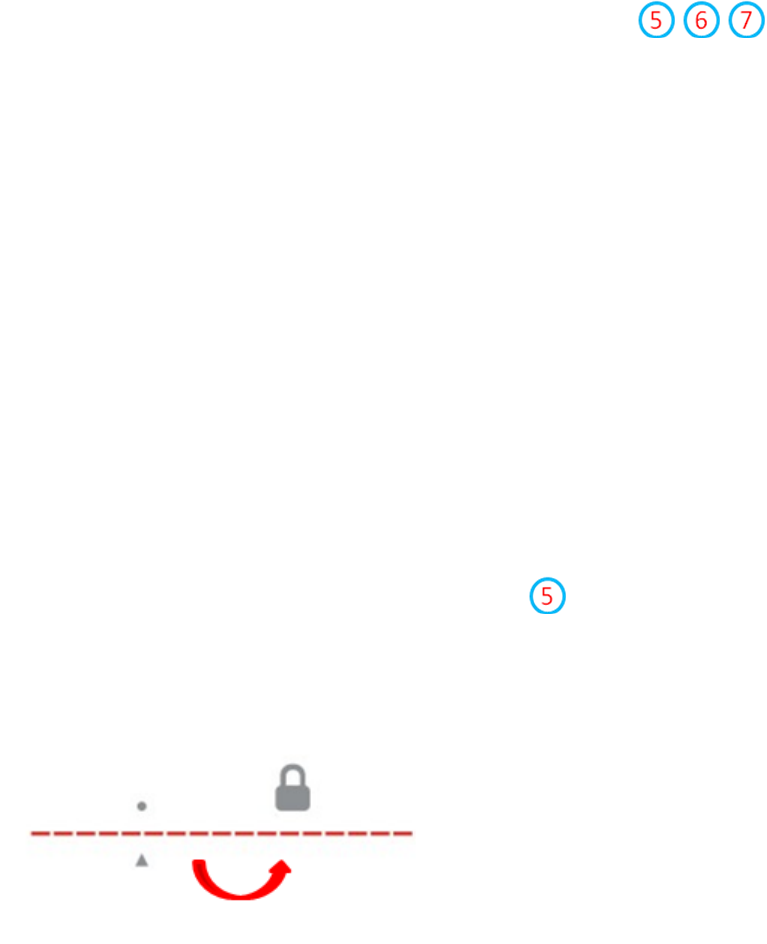
- Use of removable cables and external microphone boom
i. Music mode: The headset has an AUX entry build-in on the left side of
the headset. The headphone does not need to be turned on for the AUX
technology to function. Simply plug the 4 pin 3.5mm audio cable in the
point of entry on the headphone and your respective device.
Note: When the AUX cable or microphone boom is inserted, the
Bluetooth function and the build-in microphone will be disabled.
ii. Gaming mode: For desktops or laptop PCs with stereo and microphone
phone jacks, install the external microphone into then plug the
3.5mm in-line audio cable into the bottom of the external phone jack.
There is a symbol for locking the cable and vice-versa for releasing it.
For this mode, you can have powerful sound and full enjoyment of the
game without worrying about battery charging or sound latency.
For mobile phones or newer laptops (and MAC laptops), you can
exchange the 3.5mm audio cable with a 4-pin plug. It can adapted to most
3.5mm portable devices which combine speaker and microphone usage
into one phone jack.
iii. Phone communication mode (without battery):
For phone communication, you need to install the external microphone boom
firstly. According to your device jack, you can change the 3.5mm audio cable to
access the gaming microphone with noise-canceling function.

Model No: HT-SYB-ANECBK-11
FCC ID: TTC-BT-400
Safety requirements
Heed all warnings
Keep and follow all instructions.
The operating temperature range in user manual: from 0 degree Celsius to 45 degree Celsius.
DO NOT use this apparatus near water
Clean only with dry cloth
DO NOT disassemble or replace the battery. If you suspect there is something wrong with the battery, please carry the
unit to the service center for help.
CAUTION: RISK OF EXPLOSION IF BATTRY IS REPLACED BY AN UNCORRECT TYPE. DISPOSE OF USED BATTERIES
ACCORDING TO THE INSTRUCTIONS
The battery should not be disposed together with other waste. The battery has to be disposed at an authorized place
for recycling of electrical and electronic appliances. By collecting and recycling waste, you help save natural
resources, and make sure the product is disposed in an environmental friendly and healthy way.
Unplug this apparatus during lightning storms or when unused for long periods of time
DO NOT install near any heat sources such as radiators, heat registers, stoves, or other apparatus (including
amplifiers) that produce heat
Only use accessories specified by the manufacturer
Refer all servicing to qualified service personnel. Servicing is required when the apparatus has been damaged in any
way, such as liquid has been spilled or objects have fallen into the apparatus, the apparatus has been exposed to
rain or moisture, does not operate normally, or has been dropped.
EMC/RF requirements
Europe—EU Declaration of Conformity: The equipment complies according to the Radio Equipment and Telecommunications
Terminal Equipment Directive 1999/5/EC. This equipment meets the following conformance standards:
Safety : EN 60065:2002+A12:2011
Health: EN 62479: 2010
EMC : EN 301 489-1 V1.9.2
EN 301 489-17 V2.2.1
EN 55013: 2001 + A1: 2003 + A2: 2006
EN 55020:2007+A11:2011
Radio: EN 300 328 V1.7.1
FCC requirements
This equipment has been tested and found to comply with the limits for a Class B digital device, pursuant to
part 15 of the FCC Rules. These limits are designed to provide reasonable protection against harmful
interference in a residential installation. This equipment generates, uses and can radiate radio frequency
energy and, if not installed and used in accordance with the instructions, may cause harmful interference to
radio communications. However, there is no guarantee that interference will not occur in a particular
installation. If this equipment does cause harmful interference to radio or television reception, which can be
determined by turning the equipment off and on, the user is encouraged to try to correct the interference by
one or more of the following measures:
Reorient or relocate the receiving antenna.
Increase the separation between the equipment and receiver.
Connect the equipment into an outlet on a circuit different from that to which the receiver is connected.
Consult the dealer or an experienced radio/TV technician for help.
CAUTION: To comply with the limits of the Class B digital device, pursuant to Part 15 of the FCC Rules, this
device is comply with Class B limits. All peripherals must be shielded and grounded. Operation with
non-certified peripherals or non-shielded cables may results in interference to radio or reception.
MODIFICATION: Any changes or modifications not expressly approved by the grantee of this device could void
the user’s authority to operate the device.
This device complies with part 15 of the FCC Rules. Operation is subject to the following two conditions:
(1) This device may not cause harmful interference, and
(2) This device must accept any interference received, including interference that may cause undesired
operation.
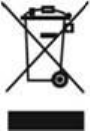
Product: The crossed-out waste bin stuck on the product means that the product belongs to the family of electrical and electronic
equipment. In this respect, the European regulations ask you to dispose of it selectively;
At sales points in the event of the purchase of similar equipment.
At the collection points made available to you locally(drop-off centre, selective collection, etc.).
In this way you can participate in the reuse and upgrading of Electrical and Electronic Equipment Waste, which can have an effect on
the environment and human health.
The paper and cardboard packaging used can be disposed of as recyclable paper. Have the plastic wrapping and Styrofoam packaging
recycled or dispose of it in the non-recyclable waste, depending on the requirements in your country.
Thermaltake Technology Co., Ltd.
5F, No. 185, Sec.2, Tiding Blvd., Neihu Dist., Taipei City 114, Taiwan