Furuno Gp 1850Wdf Users Manual
GP-1850WF to the manual 2f8cde90-8a50-402c-a762-6a9ae7290540
2015-02-02
: Furuno Furuno-Gp-1850Wdf-Users-Manual-428806 furuno-gp-1850wdf-users-manual-428806 furuno pdf
Open the PDF directly: View PDF  .
.
Page Count: 115 [warning: Documents this large are best viewed by clicking the View PDF Link!]
- SAFETY INSTRUCTIONS
- TABLE OF CONTENTS
- FOREWORD
- SYSTEM CONFIGURATION
- WHAT IS WAAS?
- 1. OPERATIONAL OVERVIEW
- 2. VIDEO SOUNDER OPERATION
- 2.1 Principle of Operation
- 2.2 Sounder Display Description
- 2.3 Dual-frequency Display
- 2.4 Plotter/Sounder Display
- 2.5 Automatic Sounder Operation
- 2.6 Manual Sounder Operation
- 2.7 Measuring Depth
- 2.8 Suppressing Interference
- 2.9 Suppressing Low Level Noise
- 2.10 Erasing Weak Echoes
- 2.11 White Marker
- 2.12 Selecting Picture Advance Speed
- 2.13 Selecting Background and Echo Colors
- 2.14 Alarms
- 2.15 Interpreting the Display
- 3. PLOTTER DISPLAYS
- 4. TRACK
- 5. MARK
- 6. WAYPOINTS
- 7. ROUTES
- 8. NAVIGATION
- 9. PLOTTER ALARMS
- 10. MEMORY CARD OPERATIONS
- 11. CUSTOMIZING YOUR UNIT
- 12. USING C-MAP NT MODEL
- 13. MAINTENANCE & TROUBLESHOOTING
- APPENDIX
- SPECIFICATIONS
- INDEX
- DECLARATION OF CONFORMITY
COLOR DGPS/PLOTTER/SOUNDER
COLOR GPS/PLOTTER/SOUNDER
GP-1850WDF, GP-1850WF FURUNO/NAVIONICS
GP-1850WDF, GP-1850WF FURUNO/C-MAP NT
Back
Your Local Agent/DealerYour Local Agent/Dealer
9-52 Ashihara-cho,9-52 Ashihara-cho,
Nishinomi
y
a, Ja
p
anNishinomi
y
a, Ja
p
an
Tele
p
hone :Tele
p
hone : 0798-65-21110798-65-2111
Telefax :Telefax : 0798-65-42000798-65-4200
FIRST EDITION :FIRST EDITION :
A
UG.
A
UG. 20022002
Printed in JapanPrinted in Japan
A
ll ri
g
hts reserved.
A
ll ri
g
hts reserved.
B :B :
A
UG.
A
UG. 28,200228,2002
PUB.No.PUB.No. OME-44252OME-44252
*00080937000**00080937000*
*00080937000**00080937000*
(( HIMAHIMA )) GP-1850WF/1850WDFGP-1850WF/1850WDF * 0 0 0 8 0 9 3 7 0 0 0 ** 0 0 0 8 0 9 3 7 0 0 0 *
*OME44252B00**OME44252B00*
*OME44252B00**OME44252B00*
* O M E 4 4 2 5 2 B 0 0 ** O M E 4 4 2 5 2 B 0 0 *
i
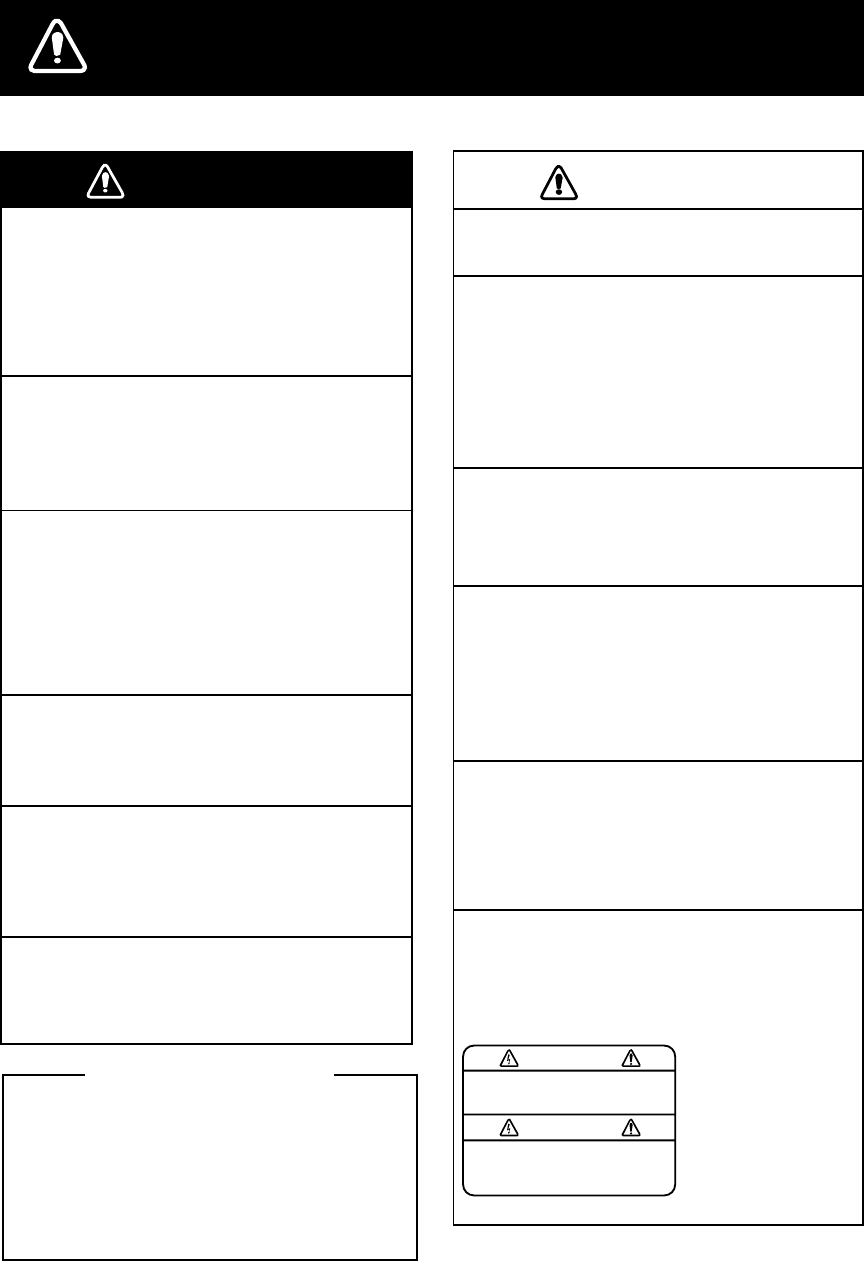
SAFETY INSTRUCTIONS
Do not disassemble or modify the
equipment.
Fire, electrical shock or serious injury
can result.
Do not open the equipment.
Immediately turn off the power at the
switchboard if the equipment is emitting
smoke or fire.
Continued use of the equipment can cause
fire or electrical shock. Contact a FURUNO
agent for service.
Do not operate the equipment with wet
hands.
Electrical shock can result.
Use the proper fuse.
Fuse rating is shown on the power cable.
Use of a wrong fuse can result in damage
to the equipment.
Hazardous voltage which can cause
electrical shock, burn or serious injury
exists inside the equipment. Only qualified
personnel should work inside the equipment.
WARNINGWARNING CAUTION
Do not use the equipment for other than
its intended purpose.
No one navigation device should ever be
solely replied upon for the navigation of
a vessel.
Always confirm position against all available
aids to navigation, for safety of vessel and
crew.
Do not turn on the equipment with the
transducer out of water.
The transducer may be damaged.
Use the proper gain setting.
Incorrect gain may produce wrong depth
indication, possibly result ing in a
dangerous situation. See "Adjusting the
gain" on page 2-6.
The picture is not refreshed when
picture advancement is stopped.
Maneuvering the vessel in this condition
may result in a dangerous situation.
A warning label is attached to the equip-
ment. Do not remove the label. If the
label is missing or illegible, contact
a FURUNO agent or dealer.
WARNING
To avoid electrical shock, do not
remove cover. No user-serviceable
parts inside.
Name: Warning Label (1)
Type: 86-003-1011-1
Code No.: 100-236-231
The TFT LCD is constructed using the
latest LCD techniques, and displays
99.99% of its pixels. The remaining 0.01%
of the pixels may drop out or blink, how-
ever this is not an indication of malfunc-
tion.
About the TFT LCD
Do not maneuver the vessel based
on the depth indication alone.
Grounding may result.

ii
TABLE OF CONTENTS
FOREWORD .................................. iv
SYSTEM CONFIGURATION ......... v
WHAT IS WAAS?........................... vi
1. OPERATIONAL OVERVIEW
1.1 Display Unit Controls .....................1-1
1.2 Remote Controller..........................1-2
1.3 Inserting Mini Chart Card...............1-3
1.4 Turning the Power On/Off ..............1-3
1.5 Adjusting Tone and Brilliance.........1-4
1.6 Plotter Displays..............................1-5
1.7 Sounder Displays...........................1-6
1.8 Menu Operation, Soft Keys............1-7
1.9 Demonstration Display...................1-8
2. VIDEO SOUNDER OPERATION
2.1 Principle of Operation ....................2-1
2.2 Sounder Display Description..........2-2
2.3 Dual-frequency Display..................2-4
2.4 Plotter/Sounder Display .................2-4
2.5 Automatic Sounder Operation........2-5
2.6 Manual Sounder Operation............2-5
2.7 Measuring Depth ...........................2-7
2.8 Suppressing Interference .............2-7
2.9 Suppressing Low Level Noise........2-7
2.10 Erasing Weak Echoes....................2-8
2.11 White Marker .................................2-8
2.12 Selecting Picture Advance Speed..2-9
2.13 Selecting Background and Echo
Colors............................................2-9
2.14 Alarms .........................................2-10
2.15 Interpreting the Display................2-11
3. PLOTTER DISPLAYS
3.1 Presentation Modes ...................... 3-1
3.2 Cursor ........................................... 3-2
3.3 Shifting the Display........................ 3-2
3.4 Displaying Nav Information Window3-2
3.5 Selecting Chart Scale/Range......... 3-3
3.6 Mini Chart Cards ........................... 3-3
3.7 Navigation Data Display................ 3-6
3.8 Steering Display............................ 3-7
3.9 Highway Display............................ 3-8
3.10 Changing Operation Mode ............ 3-9
3.11 Navigation Trip Distance..............3-10
4. TRACK
4.1 Displaying Track............................ 4-1
4.2 Stopping/Restarting Plotting
of Track ......................................... 4-1
4.3 Changing Track Color.................... 4-2
4.4 Track Plotting Method, Interval...... 4-2
4.5 Changing Track Memory
Capacity........................................ 4-3
4.6 Erasing Track ................................ 4-4
5. MARK
5.1 Entering Marks .............................. 5-1
5.2 Changing Mark Attributes.............. 5-2
5.3 Changing Mark Size ...................... 5-3
5.4 Erasing Marks ............................... 5-4
5.5 Displaying Track and Mark
Points............................................ 5-4
5.6 Target Mark ................................... 5-4
6. WAYPOINTS
6.1 Entering Waypoints ....................... 6-1
6.2 Erasing Individual Waypoints......... 6-4
6.3 Changing Waypoint Data............... 6-5
6.4 Changing Waypoint Position on
the Plotter Display ......................... 6-5
6.5 Waypoint Mark Size....................... 6-6
6.6 Searching Waypoints..................... 6-6
TABLE OF CONTENTS
iii
7. ROUTES
7.1 Entering Routes ............................ 7-1
7.2 Connecting Routes........................ 7-2
7.3 Inserting, Removing Waypoints..... 7-3
7.4 Creating Track-based Routes........ 7-5
7.5 Erasing Routes.............................. 7-6
8. NAVIGATION
8.1 Navigating to “Quick Points”.......... 8-1
8.2 Navigating to Waypoints
(waypoint list) ................................ 8-2
8.3 Navigating to Ports, Port
Services ........................................ 8-2
8.4 Following a Route ......................... 8-4
8.5 Canceling Navigation .................... 8-6
9. PLOTTER ALARMS
9.1 Introduction ................................... 9-1
9.2 Audio Alarm On/Off ....................... 9-1
9.3 Arrival Alarm.................................. 9-2
9.4 Anchor Watch Alarm...................... 9-2
9.5 XTE (Cross Track Error) Alarm...... 9-3
9.6 Speed Alarm ................................. 9-3
9.7 Proximity Alarm............................. 9-3
9.8 Alarm Information.......................... 9-4
10. MEMORY CARD OPERATIONS
10.1 Formatting Memory Cards........... 10-1
10.2 Saving Data to Memory Card ...... 10-2
10.3 Loading Data from Memory Card 10-3
11. CUSTOMIZING YOUR UNIT
11.1 CHART SETUP OPTIONS menu 11-1
11.2 DISPLAY OPTIONS menu .......... 11-3
11.3 GPS/DGPS/TD OPTIONS
menu........................................... 11-5
11.4 SOUNDER SETUP OPTIONS
menu........................................... 11-9
11.5 CONFIGURATION menu............11-11
12. USING C-MAP NT MODEL
12.1 Inserting Chart Card ...................12-1
12.2 Cursor and Data Display ............12-2
12.3 Tidal Information..........................12-3
12.4 Navigating to Ports, Port
Services.......................................12-4
12.5 Setting Chart Setup Options ........12-6
12.6 Selecting Chart Scale/Range.......12-7
12.7 Displaying Program Number........12-8
13. MAINTENANCE &
TROUBLESHOOTING
13.1 Maintenance................................13-1
13.2 Replacement of Fuse, Battery......13-2
13.3 Simple Troubleshooting ...............13-2
13.4 Error Messages ...........................13-3
13.5 Diagnostic Tests...........................13-4
13.6 Clearing Memories.......................13-6
APPENDIX
MENU TREE.......................................... A-1
LORAN C CHAINS ................................ A-4
DECCA CHAINS.................................... A-5
WORLD TIME........................................ A-6
GEODETIC CHART LIST ...................... A-7
SPECIFICATIONS.....................SP-1
INDEX
DECLARATION OF CONFORMITY

iv
FOREWORD
A Word to
GP-1850WDF/1850WF Owners
Congratulations on your choice of the
FURUNO GP-1850WDF COLOR
DGPS/PLOTTER/SOUNDER, GP-1850WF
COLOR GPS/PLOTTER/SOUNDER. We are
confident you will see why the FURUNO
name has become synonymous with quality
and reliability.
For over 50 years FURUNO Electric
Company has enjoyed an enviable
reputation for innovative and dependable
marine electronics equipment. This
dedication to excellence is furthered by our
extensive global network of agents and
dealers.
This equipment is designed and constructed
to meet the rigorous demands of the marine
environment. However, no machine can
perform its intended function unless installed,
operated and maintained properly. Please
carefully read and follow the recommended
procedures for operation and maintenance.
We would appreciate hearing from you, the
end-user, about whether we are achieving
our purposes.
Thank you for considering and purchasing
FURUNO equipment.
Features
The GP-1850WDF provides a totally
integrated DGPS beacon receiver, WAAS
function, GPS receiver, color video plotter
and color video sounder. The GP-1850WF
mostly shares the same features with the
GP-1850WDF except it does not have a
DGPS beacon receiver.
Navigation information is displayed on a
bright 6.5-inch color TFT LCD. On-screen
information shown are position, range and
bearing to cursor position, range, bearing,
ETA and TTG to waypoint, etc.
A high sensitivity receiver tracks up to twelve
(WAAS: thirteen) satellites simultaneously.
An 8-state Kalman filter ensures optimum
accuracy in determination of vessel position,
course and speed.
C-MAP NT-FP chart card is available for the
GP-1850WDF/1850WF.
The main features of the
GP-1850WDF/1850WF are
• WAAS capability.
• Comprehensive navigation data displays.
• Bright 6.5-inch color TFT LCD with
temperature compensated tone and
brilliance control.
• Automatic coastline chart loading.
• Position display in latitude and longitude,
Loran C or Decca TDs.
• Improved position accuracy with optional
DGPS beacon receiver (GP-1850WF).
• Accepts both FURUNO and NAVIONICS
chart card or FURUNO and C-MAP NT
mini chart cards.
• Alarms: Arrival, Anchor Watch, Cross-track
Error, Speed, Proximity, Fish, Bottom,
Temperature.
• Man overboard feature records latitude
and longitude coordinates at time of man
overboard.
• “Highway” display provides graphic
presentation of ship’s track and is useful
for monitoring cross track error.
• Automatic or manual video sounder
operation.
v
SYSTEM CONFIGURATION
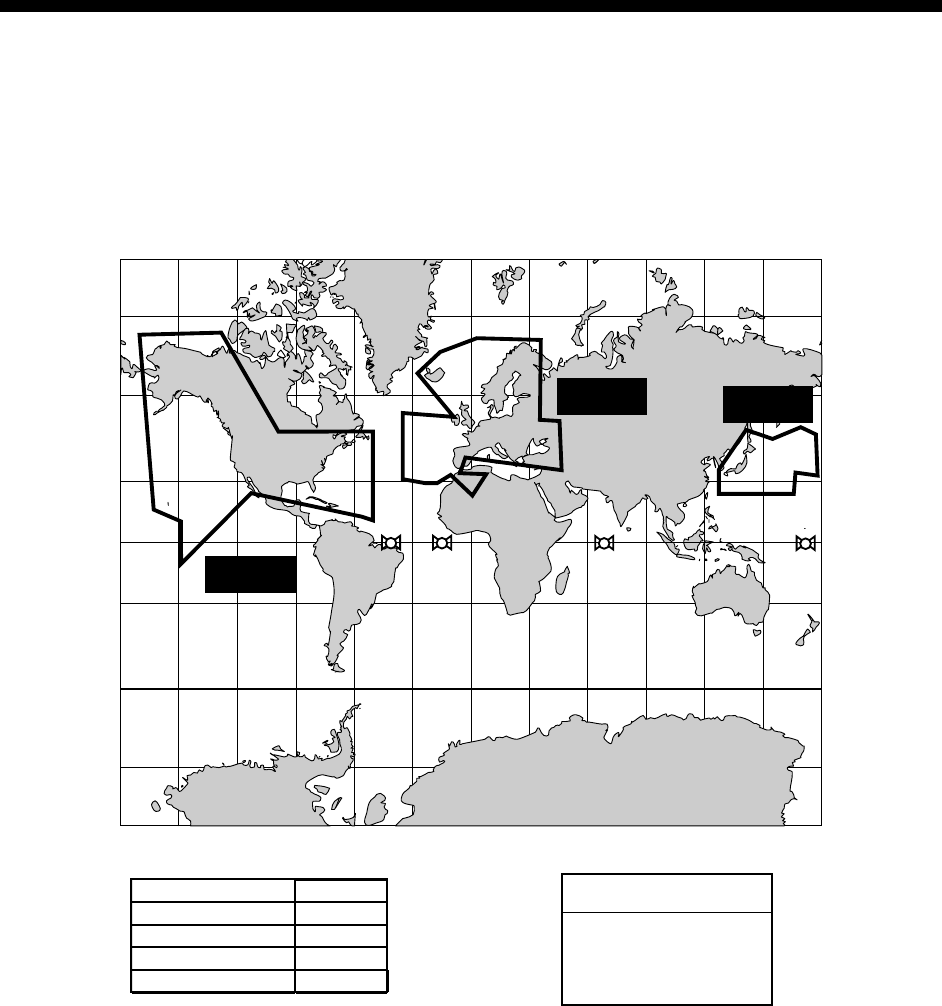
Ship's mains
12-24 VDC
External equipment
(Autopilot, etc.)
DGPS beacon receiver
(GP-1850WF only)
ANTENNA UNIT
Receives signal from
GPS satellite and beacon
reference station.
(GP-1850WDF only)
DISPLAY UNIT
GPA-017
(GP-1850WF)
GPA-019
(GP-1850WDF)
Rectifier
PR-62
Ship's mains
100/110/115/220/230 VAC
1 , 50/60 Hz
Transducer
Matching
Box
MB-1000*
*Required for 1 kW transducer only
vi
WHAT IS WAAS?
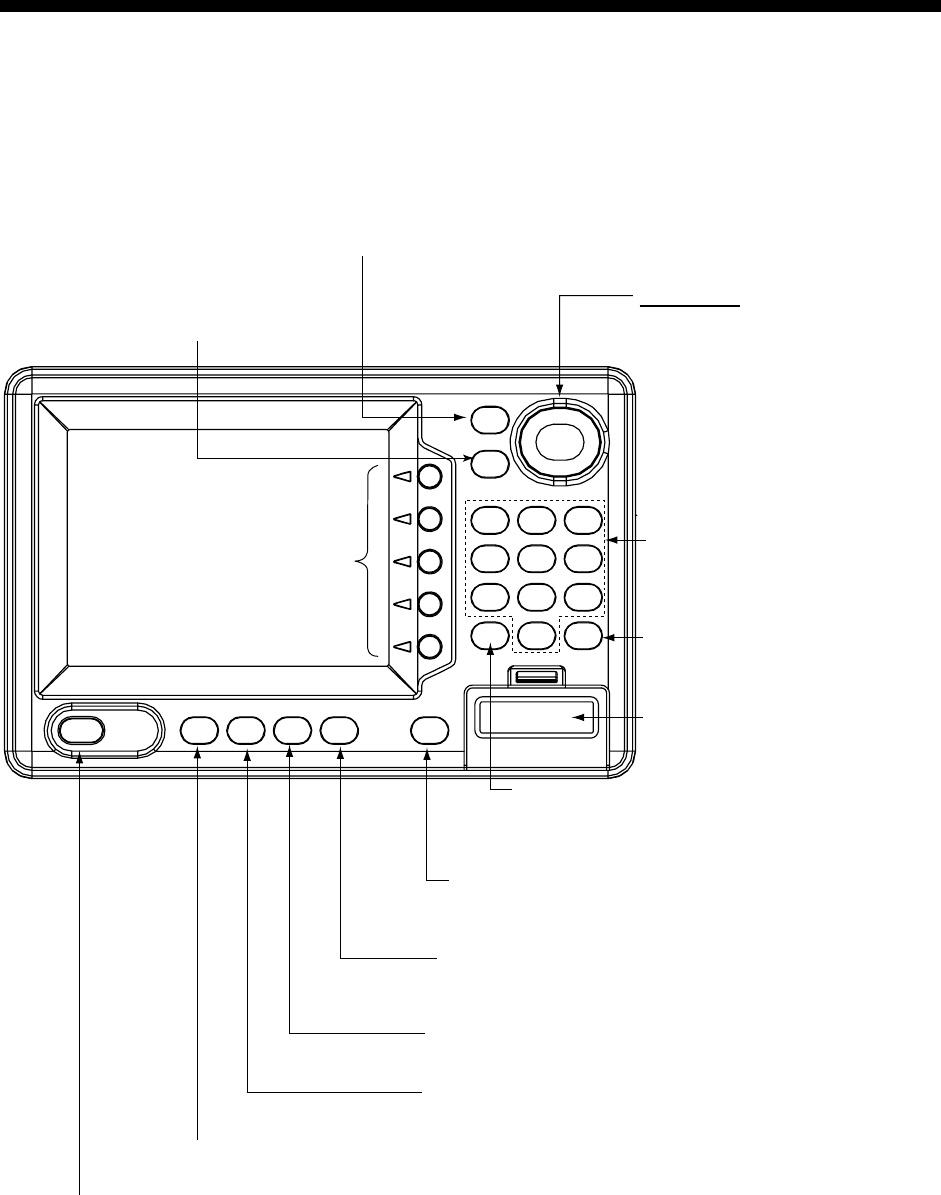
WAAS, available in North America, is a provider in the worldwide SBAS (Satellite Based
Augmentation System) navigation system. An SBAS provider furnishes GPS signal corrections
to SBAS users. Two more SBAS providers are also currently under development, MSAS
(Multi-Functional Satellite Augmentation System) for Japan and EGNOS (Euro Geostationary
Navigation Overlay Service) for Europe. All providers will be compatible with one another, thus
providing “seamless” position fixes to SBAS users.
150°W 120°W 90°W 60°W 30°W 0 30°E 60°E 90°E 120°E 150°E
150°W 120°W 90°W 60°W 30°W 0 30°E 60°E 90°E 120°E 150°E
0
20°S
40°S
60°S
20°N
40°N
60°N
0
20°S
40°S
60°S
20°N
40°N
60°N
WAAS
EGNOS MSAS
Satellite, Region Position
120, AOR-E
15.5°W
122, AOR-W
54°W
131, IOR
64.5°E
134, POR
178°E
131 134
122 120
Initial operation time
WAAS: 2003
EGNOS: 2004
MSAS: 2005
At the time of this software release, SBAS is still under development. (Providers are expected to
have initial operations capability from the times shown above.) During this developmental period,
which may last for several years, there is no guarantee of the accuracy, integrity, continuity, or
availability of the SBAS signal. Furuno will accept no responsibility for the use of the signal for
other than the above stated purpose. It is the user’s responsibility to exercise common
prudence and navigational judgment while using the SBAS signal in the developmental phase.
Note: This manual uses “WAAS” when referring to any SBAS provider.
1-1
1. OPERATIONAL OVERVIEW
This chapter acquaints you with the basics of your unit - from turning on the power to the soft
key menu operation.
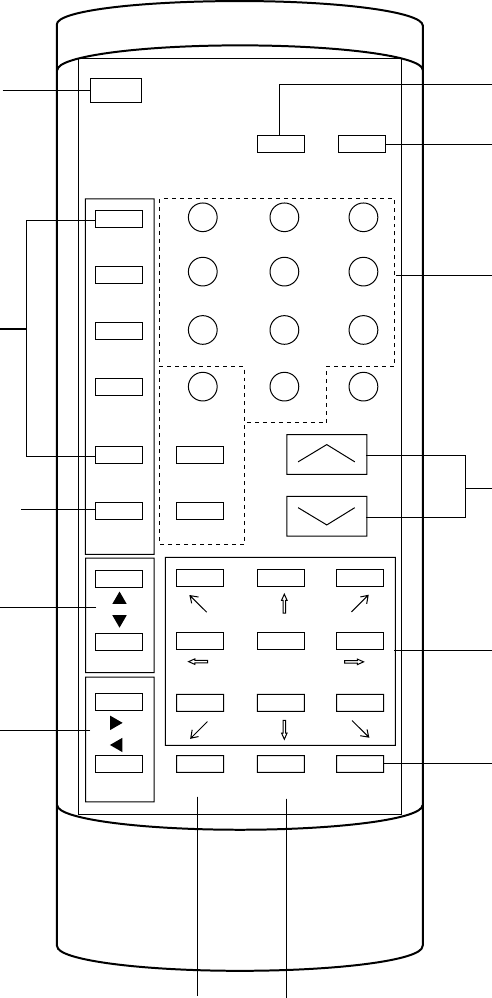
1.1 Display Unit Controls
SAVE
MOB
ENTER
ABC
1DEF
2GHI
3
JKL
4MNO
5PQR
6
STU
7VWX
8YZ&
9
CLEAR
_'#
0
MENU
HIDE
SHOW
WPT
RTE
SNDR
PLOT
ALARM
POWER
BRILL
• Registers own ship's positions.
• Marks man overboard position, event position.
Registers items
on menus.
Soft key's functions change
depending on the display.
Selects video sounder display.
Displays the waypoint & route
menu.
Selects plot display.
Mini chart card slot.
• Long press: Turns power off.
• Touch and release: Turns power on.
Opens the window for adjustment of tone and brilliance.
Displays the alarm menu.
Cursor pad
• Shifts cursor and display.
• Selects items on menus.
Enter alphanumeric data.
Opens/closes
the main menu.
• Clears data.
• Erases selected waypoint.
• Silences audible alarm.
Displays/hides the soft key menu,
nav data, mode indication.
Display unit
1. OPERATIONAL OVERVIEW
1-2
1.2 Remote Controller
MOB
SAVE ALARM
SW 1
SW 2
SW 3
SW 4
SW 5
SHOW
HIDE
BRILL
TONE SNDR
PLOT WPT
RTE
CENTER
ZOOM IN/OUT
MENU
ABC 1
JKL 4
STU 7
ENTER
DEF 2
MNO 5
VWX 8
_'#0
GHI 3
PQR 6
YZ 9
CLEAR
CANCEL
Adjust tone.
Adjust brilliance.
Shows/hides soft
key menu.
Soft keys
Enter, cancel, clear
alphanumeric data.
Inscribes MOB
mark.
Inscribes waypoints.
Displays alarm
menu.
Expand, shrink
chart.
Functions same
as cursor pad.
Displays the waypoint &
route menu.
Selects
plot
display.
Selects
sounder
display.
Note: The remote controller is
not waterproof. Keep it in its
vinyl case always.
1. OPERATIONAL OVERVIEW
1-3
1.3 Inserting Mini Chart
Card
Insert appropriate mini chart card before
turning on the power.
Note: Static electricity can be passed
through your fingers to a memory card
and destroy the contents of the card.
To prevent this, always touch a
metallic object, such as a steel desk,
before handling a memory card.
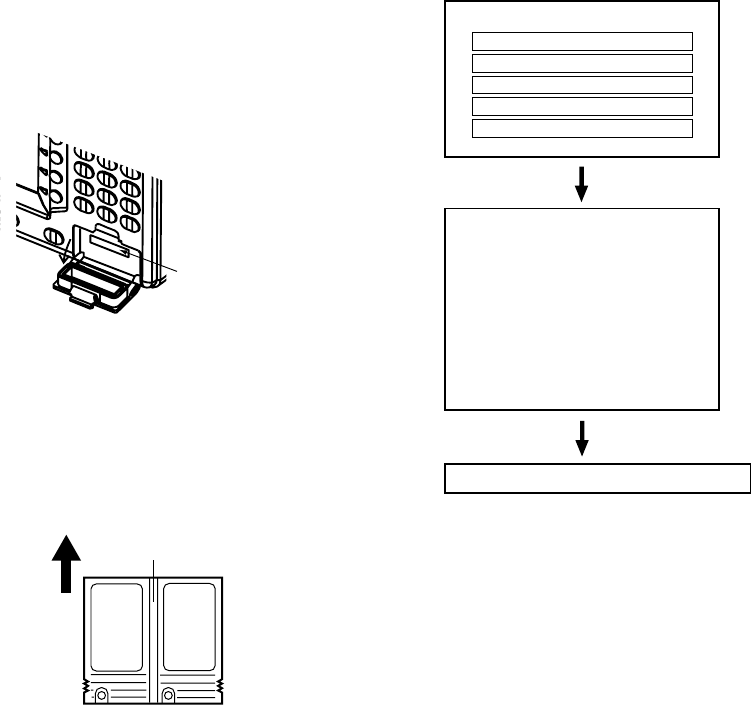
1. Push down the lid catch to open the mini
chart card slot cover.
Card slot
Location of mini chart
card slot cover
2. Insert appropriate mini chart card groove
side up.
Mini chart card
Inserting groove
side up.
Direction of mini chart card
3. Close the slot cover to protect the chart
drive. (Keep the slot cover closed at all
times.)
Note: Turn off power before inserting or
ejecting the mini chart card.
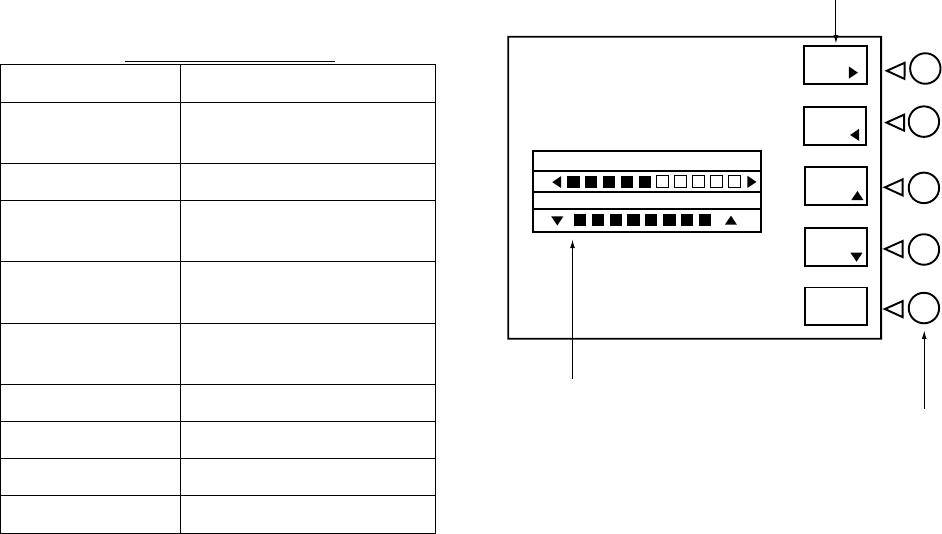
1.4 Turning the Power
On/Off
Turning the power on
Press the [POWER/BRILL] key at bottom
left-hand side of the display unit to turn on
the power. When the unit is turned on, it
proceeds in the sequence shown in the
figure in below, after displaying the FURUNO
information display.
Displayed for about five seconds.
Displayed for about 30 seconds,
or press any key to escape.
The last-used display appears.
NO NATIONAL HYDROGRAPHIC OFFICE
HAS VERIFIED THE INFORMATION
IN THIS COASTLINE DATA CARD AND
NONE ACCEPT LIABILITY FOR THE
ACCURACY OF REPRODUCTION OR ANY
MODIFICATIONS MADE THEREAFTER.
THIS PRODUCT WITH THIS COASTLINE
DATA CARD DOES NOT REPLACE THE
REQUIREMENT TO USE THE
APPROPRIATE PRODUCTS FOR
NAVIGATION ACCORDING TO NATIONAL
AND INTERNATIONAL REGULATONS.
- - WARNING - -
FURUNO ELECTRIC CO., LTD.
PROGRAM OK
RAM OK
BACKUP DATA OK
INTERNAL BATTERY OK
GPS OK
START UP TEST
Start-up sequence
For any NG on the start up test display,
request service.
The GP-1850WDF/1850WF takes about 90
seconds to find its position when turned on
for the very first time. This is because the
equipment has no satellite data, called the
Almanac, in its database. If you want to
lessen the time needed to find position you
may enter your position manually (default
position: San Francisco, USA) on the GPS
SETUP OPTIONS menu.
Thereafter it takes about 12 seconds to find
position each time the power is turned on.
1. OPERATIONAL OVERVIEW
1-4
When the satellite signal is being received
normally, the GP-1850WDF/1850WF
displays various abbreviations at the bottom
left-hand corner of the display which show
DGPS/GPS receiver status. The table in
below shows these abbreviations and their
meanings.
Display abbreviations
Indication Meaning
GPS 2D 2D (dimension) GPS
position fix
GPS 3D 3D GPS position fix
DGPS 2D
(GP-1850WDF)
2D differential GPS
position fix
DGPS 3D
(GP-1850WDF)
3D differential GPS
position fix
NO FIX Position cannot be
found.
DOP DOP error
DEMO Simulation mode
GPS W2D 2D WAAS position fix
GPS W3D 3D WAAS position fix
Turning the power off
Press and hold down the [POWER/BRILL]
key until the screen goes blank. The time
remaining until the power is turned off is
shown on the screen.
Note: The example screens shown in this
manual may not match the screen you
see on your display. The screen you
see depends on your system
configuration and equipment settings.
1.5 Adjusting Tone and
Brilliance
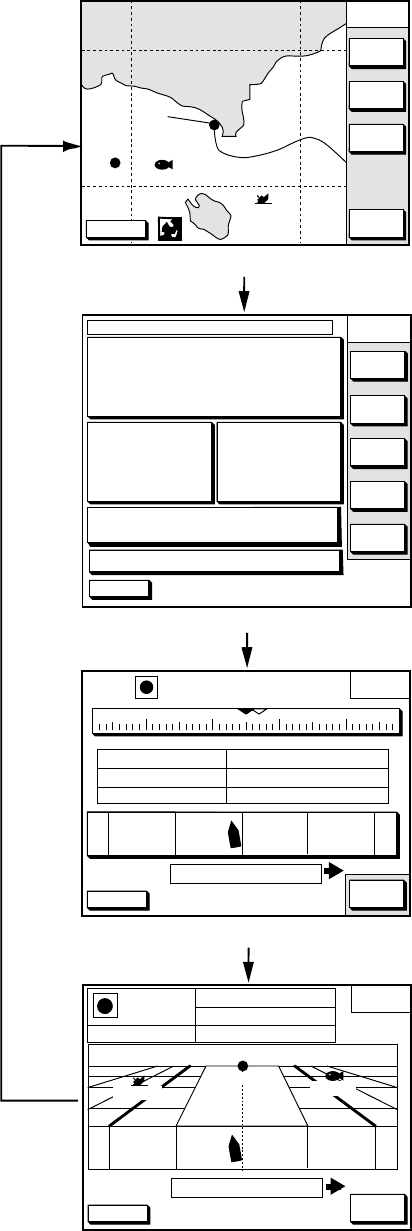
1. Press the [POWER/BRILL] key with a
touch-and-release action. The tone and
brilliance setting window appears.
TONE
BRILL
TONE
TONE
BRILL
BRILL
RETURN
Tone and display brilliance setting window
Functions
Soft keys
Tone and brilliance adjustment window
2. Press ◄ or ► on the cursor pad to adjust
display tone.
3. Press ▲ or ▼ on the cursor pad to adjust
display brilliance.
Note that tone and brilliance can also be
adjusted by soft keys. After pressing the
[POWER/BRILL] key, use the appropriate
soft key to adjust tone or brilliance.
Note: Tone or brilliance must be adjusted
within 10 seconds after pressing the
[POWER/BRILL] key or the tone and
brilliance adjustment window will be
erased.
1. OPERATIONAL OVERVIEW
1-5
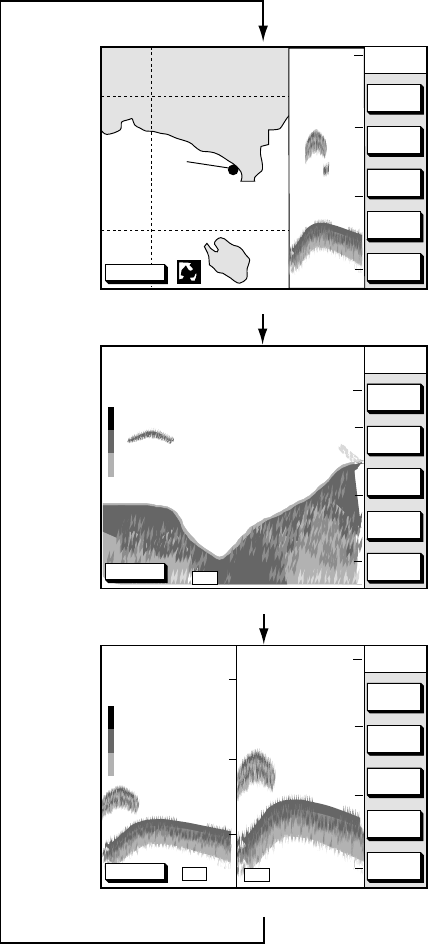
1.6 Plotter Displays
Press the [PLOT] key. Each time this key is
pressed, the display mode changes in the
sequence shown below. For display mode,
refer to Chapter 3.
[Plotter Display]
DGPS 3D NAV
POS
COURSE
UP
ZOOM
OUT
ZOOMIN
NORTH
UP
BRIDGE
FISH
WP-002
[Nav Data Display]
[Steering Display]
DGPS 3D EDIT
XT-LMT
XTE 000.02nm
0.1nm0.1nm
BRG
245.0°
CSE
TTG
RNG
SPD
nm
kt
ETA
1h 59m 29th 14:50
234.5°27.2
13.6
260250240230
CROSS
TRACK
QP<01>
[Highway Display]
DGPS 3D EDIT
XT-LMT
XTE 000.02nm
0.1nm0.1nm
HIGHWAY
001WPT
CSE
BRG
RNG
SPD
87.8°
94.6°
1.88nm
001WPT
YUUKI FISH01
10.0kt
DGPS 3D
BEACON
INFO
SATINFO
ZOOM
TD
LAT/LON
DATE: JUN 02 2002 TIME 23:59:59
POSITION
34° 56.789' N
135° 56.789' E
RNG
nm
27.2
BRG
245.0°
SPD
kt
16.3
CSE
245.8°
DATUM: WGS-84
LAT
LON
TMP 65.8°F DEP 20ft
TRIP:123nm
Display modes (plotter)
1. OPERATIONAL OVERVIEW
1-6
1.7 Sounder Displays
Three sounder displays are available:
Normal, Dual-frequency display and
Plotter/Sounder display. You may select a
sounder display with the [SNDR] key.
DGPS 3D
PLOT
COURSE
UP
ZOOM
OUT
ZOOMIN
NORTH
UP
0
50
100
SNDRSNDR
PLOT
PLOT
SNDR
FUNC
GAIN
RANGE
SOUNDER
50
SNDR
MODE/
FREQ
SHIFT
0
0.0
[Plotter/Sounder Display]
[Normal Sounder Display]
DGPS 3D
PLOT
MODE
GAIN
200kHz
RANGE
SOUNDER
DUAL
50
100
150
SNDR
SHIFT
0
50k
0.0
200k
50
100
150
GAIN
50kHz
[Dual-frequency Display]
150
100
150
DGPS 3D
50k
Display modes (Sounder display)
Note: Sounder display mode can be
selected with the SNDR FUNC soft
key. For further details see “Selecting
sounder display mode” on page 2-3.
1. OPERATIONAL OVERVIEW
1-7
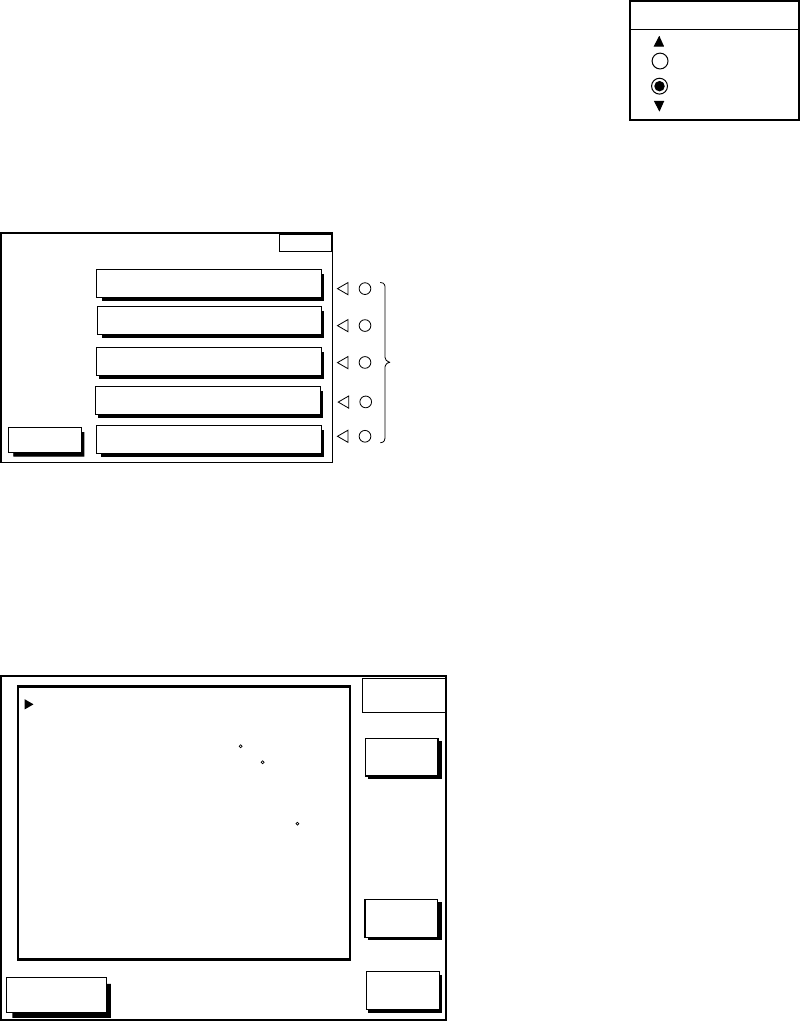
1.8 Menu Operation, Soft
Keys
Most operations are carried out through the
menu which is opened and closed with the
[MENU] key. Menus may be selected with
the five soft keys to the right of menus.
Options are selected with the cursor pad.
1. Press the [MENU] key to display the
main menu.
MENU
DGPS 3D
CHART SETUP OPTIONS
GPS/DGPS/TD OPTIONS
DISPLAY OPTIONS
CONFIGURATION
Soft
keys
SOUNDER SETUP OPTIONS
Main menu
2. Press appropriate soft key to display
desired menu. For example, press the
DISPLAY OPTIONS soft key. The name
of the menu in use appears at the top
right corner of the display.
DGPS 3D
DISPLAY
SETUP 1
EDIT
RNG & BRG MODE RHUMB LINE
RANGE/SPEED UNIT nm/kt
DEPTH UNIT ft
TEMP UNIT F
LAT/LON DISPLAY DD MM.MMM'
TIME DISPLAY 24 HOUR
WAYPOINTS SW AUTO2
COURSE VECTOR LINE
BEARING MAGNETIC
MAG VARIATION AUTO 01.3 E
TD DISPLAY LORAN C
POSITION DISPLAY LAT/LON
SET GO TO METHOD 1 POINT
OPERATION MODE PLEASURE
LANGUAGE ENGLISH
RETURN
NEXT
PAGE
Display setup 1 menu
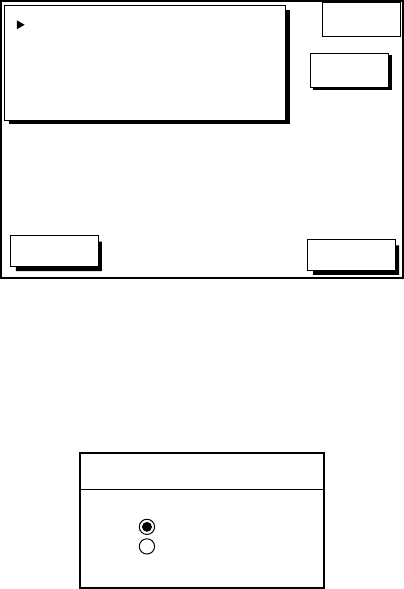
3. Select item with the cursor pad, and
press the EDIT soft key. For example,
select TIME DISPLAY.
TIME DISPLAY
12 HOUR
24 HOUR
Time display window
4. Use the cursor pad to change the setting.
5. Press the ENTER soft key or [ENTER]
key.
6. Press the RETURN soft key.
7. Press the [PLOT] key to finish.
1. OPERATIONAL OVERVIEW
1-8
1.9 Demonstration Display
The demonstration display provides
simulated operation of this unit. On the
plotter display, own ship tracks, at the speed
selected, a figure eight course or any course
you enter, starting from position entered. All
controls are operative; you may set
destination, enter waypoints, etc. Simulated
sounder operation is also provided.
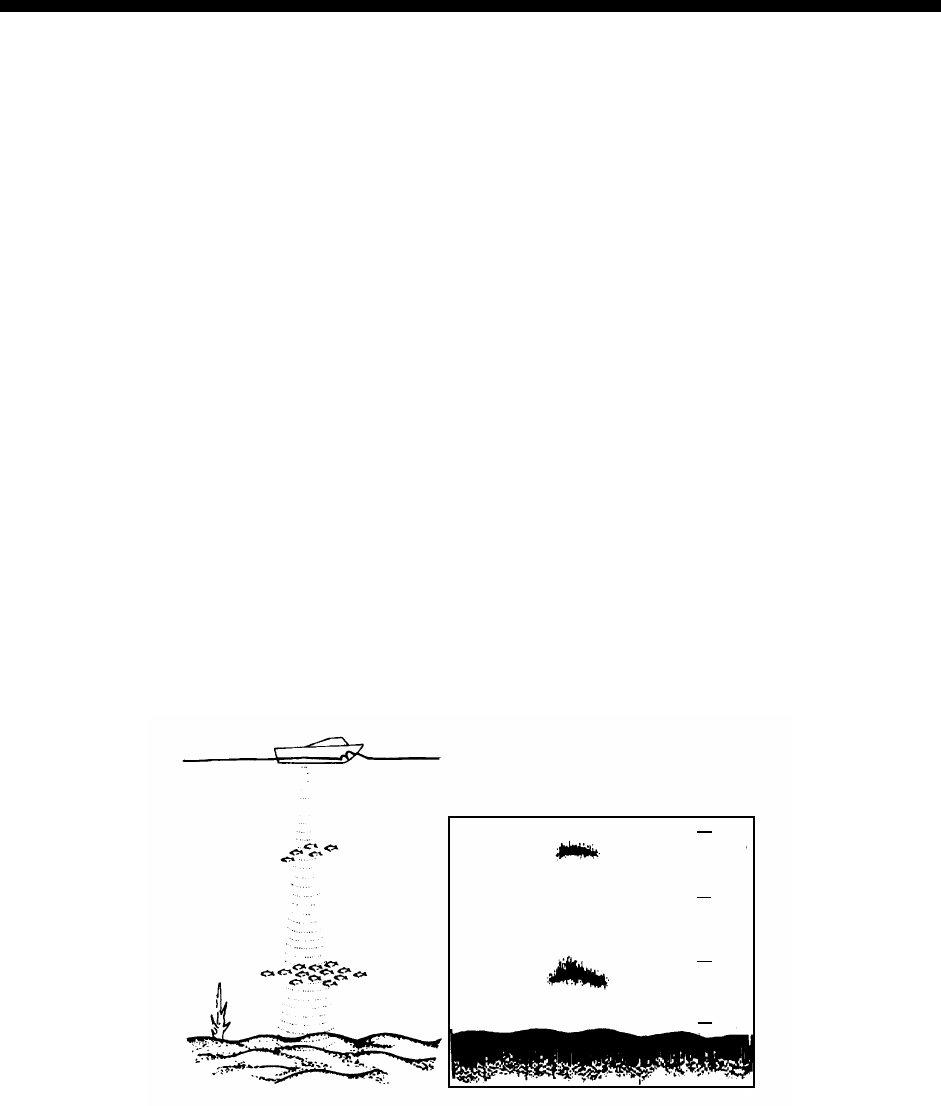
1. Press the [MENU] key, followed by the
CONFIGURATION and SYSTEM MENU
soft keys to open the system menu.
2. Press the DEMONSTRATION MODE soft
key to open the demonstration setting
screen.
DGPS 3D RETURN
DEMO
MODE
EDIT
DEMO MODE
DEMO SPEED
DEMO COURSE
DEMO START LAT
DEMO START LON
OFF
10.0kt
000.0°
34°12.34'N
135°12.34'E
Demo setting screen
3. Press ▲ or ▼ to select DEMO MODE.
4. Press the EDIT soft key to show the
demo mode window.
DEMO MODE
▲ON
OFF
▼
Demo mode window
5. Press ▲ to select ON.
6. Press the ENTER soft key or the
[ENTER] key.
7. Select DEMO SPEED and press the
EDIT soft key. Enter speed. Select digit
with ◄/► and enter appropriate numeric
value with the numeric keys.
8. Press the ENTER soft key or [ENTER]
key.
9. Select DEMO COURSE and press the
EDIT soft key. Select how you want the
courseline to be traced; by FIGURE 8 or
DIR.(ection). For DIR., enter course.
10. Press the ENTER soft key or [ENTER]
key.
11. Select DEMO START LAT, and press the
EDIT soft key. Enter latitude. Use the N<
- > S soft key to switch coordinates if
necessary.
12. Press the ENTER soft key or [ENTER]
key.
13 Select DEMO START LON, and press
the EDIT soft key. Enter longitude. Use
the E< - > W soft key to switch
coordinates if necessary.
14. Press the ENTER soft key or [ENTER]
key.
15. Press the RETURN soft key.
16. Press the [PLOT] soft key.
To cancel the demonstration display, set
DEMO MODE to OFF.
2-1
2. VIDEO SOUNDER OPERATION
2.1 Principle of Operation
The video sounder determines the distance
between its transducer and underwater
objects such as fish, lake bottom or seabed
and displays the results on screen. It does
this by utilizing the fact that an ultrasonic
wave transmitted through water travels at a
nearly constant speed of 4800 feet (1500
meters) per second. When a sound wave
strikes an underwater object such as fish or
sea bottom, part of the sound wave is
reflected back toward the source
(transducer). Thus by calculating the time
difference between the transmission of a
sound wave and the reception of the
reflected sound wave, the depth to the object
can be determined.
The entire process begins in the display unit.
Transmitter power is sent to the transducer
as a short pulse of electrical energy. The
electrical signal produced by the transmitter
is converted into an ultrasonic signal by the
transducer and transmitted into the water.
Any returning signals from intervening
objects (such as a fish school) are received
by the transducer and converted into an
electrical signal. The signals are then
amplified in the amplifier section, and finally,
displayed on screen.
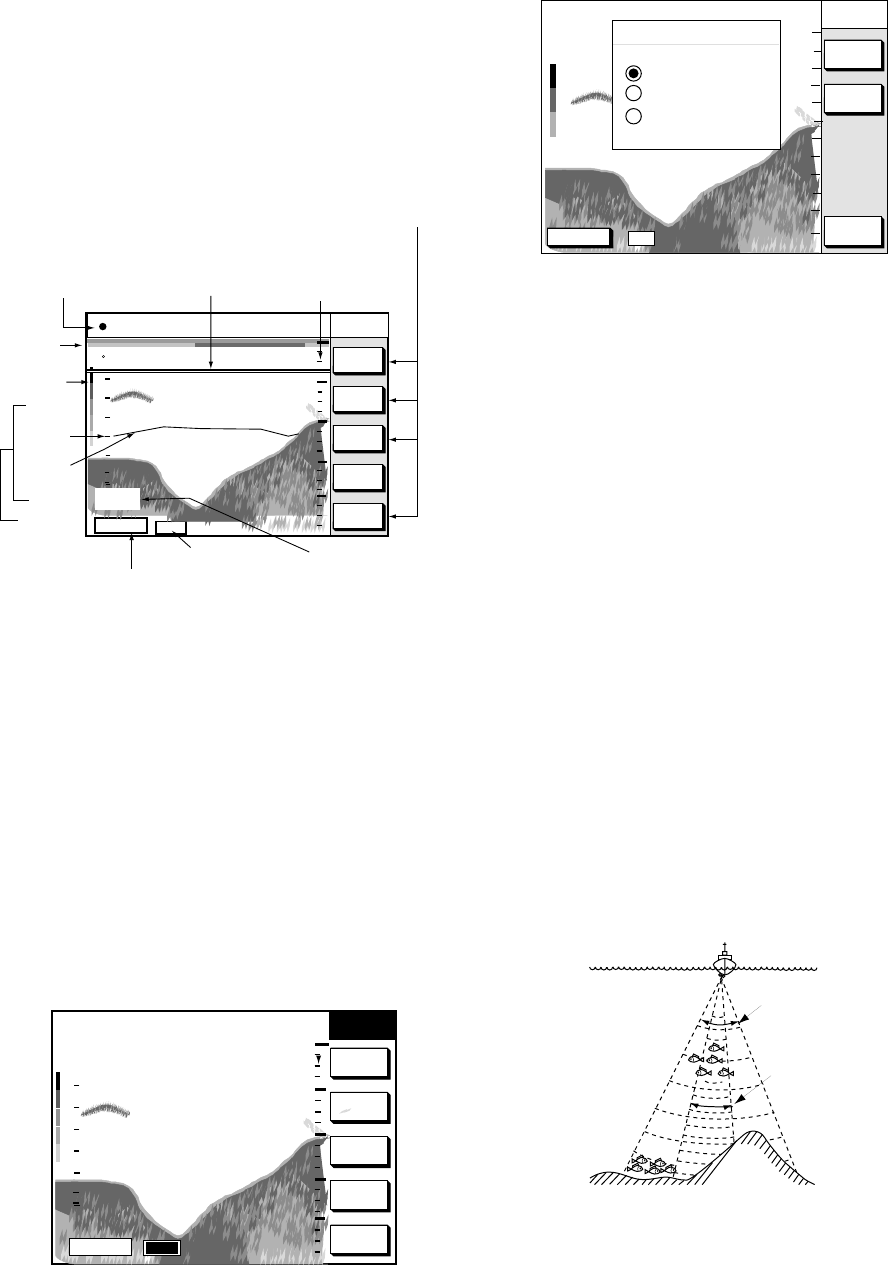
The picture displayed is made up of a series
of vertical scan lines, one for each
transmission. Each line represents a
snapshot of what has occurred beneath the
boat. A series of snapshots are accumulated
side by side across the screen, and the
resulting contours of the bottom and fish
between the bottom and surface are
displayed.
-
-
-
-
-
-
-
-
-
-
-
-
0
50
150
100
Underwater conditions and video sounder display
2. VIDEO SOUNDER OPERATION
2-2
2.2 Sounder Display
Description
The figure below shows all indications and
markers which may appear on the normal
sounder display.
Normal sounder display indications,
markers
SNDR
FUNC
SHIFT
GAIN
RANGE
SOUNDER
135° 12.345' E
34° 12.345' N SPD
CSE 16.3kt
245.8°
MODE/
FREQ
50k
F
Nav information
window
Color
bar
Functions for
soft keys
Variable
Range
Marker
(white) Depth scale
Tx frequency
GPS status
Depth
20
30
40
50
80
60
40
0
Temp.
scale
Water
temp.
Graph
Water
temp.
display
30.0
15.0
GPS 3D
Minite
mark
Indications on the normal sounder display
Note: The water temperature graph can be
turned on or off. (See TEMP GRAPH
on page 11-4.) The temperature scale
is fixed between 20-80°F (0 to 30°C).
The normal sounder display shows either the
50 kHz picture or 200 kHz picture. To switch
between these pictures, do the following:
1. Press the [SNDR] key several times to
show the normal sounder display.
SOUNDER
GAIN
RANGE
SNDR
FUNC
SHIFT
MODE/
FREQ
20
30
40
50
30
20
0
50k
GPS 3D
Normal sounder display
2. Press the MODE/FREQ soft key. The
display changes as below.
DGPS 3D
RETURN
SELECT
50kHz
SOUNDER
50
100
150
0
50k
0.0
SELECT
200kHz
MODE/FREQ
▲
AUTO CRUISING
AUTO FISHING
MANUAL
▼
Mode/freq window
3. Press the SELECT 200kHz (or SELECT
50kHz) soft key.
4. Press the RETURN soft key to manually
close the window, or wait 10 seconds and
the window automatically closes.
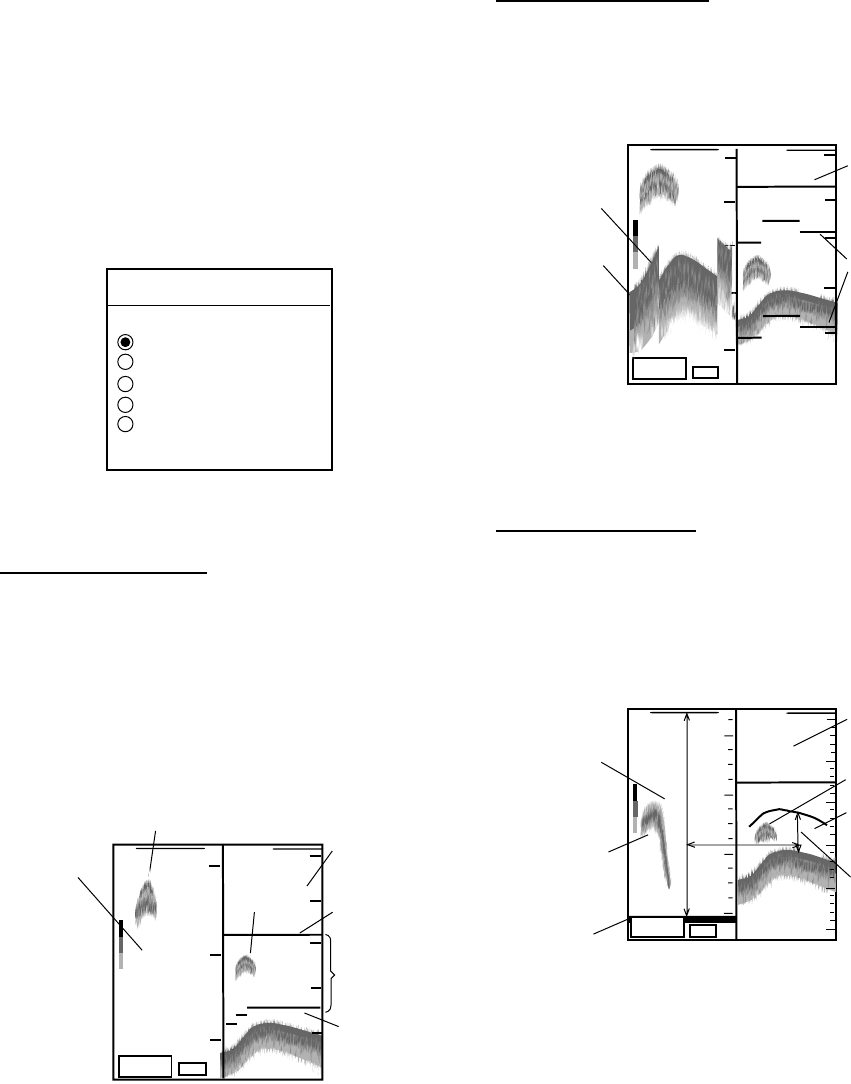
50 kHz picture
The sounder uses ultrasonic pulses to detect
bottom conditions. The lower the frequency
of the pulse, the wider the detection area.
Therefore, the 50 kHz frequency is useful for
general detection and judging bottom
condition.
200 kHz picture
The higher the frequency of the ultrasonic
pulse the better the resolution. Therefore,
the 200 kHz frequency is ideal for detailed
observation of fish school.
50 kHz
200 kHz
Comparison of transducer frequencies
2. VIDEO SOUNDER OPERATION
2-3
Selecting sounder display mode
There are five display modes from which to
choose: normal, marker zoom, bottom zoom,
bottom lock and A-scope. To select a display,
press the SNDR FUNC soft key on the
normal sounder display to show the sounder
function window, and press ▲ or ▼ to select
the display. Press the RETURN soft key to
close the window.
SOUNDER FUNCTION
▲NORMAL
MARKER ZOOM
BOTTOM ZOOM
BOTTOM LOCK
A-SCOPE
▼
Sounder function window
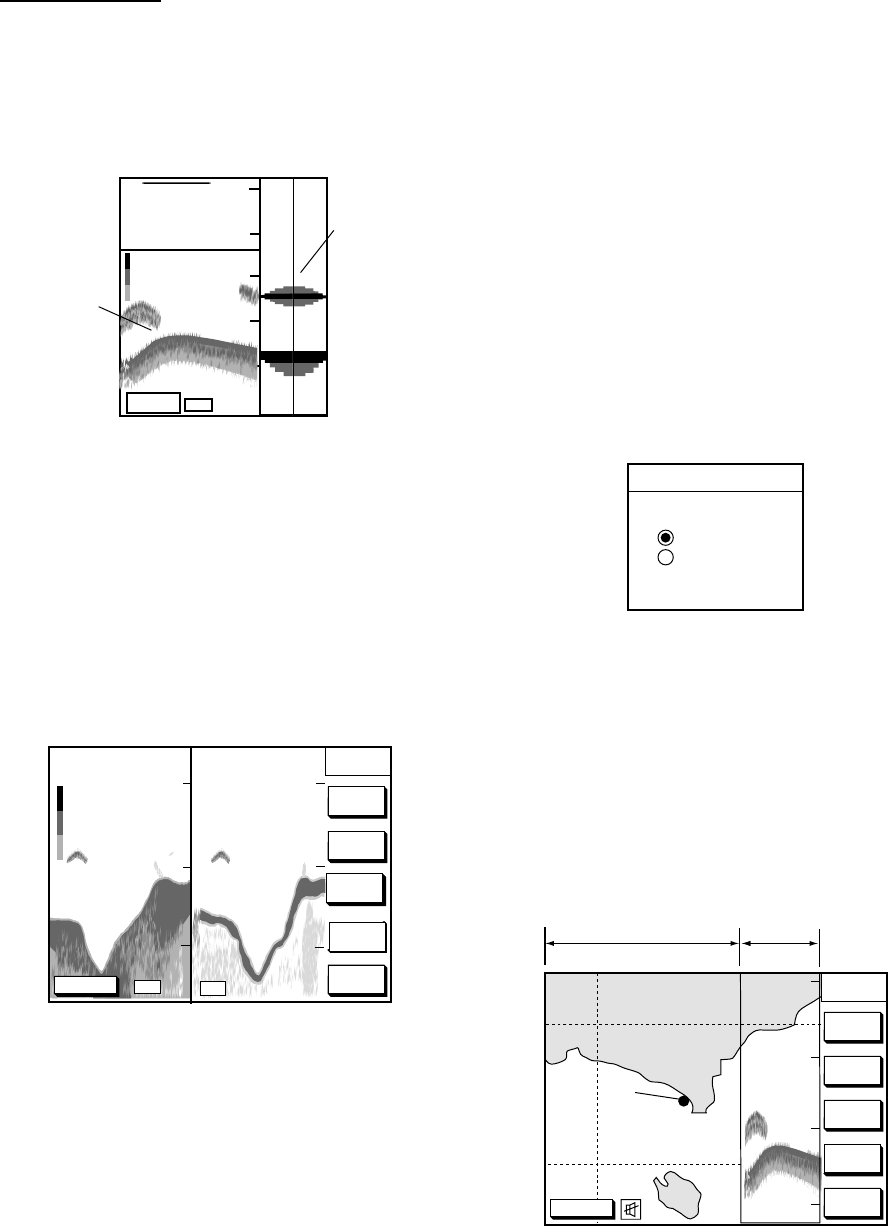
Marker zoom display
This mode expands a selected area of the
normal sounder picture to full vertical size of
the screen on the left-half window. You may
specify the portion to expand by operating
the VRM (Variable Range Marker), which
you can shift with ▲ or ▼. The area between
the VRM and zoom marker is expanded.
200k
202
0
50
100
150
90.0
100
200
150
Marker zoom
display
Fish school
Normal
sounder
display
Fish
school
This part
is zoomed.
Zoom marker
VRM
GPS3D
200
Marker-zoom display plus
normal sounder display
Bottom-zoom display
This mode expands bottom and bottom fish
echoes to vertical size of the screen, and is
useful for observing the bottom shape.
200k
0
50
100
150
40.0
160
100
120
140
180
Bottom zoom
display
Bottom
Normal
sounder
display
Zoom
marker
DGPS3D
162 200
Bottom-zoom display plus
normal sounder display
Bottom-lock display
The bottom-lock display provides a
compressed normal picture on the right half
of the screen and a 3 or 6 meters (10 or 20
feet) wide layer in contact with the bottom is
expanded onto the left half of the screen.
200k
34.0
68.3
0
2
4
6
This part
is zoomed.
Fish
school
Bottom-lock
display
Fish
school
Zoom
marker
Normal
sounder
display
GPS3D
Bottom
display flat
0
40
50
30
20
10
Bottom-lock display plus
normal sounder display
Note: The zoom marker is not displayed in
the default setting. It may be turned on
in the DISPLAY SETUP2 menu. For
further details see “ZOOM MARKER”
on page 11-5.
2. VIDEO SOUNDER OPERATION
2-4
A-scope display
This display shows echoes at each
transmission with amplitudes and tone
proportional to their intensities, on the right
of the screen. It is useful for estimating the
kind of fish school and seabed composition.
200k
0
50
100
150
200
68.3
Normal
sounder
display
A-scope
display
DGPS3D
160
A-scope display plus
normal sounder display
2.3 Dual-frequency Display
The 50 kHz picture appears on the left; the
200 kHz picture on the right. This display is
useful for comparing the same picture with
two different sounding frequencies.
GPS 3D
MODE
GAIN
200kHz
RANGE
SOUNDER
DUAL
SNDR
50k
0.0
200k
20
40
60
GAIN
50kHz
20
40
60
SHIFT
43.5
Dual-frequency display
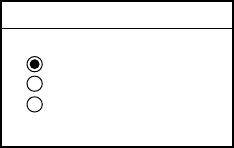
2.4 Plotter/Sounder Display
This display provides the plotter display on
the left part of the screen and the normal
sounder display on the right part. It is useful
for searching fish schools at cruising speed.
The width of the sounder display can be
selected between standard (approx. 20 mm)
and wide (approx. 40 mm) as below.
1. Press the [MENU] key and the
SOUNDER SETUP OPTIONS soft key.
The sounder setup menu appears.
2. Press ▼ to select E/S WINDOW window.
3. Press the EDIT soft key to show the E/S
WINDOW window.
E/S WINDOW
▲STD
▼WIDE
E/S window
4. Press ▲ or ▼ to select STD or WIDE.
STD: The width of the sounder display is
approx. 20 mm (default setting).
WIDE: The width is approx. 40 mm.
5. Press the [ENTER] key or the ENTER
soft key.
GPS 3D
PLOT
COURSE
UP
ZOOM
OUT
ZOOMIN
NORTH
UP
0
50
100
150
SNDRSNDR
PLOT
Plotter Display Sounder
Display
109
Plotter/Sounder display
2. VIDEO SOUNDER OPERATION
2-5
2.5 Automatic Sounder
Operation
Automatic sounder operation is useful when
you are preoccupied with other tasks and do
not have time to adjust the display.
How the automatic sounder works
The automatic sounder function
automatically selects the proper gain, range
scale and clutter suppression level according
to depth. It works as follows:
• Range changes automatically to display
the bottom echo on the screen.
• The gain is automatically adjusted to
display the bottom echo in reddish brown
(default color arrangement).
• Clutter, which suppresses low level noise,
is automatically adjusted.
Two types of automatic sounder
modes
Two types of automatic sounder modes are
available: CRUISING and FISHING.
CRUISING is for tracking the bottom, and
FISHING is for searching fish schools.
CRUISING uses a higher clutter rejection
setting than FISHING therefore it is not
recommended for fish detection - weak fish
echoes may be erased by the clutter
suppression circuit.
How to enable automatic sounder
operation
1. To show the mode/freq window:
Normal sounder display: Press the
MODE/FREQ soft key.
Plotter/sounder display: Press the
SNDR, MODE/FREQ soft keys in order.
Dual-frequency display: Press the
MODE soft key.
MODE/FREQ
▲AUTO CRUISING
AUTO FISHING
MANUAL
▼
Mode/frequency window
2. Press ▲ or ▼ to select AUTO CRUISING
or AUTO FISHING.
3. Press the RETURN soft key to close the
window, or wait 10 seconds and the
window closes automatically.
2.6 Manual Sounder
Operation
Manual operation is useful for observing fish
schools and bottom using a fixed gain
setting.
The gain, clutter, range and range shifting
functions used together give you the means
to select the depth you can see on screen.
The basic range can be thought of as
providing a “window” into the water column
and range shifting as moving the “window” to
the desired depth.
Selecting the manual mode
1. Press the appropriate soft keys to show
the MODE/FREQ window.
2. Select MANUAL.
3. Press the RETURN soft key.
2. VIDEO SOUNDER OPERATION
2-6
Selecting display range
Press the RANGE soft key to show the
range window, and select range by the
cursor. Press the RETURN soft key to finish.
RANGE
▲ 15 ft
30 ft
60 ft
120 ft
200 ft
400 ft
1000 ft
4000 ft
▼
Range window
Adjusting the gain
Press the GAIN soft key to show the gain
window, and press ▲ or ▼ to set the gain.
Current level is shown above the bar. Press
the RETURN soft key to finish.
GAIN
57
▲
HIGH
LOW
▼
Gain window
Note: On the dual-frequency display, the
gain can be independently set for 50
kHz and 200 kHz. This can be done
with the GAIN 50 kHz and GAIN 200
kHz soft keys.
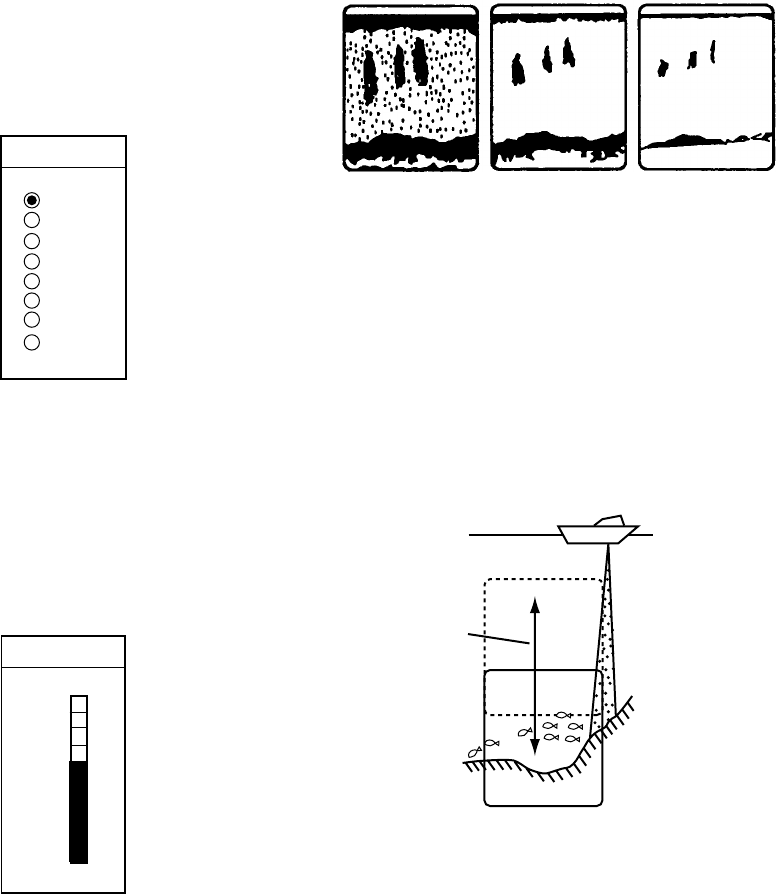
Normally, set the gain to the point where
excessive noise does not appear on screen.
Use a higher gain setting for greater depths
and a lower setting for shallow waters.
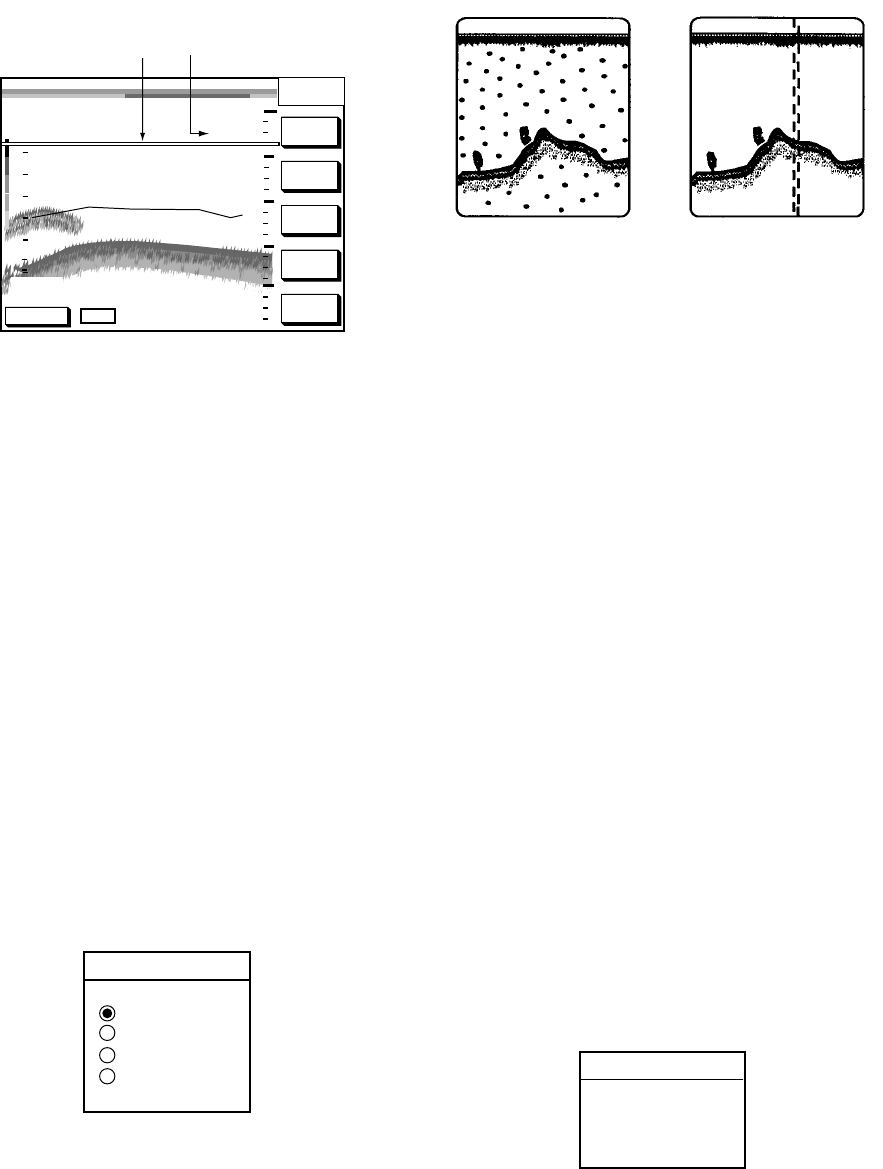
Gain too high Gain proper Gain too low
Examples of proper and improper gain
Range shifting
The basic range may be shifted up or down
as desired.
Press the SHIFT soft key, and press ▲ or ▼
to shift the basic range. Press the RETURN
soft key to finish.
Display
Shift
Shift concept
2. VIDEO SOUNDER OPERATION
2-7
2.7 Measuring Depth
The VRM functions to measure the depth to
fish schools, etc., and it is always displayed.
1. Press ▲ or ▼ to shift the VRM.
2. Read the depth just above the VRM.
SNDR
FUNC
SHIFT
GAIN
RANGE
SOUNDER
MODE/
FREQ
50k
GPS 3D
VRM
20
30
40
50
30
20
10
042.0
17.5
Depth to VRM
How to use the VRM
Note: This function is not available on the
plotter/sounder display.
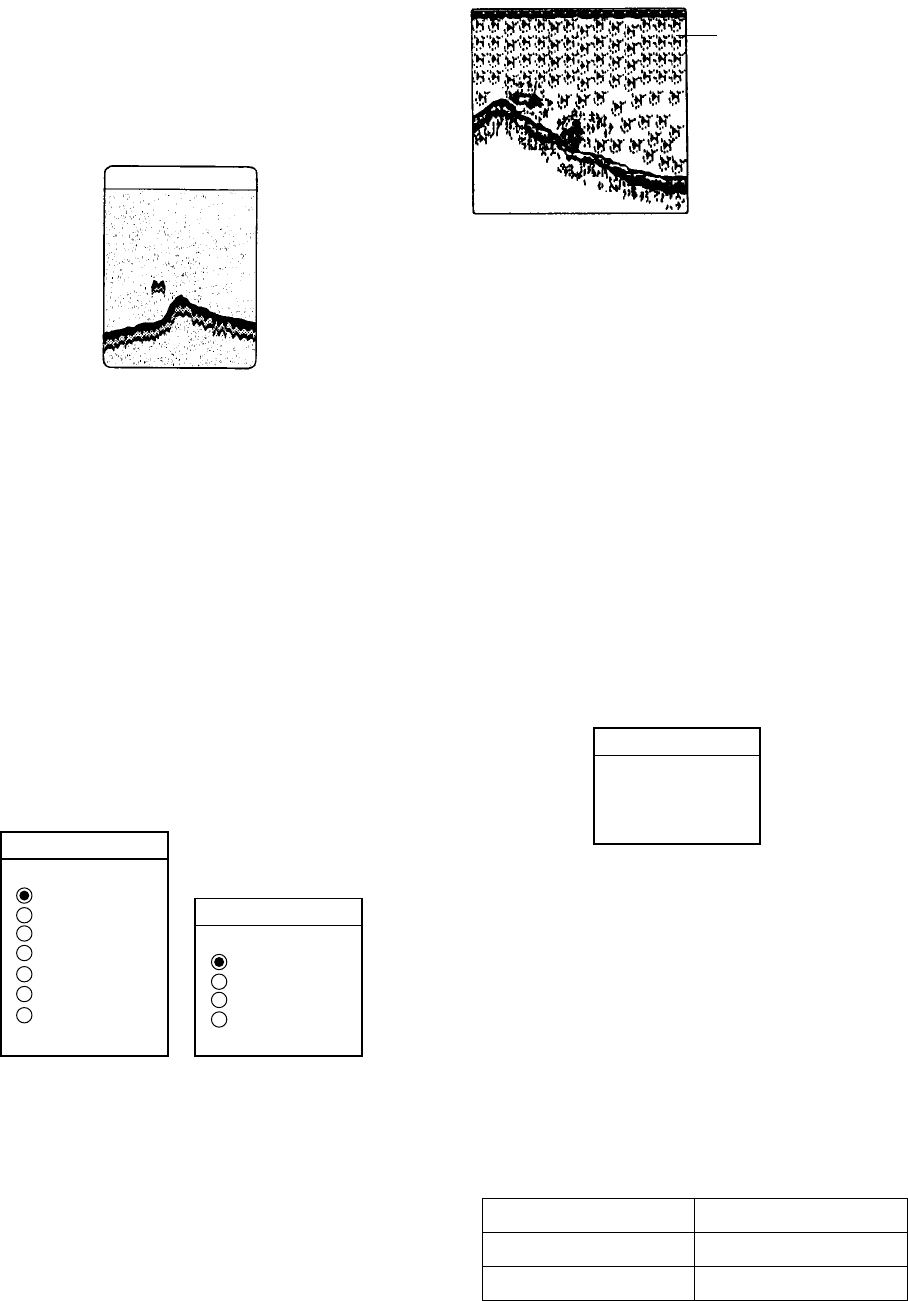
2.8 Suppressing
Interference
Interference from other acoustic equipment
operating nearby or other electronic
equipment on your boat may show itself on
the display as shown in the illustration at the
top of the next column.
To suppress interference, do the following:
1. Press the [MENU] key and the
SOUNDER SETUP OPTIONS soft key.
2. Select NOISE LIMITER and press the
EDIT soft key to show the noise limiter
window.
NOISE LIMITER
▲OFF
NL1
NL2
NL3
▼
Noise limiter window
3. Press ▲ or ▼ to select degree of
suppression desired; OFF, NL1, NL2 or
NL3. The higher the number the greater
the degree of suppression.
4. Press the RETURN soft key and the
[SNDR] key to finish.
Interference from Electrical inteference
other sounder
Types of interference
Turn the noise limiter circuit off when no
interference exists, otherwise weak echoes
may be missed.
2.9 Suppressing Low Level
Noise
Light-blue dots may appear over most of
screen. This is mainly due to dirty water or
noise. This noise can be suppressed by
adjusting CLUTTER on the SOUNDER
SETUP OPTIONS menu.
When the sounder mode is Auto, the clutter
suppression setting is fixed at AUTO. To
suppress low level noise in manual sounder
operation do the following:
1. Press the [MENU] key and the
SOUNDER SETUP OPTIONS soft key.
2. Select CLUTTER and press the EDIT soft
key to show the clutter window.
CLUTTER
▲
3
▼
Clutter window
2. VIDEO SOUNDER OPERATION
2-8
3. Press ▲ or ▼ to select clutter rejection
level desired; 0 (OFF) through 9. The
higher the number the greater the degree
of suppression. Note that weak echoes
may not be displayed when the clutter
circuit is on.
4. Press the RETURN soft key and the
[SNDR] key to finish.
Appearance of clutter
2.10 Erasing Weak Echoes
Dirty water or reflections from plankton may
be painted on the display in green or light
blue. These weak echoes may be erased as
follows:
1. Press the [MENU] key and the
SOUNDER SETUP OPTIONS soft key.
2. Select SIGNAL LEVEL, and press the
EDIT soft key to show the signal level
window.
SIG LVL
▲OFF
SL1
SL2
SL3
SL4
SL5
SL6
▼
SIG LVL
▲OFF
SL1
SL2
SL3
▼
At 16-color display At 8-color display
(See page 2-9.)
Signal level window
3. Press ▲ or ▼ to select level of erasure;
OFF or signal level among SL1 to SL6
(or SL3). The higher the number the
stronger the echo that will be erased.
4. Press the RETURN soft key and the
[SNDR] key to finish.
Weak
echoes
Appearance of weak echoes
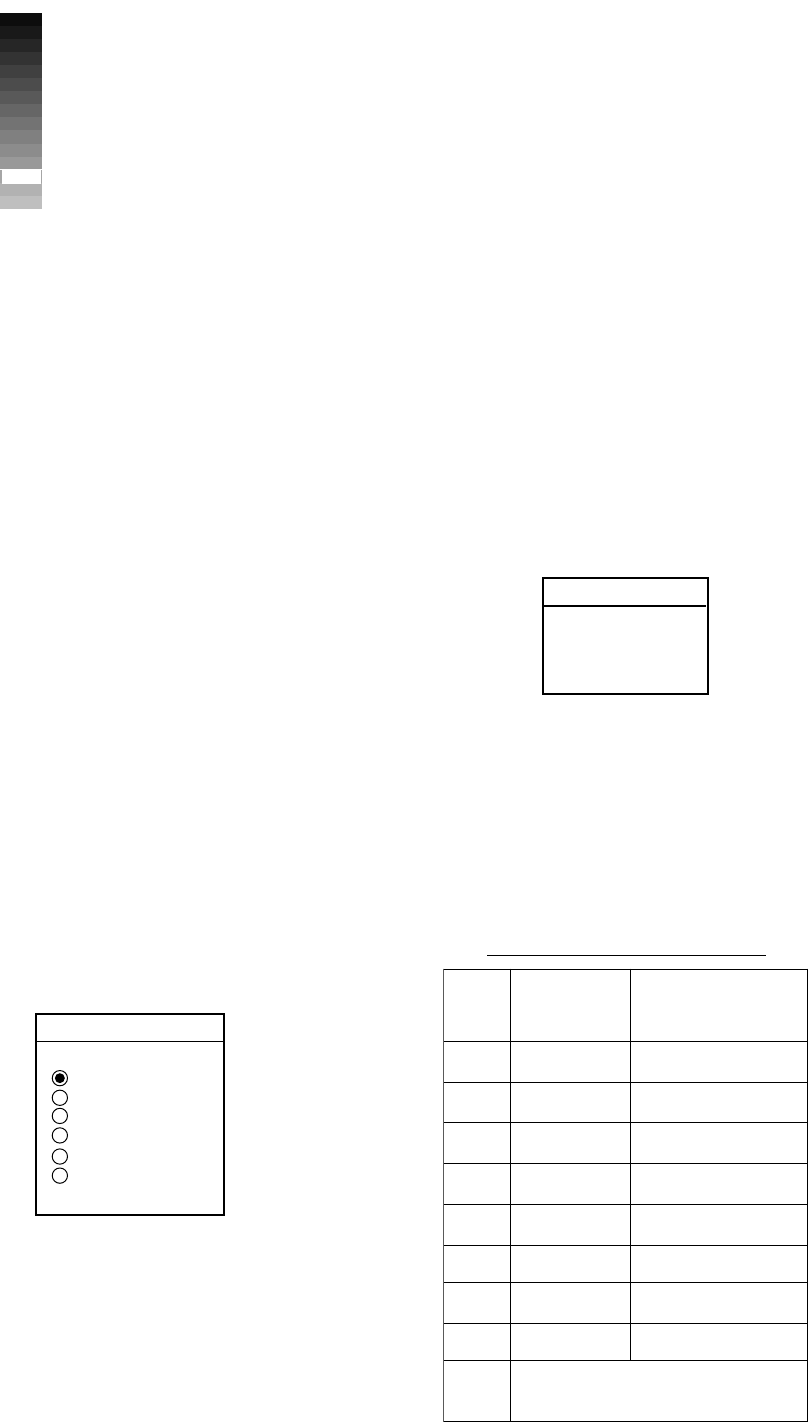
2.11 White Marker
The white marker functions to display a
particular echo color in white. For example,
you may want to display the bottom echo
(reddish-brown) in white to discriminate fish
echoes near the bottom.
1. Press the [MENU] key and the
SOUNDER SETUP OPTIONS soft key.
2. Select WHITE MARKER, and press the
EDIT soft key to open the white marker
window.
WHITE MARKER
▲
3
▼
White marker window
3. Press ▲ or ▼ to select color to display in
white. As you press ▲ or ▼, the number
(corresponds to echo number) in the
marker window changes, the white
marker on the color bar shifts and
selected echo color is displayed in white.
The white marker setting range is
variable depending on the HUE setting
(see paragraph 2.13) as below.
HUE setting White marker range
8 color 0-8
16 color 0-16
2. VIDEO SOUNDER OPERATION
2-9
←White marker shows
color currently
displayed in white.
Color bar when white marker function
is active
4. Press the RETURN soft key and the
[SNDR] key to finish.
To turn the white marker function off, display
“0” in the white marker window.
2.12 Selecting Picture
Advance Speed
The picture advance speed determines how
quickly the vertical scan lines run across the
screen. When selecting a picture advance
speed, keep in mind that a fast advance
speed will expand the size of the fish school
horizontally on the screen and a slow
advance speed will contract it.
1. Press the [MENU] key and the
SOUNDER SETUP OPTIONS soft key.
2. Select PICTURE ADVANCE, and press
the EDIT soft key to open the picture
advance window.
PICTURE ADVANCE
▲2/1
1/1
1/2
1/4
1/8
STOP
▼
Picture advance window
The fractions in the window denote
number of scan lines produced per
transmission. For example, 1/8 means
one scan line is produced every eight
transmissions. STOP freezes the display
and it is convenient for observing an
echo.
3. Press ▲ or ▼ to select speed desired.
4. Press the RETURN soft key and the
[SNDR] key to finish.
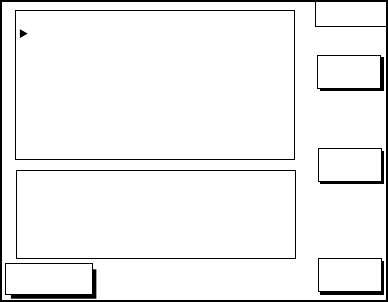
2.13 Selecting Background
and Echo Colors
1. Press the [MENU] key and the
SOUNDER SETUP OPTIONS soft key.
2. Select HUE, and then press the EDIT soft
key to show the hue window.
HUE
▲
1
▼
Hue window
3. Press ▲ or ▼ to select hue number,
referring to the table below. (You can see
the result of your selection on the
display.)
Background and echo colors
euH oN. ohcE roloC dnuorgkcaB roloC
1roloc61eulb-muideM
2roloc8eulb-muideM
3roloc61eulb-kraD
4roloc8eulb-kraD
5roloc61etihW
6roloc8etihW
7roloc61kcalB
8roloc8kcalB
9,wolleyemorhconoM seitisnetnithgie
2. VIDEO SOUNDER OPERATION
2-10
4. Press the RETURN soft key and the
[SNDR] key to finish.
2.14 Alarms
Bottom alarm
The bottom alarm sounds when the bottom
echo is within the alarm range set. To
activate the bottom alarm the depth must be
displayed.
Fish (B/L) alarm
The bottom-lock fish alarm sounds when a
fish echo is within a predetermined distance
from the bottom. This alarm is available
when the bottom-lock mode is active.
Fish (normal) alarm
The normal fish alarm sounds when a fish
echo is within the preset alarm range.
Note: The sensitivity of the fish alarm can be
set on the SOUNDER SYSTEM
SETUP menu.
Water temperature alarm
There are two types of water temperature
alarms: WITHIN and WITHOUT. The
WITHIN alarm sounds when the water
temperature is within the range set; the
WITHOUT alarm sounds when the water
temperature is higher or lower than the
range set. This alarm requires water
temperature data.
Activating/deactivating an alarm
1. Press the [ALARM] key to open the alarm
menu.
2. Press the NEXT PAGE soft key to show
the ALARM 2 menu.
DGPS 3D
ALARM2
EDIT
CLEAR
ALARM
ALARM INFORMATION
BOTTOM ALARM
FISH (B/L) ALARM
FISH (NORMAL)
TEMP. ALARM
OFF
OFF
OFF
OFF
NO ALARM
RETURN
Alarm 2 menu
3. Select the menu item, and press the
EDIT soft key.
4. Select ON or OFF. (For temperature
alarm select WITHIN, WITHOUT or OFF.)
For ON, WITHIN or WITHOUT, use the
cursor pad and the numeric keys to set
range.
5. Press the ENTER soft key.
When an alarm setting is violated...
When an alarm setting is violated the buzzer
sounds, and the (red) speaker icon appears
at the bottom of the screen. You can silence
the buzzer with the [CLEAR] key. (However,
the buzzer will sound whenever the alarm
setting is violated.) Press the [ALARM] key
to find out which alarm has been violated.
The offending alarm is displayed in red in the
ALARM INFORMATION window. Press the
CLEAR ALARM soft key to erase the alarm
indication. The alarm icon color changes to
black to show acknowledging the alarm. The
alarm icon remains displayed in red until all
violated alarms have been acknowledged.
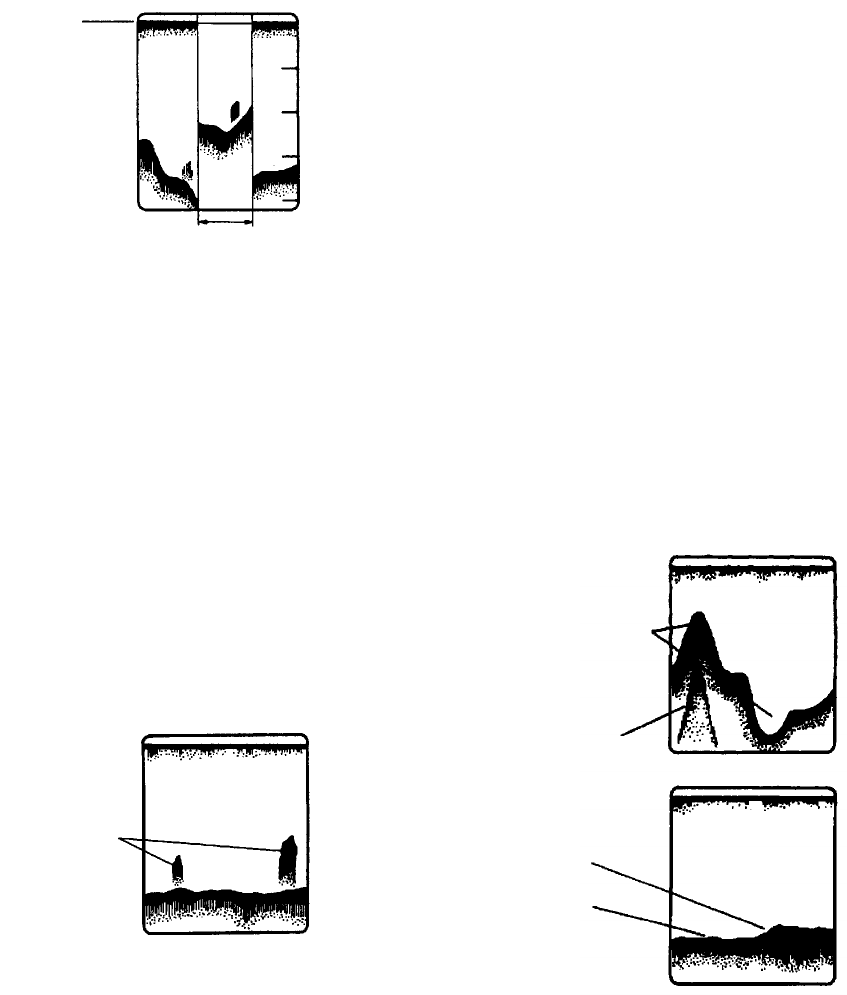
2. VIDEO SOUNDER OPERATION
2-11
2.15 Interpreting the Display
Zero line
The zero line (sometimes referred to as the
transmission line) represents the
transducer’s position, and moves off the
screen when a deep phased range is used.
Zero
line
Shift
Zero line
Minute mark
Minute mark shows time with two colored bar.
Each bar is 30 sec.
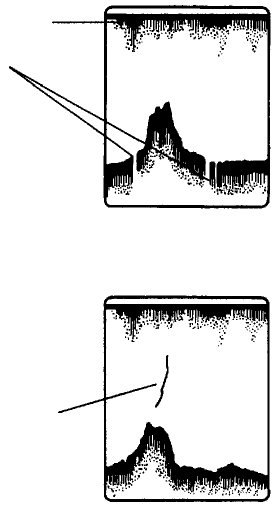
Fish school echoes
Fish school echoes will generally be plotted
between the zero line and the bottom.
Usually the fish school/fish echo is weaker
than the bottom echo because its reflection
property is much smaller compared to the
bottom. The size of the fish school can be
ascertained from the density of the display.
Small
school
Large
school
Size of
fish school
Fish school echoes
Bottom echo
Echoes from the bottom are normally the
strongest and are displayed in reddish-brown
color but the color and width will vary with
bottom composition, water depth, frequency,
sensitivity, etc.
In a comparatively shallow depth, a high gain
setting will cause a second or sometimes a
third or a fourth echo to be displayed at the
same interval between them below the first
echo trace. This is because the echo travels
between the bottom and the surface twice or
more in shallow depths.
The color of the bottom echo can be used to
help determine the density of the bottom
materials (soft or hard). The harder the
bottom, the wider the trace. If the gain is set
to show only a single bottom echo on mud, a
rocky bottom will show a second or third
bottom return. The range should be chosen
so the first and second bottom echoes are
displayed when bottom hardness is being
determined.
Intensity
difference in
water depth
Second bottom
echo
Rock base
Mud
and sand
Bottom echoes
2. VIDEO SOUNDER OPERATION
2-12
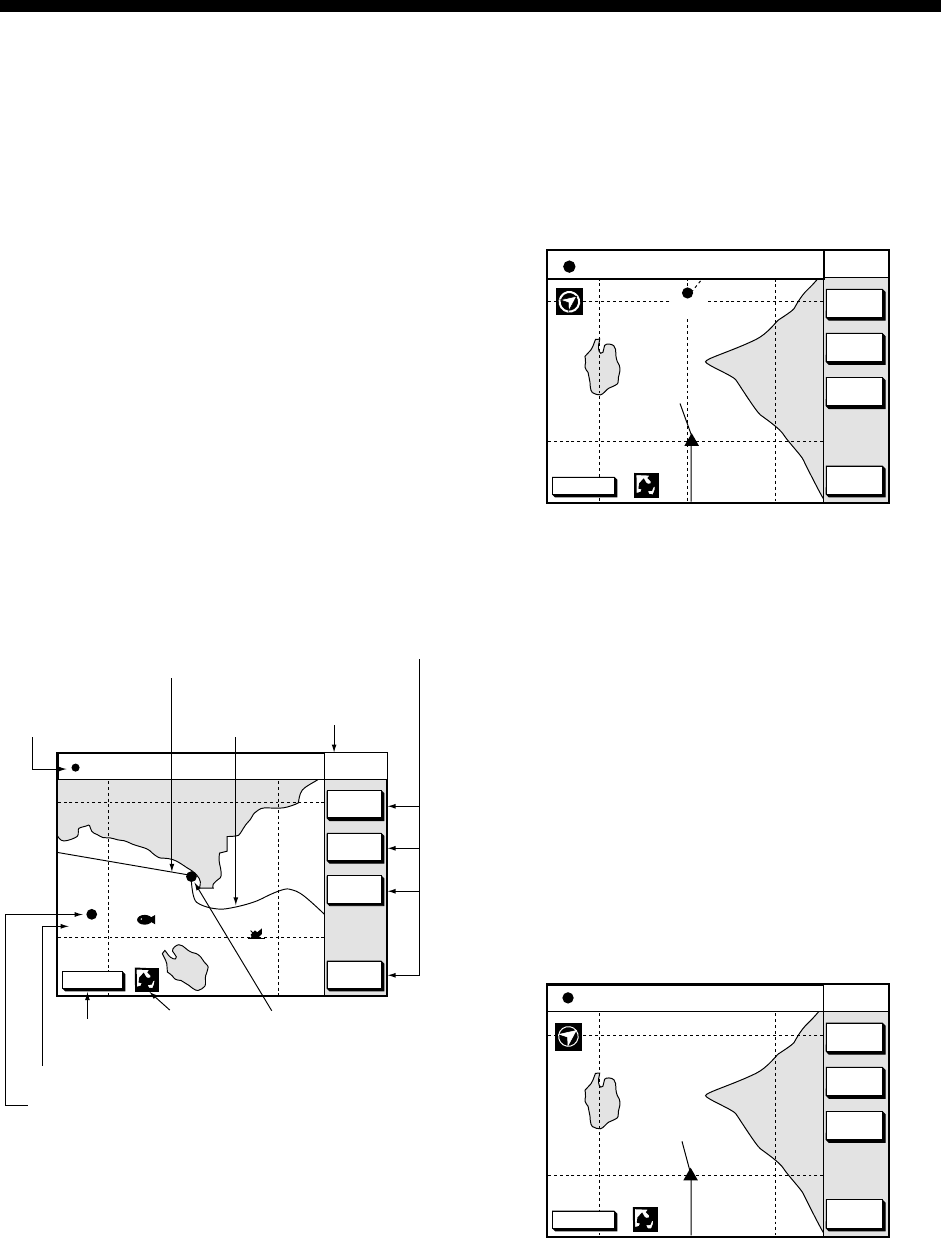
Surface noise/Aeration
When the waters are rough or the boat
passes over a wake, surface noise may
appear near the zero line. As surface
turbulence is acoustically equivalent to
running into a brick wall, the bottom echo will
be displayed intermittently. Similar noise
sometimes appears when a water
temperature difference (thermocline) exists.
Different species of fish tend to prefer
different temperature zones, so the
thermocline may be useful to help identify
target fish. 200 kHz tends to show shallow
thermoclines better than 50 kHz.
In rough waters the display is occasionally
interrupted due to below-the-ship air bubbles
obstructing the sound path. This also occurs
when the boat makes a quick turn or
reverses movement. Lowering the picture
advance speed may reduce the interruption.
However, reconsideration of the transducer
installation may be necessary if the
interruption occurs frequently.
Surface noise
Caused by
aerated water
Thermocline
Surface noise/aeration
3-1
3. PLOTTER DISPLAYS
3.1 Presentation Modes
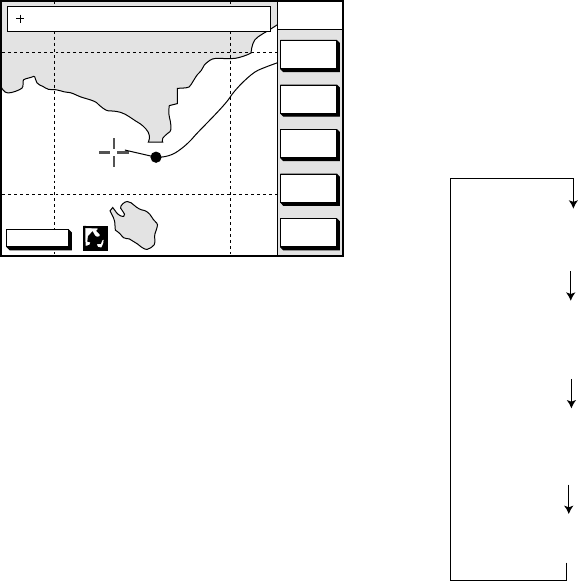
The plotter display mainly shows chart,
ship’s track, waypoints, and navigation data.
Three types of display presentations are
provided for the normal plotter display:
north-up, course-up and auto course-up. To
change the mode, use the presentation
mode selection soft key, which is the 3rd soft
key from the top.
North-up
Press the NORTH UP soft key to show the
north-up display. North (zero degree) is at
the top of the display and own ship is at the
center of the screen. Own ship marker is a
filled circle. This mode is useful for
long-range navigation.
DGPS 3D NAV
WPT
COURSE
UP
ZOOM
OUT
ZOOMIN
NORTH
UP
135° 12.345' E
34° 12.345' N SPD
CSE 16.3kt
245.8°
BRIDGE
FISH
002WP
Nav information
window
Course bar
Functions for
soft key
Track
Own ship
marker
Current display mode
(north-up)
Icon (chart)
GPS status
Waypoint name
Waypoint mark
Plotter display, north-up mode
Course-up
Press the COURSE UP soft key to show the
course-up display. When destination is set it
is at the top of the screen, and the north
mark appears at the upper left side of the
screen and points to north. A filled triangle
marks own ship’s position.
When destination is not set, the course is
upward on the screen at the moment the
course-up mode is selected.
DGPS 3D NAV
WPT
AUTO
C.U.
ZOOM
OUT
ZOOMIN
COURSE
UP
QP<01>
135° 12.345' E
34° 12.345' N SPD
CSE 16.3kt
245.8°
Plotter display, course-up mode
Auto course-up
Press the AUTO C.U. soft key to show the
automatic course-up display. When
destination is set it is at the top of the screen,
and the north mark appears at the upper left
side of the screen and points to north. A filled
triangle marks own ship’s position. The
course is at the top of screen at the moment
the automatic course-up mode is selected.
When own ship is off its intended course by
22.5° or more, it is automatically brought
back to perpendicular.
DGPS 3D NAV
WPT
NORTH
UP
ZOOM
OUT
ZOOMIN
AUTO
C-UP
135° 12.345' E
34° 12.345' N SPD
CSE 16.3kt
245.8°
Auto course-up mode
3. PLOTTER DISPLAYS
3-2
3.2 Cursor
Turning on the cursor, shifting the
cursor
Press the cursor pad to turn the cursor on,
and the cursor appears at the own ship’s
position. Operate the cursor pad to shift the
cursor. The cursor moves in the direction of
the arrow or diagonal pressed on the cursor
pad.
Cursor position is displayed in latitude and
longitude or Loran or Decca TDs (depending
on menu setting) at the top of the plotter
display when the cursor is on.
DGPS 3D CENTER
GO TO
CURSOR
COURSE
UP
ZOOM
OUT
ZOOMIN
NORTH
UP
135° 12.345' E
34° 12.345' N OS
FROM 276.9°
16.45nm
Data displayed on the plotter display
when the cursor is on
Turning off the cursor, returning own
ship marker to screen center
The CENTER soft key turns off the cursor
and returns own ship marker to screen
center.
When the cursor is off, own ship position is
shown.
3.3 Shifting the Display
The display can be shifted on the plotter
display.
1. Press the cursor pad to display the
cursor.
2. Locate the cursor at a screen edge. The
screen shifts in the direction opposite of
cursor location.
3.4 Displaying Nav
Information Window
The nav information window can show four
data: own ship position, waypoint position,
own ship’s speed/course and off.
Press the soft key at the bottom of screen.
Each press key changes data in the
sequence shown below. Soft key name also
changes.
NAV POS soft key
Displays own ship's position, course and speed.
NAV WPT soft key
Displays range/bearing to the selected waypoint,
chart scale and own ship's course.
NAV S/C soft key
Displays own ship's course/speed and
water temperature*/depth.
NAV OFF soft key
Turns off the window.
*: Water temperature sensor is required.
Sequence of pressing the bottom soft key
When the cursor is on, the window at the top
of the display shows the cursor position
instead of own ship’s position. To change the
window mode when the cursor is on, press
the CENTER soft key to show the
appropriate soft key.
3. PLOTTER DISPLAYS
3-3
3.5 Selecting Chart
Scale/Range
Chart scale (range) may be selected with the
ZOOM IN or ZOOM OUT soft key. ZOOM IN
expands the chart; ZOOM OUT shrinks it.
3.6 Mini Chart Cards
The mini chart cards contain nautical charts.
When you insert a suitable mini chart card in
the slot and your boat is near land, a chart
appears.
When a wrong card is inserted or a wrong
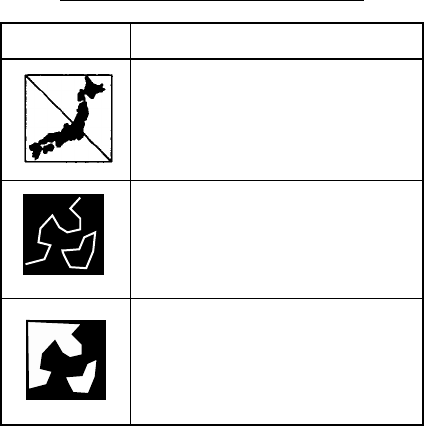
chart scale is selected, the land will be
hollow. Insert the proper card and select a
suitable chart scale. Chart icons appear to
help you select a suitable chart scale. The
table below shows the chart icons and their
meanings.
Chart icons and their meanings
Icon Meaning
Proper card is not inserted or
chart scale is too small. Press
the ZOOM IN soft key to
adjust chart scale.
Chart scale is too large. Press
the ZOOM OUT soft key to
adjust chart scale.
Suitable chart scale is
selected.
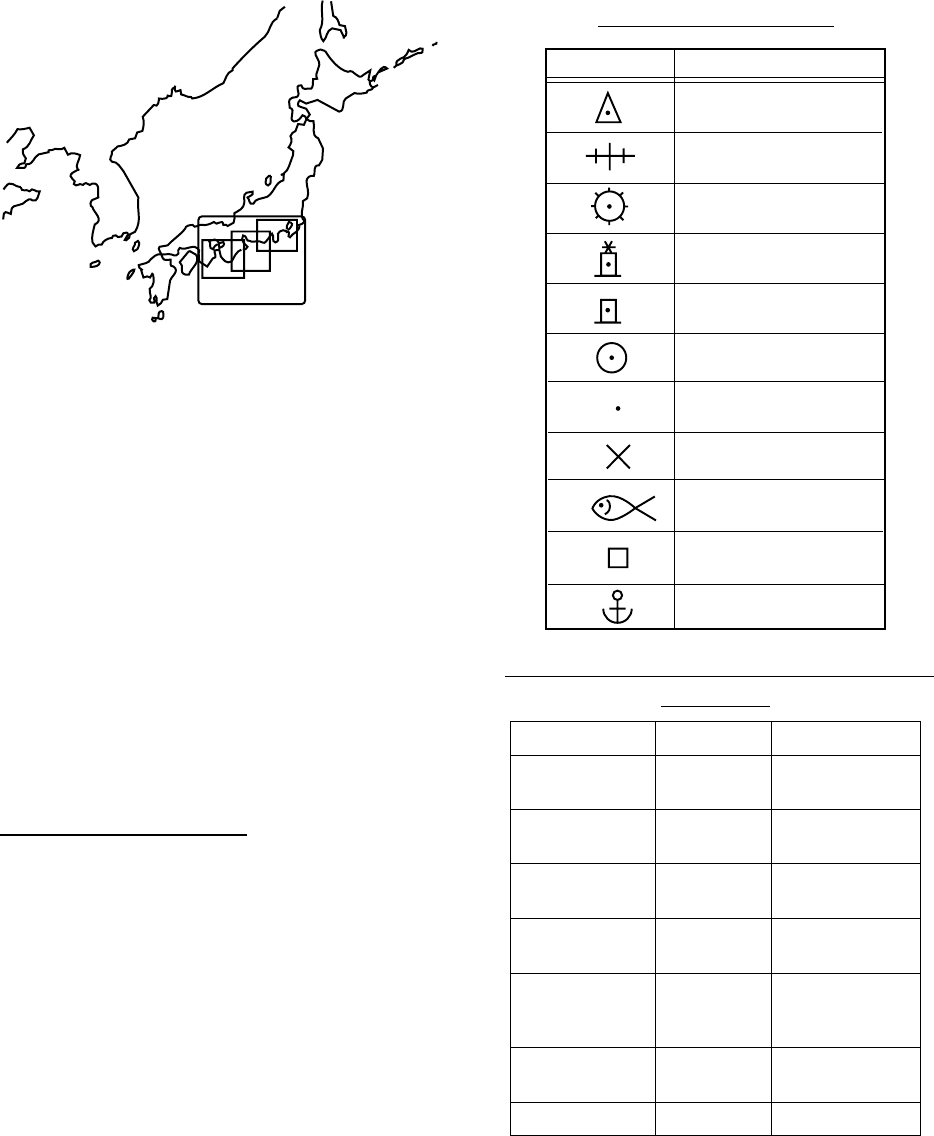
Indices and chart enlargement
When the ZOOM OUT soft key is used, you
will see several frames appear on the chart.
These frames are called indices and they
show you what parts of the chart can be
enlarged in the current picture range. The
areas circumscribed with smaller frames can
be enlarged, but the area enclosed by the
largest frame cannot.
3. PLOTTER DISPLAYS
3-4
Sample chart (Japan and South Korea)
showing indices
Remarks on chart display
A chart will not be displayed in the following
conditions:
• When the chart scale is too large or too
small.
When this happens, select proper chart
scale.
• When scrolling the chart outside the
indices.
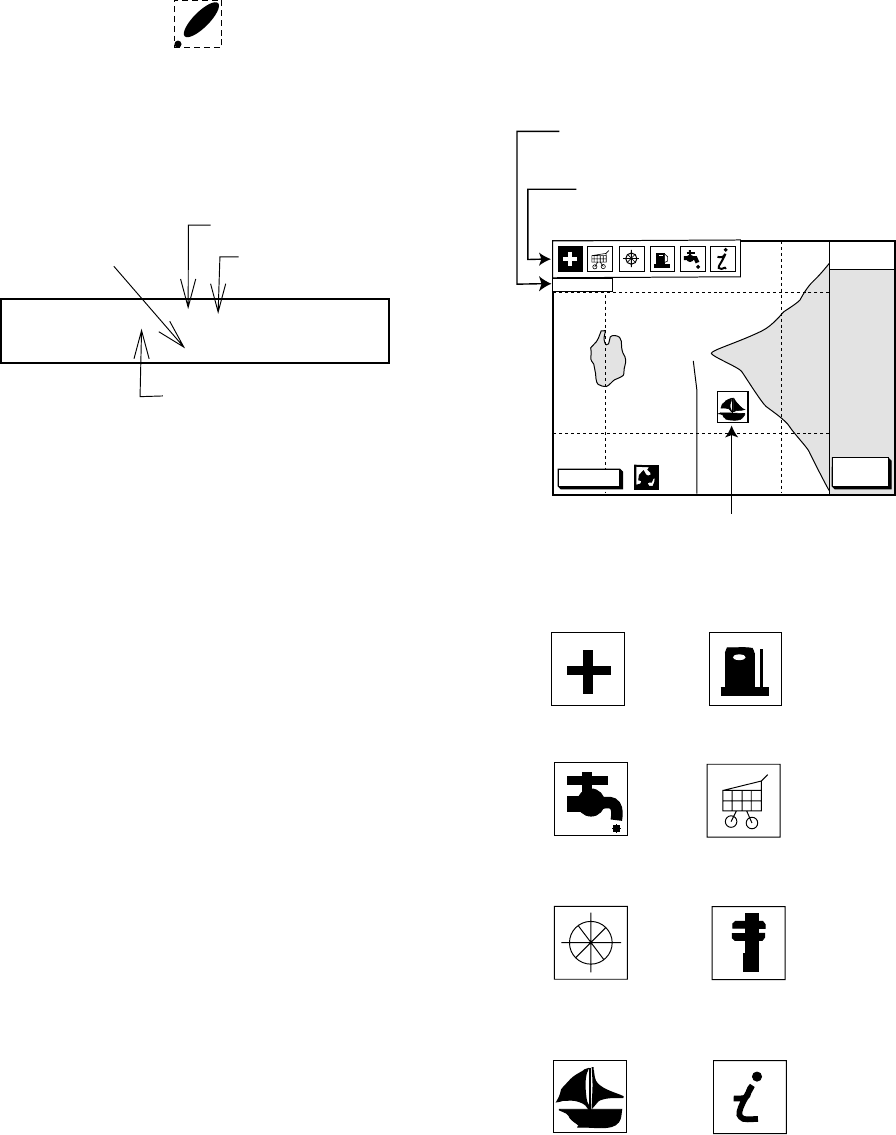
Chart symbols
FURUNO mini chart card
The table below shows FURUNO mini chart
symbols and their meanings.
FURUNO chart symbols
Symbol Description
Summit
Wreck
Lighthouse
Lighted Buoy
Buoy
Radio Station
Position of Sounding
Obstruction
Fishing Reef
Platform
Anchorage
Comparison of FURUNO and Nav-ChartsTM
chart cards
metIONURUF™strahC-vaN
gnillorcstoD ytilibapac SEYSEY
pu-esruoC yalpsid SEYSEY
atadesuohthgiL noitatneserp 3*SEYSEY
rosructamooZ noitisop SEY1*
taegnaR rotauqE ,5.0,521.0 8402...2,1mn
tfelsaemaS
tesffotrahC yrtneatad SEYSEY
gniretneCSEY2*
*1 Nav-ChartsTM chart may not center the
cursor perfectly.
*2 Nav-ChartsTM chart may not center own
ship's position perfectly.
*3 Newly designed chart cards containing
lighthouse data. Chart cards for North
America area are completed, and others
are in production.
*4 Nav-ChartsTM is the registered trademark
of NAVIONICS INC.
3. PLOTTER DISPLAYS
3-5
Aid to navigation data
Selected FURUNO and NAVIONICS mini
chart cards can show buoy and lighthouse
data. Simply place the cursor on the
lighthouse or buoy mark.
Place the cursor on
a lighthouse or buoy mark.
Placing the cursor on the mark
NAVAID: /FL 6S 12M
FROM OS 52.38nm 48.0°
Period (ex.: 6 seconds)
Visibility in nautical
mile (ex.: 12 miles)
FL : Flashing
F : Fixed light
F FL : Fixed and Flashing light
MO : Morse code light
Oc : Occulting light
Example of data displayed
Range and bearing
from own ship
Example of buoy, lighthouse data
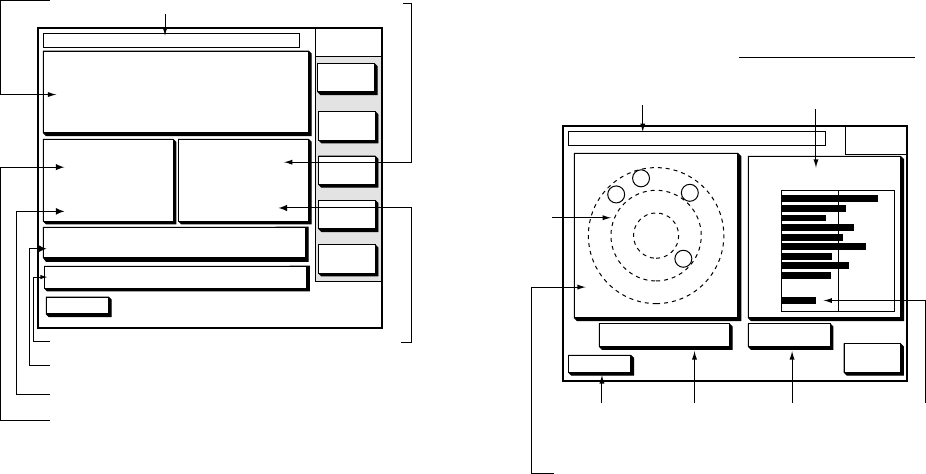
Port service icons (Nav-ChartsTM
cards)
Selected Nav-ChartsTM mini chart cards
show by icons services available at ports.
Use the cursor pad to place the cursor on
the sailboat icon (denotes a port or harbor),
and then press the [ENTER] key. The
services available appear at the top of the
display.
DGPS 3D CANCEL
NORTH
UP
FIRST AID
Sailboat mark (Port)
Detailed information of service
selected
List of services
at the port selected
Plotter display showing Nav-ChartsTM
port service display
Emergency
medical service
Water
supply station
Customer
service station
Information center
Fueling station
Traveler's
service station
Marine
equipment service
Port
Port service icons
3. PLOTTER DISPLAYS
3-6
3.7 Navigation Data Display
The navigation data display provide generic
navigation data and DGPS/GPS information.
Press the [PLOT] several times to show the
navigation data display.
DGPS 3D
BEACON
INFO
SATINFO
ZOOM
TD
LAT/LON
DATE: JUN 30 2002 TIME 23:59:59
POSITION
34° 56.789' N
135° 56.789' E
RNG
nm
123.25
BRG
299.9°
SPD
kt
12.5
CSE
359.9°
DATUM: WGS-84
LAT
LON
TMP 65.8°F DEP 20.8ft
Range to waypoint
Date
Position
Bearing to waypoint
Geodetic chart datum
Course
Speed
Temperature, depth
TRIP:123nm
Navigation data display
The navigation data display shows your
position by L/L or TD (Loran-C, Decca). To
change position format, press the
appropriate LAT/LON or TD soft key.
Enlarging an indication
An indication on the screen may be enlarged
as follows:
1. Use the cursor pad to select the
indication which you wish to enlarge.
Selected indication is circumscribed with
a red cursor.
2. Press the ZOOM soft key.
To return to the normal nav data display,
press the RETURN soft key.
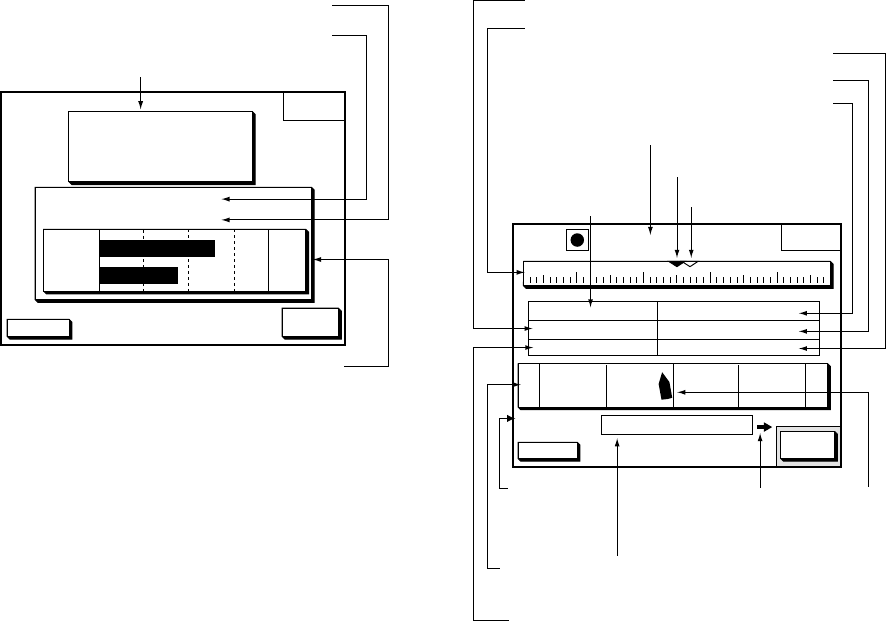
GPS satellite monitor display
The GPS satellite monitor display shows
information about GPS satellites.
Press the SAT INFO soft key. Your display
should look something like the following
illustration.
DGPS 3D RETURN
SAT
INFO
DATE: JUN 30 2002 TIME 23:59:59
21
07
11
03
06
12
08
05
N
S
EW
30 40 50
21
07
06
11
03
05
12
08
SAT
No.
SNR
ALT 5 m DOP 2.0
20
20
W
123
GPS fix
state
Date
Altitude DOP value
Estimated position in the sky, and
satellite number in reverse video is
used for positioning.
Receive signal level
Bars show satellite
signal level.
WAAS
satellite*
For WAAS
satellite*
*Only when WAAS fix mode is used.
GPS satellite monitor display
To return to the normal navigation data
display, press the RETURN soft key.
3. PLOTTER DISPLAYS
3-7
Beacon information display
The DGPS beacon receiver-equipped model,
can show DGPS reference station
information. Press the BEACON INFO soft
key to show the DGPS reference station
information.
DGPS 3D
RETURN
BEACON
INFO
MODE
FREQ
BAUD
RATE
AUTO SEARCH
288.0kHz
200 BPS
RECEIVED DATA:
BEACON STATION:
OK
OK
SS
SN
75
21
Beacon receiver setting status
Receive data status
Signal strength (SS),
Signal to noise ratio (SN)
DGPS reference station information
Beacon information display
SS: SS (Signal Strength) displays a numeric
representation of field strength of the
received signal on the selected frequency.
The higher the number the stronger the
received signal. (should read at least 60.) If
noise is present at reception band width, the
figure gets bigger.
SN: SN (Signal-to-Noise) ratio displays the
ratio between the desired signal and
unwanted noise on the selected frequency.
The higher the SN ratio the better the quality
of the signal. (should read at least 21.)
Note: If your equipment does not have a
DPGS receiver, the message “NO
DIFFERENTIAL DATA” appears when
the BEACON INFO soft key is pressed.
Also when connecting with the
external beacon receiver, this
message appears.
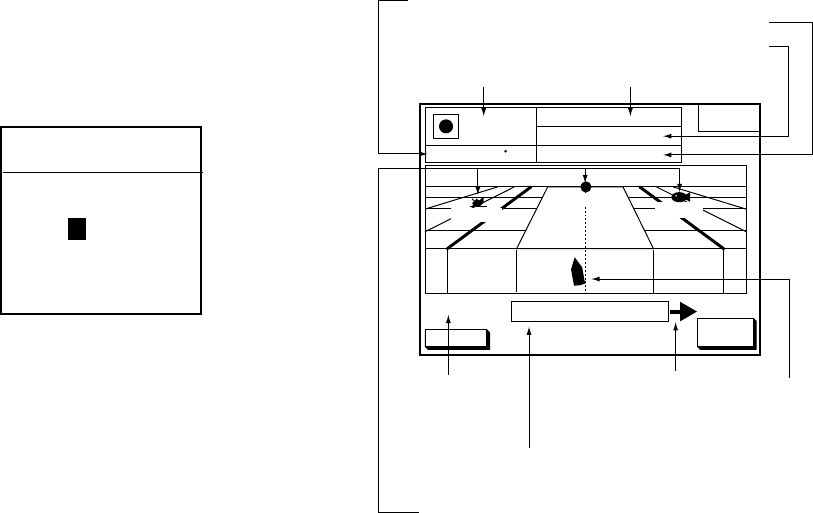
3.8 Steering Display
The steering display provides steering
information such as range, bearing, ETA to
destination, course and speed.
Press the [PLOT] key several times to show
the steering display.
DGPS 3D EDIT
XT-LMT
XTE 000.02nm 0.1nm0.1nm
BRG 247.0°
CSE
TTG
RNG
SPD
nm
kt
ETA
1h 59m 29th 14:50
245.0°27.2
13.6
260250240230
CROSS
TRACK
001-WP
Bearing from
own ship to
waypoint
Course indicator
Compass bearing
Course
Amount of XTE in nautical miles
XTE scale
Time-to-go to waypoint
Own ship
XTE
indication
range
Waypoint name
Range from own ship to waypoint
Speed
Estimated time of arrival
Bearing to waypoint
Indicates the
direction to steer
(Right: green, Left: red)
Steering display
How to read the compass display
The solid inverted triangle at the center of
the compass shows own ship’s course. The
hollow inverted triangle shows the bearing to
destination waypoint. When own ship’s
course is changed, the hollow inverted
triangle moves with course change.
Note: Course means the direction which own
ship moves to. It is different from own
ship’s direction. Tidal current and wind
may affect the course.
3. PLOTTER DISPLAYS
3-8
How to read the XTE indication
The black boat-shaped mark shows own
boat’s movement and direction, and the
amount to steer to return to course. Using
the figure shown on the previous page as an
example, you would steer right by 000.02
nautical miles to return to course. When this
mark is out of range of the XTE scale, the
mark color changes from black to yellow.
The range of the XTE scale can be set as
shown below.
Setting the range of the XTE scale
1. Press the EDIT XT-LMT soft key to
display the following window.
EDIT XTE LIMIT
0 .1nm
XTE range setting window
2. Use the cursor pad to select digit to
change.
3. Press appropriate alphanumeric key.
4. Press the [ENTER] key. To cancel entry,
press the CANCEL soft key instead of the
[ENTER] key.
Note that all digits may be cleared by
pressing the [CLEAR] key.
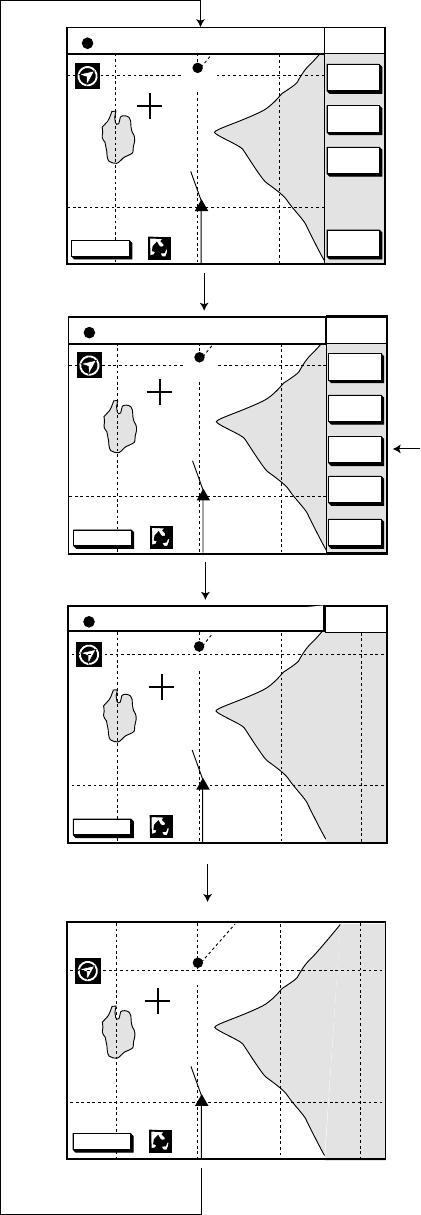
3.9 Highway Display
The highway display provides a graphic
presentation of ship’s course. It is useful for
monitoring XTE - the XTE scale shows
direction and amount in nautical miles to
steer to return to course. In the figure below,
for example, you would steer right by 0.02
nm to return to course.
Press the [PLOT] key several times to show
the highway display.
DGPS 3D EDIT
XT- LMT
XTE 0.02nm
0.1nm0.1nm
HIGHWAY
001WPT BRG
RNG
SPD
CSE 87.8
94.6°
1.88nm
10.0 kt
WPT001
YUUKI FISH01
Amount of XTE in nautical miles
Waypoint mark
& name
Waypoint
Own ship
XTE
scale
Bearing to waypoint
Course
Range to waypoint
Speed
Indicates the
direction to steer
(Right: green, Left: red)
Highway display
3. PLOTTER DISPLAYS
3-9
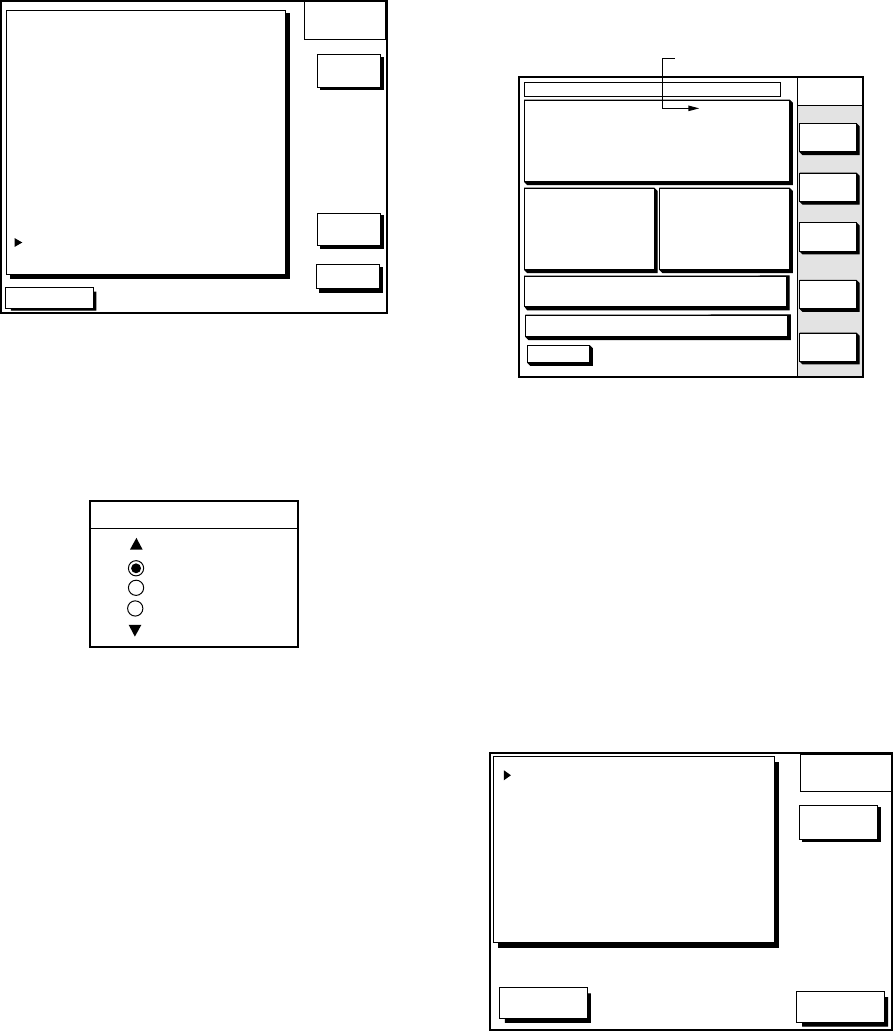
3.10 Changing Operation
Mode
Operation mode can be changed among
PLEASURE, FISHING1 and FISHING2.
FISHING1 or 2 mode provides mark/line
entry at the cursor or own ship’s position. On
FISHING 1 or 2 mode, pressing the
[HIDE/SHOW] key changes the function of
soft keys. Holding track, changing track color,
and selecting color and form of mark/line can
be performed by the soft keys directly. For
detail information of FISHING 1 and
FISHING 2, see chapter 5.
DGPS 3D NAV
WPT
MARK
ENTRY
TRACK
COLOR
STOP
TRACK
COURSE
UP
QP<01>
135° 12.345' E
34° 12.345' N SPD
CSE 16.3kt
245.8°
DGPS 3D NAV
WPT
AUTO
C.U.
ZOOM
OUT
ZOOMIN
COURSE
UP
QP<01>
135° 12.345' E
34° 12.345' N SPD
CSE 16.3kt
245.8°
DGPS 3D
COURSE
UP
QP<01>
MARK
EDIT
Press the [HIDE/SHOW] key.
Press the [HIDE/SHOW] key.
Press the [HIDE/SHOW] key.
135° 12.345' E
34° 12.345' N SPD
CSE 16.3kt
245.8°
QP<01>
DGPS 3D
Press the [HIDE/SHOW] key.
Soft key to
enter marlk.
Sequence of pressing the [HIDE/SHOW] key
at FISHING 1 or 2 mode
3. PLOTTER DISPLAYS
3-10
Selecting fishing 1, fishing 2 mode
1. Press the [MENU] key and the DISPLAY
OPTIONS soft key. The display setup1
menu appears.
DGPS 3D
DISPLAY
SETUP1
RETURN
EDIT
RNG & BRG MODE
RANGE/SPEED UNIT
DEPTH UNIT
TEMP UNIT
LAT/LON DISPLAY
TIME DISPLAY
WAYPOINTS SW
COURSE VECTOR
BEARING
MAG VARIATION
TD DISPLAY
POSITION DISPLAY
SET GO TO METHOD
OPERATION MODE
LANGUAGE
RHUMB LINE
nm / kt
ft
°F
DD°MM.MMM'
24 HOUR
AUTO2
LINE
MAGNETIC
AUTO 01.3°E
LORAN C
LAT/LON
1 POINT
PLEASURE
ENGLISH
NEXT
PAGE
Display setup1 menu
2. Press ▼ to select OPERATION MODE.
3. Press the EDIT soft key to show the
OPERATION MODE window.
OPERATION MODE
PLEASURE
FISHING 1
FISHING 2
Operation mode window
4. Press ▲ or ▼to select PLEASURE,
FISHING1 or FISHING2.
5. Press the ENTER soft key or the
[ENTER] key to finish.
3.11 Navigation Trip Distance
The navigation trip distance is displayed on
the navigation data display. Press the
[PLOT] key several times to show the
navigation data display.
DGPS 3D BEACON
INFO
SATINFO
ZOOM
TD
LAT/LON
DATE: OCT 21 2000 TIME 23:59:59
POSITION
34° 56.789' N
135° 56.789' E
RNG
nm
123.25
BRG
299.9°
SPD
kt
12.5
CSE
359.9°
DATUM: WGS-84
LAT
LON
TMP 65.8°F DEP 20.8ft
TRIP: 4792 nm
Trip
Navigation data display
Note: When you enlarge POSITION, TRIP is
not displayed.
Resetting trip distance
1. Press the [MENU] key followed by the
CONFIGURATION and SYSTEM MENU
soft keys.
2. Press the MEMORY/TRIP CLEAR soft
key to open the clear memory menu.
DGPS 3D RETURN
CLEAR
MEMORY
EDIT
CLEAR PLOTTER MEMORY
CLEAR GPS MEMORY
CLEAR ALL MEMORY
TRIP METER RESET
NO
NO
NO
NO
Clear memory menu
3. Press ▼to select TRIP METER RESET.
4. Press the EDIT soft key.
5. Press ▲ to select YES.
6. Press the ENTER soft key or the
[ENTER] key to reset trips distance.
4-1
4. TRACK
4.1 Displaying Track
1. Press the [MENU] key to open the main
menu.
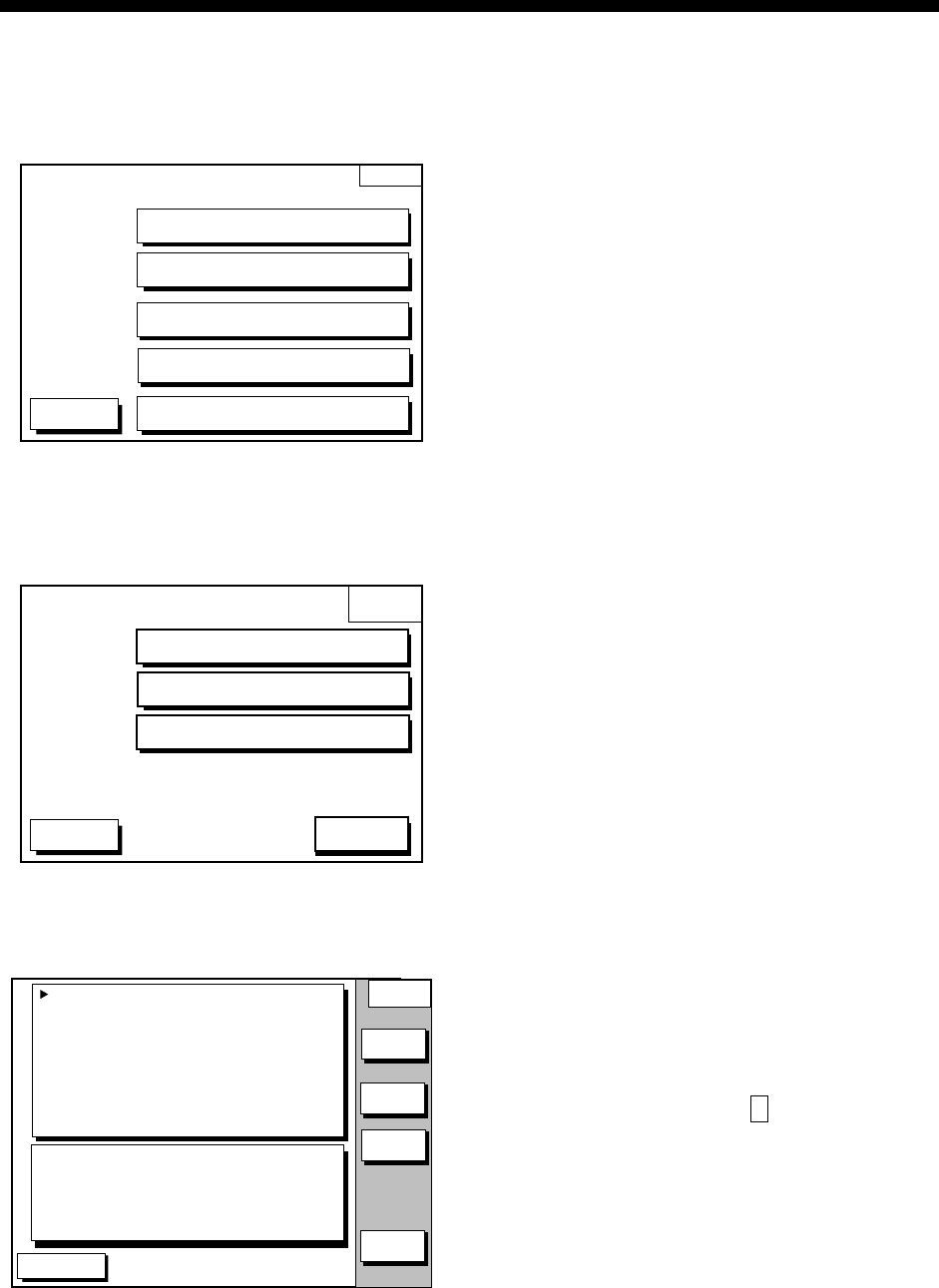
MENU
DGPS 3D
CHART SETUP OPTIONS
GPS/DGPS/TD OPTIONS
DISPLAY OPTIONS
CONFIGURATION
SOUNDER SETUP OPTIONS
Main menu
2. Press the CHART SETUP OPTIONS soft
key to open the CHART SETUP
OPTIONS menu.
CHART
SETUP
DGPS 3D
CHART OFFSET
CHART DETAILS
TRACK CONTROL
RETURN
Chart setup menu
3. Press the TRACK CONTROL soft key to
open the TRACK CONTROL menu.
DGPS 3D
TRACK
CONTROL
DISPLAY TRACK ON
TRACK COLOR WHITE
PLOT TIME
TIME INTERVAL 01m00s
DIST INTERVAL 00.10 nm
TRACK MEMORY 2000 POINTS
(MARK MEMORY) (3000) POINTS
TRACK : 1000 / 2000 PTS used
MARK : 5 / 3000 PTS used
EDIT
ERASE
T & M
RETURN
TRACKING
TRACK STATUS
STOP
TRACK
Track control menu
4. Press ▲ to select DISPLAY TRACK.
5. Press the EDIT soft key to show the
display track window.
6. Press ▲ or ▼ to select ON or OFF as
appropriate.
7. Press the ENTER soft key or the
[ENTER] key.
8. Press the [PLOT] key to close the menu.
The default setting is ON, which traces ship’s
track in accordance with ship’s movements.
Number of track and mark points used
appears in the TRACK STATUS window on
the TRACK CONTROL menu. Using the
illustration at the bottom of the page as an
example, it shows that 1000 out of 2000
track points and 5 out of 3000 mark shave
been used.
4.2 Stopping/Restarting
Plotting of Track
When your boat is at anchor or returning to
port you probably won’t need to record its
track. You can stop recording the track, to
conserve the track memory, as follows:
1. Press the [MENU] key followed by the
CHART SETUP OPTIONS and TRACK
CONTROL soft key.
2. Press the STOP TRACK soft key. The
indication “TRACKING” in the TRACK
STATUS window changes to “NOT
TRACKING”.
On the plotter display, H icon appears.
To restart recording the track, press the
START TRACK soft key at step 2 in the
above procedure.
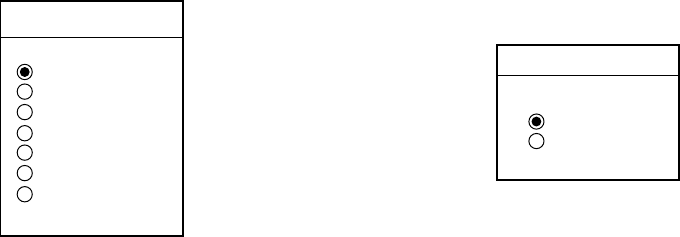
4. TRACK
4-2
When the fishing mode is selected, you can
stop or restart plotting the track with the soft
key only on the plotter display. Press the
[HIDE/SHOW] key several times to show the
STOP TRACK soft key on the plotter display.
Press the STOP TRACK soft key to stop
plotting of track. The message of HOLD
TRACK PLOTTING appears approx. 2
seconds and then own ship mark changes to
hollow circle. To restart plotting the track,
press the START TRACK soft key again. The
message START TRACK PLOTTING
appears approx. 2 seconds and then plotting
restarts.
4.3 Changing Track Color
Track can be displayed in red, yellow, green,
light-blue, purple, blue or white. It can be
useful to change track color to discriminate
between previous day's track, past track, etc.
1. Press the [MENU] key followed by the
CHART SETUP OPTIONS and TRACK
CONTROL soft keys.
2. Press ▲ or ▼ to select TRACK COLOR.
3. Press the EDIT soft key to display the
TRACK COLOR window.
TRACK COLOR
▲RED
YELLOW
GREEN
LIGHT BLUE
PURPLE
BLUE
WHITE
▼
Track color window
4. Press ▲ or ▼ to select the color desired.
5. Press the ENTER soft key to finish.
When the fishing mode is selected, you can
change track color with the soft key only on
the track display.
1. Press the [HIDE/SHOW] key several
times to show the TRACK COLOR soft
key on the plotter display.
2. Press the TRACK COLOR soft key to
show the TRACK COLOR window.
3. Press ▲ or ▼ to select the color desired.
4. Press the ENTER soft key or the
[ENTER] key to finish, or press the
CANCEL soft key to escape.
4.4 Track Plotting Method,
Interval
In drawing the track, first the ship’s position
(fed from the DGPS/GPS receiver, WAAS) is
stored into the unit’s memory at an interval of
time or distance. A shorter interval provides
better reconstruction of the track, but the
storage time of the track is reduced. When
the track memory becomes full, the oldest
track is erased to make room for the latest.
Track plotting method
1. Press the [MENU] key followed by the
CHART SETUP OPTIONS and TRACK
CONTROL soft keys.
2. Press ▲ or ▼ to select PLOT.
3. Press the EDIT soft key to display the
PLOT window.
PLOT
▲TIME
DISTANCE
▼
Plot window
4. Press ▲ or ▼ to select TIME or
DISTANCE. Distance is useful for
conserving track memory, since no track
is recorded when the boat is stationary.
5. Press the ENTER soft key or the
[ENTER] key.
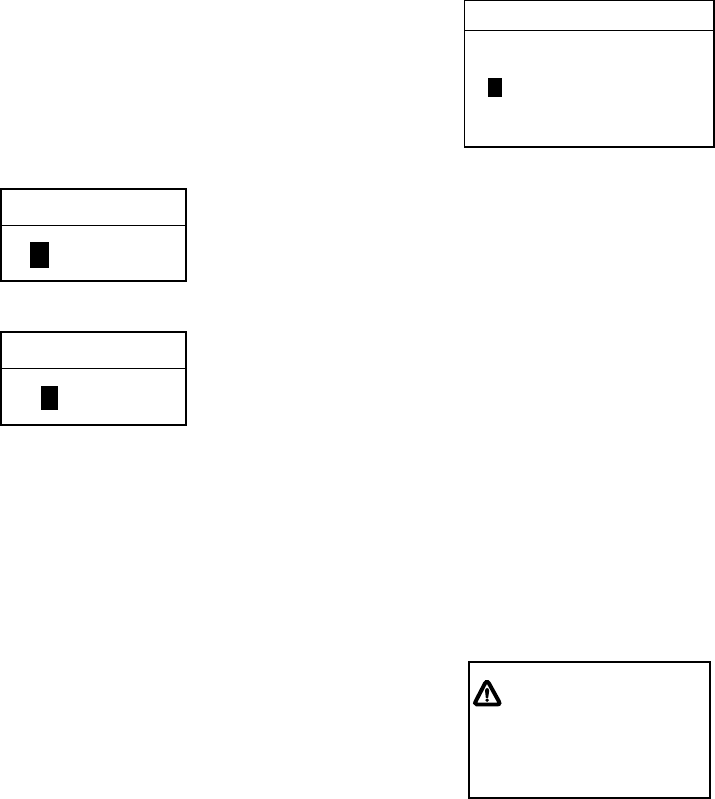
4. TRACK
4-3
Track plotting interval
1. Press the [MENU] key followed by the
CHART SETUP OPTIONS and TRACK
CONTROL soft keys.
2. Press ▲ or ▼ to select TIME INTERVAL
or DIST INTERVAL.
3. Press the EDIT soft key to display the
INTERVAL window.
TIME INTERVAL
01 m 00 s
(When selecting TIME INTERVAL.)
DIST INTERVAL
00.10 nm
(When selecting DIST INTERVAL.)
Interval window
4. Use the cursor pad to place the cursor on
the digit desired. The [CLEAR] key
functions to clear an entire line of data.
5. Press appropriate alphanumeric key to
enter value.
6. Repeat steps 4 and 5 to complete.
7. Press the ENTER soft key or the
[ENTER] key.
4.5 Changing Track Memory
Capacity
The equipment stores a total of 5000 points
of track and marks. This total may be freely
apportioned as desired. The default setting is
2000 points for track and 3000 point for mark.
Note that when the track memory
capacity is changed, all tracks and marks
in the memory are erased.
1. Press the [MENU] key followed by the
CHART SETUP OPTIONS and TRACK
CONTROL soft keys.
2. Press ▼ to select TRACK MEMORY.
3. Press the EDIT soft key to display the
TRACK MEMORY window.
TRACK MEMORY
1000/5000 POINTS
Track memory window
The track memory window may be
erased by pressing the CANCEL soft key
to escape.
4. Enter number of track memory points
desired, with the alphanumeric keys.
Note that all digits may be cleared by
pressing the CLEAR soft key or the
[CLEAR] key.
5. Press the ENTER soft key or the
[ENTER] key. The following window
appears to ask you if you are sure to
change the track memory capacity.
RESETTING ERASES
TRACK, MARK/LINE
YES ... "ENTER" key
NO ... "CLEAR" key
ALREADY SAVED. OK?
Erase message
6. Press the [ENTER] key to change
apportion, or press the [CLEAR] key to
escape.
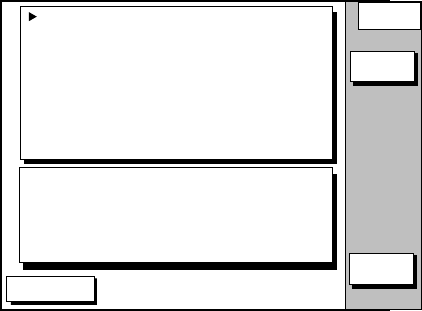
4. TRACK
4-4
4.6 Erasing Tracks
Be absolutely sure you want to erase track;
erased track cannot be restored.
Erasing tracks by area
You can erase tracks within an area you set.
1. Press the [MENU] key followed by the
CHART SETUP OPTIONS, TRACK
CONTROL and ERASE T & M soft keys.
DGPS 3D
ERASE
ERASE ALL TRACKS
ERASE TRACKS BY AREA
ERASE TRACKS BY COLOR
ERASE ALL MARKS/LINES
ERASE MARKS BY AREA
TRACK : 1000 / 2000 PTS used
MARK : 5 / 3000 PTS used
EDIT
RETURN
TRACKING
TRACK STATUS
Erase menu
2. Select ERASE TRACK BY AREA, and
then press the EDIT soft key.
3. Move the cursor to the starting point of
the area to erase.
4. Press the START soft key.
5. Move the cursor to the ending point of
the area to erase.
6. Press the END soft key. You are asked if
you sure to erase.
7. Press the [ENTER] key to erase, or
press the [CLEAR] key to escape.
Erasing tracks by color
Tracks can be erased by on color.
1. Press the [MENU] key followed by the
CHART SETUPOPTIONS, TRACK
CONTROL and ERASE T & M soft key.
2. Select ERASE TRACK BY COLOR, and
then press the EDIT soft key.
3. Select the color which you want to erase.
4. Press the ENTER soft key or [ENTER]
key. You are asked if you are sure to
erase.
5. Press the [ENTER] key to erase, or
press the [CLEAR] key to escape.
Erasing all track
You can erase all track.
1. Press the [MENU] key followed by the
CHART SETUP OPTIONS, TRACK
CONTROL and ERASE T& M soft keys.
2. Select ERASE ALL TRACKS, and then
press the EDIT soft key.
You are asked if you sure to erase all
track.
3. Press the [ENTER] key to erase, or press
the [CLEAR] key to escape.
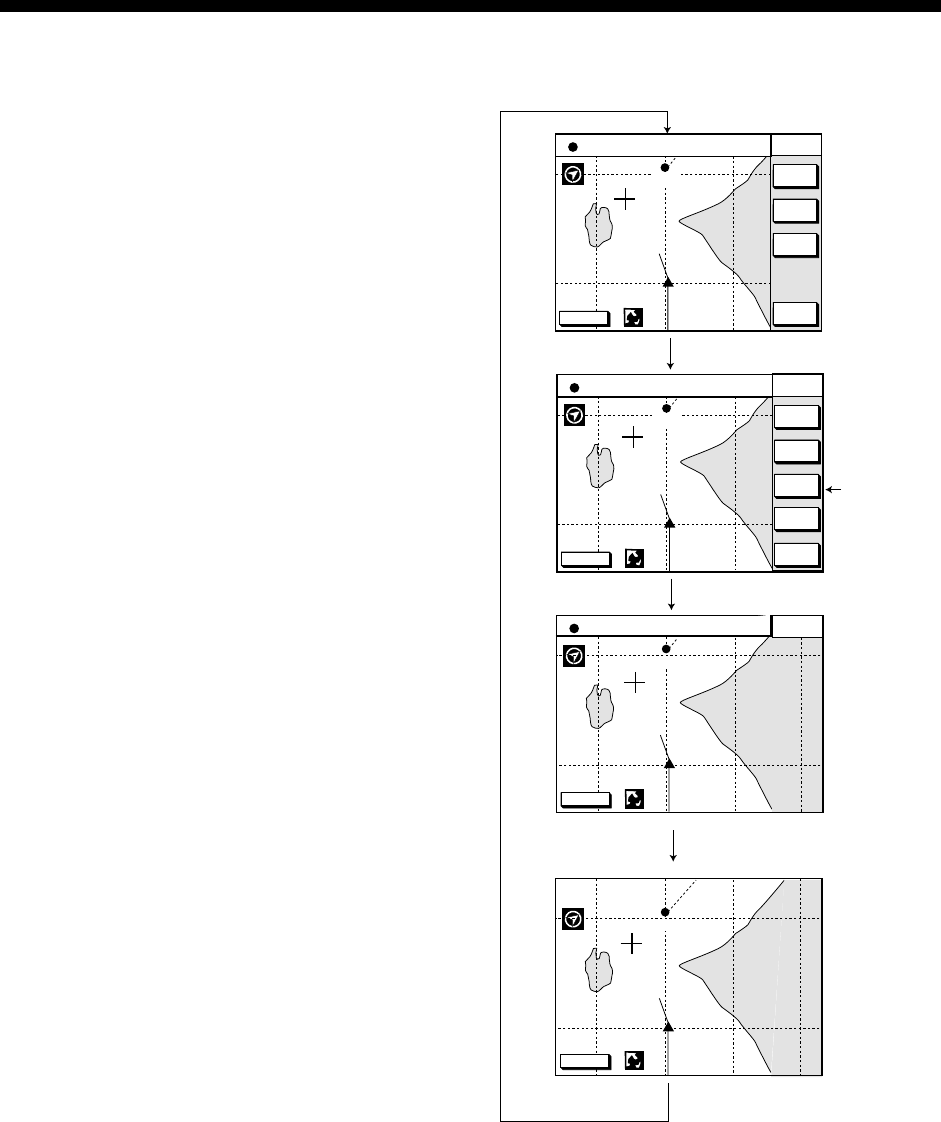
5-1
5. MARK
You can enter marks to denote important
locations, such as a good fishing spot. In the
default condition, you may enter 3000 marks.
5.1 Entering Marks
Select the FISHING 1 or FISHING 2 mode to
enable entry of marks on the PLOTTER
display. Select the location desired with the
cursor, or turn off the cursor to enter the
mark at own ship position. Press the MARK
ENTRY soft key to enter the mark. The mark
is entered in the shape and color selected
from the MARK SHAPE and MARK COLOR
windows.
In the FISHING 1 or FISHING 2 mode,
pressing the [HIDE/SHOW] key changes the
function of the soft keys as follows.
Plotter display
DGPS 3D NAV
WPT
MARK
ENTRY
TRACK
COLOR
STOP
TRACK
COURSE
UP
QP<01>
135° 12.345' E
34° 12.345' N SPD
CSE 16.3kt
245.8°
DGPS 3D NAV
WPT
AUTO
C.U.
ZOOM
OUT
ZOOMIN
COURSE
UP
QP<01>
135° 12.345' E
34° 12.345' N SPD
CSE 16.3kt
245.8°
DGPS 3D
COURSE
UP
QP<01>
MARK
EDIT
Press the [HIDE/SHOW] key.
Press the [HIDE/SHOW] key.
Press the [HIDE/SHOW] key.
135° 12.345' E
34° 12.345' N SPD
CSE 16.3kt
245.8°
QP<01>
DGPS 3D
Press the [HIDE/SHOW] key.
Soft key
to enter mark.
Changing displays
(PLOTTER display)
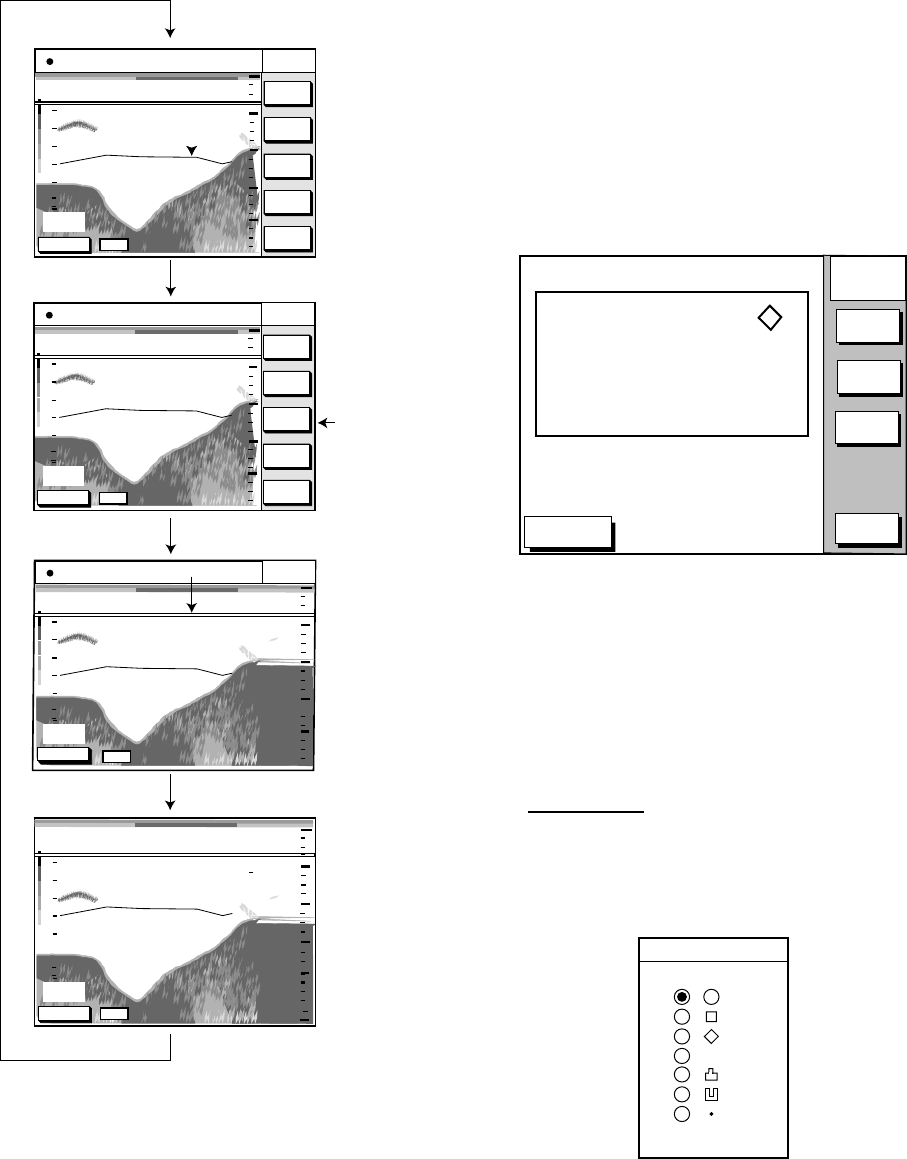
5. MARK
5-2
Video sounder display
SOUNDER
135° 12.345' E
34° 12.345' N SPD
CSE 16.3kt
245.8°
50k
DGPS 3D
20
30
40
50
30
20
10
0
32.0
15.0
NAV
WPT
MARK
ENTRY
TRACK
COLOR
STOP
TRACK
SOUNDER
135° 12.345' E
34° 12.345' N SPD
CSE 16.3kt
245.8°
MARK
EDIT
50k
DGPS 3D
20
30
40
50
30
20
10
0
32.0
15.0
SNDR
FUNC
SHIFT
GAIN
RANGE
SOUNDER
135° 12.345' E
34° 12.345' N SPD
CSE 16.3kt
245.8°
MODE/
FREQ
50k
DGPS 3D
20
30
40
50
30
20
10
0
32.0
15.0
50k
DGPS 3D
20
30
40
50
30
20
10
0
54.0
15.0
60
Press the [HIDE/SHOW] key.
Press the [HIDE/SHOW] key.
Press the [HIDE/SHOW] key.
Press the [HIDE/SHOW] key.
Soft key
to enter mark.
DGPS 3D 50k
Changing displays
(Video sounder display)
5.2 Changing Mark
Attributes
You can select shape, line and color of
marks and lines on the plotter display.
1. Press the [HIDE/SHOW] key to show the
MARK EDIT soft key.
2. Press the MARK EDIT soft key to show
the MARK/LINE window.
DGPS 3D
MARK
EDIT
RETURN
MARK
SHAPE
MARK
LINE
MARK SHAPE
MARK LINE
MARK COLOR YELLOW
.
MARK
COLOR
Mark/line window
3. Press the MARK SHAPE soft key to
change mark shape, the MARK LINE soft
key to change mark line, or the MARK
COLOR soft key to change mark color.
Mark shape
Press the MARK SHAPE soft key to
display the MARK SHAPE window. Press
▲ or ▼ to select mark shape desired.
MARK SHAPE
▲
▼
✕
Mark shape window
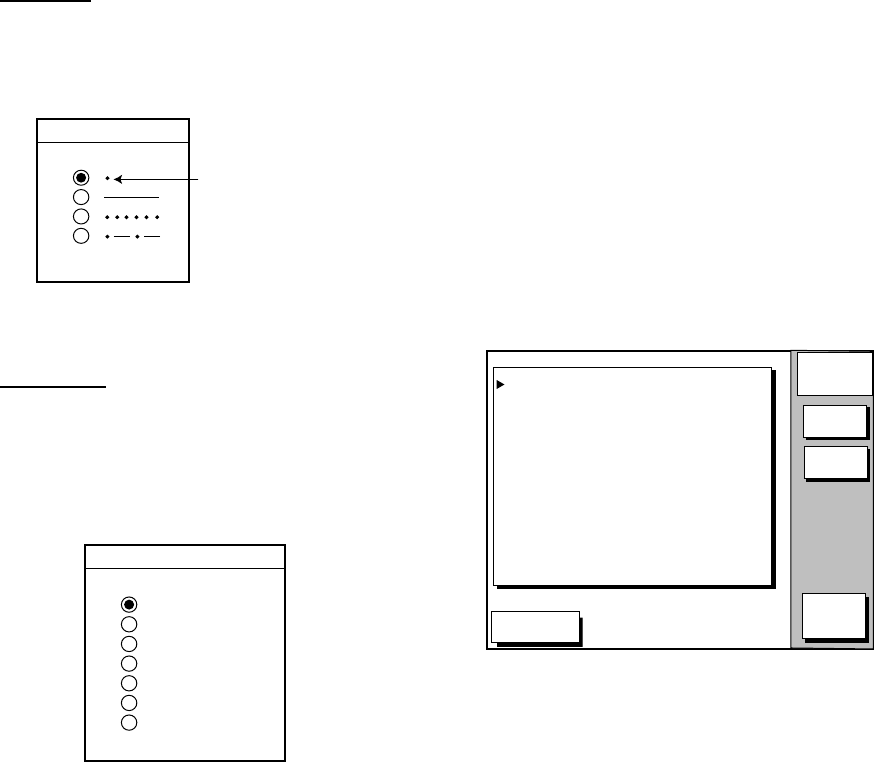
5. MARK
5-3
Mark line
Press the MARK LINE soft key to display
the MARK LINE window. Press ▲ or ▼
to select mark line desired.
MARK LINE
▲
▼
Mark does not
have a line.
Mark line window
Mark color
Press the MARK COLOR soft key to
display the MARK COLOR window.
Press ▲ or ▼ to select mark color
desired.
MARK COLOR
▲
▼
RED
YELLOW
GREEN
LIGHT BLUE
PURPLE
BLUE
WHITE
Mark color window
4. Press the ENTER soft key or the
[ENTER] key.
5. Press the RETURN soft key to finish.
Marks/lines entered hereafter are inscribed
in the shape, color and line type selected
here.
5.3 Changing Mark Size
Mark size can be selected from STD
(standard) and SMALL.
1. Press the [MENU] key to display the
main menu.
2. Press the CHART SETUP OPTIONS soft
key.
3. Press the CHART DETAILS soft key to
open the CHART DETAILS menu.
DGPS 3D
CHART
DETAIL
RETURN
EDIT
DEPTH
INFO
LAT/LON GRID
TEXT INFO
WAYPOINT
WAYPOINT NAME
INDEX
LANDMASS
BACKGROUND
NAV AIDS
SECTOR INFO
OTHER SYMBOLS
MARK SIZE
GREEN
ON
LARGE
ON
ON
BRT YELLOW
BLUE
ON
OFF
WHITE
STD
Chart details menu
4. Press ▼ to select MARK SIZE.
5. Press the EDIT soft key.
6. Press ▲ or ▼ to select STD (standard)
or SMALL.
7. Press the [ENTER] key.
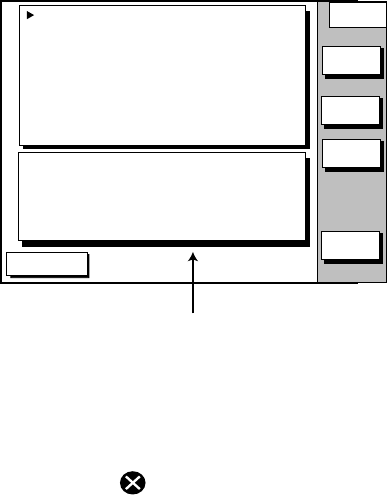
5. MARK
5-4
5.4 Erasing Marks
Erasing individual marks/lines
1. Operate the cursor pad to place the
cursor on the mark you want to erase.
2. Press the [CLEAR] key. The mark
selected is erased.
Note: To erase a line, place the cursor on
an edge of the line. The line
segment will be erased.
Erasing marks/lines in an area
You can erase marks and lines within an
area you select.
1. Press the [MENU] key followed by the
CHART SETUP OPTIONS, TRACK
CONTROL and ERASE T & M soft keys.
2. Press ! or " to select ERASE MARKS
BY AREA, and then press the EDIT soft
key.
The plotter display appears.
3. Move the cursor to the starting point of
the area to erase.
4. Press the START soft key.
5. Press the cursor pad to make a square.
6. Press the END soft key.
You are asked if you sure to erase the
marks/lines in the area you selected.
7. Press the [ENTER] key to erase, or
press the [CLEAR] key to escape.
Erasing all marks/lines
You can erase all marks and lines. Be
absolutely sure you want to erase all marks
and lines; erased marks and lines cannot be
restored.
1. Press the [MENU] key followed by the
CHART SETUP OPTIONS, TRACK
CONTROL and ERASE T& M soft keys.
2. Select ERASE ALL MARKS/LINES. And
then press the EDIT soft key.
You are asked if you are sure to erase all
marks and lines.
3. Press the [ENTER] key to erase, or
press the [CLEAR] key to escape.
5.5 Displaying Track and
Mark Points
Number of track and mark points used
appears in the TRACK STATUS window on
the TRACK CONTROL display.
DGPS 3D
TRACK
CONTROL
DISPLAY TRACK ON
TRACK COLOR WHITE
PLOT TIME
TIME INTERVAL 01m00s
DIST INTERVAL 00.10 nm
TRACK MEMORY 2000 POINTS
(MARK MEMORY) (3000) POINTS
TRACK : 1000 / 2000 PTS used
MARK : 5 / 3000 PTS used
EDIT
ERASE
T & M
RETURN
TRACKING
TRACK STATUS
STOP
TRACK
Number of marks in use.
Track control menu
5.6 Target Mark
A target mark ( ) shows a radar target’s
position. This mark is inscribed on the plotter
display and saved as a waypoint when a
certain key is pressed on the radar. Some
FURUNO radars can output a target mark to
this plotter.
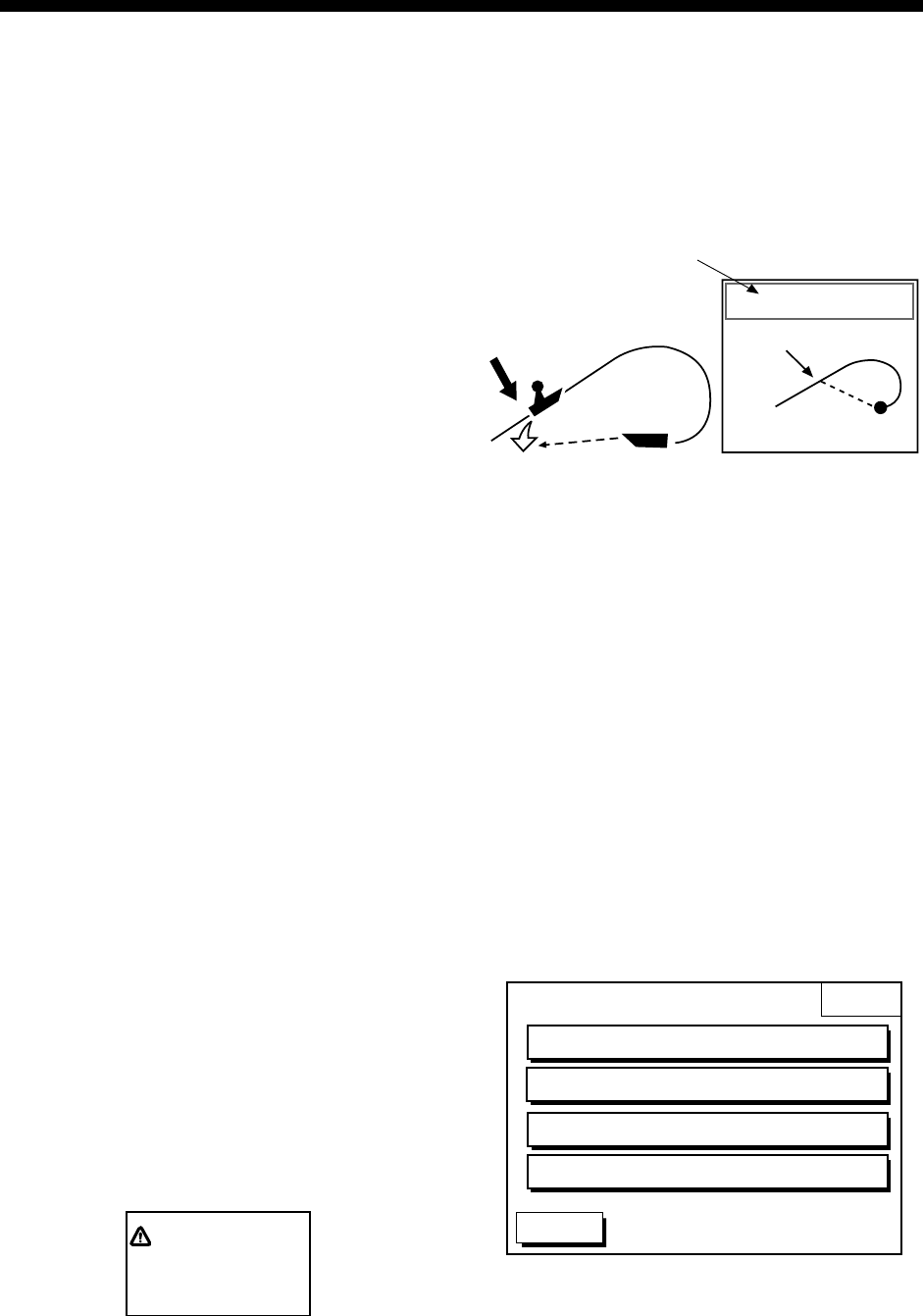
6-1
6. WAYPOINTS
6.1 Entering Waypoints
In navigation terminology, a waypoint is a
particular location on a voyage whether it be
a starting, intermediate or destination point.
A waypoint is the simplest piece of
information your equipment requires to get
you to a destination, in the shortest distance
possible. This unit has 835 waypoints
(including quick waypoints) into which you
can enter position information. There are five
methods by which you can enter a waypoint:
at own ship’s position, at MOB position, by
cursor, by range and bearing, and through
the waypoint list (manual input of latitude
and longitude).
Entering waypoints at own ship’s
position
You can save your current position as a
waypoint. Press the [SAVE/MOB] key with a
touch-and-release action to store your
position. This new waypoint will
automatically be saved in the waypoint list
under the next consecutive waypoint
number.
For FISHING 2 mode, immediately after
pressing the MOB key, you can change the
mark shape, color etc. similar to that shown
in the procedure on the next page. Press the
SAVE soft key to enter the mark.
Entering waypoints at MOB position
The MOB mark functions to mark man
overboard position.
1. At man overboard, press the
[SAVE/MOB] key several seconds to
display the following message.
MAN OVER BOARD!
GO TO (MOB)?
YES ... "ENTER" key
NO ... "CLEAR" key
MOB message
2. Press the [ENTER] key to select MOB
position as destination, or the [CLEAR]
key to only mark MOB position.
3. To show range and bearing to the MOB
position, press the soft key NAV L/L
followed by the soft key NAV WPT.
Man
overboad
Range, bearing
Current
position
MOB
mark
Bearing and range
to MOB position
M
(MOB)
MOB concept
To erase a MOB mark in the FISHING 1 and
PREASURE modes, you must erase both
the waypoint it is registered under and the
MOB mark itself. Place the cursor on the
MOB mark and press the [CLEAR] key
followed by the [ENTER] key to erase the
waypoint. (A flashing diamond appears over
the waypoint when it has been correctly
selected.) Repeat to erase the MOB mark.
Entering waypoints by the cursor
1. Press the [WPT/RTE] key to open the
WAYPOINT & ROUTE menu.
WPT
& ROUTE
DGPS 3D
WAYPOINTS
LOG
ROUTES
CREATE VOYAGE BASED ROUTE
Waypoint & route menu
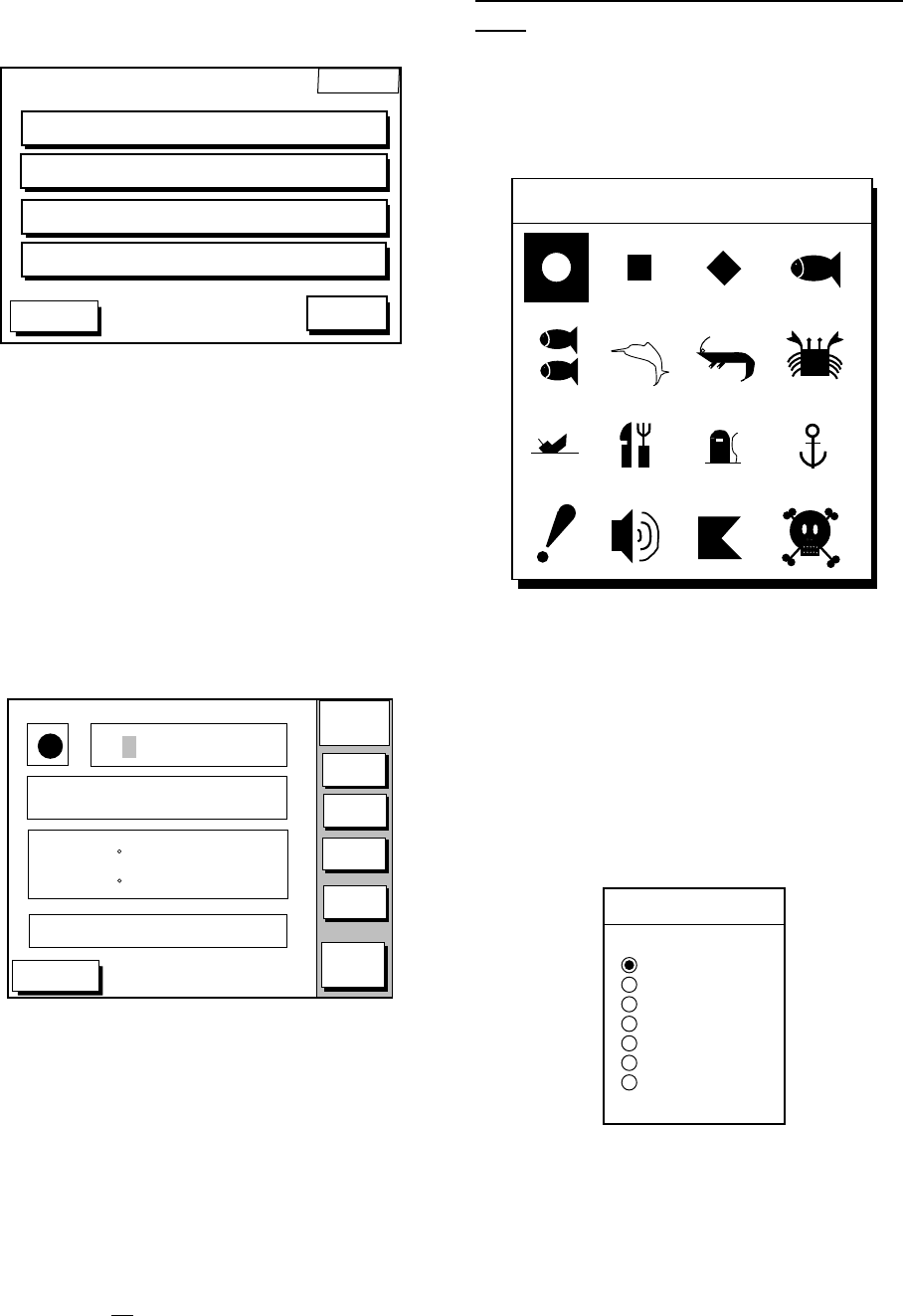
6. WAYPOINTS
6-2
2. Press the WAYPOINTS soft key to
display the WAYPOINTS menu.
WPT
DGPS 3D
LOCAL LIST
WAYPOINT BY CURSOR
ALPHA/NUMERIC LIST
WAYPOINT BY RANGE & BEARING
RETURN
ADD/EDIT/MOVE WAYPOINTS
Waypoints menu
3. Press the WAYPOINT BY CURSOR soft
key. The plotter display appears.
4. Operate the cursor pad to place the
cursor on the location desired.
5. Press the NEW WPT soft key. The
waypoint window appears and it shows
mark shape, waypoint name, comment
(default: date), position of waypoint and
proximity alarm radius.
DGPS 3D
NEW
WPT
MARK
COMMENT
NAME
RETURN
LAT
LON
PROXIMITY
ALARM RADIUS
0 0 1 WPT
17:38 02JUN02
34 12. 345' N
135 12. 3457' W
0.00 nm
SELECT
MARK
COORD
TYPE
N<-->S
E<-->W
SAVE
Waypoint window
6. If you do not need to change the
waypoint data, simply press the SAVE
soft key to register the waypoint and
return to the plotter display. If you want to
change waypoint data as shown in the
next several paragraphs, be sure to
press the SAVE soft key only after
changing all data you want to change.
Changing the shape and color of waypoint
mark
1. Press the SELECT MARK soft key.
2. Press the MARK SHAPE soft key to open
the mark shape selection window.
MARK SHAPE
Mark shape selection window
3. Operate the cursor pad to select shape
desired.
4. Press the ENTER soft key or the
[ENTER] key.
5. Press the SELECT MARK soft key.
6. Press the MARK COLOR soft key to
open the mark color selection window.
SELECT COLOR
▲RED
YELLOW
GREEN
LIGHT BLUE
PURPLE
BLUE
WHITE
▼
Mark color selection window
7. Press ▲ or ▼ to select the color desired,
and then press the ENTER soft key or
the [ENTER] key.
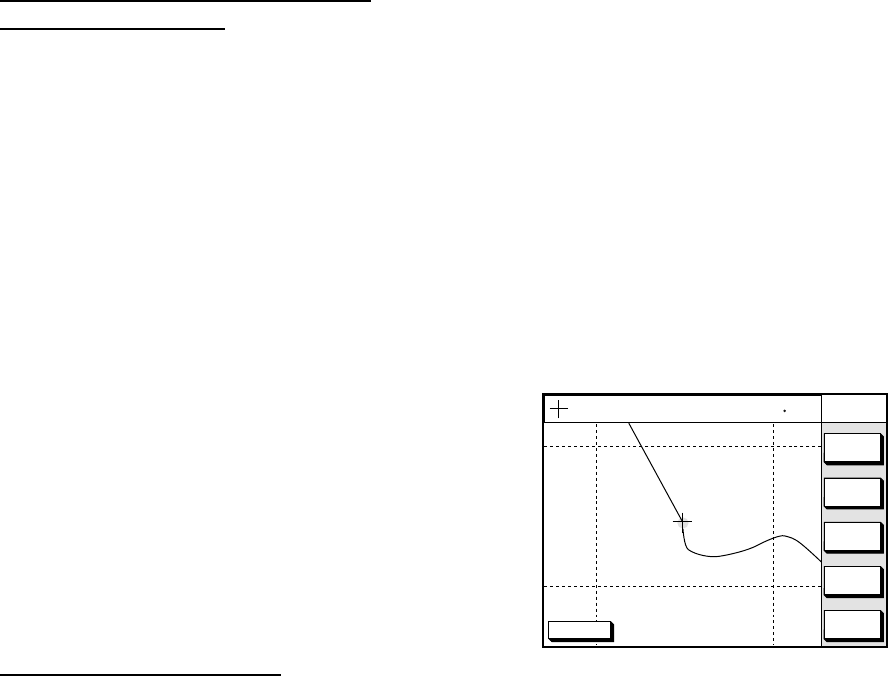
6. WAYPOINTS
6-3
Changing waypoint name, comment,
proximity alarm radius
1. If necessary, you can change the name
(up to 6 characters), comment (up to 13
characters), L/L position and the
proximity alarm radius (explained in detail
in Chapter 8) as follows:
a) Select the NAME, COMMENT or
PROXIMITY ALARM RADIUS field.
b) Use the cursor pad to select character or
digit.
c) Enter appropriate data with the
alphanumeric keys. Each press an
alphanumeric key changes three alphabet
and one number.
Note: You cannot change shape and color of
a waypoint when it has a proximity
alarm radius entered. To change
shape or color, enter all zeroes as the
proximity alarm radius.
Changing waypoint position
1. Use the cursor pad to place the cursor in
the LAT LON field.
2. Operate the cursor pad to place the
cursor on digit to change. Enter
appropriate data with the alphanumeric
keys.
3. You can switch co-ordinates with the
N<-->S/E<-->W soft key.
Entering waypoints by range and
bearing
This method is useful when you want to
enter a waypoint using range and bearing to
a target found on a radar.
1. Press the [WPT/RTE] key to open the
WAYPOINT & ROUTE menu.
2. Press the WAYPOINTS soft key to open
the WAYPOINT menu.
3. Press the WAYPOINT BY RANGE &
BEARING soft key. The plotter screen
appears.
DGPS 3D RETURN
NEW
WPT
ZOOM
OUT
ZOOMIN
WPT
RNG BRG
135° 12.345' E
34° 12.345' N
'X'
FROM
224.1
0.01nm
START
POINT
X
Plotter display, range and bearing selected
as waypoint entry method
4. Operate the cursor pad to place the
cursor on the location desired. The range
and bearing from own ship to cursor
appear at the top of the screen.
Note: The origin point of range and
bearing can be shifted to the place
you desire. Operate the cursor pad
to select location, and then press
the START POINT soft key. “X”
appears at the cursor position.
5. Press the NEW WPT soft key to display
the waypoint window.
6. If necessary, change data as you did in
“Entering waypoints by the cursor.”
7. Press the SAVE soft key to register the
waypoint.
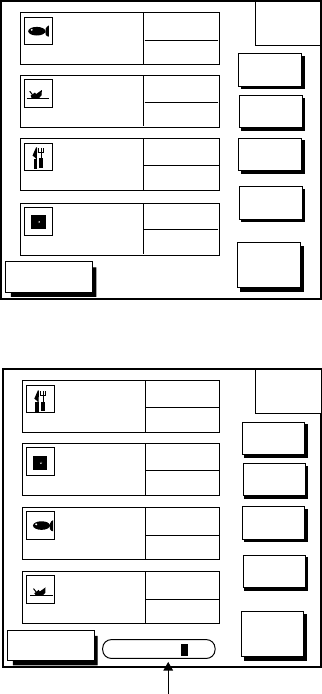
6. WAYPOINTS
6-4
Entering waypoints by latitude and
longitude position
1. Press the [WPT/RTE] key to open the
WAYPOINT & ROUTE menu.
2. Press the WAYPOINTS soft key to open
the WAYPOINT menu.
3. Press the LOCAL LIST (lists waypoints in
order from nearest to furthest) or
ALPHA/NUMERIC LIST (lists waypoints
in alphanumeric order) soft key.
DGPS 3D
ABCDEFGHIJKL
FISH01
WPT
LOCAL
RETURN
GO TO
NEW
WPT
EDIT
WPT
ERASE
WPT
BRG. 23.8°
RNG. 1.75nm
33°12.345' N
135°23.456' W
WPT001
12:30 29SE97
BRG. 90.0°
RNG. 2.51nm
33°23.456' N
135°23.567' W
ABCDEF
15:21 01OCT97
BRIDGE
16:45 01OCT97
BRG. 180.0°
RNG. 5.07nm
34°12.345' N
135°54.321' W
34°12.345' N
135°54.321' W
BRG. 359.9°
RNG. 8.01nm
Local list
DGPS 3D
WPT
ALPHA
RETURN
GO TO
NEW
WPT
EDIT
WPT
ERASE
WPT
ABCDEFGHIJKL
FISH01
BRG. 23.8°
RNG. 1.75nm
33°12.345' N
135°23.456' W
WPT001
12:30 29SE97
BRG. 90.0°
RNG. 2.51nm
33°23.456' N
135°23.567' W
ABCDEF
15:21 01OCT97
BRG. 180.0°
RNG. 5.07nm
34°12.345' N
135°54.321' W
BRIDGE
16:45 01OCT97
34°12.345' N
135°54.321' W
BRG. 359.9°
RNG. 8.01nm
SEARCH FOR _ _ _
Search window
Alphanumeric list
4. Press the NEW WPT soft key to show the
waypoint window. Own ship’s position is
shown. Change the data similar to how
you did in “Entering waypoints by the
cursor.”
5. Press the SAVE soft key.
6.2 Erasing Individual
Waypoints
Individual waypoints can be erased by the
cursor or through the waypoint list.
Erasing waypoints by the cursor
1. Press the cursor pad to turn on the
cursor.
2. Operate the cursor pad to place the
cursor on the waypoint you want to erase.
A flashing diamond mark appears over
the waypoint when it is correctly selected.
3. Press the [CLEAR] key. You are asked if
you are sure to erase the waypoint.
4. Press the [ENTER] key. The waypoint is
erased from both the plotter screen and
the waypoint list.
Erasing waypoints through the
waypoint list
1. Press the [WPT/RTE] key to open the
WAYPOINT & ROUTE menu.
2. Press the WAYPOINTS soft key to open
the WAYPOINTS menu.
3. Press the LOCAL LIST or
ALPHA/NUMERIC LIST soft key.
4. Press ▲ or ▼ to select the waypoint you
want to erase.
5. Press the ERASE WPT soft key. You are
asked if you are sure to erase the
waypoint.
6. Press the [ENTER] key. The waypoint is
erased from both the waypoint list and
the plotter screen.
6. WAYPOINTS
6-5
6.3 Changing Waypoint Data
You can change the waypoint data through
the waypoint list.
1. Press the [WPT/RTE] key, WAYPOINTS,
and LOCAL LIST or ALPHA/NUMERIC
LIST soft keys.
2. Press ▲ or ▼ to select the waypoint you
want to change.
3. Press the EDIT WPT soft key.
4. Change data as you did in “Entering
waypoints by the cursor.”
5. Press the SAVE soft key.
6.4 Changing Waypoint
Position on the Plotter
Display
You may change the position of waypoints
on the plotter display as follows:
1. Press the [WPT/RTE] key followed by the
WAYPOINTS soft key to open the
WAYPOINTS menu.
2. Press the WAYPOINT BY CURSOR soft
key. The plotter display appears.
3. Operate the cursor pad to place the
cursor on the waypoint which you want to
change. A flashing diamond mark
appears on the waypoint when it is
correctly selected.
4. Press the EDIT/MOVE soft key.
5. Press the MOVE WPT soft key.
6. Operate the cursor pad to place the
cursor on the location desired.
7. Press the [ENTER] key.
The waypoint moves to the cursor position
and its new position is recorded on the
waypoint list. If the waypoint is set as
destination or is part of a route, you are
asked if you are sure to move the waypoint.
In this case, press the [ENTER] key again to
move the waypoint, or the [CLEAR] key to
cancel move.
6. WAYPOINTS
6-6
6.5 Waypoint Mark Size
You may change the size of all waypoint
marks to small or large (default), or turn
them off.
1. Press the [MENU] key to open the main
menu.
2. Press the CHART SETUP OPTIONS soft
key.
3. Press the CHART DETAILS soft key to
open the CHART DETAILS menu.
DGPS 3D
CHART
DETAIL
RETURN
EDIT
DEPTH
INFO
LAT/LON GRID
TEXT INFO
WAYPOINT
WAYPOINT NAME
INDEX
LANDMASS
BACKGROUND
NAV AIDS
SECTOR INFO
OTHER SYMBOLS
MARK SIZE
GREEN
ON
LARGE
ON
ON
BRT YELLOW
BLUE
ON
OFF
WHITE
STD
Chart details menu
4. Press ▲ or ▼ to select WAYPOINT.
5. Press the EDIT soft key.
6. Press ▲ or ▼ to select LARGE, SMALL
or OFF. LARGE shows mark in actual
shape as shown on page 6-2. SMALL
displays all waypoints with an “X”
regardless of mark shape selected.
7. Press the ENTER soft key or [ENTER]
key.
6.6 Searching Waypoints
You can search for a waypoint through the
alphanumeric list as follows:
1. Press the [WPT/RTE] key, and then
press the WAYPOINTS and
ALPHA/NUMERIC LIST soft keys to
show the alpha/numeric list. At the
bottom of the display the search window
appears.
SEARCH FOR _ _ _
Search window
2. Use the alphanumeric keys to enter the
first 1 - 3 characters in the search window.
The waypoint searched appears at the
top of the screen.
7-1
7. ROUTES
Often a trip from one place to another
involves several course changes, requiring a
series of route points (waypoints) which you
navigate to, one after another. The sequence
of waypoints leading to the ultimate
destination is called a route. Your unit can
automatically advance to the next waypoint
on a route, so you do not have to change the
destination waypoint repeatedly.
You can store up to 200 routes. A route may
consist of 35 points.
7.1 Entering Routes
Entering routes through the route list
This method constructs routes using existing
waypoints.
1. Press the [WPT/RTE] key to open the
WAYPOINT & ROUTE menu.
2. Press the ROUTES soft key to open the
ROUTE menu.
DGPS 3D
ROUTE
ABCDEFGHIJKL
FISH01
GO TO
NEW
ROUTE
EDIT
ROUTE
ERASE
ROUTE
LENGTH
25.6 nm
HPT001
12:30 29SE97
ABCDEF
15:21 01OCT97
BRIDGE
16:45 01OCT97
WAYPOINTS
35
LENGTH
56.7 nm
WAYPOINTS
6
LENGTH
21.1 nm
WAYPOINTS
3
LENGTH
4.7 nm
WAYPOINTS
1
RETURN
RETURN
SEARCH FOR _ _ _
Route menu
3. Press the NEW ROUTE soft key to open
the new route entry window.
DGPS 3D
NEW
ROUTE
CANCEL
PLOT
LOCAL
LIST
ALPH
LIST
CONECT
ROUTE
ROUTE NAME
COMMENT
0 0 1
New route entry window
7. ROUTES
7-2
4. If desired you can change the route
name shown and/or add a comment. To
change route name, press the [CLEAR]
key to clear the route name. Use the
cursor pad to position the cursor and
then press appropriate alphanumeric key.
To enter a comment, place the cursor in
the COMMENT window. Use the cursor
pad and alphanumeric keys to enter your
comment. A route name may consist of
six characters; comment, 13 characters.
5. Press the LOCAL LIST or ALPH LIST soft
key to open the waypoint list.
6. Press ▲ or ▼ to select a waypoint, and
press the ADD WPT soft key to add it to
the route.
7. Repeat step 6 to complete the route.
When you want to clear a waypoint
selected, press the ERASE LST WP soft
key. Each press of this key deletes the
last waypoint entered.
8. Press the SAVE soft key to register the
route.
Entering routes by the cursor
This method allows you to construct a route
directly on the plotter display, using existing
waypoints or new locations. Any new
location will be saved as a waypoint, under
the next consecutive waypoint number.
1. Follow step 1-4 in “Entering routes
through the route list.”
2. Press the PLOT soft key. The plotter
display appears.
3. Operate the cursor pad to place the
cursor on an existing waypoint (ADD
WPT soft key appears) or new location
(ADD NEW WPT soft key appears).
4. Press the ADD WP (ADD NEW WPT)
soft key.
5. Repeat steps 3 and 4 to complete the
route.
6. Press the [ENTER] key to register the
route.
7.2 Connecting Routes
Two routes can be connected as follows:
1. Press the [WPT/RTE] key followed by the
ROUTES and NEW ROUTE soft keys to
open the NEW ROUTE menu.
2. Enter the name for new route.
3. Press the CONECT ROUTE soft key.
4. Enter the registered route name for the
first route beneath FIRST in the
CONNECT ROUTE window.
DGPS 3D
NEW
ROUTE
CANCEL
F<-->R
SAVE
CONNECT ROUTE
FIRST SECOND
FORWARD REVERSE
_ _ _ _ _ _ _ _ _ _ _ _
Connect route window
5. Press the F<-->R soft key to select
direction to transverse the waypoints of
the route; forward or reverse.
6. Enter the route name of the second route
similar to how you did for the first route.
7. Press the SAVE soft key.
Note: The maximum number of waypoints in
a route is 35. If this number is
exceeded an error message appears.
In this case, delete waypoints in one
or both routes so the total number of
waypoints does not exceed 35.
7. ROUTES
7-3
7.3 Inserting, Removing
Waypoints
Inserting waypoints through the route
list
Waypoints can be inserted in routes as
follows:
1. Press the [WPT/RTE] key followed by the
ROUTES soft key to open the ROUTE
menu.
2. Select a route by pressing ▲ or ▼.
3. Press the EDIT ROUTE soft key. The
route name screen appears.
4. Press the LOCAL LIST soft key. All
waypoints in the route are displayed.
DGPS 3D
EDIT
ROUTE
INSERT
WPT
REMOVE
WPT
COORD
TYPE
RETURN
RETURN
ROUTE NAME: ABCDEF
COMMENT: ABCDEFGHIJKL
WPT001 34 .12.345'N
135 .54.321'W
01
WPT002 34 .23.456'N
136 .10.255'W
02
WPT004 35 .22.878'N
136 .44.333'W
04
WPT003 35 .11.222'N
136 .55.889'W
03
WPT005 34 .15.279'N
135 .34.111'W
05
LEG
204.8
33.83nm
22.0
34.27nm
35.1
2.89nm
125.6
31.25nm
CHANGE
WPT
Edit route menu
5. Press ▲ or ▼ to place the cursor at the
location where you want to insert a
waypoint.
6. Press the INSERT WPT soft key to show
the waypoint list.
DGPS 3D
EDIT
ROUTE
SELECT
WPT
COORD
TYPE
LOCAL
LIST
ALPH
LIST
RETURN
CANCEL
ROUTE NAME: ABCDEF
COMMENT: ABCDEFGHIJKL
WPT001 34 .12.345'N
135 .54.321'W
01
WPT002 34 .23.456'N
100136 .10.255'W
02
WPT004 35 .22.878'N
136 .44.333'W
04
WPT003 35 .11.222'N
136 .55.889'W
03
WPT005 34 .15.279'N
135 .34.111'W
05
LEG
204.8
33.83nm
22.0
34.27nm
35.1
2.89nm
125.6
31.25nm
LOCAL LIST
001
002
003
004
WPT010
WPT011
WPT012
WPT013
Waypoint list for editing a route (Local list)
7. Press ▲ or ▼ to select the waypoint you
want to insert. You can switch between
the local list and alphanumeric list by
pressing the LOCAL LIST or ALPH LIST
soft key.
8. Press the SELECT WPT soft key.
Changing waypoints through the list
Waypoints used in a route can be changed
with others.
1. Press the [WPT/RTE] key followed by the
ROUTES soft key to open the ROUTE
menu.
2. Select a route by pressing ▲ or ▼.
3. Press the EDIT ROUTE soft key. The
route name screen appears.
4. Press the LOCAL LIST soft key.
5. Select the waypoint which you want to
change (remove).
6. Press the CHANGE WPT soft key to
show the local list.
7. Select the waypoint which you want to
change (insert).
8. Press the CHANGE WPT soft key to
change the waypoint.
9. Press the [PLOT] key.

7. ROUTES
7-4
Inserting waypoints on the plotter
display
Inserting waypoints before the first
waypoint or after the last waypoint
1. Press the [WPT/RTE] key followed by the
ROUTES soft key to open the ROUTE
menu.
2. Press ▲ or ▼ to select the route desired.
3. Press the EDIT ROUTE soft key.
4. Press the PLOT soft key to show the
plotter screen.
5. Operate the cursor pad to place the
cursor on the first or last waypoint of the
route which you want to insert.
6. Press the ADD TO START(ADD TO
END) soft key.
7. Operate the cursor pad to place the
cursor on an existing waypoint (ADD
WPT soft key appears) or new location
(ADD NEW WPT soft key appears).
8. Press the ADD WPT (ADD NEW WPT)
soft key.
9. Press the [ENTER] key.
When you want to insert waypoints after the
last waypoint, press the “ADD TO END” soft
key at step 6.
Inserting waypoints in an intermediate
location within a route
1. Follow steps 1 through 4 in “Inserting
waypoints before the first waypoint or
after the last waypoint.”
2. Operate the cursor pad to place the
cursor on a line connecting waypoints.
3. Press the SPLIT LEG soft key. The
selected line turns red.
4. Operate the cursor pad to place the
cursor on an existing waypoint (INSERT
WPT soft key appears) or new location
(INSERT NEW WPT soft key appears).
5. Press the appropriate soft key, INSERT
WPT or INSERT NEW WPT.
Removing waypoints from routes
Removing route waypoints through the
route list
1. Press the [WPT/RTE] key followed by the
ROUTES soft key to open the ROUTE
menu.
2. Press ▲ or ▼ to select the route desired.
3. Press the EDIT ROUTE and LOCAL LIST
soft keys to show the waypoint list.
4. Press ▲ or ▼ to select the waypoint you
want to delete.
5. Press the REMOVE WPT soft key.
Removing route waypoints from the plotter
display
1. Press the [WPT/RTE] key followed by the
ROUTES soft key to open the ROUTE
menu.
2. Press ▲ or ▼ to select the route desired.
3. Press the EDIT ROUTE soft key.
4. Press the PLOT soft key to show the plot
screen.
5. Operate the cursor pad to place the
cursor on the waypoint you want to
remove from the route.
6. Press the REMOVE WPT soft key.
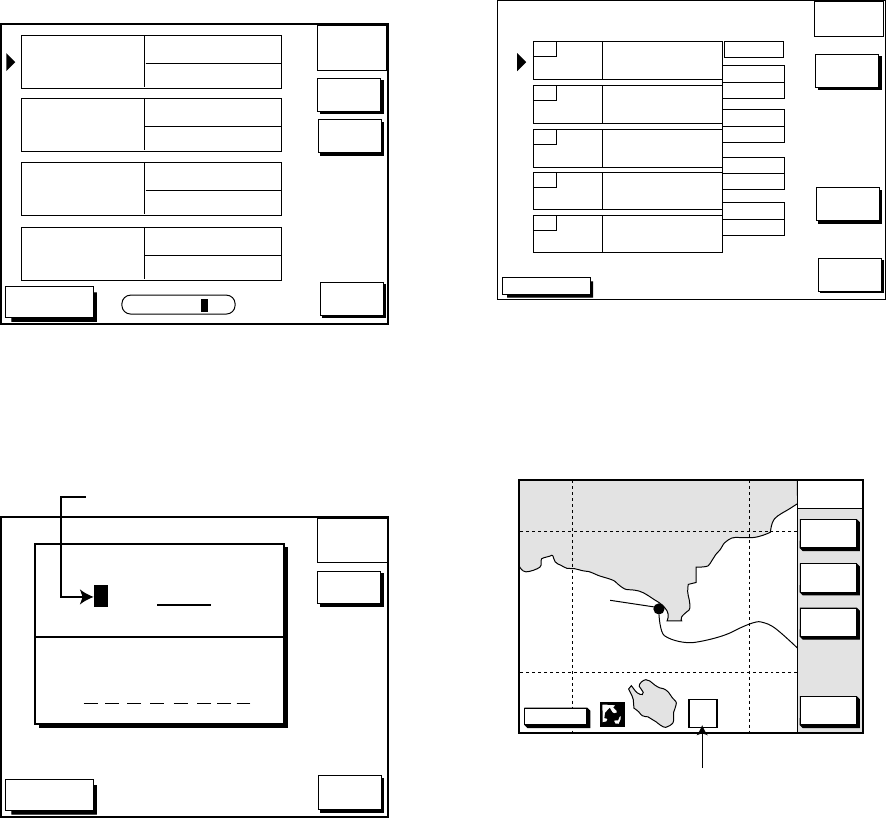
7. ROUTES
7-5
7.4 Creating Track-based
Routes
You can create routes based on your ship’s
track by entering waypoints at own ship’s
position. This feature is useful when you
wish to retrace a track.
1. Press the [WPT/RTE] key to open the
WAYPOINT & ROUTE menu.
2. Press the CREATE VOYAGE BASED
ROUTE soft key to show the save route
menu.
DGPS 3D
SAVE
ROUTE
ABCDEFGHIJKL
FISH01
NEW
SELECT
ROUTE
LENGTH
25.6 nm
HPT001
12:30 29SE97
ABCDEF
15:21 01OCT97
BRIDGE
16:45 01OCT97
WAYPOINTS
35
LENGTH
56.7 nm
WAYPOINTS
6
LENGTH
21.1 nm
WAYPOINTS
3
LENGTH
4.7 nm
WAYPOINTS
1
RETURN
RETURN
SEARCH FOR _ _ _
Save route menu
3. Press the NEW soft key to show the new
route window.
DGPS 3D
SAVE
ROUTE
CANCEL
START
LOG
ROUTE NAME
0 0 6
COMMENT
Next consecutive route number
New route window
4. If required, you may change the route
name and enter a comment, using the
[CLEAR] key, cursor pad and
alphanumeric keys.
5. Press the START LOG soft key to show
the track-based route screen. If you
entered an existing route name at step 4,
you are asked if you want to add
track-based waypoints to the existing
route. Then, press the [ENTER] key to
select YES, or the [CLEAR] key to
escape.
DGPS 3D
SAVE
ROUTE
FINISH
LOG
COORD
TYPE
RETURN
RETURN
ROUTE NAME: XYZ
COMMENT: BEST FISHING
01
02
04
03
05
LEG
Route contents display
6. Press the [PLOT] key to show the plot
display. The SAVE icon appears at the
bottom of the screen.
DGPS 3D NAV
POS
COURSE
UP
ZOOM
OUT
ZOOMIN
NORTH
UP
SAVE icon
S A
V E
SAVE icon appearance on the plotter display
7. ROUTES
7-6
7. Press the [SAVE/MOB] key with a
touch-and-release action to enter a
waypoint mark at own ship position. A
new waypoint is created under the next
consecutive waypoint number and that
waypoint is added to the route.
8. Repeat step 7 whenever you change
course. 35 waypoints can be entered.
9. To stop creating the track-based route,
press the [WPT/RTE] key followed by the
CREATE VOYAGE BASED ROUTE soft
key.
10. Press the FINISH LOG soft key to
register the route. The SAVE icon
disappears.
7.5 Erasing Routes
1. Press the [WPT/RTE] key followed by the
ROUTES soft key to open the route
menu.
2. Press ▲ or ▼ to select a route you want
to erase.
3. Press the ERASE ROUTE soft key. You
are asked if you are sure to erase the
route.
4. Press the [ENTER] key to erase the
route.
8-1
8. NAVIGATION
8.1 Navigating to “Quick
Points”
The “quick point” feature allows you to
navigate to point(s) without retaining the data
indefinitely in your unit’s memory. Each time
a quick point is entered previous quick points
have the same numbers as newly entered
ones are written over.
Selecting quick point entry method
You need to tell your unit how to set the
quick point: 1 POINT, 35 POINT (up to 35
points) or WPT/PORT SERV. (For
WPT/PORT SERV, see the next page.)
1. Press the [MENU] key.
2. Press the DISPLAY OPTIONS soft key.
3. Select SET GO TO METHOD and press
the EDIT soft key. The following display
appears.
SET GO TO METHOD
1 POINT
35 POINT
WPT/PORT SER
SET GOTO METHOD window
4. Select method desired.
5. Press the ENTER soft key.
6. Press the RETURN soft key to finish.
Navigating to a single quick point
1. Select 1 POINT in “Selecting quick point
entry method,” and return to the plotter
display.
2. Place the cursor on an existing waypoint
(GO TO WPT soft key appears) or a new
location (GO TO CURSOR soft key
appears).
3. Depending on the selection you made at
step 2, press the GO TO CURSOR or
GO TO WPT soft key.
A light-blue line connects between own ship
and destination, marked “QP<01>”, and it
shows the shortest course to the destination.
Arrows on the line show the direction to
follow to get to the quick point. Range and
bearing from own ship to the destination
appear at the top of screen. This location is
saved to the waypoint list as waypoint
“QP01.”
Navigating to multiple quick points
1. Select 35 POINT in “Selecting quick point
entry method,” and return to the plotter
display.
2. Press the GO TO soft key.
3. Place the cursor on an existing waypoint
(SELECT WPT soft key appears) or a
new location (ADD QP soft key appears).
4. Depending on the selection you made at
step 3, press the SELECT WPT or ADD
QP soft key. “QP<01>” appears at the
cursor location. To erase last-entered
waypoint, press the ERASE LST WPT
soft key.
5. Repeat steps 3 and 4 to enter other quick
points.
6. After entering all waypoints (up to 35
points), press the [ENTER] key to
register the route.
A light-blue line connects between own ship
and all quick points, and it shows the
shortest course to destination. Arrows on the
line show the direction to follow the route.
Quick points are numbered in sequential
order from QP<01> and are saved to the
waypoint list. Range and bearing from own
ship to the first destination appear at the top
of screen. The unit saves the points as a
route, under the name “Q<RTE” (Quick
Route).
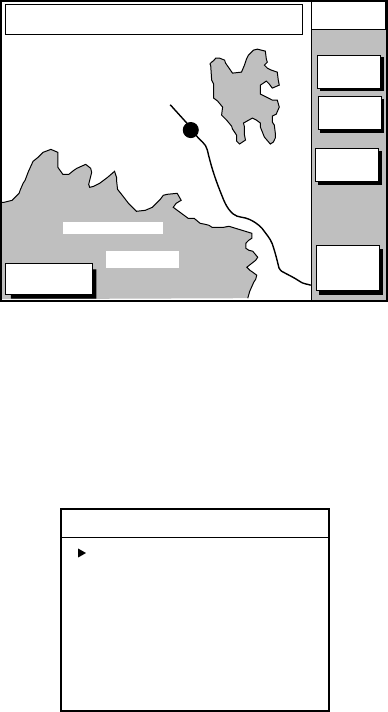
8. NAVIGATION
8-2
8.2 Navigating to Waypoints
(waypoint list)
1. Press the [WPT/RTE] key to open the
WAYPOINT & ROUTE menu.
2. Press the WAYPOINTS soft key to open
the WAYPOINTS menu.
3. Press the LOCAL LIST or
ALPHA/NUMERIC LIST soft key to show
corresponding waypoint list.
4. Select a waypoint.
5. Press the GO TO soft key. The plotter
display appears. A light-blue line runs
between destination selected and own
ship’s position. Arrows on the line show
the direction to follow. Waypoint data
appear at the top of screen.
8.3 Navigating to Ports, Port
Services
Some Nav-ChartsTM and C-map chart cards
have a port service list which shows services
available at ports or harbors. (See page 3-5.)
You can use the list to set destination as
follows:
1. Press the [MENU] key to open the main
menu.
2. Press the DISPLAY OPTIONS soft key.
3. Press ▼ to select SET GO TO METHOD
and press the EDIT soft key.
4. Press the ▲ or ▼ to select WPT/PORT
SER and press the [ENTER] key or the
ENTER soft key.
5. Press the [PLOT] key to return to the
plotter display.
6. Press the GO TO soft key. Soft key titles
change as in the figure below.
DGPS 3D CANCEL
GO TO
FROM
OS 0.26 nm
180.2°
QUICK
ROUTE
NEAR
SRVICE
PORT
GO TO
PUNTA CORNACCHIA
ACCO AMENO
I. ISCHIA
CASAMICCIOLA
ISCHIA PORTO
40°45.971'N
13°57.462'E
+
Plotter display
7. Press the PORT or NEAR SRVICE soft
key depending on objective. PORT
shows a list of ports in your area. NEAR
SRVICE displays the port service list.
SELECT PORT
ACCIAROLI
ACQUAMORTA
AGNONE S. NICOLA
AGROPOLI
AMALFI
BAIA
CAPRI
CASA MICCIOLA-ISCHIA
Sample port list (southern Italy)
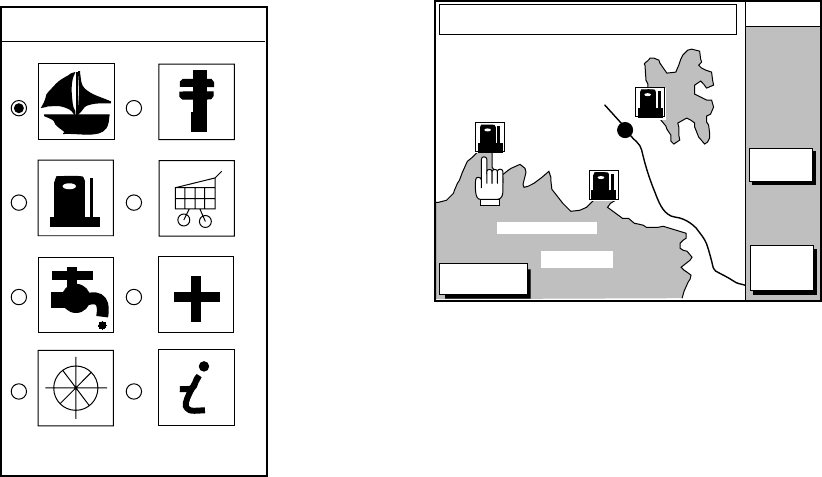
8. NAVIGATION
8-3
▼
SELECT PORT
SERVICE
Sample port service list
8. If you selected PORT at step 7, use the
cursor pad to select a port and press the
[ENTER] key. Make a route using the soft
keys and press the [ENTER] key. (If you
want to go directly to that port, simply
press the soft key ADD QP followed by
the [ENTER] key.)
If you selected NEAR SERVICE in step
7, select service mark desired and then
press the ENTER soft key. Then, the
display shows the locations of those
services nearest you. (The figure at right
shows the location of filling stations in an
area in southern Italy.) Use ▲ or ▼ to
place the “hand cursor” on the port
service icon desired and press the
ENTER soft key. Make a route using the
soft keys and press the [ENTER] key. (If
you want to go directly to location
selected, simply press the soft key ADD
QP followed by the [ENTER] key.)
DGPS 3D CANCEL
GO TO
FROM
OS 0.26 nm
180.2°
ENTER
GO TO
PUNTA CORNACCHIA
ACCO AMENO
I. ISCHIA
CASAMICCIOLA
ISCHIA PORTO
40°45.971'N
13°57.462'E
+
Sample filling station locations
(southern Italy)
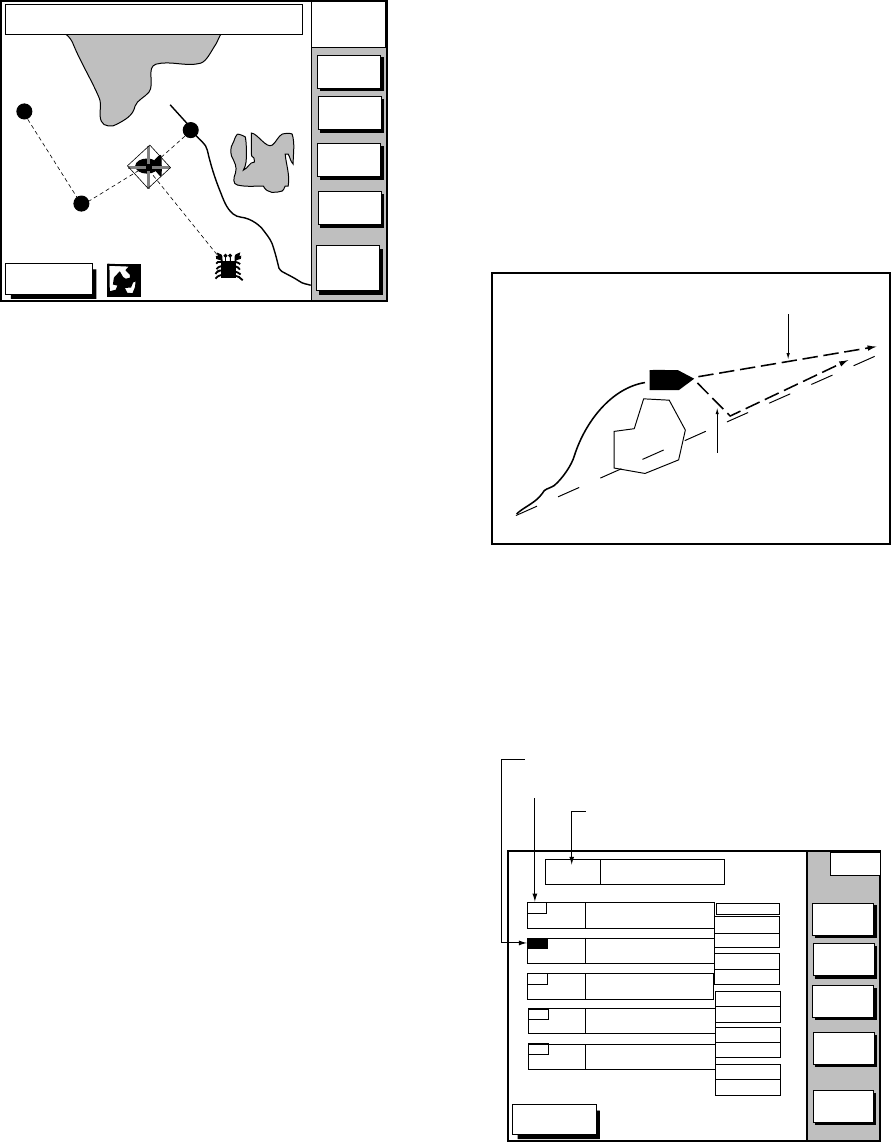
8. NAVIGATION
8-4
8.4 Following a Route
1. Press the [WPT/RTE] key followed by the
ROUTE soft key to open the route list.
2. Press ▲ or ▼ to select a route.
3. Press the GO TO soft key to show the
plotter display.
DGPS 3D RETURN
WPT FROM
OS
FISH
1.3 nm
208.5°
ZOOM
IN
ZOOM
OUT
GO TO
WPT
RVSE
ROUTE
GO TO
ROUTE
WP-002
WP-001
FISH
CRAB
Plotter display, route selected as destination
The cursor is on the route waypoint nearest
own ship.
4. Operate the cursor pad to place the
cursor on the waypoint or leg desired in
the route.
5. Press the GO TO WPT or FOLLOW LEG
soft key (depending on the choice made
at step 4).
Green lines connect all route waypoints and
arrows on the lines point in the direction to
traverse the route.
Navigate route waypoints in reverse
order
Press the RVSE ROUTE soft key to reverse
the order to traverse waypoints. The arrows
on the route line point in the direction
selected.
Navigate directly to a route waypoint
If you want to go directly to a route waypoint,
place the cursor on the waypoint to show the
flashing diamond, and then press the GO TO
WPT soft key.
Navigate along specific leg of route
Place the cursor on the leg to display it in a
white and red flashing line, and then press
the FOLLOW LEG soft key.
Restarting navigation
When you steer to avoid an obstacle or the
vessel drifts, you may go back your intended
course (Line 1 in the figure below). Use the
steering or highway display to help you
return to course.
Also, if you don’t need to return to the
original course, you can go directly to the
waypoint (Line 2 in the figure below) using
the restart function below.
Original course
Obstacle Line 1
Line 2
Example of when to restart navigation
1. Set a destination.
2. Press the [WPT/RTE] key to open the
WAYPOINT & ROUTE menu.
3. Press the LOG soft key.
DGPS 3D
LOG
RE-
START
STOP
RVSE
ROUTE
SPEED
ETA 23:59 31.SEP
01
02
03
04
05
BRIDGE
HARBOR
WP<001>
WP<002>
WP<003>
34°23.564'N
135°23.456'E
34°32.456'N
135°32.456'E
34°23.345'N
135°12.456'E
34°34.555'N
135°55.555'E
34°32.555'N
134°99.999'E
LEG
120.5°
23.4nm
23.6°
23.4nm
123.6°
23.5nm
180.5°
23.5nm
180.5°
23.5nm
COORD
TYPE
Estimated Time of Arrival at last
waypoint
Passed waypoint (gray characters)
TO Waypoint (WPT no. in reverse video)
Log display
4. Press the RESTART soft key.
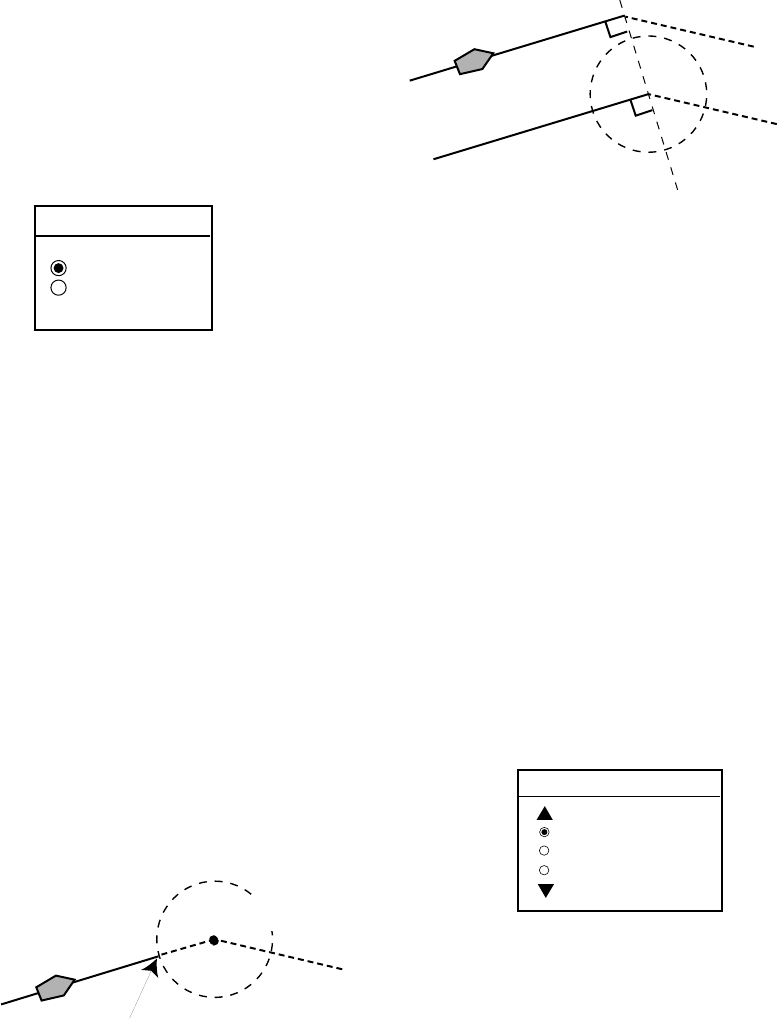
8. NAVIGATION
8-5
Setting speed for ETA calculation
Speed, which may be input manually or
automatically, is required to calculate ETA
(Estimated Time of Arrival) to a waypoint.
1. Press the [WPT/RTE] key to display the
WAYPOINT & ROUTE menu.
2. Press the LOG soft key.
3. Press the SPEED soft key.
SELECT SPEED
FOR ETA
▲SPD 10.0kt
GPS AVG SPD
▼
Select speed for ETA window
4. Key in speed manually in the SPD field,
or use GPS speed data by selecting GPS
AVG SPD.
5. Press the ENTER soft key to register
your selection.
Switching waypoints
When you arrive to a waypoint on a route,
you can switch to the next waypoint three
ways: AUTO1, AUTO2 and MANUAL.
AUTO1: Automatically switches the TO
waypoint when your boat is within the arrival
alarm area. For how to set the arrival alarm
area, see “9.3 Arrival Alarm” on page 9-2.
Own Ship
Swithes to the next waypoint here.
Waypoint
AUTO2: Automatically switches the TO
waypoint when the boat enters the arrival
alarm range or the boat passes an imaginary
perpendicular line passing through the
center of the destination waypoint.
Waypoint
Perpendicular
Own ship
Switches to the next waypoint
on the perpendicular though own
ship is off the arrival alarm range.
MANUAL: When the boat enters the arrival
alarm area, the TO waypoint may be
switched by using the RESTART soft key (on
the LOG display). If the arrival alarm is not
set, the waypoint will not be switched. To be
alerted when you arrive at a waypoint turn on
the audio alarm. For further details, see “9.2
Audio Alarm On/Off” on page 9-1.
To select waypoint switching method do the
following:
1. Press the [MENU] key.
2. Press the DISPLAY OPTIONS soft key.
3. Select WAYPOINTS SW.
4. Press the EDIT soft key to show the
waypoint sw window.
WAYPOINTS SW
AUTO 1
AUTO 2
MANUAL
5. Select appropriate waypoint switching
method.
6. Press the ENTER soft key to close the
window.
8. NAVIGATION
8-6
8.5 Canceling Navigation
1. Press the [WPT/RTE] key.
2. Press the LOG soft key.
3. Press the STOP soft key.
4. Press the [ENTER] key to go stand by.
5. Press the RELEASE soft key.
6. Press the [ENTER] key.
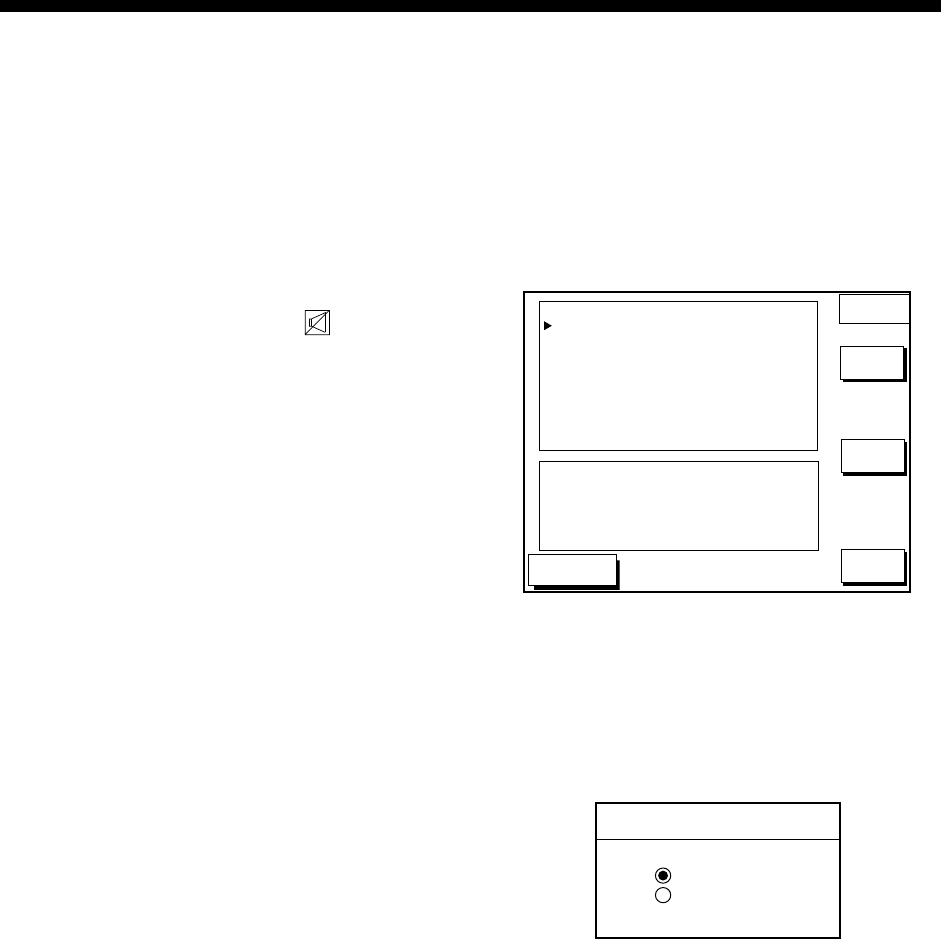
9-1
9. PLOTTER ALARMS
9.1 Introduction
There are five plotter-related alarms which
generate both audible and visual alarms:
Arrival alarm, Anchor Watch alarm, XTE
(Cross Track Error) alarm, Proximity alarm,
and Speed alarm.
When an alarm setting is violated the buzzer
sounds, and the speaker icon ( ) appears
in red. You may silence the alarm by
pressing the [CLEAR] key. The icon remains
on the screen until the cause of the alarm is
removed or the alarm is deactivated.
9.2 Audio Alarm On/Off
The audio alarm sounds whenever an alarm
setting is violated. You can enable or disable
the audio alarm as follows:
1. Press the [ALARM] key to show the
ALARM menu.
DGPS 3D
ALARM1
EDIT
CLEAR
ALARM
ALARM INFORMATION
AUDIO ALARM
ARRIVAL ALARM
ANCHOR ALARM
PROXIMITY ALARM
XTE ALARM
SPEED ALARM
ON
ON 0.100nm
ON 0.050nm
ON
ON 0.100nm
OVER/UNDER
12.5 ~ 15.0kt
NO ALARM
NEXT
PAGE
Alarm menu
2. Press ▲ or ▼ to select AUDIO ALARM.
3. Press the EDIT soft key to show the
audio alarm window.
AUDIO ALARM
▲
ON
OFF
▼
Audio alarm window
4. Press ▲ or ▼ to select ON or OFF.
5. Press the ENTER soft key or the
[ENTER] key to register your selection.
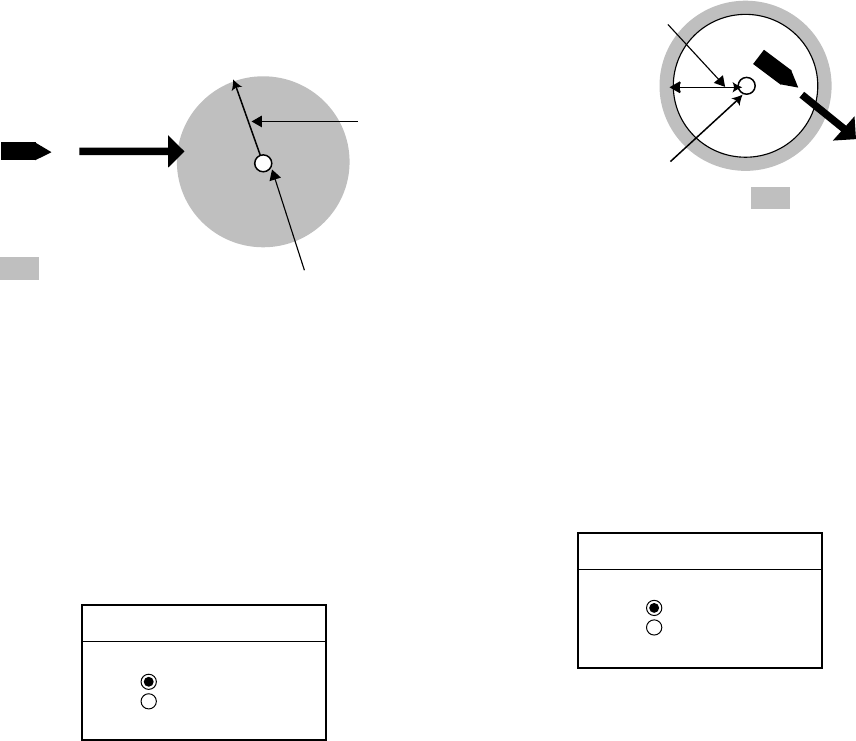
9. PLOTTER ALARMS
9-2
9.3 Arrival Alarm
The arrival alarm informs you that your boat
is approaching a destination waypoint. The
area that defines an arrival zone is that of a
circle which you approach from the outside
of the circle. The alarm will be released if
your boat enters the circle. When the arrival
alarm is active, a red dashed circle marks
the arrival alarm area.
: Alarm area
Own ship
Alarm
range
Destination
waypoint
How the arrival alarm works
1. Press the [ALARM] key to open the alarm
menu.
2. Press ▲ or ▼ to select ARRIVAL
ALARM.
3. Press the EDIT soft key to show the
arrival alarm window.
ARRIVAL ALARM
▲
ON 0.500nm
OFF
▼
Arrival alarm window
4. Press ▲ to select ON.
5. Operate the cursor pad to place the
cursor on the digit desired.
6. Key in the alarm range desired. The
arrival alarm range is 0.001 to 9.999
miles.
7. Press the ENTER soft key or the
[ENTER] key.
9.4 Anchor Watch Alarm
The anchor watch alarm informs you that
your boat is moving when it should be at rest.
When the anchor watch is active, a red
dashed circle marks the anchor watch area.
Your ship's position
where you start the
anchor watch alarm.
Alarm
setting
: Alarm
area
How the anchor watch alarm works
1. Press the [ALARM] key to open the alarm
menu.
2. Press ▲ or ▼ to select ANCHOR
ALARM.
3. Press the EDIT soft key to open the
anchor alarm window.
ANCHOR ALARM
▲
ON 0.050nm
OFF
▼
Anchor watch alarm window
4. Press ▲ to select ON.
5. Key in the alarm range desired. The
anchor watch range is 0.001 to 9.999
miles.
6. Press the ENTER soft key or the
[ENTER] key to register your selection.
The anchor alarm range appears with the
circle, its center is the own ship location
when pressing the [ENTER] key. If own ship
goes out this range, the alarm works.
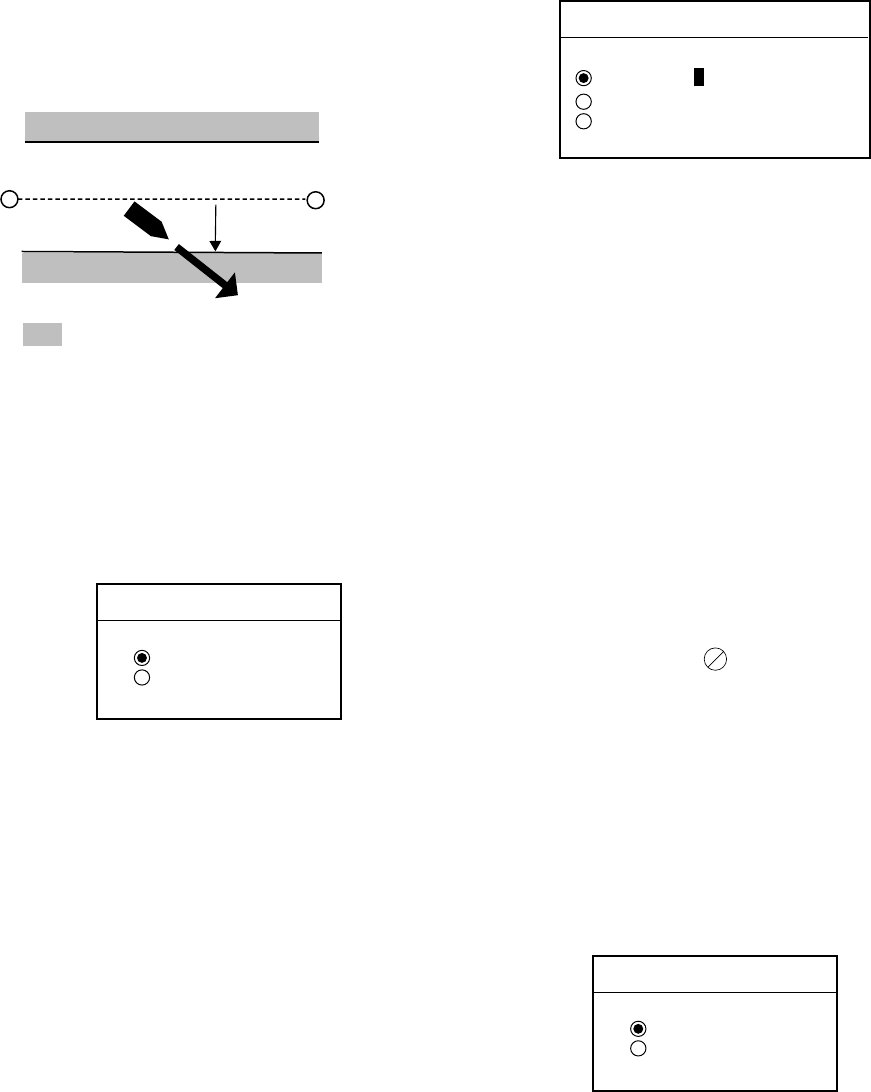
9. PLOTTER ALARMS
9-3
9.5 XTE (Cross Track Error)
Alarm
The XTE alarm warns you when your boat is
off its intended course. When the XTE alarm
is active, two red dashed lines mark the XTE
alarm area.
: Alarm
Destination
waypoint
Own ship's
position
Alarm
setting
How the XTE alarm works
1. Press the [ALARM] key to open the alarm
menu.
2. Press ▲ or ▼ to select XTE ALARM.
3. Press the EDIT soft key to open the XTE
alarm window.
XTE ALARM
▲
ON 0.100nm
OFF
▼
XTE alarm window
4. Press ▲ to select ON.
5. Key in the alarm range desired. The XTE
alarm range is 0.001 to 9.999 miles.
6. Press the ENTER soft key or the
[ENTER] key to register your selection.
9.6 Speed Alarm
The speed alarm warns you when your
boat’s speed is within, over/under or under
the speed range set.
1. Press the [ALARM] key to open the alarm
menu.
2. Press ▲ or ▼ to select SPEED ALARM.
3. Press the EDIT soft key to display the
speed alarm window.
SPEED ALARM
▲
WITHIN 15.0 ~ 15.3
OVER/UNDER kt
OFF
▼
Speed alarm window
4. Press ▲ or ▼ to select WITHIN or
OVER/UNDER.
5. Key in the alarm range desired.
6. Press the ENTER soft key or the
[ENTER] key to finish.
9.7 Proximity Alarm
The proximity alarm alerts you when your
vessel nears a waypoint by the distance set
for that waypoint on the waypoint list. This
distance is called the proximity alarm radius.
The waypoint having a proximity alarm
radius is shown with . You can globally
activate or deactivate the proximity alarm
here.
1. Press the [ALARM] key to open the alarm
menu.
2. Press ▲ or ▼ to select PROXIMITY
ALARM.
3. Press the EDIT soft key to show the
proximity alarm window.
PROXIMITY ALARM
▲ON
OFF
▼
Proximity alarm window
4. Select ON or OFF by the cursor pad.
5. Press the ENTER soft key or the
[ENTER] key to register your selection.
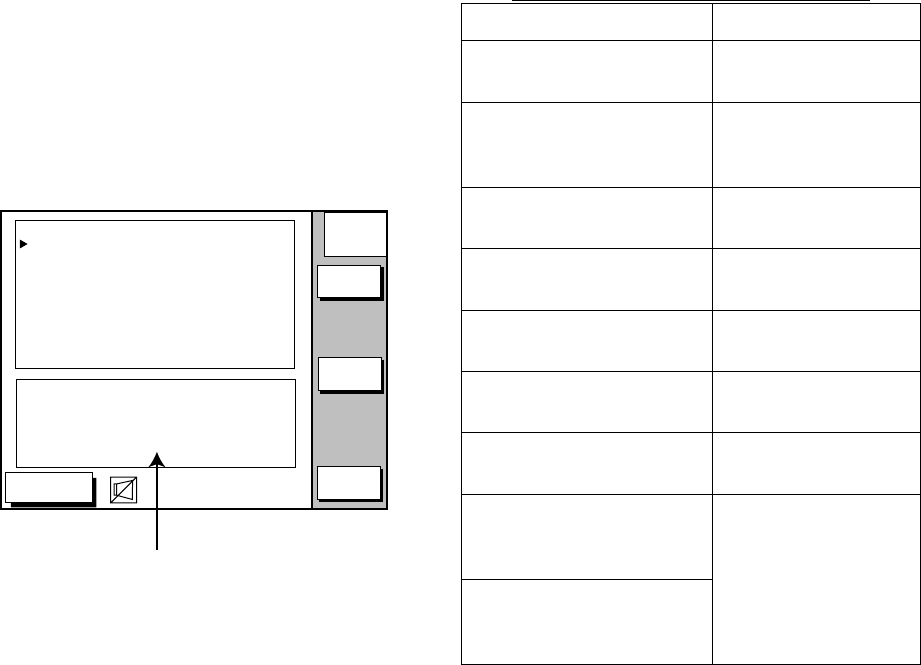
9. PLOTTER ALARMS
9-4
9.8 Alarm Information
When an alarm setting has been violated the
buzzer sounds and the speaker icon (shown
in red) appears. You can see which alarm
has been violated, as well as silence the
buzzer, on the alarm menu display.
1. Press the [ALARM] key.
DGPS 3D
ALARM1
EDIT
CLEAR
ALARM
ALARM INFORMATION
AUDIO ALARM
ARRIVAL ALARM
ANCHOR ALARM
PROXMTY ALARM
XTE ALARM
SPEED ALARM
ON
ON 0.100nm
ON 0.050nm
ON
ON 0.100nm
OVER/UNDER
12.5 ~ 15.0kt
YOU'VE ARRIVED AT
WAYPOINT : SP-001.
Alarm information
(Example: Arrival alarm)
NEXT
PAGE
Alarm menu
2. Press the CLEAR ALARM soft key to
silence the buzzer. The color of the alarm
message and the speaker icon changes
from red to black.
Note: The speaker icon is displayed in red
until all alarms have been
acknowledged on the alarm menu
display. If more than one alarm has
been violated the message
CONTINUE appears at the bottom of
the display. In this case press the
NEXT INFO soft key to see which
other alarms have been violated.
Alarm messages
Alarm messages and their meanings
Message Meaning
YOU HAVE ARRIVED
AT WAYPOINT.
Arrival alarm setting
violated.
YOU HAVE EXCEEDED
ANCHOR WATCH
LIMIT.
Anchor watch alarm
setting violated.
YOU HAVE ENTERED
AN AVOIDANCE AREA.
Proximity alarm
setting violated.
YOU HAVE EXCEEDED
XTE LIMIT.
XTE alarm setting
violated.
YOU HAVE EXCEEDED
SPEED ALARM LIMIT.
Speed alarm setting
violated.
YOU HAVE EXCEEDED
DEPTH ALARM LIMIT.
Bottom alarm
setting violated.
FISH HAVE BEEN
DETECTED.
Fish schools enter
the alarm area.
WATER TEMP IS
WITHIN TARGET
SETTING.
WATER TEMP IS
BEYOND TARGET
SETTING.
Temp. alarm setting
violated.
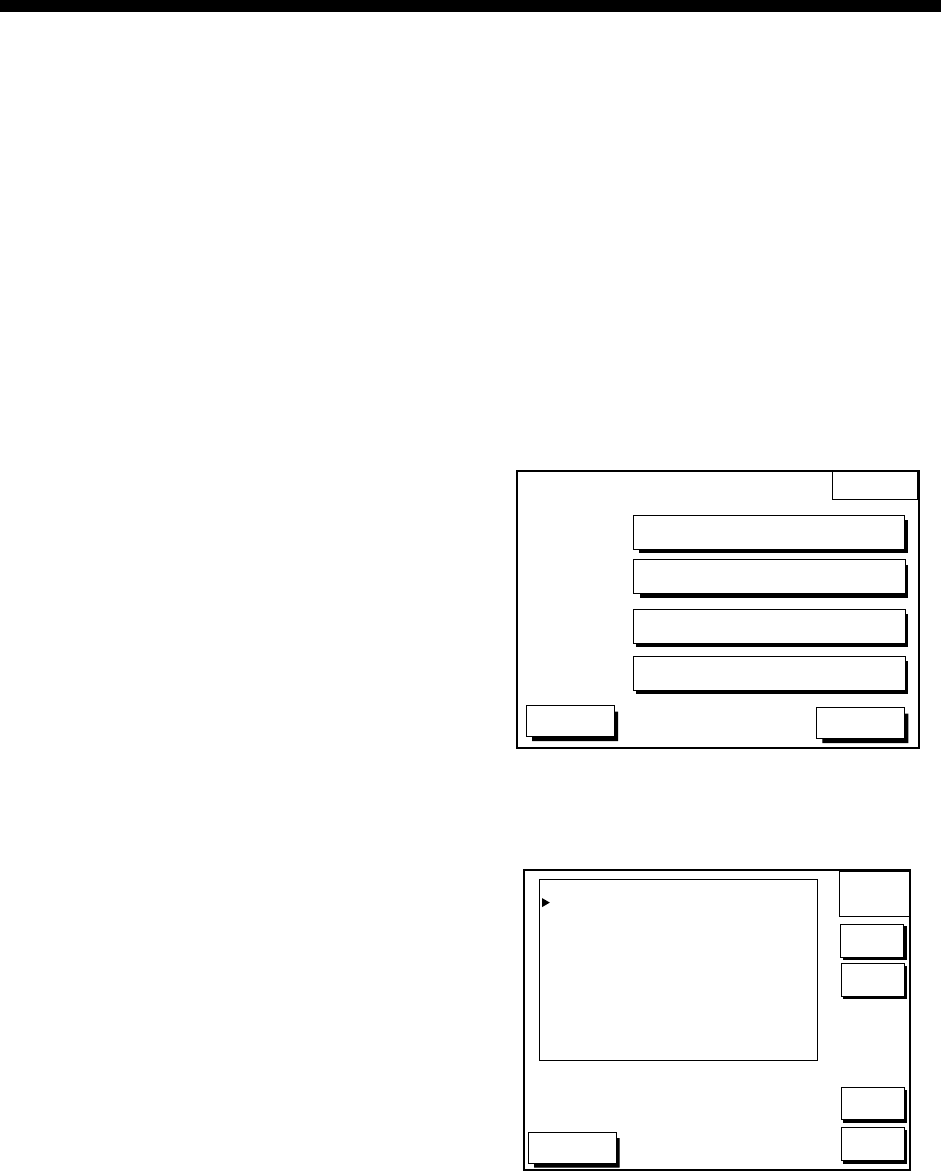
10-1
10. MEMORY CARD OPERATIONS
The following data can be saved to memory
cards:
• Mark/line
• Waypoints/routes
• Track
• Configuration (menu settings)
10.1 Formatting Memory
Cards
Before you can use a memory card it must
be formatted. Note that formatting a used
card erases all saved data.
1. Turn the power off.
2. Insert the memory card you want to
format into the slot.
3. Turn the power on.
4. Press the [MENU] key followed by the
CONFIGURATION and
UPLOAD/DOWNLOAD DATA soft keys.
DWNLOAD
UPLOAD
DGPS 3D
DOWN WPT/RTE TO PC
SAVE DATA TO MEMORY CARD
UPLOAD WPT/RTE FROM PC
RETURN
LOAD DATA FROM MEMORY CARD
Download/upload menu
5. Press the SAVE DATA TO MEMORY
CARD.
DGPS 3D
SAVE
DATA
EDIT
FORMAT
TRACK
MARK/LINE
WAYPOINT/ROUTE
CONFIGURATION
OFF
OFF
OFF
OFF
RETURN
SAVE
DATA
Save data display
6. Press the FORMAT soft keys. You are
asked if you are ready to format the
memory card.

10. MEMORY CARD OPERATIONS
10-2
7. Press the [ENTER] key to format (or
press the [CLEAR] key to escape). Now
FORMATTING MEMORY CARD appears.
Do not remove the card while it is being
formatting. When the formatting is
completed, FORMAT COMPLETED
appears.
8. Press the [ENTER] key to finish. Now
you can record data to the memory card.
Note: Chart cards cannot be formatted.
10.2 Saving Data to Memory
Card
The memory card can save four items of
data; track, mark/line, waypoint/route and
configuration.
Saving data
1. Insert a formatted memory card into the
slot.
2. Press the [MENU] key followed by the
CONFIGURATION and
UPLOAD/DOWNLOAD DATA soft keys.
3. Press the SAVE DATA TO MEMORY
CARD soft key. The SAVE DATA display
appears.
4. Press ▲ or ▼ to select item to save.
5. Press the EDIT soft key to open the
TRACK, MARK/LINE,
WAYPOINTS/ROUTES or
CONFIGURATION window.
6. Press ▲ to select ON.
7. Press the ENTER soft key or the
[ENTER] key.
8. Repeat steps 4 to 7 to save other data if
desired.
9. Press the SAVE DATA soft key. The
following message appears and saving
starts. Do not remove the memory card
while data is being saved.
NOW SAVING DATA TO
MEMORY CARD. DO NOT
TURN OFF THE POWER UNTIL
SAVING COMPLETED.
SAVE DATA message
When saving is completed, COMPLETE
SAVING DATA appears.
10. Press the [ENTER] key.
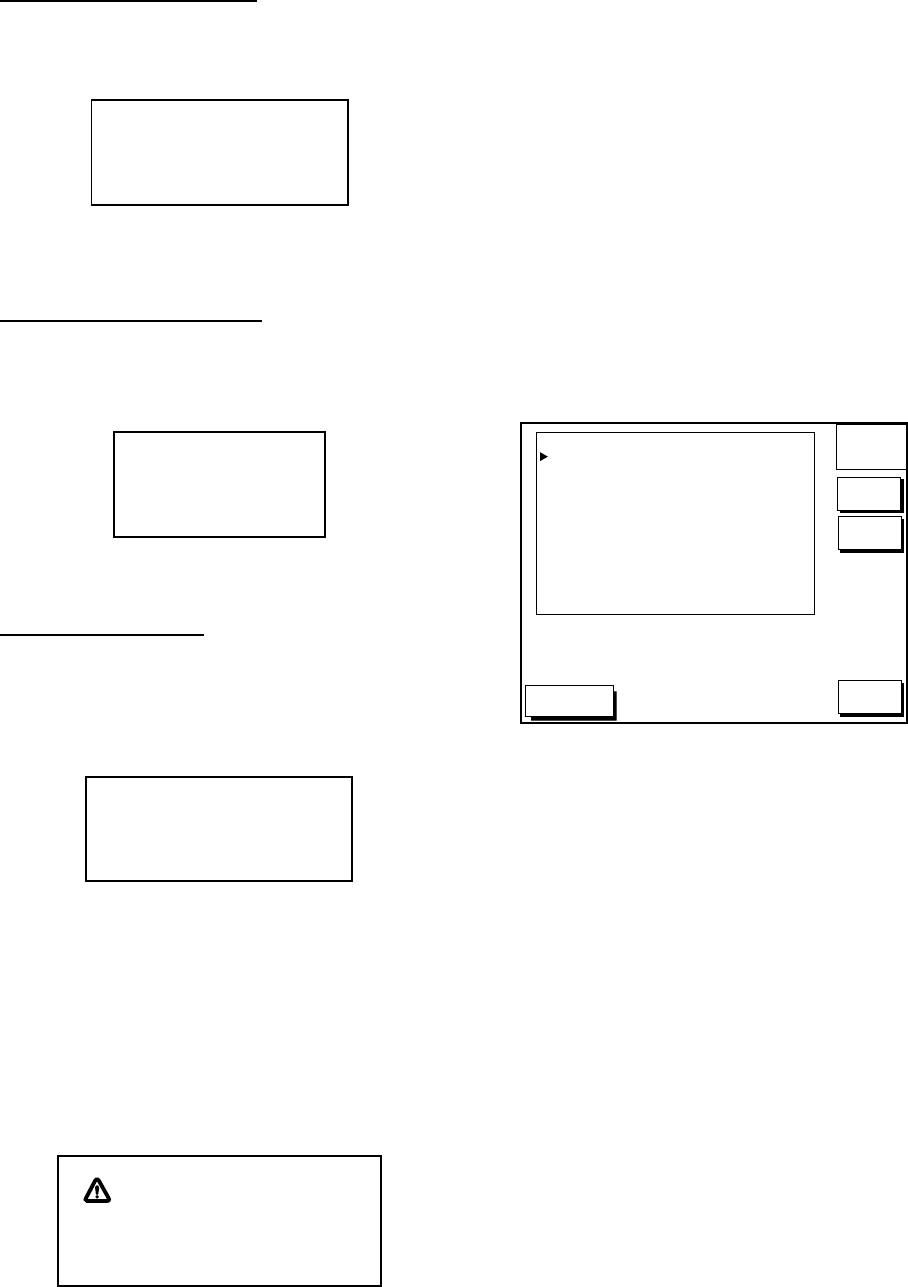
10. MEMORY CARD OPERATIONS
10-3
Error messages
Memory card not inserted
Press the [ENTER] key to return to the SAVE
DATA display.
MEMORY CARD NOT
INSERTED. INSERT CARD
PRESS "ENTER" key
TO CONTINUE.
Not inserted message
Unformatted memory card
Press the [ENTER] key to return to the SAVE
DATA display. And format it refering to the
previous page.
MEMORY CARD NOT
FORMATTED
PRESS "ENTER" key
TO CONTINUE.
Not formatted message
Wrong card inserted
When a wrong card is inserted, the following
error message appears. Press the [ENTER]
key to return to the SAVE DATA display.
Replace it with a formatted memory card.
WRONG CARD INSERTED.
INSERT MEMORY CARD.
PRESS "ENTER" key
TO CONTINUE.
Wrong card message
Data overwrite
Data type to be recorded exists on memory
card. (Two or more of same data type cannot
be recorded.) Press the [ENTER] key to
overwrite same data type on the card, or
press the [CLEAR] key to escape.
OVERWRITE FOLLOWING
DATA. OK?
YES ... "ENTER" key
NO ... "CLEAR" key
(TRACK)
Overwrite message
10.3 Loading Data from
Memory Card
Data (track, marks, waypoints, configuration)
can be loaded from a memory card and
displayed on the screen. This feature is
useful for observing past data and setting up
the equipment for a specific purpose (with
“configuration”).
1. Press the [MENU] key followed by the
soft keys CONFIGURATION and
UPLOAD/DOWNLOAD DATA.
2. Press the LOAD DATA FROM MEMORY
CARD soft key to show the LOAD DATA
display.
DGPS 3D
LOAD
DATA
EDIT
TRACK
MARK/LINE
WAYPOINT/ROUTE
CONFIGURATION
OFF
OFF
OFF
OFF
RETURN
LOAD
DATA
Load data display
3. Press ▲ or ▼ to select item to load.
4. Press the EDIT soft key to show the
ON/OFF selection window.
5. Press ▲ to select ON. Press the ENTER
soft key or the [ENTER] key. If the
memory card does not contain the item
selected, the buzzer sounds and ON
cannot be selected.
6. After you select all items desired, press
the LOAD DATA soft key to load data.
The following message appears.

10. MEMORY CARD OPERATIONS
10-4
NOW LOADING DATA FROM
MEMORY CARD. DO NOT
TURN OFF THE POWER UNTIL
LOADING COMPLETE.
Load data message
After loading is completed, the following
message appears.
COMPLETE LOADING DATA.
PRESS "ENTER" KEY
TO CONTINUE.
Complete message
7. Press the [ENTER] key.
Notes on loading data
Track
Since loaded track data is added to internal
track, oldest track in the memory of the unit
will be deleted when the track memory
capacity is exceeded.
Waypoint/route
Waypoints/routes in the memory of the unit
are deleted to make room for loaded ones.
Mark/line
The loaded data is added to internal data.
When the mark/line memory becomes full,
no marks may be entered.
Configuration
The loaded data replaces current
configuration settings. Press the [ENTER]
key to restart. If the memory card is ejected
while loading, or data could not be loaded,
press the [ENTER] key to restart with default
settings. Note that the track memory
capacity setting is not saved nor loaded.
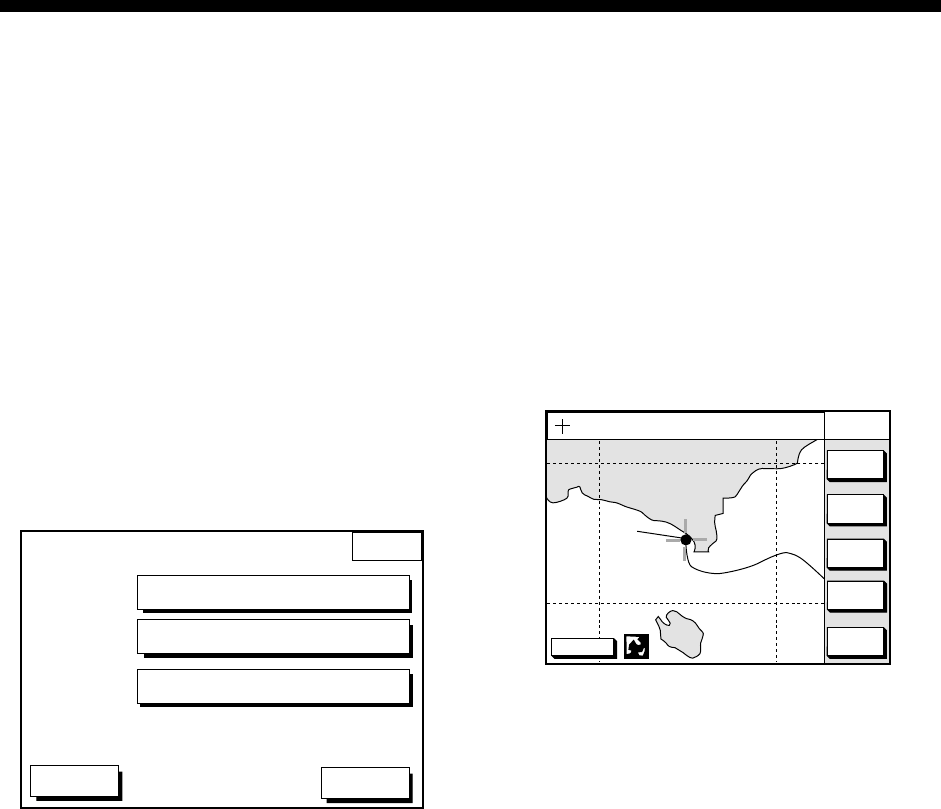
11-1
11. CUSTOMIZING YOUR UNIT
This section describes the various options
which allow you to set up your unit to suit
your needs.
11.1 CHART SETUP
OPTIONS menu
The chart offset options menu provides three
menus: chart offset, track control, and chart
details.
1. Press the [MENU] key to open the main
menu.
2. Press the CHART SETUP OPTIONS soft
key.
CHART
SETUP
DGPS 3D
CHART OFFSET
CHART DETAILS
TRACK CONTROL
RETURN
Chart setup options menu
CHART OFFSET menu
In some instances position may be off by a
few minutes. For example, the position of the
ship is shown to be at sea while it is in fact
moored at a pier. You can compensate for
this error by offsetting chart position as
follows:
1. Press the [MENU] key followed by the
CHART SETUP OPTIONS and CHART
OFFSET soft keys.
DGPS 3D RETURN
SET
OFFSET
ZOOM
OUT
ZOOMIN
CHART
OFFSET
135° 12.345' E
34° 12.345' N OS
FROM 276.9°
16.41 nm
RESET
OFFSET
Plotter display, chart offset selected
2. Use the cursor pad to place the cursor
where to offset chart position.
3. Press the SET OFFSET soft key.
4. Press the RETURN soft key to finish.
To cancel chart offset, press the RESET
OFFSET soft key at step 3 in the above
procedure.
TRACK CONTROL menu
This menu mainly controls track color and
track plotting interval. For further details see
Chapter 4.
11. CUSTOMIZING YOUR UNIT
11-2
CHART DETAILS menu
1. Press the [MENU] key followed by the
CHART SETUP OPTIONS and CHART
DETAILS soft keys.
DGPS 3D
CHART
DETAIL
RETURN
EDIT
DEPTH
INFO
LAT/LON GRID
TEXT INFO
WAYPOINT
WAYPOINT NAME
INDEX
LANDMASS
BACKGROUND
NAV AIDS
SECTOR INFO
OTHER SYMBOLS
MARK SIZE
GREEN
ON
LARGE
ON
ON
BRT YELLOW
BLUE
ON
OFF
WHITE
STD
Chart details menu
2. Use the cursor pad to select item and
press the EDIT soft key.
3. Select option with the cursor pad and
press the RETURN soft key to finish.
Chart details menu description
LAT/LONG GRID: Turns lat/long grid on/off
and changes its color.
TEXT INFO: Turns geographic name display
on/off.
WAYPOINT: Turns waypoint on or off and
selects size to large or small. “LARGE”
displays waypoint in shape selected;
“SMALL” shows waypoints as an X
regardless of actual shape. “OFF” only
display waypoints when they are used in
navigation.
WAYPOINT NAME: Turns waypoint name
on/off.
INDEX: Turns chart indices on/off.
LANDMASS: Selects brightness and color of
land.
BACKGROUND: Selects background color
to black or blue.
NAV AIDS: Turns aids to navigation symbols
(for example, buoys) on/off. When OFF is
selected, symbols are displayed but
information is not.
SECTOR INFO: Turns lighthouse viewable
angle indication (on FURUNO charts) on/off.
Viewing angle is shown as an arc extending
from lighthouse position. Arc color, white or
green, is the color of the light beam. This
feature is available with selected charts.
OTHER SYMBOLS: Selects color of all
other chart symbols.
MARK SIZE: Selects the mark size STD
(standard) or SMALL (appearing with “x”.)
DEPTH INFO soft key: Turns depth info
display on/off and sets it color.
11. CUSTOMIZING YOUR UNIT
11-3
11.2 DISPLAY OPTIONS
menu
This menu, consisting of two pages, display
setup1 and display setup 2, contains items
for setting up the plotter and video sounder
displays.
1. Press the [MENU] key.
2. Press the DISPLAY OPTIONS soft key.
The display setup1 menu appears.
DGPS 3D
DISPLAY
SETUP1
RETURN
EDIT
RNG & BRG MODE
RANGE/SPEED UNIT
DEPTH UNIT
TEMP UNIT
LAT/LON DISPLAY
TIME DISPLAY
WAYPOINTS SW
COURSE VECTOR
BEARING
MAG VARIATION
TD DISPLAY
POSITION DISPLAY
SET GO TO METHOD
OPERATION MODE
LANGUAGE
RHUMB LINE
nm / kt
ft
°F
DD°MM.MMM'
24 HOUR
AUTO2
LINE
MAGNETIC
AUTO 01.3°E
LORAN C
LAT/LON
1 POINT
PLEASURE
ENGLISH
NEXT
PAGE
Display setup 1 menu
DISPLAY SETUP 1 menu description
RNG & BRG MODE
The GPS receiver calculates the range,
bearing, cross track error (XTE) and ETA to
TO waypoint when you set a destination.
The range and bearing can be calculated by
GREAT CIRCLE (straight line between two
points) or RHUMB LINE (straight line
between two points on nautical chart)
method.
RANGE/SPEED UNIT
Selects the unit for range and speed; nm/kt,
km/ km/h, sm/ sm/h.
DEPTH UNIT
Selects unit of depth measurement among
feet, fathoms, and meters.
TEMP UNIT
Selects unit of water temperature
measurement between Celsius and
Fahrenheit.
LAT/LON DISPLAY
Displays the minutes of latitude and
longitude positions in hundredths,
thousandths or ten thousandths.
TIME DISPLAY
Selects time display format for 12 hour or 24
hour.
WAYPOINT SW
Provides automatic or manual waypoint
switching when following a route. For further
details, see page 8-5.
COURSE VECTOR
You may extend a line from the own ship
position to show ship’s course. The line can
be a vector (the length depends on the ship’s
speed) or course bar (course bar).
BEARING
A navigation device outputs both true and
magnetic bearings. A magnetic bearing is
true bearing plus (or minus) earth’s magnetic
deviation. Thus the equation for finding
magnetic bearing is;
true bearing ±x (magnetic variation)° =
magnetic bearing
You can display your ship’s course and
bearing to waypoint in true or magnetic
bearing.
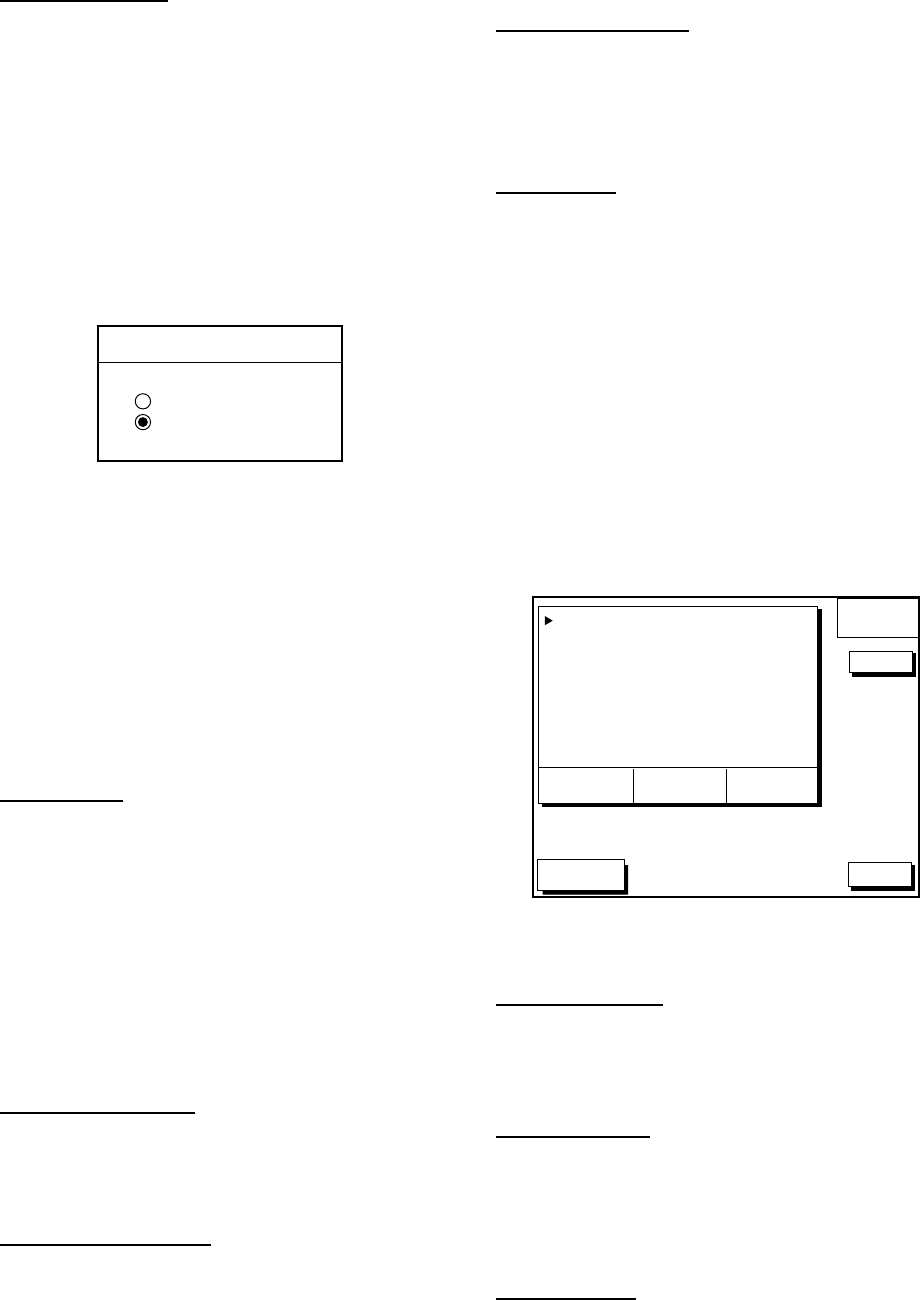
11. CUSTOMIZING YOUR UNIT
11-4
MAG VARIATION
The magnetic variations for all areas of the
earth are preprogrammed into this unit. The
preprogrammed variation is accurate for
most instances, however you may wish to
manually enter a updated variation referring
to the latest navigation chart.
1. Select MAG VARIATION, and press the
EDIT soft key to show the mag variation
window.
MAG VARIATION
▲
AUTO
MANUAL 0.7°W
▼
Mag variation window
2. Select MANUAL.
3. Key in magnetic deviation value.
4. Press the W<-->E soft key to switch
between East and West and vice versa, if
necessary.
5. Press the ENTER soft key or the
[ENTER] key to finish.
TD DISPLAY
Position may be shown in Loran C TDs,
Decca TDs, or latitude and longitude. To
display position in TDs, select Loran C or
Decca here and choose TD at “POSITION
DISPLAY” below. You can select the Loran C
or Decca chain to use on the TD SETUP
menu. For details see “TD SETUP menu” on
page 11-8.
POSITION DISPLAY
Displays position in latitude and longitude or
TD time difference).
SET GO TO METHOD
Selects the method for entering the quick
point: 1 POINT, 35 POINT (2-35 points), or
WPT/PORT SER. For further details see
pages 8-1 and 8-2.
OPERATION MODE
Selects the operation mode among
PLEASURE, FISHING 1 and FISHING 2.
For details, see page 5-1 and 6-1.
LANGUAGE
Selects the language for operation display
for ENGLISH or FRENCH.
DISPLAY SETUP 2 menu description
The display setup 2 menu contains video
sounder-related items which the user may
adjust as desired. Set up these items as
follows:
1. Press the [MENU] key.
2. Press the DISPLAY OPTIONS soft key.
3. Press the NEXT PAGE soft key.
DGPS 3D
DISPLAY
SETUP2
RETURN
EDIT
SPEED SOURCE
TEMP SOURCE
TEMP GRAPH
ZOOM MARKER
SPEED ADJ.
TEMP ADJ.
DEPTH ADJ.
GPS
OWN XDCR
OFF
ON
+00%
+00.0°C
+0.0ft
SPD
10.0kt
TEMP
+ 5.0°C
DEPTH
60.4ft
Display setup 2 menu
SPEED SOURCE
Selects source of speed input; OWN
PDDWHL (speed sensor) or GPS.
TEMP SOURCE
Selects source of water temperature input;
NMEA (external equipment), or OWN XDCR
(water temperature sensor).
TEMP GRAPH
Displays water temperature in line graph
form. Requires water temperature data.
11. CUSTOMIZING YOUR UNIT
11-5
ZOOM MARKER
The zoom marker appears in the normal,
bottom marker and bottom zoom displays
and marks the area which is expanded in the
bottom marker and bottom zoom pictures.
You can turn on/off the marker as desired.
SPEED ADJ.
If the speed sensor-generated speed
indication is wrong, you can correct it here.
(NMEA format speed data cannot be
adjusted.) For example, if the speed
indication is 10% lower than actual speed,
press ▲ to display +10.
TEMP ADJ.
If the water temperature sensor-generated
water temperature indication is wrong, you
can correct it here. (NMEA format water
temperature data cannot be adjusted.) For
example, if the water temperature indication
is 2° higher than actual water temperature,
press ▼ to display -2.0.
DEPTH ADJ.
Set the ship’s draft, to show the depth
between the sea surface and the bottom
(rather than from transducer to bottom.)
11.3 GPS/DGPS/TD OPTIONS
menu
This menu sets up GPS and DPGS receivers
and enables display of position in Loran C or
Decca TDs.
1. Press the [MENU] key.
2. Press the GPS/DGPS/TD OPTIONS soft
key to display the GPS/DGPS/TD options
menu.
GPS/DGP
OPTION
DGPS 3D
GPS SETUP OPTIONS
TD SETUP
DGPS/WAAS SETUP OPTIONS
RETURN
GPS/DGPS/TD options menu
GPS SETUP OPTIONS menu
description
This menu provides items for setting up the
GPS receiver. To display it, display the menu
shown above, and then press the GPS
SETUP OPTIONS soft key.
GPS
OPTION
DGPS 3D
RETURN
LOCAL TIME OFFSET +00:00
GEODETIC DATUMS WGS-84
POS SMOOTHING 000 sec
SPD/CSE SMOOTHING 005 sec
GPS SPEED AVE 060 sec
LAT OFFSET 0.000'N
LON OFFSET 0.000'E
DISABLE SATELLITE _ _ _ _ _ _
LATITUDE 38°00.000'N
LONGITUDE 123°00.000'W
ANT. HEIGHT 005 m
FIX MODE 2D/3D
EDIT
GPS SETUP options menu
LOCAL TIME OFFSET
GPS uses UTC time. If you would rather use
local time, enter the time difference between
it and UTC time. Use the +<-->- soft key to
switch from plus to minus and vice versa.
GEODETIC DATUM
Your equipment is preprogrammed with most
of the major chart systems of the world.
Although the WGS-84 system, the GPS
standard, is now widely used other
categories of charts still exist. Select the
chart system used, not the area where your
boat is sailing. The default chart system is
WGS-84.

11. CUSTOMIZING YOUR UNIT
11-6
1. Select GEODETIC DATUM.
2. Press the EDIT soft key to show the
geodetic datum window.
GEODETIC DATUM
CHART DATUM
▲
AUSTRALIA
▼
WGS-84
Geodetic datum window
3. Press ▲ or ▼ to select the chart system
you are using. If UNKNOWN appears in
the GEODETIC DATUM window, select a
different chart system to show the proper
chart datum.
4. Press the ENTER soft key or the
[ENTER] key to register your selection.
POS SMOOTHING
When the DOP or receiving condition is
unfavorable, the GPS fix may change, even
if the vessel is dead in water. This change
can be reduced by smoothing the raw GPS
fixes. A setting between 000 to 999 is
available. The higher the setting, the more
smoothed the raw data, however too high a
setting slows response time to change in
latitude and longitude. This is especially
noticeable at high ship’s speeds. 000 is the
normal setting; increase the setting if the
GPS fix changes.
SPD/CSE SMOOTHING
During position fixing, ship’s velocity (speed
and course) is directly measured by
receiving GPS satellite signals. The raw
velocity data may change randomly
depending on receiving conditions and other
factors. You can reduce this random
variation by increasing the smoothing. Like
with latitude and longitude smoothing, the
higher the speed and course smoothing the
more smoothed the raw data. If the setting is
too high, however, the response to speed
and course change slows. For no smoothing,
enter all zeroes. The default setting is 005
(sec).
GPS SPEED AVE
Calculation of ETA is based on average
ship’s speed over a given period. If the
period is too long or too short calculation
error will result. Change this setting if
calculation error occurs. The default setting
is 60 seconds, which is suitable for most
conditions.
LAT OFFSET, LON OFFSET
GPS-generated position may be off from the
chart. In this case, you can apply an offset to
GPS position to refine position accuracy.
Mark the equipment indication on the chart,
and then calculate the L/L error.
1. Select LAT OFFSET or LON OFFSET.
2. Press the EDIT soft key.
3. Key in the error value. To switch the
north and south (east and west), press
the N<->S (W<->E) soft key.
4. Press the ENTER soft key or [ENTER]
key.
DISABLE SATELLITE
Every GPS satellite is broadcasting
abnormal satellite number(s) in its Almanac,
which contains general orbital data about all
GPS satellites, including those which are
malfunctioning. Using this information, the
GPS receiver automatically eliminates any
malfunctioning satellite from the GPS
satellite schedule. However, the Almanac
sometimes may not contain this information.
If you hear about a malfunctioning satellite
from another source, you can disable it
manually. Enter satellite number (max. 3
satellites) in two digits and press the ENTER
soft key or the [ENTER] key.
11. CUSTOMIZING YOUR UNIT
11-7
LATITUDE, LONGITUDE
The default latitude and longitude position is
San Francisco, USA (38.00.000’N,
123.00.000’W). When the unit is turned on
for the first time it begins searching for its
actual position. To lessen the time required
to find position, you may enter your position
manually. To switch from North to South and
vice versa, use the N<-->S soft key, and to
switch from West to East and vice versa, use
the W<-->E soft key. Finally, press the
ENTER soft key or the [ENTER] key.
ANT. HEIGHT
Enter the height of the antenna unit above
sea surface. For further details refer to the
Installation Manual.
FIX MODE
You can choose the position-fixing mode
from 2D or 2D/3D. 2D requires three
satellites to fix position; 2D/3D requires three
or four satellites, whichever is available.
DGPS/WAAS SETUP OPTIONS menu
This menu sets parameters for the DGPS
beacon receiver. (GP1850WDF, or
GP1850WF equipped with DGPS beacon
receiver.) and WAAS. To display it, press the
[MENU] key followed by the GPS/DPGS/TD
OPTIONS and DGPS SETUP OPTIONS soft
keys.
DGPS
WAAS
DGPS 3D RETURN
DGPS/WAAS MODE AUTO
BEACON FREQUENCY AUTO
BEACON BAUD RATE AUTO
WAAS SEARCH AUTO
CORRECTIONA DATA SET 02
DGPS/WAAS ALARM ON
EDIT
DGPS/WAAS menu
DGPS/WAAS MODE
Select DGPS, WAAS or AUTO. (Position is
fixed by WAAS when DGPS correction data
is not available.)
BEACON FREQUENCY (for DGPS)
DGPS reference station can be searched
automatically or manually. For manual
search, select MANUAL here, and use the
cursor pad to select frequency of DGPS
reference station. The default setting is
AUTO.
BEACON BAUD RATE (for DGPS)
Selects the transmission rate of the DGPS
reference station nearest you, among
AUTO (default setting), 50, 100 or 200 bps.
This setting is only effective when DGPS
mode is “manual”; baud rate cannot be
changed in automatic DGPS mode.
WAAS SEARCH (for WAAS)
Choose AUTO for automatic search or
MANUAL for manual search. For MANUAL,
enter appropriate WAAS satellite number,
referring to the illustration below.
AUTO mode and GEO satellite (in JUNE 2002)
122
AOR-W
54°W
120
AOR-E
15.5°W
131
IOR
64.5°W
134
POR
178°E
118°W 34.75°W 24.5°E 121.25°E
2°2°2°2°
Longitude Range Satellite
120.25
°
E to 117
°
W 134
119
°
W to 33.75
°
W 122
35.75
°
W to 25.5
°
E 120
23.5
°
E to 122.25
°
E 131
One-degree threshold
11. CUSTOMIZING YOUR UNIT
11-8
CORRECTIONS DATA SET (for WAAS)
Determines how to use the WAAS signal,
currently in the test mode. Enter appropriate
two-digit numeric. Use “02” (default setting)
until the WAAS System changes from its
current “Testing Status” to “Operational
Status”.
DGPS/WAAS ALARM
This alarm alerts you by aural and visual
alarms when the WAAS/DGPS signal is lost.
TD SETUP menu
This menu selects the Loran C or Decca
chain to use to display position in TDs. To
display it, press the [MENU] key followed by
the GPS/DPGS/TD OPTIONS and TD
SETUP soft keys.
TD
SETUP
DGPS 3D
RETURN
LORAN C
GRI 9940 11-27
U.S. WEST COAST
CORRECTION1 +000.0µs
CORRECTION2 +000.0µs
DECCA
DEC CHAIN 20 R-P
FRENCH
CORRECTION1 +00.00 lane
CORRECTION2 +00.00 lane
EDIT
TD setup menu
Displaying LORAN C TDs
1. Select GRI and press the EDIT soft key
to show the GRI & STA. PAIR window.
GRI & STA. PAIR
▲
9940 11-27
▼
U.S. WEST COAST
▲
GRI & sta. pair window
2. Press ▲ or ▼ to select GRI code. Press
► to enable selection of station pair, and
then press ▲ or ▼ to select station pair.
See the Loran C chain list at the end of
this manual for GRI and station pairs.
3. Press the ENTER soft key or the
[ENTER] key to register your selection.
4. If necessary, you may enter a position
offset to refine Loran C position. Select
LORAN C CORRECTION1 or
CORRECTION2 and press the EDIT soft
key. Enter correction value and press the
ENTER soft key or the [ENTER] key. Use
the + <--> - soft key to switch from plus to
minus and vice versa.
Displaying DECCA TDs
1. Select DEC CHAIN and press the EDIT
soft key to show the chain sta. pair
window.
CHAIN STA. PAIR
▲
20 P-R
▼
FRENCH
▲
Chain sta. pair window
2. Press ▲ or ▼ to select Decca chain
number. Press ► to enable selection of
lane, and then press ▲ or ▼ to select
lane pair (R: red, G: green and P: purple).
Refer to the Decca chain list at the end of
this manual.
3. Press the ENTER soft key or the
[ENTER] key to register your selection.
4. If necessary, you may enter position
offset to refine Decca position. Select
DECCA CORRECTION1 or
CORRECTION2 and press the EDIT soft
key. Enter correction value and press the
ENTER soft key or the [ENTER] key. Use
the + <--> - soft key to switch from plus to
minus and vice versa.
11. CUSTOMIZING YOUR UNIT
11-9
11.4 SOUNDER SETUP
OPTIONS menu
This menu provides video sounder functions
such as noise and interference reduction,
range setup and system setup.
1. Press the [MENU] key.
2. Press the SOUNDER SETUP OPTIONS
soft key.
DGPS 3D
SYSTEM
SETUP
EDIT
NOISE LIMITER OFF
CLUTTER AUTO
WHITE MARKER 0
HUE 1
SIGNAL LEVEL SL6
PICTURE ADVANCE 1/1
E/S WINDOW STD
RETURN
RANGE
SETUP
SYSTEM
SETUP
Sounder setup menu
The SOUNDER SETUP OPTIONS menu is
explained at Chapter 2.
RANGE SETUP soft key
The default ranges, zoom range and
bottom-lock range settings are and are
suitable for most fishing conditions. However,
you may change them as follows to suit your
needs.
1. In the SOUNDER SETUP menu, press
the RANGE SETUP soft key.
DGPS 3D
RANGE
SETUP
EDIT
RANGE1
RANGE2
RANGE3
RANGE4
RANGE5
RANGE6
RANGE7
RANGE8
ZOOM RANGE
B/L RANGE
15 ft
30 ft
60 ft
120 ft
200 ft
400 ft
1000 ft
4000 ft
30 ft
20 ft
RETURN
Range setup menu
2. Select a range, ZOOM RANGE or B/L
RANGE, and press the EDIT soft key.
ZOOM RANGE selects the range to
zoom in the marker and bottom zoom
modes. The setting range is 7 to 5000
feet. B/L RANGE sets the expansion
width for the bottom-lock display, 10 or
20 feet. The default setting is 20 feet.
3. Adjust the range with the cursor pad.
4. Press the RETURN soft key to go back
to the RANGE SETUP menu.
SYSTEM SETUP soft key
The SYSTEM SETUP menu provides
functions for selection of fish alarm sensitivity,
TX power selection, TVG adjustment, echo
level offset and seabed echo offset.
1. In the SOUNDER SETUP menu, press
the SYSTEM SETUP soft key.
DGPS 3D
SYSTEM
SETUP
EDIT
FISH ALM LVL
TX POWER
TVG 200kHz
TVG 50kHz
ECHO OFFSET 200kHz
ECHO OFFSET 50kHz
SEABED LVL 200kHz
SEABED LVL 50kHz
NORMAL
ON
5
5
+00
+00
80
80
RETURN
System setup menu
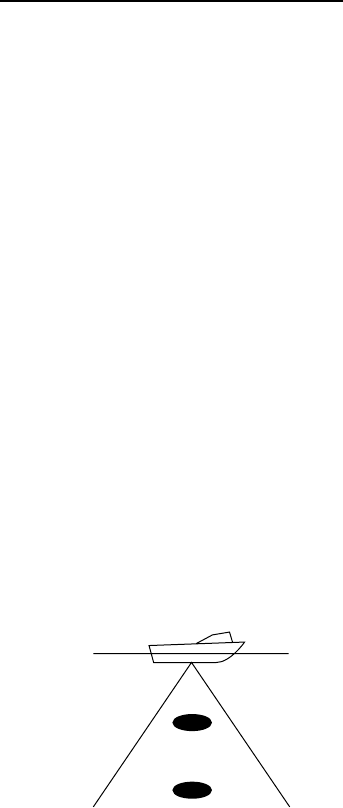
11. CUSTOMIZING YOUR UNIT
11-10
SYSTEM SETUP menu description
FISH ALM LVL: Sets the fish alarm
sensitivity; namely, which echo strength will
trigger the alarm. HIGH, only the strong
echoes (red and reddish brown) trigger the
alarm; NORMAL, echoes from strong to
medium strength (greater than yellow) trigger
the alarm, LOW, any echo (greater than
light-blue) triggers the alarm.
TX POWER: Turns TX power on/off.
TVG 200kHz, TVG 50kHz: TVG (Time
Varied Gain) compensates for propagation
attenuation of the ultrasonic waves. It does
this by equalizing echo presentation so that
fish schools of the same size appear in the
same density in both shallow and deep
waters. In addition, it reduces surface noise.
Note that if the TVG level is set too high
short range echoes may not be displayed.
Fish school B
Fish school A
TVG concept
ECHO OFFSET 200kHz, ECHO
OFFSET 50kHz:
If the on-screen echo level appears to be too
weak or too strong and the level cannot be
adjusted satisfactorily with the gain control,
adjust echo offset to compensate for too
weak or too strong echoes.
SEABED LVL 200kHz, SEABED LVL
50kHz:
If the depth indication is unstable in
automatic operation or the bottom echo
cannot be displayed in reddish-brown by
adjusting the gain control in manual
operation, you may adjust the bottom echo
level detection circuit, for both 50 kHz and
200 kHz, to stabilize the indication. Note that
if the level is set too low bottom echoes
cannot be acquired and if set too high
regards the fish school as the bottom, so the
depth indication will not be fixed. The default
setting for both 200 kHz and 50 kHz is 80.
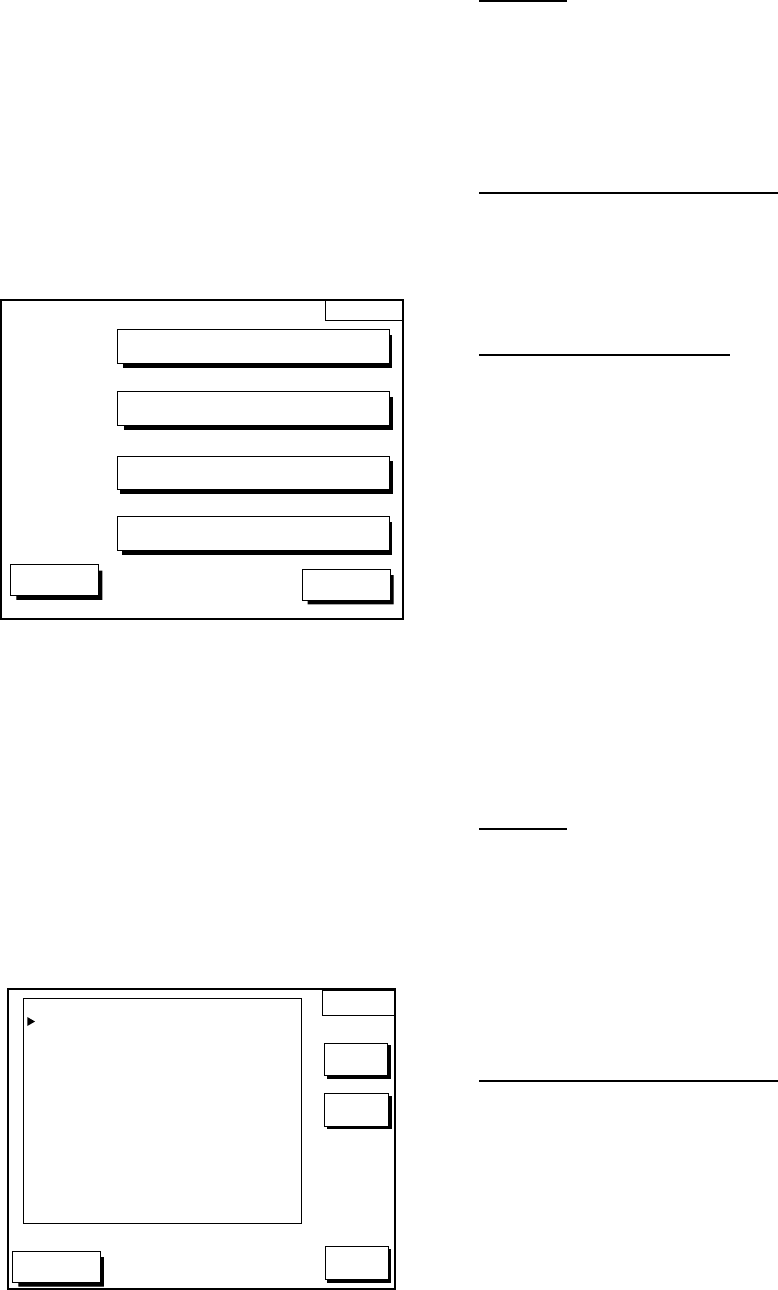
11. CUSTOMIZING YOUR UNIT
11-11
11.5 CONFIGURATION menu
The CONFIGURATION menu has facilities
for setting up data ports,
uploading/downloading data, diagnostic test,
demonstration mode setup, and memory
clearing.
1. Press the [MENU] key.
2. Press the CONFIGURATION soft key to
display the configuration menu.
CONFIG
DGPS 3D
SETUP NMEA PORT 1
UPLOAD/DOWNLOAD DATA
SETUP NMEA/DGPS PORT 2
SYSTEM MENU
RETURN
Configuration menu
SETUP NMEA PORT 1 menu
description
This menu sets up DATA PORT 1 according
to the specifications of the equipment
connected to it. The menu can be displayed
by pressing the [MENU] key followed by the
CONFIGURATION and SETUP NMEA
PORT 1 soft key. For detailed information,
see the Installation Manual.
DGPS 3D
SETUP
PORT 1
EDIT
FORMAT NMEA0183
Ver2.0
LAT/LON FORMAT DD°MM.MMM'
RETURN
SELECT
SNTNC.
Setup NMEA port 1 (or 2) menu
FORMAT
Selects NMEA0183 version 1.5 or 2.0. If you
are unsure of the version number, try both
equipment and choose the one which
outputs data correctly.
LAT/LON FORMAT (GGA only)
Selects the minutes of latitude and longitude
positions in hundredths, thousandths or ten
thousandths.
SELECT SNTNC. soft key
This key enables/disables input/output of
data sentences.
SETUP NMEA/DGPS PORT 2 menu
description
This menu should be set according to the
specifications of the equipment connected to
connectors PORT 2 (DGPS) at the rear of
the display unit. The menu can be displayed
by pressing the [MENU] key followed by the
CONFIGURATION and SETUP NMEA
PORT 2 soft keys. For detailed information,
see the Installation Manual.
FORMAT
Selects data format of connected equipment;
NMEA0183 version 1.5, version 2.0,
RTCM104 (EXTRN), RTCM104 (INTRN) or
RTCM104 (OUTPUT). RTCM104 (INTRN) or
RTCM104 (OUTPUT) is for GP-1850WDF
only.
LAT/LON FORMAT (GGA only)
This setting can be performed when
NMEA0183 Ver.1.5 or 2.0 is selected as the
FORMAT. It displays the minutes of latitude
and longitude positions in hundredths,
thousandths or ten thousandths.
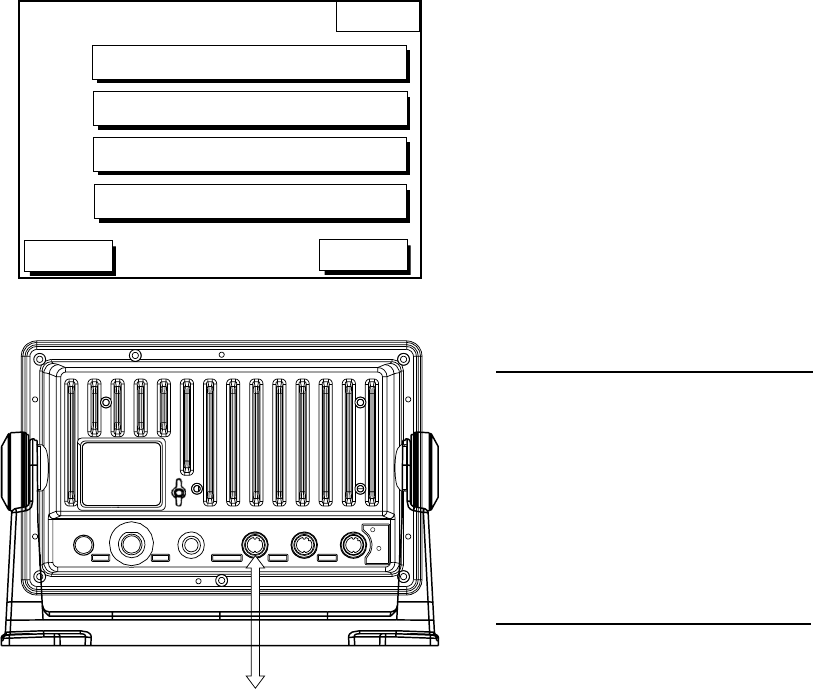
11. CUSTOMIZING YOUR UNIT
11-12
UPLOAD/DOWNLOAD DATA menu
This menu allows you to upload waypoint
and route data to a PC or download the
same data from a PC, via the DGPS
connector at the back of display unit. The
menu can be displayed by pressing the
[MENU] key followed by the
CONFIGURATION and
UPLOAD/DOWNLOAD DATA soft keys. For
detailed information, see the Installation
Manual.
DWNLOAD
UPLOAD
DGPS 3D
DOWNLOAD WPT/RTE TO PC
UPLOAD WPT/RTE FROM PC
RETURN
SAVE DATA TO MEMORY CARD
LOAD DATA FROM MEMORY CARD
Upload/download menu
ANT XDR
TEMP/SPD
DGPS NMEA
+ GND
1 3
2
-
12 - 24
VDC
Connect PC to DGPS
.
Display unit, rear view
Set communication software on the PC as
follows:
Baud Rate: 4800 bps
Character Length: 8 bit
Stop bit: 1 bit
Parity: None
X Control: XON/XOFF
The following data can be
downloaded/uploaded between a personal
computer and this equipment:
• Waypoint data (In alphanumeric order)
• Route data (In order of route number)
• End of sentence
Note 1: There are two kinds of data for
route data: route data and route
comment data.
Note 2: DGPS position fix is not available
when uploading or downloading
data.
Download waypoint/route to PC
1. Connect the PC to the GP1850W series
as shown on the next page.
2. Press the DOWNLOAD WPT/RTE TO
PC soft key. You are asked if you are
ready to download waypoints and routes.
3. Press the [ENTER] key to download.
Upload waypoint/route from PC
Note that all waypoint and route data stored
in this unit will be deleted when data is
uploaded.
1. Connect the PC to the GP-1850W series
as shown below.
2. Press the UPLOAD WPT/RTE FROM PC
soft key. You are asked if you are ready
to upload waypoints and routes.
3. Press the [ENTER] key to upload.
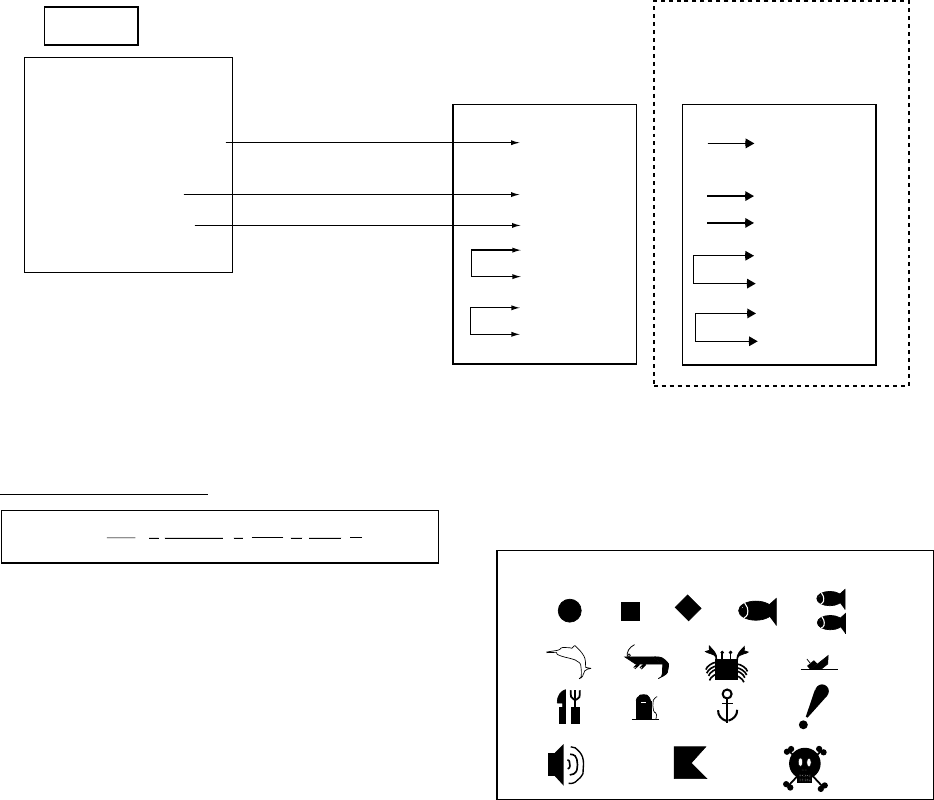
11. CUSTOMIZING YOUR UNIT
11-13
DGPS
1 NC
2 NC
3 RD (YELLOW)
4 NC
5 SD (RED)
6 SG (BLUE)
7 SHIELD
2 (TxD)
3 (RxD)
7 (GND)
4 (DTR)
5 (DSR)
6 (RTS)
20 (CTS)
3 (TxD)
2 (RxD)
5 (GND)
4 (DTR)
6 (DSR)
7 (RTS)
8 (CTS)
PC/AT
DSUB 9-pin
(EIA-574)
PC/AT
DSUB 25-pin
(EIA-232)
GP-1850WDF/1850WF
Connection of GP-1850WDF/GP-1850WF to PC
Waypoint data format
1 2 3 4 5 6 77
PFEC, GPwpl, llll.lll, a, yyyyy.yyy, a, c----c, c, c----c, A <CR><LF>
8
Waypoint data format
1: Waypoint latitude
2: N/S
3: Waypoint longitude
4: E/W
5: Waypoint name (Number of characters is
fixed to 6 and space code is placed when
the number of characters are less than
6.)
6: Waypoint color
7: Waypoint comment (1 byte for mark code
+ 13 characters of comment.)
1st byte of mark code: Fixed to ‘@’.
2nd byte of mark code: Internal mark
code. See Note 1.
8. Information of marking waypoint. Always
set to “A”.
“A”: Displayed
“V”: Not displayed
Note 1: Following characters can be used
for comments:
_ABCDEFGHIJKLMNOPQRSTUVWXYZ0123456789&'#
=9 =: =; =< = =
=> =? =@ =A
=B =C =D =E
=F =G =H
Character available for comment
11. CUSTOMIZING YOUR UNIT
11-14
Route data menu
$GPRTE, x, x, a, ccc, c----c, c----c, ... , c----c <CR><LF>
1 2 345612
Route data format
1: Number of sentences required for one
complete route data (1 to 4). See Note 2.
2: Number of sentences currently used (1 to
4)
3: Message mode (Always set to C)
4: Route No. (001 to 300, 3 digits required)
5 through 12: Waypoint name (Max. 8
names, length of each waypoint name is
fixed to 7 byte)
Note 2: A route can may contain 35
waypoints and GPRTE sentence for
one route data may exceed 80 byte
limitation. In this case, route data is
divided into several GPRTE
sentences (Max. 4 sentences). This
value shows the number of
sentences the route data has been
divided.
Route comment data format
12
$PFEC, GPrtc, xx, c----c <CR><LF>
Route comment format
1: Route No. (01 to 200, 3 digits required)
2: Route comment (Max. 16 characters,
variable length)
The same characters of the comment for
waypoint comment can be used.
End of sentence
$PFEC, GPxfr, CTL, E <CR><LF>
End of sentence
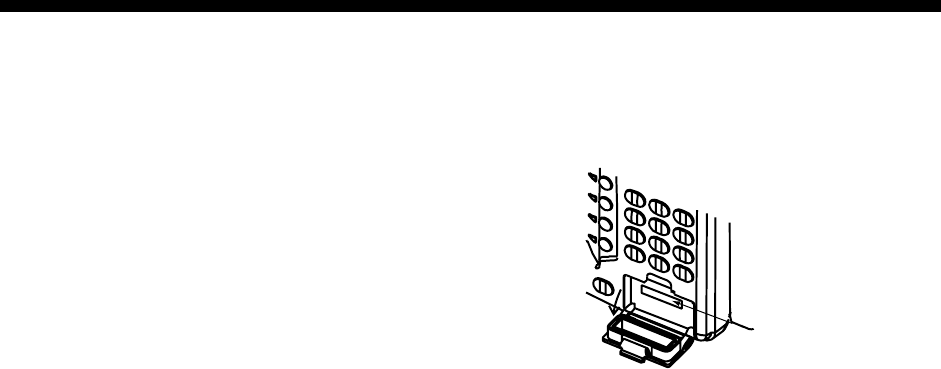
12-1
12. USING C-MAP NT MODEL
The GP-1850WDF/1850WF C-MAP NT
series uses FURUNO mini chart cards and
C-MAP NT-FP chart cards. These charts
show accurate coastlines, depth contours,
place names, aids to navigation such as
buoys and lighthouses, and other
navigational marks.
12.1 Inserting Chart Card
1. Push down the lid catch to open the chart
card slot cover.
Card slot
Location of chart card slot cover
2. Insert appropriate chart card groove side
up.
3. Close the slot cover to protect the chart
drive. (Keep the slot cover closed at all
times.)
Note 1: Turn off the power before inserting
or ejecting the chart card.
Note 2: When using C-MAP NT-FP card, do
not eject it while a chart is being
drawn. This may cause the
equipment to stop working.
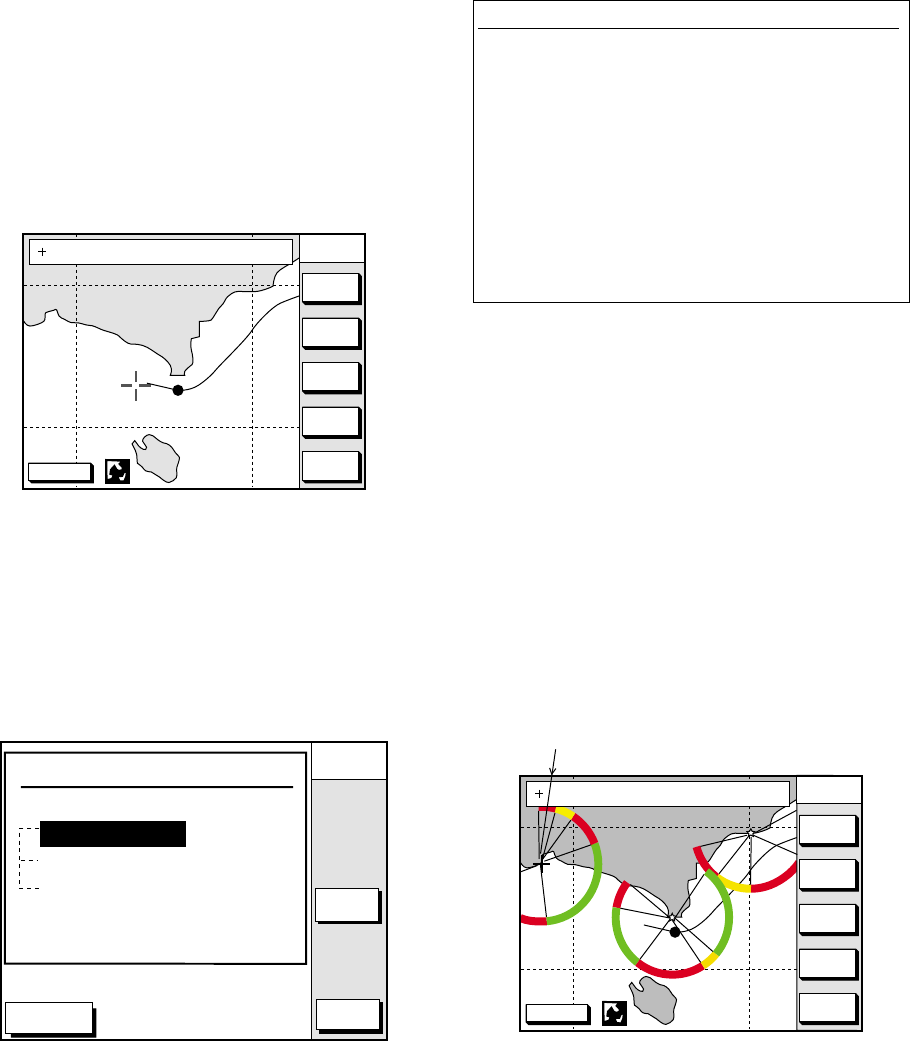
12. USING C-MAP NT MODEL
12-2
12.2 Cursor and Data Display
Besides its fundamental functions of
providing position data, the cursor can also
show caution area, depth area, source of
data, etc. Further, you can display
information about an icon by placing the
cursor on it.
1. Press the cursor pad to turn the cursor
on.
DGPS 3D CENTER
GO TO
CURSOR
COURSE
UP
ZOOM
OUT
ZOOMIN
NORTH
UP
135° 12.345' E
34° 12.345' N OS
FROM 276.9°
16.45nm
Plotter display
2. Use the cursor pad to place the cursor on
the position desired.
3. Press the [ENTER] key to open the
Objects window. For example the
following window appears.
DGPS 3D CANCEL
ENTER
PORT
SERVICE
PUNTA CORNACCHIA
ACCO AMENO
ISCHIA PORTO
Objects
Depth area
Source of data
Caution area
Objects window
4. Press ▲ or ▼ to select the item desired.
5. Press the ENTER soft key or the
[ENTER] key to display details for object
selected Objects.
Caution area
Information
LEUCHTFEUER DIE KARTE ENTHAEL
T NUR DIE LAGEN DER WICHTIGEN
FEUER. LIGHTS ONLY THE PRINC
IPAL LIGHTS ARE SHOWN ON THIS
CHART. MISSWEISUNG SIEHE K
ARTEN GROESSEREN MASSSTABS. M
AGNETIC VARIATION LOCAL MAGNE
TIC ANOMALIES SEE LARGER SCAL
E CHARTS.
Example of caution area window
6. Press the CANCEL soft key to close the
window.
7. Repeat steps 4 to 6 to select other item.
8. Press the CANCEL soft key to close the
Objects window.
When you place the cursor on any icon, its
information appears.
1. Place the cursor on a lighthouse icon.
DGPS 3D CENTER
GO TO
CURSOR
COURSE
UP
ZOOM
OUT
ZOOMIN
NORTH
UP
NAVAID : X X X X X X 6S 7m 9M
FROM OS 2. 43nm 351. 2°
Place the cursor
on a lighthouse icon.
Lighthouse icon
2. Press the [ENTER] key. For example, the
following window appears.
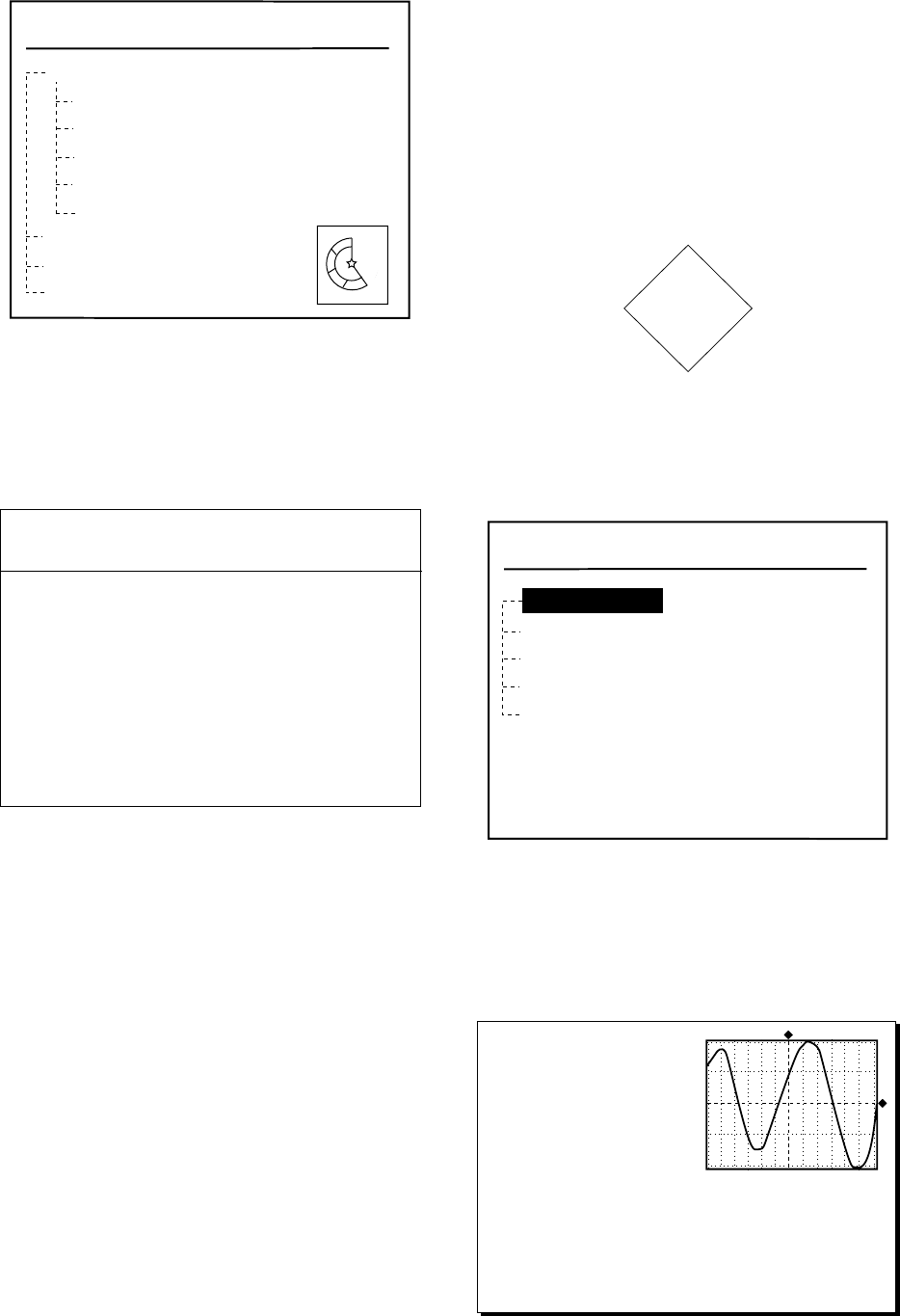
12. USING C-MAP NT MODEL
12-3
R
G
WR
Objects
Navigation mark, fixed
Extended navigational aid, ge
Light
Light
Light
Light
Depth contour
Land area
Source of data
Object windows
3. Press ▲ or ▼ to select the item desired.
4. Press the [ENTER] key to display
detailed information.
Color
white
Height
7. 00 Meters
Light characteristic
occulting
XXXXXXXX
XXXXXXXX
Navigation mark, fixed
Light.
Sample lighthouse data
5. Press the CANCEL soft key to close the
Objects window.
12.3 Tidal Information
The C-MAP NT-FP chart card provides for
calculation of the tide heights for any date.
Additionally it displays the times of sunrise
and sunset.
1. Press the cursor pad to place the cursor
on a Tide icon.
T
Tide icon
2. Press the [ENTER] key to open the
Objects window.
Objects
Depth contour
Caution area
Depth area
Source of data
Tide height
Objects window
3. Press ▲ or ▼ to select Tide height.
4. Press the ENTER soft key or the
[ENTER] key to open the TIDE window.
Time: 12:00
Height: 1.01 ft
Draught: 0.82 ft
01/01/00 +01
59 26. 467' N
010 28. 646' E
Port Info
HORTEN
High Water (max) 1.32 ft (13:15)
Low Water (min) 0.32 ft (21:45)
Sunrise 09:15L Sunset 15:27L
0 4 8 12 16 20 24
1.32
1.07
0.82
0.57
0.32
TIDE window
12. USING C-MAP NT MODEL
12-4
5. Press the DATE soft key to open the
DATE window.
DATE
DD/MM/YYYY
01 / 01 / 2000
DATE window
6. Use ◄ or ► to position the cursor where
desired and then press the appropriate
numeric keys to enter a date.
7. Press the ENTER soft key or the
[ENTER] key to show the tidal graph for
entered date.
8. Press ◄ or ► to locate the vertical
cursor on the time desired. Time and
height are shown to the left of the graph.
9. Press ▲ or ▼ to shift the level cursor.
Draught is shown to the left of the graph.
10. Press the CANCEL soft key to close the
TIDE window.
12.4 Navigating to Ports, Port
Services
The C-MAP NT-FP chart provides detailed
information on aids to navigation (buoy,
lighthouse) and port service information. The
port service information includes the
availability of water and fuel supplies,
shipyards, first aid, etc. You can use the list
to set destination as follows:
1. Press the [MENU] key to open the main
menu.
2. Press the DISPLAY OPTIONS soft key.
3. Press ▼ to select SET GO TO METHOD
and press the EDIT soft key. The SET
GO TO METHOD window appears.
SET GO TO METHOD
1 POINT
35 POINT
WPT/PORT SER
SET GO TO METHOD window
4. Press ▼ to select WPT/PORT SER and
press the ENTER soft key or the
[ENTER] key.
5. Press the [PLOT] key once or twice to
return the plotter display.
6. Press the GO TO soft key. Soft key titles
change. If the GO TO soft key is not
displayed, press the cursor pad.
DGPS 3D CANCEL
GO TO
FROM
OS 0.26 nm
180.2˚
QUICK
ROUTE
NEAR
SRVICE
GO TO
PUNTA CORNACCHIA
ACCO AMENO
I. ISCHIA
CASAMICCIOLA
ISCHIA PORTO
40˚45.971'N
13˚57.462'E
+
Plotter display
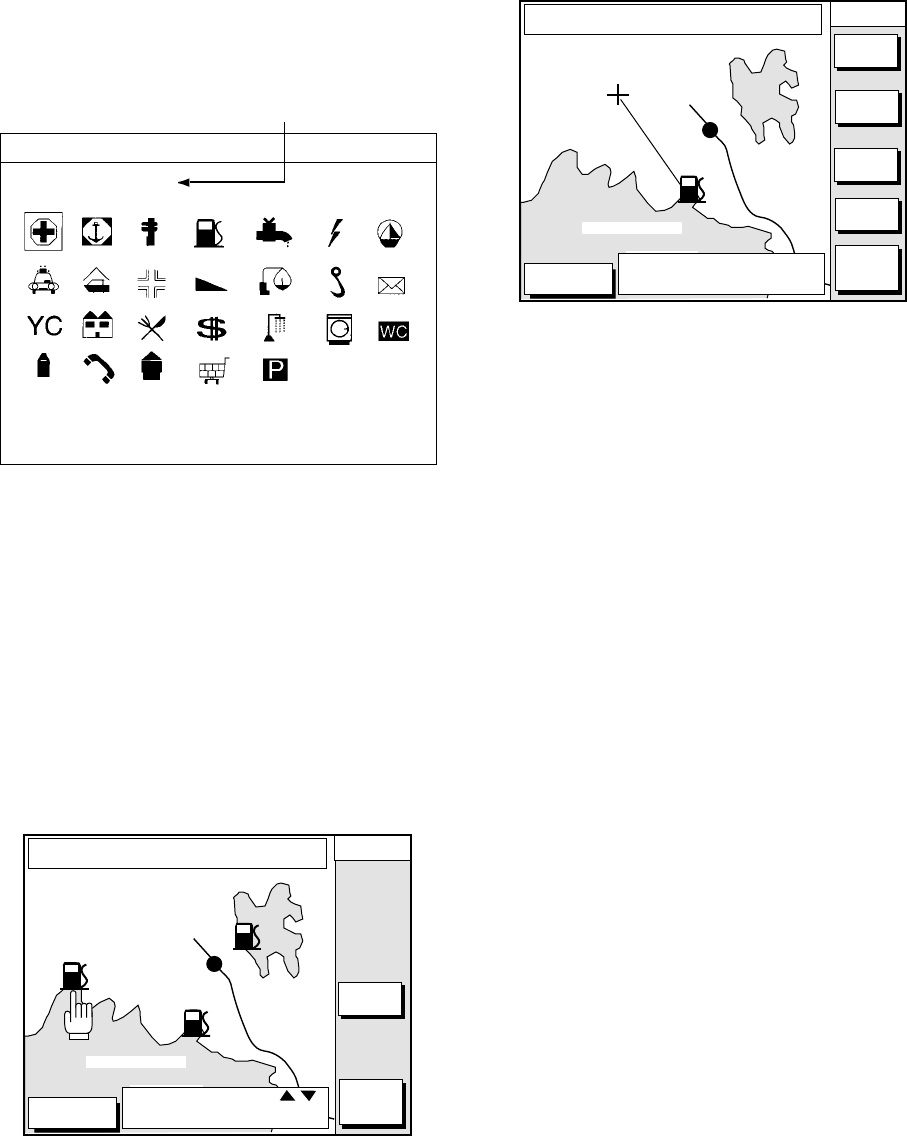
12. USING C-MAP NT MODEL
12-5
7. Press the NEAR SRVICE soft key.
The SELECT PORT SERVICE window
appears.
Currently selected icon
SELECT PORT SERVICE
Health emergency
SELECT PORT SERVICE window
8. Use the cursor pad to select service mark
desired. Currently selected icon is
circumscribed. The name of currently
selected icon appears at the top of the
window. Refer to the user's manual of
C-MAP NT for details about the icons.
9. Press the ENTER soft key or the
[ENTER] key. Then, the display shows
the locations of those services nearest
you.
DGPS 3D CANCEL
GO TO
FROM
OS 0.26 nm
180.2˚
ENTER
GO TO
PUNTA CORNACCHIA
ACCO AMENO
I. ISCHIA
CASAMICCIOLA
ISCHIA PORTO
40˚45.971'N
13˚57.462'E
+
SELECT ICON BY
KEY.
Sample filling station locations
10. Press ▲ or ▼ to place the "hand cursor"
on the port service icon desired and
press the ENTER soft key or the
[ENTER] key.
DGPS 3D CANCEL
GO TO
FROM
QP<01> 0.26 nm
180.2˚
GO TO
PUNTA CORNACCHIA
ACCO AMENO
I. ISCHIA
CASAMICCIOLA
ISCHIA PORTO
40˚45.971'N
13˚57.462'E
+
USE SOFT KEYS TO MAKE
ROUTE THEN PRESS "ENTER"
ZOOM
IN
ZOOM
OUT
ADD
QP
ERASE
LST QP
Make route window
11. Do one of the following:
Go directly to port service selected:
Press the [ENTER] key. The own ship
and the port service is connected by a
blue line. The range and bearing from
own ship to the port service appears at
the navigation data display.
You can go to the port service directly by
steering the ship to the heading
indicated.
Go to port service selected via
waypoints, make a route as follows:
a) Move the cursor to the nearest waypoint
of the port service.
b) Press the ADD QP soft key.
c) Repeat the above steps a) and b) to enter
other waypoints.
d) Press the [ENTER] key to finish.
A line connects between own ship,
waypoints and the port service. Further,
the range and bearing from own ship to
first waypoint appears.
Note: Destination is automatically cancelled
if there is no port for service selected.
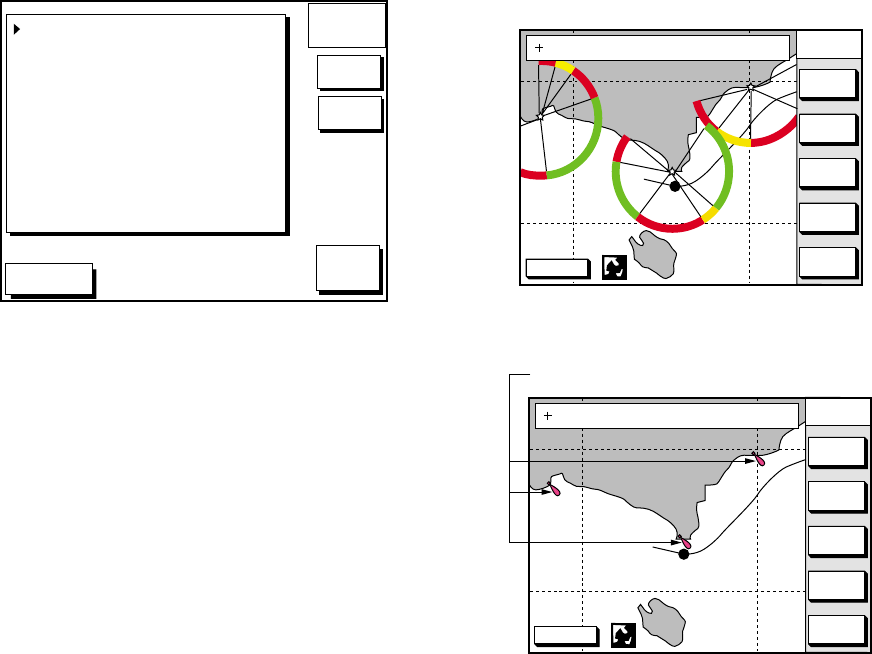
12. USING C-MAP NT MODEL
12-6
12.5 Setting Chart Setup
Options
CHART DETAILS menu
1. Press the [MENU] key followed by the
CHART SETUP OPTIONS and CHART
DETAILS soft key.
DGPS 3D
CHART
DETAIL
RETURN
EDIT
DEPTH
INFO
LAT/LON GRID
TEXT INFO
WAYPOINT
WAYPOINT NAME
INDEX
LANDMASS
BACKGROUND
NAV AIDS
SECTOR INFO
OTHER SYMBOLS
MARK SIZE
GREEN
ON
LARGE
ON
ON
BRT YELLOW
BLUE
ON
ON
WHITE
STD
Chart details menu
2. Press ▲ or ▼ to select item and press
the EDIT soft key.
3. Select option with cursor pad and press
the ENTER soft key or the [ENTER] key.
4. Press the RETURN soft key to finish.
Items which are concerned with C-MAP
NT-FP chart cards are described here.
LANDMASS: Selects brightness and color of
land. When you select OFF, color of land is
black.
BACKGROUND: Not available with C-MAP
NT-FP chart card.
NAV AIDS: Turns aids to navigation symbols
(for example, buoys) on/off. When OFF is
selected, symbols are displayed but
information is not displayed (at the upper
part of the screen).
SECTOR INFO: Turns lighthouse viewable
angle indication on C-MAP NT-FP chart
on/off. Viewing angle is shown as an arc
extending from lighthouse position. This
feature is available with selected charts.
When OFF is selected, the visual information
is not displayed and the lighthouse is
displayed as "!".
DGPS 3D CENTER
GO TO
CURSOR
COURSE
UP
ZOOM
OUT
ZOOMIN
NORTH
UP
135° 12.345' E
34° 12.345' N OS
FROM 276.9°
16.45nm
Sector info
DGPS 3D CENTER
GO TO
CURSOR
COURSE
UP
ZOOM
OUT
ZOOMIN
NORTH
UP
135° 12.345' E
34° 12.345' N OS
FROM 276.9°
16.45nm
Lighthouse
Lighthouse appearance when sector info
is off
OTHER SYMBOLS: Selects color of all
other chart symbols. When OFF is selected,
navaid icons are not displayed but alarm
icons are displayed.
DEPTH INFO soft key: Turns the DEPTH
INFO display on/off and sets it color on
FURUNO charts, or selects the depth areas
limit and spot sounding & bathymetric range
in C-MAP NT-FP chart.
12. USING C-MAP NT MODEL
12-7
1. With the CHART DETAILS menu
displayed, press the DEPTH INFO soft
key to show the following display.
DGPS 3D RETURN
DEPTH
INFO
EDIT
DEPTH < 10 m
DEPTH = 10 m
DEPTH > 10 m
DEPTH INFO
RED
YELLOW
LIGHT BLUE
RED
FOR FURUNO CHART
10 m : APPROX. 30 ft or 5 fa
FOR C-MAP CHART
SHADE CHANGE DPTH
SPOT SOUNDING & 0020, 0164 ft
0033~3000 ft
BATHYMETRIC RANGE
Depth info display
2. Press ▲ or ▼ to select item and press
the EDIT soft key or enter the appropriate
value by using numeric keys.
3. Select option with cursor pad and press
the ENTER soft key or the [ENTER] key.
4. Press the RETURN soft key several
times to finish.
SHADE CHANGE DPTH: Sets two
values in the range of Depth Limit on the
DEPTH INFO display when the C-MAP
NT-FP chart is used. The Depth Areas
are shown on the screen in three colors
depending on depth.
0 to left value: Blue
left value to right value: Light-blue
greater than right value: Light-gray
(Maximum value: 12000 meter or
39369 ft)
In the figure above, as the following,
0 - 20 ft: Blue
20 - 164 ft: Light-blue
greater than 164 ft: Light-gray
Note 1: Depth data depends on the
registered value at "depth area".
Note 2: It may be difficult to distinguish
colors of track and mark/line in
sea areas painted in light-blue or
green.
SPOT SOUNDING &
BATHYMETRIC RANGE: Sets the depth
range to display the spot sounding on the
C-MAP NT-FP chart. The depth range is
displayed red.
12.6 Selecting Chart
Scale/Range
Chart scale (range) may be selected with the
ZOOM IN or ZOOM OUT soft key. ZOOM IN
expands the chart; ZOOM OUT shrinks it.
The range selected is momentarily displayed
at the lower left-hand corner.
Note: When the display is expanded or
shrunk beyond the range of the chart
card in use the chart is not displayed,
and an appropriate chart icon
appears.
12. USING C-MAP NT MODEL
12-8
12.7 Displaying Program
Number
1. Press the [MENU] key to open the main
menu.
2. Press the CONFIGURATION soft key to
show the CONFIGURATION n menu.
3. Press the SYSTEM MENU soft key to
open the SYSTEM MENU.
4. Press the SELF TEST soft key to open
the TEST menu.
5. Press the MEMORY, I/O TEST soft key to
start the test. Test results and program
numbers. are shown as below.
PROGRAM: OK
No.14518410**
RETURN
TEST
SRAM: OK
DRAM: OK
PORT1: -- --
PORT2: -- --
INTERNAL
BATTERY: OK
GPS
RECEIVER: OK
No.48502060**
BEACON
RECEIVER: OK
No.08501820**
No.
Program Number
Memory, I/O test results
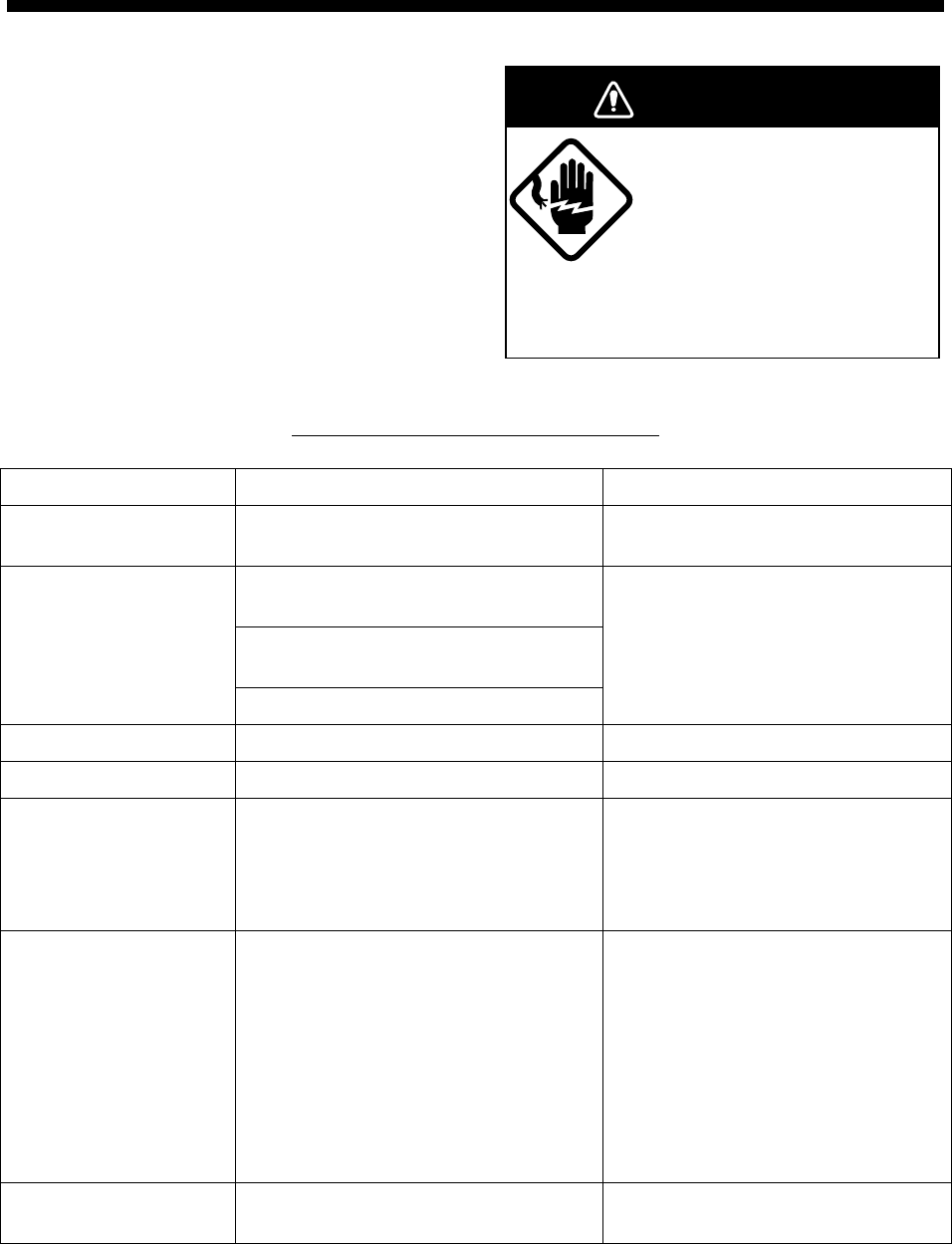
13-1
13. MAINTENANCE &
TROUBLESHOOTING
13.1 Maintenance
Regular maintenance is essential for good
performance. A maintenance program should
be established and should at least include
the items listed in below.
Do not open the equipment.
Hazardous voltage which can
cause electrical shock, burn or
serious injury exists inside the
equipment. Only qualified
personnel should work inside
the equipment.
WARNING
Recommended maintenance program
Item Check point Remedy
Antenna Check for loosened and corroded bolts. Tighten loosened bolts. Replace
heavily corroded bolts.
Check connection point for
watertightness.
Check connector for tightness and
corrosion.
Antenna cable
Check cables for damage.
Replace damaged pats.
Display unit connectors Check for tight connection. Tighten loosened connectors.
Ground terminal Check for tight connection and corrosion. Clean or replace as necessary.
Display unit Dust and foreign material on the display
unit.
Dust may be removed with a soft cloth,
if necessary anti-static cleaner may be
used. Never use chemical solvents to
clean the display; they can remove
paint and markings.
LCD Dust and foreign material on the screen.
Wipe the LCD carefully to prevent
scratching, using tissue paper and an
LCD cleaner. To remove dirt or salt
deposits, use an LCD cleaner, wiping
slowly with tissue paper so as to
dissolve the dirt or salt. Change paper
frequently so the salt or dirt will not
scratch the LCD. Do not use solvents
such as thinner, acetone or benzene
for cleaning.
Transducer Check the transducer face yearly for
marine life, which can reduce sensitivity.
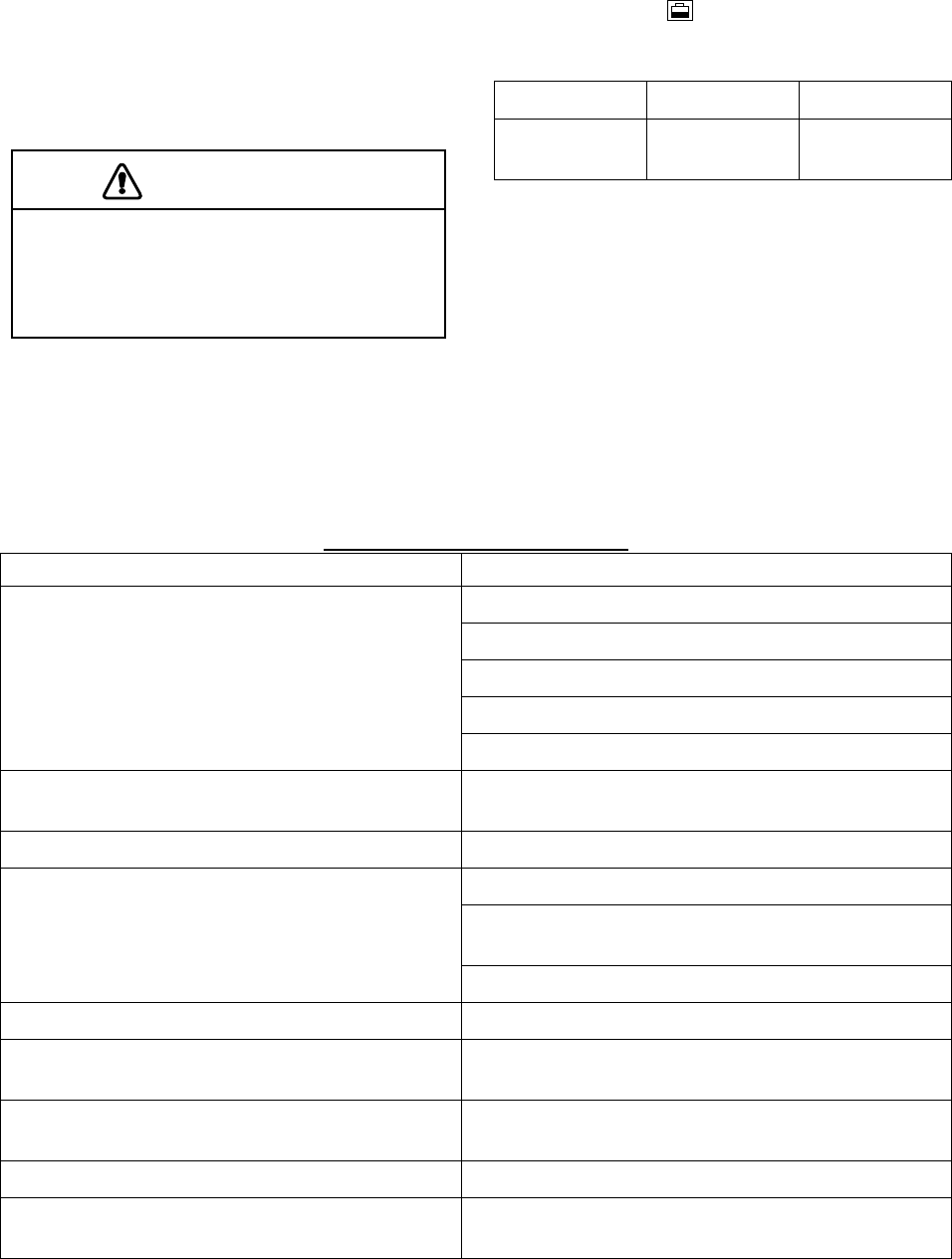
13. MAINTENANCE & TROUBLESHOOTING
13-2
13.2 Replacement of Fuse,
Battery
The fuse on the power cable protects the
system from reverse polarity of the ship’s
mains and equipment fault. If the fuse blows,
find the cause before replacing it. Use only a
5 A fuse. Using the wrong fuse will damage
the unit and void the warranty.
Use the correct fuse.
Use of a wrong fuse can cause fire or
damage the equipment.
CAUTION
A battery installed on the circuit board inside
display unit preserves data when the power
is turned off. The life of the battery is about
three years. When the battery voltage is low
the battery icon ( ) appears on the display.
When this happens, contact your dealer to
request replacement of the battery.
Type Code Number
Lithium
Battery
CR2450-F2
ST2L
000-144-941
Note : Use only the specified battery. Use of
an incorrect battery may cause
explosion. Dispose of the battery in
accordance with local regulations.
13.3 Simple Troubleshooting
Below are simple troubleshooting
procedures which the user can follow to
restore normal operation.
Simple troubleshooting (plotter)
If … Then …
check for blown fuse.
check that the power connector is firmly tightened.
check for corrosion on power cable connector.
check for damaged power cable.
you cannot turn on the power
check ship’s battery for proper voltage output (12/24 V).
power is on but nothing appears press the [POWER/BRILL] key and then the cursor pad
to adjust display brilliance and tone.
there is no response when a key is pressed turn on the power again.
check for loosened antenna connector.
check for frequency deviation of GPS receiver on GPS
monitor display.
position is not fixed within 90 seconds.
check GPS receiver status indication.
track is not plotted plotting is stopped. (“H” appears on the plotter display.)
bearing is wrong check that correct magnetic variation is entered on the
DISPLAY OPTIONS menu.
loran or Decca TDs do not appear check that proper Loran or Decca chain codes are
entered on the DISPLAY UNIT.
loran TDs are wrong enter TD offset on the GPS/DGPS/TD OPTIONS menu.
ship’s speed display is not zero after ship is stopped try to decrease GPS speed smoothing setting on the
GPS/DGPS/TD OPTIONS menu.
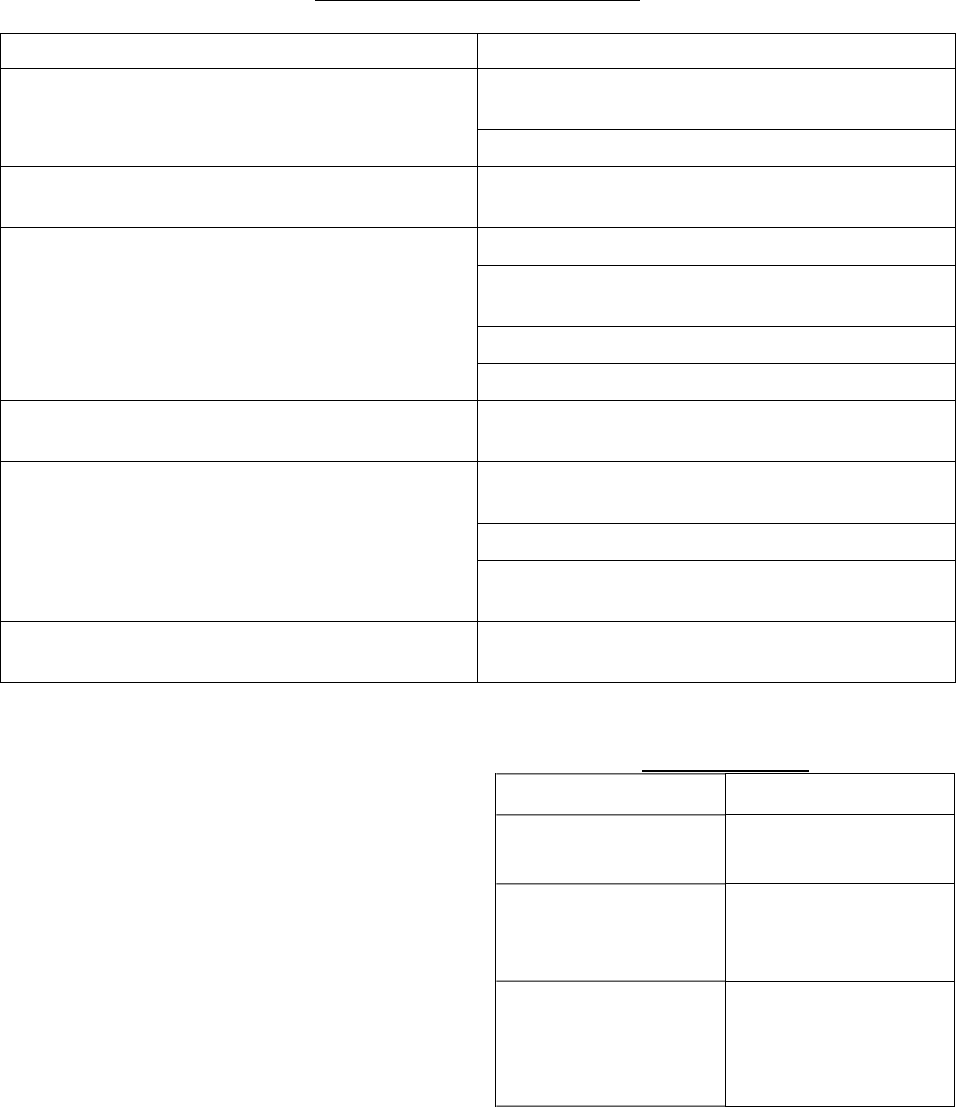
13. MAINTENANCE & TROUBLESHOOTING
13-3
Simple troubleshooting (sounder)
If … Then …
check if picture advance speed is set to “STOP”
on the SOUNDER SETUP OPTIONS menu.
no picture but markers and characters appear
check for loosened transducer connector.
picture appears but no zero line if using manual video sounder operation, range
is shifted; set shifting zero to correct.
check gain setting, if using manual operation.
marine life or air bubbles may be clinging to
transducer face.
water may be dirty.
picture sensitivity is too low
bottom may be too soft to return a suitable echo.
depth is not displayed adjust echo offset on the SOUNDER SETUP
OPTIONS menu (SYSTEM SETUP soft key).
check if transducer cable is near ship’s engine. If
it is, relocate it.
check ground.
noise or interference obstructs the display
other video sounders may be operating nearby
and on same frequency.
water temperature graph appears but no or
wrong readout check for loosened sensor cable.
13.4 Error Messages
The GP-1850WF/1850WDF displays the
following error messages on the alarm menu
to alert you to possible trouble.
Error messages
Error Message Meaning, remedy
NO GPS FIX No GPS signal. Check
antenna cable.
NO DIFFERENTIAL
GPS CORRECTION.
(GP-1850WDF only)
No DGPS signal.
Check antenna.
VOLTAGE OF
INTERNAL BATTERY
IS LOW.
Voltage of internal
battery is low.
Request replacement
of battery.
13. MAINTENANCE & TROUBLESHOOTING
13-4
13.5 Diagnostic Tests
Memory, I/O port test
This test conducts a general check of the
display unit and the antenna unit. The unit
displays the results for each device or
component checked as OK or NG (No
Good).
1. Press the [MENU] key to open the main
menu.
2. Press the CONFIGURATION soft key to
show the CONFIGURATION menu.
CONFIG
DGPS 3D
SETUP NMEA PORT 1
UPLOAD/DOWNLOAD DATA
SETUP NMEA/DGPS PORT 2
SYSTEM MENU
RETURN
Configuration menu
3. Press the SYSTEM MENU soft key to
open the SYSTEM menu.
SYSTEM
MENU
DGPS 3D
SELF TEST
MEMORY/TRIP CLEAR
DEMONSTRATION MODE
RETURN
System menu
4. Press the SELF TEST soft key to open
the TEST menu.
TEST
DGPS 3D
MEMORY•I/O TEST
TEST PATTERN
KEYBOARD TEST
RETURN
REMOTE CONTROLLER TEST
Test menu
5. Press the MEMORY•I/O TEST soft key to
start the test. Test results and program
nos. are shown as below.
PROGRAM: OK
No.1451827**
RETURN
TEST
SRAM: OK
DRAM: OK
PORT1: OK*
PORT2: OK *
INTERNAL
BATTERY: OK
GPS
RECEIVER: OK
No.48502060**
BEACON
RECEIVER: OK
No.08501781**
No.
*: Special connections are required to check these ports.
Otherwise, "--" appears.
**: Program Version No.
Memory, I/O test results
6. The test runs continuously. To return to
the TEST menu, press the RETURN soft
key.
Note: BEACON RECEIVER results only
appear on GP-1850WDF.
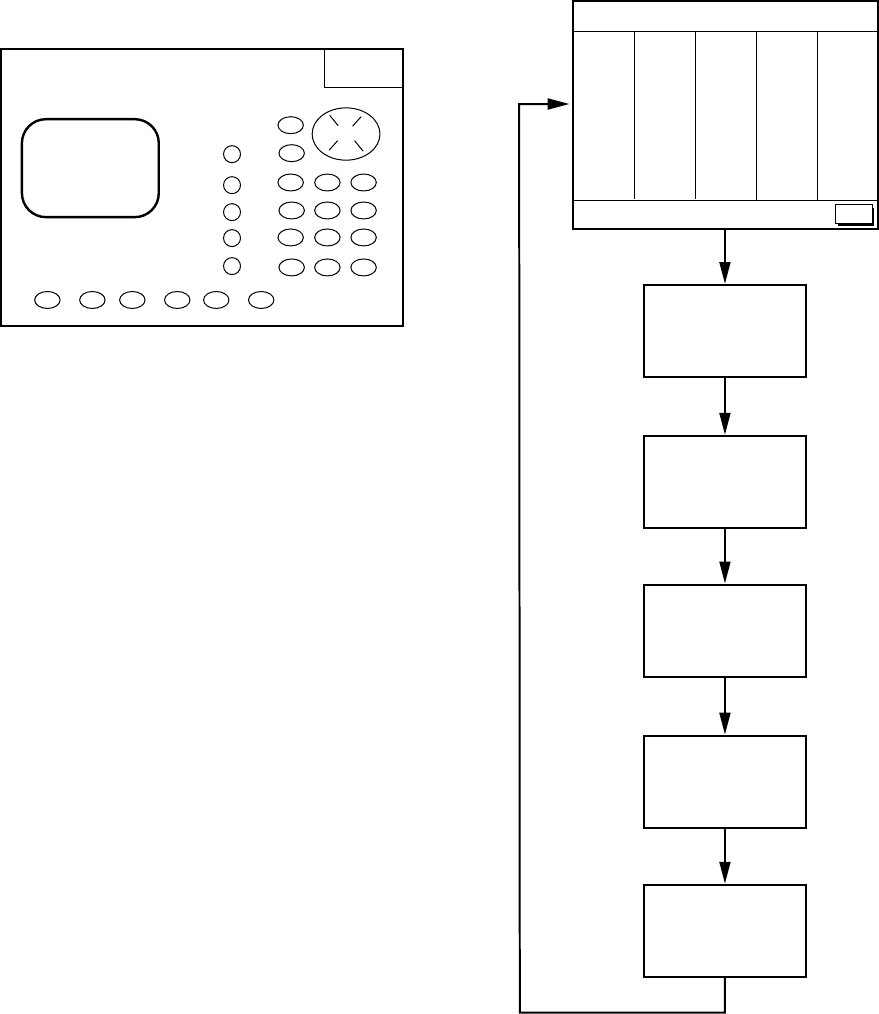
13. MAINTENANCE & TROUBLESHOOTING
13-5
Keyboard test
This test checks all controls for proper
operation.
1. Press the [MENU] followed by the
CONFIGURATION, SYSTEM MENU and
SELF TEST soft keys to display the
TEST menu.
2. Press the KEYBOARD TEST soft key to
display the screen for testing the
keyboard.
KEYBOAD
TEST
PRESS
"CLEAR" KEY
3 TIMES
TO RETURN.
▲
▲
▲
▲
Keyboard test
3. Press each key one by one. The pressed
key’s on-screen location turns black if the
key is functioning properly.
4. To escape, press the [CLEAR] key three
times.
Display test
1. Press the [MENU] key followed by the
CONFIGURATION, SYSTEM MENU and
SELF TEST soft keys to display the
TEST menu.
2. Press the TEST PATTERN soft key to
open the test pattern display.
3. Press the [ENTER] key to change the
test pattern.
TEST PATTERN
WHT GRN BLU BLK
WHT
RED
GRN
BLU
BLK
RED
PRESS "ENTER" TO CHANGE PATTERN
RETURN
Display test pattern
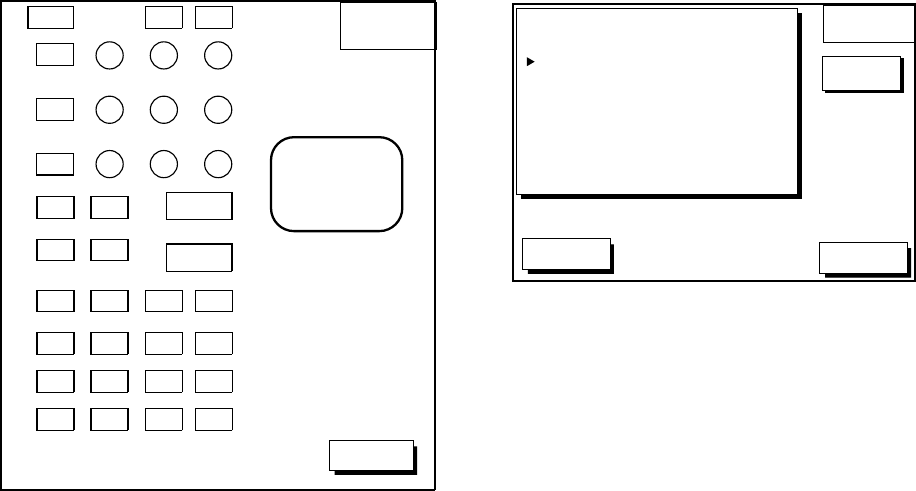
13. MAINTENANCE & TROUBLESHOOTING
13-6
Remote controller test
This test checks the controls of the remote
controller for proper operation.
1. Press the [MENU] key followed by the
CONFIGURATION, SYSTEM MENU and
SELF TEST soft keys to display the self
test menu.
2. Press the REMOTE CONTROLLER
TEST soft key to display the screen for
testing the remote controller.
REMOTE
TEST
RETURN
PRESS
"CLEAR" KEY
3 TIMES
TO RETURN.
Remote controller test
3. Press the any key. The pressed key’s
on-screen location turns black if the key
is functioning properly.
4. To escape, press the RETURN soft key on
the display unit, or press the [CLEAR]
key three times on the remote controller.
13.6 Clearing Memories
The memory, which stores marks, tracks and
initial settings, can be cleared to start afresh.
When this done all default settings are
restored.
1. Press the [MENU] key followed by the
CONFIGURATION and SYSTEM MENU
soft key.
2. Press the MEMORY/TRIP CLEAR soft
key to open the clear memory menu.
DGPS 3D RETURN
CLEAR
MEMORY
EDIT
CLEAR PLOTTER MEMORY
CLEAR GPS MEMORY
CLEAR ALL MEMORY
TRIP METER RESET
NO
NO
NO
NO
Clear memory menu
3. Press ▲ or ▼ to select memory or trip
meter reset.
4. Press the EDIT soft key.
5. Press ▲ to select YES.
6. Press the ENTER soft key or the
[ENTER] key to clear item selected.
Note: For CLEAR PLOTTER MEMORY and
CLEAR ALL MEMORY, all waypoints
and routes are cleared and default
settings are restored. If you require
this data, save it to a PC beforehand.
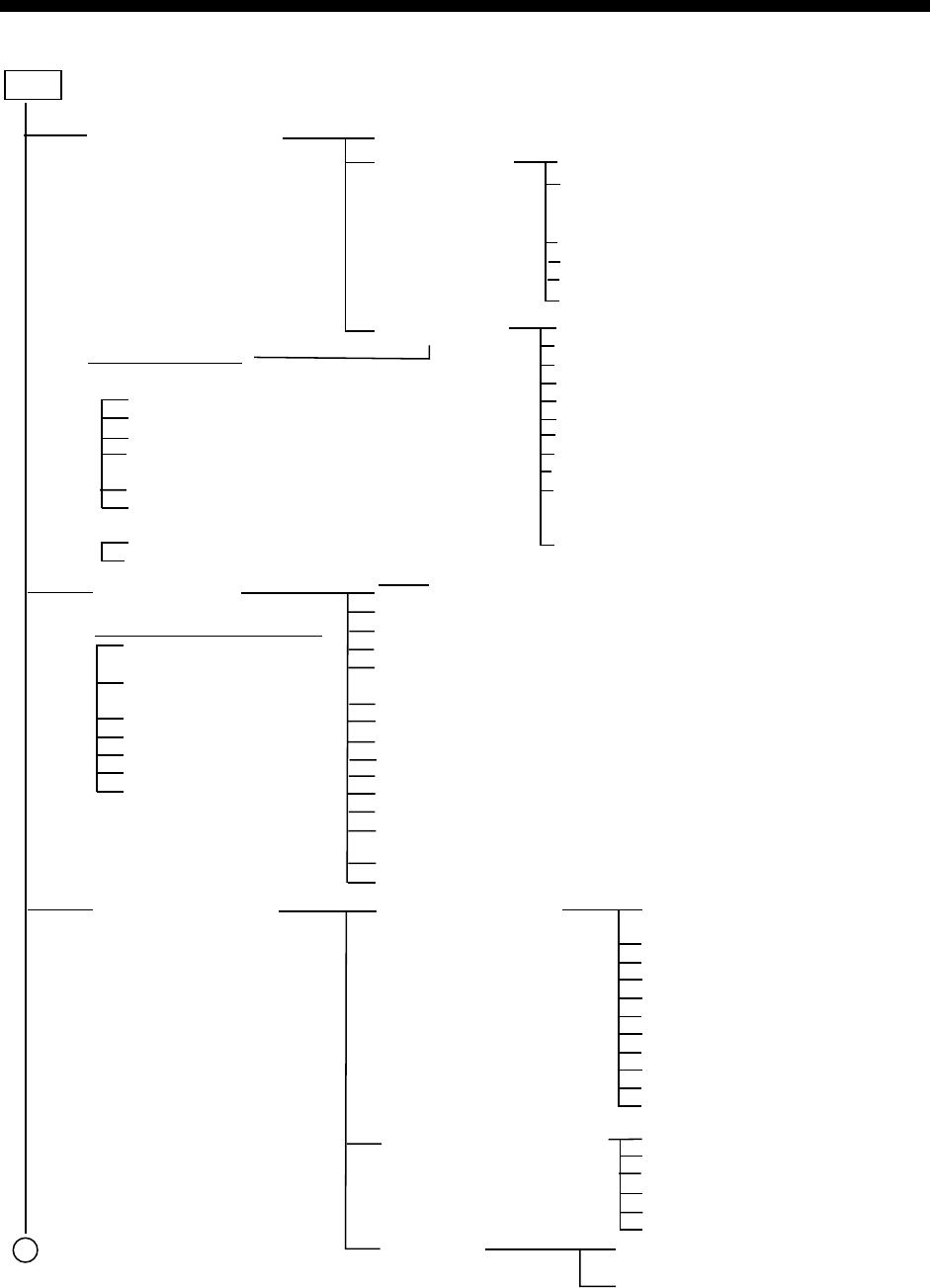
A
-1
MENU TREE
DISPLAY OPTIONS RNG & BRG MODE (GREAT CIRCLE,
RHUMB LINE
)
RANGE/SPEED UNIT (
nm/kt
, km/km/h, sm/sm/h)
DEPTH UNIT (m,
ft
, fa)
TEMP UNIT (°C, °
F
)
LAT/LON DISPLAY
(DD°MM.MM',
DD
°
MM.MMM'
, DD°MM.MMMM')
TIME DISPLAY (12HOUR,
24HOUR
)
WAYPOINTS SW (AUTO1,
AUTO2
, MANUAL)
COURSE VECTOR (VECTOR,
LINE
, OFF)
BEARING (TRUE,
MAGNETIC
)
MAG VARIATION (
AUTO
, MANUAL)
TD DISPLAY (
LORAN-C
, DECCA)
POSITION DISPLAY (
LAT/LON
, TD)
SET GO TO METHOD
(
1POINT
, 35POINT, WPT/PORT SERVICE)
OPERATION MODE (
PLEASURE
, FISHING)
LANGUAGE (
ENGLISH
, FRENCH)
GPS/DGPS/TD OPTIONS GPS SETUP OPTIONS
DGPS/WAAS SETUP OPTIONS
LOCAL TIME OFFSET (
00:00
)
GEODETIC DATUMS (
WGS-84
)
POS SMOOTHING (
000 sec
)
SPD/CSE SMOOTHING (
005 sec
)
GPS SPEED AVE (
060 sec
)
LAT OFFSET (
0.000'N
)
LON OFFSET (
0.000'E
)
DISABLE SATELLITE
LATITUDE (
38.00.000'N
)
LONGITUDE (
123.00.000'W
)
ANT. HEIGHT (
005m
)
FIX MODE (2D,
2D/3D
)
DGPS/WAAS MODE (DGPS, WAAS, AUTO,
OFF
)
BEACON FREQUENCY (
AUTO
, MANUAL)
BEACON BAUD RATE (
AUTO
, 50, 100, 200)
WAAS SEARCH (
AUTO
, MANUAL)
CORRECTIONS DATA SET (00 to 99,
02
)
ALARM (ON,
OFF
)
LORAN C
(GRI, CORRECTION1, 2)
DECCA
(DEC CHAIN, CORRECTION1, 2)
SPEED SOURCE
(OWN PDDWHL,
GPS
)
TEMP SOURCE
(NMEA,
OWN XDCR
)
TEMP GRAPH (ON,
OFF
)
ZOOM MARKER (ON,
OFF
)
SPEED ADJ. (+-xx%)
TEMP ADJ. (+-xx.x °C/°F)
DEPTH ADJ. (+-x.x m/ft/fa)
TD SETUP
Loran C Default: 9940, 11-27 (US West Coast)
Decca Default: Chain: 01, R-G (South Baltic)
MENU key
CHART SETUP OPTIONS CHART OFFSET
TRACK CONTROL
CHART DETAILS
Default settings shown in bold italic.
Page 1
Page 2 (by soft key NEXT PAGE)
1
DEPTH INFO Soft key
FURUNO chart
DEPTH < 10m (
ON
,
OFF
; RED
)
DEPTH = 10m (
ON
,
OFF
; YELLOW
)
DEPTH > 10m (
ON
,
OFF
; LIGHT BLUE
)
DEPTH INFO (
ON
,
OFF
; RED
)
(COLORS: RED, YELLOW, GREEN,
LIGHT BLUE, PURPLE, BLUE, WHITE)
SPOT SOUNDING & BATHYMETARIC RANGE (0 - 33 ft)
C-MAP NT chart
SHADE CHANGE DPTH
SPOT SOUNDING & BATHYMETRIC RANGE
DISPLAY TRACK (
ON
, OFF)
TRACK COLOR
(
RED
, YELLOW, GREEN, LIGHT-
BLUE, PURPLE, BLUE, WHITE)
PLOT (
TIME
, DISTANCE)
TIME INTERVAL (
00m10s
)
DIST INTERVAL (
00.10nm
)
TRACK MAMORY (
2000 POINTS
)
LAT/LON GRID (
ON
, OFF;
GREEN
)
TEXT INFO (
ON
, OFF)
WAYPOINT (
LARGE
, SMALL, OFF)
WAYPOINT NAME (
ON
, OFF)
INDEX (
ON
, OFF)
LANDMASS (
BRT
, DIM, OFF;
YELLOW
)
BACKGROUND (BLACK,
BLUE
)
NAV AIDS (
ON
, OFF)
SECTOR INFO (
ON
, OFF)
OTHER SYMBOLS (
ON
, OFF;
WHITE
)
(RED, YELLOW, GREEN, LIGHT BLUE,
PURPLE, BLUE, WHITE)
MARK SIZE (
STD
, SMALL)
Default settings shown in bold italic.
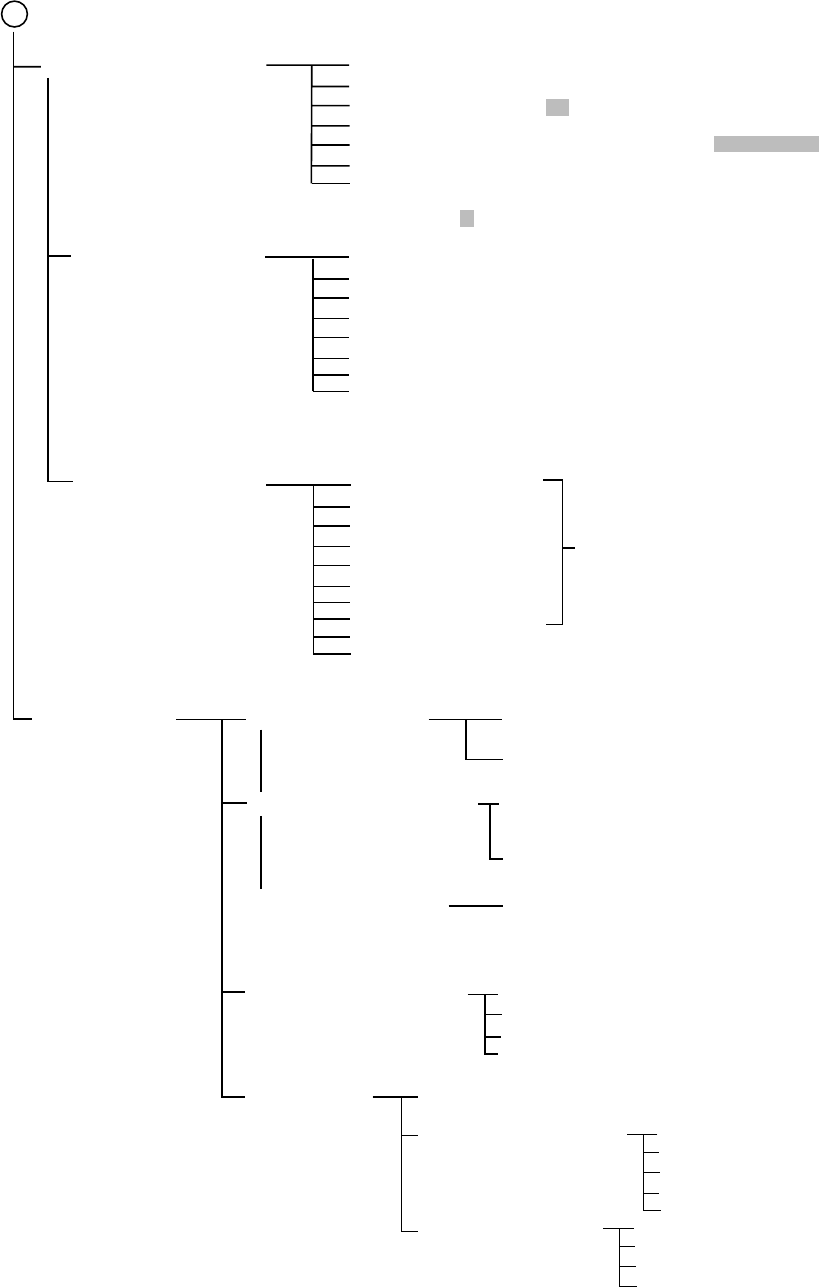
MENU TREE
A
-2
NOISE LIMITER (
OFF
, NL1, NL2, NL3)
CLUTTER (
AUTO
, 0-9)
WHITE MARKER [0-16 (or 0-8),
Default: 0
]
HUE (1-9,
Default: 1
)
SIGNAL LEVEL [SL1, SL2, SL3, SL4, SL5, SL6 (or SL1, SL2, SL3),
Default: OFF
]
PICTURE ADVANCE (2/1,
1/1
, 1/2, 1/4, 1/8, STOP)
E/S WINDOW (
STD
, WIDE)
1
SOUNDER SETUP OPTIONS
CONFIGURATION SETUP NMEA PORT 1
SETUP NMEA/DGPS PORT 2
FORMAT
(NMEA0183Ver.1.5,
2.0
)
LAT/LON FORMAT
(DD°MM.MM',
DD
°
MM.MMM
', DD°MM.MMMM)
FORMAT
(NMEA0183Ver.1.5, 2.0, RTCM104EX,
RTCM104INTRN
,
RTCM104OUT)
LAT/LON FORMAT
(DD°MM.MM',
DD
°
MM.MMM'
, DD°MM.MMMM)
SELF TEST (MEMORY, I/O; KEYBOARD;
TEST PATTERN, REMOTE CONTROLLER TEST)
DEMONSTRATION MODE
MEMORY/TRIP CLEAR
DOWNLOAD WAYPOINT/RTE TO PC
UPLOAD WAYPOINT/RTE FROM PC
SAVE DATA TO MEMORY CARD
LOAD DATA FROM MEMORY CARD
FISH ALM LVL (HIGH,
NORMAL
, LOW)
TX POWER (
ON
, OFF)
TVG 200 kHz (0-9,
Default: 5
)
TVG 50 kHz (0-9,
Default: 5
)
ECHO OFFSET 200 kHz (-20 - +20,
Default: 0
)
ECHO OFFSET 50 kHz (-20 - +20,
Default: 0
)
SEABED LVL 200 kHz (20-200,
Default: 80
)
SEABED LVL 50 kHz (20-200,
Default: 80
)
SYSTEM SETUP Soft key
RANGE SETUP Soft key RANGE1 (Default: 15 ft)
RANGE2 (Default: 30 ft)
RANGE3 (Default: 60 ft)
RANGE4 (Default: 120 ft)
RANGE5 (Default: 200 ft)
RANGE6 (Default: 400 ft)
RANGE7 (Default: 1000 ft)
RANGE8 (Default: 4000 ft)
ZOOM RANGE (7-4000 ft,
Default: 30 ft
)
B/L RANGE (10,
20
ft)
Setting range: 7-4000 ft
SELECT SNTNC. soft key (AAM,
APB
, BOD, BWC/BWR*, DBT**/DPT, GGA,
GLL
, MTW, RMA,
RMB
,
RMC
,
VTG
, WPL, XTE,
ZDA
)
UPLOAD/DOWNLOAD DATA
SYSTEM MENU
: When 8 is selected in HUE window
CLEAR PLOTTER MEMORY (
NO
, YES)
CLEAR GPS MEMORY (
NO
, YES)
CLEAR ALL MEMORY (
NO
, YES)
TRIP METER RESET (
NO
, YES)
*: BWR: For RHUMB LINE, BWC: For GREAT CIRCLE
**: When NMEA 0183 Ver. 1.5 is selected.
DEMO MODE
DEMO SPEED
DEMO COURSE
DEMO START LAT
DEMO START LON
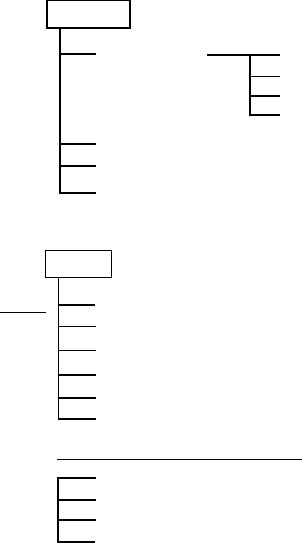
MENU TREE
A
-3
WPT/RTE key
WAYPOINTS
ROUTES
LOG
CREATE VOYAGE BASED ROUTE
LOCAL LIST
ALPHA/NUMERIC LIST
WAYPOINT BY CURSOR
WAYPOINT BY RANGE & BEARING
ALARM key
AUDIO ALARM (
ON
, OFF)
ARRIVAL ALARM (ON,
OFF
)
ANCHOR ALARM (ON,
OFF
)
PROXIMITY ALARM (ON,
OFF
)
XTE ALARM (ON,
OFF
)
SPEED ALARM (WITHIN, OVER/UNDER,
OFF
)
Page 1
Page 2 (By soft key NEXT PAGE)
BOTTOM ALARM (ON,
OFF
)
FISH (B/L) ALARM (ON,
OFF
)
FISH (NORMAL) (ON,
OFF
)
TEMP. ALARM (WITHIN, OVER/UNDER,
OFF
)
A
-4
LORAN C CHAINS
niahCIRG1S2S3S4S5S
cificaPlartneC09941192–––
tsaoCtsaEnaidanaC0395115283––
)aeroK(noiLodnammoC0795111324––
tsaoCtseWnaidanaC0995117214––
aibarAiduaShtuoS071711629325–
aeSrodarbaL03971162–––
aissuRnretsaE059711036416–
aksalAfofluG0697116244––
aeSnaigewroN079711626406–
ASUtsaehtuoS089711323495–
aeSnaenarretideM0997119274––
aissuRnretseW000801520556–
ASUlartneChtroN0928117224––
aibarAiduaShtroN09981152046596
sekaLtaerG079811824495–
ASUlartneChtuoS01691152042556
ASUtsaoCtseW0499117204––
ASUtsaehtroN069911529345–
)dlo(cificaPtsewhtroN079911035518–
cidnalecI08991103–––
cificaPhtroN0999119234––
zeuS19940142
ecnarF,dnalgnE04982103
cificaPtsewhtroN039811030507
tsaoCtsaEdnaldnuofweN07271152
yasseL13760193
ØB10071172
tlyS99471162
edjE7009013283
htroNaibarAaiduaS038811529365
htuoSaibarAaiduaS030711527355
A
-5
DECCA CHAINS
niahC .oN niahCniahC edoc noitacoLniahC .on niahCniahC edoc noitacoL
10citlaBhtuoSA0eporuE43otnaKC8napaJ
20tednaltseVE0" 53ukokihSC4"
30hsitirBtsewhtuoSB1" 63ukirukoHC2"
40nairbmuhtroNA2" 73uhsuyKatiKC7"
50dnalloHE2" 83dnalauqamaNA4acirfAnrehtuoS
60hsitirBhtroNB3" 93epaCA6"
70netofoLE3" 04ecnivorPnretsaEA8"
80F3" 14acirfAtseWhtuoSC9"
90citlaBhtroNB4" 24lataNC01"
01tseWhtroNC4" 34reipmaDE8ailartsuA
11galednorTE4" 44dnaldaeHtroPA4"
21hsilgnEB5" 54itsocitnAC9aciremAnrehtroN
31nainhtoBhtroNF5" 64dnaldnuofweNtsaEC2"
41hsinapSnrehtuoSA6" 74tiartStobaCB6"
51hsittocShtroNC6" 84aitocSavoNC7"
61dnalniFfofluGE6"
71hsinaDB7"
81hsirID7"
91kramnniFE7"
02hcnerFB8"
12nainhtoBhtuoSC8"
22naedirbeHE8"
32sdnalsInaisirFB9"
42dnalegleHE9"
52karregakSB01"
62fluGnaisrePhtroNC5aidnI&fluGnaisreP
72fluGnaisrePhtuoSC1"
82yabmoBB7"
92attuclaCB8"
03hsedalgnaBC6"
13hayilaSF2"
23odiakkoHC9napaJ
33ukohoTC6"
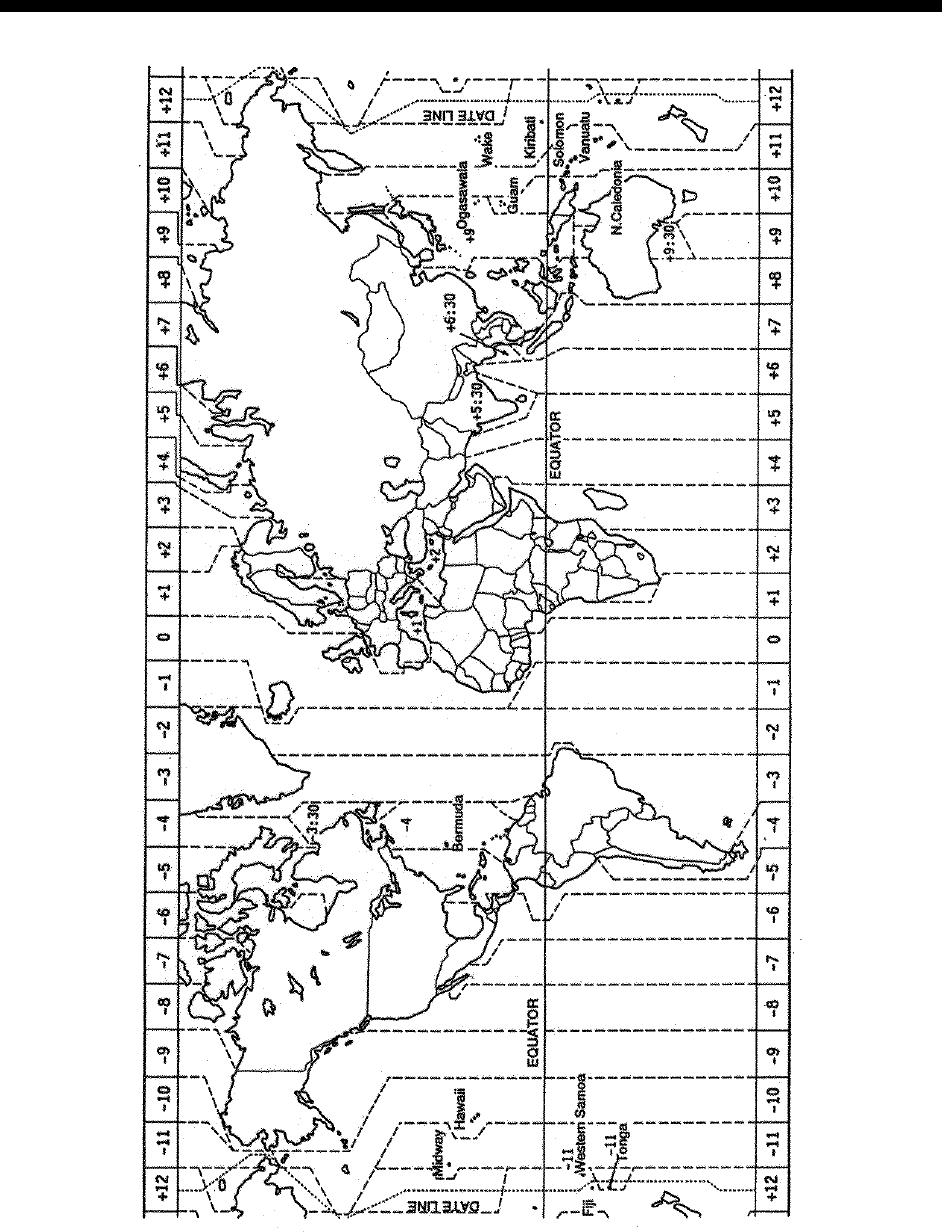
A
-6
WORLD TIME

A
-7
GEODETIC CHART LIST
001: WGS84
002: WGS72
003: TOKYO :
Mean Value (Japan, Korea & Okinawa)
004: NORTH AMERICAN 1927 : Mean Value (CONUS)
005: EUROPEAN 1950 : Mean Value
006: AUSTRALIAN GEODETIC 1984 : Australia & Tasmania
007: ADINDAN-MN :
Mean Value (Ethiopia & Sudan)
008: ADINDAN-E : Ethiopia
009: ADINDAN-MA : Mali
010: ADINDAN-SE : Senegal
011 ADINDAN-SU : Sudan
012: AFG : Somalia
013: AIN EL ABD 1970 : Bahrain Is.
014: ANNA 1 ASTRO 1965 : Cocos Is.
015: ARC 1950-MN : Mean Value
016: ARC 1950-B : Botswana
017: ARC 1950-L : Lesotho
018: ARC 1950-M : Malawi
019: ARC 1950-S : Swaziland
020: ARC 1950-ZR : Zaire
021: ARC 1950-ZM : Zambia
022: ARC 1950-ZB : Zimbabwe
023: ARC 1960-MN :
Mean Value (Kenya & Tanzania)
024: ARC 1960-K : Kenya
025: ARC 1960-T : Tanzania
026: ASCENSION IS. 1958 : Ascension Is.
027: ASTRO BEACON “E” : Iwo Jima Is.
028: ASTRO B4 SOR. ATOLL : Tern Is.
029: ASTRO POS 71/4 : St. Helena Is.
030: ASTRONOMIC STATION 1952 : Marcus Is.
031: AUSTRALIAN GEODETIC 1966 : Australia & Tasmania
032: BELLEVUE (IGN) : Efate & Erromango Islands
033: BERMUDA 1957 : Bermuda Islands
034: BOGOTA OBSERVATORY : Columbia
035: GAUPO INCHAUSPE : Argentina
036: CANTON IS. 1966 : Phoenix Islands
037: CAPE : South Africa
038: CAPE CANAVERAL :
Mean Value (Florida & Bahama Islands)
039: CARTHAGE : Tunisia
040: CHATHAM 1971 : Chatham Is. (New Zealand)
041: CHUA ASTRO : Paraguay
042: CORREGO ALEGRE : Brazil
043: DJAKARTA (BATAVIA) : Sumatra Is. (Indonesia)
044: DOS 1968 : Gizo Is. (New Georgia Is.)
045: EASTER IS. 1967 : Easter Is.
046: EUROPEAN 1950-WE : Western Europe
047: EUROPEAN 1950-CY : Cyprus
048: EUROPEAN 1950-EG : Egypt
049: EUROPEAN 1950-ESC :
England, Scotland, Channel & Shetland Islands
050: EUROPEAN 1950-EIS :
England, Ireland, Scotland, & Shetland
Islands
051: EUROPEAN 1950-GR : Greece
052 EUROPEAN 1950-IR : Iran
053: EUROPEAN 1950-SA : Italy, Sardinia
054: EUROPEAN 1950-SI : Italy, Sicily
055: EUROPEAN 1950-NF : Norway & Finland
056: EUROPEAN 1950-PS : Portugal & Spain
057: EUROPEAN 1979 : Mean Value
058: GANDAJIKA BASE : Republic of Maldives
059: GEODETIC DATUM 1949 : New Zealand
060: GUAM 1963 : Guam Is.
061: GUX 1 ASTRO : Guadalcanal Is.
062: HJORSEY 1955 : Iceland
063: HONG KONG 1363 : Hong Kong
064: INDIAN-TV : Thailand & Vietnam
065: INDIAN-BIN : Bangladesh, India & Nepal
066: IRELAND 1965 : Ireland
067: ISTS 073 ASTRO 1969 : Diego Garcia
068: JOHNSTON IS. 1961 : Johnston Is.
069: KANDAWALA : Sri Lanka
070: KERGUELEN IS. : Kerguelen Is.
071: KERTAU 1948 : West Malaysia & Singapore
072: LA REUNION : Mascarene Is.
073: L. C. 5 ASTRO : Cayman Brac Is.
074: LIBERIA 1964 : Liberia
075: LUZON :
Philippines (excl. Mindanao Is.)
076: LUZON-M : Mindanao Is.
077: MAHE 1971 : Mahe Is.
078: MARCO ASTRO : Salvage Islands
079: MASSAWA : Eritrea (Ethiopia)
080: MERCHICH : Morocco
081: MIDWAY ASTRO 1961 : Midway Is.
082: MINNA : Nigeria
083: NAHRWAN-O : Masirah Is. (0man)
084: NAHRWAN-UAE : United Arab Emirates
085: NAHRWAN-SA : Saudi Arabia
086: NAMIBIA : Namibia
087: MAPARIMA, BWI : Trinidad & Tobago
088: NORTH AMERICAN 1927WU : Western United States
089: NORTH AMERICAN 1927EU : Eastern United States
090: NORTH AMERICAN 1927AK : Alaska
091: NORTH AMERICAN 1927BH :
Bahamas (excl. San Salvador Is.)
092: NORTH AMERICAN 1927SS : Bahamas, San Salvador Is.
093: NORTH AMERICAN 1927CN : Canada
(incl. Newfoundland Is.)
094: NORTH AMERICAN 1927AB : Alberta & British Columbia
095: NORTH AMERICAN 1927EC : East Canada
096: NORTH AMERICAN 1927MO : Manitoba & Ontario
097: NORTH AMERICAN 1927NE :
Northwest Territories & Saskatchewan
098: NORTH AMERICAN 1927YK : Yukon
099: NORTH AMERICAN 1927CZ : Canal Zone
100: NORTH AMERICAN 1927CR : Caribbean
101: NORTH AMERICAN 1927CA : Central America
102: NORTH AMERICAN 1927CU : Cuba
103: NORTH AMERICAN 1927GR : Greenland
104: NORTH AMERICAN 1927MX : Mexico
105: NORTH AMERICAN 1983AK : Alaska
106: NORTH AMERICAN 1983CN : Canada
107: NORTH AMERICAN 1983CS : CONUS
108: NORTH AMERICAN 1983MX : Mexico, Central America
109: OBSERVATORIO 1966 :
Corvo & Flores Islands (Azores)
110: OLD EGYPTIAN 1930 : Egypt
111: OLD HAWAIIAN-MN : Mean Value
112: OLD HAWAIIAN-HW : Hawaii
113: OLD HAWAIIAN-KA : Kauai
114: OLD HAWAIIAN-MA : Maui
115: OLD HAWAIIAN-OA : Oahu
116: OMAN : Oman
117:
ORDNANCE SURVEY OF GREAT BRITAIN 1936-MN: Mean Value
118:
ORDNANCE SURVEY OF GREAT BRITAIN 1936-E: England
119:
ORDNANCE SURVEY OF GREAT BRITAIN 1936-IM: England, Isle
of Man & Wales
120:
ORDNANCE SURVEY OF GREAT BRITAIN 1936-SSI: Scotland, &
Shetland Islands
121: ORDNANCE SURVEY OF GREAT BRITAIN 1936-WL: Wales
122: PICO DE LAS NIVIES : Canary Islands
123: PITCAIRN ASTRO 1967 : Pitcairn Is.
124: PROVISIONS SOUTH CHILEAN 1963: South Chile (near 53°S)
125: PROVISIONAL SOUTH AMERICAN 1956MN: Mean Value
126: PROVISIONAL SOUTH AMERICAN 1956BO: Bolivia
127: PROVISIONAL SOUTH AMERICAN 1956NC:
Chile-Northern Chile
(near 19°S)
128:
PROVISIONAL SOUTH AMERICAN 1956SC: Chile-Southern Chile
(near 43°S)
129: PROVISIONAL SOUTH AMERICAN 1956CO: Columbia
130: PROVISIONAL SOUTH AMERICAN 1956EC: Ecuador
131: PROVISIONAL SOUTH AMERICAN 1956GY: Guyana
132: PROVISIONAL SOUTH AMERICAN 1956PR: Peru
133: PROVISIONAL SOUTH AMERICAN 1956VN: Venezuela
134: PUERTO RICO : Puerto Rico & Virgin Islands
135: QATAR NATIONAL : Qatar
136: QORNOQ : South Greenland
137: ROME 1940 : Sardinia Islands
138: SANTA BRAZ :
Sao Maguel, Santa Maria Islands (Azores)
139: SANTO (DOS) : Espirito Santo Is.
140: SAPPER HILL 1943 : East Falkland Is.
141: SOUTH AMERICAN 1969MN : Mean Value
142: SOUTH AMERICAN 1969AG : Argentina
143: SOUTH AMERICAN 1969BO : Bolivia
144: SOUTH AMERICAN 1969BR : Brazil
145: SOUTH AMERICAN 1969CH : Chile
146: SOUTH AMERICAN 1969CO : Columbia
147: SOUTH AMERICAN 1969EC : Ecuador
148: SOUTH AMERICAN 1969GY : Guyana
149: SOUTH AMERICAN 1969PA : Paraguay
150: SOUTH AMERICAN 1969PR : Peru
151: SOUTH AMERICAN 1969TT : Trinidad & Tobago
152: SOUTH AMERICAN 1969VZ : Venezuela
153: SOUTH ASIA : Singapore
154: SOUTHEAST BASE :
Porto Santo & Madeira Islands
155: SOUTHWEST BASE :
Faial, Graciosa, Pico, Sao Jorge, & Terceira Is.
156: TIMBALAI 1948 :
Brunei & East Malaysia (Sarawak & Sadah)
157: TOKYO JP : Japan
158: TOKYO KP : Korea
159: TOKYO OK : Okinawa
160: TRISTAN ASTRO 1968 : Tristan da Cunha
161: VITI LEVU 1916 : Viti Levu Is. (Fiji Islands)
162: WAKE-ENIWETOK 1960 : Marshall Islands
163: ZANDERIJ : Surinam
164: BUKIT RIMPAH :
Bangka & Belitung Islands (Indonesia)
165: CAMP AREA ASTRO :
Camp Mcmurdo Area, Antarctica
166: G. SEGARA : Kalimantan Is. (Indonesia)
167: HERAT NORTH : Afghanistan
168: HU-TZU-SHAN : Taiwan
169:
TANANARIVE OBSERVATORY 1925
: Madagascar
170: YACARE : Uruguay
171: RT-90 : Sweden
172: Pulkovo 1942 : Russia
173: Finish KKJ : Finland
This page is intentionally left blank.
SP - 1 E4425S02A-M
SPECIFICATIONS OF
COLOR GPS/ PLOTTER/ SOUNDER: GP-1850WF
COLOR DGPS/ PLOTTER/ SOUNDER: GP-1850WDF
1 GENERAL
1.1 Display 6.5 inch high resolution color LCD
1.2 Projection Mercator
1.3 Usable Area 85° latitude or below
1.4 Display Mode Plotter, Video pilot, Highway display, Waypoint display
1.5 Alarms Arrival and Anchor watch, Cross track error and proximity alarms,
Ship’s speed in and out alarms
2 GPS RECEIVER
2.1 Receiving Channels
GPS 12 channels parallel, 12 satellite tracking
WAAS 1 channel
2.2 Rx Frequency 1575.42 MHz
2.3 Rx Code C/A code, WAAS
2.4 Position Fixing System All in view, 8-state Kalman filter
2.5 Position Accuracy
GPS 10 m (95% of the time, HDOP ≤ 4)
DGPS 5 m (95% of the time), external data required for GP-1850WF
WAAS 3 m (95% of the time)
2.6 Tracking Velocity 999 kts
2.7 Position-fixing Time Warm start: 12 s approx., Cold start: 90 s approx.
2.8 Position Update Interval 1 s
3 DISPLAY SECTION
3.1 Effective Area 133.4 × 97.3 mm
3.2 Display Pixels 234 × 320 dots
3.3 Position Indication Latitude/longitude or Loran C LOP or DECCA LOP
4 PLOTTER
4.1 Effective Projection Area 0.125 nm to 2,048 nm (at equatorial area)
4.2 Track Display Plot interval: by time (1 to 59 min. 59 sec.) or
by distance (0.01 to 99.99 nm)
4.3 Colors Red, yellow, green, purple, light-blue, blue, white
4.4 Memory Capacity Track/Mark: 5000 points, waypoint: 800 point
4.5 Storage Capacity Simple route: 200 routes with 35 waypoints each
4.6 MOB 1 point
4.7 Quick Route 1 course
SP - 2 E4425S02A-M
4.8 Electronic Chart FURUNO or NAVIONICS chart card available,
C-MAP chart card also available for C-MAP NT Model
5 SOUNDER
5.1 Transmit Frequency 50/200 kHz
5.2 Transmission 600 Wrms/ 1 kWrms selectable
5.3 Display Range 15/30/60/120/200/400/1000/4000 ft, shift; 0-1200 ft
5.4 Extension Mode Marker zoom, Bottom zoom, Bottom Lock,
5.5 Auto Mode Cruising/Fishing selected
5.6 Picture Advance 6 steps
6 INTERFACE
6.1 Input Data IEC61162-1, NMEA 0183 Ver1.5
$**MTW, $**TLL, $GPWPL
6.2 Output Data IEC61162-1 or NMEA 0183 Ver1.5
$GPAAM, $GPAPB, $GPBOD, $GPBWR/GPBWC, $GPGLL,
$GPGGA, $GPRMA, $GPRMB, $GPRMC, $GPVTG, $GPXTE,
$GPZDA, $GPWPL
7 POWER SOURCE
7.1 Display Unit
TX 600 W: 12-24 VDC: 1.3-0.6 A
TX 1 kW: 12-24 VDC: 1.7-0.8 A
7.2 Rectifier (PR-62, option) 100/110/115/200/220/230 VAC, 1 phase, 50/60 Hz
8 ENVIRONMENTAL CONDITIONS
8.1 Ambient Temperature
Antenna Unit -20ºC to + 70ºC
Display Unit -15ºC to +55ºC
8.2 Relative Humidity 95% at +40ºC
8.3 Waterproofing (IEC 60529)
Antenna Unit IPX6
Display Unit IPX5
8.4 Vibration IEC 60529
9 COATING COLOR
9.1 Display Unit Cover: Munsell 2.5GY5/1.5, Panel: N3.0
9.2 Antenna Unit N9.5 (white)

Index-1
INDEX
A
A-scope display 2-4
Alarm information window 2-10, 9-4
ALARM key 2-10, 9-1
Alarm messages 9-4
Alarms
alarm information window 2-10, 9-4
alarm message 9-4
anchor watch alarm 9-2
arrival alarm 9-1-9-2
audio alarm 9-1
bottom alarm 2-10
DGPS alarm 11-7-11-8
fish (B/L) alarm 2-10
fish (normal) alarm 2-10
proximity alarm 9-3
speed alarm 9-3
temperature (water) alarm 2-10
XTE alarm 9-2-9-3
Anchor watch alarm 9-2
Arrival alarm 9-1-9-2
Audio alarm 9-1
Antenna height 11-7
Auto course-up mode 3-1
Automatic sounder operation 2-5
B
Background color
chart 11-2
sounder 2-9
Battery replacement 13-2
Beacon baud rate 11-7
Beacon frequency 11-7
Beacon information display 3-7
Bottom alarm 2-10
Bottom echo 2-11
Bottom-lock display 2-3
Bottom-zoom display 2-3
Brilliance adjustment 1-3
Buoy data 3-4-3-5
C
Chart details menu 11-2
Chart offset menu 11-1
Chart scale 3-3
Chart setup options menu 11-1–11-2
Clutter rejection 2-7
Configuration menu 11-11–11-14
Course vector 11-3
Course-up mode 3-1
Cross-track error alarm. See XTE alarm
Cursor 3-2
Cursor data 12-2
D
Decca chains A-5
DECCA station selection 11-8
Demonstration display 1-6
Depth
indication adjustment 11-5
measurement of 2-7
Depth info 11-2
DEPTH INFO soft key 11-2
Depth unit 11-3
DGPS/WAAS alarm 11-8
DGPS beacon information display 3-7
DGPS/WAAS mode 11-7
DGPS/WAAS setup options menu
11-6-11-7
Diagnostics
display test 13-5
keyboard test 13-5
memory, I/O test 13-4
Disable satellite 11-6
Display options menu 11-3–11-5
Display setup 1 menu 11-3–11-4
Display setup 2 menu 11-4–11-5
Display test 13-5
Downloading data 11-12
Dual-frequency display 2-4
E
Echo color 2-9
Echo offset 11-10
Error messages 13-3
E/S window 2-4
INDEX
Index-2
F
Fish (B/L) alarm 2-10
Fish (normal) alarm
sensitivity 11-10
setting 2-10
Fishing 1, 2 mode 3-8-3-10
Fish school echoes 2-11
Fix mode 11-7
Fuse replacement 13-2
G
Gain adjustment 2-6
Geodetic chart list A-7
Geodetic datum 11-5
GPS satellite monitor display 3-6
GPS/DGPS/TD options menu 11-5–11-8
Great circle 11-3
Grid 11-2
H
Highway display 3-8
Hue (sounder) 2-9
I
Indications
enlargement of nav data 3-6
sounder display 2-2
Interference rejection 2-7
K
Keyboard test 13-5
L
Lat/lon display resolution 11-3
Lighthouse data 3-5
Local time 11-5
Loran C chains A-4
Loran C station selection 11-8
M
Magnetic bearing 11-3
Magnetic variation 11-4
Maintenance 13-1
Manual sounder operation 2-5–2-6
Mark
color 5-3
number used 5-4
entering 5-1
erasing 5-4
line 5-3
displaying 5-4
shape 5-2
Marker zoom display 2-3
Memory card
formatting 10-1
loading data 10-3
saving data 10-2
Memory clear 13-6
Memory, I/O port test 13-4
MENU key 1-5
Menu tree A-1–A-3
Mini chart cards
aids to navigation data 3-4
background color 11-2
buoy data 3-4
chart scale 3-3
chart symbol color 11-2
chart symbols 3-4
depth info 11-2
grid 11-2
Indices 3-3, 11-2
inserting 1-2
landmass color 11-2
lighthouse data 3-5
nav aids 11-2
port service icons (NAVIONICS) 3-5
text info 11-2
MOB 6-1
N
Nav data display 3-6
Navigation
cancelling 8-6
multiple quick points 8-1
ports, port service 8-2
quick points 8-1
restarting 8-4
route 8-4
route in reverse order 8-4
single quick point 8-1
specific route leg 8-4
switching route waypoints 8-5
waypoints 8-2
INDEX
Index-3
Noise limiter 2-7
North-up mode 3-1
O
Object 12-2
Operation mode 3-9
P
Picture advance 2-9
Pleasure mode 3-9
PLOT key 1-4
Plotter/Sounder display 2-4
Port services
description 3-5
navigating to 8-2
Position format selection 11-4
Position input 11-7
Power on/off 1-2
POWER/BRILL key 1-3
Presentation modes 3-1
Program number 12-8,13-4
Proximity alarm 9-3
activating, deactivating 9-3
setting radius for individual waypoints 6-3
Q
Quick points
entry method 8-1
multiple points 8-1
single point 8-1
R
Range selection
plotter 3-3
sounder 2-6
Range setup (sounder) 11-9
RANGE SETUP soft key 11-9
Range shift (sounder) 2-6
Range unit 11-3
Rhumb line 11-3
Routes
connecting (two) 7-2
entering by cursor 7-2
entering through route list 7-1
entering track based 7-4
erasing 7-6
inserting waypoints on the plotter display 7-3
inserting waypoints through route list 7-3
navigating 8-4
navigating in reverse order 8-4
removing from plotter display 7-4
removing waypoints through route list 7-3
restarting navigation of 8-4
switching waypoints 8-5
S
SAVE/MOB key 6-1
Seabed level 11-10
Sector info (lighthouse viewable angle) 11-2
Setup NMEA port 1 menu 11-11
Setup NMEA port 2 menu 11-11
Signal level (sounder) 2-8
Smoothing
position 11-6
speed/course 11-6
Soft keys 1-5
Sounder setup options menu 11-9–11-10
Speed
GPS speed averaging 11-6
indication adjustment 11-5
input (for ETA calculation) 8-5
sensor selection 11-4
unit 11-3
Speed alarm 9-3
Steering display 3-7
Surface noise 2-12
System configuration v
System menu 11-14
SYSTEM SETUP soft key 11-9
T
TD setup menu 11-8
Temperature graph 11-4
Temperature (water) alarm 2-10
Temperature unit 11-3
Tidal Information 12-3
Time
display selection 11-3
local 11-5
Trip 3-10
Tone adjustment 1-3
Track
color 4-2
displaying 4-1
erasing 4-4
plotting interval 4-2
stopping/restarting plotting of 4-1
Track based route 7-4
Transmitter power 11-9
INDEX
Index-4
Trip distance reset 13-6
Troubleshooting 13-2
TVG 11-10
U
Upload/download data menu 11-12
Uploading data 11-12
W
Waypoints
changing data 6-5
changing position at entry 6-2
changing position on plotter screen 6-5
color 6-2
comments 6-3
entering at MOB position 6-1
entering at own ship's position 6-1
entering by cursor 6-1
entering by latitude and longitude position 6-4
entering by range and bearing 6-3
erasing 6-4
mark size 6-6
name entry 6-3
name on/off 11-2
navigating by 8-2
proximity alarm radius 6-3
searching 6-6
shape 6-2
size 11-2
Weak noise suppression 2-7
White marker 2-8
World time A-6
WPT/RTE key 6-1
X
XTE alarm 9-3
XTE scale 3-8
Z
Zero line 2-11
Zoom marker on/off 11-5