G Tech Technology A10G 2.4GHz Wireless Mouse User Manual Fuhlen

G.Tech Technology Ltd. 2.4GHz Wireless Mouse Fuhlen

Users Manual

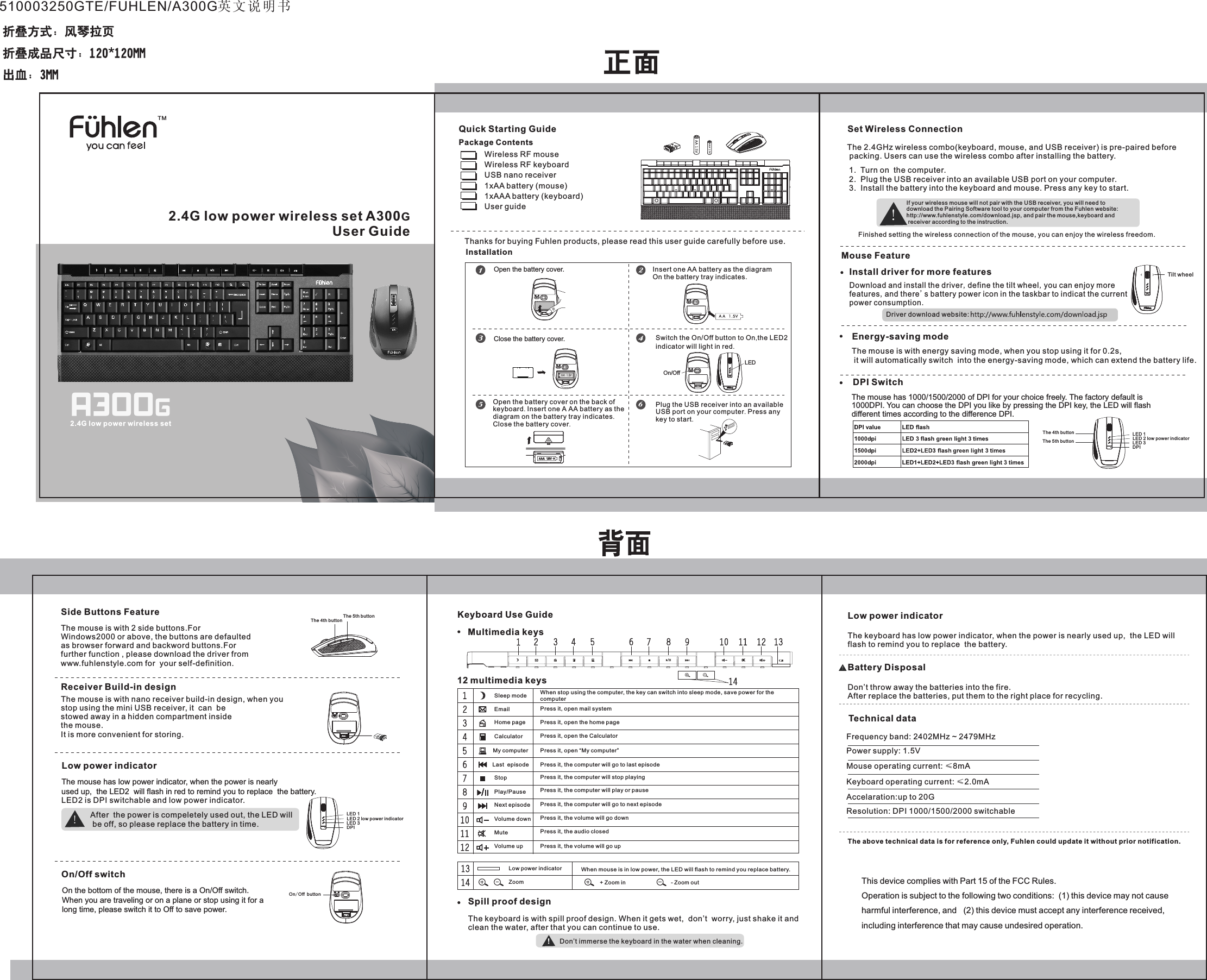
2.4G low power wireless set A300GUser GuideTM2.4G low power wireless setPackage ContentsQuick Starting Guide Wireless RF mouseWireless RF keyboardUSB nano receiver1xAA battery1xAAA batteryUser guide            (mouse)   (keyboard) Thanks for buying Fuhlen products, please read this user guide carefully before use.InstallationOpen the battery cover. Insert one AA battery as the diagramOn the battery tray indicates.                  Close the battery cover.On/OffLEDSwitch the On/Off button to On,the LED2indicator will light in red.Open the battery cover on the back ofkeyboard. Insert one A AA battery as thediagram on the battery tray indicates.Close the battery cover.Plug the USB receiver into an availableUSB port on your computer. Press anykey to start.The 2.4GHz wireless combo(keyboard, mouse, and USB receiver) is pre-paired before packing. Users can use the wireless combo after installing the battery.Set Wireless ConnectionIf your wireless mouse will not pair with the USB receiver, you will need todownload the Pairing Software tool to your computer from the Fuhlen website:http://www.fuhlenstyle.com/download.jsp, and pair the mouse,keyboard and receiver according to the instruction.Finished setting the wireless connection of the mouse, you can enjoy the wireless freedom.Mouse FeatureDPI Switch.Energy-saving mode  The mouse has 1000/1500/2000 of DPI for your choice freely. The factory default is 1000DPI. You can choose the DPI you like by pressing the DPI key, the LED will flashdifferent times according to the difference DPI.LED 1The 4th buttonThe 5th button LED 2 low power indicatorLED 3DPIThe mouse is with energy saving mode, when you stop using it for 0.2s, it will automatically switch  into the energy-saving mode, which can extend the battery life.1.  Turn on  the computer.2.  Plug the USB receiver into an available USB port on your computer. 3.  Install the battery into the keyboard and mouse. Press any key to start.Spill proof designThe keyboard is with spill proof design. When it gets wet,  don’t  worry, just shake it and clean the water, after that you can continue to use. When stop using the computer, the key can switch into sleep mode, save power for the computerKeyboard Use GuideMultimedia keys12 multimedia keys Sleep mode Email    Press it, open mail systemHome page  Press it, open the home pageCalculator Press it, open the Calculator My computer Press it, open “My computer”Last  episode Press it, the computer will go to last episodeStop Press it, the computer will stop playingPlay/Pause Press it, the computer will play or pauseNext episode Press it, the computer will go to next episode Mute Press it, the audio closed Volume up Press it, the volume will go upVolume down Press it, the volume will go downDon’t immerse the keyboard in the water when cleaning.Low power indicatorThe keyboard has low power indicator, when the power is nearly used up,  the LED willflash to remind you to replace  the battery. Battery DisposalDon’t throw away the batteries into the fire.After replace the batteries, put them to the right place for recycling.Frequency band: 2402MHz ~ 2479MHzPower supply: 1.5VMouse operating current: ≤8mAKeyboard operating current: ≤2.0mAAccelaration:up to 20GResolution: DPI 1000/1500/2000 switchableThe above technical data is for reference only, Fuhlen could update it without prior notification.Technical dataReceiver Build-in designSide Buttons Feature The 4th buttonThe 5th buttonThe mouse is with 2 side buttons.For Windows2000 or above, the buttons are defaulted as browser forward and backword buttons.Forfurther function , please download the driver fromwww.fuhlenstyle.com for  your self-definition.The mouse is with nano receiver build-in design, when you stop using the mini USB receiver, it  can  be stowed away in a hidden compartment insidethe mouse.It is more convenient for storing.The mouse has low power indicator, when the power is nearlyused up,  the LED2  will flash in red to remind you to replace  the battery. LED2 is DPI switchable and low power indicator.Low power indicator After  the power is compeletely used out, the LED will be off, so please replace the battery in time.   On the bottom of the mouse, there is a On/Off switch. When you are traveling or on a plane or stop using it for along time, please switch it to Off to save power.On/Off switchOn/Off buttonLED 1LED 2 low power indicatorLED 3DPIInstall driver for more featuresDownload and install the driver,define the tilt wheel,you can enjoy more features,and there's battery power icon in the taskbar to indicat the current power consumption.                                         When mouse is in low power, the LED will flash to remind you replace battery. Low power indicator   Zoom     + Zoom in     - Zoom outDriver download website:Tilt wheel 510003250GTE/FUHLEN/A300G英文说明书This device complies with Part 15 of the FCC Rules. Operation is subject to the following two conditions:  (1) this device may not cause harmful interference, and   (2) this device must accept any interference received,including interference that may cause undesired operation.

Navigation menu