G Tech Technology A53G 2.4GHz Wireless Mouse User Manual Fuhlen A53G

G.Tech Technology Ltd. 2.4GHz Wireless Mouse Fuhlen A53G

Manual

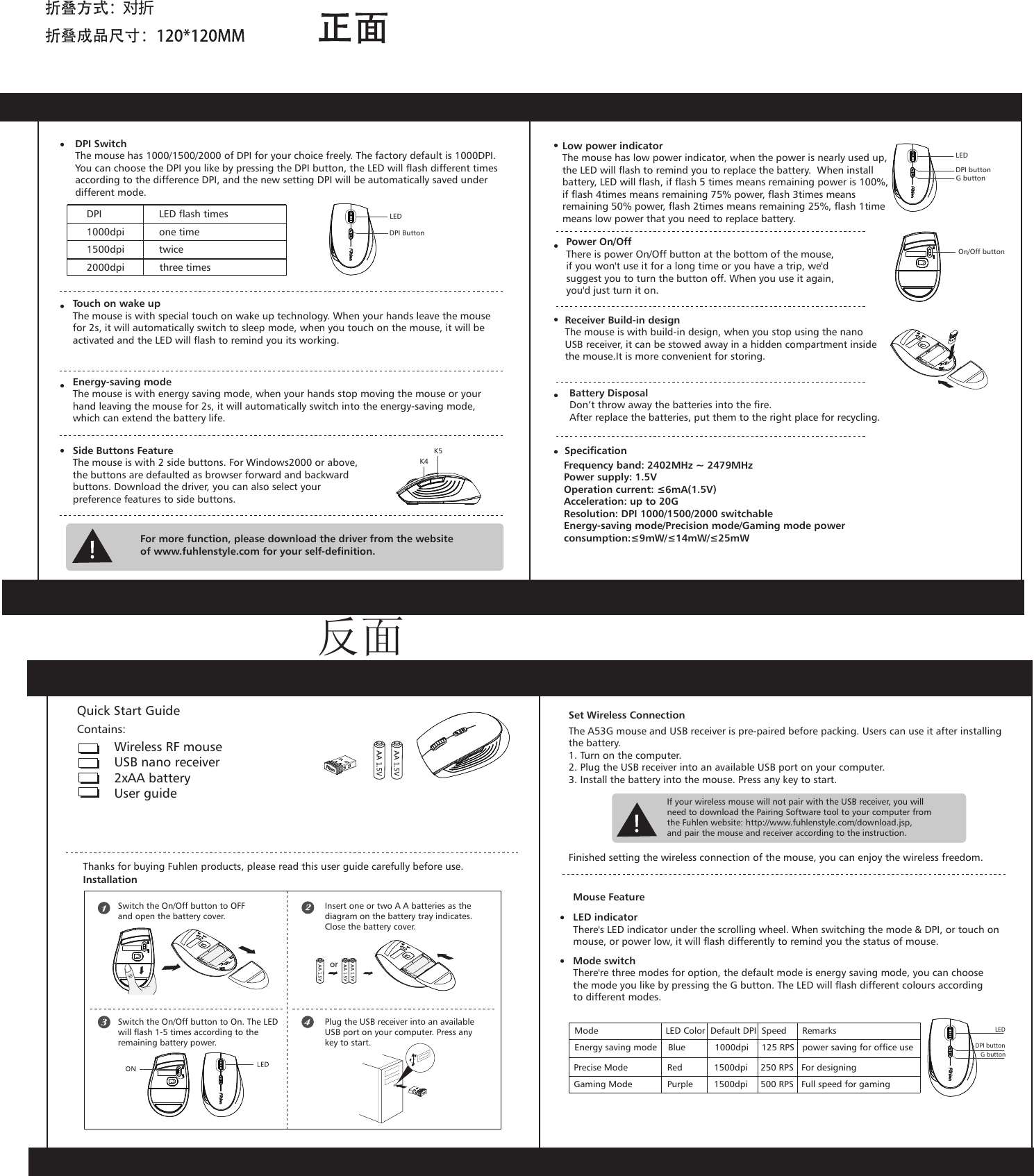
Wireless RF mouseUSB nano receiver2xAA battery User guideThanks for buying Fuhlen products, please read this user guide carefully before use.InstallationSwitch the On/Off button to OFFand open the battery cover.Switch the On/Off button to On. The LED will flash 1-5 times according to the remaining battery power.Insert one or two A A batteries as the diagram on the battery tray indicates. Close the battery cover.Plug the USB receiver into an available USB port on your computer. Press anykey to start.The A53G mouse and USB receiver is pre-paired before packing. Users can use it after installingthe battery.1. Turn on the computer.2. Plug the USB receiver into an available USB port on your computer.3. Install the battery into the mouse. Press any key to start.Set Wireless ConnectionIf your wireless mouse will not pair with the USB receiver, you willneed to download the Pairing Software tool to your computer fromthe Fuhlen website: http://www.fuhlenstyle.com/download.jsp,and pair the mouse and receiver according to the instruction.Finished setting the wireless connection of the mouse, you can enjoy the wireless freedom.Mouse FeatureLED indicatorThere's LED indicator under the scrolling wheel. When switching the mode & DPI, or touch on mouse, or power low, it will flash differently to remind you the status of mouse.Mode switchThere're three modes for option, the default mode is energy saving mode, you can choose the mode you like by pressing the G button. The LED will flash different colours according to different modes.DPI buttonG buttonLEDDPI SwitchThe mouse has 1000/1500/2000 of DPI for your choice freely. The factory default is 1000DPI. You can choose the DPI you like by pressing the DPI button, the LED will flash different times according to the difference DPI, and the new setting DPI will be automatically saved under different mode.Touch on wake upThe mouse is with special touch on wake up technology. When your hands leave the mouse for 2s, it will automatically switch to sleep mode, when you touch on the mouse, it will be activated and the LED will flash to remind you its working. Energy-saving modeThe mouse is with energy saving mode, when your hands stop moving the mouse or your hand leaving the mouse for 2s, it will automatically switch into the energy-saving mode, which can extend the battery life.Side Buttons FeatureThe mouse is with 2 side buttons. For Windows2000 or above,the buttons are defaulted as browser forward and backward buttons. Download the driver, you can also select your preference features to side buttons.For more function, please download the driver from the websiteof www.fuhlenstyle.com for your self-definition.Low power indicatorThe mouse has low power indicator, when the power is nearly used up,the LED will flash to remind you to replace the battery.  When install battery, LED will flash, if flash 5 times means remaining power is 100%,if flash 4times means remaining 75% power, flash 3times means remaining 50% power, flash 2times means remaining 25%, flash 1time means low power that you need to replace battery. Receiver Build-in designThe mouse is with build-in design, when you stop using the nano USB receiver, it can be stowed away in a hidden compartment insidethe mouse.It is more convenient for storing.Frequency band: 2402MHz ~ 2479MHzPower supply: 1.5VOperation current: ≤6mA(1.5V)Acceleration: up to 20GResolution: DPI 1000/1500/2000 switchableEnergy-saving mode/Precision mode/Gaming mode power consumption:≤9mW/≤14mW/≤25mWUltra Low PowerBattery DisposalDon’t throw away the batteries into the fire.After replace the batteries, put them to the right place for recycling.Mode                   LED Color  Default DPI  Speed      RemarksGaming Mode  Purple  1500dpi  500 RPS   Full speed for gamingPrecise Mode  Red  1500dpi  250 RPS   For designing Energy saving mode  Blue  1000dpi  125 RPS   power saving for office useQuick Start GuideContains:DPI         LED flash times1000dpi         one time   1500dpi         twice   2000dpi            three times     DPI ButtonLEDK4K5LED DPI buttonG buttonOn/Off buttonSpecificationPower On/Off    There is power On/Off button at the bottom of the mouse,       if you won't use it for a long time or you have a trip, we'd suggest you to turn the button off. When you use it again, you'd just turn it on.       or反面
Federal Communications Commission (FCC) Notice: Changes or modifications not expressly approved by the party   responsible for compliance could void the user's authority to operate the equipment   NOTE: THE MANUFACTURER IS NOT RESPONSIBLE FOR ANY RADIO OR TV INTERFERENCE CAUSED BY UNAUTHORIZED MODIFICATIONS TO THIS EQUIPMENT. SUCH MODIFICATIONS COULD VOID THE USER’S AUTHORITY TO OPERATE THE EQUIPMENT. NOTE: This equipment has been tested and found to comply with the limits for a Class B digital device, pursuant to Part 15 of the FCC Rules. These limits are designed to provide reasonable protection against harmful interference in a residential installation. This equipment generates, uses and can radiate radio frequency energy and, if not installed and used in accordance with the  instructions, may cause harmful interference to radio communications. However, there is no guarantee that interference will not occur in a particular installation. If this equipment does cause harmful interference to radio or television reception, which can be determined by turning the equipment off and on, the user is encouraged to try to correct the interference by one or more of the following measures:   -- Reorient or relocate the receiving antenna.   -- Increase the separation between the equipment and receiver.         -- Connect the equipment into an outlet on a circuit different   from that to which the receiver is connected.   -- Consult the dealer or an experienced radio/TV technician for help.   This device complies with Part 15 of the FCC Rules. Operation     is subject to the following two conditions: (1) this device may not cause    harmful interference, and (2) this device must accept any interference received, including interference that may cause undesired operation.   FCC Notice                              English - 13F ujitsu Technology Solut ions 31

Navigation menu