G Tech Technology DK300 2.4GHz Wireless Receiver User Manual

G.Tech Technology Ltd. 2.4GHz Wireless Receiver Users Manual

Users Manual

User's Guide
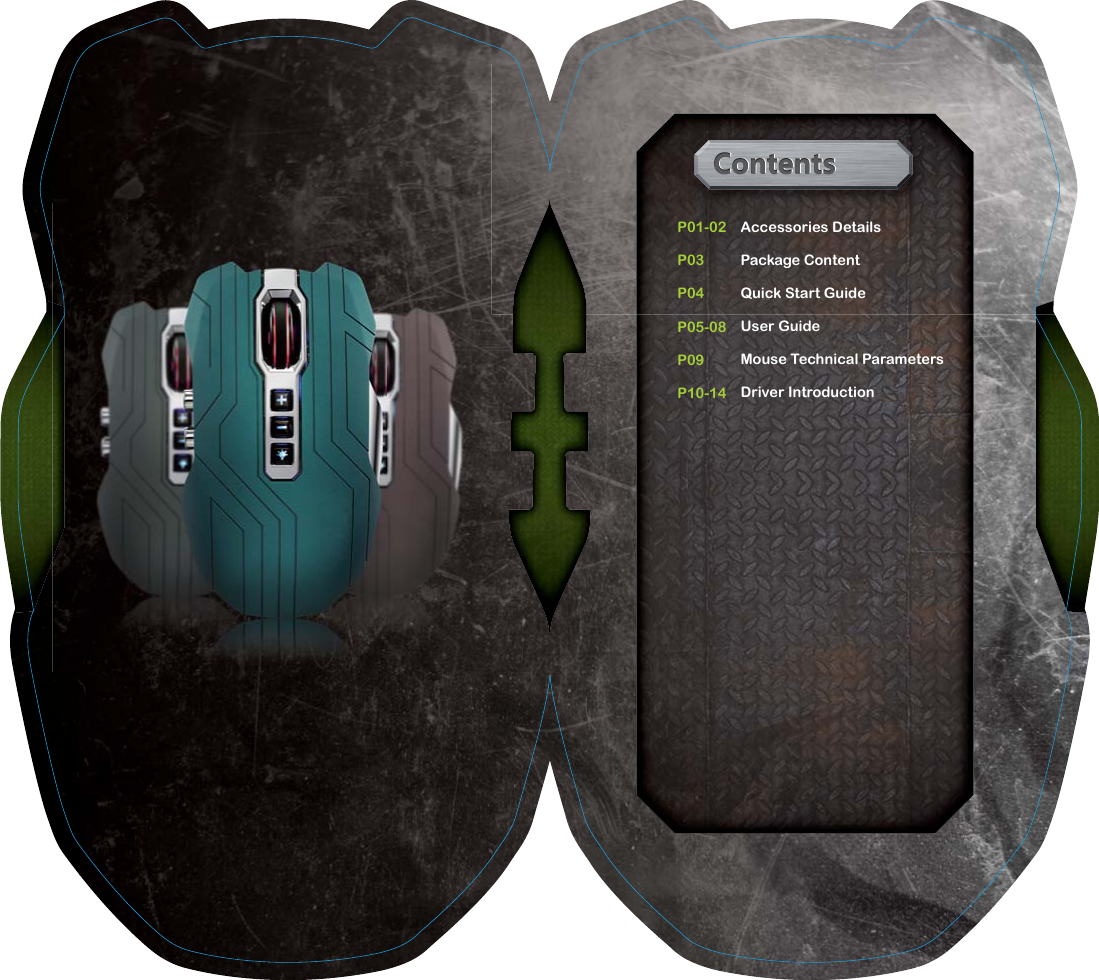
 Contents ContentsContentsP01-02     P03          P04          P05-08     P09          P10-14     Accessories DetailsPackage ContentQuick Start GuideUser GuideMouse Technical ParametersDriver Introduction
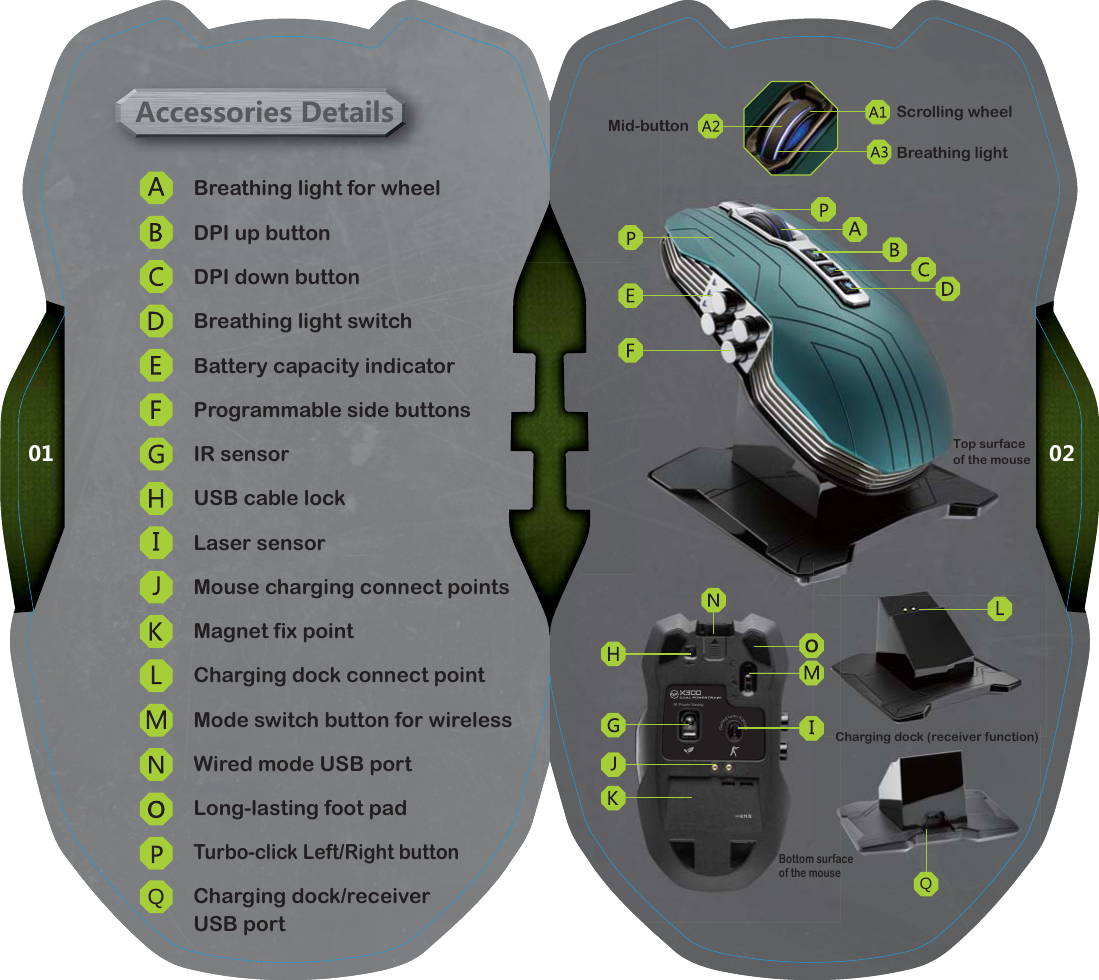
0201Breathing light for wheelDPI down buttonDPI up buttonBreathing light switchBattery capacity indicatorProgrammable side buttonsIR sensorUSB cable lockLaser sensorMouse charging connect pointsMagnet fix pointCharging dock connect pointWired mode USB portLong-lasting foot padTurbo-click Left/Right buttonCharging dock/receiver USB portMode switch button for wirelessBreathing lightScrolling wheelMid-buttonBreathing light for wheelDPI up buttonMid-butAccessories DetailsTop surface of the mouseQBottom surface of the mouse    Gaming Laser 5040dpiIR Power Saving acem surfaemouseQCharging dock (receiver function)Charging dock (receiver function)C
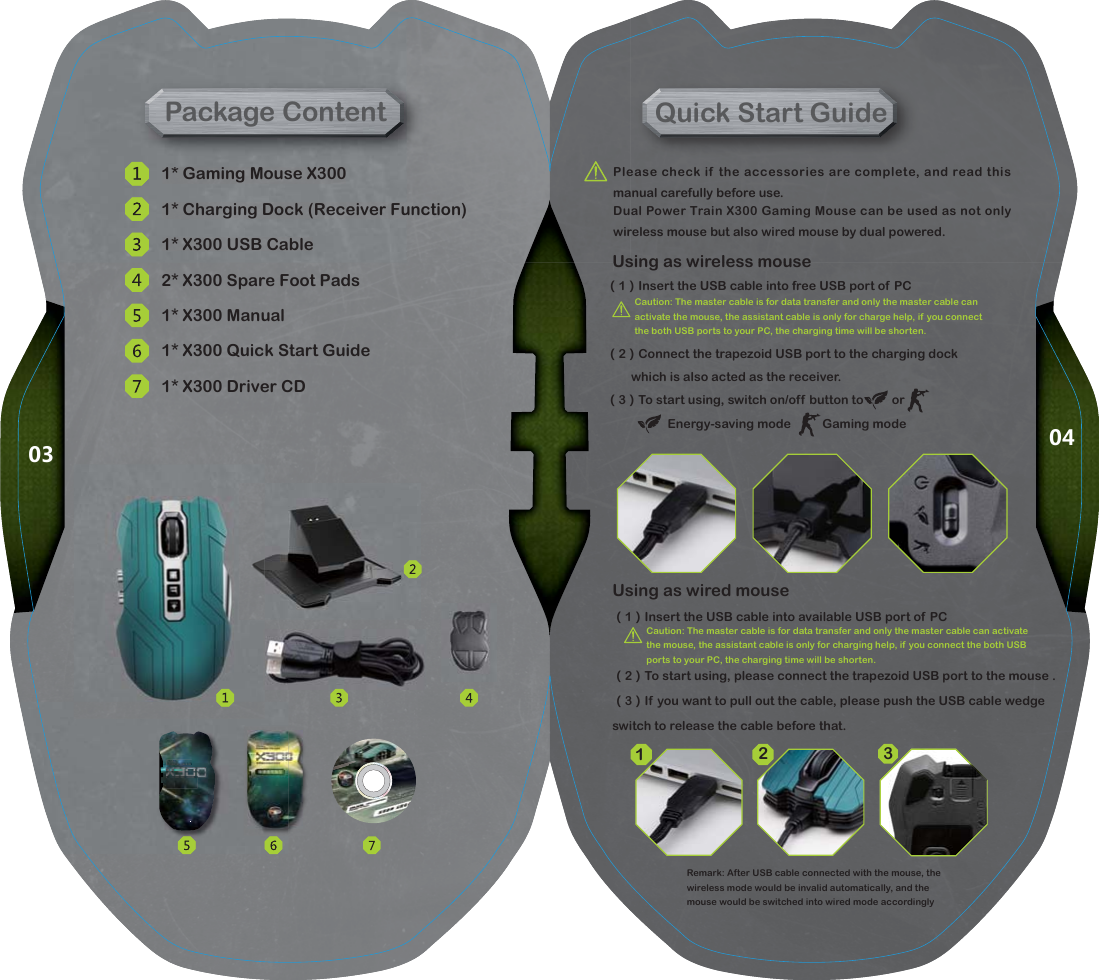
04031* Gaming Mouse X3001* Charging Dock (Receiver Function)1* X300 USB Cable2* X300 Spare Foot Pads1* X300 Manual1* X300 Quick Start Guide1* X300 Driver CD1* Gaming Mouse X3001* Charging Dock (Receiver Fu1* X300 USB CablePackage ContentUsing as wired mouse(1)Insert the USB cable into available USB port of PC(2)To start using, please connect the trapezoid USB port to the mouse .                            (3)If you want to pull out the cable, please push the USB cable wedge switch to release the cable before that.Caution: The master cable is for data transfer and only the master cable can activate the mouse, the assistant cable is only for charging help, if  you connect the both USB ports to your PC, the charging time will be shorten.Remark: After USB cable connected with the mouse, the wireless mode would be invalid automatically, and the mouse would be switched into wired mode accordinglyUsing as wireless mouse(1)  Insert the USB cable into free USB port of PC unction)Using as wireless mouseUsQuick Start GuidePlease check if the accessories are complete, and read this manual carefully before use.Dual Power Train X300 Gaming Mouse can be used as not only wireless mouse but also wired mouse by dual powered.Caution: The master cable is for data transfer and only the master cable can activate the mouse, the assistant cable is only for charge help, if you connect the both USB ports to your PC, the charging time will be shorten.(2) Connect the trapezoid USB port to the charging dock       which is also acted as the receiver.(3)  To start using, switch on/off button to         or Energy-saving mode          Gaming mode312
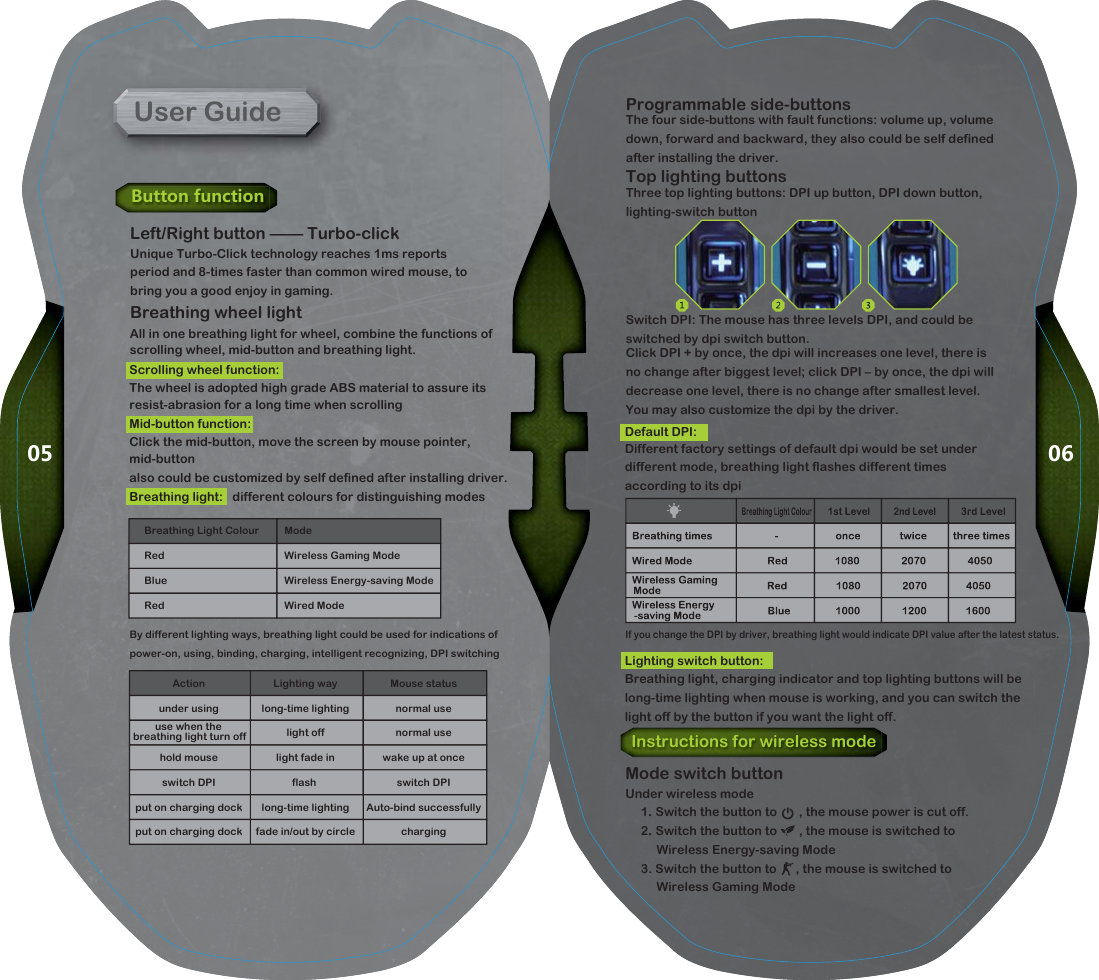
0605User GuideButton functionAll in one breathing light for wheel, combine the functions of scrolling wheel, mid-button and breathing light.Breathing wheel lightScrolling wheel function:The wheel is adopted high grade ABS material to assure its resist-abrasion for a long time when scrollingMid-button function:Click the mid-button, move the screen by mouse pointer, mid-buttonalso could be customized by self defined after installing driver.Breathing light:   different colours for distinguishing modesBy different lighting ways, breathing light could be used for indications of power-on, using, binding, charging, intelligent recognizing, DPI switchingActionunder usinghold mouseswitch DPIput on charging dockput on charging dockLighting waylong-time lightinglight offlight fade inflash long-time lightingfade in/out by circleMouse statusnormal usenormal usewake up at onceswitch DPIAuto-bind successfullychargingBreathing Light Colour          ModeRed          Wireless Gaming ModeBlue          Wireless Energy-saving ModeRed          Wired ModeLeft/Right button —— Turbo-clickUnique Turbo-Click technology reaches 1ms reports period and 8-times faster than common wired mouse, to bring you a good enjoy in gaming.Default DPI:Different factory settings of default dpi would be set under different mode, breathing light flashes different times according to its dpiLighting switch button:Breathing light, charging indicator and top lighting buttons will be long-time lighting when mouse is working, and you can switch the light off by the button if you want the light off.Programmable side-buttonsThe four side-buttons with fault functions: volume up, volume down, forward and backward, they also could be self defined after installing the driver.Top lighting buttonsThree top lighting buttons: DPI up button, DPI down button, lighting-switch buttonSwitch DPI: The mouse has three levels DPI, and could be switched by dpi switch button.Click DPI + by once, the dpi will increases one level, there is no change after biggest level; click DPI – by once, the dpi will decrease one level, there is no change after smallest level. You may also customize the dpi by the driver.Instructions for wireless modeMode switch buttonUnder wireless mode     1. Switch the button to       , the mouse power is cut off.     2. Switch the button to       , the mouse is switched to           Wireless Energy-saving Mode     3. Switch the button to      , the mouse is switched to           Wireless Gaming ModeIf you change the DPI by driver, breathing light would indicate DPI value after the latest status.use when the breathing light turn off
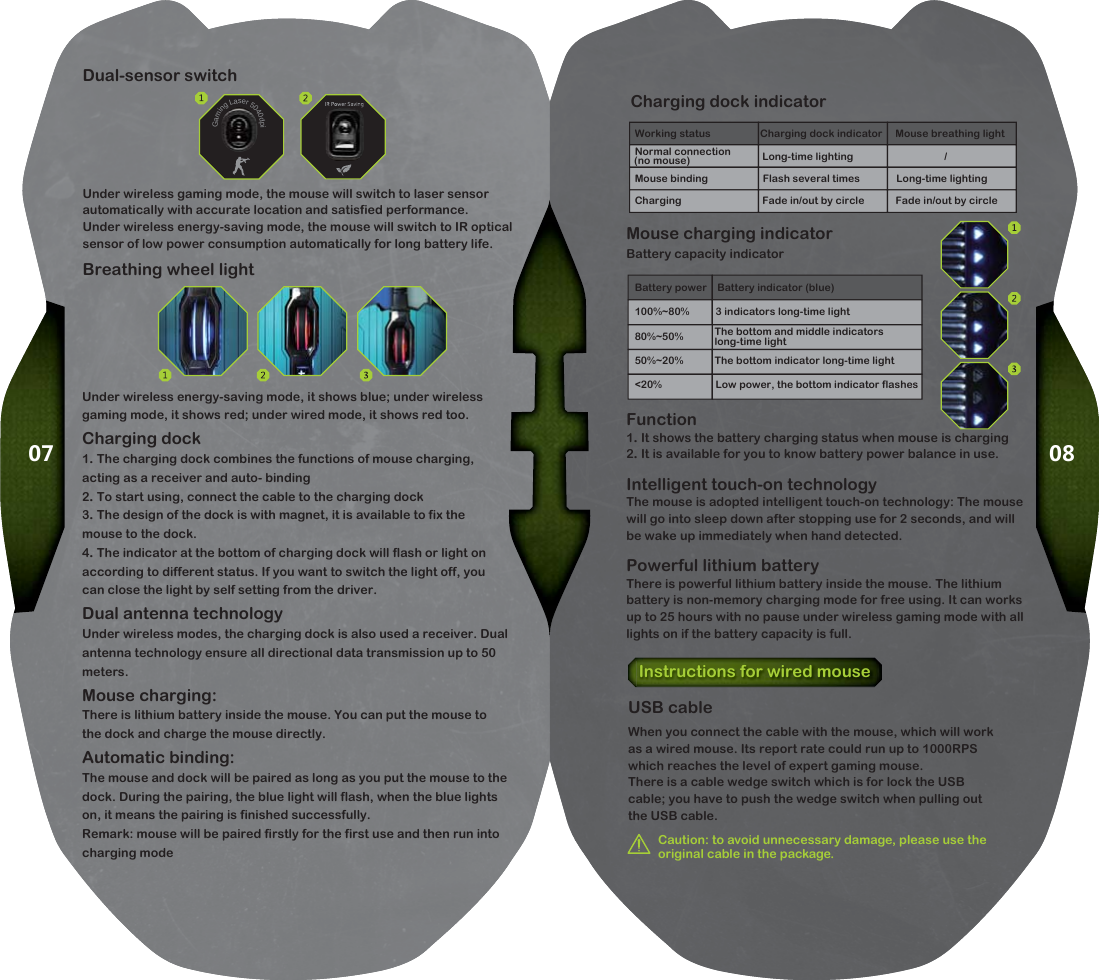
0807Instructions for wired mouseCaution: to avoid unnecessary damage, please use the original cable in the package.Under wireless energy-saving mode, it shows blue; under wireless gaming mode, it shows red; under wired mode, it shows red too.Charging dock1. The charging dock combines the functions of mouse charging,                                             acting as a receiver and auto- binding2. To start using, connect the cable to the charging dock3. The design of the dock is with magnet, it is available to fix the  mouse to the dock.4. The indicator at the bottom of charging dock will flash or light on according to different status. If you want to switch the light off, you can close the light by self setting from the driver.Dual antenna technologyUnder wireless modes, the charging dock is also used a receiver. Dual antenna technology ensure all directional data transmission up to 50 meters.Mouse charging:There is lithium battery inside the mouse. You can put the mouse to the dock and charge the mouse directly.Automatic binding:The mouse and dock will be paired as long as you put the mouse to the dock. During the pairing, the blue light will flash, when the blue lights on, it means the pairing is finished successfully.Remark: mouse will be paired firstly for the first use and then run into charging modeMouse charging indicatorBattery capacity indicatorFunction1. It shows the battery charging status when mouse is charging 2. It is available for you to know battery power balance in use.Intelligent touch-on technologyThe mouse is adopted intelligent touch-on technology: The mouse will go into sleep down after stopping use for 2 seconds, and will be wake up immediately when hand detected.Powerful lithium batteryThere is powerful lithium battery inside the mouse. The lithium battery is non-memory charging mode for free using. It can works up to 25 hours with no pause under wireless gaming mode with all lights on if the battery capacity is full.USB cableWhen you connect the cable with the mouse, which will work as a wired mouse. Its report rate could run up to 1000RPS which reaches the level of expert gaming mouse.There is a cable wedge switch which is for lock the USB cable; you have to push the wedge switch when pulling out the USB cable.Battery power    Battery indicator (blue)100%~80%          3 indicators long-time light80%~50%            50%~20%            The bottom indicator long-time light<20%                   Low power, the bottom indicator flashes    Gaming Laser 5040dpiWorking status                   Charging dock indicator     Mouse breathing light                                                 Long-time lighting                                   /Mouse binding                     Flash several times              Long-time lightingCharging                               Fade in/out by circle            Fade in/out by circleDual-sensor switchUnder wireless gaming mode, the mouse will switch to laser sensor automatically with accurate location and satisfied performance.Under wireless energy-saving mode, the mouse will switch to IR optical sensor of low power consumption automatically for long battery life.Charging dock indicatorBreathing wheel light(no mouse)Normal connectionThe bottom and middle indicators long-time light
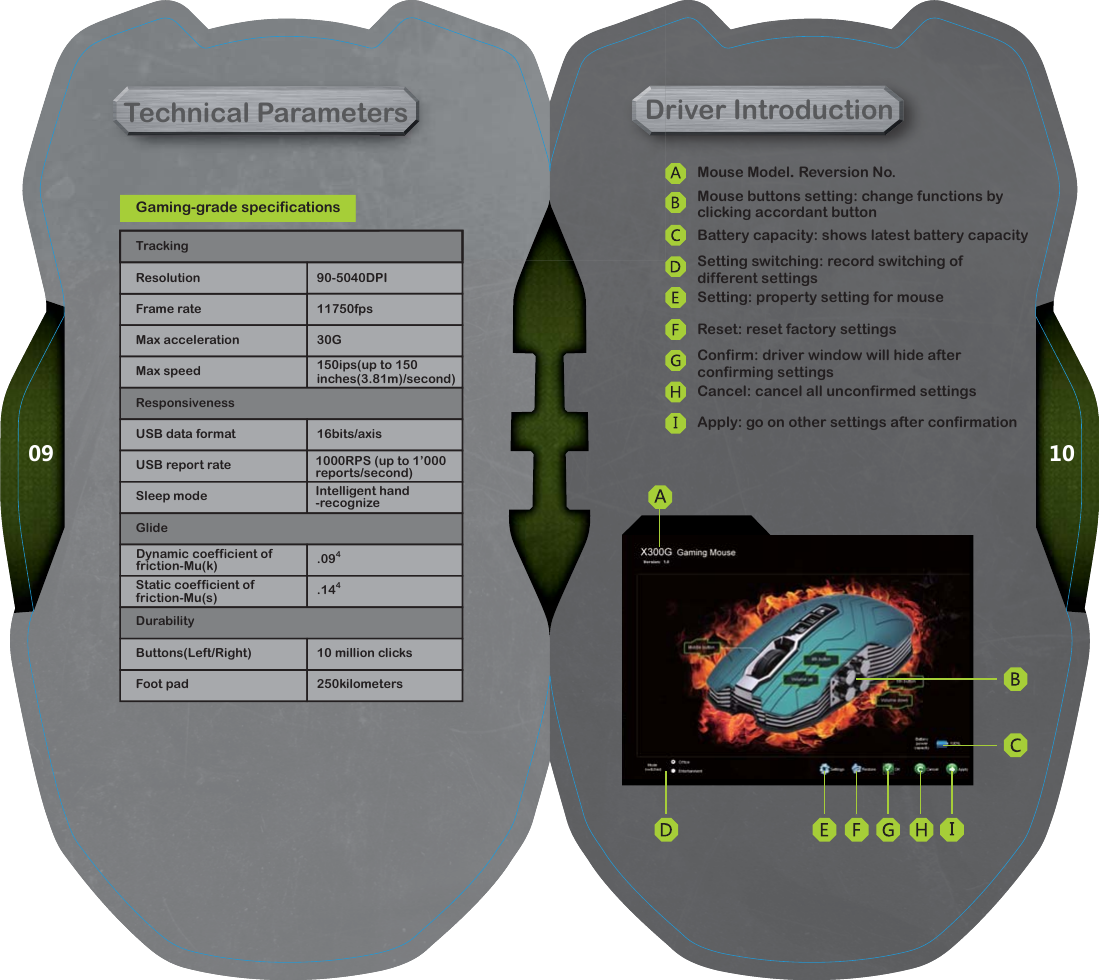
100990-5040DPI11750fps30G16bits/axis.094.14410 million clicks250kilometersGaming-grade specificationsDriver IntroductionGaming-grade specificationsDTechnical ParametersMouse Model. Reversion No.Battery capacity: shows latest battery capacitySetting: property setting for mouseReset: reset factory settingsCancel: cancel all unconfirmed settingsApply: go on other settings after confirmationTrackingResolutionFrame rateMax accelerationMax speedResponsivenessUSB data formatUSB report rateSleep modeGlideDurabilityButtons(Left/Right)Foot pad150ips(up to 150 inches(3.81m)/second)Dynamic coefficient of friction-Mu(k)Static coefficient of  friction-Mu(s)1000RPS (up to 1’000 reports/second)Intelligent hand-recognizeMouse buttons setting: change functions by clicking accordant buttonSetting switching: record switching of different settingsConfirm: driver window will hide after confirming settings
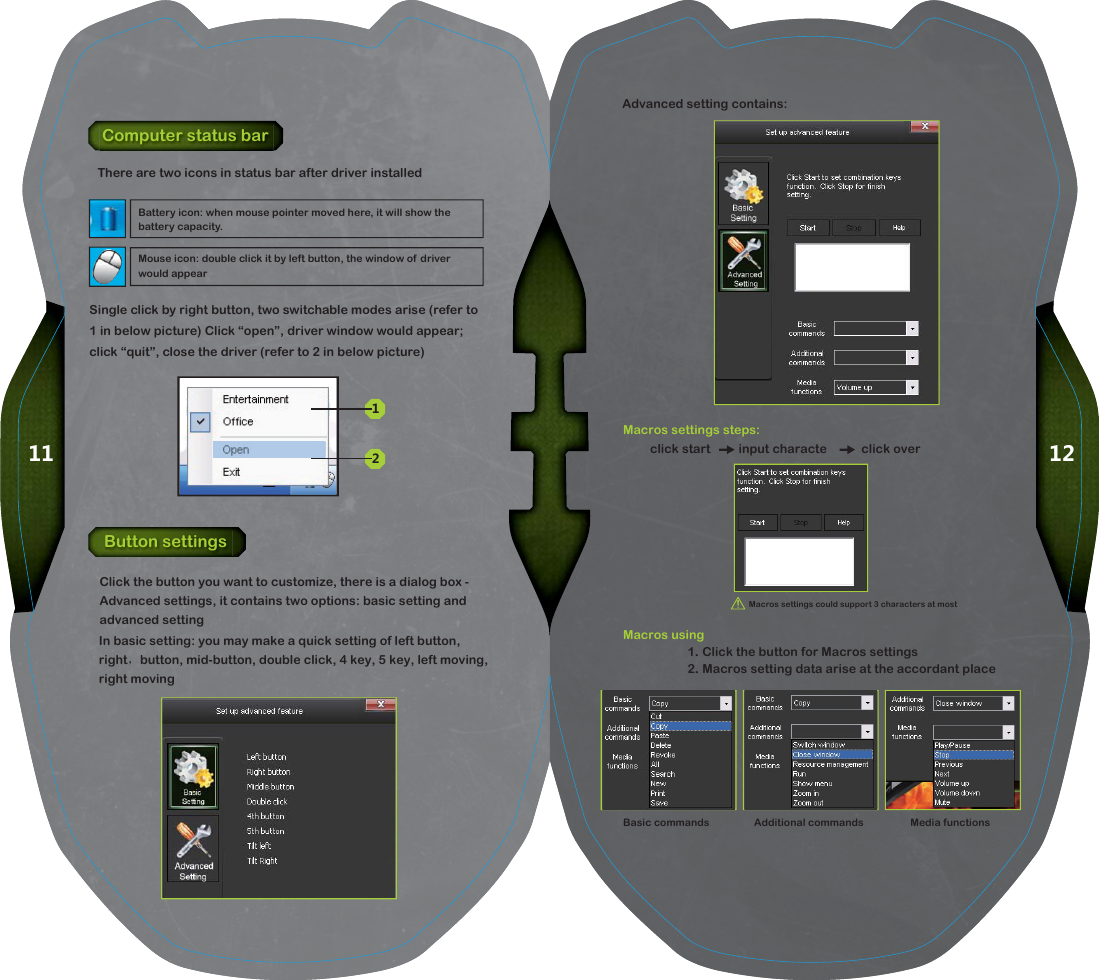
1211Advanced setting contains:Basic commands Additional commands Media functionsButton settingsComputer status barClick the button you want to customize, there is a dialog box - Advanced settings, it contains two options: basic setting and advanced settingThere are two icons in status bar after driver installedSingle click by right button, two switchable modes arise (refer to 1 in below picture) Click “open”, driver window would appear; click “quit”, close the driver (refer to 2 in below picture)Macros settings steps:Macros using1. Click the button for Macros settings2. Macros setting data arise at the accordant place12Mouse icon: double click it by left button, the window of driver would appearBattery icon: when mouse pointer moved here, it will show the battery capacity.Macros settings could support 3 characters at mostclick start         input characte           click overIn basic setting: you may make a quick setting of left button, right, button, mid-button, double click, 4 key, 5 key, left moving, right moving
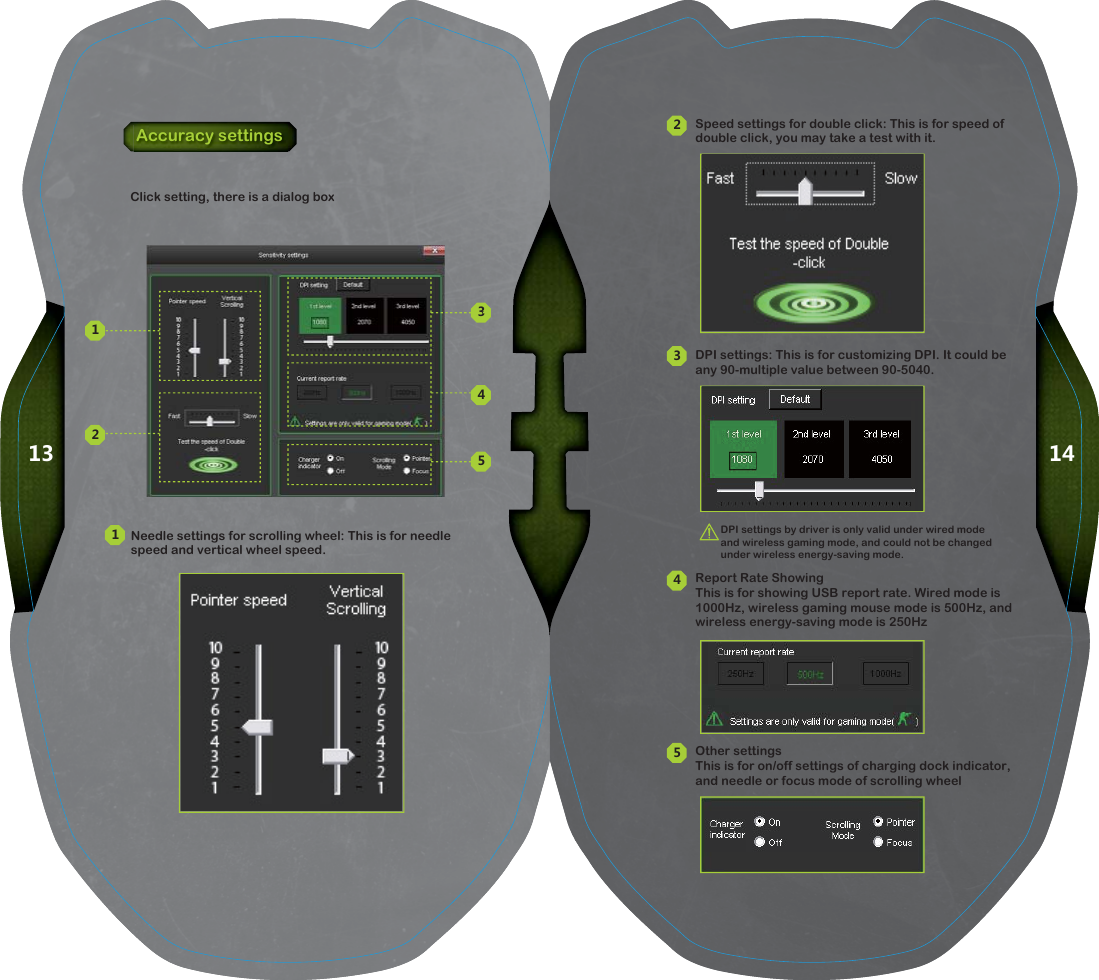
1413Speed settings for double click: This is for speed of double click, you may take a test with it.DPI settings: This is for customizing DPI. It could be any 90-multiple value between 90-5040.Report Rate ShowingThis is for showing USB report rate. Wired mode is 1000Hz, wireless gaming mouse mode is 500Hz, and wireless energy-saving mode is 250HzOther settingsThis is for on/off settings of charging dock indicator, and needle or focus mode of scrolling wheelClick setting, there is a dialog boxAccuracy settingsNeedle settings for scrolling wheel: This is for needle speed and vertical wheel speed.DPI settings by driver is only valid under wired mode and wireless gaming mode, and could not be changed under wireless energy-saving mode.1234512345
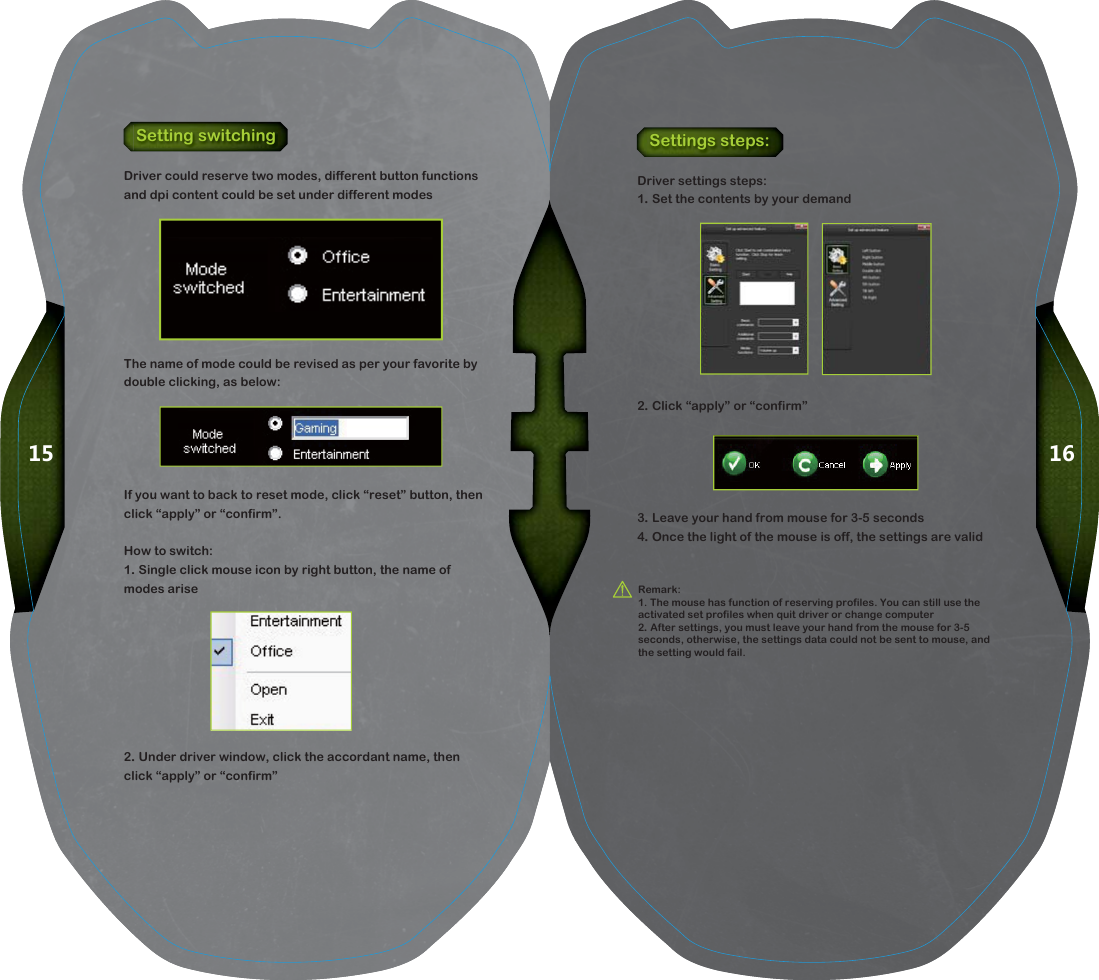
1615Setting switchingDriver could reserve two modes, different button functions and dpi content could be set under different modesThe name of mode could be revised as per your favorite by double clicking, as below:If you want to back to reset mode, click “reset” button, then click “apply” or “confirm”.How to switch:1. Single click mouse icon by right button, the name of modes arise2. Under driver window, click the accordant name, then click “apply” or “confirm”Settings steps:Driver settings steps:1. Set the contents by your demand2. Click “apply” or “confirm”3. Leave your hand from mouse for 3-5 seconds4. Once the light of the mouse is off, the settings are validRemark:1. The mouse has function of reserving profiles. You can still use the activated set profiles when quit driver or change computer2. After settings, you must leave your hand from the mouse for 3-5 seconds, otherwise, the settings data could not be sent to mouse, and the setting would fail.
18171, Changes or modifications not expressly approved by the party responsible for compliance could void the user's authority to operate the equipment  2 NOTE: This equipment has been tested and found to comply with the limits for a Class B digital device, pursuant to Part 15 of the FCC Rules. These limits are  designed to provide reasonable protection against harmful interference in a  residential installation. This equipment generates, uses and can radiate radio  frequency energy and, if not installed and used in accordance with the  instructions, may cause harmful interference to radio communications. However,  there is no guarantee that interference will not occur in a particular installation. If this equipment does cause harmful interference to radio or television reception, which can be determined by turning the equipment off and on, the user is encouraged to try to correct the interference by one or more of the following measures:                   -- Reorient or relocate the receiving antenna.                    -- Increase the separation between the equipment and receiver.                       -- Connect the equipment into an outlet on a circuit different                       from that to which the receiver is connected.                   -- Consult the dealer or an experienced radio/TV technician for help. ,

Navigation menu