G Tech Technology HT03 Wireless Keyboard User Manual HT03 User s Manual

G.Tech Technology Ltd. Wireless Keyboard HT03 User s Manual

Users Manual

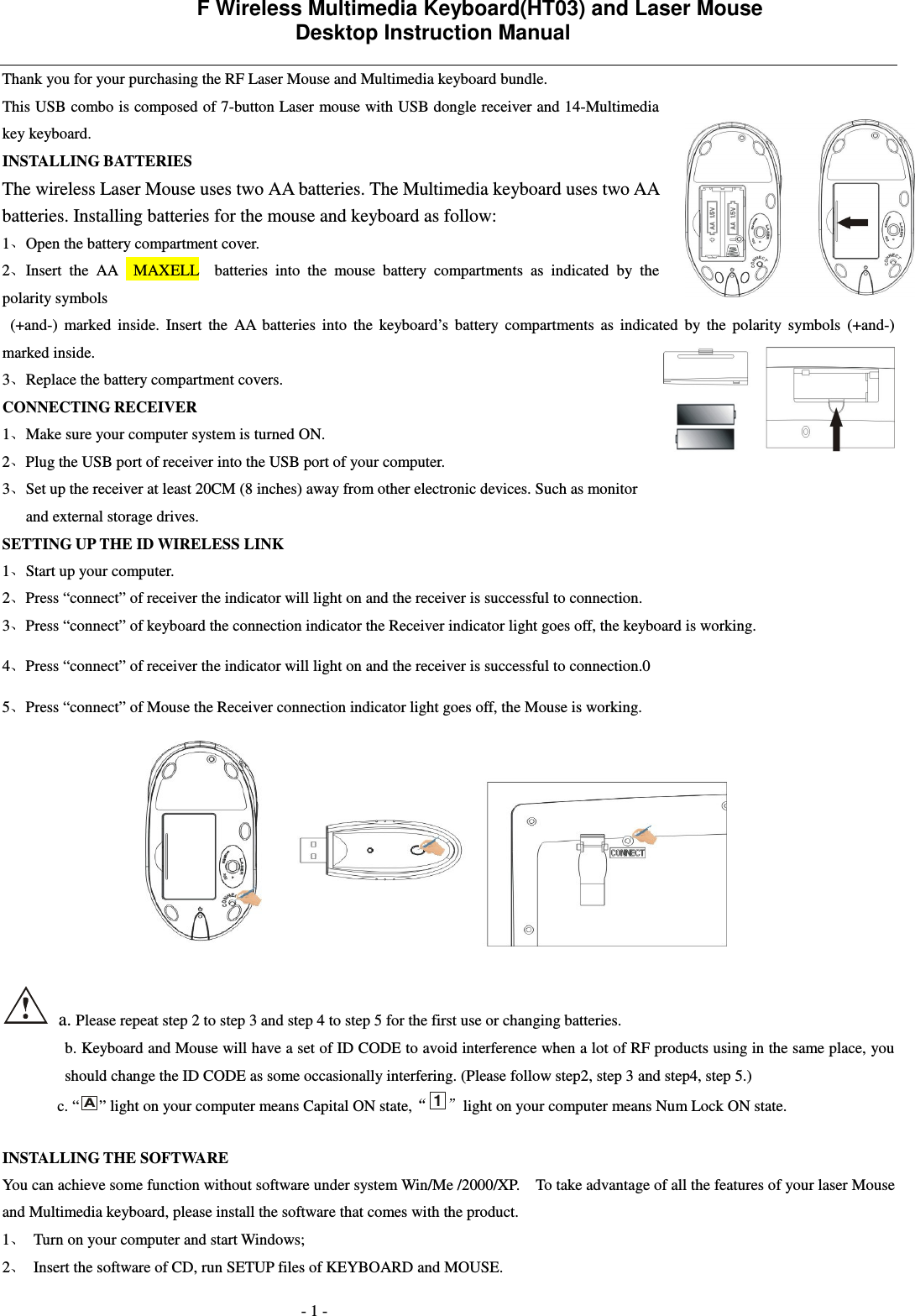
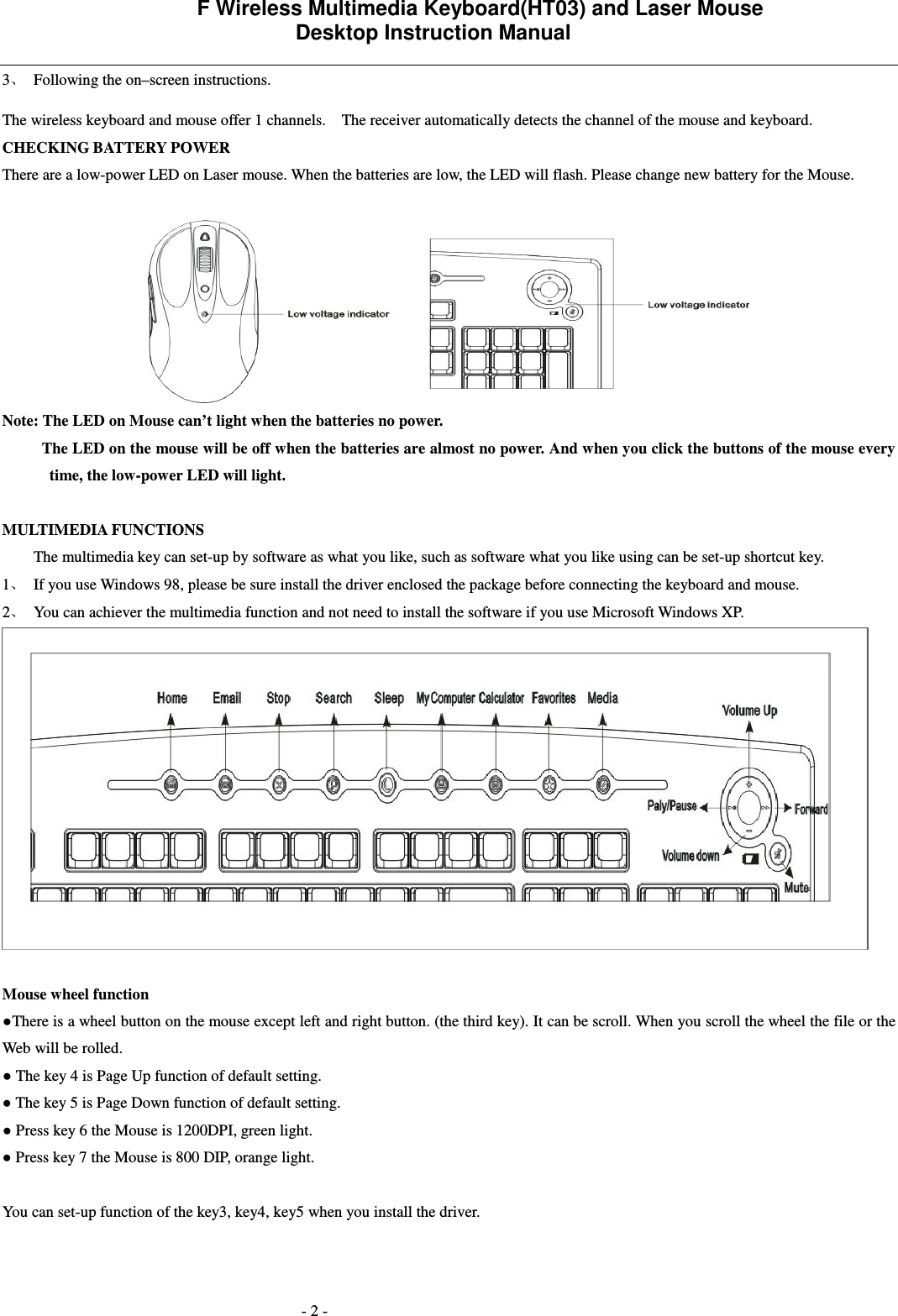
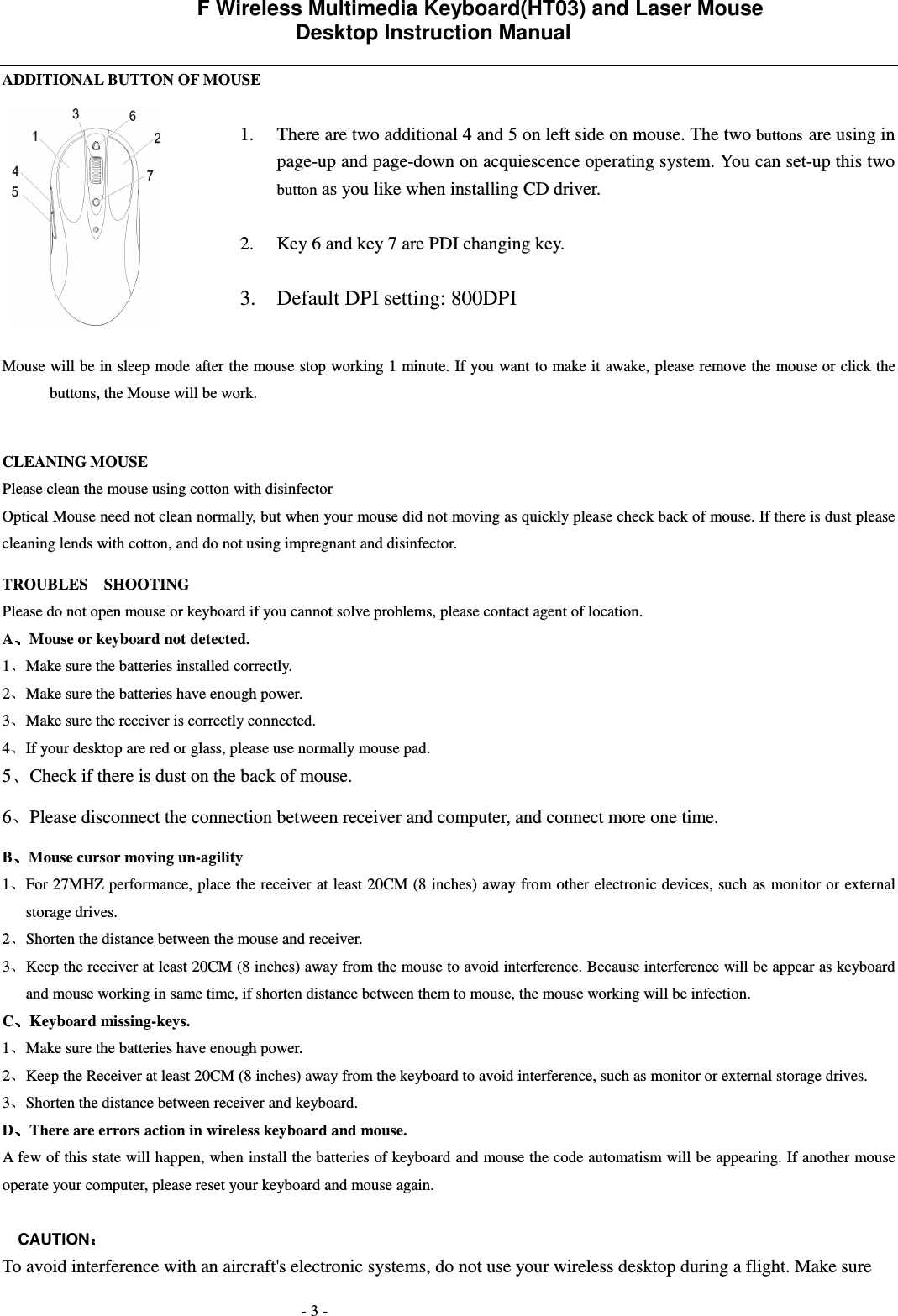
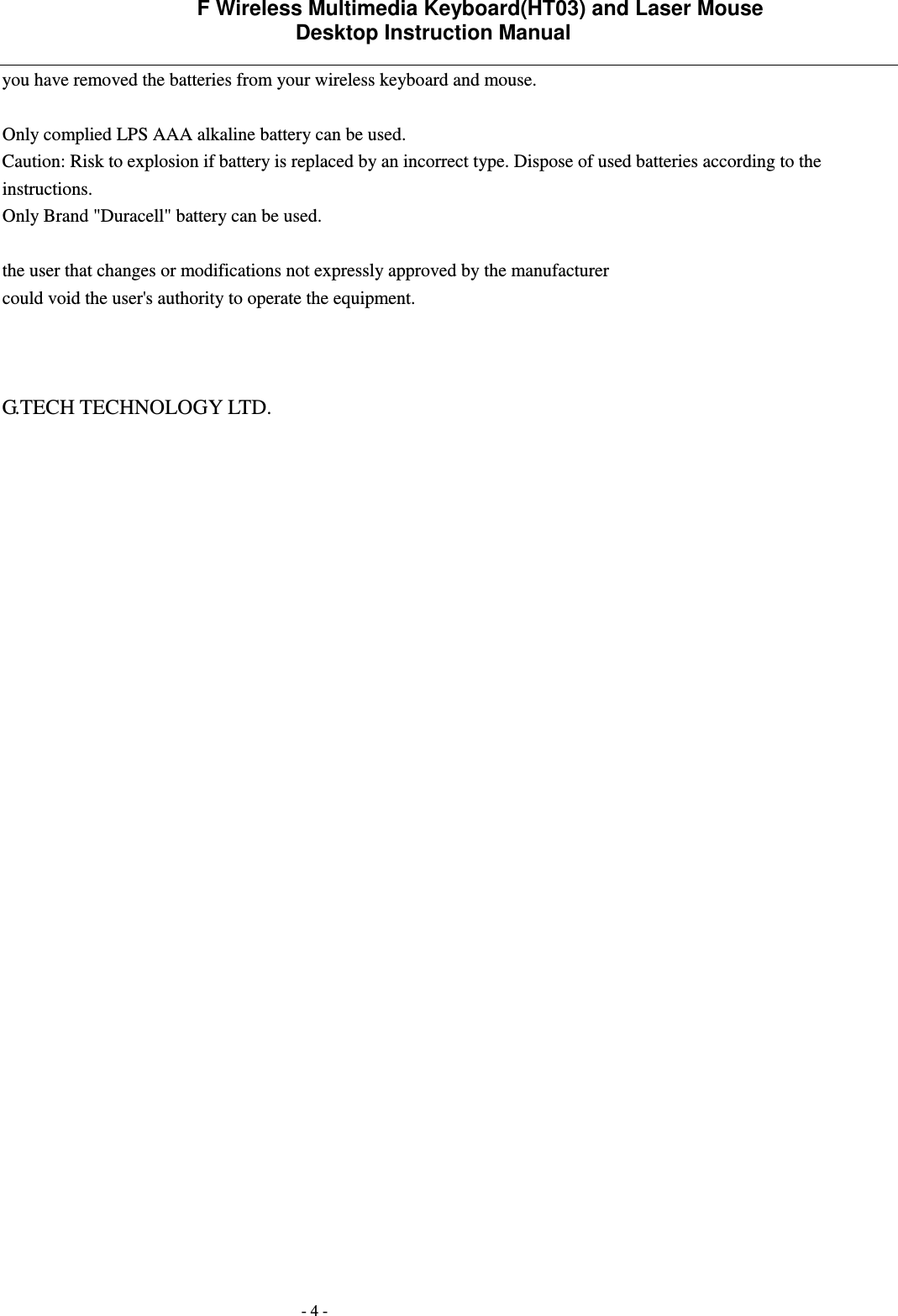
            F Wireless Multimedia Keyboard(HT03) and Laser Mouse   Desktop Instruction Manual  - 1 - Thank you for your purchasing the RF Laser Mouse and Multimedia keyboard bundle.   This USB combo is composed of 7-button Laser mouse with USB dongle receiver and 14-Multimedia key keyboard.   INSTALLING BATTERIES   The wireless Laser Mouse uses two AA batteries. The Multimedia keyboard uses two AA batteries. Installing batteries for the mouse and keyboard as follow: 1 Open the battery compartment cover. 2 Insert  the  AA    MAXELL    batteries  into  the  mouse  battery  compartments  as  indicated  by  the polarity symbols     (+and-)  marked  inside.  Insert  the  AA  batteries  into  the  keyboard’s  battery  compartments  as  indicated  by  the  polarity  symbols  (+and-) marked inside. 3 Replace the battery compartment covers. CONNECTING RECEIVER 1 Make sure your computer system is turned ON. 2 Plug the USB port of receiver into the USB port of your computer. 3 Set up the receiver at least 20CM (8 inches) away from other electronic devices. Such as monitor and external storage drives. SETTING UP THE ID WIRELESS LINK 1 Start up your computer. 2 Press “connect” of receiver the indicator will light on and the receiver is successful to connection. 3 Press “connect” of keyboard the connection indicator the Receiver indicator light goes off, the keyboard is working. 4 Press “connect” of receiver the indicator will light on and the receiver is successful to connection.0 5 Press “connect” of Mouse the Receiver connection indicator light goes off, the Mouse is working.     a. Please repeat step 2 to step 3 and step 4 to step 5 for the first use or changing batteries. b. Keyboard and Mouse will have a set of ID CODE to avoid interference when a lot of RF products using in the same place, you should change the ID CODE as some occasionally interfering. (Please follow step2, step 3 and step4, step 5.) c. “A” light on your computer means Capital ON state,1light on your computer means Num Lock ON state.  INSTALLING THE SOFTWARE You can achieve some function without software under system Win/Me /2000/XP.    To take advantage of all the features of your laser Mouse and Multimedia keyboard, please install the software that comes with the product.     1 Turn on your computer and start Windows; 2 Insert the software of CD, run SETUP files of KEYBOARD and MOUSE.
            F Wireless Multimedia Keyboard(HT03) and Laser Mouse   Desktop Instruction Manual  - 2 - 3 Following the on–screen instructions. The wireless keyboard and mouse offer 1 channels.    The receiver automatically detects the channel of the mouse and keyboard.     CHECKING BATTERY POWER There are a low-power LED on Laser mouse. When the batteries are low, the LED will flash. Please change new battery for the Mouse.   Note: The LED on Mouse can’t light when the batteries no power.           The LED on the mouse will be off when the batteries are almost no power. And when you click the buttons of the mouse every time, the low-power LED will light.       MULTIMEDIA FUNCTIONS   The multimedia key can set-up by software as what you like, such as software what you like using can be set-up shortcut key.   1 If you use Windows 98, please be sure install the driver enclosed the package before connecting the keyboard and mouse.   2 You can achiever the multimedia function and not need to install the software if you use Microsoft Windows XP.   Mouse wheel function There is a wheel button on the mouse except left and right button. (the third key). It can be scroll. When you scroll the wheel the file or the Web will be rolled.  The key 4 is Page Up function of default setting.  The key 5 is Page Down function of default setting.  Press key 6 the Mouse is 1200DPI, green light.  Press key 7 the Mouse is 800 DIP, orange light.  You can set-up function of the key3, key4, key5 when you install the driver.
            F Wireless Multimedia Keyboard(HT03) and Laser Mouse   Desktop Instruction Manual  - 3 - ADDITIONAL BUTTON OF MOUSE  1. There are two additional 4 and 5 on left side on mouse. The two buttons are using in page-up and page-down on acquiescence operating system. You can set-up this two button as you like when installing CD driver.  2. Key 6 and key 7 are PDI changing key.  3. Default DPI setting: 800DPI  Mouse will be in sleep mode after the mouse stop working 1 minute. If you want to make it awake, please remove the mouse or click the buttons, the Mouse will be work.    CLEANING MOUSE Please clean the mouse using cotton with disinfector     Optical Mouse need not clean normally, but when your mouse did not moving as quickly please check back of mouse. If there is dust please cleaning lends with cotton, and do not using impregnant and disinfector. TROUBLES    SHOOTING Please do not open mouse or keyboard if you cannot solve problems, please contact agent of location.     A Mouse or keyboard not detected. 1 Make sure the batteries installed correctly. 2 Make sure the batteries have enough power. 3 Make sure the receiver is correctly connected. 4 If your desktop are red or glass, please use normally mouse pad. 5 Check if there is dust on the back of mouse. 6 Please disconnect the connection between receiver and computer, and connect more one time. B Mouse cursor moving un-agility   1 For 27MHZ performance, place the receiver at least 20CM (8 inches) away from other electronic devices, such as  monitor or external storage drives. 2 Shorten the distance between the mouse and receiver. 3 Keep the receiver at least 20CM (8 inches) away from the mouse to avoid interference. Because interference will be appear as keyboard and mouse working in same time, if shorten distance between them to mouse, the mouse working will be infection. C Keyboard missing-keys. 1 Make sure the batteries have enough power. 2 Keep the Receiver at least 20CM (8 inches) away from the keyboard to avoid interference, such as monitor or external storage drives.   3 Shorten the distance between receiver and keyboard. D There are errors action in wireless keyboard and mouse.             A few of this state will happen, when install the batteries of keyboard and mouse the code automatism will be appearing. If another mouse operate your computer, please reset your keyboard and mouse again.  CAUTION  To avoid interference with an aircraft's electronic systems, do not use your wireless desktop during a flight. Make sure
            F Wireless Multimedia Keyboard(HT03) and Laser Mouse   Desktop Instruction Manual  - 4 - you have removed the batteries from your wireless keyboard and mouse.  Only complied LPS AAA alkaline battery can be used.   Caution: Risk to explosion if battery is replaced by an incorrect type. Dispose of used batteries according to the instructions. Only Brand "Duracell" battery can be used. the user that changes or modifications not expressly approved by the manufacturer could void the user's authority to operate the equipment.    G.TECH TECHNOLOGY LTD.

Navigation menu