G Tech Technology K1902 Wireless Keyboard User Manual 1876109

G.Tech Technology Ltd. Wireless Keyboard 1876109

Users Manual

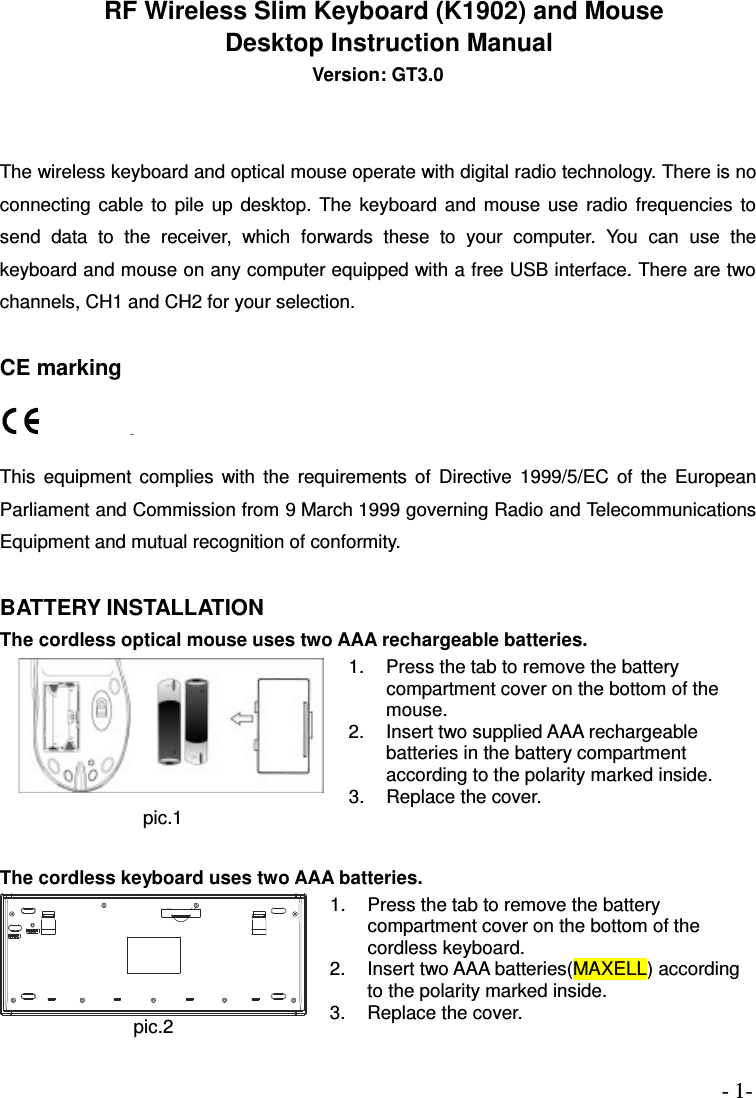
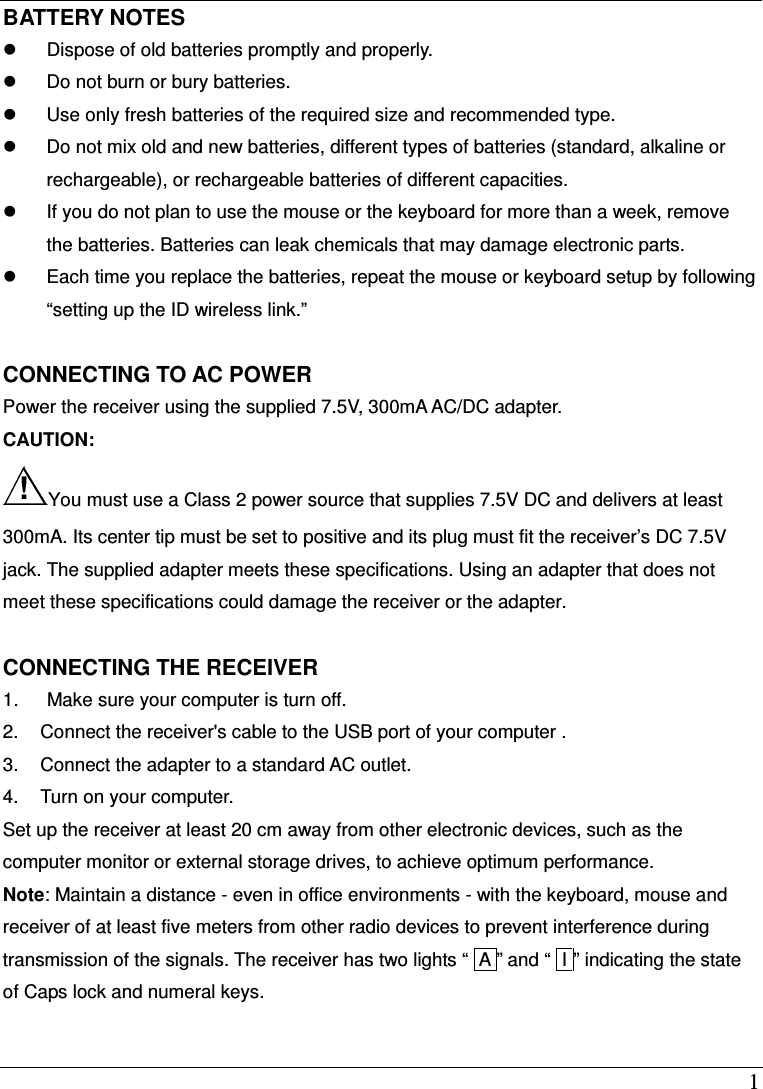
- 1-   RF Wireless Slim Keyboard (K1902) and Mouse   Desktop Instruction Manual Version: GT3.0   The wireless keyboard and optical mouse operate with digital radio technology. There is no connecting  cable  to  pile  up  desktop.  The  keyboard  and mouse  use  radio  frequencies  to send  data  to  the  receiver,  which  forwards  these  to  your  computer.  You  can  use  the keyboard and mouse on any computer equipped with a free USB interface. There are two channels, CH1 and CH2 for your selection.                                     CE marking   This  equipment  complies  with  the  requirements  of  Directive  1999/5/EC  of  the  European Parliament and Commission from 9 March 1999 governing Radio and Telecommunications Equipment and mutual recognition of conformity.  BATTERY INSTALLATION The cordless optical mouse uses two AAA rechargeable batteries. pic.1 1.  Press the tab to remove the battery compartment cover on the bottom of the mouse. 2.  Insert two supplied AAA rechargeable batteries in the battery compartment according to the polarity marked inside. 3.  Replace the cover.  The cordless keyboard uses two AAA batteries. pic.2 1.  Press the tab to remove the battery compartment cover on the bottom of the cordless keyboard. 2.  Insert two AAA batteries(MAXELL) according to the polarity marked inside. 3.  Replace the cover.
 1 BATTERY NOTES   Dispose of old batteries promptly and properly.   Do not burn or bury batteries.   Use only fresh batteries of the required size and recommended type.   Do not mix old and new batteries, different types of batteries (standard, alkaline or rechargeable), or rechargeable batteries of different capacities.   If you do not plan to use the mouse or the keyboard for more than a week, remove the batteries. Batteries can leak chemicals that may damage electronic parts.   Each time you replace the batteries, repeat the mouse or keyboard setup by following “setting up the ID wireless link.”  CONNECTING TO AC POWER Power the receiver using the supplied 7.5V, 300mA AC/DC adapter. CAUTION:   !You must use a Class 2 power source that supplies 7.5V DC and delivers at least 300mA. Its center tip must be set to positive and its plug must fit the receiver’s DC 7.5V jack. The supplied adapter meets these specifications. Using an adapter that does not meet these specifications could damage the receiver or the adapter.  CONNECTING THE RECEIVER   1.      Make sure your computer is turn off. 2.  Connect the receiver's cable to the USB port of your computer . 3.  Connect the adapter to a standard AC outlet. 4.  Turn on your computer. Set up the receiver at least 20 cm away from other electronic devices, such as the computer monitor or external storage drives, to achieve optimum performance. Note: Maintain a distance - even in office environments - with the keyboard, mouse and receiver of at least five meters from other radio devices to prevent interference during transmission of the signals. The receiver has two lights “ lA ” and “ II ” indicating the state of Caps lock and numeral keys.
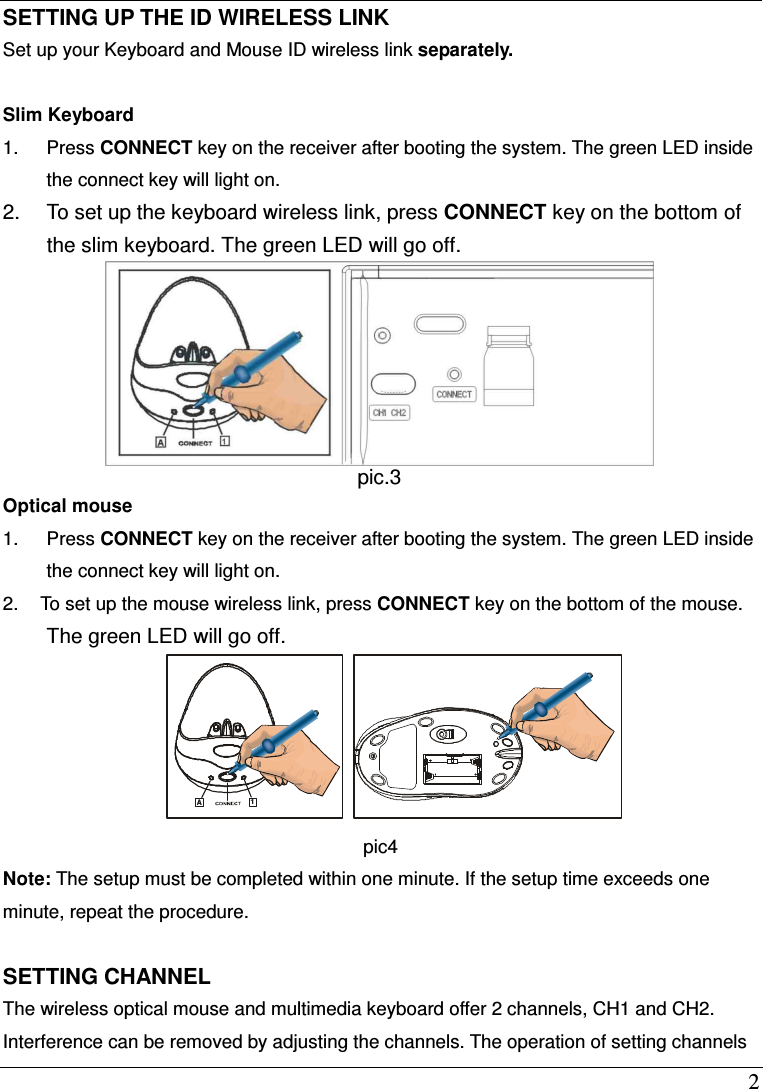
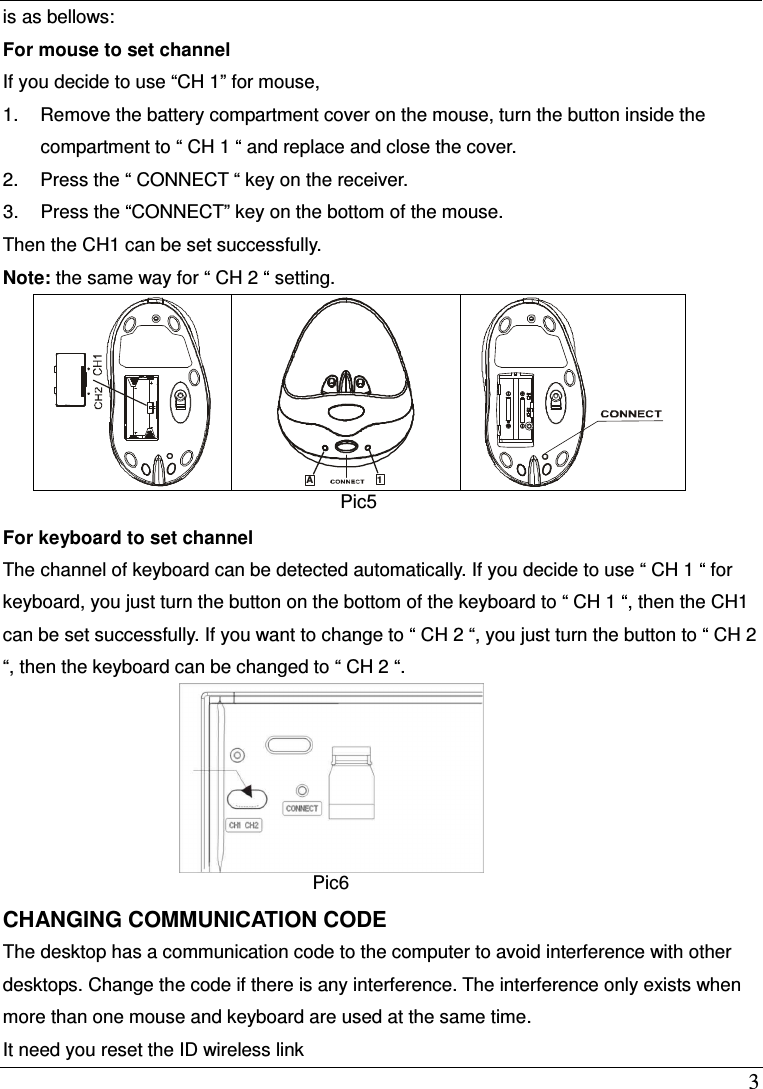
 2 SETTING UP THE ID WIRELESS LINK Set up your Keyboard and Mouse ID wireless link separately.  Slim Keyboard 1.  Press CONNECT key on the receiver after booting the system. The green LED inside the connect key will light on. 2.  To set up the keyboard wireless link, press CONNECT key on the bottom of the slim keyboard. The green LED will go off.    pic.3  Optical mouse 1.  Press CONNECT key on the receiver after booting the system. The green LED inside the connect key will light on. 2.  To set up the mouse wireless link, press CONNECT key on the bottom of the mouse. The green LED will go off. A1 pic4 Note: The setup must be completed within one minute. If the setup time exceeds one minute, repeat the procedure.  SETTING CHANNEL The wireless optical mouse and multimedia keyboard offer 2 channels, CH1 and CH2. Interference can be removed by adjusting the channels. The operation of setting channels
 3 is as bellows: For mouse to set channel If you decide to use “CH 1” for mouse, 1.  Remove the battery compartment cover on the mouse, turn the button inside the compartment to “ CH 1 “ and replace and close the cover. 2.  Press the “ CONNECT “ key on the receiver. 3.  Press the “CONNECT” key on the bottom of the mouse. Then the CH1 can be set successfully. Note: the same way for “ CH 2 “ setting.        For keyboard to set channel The channel of keyboard can be detected automatically. If you decide to use “ CH 1 “ for keyboard, you just turn the button on the bottom of the keyboard to “ CH 1 “, then the CH1 can be set successfully. If you want to change to “ CH 2 “, you just turn the button to “ CH 2 “, then the keyboard can be changed to “ CH 2 “.  Pic6 CHANGING COMMUNICATION CODE The desktop has a communication code to the computer to avoid interference with other desktops. Change the code if there is any interference. The interference only exists when more than one mouse and keyboard are used at the same time. It need you reset the ID wireless link  A1  Pic5
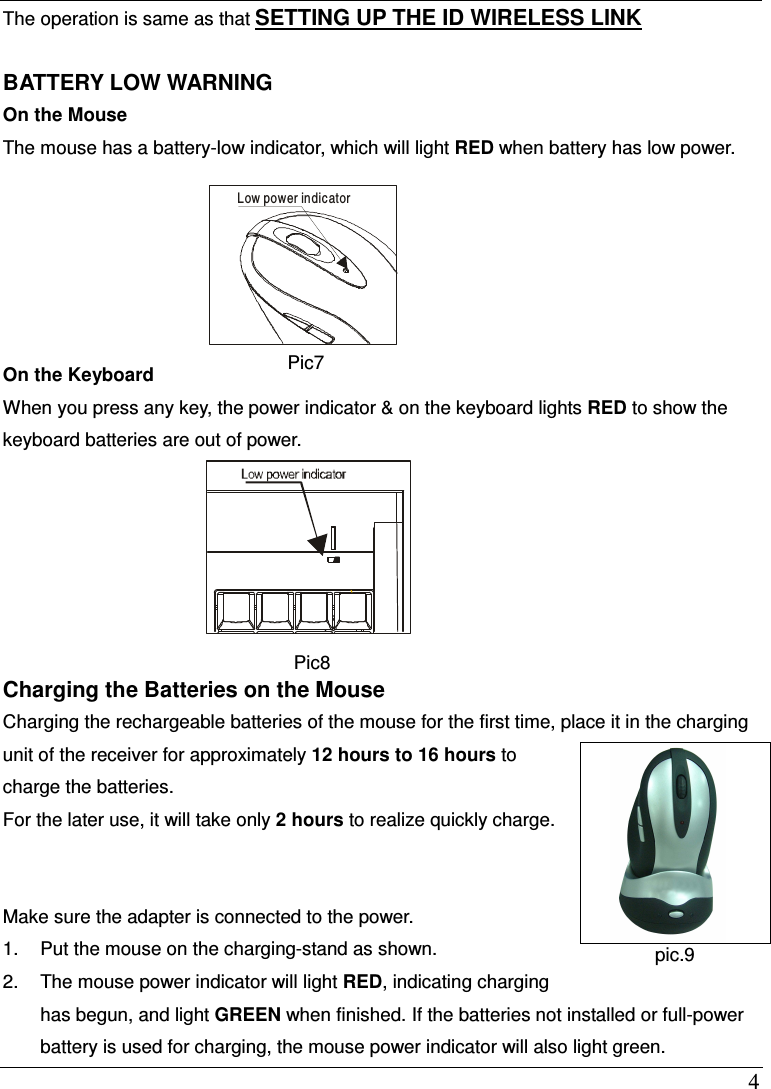
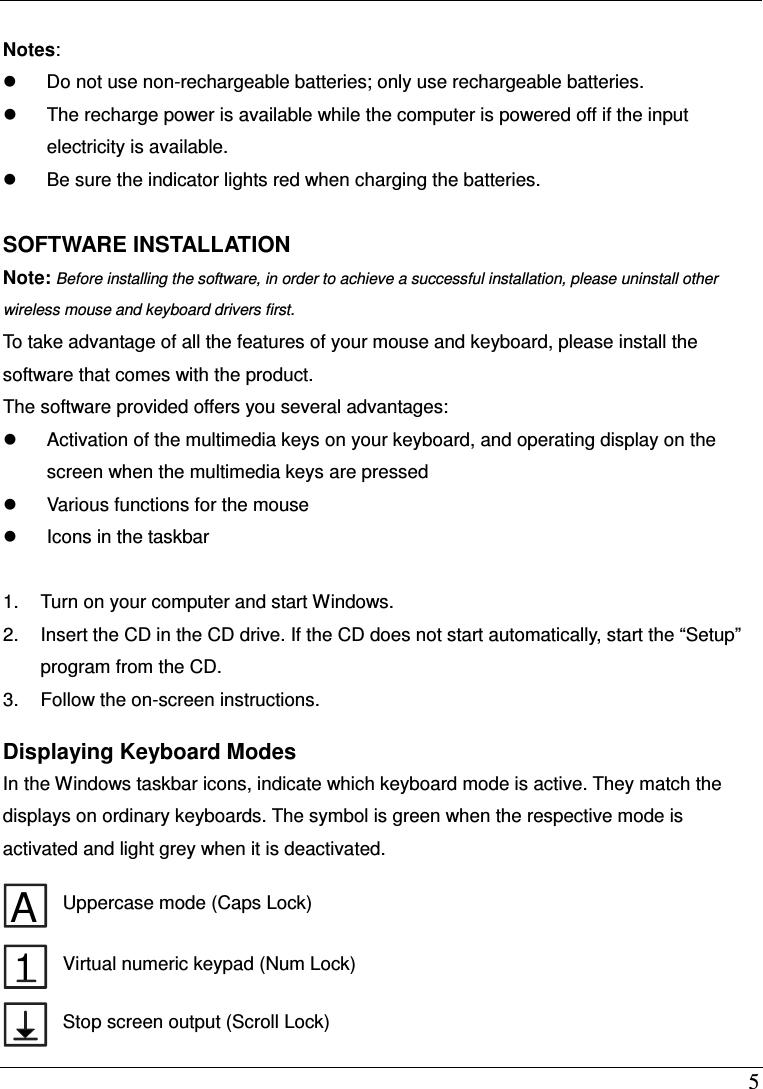
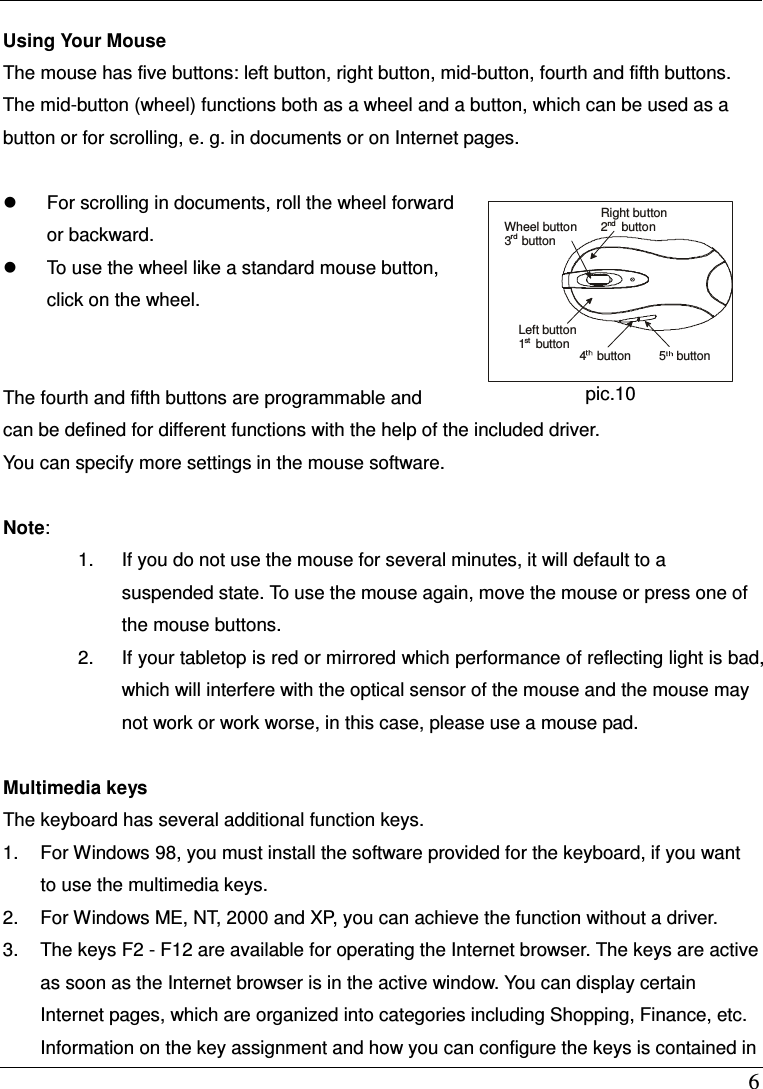
 4 The operation is same as that SETTING UP THE ID WIRELESS LINK  BATTERY LOW WARNING On the Mouse The mouse has a battery-low indicator, which will light RED when battery has low power.         On the Keyboard When you press any key, the power indicator & on the keyboard lights RED to show the keyboard batteries are out of power.    Pic8 Charging the Batteries on the Mouse   Charging the rechargeable batteries of the mouse for the first time, place it in the charging unit of the receiver for approximately 12 hours to 16 hours to charge the batteries.   For the later use, it will take only 2 hours to realize quickly charge.   Make sure the adapter is connected to the power.   1.  Put the mouse on the charging-stand as shown. 2.  The mouse power indicator will light RED, indicating charging has begun, and light GREEN when finished. If the batteries not installed or full-power battery is used for charging, the mouse power indicator will also light green.     Low power indicator Pic7     pic7  pic.9
 5  Notes:     Do not use non-rechargeable batteries; only use rechargeable batteries.   The recharge power is available while the computer is powered off if the input electricity is available.   Be sure the indicator lights red when charging the batteries.  SOFTWARE INSTALLATION Note: Before installing the software, in order to achieve a successful installation, please uninstall other wireless mouse and keyboard drivers first.  To take advantage of all the features of your mouse and keyboard, please install the software that comes with the product. The software provided offers you several advantages:   Activation of the multimedia keys on your keyboard, and operating display on the screen when the multimedia keys are pressed   Various functions for the mouse   Icons in the taskbar  1.  Turn on your computer and start Windows. 2.  Insert the CD in the CD drive. If the CD does not start automatically, start the “Setup” program from the CD. 3.  Follow the on-screen instructions.    Displaying Keyboard Modes In the Windows taskbar icons, indicate which keyboard mode is active. They match the displays on ordinary keyboards. The symbol is green when the respective mode is activated and light grey when it is deactivated.  A Uppercase mode (Caps Lock) 1 Virtual numeric keypad (Num Lock)  Stop screen output (Scroll Lock)
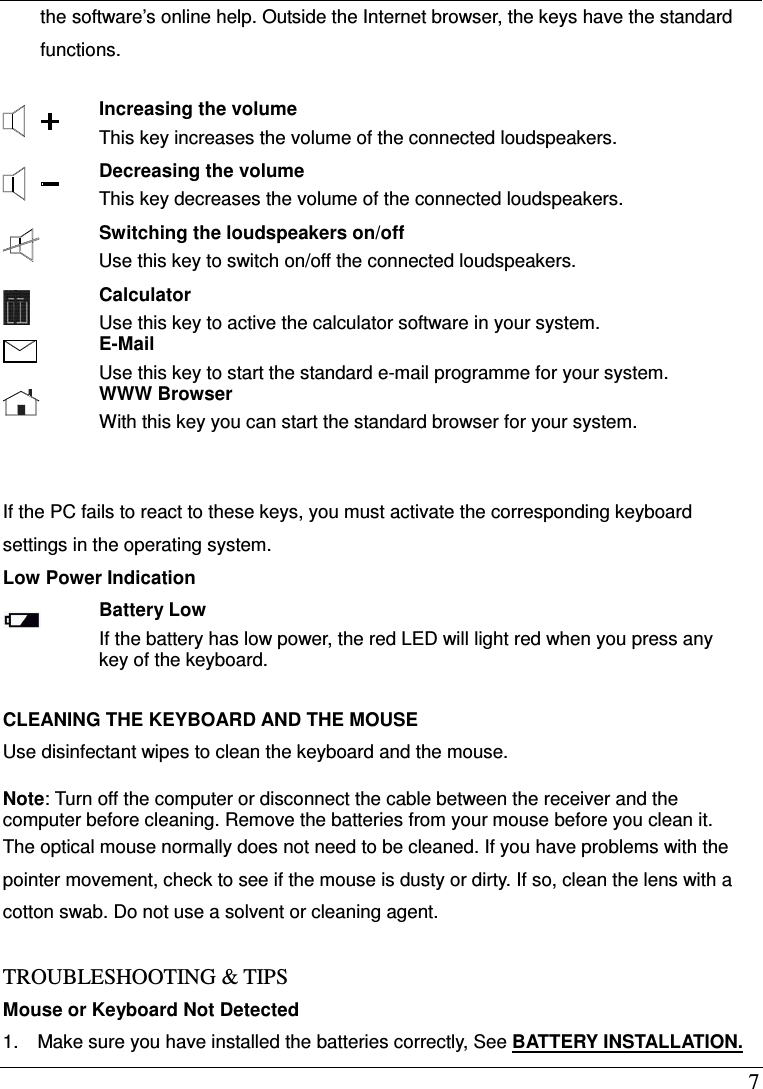
 6  Using Your Mouse The mouse has five buttons: left button, right button, mid-button, fourth and fifth buttons. The mid-button (wheel) functions both as a wheel and a button, which can be used as a button or for scrolling, e. g. in documents or on Internet pages.      For scrolling in documents, roll the wheel forward or backward.   To use the wheel like a standard mouse button, click on the wheel.                                                  The fourth and fifth buttons are programmable and can be defined for different functions with the help of the included driver.   You can specify more settings in the mouse software.  Note:   1.  If you do not use the mouse for several minutes, it will default to a suspended state. To use the mouse again, move the mouse or press one of the mouse buttons. 2.  If your tabletop is red or mirrored which performance of reflecting light is bad, which will interfere with the optical sensor of the mouse and the mouse may not work or work worse, in this case, please use a mouse pad.  Multimedia keys The keyboard has several additional function keys. 1.  For Windows 98, you must install the software provided for the keyboard, if you want to use the multimedia keys. 2.  For Windows ME, NT, 2000 and XP, you can achieve the function without a driver. 3.  The keys F2 - F12 are available for operating the Internet browser. The keys are active as soon as the Internet browser is in the active window. You can display certain Internet pages, which are organized into categories including Shopping, Finance, etc. Information on the key assignment and how you can configure the keys is contained in Right button2    buttonWheel button3   buttonLeft button1   button4   button5   buttonrdnd  st pic.10
 7 the software’s online help. Outside the Internet browser, the keys have the standard functions.   Increasing the volume This key increases the volume of the connected loudspeakers.  Decreasing the volume This key decreases the volume of the connected loudspeakers.  Switching the loudspeakers on/off Use this key to switch on/off the connected loudspeakers.  Calculator Use this key to active the calculator software in your system.  E-Mail Use this key to start the standard e-mail programme for your system.  WWW Browser With this key you can start the standard browser for your system.    If the PC fails to react to these keys, you must activate the corresponding keyboard settings in the operating system. Low Power Indication  Battery Low If the battery has low power, the red LED will light red when you press any key of the keyboard.    CLEANING THE KEYBOARD AND THE MOUSE Use disinfectant wipes to clean the keyboard and the mouse.  Note: Turn off the computer or disconnect the cable between the receiver and the computer before cleaning. Remove the batteries from your mouse before you clean it. The optical mouse normally does not need to be cleaned. If you have problems with the pointer movement, check to see if the mouse is dusty or dirty. If so, clean the lens with a cotton swab. Do not use a solvent or cleaning agent.  TROUBLESHOOTING & TIPS Mouse or Keyboard Not Detected 1.    Make sure you have installed the batteries correctly, See BATTERY INSTALLATION.
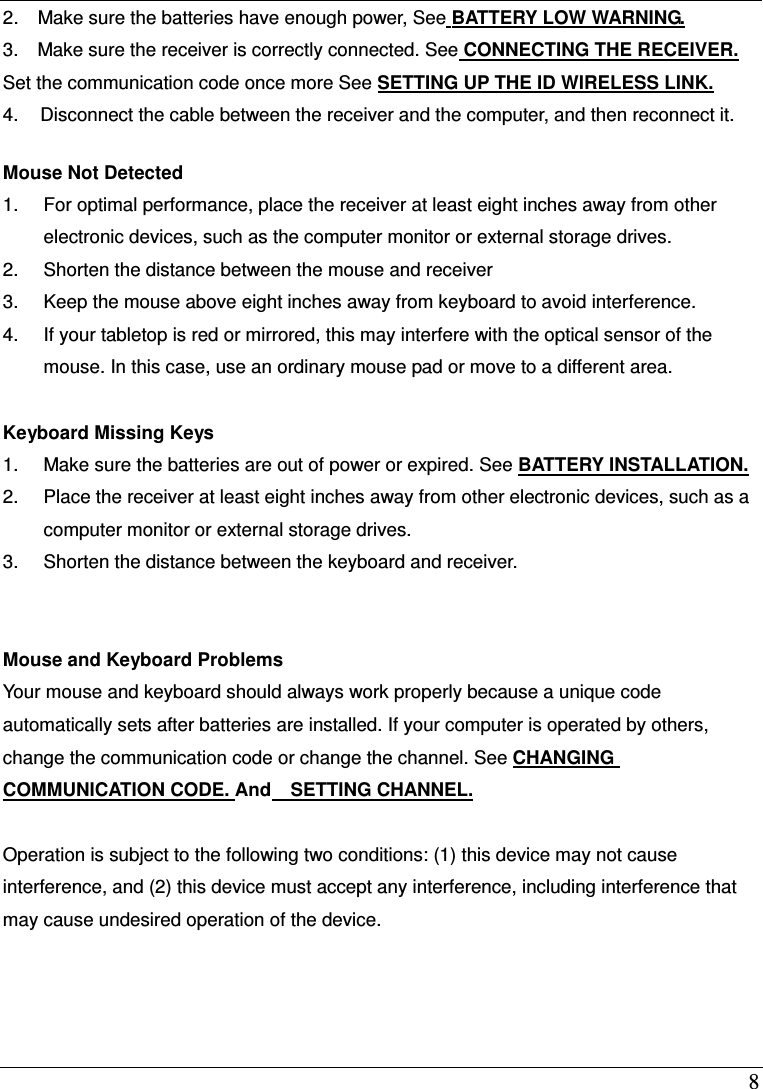
 8 2.    Make sure the batteries have enough power, See BATTERY LOW WARNING. 3.    Make sure the receiver is correctly connected. See CONNECTING THE RECEIVER. Set the communication code once more See SETTING UP THE ID WIRELESS LINK. 4.  Disconnect the cable between the receiver and the computer, and then reconnect it.  Mouse Not Detected   1.  For optimal performance, place the receiver at least eight inches away from other electronic devices, such as the computer monitor or external storage drives. 2.  Shorten the distance between the mouse and receiver 3.  Keep the mouse above eight inches away from keyboard to avoid interference. 4.  If your tabletop is red or mirrored, this may interfere with the optical sensor of the mouse. In this case, use an ordinary mouse pad or move to a different area.  Keyboard Missing Keys 1.  Make sure the batteries are out of power or expired. See BATTERY INSTALLATION. 2.  Place the receiver at least eight inches away from other electronic devices, such as a computer monitor or external storage drives. 3.  Shorten the distance between the keyboard and receiver.   Mouse and Keyboard Problems   Your mouse and keyboard should always work properly because a unique code automatically sets after batteries are installed. If your computer is operated by others, change the communication code or change the channel. See CHANGING COMMUNICATION CODE. And    SETTING CHANNEL.  Operation is subject to the following two conditions: (1) this device may not cause interference, and (2) this device must accept any interference, including interference that may cause undesired operation of the device.
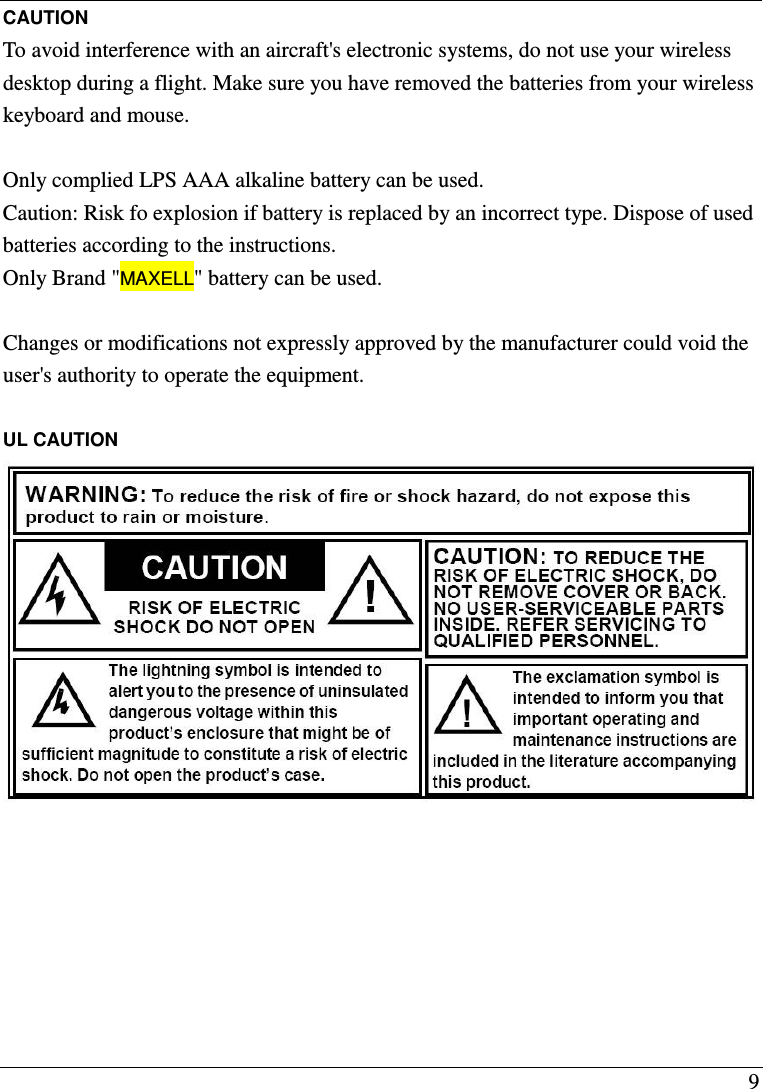
 9 CAUTION To avoid interference with an aircraft's electronic systems, do not use your wireless desktop during a flight. Make sure you have removed the batteries from your wireless keyboard and mouse.  Only complied LPS AAA alkaline battery can be used.   Caution: Risk fo explosion if battery is replaced by an incorrect type. Dispose of used batteries according to the instructions. Only Brand "MAXELL" battery can be used. Changes or modifications not expressly approved by the manufacturer could void the user's authority to operate the equipment.  UL CAUTION

Navigation menu