G Tech Technology K8732 Wireless Keyboard User Manual 26 762 indd

G.Tech Technology Ltd. Wireless Keyboard 26 762 indd

User Manual

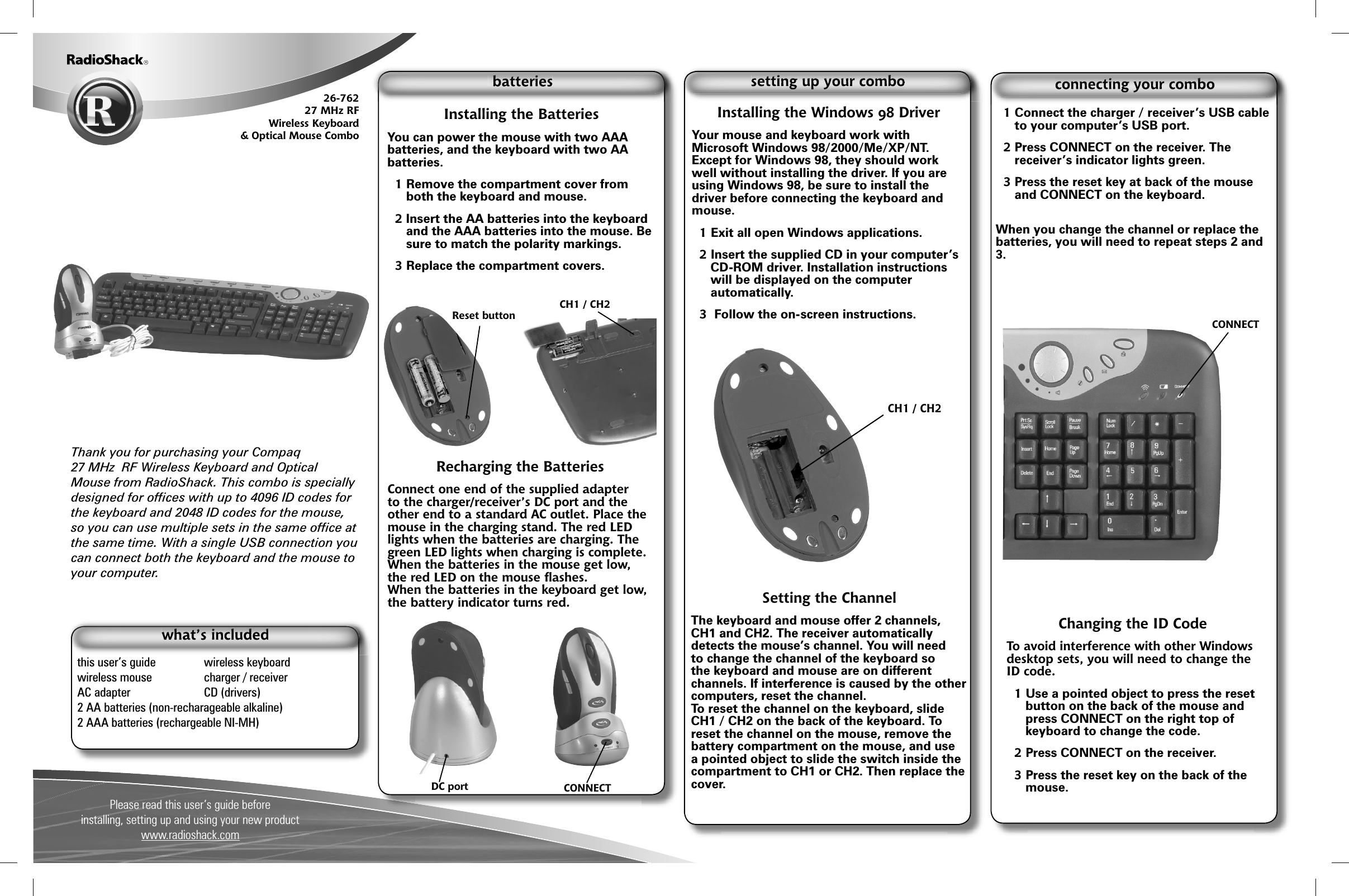
Please read this user’s guide beforeinstalling, setting up and using your new product www.radioshack.comThank you for purchasing your Compaq27 MHz  RF Wireless Keyboard and Optical Mouse from RadioShack. This combo is specially designed for offi ces with up to 4096 ID codes for the keyboard and 2048 ID codes for the mouse, so you can use multiple sets in the same offi ce at the same time. With a single USB connection you can connect both the keyboard and the mouse to your computer.        26-762 27 MHz RFWireless Keyboard& Optical Mouse Combothis user’s guide  wireless keyboard   wireless mouse  charger / receiverAC adapter  CD (drivers)2 AA batteries (non-recharageable alkaline)2 AAA batteries (rechargeable NI-MH)Installing the BatteriesYou can power the mouse with two AAA batteries, and the keyboard with two AA batteries.1 Remove the compartment cover from both the keyboard and mouse. 2 Insert the AA batteries into the keyboard  and the AAA batteries into the mouse. Be sure to match the polarity markings.3 Replace the compartment covers.Recharging the BatteriesConnect one end of the supplied adapter to the charger/receiver’s DC port and the other end to a standard AC outlet. Place the mouse in the charging stand. The red LED lights when the batteries are charging. The green LED lights when charging is complete.When the batteries in the mouse get low, the red LED on the mouse fl ashes.When the batteries in the keyboard get low, the battery indicator turns red.DC port CONNECTInstalling the Windows 98 DriverYour mouse and keyboard work with Microsoft Windows 98/2000/Me/XP/NT.  Except for Windows 98, they should work well without installing the driver. If you are using Windows 98, be sure to install the driver before connecting the keyboard and mouse. 1 Exit all open Windows applications. 2 Insert the supplied CD in your computer’s CD-ROM driver. Installation instructions will be displayed on the computer automatically. 3  Follow the on-screen instructions. Setting the ChannelThe keyboard and mouse offer 2 channels, CH1 and CH2. The receiver automatically detects the mouse’s channel. You will need to change the channel of the keyboard so the keyboard and mouse are on different channels. If interference is caused by the other computers, reset the channel. To reset the channel on the keyboard, slide CH1 / CH2 on the back of the keyboard. To reset the channel on the mouse, remove the battery compartment on the mouse, and use a pointed object to slide the switch inside the compartment to CH1 or CH2. Then replace the cover.1 Connect the charger / receiver’s USB cable to your computer’s USB port. 2 Press CONNECT on the receiver. The receiver’s indicator lights green.3 Press the reset key at back of the mouse and CONNECT on the keyboard.When you change the channel or replace the batteries, you will need to repeat steps 2 and 3.Reset buttonCH1 / CH2Changing the ID CodeTo avoid interference with other Windows desktop sets, you will need to change the ID code.1 Use a pointed object to press the reset button on the back of the mouse and press CONNECT on the right top of keyboard to change the code. 2 Press CONNECT on the receiver. 3 Press the reset key on the back of the mouse.CH1 / CH2 CONNECT
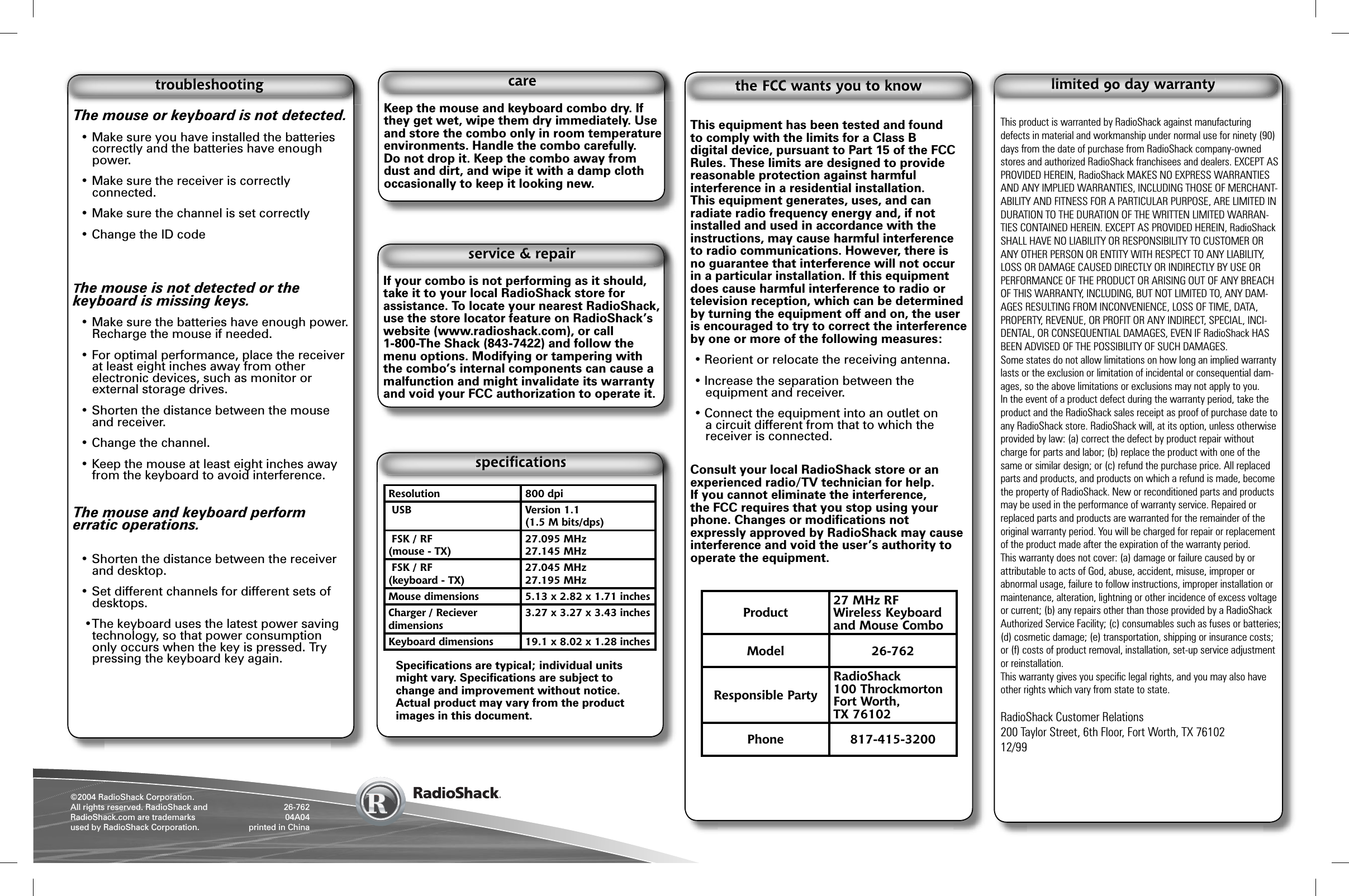
©2004 RadioShack Corporation.All rights reserved. RadioShack and RadioShack.com are trademarks used by RadioShack Corporation. 26-76204A04printed in ChinaKeep the mouse and keyboard combo dry. If they get wet, wipe them dry immediately. Use and store the combo only in room temperature environments. Handle the combo carefully. Do not drop it. Keep the combo away from dust and dirt, and wipe it with a damp cloth occasionally to keep it looking new.This equipment has been tested and found to comply with the limits for a Class B digital device, pursuant to Part 15 of the FCC Rules. These limits are designed to provide reasonable protection against harmful interference in a residential installation. This equipment generates, uses, and can radiate radio frequency energy and, if not installed and used in accordance with the instructions, may cause harmful interference to radio communications. However, there is no guarantee that interference will not occur in a particular installation. If this equipment does cause harmful interference to radio or television reception, which can be determined by turning the equipment off and on, the user is encouraged to try to correct the interference by one or more of the following measures:• Reorient or relocate the receiving antenna.• Increase the separation between the equipment and receiver. • Connect the equipment into an outlet on a circuit different from that to which the receiver is connected. Consult your local RadioShack store or an experienced radio/TV technician for help.If you cannot eliminate the interference, the FCC requires that you stop using your phone. Changes or modifi cations not expressly approved by RadioShack may cause interference and void the user’s authority to operate the equipment.This product is warranted by RadioShack against manufacturing defects in material and workmanship under normal use for ninety (90) days from the date of purchase from RadioShack company-owned stores and authorized RadioShack franchisees and dealers. EXCEPT AS PROVIDED HEREIN, RadioShack MAKES NO EXPRESS WARRANTIES AND ANY IMPLIED WARRANTIES, INCLUDING THOSE OF MERCHANT-ABILITY AND FITNESS FOR A PARTICULAR PURPOSE, ARE LIMITED IN DURATION TO THE DURATION OF THE WRITTEN LIMITED WARRAN-TIES CONTAINED HEREIN. EXCEPT AS PROVIDED HEREIN, RadioShack SHALL HAVE NO LIABILITY OR RESPONSIBILITY TO CUSTOMER OR ANY OTHER PERSON OR ENTITY WITH RESPECT TO ANY LIABILITY, LOSS OR DAMAGE CAUSED DIRECTLY OR INDIRECTLY BY USE OR PERFORMANCE OF THE PRODUCT OR ARISING OUT OF ANY BREACH OF THIS WARRANTY, INCLUDING, BUT NOT LIMITED TO, ANY DAM-AGES RESULTING FROM INCONVENIENCE, LOSS OF TIME, DATA, PROPERTY, REVENUE, OR PROFIT OR ANY INDIRECT, SPECIAL, INCI-DENTAL, OR CONSEQUENTIAL DAMAGES, EVEN IF RadioShack HAS BEEN ADVISED OF THE POSSIBILITY OF SUCH DAMAGES.Some states do not allow limitations on how long an implied warranty lasts or the exclusion or limitation of incidental or consequential dam-ages, so the above limitations or exclusions may not apply to you.In the event of a product defect during the warranty period, take the product and the RadioShack sales receipt as proof of purchase date to any RadioShack store. RadioShack will, at its option, unless otherwise provided by law: (a) correct the defect by product repair without charge for parts and labor; (b) replace the product with one of the same or similar design; or (c) refund the purchase price. All replaced parts and products, and products on which a refund is made, become the property of RadioShack. New or reconditioned parts and products may be used in the performance of warranty service. Repaired or replaced parts and products are warranted for the remainder of the original warranty period. You will be charged for repair or replacement of the product made after the expiration of the warranty period.This warranty does not cover: (a) damage or failure caused by or attributable to acts of God, abuse, accident, misuse, improper or abnormal usage, failure to follow instructions, improper installation or maintenance, alteration, lightning or other incidence of excess voltage or current; (b) any repairs other than those provided by a RadioShack Authorized Service Facility; (c) consumables such as fuses or batteries; (d) cosmetic damage; (e) transportation, shipping or insurance costs; or (f) costs of product removal, installation, set-up service adjustment or reinstallation.This warranty gives you specifi c legal rights, and you may also have other rights which vary from state to state.  RadioShack Customer Relations200 Taylor Street, 6th Floor, Fort Worth, TX 7610212/99The mouse or keyboard is not detected. • Make sure you have installed the batteries correctly and the batteries have enough power. • Make sure the receiver is correctly connected.    • Make sure the channel is set correctly • Change the ID code The mouse is not detected or the keyboard is missing keys. • Make sure the batteries have enough power. Recharge the mouse if needed. • For optimal performance, place the receiver at least eight inches away from other electronic devices, such as monitor or external storage drives. • Shorten the distance between the mouse and receiver. • Change the channel.• Keep the mouse at least eight inches away from the keyboard to avoid interference. The mouse and keyboard perform erratic operations. • Shorten the distance between the receiver and desktop. • Set different channels for different sets of desktops.  •The keyboard uses the latest power saving technology, so that power consumption only occurs when the key is pressed. Try pressing the keyboard key again.Product 27 MHz RFWireless Keyboard and Mouse ComboModel 26-762Responsible PartyRadioShack100 ThrockmortonFort Worth,TX 76102Phone 817-415-3200If your combo is not performing as it should, take it to your local RadioShack store for assistance. To locate your nearest RadioShack, use the store locator feature on RadioShack’s website (www.radioshack.com), or call1-800-The Shack (843-7422) and follow the menu options. Modifying or tampering with the combo’s internal components can cause a malfunction and might invalidate its warranty and void your FCC authorization to operate it.Resolution 800 dpi USB Version 1.1(1.5 M bits/dps) FSK / RF(mouse - TX)27.095 MHz27.145 MHz FSK / RF(keyboard - TX) 27.045 MHz27.195 MHzMouse dimensions 5.13 x 2.82 x 1.71 inchesCharger / Recieverdimensions3.27 x 3.27 x 3.43 inchesKeyboard dimensions 19.1 x 8.02 x 1.28 inchesSpecifi cations are typical; individual units might vary. Specifi cations are subject to change and improvement without notice. Actual product may vary from the product images in this document.

Navigation menu