G Tech Technology TX908 Wireless Mouse Transmitter User Manual User Mnnual

G.Tech Technology Ltd. Wireless Mouse Transmitter User Mnnual

User Mnnual

Page 1EXHIBIT   5 FCC ID :EXHIBIT   5User’s  ManualUser’s  Manual
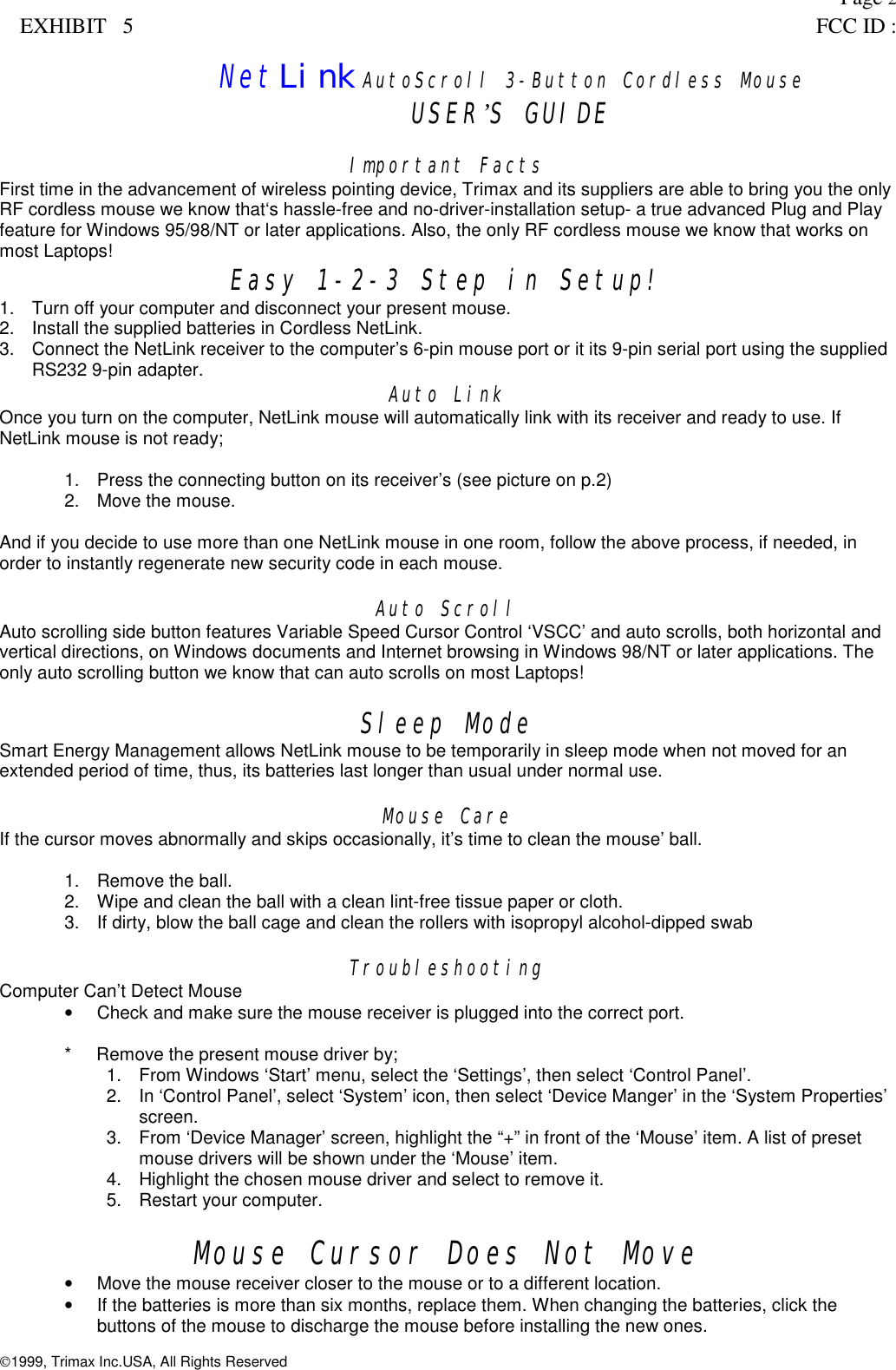
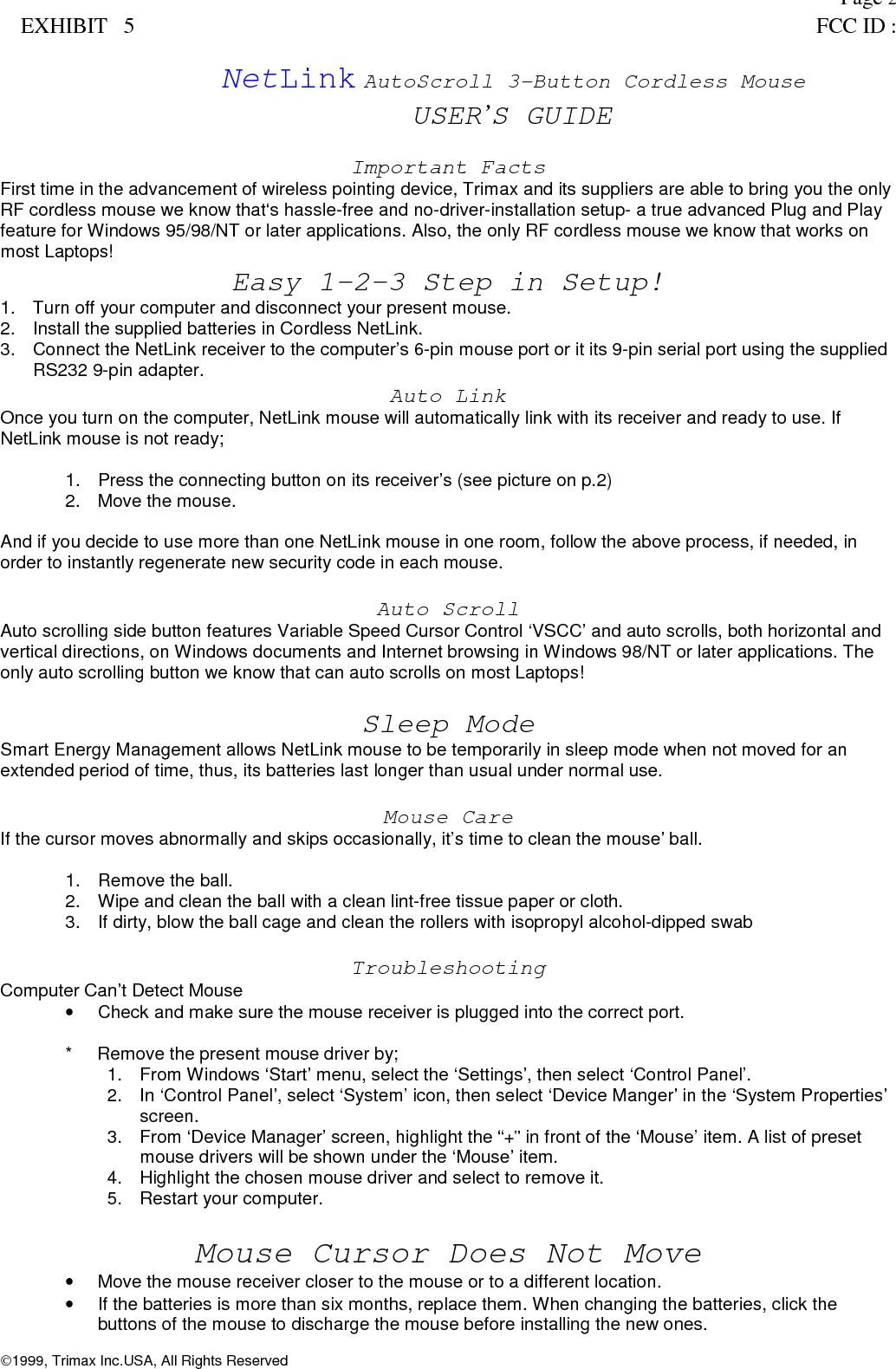
Page 2EXHIBIT   5 FCC ID :NetLink AutoScroll 3-Button Cordless MouseUSER’S GUIDEImportant FactsFirst time in the advancement of wireless pointing device, Trimax and its suppliers are able to bring you the onlyRF cordless mouse we know that‘s hassle-free and no-driver-installation setup- a true advanced Plug and Playfeature for Windows 95/98/NT or later applications. Also, the only RF cordless mouse we know that works onmost Laptops! Easy 1-2-3 Step in Setup!1.  Turn off your computer and disconnect your present mouse.2.  Install the supplied batteries in Cordless NetLink.3.  Connect the NetLink receiver to the computer’s 6-pin mouse port or it its 9-pin serial port using the suppliedRS232 9-pin adapter. Auto LinkOnce you turn on the computer, NetLink mouse will automatically link with its receiver and ready to use. IfNetLink mouse is not ready;1.  Press the connecting button on its receiver’s (see picture on p.2)2.  Move the mouse.And if you decide to use more than one NetLink mouse in one room, follow the above process, if needed, inorder to instantly regenerate new security code in each mouse.Auto ScrollAuto scrolling side button features Variable Speed Cursor Control ‘VSCC’ and auto scrolls, both horizontal andvertical directions, on Windows documents and Internet browsing in Windows 98/NT or later applications. Theonly auto scrolling button we know that can auto scrolls on most Laptops!Sleep ModeSmart Energy Management allows NetLink mouse to be temporarily in sleep mode when not moved for anextended period of time, thus, its batteries last longer than usual under normal use.Mouse CareIf the cursor moves abnormally and skips occasionally, it’s time to clean the mouse’ ball.1. Remove the ball.2.  Wipe and clean the ball with a clean lint-free tissue paper or cloth.3.  If dirty, blow the ball cage and clean the rollers with isopropyl alcohol-dipped swabTroubleshootingComputer Can’t Detect Mouse•  Check and make sure the mouse receiver is plugged into the correct port.*     Remove the present mouse driver by;1.  From Windows ‘Start’ menu, select the ‘Settings’, then select ‘Control Panel’.2.  In ‘Control Panel’, select ‘System’ icon, then select ‘Device Manger’ in the ‘System Properties’screen.3.  From ‘Device Manager’ screen, highlight the “+” in front of the ‘Mouse’ item. A list of presetmouse drivers will be shown under the ‘Mouse’ item.4.  Highlight the chosen mouse driver and select to remove it.5. Restart your computer.Mouse Cursor Does Not Move•  Move the mouse receiver closer to the mouse or to a different location.•  If the batteries is more than six months, replace them. When changing the batteries, click thebuttons of the mouse to discharge the mouse before installing the new ones.1999, Trimax Inc.USA, All Rights Reserved
Page 3EXHIBIT   5 FCC ID :

Navigation menu