GENERALSCAN ELECTRONICS R1000BTHP Barcode Scanner User Manual 15 GS R1000BT HP UserMan

GENERALSCAN ELECTRONICS CO., LIMITED Barcode Scanner 15 GS R1000BT HP UserMan

15_GS R1000BT-HP UserMan

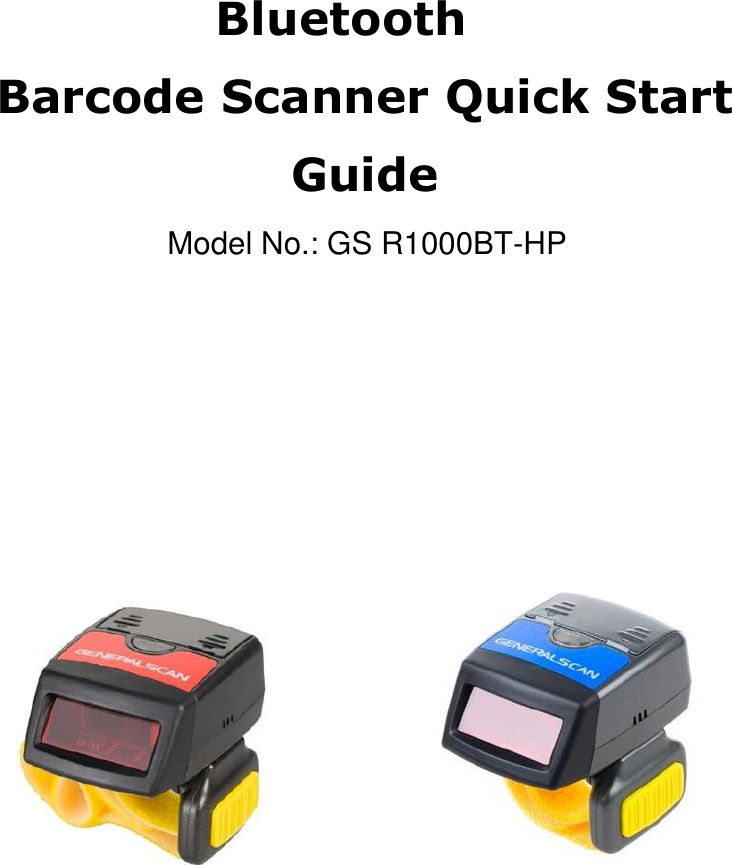
 Bluetooth Barcode Scanner Quick Start Guide                Model No.: GS R1000BT-HP
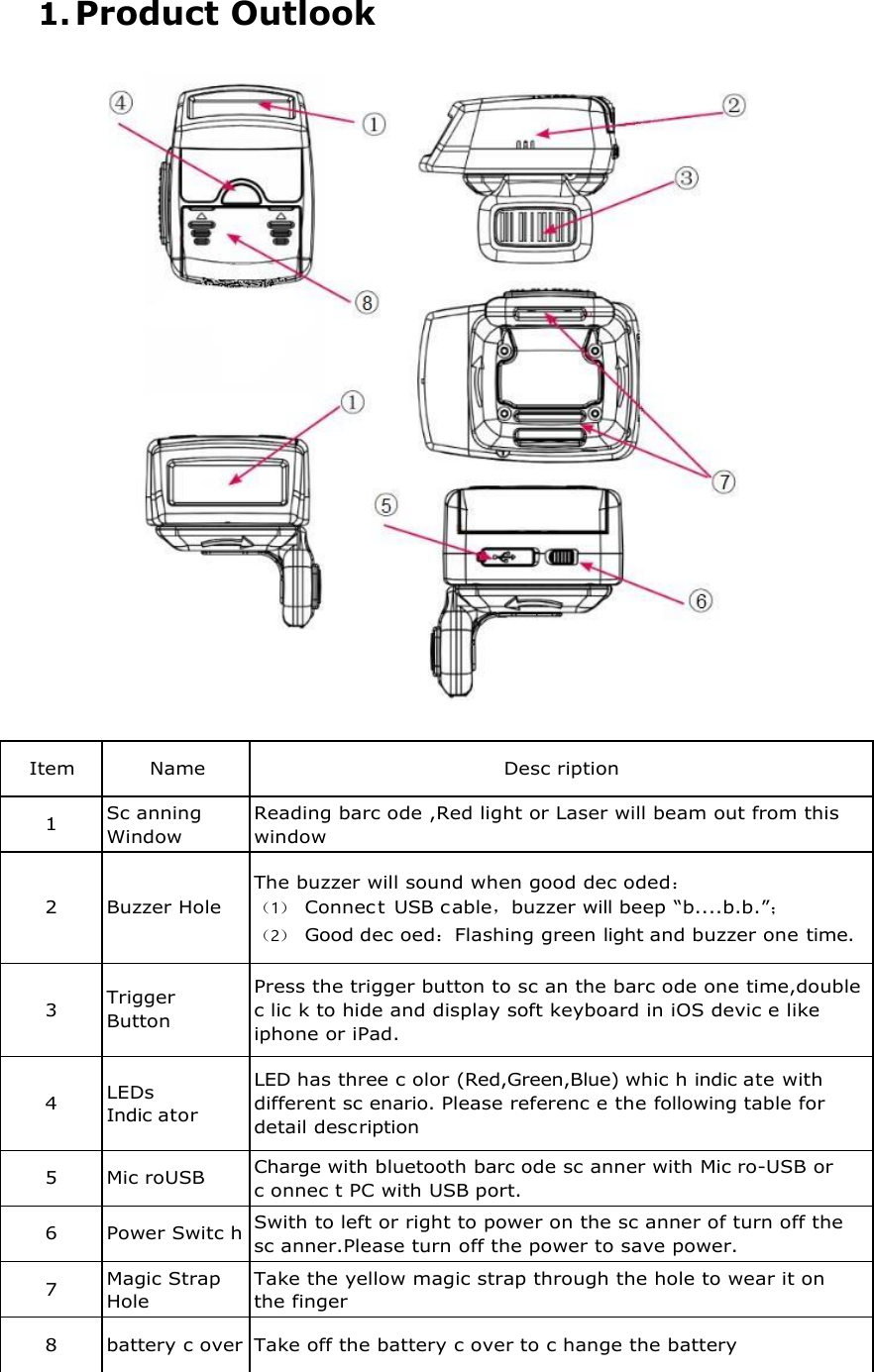
1. Product Outlook    Item Name Desc ription 1 Sc anning Window Reading barc ode ,Red light or Laser will beam out from this window  2  Buzzer Hole The buzzer will sound when good dec oded: (1) Connec t  USB c able,buzzer will beep “b....b.b.”; (2) Good dec oed:Flashing green light and buzzer one time.  3  Trigger Button Press the trigger button to sc an the barc ode one time,double c lic k to hide and display soft keyboard in iOS devic e like iphone or iPad.  4  LEDs Indic ator LED has three c olor (Red,Green,Blue) whic h indic ate with different sc enario. Please referenc e the following table for detail desc ription 5 Mic roUSB Charge with bluetooth barc ode sc anner with Mic ro-USB or c onnec t PC with USB port. 6 Power Switc h Swith to left or right to power on the sc anner of turn off the sc anner.Please turn off the power to save power. 7 Magic Strap Hole Take the yellow magic strap through the hole to wear it on the finger 8 battery c over Take off the battery c over to c hange the battery
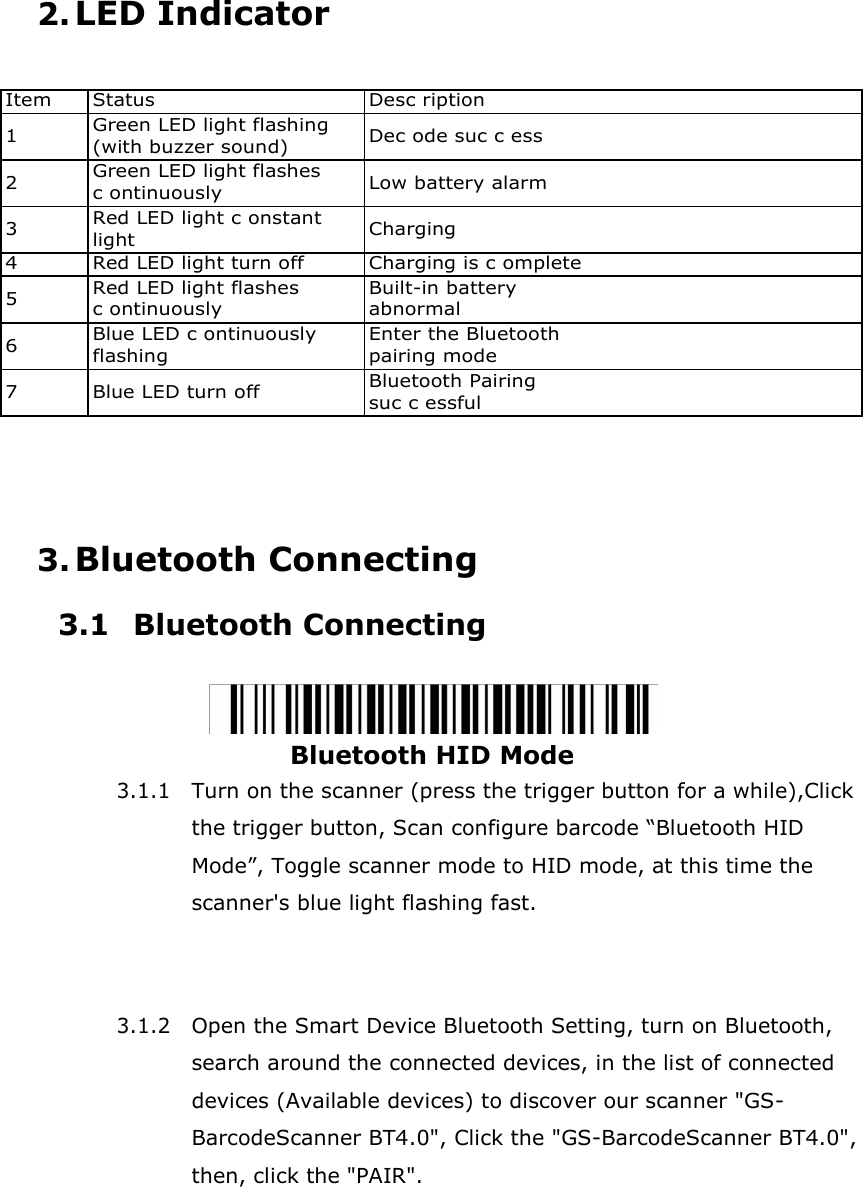
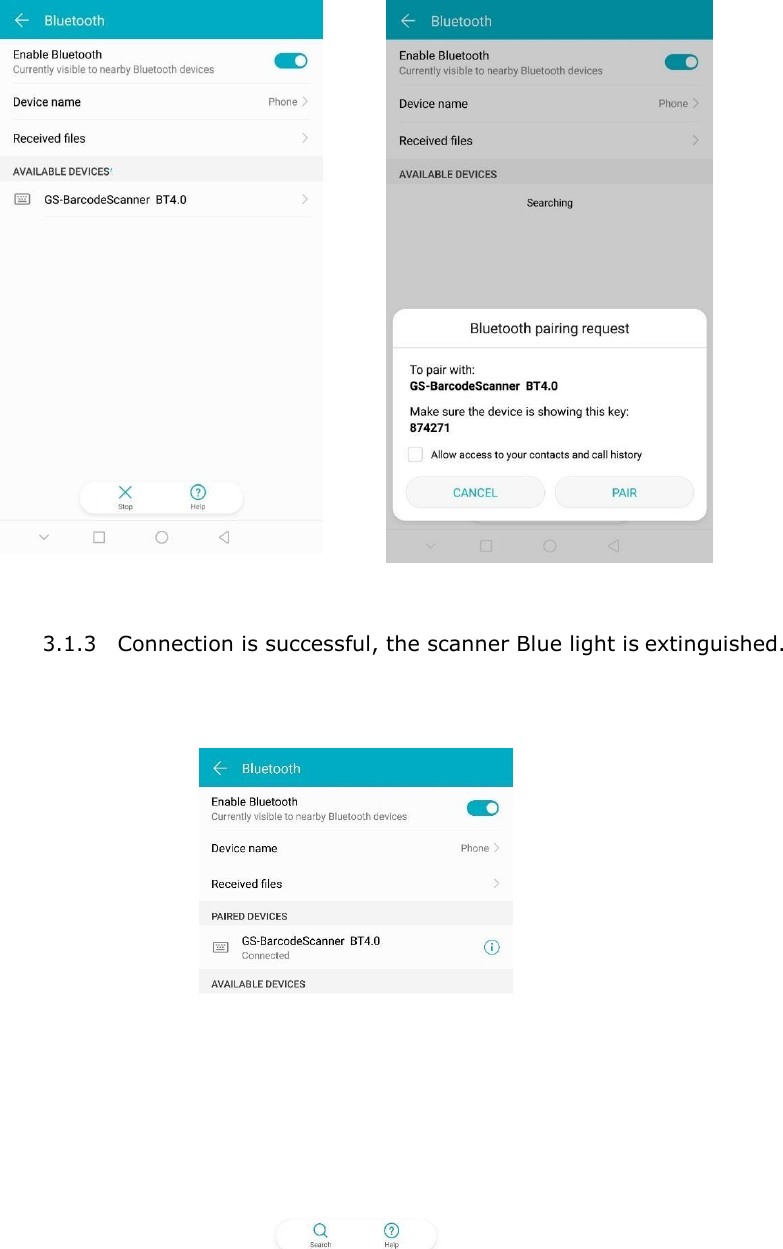
2. LED Indicator   Item Status Desc ription 1 Green LED light flashing (with buzzer sound) Dec ode suc c ess 2 Green LED light flashes c ontinuously Low battery alarm 3 Red LED light c onstant light Charging 4 Red LED light turn off Charging is c omplete 5 Red LED light flashes c ontinuously Built-in battery abnormal 6 Blue LED c ontinuously flashing Enter the Bluetooth pairing mode 7 Blue LED turn off Bluetooth Pairing suc c essful     3. Bluetooth Connecting 3.1 Bluetooth Connecting   Bluetooth HID Mode 3.1.1 Turn on the scanner (press the trigger button for a while),Click the trigger button, Scan configure barcode “Bluetooth HID Mode”, Toggle scanner mode to HID mode, at this time the scanner's blue light flashing fast.    3.1.2 Open the Smart Device Bluetooth Setting, turn on Bluetooth, search around the connected devices, in the list of connected devices (Available devices) to discover our scanner "GS- BarcodeScanner BT4.0", Click the "GS-BarcodeScanner BT4.0", then, click the "PAIR".
    3.1.3 Connection is successful, the scanner Blue light is extinguished.
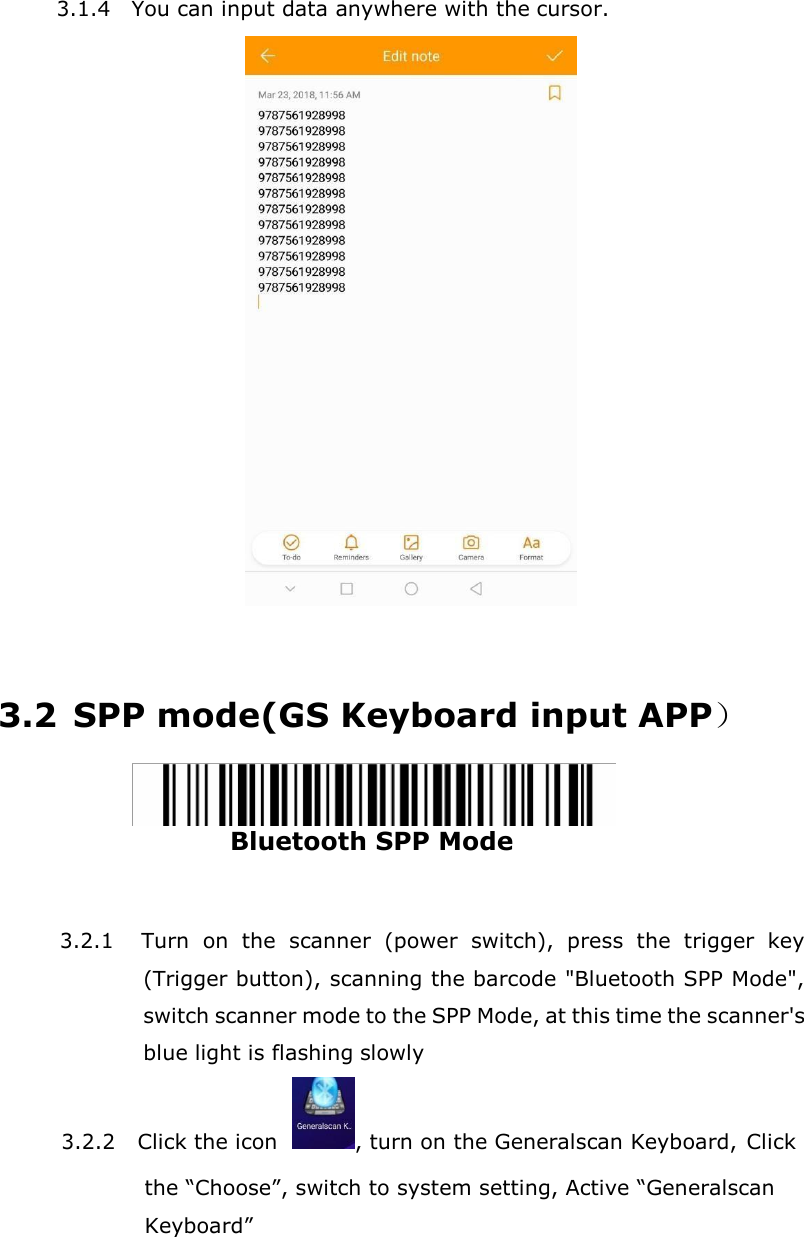
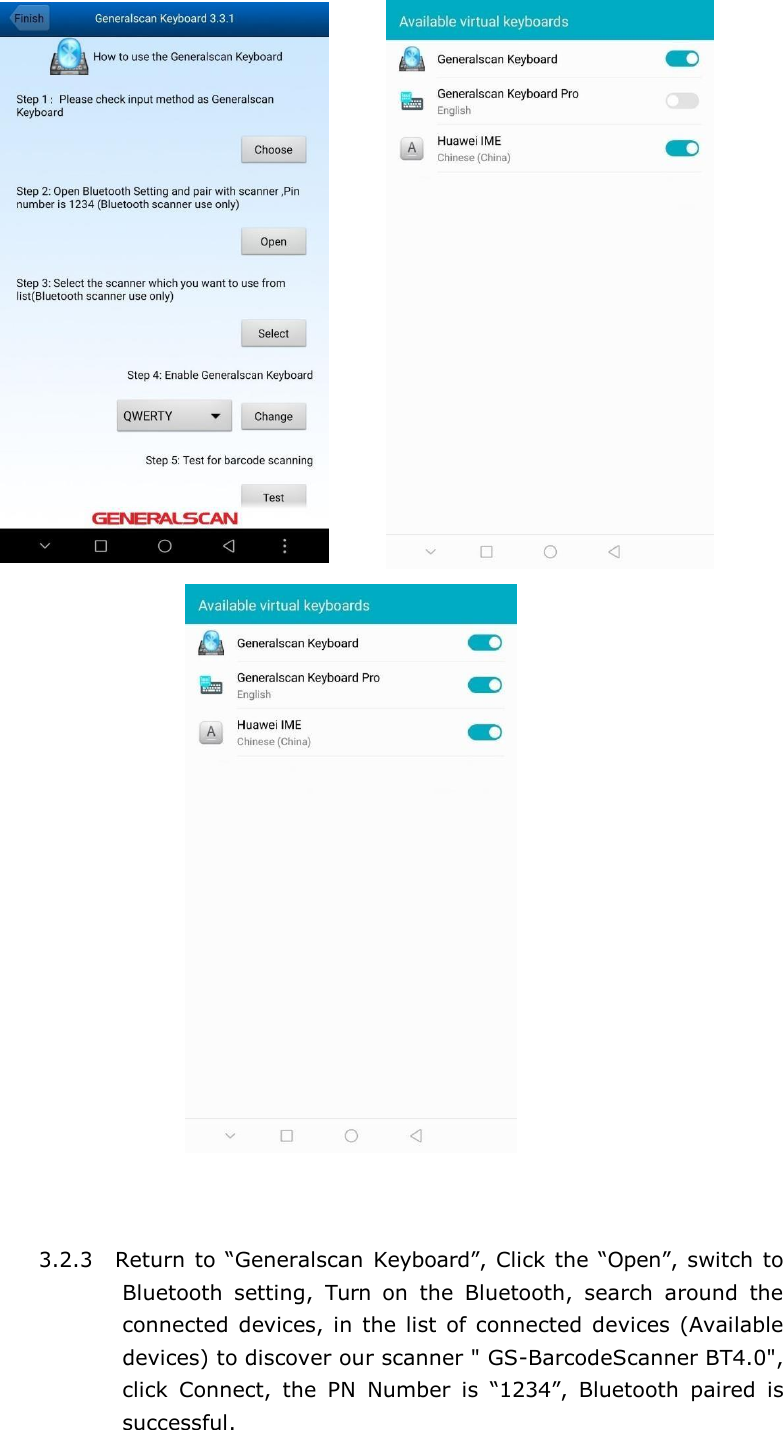
3.1.4 You can input data anywhere with the cursor.     3.2 SPP mode(GS Keyboard input APP)  Bluetooth SPP Mode   3.2.1 Turn  on  the  scanner  (power  switch),  press  the  trigger  key (Trigger button), scanning the barcode "Bluetooth SPP Mode", switch scanner mode to the SPP Mode, at this time the scanner's blue light is flashing slowly 3.2.2 Click the icon   , turn on the Generalscan Keyboard, Click the “Choose”, switch to system setting, Active “Generalscan Keyboard”
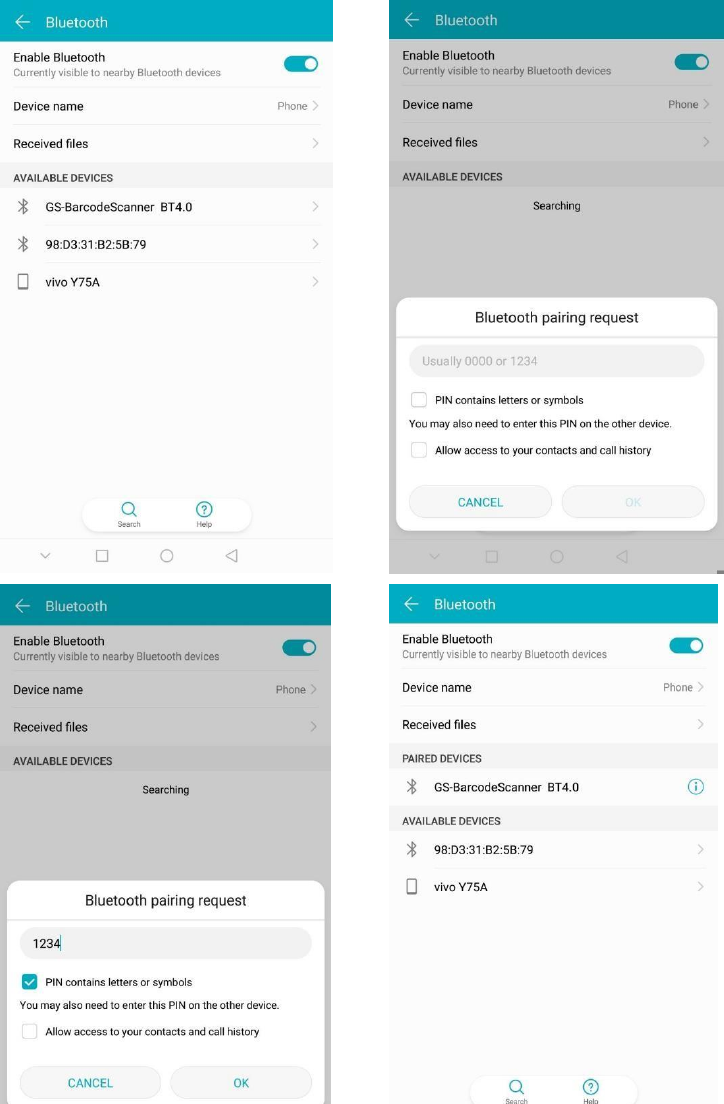
      3.2.3 Return to “Generalscan  Keyboard”, Click the “Open”, switch  to Bluetooth  setting,  Turn  on  the  Bluetooth,  search  around  the connected devices,  in  the list  of connected  devices (Available devices) to discover our scanner " GS-BarcodeScanner BT4.0", click  Connect,  the  PN  Number  is  “1234”,  Bluetooth  paired  is successful.
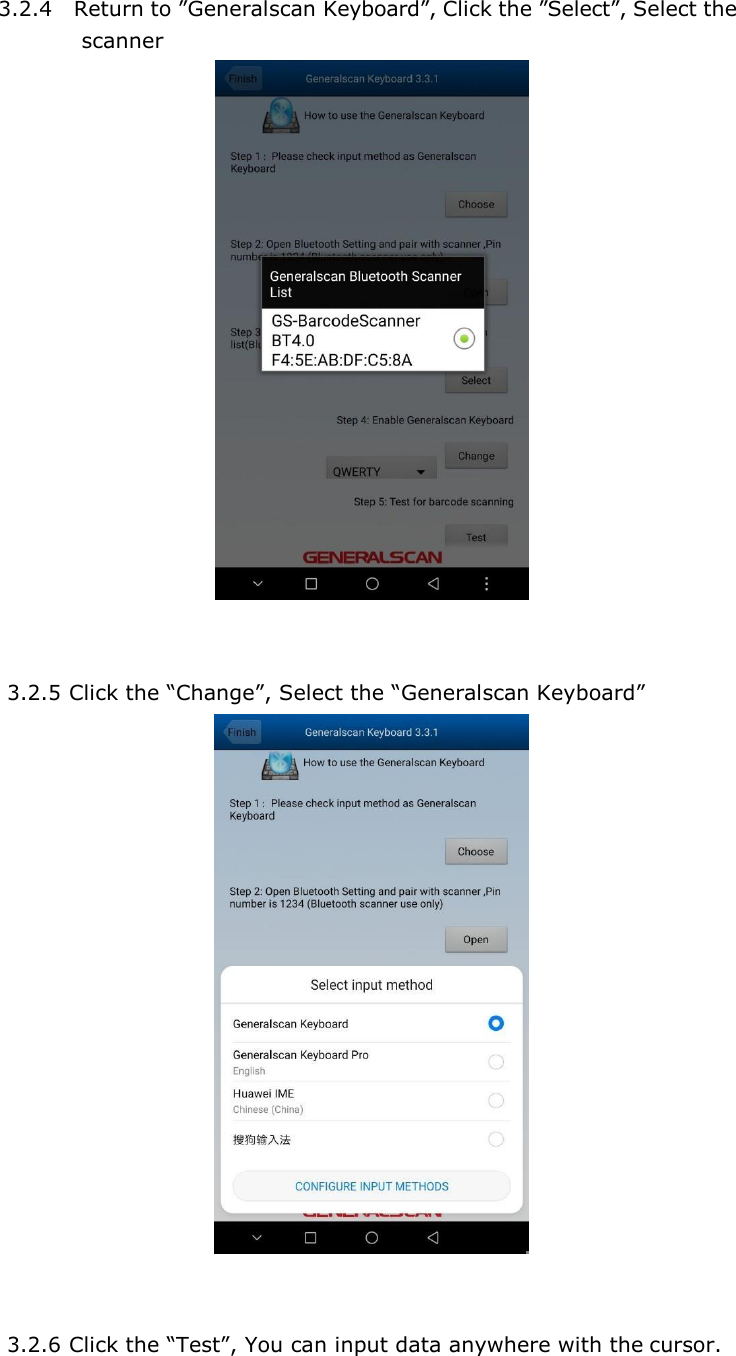
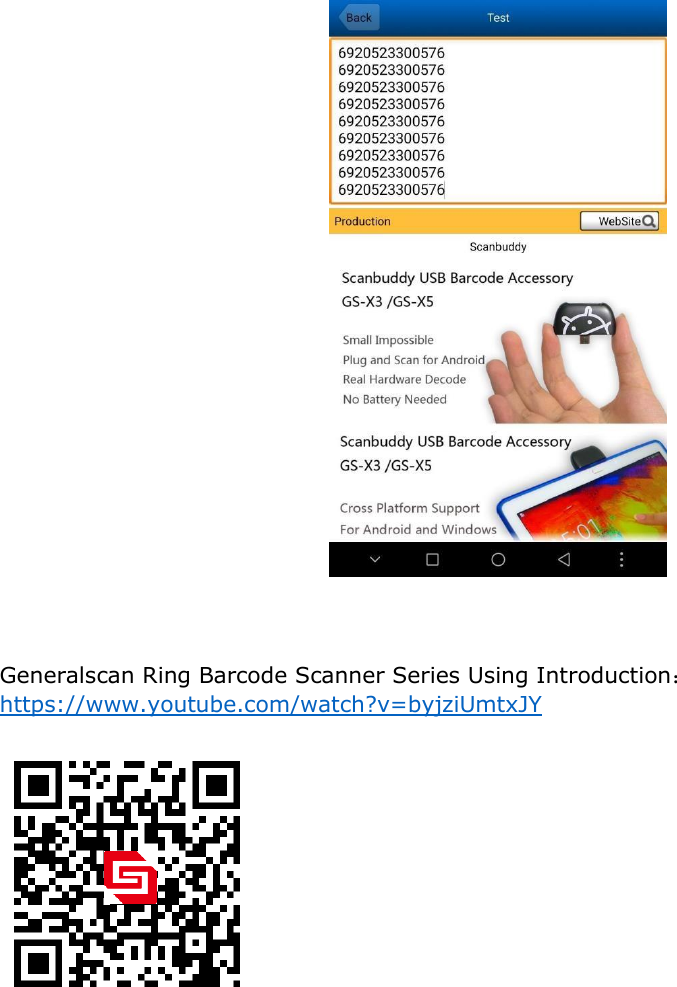
3.2.4 Return to ”Generalscan Keyboard”, Click the ”Select”, Select the scanner    3.2.5 Click the “Change”, Select the “Generalscan Keyboard”   3.2.6 Click the “Test”, You can input data anywhere with the cursor.
    Generalscan Ring Barcode Scanner Series Using Introduction: https://www.youtube.com/watch?v=byjziUmtxJY
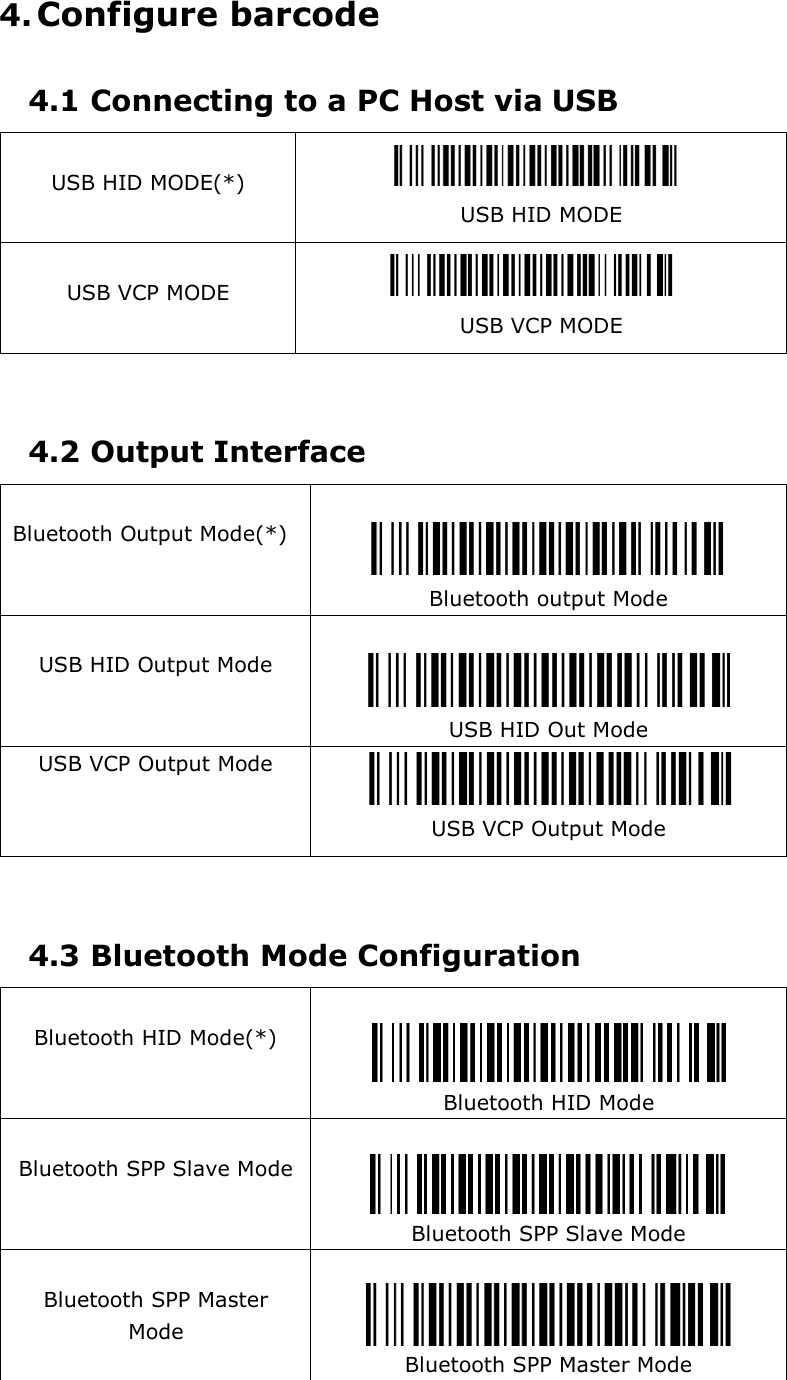
4. Configure barcode  4.1 Connecting to a PC Host via USB   USB HID MODE(*)   USB HID MODE  USB VCP MODE   USB VCP MODE   4.2 Output Interface   Bluetooth Output Mode(*)    Bluetooth output Mode  USB HID Output Mode    USB HID Out Mode USB VCP Output Mode   USB VCP Output Mode   4.3 Bluetooth Mode Configuration   Bluetooth HID Mode(*)   Bluetooth HID Mode  Bluetooth SPP Slave Mode   Bluetooth SPP Slave Mode  Bluetooth SPP Master Mode   Bluetooth SPP Master Mode
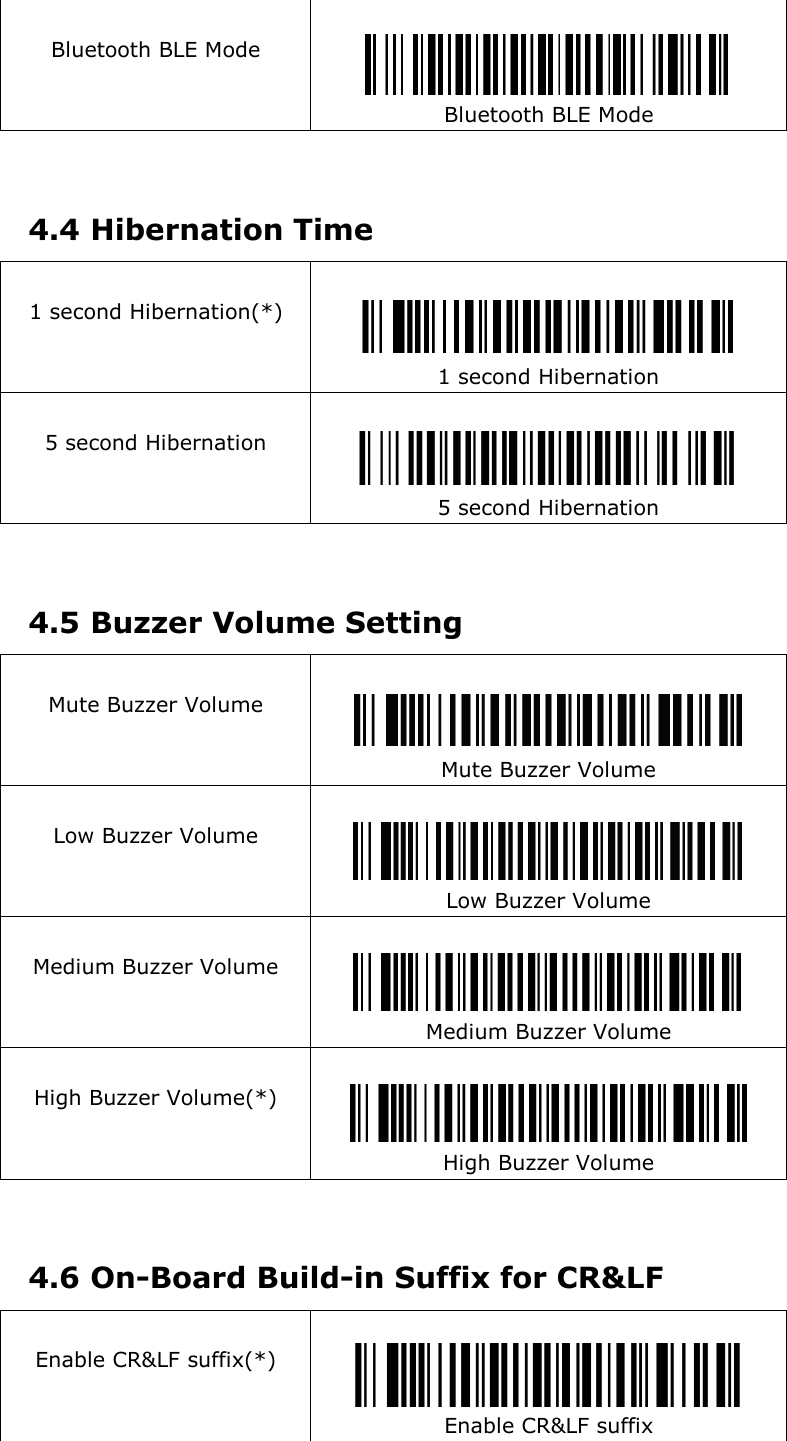
 Bluetooth BLE Mode   Bluetooth BLE Mode    4.4 Hibernation Time   1 second Hibernation(*)    1 second Hibernation  5 second Hibernation    5 second Hibernation   4.5 Buzzer Volume Setting   Mute Buzzer Volume    Mute Buzzer Volume  Low Buzzer Volume   Low Buzzer Volume  Medium Buzzer Volume   Medium Buzzer Volume  High Buzzer Volume(*)   High Buzzer Volume   4.6 On-Board Build-in Suffix for CR&LF   Enable CR&LF suffix(*)   Enable CR&LF suffix
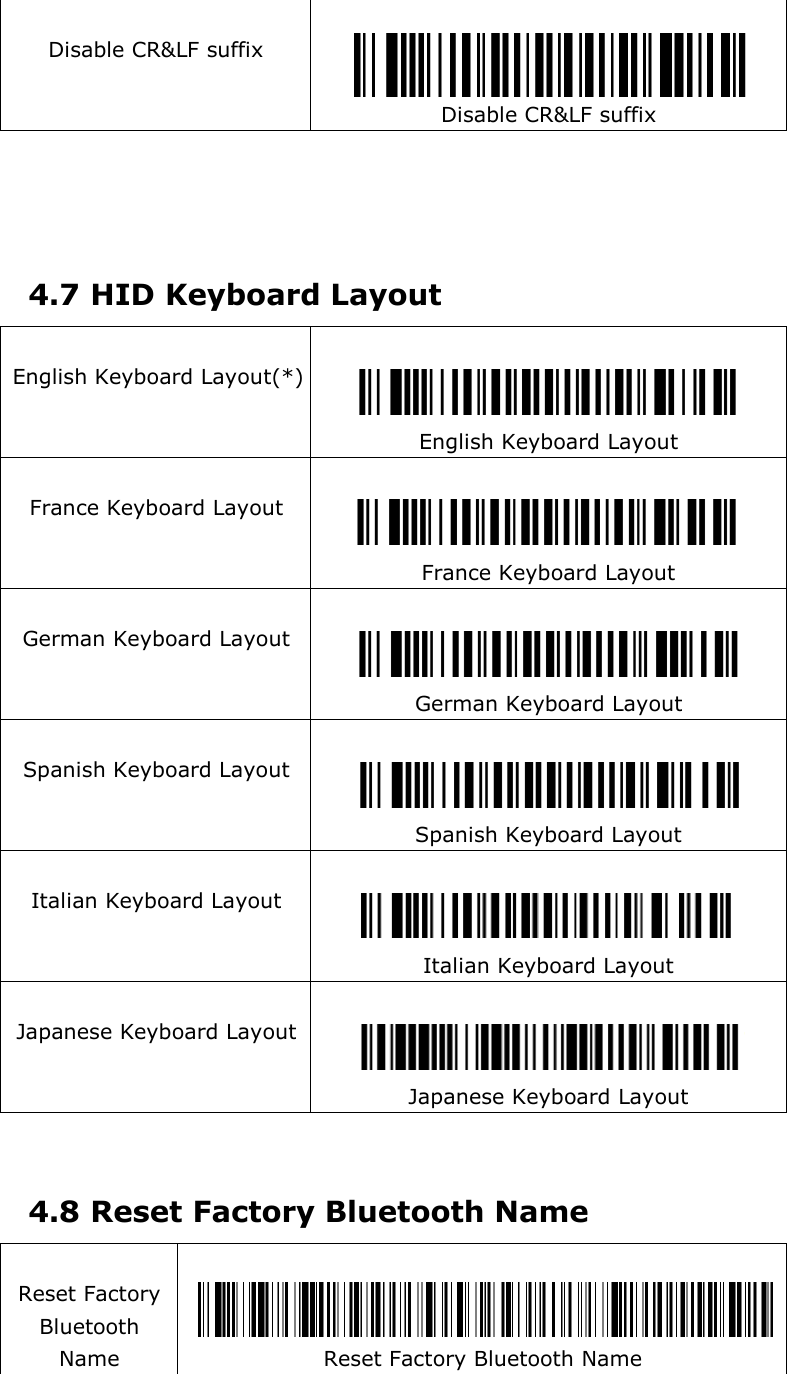
 Disable CR&LF suffix   Disable CR&LF suffix      4.7 HID Keyboard Layout   English Keyboard Layout(*)    English Keyboard Layout  France Keyboard Layout    France Keyboard Layout  German Keyboard Layout    German Keyboard Layout  Spanish Keyboard Layout    Spanish Keyboard Layout  Italian Keyboard Layout    Italian Keyboard Layout  Japanese Keyboard Layout    Japanese Keyboard Layout   4.8 Reset Factory Bluetooth Name   Reset Factory Bluetooth Name    Reset Factory Bluetooth Name
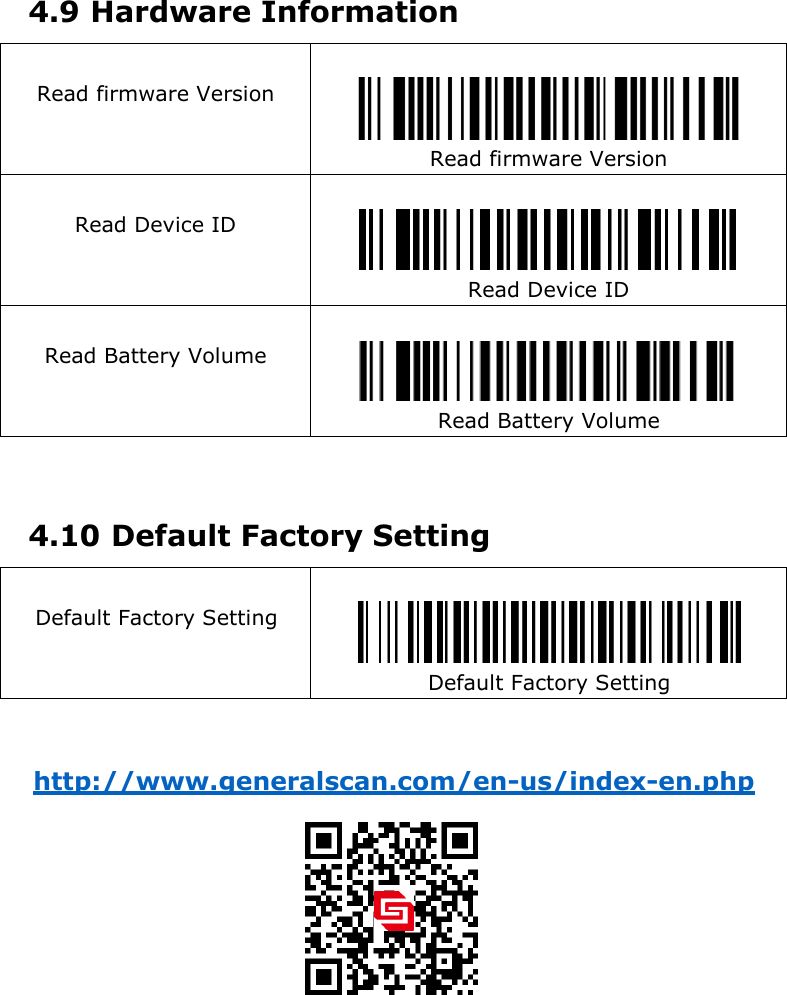
4.9 Hardware Information   Read firmware Version   Read firmware Version  Read Device ID   Read Device ID  Read Battery Volume   Read Battery Volume   4.10 Default Factory Setting   Default Factory Setting   Default Factory Setting   http://www.generalscan.com/en-us/index-en.php
FCC STATEMENT :   This device complies with Part 15 of the FCC Rules. Operation is subject to the following two conditions: (1) This device may not cause harmful interference, and  (2) This device must accept any interference received, including interference that may cause undesired operation.  Warning: Changes or modifications not expressly approved by the party responsible for compliance could void the user's authority to operate the equipment.   NOTE: This equipment has been tested and found to comply with the limits for a Class B digital device, pursuant to Part 15 of the FCC Rules. These limits are designed to provide reasonable protection against harmful interference in a residential installation. This equipment generates uses and can radiate radio frequency energy and, if not installed and used in accordance with the instructions, may cause harmful interference to radio communications. However, there is no guarantee that interference will not occur in a particular installation. If this equipment does cause harmful interference to radio or television reception, which can be determined by turning the equipment off and on, the user is encouraged to try to correct the interference by one or more of the following measures: Reorient or relocate the receiving antenna. Increase the separation between the equipment and receiver. Connect the equipment into an outlet on a circuit different from that to which the receiver is connected.  Consult the dealer or an experienced radio/TV technician for help. RF warning statement:  The device has been evaluated to meet general RF exposure requirement. The device can be used in portable exposure condition without restriction.

Navigation menu