GFIVE MOBILE FZE E3240 CDMA 800MHz Mobile Phone User Manual

GFIVE MOBILE FZE CDMA 800MHz Mobile Phone

User Manual

 ·Copyright©2013 Movilnet Telecommunications.  All Rights Reserved Reproduction, transfer, distribution or storage of part or all of the contents in this document in any form without the prior written permission as Movilnet Telecommunications..     Statement The contents of this manual maybe different with the cell phone please according to the cell phone. Movilnet Telecommunications. reserves the right to revise this document or withdraw it at any time without prior notice.  GFIVE MOBILE FZE Unit 1, 16/F, Cable TV Tower, 9 Hoi Shing Road, Tusen Wan, N.T., Hong Kong, China
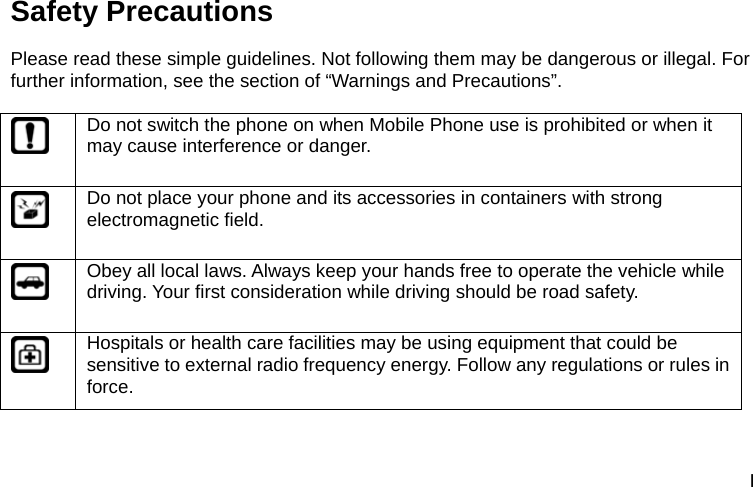
I Safety Precautions Please read these simple guidelines. Not following them may be dangerous or illegal. For further information, see the section of “Warnings and Precautions”.   Do not switch the phone on when Mobile Phone use is prohibited or when it may cause interference or danger.  Do not place your phone and its accessories in containers with strong electromagnetic field.  Obey all local laws. Always keep your hands free to operate the vehicle while driving. Your first consideration while driving should be road safety.  Hospitals or health care facilities may be using equipment that could be sensitive to external radio frequency energy. Follow any regulations or rules in force.
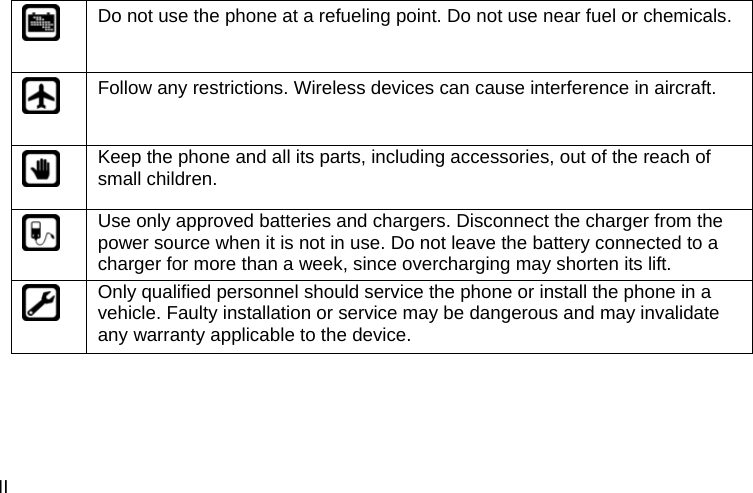
II  Do not use the phone at a refueling point. Do not use near fuel or chemicals.  Follow any restrictions. Wireless devices can cause interference in aircraft.  Keep the phone and all its parts, including accessories, out of the reach of small children.  Use only approved batteries and chargers. Disconnect the charger from the power source when it is not in use. Do not leave the battery connected to a charger for more than a week, since overcharging may shorten its lift.  Only qualified personnel should service the phone or install the phone in a vehicle. Faulty installation or service may be dangerous and may invalidate any warranty applicable to the device.
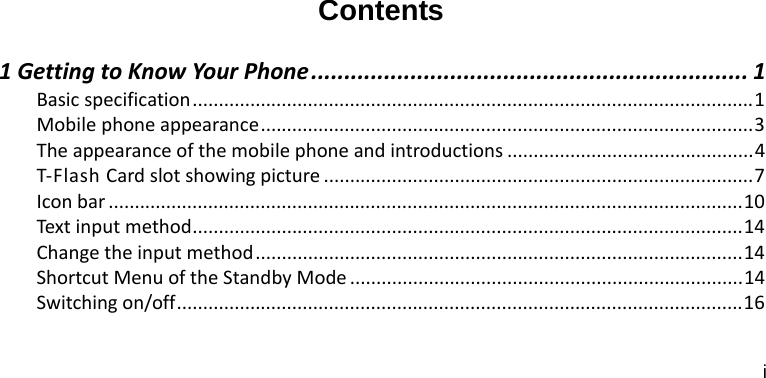
i  Contents 1GettingtoKnowYourPhone.................................................................. 1Basicspecification...........................................................................................................1Mobilephoneappearance..............................................................................................3Theappearanceofthemobilephoneandintroductions ...............................................4T‐FlashCardslotshowingpicture ..................................................................................7Iconbar .........................................................................................................................10Text inputmethod.........................................................................................................14Changetheinputmethod.............................................................................................14ShortcutMenuoftheStandbyMode ...........................................................................14Switchingon/off............................................................................................................16
ii 2Makingphonecall ............................................................................... 17Makingphonecallbydialingnumber...........................................................................17Makingphonecallusingcontacts.................................................................................17Makingphonecallusingrecentallcalls........................................................................17Makingphonecallusingspeeddial ..............................................................................18Makingaconferencecall ..............................................................................................183Answeringthecall ............................................................................... 19Answerorsilenceanincomingcall...............................................................................19Adjustthereceivervolume ...........................................................................................19Answeracallwiththekeypadlocked ...........................................................................19Operationsduringacall ................................................................................................19Keypadlock ...................................................................................................................20Emergencycalls.............................................................................................................214  Contacts...................................................................................... 21List.................................................................................................................................21View ..............................................................................................................................22
iii Edit................................................................................................................................22Options .........................................................................................................................22Groupssettings .............................................................................................................23Speeddial......................................................................................................................235  Messages................................................................................... 24Messages.......................................................................................................................24MMS..............................................................................................................................27VoiceMail .....................................................................................................................296Callhistory ................................................................................... 29Allcalls ..........................................................................................................................30Missedcalls...................................................................................................................30Receivedcalls ................................................................................................................30Dialedcalls ....................................................................................................................30Options..........................................................................................................................30
iv 7  TDA............................................................................................ 318Camera ........................................................................................ 339Musicplayer ................................................................................ 3410  Fun ........................................................................................... 35Videoplayer..................................................................................................................35Camcorder ....................................................................................................................36Radio .............................................................................................................................37Voicerecorder...............................................................................................................3711  Myfavorite .............................................................................. 37Phonememory .............................................................................................................37Memorycard ................................................................................................................38
v Memorystatus..............................................................................................................38Formatmemorycard ....................................................................................................3812Neo‐Navegacion......................................................................... 3813EntusManos.............................................................................. 3914Alarm......................................................................................... 3915  Games ...................................................................................... 40Games ...........................................................................................................................4016JAVA ........................................................................................... 40Java ...............................................................................................................................40Operamini ....................................................................................................................40Facebook....................................................................................................................... 41
vi Twitter...........................................................................................................................4117  Service ...................................................................................... 41Brower ..........................................................................................................................4118  Tools ........................................................................................ 42Calendar........................................................................................................................42Calculator......................................................................................................................42Worldtime ....................................................................................................................42Stopwatch .....................................................................................................................43Countdown ...................................................................................................................43Notepad ........................................................................................................................43CurrencyConverter.......................................................................................................4319  Profiles .................................................................................... 44Profiles ..........................................................................................................................44
vii 20ConnectionManager................................................................. 45Bluetooth ......................................................................................................................45USBdatacable ..............................................................................................................4721Settings...................................................................................... 47Display...........................................................................................................................47PhoneSetting................................................................................................................48Callsetting ....................................................................................................................49Security .........................................................................................................................50Firewall .........................................................................................................................5022SafeInformation................................................................................ 51
1 1  Getting to Know Your Phone Basic specification Mobile Phone Type:E3240 No Card mode (EVDO RevA) Size:114*63*12mm Battery Capacitance:1000mAh Standby Time:About 180 hours Talking Time:About 250 minutes
2   Notice: Standby time is the handset continuous working time without making phone calls. Both standby time and talking time depend on mobile phone using situations, network situations and environments.
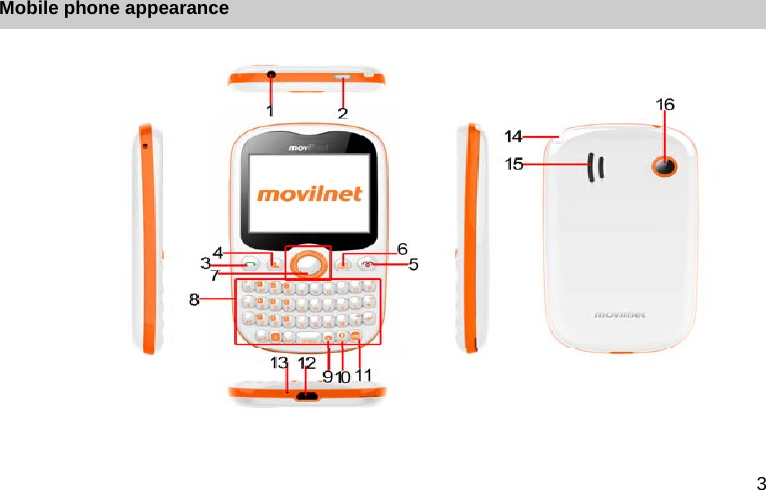
3 Mobile phone appearance
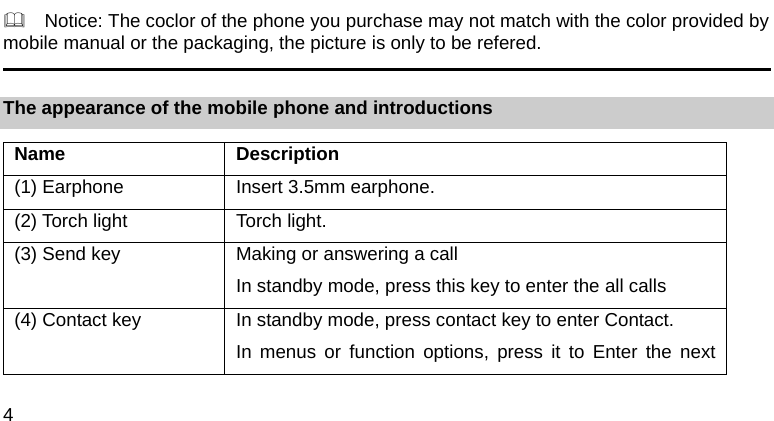
4       Notice: The coclor of the phone you purchase may not match with the color provided by mobile manual or the packaging, the picture is only to be refered.                                                                                                       The appearance of the mobile phone and introductions Name Description (1) Earphone  Insert 3.5mm earphone. (2) Torch light  Torch light. (3) Send key Making or answering a call In standby mode, press this key to enter the all calls (4) Contact key In standby mode, press contact key to enter Contact. In menus or function options, press it to Enter the next
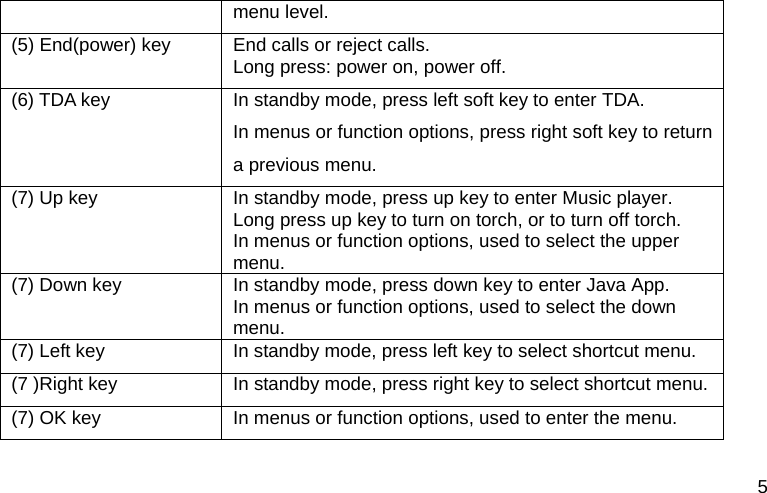
5 menu level. (5) End(power) key  End calls or reject calls. Long press: power on, power off. (6) TDA key  In standby mode, press left soft key to enter TDA. In menus or function options, press right soft key to return a previous menu. (7) Up key  In standby mode, press up key to enter Music player. Long press up key to turn on torch, or to turn off torch. In menus or function options, used to select the upper menu. (7) Down key  In standby mode, press down key to enter Java App. In menus or function options, used to select the down menu. (7) Left key  In standby mode, press left key to select shortcut menu. (7 )Right key  In standby mode, press right key to select shortcut menu. (7) OK key  In menus or function options, used to enter the menu.
6 (8) QWERT key  Input letters, number and symbols. (8) Ïa/A key  In the ES input method: 1. Press “a / A” key once to enter numbers and symbols.   2. Press “a / A” key two times to continuous input numbers and symbols. (8) SYM key  Press [ Sym ] to enter symbol list. (8) SPACE key  Input Space in text area. Long press: Lock the keypad In standby mode. (8) “alt” key  Switch input method (9) Camera key  In standby mode, getting in Camera menu. (10) Opera mini key  In standby mode, getting in Opera mini menu (11) “M” key  In standby mode, getting in Facebook or Twitter menu (12)USB/Charger connector Plug the travel adapter into the charger connector. (13) Mike  Mike. (14)TDA antenna  TDA antenna
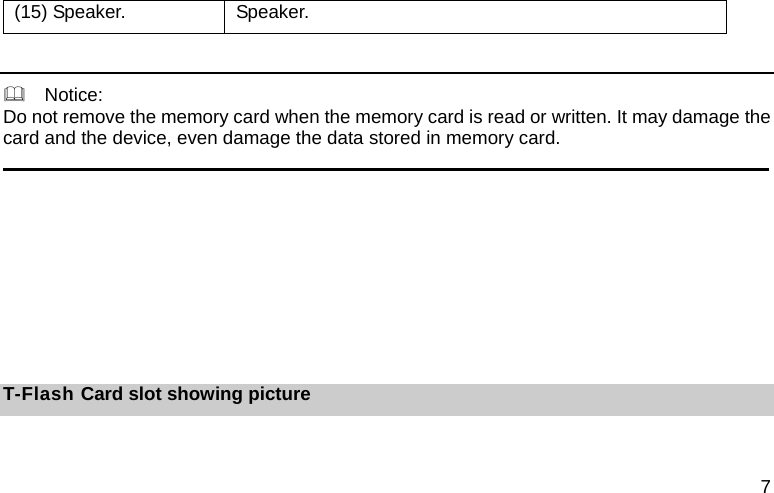
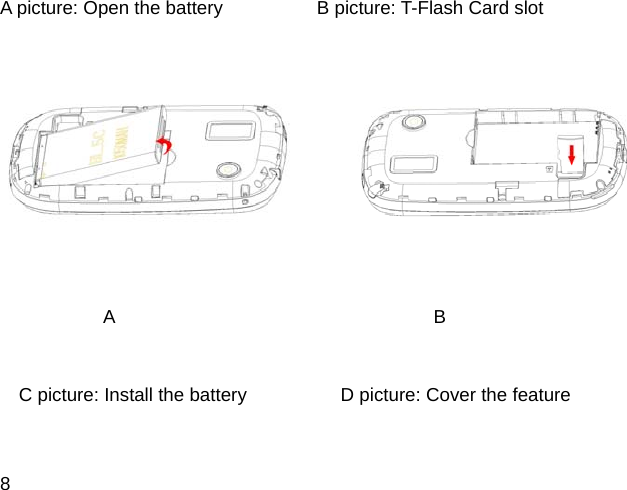
7 (15) Speaker.  Speaker.    Notice: Do not remove the memory card when the memory card is read or written. It may damage the card and the device, even damage the data stored in memory card.                                                                                                                                  T-Flash Card slot showing picture
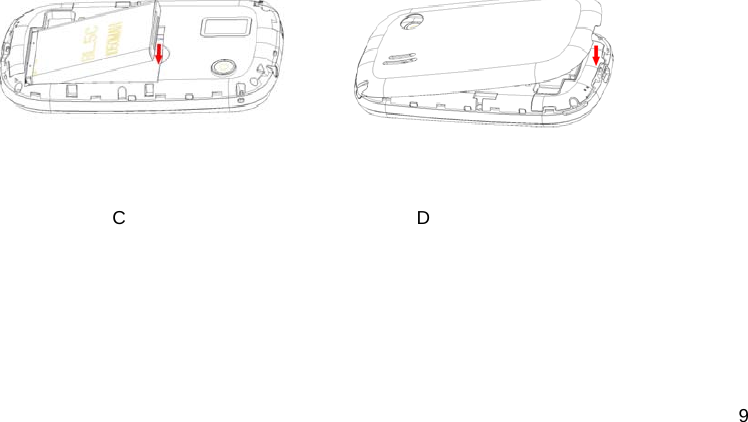
8 A picture: Open the battery          B picture: T-Flash Card slot            A                                  B    C picture: Install the battery          D picture: Cover the feature
9         C                               D
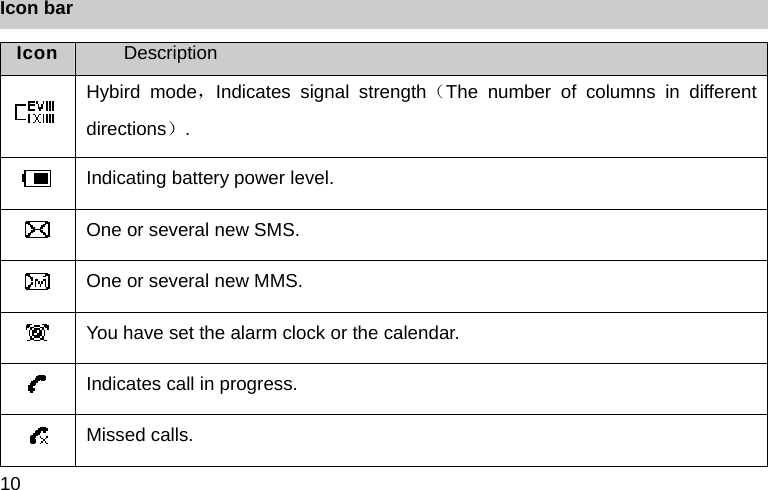
10 Icon bar Icon  Description  Hybird mode,Indicates signal strength(The number of columns in different directions).  Indicating battery power level.  One or several new SMS.  One or several new MMS.  You have set the alarm clock or the calendar.  Indicates call in progress.  Missed calls.
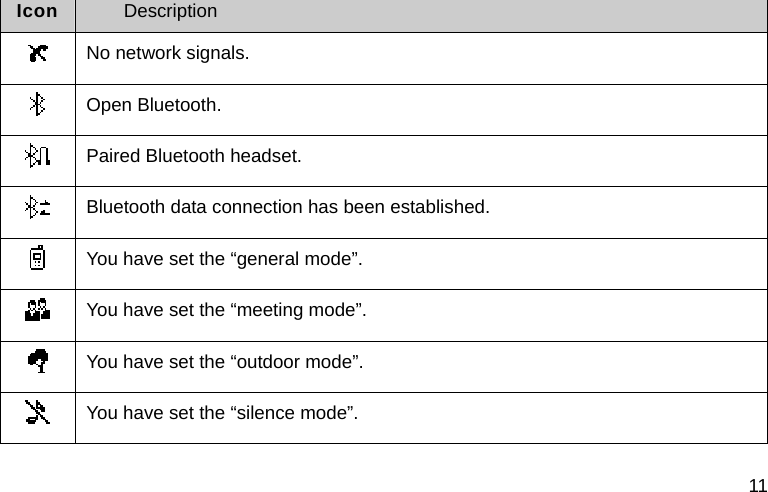
11 Icon  Description  No network signals.  Open Bluetooth.  Paired Bluetooth headset.  Bluetooth data connection has been established.  You have set the “general mode”.  You have set the “meeting mode”.  You have set the “outdoor mode”.  You have set the “silence mode”.
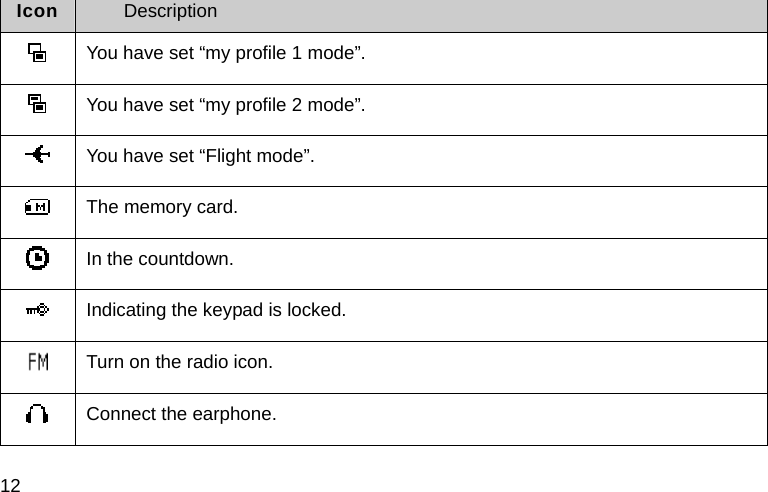
12 Icon  Description  You have set “my profile 1 mode”.  You have set “my profile 2 mode”.  You have set “Flight mode”.  The memory card.  In the countdown.  Indicating the keypad is locked.  Turn on the radio icon.  Connect the earphone.
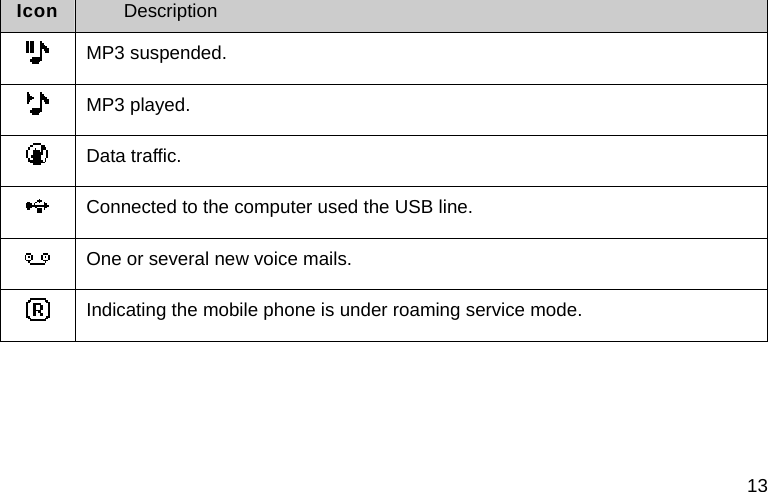
13 Icon  Description  MP3 suspended.  MP3 played.  Data traffic.  Connected to the computer used the USB line.  One or several new voice mails.  Indicating the mobile phone is under roaming service mode.
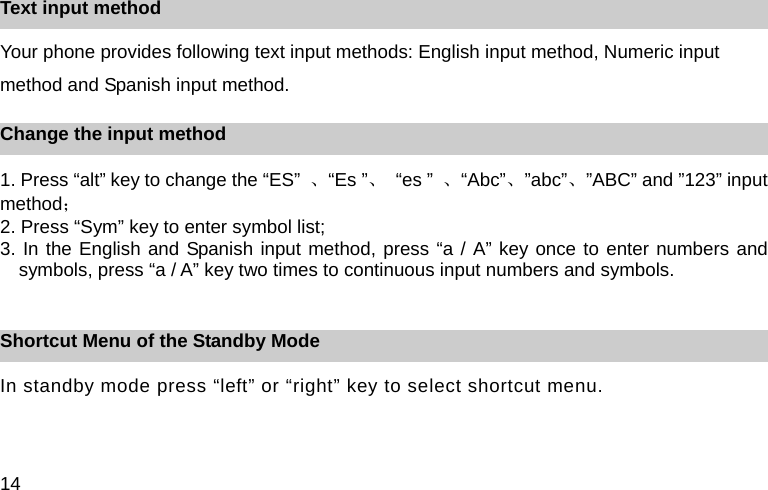
14 Text input method Your phone provides following text input methods: English input method, Numeric input method and Spanish input method. Change the input method 1. Press “alt” key to change the “ES”  、“Es ”、 “es ” 、“Abc”、”abc”、”ABC” and ”123” input method; 2. Press “Sym” key to enter symbol list; 3. In the English and Spanish input method, press “a / A” key once to enter numbers and symbols, press “a / A” key two times to continuous input numbers and symbols.  Shortcut Menu of the Standby Mode   In standby mode press “left” or “right” key to select shortcut menu.
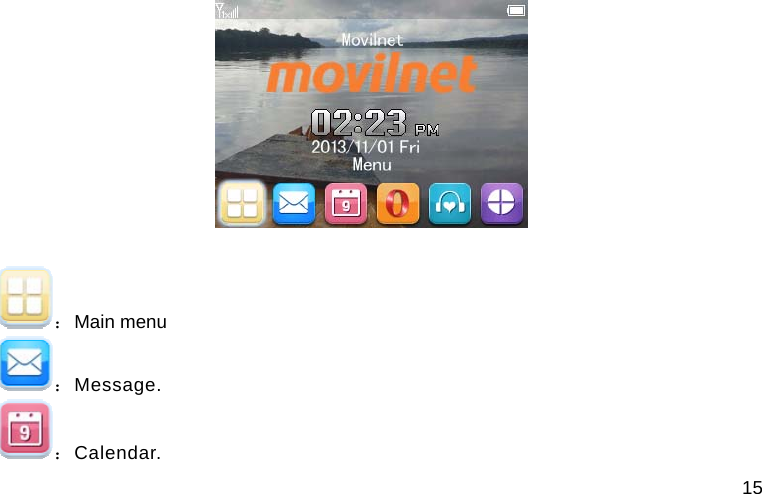
15   :Main menu :Message. :Calendar.
16 :Opera Mini. :Fun. :Profiles.  Switching on/off In the power off status, long press the “Power” Key to switch on the phone. In the power on status, long press the “Power” Key to switch off the phone.
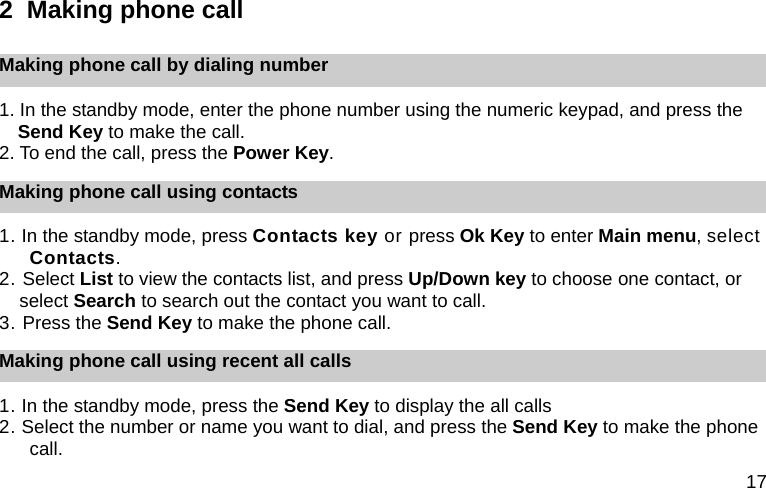
17 2  Making phone call Making phone call by dialing number 1. In the standby mode, enter the phone number using the numeric keypad, and press the Send Key to make the call. 2. To end the call, press the Power Key. Making phone call using contacts 1. In the standby mode, press Contacts key or press Ok Key to enter Main menu, select Contacts. 2. Select List to view the contacts list, and press Up/Down key to choose one contact, or select Search to search out the contact you want to call. 3. Press the Send Key to make the phone call. Making phone call using recent all calls 1. In the standby mode, press the Send Key to display the all calls 2. Select the number or name you want to dial, and press the Send Key to make the phone call.
18 Making phone call using speed dial In standby mode, press and hold one number key [2-9] to make phone call. See chapter 4 for more information about setting speed dial. Making a conference call 1. Make a call to the first participant.   2. Enter another number of the second participant. 3. Press the Send Key, the first participant will be holding on. 4. After the second participant is Activate, then dials ‘3’ send to make a conference call. 5. To end the conference call, press the Power Key.      Notice: Conference call service requires the support of the local network operators, please confirm with the network service provider.
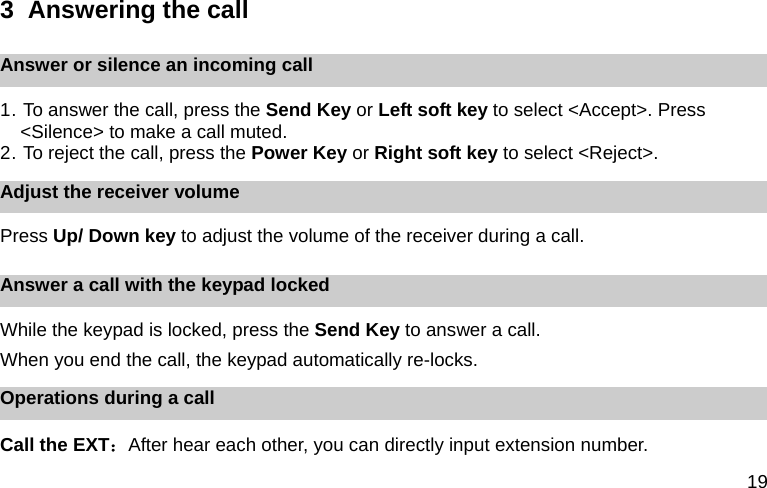
19 3  Answering the call Answer or silence an incoming call 1. To answer the call, press the Send Key or Left soft key to select <Accept>. Press <Silence> to make a call muted. 2. To reject the call, press the Power Key or Right soft key to select <Reject>.   Adjust the receiver volume Press Up/ Down key to adjust the volume of the receiver during a call. Answer a call with the keypad locked While the keypad is locked, press the Send Key to answer a call.   When you end the call, the keypad automatically re-locks. Operations during a call Call the EXT:After hear each other, you can directly input extension number.
20 Adjust the call volume:You can press Up/Down key or Side Up/Down key to adjust Volume. Options: Contacts:Enter Contacts list. Messages:Enter the SMS menu. New call:Make the second call. Mute on/off:Being mute can temporarily turn off the calling voice. At this point you can hear the voice of the other; the other one cannot hear your voice, return the normal call after close mute.  Record:Record the call. Notepad:Enter the Notepad.. Voice privacy:You can set Standard or Enhanced. Keypad lock To prevent the keys from being accidentally pressed, you can lock the keypad. In the standby mode, long press the SPACE Key to lock the keypad.   When the keypad is locked, only emergency numbers can be dialed. Press [OK] key then press SPACE Key to unlock the keypad.
21 Emergency calls You can make emergency calls *1、*171、911.  4    Contacts You can store names and phone numbers (contacts) in the phone.Such as the mobile number, and Home number, Email, address...etc. You also can send message or make a call in Contacts. List All:  Display contacts stored in phone. Groups:You can add members into groups from the phone contacts. You can also send messages or set incoming call ringer by groups. Speed dial:You can set 8 speed dial numbers. In standby screen, you can press and hold one number key [2-9] to make a call with the set speed dial number.
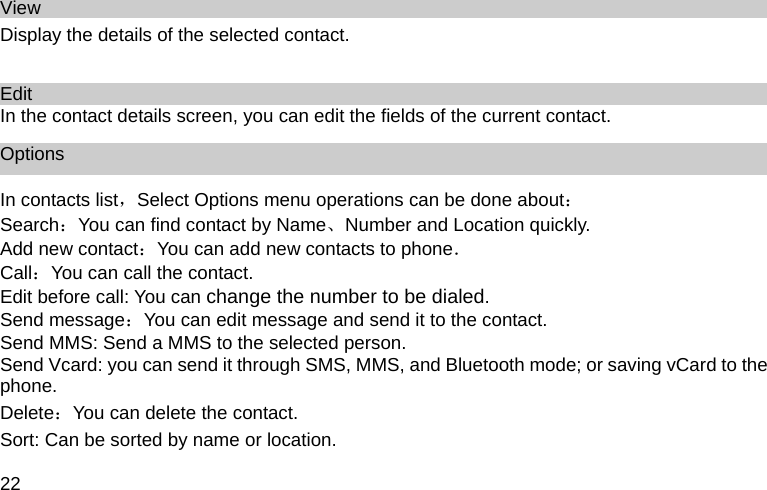
22 View Display the details of the selected contact.    Edit In the contact details screen, you can edit the fields of the current contact. Options In contacts list,Select Options menu operations can be done about: Search:You can find contact by Name、Number and Location quickly. Add new contact:You can add new contacts to phone. Call:You can call the contact. Edit before call: You can change the number to be dialed. Send message:You can edit message and send it to the contact. Send MMS: Send a MMS to the selected person. Send Vcard: you can send it through SMS, MMS, and Bluetooth mode; or saving vCard to the phone. Delete:You can delete the contact. Sort: Can be sorted by name or location.
23 Mark several: Can mark the contacts what you want to delete. My number: Edit the phone numbers. Import/Export: Can backup all contacts to T-Flash card, and can restore the contact from T-Flash. The format of backup file is CSV. Memory status: You can view the memory status in phone. Groups settings Add member: Add members to group from the contacts list of phone. Send message: send messages to group members. Group icon: Set special icon to the group. Group ring: Set special ring to the group.   Rename: Edit the group’s name. Remove: Remove the group members. Speed dial Use this menu to assign a speed dial number (2 to 9 items). 1. In the phonebook, press <Left Key> to access the Speed dial; 2. Select one empty entry, and set the number you want to dial, press < Search > and select number from contact or edit speed dial number
24 5    Messages Messages Your phone is capable of creating, sending and receiving text messages.    Write message Your phone support sends out a writing message. 1. in the standby mode, press <Menu> to access the Main menu > Messages >Messages >Write message; 2. On message edit screen, you can press “send” to go into address edit screen, after that, you can send it. Inbox 1. In the standby mode, press <Menu> to access the Main menu > Messages >Messages>Inbox; 2. While viewing a message, press <Options> to access the following options: Forward, Delete, Call, Move to Favorites, Use details, Lock, save to templates.  Outbox 1. In the standby mode, press <Menu> to access the Main menu > Messages > Messages >
25 Outbox. 2. While viewing a message, press <Options> to access the following options: Forward, Delete, Call, Move to favorites, Use details.  Drafts 1. In the standby mode, press <Menu> to access the Main menu > Messages > Messages >Drafts. 2. Press <Options> to access the following options: Send, Delete, Move to favorites, Mark several.  Favorites 1. In the standby mode, press <Menu> to access the Main menu > Messages > Messages >Favorites. 2. Press <Options> to access the following options: Forward、Delete、Lock、Mark several.  Templates 1. In the standby mode, press <Menu> to access the Main menu > Messages > Messages >Templates. 2. Select the template message you want to use.
26 Delete message In the standby mode, press <Menu> to access the Main menu > Messages > Messages >Delete message Delete messages and one of the following options: Inbox, Outbox, Drafts, Favorites, Delete all. Settings Priority: Chose a message priority of Normal, Urgent. Auto save: Set to enable, message will save to outbox automatically when it is sent. Delivery report: Set to enable, there will be a message report received to indicate the message sending status. Deferred delivery:A time deferred to send message. It is controlled by network side. Validity period: The time of message keep in SMS center. Auto delete: It will automatically delete old messages when sms memory full. Call back number:you can enable and edit call back number,press send key to call the number in message view interface.
27 Signature: The signature will automatically add at the tail of message content when you go into the message editor.  Memory status Show memory status on Phone.  MMS New MMS   Your phone supports multimedia messaging service, which may contain several slides. It supports several media formats. One slide can have text and a media file, like image, sound or video. Create Create a MMS. There is a size limit for a MMS, which depends on carrier network service.
28 Below are the optional operations: Add: add a new slide, Subject, Cc and Bcc.   Insert: Image, Photo, Music, Record, Video, Videography, Other, vCard.   Remove Slide: Delete additional slides.   Preview: Preview MMS before sending.   Save to Drafts: You can save current MMS you're editing as drafts.    Inbox   The received MMS is saved in Inbox. Outbox   The MMS which is still being sent is saved in Outbox. Drafts   The draft MMS is saved in Drafts box. Sent   The MMS sent successfully is saved in Sent box.   Settings   MMS related parameters settings.
29   Notice: Saving MMS to phone will cost some memory space. If it runs out of memory, it will prompt memory full when you try to save a MMS. In that case, you may delete some pieces of MMS to get some space.  Voice Mail In the standby mode, press Center Key to access the Main menu > Messages > Voice Mail The voice mailbox is a network service and you may need to subscribe to it. For more information and for your voice mailbox number, contact your service provider 6   Call history Call history stores information about last missed, received, or dialed calls.
30 All calls You can view all call history.   Missed calls You can view the last missed calls.   Received calls You can view the last received calls.   Dialed calls You can view the last dialed calls.   Options In call history list, you can select the following options.   Call: You can call this number. Edit before call: You can change the number to be dialed. Send message: You can edit a message and send it to one number.
31 Send MMS: You can edit a MMS and send it to one number. Save number: You can add the number in new contacts,or add to the existing. Delete: Delete the select contact record. Call duration: Display the time of the lasted, received, dialed and all calls. Mark several: Select or cancel one or more records.    Notice:                         It will produce the data traffic when using of some functions .Please contact your service provider and ask about the cost in use of home network and roaming on another network. Your service provider can provide you with the necessary instructions and charges standard.                                                                                                       7     TDA You can turn on the TDA and watching digital TV.
32 You can enter TDA in main menu or pressing the TV key in standby mode. When you watching digital TV, press the up/down keys to adjust the volume; press the left soft key "option" open the function menu, you can operated as follows: Full screen:TV will play full screen,then press ok key to exit full screen play; Auto searcher:searcher new channel; All channel:display all channel list; Setting:you can set backlight level、clear all channel and select area.     Notice: TDA service requires the support of the local network operators, please confirm with the network service provider.
33 8   Camera You can take pictures and then save the photos to your phone or memory card. You can enter camera in main menu or pressing the Camera key in standby mode.  In the viewfinder, press the up/down keys to adjust the camera focal length; press the left soft key "option" open the function menu, you can operated as follows: Camcorder: Switch to camcorder. Switch Cam: Switch the camera between main camera and secondary camera. Scene mode: Set the scene mode (auto / night mode). Self-timer: Set the time to delay for taking pictures. Brightness:Set brightness (Only to main camera). Contrast:Set contrast. Effect: Set special effects. White bal:Set white balance.
34 Sharpness: Set sharpness. Saturation: Set saturation.   Settings: Set image quality, size, tone, the default title and save location. To gallery: View the photos stored in the phone or memory card. In the viewfinder, press the middle button to take pictures. After that, if you press the middle button, the current picture will be saved, then you can delete or rename the photo files and also you can send a picture via MMS and Bluetooth, If you press the back key, the current picture will be not saved and then it returns to the viewfinder, You can view the photos at [my favorite - the phone memory / memory card - my data - my photos].  9   Music player You can play the music with this application.   In the music library interface, select "Options/Refresh music library", then it will search music
35 from the music folder in phone memory and memory card, and add them to the library. Please select the music from the artists, albums, playlists, all songs, and genres to play.    Notice: Listen to music at a moderate level. Listening to musics with high volume may damage your hearing.   10    Fun Video player Phone supports mp4 and 3gp formats.
36 Camcorder Fun-Camcorder, enter in Video mode. In the viewfinder, press the up/down keys to adjust the camera focal length; press the left soft key "option" open the function menu, you can operated as follows: Camera:Switch to Camera mode. Switch Cam:Switch    main sensor and front sensor. Brightness:Set bright level(only main sensor). Contrast:Set contrast level. Effect:Set effect level. White balance:Set balance level. Sharpness:Set sharpness level. Saturation:Set saturation level. Settings:Set video quality, size, pre-name and save location. To gallery:View video which save in phone or memory card. Press OK key to start recording during video mode. You can pause and continue recording video. Press stop key to end record and save. You can delete or rename video which had recorded.  You can send video by MMS and Bluetooth. You can view the videos at [my favorite - the phone memory / memory card - my data - my videos].
37  Radio You can play Radio. Voice recorder Record voice or sound will be saved in phone or memory card, my record directory. 11    My favorite In my favorite menu you can manage your documents. In the standby mode, press <Menu> to access the Main menu >my favorite Phone memory Manage your documents stored on the phone memory. The pre folder is User Folder, My data, music, image, video, photo, etc.
38 Memory card The device supports SD Card. Memory status Show phone and memory card store information. Format memory card All data will be lost after format memory card.  12   Neo-Navegacion You can go to neo-navegacion webpage by selecting this icon.
39 13   En tus Manos You can go to En tus Manos webpage by selecting this icon.  14   Alarm Use this function to set alarms. The alert type for a normal alarm corresponds to the call alert type settings.
40 15    Games Games There are 3 games:Box man、Mine and Brick attack. You can sway the handset to play Brick attack. 16   JAVA Java You can use opera mini surfing internet. Opera mini You can go to Opera mini webpage by selecting this icon..
41 Facebook You can go to Facebook webpage by selecting this icon.. Twitter You can go to Twitter webpage by selecting this icon..   17    Service Brower You can use UC browser access internet or download image/mp3 etc from website. While downloading a page or some other file, there is a rotating earth on the system bar which indicates data traffic.
42  18    Tools Calendar When entering the calendar main screen, "today" is marked with red border. If the date is marked with a special cursor, it indicates that a schedule has been set. If you have enabled the alarm prompt, the phone will alert on the schedule time. Calculator Use this function to perform basic arithmetic functions, such as addition, subtraction, multiplication, and division. World time You can preview the time of world's major cities.
43 Stopwatch Use this menu to time something you want to do. Countdown Use this menu to time something you want to do. Notepad Use this menu can record things which you need. Currency Converter Use this menu to convert money.
44 19    Profiles Profiles Your phone has six setting groups, for which you can customize the phone tones for different events and environments. In the standby mode, press<Menu> to access the Main menu>Profiles and one of the following options: General, Meeting, Outdoor, Silence, My profile 1, My profile 2 and Flight mode. It is have two options: Activate Activate the selected profile. Personalise Change the profile settings.
45 20   Connection Manager Bluetooth The mobile supports Bluetooth Specification 2.1 + EDR and supports the following profiles: Object Push Profile, File Transfer Profile (Server only), Hands-Free Profile, Advanced Audio Distribution Profile and Audio Video Remote Control Profile. Please refer to user guide of your Bluetooth headset.  Bluetooth settings: Using Bluetooth wireless technology, mobile phone radio waves, and close by a compatible Bluetooth device within range of a wireless connection. Activate Bluetooth: Switch Bluetooth on or off. My phone's visibility: To determine mobile can be searched by another Bluetooth devices
46 or not. My phone's name: Rename the Bluetooth device. Storage location: Set the storage location of received files which stored in the "Other" Directory who under the phone memory or memory card of My Favorite App. Paired devices: list the paired devices. Select the device and press the “Options” to operate as follow. Pair new devices: Pair with the existing or search for a new device to pair. Connect audio devices: The selected device is a Bluetooth headset, you can telephone and enjoy music after connect to Bluetooth headset. Assign short name: Modify the paired device's name to your fancy name. Delete: Remove the device. Delete all: Delete all devices. More equipment: Search all the visible devices which locate nearby.
47   Notice: The Connection is subject to interference form distance and obstructions or other electronic devices. Ensure that not blocked between devices.                                                                                          USB data cable Use the USB data cable between the phone and a compatible PC to transfer data. 21   Settings Display Wallpaper:You can select different wallpapers as per you want it. Backlight:You can control the time-out of the backlight on your phone.   Greeting message:Use this menu to choose whether the display greeting message when
48 the phone power-on. Idle font color: You can select different color options to set the name of the operator interface standby font color. Brightness:You can control the brightness on your phone.  Phone Setting Language The phone supports English and Spanish language. Auto keypad lock Use this menu to set the keypad of your phone to lock automatically after a preset time delay when the phone is in the standby mode and no function of the phone has been used.   Input setting You can set the default input method, select es, Es, ES, abc, Abc, ABC and 123 input method.  Power on/off time Use this menu to set the phone what time power on/off.
49 Time/Date settings Time format: Use this menu to choose the display shows the time which 12 mode or 24 mode, when the phone is in the standby mode. Date format: Use this menu to choose the display shows the time which YYYY/MM/DD, DD/MM/YYYY, MM/DD/YYYY mode, when the phone is in the standby mode. Time/Date display: Use this menu to choose whether the display Time/Date. Call setting Answer call:Press any key to answer call except of Left soft key [Accept], Right soft key [Silence], End key. Auto redial:Set the phone to redial call number. Call forward:This network service reroutes incoming calls to a phone number that you specified. Call waiting:Call if your wireless provider supports this feature, call waiting notifies you of an incoming call even while you are in a call. You can accept, reject, or ignore the incoming call. Call restriction:Use this menu you can enable/disable received/dial call. International prefix: International prefix setting.
50 Security To access security, you must enter the preset security code. By default, the code is 1234. If none of this works, contact your wireless service provider for help.  Change security code:By default, the preset lock code is 1234. Factory reset: Use this menu to reset the settings to factory settings and clear memory of the phone.  Firewall To access Firewall, you must enter the preset code. By default, the code is 1234. If none of this works, contact your wireless service provider for help. Call Firewall: Use this menu to block or allow some numbers for incoming calls. To use this facility please go to settings in menu > Firewall > Call firewall.  Black List: If you add any number under Black listed menu then it will reject the phone call automatically to Black listed number.   White List: If you add any number under White listed menu then it will reject the all phone
51 calls automatically except to White listed number. Settings: By settings you can disable and enable the functionality of White listed and black listed number as per your choice.   Private Firewall: Use this menu to protect your contents of phonebook, messages and call history for accessing by other person. To access the menu, you must enter the preset lock code. By default, the preset lock code is 1234. SMS Firewall: Use this menu to block some numbers for incoming messages.   22  Safe Information Electronic Device Most modern electronic equipment is shielded from radio frequency (RF) signals. However, certain electronic equipment may not be shielded against the RF signals from your Mobile Phone. Consult the manufacturer to discuss alternatives. Hospital
52 z Do not take your phone into the operating room (OR), intensive care unit (ICU), or coronary care unit (CCU).   z Do not use your phone at places for medical treatment where it is prohibited to use mobile phones. z When you use your phone near someone who is suffering from a heart disease, turn down the ring tone volume or vibration properly so that it does not influence the person.   Storage Environment z Switch off your phone when in any area with a potentially explosive atmosphere, and obey all signs and instructions. Sparks in such areas could cause an explosion or fire resulting in bodily injury or even death. z Users are advised to switch off the phone while at a refueling point (service station). Users are reminded of the need to observe restrictions on the use of radio equipment in fuel depots (fuel storage and distribution areas), chemical plants, or where blasting operations are in progress. z Areas with a potentially explosive atmosphere are often but not always clearly marked. They include the areas below decks on boats, chemical transfer or storage facilities, vehicles using liquefied petroleum gas, such as propane or butane, areas where the air contains chemicals or particles, such as grain, dust or metal powders, and any other area where you would normally be advised to turn off your vehicle engine. Children Safety
53 z Put your phone, battery, and charger in places beyond the reach of children. Do not allow children to use the phone, battery, or charger without guidance. z Do not allow children to put the battery in mouth, for electrolyte in the battery is poisonous.   z Do not allow children to touch the small fittings. Otherwise, suffocation or gullet jam can be caused if children swallow the small fittings.   Operating Environment z Remember to follow any special regulations in force in the area you are in, and always switch off your phone whenever it is forbidden to use it, or when it may cause interference or danger. When connecting the phone or any accessory to another device, read its user’s guide for detailed safety instructions. Do not connect incompatible products. z As with other mobile radio transmitting equipment, users are advised that for the satisfactory operation of the equipment and for the safety of personnel, it is recommended that the equipment should only be used in the normal operating position (held to your ear with the antenna pointing over your shoulder). Care and Maintenance z Keep your phone and all its parts and accessories out of the reach of small children and pets. They may accidentally damage these things or choke on small parts. z Keep the phone dry. Precipitation, humidity, and liquids contain minerals that corrode electronic circuits.
54 z Do not use the phone with a wet hand. Doing so may cause an electric shock to you or damage to the phone. z Do not uses or store the phone in dusty, dirty areas, as its moving parts may be damaged. z Do not store the phone in hot areas. High temperatures can shorten the life of electronic devices, damage batteries, and warp or melt certain plastics. z Do not store the phone in cold areas. When the phone warms up to its normal operating temperature, moisture can form inside the phone, which may damage the phone’s electronic circuit boards. z Do not drop, knock, or shake the phone. Rough handling can break internal circuit boards. z Do not use harsh chemicals, cleaning solvents, or strong detergents to clean the phone. Wipe it with a soft cloth slightly dampened in a mild soap-and water solution. z Do not paint the phone. Paint can clog the device’s moving parts and prevent proper operation. z Do not put the phone in or on heating devices, such as a microwave oven, stove, or radiator. The phone may explode when overheated. z When the phone or battery gets wet, the label indicating water damage inside the phone changes color. In this case, phone repairs are no longer guaranteed by the manufacturer's warranty, even if the warranty for your phone has not expired. Emergency Call
55 z You can use your phone for emergency calls. However, connections in call conditions cannot be guaranteed. You should never rely solely on the phone for essential communications. Battery z Never use a charger or battery that is damaged in any way. z Use the battery only for its intended purpose. z           If you use the phone near the network’s base station, it uses less power. Talk and standby time are greatly affected by the signal strength on the cellular network and the parameters set by the network operator. z Battery charging time depends on the remaining battery charge, the type of battery, and the charger used. The battery can be charged and discharged hundreds of times, but it will gradually wear out. When the operation time is noticeably shorter than normal, it is time to buy a new battery. z If left unused, a fully charged battery will discharge itself over time. z Extreme temperatures will affect the charging capacity of your battery: it may require cooling or warming first. z Do not leave the battery in hot or cold places because the capacity and lifetime of the battery will be reduced. Try to keep the battery at room temperature. A phone with a hot or cold battery may not work temporarily, even when the battery is fully charged. Li-ion batteries are particularly affected by temperatures below 0°C (32°F).
56 z Use only approved batteries and chargers. Disconnect the charger from the power source when it is not in use. Do not leave the battery connected to a charger for more than a week, since overcharging may shorten its lift.  Federal Communications Commission (FCC) Statement      This device complies with part 15 of the FCC Rules. Operation is subject to the following two conditions: (1) This device may not cause harmful interference, and (2) this device must accept any interference received, including interference that may cause undesired operation.          Note: This equipment has been tested and found to comply with the limits for a Class B digital device, pursuant to part 15 of the FCC Rules. These limits are designed to provide reasonable protection against harmful interference in a residential installation. This equipment generates, uses and can radiate radio frequency energy and, if not installed and used in accordance with the instructions, may cause harmful interference to radio communications. However, there is no guarantee that interference will not occur in a particular installation. If this equipment does cause harmful interference to radio or television reception, which can be determined by turning the equipment off and on, the user is encouraged to try to correct the interference by one or more of the following measures:
57 z  Reorient or relocate the receiving antenna.         z  Increase the separation between the equipment and receiver.         z  Connect the equipment into an outlet on a circuit different from that to which the receiver is connected.     z  Consult the dealer or an experienced radio/TV technician for help.        Warning: Changes or modifications made to this device not expressly approved by GFIVE MOBILE FZE may void the FCC authorization to operate this device.      Note: The manufacturer is not responsible for any radio or tv interference caused by unauthorized modifications to this equipment. Such modifications could void the user’s authority to operate the equipment.  The antenna(s) used for this transmitter must not be colocated or operating in conjunction with any other antenna or transmitter.
58 RF Exposure Information (SAR)   This mobile phone meets the government’s requirements for exposure to radio waves. This

Navigation menu