GIGA BYTE Communications 9QATOMV000 3.5G HSDPA/UMTS/GSM/DCS/PCS PDA Phone User Manual
GIGA-BYTE Communications Inc. 3.5G HSDPA/UMTS/GSM/DCS/PCS PDA Phone
Contents
- 1. user manual
- 2. User manual
- 3. Revised User Manual part1
- 4. Revised User Manual part2
- 5. Revised User Manual part3
- 6. revised user manual part1
- 7. revised user manual part2
- 8. revised user manual part3
- 9. revised2 user manual 09302008 part1
- 10. revised2 user manual 09302008 part2
- 11. revised2 user manual 09302008 part3
User manual
CONTENT
CHAPTER 1 BEFORE USING YOUR MWg Atom V 6
1.1 WHAT’S IN THE BOX 6
1.2 FAMILIARIZING YOURSELF WITH YOUR MWg Atom V 7
1.3 FEATURES 10
1.4 INSERT THE BATTERY & SIM CARD 11
1.5 SIM 12
1.6 BATTERY 12
1.7 LOCK/UNLOCK 13
1.8 POWER 14
CHAPTER 2 GETTING STARTED 16
2.1 DISPLAY INFORMATION 16
2.2 SCREEN ORIENTATION 25
2.3 SETTING TIME & DATE 26
2.4 USING THE STYLUS 26
2.5 SCREEN ALIGNMENT 26
2.6 INPUT METHOD 27
2.7 DRAWING ON THE SCREEN 29
2.8 RECORDING A MESSAGE 29
2.9 EDITING MY INFO 30
2.10 PASSWORD SETUP 30
2.11 MEMORY EXPANSION 30
2.12 DATA BACKUP 30
CHAPTER 3 PHONE FUNCTIONS 32
3.1 PHONE SCREEN AND KEY INTRODUCTION 32
3.2 MAKING A CALL 33
3.3 RECEIVING / IGNORING A CALL 33
3.4 INTERNATIONAL CALLS 33
3.5 EMERGENCY CALLS 34
1
2
3.6 VOLUME ADJUSTMENT 34
3.7 CONTACTS 34
3.8 CREATING A NEW CONTACT 35
3.9 CALL HISTORY 36
3.10 SETTING RING TONE AND PASSWORD 36
3.11 SIM MANAGER 37
CHAPTER 4 SETTINGS 40
4.1 PERSONAL SETTINGS 40
4.2 SYSTEM SETTINGS 43
CHAPTER 5 SYNCHRONIZATION 48
5.1 ABOUT SYNCHRONIZATION 48
5.2 INSTALLING ACTIVESYNC 49
5.3 CHOOSING YOUR SYNCHRONIZATION TYPE 50
5.4 USING ACTIVESYNC TOOLS 51
5.5 ACTIVESYNC ERRORS 53
CHAPTER 6 GETTING CONNECTED 56
6.1 WIRELESS MANAGER 56
6.2 GPRS 57
6.3 BLUETOOTH 58
6.4 WI-FI 63
6.5 USB CARD READER 64
6.6 INTERNET SHARING 64
6.7 CELL BROADCAST SETTING 65
6.8 CONNECTING TO THE INTERNET 65
CHAPTER 7 MESSAGING 68
7.1 SHORT MESSAGE (SMS) 69
7.2 MULTIMEDIA MESSAGES (MMS) 72
7.3 VOICE MAIL 77
3
7.4 E-MAIL 77
7.5 PUSH E-MAIL 79
7.6 WINDOWS LIVE MESSENGER 79
CHAPTER 8 MULTIMEDIA 81
8.1 CAMERA 82
8.2 VIDEO RECORDER 85
8.3 TAKING A GEO TAGGED PHOTO 87
8.4 PHOTO EDITOR 87
8.5 FM RADIO 88
8.6 PICTURES & VIDEOS 89
8.7 JAVA 89
8.8 STREAMING PLAYER 89
8.9 RECORDER 90
8.10 AUDIO MIXER 90
CHAPTER 9 APPLICATIONS 92
9.1 CALENDAR 92
9.2 TASKS 93
9.3 FILE EXPLORER 94
9.4 INTERNET EXPLORER 94
9.5 WINDOWS MEDIA 95
9.6 GAMES 96
9.7 CALCULATOR 96
9.8 ZIP 96
9.9 EXCEL MOBILE 96
9.10 POWERPOINT MOBILE 98
9.11 WORD MOBILE 99
9.12 NOTES 100
9.13 SEARCH 100
9.14 WINDOWS LIVE 101
9.15 GPS TRACKING 101
CHAPTER 10 MANAGING YOUR MWg Atom V 104
10.1 MEMORY MANAGEMENT 104
10.2 RUNNING PROGRAMS MANAGEMENT 104
10.3 ADDING OR REMOVING PROGRAMS 105
CHAPTER 11 IMPORTANT SAFETY INFORMATION 108
11.1 SAFETY INFORMATION 108
11.2 PHONE CARE 108
11.3 DRIVING SAFETY 110
11.4 ELECTRONIC DEVICES 110
11.5 OTHER SAFETY GUIDELINES 111
11.6 CAUTIONS 111
11.7 ABOUT THIS GUIDE 115
CHAPTER 12 SPECIFICATIONS 118
CHAPTER 13 FAQS 122
Index 124
Warranty Card 128
4
Chapter 1
Before Using Your MWg Atom V
1.1 What’s in the box
1.2 Familiarizing yourself with your MWg Atom V
1.3 Features
1.4 Insert the battery & SIM card
1.5 SIM
1.6 Battery
1.7 How to use the capsense keys
1.8 Lock/Unlock
1.9 Power
6
Chapter 1. Before Using Your MWg Atom V
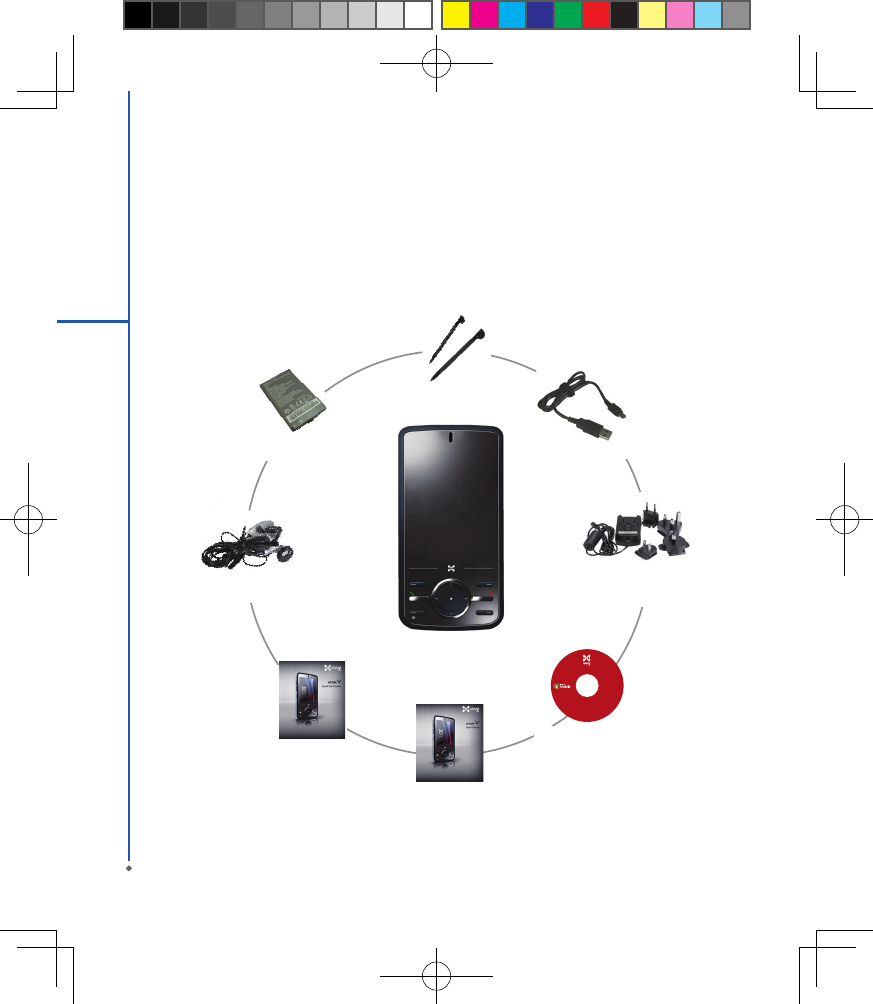
1.1 What’s in the box
Thank you for selecting MWg Atom V. Please check if your package comes with the following items.
If any of them is missing, please contact your retailer.
1
Before Using Your MWg Atom V
M W g A to m V - yo u r
Windows Mobile-based
Pocket PC Phone
Quick Start Guide
Getting Started Disc
User Manual & Warranty Card
USB Cable
Standard
Battery
Universal AC Adapter with
four plugs for different
countries
High Quality Stereo
Wired Headset
Stylus
Do not lend or make
illegal copies of this
software.
Getting Started Disc
for ATOM V
with Windows Mobile
® software
For distribution only
with a Windows Mobile
powered device.
Support for this
product is provided by
MWg.
All rights reserved. Portions
© 2007 Microsoft Corporation.
Includes Microsoft ® ActiveSync ® 4.5, and
Microsoft Office Outlook ® 2007
60-day trial.
7
1
1.2 Familiarizing yourself with your MWg Atom V
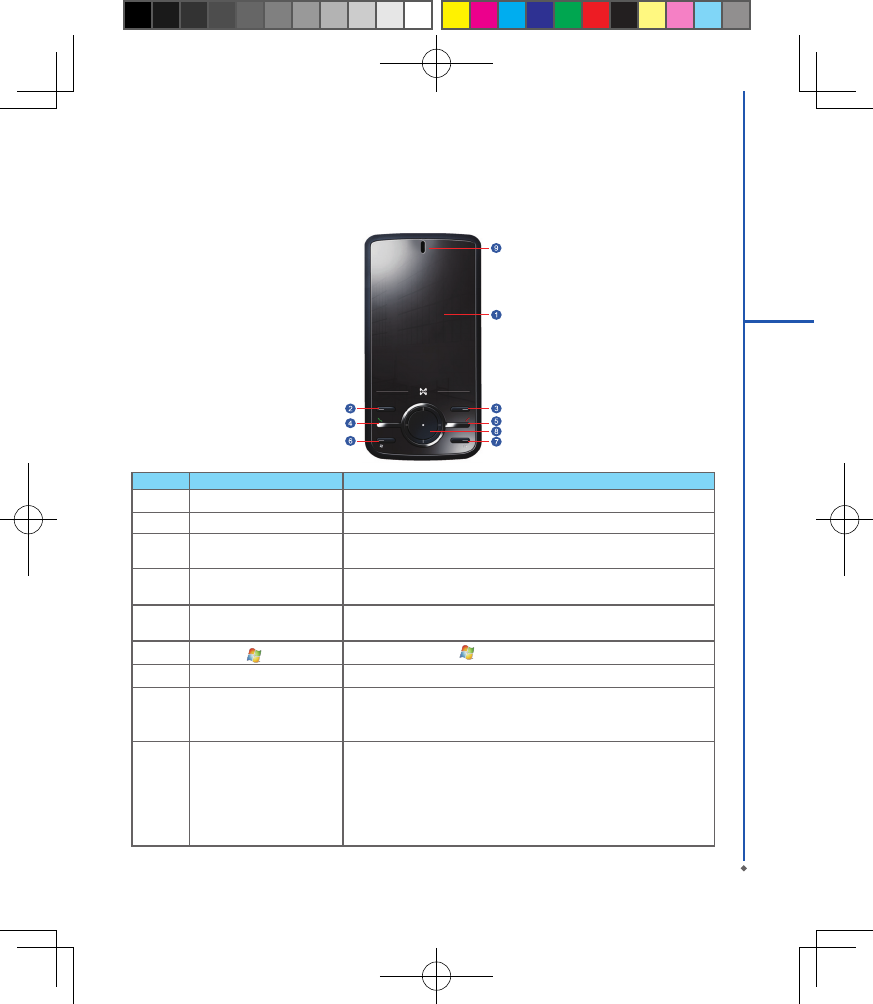
This section introduces you to the hardware of the device and its function keys.
No Item Function
1 Touch screen Display screen. Use stylus to select items on the screen.
2 Left soft key Press to execute the function displayed on the bottom left of the screen.
3 Right soft key This is capsense key. Press to execute the function displayed on the
bottom right of the screen.
4 Talk/Send key You can make or answer a call by pressing Talk/Send key, or go to
Phone Dialer screen.
5 End key Press this key to end a call or to return to Today screen
from any screen.
6Windows key Press the Windows key to open Start menu options.
7 OK key To execute or terminate a selected function or application.
85- Way navigation key
The 5-way navigation key . Press up, down, left and right directions
to navigate. Tap the center key to execute the selected function or
application.
9 LED Indicator
The LED indicator indicates the status of your device by showing
different colors.
Blue: Bluetooth is activated.
Orange: Wi-Fi is activated.
Green: Mobile network is detected.
Purple: GPS signal is detected
Red: Notications for e.g. missed calls, low battery, New SMS.
Before Using Your MWg Atom V
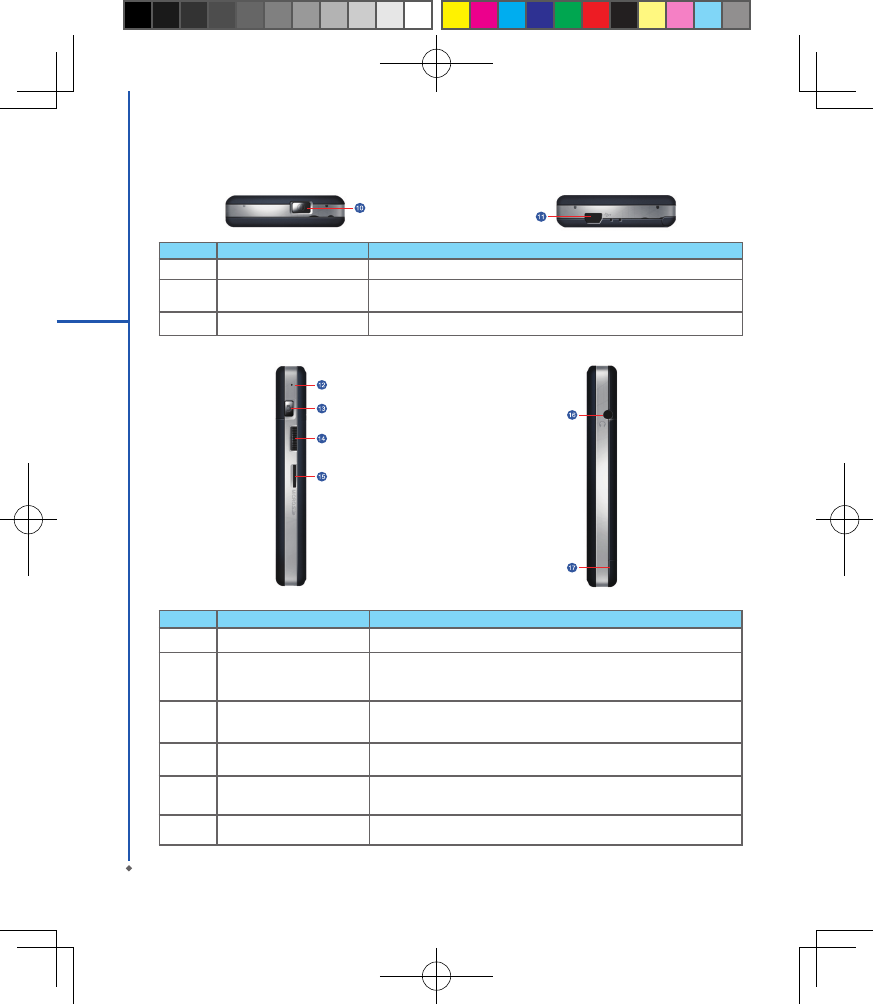
No Item Function
12 Soft reset button Press the button with stylus to soft reset your device.
13 Camera key
Press and hold Camera key to launch camera function.
In Camera mode, press half way to focus and full press to capture
pictures.
14 Volume key Slide this key upwards or downwards to adjust volume.Press and hold
this key to directly record voice note.
15 Micro SD card slot You can insert your Micro SD card here.
16 Headset plug Plug in headset, and then you can listen to the FM radio, music via the
headset or use the device's hands-free kit.
17 Stylus holder & stylus Use the stylus to touch the screen panel.
8
1
Before Using Your MWg Atom V
No Item Function
10 Power on/off Press and hold Power key for a few seconds to power on/off your device.
11 Mini USB slot Use USB connector to synchronize data with your desktop PC, transmit
data or charge the battery.
12 Soft reset button Press the button with stylus to soft reset your device.
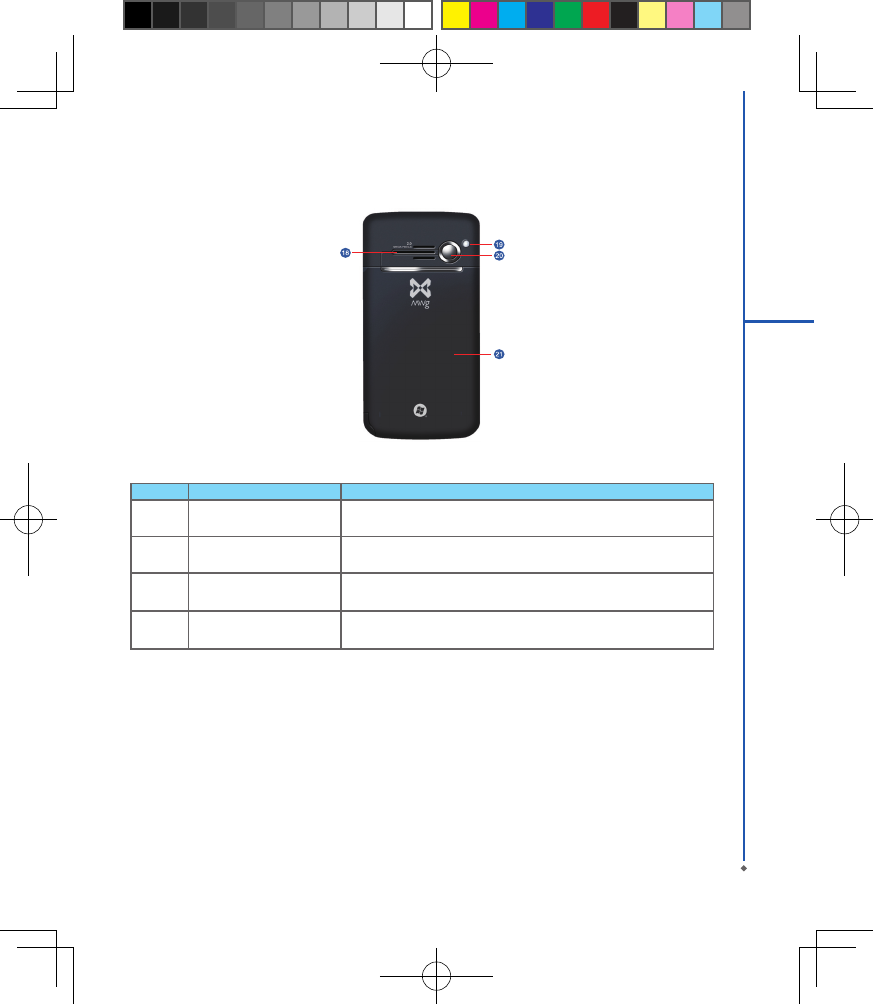
No Item Function
18 Speaker Besides using stereo headset, you may play music/voice through the
built-in speaker.
19 Flash light Flash light for camera.
20 Camera lens The CMOS camera on the back of the device supports 2-mega-pixel
photo and high quality video.
21 Battery cover Push and slide out the cover to replace battery and unlock SIM card
hatch.
9
1
Before Using Your MWg Atom V
1.3 Features
Your MWg Atom V not only having mobile phone features, it also integrates Personal Digital Assistant (PDA)
capability. The following section provides more information about the device features:
● Touch screen: 2.8” TFT LCD display with 65,536 colors effective.
● 5-way navigation key, Windows key, OK key.
● Speaker.
● Mini-USB slot for connection and battery charging.
● Camera: 2.0 mega pixels.
● Connections: 3.5G, GPRS,Bluetooth, and Wireless LAN.
● Microsoft Windows Mobile 6: Windows Live, Windows Live Messenger, Pocket Outlook, Pocket Explorer, and
Ofce tools (Word, Excel, and PowerPoint). Also features Encryption, Internet Sharing, Windows Update, Pictures
& Videos, Calculator, Games, ActiveSync, and File Explorer.
● Other programs: SIM Manager, FM Radio, Zip, Java, Streaming Player, GPS Tracking, etc.
Please note: The 3.5G parts of Atom V support only Band 1 (uplink: 1920-1980MHz; downlink: 2100-2170MHz)
,which doesn't operate in USA territory. And the HSDPA part won't work in USA.
10
1
Before Using Your MWg Atom V
11
1
Before Using Your MWg Atom V
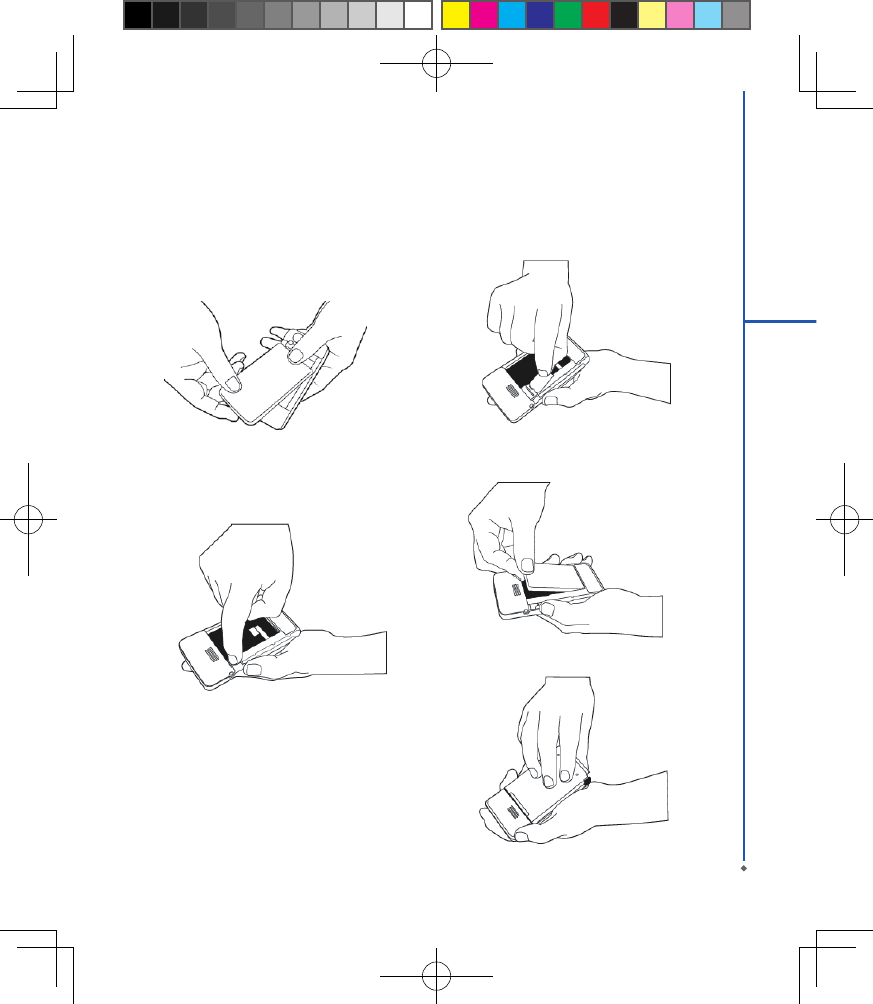
1.4 Insert the battery & SIM card
Before inserting/removing a SIM card, please make sure that your MWg Atom V is powered off and is not connected
to any power supply by the USB cable or charger.
1. Look at the back of your MWg Atom V. Push and slide
out the battery cover.
2. - Remove the Stylus.
- Remove the battery by pulling at the top right hand
lip.
- Pull at the tag on the top left of the battery to remove
the SIM carrier.
3. - Insert the SIM into the carrier, making sure the SIM
is fully aligned inside the carrier.
- Insert the SIM carrier back into the slot with the
metal contacts on the SIM facing down. (do not
force the carrier into the slot)
4. Return the battery, battery cover and stylus back onto
the device in that order.
5. Slide the battery cover back and push until you hear
“click”.
1.5 SIM
Before using your MWg Atom V, you must contact a network operator to get a personal SIM (Subscriber Identity
Module). The phone functions are unusable (except for emergency calls) until a valid SIM card is inserted.
Please note: If the device or the SIM card is lost or stolen, you should contact your network operator immediately in
order to prevent unauthorized use.
1.6 Battery
Your MWg Atom V comes with a removable and rechargeable Lithium Polymer battery. The standby time and talk
time will depend on your actual usage network coverage and whether the device is in standby mode. The battery life
may also vary depending on how frequently the user switches between functions.
Please note: Using any battery pack or AC adapter (charger) not specied/endorsed by MWg on this phone may be
dangerous and may invalidate any warranty and approval given to the device. Unplug the charger from the power
supply when it is not in use.
Charging the battery
Please make sure that the battery is installed and fully charged when using your MWg Atom V for the rst time. You
may charge the battery in the following ways:
1. Universal AC Adapter: Plug your AC adapter into a suitable main power socket and plug the connector to the
charging slot of your MWg Atom V. The phone will start charging automatically.
2. USB cable: Connect your MWg Atom V to your PC’s USB port with the USB cable supplied in your package.
Note: Charging by USB is, however, slower than charging from the mains power supply.
12
1
Before Using Your MWg Atom V
13
1
Before Using Your MWg Atom V
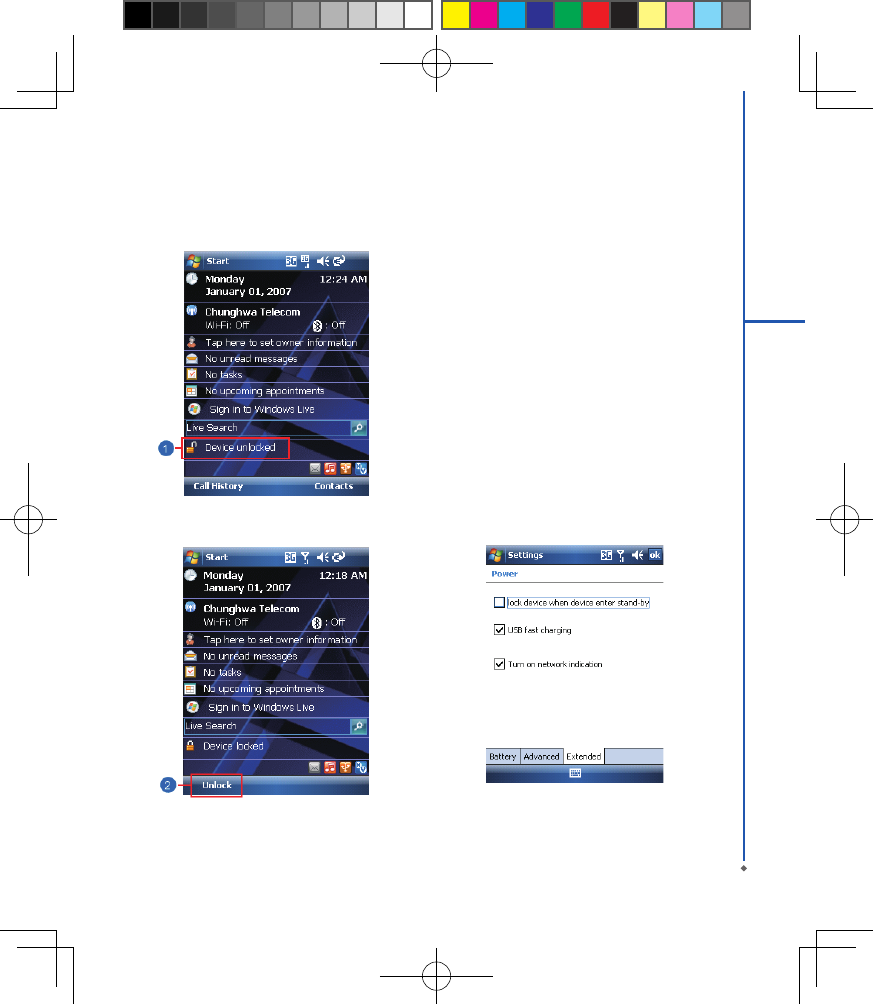
1. Lock the dev ice: On Today screen, tap Devic e
unlocked to lock your MWg Atom V. The device will
not respond to touches on screen nor react to any
input on the keypad when it is locked.
You may also enable the device lock automatically after
the screen backlight is turned off.
2. Unlock the device:
Tap Unlock on the bottom left of the screen.
Then tap Unlock button on the newly appeared screen
and the device is unlocked.
To enable automatic lock:
Ta p S t a r t > S e t t i n g s > S y s t e m ta b > P ow e r >
Extended tab and check lock device when device
enter stand-by. Your MWg Atom V will enable lock
automatically during stand-by.
1.7 Lock/Unlock
14
1
Before Using Your MWg Atom V
1.8 Power
To power on your MWg Atom V
While the device is powered off, press Power key on
the top of the device to power it on.
To power off your MWg Atom V
While the power is on, press and hold Power key on
the top of the device for about 3 seconds to turn it off.
To reduce the power consumption of your device, you
may change the backlight duration and brightness level.
Also, you can save more power by setting the device
to turn off automatically if it is not in use for a specic
period of time.
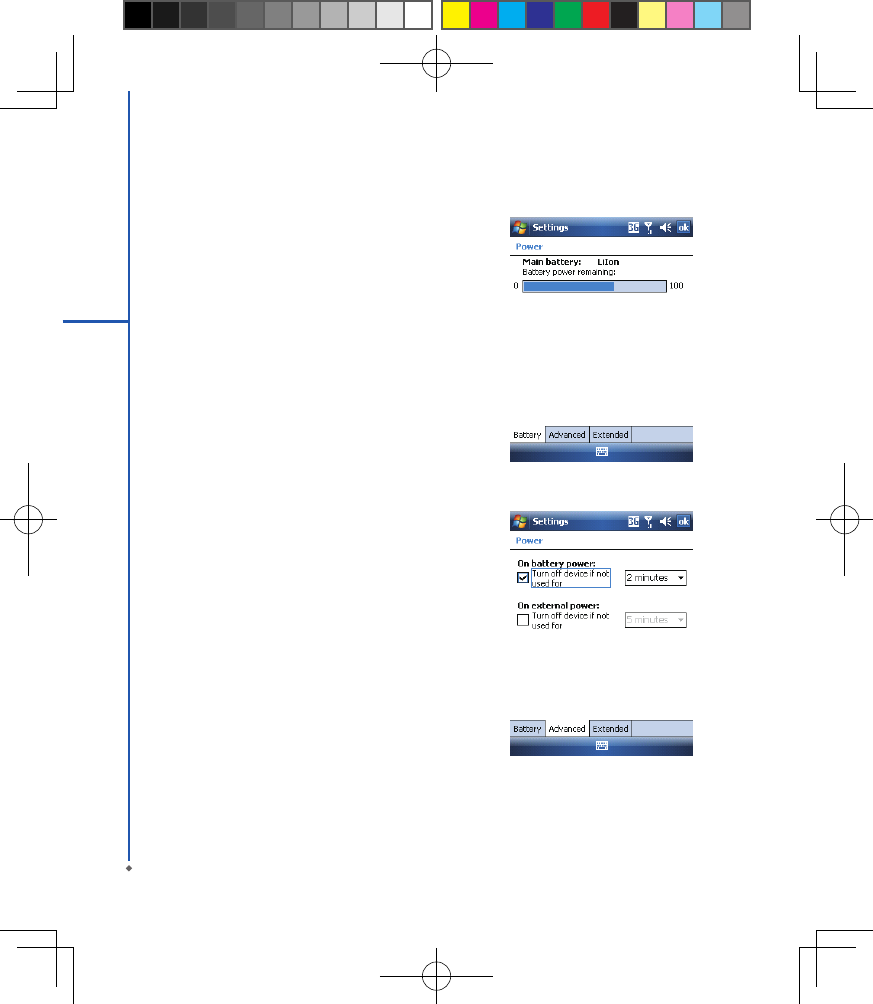
To check battery power level
Tap Start > Settings > System tab > Power > Battery
tab. The bar indicates the remaining battery power
level.
To turn off the device automatically
Ta p S t ar t > S e t t i ng s > Sy s t e m t a b > Power >
Advanced tab and select the duration before your
MWg Atom V turns off by itself. This feature controls the
screen standby time.
Chapter 2
Getting Started
2.1 Display information
2.2 Screen orientation
2.3 Setting time & date
2.4 Using the stylus
2.5 Screen alignment
2.6 Input method
2.7 Drawing on the screen
2.8 Recording a message
2.9 Editing my info
2.10 Password setup
2.11 Memory expansion
2.12 Data backup
Chapter 2 Getting Started
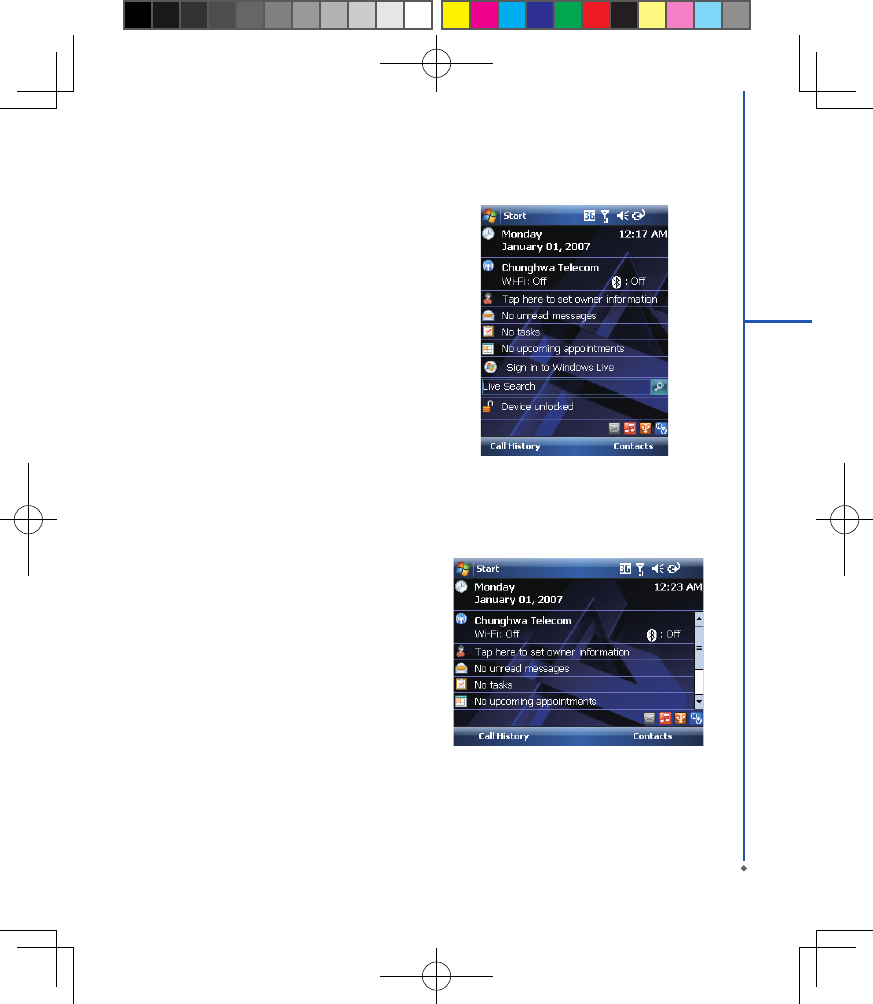
2.1 Display information
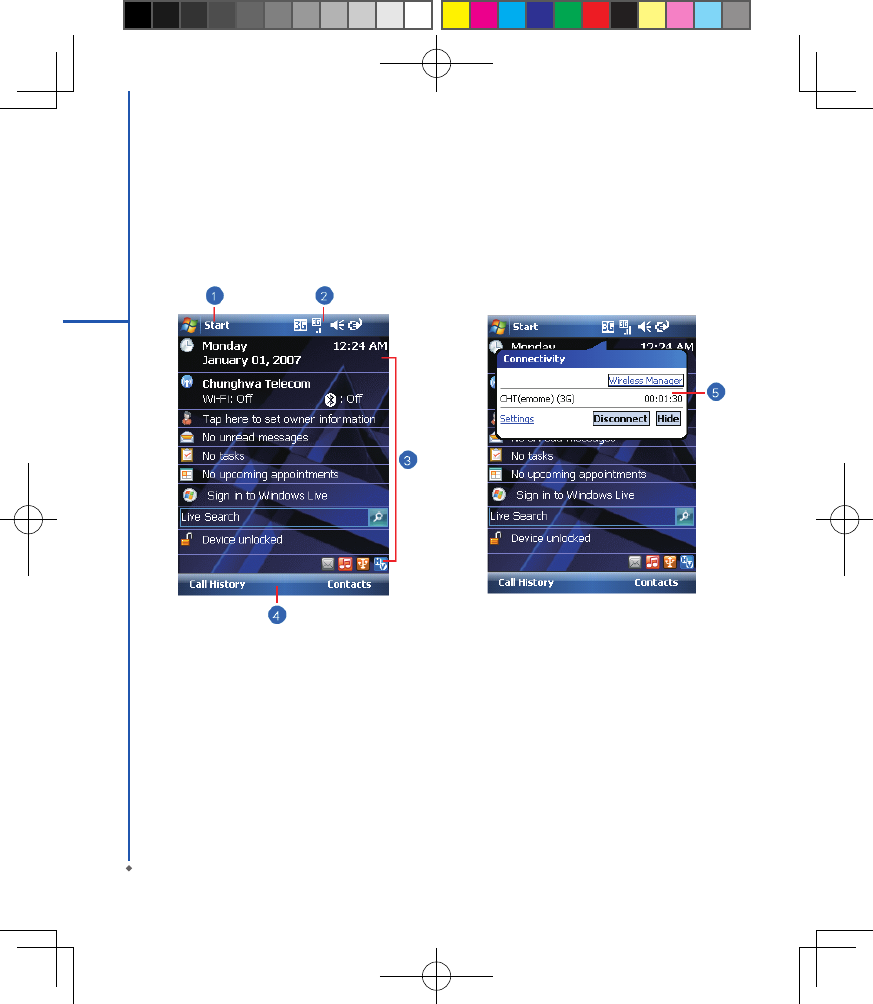
The main screen displays the following information:
16
2
Getting started
1. Start menu
Tap here to open Windows Start menu on the top left of the screen. To return to Today screen at any time, tap
Start > Today.
2. Status & Icon area
Displays notication icons and system status. You can tap the icon to look into the detail or settings of the function.
3. Today screen
On Today screen, this area contains shortcuts to certain programs and important information of today. To change
Today screen settings, tap Start > Settings > Personal tab > Today.
4. Command area
Depending on different mode, this area contains different features such as menu options, input panel and
commands to create or edit a le.
5. Pop up menu
This allows you to quickly access an item. Tap on the icon and tap again to perform an action. To cancel it, tap
other areas of the screen.
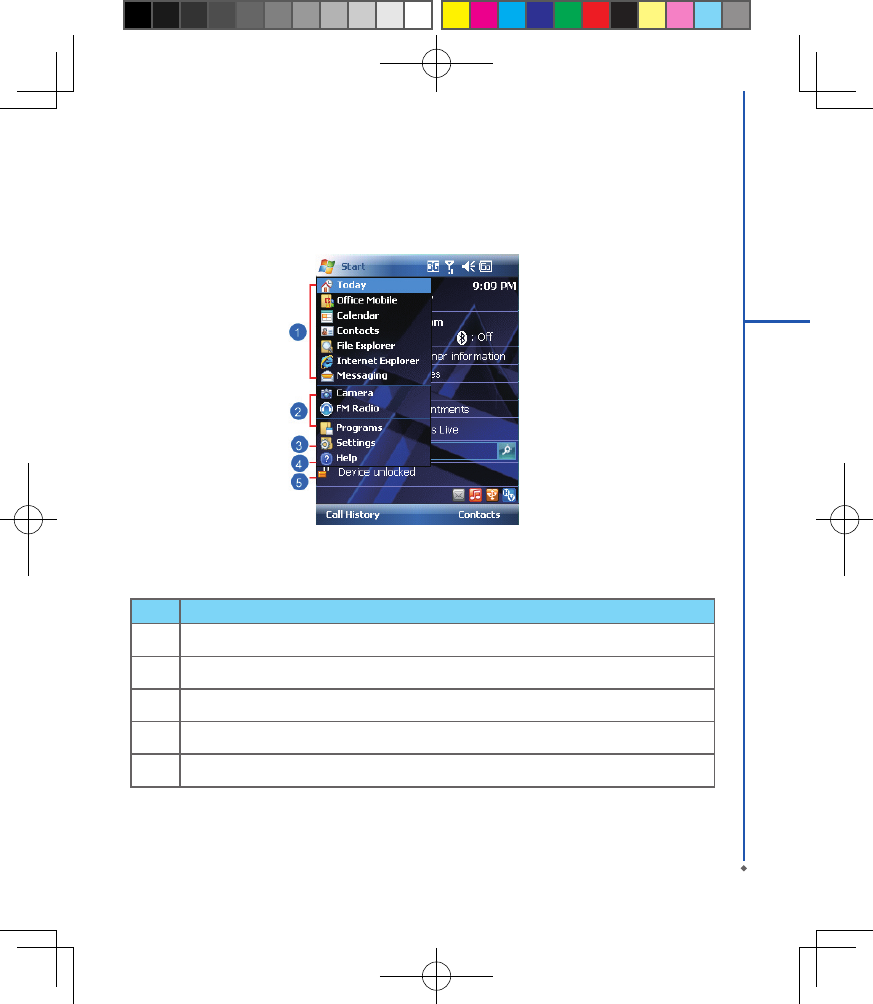
Start menu
Tap Start to bring up a list of menu:
No Description
1Quick access to certain xed Microsoft programs.
2 The most recent 5 programs you have used.
3 Tap on Programs to enter the Programs menu.
4 Tap on Settings to enter the Settings menu.
5 Tap on Help to see detail information about different features.
17
2
Getting started
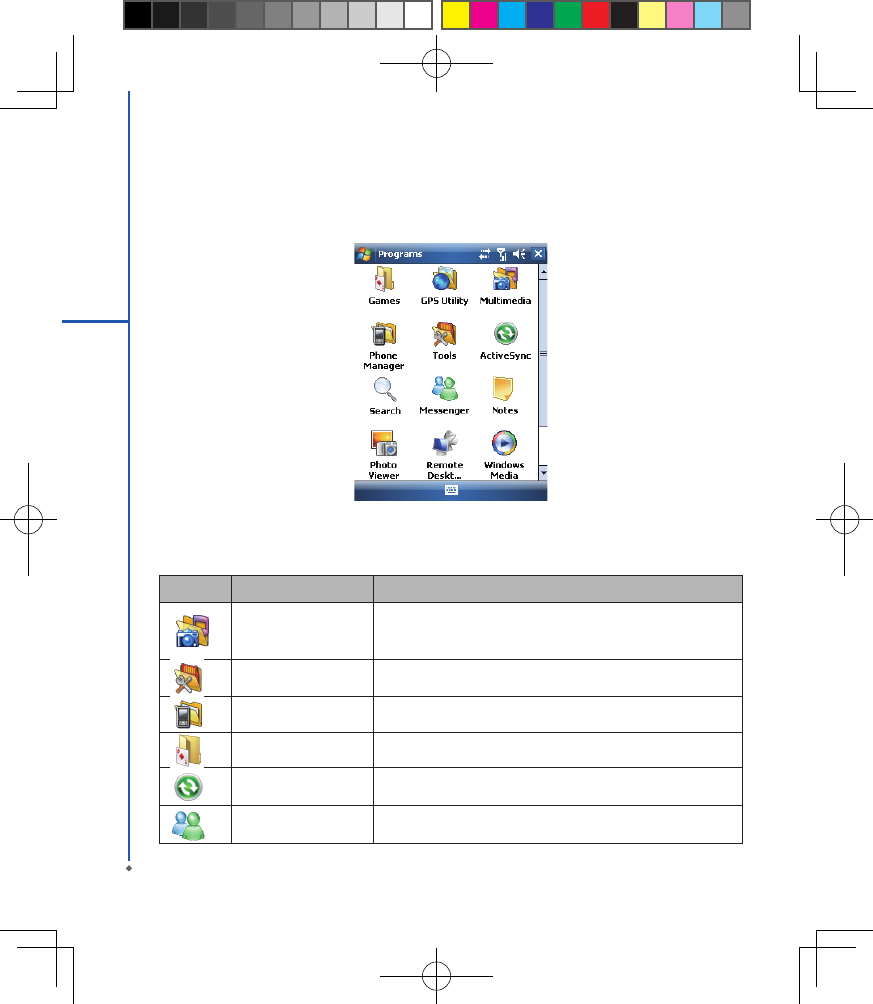
Programs
You will see many application icons under your Programs menu. From Programs menu, you may tap the application
icon that you desired to use to execute the application.
From Today screen > Start > Programs
Your MWg Atom V contains the following programs:
18
2
Getting started
Icon Programs Description
Multimedia Audio Mixer, Camera, Photo Editor, Pictures & Videos, Recorder,
JAVA, Streaming Player, FM Radio
Tools Calculator, Easy-Touch Menu, Pocket Remote, Restore to Default,
Zip
Phone Manager Dial Kit, Internet Sharing, SIM Manager
Games Bubbles Breaker, Solitaire
ActiveSync Transmit data between your computer and the device.
Messenger Perform MSN functions.
19
2
Getting started
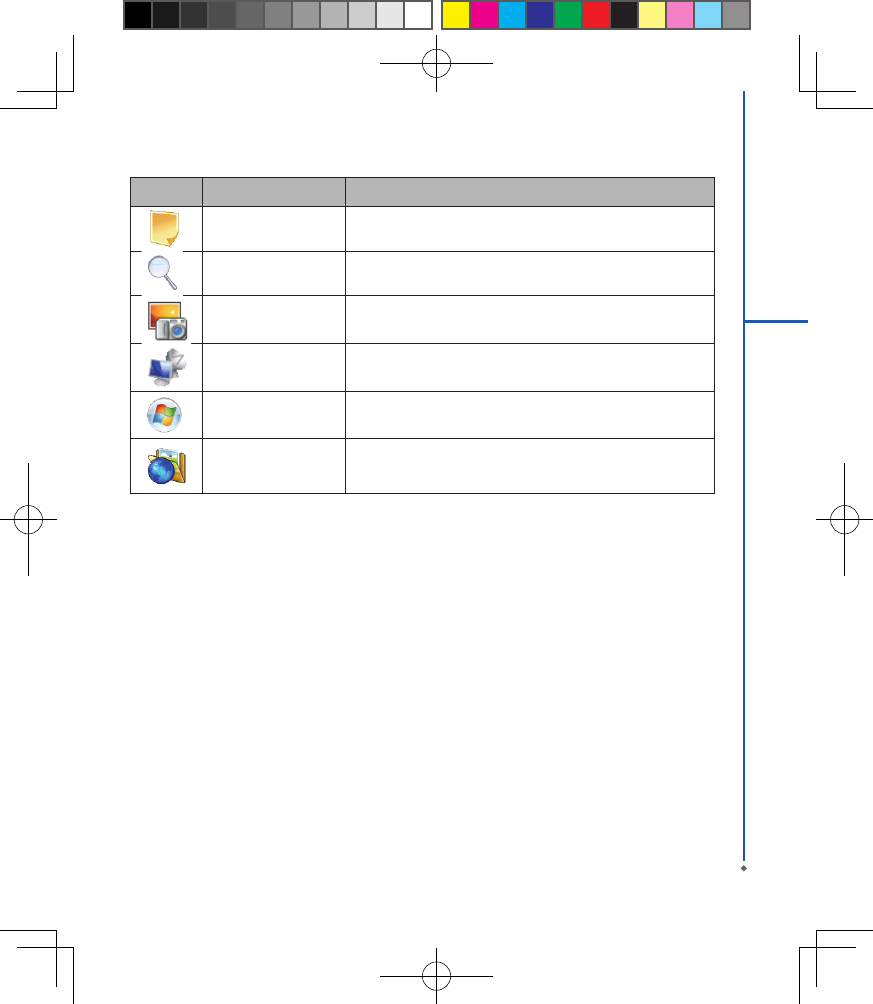
Icon Programs Description
Notes Write notes, memo, or drawings.
Search Search for all data, programs, and les.
Photo Viewer View all the pictures on your MWg Atom V.
Remote Desktop Mobile To set up the desktop screen information and display.
Windows Live This is your gateway to help with Live Search.
GPS Utility GPS Tracking
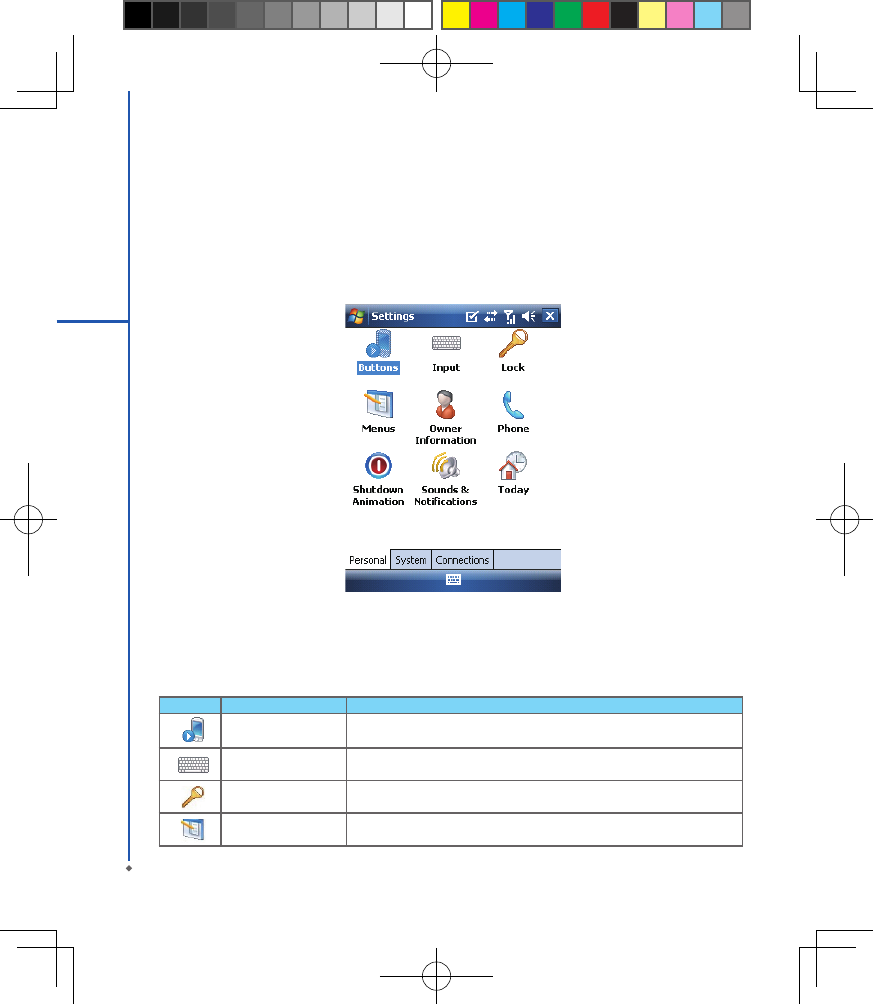
Settings
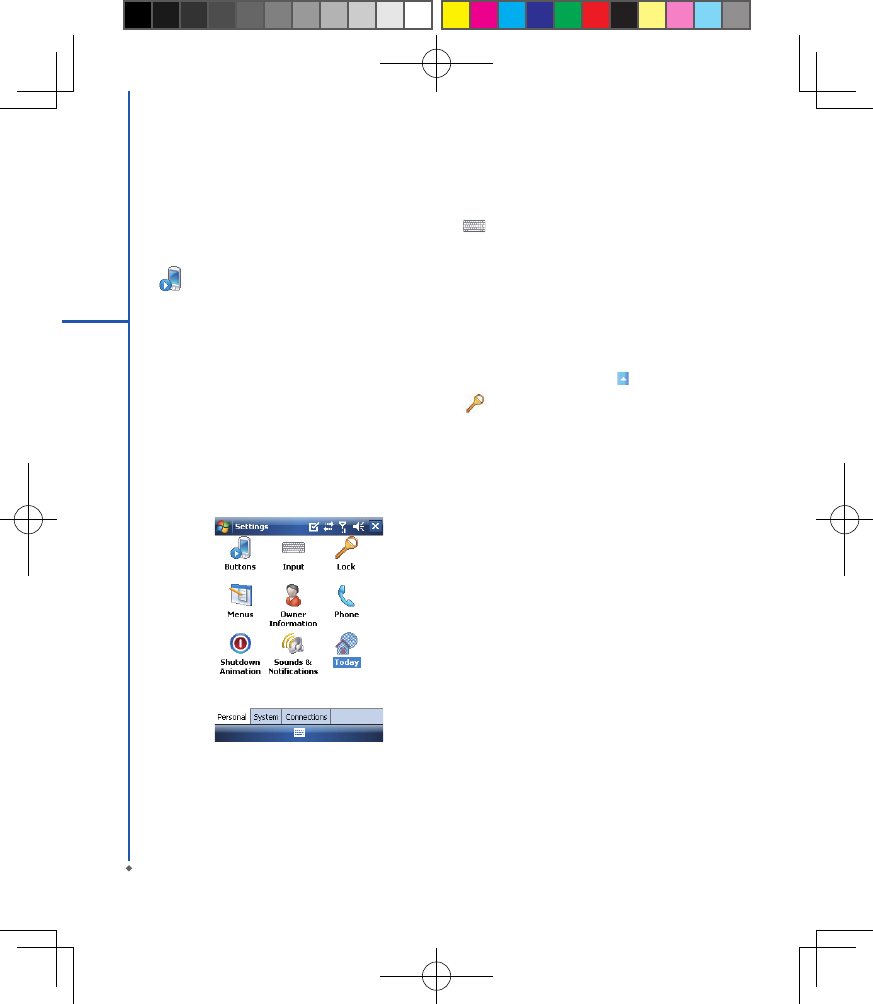
Your MWg Atom V contains Personal, System, and Connections setting items.
Tap Start > Settings > Personal tab:
20
2
Getting started
Icon Seetings Description
Buttons You may assign programs to a hardware button.
Input Set your preferred input method.
Lock You may set a personal password to lock your MWg Atom V.
Menus Select the programs to be displayed in Start menu.
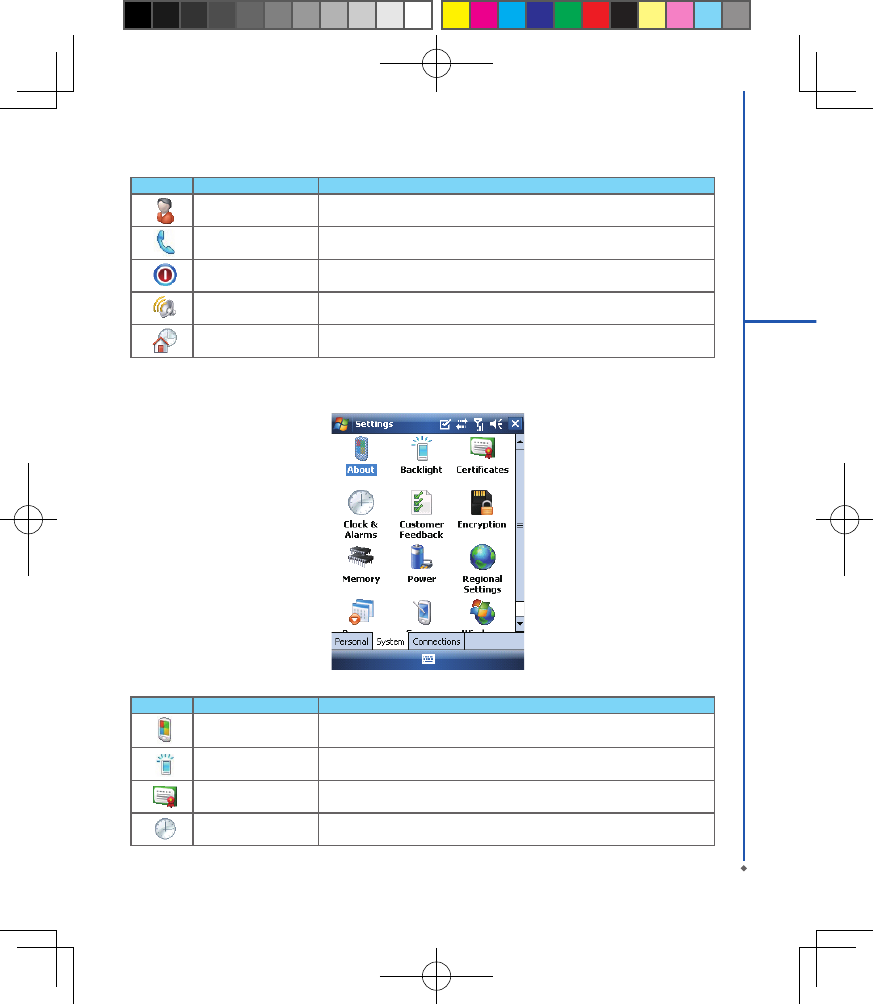
Icon Seetings Description
Owner Information Set your personal information.
Phone Settings for phone functions.
Shutdown Animation Settings for shutdown screen.
Sounds &Notications Settings for alarm and notication sound type.
Today Settings for screen appearance and items displayed on the Today screen.
21
2
Getting started
Tap Start > Settings > System tab:
Icon Settings Description
About Contain information about your MWg Atom V.
Backlight Configure the backlight settings and adjusts the brightness level to save
power.
Certicates Information about the certicate issuer and the expiration date.
Clock & Alarms Settings for time and alarms.
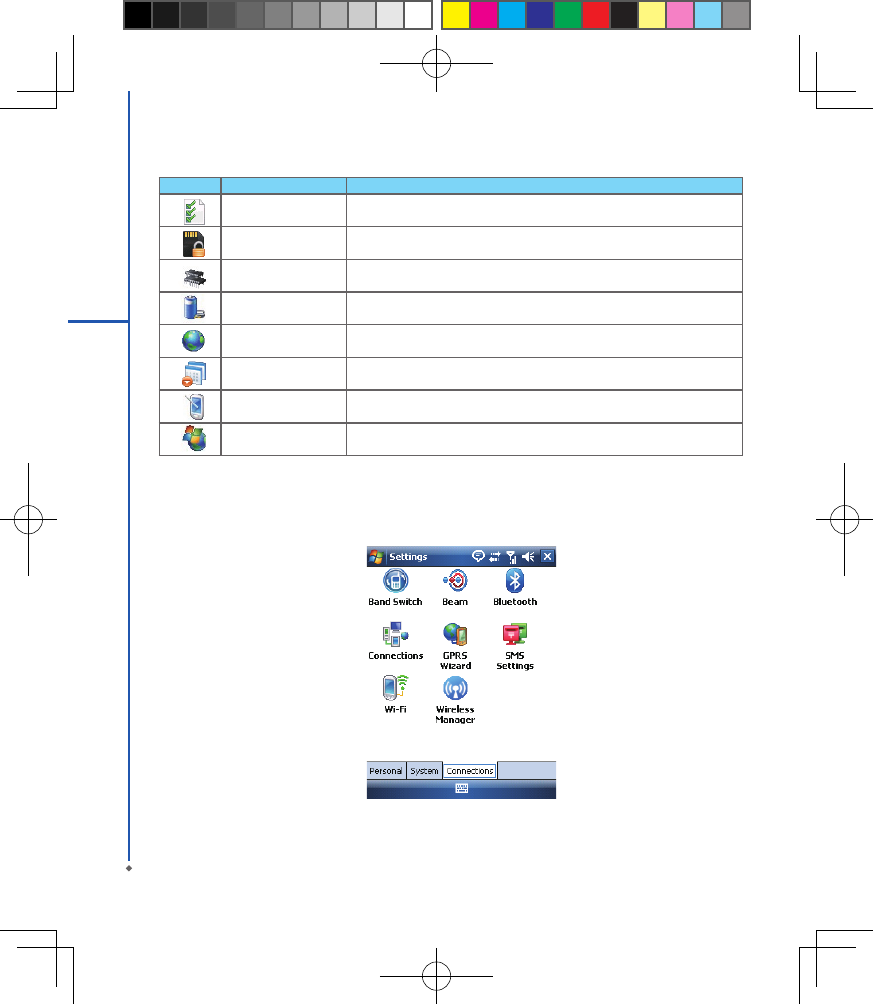
22
2
Getting started
Tap Start > Settings > Connections tab
Icon Settings Description
Customer Feedback Customer Experience Improvement Program from Microsoft®.
Encryption Encrypt les.
Memory Display memory status and programs that are currently running.
Power Battery status and settings.
Regional Settings Settings for region, number, currency, time, and date format.
Remove Programs Remove programs from your MWg Atom V.
Screen Settings for screen orientation, screen alignment, and text size.
Windows Update Download updates for Windows Mobile setup.
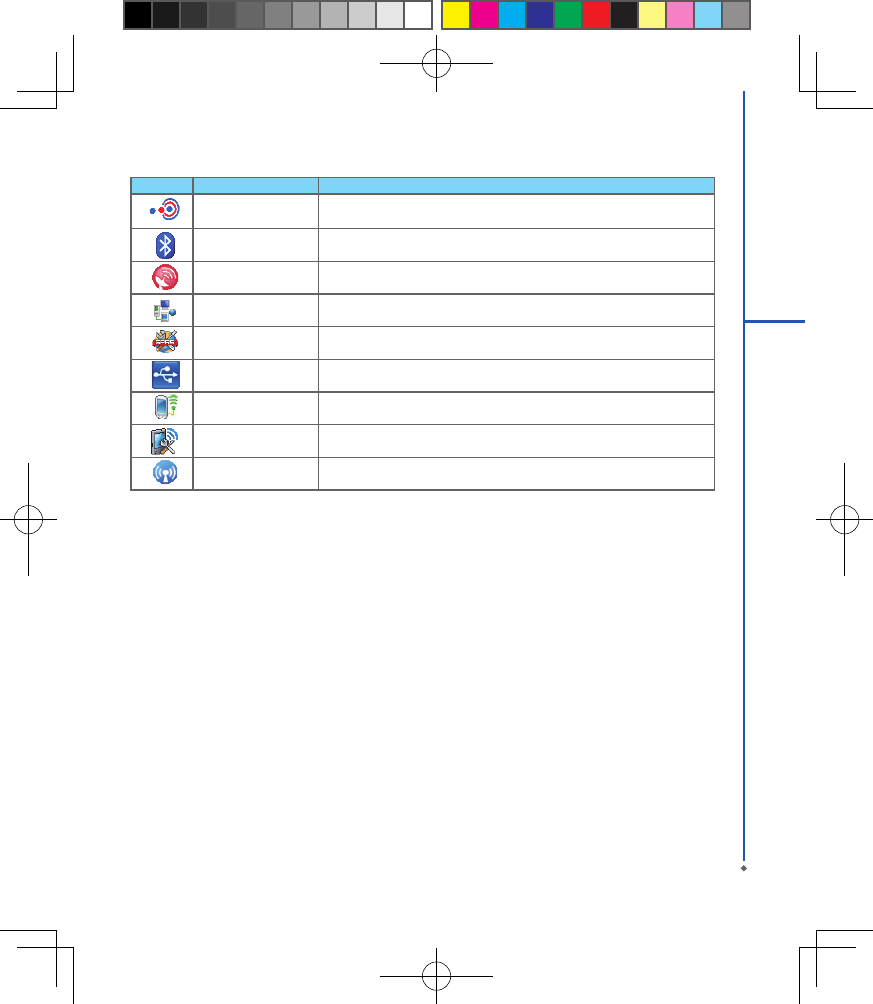
23
2
Getting started
Icon Settings Description
Beam You can choose to receive all incoming beams.
Bluetooth Settings for Bluetooth connection.
Cell Broadcast Setting Receive broadcast channel information and news from your
service provider.
Connections Settings and management for modem connections.
GPRS Wizard Basic settings for GPRS connection.
USB Use your MWg Atom V as a micro SD card reader.
Wi-Fi Manage and congure your Wi-Fi settings.
Wi-Fi Utility Details of your Wi-Fi connection.
Wireless Manager Turn on/off Radio, 3G / GPRS data, Wi-Fi and Bluetooth.
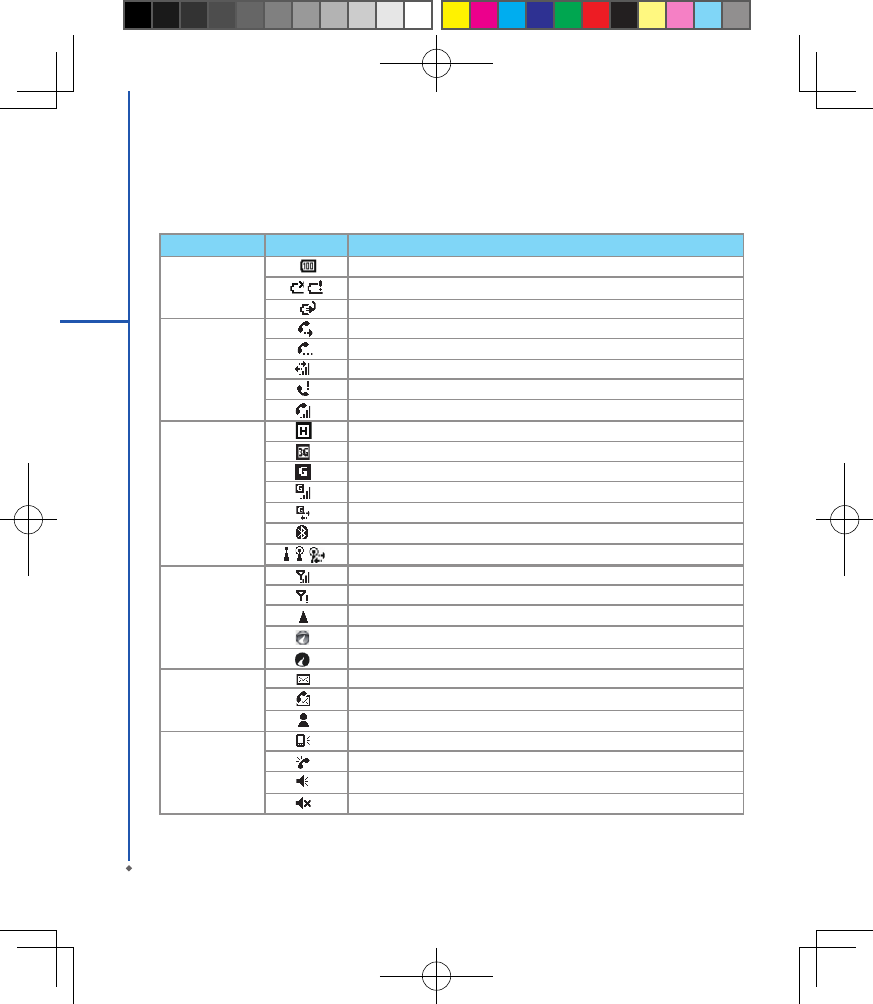
Status Type Icon Description
Battery Main battery power is full. The level of battery power is shown in percentage.
Low battery. Please recharge.
Battery is charging.
Calls Call forward.
Call on hold.
Data call.
You have missed calls.
Voice call in active.
Connection HSDPA network connected.
3G network is connected.
GPRS is in range.
GPRS is connected.
Building connection to GPRS.
Bluetooth is activated.
Wi-Fi is activated; a Wi-Fi network is in range; Wi-Fi network is connected.
Signal Strong signal.
No signal.
Roaming.
GPS Tracking is trying to connect.
GPS Tracking is connected.
Message You have one or more new message(s).
You have one or more new voice mail(s).
You have one or more instant message(s).
Volume System volume.
Phone volume.
Ringer is on.
Ringer is off.
24
2
Getting started
Status & Icon area
This area shows icons of basic system status or alerts. You can tap on the icons to get the denitions or go to the
settings.
Please note: To choose reminder types and sounds for your MWg Atom V, tap Start > Settings > Personal tab >
Sounds & Notifications.
25
2
Getting started
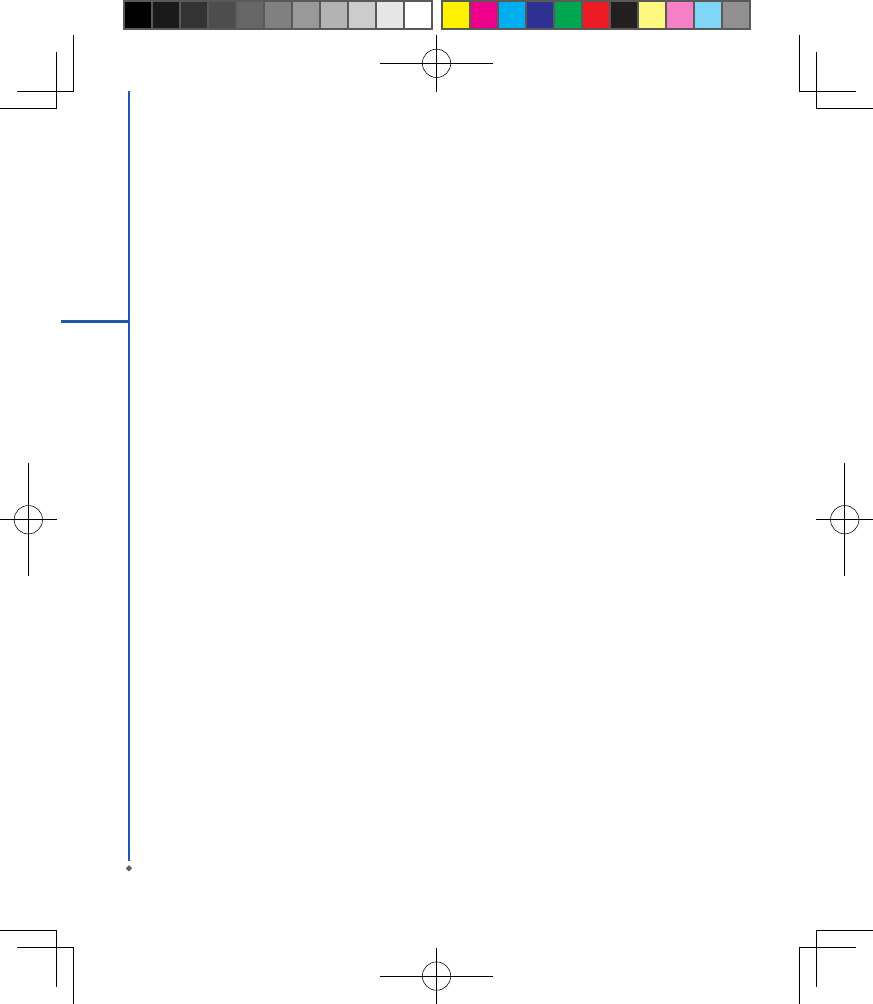
2.2 Screen orientation
You can choose your screen display in Portrait or
Landscape mode. The Portrait mode allows you to get
a better view or a better operation of certain programs
on your MWg Atom V, while Landscape may be optimal
for viewing longer text les. You can also change the
default screen display by following the steps below:
1. Tap Star t > Settings > S ystem t ab > Screen>
General tab.
2 . O n G e n e r a l tab s c re e n , s e l e c t y o u r de s i r e d
orientation, Portrait, Landscape (right-handed), or
Landscape (left-handed).
3. Tap OK, and the screen will be changed accordingly.
Portrait
Landscape
26
2
Getting started
2.3 Setting time & date
When using your MWg Atom V for the rst time, you are
required to set your time zone, time, and date. You can
also tap on the clock icon on Today screen to setup time
and date.
1. Tap Start > Settings > System tab > Clock& Alarms
> Time tab.
2. Select Home or Visiting.
3. Select your time zone.
4. Select AM / PM.
5. Use the up and down arrow aside hour, minute and
second to adjust the highlighted time unit.
6. Tap th e dow n ar r ow asid e th e da te to op en a
calendar, and select a desired month, date, and year.
7. Tap OK, a pop-up window will appear on your screen
to conrm to Save Changes to the clock settings.
8. Tap Yes to save the changes and exit.
Please note: Change the time on Home zone may
change your Calendar schedule.
2.4 Using the stylus
Use the stylus to touch or write on your screen. Using
stylus can avoid damaging your screen. There are 2
ways to use your stylus:
● Tap: softly tap on a desired item by your stylus, and
lift the pen from the screen.
● Press: touch and hold your stylus on a desired item
for a few seconds until a blue dotted circle appears.
This indicates that a pop-up menu is going to be
activated.
2.5 Screen alignment
When using your MWg Atom V for the rst time, screen
alignment is required. If you nd that the device does
not accurately respond to your stylus taps, or you
have performed a system reset, you need to align your
screen again.
1. Tap Start > Settings > System tab > Screen >
General tab.
2. Tap Align Screen on your screen.
3. On the align screen, use your stylus to touch the
crosses on the screen accurately.
4. Tap OK to exit.
2.6 Input method
Block Recognizer
With Blo ck Reco gniz er, you can input charac ter
strokes (using the stylus) that are similar to those used
on other devices.
1. On your screen keyboard, tap the arrow icon next
to the keyboard icon for more input methods. On the
pop-up list, tap Block Recognizer .
2. Write letters and numbers in a corresponding eld,
the system will display the letters/numbers identied
from your handwriting.
3. Do not write letters/numbers continually to prevent
recognition error.
4. Do not write letters outside of the input elds.
Keyboard
You can input data by using screen keyboard. Tap
icon on your screen to open the screen keyboard.
Follow the steps below to input your data:
1. On your screen keyboard, tap Shift or CAP key to
input a captial letter or to input multiple symbols.
2. Tap the key on your screen keyboard to delete.
3. To close the screen keyboard, tap icon again on
your screen to hide the screen keyboard.
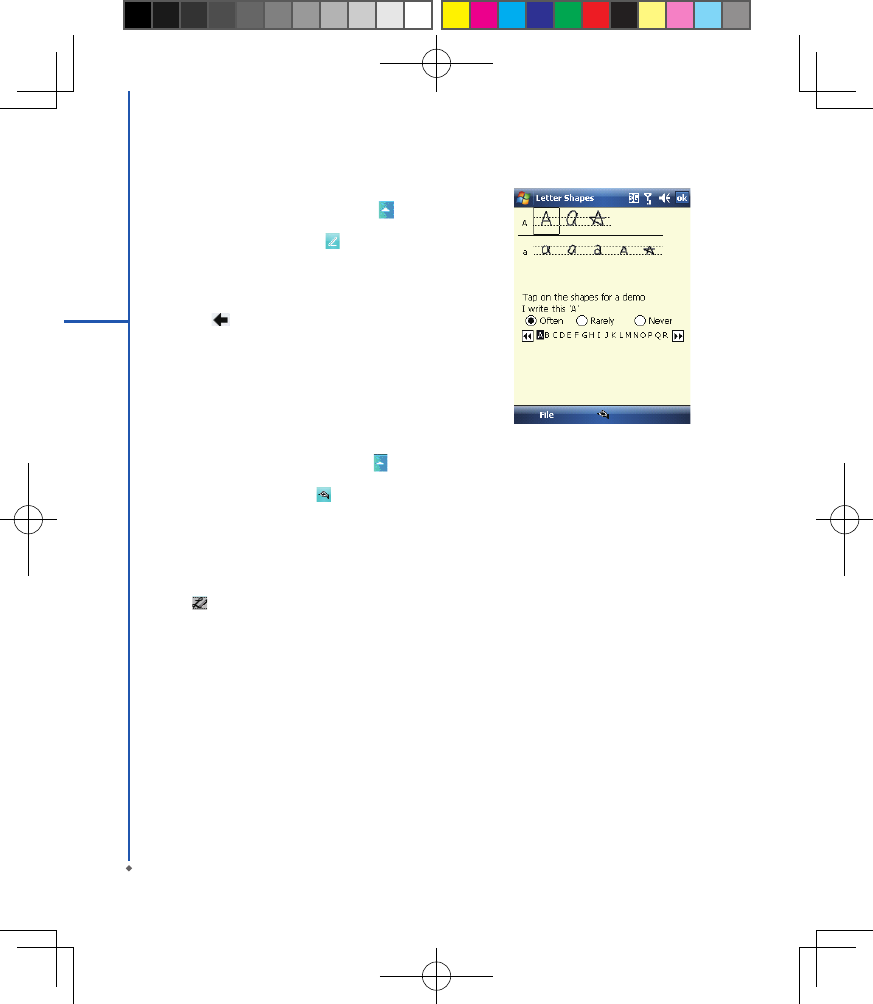
Please note: To change the displayed keyboard size
on the screen, tap the arrow beside keyboard icon
and tap Options. Under Input screen, you may select
either Large keys or Small keys by tapping on its radio
button.
27
2
Getting started
28
2
Getting started
Letter Recognizer
1. On your screen keyboard, tap the arrow icon next
to keyboard icon for more input methods. On the pop-
up list, tap Letter Recognizer .
2. Write letters and numbers in a corresponding eld on
your Letter Recognizer screen. Your MWg Atom V
will display the letters/numbers that you had just input
in Letter Recognizer elds.
3. Tap the key to delete an input.
Transcriber
Transcriber allows you to write on the full screen using
the stylus just as you would write on paper. Unlike
Letter Recognizer and Block Recognizer, you can
write a sentence or more than one sentence. Pause and
let Transcriber change the written characters to typed
characters.
1. On your screen keyboard, tap the arrow icon next
to keyboard icon for more input methods. On the
pop-up list, tap Transcriber .
2. Position the cursor where you want text to appear.
3. Use the stylus to write anywhere on the screen. The
handwriting will be converted to text after you lift the
stylus from the screen.
Learning how to write in Transcriber
1. Tap on the tool bar.
2. A Letter Shapes screen will appear, select the
character you wish to explore, tap the picture of this
character on top of the screen, and it will demonstrate
the writing sequence of the letter. Select how often
you write the character using that method.
3. When you nish the practices, you can save these as
a prole by tapping File > Save.
29
2
Getting started
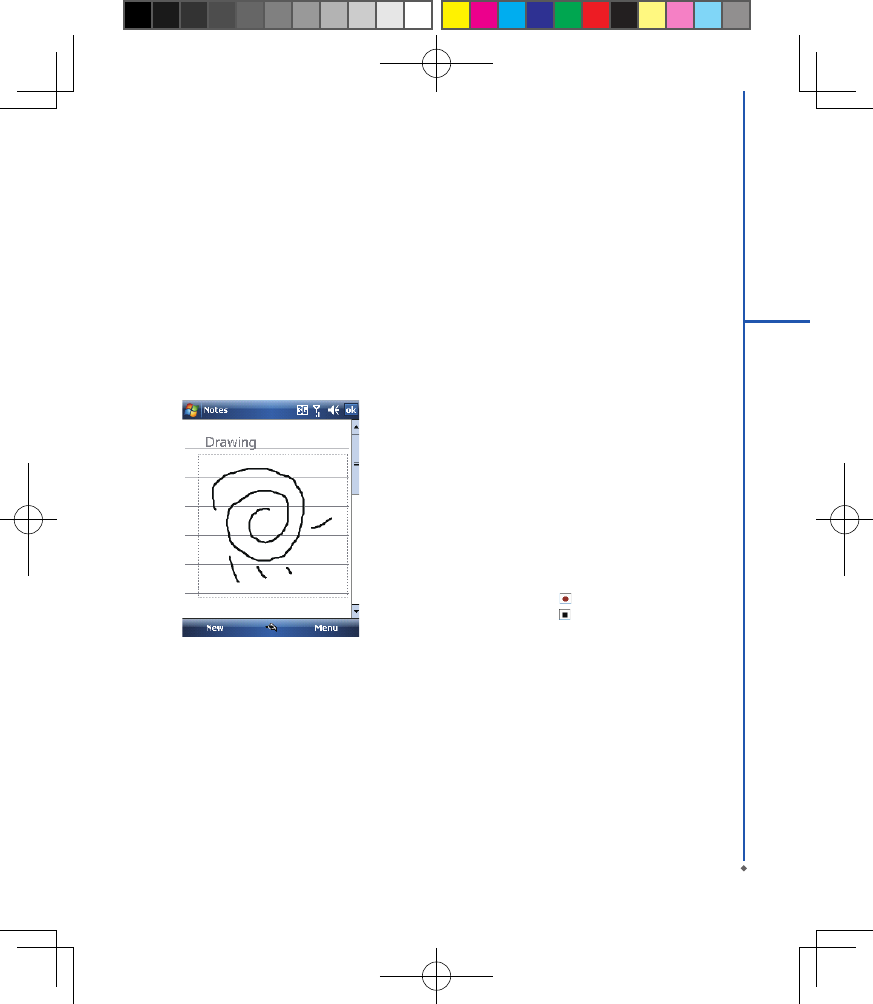
2.7 Drawing on the screen
You can draw on the screen in the same way that you
write on the screen. The difference between writing and
drawing on the screen is how you select items and how
they can be edited. For example, selected drawings can
be resized, while writing cannot.
Creating a drawing:
Cross three ruled lines on your rst stroke. A drawing
box appears. Subsequent strokes in or touching the
drawing box become part of the drawing. Drawings that
do not cross three ruled lines will be treated as writing.
Selecting a drawing
To edit drawing, select it rst.
1. Tap and hold the stylus on the drawing until the
sele c ti o n ha n d l e a p p e a r s . To se l e c t mult ip l e
drawings, deselect the pen button and drag to select
drawings you want.
2. You can cut, copy, and paste selected drawings
by tapping and holding the selected drawing and
tapping an editing command on the pop-up menu, or
by tapping the command on Edit menu. To resize a
drawing, make sure Pen button is not selected, and
drag a selection handle. To change the zoom level so
it is easier to work or view your drawing, tap Tools
and select a zoom level.
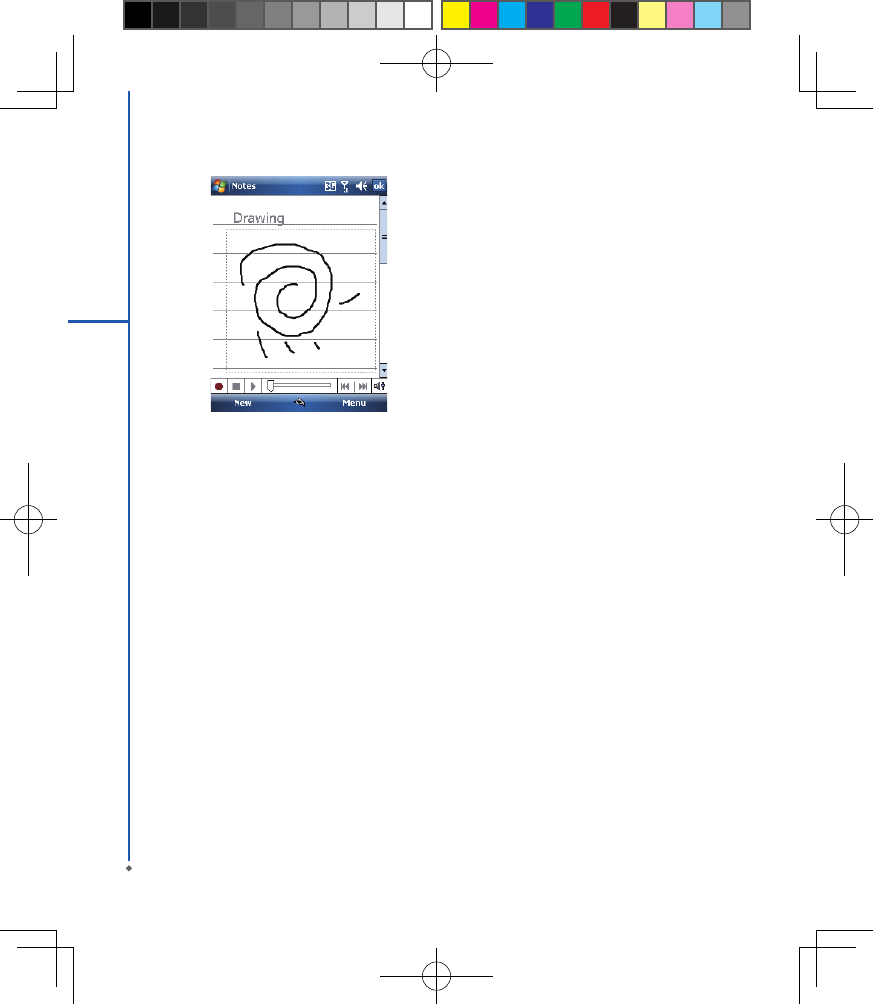
2.8 Recording a message
In any prog r am wh ere you ca n writ e or dr aw on
the screen, you can also quickly capture thoughts,
remin d e r s , and p h o n e number s by r e c o r di n g a
message. In Calendar, Tasks, and Contacts, you can
include a recording in Notes tab.
In Notes, you can either create a standalone recording,
or include a recording in a written note. If you want to
include the recording in a note, open the note rst. In
the Messaging program, you can also add a recording
to an E-mail message.
Creating a recording
1. To add a recording to a note, open the note before
recording. Tap Start > Programs > Notes.
2. If there is no Record/Playback toolbar, tap Menu >
View Recording Toolbar.
3. Hold your device’s microphone near your mouth or
another sound source.
4. To start recording, tap .
5. To stop recording, tap . The new recording appears
in the note list.
6. To play a recording, tap in the open note or tap the
recording in the note list. You can also access the
Record/Playback tool bar by pressing down Volume
key for a whil e. To qui ck ly cre ate a re cording,
hold down Volume key. When you hear the beep,
recording has begun. Release the button when you
are nished. The new recording is stored in the open
note, or as a standalone recording, if no note is
opened.
2.9 Editing my info
You can input your personal information to your MWg
Atom V in Owner Information.
1. Tap Sta r t > Set ting s > Personal tab > Own er
Information > Identification tab.
2. Tap Name eld and input your name.
3. Tap a desired input eld and input your information.
4. Tap Notes tab to input other information you would
like to display on your MWg Atom V.
5. If you want your information to be displayed on the
starting screen, tap Options tab.
2.10 Password setup
You can set your own password to prevent unauthorized
use of your MWg Atom V.
1. Tap Star t > Set ti ng s > Per sonal tab > Lock>
Password tab.
2. On Password tab screen, check Prompt if device
unused for.
3. Select an appropriate time.
4. Select a password type in Password type eld.
5. Input your password in Password eld and reconrm
the password in Confirm eld.
6. Tap OK, a pop-up window will appear to conrm, “ Do
you want to save password settings changes?”.
7. Tap Yes to nish settings and save the changes; No
to cancel.
8. You may also input password hint message under
Hint tab screen.
9. Tap OK to save your inputs.
Please note: If you forget your password, you need to
perform system default, which will lose all your data and
settings.
2.11 Memory expansion
To expand the memory of your MWg Atom V, you can
inser t a Micro SD card into the card slot located at
the top of the phone. Make sure the card is inserted
correctly.
2.12 Data backup
Your MWg Atom V suppo r ts 64M B R AM c apacit y;
however, you may need to back up data and any new
programs that you install in the RAM to guard against
data loss. To back up your Contact, Calendar, etc.,
please set up the synchronization partnership with your
PC and connect the phone with PC. ActiveSync will
start automatically.
30
1
Getting started
Chapter 3
Phone Functions
3.1 Phone screen and key introduction
3.2 Making a call
3.3 Receiving / Ignoring a call
3.4 International calls
3.5 Emergency calls
3.6 Volume adjustment
3.7 Contacts
3.8 Creating a new contact
3.9 Call history
3.10 Setting ring tone and password
3.11 SIM manager
Press Talk/Send key to enter phone functions. Please
insert a SIM card before using these functions.
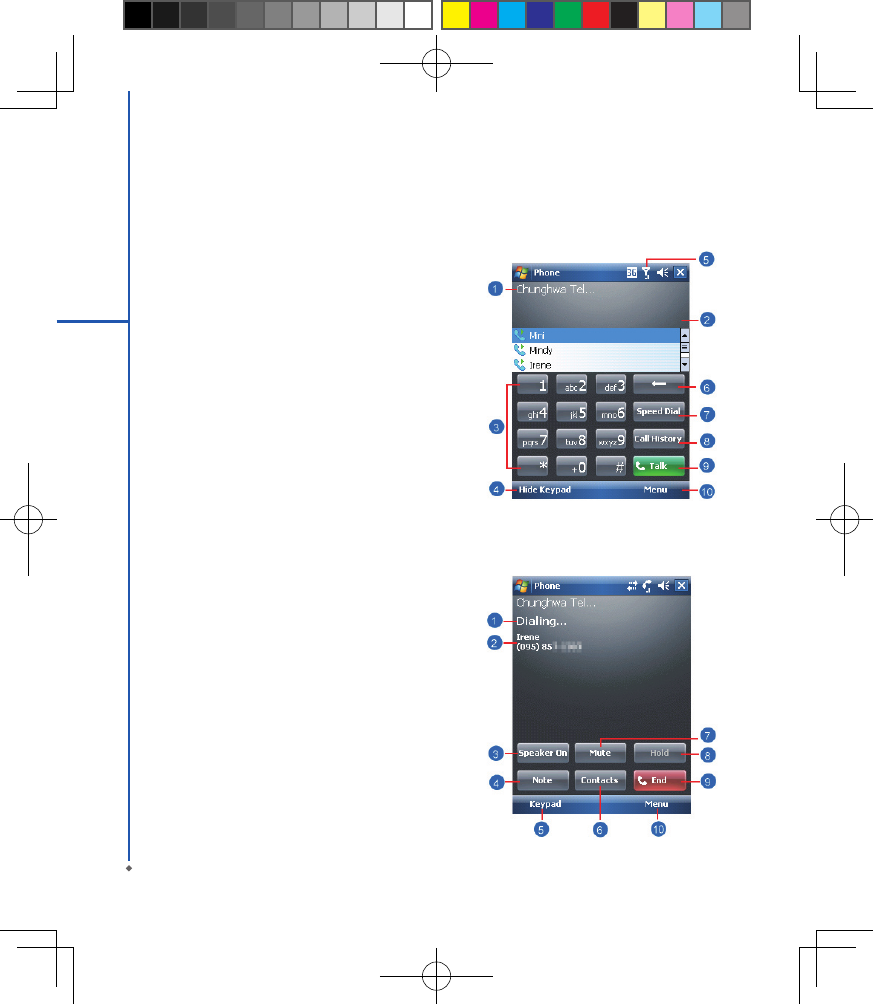
Phone Dialer screen
From Phone Dialer screen, you can access Contacts,
Speed Dial, Call History, and more options under
Menu. This screen has the following features:
1. The name of the network provider
2. The number you entered
3. Touch screen keypad
4. Hide Keypad
5. Signal strength
6. Clear numbers
7. Speed Dial
8. Call History
9. Make/End a voice call
10. Menu to access more options
When a call is connected, the screen displays the
following:
1. The calling status
2. The name and number of the contact you are calling
3. Speaker On/Off
4. Create a note for the call
5. Return to the dialer phone screen
6. Contact list
7. Mute the call
8. Hold the call
9. End the call
10. Menu to access more options
Please note: When there is a call comes in, press
volume up / down will immediately silent off the alert.
Chapter 3 Phone Functions
3.1 Phone Dialer screen and key Introduction
32
3
Phone Functions
33
3
Phone Functions
3.2 Making a call
With your MWg Atom V, you can make a call by entering the phone number, or selecting a number from Contacts,
Speed Dial, and Call History.
1. After entering Phone Dialer screen you can dial a number using the numeric keypad or the keypad on the screen.
2. To delete an error input, use key on the screen.
3. Tap to make a call.
4. Tap to end the call.
Speed dial
You can set ten phone numbers in your speed dial list.
1. After entering Phone Dialer screen tap Speed Dial button on the screen to enter your Speed Dial List.
2. On Speed Dial List screen, you can select a contact on the list to see the contact’s detailed information.
3. On Speed Dial List screen, tap Menu on the bottom right corner of the screen. You can perform New, Edit, or
Delete contacts of the Speed Dial List.
4. To make a call, tap the corresponding number on the keypad to call the contact on Speed Dial List.
5. You can also use the navigation key to select a contact you want to call on Speed Dial List screen, and then
press Talk/Send key to call.
6. Press End key to end the call.
3.3 Receiving / Ignoring a call
When you receive a phone call, a notication message will appear. To answer the incoming call, tap Answer or
press Talk/Send key. To ignore or reject a call, tap Ignore to mute the phone and reject the call. This may divert the
call to your voice mail, depending on your network operator.
3.4 International calls
When you make an international call from any country, you need to insert a special international access code. If you
enter “+” symbol as a prex before the number you are calling, then you do not need to enter the access code for the
country you are calling from.
To make an international call
1. Tap and hold 0 key until + sign appear. + replaces the international prex of the country that you are calling from.
2. Enter the full phone number you want to dial. It should include the country code, area code (without the leading
zero), and phone number.
3. Tap Talk or press Talk/Send key.
34
3.5 Emergency calls
Enter the international emergency number 112, and then tap Talk or press Talk/Send key. Additional emergency
numbers may be included on your SIM card. Contact your network operator for more information.
If your MWg Atom V has entered Device Lock mode, you have to unlock the device first before making an
emergency call.
1. Tap the Unlock on Left Function Key.
2. Tap “Unlock” displayed on the bottom left of the screen.
3.6 Volume adjustment
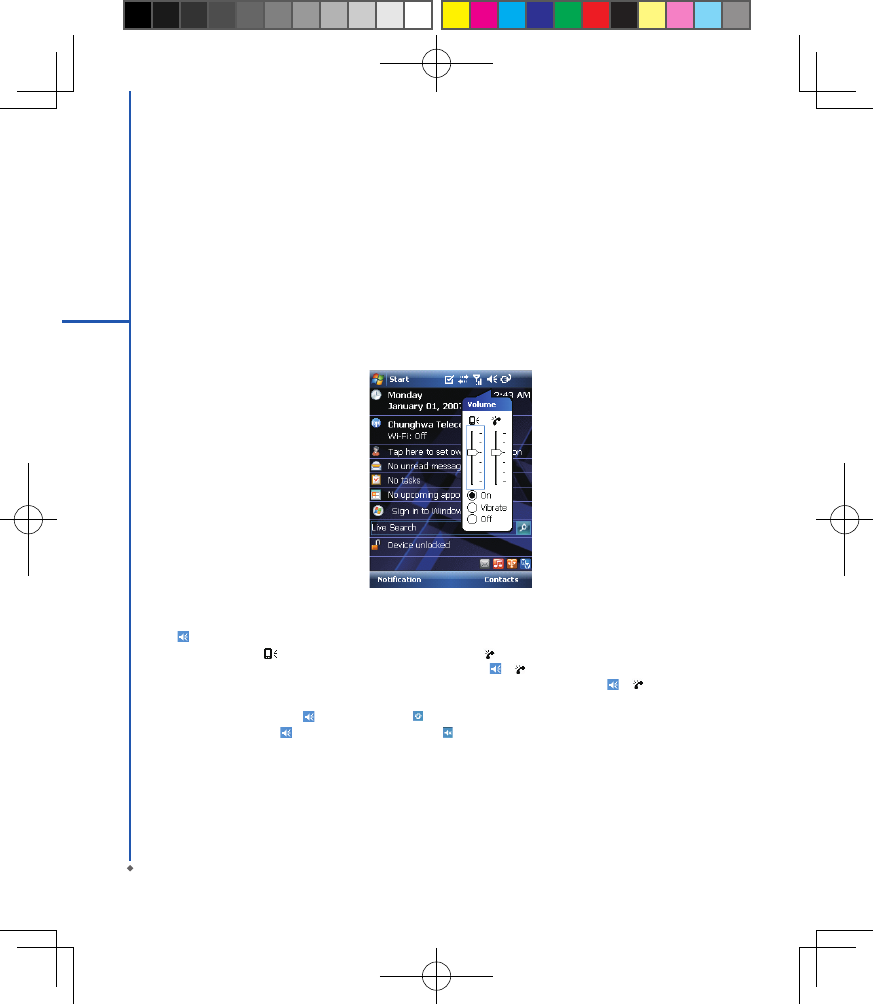
Tap icon on the screen and the volume adjustment window will appear. Adjust the volume of alert tone for all
programs tapping on ,and adjust the ring volume by tapping on .
1. Press Volume Adjustment key on the left side manually or tap > to adjust incoming call volume.
2. If you press the Volume Adjustment key on the left side of your MWg Atom V or tap > icons during a call,
you may adjust the in-call volume of the phone. You can only adjust it during a call.
3. When you select Vibrate, icon will change to icon.
4. When you select Off, icon on screen will change to icon.
3.7 Making a call from contacts
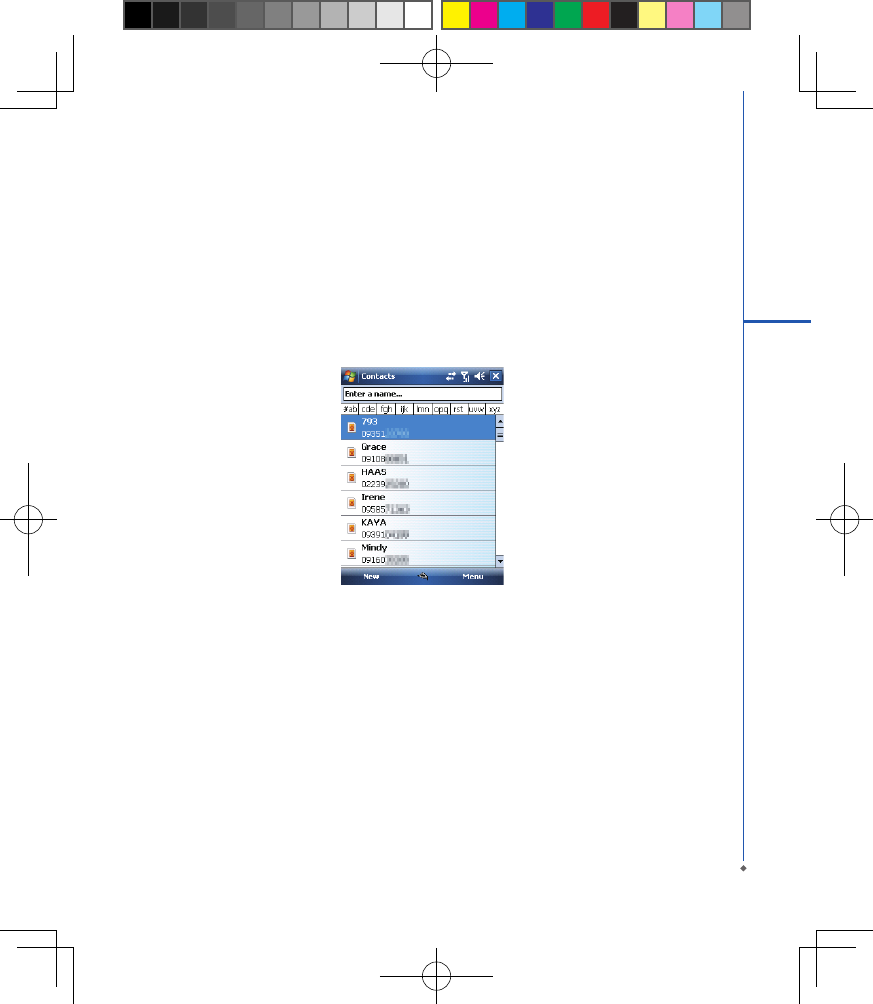
On Today screen, you can tap Contacts on the bottom right of the screen to enter Contacts. Or under Phone
Dialer screen, tap Contacts on the bottom left of the screen to enter Contacts.
1. Enter the contact or phone number you intend to search into the search eld, the phone will search for the contacts
3
Phone Functions
35
3
Phone Functions
that match this condition.
2. Tap and hold 5 Way Navigation key upwards or downwards to browse contacts by initial letters in Contacts. (This
function is available for contacts synchronized from Outlook only).
3. Tap on any contact to view that contact’s information.
4. Under Contacts screen, tap Call on the bottom left of the screen or tap Left Soft key to make a call to that
person.
5. Under Contacts screen, tap Menu on the bottom right of the screen for more options.
If you would like to make a call using a telephone, go to Contacts and highlight the person you would like to call.
Tap Menu > Sounds DTMF; then aim your MWg Atom V to the telephone receiver. Your telephone will dial out to the
desired contact upon reception of the DTMF sounds from your device.
3.8 Creating a new contact
On Contacts screen, tap New on the bottom left of the screen. A blank record will appear.
1. You may set photos in Picture eld for this contact, by which the contact’s photo will display as an incoming call
photo ID.
2. You may also tap Ring tone eld to set different incoming call ring tones for your contacts.
3. Tap OK on the top right of the screen to save the new contact and exit.
3.9 Call history
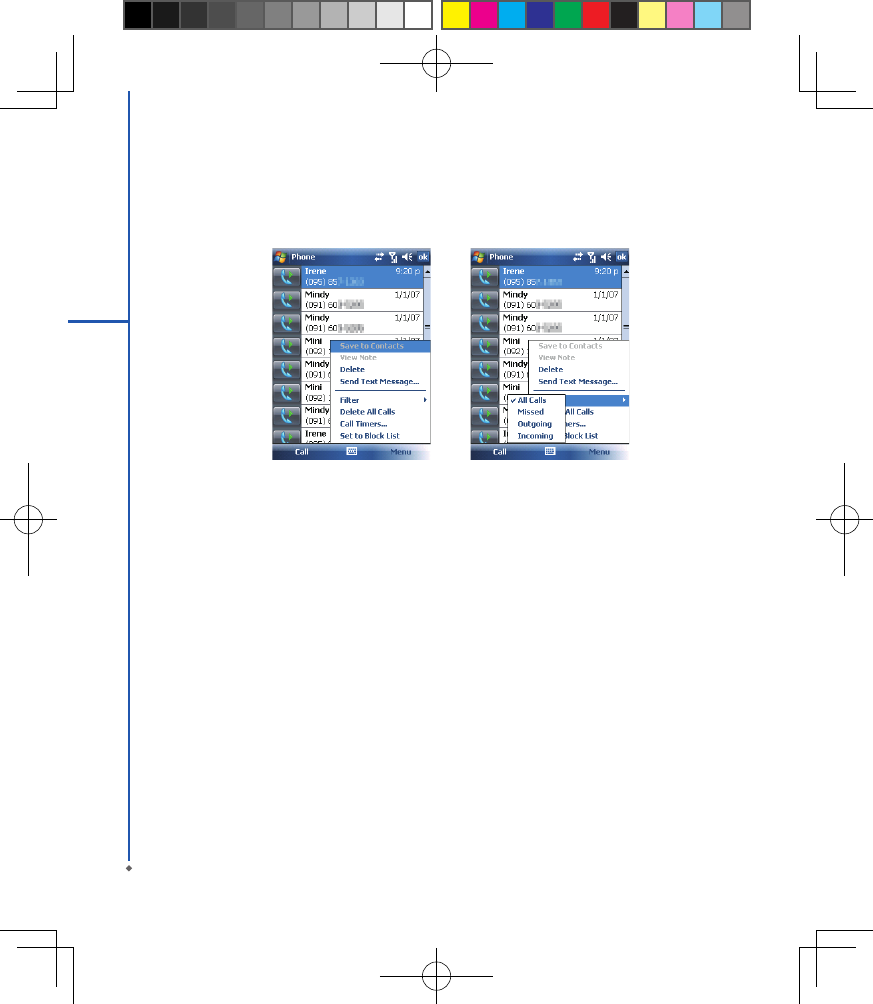
Call History contains all outgoing calls, incoming calls, and missed calls. You may choose to display all or only
display highlighted items.
1. On Today screen, tap Call History on the bottom left of the screen.
2. Tap Menu on the bottom right of the screen.
3. Select a desired function to perform. You may change call history display method by selecting Filter; or select
Call Timers to check incoming call numbers, call time, and manage incoming call history.
4. On Call History screen, select the icon on the upper left side of the main screen to redial this number at once.
5. On Call History screen, tap and hold on a phone number to open a drop-down menu for more options.
3.10 Setting ring tone and password
On Phone Dialer screen, tap Menu on the bottom right of the screen. Tap Options > Phone tab.
1. You may select a preferred ring type.
2. If you want to download ring tones, please use ActiveSync program in the computer and copy the ring tone le to
Application Data/ Sounds folder in your MWg Atom V. The ring tone les will be added as the options.
3. You can set keypad tone for dialing.
4. You can set personal password to prevent unauthorized use from others.
36
3
Phone Functions
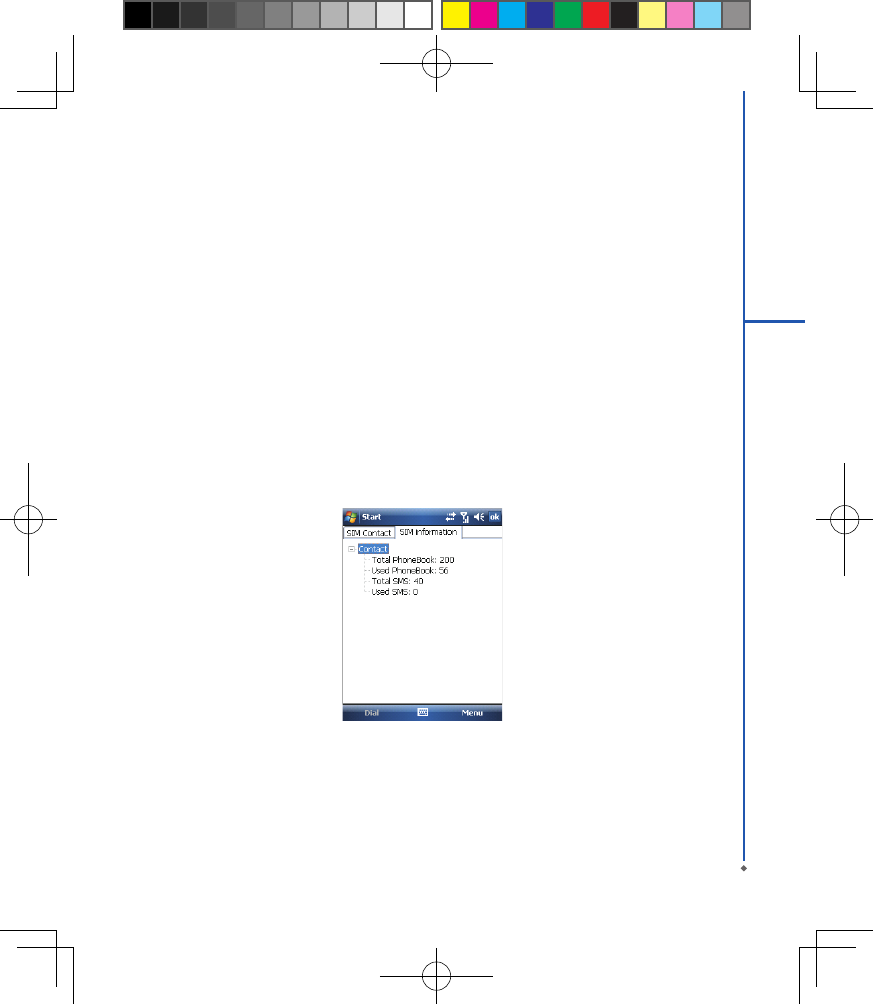
3.11 SIM manager
SIM card copy
Use this function to copy the contacts in SIM card to the device.
1. From Start > Programs > Phone Manager > SIM Manager
2. Choose the SIM card contacts on the top.
3. All contacts in SIM card will show on the screen.
4. Choose contacts you want to copy then select Copy to phone contacts and your contacts in SIM card will be
copied to Contacts in this device.
5. If you choose Recovery, the contacts will be recovery to your SIM card.
SIM card information
This function will show the information about your SIM card.
1. From Start > Programs > Phone Manager > SIM Manager
2. Choose SIM card information on the top.
3. Show the content of SIM card.
37
3
Phone Functions
38
3
Phone Functions
Chapter 4
Settings
4.1 Personal settings
4.2 System settings
40
4
Settings
Chapter 4 Settings
4.1 Personal settings
You may set your personalized settings by preference.
Buttons
You may assign programs to a hardware button.
You may set certain keys as the activation keys for your
most commonly used programs.
1. Tap Start > Settings > Personal tab > Buttons >
Program Buttons tab.
● Under Select a button, tap the button you want
to assign to a program, and then select a program
from Assign a program.
2. On Up/Down Control tab, Delay before first repeat
changes the time elapsed before scrolling begins.
Repeat rate changes the time it takes to scroll from
one item to the next.
Input
Set your preferred input method.
1. Tap Start > Settings > Personal tab > Input.
2. On Input Method tab, select a desired input method.
On Word Co mple t i o n tab, se lec t the de si r ed
settings for word completion. On Options tab, select
the desired options for writing and recording. These
options apply to any program on your MWg Atom V
where you can record or write. You can also change
input options by tapping the arrow and Options.
Lock
You may set a personal password to lock your MWg
Atom V.
A strong password must have at least 7 characters that
are a combination of uppercase and lower case letters,
numerals, and punctuation.
1. Tap Start > Settings > Personal tab > Lock.
2. To enable this function, select how long your MWg
Atom V must be turned off before the password is
required for using your MWg Atom V by tapping
Prompt if device unused for.
3. Select the type of password you would like to use:
Strong alphanumeric or Simple PIN.
4. Enter the password and,
● If your MWg Atom V is congured to connect to a
network, use a strong password to help protect
network security.
● If you forget your password, you must hard reset
before you can access your MWg Atom V. A hard
reset will erase all les and data you have created
and any programs you have installed.
● If you have used ActiveSync to create a backup
le, all of your program data can be restored.
41
4
Settings
Menus
Select the programs to be displayed in Start menu.
Only 7 programs are allowed in Start menu. To add the
programs you use most often to Start menu:
1. Tap Start > Settings > Personal tab > Menus.
2. Select the programs you want, and then tap OK.
Owner information
Sets layout, items, color and background of Today
display.
1. Tap Start > Set ti ngs > Persona l t ab > Owner
Information.
2 . O n I d e n t i f i c a t i o n t ab, en t er yo u r p er s on al
information.
3. On Notes tab, enter any additional text you want to
display when your MWg Atom V is turned on, such
as: “Welcome!”.
4. On Options tab, select which message will display
when your MWg Atom V is turned on.
Phone
Settings for phone functions.
You can easily view and change set tings, such as
the ring type and ring tone to be used for incoming
calls, and the keypad tone to be used when entering
phone numbers. You can also protect your device from
unauthorized use. There are two ways to change phone
settings:
● Tap Start > Settings > Personal tab > Phone.
● To change the phone settings from Phone screen, tap
Menu > Options.
Pho n e t a b
Under Phone tab, you can set up the following items:
Ring type
You can chang e the way that you are notif i ed of
incoming calls. For example, you can choose to be
notied by a ring, a vibration, or a combination of both.
Tap the Ring type list, and select the desired option.
Ring tone
Tap Ring tone list, and then select the sound you want
to use.
1. To s e t .wav o r . m i d f i le s a s r i ng t o n e s, u s e
ActiveSync on your PC to copy the le to \Windows\
Rings folder on your MWg Atom V. Select the sound
from Ring tone list.
2. To download ring tones, you can make a connection
to the Internet and then download ring tones that are
compatible with the .wav or .mid formats.
Keypad
You can change the tone you hear when entering a
phone number on the keypad. If set to Long tones, the
tone is heard continuously for as long as the number on
the keypad is pressed. If set to Short tones, the tone is
heard only for one or two seconds.
1. Tap Keypad list; then select the option you want.
2. To prevent tones from being heard when entering a
phone number, select Off.
Security
You may check Require PIN when phone is used
to enhance your phone security. Tap Change PIN to
change your SIM PIN number.
S er vic e s ta b
Set t i n g s i n c l u d e C a l l B a r ri n g , C a l l e r I D, Ca l l
Fo r wa rd i ng, Call Waiti ng , Voic e Mail and Text
Messages.
1. Tap Start > Settings > Personal tab > Phone >
Services tab.
2. Check the items you want to select and tap Get
Settings....
3. Tap OK to save settings and return to Personal tab
screen.
42
4
Settings
Please note: All services in Services are provided by operators. Please contact your operator for enquiries
regarding these services.
N et work t a b
Tap Start > Settings > Personal tab > Phone > Network tab.
● Under Current network, tap Find Network to automatically search for the network in use.
● Under Network Selection, select Automatic or Manual to select network automatically or manually.
● Under Preferred networks, tap Set Networks to set your preferred order of networks.
Sounds & Notications
Settings for alarm sound and notications.
Turning off sounds and the notication helps conserve battery power. To change the ring type and volume:
1. Tap Start > Settings > Personal tab > Sounds & Notifications.
2. On Sounds tab, you can select the desired actions.
3. On Notifications tab, you can customize how you are notied about different events. Select the event name and
then select the type of reminder. You can select a special sound, a message, a ash light, or vibrate.
Today
Settings for screen appearance and items displayed on the Today screen.
To change the theme of your Today screen:
1. Tap Start > Settings > Personal tab > Today.
2. On Appearance tab, select the desired theme. To use your own background, select Use this picture as the
background and then tap Browse to locate the desired le.
3. Choose a folder, tap the le you want, and tap OK.
Please note: The recommended picture size for the background is 240x320 pixels in jpeg le format. To beam a
favorite theme to a friend, select the desired theme, and tap Beam on Appearance tab.
Customizing the displayed information:
1. Tap Start > Settings > Personal tab > Today > Items tab.
2. Select the information you want to be displayed on Today screen.
3. To customize the information further, select an information type, and then tap Options (not available for all
information types).
Option Description
Call Barring Block incoming and/or outgoing calls.
Caller ID Display your name and/or phone number for outgoing calls.
Call Forwarding Forward all or selected incoming calls to a different phone number.
Call Waiting Notify you an incoming call while you are on the phone.
Voice Mail and Text
Messages
Set up voice mail and SMS service center.
43
4
Settings
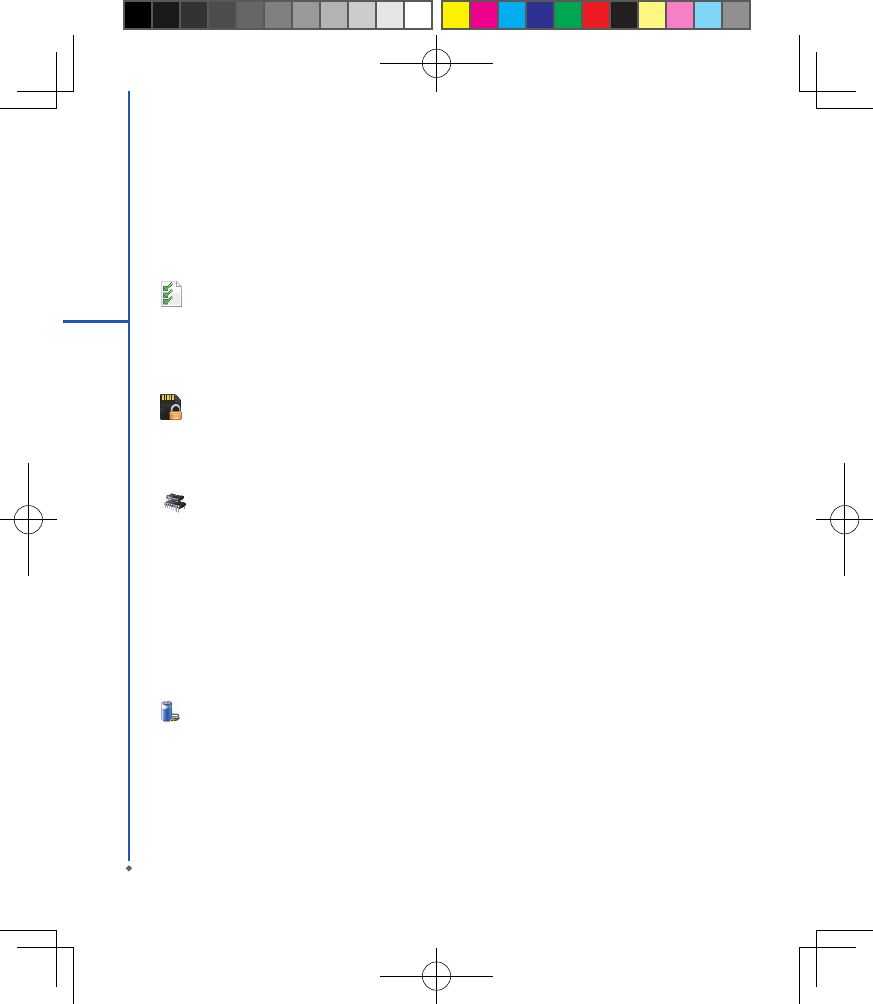
4.2 System settings
About
This function contains information about your MWg Atom V.
Version tab displays important device information, including the amount of memory installed. On the Device ID tab,
you may need to change your device name if you are unable to connect to a network because another device with
the same name is already connected.
Backlight
Congure the backlight settings and adjusts the brightness level to save power.
Using the backlight on battery power substantially reduces batter y life. Tap Start > Settings > System tab >
Backlight.
● Tap Battery power tab to turn ON/OFF the backlight when using battery power.
● Tap External power tab to turn ON/OFF the backlight when using external power.
● Tap Extended tab to adjust the brightness level.
Certicates
Information about the certicate issuer and the expiration date.
Tap Certificates to view the name of the certicate issuer and the expiration date.
Clock & Alarms
Settings for time and alarms.
Tap Start > Settings > System tab > Clock & Alarms.
44
4
Settings
● If you visit a particular time zone often, select it as your Visiting time zone on Time tab so that you can quickly see
the correct date and time.
● You can use your MWg Atom V as a travel alarm clock by setting a wake-up alarm on Alarms tab. Tap the alarm
icon to select the type of alarm you want.
● To change the way the date or time is displayed on your MWg Atom V, go to Regional Settings by tapping Start >
Settings > System tab > Regional Settings.
Customer Feedback
Customer Experience Improvement Program from Microsoft®.
It is Customer Experience Improvement Program designed by Microsoft®. The purpose is to identing trends and
usage patterns to improve the software. You can check Send Feedback to participate or Don't Send Feedback to
reject.
Encryption
Encrypt les.
You can encrypt les stored on the micro SD card by simply checking Encrypt files placed on storage card. Once
encrypted, such les are only readable by this device.
Memory
Display memory status and programs that are currently running.
You may need to stop a program if it becomes unstable or the program memory is low. Tap Start > Settings >
System tab > Memory.
● Main tab displays the amount of memory the system has allocated to le and data storage versus program storage.
This tab also displays the amount of memory in use versus the available memory.
● Storage Card tab displays how much memory is available on the storage card that is inserted into your MWg Atom
V.
● Running Programs tab displays the list of currently active programs. You can stop a program by selecting it in the
list and then tapping Stop, or just tap Stop All to stop all the running programs.
Power
Battery status and settings.
Tap Start > Settings > System tab > Power.
● Battery tab displays the amount of battery power remaining. Battery power depends on the battery type and how
your MWg Atom V is being used.
● Under Advanced tab, you can select options for turning off your MWg Atom V to conserve battery power.
● Under Extended tab, you can check lock MWg Atom V when entering stand-by mode.
When your MWg Atom V enters stand-by mode, it will automatically enable device lock.
45
4
Settings
Regional settings
Settings for region, number, currency, time, and date format.
This feature allows you to customize the unit and format for the region you are in. To access this feature, tap Start >
Settings > System tab > Regional Settings.
Remove programs
Remove programs from your MWg Atom V.
Remove Programs allows you to uninstall programs that are saved in your device’s storage memory. It also shows
the total available storage memory. Select a program that you would like to remove from the program box and tap
Remove.
Screen
Settings for screen orientation, screen alignment, and text size.
● Under General tab, you can adjust the screen’s orientation and align the screen.
● Under Clear Type tab, you can select Enable Clear Type to smooth the edges of screen fonts for many programs.
● Under Text Size tab, you can adjust the text size to see more content or increase the readability in many programs.
System Info
Display the system information.
This feature displays the system information Including hardware information and software (ROM) version.
46
4
Settings