GOOD GRACE FAR EAST JWM10A JENSEN SLIMLINE 2-ZONE STERO User Manual 91AF10000G IB JWM10A FCC

GOOD GRACE FAR EAST LIMITED JENSEN SLIMLINE 2-ZONE STERO 91AF10000G IB JWM10A FCC

15_JWM10A UserMan r1

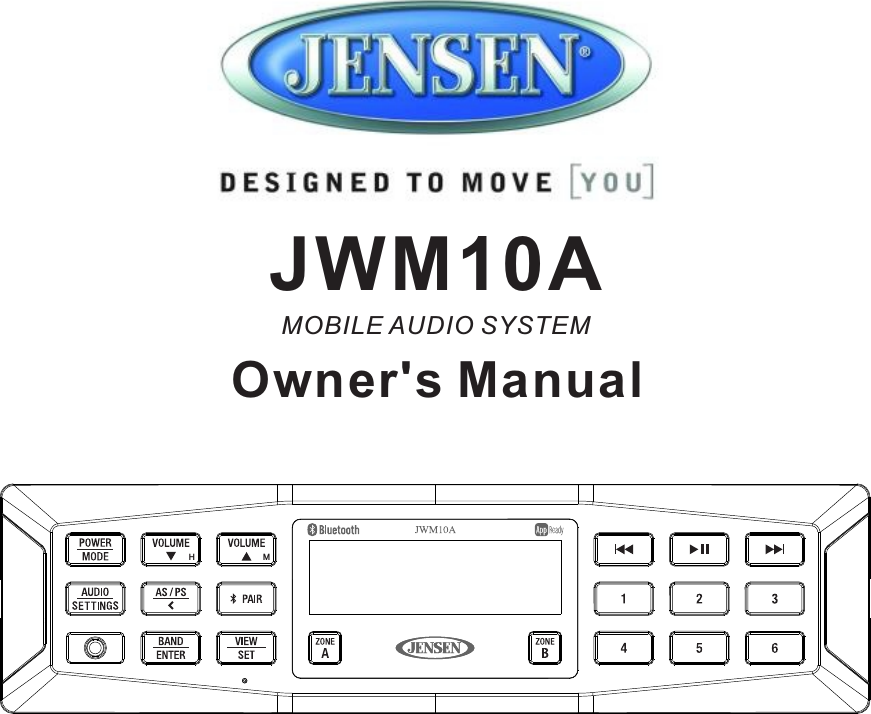
 Owner's Manual  MOBILE AUDIO SYSTEM JWM10AH  M
 JWM10A  Introduction.........................................................     Installation..........................................................     Wiring..............................................................  Basic Operation.....................................................   Tuner Operation.....................................................  Bluetooth Operation..................................................   APP Operation......................................................   Specifications.......................................................     34567899CONTENTS
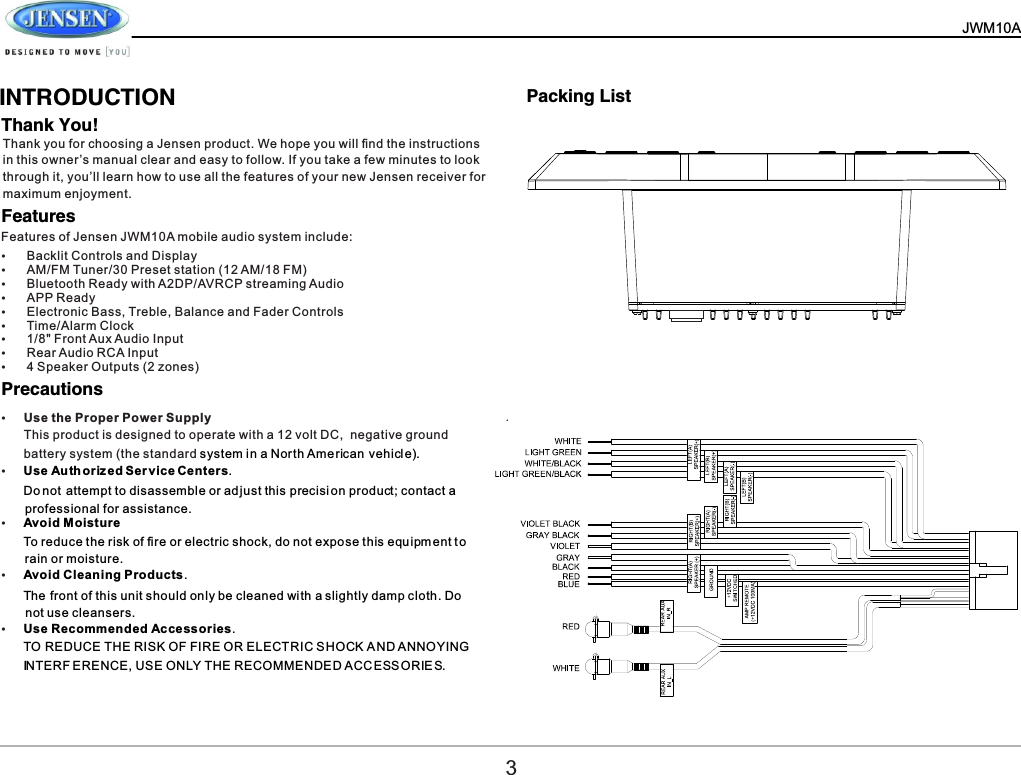
  JWM10A       INTRODUCTIONThank You!Features           Precautions     Thank you for choosing a Jensen product. We hope you will find the instructions in this owner’s manual clear and easy to follow. If you take a few minutes to look through it, you’ll learn how to use all the features of your new Jensen receiver for maximum enjoyment.Features of Jensen JWM10A mobile audio system include:ŸBacklit Controls and DisplayŸAM/FM Tuner/30 Preset station (12 AM/18 FM)ŸBluetooth Ready with A2DP/AVRCP streaming AudioŸAPP ReadyŸElectronic Bass, Treble, Balance and Fader ControlsŸTime/Alarm ClockŸ1/8" Front Aux Audio InputŸRear Audio RCA InputŸ4 Speaker Outputs (2 zones)ŸUse the Proper Power SupplyThis product is designed to operate with a 12 volt DC,  negative ground battery system (the standard system in a North Ame rican vehicl e).ŸUse Au th oriz ed Ser v ice Centers.Do not attempt to disassemble or ad just this p recisi on product; contact a   professional for assistance.ŸAvoid Moisture To reduce the risk of fire or electric shock, do not expose this equ ipm ent t o  rain or moisture.ŸAvoid Cleaning Products.The front of this unit should only be cleaned with a slightly damp cloth. Do  not use cleansers.ŸUse Recommended Accessories.TO REDUCE THE RISK OF FIRE OR ELECTRIC S HOCK A ND ANNOYING  INTERF ERENCE, USE ONLY THE RECOMMENDED A CC ESS OR IE S.Packing List3.
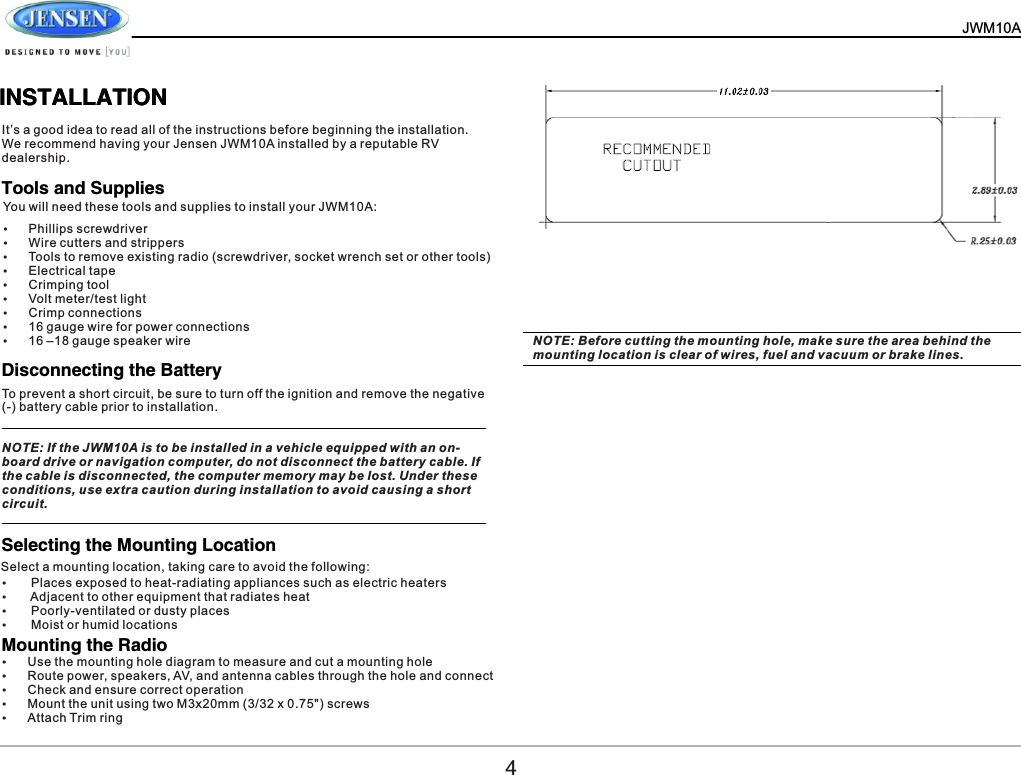
JWM10A          INSTALLATIONINSTALLATIONIt’s a good idea to read all of the instructions before beginning the installation. We recommend having your Jensen JWM10A installed by a reputable RV dealership.You will need these tools and supplies to install your JWM10A:Select a mounting location, taking care to avoid the following:ŸPhillips screwdriverŸWire cutters and strippersŸTools to remove existing radio (screwdriver, socket wrench set or other tools)ŸElectrical tapeŸCrimping toolŸVolt meter/test lightŸCrimp connectionsŸ16 gauge wire for power connectionsŸ16 –18 gauge speaker wireTools and SuppliesDisconnecting the BatterySelecting the Mounting Location Mounting the RadioTo prevent a short circuit, be sure to turn off the ignition and remove the negative (-) battery cable prior to installation.NOTE: If the JWM10A is to be installed in a vehicle equipped with an on-board drive or navigation computer, do not disconnect the battery cable. If the cable is disconnected, the computer memory may be lost. Under these conditions, use extra caution during installation to avoid causing a short circuit.Ÿ Places exposed to heat-radiating appliances such as electric heatersŸ Adjacent to other equipment that radiates heatŸ Poorly-ventilated or dusty placesŸ Moist or humid locationsŸUse the mounting hole diagram to measure and cut a mounting holeŸRoute power, speakers, AV, and antenna cables through the hole and connectŸCheck and ensure correct operationŸMount the unit using two M3x20mm (3/32 x 0.75") screwsŸAttach Trim ringNOTE: Before cutting the mounting hole, make sure the area behind the mounting location is clear of wires, fuel and vacuum or brake lines.4
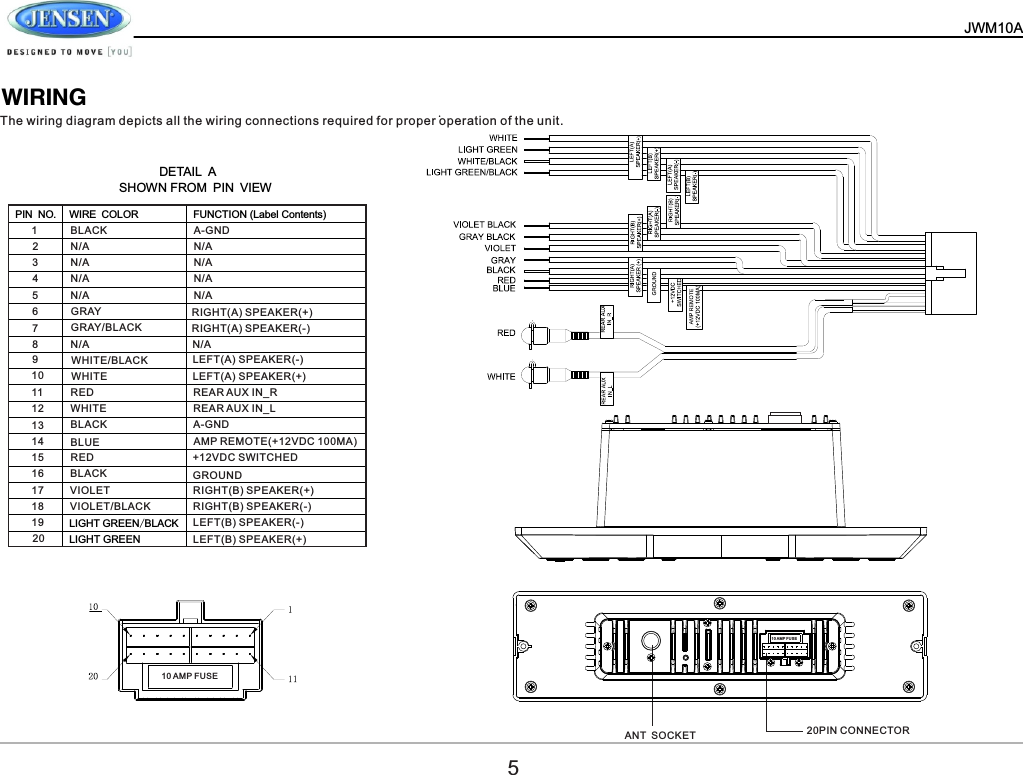
  JWM10A       DETAIL ASHOWN FROM PIN VIEWPIN NO. WIRE COLOR FUNCTION (Label Contents)                                 LIGHT GREEN/BLACK   LIGHT GREEN  WIRINGAMP REMOTE(+12VDC 100MA) 1951317210614183117151941281620BLACK A-GNDN/A N/AN/A N/AN/A N/AN/AN/A N/ARED REAR AUX IN_RREAR AUX IN_LA-GNDWHITEBLACKBLUEREDBLACKVIOLETVIOLET/BLACKGRAYGRAY/BLACKWHITE/BLACKWHITEN/AThe wiring diagram depicts all the wiring connections required for proper operation of the unit.LEFT(B) SPEAKER(+)LEFT(A) SPEAKER(+)LEFT(B) SPEAKER(-)LEFT(A) SPEAKER(-)RIGHT(B) SPEAKER(-)RIGHT(A) SPEAKER(-)RIGHT(B) SPEAKER(+) RIGHT(A) SPEAKER(+) GROUND +12VDC SWITCHED ANT SOCKET 20PIN CONNECTOR510 AMP FUSE10 AMP F USE.
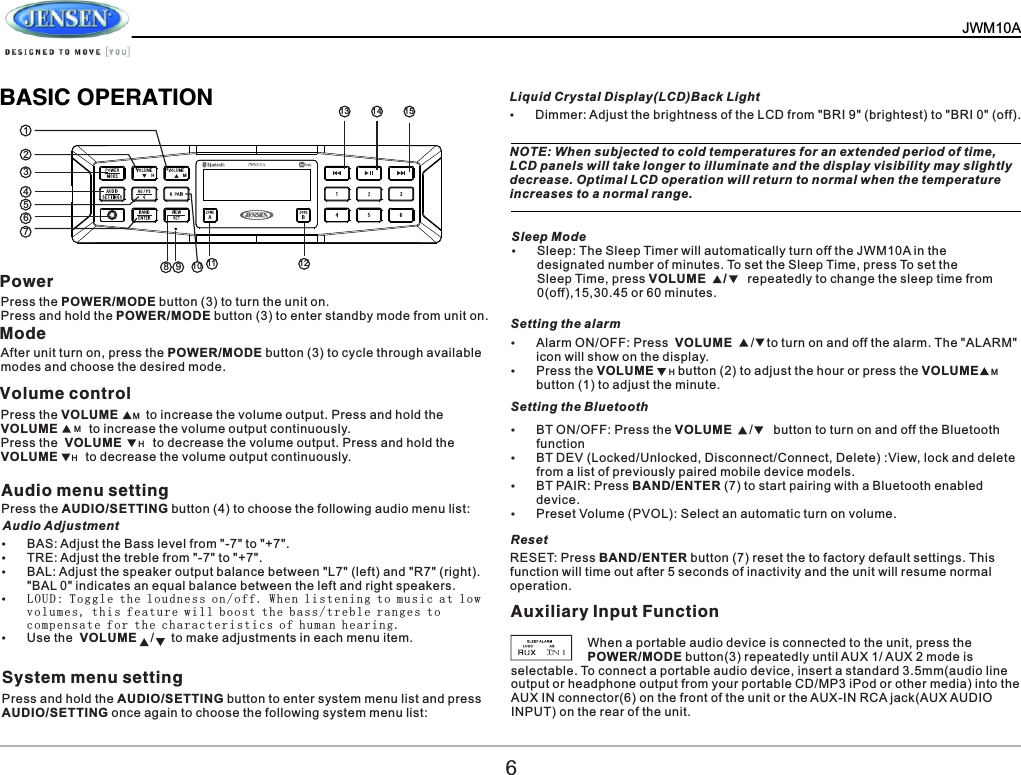
  JWM10A    BASIC OPERATIONPower Mode Audio menu settingSystem menu settingPress the POWER/MODE button (3) to turn the unit on.Press and hold the POWER/MODE button (3) to enter standby mode from unit on.After unit turn on, press the POWER/MODE button (3) to cycle through available modes and choose the desired mode.Press the AUDIO/SETTING button (4) to choose the following audio menu list:Sleep ModeLiquid Crystal Display(LCD)Back LightŸSleep: The Sleep Timer will automatically turn off the JWM10A in the  designated number of minutes. To set the Sleep Time, press To set the Sleep Time, press VOLUME     /      repeatedly to change the sleep time from 0(off),15,30.45 or 60 minutes.ŸDimmer: Adjust the brightness of the LCD from "BRI 9" (brightest) to "BRI 0" (off).NOTE: When subjected to cold temperatures for an extended period of time, LCD panels will take longer to illuminate and the display visibility may slightly decrease. Optimal LCD operation will return to normal when the temperature increases to a normal range.Setting the alarmSetting the BluetoothResetŸAlarm ON/OFF: Press  VOLUME   /  to turn on and off the alarm. The "ALARM" icon will show on the display.ŸPress the VOLUME       button (2) to adjust the hour or press the VOLUME  button (1) to adjust the minute.ŸBT ON/OFF: Press the VOLUME     /      button to turn on and off the Bluetooth functionŸBT DEV (Locked/Unlocked, Disconnect/Connect, Delete) :View, lock and delete from a list of previously paired mobile device models.ŸBT PAIR: Press BAND/ENTER (7) to start pairing with a Bluetooth enabled device.ŸPreset Volume (PVOL): Select an automatic turn on volume.RESET: Press BAND/ENTER button (7) reset the to factory default settings. This function will time out after 5 seconds of inactivity and the unit will resume normal operation.ŸBAS: Adjust the Bass level from "-7" to "+7".ŸTRE: Adjust the treble from "-7" to "+7".ŸBAL: Adjust the speaker output balance between "L7" (left) and "R7" (right). "BAL 0" indicates an equal balance between the left and right speakers.ŸLO U D : Tog g le th e l o ud n e ss on / off . W h en li s ten i n g to mu s ic at l o w vo l u mes , t his f e a tu r e w ill b o ost t h e b ass / tre b l e ran g es to co m p ens a te fo r t h e ch a r act e ris t i cs of h u man h e a rin g .ŸUse the  VOLUME    /     to make adjustments in each menu item.Press and hold the AUDIO/SETTING button to enter system menu list and press AUDIO/SETTING once again to choose the following system menu list:Volume controlPress the VOLUME        to increase the volume output. Press and hold the  VOLUME         to increase the volume output continuously.Press the  VOLUME         to decrease the volume output. Press and hold the  VOLUME        to decrease the volume output continuously.Audio Adjustment612345678 9 10 11 1213 14 15H  MAuxiliary Input Function                      When a portable audio device is connected to the unit, press the                       POWER/MODE button(3) repeatedly until AUX 1/ AUX 2 mode is selectable. To connect a portable audio device, insert a standard 3.5mm(audio line output or headphone output from your portable CD/MP3 iPod or other media) into the AUX IN connector(6) on the front of the unit or the AUX-IN RCA jack(AUX AUDIO INPUT) on the rear of the unit.MMHHHM
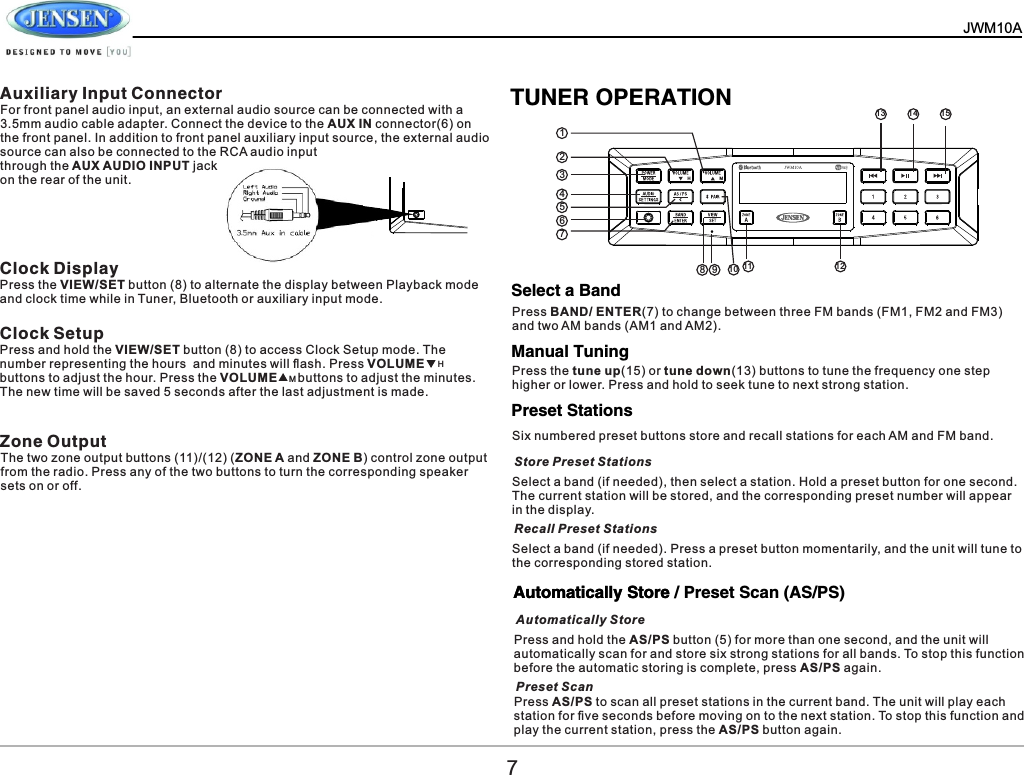
  JWM10A     Auxiliary Input ConnectorClock DisplayClock SetupZone OutputPress the VIEW/SET button (8) to alternate the display between Playback mode and clock time while in Tuner, Bluetooth or auxiliary input mode.Press and hold the VIEW/SET button (8) to access Clock Setup mode. The number representing the hours  and minutes will flash. Press VOLUME        buttons to adjust the hour. Press the VOLUME      buttons to adjust the minutes. The new time will be saved 5 seconds after the last adjustment is made.The two zone output buttons (11)/(12) (ZONE A and ZONE B) control zone output from the radio. Press any of the two buttons to turn the corresponding speaker sets on or off.For front panel audio input, an external audio source can be connected with a 3.5mm audio cable adapter. Connect the device to the AUX IN connector(6) on the front panel. In addition to front panel auxiliary input source, the external audio source can also be connected to the RCA audio input through the AUX AUDIO INPUT jack on the rear of the unit.       Select a BandManual TuningPreset StationsPress BAND/ ENTER(7) to change between three FM bands (FM1, FM2 and FM3) and two AM bands (AM1 and AM2).Press the tune up(15) or tune down(13) buttons to tune the frequency one step higher or lower. Press and hold to seek tune to next strong station.Six numbered preset buttons store and recall stations for each AM and FM band.Select a band (if needed), then select a station. Hold a preset button for one second. The current station will be stored, and the corresponding preset number will appear in the display.Select a band (if needed). Press a preset button momentarily, and the unit will tune to the corresponding stored station.Store Preset StationsRecall Preset Stations12345678 9 10 11 1213 14 15H  MTUNER OPERATIONAutomatically Store / Preset Scan (AS/PS)Automatically StorePress and hold the AS/PS button (5) for more than one second, and the unit will automatically scan for and store six strong stations for all bands. To stop this function before the automatic storing is complete, press AS/PS again.Press AS/PS to scan all preset stations in the current band. The unit will play each station for five seconds before moving on to the next station. To stop this function and play the current station, press the AS/PS button again.Automatically StorePreset Scan7HM
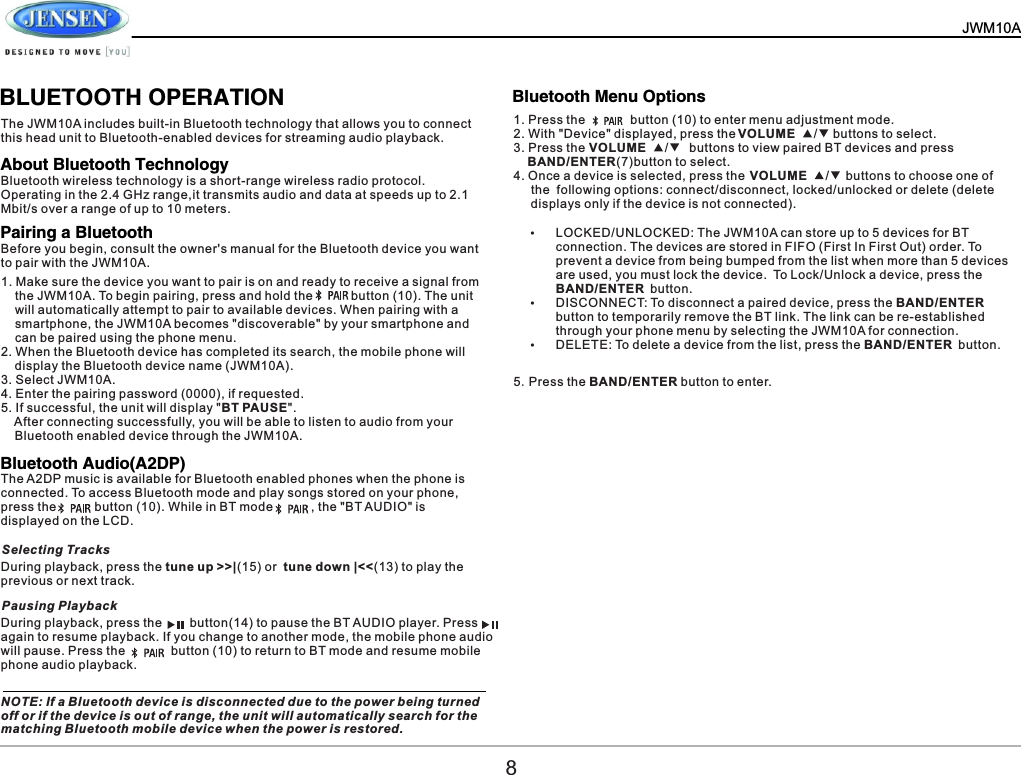
  JWM10A        BLUETOOTH OPERATIONThe JWM10A includes built-in Bluetooth technology that allows you to connect this head unit to Bluetooth-enabled devices for streaming audio playback.1. Press the             button (10) to enter menu adjustment mode.2. With "Device" displayed, press the                            buttons to select.3. Press the                              buttons to view paired BT devices and press     BAND/ENTER(7)button to select.4. Once a device is selected, press the                             buttons to choose one of      the  following options: connect/disconnect, locked/unlocked or delete (delete      displays only if the device is not connected).ŸLOCKED/UNLOCKED: The JWM10A can store up to 5 devices for BT connection. The devices are stored in FIFO (First In First Out) order. To prevent a device from being bumped from the list when more than 5 devices are used, you must lock the device. To Lock/Unlock a device, press the BAND/ENTER button.ŸDISCONNECT: To disconnect a paired device, press the BAND/ENTER button to temporarily remove the BT link. The link can be re-established through your phone menu by selecting the JWM10A for connection.ŸDELETE: To delete a device from the list, press the BAND/ENTER button.Bluetooth wireless technology is a short-range wireless radio protocol. Operating in the 2.4 GHz range,it transmits audio and data at speeds up to 2.1 Mbit/s over a range of up to 10 meters.5.Press the BAND/ENTER button to enter.Before you begin, consult the owner's manual for the Bluetooth device you want to pair with the JWM10A.The A2DP music is available for Bluetooth enabled phones when the phone is connected. To access Bluetooth mode and play songs stored on your phone, press the           button (10). While in BT mode           , the "BT AUDIO" is displayed on the LCD.During playback, press the tune up >>|(15) or  tune down |<<(13) to play the previous or next track.During playback, press the        button(14) to pause the BT AUDIO player. Press      again to resume playback. If you change to another mode, the mobile phone audio will pause. Press the          button (10) to return to BT mode and resume mobile phone audio playback.NOTE: If a Bluetooth device is disconnected due to the power being turned off or if the device is out of range, the unit will automatically search for the matching Bluetooth mobile device when the power is restored.1. Make sure the device you want to pair is on and ready to receive a signal from     the JWM10A. To begin pairing, press and hold the           button (10). The unit     will automatically attempt to pair to available devices. When pairing with a     smartphone, the JWM10A becomes "discoverable" by your smartphone and     can be paired using the phone menu.2. When the Bluetooth device has completed its search, the mobile phone will     display the Bluetooth device name (JWM10A).3. Select JWM10A.4. Enter the pairing password (0000), if requested.5. If successful, the unit will display "BT PAUSE".    After connecting successfully, you will be able to listen to audio from your     Bluetooth enabled device through the JWM10A.About Bluetooth TechnologyBluetooth Menu OptionsPairing a BluetoothBluetooth Audio(A2DP)Selecting TracksPausing PlaybackVOLUME   / VOLUME   / VOLUME   / 8
  JWM10A       APP OPERATION SPECIFICATIONS JENSEN® Specialty Controller is the ultimate wireless remote control for your JENSEN stereo system. Store away your old remotes and enjoy the convenience of all the primary functions of your JENSEN stereo right from your phone or tablet by transforming your mobile device into a functional stereo remote control! This app controls all of the primary functions of your stereo features including: ŸPower on/offŸVolume and mute ŸAM/FM radio tuner: access station, recall, store presets, switch songs ŸBluetooth® streaming audioŸAuxiliary audio input control –auxiliary analog 1 & 2, auxiliary digital coaxial, auxiliary digital optical ŸSpeaker selection A and/or BŸAudio menu controls-bass, treble, balance, volume and speaker selection settingsŸClock with sleep time and alarmŸVisual display feedback so you can see artist title and album on your mobile screen FEATURESFCC NoticeConnecting and using jControl appAfter downloading and installing jControl app on your apple device. pair your device to the JWM10A as stated above for Bluetooth paring. Once your device is paired you can open the app and use as instructed with the jControl app manual found at http://asaelectronics.com/manuals-guides.When jControl  is installed on Android operating system, close the app before Bluetooth pairing, otherwise there may be errors on Bluetooth connection.General Power Supply Requirements . . . . . . . . . . . . . . . . . . . DC12 Volts, Negative Ground Operating Voltage . . . . . . . . . . . . . . . . . . . . . . . . . . . . . . . . . . . . . . . . . . . . 10-16 VDC Overall Dimensions . . . . . . . . . . . . . . . . . . . . . .. . . . . . .10.4"(W) x 2.8"(H) x 3.6"(D) Weight . . . . . . . . . . . . . . . . . . . . . . . . . . . . . . . . . . . . . . . . . . . . . . . . .1.0 lbs. (0.39Kg) FM Tuner Tuner Range . . . . . . . . . . . . . . . . . . . . . . . . . . . . . . . . . . . . . . . . . . . . 87.5-107.9 Mhz Sensitivity . . . . . . . . . . . . . . . . . . . . . . . . . . . . . . . . . . . . . . . . . . . . . . . . . . .. . . . <5 μV Stereo Separation @ 1kHz. . . . . . . . . . . . . . . . . . . . . . . . . . . . . . . . . . . . . . . .  >30 dB AM Tuner Tuner Range . . . . . . . . . . . . . . . . . . . . . . . . . . . . . . . . . . . . . . . . . . . . . . 530-1710 kHz Sensitivity . . . . . . . . . . . . . . . . . . . . . . . . . . . . . . . . . . . . . . . . . . . . . . . . . . . . . . <30 μV Amplifier Output Power . . . . . . . . . . . . . . . . . . . . . . . . . . . . . . . . . . . . . . . . . . . . . . . 4 x 6 Watts per Channel Output Impedance . . . Compatible with 4-8 ohms speakers, 4 ohm load minimum Total System Power . . . . . . . . . . . . . . . . . . . . . . . . . . . . . . . . . . .  24 Watts Maximum Specifications subject to change without notice. NOTE: This equipment has been tested and found to comply with the limits for a Class B digital device, pursuant to Part 15 of the FCC Rules. These limits are designed to provide reasonable protection against harmful interference in a residential installation. This equipment generates uses and can radiate radio frequency energy and, if not installed and used in accordance with the instructions, may cause harmful interference to radio communications. However, there is no guarantee that interference will not occur in a particular installation. If this equipment does cause harmful interference to radio or television reception, which can be determined by turning the equipment off and on, the user is encouraged to try to correct the interference by one or more of the following measures: ---Reorient or relocate the receiving antenna.---Increase the separation between the equipment and receiver.  ---Connect the equipment into an outlet on a circuit different from that to which the      receiver is connected.---Consult the dealer or an experienced radio/TV technician for help.WARNING: Changes or modifications not expressly approved by the party responsible for compliance could void the user's authority to operate the equipment. This equipment complied with FCC radiation exposure limits set forth for an uncontrolled environment. This equipment should be installed and operated with minimum distance 20cm between the radiator & your body.9NOTE: The manufacturer is not responsible for any radio or TV interference caused by unauthorized modifications to this equipment. Such modifications could void the user's authority to operate the equipment.

Navigation menu