GUANGZHOU TAIMA TI4145 Wireless Barcode Scanner User Manual

GUANGZHOU TAIMA(TICODE) ELECTRONICS TECHNOLOGY LTD. Wireless Barcode Scanner

User Manual

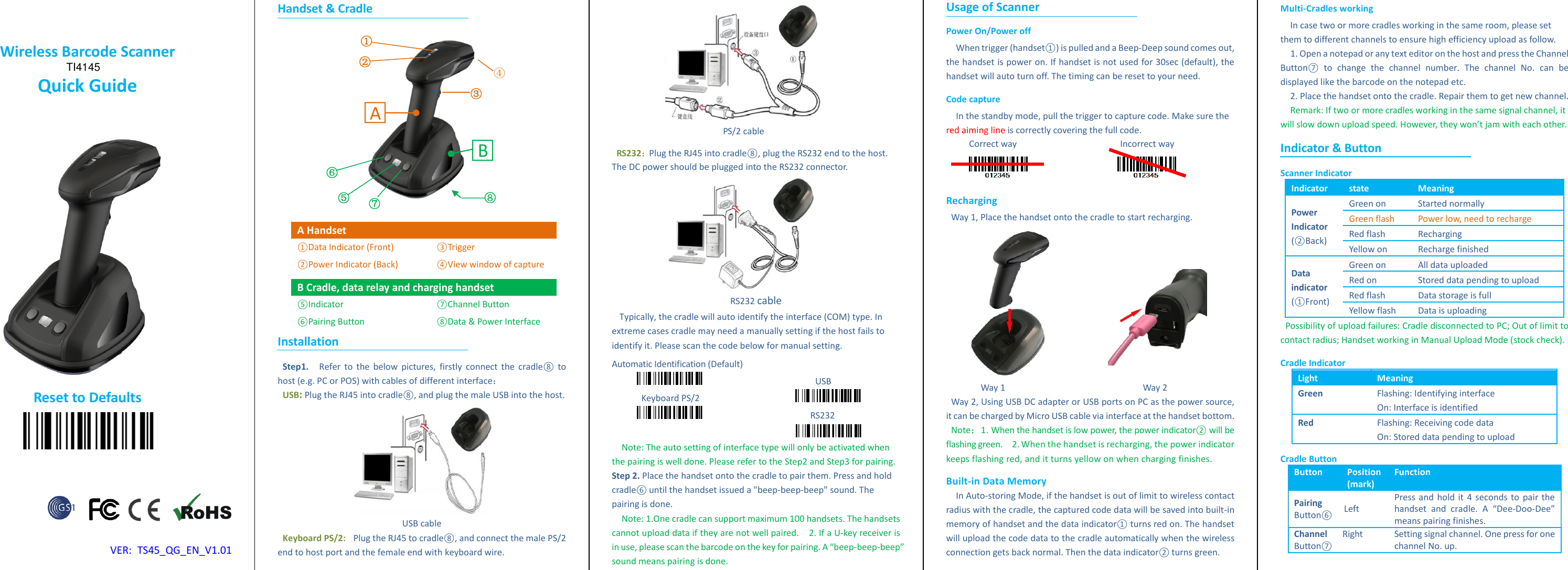
 Wireless Barcode Scanner Quick Guide                  Reset to Defaults               VER:  TS45_QG_EN_V1.01 Handset & Cradle    A Handset ①Data Indicator (Front) ②Power Indicator (Back) ③Trigger ④View window of capture B Cradle, data relay and charging handset ⑤Indicator ⑥Pairing Button ⑦Channel Button ⑧Data & Power Interface Installation Step 1.   Refer to  the  below pictures, firstly  connect the  cradle⑧  to host (e.g. PC or POS) with cables of different interface: USB: Plug the RJ45 into cradle⑧, and plug the male USB into the host.    USB cable Keyboard PS/2:  Plug the RJ45 to cradle⑧, and connect the male PS/2 end to host port and the female end with keyboard wire.  PS/2 cable   RS232:Plug the RJ45 into cradle⑧, plug the RS232 end to the host. The DC power should be plugged into the RS232 connector.    RS232 cable Typically, the cradle will auto identify the interface (COM) type. In extreme cases cradle may need a manually setting if the host fails to identify it. Please scan the code below for manual setting.   Automatic Identification (Default)                                               USB   Keyboard PS/2                                                                                   RS232                    Note: The auto setting of interface type will only be activated when the pairing is well done. Please refer to the Step2 and Step3 for pairing.   Step 2. Place the handset onto the cradle to pair them. Press and hold cradle⑥ until the handset issued a "beep-beep-beep" sound. The pairing is done.   Note: 1.One cradle can support maximum 100 handsets. The handsets cannot upload data if they are not well paired.  2. If a U-key receiver is in use, please scan the barcode on the key for pairing. A “beep-beep-beep” sound means pairing is done.   Usage of Scanner Power On/Power off When trigger (handset①) is pulled and a Beep-Deep sound comes out, the handset is power on. If handset is not used for 30sec (default), the handset will auto turn off. The timing can be reset to your need.   Code capture In the standby mode, pull the trigger to capture code. Make sure the red aiming line is correctly covering the full code.   Correct way                                          Incorrect way                    Recharging Way 1, Place the handset onto the cradle to start recharging.                            Way 1                                                        Way 2 Way 2, Using USB DC adapter or USB ports on PC as the power source, it can be charged by Micro USB cable via interface at the handset bottom.   Note:1. When the handset is low power, the power indicator② will be flashing green.  2. When the handset is recharging, the power indicator keeps flashing red, and it turns yellow on when charging finishes.   Built-in Data Memory In Auto-storing Mode, if the handset is out of limit to wireless contact radius with the cradle, the captured code data will be saved into built-in memory of handset and the data indicator① turns red on. The handset will upload the code data to the cradle automatically when the wireless connection gets back normal. Then the data indicator② turns green.   Multi-Cradles working In case two or more cradles working in the same room, please set them to different channels to ensure high efficiency upload as follow.   1. Open a notepad or any text editor on the host and press the Channel Button⑦  to  change  the  channel  number.  The  channel  No.  can  be displayed like the barcode on the notepad etc.   2. Place the handset onto the cradle. Repair them to get new channel.   Remark: If two or more cradles working in the same signal channel, it will slow down upload speed. However, they won’t jam with each other.   Indicator & Button Scanner Indicator Indicator state Meaning Power Indicator (②Back) Green on Started normally Green flash Power low, need to recharge Red flash Recharging Yellow on Recharge finished Data indicator (①Front) Green on All data uploaded Red on Stored data pending to upload Red flash Data storage is full Yellow flash Data is uploading Possibility of upload failures: Cradle disconnected to PC; Out of limit to contact radius; Handset working in Manual Upload Mode (stock check). Cradle Indicator Light Meaning Green Flashing: Identifying interface On: Interface is identified Red Flashing: Receiving code data On: Stored data pending to upload Cradle Button   Button Position (mark) Function Pairing Button⑥ Left   Press and hold it 4 seconds to pair the handset  and  cradle.  A  “Dee-Doo-Dee” means pairing finishes.   Channel Button⑦ Right Setting signal channel. One press for one channel No. up.    ① ② ③ ⑤ ⑥ ⑦ ④ ⑧ □A  □B  TI4145
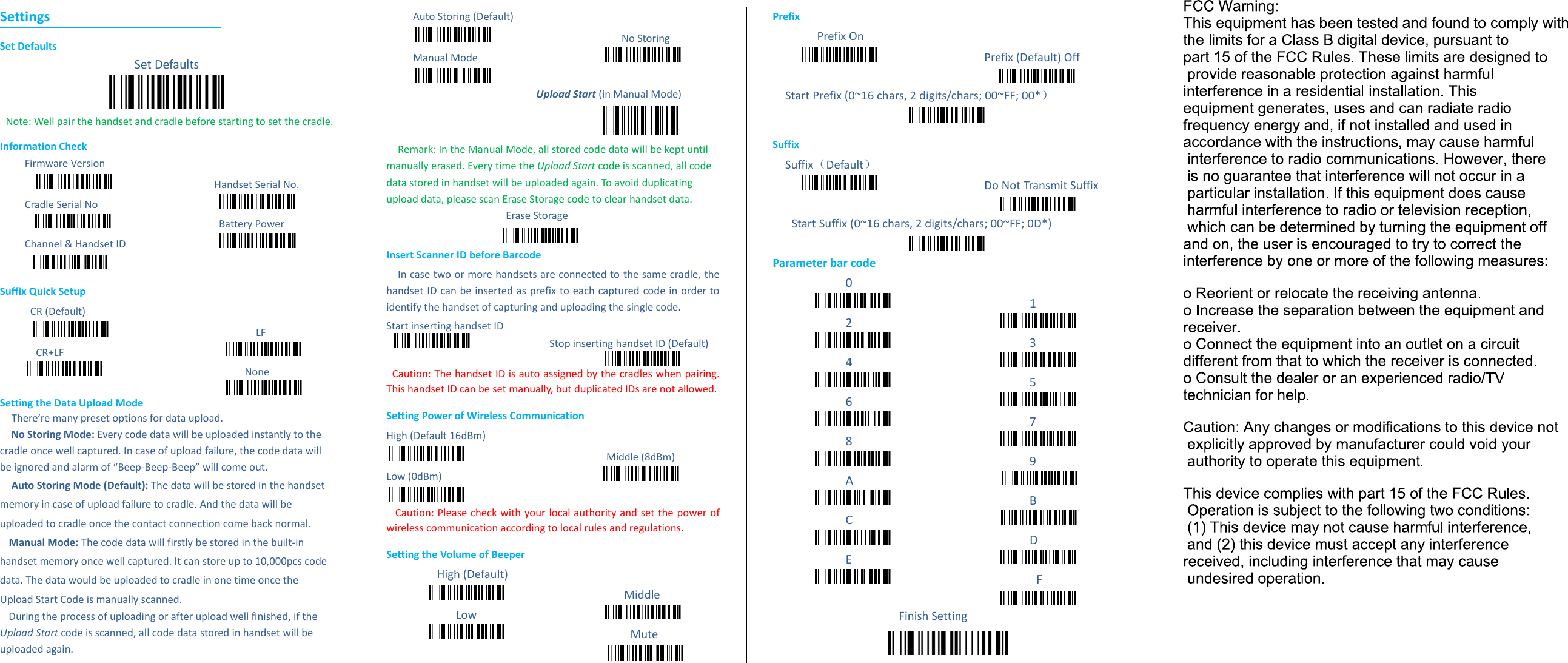
Settings Set Defaults Set Defaults  Note: Well pair the handset and cradle before starting to set the cradle.   Information Check Firmware Version                                   Handset Serial No.   Cradle Serial No                                                                               Battery Power Channel & Handset ID                   Suffix Quick Setup CR (Default)                                                   LF CR+LF                                                                                                             None  Setting the Data Upload Mode     There’re many preset options for data upload.   No Storing Mode: Every code data will be uploaded instantly to the cradle once well captured. In case of upload failure, the code data will be ignored and alarm of “Beep-Beep-Beep” will come out. Auto Storing Mode (Default): The data will be stored in the handset memory in case of upload failure to cradle. And the data will be uploaded to cradle once the contact connection come back normal.     Manual Mode: The code data will firstly be stored in the built-in handset memory once well captured. It can store up to 10,000pcs code data. The data would be uploaded to cradle in one time once the Upload Start Code is manually scanned.   During the process of uploading or after upload well finished, if the Upload Start code is scanned, all code data stored in handset will be uploaded again.     Auto Storing (Default)                                               No Storing Manual Mode                                              Upload Start (in Manual Mode)  Remark: In the Manual Mode, all stored code data will be kept until manually erased. Every time the Upload Start code is scanned, all code data stored in handset will be uploaded again. To avoid duplicating upload data, please scan Erase Storage code to clear handset data.   Erase Storage      Insert Scanner ID before Barcode In case two or more handsets are connected to the same cradle, the handset ID can be inserted as prefix to each captured code in order to identify the handset of capturing and uploading the single code.   Start inserting handset ID                             Stop inserting handset ID (Default)    Caution: The handset ID is auto assigned by the cradles when pairing. This handset ID can be set manually, but duplicated IDs are not allowed.   Setting Power of Wireless Communication   High (Default 16dBm)                            Middle (8dBm) Low (0dBm)                                                         Caution: Please check with your local authority and set the power of wireless communication according to local rules and regulations.   Setting the Volume of Beeper High (Default)                                       Middle Low                                          Mute           Prefix    Prefix On                         Prefix (Default) Off            Start Prefix (0~16 chars, 2 digits/chars; 00~FF; 00*)  Suffix Suffix(Default)                                   Do Not Transmit Suffix      Start Suffix (0~16 chars, 2 digits/chars; 00~FF; 0D*)  Parameter bar code 0                      1 2                                             3 4                                             5 6                                             7 8                                             9 A                                             B C                                             D E                                              F  Finish Setting

Navigation menu