Gait Up PHYS5POMOC High quality motion sensor User Manual

Gait Up High quality motion sensor

User manual.pdf

 12 June 2017 - Physilog5usermanual.pdf-v1.2.3 - Check www.gaitup.com for the latest version. Copyright 􂡥2017 Gait Up SA. CH-1015 SWITZERLAND               1  User manual Thank  you  for  purchasing  Physilog®5,  the  Swiss  quality  movement  sensor.  This  manual introduces how to use the different features of the sensor. Table of Contents 1.Physilog®5 elements ................................................................................................................................ 2 2.Charging ...................................................................................................................................................... 2 3.Recording with Physilog®5 ..................................................................................................................... 3  3.1 Standalone measurement ................................................................................................................. 3  3.1.1 Standalone synchronous measurement with multiple Physilog®5 ................................... 3  3.2 Start measurement from tablet ....................................................................................................... 4 4.Data Analysis .............................................................................................................................................. 6 5.Practical Considerations ......................................................................................................................... 6  5.1 Fixation .................................................................................................................................................... 6  5.2 Handling / Maintenance .................................................................................................................... 6  5.3 How to update Date and Time of the Physilog®5 ........................................................................ 9  5.4 How to update firmware of Physilog®5 with nRF Connect ...................................................... 9 iOS................................................................................................................................................................... 11  5.5 Sensor specifications ......................................................................................................................... 12  5.6 Battery autonomy estimations ...................................................................................................... 13  5.7 Troubleshoot ........................................................................................................................................ 13 6.Limited Warranty & Support Policy ................................................................................................... 15 7.Certification claims ................................................................................................................................ 16 Contact information ................................................................................................................................. 17
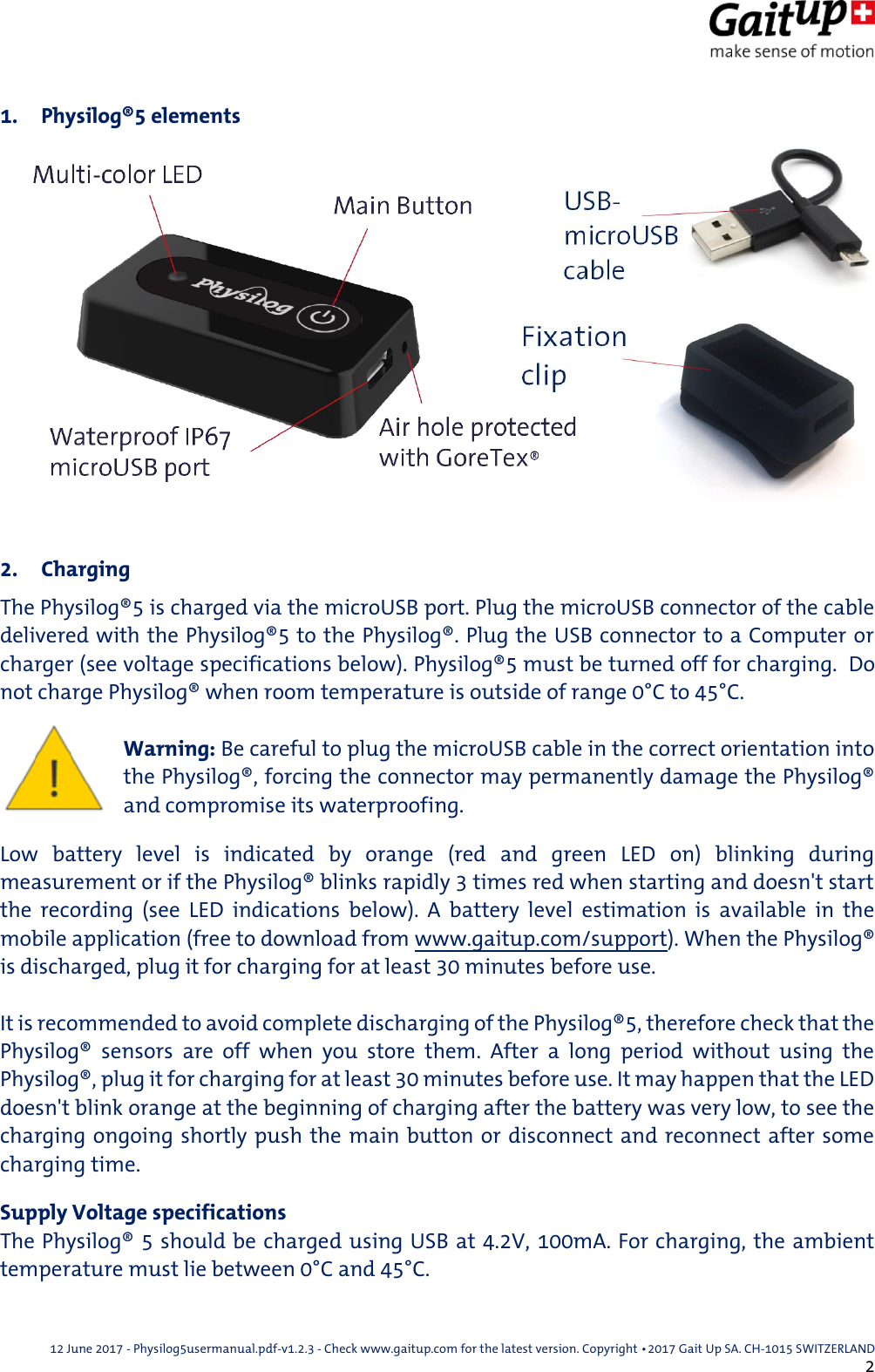
 12 June 2017 - Physilog5usermanual.pdf-v1.2.3 - Check www.gaitup.com for the latest version. Copyright 􂡥2017 Gait Up SA. CH-1015 SWITZERLAND               2 1. Physilog®5 elements   2. Charging The Physilog®5 is charged via the microUSB port. Plug the microUSB connector of the cable delivered with the Physilog®5 to the Physilog®. Plug the USB connector to a Computer or charger (see voltage specifications below). Physilog®5 must be turned off for charging.  Do not charge Physilog® when room temperature is outside of range 0°C to 45°C.   Warning: Be careful to plug the microUSB cable in the correct orientation into the Physilog®, forcing the connector may permanently damage the Physilog® and compromise its waterproofing. Low  battery  level  is  indicated  by  orange  (red  and  green  LED  on)  blinking  during measurement or if the Physilog® blinks rapidly 3 times red when starting and doesn't start the  recording  (see  LED  indications  below).  A  battery  level  estimation  is  available  in  the mobile application (free to download from www.gaitup.com/support). When the Physilog® is discharged, plug it for charging for at least 30 minutes before use.  It is recommended to avoid complete discharging of the Physilog®5, therefore check that the Physilog®  sensors  are  off  when  you  store  them.  After  a  long  period  without  using  the Physilog®, plug it for charging for at least 30 minutes before use. It may happen that the LED doesn't blink orange at the beginning of charging after the battery was very low, to see the charging ongoing shortly push the main button or disconnect and reconnect after some charging time. Supply Voltage specifications The Physilog® 5 should be charged using USB at 4.2V, 100mA. For charging, the ambient temperature must lie between 0°C and 45°C.
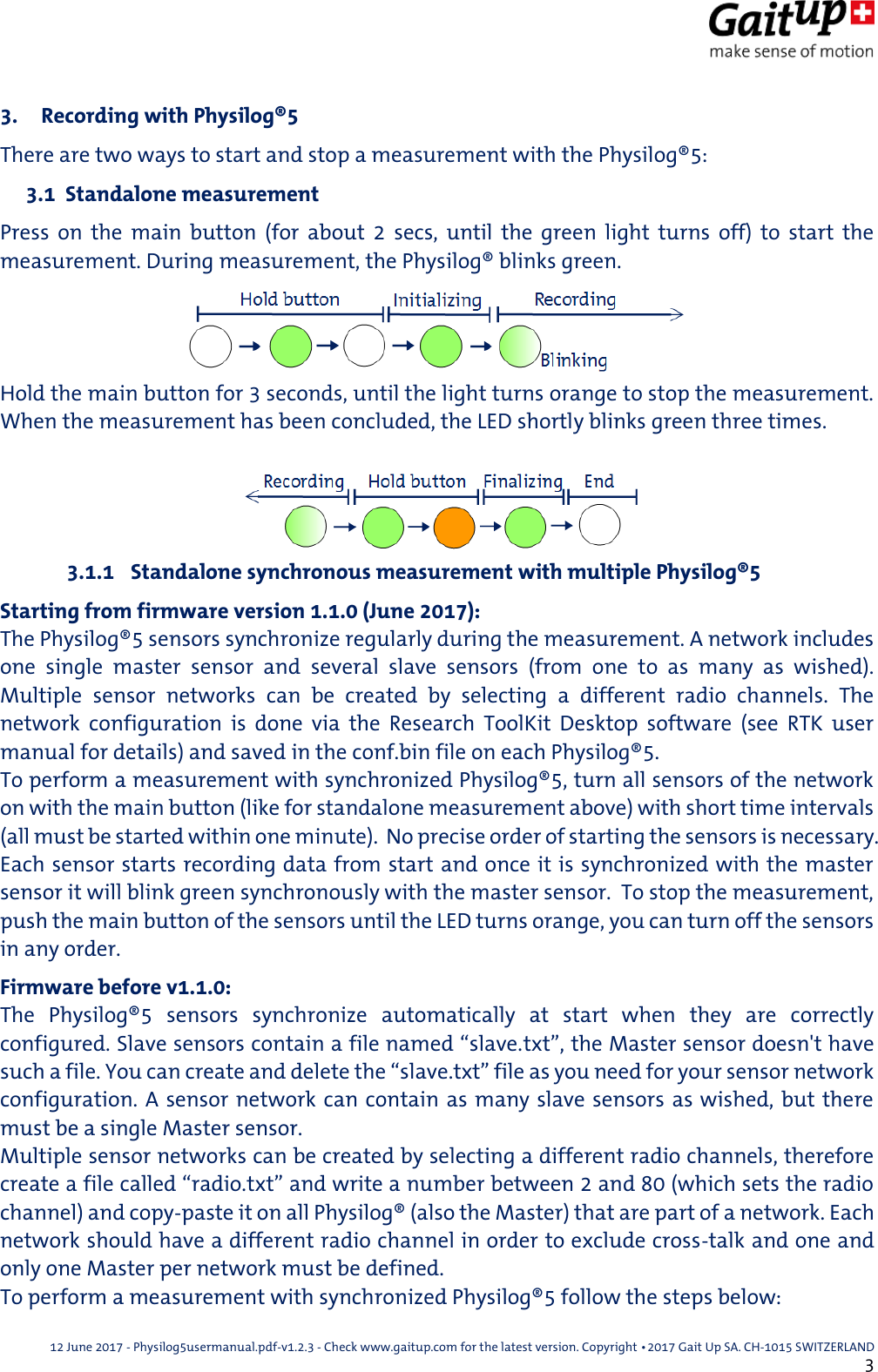
 12 June 2017 - Physilog5usermanual.pdf-v1.2.3 - Check www.gaitup.com for the latest version. Copyright 􂡥2017 Gait Up SA. CH-1015 SWITZERLAND               3 3. Recording with Physilog®5 There are two ways to start and stop a measurement with the Physilog®5:  3.1  Standalone measurement Press  on  the  main  button  (for  about  2  secs,  until  the  green  light  turns  off)  to  start  the measurement. During measurement, the Physilog® blinks green. Hold the main button for 3 seconds, until the light turns orange to stop the measurement. When the measurement has been concluded, the LED shortly blinks green three times.  3.1.1  Standalone synchronous measurement with multiple Physilog®5 Starting from firmware version 1.1.0 (June 2017): The Physilog®5 sensors synchronize regularly during the measurement. A network includes one  single  master  sensor  and  several  slave  sensors  (from  one  to  as  many  as  wished). Multiple  sensor  networks  can  be  created  by  selecting  a  different  radio  channels.  The network  configuration  is  done  via  the  Research  ToolKit  Desktop  software  (see  RTK  user manual for details) and saved in the conf.bin file on each Physilog®5.   To perform a measurement with synchronized Physilog®5, turn all sensors of the network on with the main button (like for standalone measurement above) with short time intervals (all must be started within one minute).  No precise order of starting the sensors is necessary.  Each sensor starts recording data from start and once it is synchronized with the master sensor it will blink green synchronously with the master sensor.  To stop the measurement, push the main button of the sensors until the LED turns orange, you can turn off the sensors in any order. Firmware before v1.1.0: The  Physilog®5  sensors  synchronize  automatically  at  start  when  they  are  correctly configured. Slave sensors contain a file named “slave.txt”, the Master sensor doesn't have such a file. You can create and delete the “slave.txt” file as you need for your sensor network configuration. A sensor network can contain as many slave sensors as wished, but there must be a single Master sensor. Multiple sensor networks can be created by selecting a different radio channels, therefore create a file called “radio.txt” and write a number between 2 and 80 (which sets the radio channel) and copy-paste it on all Physilog® (also the Master) that are part of a network. Each network should have a different radio channel in order to exclude cross-talk and one and only one Master per network must be defined. To perform a measurement with synchronized Physilog®5 follow the steps below:
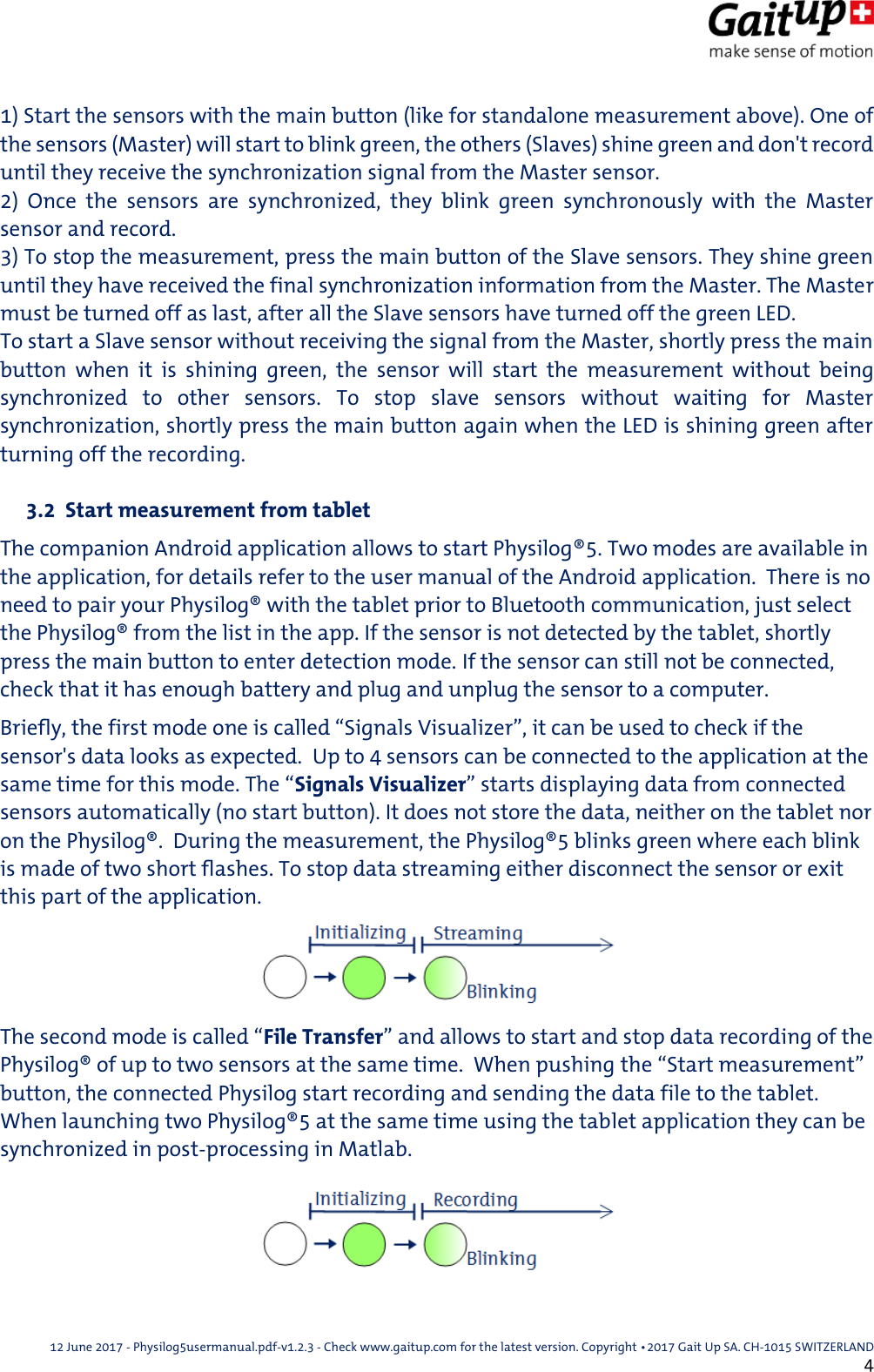
 12 June 2017 - Physilog5usermanual.pdf-v1.2.3 - Check www.gaitup.com for the latest version. Copyright 􂡥2017 Gait Up SA. CH-1015 SWITZERLAND               4 1) Start the sensors with the main button (like for standalone measurement above). One of the sensors (Master) will start to blink green, the others (Slaves) shine green and don't record until they receive the synchronization signal from the Master sensor. 2)  Once  the  sensors  are  synchronized,  they  blink  green  synchronously  with  the  Master sensor and record. 3) To stop the measurement, press the main button of the Slave sensors. They shine green until they have received the final synchronization information from the Master. The Master must be turned off as last, after all the Slave sensors have turned off the green LED. To start a Slave sensor without receiving the signal from the Master, shortly press the main button  when  it  is  shining  green,  the  sensor  will  start  the  measurement  without  being synchronized  to  other  sensors.  To  stop  slave  sensors  without  waiting  for  Master synchronization, shortly press the main button again when the LED is shining green after turning off the recording.   3.2  Start measurement from tablet The companion Android application allows to start Physilog®5. Two modes are available in the application, for details refer to the user manual of the Android application.  There is no need to pair your Physilog® with the tablet prior to Bluetooth communication, just select the Physilog® from the list in the app. If the sensor is not detected by the tablet, shortly press the main button to enter detection mode. If the sensor can still not be connected, check that it has enough battery and plug and unplug the sensor to a computer. Briefly, the first mode one is called “Signals Visualizer”, it can be used to check if the sensor's data looks as expected.  Up to 4 sensors can be connected to the application at the same time for this mode. The “Signals Visualizer” starts displaying data from connected sensors automatically (no start button). It does not store the data, neither on the tablet nor on the Physilog®.  During the measurement, the Physilog®5 blinks green where each blink is made of two short flashes. To stop data streaming either disconnect the sensor or exit this part of the application. The second mode is called “File Transfer” and allows to start and stop data recording of the Physilog® of up to two sensors at the same time.  When pushing the “Start measurement” button, the connected Physilog start recording and sending the data file to the tablet. When launching two Physilog®5 at the same time using the tablet application they can be synchronized in post-processing in Matlab.
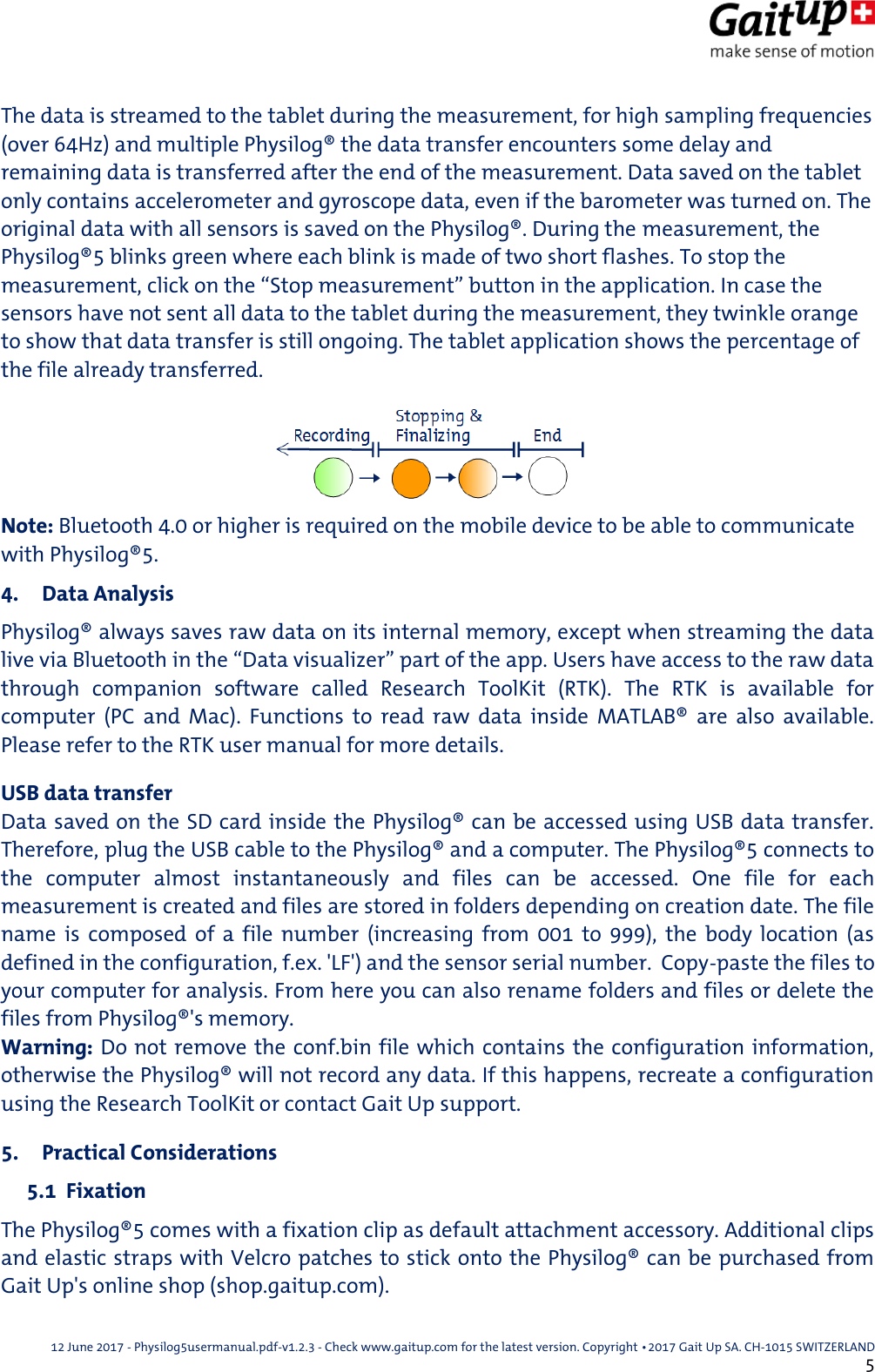
 12 June 2017 - Physilog5usermanual.pdf-v1.2.3 - Check www.gaitup.com for the latest version. Copyright 􂡥2017 Gait Up SA. CH-1015 SWITZERLAND               5 The data is streamed to the tablet during the measurement, for high sampling frequencies (over 64Hz) and multiple Physilog® the data transfer encounters some delay and remaining data is transferred after the end of the measurement. Data saved on the tablet only contains accelerometer and gyroscope data, even if the barometer was turned on. The original data with all sensors is saved on the Physilog®. During the measurement, the Physilog®5 blinks green where each blink is made of two short flashes. To stop the measurement, click on the “Stop measurement” button in the application. In case the sensors have not sent all data to the tablet during the measurement, they twinkle orange to show that data transfer is still ongoing. The tablet application shows the percentage of the file already transferred. Note: Bluetooth 4.0 or higher is required on the mobile device to be able to communicate with Physilog®5. 4. Data Analysis Physilog® always saves raw data on its internal memory, except when streaming the data live via Bluetooth in the “Data visualizer” part of the app. Users have access to the raw data through  companion  software  called  Research  ToolKit  (RTK).  The  RTK  is  available  for computer  (PC  and  Mac).  Functions  to  read  raw  data  inside  MATLAB®  are  also  available. Please refer to the RTK user manual for more details. USB data transfer Data saved on the SD card inside the Physilog® can be accessed using USB data transfer. Therefore, plug the USB cable to the Physilog® and a computer. The Physilog®5 connects to the  computer  almost  instantaneously  and  files  can  be  accessed.  One  file  for  each measurement is created and files are stored in folders depending on creation date. The file name  is  composed  of  a  file  number  (increasing  from  001  to  999),  the  body  location  (as defined in the configuration, f.ex. 'LF') and the sensor serial number.  Copy-paste the files to your computer for analysis. From here you can also rename folders and files or delete the files from Physilog®'s memory. Warning: Do not remove the conf.bin file which contains the configuration information, otherwise the Physilog® will not record any data. If this happens, recreate a configuration using the Research ToolKit or contact Gait Up support. 5. Practical Considerations  5.1  Fixation The Physilog®5 comes with a fixation clip as default attachment accessory. Additional clips and elastic straps with Velcro patches to stick onto the Physilog® can be purchased from Gait Up's online shop (shop.gaitup.com).
 12 June 2017 - Physilog5usermanual.pdf-v1.2.3 - Check www.gaitup.com for the latest version. Copyright 􂡥2017 Gait Up SA. CH-1015 SWITZERLAND               6  5.2  Handling / Maintenance Physilog®5 should be handled carefully. In particular, it should not receive shocks, such as fall, crushing, being hit etc. Do not press too hard on the on/off button, this can damage the button. Warning: Do not use or charge the Physilog® if the sensor or its case is damaged. Contact Gait Up about what further action is needed when the case is damaged. In  case  the  battery  is  damaged  immediately  move  the  device  away  from flammable materials and contact Gait Up's customer support. -  To  benefit  from  the  maximal  battery  life,  fully  charge  Physilog®  sensors  before  doing measurements (LED  shines  green  when connected to  computer  or  charger, you can  also check with the App). - Copy trial recordings to your computer: Physilog® is not the best place to keep important data. -  Physilog®5  can  be  used  outside.  But  do  not  use  Physilog®5  to  measure  water-sport activities without additional waterproofing. - Do not introduce pointy objects into the small hole besides the USB entry, this irreversibly damages the waterproofing of the sensor. - Storage: Store in a cool (0°C – 30°C) and dry place. The provided box is the perfect place for your sensor. - Cleaning: Sensors can be cleaned gently using alcohol wipes. Before you clean the device make sure it is turned off and disconnect all cables. Alcohol used in excess may damage the sensor’s waterproofing. Make sure to use wipes and not put liquid alcohol directly on the sensor. - Sensors do not need yearly recalibration. - Do not throw Physilog® sensors in the normal trash, dispose of it properly considering local laws and rules about electronic waste and batteries. Contact Gait Up's customer support for more information about elimination of Physilog®. - Make sure to know which Physilog® file corresponds to which trial for your analysis – First digits of file name are automatically incremented for each day of measurement (exceeding 999  and  firmware  update  resets  the  increment  back  to  001).  Note  that  date  of  file generation (recorded between one start and stop of the Physilog®) is visible in the XLS or CSV file and the Matlab structure “header”.  If you wish to adapt internal date and time of the Physilog®, read section below. - Do not remove the “conf.bin” file from the Physilog, otherwise it will create empty files (no sensor activated). If this happens, recreate a configuration in the Research ToolKit software or contact Gait Up's customer support.
 12 June 2017 - Physilog5usermanual.pdf-v1.2.3 - Check www.gaitup.com for the latest version. Copyright 􂡥2017 Gait Up SA. CH-1015 SWITZERLAND               7 Safety information • Physilog®5 includes a lithium battery. This battery may only be charged over a limited temperature range. Never attempt to dock or charge your Physilog® when the temperature is outside of the range of 0 to 45°C. Physilog®5 should be charged through USB connection with a computer. An external charger may be used; note that no charger is provided by Gait Up. Gait Up declines any responsibility due to charger usage. Supply voltage should be as follows: DC, 4.2V. Current consumption is 100mA. All external circuits connected to the Physilog®5 should be «Safety Extra Low Voltage» and «limited Power Sources» circuits as described in the following standards: IEC60950-1:2005+/A1:2010 & EN60950-1:2006+/A11:2009+/A1:2010+/A12:2011 Warnhinweise: • Physilog®5 enthält eine Lithium Batterie. Die Batterie soll nur in einer definierten Temperaturspanne aufgeladen  werden.  Versuchen  Sie  nie  Ihren  Physilog®  an  den  Computer  anzuschliessen  oder aufzuladen, wenn die Aussentemperatur nicht zwischen 0°C und 45°C ist. Sensoren sollen durch eine USB Verbindung mit einem Computer aufgeladen werden. Ein externes Ladegerät kann benutzt werden; Gait Up empfiehlt und liefert aber kein externes Ladegerät. Gait Up übernimmt keine Haftung falls ein Ladegerät gebraucht wird. Die  erlaubte  Netzspannung  ist:  DC,  4.2V.  Stromaufnahme  beträgt  100mA.  Alle  an  den  Physilog®5 angeschlossenen externe Stromkreise sollen die «Sicherheitskleinspannung” und “mit begrenzter Leistung” Regeln erfüllen,  die in den  folgenden Normen  beschrieben sind:  IEC60950-1:2005+/A1:2010  und  EN60950-1:2006+/A11:2009+/A1:2010+/A12:2011 Informations relatives à la sécurité: • Physilog®5 contient une batterie au lithium. La batterie ne doit être chargée que si la température extérieure est dans les limites définies. N’essayez jamais de connecter ou charger votre Physilog®5 si la température ambiante est en dehors des limites de 0 à 45°C. Physilog®5 doit être chargé par une connexion USB avec un ordinateur. Un chargeur externe peut être utilisé; mais Gait Up ne livre et ne recommande pas de chargeur. Gait Up refuse toute responsabilité liée à l’utilisation d’un chargeur externe. La tension de réseau devrait être: DC, 4.2V. La consommation de courant est de 100mA. Tout circuits connectés à Physilog®5 doivent être «très basse tension de protection» et «source à tension limité» comme décrit dans les normes suivantes: IEC60950-1:2005+/A1:2010 et EN60950-1:2006+/A11:2009+/A1:2010+/A12:2011
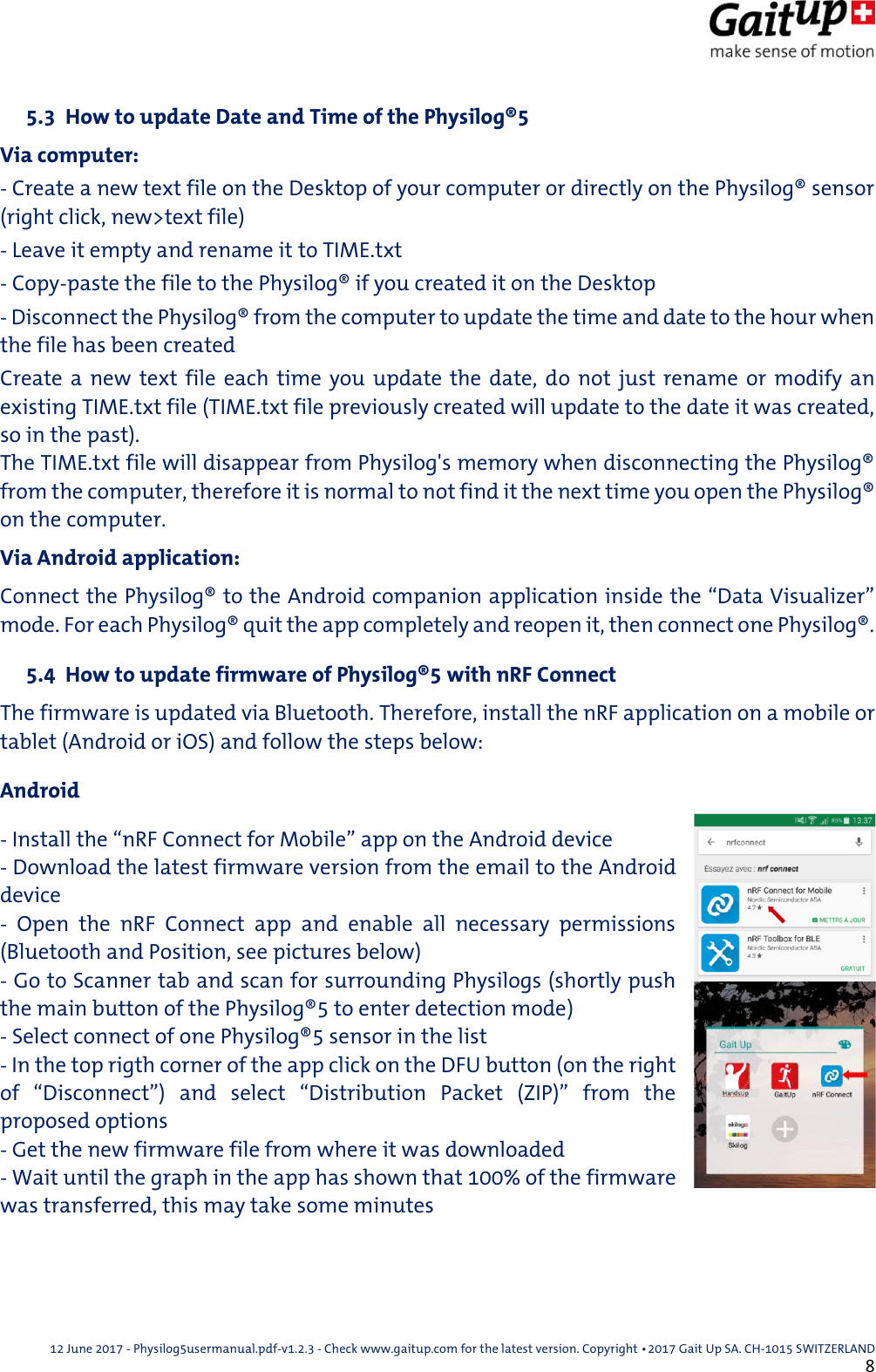
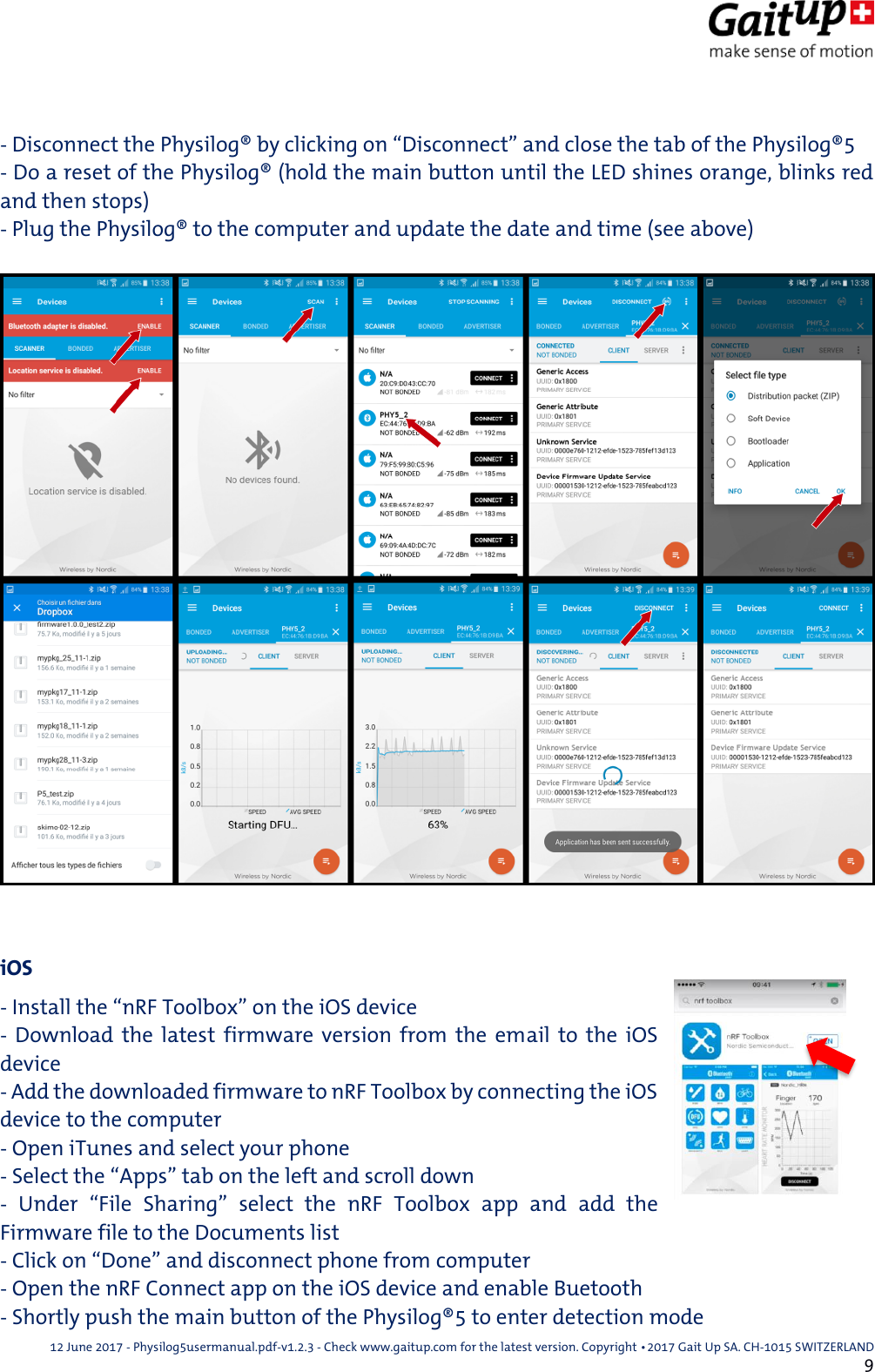
 12 June 2017 - Physilog5usermanual.pdf-v1.2.3 - Check www.gaitup.com for the latest version. Copyright 􂡥2017 Gait Up SA. CH-1015 SWITZERLAND               8  5.3  How to update Date and Time of the Physilog®5 Via computer: - Create a new text file on the Desktop of your computer or directly on the Physilog® sensor (right click, new>text file) - Leave it empty and rename it to TIME.txt - Copy-paste the file to the Physilog® if you created it on the Desktop - Disconnect the Physilog® from the computer to update the time and date to the hour when the file has been created Create a  new  text  file  each  time  you  update the date, do  not  just  rename or  modify  an existing TIME.txt file (TIME.txt file previously created will update to the date it was created, so in the past). The TIME.txt file will disappear from Physilog's memory when disconnecting the Physilog® from the computer, therefore it is normal to not find it the next time you open the Physilog® on the computer. Via Android application: Connect the Physilog® to the Android companion application inside the “Data Visualizer” mode. For each Physilog® quit the app completely and reopen it, then connect one Physilog®.   5.4  How to update firmware of Physilog®5 with nRF Connect The firmware is updated via Bluetooth. Therefore, install the nRF application on a mobile or tablet (Android or iOS) and follow the steps below: Android - Install the “nRF Connect for Mobile” app on the Android device - Download the latest firmware version from the email to the Android device -  Open  the  nRF  Connect  app  and  enable  all  necessary  permissions (Bluetooth and Position, see pictures below) - Go to Scanner tab and scan for surrounding Physilogs (shortly push the main button of the Physilog®5 to enter detection mode) - Select connect of one Physilog®5 sensor in the list - In the top rigth corner of the app click on the DFU button (on the right of  “Disconnect”)  and  select  “Distribution  Packet  (ZIP)”  from  the proposed options - Get the new firmware file from where it was downloaded - Wait until the graph in the app has shown that 100% of the firmware was transferred, this may take some minutes
 12 June 2017 - Physilog5usermanual.pdf-v1.2.3 - Check www.gaitup.com for the latest version. Copyright 􂡥2017 Gait Up SA. CH-1015 SWITZERLAND               9  - Disconnect the Physilog® by clicking on “Disconnect” and close the tab of the Physilog®5 - Do a reset of the Physilog® (hold the main button until the LED shines orange, blinks red and then stops) - Plug the Physilog® to the computer and update the date and time (see above)    iOS - Install the “nRF Toolbox” on the iOS device  -  Download  the  latest  firmware  version  from  the  email  to the  iOS device - Add the downloaded firmware to nRF Toolbox by connecting the iOS device to the computer - Open iTunes and select your phone - Select the “Apps” tab on the left and scroll down -  Under  “File  Sharing”  select  the  nRF  Toolbox  app  and  add  the Firmware file to the Documents list - Click on “Done” and disconnect phone from computer - Open the nRF Connect app on the iOS device and enable Buetooth - Shortly push the main button of the Physilog®5 to enter detection mode
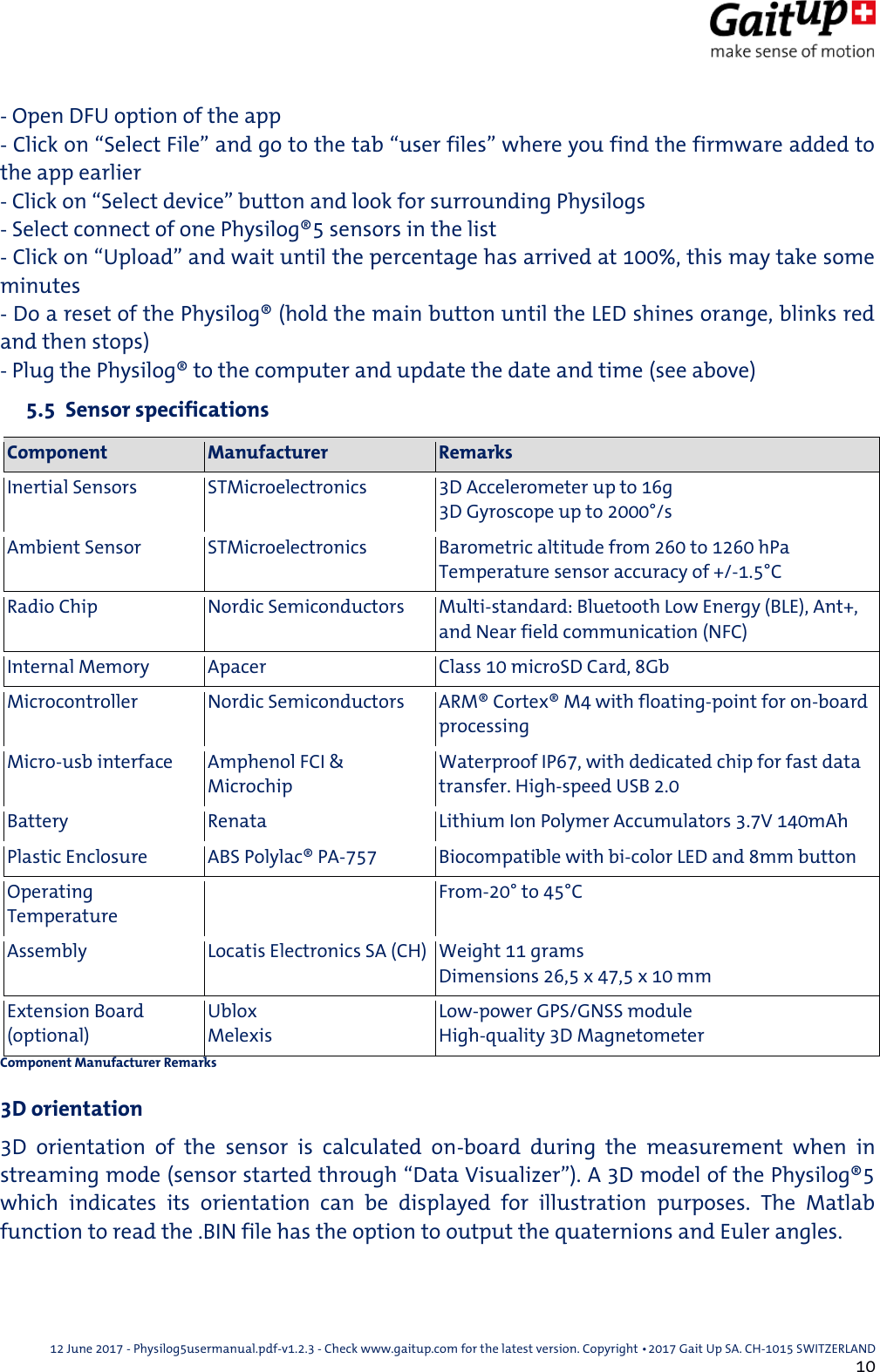
 12 June 2017 - Physilog5usermanual.pdf-v1.2.3 - Check www.gaitup.com for the latest version. Copyright 􂡥2017 Gait Up SA. CH-1015 SWITZERLAND               10 - Open DFU option of the app - Click on “Select File” and go to the tab “user files” where you find the firmware added to the app earlier - Click on “Select device” button and look for surrounding Physilogs - Select connect of one Physilog®5 sensors in the list - Click on “Upload” and wait until the percentage has arrived at 100%, this may take some minutes - Do a reset of the Physilog® (hold the main button until the LED shines orange, blinks red and then stops) - Plug the Physilog® to the computer and update the date and time (see above)  5.5  Sensor specifications Component Manufacturer Remarks Inertial Sensors STMicroelectronics 3D Accelerometer up to 16g 3D Gyroscope up to 2000°/s Ambient Sensor STMicroelectronics Barometric altitude from 260 to 1260 hPa Temperature sensor accuracy of +/-1.5°C Radio Chip Nordic Semiconductors Multi-standard: Bluetooth Low Energy (BLE), Ant+, and Near field communication (NFC) Internal Memory Apacer Class 10 microSD Card, 8Gb Microcontroller Nordic Semiconductors ARM® Cortex® M4 with floating-point for on-board processing Micro-usb interface Amphenol FCI & Microchip Waterproof IP67, with dedicated chip for fast data transfer. High-speed USB 2.0 Battery Renata Lithium Ion Polymer Accumulators 3.7V 140mAh Plastic Enclosure ABS Polylac® PA-757 Biocompatible with bi-color LED and 8mm button Operating Temperature  From-20° to 45°C Assembly Locatis Electronics SA (CH) Weight 11 grams Dimensions 26,5 x 47,5 x 10 mm Extension Board (optional) Ublox Melexis Low-power GPS/GNSS module High-quality 3D Magnetometer Component Manufacturer Remarks  3D orientation 3D  orientation  of  the  sensor  is  calculated  on-board  during  the  measurement  when  in streaming mode (sensor started through “Data Visualizer”). A 3D model of the Physilog®5 which  indicates  its  orientation  can  be  displayed  for  illustration  purposes.  The  Matlab function to read the .BIN file has the option to output the quaternions and Euler angles.
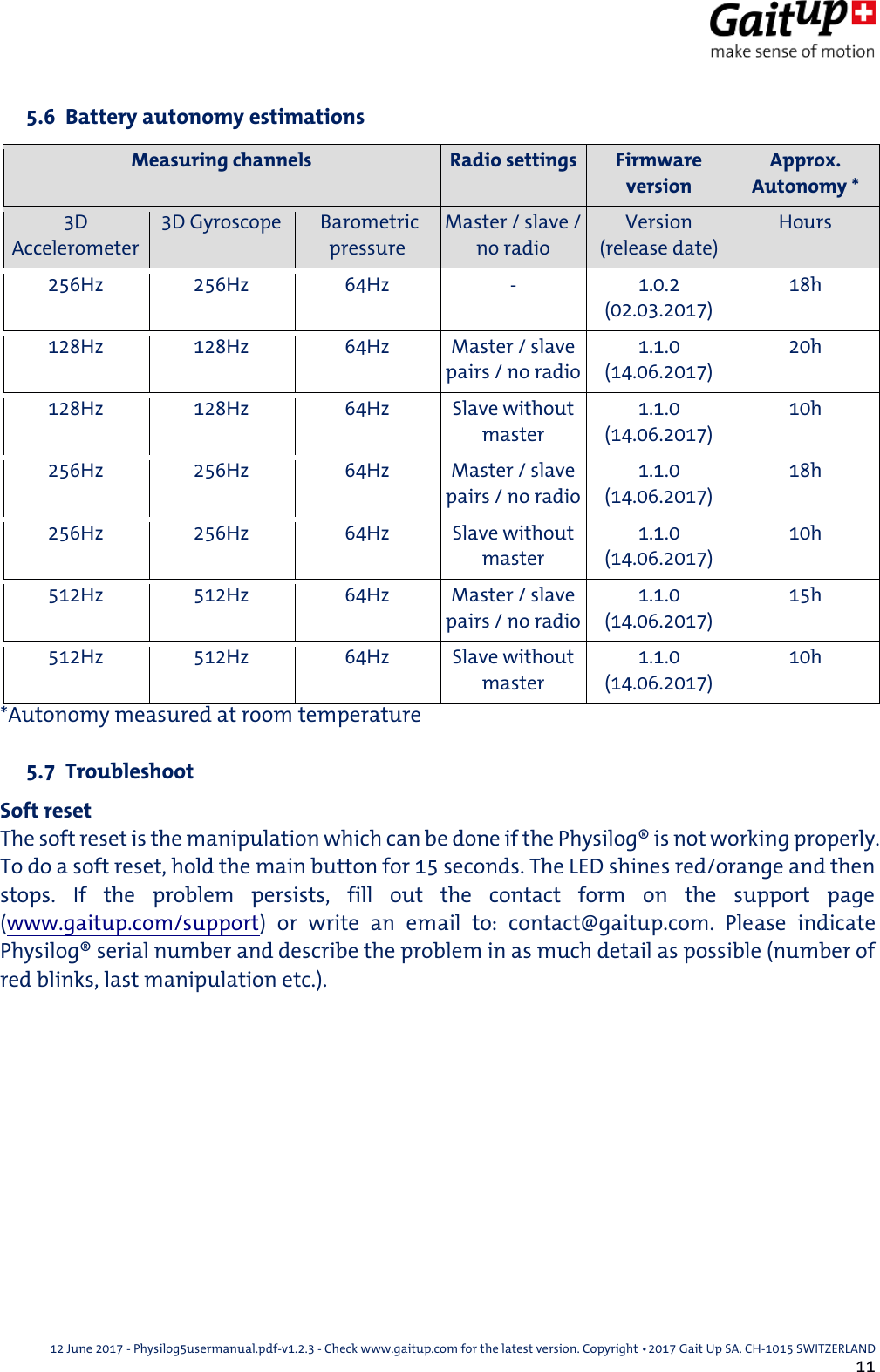
 12 June 2017 - Physilog5usermanual.pdf-v1.2.3 - Check www.gaitup.com for the latest version. Copyright 􂡥2017 Gait Up SA. CH-1015 SWITZERLAND               11  5.6  Battery autonomy estimations Measuring channels Radio settings Firmware version Approx. Autonomy * 3D Accelerometer 3D Gyroscope  Barometric pressure Master / slave / no radio Version (release date) Hours 256Hz 256Hz 64Hz - 1.0.2 (02.03.2017) 18h 128Hz 128Hz 64Hz Master / slave pairs / no radio 1.1.0 (14.06.2017) 20h 128Hz 128Hz 64Hz Slave without master 1.1.0 (14.06.2017) 10h 256Hz 256Hz 64Hz Master / slave pairs / no radio 1.1.0 (14.06.2017) 18h 256Hz 256Hz 64Hz Slave without master 1.1.0 (14.06.2017) 10h 512Hz 512Hz 64Hz Master / slave pairs / no radio 1.1.0 (14.06.2017) 15h 512Hz 512Hz 64Hz Slave without master 1.1.0 (14.06.2017) 10h *Autonomy measured at room temperature   5.7  Troubleshoot Soft reset The soft reset is the manipulation which can be done if the Physilog® is not working properly.  To do a soft reset, hold the main button for 15 seconds. The LED shines red/orange and then stops.  If  the  problem  persists,  fill  out  the  contact  form  on  the  support  page (www.gaitup.com/support)  or  write  an  email  to:  contact@gaitup.com.  Please  indicate Physilog® serial number and describe the problem in as much detail as possible (number of red blinks, last manipulation etc.).
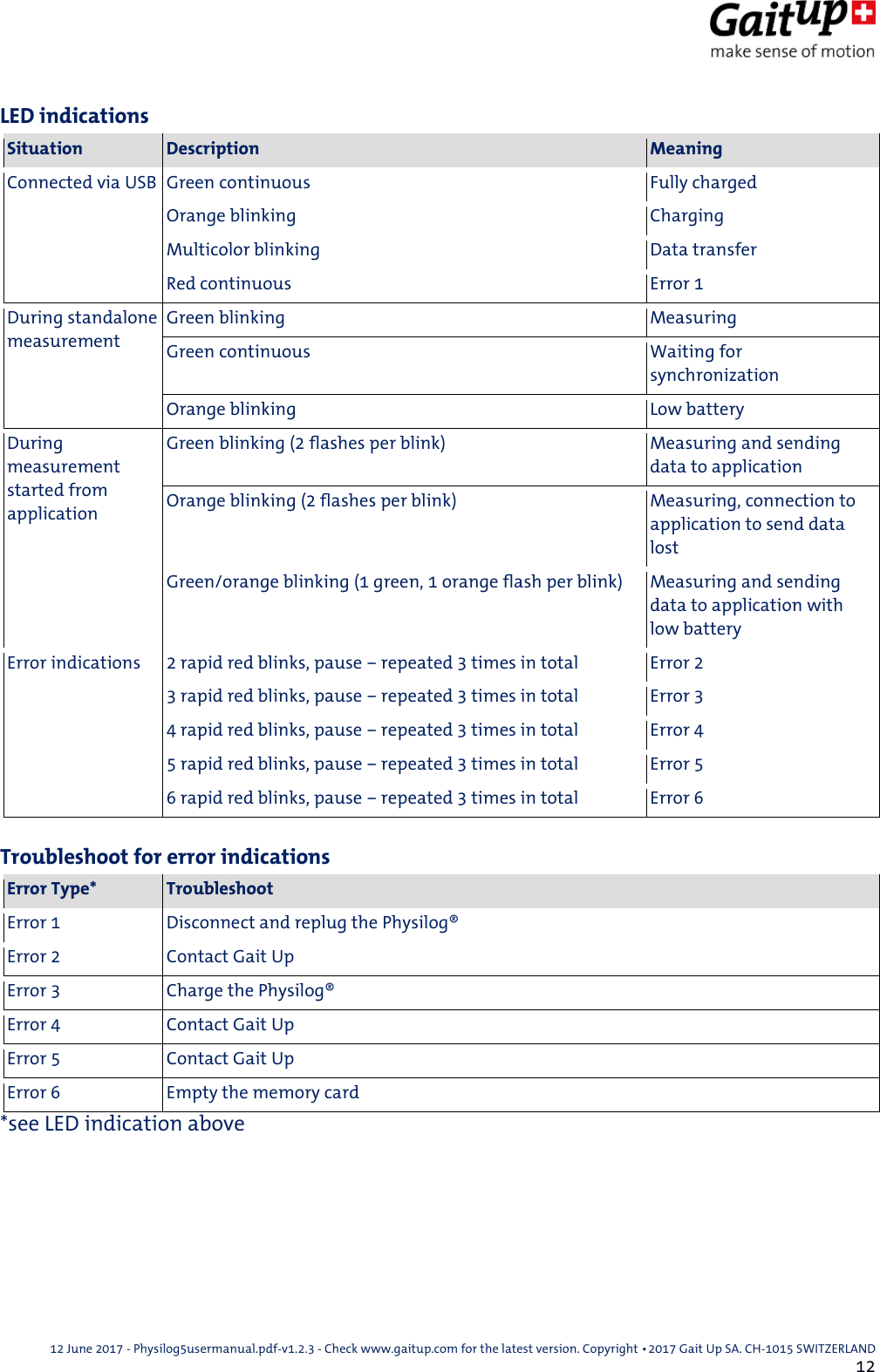
 12 June 2017 - Physilog5usermanual.pdf-v1.2.3 - Check www.gaitup.com for the latest version. Copyright 􂡥2017 Gait Up SA. CH-1015 SWITZERLAND               12 LED indications Situation Description Meaning Connected via USB Green continuous Fully charged Orange blinking Charging Multicolor blinking Data transfer Red continuous Error 1 During standalone measurement Green blinking Measuring Green continuous Waiting for synchronization Orange blinking Low battery During measurement started from application Green blinking (2 flashes per blink) Measuring and sending data to application Orange blinking (2 flashes per blink) Measuring, connection to application to send data lost Green/orange blinking (1 green, 1 orange flash per blink) Measuring and sending data to application with low battery Error indications 2 rapid red blinks, pause – repeated 3 times in total Error 2 3 rapid red blinks, pause – repeated 3 times in total Error 3 4 rapid red blinks, pause – repeated 3 times in total Error 4 5 rapid red blinks, pause – repeated 3 times in total Error 5 6 rapid red blinks, pause – repeated 3 times in total Error 6   Troubleshoot for error indications Error Type* Troubleshoot Error 1 Disconnect and replug the Physilog® Error 2 Contact Gait Up Error 3 Charge the Physilog® Error 4 Contact Gait Up Error 5 Contact Gait Up Error 6 Empty the memory card *see LED indication above
 12 June 2017 - Physilog5usermanual.pdf-v1.2.3 - Check www.gaitup.com for the latest version. Copyright 􂡥2017 Gait Up SA. CH-1015 SWITZERLAND               13 6. Limited Warranty & Support Policy Warranty: Gait Up offers 12 months parts and labour on Physilog® starting from the date of delivery. If within one year from the date of delivery to the customer the equipment does not comply with the foregoing Limited warranty, Gait Up will at Gait Up’s option, repair, replace or refund the purchase price of the defective equipment free of  charge  to  the  customer.  Customers  requesting  repair,  replacement  or  refund  are  required  to  ship,  the Physilog® to Gait Up. As a condition of this warranty, customers must contact Gait Up’s customer service for instructions on and approval of shipment prior to returning any defective Physilog®. The warranty shall not apply to any product or component thereof which has been repaired or altered by anyone other than Gait Up in  any  manner  so  as,  in  Gait  Up’s  judgement,  to  affect  its  service  ability,  or  any  product  been  subject  to alteration,  accident,  misuse,  abuse,  neglect  or  abnormal  wear.  Gait  up  warrants  solely  to  the  original purchaser (customer). Only the terms expressed in this warranty shall apply and no distributor, corporation or individual is authorized to amend, modify or extend this warranty in any way. Gait Up shall have no liability for any consequential, incidental or special damages by reason of any act or omission or arising out of or in connection with the equipment or its rental, delivery, installation, maintenance, operation, performance or use, including without limitation any loss of use, lost revenue, lost profits or a cost associated  with  downtime.  The  obligations  contained  in  this paragraph  continue  beyond  the  term of  this limited warranty. Physilog® and Gait Analysis Software are not considered as proper Medical Devices, since they do not support directly diagnosis, but they provide data which have to be analysed and approved by medical doctors for them to make their diagnosis. Reclamations regarding medical devices will not be considered.  Support Policy: Support does not include: support for 3rd party hardware, software, mailing lists or web content writing or debugging customer applications and deployments detailed explanations of the engineering principles behind our software and hardware support for systemic problems beyond the scope of the actual Physilog® and existing systems software (IT issues, computer operation) support for customers whose conduct fails to meet professional standards  Occasionally we engage in more interactive support or consulting. Interactive support is a customer courtesy and is provided at Gait Up’s discretion. It does not invalidate the support policy described above. There is no guarantee of performance, timeliness, or establishment of a continuous support relationship. Consulting is subject to acceptance of a formal statement of work.
 12 June 2017 - Physilog5usermanual.pdf-v1.2.3 - Check www.gaitup.com for the latest version. Copyright 􂡥2017 Gait Up SA. CH-1015 SWITZERLAND               14 7. Certification claims IC statement Under Industry Canada regulations, this radio transmitter may only operate using an antenna of a type and maximum (or lesser) gain approved for the transmitter by Industry Canada. To reduce potential radio interference to other users, the antenna type and its gain should be so chosen that the equivalent isotropically radiated power (e.i.r.p.) is not more than that necessary for successful communication. This device complies with Industry Canada licence-exempt RSS standard(s). Operation is subject to the following two conditions: (1) this device may not cause interference, and (2) this device must accept any interference, including interference that may cause undesired operation of the device. This device complies with Industry Canada radiation exposure limits set forth for general population. This device must not be co-located or operating in conjunction with any other antenna or transmitter. Conformément à la réglementation d'Industrie Canada, le présent émetteur radio peut fonctionner avec une antenne d'un type et d'un gain maximal (ou inférieur) approuvé pour l'émetteur par Industrie Canada. Dans le but de réduire les risques de brouillage radioélectrique à l'intention des autres utilisateurs, il faut choisir le type d'antenne et son gain de sorte que la  puissance  isotrope  rayonnée  équivalente  (p.i.r.e.)  ne  dépasse  pas  l'intensité  nécessaire  à  l'établissement  d'une communication satisfaisante. Le présent appareil est  conforme  aux  CNR d'Industrie Canada applicables aux appareils radio exempts de licence. L'exploitation est autorisée aux deux conditions suivantes : (1) l'appareil ne doit pas produire de brouillage, et  (2) l'utilisateur de l'appareil doit accepter tout brouillage radioélectrique subi, même si le brouillage est susceptible  d'en  compromettre  le  fonctionnement.  Le  présent  appareil  est  conforme  aux  niveaux  limites  d’exigences d’exposition RF pour la population globale définies par Industrie Canada. L’appareil ne doit pas être installé à proximité ou être utilisé en conjonction avec une autre antenne ou un autre émetteur.   FCC statement This device complies with Part 15 of the FCC Rules. Operation is subject to the following two conditions: (1) this device may not cause harmful interference, and (2) this device must accept any interference received, including interference that may cause undesired operation. NOTE: This equipment has been tested and found to comply with the limits for a Class B digital device, pursuant to part 15 of the FCC Rules. These limits are designed to provide reasonable protection against harmful interference in a residential installation. This equipment generates, uses and can radiate radio  frequency  energy  and,  if not installed and used in accordance  with  the  instruction,  may  cause  harmful  interference  to  radio  communications.  However,  there  is  no guarantee that interference will not occur in a particular installation. If this equipment does cause harmful interference to radio or television reception which can be determined by turning the equipment off and on, the user is encouraged to try to correct interference by one or more of the following measures: - Reorient or relocate the receiving antenna. - Increase the separation between the equipment and receiver. - Connect the equipment into an outlet on circuit different from that to which the receiver is connected. - Consult the dealer or an experienced radio/TV technician for help. This device complies with FCC radiation exposure limits set forth for general population. This device must not be co-located or operating in conjunction with any other antenna or transmitter. Caution:  the user  that  changes  or modifications  not  expressly  approved  by  the  party  responsible  for  compliance  could  void  the  user's  authority  to  operate  the equipment.
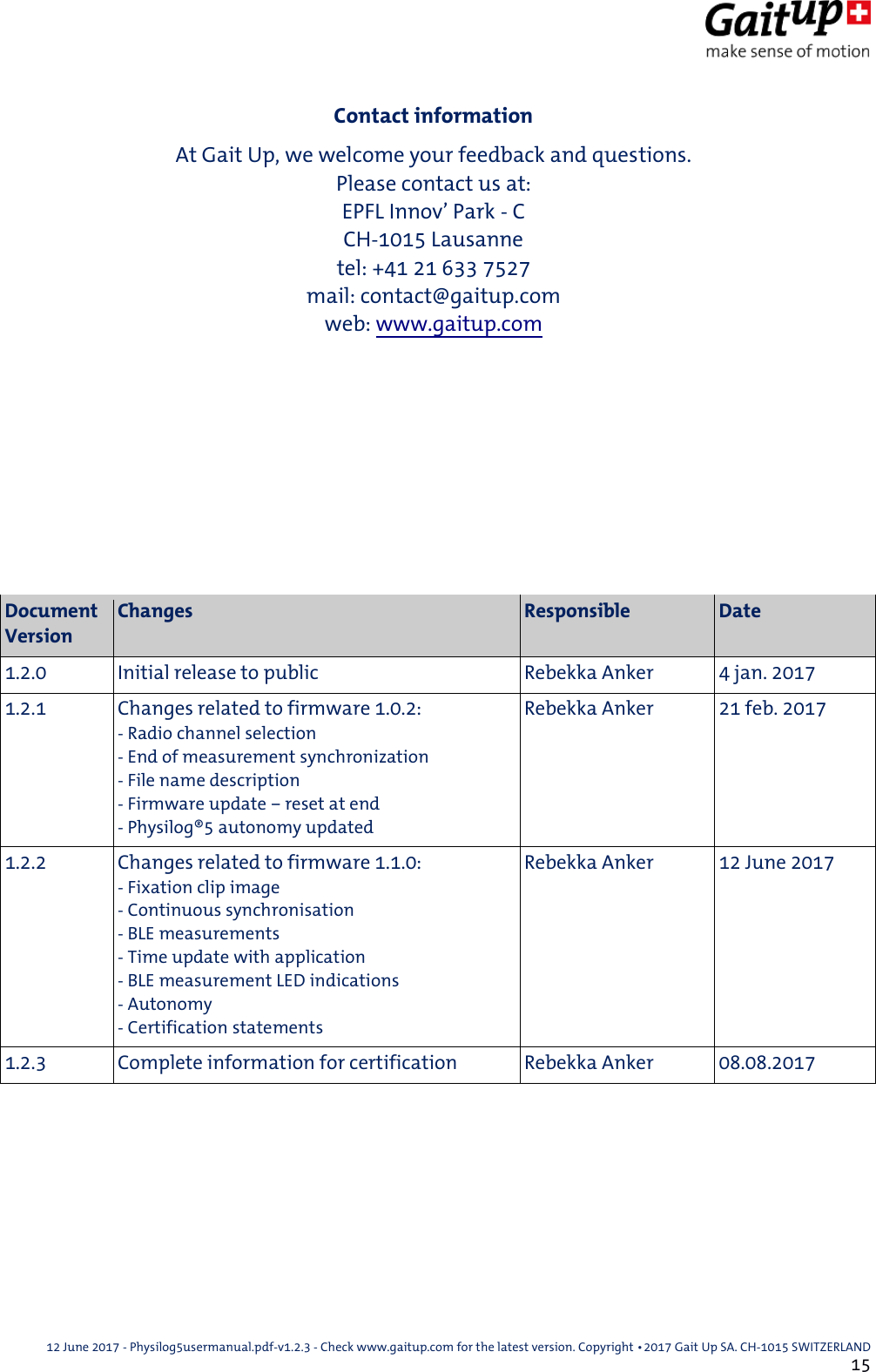
 12 June 2017 - Physilog5usermanual.pdf-v1.2.3 - Check www.gaitup.com for the latest version. Copyright 􂡥2017 Gait Up SA. CH-1015 SWITZERLAND               15 Contact information At Gait Up, we welcome your feedback and questions. Please contact us at: EPFL Innov’ Park - C CH-1015 Lausanne tel: +41 21 633 7527 mail: contact@gaitup.com web: www.gaitup.com          Document Version Changes Responsible Date 1.2.0 Initial release to public Rebekka Anker 4 jan. 2017 1.2.1 Changes related to firmware 1.0.2: - Radio channel selection - End of measurement synchronization - File name description - Firmware update – reset at end - Physilog®5 autonomy updated Rebekka Anker 21 feb. 2017 1.2.2 Changes related to firmware 1.1.0: - Fixation clip image - Continuous synchronisation - BLE measurements - Time update with application - BLE measurement LED indications - Autonomy - Certification statements Rebekka Anker 12 June 2017 1.2.3 Complete information for certification Rebekka Anker 08.08.2017

Navigation menu