Galaxy Microsystems GALAPAD7G2 Galapad 7 User Manual G2 3gp ZENGJIA

Galaxy Microsystems Ltd. Galapad 7 G2 3gp ZENGJIA

Contents

User Manual

1  Contents  Read Before Proceeding .......... 1Safety Precautions...................1Personal Information and Data Security................................2Getting Started ............................. 41.Key Functions at Your Finger tips.......................................42.Inserting SD card..............53.Charging the battery......54.About the Status bar.......6Basic operations .......................... 71.Turning your pad on and off72 2.Desktop manager..............7Main operations ........................... 91.Entertainment.....................92.Email.........................................103.Contancts..............................114.Getting Connected..........125.Using Other Applications.................................146.Managing Your Pad........16
1  Read Before Proceeding  Safety Precautions   Please read the safety precautions carefully to ensure the correct use of your pad.   1.  Do not crash, throw, or puncture your pad Avoid the falling, squeezing, and bending of your pad.   2.  Do not use your pad in a moist environment, such as the bathroom. Prevent your pad from being soaked or washed in liquid.   3.  Do not switch on your pad when it is prohibited to use pads or when the pad may cause interference or danger.  4.  Do not use your pad while driving.   5.  Follow any rules or regulations in hospitals and health care facilities. Switch off your pad near medical apparatus.  6.  Switch off your pad in aircraft. The pad may cause interference to control equipment of the aircraft.   7.  Switch off your pad near high-precision electronic devices. The pad may affect the performance of these devices.  8.  Do not attempt to disassemble your pad or its accessories. Only qualified personnel are allowed to service or repair the pad.   9.  Do not place your pad or its accessories in containers with a strong electromagnetic field.   10.  Do not place magnetic storage media near your pad. 2 Radiation from the pad may erase the information stored on them.   11.  Do not put your pad in a high-temperature place or use it in a place with flammable gas such as a gas station.   12.  Keep your pad and its accessories away fromchildren. Do not allow children to use your pad without guidance.  13.  Use only approved batteries and chargers to avoid the risk of explosions.   14.  Observe any laws or regulations on the use of wireless devices. Respect others’ privacy and legal rights when using your wireless device.   15.  Strictly follow the relevant instructions of this manual while using the USB cable. Otherwise your pad or PC may be damaged.   16.  Content is just for your reference, for standard profiles, please refer to that displayed actually. Personal Information and Data Security   The use of some functions or third-party applications on your device could result in your personal information and data being lostor becoming accessible to others. Several measures are recommended to help you protect personal and confidential information.   z  Place your device in a safe area to prevent it from unauthorized use.   z  Set your device screen to lock and create a password or unlock pattern to open it.   z  Periodically back up personal information kept on your
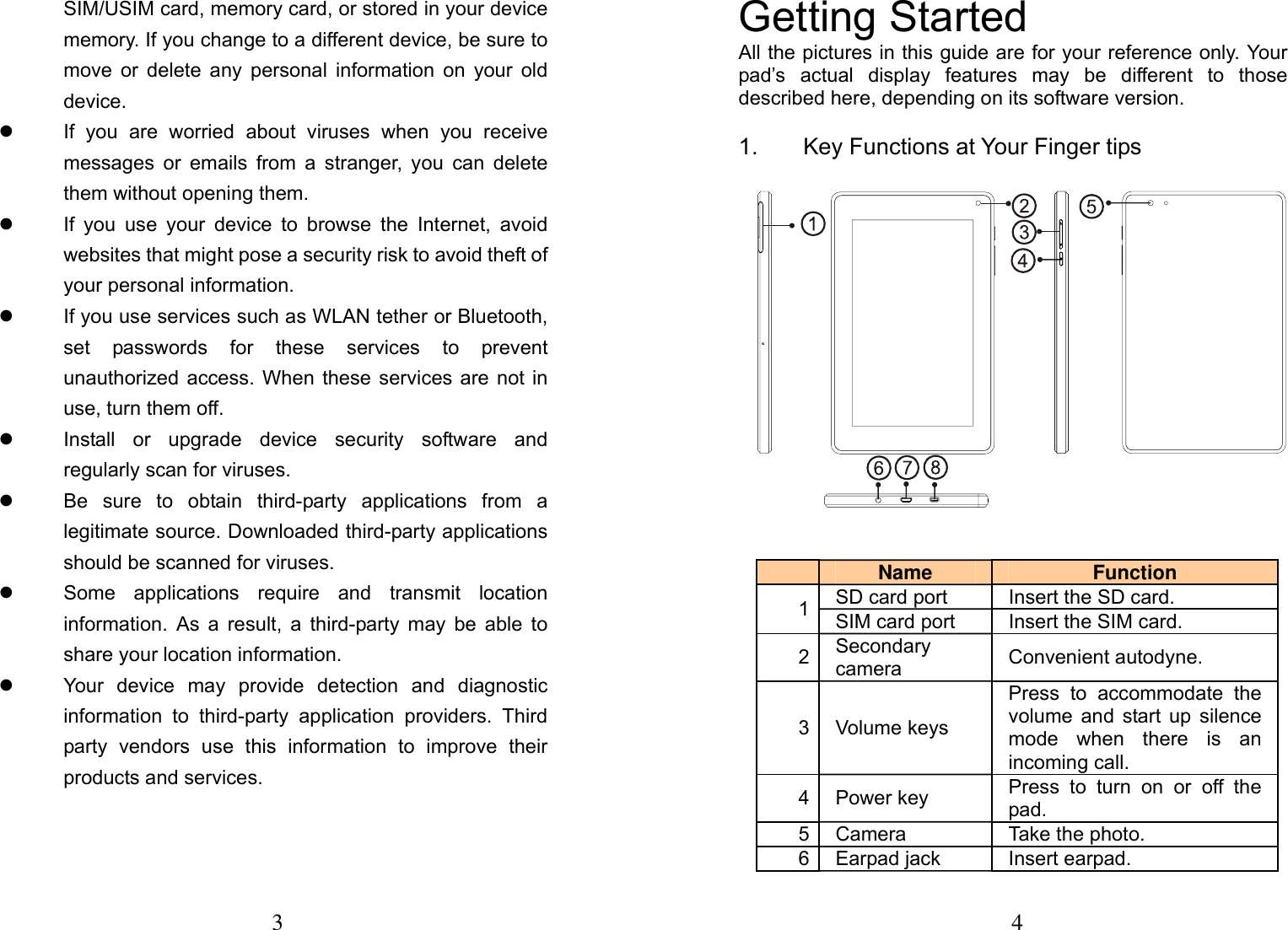
3  SIM/USIM card, memory card, or stored in your device memory. If you change to a different device, be sure to move or delete any personal information on your old device.  z  If you are worried about viruses when you receive messages or emails from a stranger, you can delete them without opening them.   z  If you use your device to browse the Internet, avoid websites that might pose a security risk to avoid theft of your personal information.   z  If you use services such as WLAN tether or Bluetooth, set passwords for these services to prevent unauthorized access. When these services are not in use, turn them off.   z  Install or upgrade device security software and regularly scan for viruses.   z  Be sure to obtain third-party applications from a legitimate source. Downloaded third-party applications should be scanned for viruses.   z  Some applications require and transmit location information. As a result, a third-party may be able to share your location information.   z  Your device may provide detection and diagnostic information to third-party application providers. Third party vendors use this information to improve their products and services.   4 Getting Started   All the pictures in this guide are for your reference only. Your pad’s actual display features may be different to those described here, depending on its software version.   1. Key Functions at Your Finger tips     Name   Function 1SD card port  Insert the SD card. SIM card port  Insert the SIM card. 2Secondary camera  Convenient autodyne. 3Volume keys Press to accommodate the volume and start up silence mode when there is an incoming call. 4Power key  Press to turn on or off the pad.  5Camera  Take the photo. 6Earpad jack    Insert earpad.
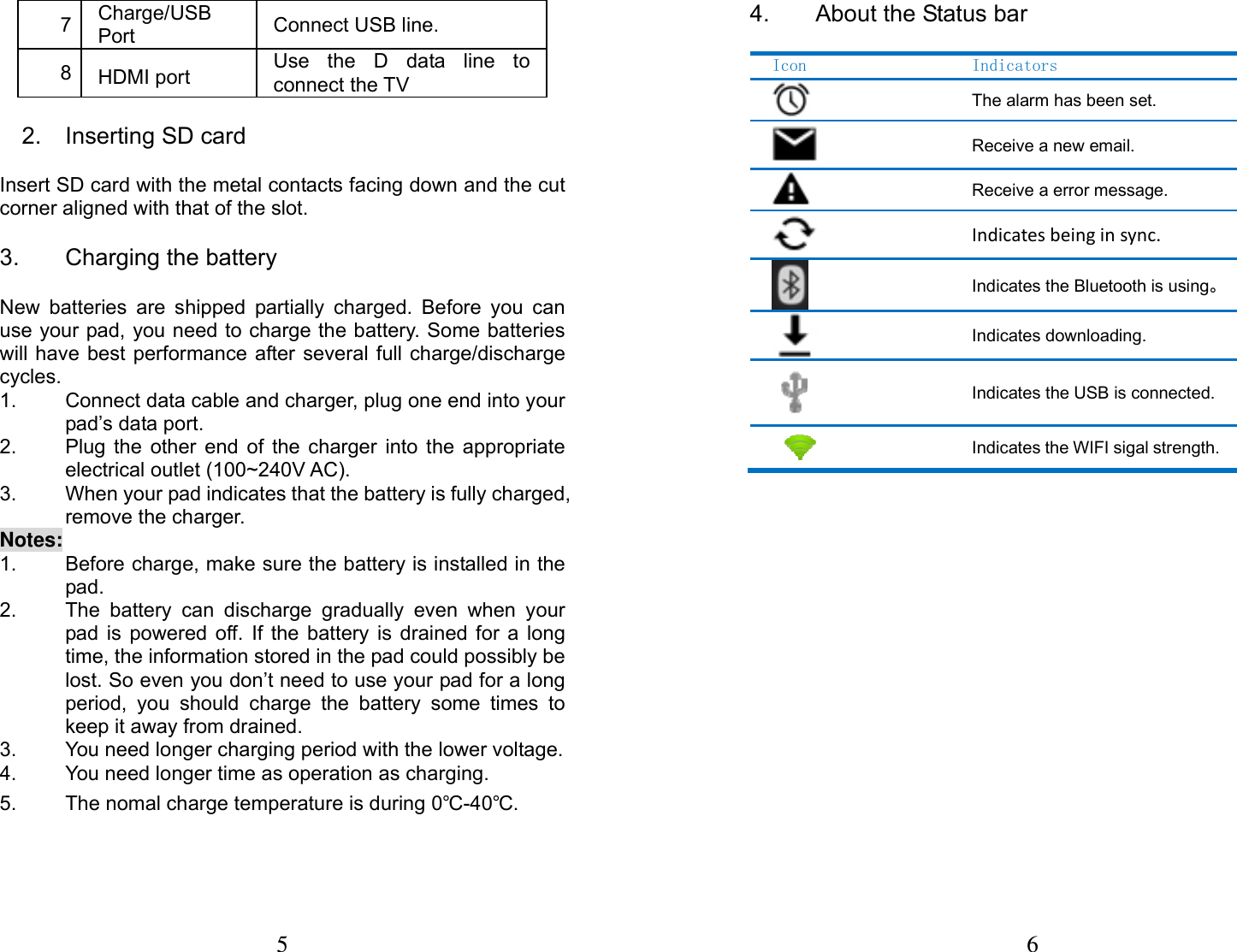
5  7  Charge/USB Port   Connect USB line. 8  HDMI port Use the D data line to connect the TV 2.  Inserting SD card                         Insert SD card with the metal contacts facing down and the cut corner aligned with that of the slot. 3.  Charging the battery                       New batteries are shipped partially charged. Before you can use your pad, you need to charge the battery. Some batteries will have best performance after several full charge/discharge cycles. 1.  Connect data cable and charger, plug one end into your pad’s data port.     2.  Plug the other end of the charger into the appropriate electrical outlet (100~240V AC).   3.  When your pad indicates that the battery is fully charged, remove the charger. Notes: 1.  Before charge, make sure the battery is installed in the pad.  2.  The battery can discharge gradually even when your pad is powered off. If the battery is drained for a long time, the information stored in the pad could possibly be lost. So even you don’t need to use your pad for a long period, you should charge the battery some times to keep it away from drained. 3.  You need longer charging period with the lower voltage. 4.  You need longer time as operation as charging. 5.  The nomal charge temperature is during 0℃-40℃. 6 4.  About the Status bar Icon    Indicators The alarm has been set. Receive a new email. Receive a error message. Indicatesbeinginsync. Indicates the Bluetooth is using。Indicates downloading. Indicates the USB is connected.Indicates the WIFI sigal strength.
7  Basic operations 1.  Turning your pad on and off       Turn on the pad: Press and hold Power key for more than 3 seconds to turn on your pad.   Turn off the pad: Press and hold Power key to pop up option menu, select “power off”. If it is powered off you can not receive, make a call or do other operations. 2. Desktop manager               Lock the screen The screen lock prevents unwanted actions on the touch screen when you are not using your pad. When the pad is left idle for a set period, the screen locks automatically if you enabled screen lock in settingsÆ security.   Unlock the screen You can unlock the screen according to your settings. The default way is pulling the lock to right after your screen is enabled with pressing power key. Add icon: Press and hold a selected icon on main interface and drag it to desktop. Put it where you intend to, then you can release it. Delete icon: Press and hold a selected icon on desktop, you will find a recycle bin icon appearing after you feel it vibrating. At this time drag the icon to recycle bin, then release. Status bar A status bar at the top of the screen displays pad status information and notifications.   Add or delete widgets and change wallpaper Press on the desktop space, and then pop up the following menu: Gallery /Live Wallpapers/ Wallpapers. Notification panel You can open notifications such as unread messages or missed calls directly from the notification panel. 8  How to open the panel: Hold the status bars with your finger, and drag it downwards.     Accessing Applications and Widgets To access the application list, on the Home screen, touch  . From the application list, you can: • Touch an icon to open an application. • Touch the WIDGETS tab to switch to the widget list. Viewing Recently Used Applications To display the list of recently used applications, press and hold . To open an application, touch the corresponding thumbnail. To close the application, flick left or right across the screen. Managing Folders on the Home Screen To create a folder: Drag an application icon onto another application icon to create a new folder that contains both icons. To rename a folder: On the Home screen, touch a folder, and then touch the folder name field beneath it. To delete a folder: On the Home screen, touch and hold a folder, and then drag it to the trash can.
9  Main operations   1. Entertainment In addition to being a communication device and personal assistant, your mobile phone also provides you with a multitude of entertainment possibilities. You can take photos, create videos and audio clips, and download and listen to music. 1 Taking Photos and Recording Videos The camera is a combination of camera and camcorder that you can use to shoot and share pictures and videos. Opening Your Camera 1.  Touch Camera to open the camera. The camera opens in landscape mode, ready to take a picture or record a video. 2.  Touch Back Key to close the camera. Take a photo Click camera to enter camera interface. Click to take photos. In the preview interface:   1.  View photos you have taken. 2.  Set the photo’s parameter. 3. Click   to take a photo. Recording a Video 1.  Open the camera application, and then switch it to camcorder mode. 2.  If necessary, change the camcorder settings. 3.  Frame the scene with which you want to start your video. 4. Touch   to start recording a video. 5. Touch  to stop recording. 2 Using the Gallery Your Gallery application can automatically search for pictures 10 and videos on your mobile phone and microSD card. Use Gallery to sort photos and videos into folders, view and edit pictures, watch videos, and set a picture as wallpaper or as a photo for a contact. Opening the Gallery The Gallery application categorizes your pictures and videos by storage card and displays these files in folders. Touch a folder to view the pictures or videos inside. View a picture 1.  In Gallery, touch the folder that contains the pictures you want to view. 2.  Touch the picture to view it in full-screen mode. Note: The picture viewer supports the automatic rotation function. When you rotate your mobile phone, the picture adjusts itself to the rotation. 3 Enjoying Music Before you using music player, you must copy music files from your computer to the microSD card. Once you have done this, the player will search for music on the microSD card. After the search is complete, you will be able to view all available music files in the music library. Click to enter music player. 1.  Artists: view different artists’ songs. 2.  Albums: view different albums list. 3.  Songs: view all songs list. 4. Playlists: view the playlists. 5.  Playlists: view current playlist and saved playlist. 2. Email Your pad also puts email at your fingertips. With your pad’s Email application, you can use your email account with some popular email services on your pad.
11  Adding an Email Account When using the Email application for the first time, you must configure an email account. The Email setup wizard helps you to configure your account. A number of popular email systems are supported. You can work with the same email service that you use on your PC or you can select another email service that you use on your PC or you can select another email service. 1.  Touch Email on the main menu. 2.  Enter the account name and the Password, then touch Next. 3.  When setting finish, touch Done. Viewing an Email Message On the accounts screen, touch the email account you want to use. 3. Contancts All of your contacts are displayed alphabetically in a list that you can scroll through. Click   pop up the submenu: Share/ Delete/ Phone on Home screen/ Contacts to display/ Import/Export /Acconts/ Settings. Add a contact Click , you can add a new contact to the pad or card.   Search for a contact 1. Click  ;  2. Enter the first few letters of the contact name, all contacts beginning with these letters appear. Adding a Contact to Your Favorites Touch a contact, and then touch the star to the right of the contact’s name. The star turns white. Editing a Contact 12 You can make changes to the information you have stored for a contact at any time. 1.  In the contacts list, touch the contact you want to edit, and then touch   to edit the contact. 2.  Touch the category of contact information you wish to change: name, pad number, email address, or any other information you recorded earlier. 3.  Make the desired changes to the contact information, and then touch “Done”. To cancel all of your changes, touch “Cancel”. Using a microSD Card to Back Up Contacts 1.  In the contact list, touch Menu key. 2.  Touch “Import/ Export” in the displayed menu to select you needed. 3.  Touch OK to export your pad contact's information to the installed microSD card. 4.  You can copy the .vcf files backed up on the microSD card to your computer. The files are stored in the microSD card's Other folder. 4. Getting Connected 1. Browser Your mobile phone comes with an Internet browser pre-installed. Opening the Browser 1. Touch Browser on the main menu. 2. When known or open WLAN networks and mobile data networks are available at the same time, your phone will preferably select a WLAN network for Internet access. 3.  Touch Menu Key to open the browser options menu. Opening a Webpage 1.  In a browser window, touch the URL field at the top of the screen. 2.  As you enter the address, matching webpage
13  addresses will appear on the screen.If you see the address you want, touch it and go directly to that webpage or complete entering your desired webpage. 2. WLAN Turn on WLAN 1.  Touch “Settings” on the main menu. 2.  Touch WLAN to select ON.   Connecting to a Wireless Network 1.  Touch “Settings” on the main menu. 2.  Touch WLAN. You will see a list of detected WLAN networks in the WLAN networks section. 3 Bluetooth Your pad has Bluetooth, which allows you to create a wireless connection with other Bluetooth devices so you can share files with your friends, talk hands-free with a Bluetooth headset, or even transfer photos from your pad to your PC. If you are using Bluetooth, remember to stay within 10 meters (33 feet) of the other Bluetooth devices to which you want to connect. Be aware that obstacles like walls or other electronic equipment may interfere with your Bluetooth connection. Turning On Bluetooth 1.  Touch Settings on the main menu. 2.  Touch Bluetooth to select ON. When Bluetooth is turned on, the Bluetooth icon appears in the notification bar. 3.  Touch Bluetooth settings, and then touch the device’s name to make your pad visible to other Bluetooth devices. Pairing with and Connecting to a Bluetooth Device Before you use Bluetooth, pair your pad with another Bluetooth device as follows: 1.  Ensure that the Bluetooth function on your pad is enabled. 2.  On the main menu, touch Settings > Bluetooth. Your pad will then scan for Bluetooth devices in range. 3.  Your pad will then scan for Bluetooth devices in range. 14 4.  If required, enter the pairing password to complete the connection. 5. Using Other Applications 1 Clock Touch theClock application icon. You can see the time and date. Add Alarm 1.  Touch theClock application icon. 2. Touch  Set alarm → Add alarm. 3.  Set up your alarm as desired. 4. Touch OK. 5. Selected the alarm clock. Shut Off Alarm Alert When a scheduled alarm is activated, a pop-up window with the alarm title appears. Touch  Snooze if you want to be reminded again in 10 minutes. Touch Dismiss to cancel the alert. Turn Alarm on 1.  In the Alarm list, find the desire alarm. 2. Click the    on the left. Edit Alarm 1.  Touch the Clock application icon →Click . 2.  Touch on the alarm you want to edit → make desired edits. 3. After editing, touch Done. Notes : 1.  Press menu key to add more alarm when enter alarm clock. 2.  The alarm clock will still work even the pad is powered off. 3.  Don not set the pad in silence mode to guarantee the alarming effect (unless if the vibrate mode is set to always on). 4.  Please change the battery in a minute or else the
15  information stored in the pad will be lost, in the low electric power.  2 Calculator      Perform basic arithmetics such as addition, subtraction, multiplication and division. 1. Touch the   Calculator application icon. 2. Touch the numbers and operation symbols to do the calculation. 3 Calendar   The Calendar app lets you view and edit your schedule. Touch   on a Home or App screen. To change the Calendar view, touch the date at the top left corner and choose Day, Week, Month, or Agenda. Create agenda 1. Click   to make a New event . 2.  Before you can add an event, you must add at least one calendar account to your device and make a calendar visible. 3.  Input name / Location / Time and so on. 4.  Click “Done” button. The new agenda will appear on the calendar menu when you entering again. 4 Calculator      Perform basic arithmetics such as addition, subtraction, multiplication and division. 1. Touch the   Calculator application icon. 2.  Touch the numbers and operation symbols to do the calculation. 3.  Touch DELETE to clear the result one by one, touch and hold DELETE to clear all. 5 Sound Recorder You can record for a long time, please make sure your pad has 16 enough storage. Record: 1.  Touch Sound Record. 2.  Keep the pad near the sound source. 3. Click “ ” to record, click “ ” to stop. 4.  Finish the record, you can select “save” or “Discard”. 6. Managing Your Pad To configure your pad, touch Setting. Wireless & networks z  Click to turn on WLAN or Bluetooth and set them. z  View the data usage. z  Click “more”, you can do the follow: ¾ Click to turn on Airplane mode. ¾ Set up VPN. ¾ Set the tethering & portable hotspot. ¾ Turn on or off Data enabled/ Data roaming/Use only 2G networks, set the Access Point Names, Network operators. Device1. Sound z  Set volume for ringtone/ media or alarm.   z  Set your default notification ringtone. z  Turn on/off vibrate when ringing/ Touch sound and so on.  2. Display z  Adjust the brightness of the screen. z  Choose the wallpaper from gallery / live wallpapers / wallpapers. z  Adjust the delay before the screen automatically turns off. z  Select the font size. 3. Storage View the external (Micro-SD) and internal memory storage capacity and usage. 4. Battery
17  View the battery usage data based on the process and application that were consuming the battery. 5. Apps Manage and remove installed apps; View and control currently running services; view storage used by apps. Personal1. Location services Turn on or off google’s location service/GPS satallites/Location &Google search. 2. Security  z  Lock screen with None/Slide/ Pattern/ PIN or password. z  Edit owner information displayed on the lock screen. z  Set up SIM/USIM card lock and edit passwords. z  Make the password visible or not. z Select device administrators. z  Display trusted CA certificates; z  Install crtificates from SD card z Remove all certificates. 3. Language &input z Select language. z  Turn on or off spelling correction. z  View and edit Personal dictionary z  Turn on or off the android keyboard and so on. z  Set the voice search and text-to-speech output. z  Set the point speed. 4. Backup & reset Back up the data. Click Reset pad to erase all data in pad. System1. Date and time Set the date, time, time zone and formats. z  The current date and time will display on the idle screen if you choose automatic. z  If you do not choose automatic, please set the date, time zone. z  Set the format of time and date. 2. Accessibility z  Turn on or off large text and so on. 18 z Set the Text-to-speech output. z  Select the Touch&hold delay time. z  Allow install web scripts or not. 3. Developer options z  Turn on or off USB debugging/ Stay awake/allow mock lacations and other options. z View development device ID. z  Set your HDCP checking / Desktop backup password and other options. 4. About tablet z Pad system updates z  Status, to check the status of the network, battery, IP address, WIFI & Bluetooth address serial number and up time. z  Legal information, to see the legal information from open source and google legal z Model number z Build number. Etc. FCC Statement This device complies with Part 15 of the FCC Rules.Operation is subject to the following two conditions. 1. This device may not cause harmful interference and, 2.This  device  muse  accept  any  interference  received, including interference that may cause undesired operation. Note  :this  equipment  has  been  tested  and  found  to  comply with the limsts for class B digital devices,pursent to part 15 of the  FCC  Rules,these  limits  are  designed  to  provide reasonable  protection  against  harmful  interference  in  a residential installation.this equipment generates.uses and can radiate radio frenquency energy and,if not installed and used in  accordance  with  the  instructions,may  cause  harmful
19  interference  to  radio  communications.however  ,there  is  no guarantee  that  interfance  will  not  occur  in  a  particular installation.If this equipment does cause harmful interfance to radio  or  television  reception  which  can  be  determined  by tuming the equipment off and on,the user is encouraged to try to  correct  the  interfance  by  one  or  more  of  the  following measures:   z Reorient or relocate the receiving antenna. z Increase  the  sepration  between  the  equipment  and receiver. z Connect  the  equipment  into  an  outlet  on  circuit different from that to which the receiver is connected. z Consult  the  dealer  or  an  experienced  radio  /TV technician for help. Use of shielded cable is required to comply with Class B limits in Subpart B of the FCC Rules. Do not make any changes or modifications to the equipment unless  otherwise  specified  in  the  manual.if  such  changes  or modifications should be made, you could be required to stop operation of the equipment. FCC Radiation Exposure Statement This  eqipment  comply  with  FCC  radiation  exposure  limit  set forth for an uncontrolled environment. End  user  must  follow  the  specific  operating  instructions  for satisfying RF exposure compliance. This  transmitter  must  not  be  co-located  operating  in 20 conjunction with any other antenna or transmitter.

Navigation menu