Galaxy Microsystems GSKU-WHDI-T10 WHDI Stick User Manual 555100 0283 000

Galaxy Microsystems Ltd. WHDI Stick 555100 0283 000

manual

User ManualModel: GSKUwww.galaxytech.comWIRELESS HOME DIGITAL INTERFACETMWHDI StickHD Video Wireless KitWIRELESSLY STREAM CONTENT FROM YOUR NO TEBOOK AND HD MI DEVICE TO F ULL HD TVGalaxy Microsystems Ltd.Room 1101-1103, 11/F, Enterprise Square Two, 3 Sheung Yuet Road, Kowloon Bay,Kowloon, Hong Kong555100-0283-000 尺寸:11.5cm*15cm       材料: 内页用普通书纸80克, 封面封底 用157g铜版纸(打起码钉装订)555100-0283-000 封面封底彩色四色印刷,内页黑白单色印刷(封二封三直接印内页内容)
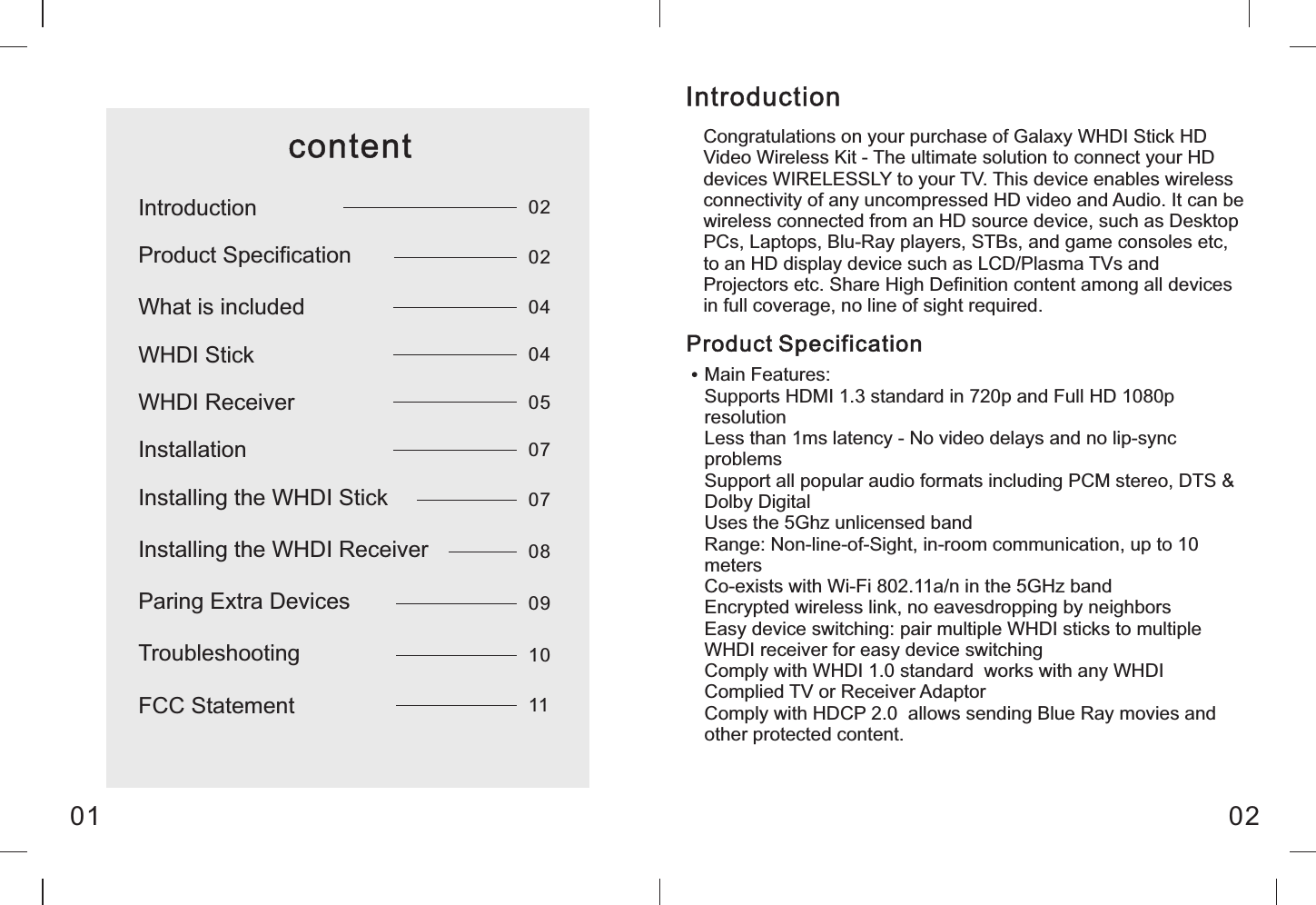
Congratulations on your purchase of Galaxy WHDI Stick HD Video Wireless Kit - The ultimate solution to connect your HD devices WIRELESSLY to your TV. This device enables wireless connectivity of any uncompressed HD video and Audio. It can be wireless connected from an HD source device, such as Desktop PCs, Laptops, Blu-Ray players, STBs, and game consoles etc, to an HD display device such as LCD/Plasma TVs and Projectors etc. Share High Definition content among all devices in full coverage, no line of sight required.IntroductionProduct SpecificationMain Features:Supports HDMI 1.3 standard in 720p and Full HD 1080p resolutionLess than 1ms latency - No video delays and no lip-sync problemsSupport all popular audio formats including PCM stereo, DTS & Dolby DigitalUses the 5Ghz unlicensed bandRange: Non-line-of-Sight, in-room communication, up to 10 metersCo-exists with Wi-Fi 802.11a/n in the 5GHz bandEncrypted wireless link, no eavesdropping by neighborsEasy device switching: pair multiple WHDI sticks to multiple WHDI receiver for easy device switchingComply with WHDI 1.0 standard  works with any WHDI Complied TV or Receiver AdaptorComply with HDCP 2.0  allows sending Blue Ray movies and other protected content.01 02contentIntroductionProduct SpecificationWHDI StickWhat is includedWHDI ReceiverInstallationInstalling the WHDI StickInstalling the WHDI ReceiverParing Extra DevicesTroubleshootingFCC Statement0202040405070708091011
Galaxy WHDI Transmitter StickDimensions: 107mm x44mm x16mmMaximum 12dBm transmission powerPower consumption: up to 2.5Watt for Full HD resolutionUSB Powered [5V 0.5A]Interface: HDMI in x1, Mini USB x1Galaxy WHDI ReceiverBundled with IR receiver for deviceairing/switchingDimensions: 148mm x96mm x20mmReceiver Sensitivity ≤ - 65 dBmInput Voltage: 5V/2A  DC (AC adaptor included)Interface: HDMI out x1, DC in x1, IR in x1, Mini USB x1 (Reserved)WHDI StickUSB portThe stick uses standard USB port as input power. When you are using devices without USB port, you can use the bundled USB power adaptor.What is included0403HDMI Video InputStatus Indicator-LED on: connection established-LED flashing: pairing mode-LED off: connection failedPairing keyUse this key to put the stick into “pairing” mode. Please check  the  steps  provided  in  this  manual  for  more details112233
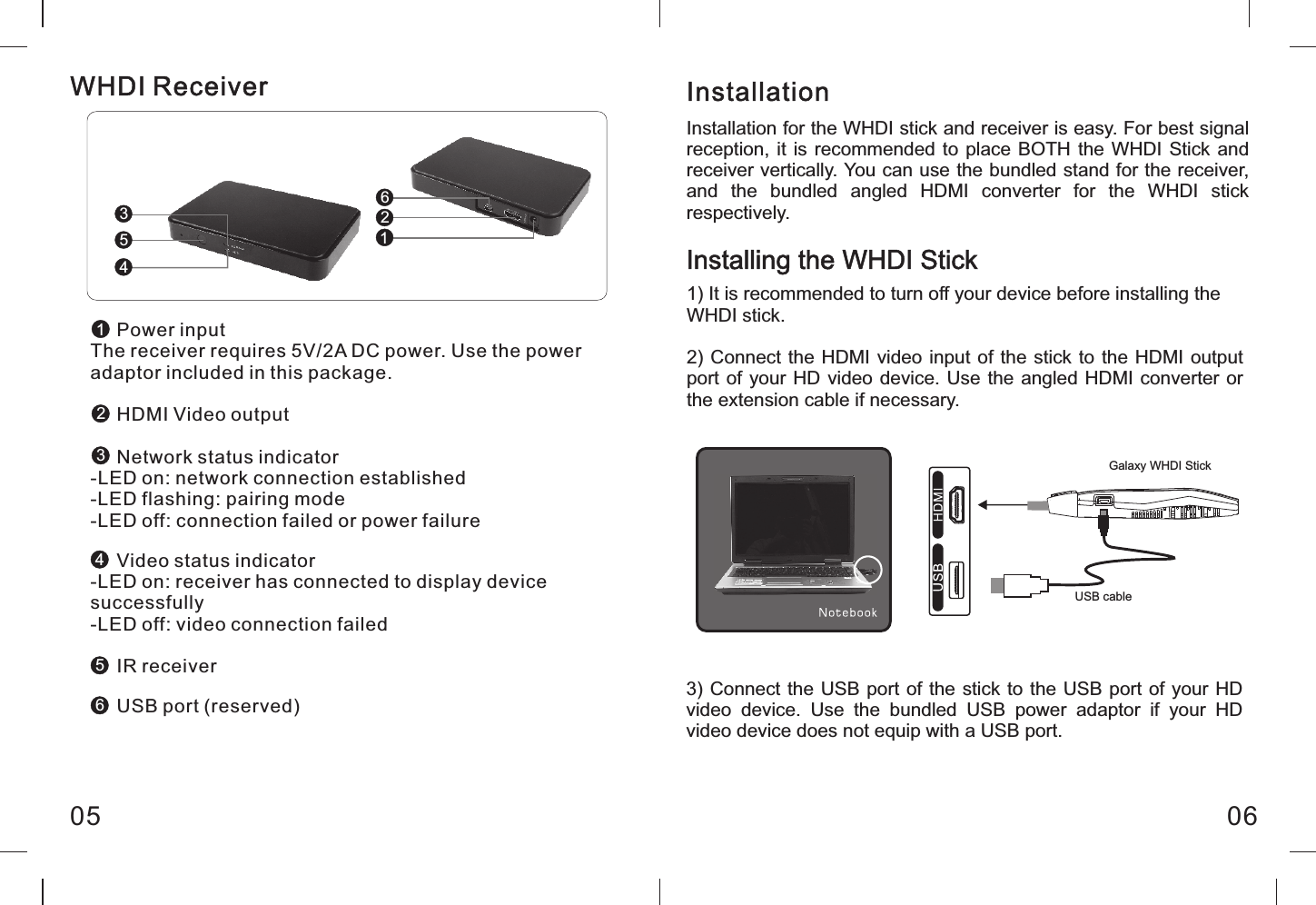
     Power inputThe receiver requires 5V/2A DC power. Use the power adaptor included in this package.     HDMI Video output     Network status indicator-LED on: network connection established-LED flashing: pairing mode-LED off: connection failed or power failure     Video status indicator-LED on: receiver has connected to display device successfully-LED off: video connection failed     IR receiver     USB port (reserved)05 06Installation for the WHDI stick and receiver is easy. For best signal reception, it is recommended  to  place BOTH the WHDI Stick  and receiver vertically. You can use the bundled stand for the receiver, and  the  bundled  angled  HDMI  converter  for  the  WHDI  stick respectively.Installation1) It is recommended to turn off your device before installing theWHDI stick.2) Connect the HDMI video input of the stick to the HDMI output port of your HD video device. Use the  angled HDMI converter or the extension cable if necessary.Installing the WHDI StickGalaxy WHDI StickUSB cable126354123456WHDI Receiver3) Connect the USB port of the stick to the USB port of your HD video  device.  Use  the  bundled  USB  power  adaptor  if  your  HD video device does not equip with a USB port.
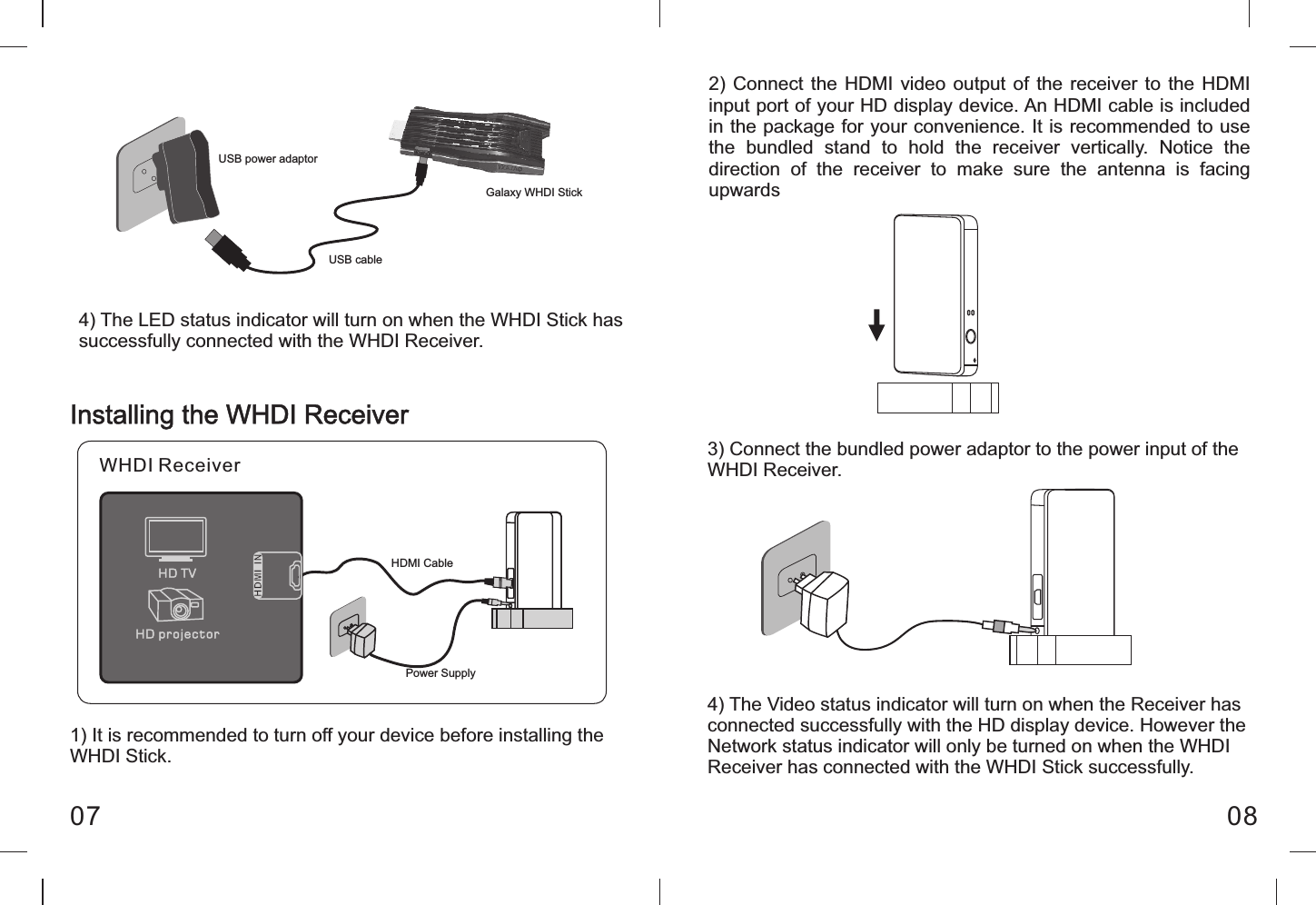
3) Connect the bundled power adaptor to the power input of the WHDI Receiver.Installing the WHDI Receiver08074) The LED status indicator will turn on when the WHDI Stick has successfully connected with the WHDI Receiver.Galaxy WHDI StickUSB cableUSB power adaptor1) It is recommended to turn off your device before installing the WHDI Stick.2) Connect  the  HDMI  video  output  of  the  receiver  to  the  HDMI input port of your HD display device. An HDMI cable is included in the package for your convenience. It is recommended to use the  bundled  stand  to  hold  the  receiver  vertically.  Notice  the direction  of  the  receiver  to  make  sure  the  antenna  is  facing upwards4) The Video status indicator will turn on when the Receiver has connected successfully with the HD display device. However the Network status indicator will only be turned on when the WHDI Receiver has connected with the WHDI Stick successfully.WHDI ReceiverHDMI CablePower Supply
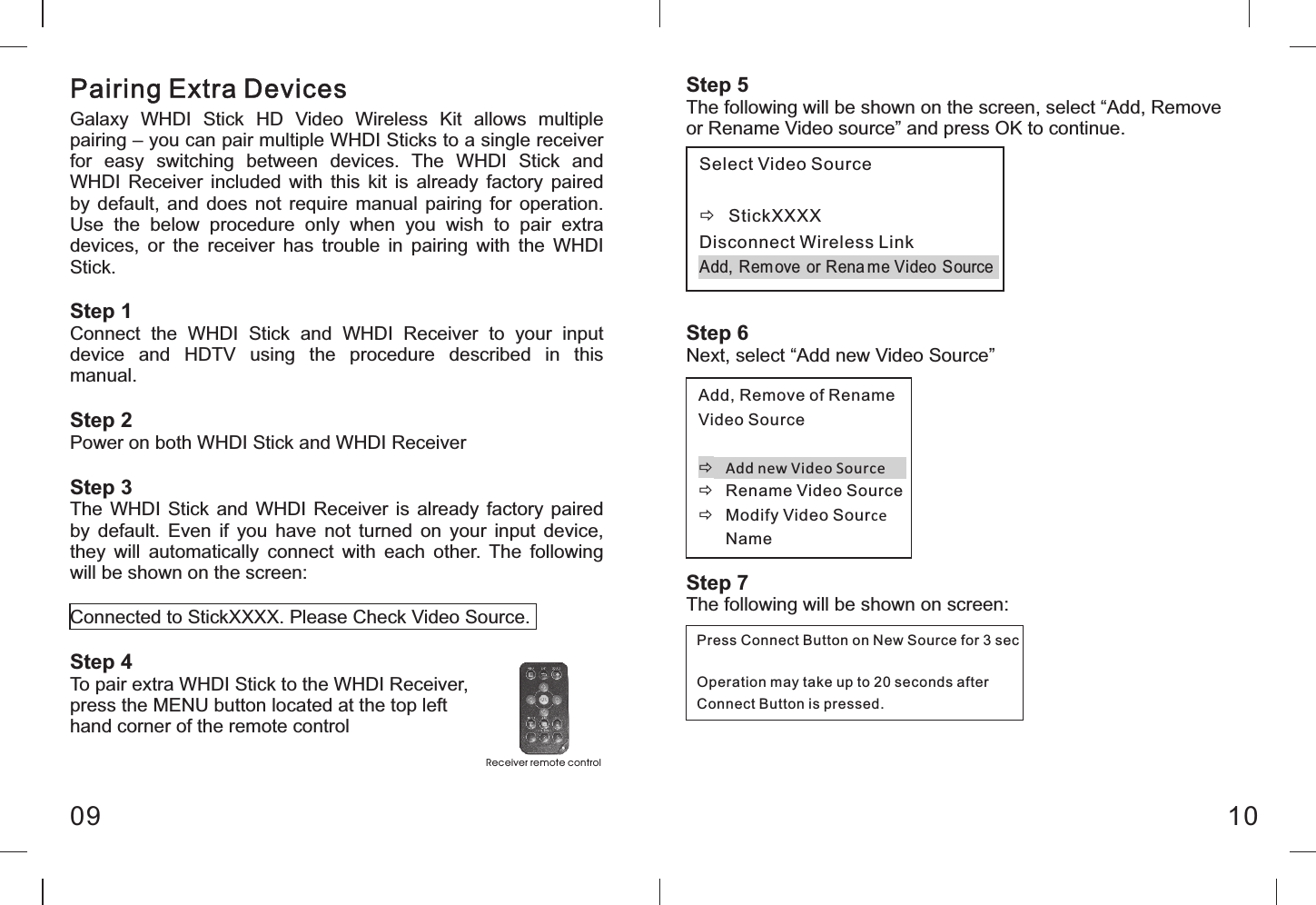
Pairing Extra Devices09 10Galaxy  WHDI  Stick  HD  Video  Wireless  Kit  allows  multiple pairing – you can pair multiple WHDI Sticks to a single receiver for  easy  switching  between  devices.  The  WHDI  Stick  and WHDI  Receiver  included  with this  kit is  already  factory  paired by  default,  and  does not  require  manual  pairing for  operation. Use  the  below  procedure  only  when  you  wish  to  pair  extra devices,  or  the  receiver  has  trouble  in  pairing  with  the  WHDI Stick.Step 1Connect  the  WHDI  Stick  and  WHDI  Receiver  to  your  input device  and  HDTV  using  the  procedure  described  in  this manual.Step 2Power on both WHDI Stick and WHDI ReceiverStep 3The  WHDI  Stick  and  WHDI  Receiver is already factory  paired by  default.  Even  if  you  have  not  turned  on  your  input  device, they  will  automatically  connect  with  each  other.  The  following will be shown on the screen:Connected to StickXXXX. Please Check Video Source.Step 4To pair extra WHDI Stick to the WHDI Receiver, press the MENU button located at the top left hand corner of the remote controlStep 5The following will be shown on the screen, select “Add, Remove or Rename Video source” and press OK to continue.Step 6Next, select “Add new Video Source”Step 7The following will be shown on screen:Re ceiver re mote cont rol Select Video Source  ð  StickXXXX Disconnect Wireless Link Add,  Rem ove  or Rena me Video Source  Add, Remove of Rename Video Source  ð Add new Video Source ð  Rename Video Source ð  Modify Video Source Name  Press Connect Button on New Source for 3 sec  Operation may take up to 20 seconds after Connect Button is pressed.
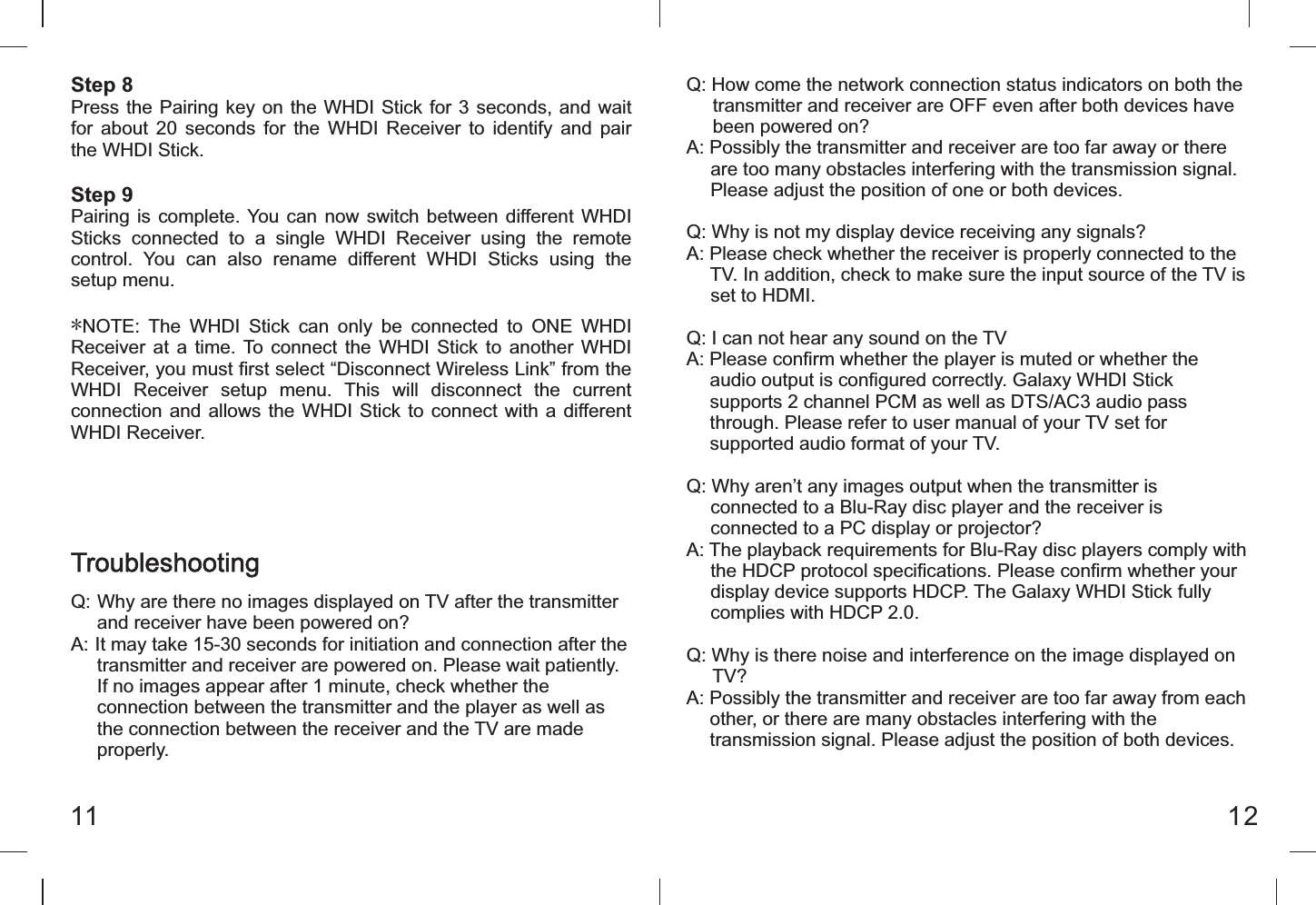
Step 8Press the Pairing key on the WHDI Stick for 3 seconds, and  wait for  about  20  seconds  for  the  WHDI  Receiver  to  identify  and  pair the WHDI Stick.Step 9Pairing is complete. You  can  now  switch  between  different WHDI Sticks  connected  to  a  single  WHDI  Receiver  using  the  remote control.  You  can  also  rename  different  WHDI  Sticks  using  the setup menu.*NOTE:  The  WHDI  Stick  can  only  be  connected  to  ONE  WHDI Receiver  at  a time. To  connect  the  WHDI  Stick  to  another WHDI Receiver, you must first select “Disconnect Wireless Link” from the WHDI  Receiver  setup  menu.  This  will  disconnect  the  current connection and allows the WHDI Stick  to  connect  with a different WHDI Receiver.Q: How come the network connection status indicators on both the      transmitter and receiver are OFF even after both devices have      been powered on?A: Possibly the transmitter and receiver are too far away or there      are too many obstacles interfering with the transmission signal.      Please adjust the position of one or both devices.Q: Why is not my display device receiving any signals?A: Please check whether the receiver is properly connected to the      TV. In addition, check to make sure the input source of the TV is      set to HDMI.Q: I can not hear any sound on the TVA: Please confirm whether the player is muted or whether the      audio output is configured correctly. Galaxy WHDI Stick      supports 2 channel PCM as well as DTS/AC3 audio pass      through. Please refer to user manual of your TV set for      supported audio format of your TV.Q: Why aren’t any images output when the transmitter is      connected to a Blu-Ray disc player and the receiver is        connected to a PC display or projector?A: The playback requirements for Blu-Ray disc players comply with      the HDCP protocol specifications. Please confirm whether your      display device supports HDCP. The Galaxy WHDI Stick fully      complies with HDCP 2.0.Q: Why is there noise and interference on the image displayed on      TV?A: Possibly the transmitter and receiver are too far away from each      other, or there are many obstacles interfering with the      transmission signal. Please adjust the position of both devices. 11 12TroubleshootingQ: Why are there no images displayed on TV after the transmitter       and receiver have been powered on?A: It may take 15-30 seconds for initiation and connection after the       transmitter and receiver are powered on. Please wait patiently.      If no images appear after 1 minute, check whether the      connection between the transmitter and the player as well as      the connection between the receiver and the TV are made      properly.
FCC Statement1413     Both the WHDI Stick and WHDI Receiver works best when they      are placed vertically.Q: When I connect the USB port of the WHDI Stick to my PC,      Windows detected a unknown hardware, is that normal?A: The WHDI Stick only uses the USB port for power, and does not      require any driver installation on the PC for such purpose.      Driver installation is only needed for firmware update and      maintenance.This equipment has been  tested and  found to  comply with  the limits  for a  Class B digital  device,  pursuant to  part  15  of  the FCC rules.  These  limits are designed  to provide  reasonable  protection  against  harmful  interference  in  a  residential installation. This equipment generates, uses and can radiate radio frequency energy and,  if  not  installed  and  used  in  accordance  with  the  instructions,  may  cause harmful interference to radio communications. However, there is no guarantee that interference will  not occur  in a particular  installation. If this equipment does  cause harmful interference to radio or television reception, which can be determined by turning the equipment off and on, the user is encouraged to try to correct the interference by one or more of the following measures:-Reorient or relocate the receiving antenna.-Increase the separation between the equipment and receiver.-Connect  the equipment  into an  outlet  on a  circuit  different  from that  to which the receiver is connected.-Consult the dealer or an experienced radio/TV technician for help.To  assure  continued  compliance,  any  changes  or  modifications  not  expressly approved by the party responsible for compliance could void the user’s authority to operate  this  equipment.  (Example-  use  only  shielded  interface  cables  when connecting to computer or peripheral devices).FCC Radiation Exposure Statement   This  equipment  complies  with  FCC  RF  radiation  exposure  limits  set  forth  for  an uncontrolled  environment.  This  transmitter  must  not  be  co-located  or  operating  in conjunction with any other antenna or transmitter.This equipment complies with Part 15 of the FCC Rules.Operation is subject to the following two conditions:  (1) This device may not cause harmful interference, and  (2)  This  device  must  accept  any  interference  received,  including  interference  that may cause undesired operation.  Caution! The  manufacturer  is  not  responsible  for  any  radio  or  TV  interference  caused  by unauthorized  modifications  to  this  equipment.  Such  modifications  could  void  the user authority to operate the equipment.

Navigation menu