Gammex GLED LR Series Transmitter User Manual AccuChrom3 Manual Layout 1

Gammex, Inc LR Series Transmitter AccuChrom3 Manual Layout 1

User Manual

Installation andUser’s GuideGLED-600(Sagittal)GLED-800(Crosshair)
Table of ContentsIntroduction and Intended Use ....................................................................... 3Definitions ....................................................................................................... 4Safety Information .......................................................................................... 4Storage and Transportation  ........................................................................... 4Environmental Limits ...................................................................................... 4Location of Labels .......................................................................................... 5Operator Controls  .......................................................................................... 6Pre-Installation ...........................................................................................7-11Installation Requirements  .............................................................................. 8Typical Room Layout  ......................................................................................9Room Preparation .........................................................................................10Installation ............................................................................................... 13-18Side Optical Aligner Installation ................................................................13-14Second Side Aligner Installation  .................................................................. 16Installation on Angled Walls  ......................................................................... 17Ceiling Aligner Installation ............................................................................ 18Sagittal Aligner Installation ........................................................................... 20Remote Control ........................................................................................21-29Optical Aligner Adjustments  .................................................................... 30-32Maintenance & Cleaning................................................................................32Troubleshooting .......................................................................................33-34Repair and Parts Information .................................................................. 35-37Replacing the LED ....................................................................................... 35Dismantling and Disposal  ............................................................................ 36Parts List  ...................................................................................................... 37Specifications ................................................................................................38Technical Support  ........................................................................................ 40Product Warranty  ......................................................................................... 40NOTE: Installation Template was shipped with your patient positioning unit.  For replacementtemplate, please use Gammex part number: 007882
3Dear Valued CustomerCongratulations on your recent purchase of a Gammex Optical Alignment System! This optical alignment system product is the result of over 40 years of continuous quality improvement of alignment technologies.  If, after carefully reading this manual, you have any questions, please contact our Sales and Service Department at 1-800-Gammex 1 or 1-800-426-6391.IntroductionThis Installation and User’s Guide includes the information you will need to safely and efficiently install, operate and maintain your medical alignment system.  This guide is only intended for use with Gammex AccuChrom 3 models GLED-800 (Crosshair) and GLED–600 (Sagittal).Intended UseThese optical alignment products are intended to be used for aligning patients to medical diagnostic imaging and radiation therapy equipment which utilizes ionizing radiation.  They are intended to be used in medical clinic or hospital settings by trained medical staff.  The optical alignment products are not designed to be used around flammable anesthetics, which present a risk of explosion or fire.  The optical alignment products are not intended to be used in a sterile or corrosive environment.  No other uses are intended nor implied.
4Storage and Transportation• Do not drop• Non-corrosive environment• Storage Temperature:  -20 to +40° C (-4 to +104° F)• Storage Humidity:  0 to 85% relative humidity (no dew nor condensation)Environmental Limits:• Operating Temperature: +5 to +35° C (+41 to +95° F)• Operating Humidity: 0 to 85 % relative humidity (no dew nor condensation)• No flammable anesthetics• No corrosivesGeneral SafetySignal words are used according to international standards.  The meanings of thesesignal words are:DANGER- Indicates an imminently hazardous situation which, if not avoided,will result in death or serious injury.  This signal word is to be limited to themost extreme situations.  WARNING- Indicates a potentially hazardous situation which, if not avoided,could result in death or serious injury.  CAUTION- Indicates a potentially hazardous situation which, if not avoided,may result in minor or moderate injury.  It may also be used to alert againstunsafe practices.  Permitted for property damage only accidents.Sagittal  - Single vertical line projectingCrosshair  - Crossed line projectingIso-center  - Center point where the X, Y and Z planes coincide.Indicates user to consult accompanying documentThis symbol indicates that when the end-user wishes to     discard this product, it must be sent to a separate collectionfacility for recovery and recycling.Caution - Optical Radiation Risk of eye damage.  Do not stare directly at light source.
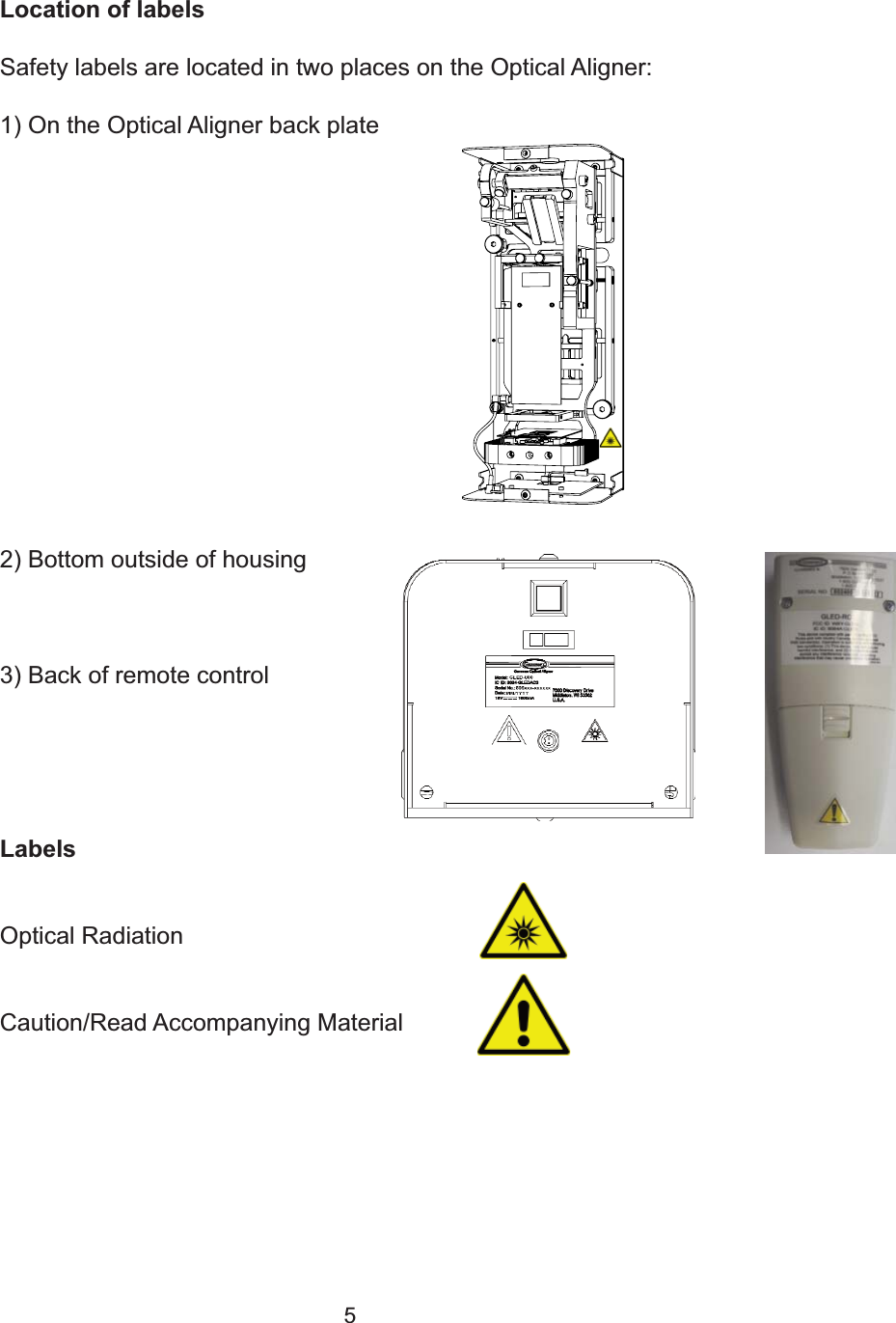
5Location of labelsSafety labels are located in two places on the Optical Aligner:1) On the Optical Aligner back plate2) Bottom outside of housing3) Back of remote control LabelsOptical Radiation Caution/Read Accompanying Material
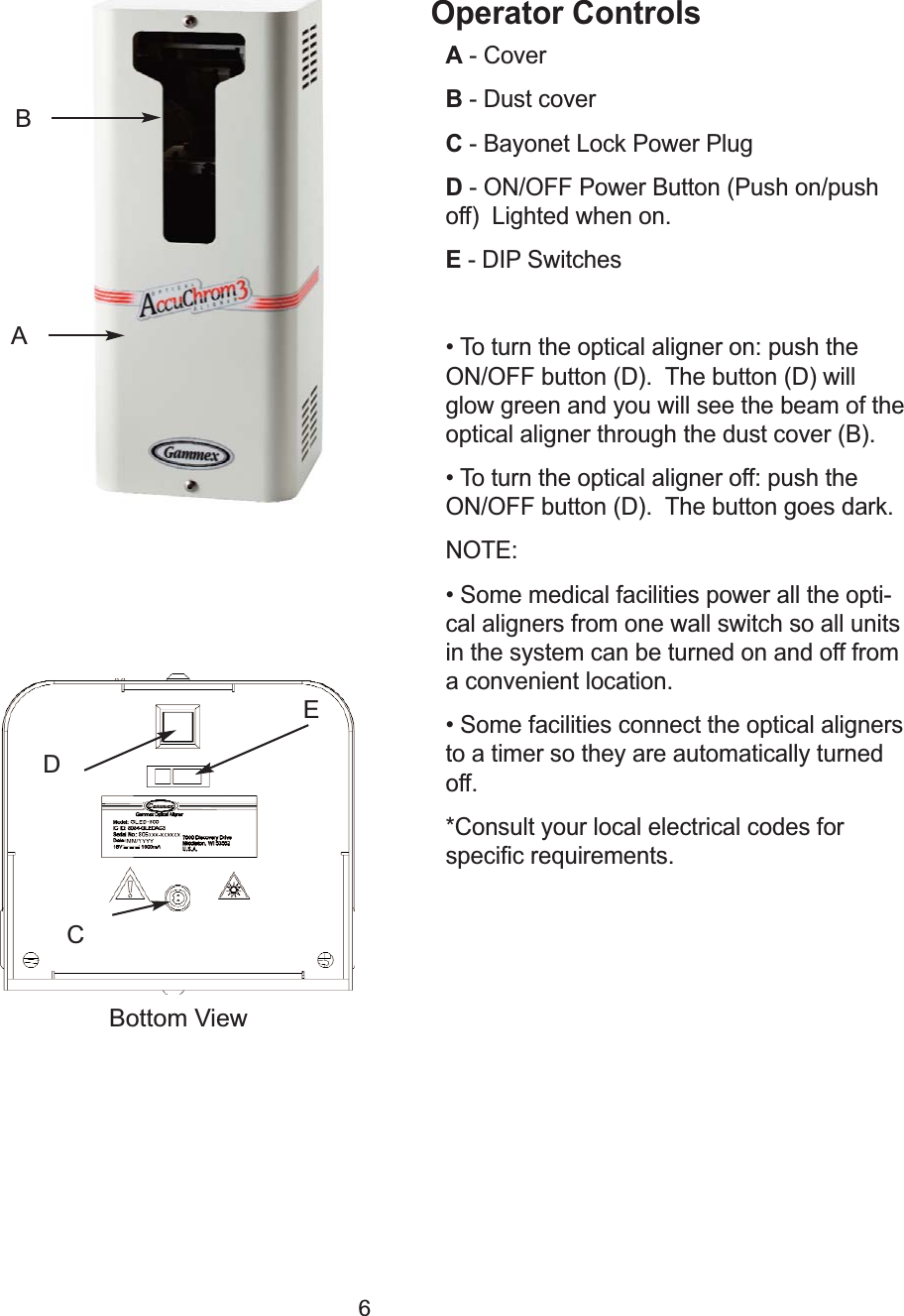
6Operator ControlsA- Cover                                                                              B- Dust coverC- Bayonet Lock Power Plug D- ON/OFF Power Button (Push on/push off)  Lighted when on.                      E- DIP Switches• To turn the optical aligner on: push theON/OFF button (D).  The button (D) willglow green and you will see the beam of theoptical aligner through the dust cover (B).• To turn the optical aligner off: push theON/OFF button (D).  The button goes dark.NOTE:• Some medical facilities power all the opti-cal aligners from one wall switch so all unitsin the system can be turned on and off froma convenient location.• Some facilities connect the optical alignersto a timer so they are automatically turnedoff. *Consult your local electrical codes forspecific requirements.DCABEBottom View
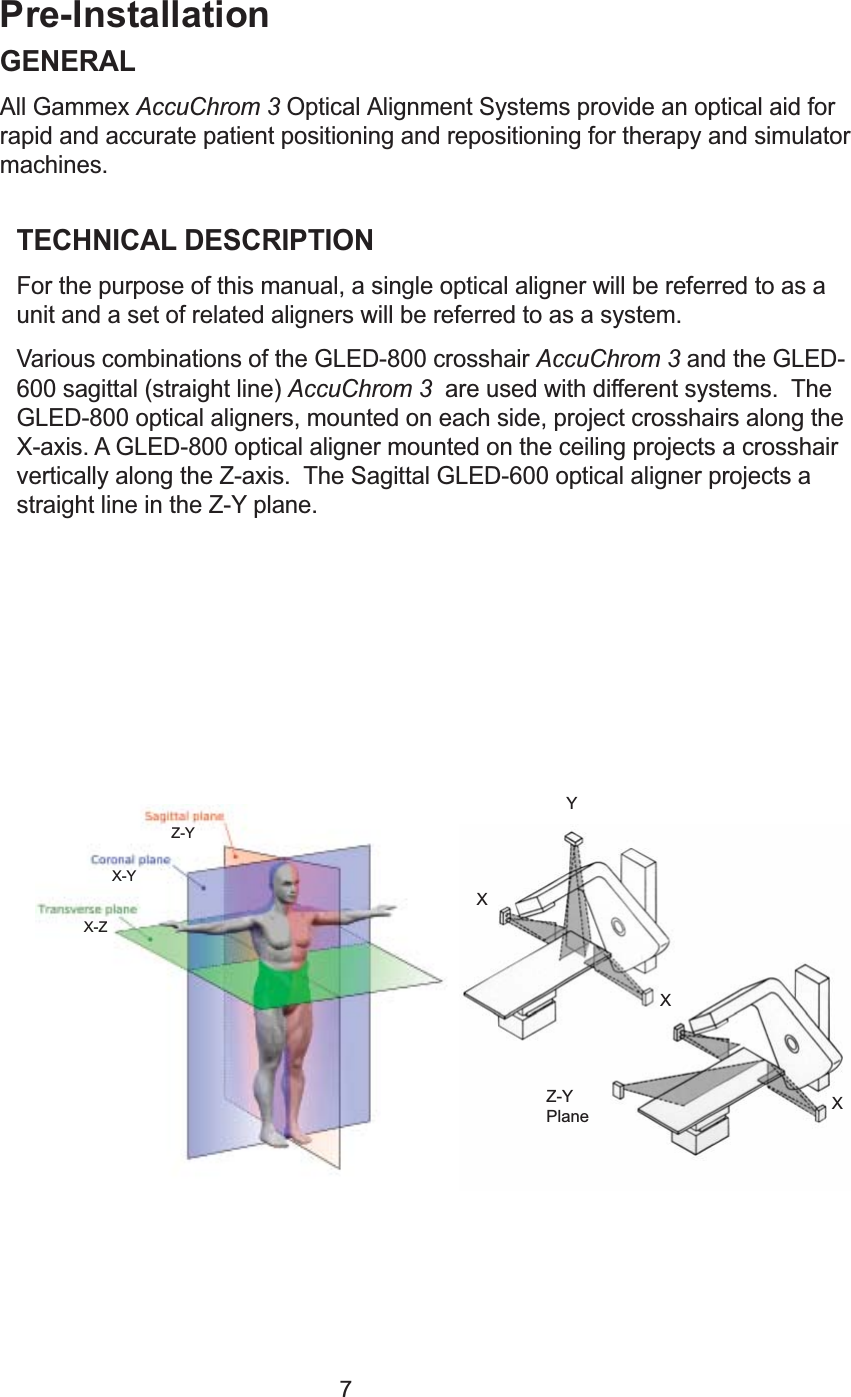
7Pre-InstallationGENERALAll Gammex AccuChrom 3 Optical Alignment Systems provide an optical aid forrapid and accurate patient positioning and repositioning for therapy and simulatormachines.TECHNICAL DESCRIPTIONFor the purpose of this manual, a single optical aligner will be referred to as aunit and a set of related aligners will be referred to as a system.Various combinations of the GLED-800 crosshair AccuChrom 3 and the GLED-600 sagittal (straight line) AccuChrom 3  are used with different systems.  TheGLED-800 optical aligners, mounted on each side, project crosshairs along theX-axis. A GLED-800 optical aligner mounted on the ceiling projects a crosshairvertically along the Z-axis.  The Sagittal GLED-600 optical aligner projects astraight line in the Z-Y plane.XXXYZ-YPlaneX-ZX-YZ-Y
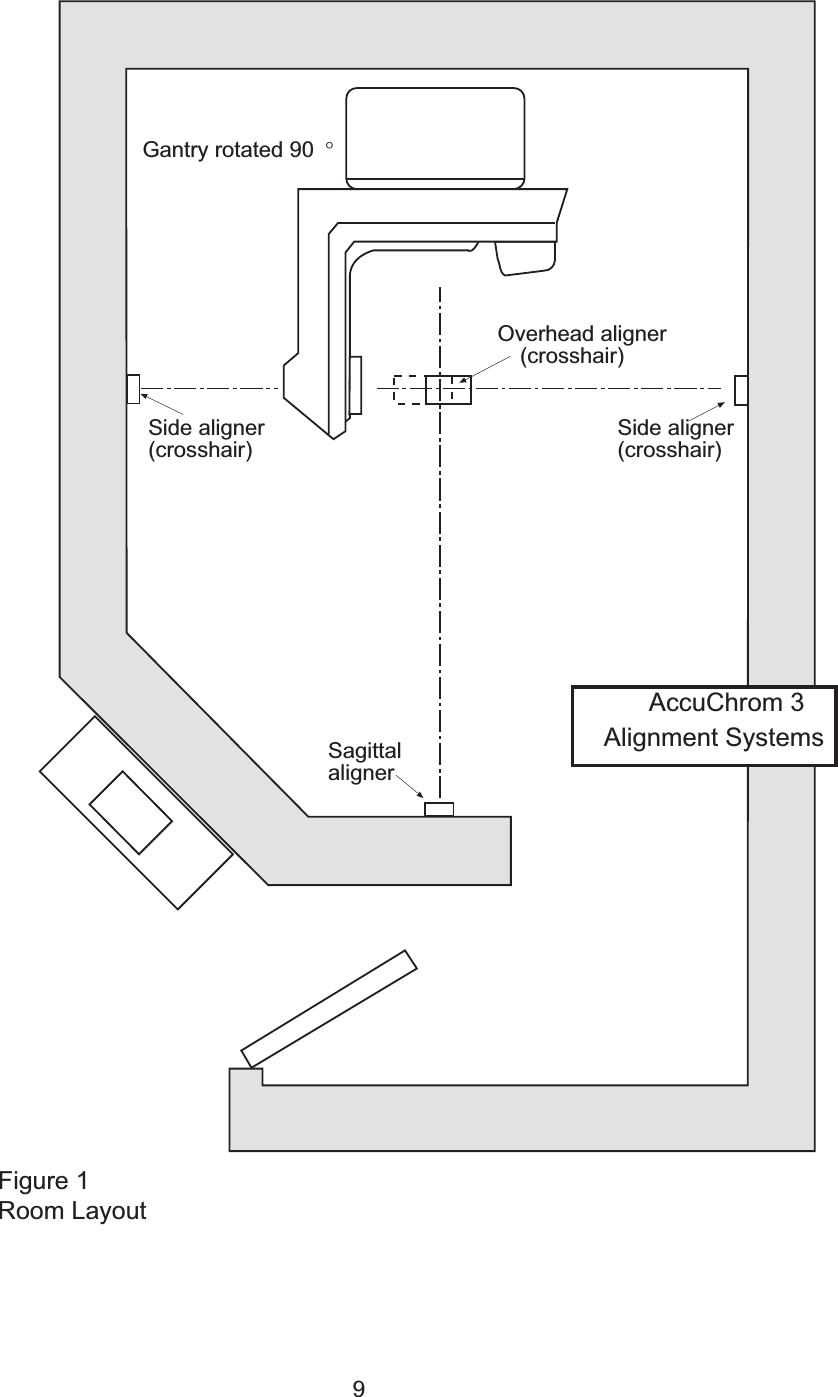
8Installation RequirementsELECTRICALEach optical aligner is provided with a universal power supply (transformer) with aninput of 100 to 240 volts AC at 50 to 60 Hz.  The universal power supply plugs into awall outlet using one of four (4) interchangeable “snap-in” plugs that fit most outlets.A 1.83 meter (6 foot) power cord supplies 18 Volt DC power to the optical alignerwith a bayonet type locking power plug.TOOLS NEEDEDIn addition to some basic tools, such as screwdrivers, a hammer and a ladder; youwill need an electric hammer drill, plumb bob, water level, masking tape and 15M(50 feet) of string.  The mounting hardware, a 1/4-20 tap, 2 drill bits (#7 and 3/8”),1/4” anchor and a 3/16” hex (allen) wrench, are included with the optical alignmentsystems.   A spinning laser may be used as an alternative to a water level.  Contactus for more information.CAUTION: The location of each optical aligner is determined in relation to thetherapy machine’s crosshair and isocenter.  Before installing an optical alignmentsystem, ask the physicist to verify that the field light aligns with the therapymachine’s isocenter. See Figure 1 on page 9.During commissioning/validation of a linear accelerator, please power off allAccuChrom 3 positioning units (to prevent damage caused by high levels ofradiation).  They may be powered back on immediately after commissioning/validation.
9Overhead aligner(crosshair)Sagittal alignerSide aligner(crosshair)Side aligner(crosshair)Gantry rotated 90 °AccuChrom 3 Alignment SystemsFigure 1Room Layout
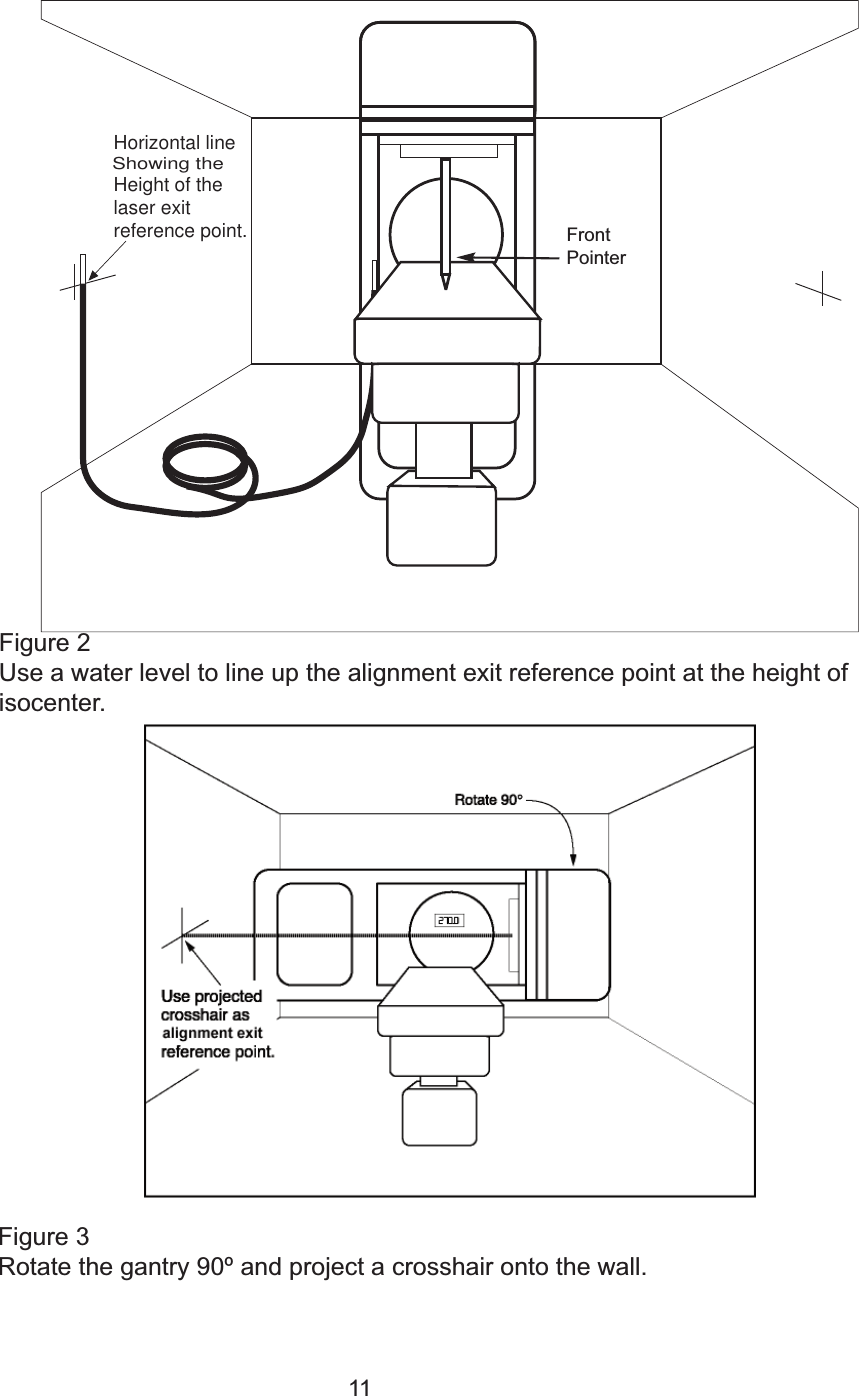
10Pre-InstallationUse a water level to line up the optical aligner’s exit reference point at the height ofisocenter.  See Figure 2 on page 10.PREPARING THE ROOM1.  Unpack each optical alignment unit and remove shipping stability screws accordingto the pre-installation guide included with the unit.  2.  Turn the linear accelerator lamp on.3.  Set gantry and collimator to 0º and level the collimator.4.  Lower the table as far as possible.COLLIMATOR CROSSHAIR ACCURACYThe collimator projected crosshair is used as a reference when determining the opticalaligners locations.  The light field should coincide with isocenter, the gantry should belevel, and if collimator crosshair displacement exists, it should be compensated for.1. Project a collimator crosshair onto a piece of paper taped to the table and mark thecenter with a dot.2. Rotate through 360° and mark the center again.3. If there is a difference between the two dots, review this finding with site physicist.The physicist will make the final determination as to where to place the crosshair ifa difference in dot location is observed.USING THE LEVELUse a level to determine the height of the optical aligner exit reference point wheninstalling optical alignment systems in a simulator room or in a room with angled walls.In standard treatment rooms, the level should also be used to verify the optical align-ment system location.  See Figure 2 on page 10.1. Raise the table to the front pointer (isocenter).2. Remove caps on ends of level and remove air bubbles.3. Line up with the table edge and with the wall. 4. The line on the wall indicates the horizontal axis of the optical aligner exitreference point.
11Height of the laser exit reference point.Showing the Horizontal lineFigure 2Use a water level to line up the alignment exit reference point at the height ofisocenter.Figure 3Rotate the gantry 90º and project a crosshair onto the wall.FrontPointer
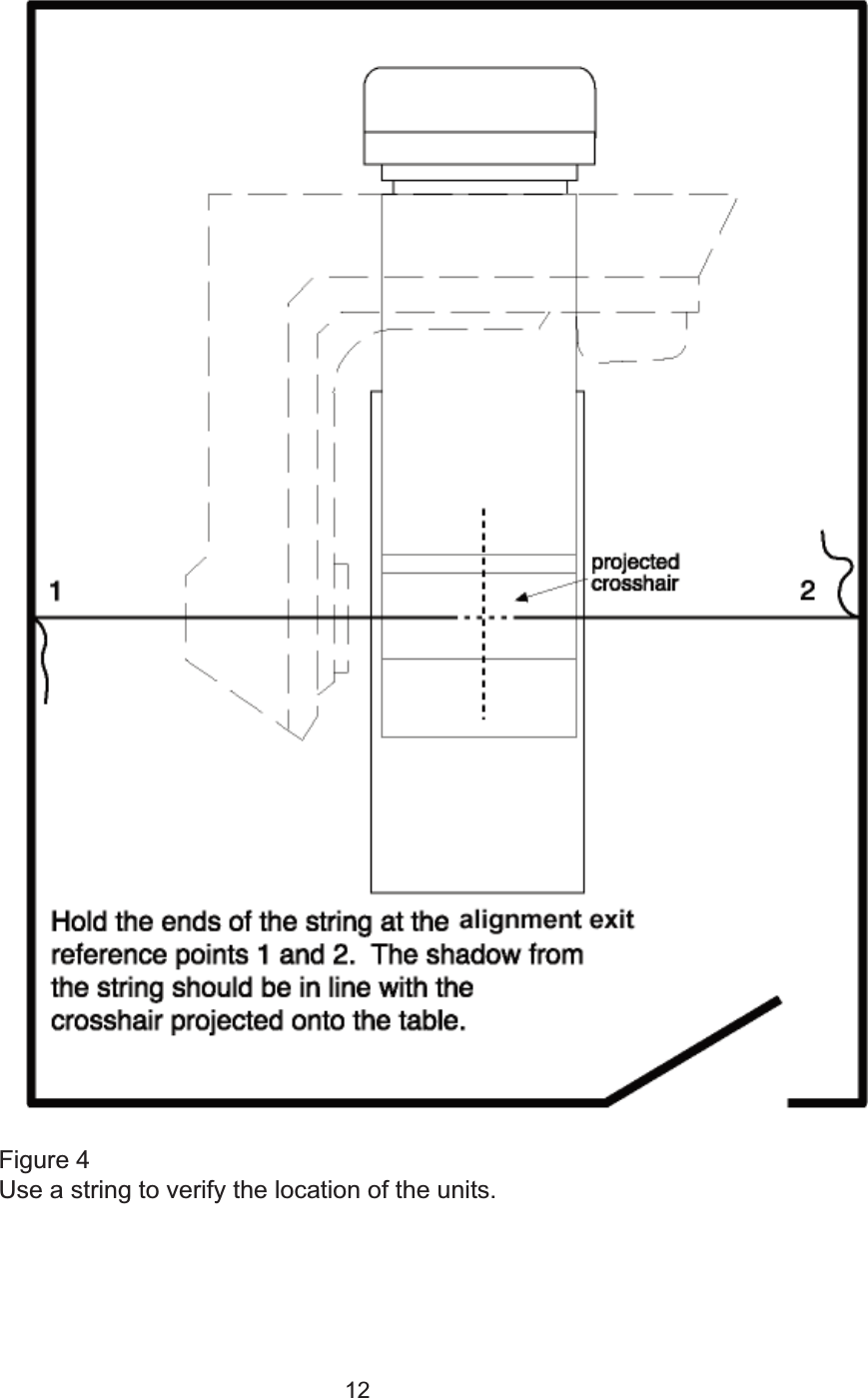
12Figure 4Use a string to verify the location of the units.
13Installing Optical Alignment SystemsSIDE OPTICAL ALIGNER INSTALLATIONFor all GLED-800 installations.  For angled walls, refer to page 17.1. Rotate the gantry 90° to the 270° position and project a crosshair onto the wall.See Figure 3 on page 11.2. Use a pencil and straight rule to trace the crosshair onto the wall.3. Line up the template provided, so that the projected crosshair lines up with theoptical aligner exit point on the template.  Use a level to line up the template.4. Mark the outer edge of the template and also mark the mounting holes.5. Rotate the gantry 180° to the 90° position and repeat steps 2-4 on the oppositewall.6. Return the gantry to 0°.7. Tape a blank 8 X 10 piece of paper to the table.8. Project the collimator crosshair onto the paper, keep the field as wide aspossible.9. Hold the ends of a string on each wall at the center of the crosshair traced instep 2.  The string shadow should be in line with  projected crosshair. SeeFigure 4 on page 12.10. Drill the mounting holes.  Tap threads or install anchors as necessary.11. Remove the AccuChrom 3 from its packaging and remove shipping stabilityscrews according to the pre-installation guide included with the unit.  Removetwo screws from the front cover using a 1/8” hex (allen) wrench.  Slide the coverstraight off towards the front.
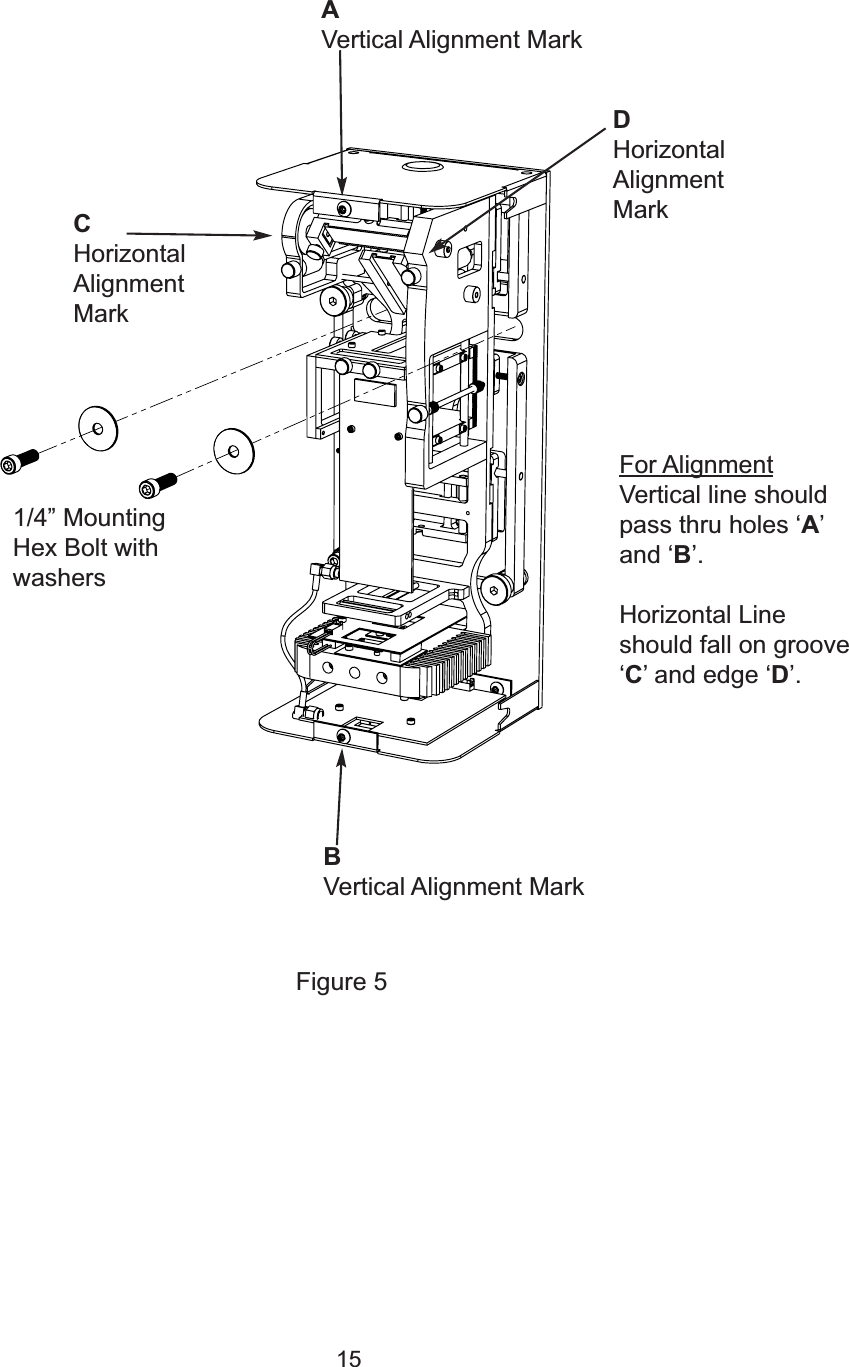
14Installing Optical Alignment SystemsSIDE OPTICAL ALIGNER INSTALLATION (continued)12. Use the two 1/4”  hex bolts and washers to mount the optical aligner to the wallshown in Figure 5.  The optical aligner must be firmly mounted.  Oversizedholes provide flexibility to line up the exit reference hole.  Suitable anchorsmust be used.  Wall anchors for masonry are provided in the mounting kit.  Use a 3/8” diameter drill bit for the provided anchors.  It may be helpful to shiftthe optics to ease installation of mounting bolts.  Refer to the following pagesfor the methods of planar adjustments.  Re-center the optics after mounting.  13.  Do not replace the cover at this time.14.  Plug in the universal power supply.  Attach the bayonet lock power plug to thebottom of the optical alignment system. Turn on the optical aligner. 15. Plug in the receiver.16. Rotate the gantry 90° (so that the crosshair is projected onto the opticalalignment system) and tape a piece of paper to the gantry head, covering theprojected light field.17. Adjust the optical aligner so that the projected aligner crosshair lines up withthe collimator cross hair.  Refer to the following pages for the methods formaking optical alignment system adjustments.18. Verify that the vertical line of the projected collimator crosshair passes throughthe screw holes in the top and the bottom cover of the optical aligner.  SeeFigure 5 on page 15.19. Verify that the horizontal line of the projected collimator crosshair falls on thehorizontal alignment marks of the optical aligner.  See Figure 5 on page 15.20. Adjust for perpendicular lines if necessary.  Refer to page 30.21. Turn off the optical aligner.22.  Place the cover on and replace the screws.  Take care not to bump theopticals. 23.  Double check the alignment of the unit several times. 24. Return the gantry to 0°.
15Figure 5For AlignmentVertical line shouldpass thru holes ‘A’and ‘B’.Horizontal Lineshould fall on groove‘C’ and edge ‘D’. AVertical Alignment MarkBVertical Alignment MarkCHorizontal Alignment MarkDHorizontal Alignment Mark1/4” MountingHex Bolt withwashers
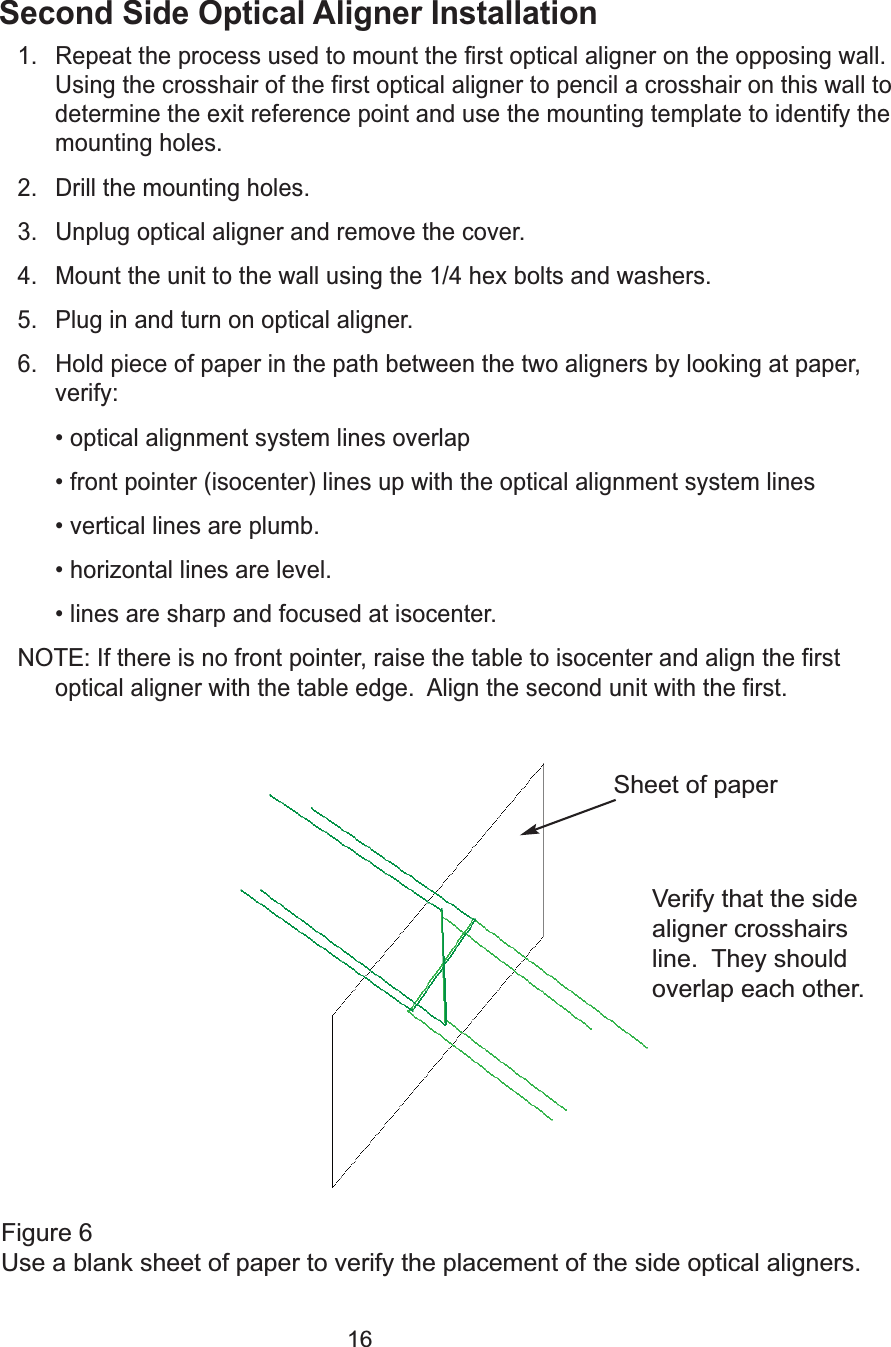
16Second Side Optical Aligner Installation1. Repeat the process used to mount the first optical aligner on the opposing wall.Using the crosshair of the first optical aligner to pencil a crosshair on this wall todetermine the exit reference point and use the mounting template to identify themounting holes.2. Drill the mounting holes.3. Unplug optical aligner and remove the cover.4. Mount the unit to the wall using the 1/4 hex bolts and washers.5. Plug in and turn on optical aligner.6. Hold piece of paper in the path between the two aligners by looking at paper,verify:• optical alignment system lines overlap• front pointer (isocenter) lines up with the optical alignment system lines• vertical lines are plumb.• horizontal lines are level. • lines are sharp and focused at isocenter.  NOTE:If there is no front pointer, raise the table to isocenter and align the firstoptical aligner with the table edge.  Align the second unit with the first.  Figure 6Use a blank sheet of paper to verify the placement of the side optical aligners.Sheet of paperVerify that the sidealigner crosshairsline.  They shouldoverlap each other.
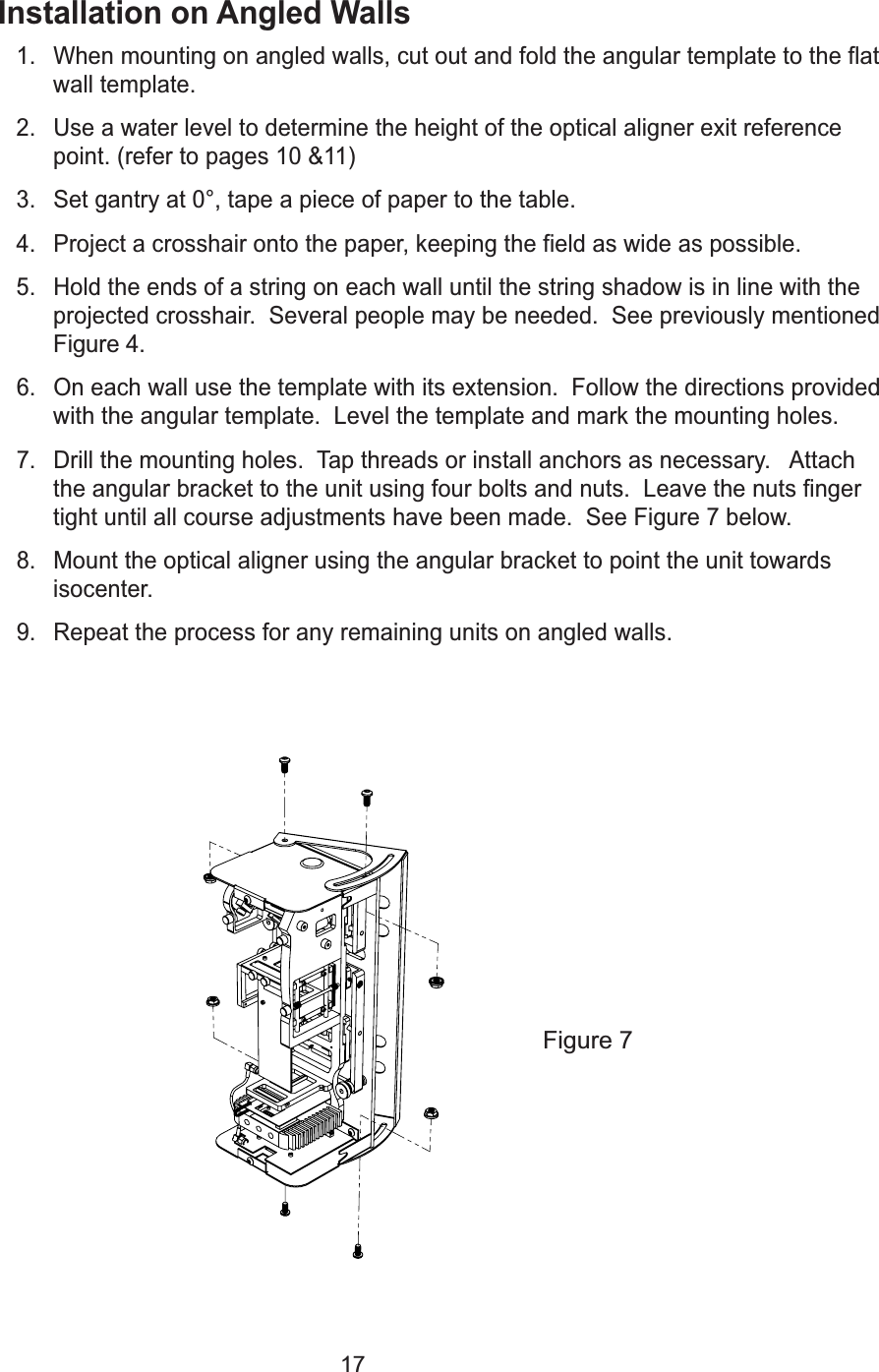
17Installation on Angled Walls1. When mounting on angled walls, cut out and fold the angular template to the flatwall template.2. Use a water level to determine the height of the optical aligner exit referencepoint. (refer to pages 10 &11)3. Set gantry at 0°, tape a piece of paper to the table.4. Project a crosshair onto the paper, keeping the field as wide as possible.5. Hold the ends of a string on each wall until the string shadow is in line with theprojected crosshair.  Several people may be needed.  See previously mentionedFigure 4.6. On each wall use the template with its extension.  Follow the directions providedwith the angular template.  Level the template and mark the mounting holes.7. Drill the mounting holes.  Tap threads or install anchors as necessary.   Attachthe angular bracket to the unit using four bolts and nuts.  Leave the nuts fingertight until all course adjustments have been made.  See Figure 7 below.8. Mount the optical aligner using the angular bracket to point the unit towardsisocenter.   9. Repeat the process for any remaining units on angled walls.Figure 7
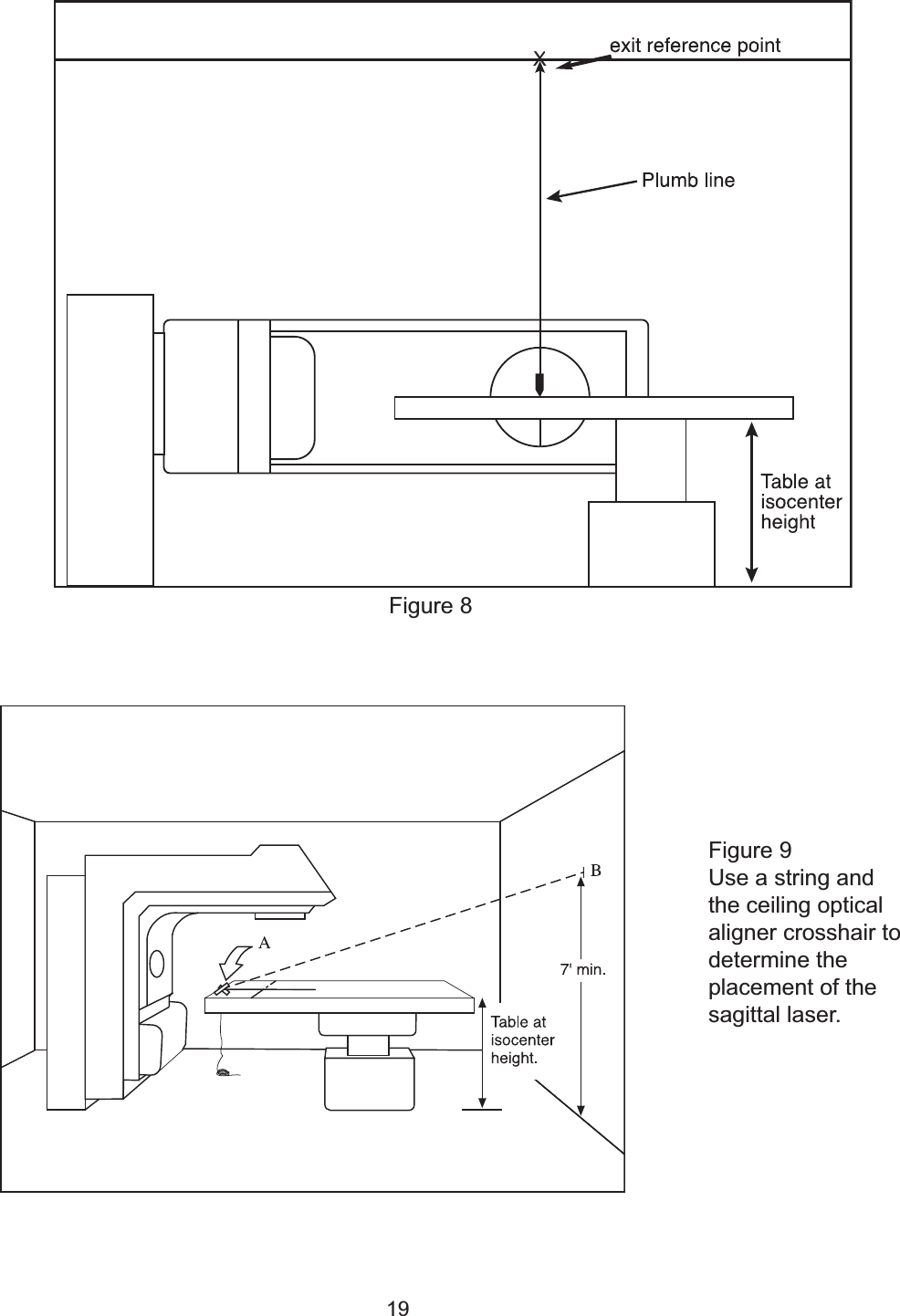
18Ceiling Optical Aligner Installation1. Level gantry at 0° and place the table at isocenter height.2. Tape a piece of paper to the table.3. Project a crosshair and mark the crosshair center point on the paper with apencil.4. Move collimator out of the way.5. Hold a plumb bob from the ceiling so that the bottom weight hits the dot on thetable.  The point at which the string touches the ceiling indicates the opticalaligner exit reference point.  Mark this location with a pencil.  See Figure 8.6. Use the template to mark the location of the mounting holes.7. Drill the mounting holes.  Tap or install anchors as necessary.  It is helpful tocover the table to catch drill filmings.  8. Unplug the optical aligner and remove the cover.9. Use the two 1/4” hex mounting bolts and washers to mount the optical aligner tothe wall as shown in Figure 5.  The unit must be firmly mounted.  Oversizedholes in the aligner back mounting plate provide flexibility to line up the exit ref-erence hole.  Suitable anchors must be used.  Wall anchors for masonry areprovided in the mounting kit.  Use a 3/8” diameter drill bit for the provided anchors.  It may be helpful to shiftthe optics to ease installation of mounting bolts.  See page 30 for planar adjust-ments.  Re-center the optics after mounting.  10. Plug in and turn on optical alignment system.11. The center of the optical alignment system crosshair should correspond with thedot on the table.12. Raise and lower the table.  The crosshair should stay aligned for the entiremovement of the table.  Refer to Optical Alignment Adjustments on page 31 tomake corrections.NOTE:If the aligner is mounted in a recess, cut a hole in the ceiling tile largeenough to allow the entire crosshair to be projected.
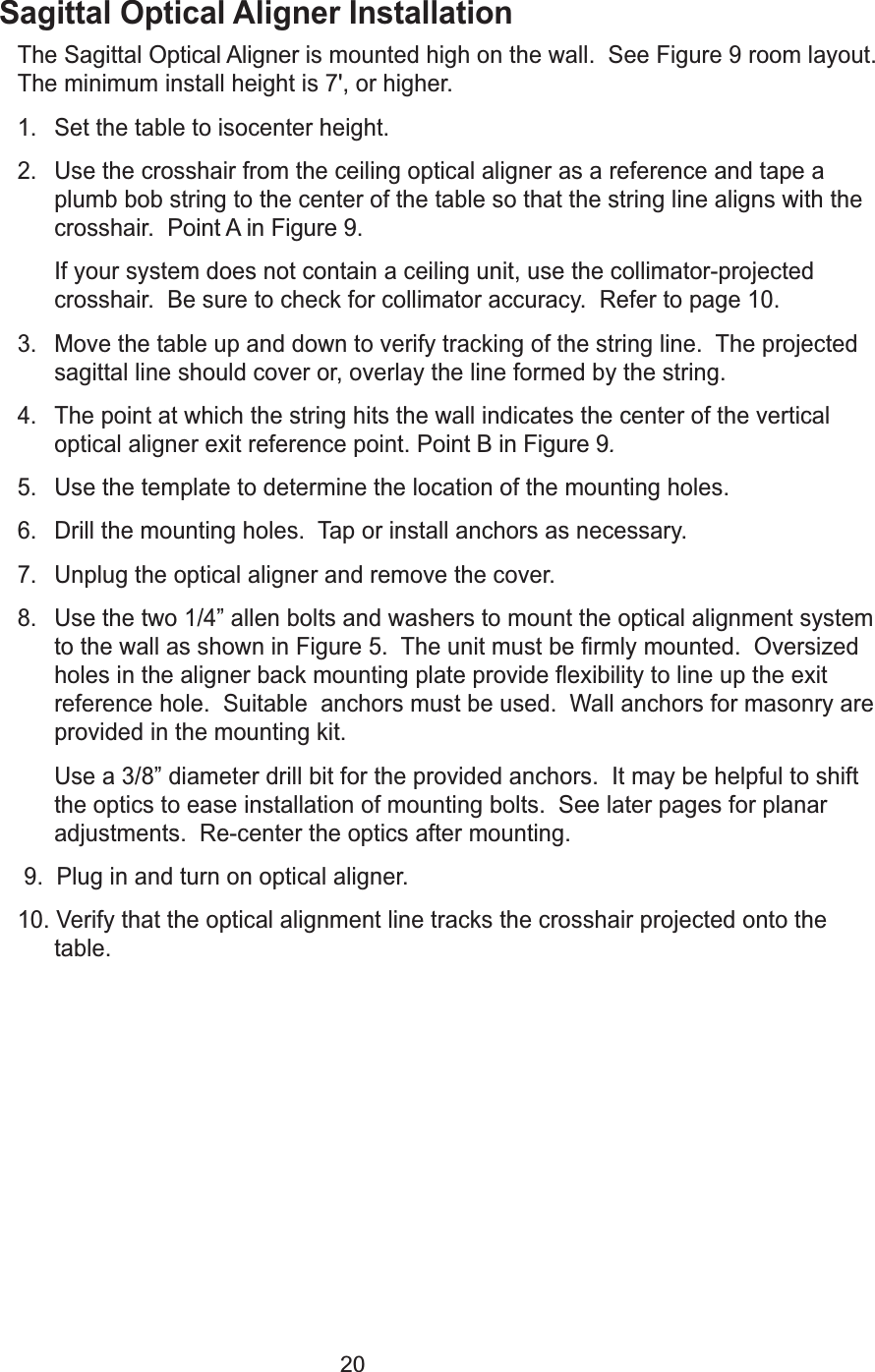
19XFigure 8Figure 9Use a string andthe ceiling opticalaligner crosshair todetermine theplacement of thesagittal laser.
20Sagittal Optical Aligner InstallationThe Sagittal Optical Aligneris mounted high on the wall.  See Figure 9 room layout.The minimum install height is 7', or higher.1. Set the table to isocenter height.2. Use the crosshair from the ceiling optical aligner as a reference and tape aplumb bob string to the center of the table so that the string line aligns with thecrosshair.  Point A in Figure 9. If your system does not contain a ceiling unit, use the collimator-projectedcrosshair.  Be sure to check for collimator accuracy.  Refer to page 10. 3. Move the table up and down to verify tracking of the string line.  The projectedsagittal line should cover or, overlay the line formed by the string.4. The point at which the string hits the wall indicates the center of the verticaloptical aligner exit reference point. Point B in Figure 9.5. Use the template to determine the location of the mounting holes.6. Drill the mounting holes.  Tap or install anchors as necessary.7. Unplug the optical aligner and remove the cover.8. Use the two 1/4” allen bolts and washers to mount the optical alignment systemto the wall as shown in Figure 5.  The unit must be firmly mounted.  Oversizedholes in the aligner back mounting plate provide flexibility to line up the exitreference hole.  Suitable  anchors must be used.  Wall anchors for masonry areprovided in the mounting kit.  Use a 3/8” diameter drill bit for the provided anchors.  It may be helpful to shiftthe optics to ease installation of mounting bolts.  See later pages for planaradjustments.  Re-center the optics after mounting.  9.  Plug in and turn on optical aligner.10. Verify that the optical alignment line tracks the crosshair projected onto thetable.
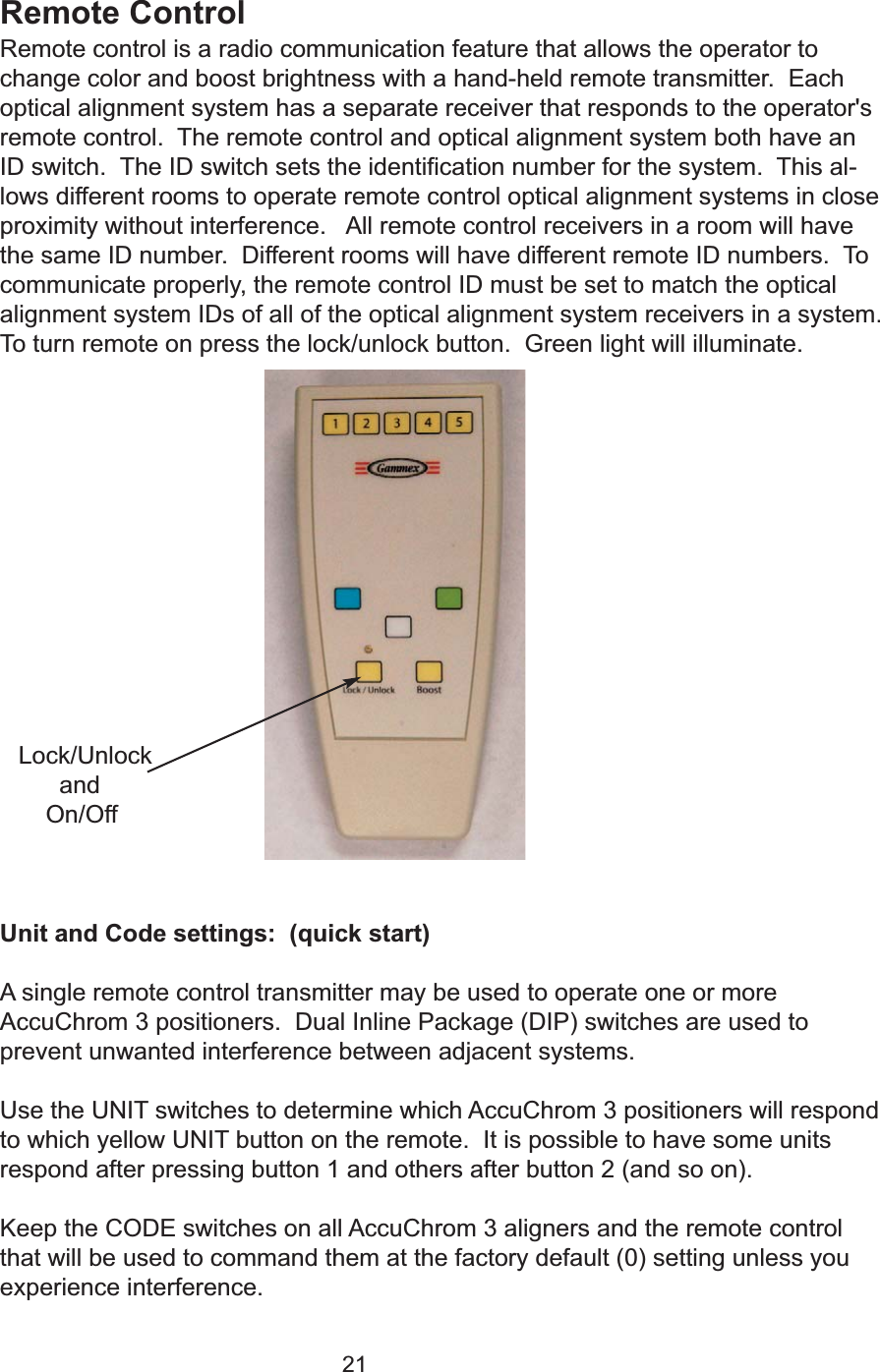
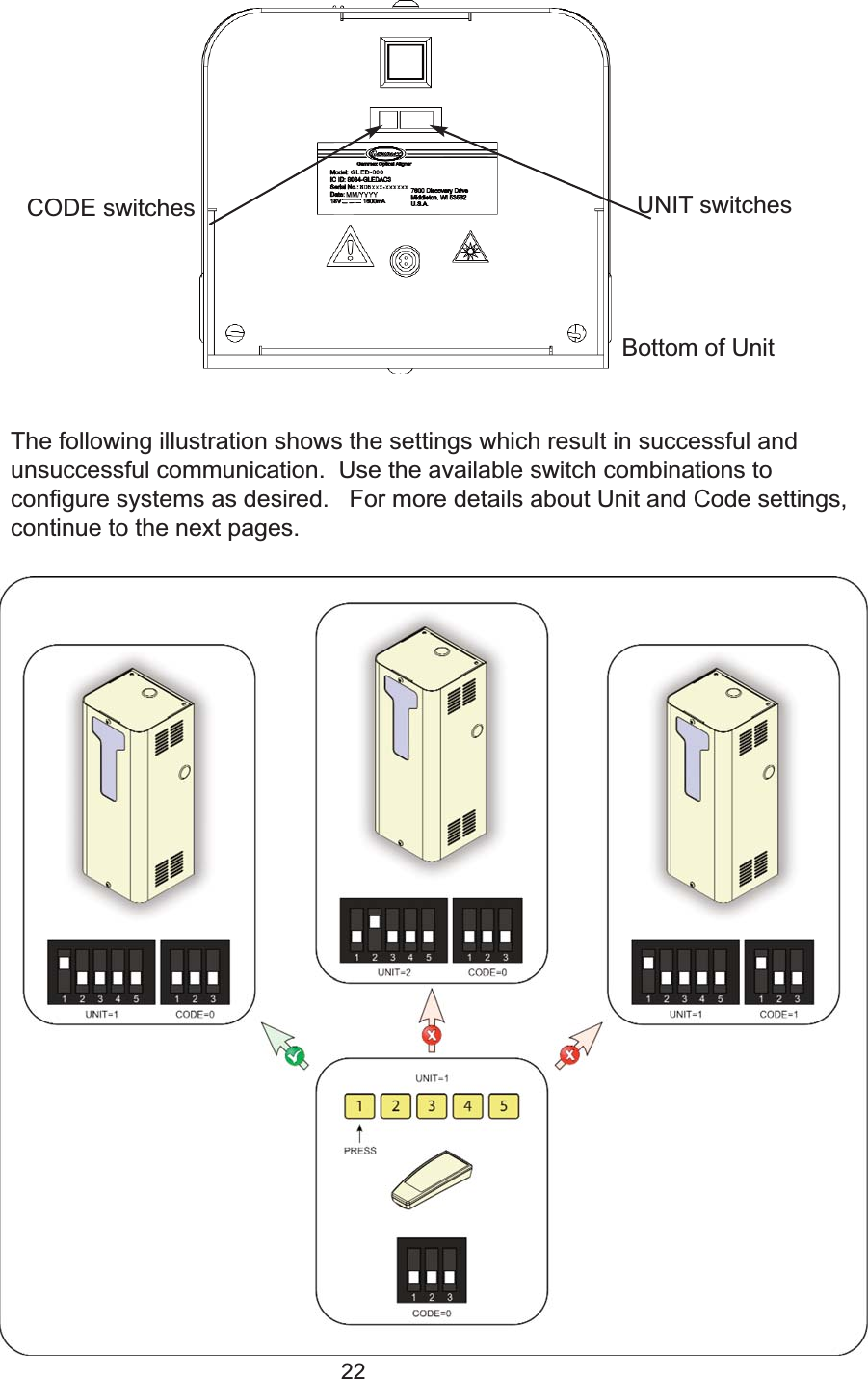
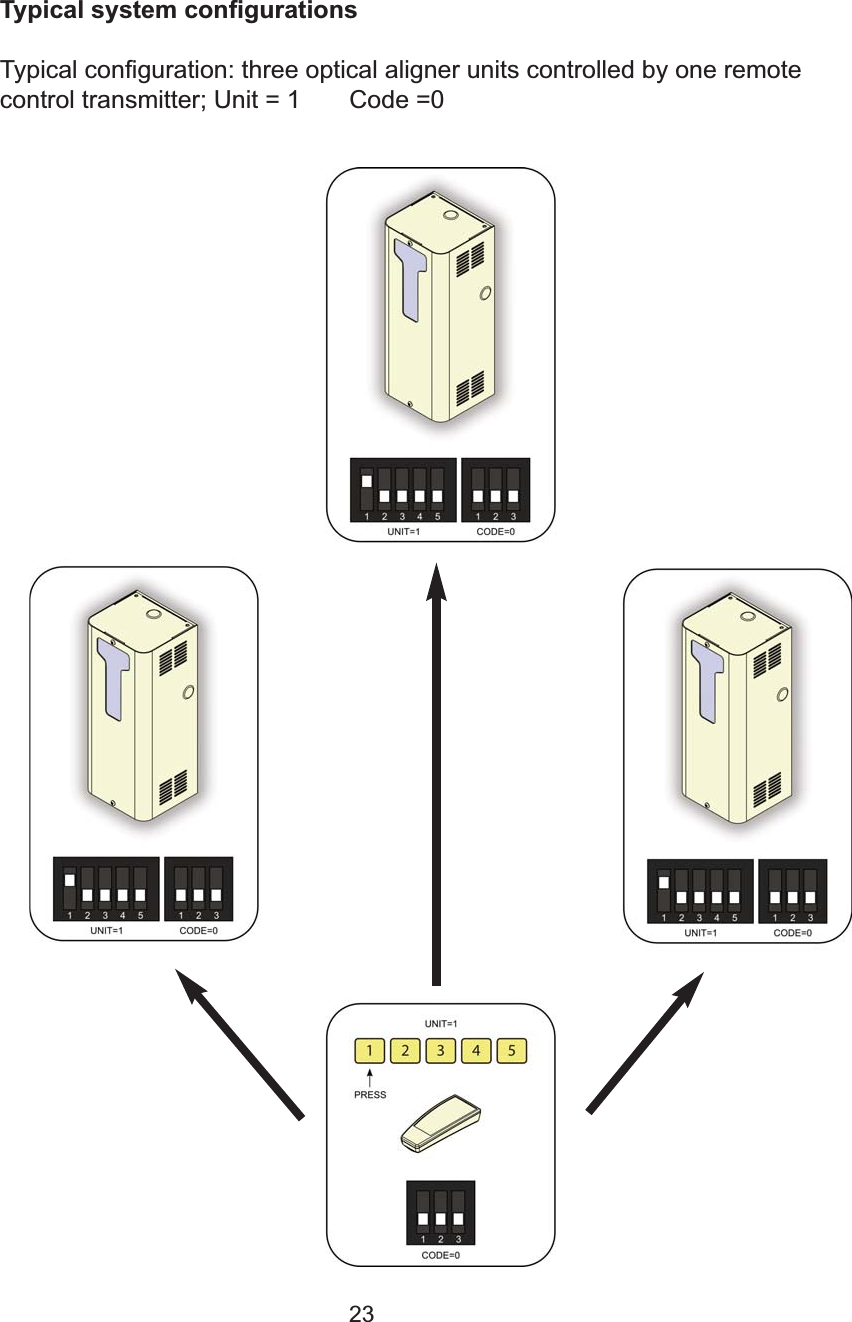
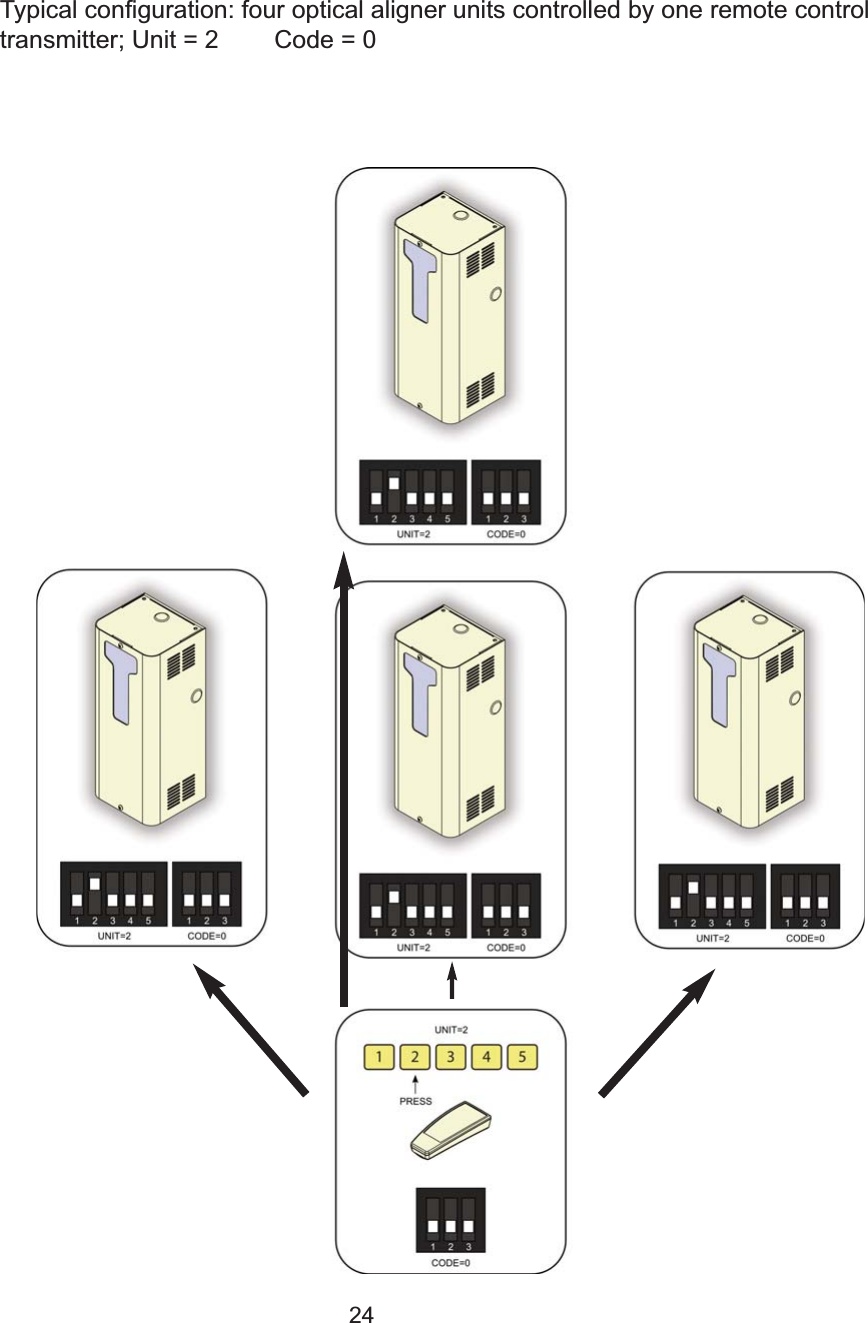
21Remote ControlRemote control is a radio communication feature that allows the operator tochange color and boost brightness with a hand-held remote transmitter.  Eachoptical alignment system has a separate receiver that responds to the operator'sremote control.  The remote control and optical alignment system both have anID switch.  The ID switch sets the identification number for the system.  This al-lows different rooms to operate remote control optical alignment systems in closeproximity without interference.   All remote control receivers in a room will havethe same ID number.  Different rooms will have different remote ID numbers.  Tocommunicate properly, the remote control ID must be set to match the opticalalignment system IDs of all of the optical alignment system receivers in a system.To turn remote on press the lock/unlock button.  Green light will illuminate.  Unit and Code settings:  (quick start)A single remote control transmitter may be used to operate one or moreAccuChrom 3 positioners.  Dual Inline Package (DIP) switches are used toprevent unwanted interference between adjacent systems.Use the UNIT switches to determine which AccuChrom 3 positioners will respondto which yellow UNIT button on the remote.  It is possible to have some unitsrespond after pressing button 1 and others after button 2 (and so on).Keep the CODE switches on all AccuChrom 3 aligners and the remote controlthat will be used to command them at the factory default (0) setting unless youexperience interference. Lock/UnlockandOn/Off
22The following illustration shows the settings which result in successful andunsuccessful communication.  Use the available switch combinations toconfigure systems as desired.   For more details about Unit and Code settings,continue to the next pages. CODE switches UNIT switchesBottom of Unit
23Typical system configurationsTypical configuration: three optical aligner units controlled by one remotecontrol transmitter; Unit = 1       Code =0
24Typical configuration: four optical aligner units controlled by one remote controltransmitter; Unit = 2        Code = 0
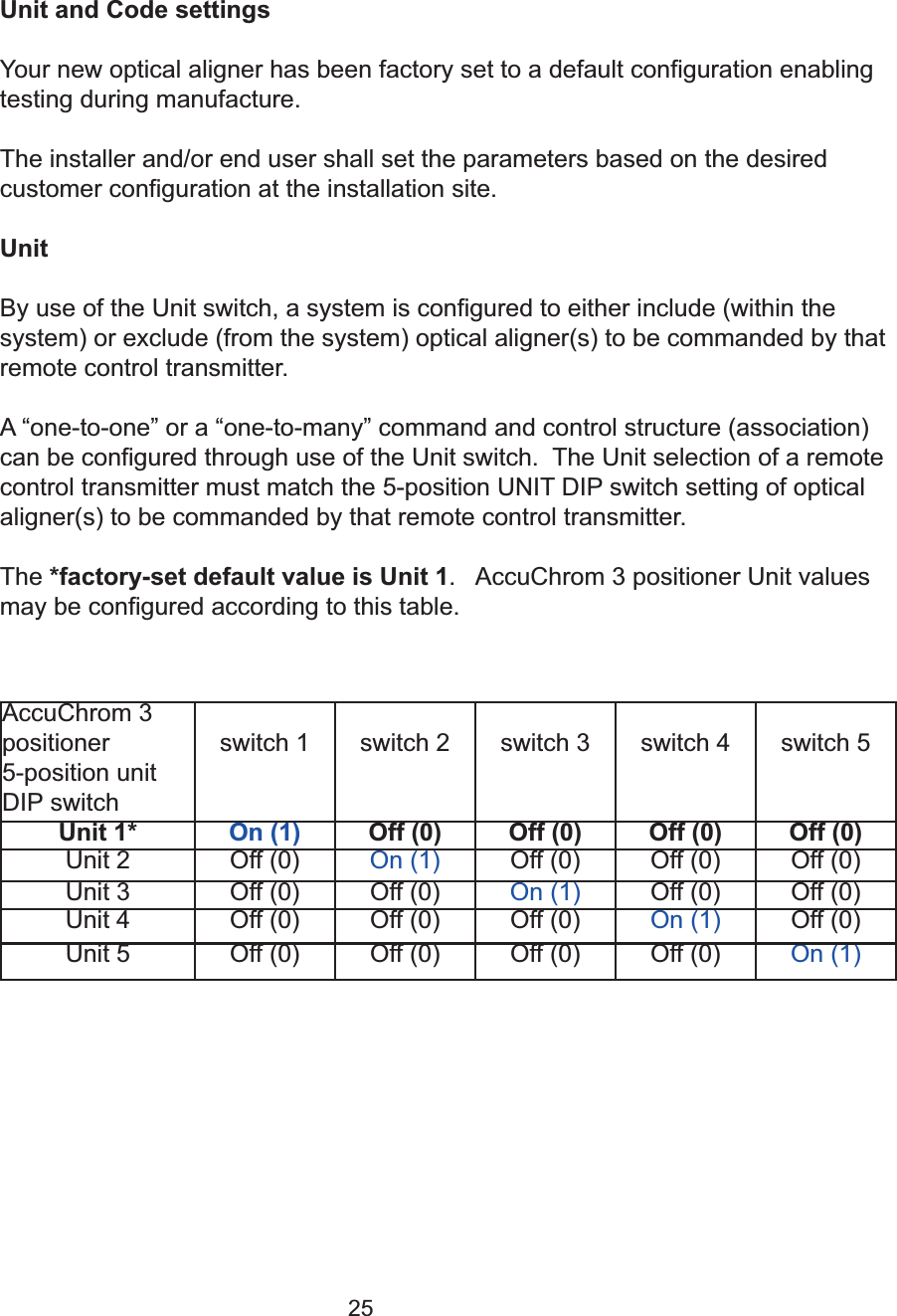
25Unit and Code settingsYour new optical aligner has been factory set to a default configuration enablingtesting during manufacture.  The installer and/or end user shall set the parameters based on the desiredcustomer configuration at the installation site. UnitBy use of the Unit switch, a system is configured to either include (within thesystem) or exclude (from the system) optical aligner(s) to be commanded by thatremote control transmitter. A “one-to-one” or a “one-to-many” command and control structure (association)can be configured through use of the Unit switch.  The Unit selection of a remotecontrol transmitter must match the 5-position UNIT DIP switch setting of opticalaligner(s) to be commanded by that remote control transmitter.   The *factory-set default value is Unit 1.   AccuChrom 3 positioner Unit valuesmay be configured according to this table.AccuChrom 3positioner 5-position unitDIP switchswitch 1 switch 2 switch 3 switch 4 switch 5Unit 1* On (1) Off (0) Off (0) Off (0) Off (0)Unit 2 Off (0) On (1) Off (0) Off (0) Off (0)Unit 3 Off (0) Off (0) On (1) Off (0) Off (0)Unit 4 Off (0) Off (0) Off (0) On (1) Off (0)Unit 5 Off (0) Off (0) Off (0) Off (0) On (1)
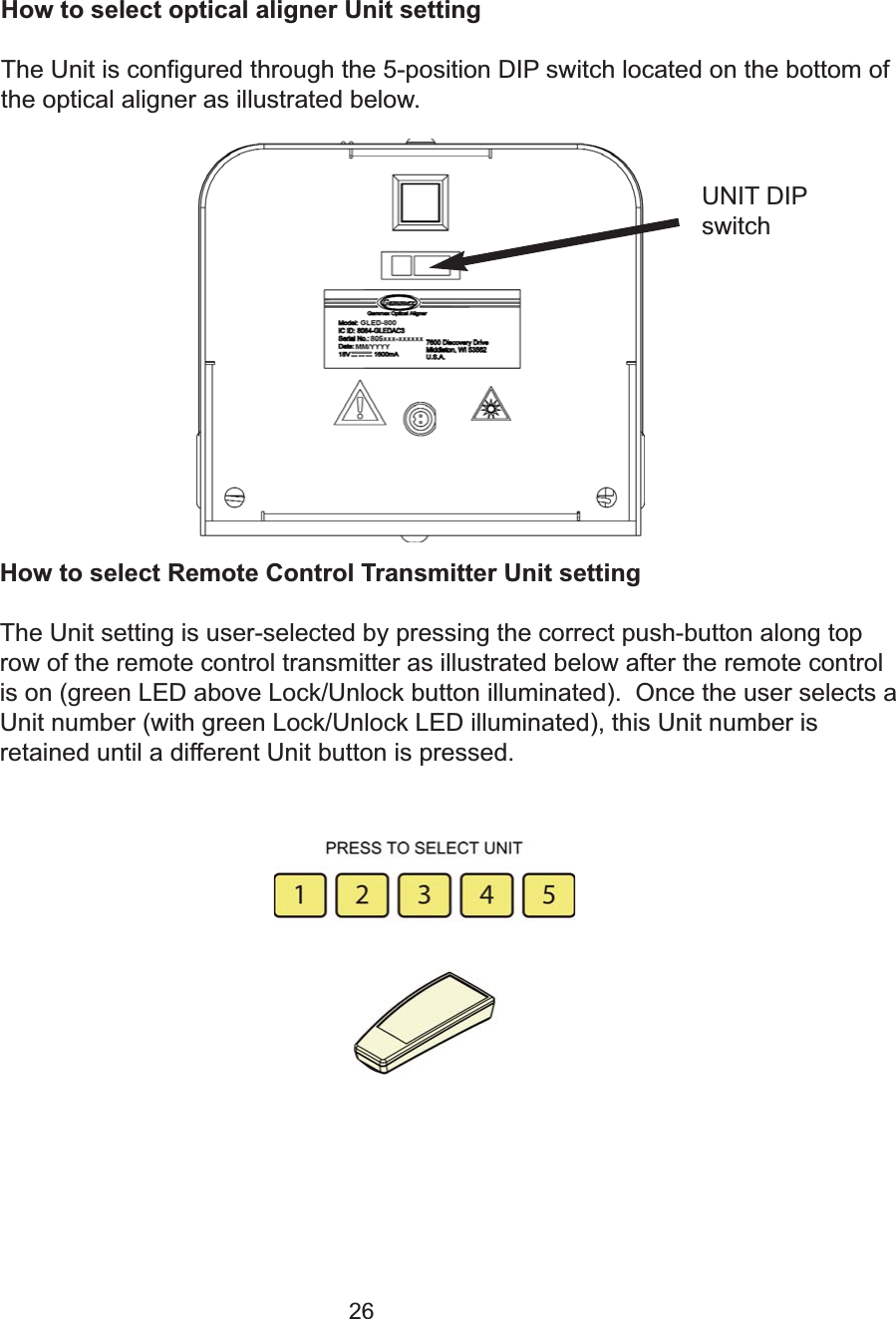
26How to select optical aligner Unit settingThe Unit is configured through the 5-position DIP switch located on the bottom ofthe optical aligner as illustrated below.         How to select Remote Control Transmitter Unit settingThe Unit setting is user-selected by pressing the correct push-button along toprow of the remote control transmitter as illustrated below after the remote controlis on (green LED above Lock/Unlock button illuminated).  Once the user selects aUnit number (with green Lock/Unlock LED illuminated), this Unit number isretained until a different Unit button is pressed.UNIT DIPswitch
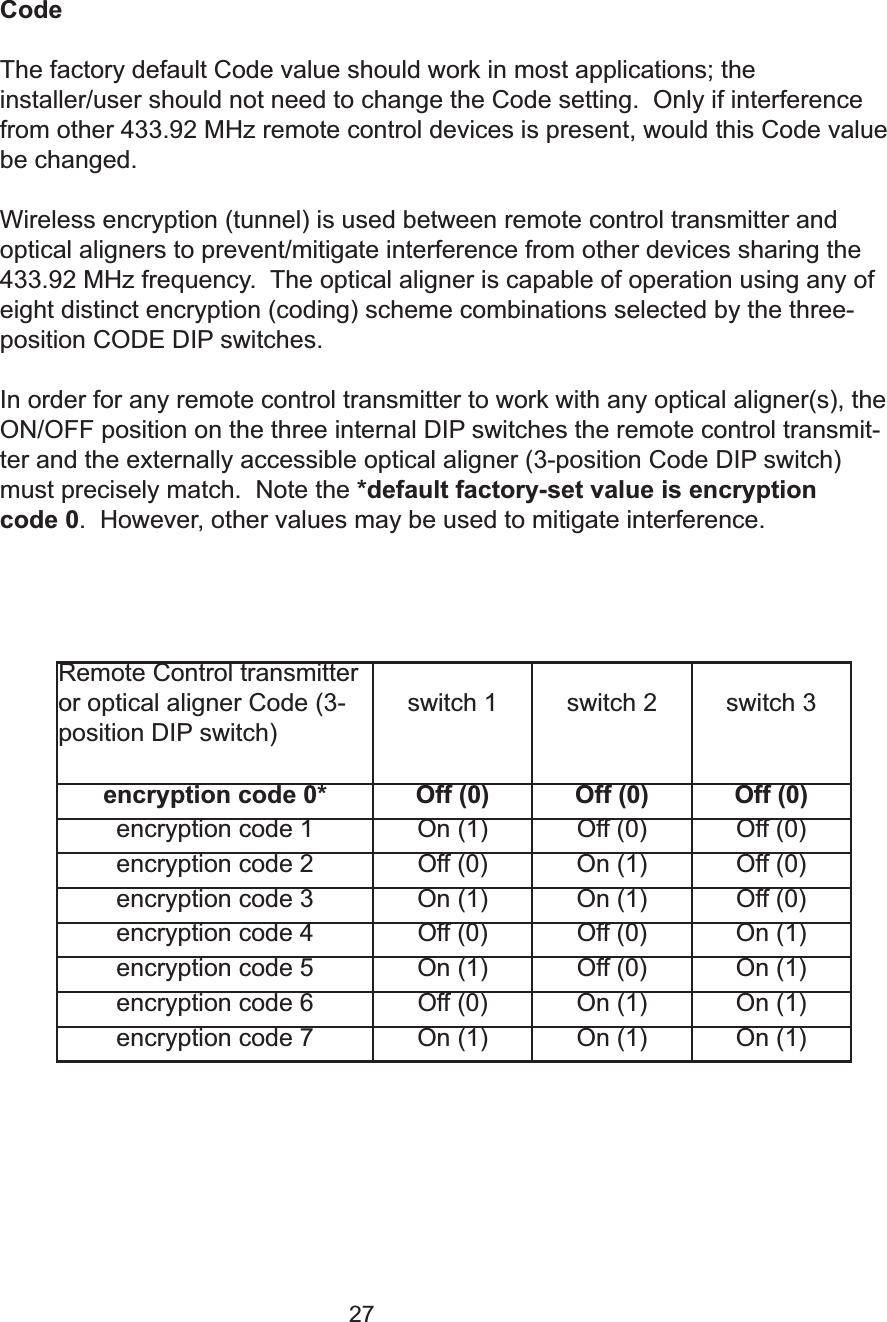
27CodeThe factory default Code value should work in most applications; theinstaller/user should not need to change the Code setting.  Only if interferencefrom other 433.92 MHz remote control devices is present, would this Code valuebe changed.Wireless encryption (tunnel) is used between remote control transmitter andoptical aligners to prevent/mitigate interference from other devices sharing the433.92 MHz frequency.  The optical aligner is capable of operation using any ofeight distinct encryption (coding) scheme combinations selected by the three-position CODE DIP switches. In order for any remote control transmitter to work with any optical aligner(s), theON/OFF position on the three internal DIP switches the remote control transmit-ter and the externally accessible optical aligner (3-position Code DIP switch)must precisely match.  Note the *default factory-set value is encryption code 0.  However, other values may be used to mitigate interference. Remote Control transmitteror optical aligner Code (3-position DIP switch)switch 1 switch 2 switch 3encryption code 0* Off (0) Off (0) Off (0)encryption code 1 On (1) Off (0) Off (0)encryption code 2 Off (0) On (1) Off (0)encryption code 3 On (1) On (1) Off (0)encryption code 4 Off (0) Off (0) On (1)encryption code 5 On (1) Off (0) On (1)encryption code 6 Off (0) On (1) On (1)encryption code 7 On (1) On (1) On (1)
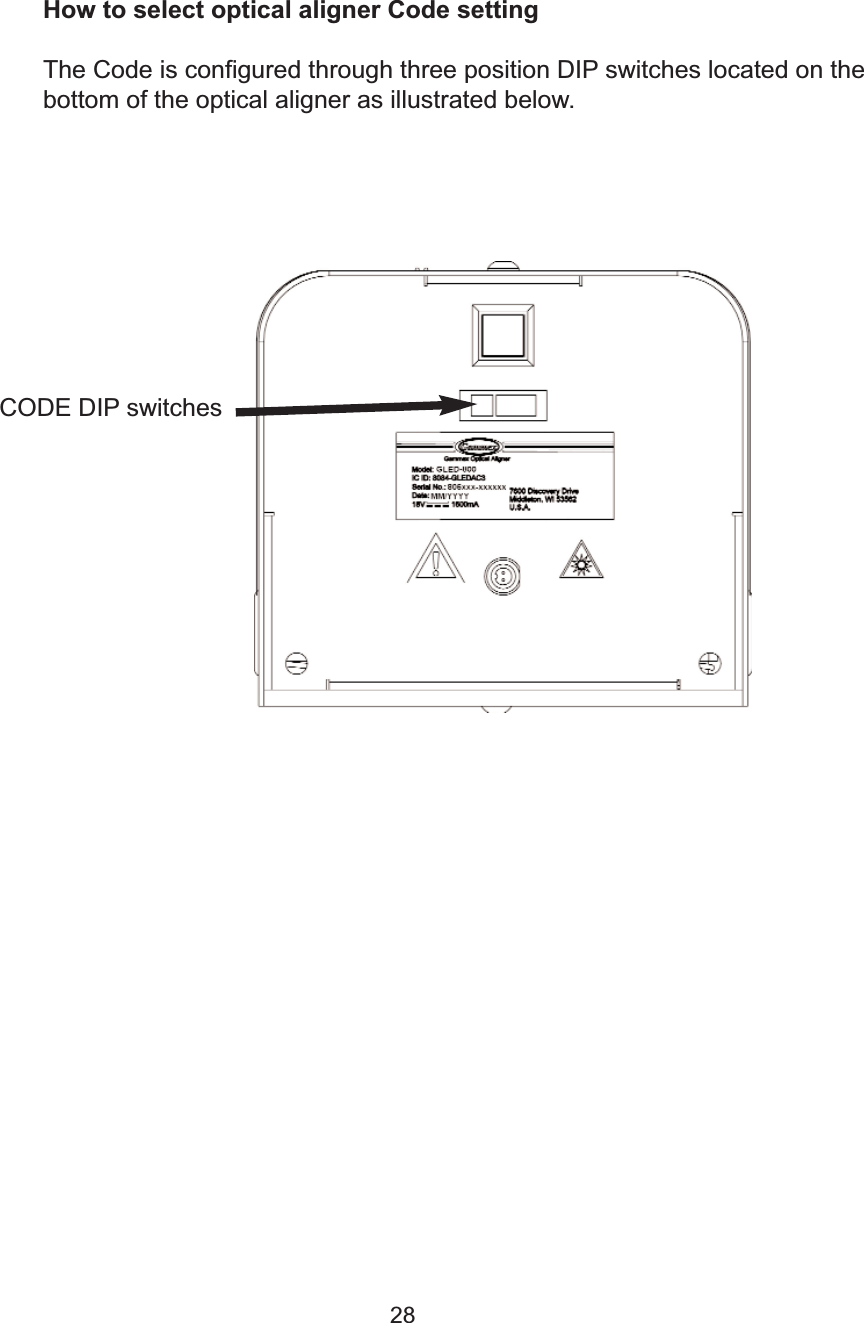
28How to select optical aligner Code settingThe Code is configured through three position DIP switches located on thebottom of the optical aligner as illustrated below. CODE DIP switches
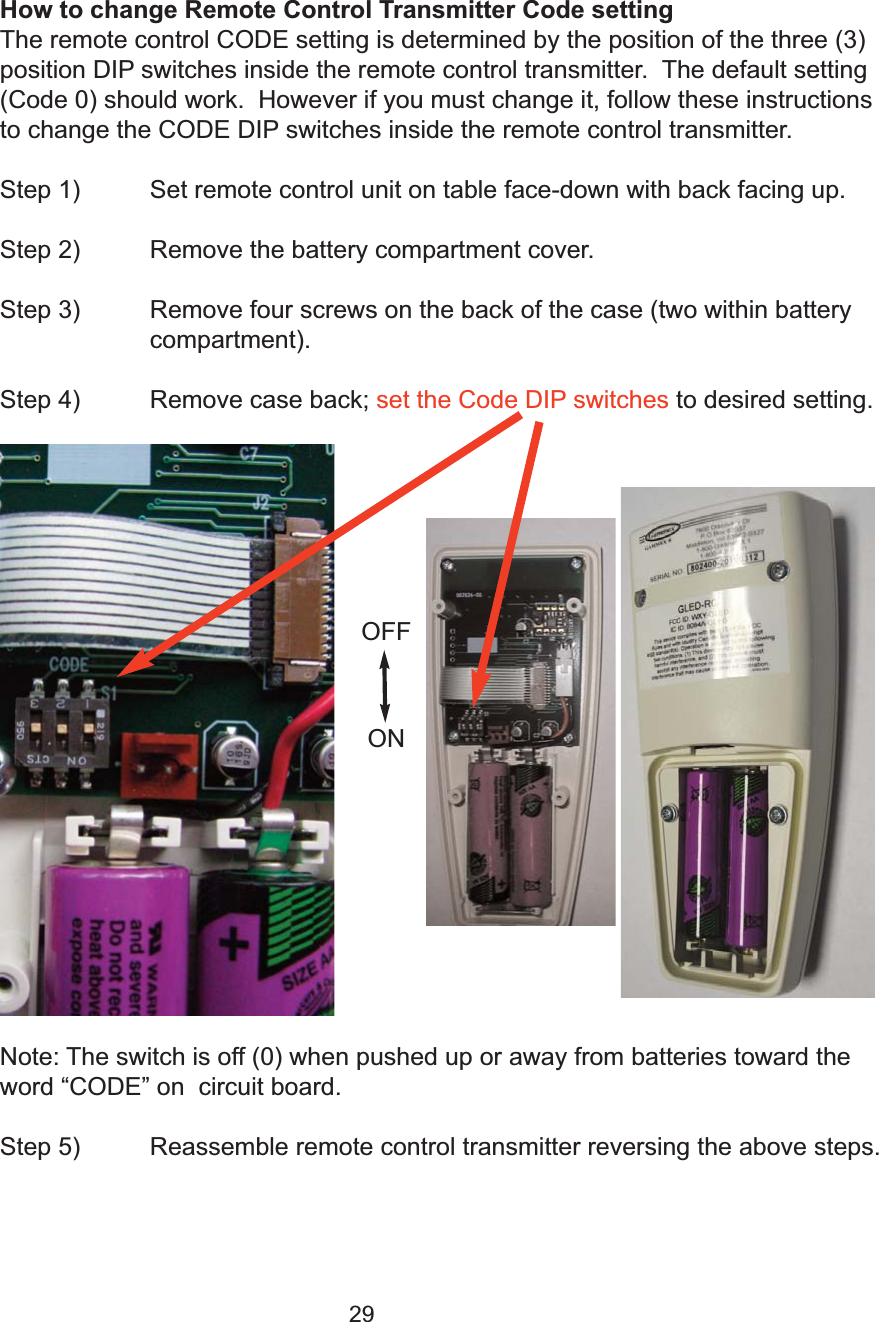
29How to change Remote Control Transmitter Code settingThe remote control CODE setting is determined by the position of the three (3)position DIP switches inside the remote control transmitter.  The default setting(Code 0) should work.  However if you must change it, follow these instructionsto change the CODE DIP switches inside the remote control transmitter. Step 1) Set remote control unit on table face-down with back facing up.Step 2) Remove the battery compartment cover.Step 3) Remove four screws on the back of the case (two within battery compartment).Step 4) Remove case back; set the Code DIP switches to desired setting.   Note: The switch is off (0) when pushed up or away from batteries toward theword “CODE” on  circuit board.Step 5)  Reassemble remote control transmitter reversing the above steps.OFFON
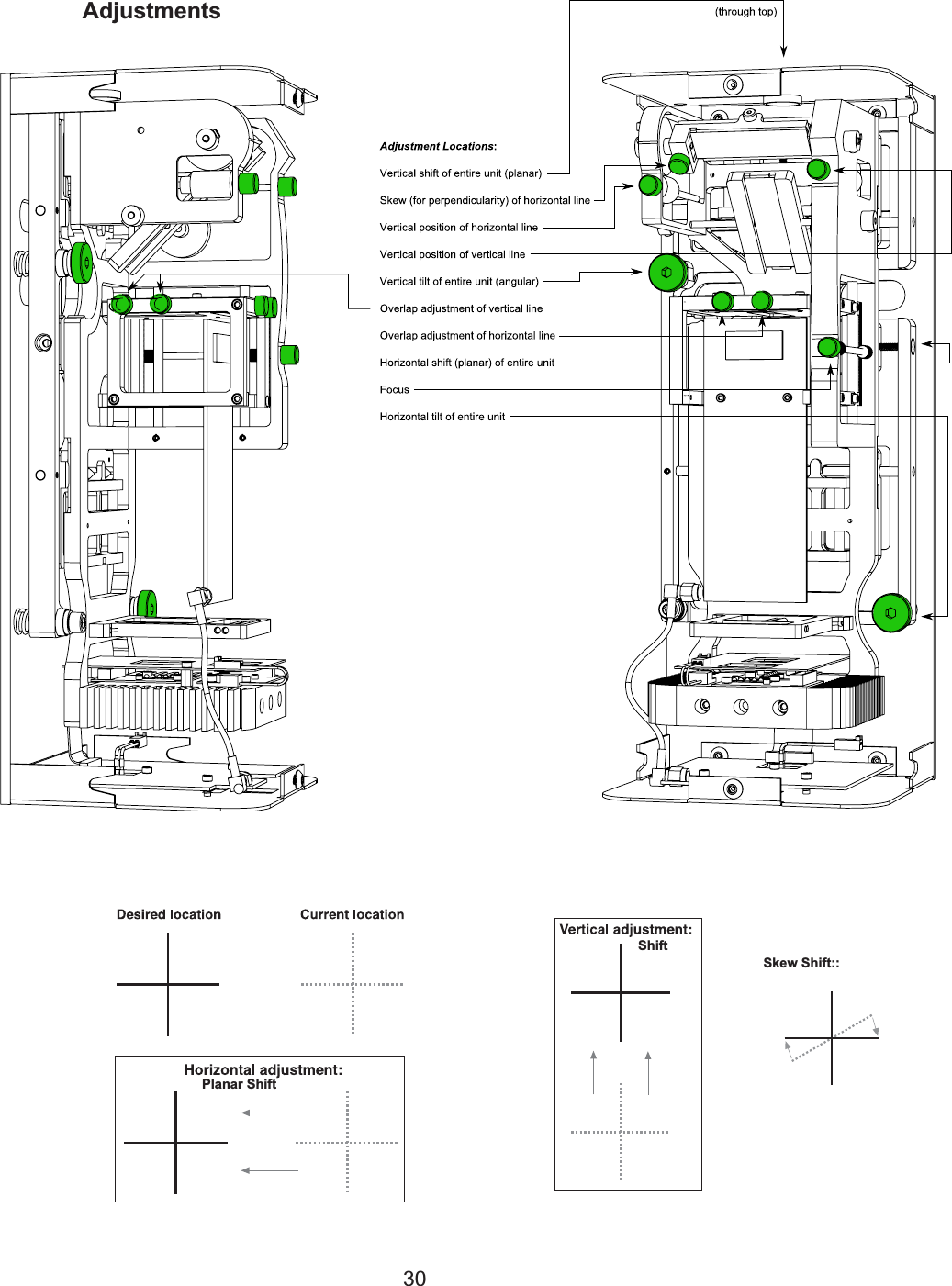
30AdjustmentsSkew Shift::ShiftPlanar Shift
31Alignment and Adjustments and Positioning– AccuChrom 3 Warning - Risk of incorrect (diagnosis or treatment) if alignment is not donecorrectly. • Isocenter of alignment optical alignment systems must coincide with isocenterof diagnostic of treatment equipment.  Test alignment of optical aligner daily,before use, for first month of operation and weekly after first month.  Newlyinstalled equipment will shift as building walls and floor settle and as buildingmaterials dry out.  Re-align optical alignment system to isocenter before use, ifanything has shifted.• The optical alignment system must be aligned with the diagnostic or therapyequipment to be safely useful.  Only a GAMMEX service technician, or trainedMedical Physicist, Biotech Engineer or Service Technician should perform thealignment.Caution - Optical Radiation Risk of eye damage.  Do not stare directly at thelight source.  • Alignment procedures need to be performed with the optical alignment systempowered on.• Look only at optical alignment system light reflected from a diffuse surface(like paper or a wall).See Typical Room Layout (page 9) for general concept of optical alignmentsystem set-up.Removing the CoverOn the AccuChrom 3, most adjustments and repairs require the removal of the frontcover. Remove the cover as follows: First, turn off the unit.  Unplug the power cordfrom the main socket.  Remove two screws from the front cover using an 1/8” allenwrench. Slide the cover off.Plug in the power cord and turn on the unit to make adjustments. To replace the cover after making adjustments, reverse the process.  Turn off theoptical aligner.  Unplug the power cord.  Replace the front cover and secure it with thetwo screws.Take care not to jar the optical aligner. Plug in the power cord.
32Alignment and Adjustments – AccuChrom 3 GENERALTest the alignment of the optical alignment systems daily, before use, for the firstmonth after installation.  In a new installation some building movements can beexpected.  The first month test the system at least weekly.  Isocenter of thealignment optical alignment system must coincide with the isocenter of thediagnostic or treatment equipment.CEILING AND SAGITTAL OPTICAL ALIGNERSTape a piece of typing paper to the table under the gantry.  That has been leveledand set at 0°. Project a crosshair on the paper from the gantry.  Mark the centerpoint.  Move the gantry out of the way.  Project the Ceiling optical aligner crosshairon the paper. Raise and lower the table.  The center of the crosshair should alignwith the dot on the paper at all times.  The Sagittal line should pass through the doton the paper at all times.  SIDE OPTICAL ALIGNERSTurn on both side optical aligners.  Use a piece of typing paper held perpendicularto the optical aligner light.  The two projected optical aligner crosshairs should over-lap on the paper.  See Figure 6 on page 16.With the gantry at 0° use a front pointer, which is shown inFigure 2, to verify thatboth side optical aligners hit isocenter.  If there is not a front pointer, raise the tableto isocenter and project a crosshair on the table to verify that the side optical align-ers hit isocenter.Maintenance/CleaningOnce installed, the Gammex Aligners should require no maintenance other  than the cleaning of mirrors and lenses according to standard optical practices.Occasional outside wiping of the dust cover may be necessary.  The dust coveris delicate.  Use only a camera lens brush or other soft brushes for this purpose.
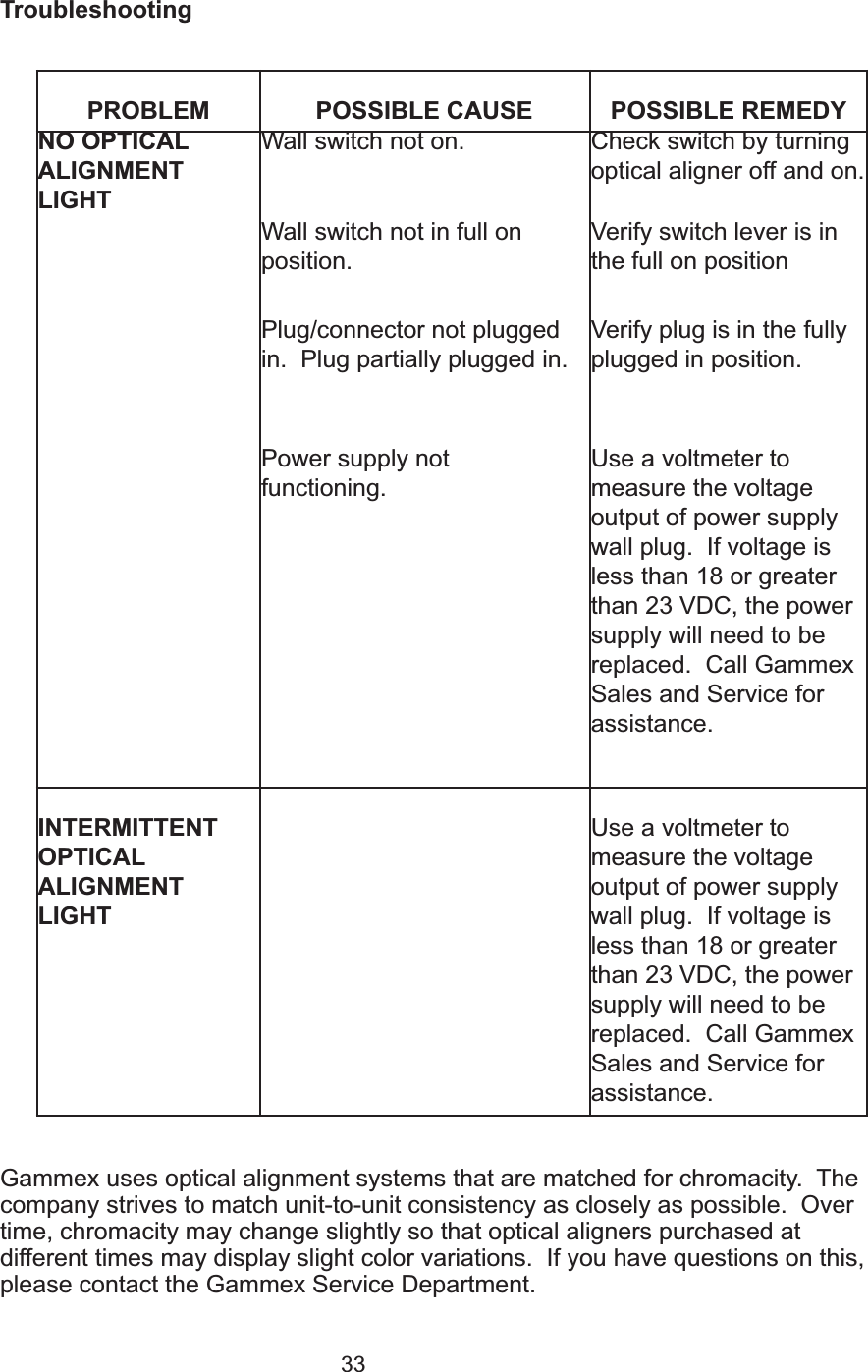
33TroubleshootingGammex uses optical alignment systems that are matched for chromacity.  Thecompany strives to match unit-to-unit consistency as closely as possible.  Overtime, chromacity may change slightly so that optical aligners purchased atdifferent times may display slight color variations.  If you have questions on this,please contact the Gammex Service Department.  PROBLEM POSSIBLE CAUSE POSSIBLE REMEDYNO OPTICAL ALIGNMENTLIGHTWall switch not on. Check switch by turningoptical aligner off and on.Wall switch not in full onposition.Verify switch lever is inthe full on position Plug/connector not pluggedin.  Plug partially plugged in.Verify plug is in the fullyplugged in position.Power supply not functioning.Use a voltmeter tomeasure the voltage output of power supplywall plug.  If voltage isless than 18 or greaterthan 23 VDC, the powersupply will need to be replaced.  Call GammexSales and Service forassistance.INTERMITTENT OPTICAL ALIGNMENTLIGHTUse a voltmeter tomeasure the voltage output of power supplywall plug.  If voltage isless than 18 or greaterthan 23 VDC, the powersupply will need to be replaced.  Call GammexSales and Service forassistance.
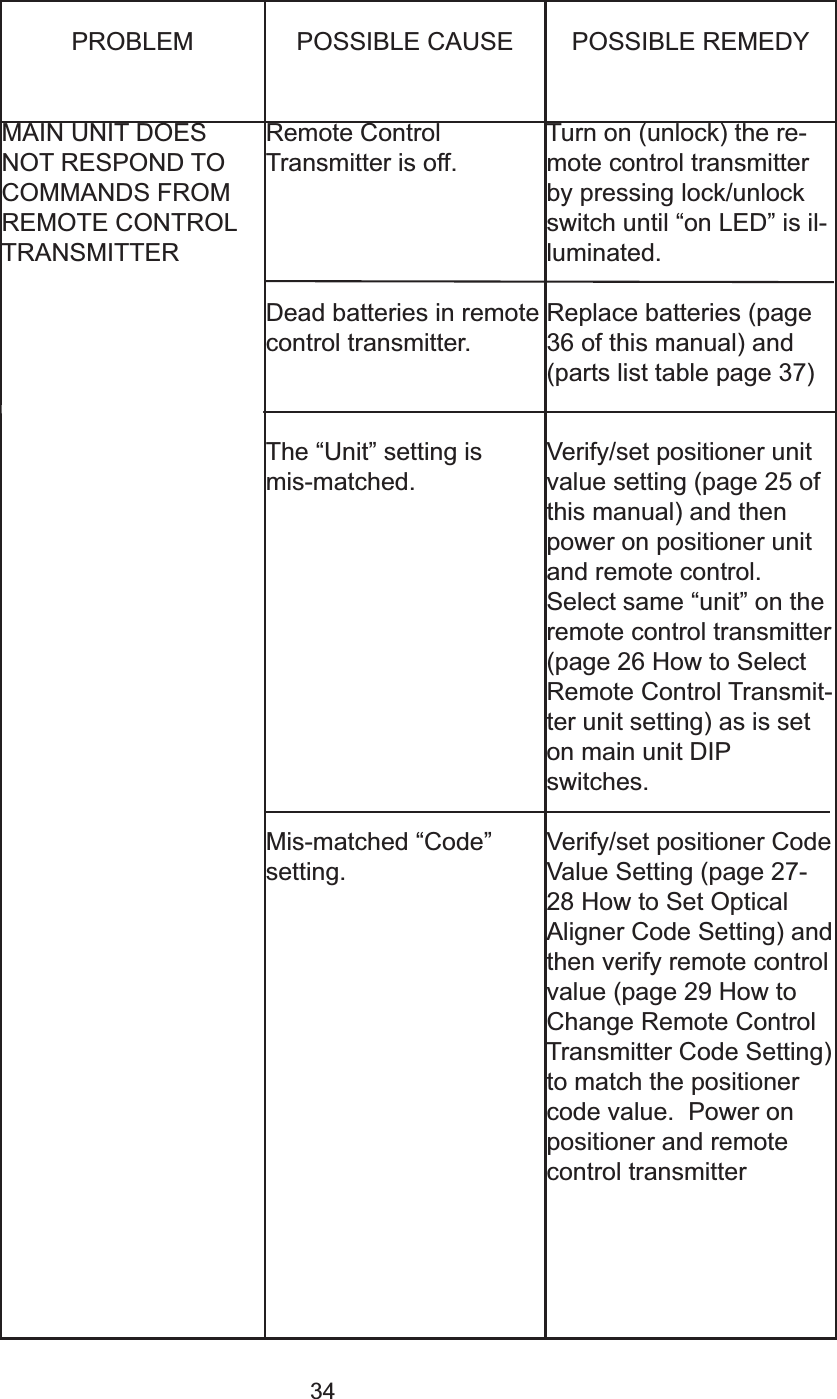
34PROBLEM POSSIBLE CAUSE POSSIBLE REMEDYMAIN UNIT DOESNOT RESPOND TO COMMANDS FROMREMOTE CONTROLTRANSMITTERRemote Control Transmitter is off.Dead batteries in remotecontrol transmitter.Turn on (unlock) the re-mote control transmitterby pressing lock/unlockswitch until “on LED” is il-luminated.Replace batteries (page36 of this manual) and(parts list table page 37)The “Unit” setting is mis-matched.Mis-matched “Code” setting.Verify/set positioner unitvalue setting (page 25 ofthis manual) and thenpower on positioner unitand remote control.  Select same “unit” on theremote control transmitter(page 26 How to SelectRemote Control Transmit-ter unit setting) as is seton main unit DIPswitches.Verify/set positioner CodeValue Setting (page 27-28 How to Set OpticalAligner Code Setting) andthen verify remote controlvalue (page 29 How toChange Remote ControlTransmitter Code Setting)to match the positionercode value.  Power onpositioner and remotecontrol transmitter
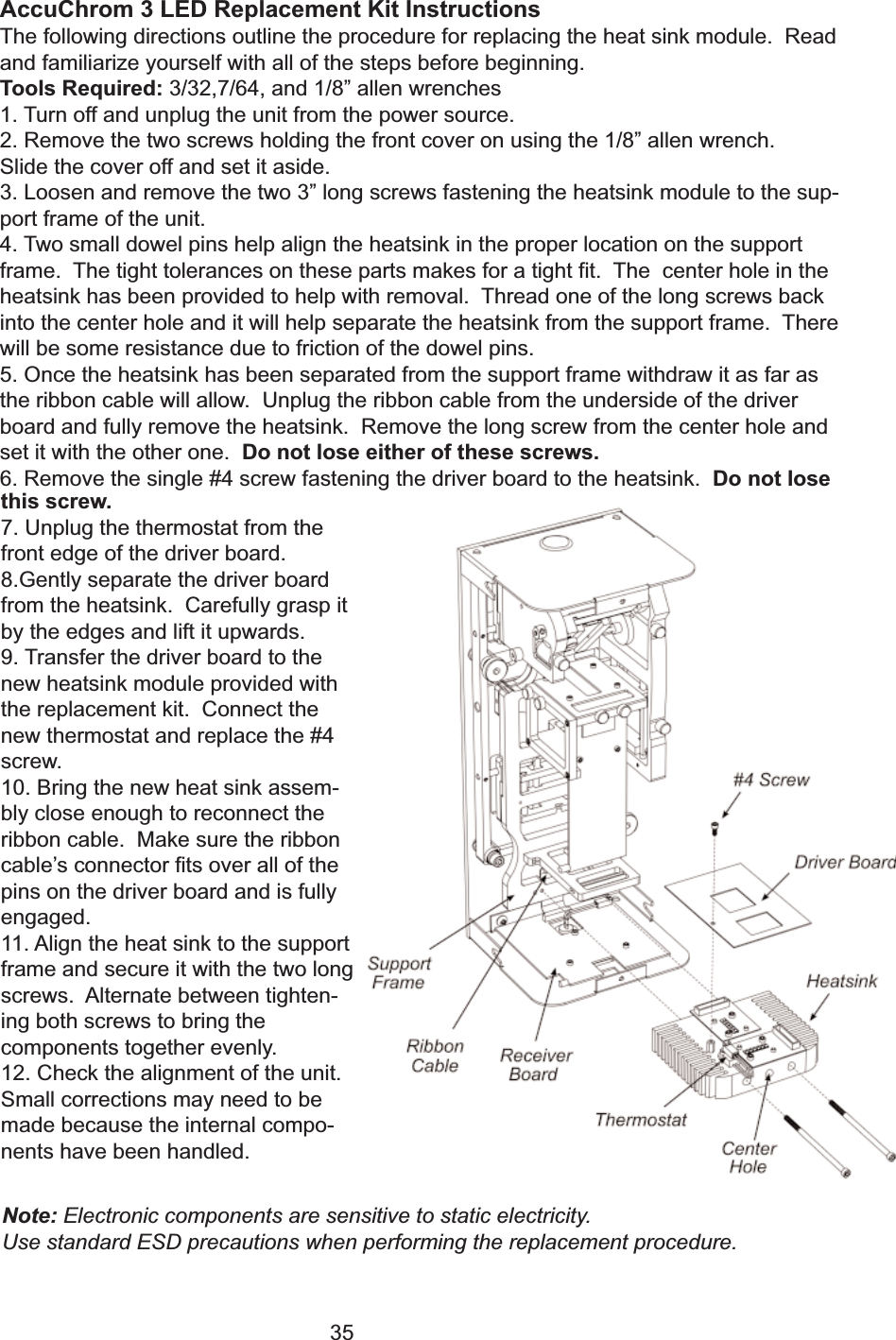
35AccuChrom 3 LED Replacement Kit InstructionsThe following directions outline the procedure for replacing the heat sink module.  Readand familiarize yourself with all of the steps before beginning.Tools Required: 3/32,7/64, and 1/8” allen wrenches1. Turn off and unplug the unit from the power source.2. Remove the two screws holding the front cover on using the 1/8” allen wrench.Slide the cover off and set it aside.3. Loosen and remove the two 3” long screws fastening the heatsink module to the sup-port frame of the unit.4. Two small dowel pins help align the heatsink in the proper location on the supportframe.  The tight tolerances on these parts makes for a tight fit.  The  center hole in theheatsink has been provided to help with removal.  Thread one of the long screws backinto the center hole and it will help separate the heatsink from the support frame.  Therewill be some resistance due to friction of the dowel pins.  5. Once the heatsink has been separated from the support frame withdraw it as far asthe ribbon cable will allow.  Unplug the ribbon cable from the underside of the driverboard and fully remove the heatsink.  Remove the long screw from the center hole andset it with the other one.  Do not lose either of these screws.6. Remove the single #4 screw fastening the driver board to the heatsink.  Do not losethis screw.7. Unplug the thermostat from thefront edge of the driver board.8.Gently separate the driver boardfrom the heatsink.  Carefully grasp itby the edges and lift it upwards.9. Transfer the driver board to thenew heatsink module provided withthe replacement kit.  Connect thenew thermostat and replace the #4screw.10. Bring the new heat sink assem-bly close enough to reconnect theribbon cable.  Make sure the ribboncable’s connector fits over all of thepins on the driver board and is fullyengaged.11. Align the heat sink to the supportframe and secure it with the two longscrews.  Alternate between tighten-ing both screws to bring thecomponents together evenly. 12. Check the alignment of the unit.Small corrections may need to bemade because the internal compo-nents have been handled.  Note: Electronic components are sensitive to static electricity.  Use standard ESD precautions when performing the replacement procedure.
36REPLACING THE TRANSMITTER BATTERIESThe transmitter has a battery compartment on the back that can be opened bypushing down on the catch and sliding it toward the end of the case.  The covermay be tight.  It may be necessary to very carefully pry the opening apart at theparting line.It is very important to replace the batteries with the proper polarity in the rightdirection as shown.  The spring contact always matches the negative (-) end.These batteries are not rechargeable.  Do not recharge them.  They are long lifelithium AA, 3.6V, 2.4Ah batteries.  Transmitter batteries will not often requirereplacement, but when they do, they are available from Gammex Sales Depart-ment.  The transmitter will not function using commonly available AA batteries,they are not the correct voltage.  DISMANTLINGThe AccuChrom 3 can be removed from the wall by following the reverse of theinstallation instructions.DISPOSALThe AccuChrom 3 contains steel, aluminum, lead, brass, lead-free paint andplastic. Recycle according to your applicable laws.
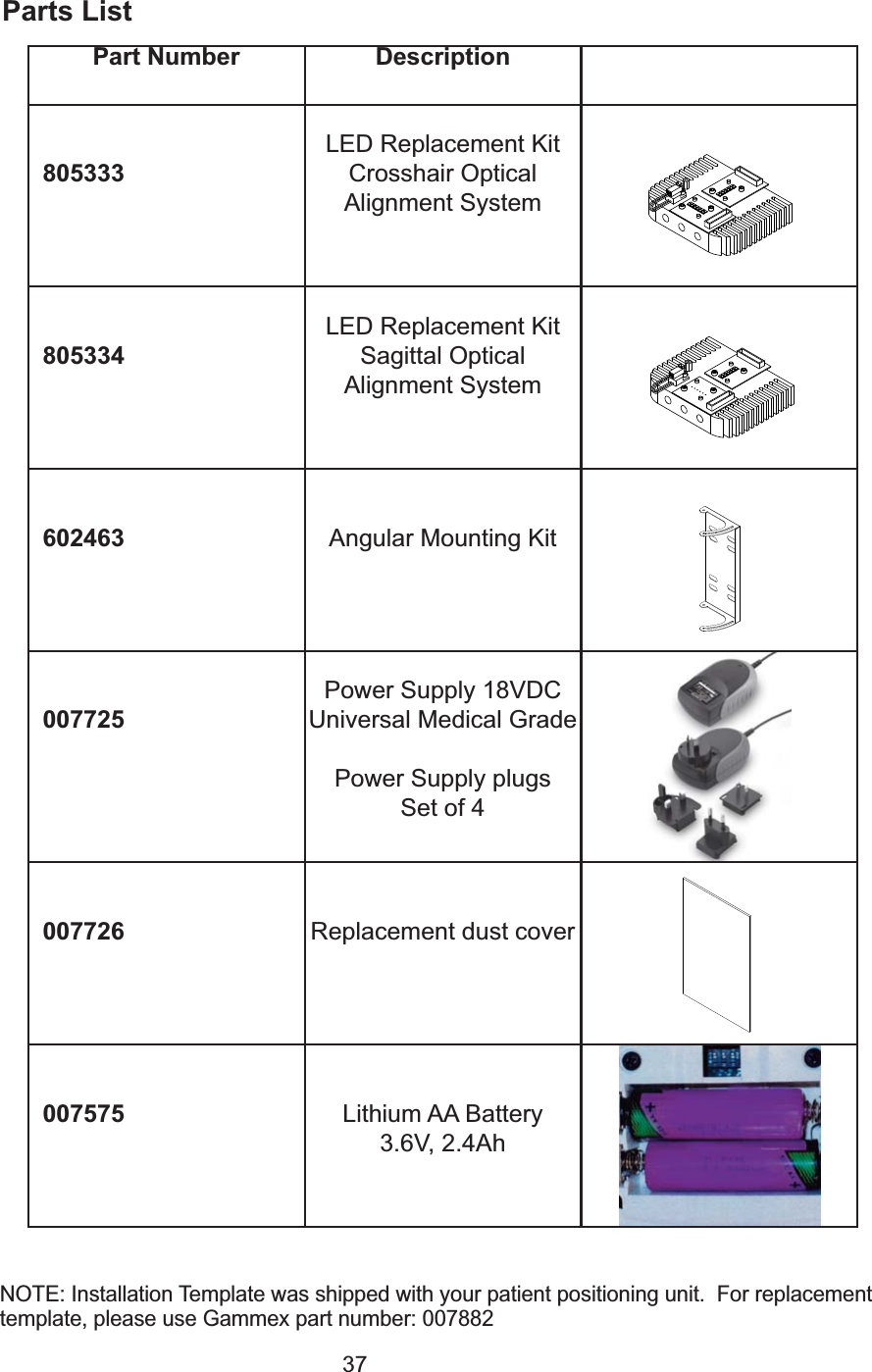
37Parts ListPart Number Description805333LED Replacement KitCrosshair Optical Alignment System805334LED Replacement KitSagittal Optical Alignment System602463 Angular Mounting Kit007725Power Supply 18VDCUniversal Medical GradePower Supply plugsSet of 4007726 Replacement dust cover007575 Lithium AA Battery3.6V, 2.4AhNOTE: Installation Template was shipped with your patient positioning unit.  For replacementtemplate, please use Gammex part number: 007882
38SpecificationsOutputRange ~ 2.6 - 3.0 metersLine Width ~ 1 mmBeam (Line) Divergence  ~ 70cm vertical and horizontal at 3m rangeDrift ~ < or = ±1mmWavelength~ Green = 535-550 nm Cyan = 490-505 nm  White Neutral color temp= 3950 KVisibility/Intensity ~ line visible in strong ambient light environmentAdjustmentHorizontal Range of Vertical Projection  ~ ± 45º from centerVertical Range of Horizontal Projection ~ Crosshair ± 5º from center  ~ Sagittal +5º/- 45º from centerLine angle adjustment range ~ ±2.5º from centerOptical Patient Alignment DimensionsLength - 34.3cm (13.5 inches)Width - 14 cm (5.6 inches)Depth - 12.7 cm (5 inches)Weight - 4.1 kg (9 pounds)Universal Power Supply includes adapters for US and international usePower Requirements 100 vac (0.25A) to 240 vac, 50-60 HzEnvironmental ConditionsOperating Temperature +5 to +35ºC (+41 to +95ºF)Storage Temperature -20 to +40ºC (-4 to +104ºF)Operating  Humidity 0 to 85% relative humidity (no dew or condensation)Storing Humidity 0 to 85% relative humidity (no dew or condensation)Compliance InformationCE marked.Power supply UL, cUL, GS and CE marked.Transmitter: FCC ID: WXY-GLED IC ID: 8084A-GLED Receiver: IC ID: 8084A-GLEDAC3This device complies with part 15 of the FCC Rules and with Industry Canada licence-exemptRSS standard(s).  Operation is subject to the following two conditions.   (1) This device may notcause harmful interference, and (2) this device must accept and interference received, includinginterference that may cause undesired operation.
39WARNING: No modifications may be made to the remote control withoutexpressed written consent of Gammex Inc.  Making unauthorized changes will void authority to use this equipment.NOTE:  This equipment has been tested and found to comply with the limits for aClass B digital device, pursuant to Part 15 of the FCC Rules and CanadianICES-003.  These limits are designed to provide reasonable protection againstharmful interference in a residential installation.  This equipment generates, usesand can radiate radio frequency energy and, if not installed and used in accordance with the instructions, may cause harmful interference to radio communications.  However, there is no guarantee that interference will not occurin a particular installation.  If this equipment does cause harmful interference toradio or television reception, which can be determined by turning the equipmentoff and on, the user is encouraged to try to correct the interference by one ormore of the following measures:- Reorient or relocate the receiving antenna- Increase the separation between the equipment and the receiver- Connect the equipment into an outlet on a circuit different fro that to which the receiver is connected- Consult the dealer or an experienced radio/TV technician for help.
40Technical SupportTechnical support is available from Gammex Service Representatives who areavailable to work with facility planners, architects and hospital personnel throughoutthe planning and installation process.  Contact the Gammex Service department at 1-800-232-9699 or 608-828-7000.Product WarrantyGammex Inc. warrants its patient positioning equipment to be free from defects inmaterials and workmanship under normal use and service for 1 year from the dateof shipment.  The sole obligation of Gammex Inc. under this warranty is to repair orreplace without charge or to refund the purchase price, at the option of GammexInc., of any parts which its examination shall have disclosed to be defective,provided that Buyer shall have given to Gammex Inc., a written notice of the claimeddefect no later than 7 days after the end of the warranty period (one (1) year of thedate of shipment of such equipment to Buyer).  At the request of Gammex Inc.,Buyer, at its expense, shall return the claimed defective part to Gammex Inc.DISCLAIMER OF OTHER WARRANTIESThe aforesaid warranty rights are buyer's exclusive remedies and are in lieu of anyother remedies, obligations, or rights, including, without limitation, any otherwarranties, expressed or implied (e.g., implied warranties of merchantability orfitness for a particular purpose).  Under no circumstances shall Gammex Inc. beliable for any incidental, indirect, special or consequential damages or for any otherloss, damage, penalty or expense of any kind, including, without limitation, loss ofprofits or overhead, reimbursement, personal injury or property damage.  Theaforesaid warranty obligation of Gammex Inc.  constitutes its sole liability, and underno circumstances, shall the maximum liability of Gammex Inc., under any legaltheory(e.g., contract, warranty, negligence, promissory estoppel, strict liability,misrepresentation, tort) and for any reason whatsoever(e.g., defect, delay orotherwise) exceed the purchase price of the defective part regardless whether theclaim is asserted by buyer or any other person or entity.  The liabilities of GammexInc. as above set forth, shall not be extended because of advice given by it inconnection with the design, installation or use of the equipment or parts therefore.Your warranty may be registered at http://www.gammex.com/warranty.asp
Sales and ServiceGAMMEX is committed to satisfying our customers’ needs.  If you have any questions,comments, or suggestions regarding our products and service, please call or fax us.  Pleasecontact a GAMMEX dealer or representative for a quotation or for a detailed description of ourordering policies, warranties, delivery policy, conditions of sales, damaged goods policy, andreturned goods policy.Sales Department hours are Monday through Friday, 7:30 am to 5:00 pm, Central Time.1-800-GAMMEX-1 (426-6391)1-608-828-70001-608-828-7500 Faxe-mail: sales@gammex.comService Department hours are Monday through Friday, 7:30 am to 5:00 pm, Central Time.1-800-232-96991-608-828-70001-608-828-7500 Faxe-mail: support@gammex.comGAMMEX7600 Discovery DrP.O. Box 620327Middleton, WI 53562-0327 U.S.A.http://www.gammex.comVISA, MasterCard and American Express accepted.All products and specifications are subject to change without notice.  © 2010 GAMMEX. All rights reserved. Printed in U.S.A.   007890-00-00
Gammex, Inc.P.O. Box 620327Middleton, WI 53562-0327 USA1 800 GAMMEX 1 (426-6391)1 608 828 7000Fax: 1 608 828 7500www.gammex.come-mail: sales@gammex.comGammex-RMI LTDBroadway Business Centre32A Stoney StreetNottingham NG1 1LLUnited Kingdom+44  0115 9247188Fax: +44  0115 9247189e-mail: uksales@gammex.com(EU Representative)Gammex-RMI GMBHBergstrasse 235398 GiessenGermany+49 6403 774 2293Fax: +49 6403 774 2526e-mail: desales@gammex.com007890-00-00 AccuChrom 3  User Guide

Navigation menu