Garmin 459 M Gpsmap 276C Manual Owner S
GPSMAP 276C 2905_OwnersManual
2014-07-05
: Garmin 459-M-Gpsmap-276C-Manual-Owner-S-Manual 459-m-gpsmap-276c-manual-owner-s-manual garmin pdf
Open the PDF directly: View PDF  .
.
Page Count: 134 [warning: Documents this large are best viewed by clicking the View PDF Link!]
- Introduction
- Getting Started
- Marine Mode
- Marine Mode Pages
- Automotive Mode
- Automotive Mode Pages
- Main Menu
- Setting Up and Using Sonar
- Appendix
- Specifications
- Optional Accessories
- Installation Information
- Satellite Information
- What is Differential GPS (DGPS)?
- LORAN TD Setup
- Map Datums and Location Formats
- Digital Selective Calling (DSC)
- Messages
- Data Field Options
- Software License Agreement
- Product Registration
- Limited Warranty
- FCC Compliance
- Declaration of Conformity (DoC)
- Index
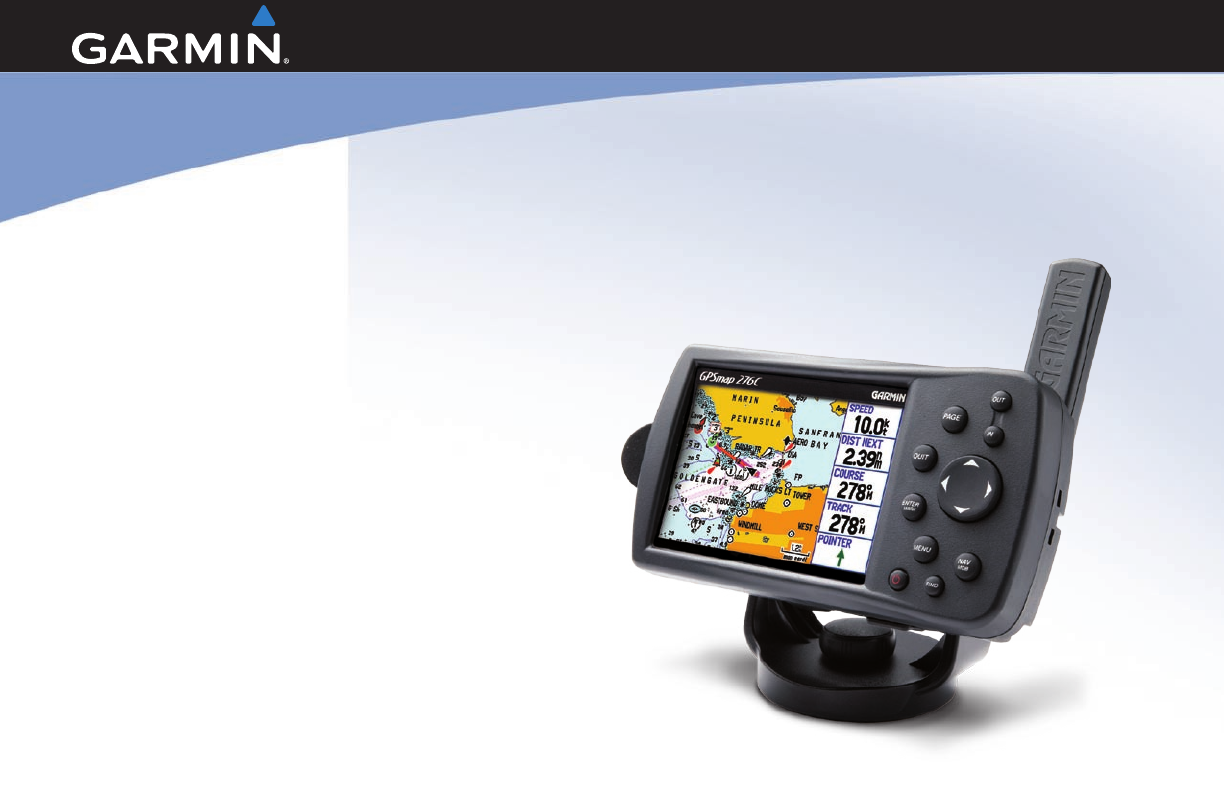
GPSMAP® 276C
chartplotting receiver
owner’s manual
© 2009 Garmin Ltd. or its subsidiaries
Garmin International, Inc.
1200 East 151st Street,
Olathe, Kansas 66062, USA
Tel. (913) 397.8200 or (800) 800.1020
Fax (913) 397.8282
Garmin (Europe) Ltd.
Liberty House
Hounsdown Business Park,
Southampton, Hampshire, SO40 9RB UK
Tel. +44 (0) 870.8501241 (outside the UK)
0808 2380000 (within the UK)
Fax +44 (0) 870.8501251
Garmin Corporation
No. 68, Jangshu 2nd Road,
Shijr, Taipei County, Taiwan
Tel. 886/2.2642.9199
Fax 886/2.2642.9099
All rights reserved. Except as expressly provided herein, no part of this manual may be reproduced, copied, transmitted, disseminated, downloaded or stored in any storage
medium, for any purpose without the express prior written consent of Garmin. Garmin hereby grants permission to download a single copy of this manual onto a hard drive or
other electronic storage medium to be viewed and to print one copy of this manual or of any revision hereto, provided that such electronic or printed copy of this manual must
contain the complete text of this copyright notice and provided further that any unauthorized commercial distribution of this manual or any revision hereto is strictly prohibited.
Information in this document is subject to change without notice. Garmin reserves the right to change or improve its products and to make changes in the content without
obligation to notify any person or organization of such changes or improvements. Visit the Garmin Web site (www.garmin.com) for current updates and supplemental
information concerning the use and operation of this and other Garmin products.
Garmin
®
, GPSMAP
®
, AutoLocate
®
, TracBack
®
, BlueChart
®
, City Select
®
, MapSource
®
, and See-Thru
®
are trademarks of Garmin Ltd. or its subsidiaries, registered in the USA
and other countries. These trademarks may not be used without the express permission of Garmin.
January 2009 Part Number 190-00335-00 Rev. E Printed in Taiwan

IntroductIon
Thank you for choosing the Garmin
®
GPSMAP
®
276C, which uses
the proven performance of Garmin GPS and full-featured mapping
to create an unsurpassed portable marine navigation chartplotter
and automobile navigation device. Take a moment to compare
the contents of this package with the packing list on the outside
of the box; if any pieces are missing, contact your Garmin dealer
immediately.
About This Manual
To get the most out of your new navigation system, read this manual
and learn the operating procedures for your unit. This manual is
organized into the following sections:
The Introduction contains the Table of Contents, Care Information,
and Warnings.
The Getting Started section provides an overview of the unit, how
to turn the unit on, and how to simulate navigation.
The Marine Mode section provides you with information about
navigating with the GPSMAP 276C in Marine Mode.
The Marine Mode Pages section reviews the main pages in Marine
Mode.
The Automotive Mode section provides you with information about
navigating with the GPSMAP 276C in Automotive Mode.
The Automotive Mode Pages section reviews the main pages in
Automotive Mode.
The Main Menu section describes features found on the Main
Menu, and information on how to change settings.
The Setting Up and Using Sonar section provides instructions
on using a Garmin GSD 20 or GSD 21 Sounder Module with your
GPSMAP 276C.
The Appendix contains specications, optional accessories,
maintenance information, and other product information.
An Index is provided at the end of the manual for reference.
GPSMAP 276C Owner’s Manual i
IntroductIon > About thIs MAnuAl

Table of Contents
Introduction ...........................................................................i
Caring for the GPSMAP 276C ................................................ iv
Warnings .................................................................................. v
Important Information ............................................................ vi
Battery Warnings .................................................................... vi
Getting Started .....................................................................1
Unit Overview .......................................................................... 1
Charging the GPSMAP 276C .................................................. 2
Turning Your GPSMAP 276C On or Off.................................. 3
Adjusting the Backlight and Volume ..................................... 3
Getting Satellite Signals ......................................................... 4
Using the GPSMAP 276C ........................................................ 8
Using Simulator Mode .......................................................... 12
Marine Mode .......................................................................13
Marine Mode Pages ............................................................... 13
Navigating to a Destination .................................................. 14
Finding an Item ...................................................................... 17
Creating and Using Routes .................................................. 20
Creating and Using Waypoints ............................................ 24
Managing Your Tracks .......................................................... 34
Marine Mode Pages ...........................................................38
Compass Page ....................................................................... 45
Highway Page ........................................................................ 48
Active Route Page ................................................................. 50
Position Data Page ................................................................ 51
Automotive Mode .............................................................52
Automotive Mode Pages ....................................................... 52
Navigating to a Destination .................................................. 53
Editing Your Route ................................................................ 56
Following an Automotive Route ........................................... 59
Automotive Mode Pages ...................................................60
Current Route Page ............................................................... 61
Trip Computer Page .............................................................. 62
Main Menu ..........................................................................63
Main Menu Tabs ..................................................................... 63
GPS Tab .................................................................................. 64
Route Tab ............................................................................... 64
Points Tab .............................................................................. 65
Track Tab ................................................................................ 65
DSC Tab .................................................................................. 66
Sonar Tab ............................................................................... 70
ii GPSMAP 276C Owner’s Manual
IntroductIon > tAble of contents

Alarms Tab ............................................................................. 70
Calendar Tab .......................................................................... 72
Celestial Tab........................................................................... 73
Message Tab .......................................................................... 77
Display Tab............................................................................. 78
Sound Tab .............................................................................. 79
Setup Tab ............................................................................... 80
Setting Up and Using Sonar .............................................89
Showing Sonar on the Map Page ......................................... 89
Using the Sonar Page ........................................................... 90
Setting Up Sonar ................................................................... 94
Understanding Sonar ............................................................ 98
Appendix ..........................................................................101
Specications ...................................................................... 101
Optional Accessories .......................................................... 102
Installation Information ....................................................... 103
Satellite Information ............................................................ 107
What is Differential GPS (DGPS)? ..................................... 107
LORAN TD Setup ................................................................. 109
Map Datums and Location Formats ...................................111
Digital Selective Calling (DSC) ........................................... 112
Messages ............................................................................. 114
Data Field Options ............................................................... 116
Software License Agreement ............................................. 118
Product Registration ........................................................... 118
Limited Warranty ................................................................. 119
FCC Compliance .................................................................. 120
Declaration of Conformity (DoC) ....................................... 120
Index .................................................................................121
GPSMAP 276C Owner’s Manual iii
IntroductIon > tAble of contents

Caring for the GPSMAP 276C
The GPSMAP 276C case is constructed of high quality materials
and does not require user maintenance except cleaning.
Cleaning the Case
Clean the unit’s outer casing (except for the screen) using a cloth
dampened with a mild detergent solution and then wipe dry.
Avoid chemical cleaners and solvents that might damage plastic
components.
Cleaning the Screen
The GPSMAP 276C screen should be cleaned using a soft, clean,
lint-free cloth. Water, isopropyl alcohol, or eyeglass cleaner can be
used if needed. If these are used, apply the liquid to the cloth and
then gently wipe the screen with the moistened cloth.
Storage
Do not store the GPSMAP 276C where prolonged exposure to
temperature extremes might occur (such as in the trunk of a car)
as permanent damage could result. User information, such as
waypoints and routes are retained in the unit’s memory without
the need for external power. It is always a good practice to back up
important user data by manually recording it or downloading it to a
computer (transferring it to MapSource).
Water Immersion
The GPSMAP 276C is waterproof to IEC Standard 60529 IPX7.
It can withstand immersion in 1 meter of water for 30 minutes.
Prolonged submersion can cause damage to the unit. After
submersion, be certain to wipe and air dry the unit before reuse or
charging.
iv GPSMAP 276C Owner’s Manual
IntroductIon > cArIng for the gPsMAP 276c
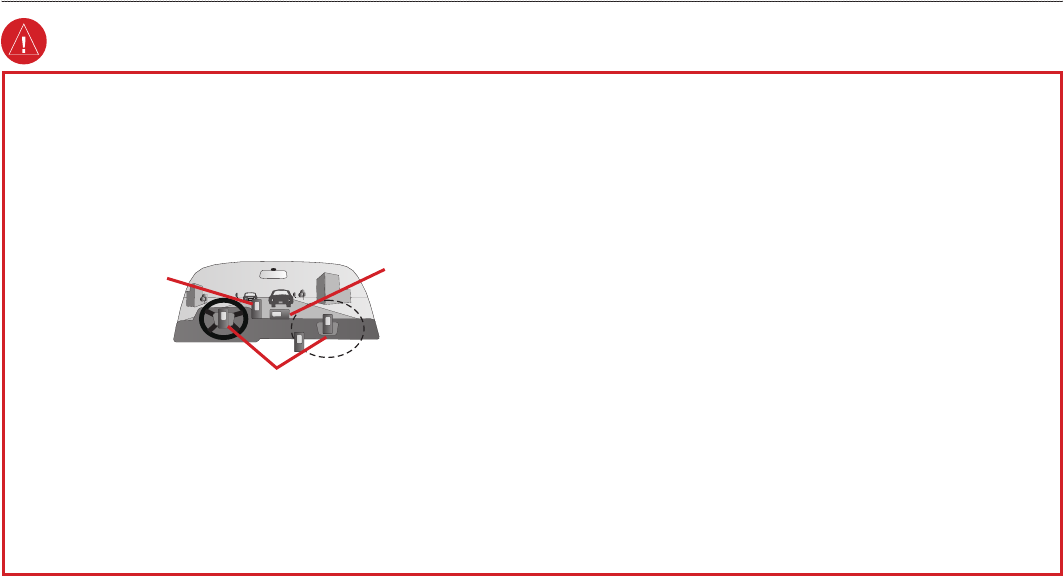
Failure to avoid the following potentially hazardous situations could
result in an accident or collision resulting in death or serious injury.
• When installing the unit in a vehicle, place the unit securely so that
it does not obstruct the driver’s view of the road or interfere with
vehicle operating controls, such as the steering wheel, foot pedals,
or transmission levers. Do not place in front of or above any airbag.
(See diagram).
Do not mount
where driver’s
eld of vision is
blocked.
Do not place
unsecured on
the vehicle
dashboard.
Do not mount in front of an airbag
eld of deployment.
• When navigating, carefully compare information displayed on the
unit to all available navigation sources, including information from
street signs, visual sightings, and maps. For safety, always resolve
any discrepancies or questions before continuing navigation and
defer to posted road signs.
• Always operate the vehicle in a safe manner. Do not become
distracted by the unit while driving, and always be fully aware
of all driving conditions. Minimize the amount of time spent
viewing the unit’s screen while driving and use voice prompts
when possible. Do not input destinations, change settings, or access
any functions requiring prolonged use of the unit’s controls while
driving. Pull over in a safe and legal manner before attempting such
operations.
• This unit is designed to provide route suggestions. It is not designed
to replace the need for driver attentiveness regarding road closures
or road conditions, trafc congestion, weather conditions, or other
factors that may affect safety while driving.
• Use the electronic chart in the unit only to facilitate, not to replace,
the use of authorized government charts. Ofcial government charts
and notices to mariners contain all information needed to navigate
safely.
• Use this unit only as a navigational aid. Do not attempt to use the
unit for any purpose requiring precise measurement of direction,
distance, location, or topography.
WARNING: This product, its packaging, and its components contain chemicals known to the State of California to cause cancer, birth defects, or reproductive
harm. This Notice is provided in accordance with California’s Proposition 65. See www.garmin.com/prop65 for more information.
Warnings
GPSMAP 276C Owner’s Manual v
IntroductIon > WArnIngs

Important Information
MAP DATA INFORMATION: One of the goals of Garmin is to provide
customers with the most complete and accurate cartography that is available
to us at a reasonable cost. We use a combination of governmental and private
data sources, which we identify in product literature and copyright messages
displayed to the consumer. Virtually all data sources contain some inaccurate or
incomplete data. In some countries, complete and accurate map information is
either not available or is prohibitively expensive.
NOTICE REGARDING WINDSHIELD MOUNTING; SPECIAL
NOTICE TO DRIVERS IN CALIFORNIA AND MINNESOTA: State law
prohibits drivers in California and Minnesota from using suction mounts on
their windshields while operating motor vehicles. Check your state and local
laws and ordinances for similar restrictions. Other Garmin dashboard or friction
mounting options should be used. Garmin does not take any responsibility for
any nes, penalties, or damages that may be incurred as a result of disregarding
this notice or as a result of any other state or local law or ordinance relating
to use of the unit. (See California Vehicle Code Section 26708(a); Minnesota
Statutes 2005, Section 169.71.)
The California Electronic Waste Recycling Act of 2003 requires the
recycling of certain electronics. For more information on the applicability to
this product, see www.erecycle.org.
Battery Warnings
If these guidelines are not followed, the internal lithium-ion battery may
experience a shortened life span or may present a risk of damage to the GPS
unit, re, chemical burn, electrolyte leak, and/or injury.
• Do not leave the unit exposed to a heat source or in a high temperature
location, such as in the sun in an unattended vehicle. To prevent
damage, remove the unit from the vehicle or store it out of direct
sunlight, such as in the glove box.
• Do not puncture or incinerate.
• When storing the unit for an extended time, store within the following
temperature range: 32° to 77°F (0° to 25°C).
• Do not operate the unit outside of the following temperature range: -4°
to 131°F (-20° to 55°C).
• Contact your local waste disposal department to properly recycle/
dispose of the unit/battery.
Additional User-Replaceable Battery Warnings:
• Do not use a sharp object to remove the battery.
• Keep the battery away from children.
• Do not disassemble, puncture, or damage the battery.
• If using an external battery charger, only use the Garmin accessory
approved for your product.
• Only replace the battery with the correct replacement battery. Using
another battery presents a risk of re or explosion. To purchase a
replacement battery, see your Garmin dealer or the Garmin Web site.
Additional Non-User-Replaceable Battery Warnings:
• Do not remove or attempt to remove the non-user-replaceable battery.
• When disposing of the unit, take it to a professional service, such as a
waste electronics treatment facility, to have the battery removed and
recycled.
vi GPSMAP 276C Owner’s Manual
IntroductIon > IMPortAnt InforMAtIon And bAttery WArnIngs
GettInG Started
Unit Overview
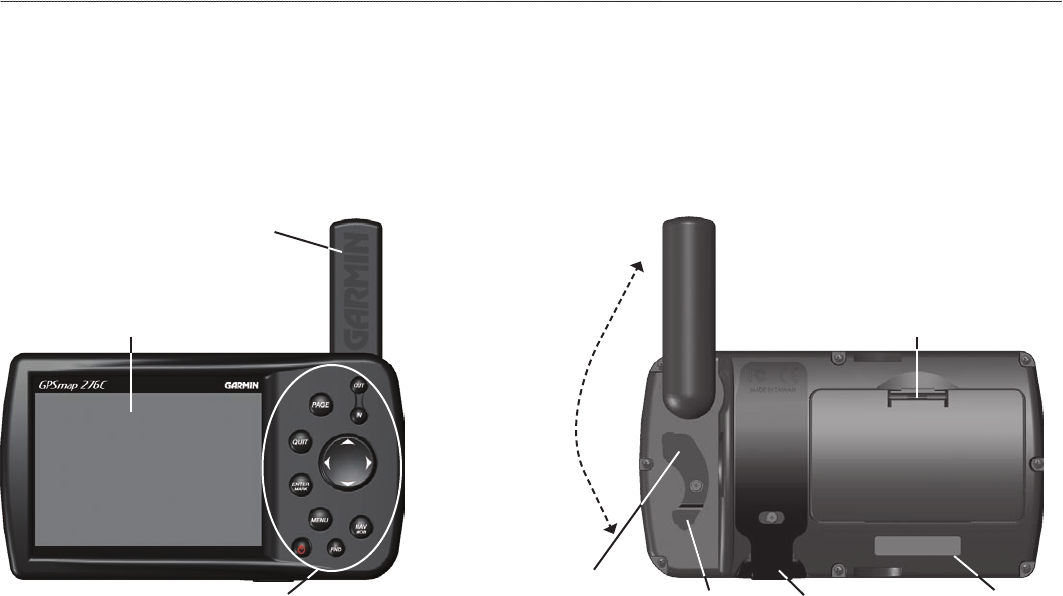
The GPSMAP 276C is an all-in-one, versatile color chartplotter and automobile navigator—perfect for land or water. This portable GPS
navigator features a 256-color TFT display that is easy to read in bright sun, a built-in basemap, and auto routing to provide you with
automatically generated turn-by-turn directions.
External power
connector under
weather cap
USB connector
under weather cap
Slot for optional
data card
Battery pack. Press tab down
to remove battery pack for
replacement, if necessary.
Backlit keypad for easy nighttime operation
GPS antenna
256-color TFT display
with backlighting
Detachable antenna
collapses for storage.
Be sure the antenna
is up (as shown
here) to receive
satellite signals.
See the Appendix,
page 106, for
instructions on
removing the
antenna.
Serial number
GPSMAP 276C Owner’s Manual 1
gettIng stArted > unIt overvIeW
Charging the GPSMAP 276C
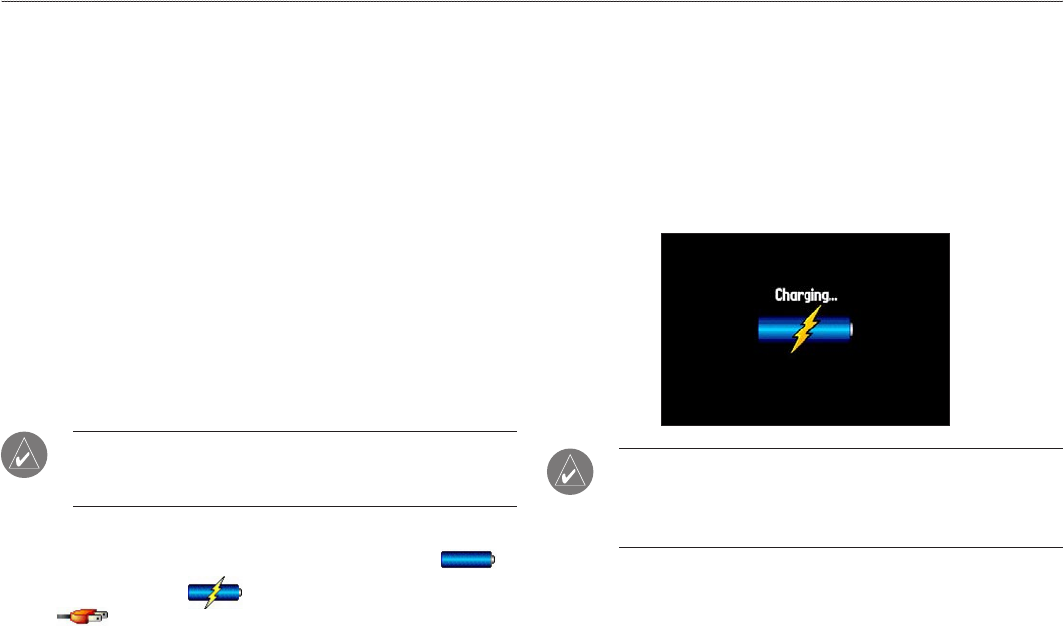
Before using the GPSMAP 276C charge the battery. Plug the power
cable into an external power source to charge. You can use the unit
while it is charging.
To charge the unit’s battery:
1. Lift the rubber weather cap to expose the power connector
on the back of the unit. See the image on page 1 for
connector location.
2. Align the notches and push the plug into the connector until
fully seated.
3. Plug the 12-Volt adapter into an available AC outlet, or
cigarette lighter receptacle if you have a cigarette lighter
adapter. Use care when routing the cable; make sure it does
not interfere with vehicle operation. The unit begins charging
as soon as external power is applied.
TIP: Placing the unit in Charge Mode charges the unit more
quickly than when the unit is turned on and reduces draw on the
vehicle/vessel battery.
When you turn on the GPSMAP 276C the power source indicator on
the GPS tab shows the unit is operating off battery power ( ),
that the unit is charging ( ), or that an external power source is
in use ( ).
Using Charge Mode
If you want to charge the battery when you are not using the unit,
you can put the unit into Charge Mode.
To put the GPSMAP 276C in Charge Mode:
1. Connect the GPSMAP 276C to an external power supply.
2. Press and hold the POWER key. Instead of completely
turning off, the GPSMAP 276C goes into Charge Mode.
NOTE: While in Charge Mode, the GPSMAP 276C draws a
small amount of current from the vessel/vehicle battery. To avoid
discharging the vehicle’s battery, disconnect the external power
cable from the unit when not in use for several days.
Over time, you might notice that the lithium-ion battery in the unit
is not holding a charge any more. This is common for lithium-ion
batteries. Contact Garmin or your Garmin dealer to order a battery
pack replacement if you are experiencing battery charging issues.
2 GPSMAP 276C Owner’s Manual
gettIng stArted > chArgIng the gPsMAP 276c
Turning Your GPSMAP 276C On or Off
Before you turn on your GPSMAP 276C, be sure the antenna is up
as shown on page 1, and it has a clear and unobstructed view of the
sky to receive satellite signals.
The rst time you turn on your GPSMAP 276C, the GPS receiver
must collect satellite data and establish its current location. To
ensure proper initialization, the GPSMAP 276C is shipped from
the factory in AutoLocate mode, which allows the receiver to “nd
itself” anywhere in the world.
To turn the GPSMAP 276C on and off:
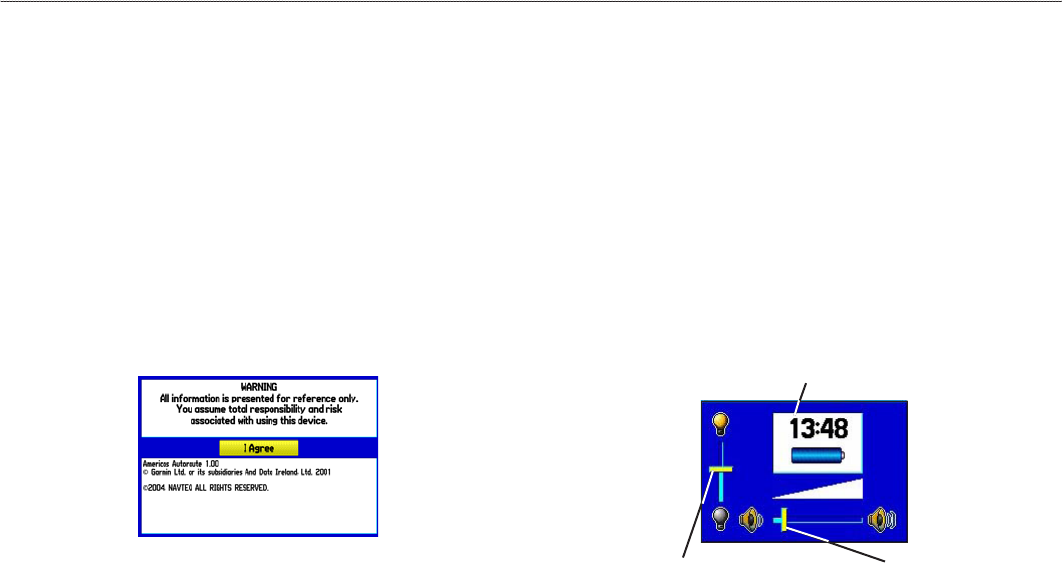
1. Press and hold the POWER key. When the unit turns on, a
tone sounds and the Warning Page appears.
Warning Page
2. Read the warning, and then press ENTER to continue.
3. To turn off the GPSMAP 276C, press and hold the POWER
key again.
Adjusting the Backlight and Volume
You can adjust the backlight to see the screen better. If you are
using the external speaker with the 12/24-Volt adapter cable with
the GPSMAP 276C, you can adjust the volume level of the audio
output.
To adjust the backlight level or volume:
1. Press and quickly release the POWER key.
2. Press up on the ROCKER to increase the brightness or
press down to decrease. Press right to raise the volume or
left to lower.
3. Press ENTER or QUIT to close the Backlight/Volume
adjustment window.
Backlight
adjustment slider
Volume
adjustment slider
Battery time remaining and power source indicator
GPSMAP 276C Owner’s Manual 3
gettIng stArted > turnIng your gPsMAP 276c on And off And AdjustIng the bAcklIght And voluMe
Getting Satellite Signals
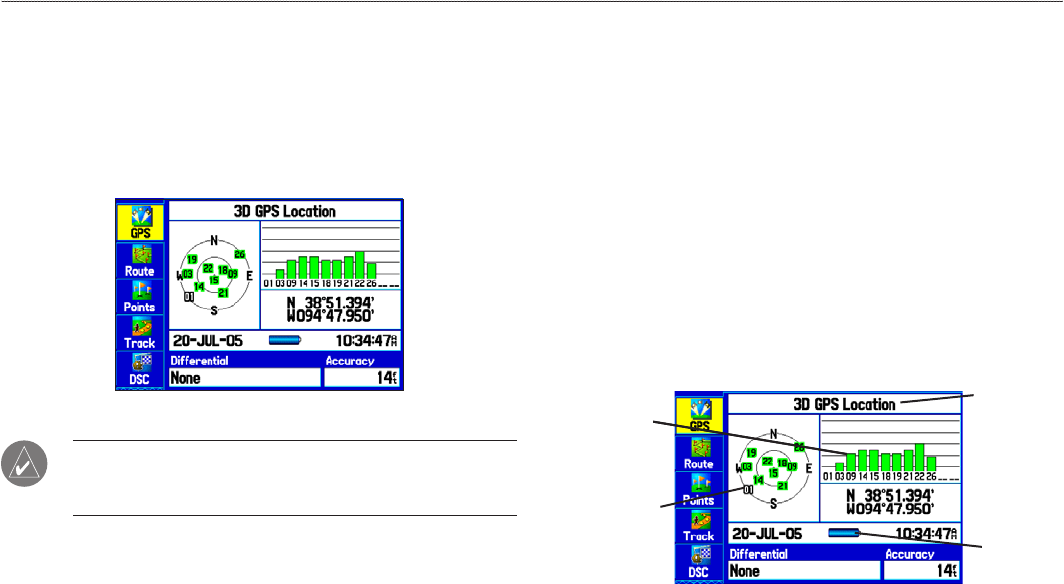
After you turn on the GPSMAP 276C, the unit automatically begins
searching for satellites. The GPS Page appears while the unit is
gathering satellite signals and acquiring a x, which should take
only a few minutes. While the GPSMAP 276C is getting satellite
signals, the GPS page shows the status as “Acquiring Satellites”.
GPS Tab
NOTE: While acquiring satellites, the Map Page might show
the wrong location. Wait a few more minutes to acquire satellites
and nd your current location.
Viewing GPS Status with the GPS Tab
The GPS tab provides a visual reference of satellite acquisition,
receiver status, and accuracy. The sky view and signal strength bars
show what satellites are visible to the receiver and whether they are
being tracked.
As the receiver locks onto satellites, a signal strength bar appears
for each satellite in view, with the appropriate satellite number
underneath each bar. The numbers below each bar represent the
particular satellite that is being received. Numbers above 33 indicate
WAAS satellites.
The sky view shows a bird’s eye view of the position of each
satellite relative to the receiver’s last known position. The outer
circle represents the horizon (north up), the inner circle represents
45º above the horizon, and the center point represents a position
directly overhead. You can also set the sky view to a Track Up
conguration, causing the top of the sky view to align along your
current track heading. Press MENU to change the conguration of
the sky view.
GPS Status
Receiver
status eld
Sky view
Signal
strength bars
Power
source
indicator
4 GPSMAP 276C Owner’s Manual
gettIng stArted > gettIng sAtellIte sIgnAls

The progress of satellite acquisition is shown in three stages:
• No signal strength bars—the receiver is looking for the
satellites indicated.
• White signal strength bars—the receiver has found the
satellite and is collecting data.
• Green signal strength bars—the receiver has collected the
necessary data from this satellite.
When the GPSMAP 276C collects the necessary data from the best
satellites in view to calculate a x, the status eld indicates the status
of the receiver. The unit then updates the location, date, and time.
Receiver Status
The Receiver Status eld shows one of the following conditions:
• Searching the Sky—the receiver is looking for satellites.
• AutoLocate—the receiver is looking for any satellite whose
almanac was collected, which can take up to ve minutes.
• Acquiring Satellites—the receiver is looking for and
collecting data from satellites visible at its last known or
initialized location but has not acquired a x.
• 2D GPS Location—At least three satellites were acquired
and a two-dimensional position x was calculated.
“2D Differential” appears when you are receiving DGPS
corrections in 2D mode, and a “D” appears on the strength bar
of satellites being corrected.
• 3D GPS Location—At least four satellites were acquired
and a three-dimensional x was calculated. “3D Differential”
appears when you are receiving DGPS corrections in
3D mode, and a “D” appears on the strength bar of satellites
being corrected.
• Lost Satellite Reception—the receiver is no longer tracking
enough satellites for a 2D or 3D x.
• Receiver Not Usable—the receiver is unusable, possibly due
to interference or abnormal satellite conditions. Turn the unit
off and back on to reset.
• Simulating GPS—the receiver is in Simulator Mode.
• GPS Off—the GPS receiver is turned off.
GPSMAP 276C Owner’s Manual 5
gettIng stArted > gettIng sAtellIte sIgnAls
GPS Options
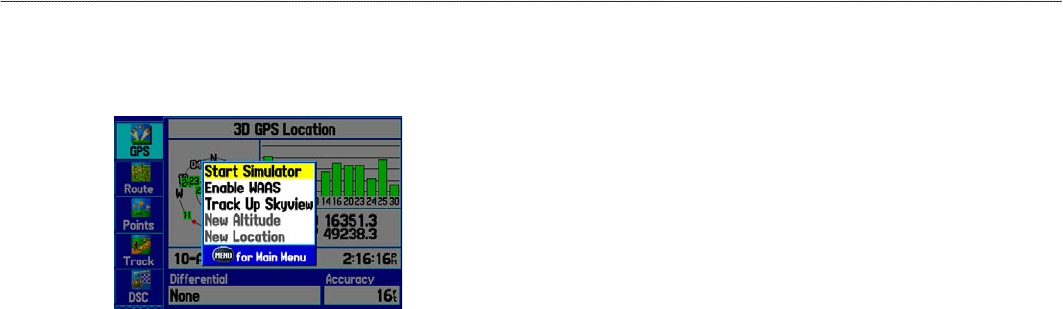
Press MENU twice to open the Main Menu. Use the ROCKER to
highlight the GPS tab. Press MENU to open the options menu.
GPS Tab Options Menu
Start/Stop Simulator—starts and stops Simulator Mode, which is
helpful when learning how to use your unit.
Enable/Disable WAAS—enables or disables WAAS capability. See
page 108 of the “Appendix” for more information about WAAS.
Track Up Skyview/North Up Skyview—orients the sky view
display on the GPS tab to North Up or Track Up.
New Altitude—allows you to manually enter your altitude.
New Location—allows you to enter a new location automatically or
using the map.
GPS Tips
• While the receiver is gathering information, your location
on the map might appear different from where you actually
are located. As soon as the receiver gathers enough satellite
information, your proper location appears on the map.
• Any time you have traveled more than 600 miles with the
GPS receiver turned off, the receiver might take longer than
normal to initialize and nd your location.
• The GPS receiver can lose satellite signals due to interference
from such items as buildings, tunnels, and heavy tree cover.
Monitoring the GPS status is recommended.
• To learn about GPS, visit www.garmin.com/aboutGPS/.
6 GPSMAP 276C Owner’s Manual
gettIng stArted > gettIng sAtellIte sIgnAls
IN and OUT Keys
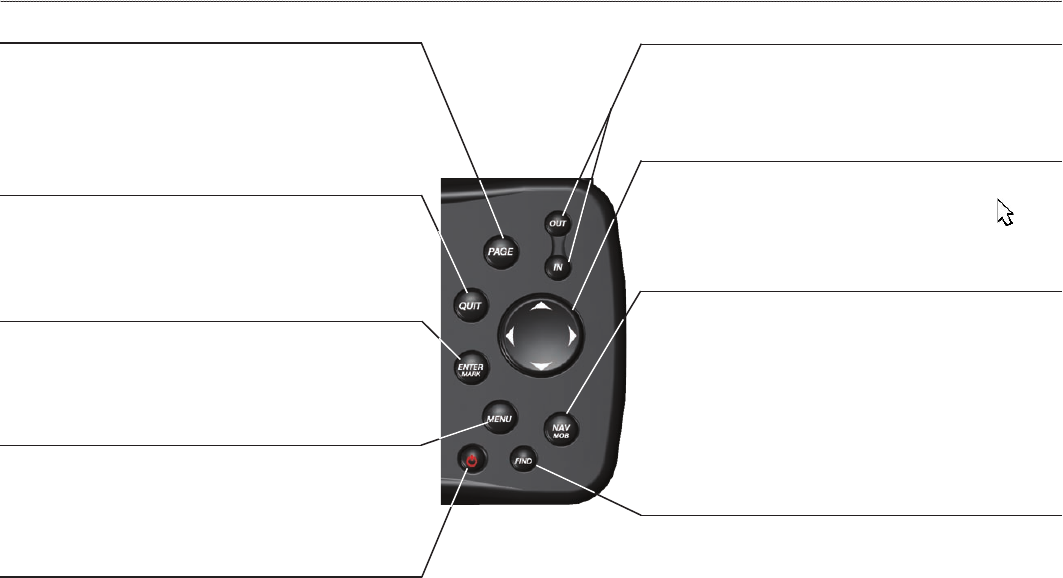
• Press to adjust map zoom range to show a larger
area with less detail (zoom out) or a smaller area
with more detail (zoom in).
PAGE Key
• Press to cycle through the main pages in
sequence and exit a submenu page.
• Press and hold to switch between Marine and
Automotive Modes.
QUIT Key
• Press to cycle through the main pages in reverse
sequence, revert to the previous value in a data
entry eld, or cancel an unintended function.
ENTER/MARK Key
• Press to select a highlighted option.
• Press and hold to mark your current location as a
waypoint.
NAV/MOB Key
• Press to open the Navigate Menu.
• In Marine Mode, press and hold to start the MOB
function.
• In Automotive Mode, press and hold to show the
Next Turn Page and announce the next turn when
using the external speaker.
MENU Key
• Press to open the options menu for the current
page.
• Press twice to open the Main Menu.
POWER Key
• Press and hold to turn the unit on or off.
• Press and release to adjust the backlighting and
external speaker volume.
ROCKER
• Press up, down, left, or right to highlight options
and to enter data, or use to pan the arrow on the
Map Page.
FIND Key
• Press to quickly search for and access user
waypoints, cities, and other items used for
navigation.
GPSMAP 276C Owner’s Manual 7
gettIng stArted > usIng the gPsMAP 276c keyPAd
Using the GPSMAP 276C
The advanced keypad system on the GPSMAP 276C is designed to
allow you to select options and enter data quickly and conveniently.
As you progress through this owner’s manual, you are directed to
press a specic key or highlight a eld on the screen. When you
are directed to press a key, you should press and quickly release the
key. If the key needs to be held down for a period of time to start a
secondary function, the instructions tell you to do so. When a eld is
selected on the screen, it is highlighted in yellow.
The following terms are used throughout this manual:
• Highlight—move the highlighted area on the screen up,
down, left, or right with the ROCKER to select individual
elds. Moving the highlight to a given location allows you to
make a selection, begin data entry, or scroll through a list.
• Field—the location on a page where data or an option can be
shown and entered. Highlight a eld using the ROCKER to
begin entering data or selecting options.
• On-screen button—use the ROCKER to highlight a button,
and press ENTER to select the button.
• Scroll bar—when viewing a list of items too long to appear
on the screen, a scroll bar appears along the right side of
the list. To scroll through a list, press up or down on the
ROCKER.
• Default—the factory setting saved in the unit’s memory. You
can change the settings, but you can also revert to the factory
(default) settings when you select Restore Defaults.
Highlighted eld
Field
On-screen buttons
Cartography
Optional Garmin data cards and MapSource CD-ROMs enhance
the versatility of your GPSMAP 276C. With optional MapSource
data, you can view listings of nearby restaurants, lodging, shopping
centers, attractions and entertainment, and even retrieve addresses
and phone numbers for any listed location.
The included USB Interface Cable or an optional PC Interface Cable
(with a serial connector) is used to transfer MapSource CD-ROM
data to the optional data card.
Visit the Garmin Web site at www.garmin.com/cartography/ for
compatible MapSource products.
8 GPSMAP 276C Owner’s Manual
gettIng stArted > usIng the gPsMAP 276c
Selecting Options and Entering Data
Select options and enter data by using the ROCKER and ENTER
key.
To select and activate an option:
1. From any page, press MENU. An options menu shows a list
of optional features specic to that page.
Selecting an option from an options menuSelecting an option from an options menu
2. Use the ROCKER to move the highlight up, down, right, or
left on the menu to the option you want to select.
3. Press ENTER to select the feature. Another window with
more options might appear. If so, select an option, and press
ENTER again.
To exit a menu or return to the previous setting:
Press QUIT. The QUIT key moves backward through your
steps. Press QUIT repeatedly to return to the starting page.
To select an on-screen button:
On a page with on-screen buttons, use the ROCKER to
highlight an on-screen button, and press ENTER.
On-screen
button
TO mark your current location as a waypoint, press and hold
ENTER/MARK until the New Waypoint Page opens.
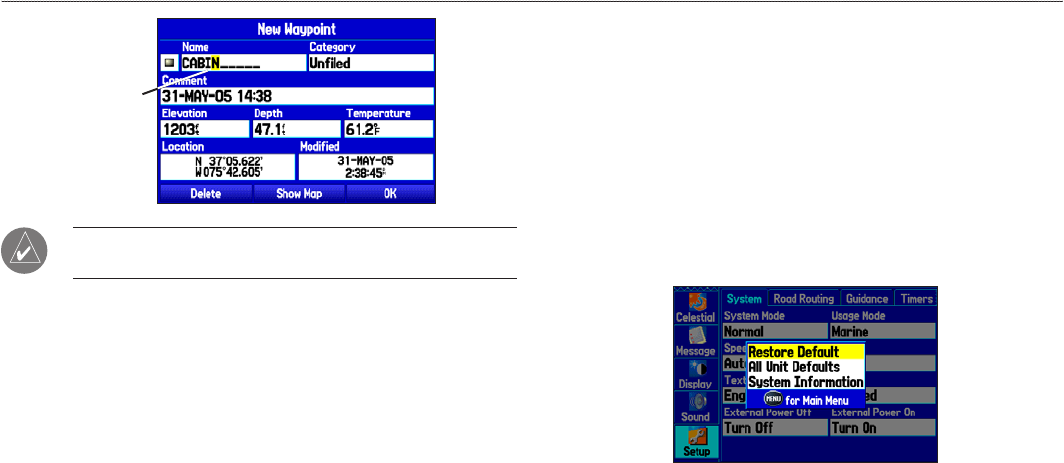
To enter data in a data eld:
1. Use the ROCKER to highlight the data eld you want, and
press ENTER to select the eld.
2. Press up or down on the ROCKER to select characters.
Press right to move to the next character or press left to
move back to the previous character. If there are two lines of
data, keep pressing right on the ROCKER to drop to the next
line.
GPSMAP 276C Owner’s Manual 9
gettIng stArted > usIng the gPsMAP 276c
Entering
data
TIP: To clear the entire data eld, highlight the left-most
character eld and press left on the ROCKER again.
3. Press ENTER.
Not all elds are programmable. When you are on a page with elds
that are not selectable, the highlight skips over them.
Restoring Default Settings
You can restore factory defaults for the following Main Menu tabs:
Track, Alarms, Display, Sound, and Setup. For more information
about the Main Menu, see the “Main Menu” section beginning on
page 63.
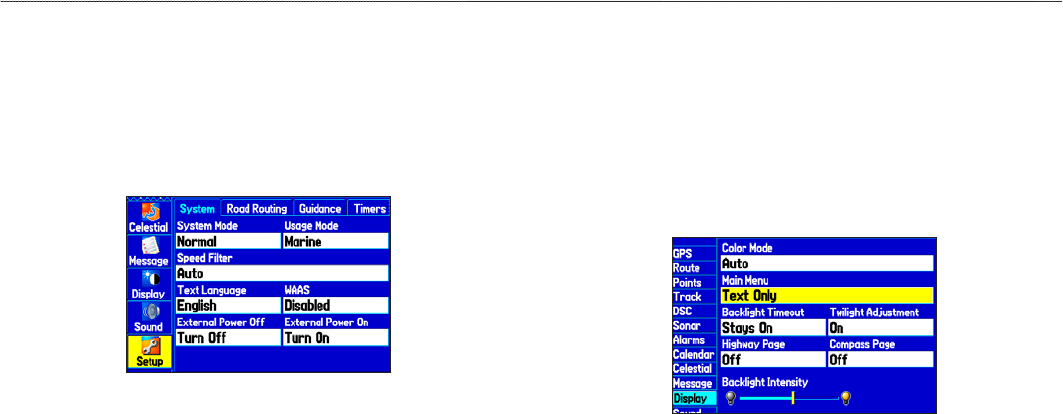
To restore default settings:
1. Press MENU twice to open the Main Menu.
2. Use the ROCKER to highlight a tab, and then press MENU to
open the options menu.
Setup Tab Options Menu
3. Highlight Restore Default, and press ENTER.
10 GPSMAP 276C Owner’s Manual
gettIng stArted > usIng the gPsMAP 276c
Using the Main Menu
Use the Main Menu on your GPSMAP 276C to access various
waypoint, system, navigation and interface management, and setup
menus. Press the MENU key twice from any page to open the Main
Menu. For more information, see the “Main Menu” section on
page 63.
Main Menu
To select a tab from the Main Menu:
1. From any page, press MENU twice to open the Main Menu.
2. Press up or down on the ROCKER to highlight a tab. The
information for the highlighted tab automatically appears
on the right. To highlight a sub tab, press left or right on the
ROCKER, and then press up or down to select individual
elds.
By default, the Main Menu tabs are shown as icons along the left
side of the screen. You can change the Main Menu to show tabs in a
text-only format.
To view the Main Menu icons in text-only format:
1. Highlight the Display tab, and press ENTER.
2. Select the Main Menu eld, and press ENTER.
3. Highlight Text Only, and press ENTER.
GPSMAP 276C Owner’s Manual 11
gettIng stArted > usIng the gPsMAP 276c
Using Simulator Mode
Simulator Mode is great for practicing with the unit if you are
indoors or when satellite signals are not available. All waypoints and
routes created in Simulator Mode are retained in memory for future
use.
NOTE: Do not try to navigate using Simulator Mode. When the
unit is set to Simulator Mode, the GPS receiver is turned off.
Any satellite signal strength bars shown are only simulations and
do not represent the strength of actual satellite signals.
To turn on Simulator Mode:
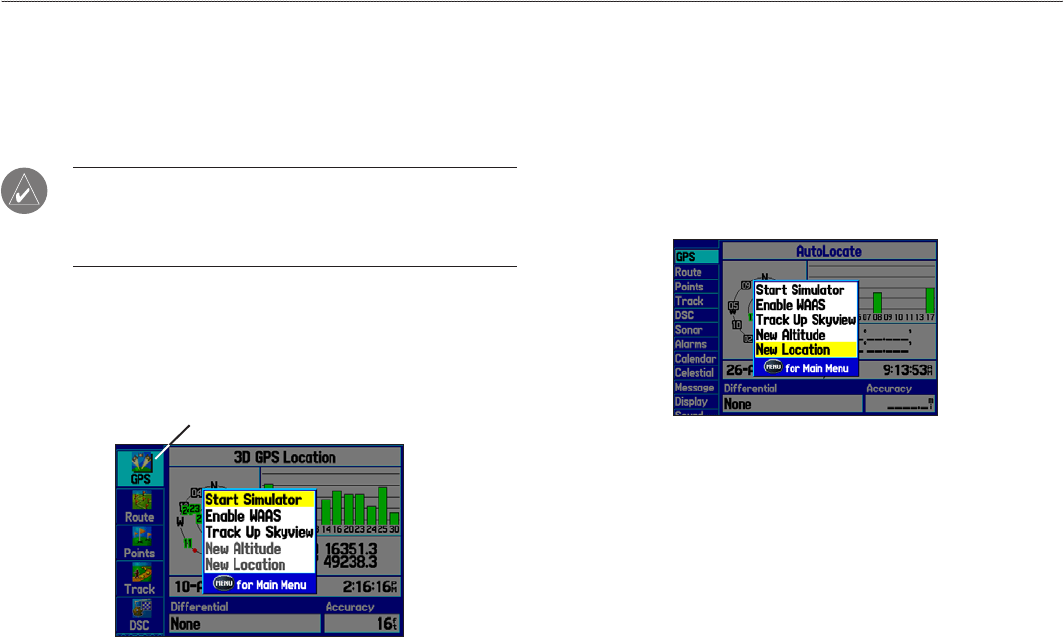
1. Highlight the GPS tab on the Main Menu.
2. Press MENU to open the GPS tab options menu.
3. Highlight Start Simulator, and press ENTER.
GPS tab
Starting Simulator Mode from the GPS tab
Entering a New Location
Use the GPS options menu to enter a new location from which to
simulate.
To enter a New Location using the map:
1. Highlight the GPS tab on the Main Menu.
2. Press MENU to open the options menu.
3. Highlight New Location, and press ENTER.
4. Highlight Use Map, and press ENTER.
5. Use the ROCKER to move the panning arrow to the location
you want on the map, and press ENTER.
12 GPSMAP 276C Owner’s Manual
gettIng stArted > usIng sIMulAtor Mode
MarIne Mode
This section explains some of the more common operations you can perform with your GPSMAP 276C while on the water.
To switch usage modes:
1. Press and hold the PAGE key. The Usage Mode Menu appears.
2. Select Automotive or Marine, and press ENTER.
Marine Mode Pages
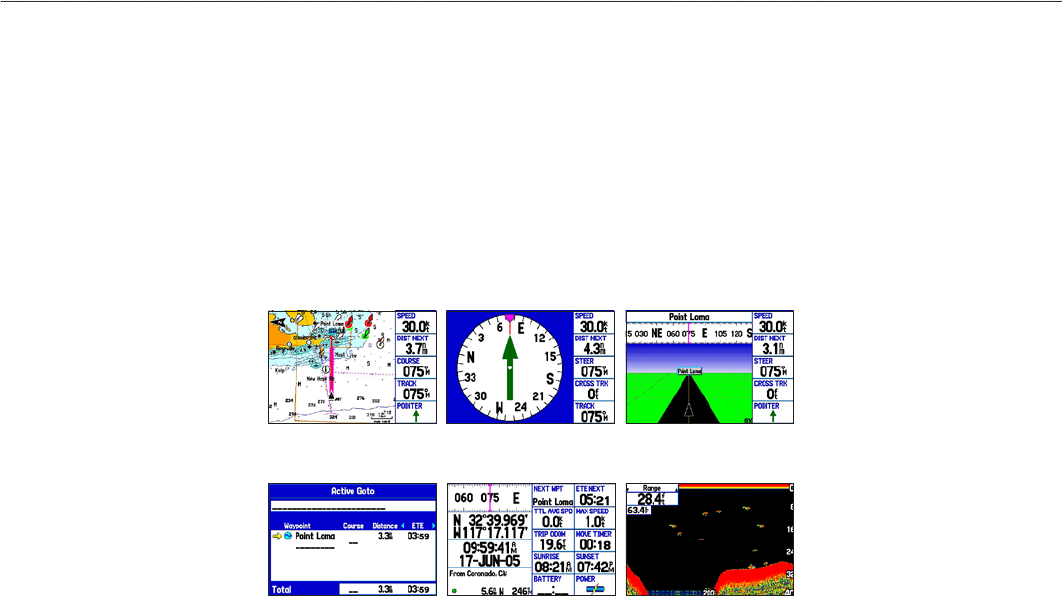
Marine Mode has ve main pages: Map, Compass, Highway, Active Route, and Position Data. If you have a Garmin GSD 20 or GSD 21
Sonar Module connected to the GPSMAP 276C, a Sonar Page is available.
Map Page Compass Page Highway Page
Position Data Page Active Route Page Sonar Page
(Optional)
GPSMAP 276C Owner’s Manual 13
MArIne Mode > MArIne Mode PAges
Navigating to a Destination
You can navigate to your destination using the Map Page. As you
travel, you see a magenta line that always runs from your current
location to the destination or to the next turn on the Map Page. You
can use the Map Page, Compass Page, Highway Page, and Position
Data Page to help navigate.
You can navigate to a destination using one of the following
methods:
• Select a point on the map, and press NAV.
• Press NAV to start a new route using the Find Menu or start a
saved route or track.
• Press the FIND key to search for a particular item and create
a route to it.
MARINE Mode and Automotive Mode are similar. Most of the
features discussed here also apply to Automotive Mode.
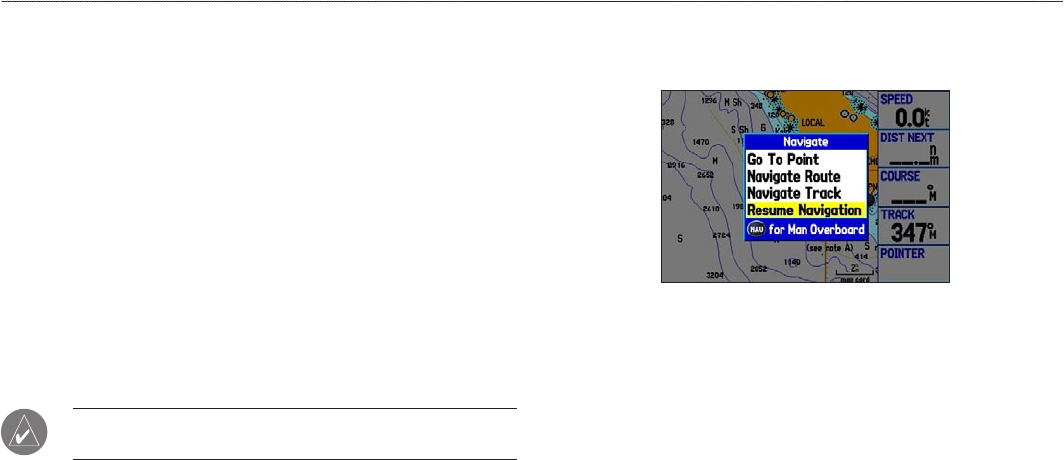
Navigate Options Menu
Press NAV to open the Navigate options menu.
Navigate Menu in Marine Mode
Go To Point—allows you to select a waypoint or point of interest
from the Find Menu to which to navigate.
Navigate Route—allows you to select a route to navigate. You can
also start a saved route through the Routes tab on the Main Menu.
For information about routes, see page 20.
Navigate Track (TracBack)—allows you to select a saved track to
navigate. You can also start a saved track through the Track tab on
the Main Menu. For information about tracks, see page 34.
MOB (Man OverBoard)—creates a MOB waypoint and navigates
to that location.
14 GPSMAP 276C Owner’s Manual
MArIne Mode > nAvIgAtIng to A destInAtIon
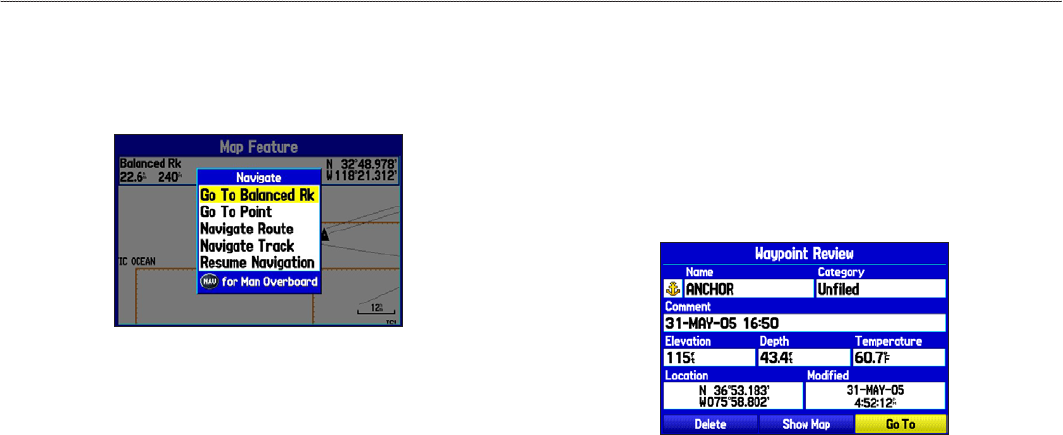
To navigate (Go To) a point on the map:
1. On the Map Page, highlight a point to navigate to, and press
NAV.
2. Highlight Go To <point name>, and press ENTER.
Navigate Menu
3. Follow the magenta route created on the Map Page.
To stop navigation:
1. While navigating to a point, press NAV.
2. Highlight Stop Navigation, and press ENTER.
3. Highlight Resume Navigation, and press ENTER to resume
navigation.
To start a new route using the Find Menu:
1. Press the NAV key to open the Navigate Menu.
2. Highlight Go To Point (or New Route when in Automotive
Mode), and press ENTER to open the Find Menu.
3. From the Find Menu, highlight Waypoints, and press
ENTER.
4. Select a waypoint from the list, and press ENTER to open the
Waypoint Review Page.
Waypoint Review Page
5. With the Go To button highlighted, press ENTER to begin
navigation.
GPSMAP 276C Owner’s Manual 15
MArIne Mode > nAvIgAtIng to A destInAtIon
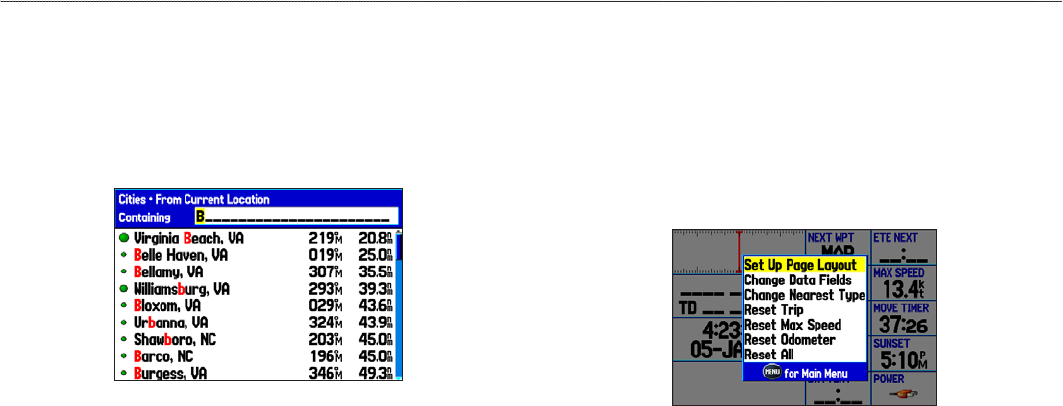
To search for an item and route to it:
1. Press FIND to open the Find Menu.
2. Highlight a category, and press ENTER.
3. Press ENTER, and then press the ROCKER up or down to
enter letters contained in the item name. Press ENTER when
nished.
Finding an item using the Containing eld. The unit searches for items
containing the letter combination you enter and shows them in the list.
4. Highlight the item from the list, and press ENTER.
5. Press ENTER when the Go To button is highlighted.
For complete information about nding an item, see the “Finding an
Item” section on page 17.
Man OverBoard (MOB)
Use the MOB function to simultaneously mark your current location
and create a direct route back to that location for quick response to
emergency situations.
To start the MOB function:
1. Press and hold the NAV/MOB key, or press the NAV/MOB
key twice.
2. Press ENTER to conrm and begin navigating to the MOB
location.
When a MOB is activated, a MOB waypoint with an international
MOB symbol is created, and the unit begins actively navigating to
that point. Use any of the Navigation Pages to guide you back to the
MOB point. The MOB waypoint is stored in the waypoint list and
can be deleted like any other waypoint.
16 GPSMAP 276C Owner’s Manual
MArIne Mode > nAvIgAtIng to A destInAtIon
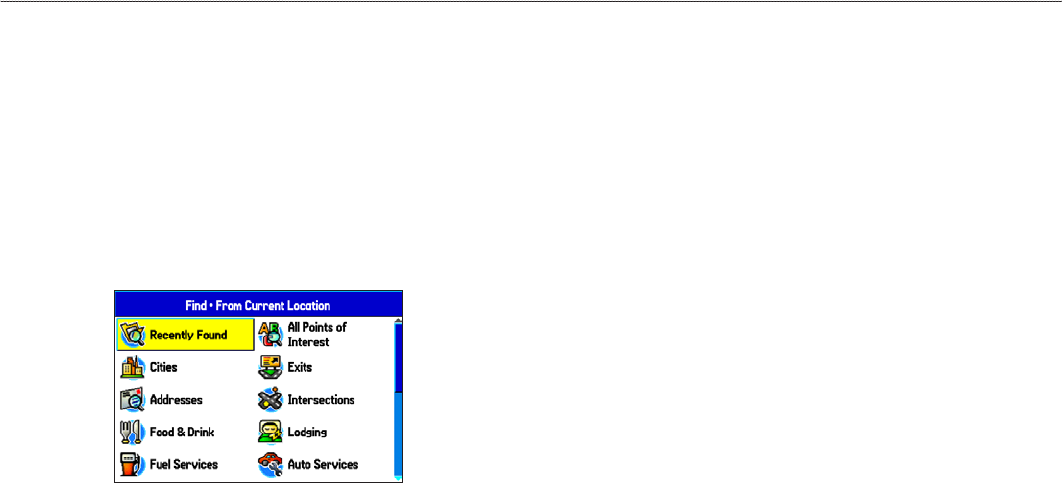
Finding an Item
Use the Find Menu to search for addresses, food & drink, fuel
services, lodging, banks/ATMs, cities, shopping, stored waypoints
and points of interest (POIs). To open the Find Menu, press the
FIND key.
The Find Menu is comprised of several default categories:
Waypoints, Cities, Exits, Transportation, and Tide Stations.
Additional categories appear depending on the optional BlueChart
®
g2 or MapSource data card in the unit.
Find Menu
Shown without additional BlueChart g2 or
MapSource maps installed
Follow the directions on page 16 to search for an item and route to
it.
Finding an Item From Another Location
You can use the Find Menu to center your search around an item
you just found. For example, you search for Entertainment and the
search shows a “Chili’s” search result. If you press FIND again, you
see “From Chili’s” as the new search from point. You can also use
the Find feature to center your search from any waypoint, route list
entry, map item, or tide station.
To nd an item from another location on the map:
1. Open the Map Page. Use the ROCKER to pan the arrow
(pointer) to the location you want, and press FIND. The Find
Menu opens, showing “From Map Pointer”. The list of items
is sorted to show items nearest the selected location.
2. Highlight a category from the list, and press ENTER.
3. Highlight an item from the list, and press ENTER. The
item’s information page automatically opens, allowing you to
save the item as a waypoint, show the item on the map, or
automatically create a route to (Go To) the item.
GPSMAP 276C Owner’s Manual 17
MArIne Mode > fIndIng An IteM
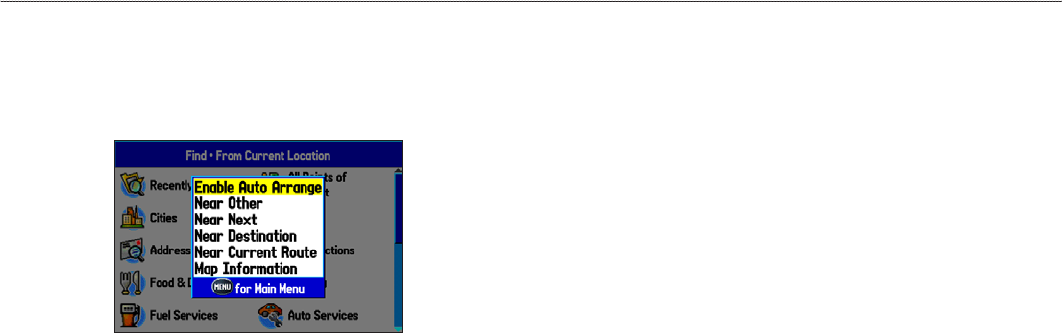
To nd an item from another location:
1. From any page, press FIND.
2. Highlight a category from the list, and press ENTER.
3. Press MENU to open the options menu.
Find From Options Menu
4. Highlight Near Other, and press ENTER. If you are actively
following a route, you can also select one of the other options
listed in the Find From list.
5. Select a reference location on the map, and press ENTER.
The list shows items nearest to the new map location.
To nd an item near another item:
1. Press FIND. The Find Menu opens.
2. Highlight the item you want to Find From.
3. Press FIND. The Find Menu opens again with items near the
previously selected item. Search for the item you want.
Viewing Recently Found Items
The Recently Found Page shows a list of the items you have
searched for or gone to recently.
To view recently found items:
1. Press FIND. The Find Menu appears.
2. Highlight Recently Found, and press ENTER to open the list
of recently found items.
3. Press MENU to show the options menu.
4. Select Show Find History to view the list of items you have
searched for recently.
OR
Select Show Go To History to view the list of items for which
you have recently created a Go To (Go To History).
5. Highlight Remove Point, and press ENTER to delete the
selected recently found point.
18 GPSMAP 276C Owner’s Manual
MArIne Mode > fIndIng An IteM
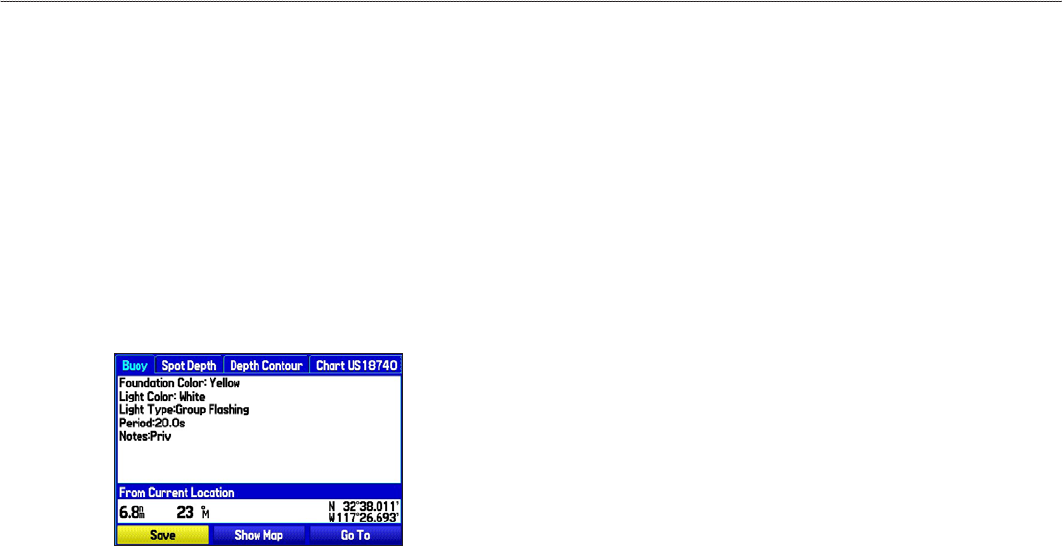
Viewing the Information Page
Each item on the map and each item listed in the results list has an
information page.
To view details about an item:
1. Highlight a point on the map or in the search results list, and
press ENTER.
An information page appears with details about the item in a
tabbed format. Depending on the type of item selected, and
if you are using optional BlueChart g2 data cards, additional
information is available for viewing the item on the map,
viewing a tide chart, viewing the list of maps on your data
card, and viewing the next item in the search results list.
Map Feature Information Page
2. Press QUIT or PAGE to exit the information page. You
can also highlight one of the on-screen buttons, and press
ENTER.
Find Menu Options
To view additional Find Menu options, press FIND, and then press
MENU. The following options are available:
• Enable Auto Arrange—automatically arranges the Find
Menu. When selected, Disable Auto Arrange and Restore
Default options are available.
• Near Other—select a new location from which to compile
the Find items lists. Using the ROCKER, move the map
arrow to the location you want, and press ENTER.
• Map Information—shows information about the detailed
map data stored on the data card and allows you to select
which maps appear on the Map Page.
Additional selections are included in the options menu when you are
navigating:
• Near Next—compiles the Find items lists based on the next
turn in the route.
• Near Destination—compiles the Find items lists based on the
route destination.
• Near Current Route—compiles the Find items lists based on
the active route.
GPSMAP 276C Owner’s Manual 19
MArIne Mode > fIndIng An IteM
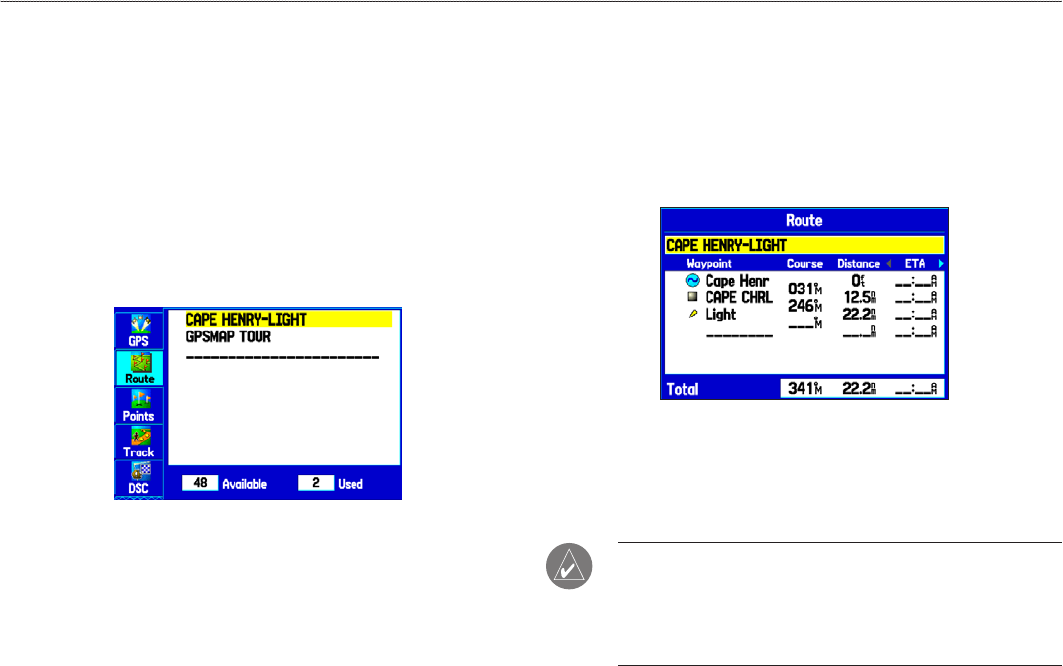
Creating and Using Routes
The GPSMAP 276C allows you to create and store up to 50
reversible routes, with up to 300 points each.
Creating a New Route
Use the Route tab to create a route by selecting waypoints from the
Find Menu, or by selecting waypoints or map items from the Map
Page.
To create a route using the Find Menu:
1. Highlight the Route tab on the Main Menu.
Route Tab with the Route List
2. Press MENU to open the Route options menu.
3. Highlight New Route, and press ENTER.
4. Press ENTER to nd items to add to the route.
5. Highlight OK, and press ENTER to add a route point.
6. Repeat steps 4 and 5 to dene additional route points.
To create a route using the map:
1. Highlight the Route tab on the Main Menu.
2. Press MENU to open the Route options menu.
3. Highlight New Route, and press ENTER.
Creating a new route on Route Review Page
4. Highlight Edit on Map, and press ENTER.
5. Highlight a location on the map, and press ENTER.
6. Repeat step 5 to dene additional route points.
NOTE: If you select an area of the map that is not a feature or
a waypoint, a new waypoint is created for that location. Press
ENTER on the New Waypoint Page to save the location as a
waypoint and continue adding points to your route. You can edit
the properties of this waypoint as you can with any waypoint.
20 GPSMAP 276C Owner’s Manual
MArIne Mode > creAtIng And usIng routes
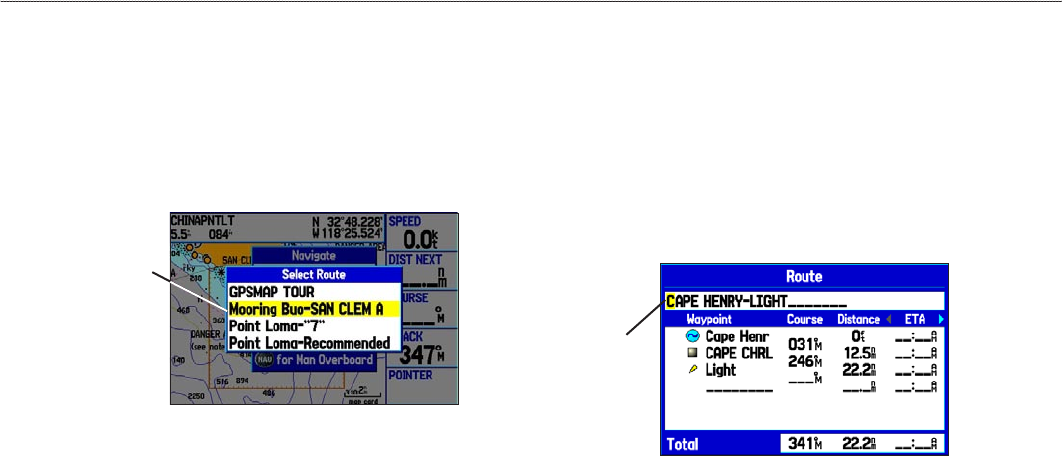
Navigating a Saved Route
Use the Navigate Route option to select and navigate a saved route.
To navigate a saved route:
1. Press the NAV key.
2. Highlight Navigate Route, and press ENTER.
3. Highlight a previously saved route, and press ENTER.
Select the route you want to take.
Select a route
from list
Editing a Route
After you create a route, use the Route Review Page to edit, change
the name, and review route points of a selected route.
To change the name of the route:
1. Highlight the Route tab on the Main Menu.
2. Highlight the name of the route, and press ENTER.
3. With the Route Review Page open, highlight the route name
eld at the top of the page, and press ENTER.
Route Review Page
Enter a new
route name
here
4. Use the ROCKER to enter the route name, and press
ENTER.
GPSMAP 276C Owner’s Manual 21
MArIne Mode > creAtIng And usIng routes
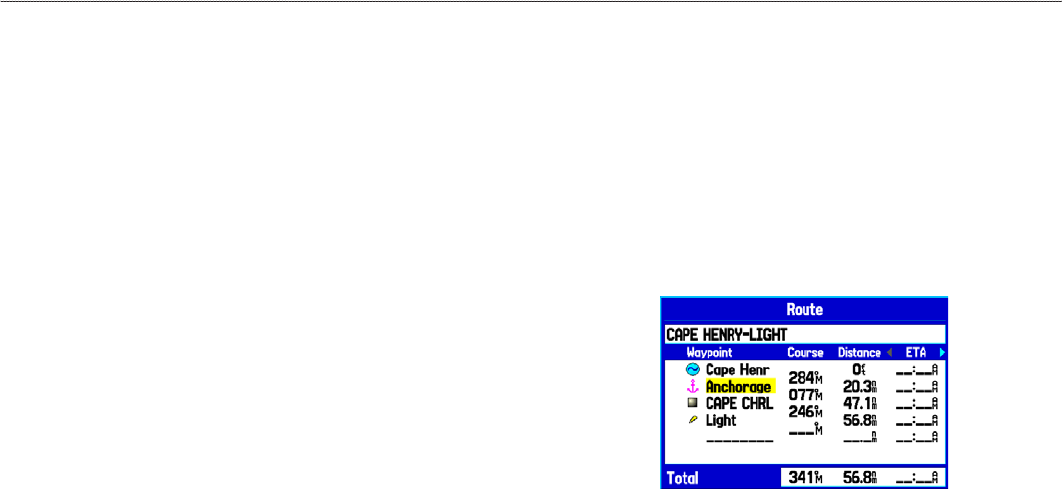
To review individual route points:
1. Highlight the Route tab on the Main Menu.
2. From the Route List Page, highlight the name of the route,
and press ENTER.
3. From the Route Review Page, highlight a point, and press
ENTER.
4. On the Point Review Page, choose Next (highlight the next
point on the route list), Show Map (show the point on a map
window), or Save (save the point as a waypoint) and press
ENTER. If the route point is a user waypoint, you can edit
any of the waypoint properties on the Waypoint Page (see
the “Creating and Using Waypoints” section beginning on
page 24 for details).
When you return to the Route Review Page, the next point in the
route is automatically highlighted. You can review each point on the
route by pressing ENTER repeatedly.
To add points to the route:
1. Select the Route tab on the Main Menu.
2. Highlight a route, and press ENTER.
3. Highlight the spot in the route that you want to add the new
point. (The new point is added before the highlighted route
point).
4. Press MENU.
5. Highlight Insert Waypoint, and press ENTER. The Find
Menu opens for you to search for and select the point you
want to add to the route.
Route Review Page
6. On the Point Review Page, highlight OK, and press ENTER
to add the new point to the route.
22 GPSMAP 276C Owner’s Manual
MArIne Mode > creAtIng And usIng routes
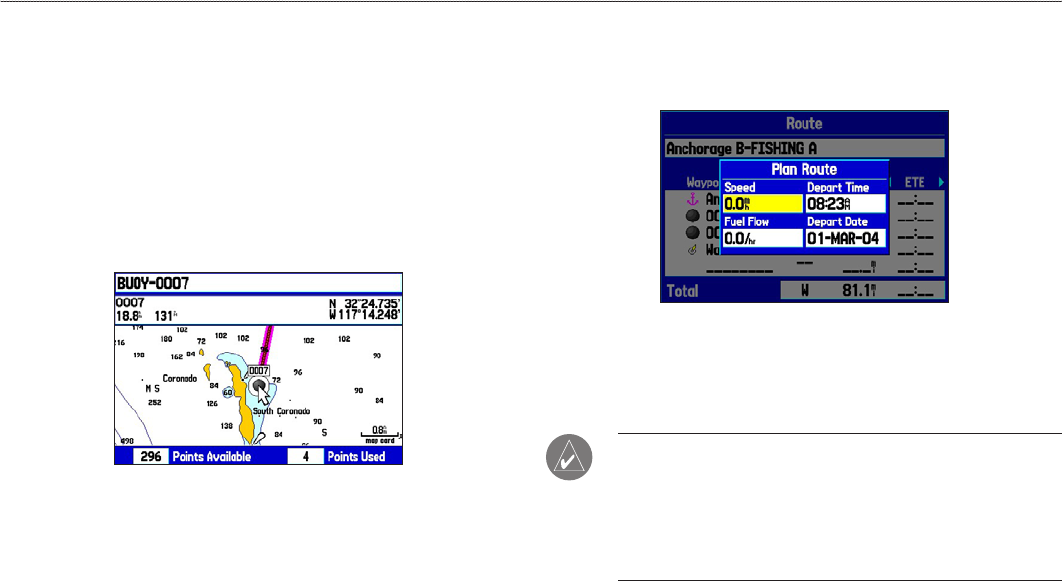
To edit the route on the map:
1. Highlight the Route tab on the Main Menu.
2. Select a route, and press ENTER. Press MENU to open the
Route Review Page options menu.
3. Highlight Edit on Map, and press ENTER.
4. Select a location on the route (the route turns red when the
arrow is over the route), and press ENTER.
5. Use the ROCKER to drag the route to the new point location,
and press ENTER.
Editing the route on the map
6. Repeat steps 4 through 5 until all points are added to the
route.
You can enter information about your trip so the GPSMAP 276C can
estimate information about your trip.
To plan your route:
1. Open the Route Review Page options menu.
2. Highlight Plan Route, and press ENTER.
Entering Speed and Fuel Flow for trip planning
3. Enter the data for Speed and Fuel Flow. You also can enter
the date and time of your departure. Press QUIT to return to
the Route Review Page.
NOTE: Fuel ow rates are measured in units per hour. System
setting changes for units of measure (statute, nautical, or metric)
do not affect the fuel ow measure. You should enter fuel
ow rates based on information for your vehicle (such as the
operator’s manual or performance specications), and make note
of the units of measure (gallons or liters).
GPSMAP 276C Owner’s Manual 23
MArIne Mode > creAtIng And usIng routes

Transitioning to the Next Waypoint
From the Route tab option menu, highlight Set Up Routes and
press ENTER to set the route leg transition (or waypoint transition).
Select Distance to enter a radius so that when you are within the
entered distance, the GPSMAP 276C leads you to the next point on
your route.
When you select Manual, you can transition to the next waypoint
anytime while navigating a route. While you are navigating
the route, open the Active Route Page, and press MENU.
Highlight Next Route Waypoint, and press ENTER to have the
GPSMAP 276C start routing you to the next point in your route.
Creating and Using Waypoints
Waypoints are locations or landmarks you record and store in your
GPS. They are locations you might want to return to later, such as
checkpoints on a route or signicant ground features. You can add
waypoints to routes and even create a Go To directly to the selected
waypoint.
The GPSMAP 276C stores up to 3,000 alphanumeric waypoints with
a user-dened icon, comment, elevation, depth, and temperature
available for each waypoint. Waypoints can be created using three
basic methods:
• ENTER/MARK—allows you to quickly mark your present
location.
• Graphically—allows you to dene a new waypoint location
from the map using the ROCKER.
• Text Entry—allows you to enter a new waypoint’s location
coordinates manually.
24 GPSMAP 276C Owner’s Manual
MArIne Mode > creAtIng And usIng WAyPoInts
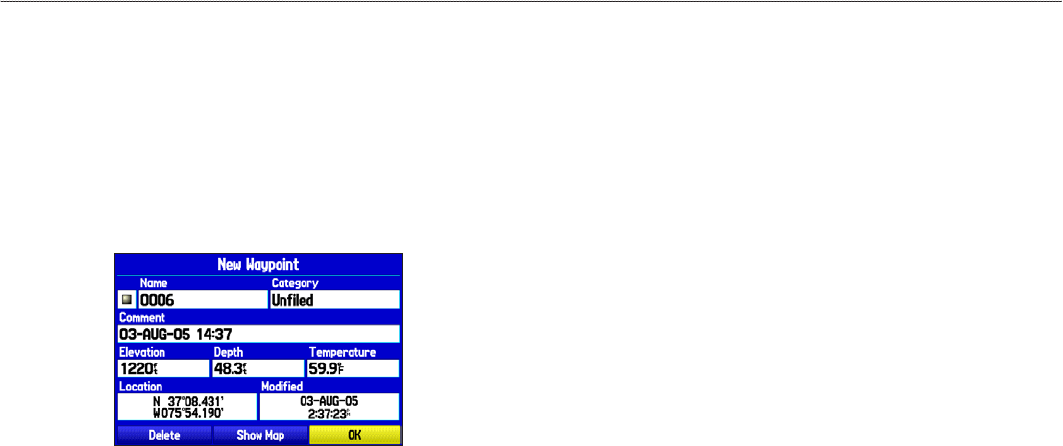
Marking Your Present Location
Use the ENTER/MARK key to capture your present location to
create a new waypoint. You must have a valid position (2D or 3D)
x to mark your present location.
To mark your present location:
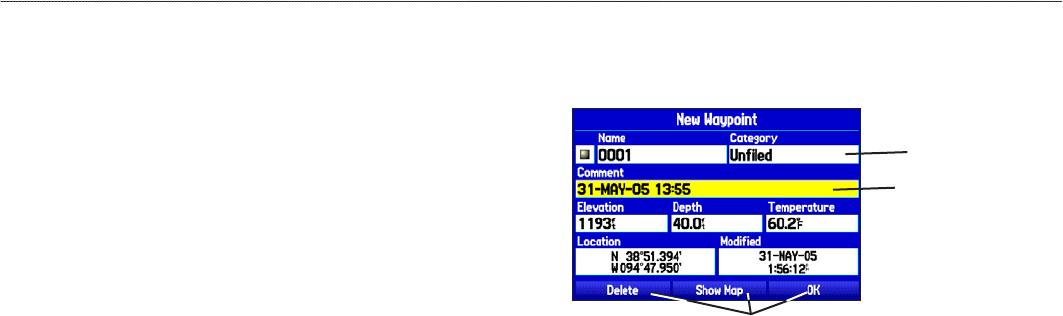
1. Press and hold the ENTER/MARK key until the New
Waypoint Page opens, then release it. A default four-digit
name and symbol are assigned for the new waypoint.
New Waypoint Page
2. To accept the waypoint with the default information, use the
ROCKER to highlight OK, and press ENTER.
To change any information on the New Waypoint Page,
highlight the appropriate eld, and press ENTER. After
entering and conrming your changes, highlight OK, and
press ENTER.
Creating Waypoints Using the Map
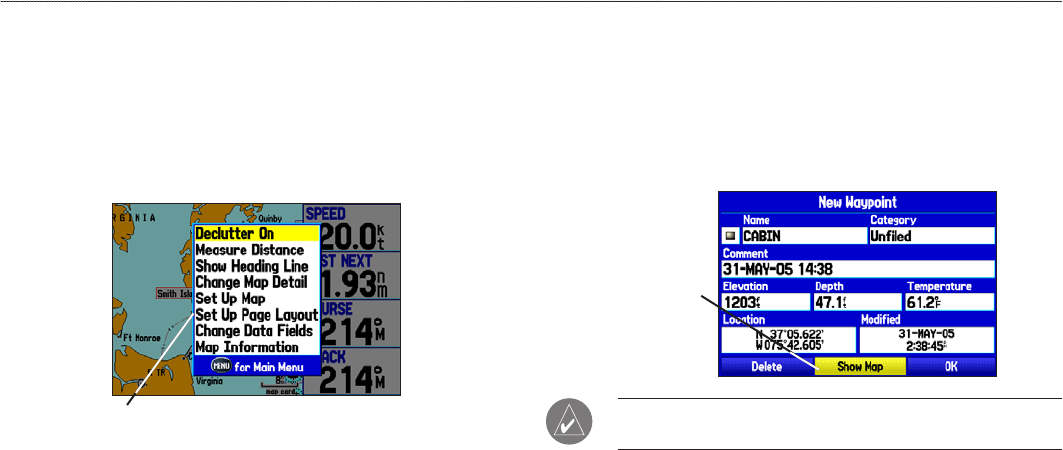
You can quickly create a waypoint using the Map Page. When
you pan the map and move the arrow over a map item, you see a
highlighted description of that item. The GPSMAP 276C uses the
map item text shown on the map as the default name and symbol for
the new waypoint.
To create a new waypoint using the Map Page:
1. Press PAGE until the Map Page appears.
2. Use the ROCKER to move the arrow to the map location or
map feature you want.
3. Press and quickly release ENTER/MARK to capture the
arrow location. Pressing and holding ENTER/MARK marks
your current location, not the arrow’s location.
If you have highlighted a map feature, an information page
opens after you press ENTER. Highlight Save, and press
ENTER to save the map item as a waypoint. The New Map
Waypoint Page opens.
4. To accept the waypoint with the default information, highlight
OK, and press ENTER.
To change any information on the New Map Waypoint Page,
highlight the appropriate eld, and press ENTER. After
entering your changes, highlight OK, and press ENTER.
GPSMAP 276C Owner’s Manual 25
MArIne Mode > creAtIng And usIng WAyPoInts
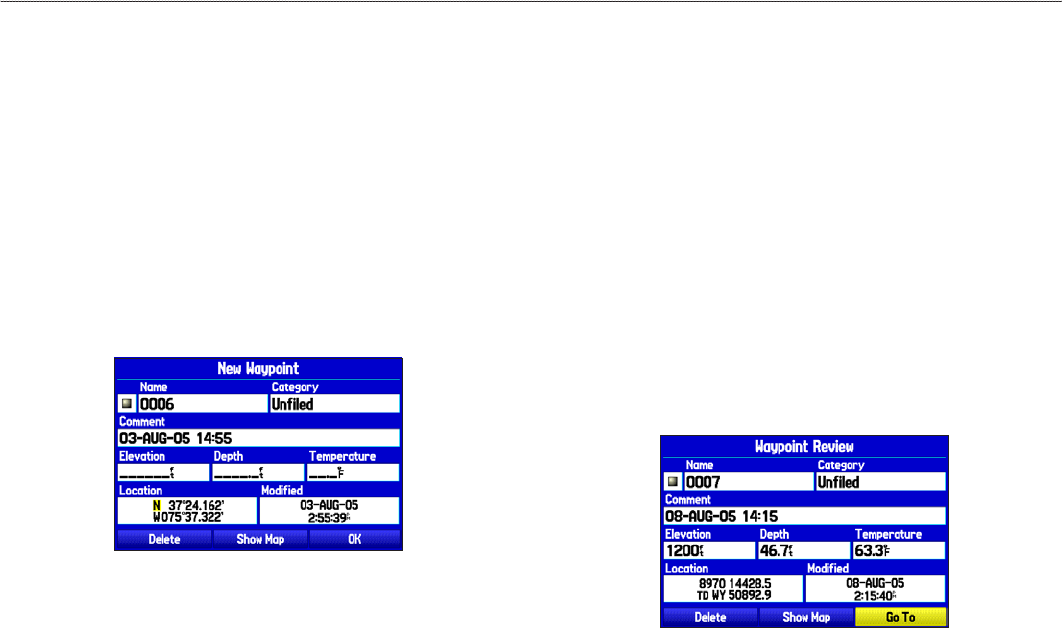
Creating a Waypoint by Entering Coordinates
You can manually enter location coordinates to create a waypoint.
This method is useful for creating a waypoint at a specic
latitude/longitude position from a chart.
To create a new waypoint by entering location
coordinates:
1. Press and hold ENTER/MARK to create a waypoint. The
new waypoint is created with the next available waypoint
number and the receiver’s last known location as the default
location.
2. On the New Waypoint Page, highlight the Location eld, and
press ENTER.
Entering location coordinates.
3. Use the ROCKER to enter location coordinates, and press
ENTER when nished.
To change any of the other information on the New Map
Waypoint Page, highlight the appropriate eld, and press
ENTER. After entering your changes, highlight OK, and press
ENTER.
Reviewing a Waypoint
After you create and store a waypoint, you can modify, review,
rename, move, or delete it at any time using the Waypoint Review
and Waypoint Edit Pages.
To access the Waypoint Review Page:
Highlight a waypoint on the Map Page, and then press
ENTER to open the Waypoint Review Page. If the waypoint
is located on a map feature or MapSource or BlueChart g2
feature, the Waypoint Review Page might include additional
tabs containing information about other features at that
location.
Waypoint Review Page
26 GPSMAP 276C Owner’s Manual
MArIne Mode > creAtIng And usIng WAyPoInts
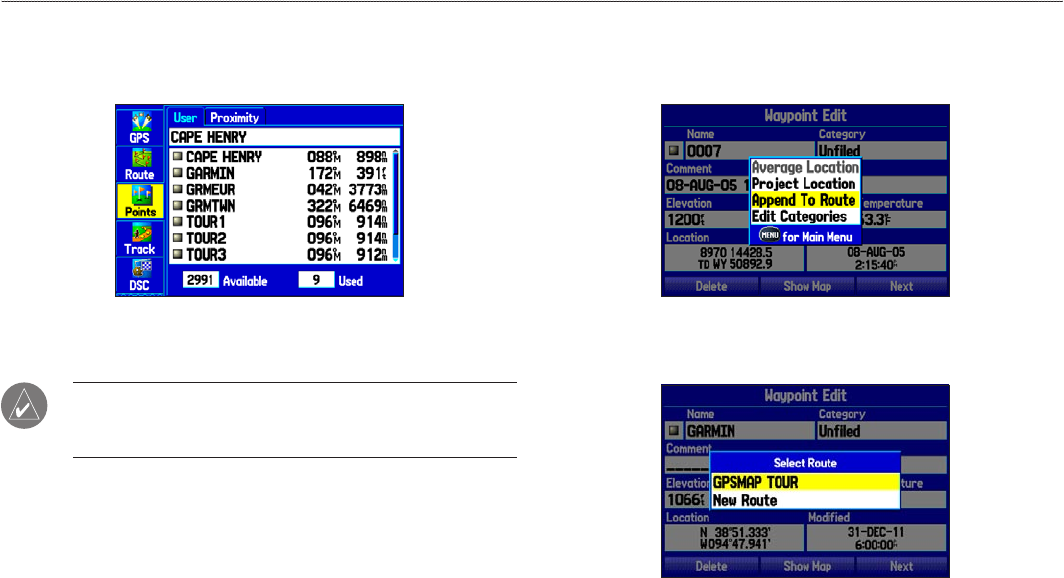
To access the Waypoint Edit Page:
1. Highlight the Points tab on the Main Menu, and then select a
waypoint from the list.
Points Tab
2. Press ENTER to open the Waypoint Edit Page.
NOTE: If the waypoint is located on a map feature or
MapSource or BlueChart g2 feature, the Waypoint Edit Page
does not show the details of the other map features.
Adding a Waypoint to a Route
Use the Append to Route option to add the selected waypoint
to the end of a route. This option is available only when you are
not navigating. When you are navigating to a destination, Add to
Current Route opens. The selected waypoint is added to the current
route before the route destination.
To add a waypoint to the end of the route:
1. Open the Waypoint Edit Page, and press MENU to open the
options menu.
Waypoint Options Menu
2. Select Append To Route. The Select Route window opens.
3. Highlight a route or select New Route, and press ENTER.
4. Highlight OK, and press ENTER to save the waypoint.
GPSMAP 276C Owner’s Manual 27
MArIne Mode > creAtIng And usIng WAyPoInts
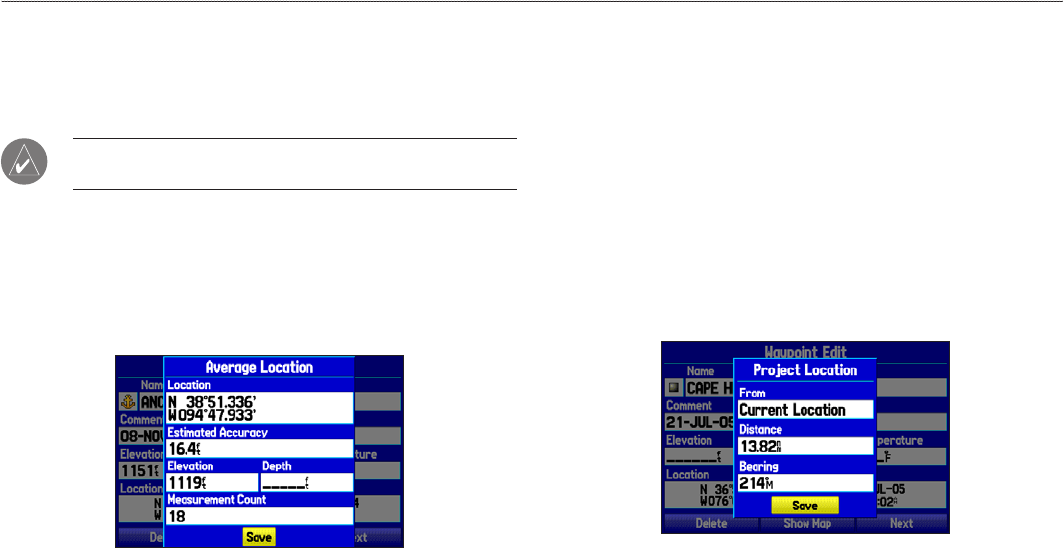
Averaging the Waypoint’s Location
Average Location makes the unit take several sample location
measurements for the waypoint and recalculate for a more accurate
location reading.
NOTE: You must have a GPS satellite x before you can
average a waypoint’s location.
To calculate the average location:
1. Open the Waypoint Page, and press MENU.
2. Select Average Location, and press ENTER. The Average
Location window opens. The elds change as the unit
calculates the average location of the waypoint.
Average Location Page
3. Press ENTER to save the location.
Projecting a Waypoint
You can also create a new waypoint by projecting the distance and
bearing from a specic location to a new location.
To create a new waypoint by projecting its location:
1. Create a waypoint. The new waypoint uses the next available
waypoint number and the receiver’s last known location as
the default location.
2. Highlight the Points tab on the Main Menu, and then select a
waypoint. Press ENTER.
3. Press MENU to open the Waypoint Page options menu.
4. Highlight Project Location, and press ENTER.
Project Location Menu
Enter the distance, bearing, and location.
5. To change the location from which you are projecting the new
waypoint, highlight the From eld, and press ENTER.
28 GPSMAP 276C Owner’s Manual
MArIne Mode > creAtIng And usIng WAyPoInts

6. Select the point from which you can project your new
waypoint. For more information see the “Finding an Item”
section on page 17.
7. To adjust the distance that the new waypoint is projected
beyond the original waypoint, highlight the Distance eld,
and press ENTER. Enter the projection distance, and press
ENTER.
8. To adjust the bearing that the new waypoint is projected from
the original waypoint, highlight the Bearing eld, and press
ENTER. Enter the bearing, and press ENTER.
9. When you have adjusted all elements of the projected
location, highlight Save, and press ENTER.
10. Make any other changes to the new waypoint data (such as
the name or symbol); highlight OK, and press ENTER.
Editing a Waypoint
You can edit waypoints using the Points tab on the Main Menu. The
User sub tab, on the Points tab, shows a master list of all waypoints
stored in memory. From the User list, you can review, edit, rename,
or delete individual waypoints or delete all user waypoints.
The number of stored and available waypoints is shown at the
bottom of the User sub tab. Stored waypoints are arranged in
alphanumeric order.
User Sub Tab
To navigate (Go To) a waypoint from the Points tab:
1. Select the Points tab on the Main Menu, and then highlight
the User sub tab.
2. Highlight the waypoint you want in the list.
3. Press NAV to open the Navigate Menu. Highlight Go To
<Point Name>, and press ENTER.
To edit a waypoint:
1. Open the Waypoint Review or Waypoint Edit Page.
2. Highlight the waypoint name, symbol, or eld you want to
change, and press ENTER.
3. Use the ROCKER to select a symbol or enter data, and
press ENTER when nished.
GPSMAP 276C Owner’s Manual 29
MArIne Mode > creAtIng And usIng WAyPoInts
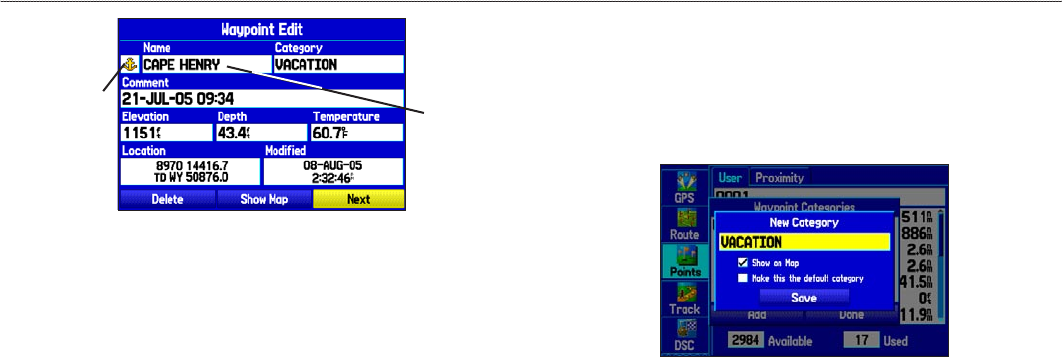
Waypoint Page
Name eld
Symbol eld
To edit the next waypoint in the list:
1. Highlight Next, and press ENTER. The Waypoint list appears
with the next waypoint highlighted.
2. Press ENTER to edit that waypoint.
Organizing Waypoints into Categories
You can organize your waypoints into categories to help manage
your waypoints. For example, you can create a Vacation category
that stores all of the waypoints you want to use for your vacation.
When the vacation is over, you can delete all the waypoints in that
category. You can create up to 15 categories.
To create a waypoint category:
1. From any of the waypoint pages or the Points tab, press
MENU to open the options menu.
2. Select Edit Categories, and press ENTER.
3. Highlight Add, and press ENTER.
Adding a new category
4. Use the ROCKER to enter a name for the category.
5. Highlight Save, and press ENTER.
To assign a category to a waypoint:
1. Open the Waypoint Edit Page. (You can also change the
category on the New Waypoint Page.)
2. Select the Category eld, and press ENTER.
3. Select the category to which you want to assign the
waypoint, and press ENTER.
30 GPSMAP 276C Owner’s Manual
MArIne Mode > creAtIng And usIng WAyPoInts
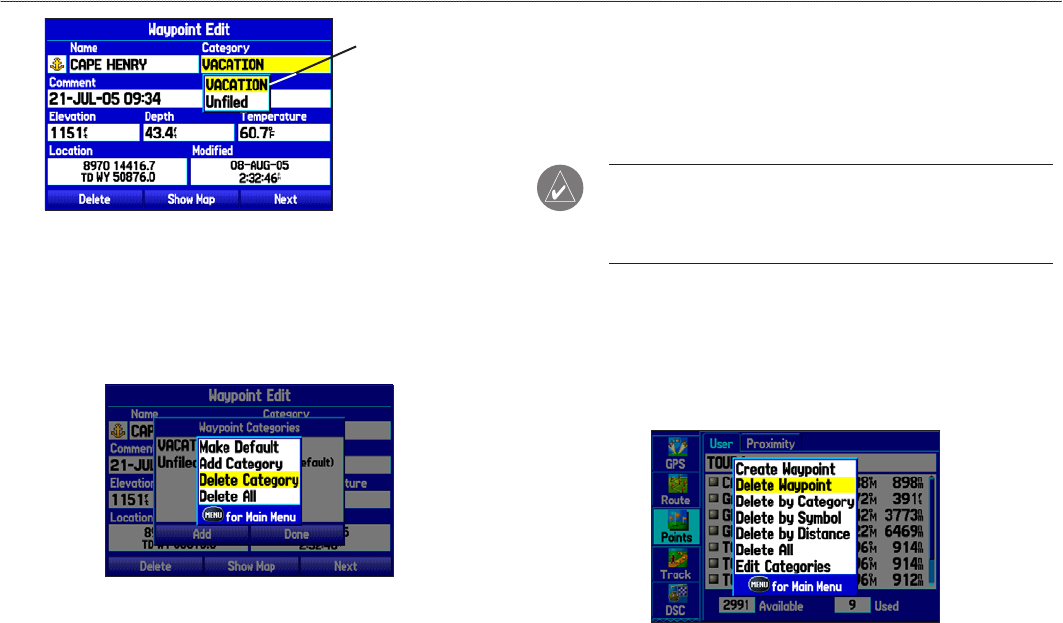
Waypoint Page
Select the
category to
which you want
to assign this
waypoint.
To delete a category:
1. With the Waypoint Categories window open, highlight the
category you want to delete, and press MENU.
2. Select Delete Category, and press ENTER.
Waypoint Categories Options Menu
3. Press ENTER again to nish deleting the category.
Deleting Waypoints
You can delete waypoints from the waypoint list on the Points tab
or from the Waypoint Page. To delete a waypoint from the Waypoint
Page, use the ROCKER to highlight the on-screen Delete button,
and press ENTER.
NOTE: When you delete a waypoint from the list, it cannot
be recovered from the unit. Backup important waypoints to a
computer using the optional PC cable and interface software,
such as MapSource, or write them down by hand.
To delete a waypoint from the User Points tab:
1. From the Points tab, highlight the waypoint you want to
delete.
2. Press MENU, highlight Delete Waypoint, and press ENTER.
A conrmation message appears.
3. Press ENTER to conrm.
GPSMAP 276C Owner’s Manual 31
MArIne Mode > creAtIng And usIng WAyPoInts
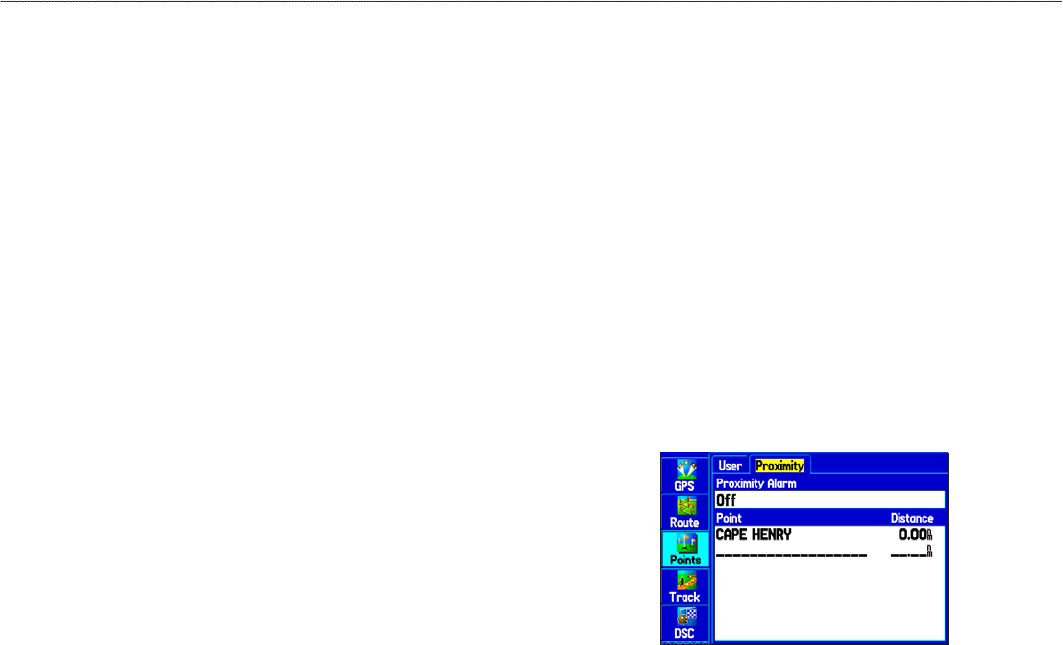
To delete waypoints by symbol or category:
1. On the User sub tab, highlight the waypoint to delete, and
press MENU.
2. Highlight Delete by Symbol or Delete by Category, and
press ENTER.
3. When deleting by symbol, highlight the symbol of the
waypoint you want to delete, and press ENTER. When
deleting by category, select the category you want to delete
from the list, and press ENTER.
4. Highlight OK, and press ENTER to conrm. Choose Cancel
or press QUIT to exit without deleting the waypoint.
To delete waypoints by distance:
1. On the User sub tab, highlight the waypoint to delete, and
press MENU.
2. Highlight Delete By Distance, and press ENTER.
3. Select Less Than or More Than, and enter the distance.
4. You can select a waypoint or point of interest as the From
location. Highlight the From eld and press ENTER. From
the Find Menu, select a location, and press ENTER. When
OK is highlighted, press ENTER.
5. Highlight Delete, and press ENTER to delete all waypoints
within the set location. Choose Cancel or press QUIT to exit
without deleting the waypoints.
Proximity Points
Use the Proximity sub tab to dene an alarm circle around a stored
waypoint location. The alarm circle can help you avoid reefs,
rocks, or restricted waters. Up to 100 waypoints can be listed with
a maximum alarm radius of 99.99 nautical miles, statute miles, or
kilometers.
If a proximity alarm circle overlaps an existing alarm circle, a
“Proximity Overlaps Another Proximity Waypoint” message
appears. Because the unit only alerts for one of the overlap points,
use caution when navigating in these areas. If you enter an alarm
circle overlap, you are only alerted to the closest proximity
waypoint.
To turn proximity alarms on or off:
1. Highlight the Points tab on the Main Menu, and then
highlight the Proximity sub tab.
32 GPSMAP 276C Owner’s Manual
MArIne Mode > creAtIng And usIng WAyPoInts
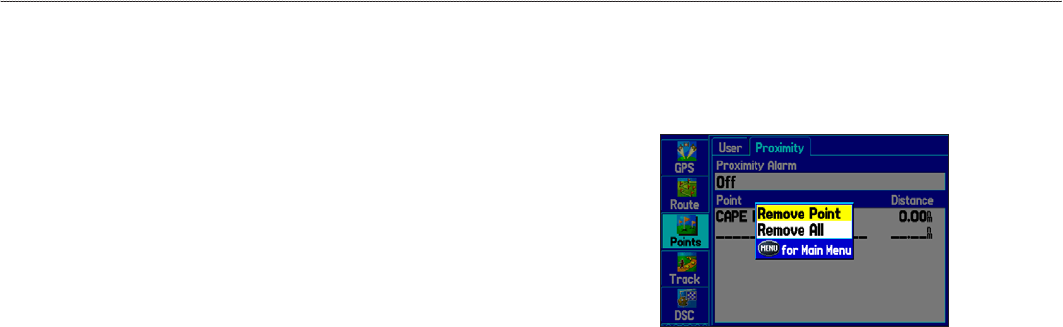
2. Highlight the eld below Proximity Alarm, and press
ENTER.
3. Select the On or Off setting, and press ENTER.
To add a proximity waypoint:
1. From the Proximity sub tab, use the ROCKER to highlight
an empty line on the Proximity List, and press ENTER. The
Find Menu opens.
2. Select a waypoint or point of interest from the Find Menu.
3. With OK highlighted, press ENTER to select the point. The
distance eld is now highlighted. Press ENTER to begin
entering the proximity radius.
4. Use the ROCKER to enter a distance value (up to 99.99
units), and press ENTER.
To clear one or all proximity waypoints from the list:
1. Highlight the Points tab on the Main Menu, and then select
the Proximity sub tab.
2. Highlight the proximity waypoint to clear, and press MENU.
Proximity Points Tab Options Menu
3. To clear a single alarm, highlight Remove Point, and press
ENTER. To clear all proximity waypoints, select Remove All,
and press ENTER.
4. Highlight OK, and press ENTER to conrm.
GPSMAP 276C Owner’s Manual 33
MArIne Mode > creAtIng And usIng WAyPoInts

Managing Your Tracks
The GPSMAP 276C draws an electronic breadcrumb trail or track
log on the Map Page as you travel. The track log contains points
along its path, and includes both time and location for each point.
The track log starts recording as soon as the GPSMAP 276C gets
a location x. For the best results, clear the track log before you
start traveling because when the track log is full, new track points
overwrite the oldest track points.
The percentage of memory used by the current track log appears at
the top of the Active tab. After the track log is cleared, it shows zero
percent. When the track log reaches 100%, the most recent track
points start to overwrite the oldest track points (if Wrap is selected
for Record Mode). To avoid losing track points, save the track log
when it approaches the 99% mark.
Setting Up and Saving Your Tracks
You must save the track log before you can use the Navigate Track
feature. The Save feature allows you to store up to 15 track logs
from certain times and dates.
To access the Track tab:
1. Press Menu twice to open the Main Menu.
2. Highlight the Track tab.
Track Tab
Record Mode—Wrap records over the oldest tracks when the track
log reaches 100%. Fill records a track log until the track log is full
(100%). When Off is selected, the unit does not record tracks.
Interval—Distance records track points after a specied distance is
traveled. Time creates track points after a specied time has elapsed.
Resolution records track points based on the resolution. The higher
the resolution entered, the more points the unit creates to make the
track.
Color—select a color for the track when it appears on the map.
Value—records a track according to the Interval and Value. Enter a
specic distance, time, or resolution.
34 GPSMAP 276C Owner’s Manual
MArIne Mode > MAnAgIng your trAcks
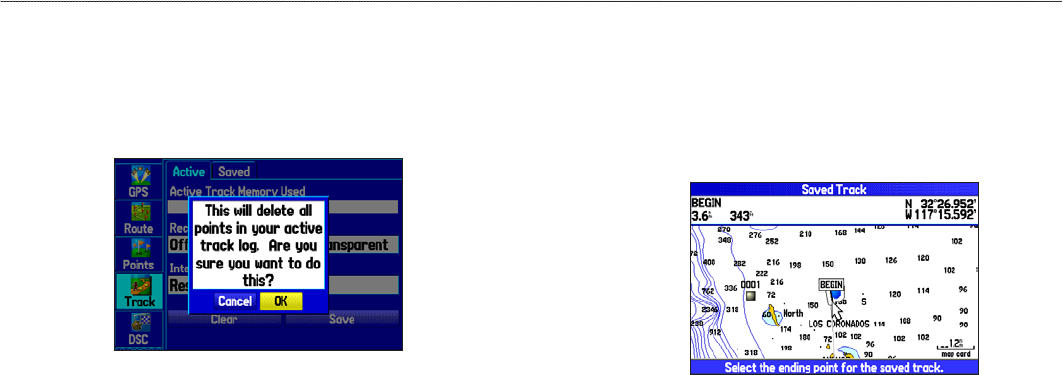
To clear the track log:
1. Highlight the Track tab on the Main Menu, and then highlight
the Active sub tab.
2. Highlight the Clear button, and press ENTER. A conrmation
message appears.
Clearing the track log
3. Highlight OK, and press ENTER.
To save the entire track log:
1. Highlight the Track tab on the Main Menu, and then highlight
the Active sub tab.
2. Select Save, and press ENTER. A message appears asking
if you want to save the entire track.
3. Highlight Yes, and press ENTER.
To save a portion of the track log:
1. Highlight the Track tab on the Main Menu, and then highlight
the Active sub tab.
2. Select Save, and press ENTER.
3. Highlight No, and press ENTER when a message appears.
4. Select a beginning point, and press ENTER.
Saving a portion of the track log
5. Select an ending point, and press ENTER. The Track Review
Page automatically opens.
6. Highlight OK, and press ENTER to save the track.
GPSMAP 276C Owner’s Manual 35
MArIne Mode > MAnAgIng your trAcks
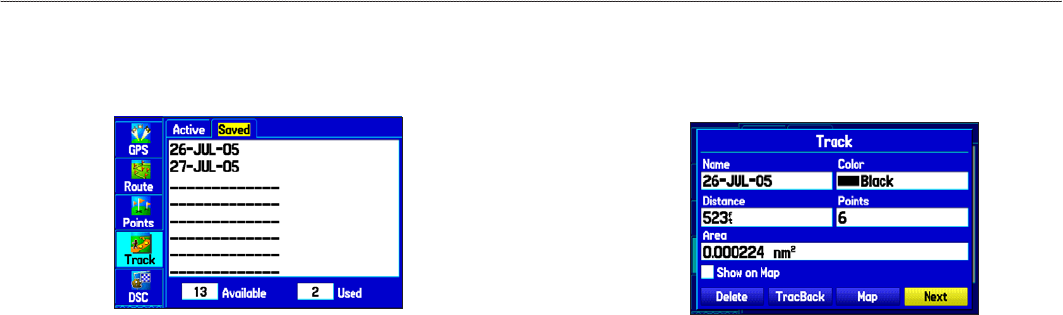
Saved Tracks
The Saved sub tab lists all of the saved tracks in your unit. Press
MENU to open the Saved tab options menu.
Saved Sub Tab
Review on Map—shows the highlighted track on the Map Page.
TracBack—navigates the track. You can either navigate the track as
it is saved, or you can navigate the track in reverse.
Delete Track—erases the highlighted track from the unit’s memory.
Delete All—erases all tracks from the unit’s memory.
To edit a track:
1. Highlight the Track tab on the Main Menu, and then select
the Saved sub tab.
2. Select a track to edit, and press ENTER.
Track Review Page
3. Highlight the Name eld, and press ENTER. Use the
ROCKER to change the name, and press ENTER.
4. Select a different display color to show the track on the map.
5. Highlight the box next to Show on Map, and press ENTER to
show the track on the map.
6. To begin a TracBack, highlight TracBack, and press ENTER.
7. To view the track on the map, highlight Map, and press
ENTER. Press QUIT to return to the Track tab.
8. Highlight OK, and press ENTER to save your changes.
36 GPSMAP 276C Owner’s Manual
MArIne Mode > MAnAgIng your trAcks
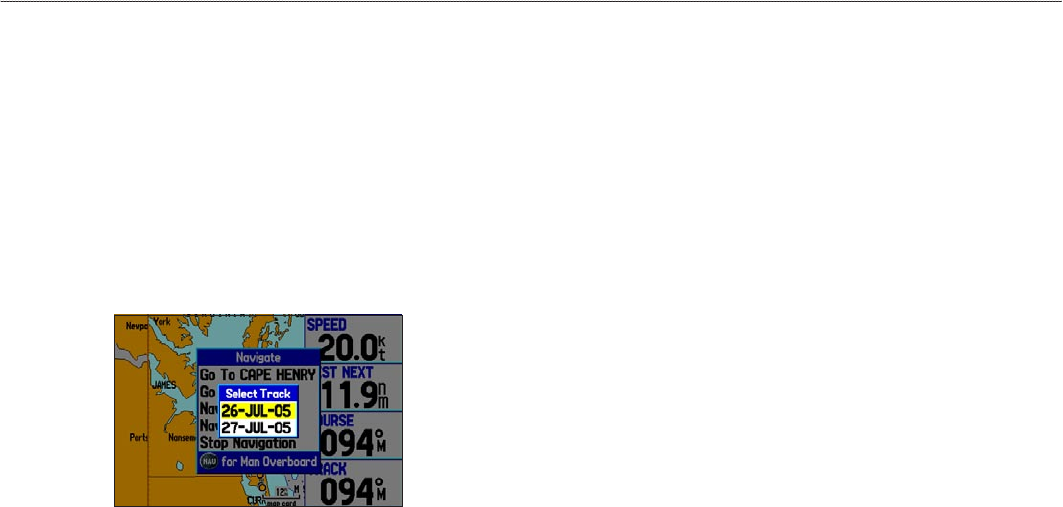
Navigating a Saved Track
You can save your track log to use later as a TracBack, which
reduces your track log into a route with up to 300 turns. When
initiated, a TracBack route leads you back to the oldest stored track
log point. It is a good idea to clear the existing track log before you
start your current trip. Also, you must save an active track log before
you can navigate it as a TracBack.
To start a TracBack using the NAV key:
1. Press NAV, highlight Navigate Track, and press ENTER.
2. Highlight the track you want to navigate, and press ENTER.
Selecting a saved track.
3. Select the point you want to navigate (TracBack) to, and
press ENTER.
TracBack Tips
When a TracBack is initiated, the GPSMAP 276C divides the track
into segments called legs. Up to 300 temporary turns are created to
mark the most signicant features of the track in order to duplicate
your exact path as closely as possible. To get the most out of the
TracBack feature, remember these tips:
• Always clear the track log at the point that which you want to
go back (such as a dock or campsite).
• The Record Mode option on the Active Track tab must be set
to Fill or Wrap.
• If the track log Interval option on the Active tab is set to the
Time option, the route might not navigate your exact path
(keep the interval set to Resolution for best performance).
• If the receiver is turned off or satellite coverage is lost during
your trip, TracBack draws a straight line between any point
where coverage was lost and where it resumed.
• If the changes in distance and direction of your track are too
complex, 300 waypoints might not mark your path accurately.
The receiver then uses the most signicant points of your
track so there are fewer changes in direction.
GPSMAP 276C Owner’s Manual 37
MArIne Mode > MAnAgIng your trAcks
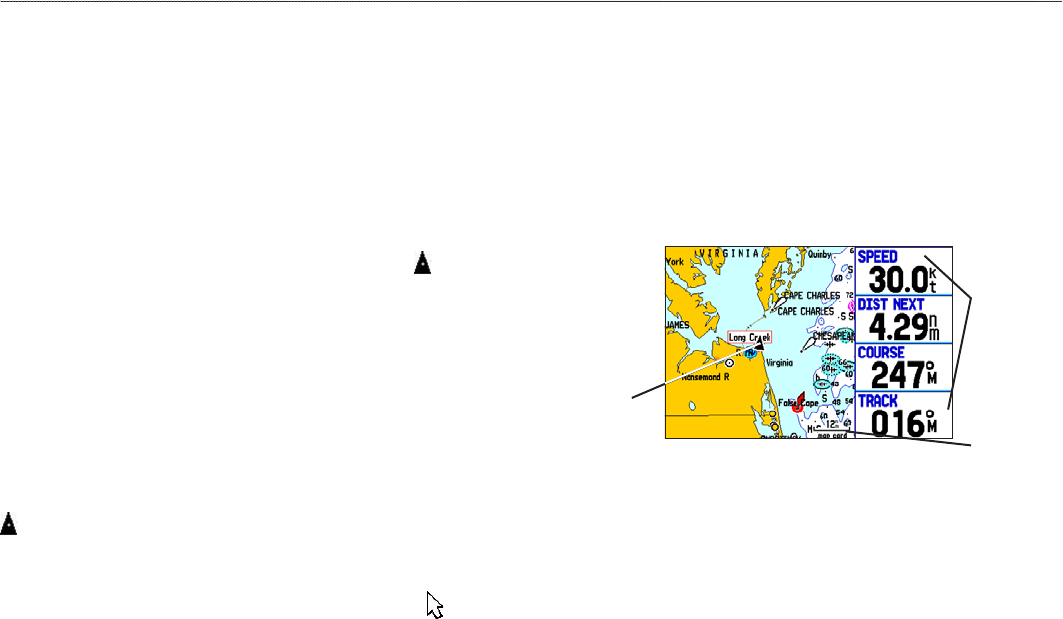
MarIne Mode PaGeS
Five pages are available in Marine Mode—Map, Compass,
Highway, Active Route, and Position Data. An optional Sonar
Page is available when a GSD 20 or GSD 21 Sounder Module is
connected.
Map Page
When you turn on the GPSMAP 276C, the Map Page appears after
the unit acquires a satellite signal. The position marker shows
your current location on the map.
The Map Page shows map information (digital cartography) that
includes navaids, lakes, rivers, coastlines, cities, and highways. Use
the dedicated zoom keys (IN and OUT) to adjust the Map Page
scale.
Two map operating modes, position mode and pan mode, determine
what cartography is shown on the map. Position mode pans the map
to keep your present location in the display area. The position marker
shows your travel on the Map Page. The GPSMAP 276C always
turns on in position mode, with the last known location centered on
the map. When you press the ROCKER, the GPSMAP 276C enters
pan mode, which moves the map to keep the white arrow (map
pointer) within the display area.
The system has a built-in worldwide database, with more detailed
coverage available through the use of the BlueChart g2 or
MapSource data. The GPSMAP 276C shows cartography as long as
chart information is available for the map zoom range you selected.
In Marine Mode, by default, four user-selectable data elds appear
on the right side of the screen that can be congured to show any
one of the possible data options. You can also add additional data
elds to the page or select a full screen map without data elds.
Map Page
Data elds
Map zoom
range
Current
location
38 GPSMAP 276C Owner’s Manual
MArIne Mode PAges> MAP PAge
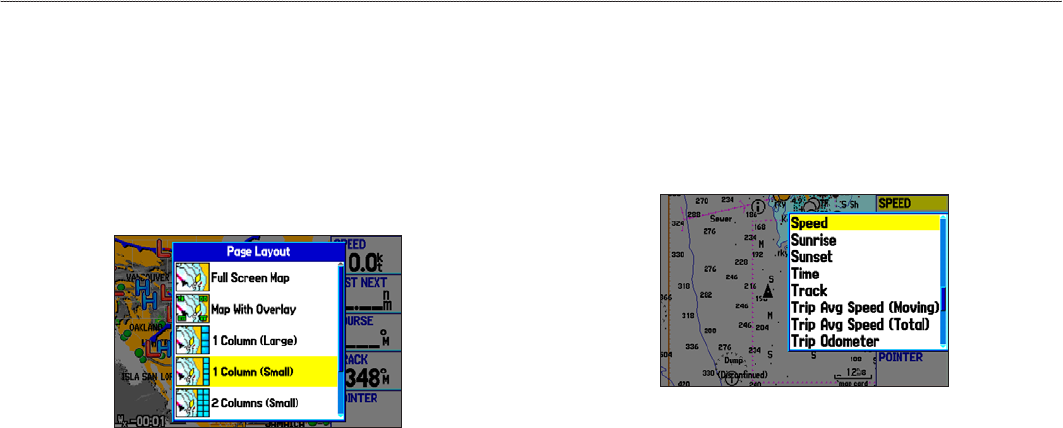
Changing the Page Layout andPage Layout and Data Fields
You can adjust how the following pages appear: Map, Compass,
Highway, Position Data, Trip Computer, and optional Sonar Pages.
You can also adjust the data elds on each page.
To set up the page layout:
1. Press MENU to open the options menu.
2. Highlight Set Up Page Layout, and press ENTER.
Selecting the page layout.
3. Select a page layout option, and press ENTER.
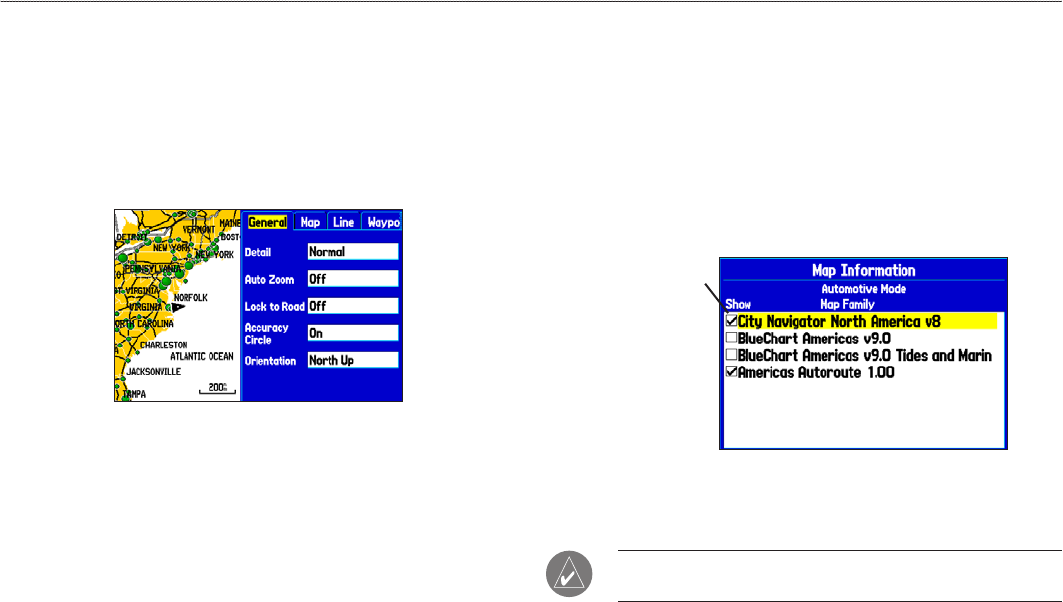
To change a data eld:
1. Press MENU to open the options menu.
2. Highlight Change Data Fields, and press ENTER.
3. Highlight the data eld to change, and press ENTER.
4. Highlight the type of data you want to show, and press
ENTER.
Changing a data eld.
GPSMAP 276C Owner’s Manual 39
MArIne Mode PAges> MAP PAge
Setting Up the Map Page
Use the Set Up Map option to adjust how items appear on the Map
Page.
To change a map setup option:
1. On the Map Page, press MENU to open the options menu.
2. Highlight Set Up Map, and press ENTER.
Setting up the Map Page.
3. Press left or right on the ROCKER to highlight a tab; press
up or down on the ROCKER to highlight the eld you want to
change, and press ENTER.
4. Highlight a setting, and press ENTER.
Viewing Additional Map Data
Use the Map information page to view the data loaded on your
GPSMAP 276C unit and data card.
To review/change map information:
1. On the Map Page, press MENU.
2. Highlight Map Information, and press ENTER. The rst
page shows the map families stored on the data card and
unit and whether they are shown on the Map Page.
Map Family
highlighted.
Press ENTER
to view the
individual maps
in the family.
3. To change the setting for a map family, highlight the box next
to the map family name and press ENTER to select (check
mark) or deselect (no check mark) the Show setting.
NOTE: The outline of a check mark appears if one or more
maps have been deselected within that map family.
4. To view the list of maps within a map family, highlight the
name of the map family, and press ENTER.
40 GPSMAP 276C Owner’s Manual
MArIne Mode PAges> MAP PAge
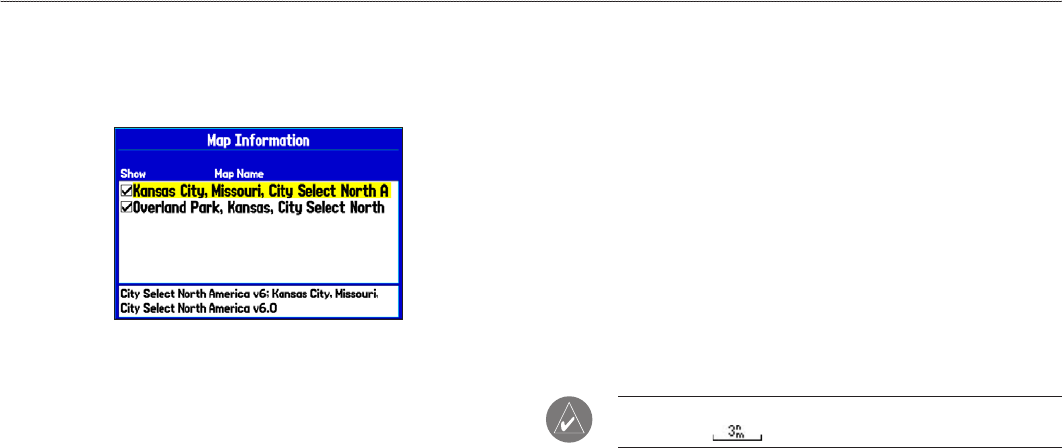
5. When using a map loaded to a data card, you can view
detailed information about an individual map, highlight the
Map Name, and press ENTER. Highlight OK, and press
ENTER to exit the Map Information Page.
Individual Map Information Page
Showing the individual maps that are in the selected map family.
6. To select/deselect individual maps (data card maps only) to
show on the Map Page, highlight the box next to the map you
want, and press ENTER to check or uncheck the Show box.
OR
Press MENU, select one of the options (Show All, Hide All,
or Show Defaults), and press ENTER.
Map Orientation
There are three map orientation options: North Up orients the map
like a paper map. Track Up orients the map in the direction of
travel. Course Up orients the map so the direction of navigation is
always up. When using Track Up or Course Up, the North arrow
indicates the orientation. To change the map orientation, press
MENU to open the Map Page. Press MENU again. Select Set Up
Map, and press ENTER. See page 40 for additional information.
Zooming In and Out of the Map
The map display has 28 available map zoom ranges ranging from
20 ft to 800 nm (20 ft to 800 mi or 5 m to 1200 km). The map zoom
range is controlled by the IN and OUT keys, with the current scale
shown at the bottom right of the data window.
NOTE: The scale value represents the distance from one end of
the scale bar ( ) to the other.
To select a map zoom range (zoom in and out):
Press the OUT key to zoom out, press the IN key to zoom in.
The GPSMAP 276C has a built-in worldwide database, with more
detailed coverage available through the use of the BlueChart g2 or
MapSource data. The GPSMAP 276C shows cartography as long as
chart information is available for the zoom scale you selected.
GPSMAP 276C Owner’s Manual 41
MArIne Mode PAges> MAP PAge
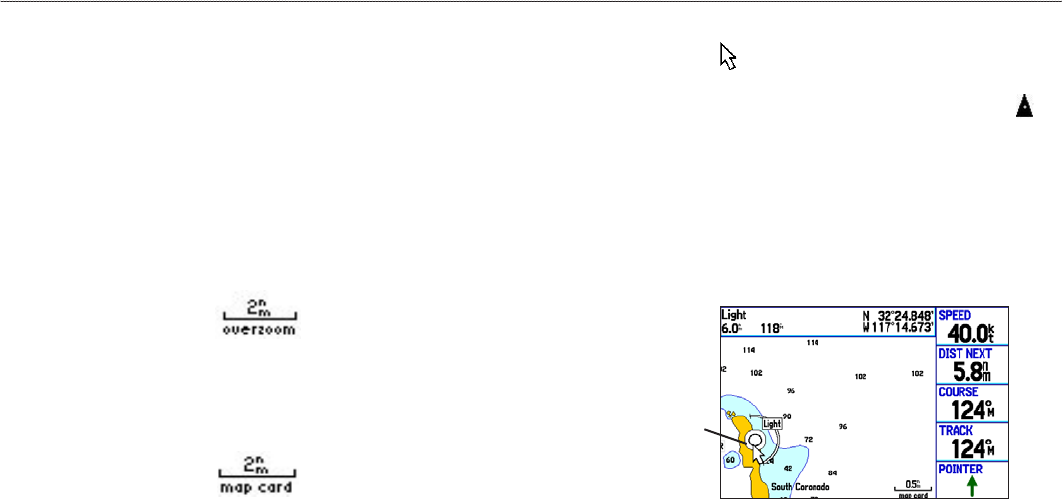
Map coverage conforms to the following conditions:
• Cartography is shown when the selected map zoom range is
covered by either the internal basemap or other MapSource
data loaded onto a data card.
• When the selected map zoom range is covered by both
the internal database and data card map information, the
cartography with the best resolution appears.
• When the selected zoom range exceeds the resolution of the
data in use, “overzoom” appears below the map zoom range.
No additional data is available
• When external data (such as MapSource data) is used, “map
card” appears below the map zoom range.
Using detailed maps loaded on the data card
Panning the Map
Use the panning arrow to pan the map to view other map areas.
As you pan past the edge of the current map display, the screen
moves to provide continuous map coverage. The position icon
stays in your present location and might not be visible on the screen
when you pan the map.
To pan the map:
Press up, down, right, or left on the ROCKER. The panning
arrow moves the map so you can view different parts of the
map.
Map feature
highlighted
As you move the arrow, the distance and bearing from your present
location to the arrow appears in the data window, along with the
arrow’s position coordinates. When the arrow is stationary, xed
coordinates appear in the position eld, and the distance and bearing
from your present location update as you move. When you zoom in
pan mode, the arrow stays centered on the screen.
42 GPSMAP 276C Owner’s Manual
MArIne Mode PAges> MAP PAge
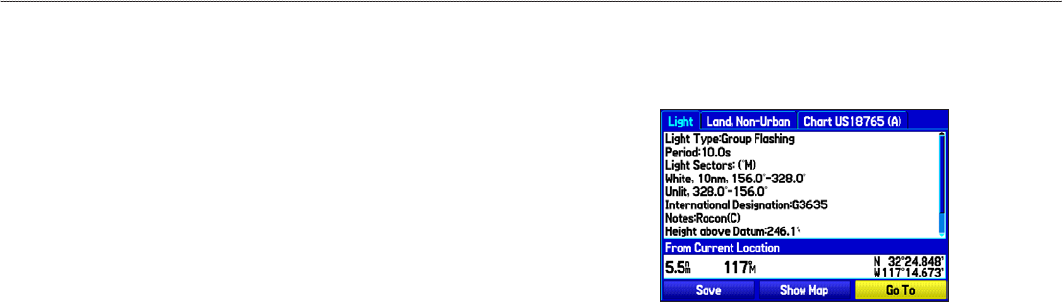
To re-center your position on the screen:
Press QUIT. The map automatically moves to show your
present location, and the unit returns to position mode.
You can also use the arrow to select on-screen map items, which
allows you to review a selected item directly from the map.
To view details about an on-screen point:
1. Use the ROCKER to move the arrow to a waypoint or map
item. If several items are grouped closely together, zoom in
closer for a better view.
When a waypoint or map item is selected, it is highlighted on-
screen with the name and location shown at the top of the
screen, along with the distance and bearing from your current
location, as shown in the image to the left.
2. Press ENTER to view more information about the point. The
information and on-screen buttons shown vary depending
on the type of item selected. In some cases, additional
information tabs appear at the top of the information page or
Waypoint Page.
3. Use the ROCKER to highlight the extra tabs and view the
information.
4. Select an on-screen button, and press ENTER.
Map Feature Information Page
Clearing Unwanted Details from the Map
You can remove items from the Map Page (declutter the display) to
remove unwanted items.
To declutter the Map Page:
1. On the Map Page, press MENU to open the options menu.
2. Highlight Declutter, and press ENTER.
3. Press ENTER again to restore the detail to the map.
GPSMAP 276C Owner’s Manual 43
MArIne Mode PAges> MAP PAge
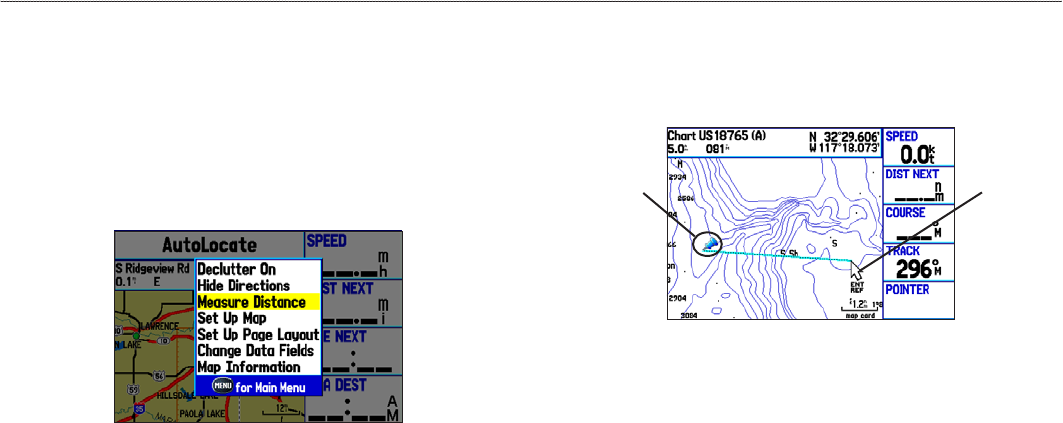
Measuring Distance
You can measure the distance and bearing between two map items.
To measure the bearing/distance between two points:
1. On the Map Page, press MENU to open the options menu.
2. Highlight Measure Distance, and press ENTER. An on-
screen arrow appears on the map at your present location
with ENT REF below it.
3. Move the arrow to the reference point (the starting point that
you want to measure from), and press ENTER. A push pin
icon marks the starting point.
4. Move the arrow to the point of which you want to measure.
The bearing and distance from the reference point and arrow
coordinates appear in the data window at the top of the
screen.
Measure Distance
End point of
measurement,
labeled ENT
REF
Push pin
indicating the
beginning
point of the
measurement
44 GPSMAP 276C Owner’s Manual
MArIne Mode PAges> MAP PAge
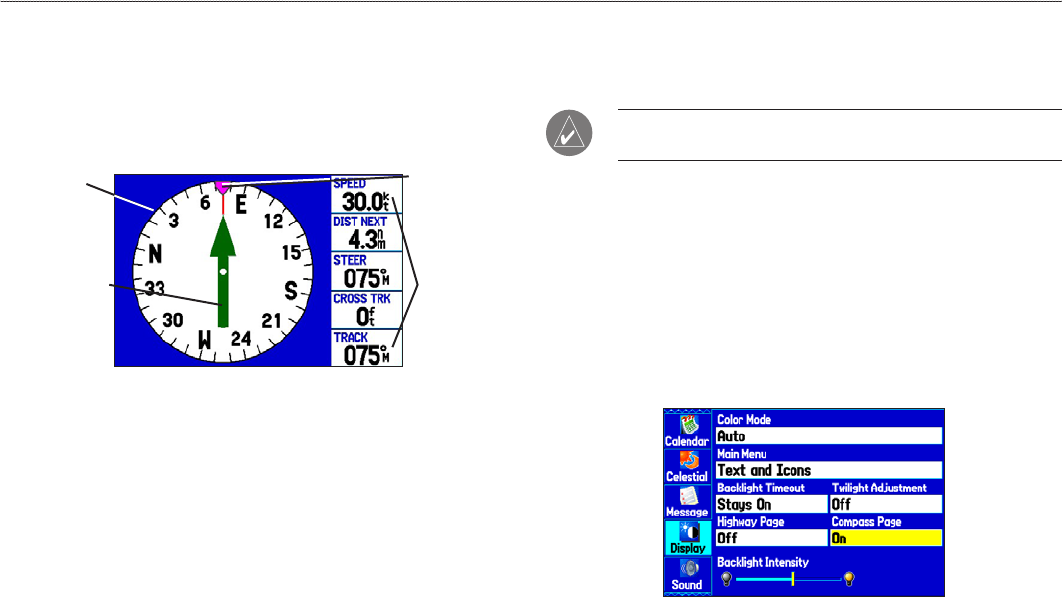
Compass Page
During active navigation, the Compass Page guides you to your
destination with a graphic compass and a bearing pointer. When
the pointer is pointing straight up, you are heading directly to your
destination.
Compass Page in Marine Mode
Rotating
compass ring
Course to steer
indicator
Compass arrow Data elds
The middle of the page features a rotating compass ring that shows
your course over ground (track) while you are moving. Your present
course over ground is indicated at the top of the compass ring. The
direction of the destination (bearing) relative to the course over
ground is indicated by an arrow in the middle of the compass ring
and a course to steer “bug” on the outside of the compass ring. The
course to steer represents the direction to steer to get back to the
course line.
If the arrow points up, you are going directly to the waypoint. If the
arrow points any direction other than up, turn toward the arrow until
it points up, and then continue in that direction.
NOTE: You must be moving for the compass to accurately
update and show your heading.
Turning On the Compass Page
The Compass Page is on by default in Marine Mode but off by
default in Automotive Mode.
To show the Compass Page in Automotive Mode:
1. Highlight the Display tab on the Main Menu.
2. Highlight the Compass Page eld, and press ENTER.
3. Select On, and press ENTER.
Turning on the Compass Page
GPSMAP 276C Owner’s Manual 45
MArIne Mode PAges> coMPAss PAge
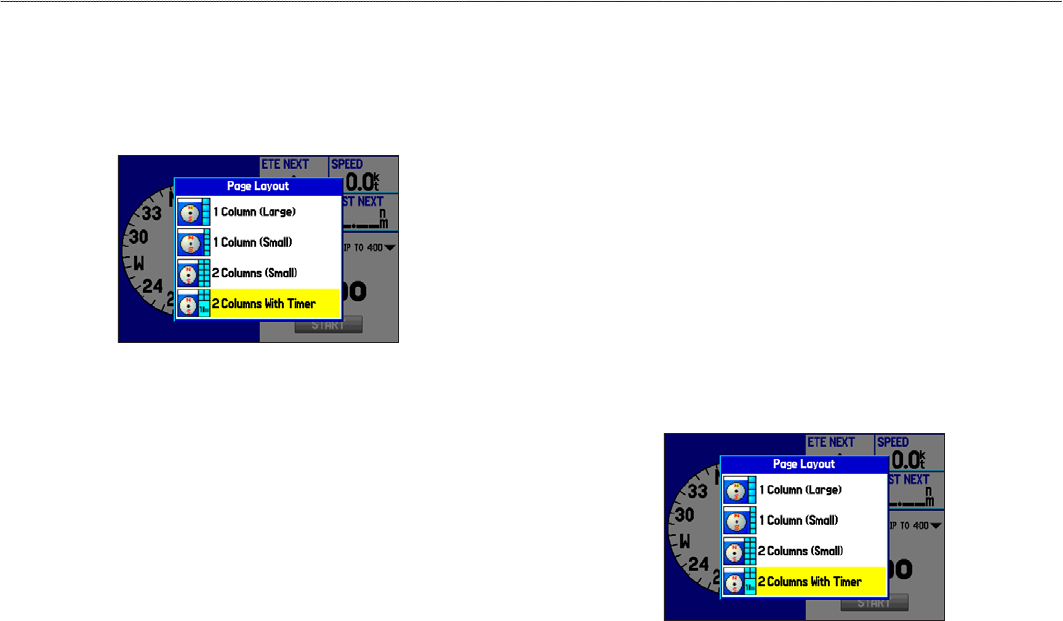
Compass Page Options
Use the options menu on the Compass Page to customize the
Compass Page.
Press MENU to open the Compass Page options menu.
Set Up Page Layout—selects the page layout.
Show Course Pointer/Show Compass—toggles between showing
the Course Pointer, which shows how far off you are from your
course and how to get back on course, or shows the compass arrow.
The Course Pointer is also referred to as a CDI or Course Deviation
Indictor.
Show (Hide) Bug Indicator—shows the course to steer bug
indicator (the purple tick mark on the compass ring).
Change Data Fields—changes on-screen data elds. For denitions
of data eld options, see page 116.
Using the Marine Timer
The Marine Timer, specically designed for sail boat racing, allows
you to easily count up or down by specied time increments. As
is common in sail boat racing, there is often a 5-minute warning
countdown, followed by a 4-minute preparation countdown, and
nally a 1-minute nal countdown. Then during the race, mariners
might want to count up to keep track of their time.
You can use your GPSMAP 276C to perform each of these different
countdowns.
To open the Marine Timer:
1. Press MENU on the Compass Page.
2. Highlight Set Up Page Layout, and press ENTER.
3. Highlight 2 Columns With Timer, and press ENTER. The
Marine Timer appears in the lower right corner.
46 GPSMAP 276C Owner’s Manual
MArIne Mode PAges> coMPAss PAge
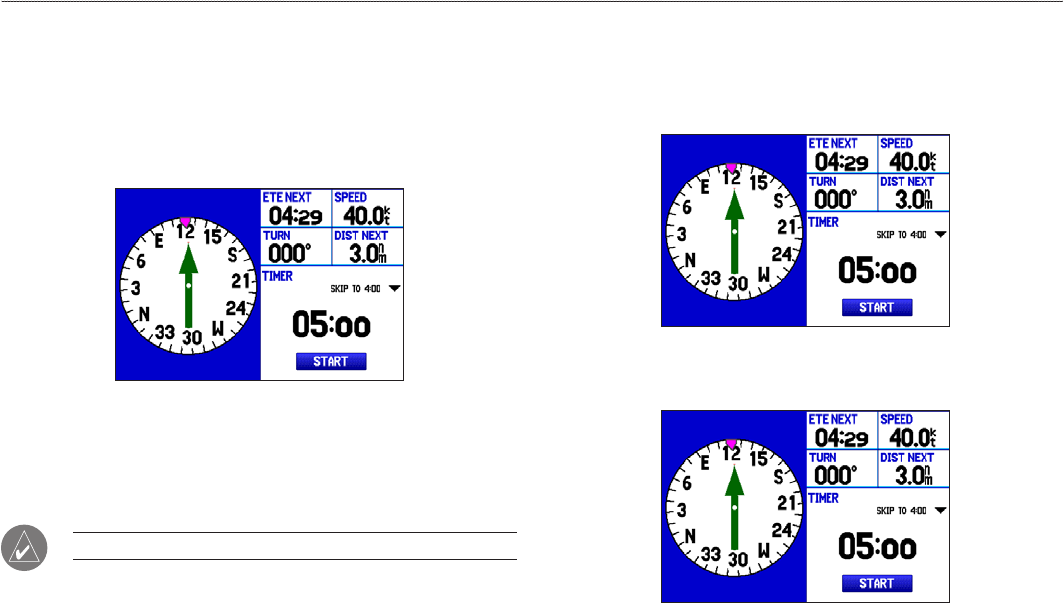
To use the Marine Timer:
1. Press the ROCKER up or down to select the time you want
to count. Five (5) minutes is the default.
2. Press ENTER to start the timer. Use the ROCKER during the
timing to quickly select a different length of time.
3. Press ENTER to stop timing.
Marine Timer on the Compass Page
As discussed previously, the timer is set to count down ve minutes.
If you want to change the length of time and the behavior of the
timer, open the Timers Setup tab on the Main Menu.
NOTE: You can set the timer countdown for up to 60 minutes.
To set the Marine Timer:
1. Highlight the Setup tab on the Main Menu, and then select
the Timers sub tab.
2. Highlight Stop to change the timer’s behavior.
3. To enter a new time highlight the time eld, press ENTER,
and then use the ROCKER.
GPSMAP 276C Owner’s Manual 47
MArIne Mode PAges> coMPAss PAge
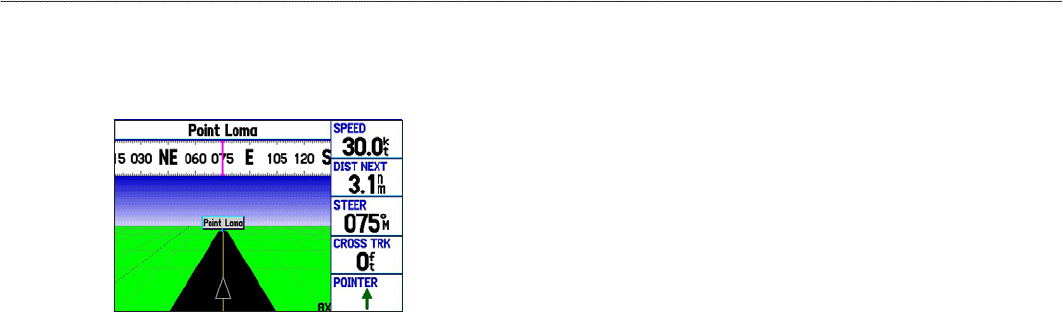
Highway Page
The Highway Page is available in both Marine Mode and
Automotive Mode.
Highway Page
When you are navigating, the Highway Page provides digital and
graphic steering guidance to the destination. The right side of the
Highway Page features user-selectable data elds showing useful
navigation information. A compass ribbon appears at the top of the
page to show your current heading, represented by the violet bar.
The red vertical bar represents the bearing to your course. To stay
on course, steer toward the red vertical indicator (or arrows) until it
lines up with the violet bar in the middle. The bottom of the screen
provides visual guidance to the waypoint on a graphic highway
display. The line down the center of the highway represents your
preferred track line.
To hide or show the Highway Page:
1. Highlight the Display tab on the Main Menu.
2. Highlight the Highway Page eld, and press ENTER.
3. Select Off to hide or On to show, and press ENTER.
Using the Highway Page
As you head toward your destination, the highway perspective
moves to indicate your progress to the waypoint and which direction
you should steer to stay on course. If you are navigating a route, the
Highway Page shows each route waypoint in sequence connected
by a black “road” with a white line down the middle, which is your
preferred track line. Nearby waypoints not in the active route can
also be shown. You can zoom in or out to show a larger or smaller
view of the highway.
To change the highway perspective scale:
1. Press IN to zoom in; press OUT to zoom out.
48 GPSMAP 276C Owner’s Manual
MArIne Mode PAges> hIghWAy PAge
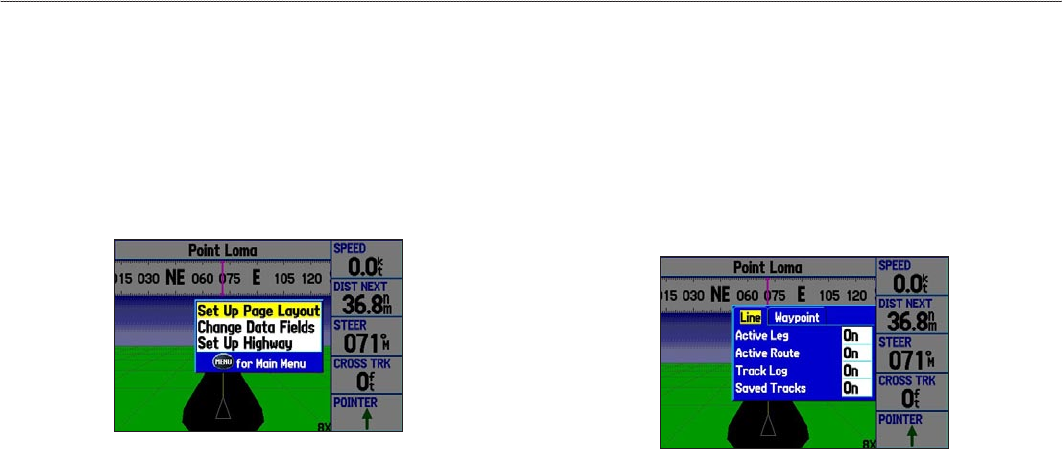
Highway Page Options
Use the Highway Page options menu to dene the data elds and
select which waypoints and tracks appear on the screen.
To show and select the Highway Page Options:
1. Press PAGE repeatedly until the Highway Page appears.
2. Press MENU.
3. Highlight an option, and press ENTER.
Highway Page Options Menu
The following options are available from the Highway Page options
menu:
Set Up Page Layout—selects the page layout.
Change Data Fields—changes on-screen data elds.
Set Up Highway—shows an options menu with two sub tabs: Line
and Waypoint. Each tab has on/off settings for options, including
enabling the line for the Active Leg and Track Log.
Set Up Highway
GPSMAP 276C Owner’s Manual 49
MArIne Mode PAges> hIghWAy PAge
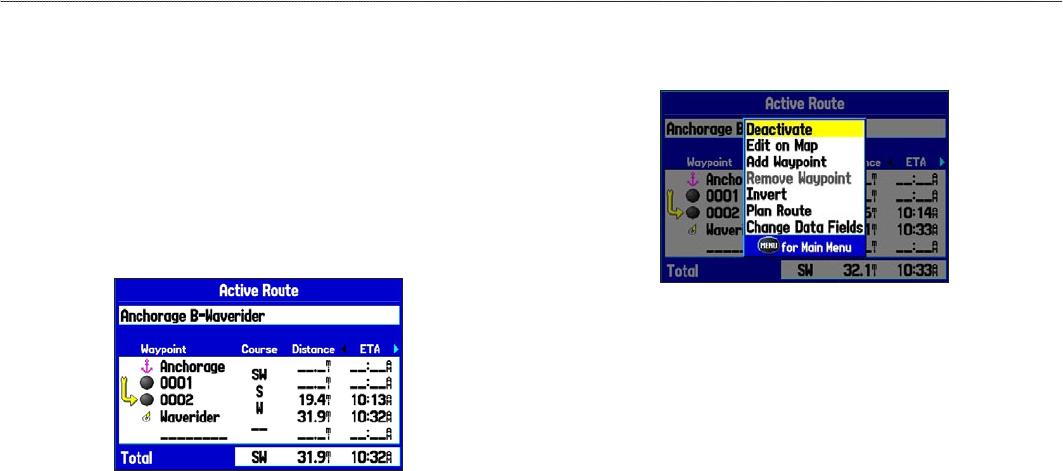
Active Route Page
When you are navigating a route using your GPSMAP 276C, the
Active Route Page shows each point (waypoint or map item) of
the active route, with the point name, course, distance, and several
other elds of information. The current destination point, or active
point, is marked with an arrow icon. As you navigate a route, the list
automatically updates to indicate the next active point. The Active
Route and Route Review Pages share many of the same features and
options.
Active Route Page
Active Route Page Options
Press MENU to open the Active Route Page options menu:
Active Route Page Options Menu
Deactivate—stops route navigation.
Edit on Map—edits the route on the map.
Add Waypoint—inserts a point before the highlighted waypoint or
add a point to the end of the route.
Remove Waypoint—deletes a highlighted waypoint from the route.
Invert—reverses the order of the route.
Plan Route—enters information about your route to more
accurately provide you with arrival times.
Change Data Fields—customizes the data elds shown on the
Active Route Page.
50 GPSMAP 276C Owner’s Manual
MArIne Mode PAges> ActIve route PAge
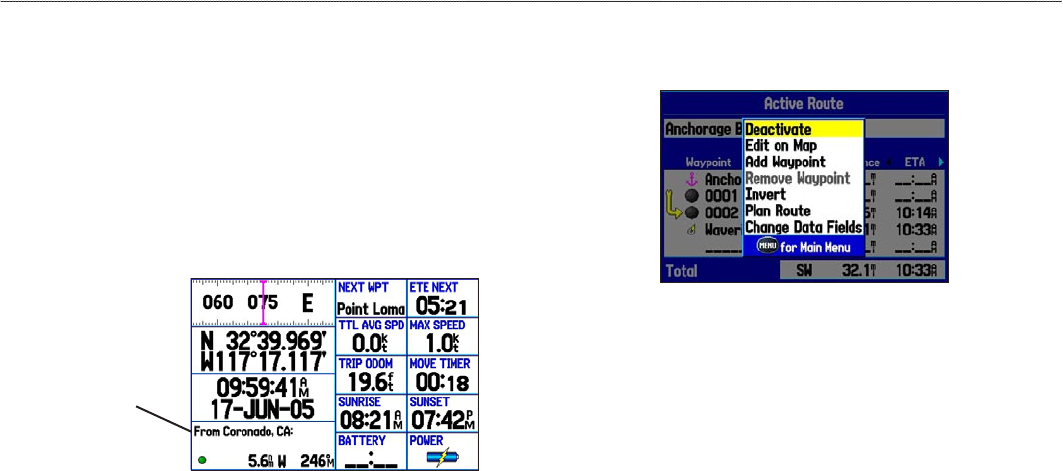
Position Data Page
The Position Data Page shows important navigation data while
navigating a route in Marine Mode. By default, the Position Data
Page shows a compass ribbon, your current latitude and longitude,
date and time, your location in relation to a prominent nearby
landmark such as a waypoint or city, and eight user-selectable data
elds. The compass ribbon appears at the top of the page to show
your current heading with a red, vertical bar. To stay on course, steer
toward the violet bar (or arrows) until it is aligned with the red bar.
Position Data Page
Your present location
is 5.6 nm west of
Coronado, CA
Position Data Page Options
Press MENU to open the Position Data Page options menu.
Change Nearest Type—species the type of item used as the
nearest item (shown in the lower-left data eld). The choices change
based on the current usage mode.
Reset Trip—clears trip information, except the maximum speed and
the odometer.
Reset Max Speed—clears the maximum speed.
Reset Odometer—clears the running total of the distance traveled
since the odometer was last reset.
Reset All—clears all trip information including the maximum speed
and odometer.
GPSMAP 276C Owner’s Manual 51
MArIne Mode PAges> PosItIon dAtA PAge
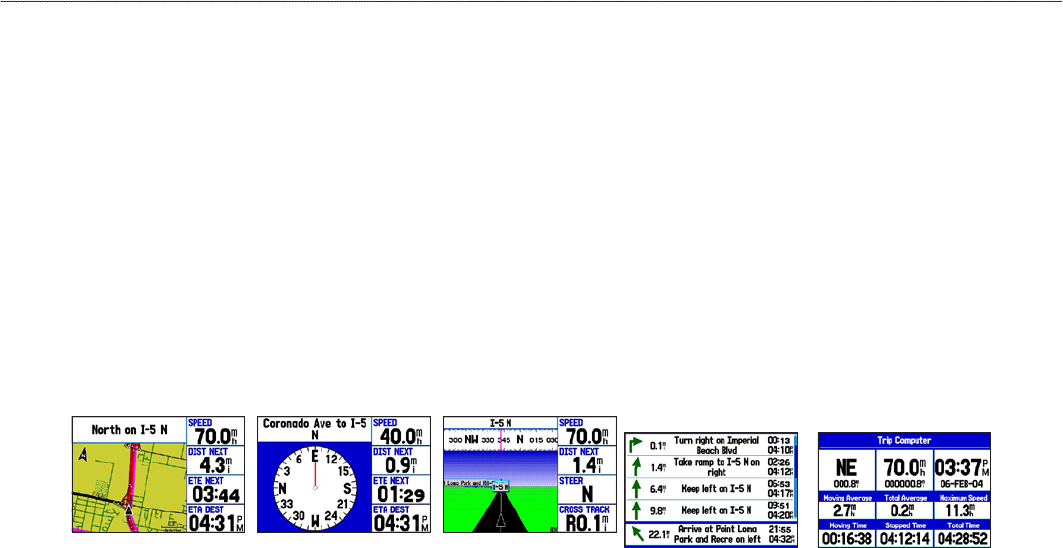
autoMotIve Mode
This section discusses some of the more common Automotive operations you can perform with your GPSMAP 276C in Automotive Mode.
Please note that many common operations, such as marking a waypoint and creating a route, are performed the same way as in Marine Mode.
See the Marine Mode section for operations and information not found in this section.
To switch usage modes:
1. Press and hold the PAGE key.
2. Use the ROCKER to select either Automotive or Marine, and press ENTER.
Automotive Mode Pages
Automotive Mode features two main pages: Map and Trip Computer. Optional Highway and Compass Pages can be turned on in Automotive
Mode. Two additional pages appear during active navigation while in Automotive Mode—a Current Route Page appears if you are navigating
a turn-by-turn route and an Active Route Page appears if you are navigating off-road. See “Navigating to a Destination” on the next page for
more information.
Map Page Compass Page
(Optional)
Highway Page
(Optional) Current Route Page Trip Computer Page
52 GPSMAP 276C Owner’s Manual
AutoMotIve Mode > AutoMotIve Mode PAges
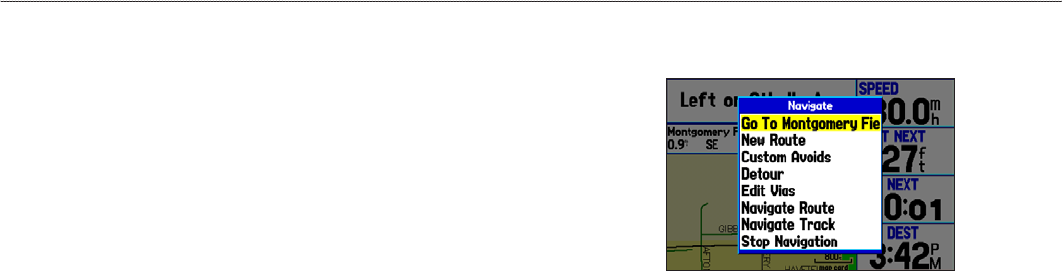
Navigating to a Destination
You can navigate to your destination in Automotive Mode using the
Map Page. As you travel, your GPSMAP 276C guides you to your
destination with voice prompts, arrows, and directions along the top
of the screen. When you are actively navigating, you see a magenta
line that always runs from your current location to the destination
or to the next turn on the Map Page. You can use the Map Page,
Compass Page, or Highway Page to help navigate.
You can navigate to a destination using one of the following
methods:
• Select a point on the map, and press the NAV key.
• Press the NAV key to navigate a new route using the Find
Menu, or start a saved route or track.
• Press the FIND key to search for a particular item and create
a route to it.
Navigate Options Menu
Press NAV to open the Navigate options menu.
Navigate Menu
Go To Point—selects a waypoint or another point from the Find
Menu to which to navigate.
New Route—creates a new route.
Custom Avoids—sets up roads to avoid when navigating.
Detour—creates a detour route while navigating.
Edit Vias—adds points through which you want to travel when
navigating.
Navigate Route—selects a route to navigate.
Navigate Track (TracBack)—selects a saved track to navigate.
Stop (Resume) Navigation—starts or stops navigating.
GPSMAP 276C Owner’s Manual 53
AutoMotIve Mode > nAvIgAtIng to A destInAtIon
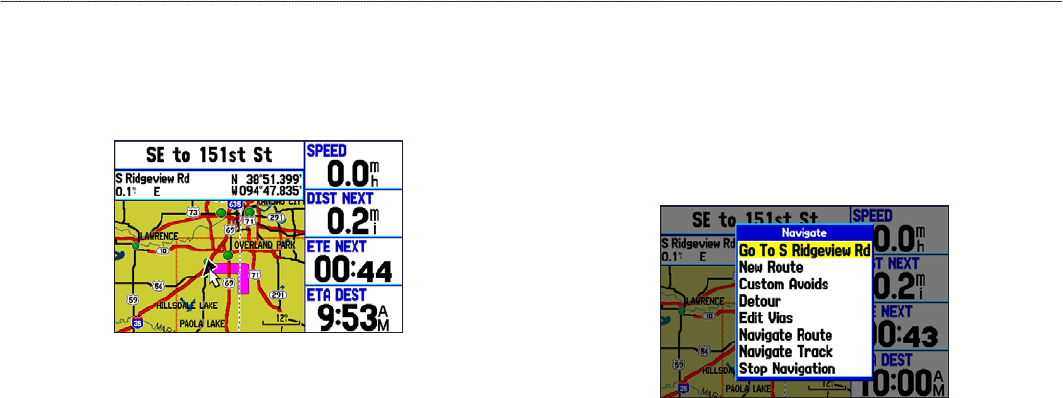
To navigate (Go To) a point on the map:
1. Highlight a point to navigate to, and press NAV.
2. Highlight Go To <point name>, and press ENTER.
3. Follow the magenta route created on the Map Page.
Stopping and Resuming Navigation
When navigating to a point, you can stop navigation. For example,
if you are on a long car trip, but you want to stop for dinner, you can
stop navigation and resume after dinner.
To stop navigation:
1. While navigating to a point, press NAV.
2. Highlight Stop Navigation, and press ENTER.
3. To resume, highlight Resume Navigation, and press
ENTER.
54 GPSMAP 276C Owner’s Manual
AutoMotIve Mode > nAvIgAtIng to A destInAtIon
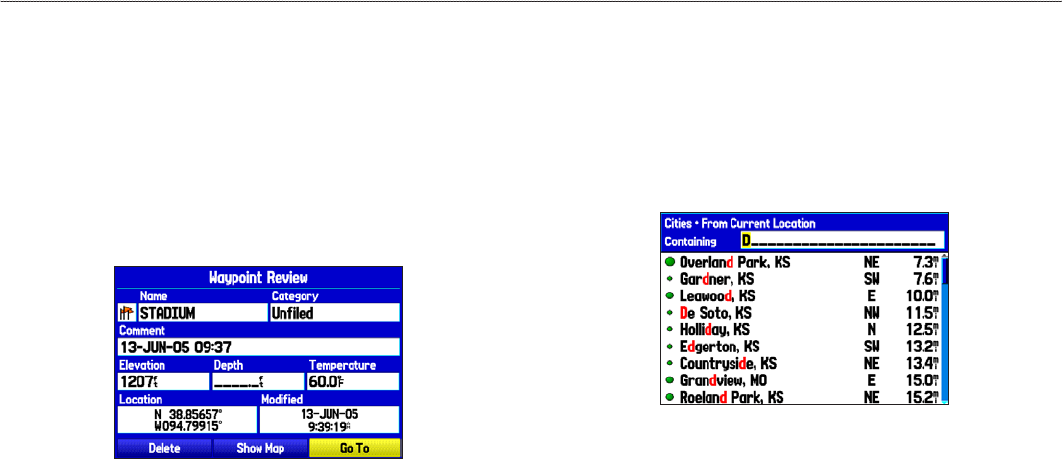
To create a new route:
1. Press NAV to open the Navigate Menu.
2. Highlight New Route, and press ENTER.
3. From the Find Menu, highlight Waypoints, and press
ENTER. (You can also choose to go to other points, such as
Cities or Exits from this list. The steps vary only slightly from
those listed for waypoints.)
4. Select a waypoint from the list, and press ENTER to open the
Waypoint Review Page.
5. Highlight the Go To button, and press ENTER to begin
navigation.
To go to a destination using the Find Menu:
1. Press FIND to open the Find Menu.
2. Highlight a category, and press ENTER.
3. Press ENTER, and use the ROCKER to begin entering the
letters contained in the item name. The list begins to sort by
the items which contain the letters you are entering. Press
ENTER when nished.
4. Highlight the item you want from the list, and press ENTER.
5. Highlight the Go To button, and press ENTER.
For complete information about nding an item, see the “Finding an
Item” section on page 17.
GPSMAP 276C Owner’s Manual 55
AutoMotIve Mode > nAvIgAtIng to A destInAtIon
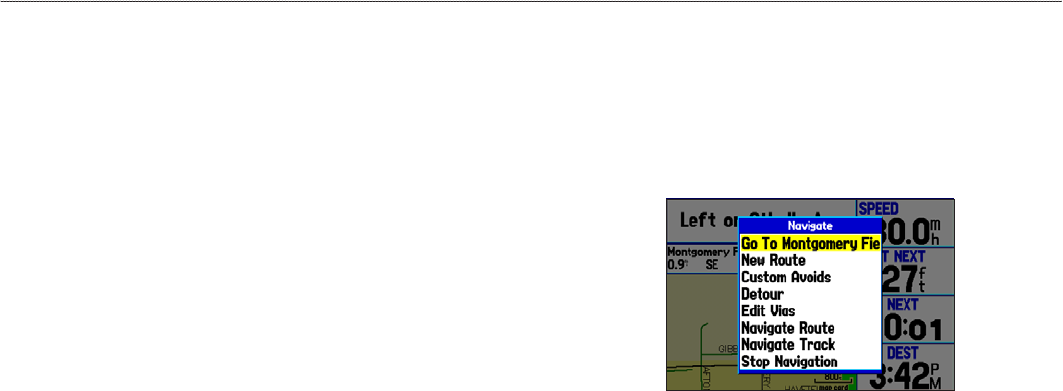
Following a Saved Route
Use the Navigate Menu to follow a saved track or route. If you
want to follow roads on your route, press MENU and select Follow
Roads on the Active Route Page.
To follow a saved route:
1. Press NAV to open the Navigate Menu.
2. Highlight Navigate Route, and press ENTER.
3. Highlight the route you want to navigate, and press ENTER.
4. Press MENU to open the options menu.
5. Highlight Follow Roads, and press ENTER to create a turn-
by-turn route, which appears on the Current Route Page.
You can also initiate a saved route from the Route tab on the Main
Menu.
Editing Your Route
When you are navigating a route, you can edit that route. You can
add areas and roads to avoid, as well as temporary detours, to your
current route. You can also add stops along your trip, called Via
Points.
While navigating, press NAV to open the Navigate Menu.
Navigate Menu in Automotive Mode
While navigating a course
56 GPSMAP 276C Owner’s Manual
AutoMotIve Mode > edItIng your route
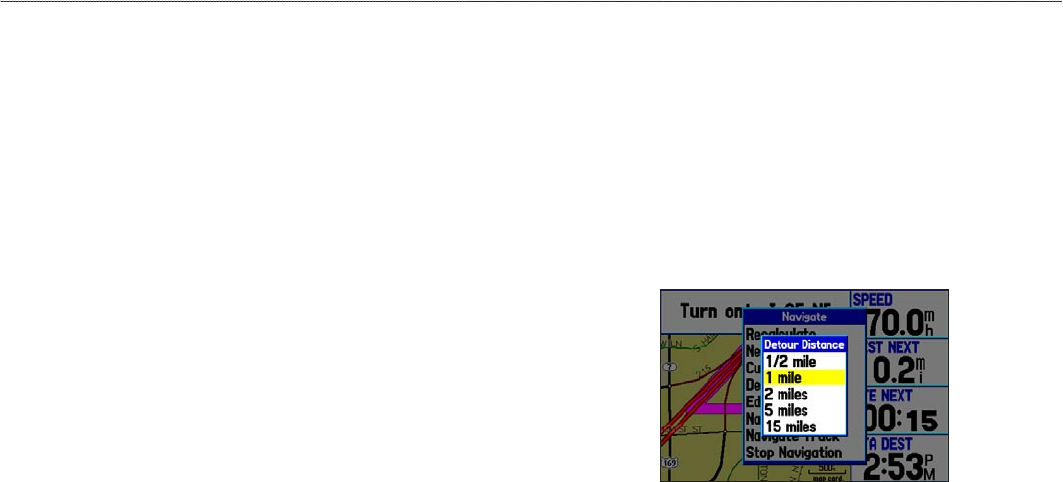
Entering Custom Avoids
The Custom Avoids feature allows you to enter specic areas and
roads to avoid when navigating. Custom Avoids apply to all routes,
but detours apply to only the active route. You can add Custom
Avoids while you are navigating a route or before you navigate.
To enter a custom avoid:
1. Press NAV while navigating to a destination.
OR
Open the Map Page, and press MENU.
2. Select Custom Avoids, and press ENTER.
3. Press ENTER when the Add Avoid button is highlighted.
4. Select Avoid Road or Avoid Area, and press ENTER.
5. Use the ROCKER to move the arrow to the rst point in the
avoidance area. Press ENTER to select the rst point.
6. Move the arrow to the end point, and press ENTER. During
route calculation and navigation, the GPSMAP 276C avoids
the area within the box or the selected area of the road.
7. When nished, highlight the OK button, and press ENTER.
Creating a Detour
If there is road construction or some other form of a detour while
navigating a route, you can have your GPSMAP 276C create a
detour route for you.
To create a detour:
1. While navigating a course, press NAV.
2. Select Detour from the Navigate Menu.
3. Select a distance, and press ENTER. The GPSMAP 276C
recalculates your course based on your detour distance.
Detour Distance
4. To end the detour manually, press NAV again, and select
Cancel Detour.
GPSMAP 276C Owner’s Manual 57
AutoMotIve Mode > edItIng your route
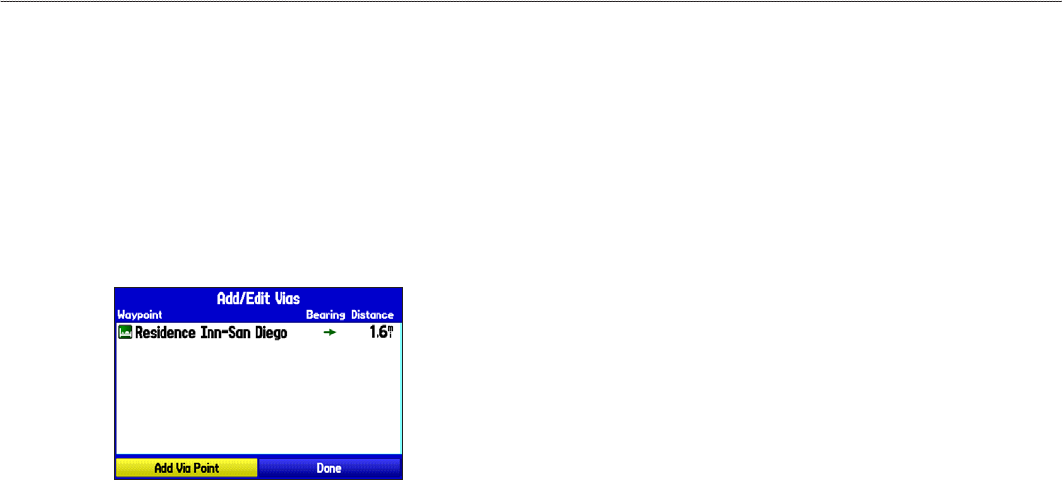
Adding and Editing Stops (Via Points)
You can add Via Points—points through which you would like to
travel—to your route using the Edit Vias option.
To add Via Points to your route:
1. While navigating your route, press NAV to open the Navigate
Menu.
2. Select Edit Vias, and press ENTER. The Add/Edit Vias
window opens.
3. Highlight Add Via Point, and press ENTER.
Add/Edit Vias Page
Showing the original route without Via Points
4. From the pop-up window, highlight either Use Map or Use
Find Menu, and press ENTER.
5. If you selected Use Map, use the ROCKER to select an item
on the map, and press ENTER.
If you selected Use Find Menu, select an item from the Find
Menu as discussed in the “Finding an Item” beginning on
page 17. Remember you can press MENU while the Find
Menu is open to nd an item near another location, such
as the destination. The new point is added to the route as
shown on the Add/Edit Vias Page.
6. Repeat steps 3 through 5 until you have added all of the Via
Points that you want. Highlight Done, and press ENTER to
apply the new Via Points to the route.
58 GPSMAP 276C Owner’s Manual
AutoMotIve Mode > edItIng your route
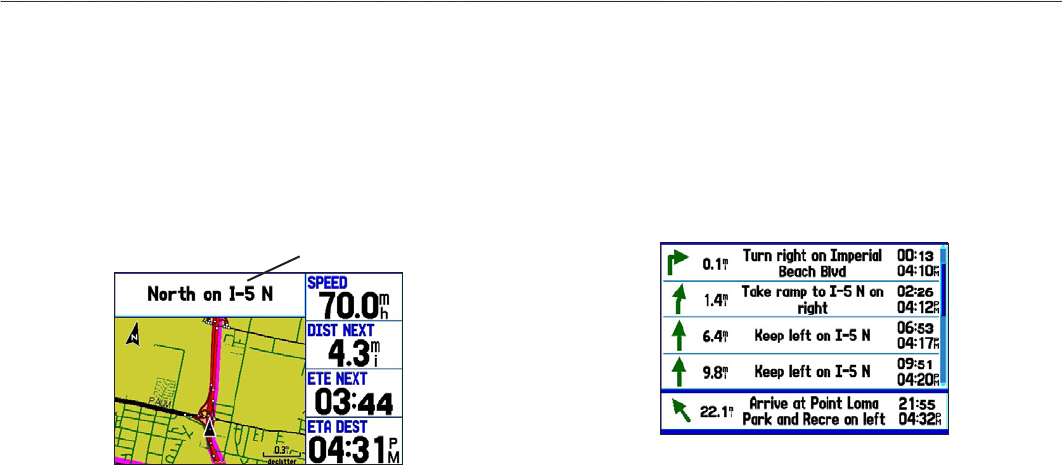
Following an Automotive Route
The GPSMAP 276C guides you to your destination using many
tools, such as the Map Page and Current Route Page.
Track Your Progress with the Map Page
You can track the progress of your route on the Map Page. Your
route is shown with a magenta line. The next turn is shown in the
top bar on the Map Page.
Map Page showing your route
Next turn
Watch Your Trip Data
Use the Trip Computer Page to view your trip data. You can track
your speed here, as well as other information related to your trip.
See Your Next Turn With the Current Route Page
Whenever you have initiated a turn-by-turn route in the
GPSMAP 276C set in Automotive Mode, the Current Route Page
shows each turn of the active route.
Current Route Page
GPSMAP 276C Owner’s Manual 59
AutoMotIve Mode > folloWIng An AutoMotIve route

autoMotIve Mode PaGeS
Automotive Mode has two main pages (Map and Trip Computer),
that are always available. Optional Highway and Compass Pages
can be turned on in Automotive Mode. When you are actively
navigating, the Current Route Page is available if you are navigating
a turn-by-turn route. The Active Route Page is available if you are
navigating off-road. For information about pages not discussed here,
see the “Marine Mode Pages” section.
Map Page
In Automotive Mode, by default, four user-selectable data elds
appear on the right side of the screen that can be congured to show
any one of the possible data options. You can also add data elds to
the page or select a full-screen map without data elds. The top of
the screen shows the GPS status or the route leg.
Map Page
Data elds
Map zoom
range
Current
location
Press the zoom keys (IN and OUT) to change the map zoom range.
Some items on the map appear only if the map is zoomed in to a
certain level.
• Press ENTER to quickly declutter (remove unwanted items)
from the Map Page.
• Press MENU to open the options menu for the Map Page.
• Show and hide the heading line from the options menu.
• Use the ROCKER to measure the distance between two
objects on the map.
• Change the page layout and data elds to customize the Map
Page.
60 GPSMAP 276C Owner’s Manual
AutoMotIve Mode PAges> MAP PAge
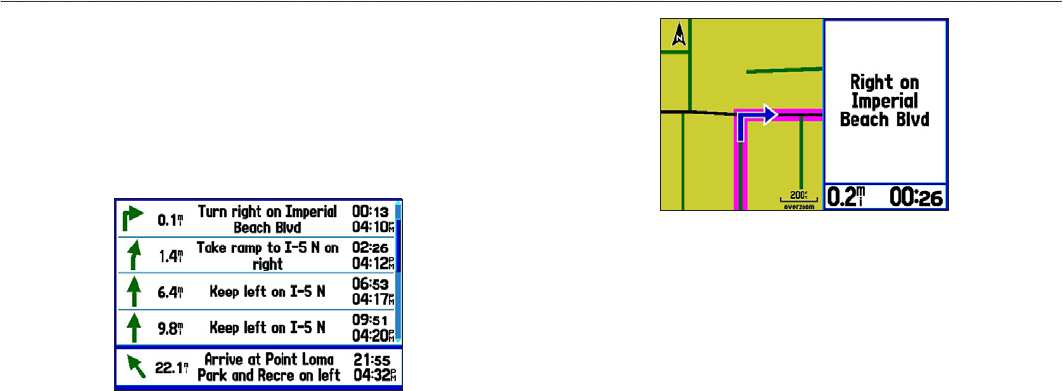
Current Route Page
Whenever you start a route in the GPSMAP 276C in Automotive
Mode, the Active Route Page shows each turn of the active route,
with the distance to the turn, the street name, and estimated time
to arrival and time of arrival. As you navigate a route, the turn list
automatically updates to indicate the next turn at the top of the list.
Current Route Page
You can scroll through the entire list by moving the scroll bar up or
down using the ROCKER. Highlight any of the turns on the list and
press ENTER to view the Next Turn Page for that turn. The Current
Route and Next Turn Pages show similar information using a
different layout. The Next Turn Page shows your next turn on a map.
Next Turn Page
Saving the Current Route
You can save the current route from the Current Route Page. Press
MENU, then press ENTER when Save Route is highlighted. Your
route is automatically saved, using the starting point and destination
as the route name. Press ENTER when OK is highlighted to
complete saving the route.
GPSMAP 276C Owner’s Manual 61
AutoMotIve Mode PAges> current route PAge
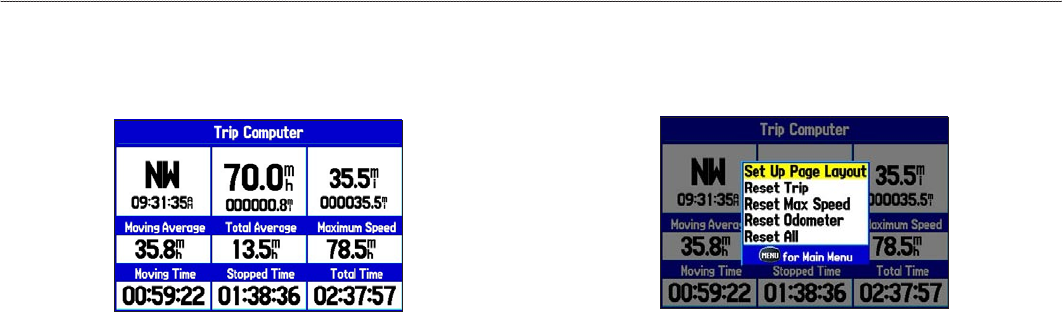
Trip Computer Page
The Trip Computer Page indicates your current speed and other data
about your trip, such as average speed and moving time.
Trip Computer Page
Reset the Trip Computer before beginning a trip. If you make
frequent stops, leave the GPSMAP 276C turned on in order to
receive satellites. This allows the unit to accurately measure elapsed
time during the trip.
Trip Computer Page Options Menu
Press MENU to open the options menu. Highlight an option, and
press ENTER.
Trip Computer Page Options Menu
Set Up Page Layout—choose the layout and number of data elds.
Change Nearest Type—allows you to specify the type of item to
be used as the nearest item [shown in the lower-left data eld of the
Position Data (2 Columns) layout]. The choices change based on the
current Usage Mode.
Reset (Trip, Max Speed, Odometer, All)—options to reset the
maximum speed, the odometer, everything but the max speed and
odometer, or reset everything in the trip computer.
62 GPSMAP 276C Owner’s Manual
AutoMotIve Mode PAges> trIP coMPuter PAge
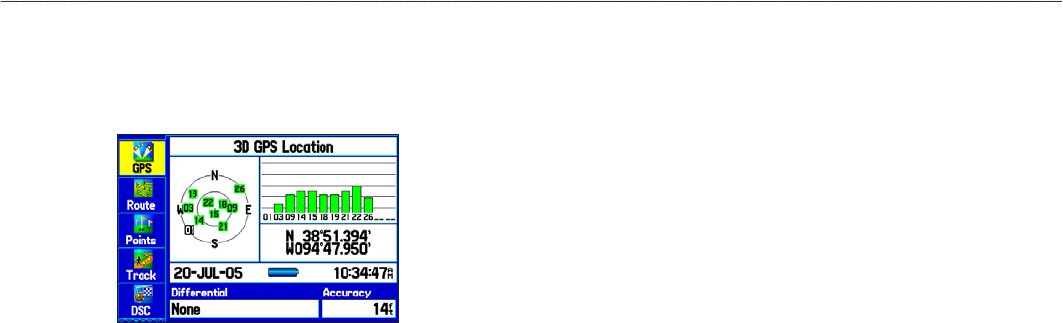
MaIn Menu
The Main Menu provides access to various waypoint, system,
navigation and interface management, and setup menus.
Main Menu
To select a tab from the Main Menu:
1. From any page, press MENU twice to open the Main Menu.
2. Highlight the tab you want. The information for the highlighted
tab automatically appears on the right. To highlight a sub
tab, press left or right on the ROCKER, and then press up or
down to select individual elds.
Main Menu Tabs
• GPS—view satellite information.
• Route—create and navigate routes.
• Points—view stored waypoints.
• Track—record and save tracks.
• DSC—set up digital select calling features.
• Sonar—congure sonar options.
• Alarms—dene alarm settings.
• Calendar—view sun/moon and hunting/shing information
for a specic day.
• Celestial—view tide, hunting & shing, and sun & moon
information.
• Message—view system generated messages.
• Display—adjust backlighting and page display.
• Sound—customize GPSMAP 276C sounds.
• Setup—adjust system settings.
GPSMAP 276C Owner’s Manual 63
MAIn Menu > MAIn Menu tAbs
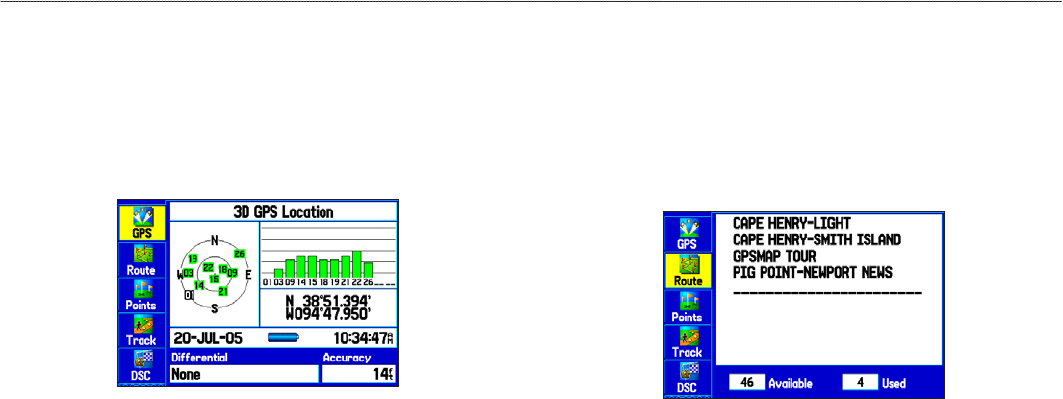
GPS Tab
The GPS tab provides a visual reference of satellite acquisition,
receiver status, and accuracy. The sky view and signal strength bars
give an indication of what satellites are visible to the receiver and
whether they are being tracked. For more information about GPS,
see pages 4-6.
Main Menu—GPS Tab
Route Tab
The Route tab shows all the routes currently stored in memory,
along with a descriptive name for each route.
Use the Route tab to create and store up to 50 reversible routes, with
up to 300 points each. See the “Creating and Using Routes” section
beginning on page 20 for more information about routes.
Main Menu—Route Tab
64 GPSMAP 276C Owner’s Manual
MAIn Menu > gPs tAb And route tAb
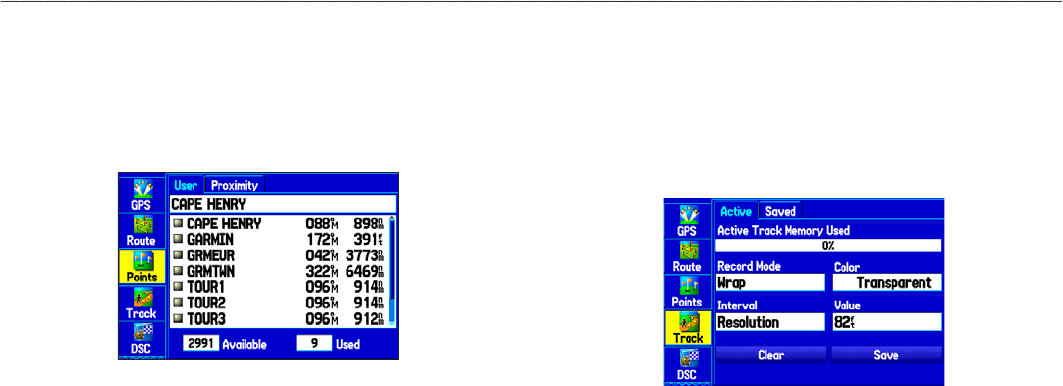
Points Tab
The Points tab contains two sub tabs, User and Proximity, which
allow you to manage a large number of waypoints quickly and
efciently. For more information about waypoints, see the “Creating
and Using Waypoints” section beginning on page 24.
Main Menu—Points Tab
User Sub Tab
The User sub tab shows a master list of all waypoints currently
stored in memory. The total number of stored and available
waypoints appear at the bottom of the User sub tab.
Proximity Sub Tab
Use the Proximity sub tab to dene an alarm circle around a stored
waypoint location.
Track Tab
Use the Track tab to specify whether or not to record a track log,
dene how it is recorded, or save the track log data for future use.
The Track tab is divided into two sub tabs: Active and Saved. For
more information about tracks, see the “Managing Your Tracks”
section beginning on page 34.
Main Menu—Track Tab
Active Sub Tab
The Active sub tab is for the active log (the log currently being
recorded). It shows the amount of track memory used and current
settings.
Saved Sub Tab
The Saved sub tab shows a list of all saved tracks in your
GPSMAP 276C.
GPSMAP 276C Owner’s Manual 65
MAIn Menu > PoInts tAb And trAck tAb
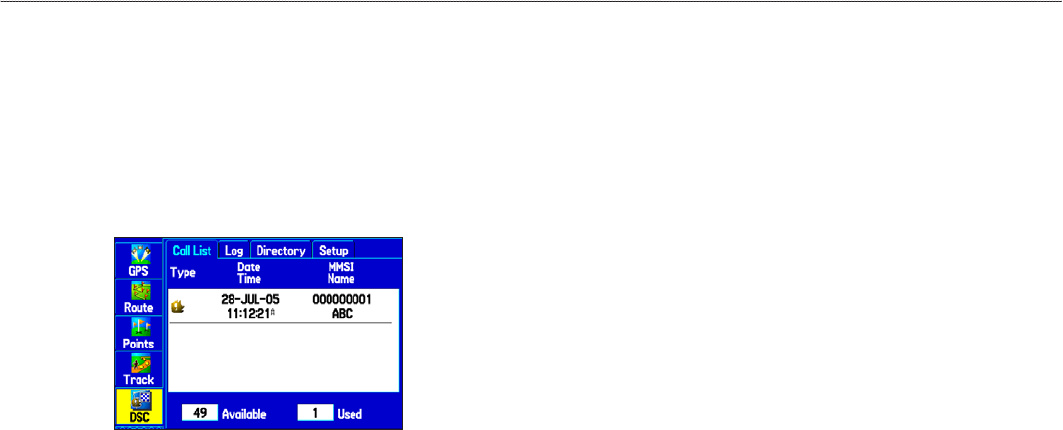
DSC Tab
Use the DSC tab (Marine Mode only) to control and set up the
Digital Selective Calling (DSC) features. DSC uses marine VHF
radio and GPS to transmit and receive location information. DSC is
used by mariners for distress calls and position reporting.
For more information about DSC and Maritime Mobile Service
Identity (MMSI) numbers, see pages 112-113 in the “Appendix”.
DSC Page
Understanding Distress Calls
With your GPSMAP 276C properly connected to a VHF radio with
DSC output, you can receive any DSC distress call within range.
An alert message appears and a tone sounds when a distress call is
received. The alarm only sounds on a distress call; position reports
do not sound the alarm. Distress calls are broadcast to all DSC users
in radio range and appear with a blue and white checkered icon on
the DSC Call List and Log tabs.
You can enter a caller’s name, if it is known. The caller’s name
replaces the MMSI number as a reference after it is entered.
Understanding Position Reports
The Position Report operates similarly to the distress call. This type
of contact is like a phone call; no emergency alarms are set off.
Position reports are not broadcast to all DSC users and appear with a
gold boat icon.
Receiving DSC Calls
Each time you receive a distress call or position report, a review
page opens—either a DSC Position Report Page or a Distress Call
Page. Both pages contain identical elds to the DSC Entry Review
Page.
66 GPSMAP 276C Owner’s Manual
MAIn Menu > dsc tAb
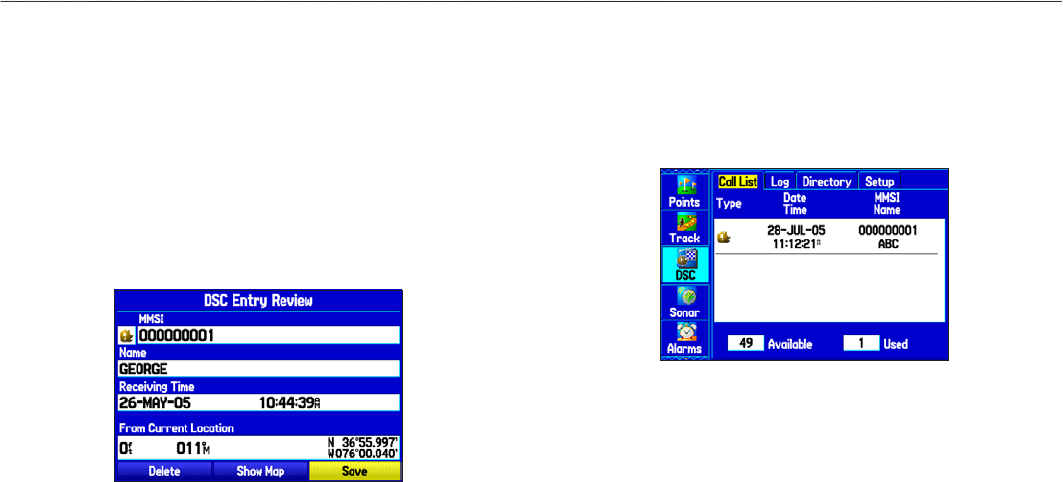
Each entry in the Call List and Log has a corresponding DSC Entry
Review Page. This page operates similarly to the Distress Page and
Position Report Page. From the DSC Entry Review Page, you can
Delete the entry, Save it as a waypoint, or show the location on the
map.
To review a call or log entry:
1. Open the Call List or Log from the DSC tab.
2. Highlight the call you want to review.
3. Press ENTER to open the DSC Entry Review Page.
DSC Entry Review Page
DSC Call List
The Call List sub tab shows the 50 most recent calls, even if the unit
is left unattended. The Call List only shows the most recent call from
a vessel. If a second call is received, it replaces the rst call in the Call
List. Press MENU to sort the list and delete entries.
DSC Call List
DSC Log
When DSC calls are received, they are automatically stored
in the Log, with the most recent call at the top. The unit
can store up to 100 calls; after 100 calls are received, the
oldest log le is removed when a new call is received.
GPSMAP 276C Owner’s Manual 67
MAIn Menu > dsc tAb

DSC Log
Receiving a Position Report or Distress Call
After you receive a Position Report or a Distress Call, you can
quickly navigate to the location. Highlight a call from the Call List
or Log, and press Direct To. The top selection in the Navigate Menu
is highlighted. Press ENTER to go to the location.
DSC Directory
The DSC Directory is like a phone book and can hold up to 50
entries.
DSC Directory list
DSC directory
entries. Press
ENTER to
open the Entry
Review Page.
Blank entry.
Press ENTER
to add a DSC
directory entry.
To add a new directory entry:
1. Open the DSC Directory on the Main Menu.
2. Highlight the rst blank space in the directory list, and press
ENTER.
OR
Press MENU, highlight New Item, and press ENTER.
3. Enter the MMSI number, the name, and any comments.
4. When nished, highlight OK, and press ENTER.
68 GPSMAP 276C Owner’s Manual
MAIn Menu > dsc tAb
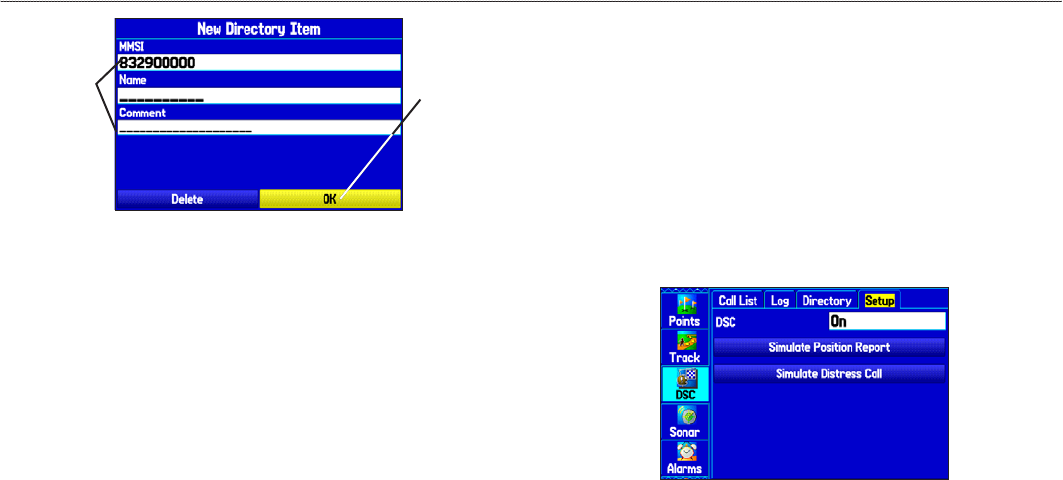
New Directory Item Page
Enter the
MMSI number,
name, and a
comment (if
needed) in the
elds.
Highlight OK,
and press
ENTER to save
the directory
entry.
After creating a New Directory Item, the name created is attached
to that particular MMSI number. If you return to the Log, the new
name appears under the corresponding MMSI number.
Another way to input a name is from the Entry Review Page or the
DSC Distress Call or DSC Position Report Pages. The name and
MMSI are sent to other Garmin GPS units. Only the MMSI numbers
are sent to other non-Garmin DSC users.
Making a Distress Call
To make a Distress Call, press the MayDay button on your VHF
radio. The call transmits on an emergency channel with the MMSI
number attached to the call, if you have DSC support. Any DSC-
equipped mariner (on sea or land) within range can receive the call.
Setting Up DSC
Use the Setup sub tab to turn DSC on and off. If you have more than
one chartplotter and only want DSC to show on another chartplotter,
turn DSC off on this unit.
This Setup sub tab also allows you to simulate Distress Calls and
Position Reports while the unit is in Simulator Mode. Simulating
calls is helpful for practice before connecting to the real system. The
Distress Call simulator also helps to check if alarms are working
properly.
DSC Setup
GPSMAP 276C Owner’s Manual 69
MAIn Menu > dsc tAb
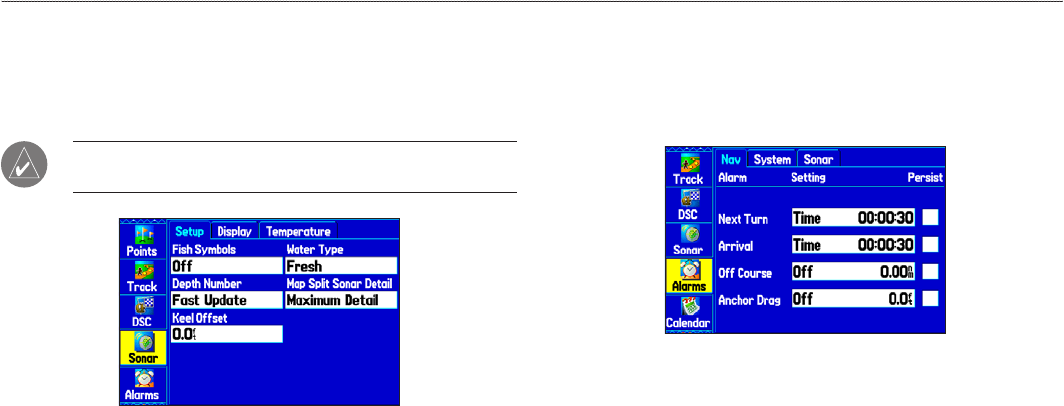
Sonar Tab
Use the Sonar tab to set up and congure sonar. See the “Setting
Up and Using Sonar” section beginning on page 89 for more
information about Sonar setup options.
NOTE: You must have a GSD 20 or GSD 21 Sounder Module
connected to your GPSMAP 276C to use sonar.
Main Menu—Sonar Tab
Alarms Tab
Use the Alarms tab to dene alarm settings. When an alarm goes off,
the alarm message appears on the GPSMAP 276C and the unit emits
ve (5) beeps.
Main Menu—Alarms tab
To set an alarm:
1. Highlight the Alarms tab on the Main Menu.
2. Select the alarm to set, and press ENTER.
3. Change the setting to On, and press ENTER. If necessary,
highlight the next eld to the right, and press ENTER. Enter
the settings you want.
4. Press ENTER to nish.
70 GPSMAP 276C Owner’s Manual
MAIn Menu > sonAr tAb And AlArMs tAb

To set a persistent alarm:
1. Highlight the Alarms tab on the Main Menu.
2. Highlight the box next to the alarm you want to make
persistent.
3. Press ENTER to place a check mark in the Persist box.
Navigation (Nav) Alarms
The Nav sub tab contains the following alarms:
Next Turn—sets an alarm to indicate the next turn in a route. Select
Dist to specify a distance before you reach the next turn to sound the
alarm. Select Time to specify a time before the turn for the alarm to
go off. Select Auto for the unit to provide a Next Turn alarm at its
discretion.
Arrival—sets an alarm to sound when you are a specied distance
or time away from a destination waypoint. Select Auto for the unit
to provide an Arrival alarm at its discretion.
Off Course—sets an alarm to sound when off course. Select On,
then enter a distance.
Anchor Drag—sets an alarm to sound when you exceed a specied
drift distance. Select On, and then enter a distance.
System Alarms
Clock—sets an alarm based on the unit’s clock. Select On, and
then enter a specic time that you want the alarm to sound. The
GPSMAP 276C must be on for the clock alarm to work.
Ext. (External) Voltage—sets an alarm to sound when the external
voltage drops below a specied amount. Select On, and then enter a
specic voltage.
DGPS—sets an alarm to sound when the GPSMAP 276C loses a
differential x.
Accuracy—sets an alarm to sound when GPS accuracy falls outside
of the user-set value. Select On, and then enter a specic distance.
GPSMAP 276C Owner’s Manual 71
MAIn Menu > AlArMs tAb
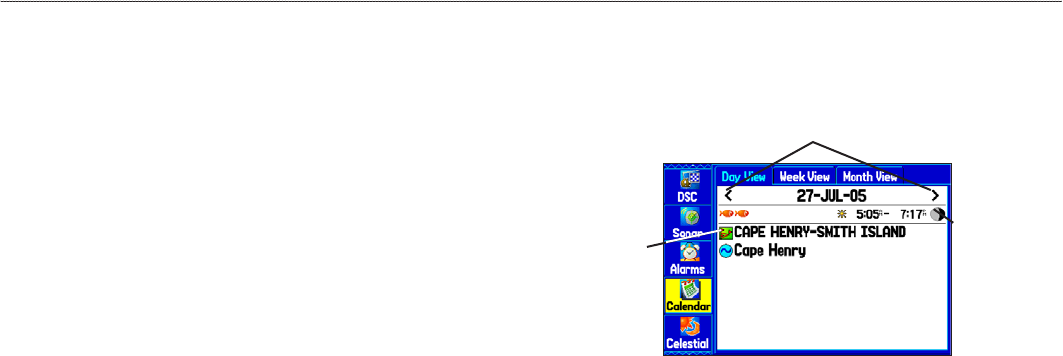
Sonar Alarms
Shallow Water/Deep Water—sets an alarm to sound when you
enter an area of water that is too shallow or deep. Select On, and
then specify a depth. You must be receiving sonar NMEA data for
this function to work.
Water Temp—sets an alarm to indicate if the water temperature has
exceeded or dropped below a specic temperature, or fallen outside/
inside a specic temperature range. Select Above or Below, and
then enter a specic temperature, or select Inside or Outside and
enter a range of temperatures. You must be receiving sonar NMEA
data for this function to work.
Drift—sets an alarm to sound when you exceed a specied drift
distance. Select On, and then enter a specic distance.
Fish—sets an alarm to sound when sh are detected with sonar.
Calendar Tab
Use the Calendar tab to plan trips, as well as view sun and moon,
and hunting and shing information for the day.
Calendar Tab in Day View
Highlight an arrow, and press ENTER to change the date in view.
Sunrise and
sunset times
for the current
location and
date.
List of points
and routes
added to this
date.
Calendar Options
The options menu is available in all three calendar views. Press
MENU on any of the calendar views to open the options menu. To
view the Sun & Moon or Hunt & Fish sub tab, highlight View Sun
and Moon or View Hunt and Fish, and press ENTER.
72 GPSMAP 276C Owner’s Manual
MAIn Menu > cAlendAr tAb
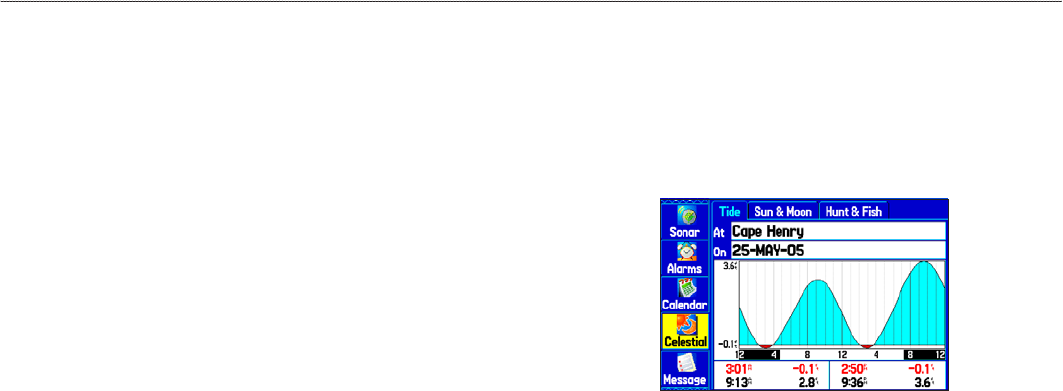
To add a route (or point) to the calendar:
1. Highlight the Calendar tab on the Main Menu. The current
day appears on the Day View sub tab.
2. Press MENU to open the options menu. Highlight Add Route
(or Add Point), and press ENTER.
3. From the pop-up route list (or the Find Menu if Add Point
was selected), select the route you want to add to the
calendar, and press ENTER.
Day View Sub Tab
The Day View sub tab shows sunrise and sunset times for your
current date and location. Points and routes for the day appear in a
list.
Week View Sub Tab
The Week View sub tab provides the same elements as Day View,
but the entire week is visible. Days with added points or routes are
shown highlighted in green. Icons for the points and routes assigned
to the date are shown along the bottom of the screen.
Month View Sub Tab
The Month View sub tab provides the same elements as Day View,
but the entire month is visible. Days with added points or routes are
shown highlighted in green. Icons for the points and routes assigned
to the date are shown along the bottom of the screen.
Celestial Tab
The Celestial tab shows tide information, sun and moon information,
and hunting and shing information. You can view this data for your
current location, a location from the map, or a waypoint location.
Also, you can select a different date and time, or use the current
data.
Main Menu—Celestial Tab
To access the Celestial tab:
1. Highlight the Celestial tab on the Main Menu.
2. Use the ROCKER to view the sub tab you want, such as
Sun & Moon.
GPSMAP 276C Owner’s Manual 73
MAIn Menu > celestIAl tAb
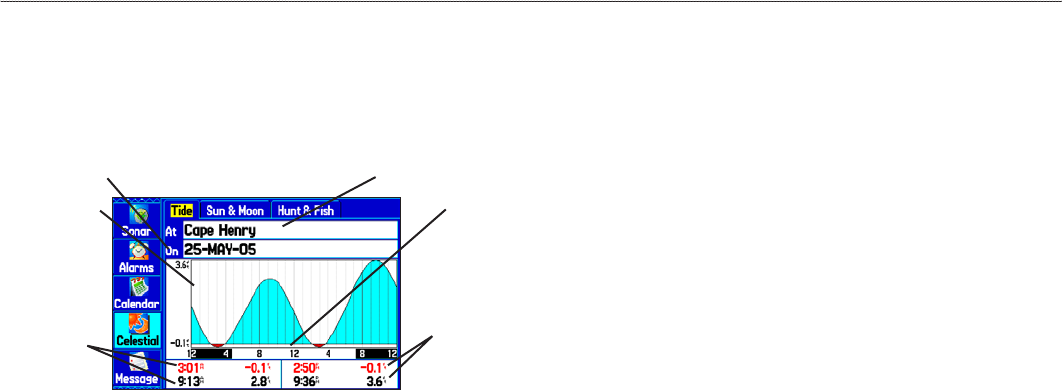
Tide Sub Tab
The Tide sub tab contains a graphical chart that shows tide station
information in a 24-hour span starting at midnight station time. You
can choose from different dates and more than 3,000 tide stations.
Height of tide
Smallest and
largest tides
for the AM
hours
Select the tide station for which you
want to view the information.
Enter the date for which you want to
view the tide information.
Tide Sub Tab
Time
Smallest and
largest tides
for the PM
hours
The top of the page shows the tide station and date referenced. The
chart shows a 24-hour block of time, with the time progressing from
left to right. The solid vertical lines represent 4-hour increments; the
dotted vertical lines represent 1-hour increments.
The tide curve appears as a shaded area; higher tides are taller and
lower tides are shorter. The bottom of the page indicates the times
with the highest and lowest tides.
To view a tide chart for a different tide station:
1. From the Tide sub tab, highlight the At eld, and press
ENTER. The Find Menu opens showing the tide stations.
2. Press MENU, and select Near Current Location, Near
Current Route, Near Other (select another location using
the map), or Near Destination. The list is updated with your
search requirements.
3. Select a tide station from the list, and press ENTER. The
Tide Station Information Page appears.
4. Highlight OK, and press ENTER. The Tide tab appears again
showing the tide chart for the selected tide station.
To view the tide chart for another date:
1. From the Tide sub tab with a chart open, highlight the On
eld, and press ENTER.
2. Enter the date with the ROCKER, and press ENTER. You
can also use the zoom IN and OUT keys to view information
for another date. Press and hold IN or OUT to scroll quickly
through dates.
3. Press ENTER when nished. The unit shows the chart for the
date you entered or selected.
To use the current date again, highlight the On (Date) eld. Press
MENU, highlight Use Current Date, and press ENTER.
74 GPSMAP 276C Owner’s Manual
MAIn Menu > celestIAl tAb
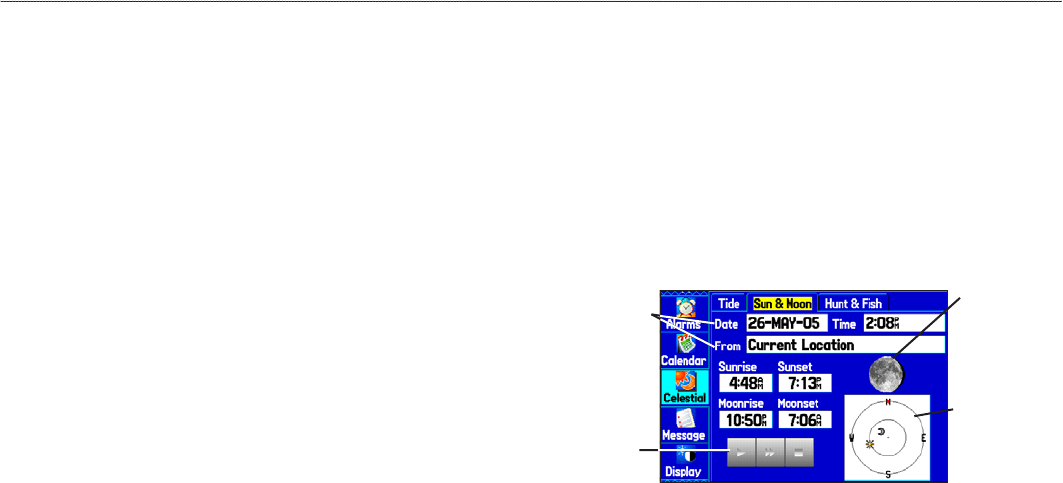
To view a chart’s details for another time during the
day (other than current time):
1. From the Tide sub tab with the chart you want to view, press
MENU, and then select Move Cursor.
2. Press the ROCKER right or left to view the chart at another
time.
3. To return to the current time, press MENU, and select Stop
Moving Cursor.
To automatically start cursor mode to scroll the chart:
1. Highlight the On (Date) eld. Then press down to start the
pointer (pan) mode.
2. Scroll the chart right to view the next day or left to view the
previous day.
Sun & Moon Sub Tab
The Sun & Moon sub tab provides you with sunrise/sunset and
moon rise/set times. A graphic of the moon phase also appears.
You can view Sun & Moon information for any date or location.
You can also use the play, fast forward, and stop buttons to view an
animation of the Sun & Moon sub tab.
To view sun and moon information for a different date:
1. Highlight the Date eld, and press ENTER.
2. Use the ROCKER to change the digits of the date to the date
you want. You can also use the zoom IN and OUT keys to
view information for another date. Press and hold IN or OUT
to scroll quickly through dates.
3. Press ENTER when nished. The unit shows the sun and
moon information for the selected date.
4. To use the current date again, highlight the Date eld. Press
MENU, highlight Use Current Date, and press ENTER.
Sun & Moon Sub Tab
Moon phase
Animation
controls for the
sky view
Select the
date and
location
Location of the
sun and moon
in the sky view
GPSMAP 276C Owner’s Manual 75
MAIn Menu > celestIAl tAb

To view sun and moon information for a different
location:
1. Highlight the From eld, and press ENTER.
2. Highlight Use Find Menu, and press ENTER. The Find Menu
automatically opens.
3. Select a waypoint or point of interest, and press ENTER.
4. On the waypoint information page, press ENTER. The unit
shows the sun and moon information for the location you
selected.
To use the current location, highlight the From eld. Press ENTER,
highlight Current Location, and press ENTER again.
Hunt & Fish Sub Tab
The Hunt & Fish sub tab provides you with predictions of the best
times to hunt and sh in a selected location on a specic date.
To show the Hunt & Fish information:
1. Highlight the Celestial tab on the Main Menu.
2. Select the Hunt & Fish sub tab.
Hunt & Fish Sub Tab
To view hunt and sh information for a different date:
1. Highlight the Date eld, and press ENTER.
2. Use the ROCKER to change the digits of the date. You can
also use the zoom IN and OUT keys to view information for
another date. Press and hold IN or OUT to scroll quickly
through dates.
3. Press ENTER when nished. The unit shows the information
for the date you entered.
76 GPSMAP 276C Owner’s Manual
MAIn Menu > celestIAl tAb
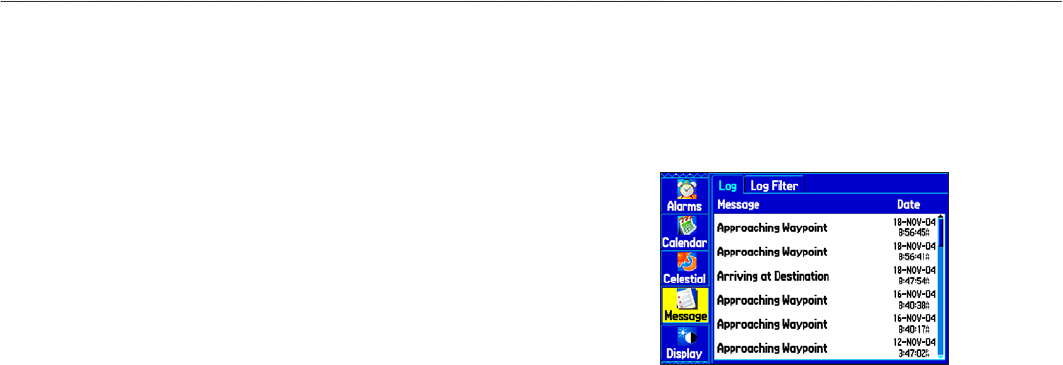
To use the current date again, highlight the Date eld. Press MENU,
highlight Use Current Date, and press ENTER.
To view hunt and sh information for a different
location:
1. Highlight the From eld, and press ENTER.
2. Highlight Use Find Menu, and press ENTER. The Find Menu
opens.
3. Select a point, and press ENTER.
4. On the information page, press ENTER. The unit shows
Hunt & Fish information for the selected location.
To use the current location:
1. Highlight the From eld, and press ENTER.
2. Highlight Current Location, and press ENTER.
Message Tab
The Message tab shows a list of messages generated by the
GPSMAP 276C. Use the ROCKER to scroll through the list of
messages on the Log sub tab. Use the Log Filter sub tab to show
only the message types that you want to view.
Main Menu—Message Tab
To view messages:
1. Highlight the Message tab on the Main Menu.
2. Highlight a message.
3. Press ENTER to view detailed information about the
message.
GPSMAP 276C Owner’s Manual 77
MAIn Menu > MessAge tAb
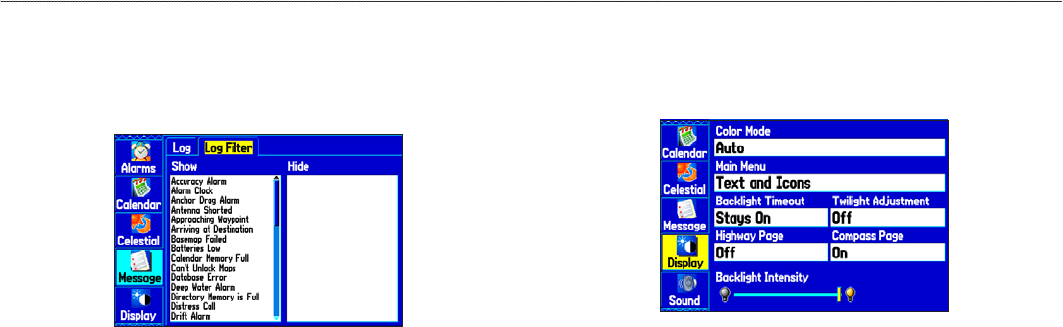
To show or hide messages using the log lter:
1. Highlight the Message tab on the Main Menu.
2. Highlight the Log Filter sub tab. All messages appear by
default.
Message Log Filter Tab
3. Highlight the message type you want to hide, and press
ENTER. The message name appears in the Hide window.
4. Highlight the message, and press ENTER to show it again.
Display Tab
Use the Display tab to set display features, such as pages to show in
the main page sequence and how long the backlight stays on.
Main Menu—Display Tab
Main Menu—indicates whether the Main Menu tabs contain text
and icons (default) or text tabs only.
Color Mode—sets the display to Day, Night, or Auto color mode.
Select Auto to automatically switch from day to night at sunset and
change back at sunrise.
78 GPSMAP 276C Owner’s Manual
MAIn Menu > dIsPlAy tAb
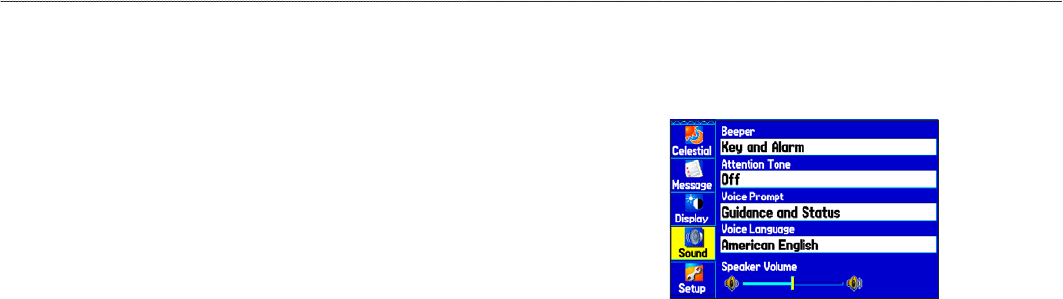
Backlight Timeout—sets the backlight to stay on when it is turned
on, or to time out after a selected period of time has elapsed when
using the battery. The backlight stays on regardless of this setting
when external power is used.
Twilight Adjustment—allows the unit to adjust the backlight for
optimum viewing during twilight times.
Highway Page—indicates whether the Highway Page appears in the
main page sequence.
Compass Page—indicates whether the Compass Page appears in the
main page sequence.
Backlight Intensity—turns the backlight up or down. Press right on
the ROCKER to increase the intensity or left to decrease.
Sound Tab
Use the Sound tab to customize the sounds made by your
GPSMAP 276C.
Main Menu—Sound Tab
Beeper—sets the beeper to chime during keypresses and alarms
(Key and Alarm) or on Alarms Only.
Attention Tone—turns on and off the attention tone that sounds
before the vocal prompts.
Voice Prompt—sets the vocal prompt to operate for Guidance and
Status, Route Guidance Only, or No Voice Prompts.
Voice Language—sets the language for vocal prompts.
Speaker Volume—sets the external speaker or headphone volume.
GPSMAP 276C Owner’s Manual 79
MAIn Menu > sound tAb
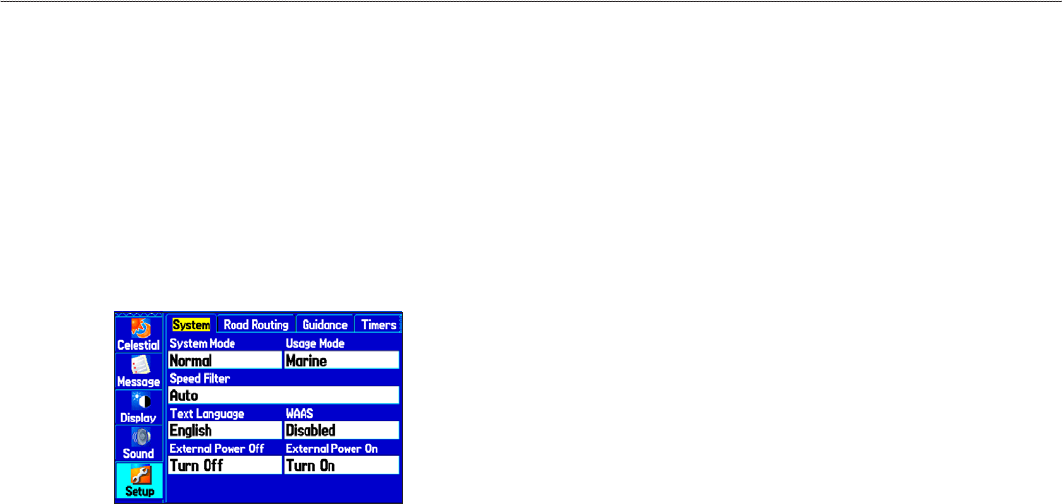
Setup Tab
To customize how your GPSMAP 276C looks, use the System tab to
adjust certain system settings.
System Sub Tab
Use the System sub tab to control settings for system mode, speed
lter, language, and external power.
To access the System sub tab:
1. Select the Setup tab on the Main Menu.
2. Select the System sub tab.
Main Menu—System Setup Tab
System Mode—sets the unit to operate in Normal mode, Battery
Saver mode, or Simulator mode (for practice ONLY).
Usage Mode—sets the unit to operate in Marine (default) or
Automotive Mode.
Speed Filter—allows the unit to average speed readings. Choose
from Off, Auto (automatically controls ltering), or On (allows you
to enter a value in seconds).
Text Language—sets the unit’s on-screen language.
WAAS—allows you to enable or disable WAAS.
External Power Off—indicates whether the GPSMAP 276C
remains on (Stay On) or the unit turns off (Turn Off) when external
power is removed from the unit.
External Power On—indicates whether to turn on the
GPSMAP 276C (Turn On) or charge the battery (Charge Battery)
when external power is applied to the unit.
80 GPSMAP 276C Owner’s Manual
MAIn Menu > setuP tAb
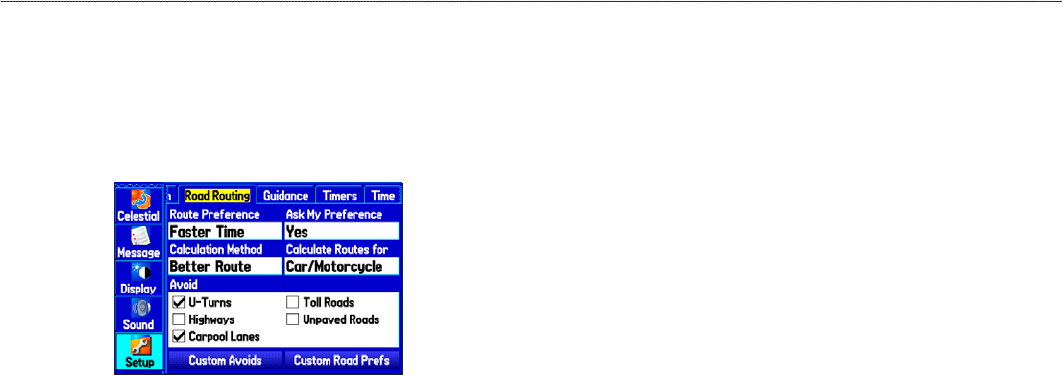
Road Routing Sub Tab
Use the Road Routing sub tab to select road routing settings.
To access the Road Routing sub tab:
1. Highlight the Setup tab on the Main Menu.
2. Select the Road Routing sub tab.
Road Routing Sub Tab
Route Preference—allows the unit to calculate routes based on:
• Faster Time—routes calculated are faster to drive but might
be longer in distance.
• Shorter Distance—routes calculated are shorter in distance
but might take more time to drive.
• Off Road—creates a direct line from your current location to
your destination. This is useful when traveling outside of the
detailed map coverage area or where no roads exist.
Ask My Preference—determines whether you are asked to select a
Route Preference before route calculations.
Calculation Method—sets how the unit searches for the route.
• Quickest Calculation—calculates the route the quickest, but
it might not produce the best route.
• Quick Calculation—takes a bit more time to calculate, but
generates a better quality route.
• Better Route—generates an even better quality route, but
uses a longer calculation time.
• Best Route—generates the most optimal route, but takes the
longest time to calculate.
Calculate Routes for—sets route calculation for the particular
vehicle you are operating to optimize the route for your vehicle type.
Avoid—allows you to avoid certain road types and maneuvers on
your route. The unit uses these road types only if alternative routes
take you too far out of your way or if no other road is available.
Custom Avoids—allows you to enter specic areas and roads that
you would like to avoid in your navigation.
Custom Road Prefs—allows you to avoid or use Major, Medium,
and Minor roads using a slider scale. This is useful if you want to
avoid major highways, for example. Select Auto Set to use preset
values.
GPSMAP 276C Owner’s Manual 81
MAIn Menu > setuP tAb
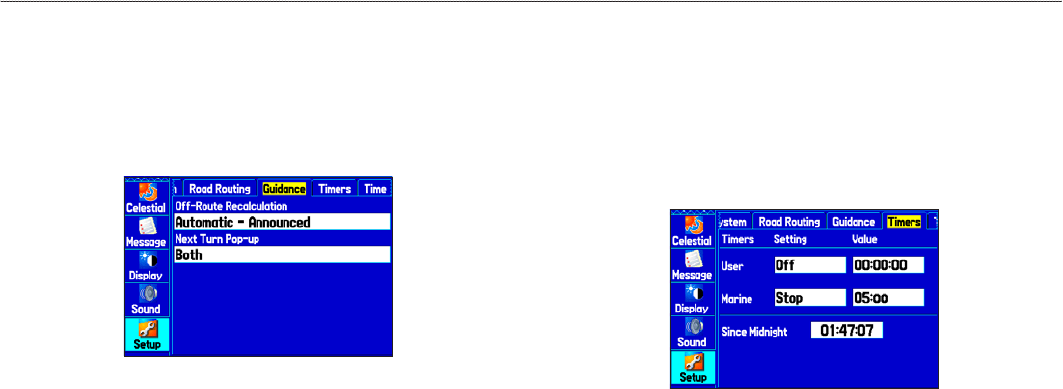
Guidance Sub Tab
Use the Guidance sub tab to set guidance information.
To access the Guidance sub tab:
1. Highlight the Setup tab on the Main Menu.
2. Select the Guidance sub tab.
Guidance Sub Tab
Off-Route Recalculation—allows you to set whether the unit
prompts you when it is recalculating your route (Prompted), or
recalculates automatically. Set whether the unit announces the
recalculation (Automatic - Announced) or recalculates silently
(Automatic - Silent). You can turn the off-route recalculation Off.
Next Turn Pop-up—turns the Next Turn pop-up window Off, or
opens the window when you press NAV (Held NAV Key Only),
opens automatically (Automatically Only), or Both.
Timers Sub Tab
Use the Timers sub tab to set timers and view information about how
long the unit has been on.
To access the Timers sub tab:
1. Highlight the Setup tab on the Main Menu.
2. Select the Timers sub tab.
Timers Sub Tab
User—allows you to set the timer to Count Up or Count Down.
You can also Reset the timer and turn it Off. Enter a time to use
when counting up or down.
Marine—appears on the Compass Page in Marine Mode.
Since Midnight—shows the time the unit was turned on since
midnight. To reset, select All Unit Defaults on the System sub tab.
82 GPSMAP 276C Owner’s Manual
MAIn Menu > setuP tAb
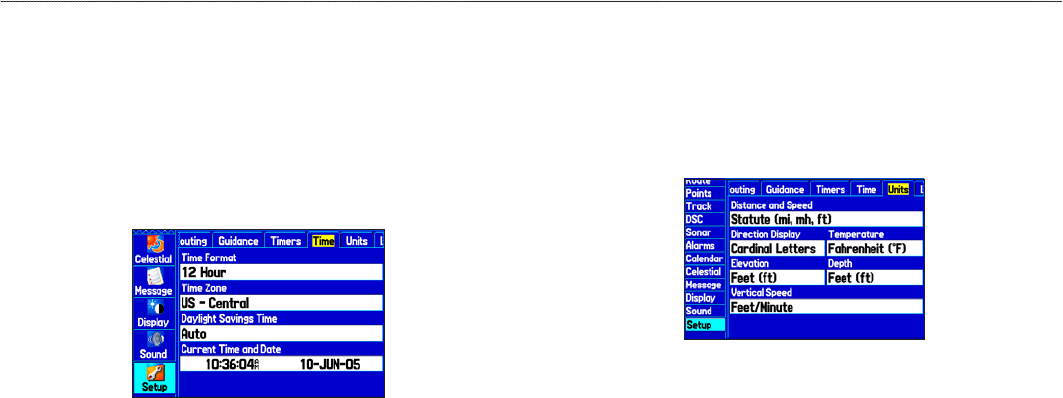
Time Sub Tab
Use the Time sub tab to set the time format and zone, and set the
unit to conform to Daylight Saving Time. The current time and date
appear in the Current Time and Date eld.
To access the Time sub tab:
1. Highlight the Setup tab on the Main Menu.
2. Select the Time sub tab.
Time Sub Tab
Time Zone—choose the time zone for your city so the
GPSMAP 276C shows the correct local time. Select Other to
enter a UTC Offset.
If the wrong date appears, press MENU, highlight Set Date, and
press ENTER. You are prompted to enter the current year. The
GPSMAP 276C uses this information when gathering satellite data
to show the correct date.
Units Sub Tab
Use the Units sub tab to customize measurement units.
To access the Units sub tab:
1. Highlight the Setup tab on the Main Menu.
2. Select the Units sub tab.
Distance and Speed—select the unit of measure to show your speed
and distance traveled.
Direction Display—select the unit of measure to show your
direction. Mils is a unit of angle measurement used in military
settings, in which 17.78 mils equal one degree.
Temperature—select the unit of measure to show the temperature.
Elevation—select the unit of measure to show your altitude.
Depth—select the unit of measure to show the depth.
Vertical Speed—select the unit of measure to show the vertical
speed.
GPSMAP 276C Owner’s Manual 83
MAIn Menu > setuP tAb
Location Sub Tab
Use the Location sub tab to change location setting information.
To access the Location sub tab:
1. Highlight the Setup tab on the Main Menu.
2. Select the Location sub tab.
See the “Appendix” for more information about location formats
and map datums. Also visit the National Imagery and Mapping
Agency at www.nima.mil for more information on grids and datums.
Changing the Location Format
When you change the Location Format, you change the coordinate
system in which a given location reading appears. The default
format is latitude and longitude in degrees, minutes, and thousandths
of a minute (hddd°mm.mmm). Only change the location format if
you are using a map or chart that species a different location format
or you want to use a format you are familiar with.
Selecting a Different Map Datum
Datums are used to describe geographic positions for surveying,
mapping, and navigation and are not actual maps built in the unit.
Only change the datum if you are using a map or chart that species
a different datum.
The default setting is WGS 84. The unit automatically selects the
best datum depending on your chosen location format.
WARNING: Selecting the wrong map datum can result in
substantial position errors. When in doubt, use the default
WGS 84 datum for best overall performance.
Selecting a Different Heading Reference
You can select from Auto Mag Var, True, Grid, and User Mag Var.
Auto Mag Var provides magnetic north heading references that are
automatically determined from your current location. True provides
headings based on a true north reference. Grid provides headings
based on a grid north reference (and is used in conjunction with
the grid position formats). User Mag Var allows you to specify the
magnetic variation at your current location and provides magnetic
north heading references based on the variation you enter. Enter
the magnetic variation of your current location in the Magnetic
Variation eld if you selected User Mag Var for the heading.
WARNING: If User Mag Var is selected, the unit does not
automatically calculate and update the magnetic variation at
your present location. You must update the magnetic variation as
your location changes. Failure to update this setting can result in
substantial differences between the information shown on your
unit and external references, such as a magnetic compass.
84 GPSMAP 276C Owner’s Manual
MAIn Menu > setuP tAb
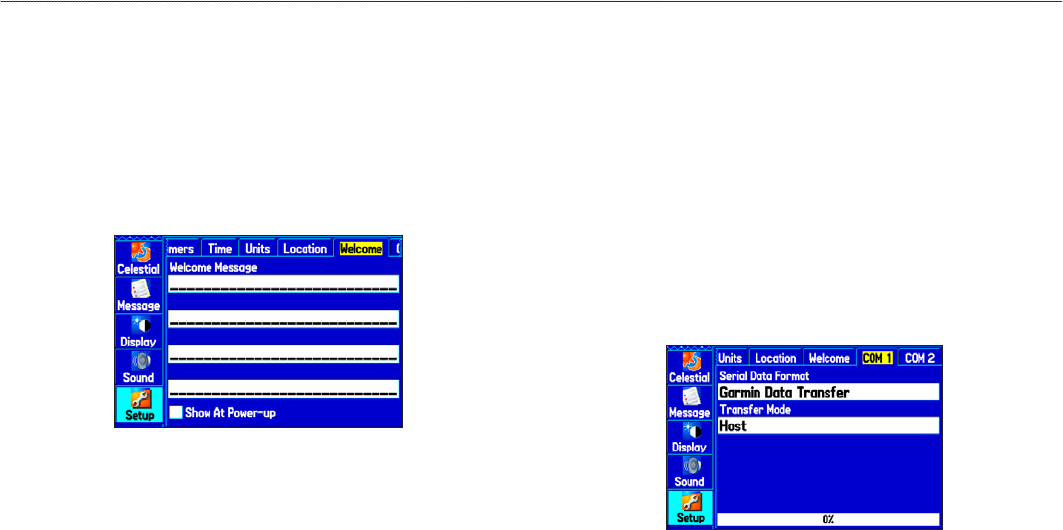
Welcome Sub Tab
Use the Welcome sub tab to enter information, such as your name
and address, or a welcome message that appears when the unit is
turned on. This feature is helpful if your unit is ever misplaced.
To access the Welcome sub tab:
1. Highlight the Setup tab on the Main Menu.
2. Select the Welcome sub tab.
Welcome Sub Tab
To add a welcome message:
1. Highlight one of the Welcome Message elds, and press
ENTER.
2. Use the ROCKER to enter information in the elds. You do
not need to enter information in every eld. When nished,
press ENTER again.
3. To show the welcome message when you turn on your
GPSMAP 276C, highlight the Show at Power-up check
box, and press ENTER to select it. To hide the welcome
information at start-up, clear the check mark.
Com 1 and Com 2 Sub Tabs
Use the Com 1 and Com 2 sub tabs to change the data format and
control the input/output format used when connecting your unit to
external devices.
To access the Com 1 and Com 2 sub tabs:
1. Highlight the Setup tab on the Main Menu.
2. Select the Com 1 or Com 2 sub tab.
Com 1 Sub Tab
GPSMAP 276C Owner’s Manual 85
MAIn Menu > setuP tAb

Serial Data Format—sets the data format to one of the following:
• Garmin Data Transfer—provides the proprietary format
used to exchange data with a computer or another Garmin
GPSMAP 276C. Garmin Data Transfer is disabled when the
USB is connected, and the unit automatically switches to USB
format. When the USB is disconnected, the USB eld changes
to Transfer Mode.
• GARMIN DGPS—connects the GPSMAP 276C with a
Garmin DGPS beacon receiver.
• Garmin Remote Sonar—connects the GPSMAP 276C with
a GSD 20 or GSD 21 Sounder Module and transducer.
• NMEA In/NMEA Out—supports the input/output of
standard NMEA 0183 version 3.01 data and sonar NMEA
input support for the DBT, DSE, DPT, MTW, and VHW
sentences.
• RTCM In—allows DGPS input using a standard RTCM
format.
• RTCM In/NMEA Out—allows DGPS input using a standard
RTCM format and also provides NMEA 0183 version 3.01
output.
• RTCM In/Text Out—allows Differential GPS (DGPS) input
using a standard RTCM format and also outputs simple text
data that includes, data, time, location, and velocity.
• Text Out—allows the unit to output simple text data that
includes, data, time, location, and velocity. The Baud can be
set to 1200, 2400, 4800, or 9600.
• None—provides no interfacing capabilities.
If you select GARMIN DGPS or RTCM In/NMEA Out format,
you can control a differential beacon receiver directly from your
GPSMAP 276C using the COM 1 sub tab. You can have the unit
automatically scan for the DGPS beacon signal, or you can enter
the beacon frequency and bit rate on the unit, and the information is
used to tune the beacon receiver. If you use a DGPS receiver, WAAS
capability is automatically turned off.
To have the unit automatically scan for a frequency:
1. Set the unit to GARMIN DGPS or RTCM In/NMEA Out.
2. Highlight the Beacon eld, and press ENTER.
3. Highlight Scan, and press ENTER. The numbers in the
Frequency eld change as the unit scans from 284 kHz to
325 kHz, 200 bit rate, then 100 at 6-second intervals.
86 GPSMAP 276C Owner’s Manual
MAIn Menu > setuP tAb
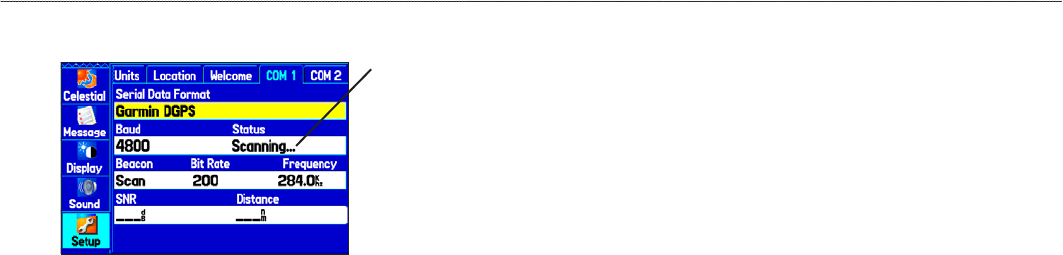
The Status eld shows one of the following:
COM 1 sub tab with GARMIN DGPS selected
Status of the
scan
• Tuning—the unit is attempting to tune to the specied
frequency and bit rate.
• Scanning—the unit is automatically scanning through the
frequencies and bit rates.
• Receiving—the unit is receiving DGPS signal and ready for
operation.
• Check Wiring—the unit is not making connection with the
DGPS receiver.
To restart the scan:
1. Press MENU.
2. Highlight Restart Scan, and press ENTER.
To manually enter a frequency and bit rate:
1. With the unit set to GARMIN DGPS or RTCM In/NMEA Out,
use the ROCKER to highlight the Beacon eld, and press
ENTER.
2. Highlight User, and press ENTER.
3. Highlight the Frequency or Bit Rate eld, and press ENTER.
4. Enter a frequency or bit rate. Press ENTER when nished.
When the unit is receiving a DGPS signal, the Signal to Noise Ratio
(SNR) and Distance elds show data. The SNR range is 0 dB to
30 dB, with 30 being the best. The Distance eld might or might not
show data, depending on the signal being broadcast from the DGPS
site.
The DGPS beacon transmitters are operated by the United States
Coast Guard (or similar government agency in other countries),
which is responsible for their accuracy and maintenance. For DGPS
transmitter problems or to nd the most updated list of frequencies
and coverage areas, contact your local USCG or see their Web site at
www.navcen.uscg.mil/.
GPSMAP 276C Owner’s Manual 87
MAIn Menu > setuP tAb

Advanced NMEA Output Setup
If you are going to interface the GPSMAP 276C with another
piece of equipment (such as a radar or autopilot), the unit needs
to be set to output NMEA data. The NMEA data transmission can
be customized to keep the output rate at two seconds. If too many
NMEA sentences are started, the unit might take longer than two
seconds to update.
You can also set the Output Rate to Fast to output a minimum
number of NMEA sentences at 1-second intervals.
To access the Advanced NMEA Output Setup:
1. Highlight the Setup tab on the Main Menu.
2. Select the COM 1 or COM 2 sub tab.
3. Highlight the Serial Data Format eld, and press ENTER.
4. Select NMEA In/NMEA Out, and press ENTER.
5. Press MENU to open the options menu. Select Advanced
NMEA Setup, and press ENTER.
Advanced NMEA Output Setup
Use the Advanced NMEA Output Setup Page to set the output rate,
change the precision of the Lat/Lon minutes, set Waypoint IDs to
names or numbers, and turn on and off the GPS status, the GARMIN
Proprietary sentences, and Waypoint/Route (WPL, RTE).
GPSMAP 276C NMEA Sentence Output (NMEA version 3.01
compliant):
• Always transmitted: GPRMC, GPGGA, GPGLL, GPBWC,
GPVTG, GPXTE, GPRMB
• Switchable sentences: GPGSA, GPGSV, GPWPL, GPRTE
• GARMIN proprietary: PGRME, PGRMZ, PGRMM
88 GPSMAP 276C Owner’s Manual
MAIn Menu > setuP tAb
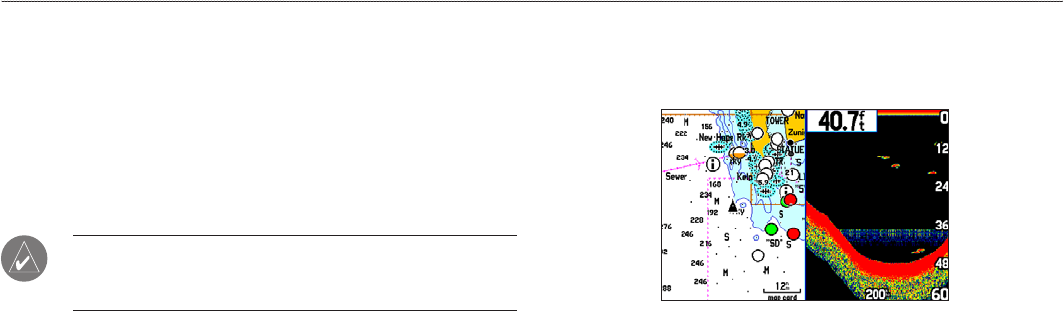
SettInG uP and uSInG Sonar
This section covers the additional sonar options for the
GPSMAP 276C when used in conjunction with a GSD 20 or
GSD 21 Sounder Module. Read the GSD 20 or GSD 21 Sounder
Module Installation Instructions to properly install the sounder
module. When you turn on your GPSMAP 276C, the sounder
module automatically turns on.
NOTE: You MUST have a transducer and a GSD 20 or GSD 21
installed and connected to your GPSMAP 276C to use the sonar
features.
The Sonar Page is added to the end of the page sequence when you
are in Marine Mode. To view the Sonar Page, press PAGE or QUIT
repeatedly until it appears.
Showing Sonar on the Map Page
You can change the layout of the Map Page to show a split screen
to show the sonar on the Map Page. You must be in Marine Mode to
use sonar.
To show the Sonar Page on the Map Page:
1. Press and hold PAGE.
2. Highlight Marine, and press ENTER.
3. Press PAGE or QUIT to open the Map Page.
4. Press MENU. Highlight Set Up Page Layout, and press
ENTER.
5. Highlight Map With Sonar, and press ENTER.
Map Page with Split Screen
To resize the Map Page sonar split screen:
1. After showing the Sonar and Map Pages together in the split
screen as described in the previous steps, press MENU.
2. Highlight Size Split, and press ENTER.
3. Use the ROCKER to move the vertical double-arrow right or
left.
4. Press ENTER.
5. To stop resizing the screen, press QUIT. You can also press
MENU, highlight Stop Resizing, and press ENTER to stop
resizing the screen and retain the previous split setting.
GPSMAP 276C Owner’s Manual 89
settIng uP And usIng sonAr > shoWIng sonAr on the MAP PAge
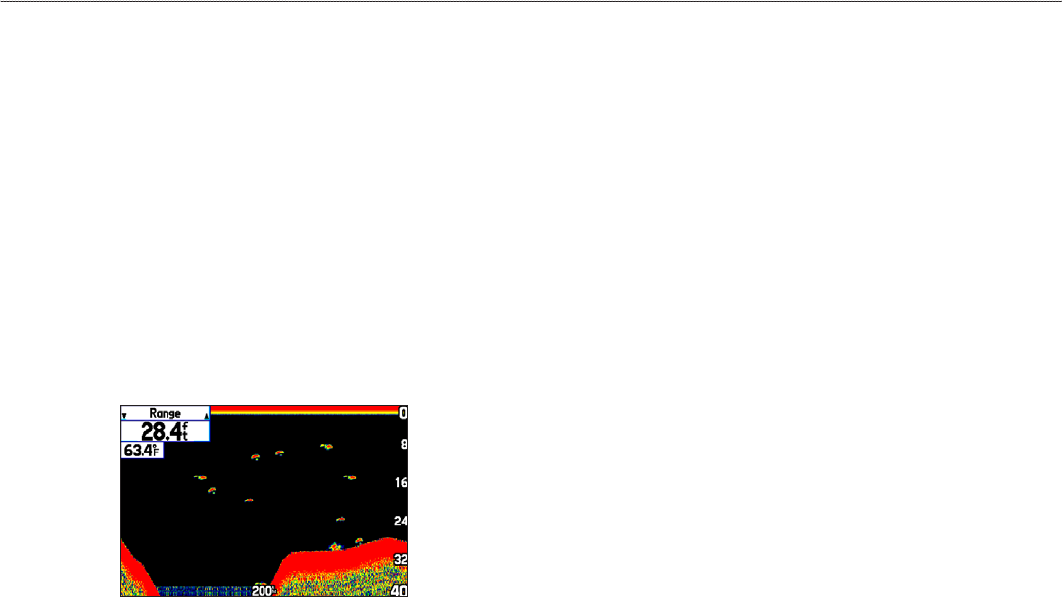
Using the Sonar Page
When combined with a GSD 20 or GSD 21 Sounder Module, your
GPSMAP 276C becomes a powerful shnder/asher. If a GSD
20 or GSD 21 is attached, but the unit does not detect a transducer,
a “Sonar Turned Off” message appears across the Sonar Page. The
Sonar Page appears only if a GSD 20 or GSD 21 has ever been
attached or when the unit is in Simulator Mode.
The middle of the page contains a right-to-left moving sonar image
of the water beneath your boat. Items appear as they pass under your
transducer. Those items on the right side of the screen are closer to
you than those on the left. Along the right side of the screen is an
adjustable scale that reects the depth of the area being shown. The
top left corner shows the adjustment option, the depth, and the water
temperature.
Sonar Page
The sonar returns show as red (strongest), then orange (strong),
yellow (medium), green (weaker), and blue (weakest). The Fish
Symbols option allows you to view the actual sonar data, a sh
symbol or a combination of both. When the unit is set to Dual, the
appearance of the sh symbols changes. Fish symbols from the
center of the beam (200 kHz) are solid (or narrow arches), but the
returns from the edges of the beam (50 kHz) are hollow (or wide
arches).
The sonar display can also be set to show a split screen view of a
zoomed portion of the sonar, bottom lock (display scaled from the
bottom up), or a combination of these options. For example, you
can choose to show dual frequency at a 2X zoom (Dual 2X) on one
half and normal range dual frequency (Dual) on the other half. The
current display mode appears at the bottom of each sonar display.
Read the “Understanding Sonar” section beginning on page 98 for
more on information about sonar.
90 GPSMAP 276C Owner’s Manual
settIng uP And usIng sonAr > usIng the sonAr PAge
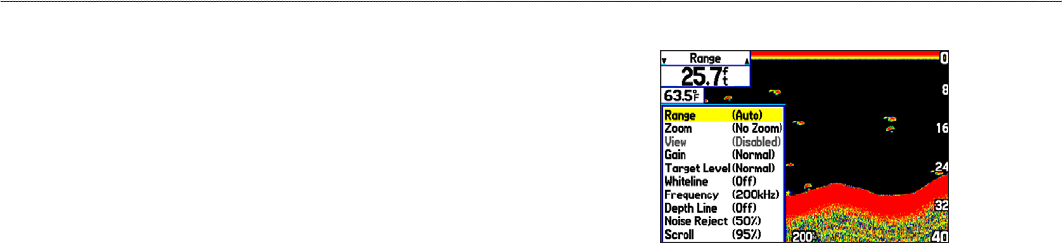
Adjusting the Sonar Page
Use the Adjustment Menu to access the settings and features most
commonly used on the Sonar Page. Ten main adjustment options
are available: Range, Zoom, View, Gain, Target Level, Whiteline,
Frequency, Depth Line, Noise Reject, and Scroll. The currently
selected option appears in the upper-left corner.
To select an adjustment option:
Use one of the following methods to select an adjustment option:
• Press the ROCKER right or left to scroll through the
adjustment options. When the adjustment option you want
appears, press ENTER.
• Press MENU, highlight Adjustments, and press ENTER.
Use the ROCKER to highlight the adjustment, and press
ENTER.
After you select an adjustment option, press the ROCKER up or
down to change the setting.
You can also press MENU and highlight a shortcut setting to
quickly change to commonly used settings and values.
Press ENTER to accept the new setting (or press QUIT to cancel)
and return to the Sonar Page.
Sonar Adjustment Options
Scroll—adjusts the rate that the sonar display scrolls from right to
left. If you are sitting still or the sonar display is moving too fast,
slow the scroll rate or pause the scrolling.
Range—sets the display depth range used for viewing. The unit can
be set to automatically track the bottom or set to a user-specied
depth range.
Zoom—allows you to select a display zoom scale or to split
the display. When a scale other than No Zoom is selected, the
Adjustment Menu shows a new selection labeled View or Span. The
Zoom function is divided into six levels:
• 2X Split—shows two reduced-size sonar pictures at the same
time. The right half of the screen shows the complete sonar
picture at its original scale. The left half shows a portion of
the original picture at 1/2 depth scale.
GPSMAP 276C Owner’s Manual 91
settIng uP And usIng sonAr > usIng the sonAr PAge
• 2X Zoom—shows the 2X zoomed picture on the full screen.
• 4X Split—shows two reduced pictures, the right at the
original depth scale and the left at 1/4 the original depth scale.
• 4X Zoom—shows the 4X zoomed picture on the full screen.
• Btm (Bottom) Split—shows two reduced pictures, the right
at the original depth scale and the left showing sonar returns
from the bottom up. All target depths read as a distance from
the bottom.
• Btm (Bottom) Lock—shows returns from the bottom up on
the full screen.
TIP: Quickly zoom in and out of the Sonar display by pressing
the IN and OUT keys. Turn off the zoom function by pressing
the OUT key until the No Zoom setting appears.
View/Span—changes the viewing range of a zoomed display. If the
display is 2X or 4X split, only the zoomed portion on the left side of
the screen is affected by the change. If the display is Bottom Split or
Bottom Lock, Span adjusts how far off the bottom the unit shows
data. This option is available when a Zoom scale other than No
Zoom is selected.
Gain—allows you to control the sensitivity of the unit’s receiver
To see more detail, increase the receiver sensitivity by selecting a
higher gain. If there is too much detail select a lower gain.
Target Level—adjusts colors used to show sonar information. A
Color Bar appears on the right side of the screen as you adjust this
setting. A higher percentage results in more strong-signaled colors
shown on the sonar display. A lower percentage results in more
weaker-signaled colors shown on the sonar display. This setting does
not increase or decrease the unit Gain.
Whiteline—controls how the unit shows information about the
bottom type (hard or soft). With Whiteline Off, the bottom return
shows as red. Set Whiteline at Normal or 1–100% to determine
bottom hardness. See page 100 for more information.
Frequency—allows you to choose a transducer frequency.
Frequency refers to the “pitch” of the sound that the transducer
sends and receives.
Depth Line—adds a horizontal depth line across the display that is
used to measure the depth of underwater objects. The depth of the
line appears in a box on the right side of the line. Press up or down
on the ROCKER to move the line on the sonar display.
Noise Reject—helps lter unwanted noise from the sonar display.
The Noise Reject can be turned Off, set to Normal (automatically
adjusts for optimum viewing), or to a xed 1–100% setting. When
setting the Noise Reject, remember that a higher noise rejection
setting is less likely to show sh or structures.
92 GPSMAP 276C Owner’s Manual
settIng uP And usIng sonAr > usIng the sonAr PAge

Resizing the Split Screen
You can adjust the way the split screen appears. This option is only
available when a zoom scale other than No Zoom is selected.
To resize the Sonar Page split screen:
1. From the Sonar Page split screen, press MENU.
2. Highlight Size Split, and press ENTER.
3. Move the horizontal double-arrow left or right using the
ROCKER until the vertical width line shows, then press
ENTER.
4. If you want to cancel this operation, press QUIT or press
MENU, highlight Stop Resizing, and press ENTER.
Using the Pointer on the Sonar Page
You can show the pointer (arrow) to reference sonar items and
mark underwater waypoints. This makes it easier to nd and use
an object such as a stump for a future shing location. When using
this feature, the Sonar Page pauses. The depth continues to update
while the display is paused, but the unit does not show any new
sonar data until the Sonar Page resumes scrolling. You might see a
discontinuity from where the sonar information stops and where it
starts again.
To mark an underwater waypoint:
1. From the Sonar Page, press MENU, highlight Show Pointer,
and press ENTER.
2. Use the ROCKER to move the pointer to the location you
want to mark, and press ENTER. The New Map Waypoint
Page opens.
3. To change the name, symbol or depth, highlight the
appropriate eld, and press ENTER. Make your changes,
and press ENTER.
4. When you are done making changes, highlight OK, and
press ENTER.
5. To return to the standard Sonar Page, press QUIT; or press
MENU, highlight Hide Pointer, and press ENTER.
GPSMAP 276C Owner’s Manual 93
settIng uP And usIng sonAr > usIng the sonAr PAge
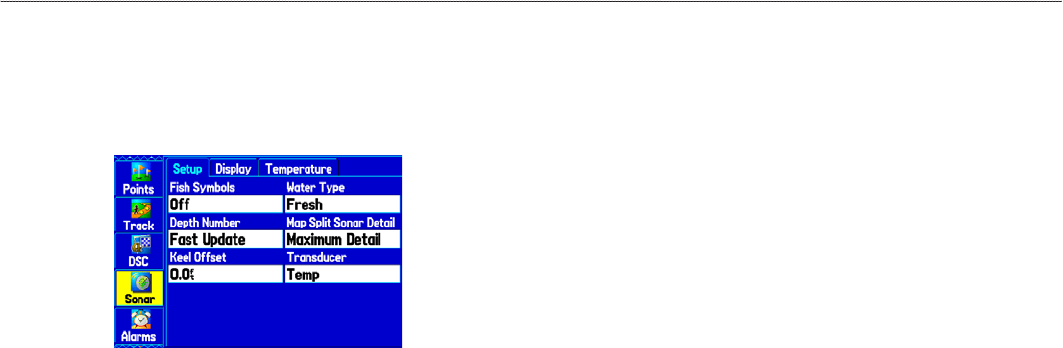
Setting Up Sonar
Use the Sonar tab on the Main Menu to set up the Sonar Page.
To access the Sonar Tab:
Highlight the Sonar tab on the Main Menu.
Main Menu—Sonar Tab
Fish Symbols—select how the Sonar Page shows underwater targets
and background information. Select Off to show all of the available
information about the underwater environment. Select a sh symbol
to show only the information related to that symbol.
Water Type—select the proper water type in which you are boating.
Because sound waves travel through fresh and salt water at different
rates, it is necessary to select the Water Type to ensure accurate
readings on the unit.
Depth Number—select the efciency of the digital depth update
rate. Fast Update updates quicker and is recommended for low-
noise water deeper than 50 feet. Auto is best for shallow water or
high-noise areas, has a slower screen update, and is best used if you
travel a wide variety of depths.
If the unit is unable to track the bottom for any reason, the digits in
the depth window ash on and off to alert you that the unit is not
tracking the bottom.
Map Split Sonar Detail—select how much detail appears on the
Map Page with the sonar shown. Full Range shows data using the
Range setting of the Sonar Page, regardless of Zoom or Bottom
Lock. Maximum Detail shows any Zoom or Bottom Lock data
from the Sonar Page.
Keel Offset—enter the surface reading for the depth of a keel. This
makes it possible to measure depth from the bottom of your keel
instead of from the transducer’s location. Enter a positive number
to offset for a keel. It is also possible to enter a negative number to
compensate for a large vessel that can draw several feet of water.
The Keel Offset is reected in the depth reading.
Transducer—select the type of transducer that you are using. If you
are using a speed-capable transducer/sensor, select Temp, Spd.
94 GPSMAP 276C Owner’s Manual
settIng uP And usIng sonAr > settIng uP sonAr
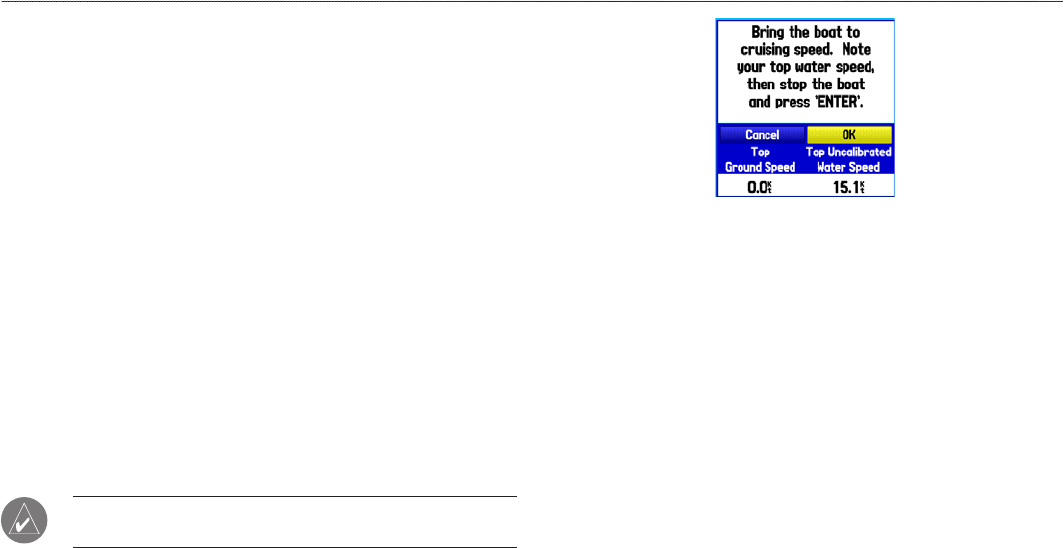
Calibrating the Water Speed
If you select Temp, Spd for the Transducer option on the Setup sub
tab, you must calibrate the water speed to ensure the Water Speed
shown on your unit is accurate. The calibration should take place in
water having little or no current.
The unit automatically uses the GPS ground speed, if it is available,
for comparison on the calibration. If a GPS ground speed is not
available, use either your boat’s speedometer reading (not always
accurate) or a stopwatch to determine your speed over a certain
distance. To nd out your speed, divide the distance by the time.
To calibrate the water speed:
1. On the Setup sub tab, highlight the Calibrate Water Speed
button, and press ENTER.
2. Bring the boat to a cruising speed. Both the top ground and
uncalibrated water speeds are shown at the bottom of the
calibration window. Note your top speed, then stop the boat,
and press ENTER.
NOTE: You must have a transducer with a built-in speed sensor
or a separate compatible speed sensor.
Calibrating the Water Speed
3. By default, the top ground speed is automatically shown. If
a ground speed is not available, the top uncalibrated water
speed is used instead. If the new speed is correct, highlight
OK, and press ENTER.
If you want to manually enter a calibration, press ENTER
while the speed is highlighted, enter a new speed, and press
ENTER again.
If the boat is not moving fast enough or the speed sensor is not
outputting a speed, “Boat Is Not Moving Fast Enough To Calibrate”
appears at the bottom of the screen. Check that the speed sensor
wheel is moving or safely increase boat speed. If there is a problem
with the speed sensor or if a speed senor is not installed, “Water
Speed Sensor Is Not Working” appears at the bottom of the screen.
Check connections of speed sensor cables.
GPSMAP 276C Owner’s Manual 95
settIng uP And usIng sonAr > settIng uP sonAr
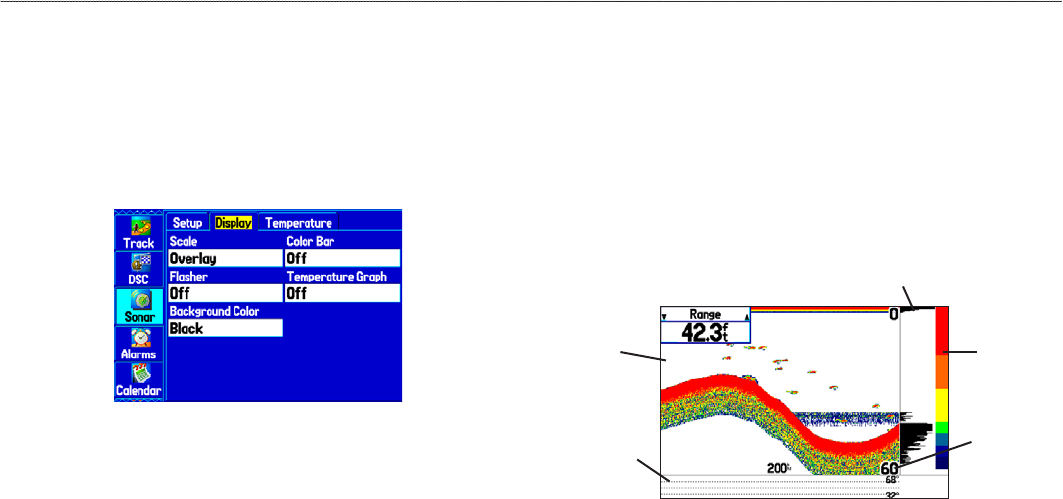
Setting Up the Sonar Display
You can set up how the sonar information appears on-screen using
the Display sub tab.
To access the Display sub tab:
1. Highlight the Sonar tab on the Main Menu.
2. Highlight the Display sub tab.
Display Sub Tab
Scale—select how and where you want the depth scale to appear.
Color Bar—select On to show a gradient scale of the current Target
Level setting on the Sonar Setup tab.
Flasher—select On to show a graphic asher representation on
the far right side of the sonar display. This graphic asher shows
structure and bottom returns much the same as a true asher. You
might nd this feature useful when using sh symbols.
Temperature Graph—select On to show a temperature graph along
the bottom of the Sonar Page.
Background Color—select the color for the Sonar Page and the
sonar on the Map Split Page.
Sonar Page with the Sonar Display settings changed
Color bar
Graphic asher
Depth scale
in corners
Temperature
graph
White
background
96 GPSMAP 276C Owner’s Manual
settIng uP And usIng sonAr > settIng uP sonAr
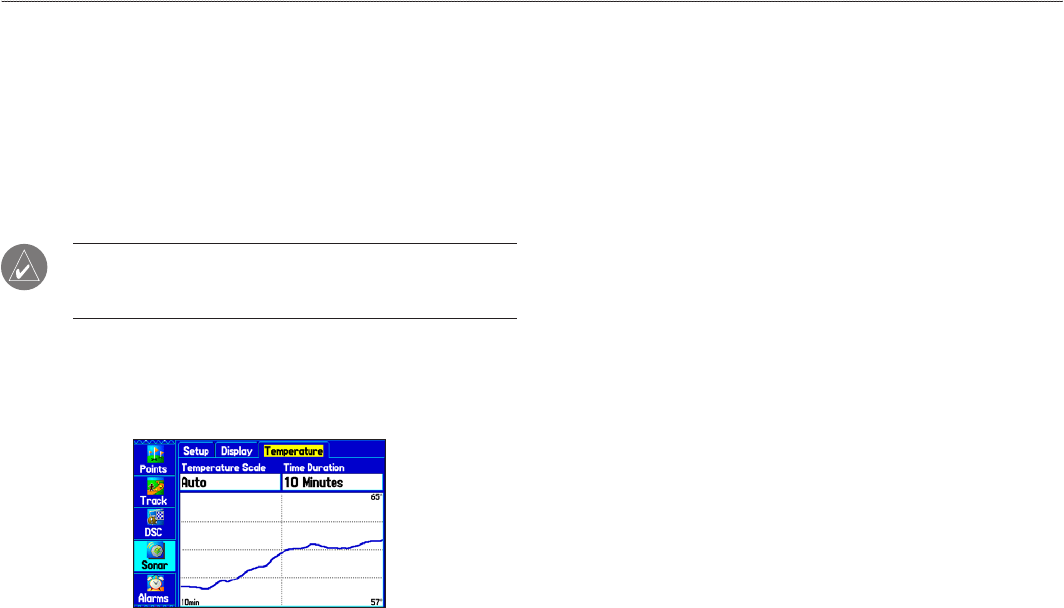
Viewing the Temperature
Use the Temperature sub tab to view a graph of water temperature
changes over a period of time. The graph reads from right to left
so that the most recent temperature measured appears on the far
right side of the graph. The dotted lines within the graph indicate
intervals in the temperature scale and the duration of time. To view
temperature information, you must select Temp (or Temp, Spd.) as
the transducer type on the Setup sub tab.
NOTE: You must be receiving proper sonar data from another
device, such as a Garmin GSD 20 or GSD 21 Sounder Module,
to view temperature information.
To access the Temperature sub tab:
1. Highlight the Sonar tab on the Main Menu.
2. Select the Temperature sub tab.
Temperature Sub Tab
Changing the Temperature Display
The graph adjusts and shows the temperature changes according to
the Temperature Scale and Time Duration settings.
Temperature Scale—select a degree span from the list. Select Auto
to have the unit automatically determine the best range, or select a
span of 2, 4, 6, 8, or 10 degrees.
Time Duration—set how fast or slow the temperature log scrolls; a
shorter time duration means a faster temperature log scroll. Select a
duration from 1 minute to 2.5 hours.
Resetting the Temperature Graph
To reset the scale range for the temperature graph, press MENU,
highlight Reset Auto Scale, and press ENTER. This is useful
when the scale spans a large range due to extreme temperature
changes. You can reset the scale only when you select Auto for the
Temperature Scale.
To restore the temperature graph to defaults, press MENU, highlight
Restore Default, and press ENTER.
GPSMAP 276C Owner’s Manual 97
settIng uP And usIng sonAr > settIng uP sonAr
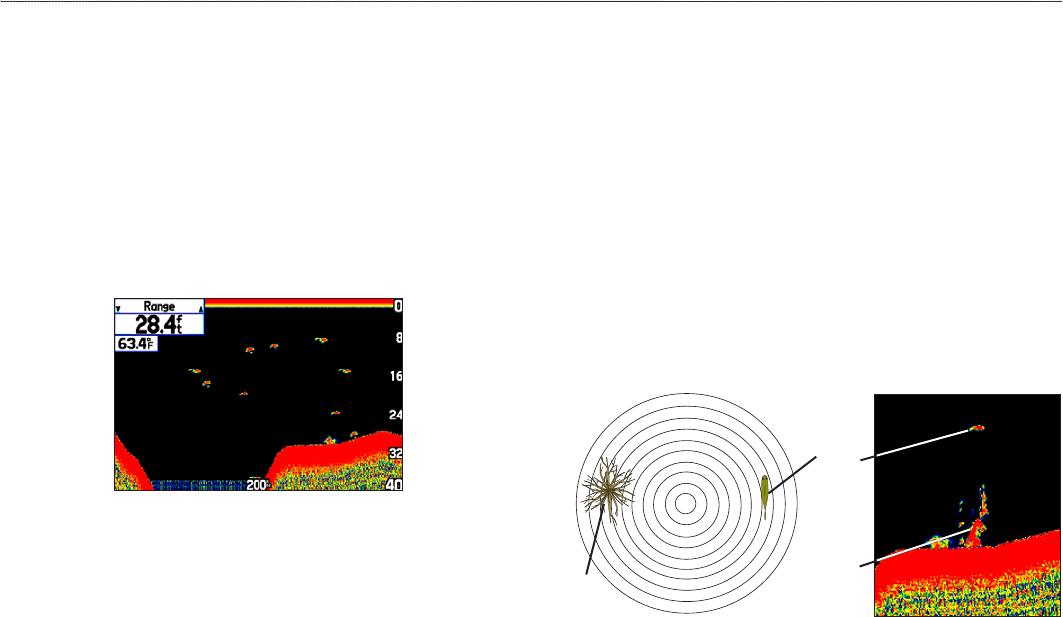
Understanding Sonar
The transducer mounted on your vessel transmits sound waves
toward the bottom of the water in a cone-shaped pattern. When
a transmitted sound wave strikes an underwater object—such as
the bottom, a structure, or a sh—sound is reected back to the
transducer. The transducer collects the reected sound waves and
sends the data to the GSD 20 or GSD 21 Sounder Module and then
to the GPSMAP 276C to be processed and shown. The underwater
data is shown on the Sonar display in the order that it is returned;
rst returned is the rst on the display.
Sonar Page
If the only thing between the transducer and the bottom is water,
the rst strong return comes from the bottom directly below the
transducer and sets the bottom level. Weaker secondary returns
provide the detailed data. Stronger returns show in darker colors,
with red being the strongest.
Understanding the Sonar Display
One of the rst things to understand about sonar is that the
transducer sends a beam down to the bottom of the water, much like
the beam of a ashlight. The beam starts small near your vessel and
expands as it gets to the bottom. See “Transducer Coverage” for
more detailed information.
The Sonar Page does not show a three-dimensional representation of
the underwater environment; the display is in two-dimensions, much
like if you took a picture of an aquarium. Only the depth of the item
in the water appears. The Sonar display does not show you where an
item is located horizontally in the water, as shown in the drawings
below. The sh is not directly above the tree in reality, but it might
look like it is on the Sonar Page.
20'
10'
1'
Aerial View of the Water Sonar Display
Fish
Tree
Tree
98 GPSMAP 276C Owner’s Manual
settIng uP And usIng sonAr > understAndIng sonAr
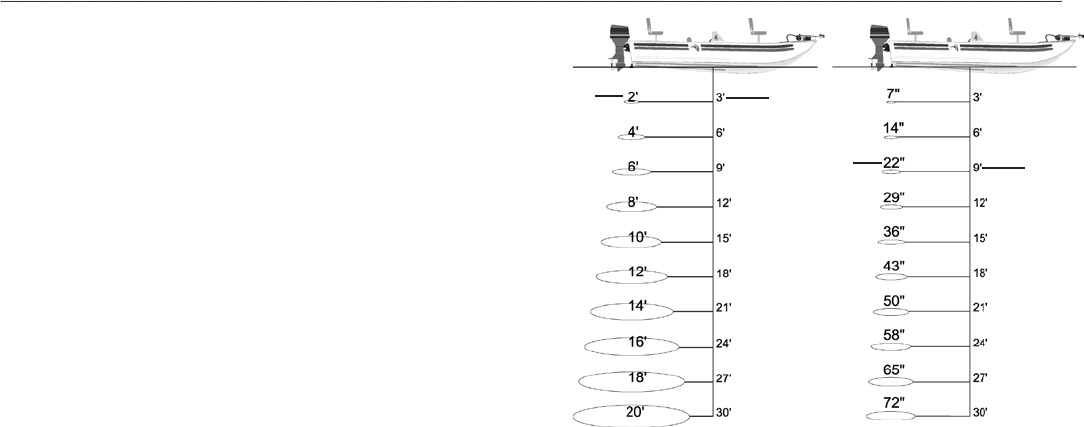
Transducer Coverage
The area covered by the transmitted sound waves is determined
by the cone angle of the transducer and the water depth. The wide
cone angles (40°) associated with low frequencies (50 kHz) provide
a large coverage area for nding sh within a coverage width that
is approximately 2/3 of the water depth. However, this also means
that wide cone angles produce less bottom detail and resolution. As
shown in the drawing on the near right, the 40° cone angle produces
a coverage area of approximately a 20-foot diameter circle at a
30-foot depth.
The narrow cone angles (10°) associated with high frequencies
(200 kHz) provide better bottom resolution and crisper detail, but
cannot show a large coverage area for nding sh. The 10° cone
angle provides a coverage width that is approximately 2/10 of the
water depth. As shown in the drawing on the far right, the 10° cone
angle produces a coverage area of approximately a 6-foot diameter
circle at a 30-foot depth.
Dual frequency mode combines both frequencies to get the best
coverage area and contour/depth readings.
40° Cone Angle (50 kHz)
Coverage
diameter Depth
10° Cone Angle (200 kHz)
Coverage
diameter Depth
GPSMAP 276C Owner’s Manual 99
settIng uP And usIng sonAr > understAndIng sonAr
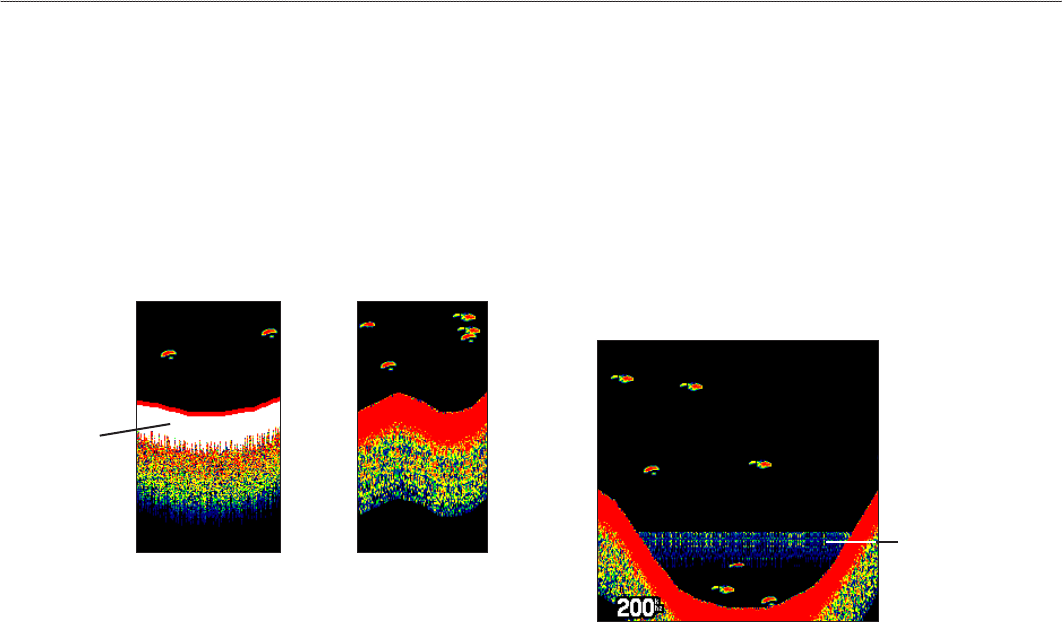
Whiteline
The GSD 20 or GSD 21 can help you determine whether the bottom
is hard or soft. When the sonar sound waves are reected back
by the bottom, a hard bottom returns a stronger signal than a soft
bottom. A thin whiteline indicates a softer bottom, while a thick
whiteline indicates a harder bottom. Normally, a red line is used
to show the point where water meets the bottom. This line follows
the bottom contour, along with any signicant objects lying on the
bottom. The unit uses the whiteline function to make the bottom
layer information easier to distinguish.
Whiteline OffWhiteline On
Thick
Whiteline: Hard
bottom
Thermoclines
A rough denition of a thermocline is a break in water where
the water temperature changes faster than the water above it.
Thermoclines are shown as the weakest colors.
One of the unique features offered by Garmin is See-Thru
®
technology, which allows the GPSMAP 276C to hear both weak and
strong signals simultaneously so it can identify sh returns under
the toughest conditions, such as suspended in thermoclines or even
hiding near structures. See-Thru
®
technology allows the GSD 20 or
GSD 21 to “see” through thermoclines and helps locate sh where
they live.
Thermocline
100 GPSMAP 276C Owner’s Manual
settIng uP And usIng sonAr > understAndIng sonAr

aPPendIx
Specications
Physical Specications
Size: 5.7" W x 3.2" H x 1.9" D
(14.5 x 8.1 x 4.8 cm)
Weight: 13.6 oz (0.39 kg)
Display: 3.75" diagonal (9.5 cm) Transective, 256-color
display with backlighting (480 x 320 pixels)
Case: Fully gasketed, high-impact plastic alloy,
waterproof to IEC 60529 IPX7
Temp. Range: 5°F to 140°F (-15°C to 60°C)
Power
Battery: Rechargeable lithium-ion
Battery Life: 5 to 15 hours depending on the backlight setting
Source: 11–35 VDC
Fuse: 3AG - 1.5 Amp
Performance
Receiver: Differential-ready 12 parallel channel receiver
Acquisition Times: Approximately 15 seconds (warm start)
Approximately 45 seconds (cold start)
Approximately 5 minutes (First Time/
AutoLocate™)
Update Rate: 1/second, continuous
Accuracy
GPS: 15 meters (49 feet) RMS 95% typical
DGPS (USCG): 3–5 meters (10–16 ft), 95% typical
DGPS (WAAS): < 3 meters (10 ft) 95% typical with DGPS
corrections
Velocity: 0.1 knot RMS steady state
Dynamics: 6 g's
GPSMAP 276C Owner’s Manual 101
APPendIx > sPecIfIcAtIons

Optional Accessories
In addition to the standard accessories included with your
GPSMAP 276C, optional accessories are available to enhance the
operation of the GPSMAP 276C.
To obtain replacement parts and optional accessories, contact
your Garmin dealer, Garmin Product Support in the USA at
800/800.1020, or Garmin Europe at 44/0870.8501241.
WARNING: Garmin accessories have been designed and
specically tested for use with Garmin products. Accessories
offered by other manufacturers have not been tested or approved
for use with Garmin products. Use of such accessories could
cause damage to the GPSMAP 276C and void the warranty.
Auto Navigation Kit: Provides the parts and map data to use the
GPSMAP 276C in an automobile.
GA 29, GA 29F, and GA 26C Antennas: Garmin remote antennas.
Non-Skid Friction Mount: Portable vehicle mount, no installation
required.
Permanent and Temporary Adhesive Disks: Adhesive disks for
using the unit in a vehicle.
External Speaker with 12/24-Volt Adapter Cable: Allows the unit
to operate from the vehicle’s power system through the cigarette
lighter adapter. Provides a speaker for vocal prompts.
PC Interface Cable: Connects the unit to a serial port on your
computer.
Power/Data Cable: Allows you to connect the unit to the electrical
system using bare wires.
Programmable Data Cards: Blank data cards available in various
sizes. Download detailed map data from MapSource CD-ROMs to
a data card, either directly through your GPSMAP 276C using the
PC USB cable, the optional PC Interface cable, or with the optional
USB Data Card Programmer.
USB Data Card Programmer: Programs blank data cards at high
speed through a computer.
Carrying Case: Protects the GPSMAP 276C when not in use; has
storage space for data cards.
Protective Cover: Snaps on the front of the unit to protect the
screen from damage.
MapSource Software CD-ROMs and DVDs: Enhances the
basemap and creates waypoints and routes from your computer.
MapSource offers several detailed mapping options that are
compatible with the GPSMAP 276C. See www.garmin.com for
more information.
Pre-Programmed Data Cards: Data cards preprogrammed with
either Garmin BlueChart g2 or US Inland Lakes map data.
102 GPSMAP 276C Owner’s Manual
APPendIx > oPtIonAl AccessorIes
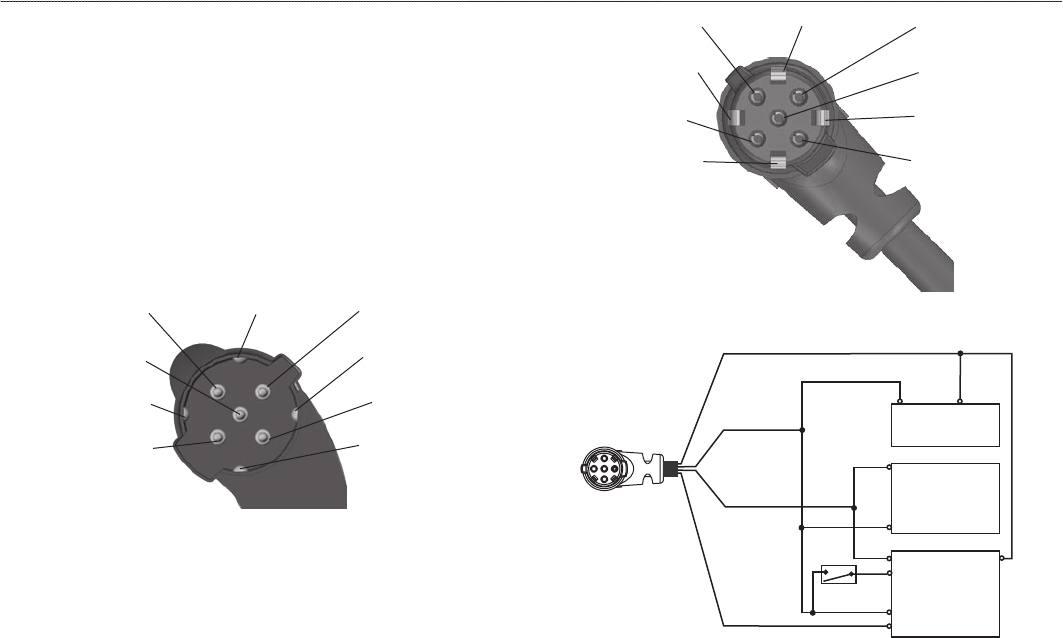
Installation Information
This section of the Appendix provides information on connecting the
GPSMAP 276C to auxiliary devices and removing the antenna.
Connecting the Power/Data Cable
The power/data cable connects the GPSMAP 276C to an 11–35
VDC system and provides interface capabilities for connecting
external devices. The color code in the diagram below and to the
right indicates the appropriate harness connections. Replacement
fuse is a 3AG - 1.5 Amp fuse.
Power/Data Connector on the GPSMAP 276C Unit
Data Out 1
Blue
Ground
Black
Voice (-)
Orange
Data In 2
Green
Alarm
White
Power
Red
Voice (+)
Brown
Data In 1
Yellow
Data Out 2
Violet
Power/Data Connector on the Cable
Data Out 1
Blue
Ground
Black
Voice (-)
Orange
Data In 2
Green
Alarm
White
Power
Red
Voice (+)
Brown
Data In 1
Yellow
Data Out 2
Violet
Yellow:
Data In
Black:
Ground
Red: Power
11–35 VDC
(-) (+)
Autopilot/
NMEA Device
RXD +
RXD -
GSD 21
Sounder
(-)
(+)
White/Brown
White/Blue
Blue:
Data Out
Orange
Closed - On,
Open - Off
Switch
GPSMAP 276C Owner’s Manual 103
APPendIx > InstAllAtIon InforMAtIon
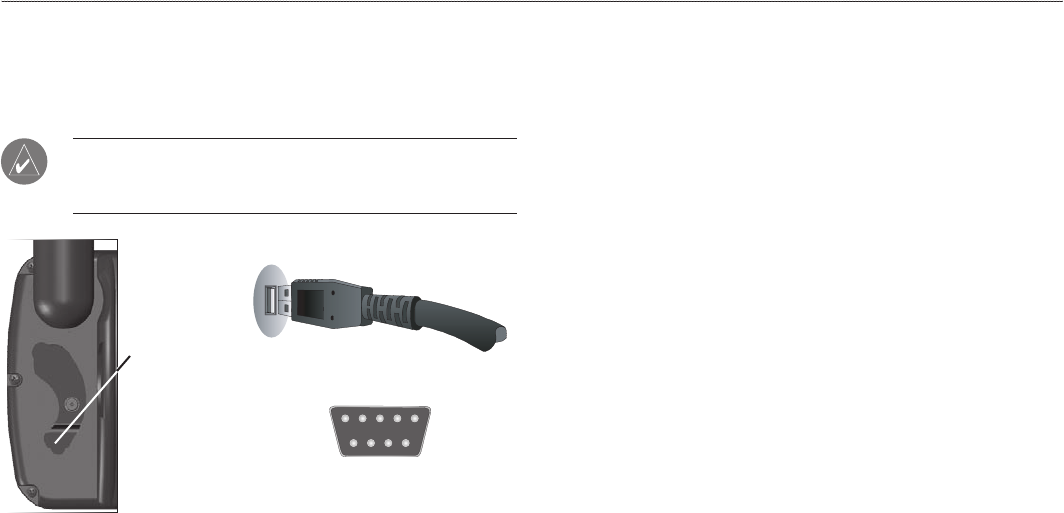
Connecting Your GPSMAP 276C to a Computer
You can connect your GPSMAP 276C to your computer using the
supplied USB cable to connect to a USB data port or the optional PC
Interface cable to connect to a DB-9 serial communications port.
NOTE: Fully install the supplied MapSource program, Trip &
Waypoint Manager, on your computer before connecting the
USB cable to the computer.
USB Data Port on Your PC
Serial Communications Port
USB connector
under weather
cap
To connect your GPS to your computer:
1. Connect the small end of your cable to the lower connector
on the back of the GPSMAP 276C, shown in the illustration
to the left.
2. When using the supplied USB Data Cable, connect the larger
end of the cable to an available USB data port (see the
illustration on the left).
When using a computer Interface Cable, connect the larger
end of the cable to a serial communications port on your
computer (see illustration on the bottom left).
Information About USB Drivers
The USB drivers should have been automatically installed when
you installed the MapSource program that came with your
GPSMAP 276C. When you initially connect the GPSMAP 276C to a
USB port, your computer might prompt you to locate the destination
of the drivers for the device. You only need to install the drivers
once. After the drivers are installed, your computer always detects
your GPSMAP 276C when it is connected. USB drivers might be
updated periodically. You can nd these updates at
www.garmin.com.
104 GPSMAP 276C Owner’s Manual
APPendIx > InstAllAtIon InforMAtIon

Using xImage for Customized Waypoint Icons
Use xImage to exchange images between your computer and your
GPSMAP 276C. You can download and save screenshots of any
screen shown on your unit. xImage also allows you to download
customizable splash screens and waypoint symbols from compatible
GPS units, customize them (if you have an image editing program
on your computer), and send them back to your GPS unit.
You can download xImage from the Garmin Web site at
www.garmin.com/ximage//. See the xImage Help le for complete
instructions on using xImage.
Installing and Removing Data Cards
The GPSMAP 276C uses an optional Garmin data card to show
digital charts and maps. Install the data card in the card slot located
on the bottom of the unit. Install or remove the data card at any time,
whether the unit is on or off.
You can load a variety of information on your data card, such as
MapSource detailed maps. You can also buy preprogrammed cards
to use with your GPSMAP 276C
Data cards are not waterproof, should not be exposed to moisture or
excessive static charges, and should be stored in the case supplied
with the card.
To install a data card:
1. Insert the card into the slot on the bottom of the unit. Be sure
the label is facing the front of the unit.
2. Firmly push the card into the unit. It is not necessary to force
the card. The handle is still exposed when it is properly
inserted.
3. If the unit is on, a conrmation tone sounds. The rst time
you insert a programmed data card, the unit takes a few
seconds to read the card. After the data card has been
properly installed and accepted, a summary screen noting
the card details appears. Press ENTER to acknowledge.
If you insert a data card and get a “card format not recognized”
message, try removing the card and reinserting it. If the card is still
not recognized, contact Garmin or your Garmin dealer.
To remove a data card:
1. Grasp the card handle. The handle expands for easy
removal.
2. Pull the card out of the card slot on the bottom of the unit.
3. If the unit is on, a conrmation tone sounds when the data
card has been removed.
GPSMAP 276C Owner’s Manual 105
APPendIx > InstAllAtIon InforMAtIon
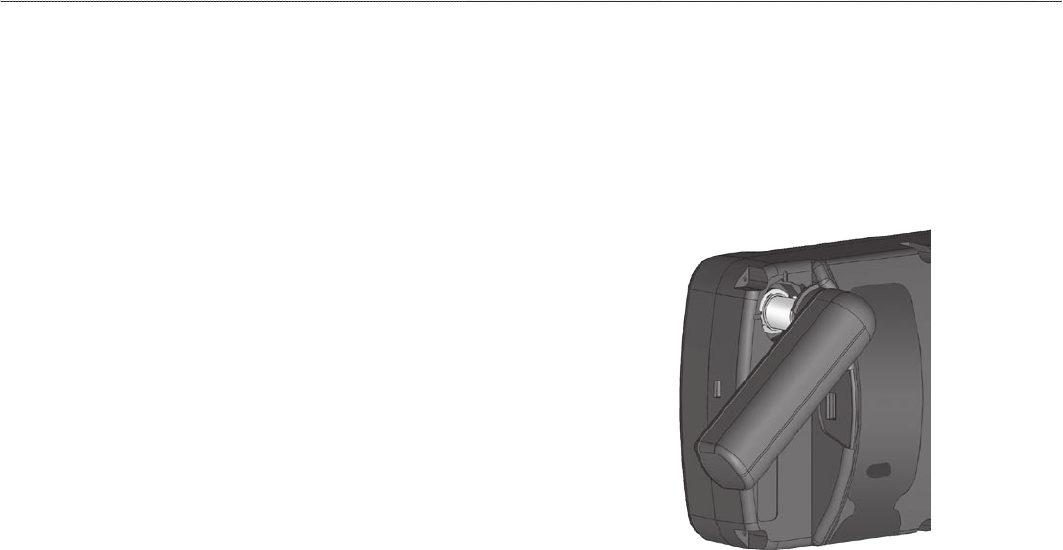
Interfacing
The following formats are supported for connection of external
devices: GARMIN proprietary Differential GPS (DGPS), NMEA
0180, 0182, 0183 (versions 1.5, 2.0, 2.3, 3.01), ASCII Text Output,
and RTCM SC-104 input (version 2.0).
The following are the Approved Sentences for NMEA 0183,
version 3.01 output: GPRMC, GPGGA, GPGSA, GPGSV, GPGLL,
GPBOD, GPRTE, and GPWPL. The following are the Proprietary
Sentences for NMEA 0183, version 3.01 output: PGRME, PGRMZ,
and PGRMM.
The GPSMAP 276C also includes NMEA input with support for
the BWC, DBT, DPT, DSC, DSE, MTW, VHW, VTG, and XTE
sentences.
Garmin’s proprietary communication protocol is available from the
Web site at www.garmin.com.
Removing the GPS Antenna
You can remove the GPS antenna to use an external antenna. After
the antenna is removed, the BNC connector is exposed and ready
for use with an external antenna. For information on connecting
an external antenna to the GPSMAP 276C, refer to the installation
instructions that came with the antenna.
To remove the GPS antenna:
1. Remove the external power cable from the connector on the
back of the GPSMAP 276C.
2. Rotate the antenna to approximately a seven o’clock
position. The alignment notches in the casing must line up
with the notches on the antenna.
3. Pull the antenna away from the GPSMAP 276C unit.
Removing the GPS Antenna
106 GPSMAP 276C Owner’s Manual
APPendIx > InstAllAtIon InforMAtIon
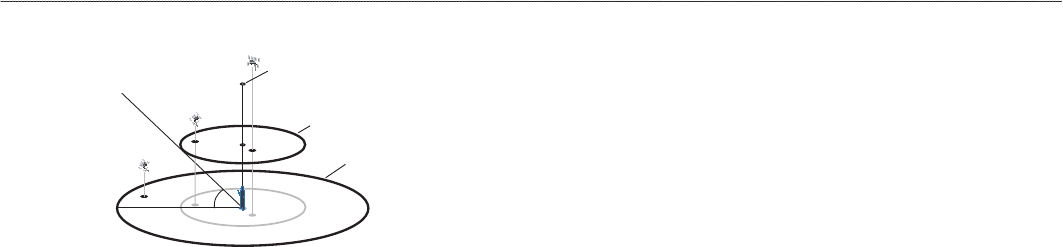
Satellite Information
Satellite Sky View
45°
90°
Outer ring -
the horizon
Inner ring- 45°
above the horizon
Center dot - 90°
above the horizon
Satellite Location
The location of each available satellite is shown over two location rings
on the Satellite Information Page. The outer ring represents the horizon,
the inner ring represents 45° above the horizon, and the center represents
directly overhead. When the unit is using a satellite for navigation, the
satellite number is highlighted on the location rings. The unit can show
satellite location with either North or your current heading at the top of the
screen.
Satellite Strength Indicator Bars
The Satellite Strength Indicator Bars show the strength of the signal being
received and the status of the signal. The bars are either shaded or lled. A
hollow gray bar means the unit is in the process of storing orbital data it is
receiving from the satellite signal. When the bar turns solid green, the unit
is using the satellite signal for navigation. A “D” in or above the bar means
differential corrections (WAAS or DGPS) are being applied to that satellite.
Date, Time, and Current Location
The unit gets date and time information from the satellite’s on-board atomic
clock. When the unit has achieved a 2-D or 3-D GPS location, the current
location is shown in the location format you have selected.
What is Differential GPS (DGPS)?
The United States and Canadian governments (among others) have
set up Differential GPS (DGPS) stations to transmit correction
signals. They are operational in coastal areas and on many navigable
river systems.
The DGPS system is available for use without a fee, but you do need
additional equipment to receive DGPS signals; a beacon receiver
compatible with the RTCM format sentences supported by your
Garmin GPS is needed to use DGPS.
Refer to the United States Coast Guard’s Web site
(www.navcen.uscg.gov/) for locations and status of the differential
stations.
Differential Field
Differential receiver status is indicated in the bottom left eld of the
GPS tab and shows one of the following conditions:
• None—no optional beacon receiver is attached or enabled in
the Interface sub tab on the Main Menu—Setup tab or WAAS
is disabled.
GPSMAP 276C Owner’s Manual 107
APPendIx > sAtellIte InforMAtIon

• Searching for WAAS—WAAS is enabled and the receiver is
searching for WAAS signal.
• Using WAAS—WAAS capability is enabled and the unit is
receiving WAAS corrections.
• Check Beacon Wiring—the DGPS setting is enabled in the
Interface sub tab on the Main Menu—Setup tab, but no DGPS
device is detected.
• No Beacon Signal—DGPS receiver is attached, but not
transmitting RTCM data to GPS.
• Tuning Beacon—the receiver is tuning manually to a DGPS
frequency.
• Using Differential—the unit is receiving DGPS corrections.
• Scanning for Beacon—the DGPS receiver is scanning for an
available frequency.
What is WAAS?
The Wide Area Augmentation System (WAAS) is an FAA-funded
project to improve the overall integrity of the GPS signal and
increase position accuracy for users in North America.
The system is made up of satellites and approximately 25 ground
reference stations positioned across the United States that monitor
GPS satellite data. Two master stations, located on either coast,
collect data from the reference stations and create a GPS data
correction message. According to the FAA’s Web site, testing in
September 2002 of WAAS conrmed an accuracy performance of 1–
2 meters horizontal and 2–3 meters vertical throughout the majority
of the continental United States and portions of Alaska.
WAAS is just one service provider that adheres to the MOPS
(Minimum Operational Performance Standard) for global Satellite
Based Augmentation Systems (SBAS). Eventually, there are several
services of worldwide geostationary communication satellites and
ground reference stations.
All SBAS systems use the same receiver frequency; therefore, any
operational SBAS system should be capable of providing your GPS
unit with increased accuracy at any location in the world.
Currently, enabling WAAS on your Garmin GPSMAP 276C in
regions that are not supported by ground stations might not improve
accuracy, even when receiving signals from an SBAS satellite. In
fact it can degrade the accuracy to less than that provided by GPS
satellites alone. For this reason, when you enable WAAS on your
Garmin GPS receiver, the receiver automatically uses the method
that achieves the best accuracy. To enable WAAS, see page 6.
For more information, go to http://gps.faa.gov/Programs/WAAS/
waas.jsp.
108 GPSMAP 276C Owner’s Manual
APPendIx > sAtellIte InforMAtIon

LORAN TD Setup
LORAN C is a radio navigation aid operated and maintained in the
United States by the United States Coast Guard. The name LORAN
is an acronym for “LOng RAnge Navigation.” The LORAN
system covers the entire United States and the United States
Coastal Conuence Zone. From the perspective of a mariner, the
system is used for ocean and coastal navigation. It can be used as a
supplemental system for harbor and harbor approach navigation, and
it is used for inland navigation by recreational vehicles.
LORAN TD Feature
The LORAN TD (Time Delay) feature eases the transition from
using LORAN to using GPS. The GPSMAP unit automatically
converts GPS coordinates to LORAN TDs for those who have a
collection of LORAN xes for favorite shing spots and other
waypoints recorded as TDs. You can show your location as a TD
or enter waypoints as TDs. The accuracy to be expected from this
conversion is approximately thirty (30) meters. When the unit is
placed in the LORAN TD format mode, it simulates the operation
of a LORAN receiver. Position coordinates might be shown as TDs,
and all navigation functions might be used as if the unit was actually
receiving LORAN signals.
Using the LORAN TD Format
When creating new waypoints using LORAN TD coordinates,
you must set the correct LORAN chain number and secondary
stations in the Setup TD eld before storing the waypoint. After
the waypoint is stored in unit memory, it always references the
LORAN chain number and secondary stations currently selected in
the Setup TD eld. If you enter a different LORAN chain number
or change the secondary stations or offsets in the Setup TD eld,
the active waypoint information reects those changes. Because the
GPSMAP 276C does not rely on the LORAN signal for navigation,
it can reference a different GRI chain or secondary stations and still
navigate to the location stored in memory.
The LORAN Location Format eld is located on the System
Tab—Location sub tab on the Main Menu. The LORAN TD Setup
window contains the elds to select the Loran GRI-Chain Number,
Primary and Secondary Stations, and TD Offsets.
GPSMAP 276C Owner’s Manual 109
APPendIx > lorAn td setuP
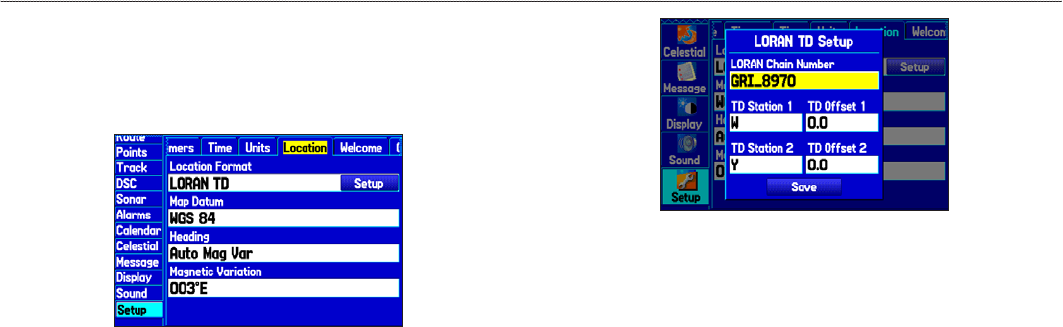
To set up Loran TD from the Main Menu:
1. Highlight the Setup tab on the Main Menu, and then highlight
the Location sub tab.
2. Highlight the Location Format eld, and press ENTER.
Location Sub Tab
3. Highlight Loran TD, and press ENTER.
4. Highlight the Setup button located on the right side of the
Location Format eld, and press ENTER. The Loran TD
Setup window appears.
5. To change the settings of any of the ve elds, highlight the
eld, press ENTER, select a setting using the ROCKER, and
press ENTER again.
LORAN TD Setup
6. When nished, highlight the Save button, and press ENTER.
If the active GRI Chain, secondary stations, or offsets were changed
since the waypoint was created, the waypoint now references
the active GRI chain and secondary stations and adjust the TD
coordinates accordingly. Remember that the GPS is not relying
on the LORAN signal for navigation and actually converts the
TD coordinate to a useful latitude and longitude coordinate before
storing the waypoint to memory or using it for navigation. Because
of this, the unit can navigate to a TD coordinate anywhere in the
world.
You must know your GRI chain number and secondary stations
to create a LORAN TD position. For more information, read our
LORAN TD Position Format Handbook, available at the Garmin
Web site, at www.garmin.com/support/userManual.html.
110 GPSMAP 276C Owner’s Manual
APPendIx > lorAn td setuP
Map Datums and Location Formats
Map Datums are based on a mathematical model of the Earth.
What Are Map Datums?
A datum is a mathematical model of the Earth that approximates
the shape of the Earth and enables calculations to be carried out in a
consistent and accurate manner. The datum is physically represented
by a framework of ground monuments whose positions have been
accurately measured and calculated on this reference surface. Lines
of latitude and longitude on a map or chart are referenced to a
specic map datum. Every chart has a map datum reference, and you
can set the GPSMAP 276C to match most of those commonly used.
If you are navigating and comparing the GPS coordinates to a map,
chart, or other reference, set the map datum in the GPS unit to the
same datum as the map to ensure the most accurate navigation.
What is a Location Format?
Your current location can be viewed on the GPS in the form of
coordinates. Because different maps and charts use different
location formats, Garmin GPS units allow you to choose the correct
coordinate system for the type of map you are using. The most
common format is latitude and longitude, which is used by all
Garmin units.
You can choose to change the location format to use with other
coordinate systems in Location eld of the Setup tab—Location
sub tab. UTM/UPS (Universal Transverse Mercator/Universal Polar
Stereographic) are easy-to-use metric grids that are found on most
USGS topographic quadrangle maps. You can also select one of
several other grids, including a user-denable grid (for the advanced
user).
For more information about using paper maps with your
Garmin unit, refer to Using a Garmin GPS with Paper Land
Maps, available for download at www.garmin.com/manuals/
UsingaGarminGPSwithPaperLandMaps_Manual.pdf.
GPSMAP 276C Owner’s Manual 111
APPendIx > MAP dAtuMs And locAtIon forMAts

Digital Selective Calling (DSC)
DSC uses marine VHF radio GPS technologies to transmit and
receive location information. DSC is used by mariners to assist them
in two major areas: Distress Calls and Position Reporting.
A non-emergency DSC Position Report allows mariners to exchange
and show their positions. When you receive a DSC position, you can
create a waypoint or to show the received position on an electronic
map.
An emergency DSC Distress Call allows a vessel in trouble
to transmit a substantial amount of information in a single
transmission, or “call,” without the need for voice communication.
When any nearby rescuer receives the DSC signal, an alarm sounds,
and they immediately receive the position of the caller.
The rescuer can then choose to navigate (Go To) the caller’s position
to assist or forward the call on to the Coast Guard. When the Coast
Guard receives the call, they can immediately access the caller’s
information (such as who they are and the type of vessel) in their
database while they are in transit to the caller’s location.
Any time a vessel receives a DSC call, they can store that location
and quickly navigate to that position using a Go To. This makes
DSC a time-saver, especially in an emergency situation. In order to
use DSC, users must rst register their VHF radio with the FCC and
receive a Maritime Mobile Service Identity (MMSI) number.
What is a Maritime Mobile Service Identity (MMSI)
Number?
MMSI basically allows a VHF radio to act like a phone. The 9-digit
MMSI number acts like a phone number when used in a position
report and as a unique identier to the Coast Guard when used in
an emergency distress call. To obtain a MMSI number, users must
register their VHF radio with the FCC (Form 605). Garmin does
not supply this number!
For more information regarding MMSI numbers, visit
www.navcen.uscg.gov/marcomms/gmdss/mmsi.htm.
112 GPSMAP 276C Owner’s Manual
APPendIx > dIgItAl selectIve cAllIng (dsc)

How Are MMSI Assignments Obtained?
Non-commercial users, such as recreational users, who remain
in United States waters and only carry VHF, EPIRB (Emergency
Position Indicating Radio Beacons), and Radar are not required to
have a FCC ship station license. The FCC and Coast Guard have
authorized some second and third-party vendors to assign MMSI
numbers. This service is limited to registering recreational vessels
only. To receive information on how to obtain a recreational MMSI
number, contact http://www.uscg.mil/rescue21/links/mmsi.htm or
http://wireless.fcc.gov/marine/.
Non-Federal Users in the United States
Commercial users, or those who travel outside the United States or
Canada, must apply for a ship station license or an amendment to a
ship station license. To nd out if you require a Ship Station license,
contact http://wireless.fcc.gov/marine/fctsht14.html. If your vessel
requires licensing by the FCC, you can obtain a MMSI during the
application/licensing process when you le FCC Forms 159 and
605.
Federal Users in the United States
Federal users can obtain MMSI assignments from their agency
radio spectrum management ofce. These procedures are currently
under review by the National Telecommunications and Information
Administration (NTIA).
Users Outside the United States
Users can obtain an MMSI assignment from their telecommunications
authority or ship registry, often by obtaining or amending their ship
station license.
Users In Canada
Industry Canada is responsible for assigning MMSI numbers to
commercial and recreational vessels. Information is available at the
following Web site: http://apollo.ic.gc.ca/english/mmsi.html.
How Can Garmin Help You with DSC?
To receive distress calls or position reports, you must have a DSC-
equipped chartplotter as well as a VHF radio with DSC support.
During normal, non-emergency position report communication,
Channel 70 (156.525 MHz) has been set aside as the VHF/DSC
digital call channel.
For a distress call, press the MayDay button on the VHF radio. The
call transmits on an emergency channel with the MMSI number
attached to the call, if the receiver has DSC support. Any DSC-
equipped mariner (on sea or land) within range can receive the call.
When the GPSMAP 276C is connected to a VHF with DSC support,
the GPS unit shows a call list, log, and a directory. Basic wiring
is required for the Garmin unit and VHF radio to send and receive
NMEA data from each other.
GPSMAP 276C Owner’s Manual 113
APPendIx > dIgItAl selectIve cAllIng (dsc)

Messages
Accuracy Alarm—the GPS accuracy has fallen outside of user-set value.
Alarm Clock—the alarm clock has sounded.
Antenna Shorted to Ground—the external GPS antenna has an electrical
connection problem. Contact Garmin Product Support.
Approaching Turn—you are nearing a turn in a route.
Arriving at Destination—you are nearing your destination.
Batteries Low—the battery needs to be recharged.
Basemap Failed Unit Needs Repair—there is an internal problem with your
unit. Contact Garmin Product Support to have the unit serviced.
Boat Is Not Moving Fast Enough to Calibrate—the boat is not moving fast
enough for the speed wheel to provide a valid speed.
Can’t Unlock Maps—no applicable unlock code for one or more maps was
found. All MapSource maps are not accessible.
Database Error—internal problem with the unit. Contact your dealer or
Garmin Product Support to have the unit repaired.
Deep Water—-the water is deeper than the amount set in the Deep Water
Alarm.
Detail Maps Don’t Support Routing—maps that are loaded on the data card
do not support automatic route calculation.
Distress Call—a DSC distress call was received. Take appropriate action.
Dragging Anchor—the distance set in the Anchor Drag Alarm was exceeded.
Drift Alarm—the water depth has changed by the amount entered in the Drift
Alarm setup.
Fish Alarm—a suspended target was detected. The unit shows an icon and
beeps (if enabled). This alarm does not show a message banner.
Lost Satellite Reception—the unit is unable to receive satellite signals.
Memory Full—unit memory is full, no further data can be saved.
Memory (RAM) Failed Unit Needs Repair—there is an internal problem
with your unit. Contact Garmin Product Support to have the unit serviced.
Memory (ROM) Failed Unit Needs Repair—there is an internal problem
with your unit. Contact Garmin Product Support to have the unit serviced.
Near Proximity Point—you have reached the distance set for a proximity
waypoint.
NMEA Depth is Below Transducer—no keel offset value has been received
from the external sonar device.
No Diff GPS Location—RTCM is selected but the unit is not receiving DGPS
data.
No Roads Near Destination—the destination for the road route you tried to
calculate is not near any roads. Select a different destination.
114 GPSMAP 276C Owner’s Manual
APPendIx > MessAges

No Roads Near Starting Point—the start location for the road route you tried
to calculate is not near any roads. Select a different start location.
No DGPS Position—no differential connection data is available, or not enough
data is available to calculate a DGPS position.
No Tide Stations for that Area—no tide stations within 100 miles of the area.
None Found—no data matched the search criteria.
Off Course—you are off course by the distance set in the Off Course Alarm.
Proximity Memory Full—no additional proximity waypoints can be saved.
Proximity Radius Overlaps—the radius of two proximity waypoints overlap.
Route Already Exists—you have entered a route name that already exists.
Route Calculation Error—no route can be calculated.
Route Memory Full—no additional routes can be saved.
Route Truncated—uploaded route from another device has more than 300
waypoints.
Route Waypoint Memory Full—no additional route waypoints can be saved.
Shallow Water—the water is shallower than the amount set in the Shallow
Water Alarm.
Sonar Failed Unit Needs Repair—there is an internal problem with the unit.
Contact Garmin Product Support to have the unit serviced.
Sunrise, Switching to Day Mode—the unit is switching to Day Mode.
Sunset, Switching to Night Mode—the unit is switching to Night Mode.
Track Already Exists—a saved track with the same name already exists.
Track Log Full—the track log is full and track recording was turned off.
To record more track points, you need to clear the track log and turn track
recording on.
Track Memory Full—no more track data can be stored. Delete the old track
data to store the new data.
Track Truncated—a complete uploaded track does not t in memory. The
oldest track log points have been deleted.
Transducer Disconnected, Sonar Turned Off—the unit has no transducer
attached, has a bad cable/transducer, or has a disconnected transducer cable.
Transfer Complete—data transfer was completed.
USB Connected—the USB cable was recently plugged in.
User Timer Expired—the Timer Alarm value has counted down to zero.
Water Speed Sensor is Not Working—the speed sensor is not detected. Check
the connections.
Water Temperature Alarm—sonar has reported a temperature above, below,
inside, or outside the specied value(s).
Waypoint Already Exists—a waypoint with the same name already exists.
Waypoint Memory Full—the unit has stored the maximum number of
waypoints.
GPSMAP 276C Owner’s Manual 115
APPendIx > MessAges

Data Field Options
The following list provides a brief description of each data eld
option. Some of these options are supported only by devices
interfaced to your GPSMAP 276C.
Accuracy—the current accuracy of your GPS determined location.
Battery Timer—the time remaining on the battery before it is fully discharged.
Bearing—the compass direction from your current location to a destination.
Course—the preferred path of travel from your starting location to a
destination.
Course to Steer—the recommended direction to steer in order to reduce cross-
track error and return to the course line. Shown as Steer.
Cross Track—the distance you are off a preferred course in either direction,
left or right.
Depth (Marine Only)—the depth of water from sonar NMEA input.
Dest Wpt—see Waypoint (Destination).
Distance (Destination)—the entire distance of a route, from beginning to end.
Distance (Next)—the distance to the next point on a route.
ETA (Destination)—Estimated Time of Arrival. The estimated time you will
reach your destination.
ETA (Next)—Estimated Time of Arrival. The estimated time you will reach the
next point on your route.
ETE (Destination)—Estimated Time Enroute. The estimated time required to
reach your destination.
ETE (Next)—Estimated Time Enroute. The estimated time required to reach
the next point on your route.
Elevation—the altitude (height) above or below mean sea level (MSL).
GPS Status—the current status of the GPS receiver, such as “3D GPS.”
Location (Lat/Lon)—your current location as latitude/longitude coordinates.
Location (Selected)—your current location described in the selected units of
measure (other than lat/lon).
Max Speed—the maximum speed the unit has moved since last reset.
Mov Avg Spd—see Trip Avg. Speed (Moving).
Move Timer—see Trip Timer (Moving).
Next Course—the course your route will take you on after you reach the next
waypoint.
Next Turn—the direction of the next turn on an active route.
Next Wpt—see Waypoint (Next).
Odometer—the total distance traveled since the odometer was reset.
Pointer—the arrow indicating the direction to travel to the next point on a
route.
Power—the power indicator icon: Battery, External Power, or Charging.
116 GPSMAP 276C Owner’s Manual
APPendIx > dAtA fIeld oPtIons

Speed—your current vehicle speed can be measured in miles per hour,
kilometers per hour, or knots.
Steer—see Course to Steer.
Sunrise—the time at which the sun rises on the current day.
Sunset—the time at which the sun sets on the current day.
Time—the current time and date. It can be shown in 12-hour or 24-hour format
in local time or universal (UTC) time.
Track—the direction of movement relative to a ground position. Also referred
to as ground track.
Trip Avg. Speed (Moving)—the average speed while moving since the last
reset of the trip computer. Appears as Mov Avg Spd.
Trip Avg. Speed (Total)—the total average speed traveled since the last reset
of the trip computer. Appears as Ttl Avg Spd.
Trip Odometer—the total distance traveled since the trip computer was reset.
Trip Timer (Moving)—the length of time your vehicle has been in motion,
since the trip computer was reset. Appears as Move Timer.
Trip Timer (Total)—the total time the unit has been tracking since the trip
computer was reset.
Ttl Avg Spd—see Trip Avg. Speed (Total).
Turn—the distance between Bearing (BRG) and Track (TRG). L indicates you
should turn left. R indicates you should turn right. The degrees indicates the
difference angle and the number of degrees you should turn.
User Timer—the timer you set on the Main Menu.
Velocity Made Good—the rate of closure on a destination based on your
current speed and course of travel. Appears as VMG.
Vertical Speed—the rate of climb or descent.
Voltage—the direct current voltage level of an external power source.
Water Speed (Marine Only)—the data acquired from measurement devices
interfaced to the unit is used to calculate your current speed over water.
Water Temperature (Marine Only)—the temperature of water at a measured
depth using measurement devices interfaced to the unit.
Waypoint (Destination)—the last point on a route, your destination. Appears
as Dest Wpt.
Waypoint (Next)—the next waypoint in your route. Appears as Next Wpt.
GPSMAP 276C Owner’s Manual 117
APPendIx > dAtA fIeld oPtIons

Software License Agreement
BY USING THE GPSMAP 276C, YOU AGREE TO BE BOUND BY THE
TERMS AND CONDITIONS OF THE FOLLOWING SOFTWARE LICENSE
AGREEMENT. PLEASE READ THIS AGREEMENT CAREFULLY.
Garmin grants you a limited license to use the software embedded in this
device (the “Software”) in binary executable form in the normal operation of
the product. Title, ownership rights, and intellectual property rights in and to
the Software remain in Garmin.
You acknowledge that the Software is the property of Garmin and is protected
under the United States of America copyright laws and international copyright
treaties. You further acknowledge that the structure, organization, and code
of the Software are valuable trade secrets of Garmin and that the Software in
source code form remains a valuable trade secret of Garmin. You agree not
to decompile, disassemble, modify, reverse assemble, reverse engineer, or
reduce to human readable form the Software or any part thereof or create any
derivative works based on the Software. You agree not to export or re-export
the Software to any country in violation of the export control laws of the
United States of America.
Product Registration
Help us better support you by completing our online registration
today. Go to http://my.garmin.com. Keep the original sales receipt,
or a photocopy, in a safe place.
Use this area to record the serial number (8-digit number located on
the back of the GPSMAP 276C) in case your GPSMAP 276C needs
service.
Serial Number: ___ ___ ___ ___ ___ ___ ___ __
Contact Garmin
Contact Garmin Product Support if you have any questions while
using your GPSMAP 276C. In the USA, go to www.garmin.
com/support, or contact Garmin USA by phone at (913) 397.8200 or
(800) 800.1020.
In the UK, contact Garmin (Europe) Ltd. by phone at 0808 2380000.
In Europe, go to www.garmin.com/support and click Contact
Support for in-country support information, or contact Garmin
(Europe) Ltd. by phone at +44 (0) 870.8501241
118 GPSMAP 276C Owner’s Manual
APPendIx > softWAre lIcense AgreeMent And Product regIstrAtIon

Limited Warranty
This Garmin product is warranted to be free from defects in materials or
workmanship for one year from the date of purchase. Within this period, Garmin
will, at its sole option, repair or replace any components that fail in normal use.
Such repairs or replacement will be made at no charge to the customer for parts or
labor, provided that the customer shall be responsible for any transportation cost.
This warranty does not cover failures due to abuse, misuse, accident, or unauthorized
alteration or repairs.
This product is intended to be used only as a travel aid and must not be used for
any purpose requiring precise measurement of direction, distance, location, or
topography. Garmin makes no warranty as to the accuracy or completeness of map
data in this product.
THE WARRANTIES AND REMEDIES CONTAINED HEREIN ARE EXCLUSIVE
AND IN LIEU OF ALL OTHER WARRANTIES EXPRESS, IMPLIED, OR
STATUTORY, INCLUDING ANY LIABILITY ARISING UNDER ANY
WARRANTY OF MERCHANTABILITY OR FITNESS FOR A PARTICULAR
PURPOSE, STATUTORY OR OTHERWISE. THIS WARRANTY GIVES YOU
SPECIFIC LEGAL RIGHTS, WHICH MAY VARY FROM STATE TO STATE.
IN NO EVENT SHALL GARMIN BE LIABLE FOR ANY INCIDENTAL,
SPECIAL, INDIRECT, OR CONSEQUENTIAL DAMAGES, WHETHER
RESULTING FROM THE USE, MISUSE, OR INABILITY TO USE THIS
PRODUCT OR FROM DEFECTS IN THE PRODUCT. SOME STATES DO
NOT ALLOW THE EXCLUSION OF INCIDENTAL OR CONSEQUENTIAL
DAMAGES, SO THE ABOVE LIMITATIONS MAY NOT APPLY TO YOU.
Garmin retains the exclusive right to repair or replace the unit or software or
offer a full refund of the purchase price at its sole discretion. SUCH REMEDY
SHALL BE YOUR SOLE AND EXCLUSIVE REMEDY FOR ANY BREACH OF
WARRANTY.
To obtain warranty service, contact your local Garmin authorized dealer or call
Garmin Product Support for shipping instructions and an RMA tracking number.
Securely pack the unit and a copy of the original sales receipt, which is required
as the proof of purchase for warranty repairs. Write the tracking number clearly on
the outside of the package. Send the unit, freight charges prepaid, to any Garmin
warranty service station.
Online Auction Purchases: Products sold through online auctions are not eligible
for rebates or other special offers from Garmin. Online auction conrmations are not
accepted for warranty verication. To obtain warranty service, an original or copy
of the sales receipt from the original retailer is required. Garmin will not replace
missing components from any package purchased through an online auction.
International Purchases: A separate warranty is provided by international
distributors for units purchased outside the United States. This warranty is provided
by the local in-country distributor and this distributor provides local service for your
unit. Distributor warranties are only valid in the area of intended distribution. Units
purchased in the United States or Canada must be returned to the Garmin service
center in the United Kingdom, the United States, Canada, or Taiwan for service.
Garmin International, Inc. Garmin (Europe) Ltd.
1200 East 151st Street, Liberty House
Olathe, Kansas 66062, USA Hounsdown Business Park,
Tel. (913) 397-8200 or Southampton, Hampshire, SO40 9RB UK
(800) 800-1020 Tel. +44 (0) 870.8501241 (outside the UK)
Fax (913) 397-8282 0808.2380000 (within the UK)
Fax +44 (0) 870.8501251
Garmin Corporation
No. 68, Jangshu 2nd Road,
Shijr, Taipei County, Taiwan
Tel. 886/2.2642.9199 Fax 886/2.2642.9099
GPSMAP 276C Owner’s Manual 119
APPendIx > lIMIted WArrAnty

FCC Compliance
This device complies with part 15 of the FCC Rules. Operation is subject to the
following two conditions: (1) this device may not cause harmful interference,
and (2) this device must accept any interference received, including
interference that may cause undesired operation.
This equipment has been tested and found to comply with the limits for a
Class B digital device, pursuant to part 15 of the FCC rules. These limits are
designed to provide reasonable protection against harmful interference in a
residential installation. This equipment generates, uses, and can radiate radio
frequency energy and may cause harmful interference to radio communications
if not installed and used in accordance with the instructions. However, there is
no guarantee that interference will not occur in a particular installation. If this
equipment does cause harmful interference to radio or television reception,
which can be determined by turning the equipment off and on, the user is
encouraged to try to correct the interference by one of the following measures:
• Reorient or relocate the receiving antenna.
• Increase the separation between the equipment and the receiver.
• Connect the equipment into an outlet that is on a different circuit from
the GPS unit.
• Consult the dealer or an experienced radio/TV technician for help.
This product does not contain any user-serviceable parts. Repairs should
only be made by an authorized Garmin service center. Unauthorized repairs
or modications could result in permanent damage to the equipment, and
void your warranty and your authority to operate this device under Part 15
regulations.
Declaration of Conformity (DoC)
Hereby, Garmin, declares that this GPSMAP 276C is in compliance
with the essential requirements and other relevant provisions of
Directive 1999/5/EC.
To view the full Declaration of Conformity, see the Garmin Web site
for your Garmin product: www.garmin.com.
120 GPSMAP 276C Owner’s Manual
APPendIx > fcc coMPlIAnce And declArAtIon of conforMIty

Index
A
accessories 102
accuracy alarm 71
Acquiring Satellites 5
Active Route Page 50, 52
Active Track Tab 34, 37
AC Outlet 2
add to route 20, 22, 24, 27, 58
Advanced NMEA Output Setup 88
alarms 79
DSC 66, 69
navigation 71
persistent 71
proximity 32
sonar 72
system 71
Alarms Tab 70–71
alerts. See alarms
antenna 1, 106
append to route 27
arrival alarm 71
ask my preference 81
assign category 30
attention tone 79
AutoLocate 5
Automotive Mode 52
following a saved route 56
navigating 53
pages 60–62
auto arrange 19
average location 28
avoidance button 81
avoids 57, 81
B
backlight 3, 79
Basic Operation 13
battery
level 2
pack 1, 2
saver mode 80
beeper 79
bug indicator 46
C
cable 103
calculation method 81
Calendar Tab 72
calibrate water speed 95
categories
Find Menu 17
Waypoint 30, 31
CDI. See Course Deviation Indicator
Celestial Tab 73
Hunt & Fish sub tab 76
Sun & Moon sub tab 75
Tide sub tab 73
chain number 109
charging 2
check beacon wiring 108
cigarette lighter adapter 2
cleaning iv
clear
Track Log 35
clock alarm 71
color mode 78
Compass Page 45, 79
marine timer 46
options menu 46
showing/hiding 45
connecting the power cable 2, 103
count down or up 82
course pointer 46
create
category 30
route 20
waypoints 24, 25
Current Route Page 59
custom avoids 57, 81
D
data card 42, 105
information 19, 40
slot 1
data elds
changing 39
options 116
date 83
date/time 107
Daylight Saving Time 83
day view 73
DB-9 104
deactivate 50
declutter 43
deep water alarm 72
defaults 8, 10
delete
category 31
DSC Call 67
track log 35
waypoint 32
depth 83
detailed maps 42
detour 57
DGPS 86, 87, 107
alarm 71
Digital Selective Calling. See DSC
direction display 83
GPSMAP 276C Owner’s Manual 121
Index

Display Tab 78
distance and speed 83
distress calls 66, 66–69, 112, 113
drift 72
DSC 66–70, 112
E
edit
route 21, 22, 23, 56
waypoints 29
editing a waypoint 29
emergency 112
entering data 9
erase track log 35
external power source 2
external voltage alarm 71
F
faster time 81
FCC 112, 113, 120
eld 8
nd 17
from a different location 17, 18
menu 15, 19
nding an item 17–19
Find Menu 17
sh symbols 94
asher 96
following an automotive route 59
fuel ow 23
G
getting started 1
going to a destination 14
go to
distress call 68
point 14
position report 68
GPS
off/on 5
options 6
tips 6
GPS Tab 64
GRI Chain 110
GSD 20 89
H
heading 84
Highway Page 48, 79
hiding/showing 48
options menu 49
page layout 49
setup 49
Hunt & Fish Sub Tab 76
I
icons 78
identier 112
Information Page 19, 43
installation 103
interval 37
invert 50
item details 19
L
language 79, 80
legs, track 37
limited warranty 119
local time 83
location 6, 26
location format 84, 111
log lter 78
longitude 116
LORAN TD Setup 109
lost satellite reception 5
M
magnetic variation 84
main menu 63–88
Alarms tab 70
Calendar tab 72
Celestial tab 73
Display tab 78
DSC tab 66
GPS tab 64
Message tab 77
Points tab 65
Route tab 64
Setup tab 80
Sonar tab 70
Track tab 65
man overboard. See MOB
map card 42
map datum 111
map orientation 41
Map Page 38, 60
declutter 43
setup 40
marine mode
pages 38–42
Marine Pages 38–51
Active Route 50
Compass 45
Highway 48
Map 38
Position Data 51
marine timer 46
Maritime Mobile Service Identity.
See MMSI
marking a waypoint 9, 28
underwater 93
mayday 69, 113
measuring distance 44
messages 114, 116
Message Tab 77
122 GPSMAP 276C Owner’s Manual
Index

mils 83
MMSI 66, 112, 113
MOB 14, 16
modes 13
month view 73
moon information 75
N
NAV/MOB 16
navigate
route 14, 21
track 14, 16, 37
navigation alarms 71
near
current route 18, 19
destination 18, 19
next 18, 19
other 18, 19
next turn 82
NMEA 86, 87, 88, 106
north up 6, 41
no beacon signal 108
O
off road 81
off route recalculation 82
on-screen button 8
Options Menu
opening 9
using 9
overzoom 42
P
page layout 39
highway 49
trip computer 62
page sequence 13
panning the map 38, 42
persistent alarm 71
plan route 23, 50
plan trips 72
point 73
points of interest 17
Points Tab 65
Position Data Page 51
position mode 38
position report 66–69, 112–113
power 103
connector 1, 2
outlet 2
practice mode. See Simulator Mode
project waypoint location 28
proximity 32
alarms 32
points tab 32
waypoint 33
R
recalculating 82
receiver not usable 5
receiver status 5
receiving a DSC call 68
record tracks 34, 37
reference position 18
reset timer 82
reset trip data 51, 62
review route 21
Road Routing Tab 81
route 22, 73
add points 22, 27
create 20–23
edit 21–23
leg transition 24
preference 81
Route Tab 64
RTCM 86, 87
S
sail boat racing timer 46
satellite acquisition 5
satellite location 107
satellite signals 4
satellite sky view 107
save present location 25
save this route 61
saving the current route 61
saving tracks 35, 36, 37
scanning for beacon 108
scan for a frequency 86
scroll bar 8
searching for WAAS 108
searching the sky 5
search history 18
selecting options 9
serial communications port 104
serial data format 86
serial number 1
Setup Tab 80
Guidance sub tab 82
Location sub tab 84
Road Routing sub tab 81
System sub tab 80
Timers sub tab 82
Time sub tab 83
Units sub tab 83
Welcome sub tab 85
set an alarm 70
set date 83
set fuel ow 23
set speed 23
shallow water alarm 72
GPSMAP 276C Owner’s Manual 123
Index

shorter distance 81
signal strength 5
Simulator Mode 11
new location 12
starting 12
Software License Agreement 118
sonar 89, 90–93
adjusting 91–93
alarms 72
on the map page 89
setting up 94, 96
understanding 98
Sonar Tab 70
Sound Tab 79
speaker 79
specications 101
speed lter 80
stop navigation 50
Sun & Moon Sub Tab 75
switch modes 13, 52
system alarms 71
T
temperature 83, 97
text language 80
thermoclines 100
tide
chart 74
information 74
station 74
sub tab 74
time
delay 109
format 83
offsets 111
zone 83
timer 46
TracBack 14, 37
track
legs 37
log 34, 35, 37
review page 35, 36
tab 34
TracBack 36, 37
Track Tab 65
track up 6, 41
transducer 94, 99
Trip Computer Page 51, 62
options menu 62
page layout 62
trip planning 23, 72
tuning beacon 108
turn-by-turn route 56, 59
turn off recalculation 82
turn unit on and off 3
U
underwater waypoints 93
unit overview 1
usage mode 80
USB 86
connector 1, 104
data cable 104
drivers 104
User Points Tab 29
UTC 83
UTM/UPS 111
V
VHF 66, 112
via points 58
view details 43
voice language 79
volume 3, 79
W
WAAS 80, 103, 108
Warning Page 3
water immersion iv
water speed 95
calibrating 95
water temp 72
waypoint 24
categories 30
create 24
edit 29
information page 19
name 29
projecting 28
proximity 33
reviewing 26
symbol 29
transition to next 24
week view 73
welcome message 85
whiteline 92, 100
Wide Area Augmentation System.
See WAAS
X
xImage 105
Z
zoom 41
124 GPSMAP 276C Owner’s Manual
Index

or the latest free software updates (excluding map data) throughout the life of your
Garmin products, visit the Garmin Web site at www.garmin.com.
© 2009 Garmin Ltd. or its subsidiaries
Garmin International, Inc.
1200 East 151st Street, Olathe, Kansas 66062, USA
Garmin (Europe) Ltd.
Liberty House, Hounsdown Business Park, Southampton, Hampshire, SO40 9RB UK
Garmin Corporation
No. 68, Jangshu 2nd Road, Shijr, Taipei County, Taiwan
www.garmin.com
January 2009 Part Number 190-00335-00 Rev. E Printed in Taiwan
