Garmin Marine Gps System G600 Users Manual
G600 to the manual c95e7245-c2f2-4827-b249-391ddc9bf5ff
2015-01-29
: Garmin Garmin-Garmin-Marine-Gps-System-G600-Users-Manual-217284 garmin-garmin-marine-gps-system-g600-users-manual-217284 garmin pdf
Open the PDF directly: View PDF  .
.
Page Count: 374 [warning: Documents this large are best viewed by clicking the View PDF Link!]
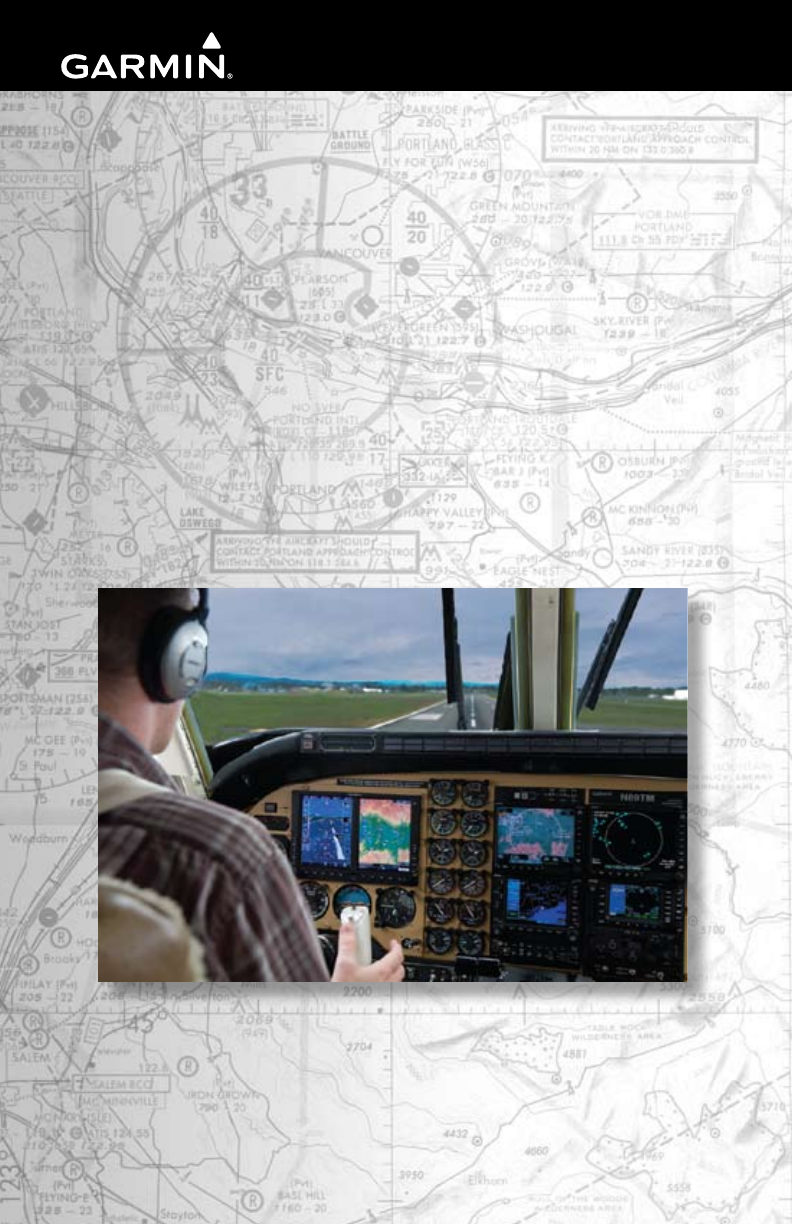
G600
Pilot’s
Guide
© 2011 Garmin Ltd. or its subsidiaries. All rights reserved.
This manual reflects the operation of System Software version 6.00, or later. Some differences in operation
may be observed when comparing the information in this manual to later software versions.
Garmin International, Inc., 1200 East 151st Street, Olathe, KS 66062, U.S.A.
Tel: 913/397.8200 Fax: 913/397.8282
Garmin AT, Inc., 2345 Turner Road SE, Salem, OR 97302, U.S.A.
Tel: 503/391.3411 Fax 503/364.2138
Garmin (Europe) Ltd., Liberty House, Bulls Copse Road, Hounsdown Business Park, Southampton,
SO40 9RB, U.K.
Tel. +44 (0) 870 850 1243 Fax +44 (0) 238 052 4004
Garmin Corporation, No. 68, Jangshu 2nd Road, Shijr, Taipei County, Taiwan
Tel: 886/02.2642.9199 Fax: 886/02.2642.9099
At Garmin, we value your opinion. For comments about this guide, please e-mail:
Techpubs.Salem@Garmin.com
www.garmin.com
Except as expressly provided herein, no part of this manual may be reproduced, copied, transmitted,
disseminated, downloaded or stored in any storage medium, for any purpose without the express written
permission of Garmin. Garmin hereby grants permission to download a single copy of this manual and of
any revision to this manual onto a hard drive or other electronic storage medium to be viewed for personal
use, provided that such electronic or printed copy of this manual or revision must contain the complete text
of this copyright notice and provided further that any unauthorized commercial distribution of this manual
or any revision hereto is strictly prohibited.
Garmin®, FliteCharts®, and SafeTaxi® are registered trademarks of Garmin Ltd. or its subsidiaries. SVT™,
and G600™ are trademarks of Garmin Ltd. or its subsidiaries. These trademarks may not be used without
the express permission of Garmin.
NavData® is a registered trademark of Jeppesen, Inc.; SkyWatch® is a registered trademark of L-3 Avionics
Systems; and XM® is a registered trademark of XM Satellite Radio, Inc.; Iridium® is a registered trademark
of Iridium Communications Inc.; Canadian radar data provided by Environment Canada; United States
radar data provided by NOAA; European radar data collected and provided by Meteo France.
August 2011 Printed in the U.S.A.

i190-00601-02 Rev. E
Garmin G600 Pilot’s Guide
Forward
Sec 1
System
Sec 2
PFD
Sec 3
MFD
Sec 4
Hazard
Avoidance
Sec 5
Additional
Features
Sec 6
Annun.
& Alerts
Sec 7
Symbols
Sec 8
Glossary Appendix A
Appendix B
Index
AVIATION LIMITED WARRANTY
All Garmin avionics products are warranted to be free from defects in materials or workmanship for:
two years from the date of purchase for new Remote-Mount and Panel-Mount products; one year
from the date of purchase for new portable products and any purchased newly-overhauled products;
six months for newly-overhauled products exchanged through a Garmin Authorized Service Center;
and 90 days for factory repaired or newly-overhauled products exchanged at Garmin in lieu of repair.
Within the applicable period, Garmin will, at its sole option, repair or replace any components that
fail in normal use. Such repairs or replacement will be made at no charge to the customer for parts
or labor, provided that the customer shall be responsible for any transportation cost. This warranty
does not apply to: (i) cosmetic damage, such as scratches, nicks and dents; (ii) consumable parts,
such as batteries, unless product damage has occurred due to a defect in materials or workmanship;
(iii) damage caused by accident, abuse, misuse, water, flood, fire, or other acts of nature or external
causes; (iv) damage caused by service performed by anyone who is not an authorized service
provider of Garmin; or (v) damage to a product that has been modified or altered without the written
permission of Garmin. In addition, Garmin reserves the right to refuse warranty claims against
products or services that are obtained and/or used in contravention of the laws of any country.
THE WARRANTIES AND REMEDIES CONTAINED HEREIN ARE EXCLUSIVE AND IN LIEU OF ALL OTHER
WARRANTIES, WHETHER EXPRESS, IMPLIED OR STATUTORY, INCLUDING ANY LIABILITY ARISING
UNDER ANY WARRANTY OF MERCHANTABILITY OR FITNESS FOR A PARTICULAR PURPOSE,
STATUTORY OR OTHERWISE. THIS WARRANTY GIVES YOU SPECIFIC LEGAL RIGHTS, WHICH MAY
VARY FROM STATE TO STATE.
IN NO EVENT SHALL GARMIN BE LIABLE FOR ANY INCIDENTAL, SPECIAL, INDIRECT OR CONSEQUENTIAL
DAMAGES, WHETHER RESULTING FROM THE USE, MISUSE OR INABILITY TO USE THE PRODUCT OR
FROM DEFECTS IN THE PRODUCT. SOME STATES DO NOT ALLOW THE EXCLUSION OF INCIDENTAL OR
CONSEQUENTIAL DAMAGES, SO THE ABOVE LIMITATIONS MAY NOT APPLY TO YOU.
Garmin retains the exclusive right to repair or replace (with a new or newly-overhauled replacement
product) the product or software or offer a full refund of the purchase price at its sole discretion.
SUCH REMEDY SHALL BE YOUR SOLE AND EXCLUSIVE REMEDY FOR ANY BREACH OF WARRANTY.
Online Auction Purchases: Products purchased through online auctions are not eligible for
warranty coverage. Online auction confirmations are not accepted for warranty verification. To obtain
warranty service, an original or copy of the sales receipt from the original retailer is required. Garmin
will not replace missing components from any package purchased through an online auction.
International Purchases: A separate warranty may be provided by international distributors for
devices purchased outside the United States depending on the country. If applicable, this warranty is
provided by the local in-country distributor and this distributor provides local service for your device.
Distributor warranties are only valid in the area of intended distribution. Devices purchased in the
United States or Canada must be returned to the Garmin service center in the United Kingdom, the
United States, Canada, or Taiwan for service.
To obtain warranty service, contact your local Garmin Authorized Service Center. For assistance in
locating a Service Center near you, visit the Garmin web site at http://www.garmin.com or contact
Garmin Customer Service at 866-739-5687.
ii
Garmin G600 Pilot’s Guide
190-00601-02 Rev. E
Foreword
Sec 1
System
Sec 2
PFD
Sec 3
MFD
Sec 4
Hazard
Avoidance
Sec 5
Additional
Features
Sec 6
Annun.
& Alerts
Sec 7
Symbols
Sec 8
GlossaryAppendix A
Appendix B
Index
WARNING: Navigation and terrain separation must NOT be predicated
upon the use of the terrain function. The GDU 620 Terrain Proximity feature
is NOT intended to be used as a primary reference for terrain avoidance
and does not relieve the pilot from the responsibility of being aware of
surroundings during flight. The Terrain Proximity feature is only to be used
as an aid for terrain avoidance and is not certified for use in applications
requiring a certified terrain awareness system. Terrain (TAWS) data is
obtained from third party sources. Garmin is not able to independently
verify the accuracy of the terrain data.
WARNING: The displayed minimum safe altitudes (MSAs) are only advisory
in nature and should not be relied upon as the sole source of obstacle and
terrain avoidance information. Always refer to current aeronautical charts
for appropriate minimum clearance altitudes.
WARNING: The Garmin GDU 620 has a very high degree of functional
integrity. However, the pilot must recognize that providing monitoring and/
or self-test capability for all conceivable system failures is not practical.
Although unlikely, it may be possible for erroneous operation to occur
without a fault indication shown by the GDU 620. It is thus the responsibility
of the pilot to detect such an occurrence by means of cross-checking with
all redundant or correlated information available in the cockpit.
WARNING: The altitude calculated by GPS receivers is geometric height
above Mean Sea Level and could vary significantly from the altitude
displayed by pressure altimeters, such as the output from the GDC 74A/74B
Air Data Computer, or other altimeters in aircraft. GPS altitude should never
be used for vertical navigation. Always use pressure altitude displayed by
the GDU 620 PFD or other pressure altimeters in aircraft.
WARNING: Do not use outdated database information. Databases used
in the G600 system must be updated regularly in order to ensure that the
information remains current. Pilots using an outdated database do so
entirely at their own risk.
WARNING: Do not use basemap (land and water data) information for
primary navigation. Basemap data is intended only to supplement other
approved navigation data sources and should be considered as an aid to
enhance situational awareness.
iii190-00601-02 Rev. E
Garmin G600 Pilot’s Guide
Forward
Sec 1
System
Sec 2
PFD
Sec 3
MFD
Sec 4
Hazard
Avoidance
Sec 5
Additional
Features
Sec 6
Annun.
& Alerts
Sec 7
Symbols
Sec 8
Glossary Appendix A
Appendix B
Index
WARNING: Traffic information shown on the GDU 620 Multi Function
Display is provided as an aid in visually acquiring traffic. Pilots must
maneuver the aircraft based only upon ATC guidance or positive visual
acquisition of conflicting traffic.
WARNING: Datalink weather data should not be used for hazardous
weather penetration. Weather information provided by the GDL 69/69A
is approved only for weather avoidance, not penetration.
WARNING: Datalink weather radar data is to be used for long-range
planning purposes only. Due to inherent delays in data transmission and
the relative age of the data, Datalink weather radar data should not be
used for short-range weather avoidance.
WARNING: For safety reasons, GDU 620 operational procedures must be
learned on the ground.
WARNING: To reduce the risk of unsafe operation, carefully review and
understand all aspects of the G600 Pilot’s Guide. Thoroughly practice
basic operation prior to actual use. During flight operations, carefully
compare indications from the GDU 620 to all available navigation sources,
including the information from other NAVAIDs, visual sightings, charts, etc.
For safety purposes, always resolve any discrepancies before continuing
navigation.
WARNING: Never use the GDU 620 to attempt to penetrate a thunderstorm.
Both the FAA Advisory Circular, Subject: Thunderstorms, and the Airman’s
Information Manual (AIM) recommend avoiding “by at least 20 miles any
thunderstorm identified as severe or giving an intense radar echo”.
WARNING: Exceeding 200 deg/second in pitch or roll may invalidate AHRS
attitude provided to the GDU 620. Exceeding 450 KIAS may invalidate ADC
information provided to the GDU 620.
iv
Garmin G600 Pilot’s Guide
190-00601-02 Rev. E
Foreword
Sec 1
System
Sec 2
PFD
Sec 3
MFD
Sec 4
Hazard
Avoidance
Sec 5
Additional
Features
Sec 6
Annun.
& Alerts
Sec 7
Symbols
Sec 8
GlossaryAppendix A
Appendix B
Index
WARNING: Because of anomalies in the earth’s magnetic field, operating
the G600 within the following areas could result in loss of reliable attitude
and heading indications. North of 70° North latitude and south of 70° South
latitude. An area north of 65° North latitude and between longitude 75°
West and 120° West. An area north of 70° North latitude and between
longitude 70° West and 128° West. An area north of 70° North latitude and
between longitude 85° East and 114° West. An area south of 55° South
latitude between longitude 120° East and 165° East.
WARNING: Do not use Terrain-SVT information for primary terrain
avoidance. Terrain-SVT is intended only to enhance situational
awareness.
CAUTION: The United States government operates the Global Positioning
System and is solely responsible for its accuracy and maintenance. The
GPS system is subject to changes which could affect the accuracy and
performance of all GPS equipment. Portions of the Garmin GDU 620 utilize
GPS as a precision electronic NAVigation AID (NAVAID). Therefore, as with
all NAVAIDs, information presented by the GDU 620 can be misused or
misinterpreted and, therefore, become unsafe.
CAUTION: The Garmin GDU 620 does not contain any user-serviceable
parts. Repairs should only be made by an authorized Garmin service center.
Unauthorized repairs or modifications could void both the warranty and
the pilot’s authority to operate this device under FAA/FCC regulations.
CAUTION: The GDU 620 PFD and MFD displays use a lens coated with a
special anti-reflective coating that is very sensitive to skin oils, waxes, and
abrasive cleaners. CLEANERS CONTAINING AMMONIA WILL HARM THE
ANTI-REFLECTIVE COATING. It is very important to clean the lens using a
clean, lint-free cloth and an eyeglass lens cleaner that is specified as safe
for anti-reflective coatings.
CAUTION: When interfaced with a GSR56 Iridium transceiver only one
SD card may be present in the GDU620 and it must be in the lower slot.
CAUTION: Garmin would like to remind pilots flying with GDL
69/69A-equipped aircraft that TFRs are only advisory and are not a
replacement for a thorough preflight briefing on TFR times and locations.
Always confirm TFR data through official sources and contact your Flight
Service Station for interpretation of TFR data.
v190-00601-02 Rev. E
Garmin G600 Pilot’s Guide
Forward
Sec 1
System
Sec 2
PFD
Sec 3
MFD
Sec 4
Hazard
Avoidance
Sec 5
Additional
Features
Sec 6
Annun.
& Alerts
Sec 7
Symbols
Sec 8
Glossary Appendix A
Appendix B
Index
NOTE: Interference from GPS repeaters operating inside nearby hangars
can cause an intermittent loss of attitude and heading displays while the
aircraft is on the ground. Moving the aircraft more than 100 feet away
from the source of the interference should alleviate the condition.
NOTE: All visual depictions contained within this document, including
screen images of the GDU 620 bezel and displays, are subject to change
and may not reflect the most current GDU 620 system. Depictions of
equipment may differ slightly from the actual equipment.
NOTE: This device complies with part 15 of the FCC Rules. Operation is
subject to the following two conditions: (1) this device may not cause
harmful interference, and (2) this device must accept any interference
received, including interference that may cause undesired operation.
NOTE: Terrain data is not displayed when the aircraft latitude is greater
than 75° North or 60° South.
NOTE: This product, its packaging, and its components contain chemicals
known to the State of California to cause cancer, birth defects, or
reproductive harm. This notice is being provided in accordance with
California’s Proposition 65. If you have any questions or would like
additional information, please refer to our web site at www.garmin.com/
prop65.
NOTE: Terrain-SVT is standard when the Synthetic Vision Technology™
(SVT) option is installed. The TAWS option will take precedence over Terrain-
SVT.
vi
Garmin G600 Pilot’s Guide
190-00601-02 Rev. E
Foreword
Sec 1
System
Sec 2
PFD
Sec 3
MFD
Sec 4
Hazard
Avoidance
Sec 5
Additional
Features
Sec 6
Annun.
& Alerts
Sec 7
Symbols
Sec 8
GlossaryAppendix A
Appendix B
Index
Record of Revisions
Part Number Revision Date Description
190-00601-02 A 6/10/08 Production release
B 7/8/08 Update information
C 4/15/09 Revision reflects functionality added
with SW version 3.0. Added SVT
™,
TAWS-B,
Terrain Proximity, Wind Vectors,
Minimums Bug, GAD 43, and Weather
Radar.
D 11/19/10 Updates for SW Versions 4.00 and 5.00
E 08/05/11 Updates for SW Version 6.00
AOPA MEMBERSHIP PUBLICATIONS, INC. AND ITS RELATED ORGANIZATIONS
(HEREINAFTER COLLECTIVELY “AOPA”) EXPRESSLY DISCLAIM ALL WARRANTIES, WITH
RESPECT TO THE AOPA INFORMATION INCLUDED IN THIS DATA, EXPRESS OR IMPLIED,
INCLUDING, BUT NOT LIMITED TO, THE IMPLIED WARRANTIES OF MERCHANTABILITY AND
FITNESS FOR A PARTICULAR PURPOSE. THE INFORMATION IS PROVIDED “AS IS” AND AOPA
DOES NOT WARRANT OR MAKE ANY REPRESENTATIONS REGARDING ITS ACCURACY,
RELIABILITY, OR OTHERWISE. UNDER NO CIRCUMSTANCES INCLUDING NEGLIGENCE,
SHALL AOPA BE LIABLE FOR ANY INCIDENTAL, SPECIAL OR CONSEQUENTIAL DAMAGES
THAT RESULT FROM THE USE OR INABILITY TO USE THE SOFTWARE OR RELATED
DOCUMENTATION, EVEN IF AOPA OR AN AOPA AUTHORIZED REPRESENTATIVE HAS BEEN
ADVISED OF THE POSSIBILITY OF SUCH DAMAGES. USER AGREES NOT TO SUE AOPA
AND, TO THE MAXIMUM EXTENT ALLOWED BY LAW, TO RELEASE AND HOLD HARMLESS
AOPA FROM ANY CAUSES OF ACTION, CLAIMS OR LOSSES RELATED TO ANY ACTUAL OR
ALLEGED INACCURACIES IN THE INFORMATION. SOME JURISDICTIONS DO NOT ALLOW
THE LIMITATION OR EXCLUSION OF IMPLIED WARRANTIES OR LIABILITY FOR INCIDENTAL
OR CONSEQUENTIAL DAMAGES SO THE ABOVE LIMITATIONS OR EXCLUSIONS MAY NOT
APPLY TO YOU.

vii190-00601-02 Rev. E
Garmin G600 Pilot’s Guide
Forward
Sec 1
System
Sec 2
PFD
Sec 3
MFD
Sec 4
Hazard
Avoidance
Sec 5
Additional
Features
Sec 6
Annun.
& Alerts
Sec 7
Symbols
Sec 8
Glossary Appendix A
Appendix B
Index
Contents
1 System Overview .................................................................................1-1
1.1 System Description ................................................................................1-1
1.1.1 Line Replaceable Units (LRU) .................................................1-2
1.1.2 GDU 620 ..............................................................................1-3
1.1.3 GDC 74A/74B ....................................................................... 1-4
1.1.4 GRS 77 .................................................................................1-4
1.1.5 GMU 44 ................................................................................1-5
1.1.6 GTX 330/330D (Optional) ......................................................1-5
1.1.7 GTP 59 .................................................................................1-5
1.1.8 GSR 56 .................................................................................1-5
1.1.9 GDL 69/69A (Optional) ..........................................................1-6
1.1.10 GAD 43 ................................................................................. 1-6
1.1.11 GWX 68 Weather Radar ........................................................1-7
1.1.12 Garmin Navigator Interface ....................................................1-7
1.1.13 Attitude Heading Reference System (AHRS) ............................1-7
1.1.14 Secure Digital Cards ............................................................ 1-10
1.2 System Power Up ................................................................................1-11
1.3 International Geomagnetic Reference Field ..........................................1-13
1.4 System Operation ................................................................................ 1-14
1.4.1 Pilot Controls ...................................................................... 1-14
1.4.1.1 PFD Knob ............................................................................1-14
1.4.1.2 PFD Bezel Keys .................................................................... 1-15
1.4.1.3 MFD Knobs .........................................................................1-16
1.4.1.4 MFD Bezel Keys ................................................................... 1-17
1.4.2 Using the Soft Key Controls .................................................1-17
1.4.3 Using the Page Menus .........................................................1-18
1.4.4 System Settings ...................................................................1-19
1.4.5 Display Backlighting ............................................................ 1-22
2 Primary Flight Display (PFD) ................................................................2-1
2.1 PFD Soft Keys ........................................................................................ 2-2
2.2 Airspeed Indicator .................................................................................2-5
2.2.1 Markings ...............................................................................2-6
2.2.2 Reference Speeds ..................................................................2-7
2.3 Attitude Indicator .................................................................................. 2-8
2.3.1 Extreme Attitude .................................................................2-10
2.4 Altimeter ............................................................................................ 2-12

viii
Garmin G600 Pilot’s Guide
190-00601-02 Rev. E
Foreword
Sec 1
System
Sec 2
PFD
Sec 3
MFD
Sec 4
Hazard
Avoidance
Sec 5
Additional
Features
Sec 6
Annun.
& Alerts
Sec 7
Symbols
Sec 8
GlossaryAppendix A
Appendix B
Index
2.4.1 Setting the Altitude Bug and Alerter ..................................... 2-12
2.4.2 Altitude Alerting .................................................................. 2-13
2.4.3 Changing Barometric Setting ............................................... 2-14
2.4.4 Minimum Descent Altitude/Decision Height Alerting ............. 2-14
2.5 Vertical Speed (V/S) Indicator ..............................................................2-17
2.6 Horizontal Situational Indicator ........................................................... 2-18
2.6.1 Setting the Heading Bug ...................................................... 2-19
2.6.2 Turn Rate Indicator .............................................................. 2-20
2.7 Course Deviation Indicator .................................................................. 2-20
2.7.1 Changing CDI Sources ......................................................... 2-21
2.7.2 Changing CDI Course ..........................................................2-22
2.7.3 Vertical Deviation Indicator (VDI) .........................................2-23
2.7.4 Auto-Slewing ...................................................................... 2-24
2.8 Supplemental Flight Data .................................................................... 2-26
2.8.1 Bearing Pointers .................................................................. 2-26
2.8.2 Temperature Display ............................................................ 2-28
2.8.3 Wind Vectors .......................................................................2-28
2.9 Radar Altimeter ...................................................................................2-29
3 Multi-Function Display (MFD) ..............................................................3-1
3.1 Functional Display Map ......................................................................... 3-2
3.2 MFD Soft Key Map ................................................................................ 3-3
3.3 Navigation Map Pages ..........................................................................3-4
3.3.1 Default Navigation Map Page ................................................3-5
3.3.2 Editing Information ................................................................ 3-5
3.3.3 Selecting Page Options .......................................................... 3-5
3.3.4 Changing the Navigation Map Range ....................................3-6
3.3.5 Decluttering Map Pages .........................................................3-6
3.3.6 Panning ................................................................................3-8
3.3.7 Selecting Items on the Map ................................................... 3-9
3.3.8 Measuring Distances ...........................................................3-10
3.3.9 Customizing Navigation Map Pages ..................................... 3-11
3.3.10 Map Setup .......................................................................... 3-11
3.3.10.1 Map Feature Options ........................................................... 3-13
3.3.10.2 Weather Feature Options (Optional) ..................................... 3-30
3.3.10.3 Traffic Feature Options (Optional) .........................................3-35
3.3.10.4 Aviation Feature Options .....................................................3-36
3.3.11 Split Screen (Optional) ......................................................... 3-49
3.4 Aux Mode Pages ................................................................................. 3-50

ix190-00601-02 Rev. E
Garmin G600 Pilot’s Guide
Forward
Sec 1
System
Sec 2
PFD
Sec 3
MFD
Sec 4
Hazard
Avoidance
Sec 5
Additional
Features
Sec 6
Annun.
& Alerts
Sec 7
Symbols
Sec 8
Glossary Appendix A
Appendix B
Index
3.4.1 System Settings ...................................................................3-50
3.4.1.1 Display Brightness ...............................................................3-51
3.4.1.2 Airspeed Reference Marks ................................................... 3-52
3.4.1.3 PFD Options - Wind Vector ................................................... 3-53
3.4.1.4 Synchronization (Dual Installations Only) .............................. 3-54
3.4.1.5 Date and Time ..................................................................... 3-56
3.4.1.6 MFD Display Units ............................................................... 3-57
3.4.1.7 System Display Units ...........................................................3-58
3.4.2 XM Information (Optional) ................................................... 3-59
3.4.3 XM Entertainment Radio (Optional) ..................................... 3-60
3.4.4 System Status ......................................................................3-61
3.4.5 External Video (optional) ...................................................... 3-62
3.4.5.1 Select Video Source .............................................................3-62
3.4.5.2 Zoom ..................................................................................3-63
3.4.5.3 Panning ..............................................................................3-63
3.4.5.4 Setup ..................................................................................3-63
3.4.5.5 Restore Defaults .................................................................. 3-65
3.4.6 Position Reporting (optional) ............................................... 3-66
3.4.6.1 Status .................................................................................3-66
3.4.6.2 Report Type ......................................................................... 3-66
3.4.7 Iridium Phone Operation (Optional) ......................................3-69
3.4.7.1 Status .................................................................................3-69
3.4.7.2 Managing the Phone Book ..................................................3-71
3.4.7.3 Phone Volume ..................................................................... 3-74
3.4.7.4 Making a Phone Call ...........................................................3-75
3.4.7.5 Answering a Phone Call ......................................................3-76
3.5 Flight Plan Pages ................................................................................ 3-77
3.5.1 Active Flight Plan Page ........................................................3-77
3.5.1.1 Active Flight Plan Detail .......................................................3-78
3.5.1.2 Active Flight Plan Options .................................................... 3-78
3.5.1.3 Setting the Altitude Minimums Alerter .................................. 3-79
3.5.2 Waypoint Information Page ................................................. 3-80
3.5.2.1 Selecting a Waypoint ...........................................................3-81
3.5.2.2 Waypoint Information Detail ................................................3-82
3.5.2.3 Airport Directory ..................................................................3-85
3.5.2.4 Waypoint Weather Information (Optional) ............................3-86
3.5.3 Charts Page (Optional) ........................................................3-87
3.5.3.1 Viewing Charts .................................................................... 3-88

x
Garmin G600 Pilot’s Guide
190-00601-02 Rev. E
Foreword
Sec 1
System
Sec 2
PFD
Sec 3
MFD
Sec 4
Hazard
Avoidance
Sec 5
Additional
Features
Sec 6
Annun.
& Alerts
Sec 7
Symbols
Sec 8
GlossaryAppendix A
Appendix B
Index
3.5.3.2 Selecting a New Chart by Airport ......................................... 3-89
3.5.3.3 Selecting a New Chart by FPL, NRST, or RECENT ...................3-90
3.5.3.4 Change Day/Night View ....................................................... 3-90
4 Hazard Avoidance ................................................................................4-1
4.1 Terrain Configurations ........................................................................... 4-1
4.2 Terrain Scale .........................................................................................4-3
4.3 Terrain Proximity ...................................................................................4-4
4.3.1 Displaying Terrain Proximity ...................................................4-5
4.3.1.1 Terrain Proximity Page Display on the Terrain Page .................4-5
4.3.1.2 Terrain Proximity Page Display on a Navigation Map Page ......4-6
4.3.1.3 Terrain Proximity Page 120° Arc or 360° Rings ....................... 4-6
4.3.1.4 Terrain Proximity Page Aviation Data ...................................... 4-7
4.3.2 Terrain Proximity Limitations ..................................................4-9
4.3.3 System Status ........................................................................4-9
4.4 Terrain Awareness and Warning System (TAWS-B) Optional .................. 4-10
4.4.1 TAWS-B Requirements .........................................................4-10
4.4.2 TAWS-B Limitations ............................................................. 4-10
4.4.3 Computing GPS Altitude for TAWS .......................................4-11
4.4.4 Baro-Corrected Altitude Versus GPS-MSL Altitude ................. 4-11
4.4.5 Using TAWS ........................................................................4-12
4.4.6 Displaying TAWS Data .........................................................4-12
4.4.6.1 TAWS Page .........................................................................4-13
4.4.7 TAWS Alerts ........................................................................ 4-17
4.4.7.1 TAWS-B Alerting Colors and Symbology ...............................4-18
4.4.7.2 Excessive Descent Rate Alert ................................................ 4-20
4.4.7.3 Forward Looking Terrain Avoidance ......................................4-21
4.4.7.4 Premature Descent Alerting .................................................4-21
4.4.7.5 Inhibiting/Enabling TAWS Alerting ........................................ 4-23
4.4.7.6 Five-Hundred Aural Alert ...................................................... 4-23
4.4.7.7 Negative Climb Rate After Take-Off Alert (NCR) ....................4-24
4.4.7.8 TAWS Not Available Alert ..................................................... 4-25
4.4.7.9 TAWS Failure Alert ............................................................... 4-25
4.4.8 TAWS System Status ............................................................ 4-25
4.5 External TAWS ....................................................................................4-26
4.6 Terrain-SVT™ ..............................................................................4-27
4.6.1 Terrain-SVT Page 120° Arc or 360° Rings ............................. 4-28
4.6.2 Terrain-SVT Page Aviation Data ............................................ 4-29
4.6.3 Inhibiting/Enabling Terrain-SVT Alerting ................................ 4-29

xi190-00601-02 Rev. E
Garmin G600 Pilot’s Guide
Forward
Sec 1
System
Sec 2
PFD
Sec 3
MFD
Sec 4
Hazard
Avoidance
Sec 5
Additional
Features
Sec 6
Annun.
& Alerts
Sec 7
Symbols
Sec 8
Glossary Appendix A
Appendix B
Index
4.6.4 Synthetic Vision Alerts and Annunciations .............................4-30
4.7 TAS Traffic (Optional) ...........................................................................4-32
4.7.1 Displaying and Operating Traffic (TAS Systems) .....................4-32
4.7.1.1 Switching from Standby Mode to Operating Modes .............. 4-33
4.7.1.2 Range Ring ......................................................................... 4-33
4.7.2 Altitude Display ................................................................... 4-34
4.7.3 TAS Symbology .................................................................... 4-35
4.7.4 Traffic System Status ............................................................4-36
4.7.5 Traffic Pop-Up...................................................................... 4-38
4.8 TIS Traffic (Optional) ............................................................................ 4-39
4.8.1 Traffic Map Page.................................................................. 4-39
4.8.2 TIS Symbology ..................................................................... 4-41
4.8.3 TIS Limitations ..................................................................... 4-42
4.8.4 TIS Alerts ............................................................................. 4-44
4.8.5 TIS System Status ................................................................ 4-45
4.9 XM Weather (Optional) ....................................................................... 4-48
4.9.1 Using XM Satellite Weather Products ................................... 4-48
4.9.2 Customizing the XM Weather Map ......................................4-48
4.9.3 XM Weather Symbols and Product Age ................................4-51
4.9.4 Weather Legends ................................................................4-53
4.9.5 NEXRAD .............................................................................4-54
4.9.5.1 Reflectivity ..........................................................................4-55
4.9.5.2 NEXRAD Limitations ............................................................4-56
4.9.6 Weather Page Map Orientation ............................................ 4-57
4.9.7 NEXRAD Data Viewing Range ..............................................4-57
4.9.8 NEXRAD Legend..................................................................4-58
4.9.9 Echo Tops ............................................................................4-59
4.9.10 Cloud Tops .......................................................................... 4-61
4.9.11 XM Lightning ...................................................................... 4-63
4.9.12 Cell Movement .................................................................... 4-64
4.9.13 SIGMETs and AIRMETs ........................................................ 4-66
4.9.14 METARs ..............................................................................4-68
4.9.15 Surface Analysis and City Forecast ........................................4-70
4.9.16 Freezing Level......................................................................4-73
4.9.17 Winds Aloft .........................................................................4-75
4.9.18 County Warnings ................................................................. 4-78
4.10 Weather Radar....................................................................................4-80
4.10.1 Garmin GWX 68 Radar Description ...................................... 4-80

xii
Garmin G600 Pilot’s Guide
190-00601-02 Rev. E
Foreword
Sec 1
System
Sec 2
PFD
Sec 3
MFD
Sec 4
Hazard
Avoidance
Sec 5
Additional
Features
Sec 6
Annun.
& Alerts
Sec 7
Symbols
Sec 8
GlossaryAppendix A
Appendix B
Index
4.10.1.1 Principles of Pulsed Airborne Weather Radar ........................ 4-80
4.10.1.2 Antenna Beam Illumination ................................................. 4-81
4.10.1.3 Radar Signal Attenuation .....................................................4-82
4.10.2 Radar Signal Reflectivity ......................................................4-83
4.10.2.1 Precipitation ........................................................................4-83
4.10.2.2 Ground Returns ................................................................... 4-84
4.10.2.3 Angle of Incidence ............................................................... 4-84
4.10.3 Operating Distance ..............................................................4-85
4.10.4 Basic Antenna Tilt Setup ......................................................4-86
4.10.5 Weather Mapping and Interpretation ................................... 4-87
4.10.5.1 Weather display Interpretation ............................................. 4-87
4.10.5.2 Thunderstorms ....................................................................4-88
4.10.5.3 Tornadoes ...........................................................................4-90
4.10.5.4 Hail ..................................................................................... 4-90
4.10.6 Radar Operation in Weather Mode ....................................... 4-91
4.10.6.1 Displaying Weather on the Weather Radar Page ................... 4-92
4.10.6.2 Vertically Scanning a Storm Cell .......................................... 4-93
4.10.6.3 Adjusting the Antenna Tilt Angle .......................................... 4-94
4.10.6.4 Adjusting Gain ....................................................................4-95
4.10.6.5 Sector Scan (GWX Radars Only) ...........................................4-97
4.10.6.6 Antenna Stabilization .......................................................... 4-98
4.10.6.7 Weather Attenuated Color Highlight (WATCH™) ................4-98
4.10.6.8 Weather Alert (GWX Radars Only) ........................................ 4-99
4.10.7 Ground Mapping and Interpretation .................................. 4-100
4.11 GFDS Weather (Optional) .................................................................. 4-102
4.11.1 GFDS Registration ............................................................. 4-103
4.11.1.1 Register With GFDS ...........................................................4-103
4.11.1.2 Deactivate Unit Registration With GFDS ............................. 4-104
4.11.2 Using GFDS Satellite Weather Products .............................. 4-105
4.11.3 Customizing the GFDS Weather Map ................................. 4-105
4.11.4 Weather Page Map Orientation .......................................... 4-107
4.11.5 GFDS Data Request ...........................................................4-108
4.11.5.1 GFDS Data Request Coverage ............................................4-109
4.11.5.2 GFDS Data Request Auto Request ...................................... 4-111
4.11.5.3 GFDS Data Request Manual Request..................................4-112
4.11.5.4 GFDS Data Request Status Window ...................................4-112
4.11.6 Precipitation (PRECIP) Data Viewing Range ........................ 4-113
4.11.7 PRECIP Legend ..................................................................4-114

xiii190-00601-02 Rev. E
Garmin G600 Pilot’s Guide
Forward
Sec 1
System
Sec 2
PFD
Sec 3
MFD
Sec 4
Hazard
Avoidance
Sec 5
Additional
Features
Sec 6
Annun.
& Alerts
Sec 7
Symbols
Sec 8
Glossary Appendix A
Appendix B
Index
4.11.8 GFDS Infrared Satellite (IR SAT) Data Viewing Range .......... 4-115
4.11.9 Data Link Lightning (DL LTNG) Data Viewing Range............4-117
4.11.10 SIGMETs and AIRMETs (SIG/AIR) ........................................ 4-119
4.11.11 METARs ............................................................................4-122
4.11.12 Winds Aloft ....................................................................... 4-124
5 Additional Features (Optional) ............................................................5-1
5.1 Viewing Charts ..................................................................................... 5-2
5.1.1 Chart Panning .......................................................................5-3
5.1.2 Choosing a Chart for the Current Airport ................................ 5-4
5.1.3 Selecting a Chart by Identifier ................................................ 5-6
5.1.4 Selecting a New Chart by FPL, NRST, or RECENT .....................5-7
5.1.5 Charts Menu Selections .........................................................5-7
5.1.5.1 Setting the Altitude Minimums Alerter .................................... 5-8
5.1.5.2 Viewing Chart NOTAMs ......................................................... 5-9
5.1.5.3 Day/Night View .....................................................................5-9
5.2 ChartView (Optional) .......................................................................... 5-10
5.2.1 Cycle Number and Revision .................................................5-11
5.2.2 Viewing Chart Details in ChartView ..................................... 5-13
5.3 FliteCharts® ....................................................................................... 5-16
5.3.1 Cycle Number and Revision .................................................5-16
5.4 SafeTaxi® ..........................................................................................5-18
5.4.1 Using SafeTaxi® ................................................................. 5-19
5.4.1.1 Decluttering ........................................................................ 5-19
5.4.1.2 Hot Spot Information ........................................................... 5-19
5.4.2 SafeTaxi® Cycle Number and Revision .................................. 5-20
5.5 XM® Radio Entertainment ..................................................................5-22
5.5.1 Activating XM® Satellite Radio Services ................................ 5-22
5.5.2 XM® Information ................................................................. 5-24
5.5.3 XM® Entertainment Radio ...................................................5-25
5.5.3.1 Channel Categories ............................................................. 5-26
5.5.3.2 Selecting an XM® Radio Channel .........................................5-27
5.5.3.3 XM® Radio Volume ..............................................................5-28
5.5.3.4 XM® Radio Channel Presets ................................................. 5-29
5.5.4 GDL 69/69A Data Link Receiver Troubleshooting ..................5-30
5.6 Autopilot Operation ............................................................................5-31
5.6.1 Autopilot Test ...................................................................... 5-31
5.6.2 Heading ..............................................................................5-32
5.6.3 Altitude Capture (Optional Interface) ...................................5-32

xiv
Garmin G600 Pilot’s Guide
190-00601-02 Rev. E
Foreword
Sec 1
System
Sec 2
PFD
Sec 3
MFD
Sec 4
Hazard
Avoidance
Sec 5
Additional
Features
Sec 6
Annun.
& Alerts
Sec 7
Symbols
Sec 8
GlossaryAppendix A
Appendix B
Index
5.6.4 Autopilot Navigation ........................................................... 5-33
5.6.4.1 Autopilot Operation with GPSS Enabled Autopilots ............... 5-33
5.6.4.2 Autopilot Operation with the GDU 620 Emulating GPSS ....... 5-34
5.6.5 Flight Director Display .......................................................... 5-35
5.7 Synthetic Vision Technology (Optional) (SVT™) .................................... 5-36
5.7.1 SVT™ Operation .................................................................5-38
5.7.2 Activating and Deactivating SVT™ ...................................... 5-39
5.7.3 SVT™ Features ...................................................................5-40
5.7.3.1 Flight Path Marker (FPM) ..................................................... 5-40
5.7.3.2 Zero-Pitch Line .................................................................... 5-40
5.7.3.3 Horizon Heading ................................................................. 5-41
5.7.3.4 Airport Signs .......................................................................5-41
5.7.3.5 Runway Depiction ...............................................................5-42
5.7.3.6 Traffic .................................................................................. 5-43
5.7.3.7 Obstacles ............................................................................ 5-44
5.7.3.8 Field of View .......................................................................5-45
5.7.3.9 Unusual Attitudes ................................................................ 5-47
6 Annunciations and Alerts .....................................................................6-1
6.1 Alerts ...................................................................................................6-1
6.2 System Status ....................................................................................... 6-9
7 Symbols ................................................................................................7-1
7.1 Map Page Symbols ................................................................................7-1
7.2 SafeTaxi™ Symbols ............................................................................. 7-2
7.3 Traffic Symbols ...................................................................................... 7-2
7.4 Terrain Obstacle Symbols ....................................................................... 7-3
7.5 Basemap Symbols ................................................................................. 7-4
7.6 Map Tool Bar Symbols ........................................................................... 7-4
7.7 XM Weather Tool Bar Symbols ............................................................... 7-5
7.8 Miscellaneous Symbols .......................................................................... 7-6
8 Glossary ...............................................................................................8-1
Appendix A ................................................................................................. A-1
SD Card Use and Databases ..........................................................................A-1
Jeppesen Databases ...............................................................................A-2
Updating the Jeppesen Database............................................................A-2
Garmin Databases ..................................................................................A-4
Updating Garmin Databases ...................................................................A-5
Index ........................................................................................................... B-1
1-1190-00601-02 Rev. E
Garmin G600 Pilot’s Guide
Foreword
Sec 1
System
Sec 2
PFD
Sec 3
MFD
Sec 4
Hazard
Avoidance
Sec 5
Additional
Features
Sec 6
Annun.
& Alerts
Sec 7
Symbols
Sec 8
Glossary Appendix A
Appendix B
Index
1 SYSTEM OVERVIEW
1.1 System Description
This section provides an overview of the G600 Avionics Display System.
The G600 system is an integrated display system that presents primary flight
instrumentation, navigation, and a moving map to the pilot through large-
format displays.
In normal operating mode, the Primary Flight Display (PFD) presents
graphical flight instrumentation (attitude, heading, airspeed, altitude, vertical
speed), replacing the traditional flight instrument cluster. The Multi-Function
Display (MFD) normally displays a full-color moving map with navigation
information, as well as supplemental data.
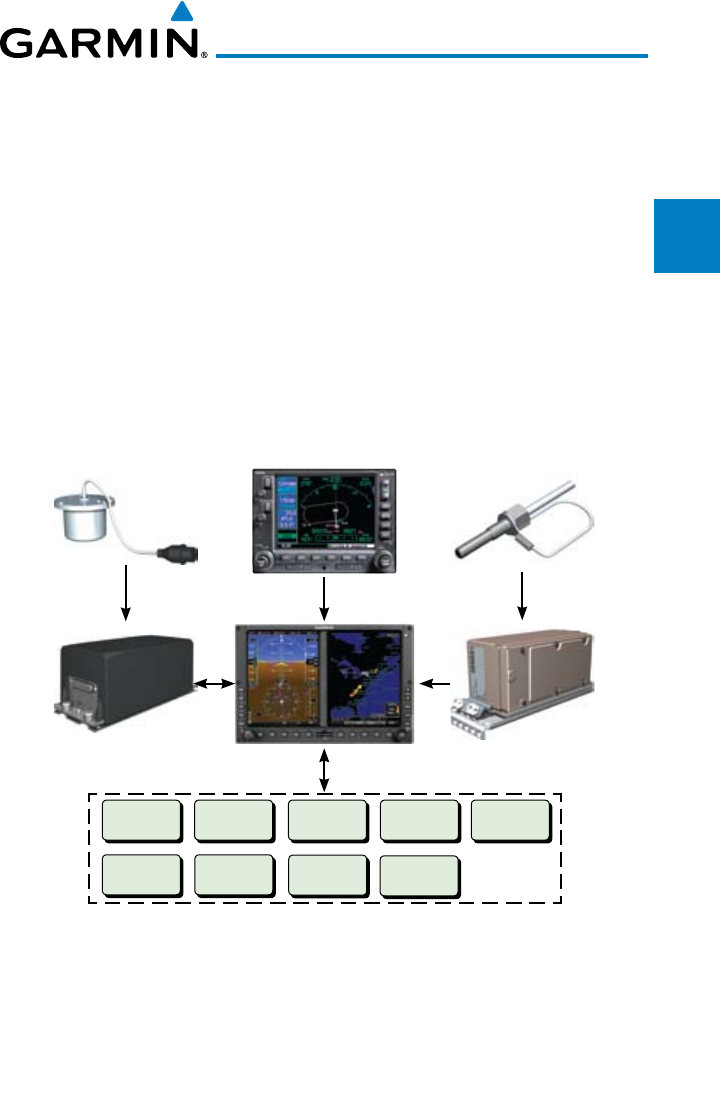
GMU 44 Magnetometer GPS Navigator(s) Temperature Probe
GRS 77 AHRS GDC 74 Air Data Computer
GDU 620
Optional Interfaces
Traffic
Audio Panel
SL 30 ADF
GDL 69/69A GTX330/330D
Autopilot
Flight Director
GAD 43
GWX 68
Figure 1-1 G600 System (LRU Configuration)
The system consists of the following Line Replaceable Units (LRUs):
• GDU 620 Primary Flight Display (PFD) and Multi Function Display
(MFD)
• GDC 74A/74B Air Data Computer (ADC)
• GRS 77 Attitude and Heading Reference System (AHRS)

1-2
Garmin G600 Pilot’s Guide
190-00601-02 Rev. E
Foreword
Sec 1
System
Sec 2
PFD
Sec 3
MFD
Sec 4
Hazard
Avoidance
Sec 5
Additional
Features
Sec 6
Annun.
& Alerts
Sec 7
Symbols
Sec 8
GlossaryAppendix A
Appendix B
Index
• GNS 480, CNX80, GNS 400W series, or GNS 500W series, or a
compatible GPS Navigator
• Temperature Probe (such as the GTP 59)
• GMU 44 Magnetometer
• GDL 69/69A Satellite Data Link Receiver (optional)
• GSR 56 Satellite Data Link Receiver (optional)
• SL30 NavCom (optional)
• Autopilot/Flight Director (optional)
• ADF (optional)
• Garmin GTS or GTX traffic awareness systems, or selected 3rd party
devices (optional)
• Audio Panel (optional)
• GAD 43 Adapter (optional)
• Garmin GWX systems or selected 3rd party radar (optional)
1.1.1 Line Replaceable Units (LRU)
This guide covers the operation of the GDU 620 display as integrated in the
G600 system. The G600 Avionics Display System is an avionics suite designed
to replace the traditional flight instrument cluster. The system combines
primary flight instrumentation, navigational information, and a moving map all
displayed on dual color screens. The G600 system is composed of sub-units or
Line Replaceable Units (LRUs). LRUs have a modular design and can be installed
directly behind the instrument panel or in a separate avionics bay if desired.
This design greatly eases troubleshooting and maintenance of the G600 system.
A failure or problem can be isolated to a particular LRU, which can be replaced
quickly and easily. Each LRU has a particular function, or set of functions, that
contributes to the system’s operation.
1-3190-00601-02 Rev. E
Garmin G600 Pilot’s Guide
Foreword
Sec 1
System
Sec 2
PFD
Sec 3
MFD
Sec 4
Hazard
Avoidance
Sec 5
Additional
Features
Sec 6
Annun.
& Alerts
Sec 7
Symbols
Sec 8
Glossary Appendix A
Appendix B
Index
1.1.2 GDU 620
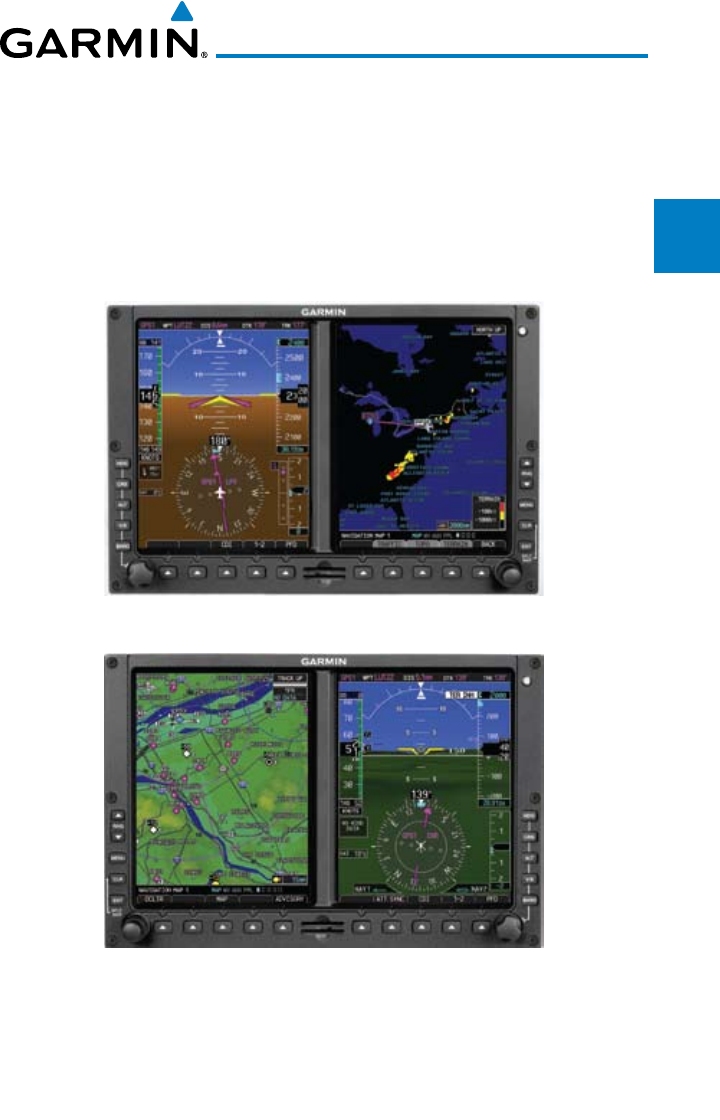
The GDU 620 has dual VGA (640 x 480 pixels) 6.5 inch LCD displays. The
left side of the GDU is a PFD and the right side is the MFD. In some models or
installations, the PFD and MFD and their controls are switched to the other side.
The MFD shows a moving map, flight plan, weather, and other supplemental
data. The PFD shows primary flight information, in place of traditional pitot-
static and gyroscopic systems and also provides an HSI for navigation.
Figure 1-2 GDU 620 PFD and MFD
Figure 1-3 GDU 620 PFD and MFD with PFD on Right
1-4
Garmin G600 Pilot’s Guide
190-00601-02 Rev. E
Foreword
Sec 1
System
Sec 2
PFD
Sec 3
MFD
Sec 4
Hazard
Avoidance
Sec 5
Additional
Features
Sec 6
Annun.
& Alerts
Sec 7
Symbols
Sec 8
GlossaryAppendix A
Appendix B
Index
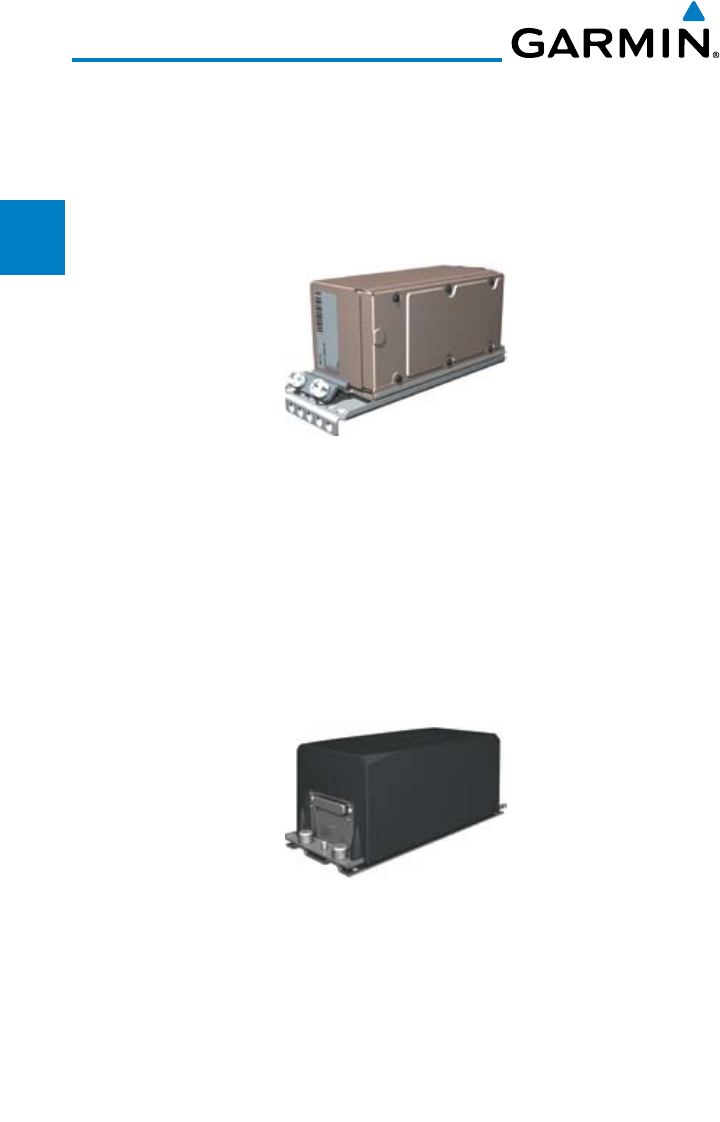
1.1.3 GDC 74A/74B
The GDC 74A/74B Air Data Computer (ADC) compiles information from
the pitot/static system and an Outside Air Temperature (OAT) sensor. The
GDC 74A/74B provides pressure altitude, airspeed, vertical speed, and OAT
information to the G600 system. The GDC 74A/74B communicates with the
GDU 620 and GRS 77 using an ARINC 429 digital interface.
Figure 1-4 GDC 74A/74B Air Data Computer
1.1.4 GRS 77
The GRS 77 is an Attitude and Heading Reference System (AHRS) unit that
provides aircraft attitude information to the G600 display. The unit contains
advanced tilt sensors, accelerometers, and rate sensors. In addition, the GRS 77
interfaces with both the GDC 74A/74B Air Data Computer and the GMU 44
magnetometer. The GRS 77 also utilizes GPS data forwarded from the GDU 620.
Actual attitude and heading information is sent to the GDU 620 using an ARINC
429 digital interface.
Figure 1-5 GRS 77 AHRS
The IGRF (International Geomagnetic Reference Field) model is contained
in the GRS 77 and is only updated once every five years. The IGRF model is
part of the Navigation Database. At system power-up, the IGRF models in the
GRS 77 and in the Navigation Database are compared, and if the IGRF model in
the GRS 77 is out of date, the user is prompted to update the IGRF model in the
GRS 77. The prompt will appear after the G600 splash screen is acknowledged
on the MFD.
1-5190-00601-02 Rev. E
Garmin G600 Pilot’s Guide
Foreword
Sec 1
System
Sec 2
PFD
Sec 3
MFD
Sec 4
Hazard
Avoidance
Sec 5
Additional
Features
Sec 6
Annun.
& Alerts
Sec 7
Symbols
Sec 8
Glossary Appendix A
Appendix B
Index
1.1.5 GMU 44
The GMU 44 magnetometer senses the earth’s magnetic field. Data is sent
to the GRS 77 AHRS for processing to determine aircraft magnetic heading.
This unit receives power directly from the GRS 77 and communicates with the
GRS 77 using a RS-485 digital interface.
Figure 1-6 GMU 44 Magnetometer
1.1.6 GTX 330/330D (Optional)
Figure 1-7 GTX 330/330D Mode S Transponder
The GTX 330/330D is a solid-state transponder that provides Modes A, C,
and S functions. The transponder provides traffic information to the display
through an ARINC 429 digital interface.
NOTE: GTX 33/33D can also be used to display traffic information on the
GDU 620.
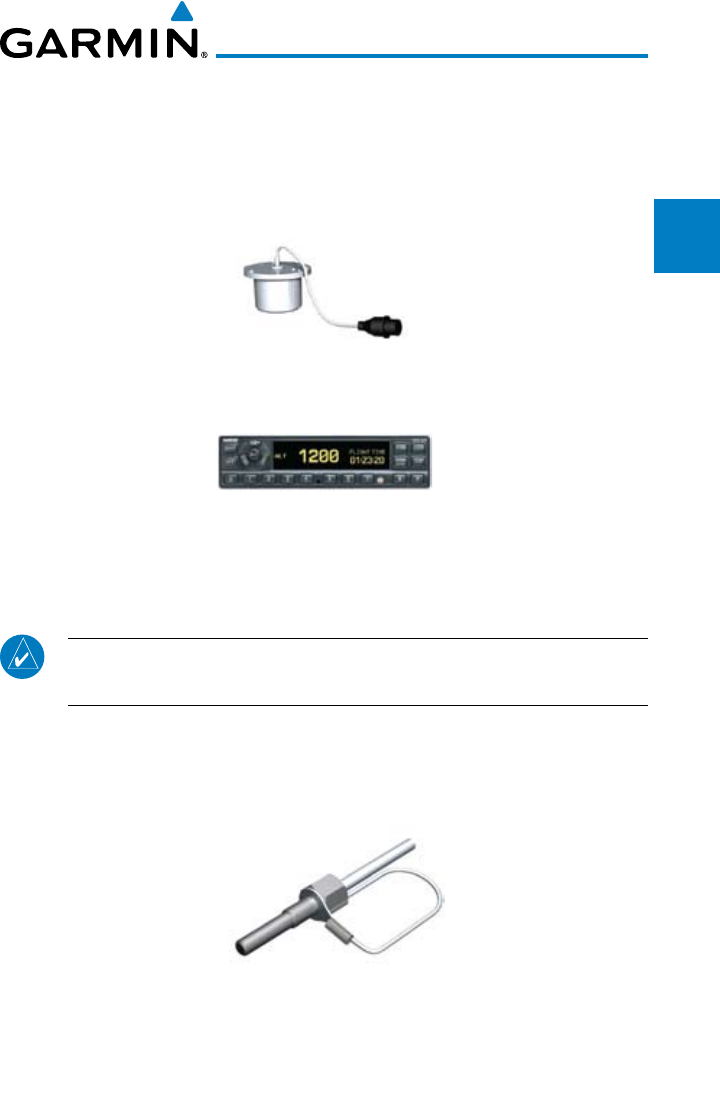
1.1.7 GTP 59
The GTP 59 temperature probe provides Outside Air Temperature (OAT)
data to the GDC 74A/74B.
Figure 1-8 GTP 59 Temperature Probe
1.1.8 GSR 56
The GSR 56 is an Iridium® satellite transceiver that supports voice telephone
calls, aircraft position reporting, and world wide weather products.
1-6
Garmin G600 Pilot’s Guide
190-00601-02 Rev. E
Foreword
Sec 1
System
Sec 2
PFD
Sec 3
MFD
Sec 4
Hazard
Avoidance
Sec 5
Additional
Features
Sec 6
Annun.
& Alerts
Sec 7
Symbols
Sec 8
GlossaryAppendix A
Appendix B
Index
1.1.9 GDL 69/69A (Optional)
The GDL 69/69A is an XM Satellite Radio Data Link Receiver that receives
broadcast weather data. The GDL 69A is the same as the GDL 69 with the
addition of an XM Satellite Radio audio entertainment receiver. Weather data
and control of audio channel and volume is displayed on the MFD, via a High-
Speed Data Bus (HSDB) Ethernet connection. The GDL 69A is also interfaced
to an audio panel for distribution of the audio signal. A subscription to the XM
Satellite Radio service is required to enable the GDL 69/69A capability.
Figure 1-9 GDL 69/69A XM Satellite Radio Data Link Receiver
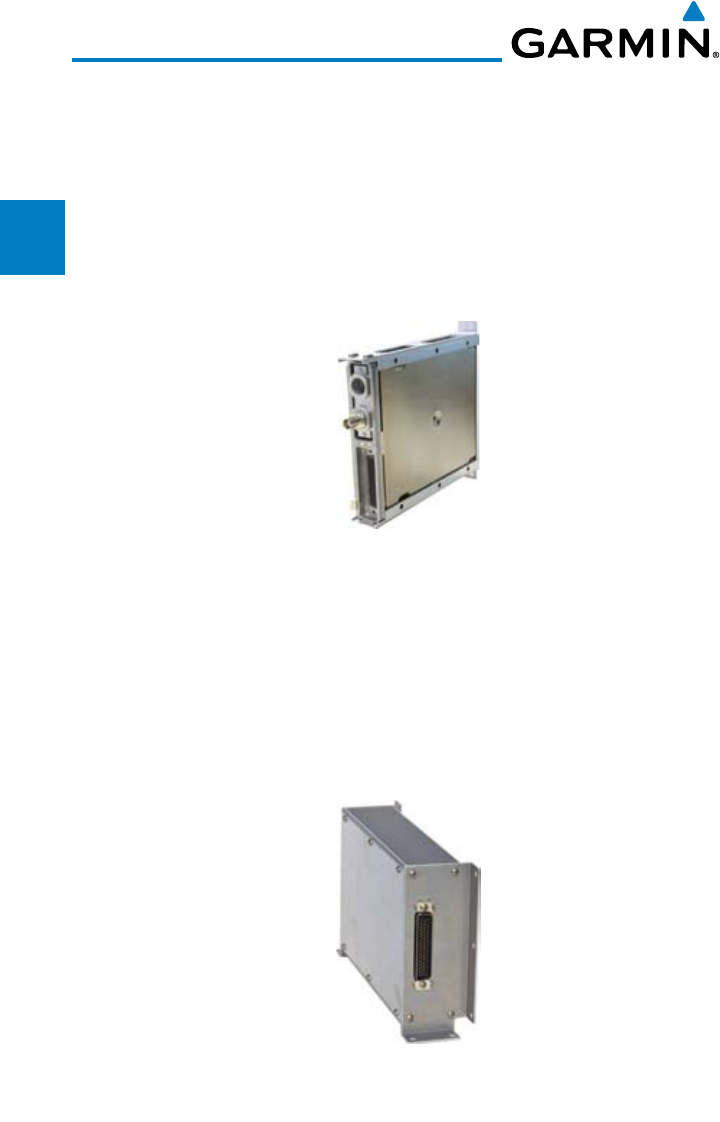
1.1.10 GAD 43
The GAD 43 is an adapter that converts AHRS digital pitch, roll, heading
and yaw rate data into analog signals used by autopilot systems. The GAD 43
is installed remotely between the AHRS and an existing autopilot. The analog
signals from the GAD 43 mimic those of spinning-mass gyros that provide
attitude data to the autopilot and allow the gyro to be replaced by the AHRS
and GAD 43 combination.
Figure 1-10 GAD 43 AHRS Adapter
1-7190-00601-02 Rev. E
Garmin G600 Pilot’s Guide
Foreword
Sec 1
System
Sec 2
PFD
Sec 3
MFD
Sec 4
Hazard
Avoidance
Sec 5
Additional
Features
Sec 6
Annun.
& Alerts
Sec 7
Symbols
Sec 8
Glossary Appendix A
Appendix B
Index
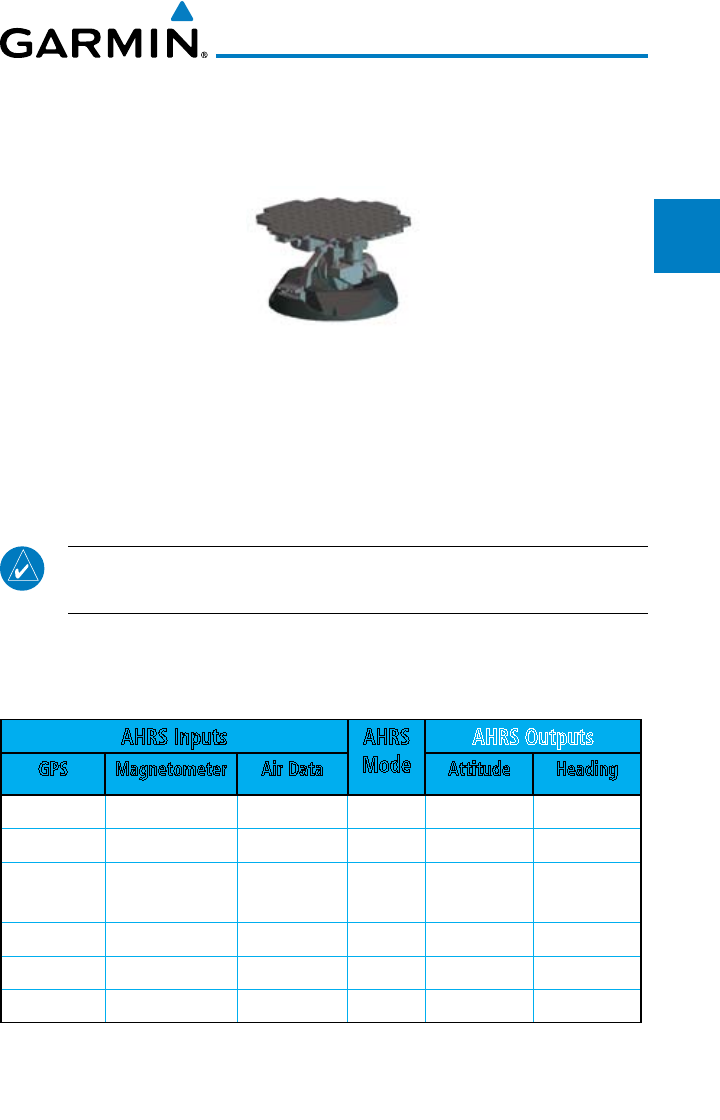
1.1.11 GWX 68 Weather Radar
The Garmin GWX system, or selected 3rd party radar, provides airborne
weather and ground mapped radar data to the MFD.
Figure 1-11 GWX 68 Weather Radar
1.1.12 Garmin Navigator Interface
The G600 system requires connection to at least one external Garmin WAAS
GPS navigator, such as the 400W/500W series or GNS 480.
1.1.13 Attitude Heading Reference System (AHRS)
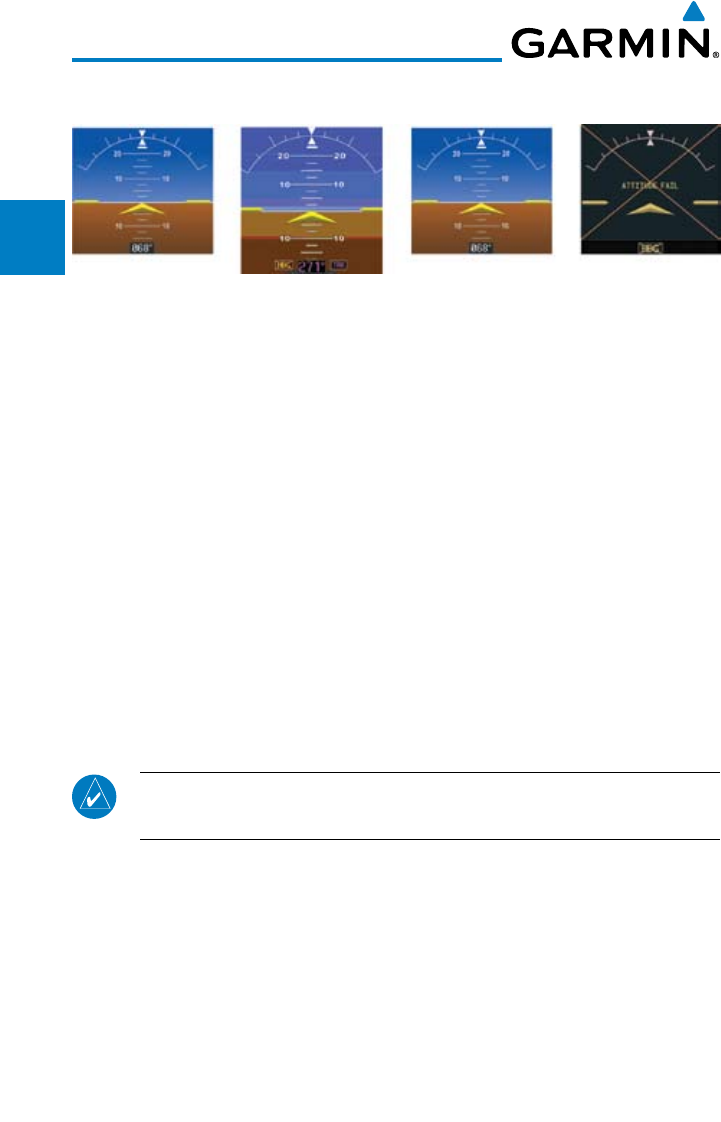
NOTE: Aggressive maneuvering while AHRS is not operating in normal
mode may degrade AHRS accuracy.
Attitude and heading information is displayed on the PFD when the AHRS
receives appropriate combinations of information from the external sensor
inputs.
AHRS Inputs AHRS
Mode
AHRS Outputs
GPS Magnetometer Air Data Attitude Heading
Available Available — Normal Available Available
Available Unavailable Available No Mag Available GPS Track
Available Unavailable Unavailable No Air/
No Mag
Available GPS Track
Unavailable Available Available No GPS Available Available
Unavailable Available Unavailable Fail Unavailable Unavailable
Unavailable Unavailable — Fail Unavailable Unavailable
Table 1-1 AHRS Operation
1-8
Garmin G600 Pilot’s Guide
190-00601-02 Rev. E
Foreword
Sec 1
System
Sec 2
PFD
Sec 3
MFD
Sec 4
Hazard
Avoidance
Sec 5
Additional
Features
Sec 6
Annun.
& Alerts
Sec 7
Symbols
Sec 8
GlossaryAppendix A
Appendix B
Index
AHRS Normal
Operation
Heading
Invalid
AHRS No-GPS
Mode
Altitude/Heading
Invalid
Figure 1-12 AHRS Operation
Loss of GPS, magnetometer, or air data inputs is communicated to the pilot by
message advisory alerts (refer to Section 6 for specific AHRS alert information).
Any failure of the internal AHRS inertial sensors results in loss of attitude and
heading information (indicated by red “X” flags over the corresponding flight
instruments).
A maximum of two GPS inputs are provided to the AHRS. If GPS information
from one of the inputs fails, the AHRS uses the remaining GPS input and an
alert message is issued to inform the pilot. If both GPS inputs fail, the AHRS
will continue to provide attitude and heading information to the PFD as long as
magnetometer and airspeed data are available and valid.
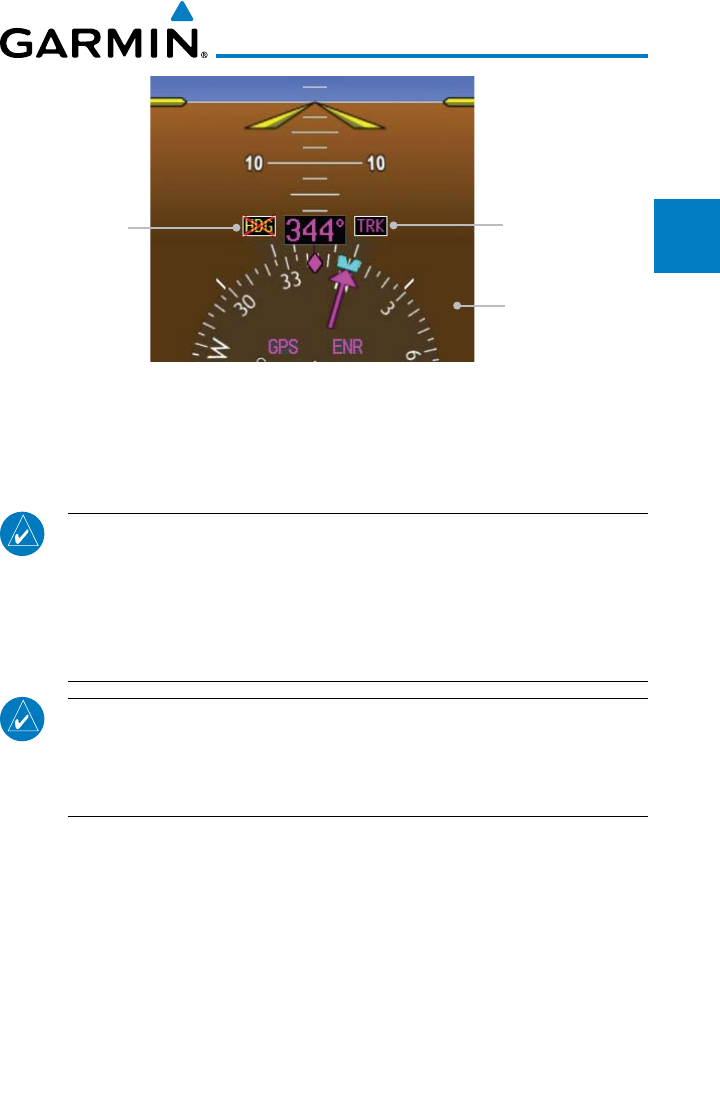
If the magnetometer input fails, the AHRS continues to output valid attitude
information and GPS Track information is used; however, the heading display
on the PFD is flagged as invalid with a red “X,” “TRK” in magenta is annunciated
to the right of the Track value, and the Track value color is changed from white
to magenta.
NOTE: In this case the magnetic standby compass and GPS ground track
can be used to keep the aircraft on the desired heading.
Note that SVT is turned off in “track-based reversionary mode” and must be
manually re-enabled when heading is restored. Also, map orientations change
from HDG UP to TRACK UP and must be manually changed back after heading
is restored.
When heading fails the heading bug is not removed and the GDU continues
driving the autopilot heading error output using track in place of heading.
1-9190-00601-02 Rev. E
Garmin G600 Pilot’s Guide
Foreword
Sec 1
System
Sec 2
PFD
Sec 3
MFD
Sec 4
Hazard
Avoidance
Sec 5
Additional
Features
Sec 6
Annun.
& Alerts
Sec 7
Symbols
Sec 8
Glossary Appendix A
Appendix B
Index
Track Mode Active
SVT Is Turned Off
When Heading
Fails
Heading Failed
Figure 1-13 Track Mode shown as Active when Heading Info has failed
Failure of the air data input has no effect on the AHRS output while AHRS is
receiving valid GPS information. Invalid or unavailable airspeed data in addition
to complete GPS failure results in loss of all attitude and heading information.
NOTE: Fastest AHRS alignment is achieved with the aircraft stationary
and with all AHRS inputs valid (3-D GPS position, magnetometer, and
air data). During initial power up on the ground, no GPS position and/or
magnetic anomalies are common. If the aircraft is taxied prior to AHRS
alignment, alignment may be delayed until after a valid 3-D GPS position
is available.
NOTE: During in-flight alignment of the AHRS, minimize aircraft
maneuvering. The AHRS will align with shallow banking and pitch angles
(less than 20 degrees of roll or 5 degrees of pitch). AHRS alignment may
not be possible during more aggressive maneuvers.
1-10
Garmin G600 Pilot’s Guide
190-00601-02 Rev. E
Foreword
Sec 1
System
Sec 2
PFD
Sec 3
MFD
Sec 4
Hazard
Avoidance
Sec 5
Additional
Features
Sec 6
Annun.
& Alerts
Sec 7
Symbols
Sec 8
GlossaryAppendix A
Appendix B
Index
1.1.14 Secure Digital Cards
The G600 System uses Secure Digital (SD) cards to load and store various types
of data. For basic flight operations, SD cards are required for Terrain, Obstacle,
FliteChart, SafeTaxi, and ChartView database storage as well as Jeppesen aviation
and ChartView database updates. The Aviation Database update card is generally
inserted in the upper SD card slot for database updates and then removed. Other
database cards are normally located in the lower SD card slot. ChartView is an
optional feature that requires enablement by a Garmin dealer.
NOTE: Ensure the GDU 620 is powered off before inserting or removing
an SD card.
NOTE: Refer to Appendix A for instructions on updating the aviation
database.
Inserting an SD Card
1) Insert the SD card in the SD card slot (the front of the card should be flush with
the face of the display bezel).
2) To eject the card, gently press on the SD card to release the spring latch.
1-11190-00601-02 Rev. E
Garmin G600 Pilot’s Guide
Foreword
Sec 1
System
Sec 2
PFD
Sec 3
MFD
Sec 4
Hazard
Avoidance
Sec 5
Additional
Features
Sec 6
Annun.
& Alerts
Sec 7
Symbols
Sec 8
Glossary Appendix A
Appendix B
Index
1.2 System Power Up
NOTE: See the Aircraft Flight Manual (AFM) for specific procedures
concerning avionics power application and emergency power supply
operation.
NOTE: Refer to Section 6 for system-specific annunciations and alerts.
The G600 System is integrated with the aircraft electrical system and receives
power directly from electrical busses. The GDU 620 and supporting sub-systems
include both power-on and continuous built-in test features that exercise the
processor, memory, external inputs, and outputs to ensure safe operation.
During system initialization, test annunciations are displayed. All system
annunciations should disappear typically within the first 30 seconds after power-
up. Upon power-up, bezel key backlights also become momentarily illuminated
on the GDU 620 display bezel.
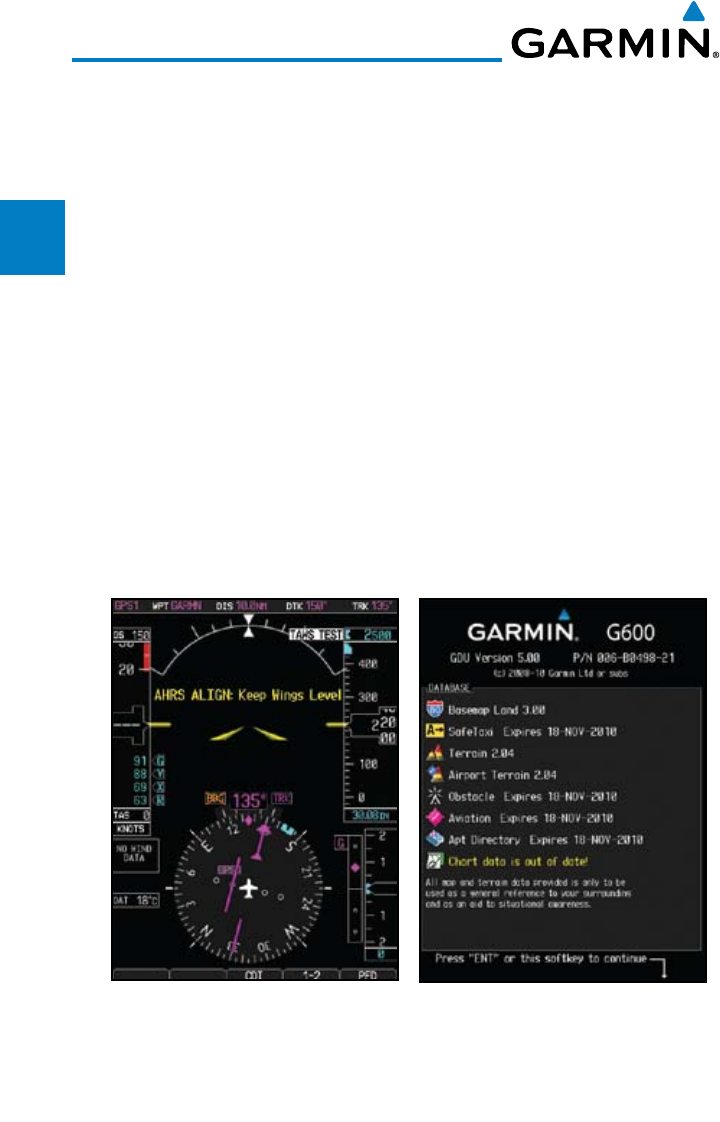
On the PFD, the AHRS begins to initialize and “AHRS ALIGN: Keep Wings
Level” is displayed. The AHRS should display valid attitude and heading fields
typically within the first minute after power-up. The AHRS can align itself both
while taxiing and during level flight.
NOTE: Fastest AHRS alignment is achieved with the aircraft stationary
and with all AHRS inputs valid (3-D GPS position, magnetometer, and
air data). During initial power up on the ground, no GPS position and/or
magnetic anomalies are common. If the aircraft is taxied prior to AHRS
alignment, alignment may be delayed until after a valid 3-D GPS position
is available.
NOTE: During in-flight alignment of the AHRS, minimize aircraft
maneuvering. The AHRS will align with shallow banking and pitch angles
(less than 20 degrees of roll or 5 degrees of pitch). AHRS alignment may
not be possible during more aggressive maneuvers.
1-12
Garmin G600 Pilot’s Guide
190-00601-02 Rev. E
Foreword
Sec 1
System
Sec 2
PFD
Sec 3
MFD
Sec 4
Hazard
Avoidance
Sec 5
Additional
Features
Sec 6
Annun.
& Alerts
Sec 7
Symbols
Sec 8
GlossaryAppendix A
Appendix B
Index
When the MFD powers up, the splash screen displays the following
information:
• Softwareversion and part number
• Copyright
• Landdatabasenameandversion
• Obstacledatabase name and version
• Terrain database name and version
• Aviationdatabasename,version,andeffectivedates
• AirportDirectoryexpirationdate
Current database information includes valid operating dates, cycle number,
and database type. When this information has been reviewed for currency (to
ensure that no databases have expired), the pilot is prompted to continue.
Databases are displayed in white if they are determined to be current.
Databases are displayed in yellow if they have expired, are not yet effective, or if
the current date/time is not yet available from the GPS.
Figure 1-14 System Startup Pages

1-13190-00601-02 Rev. E
Garmin G600 Pilot’s Guide
Foreword
Sec 1
System
Sec 2
PFD
Sec 3
MFD
Sec 4
Hazard
Avoidance
Sec 5
Additional
Features
Sec 6
Annun.
& Alerts
Sec 7
Symbols
Sec 8
Glossary Appendix A
Appendix B
Index
1.3 International Geomagnetic Reference Field
The IGRF (International Geomagnetic Reference Field) model is contained in
the GRS 77 and is only updated once every five years. The IGRF model is part of
the Navigation Database. At system power-up, the IGRF models in the GRS 77
and in the Navigation Database are compared, and if the IGRF model in the GRS
77 is out of date, the user is prompted to update the IGRF model in the GRS 77.
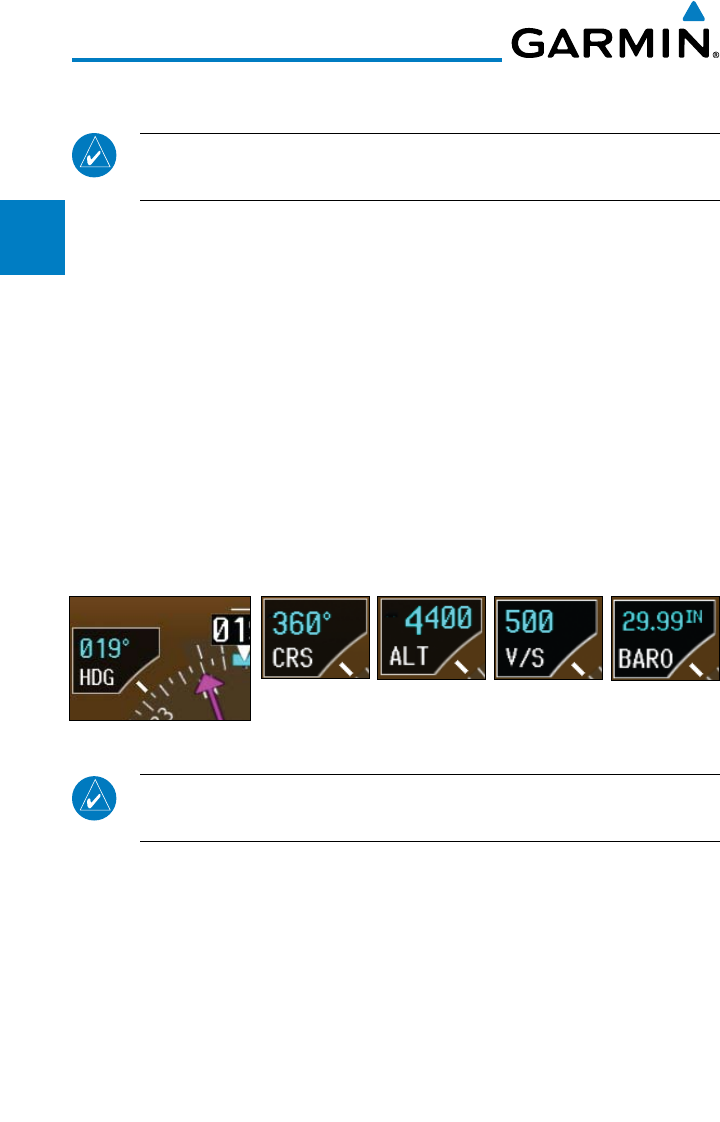
The following prompt will appear after the G600 splash screen is acknowledged
on the MFD.
GRS MV DB UPDATE AVAILABLE.UPDATE FROM yyyy TO yyyy
(e.g. 2005 to 2010)
Pressing the ENT key (or right-most soft key) acknowledges this information
and displays the Navigation Map Page. When the interfaced GPS unit has
acquired a sufficient number of satellites to determine a position, the aircraft’s
current position is shown on the Navigation Map Page.
1-14
Garmin G600 Pilot’s Guide
190-00601-02 Rev. E
Foreword
Sec 1
System
Sec 2
PFD
Sec 3
MFD
Sec 4
Hazard
Avoidance
Sec 5
Additional
Features
Sec 6
Annun.
& Alerts
Sec 7
Symbols
Sec 8
GlossaryAppendix A
Appendix B
Index
1.4 System Operation
NOTE: Refer to Section 6 for detailed descriptions of all alerts and
annunciations.
1.4.1 Pilot Controls
The GDU 620 controls have been designed to simplify operation of the system
and minimize workload and the time required to access functionality. Controls
are located on the PFD and MFD bezels and are comprised of a PFD knob, MFD
dual concentric knobs, bezel keys, and soft keys.
1.4.1.1 PFD Knob
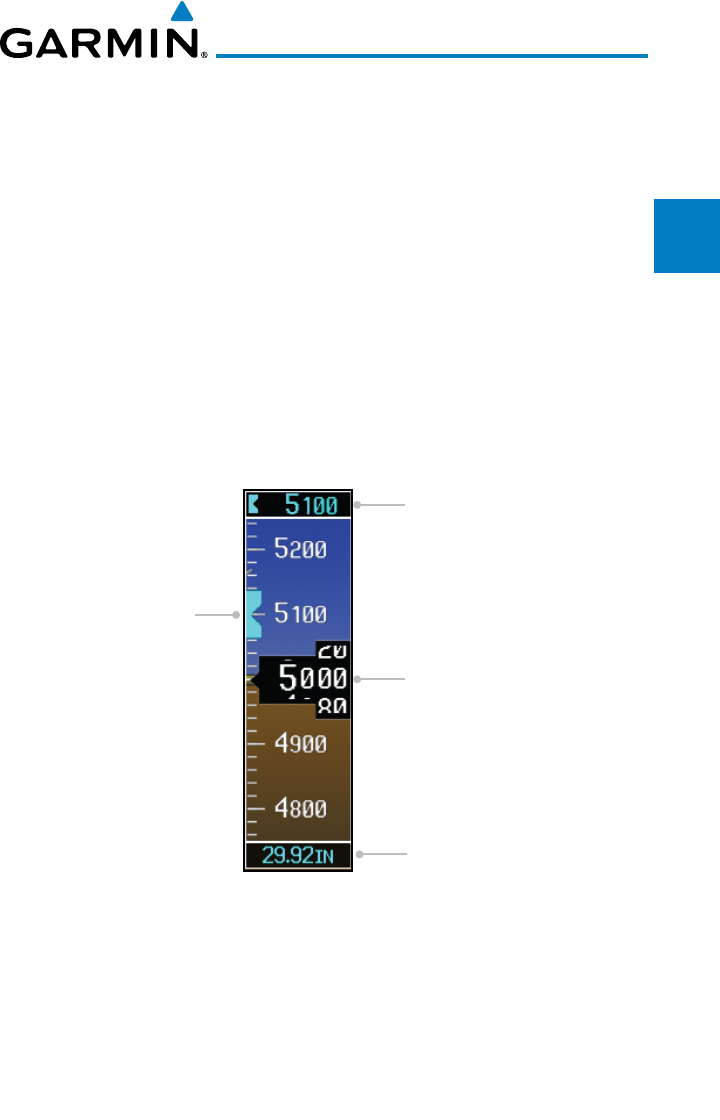
Turning the PFD knob adjusts the values for the mode selected by the PFD
bezel keys, such as, Heading (HDG), Course (CRS), Altitude (ALT), Vertical
Speed (V/S), and Barometric Setting (BARO). The values are shown in a window
to the left of the HSI. Pressing the PFD knob reverts to the default value of the
selected mode.
Heading
Mode
Course
Mode
Altitude
Mode
Vertical Speed
Mode
Barometer
Mode
Figure 1-15 Selection Modes Adjusted with the PFD Knob
NOTE: After 10 seconds of inactivity in another mode, the PFD knob
selected mode will revert to Heading mode.
1. Press the desired PFD mode selection key (HDG, CRS, ALT, V/S, or BARO). A
window will be displayed near the upper right corner of the HSI showing the
current value for that mode.
2. Turn the PFD knob to select the desired value.
1-15190-00601-02 Rev. E
Garmin G600 Pilot’s Guide
Foreword
Sec 1
System
Sec 2
PFD
Sec 3
MFD
Sec 4
Hazard
Avoidance
Sec 5
Additional
Features
Sec 6
Annun.
& Alerts
Sec 7
Symbols
Sec 8
Glossary Appendix A
Appendix B
Index
1.4.1.2 PFD Bezel Keys
Heading (HDG)
Selects Heading Select mode. Pressing the PFD knob in Heading mode will
center the Heading Bug on the current Heading. This is the default mode for
the PFD knob. Set the heading on the HSI by turning the PFD knob after
pressing the HDG key.
Course (CRS)
Selects Course Select mode. Pressing the PFD knob in Course mode will
center the CDI for a VOR or OBS mode course.
Altimeter (ALT)
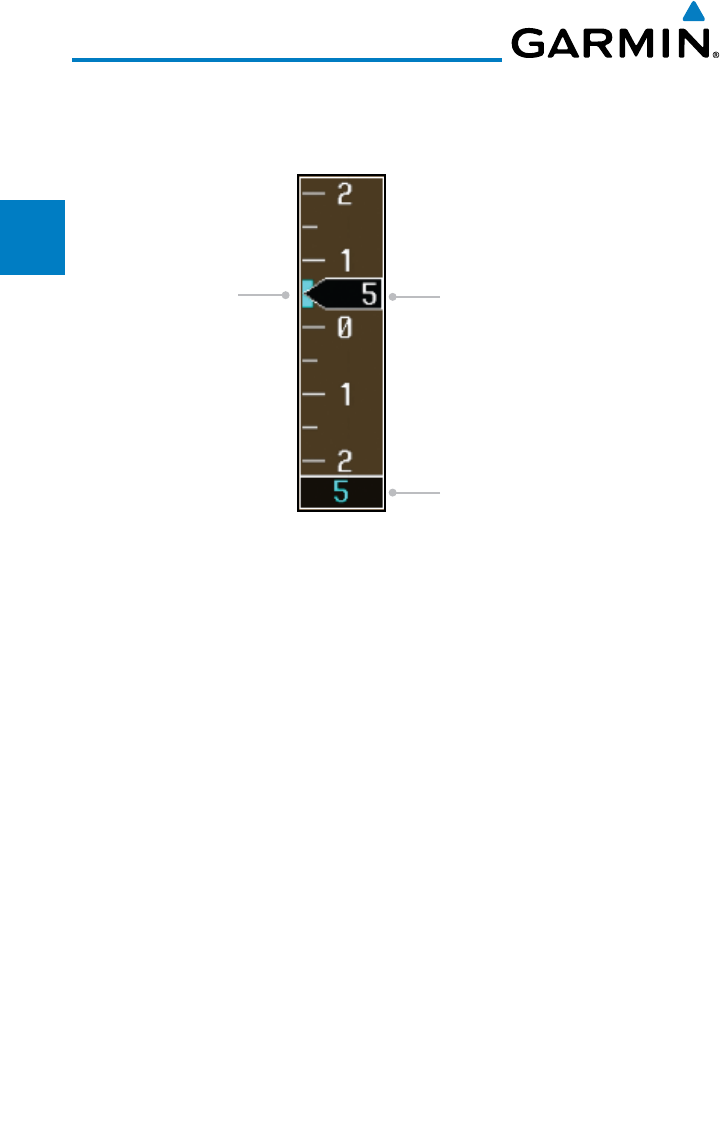
Selects Altitude Select mode. Pressing the PFD knob in Altitude Select mode
will enter the current altitude in the Altitude Select window. Set the Altitude
Bug by turning the PFD knob after pressing the ALT key.
Altitude Select Window
Current Altitude
Altitude Bug
Barometric Setting
Figure 1-16 Pressing PFD Knob Sets Altitude Select to Current Altitude
1-16
Garmin G600 Pilot’s Guide
190-00601-02 Rev. E
Foreword
Sec 1
System
Sec 2
PFD
Sec 3
MFD
Sec 4
Hazard
Avoidance
Sec 5
Additional
Features
Sec 6
Annun.
& Alerts
Sec 7
Symbols
Sec 8
GlossaryAppendix A
Appendix B
Index
Vertical Speed (V/S)
Selects Vertical Speed (V/S) mode. Pressing the PFD knob in V/S mode will
synchronize the bug to the current vertical speed.
Current Vertical Speed
Vertical Speed Bug Setting
Vertical Speed Bug
Figure 1-17 Pressing V/S Knob Sets Vertical Speed Bug to Current Vertical Speed
Barometer (BARO)
Selects Barometric Setting Select mode. Pressing the PFD knob in Baro mode
will enter the standard pressure (29.92 in/1013 mb) value.
1.4.1.3 MFD Knobs
The MFD knobs are for navigating and selecting information on the MFD
pages. More details are provided in the MFD section.
Small (Inner) MFD Knob
Selects a specific page within a page group. Pressing the small MFD knob
turns the selection cursor ON and OFF. When the cursor is ON, data may be
entered in the applicable window by turning the small and large MFD knobs.
In this case, the large MFD knob moves the cursor on the page and the small
MFD knob selects individual characters or values for the highlighted cursor
location.
Large (Outer) MFD Knob
Selects the MFD page group. When the cursor is ON, the large MFD knob
moves the cursor to highlight available fields.
1-17190-00601-02 Rev. E
Garmin G600 Pilot’s Guide
Foreword
Sec 1
System
Sec 2
PFD
Sec 3
MFD
Sec 4
Hazard
Avoidance
Sec 5
Additional
Features
Sec 6
Annun.
& Alerts
Sec 7
Symbols
Sec 8
Glossary Appendix A
Appendix B
Index
1.4.1.4 MFD Bezel Keys
Range (RNG)
Pressing the Range arrow keys changes the range on the Map pages. The Up
arrow zooms out. The Down arrow zooms in. The keys also aid in scrolling
up and down text pages.
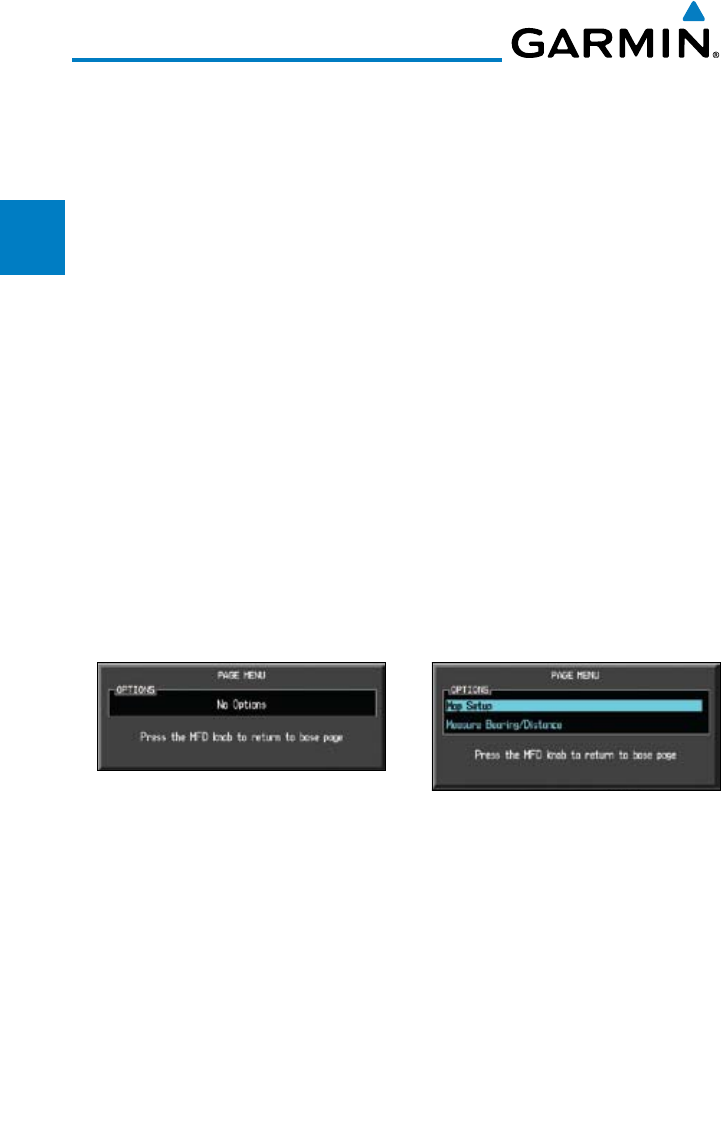
Menu
Displays a context-sensitive list of options. This list allows the user to access
additional features or make setting changes that relate to particular pages.
Enter (ENT)
Validates or confirms a menu selection or data entry.
Clear (CLR)
Erases information, cancels entries, or removes page menus. Pressing and
holding the CLR key displays the Navigation Map 1 page.
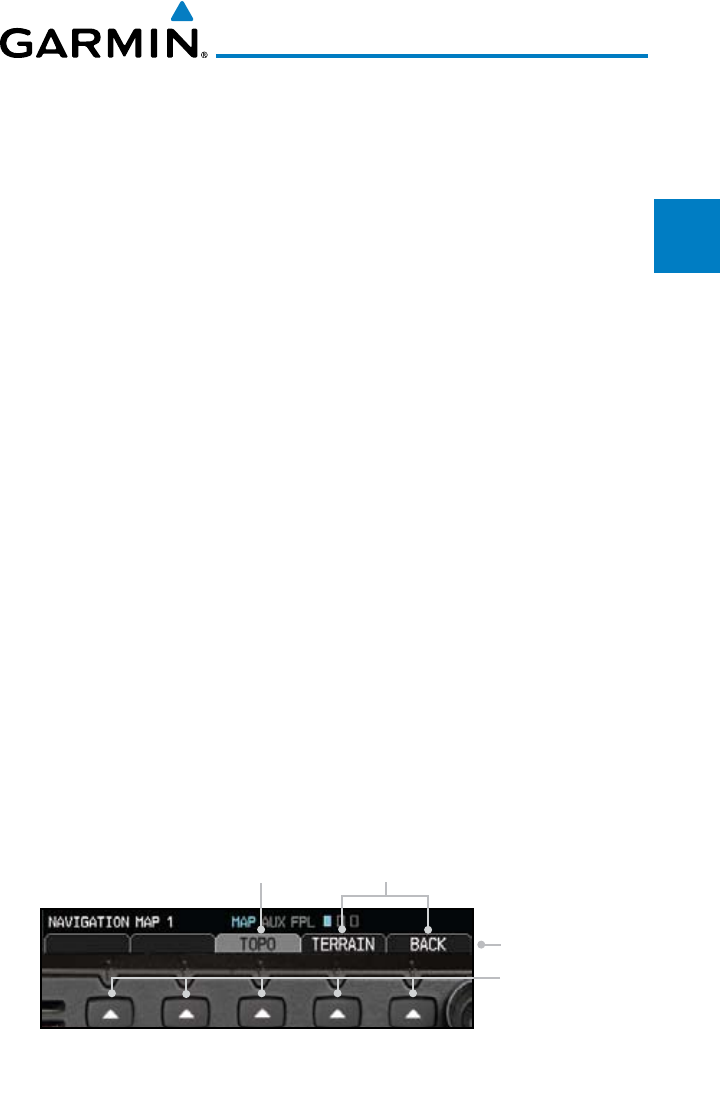
1.4.2 Using the Soft Key Controls
The soft keys are located along the bottoms of the displays. The soft key
labels shown depend on the soft key level or page being displayed. The bezel
keys below the soft keys can be used to select the appropriate soft key.
MFD functions indicated by the soft key labels vary depending on the page
selected and are located at the bottom of the MFD display. Press the soft key
located directly below the soft key label. To select the function indicated on the
soft key label, press the soft key directly below the label.
Selected Soft Key Unselected Soft Keys
Soft Key Labels
Soft Keys
Figure 1-18 MFD Soft Key Layout
1-18
Garmin G600 Pilot’s Guide
190-00601-02 Rev. E
Foreword
Sec 1
System
Sec 2
PFD
Sec 3
MFD
Sec 4
Hazard
Avoidance
Sec 5
Additional
Features
Sec 6
Annun.
& Alerts
Sec 7
Symbols
Sec 8
GlossaryAppendix A
Appendix B
Index
1.4.3 Using the Page Menus
The GDU 620 has a dedicated MENU key that when pressed displays a
context-sensitive list of options for functions in the MFD. This options list allows
the user to access additional features or make settings changes which specifically
relate to the currently displayed window/page. There is no all-encompassing
menu. Some menus provide access to additional submenus that are used to view,
edit, select, and review options. Menus display “No Options” when there are no
options for the window/page selected. Soft key presses do not display menus or
submenus.
Navigating within a Menu
1) Press the MENU key to display the menu.
2) Turn the small or large MFD knob to scroll through a list of available options (a
scroll bar always appears to the right of the window/box when the option list
is longer than the window/box).
3) Press the ENT key to select the desired option.
4) Press the CLR key or MFD knob to remove the menu and cancel the
operation.
No Options Options for MAP Window
Figure 1-19 Page Menu Examples
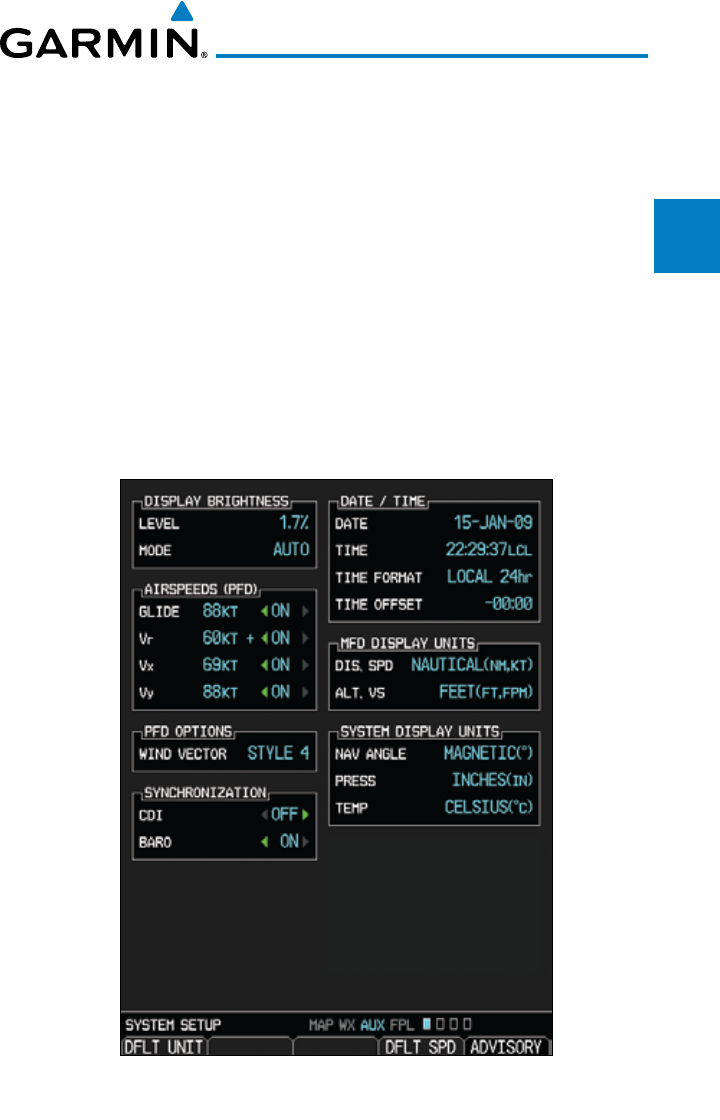
1-19190-00601-02 Rev. E
Garmin G600 Pilot’s Guide
Foreword
Sec 1
System
Sec 2
PFD
Sec 3
MFD
Sec 4
Hazard
Avoidance
Sec 5
Additional
Features
Sec 6
Annun.
& Alerts
Sec 7
Symbols
Sec 8
Glossary Appendix A
Appendix B
Index
1.4.4 System Settings
G600 system settings are managed from the Aux Mode System Setup
Page. The following settings can be changed:
• DisplayBrightness (Mode and Level)
• AirspeedReferences (Glide, Vr, Vx, and Vy)
• PFDOptions (Wind Vector)
• DualUnitSynchronization (CDI and Baro) - Dual installations only
• Date/Time(Date, Time, Time Format, and Time Offset)
• MFDDisplayUnits (Distance/Speed and Altitude/Vertical Speed)
•System Display Units (Navigation Angle Reference, Pressure Units, and
Temperature Units)
Figure 1-20 System Setup Page
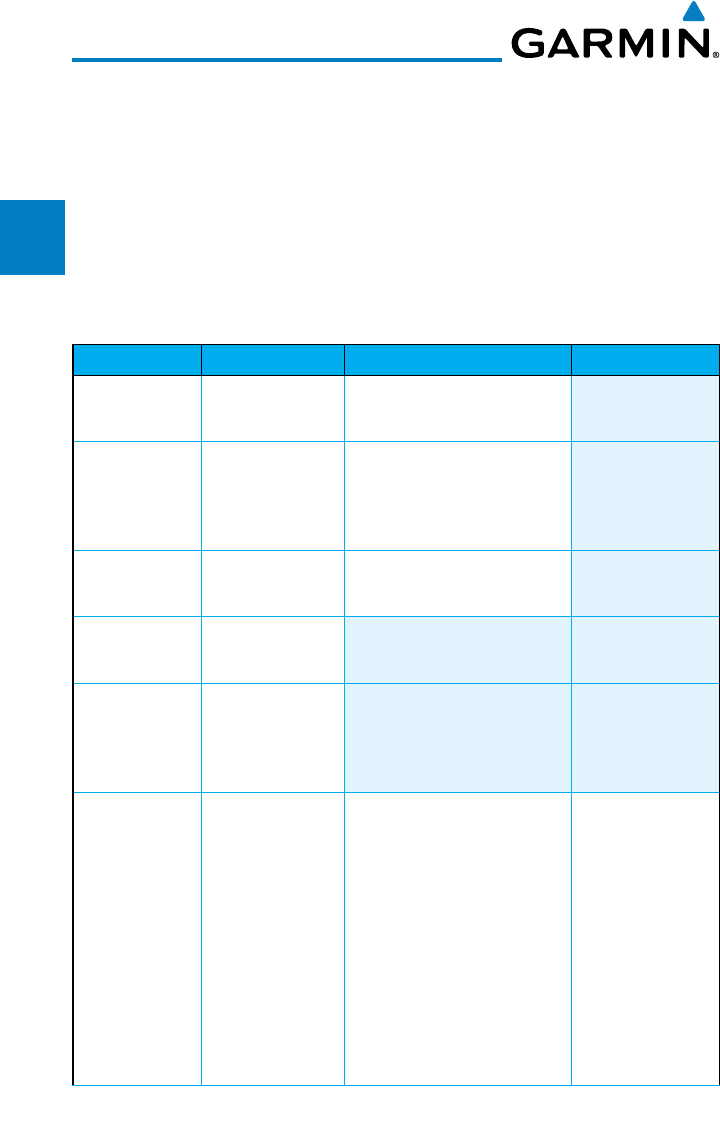
1-20
Garmin G600 Pilot’s Guide
190-00601-02 Rev. E
Foreword
Sec 1
System
Sec 2
PFD
Sec 3
MFD
Sec 4
Hazard
Avoidance
Sec 5
Additional
Features
Sec 6
Annun.
& Alerts
Sec 7
Symbols
Sec 8
GlossaryAppendix A
Appendix B
Index
System Settings Values
1) From the first AUX page, press the small MFD knob and turn the large MFD
knob to highlight the desired value.
2) Turn the small MFD knob to select “ON” or “OFF.”
3) Press ENTER to save the setting.
More detail on changing settings is in the Section 3 - MFD Aux pages System
Settings section.
Category Settings Affected Quantities Exceptions
Display
Brightness
Level
Mode
Brightness levels on the PFD
and MFD
Airspeeds Glide
VR
VX
VY
Reference markers on PFD
airspeed tape
Synchronization
CDI - On/Off
BARO - On/Off
Crossfill Nav information to
GDU 620
PFD Options
(Wind Vector)
Style 1 - Style 4
Date/Time Date
Time
Time Format
Time Offset
Distance and
Speed
Metric
Nautical
Crosstrack error (HSI)
Bearing distances
(information windows)
Distance (information
window)
Flight plan distances
Map ranges
DIS, GS, TAS, XTK fields
(Navigation Status Box)
All distances on MFD
All speeds on MFD
Airspeed Indicator
True Airspeed
(PFD)
Wind speed
vector
Map range (Traffic
Page, Terrain
Proximity Page)
CDI scaling

1-21190-00601-02 Rev. E
Garmin G600 Pilot’s Guide
Foreword
Sec 1
System
Sec 2
PFD
Sec 3
MFD
Sec 4
Hazard
Avoidance
Sec 5
Additional
Features
Sec 6
Annun.
& Alerts
Sec 7
Symbols
Sec 8
Glossary Appendix A
Appendix B
Index
Category Settings Affected Quantities Exceptions
Altitude and
Vertical Speed
Feet
Meters
All elevations on MFD Altimeter
Vertical Speed
Indicator
Navigation
Angle
Magnetic (North)
True (North)
Heading
Course
Bearing
Track
Desired Track
Barometric
Setting
Inches (in)
Hectopascals
(hpa)
Barometric pressure on PFD
Temperature Celsius
Fahrenheit
All temperatures on PFD
Table 1-2 Display Units Settings (System Setup Page)
More detail on changing settings is in the Section 3 - MFD Aux pages System
Settings section.
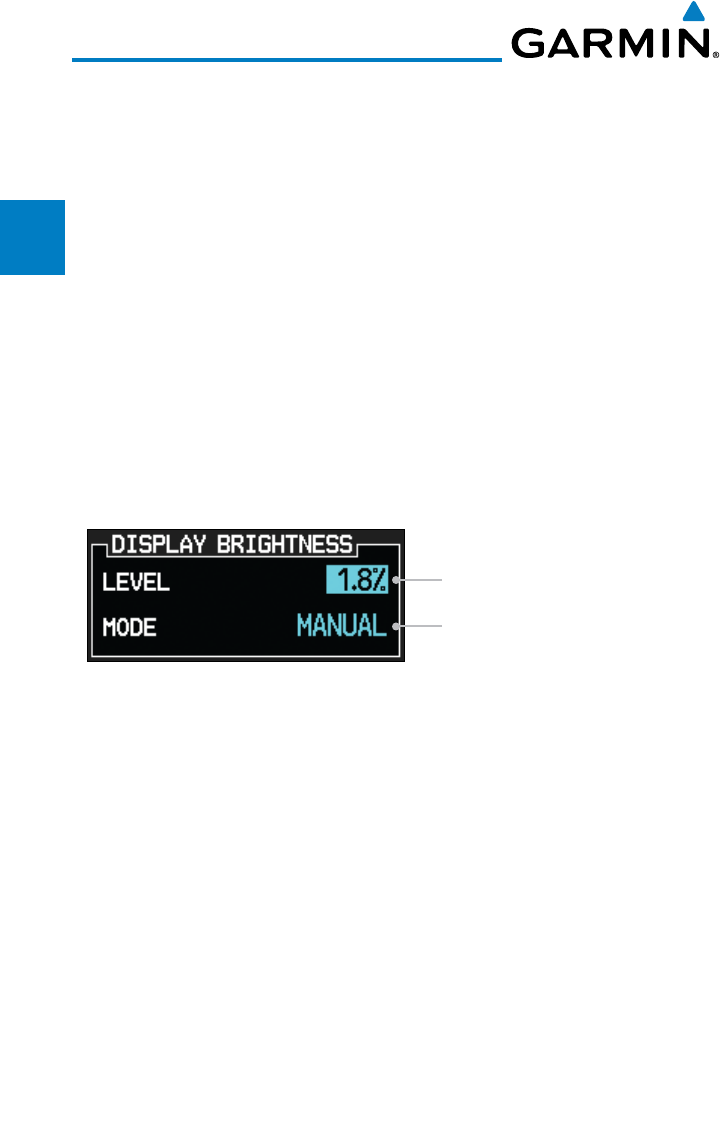
1-22
Garmin G600 Pilot’s Guide
190-00601-02 Rev. E
Foreword
Sec 1
System
Sec 2
PFD
Sec 3
MFD
Sec 4
Hazard
Avoidance
Sec 5
Additional
Features
Sec 6
Annun.
& Alerts
Sec 7
Symbols
Sec 8
GlossaryAppendix A
Appendix B
Index
1.4.5 Display Backlighting
The backlighting of the PFD and MFD displays and bezel keys can be
adjusted automatically or manually. The default setting (automatic backlighting
adjustment) uses the photocell located at the top right corner of the bezel to
automatically adjust for ambient lighting conditions. Photocell calibration
curves are configured by the installer to optimize display appearance through
a broad range of cockpit lighting conditions. Manual backlighting adjustment
can be accomplished using the existing instrument panel dimmer bus or the
following procedures.
Backlighting Adjustment
1) From the first AUX page, press the small MFD knob to highlight the “DISPLAY
BRIGHTNESS” “MODE” box.
2) Turn the small MFD knob to select the desired brightness Level and then press
ENTER.
Auto or Manual
Manual Adjustment 0.1% to 50%
or Auto (1.7%)
Figure 1-21 Display Brightness Adjustment
3) Turn the large MFD knob to highlight the MODE field. Turn the small MFD
knob to select “AUTO” or “MANUAL.”
4) Press ENT.
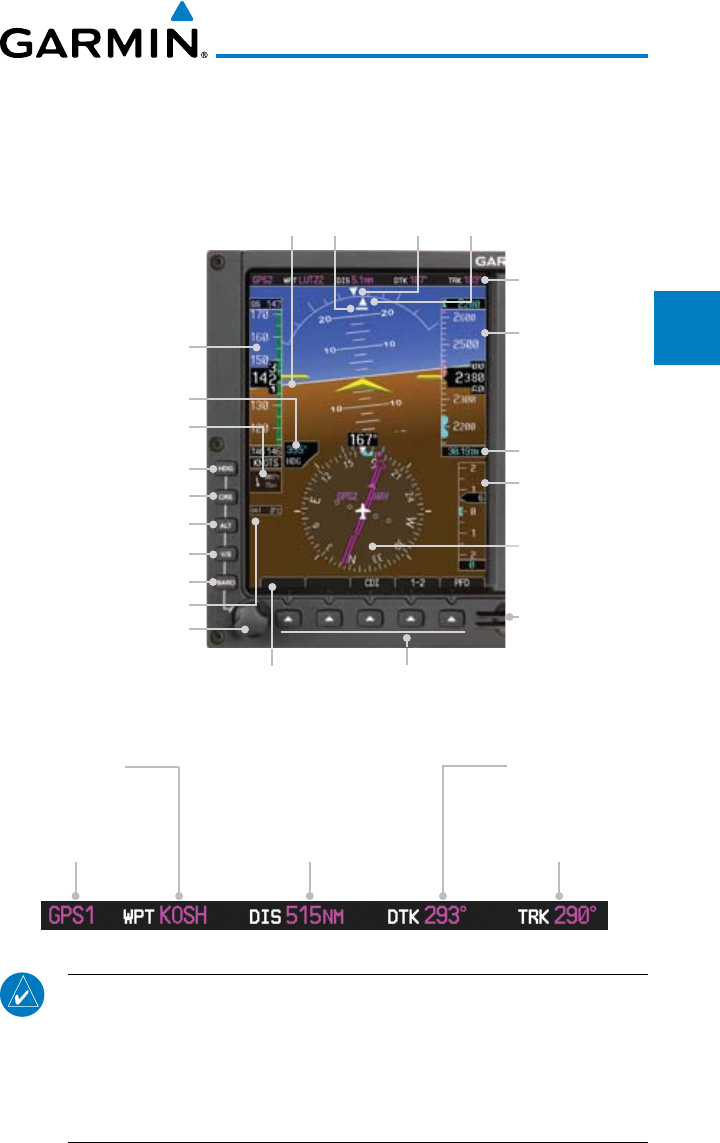
2-1190-00601-02 Rev. E
Garmin G600 Pilot’s Guide
Foreword
Sec 1
System
Sec 2
PFD
Sec 3
MFD
Sec 4
Hazard
Avoidance
Sec 5
Additional
Features
Sec 6
Annun.
& Alerts
Sec 7
Symbols
Sec 8
Glossary Appendix A
Appendix B
Index
2 PRIMARY FLIGHT DISPLAY (PFD)
Functions on the PFD are accessed by using the bezel keys on the side of the
PFD and the soft keys below the PFD.
Nav Status Bar
Current
Barometric
Pressure Setting
SD Card Slots
Altitude Tape
Vertical
Speed Tape
Horizontal
Situation
Indicator
Soft Keys
Soft Key Labels
PFD Knob
Barometric Setting Select
PFD Knob Mode Indicator
Vertical Speed Bug Select
Altitude Bug Select
Course Select
Heading Bug Select
Outside Air Temperature
Air Speed Tape
Horizon
Line
Slip/Skid
Indicator
Roll Scale
Zero
Roll
Pointer
Wind Vectors
Figure 2-1 PFD Description (Ground Pointer Mode)
Current Nav
Source
Current FPL
Leg Wpt
Distance from Your
Present Position to
Current FPL Leg Wpt Current Track
Desired Track
Figure 2-2 PFD Nav Status Bar Description
NOTE: When navigating to a waypoint very far away the DTK, CRS, and
TRK values displayed on the GDU 620 may differ from those displayed
on the navigator, however the CDI is correct and is the primary means
of navigation. This is because the GDU 620 applies magnetic variation
corrections for the current aircraft location, but some navigators apply
magnetic variation correction for the waypoint location.
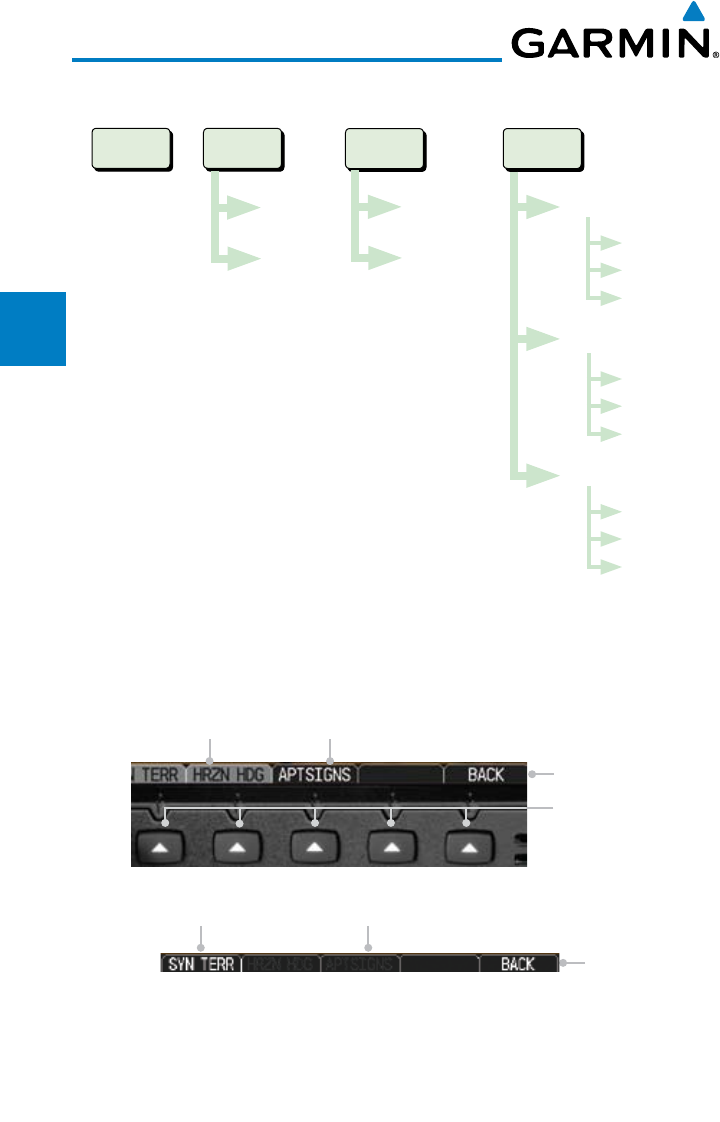
2-2
Garmin G600 Pilot’s Guide
190-00601-02 Rev. E
Foreword
Sec 1
System
Sec 2
PFD
Sec 3
MFD
Sec 4
Hazard
Avoidance
Sec 5
Additional
Features
Sec 6
Annun.
& Alerts
Sec 7
Symbols
Sec 8
GlossaryAppendix A
Appendix B
Index
2.1 PFD Soft Keys
CDI 1-2 PFD
GPS
VOR/ILS
Source 1
Source 2
BRG 1
NAV 1
GPS 1
ADF
SYN VIS
SYN TERR
HRZN HDG
APTSIGNS
BRG 2
NAV 2
GPS 2
ADF
AP TEST
Figure 2-3 PFD Soft Key Diagram
The soft keys are located along the bottoms of the displays below the soft
key labels. The soft key labels shown depend on the soft key level or page being
displayed. The soft keys can be used to select the appropriate soft key function.
Soft Key Labels
Soft Keys
Selected Soft Key Unselected Soft Key
Soft Key Labels
Soft Key Not Available
For Selection
Unselected Soft Key
Figure 2-4 PFD Soft Key Layout
2-3190-00601-02 Rev. E
Garmin G600 Pilot’s Guide
Foreword
Sec 1
System
Sec 2
PFD
Sec 3
MFD
Sec 4
Hazard
Avoidance
Sec 5
Additional
Features
Sec 6
Annun.
& Alerts
Sec 7
Symbols
Sec 8
Glossary Appendix A
Appendix B
Index
When a soft key is selected, its color changes to black text on gray background
and remains this way until it is turned off, at which time it reverts to white text
on black background. When a soft key function is disabled, the soft key label
is subdued (dimmed). Soft keys revert to the previous level after 45 seconds of
inactivity.
NOTE: If a soft key is pressed and held for longer than 1 second, it is
ignored.
AP Test
The AP TEST soft key is available if the GAD 43 is installed. The AP TEST
soft key disengages the autopilot as part of the GAD 43 test.
CDI
The CDI soft key toggles between the selection of GPS or VOR/LOC as the
active navigation source. In a single GDU 620 system, the GDU CDI soft
key will change the source in the connected navigator and making a source
change in the navigator will be reflected in the GDU 620. In a dual GDU 620
system, the CDI keys in the navigator will be disabled.
1-2
The 1-2 soft key toggles between the available receivers for selected navigation
source (i.e. GPS1 and GPS2 or VOR/LOC1 and VOR/LOC2). This soft key
will only be present if the system is configured for a second GPS or VOR/
LOC.
PFD
Pressing the PFD soft key displays the BRG1, BRG2, and BACK soft keys.
The BRG2 soft key will only be present if the system is configured for a
second GPS or VOR/LOC receiver.
BRG1
The BRG1 soft key cycles through the available bearing 1 indicator modes
(NAV1, GPS1, ADF, or None).
BRG2
The BRG2 soft key cycles through the available bearing 2 indicator modes
(NAV2, GPS2, ADF, or None). This soft key will only be present if the system
is configured for a second GPS or VOR/LOC.

2-4
Garmin G600 Pilot’s Guide
190-00601-02 Rev. E
Foreword
Sec 1
System
Sec 2
PFD
Sec 3
MFD
Sec 4
Hazard
Avoidance
Sec 5
Additional
Features
Sec 6
Annun.
& Alerts
Sec 7
Symbols
Sec 8
GlossaryAppendix A
Appendix B
Index
SYN VIS
The SYN VIS soft key is available if Synthetic Vision Technology™ is installed.
It enables Synthetic Vision and displays the associated soft keys.
SYN TERR
The SYN TERR soft key is available if Synthetic Vision Technology™ is
installed and enables synthetic terrain depiction.
HRZN HDG
The HRZN HDG soft key is available if Synthetic Vision Technology™ is
installed. Pressing this key enables horizon heading marks and digits.
APTSIGNS
The APTSIGNS soft key is available if Synthetic Vision Technology™ is
installed and enables airport sign posts.
BACK
The BACK soft key returns to the pages default soft key options.
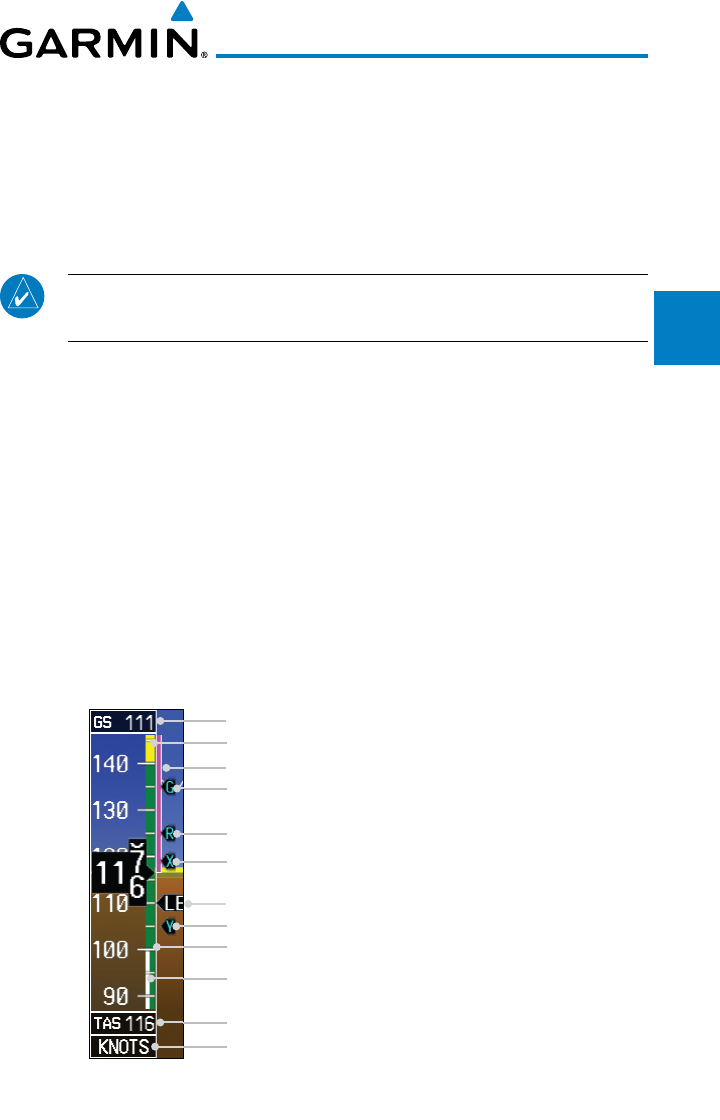
2-5190-00601-02 Rev. E
Garmin G600 Pilot’s Guide
Foreword
Sec 1
System
Sec 2
PFD
Sec 3
MFD
Sec 4
Hazard
Avoidance
Sec 5
Additional
Features
Sec 6
Annun.
& Alerts
Sec 7
Symbols
Sec 8
Glossary Appendix A
Appendix B
Index
2.2 Airspeed Indicator
The Airspeed Indicator displays airspeed on a rolling number gauge using a
moving tape. The numeric labels and major tick marks on the moving tape are
marked at intervals of 10 units, while minor tick marks on the moving tape are
indicated at intervals of five units. Speed indication starts at 20 knots, regardless
of the displayed units.
NOTE
:
Airspeed units (KTS, MPH, KPH) are configured to match the approved
units for the installation.
The Airspeed Indicator provides Indicated Airspeed, True Airspeed, and
Ground Speed. The Airspeed Trend Indicator shows what the airspeed will be
in six seconds, if the current acceleration is maintained. The actual airspeed is
displayed inside the black pointer.
The Airspeed Trend Vector is a vertical, pink/magenta line, extending up or
down on the airspeed scale, shown to the right of the color-coded speed range
strip. The end of the trend vector corresponds to the predicted airspeed in six
seconds if the current acceleration is maintained. If the trend vector crosses into
the overspeed range, the text of the actual airspeed readout changes to yellow.
The trend vector is absent if the speed remains constant or if any data needed to
calculate airspeed is not available due to a system failure.
Ground Speed
Caution Range (yellow)
Airspeed Trend Indicator (pink/magenta line)
Glide Speed Reference Marker
Vr Reference Marker
Vx Reference Marker
Vy Reference Marker
Landing Gear Extension Speed
Normal Operating Range (Green)
Flaps Operating Range (White)
True Airspeed
Airspeed Units
Figure 2-5 Airspeed Tape
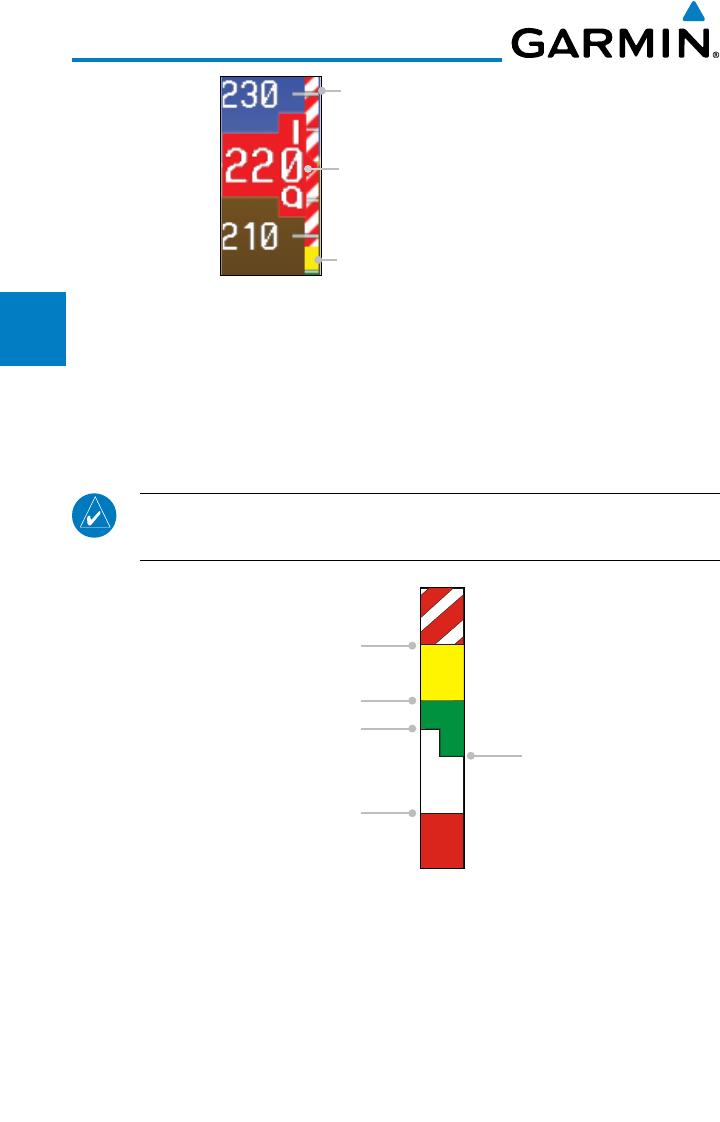
2-6
Garmin G600 Pilot’s Guide
190-00601-02 Rev. E
Foreword
Sec 1
System
Sec 2
PFD
Sec 3
MFD
Sec 4
Hazard
Avoidance
Sec 5
Additional
Features
Sec 6
Annun.
& Alerts
Sec 7
Symbols
Sec 8
GlossaryAppendix A
Appendix B
Index
Overspeed Range (Barber Pole)
Overspeed Indication for
Current Airspeed
Caution Operating Range
Figure 2-6 Overspeed Indication
2.2.1 Markings
A color-coded (white, green, yellow, and red/white “barber pole”) speed
range strip is located on the moving tape. The colors are configured to match
the approved markings for the installation. See the AFM/POH.
NOTE
:
The actual colors and patterns of the airspeed tape may vary by
installation. See your AFM/POH for more details.
VFE
VSO
Mmo / Vmo / VNE
VNO
VS1
Figure 2-7 Typical Airspeed Tape Markings
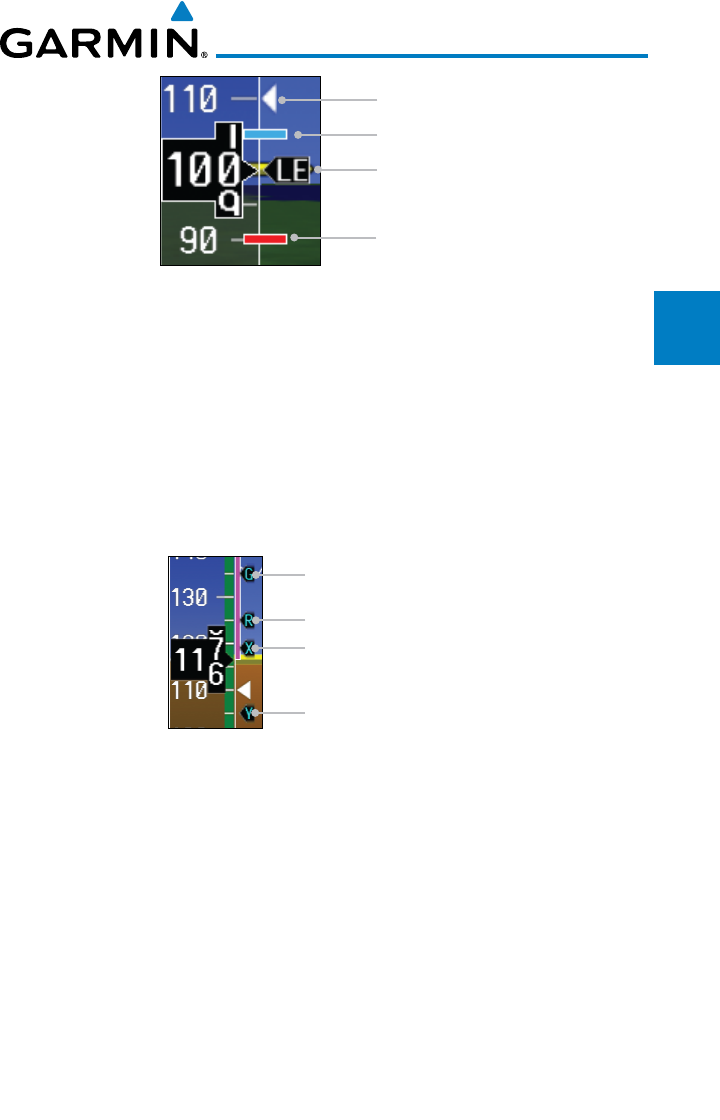
2-7190-00601-02 Rev. E
Garmin G600 Pilot’s Guide
Foreword
Sec 1
System
Sec 2
PFD
Sec 3
MFD
Sec 4
Hazard
Avoidance
Sec 5
Additional
Features
Sec 6
Annun.
& Alerts
Sec 7
Symbols
Sec 8
Glossary Appendix A
Appendix B
Index
VYSE
VMCA
VLE
White Triangle
Figure 2-8 Additional Reference Markings
2.2.2 Reference Speeds
V-speeds (Glide, Vr, VX, and VY) default values are set during the installation
process, but can be changed and turned on/off from the System Setup page
on the first page of the Aux page group. When active (on), the V-speeds are
displayed at their respective locations to the right of the airspeed scale. The
values you set are retained when the unit power is cycled.
Glide Reference Marker
Vr Reference Marker
Vx Reference Marker
Vy Reference Marker
Figure 2-9 Reference Speeds
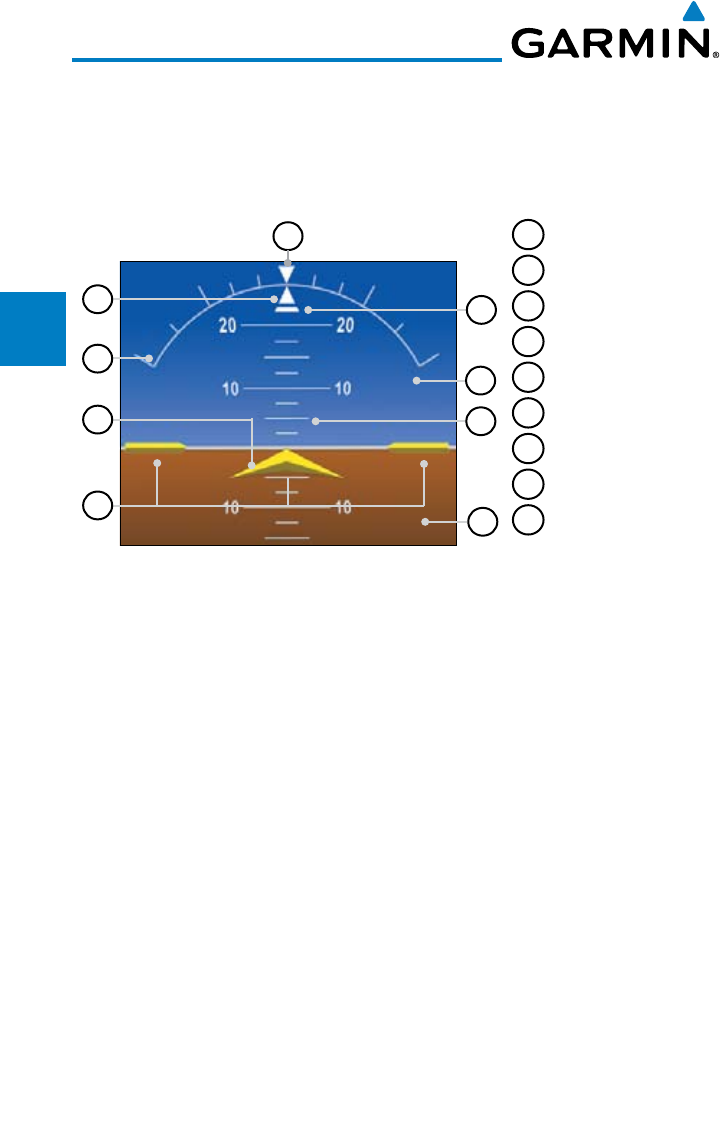
2-8
Garmin G600 Pilot’s Guide
190-00601-02 Rev. E
Foreword
Sec 1
System
Sec 2
PFD
Sec 3
MFD
Sec 4
Hazard
Avoidance
Sec 5
Additional
Features
Sec 6
Annun.
& Alerts
Sec 7
Symbols
Sec 8
GlossaryAppendix A
Appendix B
Index
2.3 Attitude Indicator
Attitude information is displayed over a virtual blue sky and brown ground
with a white horizon line. The Attitude Indicator displays pitch, roll, and slip/
skid information.
1
Roll Pointer
2
Roll Scale
3
Aircraft Symbol
4
Horizon Line
5
Land Representation
6
Pitch Scale
7
Slip/Skid Indicator
8
Sky Representation
9
Roll Scale Zero
5
6
8
7
2
4
3
9
1
Figure 2-10 Attitude Indicator
The horizon line is part of the pitch scale. Above and below the horizon line,
major pitch marks and numeric labels are shown for every 10º, up to 80º. Minor
pitch marks are shown for intervening 5º increments, up to 25º below and 45º
above the horizon line. Between 20º below to 20º above the horizon line, minor
pitch marks occur every 2.5º.
Angle of bank is indicated by the position of the pointer on the roll scale.
Major tick marks are 30º and 60º and minor tick marks are 10º, 20º, and 45º
are shown to the left and right of the zero.
The Slip/Skid Indicator is the bar beneath the roll pointer. The indicator
moves with the roll pointer and moves laterally away from the pointer to
indicate lateral acceleration. Slip/skid is indicated by the location of the bar
relative to the pointer. One bar displacement (as shown below) is equal to one
ball displacement on a traditional Slip/Skid Indicator.
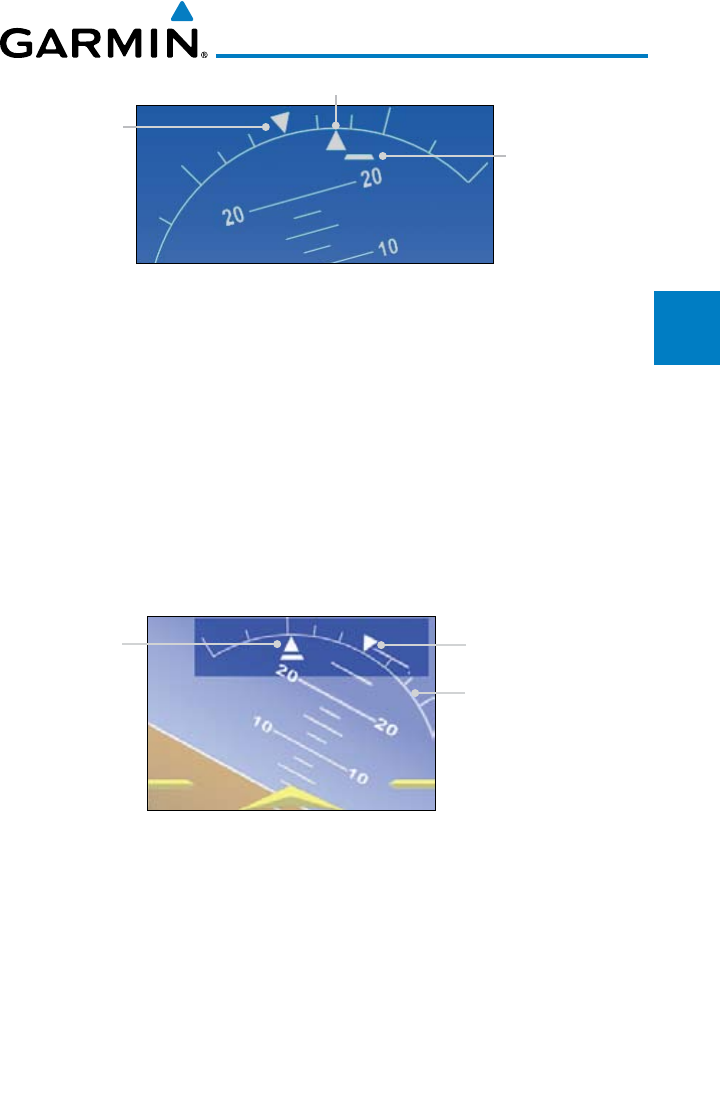
2-9190-00601-02 Rev. E
Garmin G600 Pilot’s Guide
Foreword
Sec 1
System
Sec 2
PFD
Sec 3
MFD
Sec 4
Hazard
Avoidance
Sec 5
Additional
Features
Sec 6
Annun.
& Alerts
Sec 7
Symbols
Sec 8
Glossary Appendix A
Appendix B
Index
Roll Pointer
Slip/Skid Indicator
Roll Scale Zero
Figure 2-11 Slip/Skid Indication
The standby mechanical Attitude Indicator in your aircraft is either a Ground
Pointer or a Roll Pointer configuration. The GDU 620 Attitude Indicator has
been configured in either a Ground Pointer or a Roll Pointer configuration to
match the configuration of your aircraft’s standby Attitude Indicator. Ground/
Sky Pointer mode is configured during installation and can not be changed by
the pilot.
In an aircraft with an Attitude Indicator that has a Ground Pointer, the pointer
above the Roll Scale shifts with the roll or bank angle of the aircraft to keep the
Roll Scale Zero Pointer pointing towards the ground.
Roll Pointer Roll Scale Zero Pointer
Roll Scale
Figure 2-12 Attitude Indicator with a Ground Pointer configuration in a left turn
In an aircraft with an Attitude Indicator that has a Sky Pointer, the pointer
below the roll scale shifts with the roll or bank angle of the aircraft to keep the
Roll Pointer pointing towards the sky.
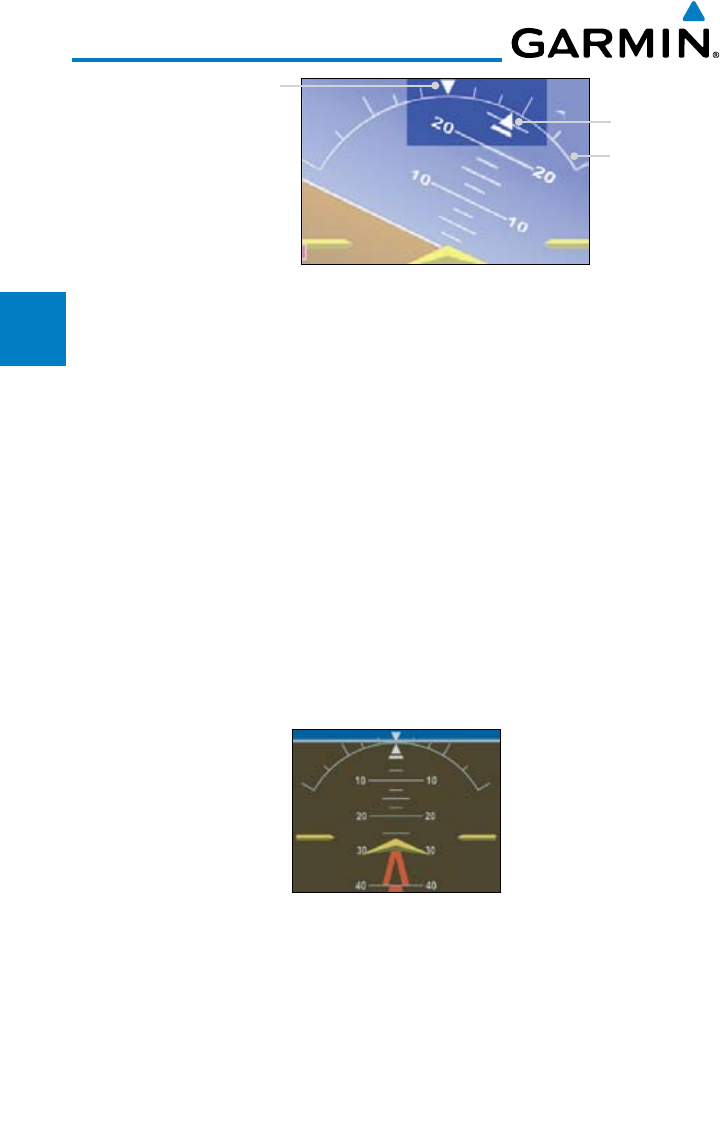
2-10
Garmin G600 Pilot’s Guide
190-00601-02 Rev. E
Foreword
Sec 1
System
Sec 2
PFD
Sec 3
MFD
Sec 4
Hazard
Avoidance
Sec 5
Additional
Features
Sec 6
Annun.
& Alerts
Sec 7
Symbols
Sec 8
GlossaryAppendix A
Appendix B
Index
Roll Pointer
Roll Scale Zero Pointer
Roll Scale
Figure 2-13 Attitude Indicator with a Sky Pointer configuration in a left turn
2.3.1 Extreme Attitude
Extreme attitude is defined as a roll greater than 65º left or right, 30º pitch up,
or 20º pitch down. Red chevrons are displayed at greater than 50º pitch up and
30º pitch down. The PFD will “declutter” when the aircraft enters an extreme
attitude. Only the primary functions will be displayed in these situations.
The following information is removed from the PFD (and corresponding soft
keys are disabled) when the aircraft is in an unusual attitude:
• PFDKnobModeAnnunciations
• Ground Speed, True Airspeed, and Airspeed Units
• Selected Altitude, Barometer Settings, and Selected Vertical Speed
• VerticalCourseDeviationIndicator
• TrafcandTerrain Annunciations
• FlightDirectorCommandBars
Figure 2-14 Extreme Pitch Indication
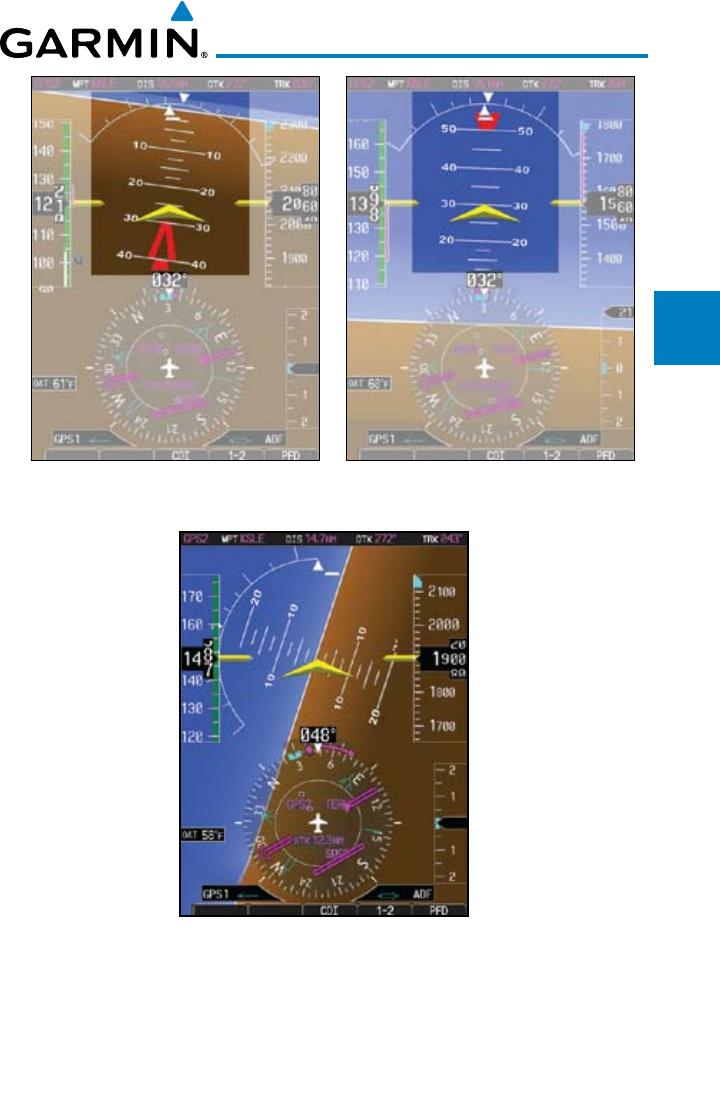
2-11190-00601-02 Rev. E
Garmin G600 Pilot’s Guide
Foreword
Sec 1
System
Sec 2
PFD
Sec 3
MFD
Sec 4
Hazard
Avoidance
Sec 5
Additional
Features
Sec 6
Annun.
& Alerts
Sec 7
Symbols
Sec 8
Glossary Appendix A
Appendix B
Index
Figure 2-15 Extreme Pitch Indication Figure 2-16 Extreme Pitch Indication
Nose Down Nose Up
Figure 2-17 Extreme Roll Indication with Display Declutter
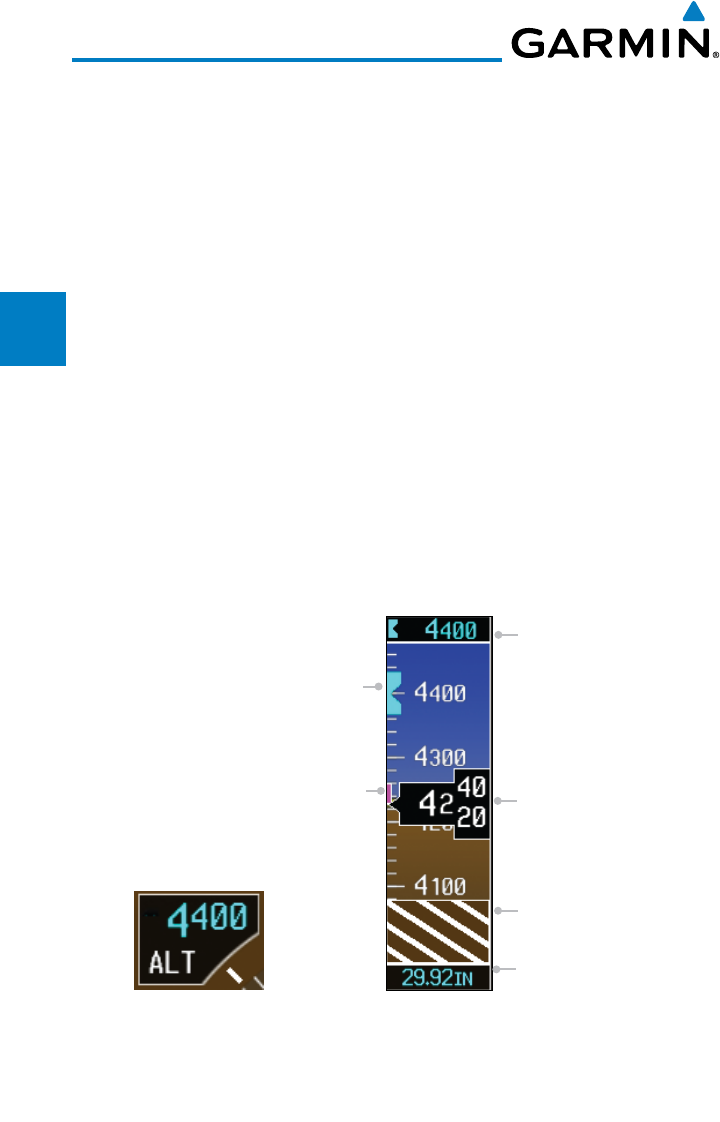
2-12
Garmin G600 Pilot’s Guide
190-00601-02 Rev. E
Foreword
Sec 1
System
Sec 2
PFD
Sec 3
MFD
Sec 4
Hazard
Avoidance
Sec 5
Additional
Features
Sec 6
Annun.
& Alerts
Sec 7
Symbols
Sec 8
GlossaryAppendix A
Appendix B
Index
2.4 Altimeter
The altimeter displays the current altitude, altitude trend, altitude bug setting,
altitude bug, and the current BARO setting.
The Altitude Trend Vector is a vertical, magenta line, extending up or down
on the left side of the Altitude scale. The end of the trend vector corresponds to
the predicted altitude in six seconds if the current vertical speed is maintained.
The Altitude Bug is displayed at the selected Altitude Bug setting. A portion
of the Altitude Bug will be displayed at the top or the bottom of the altitude tape
if the selected Altitude Bug is off of the tape.
2.4.1 Setting the Altitude Bug and Alerter
1) Press the ALT key to activate Altitude mode.
2) Turn the PFD knob to move the Altitude Bug to a desired altitude.
OR
3) Press the center of the PFD knob to set the selected altitude to the current
altitude.
Selected
Altitude
Bug
Barometric
Setting
Altitude
Trend
Indicator
Selected
Altitude
in the
Altitude
Alerter
window
Current
Altitude
Brown Band With
Stripes (RA Only)
Figure 2-18 Altimeter
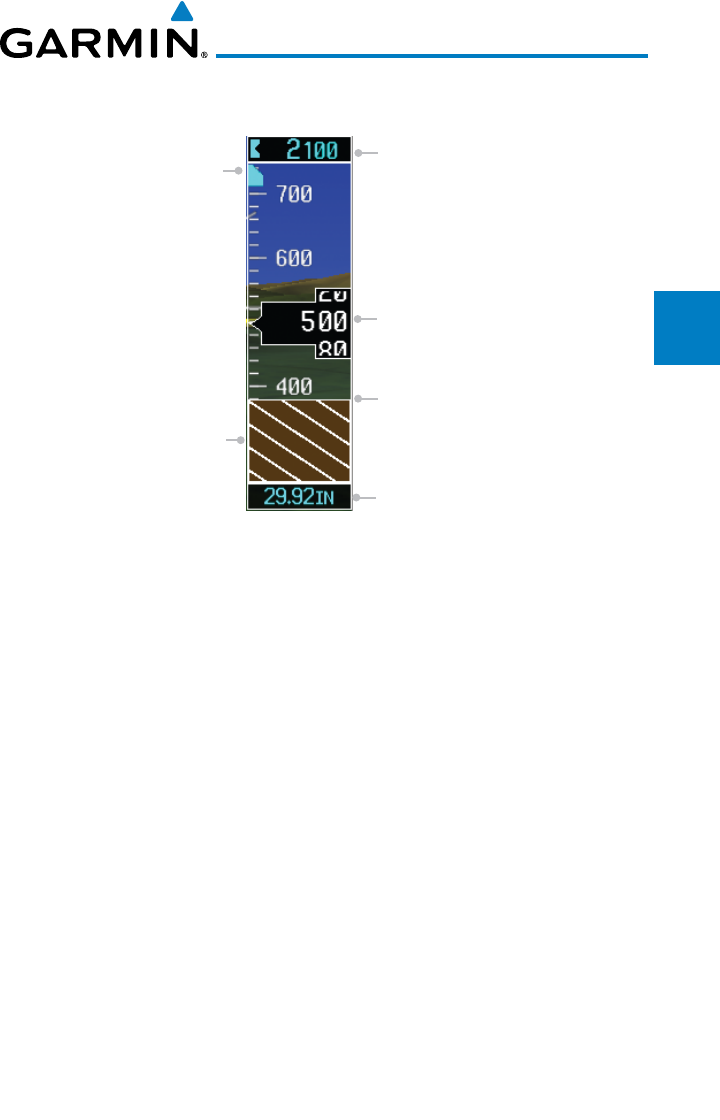
2-13190-00601-02 Rev. E
Garmin G600 Pilot’s Guide
Foreword
Sec 1
System
Sec 2
PFD
Sec 3
MFD
Sec 4
Hazard
Avoidance
Sec 5
Additional
Features
Sec 6
Annun.
& Alerts
Sec 7
Symbols
Sec 8
Glossary Appendix A
Appendix B
Index
The ground awareness band will be visible when the aircraft is within 250ft
of the ground.
Selected Altitude Bug
Barometric
Setting
Ground Band With White
Stripes Indicates Ground
Within 250 feet
Selected Altitude
in the Altitude
Alerter window
Current Altitude
Ground Elevation
Figure 2-19 Ground Awareness Band Showing Ground Is Within 250 Feet
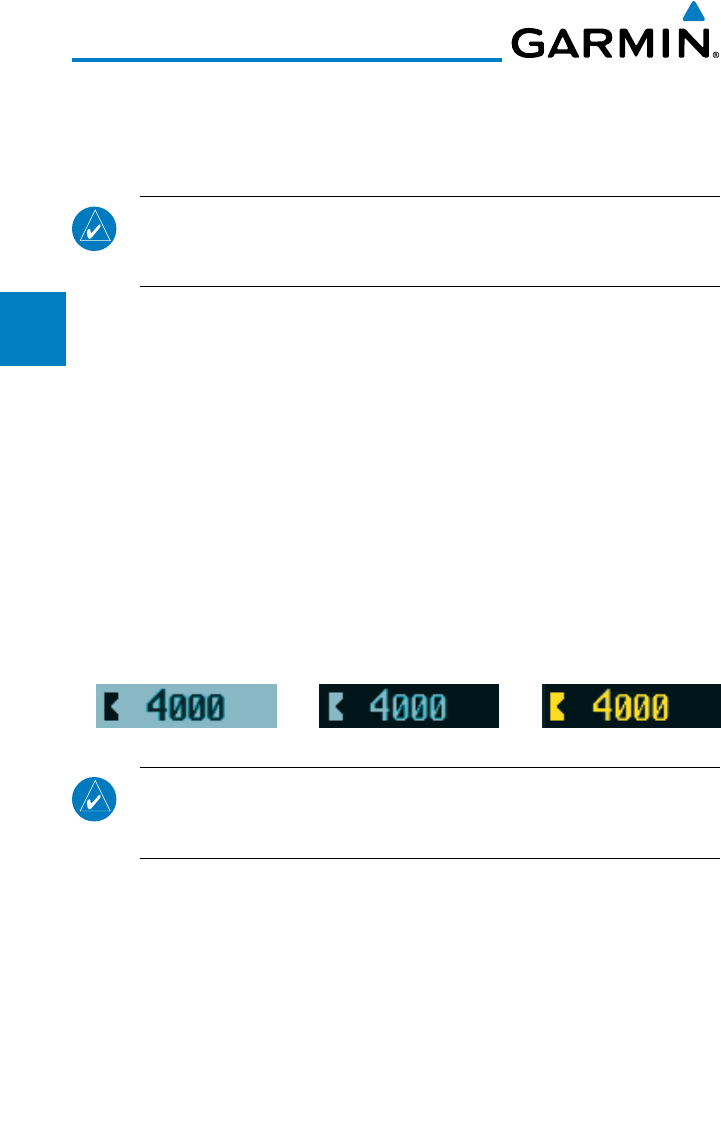
2-14
Garmin G600 Pilot’s Guide
190-00601-02 Rev. E
Foreword
Sec 1
System
Sec 2
PFD
Sec 3
MFD
Sec 4
Hazard
Avoidance
Sec 5
Additional
Features
Sec 6
Annun.
& Alerts
Sec 7
Symbols
Sec 8
GlossaryAppendix A
Appendix B
Index
2.4.2 Altitude Alerting
The Altitude Alerting function provides the pilot with visual and aural
alerts (if interfaced to an audio panel) when approaching the Selected Altitude.
Whenever the Selected Altitude is changed, the Altitude Alerter is reset.
NOTE:
The Altitude Alerter function may be disabled in some installations.
When the Altitude Alerter is disabled, pressing the ALT key will result in
an "ALT KEY INOP" message.
The following occur when approaching the Selected Altitude:
• Upon passing through 1000 feet of the Selected Altitude, the Selected
Altitude (shown above the Altimeter) changes to black text on a light blue
background, and flashes for five seconds. An audio alert may be generated,
if configured.
• Whentheaircraftpasseswithin200feetoftheSelectedAltitude,theSelected
Altitude changes to light blue text on a black background and flashes for
five seconds and an aural tone may be generated, if configured.
• AfterreachingtheSelectedAltitude,ifthepilotiesoutsidethedeviation
band (beyond ±200 feet of the Selected Altitude), the Selected Altitude
changes to yellow text on a black background, flashes for five seconds, and
an aural tone is generated.
Within 1000 ft Within 200 ft Deviation of ±200 ft
Figure 2-20 Altitude Alerting Visual Annunciations
NOTE
:
The aural tone when approaching the selected altitude may be
configured at installation for either 200 feet or 1000 feet. The tone when
deviating from the selected altitude always occurs at 200 feet.
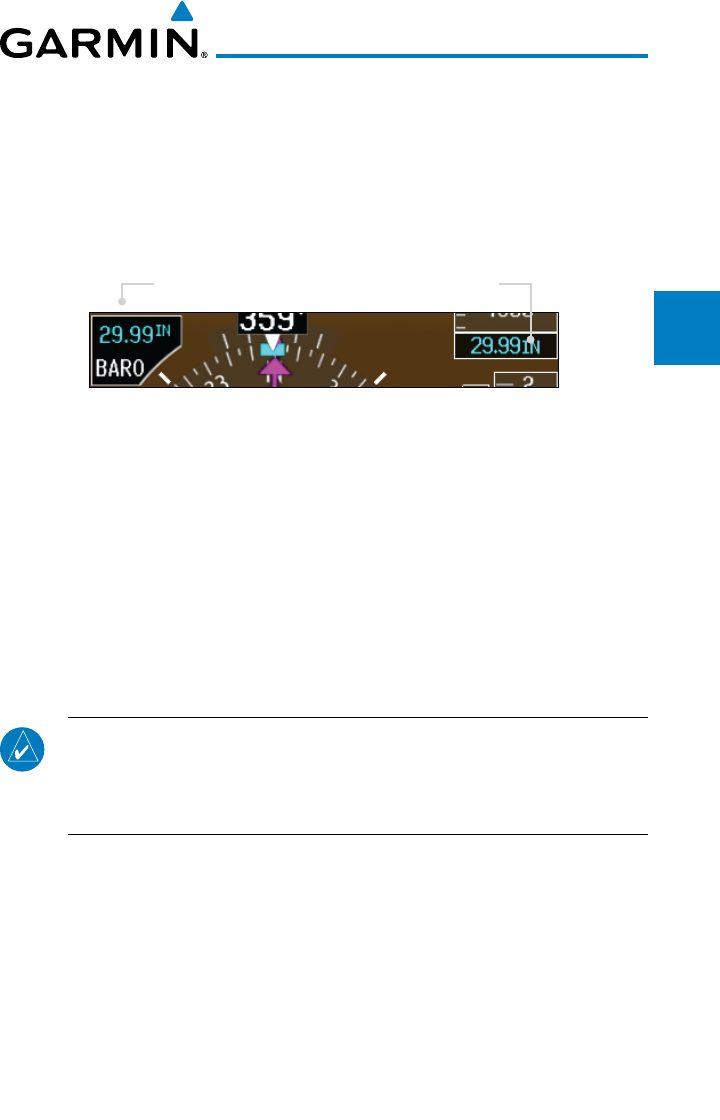
2-15190-00601-02 Rev. E
Garmin G600 Pilot’s Guide
Foreword
Sec 1
System
Sec 2
PFD
Sec 3
MFD
Sec 4
Hazard
Avoidance
Sec 5
Additional
Features
Sec 6
Annun.
& Alerts
Sec 7
Symbols
Sec 8
Glossary Appendix A
Appendix B
Index
2.4.3 Changing Barometric Setting
The Barometric Setting affects the altitude values shown on the PFD.
Barometric pressure units may be displayed as either inches (in) or hectopascals
(hpa). See System Display Units in Section 3 for more detail.
1) Press the BARO key to activate Baro mode.
2) Turn the PFD knob to increase or decrease the altimeter setting. OR
PFD Knob Selected
Baro Setting
Baro Setting shown
in Altimeter window
Figure 2-21 Barometric Setting
3) Press the PFD knob while in Baro mode to toggle between Standard Pressure
(29.92 in) and the currently selected barometric setting.
2.4.4 Minimum Descent Altitude/Decision Height
Alerting
For altitude awareness, a Minimum Descent Altitude (MDA) alert can be
displayed on the PFD. The values are set in the Active Flight Plan page or from
the Charts page menu. When active, the minimum descent altitude setting is
displayed in the minimums window at the bottom left of the Altitude Tape when
you are within 2500 feet of the selected altitude.
NOTE
:
The Altitude Minimums Alerting Bug appears parked at the bottom
of the altitude tape as soon as a value is set in the minimums alerter. The
bug will unpark and start to move up the tape as soon as the altitude is
within the range of the tape. The bug is reset when power is cycled.
The following visual annunciations occur when approaching the MDA/DH:
• When the aircraft altitude descends to within 2500 feet of the selected
altitude setting, the Minimums box appears with the altitude value in cyan
text. Once in range, the Altitude Minimums Bug appears in cyan on the
altitude tape.
• Whentheaircraftiswithin100feetoftheselectedaltitudesetting,thebug
and text turn white.
• Oncetheaircraftreachestheselectedaltitudeminimumssetting,thebugand
the altitude text turn yellow and the aural alert “Minimums, minimums,” is
heard one time. The text remains in yellow until the aircraft altitude is more
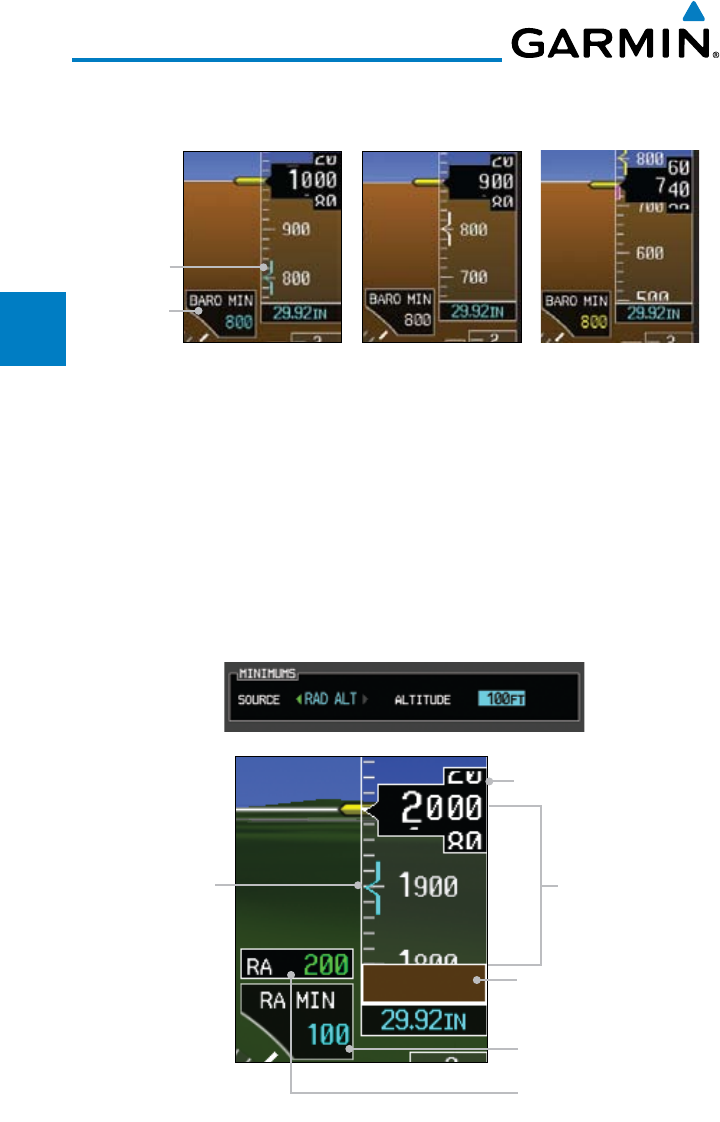
2-16
Garmin G600 Pilot’s Guide
190-00601-02 Rev. E
Foreword
Sec 1
System
Sec 2
PFD
Sec 3
MFD
Sec 4
Hazard
Avoidance
Sec 5
Additional
Features
Sec 6
Annun.
& Alerts
Sec 7
Symbols
Sec 8
GlossaryAppendix A
Appendix B
Index
than 50 feet above the set altitude minimum value.
Barometric
Minimums
Box
Barometric
Minimums
Bug
Cyan Within 2500 ft Yellow When
Altitude Reached
White Within 100 ft
Figure 2-22 Barometric MDA/DH Alerting Visual Annunciations
Alerting is inhibited while the aircraft is on the ground and until the aircraft
reaches 150 feet above the selected Minimum Altitude. Normally the altitude
alerter only allows selection of altitudes in 100 foot increments. When a value
other than 100 feet is set for Baro Mins, it becomes a selectable value in the
altitude alerter.
In dual installations, the minimums alerting altitude value may be set from
either GDU 620 and will be synchronized on both units.
Details on using a Radar Altimeter as the source for setting minimums is in
Section 2 - PFD - Radar Altimeter.
Barometric Altitude
Brown Band Indicating
The Ground
200 Foot Difference
Radar Altimeter
Minimums Value
Radar Altimeter Value
Radar Altimeter
Minimums Bug
Figure 2-23 Minimums Values with a Radar Altimeter
2-17190-00601-02 Rev. E
Garmin G600 Pilot’s Guide
Foreword
Sec 1
System
Sec 2
PFD
Sec 3
MFD
Sec 4
Hazard
Avoidance
Sec 5
Additional
Features
Sec 6
Annun.
& Alerts
Sec 7
Symbols
Sec 8
Glossary Appendix A
Appendix B
Index
Setting the Altitude Minimums Bug is performed on either the FPL - Active
Flight Plan page or the FPL - Charts page.
For details for setting the Altitude Minimums Bug on the Active Flight Plan
page, refer to Section 3 - MFD - Flight Plan Pages.
For details for setting the Altitude Minimums Bug on the Charts page, refer
to Section 5 - Additional Features - Charts Menu Selections.
NOTE:
I
f you highlight the minimums Altitude field and hit the CLR key, it
will turn the minimums alerting functionality off.
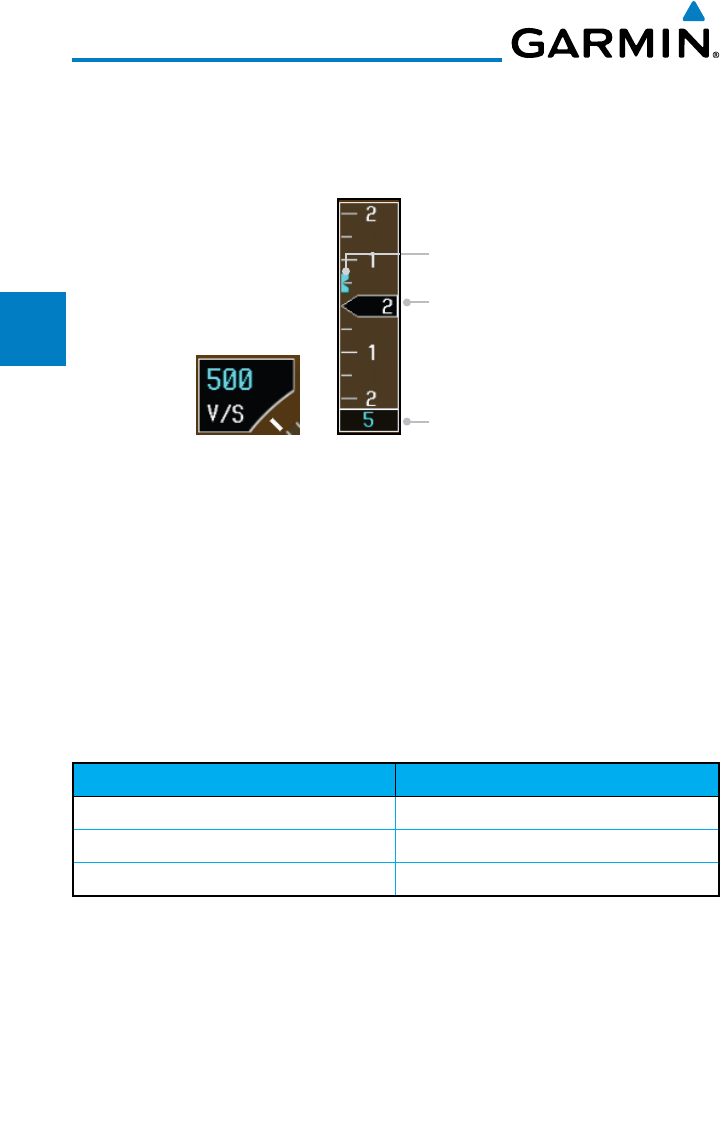
2-18
Garmin G600 Pilot’s Guide
190-00601-02 Rev. E
Foreword
Sec 1
System
Sec 2
PFD
Sec 3
MFD
Sec 4
Hazard
Avoidance
Sec 5
Additional
Features
Sec 6
Annun.
& Alerts
Sec 7
Symbols
Sec 8
GlossaryAppendix A
Appendix B
Index
2.5 Vertical Speed (V/S) Indicator
Vertical speed data is presented on the bottom right of the PFD. A Vertical
Speed bug and a bug setting are also available.
Current Vertical Speed
Vertical Speed Bug
Vertical Speed Bug Setting
Figure 2-24 Vertical Speed (V/S) Tape and Window
The Vertical Speed Indicator displays the aircraft vertical speed using a non-
moving tape. The tape can be scaled at ±2000, ±3000, or ±4000 fpm as set by
the installer. Major gradations are every 1000 fpm and minor gradations every
500 fpm. The current vertical speed is displayed in the pointer along the tape.
Digits appear in the pointer when the climb or descent rate is greater than 100
fpm. If the rate of ascent/descent exceeds the vertical speed displayed on the
tape, the pointer appears at the corresponding edge of the tape and the rate
appears inside the pointer. The Vertical Speed Indicator range determines the
airspeed tape range.
VSI (set by installer) Airspeed Tape Range
±2000 fpm 60 kts
±3000 fpm 70 kts
±4000 fpm 80 kts
Table 2-1 Vertical Speed Settings
Setting the Vertical Speed Indicator Bug
1) Press the V/S key to activate Vertical Speed mode.
2) Turn the PFD knob to change the Vertical Speed Bug.
3) Press the center of the PFD knob to set the Vertical Speed value to the current
vertical speed.
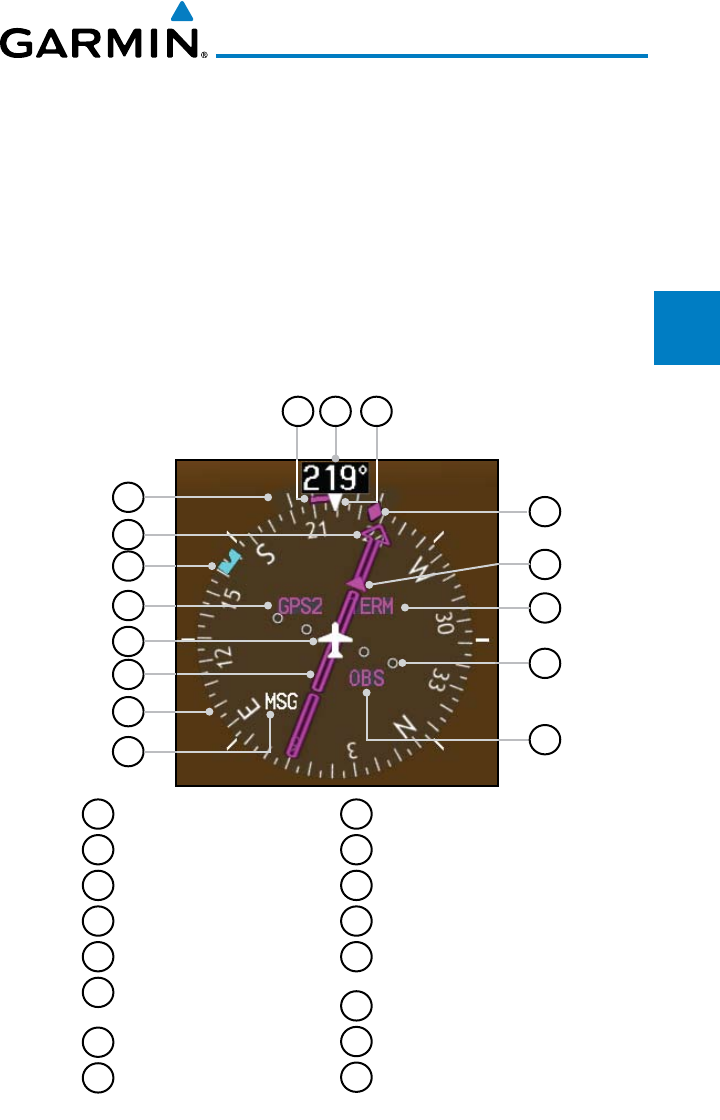
2-19190-00601-02 Rev. E
Garmin G600 Pilot’s Guide
Foreword
Sec 1
System
Sec 2
PFD
Sec 3
MFD
Sec 4
Hazard
Avoidance
Sec 5
Additional
Features
Sec 6
Annun.
& Alerts
Sec 7
Symbols
Sec 8
Glossary Appendix A
Appendix B
Index
2.6 Horizontal Situational Indicator
The Horizontal Situation Indicator (HSI) displays a rotating compass card in
a heading-up orientation. Letters indicate the cardinal points and numeric labels
occur every 30º. Major tick marks are at 10º intervals and minor tick marks at
5º intervals. A digital reading of the current heading appears on top of the HSI,
and the current ground track is represented on the HSI by a magenta diamond.
The HSI also presents turn rate, course deviation, bearing, and navigation
source information. The “MSG” annunciation will be shown in the HSI when
an unacknowledged message is present on the selected navigator. When the
message is acknowledged, the “MSG” annunciation will clear.
11
7
6
5
3
2
112
10
4
14 1513
8
9
16
1
Turn Rate Indicator
2
Course Pointer
3
Heading Bug
4
Navigation Source
5
Aircraft Symbol
6
Course Deviation Indicator
(CDI)
7
Rotating Compass Card
8
OBS Mode Active
9
Lateral Deviation Scale
10
GPS Level of Service
11
To/From Indicator
12
Current Track Indicator
13
Turn Rate/Heading
Trend Vector
14
Current Heading
15
Lubber Line
16
MSG (Message) on Navigator
Figure 2-25 Horizontal Situation Indicator (HSI)
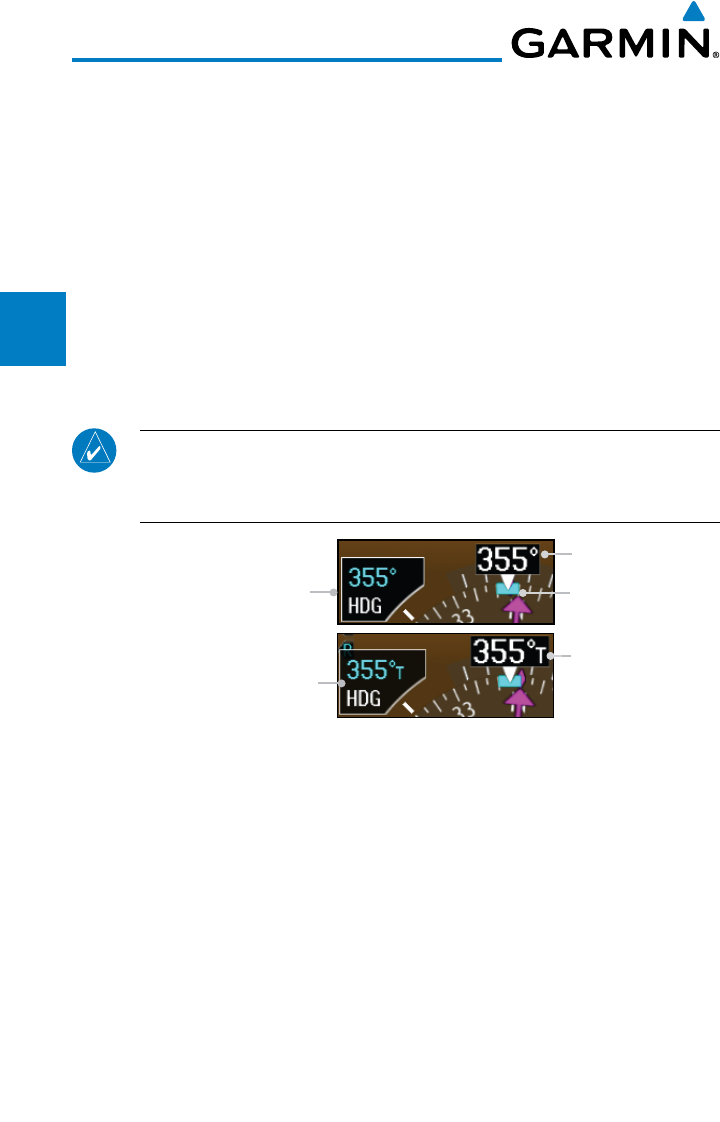
2-20
Garmin G600 Pilot’s Guide
190-00601-02 Rev. E
Foreword
Sec 1
System
Sec 2
PFD
Sec 3
MFD
Sec 4
Hazard
Avoidance
Sec 5
Additional
Features
Sec 6
Annun.
& Alerts
Sec 7
Symbols
Sec 8
GlossaryAppendix A
Appendix B
Index
The 360º HSI contains a Course Deviation Indicator (CDI), with a Course
Pointer, To/From Indicator, and a sliding deviation bar and scale. The course
pointer is a single line arrow (GPS1, VOR1, and LOC1) or a double line arrow
(GPS2, VOR2, and LOC2) which points in the direction of the set course. “LOC”
will automatically be displayed if a localizer frequency is tuned. The To/From
arrow rotates with the course pointer and is displayed when the active NAVAID
is received.
2.6.1 Setting the Heading Bug
The Selected Heading is shown to the upper left of the HSI for 10 seconds
after being adjusted. The light blue bug on the compass rose corresponds to the
Selected Heading.
NOTE: The current heading will have a "T" to the right of the heading
value when the Nav Angle is set to True in the System Setup page of the
Aux page group.
New Heading Bug Setting
(True North)
Current Heading
(True north)
New Heading Bug Setting
(Magnetic North) Heading Bug
Current Heading
(Magnetic North)
Figure 2-26 Heading Bug Setting
1) Press the HDG key to activate HDG mode.
2) Turn the PFD knob to change the Heading Bug.
OR
3) Press the PFD knob in HDG mode to set the Heading Bug to the current
heading.
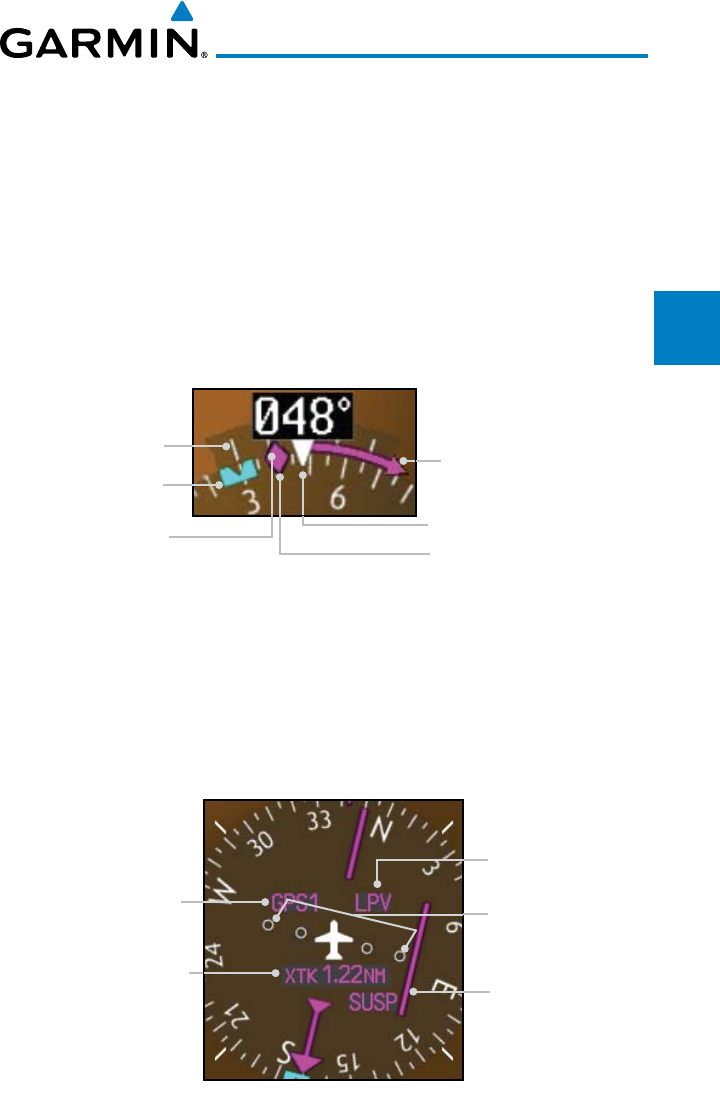
2-21190-00601-02 Rev. E
Garmin G600 Pilot’s Guide
Foreword
Sec 1
System
Sec 2
PFD
Sec 3
MFD
Sec 4
Hazard
Avoidance
Sec 5
Additional
Features
Sec 6
Annun.
& Alerts
Sec 7
Symbols
Sec 8
Glossary Appendix A
Appendix B
Index
2.6.2 Turn Rate Indicator
The Turn Rate Indicator is located directly above the rotating compass card.
Tick marks to the left and right of the lubber line denote half-standard and
standard turn rates. A magenta Turn Rate Trend Vector shows the current turn
rate. The end of the trend vector gives the heading predicted in six seconds,
based on the present turn rate. A standard-rate turn is shown on the indicator
by the trend vector stopping at the standard turn rate tick mark, corresponding
to a predicted heading of 18º from the current heading. At rates greater than four
deg/sec, an arrowhead appears at the end of the magenta trend vector and the
prediction is no longer valid.
Turn Rate indication.
Arrowhead shown for a
Turn Rate > 4 deg/sec
½ Standard
Turn Rate
Standard Turn Rate
Current Track Indicator
Lubber Line
Heading Bug
Figure 2-27 Turn Rate Indicator and Trend Vector
2.7 Course Deviation Indicator
The Course Deviation Indicator (CDI) moves left or right from the course
pointer along a lateral deviation scale to display aircraft position relative to the
course. If the course deviation data is not valid, the CDI is not displayed.
Crosstrack
Error
Scale
GPS Level
of Service
Navigation
Source
360º HSI
CDI
Figure 2-28 Course Deviation Indicator
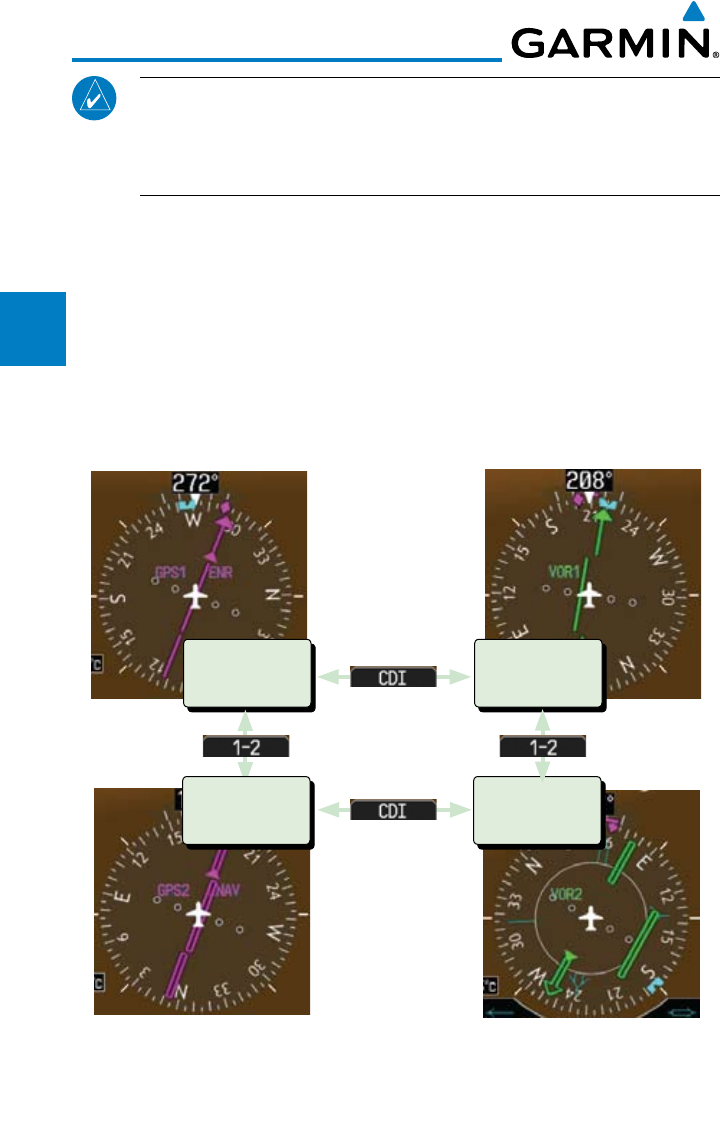
2-22
Garmin G600 Pilot’s Guide
190-00601-02 Rev. E
Foreword
Sec 1
System
Sec 2
PFD
Sec 3
MFD
Sec 4
Hazard
Avoidance
Sec 5
Additional
Features
Sec 6
Annun.
& Alerts
Sec 7
Symbols
Sec 8
GlossaryAppendix A
Appendix B
Index
NOTE: The ILS Localizer and Glideslope deviation indicators will indicate
full-scale deflection for the GNS 480 navigator at the second dot. The GNS
400W/500W series navigators will indicate full-scale deflection at the edge
of the display.
2.7.1 Changing CDI Sources
The CDI can display two sources of navigation: GPS or NAV (VOR, and LOC).
Color indicates the current navigation source: magenta (for GPS) or green (for
VOR and LOC). The full-scale limits for the CDI are defined by a GPS-derived
distance when coupled to GPS. When coupled to a VOR or localizer (LOC), the
CDI has the same angular limits as a mechanical CDI. If the CDI exceeds the
maximum deviation on the scale (two dots) while coupled to GPS, the crosstrack
error (XTK) is displayed below the white aircraft symbol.
GPS
Navigator 1
VLOC
Navigator 1
GPS
Navigator 2
VLOC
Navigator 2
Figure 2-29 CDI Navigation Sources
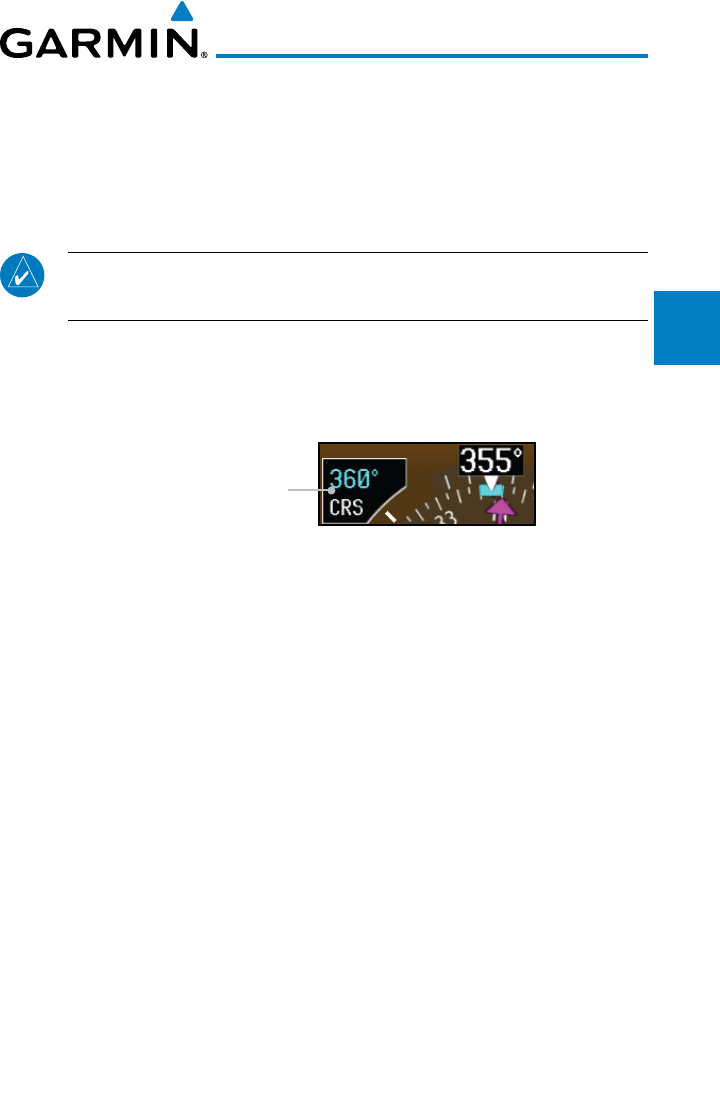
2-23190-00601-02 Rev. E
Garmin G600 Pilot’s Guide
Foreword
Sec 1
System
Sec 2
PFD
Sec 3
MFD
Sec 4
Hazard
Avoidance
Sec 5
Additional
Features
Sec 6
Annun.
& Alerts
Sec 7
Symbols
Sec 8
Glossary Appendix A
Appendix B
Index
1) Press the CDI soft key to toggle between GPS and VOR/LOC source type.
2) Press 1-2 soft key to toggle between the 1 and 2 navigators of the GPS or VOR/
LOC sources.
3) Verify the navigation source by the indication on the HSI and in the upper left
corner of the PFD.
NOTE: The selected navigator is the active navigator for all PFD and MFD
operations, except for the supplemental bearing pointers.
2.7.2 Changing CDI Course
The Selected Course is shown to the upper left of the HSI for 10 seconds after
being adjusted.
New Course Setting
Figure 2-30 Course Setting
1) Press the CRS key to activate Course mode.
2) Turn the PFD knob to change the Course values.
OR
3) Press the PFD knob to set a Course that will center the CDI to the VOR station
or waypoint if in GPS OBS mode.
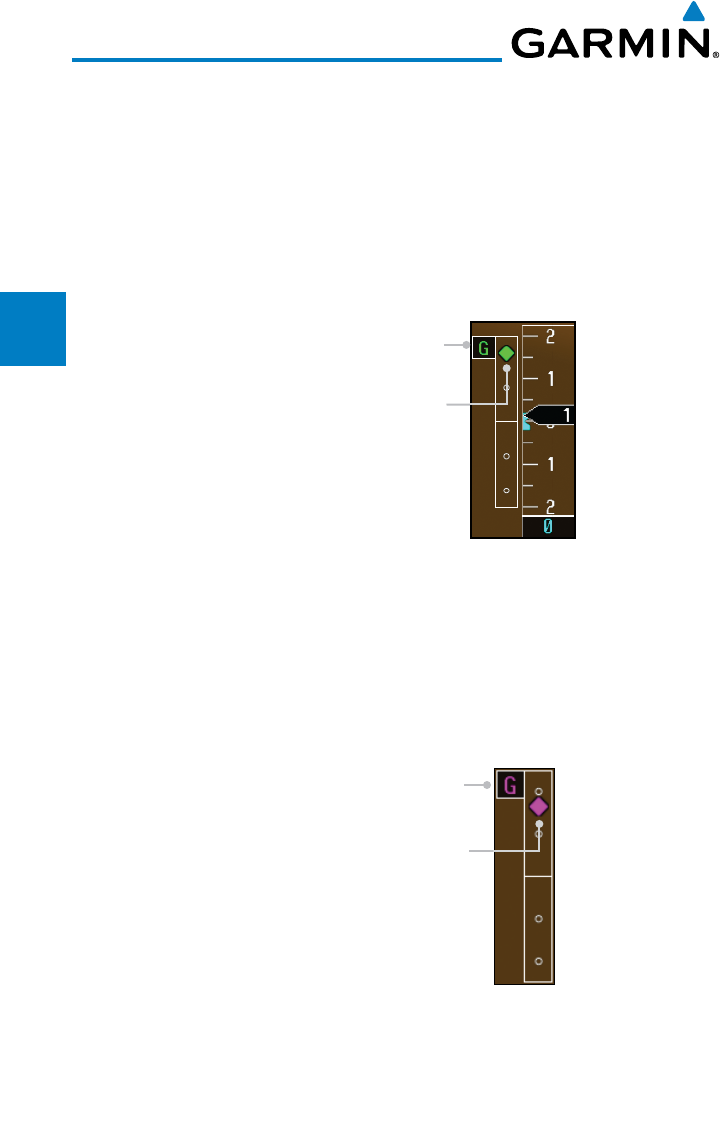
2-24
Garmin G600 Pilot’s Guide
190-00601-02 Rev. E
Foreword
Sec 1
System
Sec 2
PFD
Sec 3
MFD
Sec 4
Hazard
Avoidance
Sec 5
Additional
Features
Sec 6
Annun.
& Alerts
Sec 7
Symbols
Sec 8
GlossaryAppendix A
Appendix B
Index
2.7.3 Vertical Deviation Indicator (VDI)
The Vertical Deviation (Glideslope) Indicator (VDI) appears to the left of
the VSI whenever an ILS frequency is tuned in the active NAV field. A green
diamond acts as the VDI Indicator, like a glideslope needle on a conventional
indicator. If a localizer frequency is tuned and there is no glideslope signal, “NO
GS” is annunciated. The glideslope on an ILS approach is only shown if the
current heading is within 90° of the selected course. This prevents the glideslope
from being displayed during localizer backcourse approaches.
Vertical Deviation Source
Vertical Deviation Indicator
Figure 2-31 Vertical Deviation Indicator (ILS Source)
The vertical deviation is similar to the glideslope for GPS approaches
supporting WAAS vertical guidance (LNAV+V, L/VNAV, LPV). When an approach
of this type is loaded into the flight plan and GPS is the selected navigation
source, the Vertical Deviation Indicator appears as a magenta diamond. If the
approach type downgrades to LNAV past the final approach fix (FAF), or the
approach only supports LNAV service, “NO GP” is annunciated.
Vertical Deviation Source
Vertical Deviation Indicator
Figure 2-32 Vertical Deviation Indicator (GPS Source)
2-25190-00601-02 Rev. E
Garmin G600 Pilot’s Guide
Foreword
Sec 1
System
Sec 2
PFD
Sec 3
MFD
Sec 4
Hazard
Avoidance
Sec 5
Additional
Features
Sec 6
Annun.
& Alerts
Sec 7
Symbols
Sec 8
Glossary Appendix A
Appendix B
Index
2.7.4 Auto-Slewing
The G600 system is designed to interface with GNS navigator units and also
manage up to four different CDI course pointers (GPS1, NAV1, GPS2, NAV2)
independently. The G600 will automatically slew the NAV course pointer to the
correct final approach course when a ILS, LOC, LOC BC, LDA or SDF approach
is active in the GNS navigator and the appropriate frequency is in the active
window in the navigator. The G600 will Auto-Slew the HSI course pointer for an
ILS, LOC, LOC BC, LDA, or SDF approach when the steps below are completed
in the following order:
1) The desired approach is selected and activated in the navigator (this can be
verified by the approach waypoints appearing on the GDU620 MFD Nav Map
Page or FPL Page).
2) The appropriate frequency is the active frequency in the navigator.
3) The CDI selection on the GDU 620 is changed to NAV course pointer for the
active navigator.
NOTE: If the NAV course pointer is displayed for the active navigator
when the approach is activated and the localizer frequency is tuned, the
pilot will need to switch to another CDI source and then back to NAV
for the course pointer to Auto-Slew.
For example, if NAV1 is currently selected, the pilot must:
press the CDI soft key twice: NAV1>GPS1>NAV1
OR
press the 1-2 soft key twice: NAV1>NAV2>NAV1
NOTE: For LOC BC approaches, the course pointer will slew 180 degrees
from the inbound course.
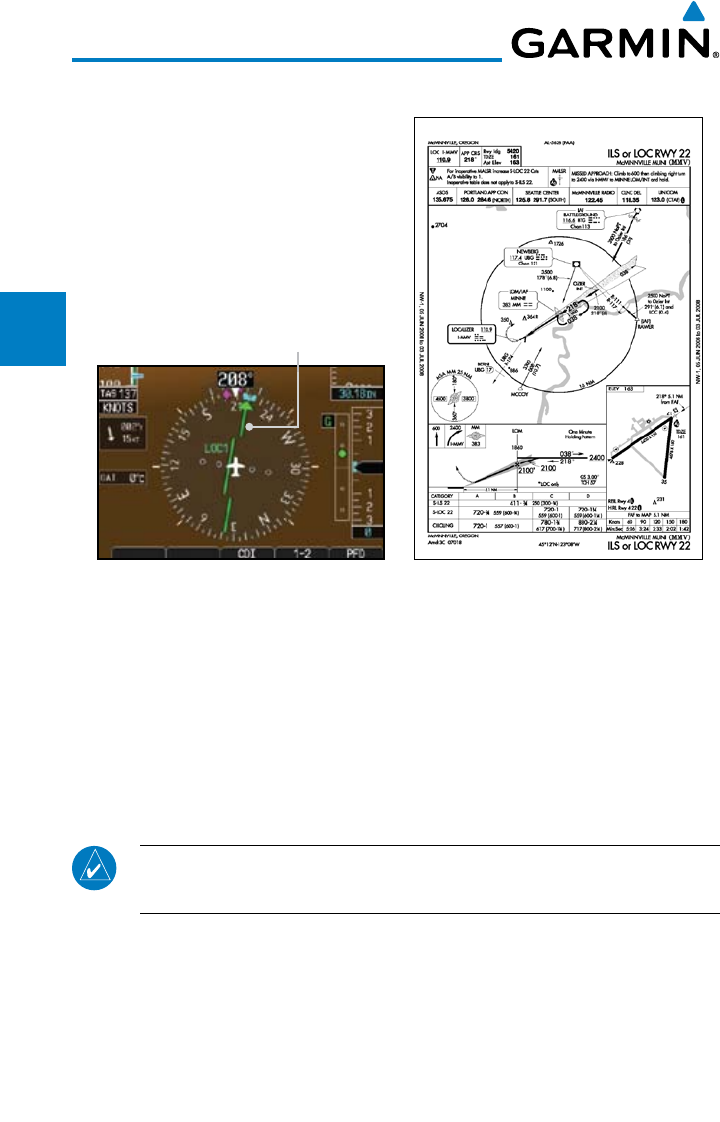
2-26
Garmin G600 Pilot’s Guide
190-00601-02 Rev. E
Foreword
Sec 1
System
Sec 2
PFD
Sec 3
MFD
Sec 4
Hazard
Avoidance
Sec 5
Additional
Features
Sec 6
Annun.
& Alerts
Sec 7
Symbols
Sec 8
GlossaryAppendix A
Appendix B
Index
Example of activating Auto-Slewing in the G600:
Course Pointer slewed
to 218° for the ILS
Figure 2-33 Auto-Slewing HSI with ILS Loaded and Shown with the Corresponding
Approach Plate
1) The aircraft is flying vectors to final on an active ILS approach, with the
appropriate approach in the GNS navigator.
2) The appropriate ILS frequency must be activate in the navigator.
3) Verify that the waypoints for the approach are displayed on the Nav Map Page
or the FPL Page of the MFD.
4) Upon approaching the final course, select LOC on the HSI.
NOTE: If auto CDI switching is active on the GNS unit, the GNS will force
the GNS/GDU 620 to NAV when the aircraft is close to the LOC course.
5) The CDI and course pointer will change from magenta to green and the pointer
will move, or slew, to the final approach course (or 180° from the final approach
course for LOC BC approaches).
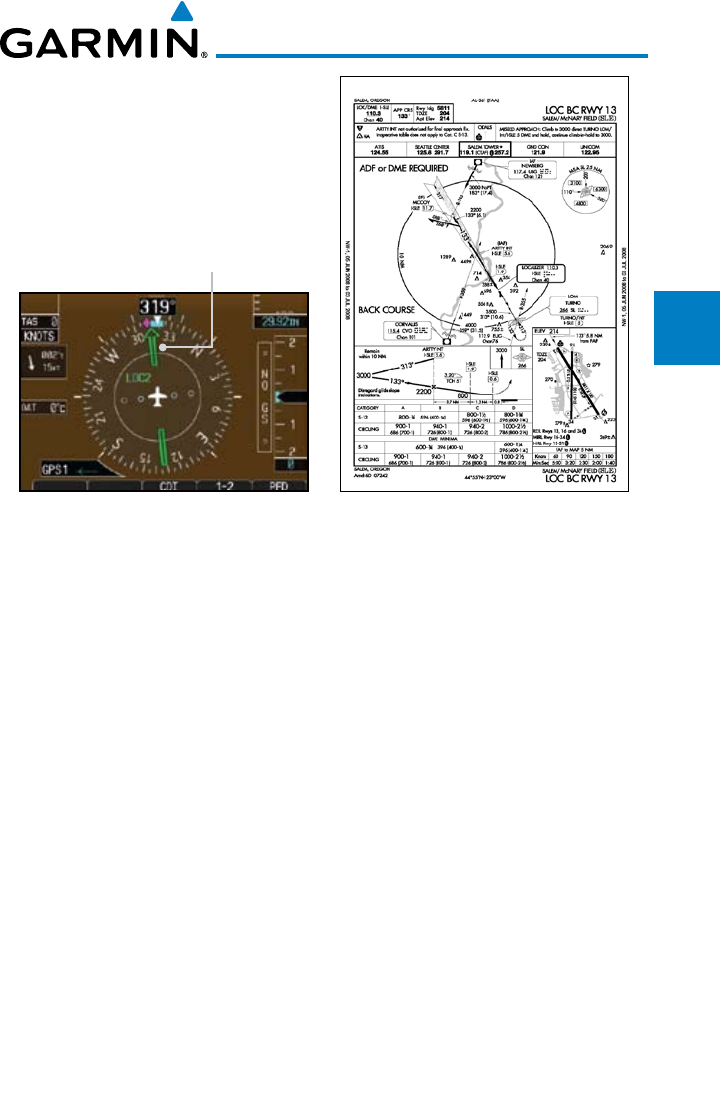
2-27190-00601-02 Rev. E
Garmin G600 Pilot’s Guide
Foreword
Sec 1
System
Sec 2
PFD
Sec 3
MFD
Sec 4
Hazard
Avoidance
Sec 5
Additional
Features
Sec 6
Annun.
& Alerts
Sec 7
Symbols
Sec 8
Glossary Appendix A
Appendix B
Index
Course Pointer slewed to
313° for the Backcourse
Figure 2-34 Auto-Slewing HSI with Localizer Backcourse Loaded and Shown with the
Corresponding Approach Plate
2.8 Supplemental Flight Data
2.8.1 Bearing Pointers
Two Bearing Pointers can be displayed on the HSI for NAV and GPS sources.
The pointers are light blue and are single- (BRG1) or double-lined (BRG2); an
icon is shown in the respective information window to indicate the pointer
type. The system must be configured for a second navigation source to show the
BRG2 selection.
When a Bearing Pointer is displayed, its associated information window is
also displayed.
The Bearing Information windows are displayed to the lower sides of the HSI
and show:
• Bearingsource(GPS,NAV,orADF)
• Pointericon(BRG1=singleline,BRG2=doubleline)
The Bearing Pointer is removed from the HSI if:
• TheNAVradioisnotreceivingthetunedVOR station
• TheNAVradioistunedtoaLocalizer frequency
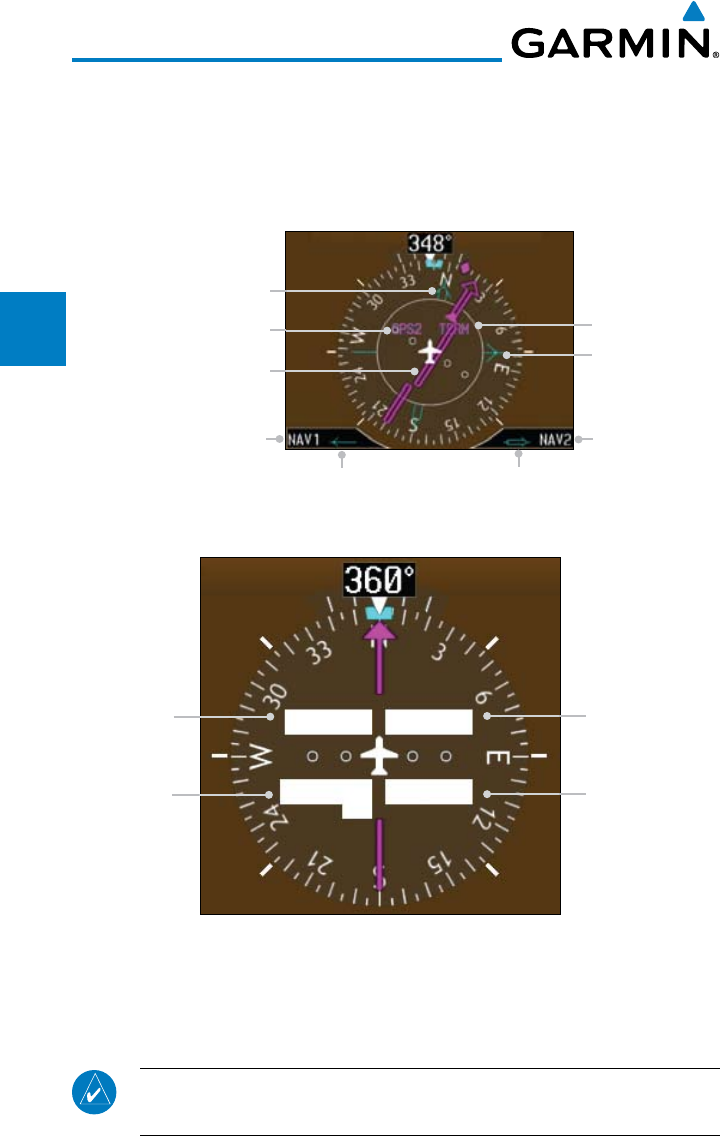
2-28
Garmin G600 Pilot’s Guide
190-00601-02 Rev. E
Foreword
Sec 1
System
Sec 2
PFD
Sec 3
MFD
Sec 4
Hazard
Avoidance
Sec 5
Additional
Features
Sec 6
Annun.
& Alerts
Sec 7
Symbols
Sec 8
GlossaryAppendix A
Appendix B
Index
• GPSisthebearingsourceandanactivewaypointisnotselected
• ADF is selected and a signal is not received (if you have an ADF that supports
a valid flag then the bearing pointer will be removed. If your ADF system
does not include a valid flag then the bearing pointer will still be displayed,
regardless of ADF signal validity.)
Bearing 2 Pointer
Bearing 1
Pointer Icon
Bearing 2
Pointer Icon
Bearing 2 Source
GPS Level
of Service
Current Navigation Source
CDI Bearing 1 Pointer
Bearing 1 Source
Figure 2-35 HSI with Bearing Information
CDI Source GPS Mode
GPS Advisory
LOI
Suspend
MSG
LOI OBS
SUSP
GPS1
GPS2
VOR1
VOR2
LOC1
LOC2
OCN
ENR
TERM
APR
LNAV
LNAV+V
LPV
LNAV/VNAV
LP
Figure 2-36 PFD HSI Annunciations
1) Press the PFD soft key to display the navigation source keys.
2) Press the BRG 1 or BRG 2 soft keys to toggle between the available Nav
receivers of the selected source (such as: GPS, NAV, or ADF).
NOTE: The Bearing Line for navigation source 1 (BRG1) will be a single line.
The Bearing Line for navigation source 2 (BRG2) will be a double line.
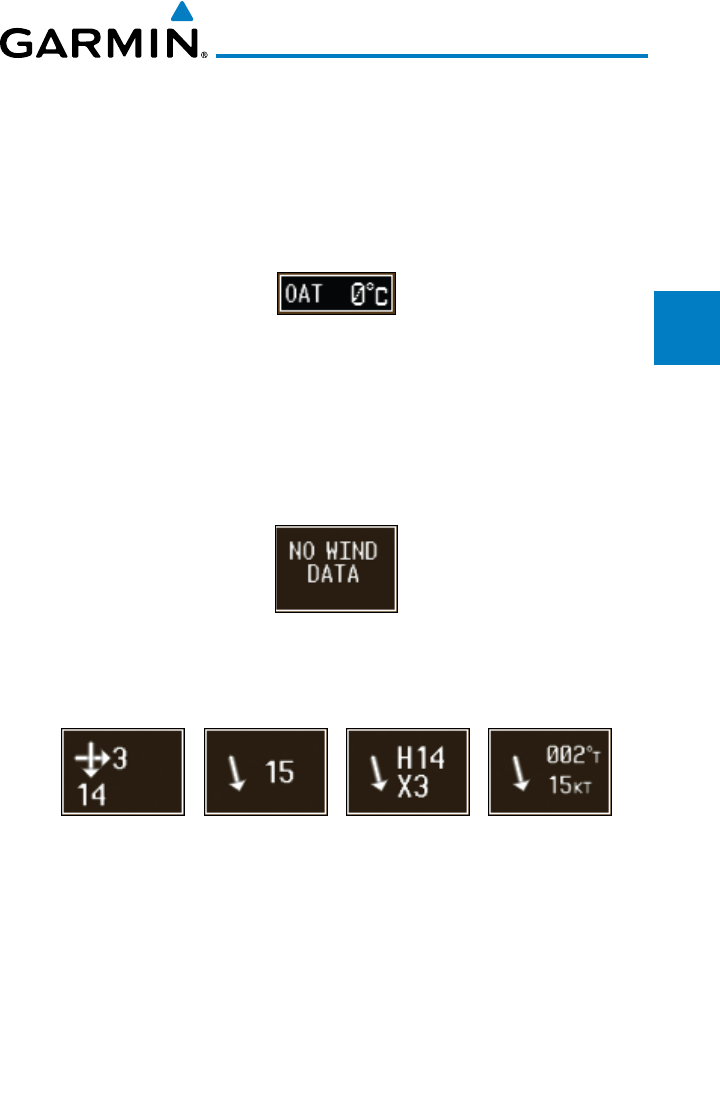
2-29190-00601-02 Rev. E
Garmin G600 Pilot’s Guide
Foreword
Sec 1
System
Sec 2
PFD
Sec 3
MFD
Sec 4
Hazard
Avoidance
Sec 5
Additional
Features
Sec 6
Annun.
& Alerts
Sec 7
Symbols
Sec 8
Glossary Appendix A
Appendix B
Index
2.8.2 Temperature Display
The Outside Air Temperature (OAT) is displayed to the left of the HSI. The
OAT can be displayed in ºF or ºC, which is configured in the Aux System Setup
Page. The temperature is derived from the Temperature Probe on the aircraft.
The displayed temperature is the Static Air Temperature reported by the Air Data
Computer. This temperature value is corrected for ram air heating effects.
Figure 2-37 HSI Outside Air Temperature
2.8.3 Wind Vectors
When selected, wind vector information is displayed in a window on the
PFD to the left of the HSI. The Wind Vector style is configured in the Aux Mode
System Setup page. While on the ground, the Wind Vector window will indicate
“No Wind Data.”
Figure 2-38 Wind Vector with No Wind Data
Four styles are available as shown below.
Style 1 Style 2 Style 3 Style 4
Figure 2-39 Wind Vector Style
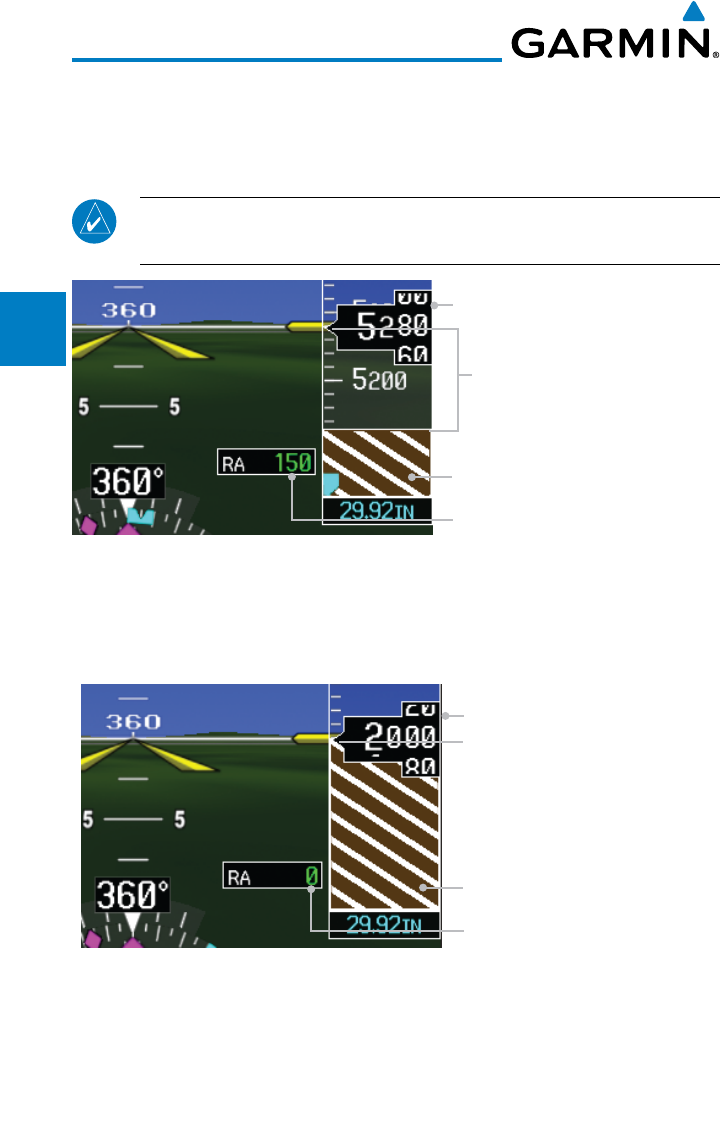
2-30
Garmin G600 Pilot’s Guide
190-00601-02 Rev. E
Foreword
Sec 1
System
Sec 2
PFD
Sec 3
MFD
Sec 4
Hazard
Avoidance
Sec 5
Additional
Features
Sec 6
Annun.
& Alerts
Sec 7
Symbols
Sec 8
GlossaryAppendix A
Appendix B
Index
2.9 Radar Altimeter
When an optional Radar Altimeter is installed, the altitude received from the
radar altitude will be displayed on the PFD.
NOTE: See the Radar Altimeter documentation for details on the radar
altimeter performance and limitations.
Barometric Altitude
Radar Altimeter Value
Brown Band Indicating The Ground
150 Feet Above Ground
Figure 2-40 Radar Altimeter Display - 150 foot RA Altitude
When the radar altitude is 0, the brown band will be level with the altitude
tape pointer. As the radar altitude increases above 0, the brown band will move
down the tape in an amount equal to the current radar altitude.
Barometric Altitude
Radar Altimeter Value
Brown Band Indicating The Ground
0 Foot Difference
(On Ground)
Figure 2-41 Radar Altimeter Display - 0 foot RA Altitude
The Radar Altimeter self-test process will be annunciated on the PFD above
the Radar Altimeter altitude value. The self-test is a wiring test to indicate
communication between the GDU and the Radar Altimeter. The self-test will be
cancelled after 15 seconds, the Test key is pressed again, or you leave the System
Setup page.
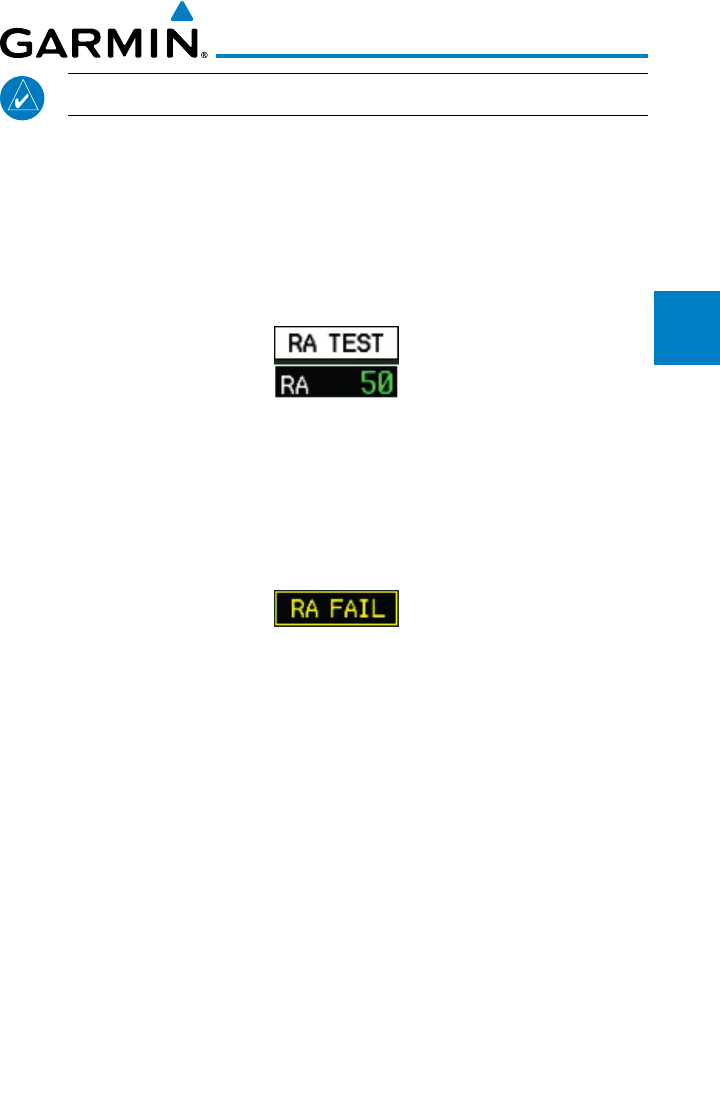
2-31190-00601-02 Rev. E
Garmin G600 Pilot’s Guide
Foreword
Sec 1
System
Sec 2
PFD
Sec 3
MFD
Sec 4
Hazard
Avoidance
Sec 5
Additional
Features
Sec 6
Annun.
& Alerts
Sec 7
Symbols
Sec 8
Glossary Appendix A
Appendix B
Index
NOTE: Not all Radar Altimeters have the TEST function.
1) Turn the large MFD knob to Aux mode and then turn the small MFD knob to
the System Setup page.
2) Press the RA TEST soft key
.
"RA TEST" will be annunciated above the Radar
Altimeter value. The Radar Altimeter value will show a certain number to
indicate that communication is taking place between the Radar Altimeter and
the GDU. See your Radar Altimeter documentation for the appropriate value.
Figure 2-42 Radar Altimeter Test Annunciation
3) Press the RA TEST key again to stop the self-test
.
4) If the unit fails the self-test, the RA value will not match the expected value. The
"RA FAIL" annunciation will appear on the PFD when the GDU is not receiving
any Radar Altimeter data. "RA FAIL" is not related to the self-test.
Figure 2-43 Radar Altimeter Failure Annunciation

2-32
Garmin G600 Pilot’s Guide
190-00601-02 Rev. E
Foreword
Sec 1
System
Sec 2
PFD
Sec 3
MFD
Sec 4
Hazard
Avoidance
Sec 5
Additional
Features
Sec 6
Annun.
& Alerts
Sec 7
Symbols
Sec 8
GlossaryAppendix A
Appendix B
Index
This page intentionally left blank
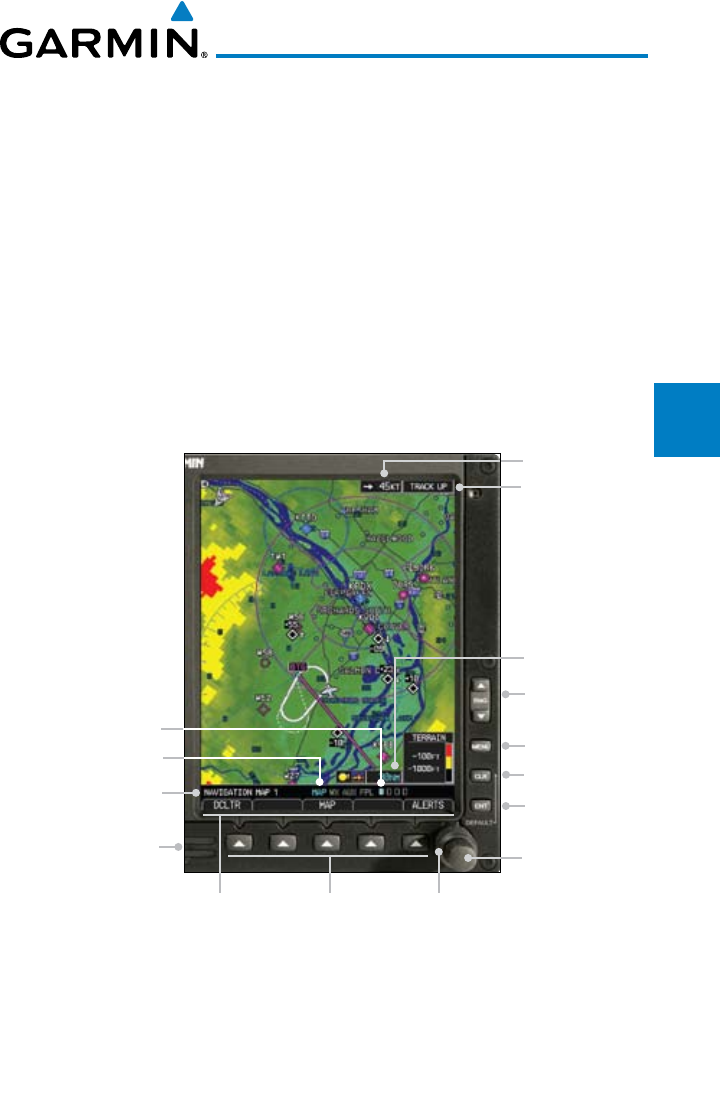
3-1190-00601-02 Rev. E
Garmin G600 Pilot’s Guide
Foreword
Sec 1
System
Sec 2
PFD
Sec 3
MFD
Sec 4
Hazard
Avoidance
Sec 5
Additional
Features
Sec 6
Annun.
& Alerts
Sec 7
Symbols
Sec 8
Glossary Appendix A
Appendix B
Index
3 MULTI-FUNCTION DISPLAY (MFD)
The MFD displays a color moving map with navigation information. Moving
map information is shown on the two Navigation Map pages and the optional
Weather (WX) pages (requires a datalink and subscription or the GWX 68
Weather Radar).
The Navigation Map displays aviation data (e.g., airports,
VORs, airways, airspaces), geographic data (e.g., cities, lake, highways,
borders), topographic data (map shading indicating elevation), and hazard
data (e.g., traffic, terrain, weather). The map options set for Navigation Map
page 1 are used as the default settings for the optional Weather (WX) pages.
The amount of displayed data can be reduced by pressing the DCLTR soft
key. The Navigation Map can be oriented four different ways: North Up
(NORTH UP), Track Up (TRACK UP), Desired Track Up (DTK UP), or
Heading Up (HDG UP).
Map Orientation
Map Scale
Range Select
Menu
Clear
Enter
Small MFD Knob
(Select Page)
Large MFD Knob
(Select Page Group)
Soft KeysSoft Key Labels
SD Card Slots
Page Label
Page Group
Page Group Position
Wind Vector
Figure 3-1 MFD Description
The nose of the aircraft icon is placed on the Navigation Map at the location
corresponding to the calculated present position. The aircraft position and
the flight plan legs are based on information received from the currently
selected GPS navigator. The leg of the active flight plan currently being
flown is shown as a magenta line on the navigation map. The other legs are
shown in white.
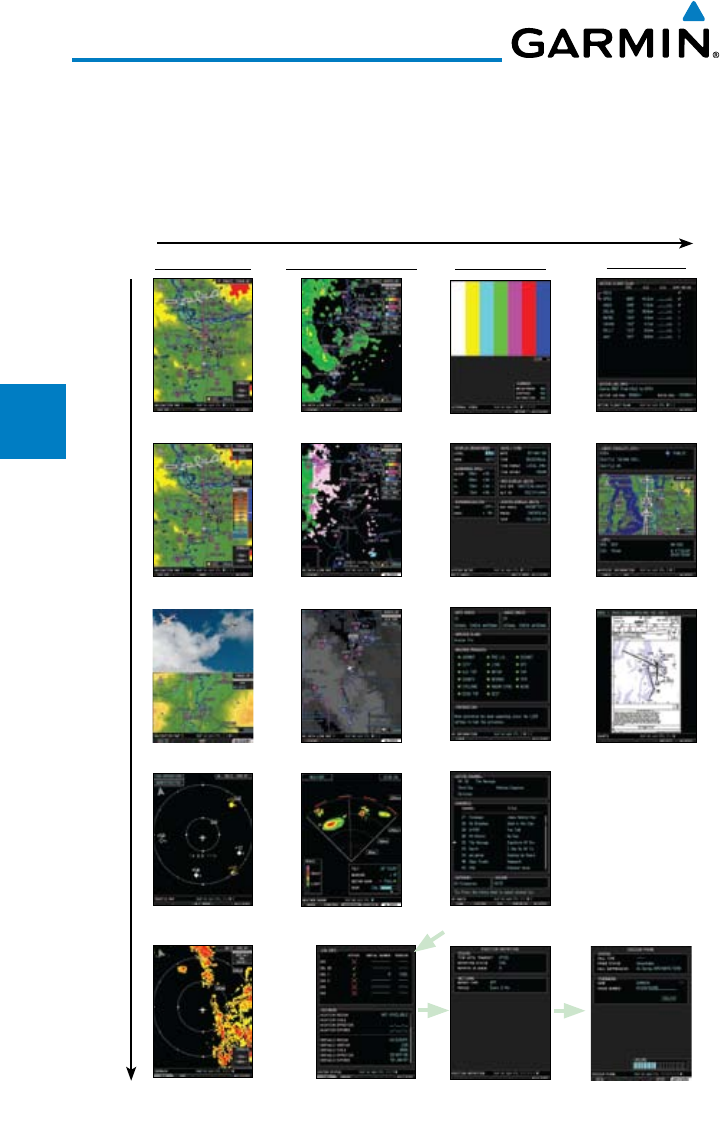
3-2
Garmin G600 Pilot’s Guide
190-00601-02 Rev. E
Foreword
Sec 1
System
Sec 2
PFD
Sec 3
MFD
Sec 4
Hazard
Avoidance
Sec 5
Additional
Features
Sec 6
Annun.
& Alerts
Sec 7
Symbols
Sec 8
GlossaryAppendix A
Appendix B
Index
There are 28 different map ranges available, from 500 feet to 2000 NM.
The current range is indicated in the lower right corner of the map and
represents the top-to-bottom distance covered by the map. To change the
map range on any map, press the RNG keys on the right side of the bezel.
3.1 Functional Display Map
Pos Report (opt)
Map Group Wx Group (opt) Aux Group FPL Group
Wx Data 1 (opt)
Wx Data 2 (opt)
Wx Data 3 (opt)
System Setup
XM Info (opt)
XM Radio (opt)
System Status
Active FPL
Wpt Info
Charts (opt)
Turn large MFD knob to change page groups
Turn small MFD knob to select pages within a group
Weather Radar (opt)
Nav Map 1
Nav Map 2
Traffic (opt)
Terrain (TAWS/SVT opt)
Split Screen (opt)
Ext Video (opt)
Iridium Phone (opt)
Figure 3-2 MFD Page Groups
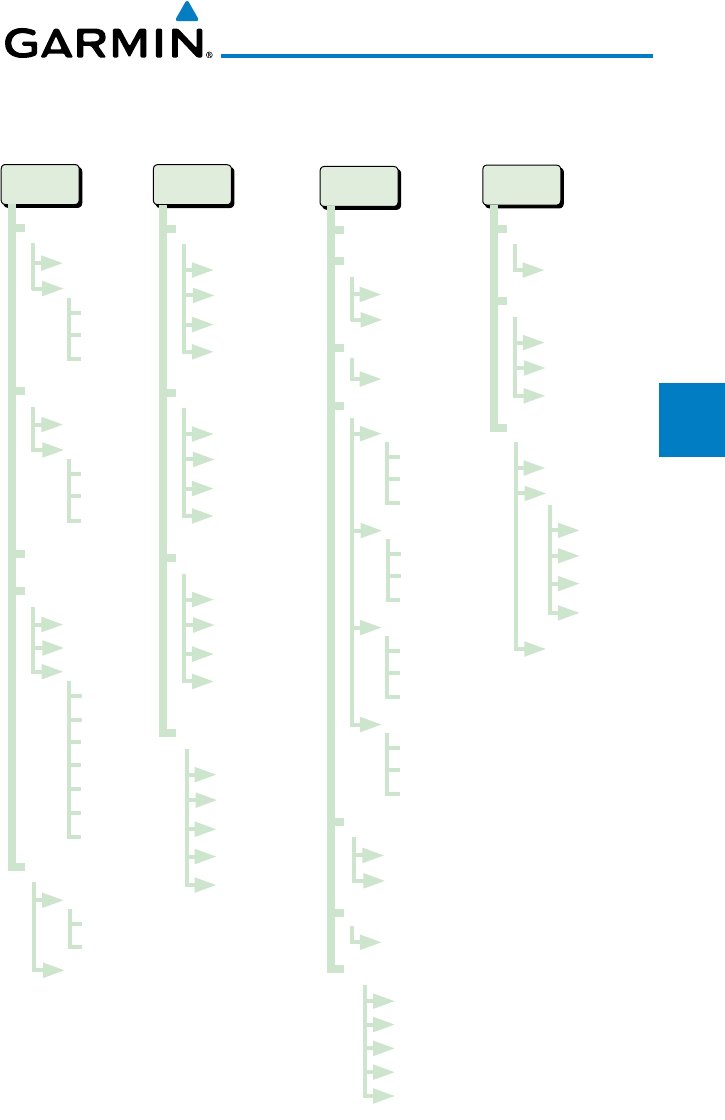
3-3190-00601-02 Rev. E
Garmin G600 Pilot’s Guide
Foreword
Sec 1
System
Sec 2
PFD
Sec 3
MFD
Sec 4
Hazard
Avoidance
Sec 5
Additional
Features
Sec 6
Annun.
& Alerts
Sec 7
Symbols
Sec 8
Glossary Appendix A
Appendix B
Index
3.2 MFD Soft Key Map
The soft keys available depend on the page displayed and the features available.
The soft key “Alerts” is present on the far right position in all MFD displays.
Terrain
View
Inhibit
360
Arc
Map
NavMap1
Declutter
Map
Traffic
Topo
Terrain
NavMap2
Declutter
Map
Traffic
Topo
Terrain
Traffic
Standby
Operate
Alt Mode
Standby
Operate
Alt Mode
Below
Normal
Above
Unrest
Split Screen
Wx
Wx Data Link 1
Legend
SRFC Time
Wind Down
Wind Up
Wx Data Link 2
Legend
SRFC Time
Wind Down
Wind Up
Wx Data Link 3
Legend
SRFC Time
Wind Down
Wind Up
Wx Radar
Mode
Control
Horizon
Vertical
Back
Fpl
Active Fpl
Info
Wpt Info
Rwy/Freq
Apt Dir
Wx
Charts
NOTAM
Detail
Select
Header
Plan
Profile
Minimums
Aux
System Setup
Default Unit
Default Speed
XM Info
Lock
XM Radio
Channel
CH -
CH +
DIR CH
Category
CAT -
CAT +
ALL
Volume
Mute
Vol -
Vol +
Presets
PS1
...
PS15
System Status
LRU
DBASE
External Video
Position Reporting
Send
Iridium Telephone
Dial
Answer
Hang Up
Vol
Keys
Figure 3-3 MFD Soft Keys
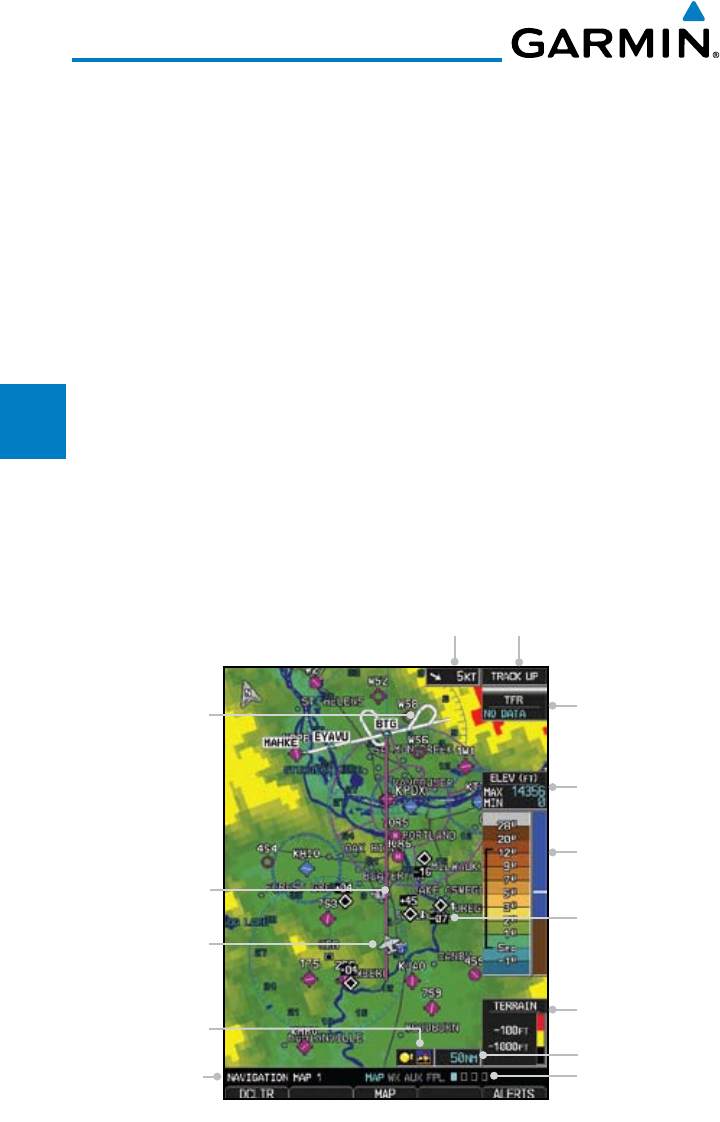
3-4
Garmin G600 Pilot’s Guide
190-00601-02 Rev. E
Foreword
Sec 1
System
Sec 2
PFD
Sec 3
MFD
Sec 4
Hazard
Avoidance
Sec 5
Additional
Features
Sec 6
Annun.
& Alerts
Sec 7
Symbols
Sec 8
GlossaryAppendix A
Appendix B
Index
3.3 Navigation Map Pages
Map displays are used extensively in the GDU 620 to provide situational
awareness in flight. The Navigation map pages can display the following
information:
• Airports, NAVAIDs, airspace,
airways, land data (highways,
cities, lakes, rivers, borders, etc.)
with names
• MapPointer information (distance
and bearing to pointer, location of
pointer, name, and other pertinent
information)
• Maprange
• Wind direction and speed
• Maporientation
• Iconsforenabledmapfeatures
• Aircrafticon(representingpresent
position)
• Navrange ring
• Flightplan legs
• Trackvector
• Topographyscale
• Topographydata
• XMNEXRADWeather
• XMLightning
• XMStormCells
Symbols used on the MFD are detailed in Section 7.
Wind Vector and Speed Map Orientation
TFR Data Window
Elevation Window
Topo Scale
Terrain Data Scale
Page Location
Map Range
Traffic Icons
with Relative
Altitude and Trend
Indicator
Aircraft Symbol
(Present Position)
Active Flight
Plan Leg
Procedure Turn in
Flight Plan
Page Name
Terrain Symbol
Indicates Terrain is
Displayed
Figure 3-4 MFD Map Description
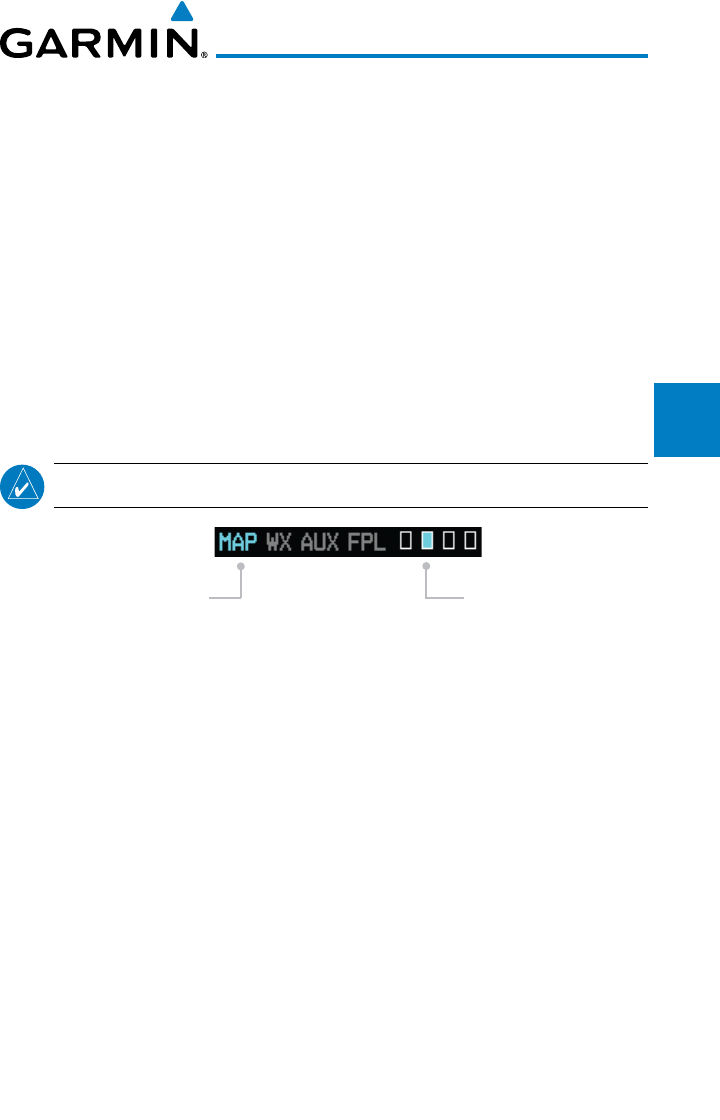
3-5190-00601-02 Rev. E
Garmin G600 Pilot’s Guide
Foreword
Sec 1
System
Sec 2
PFD
Sec 3
MFD
Sec 4
Hazard
Avoidance
Sec 5
Additional
Features
Sec 6
Annun.
& Alerts
Sec 7
Symbols
Sec 8
Glossary Appendix A
Appendix B
Index
3.3.1 Default Navigation Map Page
While on any page of the MFD, you may easily return to the first Navigation
Map page of the Map group by
pressing and holding the CLR key to return
to the first page (Home Page) of the Map group.
3.3.2 Editing Information
1) Press the small MFD knob to activate editing.
2) Turn the large MFD knob to select desired item.
3) Turn the small MFD knob to change the highlighted value.
4) Press ENT
to accept the displayed value.
5) Press the small MFD knob to cancel selection or to end editing.
NOTE: Page Group and Page are shown at the bottom of the MFD.
Page Group
Turn Large MFD knob
Page
Turn Small MFD knob
Figure 3-5 Page Group and Page Locator
3.3.3 Selecting Page Options
1) Change the fields or the setup of a page by pressing the MENU key and make
the necessary adjustments with the MFD knobs.
2) Press ENT
to accept the displayed value. Press the small MFD knob to cancel
selection or to end editing.
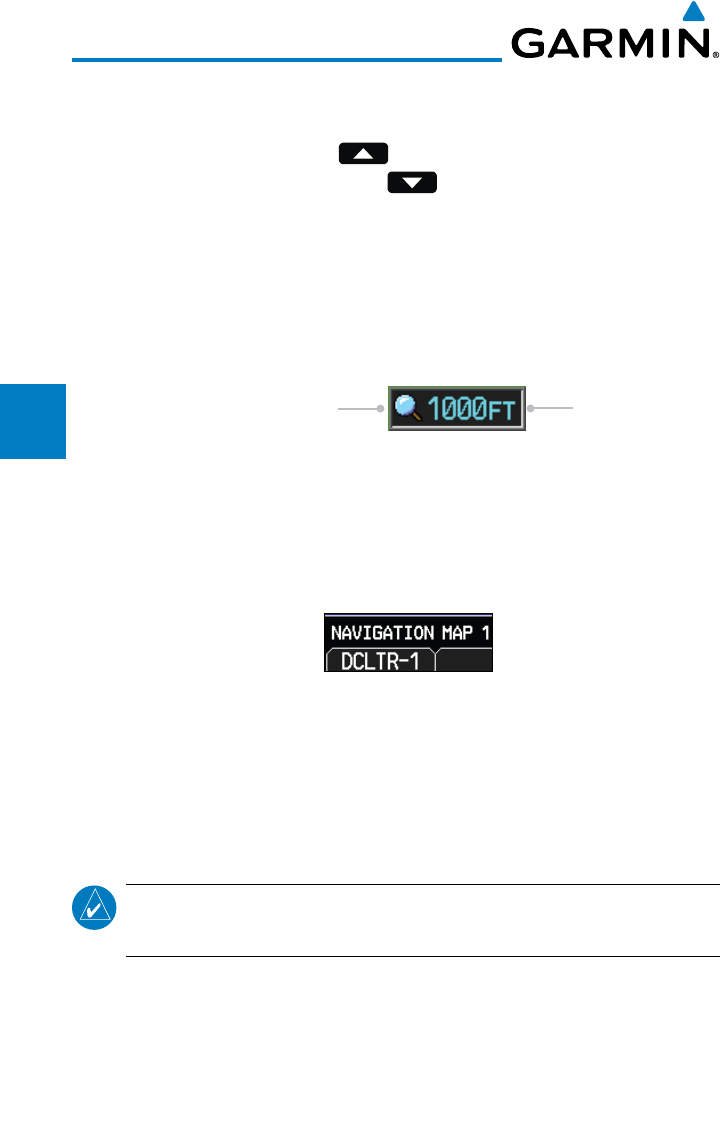
3-6
Garmin G600 Pilot’s Guide
190-00601-02 Rev. E
Foreword
Sec 1
System
Sec 2
PFD
Sec 3
MFD
Sec 4
Hazard
Avoidance
Sec 5
Additional
Features
Sec 6
Annun.
& Alerts
Sec 7
Symbols
Sec 8
GlossaryAppendix A
Appendix B
Index
3.3.4 Changing the Navigation Map Range
The Range (RNG) keys on the right side of the bezel are used to change the
map display range. Pressing the RNG key will zoom out (increasing the
displayed map range) and pressing the RNG key will zoom in (decreasing
the displayed map range). The Map Range is shown in the lower right corner of
the MFD and represents the top-to-bottom distance covered by the map. The
map ranges available are from 500 feet to 2000 NM. When the map range is
decreased to a point that exceeds the capability of the GDU 620 to accurately
represent the map, a magnifying glass icon is shown to the left of the map
range.
Map Range
Map Range Overzoom Icon
Figure 3-6 Map Range
3.3.5 Decluttering Map Pages
The Map Declutter feature allows the pilot to progressively step through
four levels of decluttering to remove map information. The declutter level is
displayed in the DCLTR soft key.
Figure 3-7 Map Declutter Soft Key
1) There are four levels of decluttering. DCLTR (0) shows the most detail. DCLTR-3
removes the most detail.
2) While viewing one of the Navigation Map pages, press the DCLTR soft key.
Each successive press of the DCLTR soft key will toggle through the declutter
levels. Features marked with a “•” are shown at the indicated Declutter Level.
NOTE: Traffic is automatically decluttered from Nav Map pages when the
map scale is above 150 NM.
3-7190-00601-02 Rev. E
Garmin G600 Pilot’s Guide
Foreword
Sec 1
System
Sec 2
PFD
Sec 3
MFD
Sec 4
Hazard
Avoidance
Sec 5
Additional
Features
Sec 6
Annun.
& Alerts
Sec 7
Symbols
Sec 8
Glossary Appendix A
Appendix B
Index
Feature 0 1 2 3 Feature 0 1 2 3
Airways •Class D Airspace • •
River/Lake Names •Tower • •
Land/Country Text •TRSA • •
Large City •ADIZ • •
Medium City •Alert Areas • •
Small City •Caution Areas • •
Small Town •Danger Areas • •
Freeways •Warning Areas • •
Highways •Large Airports •••
Roads •Medium Airports •••
Railroads •Prohibited Areas •••
Political Boundaries •MOAs •••
Lat/Lon Grids • • Runway Labels •••
VORs • •
Lightning Strike Data
•••
NDBs • • NEXRAD Data •••
Intersections • • Traffic Symbols •••
Class B Airspace • • Traffic Labels •••
Class C Airspace • • Water Detail ••••
Active FPL Legs ••••
Table 3-1 Features Shown at Each Decluttering Level
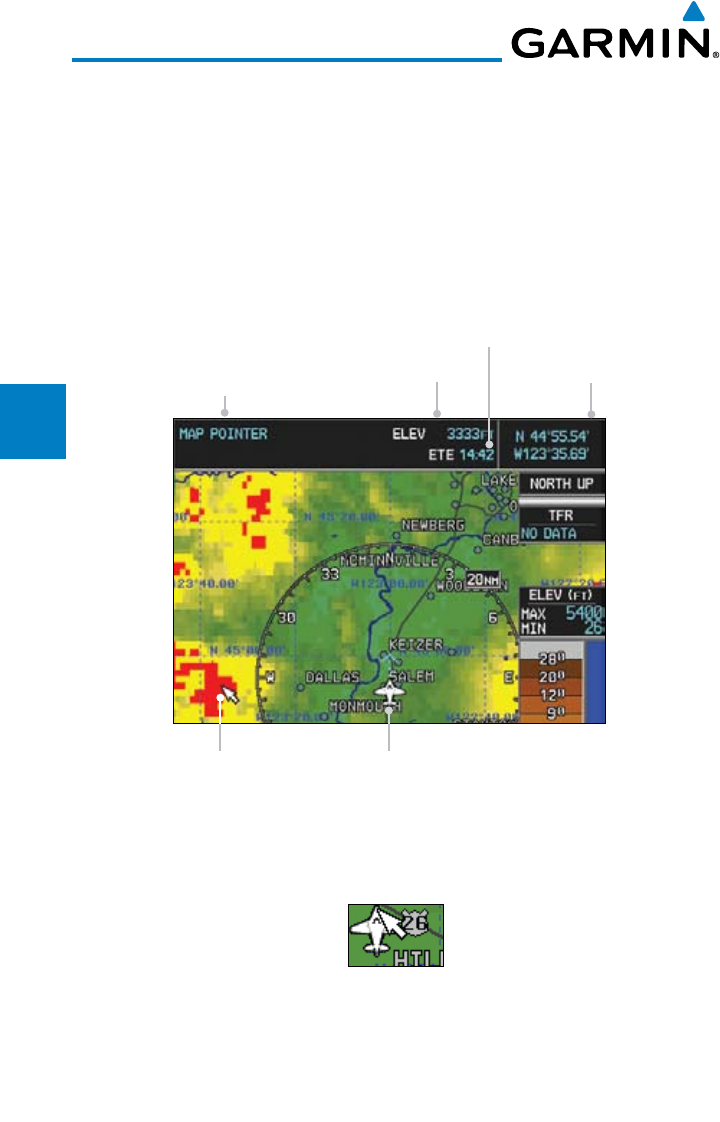
3-8
Garmin G600 Pilot’s Guide
190-00601-02 Rev. E
Foreword
Sec 1
System
Sec 2
PFD
Sec 3
MFD
Sec 4
Hazard
Avoidance
Sec 5
Additional
Features
Sec 6
Annun.
& Alerts
Sec 7
Symbols
Sec 8
GlossaryAppendix A
Appendix B
Index
3.3.6 Panning
The Panning Map Page function allows you to move the map beyond its
current limits without adjusting the map scale and to examine information at
the pointer location. When you select the panning function — by pressing the
small MFD knob — a target pointer flashes on the map display. A window also
appears at the top of the map display showing the latitude/longitude position of
the pointer, the ETE from your present position to the pointer, elevation at the
pointer, and bearing and distance to the pointer from your present position.
Information is related
to the tip of the pointer Elevation at Pointer
ETE from present position
to tip of pointer
Lat/Lon at Pointer
Map Pointer Present Position
Figure 3-8 Navigation Map Pointer Location Information
1) While viewing a Map or Chart page, press the small MFD knob. A flashing
pointer will appear in the tip of the ownship symbol. The measured information
is referenced to the tip of the arrow.
Figure 3-9 Navigation Map Initial Pointer Location
2) Turn the large MFD knob to move the cursor horizontally. Turn the small MFD
knob to move the cursor vertically.
3) Press the small MFD knob again to cancel panning. The display will return to
the previous map view.

3-9190-00601-02 Rev. E
Garmin G600 Pilot’s Guide
Foreword
Sec 1
System
Sec 2
PFD
Sec 3
MFD
Sec 4
Hazard
Avoidance
Sec 5
Additional
Features
Sec 6
Annun.
& Alerts
Sec 7
Symbols
Sec 8
Glossary Appendix A
Appendix B
Index
3.3.7 Selecting Items on the Map
When the target pointer is placed on an object, the name of that object is
highlighted (even if the name wasn’t originally displayed on the map). This
feature applies to airports, NAVAIDs, user-created waypoints, roads, lakes,
rivers — just about everything displayed on the map except route lines. When
an airport, NAVAID, or user waypoint is selected on the map display, you can
review information about the item.
1) While viewing the Navigation Map pages of the Map page group, press the
small MFD knob to activate panning.
2) Move the cursor with the small and large MFD knobs to highlight a feature.
2) Press ENT
to display information about the highlighted feature.
3) Press the INFO soft key (if available) to view more information about the
highlighted feature.
4) Press the WX soft key (if available) to view TAF and METAR information.
5) Press the small MFD knob again to return to panning.
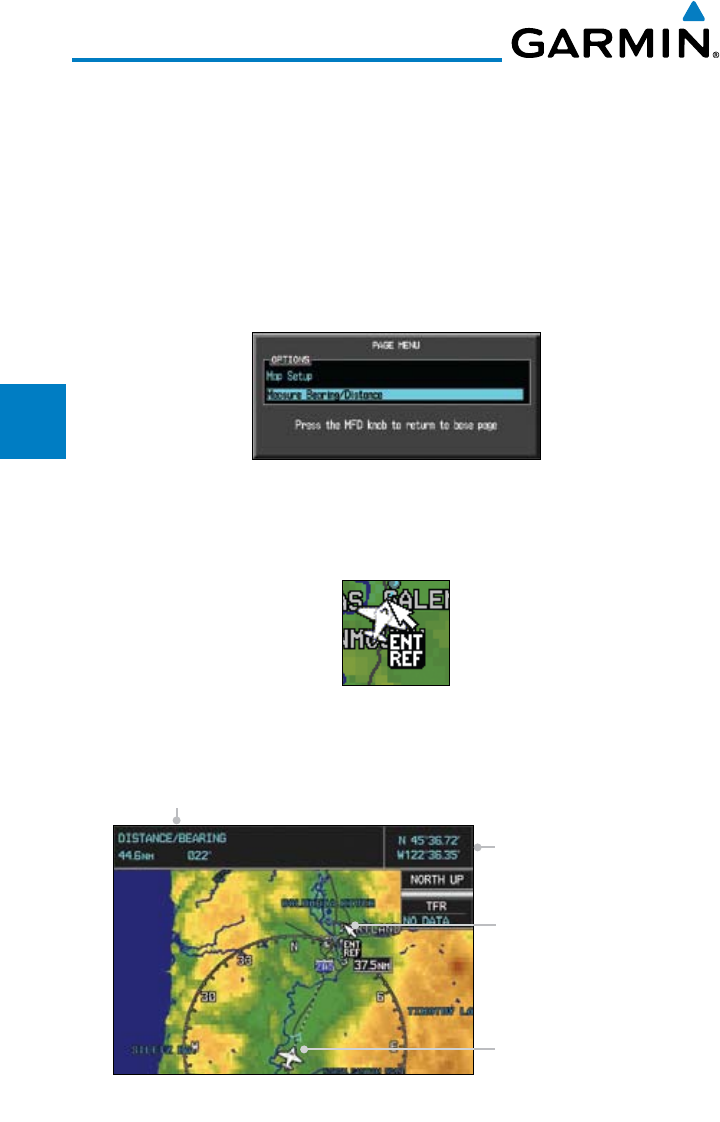
3-10
Garmin G600 Pilot’s Guide
190-00601-02 Rev. E
Foreword
Sec 1
System
Sec 2
PFD
Sec 3
MFD
Sec 4
Hazard
Avoidance
Sec 5
Additional
Features
Sec 6
Annun.
& Alerts
Sec 7
Symbols
Sec 8
GlossaryAppendix A
Appendix B
Index
3.3.8 Measuring Distances
The “Measure Bearing/Distance” function provides a quick and easy method
to determine the bearing and distance between any two points on the Navigation
Map.
1) While viewing one of the Navigation Map pages of the Map page group, press
MENU.
2) Turn the
large
or small MFD knobs to highlight “Measure Bearing/
Distance“ and then press
ENT
.
Figure 3-10 Navigation Map Measure Distance Function
3) Your present position will be marked as the starting reference point. To choose a
different starting reference point, turn the large or small MFD knobs to desired
point and press ENT.
Figure 3-11 Measure Distance Starting Reference Point
4) Turn the large or small MFD knobs to move the cursor to a reference point. The
distance and bearing is displayed at the top of the display.
Ending Reference
Point position
Ending Reference Point
Starting Reference Point
Distance and Bearing Between Start and End Points
Figure 3-12 Bearing/Distance Measurement
5) Press the small MFD knob to stop measuring.
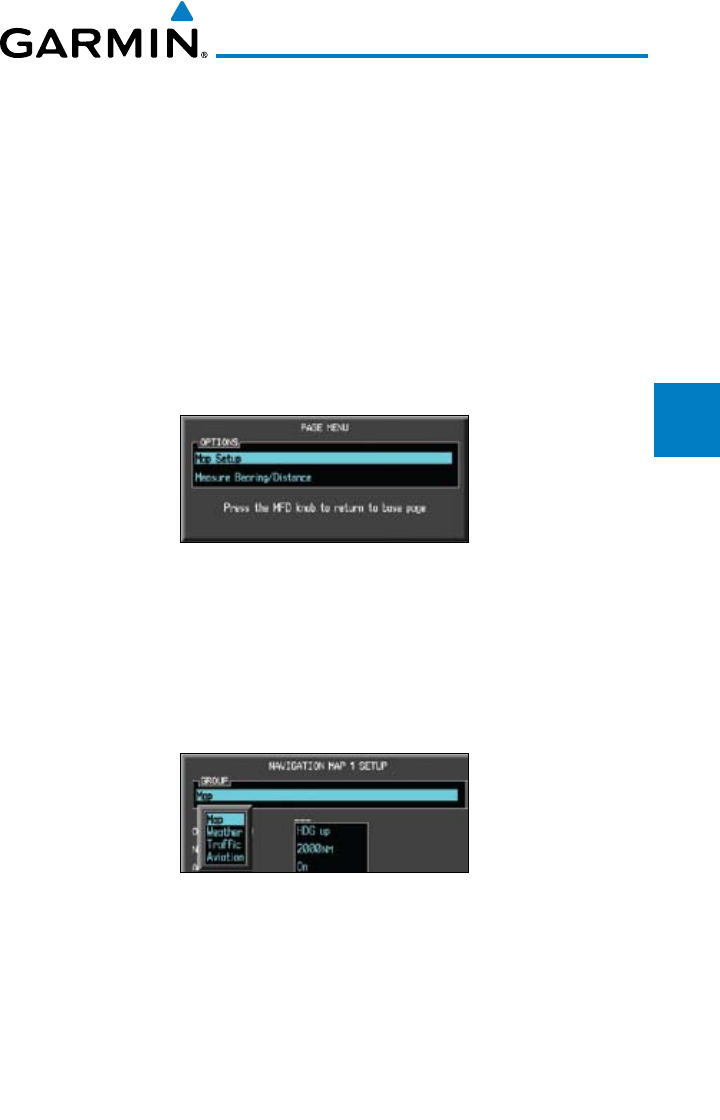
3-11190-00601-02 Rev. E
Garmin G600 Pilot’s Guide
Foreword
Sec 1
System
Sec 2
PFD
Sec 3
MFD
Sec 4
Hazard
Avoidance
Sec 5
Additional
Features
Sec 6
Annun.
& Alerts
Sec 7
Symbols
Sec 8
Glossary Appendix A
Appendix B
Index
3.3.9 Customizing Navigation Map Pages
The Navigation Map pages are customized by selecting options from the Page
Menu. The Page Menu options include choices for Map Setup and Measure
Bearing/Distance. The Map Setup choice covers selections for Map, Weather,
Traffic, and Aviation depending on the installed equipment of a given aircraft.
3.3.10 Map Setup
The Map Setup selection from the Page Menu allows you to customize the
displayed items.
1) While viewing one of the Navigation Map pages of the Map page group, press
the MENU key to display the Navigation Map Page
Menu
.
Figure 3-13 Navigation Map Page Menu
2) With the cursor flashing on the “Map Setup” option. Press the ENT
key to
display the Map Setup Menu.
3) Use the large and small
MFD
knobs to select the Group and press ENT to
allow editing of the selected group. The groups shown depend on the features
available for equipment installed in your aircraft.
Figure 3-14 Navigation Map Page Menu Map Group Selection
4) Press the small
MFD knob to return to the Navigation Map Page.
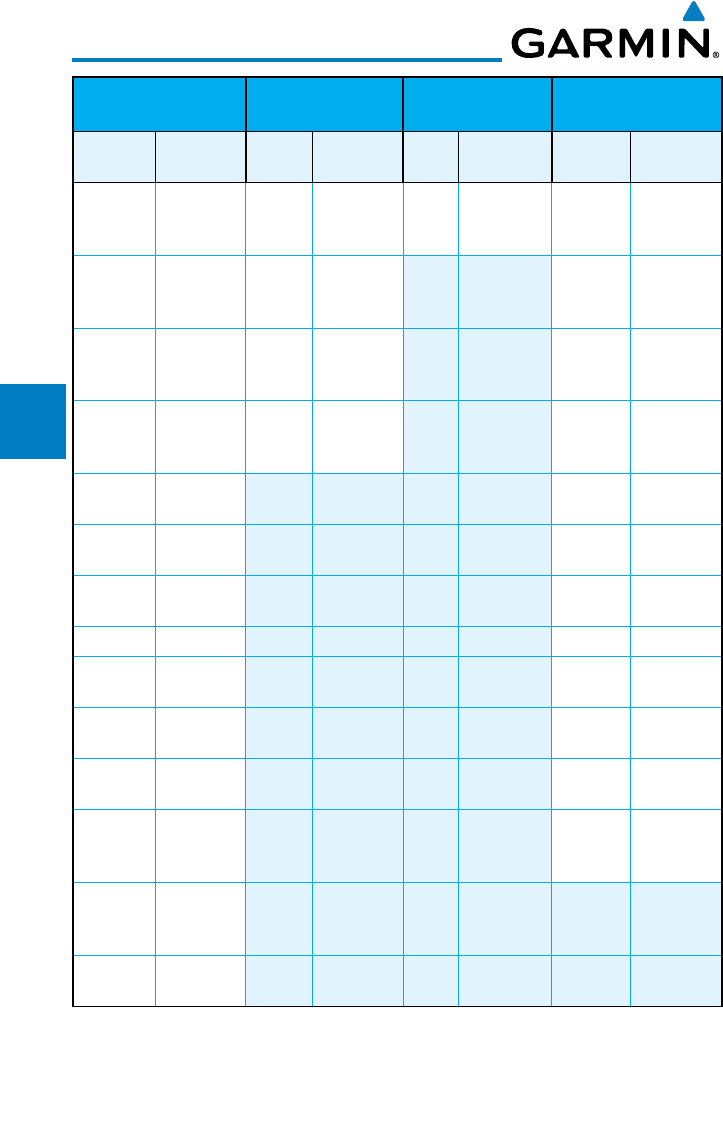
3-12
Garmin G600 Pilot’s Guide
190-00601-02 Rev. E
Foreword
Sec 1
System
Sec 2
PFD
Sec 3
MFD
Sec 4
Hazard
Avoidance
Sec 5
Additional
Features
Sec 6
Annun.
& Alerts
Sec 7
Symbols
Sec 8
GlossaryAppendix A
Appendix B
Index
Map Group Weather Group
(optional)
Traffic Group
(optional)
Aviation Group
Menu
Item
Adjustment Menu
Item
Adjustment Menu
Item
Adjustment Menu
Item
Adjustment
Orientation Direction NEXRAD
Viewing
Range
Off/Range Traffic Off/Modes Safe Taxi
Viewing
Range
Off/Range
North Up
At
Off/Range NEXRAD
Cell Mov
Off/Range Rwy
Extension
Range
Off/Range
Auto Zoom On/Off NEXRAD
Legend
On/Off INT/NDB
Viewing
Range *
Off/Range
Land Data On/Off XM Ltng Off/Range VOR
Viewing
Range*
Off/Range
Track Vector
Length
Off/Time Class B/
TMA *
Off/Range
Wind
Vector
On/Off Class C/
TCA *
Off/Range
Nav Range
Ring
On/Off Class D * Off/Range
Topo Data On/Off Restricted* Off/Range
Topo Scale On/Off MOA
(Military)*
Off/Range
Terrain
Data
On/Off Other/
ADIZ *
Off/Range
Terrain
Scale
On/Off TFR * Off/Range
Obstacle
Viewing
Range
Off/Range Airways Off/Modes
Lat/Lon
Viewing
Range
Off/Range
Field of
View**
On/Off
* - shown if the Aviation database is current. ** - shown if Synthetic Vision is available.
Table 3-2 Navigation Map Page Menu Selections
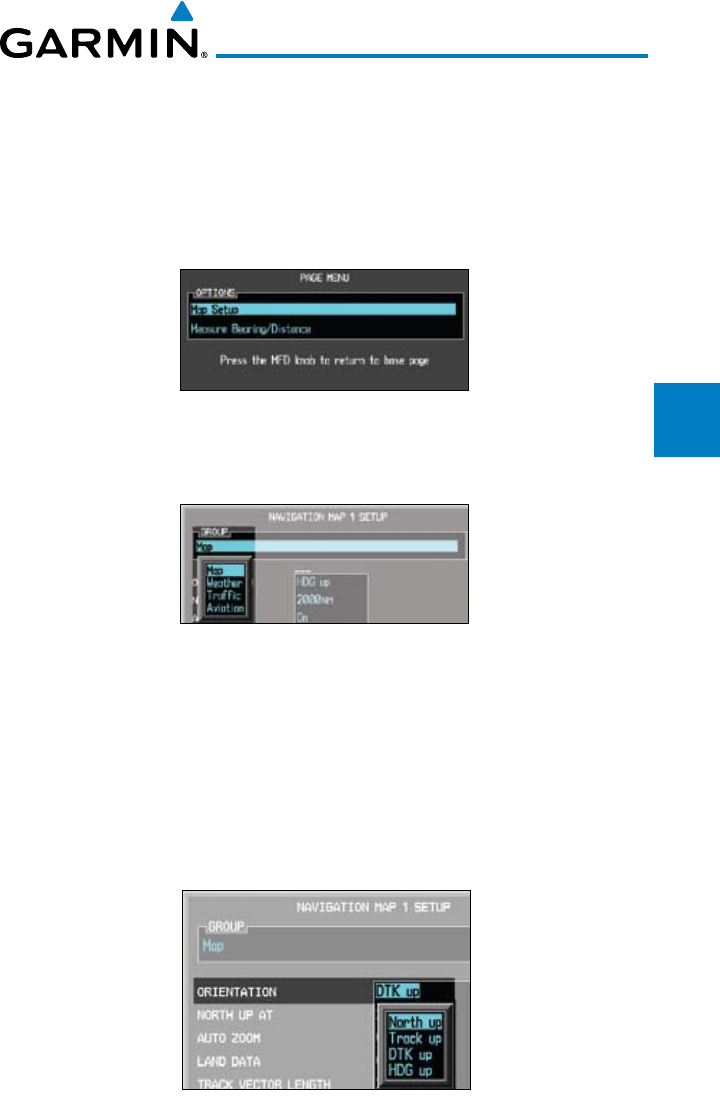
3-13190-00601-02 Rev. E
Garmin G600 Pilot’s Guide
Foreword
Sec 1
System
Sec 2
PFD
Sec 3
MFD
Sec 4
Hazard
Avoidance
Sec 5
Additional
Features
Sec 6
Annun.
& Alerts
Sec 7
Symbols
Sec 8
Glossary Appendix A
Appendix B
Index
3.3.10.1 Map Feature Options
Choose the options to determine the values for display on each Navigation
Map. The options you save will be retained until changed. The options may be
selecting by using the following procedure:
1) While viewing one of the Navigation Map pages of the Map page group, press
the MENU key. With “Map Setup” highlighted, press ENT.
Figure 3-15 Navigation Map Page Menu
With the Map Group active, turn the large MFD knob to highlight the desired
option.
Figure 3-16 Navigation Map Page Menu Map Group Selection
2) Turn the small MFD knob to change the highlighted value.
3) Press ENT
to accept the displayed value. The next option will be highlighted.
4) Press the small MFD knob to cancel selection or to end editing and return to
the Navigation Map page or turn the large MFD knob to the next option.
Map Orientation
The Orientation option sets the orientation of the Navigation Map.
Figure 3-17 Navigation Map Orientation
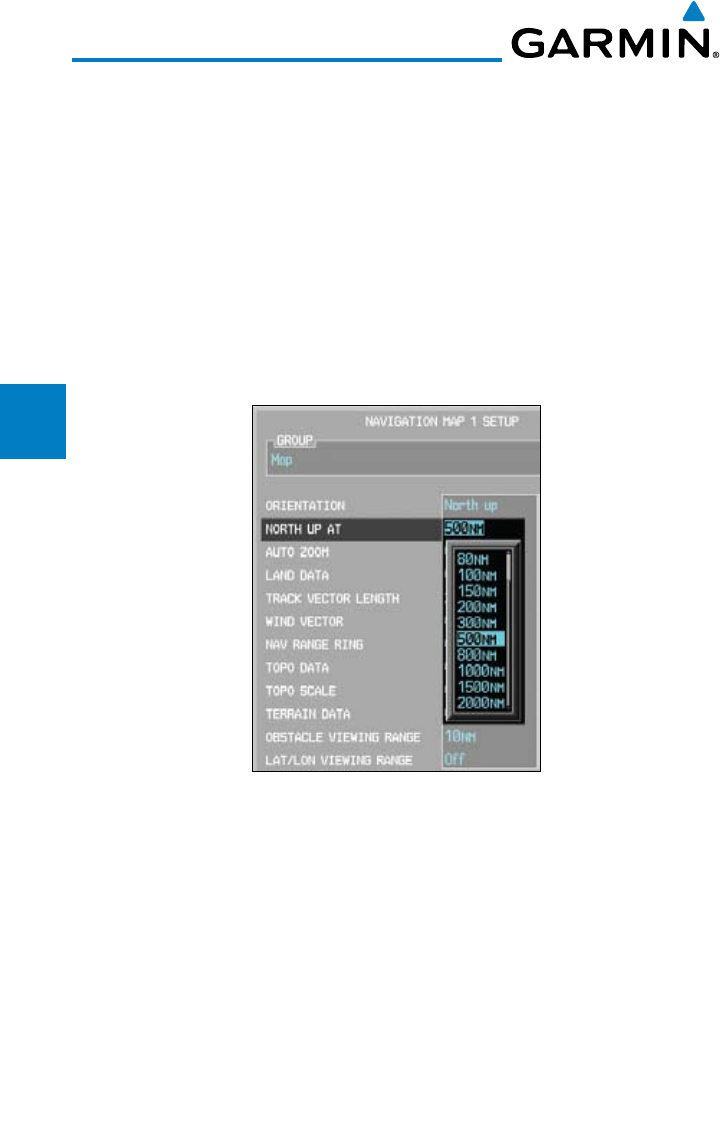
3-14
Garmin G600 Pilot’s Guide
190-00601-02 Rev. E
Foreword
Sec 1
System
Sec 2
PFD
Sec 3
MFD
Sec 4
Hazard
Avoidance
Sec 5
Additional
Features
Sec 6
Annun.
& Alerts
Sec 7
Symbols
Sec 8
GlossaryAppendix A
Appendix B
Index
North Up At
The North Up At option allows you to select the map range where at and
above the selected value the Map Orientation will automatically change to
North Up. For example, with the 500 NM value selected in the figure below,
when the map range of the MFD is 500 NM or more, the map orientation will
automatically become North Up.
1) While viewing the Navigation Map 1 or 2 of the Map page group, press the
MENU key. With “Map Setup” highlighted, press ENT. With the Map Group
active, turn the large MFD knob to highlight the “North Up At” option.
2) Turn the small MFD knob to change the highlighted value.
Figure 3-18 Navigation Map “North Up At” Orientation Range Selection
3) Press ENT
to accept the displayed value. The next option will be highlighted.
4) Press the small MFD knob to cancel selection or to end editing and return to
the Navigation Map page or turn the large MFD knob to the next option.
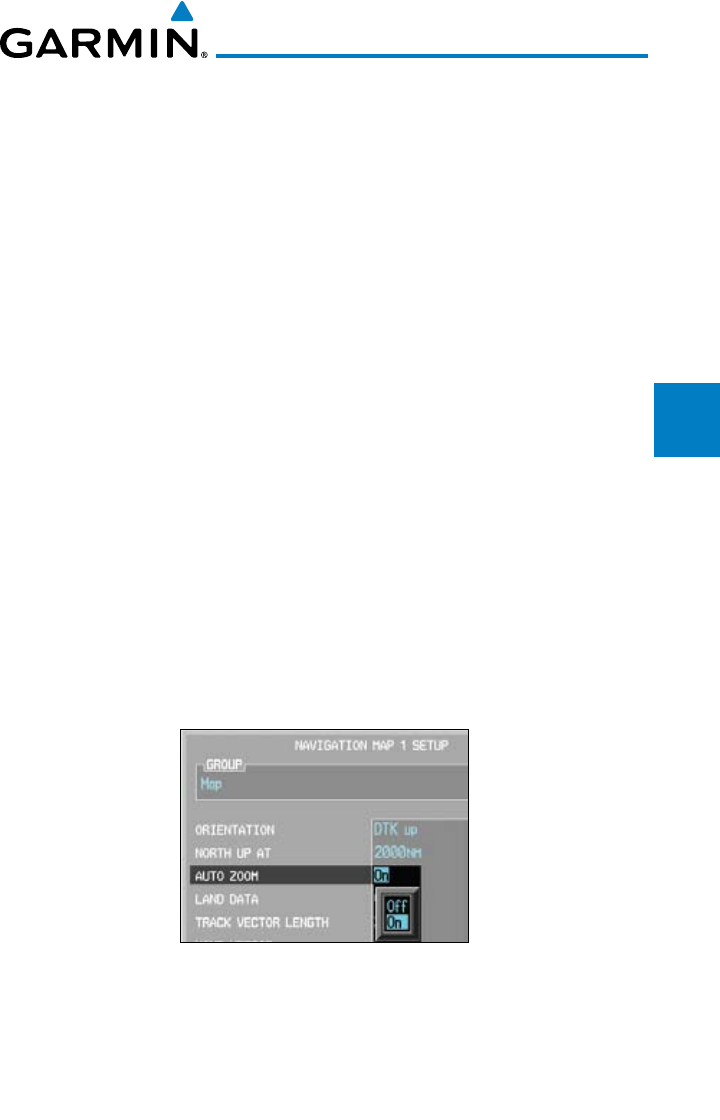
3-15190-00601-02 Rev. E
Garmin G600 Pilot’s Guide
Foreword
Sec 1
System
Sec 2
PFD
Sec 3
MFD
Sec 4
Hazard
Avoidance
Sec 5
Additional
Features
Sec 6
Annun.
& Alerts
Sec 7
Symbols
Sec 8
Glossary Appendix A
Appendix B
Index
Auto Zoom
With a valid flight plan, the Auto Zoom feature will automatically change the
Navigation Map range depending on the distance to the next waypoint in the
flight plan. If enabled, it will also automatically zoom to the SafeTaxi zoom range
when the aircraft is on the ground. Auto Zoom can be overridden at any time by
manually zooming with the RNG keys or enabling OBS mode. Auto Zoom is re-
enabled once one of the following conditions is met:
1) A waypoint is sequenced,
2) the aircraft transitions from “on ground” to “in air,”
3) a point is reached where the Auto Zoom range matches the manual override
range (known as auto-sync),
4) Auto Zoom is toggled off and back on in the Navigation Map Setup page,
OR
5) OBS mode is turned off.
Activating Auto Zoom
1) While viewing the Navigation Map 1 or 2 pages of the Map page group, press
the MENU key. With “Map Setup” highlighted, press ENT. With the Map Group
active, turn the large MFD knob to highlight the “Auto Zoom” option.
2) Turn the small MFD knob to select On or Off.
Figure 3-19 Navigation Map Auto Zoom
3) Press ENT
to accept the displayed value. The next option will be highlighted.
4) Press the small MFD knob to cancel selection or to end editing and return to
the Navigation Map page or turn the large MFD knob to the next option.
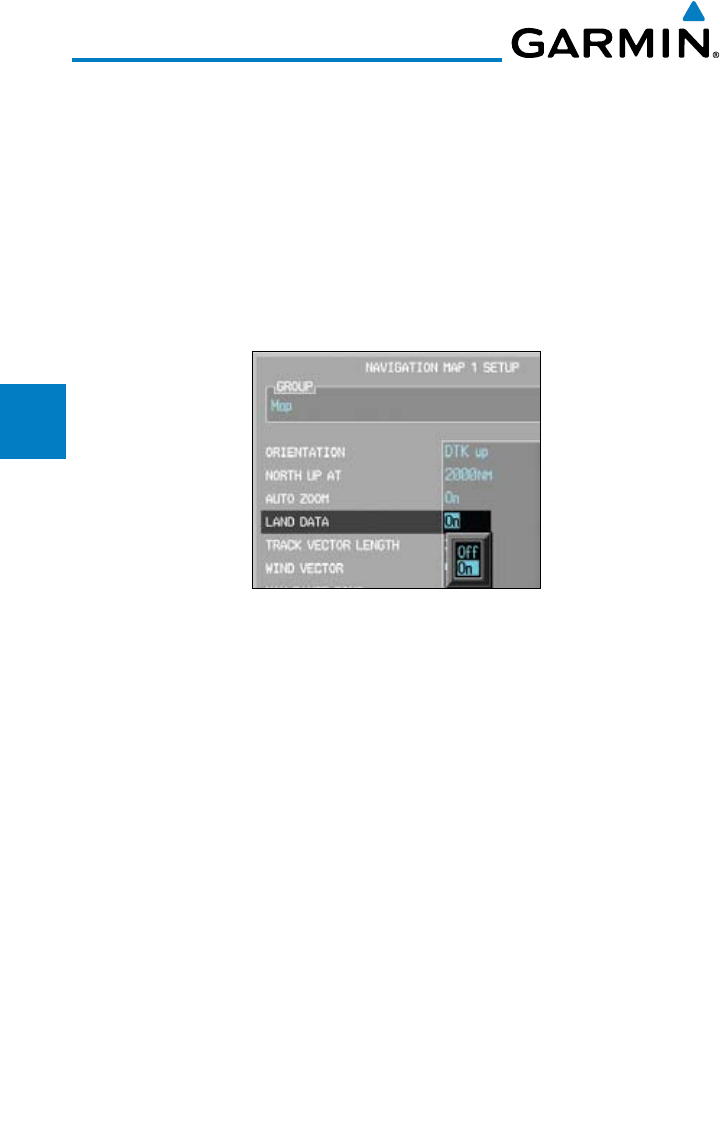
3-16
Garmin G600 Pilot’s Guide
190-00601-02 Rev. E
Foreword
Sec 1
System
Sec 2
PFD
Sec 3
MFD
Sec 4
Hazard
Avoidance
Sec 5
Additional
Features
Sec 6
Annun.
& Alerts
Sec 7
Symbols
Sec 8
GlossaryAppendix A
Appendix B
Index
Land Data
The Land Data option selects whether detailed land features, such as rivers,
roads, cities, are displayed. Topo features, traffic, terrain, and obstacles will still
be displayed, even with Land Data turned off.
1) While viewing the Navigation Map 1 or 2 of the Map page group, press the
MENU key. With “Map Setup” highlighted, press ENT. With the Map Group
active, turn the large MFD knob to highlight the “Land Data” option.
2) Turn the small MFD knob to select On or Off.
Figure 3-20 Navigation Map Land Data
3) Press ENT
to accept the displayed value. The next option will be highlighted.
4) Press the small MFD knob to cancel selection or to end editing and return to
the Navigation Map page or turn the large MFD knob to the next option.
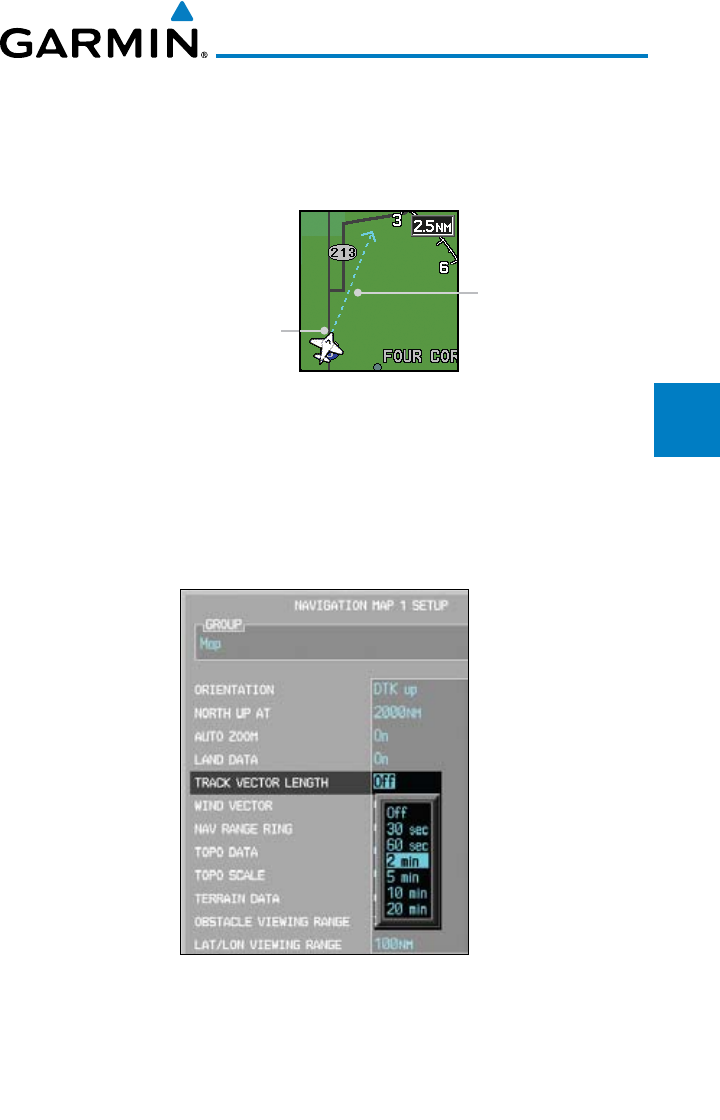
3-17190-00601-02 Rev. E
Garmin G600 Pilot’s Guide
Foreword
Sec 1
System
Sec 2
PFD
Sec 3
MFD
Sec 4
Hazard
Avoidance
Sec 5
Additional
Features
Sec 6
Annun.
& Alerts
Sec 7
Symbols
Sec 8
Glossary Appendix A
Appendix B
Index
Track Vector Length
When turned on, the Track Vector Length option will show a dashed line
and arrow extending from the aircraft icon illustrating the current Track and the
distance the aircraft will travel in the selected time.
Track Vector
Aircraft Present Position
Figure 3-21 Navigation Map Track Vector
1) While viewing the Navigation Map 1 or 2 of the Map page group, press the
MENU key. With “Map Setup” highlighted, press ENT. With the Map Group
active, turn the large MFD knob to highlight the “Track Vector Length”
option.
2) Turn the small MFD knob to select the Track Vector Length time value or Off.
Figure 3-22 Navigation Map Track Vector Length Selection
3) Press ENT
to accept the highlighted value. The next option will be highlighted.
4) Press the small MFD knob to cancel selection or to end editing and return to
the Navigation Map page or turn the large MFD knob to the next option.
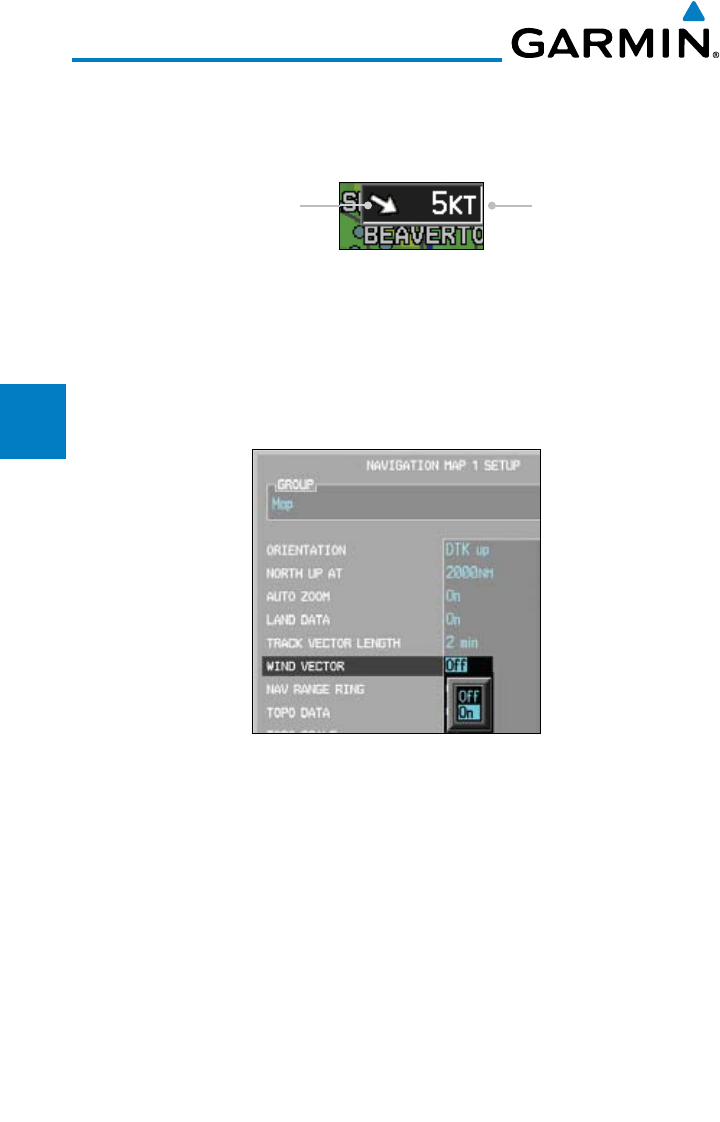
3-18
Garmin G600 Pilot’s Guide
190-00601-02 Rev. E
Foreword
Sec 1
System
Sec 2
PFD
Sec 3
MFD
Sec 4
Hazard
Avoidance
Sec 5
Additional
Features
Sec 6
Annun.
& Alerts
Sec 7
Symbols
Sec 8
GlossaryAppendix A
Appendix B
Index
Wind Vector
The Wind Vector option when turned on will show a box in the top right
corner of the MFD indicating the wind direction and speed.
Wind SpeedWind Direction
Figure 3-23 Navigation Map Wind Vector Display
1) While viewing the Navigation Map 1 or 2 of the Map page group, press the
MENU key. With “Map Setup” highlighted, press ENT. With the Map Group
active, turn the large MFD knob to highlight the “Wind Vector” option.
2) Turn the small MFD knob to select the On or Off.
Figure 3-24 Navigation Map Wind Vector Selection
3) Press ENT
to accept the displayed value. The next option will be highlighted.
4) Press the small MFD knob to cancel selection or to end editing and return to
the Navigation Map page or turn the large MFD knob to the next option.
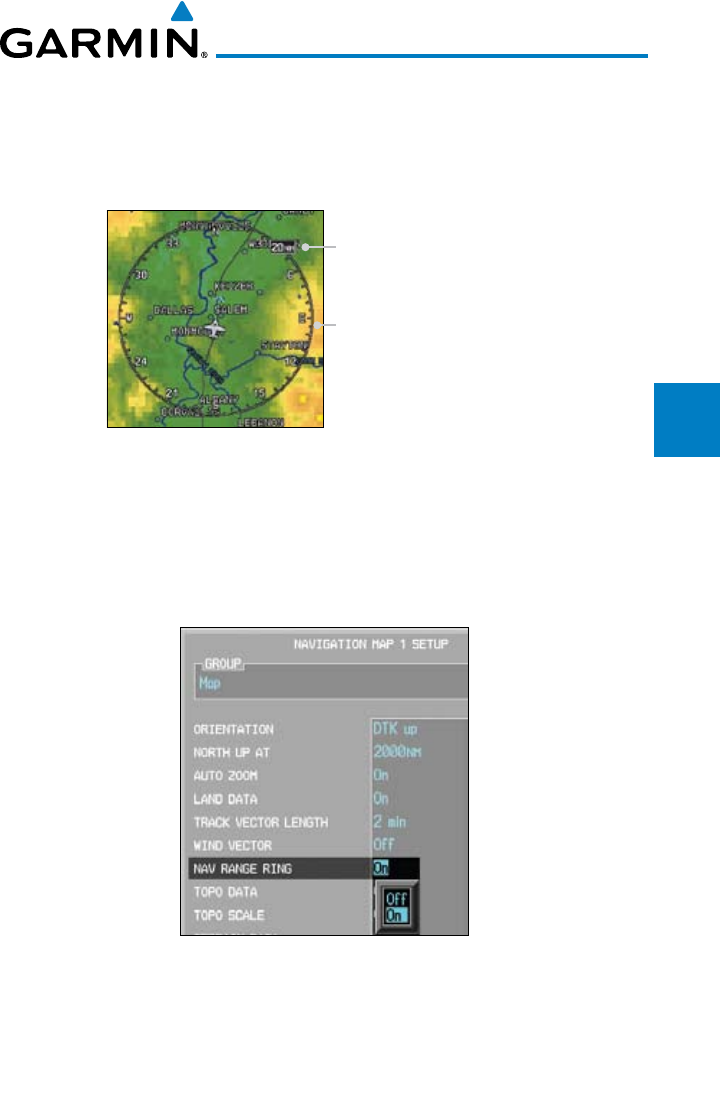
3-19190-00601-02 Rev. E
Garmin G600 Pilot’s Guide
Foreword
Sec 1
System
Sec 2
PFD
Sec 3
MFD
Sec 4
Hazard
Avoidance
Sec 5
Additional
Features
Sec 6
Annun.
& Alerts
Sec 7
Symbols
Sec 8
Glossary Appendix A
Appendix B
Index
Nav Range Ring
When turned on, the Nav Range Ring option will show a ring with a compass
rose around your present position on the Navigation Map. The relative size
shown on the map will remain the same (25% of the map range).
Range Ring Radius
Range Ring with Compass Rose
Figure 3-25 Navigation Map Range Ring
1) While viewing the Navigation Map 1 or 2 of the Map page group, press the
MENU key. With “Map Setup” highlighted, press ENT. With the Map Group
active, turn the large MFD knob to highlight the “Nav Range Ring” option.
2) Turn the small MFD knob to select On or Off.
Figure 3-26 Navigation Map Range Ring Selection
3) Press ENT
to accept the displayed value. The next option will be highlighted.
4) Press the small MFD knob to cancel selection or to end editing and return to
the Navigation Map page or turn the large MFD knob to the next option.
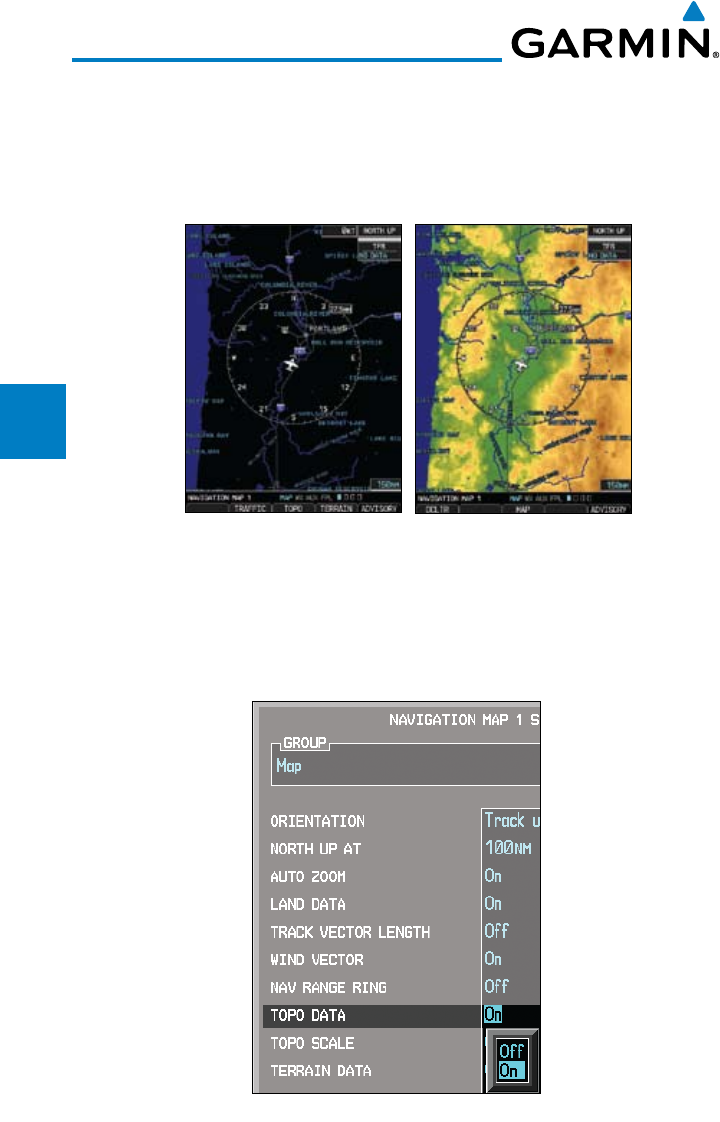
3-20
Garmin G600 Pilot’s Guide
190-00601-02 Rev. E
Foreword
Sec 1
System
Sec 2
PFD
Sec 3
MFD
Sec 4
Hazard
Avoidance
Sec 5
Additional
Features
Sec 6
Annun.
& Alerts
Sec 7
Symbols
Sec 8
GlossaryAppendix A
Appendix B
Index
Topo Data
The Topo Data option selects whether the colored topographical features are
displayed. Traffic, Land Data, Terrain, and Obstacles will still be displayed even
with Topo Data turned off.
Topo Data Off Topo Data On
Figure 3-27 Navigation Map Topo Data
1) While viewing the Navigation Map 1 or 2 of the Map page group, press the
MENU key. With “Map Setup” highlighted, press ENT. With the Map Group
active, turn the large MFD knob to highlight the “Topo Data” option.
2) Turn the small MFD knob to select On or Off.
Figure 3-28 Navigation Map Topo Data Selection

3-21190-00601-02 Rev. E
Garmin G600 Pilot’s Guide
Foreword
Sec 1
System
Sec 2
PFD
Sec 3
MFD
Sec 4
Hazard
Avoidance
Sec 5
Additional
Features
Sec 6
Annun.
& Alerts
Sec 7
Symbols
Sec 8
Glossary Appendix A
Appendix B
Index
3) Press ENT
to accept the displayed value. The next option will be highlighted.
4) Press the small MFD knob to cancel selection or to end editing and return to
the Navigation Map page or turn the large MFD knob to the next option.
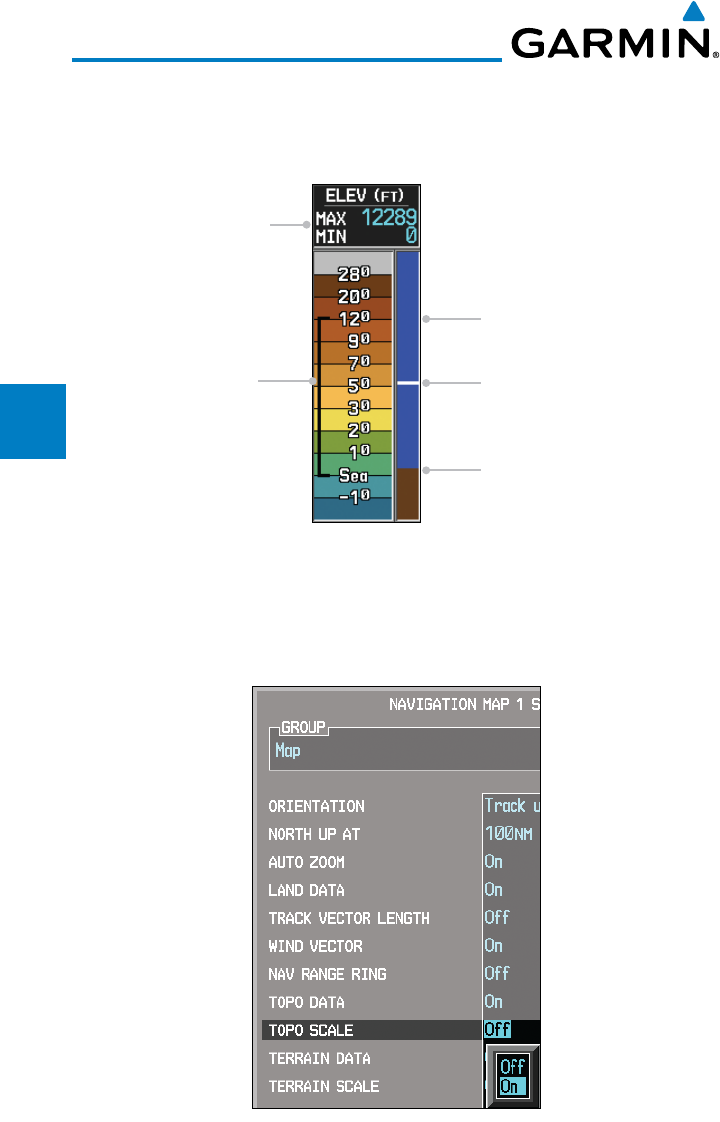
3-22
Garmin G600 Pilot’s Guide
190-00601-02 Rev. E
Foreword
Sec 1
System
Sec 2
PFD
Sec 3
MFD
Sec 4
Hazard
Avoidance
Sec 5
Additional
Features
Sec 6
Annun.
& Alerts
Sec 7
Symbols
Sec 8
GlossaryAppendix A
Appendix B
Index
Topo Scale
The Topo Scale option selects whether the elevation scale for topographical
features on the Navigation Map is displayed. The scale will be located on the
right side of the display.
Current Aircraft Altitude
Sky Indication
Current Ground Level Indication
Range of Topography
Displayed on the Map
Minimum/Maximum
Range of Topography
Displayed on the Map
Figure 3-29 Navigation Map Topo Scale
1) While viewing the Navigation Map 1 or 2 of the Map page group, press the
MENU key. With “Map Setup” highlighted, press ENT. With the Map Group
active, turn the large MFD knob to highlight the “Topo Scale” option.
2) Turn the small MFD knob to select On or Off.
Figure 3-30 Navigation Map Topo Scale Selection
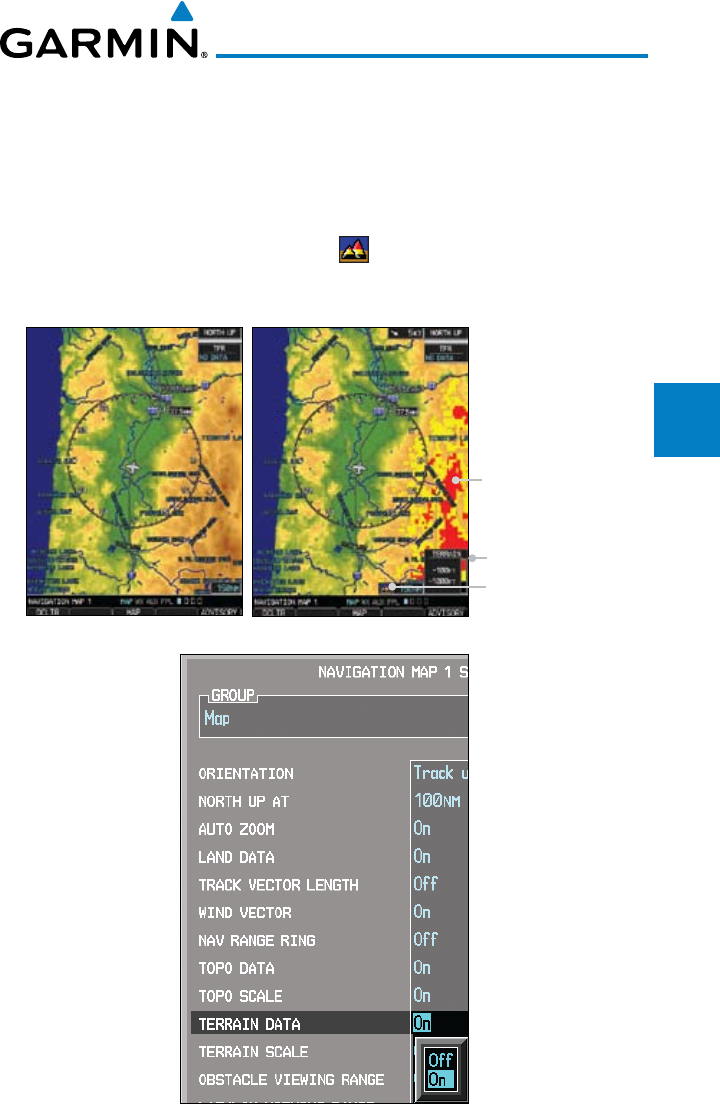
3-23190-00601-02 Rev. E
Garmin G600 Pilot’s Guide
Foreword
Sec 1
System
Sec 2
PFD
Sec 3
MFD
Sec 4
Hazard
Avoidance
Sec 5
Additional
Features
Sec 6
Annun.
& Alerts
Sec 7
Symbols
Sec 8
Glossary Appendix A
Appendix B
Index
3) Press ENT
to accept the displayed value. The next option will be highlighted.
4) Press the small MFD knob to cancel selection or to end editing and return to
the Navigation Map page or turn the large MFD knob to the next option.
Terrain Data
The Terrain Data option selects whether Terrain Data is shown on the
Navigation Map. The Terrain Data Icon will be shown when Terrain has
been selected.
Terrain Data Off Terrain Data On
Terrain Data
Terrain Data Icon
Terrain Elevation Scale
Figure 3-31 Navigation Map Terrain Data
Figure 3-32 Navigation Map Terrain Data Selection
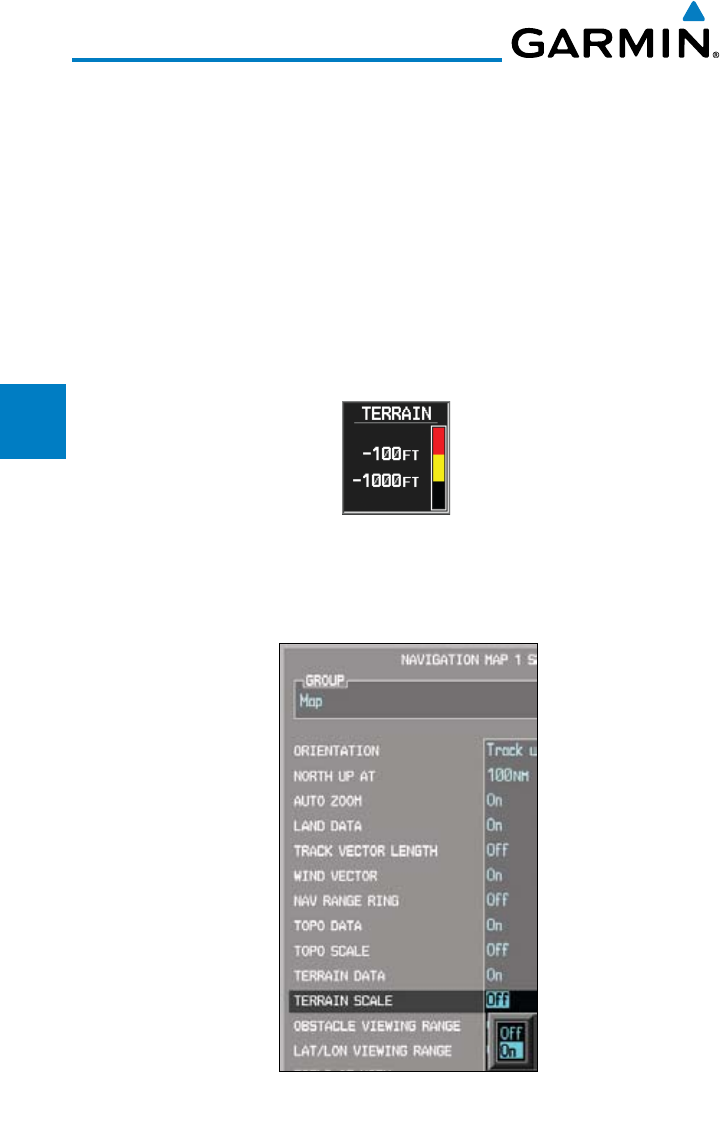
3-24
Garmin G600 Pilot’s Guide
190-00601-02 Rev. E
Foreword
Sec 1
System
Sec 2
PFD
Sec 3
MFD
Sec 4
Hazard
Avoidance
Sec 5
Additional
Features
Sec 6
Annun.
& Alerts
Sec 7
Symbols
Sec 8
GlossaryAppendix A
Appendix B
Index
1) While viewing the Navigation Map 1 or 2 of the Map page group, press the
MENU key. With “Map Setup” highlighted, press ENT. With the Map Group
active, turn the large MFD knob to highlight the “Terrain Data” option.
2) Turn the small MFD knob to select On or Off.
3) Press ENT
to accept the displayed value. The next option will be highlighted.
4) Press the small MFD knob to cancel selection or to end editing and return to
the Navigation Map page or turn the large MFD knob to the next option.
Terrain Scale
The Terrain Scale option selects whether the Terrain Scale is shown on the
Navigation Map. The Terrain scale will be located on the right side of the display.
Figure 3-33 Navigation Map Terrain Scale
1) While viewing the Navigation Map 1 or 2 of the Map page group, press the
MENU key. With “Map Setup” highlighted, press ENT. With the Map Group
active, turn the large MFD knob to highlight the “Terrain Scale” option.
Figure 3-34 Navigation Map Terrain Scale Selection
2) Turn the small MFD knob to select On or Off.
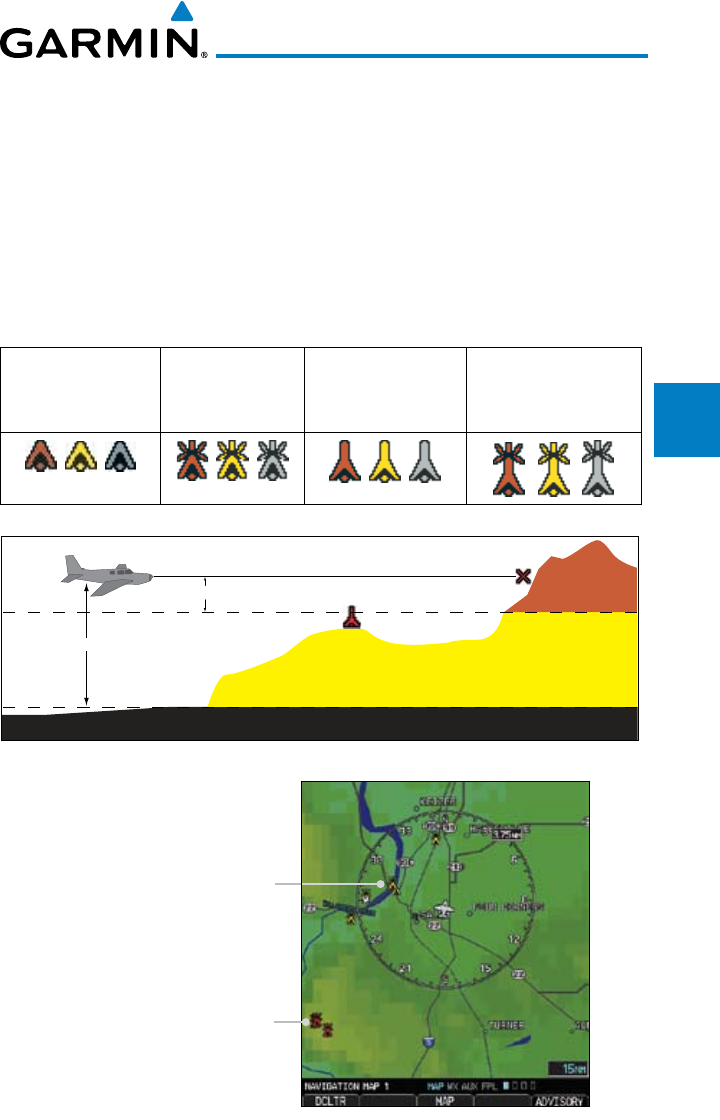
3-25190-00601-02 Rev. E
Garmin G600 Pilot’s Guide
Foreword
Sec 1
System
Sec 2
PFD
Sec 3
MFD
Sec 4
Hazard
Avoidance
Sec 5
Additional
Features
Sec 6
Annun.
& Alerts
Sec 7
Symbols
Sec 8
Glossary Appendix A
Appendix B
Index
3) Press ENT
to accept the displayed value. The next option will be highlighted.
4) Press the small MFD knob to cancel selection or to end editing and return to
the Navigation Map page or turn the large MFD knob to the next option.
Obstacle Data Viewing Range
The Obstacle Data Viewing Range option selects whether the Obstacle Data
is shown on the Navigation Map. Obstacles will be shown at and below the
selected map range. Map ranges above this value will not show the Obstacle
Data. In the range selection example below where 30 NM is selected, obstacles
will be shown at map ranges of 30 NM and lower.
Unlighted Obstacle
(Height is less than
1000 feet AGL)
Lighted Obstacle
(Height is less than
1000 feet AGL)
Unlighted Obstacle
(Height is greater
than 1000 feet AGL)
Lighted Obstacle
(Height is greater than
1000 feet AGL)
Figure 3-35 Navigation Map Obstacle Icons
Potential Impact Point
Unlighted Obstacle
Projected Flight Path
1000 ft
100 ft Threshold
Terrain more than 1000 ft below the aircraft altitude (Black)
Terrain between 100 ft and 1000 ft below the
aircraft altitude (Yellow)
Terrain above or
within 100 ft
below the aircraft
altitude (Red)
Figure 3-36 TERRAIN Altitude/Color Correlation
Obstacles Within
1000 feet of Aircraft
Obstacles Within 100 feet
of Aircraft or Above
Figure 3-37 Navigation Map Obstacle Data
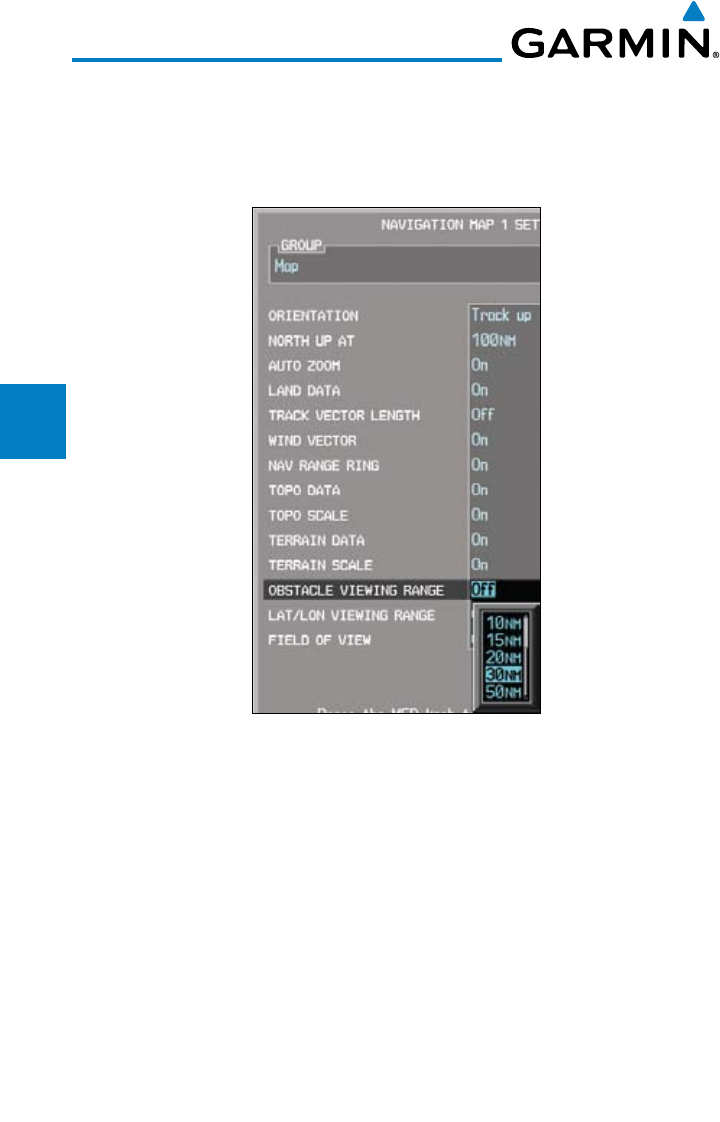
3-26
Garmin G600 Pilot’s Guide
190-00601-02 Rev. E
Foreword
Sec 1
System
Sec 2
PFD
Sec 3
MFD
Sec 4
Hazard
Avoidance
Sec 5
Additional
Features
Sec 6
Annun.
& Alerts
Sec 7
Symbols
Sec 8
GlossaryAppendix A
Appendix B
Index
1) While viewing the Navigation Map 1 or 2 of the Map page group, press the
MENU key. With “Map Setup” highlighted, press ENT. With the Map Group
active, turn the large MFD knob to highlight the “Obstacle Data” option.
2) Turn the small MFD knob to select the viewing range or Off.
Figure 3-38 Navigation Map Obstacle Data Selection
3) Press ENT
to accept the displayed value. The next option will be highlighted.
4) Press the small MFD knob to cancel selection or to end editing and return to
the Navigation Map page or turn the large MFD knob to the next option.
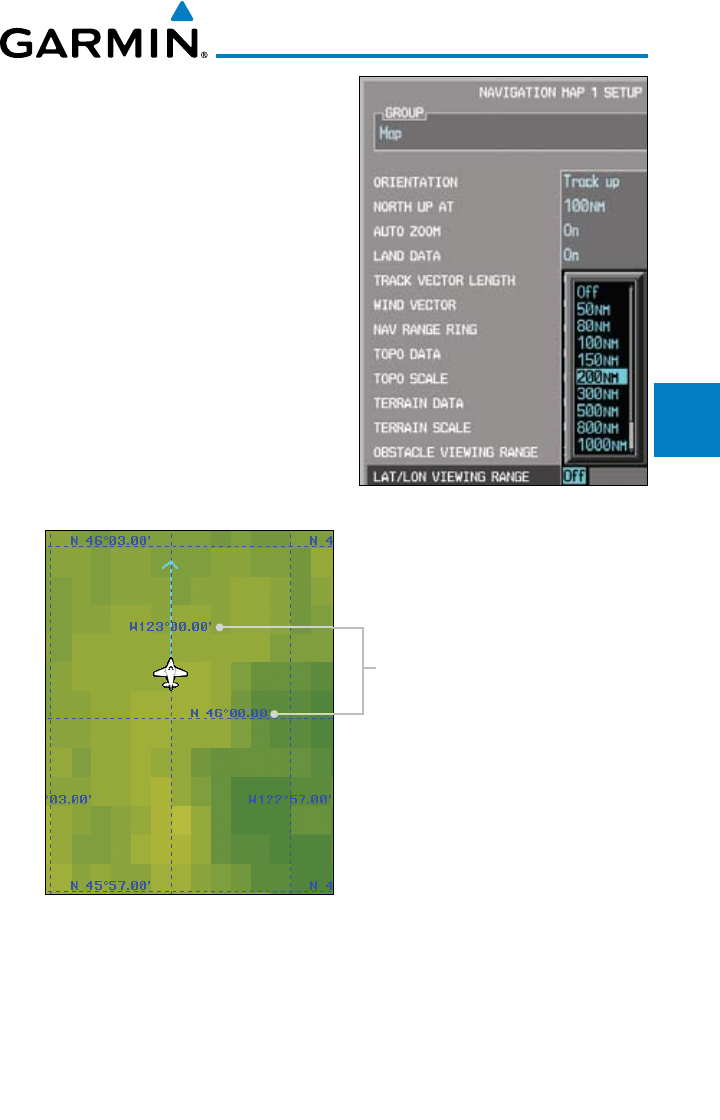
3-27190-00601-02 Rev. E
Garmin G600 Pilot’s Guide
Foreword
Sec 1
System
Sec 2
PFD
Sec 3
MFD
Sec 4
Hazard
Avoidance
Sec 5
Additional
Features
Sec 6
Annun.
& Alerts
Sec 7
Symbols
Sec 8
Glossary Appendix A
Appendix B
Index
Lat/Lon Viewing Range
The Lat/Lon Viewing Range option
selects whether Lat/Lon line is shown on
the MFD. Lat/Lon lines will be shown at and
below the selected map range. Map ranges
above the selected value will not show the
Lat/Lon lines. When Off is selected, Lat/
Lon lines will not be shown. In the figure
below where 200 NM is selected, Lat/Lon
lines will be shown at map ranges of 200
NM and lower.
Figure 3-39 Navigation Map Lat/Lon Selection
Lat/Lon Reference Information
Figure 3-40 Navigation Map Lat/Lon Information
1) While viewing the Navigation Map 1 or 2 of the Map page group, press the
MENU key. With “Map Setup” highlighted, press ENT. With the Map Group
active, turn the large MFD knob to highlight the “Lat/Lon” option.
2) Turn the small MFD knob to change the highlighted value.
3) Press ENT
to accept the displayed value. The next option will be highlighted.
4) Press the small MFD knob to cancel selection or to end editing and return to
the Navigation Map page or turn the large MFD knob to the next option.
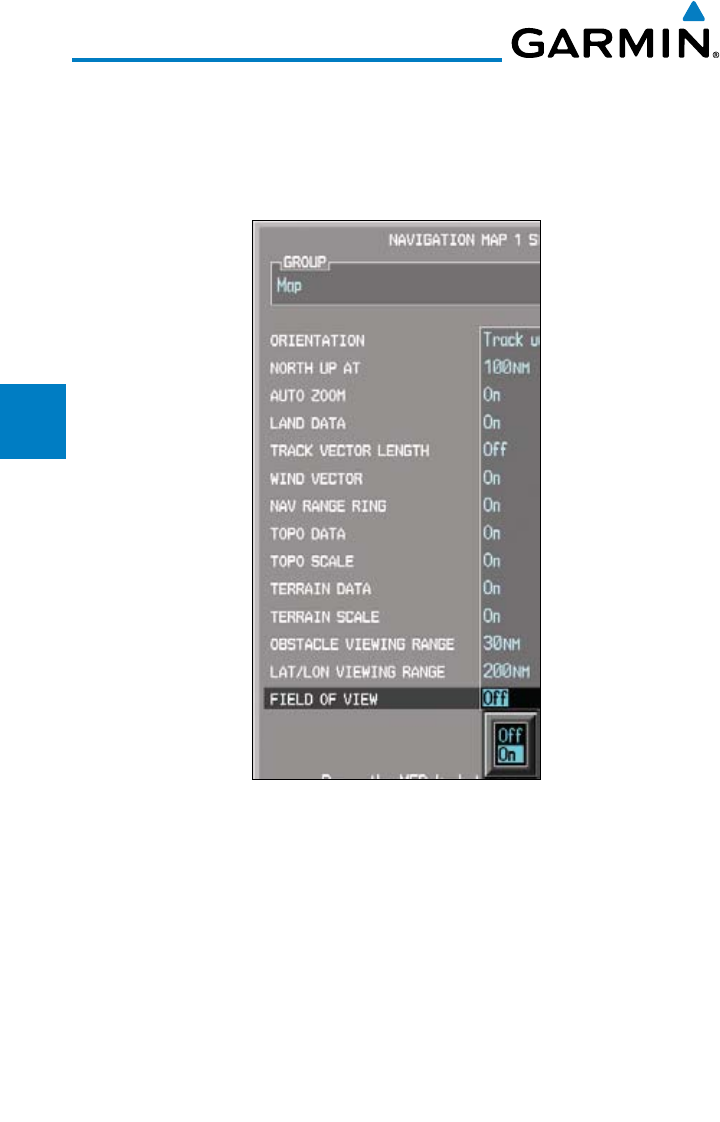
3-28
Garmin G600 Pilot’s Guide
190-00601-02 Rev. E
Foreword
Sec 1
System
Sec 2
PFD
Sec 3
MFD
Sec 4
Hazard
Avoidance
Sec 5
Additional
Features
Sec 6
Annun.
& Alerts
Sec 7
Symbols
Sec 8
GlossaryAppendix A
Appendix B
Index
Field of View
The PFD Field of View used for the Synthetic Vision Technology (SVT™)
option (when enabled) can be represented on the MFD Navigation Map Page
lateral image. Two dashed lines forming a V-shape in front of the aircraft symbol
on the MFD, represent the forward viewing area shown on the PFD.
Figure 3-41 Navigation Map Field of View Selection
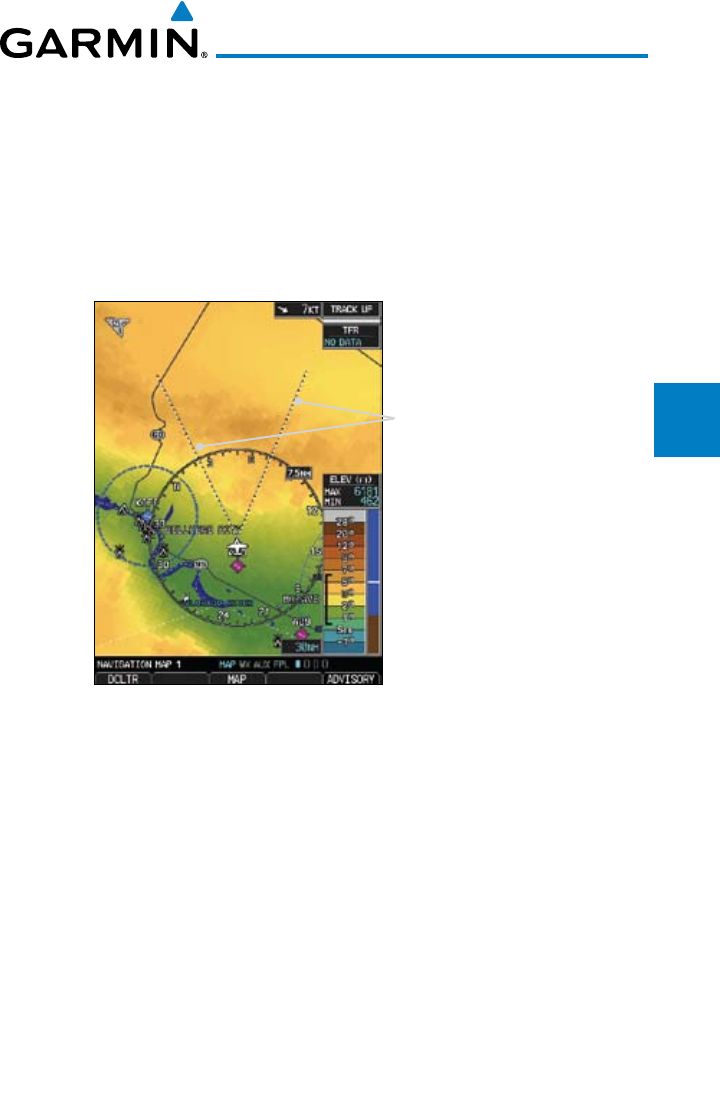
3-29190-00601-02 Rev. E
Garmin G600 Pilot’s Guide
Foreword
Sec 1
System
Sec 2
PFD
Sec 3
MFD
Sec 4
Hazard
Avoidance
Sec 5
Additional
Features
Sec 6
Annun.
& Alerts
Sec 7
Symbols
Sec 8
Glossary Appendix A
Appendix B
Index
1) While viewing the Navigation Map 1 or 2 of the Map page group, press the
MENU key. With “Map Setup” highlighted, press ENT. With the Map Group
active, turn the large MFD knob to highlight the “Field of View” option.
2) Turn the small MFD knob to select On or Off.
3) Press ENT
to accept the displayed value. The next option will be highlighted.
4) Press the small MFD knob to cancel selection or to end editing and return to
the Navigation Map page or turn the large MFD knob to the next option.
Field of View Borders
Figure 3-42 Navigation Map Field of View on the MFD
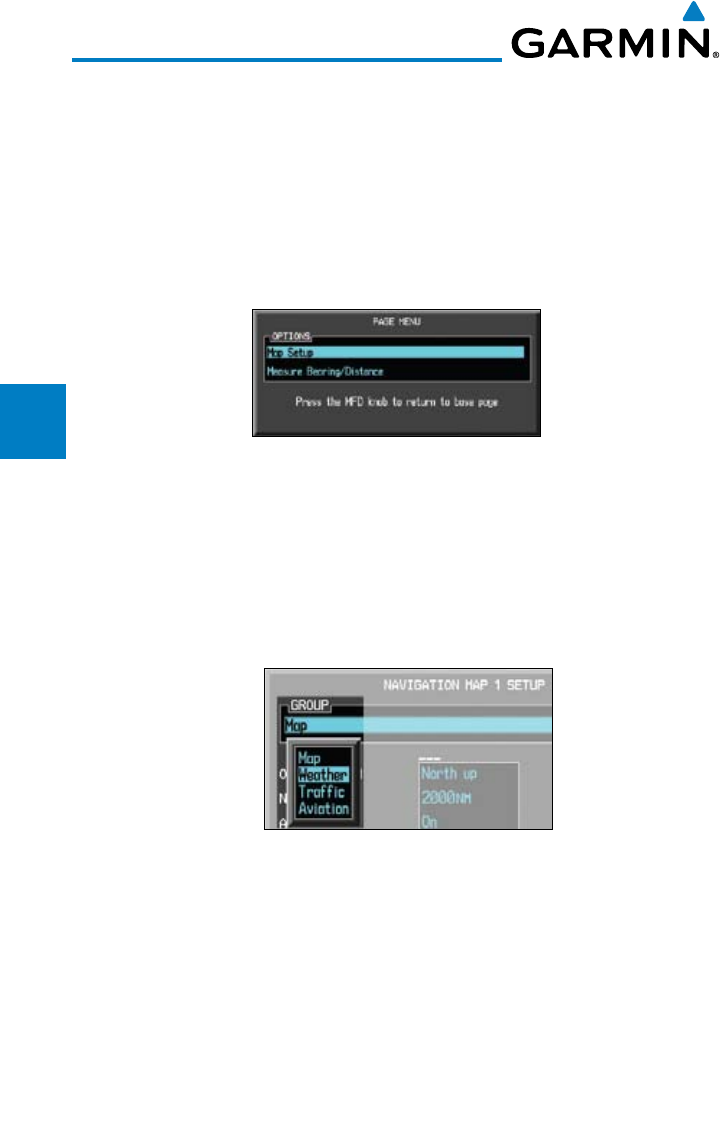
3-30
Garmin G600 Pilot’s Guide
190-00601-02 Rev. E
Foreword
Sec 1
System
Sec 2
PFD
Sec 3
MFD
Sec 4
Hazard
Avoidance
Sec 5
Additional
Features
Sec 6
Annun.
& Alerts
Sec 7
Symbols
Sec 8
GlossaryAppendix A
Appendix B
Index
3.3.10.2 Weather Feature Options (Optional)
The Weather group selection from the Map Setup Page Menu allows you to
customize the NEXRAD Viewing Range, NEXRAD Cell Movement, and Lightning
Viewing range. Weather is an optional feature that requires a GDL 69/69A and
an XM Weather subscription, or other weather product (such as GFDS).
1) While viewing the Navigation Map 1 or 2 page of the Map page group, press
the MENU key to display the Navigation Map Page
Menu
.
Figure 3-43 Navigation Map Page Menu
2) With the cursor flashing on the “Map Setup” option, press the ENT
key to
display the Map Setup Menu.
3) Use the large and small
MFD
knobs to select the Weather Group and press
ENT to allow editing of the selected group. The groups shown depend on the
features available for equipment installed in your aircraft.
Figure 3-44 Navigation Map Page Menu Weather Group Selection
4) Press the small
MFD knob to return to the Navigation Map Page.
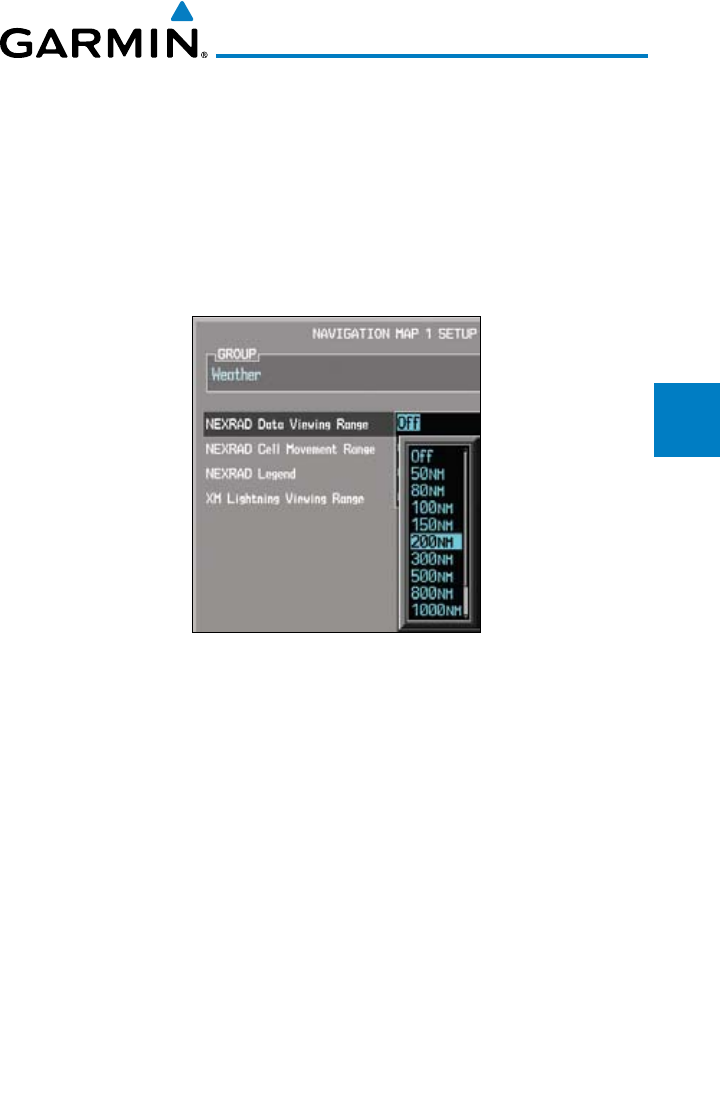
3-31190-00601-02 Rev. E
Garmin G600 Pilot’s Guide
Foreword
Sec 1
System
Sec 2
PFD
Sec 3
MFD
Sec 4
Hazard
Avoidance
Sec 5
Additional
Features
Sec 6
Annun.
& Alerts
Sec 7
Symbols
Sec 8
Glossary Appendix A
Appendix B
Index
NEXRAD Viewing Range
The NEXRAD Viewing Range option selects whether the NEXRAD weather
products is shown on the MFD. NEXRAD weather products will be shown at
and below the selected map range. When Off is selected, NEXRAD weather will
not be shown. Map ranges above the selected value will not show the NEXRAD
weather products. In the example below where 200 NM is selected, the NEXRAD
weather products will be shown at map ranges of 200 NM and lower.
Figure 3-45 NEXRAD Viewing Range Selection
1) While viewing the Navigation Map Setup page and the Weather Group active,
turn the large MFD knob to highlight the “NEXRAD Viewing Range” option.
2) Turn the small MFD knob to change the highlighted value.
3) Press ENT
to accept the displayed value. The next option will be highlighted.
4) Press the small MFD knob to cancel selection or to end editing and return to
the Navigation Map page or turn the large MFD knob to the next option.
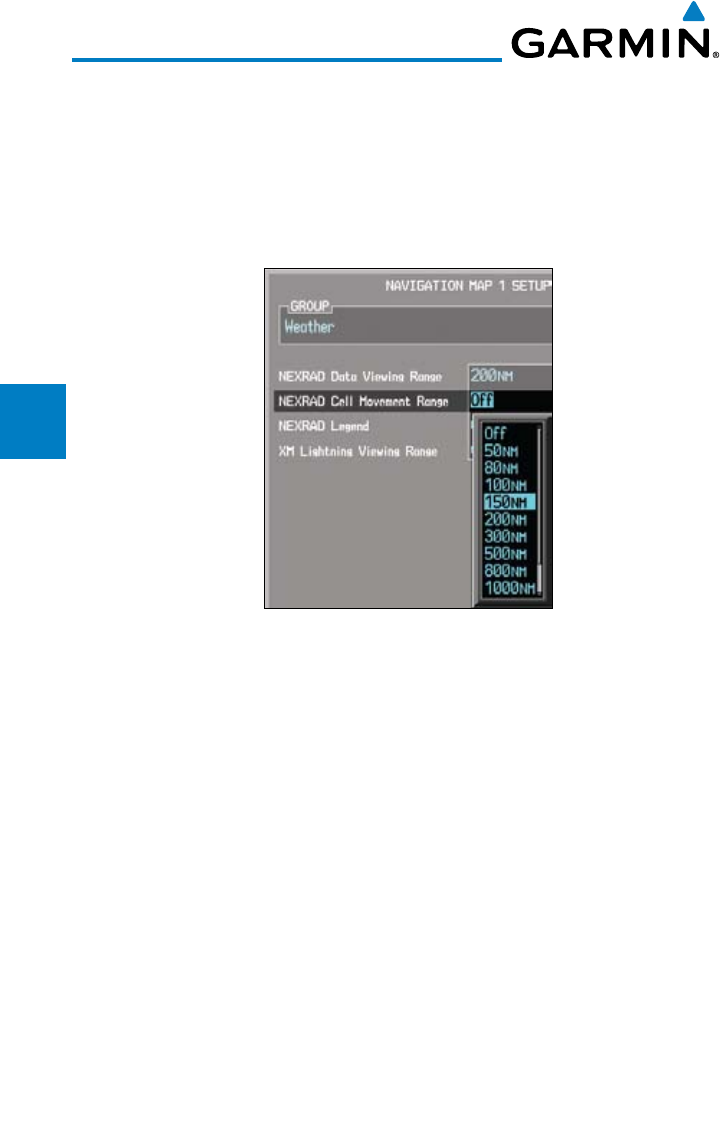
3-32
Garmin G600 Pilot’s Guide
190-00601-02 Rev. E
Foreword
Sec 1
System
Sec 2
PFD
Sec 3
MFD
Sec 4
Hazard
Avoidance
Sec 5
Additional
Features
Sec 6
Annun.
& Alerts
Sec 7
Symbols
Sec 8
GlossaryAppendix A
Appendix B
Index
NEXRAD Cell Movement
The NEXRAD Cell Movement option selects whether NEXRAD Cell Movement
is shown on the Navigation Map. NEXRAD Cell Movement will be shown at and
below the selected map range. When Off is selected, NEXRAD Cell Movement
will not be shown. In the example below where 150 NM is selected, the NEXRAD
Cell Movement will be shown at map ranges of 150 NM and lower.
Figure 3-46 NEXRAD Cell Movement Selection
1) While viewing the Navigation Map Setup page and the Weather Group active,
turn the large MFD knob to highlight the “NEXRAD Cell Movement” option.
2) Turn the small MFD knob to turn the function on or off.
3) Press ENT
to accept the displayed value. The next option will be highlighted.
4) Press the small MFD knob to cancel selection or to end editing and return to
the Navigation Map page or turn the large MFD knob to the next option.
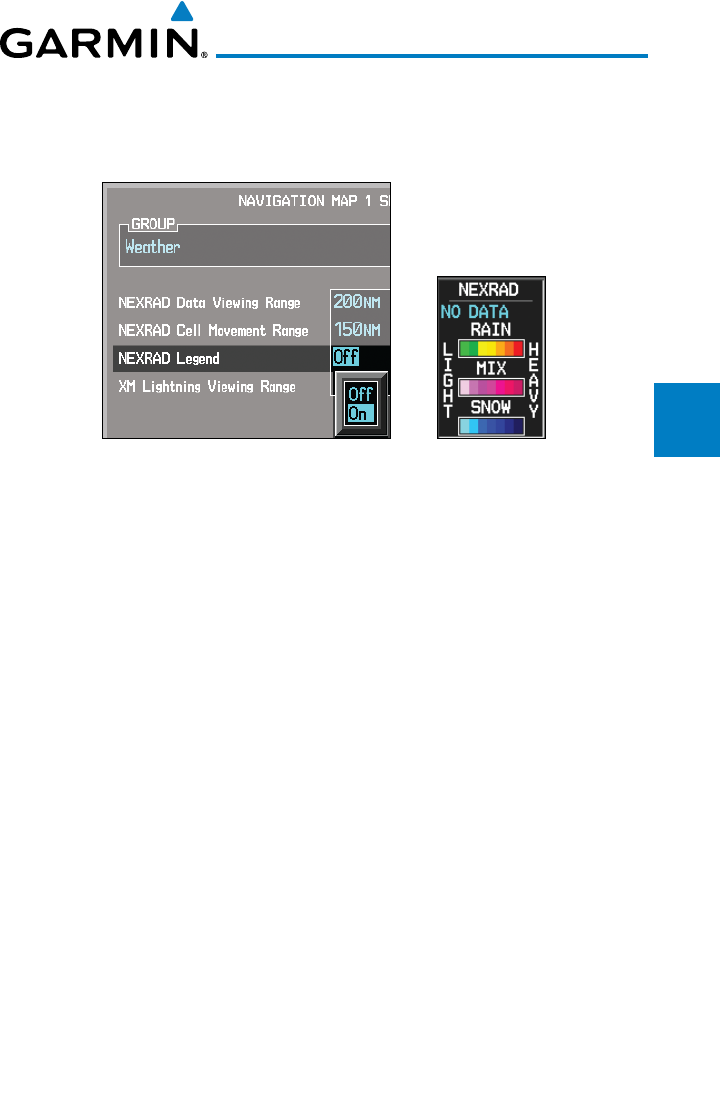
3-33190-00601-02 Rev. E
Garmin G600 Pilot’s Guide
Foreword
Sec 1
System
Sec 2
PFD
Sec 3
MFD
Sec 4
Hazard
Avoidance
Sec 5
Additional
Features
Sec 6
Annun.
& Alerts
Sec 7
Symbols
Sec 8
Glossary Appendix A
Appendix B
Index
NEXRAD Legend
The NEXRAD Legend selection provides the option of displaying an
abbreviated version of the NEXRAD legend in the top right region of the MFD.
Figure 3-47 NEXRAD Legend Selection
1) While viewing the Navigation Map Setup page and the Weather Group active,
turn the large MFD knob to highlight the “NEXRAD Legend” option.
2) Turn the small MFD knob to change the highlighted value.
3) Press ENT
to accept the displayed value. The next option will be highlighted.
4) Press the small MFD knob to cancel selection or to end editing and return to
the Navigation Map page or turn the large MFD knob to the next option.
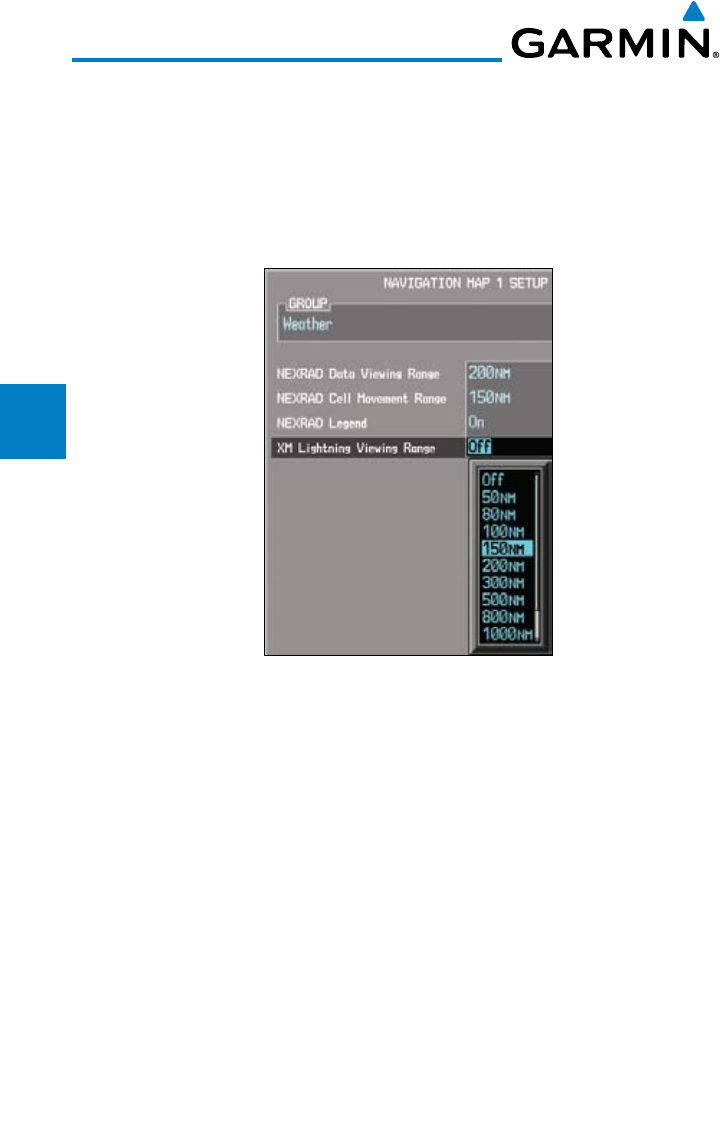
3-34
Garmin G600 Pilot’s Guide
190-00601-02 Rev. E
Foreword
Sec 1
System
Sec 2
PFD
Sec 3
MFD
Sec 4
Hazard
Avoidance
Sec 5
Additional
Features
Sec 6
Annun.
& Alerts
Sec 7
Symbols
Sec 8
GlossaryAppendix A
Appendix B
Index
Lightning Viewing Range
The Lightning Viewing Range option selects whether the Lightning weather
products is shown on the Navigation Map. Lightning weather products will be
shown at and below the selected map range. When Off is selected, Lightning
weather will not be shown. In the figure below where 200 NM is selected,
Lightning symbols will be shown at map ranges of 200 NM and lower.
Figure 3-48 Lightning Viewing Range Selection
1) While viewing the Navigation Map Setup page and the Weather Group active,
turn the large MFD knob to highlight the “Lightning Viewing Range” option.
2) Turn the small MFD knob to change the highlighted value.
3) Press ENT
to accept the displayed value. The next option will be highlighted.
4) Press the small MFD knob to cancel selection or to end editing and return to
the Navigation Map page or turn the large MFD knob to the next option.
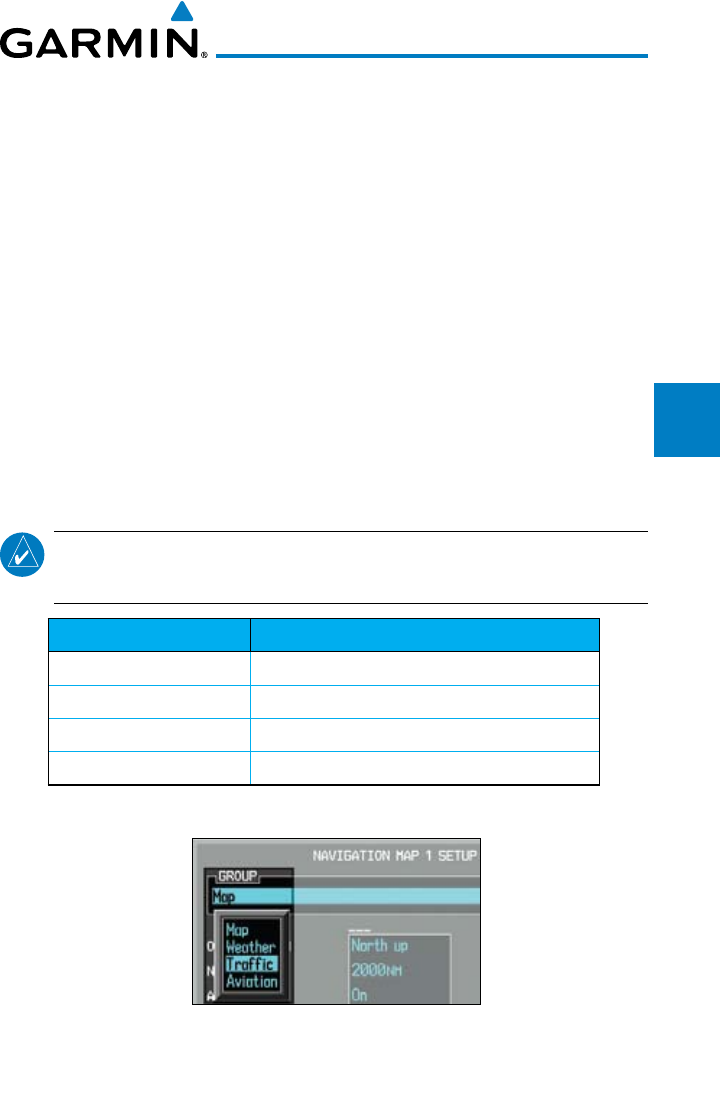
3-35190-00601-02 Rev. E
Garmin G600 Pilot’s Guide
Foreword
Sec 1
System
Sec 2
PFD
Sec 3
MFD
Sec 4
Hazard
Avoidance
Sec 5
Additional
Features
Sec 6
Annun.
& Alerts
Sec 7
Symbols
Sec 8
Glossary Appendix A
Appendix B
Index
3.3.10.3 Traffic Feature Options (Optional)
The Traffic group selection from the Map Setup Page Menu allows you to
customize the display of traffic on the Navigation Map. The Traffic function
requires the installation of a compatible traffic device. TIS and TAS cannot be
displayed at the same time. If the aircraft has a TAS unit installed, the GDU
620 will be configured for TAS. If no TAS unit is installed and a GTX Mode-S
transponder is installed then the GDU 620 will be configured for TIS. A pilot
can tell which data is being displayed by the label in the top left corner (TAS
OPERATING vs TIS OPERATING). TIS data comes from a GTX transponder.
Coverage is limited to specific areas as shown in the Airmen’s Information
Manual (AIM). TAS data comes from a TAS unit such as a Garmin GTS 800 or
820, Skywatch 497, KTA 810, or other unit. Coverage follows the aircraft. In
the Navigation Map page setup you can select the maximum range at which
traffic symbols are shown. Once outside of the selected range, traffic will be
decluttered. The Traffic soft key will still be available.
NOTE: Traffic is automatically decluttered from Nav Map 1 and 2 when the
map scale is above 150 NM.
Traffic Selection Display Result
Off No traffic displayed
All Traffic All types of traffic displayed
TA/PA Traffic Alerts and Proximity Alerts displayed
TA Only Traffic Alerts Only displayed
Table 3-3 Navigation Map Traffic Display Options
Figure 3-49 Navigation Map Page Menu Traffic Group Selection
1) While viewing the Navigation Map Setup page and the Traffic Group active,
turn the large MFD knob to highlight the “Traffic” options.
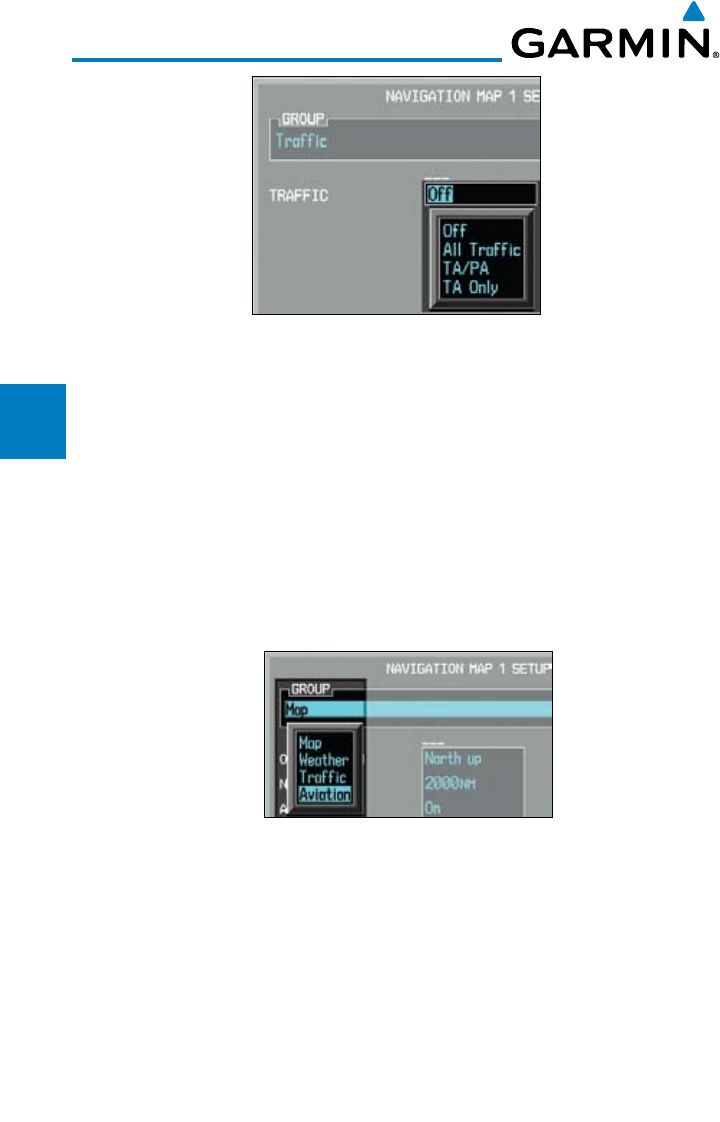
3-36
Garmin G600 Pilot’s Guide
190-00601-02 Rev. E
Foreword
Sec 1
System
Sec 2
PFD
Sec 3
MFD
Sec 4
Hazard
Avoidance
Sec 5
Additional
Features
Sec 6
Annun.
& Alerts
Sec 7
Symbols
Sec 8
GlossaryAppendix A
Appendix B
Index
Figure 3-50 Navigation Map Page Menu Traffic Options
2) Turn the small MFD knob to change the highlighted value.
3) Press ENT
to accept the displayed value.
4) Press the small MFD knob to cancel selection or to end editing and return to
the Navigation Map page or turn the large MFD knob to the next option.
3.3.10.4 Aviation Feature Options
The Aviation group selection from the Map Setup Page Menu allows you to
customize the display of SafeTaxi information, Runway Extensions, Intersection/
NDB locations, VOR locations, and TFR icons on the Navigation Map.
Figure 3-51 Navigation Map Page Menu Aviation Group Selection
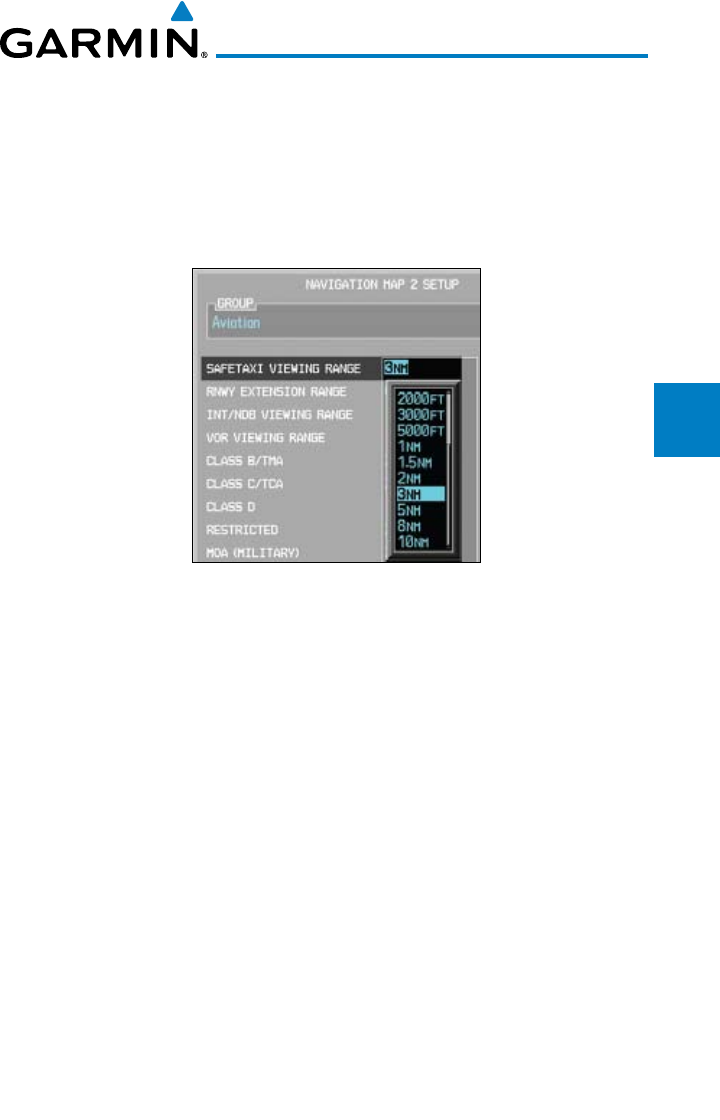
3-37190-00601-02 Rev. E
Garmin G600 Pilot’s Guide
Foreword
Sec 1
System
Sec 2
PFD
Sec 3
MFD
Sec 4
Hazard
Avoidance
Sec 5
Additional
Features
Sec 6
Annun.
& Alerts
Sec 7
Symbols
Sec 8
Glossary Appendix A
Appendix B
Index
SafeTaxi™ Viewing Range
The SafeTaxi™ viewing range option selects whether SafeTaxi information is
shown on the Navigation Map. SafeTaxi will be shown at and below the selected
map range. When Off is selected, SafeTaxi information will not be shown. In the
example below where 3 NM is selected, the SafeTaxi information will be shown
at map ranges of 3 NM and lower.
Figure 3-52 Navigation Map Safe Taxi Viewing Range Selection
1) While viewing the Navigation Map Setup page and the Aviation Group active,
turn the large MFD knob to highlight the “SafeTaxi Range” option.
2) Turn the small MFD knob to change the highlighted value.
3) Press ENT
to accept the displayed value. The next option will be highlighted.
4) Press the small MFD knob to cancel selection or to end editing and return to
the Navigation Map page or turn the large MFD knob to the next option.
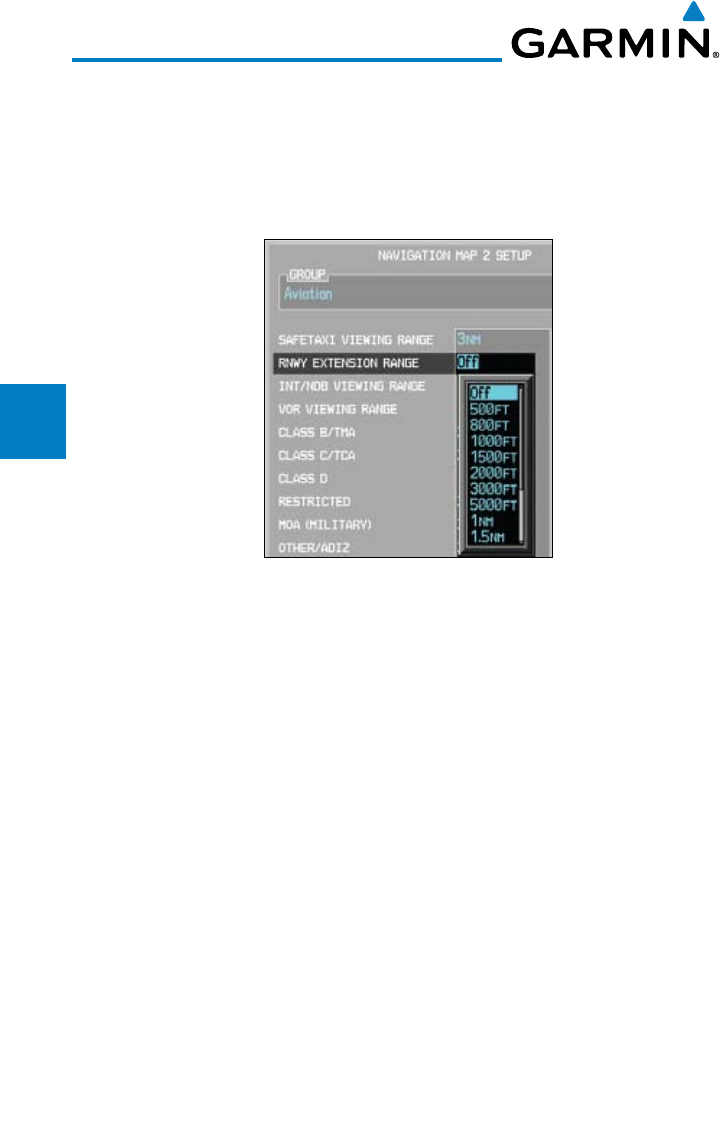
3-38
Garmin G600 Pilot’s Guide
190-00601-02 Rev. E
Foreword
Sec 1
System
Sec 2
PFD
Sec 3
MFD
Sec 4
Hazard
Avoidance
Sec 5
Additional
Features
Sec 6
Annun.
& Alerts
Sec 7
Symbols
Sec 8
GlossaryAppendix A
Appendix B
Index
Runway Extension Range
The Runway Extension Range option selects the whether Runway Extensions
is shown for the destination airport runway. Runway Extensions will be shown
at and below the selected map range. When Off is selected, Runway Extensions
will not be shown.
Figure 3-53 Navigation Map Runway Extension Selection
1) While viewing the Navigation Map Setup page and the Aviation Group active,
turn the large MFD knob to highlight the “Runway Extension” option.
2) Turn the small MFD knob to change the highlighted value.
3) Press ENT
to accept the displayed value. The next option will be highlighted.
4) Press the small MFD knob to cancel selection or to end editing and return to
the Navigation Map page or turn the large MFD knob to the next option.
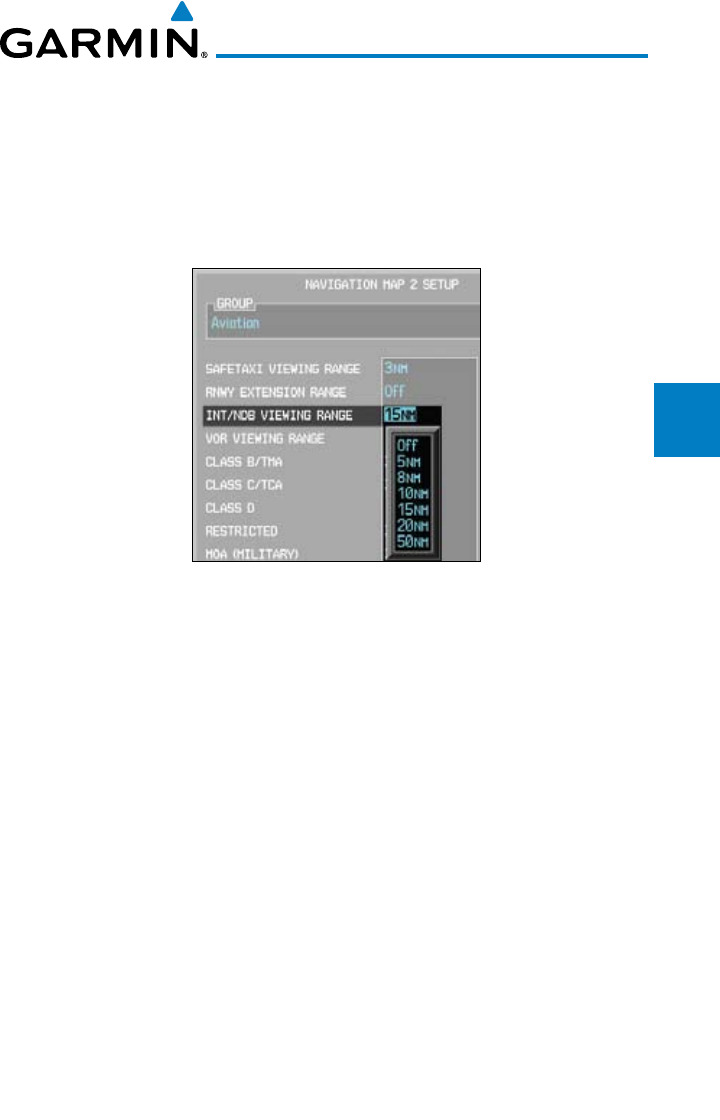
3-39190-00601-02 Rev. E
Garmin G600 Pilot’s Guide
Foreword
Sec 1
System
Sec 2
PFD
Sec 3
MFD
Sec 4
Hazard
Avoidance
Sec 5
Additional
Features
Sec 6
Annun.
& Alerts
Sec 7
Symbols
Sec 8
Glossary Appendix A
Appendix B
Index
INT/NDB Viewing Range
The INT/NDB viewing range option selects whether Intersection and NDB
information is shown on the Navigation Map. Intersection and NDB information
will be shown at and below the selected map range. When Off is selected, the
information will not be shown. In the example below where 15 NM is selected,
INT/NDBs will be shown at map ranges of 15 NM and lower.
Figure 3-54 Navigation Map INT/NDB Viewing Range Selection
1) While viewing the Navigation Map Setup page and the Aviation Group active,
turn the large MFD knob to highlight the “INT/NDB” option.
2) Turn the small MFD knob to change the highlighted value.
3) Press ENT
to accept the displayed value. The next option will be highlighted.
4) Press the small MFD knob to cancel selection or to end editing and return to
the Navigation Map page or turn the large MFD knob to the next option.
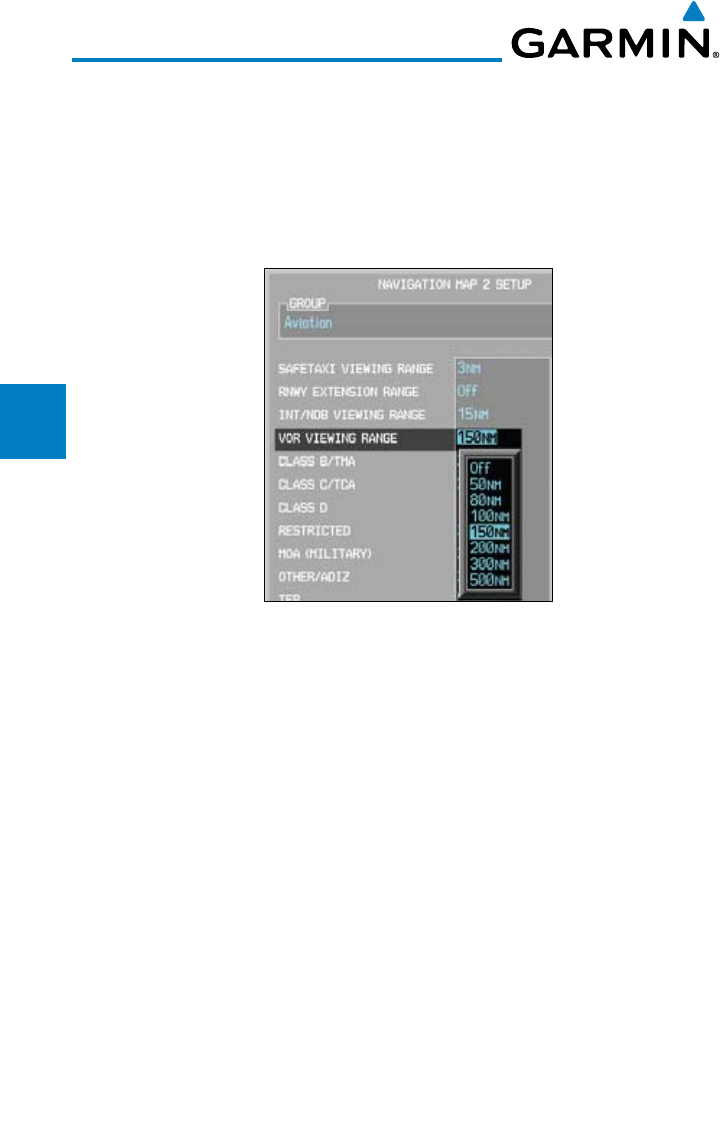
3-40
Garmin G600 Pilot’s Guide
190-00601-02 Rev. E
Foreword
Sec 1
System
Sec 2
PFD
Sec 3
MFD
Sec 4
Hazard
Avoidance
Sec 5
Additional
Features
Sec 6
Annun.
& Alerts
Sec 7
Symbols
Sec 8
GlossaryAppendix A
Appendix B
Index
VOR Viewing Range
The VOR viewing range option selects whether VOR information is shown on
the Navigation Map. VOR information will be shown at and below the selected
map range. When Off is selected, the information will not be shown. In the
example below where 150 NM is selected, VOR information will be shown at
map ranges of 150 NM and lower.
Figure 3-55 Navigation Map VOR Viewing Range Selection
1) While viewing the Navigation Map Setup page and the Aviation Group active,
turn the large MFD knob to highlight the “VOR Viewing Range” option.
2) Turn the small MFD knob to change the highlighted value.
3) Press ENT
to accept the displayed value. The next option will be highlighted.
4) Press the small MFD knob to cancel selection or to end editing and return to
the Navigation Map page or turn the large MFD knob to the next option.
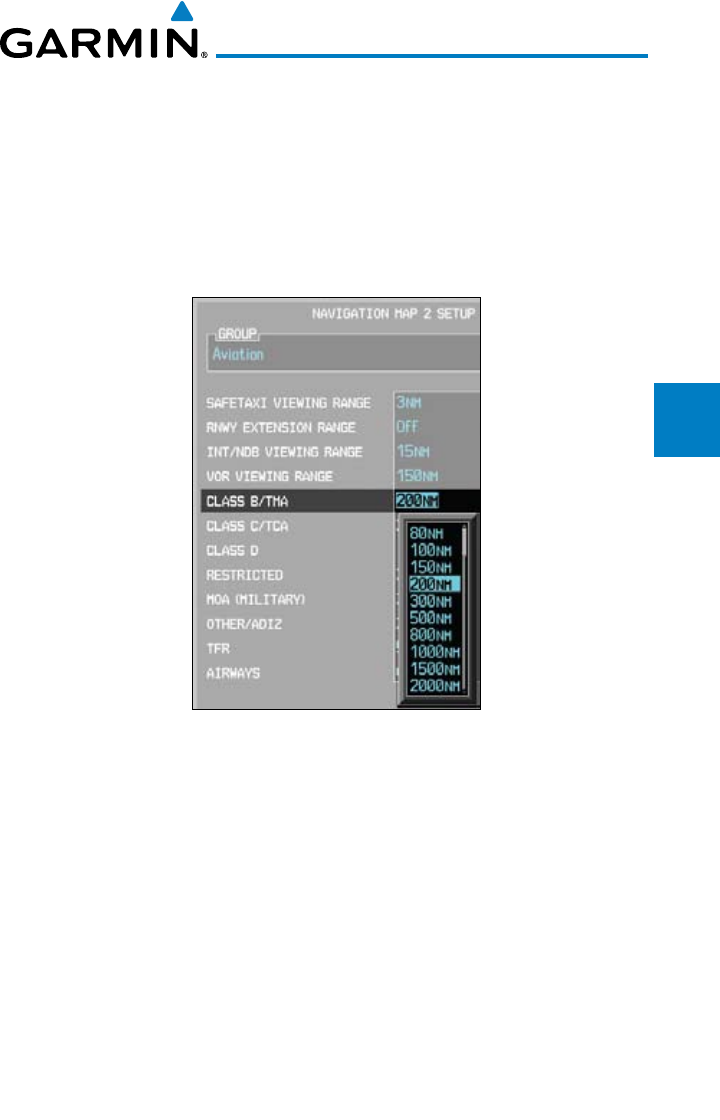
3-41190-00601-02 Rev. E
Garmin G600 Pilot’s Guide
Foreword
Sec 1
System
Sec 2
PFD
Sec 3
MFD
Sec 4
Hazard
Avoidance
Sec 5
Additional
Features
Sec 6
Annun.
& Alerts
Sec 7
Symbols
Sec 8
Glossary Appendix A
Appendix B
Index
Class B/TMA Airspace Viewing Range
The Class B/TMA airspace viewing range option selects whether Class B/TMA
airspace information is shown on the Navigation Map. Class B/TMA airspace
information will be shown at and below the selected map range. When Off is
selected, the information will not be shown. In the example below where 200
NM is selected, Class B/TMA airspace information will be shown at map ranges
of 200 NM and lower.
Figure 3-56 Navigation Map Class B/TMA Viewing Range Selection
1) While viewing the Navigation Map Setup page and the Aviation Group active,
turn the large MFD knob to highlight the “
Class B/TMA
Viewing Range”
option.
2) Turn the small MFD knob to change the highlighted value.
3) Press ENT
to accept the displayed value. The next option will be highlighted.
4) Press the small MFD knob to cancel selection or to end editing and return to
the Navigation Map page or turn the large MFD knob to the next option.
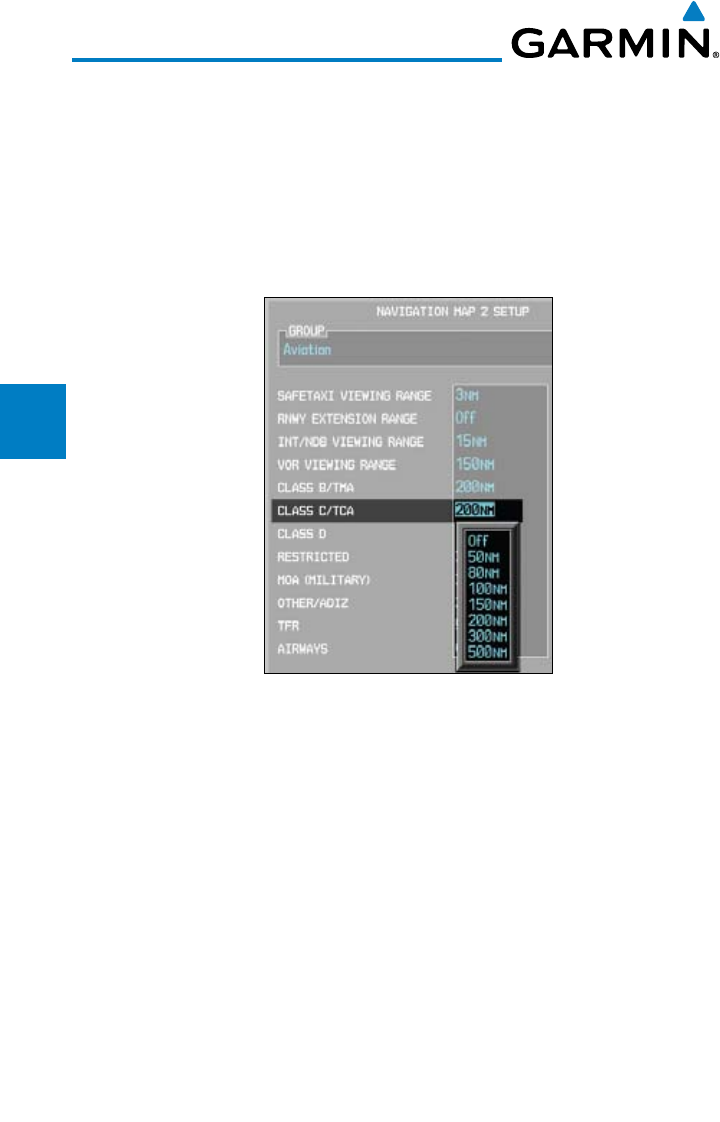
3-42
Garmin G600 Pilot’s Guide
190-00601-02 Rev. E
Foreword
Sec 1
System
Sec 2
PFD
Sec 3
MFD
Sec 4
Hazard
Avoidance
Sec 5
Additional
Features
Sec 6
Annun.
& Alerts
Sec 7
Symbols
Sec 8
GlossaryAppendix A
Appendix B
Index
Class C/TCA Airspace Viewing Range
The Class C/TCA airspace viewing range option selects whether Class C/TCA
airspace information is shown on the Navigation Map. Class C/TCA airspace
information will be shown at and below the selected map range. When Off is
selected, the information will not be shown. In the example below where 200
NM is selected, Class C/TCA airspace information will be shown at map ranges
of 200 NM and lower.
Figure 3-57 Navigation Map Class C/TCA Viewing Range Selection
1) While viewing the Navigation Map Setup page and the Aviation Group active,
turn the large MFD knob to highlight the “
Class C/TCA
Viewing Range”
option.
2) Turn the small MFD knob to change the highlighted value.
3) Press ENT
to accept the displayed value. The next option will be highlighted.
4) Press the small MFD knob to cancel selection or to end editing and return to
the Navigation Map page or turn the large MFD knob to the next option.
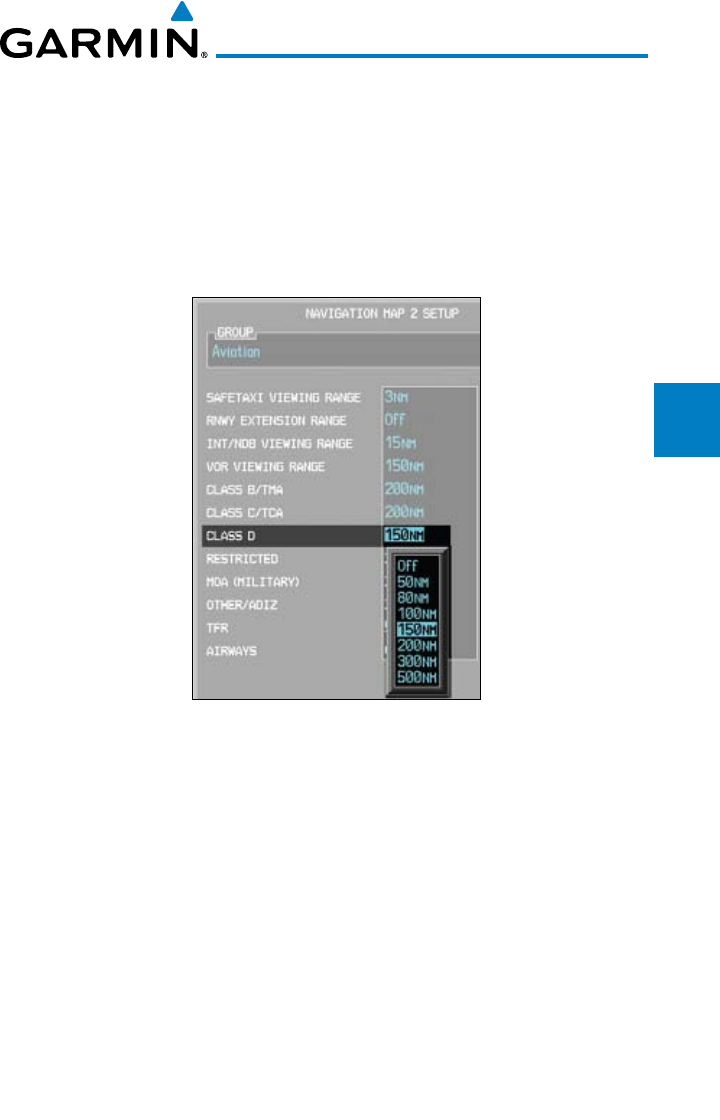
3-43190-00601-02 Rev. E
Garmin G600 Pilot’s Guide
Foreword
Sec 1
System
Sec 2
PFD
Sec 3
MFD
Sec 4
Hazard
Avoidance
Sec 5
Additional
Features
Sec 6
Annun.
& Alerts
Sec 7
Symbols
Sec 8
Glossary Appendix A
Appendix B
Index
Class D Airspace Viewing Range
The Class D airspace viewing range option selects whether Class D airspace
information is shown on the Navigation Map. Class D airspace information
will be shown at and below the selected map range. When Off is selected, the
information will not be shown. In the example below where 150 NM is selected,
Class D airspace information will be shown at map ranges of 150 NM and
lower.
Figure 3-58 Navigation Map Class D Viewing Range Selection
1) While viewing the Navigation Map Setup page and the Aviation Group active,
turn the large MFD knob to highlight the “
Class D
Viewing Range” option.
2) Turn the small MFD knob to change the highlighted value.
3) Press ENT
to accept the displayed value. The next option will be highlighted.
4) Press the small MFD knob to cancel selection or to end editing and return to
the Navigation Map page or turn the large MFD knob to the next option.
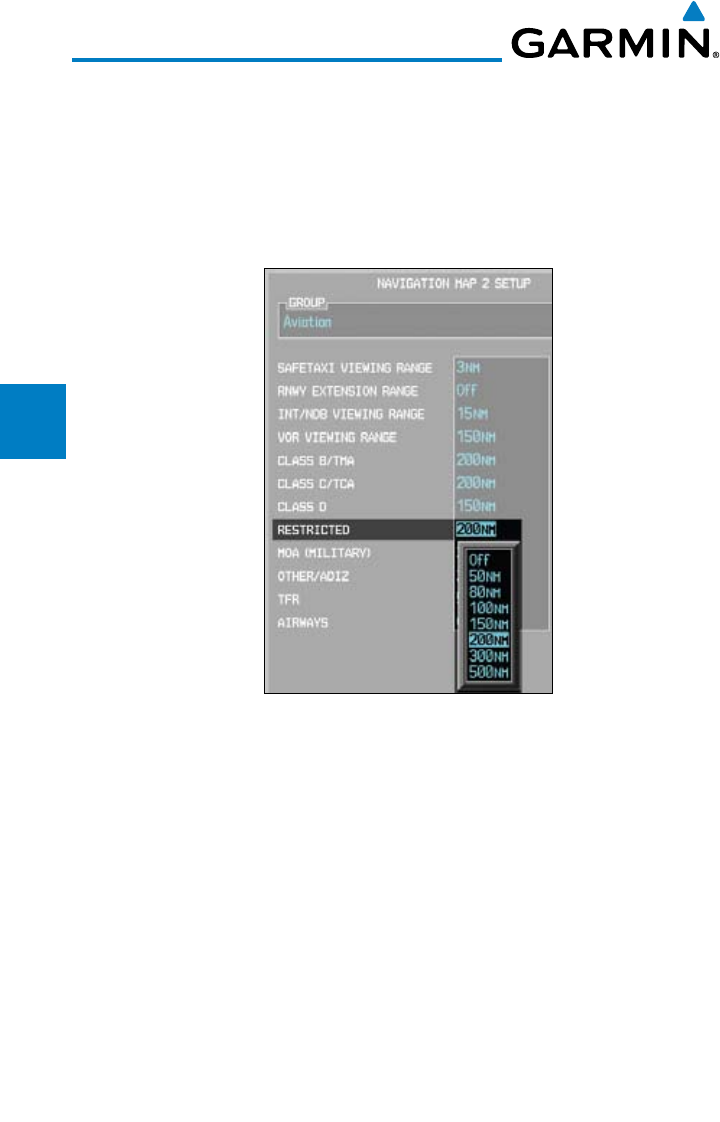
3-44
Garmin G600 Pilot’s Guide
190-00601-02 Rev. E
Foreword
Sec 1
System
Sec 2
PFD
Sec 3
MFD
Sec 4
Hazard
Avoidance
Sec 5
Additional
Features
Sec 6
Annun.
& Alerts
Sec 7
Symbols
Sec 8
GlossaryAppendix A
Appendix B
Index
Restricted Airspace Viewing Range
The Restricted airspace viewing range option selects whether the map range
is shown on the Navigation Map. Restricted airspace information will be shown
at and below the selected map range. When Off is selected, the information
will not be shown. In the example below where 200 NM is selected, Restricted
airspace information will be shown at map ranges of 200 NM and lower.
Figure 3-59 Navigation Map Restricted Airspace Viewing Range Selection
1) While viewing the Navigation Map Setup page and the Aviation Group active,
turn the large MFD knob to highlight the “
Restricted
Viewing Range” option.
2) Turn the small MFD knob to change the highlighted value.
3) Press ENT
to accept the displayed value. The next option will be highlighted.
4) Press the small MFD knob to cancel selection or to end editing and return to
the Navigation Map page or turn the large MFD knob to the next option.
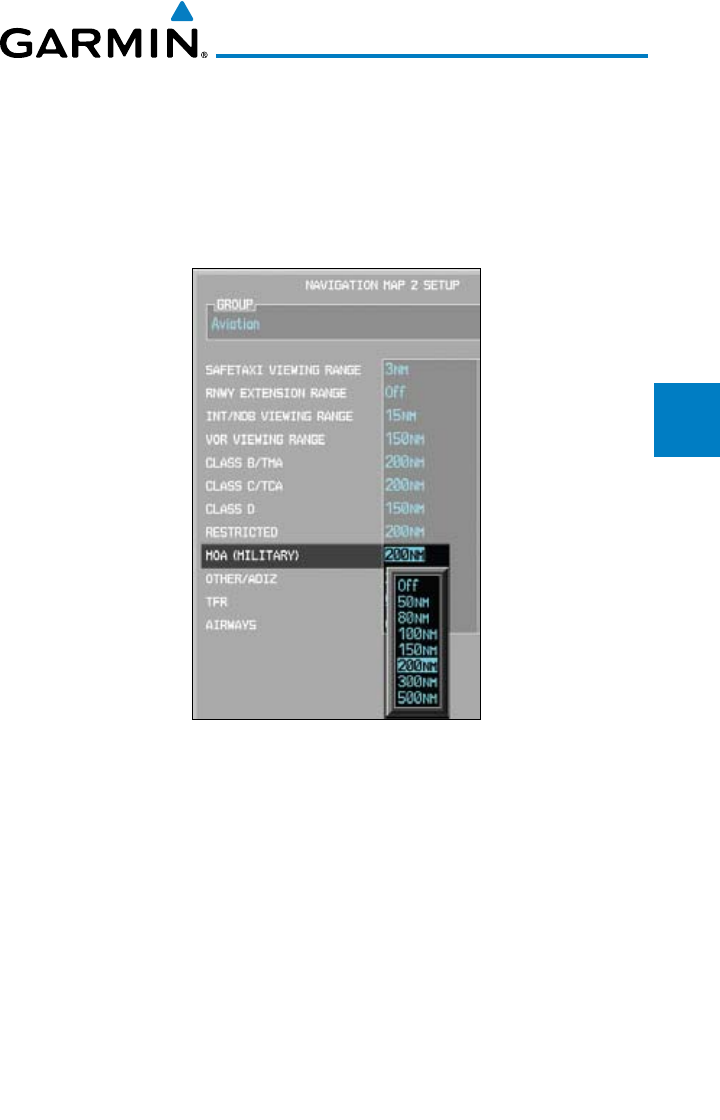
3-45190-00601-02 Rev. E
Garmin G600 Pilot’s Guide
Foreword
Sec 1
System
Sec 2
PFD
Sec 3
MFD
Sec 4
Hazard
Avoidance
Sec 5
Additional
Features
Sec 6
Annun.
& Alerts
Sec 7
Symbols
Sec 8
Glossary Appendix A
Appendix B
Index
MOA (Military) Viewing Range
The MOA (Military) viewing range option selects whether MOA (Military)
information is shown on the Navigation Map. MOA airspace information will
be shown at and below the selected map range. When Off is selected, the
information will not be shown. In the example below where 200 NM is selected,
MOA airspace information will be shown at map ranges of 200 NM and lower.
Figure 3-60 Navigation Map MOA (Military) Viewing Range Selection
1) While viewing the Navigation Map Setup page and the Aviation Group active,
turn the large MFD knob to highlight the “
MOA (Military)
Viewing Range”
option.
2) Turn the small MFD knob to change the highlighted value.
3) Press ENT
to accept the displayed value. The next option will be highlighted.
4) Press the small MFD knob to cancel selection or to end editing and return to
the Navigation Map page or turn the large MFD knob to the next option.
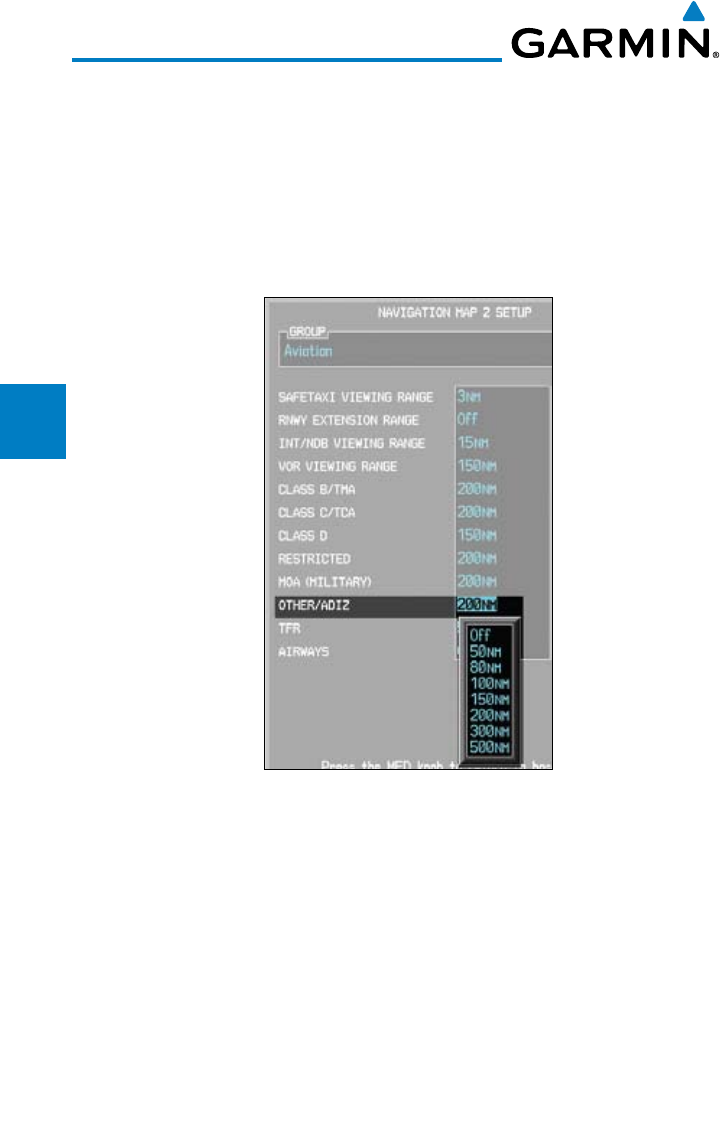
3-46
Garmin G600 Pilot’s Guide
190-00601-02 Rev. E
Foreword
Sec 1
System
Sec 2
PFD
Sec 3
MFD
Sec 4
Hazard
Avoidance
Sec 5
Additional
Features
Sec 6
Annun.
& Alerts
Sec 7
Symbols
Sec 8
GlossaryAppendix A
Appendix B
Index
Other/ADIZ Airspace Viewing Range
The Other/ADIZ airspace viewing range option selects whether Other/ADIZ
airspace information is shown on the Navigation Map. Other/ADIZ airspace
information will be shown at and below the selected map range. When Off is
selected, the information will not be shown. In the example below where 200
NM is selected, Other/ADIZ airspace information will be shown at map ranges
of 200 NM and lower.
Figure 3-61 Navigation Map Other/ADIZ Viewing Range Selection
1) While viewing the Navigation Map Setup page and the Aviation Group active,
turn the large MFD knob to highlight the “
Other/ADIZ
Viewing Range” option.
2) Turn the small MFD knob to change the highlighted value.
3) Press ENT
to accept the displayed value. The next option will be highlighted.
4) Press the small MFD knob to cancel selection or to end editing and return to
the Navigation Map page or turn the large MFD knob to the next option.
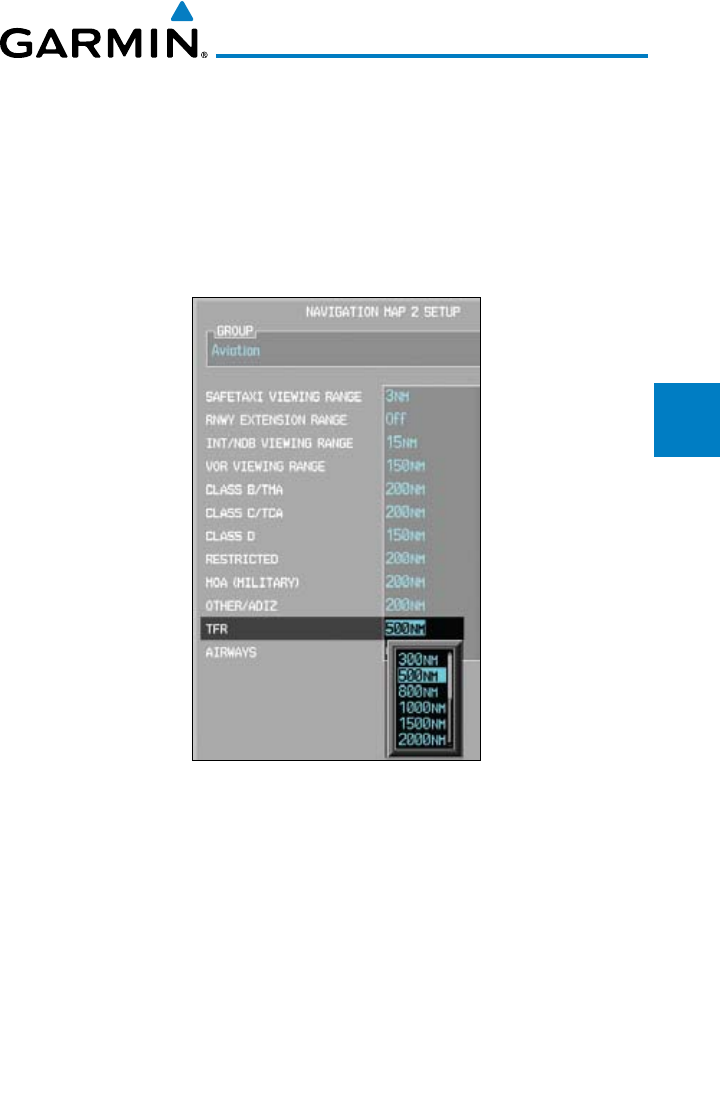
3-47190-00601-02 Rev. E
Garmin G600 Pilot’s Guide
Foreword
Sec 1
System
Sec 2
PFD
Sec 3
MFD
Sec 4
Hazard
Avoidance
Sec 5
Additional
Features
Sec 6
Annun.
& Alerts
Sec 7
Symbols
Sec 8
Glossary Appendix A
Appendix B
Index
TFR Viewing Range (optional)
The Temporary Flight Restriction (TFR) viewing range option selects whether
TFR information is shown on the Navigation Map. TFR information will be shown
at and below the selected map range. When Off is selected, the information will
not be shown. In the example below where 500 NM is selected, TFR information
will be shown at map ranges of 500 NM and lower. This optional feature requires
an active data link receiver.
Figure 3-62 Navigation Map TFR Viewing Range Selection
1) While viewing the Navigation Map Setup page and the Aviation Group is active,
turn the large MFD knob to highlight the “TFR” option.
2) Turn the small MFD knob to change the highlighted value.
3) Press ENT
to accept the displayed value.
4) Press the small MFD knob to cancel selection or to end editing and return to
the Navigation Map page or turn the large MFD knob to another option.
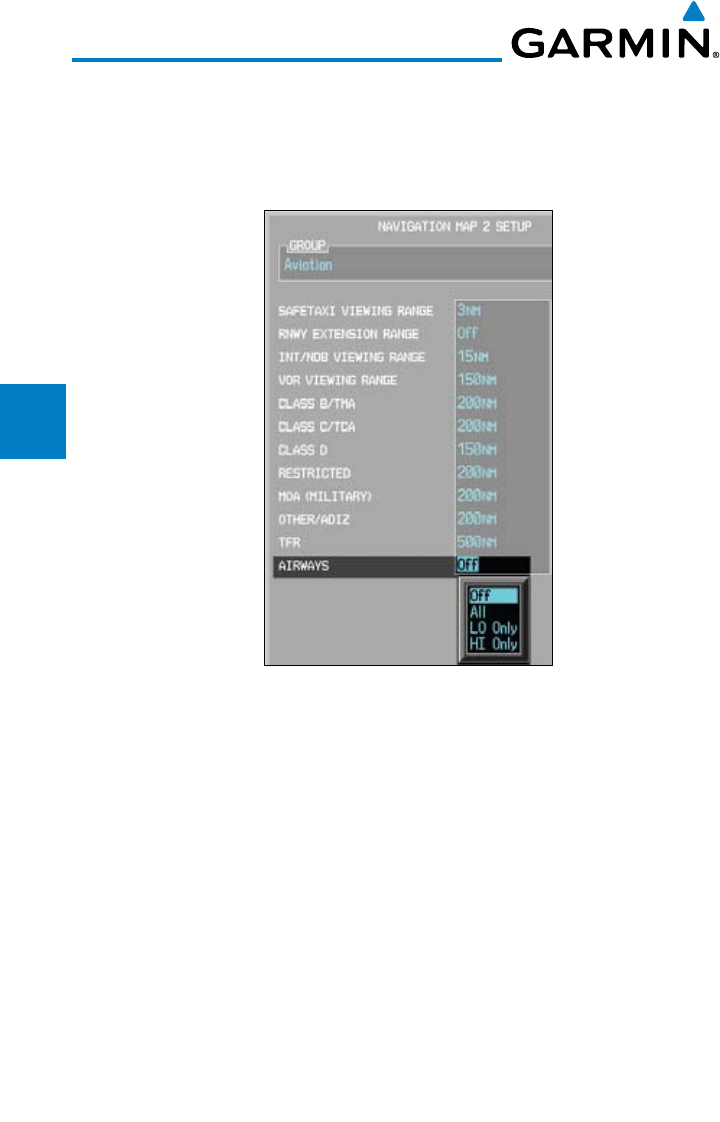
3-48
Garmin G600 Pilot’s Guide
190-00601-02 Rev. E
Foreword
Sec 1
System
Sec 2
PFD
Sec 3
MFD
Sec 4
Hazard
Avoidance
Sec 5
Additional
Features
Sec 6
Annun.
& Alerts
Sec 7
Symbols
Sec 8
GlossaryAppendix A
Appendix B
Index
Airways
The Airways option allows you to select the airways that are shown on the
Navigation Map. All, Low only, and Hi only Airways may be selected. When Off
is selected, airways will not be shown.
Figure 3-63 Airways Selection
1) While viewing the Navigation Map Setup page and the Aviation Group active,
turn the large MFD knob to highlight the “
Airways
” option.
2) Turn the small MFD knob to change the highlighted value.
3) Press ENT
to accept the displayed value. The next option will be highlighted.
4) Press the small MFD knob to cancel selection or to end editing and return to
the Navigation Map page or turn the large MFD knob to the next option.
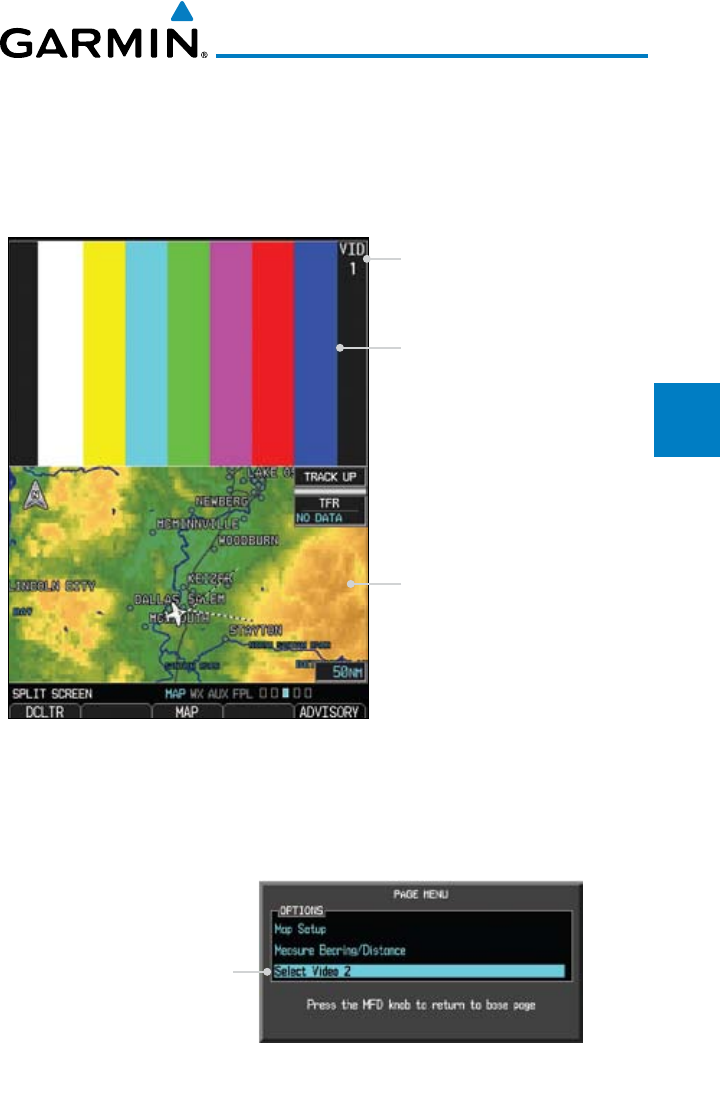
3-49190-00601-02 Rev. E
Garmin G600 Pilot’s Guide
Foreword
Sec 1
System
Sec 2
PFD
Sec 3
MFD
Sec 4
Hazard
Avoidance
Sec 5
Additional
Features
Sec 6
Annun.
& Alerts
Sec 7
Symbols
Sec 8
Glossary Appendix A
Appendix B
Index
3.3.11 Split Screen (Optional)
External Video is an optional function that displays video provided by an
externally mounted video source on the aircraft.
1) While viewing the Map function, turn the small MFD knob to the third
Navigation Map page.
Display of External Video Source
Map Display
Current Video Source
Figure 3-64 External Video
2) The External Video page will show the external video on the top half of the
MFD and a Navigation Map will be shown on the lower half.
3) To select the other external video source, press the MENU key.
Selected Video Source
Figure 3-65 Aux Mode System Setup Page Menu
4) Turn the large or small MFD knobs to highlight the Video selection and then
press ENT
.
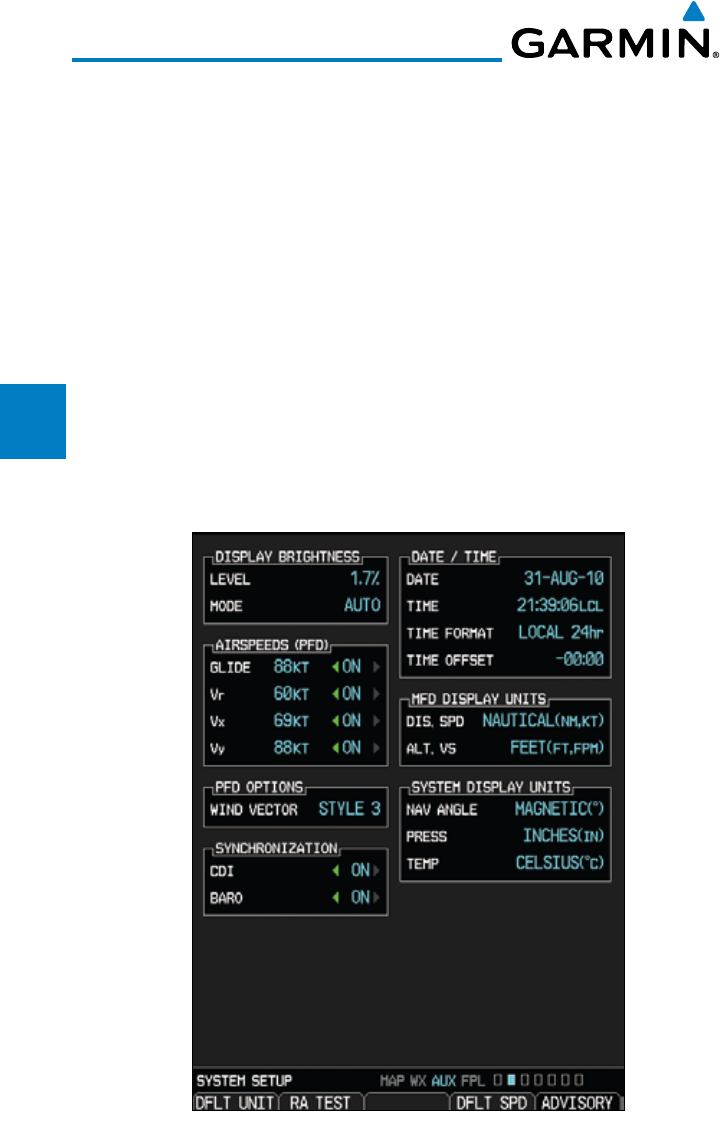
3-50
Garmin G600 Pilot’s Guide
190-00601-02 Rev. E
Foreword
Sec 1
System
Sec 2
PFD
Sec 3
MFD
Sec 4
Hazard
Avoidance
Sec 5
Additional
Features
Sec 6
Annun.
& Alerts
Sec 7
Symbols
Sec 8
GlossaryAppendix A
Appendix B
Index
3.4 Aux Mode Pages
The Aux mode provides pages for System Setup, XM Information (if installed),
and system Status.
3.4.1 System Settings
G600 system settings are managed from the Aux Mode System Setup Page.
The following settings can be changed:
• Display Brightness (Mode and Level)
• Airspeeds(Glide,VR, VX, and VY)
• PFDOptions (Wind Vector)
• DualUnitSynchronization (CDI and Baro)
• Date/Time (Date, Time, Time Format, and Time Offset)
• MFDDisplay Units (Distance/Speed and Altitude/Vertical Speed)
•System Display Units (Navigation Angle Reference, Pressure Units, and
Temperature Units)
Figure 3-66 Aux Mode System Setup Page
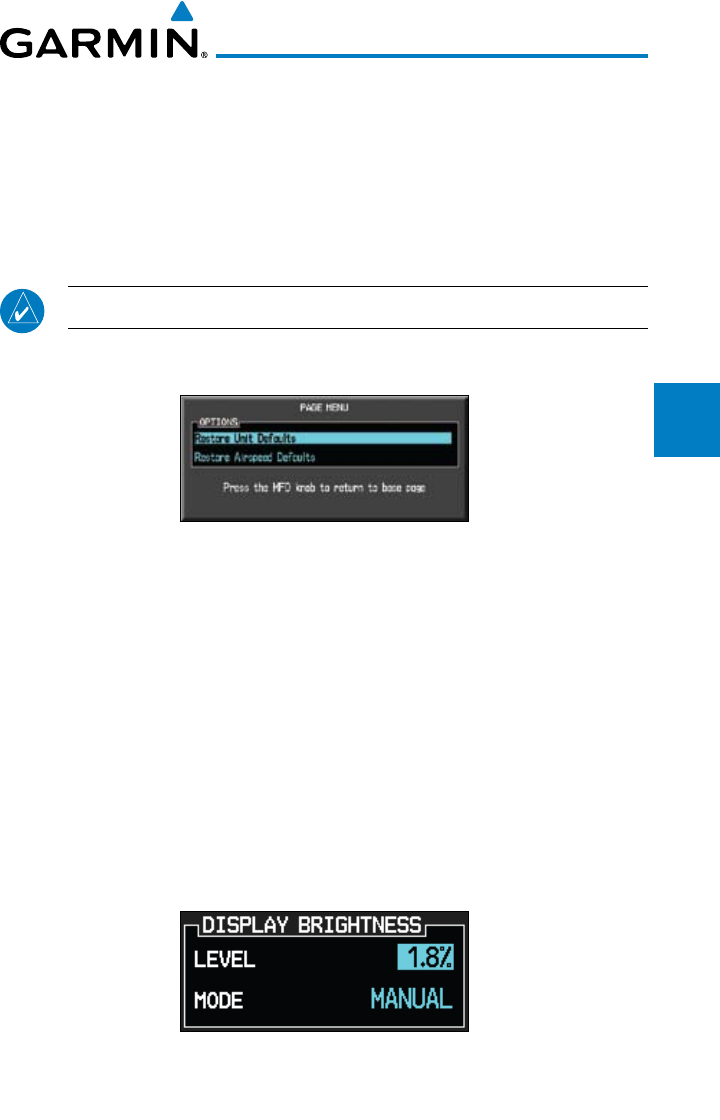
3-51190-00601-02 Rev. E
Garmin G600 Pilot’s Guide
Foreword
Sec 1
System
Sec 2
PFD
Sec 3
MFD
Sec 4
Hazard
Avoidance
Sec 5
Additional
Features
Sec 6
Annun.
& Alerts
Sec 7
Symbols
Sec 8
Glossary Appendix A
Appendix B
Index
The default values set by the installer during installation are restored by using
the Page Menu options. The “Restore Unit Defaults” selection restores all default
settings. Pressing the DFLT UNIT soft key will also restore the Default Unit
settings. The “Restore Airspeed Defaults” menu selection or soft key restores
only the Airspeed Reference default settings. The RA TEST soft key activates
the Radar Altimeter test mode. See the Radio Altimeter section in Section 2 for
details.
NOTE: Not all Radar Altimeters have the TEST function.
1) While viewing the Aux mode System Setup page, press the MENU key.
Figure 3-67 Aux Mode System Setup Page Menu
2) Turn the large or small MFD knobs to highlight the desired selection and then
press ENT
.
3.4.1.1 Display Brightness
Display brightness mode may be set to manual or automatic. The automatic
mode will set the display brightness based on the ambient light. The manual
mode allows the setting of display brightness between 0 and 100%.
1) Turn the large MFD knob to reach the AUX page group. Press the small MFD
knob to activate the cursor.
2) The Level will be highlighted. Turn the small MFD knob to select the Display
Brightness Level and then press ENT
.
Figure 3-68 Aux Mode Display Brightness Level Selection
3) If the Level was changed, Manual will be selected. Press the cursor to save the
settings. If you press ENT the Mode setting will be highlighted.
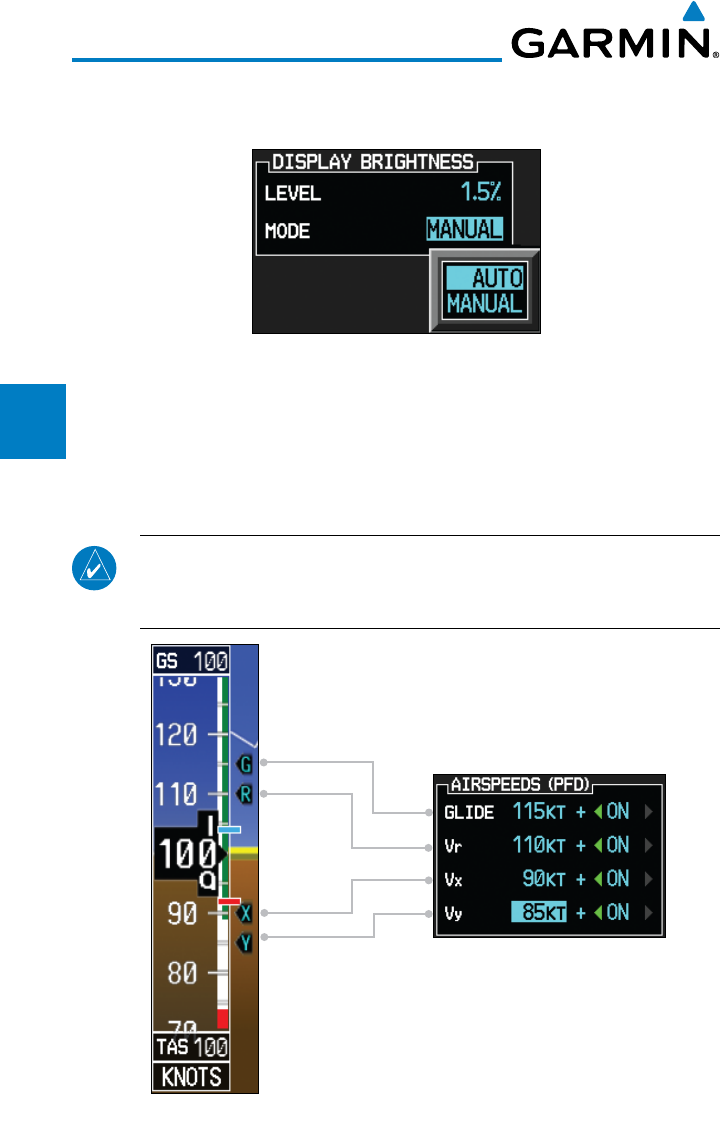
3-52
Garmin G600 Pilot’s Guide
190-00601-02 Rev. E
Foreword
Sec 1
System
Sec 2
PFD
Sec 3
MFD
Sec 4
Hazard
Avoidance
Sec 5
Additional
Features
Sec 6
Annun.
& Alerts
Sec 7
Symbols
Sec 8
GlossaryAppendix A
Appendix B
Index
4) With the Mode value highlighted, turn the small MFD knob to select Auto or
Manual and then press ENT
.
Figure 3-69 Aux Mode Display Brightness Mode Selection
3.4.1.2 Airspeed Reference Marks
The Best Glide, Vr, Vx, and Vy airspeed reference marks for the PFD are
adjusted with this function. A marker will appear on the PFD Airspeed tape at
the selected speed when the value is set to “On.” Default reference airspeeds are
set during installation. When power is cycled, the values you set will be reset.
NOTE:
When power is cycled, the Airspeed Reference values are reset.
During preflight, the Airspeed Reference values should be checked and
set appropriately for the current aircraft configuration and performance.
Figure 3-70 Airspeed References shown on PFD when activated
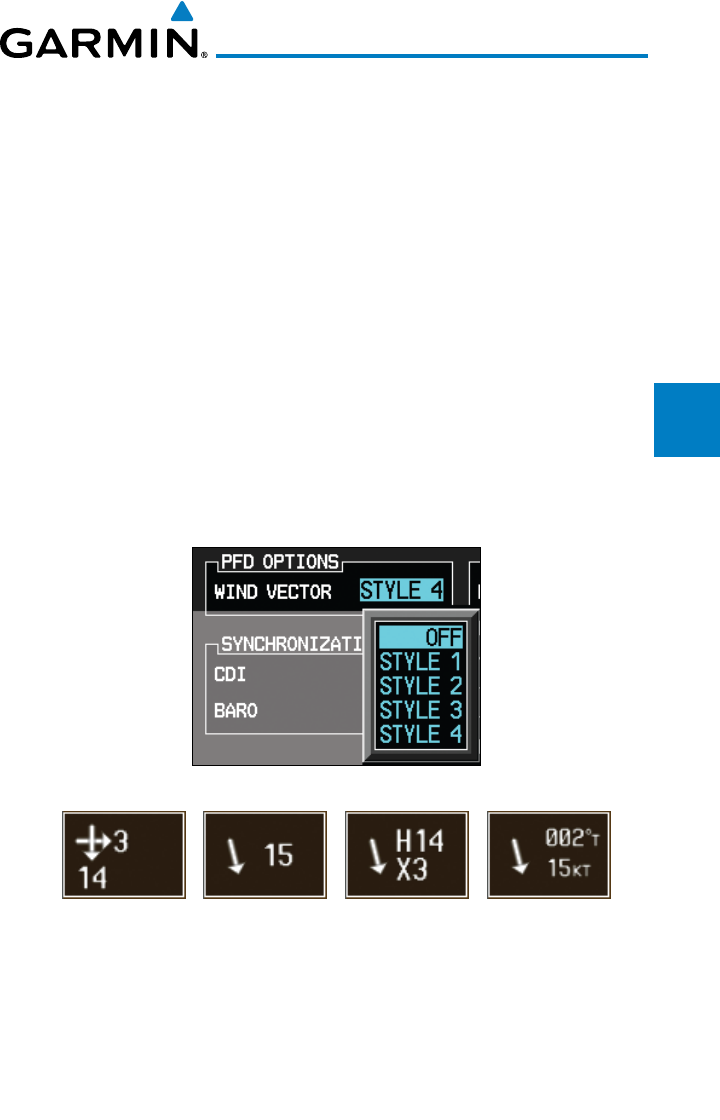
3-53190-00601-02 Rev. E
Garmin G600 Pilot’s Guide
Foreword
Sec 1
System
Sec 2
PFD
Sec 3
MFD
Sec 4
Hazard
Avoidance
Sec 5
Additional
Features
Sec 6
Annun.
& Alerts
Sec 7
Symbols
Sec 8
Glossary Appendix A
Appendix B
Index
1) While viewing the System Setup page of the AUX page group, press the small
MFD knob to activate the cursor. Turn the large MFD knob to highlight the
desired Airspeeds value.
2) Turn the small MFD knob to select the value and press ENT
.
3) The On/Off setting will now be highlighted.
Turn the small MFD knob to select
On or Off and press ENT
. The next value will be highlighted.
3.4.1.3 PFD Options - Wind Vector
When selected, wind vector information is displayed on the PFD to the left of
the HSI. Four styles are available.
1) While viewing the System Setup page of the AUX page group, press the small
MFD knob to activate the cursor. Turn the large MFD knob to highlight the
desired Wind Vector value.
2) Turn the small MFD knob to select the style and press ENT
.
Style 1 Style 2 Style 3 Style 4
Figure 3-71 Wind Vector Style
3) When a Wind Vector style is selected, a Wind Vector box with the chosen style
will be displayed to the left of the HSI on the PFD. When OFF is selected, the
Wind Vector box will not be displayed.
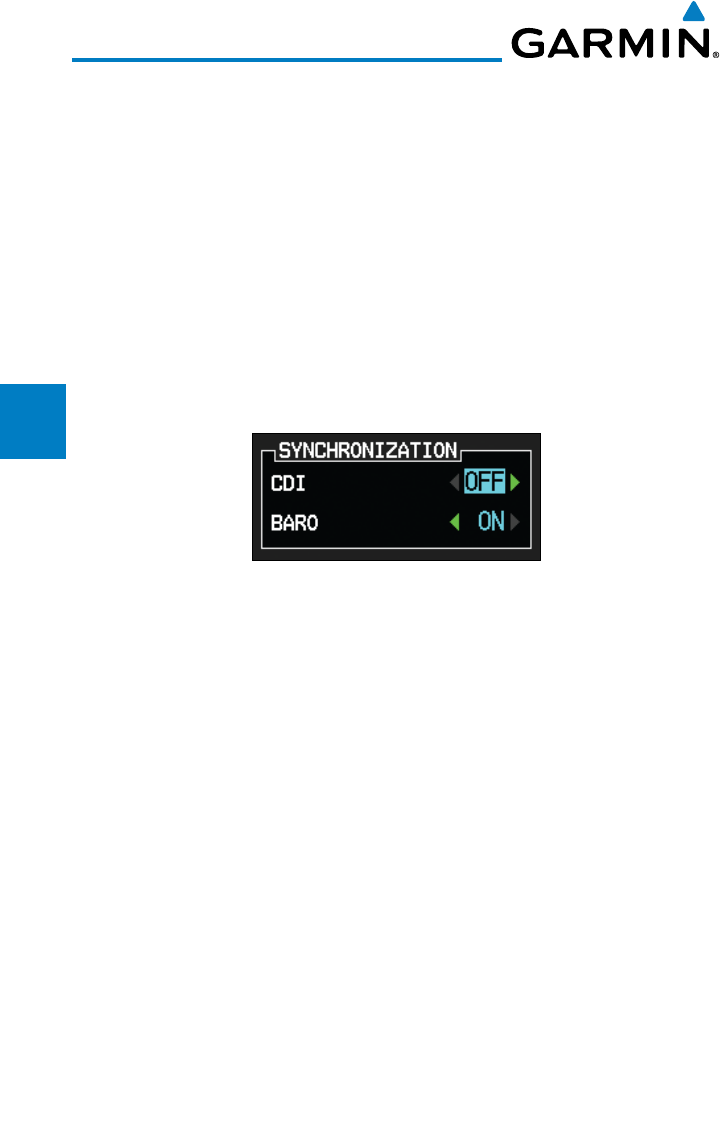
3-54
Garmin G600 Pilot’s Guide
190-00601-02 Rev. E
Foreword
Sec 1
System
Sec 2
PFD
Sec 3
MFD
Sec 4
Hazard
Avoidance
Sec 5
Additional
Features
Sec 6
Annun.
& Alerts
Sec 7
Symbols
Sec 8
GlossaryAppendix A
Appendix B
Index
3.4.1.4 Synchronization (Dual Installations Only)
Dual GDU 620 units when connected in the aircraft may be set up to
communicate and share information by “Crossfilling” or synchronizing
information between the two units.
When Barometric Correction is synchronized, any changes to the Barometric
Setting on either GDU will change it on both GDUs.
Crossfill synchronization for CDI and Baro Corrections are selected in Aux
mode.
1) While viewing the first page of the AUX page group, press the small MFD
knob and turn the large MFD knob to highlight “CDI” or “BARO” in the
“Synchronization” box in both units.
Figure 3-72 Dual Unit Synchronization
2) Turn the small MFD knob to select “ON” or “OFF.”
3) Press ENT.
The following information is always synchronized between both GDU 620
units:
• Selected Altitude
• Selected Heading
• SelectedCourse
• SelectedVerticalSpeed
• AirspeedBugValues
• AirspeedColorBandValues
• SystemPressureUnits
• SystemTemperatureUnits

3-55190-00601-02 Rev. E
Garmin G600 Pilot’s Guide
Foreword
Sec 1
System
Sec 2
PFD
Sec 3
MFD
Sec 4
Hazard
Avoidance
Sec 5
Additional
Features
Sec 6
Annun.
& Alerts
Sec 7
Symbols
Sec 8
Glossary Appendix A
Appendix B
Index
The following information can be synchronized between GDU 620s, or
changed independently, depending on the Crossfill Synchronization Settings:
• BarometricCorrection(defaultON)
• SelectedCDI (default OFF)
When Barometric Correction is synchronized, any changes to the Barometric
Setting on either GDU will change it on both GDUs.
When the CDI is synchronized, any changes to the selected CDI on either
GDU will change it on both GDUs. Either pilot can change the OBS course on
either GNS. If the pilot selects GPS1 on the CDI and GNS1 is in OBS mode, any
course changes will move the OBS on GNS1, GDU1, and GDU2 (if the copilot
has GPS1 displayed on the CDI). Similarly, if the pilot selects GPS2 on the CDI
and GNS2 is in OBS mode, any course changes will move the OBS on GNS2,
GDU1, and GDU2 (if the copilot has GPS2 displayed on the CDI).
AHRS 1 and ADC 1 will only be displayed on GDU1. AHRS2 and ADC2 will
only be displayed on GDU2.
The CDI soft key toggles between selection of GPS or VOR/LOC as the active
navigation source. In a single GDU 620 system, the GDU CDI soft key will
change the source in the connected navigator and making a source change in the
navigator will be reflected in the GDU 620. In a dual GDU 620 system, the CDI
keys in the navigator are disabled.
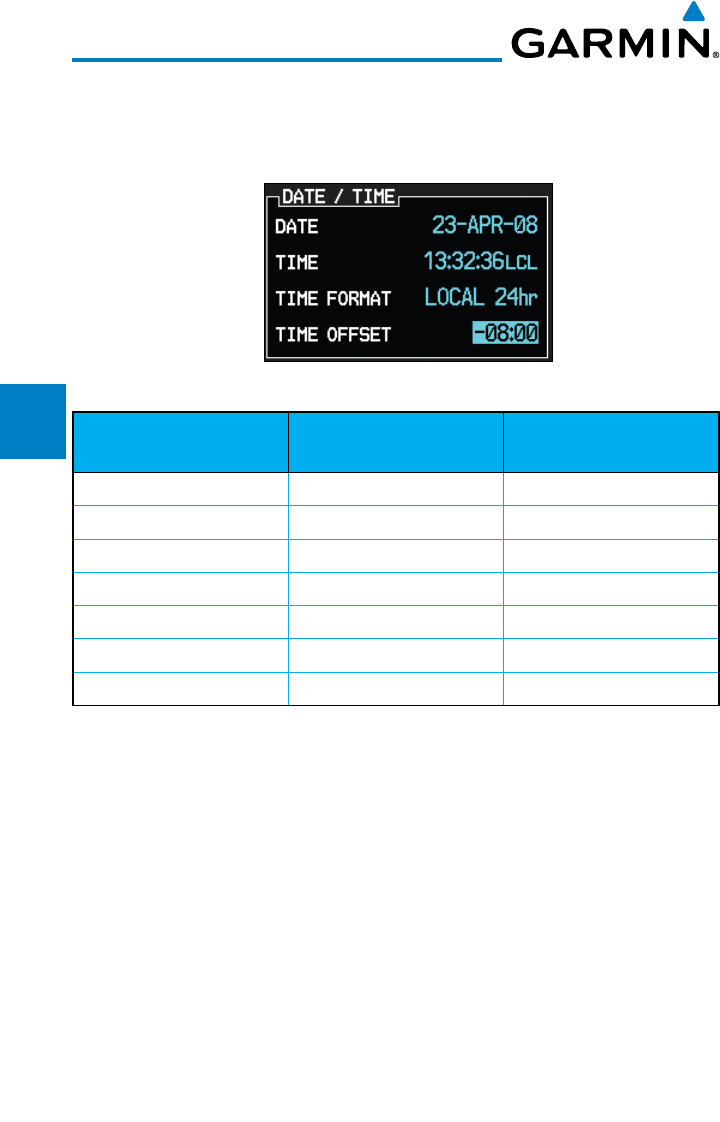
3-56
Garmin G600 Pilot’s Guide
190-00601-02 Rev. E
Foreword
Sec 1
System
Sec 2
PFD
Sec 3
MFD
Sec 4
Hazard
Avoidance
Sec 5
Additional
Features
Sec 6
Annun.
& Alerts
Sec 7
Symbols
Sec 8
GlossaryAppendix A
Appendix B
Index
3.4.1.5 Date and Time
The Date and Time options allow you to select the time to change UTC time
to local time with a time offset.
Figure 3-73 Time Format and Offset
Time Zone Local Standard Time
Offset
Local Daylight Savings
Time Offset
Atlantic -4 hours -3 hours
Eastern -5 hours -4 hours
Central -6 hours -5 hours
Mountain -7 hours -6 hours
Pacific -8 hours -7 hours
Alaskan -9 hours -8 hours
Hawaiian -10 hours -9 hours
Table 3-4 U.S. Time Zone Offsets
1) While viewing the System Setup page of the AUX page group, press the small
MFD knob to activate the cursor. Turn the large MFD knob to highlight “Time
Format.”
2) Turn the small MFD knob to select Local 12hr, Local 24hr, or UTC and then
press ENT. When Local 12 or 24 hour mode is selected, the Time Offset value
will then be highlighted.
3) Turn the small MFD knob to select the desired offset and then press ENT.
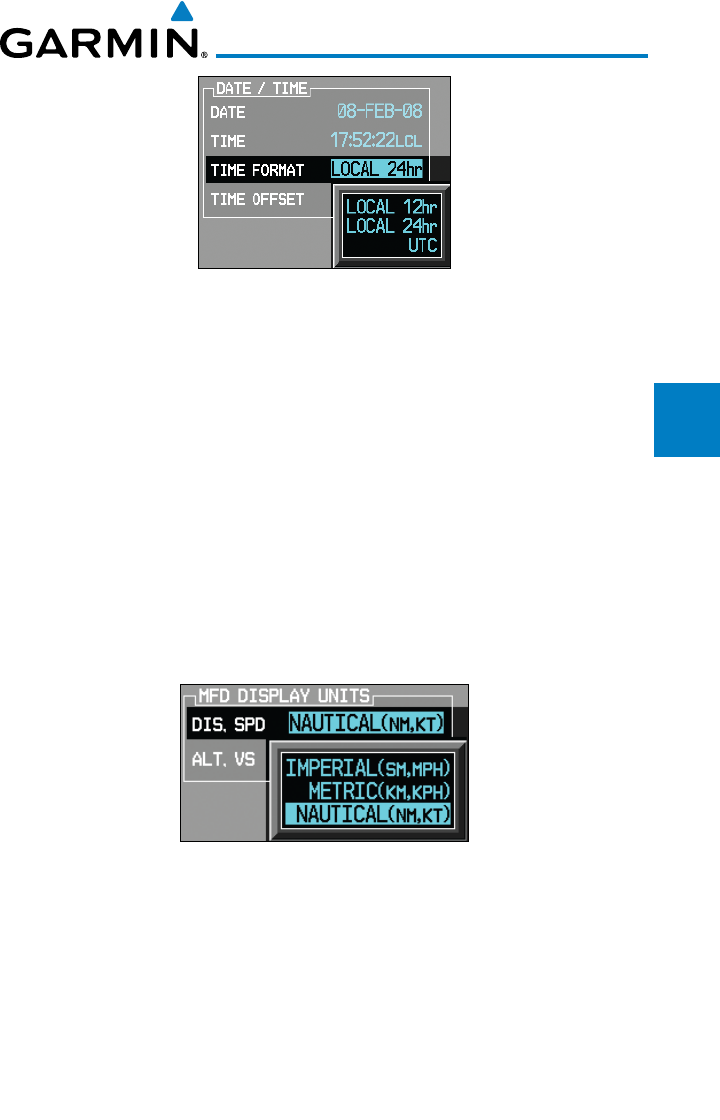
3-57190-00601-02 Rev. E
Garmin G600 Pilot’s Guide
Foreword
Sec 1
System
Sec 2
PFD
Sec 3
MFD
Sec 4
Hazard
Avoidance
Sec 5
Additional
Features
Sec 6
Annun.
& Alerts
Sec 7
Symbols
Sec 8
Glossary Appendix A
Appendix B
Index
Figure 3-74 Date and Time Values
4) A Time Offset may be entered by using the large and small MFD knobs to
change the values. Press ENT
after completing any changes.
5) Press the small MFD knob to exit adjustments.
3.4.1.6 MFD Display Units
The MFD Display Units options allow you to select the units of measurement
conventions displayed on the MFD. Distance and Speed selections are Imperial,
Metric, or Nautical. Altitude and Vertical speed selections are Feet or Meters.
1) While viewing the System Setup page of the AUX page group, press the small
MFD knob to activate the cursor. Turn the large MFD knob to highlight the
Distance and Speed (DIS, SPD) units of measurement.
Figure 3-75 Distance and Speed MFD Display Units
2) Turn the small MFD knob to select Imperial, Metric, or Nautical and then press
ENT. The Altitude and Vertical Speed units selection will now be highlighted.
3) Turn the small MFD knob to select Feet or Meters and then press ENT.
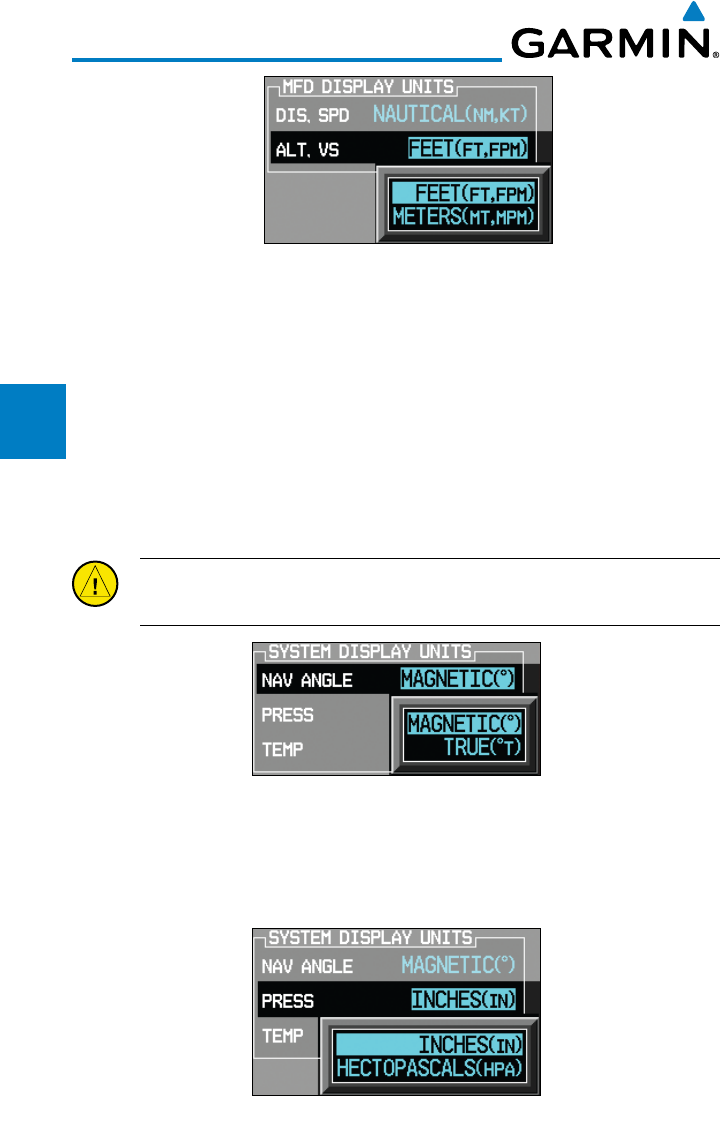
3-58
Garmin G600 Pilot’s Guide
190-00601-02 Rev. E
Foreword
Sec 1
System
Sec 2
PFD
Sec 3
MFD
Sec 4
Hazard
Avoidance
Sec 5
Additional
Features
Sec 6
Annun.
& Alerts
Sec 7
Symbols
Sec 8
GlossaryAppendix A
Appendix B
Index
Figure 3-76 Altitude and Vertical Speed MFD Display Units
3.4.1.7 System Display Units
The System Display Units options allows the selection of units to display
values for Navigation Angle (Magnetic or True), Barometric Setting (inches or
Hectopascals), and Temperature (Fahrenheit or Celsius). Pressing the DFLT
UNIT soft key will restore the Default Unit settings.
1) While viewing the System Setup page of the AUX page group, press the small
MFD knob to activate the cursor. Turn the large MFD knob to highlight the
System Display Units selection titled “Nav Angle.”
CAUTION: The Nav Angle display units (Magnetic or True) must be set to
the same type in both the GDU 620 and GNS navigators.
Figure 3-77 Nav Angle System Display Units
2) Turn the small MFD knob to select Magnetic or True and then press ENT.
The Barometric Pressure Setting value will now be highlighted. When True is
selected, a "T" will appear to the right of the heading value on the PFD.
Figure 3-78 Barometric Setting System Display Units
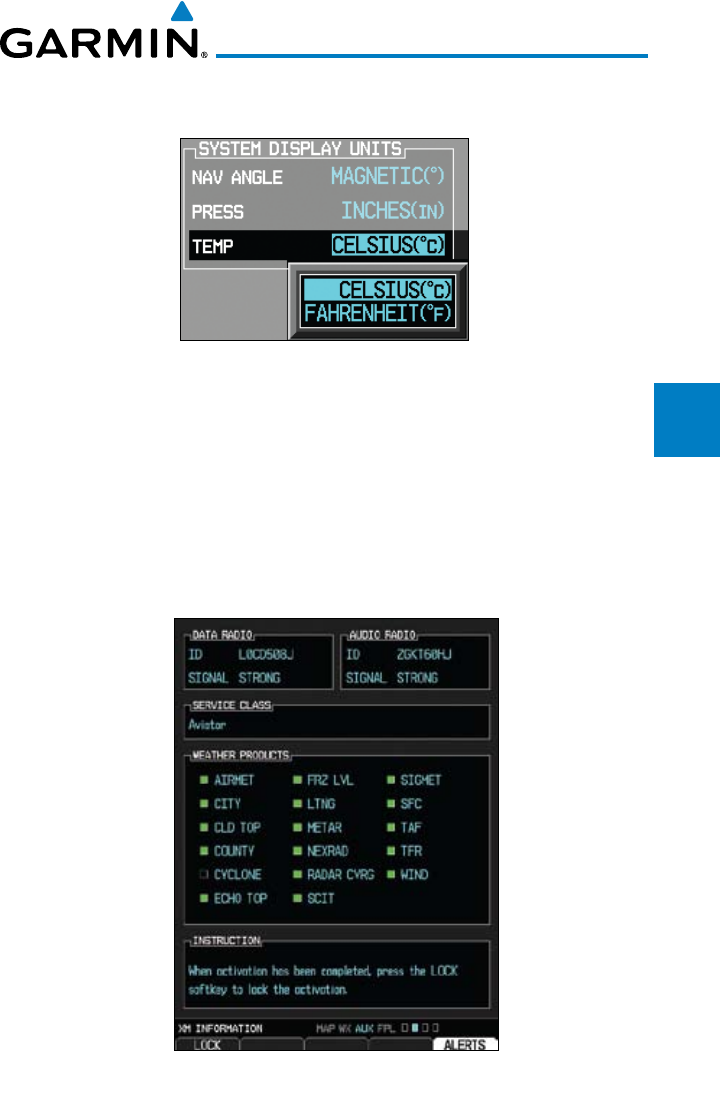
3-59190-00601-02 Rev. E
Garmin G600 Pilot’s Guide
Foreword
Sec 1
System
Sec 2
PFD
Sec 3
MFD
Sec 4
Hazard
Avoidance
Sec 5
Additional
Features
Sec 6
Annun.
& Alerts
Sec 7
Symbols
Sec 8
Glossary Appendix A
Appendix B
Index
3) Turn the small MFD knob to select the Barometric Setting units and then press
ENT. The Temperature value will now be highlighted.
Figure 3-79 Temperature System Display Units
4) Turn the small MFD knob to select the Temperature units and then press ENT.
3.4.2 XM Information (Optional)
The Aux mode XM Information page displays information about the XM
radios, service, and products when the GDL 69/69A is installed and the XM
Radio service is activated.
Figure 3-80 XM Information
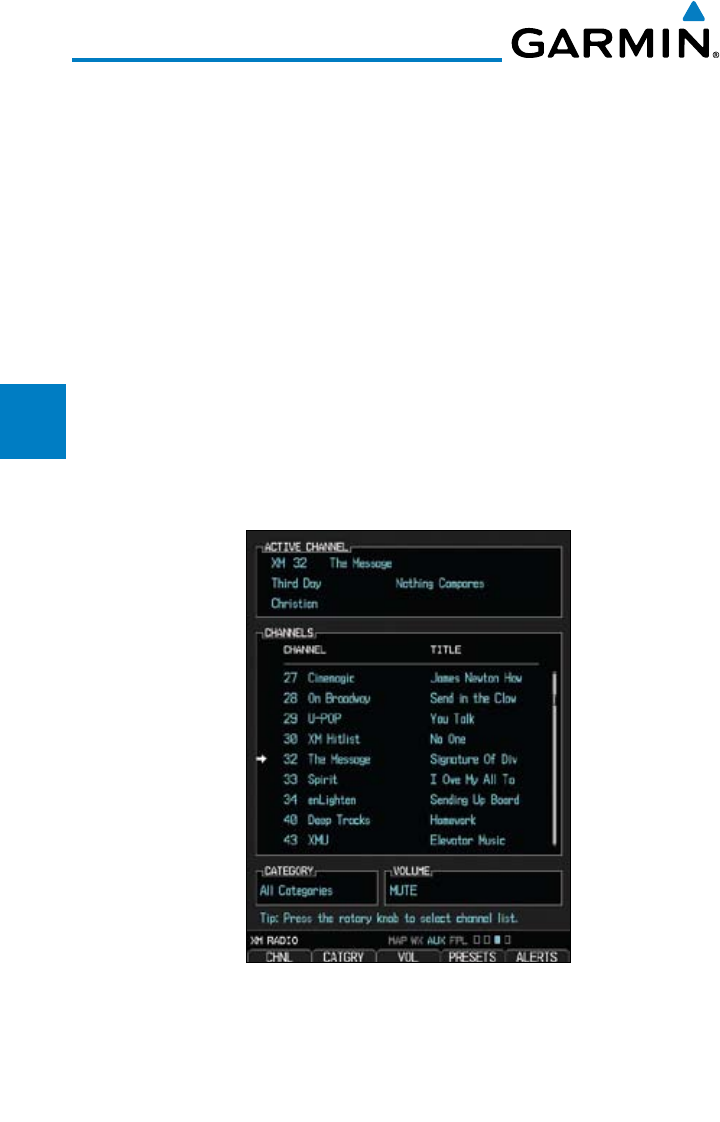
3-60
Garmin G600 Pilot’s Guide
190-00601-02 Rev. E
Foreword
Sec 1
System
Sec 2
PFD
Sec 3
MFD
Sec 4
Hazard
Avoidance
Sec 5
Additional
Features
Sec 6
Annun.
& Alerts
Sec 7
Symbols
Sec 8
GlossaryAppendix A
Appendix B
Index
3.4.3 XM Entertainment Radio (Optional)
Audio entertainment is available through the XM Satellite Radio Service when
activated in the optional installation of the GDL 69A. The GDU 620 serves as
the display and control head for your remotely mounted GDL 69A. XM Satellite
Radio allows you to enjoy a variety of radio programming over long distances
without having to constantly search for new stations. Based on signal from
satellites, coverage far exceeds land-based transmissions. When enabled, the XM
Satellite Radio audio entertainment is accessible in Aux Mode.
The information on the XM Satellite Radio display is composed of four areas:
the Active Channel, Available Channels, Category of the highlighted Channel,
and the Volume setting. The Active Channel window shows the Channel Name
and Number, Artist, Song Title, and Category.
1) Turn the large MFD knob to the AUX page group.
2) Turn the small MFD knob to the XM Radio page.
Figure 3-81 XM Entertainment Radio
A description of XM Entertainment Radio is provided in Section 5 - Additional
Features.
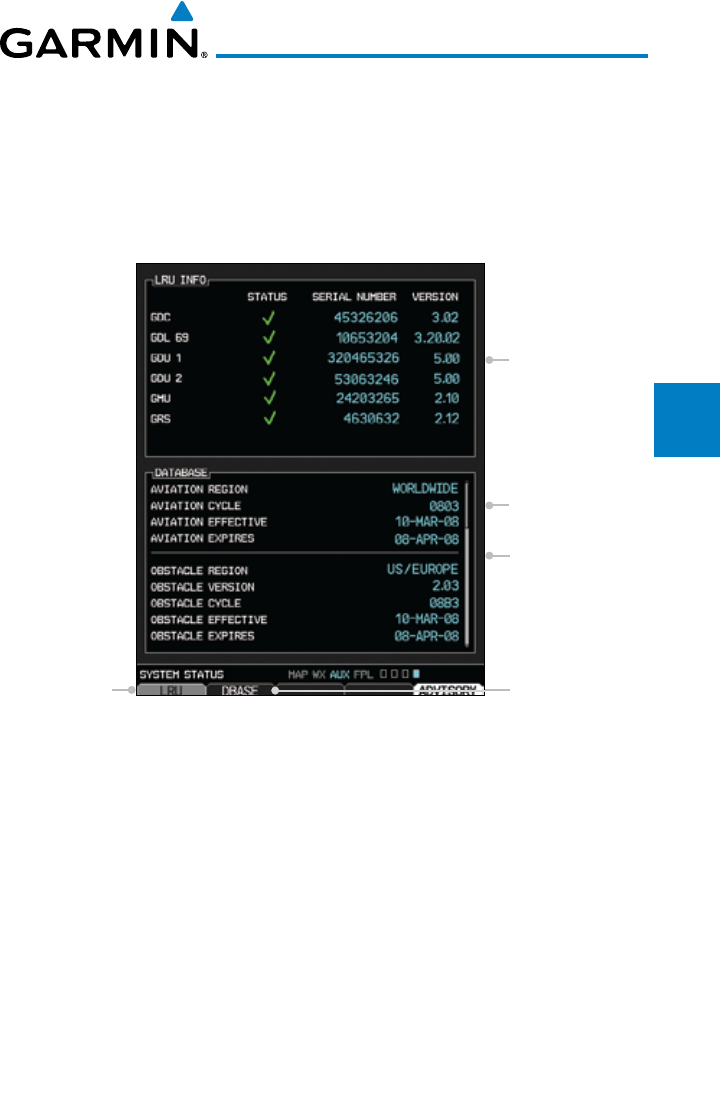
3-61190-00601-02 Rev. E
Garmin G600 Pilot’s Guide
Foreword
Sec 1
System
Sec 2
PFD
Sec 3
MFD
Sec 4
Hazard
Avoidance
Sec 5
Additional
Features
Sec 6
Annun.
& Alerts
Sec 7
Symbols
Sec 8
Glossary Appendix A
Appendix B
Index
3.4.4 System Status
The System Status Page displays the statuses, serial numbers, and software
version numbers for all detected system LRUs. Pertinent information on all
system databases is also displayed. Active LRUs are indicated by green check
marks; failed LRUs by red “X’s.” Failed LRUs should be noted and a service
center or Garmin-authorized dealer informed.
LRU Info Window
Database Window
Scroll Bar
LRU Soft Key Database Soft Key
Figure 3-82 LRU and Database Information
1) Turn the large MFD knob to the AUX page group.
2) Turn the small MFD knob to the System Status page.
3) Press the LRU soft key to highlight the first item in the LRU Info window.
4) Turn the small MFD knob to scroll through the items in the LRU Info window
in case more items are available than are displayed. If more items are available
than can be displayed in the window, a scroll bar will show on the right side of
the window.
5) Press the DBASE soft key to highlight the first item in the Database window.
6) Turn the small or large MFD knobs to scroll through the items in the Database
window in case more items are available than are displayed. If more items are
available than can be displayed in the window, a scroll bar will show on the
right side of the window.
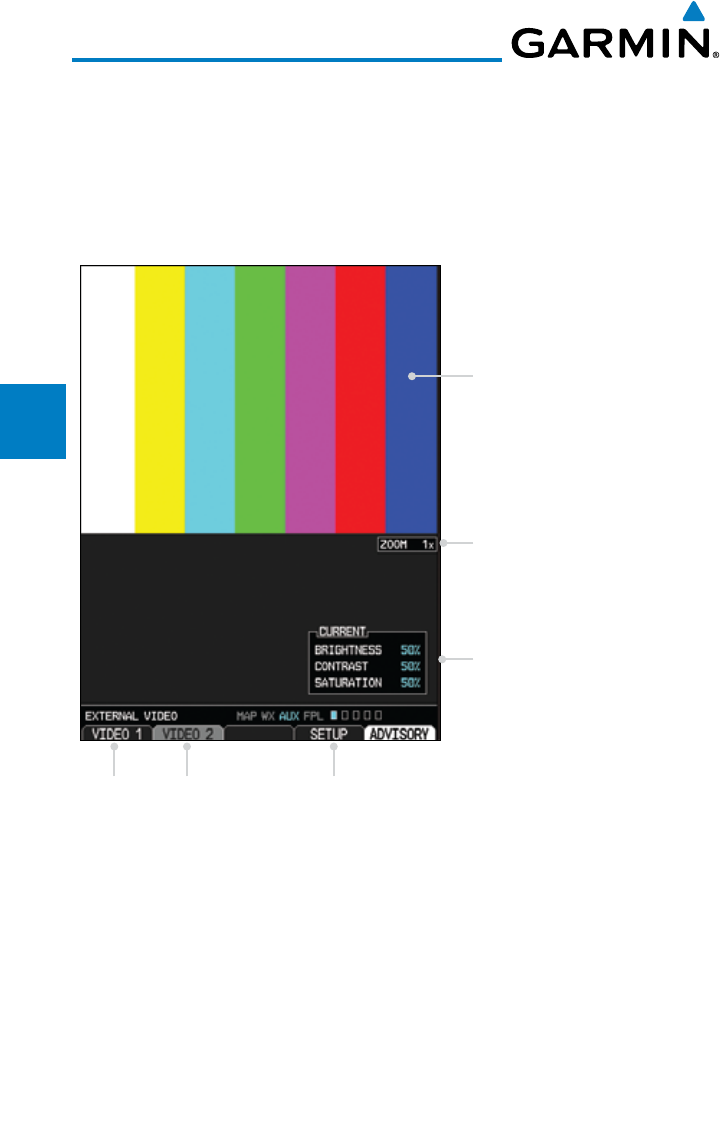
3-62
Garmin G600 Pilot’s Guide
190-00601-02 Rev. E
Foreword
Sec 1
System
Sec 2
PFD
Sec 3
MFD
Sec 4
Hazard
Avoidance
Sec 5
Additional
Features
Sec 6
Annun.
& Alerts
Sec 7
Symbols
Sec 8
GlossaryAppendix A
Appendix B
Index
3.4.5 External Video (optional)
External Video is an optional function that displays video provided by an
externally mounted video source on the aircraft.
1) Turn the large MFD knob to the Aux page group.
2) The External Video page is the first page in the Aux page group.
Display of External Video Source
Current Zoom Level
Current Setup Values For
The Selected Video Source
Video Source Selections Video Source Setup
Figure 3-83 External Video
3.4.5.1 Select Video Source
If more than one video source is available, the Video 1 and Video 2 soft keys
will be available at the bottom of the display.
1) Press the Video 1 soft key to select Video 1 source for viewing and setup.
2) Press the Video 2 soft key to select Video 2 source for viewing and setup.
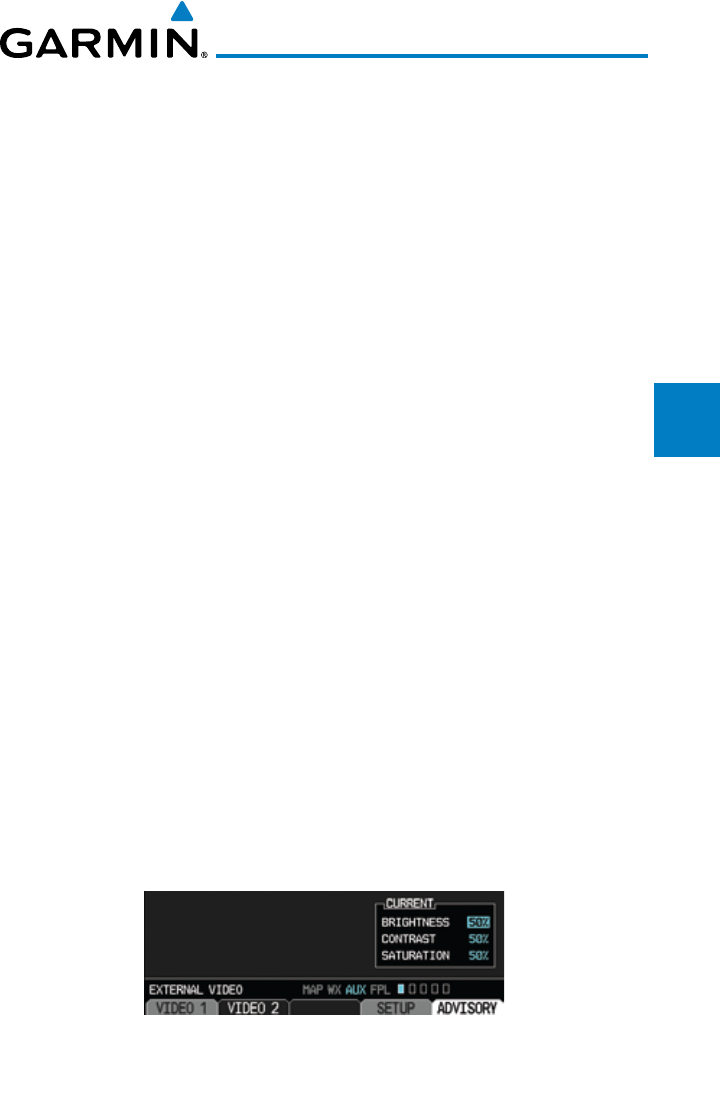
3-63190-00601-02 Rev. E
Garmin G600 Pilot’s Guide
Foreword
Sec 1
System
Sec 2
PFD
Sec 3
MFD
Sec 4
Hazard
Avoidance
Sec 5
Additional
Features
Sec 6
Annun.
& Alerts
Sec 7
Symbols
Sec 8
Glossary Appendix A
Appendix B
Index
3.4.5.2 Zoom
1) While viewing the External Video function, press the Up Rng Arrow key to
increase the zoom up to 10x magnification. Zoom level is made through digital
magnification.
2) Press the Down Rng Arrow key to decrease the zoom level down to a
minimum of 1x.
3.4.5.3 Panning
1) While viewing the External Video function, press the small MFD knob to
activate panning.
2) Turn the small MFD knob clockwise to pan up (the map will move down).
3) Turn the small MFD knob counterclockwise to pan down (the map will move
up).
4) Turn the large MFD knob clockwise to pan to the right (the map will move
left).
5) Turn the large MFD knob counterclockwise to pan to the left (the map will
move right).
6) Press the small MFD knob to exit panning.
3.4.5.4 Setup
The display of each video source is set up individually.
1) While viewing the External Video page, press the soft key for the desired Video
source (Video 1 or Video 2).
2) Press the Setup soft key.
3) The Current value for Brightness will be selected. Use the following directions
for each value.
Figure 3-84 External Video Setup
4) After selecting the desired settings, press the small MFD knob or the Setup
soft key to exit editing.
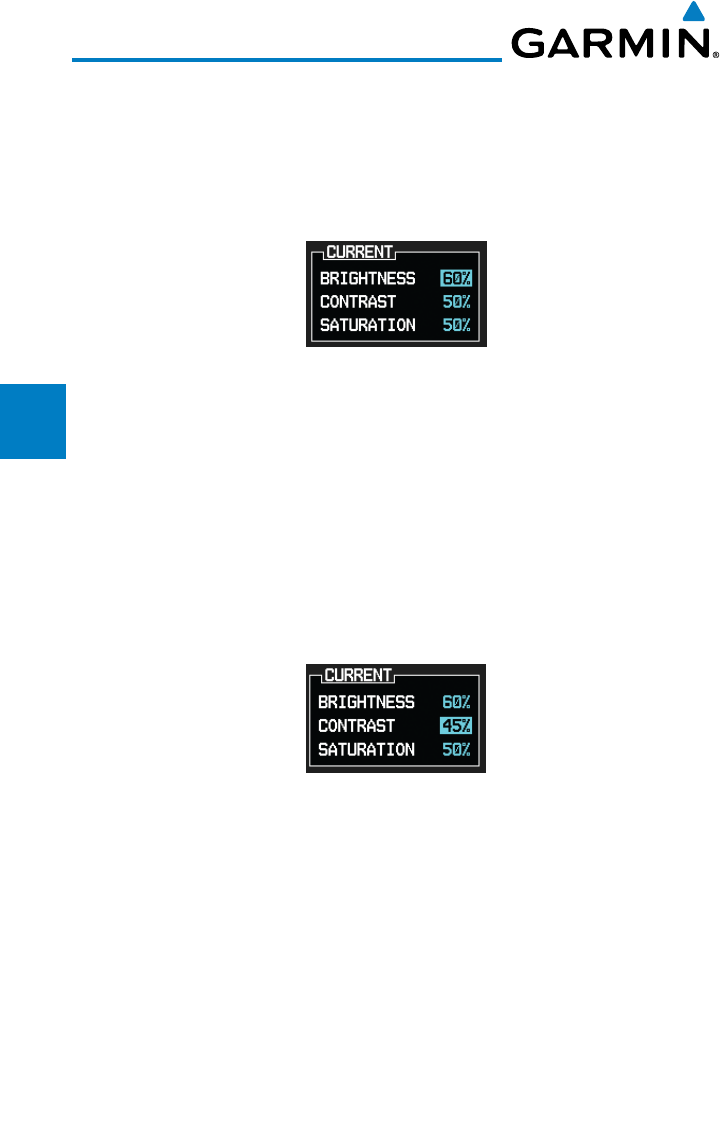
3-64
Garmin G600 Pilot’s Guide
190-00601-02 Rev. E
Foreword
Sec 1
System
Sec 2
PFD
Sec 3
MFD
Sec 4
Hazard
Avoidance
Sec 5
Additional
Features
Sec 6
Annun.
& Alerts
Sec 7
Symbols
Sec 8
GlossaryAppendix A
Appendix B
Index
Brightness Adjustment
1) While viewing the External Video page and the desired Video source, press the
Setup soft key.
2) The Current value for Brightness will be selected. Turn the small MFD knob to
adjust the Brightness value.
Figure 3-85 External Video Brightness Adjustment
3) After selecting the desired setting, turn the large MFD knob to highlight the
next value or press the small MFD knob to exit editing.
Contrast Adjustment
1) While viewing the External Video page and the desired Video source, press the
Setup soft key.
2) The Current value for Brightness will be selected. Turn the large MFD knob to
highlight the Contrast value. Turn the small MFD knob to adjust the Contrast
value.
Figure 3-86 External Video Contrast Adjustment
3) After selecting the desired setting, turn the large MFD knob to highlight the
next value or press the small MFD knob to exit editing.
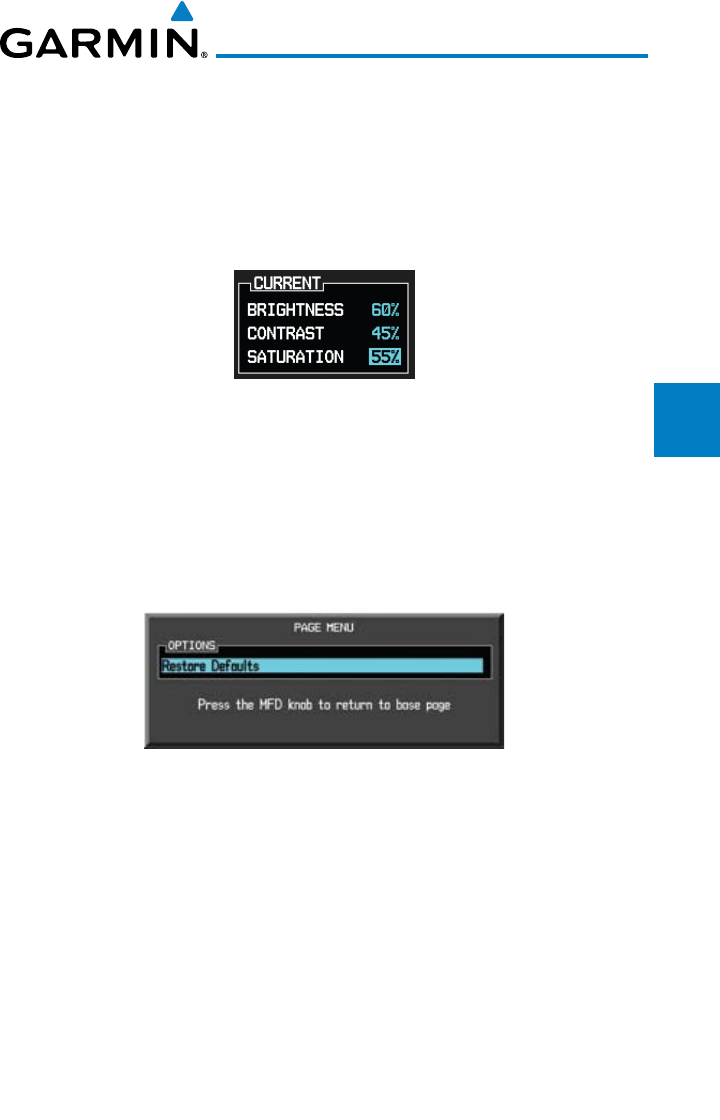
3-65190-00601-02 Rev. E
Garmin G600 Pilot’s Guide
Foreword
Sec 1
System
Sec 2
PFD
Sec 3
MFD
Sec 4
Hazard
Avoidance
Sec 5
Additional
Features
Sec 6
Annun.
& Alerts
Sec 7
Symbols
Sec 8
Glossary Appendix A
Appendix B
Index
Saturation Adjustment
1) While viewing the External Video page and the desired Video source, press the
Setup soft key.
2) The Current value for Brightness will be selected. Turn the large MFD knob to
highlight the Saturation value. Turn the small MFD knob to adjust the Saturation
value.
Figure 3-87 External Video Saturation Adjustment
3) After selecting the desired setting, press the small MFD knob to exit editing.
3.4.5.5 Restore Defaults
The Restore Defaults selection will return the Brightness, Contrast, and
Saturation values to their original settings.
1) While viewing the External Video page, press the MENU key.
Figure 3-88 Restore Video Defaults Menu Selection
2) "Restore Defaults" will be highlighted. Press the ENT key.
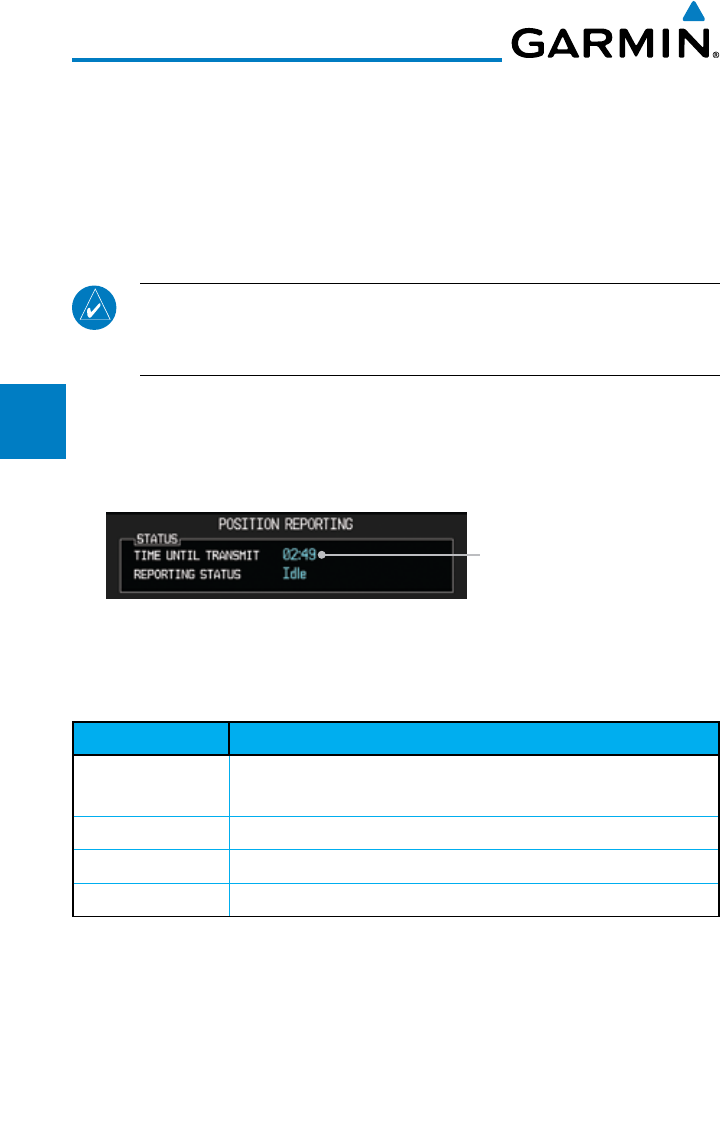
3-66
Garmin G600 Pilot’s Guide
190-00601-02 Rev. E
Foreword
Sec 1
System
Sec 2
PFD
Sec 3
MFD
Sec 4
Hazard
Avoidance
Sec 5
Additional
Features
Sec 6
Annun.
& Alerts
Sec 7
Symbols
Sec 8
GlossaryAppendix A
Appendix B
Index
3.4.6 Position Reporting (optional)
Position Reporting is a system which collects system variables and transmits
them over the Iridium® satellite at a given interval through the GSR 56.
3.4.6.1 Status
The Status window shows the time until the next data transmission and the
status of the reporting system.
NOTE: The GSR 56 does not report its serial number until 90 seconds after
power up of the GDU. As a result, for that period, the product info for the
GSR 56 will show "Waiting."
Time Until Transmit
The Time Until Transmit field is a countdown timer that shows the time
until the next data transmission. This field is blank when the aircraft is on the
ground.
Countdown Time Until Transmit
Figure 3-89 Position Reporting Time Until Transmit
Position Reporting Status
Position Reporting will be enabled when the aircraft is in the air.
Status Description
Idle The reporting system is not using the GSR 56 for reporting at
this time.
Initializing The GSR 56 and its driver are currently initializing.
Transferring A position report is currently being transmitted.
Unavailable The GSR 56 is currently not usable by the reporting system.
Table 3-5 Position Reporting Status
3.4.6.2 Report Type
Standard
When the Standard reporting type is used, the Position Reporting Period may
be set to Off or Automatic. The Automatic Position Reporting Period can be set
to intervals of 2 to 60 minutes.
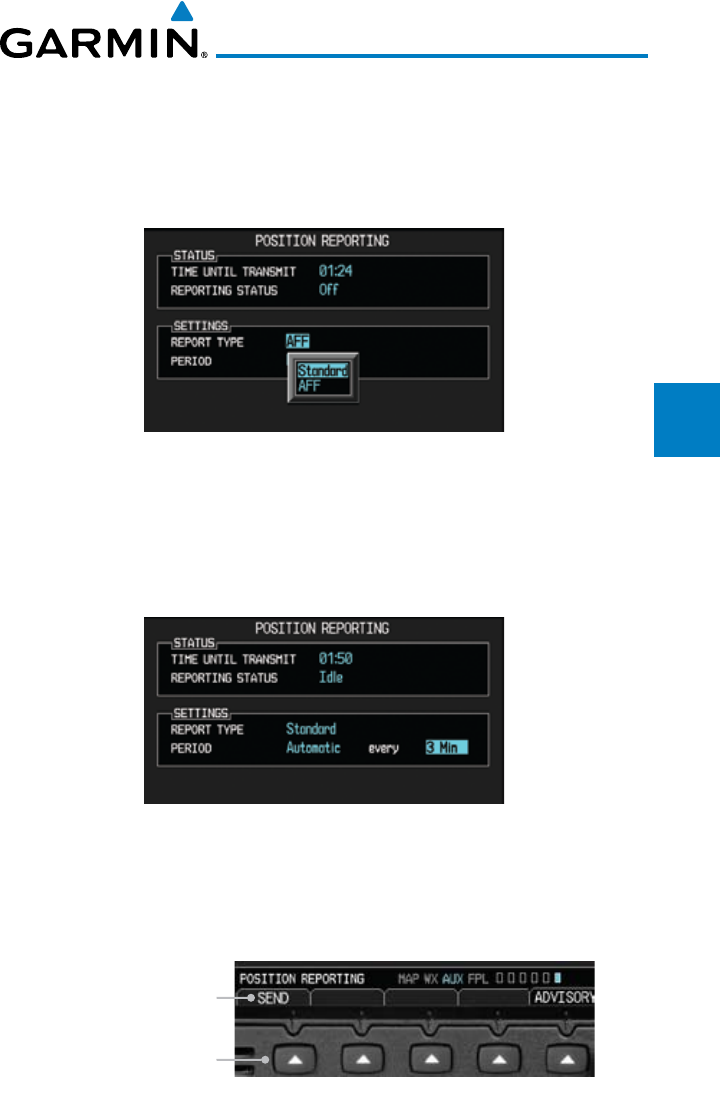
3-67190-00601-02 Rev. E
Garmin G600 Pilot’s Guide
Foreword
Sec 1
System
Sec 2
PFD
Sec 3
MFD
Sec 4
Hazard
Avoidance
Sec 5
Additional
Features
Sec 6
Annun.
& Alerts
Sec 7
Symbols
Sec 8
Glossary Appendix A
Appendix B
Index
1) Turn the large MFD knob to reach the Aux page group. Turn the small MFD
knob to reach the Position Reporting page.
2) Press the small MFD knob to select the Report Type.
3) Turn the small MFD knob to highlight Standard and then press the ENT key.
Figure 3-90 Select Standard Reporting
4) The Position Reporting Period type will now be selected. Turn the small MFD
knob to highlight "Off" or "Automatic" and then press the ENT key. The
Position Reporting Period interval will now be selected.
5) Turn the small MFD knob to select the reporting frequency.
Figure 3-91 Select Standard Reporting Period Frequency
6) Press the small MFD knob to exit editing.
7) With the Standard Reporting Type, the reporting period may be manually
overridden by pressing the SEND soft key to send data.
SEND Soft Key Label
SEND Soft Key
Figure 3-92 Press SEND to Override the Reporting Period
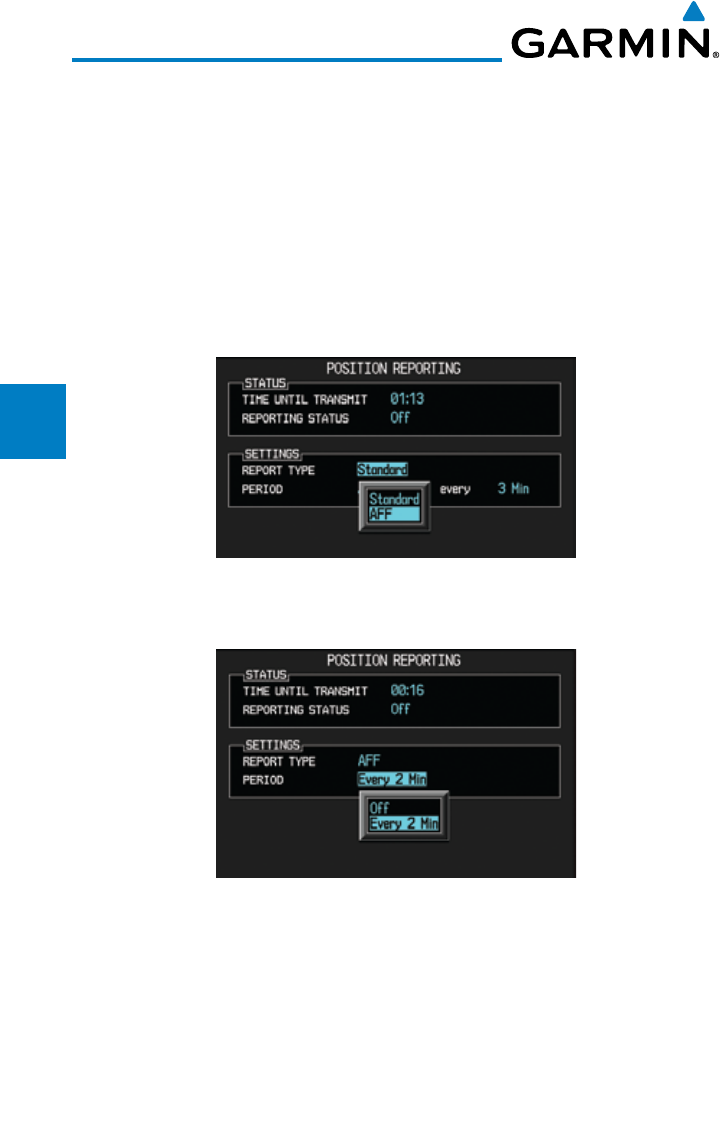
3-68
Garmin G600 Pilot’s Guide
190-00601-02 Rev. E
Foreword
Sec 1
System
Sec 2
PFD
Sec 3
MFD
Sec 4
Hazard
Avoidance
Sec 5
Additional
Features
Sec 6
Annun.
& Alerts
Sec 7
Symbols
Sec 8
GlossaryAppendix A
Appendix B
Index
Automatic Flight Following (AFF)
The G600 system, when combined with a GSR 56 Iridium datalink, can send
position reports that contain data as required by the U.S. Government Automated
Flight Following system. The GSR 56 account will allow configuration to forward
data to the Automated Flight Following system.
1) While viewing the Position Reporting function, press the small MFD knob to
select the Report Type.
2) Turn the small MFD knob to highlight "AFF" and then press the ENT.
Figure 3-93 Select Automatic Flight Following (AFF) Reporting Type
3) Turn the small MFD knob to select "OFF" or the default "Every 2 Min" value.
Figure 3-94 Select AFF Reporting Period Frequency
3-69190-00601-02 Rev. E
Garmin G600 Pilot’s Guide
Foreword
Sec 1
System
Sec 2
PFD
Sec 3
MFD
Sec 4
Hazard
Avoidance
Sec 5
Additional
Features
Sec 6
Annun.
& Alerts
Sec 7
Symbols
Sec 8
Glossary Appendix A
Appendix B
Index
3.4.7 Iridium Phone Operation (Optional)
Optional satellite telephone operation is available through the Iridium®
satellite system that is interfaced through the Garmin GSR 56.
CAUTION: When interfaced with a GSR 56 Iridium transceiver only one
SD card may be present in the GDU620 and it must be in the lower slot.
3.4.7.1 Status
The Status section shows the Call Time, Phone Status, and Call Suppression
selected. The Call Time value shows the length of the call time for the current
call using the Iridium phone. Phone Status shows the current operating status
of the Iridium phone.
Status Description
Idle The Iridium phone is not using the GSR 56 for communicating
at this time.
Initializing The GSR 56 and its driver are currently initializing.
Connected The GSR 56 is connected to the called number.
Connecting Call The GSR 56 is in the process of connecting to the called
number.
Changing Volume The volume level on the GSR 56 is changing.
Busy The phone is in use by another service and the call may not be
made.
Dialing The GSR 56 is dialing the called number.
Incoming Call A call is being made to the GSR 56.
Hanging Up The GSR 56 is disconnecting from the current call.
Unavailable The GSR 56 is currently not usable by the Iridium phone system.
Table 3-6 Iridium Phone Status
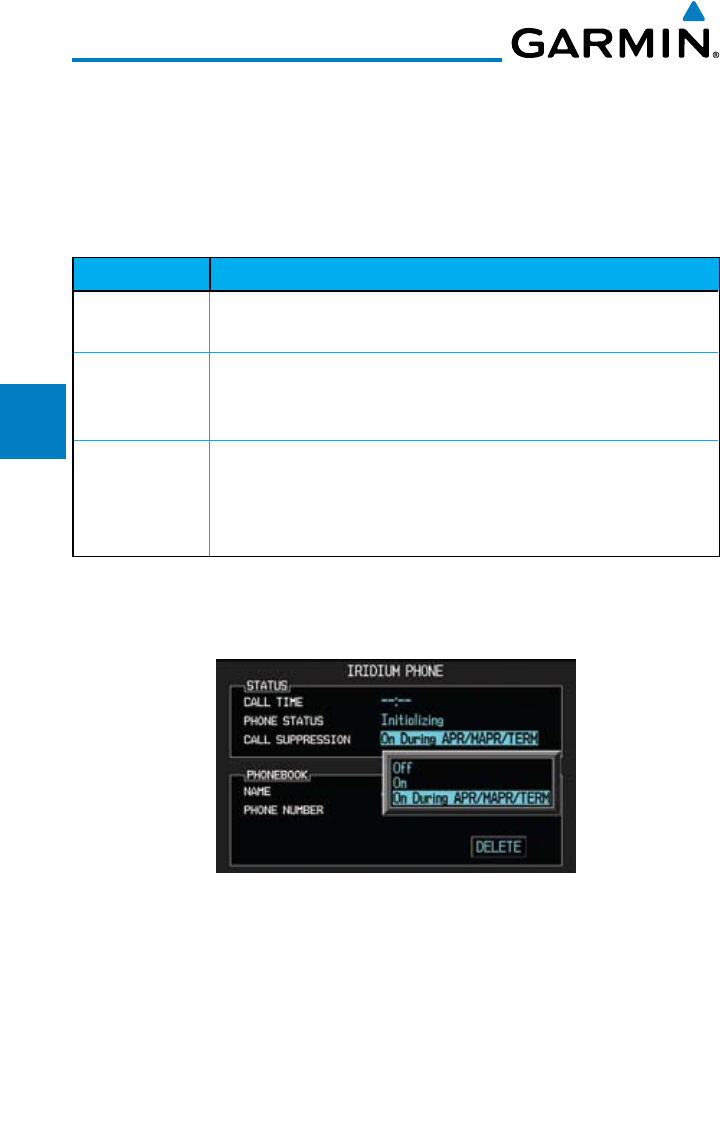
3-70
Garmin G600 Pilot’s Guide
190-00601-02 Rev. E
Foreword
Sec 1
System
Sec 2
PFD
Sec 3
MFD
Sec 4
Hazard
Avoidance
Sec 5
Additional
Features
Sec 6
Annun.
& Alerts
Sec 7
Symbols
Sec 8
GlossaryAppendix A
Appendix B
Index
Call Suppression controls calling when use of the Iridium phone system is
allowed.
1) Turn the large MFD knob to reach the Aux page group. Turn the small MFD
knob to reach the Iridium Phone page.
2) Press the small MFD knob to select the Call Suppression type.
Status Description
Off Call Suppression is turned off. Calls may be transmitted and
received through the Iridium phone.
On Call Suppression is turned on. The incoming call pop-up will not
be shown. The call may still be answered on the phone page.
Outgoing calls are not affected.
On During APR/
MAPR/TERM
Call Suppression is turned on during Approach, Missed Approach,
and Terminal operations. The incoming call pop-up will not
be shown. The call may still be answered on the phone page.
Outgoing calls are not affected.
Table 3-7 Call Suppression
3) Turn the small MFD knob to highlight the desired selection.
Figure 3-95 Select Call Suppression
4) Press the ENT key. Press the small MFD knob again to cancel the selection
cursor.
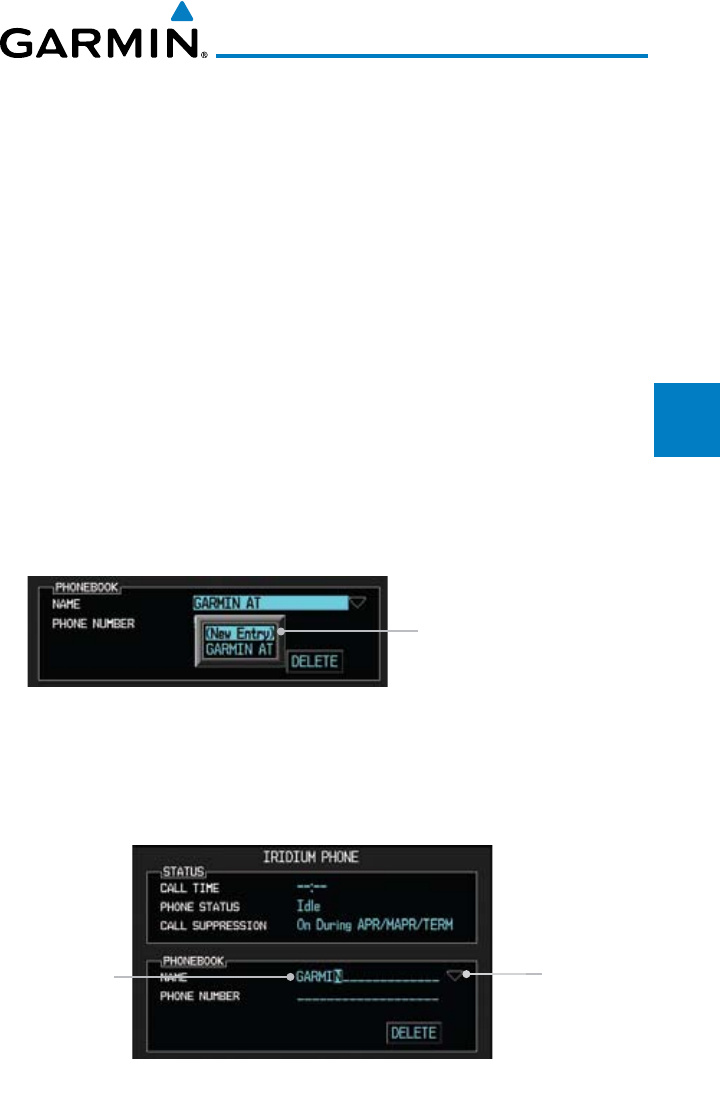
3-71190-00601-02 Rev. E
Garmin G600 Pilot’s Guide
Foreword
Sec 1
System
Sec 2
PFD
Sec 3
MFD
Sec 4
Hazard
Avoidance
Sec 5
Additional
Features
Sec 6
Annun.
& Alerts
Sec 7
Symbols
Sec 8
Glossary Appendix A
Appendix B
Index
3.4.7.2 Managing the Phone Book
The Phone Book is stored on the SD card in the bottom slot. The Phone Book
will only be available for use when the SD card is in the bottom slot. The Phone
Book may hold up to 128 entries. A phone number may be entered and dialed
without saving it to the Phone Book. Note that it is necessary to dial a “1,” the
area code, and then the number.
Creating Phone Number Names
1) Turn the large MFD knob to reach the Aux page group. Turn the small MFD
knob to reach the Iridium Phone page.
2) Press the small MFD knob to activate the cursor and then turn the large MFD
knob to highlight the Name item in the Phone Book. The Name field will blink.
3) If items already exist in the catalog, turn the large MFD knob to select the
Phone Book Catalog icon. Then, turn the small MFD knob to display the
contents of the Phone Book Catalog and highlight the New Entry selection and
press ENT.
"New Entry" Selected for
Phone Book Catalog Entry
Figure 3-96 "New Entry" Selected for Phone Book Catalog Entry
4) Turn the small MFD knob to select the first character of the name and then turn
the large MFD knob to select the next character. When the name is complete,
press the ENT key.
Entry Name Phone Book
Catalog
Figure 3-97 Phone Book Name Entry
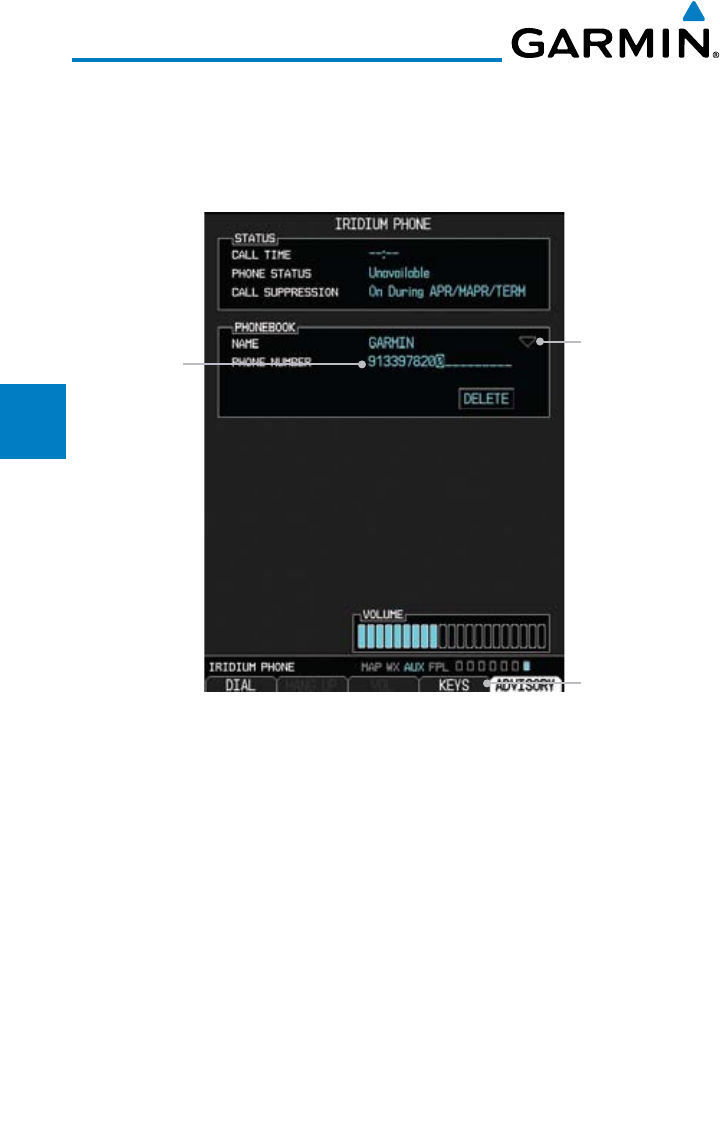
3-72
Garmin G600 Pilot’s Guide
190-00601-02 Rev. E
Foreword
Sec 1
System
Sec 2
PFD
Sec 3
MFD
Sec 4
Hazard
Avoidance
Sec 5
Additional
Features
Sec 6
Annun.
& Alerts
Sec 7
Symbols
Sec 8
GlossaryAppendix A
Appendix B
Index
Creating Phone Numbers with the Rotary Knobs
1) Turn the large MFD knob to the Phone Number field. Turn the small MFD knob
to select the first character of the number and then turn the large MFD knob
to select the next character. When the number is complete, press the ENT key.
Entry Number
Phone Book
Catalog
Press To Use Keys
For Number Entry
Figure 3-98 Phone Book Number Entry
2) Press the small MFD knob again to cancel the selection cursor.
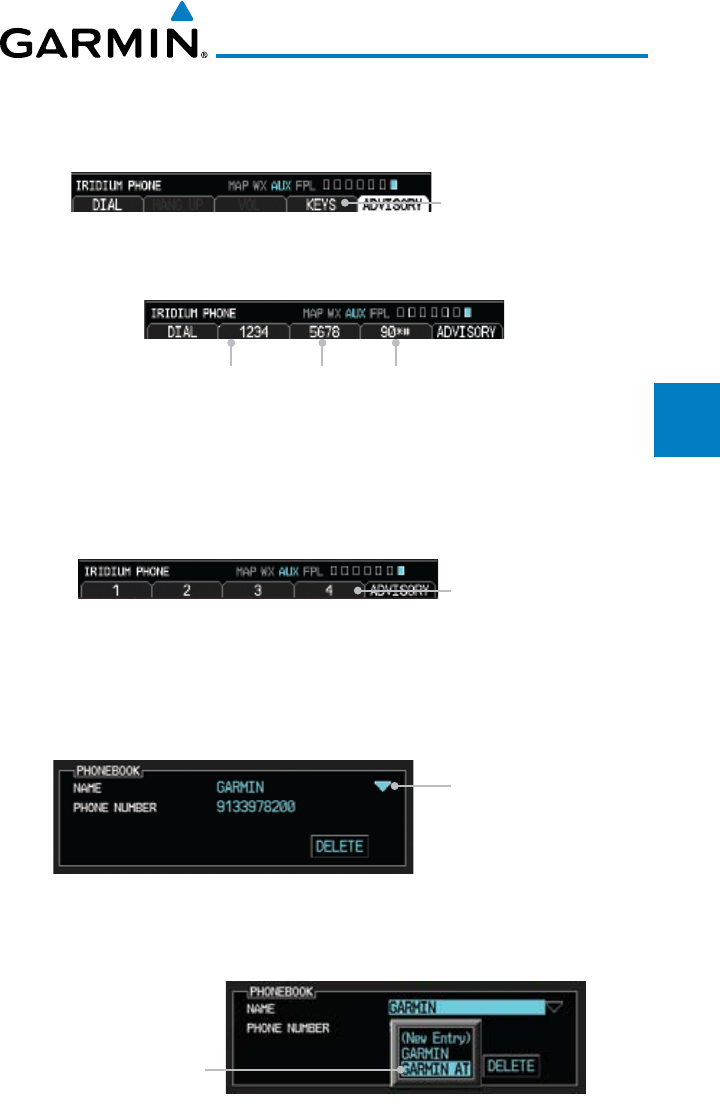
3-73190-00601-02 Rev. E
Garmin G600 Pilot’s Guide
Foreword
Sec 1
System
Sec 2
PFD
Sec 3
MFD
Sec 4
Hazard
Avoidance
Sec 5
Additional
Features
Sec 6
Annun.
& Alerts
Sec 7
Symbols
Sec 8
Glossary Appendix A
Appendix B
Index
Creating Phone Numbers with Soft Keys
1) Numbers may also be entered using the soft keys at the bottom of the display.
Press the Keys key at the bottom of the display.
Press To Use Keys
For Number Entry
Figure 3-99 Phone Book Number Entry Using Hot Keys
2) Press the key for the group of desired numbers.
Press for
numbers 1,
2, 3, and 4
Press for
numbers 5,
6, 7, and 8
Press for
numbers 9 and
0, and symbols
* and #
Figure 3-100 Selecting Numeric Groups for Phone Book Number Entry
3) Press the key for the desired number. Repeat as necessary and then press ENT
when the number is complete.
Press Keys For
Number Entry
Figure 3-101 Selecting Individual Numbers for Phone Book Number Entry
Selecting a Phone Book Catalog Entry
1) Press the small MFD knob to activate the cursor and then turn the large MFD
knob to select the Phone Book Catalog icon.
Phone Book icon.
When Highlighted,
turn small MFD
knob to view list.
Figure 3-102 Selecting the Phone Book Catalog
2) Turn the small MFD knob to display the contents of the Phone Book Catalog
and highlight the desired entry.
Selected Phone
Book Catalog Entry
Figure 3-103 Selected Phone Book Catalog Entry

3-74
Garmin G600 Pilot’s Guide
190-00601-02 Rev. E
Foreword
Sec 1
System
Sec 2
PFD
Sec 3
MFD
Sec 4
Hazard
Avoidance
Sec 5
Additional
Features
Sec 6
Annun.
& Alerts
Sec 7
Symbols
Sec 8
GlossaryAppendix A
Appendix B
Index
3) Press the ENT key. Press the small MFD knob again to cancel the selection
cursor.
Deleting a Phone Book Catalog Entry
1) Press the small MFD knob to activate the cursor and then turn the large MFD
knob to select the Phone Book Catalog icon.
2) Turn the small MFD knob to display the contents of the Phone Book Catalog
and highlight the desired entry. Press ENT to select the catalog entry.
3) Turn the large MFD knob to highlight the DELETE key. Press ENT to delete the
catalog entry. Press the small MFD knob again to cancel the selection cursor.
Editing a Phone Book Catalog Entry
1) Press the small MFD knob to activate the cursor and then turn the large MFD
knob to select the Phone Book Catalog icon.
2) Turn the small MFD knob to display the contents of the Phone Book Catalog
and highlight the desired entry. Press ENT to select the catalog entry.
3) Use the large MFD and small MFD knobs to make changes to the name or
number. Press ENT to save the changes. Press the small MFD knob again to
cancel the selection cursor.
3.4.7.3 Phone Volume
Use the Phone Volume controls to adjust the loudness of the phone calls
you hear. Volume controls will only be available when the Idle, Connected, or
Changing Volume states are displayed.
Adjusting the Phone Volume with the Rotary Knobs
1) While viewing the Iridium Phone page, press the small MFD knob and then
turn the large MFD knob to select the Volume control. The volume bar graph
will blink when selected.
2) Turn the small MFD knob to set the desired volume level.
3) Press the ENT key. Press the small MFD knob again to cancel the selection
cursor.
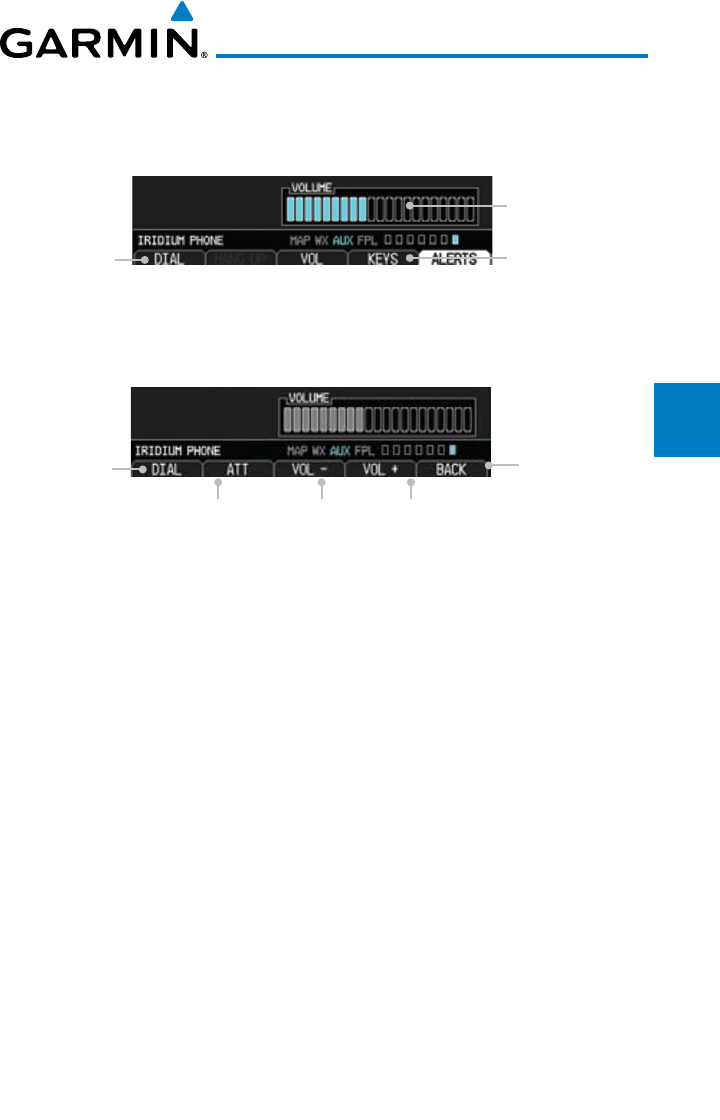
3-75190-00601-02 Rev. E
Garmin G600 Pilot’s Guide
Foreword
Sec 1
System
Sec 2
PFD
Sec 3
MFD
Sec 4
Hazard
Avoidance
Sec 5
Additional
Features
Sec 6
Annun.
& Alerts
Sec 7
Symbols
Sec 8
Glossary Appendix A
Appendix B
Index
Adjusting the Phone Volume with the Soft Keys
1) While viewing the Iridium Phone page, press the VOL key at the bottom of the
display.
Press to Select
Volume Keys
Press to Dial
Selected
Number
Phone Volume
Level Bar Graph
Figure 3-104 Select Soft Keys for Phone Volume Adjustment
2) Press the VOL + or VOL – keys as necessary to adjust the phone volume.
Press to
Attenuate
or Mute
Press to
Increase Phone
Volume
Press to
Decrease
Phone Volume
Press to Dial
Selected
Number
Press to Show
Previous List of
Soft Keys
Figure 3-105 Using Soft Keys for Phone Volume Adjustment
3) Pressing the ATT soft key will attenuate the volume. Press the ATT soft key
again to return to the previous volume.
3.4.7.4 Making a Phone Call
1) While viewing the Iridium Phone page, enter a phone number, or select one
from the Phone Book catalog.
2) Press the DIAL key.
3) After completing the call, press the HANG UP key.
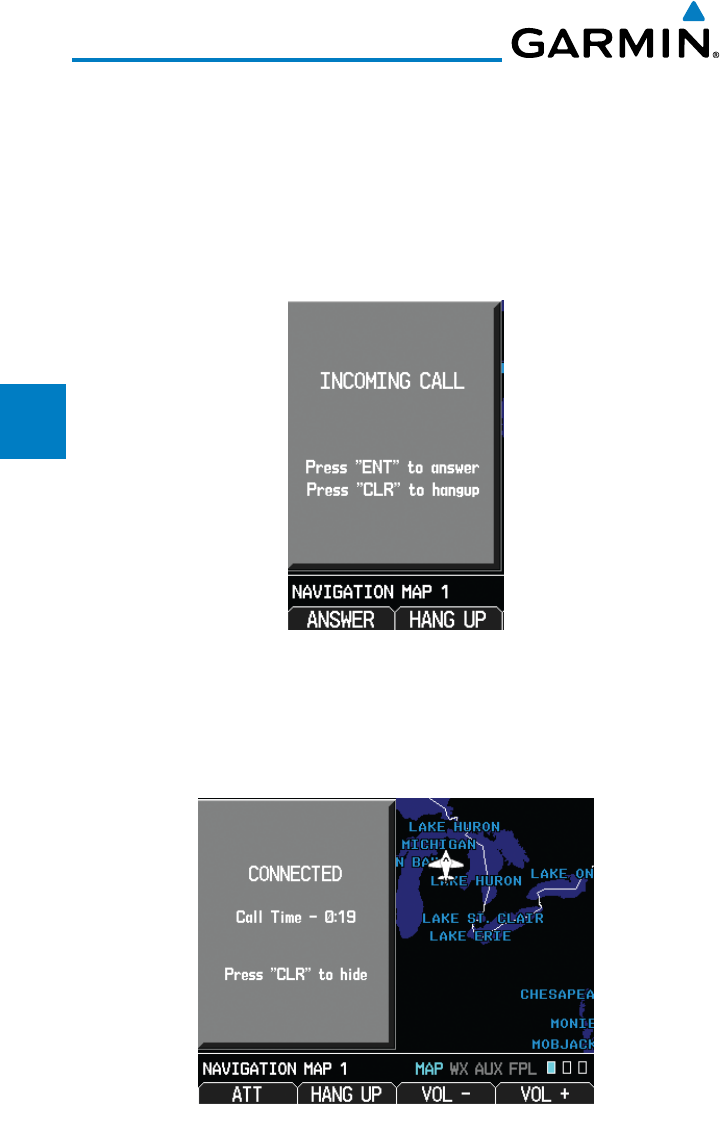
3-76
Garmin G600 Pilot’s Guide
190-00601-02 Rev. E
Foreword
Sec 1
System
Sec 2
PFD
Sec 3
MFD
Sec 4
Hazard
Avoidance
Sec 5
Additional
Features
Sec 6
Annun.
& Alerts
Sec 7
Symbols
Sec 8
GlossaryAppendix A
Appendix B
Index
3.4.7.5 Answering a Phone Call
An incoming phone call will generate a pop-up announcing the call. When
a call is accepted, the pop-up will show that the call is connected and the
cumulative call time will be shown.
1. When an incoming call is available, press the ENT key or the ANSWER soft
key to answer the call. Or, press the CLR key or the HANG UP soft key to not
answer the call and hang up.
Figure 3-106 Incoming Call Pop-Up
2. After a called is accepted and connected, the connection time will be shown
on the pop-up. Press the ATT soft key to attenuate the call volume; pressing
it again will return to normal volume. Press the HANG UP soft key to end the
call. Press the VOL - or VOL + keys to adjust the call volume.
Figure 3-107 Connected Call Pop-Up
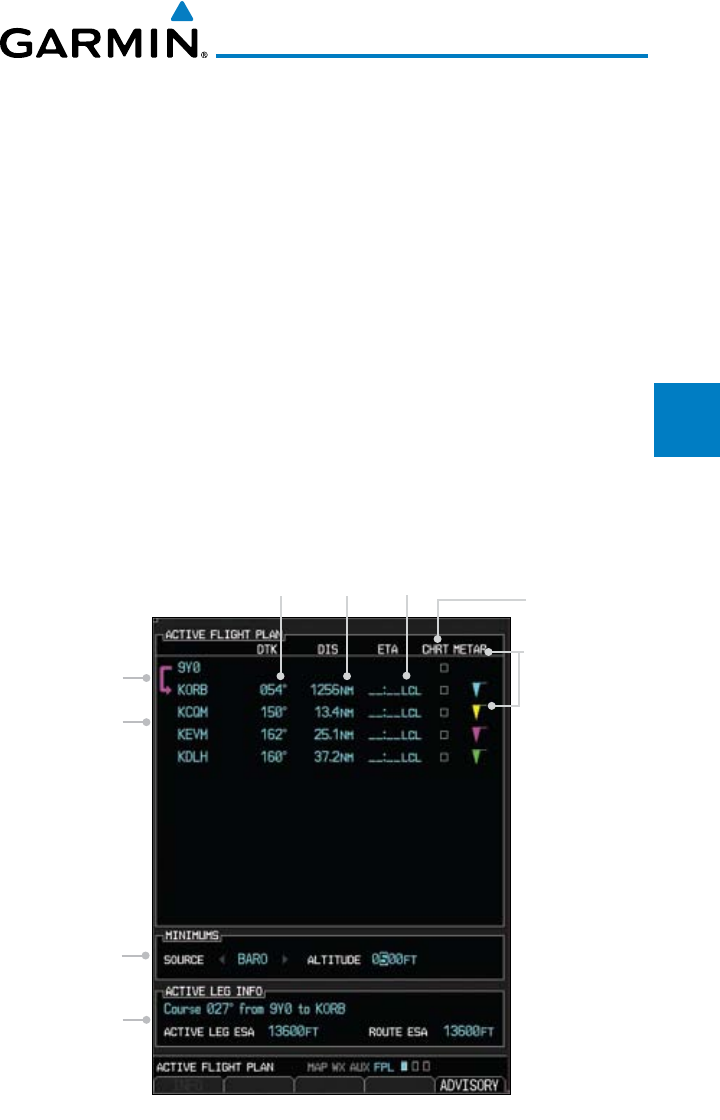
3-77190-00601-02 Rev. E
Garmin G600 Pilot’s Guide
Foreword
Sec 1
System
Sec 2
PFD
Sec 3
MFD
Sec 4
Hazard
Avoidance
Sec 5
Additional
Features
Sec 6
Annun.
& Alerts
Sec 7
Symbols
Sec 8
Glossary Appendix A
Appendix B
Index
3.5 Flight Plan Pages
Use the Flight Plan page group to view details about your flight plan route.
The Flight Plan Function shows the Current Flight Plan that is active in the
navigation source displayed on the CDI.
3.5.1 Active Flight Plan Page
The Active Flight Plan box shows all of the legs of your flight plan with
the current leg indicated in magenta. Listed are each leg with the Desired
Track (DTK), Distance (DIS), and Estimated Time of Arrival (ETA) for the legs.
METARs are shown for waypoints in the flight plan. In the Minimums window,
the source and selected value are shown. See section 2.4.4 on Minimum Descent
Altitude (MDA) or Decision Height (DH) in the PFD section and section 3.5.1.3
for more detail. In the Active Leg Info box in the lower part of the display, the
Course with beginning and ending waypoints, Active Leg En Route Safe Altitude
(ESA), and Route ESA are shown. METAR information is in the METAR section
of the Hazard Avoidance section.
Current Leg
Flight Plan Legs
Graphic METARs
Active Leg
Window
DTK, Distance, and ETA
from the Previous Leg
Baro
Minimums
Window
Digital Chart
Available
For Waypoint
Figure 3-108 Flight Page 1 (Active Flight Plan)
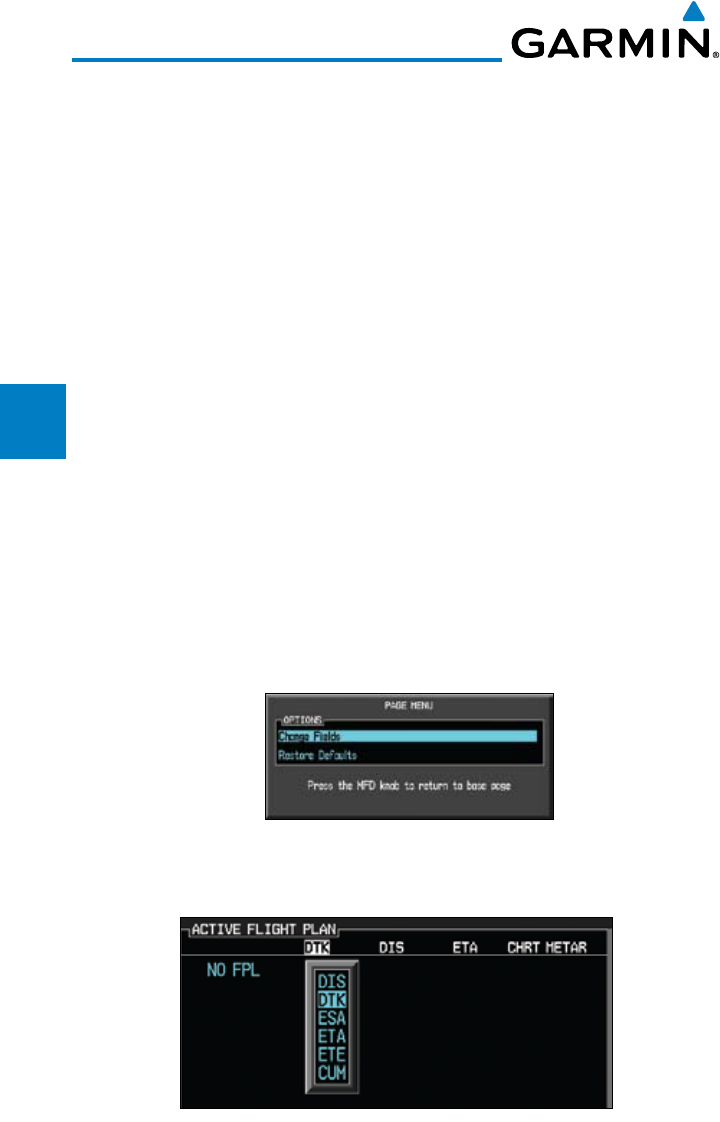
3-78
Garmin G600 Pilot’s Guide
190-00601-02 Rev. E
Foreword
Sec 1
System
Sec 2
PFD
Sec 3
MFD
Sec 4
Hazard
Avoidance
Sec 5
Additional
Features
Sec 6
Annun.
& Alerts
Sec 7
Symbols
Sec 8
GlossaryAppendix A
Appendix B
Index
3.5.1.1 Active Flight Plan Detail
The active flight plan is shown on the first page of the Flight Plan page group.
Further information may be available for each waypoint as shown by the INFO
or WX soft keys. The WX soft key will only appear if a data link receiver is
installed and there is a Weather subscription.
1) Press the MFD knob and then use the large and small MFD knobs to highlight
waypoints in the flight plan.
2) Press the INFO soft key, if available, to view information about the highlighted
waypoint.
3) Press the WX soft key, if available, to view XM weather information about the
highlighted waypoint.
4) Press the small MFD knob to return to the Active Flight Plan page.
3.5.1.2 Active Flight Plan Options
The Active Flight Plan page provides information for the flight plan currently
in use for navigation.
To change data fields on the Active Flight Plan Page:
1) While viewing the Active Flight Plan Page of the FPL page group, press MENU
to display the Active Flight Plan Page Options window.
2. Turn the large MFD knob to highlight “Change Fields?” and then press ENT.
Figure 3-109 Active Flight Plan Page Menu Option Selection
3) Turn the large MFD knob to highlight the field you wish to change.
Figure 3-110 Active Flight Plan Page Menu Change Fields Option Selection
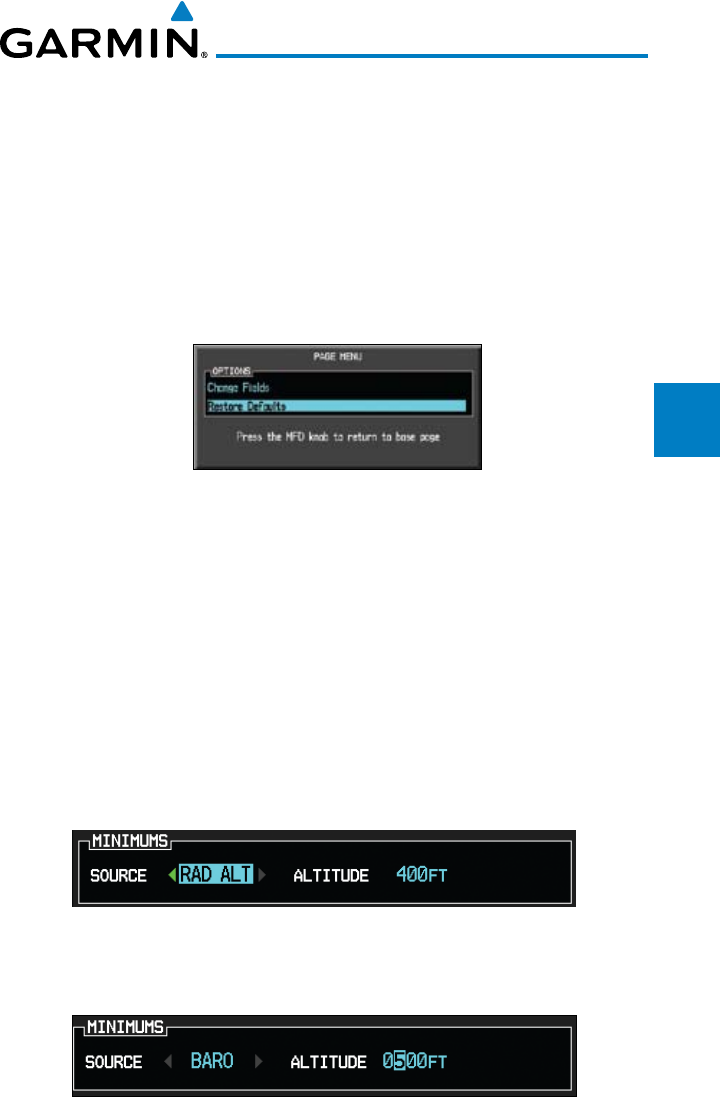
3-79190-00601-02 Rev. E
Garmin G600 Pilot’s Guide
Foreword
Sec 1
System
Sec 2
PFD
Sec 3
MFD
Sec 4
Hazard
Avoidance
Sec 5
Additional
Features
Sec 6
Annun.
& Alerts
Sec 7
Symbols
Sec 8
Glossary Appendix A
Appendix B
Index
4) Turn the small MFD knob to select the desired data item and press ENT.
5) Press the small MFD knob to remove the cursor.
To restore factory default settings for data fields on the Active Flight Plan
Page:
1) While viewing the Active Flight Plan Page of the FPL page group, press MENU
to display the Active Flight Plan Page Options window.
2) Turn the large MFD knob to highlight “Restore Defaults?” and then press
ENT.
Figure 3-111 Active Flight Plan Page Menu Option Selection to Restore Defaults
3.5.1.3 Setting the Altitude Minimums Alerter
The Altitude Alerting function provides the pilot with visual and aural
alerts (if interfaced to an audio panel) when approaching the Selected Altitude.
Whenever the Selected Altitude is changed, the Altitude Alerter is reset. The
Altitude Alerter is independent of any autopilot installed in the aircraft. See the
Altitude Alerting section of the PFD section for more details.
1) While viewing the Charts Page of the FPL page group, press the Menu key.
With the Set Minimums item highlighted, press ENT.
2) With the Minimums Source highlighted, select the Altitude Minimums Alerter
source with small MFD knob.
Figure 3-112 Minimums Source Selection
3) Turn the large MFD knob to highlight the Altitude Minimums value. Turn the
large and small MFD knobs to change the Altitude Minimums value.
Figure 3-113 Minimums Altitude Selection
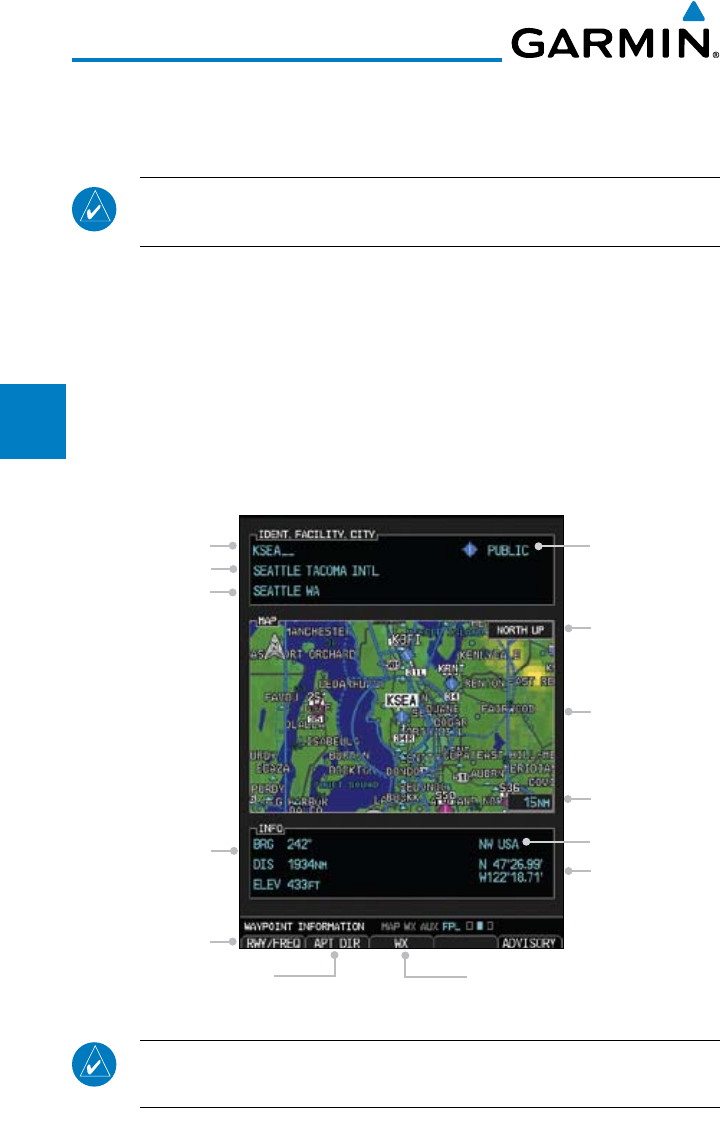
3-80
Garmin G600 Pilot’s Guide
190-00601-02 Rev. E
Foreword
Sec 1
System
Sec 2
PFD
Sec 3
MFD
Sec 4
Hazard
Avoidance
Sec 5
Additional
Features
Sec 6
Annun.
& Alerts
Sec 7
Symbols
Sec 8
GlossaryAppendix A
Appendix B
Index
4) Press ENT to activate the selected value.
In dual installations, the minimums alerting altitude value may be set from
either GDU 620 and will be synchronized on both units.
NOTE:
If you highlight the Minimums Altitude field on the FPL page and
press the CLR key, it will turn the minimums functionality off.
3.5.2 Waypoint Information Page
The Waypoint Information page provides details about a particular waypoint.
You can show a waypoint by selecting it by Ident, Facility Name, or by City. The
Map window shows the selected waypoint in the center of the map. The Range
keys zoom in and out on the map. The Info window at the bottom of the display
shows the Bearing and Distance from your present position to the selected
waypoint as well as its region and Lat/Lon coordinates. The map window is set
up with the same parameters as were selected for Navigation Map Page 1.
Facility Type
Map Window
Map Region
Lat/Lon
Map Scale
Map Orientation
Bearing & Distance
to Wpt from
Present Position
Rwy/Freq Soft Key
Airport Directory Soft Key
Facility Identifier
Facility Name
Facility Location
Wpt Weather Info Soft Key
Figure 3-114 Flight Plan Waypoint Information Page
NOTE: Waypoint information is shown on the second page of the Flight
Plan page group.
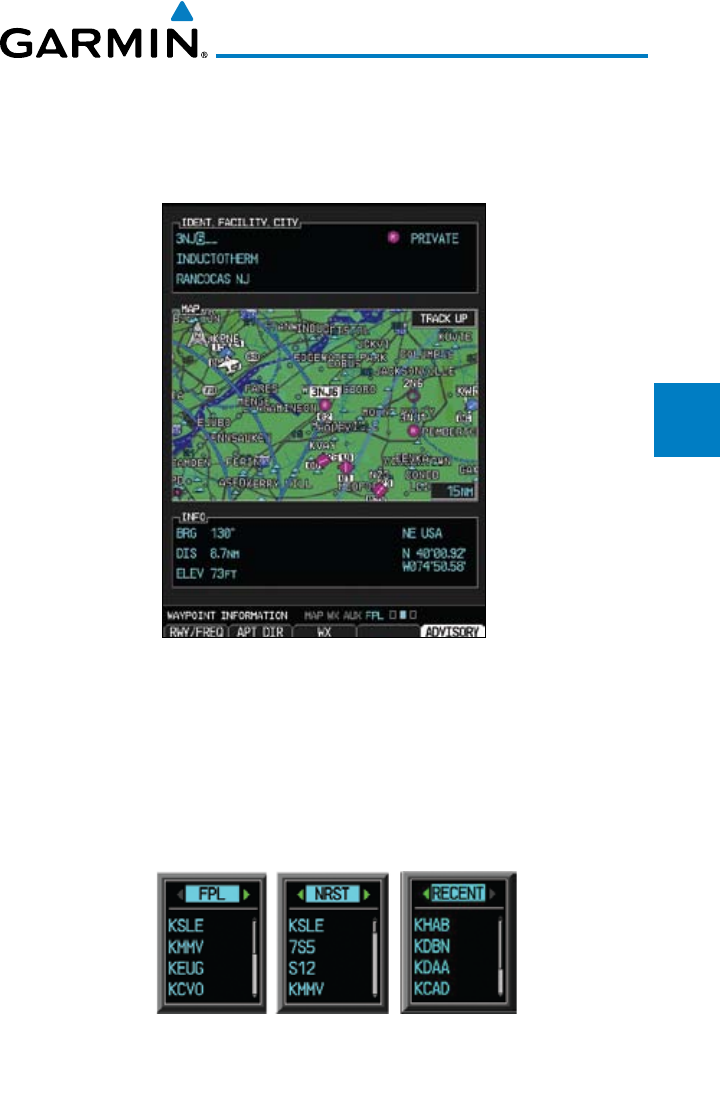
3-81190-00601-02 Rev. E
Garmin G600 Pilot’s Guide
Foreword
Sec 1
System
Sec 2
PFD
Sec 3
MFD
Sec 4
Hazard
Avoidance
Sec 5
Additional
Features
Sec 6
Annun.
& Alerts
Sec 7
Symbols
Sec 8
Glossary Appendix A
Appendix B
Index
3.5.2.1 Selecting a Waypoint
1) While viewing the Waypoint Information page of the FPL page group, press
the MFD knob and use the large and small MFD knobs to move the cursor to
select the identifier for the waypoint.
Figure 3-115 Waypoint Selection
2) Press the ENT
key to select the waypoint.
OR
1) While viewing the Waypoint Information page of the FPL page group, press the
small MFD knob.
2) Turn the small MFD knob counterclockwise.
Figure 3-116 Waypoint Category Selection
3) Turn the small MFD knob to show FPL, NRST, or RECENT.
4) Turn the large MFD knob to highlight the desired airport, and then press ENT.
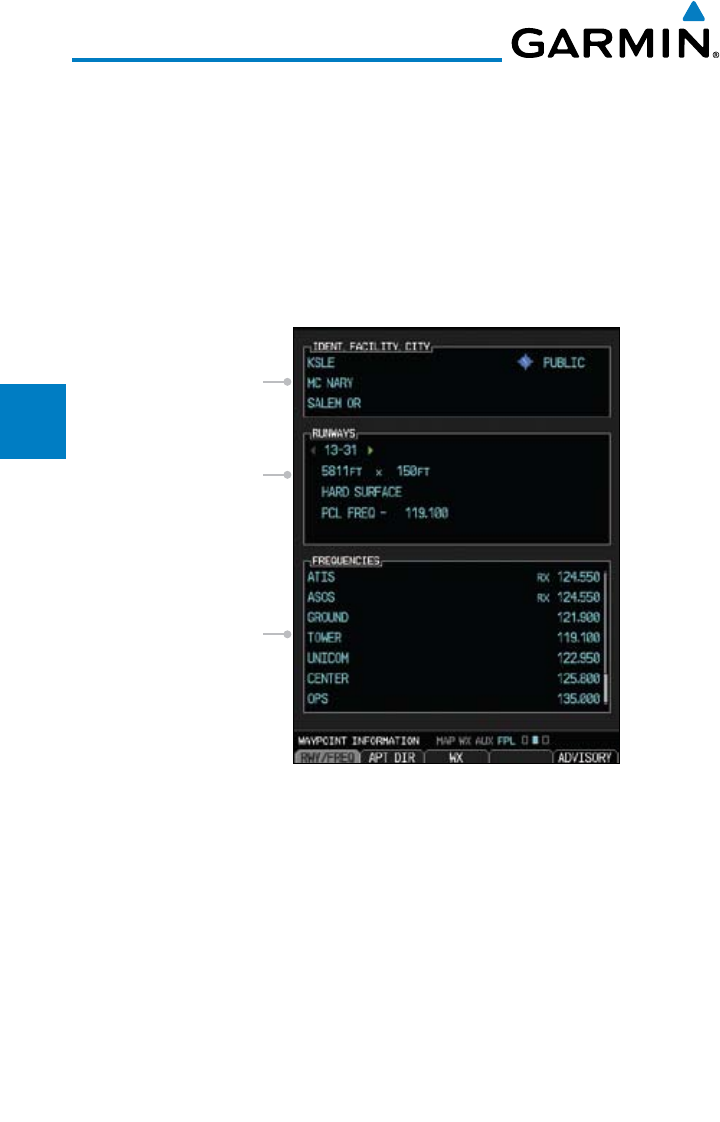
3-82
Garmin G600 Pilot’s Guide
190-00601-02 Rev. E
Foreword
Sec 1
System
Sec 2
PFD
Sec 3
MFD
Sec 4
Hazard
Avoidance
Sec 5
Additional
Features
Sec 6
Annun.
& Alerts
Sec 7
Symbols
Sec 8
GlossaryAppendix A
Appendix B
Index
3.5.2.2 Waypoint Information Detail
More detailed information about a selected waypoint is available by pressing
the RWY/FREQ or APT DIR soft keys on the Waypoint Information page.
The current destination waypoint is the default item shown. You may select
a different Ident, Facility, or Location. In the Runway window, you may view
information about the runways available if a highlighted arrow is shown. In the
Frequency window, a scroll bar is shown on the right side of the window when
more frequencies are available.
Airport
Frequency
Window
Runway
Information
Window
Facility
Information
Window
Figure 3-117 Flight Plan Waypoint Info Detail
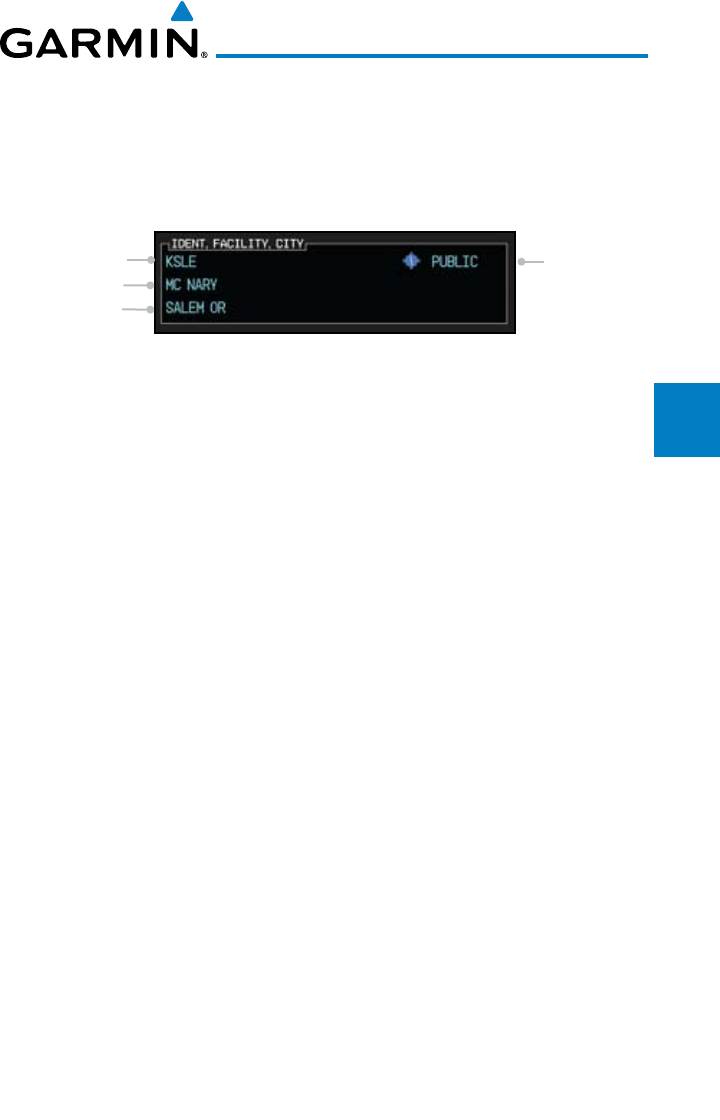
3-83190-00601-02 Rev. E
Garmin G600 Pilot’s Guide
Foreword
Sec 1
System
Sec 2
PFD
Sec 3
MFD
Sec 4
Hazard
Avoidance
Sec 5
Additional
Features
Sec 6
Annun.
& Alerts
Sec 7
Symbols
Sec 8
Glossary Appendix A
Appendix B
Index
Ident/Facility/City Selection
The current destination Identifier, Facility Type with icon, Facility Name, and
City (location) are shown in the top window of the Flight Plan mode Waypoint
Information page. The default is the Nearest airport if there is no active flight plan.
New Identifiers may also be selected as shown in section 3.5.3.3.
City
Facility Name
Identifier Access (Public/
Private and
Symbol)
Figure 3-118 Flight Plan Ident/Facility/City Detail
1) While viewing the Waypoint Information page of the FPL page group, press
the RWY/FREQ, APT DIR, or WX soft keys to view information about the
waypoint.
2) The current destination Ident, Facility, and City is shown, but may be changed
to find information about other choices. Press the small MFD knob to activate
the cursor. These fields may not be selected if the RWY, APT DIR, or WX pages
are selected. If viewing those pages, press the soft key for that page again to
return to the Waypoint Information page.
3) Use the large MFD knob to highlight the field you wish to change and use the
small MFD knob to change the value.
4) Press the ENT
key to save the selected value or press the small MFD knob to
cancel editing.
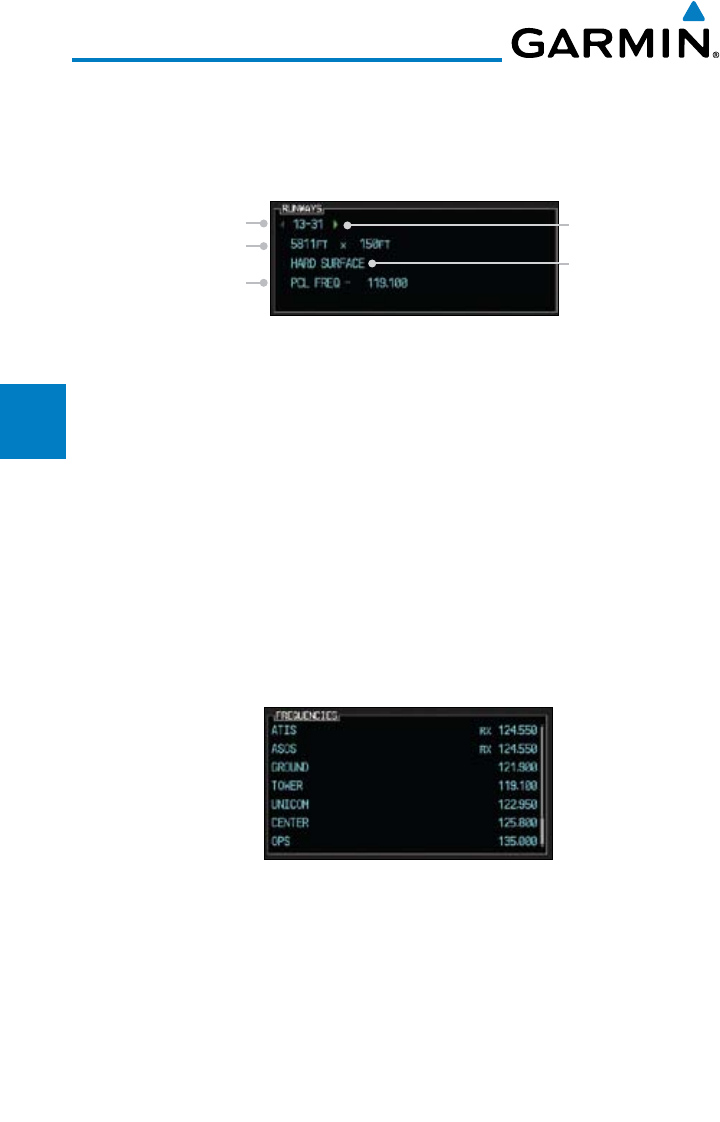
3-84
Garmin G600 Pilot’s Guide
190-00601-02 Rev. E
Foreword
Sec 1
System
Sec 2
PFD
Sec 3
MFD
Sec 4
Hazard
Avoidance
Sec 5
Additional
Features
Sec 6
Annun.
& Alerts
Sec 7
Symbols
Sec 8
GlossaryAppendix A
Appendix B
Index
Runway Information Selection
Information is provided for each runway showing the following detail: runway
number, runway length, surface type, and the frequency for Pilot-Controlled
Lighting (PCL).
Runway Number
Runway Surface
Arrow Indicates
More Runways
Runway Length
& Width
Pilot-Controlled
Lighting Frequency
Figure 3-119 Waypoint Runway Information
1) While viewing the Waypoint Information page of the FPL page group, press the
RWY/FREQ soft key to view information about the waypoint and press the
small MFD knob to activate the cursor.
2) Use the large MFD knob to highlight the Runway and use the small MFD knob
to display the available runways.
3) Press the small MFD knob to cancel editing.
Facility Frequency Selection
The Frequency window at the bottom of the Waypoint Information page
shows the frequencies available for the selected waypoint. A scroll bar is shown
on the right side of the Frequency window if more frequencies are available.
Figure 3-120 Waypoint Frequency Information
1) While viewing the Waypoint Information page of the FPL page group, press the
RWY/FREQ soft key to view information about the waypoint and then press
the small MFD knob to activate the cursor.
2) Turn the small MFD knob to scroll through the available frequencies.
3) Press the small MFD knob to exit.
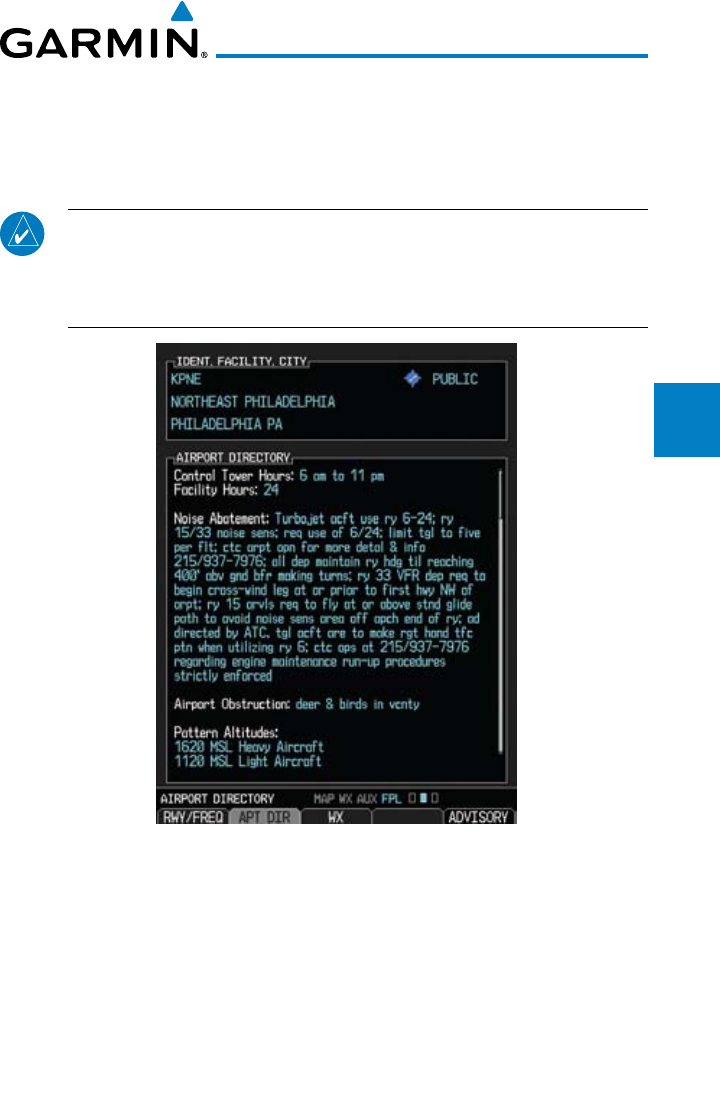
3-85190-00601-02 Rev. E
Garmin G600 Pilot’s Guide
Foreword
Sec 1
System
Sec 2
PFD
Sec 3
MFD
Sec 4
Hazard
Avoidance
Sec 5
Additional
Features
Sec 6
Annun.
& Alerts
Sec 7
Symbols
Sec 8
Glossary Appendix A
Appendix B
Index
3.5.2.3 Airport Directory
The Airport Directory lists extensive information about the selected airport
and the surrounding area. The RWY/FREQ and APT DIR soft keys are greyed
out and not functional unless the selected waypoint is an airport or heliport.
NOTE: Airport Directory information comes from a database provided
by various 3rd parties. Refer to the Database information in the AUX
– SYSTEM STATUS page for details on the installed Airport Directory
database.
Figure 3-121 Airport Directory Information
1) While viewing the Waypoint Information page of the FPL page group, press the
APT DIR soft key to view more information about the waypoint.
2) Press the small MFD knob to activate the cursor.
3) Use the small or large MFD knob to scroll through the information.
4) Press the small MFD knob to deactivate the cursor. Press the APT DIR soft key
again to return to the Waypoint Information page.
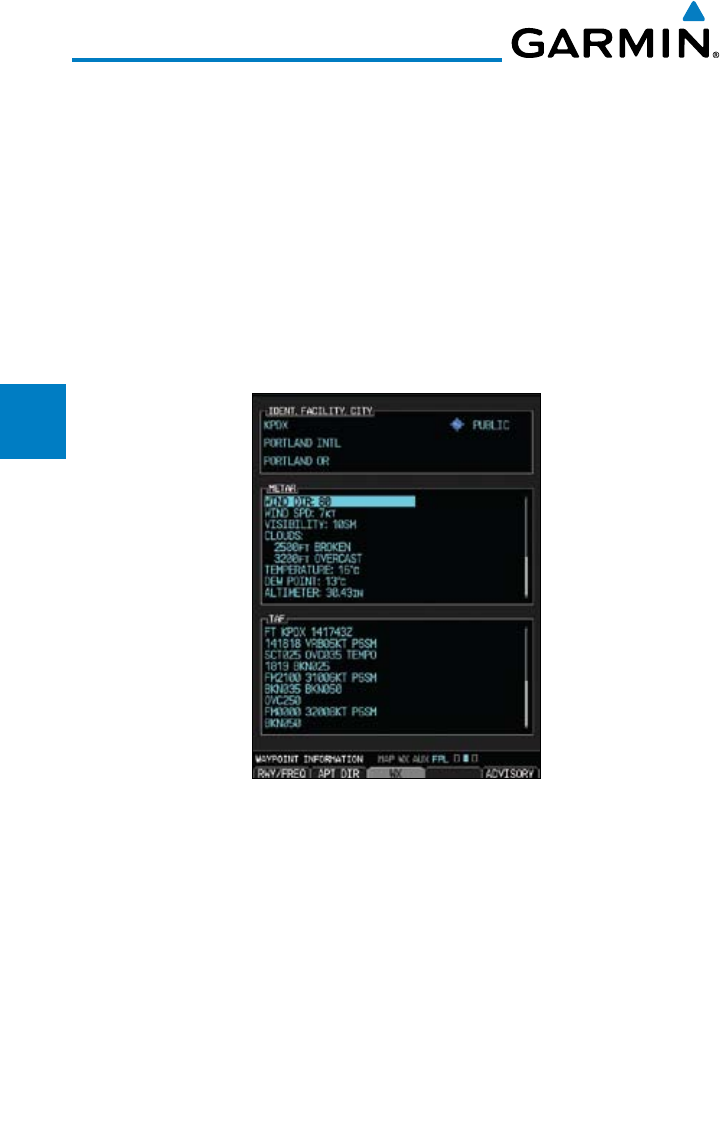
3-86
Garmin G600 Pilot’s Guide
190-00601-02 Rev. E
Foreword
Sec 1
System
Sec 2
PFD
Sec 3
MFD
Sec 4
Hazard
Avoidance
Sec 5
Additional
Features
Sec 6
Annun.
& Alerts
Sec 7
Symbols
Sec 8
GlossaryAppendix A
Appendix B
Index
3.5.2.4 Waypoint Weather Information (Optional)
The Weather information function is available if a data link receiver is installed,
a weather subscription is current, and weather information is available for the
selected waypoint. METAR and TAF text are displayed on the Waypoint Weather
Information Page. Pressing the WX soft key will show the weather information
page. METAR data is displayed first, then TAF information is displayed.
TAF (Terminal Aerodrome Forecast) is the standard format for 24-hour weather
forecasts. A TAF typically forecasts significant weather changes, temporary
changes, probable changes, and expected changes in weather conditions.
Figure 3-122 Waypoint Weather Information (Textual METARs and TAFs)
1) While viewing the Waypoint Information page of the FPL page group, press the
WX soft key to view weather information for the waypoint.
2) Use the small MFD knob or the large MFD knob to scroll through the available
information.
3) Press the small MFD knob to return to the main Flight Plan page.
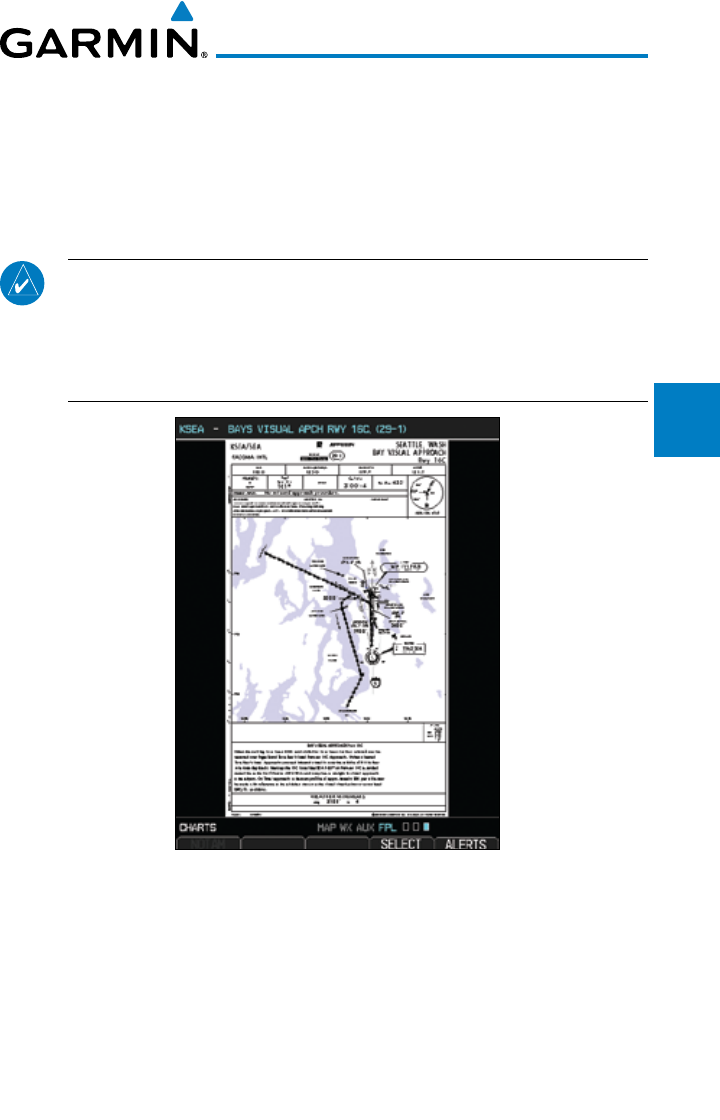
3-87190-00601-02 Rev. E
Garmin G600 Pilot’s Guide
Foreword
Sec 1
System
Sec 2
PFD
Sec 3
MFD
Sec 4
Hazard
Avoidance
Sec 5
Additional
Features
Sec 6
Annun.
& Alerts
Sec 7
Symbols
Sec 8
Glossary Appendix A
Appendix B
Index
3.5.3 Charts Page (Optional)
Charts, when installed, are available in the Flight Plan page group. ChartView
is an optional feature that requires enablement by a Garmin dealer.
1) Turn the large MFD knob to the Flight Plan page group.
2) Turn the small MFD knob to the Charts page.
NOTE: There are two options for chart services: FliteCharts or ChartView.
FliteCharts displays charts that are FAA-published. ChartView displays
charts published by Jeppesen. ChartView charts are geo-referenced, which
allows a pink ownship icon to be overlayed on the chart indicating the
aircraft location.
Figure 3-123 Flight Page 3 (Charts)
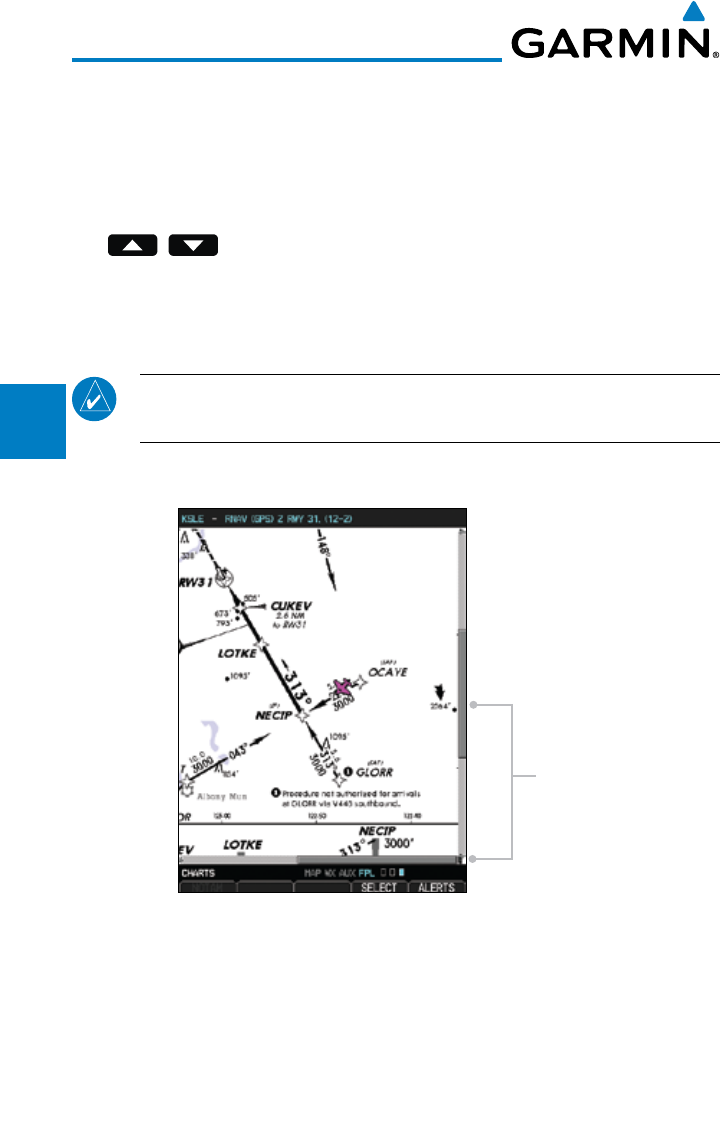
3-88
Garmin G600 Pilot’s Guide
190-00601-02 Rev. E
Foreword
Sec 1
System
Sec 2
PFD
Sec 3
MFD
Sec 4
Hazard
Avoidance
Sec 5
Additional
Features
Sec 6
Annun.
& Alerts
Sec 7
Symbols
Sec 8
GlossaryAppendix A
Appendix B
Index
3.5.3.1 Viewing Charts
The chart for the selected destination airport or approach is automatically
loaded.
With ChartView only and when available for the selected chart, more detail
is available.
1) While viewing the Charts page of the FPL page group, press the RNG (Range)
keys to zoom in and out.
2) After zooming in, you may only see part of the chart. Press the Small MFD
knob to enter Pan mode and activate scroll bars on the edges of the chart. Turn
the large and small MFD knobs to move around the chart.
NOTE: When Panning mode is active, scroll bars will be shown on the
right side and bottom of the display.
3) Press the small MFD knob to cancel the scroll bars and exit panning.
Scroll Bars
Figure 3-124 Chart Scroll Bars (Charts)
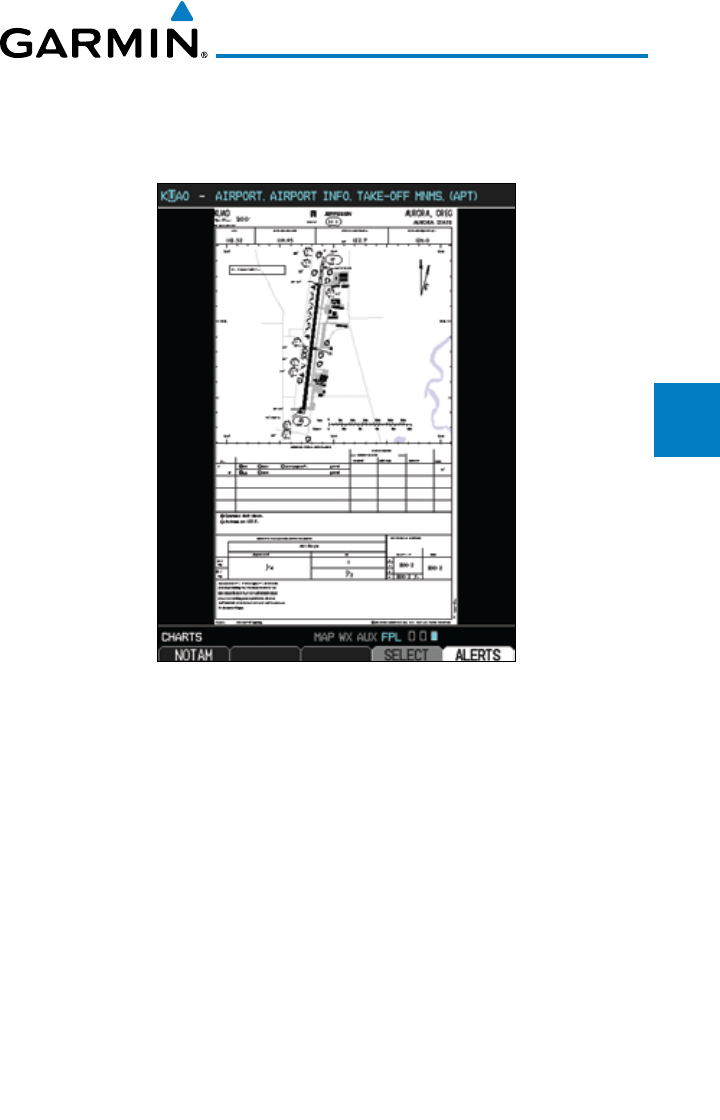
3-89190-00601-02 Rev. E
Garmin G600 Pilot’s Guide
Foreword
Sec 1
System
Sec 2
PFD
Sec 3
MFD
Sec 4
Hazard
Avoidance
Sec 5
Additional
Features
Sec 6
Annun.
& Alerts
Sec 7
Symbols
Sec 8
Glossary Appendix A
Appendix B
Index
3.5.3.2 Selecting a New Chart by Airport
A chart for a different airport may be chosen by selecting the identifier for
the desired airport.
Figure 3-125 Airport Identifier Selection
1) While viewing the Charts page of the FPL page group, press the SELECT soft
key to change the airport.
2) Use the large MFD knob to move the cursor to highlight a character.
3) Use the small MFD knob to change the character.
4) Press ENT
to accept the selected airport.
5) Use the
large
and
small MFD
knobs to select the desired chart.
6) Press ENT
to display the desired chart.
7) With ChartView only and when available for the selected chart, more detail is
available. Press the Detail key to view detailed views of the current chart. Press
the Header, Plan, Profile, or Minimums keys to view detailed sections for
the chart for those topics.
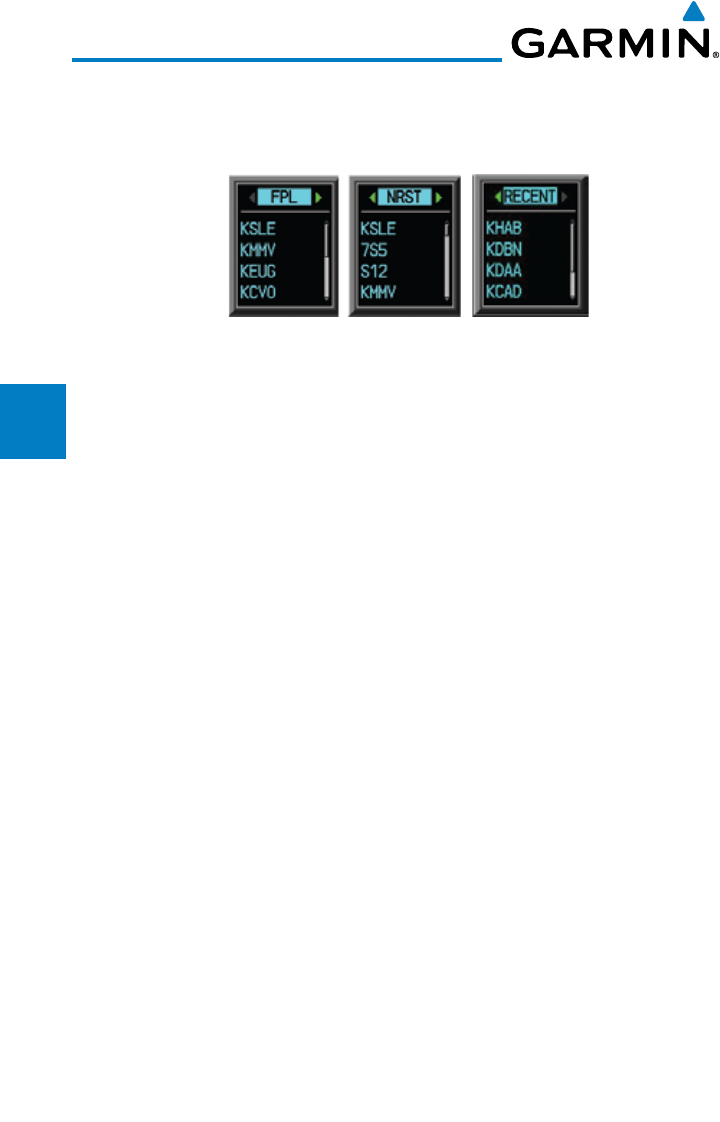
3-90
Garmin G600 Pilot’s Guide
190-00601-02 Rev. E
Foreword
Sec 1
System
Sec 2
PFD
Sec 3
MFD
Sec 4
Hazard
Avoidance
Sec 5
Additional
Features
Sec 6
Annun.
& Alerts
Sec 7
Symbols
Sec 8
GlossaryAppendix A
Appendix B
Index
3.5.3.3 Selecting a New Chart by FPL, NRST, or RECENT
You may select other charts to display based on your flight plan (FPL), charts of
the nearest airport (NRST), or your most recently selected airport (RECENT).
Figure 3-126 Chart Category Selection
1) While viewing the Charts page of the FPL page group, press the SELECT soft key.
2) Turn the small MFD knob counterclockwise.
3) Turn the small MFD knob to show FPL, NRST, or RECENT.
4) Turn the large MFD knob to highlight the desired airport, and then press ENT.
3.5.3.4 Change Day/Night View
The Chart pages can be displayed on a white or black background for day or
night viewing. The Day View offers a better presentation in a bright environment.
The Night View gives a better presentation for viewing in a dark environment.
The “auto” setting allows the user to set a percentage. This percentage is the
backlight value where the charts page will automatically switch between day and
night mode. If you set the unit to AUTO 10%, then if the backlight is below 10%
it will be in night mode, if above 10% it will be in day mode.
1) While viewing the Charts page of the FPL page group, turn the small MFD
knob to reach the Charts page.
2) Press MENU to display the Options menu.
3) Press ENT
to display the Chart Setup menu. The Color Scheme option will be
highlighted.
4) Turn the small MFD knob to select Day - Auto - Night.
5) Press the small MFD knob or the ENT
key to save the selected setting and
return to the Charts page.
6) If “Auto” is selected, turn the large MFD knob to highlight the Display Level
Brightness value. Turn the small MFD knob to change the value and then the
ENT
key to save the selected value.
4-1190-00601-02 Rev. E
Garmin G600 Pilot’s Guide
Foreword
Sec 1
System
Sec 2
PFD
Sec 3
MFD
Sec 4
Hazard
Avoidance
Sec 5
Additional
Features
Sec 6
Annun.
& Alerts
Sec 7
Symbols
Sec 8
Glossary Appendix A
Appendix B
Index
4 HAZARD AVOIDANCE
The G600 hazard avoidance features are designed to provide advisory
information of potential hazards to flight safety associated with weather, terrain,
and air traffic.
This section is divided into the following groups:
Terrain Avoidance
• TerrainProximity
• TAWS-B(Optional)
• Terrain-SVT™(Optional)
Traffic Avoidance
• TrafcAdvisory System (Optional)
• Trafc Information Service (TIS) (Optional - GTX 33/330 Transponder
required)
Weather
• GDL69/69A XM® Satellite Weather (Optional)
• GWX68 Weather Radar (Optional)
•
GFDS Weather with the Iridium® satellite system through GSR 56 (Optional)
4.1 Terrain Configurations
TAWS/Terrain Configurations - Garmin’s G600 Terrain Awareness and
Warning System (TAWS-B) is an optional feature and is intended to provide
the flight crew with both aural and visual alerts to aid in preventing inadvertent
Controlled Flight Into Terrain (CFIT).
During power-up of the GDU 620, the terrain/obstacle database versions are
displayed along with a disclaimer. At the same time, the Terrain system self-test
begins. A failure message is issued if the terrain test fails.
Garmin provides the following terrain awareness solutions within the
GDU 620 environment:
• TAWS-B - A system developed to meet the terrain alerting and ground
proximity requirements for Class B TAWS systems as defined in TSO-
C151b.
• Terrain-SVT - Refers to a subset of Class B TAWS that will meet the terrain
alerting requirements outlined in Section 7.b of AC 23-26. Terrain-SVT is
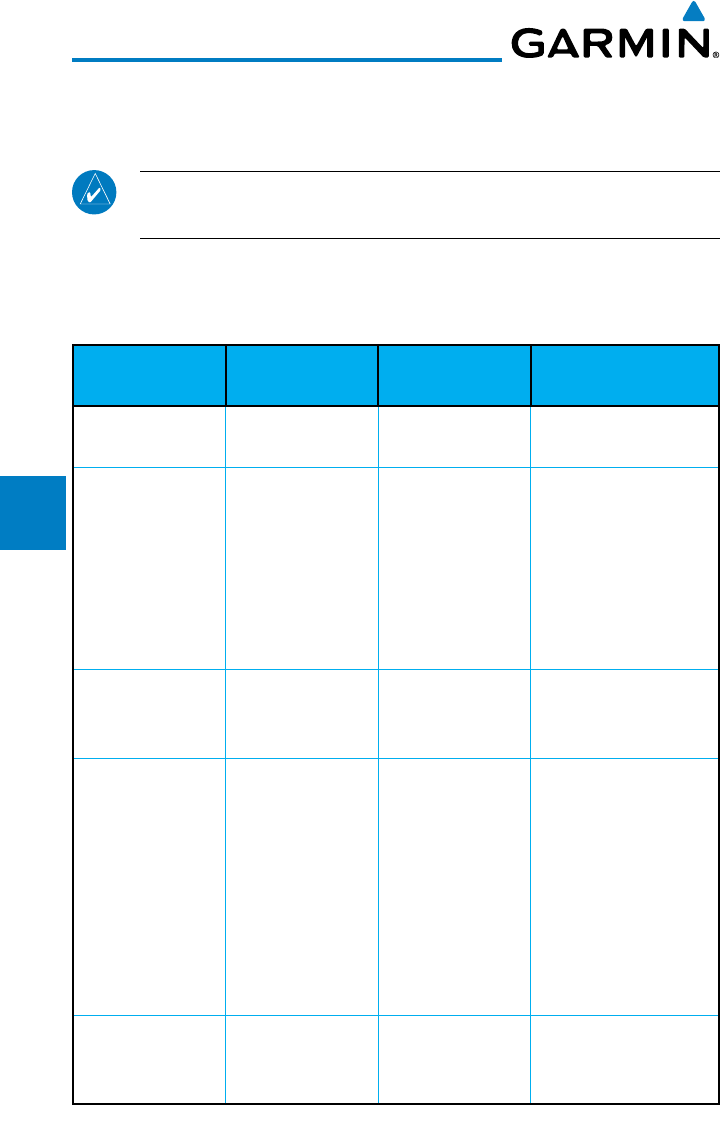
4-2
Garmin G600 Pilot’s Guide
190-00601-02 Rev. E
Foreword
Sec 1
System
Sec 2
PFD
Sec 3
MFD
Sec 4
Hazard
Avoidance
Sec 5
Additional
Features
Sec 6
Annun.
& Alerts
Sec 7
Symbols
Sec 8
GlossaryAppendix A
Appendix B
Index
a subset of Class B TAWS that provides a Class B TAWS FLTA functionality,
including visual alerting and aural alerting. Terrain-SVT is provided with
the Synthetic Vision functionality and not marketed separately.
NOTE: Terrain-SVT is not a fully functional TAWS and does not meet the
TAWS TSO-C151b.
• Terrain-Proximity- Refers tothe display of therelative terrainelevations
on the moving map. No aural alerts of any type are provided by a Terrain-
Proximity configuration.
Terrain
Configurations
PFD/MFD Visual
Annunciations
MFD Pop-up
Alert
Aural Alerting
G600 Terrain
Proximity
None None None
G600 Terrain
Proximity w/
External TAWS
Unit Installed
(500W-series)
PFD
annunciations
are generated
from the External
TAWS Unit.
No MFD
Annunciations.
None None
G600 w/Terrain-
SVT
Annunciations
generated from
the G600.
Generated from
the G600.
Not suppressed.
G600 w/
Terrain-SVT and
External TAWS
Unit Installed
(500W-series)
PFD
annunciations
are generated
from the External
TAWS Unit.
MFD
Annunciations are
generated from
the G600.
Generated from
the G600.
G600 aural alerts are
suppressed.
G600 w/ TAWS-B Annunciations
generated from
the G600.
Generated from
the G600.
Not suppressed.
Table 4-1 G600 Terrain Annunciations
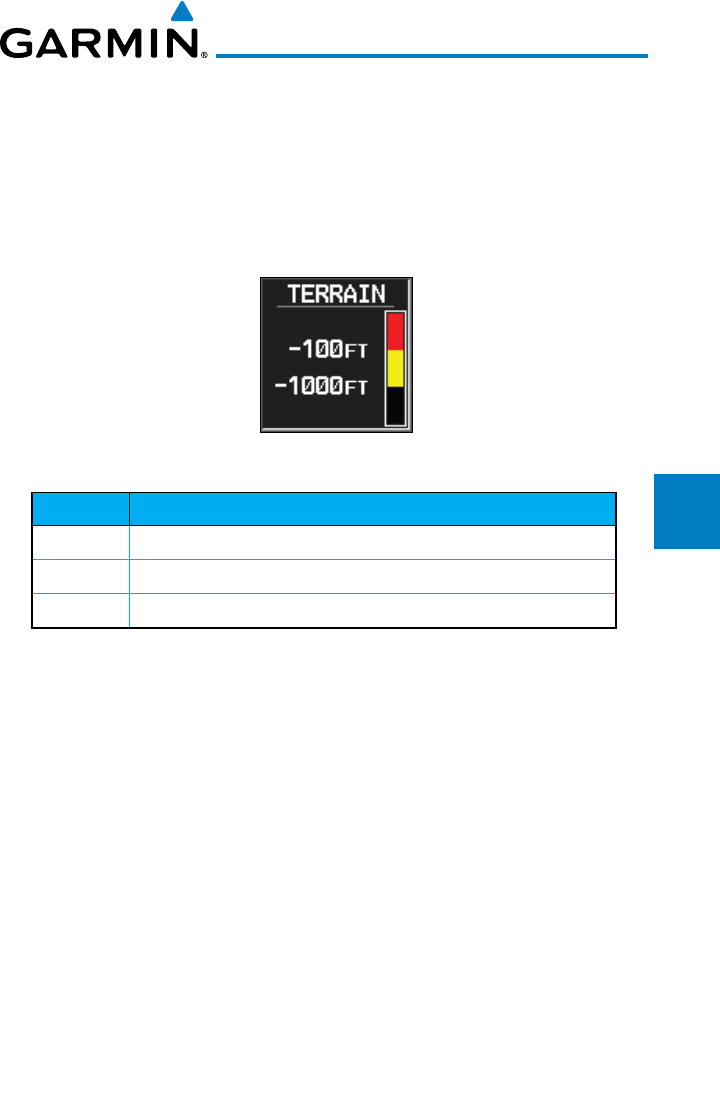
4-3190-00601-02 Rev. E
Garmin G600 Pilot’s Guide
Foreword
Sec 1
System
Sec 2
PFD
Sec 3
MFD
Sec 4
Hazard
Avoidance
Sec 5
Additional
Features
Sec 6
Annun.
& Alerts
Sec 7
Symbols
Sec 8
Glossary Appendix A
Appendix B
Index
Each of the terrain awareness configurations are detailed in the following
sub-sections.
4.2 Terrain Scale
The Terrain Scale option in the Map page group selects whether the Terrain
Scale is shown on the Navigation Map. The Terrain scale will be located on the
right side of the display.
Figure 4-1 Terrain Scale
Color Description
Red Terrain is more than 100 ft above the aircraft.
Yellow Terrain is between 1000 ft below and 100 ft above the aircraft.
Black Terrain is more than 1000 ft below the aircraft.
Table 4-2 Terrain Scale Color Codes
4-4
Garmin G600 Pilot’s Guide
190-00601-02 Rev. E
Foreword
Sec 1
System
Sec 2
PFD
Sec 3
MFD
Sec 4
Hazard
Avoidance
Sec 5
Additional
Features
Sec 6
Annun.
& Alerts
Sec 7
Symbols
Sec 8
GlossaryAppendix A
Appendix B
Index
4.3 Terrain Proximity
Garmin Terrain is a non-TSO-C151b terrain awareness system provided as a
standard feature of GDU 620 to increase situational awareness and help reduce
controlled flight into terrain (CFIT). Terrain may be displayed on the Map page
group Navigation Map and Terrain pages.
Terrain Proximity uses information provided from the GPS receiver to
provide a horizontal position and altitude. GPS altitude is derived from satellite
measurements. GPS altitude is converted to a Mean Sea Level (MSL)-based
altitude (GPS-MSL altitude) and is used to determine Terrain alerts. GPS-MSL
altitude accuracy is affected by factors such as satellite geometry, but it is not
subject to variations in pressure and temperature that normally affect pressure
altitude devices. GPS-MSL altitude does not require local altimeter settings to
determine MSL altitude. Therefore, GPS altitude provides a highly accurate and
reliable MSL altitude source to calculate terrain and obstacle alerts.
Terrain Proximity utilizes terrain and obstacle databases that are referenced
to mean sea level (MSL). Using the GPS position and GPS-MSL altitude, Terrain
Proximity displays a 2-D picture of the surrounding terrain and obstacles relative
to the position and altitude of the aircraft. In this manner, Terrain Proximity
provides awareness of surrounding terrain conditions.
Terrain requires the following to operate properly:
• Thesystemmusthaveavalid3-DGPSpositionsolution.
• Thesystemmusthaveavalidterrain/obstacle/airportterraindatabase.
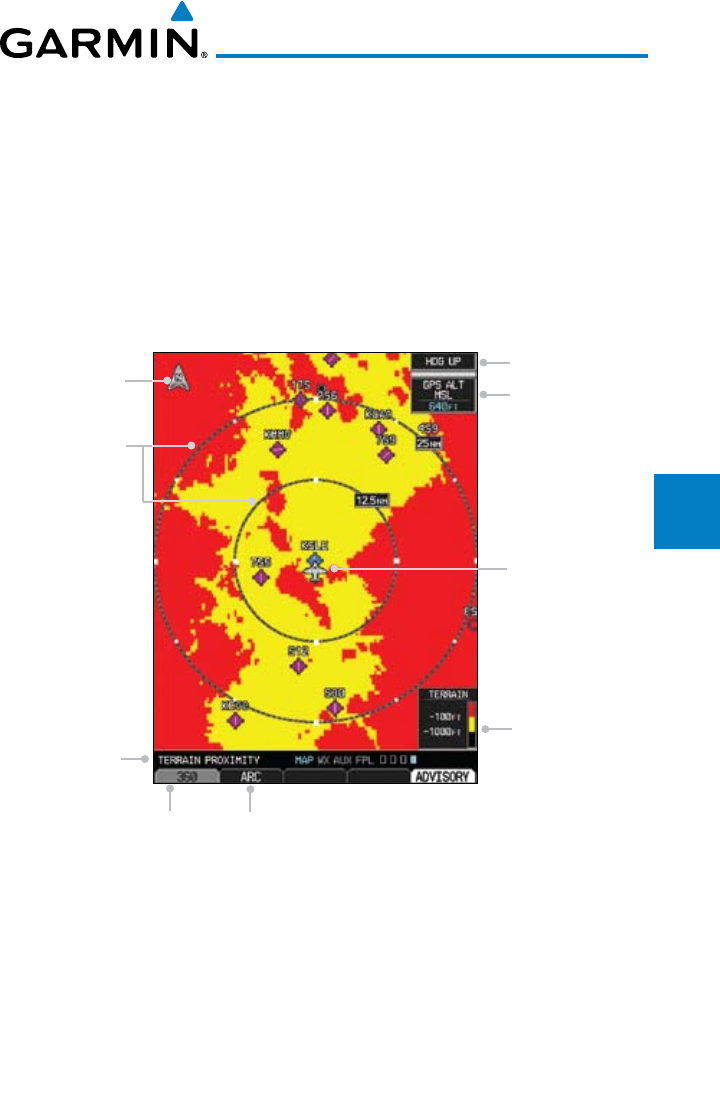
4-5190-00601-02 Rev. E
Garmin G600 Pilot’s Guide
Foreword
Sec 1
System
Sec 2
PFD
Sec 3
MFD
Sec 4
Hazard
Avoidance
Sec 5
Additional
Features
Sec 6
Annun.
& Alerts
Sec 7
Symbols
Sec 8
Glossary Appendix A
Appendix B
Index
4.3.1 Displaying Terrain Proximity
The Terrain Proximity page is in the Map page group. Terrain is also selectable
on the Navigation Map pages.
4.3.1.1 Terrain Proximity Page Display on the Terrain Page
1) Turn the large MFD knob to the MAP page group.
2) Turn the small MFD knob to the Terrain page.
3) Press the VIEW soft key to show the 360 and ARC soft keys.
Map Orientation
North Indication
Range Rings
Altitude
Information
Terrain
Altitude
Legend
Ownship Symbol
at Present Position
360°
Range Ring
Selection
120°
Arc
Selection
Page Name
Figure 4-2 Terrain Page with Aviation Data Displayed and 360° View
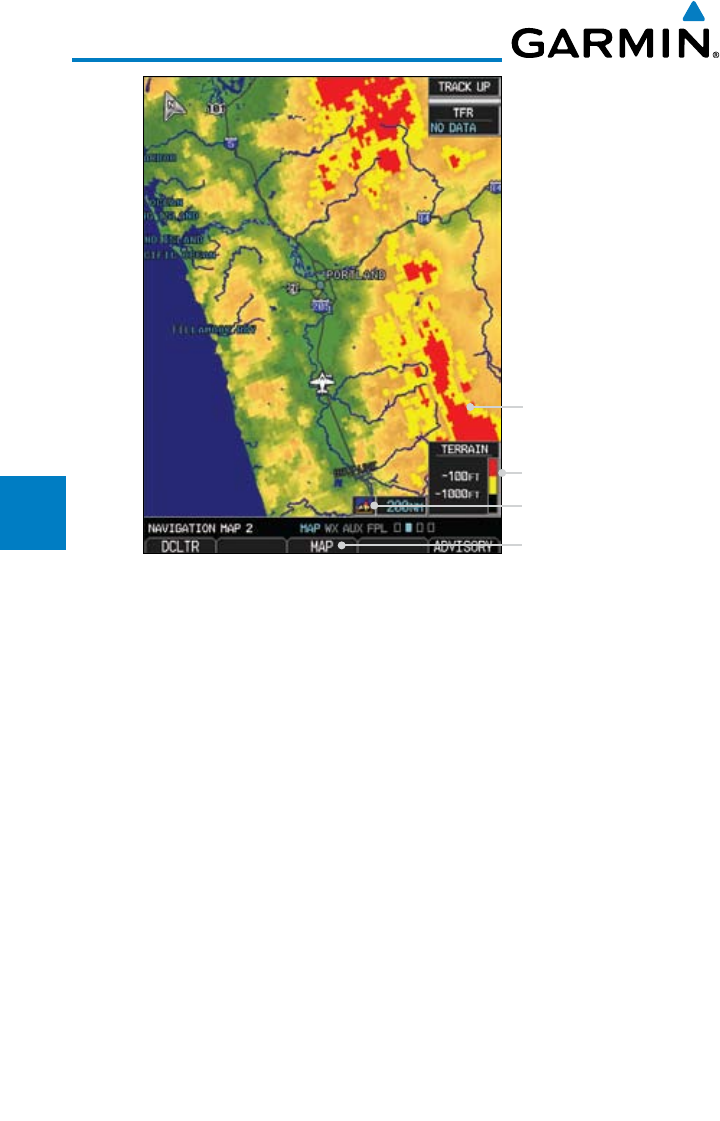
4-6
Garmin G600 Pilot’s Guide
190-00601-02 Rev. E
Foreword
Sec 1
System
Sec 2
PFD
Sec 3
MFD
Sec 4
Hazard
Avoidance
Sec 5
Additional
Features
Sec 6
Annun.
& Alerts
Sec 7
Symbols
Sec 8
GlossaryAppendix A
Appendix B
Index
Terrain Data Icon
Terrain Overlay
Terrain Scale
MAP Soft Key
Figure 4-3 Terrain on Navigation Map Page
4.3.1.2 Terrain Proximity Page Display on a Navigation Map Page
1) Turn the large MFD knob to the MAP page group.
2) On Navigation Map page 1 or 2, press the MAP soft key to show the TERRAIN
soft key.
3) Press the TERRAIN soft key to overlay terrain on the Navigation Map.
4.3.1.3 Terrain Proximity Page 120° Arc or 360° Rings
Select the 120º Arc or 360º rings overlay for the Terrain page with either the
360/Arc soft keys or from the Page Menu.
1) Press the VIEW soft key to show the 360 and ARC soft keys.
2) Press the 360 or Arc soft key.
OR
Press MENU and with the View Arc or View 360° selection highlighted press
ENT.
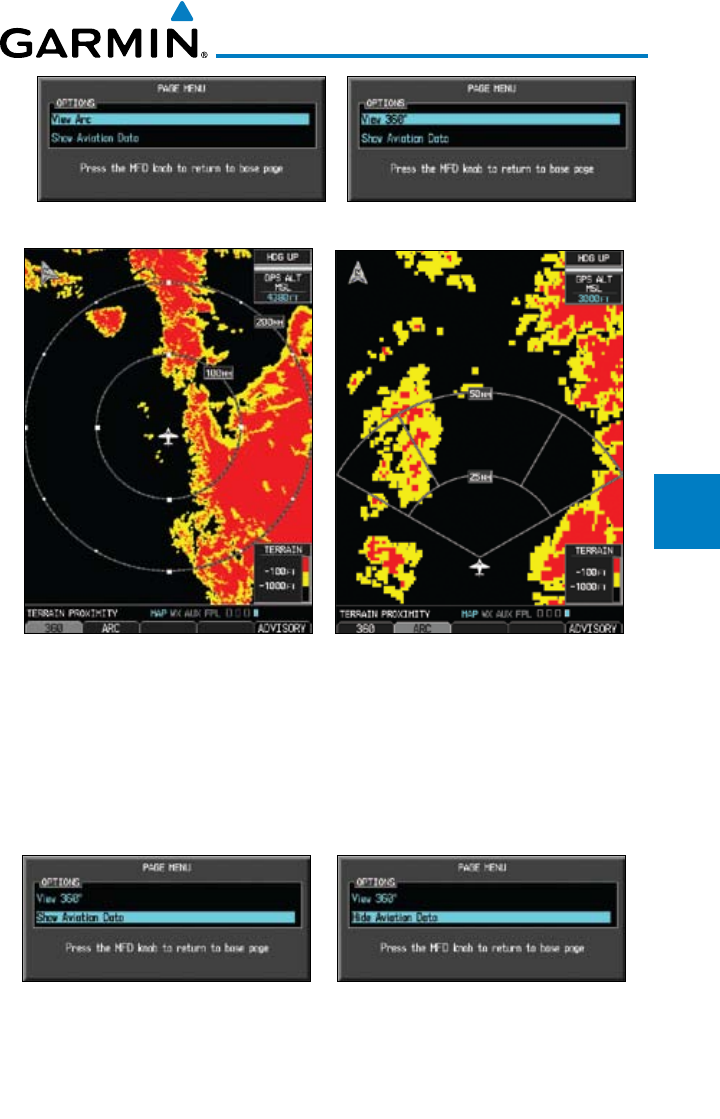
4-7190-00601-02 Rev. E
Garmin G600 Pilot’s Guide
Foreword
Sec 1
System
Sec 2
PFD
Sec 3
MFD
Sec 4
Hazard
Avoidance
Sec 5
Additional
Features
Sec 6
Annun.
& Alerts
Sec 7
Symbols
Sec 8
Glossary Appendix A
Appendix B
Index
Figure 4-4 Terrain Page Menu Viewing Selections
Figure 4-5 Terrain Page with 360° Rings Figure 4-6 Terrain Page with 120° Arc
4.3.1.4 Terrain Proximity Page Aviation Data
The Page Menu selections allow you to hide or show aviation data overlay on
the Terrain page.
1) While viewing the Terrain page of the MAP page group, press MENU for Map
selections to hide or show aviation data overlay on the Terrain page.
Figure 4-7 Show/Hide Aviation Data on the Terrain Page
2) Press ENT to save the highlighted value.
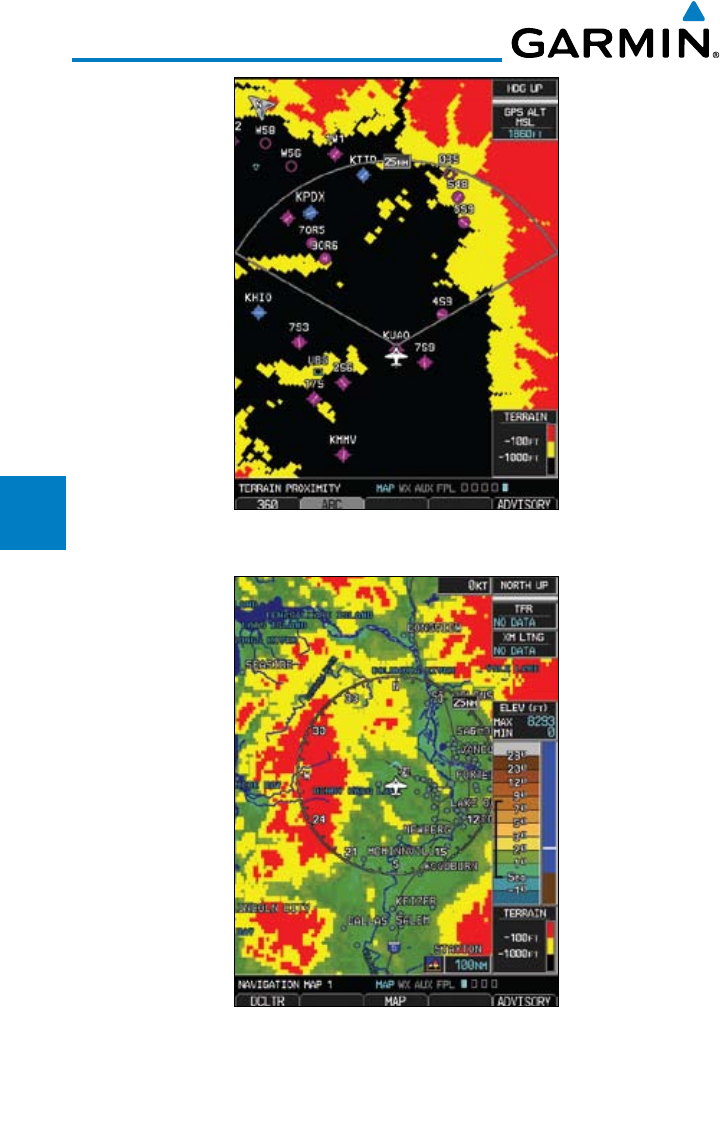
4-8
Garmin G600 Pilot’s Guide
190-00601-02 Rev. E
Foreword
Sec 1
System
Sec 2
PFD
Sec 3
MFD
Sec 4
Hazard
Avoidance
Sec 5
Additional
Features
Sec 6
Annun.
& Alerts
Sec 7
Symbols
Sec 8
GlossaryAppendix A
Appendix B
Index
Figure 4-8 Terrain Page with Aviation Data Displayed and 120° Arc View
Figure 4-9 Navigation Map Page with Terrain Data Displayed
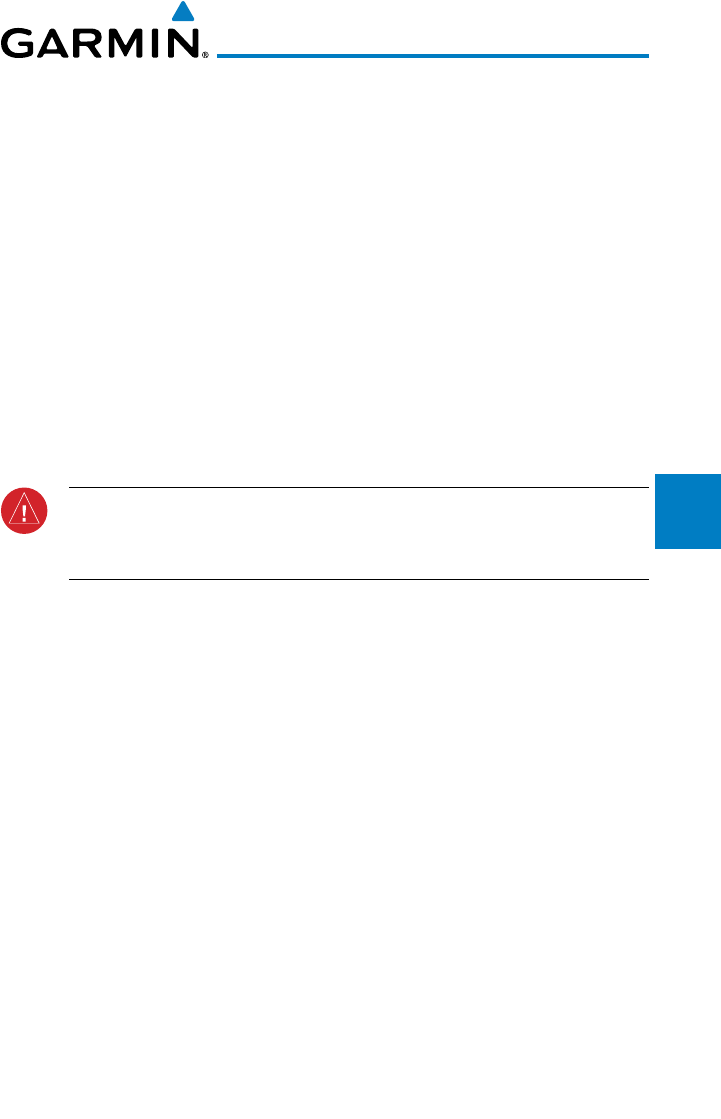
4-9190-00601-02 Rev. E
Garmin G600 Pilot’s Guide
Foreword
Sec 1
System
Sec 2
PFD
Sec 3
MFD
Sec 4
Hazard
Avoidance
Sec 5
Additional
Features
Sec 6
Annun.
& Alerts
Sec 7
Symbols
Sec 8
Glossary Appendix A
Appendix B
Index
4.3.2 Terrain Proximity Limitations
Terrain Proximity displays terrain and obstructions relative to the altitude
of the aircraft. The displayed terrain is advisory in nature only. Individual
obstructions may be shown if available in the database. However, all obstructions
may not be available in the database and data may be inaccurate. Never use this
information for navigation or to maneuver to avoid obstacles.
Terrain information is based on terrain elevation information in a database
that may contain inaccuracies. Terrain information should be used as an aid
to situational awareness. Never use it for navigation or to maneuver to avoid
terrain.
Terrain uses terrain and obstacle information supplied by government
sources. The displayed information should never be understood as being all-
inclusive.
WARNING: The data contained in the TERRAIN databases comes from
government agencies. Garmin accurately processes and cross-validates the
data but cannot guarantee the accuracy and completeness of the data.
4.3.3 System Status
The Terrain system continually monitors several system-critical items, such
as database validity, hardware status, and GPS status. Should the system detect a
failure, a failure message will be displayed.
4-10
Garmin G600 Pilot’s Guide
190-00601-02 Rev. E
Foreword
Sec 1
System
Sec 2
PFD
Sec 3
MFD
Sec 4
Hazard
Avoidance
Sec 5
Additional
Features
Sec 6
Annun.
& Alerts
Sec 7
Symbols
Sec 8
GlossaryAppendix A
Appendix B
Index
4.4 Terrain Awareness and Warning System
(TAWS-B) Optional
TAWS (Terrain Awareness and Warning System) is an optional feature to
increase situational awareness and aid in reducing controlled flight into terrain
(CFIT). TAWS provides visual and aural annunciations when terrain and
obstacles are within the given altitude threshold from the aircraft. The displayed
alerts and warnings are advisory in nature only.
TAWS satisfies TSO-C151b Class B requirements for certification. Class B
TAWS is required for all Part 91 turbine aircraft operations with six or more
passenger seats and for Part 135 turbine aircraft operations with six to nine
passenger seats (FAR Parts 91.223, 135.154).
4.4.1 TAWS-B Requirements
TAWS requires the following to operate properly:
• Avalidterrain/obstacle/airportterraindatabase
• Avalid3-DGPSpositionsolution
4.4.2 TAWS-B Limitations
NOTE: The data contained in the TAWS databases comes from government
agencies. Garmin accurately processes and cross-validates the data but
cannot guarantee the accuracy and completeness of the data.
TAWS displays terrain and obstructions relative to the altitude of the aircraft.
Compliance with TAWS B alerts and warnings is MANDATORY. When a TAWS
B "pull up" annunciation is issued, the pilot is required to pull up.
TAWS uses terrain and obstacle information supplied by government sources.
Terrain information is based on terrain elevation information in a database that
may contain inaccuracies. Individual obstructions may be shown if available in
the database. The data undergoes verification by Garmin to confirm accuracy of
the content, per TSO-C151b.
4-11190-00601-02 Rev. E
Garmin G600 Pilot’s Guide
Foreword
Sec 1
System
Sec 2
PFD
Sec 3
MFD
Sec 4
Hazard
Avoidance
Sec 5
Additional
Features
Sec 6
Annun.
& Alerts
Sec 7
Symbols
Sec 8
Glossary Appendix A
Appendix B
Index
4.4.3 Computing GPS Altitude for TAWS
TAWS uses information provided from the GPS receiver to provide a horizontal
position and altitude. GPS altitude is derived from satellite measurements.
GPS altitude is converted to a Mean Sea Level (MSL)-based altitude (GPS-MSL
altitude) and is used to determine TAWS alerts. GPS-MSL altitude accuracy is
affected by factors such as satellite geometry, but it is not subject to variations
in pressure and temperature that normally affect pressure altitude devices. GPS-
MSL altitude does not require local altimeter settings to determine MSL altitude.
Therefore, GPS altitude provides a highly accurate and reliable MSL altitude
source to calculate terrain and obstacle alerts.
The terrain and obstacle databases used by TAWS are referenced to Mean
Sea Level. Using the GPS position and GPS-MSL altitude, TAWS displays a 2-D
(or 3-D with SVT) picture of the surrounding terrain and obstacles relative to
the position and altitude of the aircraft. Furthermore, the GPS position and
GPS-MSL altitude are used to calculate and “predict” the aircraft’s flight path
in relation to the surrounding terrain and obstacles. In this manner, TAWS can
provide advanced alerts of predicted dangerous terrain conditions.
4.4.4 Baro-Corrected Altitude Versus GPS-MSL
Altitude
Baro-corrected altitude (or indicated altitude) is derived by adjusting the
altimeter setting for local atmospheric conditions. The most accurate baro-
corrected altitude can be achieved by frequently updating the altimeter setting
to the nearest reporting station along the flight path. However, because actual
atmospheric conditions seldom match the standard conditions defined by the
International Standard Atmosphere (ISA) model (where pressure, temperature,
and lapse rates have fixed values), it is common for the baro-corrected altitude
(as read from the altimeter) to differ from the GPS-MSL altitude. This variation
results in the aircraft’s true altitude differing from the baro-corrected altitude.
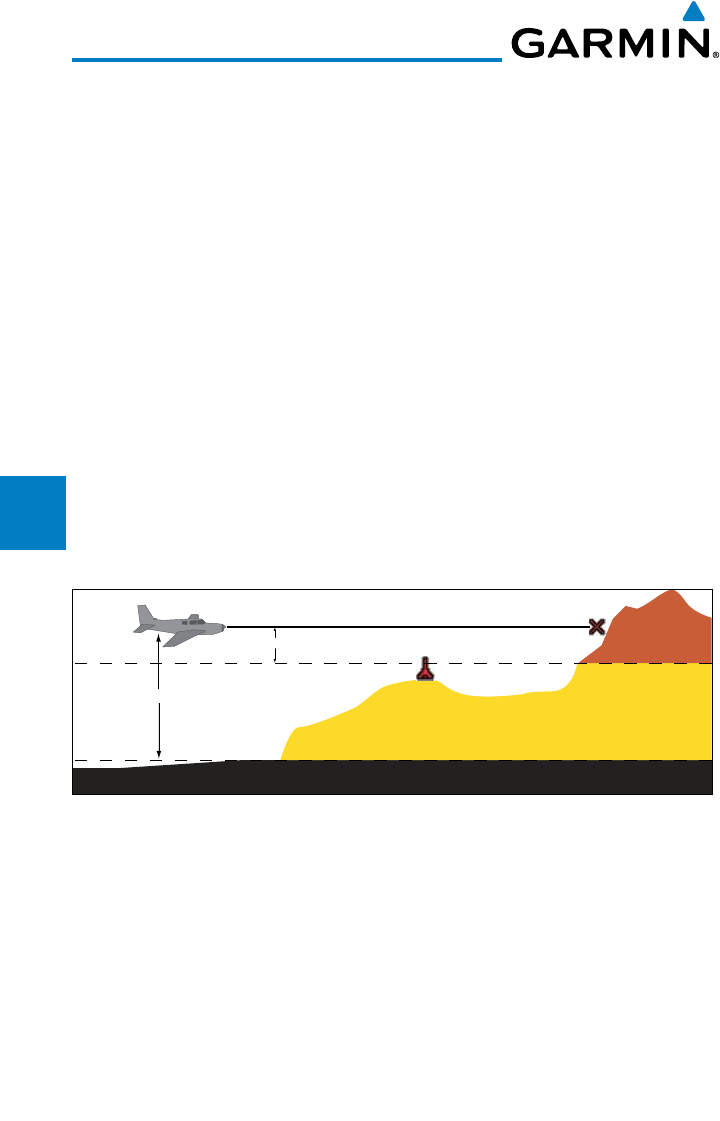
4-12
Garmin G600 Pilot’s Guide
190-00601-02 Rev. E
Foreword
Sec 1
System
Sec 2
PFD
Sec 3
MFD
Sec 4
Hazard
Avoidance
Sec 5
Additional
Features
Sec 6
Annun.
& Alerts
Sec 7
Symbols
Sec 8
GlossaryAppendix A
Appendix B
Index
4.4.5 Using TAWS
During G600 power-up, the terrain/obstacle database versions are displayed
along with a disclaimer to the pilot. At the same time, TAWS self-test begins.
One of the following aural messages is generated:
• “TAWS System Test OK”
• “TAWS System Failure”
TAWS information can be displayed on the MFD in the TAWS page of the
MAP page group.
Terrain and obstacles with heights greater than 200 feet
Above Ground Level (AGL) are displayed in yellow and red. The G600
adjusts colors automatically as the aircraft altitude changes.
4.4.6 Displaying TAWS Data
TAWS uses yellow (caution) and red (warning) to depict terrain and obstacles
alerts relative to aircraft altitude. Colors are adjusted automatically as the aircraft
altitude changes. The colors and symbols shown below are used to represent
terrain, obstacles, and potential impact points.
Potential Impact Point
Unlighted Obstacle
Projected Flight Path
1000 ft
100 ft Threshold
Terrain more than 1000 ft below the aircraft altitude (Black)
Terrain between 100 ft and 1000 ft below the
aircraft altitude (Yellow)
Terrain above or
within 100 ft
below the aircraft
altitude (Red)
Figure 4-10 Terrain Altitude/Color Correlation for Terrain Proximity
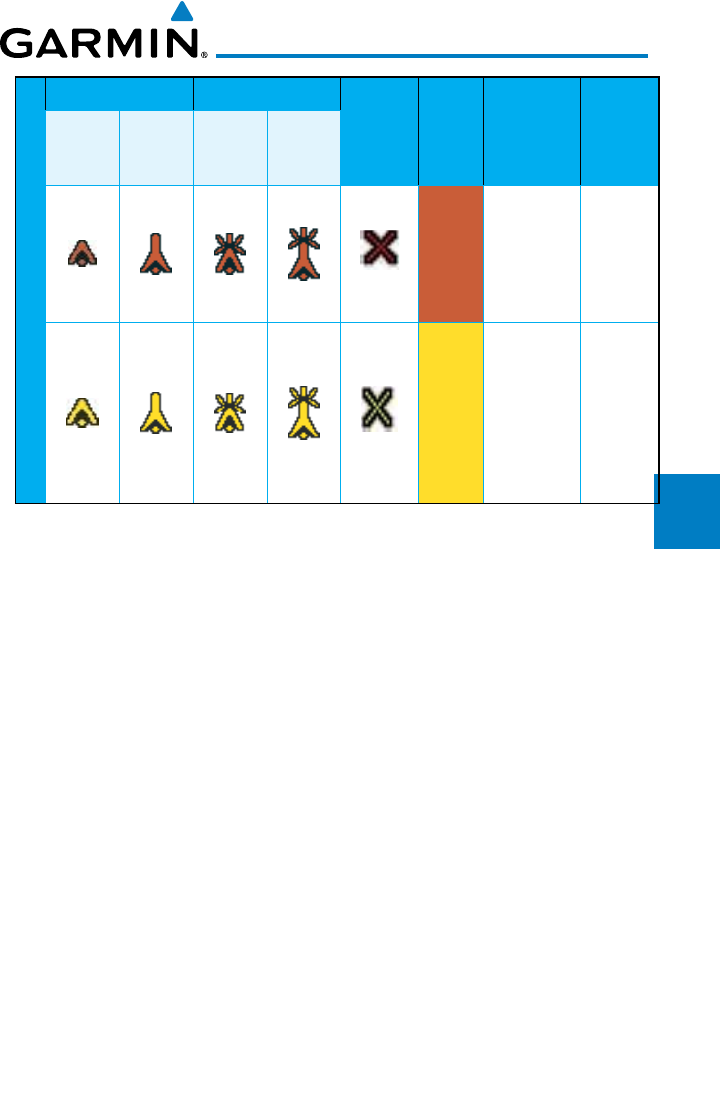
4-13190-00601-02 Rev. E
Garmin G600 Pilot’s Guide
Foreword
Sec 1
System
Sec 2
PFD
Sec 3
MFD
Sec 4
Hazard
Avoidance
Sec 5
Additional
Features
Sec 6
Annun.
& Alerts
Sec 7
Symbols
Sec 8
Glossary Appendix A
Appendix B
Index
Unlighted Obstacle Lighted Obstacle Potential
Impact
Points Terrain
Color
Terrain/
Obstacle
Location
Alert
Level
< 1000 ft
AGL
> 1000 ft
AGL
< 1000 ft
AGL
> 1000 ft
AGL
Obstacle Symbol
Red
Terrain/
Obstacle at or
within 100 ft
below current
aircraft
altitude
WARNING
(Red)
Yellow
Terrain/
Obstacle
between
100 ft and
1000 ft
below current
aircraft
altitude
CAUTION
(Yellow)
Table 4-3 TAWS Terrain/Obstacle Colors and Symbology
4.4.6.1 TAWS Page
TAWS information is displayed on the last page of the Map page group.
The TAWS Page is specialized to show terrain, obstacle, and potential impact
point data in relation to the aircraft’s current altitude, without clutter from the
basemap. Aviation data (airports, VORs, and other NAVAIDs) can be displayed
for reference. If an obstacle and the projected flight path of the aircraft intersect,
the display automatically zooms in to the closest potential point of impact on
the TAWS Page.
Aircraft orientation on this map is always heading up unless there is no valid
heading. If orientation is not heading up, it will be track up. Two views are
available relative to the position of the aircraft: the 360° default display and the
radar-like ARC (120°) display. Map range is adjustable with the RNG keys from 1
to 200 NM, as indicated by the map range rings (or arcs).
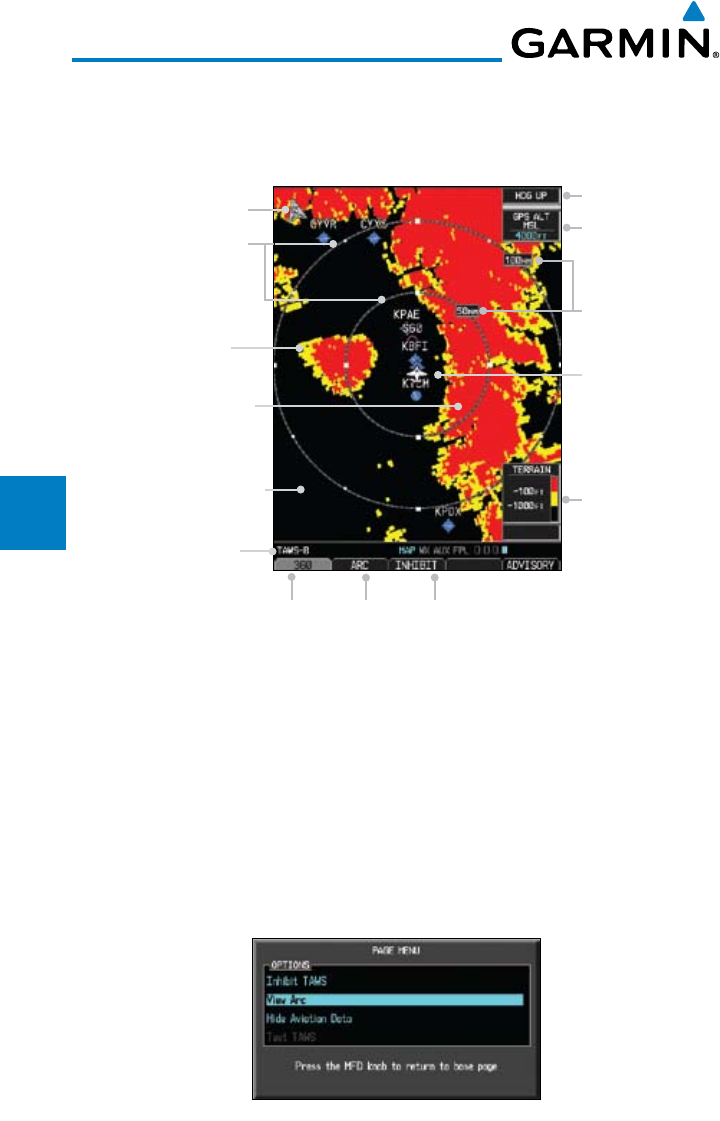
4-14
Garmin G600 Pilot’s Guide
190-00601-02 Rev. E
Foreword
Sec 1
System
Sec 2
PFD
Sec 3
MFD
Sec 4
Hazard
Avoidance
Sec 5
Additional
Features
Sec 6
Annun.
& Alerts
Sec 7
Symbols
Sec 8
GlossaryAppendix A
Appendix B
Index
Displaying TAWS Information
1) In MAP page group, turn the small MFD knob to reach the TAWS Page.
2) Press the RNG keys to display a larger or smaller area.
Map Orientation
North Indication
Range Rings
Altitude
Information
Terrain
Altitude
Legend
Ownship Symbol
at Present Position
360°
Range Ring
Selection
120°
Arc
Selection
Page Name
Inhibit
TAWS
Black Terrain (No Danger
- Terrain More than 1000
ft Below the Aircraft
Altitude)
Yellow Terrain (Caution
- Terrain Between 100 ft
and 1000 ft Below the
Aircraft Altitude)
Map Range
Red Terrain (Warning
- Terrain Above or
Within 100 ft Below the
Aircraft Altitude)
Figure 4-11 360˚ View on the TAWS Page
Changing the TAWS Page View Between 360 and Arc
1) In MAP page group, turn the small MFD knob to reach the TAWS page.
2) Press VIEW and then the 360 or ARC soft key to select the desired view.
OR
1) While viewing the TAWS page, press the MENU key.
2) Turn the large or small MFD knob to highlight “View Arc” or “View 360°” and
then press ENT.
Figure 4-12 Select TAWS Display View (360 or Arc)
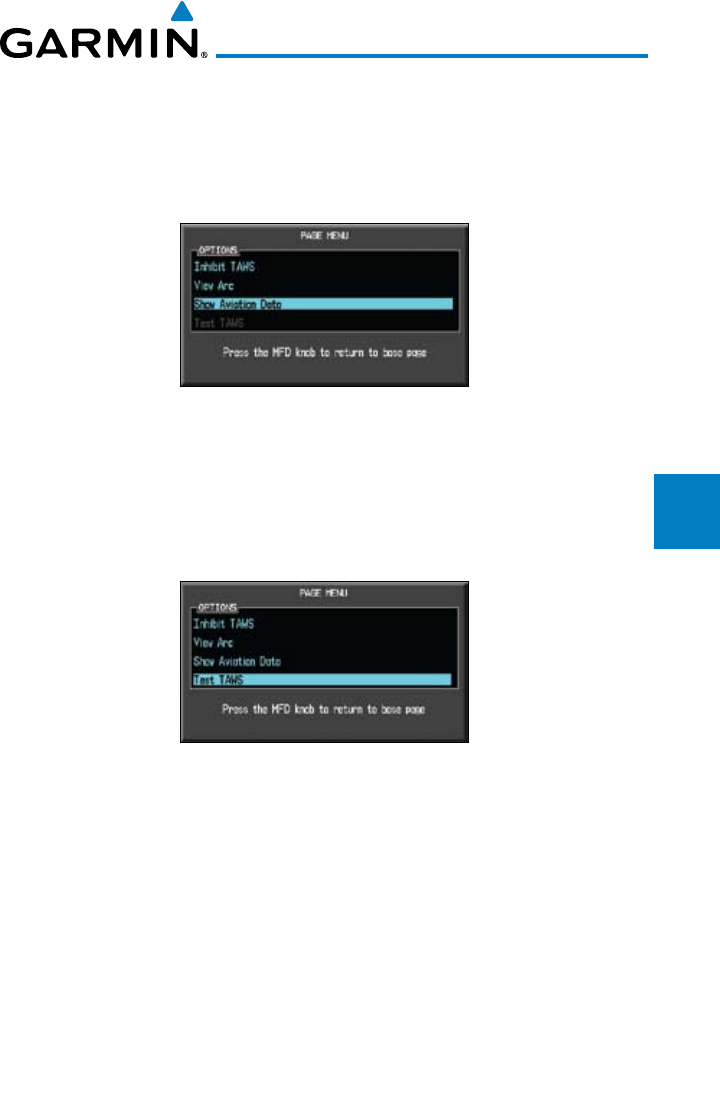
4-15190-00601-02 Rev. E
Garmin G600 Pilot’s Guide
Foreword
Sec 1
System
Sec 2
PFD
Sec 3
MFD
Sec 4
Hazard
Avoidance
Sec 5
Additional
Features
Sec 6
Annun.
& Alerts
Sec 7
Symbols
Sec 8
Glossary Appendix A
Appendix B
Index
Showing/Hiding Aviation Information on the TAWS Page
1) In MAP page group, turn the small MFD knob to reach the TAWS page.
2) Press the MENU key. Turn the large or small MFD knob to highlight “Show
Aviation Data” or “Hide Aviation Data” and then press ENT.
Figure 4-13 Show/Hide Aviation Data
Manually Testing the TAWS System
1) Select the TAWS page.
2) Press the MENU key and then turn the large or small MFD knob to highlight
“Test TAWS.”
Figure 4-14 TAWS Page Menu
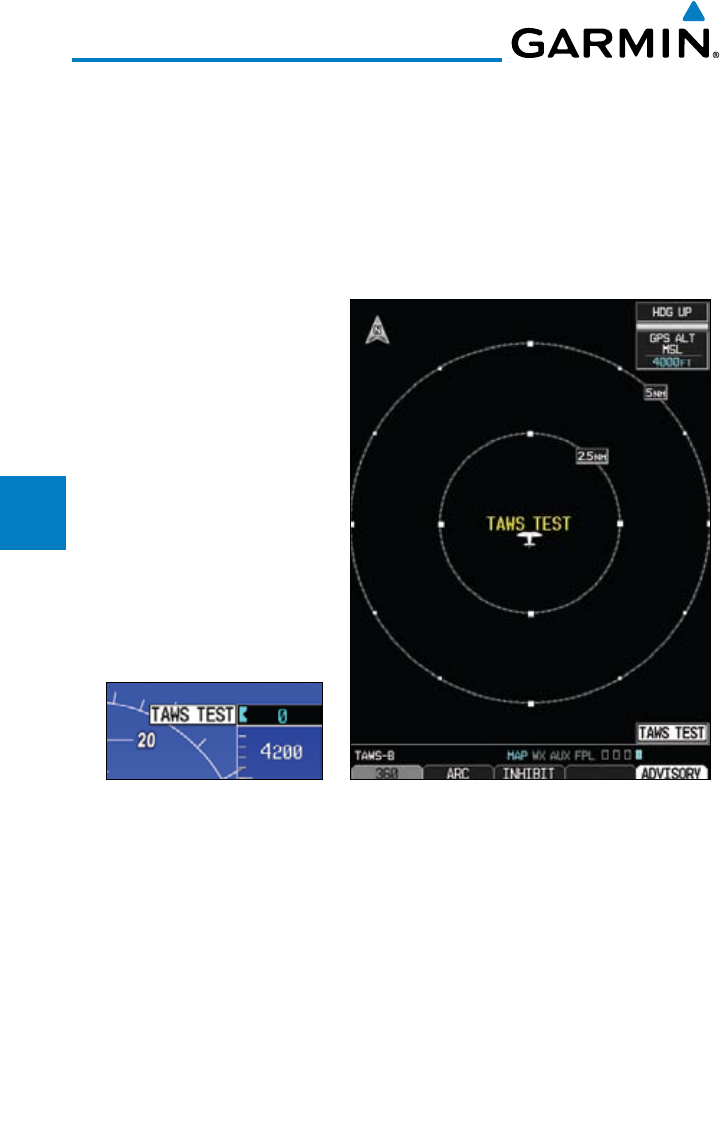
4-16
Garmin G600 Pilot’s Guide
190-00601-02 Rev. E
Foreword
Sec 1
System
Sec 2
PFD
Sec 3
MFD
Sec 4
Hazard
Avoidance
Sec 5
Additional
Features
Sec 6
Annun.
& Alerts
Sec 7
Symbols
Sec 8
GlossaryAppendix A
Appendix B
Index
3) Press the ENT key to confirm the selection.
One of the following aural messages is generated:
• “TAWSSystemTestOK”
• “TAWSSystemFailure”
TAWS TEST is annunciated in yellow on the TAWS page and in white on the
PFD.
Figure 4-15 TAWS Test Display and PFD Annunciation
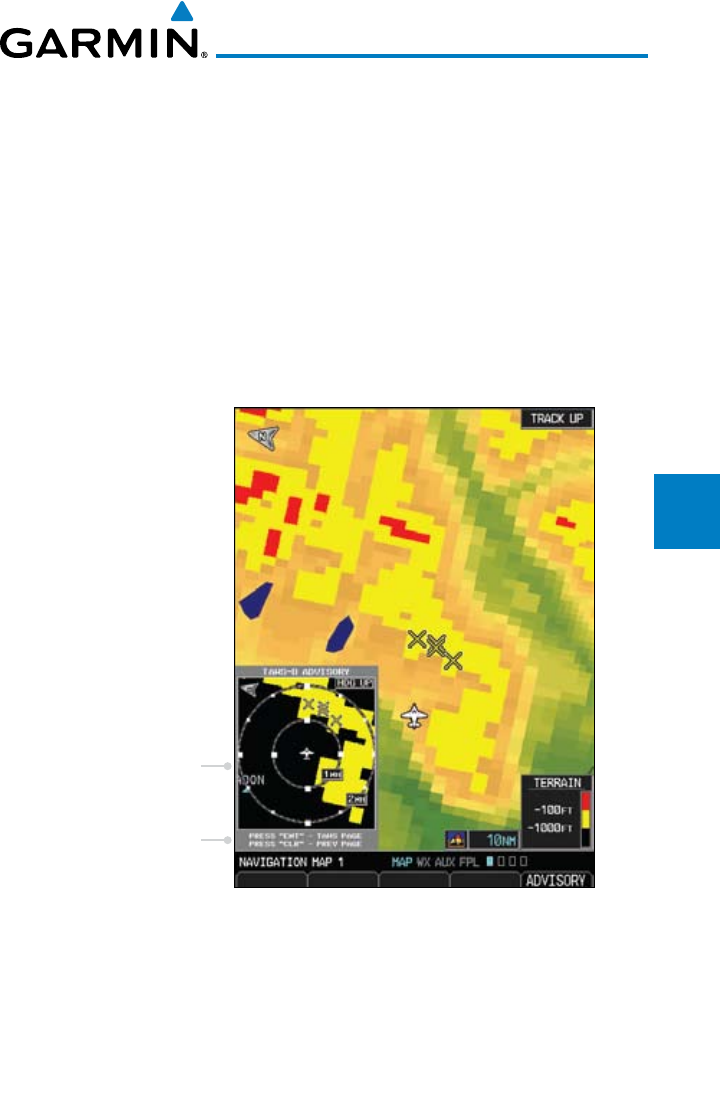
4-17190-00601-02 Rev. E
Garmin G600 Pilot’s Guide
Foreword
Sec 1
System
Sec 2
PFD
Sec 3
MFD
Sec 4
Hazard
Avoidance
Sec 5
Additional
Features
Sec 6
Annun.
& Alerts
Sec 7
Symbols
Sec 8
Glossary Appendix A
Appendix B
Index
4.4.7 TAWS Alerts
Alerts are issued when flight conditions meet parameters that are set within
TAWS software algorithms. When an alert is issued, visual annunciations are
displayed and aural alerts are simultaneously issued. TAWS alert types are shown
in the TAWS Alerts Summary (Table 4-4) with corresponding annunciations
and aural messages.
When an alert is issued, annunciations appear on the PFD and MFD (TAWS
page only). The TAWS Alert Annunciation is shown to the upper left of the
Altimeter on the PFD and below the Terrain Legend on the MFD. If the TAWS
page is not displayed at the time, a pop-up alert appears on the MFD on the
page being viewed.
TAWS Alert Pop-Up
Key presses to continue
Figure 4-16 TAWS Alert Pop Up
To acknowledge the pop-up alert:
• PresstheCLR key (returns to the currently viewed page)
OR
• PresstheENT key (accesses the TAWS Page)
If the pilot takes no action, the pop-up will be removed when the alert is no
longer active.
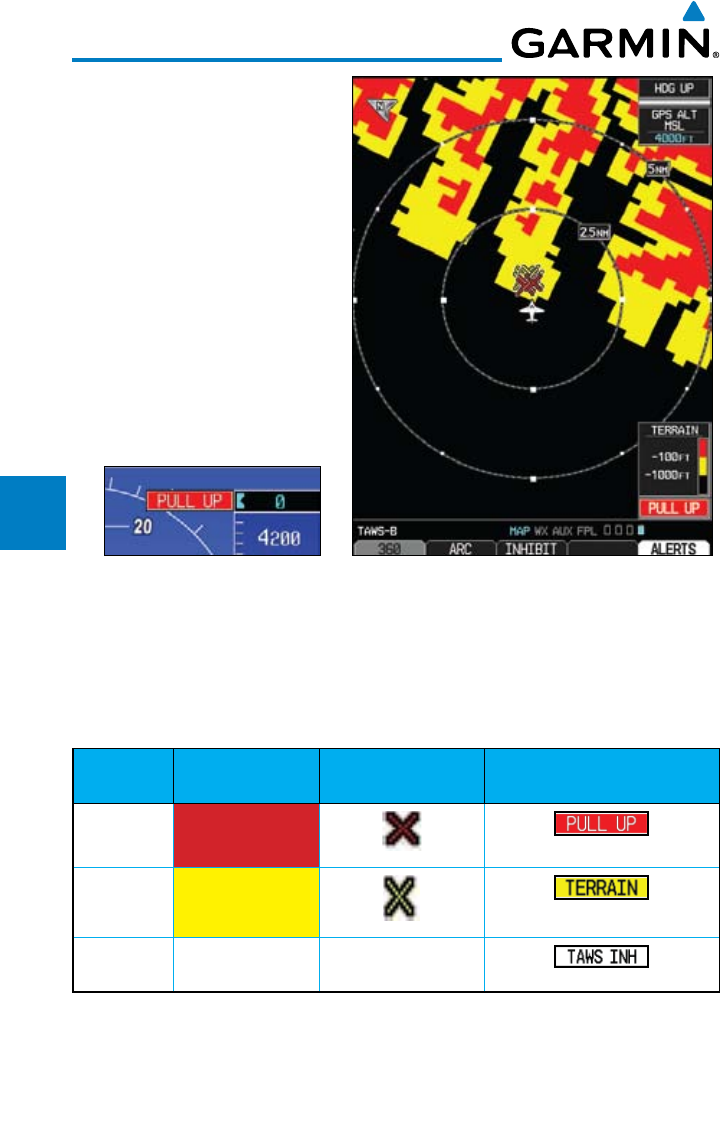
4-18
Garmin G600 Pilot’s Guide
190-00601-02 Rev. E
Foreword
Sec 1
System
Sec 2
PFD
Sec 3
MFD
Sec 4
Hazard
Avoidance
Sec 5
Additional
Features
Sec 6
Annun.
& Alerts
Sec 7
Symbols
Sec 8
GlossaryAppendix A
Appendix B
Index
Figure 4-17 TAWS Alert Annunciations (Pull Up)
4.4.7.1 TAWS-B Alerting Colors and Symbology
Color and symbols are also associated with TAWS alerts. The three TAWS
alert levels and their associated text coloring as well as any associated symbology
are shown in the following table.
Alert Level Annunciator Text Potential Impact
Point Symbol
Example Visual Annunciation
Warning White text on red
background
Caution Black text on yellow
background
Informational Black text on white
background
Not Applicable
Table 4-4 TAWS Alert Colors and Symbology
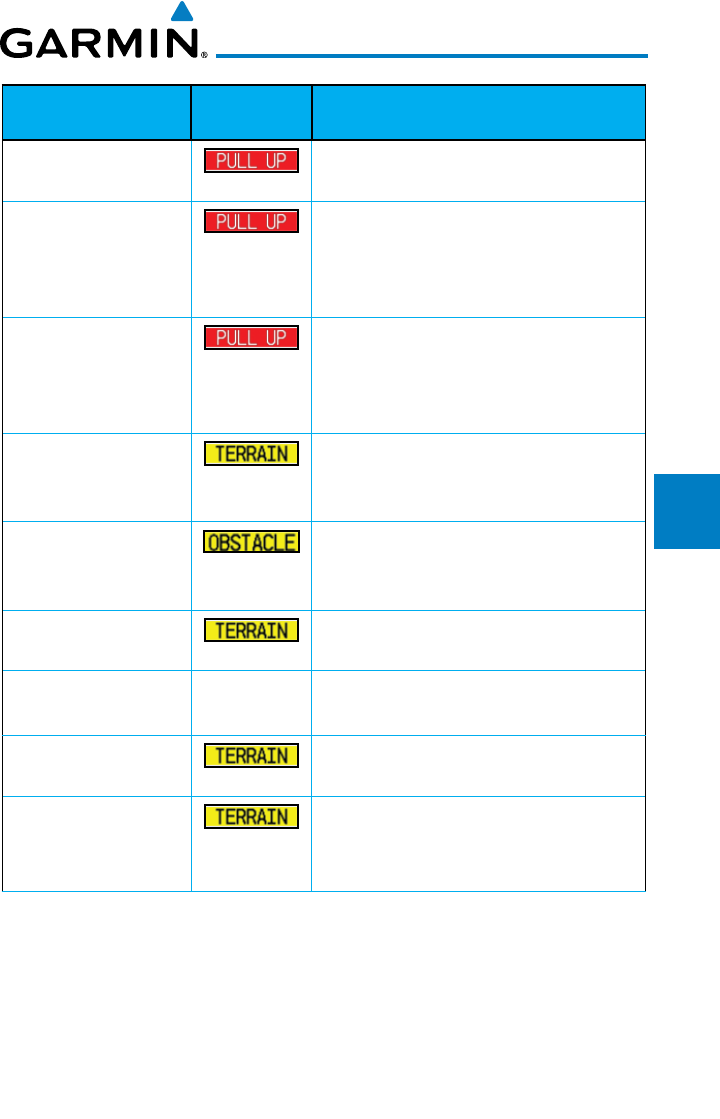
4-19190-00601-02 Rev. E
Garmin G600 Pilot’s Guide
Foreword
Sec 1
System
Sec 2
PFD
Sec 3
MFD
Sec 4
Hazard
Avoidance
Sec 5
Additional
Features
Sec 6
Annun.
& Alerts
Sec 7
Symbols
Sec 8
Glossary Appendix A
Appendix B
Index
Alert Type PFD/MFD Alert
Annunciation Aural Message
Excessive Descent Rate
Warning (EDR-W)
“Pull Up”
FLTA Terrain Warning
(RTC-W, ITI-W)
“Terrain Ahead, Pull Up; Terrain Ahead,
Pull Up”*
or
“Terrain, Terrain; Pull Up, Pull Up”
FLTA Obstacle Warning
(ROC-W, IOI-W)
“
Obstacle Ahead, Pull Up; Obstacle Ahead,
Pull Up
”*
or
“
Obstacle, Obstacle; Pull Up, Pull Up
”
FLTA Terrain Caution
(RTC-C, ITI-C)
“Terrain Ahead; Terrain Ahead”*
or
“Caution, Terrain; Caution, Terrain”
FLTA Obstacle Caution
(ROC-C, IOI-C)
“Obstacle Ahead; Obstacle Ahead”*
or
“Caution, Obstacle; Caution, Obstacle”
Premature Descent
Alert Caution (PDA)
“Too Low, Terrain”
Voice Callout
(VCO-500)
None
“Five-Hundred”
Excessive Descent Rate
Caution (EDR-C)
“Sink Rate”
Negative Climb Rate
Caution (NCR-C)
“Don’t Sink”*
or
“Too Low, Terrain”
* Alerts with multiple messages are configurable at installation and are installation-
dependent. Alerts for the default configuration are indicated with asterisks.
Table 4-5 TAWS-B Alerts Summary
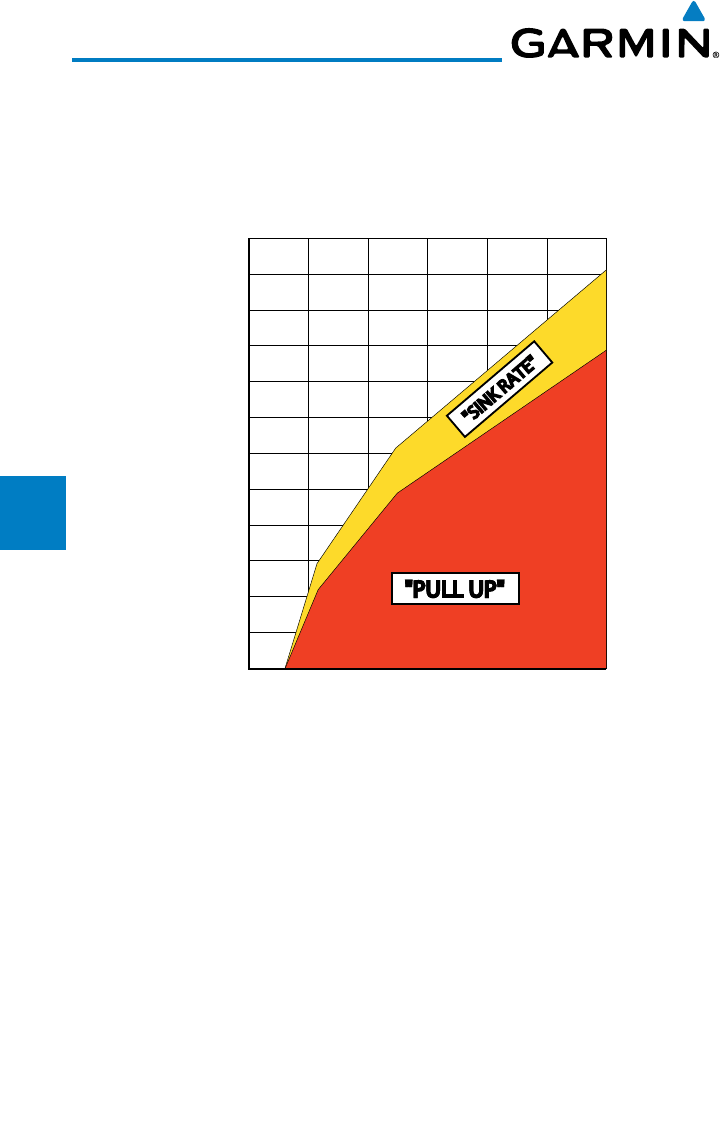
4-20
Garmin G600 Pilot’s Guide
190-00601-02 Rev. E
Foreword
Sec 1
System
Sec 2
PFD
Sec 3
MFD
Sec 4
Hazard
Avoidance
Sec 5
Additional
Features
Sec 6
Annun.
& Alerts
Sec 7
Symbols
Sec 8
GlossaryAppendix A
Appendix B
Index
4.4.7.2 Excessive Descent Rate Alert
The purpose of the Excessive Descent Rate (EDR) alert is to provide
notification when the aircraft is determined to be descending upon terrain at an
excessive rate. The parameters for the alert as defined by TSO-C151b are shown
below.
"PULL UP""PULL UP"
"SINK RATE"
$ESCENT2ATE
Height Above Terrain (Feet)
Figure 4-18 Excessive Descent Rate Alert Criteria
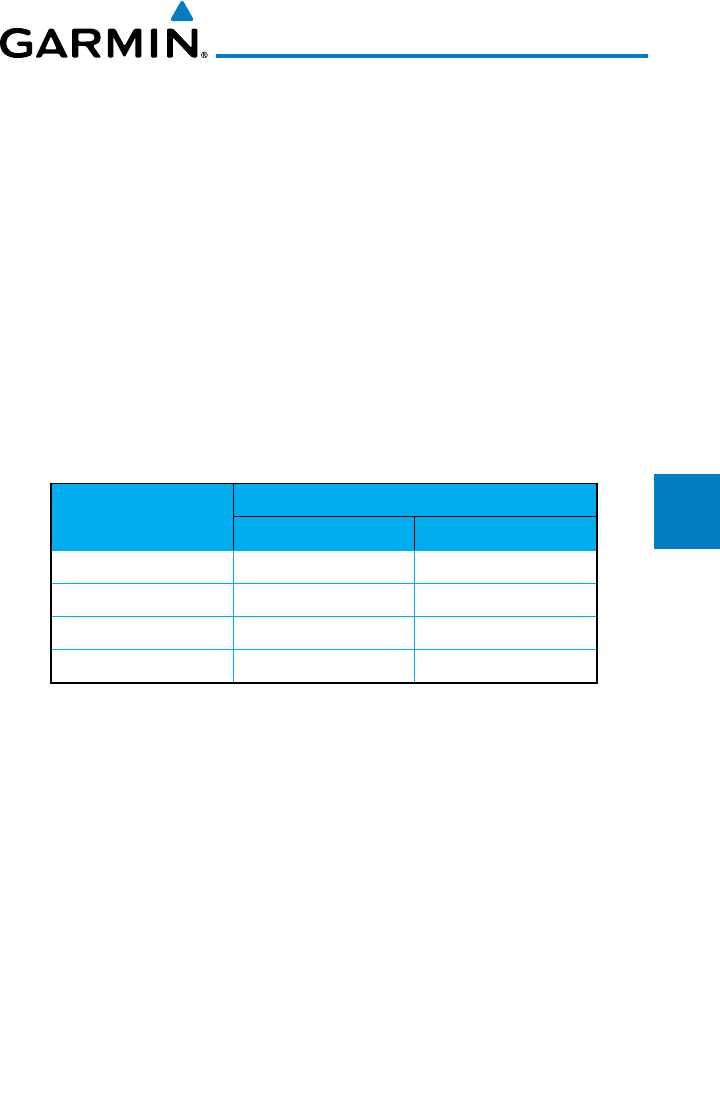
4-21190-00601-02 Rev. E
Garmin G600 Pilot’s Guide
Foreword
Sec 1
System
Sec 2
PFD
Sec 3
MFD
Sec 4
Hazard
Avoidance
Sec 5
Additional
Features
Sec 6
Annun.
& Alerts
Sec 7
Symbols
Sec 8
Glossary Appendix A
Appendix B
Index
4.4.7.3 Forward Looking Terrain Avoidance
Reduced Required Terrain Clearance (RTC) and Reduced Required
Obstacle Clearance (ROC) alerts are issued when the aircraft flight path is
above terrain, yet is projected to come within the minimum clearance values in
the FLTA Alert Minimum Terrain and Obstacle Clearance Values table. When an
RTC alert and/or a ROC is issued, a potential impact point is displayed on the
TAWS Page.
Imminent Terrain Impact (ITI) and Imminent Obstacle Impact (IOI)
alerts are issued when the aircraft is below the elevation of a terrain or obstacle
cell in the aircraft’s projected path. ITI and IOI alerts are accompanied by a
potential impact point displayed on the TAWS Page. The alert is annunciated
when the projected vertical flight path is calculated to come within minimum
clearance altitudes in the following table.
Flight Phase Minimum Clearance Altitude (feet)
Level Flight Descending
En Route 700 500
Terminal 350 300
Approach 150 100
Departure 100 100
Table 4-6 FLTA Alert Minimum Terrain and Obstacle Clearance Values
During final approach, FLTA alerts are automatically inhibited when the
aircraft is below 200 feet AGL while within 0.5 NM of the approach runway or
below 125 feet AGL while within 1.0 NM of the runway threshold.
4.4.7.4 Premature Descent Alerting
A Premature Descent Alert (PDA) is issued when the system detects that the
aircraft is significantly below the normal approach path to a runway.
PDA alerting begins when the aircraft is within 15 NM of the destination
airport and ends when the aircraft is either 0.5 NM from the runway threshold
or is at an altitude of 125 feet AGL while within 1.0 NM of the threshold. During
the final descent, algorithms set a threshold for alerting based on speed, distance,
and other parameters.
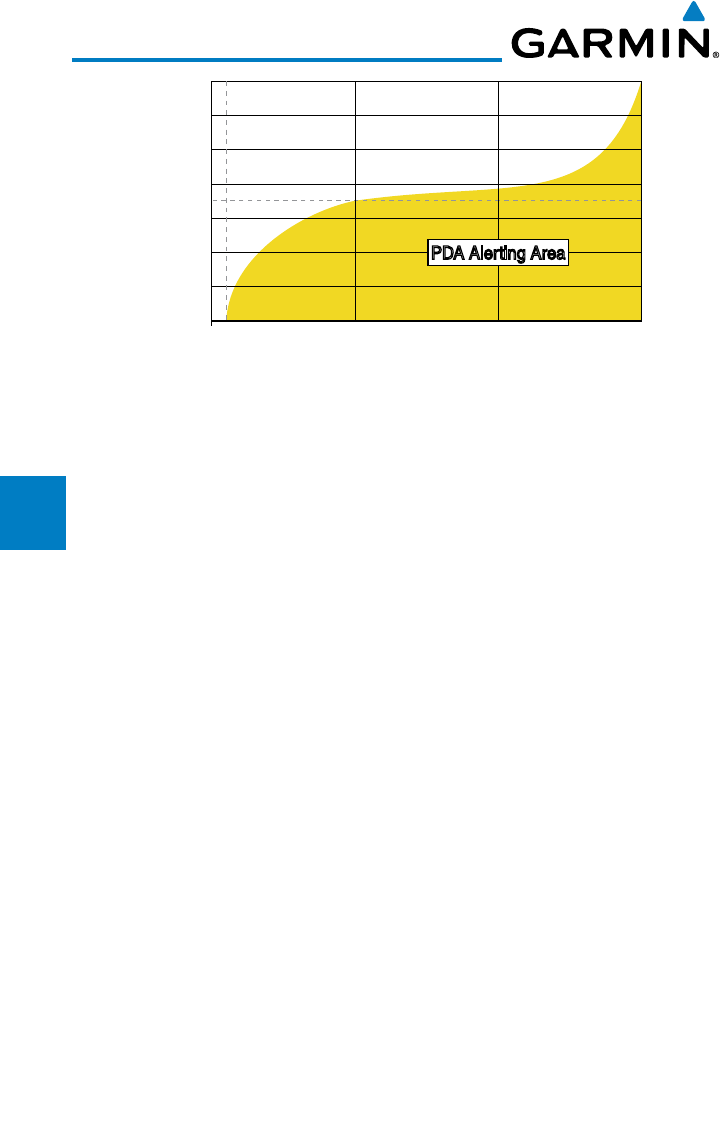
4-22
Garmin G600 Pilot’s Guide
190-00601-02 Rev. E
Foreword
Sec 1
System
Sec 2
PFD
Sec 3
MFD
Sec 4
Hazard
Avoidance
Sec 5
Additional
Features
Sec 6
Annun.
& Alerts
Sec 7
Symbols
Sec 8
GlossaryAppendix A
Appendix B
Index
(EIGHT!BOVE4ERRAIN&EET
$ISTANCE&ROM$ESTINATION!IRPORTNM
0$!!LERTING!REA0$!!LERTING!REA
2UNWAY
4HRESHOLD
Figure 4-19 PDA Alerting Threshold
PDA and FLTA aural and visual alerts can be manually inhibited. Discretion
should be used when inhibiting TAWS and the system should be enabled when
appropriate. When TAWS is inhibited, the alert annunciation “TAWS INHB” is
shown on the PFD and MFD (Figure 4-16).
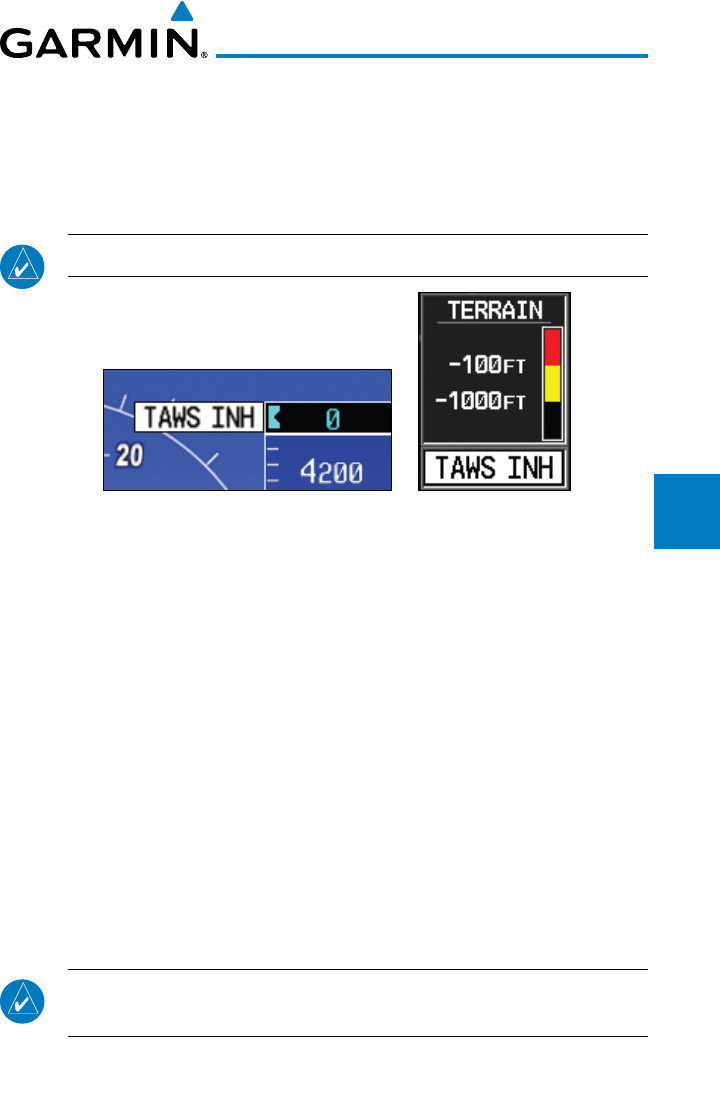
4-23190-00601-02 Rev. E
Garmin G600 Pilot’s Guide
Foreword
Sec 1
System
Sec 2
PFD
Sec 3
MFD
Sec 4
Hazard
Avoidance
Sec 5
Additional
Features
Sec 6
Annun.
& Alerts
Sec 7
Symbols
Sec 8
Glossary Appendix A
Appendix B
Index
4.4.7.5 Inhibiting/Enabling TAWS Alerting
TAWS also has an inhibit mode that deactivates the PDA/FLTA aural and
visual alerts. Pilots should use discretion when inhibiting TAWS and always
remember to enable the system when appropriate. Only the PDA and FLTA
alerts are disabled in the inhibit mode.
NOTE: See AFMS for guidance on inhibiting TAWS.
Figure 4-20 TAWS Alerting Disabled (TAWS Inhibited) Annunciation (PFD & MFD)
1) In MAP page group, turn the small MFD knob to reach the TAWS Page.
2) Press the INHIBIT soft key to inhibit or enable TAWS (choice dependent on
current state).
OR
1) Press the MENU key.
2) Use the large or small MFD knob to highlight “Inhibit TAWS” or “Enable
TAWS” (choice dependent on current state) and press the ENT key.
4.4.7.6 Five-Hundred Aural Alert
The purpose of the aural alert message “Five-hundred” is to provide an advisory
alert that the aircraft is 500 feet above terrain. When the aircraft descends within
500 feet of terrain, the aural message “Five-hundred” is generated. There are no
display annunciations or pop-up alerts that accompany the aural message.
NOTE: The five-hundred aural callout provided by TAWS-B is not in relation
to the optional radar altimeter, if installed.
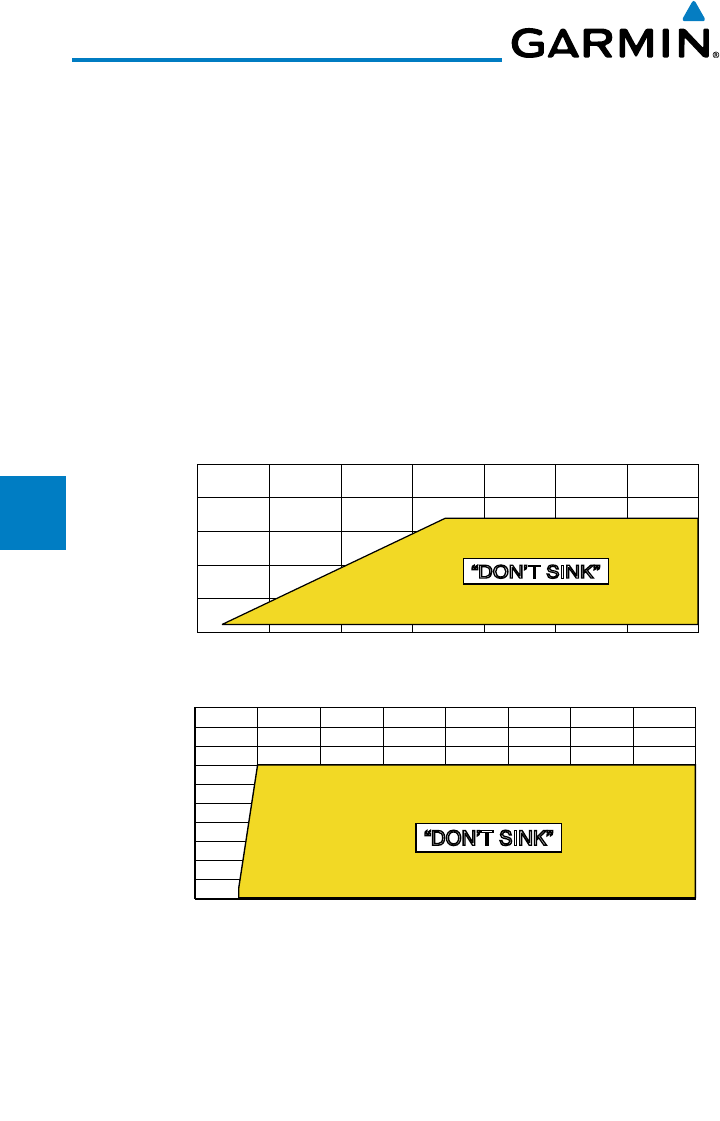
4-24
Garmin G600 Pilot’s Guide
190-00601-02 Rev. E
Foreword
Sec 1
System
Sec 2
PFD
Sec 3
MFD
Sec 4
Hazard
Avoidance
Sec 5
Additional
Features
Sec 6
Annun.
& Alerts
Sec 7
Symbols
Sec 8
GlossaryAppendix A
Appendix B
Index
4.4.7.7 Negative Climb Rate After Take-Off Alert (NCR)
The Negative Climb Rate (NCR) After Take-Off alert (also referred to as
“Altitude Loss After Take-Off”) provides alerts when the system determines the
aircraft is losing altitude (closing upon terrain) after takeoff. The aural message
“Don’t Sink” is given for NCR alerts, accompanied by an annunciation and a
pop-up terrain alert on the display. NCR alerting is only active when departing
from an airport and when the following conditions are met:
• Heightabovetheterrainislessthan700feet
• Distancefromthedepartureairportis2NMorless
• Headingchangefromthedepartureheadingislessthan110º
The NCR alerting parameters as defined by TSO-C151b are shown below.
(EIGHT!BOVE4ERRAIN&EET
!LTITUDE,OSS&EET
h$/.43).+vh$/.43).+v
(EIGHT!BOVE4ERRAIN&EET
3INK2ATE&EET0ER-INUTE
h$/.43).+vh$/.43).+v
Figure 4-21 Negative Climb Rate (NCR) Alert Criteria
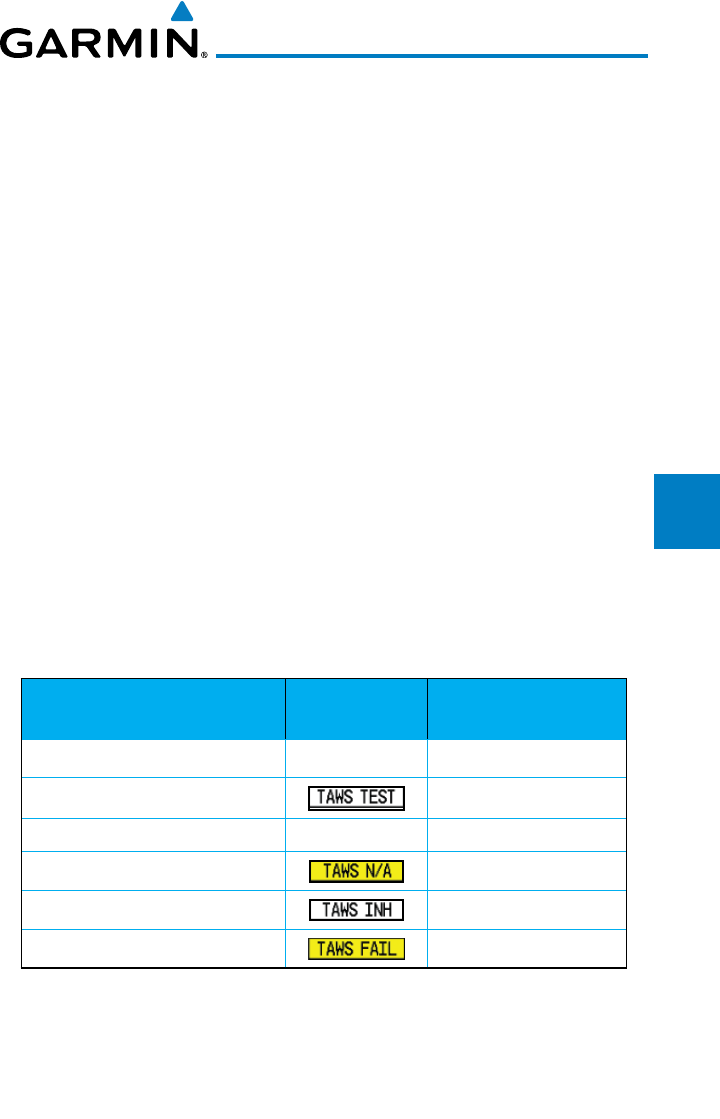
4-25190-00601-02 Rev. E
Garmin G600 Pilot’s Guide
Foreword
Sec 1
System
Sec 2
PFD
Sec 3
MFD
Sec 4
Hazard
Avoidance
Sec 5
Additional
Features
Sec 6
Annun.
& Alerts
Sec 7
Symbols
Sec 8
Glossary Appendix A
Appendix B
Index
4.4.7.8 TAWS Not Available Alert
TAWS requires a 3-D GPS position solution along with specific vertical
accuracy minimums. Should the position solution become degraded or if the
aircraft is out of the database coverage area, the annunciation “TAWS N/A” is
generated in the annunciation window and on the TAWS page. The aural message
“TAWS Not Available” is generated. When the GPS signal is re-established and
the aircraft is within the database coverage area, the aural message “TAWS
Available” is generated.
4.4.7.9 TAWS Failure Alert
TAWS continually monitors several system-critical items such as database
validity, hardware status, and GPS status. If the terrain/obstacle database is not
available, the aural message “TAWS System Failure” is generated along with a
‘TAWS FAIL’ annunciation.
4.4.8 TAWS System Status
During power-up, TAWS conducts a self-test of its aural and visual
annunciations. The system test can also be manually initiated. An aural alert is
issued at test completion. TAWS System Testing is disabled when ground speed
exceeds 30 knots.
Alert Type PFD/MFD Alert
Annunciation Aural Message
TAWS Available None “TAWS Available”
TAWS System Test in Progress None
TAWS System Test Pass None “TAWS System Test OK”
TAWS N/A TAWS Not Available
TAWS Alerting is Disabled None
TAWS System Test Fail “TAWS System Failure”
Table 4-7 TAWS-B System Test Status Annunciations
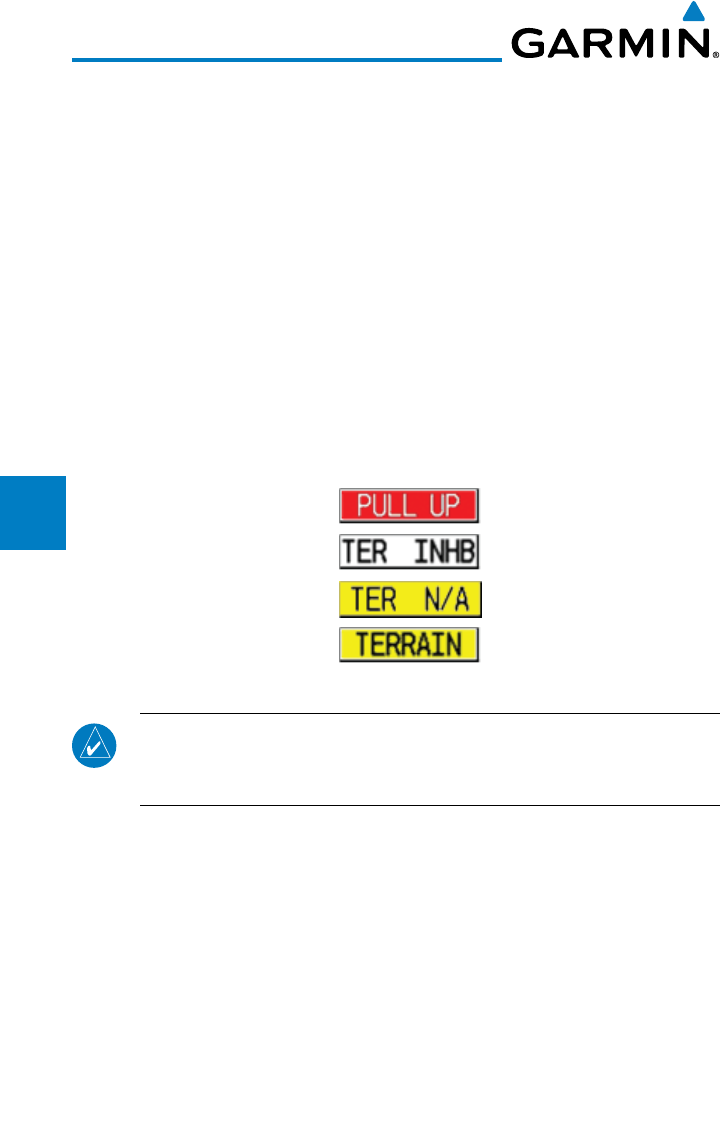
4-26
Garmin G600 Pilot’s Guide
190-00601-02 Rev. E
Foreword
Sec 1
System
Sec 2
PFD
Sec 3
MFD
Sec 4
Hazard
Avoidance
Sec 5
Additional
Features
Sec 6
Annun.
& Alerts
Sec 7
Symbols
Sec 8
GlossaryAppendix A
Appendix B
Index
4.5 External TAWS
If an external 500W-series TAWS unit is installed and interfaced to the G600,
the alerts generated by the external TAWS unit will be displayed on the PFD.
Refer to the 500W-series Pilot’s Guides and/or Addendums for more information
regarding these TAWS alerts.
TAWS annunciations received from the GNS 500W Series TAWS unit will be
displayed to the left and aligned with the top of the Altitude Tape on the G600
PFD. A new annunciation will flash for approximately five seconds.
• TAWS annunciations can only be received from the #1 GNS unit if
multiple GNS units are installed.
• Ifthe#1GNSunitispoweredOFFtheG600willreverttoTerrainSVT
alerting if equipped with synthetic vision.
Figure 4-22 TAWS Annunciations from a 500W-series Unit
NOTE: TAWS Caution Alerts are displayed as black text on a yellow
background; TAWS Warning Alerts are displayed as white text on a red
background.
4-27190-00601-02 Rev. E
Garmin G600 Pilot’s Guide
Foreword
Sec 1
System
Sec 2
PFD
Sec 3
MFD
Sec 4
Hazard
Avoidance
Sec 5
Additional
Features
Sec 6
Annun.
& Alerts
Sec 7
Symbols
Sec 8
Glossary Appendix A
Appendix B
Index
4.6 Terrain-SVT™
Garmin Terrain-SVT™ refers to a subset of Class B TAWS that meets the
terrain alerting requirements outlined in Section 7.b of AC 23-26. Terrain-SVT is
a subset of Class B TAWS that provides a Class B TAWS FLTA functionality with
visual alerting and aural alerting. Terrain-SVT is provided with Synthetic Vision
Technology (SVT™) functionality and not marketed separately.
Garmin Terrain-SVT alerting consists of the following alert types:
• ForwardLookingTerrainAvoidance (FLTA) Alerting which consists of:
• RequiredTerrainClearance(RTC)/RequiredObstacleClearance(ROC)
Alerting
• Imminent Terrain Impact (ITI) / Imminent Obstacle Impact (IOI)
Alerting
Garmin Terrain-SVT is available in G600 GDU 620 SW version 3.00, and
later.
Garmin Terrain-SVT is required for those SVT installations that do not have
TAWS-A or TAWS-B enabled.
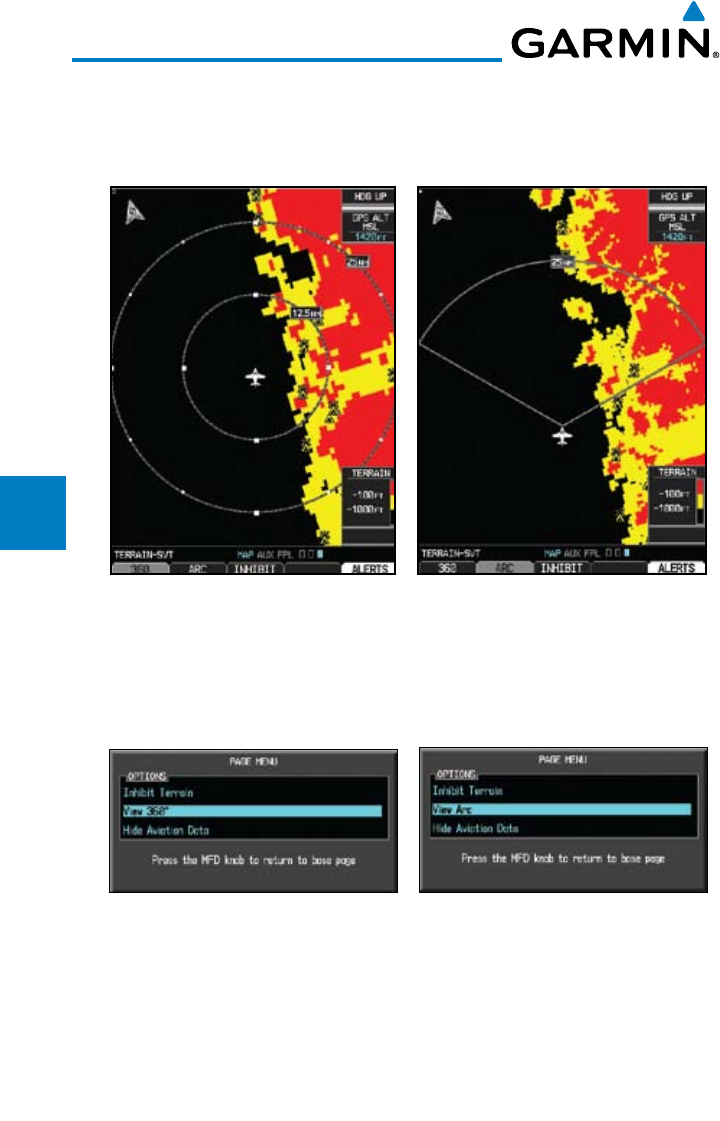
4-28
Garmin G600 Pilot’s Guide
190-00601-02 Rev. E
Foreword
Sec 1
System
Sec 2
PFD
Sec 3
MFD
Sec 4
Hazard
Avoidance
Sec 5
Additional
Features
Sec 6
Annun.
& Alerts
Sec 7
Symbols
Sec 8
GlossaryAppendix A
Appendix B
Index
4.6.1 Terrain-SVT Page 120° Arc or 360° Rings
Select the 120º Arc or 360º rings overlay for the Terrain page with either the
360/Arc soft keys or from the Page Menu.
Figure 4-23 Terrain-SVT 360 and Arc Views
1. Press VIEW and then the 360 or Arc soft key.
OR
2. Press MENU and the with the "View Arc" or "View 360°" selection highlighted
press ENT.
Figure 4-24 Terrain-SVT Page Menu Viewing Selections
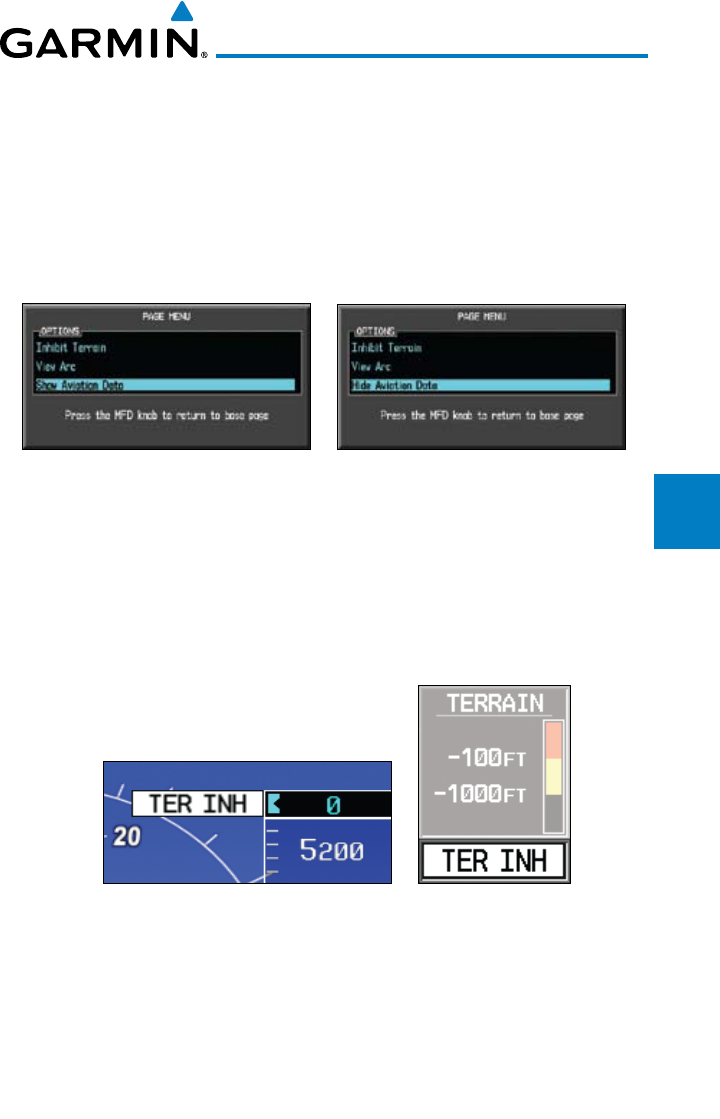
4-29190-00601-02 Rev. E
Garmin G600 Pilot’s Guide
Foreword
Sec 1
System
Sec 2
PFD
Sec 3
MFD
Sec 4
Hazard
Avoidance
Sec 5
Additional
Features
Sec 6
Annun.
& Alerts
Sec 7
Symbols
Sec 8
Glossary Appendix A
Appendix B
Index
4.6.2 Terrain-SVT Page Aviation Data
Select the display of Aviation data on the Terrain-SVT page. The Page Menu
selections allow you to hide or show aviation data overlay on the Terrain or the
Map Setup options for the Navigation Map pages.
1) While viewing the Terrain page of the MAP page group, press MENU for Map
selections to hide or show aviation data overlay on the Terrain or the Map
Setup options for the Navigation Map pages.
Figure 4-25 Show/Hide Aviation Data on the Terrain-SVT Page
2) Press ENT to save the highlighted value.
4.6.3 Inhibiting/Enabling Terrain-SVT Alerting
Terrain-SVT has an inhibit mode that deactivates the PDA/FLTA aural and
visual alerts. Pilots should use discretion when inhibiting Terrain-SVT and
always remember to enable the system when appropriate.
Figure 4-26 Terrain-SVT Alerting Disabled (Alerts Inhibited) Annunciation (PFD & MFD)
1) In MAP page group, turn the small MFD knob to reach the Terrain SVT Page.
2) Press the INHIBIT soft key to inhibit or enable Terrain SVT (choice dependent
on current state).
OR
1) Press the MENU key.
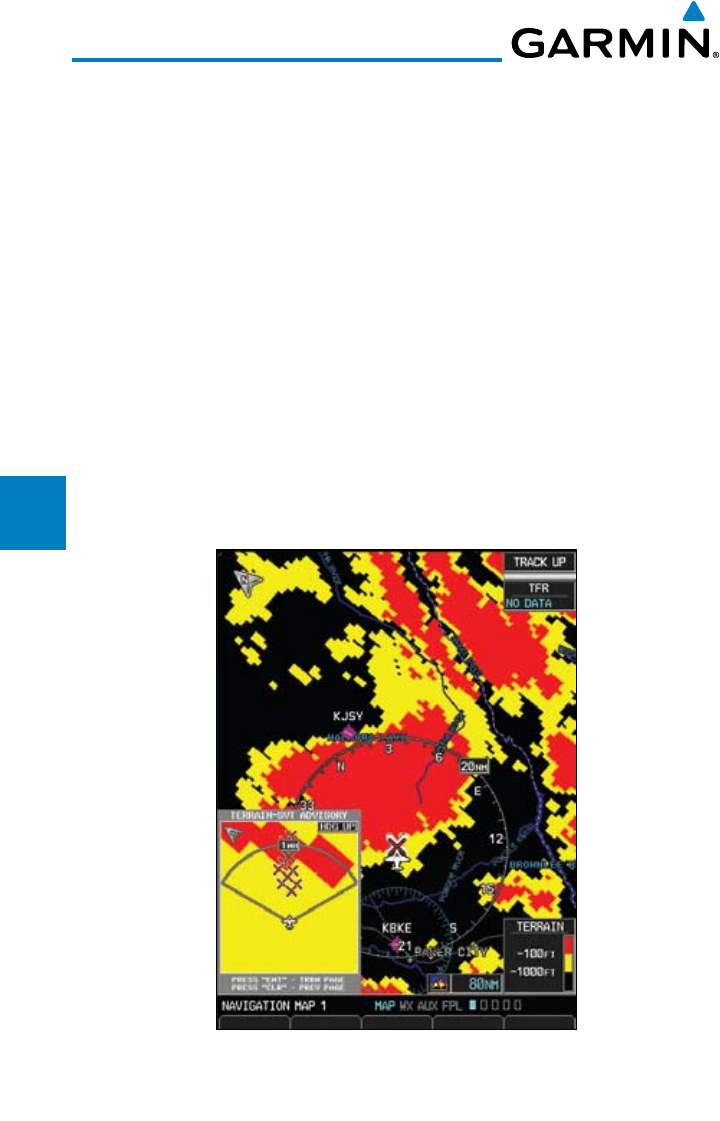
4-30
Garmin G600 Pilot’s Guide
190-00601-02 Rev. E
Foreword
Sec 1
System
Sec 2
PFD
Sec 3
MFD
Sec 4
Hazard
Avoidance
Sec 5
Additional
Features
Sec 6
Annun.
& Alerts
Sec 7
Symbols
Sec 8
GlossaryAppendix A
Appendix B
Index
2) Use the large or small MFD knob to highlight “Inhibit Terrain” or “Enable
Terrain” (choice dependent on current state) and press the ENT key.
4.6.4 Synthetic Vision Alerts and Annunciations
Terrain-SVT alerts typically employ a CAUTION or a WARNING alert severity
level, or both. When an alert is issued, visual annunciations are displayed and
aural alerts are simultaneously issued.
When an alert is issued, annunciations appear on the PFD and MFD (Terrain-
SVT page only). The TAWS/Terrain Alert Annunciation is shown to the upper
left of the Altimeter on the PFD and below the Terrain Legend on the MFD. If
the Terrain-SVT page is not displayed at the time, a pop-up alert appears on the
MFD. To acknowledge the pop-up alert:
Press the CLR key (returns to the currently viewed page)
OR
Press the ENT key (accesses the Terrain-SVT Page)
Figure 4-27 Terrain-SVT Advisory Pop-Up on the MFD
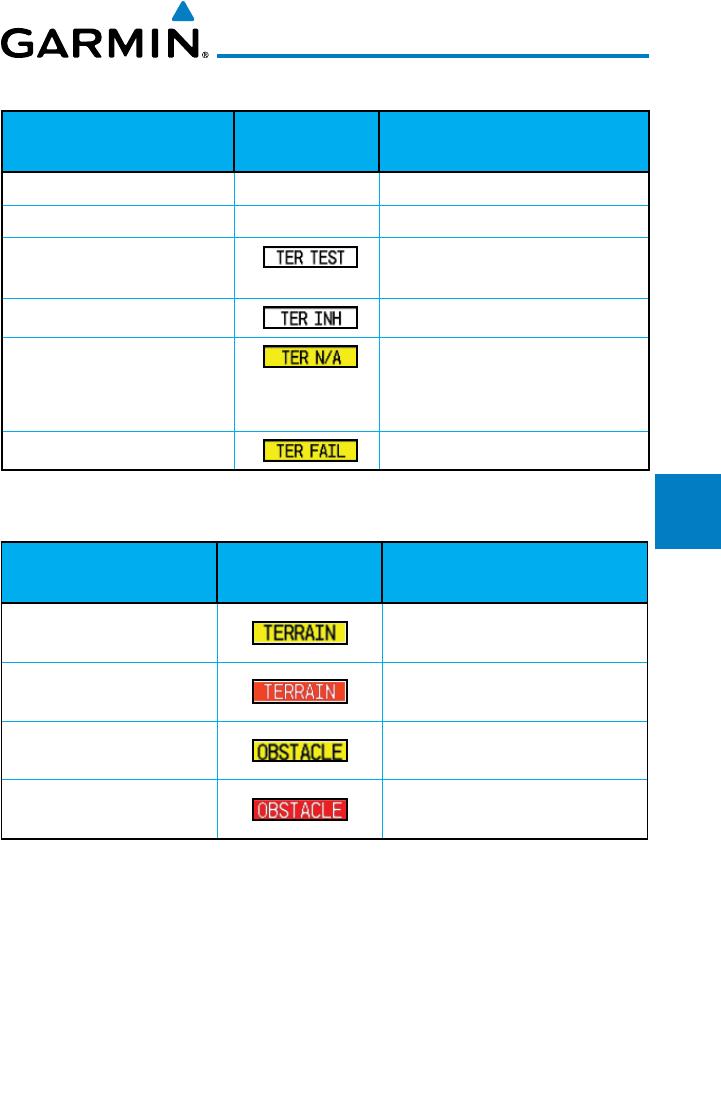
4-31190-00601-02 Rev. E
Garmin G600 Pilot’s Guide
Foreword
Sec 1
System
Sec 2
PFD
Sec 3
MFD
Sec 4
Hazard
Avoidance
Sec 5
Additional
Features
Sec 6
Annun.
& Alerts
Sec 7
Symbols
Sec 8
Glossary Appendix A
Appendix B
Index
Alert Type PFD/MFD Alert
Annunciation
Aural Message
GPS signal re-established None “Terrain System Available”
Terrain System Test Successful None “Terrain System test OK”
Terrain System Test in Progress None
Terrain Alerting is disabled None
No GPS position
Excessively degraded GPS
signal
“Terrain System Not Available”
Terrain SVT System Test Fail “Terrain System Failure”
Table 4-8 Terrain-SVT System Test Status Annunciations
Alert Type PFD/MFD Alert
Annunciation
Aural Message
FLTA Terrain Caution
(RTC-C, ITI-C) “Caution, Terrain, Terrain”
FLTA Terrain Warning
(RTC-W, ITI-W) “Warning, Terrain, Terrain”
FLTA Obstacle Caution
(ROC-C, IOI-C) “Caution, Obstacle, Obstacle”
FLTA Obstacle Warning
(ROC-W, IOI-W) “Warning, Obstacle, Obstacle”
Table 4-9 Terrain-SVT Alerts Summary
4-32
Garmin G600 Pilot’s Guide
190-00601-02 Rev. E
Foreword
Sec 1
System
Sec 2
PFD
Sec 3
MFD
Sec 4
Hazard
Avoidance
Sec 5
Additional
Features
Sec 6
Annun.
& Alerts
Sec 7
Symbols
Sec 8
GlossaryAppendix A
Appendix B
Index
4.7 TAS Traffic (Optional)
TAS refers to an active Traffic Adivsory System that may be optionally
displayed on the PFD and/or MFD. The TAS is installed separately from the
G600 system. There are variations in performance and control among the various
G600-compatible TAS systems. Refer to the appropriate TAS documentation for
detailed information on the operation of the TAS system. This section describes
the display and control functions available on the G600 system.
NOTE: TIS and TAS are mutually exclusive.
NOTE: Aircraft without an operating transponder are invisible to both
Traffic Advisory Systems (TAS) and TIS. Aircraft without altitude reporting
capability are shown without altitude separation data or climb descent
indication.
NOTE: Traffic is also displayed in the SVT feature on the PFD.
4.7.1 Displaying and Operating Traffic
(TAS Systems)
The Traffic Map Page shows surrounding TAS traffic data in relation to
the aircraft’s current position and altitude without basemap clutter. Aircraft
orientation is always heading up unless no valid heading is received. The traffic
mode and altitude display mode are annunciated in the upper left corner.
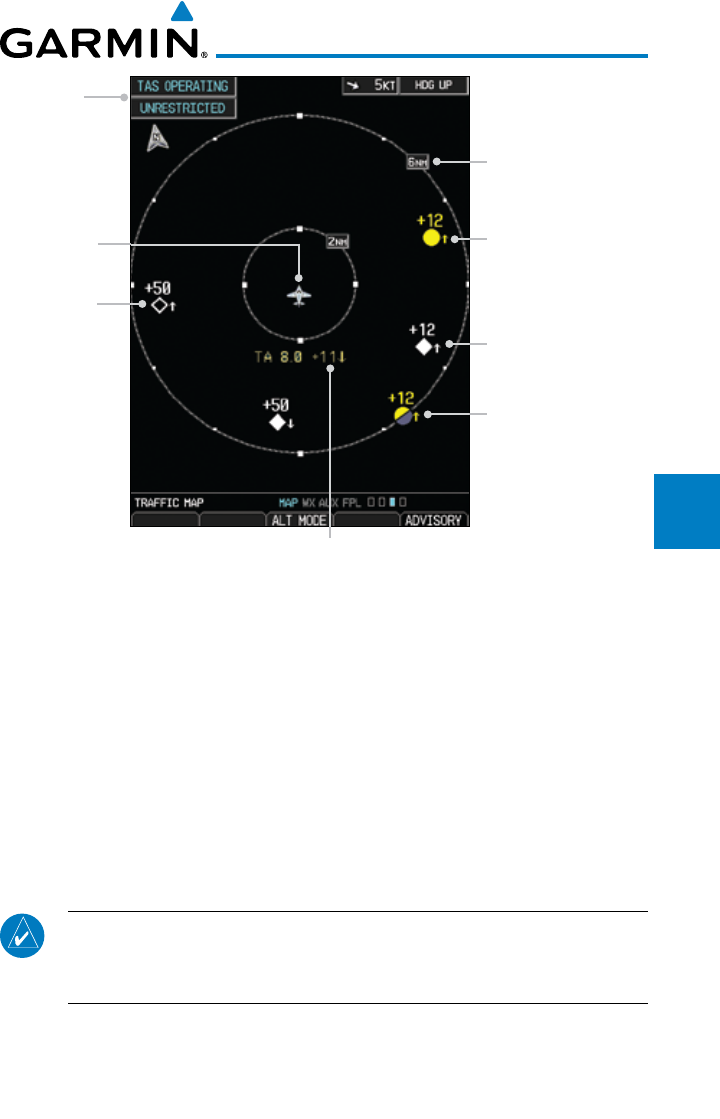
4-33190-00601-02 Rev. E
Garmin G600 Pilot’s Guide
Foreword
Sec 1
System
Sec 2
PFD
Sec 3
MFD
Sec 4
Hazard
Avoidance
Sec 5
Additional
Features
Sec 6
Annun.
& Alerts
Sec 7
Symbols
Sec 8
Glossary Appendix A
Appendix B
Index
Traffic Advisory,
Off Scale Aircraft
is Out of Range,
1200 ft Above and
Climbing
Operating
Mode
Traffic Advisory,
Aircraft is 1200 ft
Above and Climbing
Range Ring Diameter
Non-Threat
Traffic Proximity Advisory,
1200 ft Above and
Climbing
Non-Bearing Traffic (System is Unable to
Determine Bearing), Aircraft Distance is
8.0 NM, 1100 ft Above and Descending
Ownship
Symbol
Figure 4-28 Traffic Map Page - TAS
4.7.1.1 Switching from Standby Mode to Operating Modes
The unit must be in operating mode for traffic to be displayed. The ability
to switch from standby to operating mode on the ground is especially useful for
scanning the airspace around the airport before takeoff.
1) While viewing the Traffic Page of the MAP page group, select the
OPERATE
soft
key to select Operating Mode.
2) To switch to Standby Mode from the Traffic Page, select the STANDBY soft
key.
NOTE: Not all TAS systems can be controlled from the G600. The Operate/
Standby soft keys may not be displayed. An alert will be generated when
Standby is selected and the aircraft is in the air.
4.7.1.2 Range Ring
Pressing the RNG keys will zoom in and out in preset steps depending on
the installed equipment.
4-34
Garmin G600 Pilot’s Guide
190-00601-02 Rev. E
Foreword
Sec 1
System
Sec 2
PFD
Sec 3
MFD
Sec 4
Hazard
Avoidance
Sec 5
Additional
Features
Sec 6
Annun.
& Alerts
Sec 7
Symbols
Sec 8
GlossaryAppendix A
Appendix B
Index
4.7.2 Altitude Display
Changing the altitude display mode
1) Press the ALT MODE soft key to change the altitude volume.
2) Select
the desired altitude volume by pressing the
BELOW, NORMAL,
ABOVE, or UNREST (unrestricted) soft keys. The selection is displayed in the
Altitude mode field.
Altitude Mode Displayed Traffic Range
Below -9700 ft to 2700 ft
Normal -2700 ft to 2700 ft
Above -2700 ft to 9700 ft
Unrestricted All Traffic Shown
Table 4-10 Displayed Traffic Range
NOTE: Traffic Advisories (TAs) are always displayed, regardless of altitude
mode.
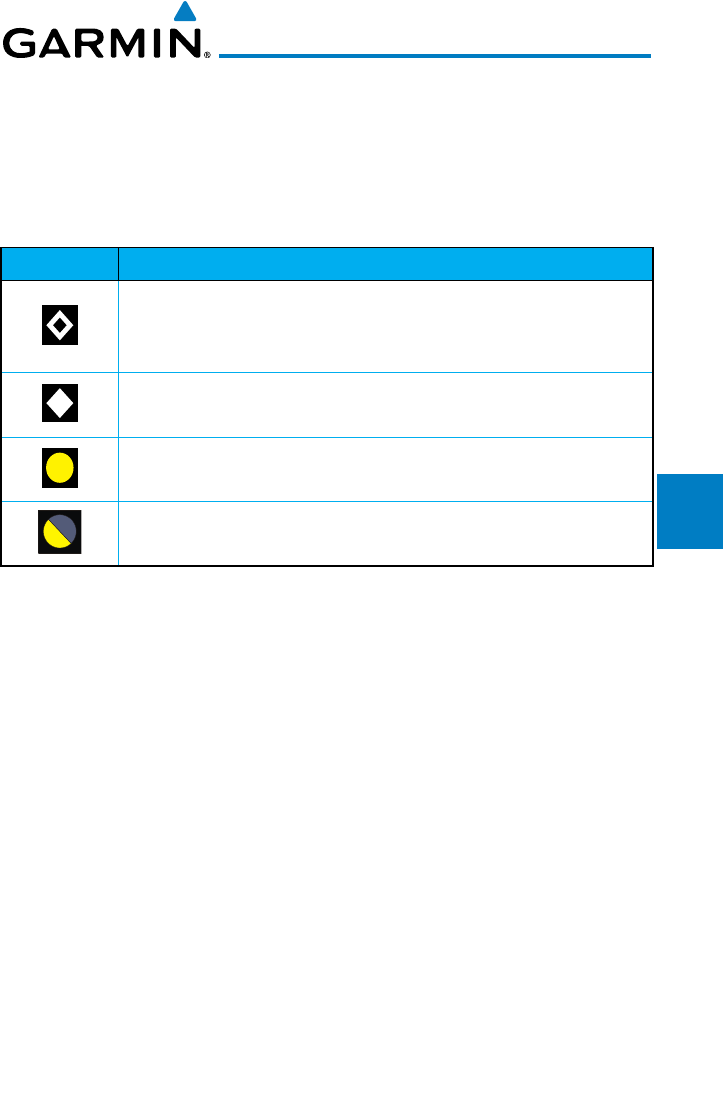
4-35190-00601-02 Rev. E
Garmin G600 Pilot’s Guide
Foreword
Sec 1
System
Sec 2
PFD
Sec 3
MFD
Sec 4
Hazard
Avoidance
Sec 5
Additional
Features
Sec 6
Annun.
& Alerts
Sec 7
Symbols
Sec 8
Glossary Appendix A
Appendix B
Index
4.7.3 TAS Symbology
Traffic Advisory System (TAS) is designed to help in detection and avoidance
of other aircraft. TAS uses an on-board interrogator-processor to detect traffic.
Only aircraft with operating transponders will be detected. Traffic is displayed
according to TCAS symbology using four different symbols.
TAS Symbol Description
Non-Threat Traffic
(intruder is beyond 5 NM and greater than 1200 ft vertical
separation)
Proximity Advisory (PA)
(intruder is within 5 NM and less than 1200 ft vertical separation)
Traffic Advisory (TA)
(closing rate, distance, and vertical separation meet TA criteria)
Traffic Advisory Off Scale
Table 4-11 Traffic Symbol Description
A Non-Threat Advisory, shown as an open white diamond, indicates that an
intruding aircraft is at greater than ±1200 feet relative altitude or the distance is
beyond five NM.
A Proximity Advisory indicates that the intruding aircraft is within ±1200 feet
and is within five NM range, but is still not considered a threat.
A Traffic Advisory (TA) alerts the crew to a potentially hazardous intruding
aircraft. Closing rate, distance, and vertical separation meet TA criteria. A Traffic
Advisory that is beyond the selected display range is indicated by a half TA
symbol at the edge of the screen at the relative bearing of the intruder.
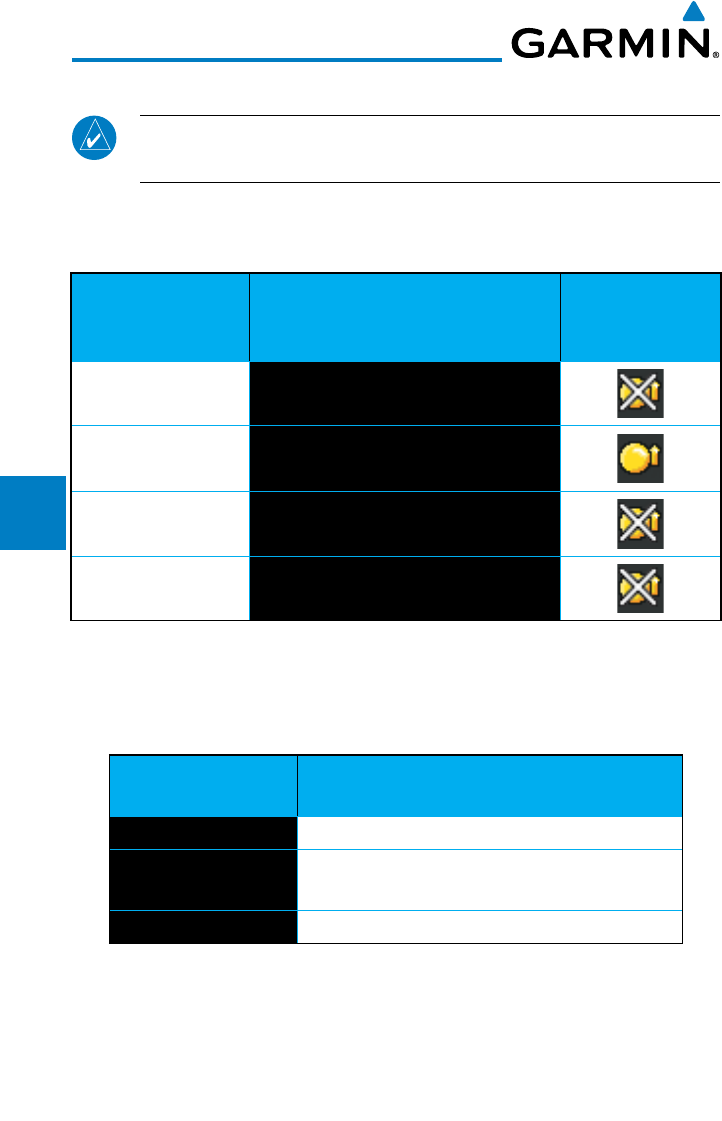
4-36
Garmin G600 Pilot’s Guide
190-00601-02 Rev. E
Foreword
Sec 1
System
Sec 2
PFD
Sec 3
MFD
Sec 4
Hazard
Avoidance
Sec 5
Additional
Features
Sec 6
Annun.
& Alerts
Sec 7
Symbols
Sec 8
GlossaryAppendix A
Appendix B
Index
4.7.4 Traffic System Status
NOTE: Refer to the equipment documentation for information on the
self-test and operating modes.
The traffic mode is indicated in the upper left corner of the Traffic Map
Page.
Mode Traffic Mode Annunciation
(Traffic Map Page)
Traffic Display
Enabled Icon
(Other Maps)
TAS Self-test Initiated TEST
TAS Operating OPERATING
TAS Standby STANDBY
(also shown in white in center of page)
TAS Failed* FAIL
Table 4-12 TAS Modes
If the unit fails, an annunciation as to the cause of the failure is shown in the
center of the Traffic Map Page.
Traffic Map Page
Annunciation Description
NO DATA Data is not being received from the TAS unit
DATA FAILED Data is being received from the TAS unit, but the
unit is self-reporting a failure
FAILED Incorrect data format received from the TAS unit
Table 4-13 TAS Failure Annunciations
4-37190-00601-02 Rev. E
Garmin G600 Pilot’s Guide
Foreword
Sec 1
System
Sec 2
PFD
Sec 3
MFD
Sec 4
Hazard
Avoidance
Sec 5
Additional
Features
Sec 6
Annun.
& Alerts
Sec 7
Symbols
Sec 8
Glossary Appendix A
Appendix B
Index
The annunciations to indicate the status of traffic information appear in a
banner at the lower left corner of maps on which traffic can be displayed.
Traffic Status Banner
Annunciation Description
TA OFF SCALE*
A Traffic Advisory is outside the selected display range
Annunciation is removed when traffic comes within the
selected display range
TA X.X ± XX ↕**
System cannot determine bearing of Traffic Advisory
Annunciation indicates distance in NM, altitude
separation in hundreds of feet, and altitude trend arrow
(climbing/descending)
TRFC FAIL TAS unit has failed (unit is self-reporting a failure or
sending incorrectly formatted data)
NO TRFC DATA Data is not being received from the TAS unit
*Shown as symbol on Traffic Map Page
**Shown in center of Traffic Map Page
Table 4-14 TAS Traffic Status Annunciations
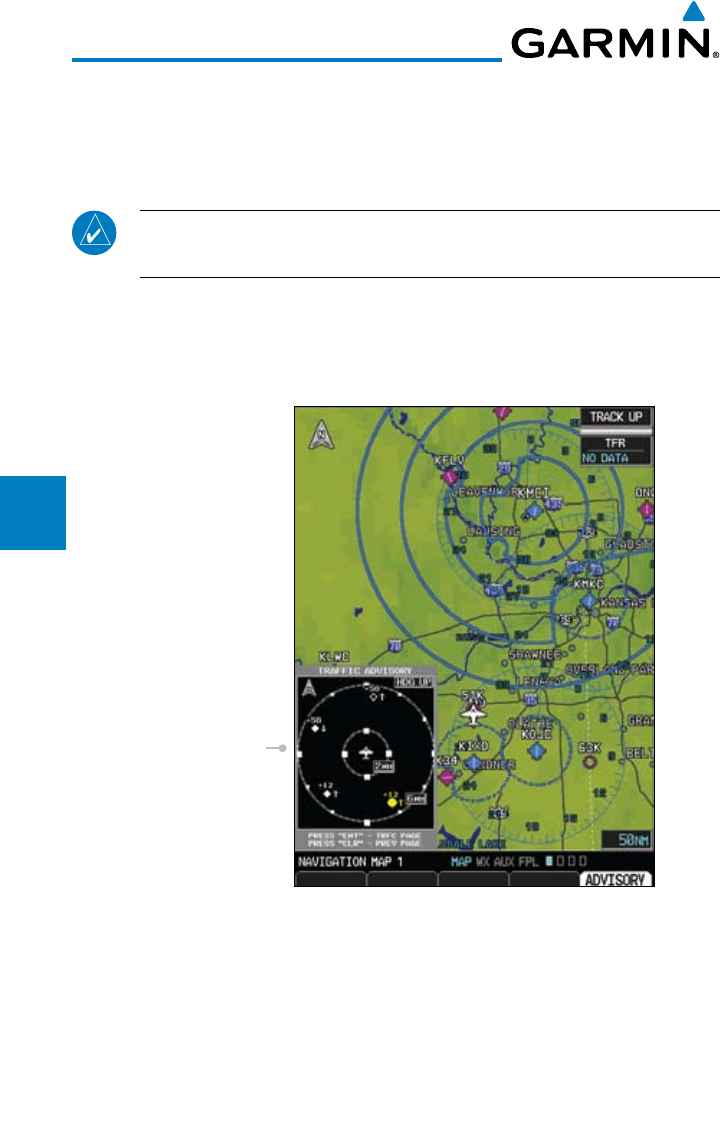
4-38
Garmin G600 Pilot’s Guide
190-00601-02 Rev. E
Foreword
Sec 1
System
Sec 2
PFD
Sec 3
MFD
Sec 4
Hazard
Avoidance
Sec 5
Additional
Features
Sec 6
Annun.
& Alerts
Sec 7
Symbols
Sec 8
GlossaryAppendix A
Appendix B
Index
4.7.5 Traffic Pop-Up
When the GDU 620 MFD is displaying any page (other than the NAV Traffic
page) and a traffic alert becomes active, the Traffic Warning pop-up will be
displayed.
NOTE: The traffic pop-up will not appear when your aircraft is on the
ground.
Press ENT to go directly to the Traffic page.
OR
Press CLR to return to the previously viewed page.
Traffic Pop-Up
Figure 4-29 Traffic Pop-Up
4-39190-00601-02 Rev. E
Garmin G600 Pilot’s Guide
Foreword
Sec 1
System
Sec 2
PFD
Sec 3
MFD
Sec 4
Hazard
Avoidance
Sec 5
Additional
Features
Sec 6
Annun.
& Alerts
Sec 7
Symbols
Sec 8
Glossary Appendix A
Appendix B
Index
4.8 TIS Traffic (Optional)
WARNING: The Traffic Information Service (TIS) is intended for advisory
use only. TIS is intended to help the pilot locate traffic visually. It is the
responsibility of the pilot to see and maneuver to avoid traffic.
NOTE: TIS is available only when the aircraft is within the service volume of
a TIS-capable terminal radar site. Aircraft without an operating transponder
are invisible to both Traffic Advisory Systems (TAS) and TIS. Aircraft without
altitude reporting capability are shown without altitude separation data
or climb descent indication.
NOTE: TIS and TAS are mutually exclusive.
The type of traffic systems that is installed is determined by the traffic page
display in the upper left corner of the MFD.
If Traffic Information Service (TIS) is configured, TIS will be displayed in the
upper left corner of the MFD.
Traffic Information Service (TIS) is designed to help in detection and
avoidance of other aircraft. TIS uses the Mode S transponder for the traffic data
link. TIS receives traffic information from ground stations, and is updated every
five seconds. The GDU 620 displays up to eight traffic targets within a 7.5 NM
radius, from 3000 feet below to 3500 feet above the requesting aircraft. Traffic is
displayed according to TCAS symbology using three different symbols.
4.8.1 Traffic Map Page
The Traffic Map Page is configured to show surrounding TIS traffic data in
relation to the aircraft’s current position and altitude, without clutter from the
basemap. Aircraft orientation on this map is always heading up unless there is
no valid heading.
The traffic mode is annunciated in the upper left corner of the Traffic Map
Page. When the aircraft is on the ground, TIS automatically enters Standby
Mode. Once the aircraft is airborne, TIS switches from Standby to Operating
Mode and the GDU 620 begins to display traffic information.
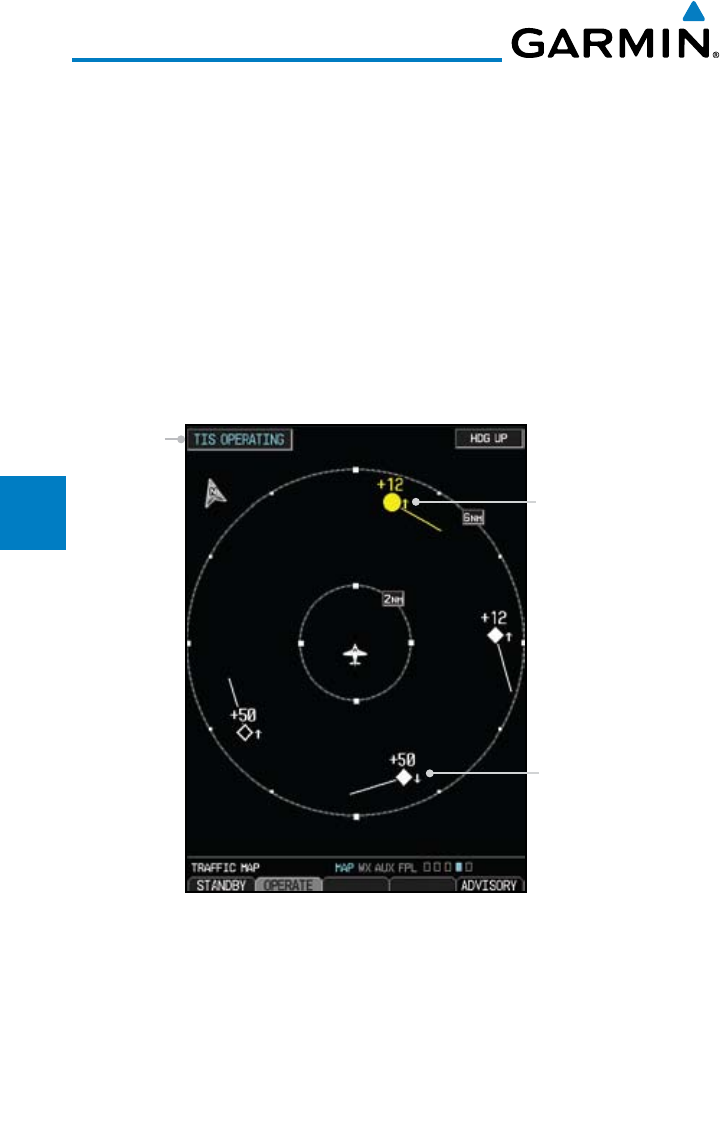
4-40
Garmin G600 Pilot’s Guide
190-00601-02 Rev. E
Foreword
Sec 1
System
Sec 2
PFD
Sec 3
MFD
Sec 4
Hazard
Avoidance
Sec 5
Additional
Features
Sec 6
Annun.
& Alerts
Sec 7
Symbols
Sec 8
GlossaryAppendix A
Appendix B
Index
Displaying traffic on the Traffic Map Page
1) Turn the large
MFD
knob to select the Map Page Group.
2) Turn the small
MFD
knob
to select the Traffic Map Page.
3) Confirm TIS is in Operating Mode:
Select the
OPERATE
soft key to begin displaying traffic.
OR
1) Press the
MENU
key.
2) Select Operate Mode (shown if TIS is in Standby Mode) and then press the ENT
key.
Traffic Advisory,
Aircraft is 1200 feet
above, climbing, and
moving away
Operating
Mode
Proximity Advisory,
Aircraft is 5000 feet
below, descending and
moving away
Figure 4-30 Traffic Map Page - TIS
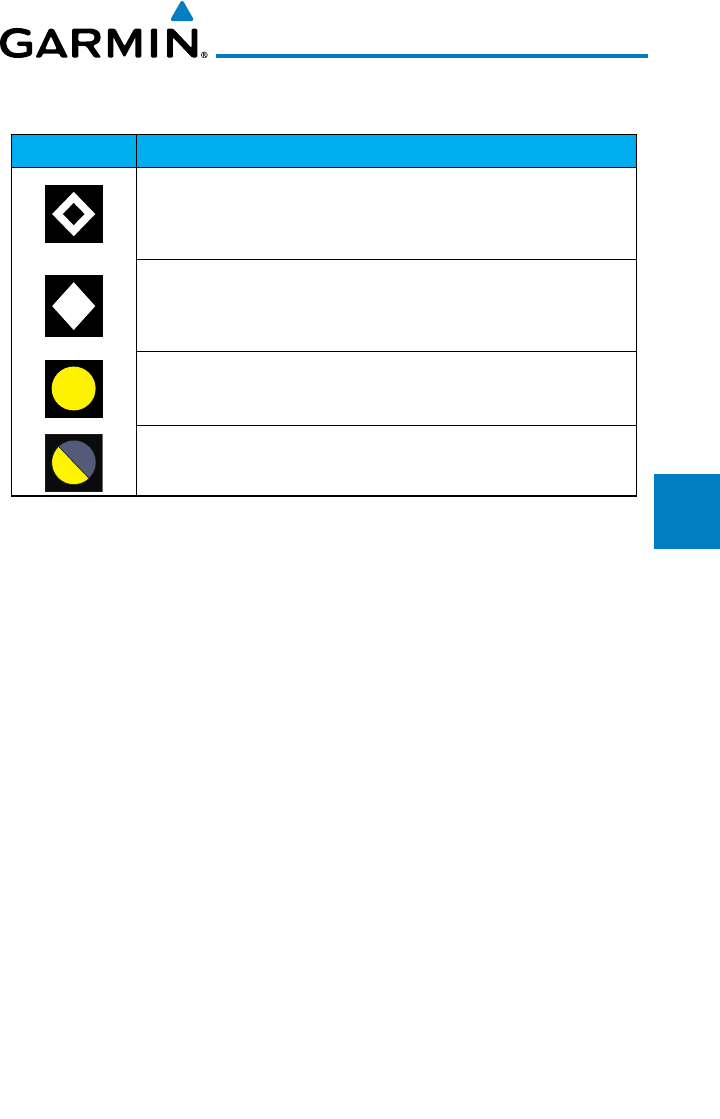
4-41190-00601-02 Rev. E
Garmin G600 Pilot’s Guide
Foreword
Sec 1
System
Sec 2
PFD
Sec 3
MFD
Sec 4
Hazard
Avoidance
Sec 5
Additional
Features
Sec 6
Annun.
& Alerts
Sec 7
Symbols
Sec 8
Glossary Appendix A
Appendix B
Index
4.8.2 TIS Symbology
TIS Symbol Description
Non-Threat Traffic
(intruder is beyond 5 NM and greater than 1200 ft vertical
separation)
Proximity Advisory (PA)
(intruder is within 5 NM and less than 1200 ft vertical
separation)
Traffic Advisory (TA)
(closing rate, distance, and vertical separation meet TA criteria)
Traffic Advisory Off Scale
Table 4-15 TIS Traffic Symbols
A Non-threat Advisory, shown as an open white diamond, indicates that an
intruding aircraft is at greater than ±1200 feet relative altitude or the distance is
beyond five NM.
A Traffic Advisory (TA) alerts the crew to a potentially hazardous intruding
aircraft. Closing rate, distance, and vertical separation meet TA criteria. A Traffic
Advisory that is beyond the selected display range is indicated by a half TA
symbol at the edge of the screen at the relative bearing of the intruder.
TIS also provides a vector line showing the direction in which the traffic
is moving, to the nearest 45º. Traffic information for which TIS is unable to
determine the bearing (non-bearing traffic) is displayed in the center of the
Traffic Map Page or in a banner at the lower left corner of maps other than the
Traffic Map Page on which traffic can be displayed.
The altitude difference between the requesting aircraft and other intruder
aircraft is displayed above/below the traffic symbol in hundreds of feet. If the
other aircraft is above the requesting aircraft, the altitude separation appears
above the traffic symbol; if below, the altitude separation appears below. Altitude
trend is displayed as an up/down arrow (for speeds greater than 500 fpm in
either direction) to the right of the target symbol. Traffic symbols for aircraft
without altitude reporting capability appear without altitude separation or
climb/descent information.
4-42
Garmin G600 Pilot’s Guide
190-00601-02 Rev. E
Foreword
Sec 1
System
Sec 2
PFD
Sec 3
MFD
Sec 4
Hazard
Avoidance
Sec 5
Additional
Features
Sec 6
Annun.
& Alerts
Sec 7
Symbols
Sec 8
GlossaryAppendix A
Appendix B
Index
4.8.3 TIS Limitations
NOTE: This section on TIS Limitations is not comprehensive. Garmin
recommends the user review the TIS Limitations section of the Aeronautical
Information Manual, Section 1-3-5.
TIS is NOT intended to be used as a collision avoidance system and does not
relieve the pilot of responsibility to “see and avoid” other aircraft. TIS should not
be used for avoidance maneuvers during IMC or other times when there is no
visual contact with the intruder aircraft. TIS is intended only to assist in visual
acquisition of other aircraft in VMC. No recommended avoidance maneuvers
are provided for, nor authorized, as a direct result of a TIS intruder display or
TIS advisory.
While TIS is a useful aid to visual traffic avoidance, it has some system
limitations that must be fully understood to ensure proper use. Many of these
limitations are inherent in secondary radar surveillance. In other words, the
information provided by TIS will be no better than that provided to ATC. TIS
will only display aircraft with operating transponders installed.
TIS relies on surveillance of the Mode S radar, which is a “secondary
surveillance” radar similar to the ATCRBS. TIS operation may be intermittent
during turns or other maneuvering. TIS is dependent on two-way, “line-of-
sight” communication between the aircraft and the Mode S radar. Whenever the
structure of the client aircraft comes between the transponder antenna (usually
located on the underside of the aircraft) and the ground-based radar antenna,
the signal may be temporarily interrupted. Other limitations and anomalies
associated with TIS are described in the AIM, Section 1-3-5.
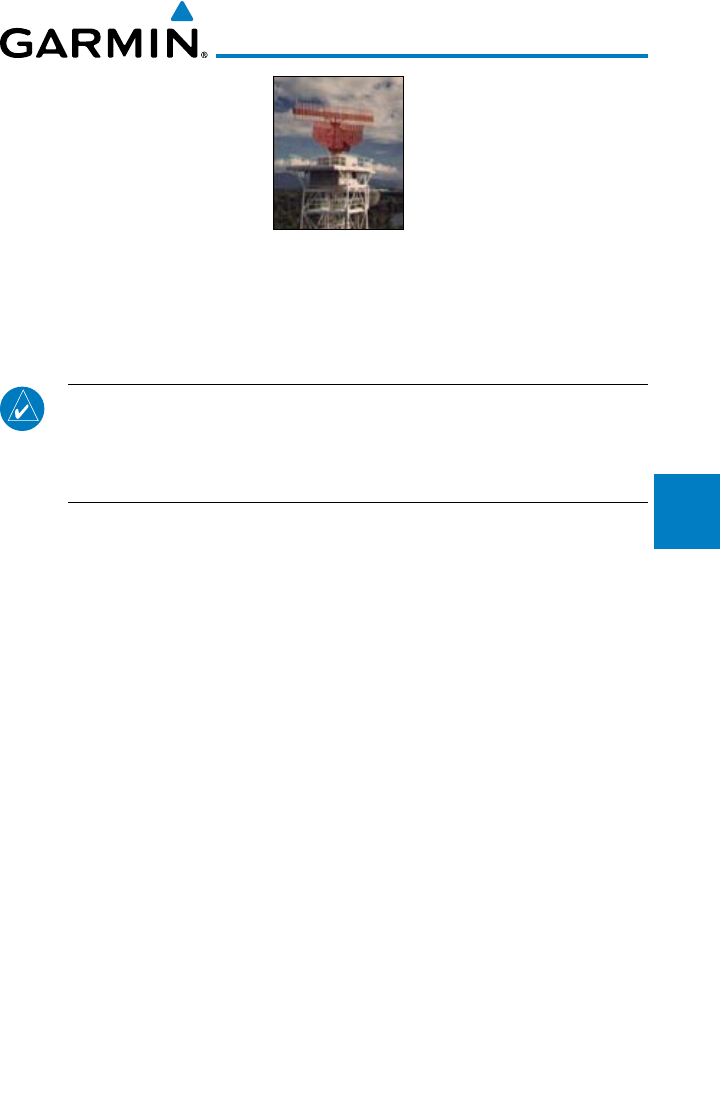
4-43190-00601-02 Rev. E
Garmin G600 Pilot’s Guide
Foreword
Sec 1
System
Sec 2
PFD
Sec 3
MFD
Sec 4
Hazard
Avoidance
Sec 5
Additional
Features
Sec 6
Annun.
& Alerts
Sec 7
Symbols
Sec 8
Glossary Appendix A
Appendix B
Index
Garmin is not responsible for Mode S
geographical coverage. Operation of the
ground stations is the responsibility of the
FAA. Refer to the Aeronautical Information
Manual for a Terminal Mode S Radar Site Map
covering the U.S.
NOTE: TIS will be unavailable at low altitudes in many areas of the U.S.,
particularly in mountainous regions. Also, when flying near the “floor” of
radar coverage in a particular area, intruders below the client aircraft may
not be detected by TIS.
TIS information is collected one radar scan prior to the scan during which
the uplink occurs. Therefore, the surveillance information is approximately
five seconds old. In order to present the intruders in a “real time” position,
the TIS ground station uses a “predictive algorithm” in its tracking software.
This algorithm uses track history data to extrapolate intruders to their expected
positions consistent with the time of display in the cockpit. Occasionally, aircraft
maneuvering will cause this algorithm to induce errors in the display. These
errors primarily affect relative bearing information and traffic target track vector
(it will lag); intruder distance and altitude will remain relatively accurate and
may be used to assist in “see and avoid.” Some of the more common examples
of these errors follow:
• When client or intruder aircraft maneuvers excessively or abruptly, the
tracking algorithm may report incorrect horizontal position until the
maneuvering aircraft stabilizes.
• Whenarapidlyclosingintruderisonacoursethatcrossestheclientaircraft
course at a shallow angle (either overtaking or head on) and either aircraft
abruptly changes course within 0.25 NM, TIS may display the intruder on
the opposite side of the client than it actually is.
These are relatively rare occurrences and will be corrected in a few
radar scans once the course has stabilized.
4-44
Garmin G600 Pilot’s Guide
190-00601-02 Rev. E
Foreword
Sec 1
System
Sec 2
PFD
Sec 3
MFD
Sec 4
Hazard
Avoidance
Sec 5
Additional
Features
Sec 6
Annun.
& Alerts
Sec 7
Symbols
Sec 8
GlossaryAppendix A
Appendix B
Index
4.8.4 TIS Alerts
When the number of Traffic Advisories (TAs) on the Traffic Map Page increases
from one scan to the next, the following occur:
• Asingle“Traffic” voice alert is generated.
• ATRAFFICAnnunciationappearstothetopleftoftheAttitudeIndicator
on the PFD, flashing for 5 seconds and remaining displayed until no TAs are
detected in the area.
To reduce the number of nuisance alerts due to proximate aircraft,
the “Traffic” voice alert is generated only when the number of TAs
increases. For example, when the first TA is displayed, a voice and visual
annunciation are generated. As long as a single TA remains on the display,
no additional voice alerts are generated. If a second TA appears on the
display or if the number of TAs initially decreases and then subsequently
increases, another voice alert is generated.
A “Traffic Not Available” (TNA) voice alert is generated when the TIS service
becomes unavailable or is out of range.
Traffic may not be displayed in the radar coverage area due to the following:
• Radar site TIS Mode S sensor is not operational or is out of service.
• Trafc or requesting aircraft is beyond the maximum range of the TIS-
capable Mode S radar site.
• Trafcorrequestingaircraftisabovetheradarsiteintheconeofsilenceand
out of range of an adjacent site.
• Trafc or requesting aircraft is below radar coverage. In at terrain, the
coverage extends from about 3000 feet upward at 55 miles. Terrain and
obstacles around the radar site can further decrease radar coverage in all
directions.
• Trafcdoesnothaveanoperatingtransponder.
4-45190-00601-02 Rev. E
Garmin G600 Pilot’s Guide
Foreword
Sec 1
System
Sec 2
PFD
Sec 3
MFD
Sec 4
Hazard
Avoidance
Sec 5
Additional
Features
Sec 6
Annun.
& Alerts
Sec 7
Symbols
Sec 8
Glossary Appendix A
Appendix B
Index
4.8.5 TIS System Status
The GDU 620 performs an automatic test of TIS during power-up. If
TIS passes the test, TIS enters Standby Mode on the ground or Operating
Mode in the air. If TIS fails the power up test, an annunciation is shown
in the center of the Traffic Map Page.
Traffic Map Page
Annunciation Description
NO DATA* Data is not being received from the transponder
DATA FAILED* Data is being received from the transponder, but
a failure is detected in the data stream
FAILED* The transponder has failed
UNAVAILABLE TIS is unavailable or out of range
* Contact a service center or Garmin dealer for corrective action
Table 4-16 TIS Failure Annunciations
The traffic mode is annunciated in the upper left corner of the Traffic Map
Page. When the aircraft is on the ground, TIS automatically enters Standby
Mode. If traffic is selected for display on another map while Standby Mode is
selected, the traffic display enabled icon is crossed out (also the case when TIS
has failed). Once the aircraft is airborne, TIS switches to Operating Mode and
traffic information is displayed. The mode can be changed manually using soft
keys or the page menu.
Mode Traffic Mode Annunciation
(Traffic Map Page)
Traffic Display Enabled Icon
(Other Maps)
TIS Operating OPERATING
TIS Standby
STANDBY
(Also shown in white in center of
page)
TIS Failed* FAIL
Table 4-17 TIS Modes
4-46
Garmin G600 Pilot’s Guide
190-00601-02 Rev. E
Foreword
Sec 1
System
Sec 2
PFD
Sec 3
MFD
Sec 4
Hazard
Avoidance
Sec 5
Additional
Features
Sec 6
Annun.
& Alerts
Sec 7
Symbols
Sec 8
GlossaryAppendix A
Appendix B
Index
Switching Between TIS Operating Modes
1) Turn the large MFD knob to the MAP page group and then turn the small MFD
knob to the Traffic Map Page.
2) Select the
STANDBY
or
OPERATE
soft key to switch between modes. The mode
is displayed in the upper left corner of the Traffic Map Page.
OR
1) Press the
MENU
key.
2) Select Operate mode or Standby mode whether airborne or on the ground.
3) Press the ENT key.
NOTE: An alert will be generated when Standby is selected and the
aircraft is in the air.
The annunciations indicate the status of traffic information appear in a banner
at the lower left corner of maps on which traffic can be displayed.
4-47190-00601-02 Rev. E
Garmin G600 Pilot’s Guide
Foreword
Sec 1
System
Sec 2
PFD
Sec 3
MFD
Sec 4
Hazard
Avoidance
Sec 5
Additional
Features
Sec 6
Annun.
& Alerts
Sec 7
Symbols
Sec 8
Glossary Appendix A
Appendix B
Index
Traffic Status
Banner
Annunciation
Description
TA OFF SCALE*
A Traffic Advisory is outside the selected display range
Annunciation is removed when traffic comes within the selected
display range
TA X.X ± XX
↕**
System cannot determine bearing of Traffic Advisory
Annunciation indicates distance in NM, altitude separation
in hundreds of feet, and altitude trend arrow (climbing/
descending)
AGE MM:SS
Appears if traffic data is not refreshed within 6 seconds
If after another 6 seconds data is not received, traffic is removed
from the display
The quality of displayed traffic information is reduced as the age
increases
TRFC COAST
The displayed data is not current (6 to 12 seconds since last
message)
The quality of displayed traffic information is reduced when this
message is displayed
TRFC RMVD
Traffic is removed because it is too old for coasting (12 to 60
seconds since last message)
Traffic may exist within the selected display range, but it is not
displayed
TRFC FAIL Traffic data has failed
NO TRFC DATA Traffic has not been detected
TRFC UNAVAIL The traffic service is unavailable or out of range
*Shown as symbol on Traffic Map Page
**Shown in center of Traffic Map Page
Table 4-18 TIS Traffic Status Annunciations
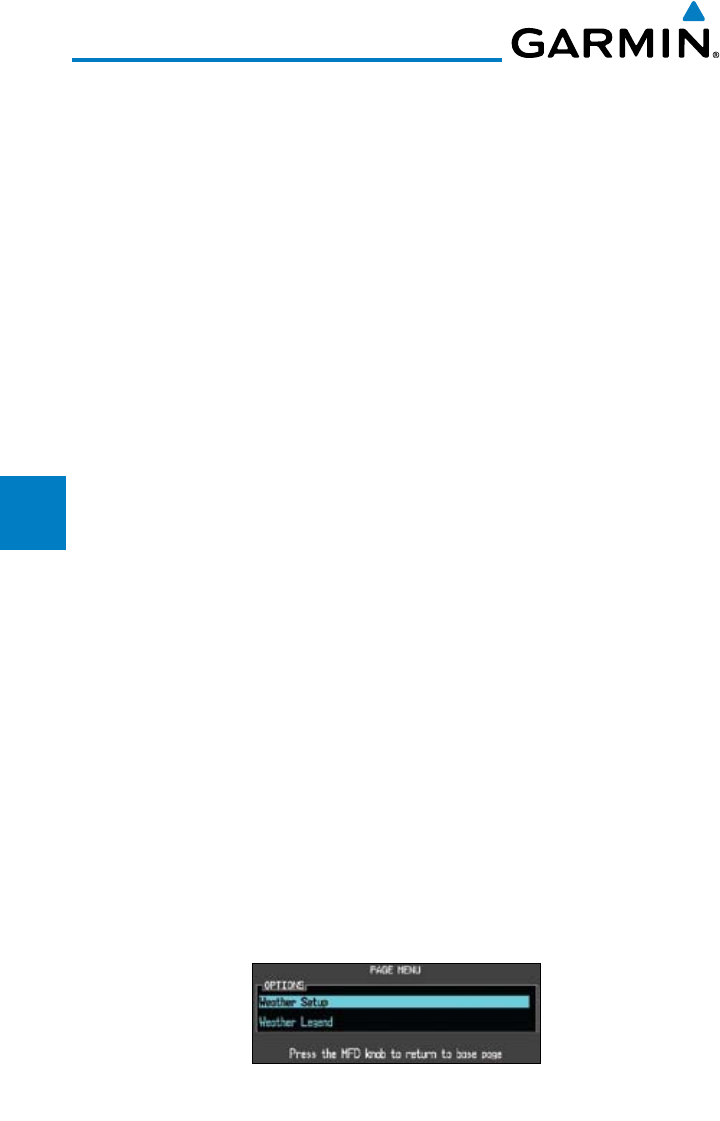
4-48
Garmin G600 Pilot’s Guide
190-00601-02 Rev. E
Foreword
Sec 1
System
Sec 2
PFD
Sec 3
MFD
Sec 4
Hazard
Avoidance
Sec 5
Additional
Features
Sec 6
Annun.
& Alerts
Sec 7
Symbols
Sec 8
GlossaryAppendix A
Appendix B
Index
4.9 XM Weather (Optional)
The primary map for viewing XM Weather data are the Weather Data Link
Pages in the Map Page Group. These are the only GDU 620 map displays capable
of all available XM weather products. The Wx Weather pages may be oriented
to either Track Up or North Up. Canadian Radar provided by Environment
Canada.
4.9.1 Using XM Satellite Weather Products
When a weather product is active on the Weather Data Link Page or the
Navigation Map Page, the age of the data is displayed on the screen. The age of
the product is based on the time difference between when the data was assembled
on the ground and the current GPS time. Weather products are refreshed at
specific intervals (defined in the Refresh Rate column).
If for any reason, a weather product is not refreshed within the 30, 60, 90,
or 120 minute Expiration Time intervals, the data is considered expired and is
removed from the display. This ensures that the displayed data is consistent with
what is currently being broadcast by XM Satellite Radio services. If more than
half of the expiration time has elapsed from the time the data is received, the
color of the product age displayed changes to yellow.
4.9.2 Customizing the XM Weather Map
Each Wx Data Link Map page may be customized individually. The Wx
Data Link Map pages are customized by selecting options from the Page Menu.
The Page Menu options include choices for Weather Setup and displaying the
Weather Legends. The Weather Setup choice covers selections for adjusting the
viewing ranges of the weather products.
1) While viewing a WX Data Link Map page of the WX page group, press the
MENU key to display the Page
Menu Options
. The cursor flashes on the
“Weather Setup” option. Press ENT
.
Figure 4-31 Weather Page Menu Options
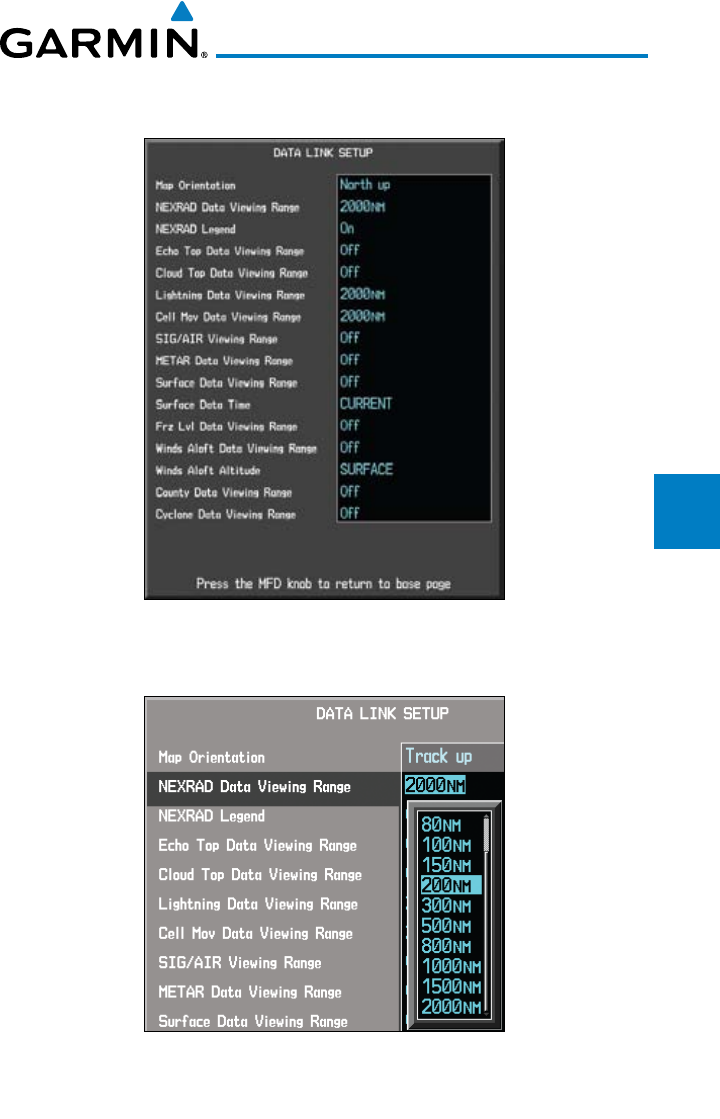
4-49190-00601-02 Rev. E
Garmin G600 Pilot’s Guide
Foreword
Sec 1
System
Sec 2
PFD
Sec 3
MFD
Sec 4
Hazard
Avoidance
Sec 5
Additional
Features
Sec 6
Annun.
& Alerts
Sec 7
Symbols
Sec 8
Glossary Appendix A
Appendix B
Index
2) With the Data Link Setup Menu displayed, turn the Large MFD knob to select
the desired item and press ENT.
Figure 4-32 Weather Data Link Setup Menu Options
3) Turn the small
MFD
knob to select the desired weather feature option.
Figure 4-33 Weather Data Link Setup Menu Option Selection
4) Press ENT
to save a selection.
4-50
Garmin G600 Pilot’s Guide
190-00601-02 Rev. E
Foreword
Sec 1
System
Sec 2
PFD
Sec 3
MFD
Sec 4
Hazard
Avoidance
Sec 5
Additional
Features
Sec 6
Annun.
& Alerts
Sec 7
Symbols
Sec 8
GlossaryAppendix A
Appendix B
Index
5) Turn the large MFD knob to the next desired option or press the small MFD
knob to cancel and return to the XM Weather Data Link Map Page.
WX Page Menu - Weather Setup
Menu Item Adjustment
Map Orientation North Up, Track Up
NEXRAD Data Viewing Range Off, 50 NM to 2000 NM
NEXRAD Legend On/Off
Echo Top Data Viewing Range Off, 50 NM to 2000 NM
Cloud Top Data Viewing Range Off, 50 NM to 2000 NM
Lightning Data Viewing Range Off, 50 NM to 2000 NM
Cell Mov Data Viewing Range Off, 50 NM to 2000 NM
SIG/Air Viewing Range Off, 50 NM to 2000 NM
METAR Data Viewing Range Off, 50 NM to 2000 NM
Surface Data Viewing Range Off, 50 NM to 2000 NM
Surface Data Time Current, 12 Hr, 24 Hr, 36 Hr, and 48 Hr
Frz Lvl Data Viewing Range Off, 50 NM to 2000 NM
Wnd Aloft Data Viewing Range Off, 50 NM to 2000 NM
Wnd Aloft Altitude Surface, 3000 feet to 42000 feet
County Data Viewing Range Off, 50 NM to 2000 NM
Cyclone Data Viewing Range Off, 50 NM to 2000 NM
Table 4-19 Weather Page Menu Setup Options
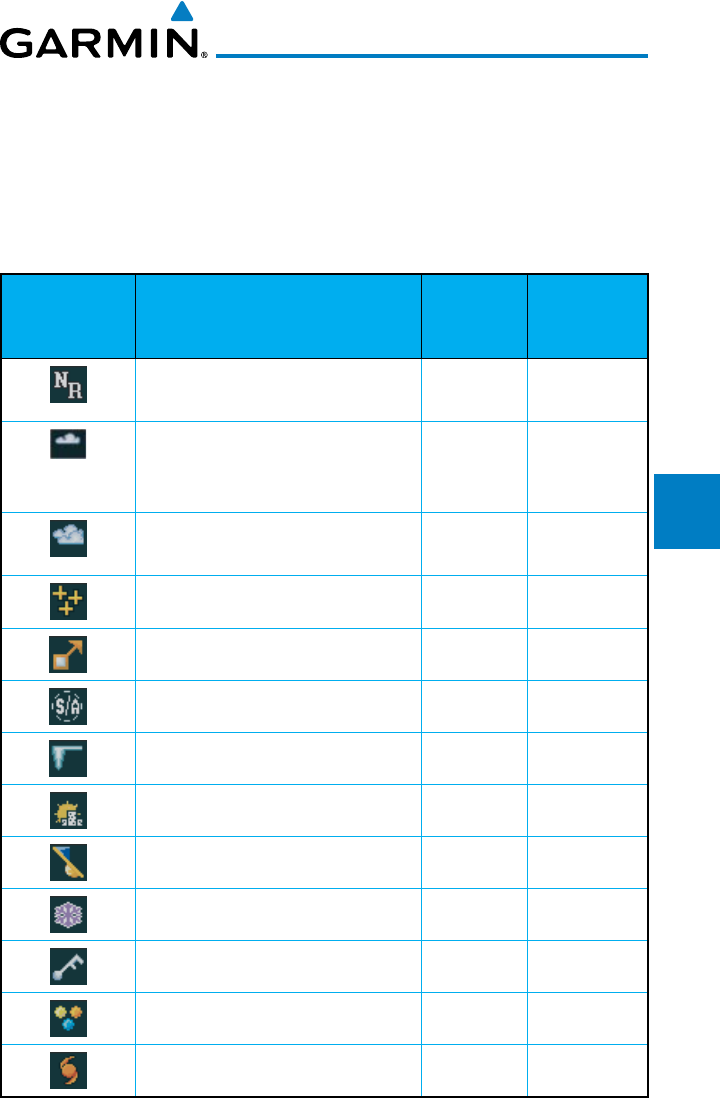
4-51190-00601-02 Rev. E
Garmin G600 Pilot’s Guide
Foreword
Sec 1
System
Sec 2
PFD
Sec 3
MFD
Sec 4
Hazard
Avoidance
Sec 5
Additional
Features
Sec 6
Annun.
& Alerts
Sec 7
Symbols
Sec 8
Glossary Appendix A
Appendix B
Index
4.9.3 XM Weather Symbols and Product Age
The weather product symbols, the expiration time and the refresh rate are
shown in the following table. The refresh rate represents the interval at which XM
Satellite Radio broadcasts new signals that may or may not contain new weather
data. It does not represent the rate at which weather data is updated or new content
is received by the Data Link Receiver. Weather data is refreshed at intervals that are
defined and controlled by XM Satellite Radio and its data vendors.
Symbol Weather Product Expiration
Time
(Minutes)
Refresh Rate
(Minutes)
NEXRAD (NEXRAD and Echo Top
are Mutually Exclusive)
30 5
Echo Top (Cloud Top and Echo Top
Mutually Exclusive) (NEXRAD and
Echo Top Mutually Exclusive)
30 7.5
Cloud Top (Cloud Top and Echo Top
Mutually Exclusive)
60 15
XM Lightning 30 5
Cell Movement 30 1.25
SIGMETs / AIRMETs 60 12
METARs 90 12
City Forecast 90 12
Surface Analysis 60 12
Freezing Levels 120 12
Winds Aloft 90 12
County Warnings 60 5
Cyclone Warnings 60 12
Table 4-20 Weather Product Symbols and Aging Times
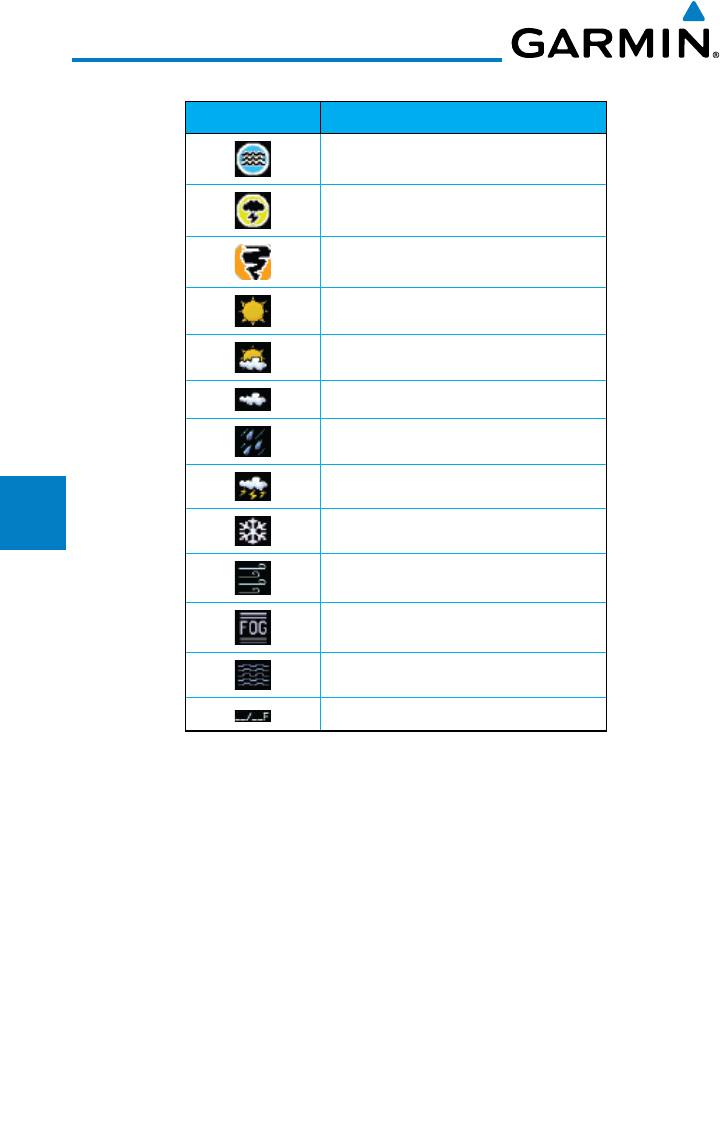
4-52
Garmin G600 Pilot’s Guide
190-00601-02 Rev. E
Foreword
Sec 1
System
Sec 2
PFD
Sec 3
MFD
Sec 4
Hazard
Avoidance
Sec 5
Additional
Features
Sec 6
Annun.
& Alerts
Sec 7
Symbols
Sec 8
GlossaryAppendix A
Appendix B
Index
Symbol Description
Flood
Severe Thunderstorm
Tornado
Sunny
Part Sun
Cloudy
Rainy
T-Storm
Snow
Windy
Foggy
Haze
High/Low Temp
Table 4-21 Weather Symbols
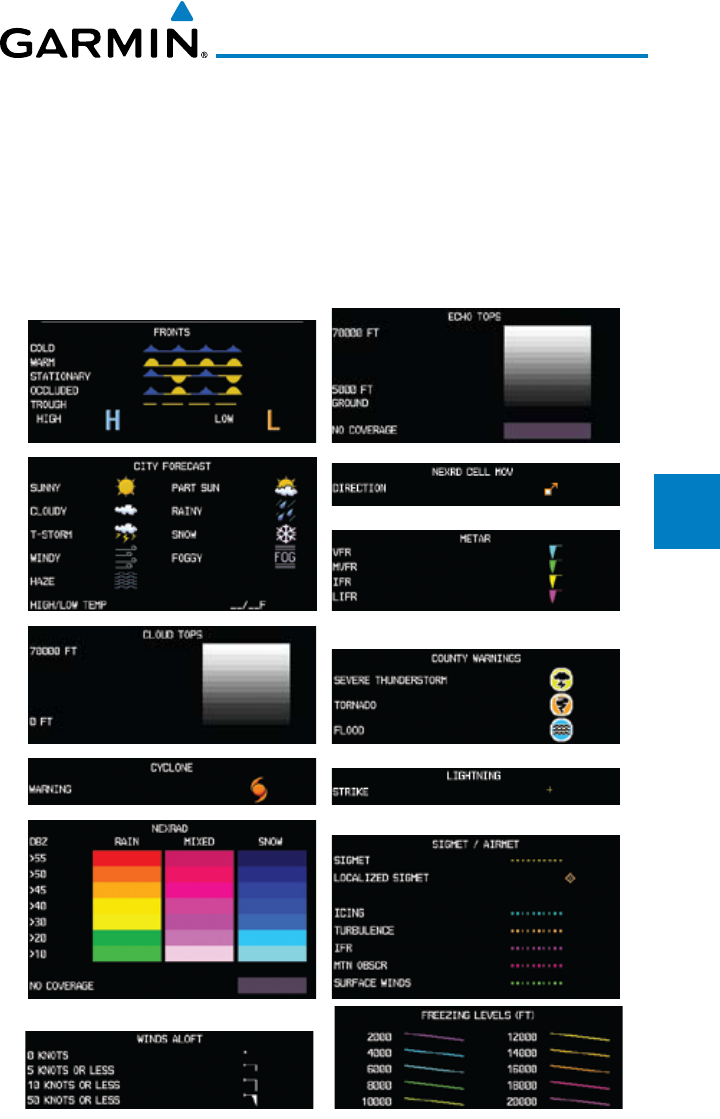
4-53190-00601-02 Rev. E
Garmin G600 Pilot’s Guide
Foreword
Sec 1
System
Sec 2
PFD
Sec 3
MFD
Sec 4
Hazard
Avoidance
Sec 5
Additional
Features
Sec 6
Annun.
& Alerts
Sec 7
Symbols
Sec 8
Glossary Appendix A
Appendix B
Index
4.9.4 Weather Legends
The LEGEND soft key displays a pop-up legend of the currently used weather
products. Pressing the LEGEND soft key again, the MFD knob, the ENT, or
CLR keys will remove the legend.
1) A full page legend can be selected by selecting the Weather Legend option in
the XM Weather Map Menu or pressing the LEGEND soft key on the Weather
Map Page. The legend displayed will match the selected weather products. Turn
the large or small MFD knobs to scroll through the legend, if necessary.
Figure 4-34 Weather Legends
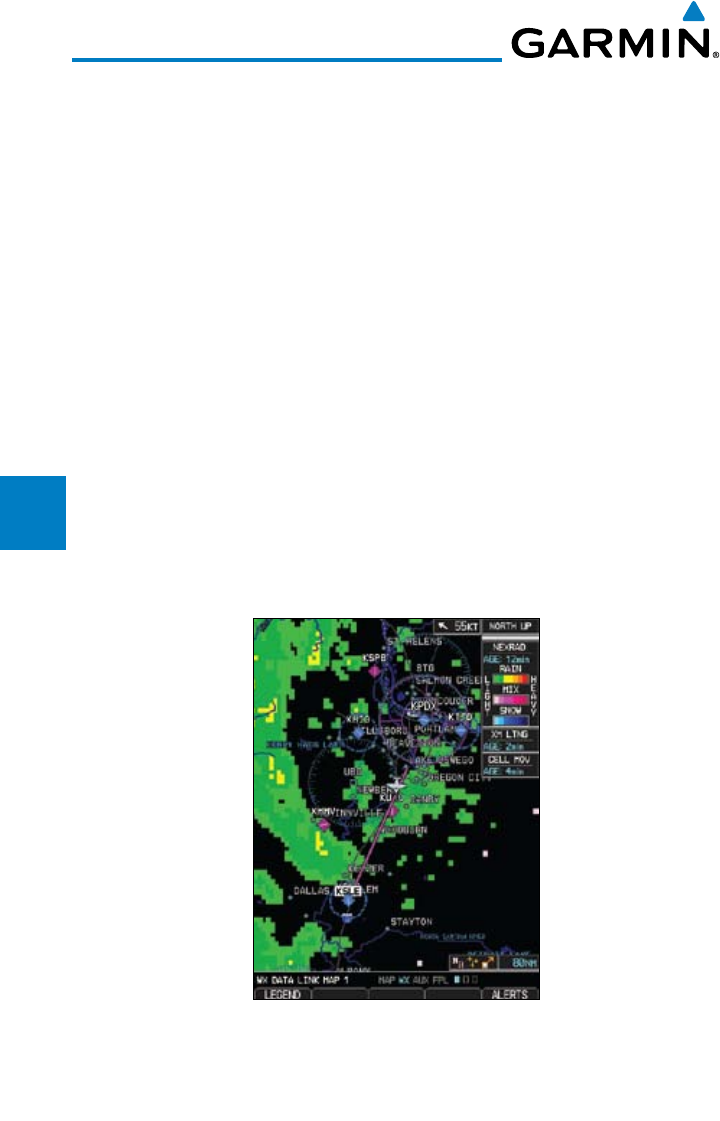
4-54
Garmin G600 Pilot’s Guide
190-00601-02 Rev. E
Foreword
Sec 1
System
Sec 2
PFD
Sec 3
MFD
Sec 4
Hazard
Avoidance
Sec 5
Additional
Features
Sec 6
Annun.
& Alerts
Sec 7
Symbols
Sec 8
GlossaryAppendix A
Appendix B
Index
2) An abbreviated legend may be displayed on the upper right side of a WX Data
Link Map page for the applicable weather products when selected in the Page
Menu options for Weather.
4.9.5 NEXRAD
WSR-88D, or NEXRAD (NEXt-generation RADar), is a network of 158 high-
resolution Doppler radar systems that are operated by the National Weather
Service (NWS). NEXRAD data provides centralized meteorological information
for the continental United States and selected overseas locations. The maximum
range of a single NEXRAD radar site is 250 NM. The NEXRAD network provides
important information about severe weather for air traffic safety. Canadian Radar
provided by Environment Canada.
NEXRAD data is not real-time. The lapsed time between collection, processing,
and dissemination of NEXRAD images can be significant and may not reflect
the current radar synopsis. Due to the inherent delays and the relative age of
the data, it should be used for long-range planning purposes only. Never use
NEXRAD data or any radar data to penetrate hazardous weather. Instead, use it
in an early-warning capacity of pre-departure and en route evaluation.
Figure 4-35 XM Weather - NEXRAD
Composite data from all the NEXRAD radar sites in the United States is shown.
This data is composed of the maximum reflectivity from the individual radar
sweeps. The display of the information is color-coded to indicate the weather
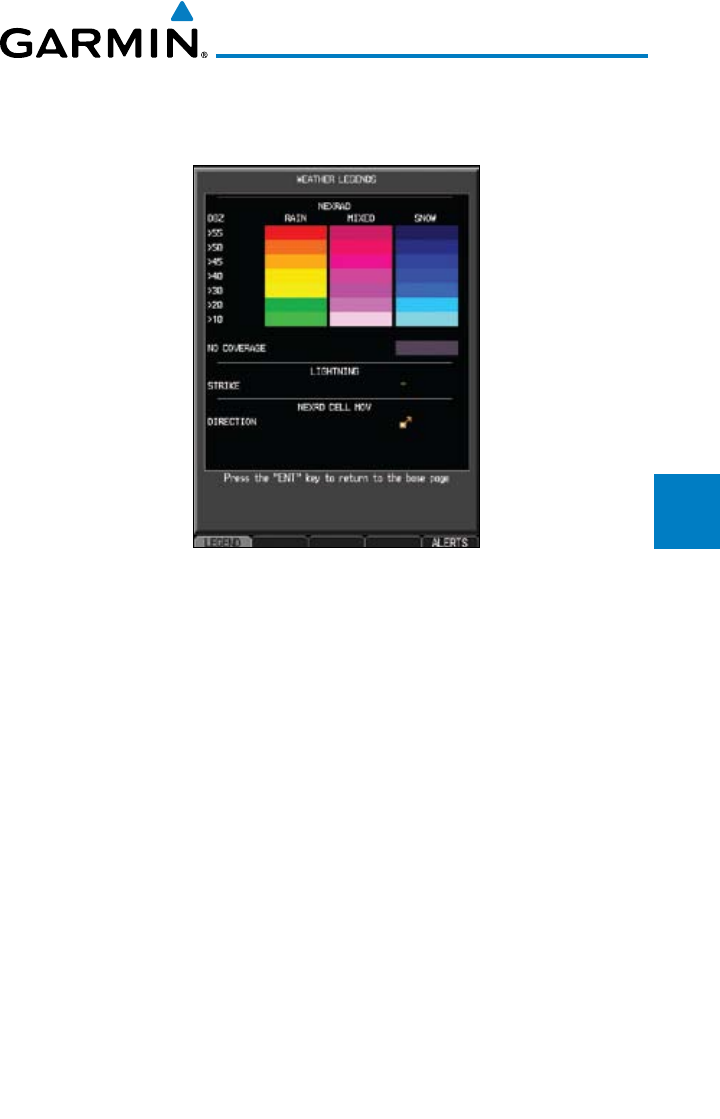
4-55190-00601-02 Rev. E
Garmin G600 Pilot’s Guide
Foreword
Sec 1
System
Sec 2
PFD
Sec 3
MFD
Sec 4
Hazard
Avoidance
Sec 5
Additional
Features
Sec 6
Annun.
& Alerts
Sec 7
Symbols
Sec 8
Glossary Appendix A
Appendix B
Index
severity level. All weather product legends can be viewed on the Weather Data
Link Page. For the NEXRAD legend, select the LEGEND soft key when NEXRAD
is selected for display.
Figure 4-36 NEXRAD Weather Legend
The display of radar coverage is always active when either NEXRAD or
ECHO TOPS is selected. Areas where NEXRAD radar coverage and Echo Tops
information is not currently available or is not being collected are indicated in
grayish-purple.
4.9.5.1 Reflectivity
Reflectivity is the amount of transmitted power returned to the radar receiver.
Colors on the NEXRAD display directly correlate to the level of detected
reflectivity. Reflectivity as it relates to hazardous weather can be very complex.
The role of radar is essentially to detect moisture in the atmosphere. Simply
put, certain types of weather reflect radar better than others. The intensity of a
radar reflection is not necessarily an indication of the weather hazard level. For
instance, wet hail returns a strong radar reflection, while dry hail does not. Both
wet and dry hail can be extremely hazardous.
The different NEXRAD echo intensities are measured in decibels (dB) relative
to reflectivity (Z). NEXRAD measures the radar reflectivity ratio, or the energy
reflected back to the radar receiver (designated by the letter Z). The value of Z
increases as the returned signal strength increases.
4-56
Garmin G600 Pilot’s Guide
190-00601-02 Rev. E
Foreword
Sec 1
System
Sec 2
PFD
Sec 3
MFD
Sec 4
Hazard
Avoidance
Sec 5
Additional
Features
Sec 6
Annun.
& Alerts
Sec 7
Symbols
Sec 8
GlossaryAppendix A
Appendix B
Index
4.9.5.2 NEXRAD Limitations
NEXRAD radar images may have certain limitations:
• NEXRAD base reectivity does not provide sufficient information to
determine cloud layers or precipitation characteristics. For example, it is
not possible to distinguish between wet snow, wet hail, and rain.
• NEXRADbasereectivityissampledattheminimumantennaelevation
angle. An individual NEXRAD site cannot depict high altitude storms at
close ranges. It has no information about storms directly over the site.
• Whenzoomedintoarangeof30NM,eachsquareblockonthedisplay
represents an area of four square kilometers. The intensity level reflected
by each square represents the highest level of NEXRAD data sampled
within the area.
The following may cause abnormalities in displayed NEXRAD radar images:
• Groundclutter
• Strobesandspuriousradardata
• Sunstrobes(whentheradarantennapointsdirectlyatthesun)
• Interferencefrombuildingsormountains,whichmaycauseshadows
• Metallicdustfrommilitary aircraft, which can cause alterations in radar
scans
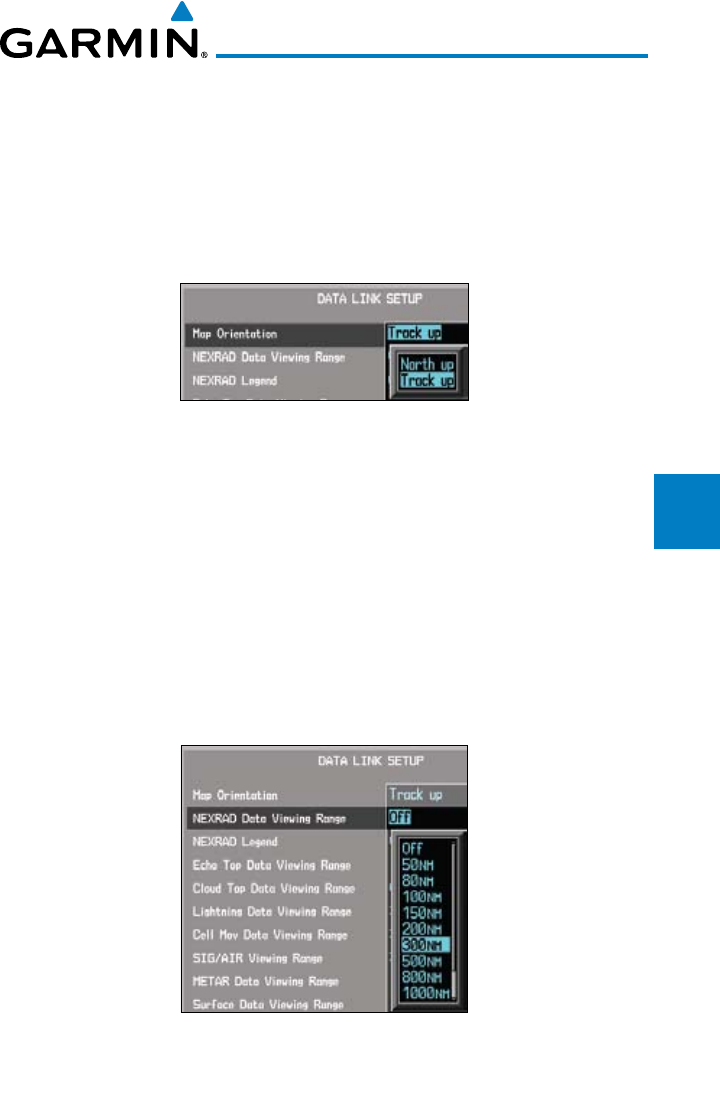
4-57190-00601-02 Rev. E
Garmin G600 Pilot’s Guide
Foreword
Sec 1
System
Sec 2
PFD
Sec 3
MFD
Sec 4
Hazard
Avoidance
Sec 5
Additional
Features
Sec 6
Annun.
& Alerts
Sec 7
Symbols
Sec 8
Glossary Appendix A
Appendix B
Index
4.9.6 Weather Page Map Orientation
The Orientation option sets the orientation of the Wx Data Link Map pages.
1) While viewing the Wx Data Link Map 1, 2, or 3 of the Wx page group, press the
MENU key. With “Weather Setup” highlighted, press ENT.
2) With the “Map Orientation” option active, turn the small MFD knob to change
the highlighted value.
Figure 4-37 Weather Page Map Orientation
3) Press ENT
to accept the displayed value. The next option will be highlighted.
4) Press the small MFD knob to cancel selection or to end editing and return to
the Navigation Map page or turn the large MFD knob to the next option.
4.9.7 NEXRAD Data Viewing Range
The NEXRAD Viewing Range option allows you to select the map range
where at and below the selected value NEXRAD weather products will be shown
on the selected MFD Wx Data Link Map page (1, 2, or 3). When Off is selected,
NEXRAD weather data will not be shown. In the figure below where 300 NM is
selected, NEXRAD data will be shown at map ranges of 300 NM and lower.
Figure 4-38 NEXRAD Viewing Range Selection
1) While viewing a WX Data Link Map page of the WX page group, press the
MENU key to display the Page
Menu Options
. The cursor flashes on the
“Weather Setup” option. Press ENT
.
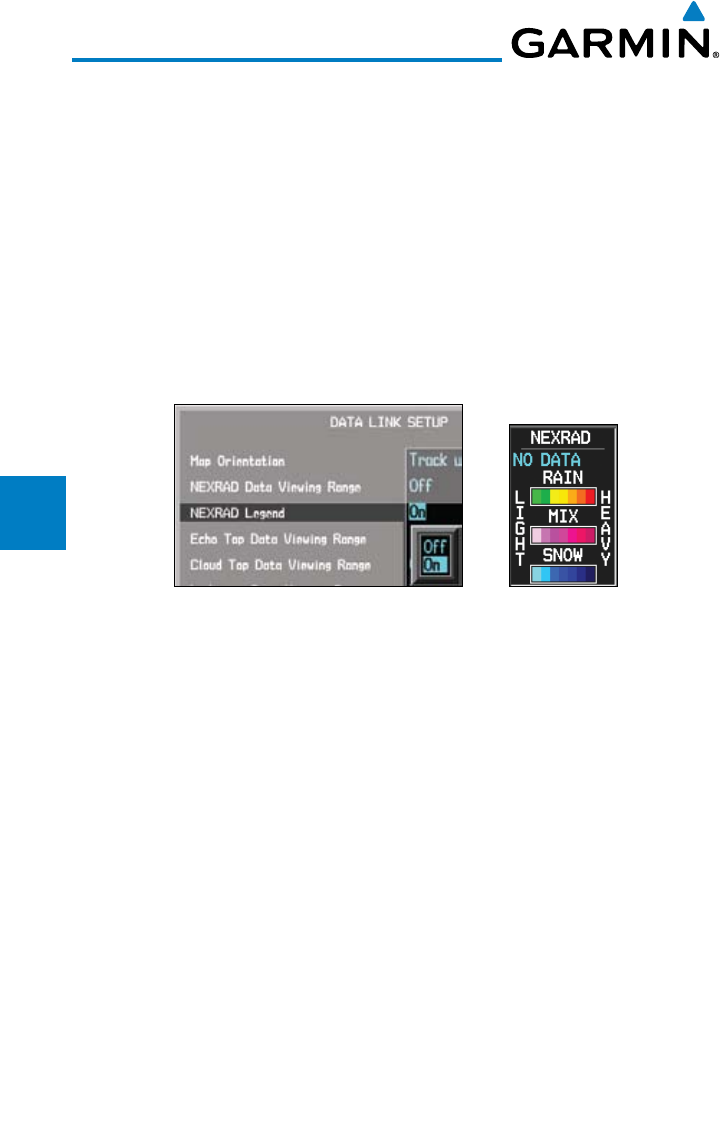
4-58
Garmin G600 Pilot’s Guide
190-00601-02 Rev. E
Foreword
Sec 1
System
Sec 2
PFD
Sec 3
MFD
Sec 4
Hazard
Avoidance
Sec 5
Additional
Features
Sec 6
Annun.
& Alerts
Sec 7
Symbols
Sec 8
GlossaryAppendix A
Appendix B
Index
2) The NEXRAD Data Viewing Range value will be highlighted. Turn the small
MFD knob to highlight the desired value.
3) Press ENT
to accept the displayed value. The next option will be highlighted.
4) Press the small MFD knob to cancel selection or to end editing and return to
the Navigation Map page or turn the large MFD knob to the next option.
4.9.8 NEXRAD Legend
The NEXRAD Legend selection provides the option of displaying an
abbreviated version of the NEXRAD legend in the top right region of the MFD.
The full legend is available by pressing the LEGEND soft key.
Figure 4-39 NEXRAD Legend Selection
1) While viewing a WX Data Link Map page of the WX page group, press the
MENU key to display the Page
Menu Options
. The cursor flashes on the
“Weather Setup” option. Press ENT
.
2) Turn the large MFD knob to highlight the NEXRAD Legend value.
3) Turn the small MFD knob to highlight Off or On. Press ENT
to accept the
displayed value. The next option will be highlighted.
4) Press the small MFD knob to cancel selection or to end editing and return to
the Navigation Map page or turn the large MFD knob to the next option.
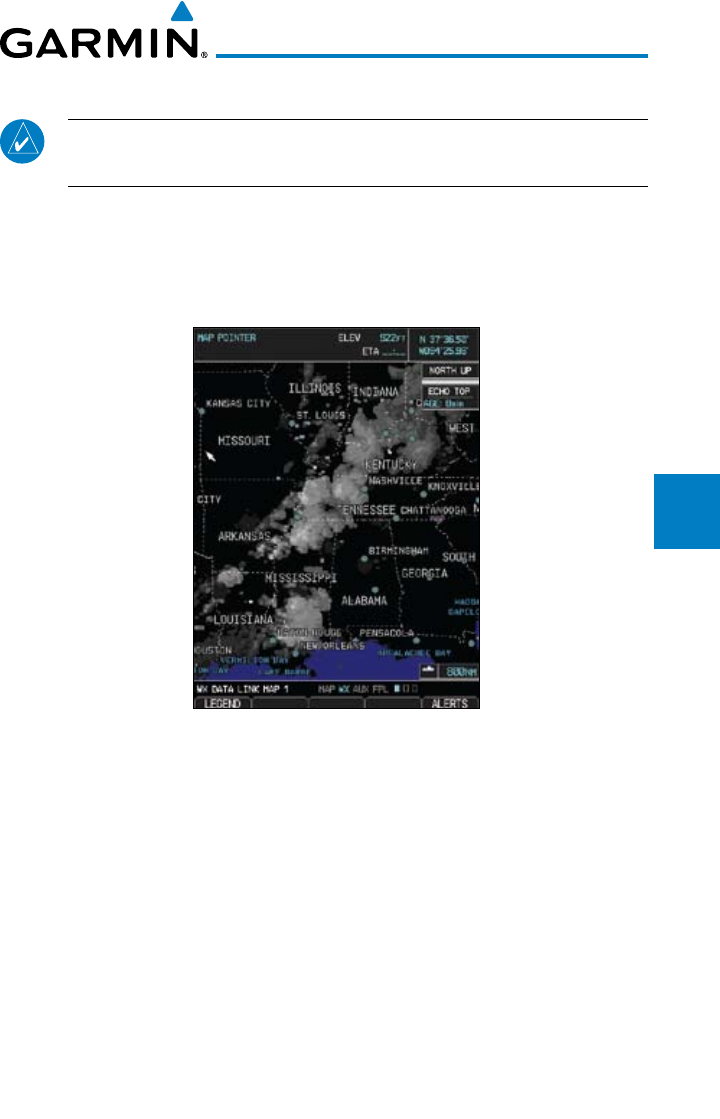
4-59190-00601-02 Rev. E
Garmin G600 Pilot’s Guide
Foreword
Sec 1
System
Sec 2
PFD
Sec 3
MFD
Sec 4
Hazard
Avoidance
Sec 5
Additional
Features
Sec 6
Annun.
& Alerts
Sec 7
Symbols
Sec 8
Glossary Appendix A
Appendix B
Index
4.9.9 Echo Tops
NOTE: Due to similarities in color schemes, the display of Echo Tops is
mutually exclusive with Cloud Tops and NEXRAD.
Echo Tops data shows the location, elevation, and direction of the highest
radar echo. The highest radar echo does not indicate the top of a storm or
clouds; rather it indicates the highest altitude at which precipitation is detected.
Information is derived from NEXRAD data.
Figure 4-40 XM Weather - Echo Tops
The display of radar coverage is always active when either NEXRAD or
ECHO TOPS is selected. Areas where NEXRAD radar coverage and Echo Tops
information is not currently available or is not being collected are indicated in
grayish-purple. Radar capability exists in these areas, but it is not active or is
off-line.
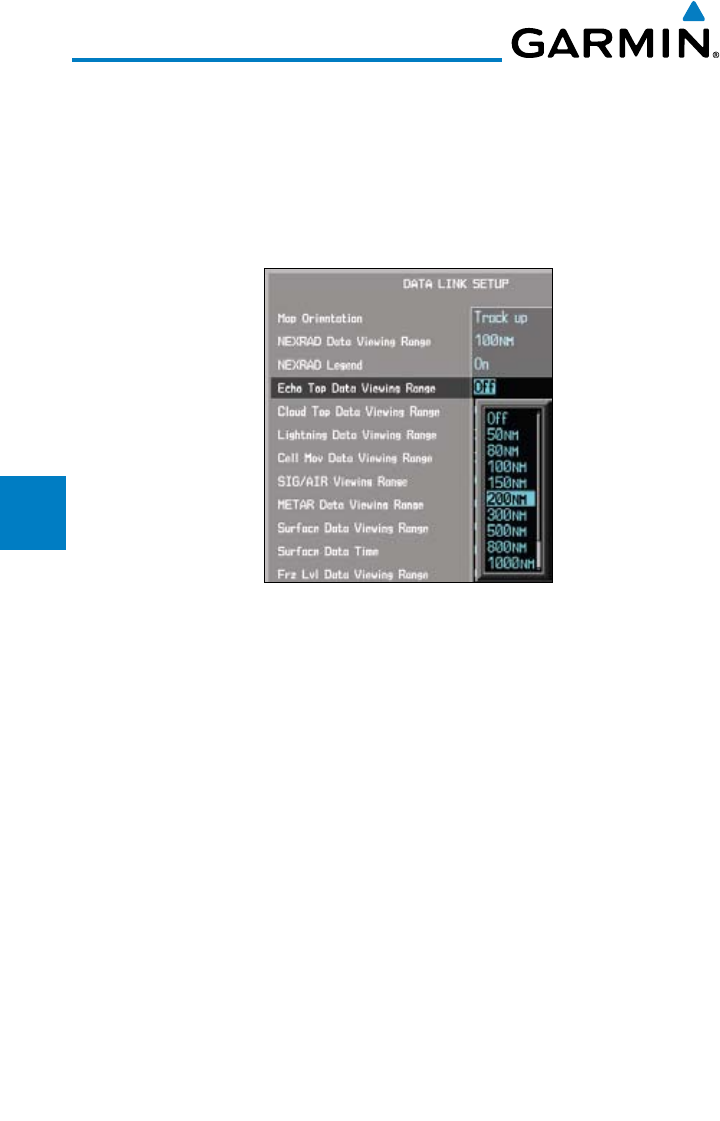
4-60
Garmin G600 Pilot’s Guide
190-00601-02 Rev. E
Foreword
Sec 1
System
Sec 2
PFD
Sec 3
MFD
Sec 4
Hazard
Avoidance
Sec 5
Additional
Features
Sec 6
Annun.
& Alerts
Sec 7
Symbols
Sec 8
GlossaryAppendix A
Appendix B
Index
Echo Top Data Viewing Range
The Echo Top Data Viewing Range option allows you to select the map range
where at and below that value Echo Top weather products will be shown on the
selected MFD Wx Data Link Map page (1, 2, or 3). When Off is selected, Echo
Tops will not be shown. In the figure below where 200 NM is selected, Echo Top
data will be shown at map ranges of 200 NM and lower.
Figure 4-41 Echo Top Viewing Range Selection
1) While viewing a WX Data Link Map page of the WX page group, press the
MENU key to display the Page
Menu Options
. The cursor flashes on the
“Weather Setup” option. Press ENT
.
2) Turn the large MFD knob to highlight the Echo Top Data Viewing Range
value.
3) Turn the small MFD knob to highlight the desired value. Press ENT
to accept
the displayed value. The next option will be highlighted.
4) Press the small MFD knob to cancel selection or to end editing and return to
the Navigation Map page or turn the large MFD knob to the next option.
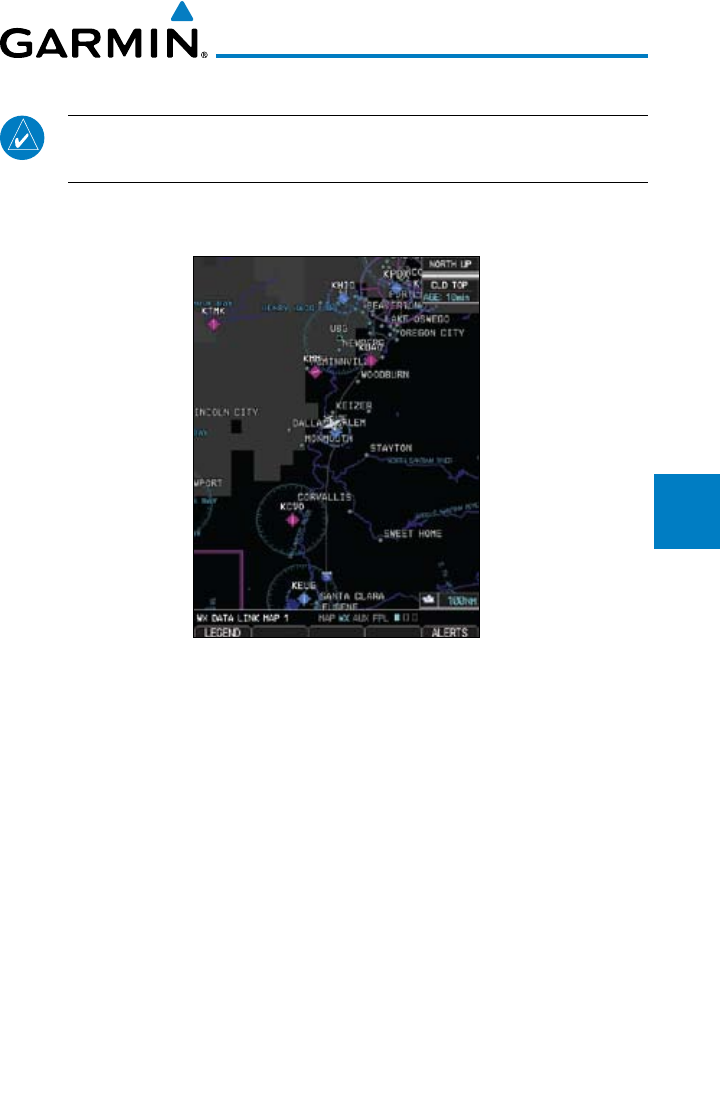
4-61190-00601-02 Rev. E
Garmin G600 Pilot’s Guide
Foreword
Sec 1
System
Sec 2
PFD
Sec 3
MFD
Sec 4
Hazard
Avoidance
Sec 5
Additional
Features
Sec 6
Annun.
& Alerts
Sec 7
Symbols
Sec 8
Glossary Appendix A
Appendix B
Index
4.9.10 Cloud Tops
NOTE: Due to similarities in color schemes, the display of Cloud Tops is
mutually exclusive with Echo Tops and NEXRAD.
Cloud Tops data depicts cloud top altitudes as determined from satellite
imagery.
Figure 4-42 XM Weather - Cloud Tops
To display the Cloud Tops legend, select the LEGEND soft key when Cloud
Tops is selected for display. Since Cloud Tops and Echo Tops use the same color
scaling to represent altitude, display of these weather products is mutually
exclusive. When Cloud Tops is activated, Echo Tops or NEXRAD data is not
shown.
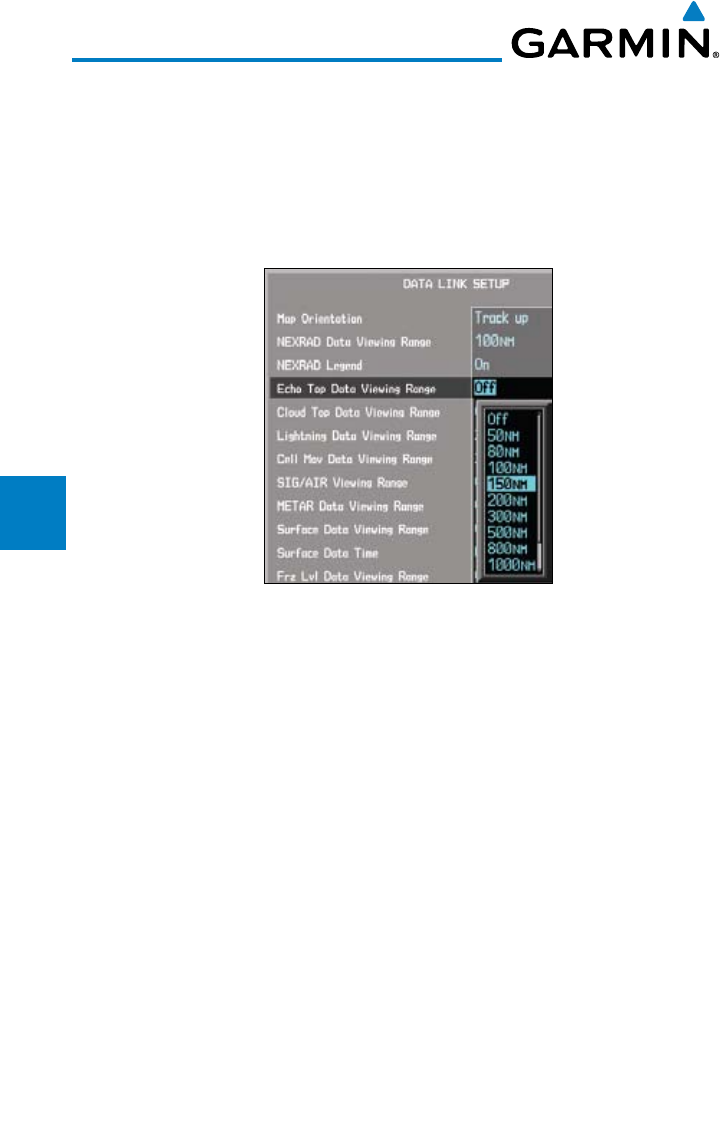
4-62
Garmin G600 Pilot’s Guide
190-00601-02 Rev. E
Foreword
Sec 1
System
Sec 2
PFD
Sec 3
MFD
Sec 4
Hazard
Avoidance
Sec 5
Additional
Features
Sec 6
Annun.
& Alerts
Sec 7
Symbols
Sec 8
GlossaryAppendix A
Appendix B
Index
Cloud Top Data Viewing Range
The Cloud Top Data Viewing Range option allows you to select the map
range where at and below that value Cloud Top weather products will be shown
on the selected MFD Wx Data Link Map page (1, 2, or 3). When Off is selected,
Cloud Tops will not be shown. In the figure below where 150 NM is selected,
Cloud Top data will be shown at map ranges of 150 NM and lower.
Figure 4-43 Cloud Top Viewing Range Selection
1) While viewing a WX Data Link Map page of the WX page group, press the
MENU key to display the Page
Menu Options
. The cursor flashes on the
“Weather Setup” option. Press ENT
.
2) Turn the large MFD knob to highlight the Cloud Top Data Viewing Range
value.
3) Turn the small MFD knob to highlight the desired value. Press ENT
to accept
the displayed value. The next option will be highlighted.
4) Press the small MFD knob to cancel selection or to end editing and return to
the Navigation Map page or turn the large MFD knob to the next option.
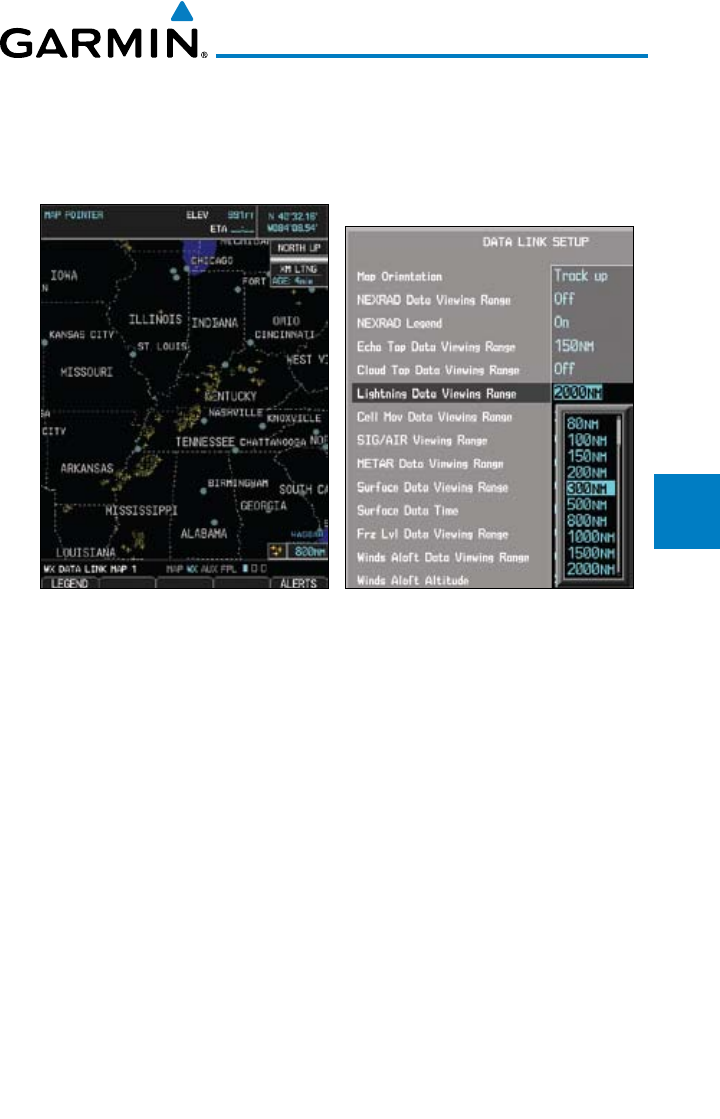
4-63190-00601-02 Rev. E
Garmin G600 Pilot’s Guide
Foreword
Sec 1
System
Sec 2
PFD
Sec 3
MFD
Sec 4
Hazard
Avoidance
Sec 5
Additional
Features
Sec 6
Annun.
& Alerts
Sec 7
Symbols
Sec 8
Glossary Appendix A
Appendix B
Index
4.9.11 XM Lightning
Lightning data shows the approximate location of cloud-to-ground lightning
strikes. A strike icon represents a strike that has occurred within a two-kilometer
region. The exact location of the lightning strike is not displayed.
Figure 4-44 XM Weather - Lightning Figure 4-45
Lightning Viewing Range Selection
Lightning Data Viewing Range
The Lightning Data Viewing Range option allows you to select the map range where
at and below that value Lightning weather products will be shown on the selected MFD
Wx Data Link Map page (1, 2, or 3). When Off is selected, Lightning will not be shown.
In the figure above where 300 NM is selected, NEXRAD data will be shown at
map ranges of 300 NM and lower.
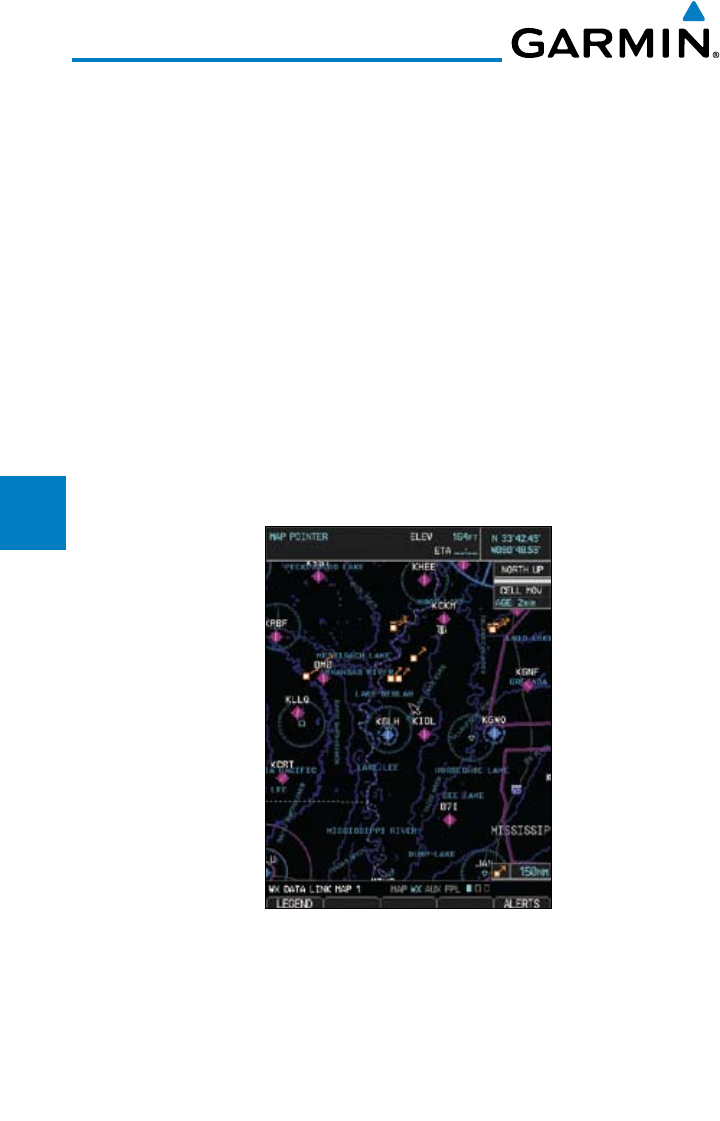
4-64
Garmin G600 Pilot’s Guide
190-00601-02 Rev. E
Foreword
Sec 1
System
Sec 2
PFD
Sec 3
MFD
Sec 4
Hazard
Avoidance
Sec 5
Additional
Features
Sec 6
Annun.
& Alerts
Sec 7
Symbols
Sec 8
GlossaryAppendix A
Appendix B
Index
1) While viewing a WX Data Link Map page of the WX page group, press the
MENU key to display the Page
Menu Options
. The cursor flashes on the
“Weather Setup” option. Press ENT
.
2) Turn the large MFD knob to highlight the Lightning Data Viewing Range
value.
3) Turn the small MFD knob to highlight the desired value. Press ENT
to accept
the displayed value. The next option will be highlighted.
4) Press the small MFD knob to cancel selection or to end editing and return to
the Navigation Map page or turn the large MFD knob to the next option.
4.9.12 Cell Movement
Cell Movement data shows the location and movement of storm cells as
identified by a ground-based system. Cells are represented by yellow squares,
with direction of movement indicated with short, orange arrows.
Figure 4-46 XM Weather - Cell Movement
On most applicable maps, Cell Movement data is selected for display along
with NEXRAD. On the Weather Data Link Page, Cell Movement data can be
selected independently.
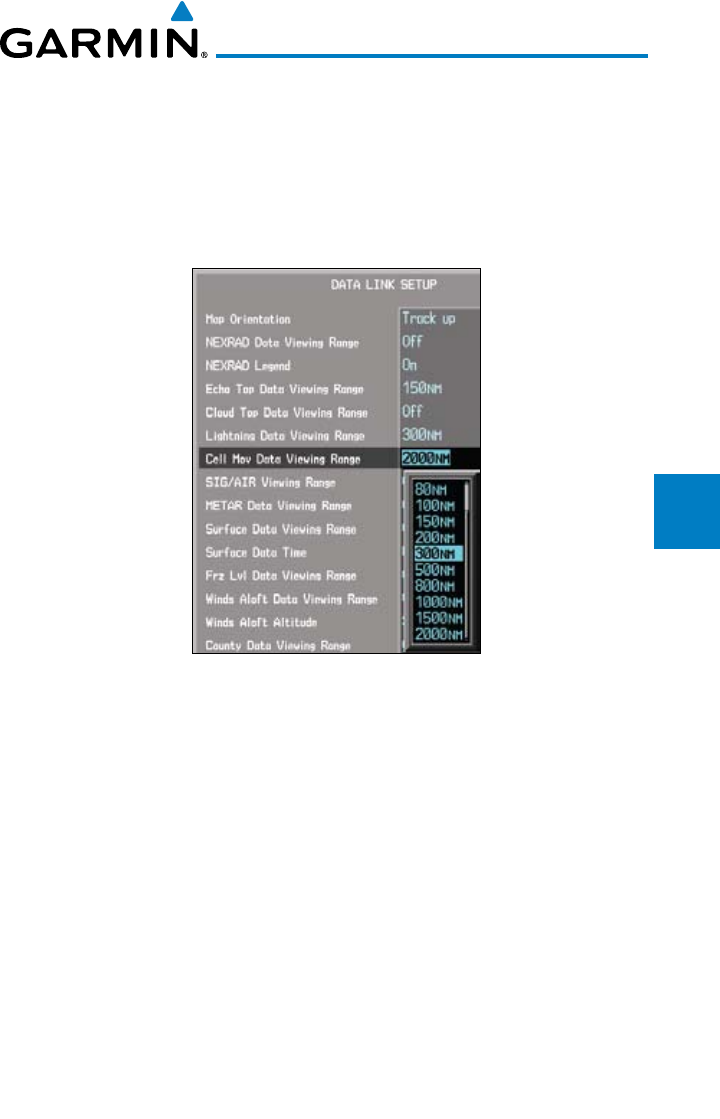
4-65190-00601-02 Rev. E
Garmin G600 Pilot’s Guide
Foreword
Sec 1
System
Sec 2
PFD
Sec 3
MFD
Sec 4
Hazard
Avoidance
Sec 5
Additional
Features
Sec 6
Annun.
& Alerts
Sec 7
Symbols
Sec 8
Glossary Appendix A
Appendix B
Index
Cell Movement Data Viewing Range
The Cell Movement Data Viewing Range option allows you to select the map
range and below where Cell Movement weather products will appear on the
selected MFD Wx Data Link Map page (1, 2, or 3). When Off is selected, Cell
Movement will not be shown. In the figure below where 300 NM is selected,
Cell Movement data will be shown at map ranges of 300 NM and lower.
Figure 4-47 Cell Movement Viewing Range Selection
1) While viewing a WX Data Link Map page of the WX page group, press the
MENU key to display the Page
Menu Options
. The cursor flashes on the
“Weather Setup” option. Press ENT
.
2) Turn the large MFD knob to highlight the Cell Movement Data Viewing Range
value.
3) Turn the small MFD knob to highlight the desired value. Press ENT
to accept
the displayed value. The next option will be highlighted.
4) Press the small MFD knob to cancel selection or to end editing and return to
the Navigation Map page or turn the large MFD knob to the next option.
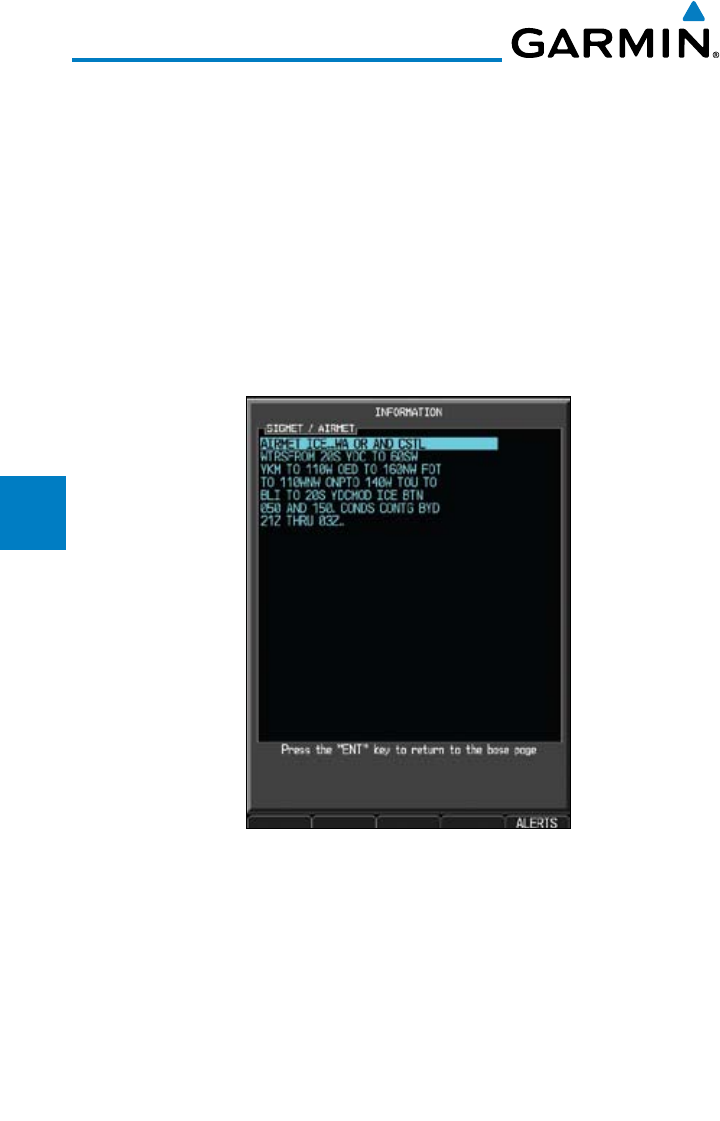
4-66
Garmin G600 Pilot’s Guide
190-00601-02 Rev. E
Foreword
Sec 1
System
Sec 2
PFD
Sec 3
MFD
Sec 4
Hazard
Avoidance
Sec 5
Additional
Features
Sec 6
Annun.
& Alerts
Sec 7
Symbols
Sec 8
GlossaryAppendix A
Appendix B
Index
4.9.13 SIGMETs and AIRMETs
SIGMETs (SIGnificant METeorological Information) and AIRMETs
(AIRmen’s METeorological Information) are broadcast for potentially hazardous
weather considered of importance to aircraft. A Convective SIGMET is issued
for hazardous convective weather. A localized SIGMET is a significant weather
condition occurring at a localized geographical position.
When enabled, SIGMET/AIRMETs advise the pilot of potentially hazardous
weather to all aircraft. SIGMET/AIRMET data covers icing, turbulence, dust,
and volcanic ash as issued by the National Weather Service. The update rate is
every 12 minutes.
Figure 4-48 XM Weather - AIRMETs
When enabled, the following AIRMETs are available for display:
• Icing
• Turbulence
• IFR conditions
• Mountain obscuration
• Surface winds
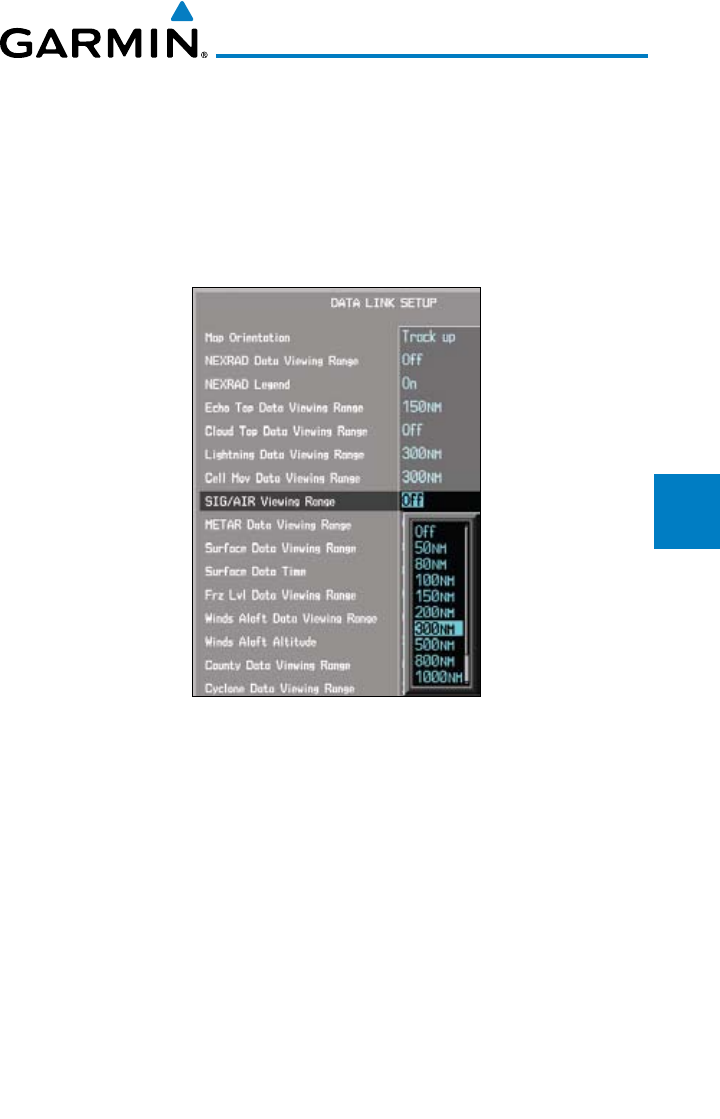
4-67190-00601-02 Rev. E
Garmin G600 Pilot’s Guide
Foreword
Sec 1
System
Sec 2
PFD
Sec 3
MFD
Sec 4
Hazard
Avoidance
Sec 5
Additional
Features
Sec 6
Annun.
& Alerts
Sec 7
Symbols
Sec 8
Glossary Appendix A
Appendix B
Index
SIGMET/AIRMET Viewing Range
The SIGMET/AIRMET Viewing Range option allows you to select the map
range where at and below that value SIGMET/AIRMET products will be shown
on the selected MFD Wx Data Link Map page (1, 2, or 3). When Off is selected,
SIGMET/AIRMET will not be shown. In the figure below where 300 NM is
selected, SIGMET/AIRMET data will be shown at map ranges of 300 NM and
lower.
Figure 4-49 SIGMET/AIRMET Viewing Range Selection
1) While viewing a WX Data Link Map page of the WX page group, press the
MENU key to display the Page
Menu Options
. The cursor flashes on the
“Weather Setup” option. Press ENT
.
2) Turn the large MFD knob to highlight the SIG/AIR Viewing Range value.
3) Turn the small MFD knob to highlight the desired value. Press ENT
to accept
the displayed value. The next option will be highlighted.
4) Press the small MFD knob to cancel selection or to end editing and return to
the Navigation Map page or turn the large MFD knob to the next option.
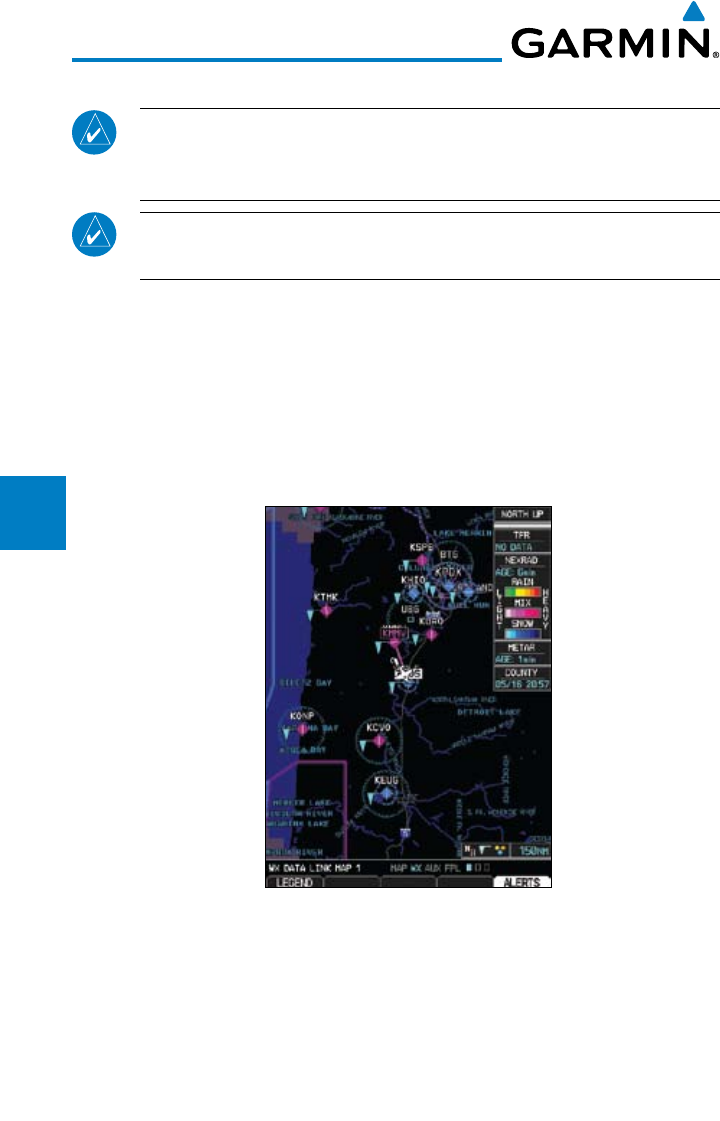
4-68
Garmin G600 Pilot’s Guide
190-00601-02 Rev. E
Foreword
Sec 1
System
Sec 2
PFD
Sec 3
MFD
Sec 4
Hazard
Avoidance
Sec 5
Additional
Features
Sec 6
Annun.
& Alerts
Sec 7
Symbols
Sec 8
GlossaryAppendix A
Appendix B
Index
4.9.14 METARs
NOTE: Atmospheric pressure reported for METARs is given in hectopascals
(hPa), except in the United States, where it is reported in inches of mercury
(in Hg). Temperatures are reported in Celsius.
NOTE: METAR information is only displayed within the installed aviation
database service area.
METAR (METeorological Aerodrome Report), known as an Aviation Routine
Weather Report, is the standard format for current weather observations.
METARs are updated hourly and are considered current. METARs typically
contain information about the temperature, dew point, wind, precipitation,
cloud cover, cloud heights, visibility, and barometric pressure. They can also
contain information on precipitation amounts, lightning, and other critical data.
METARs are shown as colored flags at airports that provide them.
Figure 4-50 XM Weather - Graphic METARs
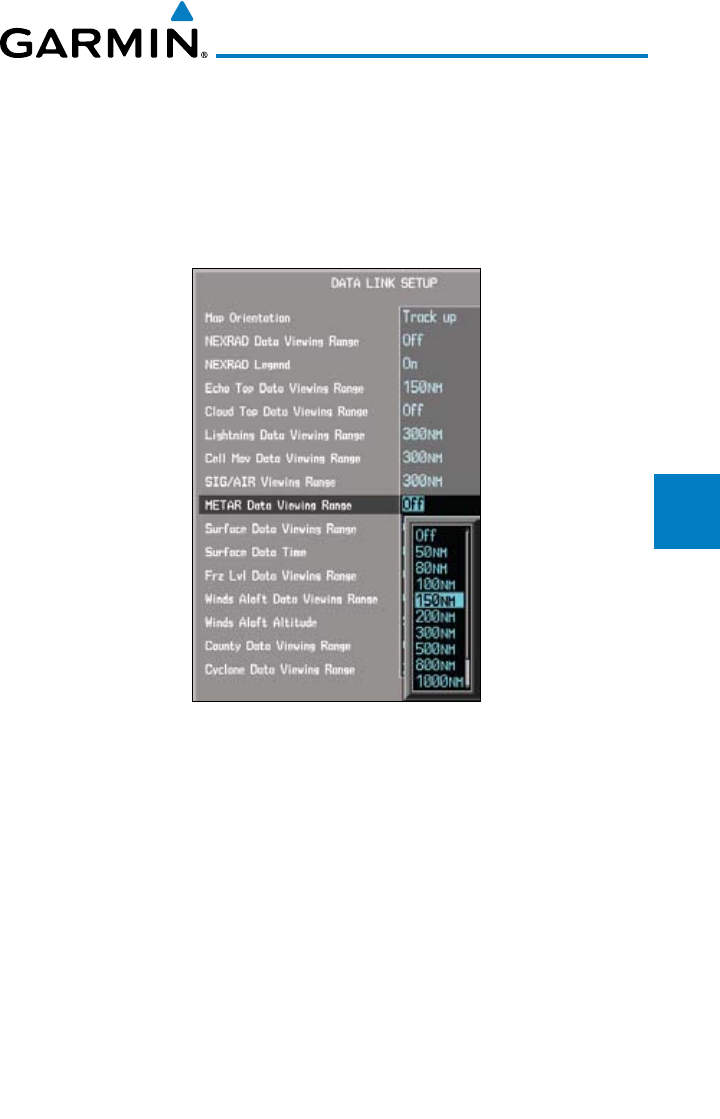
4-69190-00601-02 Rev. E
Garmin G600 Pilot’s Guide
Foreword
Sec 1
System
Sec 2
PFD
Sec 3
MFD
Sec 4
Hazard
Avoidance
Sec 5
Additional
Features
Sec 6
Annun.
& Alerts
Sec 7
Symbols
Sec 8
Glossary Appendix A
Appendix B
Index
METAR Viewing Range
The METAR Viewing Range option allows you to select the map range where
at and below that value METAR weather products will be shown on the selected
MFD Wx Data Link Map page (1, 2, or 3). When Off is selected, METARs will
not be shown. In the figure below where 150 NM is selected, METAR data will
be shown at map ranges of 150 NM and lower.
Figure 4-51 METAR Viewing Range Selection
1) While viewing a WX Data Link Map page of the WX page group, press the
MENU key to display the Page
Menu Options
. The cursor flashes on the
“Weather Setup” option. Press ENT
.
2) Turn the large MFD knob to highlight the METAR Data Viewing Range value.
3) Turn the small MFD knob to highlight the desired value. Press ENT
to accept
the displayed value. The next option will be highlighted.
4) Press the small MFD knob to cancel selection or to end editing and return to
the Navigation Map page or turn the large MFD knob to the next option.
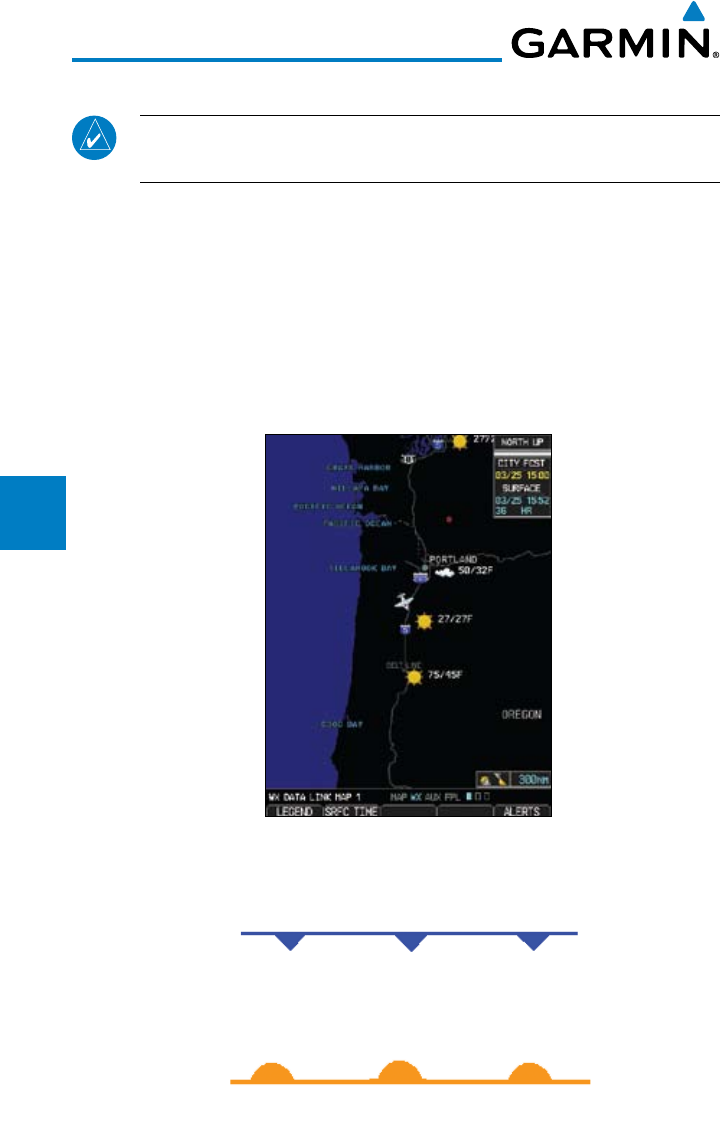
4-70
Garmin G600 Pilot’s Guide
190-00601-02 Rev. E
Foreword
Sec 1
System
Sec 2
PFD
Sec 3
MFD
Sec 4
Hazard
Avoidance
Sec 5
Additional
Features
Sec 6
Annun.
& Alerts
Sec 7
Symbols
Sec 8
GlossaryAppendix A
Appendix B
Index
4.9.15 Surface Analysis and City Forecast
NOTE: Surface Analysis and City Forecast data are displayed only within
the installed Aviation Database service area.
Surface Analysis and City Forecast information is available for current and
forecast weather conditions. Forecasts are available for intervals of 12, 24, 36,
and 48 hours by pressing the SRFC TIME soft key or in the Page Menu Weather
Setup options.
When enabled, the Surface Analysis forecast shows frontal lines indicat-
ing weather fronts and the direction they are moving. High and Low pressure
centers are noted with a large H or L. The Forecast Time menu item will step
through the intervals manually.
Figure 4-52 XM Weather - Surface Analysis and City Forecast
A Cold Front is a front where cold air replaces warm air. A blue line with
blue triangles that point in the direction of the cold air flow.
Figure 4-53 XM Weather - Cold Front
A Warm Front is where warm air replaces cold air. An orange line with
orange half moons that point in the direction of the warm air flow.
Figure 4-54 XM Weather - Warm Front
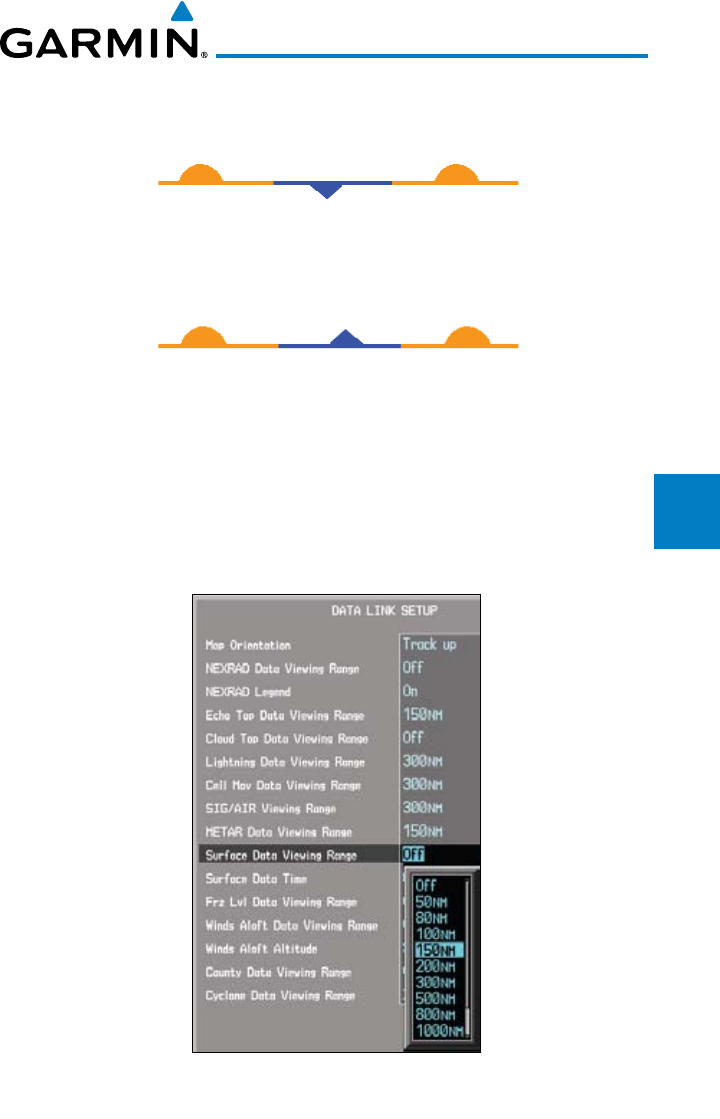
4-71190-00601-02 Rev. E
Garmin G600 Pilot’s Guide
Foreword
Sec 1
System
Sec 2
PFD
Sec 3
MFD
Sec 4
Hazard
Avoidance
Sec 5
Additional
Features
Sec 6
Annun.
& Alerts
Sec 7
Symbols
Sec 8
Glossary Appendix A
Appendix B
Index
A Stationary Front is a front with very little horizontal movement. The line
alternates with orange and blue sections which point in opposite directions to
symbolize little movement.
Figure 4-55 XM Weather - Stationary Front
An Occluded Front is where a cold front has overtaken and merged with a
warm front. The line alternates with the blue triangle and orange half moon sym-
bols on the same side of the line pointing in the direction the front is moving.
Figure 4-56 XM Weather - Occluded Front
Surface Data Viewing Range
The Surface Data Viewing Range option allows you to select the map range
where at and below that value Surface Data weather products will be shown on
the selected MFD Wx Data Link Map page (1, 2, or 3). When Off is selected,
Surface Data will not be shown. In the figure below where 150 NM is selected,
Surface data will be shown at map ranges of 150 NM and lower.
Figure 4-57 Surface data Viewing Range Selection
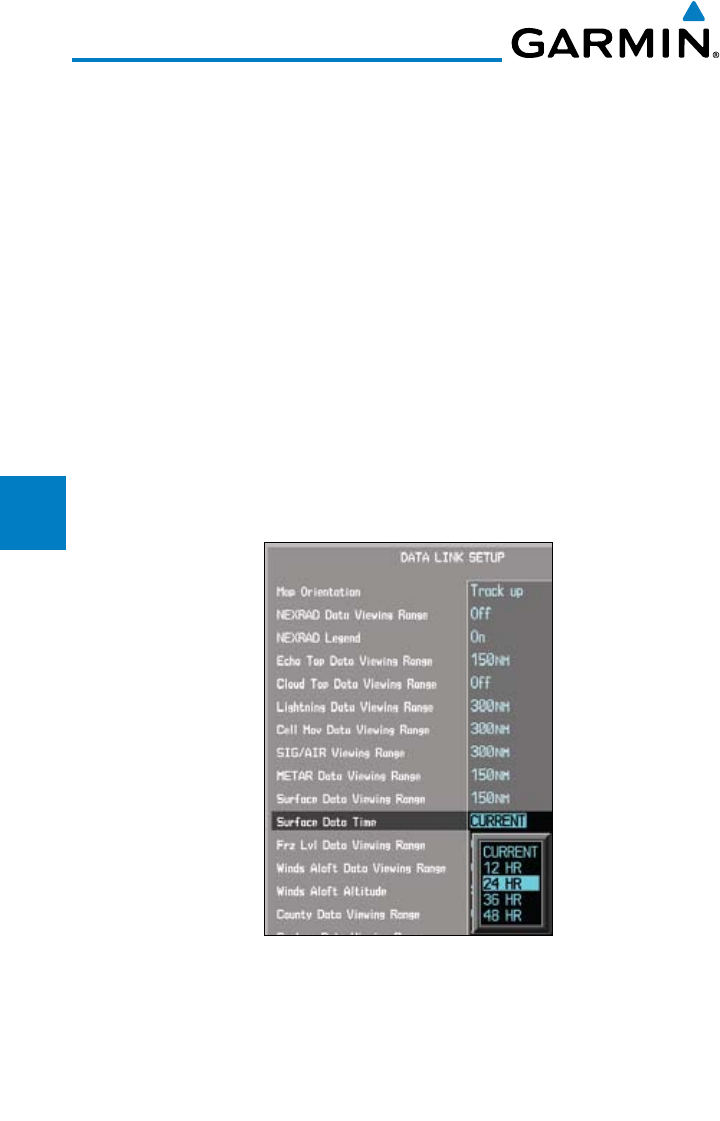
4-72
Garmin G600 Pilot’s Guide
190-00601-02 Rev. E
Foreword
Sec 1
System
Sec 2
PFD
Sec 3
MFD
Sec 4
Hazard
Avoidance
Sec 5
Additional
Features
Sec 6
Annun.
& Alerts
Sec 7
Symbols
Sec 8
GlossaryAppendix A
Appendix B
Index
1) While viewing a WX Data Link Map page of the WX page group, press the
MENU key to display the Page
Menu Options
. The cursor flashes on the
“Weather Setup” option. Press ENT
.
2) Turn the large MFD knob to highlight the Surface Data Viewing Range value.
3) Turn the small MFD knob to highlight the desired value. Press ENT
to accept
the displayed value. The next option will be highlighted.
4) Press the small MFD knob to cancel selection or to end editing and return to
the Navigation Map page or turn the large MFD knob to the next option.
Surface Data Time
The Surface Data Time option allows you to select the forecast time when the
Surface and City Forecast weather products will appear on the selected MFD Wx
Data Link Map page (1, 2, or 3). Forecasts are available for intervals of current,
12, 24, 36, and 48 hours. You may also select an interval by pressing the SRFC
TIME soft key on the Wx Data Link Map page.
Figure 4-58 Surface Data Time Selection
1) While viewing a WX Data Link Map page of the WX page group, press the
MENU key to display the Page
Menu Options
. The cursor flashes on the
“Weather Setup” option. Press ENT
.
2) Turn the large MFD knob to highlight the Surface Data Time value.
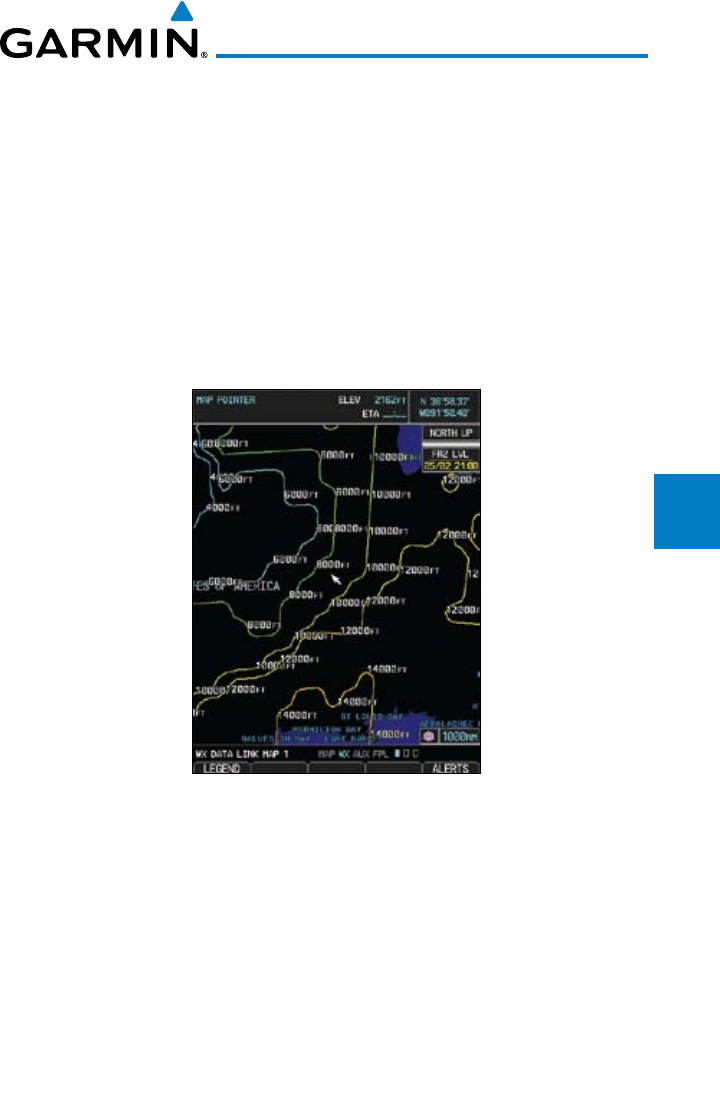
4-73190-00601-02 Rev. E
Garmin G600 Pilot’s Guide
Foreword
Sec 1
System
Sec 2
PFD
Sec 3
MFD
Sec 4
Hazard
Avoidance
Sec 5
Additional
Features
Sec 6
Annun.
& Alerts
Sec 7
Symbols
Sec 8
Glossary Appendix A
Appendix B
Index
3) Turn the small MFD knob to highlight the desired value. Press ENT
to accept
the displayed value. The next option will be highlighted.
4) Press the small MFD knob to cancel selection or to end editing and return to
the Navigation Map page or turn the large MFD knob to the next option.
4.9.16 Freezing Level
Freezing Level data shows the color-coded contour lines for the altitude and
location at which the Freezing Level is found. When no data is displayed for a
given altitude, the data for that altitude has not been received, or is out of date
and has been removed from the display. New data appears at the next update.
Figure 4-59 XM Weather - Freezing Levels
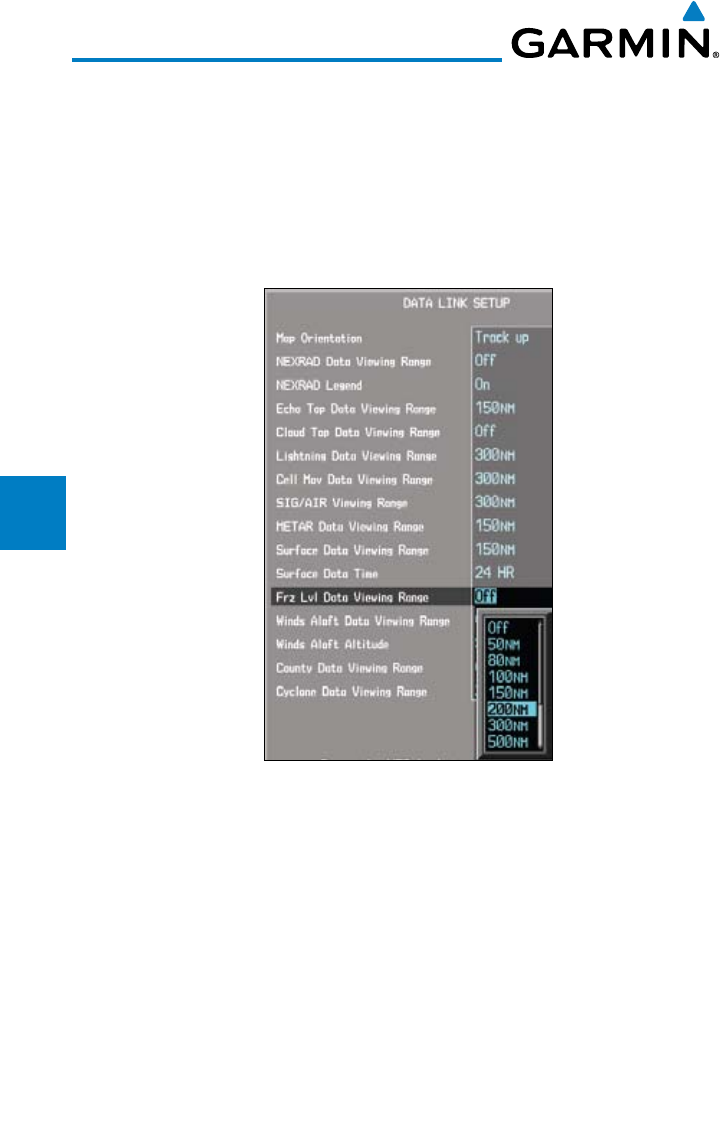
4-74
Garmin G600 Pilot’s Guide
190-00601-02 Rev. E
Foreword
Sec 1
System
Sec 2
PFD
Sec 3
MFD
Sec 4
Hazard
Avoidance
Sec 5
Additional
Features
Sec 6
Annun.
& Alerts
Sec 7
Symbols
Sec 8
GlossaryAppendix A
Appendix B
Index
Freezing Level Viewing Range
The Freezing Level Viewing Range option allows you to select the map range
where at and below that value Freezing Level weather products will be shown
on the selected MFD Wx Data Link Map page (1, 2, or 3). When Off is selected,
Freezing Level Data will not be shown. In the figure below where 200 NM
is selected, Freezing Level data will be shown at map ranges of 200 NM and
lower.
Figure 4-60 Freezing Level Viewing Range Selection
1) While viewing a WX Data Link Map page of the WX page group, press the
MENU key to display the Page
Menu Options
. The cursor flashes on the
“Weather Setup” option. Press ENT
.
2) Turn the large MFD knob to highlight the Frz Lvl Viewing Range value.
3) Turn the small MFD knob to highlight the desired value. Press ENT
to accept
the displayed value. The next option will be highlighted.
4) Press the small MFD knob to cancel selection or to end editing and return to
the Navigation Map page or turn the large MFD knob to the next option.
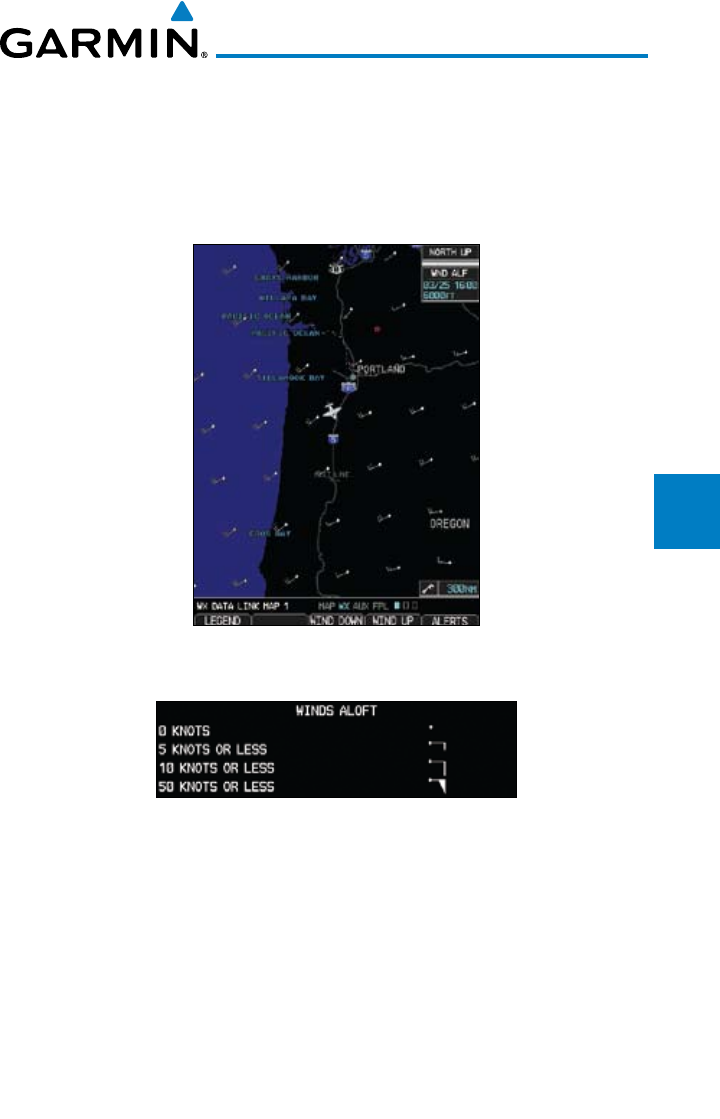
4-75190-00601-02 Rev. E
Garmin G600 Pilot’s Guide
Foreword
Sec 1
System
Sec 2
PFD
Sec 3
MFD
Sec 4
Hazard
Avoidance
Sec 5
Additional
Features
Sec 6
Annun.
& Alerts
Sec 7
Symbols
Sec 8
Glossary Appendix A
Appendix B
Index
4.9.17 Winds Aloft
Winds Aloft data shows the forecast wind speed and direction at the surface
and at selected altitudes. Altitudes can be selected in 3000 foot increments from
the surface up to 42,000 feet MSL. Pressing the WIND DOWN or WIND UP
soft keys steps down or up in 3,000 foot increments.
Figure 4-61 XM Weather - Winds Aloft
Figure 4-62 XM Weather - Winds Aloft Legend
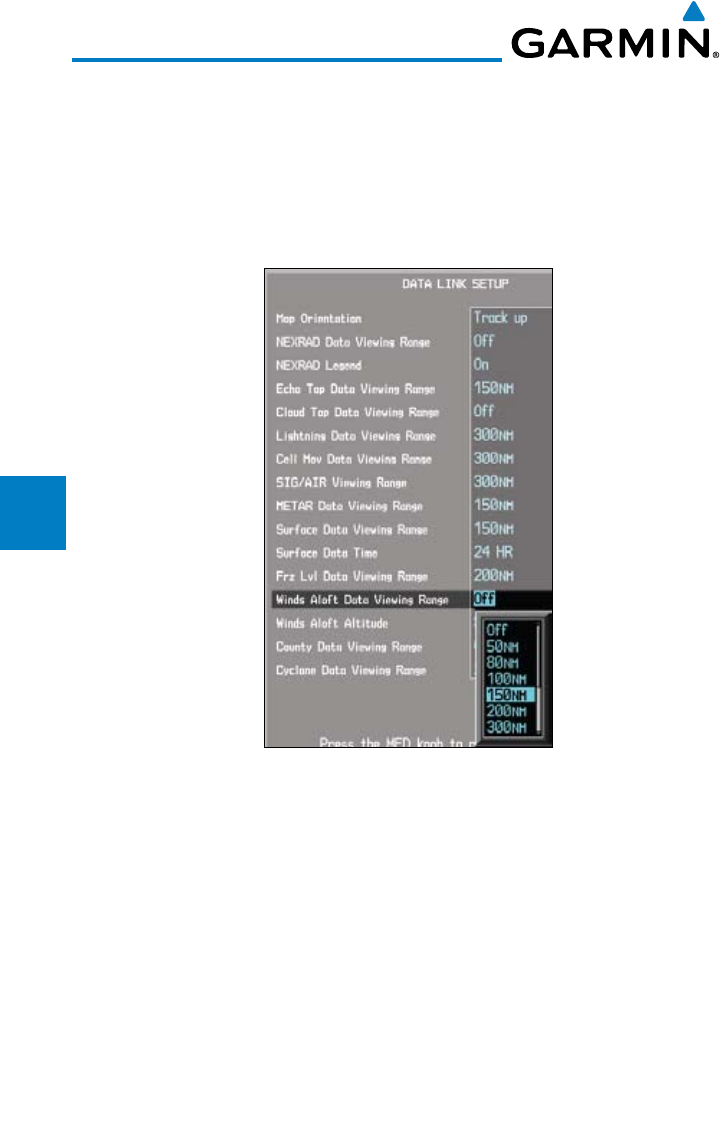
4-76
Garmin G600 Pilot’s Guide
190-00601-02 Rev. E
Foreword
Sec 1
System
Sec 2
PFD
Sec 3
MFD
Sec 4
Hazard
Avoidance
Sec 5
Additional
Features
Sec 6
Annun.
& Alerts
Sec 7
Symbols
Sec 8
GlossaryAppendix A
Appendix B
Index
Winds Aloft Data Viewing Range
The Winds Aloft Data Viewing Range option allows you to select the map
range where at and below that value Winds Aloft weather products will appear
on the selected MFD Wx Data Link Map page (1, 2, or 3). When Off is selected,
Winds Aloft will not be shown. In the figure below where 150 NM is selected,
Winds Aloft data will be shown at map ranges of 150 NM and lower.
Figure 4-63 Winds Aloft Data Viewing Range Selection
1) While viewing a WX Data Link Map page of the WX page group, press the
MENU key to display the Page
Menu Options
. The cursor flashes on the
“Weather Setup” option. Press ENT
.
2) Turn the large MFD knob to highlight the Winds Aloft Data Viewing Range
value.
3) Turn the small MFD knob to highlight the desired value. Press ENT
to accept
the displayed value. The next option will be highlighted.
4) Press the small MFD knob to cancel selection or to end editing and return to
the Navigation Map page or turn the large MFD knob to the next option.
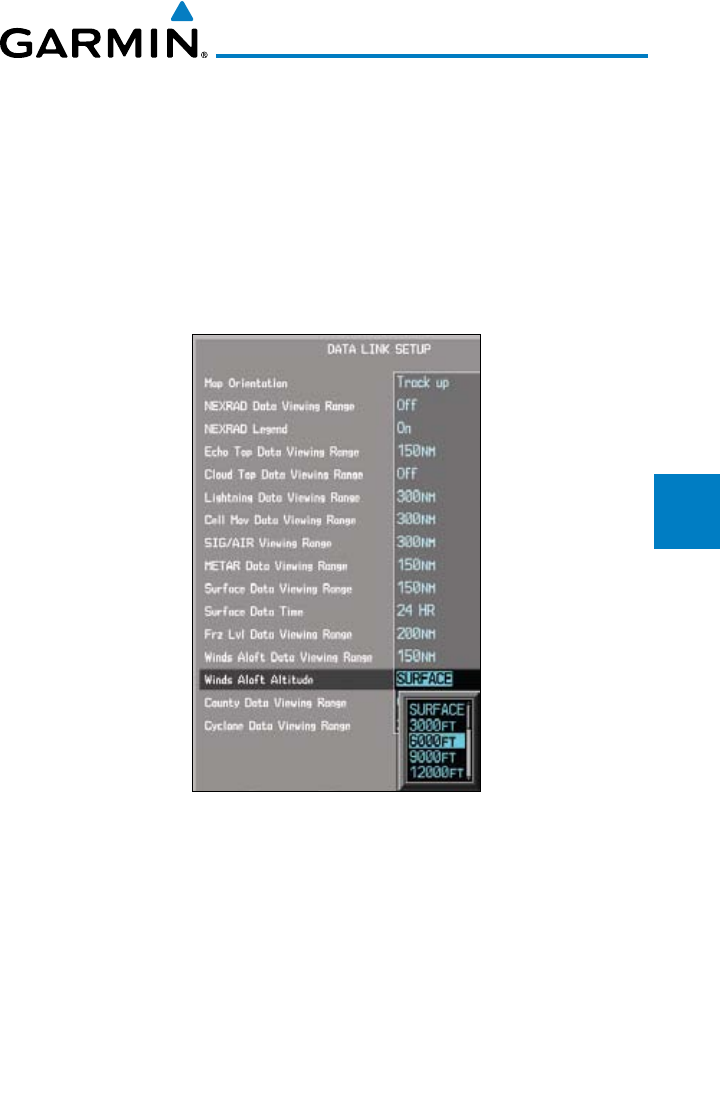
4-77190-00601-02 Rev. E
Garmin G600 Pilot’s Guide
Foreword
Sec 1
System
Sec 2
PFD
Sec 3
MFD
Sec 4
Hazard
Avoidance
Sec 5
Additional
Features
Sec 6
Annun.
& Alerts
Sec 7
Symbols
Sec 8
Glossary Appendix A
Appendix B
Index
Winds Aloft Altitude
The Winds Aloft Altitude option allows you to select the altitude where at and
below that value Winds Aloft weather products will be shown on the selected
MFD Wx Data Link Map page (1, 2, or 3). Altitude can be selected in 3000 foot
increments from the surface up to 42,000 feet MSL.
Pressing the WIND DOWN or WIND UP soft keys steps down or up in the
3,000 foot increments. In the figure below where 6000 feet is selected, Winds
Aloft data will be shown at 6000 feet and lower.
Figure 4-64 Winds Aloft Altitude Selection
1) While viewing a WX Data Link Map page of the WX page group, press the
MENU key to display the Page
Menu Options
. The cursor flashes on the
“Weather Setup” option. Press ENT
.
2) Turn the large MFD knob to highlight the Winds Aloft Altitude value.
3) Turn the small MFD knob to highlight the desired value. Press ENT
to accept
the displayed value. The next option will be highlighted.
4) Press the small MFD knob to cancel selection or to end editing and return to
the Navigation Map page or turn the large MFD knob to the next option.
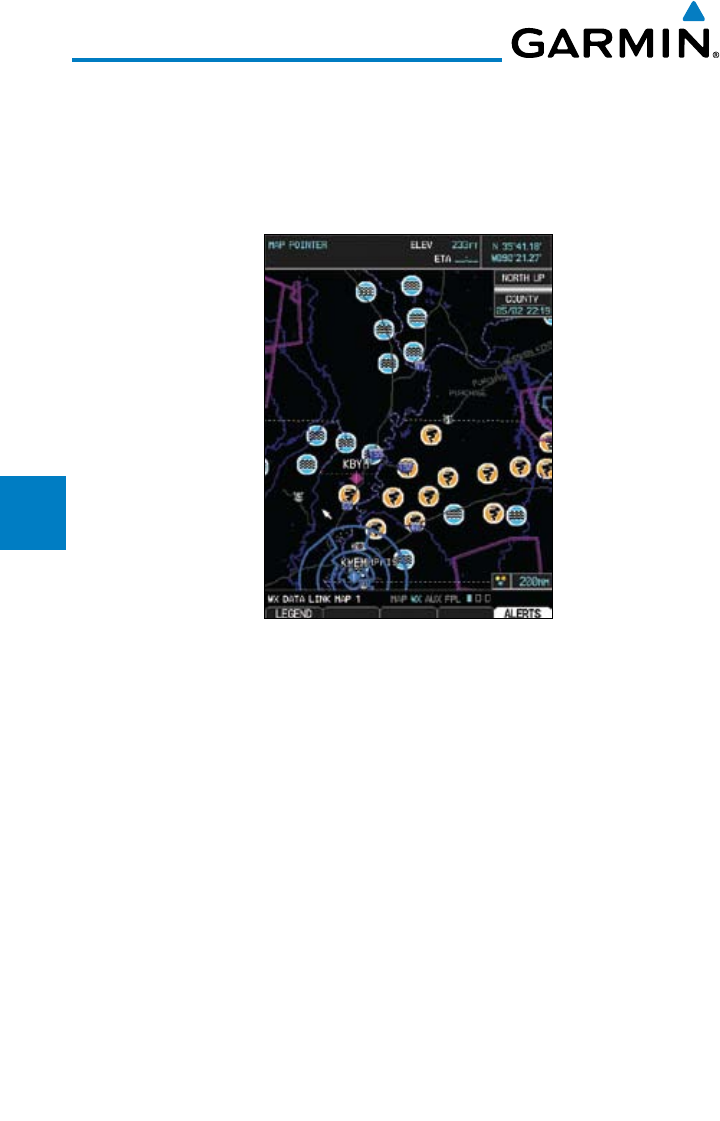
4-78
Garmin G600 Pilot’s Guide
190-00601-02 Rev. E
Foreword
Sec 1
System
Sec 2
PFD
Sec 3
MFD
Sec 4
Hazard
Avoidance
Sec 5
Additional
Features
Sec 6
Annun.
& Alerts
Sec 7
Symbols
Sec 8
GlossaryAppendix A
Appendix B
Index
4.9.18 County Warnings
County data provides specific public awareness and protection weather
warnings from the National Weather Service (NWS). This can include information
on fires, tornadoes, severe thunderstorms, flood conditions, and other natural
disasters.
Figure 4-65 XM Weather - County Warnings
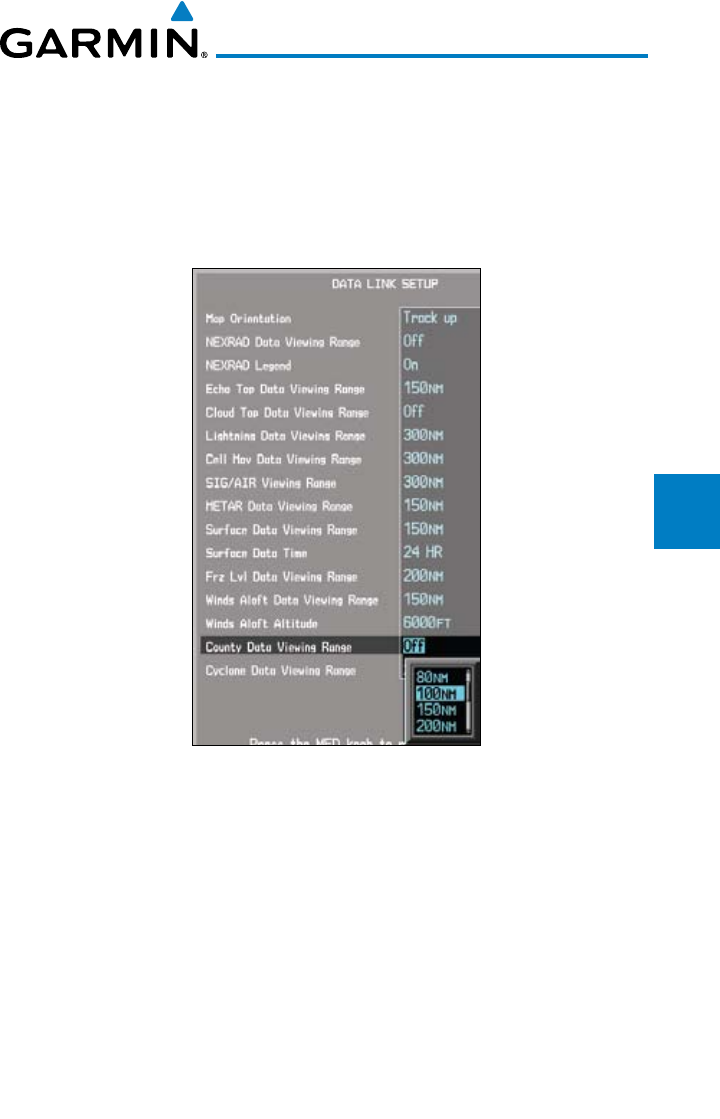
4-79190-00601-02 Rev. E
Garmin G600 Pilot’s Guide
Foreword
Sec 1
System
Sec 2
PFD
Sec 3
MFD
Sec 4
Hazard
Avoidance
Sec 5
Additional
Features
Sec 6
Annun.
& Alerts
Sec 7
Symbols
Sec 8
Glossary Appendix A
Appendix B
Index
County Data Viewing Range
The County Data Viewing Range option allows you to select the map range
where at and below that value County weather products will be shown on the
selected MFD Wx Data Link Map pages (1, 2, or 3). When Off is selected, County
Data will not be shown. In the figure below where 100 NM is selected, County
data will be shown at map ranges of 100 NM and lower.
Figure 4-66 County Data Viewing Range Selection
1) While viewing a WX Data Link Map page of the WX page group, press the
MENU key to display the Page
Menu Options
. The cursor flashes on the
“Weather Setup” option. Press ENT
.
2) Turn the large MFD knob to highlight the County Data Viewing Range value.
3) Turn the small MFD knob to highlight the desired value. Press ENT
to accept
the displayed value. The next option will be highlighted.
4) Press the small MFD knob to cancel selection or to end editing and return to
the Navigation Map page or turn the large MFD knob to the next option.
4-80
Garmin G600 Pilot’s Guide
190-00601-02 Rev. E
Foreword
Sec 1
System
Sec 2
PFD
Sec 3
MFD
Sec 4
Hazard
Avoidance
Sec 5
Additional
Features
Sec 6
Annun.
& Alerts
Sec 7
Symbols
Sec 8
GlossaryAppendix A
Appendix B
Index
4.10 Weather Radar
The G600 can display weather radar from a Garmin GWX system or from
selected 3rd-party radars. Only one weather radar system may be interfaced to
the system. For detailed information on the operation of 3rd-party radars, refer
to their specific documentation.
4.10.1 Garmin GWX 68 Radar Description
The Garmin GWX 68 Airborne Color Weather Radar is a four color digital
pulsed radar with 6.5 kilowatts of power. It combines excellent range and
adjustable scanning profiles with a high-definition target display. The pulse
width is four microseconds on all ranges except the 2.5 NM range. The GWX 68
uses a one microsecond pulse width at this range to reduce the smearing of
targets on the display. This allows better target definition at close range.
To focus radar scanning on specific areas, Sector Scanning offers pilot-
adjustable horizontal scan angles of 20º, 40º, 60º, or 90º. A vertical scanning
function helps to analyze storm tops, gradients, and cell buildup activity at
various altitudes.
Other features include:
• ExtendedSensitivityTimeControl(STC)logicthatautomaticallycorrelates
distance of the return echo with intensity, so cells do not suddenly appear
to get larger as they get closer.
• WATCH™ (Weather Attenuated Color Highlight) which helps identify
possible “shadowing” effects of short-range cell activity – identifying
areas where radar return signals are weakened, or attenuated, by intense
precipitation (or large areas of lesser precipitation) and may not fully reflect
the “storm behind the storm.”
• WeatherAlertthatlooksaheadforintensecellactivityinthe80-320NM
range, even if these ranges are not being monitored.
4.10.1.1 Principles of Pulsed Airborne Weather Radar
The term RADAR is an acronym for RAdio Detecting and Ranging. Pulsed
radar locates targets by transmitting a microwave pulse beam that, upon
encountering a target, is then reflected back to the radar receiver as a return
“echo.” The microwave pulses are focused and radiated by the antenna, with
the most intense energy in the center of the beam and decreasing intensity near
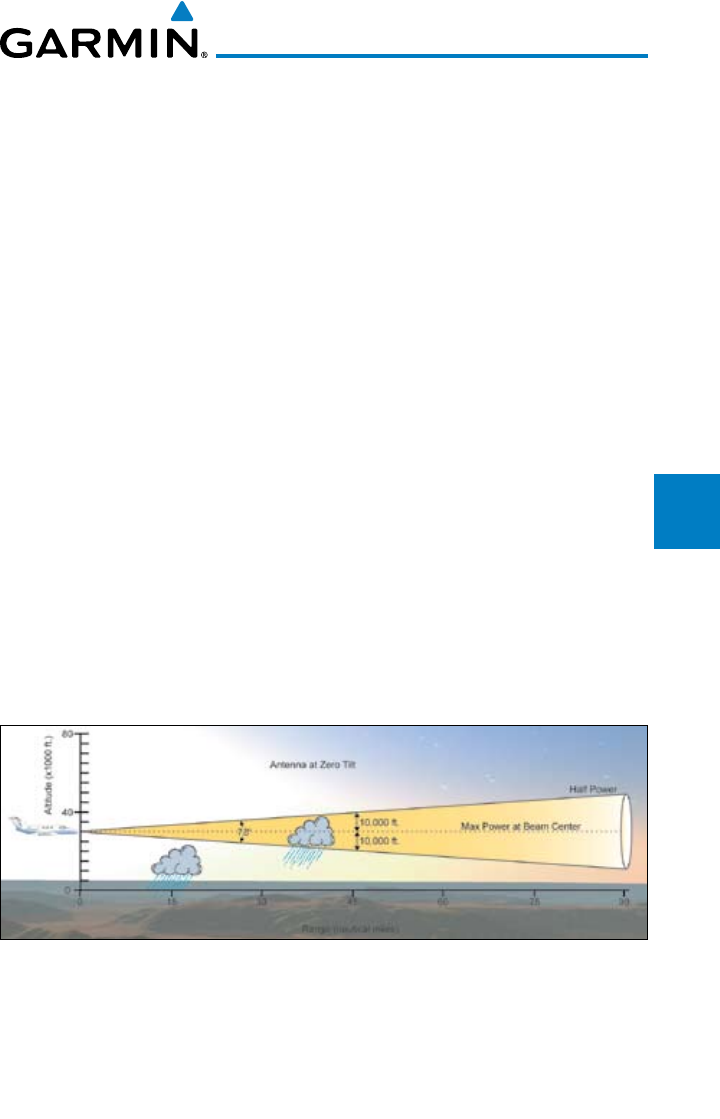
4-81190-00601-02 Rev. E
Garmin G600 Pilot’s Guide
Foreword
Sec 1
System
Sec 2
PFD
Sec 3
MFD
Sec 4
Hazard
Avoidance
Sec 5
Additional
Features
Sec 6
Annun.
& Alerts
Sec 7
Symbols
Sec 8
Glossary Appendix A
Appendix B
Index
the edge. The same antenna is used for both transmitting and receiving. The
returned signal is then processed and displayed on the G600 MFD.
Radar detection is a two-way process that requires 12.36 micro-seconds for
the transmitted microwave pulses to travel out and back for each nautical mile
of target range. It takes 123.6 micro-seconds for a transmitted pulse to make the
round trip if a target is 10 NM away.
The GWX 68 weather radar should be used to avoid severe weather, not
for penetrating severe weather. The decision to fly into an area of radar targets
depends on target intensity, spacing between the targets, aircraft capabilities and
pilot experience. Pulse type weather radar detects only precipitation, not clouds
or turbulence. The display may indicate clear areas between intense returns, but
this does not necessarily mean it is safe to fly between them. Only Doppler radar
can detect turbulence.
Airborne weather radar has other capabilities beyond weather detection. It
also has the ability to detect and provide distance to objects on the ground, such
as, cities, mountains, coastlines, rivers, lakes, and oceans.
4.10.1.2 Antenna Beam Illumination
It is important to understand the concept of the antenna beam illumination.
The radar beam is much like the beam of a spotlight. The farther the beam
travels, the wider it gets. The radar is only capable of “seeing” what is inside the
boundaries of the beam.
Figure 4-67 Radar Beam from 12 inch Antenna
The vertical dimensions of the radar beam are shown in the figure above and
the same holds true for the horizontal dimensions. In other words, the beam will
be as wide as it is tall. Note that it is possible not to see areas of precipitation on
the radar display because of the antenna tilt setting. With the antenna tilt set to
zero in this illustration, the beam overshoots the precipitation at 15 NM. The
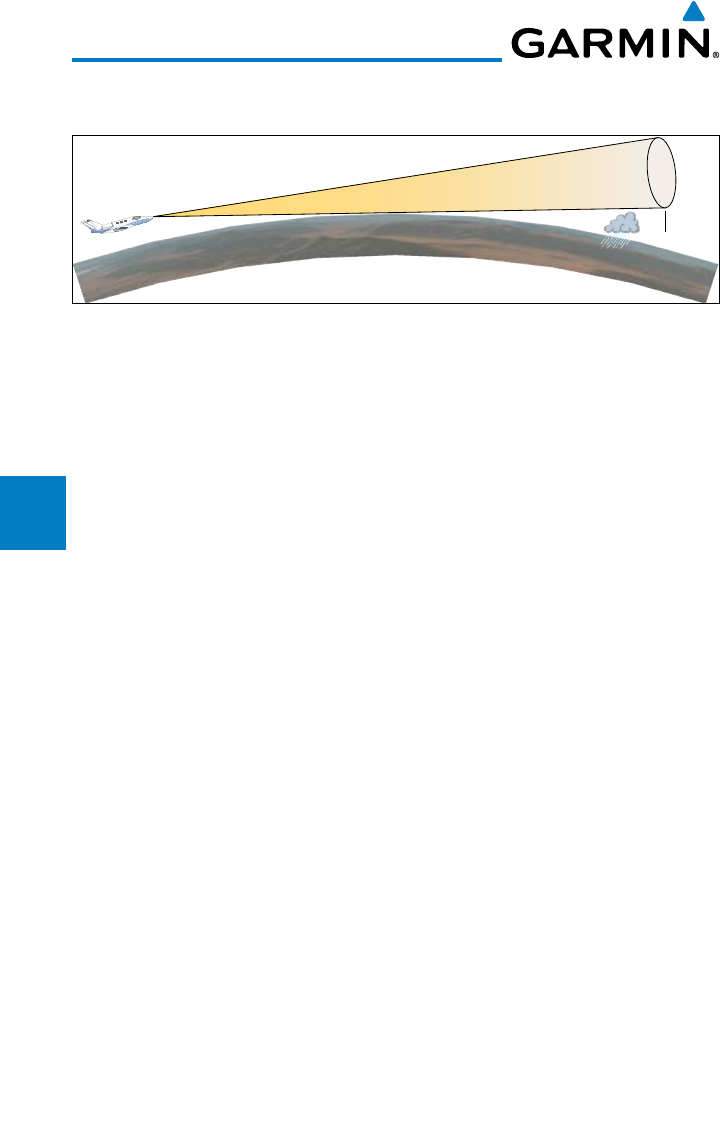
4-82
Garmin G600 Pilot’s Guide
190-00601-02 Rev. E
Foreword
Sec 1
System
Sec 2
PFD
Sec 3
MFD
Sec 4
Hazard
Avoidance
Sec 5
Additional
Features
Sec 6
Annun.
& Alerts
Sec 7
Symbols
Sec 8
GlossaryAppendix A
Appendix B
Index
curvature of the earth can also be a factor, especially at range settings of 150 NM
or more.
NM
Figure 4-68 Radar Beam in Relation to the Curvature of the Earth
4.10.1.3 Radar Signal Attenuation
The phenomena of weather attenuation needs to be kept in mind whenever
operating the weather radar. When the radar signal is transmitted, it is
progressively absorbed and scattered, making the signal weaker. This weakening,
or attenuation, is caused by two primary sources, distance and precipitation.
Attenuation because of distance is due to the fact that the amount of radar
energy at a distance from the antenna is inversely proportional to the square of
the distance. The reflected radar energy from a target 40 miles away that fills
the radar beam will be one fourth the energy reflected from an equivalent target
20 miles away. This would appear to the operator that the storm is gaining
intensity as the aircraft gets closer. Internal circuitry within the GWX 68 system
compensates for much of this distance attenuation.
Attenuation due to precipitation is not as predictable as distance attenuation.
It is also more intense. As the radar signal passes through moisture, a portion of
the radar energy is reflected back to the antenna. However, much of the energy is
absorbed. If precipitation is very heavy, or covers a large area, the signal may not
reach completely through the area of precipitation. The weather radar system
cannot distinguish between an attenuated signal and area of no precipitation.
If the signal has been fully attenuated, the radar will display a “radar shadow.”
This appears as an end to the precipitation when, in fact, the heavy rain may
extend much further. A cell containing heavy precipitation may block another
cell located behind the first, preventing it from being displayed on the radar.
Never fly into these shadowed areas and never assume that all of the heavy
precipitation is being displayed unless another cell or a ground target can be
seen beyond the heavy cell. The WATCH™ feature of the GWX 68 Weather
Radar system can help in identifying these shadowed areas. Areas in question
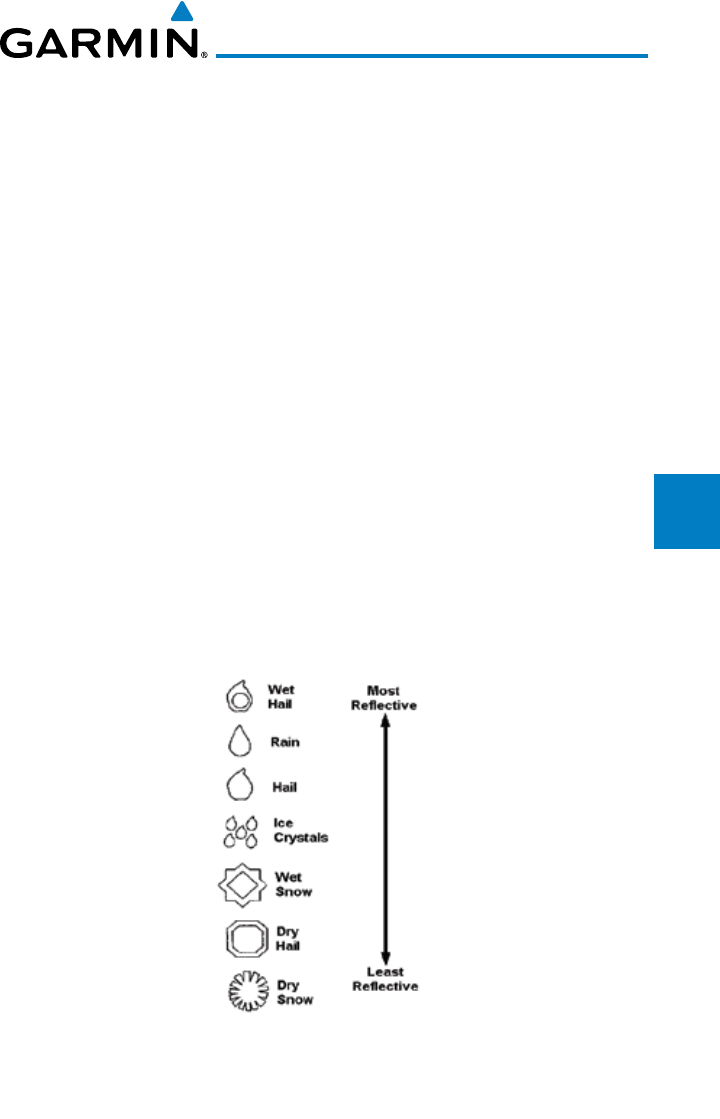
4-83190-00601-02 Rev. E
Garmin G600 Pilot’s Guide
Foreword
Sec 1
System
Sec 2
PFD
Sec 3
MFD
Sec 4
Hazard
Avoidance
Sec 5
Additional
Features
Sec 6
Annun.
& Alerts
Sec 7
Symbols
Sec 8
Glossary Appendix A
Appendix B
Index
will appear as “shadowed” or gray area on the radar display. Proper use of the
antenna tilt control can also help detect radar shadows.
Attenuation can also be due to poor maintenance or degradation of the
radome. Even the smallest amount of wear and tear, pitting, and pinholes on the
radome surface can cause damage and system inefficiency.
4.10.2 Radar Signal Reflectivity
4.10.2.1 Precipitation
Precipitation or objects more dense than water, such as earth or solid
structures, will be detected by the weather radar. The weather radar will not
detect clouds, thunderstorms or turbulence directly. It detects precipitation
associated with clouds, thunderstorms, and turbulence. The best radar signal
reflectors are raindrops, wet snow or wet hail. The larger the raindrop the
better it reflects. The size of the precipitation droplet is the most important
factor in radar reflectivity. Because large drops in a small concentrated area are
characteristic of a severe thunderstorm, the radar displays the storm as a strong
return. Ice, dry snow, and dry hail have low reflective levels and often will not be
displayed by the radar. A cloud that contains only small raindrops, such as fog
or drizzle, will not reflect enough radar energy to produce a measurable target
return.
Figure 4-69 Precipitation Type and Reflectivity
4-84
Garmin G600 Pilot’s Guide
190-00601-02 Rev. E
Foreword
Sec 1
System
Sec 2
PFD
Sec 3
MFD
Sec 4
Hazard
Avoidance
Sec 5
Additional
Features
Sec 6
Annun.
& Alerts
Sec 7
Symbols
Sec 8
GlossaryAppendix A
Appendix B
Index
4.10.2.2 Ground Returns
The intensity of ground target returns depends upon the angle at which the
radar beam strikes the ground target (Angle of Incidence) and the reflective
properties of that target. The gain can be adjusted so shorelines, rivers, lakes,
and cities are well defined. Increasing gain too much causes the display to fill in
between targets, thus obscuring some landmarks.
Cities normally provide a strong return signal. While large buildings and
structures provide good returns, small buildings can be shadowed from the
radar beam by the taller buildings. As the aircraft approaches, and shorter ranges
are selected, details become more noticeable as the highly reflective regular lines
and edges of the city become more defined.
Bodies of water such as lakes, rivers, and oceans are not good reflectors,
and normally do not provide good returns. The energy is reflected in a forward
scatter angle with inadequate energy being returned. They can appear as dark
areas on the display. However, rough or choppy water is a better reflector and
will provide stronger returns from the downwind sides of the waves.
Mountains also provide strong return signals to the antenna, but also block
the areas behind. However, over mountainous terrain, the radar beam can be
reflected back and forth in the mountain passes or off canyon walls using up all
or most of the radar energy. In this case, no return signal is received from
this area causing the display to show a dark spot which could indicate a
pass where no pass exists.
4.10.2.3 Angle of Incidence
The angle at which the radar beam strikes the target is called the Angle of
Incidence. Incident angle (“A”) is illustrated below. This directly affects the
detectable range, the area of illumination, and the intensity of the displayed target
returns. A large incident angle gives the radar system a smaller detectable range
and lower display intensity due to minimized reflection of the radar energy.
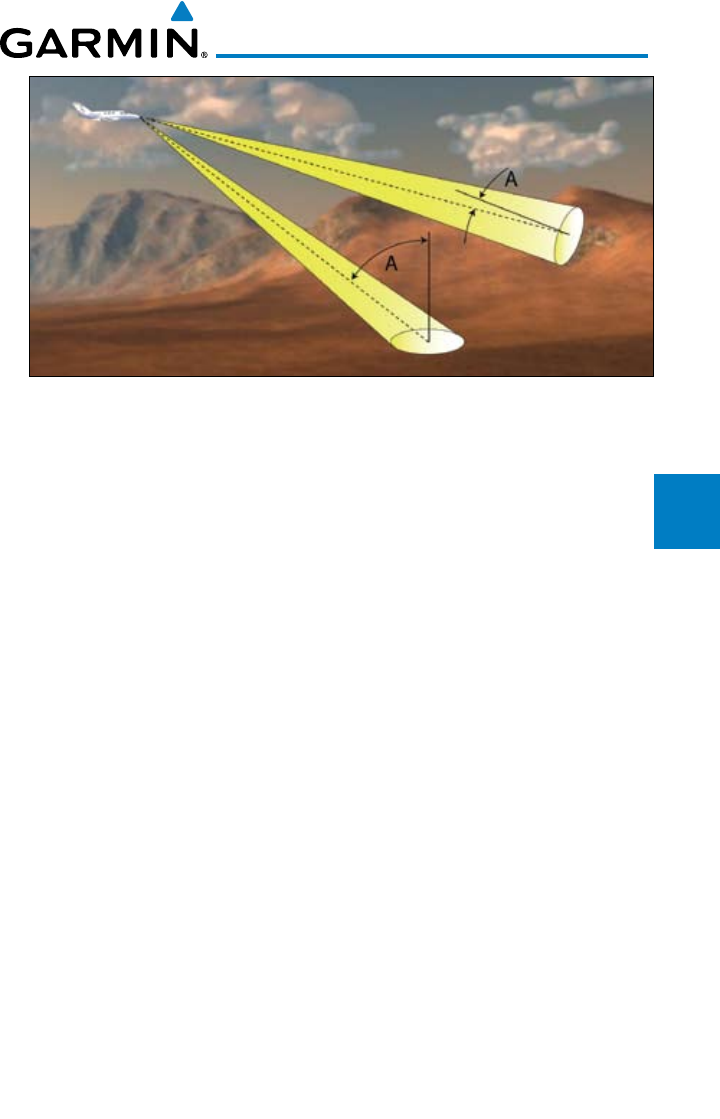
4-85190-00601-02 Rev. E
Garmin G600 Pilot’s Guide
Foreword
Sec 1
System
Sec 2
PFD
Sec 3
MFD
Sec 4
Hazard
Avoidance
Sec 5
Additional
Features
Sec 6
Annun.
& Alerts
Sec 7
Symbols
Sec 8
Glossary Appendix A
Appendix B
Index
Figure 4-70 Angle of Incidence
A smaller incident angle gives the radar a larger detectable range of operation
and the target display will show a higher intensity. Since more radar energy is
reflected back to the antenna with a low incident angle, the resulting detectable
range is increased for mountainous terrain.
4.10.3 Operating Distance
The following information establishes a minimum safe distance from the
antenna for personnel near an operating airborne weather radar. The minimum
safe distance is based upon the FCC’s exposure limit at 9.3 to 9.5 GHz for general
population/uncontrolled environments which is 1 mW/cm2. See Advisory
Circular 20-68B for more information on safe distance determination.
4.10.3.1 Maximum Permissible Exposure Level (MPEL) (GWX 68)
The zone in which the radiation level exceeds the US Government standard
of 1 mW/cm2, is the semicircular area of at least 11 feet from the 12 inch antenna
as indicated in the illustration below. All personnel must remain outside of this
zone. With a scanning or rotating beam, the averaged power density at the MPEL
boundary is significantly reduced.
4.10.3.2 Maximum Permissible Exposure Level (MPEL) (Other Radars)
See the appropriate documentation for MPEL.
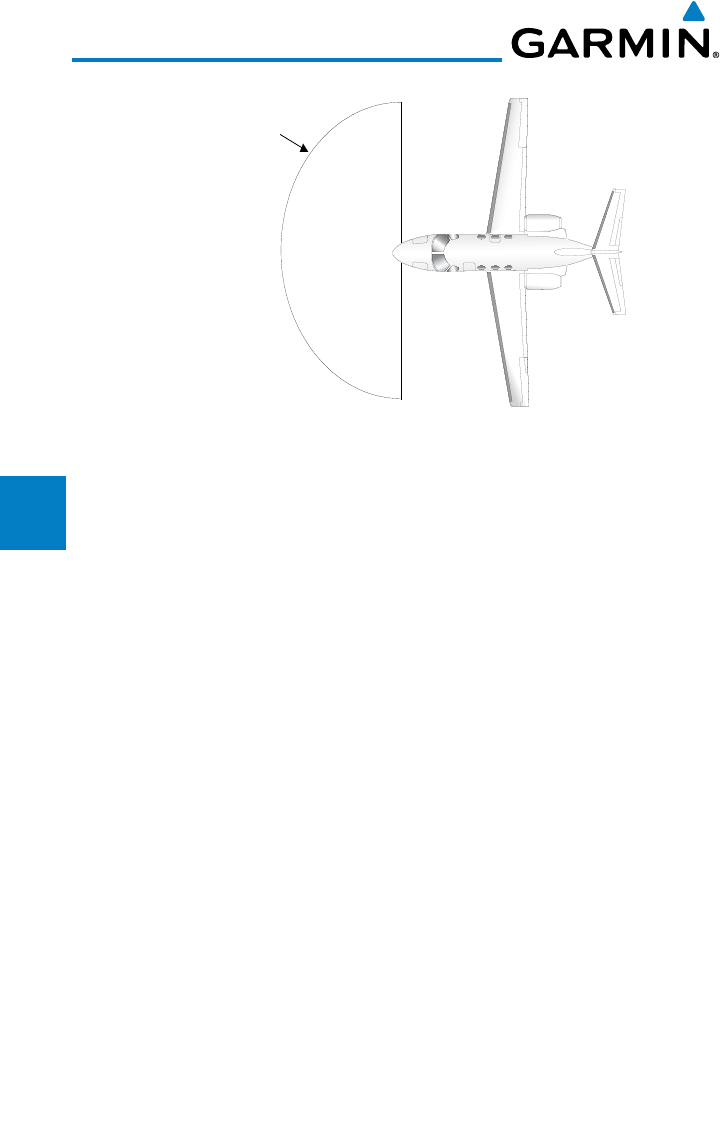
4-86
Garmin G600 Pilot’s Guide
190-00601-02 Rev. E
Foreword
Sec 1
System
Sec 2
PFD
Sec 3
MFD
Sec 4
Hazard
Avoidance
Sec 5
Additional
Features
Sec 6
Annun.
& Alerts
Sec 7
Symbols
Sec 8
GlossaryAppendix A
Appendix B
Index
MPEL
Boundary
11’ for 12” antenna
Figure 4-71 MPEL Boundary
4.10.4 Basic Antenna Tilt Setup
The following discussion is a simple method for setting up the weather radar
antenna tilt for most situations. It is not to be considered an all encompassing
setup that will work in all situations, but this method does provide good overall
parameters for the monitoring of threats. Ultimately, it is desired to have the
antenna tilted so that the bottom of the radar beam is four degrees below parallel
with the ground. The following discussion explains one way of achieving this.
With the aircraft flying level, adjust the antenna tilt so ground returns are
displayed at a distance that equals the aircraft’s current altitude (AGL) divided
by 1,000. For example, if the aircraft is at 14,000 feet, adjust the tilt so the front
edge of ground returns are displayed at 14 NM. Note this antenna tilt angle
setting. Now, raise the antenna tilt 6º above this setting. The bottom of the radar
beam is now angled down 4º from parallel with the ground.
Practical Application Using the Basic Tilt Setup
At this point, when flying at altitudes between 2,000 and 30,000 feet AGL,
any displayed target return should scrutinized. If the displayed target advances
on the screen to 5 NM of the aircraft, avoid it. This may be either weather or
ground returns that are 2,000 feet or less below the aircraft. Raising the antenna
tilt 4º can help separate ground returns from weather returns in relatively flat
terrain. This will place the bottom of the radar beam level with the ground.
Return the antenna tilt to the previous setting after a few sweeps.
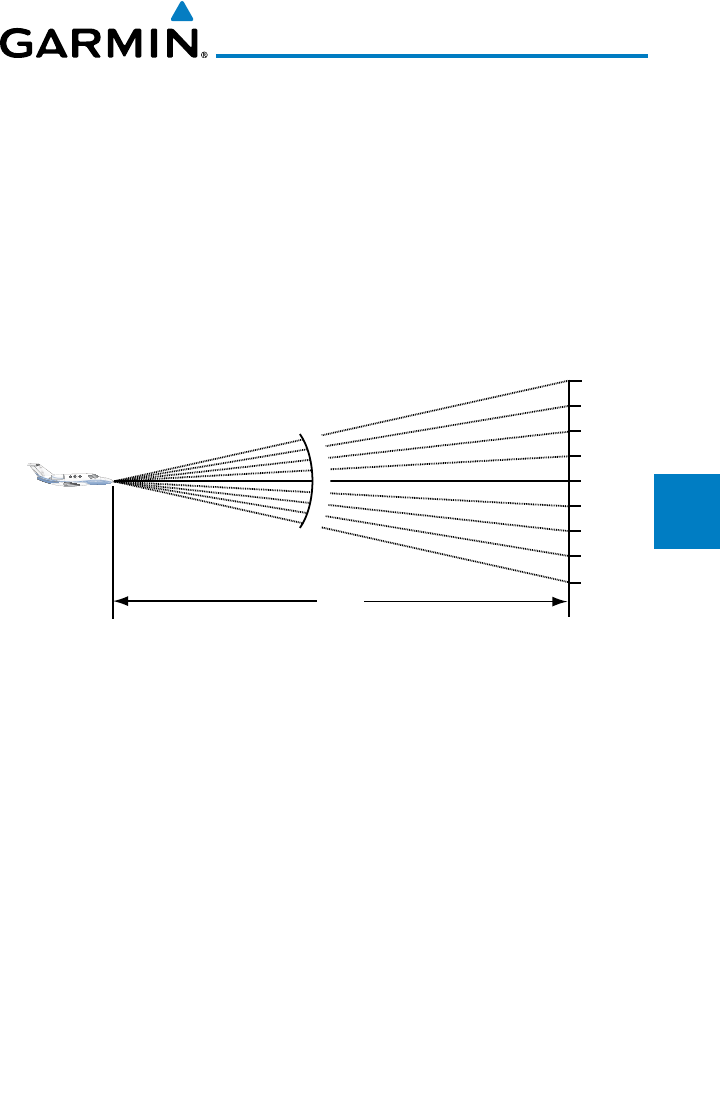
4-87190-00601-02 Rev. E
Garmin G600 Pilot’s Guide
Foreword
Sec 1
System
Sec 2
PFD
Sec 3
MFD
Sec 4
Hazard
Avoidance
Sec 5
Additional
Features
Sec 6
Annun.
& Alerts
Sec 7
Symbols
Sec 8
Glossary Appendix A
Appendix B
Index
If the aircraft is above 29,000 feet, be cautious of any target return that gets
to 30 NM or closer. This is likely a thunderstorm that has a top high enough that
the aircraft cannot fly over it safely.
If the aircraft altitude is 15,000 feet or lower, set the displayed range to
60 NM. Closely monitor anything that enters the display.
Also, after setting up the antenna tilt angle as described previously, ground
returns can be monitored for possible threats. The relationship between antenna
tilt angle, altitude, and distance is one degree of tilt equals 100 feet of altitude
for every one nautical mile.
Vertical Change of Radar Beam (feet)
Change in Antenna Tilt
10 nm
0
1000
2000
3000
4000
1000
2000
3000
4000
-1°
0°
-2°
-3°
-4°
+1°
+2°
+3°
+4°
Figure 4-72 Vertical Change in Radar Beam per Nautical Mile
Therefore, with the antenna tilt set so that the bottom of the beam is four
degrees below parallel with the ground, a target return at 10 NM is approximately
4,000 feet below the aircraft; at 20 NM, 8,000 feet; at 50 NM, 20,000 feet. In
other words, at this tilt setting, a ground return (such as a mountain peak) being
displayed at 10 NM would have a maximum distance below the aircraft of 4,000
feet. If that ground target return moves to 5 NM, maximum distance below the
aircraft will be 2,000 feet.
This setup will provide a good starting point for practical use of the GWX 68.
There are many other factors to consider in order to become proficient at using
weather radar in all situations.
4.10.5 Weather Mapping and Interpretation
4.10.5.1 Weather display Interpretation
When evaluating various target returns on the weather radar display, the
colors denote approximate rainfall intensity and rates as shown in the table
below.
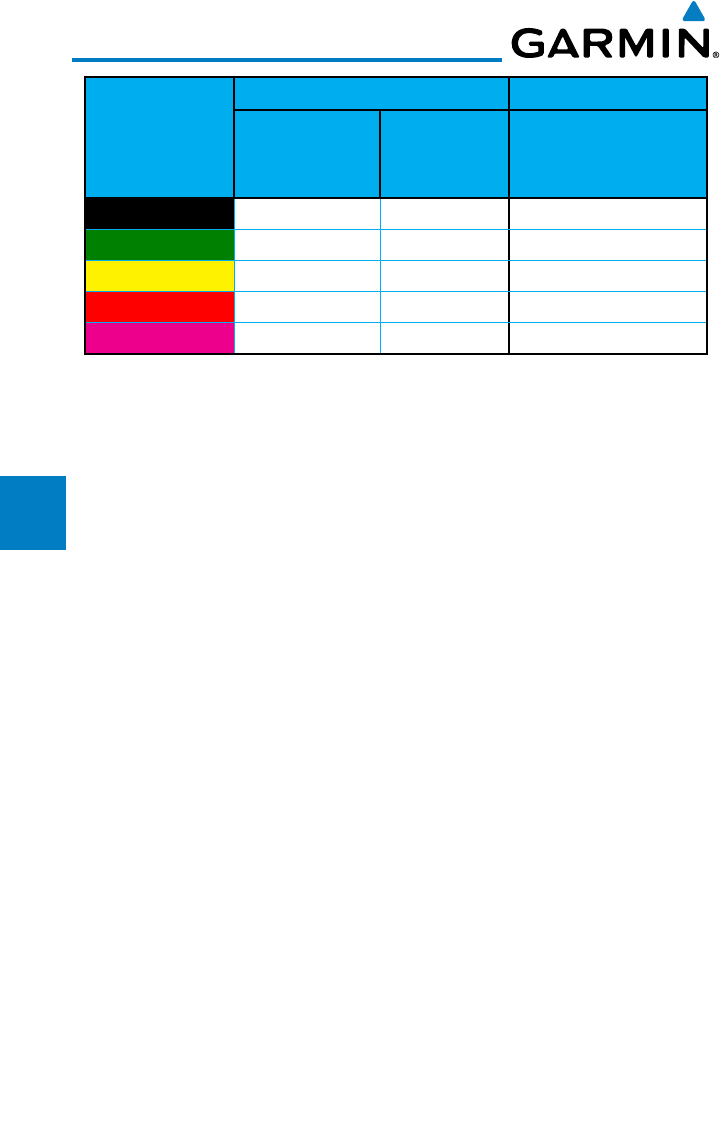
4-88
Garmin G600 Pilot’s Guide
190-00601-02 Rev. E
Foreword
Sec 1
System
Sec 2
PFD
Sec 3
MFD
Sec 4
Hazard
Avoidance
Sec 5
Additional
Features
Sec 6
Annun.
& Alerts
Sec 7
Symbols
Sec 8
GlossaryAppendix A
Appendix B
Index
Weather Mode
Color
GWX 68 Radars 3rd Party Radars
Approximate
Intensity
Approximate
Rainfall Rate
(in/hr)
Radar Return Level
(see radar documen-
tation for details)
BLACK < 23 dBZ < .01 0
GREEN 23 dBZ to < 32 dBZ .01 - 0.1 1
YELLOW 32 dBZ to < 41 dBZ 0.1 - 0.5 2
RED 41 dBZ to < 50 dBZ 0.5 - 2 3
MAGENTA 50 dBZ and greater > 2 4
Table 4-22 Precipitation Intensity Levels
4.10.5.2 Thunderstorms
Updrafts and downdrafts in thunderstorms carry water through the cloud.
The more severe the drafts, the greater the number and size of the precipitation
droplets. With this in mind, the following interpretations can be made from what
is displayed on the weather radar. Avoid these areas by an extra wide margin.
• Inareaswherethedisplayedtargetintensityisredormagenta(indicating
large amounts of precipitation), the turbulence is considered severe.
• Areasthatshowsteepcolorgradients(intensecolorchanges)overthinbands
or short distances suggest irregular rainfall rate and strong turbulence.
•Areasthatshowredormagentaareassociatedwithhail or turbulence, as
well as heavy precipitation. Vertical scanning and antenna tilt management
may be necessary to identify areas of maximum intensity.
Along squall lines (multiple cells or clusters of cells in a line), individual cells
may be in different stages of development. Areas between closely spaced, intense
targets may contain developing clouds not having enough moisture to produce
a return. However, these areas could have strong updrafts or downdrafts.
Targets showing wide areas of green are generally precipitation without severe
turbulence.
Irregularities in the target return may also indicate turbulence, appearing as
“hooks,” “fingers,” or “scalloped” edges. These irregularities may be present in
green areas with no yellow, red, or magenta areas and should be treated as highly
dangerous areas. Avoid these areas as if they were red or magenta areas.
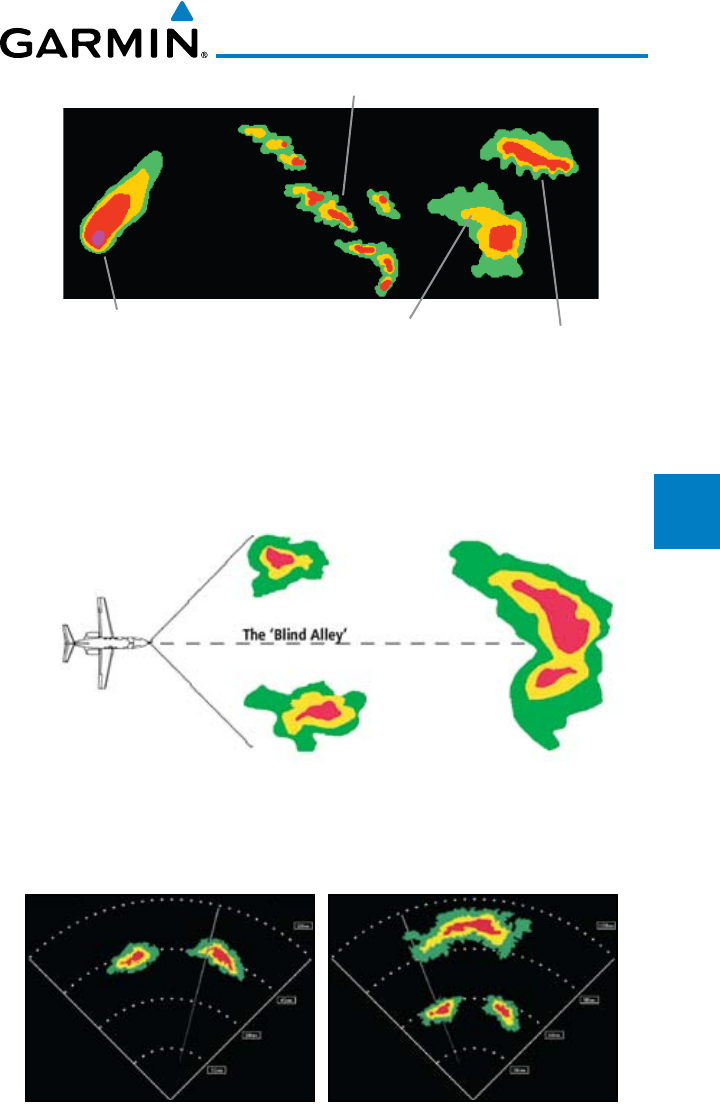
4-89190-00601-02 Rev. E
Garmin G600 Pilot’s Guide
Foreword
Sec 1
System
Sec 2
PFD
Sec 3
MFD
Sec 4
Hazard
Avoidance
Sec 5
Additional
Features
Sec 6
Annun.
& Alerts
Sec 7
Symbols
Sec 8
Glossary Appendix A
Appendix B
Index
Steep Gradient
Squall Line
Hook or Finger Scalloped Edge
Figure 4-73 Cell Irregularities
Thunderstorm development is rapid. A course may become blocked within a
short time. When displaying shorter ranges, periodically select a longer range to
see if problems are developing further out. That can help prevent getting trapped
in a “blind alley” or an area that is closed at one end by convective weather.
Figure 4-74 The “Blind Alley” Overhead View
In areas of multiple heavy cells, use the Vertical Scan feature along with
antenna tilt management to examine the areas. Remember to avoid shadowed
areas behind targets.
Figure 4-75 The “Blind Alley” Vertical Scan
4-90
Garmin G600 Pilot’s Guide
190-00601-02 Rev. E
Foreword
Sec 1
System
Sec 2
PFD
Sec 3
MFD
Sec 4
Hazard
Avoidance
Sec 5
Additional
Features
Sec 6
Annun.
& Alerts
Sec 7
Symbols
Sec 8
GlossaryAppendix A
Appendix B
Index
4.10.5.3 Tornadoes
There is no conclusive radar target return characteristics which will identify
a tornado, however, tornadoes may be present if the following characteristics
are observed:
• Anarrow,nger-likeportion,asshownonthepreviouspage,extendsand,
in a short time, curls into a hook and closes on itself.
• A“hook”whichmaybeinthegeneralshapeofthenumeral“6,”especially
if bright and projecting from the southwest quadrant (northeast quadrant in
the southern hemisphere) of a major thunderstorm.
• V-shapednotches.
• Doughnutshapes.
These shapes do not always indicate tornadoes, nor are tornado returns
limited to these characteristics. Confirmed radar observations of tornadoes most
often have not shown shapes different from those of a normal thunderstorm
display.
4.10.5.4 Hail
Hail results from updrafts carrying water high enough to freeze. Therefore,
the higher the top of a thunderstorm, the greater the probability that it contains
hail. Vertically scanning the target return can give the radar top of a thunderstorm
that contains hail. Radar top is the top of a storm cell
as detected by radar
. It is
not the actual top, or true top of the storm. The actual top of a storm cell is seen
with the eyes in clear air and may be much higher than the radar top. The actual
top does not indicate the top of the hazardous area.
Hail can fall below the minimum reflectivity threshold for radar detection.
It can have a film of water on its surface, making its reflective characteristics
similar to a very large water droplet. Because of this film of water, and because
hail stones usually are larger than water droplets, thunderstorms with large
amounts of wet hail return stronger signals than those with rain. Some hail
shafts are extremely narrow (100 yards or less) and make poor radar targets. In
the upper regions of a cell where ice particles are “dry” (no liquid coating), target
returns are less intense.
Hail shafts are associated with the same radar target return characteristics
as tornados. U-shaped cloud edges 3 to 7 miles across can also indicate hail.
These target returns appear quite suddenly along any edge of the cell outline.
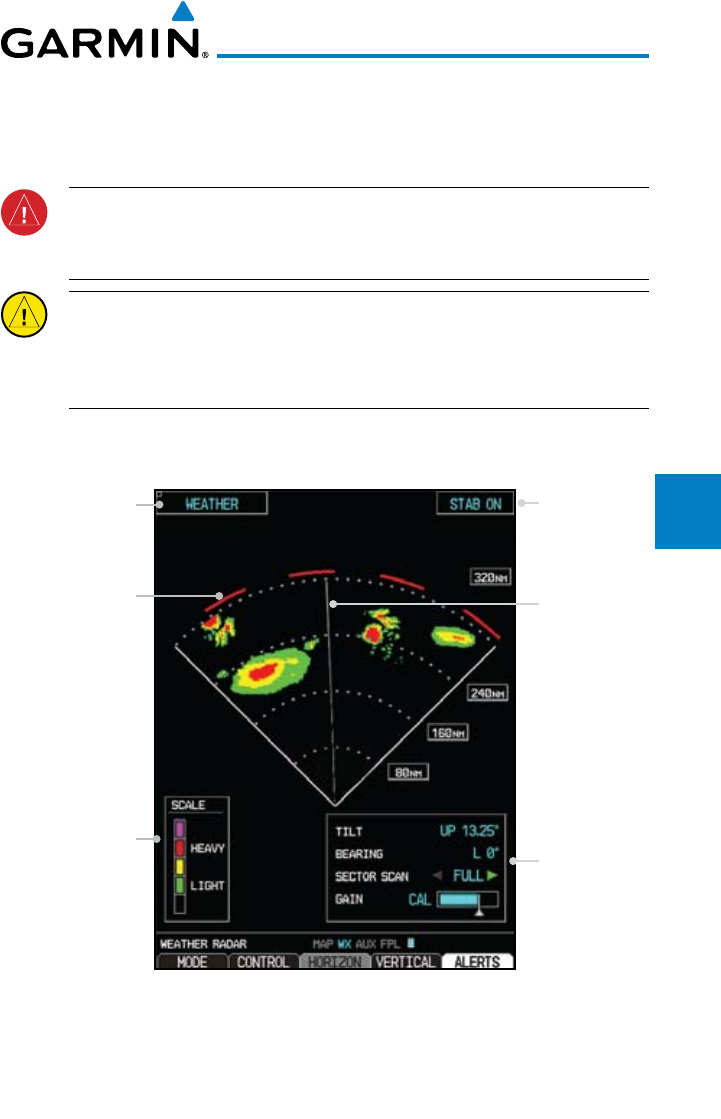
4-91190-00601-02 Rev. E
Garmin G600 Pilot’s Guide
Foreword
Sec 1
System
Sec 2
PFD
Sec 3
MFD
Sec 4
Hazard
Avoidance
Sec 5
Additional
Features
Sec 6
Annun.
& Alerts
Sec 7
Symbols
Sec 8
Glossary Appendix A
Appendix B
Index
They also change in intensity and shape in a matter of seconds, making vigilant
monitoring essential.
4.10.6 Radar Operation in Weather Mode
WARNING: Begin transmitting only when it is safe to do so. When
transmitting while the aircraft is on the ground, no personnel or objects
should be within 11 feet of the antenna.
CAUTION: In Standby mode, the antenna is parked at the center line. It
is always a good idea to put the radar in Standby mode before taxiing the
aircraft to prevent the antenna from bouncing on the bottom stop and
possibly causing damage to the radar assembly.
When the weather radar system is in the Weather or Ground Map mode, the
system automatically switches to Standby mode on landing.
Operating
Mode
Antenna
Stabilization
Weather Alert
(GWX Only)
Precipitation
Scale Control
Window
Bearing Line
Figure 4-76 Horizontal Scan Display
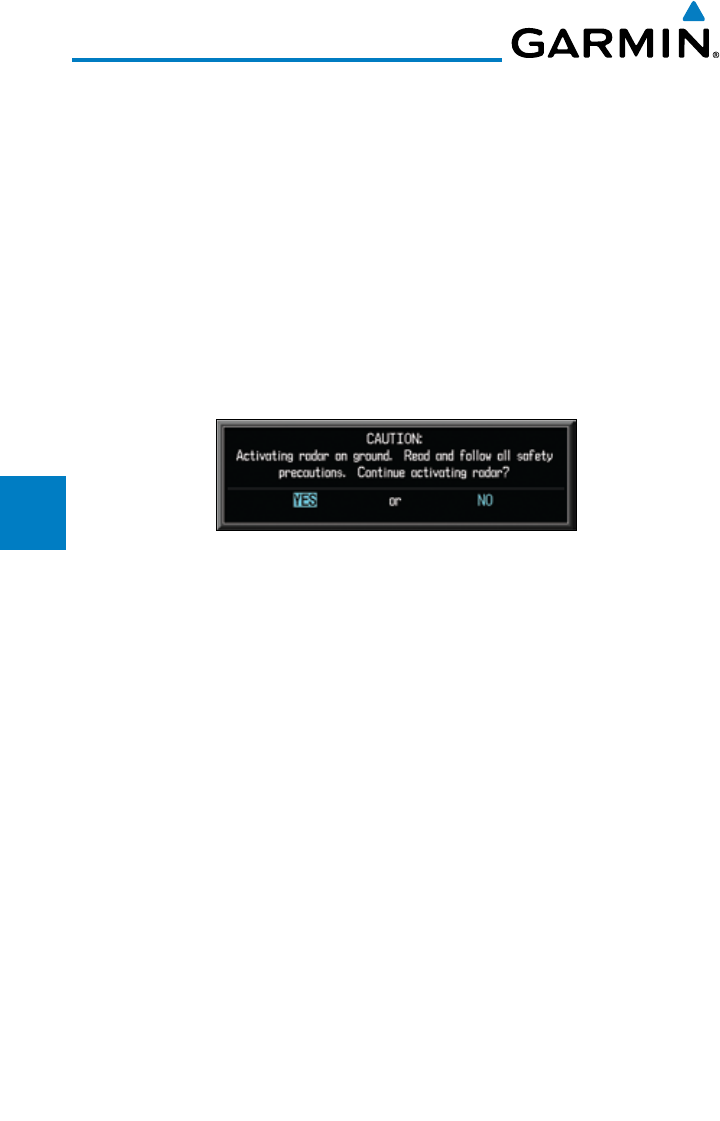
4-92
Garmin G600 Pilot’s Guide
190-00601-02 Rev. E
Foreword
Sec 1
System
Sec 2
PFD
Sec 3
MFD
Sec 4
Hazard
Avoidance
Sec 5
Additional
Features
Sec 6
Annun.
& Alerts
Sec 7
Symbols
Sec 8
GlossaryAppendix A
Appendix B
Index
4.10.6.1 Displaying Weather on the Weather Radar Page
1) While viewing the Weather Radar page of the Wx page group, press the MODE
soft key.
2) While on the ground, press the STANDBY soft key. A warm-up period is
initiated (countdown is displayed on the screen - GWX radars only). After the
warm-up is complete, the radar enters the Standby Mode.
3) When the aircraft is airborne, press the WEATHER soft key.
OR
4) While on the ground, select the WEATHER soft key. A confirmation window is
displayed.
Figure 4-77 Caution for Radar Activation Confirmation
5) Turn the large MFD Knob to highlight YES and press the ENT key to continue
radar activation.
OR
6) If the aircraft is airborne, select the WEATHER soft key. A warm-up period is
initiated (countdown is displayed on the screen - GWX radars only). After the
warm-up is complete, the radar begins transmitting.
7) Press the RNG keys to select the desired range.
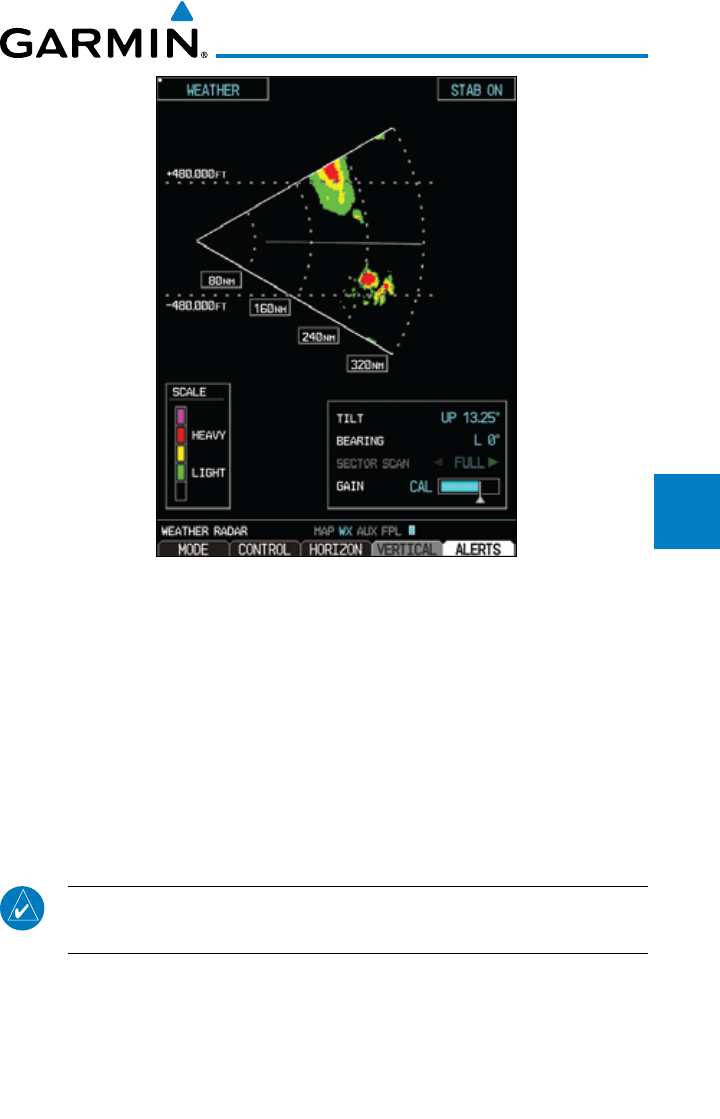
4-93190-00601-02 Rev. E
Garmin G600 Pilot’s Guide
Foreword
Sec 1
System
Sec 2
PFD
Sec 3
MFD
Sec 4
Hazard
Avoidance
Sec 5
Additional
Features
Sec 6
Annun.
& Alerts
Sec 7
Symbols
Sec 8
Glossary Appendix A
Appendix B
Index
Figure 4-78 Vertical Scan Display
4.10.6.2 Vertically Scanning a Storm Cell
(Not available with all radars)
When vertically scanning with stabilization ON, the actual physical area
that the radar is sweeping may not match the GDU vertical scan display. This
occurs whenever the aircraft pitch is not at 0 degrees. To compensate for this,
the GDU vertical display will “erase” the portion of the vertical display that is
no longer being scanned. It will appear that the vertical sweep “wraps around”
when reaching the end of the GDU vertical display. The radar is simply “erasing”
the portion of the vertical display that is not currently being scanned.
NOTE: Vertical scanning of a storm cell should be done with the aircraft
wings level to avoid constant adjustment of the Bearing Line.
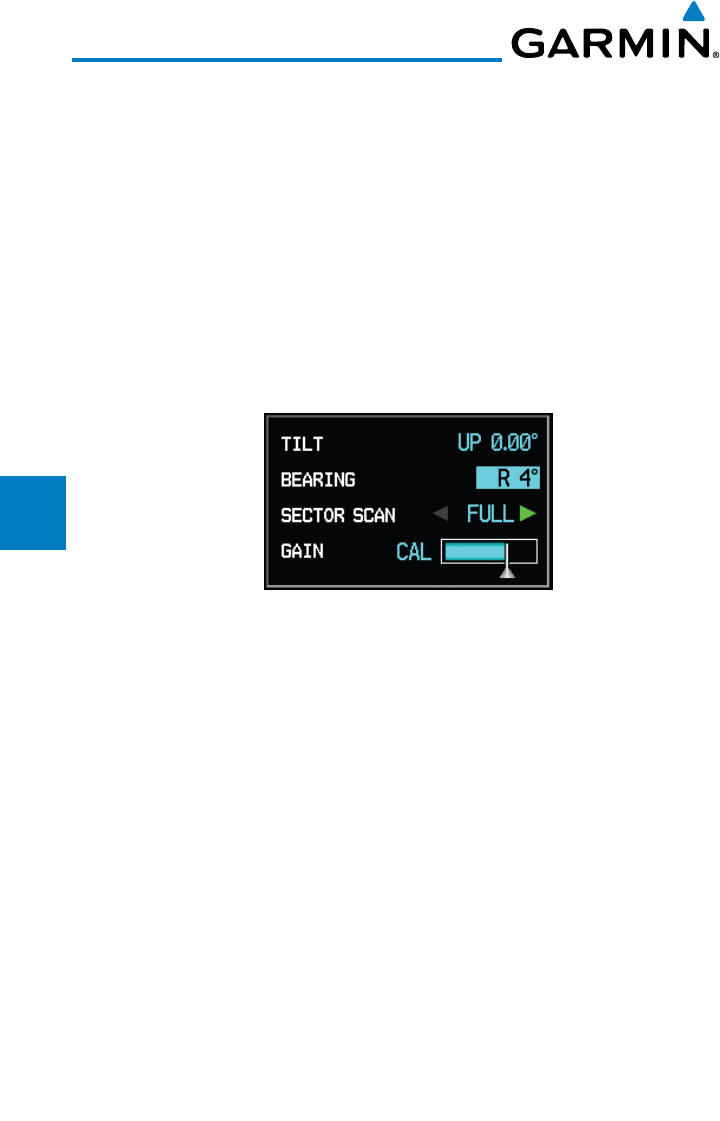
4-94
Garmin G600 Pilot’s Guide
190-00601-02 Rev. E
Foreword
Sec 1
System
Sec 2
PFD
Sec 3
MFD
Sec 4
Hazard
Avoidance
Sec 5
Additional
Features
Sec 6
Annun.
& Alerts
Sec 7
Symbols
Sec 8
GlossaryAppendix A
Appendix B
Index
1) While in the Horizontal Scan view, press the CONTROL and then the BRG soft
keys. This displays the Bearing Line.
OR
Press MENU and turn the large or small MFD knobs to highlight the “Show
Bearing Line” menu item and press the ENT key. This displays the Bearing
Line.
2) Press the MFD knob to activate the Bearing Line Adjustment in the Control
window. Turn the Large MFD knob to highlight the Bearing value.
3) Turn the small
MFD knob to place the Bearing Line on the desired storm cell or
other area to be vertically scanned.
Figure 4-79 Bearing Line Adjustment
4) Press the
VERTICAL soft key. A vertical “slice” of the selected area will now be
displayed.
5) With the Bearing value still highlighted, the small
MFD Knob may be used to
move the scanned “slice” a few degrees right or left.
6) Press the RNG keys to adjust the range.
7) Press the MFD Knob to remove the cursor.
8) To select a new area to be vertically scanned, select the HORIZON soft key to
return to the Horizontal Scan view and repeat the previous steps.
4.10.6.3 Adjusting the Antenna Tilt Angle
In order to make an accurate interpretation of a storm cell, the radar beam
should be pointed at the wet part of the weather cell to record the proper rainfall
intensity (color level). The ideal aiming point is just below the freezing level of
the storm. The best way to find this point is to use the Vertical Scan feature. The
antenna tilt angle can be centered on the strongest return area in the vertical
scan to get a more accurate view of the coverage and intensity of the target in
the horizontal scan.
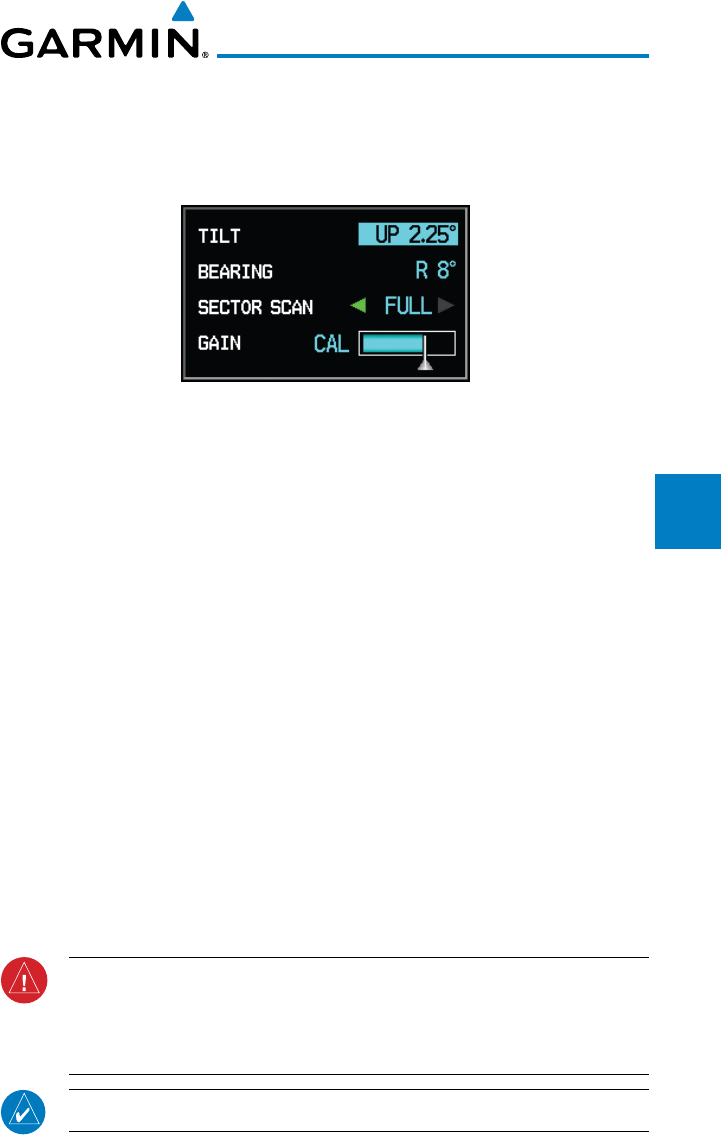
4-95190-00601-02 Rev. E
Garmin G600 Pilot’s Guide
Foreword
Sec 1
System
Sec 2
PFD
Sec 3
MFD
Sec 4
Hazard
Avoidance
Sec 5
Additional
Features
Sec 6
Annun.
& Alerts
Sec 7
Symbols
Sec 8
Glossary Appendix A
Appendix B
Index
Adjusting Antenna Tilt on the Horizontal Scan Display
1) Press the MFD knob.
2) With the Tilt value highlighted in the Control window, turn the small MFD knob
to adjust the Tilt.
Figure 4-80 Adjusting Tilt
Adjusting Antenna Tilt on the Vertical Scan Display
(Not available with all radars)
1) While in the Vertical Scan view, press the CONTROL and then the TILT soft
keys. This displays the Tilt Line.
OR
Press MENU and turn the large or small MFD knobs to highlight the “Show Tilt
Line” menu item and press the ENT key. This displays the Tilt Line.
2) Press the MFD knob to activate the Tilt Adjustment in the Control window. Turn
the large MFD knob to highlight the Tilt value.
3) Turn the small
MFD knob to adjust the Tilt value.
4.10.6.4 Adjusting Gain
The gain is used to adjust the sensitivity of the radar receiver. It can be used
to adjust the characteristics of the returns.
Gain adjustment is shown in the Gain bar graph. The white reference line on
the right side of the bar graph indicates the calibration reference point.
WARNING: Changing the gain in weather mode will cause precipitation
intensity to be displayed as a color not representative of the true intensity.
Remember to return the gain setting to : “Calibrated” for viewing the
actual intensity of precipitation.
NOTE: Gain can be adjusted in Weather mode on the GWX radars only.
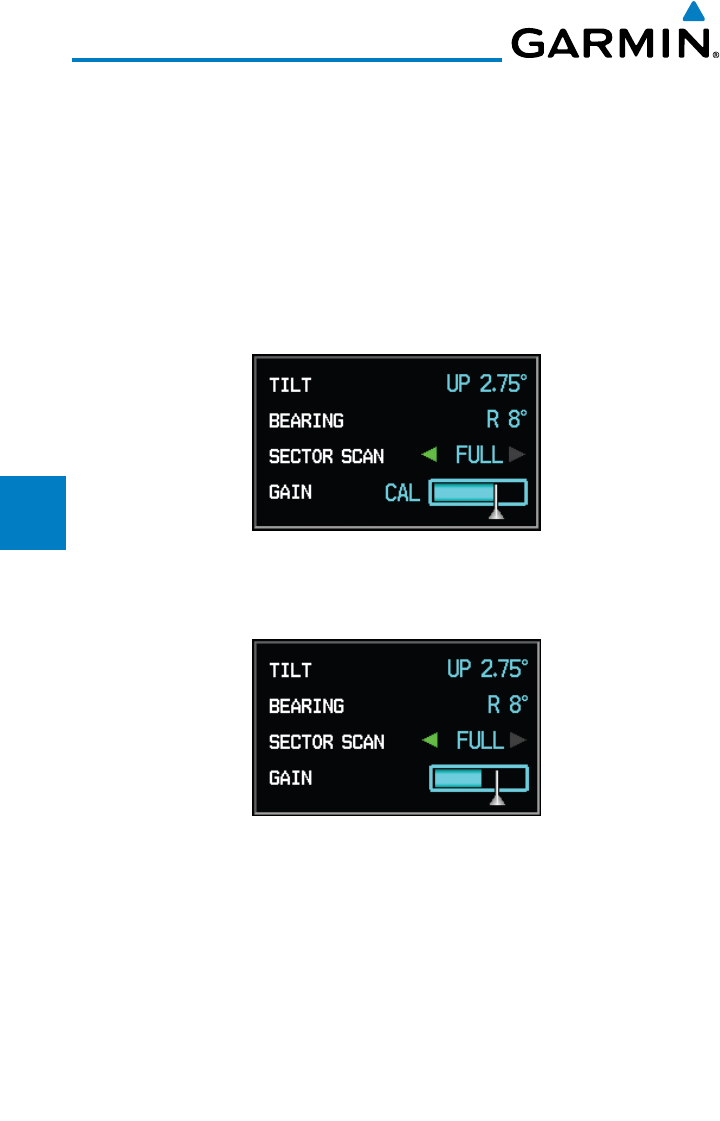
4-96
Garmin G600 Pilot’s Guide
190-00601-02 Rev. E
Foreword
Sec 1
System
Sec 2
PFD
Sec 3
MFD
Sec 4
Hazard
Avoidance
Sec 5
Additional
Features
Sec 6
Annun.
& Alerts
Sec 7
Symbols
Sec 8
GlossaryAppendix A
Appendix B
Index
1) While viewing the Weather Radar page of the Wx page group, press the MENU
key.
2) Turn the large MFD knob to highlight “Manual Gain” and press ENT. This will
highlight the Gain value in the Control window.
3) Turn the small MFD knob to adjust the Gain.
OR
1) Press the MFD knob and turn the large MFD knob to highlight the Gain value
in the Control window.
Figure 4-81 Highlight Gain Cal Value
2) Turn the small MFD knob to adjust the Gain Cal value. Press the MFD knob
again to accept the value and end editing.
Figure 4-82 Adjust Gain Cal Value
Restore Calibrated Gain
1) While viewing the Weather Radar page of the Wx page group, press the MENU
key.
2) Turn the large MFD knob to highlight “Restore Calibrated Gain” and press
ENT.
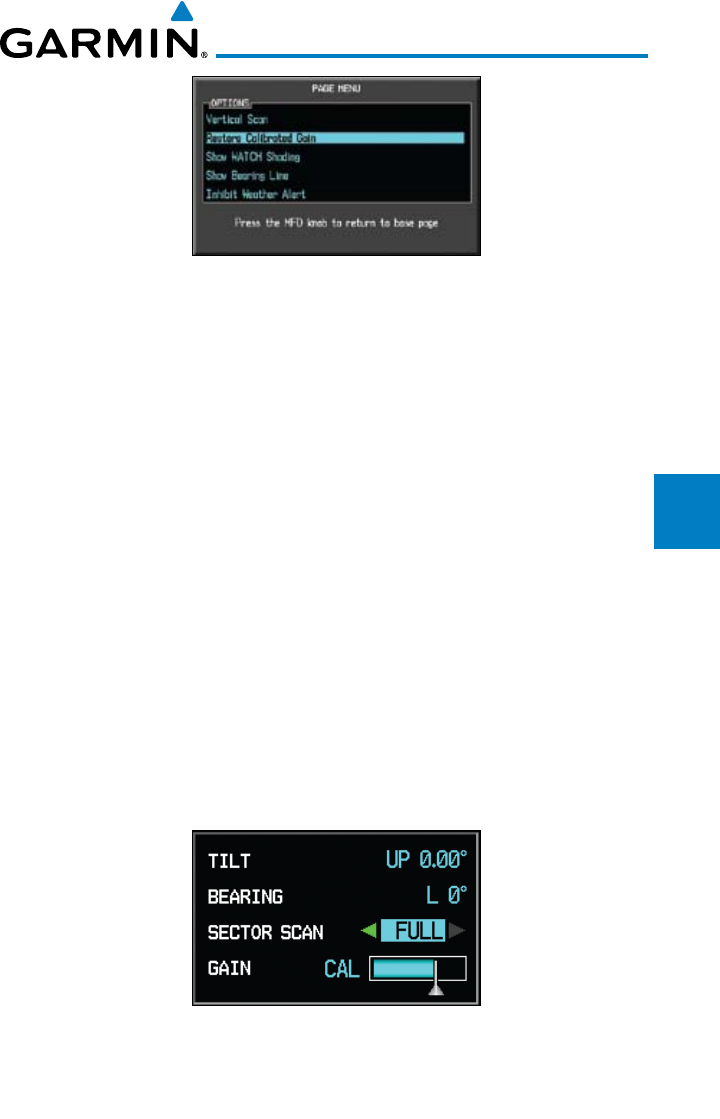
4-97190-00601-02 Rev. E
Garmin G600 Pilot’s Guide
Foreword
Sec 1
System
Sec 2
PFD
Sec 3
MFD
Sec 4
Hazard
Avoidance
Sec 5
Additional
Features
Sec 6
Annun.
& Alerts
Sec 7
Symbols
Sec 8
Glossary Appendix A
Appendix B
Index
Figure 4-83 Restore Calibrated Gain
OR
1) While viewing the Weather Radar page of the Wx page group, press the
CONTROL soft key.
2) Press the GAIN CAL soft key to restore the calibrated gain value. Press the
MFD knob again to accept the value and end editing.
4.10.6.5 Sector Scan (GWX Radars Only)
Adjusting the Sector Scan reduces the scan angle from Full in increments of
±20°, ±40°, and ±60° in horizontal scanning. Sector scanning is not available for
vertical scanning.
1) While viewing the Weather Radar page of the Wx page group, press the
CONTROL soft key.
2) Press the BRG soft key to display the Bearing Line.
3) Turn the small
MFD knob to place the Bearing Line in the desired position. The
location of the Bearing Line will become the center point of the Sector Scan.
4) Turn the large
MFD knob to place the cursor in the SECTOR SCAN field.
Figure 4-84 Sector Scan - Full
5) Turn the small
MFD knob to select FULL, 60
°
, 40
°
, or 20
°
scan.
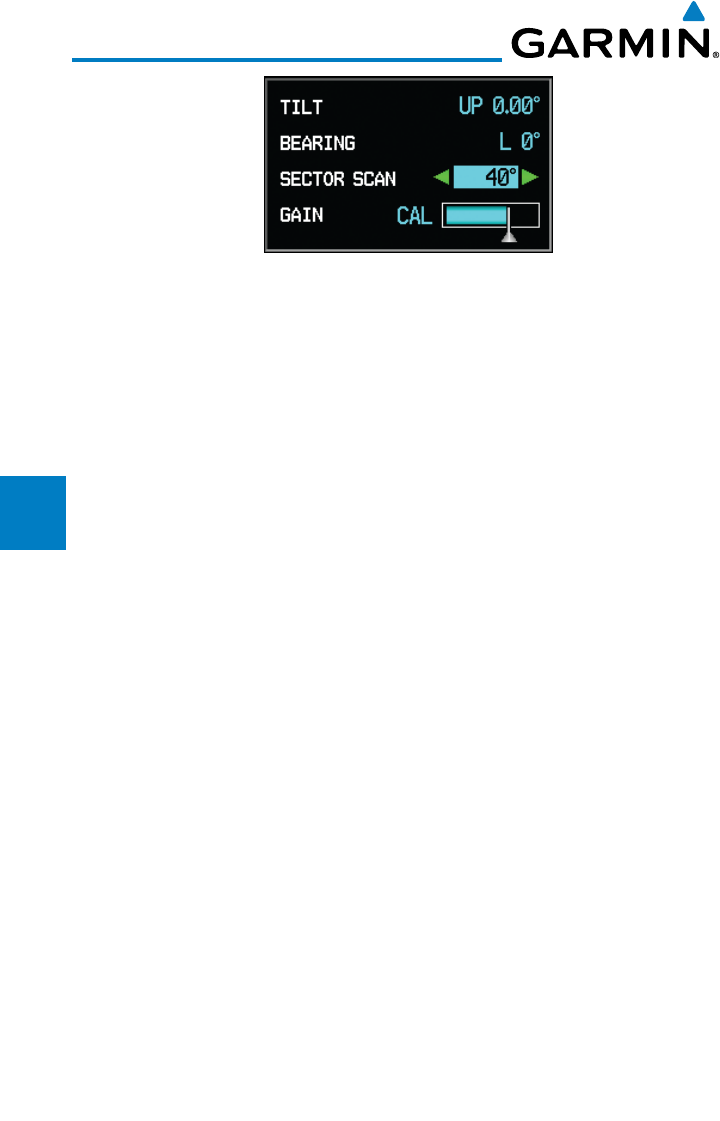
4-98
Garmin G600 Pilot’s Guide
190-00601-02 Rev. E
Foreword
Sec 1
System
Sec 2
PFD
Sec 3
MFD
Sec 4
Hazard
Avoidance
Sec 5
Additional
Features
Sec 6
Annun.
& Alerts
Sec 7
Symbols
Sec 8
GlossaryAppendix A
Appendix B
Index
Figure 4-85 Sector Scan - 40°
6) If desired, readjust the Bearing Line as discussed previously to change the
center of the Sector Scan.
7) Remove Sector Scanning by returning the SECTOR SCAN value to FULL.
4.10.6.6 Antenna Stabilization
1) While viewing the Weather Radar page of the Wx page group, press the
CONTROL soft key.
2) To activate or deactivate the antenna stabilization, press the STAB ON soft key
to activate antenna stabilization or press the STAB OFF soft key to deactivate.
The current stabilization condition is shown in the upper right of the weather
radar display.
4.10.6.7 Weather Attenuated Color Highlight (WATCH™)
(GWX Radars Only)
While in horizontal scan mode, this feature can be used as a tool to determine
areas of possible inaccuracies in displayed intensity due to weakening of the
radar energy. This weakening is known as “attenuation.” The radar energy
weakens as it passes through areas of intense precipitation, large areas of lesser
precipitation, and distance. Issues with the radome will also attenuate the radar
energy. All these factors have an effect on the return intensity. The more energy
that dissipates, the lesser the displayed intensity of the return. Accuracy of the
displayed intensity of returns located in the shaded areas are suspect. Make
maneuvering decisions with this information in mind. Proper antenna tilt
management should still be employed to determine the extent of attenuation in
a shaded area.
1) While viewing the Weather Radar page of the Wx page group, press the
CONTROL soft key.
2) To activate or deactivate the WATCH™ feature, press the WATCH soft key.
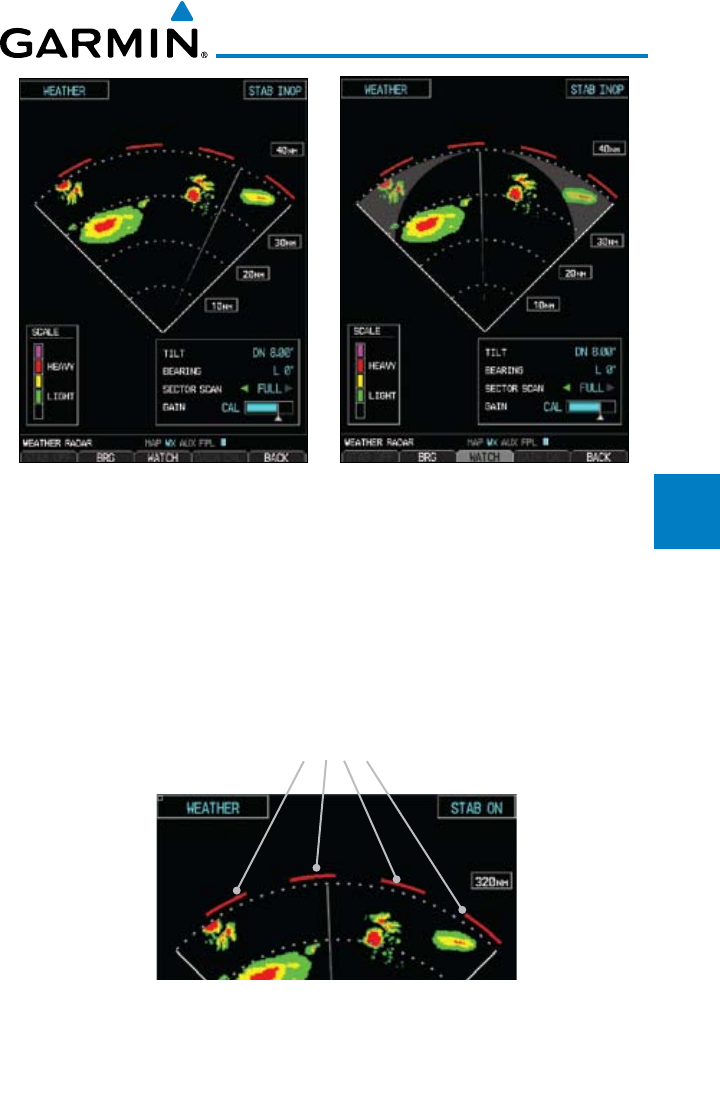
4-99190-00601-02 Rev. E
Garmin G600 Pilot’s Guide
Foreword
Sec 1
System
Sec 2
PFD
Sec 3
MFD
Sec 4
Hazard
Avoidance
Sec 5
Additional
Features
Sec 6
Annun.
& Alerts
Sec 7
Symbols
Sec 8
Glossary Appendix A
Appendix B
Index
Figure 4-86 Horizontal Scan without WATCH™ Figure 4-87 Horizontal Scan with WATCH™
4.10.6.8 Weather Alert (GWX Radars Only)
The Weather Alert feature indicates the presence of heavy precipitation
between the ranges of 80 and 320 NM regardless of the currently displayed
range. Weather Alert targets appear as red bands along the outer range ring at
the approximate azimuth of the detected returns.
If a Weather Alert is detected within ±10° of the aircraft heading, an alert will
be displayed on the MFD in the Alerts Window.
Weather Alerts
Figure 4-88 Weather Alert Display
If the antenna tilt is adjusted too low, a weather alert can be generated
by ground returns. To avoid unwanted weather alerts, Weather alerts can be
deactivated.
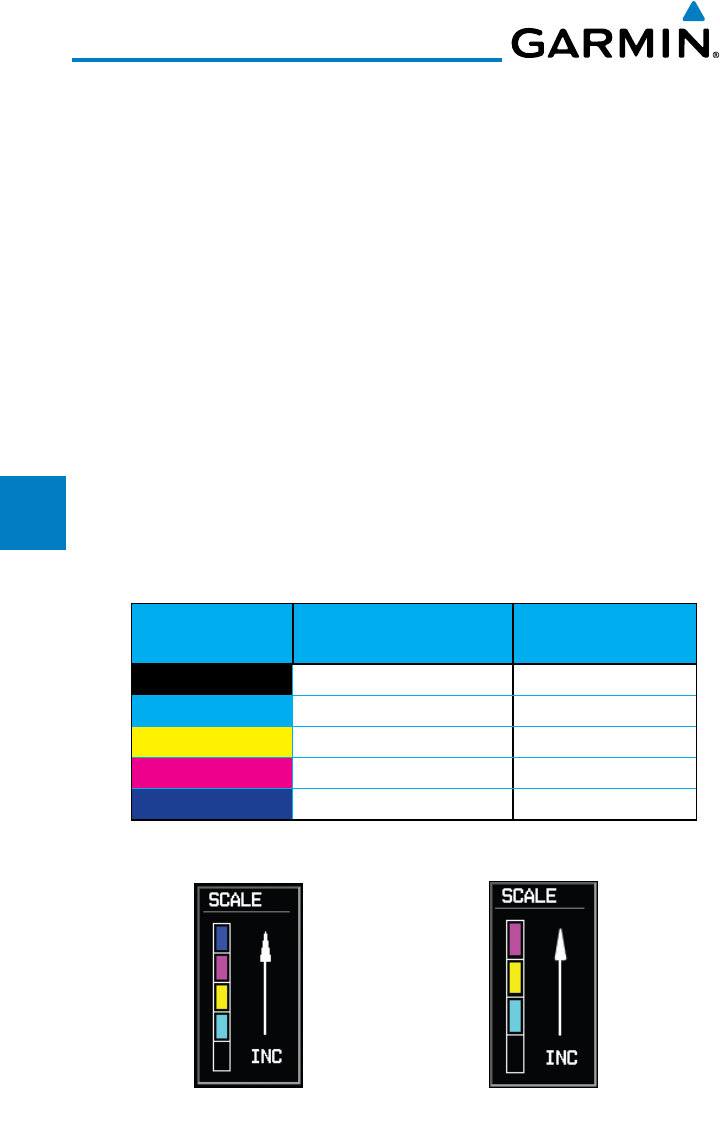
4-100
Garmin G600 Pilot’s Guide
190-00601-02 Rev. E
Foreword
Sec 1
System
Sec 2
PFD
Sec 3
MFD
Sec 4
Hazard
Avoidance
Sec 5
Additional
Features
Sec 6
Annun.
& Alerts
Sec 7
Symbols
Sec 8
GlossaryAppendix A
Appendix B
Index
1) While viewing the Weather Radar page of the Wx page group, press the MENU
key.
2) To activate or deactivate Weather Alerts, turn the large or small
MFD knob to
highlight either “Enable Weather Alert” or “Inhibit Weather Alert.” Activating
and deactivating will also enable or inhibit the alert on the MFD.
4.10.7 Ground Mapping and Interpretation
A secondary use of the weather radar system is for the presentation of terrain.
This can be a useful tool for verifying aircraft position. A “picture” of the ground
is represented much like a topographical map that can be used as a supplement
to the navigation map on the MFD.
Ground Map mode uses a different gain range than Weather mode. Different
colors are also used to represent the intensity levels. The displayed intensity of
ground target returns are defined in the following table. Use of the GAIN and
TILT controls will help improve contrast so that specific ground targets can be
recognized more easily. As previously discussed, the type and orientation of the
target in relation to the aircraft affects the intensity displayed.
Ground Map
Mode Color GWX Radars Intensity 3rd Party Radars
Level
BLACK 0 dB 0
LIGHT BLUE > 0 dB to < 9 dB 1
YELLOW 9 dB to < 18 dB 2
MAGENTA 18 dB to < 27 dB 3 and above
BLUE 27 dB and greater Not Used
Table 4-23 Ground Target Return Intensity Levels
Figure 4-89 GWX Radar Ground Mode Scale 3rd Party Radar Ground Mode Scale
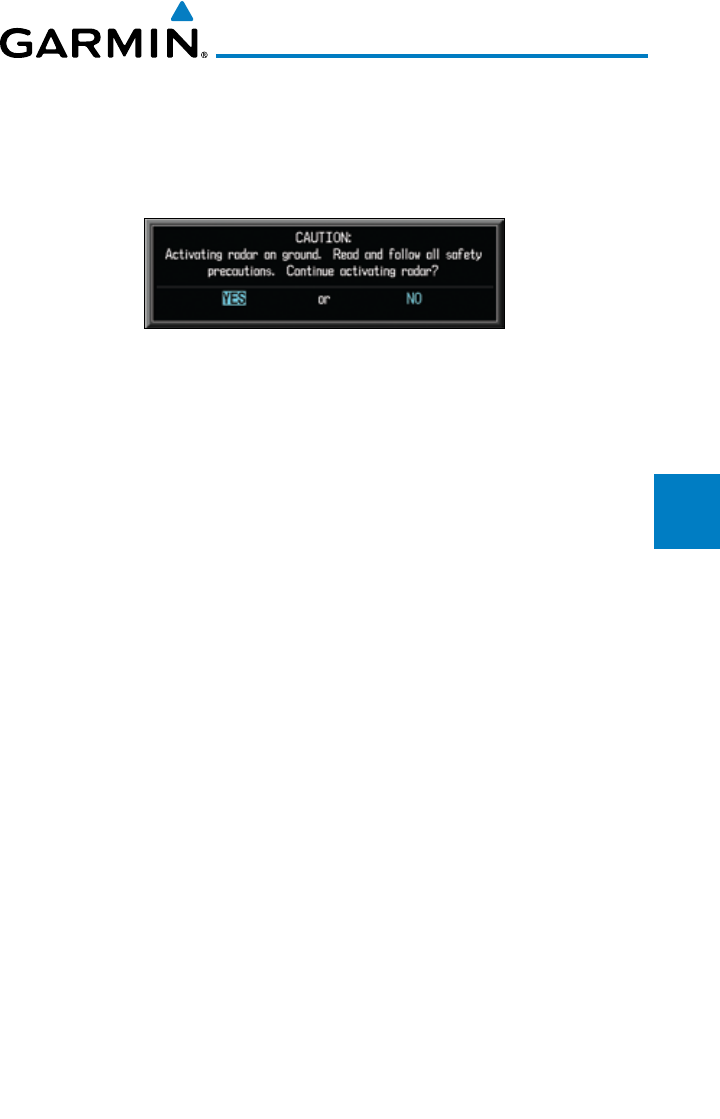
4-101190-00601-02 Rev. E
Garmin G600 Pilot’s Guide
Foreword
Sec 1
System
Sec 2
PFD
Sec 3
MFD
Sec 4
Hazard
Avoidance
Sec 5
Additional
Features
Sec 6
Annun.
& Alerts
Sec 7
Symbols
Sec 8
Glossary Appendix A
Appendix B
Index
1) Press the
MODE soft key.
2) Press the GROUND soft key to place the radar in Ground Map mode. A pop-up
regarding caution in operating radar on the ground will appear. Turn the large
MFD knob to highlight “YES” and then press ENT.
Figure 4-90 Ground Radar Operation Caution
3) Press the BACK soft key.
4) Press the MFD knob to activate the cursor.
5) Turn the large
MFD knob to place the cursor in the TILT field.
6) Adjust the antenna tilt angle by turning the small
MFD knob to display ground
returns at the desired distance.
7) Press the MFD knob to remove the cursor.
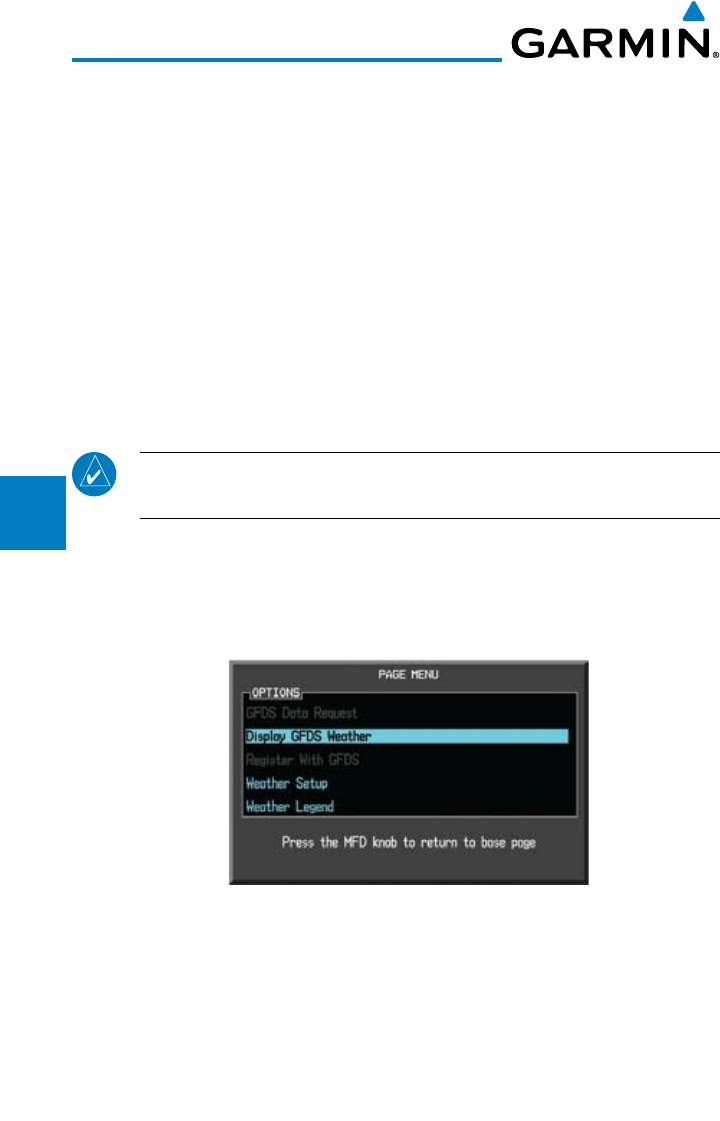
4-102
Garmin G600 Pilot’s Guide
190-00601-02 Rev. E
Foreword
Sec 1
System
Sec 2
PFD
Sec 3
MFD
Sec 4
Hazard
Avoidance
Sec 5
Additional
Features
Sec 6
Annun.
& Alerts
Sec 7
Symbols
Sec 8
GlossaryAppendix A
Appendix B
Index
4.11 GFDS Weather (Optional)
GFDS Weather is an optional feature available with the Iridium® satellite
system that is interfaced through the optional Garmin GSR 56. The primary maps
for viewing Garmin Flight Data System (GFDS) Weather data are the Weather
Data Link Pages in the Map Page Group. These are the only GDU 620 map
displays capable of all available GFDS weather products. The Wx Weather pages
may be oriented to either Track Up or North Up. Both GFDS and XM Weather
may be installed and selected individually. Coverage is available throughout
most of Europe, Canada and the U.S. Additional radar coverage areas are being
added continuously.
More detail on GFDS weather products and coverage can be found at:
http://fly.garmin.com/fly-garmin/gfds-weather/
NOTE: A system can be configured for both XM and GFDS, but both cannot
be displayed a the same time.
1) While viewing a WX Data Link Map page of the WX page group, press the
MENU key to display the Page
Menu Options
. Turn the large MFD knob to
highlight the “Display GFDS Weather” option. Press ENT
.
This setting will affect
the display of data link weather on the map pages as well as the Wx pages.
Figure 4-91 Select GFDS Weather
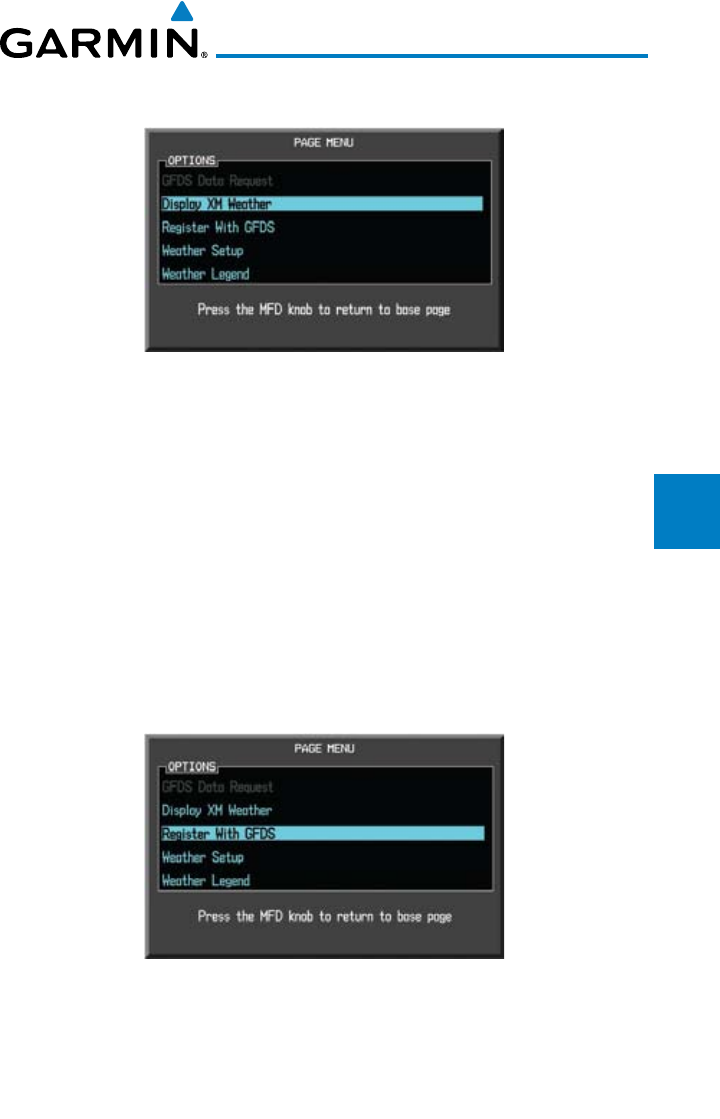
4-103190-00601-02 Rev. E
Garmin G600 Pilot’s Guide
Foreword
Sec 1
System
Sec 2
PFD
Sec 3
MFD
Sec 4
Hazard
Avoidance
Sec 5
Additional
Features
Sec 6
Annun.
& Alerts
Sec 7
Symbols
Sec 8
Glossary Appendix A
Appendix B
Index
2) Select XM Weather by repeating the process and selecting the XM Weather
option.
Figure 4-92 Select XM Weather
4.11.1 GFDS Registration
4.11.1.1 Register With GFDS
It is necessary to register the GDU with GFDS to utilize the weather products.
1) Call Garmin Customer Service to create a GFDS account. Provide the GDU
System ID and airframe info (model, tail number, etc).
2) Customer Service will issue an access code to enter on the GFDS Registration page.
3) While viewing a WX Data Link Map page of the WX page group, press the
MENU key to display the Page
Menu Options
.
4) Turn the large MFD knob to highlight “Register With GFDS.” Press ENT
.
Figure 4-93 Select GFDS Registration
5)
Turn the small MFD knob to select values and the large MFD knob to move to
the next position. Highlight REGISTER and press ENT to complete the process.
The GDU will contact the GFDS servers using the GSR 56 transceiver. If the access
code and system ID are correct, it will download and display the airframe info.
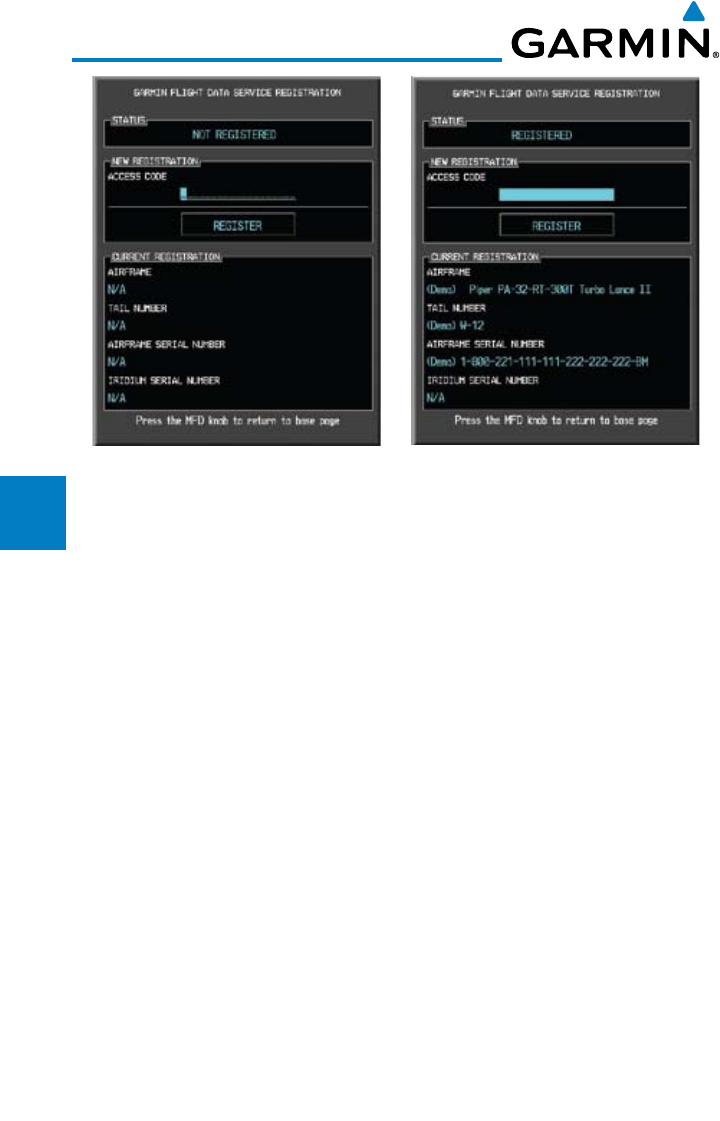
4-104
Garmin G600 Pilot’s Guide
190-00601-02 Rev. E
Foreword
Sec 1
System
Sec 2
PFD
Sec 3
MFD
Sec 4
Hazard
Avoidance
Sec 5
Additional
Features
Sec 6
Annun.
& Alerts
Sec 7
Symbols
Sec 8
GlossaryAppendix A
Appendix B
Index
Figure 4-94 GFDS Registration Page (Default and Completed)
4.11.1.2 Deactivate Unit Registration With GFDS
Registration of the GDU unit with GFDS can be deactivated so that the unit can
no longer make requests to GFDS. This does not cancel the subscription.
1) While viewing a WX Data Link Map page of the WX page group, press the
MENU key to display the Page
Menu Options
.
2) Turn the large MFD knob to highlight “Register With GFDS.” Press ENT
.
3)
With the Access Code field highlighted, press CLR to remove the access code.
4) Any weather requests will now fail and the system will no longer be linked to the
GFDS account.
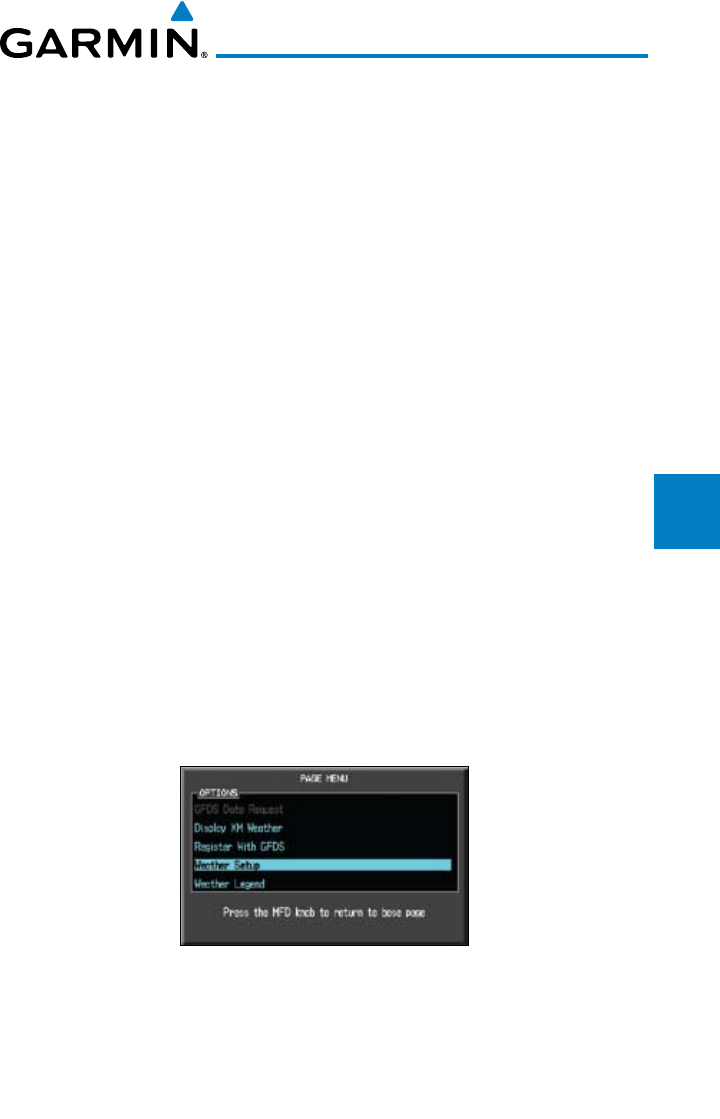
4-105190-00601-02 Rev. E
Garmin G600 Pilot’s Guide
Foreword
Sec 1
System
Sec 2
PFD
Sec 3
MFD
Sec 4
Hazard
Avoidance
Sec 5
Additional
Features
Sec 6
Annun.
& Alerts
Sec 7
Symbols
Sec 8
Glossary Appendix A
Appendix B
Index
4.11.2 Using GFDS Satellite Weather Products
When a weather product is active on the Weather Data Link Page or the
Navigation Map Page, the age of the data is displayed on the screen. The age of
the product is based on the time difference between when the data was assembled
on the ground and the current GPS time. Weather products are refreshed at
selectable intervals.
If for any reason, a weather product is not refreshed within the 30, 60, 90,
or 120 minute Expiration Time intervals, the data is considered expired and is
removed from the display. This ensures that the displayed data is consistent with
what is currently being broadcast by GFDS Satellite Radio services. If more than
half of the expiration time has elapsed from the time the data is received, the
color of the product age displayed changes to yellow.
4.11.3 Customizing the GFDS Weather Map
Each Wx Data Link Map page may be customized individually. The Wx
Data Link Map pages are customized by selecting options from the Page Menu.
The Page Menu options include choices for Weather Setup and displaying the
Weather Legends. The Weather Setup choice covers selections for adjusting the
viewing ranges of the weather products.
1) While viewing a WX Data Link Map page of the WX page group, press the
MENU key to display the Page
Menu Options
. Turn the large MFD knob to
highlight the “Weather Setup” option. Press ENT
.
Figure 4-95 Weather Page Menu Options
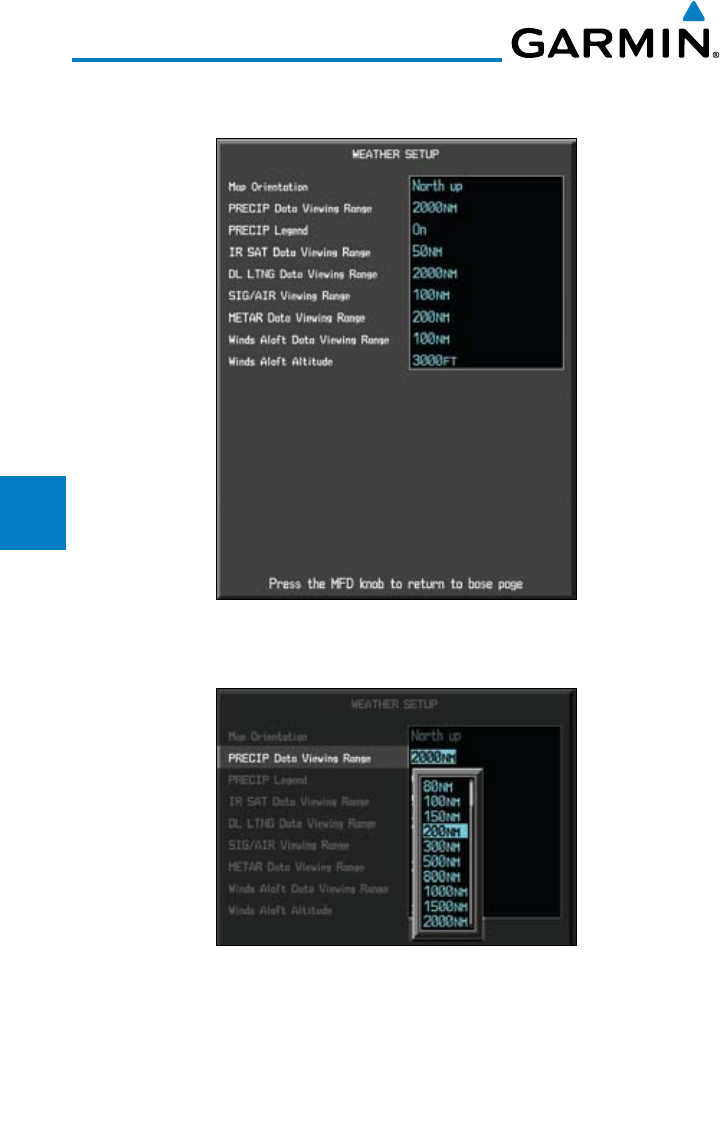
4-106
Garmin G600 Pilot’s Guide
190-00601-02 Rev. E
Foreword
Sec 1
System
Sec 2
PFD
Sec 3
MFD
Sec 4
Hazard
Avoidance
Sec 5
Additional
Features
Sec 6
Annun.
& Alerts
Sec 7
Symbols
Sec 8
GlossaryAppendix A
Appendix B
Index
2) With the Data Link Setup Menu displayed, turn the Large MFD knob to select
the desired item.
Figure 4-96 Weather Data Link Setup Menu Options
3) Turn the small
MFD
knob to select the desired weather feature option.
Figure 4-97 Weather Data Link Setup Menu Option Selection
4) Press ENT
to save a selection.
5) Turn the large MFD knob to the next desired option or press the small MFD
knob to cancel and return to the GFDS Weather Data Link Map Page.
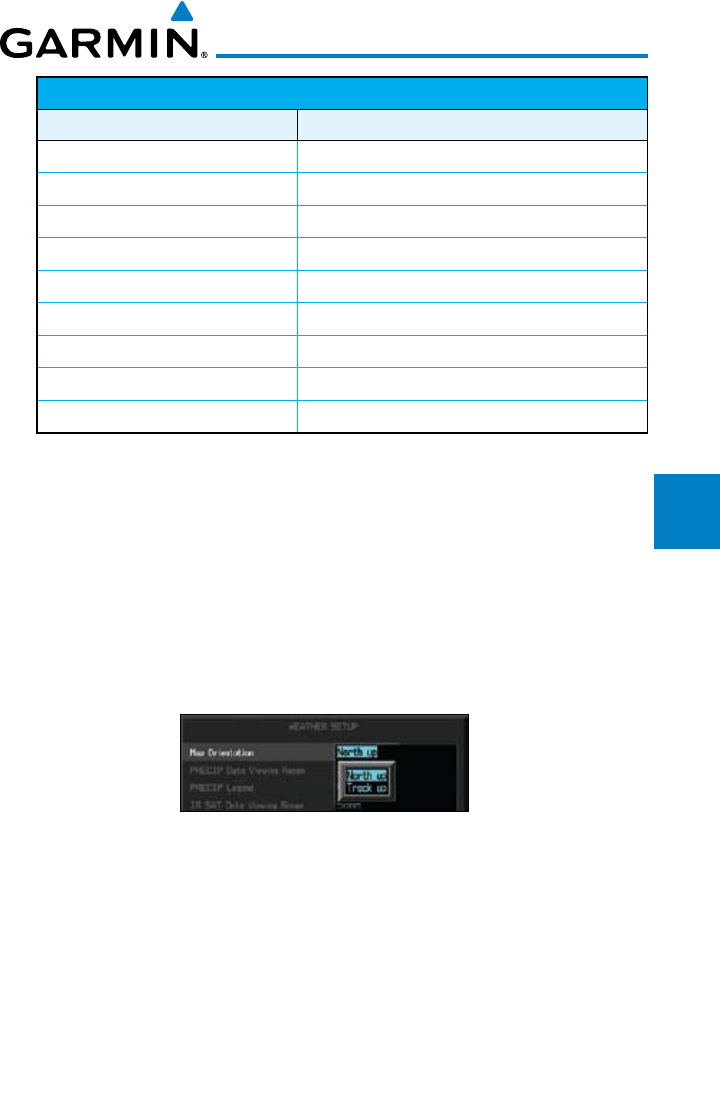
4-107190-00601-02 Rev. E
Garmin G600 Pilot’s Guide
Foreword
Sec 1
System
Sec 2
PFD
Sec 3
MFD
Sec 4
Hazard
Avoidance
Sec 5
Additional
Features
Sec 6
Annun.
& Alerts
Sec 7
Symbols
Sec 8
Glossary Appendix A
Appendix B
Index
WX Page Menu - Weather Setup
Menu Item Adjustment
Map Orientation North Up, Track Up
PRECIP Data Viewing Range Off, 50 NM to 2000 NM
PRECIP Legend On/Off
IR SAT Data Viewing Range Off, 50 NM to 2000 NM
Lightning Data Viewing Range Off, 50 NM to 2000 NM
SIG/Air Viewing Range Off, 50 NM to 2000 NM
METAR Data Viewing Range Off, 50 NM to 2000 NM
Wnd Aloft Data Viewing Range Off, 50 NM to 2000 NM
Wnd Aloft Altitude Surface, 3000 feet to 42000 feet
Table 4-24 GFDS Weather Page Menu Setup Options
4.11.4 Weather Page Map Orientation
The Orientation option sets the orientation of the Wx Data Link Map pages.
1) While viewing the Wx Data Link Map 1, 2, or 3 of the Wx page group, press the
MENU key. With “Weather Setup” highlighted, press ENT.
2) With the “Map Orientation” option active, turn the small MFD knob to change
the highlighted value.
Figure 4-98 Weather Page Map Orientation
3) Press ENT
to accept the displayed value. The next option will be highlighted.
4) Press the small MFD knob to cancel selection or to end editing and return to
the WX page or turn the large MFD knob to the next option.
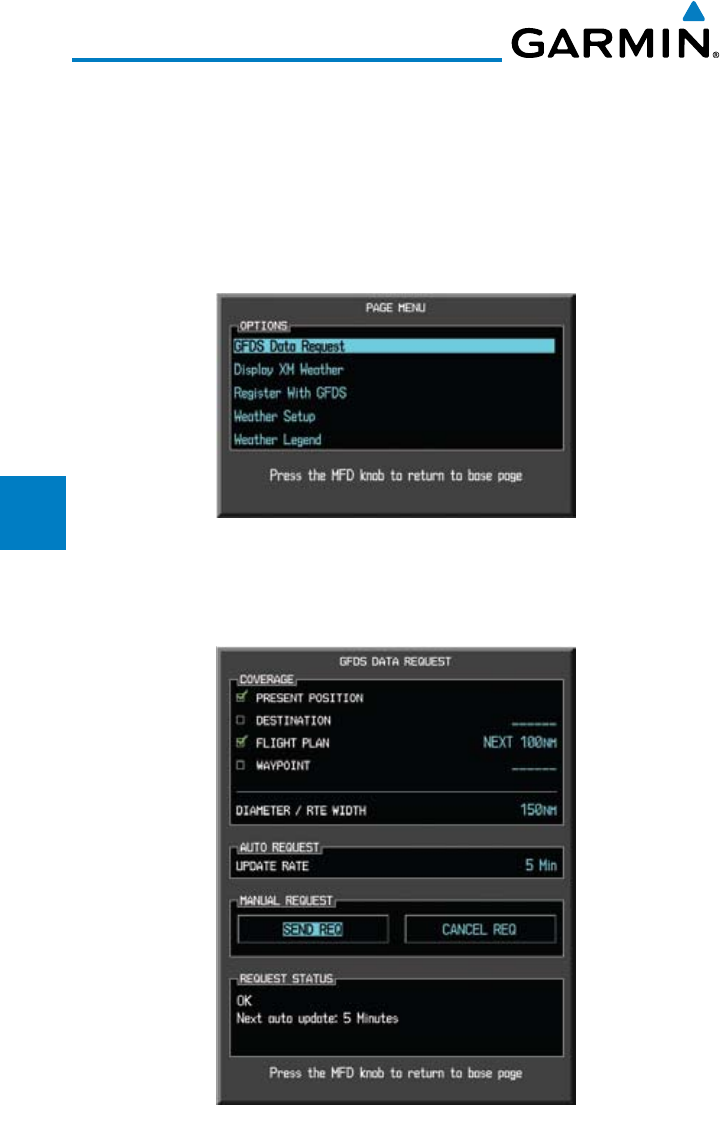
4-108
Garmin G600 Pilot’s Guide
190-00601-02 Rev. E
Foreword
Sec 1
System
Sec 2
PFD
Sec 3
MFD
Sec 4
Hazard
Avoidance
Sec 5
Additional
Features
Sec 6
Annun.
& Alerts
Sec 7
Symbols
Sec 8
GlossaryAppendix A
Appendix B
Index
4.11.5 GFDS Data Request
It is necessary to request the downloading of weather products. Requests can
be sent manually or set to automatically update at a selected rate.
1) While viewing a WX Data Link Map page of the WX page group, press the
MENU key to display the Page
Menu Options
.
2) Turn the large MFD knob to highlight “GFDS Data Request.” Press ENT
.
Figure 4-99 Select GFDS Data Request
3) Turn the small MFD knob to select values and the large MFD knob to move to
the next position.
Figure 4-100 GFDS Data Request Page
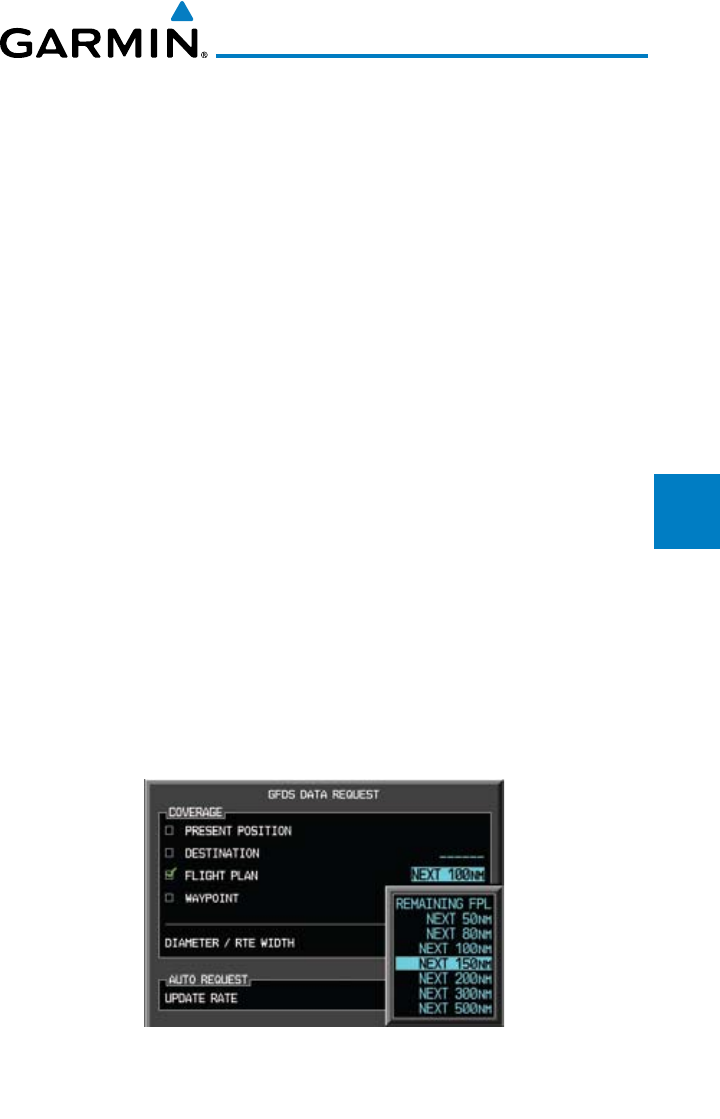
4-109190-00601-02 Rev. E
Garmin G600 Pilot’s Guide
Foreword
Sec 1
System
Sec 2
PFD
Sec 3
MFD
Sec 4
Hazard
Avoidance
Sec 5
Additional
Features
Sec 6
Annun.
& Alerts
Sec 7
Symbols
Sec 8
Glossary Appendix A
Appendix B
Index
4.11.5.1 GFDS Data Request Coverage
Present Position GFDS Data Request
1) While viewing a WX Data Link Map page of the WX page group, press the
MENU key to display the Page
Menu Options
.
2) Turn the large MFD knob to highlight “GFDS Data Request.” Press ENT
.
3)
Turn the large MFD knob to highlight “Present Position.” Press ENT
.
4) The Present Position box will be checked and weather information will be
requested around your present position.
5) To deselect Present Position reporting, turn the large MFD knob to highlight
“Present Position.” Press ENT
.
Destination GFDS Data Request
1)
Turn the large MFD knob to highlight “Destination.” Press ENT
.
2) The Destination box will be checked and weather information will be requested
around your flight plan destination.
3) To deselect Destination reporting, turn the large MFD knob to highlight
“Destination.” Press ENT
.
Flight Plan GFDS Data Request
1)
Turn the large MFD knob to highlight “Flight Plan.” Press ENT
.
2) The range list will now be highlighted.
Turn the small MFD knob to highlight
the desired range and press ENT
.
Figure 4-101 Flight Plan GFDS Data Request
3) The Flight Plan box will be checked and weather information will be requested
along your flight plan forward of your present position for the range selected.
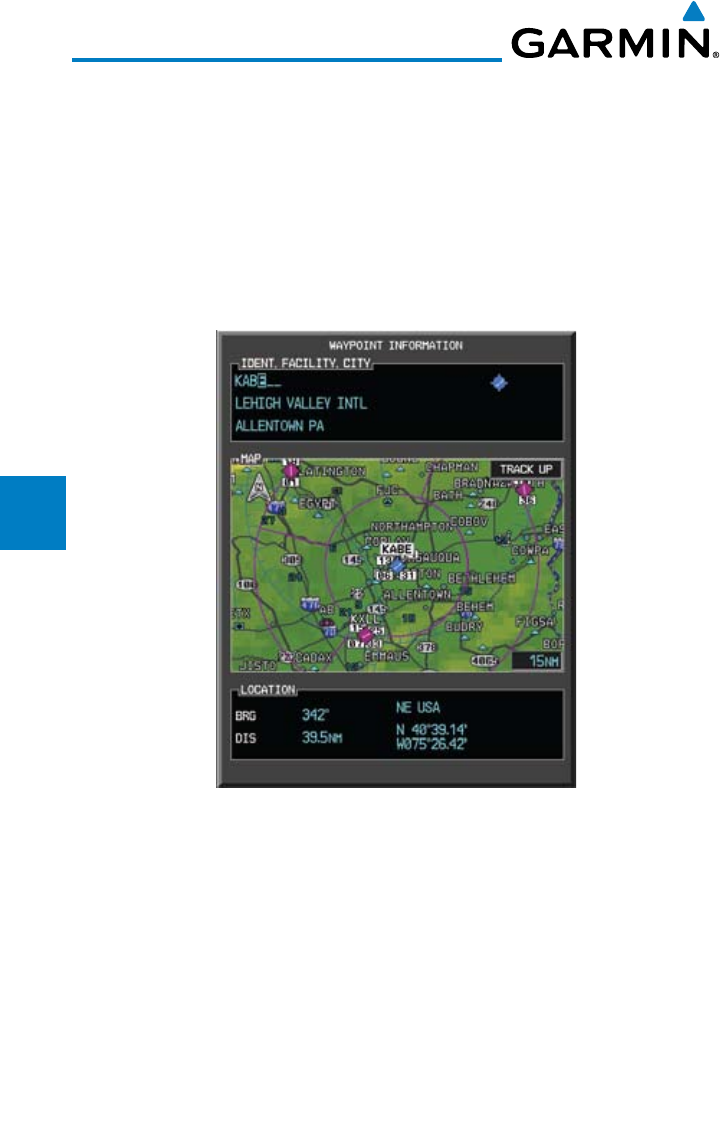
4-110
Garmin G600 Pilot’s Guide
190-00601-02 Rev. E
Foreword
Sec 1
System
Sec 2
PFD
Sec 3
MFD
Sec 4
Hazard
Avoidance
Sec 5
Additional
Features
Sec 6
Annun.
& Alerts
Sec 7
Symbols
Sec 8
GlossaryAppendix A
Appendix B
Index
4) To deselect Flight Plan reporting, turn the large MFD knob to highlight “Flight
Plan.” Press ENT
.
Waypoint GFDS Data Request
1)
Turn the large MFD knob to highlight “Waypoint.” Press ENT
.
2) The Waypoint Selection field will now be highlighted.
Turn the small MFD
knob to select the first character. Turn the large MFD knob to highlight the
next character. When finished selecting the waypoint name, press ENT
.
Figure 4-102 Waypoint GFDS Data Request
3) The Waypoint box will be checked and weather information will be requested
around the selected waypoint for the range selected (next operation).
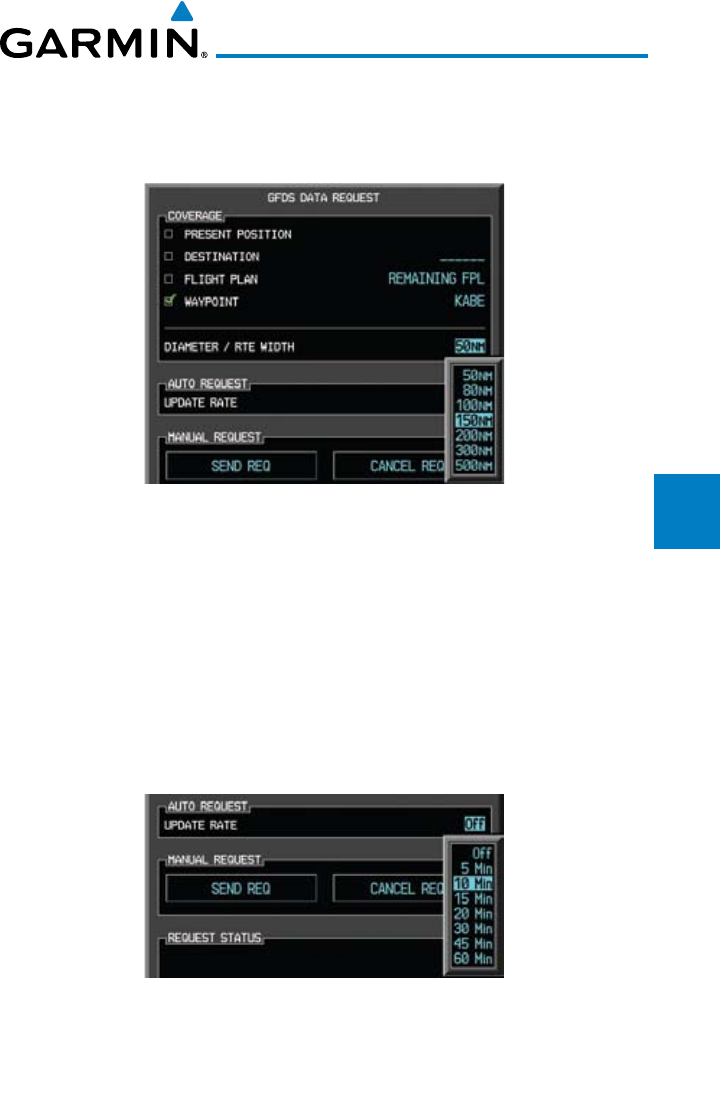
4-111190-00601-02 Rev. E
Garmin G600 Pilot’s Guide
Foreword
Sec 1
System
Sec 2
PFD
Sec 3
MFD
Sec 4
Hazard
Avoidance
Sec 5
Additional
Features
Sec 6
Annun.
& Alerts
Sec 7
Symbols
Sec 8
Glossary Appendix A
Appendix B
Index
Diameter/Route Width GFDS Data Request
1) After selecting a coverage option in the previous section,
the Diameter/Route
Width field will now be highlighted.
Figure 4-103 Waypoint GFDS Data Request Range
2) Turn the small MFD knob to select the desired
Diameter/Route Width
and then
press ENT
.
4.11.5.2 GFDS Data Request Auto Request
1)
Turn the large MFD knob to highlight “Auto Request - Update Rate.”
2)
Turn the small MFD knob to select “Off” or an Update Rate. When finished
selecting the Update Rate, press ENT
. The Update Rate will default to “OFF”
at each power cycle.
Figure 4-104 GFDS Data Request Auto Update Rate
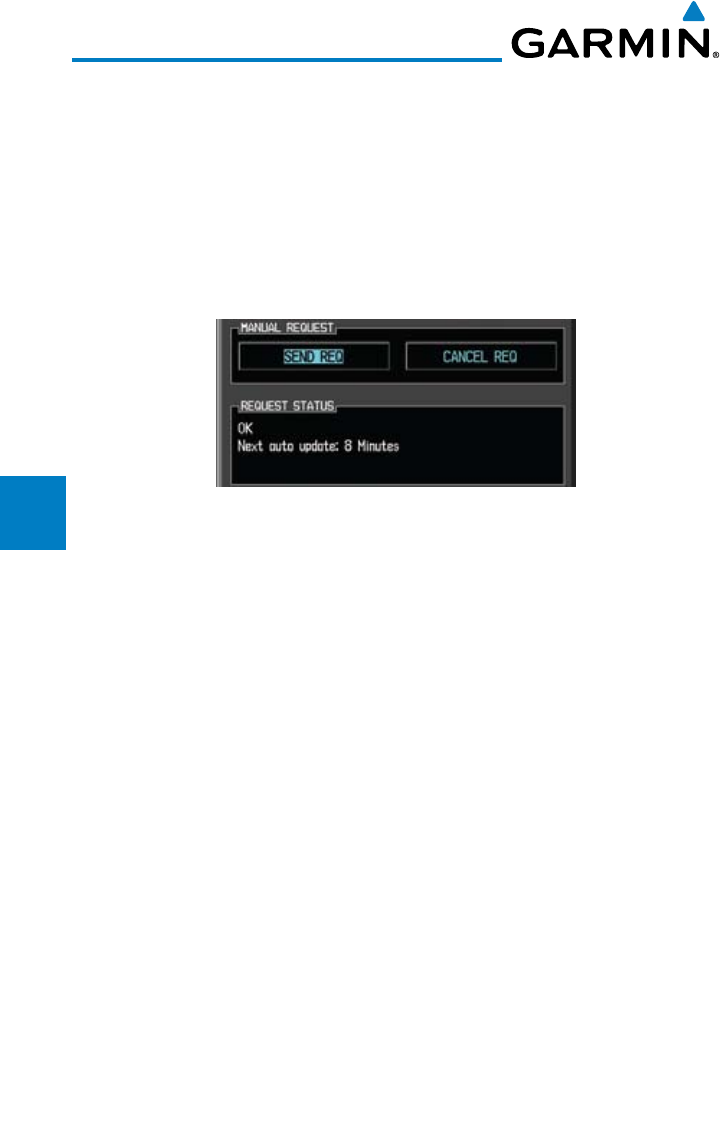
4-112
Garmin G600 Pilot’s Guide
190-00601-02 Rev. E
Foreword
Sec 1
System
Sec 2
PFD
Sec 3
MFD
Sec 4
Hazard
Avoidance
Sec 5
Additional
Features
Sec 6
Annun.
& Alerts
Sec 7
Symbols
Sec 8
GlossaryAppendix A
Appendix B
Index
4.11.5.3 GFDS Data Request Manual Request
The GFDS weather data may be updated at any time regardless of the automatic
update timing by selecting a Manual Request. When multiple requests are made,
some products are merged with the old data (SIGMETs/AIRMETs, TAFs, TFRs,
and METARs), but the old data of other products is discarded.
1)
Turn the large MFD knob to highlight “Manual Request - Send Req.”
2)
Press ENT
.
Figure 4-105 Manual GFDS Data Request
3)
The update request will occur immediately. The action will be noted in the
Request Status window. The Auto Request time will be reset to the selected
value.
4.11.5.4 GFDS Data Request Status Window
The Request Status window will show a response such as “OK” when manual
requests are made. The time for the next auto update will be shown.
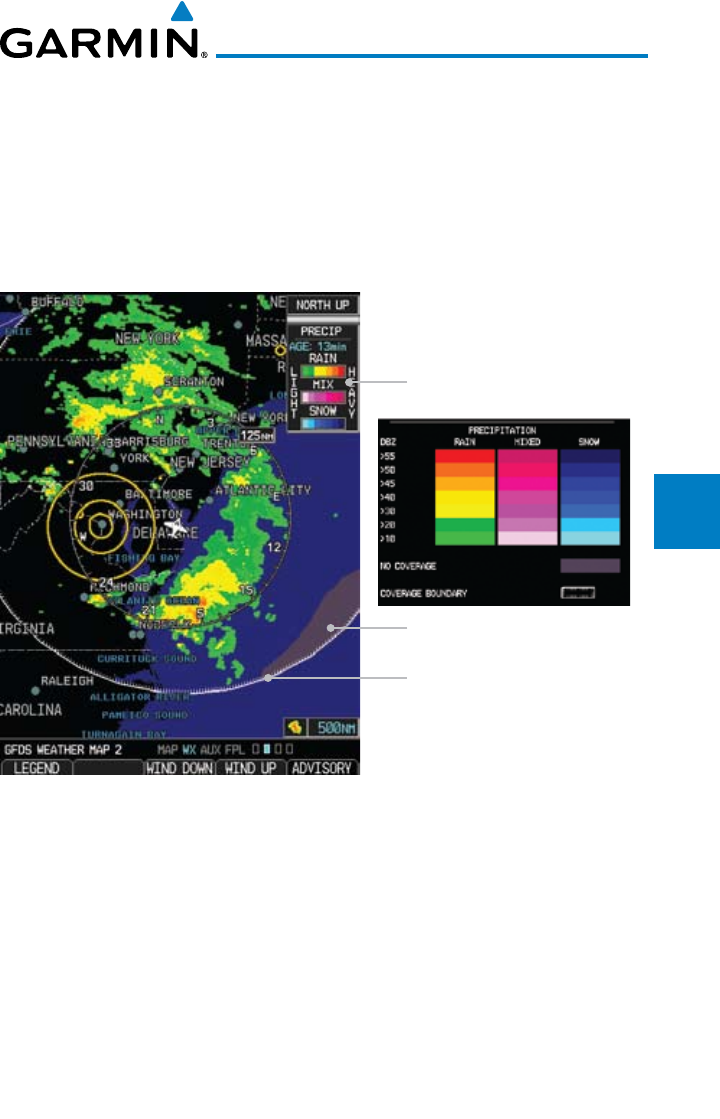
4-113190-00601-02 Rev. E
Garmin G600 Pilot’s Guide
Foreword
Sec 1
System
Sec 2
PFD
Sec 3
MFD
Sec 4
Hazard
Avoidance
Sec 5
Additional
Features
Sec 6
Annun.
& Alerts
Sec 7
Symbols
Sec 8
Glossary Appendix A
Appendix B
Index
4.11.6 Precipitation (PRECIP) Data Viewing Range
The PRECIP Viewing Range option allows you to select the map range where
at and below the selected value PRECIP weather products will be shown on
the selected MFD Wx Data Link Map page (1, 2, or 3). When Off is selected,
PRECIP weather data will not be shown. In the figure below where 500 NM is
selected, PRECIP data will be shown at map ranges of 500 NM and lower. TFRs
and METARs are the only weather products shown below 10 NM.
Area Of No Coverage
Boundary Of Selected
Viewing Range
Coverage Boundary
Figure 4-106 GFDS PRECIP Weather Map Display and Legend
1) While viewing a WX Data Link Map page of the WX page group, press the
MENU key to display the Page
Menu Options
. Turn the large MFD knob to
highlight the Weather Setup option and press ENT
.
2) Turn the large MFD knob to highlight
PRECIP
Data Viewing Range. Turn the
small MFD knob to highlight the desired value.
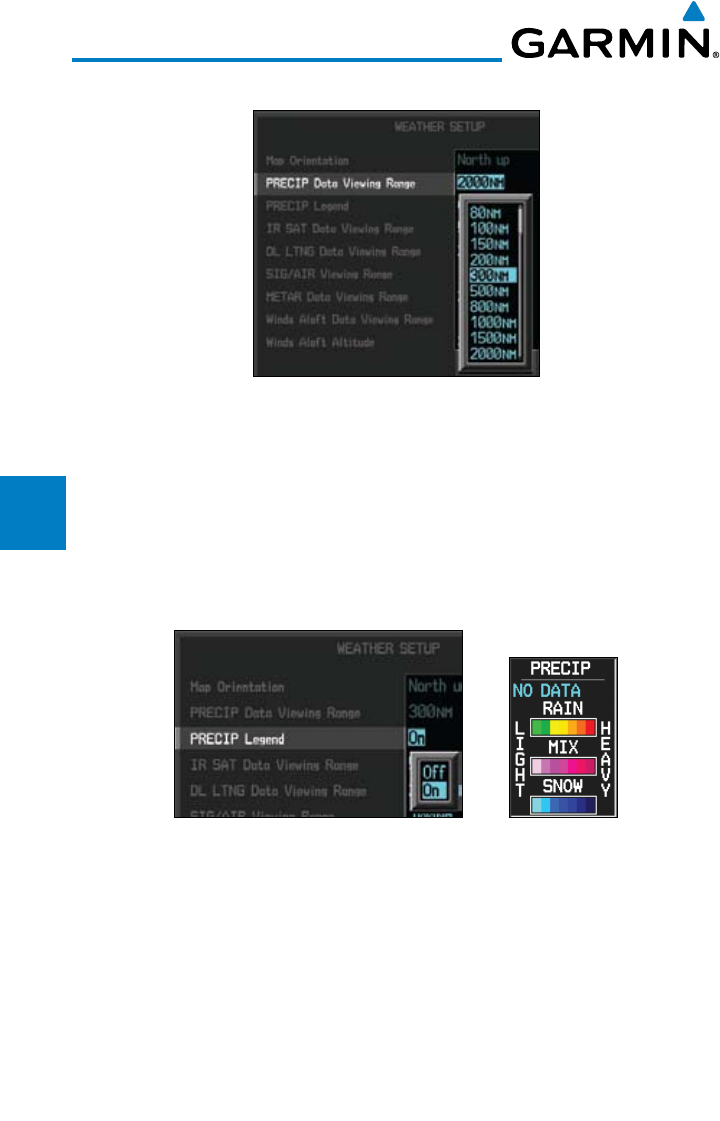
4-114
Garmin G600 Pilot’s Guide
190-00601-02 Rev. E
Foreword
Sec 1
System
Sec 2
PFD
Sec 3
MFD
Sec 4
Hazard
Avoidance
Sec 5
Additional
Features
Sec 6
Annun.
& Alerts
Sec 7
Symbols
Sec 8
GlossaryAppendix A
Appendix B
Index
3) Press ENT
to accept the displayed value. The next option will be highlighted.
Figure 4-107 GFDS PRECIP Viewing Range Selection
4) Press the small MFD knob to cancel selection or to end editing and return to
the WX page or turn the large MFD knob to the next option.
4.11.7 PRECIP Legend
The PRECIP Legend selection provides the option of displaying an abbreviated
version of the PRECIP legend in the top right region of the MFD. The full legend
is available by pressing the LEGEND soft key.
Figure 4-108 GFDS PRECIP Legend Selection
1) While viewing a WX Data Link Map page of the WX page group, press the
MENU key to display the Page
Menu Options
. Turn the large MFD knob to
highlight the Weather Setup option and press ENT
.
2) Turn the large MFD knob to highlight
PRECIP
Legend.
3) Turn the small MFD knob to highlight Off or On. Press ENT
to accept the
displayed value. The next option will be highlighted.
4) Press the small MFD knob to cancel selection or to end editing and return to
the WX page or turn the large MFD knob to the next option.
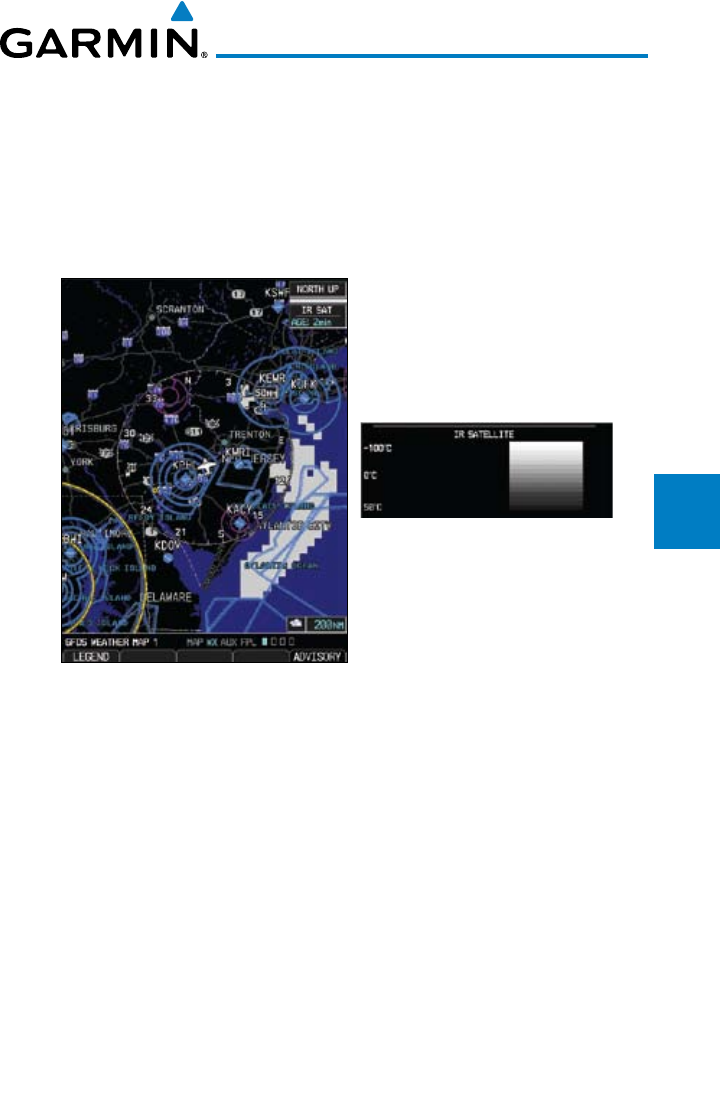
4-115190-00601-02 Rev. E
Garmin G600 Pilot’s Guide
Foreword
Sec 1
System
Sec 2
PFD
Sec 3
MFD
Sec 4
Hazard
Avoidance
Sec 5
Additional
Features
Sec 6
Annun.
& Alerts
Sec 7
Symbols
Sec 8
Glossary Appendix A
Appendix B
Index
4.11.8 GFDS Infrared Satellite (IR SAT) Data Viewing
Range
IR SAT data is available over North America and Europe and depicts cloud
top temperatures from satellite imagery. Brighter cloud top colors indicate cooler
temperatures occurring at higher altitudes. Information is updated every half
hour.
Figure 4-109 GFDS Infrared Satellite Data Map Display and Legend
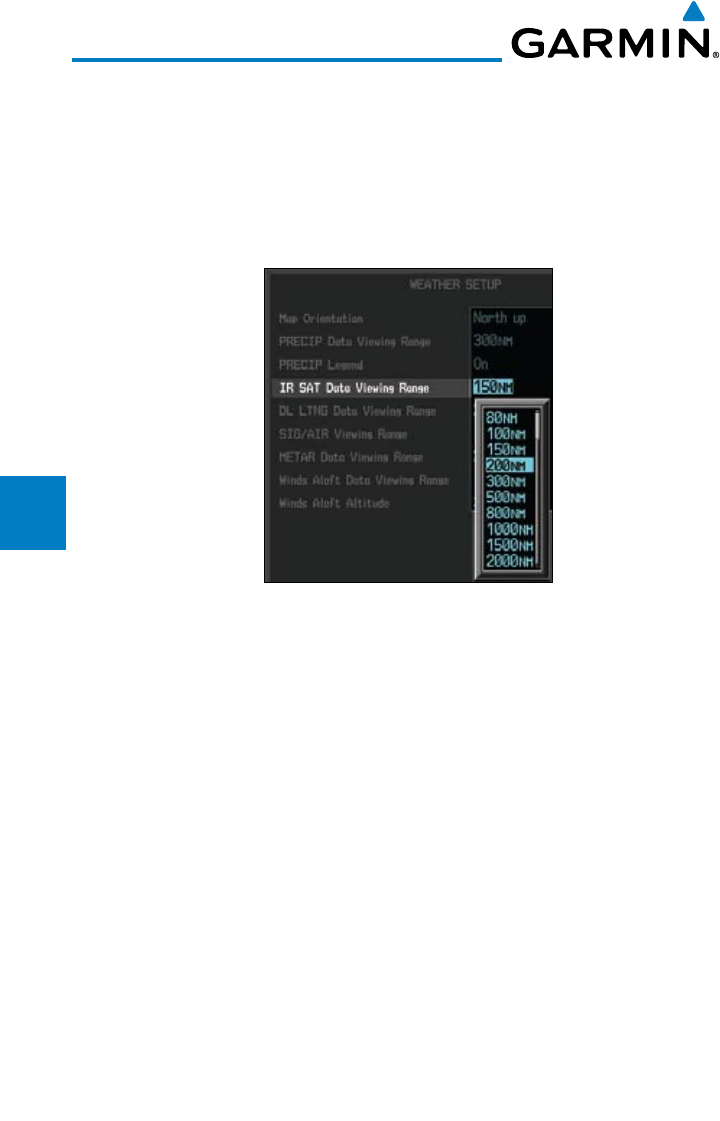
4-116
Garmin G600 Pilot’s Guide
190-00601-02 Rev. E
Foreword
Sec 1
System
Sec 2
PFD
Sec 3
MFD
Sec 4
Hazard
Avoidance
Sec 5
Additional
Features
Sec 6
Annun.
& Alerts
Sec 7
Symbols
Sec 8
GlossaryAppendix A
Appendix B
Index
IR SAT Data Viewing Range
The IR SAT Data Viewing Range option allows you to select the map range
where at and below that value IR SAT weather products will be shown on the
selected MFD Wx Data Link Map page (1, 2, or 3). When Off is selected, IR SAT
will not be shown. In the figure below where 200 NM is selected, IR SAT data
will be shown at map ranges of 200 NM and lower.
Figure 4-110 GFDS IR SAT Viewing Range Selection
1) While viewing a WX Data Link Map page of the WX page group, press the
MENU key to display the Page
Menu Options
. Turn the large MFD knob to
highlight the Weather Setup option and press ENT
.
2) Turn the large MFD knob to highlight IR SAT Data Viewing Range. Turn the
small MFD knob to highlight the desired value.
3) Turn the small MFD knob to highlight the desired value. Press ENT
to accept
the displayed value. The next option will be highlighted.
4) Press the small MFD knob to cancel selection or to end editing and return to
the WX page or turn the large MFD knob to the next option.
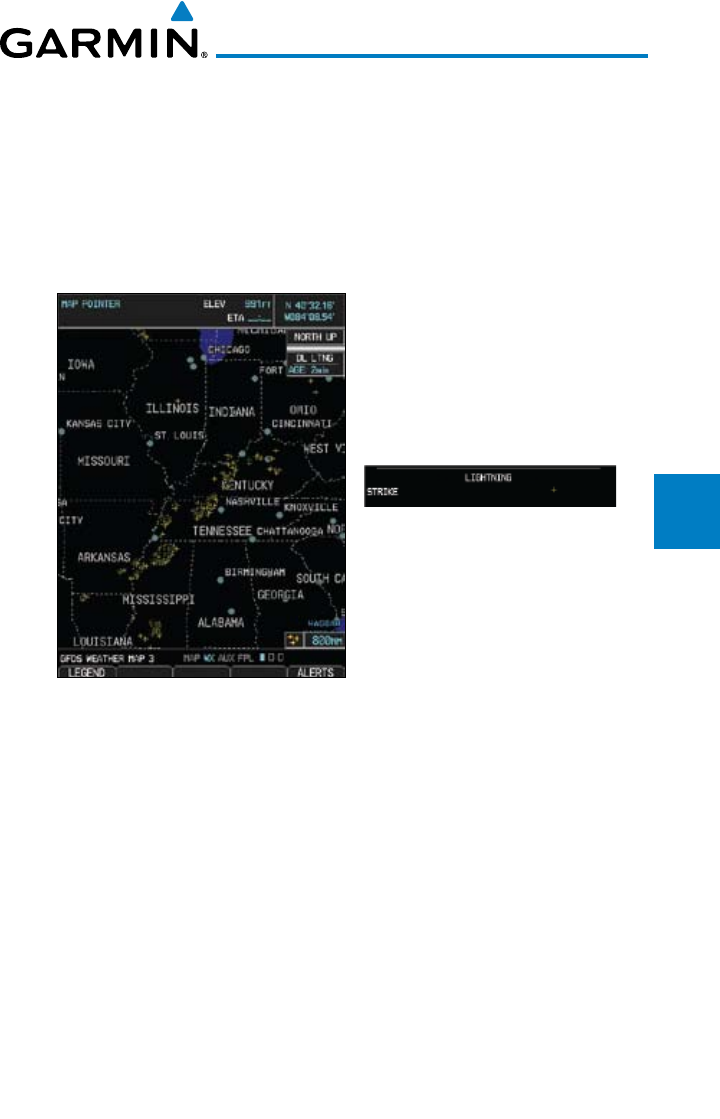
4-117190-00601-02 Rev. E
Garmin G600 Pilot’s Guide
Foreword
Sec 1
System
Sec 2
PFD
Sec 3
MFD
Sec 4
Hazard
Avoidance
Sec 5
Additional
Features
Sec 6
Annun.
& Alerts
Sec 7
Symbols
Sec 8
Glossary Appendix A
Appendix B
Index
4.11.9 Data Link Lightning (DL LTNG) Data Viewing
Range
Lightning data shows the approximate location of cloud-to-ground lightning
strikes. A strike icon represents a strike that has occurred within a two-kilometer
region. The exact location of the lightning strike is not displayed. Only cloud to
ground strikes are reported in the US and extreme southern Canada (cloud to
cloud strikes are not reported).
Figure 4-111 GFDS Data Link Lightning and Legend
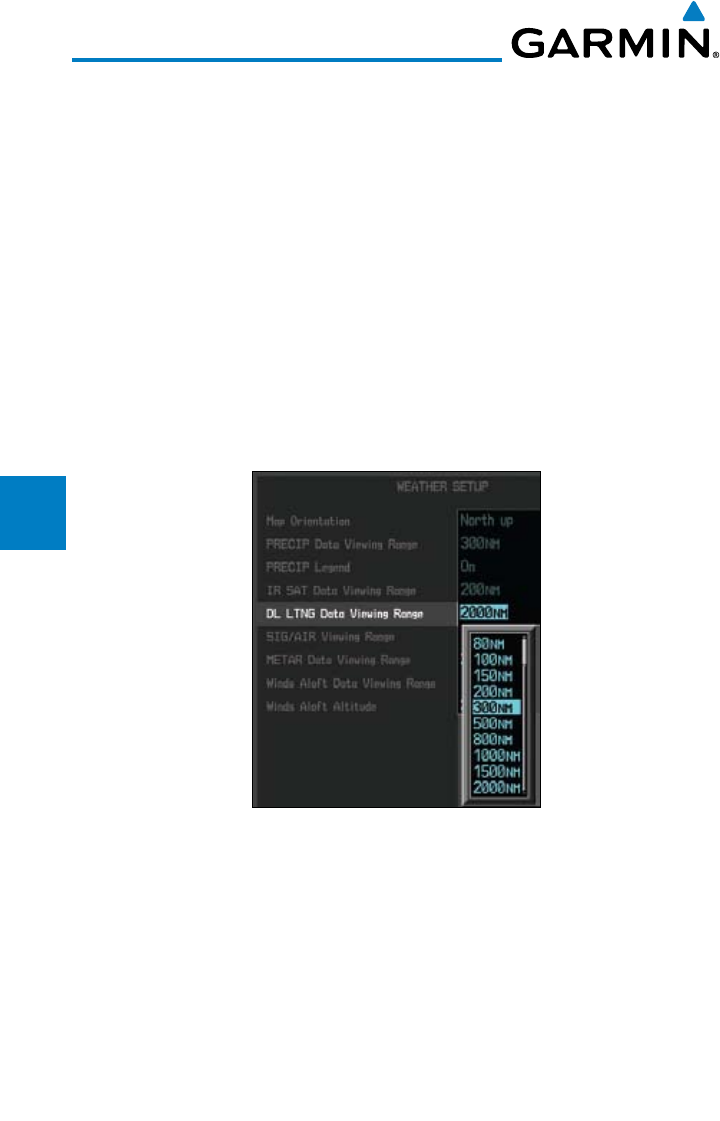
4-118
Garmin G600 Pilot’s Guide
190-00601-02 Rev. E
Foreword
Sec 1
System
Sec 2
PFD
Sec 3
MFD
Sec 4
Hazard
Avoidance
Sec 5
Additional
Features
Sec 6
Annun.
& Alerts
Sec 7
Symbols
Sec 8
GlossaryAppendix A
Appendix B
Index
Data Link Lightning Data Viewing Range
The Lightning Data Viewing Range option allows you to select the map range where
at and below that value Lightning weather products will be shown on the selected MFD
Wx Data Link Map page (1, 2, or 3). When Off is selected, Lightning will not be shown.
In the figure above where 300 NM is selected, GFDS data will be shown at map
ranges of 300 NM and lower.
1) While viewing a WX Data Link Map page of the WX page group, press the
MENU key to display the Page
Menu Options
. Turn the large MFD knob to
highlight the Weather Setup option and press ENT
.
2) Turn the large MFD knob to highlight DL LTNG Data Viewing Range.
3) Turn the small MFD knob to highlight the desired value. Press ENT
to accept
the displayed value. The next option will be highlighted.
Figure 4-112 GFDS Lightning Viewing Range Selection
4) Press the small MFD knob to cancel selection or to end editing and return to
the WX page or turn the large MFD knob to the next option.
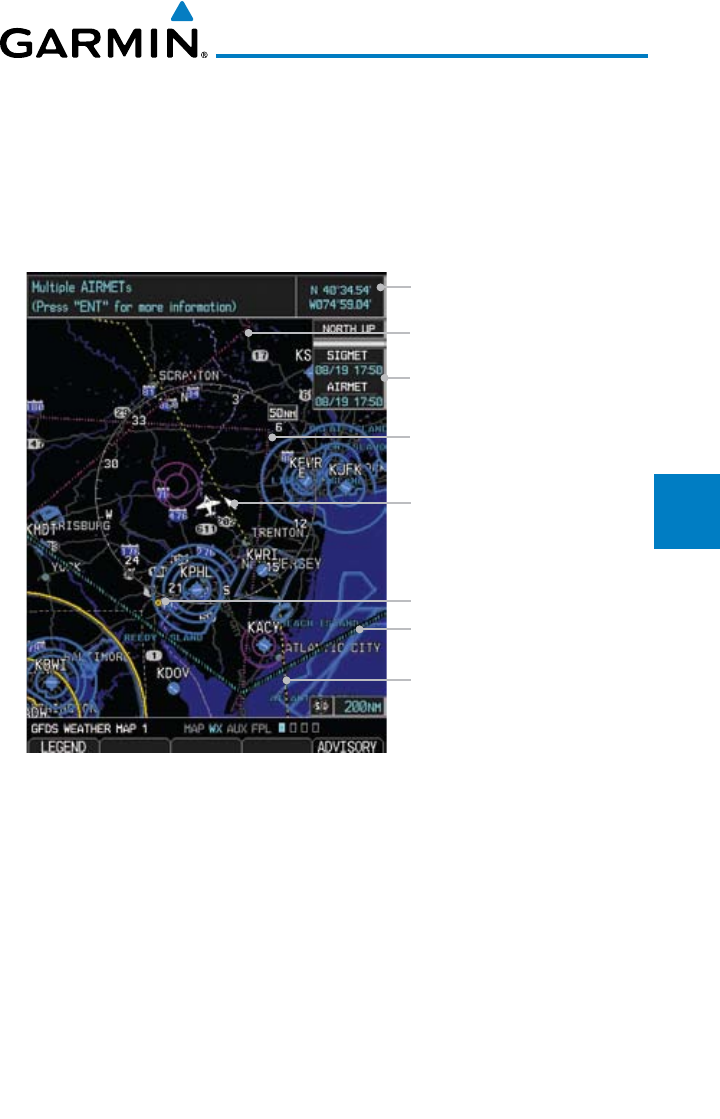
4-119190-00601-02 Rev. E
Garmin G600 Pilot’s Guide
Foreword
Sec 1
System
Sec 2
PFD
Sec 3
MFD
Sec 4
Hazard
Avoidance
Sec 5
Additional
Features
Sec 6
Annun.
& Alerts
Sec 7
Symbols
Sec 8
Glossary Appendix A
Appendix B
Index
4.11.10 SIGMETs and AIRMETs (SIG/AIR)
SIGMETs (SIGnificant METeorological Information) and AIRMETs
(AIRmen’s METeorological Information) are broadcast for potentially hazardous
weather considered of importance to aircraft. A Convective SIGMET is issued
for hazardous convective weather. A localized SIGMET is a significant weather
condition occurring at a localized geographical position.
SIGMET Line
IFR Line
Cursor On AIRMET/SIGMET Line
MTN Obscures Visibility
Product Age
Cursor Location
Icing
Localized SIGMET
Figure 4-113 GFDS Weather Page - AIRMETs/SIGMETs
When enabled, SIGMET/AIRMETs advise the pilot of potentially hazardous
weather to all aircraft. SIGMET/AIRMET data covers icing, turbulence, dust,
and volcanic ash as issued by the National Weather Service. The update rate is
every 12 minutes in the U.S. Elsewhere, updates are made as they are issued.
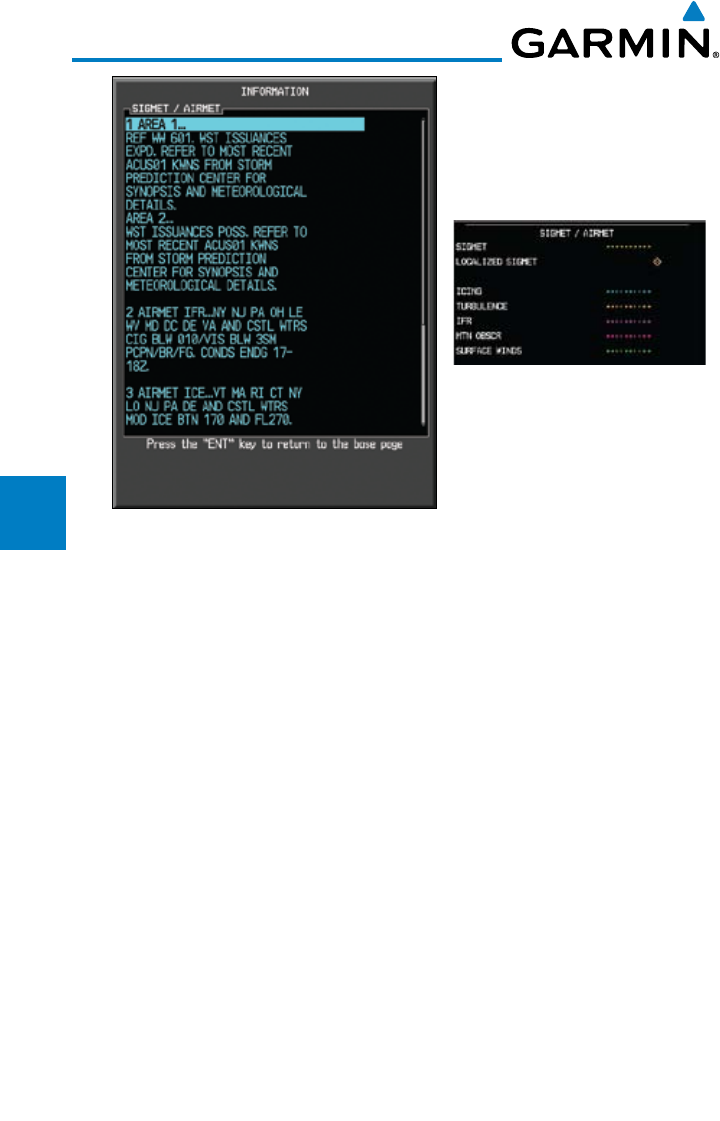
4-120
Garmin G600 Pilot’s Guide
190-00601-02 Rev. E
Foreword
Sec 1
System
Sec 2
PFD
Sec 3
MFD
Sec 4
Hazard
Avoidance
Sec 5
Additional
Features
Sec 6
Annun.
& Alerts
Sec 7
Symbols
Sec 8
GlossaryAppendix A
Appendix B
Index
Figure 4-114 GFDS Weather - AIRMETs/SIGMETs Detail and Legend
When enabled, the following AIRMETs are available for display:
• Icing
• Turbulence
• IFR conditions
• Mountain obscuration
• Surface winds
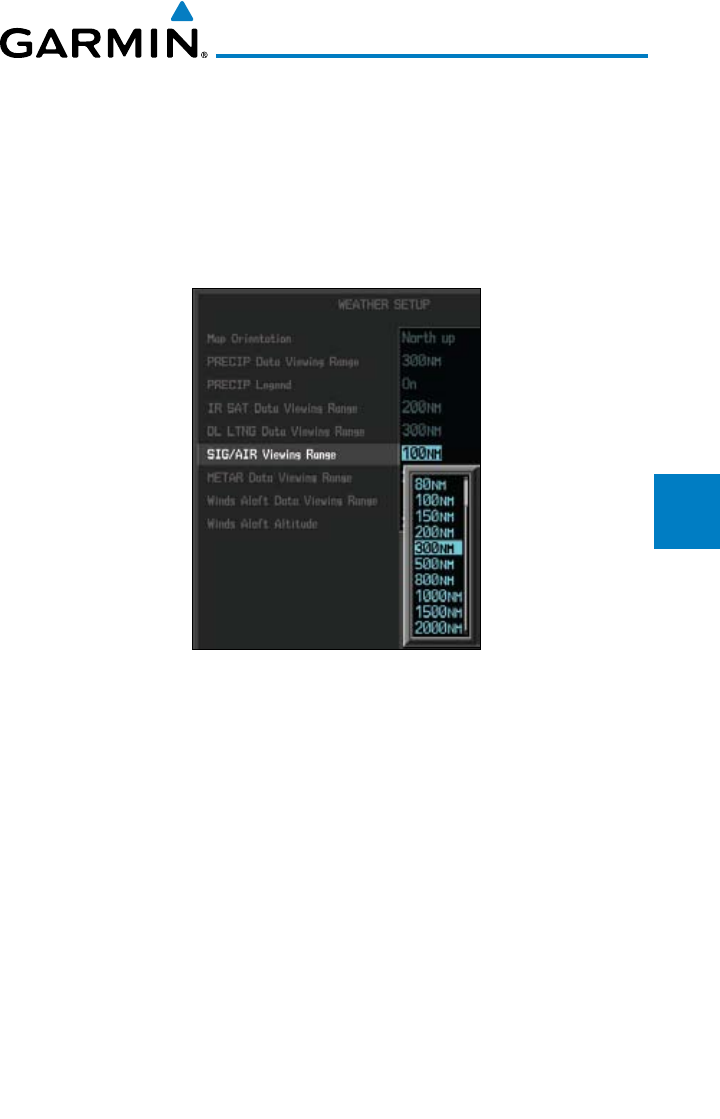
4-121190-00601-02 Rev. E
Garmin G600 Pilot’s Guide
Foreword
Sec 1
System
Sec 2
PFD
Sec 3
MFD
Sec 4
Hazard
Avoidance
Sec 5
Additional
Features
Sec 6
Annun.
& Alerts
Sec 7
Symbols
Sec 8
Glossary Appendix A
Appendix B
Index
SIGMET/AIRMET Viewing Range
The SIGMET/AIRMET Viewing Range option allows you to select the map
range where at and below that value SIGMET/AIRMET products will be shown
on the selected MFD Wx Data Link Map page (1, 2, or 3). When Off is selected,
SIGMET/AIRMET will not be shown. In the figure below where 300 NM is
selected, SIGMET/AIRMET data will be shown at map ranges of 300 NM and
lower.
Figure 4-115 GFDS SIG/AIR Viewing Range Selection
1) While viewing a WX Data Link Map page of the WX page group, press the
MENU key to display the Page
Menu Options
. Turn the large MFD knob to
highlight the Weather Setup option and press ENT
.
2) Turn the large MFD knob to highlight SIG/AIR Viewing Range.
3) Turn the small MFD knob to highlight the desired value. Press ENT
to accept
the displayed value. The next option will be highlighted.
4) Press the small MFD knob to cancel selection or to end editing and return to
the WX page or turn the large MFD knob to the next option.
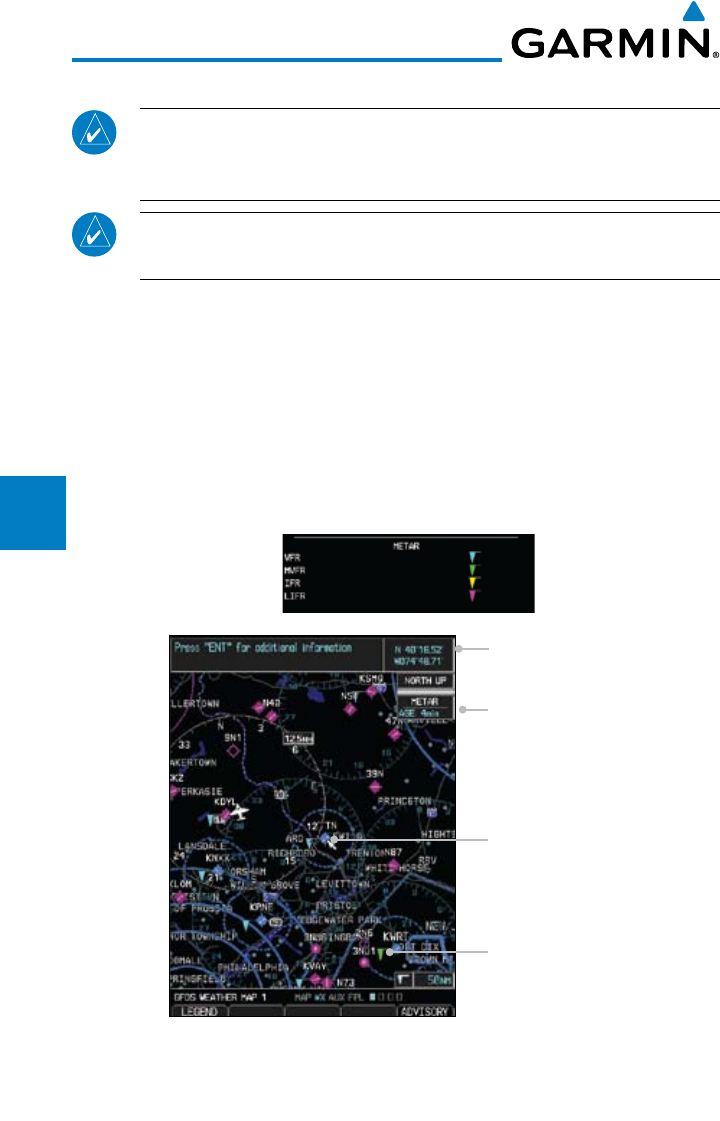
4-122
Garmin G600 Pilot’s Guide
190-00601-02 Rev. E
Foreword
Sec 1
System
Sec 2
PFD
Sec 3
MFD
Sec 4
Hazard
Avoidance
Sec 5
Additional
Features
Sec 6
Annun.
& Alerts
Sec 7
Symbols
Sec 8
GlossaryAppendix A
Appendix B
Index
4.11.11 METARs
NOTE: Atmospheric pressure reported for METARs is given in hectopascals
(hPa), except in the United States, where it is reported in inches of mercury
(in Hg). Temperatures are reported in Celsius.
NOTE: METAR information is only displayed within the installed aviation
database service area.
METAR (METeorological Aerodrome Report), known as an Aviation Routine
Weather Report, is the standard format for current weather observations.
METARs are generally updated hourly, but some site are more frequent. Special
updates are done as conditions warrant. METARs typically contain information
about the temperature, dew point, wind, precipitation, cloud cover, cloud
heights, visibility, and barometric pressure. They can also contain information
on precipitation amounts, lightning, and other critical data. METARs are shown
as colored flags at airports that provide them.
Selected METAR (VFR)
Product Age
Cursor Location
MVFR METAR
Figure 4-116 GFDS Weather - Graphic METARs and Legend
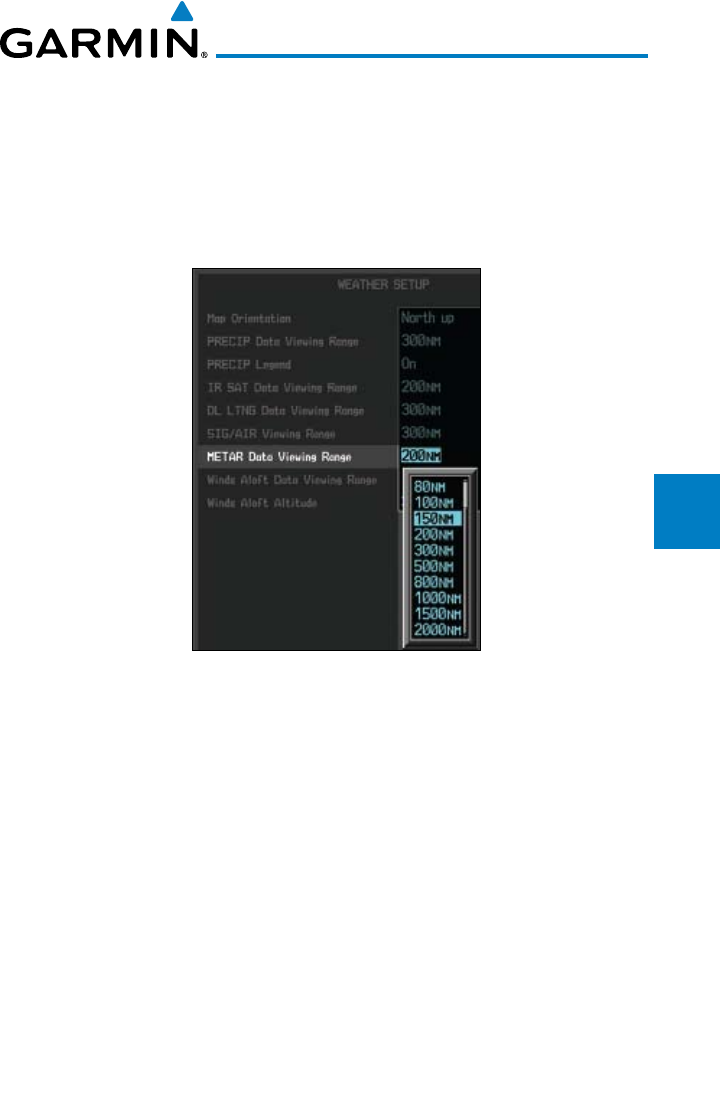
4-123190-00601-02 Rev. E
Garmin G600 Pilot’s Guide
Foreword
Sec 1
System
Sec 2
PFD
Sec 3
MFD
Sec 4
Hazard
Avoidance
Sec 5
Additional
Features
Sec 6
Annun.
& Alerts
Sec 7
Symbols
Sec 8
Glossary Appendix A
Appendix B
Index
METAR Viewing Range
The METAR Viewing Range option allows you to select the map range where
at and below that value METAR weather products will be shown on the selected
MFD Wx Data Link Map page (1, 2, or 3). When Off is selected, METARs will
not be shown. In the figure below where 150 NM is selected, METAR data will
be shown at map ranges of 150 NM and lower.
Figure 4-117 METAR Viewing Range Selection
1) While viewing a WX Data Link Map page of the WX page group, press the
MENU key to display the Page
Menu Options
. Turn the large MFD knob to
highlight the Weather Setup option and press ENT
.
2) Turn the large MFD knob to highlight METAR Data Viewing Range.
3) Turn the small MFD knob to highlight the desired value. Press ENT
to accept
the displayed value. The next option will be highlighted.
4) Press the small MFD knob to cancel selection or to end editing and return to
the WX page or turn the large MFD knob to the next option.
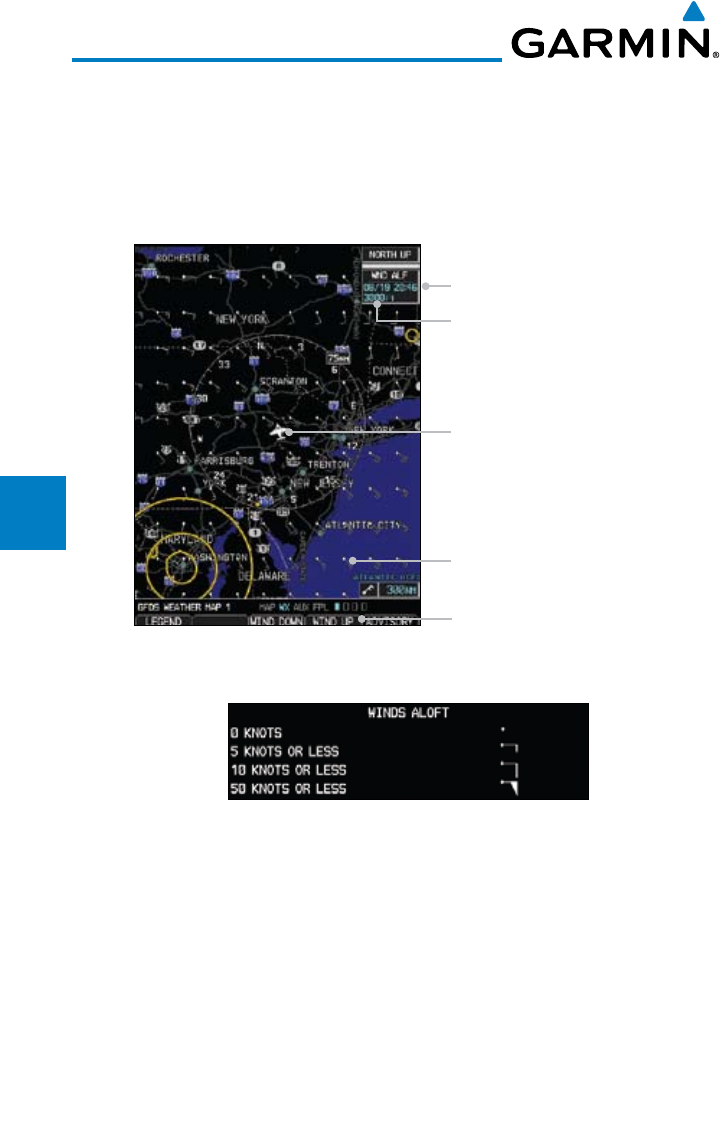
4-124
Garmin G600 Pilot’s Guide
190-00601-02 Rev. E
Foreword
Sec 1
System
Sec 2
PFD
Sec 3
MFD
Sec 4
Hazard
Avoidance
Sec 5
Additional
Features
Sec 6
Annun.
& Alerts
Sec 7
Symbols
Sec 8
GlossaryAppendix A
Appendix B
Index
4.11.12 Winds Aloft
Winds Aloft data shows the forecast wind speed and direction at the surface
and at selected altitudes. Altitudes can be selected in 3000 foot increments from
the surface up to 42,000 feet MSL. Pressing the WIND DOWN or WIND UP
soft keys steps down or up in 3,000 foot increments.
Present Position
Product Age
Winds Aloft Altitude Soft Keys
Winds Aloft Symbol
Selected Altitude
Figure 4-118 GFDS Weather - Winds Aloft
Figure 4-119 GFDS Weather - Winds Aloft Legend
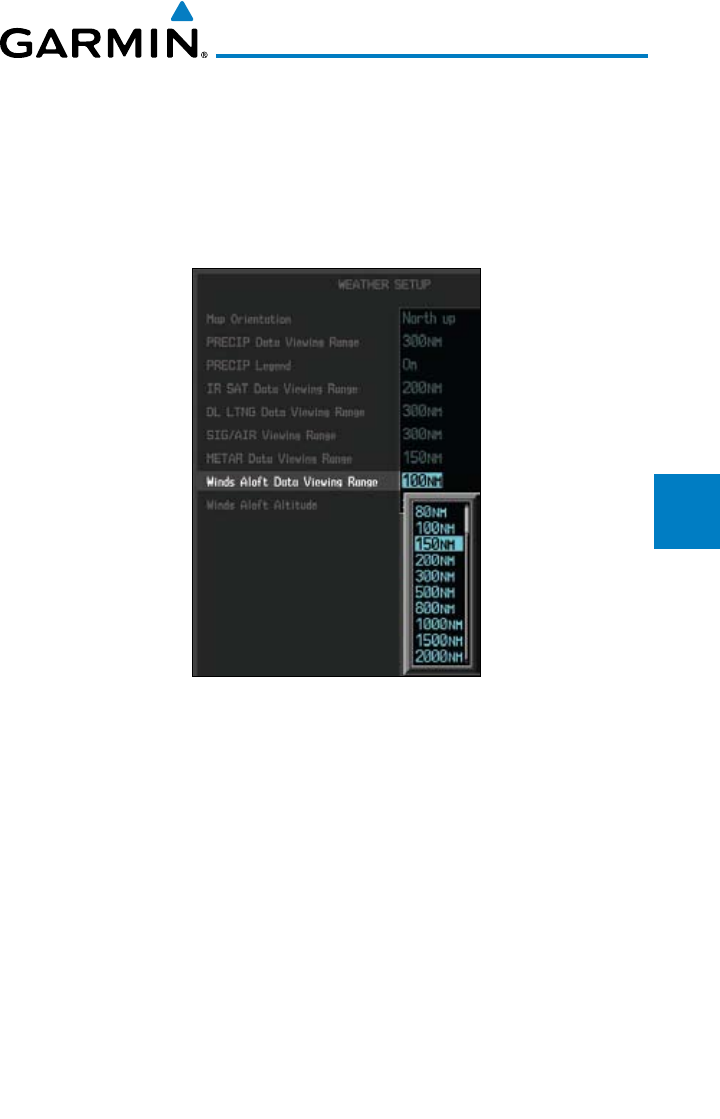
4-125190-00601-02 Rev. E
Garmin G600 Pilot’s Guide
Foreword
Sec 1
System
Sec 2
PFD
Sec 3
MFD
Sec 4
Hazard
Avoidance
Sec 5
Additional
Features
Sec 6
Annun.
& Alerts
Sec 7
Symbols
Sec 8
Glossary Appendix A
Appendix B
Index
Winds Aloft Data Viewing Range
The Winds Aloft Data Viewing Range option allows you to select the map
range where at and below that value Winds Aloft weather products will appear
on the selected MFD Wx Data Link Map page (1, 2, or 3). When Off is selected,
Winds Aloft will not be shown. In the figure below where 150 NM is selected,
Winds Aloft data will be shown at map ranges of 150 NM and lower.
Figure 4-120 Winds Aloft Data Viewing Range Selection
1) While viewing a WX Data Link Map page of the WX page group, press the
MENU key to display the Page
Menu Options
. Turn the large MFD knob to
highlight the Weather Setup option and press ENT
.
2) Turn the large MFD knob to highlight Winds Aloft Data Viewing Range.
3) Turn the small MFD knob to highlight the desired value. Press ENT
to accept
the displayed value. The next option will be highlighted.
4) Press the small MFD knob to cancel selection or to end editing and return to
the WX page or turn the large MFD knob to the next option.
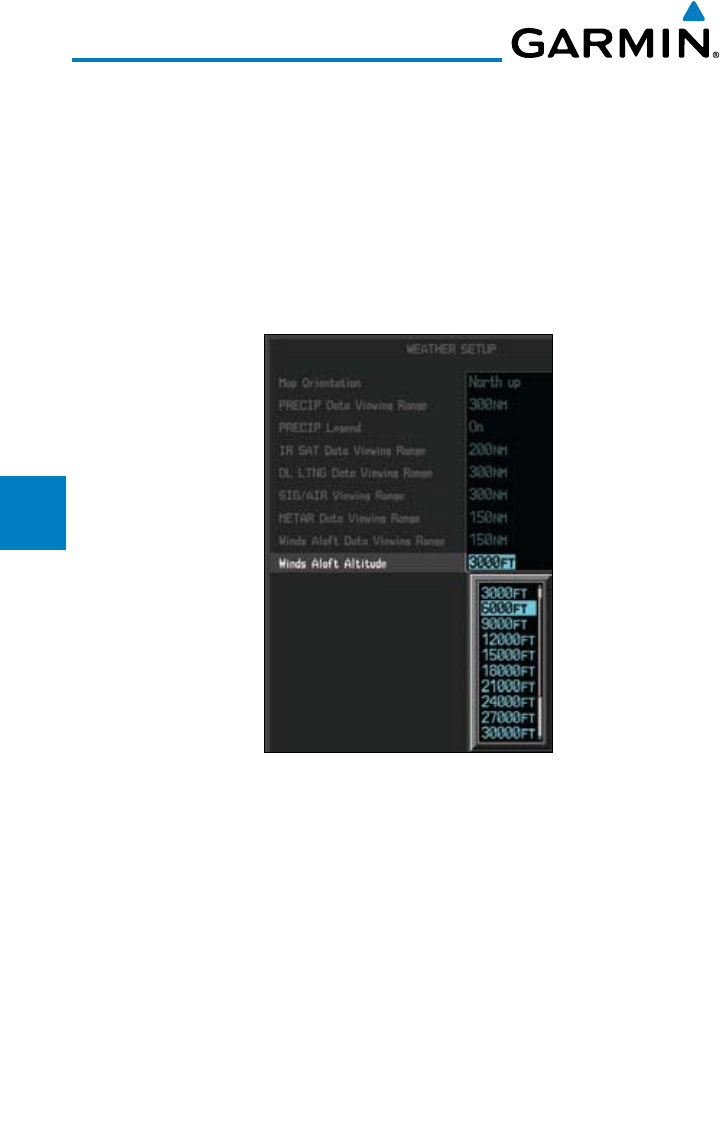
4-126
Garmin G600 Pilot’s Guide
190-00601-02 Rev. E
Foreword
Sec 1
System
Sec 2
PFD
Sec 3
MFD
Sec 4
Hazard
Avoidance
Sec 5
Additional
Features
Sec 6
Annun.
& Alerts
Sec 7
Symbols
Sec 8
GlossaryAppendix A
Appendix B
Index
Winds Aloft Altitude
The Winds Aloft Altitude option allows you to select the altitude where
Winds Aloft weather products will be shown on the selected MFD Wx Data Link
Map page (1, 2, or 3). Altitude can be selected in 3000 foot increments from the
surface up to 42,000 feet MSL.
Pressing the WIND DOWN or WIND UP soft keys steps down or up in the
3,000 foot increments. In the figure below where 6000 feet is selected, Winds
Aloft data will be shown for winds reported at an altitude of 6000 feet.
Figure 4-121 Winds Aloft Altitude Selection
1) While viewing a WX Data Link Map page of the WX page group, press the
MENU key to display the Page
Menu Options
. Turn the large MFD knob to
highlight the Weather Setup option and press ENT
.
2) Turn the large MFD knob to highlight Winds Aloft Altitude Viewing Range.
3) Turn the small MFD knob to highlight the desired value. Press ENT
to accept
the displayed value. The next option will be highlighted.
4) Press the small MFD knob to cancel selection or to end editing and return to
the WX page or turn the large MFD knob to the next option.
5-1190-00601-02 Rev. E
Garmin G600 Pilot’s Guide
Foreword
Sec 1
System
Sec 2
PFD
Sec 3
MFD
Sec 4
Hazard
Avoidance
Sec 5
Additional
Features
Sec 6
Annun.
& Alerts
Sec 7
Symbols
Sec 8
Glossary Appendix A
Appendix B
Index
5 ADDITIONAL FEATURES (OPTIONAL)
NOTE: The availability of SafeTaxi, ChartView, or FliteCharts in electronic
form may not preclude the requirement to carry paper charts aboard the
aircraft. See the AFMS for more information.
NOTE: ChartView is an optional feature that requires enablement by a
Garmin dealer.
Additional features of the GDU 620 include the following:
• ChartViewandFliteCharts® electronic charts
• SafeTaxi® diagrams
• XM® Radio entertainment
• XMWeather(coveredinSection4.7)
• Trafc(coveredinSections4.5and4.6)
• SyntheticVision Technology (SVT™)
The optional ChartView and FliteCharts provide on-board electronic terminal
procedures charts. Electronic charts offer the convenience of rapid access to
essential information. Either ChartView or FliteCharts may be configured in the
system, but not both.
SafeTaxi diagrams provide detailed taxiway, runway, and ramp information
at more than 700 airports in the United States. By decreasing the range on an
airport that has a SafeTaxi diagram available, a close up view of the airport layout
can be seen.
The optional XM Radio entertainment audio feature of the GDL 69A Data
Link Receiver handles more than 170 channels of music, news, and sports.
XM Radio offers more entertainment choices and longer range coverage than
commercial broadcast stations.
XM Weather is an optional service that provides the ability to display graphic
weather data overlaid on the MFD Nav Map and Weather Data Link pages.
The Traffic Map Page shows surrounding TAS or TIS traffic data in relation to
the aircraft’s current position and altitude. The Traffic option is designed to assist
in detection and avoidance of other aircraft.
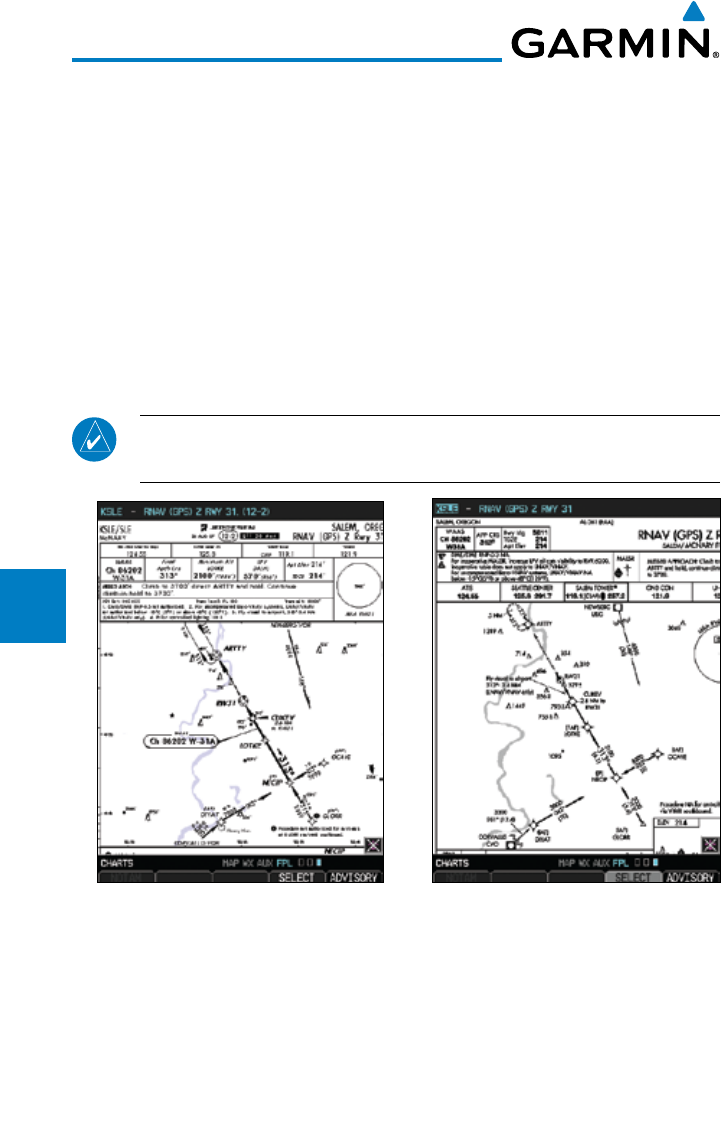
5-2
Garmin G600 Pilot’s Guide
190-00601-02 Rev. E
Foreword
Sec 1
System
Sec 2
PFD
Sec 3
MFD
Sec 4
Hazard
Avoidance
Sec 5
Additional
Features
Sec 6
Annun.
& Alerts
Sec 7
Symbols
Sec 8
GlossaryAppendix A
Appendix B
Index
The optional Synthetic Vision Technology (SVT™) is a visual enhancement
to the G600. SVT is displayed as a forward-looking display of the topography
immediately in front of the aircraft. SVT information is shown on the primary
flight display (PFD).
5.1 Viewing Charts
When the Chart function is available, charts will be shown on the third page
of the Flight Plan page group. The chart page will default to the nearest airport
if no flight plan or destination airport is present. While you are on the ground,
the displayed charts will default to the current airport location regardless of
flight plan.
NOTE: The chart for the destination airport or loaded approach will
automatically be selected.
Figure 5-1 ChartView Chart Page Figure 5-2 FliteChart Chart Page
1) Turn the large MFD knob to the Flight Plan (FPL) page group.
2) Turn the small MFD knob to the Charts page.
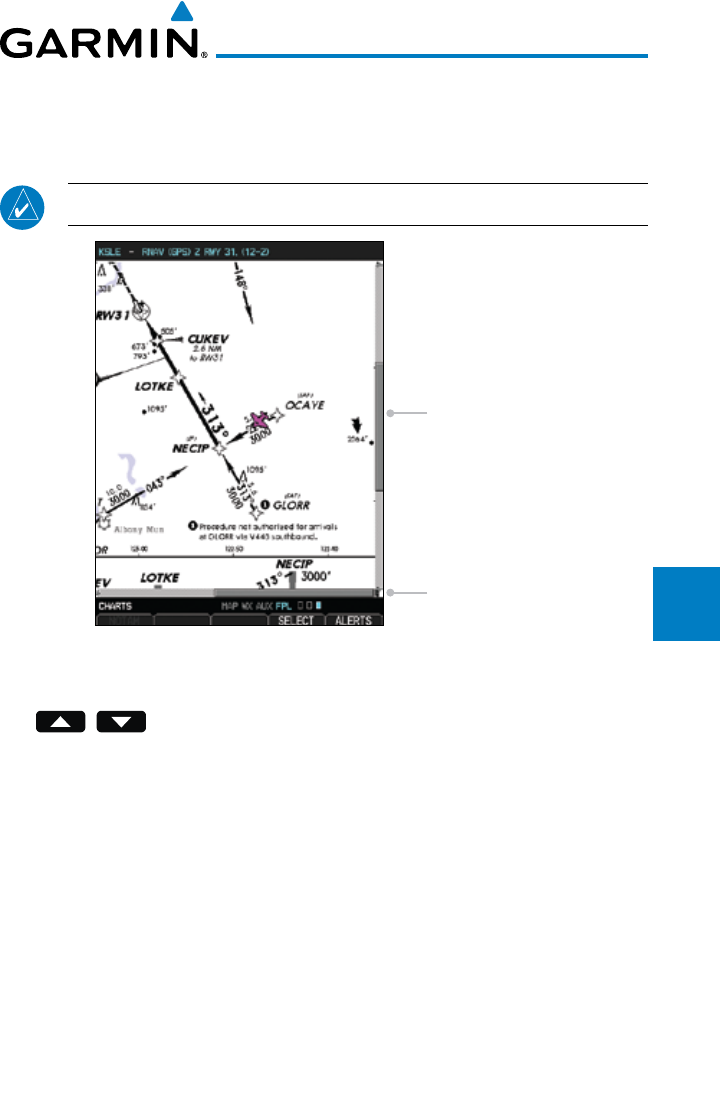
5-3190-00601-02 Rev. E
Garmin G600 Pilot’s Guide
Foreword
Sec 1
System
Sec 2
PFD
Sec 3
MFD
Sec 4
Hazard
Avoidance
Sec 5
Additional
Features
Sec 6
Annun.
& Alerts
Sec 7
Symbols
Sec 8
Glossary Appendix A
Appendix B
Index
5.1.1 Chart Panning
More detail on the displayed chart can be viewed by zooming in with the
Range keys and moving the chart around with pan mode.
NOTE: Panning mode is indicated by the presence of scroll bars.
Vertical Scroll Bar
Horizontal Scroll Bar
Figure 5-3 Zooming and Scrolling Around a Chart
1) While viewing the Charts page of the FPL page group, press the RNG (Range)
keys to zoom in and out.
2) After zooming in, you may only see part of the chart. Press the small MFD knob
to enter Pan mode and activate scroll bars on the edges of the chart. Turn the
large and small MFD knobs to move around the chart.
3) Press the small MFD knob to cancel the scroll bars and exit panning.
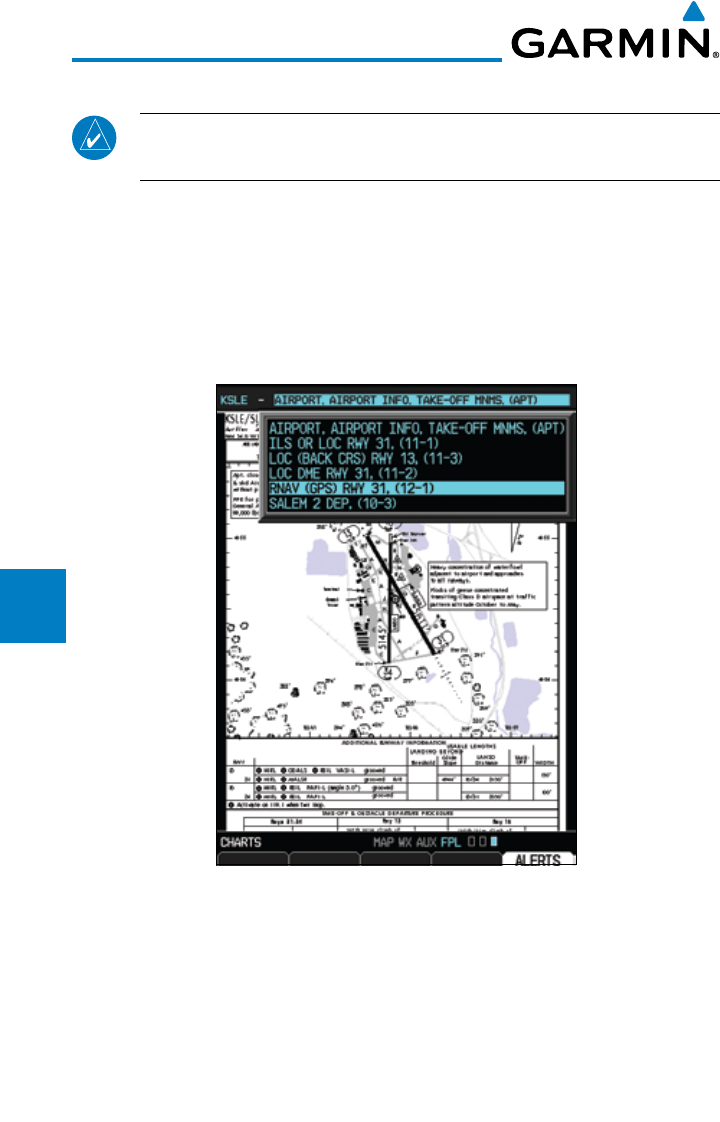
5-4
Garmin G600 Pilot’s Guide
190-00601-02 Rev. E
Foreword
Sec 1
System
Sec 2
PFD
Sec 3
MFD
Sec 4
Hazard
Avoidance
Sec 5
Additional
Features
Sec 6
Annun.
& Alerts
Sec 7
Symbols
Sec 8
GlossaryAppendix A
Appendix B
Index
5.1.2 Choosing a Chart for the Current Airport
NOTE: The chart for the destination airport or loaded approach will
automatically be selected.
1) While viewing the Charts page of the FPL page group, press the SELECT soft
key to activate chart selection.
2) Turn the large MFD knob to highlight the field to the right of the airport
identifier.
3) Turn the small MFD knob to highlight the desired chart.
Figure 5-4 Activate Chart Selection for the Current Airport (ChartView shown)
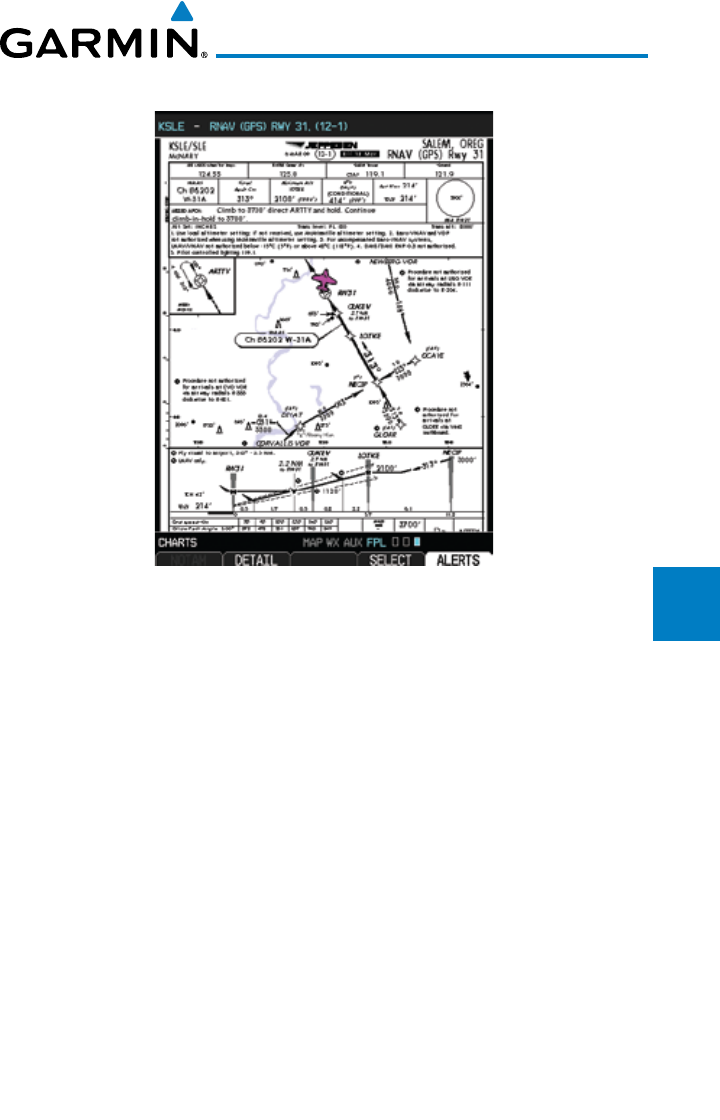
5-5190-00601-02 Rev. E
Garmin G600 Pilot’s Guide
Foreword
Sec 1
System
Sec 2
PFD
Sec 3
MFD
Sec 4
Hazard
Avoidance
Sec 5
Additional
Features
Sec 6
Annun.
& Alerts
Sec 7
Symbols
Sec 8
Glossary Appendix A
Appendix B
Index
4) Press ENT
to accept and view the selected chart.
Figure 5-5 Selected Chart for the Current Airport (ChartView shown)
5) Press the Select key to choose another chart. Press the Back key to return to
the view of the full chart.
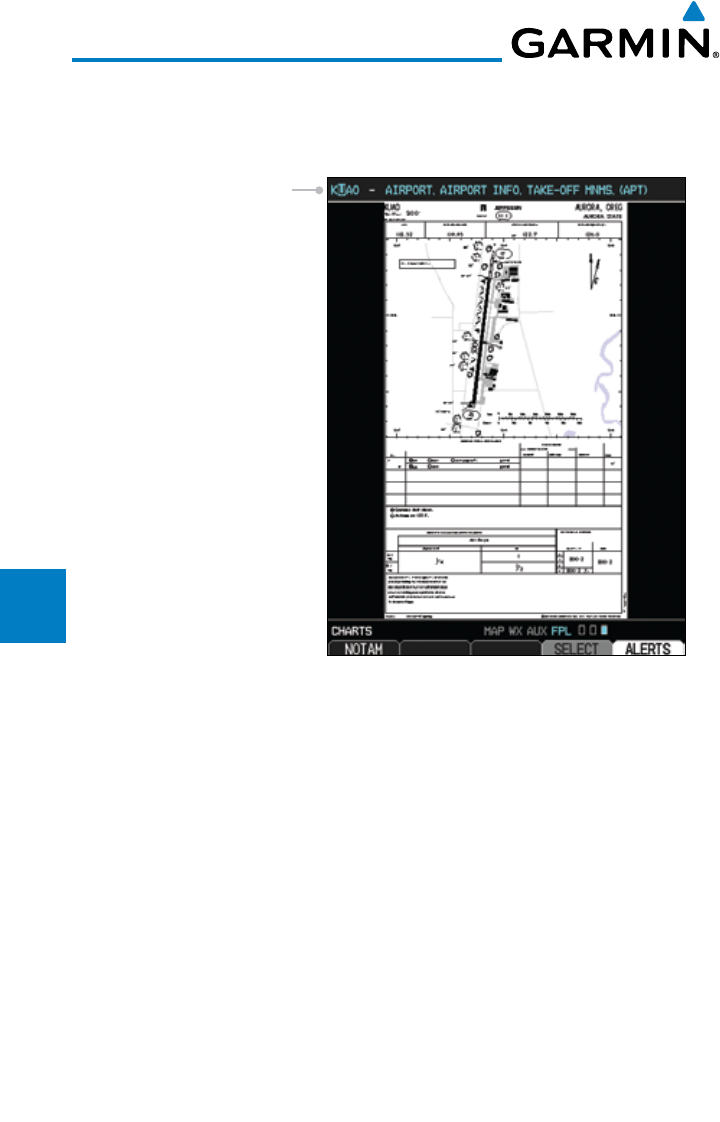
5-6
Garmin G600 Pilot’s Guide
190-00601-02 Rev. E
Foreword
Sec 1
System
Sec 2
PFD
Sec 3
MFD
Sec 4
Hazard
Avoidance
Sec 5
Additional
Features
Sec 6
Annun.
& Alerts
Sec 7
Symbols
Sec 8
GlossaryAppendix A
Appendix B
Index
5.1.3 Selecting a Chart by Identifier
A chart for a different airport may be chosen by selecting the identifier for
the desired airport.
Airport Identifier Selection
Figure 5-6 Airport Identifier Selection
1) While viewing the Charts page of the FPL page group, press the SELECT soft
key to change the airport.
2) Use the large MFD knob to move the cursor to highlight a character.
3) Use the small MFD knob to change the character.
4) Press ENT
to accept the selected airport.
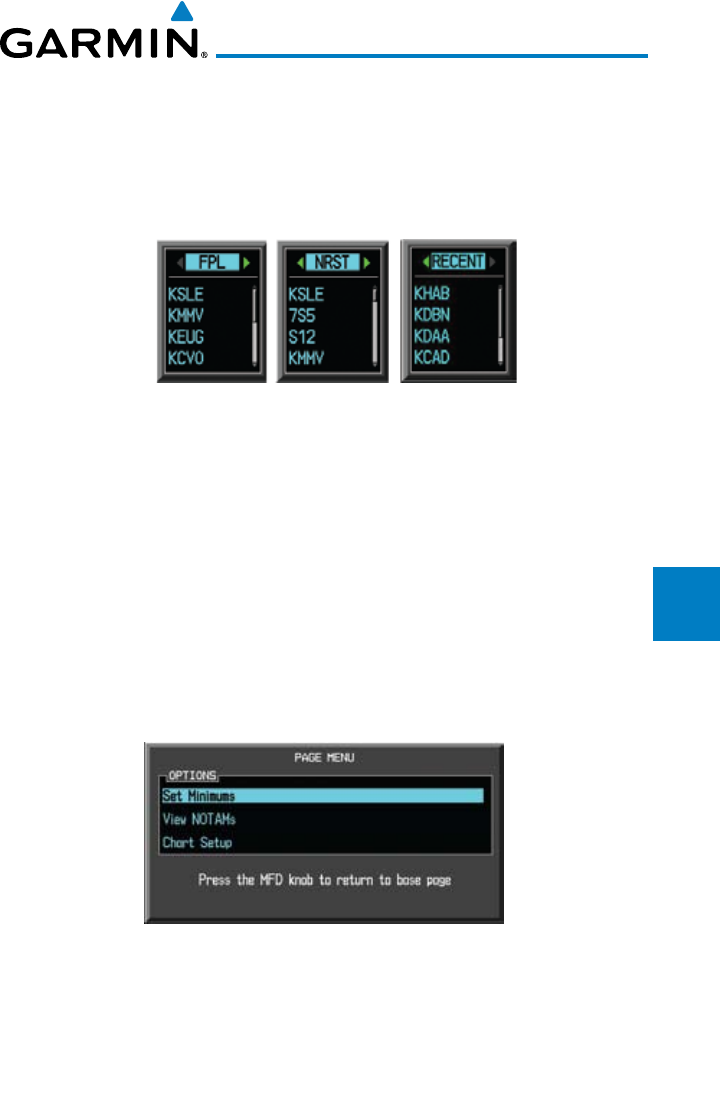
5-7190-00601-02 Rev. E
Garmin G600 Pilot’s Guide
Foreword
Sec 1
System
Sec 2
PFD
Sec 3
MFD
Sec 4
Hazard
Avoidance
Sec 5
Additional
Features
Sec 6
Annun.
& Alerts
Sec 7
Symbols
Sec 8
Glossary Appendix A
Appendix B
Index
5.1.4 Selecting a New Chart by FPL, NRST, or
RECENT
You may select other charts to display based on your flight plan (FPL),
charts of the nearest airport (NRST), or your most recently selected airports
(RECENT).
Figure 5-7 Chart Category Selection
1) While viewing the Charts page of the FPL page group, press the SELECT soft
key.
2) Turn the small MFD knob counterclockwise.
3) Turn the small MFD knob counterclockwise to show FPL, NRST, or RECENT.
4) Turn the large MFD knob to select the desired identifier and then press ENT.
5.1.5 Charts Menu Selections
1) In the FPL page group, turn the small MFD knob to reach the Charts page.
2) Press MENU to display the Options menu.
Figure 5-8 Chart Menu Selections
3) Turn the large MFD knob to select the desired item and then press ENT.
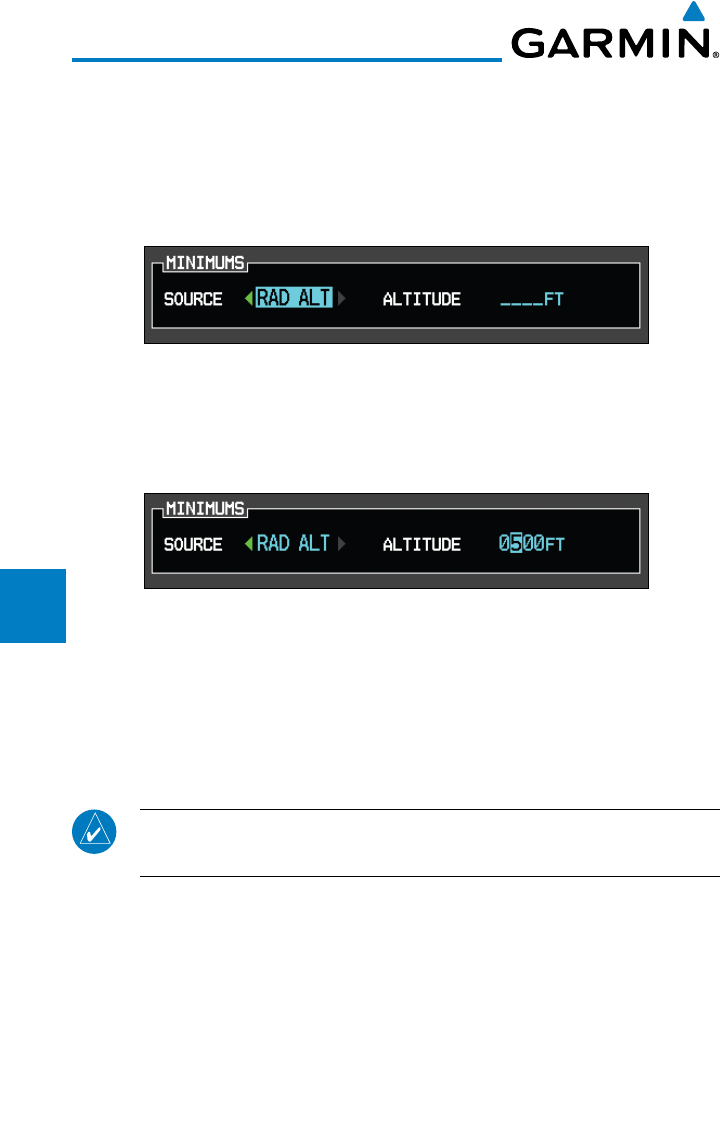
5-8
Garmin G600 Pilot’s Guide
190-00601-02 Rev. E
Foreword
Sec 1
System
Sec 2
PFD
Sec 3
MFD
Sec 4
Hazard
Avoidance
Sec 5
Additional
Features
Sec 6
Annun.
& Alerts
Sec 7
Symbols
Sec 8
GlossaryAppendix A
Appendix B
Index
5.1.5.1 Setting the Altitude Minimums Alerter
1) While viewing the Charts Page of the FPL page group, press the Menu key.
With the Set Minimums item highlighted, press ENT.
2) With the Minimums Source highlighted, select the Altitude Minimums Alerter
source with small MFD knob.
Figure 5-9 Barometric Minimums Source Selection
3) Turn the large MFD knob to highlight the Altitude Minimums value. Turn the
large and small MFD knobs to change the Altitude Minimums value and then
press ENT to activate the selected value.
Figure 5-10 Barometric Minimums Altitude Selection
Alerting is inhibited while the aircraft is on the ground and until the aircraft
reaches 150 feet above the MDA. The Minimum altitude will be available in the
Altitude Alerter.
In dual installations, the minimums alerting altitude value may be set from
either GDU 620 and will be synchronized on both units.
NOTE:
If you highlight the Minimums Altitude field on the FPL page and
press the CLR key, it will turn the minimums functionality off.
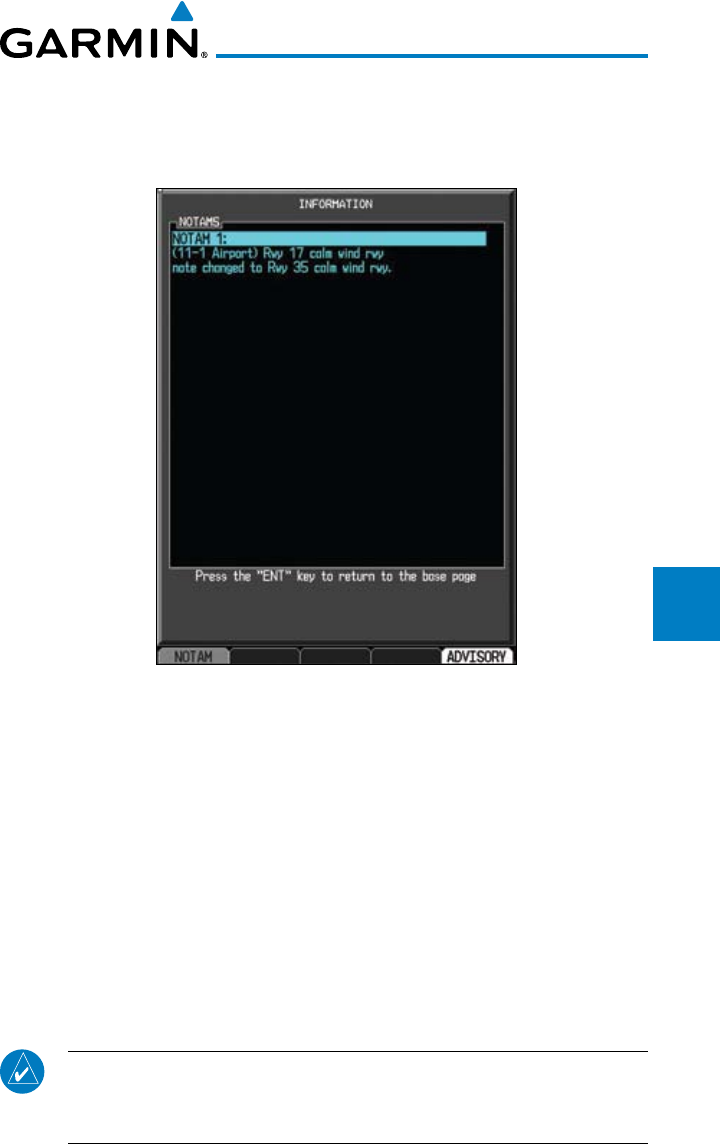
5-9190-00601-02 Rev. E
Garmin G600 Pilot’s Guide
Foreword
Sec 1
System
Sec 2
PFD
Sec 3
MFD
Sec 4
Hazard
Avoidance
Sec 5
Additional
Features
Sec 6
Annun.
& Alerts
Sec 7
Symbols
Sec 8
Glossary Appendix A
Appendix B
Index
5.1.5.2 Viewing Chart NOTAMs
If an active NOTAM (Notice to Airmen) exists for the selected chart, the
NOTAM soft key will be available. Press the NOTAM soft key to view the
NOTAM or select View NOTAMs from the Chart Options Menu.
Figure 5-11 Chart NOTAM
5.1.5.3 Day/Night View
The Chart pages can be displayed on a white or black background for day or
night viewing. The Day View offers a better presentation in a bright environment.
The Night View gives a better presentation for viewing in a dark environment.
When the CHART SETUP Box is selected the GDU 620 soft keys are blank.
1) In the FPL page group, turn the small MFD knob to reach the Charts page.
2) Press MENU to display the Options menu.
3) Press ENT
to go to Chart Setup. The Color Scheme option will be highlighted.
4) Turn the small MFD knob to select Day - Auto - Night.
5) Press the small MFD knob or the ENT
key to save the selected value and return
to the Charts page.
NOTE: Once an adjustment is made to the percentage field in Auto mode,
the chart must be redrawn (zoomed in or out, or another chart selected)
before the switch from Day to Night is seen.
5-10
Garmin G600 Pilot’s Guide
190-00601-02 Rev. E
Foreword
Sec 1
System
Sec 2
PFD
Sec 3
MFD
Sec 4
Hazard
Avoidance
Sec 5
Additional
Features
Sec 6
Annun.
& Alerts
Sec 7
Symbols
Sec 8
GlossaryAppendix A
Appendix B
Index
5.2 ChartView (Optional)
ChartView resembles the paper version of Jeppesen terminal procedures
charts. The charts are displayed in full color with high-resolution. The MFD
depiction shows the aircraft position on the moving map in the plan view of
approach charts and on airport diagrams.
The ChartView database subscription is available from Jeppesen, Inc.
ChartView is an optional feature that requires enablement by a Garmin dealer.
Available data includes:
• Arrivals (STAR)
• DepartureProcedures (DP)
• Approaches
• AirportDiagrams
• ChartNOTAMs
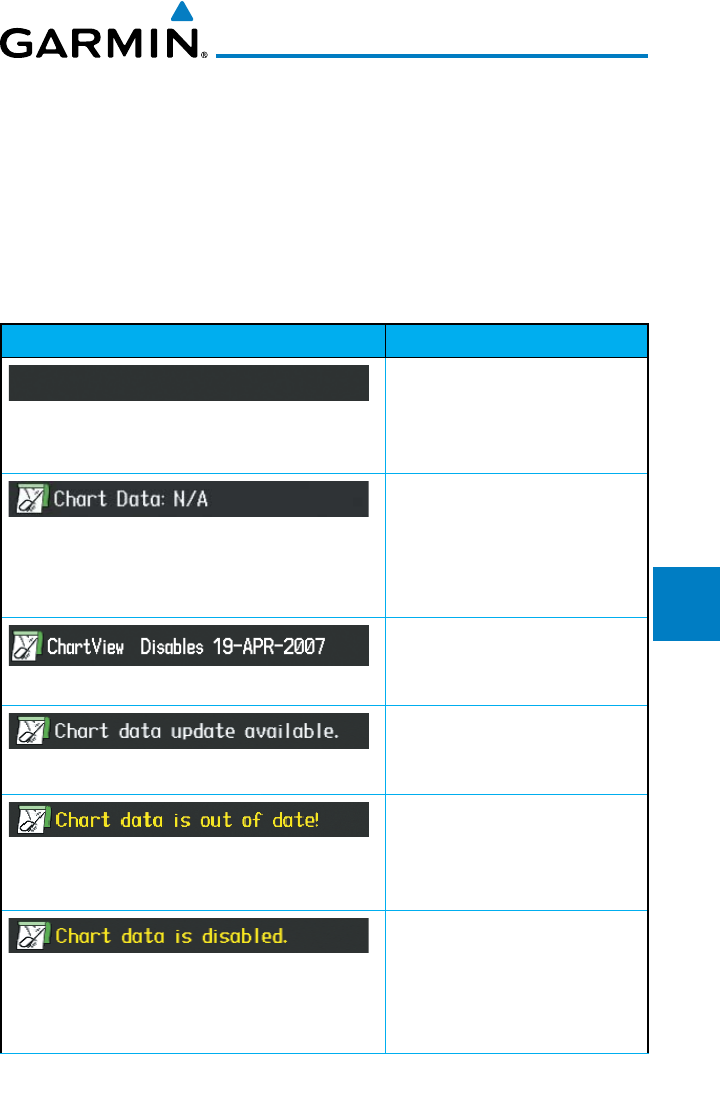
5-11190-00601-02 Rev. E
Garmin G600 Pilot’s Guide
Foreword
Sec 1
System
Sec 2
PFD
Sec 3
MFD
Sec 4
Hazard
Avoidance
Sec 5
Additional
Features
Sec 6
Annun.
& Alerts
Sec 7
Symbols
Sec 8
Glossary Appendix A
Appendix B
Index
5.2.1 Cycle Number and Revision
The ChartView database is revised every 14 days. Charts are still viewable
during a period that extends from the cycle expiration date to the disables date.
ChartView is disabled 70 days after the expiration date and is no longer available
for viewing upon reaching the disable date. When turning on the GDU 620, the
Power-up Page indicates any of nine different possible criteria for ChartView
availability. See the table below for the various ChartView Power-up Page
displays and the definition of each.
Power-up Page Display Definition
Blank Line. GDU 620 system is
not configured for ChartView.
Contact a Garmin-authorized
service center for configuration.
System is configured for
ChartView but no chart
database is installed. Contact
Jeppesen for a ChartView
database.
Normal operation. ChartView
database is valid and within
current cycle.
ChartView database is within
1 week after expiration date. A
new cycle is available for update.
ChartView database is beyond 1
week after expiration date, but
still within the 70 day viewing
period.
ChartView database has timed
out. Database is beyond 70 days
after expiration date. ChartView
database is no longer available
for viewing.
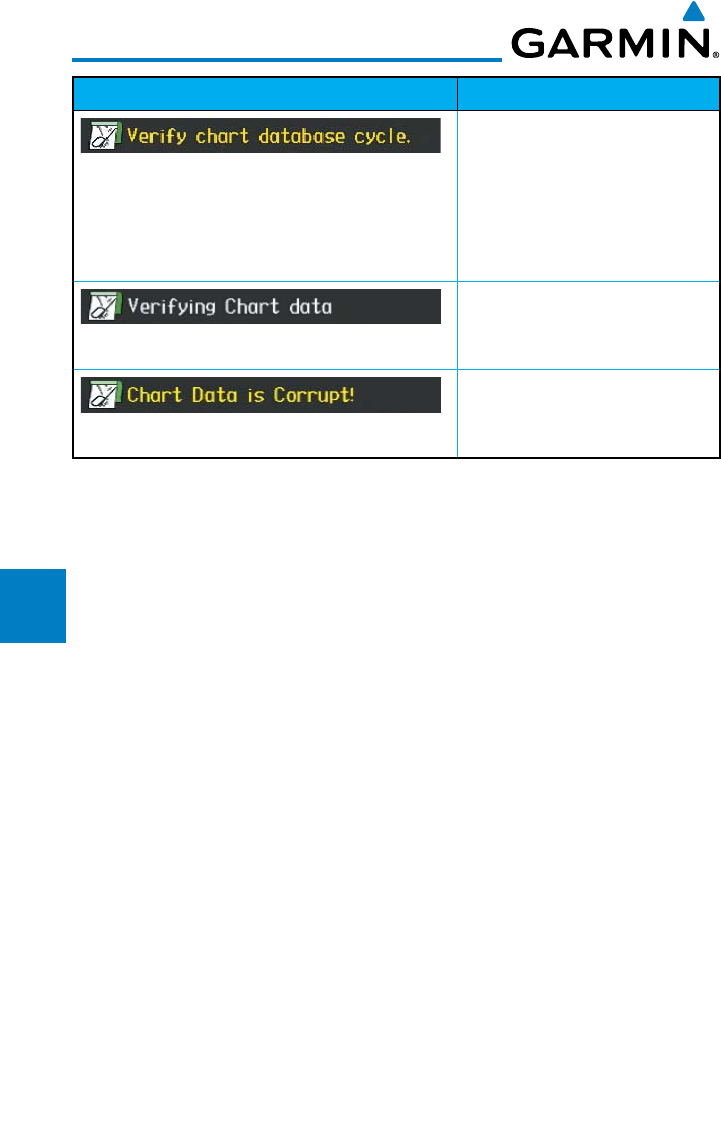
5-12
Garmin G600 Pilot’s Guide
190-00601-02 Rev. E
Foreword
Sec 1
System
Sec 2
PFD
Sec 3
MFD
Sec 4
Hazard
Avoidance
Sec 5
Additional
Features
Sec 6
Annun.
& Alerts
Sec 7
Symbols
Sec 8
GlossaryAppendix A
Appendix B
Index
Power-up Page Display Definition
System time is not available.
GPS satellite data is unknown
or the GPS navigator has not
yet locked onto satellites. Check
database cycle number for
effectivity.
System is verifying chart
database when new cycle is
installed for the first time.
After verifying, chart database is
found to be corrupt. ChartView
will not be available.
Table 5-1 Power-up Page Annunciations and Definitions
The ChartView time critical information can also be found on the AUX - System
Status page. The database CYCLE number, EXPIRES, and DISABLES dates of the
ChartView database appear in either blue or yellow text. When the ChartView
EXPIRES date is reached, ChartView becomes inoperative 70 days later. This is
shown as the DISABLES date. When the DISABLES date is reached, charts are
no longer available for viewing.
Select the DBASE soft key for scrolling through the database information.
Scroll through the database with the MFD knob or ENT key.
The ChartView database is provided directly from Jeppesen. ChartView is an
optional feature that requires enablement by a Garmin dealer. Refer to Jeppesen
Databases in Appendix A for instructions on revising the ChartView database.
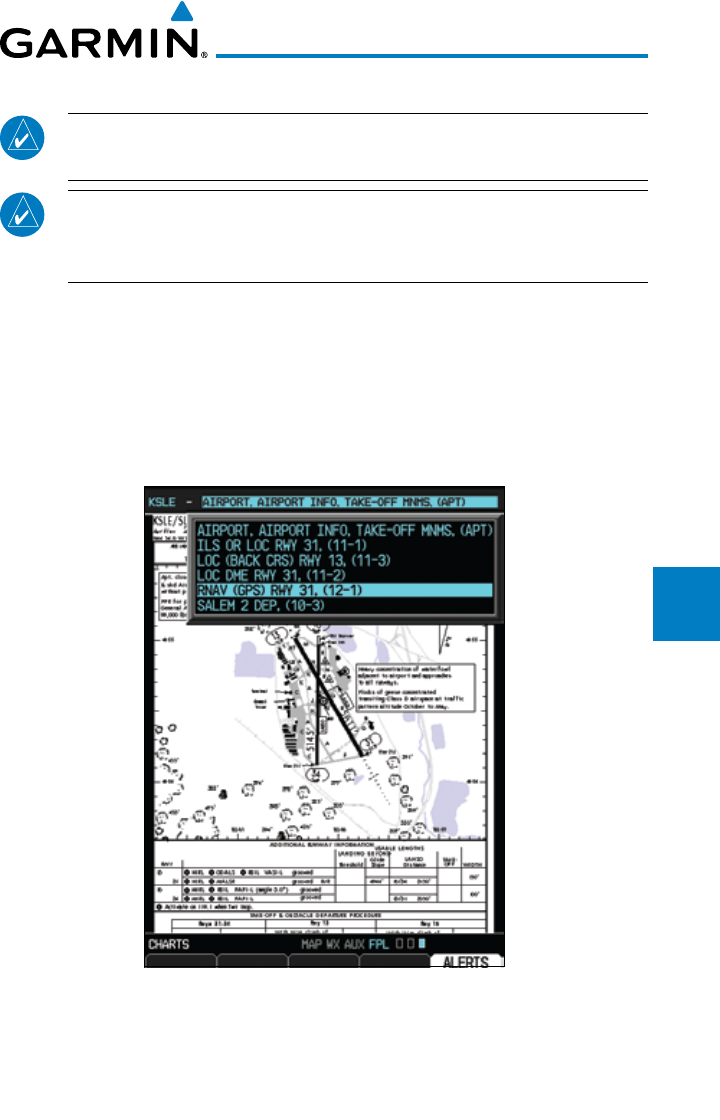
5-13190-00601-02 Rev. E
Garmin G600 Pilot’s Guide
Foreword
Sec 1
System
Sec 2
PFD
Sec 3
MFD
Sec 4
Hazard
Avoidance
Sec 5
Additional
Features
Sec 6
Annun.
& Alerts
Sec 7
Symbols
Sec 8
Glossary Appendix A
Appendix B
Index
5.2.2 Viewing Chart Details in ChartView
NOTE: The chart for the destination airport or loaded approach will
automatically be selected.
NOTE: Chart details are only available for instrument approach procedure
charts. Chart details are not available for airport diagrams or SID/STAR
charts.
1) While viewing the Charts page of the FPL page group, press the SELECT soft
key to activate chart selection.
2) Turn the large MFD knob to highlight the field to the right of the airport
identifier.
3) Turn the small MFD knob to highlight the desired chart.
Figure 5-12 Activate Chart Selection for the Current Airport (ChartView shown)
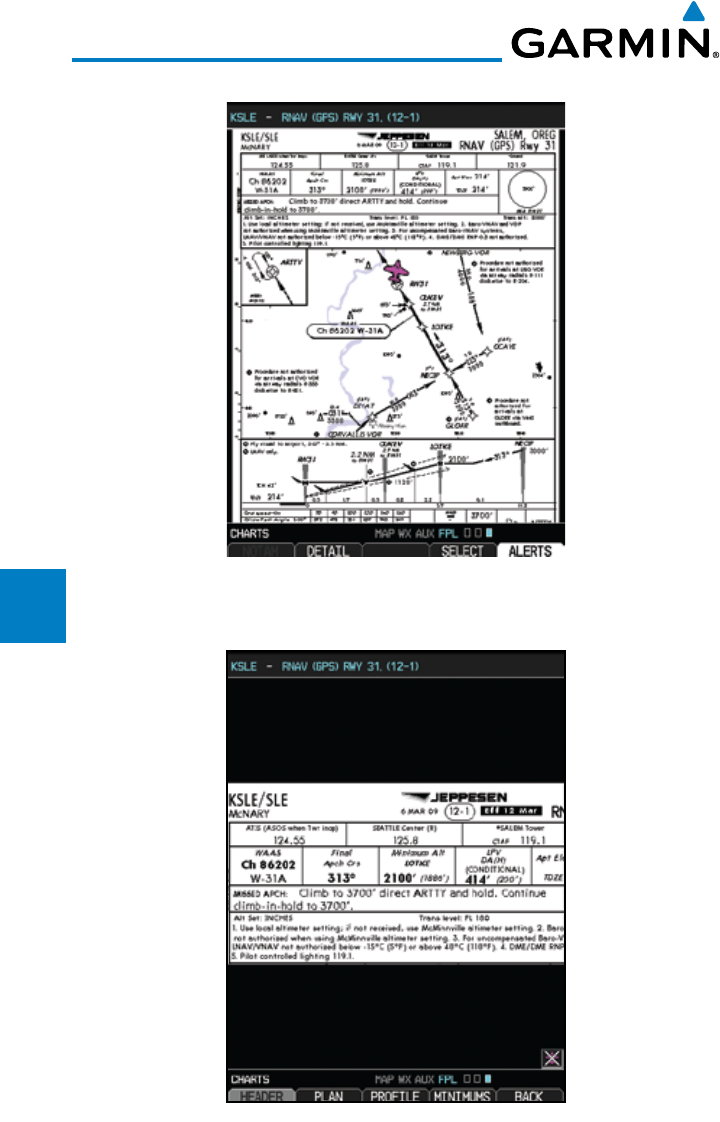
5-14
Garmin G600 Pilot’s Guide
190-00601-02 Rev. E
Foreword
Sec 1
System
Sec 2
PFD
Sec 3
MFD
Sec 4
Hazard
Avoidance
Sec 5
Additional
Features
Sec 6
Annun.
& Alerts
Sec 7
Symbols
Sec 8
GlossaryAppendix A
Appendix B
Index
4) Press ENT
to accept and view the selected chart.
Figure 5-13 Selected Chart for the Current Airport (ChartView shown)
5) Press the Detail key to view detailed views of the current chart. The Detail key
is only available with ChartView.
Figure 5-14 Detail of the Selected Chart (Header Shown)
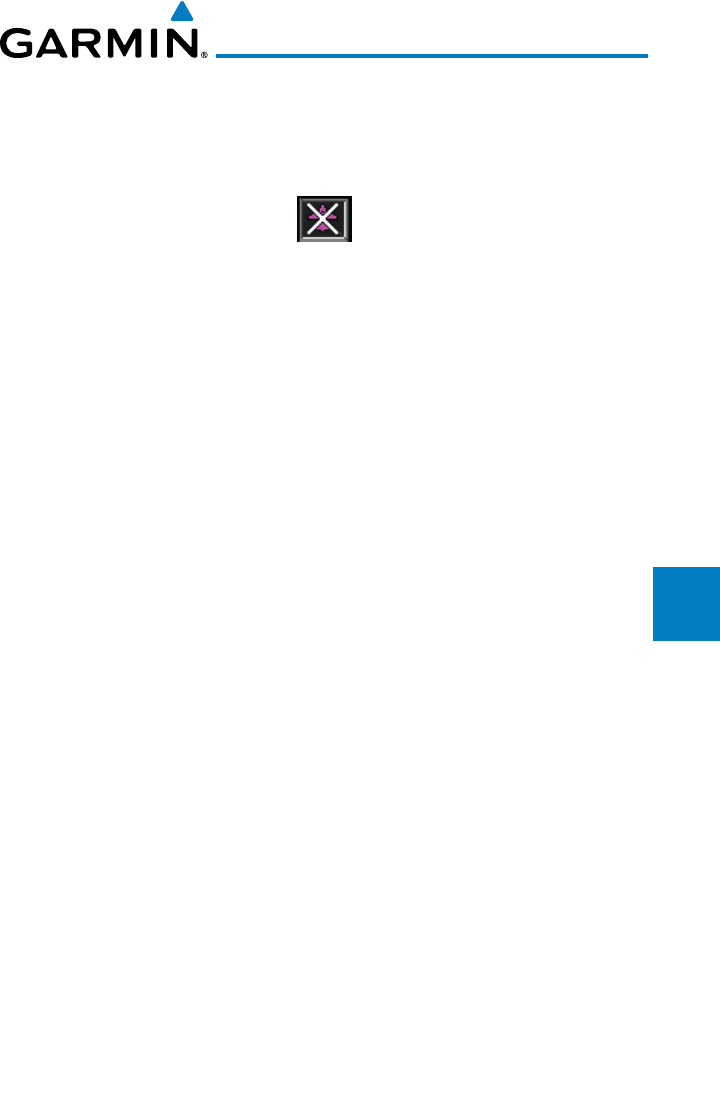
5-15190-00601-02 Rev. E
Garmin G600 Pilot’s Guide
Foreword
Sec 1
System
Sec 2
PFD
Sec 3
MFD
Sec 4
Hazard
Avoidance
Sec 5
Additional
Features
Sec 6
Annun.
& Alerts
Sec 7
Symbols
Sec 8
Glossary Appendix A
Appendix B
Index
6) Press the Header, Plan, Profile, or Minimums keys to view detailed sections
for the chart for those topics. A aircraft icon will show in the lower right corner
of the display if your aircraft is in the chart area. The icon will have an “x”
through it if the aircraft is not in the chart area or the GPS fix is lost.
7) Press the Back key to return to the view of the full chart.
5-16
Garmin G600 Pilot’s Guide
190-00601-02 Rev. E
Foreword
Sec 1
System
Sec 2
PFD
Sec 3
MFD
Sec 4
Hazard
Avoidance
Sec 5
Additional
Features
Sec 6
Annun.
& Alerts
Sec 7
Symbols
Sec 8
GlossaryAppendix A
Appendix B
Index
5.3 FliteCharts®
FliteCharts® resemble the paper version of FAA-published terminal
procedures charts. The charts are displayed with high-resolution and in color
for applicable charts.
FliteCharts database subscription is available from Garmin. Available data
includes:
• Arrivals (STAR)
• DepartureProcedures (DP)
• Approaches
• Airport Diagrams
5.3.1 Cycle Number and Revision
FliteCharts data is revised every 28 days. Charts are still viewable during a
period that extends from the cycle expiration date to the disables date. FliteCharts
is disabled 180 days after the expiration date and are no longer available for
viewing upon reaching the disables date. When turning on the GDU 620, the
Power-up page indicates any of five different possible criteria for chart availability.
These indications are whether the databases are not configured, not available,
current, out of date, or disabled. See the table below for the various FliteCharts
Power-up page displays and the definition of each.
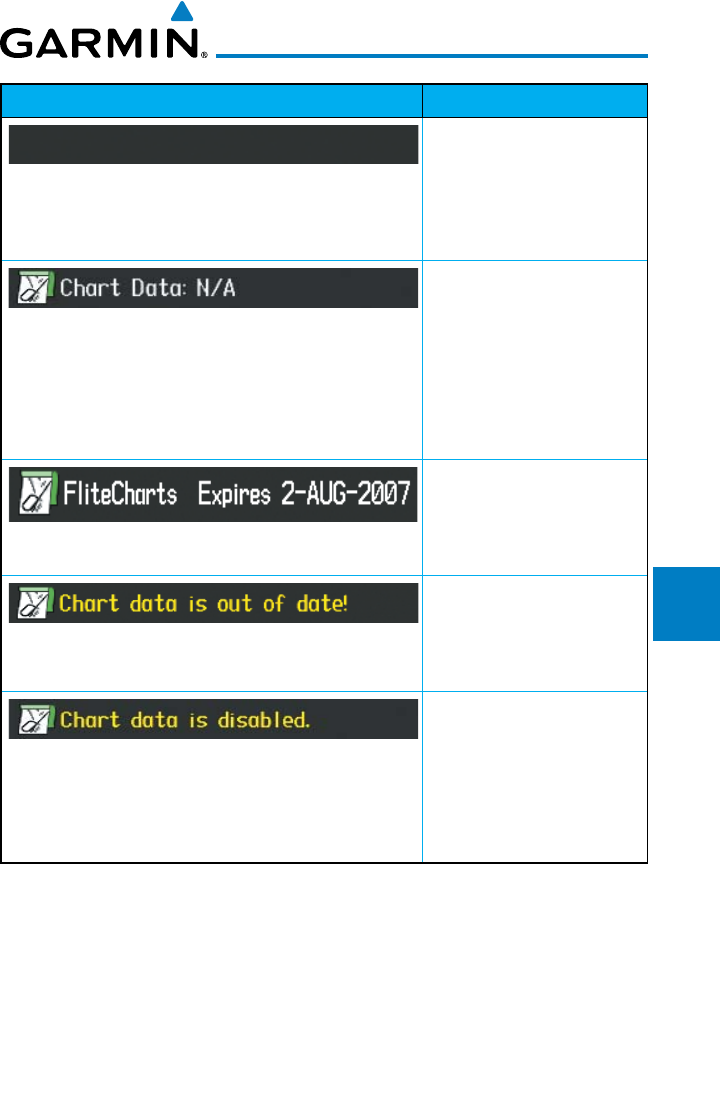
5-17190-00601-02 Rev. E
Garmin G600 Pilot’s Guide
Foreword
Sec 1
System
Sec 2
PFD
Sec 3
MFD
Sec 4
Hazard
Avoidance
Sec 5
Additional
Features
Sec 6
Annun.
& Alerts
Sec 7
Symbols
Sec 8
Glossary Appendix A
Appendix B
Index
Power-up Page Display Definition
Blank Line. G600 system
is not configured for
FliteCharts. Contact a
Garmin-authorized service
center for configuration.
System is configured for
FliteCharts but no chart
database is installed.
Refer to Updating Garmin
Databases in Appendix A
for the FliteCharts
database.
Normal operation.
FliteCharts database is
valid and within current
cycle.
FliteCharts database is
beyond the expiration date,
but still within the 180 day
viewing period.
FliteCharts database has
timed out. Database is
beyond 180 days after
expiration date. FliteCharts
database is no longer
available for viewing.
Table 5-2 FliteCharts Power-up Page Annunciations and Definitions
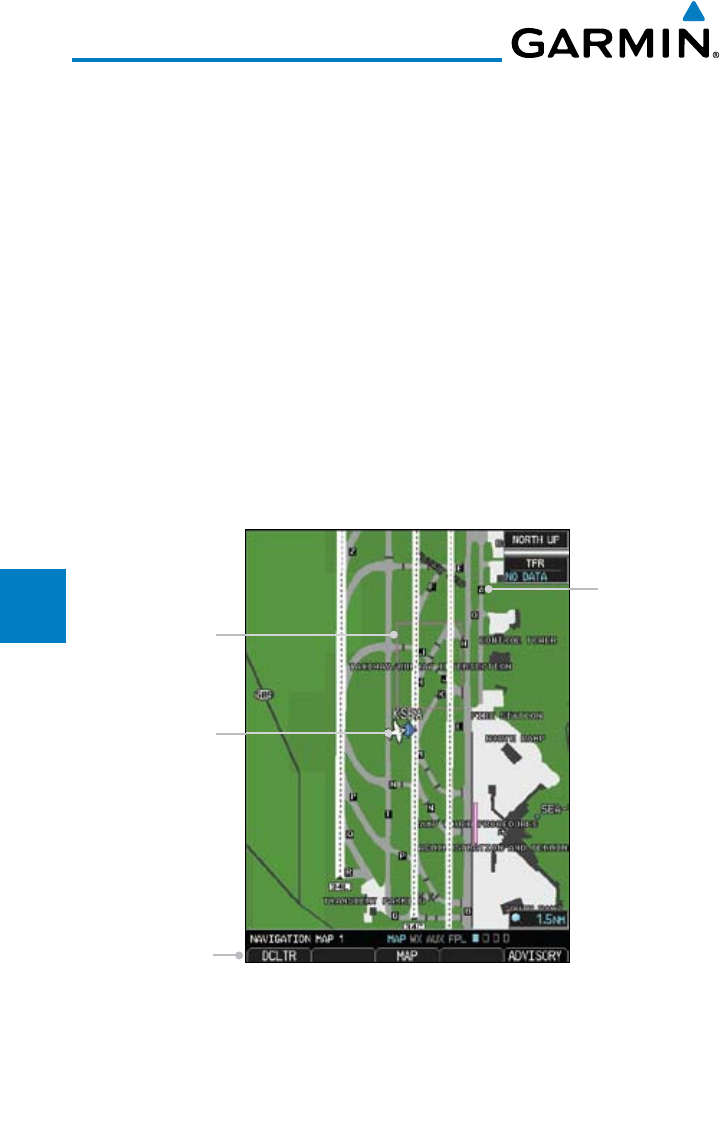
5-18
Garmin G600 Pilot’s Guide
190-00601-02 Rev. E
Foreword
Sec 1
System
Sec 2
PFD
Sec 3
MFD
Sec 4
Hazard
Avoidance
Sec 5
Additional
Features
Sec 6
Annun.
& Alerts
Sec 7
Symbols
Sec 8
GlossaryAppendix A
Appendix B
Index
5.4 SafeTaxi®
SafeTaxi® is an enhanced feature that gives greater map detail when zooming
in on airports at close range. The airport display on the map reveals runways
with numbers, taxiways with identifying letters/numbers,
airport Hot Spots,
and airport landmarks including ramps, buildings, control towers, and other
prominent features. Resolution is greater at lower map ranges. When the aircraft
location is within the screen boundary, including within SafeTaxi ranges, an
aircraft symbol is shown on any of the navigation map views for enhanced
position awareness.
Designated Hot Spots are recognized at airports with many intersecting
taxiways and runways, and/or complex ramp areas. Airport Hot Spots are outlined
to caution pilots of areas on an airport surface where positional awareness
confusion or runway incursions happen most often. Hot Spots are defined with
a magenta circle or outline around the region of possible confusion.
Taxiway
Identification
Aircraft
position
DCLTR Soft Key
Removes Taxiway
Markings
Hot Spot
Outline
Figure 5-15 SafeTaxi Depiction on the Navigation Map Page

5-19190-00601-02 Rev. E
Garmin G600 Pilot’s Guide
Foreword
Sec 1
System
Sec 2
PFD
Sec 3
MFD
Sec 4
Hazard
Avoidance
Sec 5
Additional
Features
Sec 6
Annun.
& Alerts
Sec 7
Symbols
Sec 8
Glossary Appendix A
Appendix B
Index
5.4.1 Using SafeTaxi®
Any map page that displays the navigation view can also show the SafeTaxi®
airport layout within the maximum configured range. The following is a list of
pages where the SafeTaxi feature can be seen:
• NavigationMapPage
• WeatherDatalinkPage
• AirportInformationPage
• IntersectionInformationPage
• NDB Information Page
• VOR Information Page
• UserWaypointInformation Page
During ground operations the aircraft’s position is displayed in reference to
taxiways, runways, and airport features. When panning over the airport, features
such as runway holding lines and taxiways are shown.
5.4.1.1 Decluttering
The DCLTR soft key (declutter) label advances to DCLTR-1, DCLTR -2, and
DCLTR-3 each time the soft key is selected for easy recognition of decluttering
level. Selecting the DCLTR soft key removes the taxiway markings and airport
feature labels. Selecting the DCLTR-1 soft key removes VOR station ID, the VOR
symbol, and intersection names if within the airport plan view. Selecting the
DCLTR-2 soft key removes the airport runway layout, unless the airport in view
is part of an active route structure. Pressing the DCLTR-3 soft key cycles back
to the original map detail. With Auto-Zoom enabled, the map will automatically
zoom to 1 NM and DCLTR-0 upon landing so SafeTaxi can be viewed. Refer to
Map Declutter Levels in the Navigation Map Section.
5.4.1.2 Hot Spot Information
Hot Spots can contain more information about the area that can be displayed
when selected.
1. While viewing the Hot Spot area on the Navigation Map page, press the small
MFD knob to activate the cursor.
2. Turn the MFD knobs to move the cursor on the Hot Spot border or into the Hot
Spot area and then press the ENT key.
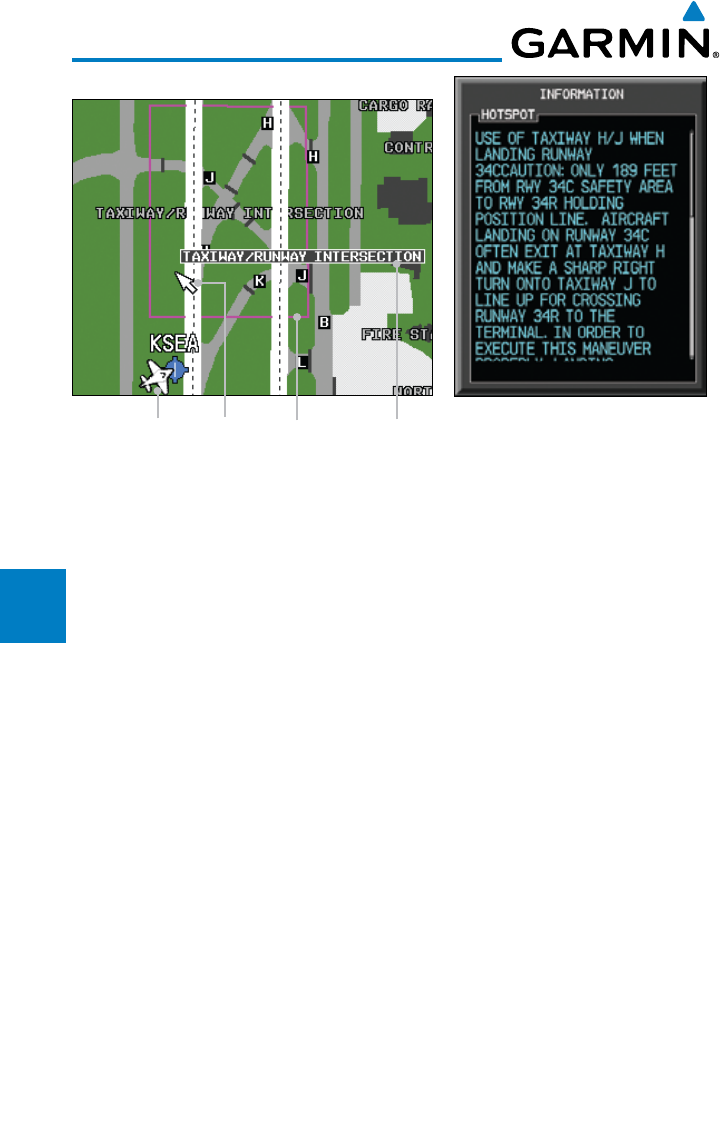
5-20
Garmin G600 Pilot’s Guide
190-00601-02 Rev. E
Foreword
Sec 1
System
Sec 2
PFD
Sec 3
MFD
Sec 4
Hazard
Avoidance
Sec 5
Additional
Features
Sec 6
Annun.
& Alerts
Sec 7
Symbols
Sec 8
GlossaryAppendix A
Appendix B
Index
Aircraft Symbol Hot spot
Name
Cursor Hot spot
Border
Figure 5-16 SafeTaxi Hot Spot Information
3. An information window will be shown on the MFD. After viewing, press the
small MFD knob, CLR, or ENT keys to remove the information window. Press
the small MFD knob again to cancel the cursor.
5.4.2 SafeTaxi® Cycle Number and Revision
The SafeTaxi database is revised every 56 days. SafeTaxi is always available
for use after the expiration date. When turning on the GDU 620, the Power-up
Page indicates whether the databases are current, out of date, or not available.
The Power-up Page shows the SafeTaxi database is current when the “SafeTaxi
Expires” date is shown in white. When the SafeTaxi cycle has expired, the
“SafeTaxi Expires” date appears in yellow. The message “SafeTaxi: N/A” appears
in white if no SafeTaxi data is available on the database card.
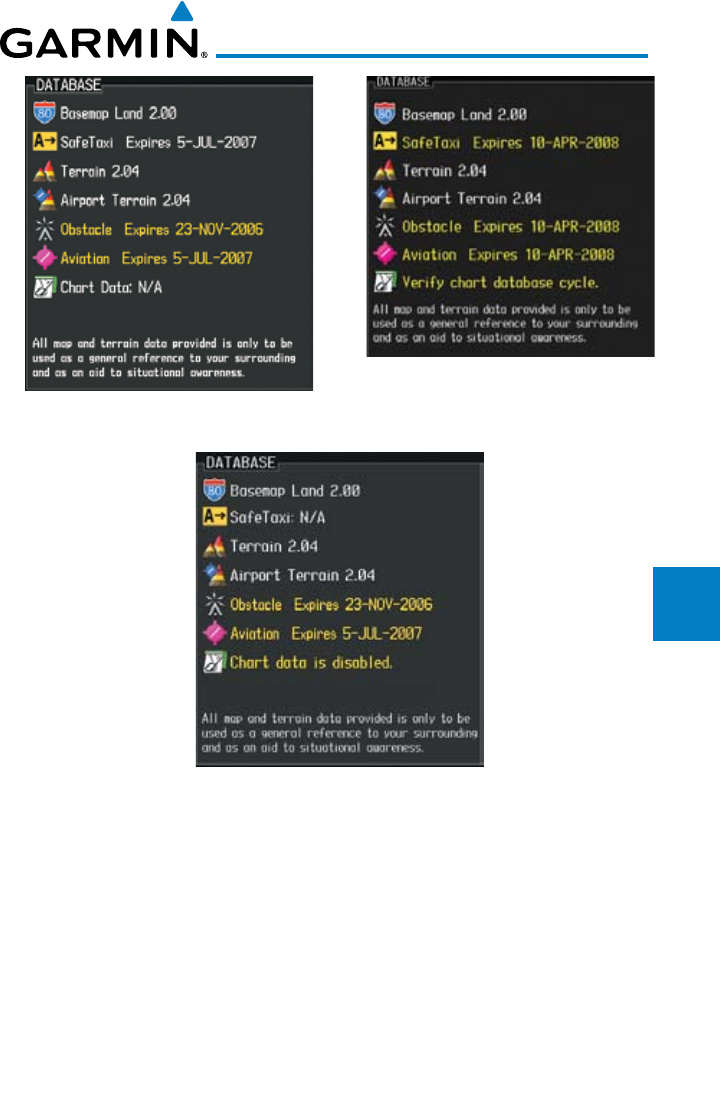
5-21190-00601-02 Rev. E
Garmin G600 Pilot’s Guide
Foreword
Sec 1
System
Sec 2
PFD
Sec 3
MFD
Sec 4
Hazard
Avoidance
Sec 5
Additional
Features
Sec 6
Annun.
& Alerts
Sec 7
Symbols
Sec 8
Glossary Appendix A
Appendix B
Index
SafeTaxi Database is Current SafeTaxi Database has Expired
SafeTaxi Database Not Available
Figure 5-17 Power-up Page, SafeTaxi Database
The SafeTaxi Region, Version, Cycle, Effective date and Expires date of the
database cycle can also be found on the AUX - System Status page. SafeTaxi
information appears in white and yellow text. The EFFECTIVE date appears in
white when data is current and in yellow when the current date is before the
effective date. The EXPIRES date appears in white when data is current and in
yellow when expired. SafeTaxi REGION NOT AVAILABLE appears in white if
SafeTaxi data is not available on the database card. Expired SafeTaxi data is never
disabled.
5-22
Garmin G600 Pilot’s Guide
190-00601-02 Rev. E
Foreword
Sec 1
System
Sec 2
PFD
Sec 3
MFD
Sec 4
Hazard
Avoidance
Sec 5
Additional
Features
Sec 6
Annun.
& Alerts
Sec 7
Symbols
Sec 8
GlossaryAppendix A
Appendix B
Index
5.5 XM® Radio Entertainment
NOTE: Refer to the Hazard Avoidance Section for information about XM
Weather products.
The optional XM® Radio entertainment feature of the GDL 69A Data Link
Receiver is available for the pilot’s and passengers’ enjoyment. The GDL 69A can
receive XM Satellite Radio entertainment services at any altitude throughout the
Continental U.S. Entertainment audio is not available on the GDL 69 Data Link
Receiver.
XM Satellite Radio offers a variety of radio programming over long distances
without having to constantly search for new stations. Based on signals from
satellites, coverage far exceeds land-based transmissions. XM Satellite Radio services
are subscription-based. For more information on specific service packages, visit
www.xmradio.com.
5.5.1 Activating XM® Satellite Radio Services
The service is activated by providing XM Satellite Radio with either one
or two coded IDs, depending on the equipment. Either the Audio Radio
ID or the Data Radio ID, or both, must be provided to XM Satellite Radio to
activate the entertainment subscription. The XM Satellite Radio Activation
Instructions are included with the unit (also available at www.garmin.com, P/N
190-00355-04).
It is not required to activate both the entertainment and weather service
subscriptions with the GDL 69A. Either or both services can be activated. XM
Satellite Radio uses one or both of the coded IDs to send an activation signal that,
when received by the GDL 69A, allows it to play entertainment programming.
These IDs are located:
•OnthelabelonthebackoftheDataLinkReceiver
•OntheXMInformationPageontheMFD
Contact the installer if the Data Radio ID and the Audio Radio ID cannot be
located.

5-23190-00601-02 Rev. E
Garmin G600 Pilot’s Guide
Foreword
Sec 1
System
Sec 2
PFD
Sec 3
MFD
Sec 4
Hazard
Avoidance
Sec 5
Additional
Features
Sec 6
Annun.
& Alerts
Sec 7
Symbols
Sec 8
Glossary Appendix A
Appendix B
Index
NOTE: The LOCK soft key on the XM Information Page (Auxiliary Page
Group) is used to save GDL 69A activation data when the XM services are
initially set up. It is not used during normal XM Radio operation, but there
should be no adverse effects if inadvertently selected during flight. Refer to
the GDL 69/69A XM Satellite Radio Activation Instructions (190-00355-04,
Rev G, or later) for further information.
1) Contact XM WX Satellite Radio through the e-mail address listed on their web
site (www.xmradio.com) or by the customer service phone number listed on the
web site (1-800-985-9200). Follow the instructions provided by XM Satellite
Radio services.
2) Turn the large MFD knob to the AUX page group.
3) Turn the small MFD knob to the XM Information Page.
4) Verify that the desired services are activated.
5) Select the LOCK soft key.
6) Turn the large MFD knob to highlight “YES.”
7) To complete activation, press the ENT key.
If XM weather services have not been activated, all the weather product
boxes are cleared on the XM Information Page and a yellow Activation Required
message is displayed in the center of the Weather Data Link Page (Map Page
Group). The Service Class refers to the groupings of weather products available
for subscription.
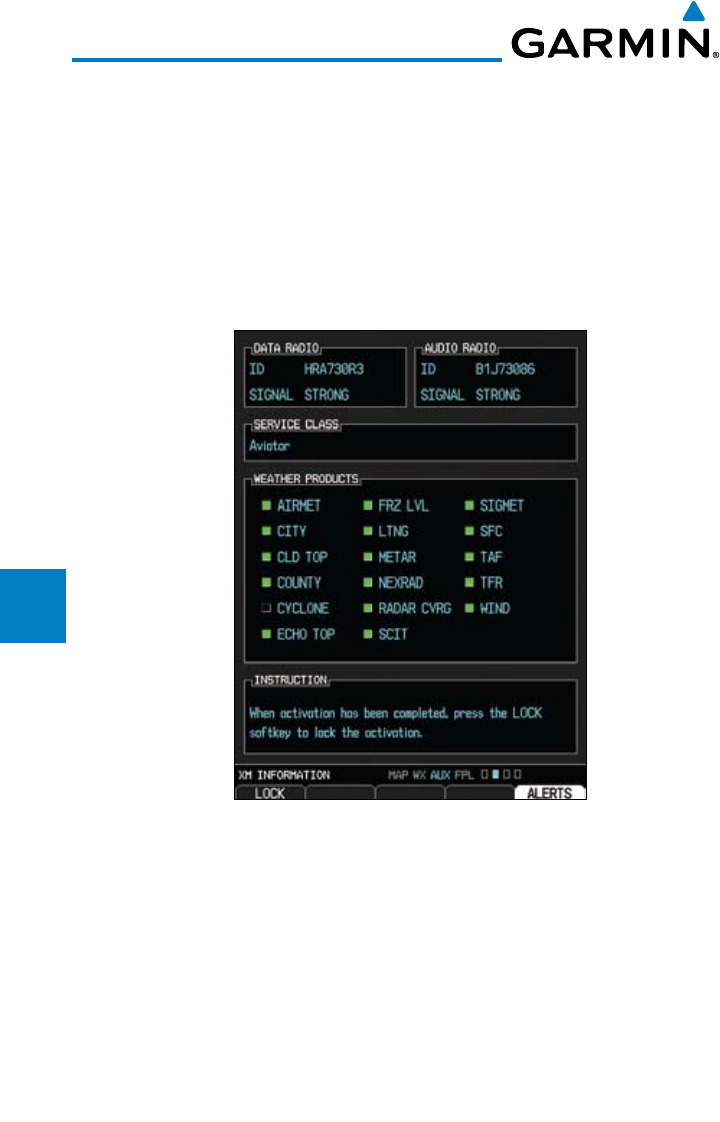
5-24
Garmin G600 Pilot’s Guide
190-00601-02 Rev. E
Foreword
Sec 1
System
Sec 2
PFD
Sec 3
MFD
Sec 4
Hazard
Avoidance
Sec 5
Additional
Features
Sec 6
Annun.
& Alerts
Sec 7
Symbols
Sec 8
GlossaryAppendix A
Appendix B
Index
5.5.2 XM® Information
The Aux mode XM Information page displays information about the XM
radios, service class, and products when the GDL 69/69A is installed and
the XM Radio service is activated. The Data and Audio radios have separate
Identification Numbers. The Service Class determines the features that are
available. The Weather Products window shows the products with a solid box to
the left of the product active with your subscription. The boxes for products not
in your subscription will be hollow.
Figure 5-18 XM Information
1) In the AUX page group, turn the small MFD knob to display XM Information.
2) The LOCK soft key is used to “lock” your XM subscription activation. This is
only used for the initial subscription or to make a change.
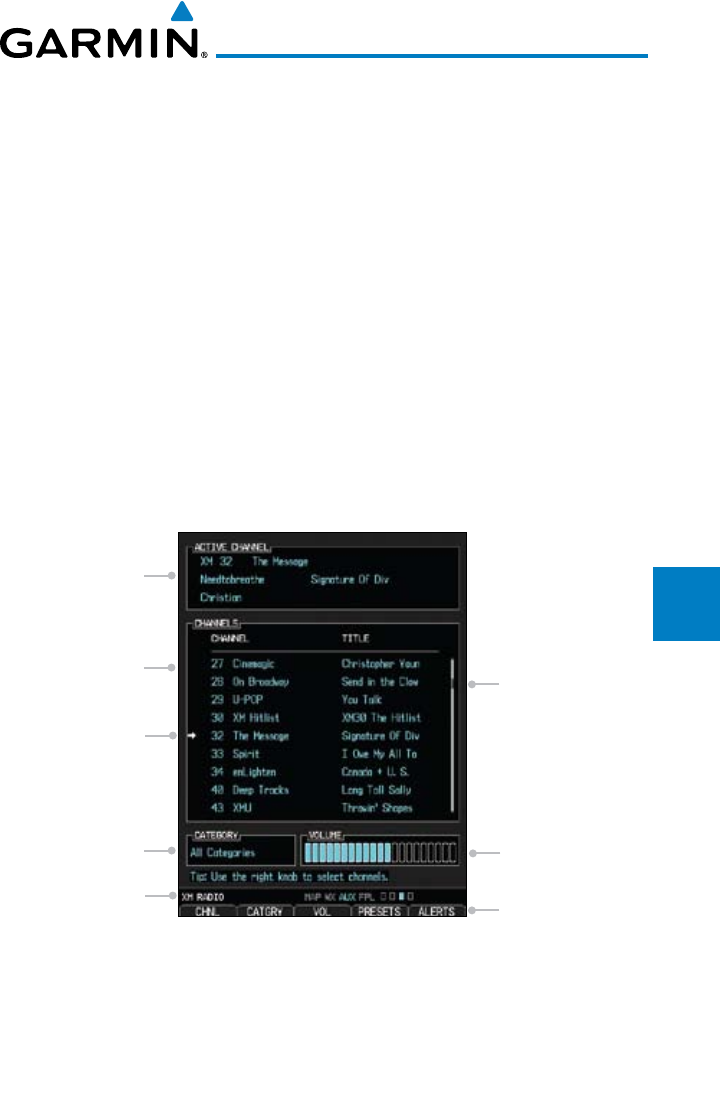
5-25190-00601-02 Rev. E
Garmin G600 Pilot’s Guide
Foreword
Sec 1
System
Sec 2
PFD
Sec 3
MFD
Sec 4
Hazard
Avoidance
Sec 5
Additional
Features
Sec 6
Annun.
& Alerts
Sec 7
Symbols
Sec 8
Glossary Appendix A
Appendix B
Index
5.5.3 XM® Entertainment Radio
Audio entertainment is available through the XM Satellite Radio Service when
activated in the optional installation of the GDL 69A. The GDU 620 serves as
the display and control head for your remotely mounted GDL 69A. XM Satellite
Radio allows you to enjoy a variety of radio programming over long distances
without having to constantly search for new stations. Based on signal from
satellites, coverage far exceeds land-based transmissions. When enabled, the XM
Satellite Radio audio entertainment is accessible in Aux page group.
The information on the XM Satellite Radio display is composed of four areas:
the Active Channel, Available Channels, Category of the highlighted channel,
and the Volume setting. The Active Channel window shows the Channel Name
and Number, Artist, Song Title, and Category.
1) Turn the large MFD knob to Aux Mode.
2) Turn the small MFD knob to the XM Radio page.
Selected Channel
Channel Scroll Bar
Active Channel
Window
Available Channel
Window
Category Window
Page Name
Volume Bar Graph
Soft Keys
Figure 5-19 XM Radio
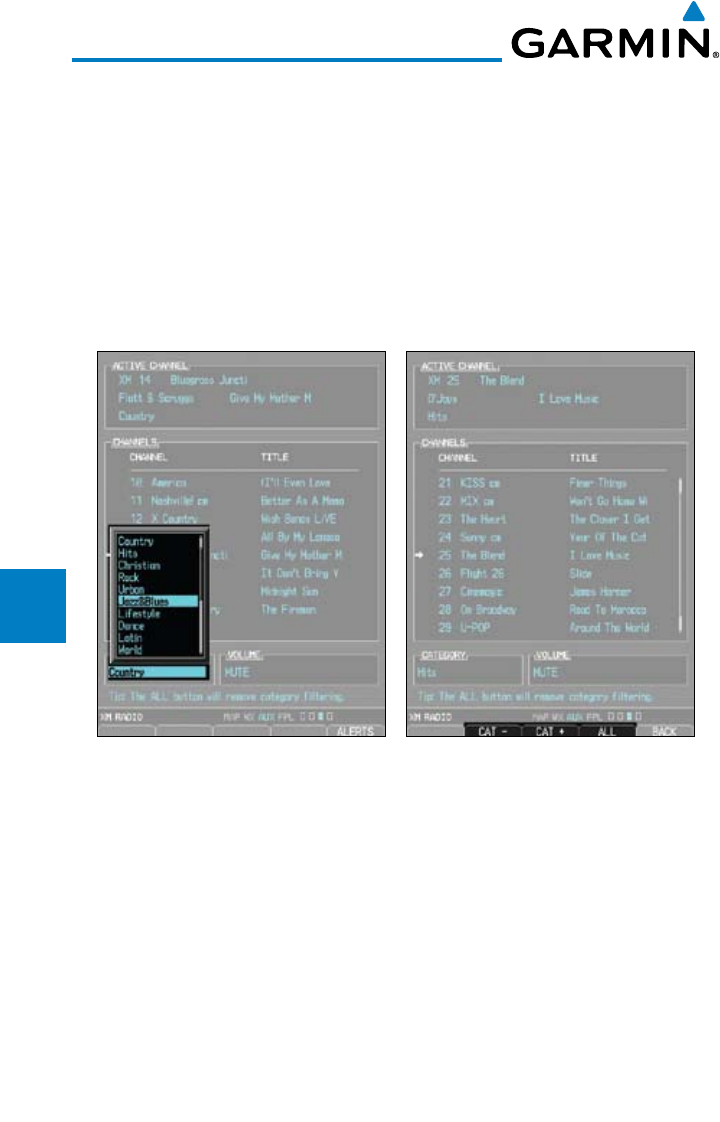
5-26
Garmin G600 Pilot’s Guide
190-00601-02 Rev. E
Foreword
Sec 1
System
Sec 2
PFD
Sec 3
MFD
Sec 4
Hazard
Avoidance
Sec 5
Additional
Features
Sec 6
Annun.
& Alerts
Sec 7
Symbols
Sec 8
GlossaryAppendix A
Appendix B
Index
5.5.3.1 Channel Categories
The Category window displays the currently selected category of audio.
Categories of channels, such as Jazz, Rock, or News, can be selected to list the
available channels for a type of music or other contents.
1) While viewing the XM Radio page of the AUX page group, press the CATGRY
soft key to activate Category selection.
2) Turn the small MFD knob to select the desired category. When the MFD knob
is turned to select a category, the soft keys will not be shown.
Figure 5-20 XM Category List Figure 5-21 XM Category Soft Keys
3) Press ENT
to display the list of channels for the highlighted category in the
Channels window.
4) Press the small MFD knob to cancel selection or to end editing.
OR
1) Press CATGRY and then the CAT + or CAT – soft keys to increment up or
down one category at a time.
2) Press ALL to show the channels for all categories. Use the large and small MFD
knobs to select desired channel.
3) Press ENT
to save the selection or press the small MFD knob to cancel
selection.
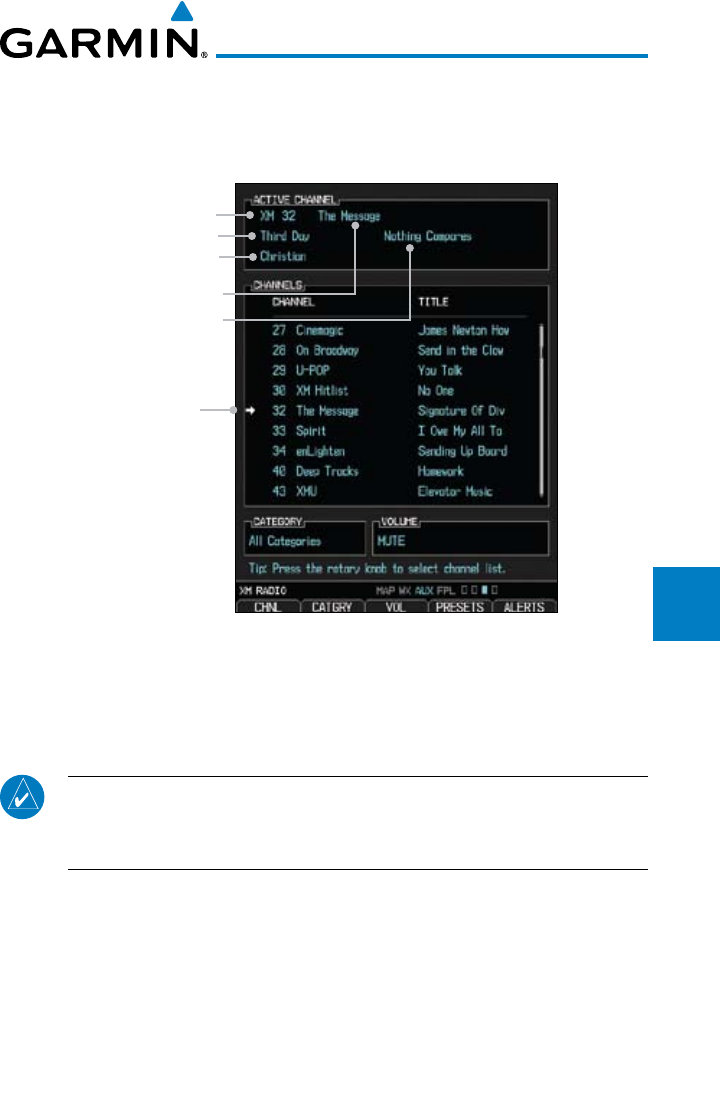
5-27190-00601-02 Rev. E
Garmin G600 Pilot’s Guide
Foreword
Sec 1
System
Sec 2
PFD
Sec 3
MFD
Sec 4
Hazard
Avoidance
Sec 5
Additional
Features
Sec 6
Annun.
& Alerts
Sec 7
Symbols
Sec 8
Glossary Appendix A
Appendix B
Index
5.5.3.2 Selecting an XM® Radio Channel
The Channel feature is used to navigate through the channels in the selected
category.
New Selected Channel
Active Channel Name
Active Channel Number
Artist Name
Song Title
Category
Figure 5-22 XM Channel Selection
1) While viewing the XM Radio page of the AUX page group, press the small MFD
knob and then turn the small MFD knob to select the desired channel.
2) Press ENT
to make the highlighted channel the Active Channel.
NOTE: A delay of several seconds may occur when selecting a channel.
The listed title may end before the radio begins playing the current Active
Channel material.
3) Press the small MFD knob to cancel selection or to end editing.
OR
4) Press CHNL and then the CH + or CH – soft keys to increment up or down one
channel at a time in the active category.
OR
5) Press CHNL and then the DIR CH soft key to directly select a channel in the
active category. Use the large and small MFD knobs to select desired channel.
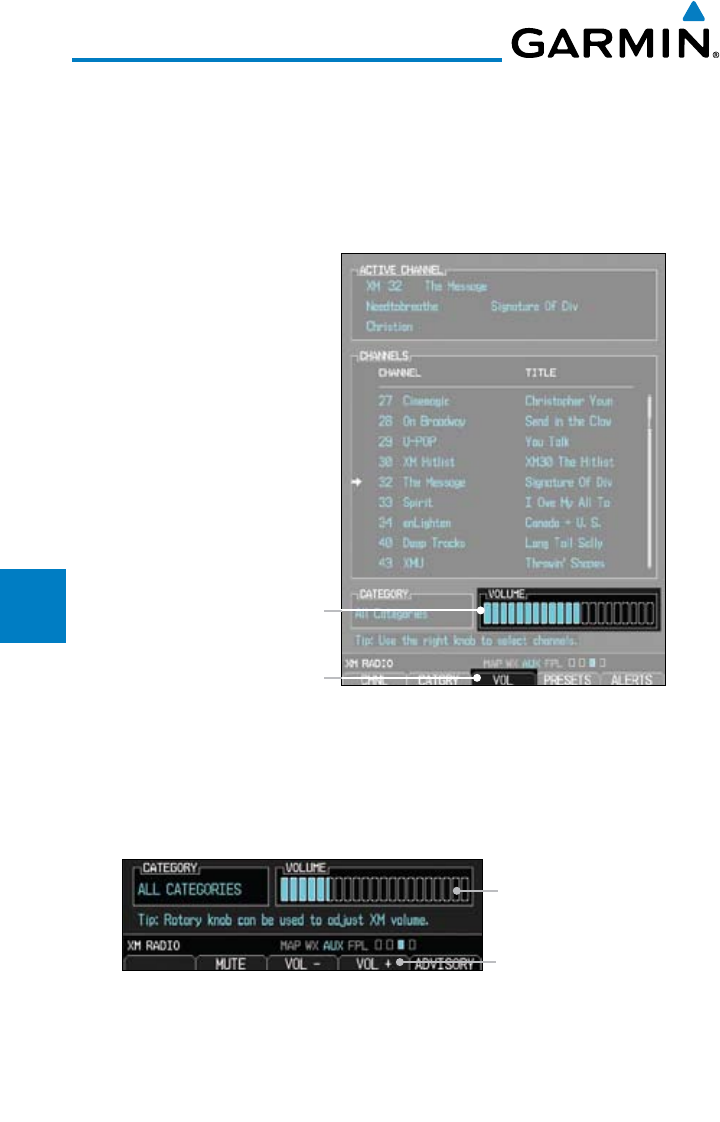
5-28
Garmin G600 Pilot’s Guide
190-00601-02 Rev. E
Foreword
Sec 1
System
Sec 2
PFD
Sec 3
MFD
Sec 4
Hazard
Avoidance
Sec 5
Additional
Features
Sec 6
Annun.
& Alerts
Sec 7
Symbols
Sec 8
GlossaryAppendix A
Appendix B
Index
6) Press ENT
to save the selection or press the small MFD knob to cancel
selection.
5.5.3.3 XM® Radio Volume
The Volume control allows you to set the audio volume level, as well as mute
the audio.
Volume Bar Graph
Volume Soft Key Label
Figure 5-23 XM Radio Volume Setting
1. While viewing the XM Radio page of the AUX page group, press the VOL soft
key.
2. Press the VOL + or VOL – soft keys, or turn the small MFD knob, to adjust the
radio volume.
Volume Bar Graph
Volume Soft Key Labels
Figure 5-24 XM Radio Volume Controls
3) Press MUTE to mute the radio volume.
4) Press MUTE again or the VOL + or VOL – soft keys to unmute the radio
volume.
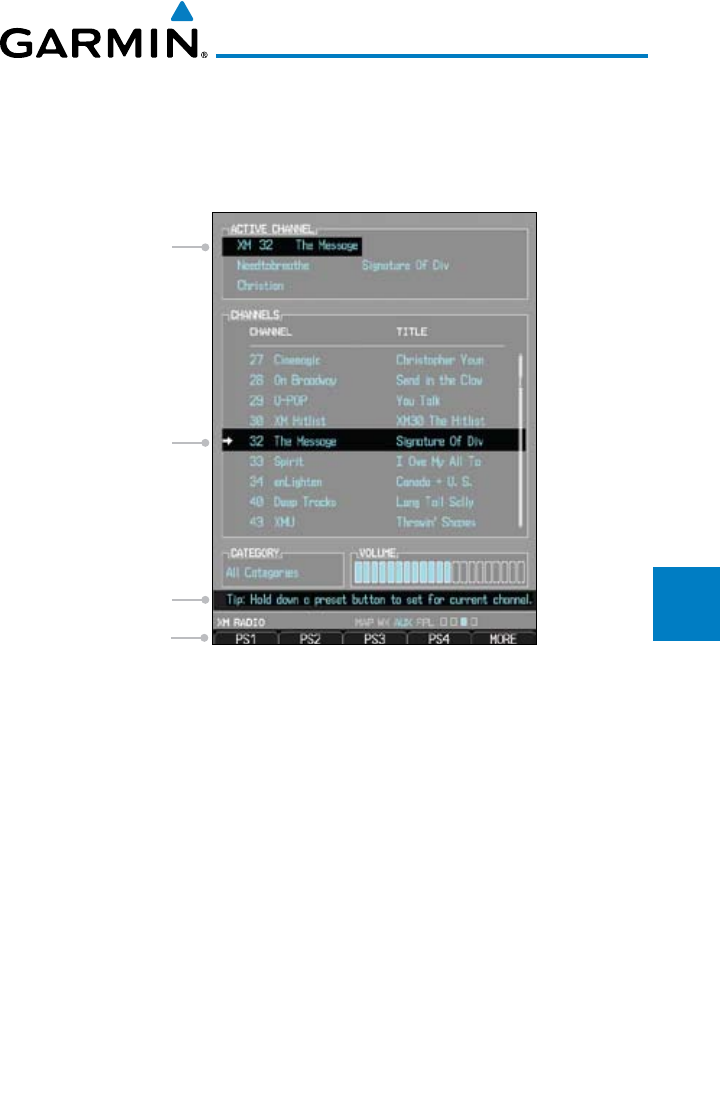
5-29190-00601-02 Rev. E
Garmin G600 Pilot’s Guide
Foreword
Sec 1
System
Sec 2
PFD
Sec 3
MFD
Sec 4
Hazard
Avoidance
Sec 5
Additional
Features
Sec 6
Annun.
& Alerts
Sec 7
Symbols
Sec 8
Glossary Appendix A
Appendix B
Index
5.5.3.4 XM® Radio Channel Presets
The PRESET soft key allows you to store the Active Channel into a selected
preset position for easy later recall. A delay of several seconds can occur when
setting or recalling a preset.
Preset Soft Keys
Feature Tip
Active Channel
and Song Title
Active Channel
Number and Name
Figure 5-25 XM Radio Presets
Setting a Preset
1) While viewing the XM Radio page of the AUX page group, you may set a preset
for the Active Channel. Press the PRESETS soft key.
2) Press and hold a preset soft key, such as PS1.
3) Press the MORE soft key to display the next series of presets.
Recalling a Preset
1) While viewing the XM Radio page of the AUX page group, press the PRESETS
soft key.
2) Press the preset soft key for the desired stored channel, such as PS1.
3) Press the MORE soft key to display the next series of presets.
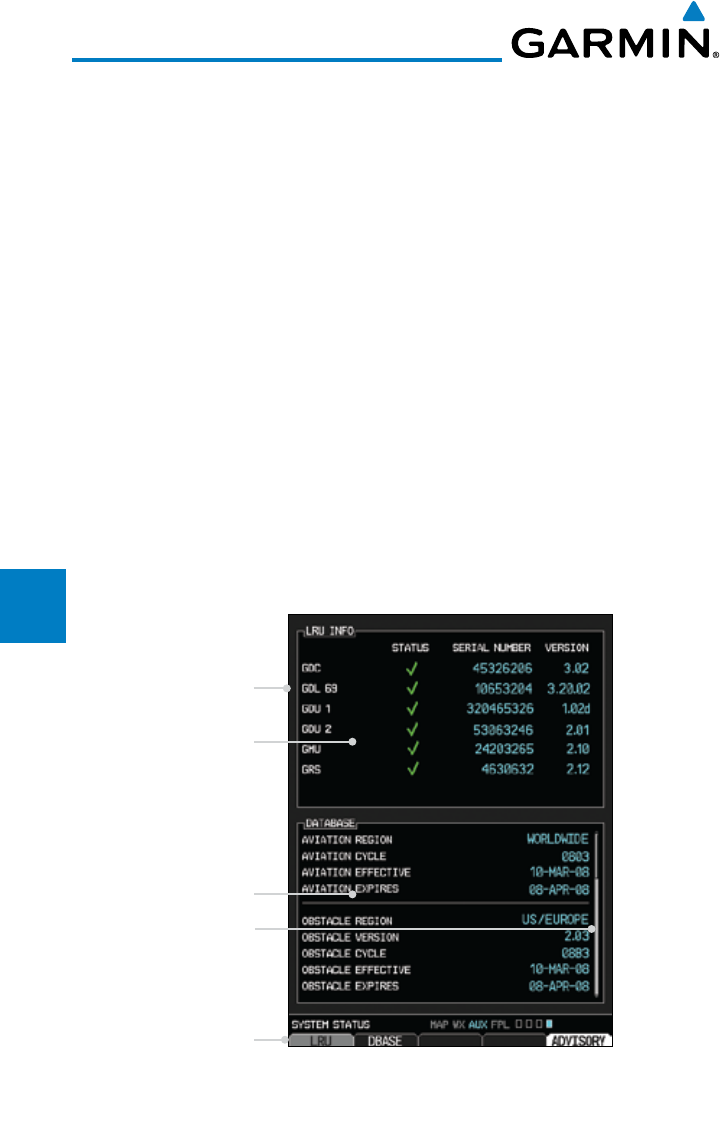
5-30
Garmin G600 Pilot’s Guide
190-00601-02 Rev. E
Foreword
Sec 1
System
Sec 2
PFD
Sec 3
MFD
Sec 4
Hazard
Avoidance
Sec 5
Additional
Features
Sec 6
Annun.
& Alerts
Sec 7
Symbols
Sec 8
GlossaryAppendix A
Appendix B
Index
5.5.4 GDL 69/69A Data Link Receiver
Troubleshooting
Some quick troubleshooting steps listed below can be performed to find the
possible cause of a failure.
• Ensuretheowner/operatoroftheaircraftinwhichtheDataLinkReceiveris
installed has subscribed to XM
• EnsuretheXM subscription has been activated
• Performaquickcheckofthecircuitbreakerstoensurethatpowerisapplied
to the Data Link Receiver
For troubleshooting purposes, check the LRU Information Box on the AUX -
System Status Page for Data Link Receiver (GDL 69/69A) status, serial number,
and software version number. If a failure has been detected in the GDL 69/69A
the status will be marked with a red “X.”
1) Turn the large MFD knob to select the AUX Page Group.
2) Turn the small MFD knob to select the System Status Page (the last page in the
AUX Page Group).
GDL 69 Status OK
LRU Info Window
Database Window
LRU or DBASE Selection
Scroll Bar for More Items
Figure 5-26 LRU Status Window
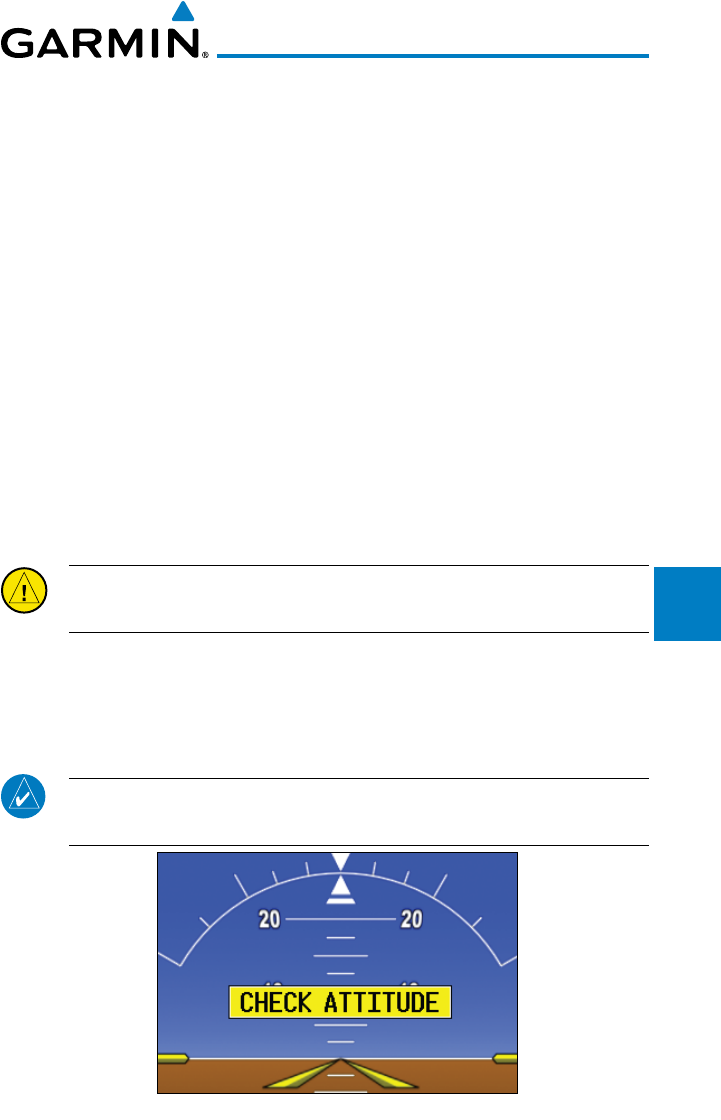
5-31190-00601-02 Rev. E
Garmin G600 Pilot’s Guide
Foreword
Sec 1
System
Sec 2
PFD
Sec 3
MFD
Sec 4
Hazard
Avoidance
Sec 5
Additional
Features
Sec 6
Annun.
& Alerts
Sec 7
Symbols
Sec 8
Glossary Appendix A
Appendix B
Index
5.6 Autopilot Operation
The G600 is able to interface to certain autopilot systems to provide heading,
course, and navigation information in much the same way as a typical HSI.
Please refer to your particular autopilot manual for specific information and
operation instructions.
5.6.1 Autopilot Test
The GAD 43 Adapter provides attitude and heading information from the
Garmin GRS 77 Attitude and Heading Reference System to the autopilot. The
GAD 43 has the ability to disconnect the autopilot if an error in the GAD 43
output or GRS 77 is detected. This disconnect mechanism must be tested prior
to each flight in the following manner:
1. Upon GDU 620 startup, the AP TEST soft key is available on the GDU 620
PFD.
2. Engage the AP while on the ground.
3. Press the AP TEST soft key and verify that the autopilot disconnects normally.
CAUTION: Do not use the autopilot if the AP TEST does not disengage
the autopilot normally.
Autopilot Disconnect
When the GDU 620 attitude monitors have detected an AHRS malfunction,
or the inability to actively monitor the AHRS, a “Check Attitude” annunciation
will be displayed on the PFD and the autopilot will automatically disconnect.
NOTE: Only appears with the installation of an optional GAD 43
Adapter.
Figure 5-27 - Check Attitude - Autopilot Automatically Disconnected
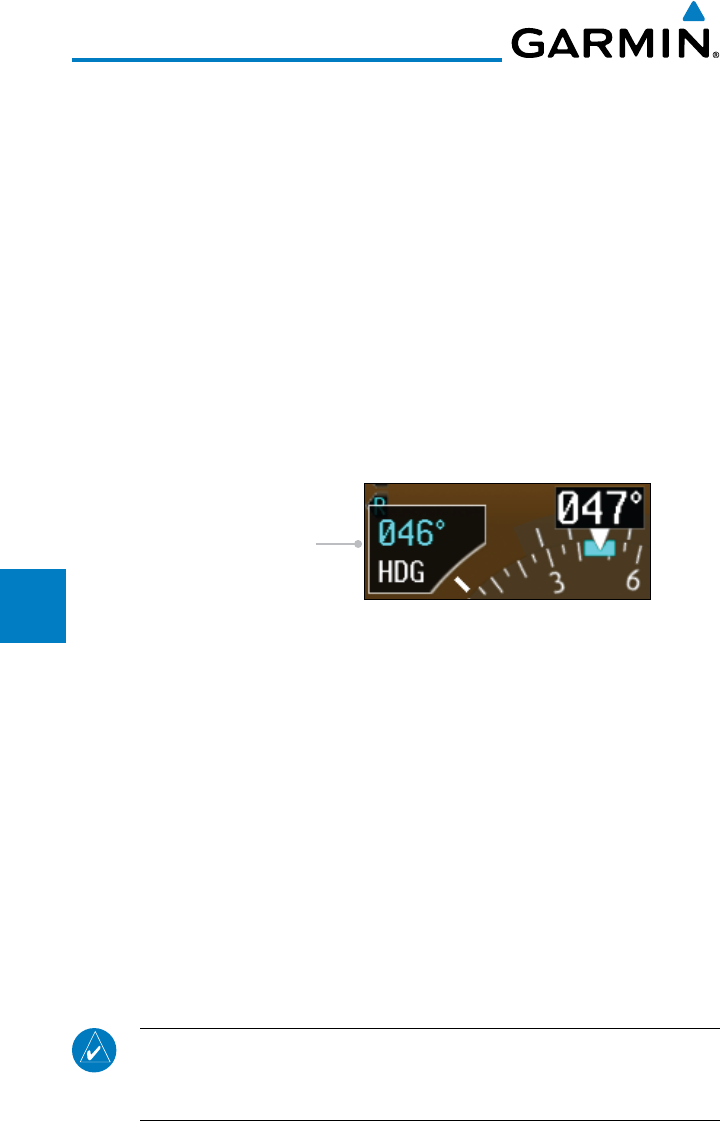
5-32
Garmin G600 Pilot’s Guide
190-00601-02 Rev. E
Foreword
Sec 1
System
Sec 2
PFD
Sec 3
MFD
Sec 4
Hazard
Avoidance
Sec 5
Additional
Features
Sec 6
Annun.
& Alerts
Sec 7
Symbols
Sec 8
GlossaryAppendix A
Appendix B
Index
Fly the aircraft manually and crosscheck the GDU 620 attitude indication
with the standby attitude indicator and other sources of attitude information
(airspeed, heading, altitude, etc.).
5.6.2 Heading
You are able to control your selected autopilot heading with the GDU 620 by
using the heading bug.
1) Press the HDG key on the PFD and turn the PFD knob to set the desired
heading. When the PFD knob is turned, the Selected Heading box will appear
and remain for three seconds after the knob stops moving.
2) Engage your autopilot in Heading Hold mode.
3) Continue to control your selected autopilot heading by adjusting the heading
bug.
Selected Heading Box
Figure 5-28 Adjusting the Heading Bug
5.6.3 Altitude Capture (Optional Interface)
The altitude selector function is a separately purchased option which works
with the autopilot. At the set altitude, the autopilot will go from a Vertical Speed
Mode (a climb or descent) to an Altitude Capture mode where it will hold the
selected altitude.
1) Select the desired altitude on the GDU 620 by pressing the ALT key and rotating
the PFD knob so the Altitude bug is at the desired altitude.
2) Engage the autopilot in altitude capture mode and select the desired vertical
speed (if able) on the autopilot controller.
3) The autopilot will command a climb or descent at the selected vertical speed
(on the autopilot controller) and capture the selected altitude.
NOTE: The selected Vertical Speed bug on the GDU 620 will not control
the autopilot vertical speed. The autopilot vertical speed must be selected
directly on the autopilot controller.
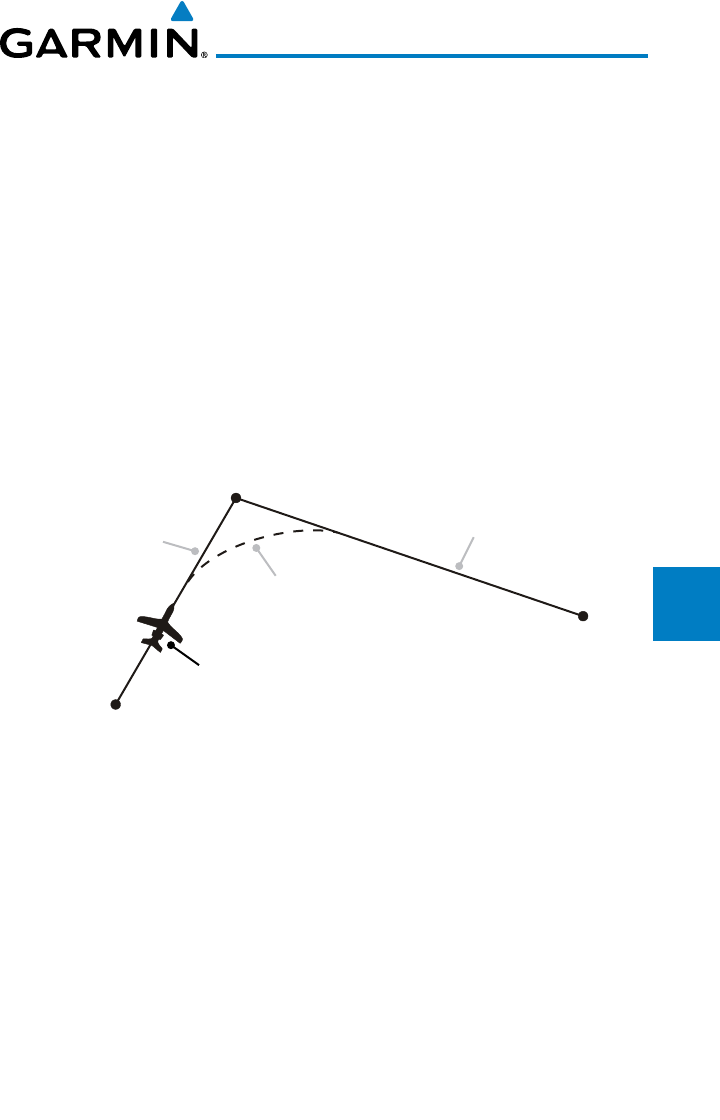
5-33190-00601-02 Rev. E
Garmin G600 Pilot’s Guide
Foreword
Sec 1
System
Sec 2
PFD
Sec 3
MFD
Sec 4
Hazard
Avoidance
Sec 5
Additional
Features
Sec 6
Annun.
& Alerts
Sec 7
Symbols
Sec 8
Glossary Appendix A
Appendix B
Index
5.6.4 Autopilot Navigation
1) Set your navigation source and HSI to the desired course.
2) Engage your autopilot in navigation mode.
3) Control your autopilot navigation through the navigation source and the HSI.
5.6.4.1 Autopilot Operation with GPSS Enabled Autopilots
The GDU 620 processes GPSS information and sends it to the autopilot to
allow the aircraft to anticipate turns and make smooth transitions when passing
waypoints.
1) Set your navigation source and HSI to the desired GPS course.
2) Engage your autopilot in GPSS navigation mode.
3) Control your autopilot navigation through the navigation source and HSI.
Wpt 1
Wpt 2
Wpt 3
Aircraft
Present
Position
Flight Plan Leg 1 Flight Plan Leg 2
Turn
Anticipation
Curve
Figure 5-29 GPSS Turn Anticipation
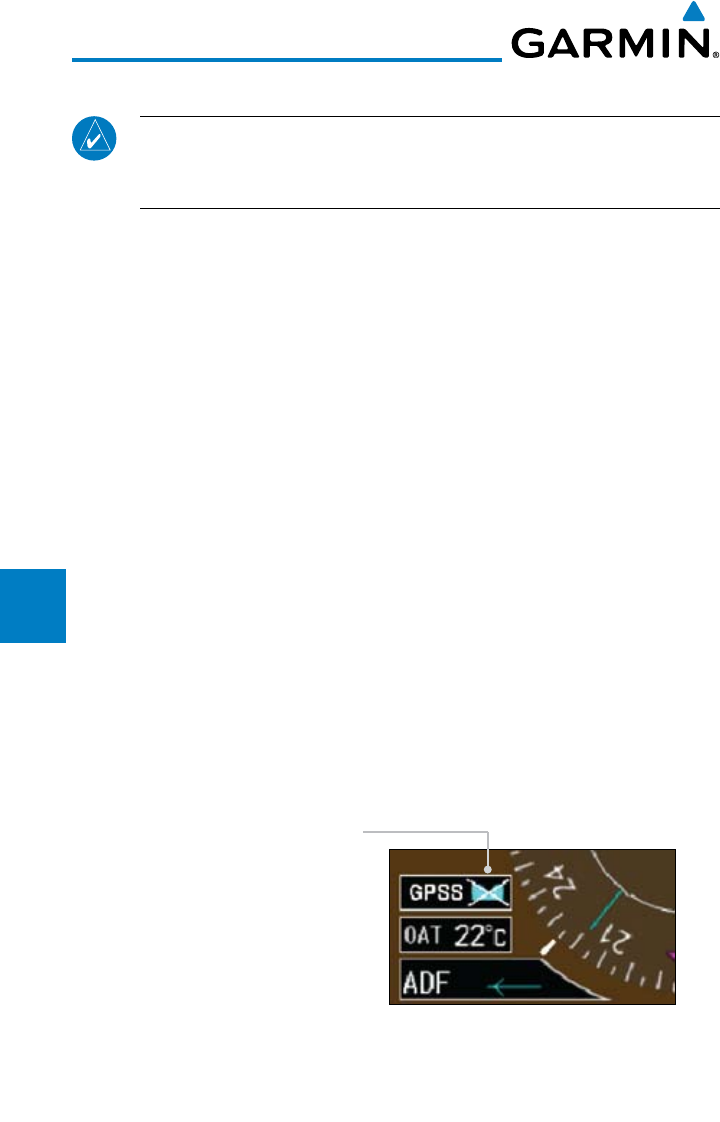
5-34
Garmin G600 Pilot’s Guide
190-00601-02 Rev. E
Foreword
Sec 1
System
Sec 2
PFD
Sec 3
MFD
Sec 4
Hazard
Avoidance
Sec 5
Additional
Features
Sec 6
Annun.
& Alerts
Sec 7
Symbols
Sec 8
GlossaryAppendix A
Appendix B
Index
5.6.4.2 Autopilot Operation with the GDU 620 Emulating GPSS
NOTE: The GDU 620 has the ability to emulate GPSS roll steering for
autopilots that do not support GPSS. The GDU 620 emulates GPSS by
sending headings to the autopilot that guide turn anticipation.
Many autopilots do not have a GPSS mode. GPSS utilizes roll command
signals calculated by the GPS navigator and sent to the autopilot in order to
allow the aircraft to anticipate turns, make smooth transitions when passing
waypoints, and fly leg types, such as Procedure Turns and Course Reversals.
In order for GPSS to function correctly, the autopilot must have the capability
of interpreting the roll commands. In order to provide GPSS functionality for
autopilots that do not support roll commands, the GDU 620 has the capability
to emulate GPSS commands by continually changing the selected heading data
sent to the autopilot.
GPSS emulation functionality in the GDU 620 is controlled by an optional
external Autopilot Heading Datum switch. When GPSS emulation is active on
the GDU 620, the HSI heading bug does not control the autopilot. Instead, the
GDU 620 processes heading information and sends it to the autopilot to emulate
what GPSS would normally do. The GPSS/Heading bug inactive annunciation
in the lower left corner of the PFD reminds the pilot that the heading bug is not
controlling the autopilot.
1) Select GPS navigation on the HSI.
2) Set the HSI to the desired course (if in OBS mode).
3) Set the optionally installed Autopilot Heading Datum switch to GPSS.
Heading Bug Inactive Indication
Figure 5-30 GPSS Emulation Indication
4) Engage your autopilot in Heading mode.
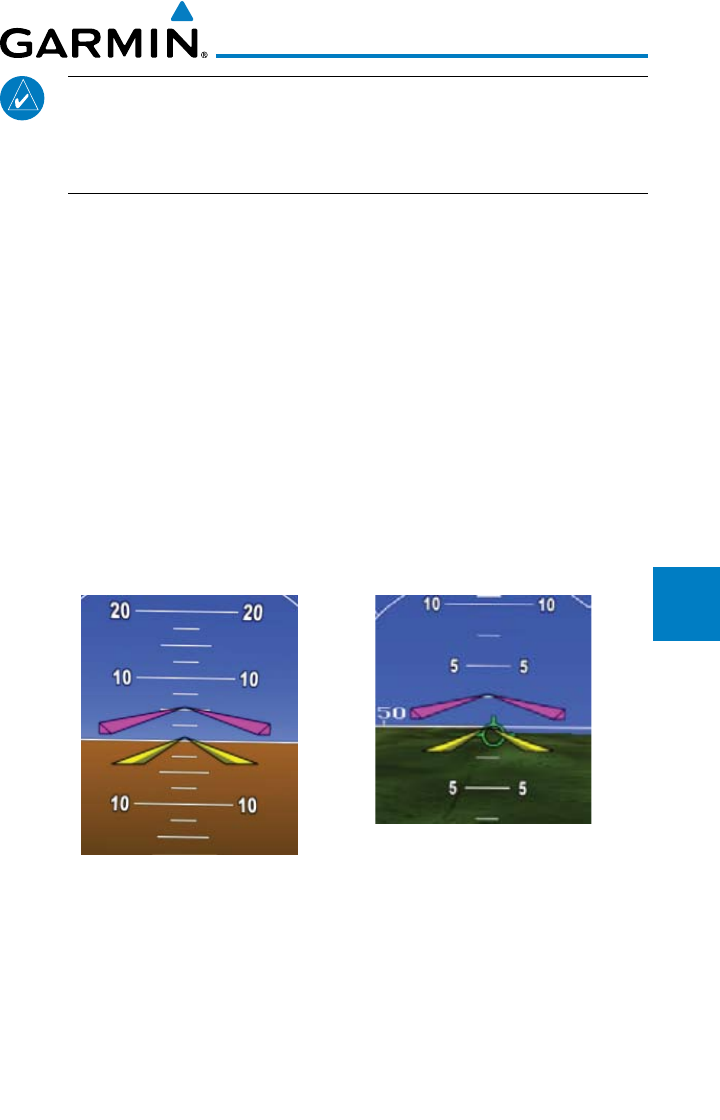
5-35190-00601-02 Rev. E
Garmin G600 Pilot’s Guide
Foreword
Sec 1
System
Sec 2
PFD
Sec 3
MFD
Sec 4
Hazard
Avoidance
Sec 5
Additional
Features
Sec 6
Annun.
& Alerts
Sec 7
Symbols
Sec 8
Glossary Appendix A
Appendix B
Index
NOTE: With GPSS engaged and in Heading mode, the Heading bug will
not control your autopilot heading. This is annunciated next to the HSI by
the GPSS annunciation. The Heading bug may still be used for reference,
but the autopilot will not control the aircraft via the heading bug.
5.6.5 Flight Director Display
If autopilot flight director commands are interfaced to the G600, they will be
presented as a single cue flight director on the PFD. Control of the flight director
is accomplished via the autopilot/flight director controller; there are no pilot
controls or adjustments for the flight director on the G600.
The G600 system limits the distance the flight director pitch commands may
deviate from the aircraft attitude icon. In the event that the pitch command
provided by the autopilot flight director is greater than the distance allowed by
the G600, the command bars will be displayed at the maximum distance allowed
by the G600. As the aircraft pitch changes to satisfy the command bars, the bars
will continue to be displayed at the maximum distance from the aircraft attitude
icon until the aircraft pitch deviation is within the command display limit.
SVT Off SVT On
Figure 5-31 Flight Director Bars Showing Aircraft Pitch
5-36
Garmin G600 Pilot’s Guide
190-00601-02 Rev. E
Foreword
Sec 1
System
Sec 2
PFD
Sec 3
MFD
Sec 4
Hazard
Avoidance
Sec 5
Additional
Features
Sec 6
Annun.
& Alerts
Sec 7
Symbols
Sec 8
GlossaryAppendix A
Appendix B
Index
5.7 Synthetic Vision Technology (Optional) (SVT™)
The optional Synthetic Vision Technology (SVT™) is a visual enhancement
to the G600. SVT is displayed as a forward-looking display of the topography
immediately in front of the aircraft. SVT information is shown on the primary
flight display (PFD). The depicted imagery is derived from the aircraft attitude,
heading, GPS three-dimensional position, and a database of terrain, obstacles,
and other relevant features.
The following SVT enhancements appear on the PFD:
• FlightPathMarker
• HorizonHeading Marks
• TrafcDisplay
• AirportSigns
• RunwayDisplay
• TerrainAlerting
• ObstacleAlerting
• Water
• Zero-PitchLine
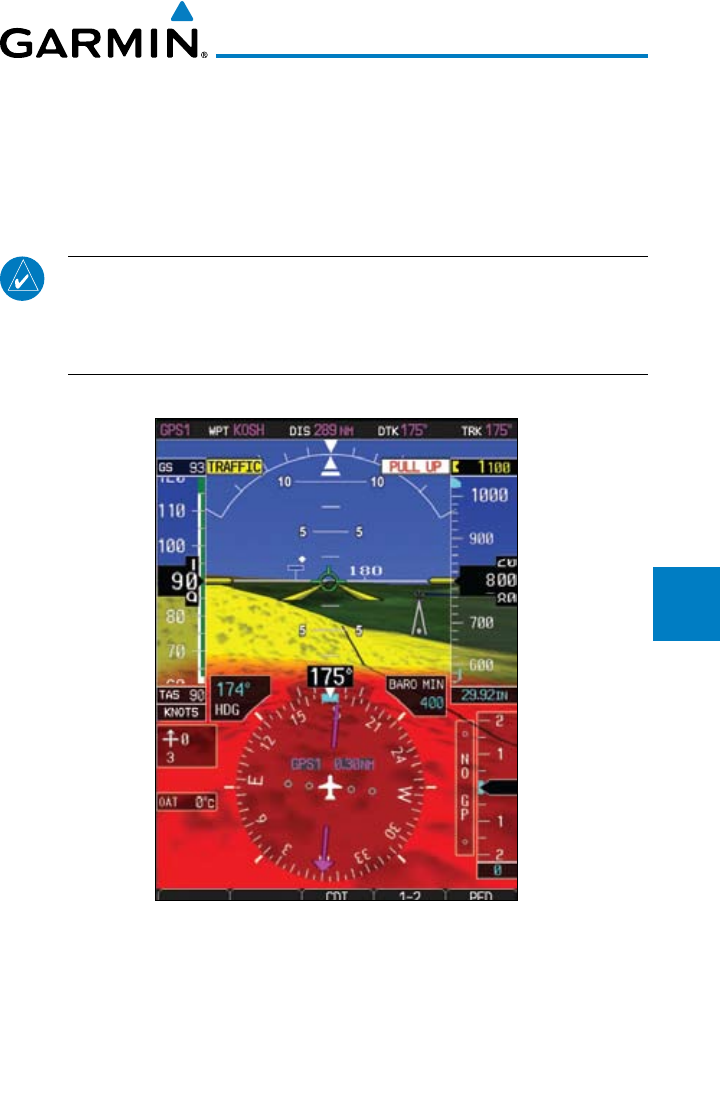
5-37190-00601-02 Rev. E
Garmin G600 Pilot’s Guide
Foreword
Sec 1
System
Sec 2
PFD
Sec 3
MFD
Sec 4
Hazard
Avoidance
Sec 5
Additional
Features
Sec 6
Annun.
& Alerts
Sec 7
Symbols
Sec 8
Glossary Appendix A
Appendix B
Index
Optional Terrain Awareness and Warning System (TAWS) or standard Terrain
- SVT is integrated within SVT to provide visual and audible alerts to indicate
the presence of terrain threats relative to the projected flight path. In addition to
the standard TAWS or Terrain - SVT alerts, SVT offers a three-dimensional view
of terrain and obstacles. Terrain and/or obstacles that pose a threat to the aircraft
in flight are shaded yellow or red.
NOTE: SVT will become disabled if the databases necessary to display SVT
are unavailable (generating a GDU DB ERR or SVT DISABLED alert) or AHRS
or GPS data is unavailable. SVT may be restored once the fail conditions are
removed by reactivating SVT as explained in the SVT Operation section.
Figure 5-32 Synthetic Vision Imagery - PFD
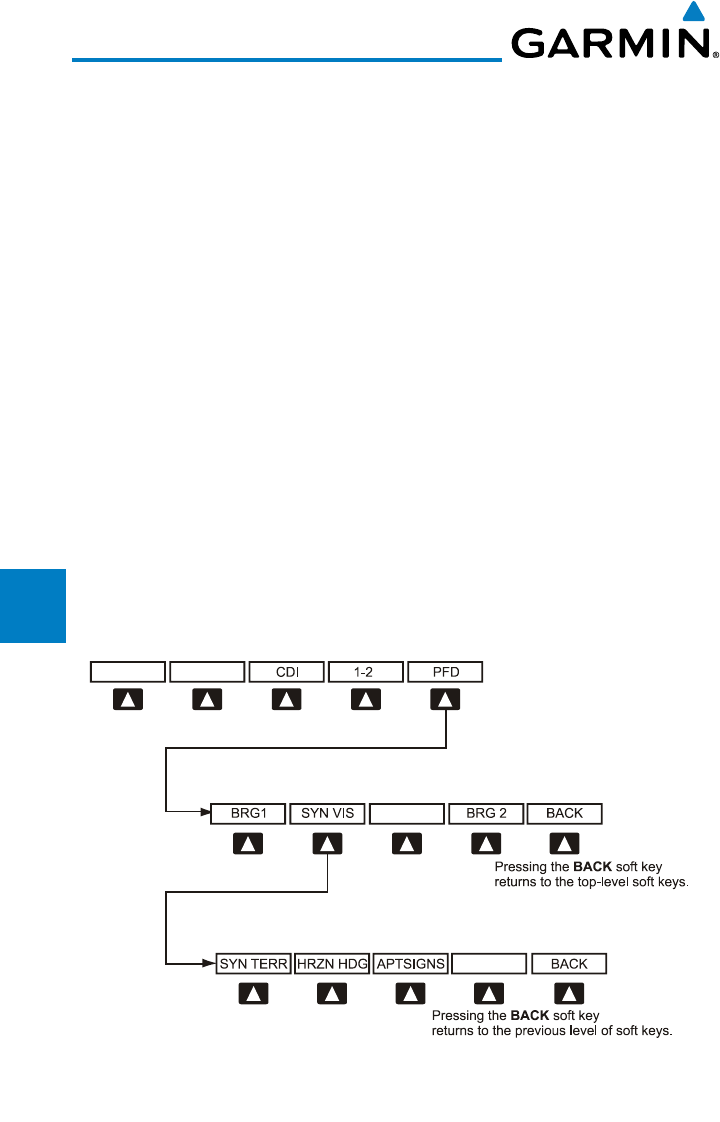
5-38
Garmin G600 Pilot’s Guide
190-00601-02 Rev. E
Foreword
Sec 1
System
Sec 2
PFD
Sec 3
MFD
Sec 4
Hazard
Avoidance
Sec 5
Additional
Features
Sec 6
Annun.
& Alerts
Sec 7
Symbols
Sec 8
GlossaryAppendix A
Appendix B
Index
5.7.1 SVT™ Operation
SVT™ is activated from the PFD using the soft keys located along the bottom
edge of the display. Pressing the soft keys turn the related function on or off.
SVT functions are displayed on three levels of soft keys. The PFD soft key
leads into the PFD function soft keys, including synthetic vision. Pressing the
SYN VIS soft key enables synthetic vision and displays the SYN TERR, HRZN
HDG, and APTSIGNS soft keys. The BACK soft key returns to the previous
level of soft keys.
HRZN and APTSIGNS soft keys are dependent upon the state of the SYN
TERR soft key. When Synthetic Terrain is deactivated, the SYN TERR soft
key appears illuminated while the remaining SVT soft keys are unavailable for
selection and subdued (black with dark-gray characters). If Synthetic Terrain
is deactivated, all other SVT features are also deactivated. With Synthetic
Terrain activated, all other SVT features may be turned on or off at the pilot’s
discretion.
• SYNTERRsoftkeyenablessyntheticterraindepiction.
• HRZNHDGsoftkeyenablehorizonheading marks and digits.
• APTSIGNSsoftkeyenablesairportsignposts.
Figure 5-33 SVT Soft Keys
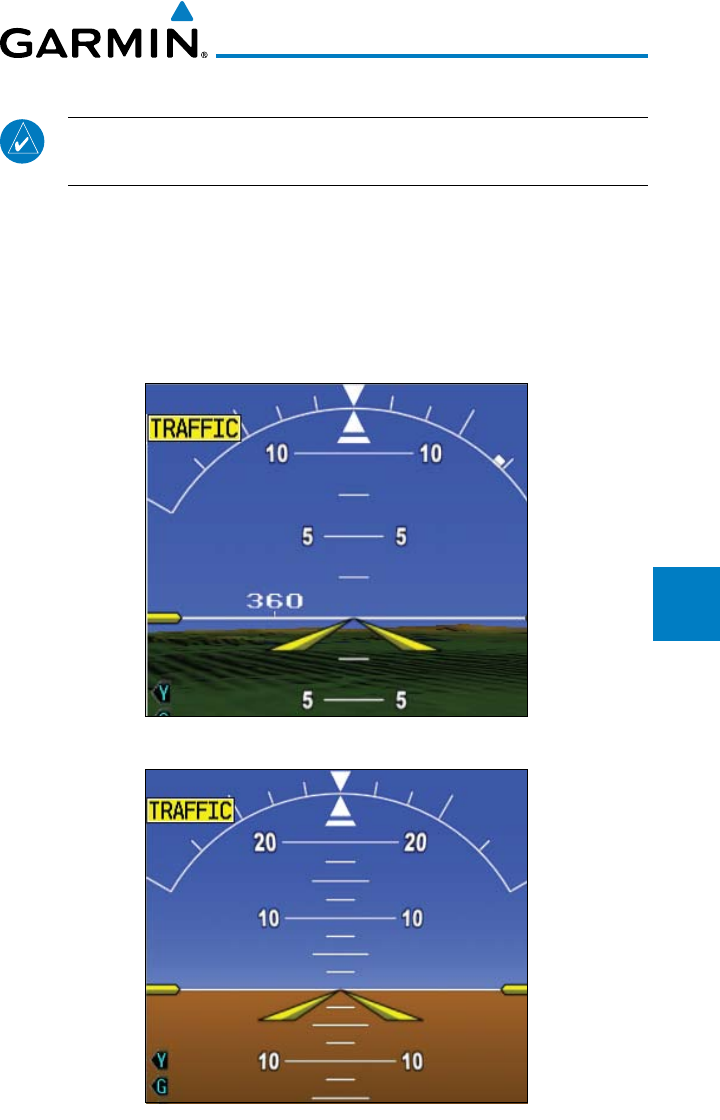
5-39190-00601-02 Rev. E
Garmin G600 Pilot’s Guide
Foreword
Sec 1
System
Sec 2
PFD
Sec 3
MFD
Sec 4
Hazard
Avoidance
Sec 5
Additional
Features
Sec 6
Annun.
& Alerts
Sec 7
Symbols
Sec 8
Glossary Appendix A
Appendix B
Index
5.7.2 Activating and Deactivating SVT™
NOTE: In some instances, such as temporary loss of GPS signal, the SVT
functionality will be disabled.
To enable SVT:
1) Press the PFD soft key.
2) Press the SYN VIS soft key.
3) Press the SYN TERR soft key to view the SVT™ display.
When SVT™ is enabled, the pitch ladder will display a different pitch scale.
Figure 5-34 Pitch Scale with SVT Enabled
Figure 5-35 Pitch Scale with SVT Disabled
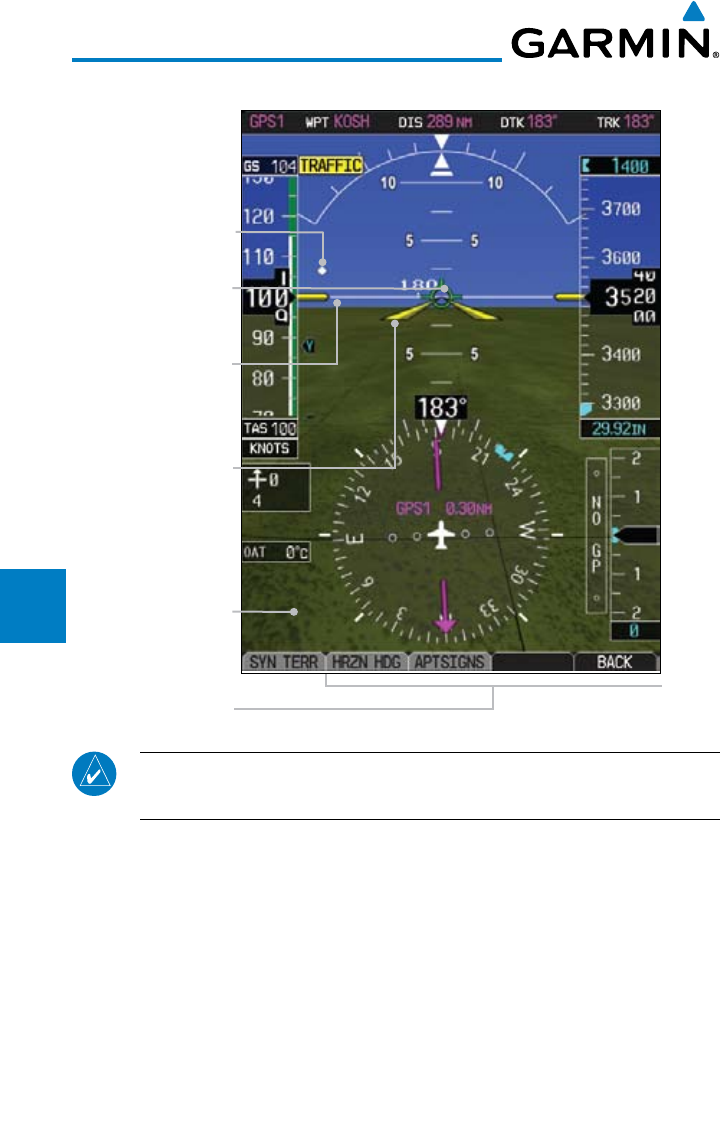
5-40
Garmin G600 Pilot’s Guide
190-00601-02 Rev. E
Foreword
Sec 1
System
Sec 2
PFD
Sec 3
MFD
Sec 4
Hazard
Avoidance
Sec 5
Additional
Features
Sec 6
Annun.
& Alerts
Sec 7
Symbols
Sec 8
GlossaryAppendix A
Appendix B
Index
5.7.3 SVT™ Features
Flight Path Marker
Aircraft Symbol
Zero-Pitch Line
(ZPL) with Horizon
Heading Marks
SVT Soft Keys
Traffic
Synthetic Terrain
Figure 5-36 SVT on Primary Flight Display
NOTE: SVT features are not a substitute for standard course and altitude
deviation information using the CDI, VSI, and VDI presentations.
5.7.3.1 Flight Path Marker (FPM)
The Flight Path Marker is also known as a Velocity Vector. It is displayed
on the PFD at ground speeds above 30 knots. The FPM depicts approximate
projected path of the aircraft accounting for wind speed and direction relative to
the three-dimensional display.
5.7.3.2 Zero-Pitch Line
The Zero-Pitch Line is drawn completely across the display and represents
the aircraft attitude with respect to the horizon. It is not necessarily aligned with
the terrain horizon, particularly when the terrain is sloped or mountainous.
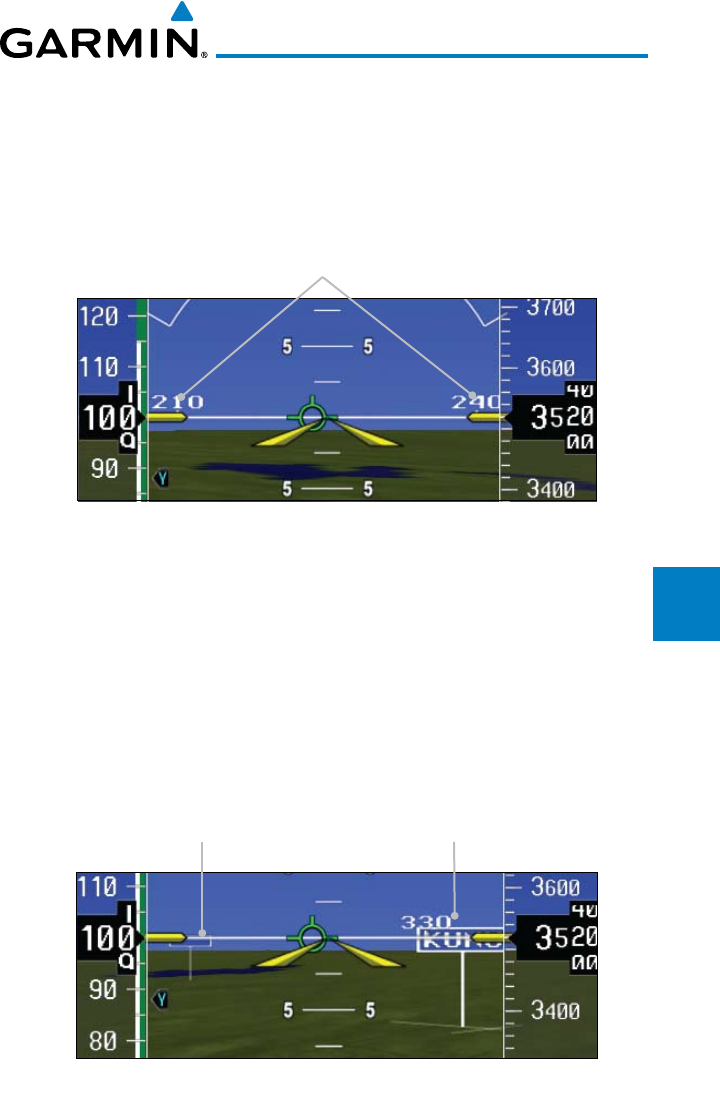
5-41190-00601-02 Rev. E
Garmin G600 Pilot’s Guide
Foreword
Sec 1
System
Sec 2
PFD
Sec 3
MFD
Sec 4
Hazard
Avoidance
Sec 5
Additional
Features
Sec 6
Annun.
& Alerts
Sec 7
Symbols
Sec 8
Glossary Appendix A
Appendix B
Index
5.7.3.3 Horizon Heading
The Horizon Heading is synchronized with the HSI and shows compass
headings in 30-degree increments on the Zero-Pitch Line. Horizon heading tick
marks and digits appearing on the zero-pitch line are not visible when they are
behind either the airspeed or altitude display. Horizon Heading is activated and
deactivated by pressing the HRZN HDG soft key.
Horizon Heading
Figure 5-37 Horizon Heading
5.7.3.4 Airport Signs
Airports Signs provide a visual representation of airport location and
identification on the synthetic terrain display. When activated, the signs appear
on the display when the aircraft is approximately 15 NM from an airport and
disappear at approximately 4.5 NM. Airport signs are shown without the
identifier until the aircraft is approximately 9 NM from the airport. Airport signs
are shown behind the airspeed or altitude display. Airport signs are activated and
deactivated by pressing the APT SIGNS soft key.
Airport Sign without Identifier
(Between 9 NM and 15 NM) Airport Sign with Identifier
(Between 4.5 NM and 9.0 NM)
Figure 5-38 Airport Signs
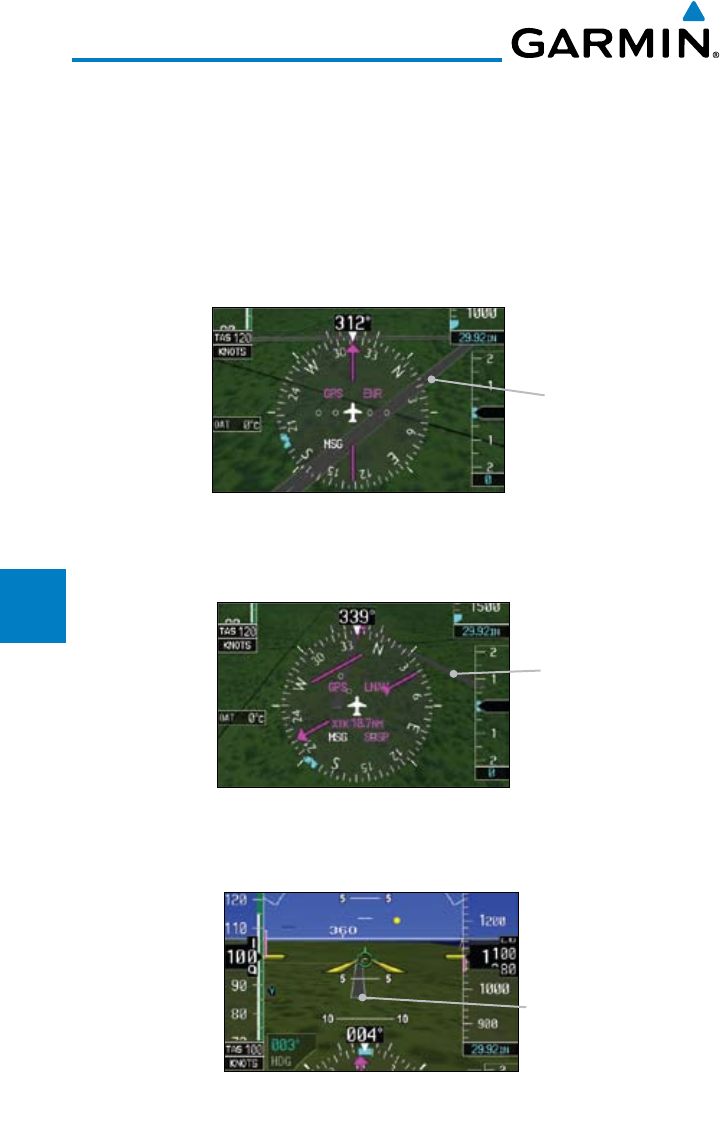
5-42
Garmin G600 Pilot’s Guide
190-00601-02 Rev. E
Foreword
Sec 1
System
Sec 2
PFD
Sec 3
MFD
Sec 4
Hazard
Avoidance
Sec 5
Additional
Features
Sec 6
Annun.
& Alerts
Sec 7
Symbols
Sec 8
GlossaryAppendix A
Appendix B
Index
5.7.3.5 Runway Depiction
Runways are shown on the PFD in various ways. Soft surface runways, such
as grass runways, are depicted in green. Hard surface runways, such as asphalt,
are depicted in gray. Your flightplan will determine how the runway is displayed
on the PFD.
Without a loaded flightplan, a runway is shown as dark gray with the
boundaries of the runway in light gray.
Runway
Figure 5-39 Depiction of Runway with a Loaded Flightplan
A runway that is not in a loaded flightplan is shown as dark gray with no
other colors.
Runway
Figure 5-40 Depiction of Runway Not in Loaded Flightplan
A runway that is associated with an approach in the loaded flightplan is
outlined with a white rectangle, with the actual runway, in that rectangle.
Runway
Figure 5-41 Depiction of Runway with Loaded Approach
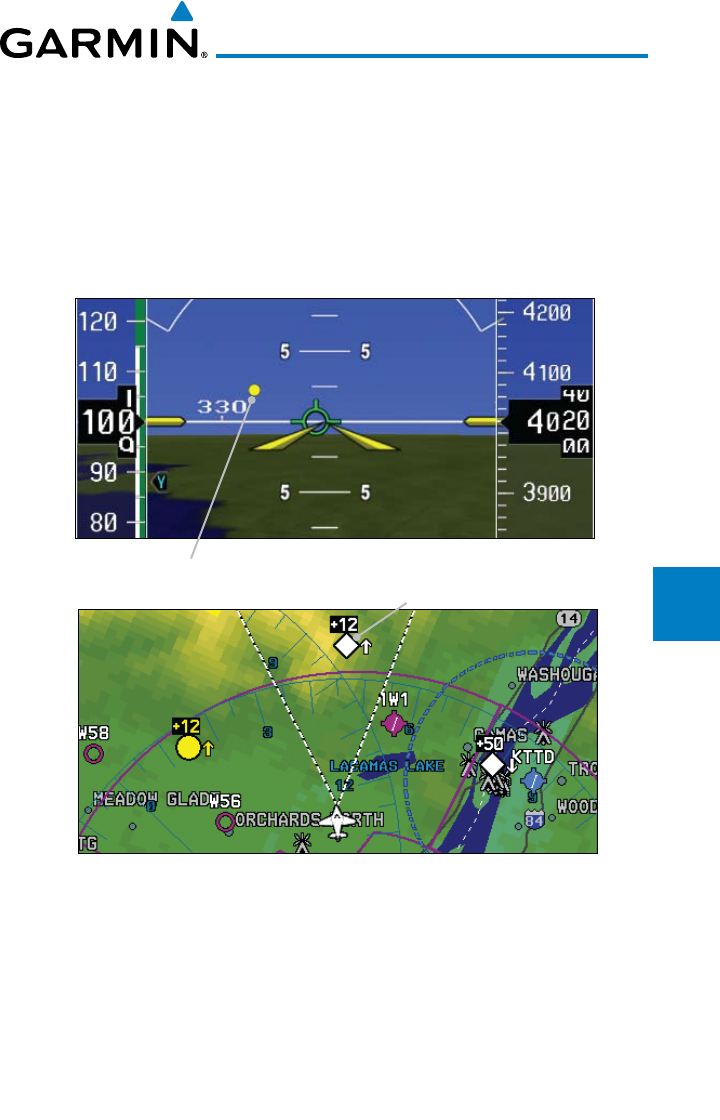
5-43190-00601-02 Rev. E
Garmin G600 Pilot’s Guide
Foreword
Sec 1
System
Sec 2
PFD
Sec 3
MFD
Sec 4
Hazard
Avoidance
Sec 5
Additional
Features
Sec 6
Annun.
& Alerts
Sec 7
Symbols
Sec 8
Glossary Appendix A
Appendix B
Index
5.7.3.6 Traffic
Traffic symbols are displayed in their approximate respective location as
determined by the related traffic systems, either TIS or TAS. Traffic is displayed
in three dimensions, appearing larger as they are getting closer, and smaller
when they are further away. Traffic symbol coloring and shaping is the same as
that used for traffic displayed in the inset moving map or MFD traffic page.
Traffic on MFD
Traffic on PFD
Figure 5-42 Traffic Depiction on PFD and MFD
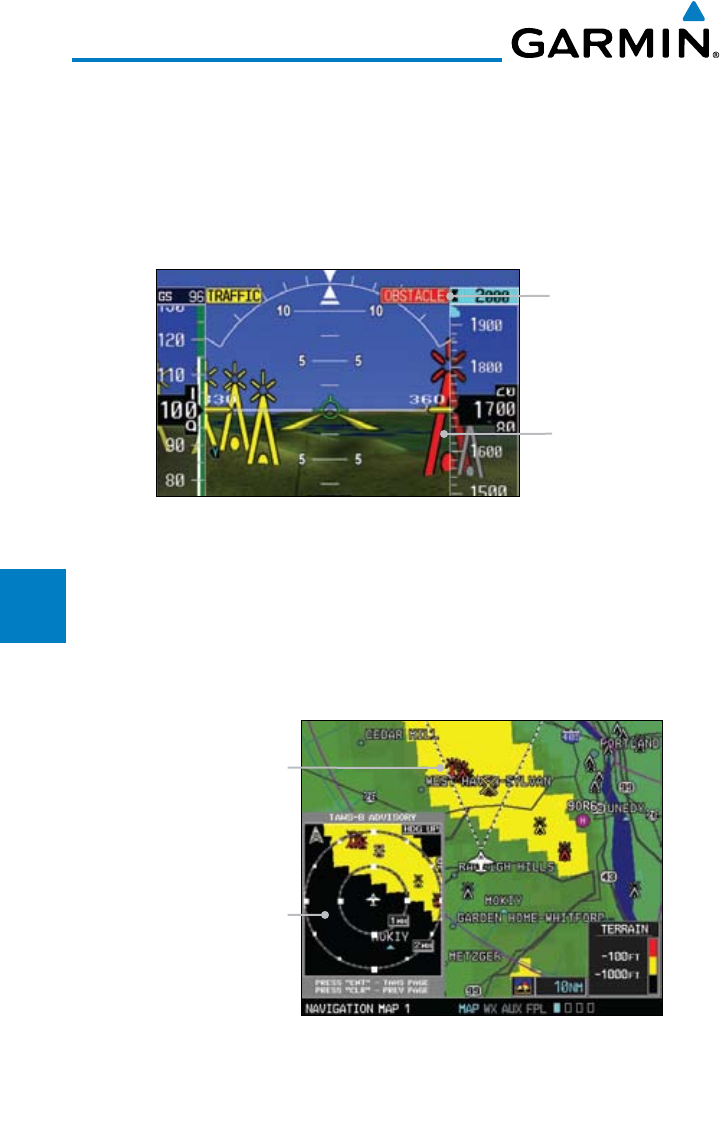
5-44
Garmin G600 Pilot’s Guide
190-00601-02 Rev. E
Foreword
Sec 1
System
Sec 2
PFD
Sec 3
MFD
Sec 4
Hazard
Avoidance
Sec 5
Additional
Features
Sec 6
Annun.
& Alerts
Sec 7
Symbols
Sec 8
GlossaryAppendix A
Appendix B
Index
5.7.3.7 Obstacles
Obstacles are represented on the synthetic display by standard two-
dimensional tower symbols found on the MFD maps and charts. Obstacle
symbols appear in the perspective view with relative height above terrain and
distance from the aircraft.
Obstacle
Obstacle Alert
Figure 5-43 Obstacle Depiction on PFD
Unlike the MFD moving map display, obstacles on the synthetic terrain
display do not change colors to warn of potential conflict with the aircraft’s flight
path until the obstacle is associated with an actual FLTA alert. Obstacles greater
than 1000 feet below the aircraft’s altitude are not shown. Obstacles are shown
behind the airspeed and altitude displays.
Obstacle Pop-Up
Obstacles
Figure 5-44 Obstacle Depiction on MFD
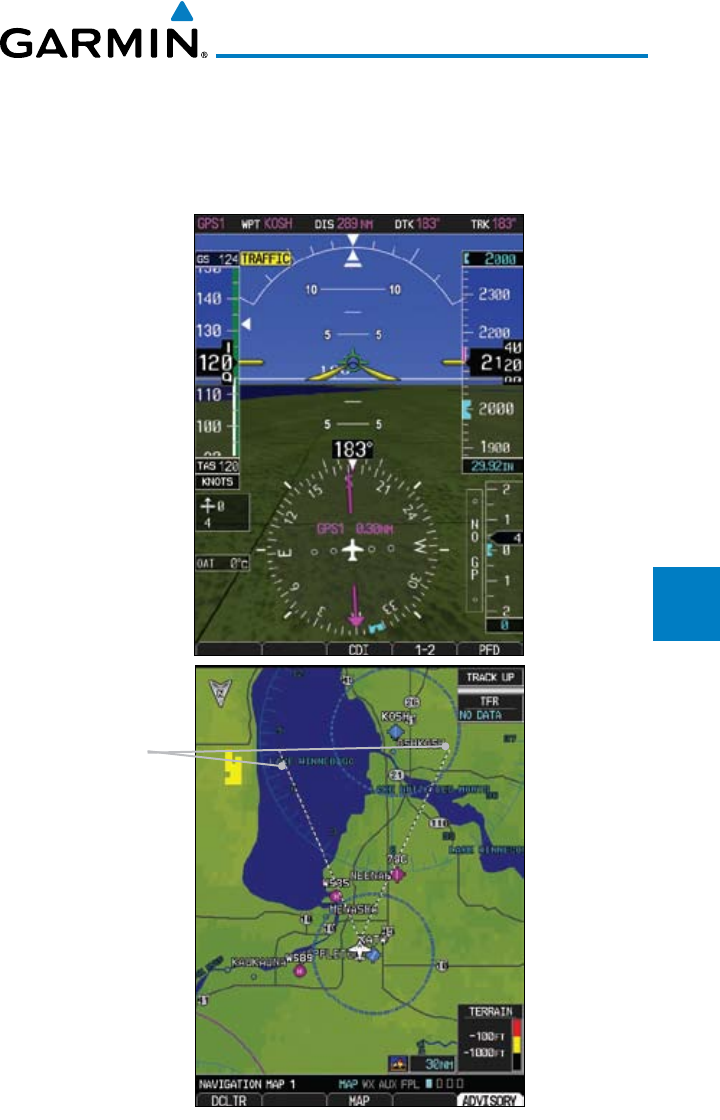
5-45190-00601-02 Rev. E
Garmin G600 Pilot’s Guide
Foreword
Sec 1
System
Sec 2
PFD
Sec 3
MFD
Sec 4
Hazard
Avoidance
Sec 5
Additional
Features
Sec 6
Annun.
& Alerts
Sec 7
Symbols
Sec 8
Glossary Appendix A
Appendix B
Index
5.7.3.8 Field of View
The PFD Field of View can be represented on the MFD Navigation Map Page
lateral image. Two dashed lines forming a V-shape in front of the aircraft symbol
on the MFD with an angle of approximately 50º represent the forward horizontal
field of view shown on the PFD.
V-Shaped Lines
Depict PFD Field
of View (angle is
approx. 50°)
Figure 5-45 MFD and PFD Field of View Comparison
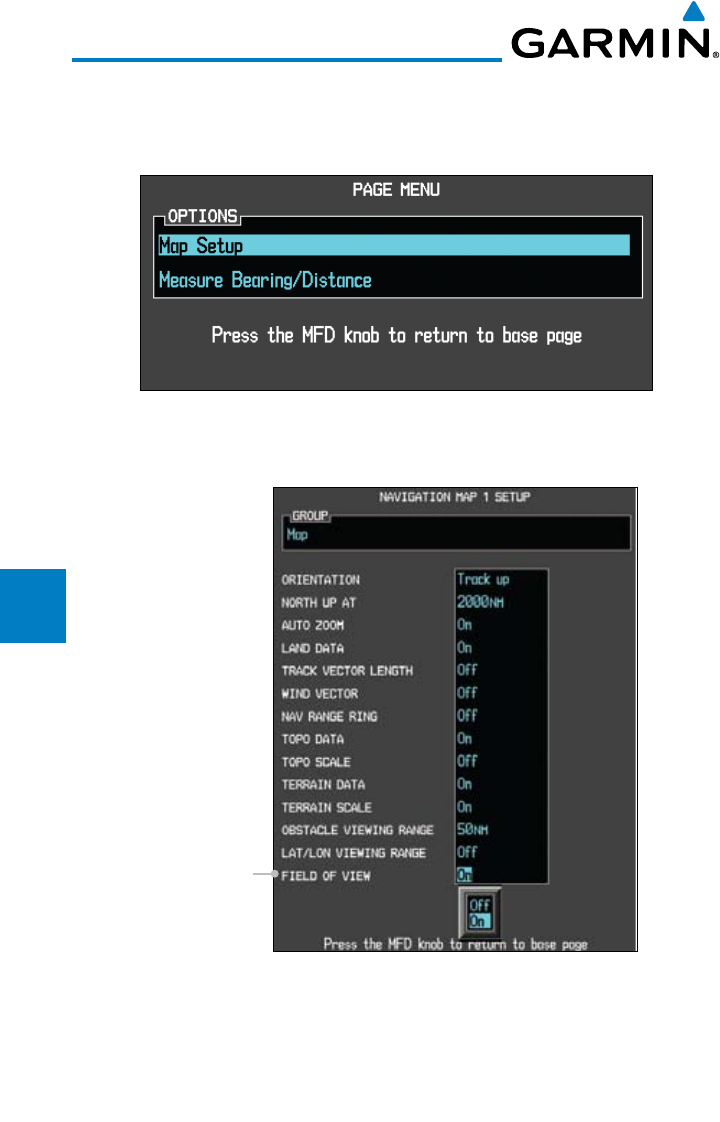
5-46
Garmin G600 Pilot’s Guide
190-00601-02 Rev. E
Foreword
Sec 1
System
Sec 2
PFD
Sec 3
MFD
Sec 4
Hazard
Avoidance
Sec 5
Additional
Features
Sec 6
Annun.
& Alerts
Sec 7
Symbols
Sec 8
GlossaryAppendix A
Appendix B
Index
To configure the Field of View:
1) While viewing the Navigation Map 1 or 2 of the Map Page Group, press the
MENU key to display the PAGE MENU.
Figure 5-46 Page Menu
2) Press the ENT key to bring up the setup page.
Field of View
Figure 5-47 Map Setup Items
3) Turn the large MFD knob to scroll through the options to FIELD OF VIEW.
4) Turn the small MFD knob to select On or Off. Press the ENT key to confirm your
selection.
5) Press the small MFD knob to return to the Navigation Map Page.
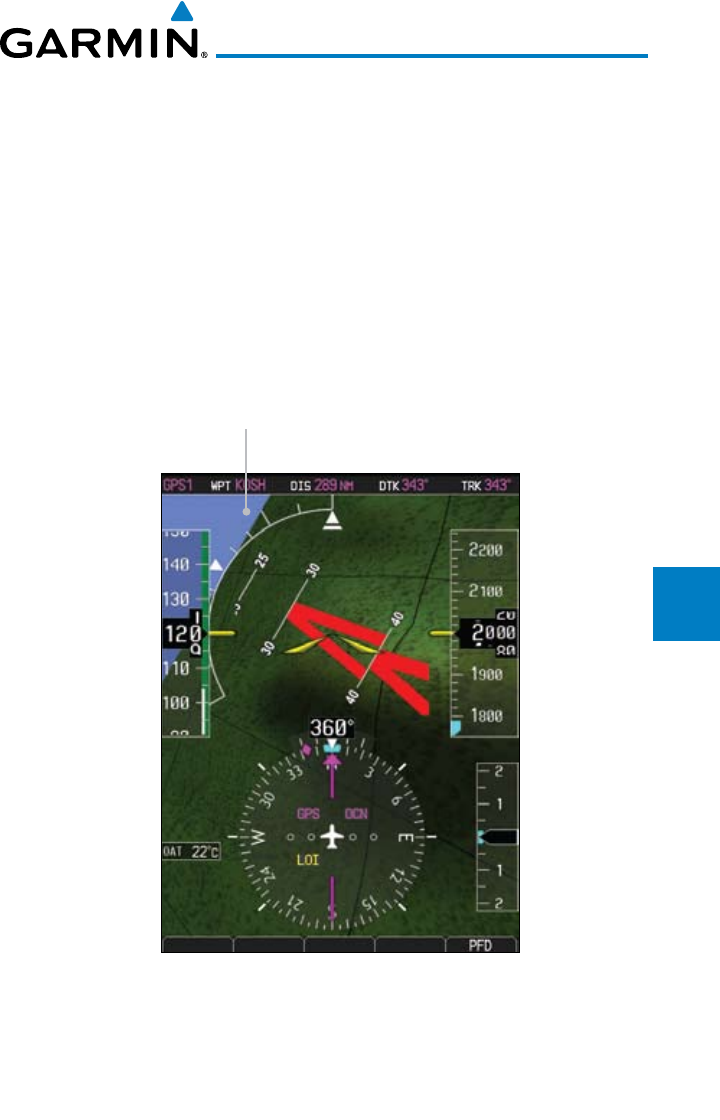
5-47190-00601-02 Rev. E
Garmin G600 Pilot’s Guide
Foreword
Sec 1
System
Sec 2
PFD
Sec 3
MFD
Sec 4
Hazard
Avoidance
Sec 5
Additional
Features
Sec 6
Annun.
& Alerts
Sec 7
Symbols
Sec 8
Glossary Appendix A
Appendix B
Index
5.7.3.9 Unusual Attitudes
Unusual attitudes are displayed with red chevrons overlaid on the display,
pointing to the direction to fly to correct the unusual attitude condition. The
display shows either a brown or blue band of color at the top or bottom of the
screen to represent earth or sky. This is intended to prevent losing sight of the
horizon during extreme pitch attitudes.
Two conditions that inhibit SVT and generate alerts on the PFD:
• Thepositionoftheaircraftexceedstherangeoftheterraindatabase.
• Theterraindatabaseisoutofdateusinganolderterraindatabasecard.
Blue Band - Sky Representation
Figure 5-48 Unusual Attitude Display - Blue Band
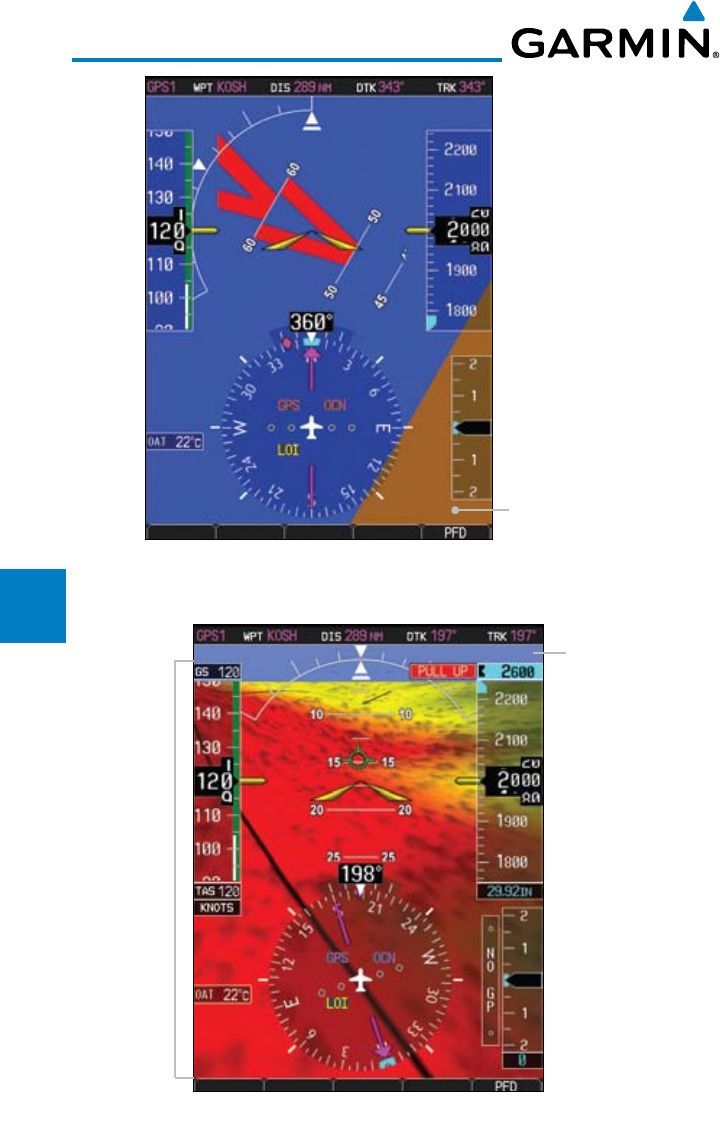
5-48
Garmin G600 Pilot’s Guide
190-00601-02 Rev. E
Foreword
Sec 1
System
Sec 2
PFD
Sec 3
MFD
Sec 4
Hazard
Avoidance
Sec 5
Additional
Features
Sec 6
Annun.
& Alerts
Sec 7
Symbols
Sec 8
GlossaryAppendix A
Appendix B
Index
Brown Band - Ground
Representation
Figure 5-49 Unusual Attitude Display - Brown Band
Blue Band - Sky
Representation
Terrain
Fills
Display
Figure 5-50 Blue Sky Bar with Full Display Terrain
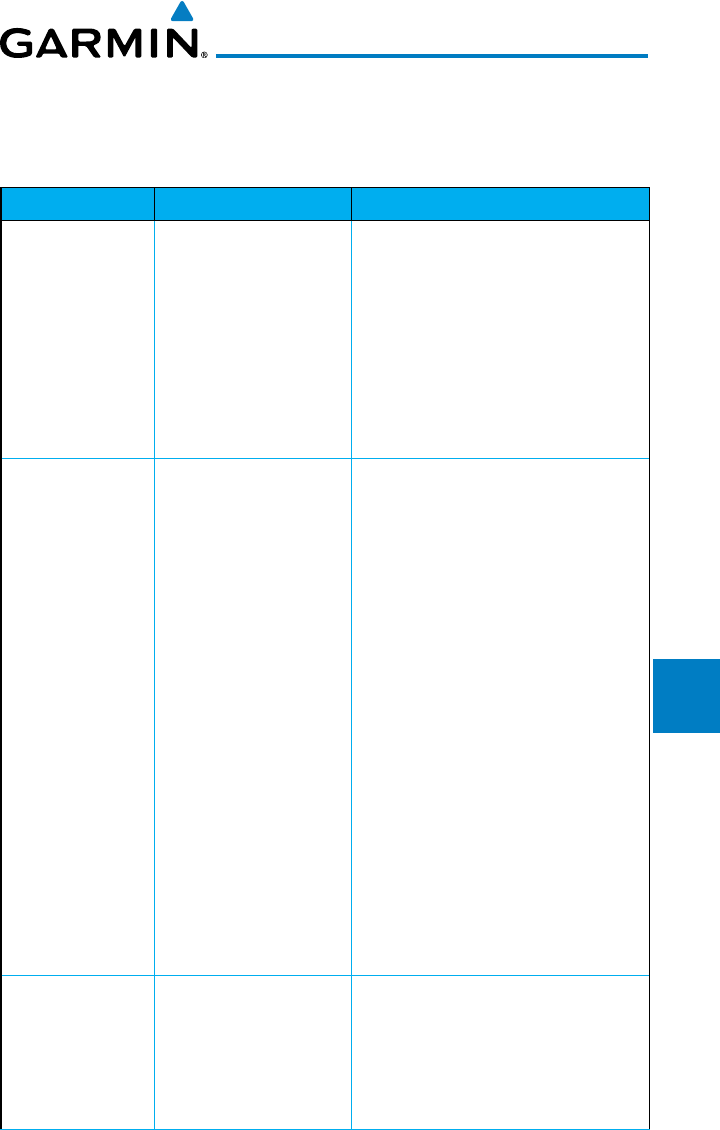
6-1190-00601-02 Rev. E
Garmin G600 Pilot’s Guide
Foreword
Sec 1
System
Sec 2
PFD
Sec 3
MFD
Sec 4
Hazard
Avoidance
Sec 5
Additional
Features
Sec 6
Annun.
& Alerts
Sec 7
Symbols
Sec 8
Glossary Appendix A
Appendix B
Index
6 ANNUNCIATIONS AND ALERTS
6.1 Alerts
Alert Message Description Action
ADC1 ALT EC ADC Altitude •
Error Correction is
unavailable.
The alert is enabled •
and the GDC is
reporting that
altitude correction is
unavailable.
Contact your Garmin dealer for •
service.
AHRS1 GPS AHRS1/2 not •
receiving any GPS
information.
AHRS1/2 operating •
exclusively in no-GPS
reversionary mode.
AHRS1/2 using •
backup GPS source.
AHRS1/2 not •
receiving backup GPS
information.
Two GPS devices •
are configured as
present and AHRS1
is not receiving GPS
data from the backup
(2nd) device.
Verify navigators are on and have •
a GPS signal and are not in self-
test mode.
Check AFMS for limitations. •
Contact your Garmin dealer for •
service.
AHRS1/2 SRVC AHRS1/2 magnetic-•
field model needs
update.
Appears on ground •
only.
AHRS magnetic field model should •
be upgraded.
Contact your Garmin dealer for •
service.

6-2
Garmin G600 Pilot’s Guide
190-00601-02 Rev. E
Foreword
Sec 1
System
Sec 2
PFD
Sec 3
MFD
Sec 4
Hazard
Avoidance
Sec 5
Additional
Features
Sec 6
Annun.
& Alerts
Sec 7
Symbols
Sec 8
GlossaryAppendix A
Appendix B
Index
Alert Message Description Action
AHRS1/2 TAS AHRS1/2• not
receiving true
airspeed from ADC.
Displayed heading •
and attitude data is
still valid.
Additional loss of •
GPS data will cause
loss of heading and
attitude data.
Check ADC cable. •
Contact your Garmin dealer for •
service.
ALT KEY INOP The ALT key is •
disabled.
ALT key is not available. •
AUD NOT AVAIL Audio system not •
available.
Contact your Garmin dealer for •
service.
AUD SYS FAIL Audio system failure. • Contact your Garmin dealer for •
service.
CAL LOST Calibration Data Lost. • Contact your Garmin dealer for •
service.
CNFG
MISMATCH
GDU 1-2 airframe •
configuration settings
disagree.
Contact your Garmin dealer for •
service.
CNFG MODULE GDU configuration •
module is
inoperative.
Contact your Garmin dealer for •
service.
DATA LOST Pilot stored data was •
lost. Recheck data
and settings.
Reset your settings. •
G600 pilot configurable items have •
been returned to default settings.
DIAG MODE System is in •
Diagnostic Mode.
6-3190-00601-02 Rev. E
Garmin G600 Pilot’s Guide
Foreword
Sec 1
System
Sec 2
PFD
Sec 3
MFD
Sec 4
Hazard
Avoidance
Sec 5
Additional
Features
Sec 6
Annun.
& Alerts
Sec 7
Symbols
Sec 8
Glossary Appendix A
Appendix B
Index
Alert Message Description Action
FAN 1/2 FAIL Cooling fan 1/2 has •
failed.
Unit may operate •
at extreme
temperatures
Extended operation •
at high temperatures
is not recommended
as damage to the
GDU may occur.
PFD/MFD coloration •
may be incorrect.
Backlight may dim •
to reduce power and
heat.
Contact your Garmin dealer for •
service.
GAD 43 GAD 43 •
communication lost.
Contact your Garmin dealer for •
service.
GAD 43 Gyro Emulation Type •
Mismatch Fault.
Contact your Garmin dealer for •
service.
GAD 43 Yaw Rate Scale •
Factor Mismatch
Fault.
Contact your Garmin dealer for •
service.
GAD 43 GDU AHRS• Monitor
Fault.
Contact your Garmin dealer for •
service.
GAD 43 Pitch Deviation Fault. • Contact your Garmin dealer for •
service.
GAD 43 Roll Deviation Fault. • Contact your Garmin dealer for •
service.
GAD 43 Yaw Rate Deviation •
Fault.
Contact your Garmin dealer for •
service.
GAD 43 AHRS A429 Attitude•
Time out Fault.
Contact your Garmin dealer for •
service.

6-4
Garmin G600 Pilot’s Guide
190-00601-02 Rev. E
Foreword
Sec 1
System
Sec 2
PFD
Sec 3
MFD
Sec 4
Hazard
Avoidance
Sec 5
Additional
Features
Sec 6
Annun.
& Alerts
Sec 7
Symbols
Sec 8
GlossaryAppendix A
Appendix B
Index
Alert Message Description Action
GAD 43 AHRS A429 Attitude •
Invalid Fault.
Contact your Garmin dealer for •
service.
GAD 43 AHRS Pitch Out of •
Range Fault.
Contact your Garmin dealer for •
service.
GAD 43 AHRS Attitude Invalid •
Fault.
Contact your Garmin dealer for •
service.
GAD 43 AHRS A429 Heading •
Time-out Fault.
Contact your Garmin dealer for •
service.
GAD 43 AHRS A429 Heading •
Invalid Fault.
Contact your Garmin dealer for •
service.
GAD 43 Power Supply Fault. • Contact your Garmin dealer for •
service.
GAD 43 AC Reference Lost. • Contact your Garmin dealer for •
service.
GAD 43 Application SCI •
integrity fault.
Contact your Garmin dealer for •
service.
GAD 43 Configuration •
integrity fault.
Contact your Garmin dealer for •
service.
GAD 43 Calibration integrity •
fault.
Contact your Garmin dealer for •
service.
GAD 43 Unit fault. • Contact your Garmin dealer for •
service.
GATE MODE Automated testing •
is on.
GDL69 GDL 69 has failed. • Contact your Garmin dealer for •
service.
GEO LIMITS AHRS1 too far North/•
South, no magnetic
heading provided.
Operating in extreme •
north latitudes has
rendered heading
data unreliable.
Use alternate means of navigation. •
Check AFMS for limitations. •
6-5190-00601-02 Rev. E
Garmin G600 Pilot’s Guide
Foreword
Sec 1
System
Sec 2
PFD
Sec 3
MFD
Sec 4
Hazard
Avoidance
Sec 5
Additional
Features
Sec 6
Annun.
& Alerts
Sec 7
Symbols
Sec 8
Glossary Appendix A
Appendix B
Index
Alert Message Description Action
GPS1/2 FAIL Communication lost •
with GPS 1/2.
Use an alternate navigation •
source.
GPS(1/2) PPS
FAIL
Timing data from •
GPS 1/2 is lost.
Contact your Garmin dealer for •
service.
GSR FAIL GSR has failed. • Contact your Garmin dealer for •
service.
GWX CONFIG GWX config error. •
Config service
required.
Contact your Garmin dealer for •
service.
GWX SERVICE GWX needs service. • Contact your Garmin dealer for •
service.
HDG FAULT AHRS1/2• in
no-magnetometer
reversionary mode.
Heading fault state •
on AHRS.
Heading data is •
unreliable.
Check AFMS for limitations. •
Use Compass or other course •
information.
Contact your Garmin dealer for •
service.
HDG LOST HDG features •
disabled or defaulted
to GPS1 TRK.
GDU is in the •
reversionary track-
based mode.
<LRU> CONFIG Error in the •
configuration of a
specific LRU, where
<LRU> denotes a
specific LRU, such as
GDL69 or GWX.
Config service required. Contact •
your Garmin dealer for service.

6-6
Garmin G600 Pilot’s Guide
190-00601-02 Rev. E
Foreword
Sec 1
System
Sec 2
PFD
Sec 3
MFD
Sec 4
Hazard
Avoidance
Sec 5
Additional
Features
Sec 6
Annun.
& Alerts
Sec 7
Symbols
Sec 8
GlossaryAppendix A
Appendix B
Index
Alert Message Description Action
<LRU>
COOLING
<LRU> has poor •
cooling. Reducing
power usage by
dimming display.
Specific LRU has poor cooling, •
where <LRU> denotes the specific
LRU and power is being reduced.
Contact your Garmin dealer for •
service.
<LRU> DB ERR <LRU> database•
error exists, where
"<LRU> database"
denotes the specific
unit database.
Replace or update database. •
<LRU> KEYSTK <LRU> <KEY> is •
stuck. The <LRU>
has detected the
<KEY> key as stuck,
where <LRU> and
<KEY> denote a
specific LRU and key.
<LRU> SERVICE <LRU> needs •
service. Contact
repair facility.
Contact your Garmin dealer for •
service. Specific LRU should be
serviced, where <LRU> denotes
the specific LRU.
<LRU> VOLTAGE <LRU> has low •
voltage. Reducing
power usage by
dimming display,
where <LRU>
denotes the specific
LRU and power is
being reduced.
Contact your Garmin dealer for •
service.
MANIFEST <LRU> software •
mismatch,
communication
halted.
Contact your Garmin dealer for •
service.

6-7190-00601-02 Rev. E
Garmin G600 Pilot’s Guide
Foreword
Sec 1
System
Sec 2
PFD
Sec 3
MFD
Sec 4
Hazard
Avoidance
Sec 5
Additional
Features
Sec 6
Annun.
& Alerts
Sec 7
Symbols
Sec 8
Glossary Appendix A
Appendix B
Index
Alert Message Description Action
NAV1/2 Communication with •
NAV1/2 is lost.
No navigation •
receiver 1/2 data.
Switch to alternate navigation •
(GPS or otherwise) if available.
NO RADAR
DATA
No data is being sent •
to the GDU
Contact your Garmin dealer for •
service.
RADAR
CONTROLS
DISAGREE
Data does not match •
for 15 seconds, or
more
Contact your Garmin dealer for •
service.
SIMULATOR Simulator mode is •
active. Do not use for
navigation.
Simulator mode is active. •
SVT DISABLED Outside of terrain •
database coverage
area.
Terrain database •
resolution is too low.
Repeat steps to reactivate SVT •
with the appropriate PFD soft keys.
Install 9 arc-second database. •
SW MISMATCH GDU software •
version mismatch. No
GDU crossfill.
Contact your Garmin dealer for •
service.
TDB Airframe does not •
support Terrain
database.
TERRAIN DSP Terrain, airport •
terrain, or obstacle
database error in
TAWS B or TERRAIN-
SVT only.
Update database. •
TRAFFIC FAIL Traffic device has •
failed.
Traffic data will no •
longer be displayed.
Contact your Garmin dealer for •
service.
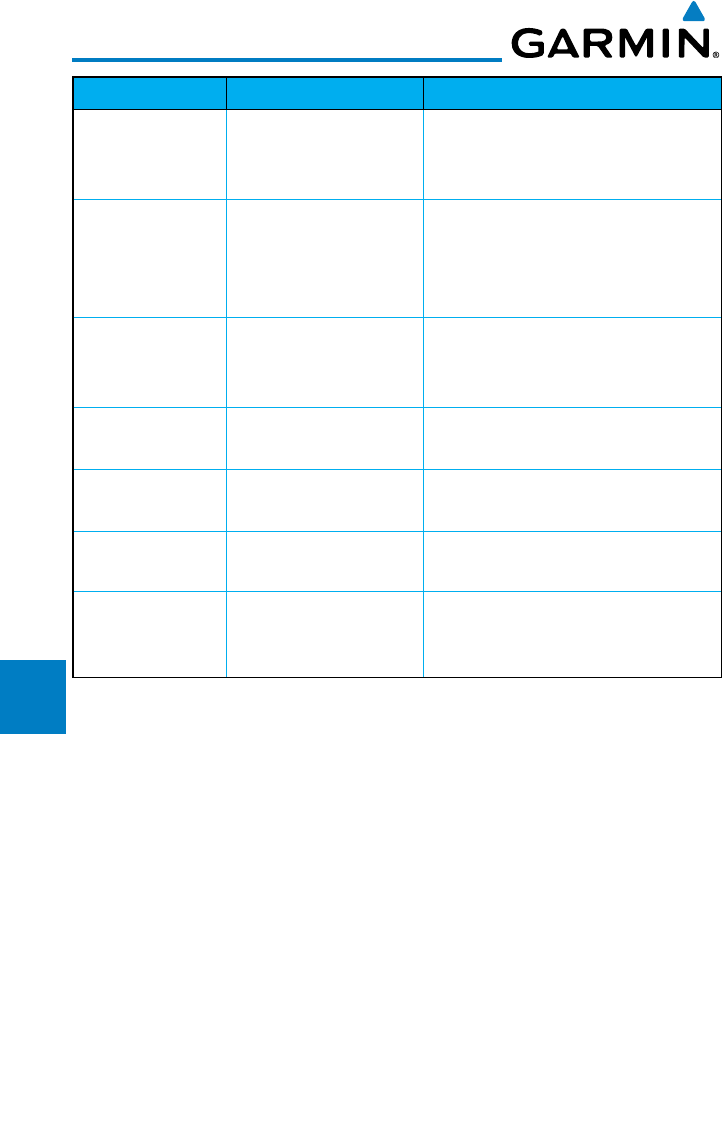
6-8
Garmin G600 Pilot’s Guide
190-00601-02 Rev. E
Foreword
Sec 1
System
Sec 2
PFD
Sec 3
MFD
Sec 4
Hazard
Avoidance
Sec 5
Additional
Features
Sec 6
Annun.
& Alerts
Sec 7
Symbols
Sec 8
GlossaryAppendix A
Appendix B
Index
Alert Message Description Action
TRAFFIC STBY Traffic is in Standby •
Mode while airborne.
Check traffic system controls on •
the MFD traffic map page or traffic
system.
TRK LOST
Heading and track •
from active GPS lost.
HSI is using secondary
GPS track.
TRK TRAFFIC Heading Lost. Traffic •
is now based on
track.
WX ALERT Possible severe •
weather ahead.
Check weather radar. •
WX RADAR Communication with •
Weather Radar lost.
Contact your Garmin dealer for •
service.
WX RDR
SERVICE
Weather radar needs •
service.
Contact your Garmin dealer for •
service.
WXR INPUT
FAULT
Weather radar is •
not receiving one or
more inputs.
Contact your Garmin dealer for •
service.
Table 6-1 Alert Messages
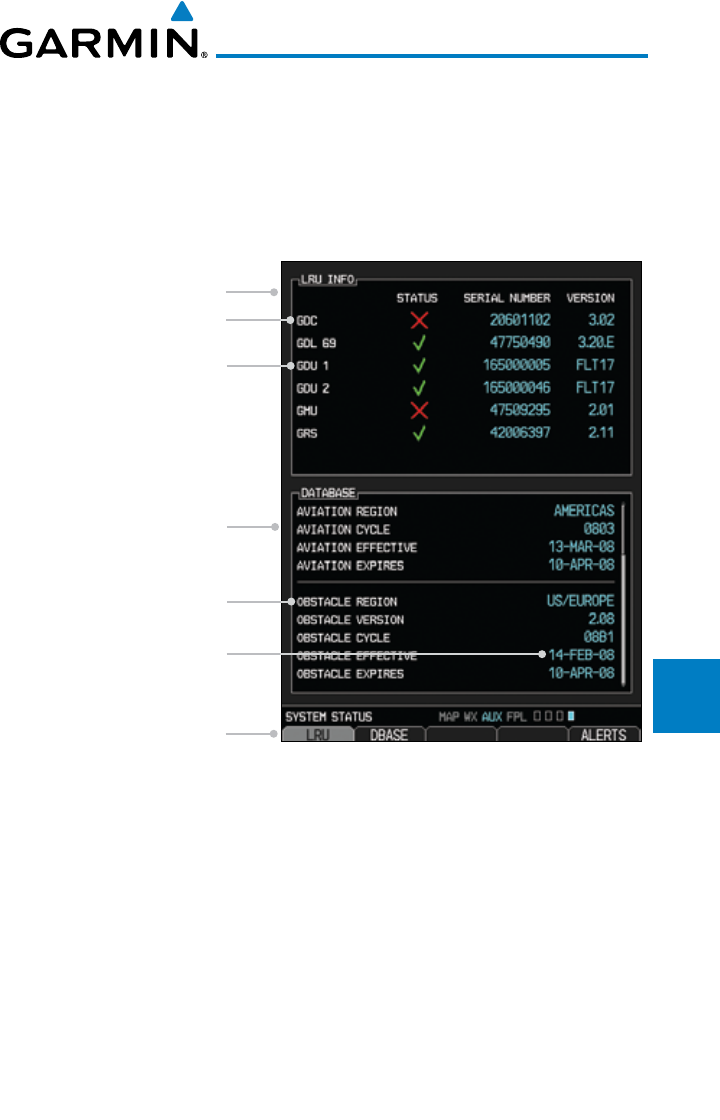
6-9190-00601-02 Rev. E
Garmin G600 Pilot’s Guide
Foreword
Sec 1
System
Sec 2
PFD
Sec 3
MFD
Sec 4
Hazard
Avoidance
Sec 5
Additional
Features
Sec 6
Annun.
& Alerts
Sec 7
Symbols
Sec 8
Glossary Appendix A
Appendix B
Index
6.2 System Status
The System Status page of Aux mode shows the status, serial number, and
software version of LRUs and the date of databases. There are no menu pages.
In the LRU Status column, a green check means the unit is present and operat-
ing properly, while a red “X” indicates an absence or failure.
LRU Info Window
Failed LRU
Passed LRU
Database Window
Database Name
Database Effectivity Date
Database Soft Keys
Figure 6-1 System Status

6-10
Garmin G600 Pilot’s Guide
190-00601-02 Rev. E
Foreword
Sec 1
System
Sec 2
PFD
Sec 3
MFD
Sec 4
Hazard
Avoidance
Sec 5
Additional
Features
Sec 6
Annun.
& Alerts
Sec 7
Symbols
Sec 8
GlossaryAppendix A
Appendix B
Index
This page intentionally left blank
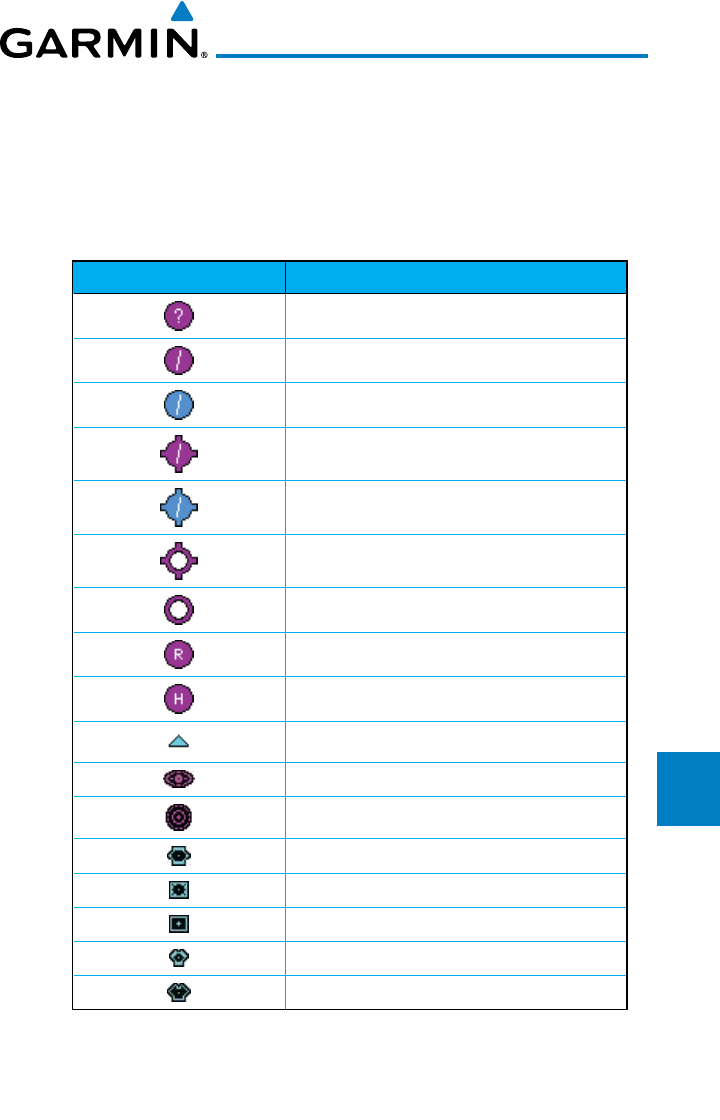
7-1190-00601-02 Rev. E
Garmin G600 Pilot’s Guide
Foreword
Sec 1
System
Sec 2
PFD
Sec 3
MFD
Sec 4
Hazard
Avoidance
Sec 5
Additional
Features
Sec 6
Annun.
& Alerts
Sec 7
Symbols
Sec 8
Glossary Appendix A
Appendix B
Index
7 SYMBOLS
The following tables describe the symbols that are found on the MFD Map
displays.
7.1 Map Page Symbols
Symbol Description
Unknown Airport
Non-towered, Non-serviced Airport
Towered, Non-serviced Airport
Non-towered, Serviced Airport
Towered, Serviced Airport
Soft Surface, Serviced Airport
Soft Surface, Non-serviced Airport
Private Airport
Heliport
Intersection
LOM (compass locator at outer marker)
NDB (Non-directional Radio Beacon)
VOR
VOR/DME
ILS/DME or DME-only
VORTAC
TACAN
Table 7-1 Map Page Symbols
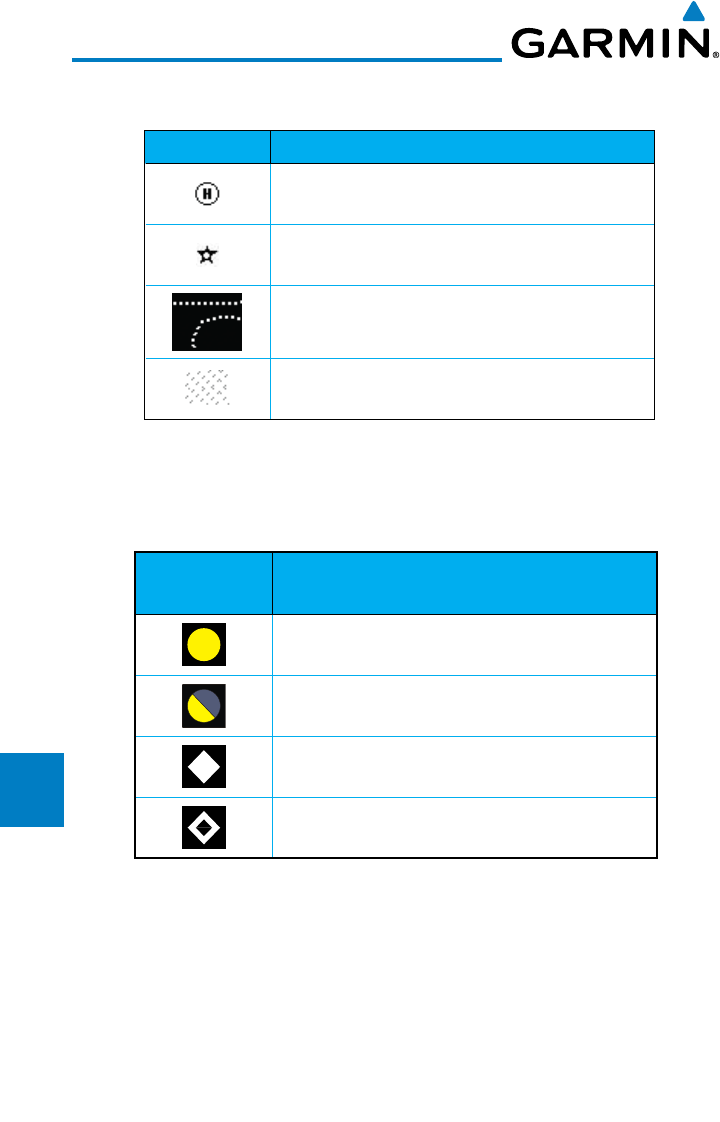
7-2
Garmin G600 Pilot’s Guide
190-00601-02 Rev. E
Foreword
Sec 1
System
Sec 2
PFD
Sec 3
MFD
Sec 4
Hazard
Avoidance
Sec 5
Additional
Features
Sec 6
Annun.
& Alerts
Sec 7
Symbols
Sec 8
GlossaryAppendix A
Appendix B
Index
7.2 SafeTaxi™ Symbols
Symbol Description
Helipad
Airport Beacon
Under Construction Zones
Unpaved Parking Areas
Table 7-2 SafeTaxi Symbols
7.3 Traffic Symbols
Symbol Description
(Highest to Lowest Priority)
Traffic Advisory (TA), In Range
Traffic Advisory (TA), Out of Range
Proximate Advisory (PA)
Other Traffic
Table 7-3 Traffic Symbols
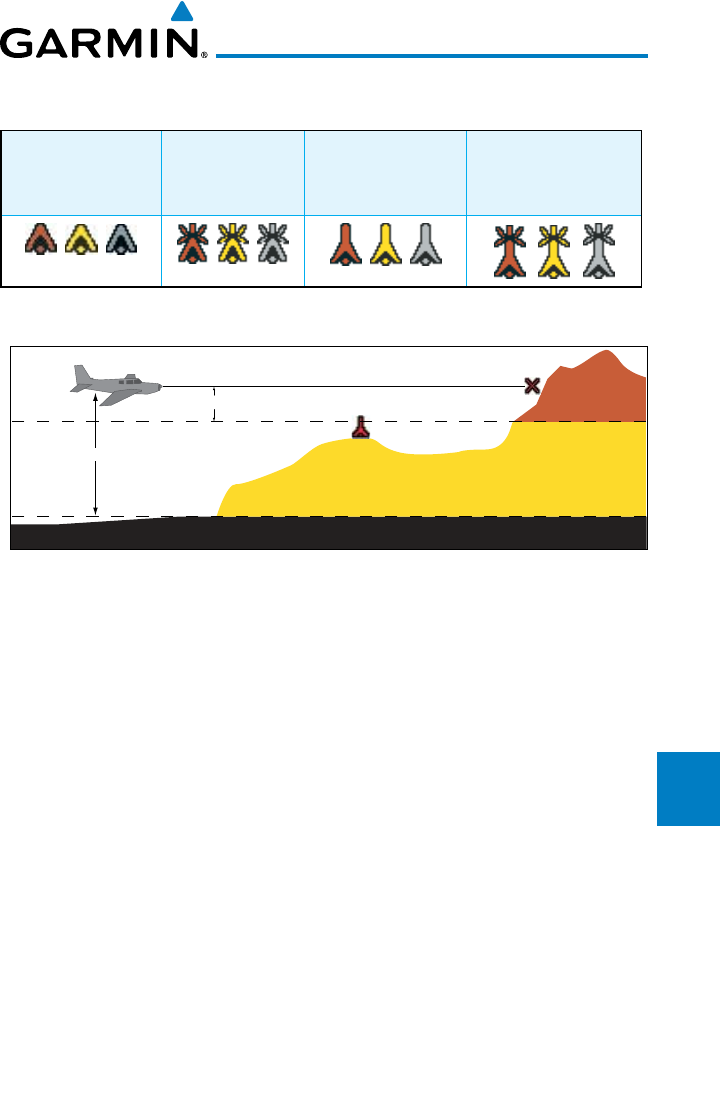
7-3190-00601-02 Rev. E
Garmin G600 Pilot’s Guide
Foreword
Sec 1
System
Sec 2
PFD
Sec 3
MFD
Sec 4
Hazard
Avoidance
Sec 5
Additional
Features
Sec 6
Annun.
& Alerts
Sec 7
Symbols
Sec 8
Glossary Appendix A
Appendix B
Index
7.4 Terrain Obstacle Symbols
Unlighted Obstacle
(Height is less than
1000 ft AGL)
Lighted Obstacle
(Height is less
than 1000 ft AGL)
Unlighted Obstacle
(Height is greater
than 1000 ft AGL)
Lighted Obstacle
(Height is greater than
1000 ft AGL)
Figure 7-1 Obstacle Altitude/Color Correlation
Potential Impact Point
Unlighted Obstacle
Projected Flight Path
1000 ft
100 ft Threshold
Terrain more than 1000 ft below the aircraft altitude (Black)
Terrain between 100 ft and 1000 ft below the
aircraft altitude (Yellow)
Terrain above or
within 100 ft
below the aircraft
altitude (Red)
Figure 7-2 TERRAIN Altitude/Color Correlation
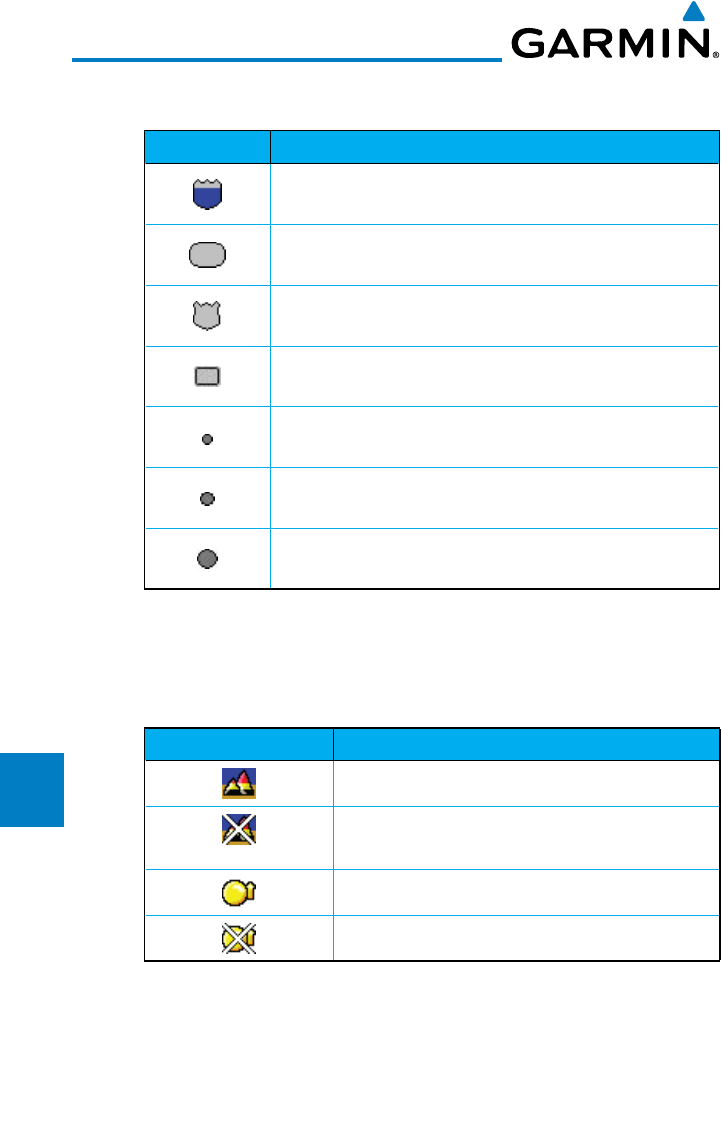
7-4
Garmin G600 Pilot’s Guide
190-00601-02 Rev. E
Foreword
Sec 1
System
Sec 2
PFD
Sec 3
MFD
Sec 4
Hazard
Avoidance
Sec 5
Additional
Features
Sec 6
Annun.
& Alerts
Sec 7
Symbols
Sec 8
GlossaryAppendix A
Appendix B
Index
7.5 Basemap Symbols
Symbol Description
Interstate Highway
State Highway
US Highway
National Highway - 2-digit drawn inside
Small City or Town
Medium City
Large City
Table 7-4 Basemap Symbols
7.6 Map Tool Bar Symbols
Symbol Description
Terrain Proximity Enabled and Available Indicator
Terrain Proximity Enabled and Not Available
Indicator
Traffic Enabled and Available Indicator
Traffic Enabled and Not Available Indicator
Table 7-5 Map Tool Bar Symbols
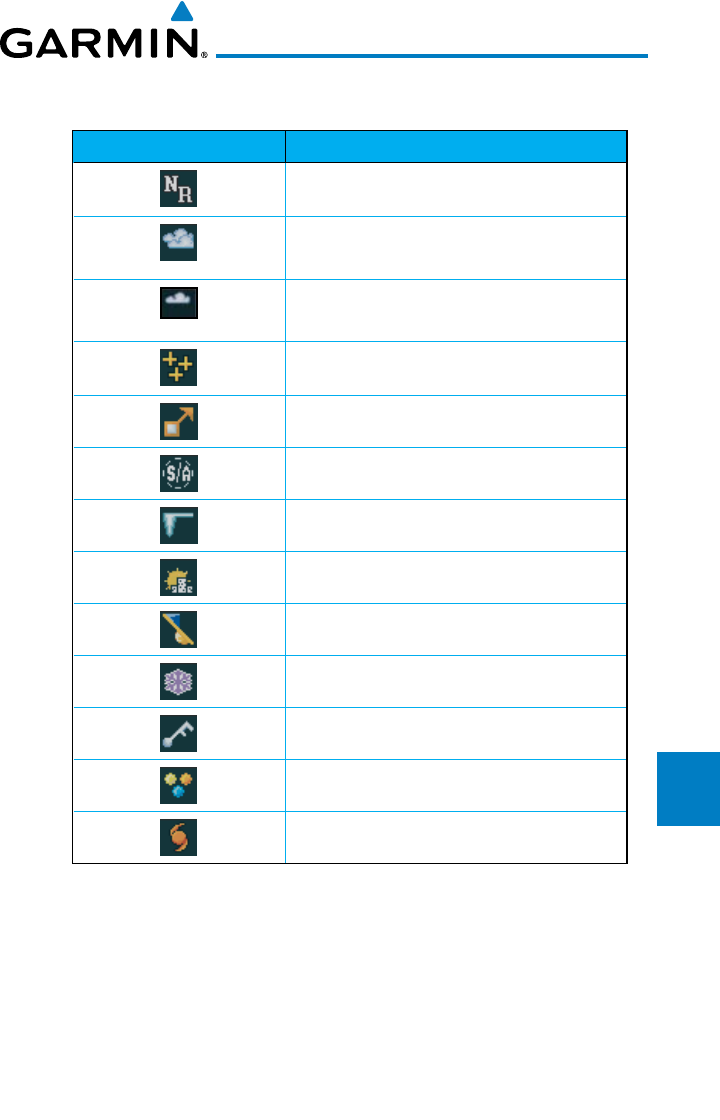
7-5190-00601-02 Rev. E
Garmin G600 Pilot’s Guide
Foreword
Sec 1
System
Sec 2
PFD
Sec 3
MFD
Sec 4
Hazard
Avoidance
Sec 5
Additional
Features
Sec 6
Annun.
& Alerts
Sec 7
Symbols
Sec 8
Glossary Appendix A
Appendix B
Index
7.7 XM Weather Tool Bar Symbols
Symbol Description
NEXRAD
Cloud Top (Cloud Top and Echo Top
Mutually Exclusive)
Echo Top (Cloud Top and Echo Top
Mutually Exclusive)
XM Lightning
Cell Movement
SIGMETs / AIRMETs
METARs
City Forecast
Surface Analysis
Freezing Levels
Winds Aloft
County Warnings
Cyclone Warnings
Table 7-6 XM Weather Tool Bar Symbols
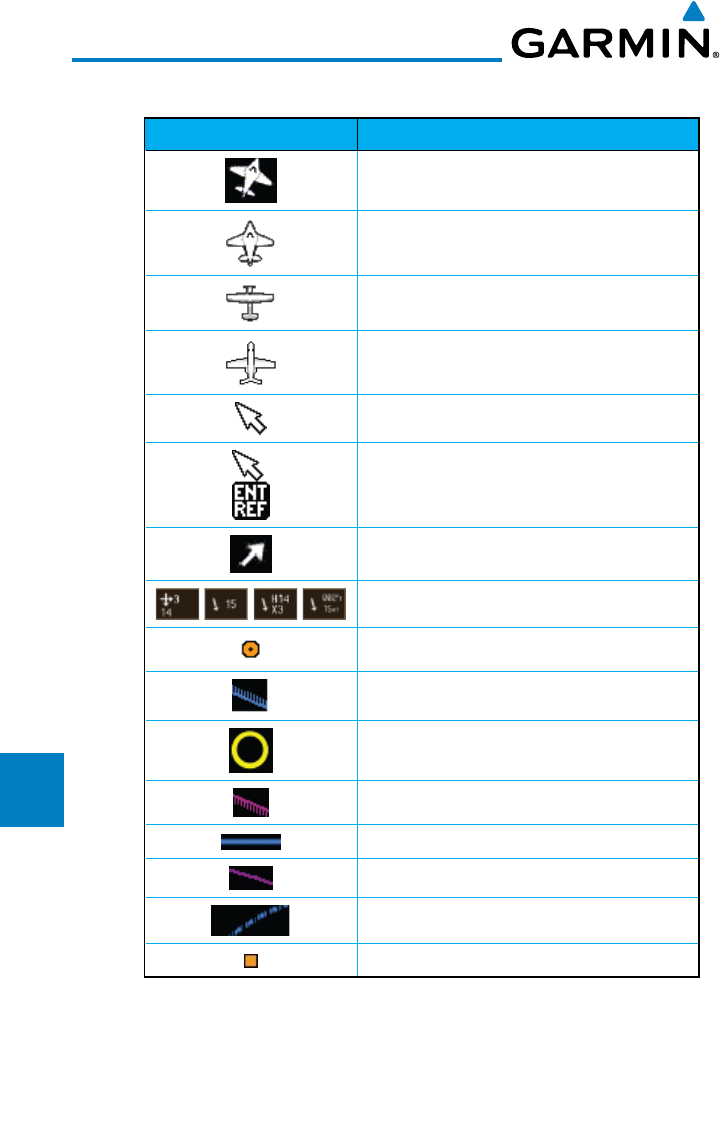
7-6
Garmin G600 Pilot’s Guide
190-00601-02 Rev. E
Foreword
Sec 1
System
Sec 2
PFD
Sec 3
MFD
Sec 4
Hazard
Avoidance
Sec 5
Additional
Features
Sec 6
Annun.
& Alerts
Sec 7
Symbols
Sec 8
GlossaryAppendix A
Appendix B
Index
7.8 Miscellaneous Symbols
Symbol Description
Default Aircraft (ownship)
Fixed Wing, Low Wing
Fixed Wing, High Wing
Fixed Wing, Jet
Default Map Cursor
Measuring Cursor
MFD Wind Vector (w/ valid GPS solution)
PFD Wind Vector styles
Parallel Track Waypoint
Restricted/Prohibited/Warning/Alert
TFR (Temporary Flight Restrictions)
MOA
Class B Airspace
Class C Airspace
Class D Airspace
User Waypoint
Table 7-7 Miscellaneous Symbols

8-1190-00601-02 Rev. E
Garmin G600 Pilot’s Guide
Foreword
Sec 1
System
Sec 2
PFD
Sec 3
MFD
Sec 4
Hazard
Avoidance
Sec 5
Additional
Features
Sec 6
Annun.
& Alerts
Sec 7
Symbols
Sec 8
Glossary Appendix A
Appendix B
Index
8 GLOSSARY
ACT, ACTV active, activate
ADC Air Data Computer
ADF Automatic Direction Finder
ADI Attitude Direction Indicator
AFF Automatic Flight Following
AFM Airplane Flight Manual
AFMS Airplane Flight Manual Supplement
AGL Above Ground Level
AHRS Attitude and Heading Reference System
AIM Airman’s Information Manual
AIRMET Airman’s Meteorological Information
ALT altitude
AP autopilot
APR approach
APT airport, aerodrome
ARINC Aeronautical Radio Incorporated
ARSPC airspace
ARTCC Air Route Traffic Control Center
AS airspeed
ASOS Automated Surface Observing System
ATC Air Traffic Control
ATCRBS ATC Radar Beacon System
ATIS Automatic Terminal Information Service
AUX auxiliary
AWOS Automated Weather Observing System
BARO barometric setting
BC backcourse
Bearing The compass direction from the present position to a
destination waypoint
BRG bearing
C center runway
ºC degrees Celsius
CDI Course Deviation Indicator
CHNL channel
CLD cloud
CLR clear
CONFIG configuration

8-2
Garmin G600 Pilot’s Guide
190-00601-02 Rev. E
Foreword
Sec 1
System
Sec 2
PFD
Sec 3
MFD
Sec 4
Hazard
Avoidance
Sec 5
Additional
Features
Sec 6
Annun.
& Alerts
Sec 7
Symbols
Sec 8
GlossaryAppendix A
Appendix B
Index
Course The line between two points to be followed by the
aircraft
Crosstrack Error The distance the aircraft is off a desired course in either
direction, left or right
CRS course
CRSR cursor
CTA Control Area
CTRL control
CUM The total of all legs in a flight plan.
D ALT density altitude
DB, DBASE database
DCLTR, DECLTR declutter
deg degree
DEP departure
Desired Track (DTK) The desired course between the active “from” and
“to” waypoints
DEST destination
DFLT default
DIS distance
Distance The ‘great circle’ distance from the present position to
a destination waypoint
DME Distance Measuring Equipment
DP Departure Procedure
DPRT departure
DSBL disabled
DTK Desired Track
EDR Excessive Descent Rate
ELEV elevation
EMI Electromagnetic Interference
ENR en route
En Route Safe Altitude The recommended minimum altitude within ten miles
left or right of the desired course on an active flight
plan or direct-to
ENT enter
ERR error
ESA En route Safe Altitude
ETA Estimated Time of Arrival
ETE Estimated Time En Route

8-3190-00601-02 Rev. E
Garmin G600 Pilot’s Guide
Foreword
Sec 1
System
Sec 2
PFD
Sec 3
MFD
Sec 4
Hazard
Avoidance
Sec 5
Additional
Features
Sec 6
Annun.
& Alerts
Sec 7
Symbols
Sec 8
Glossary Appendix A
Appendix B
Index
ºF degrees Fahrenheit
FAA Federal Aviation Administration
FCC Federal Communication Commission
FCST forecast
FD flight director
FIS-B Flight Information Services-Broadcast
FISDL Flight Information Service Data Link
FLTA Forward Looking Terrain Avoidance
FPL flight plan
FREQ frequency
FRZ freezing
FSS Flight Service Station
ft foot/feet
G/S, GS glideslope
GDC Garmin Air Data Computer
GDL Garmin Satellite Data Link
GDU Garmin Display Unit
GEO geographic
GLS Global Navigation Satellite Landing System
GMA Garmin Audio Panel System
GMT Greenwich Mean Time
GMU Garmin Magnetometer Unit
GPS Global Positioning System
GPSS GPS Roll Steering
Ground Speed The velocity that the aircraft is travelling relative to a
ground position
Ground Track
see Track
GRS Garmin Reference System
GS Ground Speed
GTX Garmin Transponder
HDG heading
Heading The direction an aircraft is pointed, based upon
indications from a magnetic compass or a properly set
directional gyro
HFOM Horizontal Figure of Merit
Hg mercury
hPa hectopascal
HPL Horizontal Protection Level

8-4
Garmin G600 Pilot’s Guide
190-00601-02 Rev. E
Foreword
Sec 1
System
Sec 2
PFD
Sec 3
MFD
Sec 4
Hazard
Avoidance
Sec 5
Additional
Features
Sec 6
Annun.
& Alerts
Sec 7
Symbols
Sec 8
GlossaryAppendix A
Appendix B
Index
HSDB High-Speed Data Bus
HSI Horizontal Situation Indicator
Hz Hertz
IAF Initial Approach Fix
ICAO International Civil Aviation Organization
IFR Instrument Flight Rules
IGRF International Geomagnetic Reference Field
ILS Instrument Landing System
IMC Instrument Meteorological Conditions
IOI Imminent Obstacle Impact
INFO information
in HG inches of mercury
INT intersection(s)
INTEG integrity (RAIM unavailable)
ITI Imminent Terrain Impact
L left, left runway
LAT latitude
LCD Liquid Crystal Display
LCL local
LED Light Emitting Diode
Leg The portion of a flight plan between two waypoints
LIFR Low Instrument Flight Rules
LNAV Lateral Navigation
LOC localizer
LOI loss of integrity (GPS)
LON longitude
LPV Localizer Performance with Vertical guidance
LRU Line Replacement Unit
LT left
LTNG lightning
MAG Magnetic
MAG VAR Magnetic Variation
MapMX A proprietary data format used to forward navigation
information from the GNS units to the GDU 620
MAX maximum
MAXSPD maximum speed (overspeed)

8-5190-00601-02 Rev. E
Garmin G600 Pilot’s Guide
Foreword
Sec 1
System
Sec 2
PFD
Sec 3
MFD
Sec 4
Hazard
Avoidance
Sec 5
Additional
Features
Sec 6
Annun.
& Alerts
Sec 7
Symbols
Sec 8
Glossary Appendix A
Appendix B
Index
MDA barometric minimum descent altitude
METAR Aviation Routine Weather Report
MFD Multi Function Display
MIN minimum
Minimum Safe Altitude Uses Grid MORAs to determine a safe altitude within
ten miles of the aircraft present position
MKR marker beacon
MOA Military Operations Area
MOV movement
mpm meters per minute
MSA Minimum Safe Altitude
MSG message
MSL Mean Sea Level
MT meter
mV millivolt(s)
MVFR Marginal Visual Flight Rules
NAV navigation
NAVAID NAVigation AID
NCR Negative Climb Rate
NDB Non-Directional Beacon
NEXRAD Next Generation Radar
OAT Outside Air Temperature
OBS Omni Bearing Selector
PA Proximity Advisory
PC personal computer
PDA Premature Descent Alert
PFD Primary Flight Display
P. POS Present Position
PTK parallel track
QTY quantity

8-6
Garmin G600 Pilot’s Guide
190-00601-02 Rev. E
Foreword
Sec 1
System
Sec 2
PFD
Sec 3
MFD
Sec 4
Hazard
Avoidance
Sec 5
Additional
Features
Sec 6
Annun.
& Alerts
Sec 7
Symbols
Sec 8
GlossaryAppendix A
Appendix B
Index
R right, right runway
RAIM Receiver Autonomous Integrity Monitoring
RAM random access memory
REF reference
REQ required
REV reverse, revision, revise
RMI Radio Magnetic Indicator
RNG range
RNWY runway
ROC Reduced Required Obstacle Clearance
RT right
RTC Reduced Required Terrain Clearance
SBAS Satellite-Based Augmentation System
SCIT Storm Cell Identification and Tracking
SD Secure Digital
SFC surface
SIAP Standard Instrument Approach Procedures
SID Standard Instrument Departure
SIGMET Significant Meteorological Information
SLP/SKD slip/skid
SMBL symbol
SPD speed
SRVC, SVC service
STAR Standard Terminal Arrival Route
STATS statistics
STBY standby
STD standard
SUA Special Use Airspace
SUSP suspend
SVT Synthetic Vision
SW software
SYS system
T true
TA Traffic Advisory
TACAN Tactical Air Navigation System
TAF Terminal Aerodrome Forecast
TAS True Airspeed
TAS Traffic Advisory System

8-7190-00601-02 Rev. E
Garmin G600 Pilot’s Guide
Foreword
Sec 1
System
Sec 2
PFD
Sec 3
MFD
Sec 4
Hazard
Avoidance
Sec 5
Additional
Features
Sec 6
Annun.
& Alerts
Sec 7
Symbols
Sec 8
Glossary Appendix A
Appendix B
Index
TAT Total Air Temperature
TAWS Terrain Awareness and Warning System
TCA Terminal Control Area
TCAS Traffic Collision Avoidance System
TEMP temperature
TERM terminal
TFR Temporary Flight Restriction
T HDG True Heading
TIS Traffic Information System
TMA Terminal Maneuvering Area
Topo topographic
Track Direction of aircraft movement relative to a ground
position; also ‘Ground Track’
TRK track
TRSA Terminal Radar Service Area
UNAVAIL unavailable
USR user
UTC Coordinated Universal Time
UTM/UPS Universal Transverse Mercator/ Universal Polar
Stereographic Grid
V, Vspeed velocity (airspeed)
VAR variation
VFR Visual Flight Rules
VHF Very High Frequency
VLOC VOR/Localizer Receiver
VMC Visual Meteorological Conditions
VNAV, VNV vertical navigation
VOR VHF Omni-directional Range
VORTAC very high frequency omnidirectional range station and
tactical air navigation
VS Vertical speed
VSI Vertical Speed Indicator
WAAS Wide Area Augmentation System
WGS-84 World Geodetic System - 1984
WPT waypoint(s)
WX weather

8-8
Garmin G600 Pilot’s Guide
190-00601-02 Rev. E
Foreword
Sec 1
System
Sec 2
PFD
Sec 3
MFD
Sec 4
Hazard
Avoidance
Sec 5
Additional
Features
Sec 6
Annun.
& Alerts
Sec 7
Symbols
Sec 8
GlossaryAppendix A
Appendix B
Index
XPDR transponder
XTK cross-track
A-1190-00601-02 Rev. E
Garmin G600 Pilot’s Guide
Foreword
Sec 1
System
Sec 2
PFD
Sec 3
MFD
Sec 4
Hazard
Avoidance
Sec 5
Additional
Features
Sec 6
Annun.
& Alerts
Sec 7
Symbols
Sec 8
Glossary Appendix A
Appendix B
Index
APPENDIX A
SD Card Use and Databases
The G600 System uses Secure Digital (SD) cards to load and store various
types of data. For basic flight operations, SD cards are required for database
storage as well as database updates.
Database
Name
Function Where
Stored
Update
Cycle
Provider Notes
Aviation Airport, NAVAID,
Waypoint, and
Airspace information
Internal
GDU 620
memory
28 days (on
Thursdays)
fly.garmin.com Updates installed via
SD card and copied
into internal memory
IGRF model AHRS magnetic
variation model
Internal
GRS 77
memory
5 years fly.garmin.com Included with
Aviation database
SafeTaxi Airport surface
diagrams
SD card 56 days (on
Thursdays)
fly.garmin.com
Terrain Topographic map,
SVT, Terrain/TAWS
SD card As required fly.garmin.com 9 arc-second version
required for SVT
Airport
Terrain
Topographic map,
SVT, Terrain/TAWS
SD card As required fly.garmin.com Not required with 9
arc-second Terrain
database
Obstacle Obstacle information
for map, SVT, and
TAWS
SD card 56 days (on
Thursdays)
fly.garmin.com
Basemap Boundary and road
information
Internal
Memory or
SD card
As required fly.garmin.com
Airport
Directory
Airport facility and
FBO information
SD card 56 days fly.garmin.com Database may be
available in different
versions. Update
cycle and content
may vary.
FliteCharts FAA-published
terminal procedures
SD card 28 days (on
Thursdays)
fly.garmin.com Disables 180 days
after expiration date.
ChartView Jeppesen terminal
procedures
SD card 14 days (on
Fridays)
Contact
Jeppesen
Optional feature
that requires Garmin
dealer enablement.
Disables 70 days
after expiration date.
Table A-1 Database List
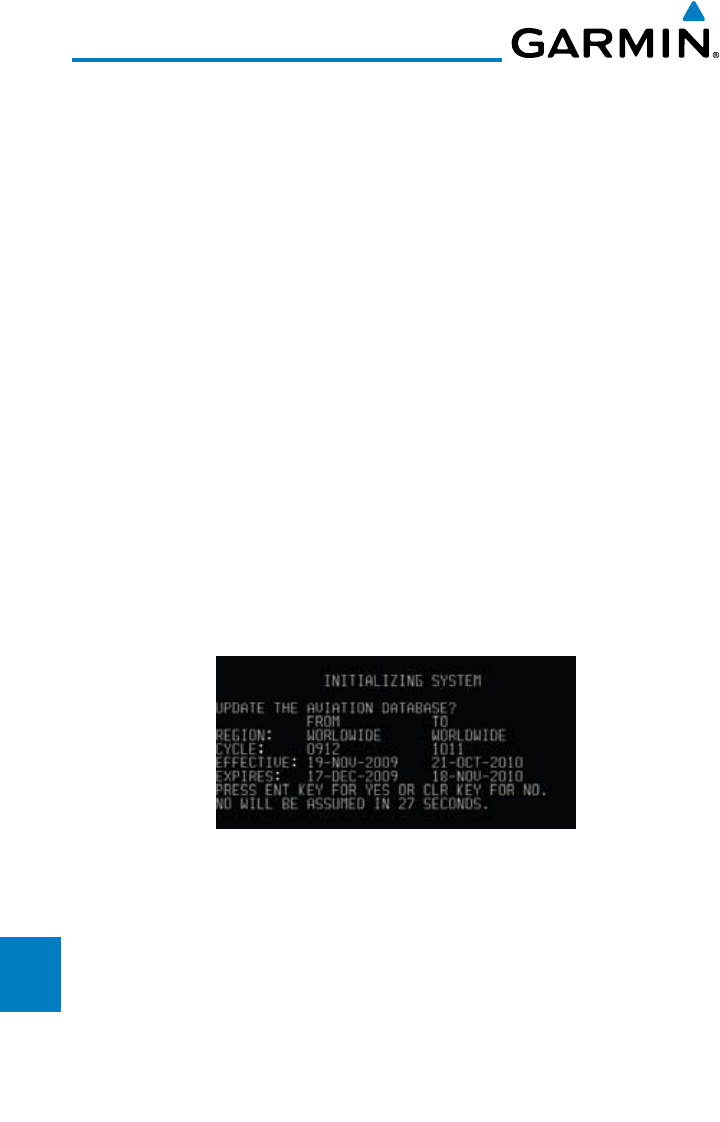
A-2
Garmin G600 Pilot’s Guide
190-00601-02 Rev. E
Foreword
Sec 1
System
Sec 2
PFD
Sec 3
MFD
Sec 4
Hazard
Avoidance
Sec 5
Additional
Features
Sec 6
Annun.
& Alerts
Sec 7
Symbols
Sec 8
GlossaryAppendix A
Appendix B
Index
Jeppesen Databases
The aviation database is updated on a 28 day cycle. Aviation database
updates are provided by Garmin and may be downloaded from the Garmin web
site “fly.garmin.com” onto a Garmin provided Supplemental Datacard. Contact
Garmin at fly.garmin.com for aviation database updates and update kits. The
Aviation database is stored internally and the Datacard is only used to transfer
the database into the unit.
The optional ChartView database is updated on a 14 day cycle. The ChartView
database is provided directly from Jeppesen. ChartView is an optional feature
that requires enablement by a Garmin dealer. Contact Jeppesen (www.jeppesen.
com) for ChartView subscription and update information.
Updating the Jeppesen Database
1) With the G600 System OFF, insert the SD card containing the aviation database
update into the upper card slot of the GDU 620 to be updated (label of SD card
should face up).
2) Turn the G600 System ON.
3) Verify the correct update cycle is loaded during power-up. Press the ENT key to
continue or the CLR key to cancel loading.
Figure A-1 Database Initialization Display
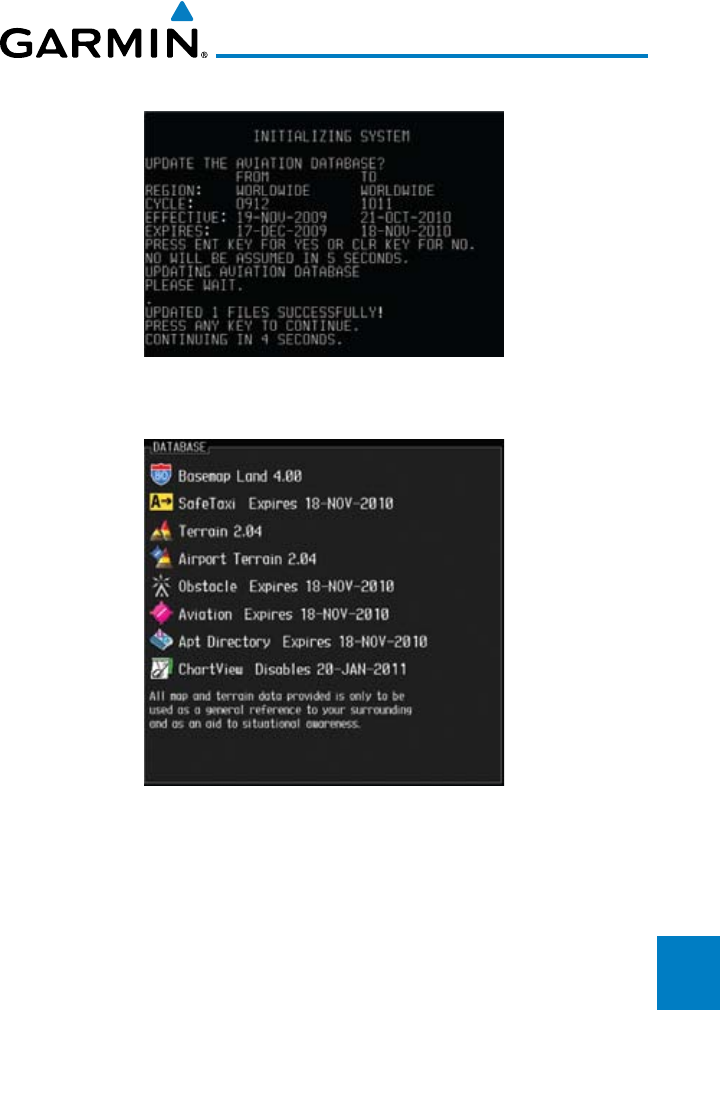
A-3190-00601-02 Rev. E
Garmin G600 Pilot’s Guide
Foreword
Sec 1
System
Sec 2
PFD
Sec 3
MFD
Sec 4
Hazard
Avoidance
Sec 5
Additional
Features
Sec 6
Annun.
& Alerts
Sec 7
Symbols
Sec 8
Glossary Appendix A
Appendix B
Index
4) A notice on the display will indicate successful updating of the database.
Figure A-2 Database Loading Completed
5) The following display will show the databases and their current status.
Figure A-3 Database Information on the Splash Screen
6) Use the large MFD knob to select the AUX page group and then small MFD
knob to reach the System Status Page.
7) Press the DBASE soft key to place the cursor in the “DATABASE” window.
8) Turn the small MFD knob to scroll through the list and check that all databases
are current and there are no errors. If a database is highlighted in yellow, it is
either expired or the G600 can not determine the date.
9) Power down the GDU 620.
A-4
Garmin G600 Pilot’s Guide
190-00601-02 Rev. E
Foreword
Sec 1
System
Sec 2
PFD
Sec 3
MFD
Sec 4
Hazard
Avoidance
Sec 5
Additional
Features
Sec 6
Annun.
& Alerts
Sec 7
Symbols
Sec 8
GlossaryAppendix A
Appendix B
Index
Garmin Databases
WARNING: The data contained in the terrain and obstacle databases
comes from government agencies. Garmin accurately processes and cross-
validates the data, but cannot guarantee the accuracy and completeness
of the data.
The following GDU 620 databases are stored on Supplemental Data Cards
provided by Garmin:
• Terrain–Theterraindatabase contains terrain mapping data. It is updated
periodically and has no expiration date.
• Airport terrain – The airport terrain database contains detailed airport
terrain data. It is updated periodically and has no expiration date.
• Obstacle – The obstacle database contains data for obstacles, such as towers,
that pose a potential hazard to aircraft. Obstacles 200 feet and higher are
included in the obstacle database. It is very important to note that not all
obstacles are necessarily charted and therefore may not be contained in the
obstacle database. This database is updated on a 56-day cycle. Obstacles
will still be shown after the database has expired.
• SafeTaxi – The SafeTaxi database contains detailed airport diagrams for
selected airports. These diagrams aid in following ground control instructions
by accurately displaying the aircraft position on the map in relation to
taxiways, ramps, runways, terminals, and services. This database is updated
on a 56-day cycle. SafeTaxi will still be shown after it has expired.
• FliteCharts – The FliteCharts database contains procedure charts for the
United States only. This database is updated on a 28-day cycle. If not updated
within 180 days of the expiration date, FliteCharts no longer functions.
Since these databases are not stored internally in the GDU 620, a Supplemental
Data Card containing identical database versions must be kept in each display
unit for dual installations. After subscribing to the desired database product,
the database product will need to be downloaded to a Supplemental Data Card.
Insert the Supplemental Data Card into the card slot shown in Figure A-4. The
upper slot is typically used for updating the navigation database and is then
normally left open. The card may be inserted in either slot. The Supplemental
Data Card should not be removed except to update the databases stored on the
card.
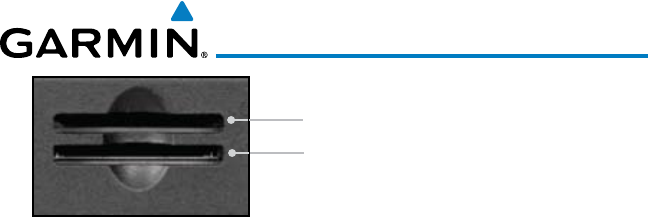
A-5190-00601-02 Rev. E
Garmin G600 Pilot’s Guide
Navigation Database SD Update Card
Terrain, Obstacles, Airports, SafeTaxi, Charts
(FliteChart or ChartView) Database SD Card
Figure A-4 SD Card Database Location
The Garmin databases can be updated by following the instructions detailed
in the “Navigation Databases” section of the Garmin web site (fly.garmin.com).
Once the updated files have been downloaded from the web site, a PC equipped
with an appropriate SD card reader is used to unpack and program the new
databases onto the existing Supplemental Data Cards. The following equipment
is required to perform the update:
• Windows-compatiblePCcomputer(Windows2000,XP,Vista,orWindows
7 recommended)
• SanDisk SDCard Reader, P/NsSDDR-93 orSDDR-99 orequivalentcard
reader
• UpdateddatabaseobtainedfromtheGarminwebsite
• ExistingSupplementalDatabaseSDCard(P/N010-00769-42)
It may be necessary to have the system configured by a Garmin authorized
service facility in order to use certain database features.
Updating Garmin Databases
1) Download the data to the data cards from the appropriate web site.
2) Insert the Database SD card in an empty card slot of the GDU 620. The SD card
containing the ChartView, FliteCharts, SafeTaxi, or any other database (except
for the Jeppesen Aviation Database) is typically inserted into the lower slot on
the GDU 620.
3) Apply power to the G600 System. View the MFD power-up splash screen. Check
that the databases are initialized and displayed on the splash screen. When
updating the terrain and FliteCharts databases, an “in progress” message may
be seen. If this message is present, wait for the system to finish loading before
proceeding. Some databases can take up to 15 minutes to update.
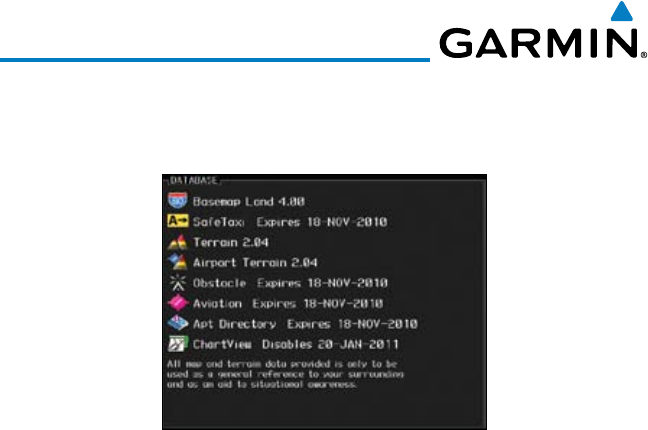
A-6
Garmin G600 Pilot’s Guide
190-00601-02 Rev. E
4) Acknowledge the Power-up Page agreement by pressing the
ENT
key or the
right-most soft key. If a database is highlighted in yellow, it is either expired or
the G600 can not determine the date.
Figure A-5 Database Information on the Splash Screen
5) Use the large MFD knob to select the AUX page group and then the small
MFD knob to reach the System Status Page.
6) Press the DBASE soft key to place the cursor in the “DATABASE” window.
7) Turn the small MFD knob to scroll through the list and check that all databases
are current and there are no errors.
8) Power down the GDU 620.

B-1190-00601-02 Rev. E
Garmin G600 Pilot’s Guide
Foreword
Sec 1
System
Sec 2
PFD
Sec 3
MFD
Sec 4
Hazard
Avoidance
Sec 5
Additional
Features
Sec 6
Annun.
& Alerts
Sec 7
Symbols
Sec 8
Glossary Appendix A
Appendix B
Index
INDEX
Symbols
1-2 key 2-3
A
Above Ground Level 4-12
Activating XM 5-22
Active flight plan 2-14, 3-1, 3-77, 3-78,
3-79
Additional features 5-1
ADF 1-1, 1-2, 2-2, 2-3, 2-27, 8-1
ADIZ 3-7, 3-12, 3-46
AFF 3-68
Age 4-51
AHRS iii, 1-1, 1-4, 1-6, 1-7, 1-11, 3-55,
6-1, 6-3, 6-5
Aircraft symbol 2-8, 2-18, 3-4, 7-6
Air Data Computer 1-1, 1-4, 2-28
AIRMETs 4-51, 4-66, 4-119, 7-5
Airport beacon 7-2
Airport diagram 5-10, 5-16, A-4
Airport Directory 3-85
Airport signs 2-4, 5-41
Airspeed Indicator 1-20, 2-5–2-6
Airspeed reference 1-19, 1-20, 2-7, 3-51,
3-52
Airspeed tape 2-5, 2-6, 2-17, 3-52
Airspeed trend vector 2-5
Air temperature 1-4, 1-5, 2-1, 2-28
Airways 3-4, 3-7, 3-12, 3-48
Alerts 2-13, 2-14, 3-79, 4-4, 4-17, 4-18,
4-20, 4-25, 4-30, 4-41, 4-44, 6-1
Altimeter ii, 2-12, 2-14, 4-11
Altitude 1-1, 1-4, 1-15, 1-21, 2-10, 2-13,
2-14, 3-25, 3-50, 3-54, 3-57,
3-79, 4-4
Altitude alerter 2-13, 3-79, 5-8
Altitude alerting 2-13
Altitude Bug 1-15, 2-1, 2-12, 5-32
Altitude capture 5-32
Altitude Display Mode 4-32, 4-34
Altitude minimums 3-79, 5-8
Altitude select 1-15
Altitude trend vector 2-12
Angle of incidence 4-84
Annunciations 1-11, 2-13, 2-14, 4-10,
4-17, 4-18, 4-25, 4-30, 4-36,
4-37, 4-45, 4-47, 5-12, 5-17, 6-1
Answering a phone call 3-76
Antenna stabilization 4-98
Antenna tilt 4-81, 4-83, 4-86, 4-94, 4-98,
4-99, 4-101
Approaches 2-23, 2-24, 3-88, 4-21, 5-2,
5-4, 5-10, 5-13, 5-16, 5-42, 8-1
Apt Dir 3-85
AP Test 2-3, 5-31
APTSIGNS 2-4
Arc 4-5, 4-6, 4-8, 4-13, 4-14, 4-28
Arrivals 5-10, 5-16
Attitude 1-1, 1-4, 1-7, 1-11, 2-8, 2-10,
5-31, 6-3, 8-1
Attitude and Heading Reference System
(AHRS) 1-4, 1-7, 1-11, 6-2
Attitude Indicator 2-8–2-9
Aural message 4-12, 4-16, 4-17, 4-19,
4-23, 4-24, 4-25, 4-31
Automatic flight following 3-68
Autopilot 1-1, 1-6, 2-3, 5-31
Autopilot disconnect 5-31
Auto-slewing 2-24
Auto zoom 3-12, 3-15
Aux mode 3-50
AUX - System Status page 5-12
AUX - System Status Page 5-21
Aviation map data 3-36
B
Backcourse 2-23, 2-24
Backlighting 1-22
Baro-corrected altitude 4-11
Barometric minimum 2-14
Barometric pressure 1-16, 1-19, 1-21,
2-14, 3-54, 3-58
Basemap symbols 7-4
Beacon 7-1, 7-2
Bearing information 2-26–2-27

B-2
Garmin G600 Pilot’s Guide
190-00601-02 Rev. E
Foreword
Sec 1
System
Sec 2
PFD
Sec 3
MFD
Sec 4
Hazard
Avoidance
Sec 5
Additional
Features
Sec 6
Annun.
& Alerts
Sec 7
Symbols
Sec 8
GlossaryAppendix A
Appendix B
Index
Bearing line 2-27, 4-94, 4-97, 4-98
Bearing Pointers 2-22, 2-26
Best glide 2-7, 3-52
Bezel keys 1-15, 1-17
Blind Alley 4-89
BRG 1-2 2-3
Brightness 1-19, 1-20, 1-22, 3-50, 3-51,
3-90
C
Calibrated gain 4-96
Call suppression 3-70
Cautions iv, 3-7, 3-58, 4-12, 4-13, 4-14,
4-18, 4-31, 4-91, 4-92, 4-101,
5-31
CDI 1-15, 1-19, 1-20, 2-2, 2-3, 2-18,
2-19, 2-20, 2-21, 2-22, 2-24,
3-50, 3-54, 3-55, 3-77
CDI source 2-21, 2-24, 2-27
Cell movement 3-30, 3-32, 4-51, 4-64,
4-65, 7-5
Channel 1-6, 3-3, 3-60, 5-25, 5-26, 5-27,
5-29
Chart category 3-81, 3-90, 5-7
Charts 3-87, 3-90, 5-1, 5-2, 5-7, 5-9,
5-16, 5-17
Chart setup 3-90, 5-9
Chartview 5-1
ChartView 1-10, 3-87, 5-1, 5-2, 5-10,
5-12, A-2, A-5
ChartView database 1-10, 5-10, 5-11, A-2
ChartView subscription 5-12, A-2
Check attitude 5-31
City 3-7, 3-80, 3-83, 4-51, 4-84
City forecast 4-51, 4-70, 4-72, 7-5
Class B airspace 3-7, 3-41, 7-6
Class C airspace 3-7, 3-42, 7-6
Class D airspace 3-7, 3-43, 7-6
Cloud tops 4-51, 4-61, 4-62, 7-5
Cloudy 4-52
Cold front 4-70
Compass card 2-18, 2-20
County warnings 4-51, 4-78, 7-5
Course Deviation Indicator (CDI) 2-18,
2-19, 2-20–2-21
Course pointer 2-18, 2-19, 2-20, 2-24
Course select 1-15, 2-1, 2-22
Crossfill 1-20, 3-54
Cross track error 2-21
Current heading 1-15, 2-18, 2-19, 2-20,
2-23
Current track indicator 2-18, 2-20
Cursor 1-16, 3-8, 3-9, 3-10, 3-11, 3-30,
3-51, 3-53, 3-83, 3-85, 7-6
Customizing maps 3-11
Customizing Nav Map pages 3-11
Cycle number 1-12, 5-11, 5-16, 5-20
Cyclone 4-50, 4-51, 7-5
D
Database 1-4, 1-13, 3-12, 3-61, 4-1,
4-4, 4-9, 4-25, 4-68, 4-70, 4-122,
5-10, 5-16, 5-20, 6-6, 6-9, A-1,
A-4
Databases 1-10, 1-12
Data fields 3-78, 3-79
Data link 1-2, 1-6, 4-39, 4-48, 4-51, 4-54,
4-57, 4-60, 4-62, 4-63, 4-65,
4-67, 4-69, 4-71, 4-72, 4-74,
4-76, 4-77, 4-79, 4-102, 4-107,
4-116, 4-118, 4-121, 4-123,
4-125, 4-126
Data Link Receiver troubleshooting 5-30
Date 1-12, 1-19, 1-20, 3-50, 3-56, 5-11,
5-16, 5-20, 6-9, A-4
Day view 3-90, 5-9
DCLTR soft key 3-1, 3-6, 5-18, 5-19
Decision Height (DH) 3-77
Declutter 2-10, 3-3, 3-6, 3-7, 3-35, 5-19
Departures 4-21, 5-10, 5-16
Display brightness 1-19, 1-20, 1-22, 3-50,
3-51
Display map 3-2
Display units 1-19, 1-21, 3-50, 3-57, 3-58
Distance 1-19, 1-20, 3-8, 3-10, 3-11,
3-15, 3-17, 3-57, 3-77, 3-80
Distance measuring 3-10
DME 7-1

B-3190-00601-02 Rev. E
Garmin G600 Pilot’s Guide
Foreword
Sec 1
System
Sec 2
PFD
Sec 3
MFD
Sec 4
Hazard
Avoidance
Sec 5
Additional
Features
Sec 6
Annun.
& Alerts
Sec 7
Symbols
Sec 8
Glossary Appendix A
Appendix B
Index
Don’t sink 4-19, 4-24
DP 5-10, 5-16
Dual installation 1-19, 2-15, 3-54, 3-80,
5-8, A-4
E
Echo tops 4-51, 4-55, 4-59, 4-60, 4-61,
7-5
ETA 3-77
Excessive descent rate alert 4-19, 4-20
Expiration time 4-48, 4-51
Exposure level 4-85
External TAWS 4-26
Extreme attitude 2-10
Extreme Pitch 2-10, 5-47
Extreme Roll 2-11
F
Facility 3-80, 3-82, 3-83
Field of view 3-12, 3-28, 5-45, 5-46
Five-hundred aural alert 4-19, 4-23
Flight director 5-35
Flight path marker 5-36, 5-40
Flight phase 4-21
Flight plan 1-20, 2-14, 2-23, 3-1, 3-4,
3-15, 3-77, 5-7
FliteCharts 3-87, 5-1, 5-2, 5-16, A-4, A-5
FliteCharts database 5-16, A-5
Flood 4-52, 4-78
Fog 4-52, 4-83
Forward looking terrain avoidance 4-21,
4-27, 4-29
Freezing level 4-51, 4-73, 4-74, 4-94, 7-5
Frequency 2-19, 2-23, 2-24, 2-25, 2-26,
3-82, 3-84
G
GAD 43 1-1, 1-2, 1-6, 2-3, 5-31, 6-3
GDC 74A ii, 1-1, 1-4, 1-5
GDL 69/69A iii, 1-1, 1-2, 1-6, 3-30, 3-59,
3-60, 4-1, 5-1, 5-22, 5-24, 5-25,
5-30
GDL 69 troubleshooting 5-30
GDU 620 1-1, 1-3
GDU 1040 1-1
Geo-reference 3-87
GFDS Weather 4-102
Glideslope 2-21, 2-23
Glossary 8-1
GMU 44 1-1, 1-2, 1-5
GPS altitude ii, 4-4, 4-11
GPS level of service 2-18, 2-20, 2-27
GPSS 5-33, 5-34
Ground mapping 4-100, 4-101
Ground pointer 2-1, 2-9
Ground Radar 4-101
Ground return 4-84, 4-86, 4-99, 4-101
Ground speed 2-5, 2-10, 4-25, 5-40
GRS 77 1-1, 1-4, 1-13, 5-31
GSR 56 1-5, 3-66, 3-69
GTP 59 1-2
GTX 33 1-5, 4-1
GTX 330/330D 1-5
GWX 68 1-1, 1-7, 3-1, 4-1, 4-80
H
Hail 4-55, 4-56, 4-83, 4-88, 4-90
Hazard avoidance 4-1
Haze 4-52
Heading 1-7, 1-15, 2-18, 2-19, 3-1, 3-54,
4-13, 4-32, 4-39, 5-32
Heading bug 1-15, 2-1, 2-18, 2-19, 5-32,
5-34
Heading Hold 5-32
Heading select 1-15
Helipad 7-2
Heliport 7-1
Home page 3-5
Horizon heading 2-4, 5-36, 5-38, 5-41
Horizon line 2-8
Horizontal scan 4-80, 4-91, 4-94, 4-97,
4-98, 4-99
Horizontal Situation Indicator (HSI) 1-3,
1-15, 1-20, 2-1, 2-18–2-30, 5-33,
5-34, 5-41
Hot spots 5-18, 5-19
Hrzn Hdg 2-4

B-4
Garmin G600 Pilot’s Guide
190-00601-02 Rev. E
Foreword
Sec 1
System
Sec 2
PFD
Sec 3
MFD
Sec 4
Hazard
Avoidance
Sec 5
Additional
Features
Sec 6
Annun.
& Alerts
Sec 7
Symbols
Sec 8
GlossaryAppendix A
Appendix B
Index
I
Icing 4-66, 4-119, 4-120
Identifier 3-80, 3-81, 3-83, 3-89, 5-4, 5-6,
5-7, 5-13, 5-41
IFR 4-66, 4-120
IGRF model 1-4, 1-13
ILS 2-21, 2-23, 2-24, 2-25, 7-1
Imminent obstacle impact 4-21, 4-27
Imminent terrain impact 4-21, 4-27
INFO soft key 3-9, 3-78
Infra-Red 4-115
Inhibit alerting 4-29
Intersection 3-7, 3-36, 3-39, 5-19, 7-1
Iridium 1-5, 3-66, 3-69, 4-1, 4-102
J
Jeppesen 1-10, 3-87, 5-10, A-2
Jeppesen database A-2, A-5
L
Land data 3-4, 3-12, 3-16, 3-20
Lateral deviation scale 2-18, 2-20
Lat/Lon 3-7, 3-8, 3-12, 3-27, 3-80
LDA 2-24
Legend 3-12, 3-33, 4-5, 4-17, 4-48, 4-50,
4-53, 4-55, 4-58, 4-61, 4-75,
4-114, 4-124
Level 1-19, 1-20, 3-6, 3-7, 3-50, 3-51,
3-90, 4-18, 4-21, 4-73, 4-88
Lighting 1-22, 3-84
Lightning 3-4, 3-7, 3-30, 3-34, 4-50,
4-51, 4-63, 4-68, 4-107, 4-117,
4-122, 7-5
Limitations 4-9, 4-10, 4-42, 4-56
Localizer 2-19, 2-21, 2-24, 2-26
Loc BC 2-24
LPV 2-23, 2-27
LRU 1-1, 1-2, 3-3, 3-61, 5-30, 6-9
Lubber line 2-18, 2-20
M
Magnetometer 1-2, 1-5, 1-8
Making a phone call 3-75
Map 3-4
Map orientation 3-1, 3-4, 3-13, 3-14,
3-80, 4-5, 4-14, 4-50, 4-57, 4-107
Map panning 3-8
Map pointer 3-4, 3-8
Map range 1-20, 3-2, 3-4, 3-6, 3-14,
3-19, 4-13, 4-14, 5-18
Map setup 3-11, 4-29, 5-46
Map symbols 7-1, 7-4
Map toolbar symbols 7-4
Markings 2-6, 5-18, 5-19
Mean Sea Level 4-4
Measuring distance 3-10
Menu Key 1-17, 1-18, 3-5, 3-11
Menus 1-17, 1-18
Message 2-18, 4-19, 4-25, 4-31
METARs 3-9, 3-77, 3-86, 4-50, 4-51,
4-68, 4-69, 4-107, 4-122, 4-123,
7-5
MFD 1-1, 1-3, 1-14, 1-16, 3-1
MFD display units 1-19, 3-50, 3-57
MFD soft keys 3-3
Military 3-12, 3-45, 4-56
Minimum Descent Altitude (MDA) 2-14
Minimums 5-8
Miscellaneous symbols 7-6
MOA 3-7, 3-12, 3-45, 7-6
Moving map 1-1, 1-3, 1-17, 3-1, 3-4,
3-12
MPEL 4-85
MSL 4-4, 4-11
Mute 3-3, 5-28
N
National Weather Service 4-54, 4-66,
4-78, 4-119
Nav angle 1-19, 1-21, 2-19, 3-58
Navigation database 1-4, 1-13, A-2, A-4
Navigation map 1-13, 1-17, 3-1, 3-4,
3-11, 3-80, 4-4, 4-29, 4-48, 5-18,
5-19, 5-45
Navigation source iii, 2-3, 2-18,
2-21–2-23, 2-26, 2-27, 3-55,
3-77, 5-33
Nav range ring 3-4, 3-12, 3-19

B-5190-00601-02 Rev. E
Garmin G600 Pilot’s Guide
Foreword
Sec 1
System
Sec 2
PFD
Sec 3
MFD
Sec 4
Hazard
Avoidance
Sec 5
Additional
Features
Sec 6
Annun.
& Alerts
Sec 7
Symbols
Sec 8
Glossary Appendix A
Appendix B
Index
Nav Status Bar 2-1
NDB 3-7, 3-12, 3-36, 3-39, 5-19, 7-1
Negative climb rate 4-19, 4-24
NEXRAD 3-30, 4-51, 4-54, 7-5
Legend 4-58
Limitations 4-56
Viewing range 4-57
NEXRAD Legend 3-33
NEXRAD Viewing Range 3-31
Night view 3-90, 5-9
Normal display operation 1-1
North up 3-1, 3-12, 3-14, 4-48, 4-50,
4-107
NOTAM 5-9, 5-10
Notes iv
NRST 3-90, 5-7
O
OAT 1-4, 1-5, 2-28
OBS 1-15, 2-18, 2-22, 2-27, 3-15, 3-55,
5-34, 8-5
Obstacle data 1-12, 3-25, 3-26, 4-4,
4-11, 4-25, A-4
Obstacles 3-16, 3-20, 3-25, 4-1, 4-4, 4-9,
4-10, 4-11, 4-12, 4-44, 5-44, 7-3,
A-4
Obstructions 4-9, 4-10
Occluded front 4-71
Operating distance 4-85
Other airspace 3-46
Outside air temperature 1-4, 1-5, 2-1,
2-28
Overspeed 2-6
Overview 1-1
P
Page group 1-16, 3-2, 3-5
Page menus 1-17, 1-18, 3-11, 3-12, 3-30,
3-35, 3-36, 3-51, 3-78, 4-6, 4-15,
4-28, 4-48, 4-50
Panning 3-8, 3-88, 5-3, 5-19
Parallel track 7-6
Parking area 7-2
Part Sun 4-52
PFD 1-3, 1-14
PFD options 1-19, 1-20, 3-50, 3-53
PFD soft keys 2-2
Phone book 3-71
Phone call 3-75
Phone volume 3-74
Photocell 1-22
Pilot Controlled Lighting 3-84
Pitch indication 2-8, 2-10
Pitch scale 2-8, 5-39
Position reporting 3-3, 3-66
Power-up 1-4, 1-12, 1-13, 4-1, 4-12,
4-25, 4-45, 5-11, 5-16, 5-20, A-2,
A-5
Precipitation 4-56, 4-59, 4-68, 4-80,
4-81, 4-82, 4-83, 4-91, 4-98,
4-99, 4-113, 4-122
Precipitation intensity levels 4-88, 4-95
Premature descent alerting 4-21
Preset 3-3, 5-29
Product age 4-48, 4-51
Proximate advisory 7-2
Proximity advisory 4-33, 4-35
R
Radar 3-1, 4-42, 4-44, 4-54, 4-56, 4-59,
4-80
Radar altimeter 2-29, 3-51
Radar gain 4-95
Rainy 4-52
Range keys 1-17, 3-6, 3-80, 5-3
Range ring 3-4, 3-12, 3-19, 4-5, 4-13,
4-14, 4-33, 4-99
RECENT 3-90, 5-7
Record of Revisions vi
Reduced required obstacle clearance 4-21
Reduced required terrain clearance 4-21
Reference speed 2-7
Reflectivity 4-54, 4-55, 4-56, 4-83, 4-90
Register with GFDS 4-103
Restore defaults 3-51, 3-79
Restricted airspace 3-44
Roll pointer 2-8
Roll Scale 2-8, 2-9

B-6
Garmin G600 Pilot’s Guide
190-00601-02 Rev. E
Foreword
Sec 1
System
Sec 2
PFD
Sec 3
MFD
Sec 4
Hazard
Avoidance
Sec 5
Additional
Features
Sec 6
Annun.
& Alerts
Sec 7
Symbols
Sec 8
GlossaryAppendix A
Appendix B
Index
Roll scale pointer 2-1, 2-9
Roll Scale Zero 2-8
Route 3-9, 3-77, 5-19
Runway depiction 5-42
Runway extension 3-36, 3-38
Runway information 3-82, 3-84
S
SafeTaxi 1-10, 3-15, 3-36, 3-37, 5-1,
5-18, 5-19, 5-20, A-4, A-5
SafeTaxi symbols 7-2
Satellite telephone 3-69
Scale 2-5, 2-7, 2-8, 2-9, 2-12, 2-18, 2-19,
2-20, 3-4, 3-6, 3-8, 3-12, 3-22,
3-24, 3-35, 4-3, 4-35, 4-100, 5-39
Scroll bars 3-88, 5-3
SDF 2-24
Sector scan 4-80, 4-97
Secure Digital (SD) card 1-10, 2-1, 3-1,
A-1
Selected Altitude 2-10, 2-12, 2-13, 2-14,
3-54, 3-79, 4-75, 4-124, 5-32
Selected Course 2-22, 3-54
Selected Heading 2-19, 3-54, 5-32, 5-34
Serial numbers 3-61, 5-30, 6-9
Service Class 5-23, 5-24
SIGMET 4-51, 4-66, 4-67, 4-119, 4-121,
7-5
Sky pointer 2-9
Sky representation 2-8, 5-47, 5-48
Slewing 2-24
Slip/Skid Indicator 2-1, 2-8
Snow 4-52, 4-56, 4-83
Soft keys 1-14, 1-17, 2-1, 2-2, 2-10, 3-1,
3-3, 3-35, 4-45, 5-26, 5-38, 5-40
Software version 3-61, 5-30, 6-9
Speed 1-4, 1-19, 1-20, 2-5, 2-7, 2-10,
2-17, 3-18, 3-50, 3-52, 3-57,
4-21, 4-41
Speed range 2-6
STAB 4-98
Stabilization 4-91, 4-98
STAR 5-10, 5-16
Stationary front 4-71
Sunny 4-52
Surface analysis 4-51, 4-70, 7-5
Surface data 4-50, 4-71
Surface data time 4-50, 4-72
Surface winds 4-66, 4-120
Symbols 4-18, 4-35, 4-41, 4-51, 4-52,
5-43, 7-1
Synchronization 1-19, 1-20, 3-50, 3-54,
3-55
Syn Terr 2-4
Synthetic Vision v, 2-4, 3-12, 3-28, 4-2,
4-27, 4-30, 5-1, 5-36
Synthetic Vision alerts 4-30
Syn Vis 2-4
System description 1-1
System display units 1-19, 3-50, 3-58
System power 1-4, 1-11, 1-13
System settings 1-19, 3-50
System status 3-2, 3-3, 3-61, 4-9, 4-25,
4-36, 4-45, 5-12, 6-9
T
TACAN 7-1
TAF 3-9, 3-86, 4-68, 4-122
TAS 1-20, 3-35, 4-32, 4-91, 5-1, 5-43
TAWS alerts 4-11, 4-17, 4-18, 4-26
TAWS-B 4-1, 4-10
TAWS failure alert 4-25
TAWS-SVT 4-1, 4-27
TAWS system test 4-12, 4-15, 4-25
TCA 3-12, 3-42
Temperature 1-19, 1-21, 2-28, 3-58, 4-52
Temperature probe 1-1, 1-2, 1-5, 2-28
Terrain 1-10, 1-12, 1-20, 2-10, 3-1, 3-16,
3-20, 4-1, 4-4, 4-10, 4-27, 4-44,
4-84, 4-100, 7-3
Terrain alerts 4-1, 4-4, 4-24, 4-27, 4-30,
4-31, 5-36
Terrain data 3-12, 3-23, 4-8, 4-9, 4-10,
A-4
Terrain obstacle symbols 4-13, 7-3
Terrain proximity ii, 1-20, 4-1, 4-4, 4-12,
7-4
Terrain scale 3-12, 3-24, 4-6

B-7190-00601-02 Rev. E
Garmin G600 Pilot’s Guide
Foreword
Sec 1
System
Sec 2
PFD
Sec 3
MFD
Sec 4
Hazard
Avoidance
Sec 5
Additional
Features
Sec 6
Annun.
& Alerts
Sec 7
Symbols
Sec 8
Glossary Appendix A
Appendix B
Index
Terrain-SVT iv, 4-1, 4-2, 4-27
TFR 3-4, 3-12, 3-36, 3-47, 7-6
Thunderstorms iii, 4-52, 4-78, 4-83, 4-87,
4-88, 4-90
Time 1-19, 1-20, 3-17, 3-50, 3-56, 4-48,
4-50, 4-51, 4-70, 4-72
Time zone 3-56
TIS 3-35, 4-39, 4-41, 4-42, 4-44, 5-1,
5-43
TMA 3-12, 3-41
To/From Indicator 2-18, 2-19
Topo data 3-12, 3-20
Topo scale 3-4, 3-12, 3-22
Tornadoes 4-52, 4-78, 4-90
Track indicator 2-18, 2-20
Track vector 3-4, 3-12, 3-17, 4-43
Traffic Advisory 3-35, 4-1, 4-32, 4-35,
4-39, 7-2
Traffic Pop-Up 4-38
Traffic symbols 4-35, 4-41, 5-43, 7-2
Transponder 1-5, 3-35, 4-1, 4-32, 4-35,
4-39, 4-42, 4-44, 4-45
Trend Vector 2-5, 2-12, 2-18, 2-20
True Airspeed 1-20, 2-5, 2-10
True North 2-19, 3-58
Turbulence 4-66, 4-81, 4-83, 4-88, 4-119
Turn anticipation 5-33, 5-34
Turn Rate 2-18
Turn Rate Indicator 2-18, 2-20
U
Under construction 7-2
Unusual attitude 2-10, 5-47
V
VDI 2-23, 5-40
Version 1-12, 3-61, 4-1, 4-12, 4-27, 5-21,
A-4
Vertical deviation 2-23
Vertical scan 4-80, 4-88, 4-89, 4-93,
4-95, 4-97
Vertical speed 1-1, 1-4, 1-14, 1-16, 1-19,
1-21, 2-1, 2-10, 2-12, 2-17, 3-50,
3-54, 3-57, 5-32
Vertical Speed Indicator (VSI) 1-21, 2-17
Video 3-62
VNAV 2-23, 2-27
VNV 8-7
Voice alert 4-44
Volume 1-6, 3-60, 5-25, 5-28
VOR 1-15, 2-3, 2-19, 2-21, 2-26, 3-1,
3-7, 3-12, 3-36, 3-40, 3-55, 4-13,
5-19, 7-1
VORTAC 7-1
Vspeeds 2-7, 3-52
W
WAAS 1-7, 2-23
Warm front 4-70, 4-71
Warnings ii
WATCH 4-80, 4-82, 4-98, 4-99
Waypoint information 3-80, 3-82, 3-86,
5-19
Waypoint selection 3-81
Waypoint weather 3-86
Weather 3-30, 3-86, 4-48, 4-102
Weather legend 4-48, 4-53, 4-55
Weather mapping 4-87
Weather product 3-31, 4-48, 4-51, 4-53,
4-57, 4-113, 5-23, 5-24
Weather radar 1-2, 3-2, 4-1, 4-80
Weather symbols 4-51, 7-5
Wind 1-19, 1-20, 2-28, 3-4, 3-12, 3-18,
3-50, 3-53, 4-51, 4-52, 4-66,
4-68, 4-75, 4-120, 4-122, 4-124,
7-5, 7-6
Winds aloft 4-51, 4-75, 4-124, 7-5
Winds aloft altitude 4-77, 4-126
Wind speed 3-18
Wind Up or Down soft keys 3-3, 4-75,
4-77, 4-124, 4-126
Wind vector 1-19, 1-20, 2-28, 3-1, 3-4,
3-12, 3-18, 3-50, 3-53, 7-6
WX soft key 3-9, 3-78
X
XM 3-59, 3-60, 4-48, 5-22
XM channel categories 5-26

B-8
Garmin G600 Pilot’s Guide
190-00601-02 Rev. E
Foreword
Sec 1
System
Sec 2
PFD
Sec 3
MFD
Sec 4
Hazard
Avoidance
Sec 5
Additional
Features
Sec 6
Annun.
& Alerts
Sec 7
Symbols
Sec 8
GlossaryAppendix A
Appendix B
Index
XM entertainment radio 5-22
XM radio activation 5-22
XM radio channel presets 5-29
XM radio channels 5-27
XM radio volume 5-28
XM Satellite Radio 1-6, 5-22
XM troubleshooting 5-30
XM weather 3-78, 4-48
XM weather/radio 1-6
XM weather toolbar symbols 7-5
XTK 1-20, 2-21
Z
Zero pitch line 5-40

© 2011 Garmin Corporation
Garmin International, Inc.
1200 East 151st Street, Olathe, Kansas 66062, U.S.A.
Tel. 913/397.8200 or 800/800.1020
Fax 913/397.8282
Garmin AT, Inc.
2345 Turner Rd., S.E., Salem, Oregon 97302, U.S.A.
Tel. 503/581.8101 or 800/525.6726
Fax. 503/364.2138
Garmin (Europe) Ltd.
Liberty House, Bulls Copse Road, Hounsdown Business Park,
Southampton, SO40 9RB, U.K.
Tel. +44 (0) 870 850 1243
Fax +44 (0) 238 052 4004
Garmin Corporation
No. 68, Jangshu 2nd Road, Shijr, Taipei County, Taiwan
Tel. 886/2.2642.9199
Fax 886/2.2642.9099
Garmin Singapore Pte. Ltd.
46 East Coast road
#05-06Eastgate
Singapore 428766
Tel. (65) 63480378
Fax (65) 63480278
www.garmin.com
Part Number 190-00601-02 Rev. E
