Garmin Socata Tbm850 Users Manual
Garmin-Software-Version-0719-06-Cockpit-Reference-Guide-720906 garmin-software-version-0719-06-cockpit-reference-guide-720906
TBM850 to the manual e15cd27a-c1e3-48a0-89f5-5748c9477dfc
2015-01-29
: Garmin Garmin-Socata-Tbm850-Users-Manual-217173 garmin-socata-tbm850-users-manual-217173 garmin pdf
Open the PDF directly: View PDF  .
.
Page Count: 122 [warning: Documents this large are best viewed by clicking the View PDF Link!]
- Flight Instruments
- Selecting the Altimeter Barometric Pressure Setting
- Selecting Standard Barometric Pressure
- Change Altimeter Barometric Pressure Setting Units
- Synchronizing the Altimeter Barometric Pressure Settings
- Synchronize CDI
- Change Navigation Sources
- Enable/Disable OBS Mode While Navigating with GPS
- Generic Timer
- Configure Vspeed Bugs
- Set Barometric/Radar Altimeter Minimum Descent Altitude
- Testing the Radar Altimeter
- Displaying Wind Data
- Changing HSI Format
- Engine & Airframe Systems
- Nav/Com/Transponder/Audio Panel
- Automatic Flight Control System
- GPS Navigation
- Flight Planning
- Weight Planning
- Trip Planning
- Create a New User Waypoint Defined by Latitude & Longitude
- Create a New User Waypoint Defined by Radials from Other Waypoints
- Create a New User Waypoint Defined by a Radial & Distance from Another Waypoint
- Delete a User Waypoint
- Create a New Flight Plan
- Import a Flight Plan from an SD Card
- Insert a Waypoint in the Active Flight Plan
- Enter an Airway in a Flight Plan
- Invert An Active Flight Plan
- Remove a Departure, Arrival, Approach, or Airway from a Flight Plan
- Store a Flight Plan
- Edit a Stored Flight Plan
- Delete a Waypoint from the Flight Plan
- Invert and Activate a Stored Flight Plan
- Copy a Flight Plan
- Delete a Flight Plan
- Graphical Flight Plan Creation
- Export a Flight Plan to an SD Card
- Procedures
- Hazard Avoidance
- Additional Features
- Abnormal Operation
- Annunciations & Alerts
- CAS Messages
- Comparator Annunciations
- Reversionary Sensor Annunciations
- AFCS Alerts
- Terrain-SVS Alerts
- Terrain-SVS System Status Annunciations
- TAWS Alerts
- Voice Alerts
- MFD & PFD Message Advisories
- Database Message Advisories
- GMA 1347D Message Advisories
- GIA 63W Message Advisories
- GEA 71 Message Advisories
- GTX 33/33D Message Advisories
- GRS 77 Message Advisories
- GMU 44 Message Advisories
- GDL 69A Message Advisories
- GWX 68 Alert Messages
- GDC 74B Message Advisories
- GCU 475 Message Advisories
- GMC 710 Message Advisories
- Miscellaneous Message Advisories
- Flight Plan Import/Export Messages
- Appendix
- Index

G1000® Integrated Flight Deck
Cockpit Reference Guide
System Software 0719.06 or later

FLIGHT INSTRUMENTS
ENGINE & AIRFRAME SYSTEMS
NAV/COM/TRANSPONDER/AUDIO PANEL
AUTOMATIC FLIGHT CONTROL SYSTEM
GPS NAVIGATION
FLIGHT PLANNING
PROCEDURES
HAZARD AVOIDANCE
ADDITIONAL FEATURES
ABNORMAL OPERATION
ANNUNCIATIONS & ALERTS
APPENDIX
INDEX
Copyright © 2007-2009 Garmin Ltd. or its subsidiaries. All rights reserved.
This manual reflects the operation of System Software version 0719.06 or later for the Socata TBM
850. Some differences in operation may be observed when comparing the information in this
manual to earlier or later software versions.
Garmin International, Inc., 1200 East 151st Street, Olathe, Kansas 66062, U.S.A.
Tel: 913/397.8200 Fax: 913/397.8282
Garmin AT, Inc., 2345 Turner Road SE, Salem, OR 97302, U.S.A.
Tel: 503/391.3411 Fax 503/364.2138
Garmin (Europe) Ltd, Liberty House, Bulls Copse Road, Hounsdown Business Park,
Southampton, SO40 9RB, U.K.
Tel: 44/0870.8501241 Fax: 44/0870.8501251
Garmin Corporation, No. 68, Jangshu 2nd Road, Shijr, Taipei County, Taiwan
Tel: 886/02.2642.9199 Fax: 886/02.2642.9099
Web Site Address: www.garmin.com
Except as expressly provided herein, no part of this manual may be reproduced, copied, transmitted,
disseminated, downloaded or stored in any storage medium, for any purpose without the express
written permission of Garmin. Garmin hereby grants permission to download a single copy of this
manual and of any revision to this manual onto a hard drive or other electronic storage medium to
be viewed for personal use, provided that such electronic or printed copy of this manual or revision
must contain the complete text of this copyright notice and provided further that any unauthorized
commercial distribution of this manual or any revision hereto is strictly prohibited.
Garmin
®
and G1000
®
are registered trademarks of Garmin Ltd. or its subsidiaries. WATCH
®
,
FliteCharts
®
, and SafeTaxi
®
are trademarks of Garmin Ltd. or its subsidiaries. These trademarks may
not be used without the express permission of Garmin.
NavData
®
is a registered trademark of Jeppesen, Inc.; Stormscope
®
and SkyWatch
®
are registered
trademarks of L-3 Communications; and XM
®
is a registered trademark of XM Satellite Radio, Inc.
May, 2009 190-00708-02 Rev. A Printed in the U.S.A.
Garmin G1000 Cockpit Reference Guide for the Socata TBM 850
190-00708-02 Rev. A
Warnings, Cautions & Notes
WARNING: Navigation and terrain separation must NOT be predicated upon
the use of the terrain avoidance feature. The terrain avoidance feature is NOT
intended to be used as a primary reference for terrain avoidance and does
not relieve the pilot from the responsibility of being aware of surroundings
during flight. The terrain avoidance feature is only to be used as an aid for
terrain avoidance. Terrain data is obtained from third party sources. Garmin
is not able to independently verify the accuracy of the terrain data.
WARNING: The displayed minimum safe altitudes (MSAs) are only advisory
in nature and should not be relied upon as the sole source of obstacle and
terrain avoidance information. Always refer to current aeronautical charts
for appropriate minimum clearance altitudes.
WARNING: The altitude calculated by G1000 GPS receivers is geometric
height above Mean Sea Level and could vary significantly from the altitude
displayed by pressure altimeters, such as the GDC 74B Air Data Computer,
or other altimeters in the aircraft. GPS altitude should never be used for
vertical navigation. Always use pressure altitude displayed by the G1000
PFD or other pressure altimeters in aircraft.
WARNING: Do not use outdated database information. Databases used in
the G1000 system must be updated regularly in order to ensure that the
information remains current. Pilots using any outdated database do so
entirely at their own risk.
WARNING: Do not use basemap (land and water data) information for
primary navigation. Basemap data is intended only to supplement other
approved navigation data sources and should be considered as an aid to
enhance situational awareness.
WARNING: Traffic information shown on system displays is provided as an
aid in visually acquiring traffic. Pilots must maneuver the aircraft based only
upon ATC guidance or positive visual acquisition of conflicting traffic.
WARNING: Use of the Stormscope is not intended for hazardous weather
penetration (thunderstorm penetration). Stormscope information, as
displayed on the G1000 MFD, is to be used only for weather avoidance, not
penetration.
Garmin G1000 Cockpit Reference Guide for the Socata TBM 850
190-00708-02 Rev. A
Warnings, Cautions & Notes
WARNING: XM Weather should not be used for hazardous weather
penetration. Weather information provided by the GDL 69A is approved only
for weather avoidance, not penetration.
WARNING: NEXRAD weather data is to be used for long-range planning
purposes only. Due to inherent delays in data transmission and the relative
age of the data, NEXRAD weather data should not be used for short-range
weather avoidance.
WARNING: The Garmin G1000, as installed in the Socata TBM 850 aircraft, has
a very high degree of functional integrity. However, the pilot must recognize
that providing monitoring and/or self-test capability for all conceivable system
failures is not practical. Although unlikely, it may be possible for erroneous
operation to occur without a fault indication shown by the G1000. It is
thus the responsibility of the pilot to detect such an occurrence by means of
cross-checking with all redundant or correlated information available in the
cockpit.
WARNING: For safety reasons, G1000 operational procedures must be learned
on the ground.
WARNING: The United States government operates the Global Positioning
System and is solely responsible for its accuracy and maintenance. The GPS
system is subject to changes which could affect the accuracy and performance
of all GPS equipment. Portions of the Garmin G1000 utilize GPS as a
precision electronic NAVigation AID (NAVAID). Therefore, as with all NAVAIDs,
information presented by the G1000 can be misused or misinterpreted and,
therefore, become unsafe.
WARNING: To reduce the risk of unsafe operation, carefully review and
understand all aspects of the G1000 Pilot’s Guide documentation and the
Socata TBM 850 Airplane Flight Manual. Thoroughly practice basic operation
prior to actual use. During flight operations, carefully compare indications
from the G1000 to all available navigation sources, including the information
from other NAVAIDs, visual sightings, charts, etc. For safety purposes, always
resolve any discrepancies before continuing navigation.
Garmin G1000 Cockpit Reference Guide for the Socata TBM 850
190-00708-02 Rev. A
Warnings, Cautions & Notes
WARNING: The illustrations in this guide are only examples. Never use
the G1000 to attempt to penetrate a thunderstorm. Both the FAA Advisory
Circular, Subject: Thunderstorms, and the Aeronautical Information Manual
(AIM) recommend avoiding “by at least 20 miles any thunderstorm identified
as severe or giving an intense radar echo.”
WARNING: Lamp(s) inside this product may contain mercury (HG) and must
be recycled or disposed of according to local, state, or federal laws. For
more information, refer to our website at www.garmin.com/aboutGarmin/
environment/disposal.jsp.
WARNING: Because of anomalies in the earth’s magnetic field, operating
the G1000 within the following areas could result in loss of reliable attitude
and heading indications. North of 70° North latitude and south of 70° South
latitude. An area north of 65° North latitude between longitude 75º West
and 120º West. An area south of 55° South latitude between longitude 120º
East and 165º East.
CAUTION: The PFD and MFD displays use a lens coated with a special
anti-reflective coating that is very sensitive to skin oils, waxes, and abrasive
cleaners. CLEANERS CONTAINING AMMONIA WILL HARM THE ANTI-
REFLECTIVE COATING. It is very important to clean the lens using a clean,
lint-free cloth and an eyeglass lens cleaner that is specified as safe for anti-
reflective coatings.
CAUTION: The Garmin G1000 does not contain any user-serviceable parts.
Repairs should only be made by an authorized Garmin service center.
Unauthorized repairs or modifications could void both the warranty and the
pilot’s authority to operate this device under FAA/FCC regulations.
NOTE: All visual depictions contained within this document, including screen
images of the G1000 panel and displays, are subject to change and may not
reflect the most current G1000 system and aviation databases. Depictions
of equipment may differ slightly from the actual equipment.
NOTE: This device complies with part 15 of the FCC Rules. Operation is
subject to the following two conditions: (1) this device may not cause harmful
interference, and (2) this device must accept any interference received,
including interference that may cause undesired operation.
Garmin G1000 Cockpit Reference Guide for the Socata TBM 850
190-00708-02 Rev. A
Warnings, Cautions & Notes
NOTE: The data contained in the terrain and obstacle databases comes from
government agencies. Garmin accurately processes and cross-validates the
data, but cannot guarantee the accuracy and completeness of the data.
NOTE: This product, its packaging, and its components contain chemicals
known to the State of California to cause cancer, birth defects, or reproductive
harm. This notice is being provided in accordance with California’s Proposition
65. If you have any questions or would like additional information, please
refer to our web site at www.garmin.com/prop65.
NOTE: Interference from GPS repeaters operating inside nearby hangars can
cause an intermittent loss of attitude and heading displays while the aircraft
is on the ground. Moving the aircraft more than 100 yards away from the
source of the interference should alleviate the condition.
NOTE: Use of polarized eyewear may cause the flight displays to appear dim
or blank.
NOTE: The purpose of this Cockpit Reference Guide is to provide the pilot
a resource with which to find operating instructions on the major features
of the G1000 system more easily. It is not intended to be a comprehensive
operating guide. Complete operating procedures for the system are found
in the G1000 Pilot’s Guide for this aircraft.

Garmin G1000 Cockpit Reference Guide for the Socata TBM 850
190-00708-02 Rev. A
Warnings, Cautions & Notes
Blank Page

Garmin G1000 Cockpit Reference Guide for the Socata TBM 850
190-00708-02 Rev. A RR-1
Record of Revisions
Part Number Change Summary
190-00708-00 Initial Release
190-00708-01
Rev A
Rev B
Added SVS and other GDU 9.02 parameters.
Clerical changes
190-00708-02 Added temporary user waypoints
Added import/export flight plans
Added CDI availability during Dead Reckoning mode
Added GDU 9.14 parameters.
Revision Date of Revision Affected Pages Description
A May, 2009 All Production release

Garmin G1000 Cockpit Reference Guide for the Socata TBM 850
190-00708-02 Rev. A
RR-2
Record of Revisions
Blank Page

Garmin G1000 Cockpit Reference Guide for the Socata TBM 850
190-00708-02 Rev. A i
Table of Contents
FLIGHT INSTRUMENTS ................................................................................................................ 1
Selecting the Altimeter Barometric Pressure Setting ...................................................... 1
Selecting Standard Barometric Pressure ............................................................................. 1
Change Altimeter Barometric Pressure Setting Units ...................................................... 1
Synchronizing the Altimeter Barometric Pressure Settings ........................................... 1
Synchronize CDI......................................................................................................................... 1
Change Navigation Sources ................................................................................................... 2
Enable/Disable OBS Mode While Navigating with GPS .................................................... 2
Generic Timer ............................................................................................................................. 2
Configure Vspeed Bugs ............................................................................................................ 2
Set Barometric/Radar Altimeter Minimum Descent Altitude ......................................... 3
Testing the Radar Altimeter ................................................................................................... 3
Displaying Wind Data .............................................................................................................. 3
Changing HSI Format ............................................................................................................... 4
ENGINE & AIRFRAME SYSTEMS ............................................................................................. 5
Electrical System ....................................................................................................................... 6
Fuel System ................................................................................................................................ 8
General Systems ....................................................................................................................... 9
NAV/COM/TRANSPONDER/AUDIO PANEL ....................................................................... 11
Enter or Change Flight ID ..................................................................................................... 11
ADF Tuning (Optional) ............................................................................................................ 11
DME Tuning............................................................................................................................... 11
Enter a Transponder Code..................................................................................................... 12
Selecting a COM Radio .......................................................................................................... 12
Selecting a NAV Radio ........................................................................................................... 12
NAV/COM Tuning ..................................................................................................................... 12
Intercom .................................................................................................................................... 13
Passenger Address (PA) System ........................................................................................... 13
Clearance Recorder and Player ........................................................................................... 13
AUTOMATIC FLIGHT CONTROL SYSTEM .......................................................................... 15
Flight Director Activation ..................................................................................................... 15
Vertical Modes ......................................................................................................................... 16
Lateral Modes .......................................................................................................................... 17
GPS NAVIGATION ........................................................................................................................ 19
Direct-to Navigation .............................................................................................................. 19
Activate a Stored Flight Plan ............................................................................................... 20
Activate a Flight Plan Leg ..................................................................................................... 20
Stop Navigating a Flight Plan .............................................................................................. 21
Vertical Navigation (VNAV)................................................................................................... 21

Garmin G1000 Cockpit Reference Guide for the Socata TBM 850
190-00708-02 Rev. A
ii
Table of Contents
FLIGHT PLANNING ...................................................................................................................... 23
Weight Planning ...................................................................................................................... 23
Trip Planning ............................................................................................................................ 23
Create a New User Waypoint Defined by Latitude & Longitude ................................. 25
Create a New User Waypoint Defined by Radials from Other Waypoints ................. 26
Create a New User Waypoint Defined by a Radial & Distance from Another
Waypoint................................................................................................................................ 28
Delete a User Waypoint ......................................................................................................... 29
Create a New Flight Plan ...................................................................................................... 30
Import a Flight Plan from an SD Card ................................................................................ 31
Insert a Waypoint in the Active Flight Plan ...................................................................... 31
Enter an Airway in a Flight Plan .......................................................................................... 32
Invert An Active Flight Plan .................................................................................................. 33
Remove a Departure, Arrival, Approach, or Airway from a Flight Plan ..................... 33
Store a Flight Plan .................................................................................................................. 34
Edit a Stored Flight Plan ....................................................................................................... 34
Delete a Waypoint from the Flight Plan ............................................................................ 34
Invert and Activate a Stored Flight Plan ........................................................................... 35
Copy a Flight Plan ................................................................................................................... 35
Delete a Flight Plan ................................................................................................................ 35
Graphical Flight Plan Creation ............................................................................................. 36
Export a Flight Plan to an SD Card ..................................................................................... 36
PROCEDURES ................................................................................................................................. 37
Load and Activate a Departure Procedure ....................................................................... 37
Activate A Departure Leg ..................................................................................................... 37
Load An Arrival Procedure .................................................................................................... 37
Activate An Arrival Leg ......................................................................................................... 38
Load and/or Activate an Approach Procedure ................................................................. 38
Activate An Approach in the Active Flight Plan ............................................................... 39
Activate a Vector to Final Approach Fix ............................................................................ 39
Activate A Missed Approach in the Active Flight Plan ................................................... 40
HAZARD AVOIDANCE ................................................................................................................ 41
Customizing the Hazard Displays on the Navigation Map ............................................ 41
STORMSCOPE® (Optional) .................................................................................................... 41
XM Weather (Optional) .......................................................................................................... 43
Traffic Systems ........................................................................................................................ 44
Terrain And Obstacle Proximity ........................................................................................... 46
Terrain-SVS ............................................................................................................................... 47
Terrain Awareness & Warning System (TAWS) Display ................................................... 49
Airborne Color Weather Radar ............................................................................................ 50

Garmin G1000 Cockpit Reference Guide for the Socata TBM 850
190-00708-02 Rev. A iii
Table of Contents
ADDITIONAL FEATURES ........................................................................................................... 55
Synthetic Vision ....................................................................................................................... 55
Terminal Procedure Charts ................................................................................................... 56
XM® Radio Entertainment..................................................................................................... 58
ABNORMAL OPERATION.......................................................................................................... 61
Reversionary Mode ................................................................................................................ 61
Abnormal COM Operation .................................................................................................... 61
Hazard Displays with Loss of GPS Position ....................................................................... 61
Unusual Attitudes ................................................................................................................... 62
Dead Reckoning ...................................................................................................................... 63
ANNUNCIATIONS & ALERTS ................................................................................................... 65
CAS Messages .......................................................................................................................... 65
Comparator Annunciations ................................................................................................... 68
Reversionary Sensor Annunciations ................................................................................... 68
AFCS Alerts ............................................................................................................................... 69
Terrain-SVS Alerts ................................................................................................................... 70
Terrain-SVS System Status Annunciations ........................................................................ 71
TAWS Alerts .............................................................................................................................. 71
Voice Alerts .............................................................................................................................. 73
MFD & PFD Message Advisories .......................................................................................... 74
Database Message Advisories ............................................................................................. 75
GMA 1347D Message Advisories ......................................................................................... 78
GIA 63W Message Advisories ............................................................................................... 79
GEA 71 Message Advisories .................................................................................................. 82
GTX 33/33D Message Advisories .......................................................................................... 82
GRS 77 Message Advisories .................................................................................................. 83
GMU 44 Message Advisories ................................................................................................ 85
GDL 69A Message Advisories ............................................................................................... 85
GWX 68 Alert Messages ......................................................................................................... 86
GDC 74B Message Advisories ............................................................................................... 86
GCU 475 Message Advisories ............................................................................................... 87
GMC 710 Message Advisories .............................................................................................. 87
Miscellaneous Message Advisories ..................................................................................... 88
Flight Plan Import/Export Messages .................................................................................. 92
APPENDIX ....................................................................................................................................... 93
PFD Softkey Map .................................................................................................................... 93
MFD Softkey Map ................................................................................................................... 98
INDEX .........................................................................................................................................Index-1

Garmin G1000 Cockpit Reference Guide for the Socata TBM 850
190-00708-02 Rev. A
iv
Table of Contents
Blank Page
Garmin G1000 Cockpit Reference Guide for the Socata TBM 850
190-00708-02 Rev. A 1
Flight Instruments
Flight
Instruments EAS
Nav/Com/
XPDR/Audio AFCS GPS Nav
Flight
Planning Procedures
Hazard
Avoidance
Additional
Features
Abnormal
Operation
Annun/
Alerts Appendix Index
FLIGHT INSTRUMENTS
SELECTING THE ALTIMETER BAROMETRIC PRESSURE SETTING
Turn the BARO Knob to select the desired setting.
SELECTING STANDARD BAROMETRIC PRESSURE
Press the BARO Knob.
CHANGE ALTIMETER BAROMETRIC PRESSURE SETTING UNITS
1)
Select the PFD Softkey to display the second-level softkeys.
2)
Select the ALT UNIT Softkey.
3)
Select the IN Softkey to display the barometric pressure setting in inches of
mercury (in Hg).
Or
:
Select the HPA Softkey to display the barometric pressure setting in
hectopascals.
4)
Select the BACK Softkey to return to the top-level softkeys.
SYNCHRONIZING THE ALTIMETER BAROMETRIC PRESSURE SETTINGS
1)
Select the AUX-SYSTEM SETUP Page on the MFD.
2)
Press the FMS Knob to activate the cursor.
3)
Turn the large FMS Knob to highlight BARO in the SYNCHRONIZATION
Window.
4)
Turn the
small
FMS Knob clockwise to ON or counterclockwise to OFF.
SYNCHRONIZE CDI
1)
Select the AUX-SYSTEM SETUP Page on the MFD.
2)
Press the FMS Knob to activate the cursor.
3)
Turn the large FMS Knob to highlight CDI in SYNCHRONIZATION Window.
4)
Turn the
small
FMS Knob clockwise to ON or counterclockwise to OFF.
Garmin G1000 Cockpit Reference Guide for the Socata TBM 850
190-00708-02 Rev. A
2
Flight Instruments
Flight
InstrumentsEAS
Nav/Com/
XPDR/AudioAFCSGPS Nav
Flight
PlanningProcedures
Hazard
Avoidance
Additional
Features
Abnormal
Operation
Annun/
AlertsAppendixIndex
CHANGE NAVIGATION SOURCES
1)
Select the CDI Softkey to change from GPS to VOR1 or LOC1. This places
the light blue tuning box over the NAV1 standby frequency in the upper left
corner of the PFD.
2)
Select the CDI Softkey again to change from VOR1 or LOC1 to VOR2
or LOC2. This places the light blue tuning box over the NAV2 standby
frequency.
3)
Select the CDI Softkey a third time to return to GPS.
ENABLE/DISABLE OBS MODE WHILE NAVIGATING WITH GPS
1)
Select the OBS Softkey to select OBS Mode.
2)
Turn a CRS Knob to select the desired course to/from the waypoint. Press
the CRS Knob to synchronize the Selected Course with the bearing to the
next waypoint.
3)
Select the OBS Softkey again to disable OBS Mode.
GENERIC TIMER
1)
Select the TMR/REF Softkey, then turn the large FMS Knob to select the
time field (hh/mm/ss). Turn the FMS Knobs to set the desired time, then
press the ENT Key. The UP/DOWN field is now highlighted.
2)
Turn the small FMS Knob to display the UP/DOWN window. Turn the FMS
Knob to select ‘UP’ or ‘DOWN’, then press the ENT Key. ‘START?’ is now
highlighted.
3)
Press the ENT Key to START, STOP, or RESET the timer (if the timer is
counting DOWN, it will start counting UP after reaching zero). Press the
CLR Key or the TMR/REF Softkey to remove the window.
CONFIGURE VSPEED BUGS
1)
Select the TMR/REF Softkey.
2)
Turn the
large
FMS Knob to highlight the desired Vspeed.
3)
Use the small FMS Knob to change the Vspeed in 1-kt increments (when a
speed has been changed from a default value, an asterisk appears next to
the speed).
Garmin G1000 Cockpit Reference Guide for the Socata TBM 850
190-00708-02 Rev. A 3
Flight Instruments
Flight
Instruments EAS
Nav/Com/
XPDR/Audio AFCS GPS Nav
Flight
Planning Procedures
Hazard
Avoidance
Additional
Features
Abnormal
Operation
Annun/
Alerts Appendix Index
4)
Press the ENT Key or turn the large FMS Knob to highlight the ON/OFF
field
5)
Turn the
small
FMS Knob clockwise to ON or counterclockwise to OFF.
6)
To remove the window, press the CLR Key or the TMR/REF Softkey.
SET BAROMETRIC/RADAR ALTIMETER MINIMUM DESCENT ALTITUDE
1)
Press the TMR/REF Softkey.
2)
Turn the large FMS Knob to highlight the OFF/BARO/RAD ALT field to the
right of ‘MINIMUMS’.
3)
Turn the small FMS Knob clockwise to select BARO or RAD ALT.
4)
Press the ENT Key.
5)
Use the small FMS Knob to enter the desired altitude.
6)
Press the ENT Key.
7)
To remove the window, press the CLR Key or the TMR/REF Softkey.
TESTING THE RADAR ALTIMETER
1)
Select the AUX-SYSTEM STATUS Page on the MFD.
2)
Select the RA TEST Softkey. The Radar Altitude window displays 50 feet,
indicating a properly functioning system.
3)
Selecting the RA TEST Softkey again, or exiting the System Status Page
cancels the test.
DISPLAYING WIND DATA
1)
Select the PFD Softkey.
2)
Select the WIND Softkey to display wind data below the Selected Heading.
3)
Select one of the OPTN softkeys to change how wind data is displayed.
4)
To remove the Wind Data Window, select the OFF Softkey.
Garmin G1000 Cockpit Reference Guide for the Socata TBM 850
190-00708-02 Rev. A
4
Flight Instruments
Flight
InstrumentsEAS
Nav/Com/
XPDR/AudioAFCSGPS Nav
Flight
PlanningProcedures
Hazard
Avoidance
Additional
Features
Abnormal
Operation
Annun/
AlertsAppendixIndex
CHANGING HSI FORMAT
1)
Press the PFD Softkey.
2)
Press the HSI FRMT Softkey.
3)
Press the 360 HSI Softkey to display the full size HSI.
Or
:
Press the ARC HSI Softkey to display the arc style HSI.
Garmin G1000 Cockpit Reference Guide for the Socata TBM 850
190-00708-02 Rev. A 5
Engine & Airframe Systems
Flight
Instruments EAS
Nav/Com/
XPDR/Audio AFCS GPS Nav
Flight
Planning Procedures
Hazard
Avoidance
Additional
Features
Abnormal
Operation
Annun/
Alerts Appendix Index
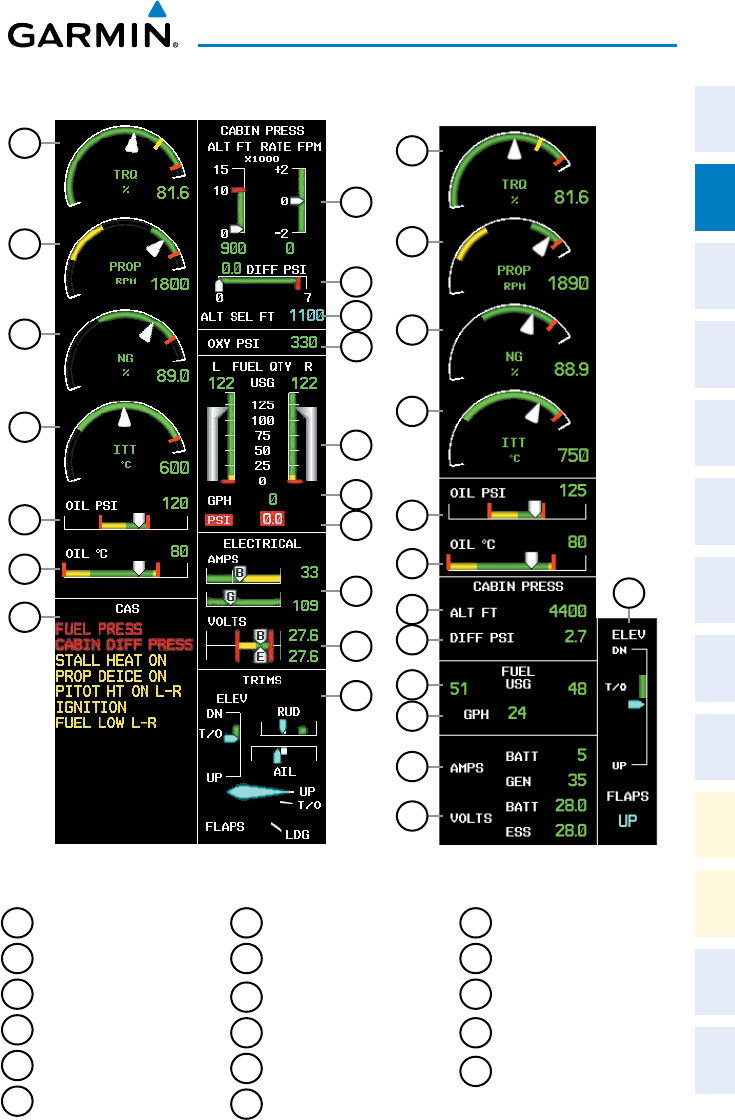
ENGINE & AIRFRAME SYSTEMS
EIS Display (Reversionary Mode)
17
16
15
13
12
8
9
2
3
4
6
5
1
EIS Display (Normal Mode)
1
2
3
7
5
6
4
11
17
16
15
14
13
12
10
9
8
1
Torque
2
Propeller Speed
3
Generator Speed
4
Interturbine Temperature
5
Oil Pressure
6
Oil Temperature
7
CAS Display
8
Cabin Pressure Altitude and
Change Rate
9
Differential Pressure
10
Selected Cabin Altitude
11
Oxygen Pressure
12
Fuel Quantity
13
Fuel Flow
14
Fuel Pressure
15
Battery and Generator
Currents
16
Battery and Essential Bus
Voltages
17
Elevator, Aileron, and
Rudder Trim and Flap
Position

Garmin G1000 Cockpit Reference Guide for the Socata TBM 850
190-00708-02 Rev. A
6
Engine & Airframe Systems
Flight
InstrumentsEAS
Nav/Com/
XPDR/AudioAFCSGPS Nav
Flight
PlanningProcedures
Hazard
Avoidance
Additional
Features
Abnormal
Operation
Annun/
AlertsAppendixIndex
ELECTRICAL SYSTEM
1)
Select the SYSTEM Softkey to display the softkeys for the synoptics system.
2)
Select the ELEC Softkey to display the Electrical System Page.
Electrical Synoptics Page
3
2
9
8
6
4
1
7
5
1
Standby Generator
2
Main Generator
3
Ground Power
Unit Door
4
Battery
5
Main Bus
6
Emergency Switch
7
Battery Bus
8
Essential Bus
9
Power Buses
Garmin G1000 Cockpit Reference Guide for the Socata TBM 850
190-00708-02 Rev. A 7
Engine & Airframe Systems
Flight
Instruments EAS
Nav/Com/
XPDR/Audio AFCS GPS Nav
Flight
Planning Procedures
Hazard
Avoidance
Additional
Features
Abnormal
Operation
Annun/
Alerts Appendix Index
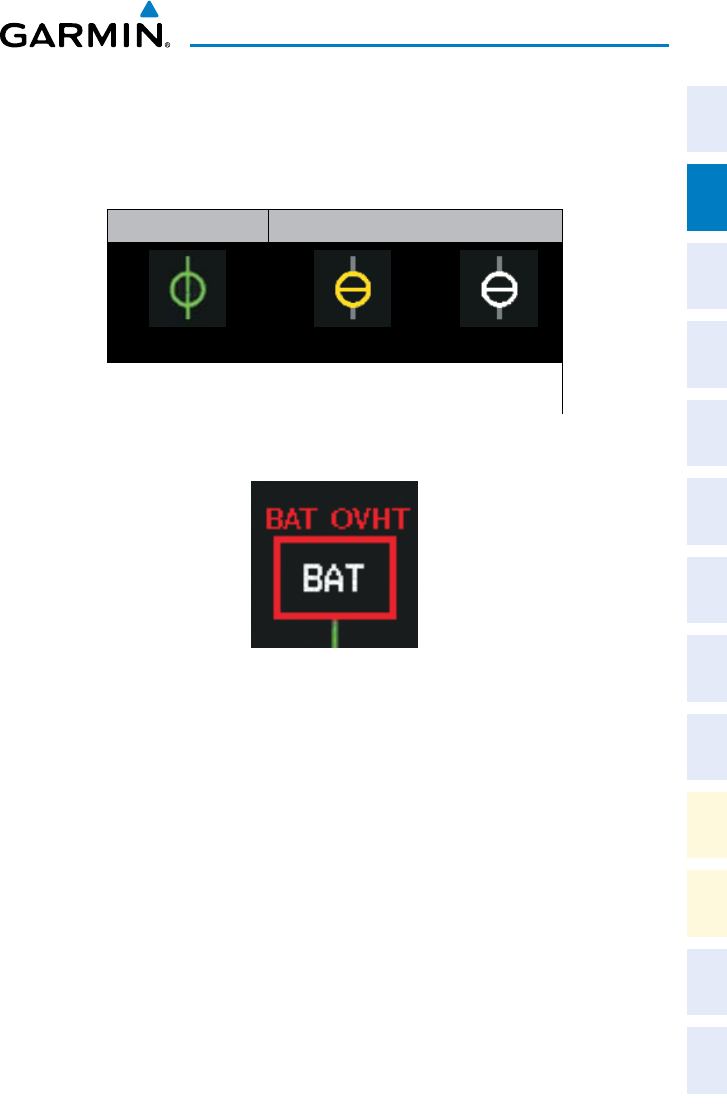
Battery connection status to the main bus is indicated in green; direction of
current flow is indicated with an arrow next to the current readout. If the battery is
disconnected from the main bus, the switch is closed. Battery overheating is indicated
in red with a ‘BAT OVHT’ annunciation; a CAS message is also generated.
Switch Open Switch Closed
Main
Standby
Generator Switch Status
Battery Overheat Indication
Garmin G1000 Cockpit Reference Guide for the Socata TBM 850
190-00708-02 Rev. A
8
Engine & Airframe Systems
Flight
InstrumentsEAS
Nav/Com/
XPDR/AudioAFCSGPS Nav
Flight
PlanningProcedures
Hazard
Avoidance
Additional
Features
Abnormal
Operation
Annun/
AlertsAppendixIndex
FUEL SYSTEM
1)
Select the SYSTEM Softkey to display the softkeys for the synoptics system.
2)
Select the FUEL Softkey to display the Fuel System Page.
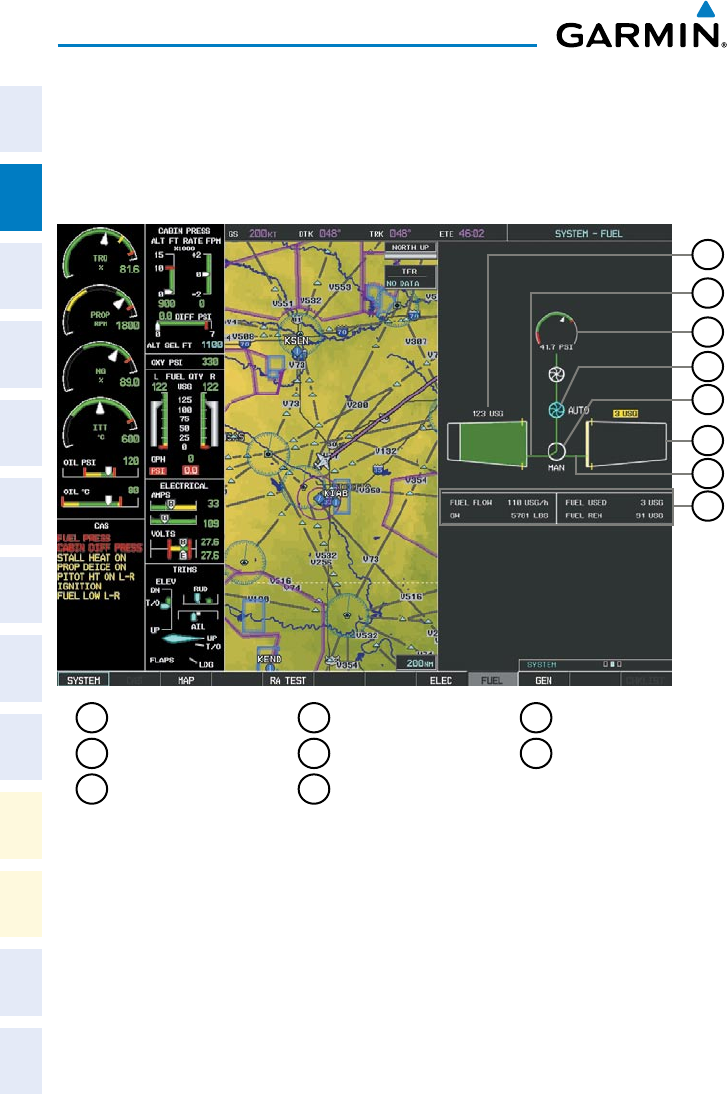
Fuel Synoptics Page
1
Left Fuel Tank
2
Left Fuel Line
3
Fuel Pressure
4
Auxiliary Boost Pump
5
Fuel Selector
6
Right Fuel Tank
7
Right Fuel Line
8
Fuel Flow Data
5
4
8
7
1
2
3
6
Garmin G1000 Cockpit Reference Guide for the Socata TBM 850
190-00708-02 Rev. A 9
Engine & Airframe Systems
Flight
Instruments EAS
Nav/Com/
XPDR/Audio AFCS GPS Nav
Flight
Planning Procedures
Hazard
Avoidance
Additional
Features
Abnormal
Operation
Annun/
Alerts Appendix Index
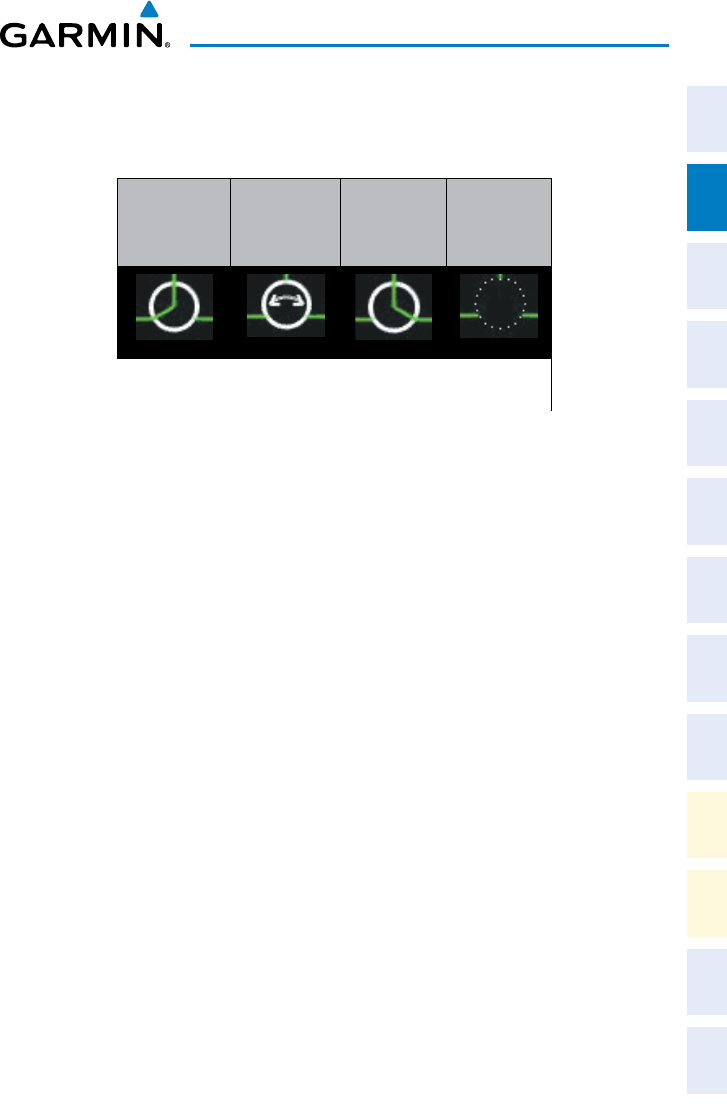
Status of the fuel selector is indicated between the fuel tank symbols. The mode,
automatic (AUTO), manual (MAN), or off (no indication; CAS message ‘FUEL OFF’
generated) is shown beneath the fuel selector symbol.
Left Fuel
Tank
Selected
Switching
Fuel Tank
Selection
Right
Fuel Tank
Selected
Unknown
Fuel Tank
Selection
Fuel Selector Status
If the auxiliary fuel boost pump is on, the symbol is displayed in green. The mode,
automatic (AUTO) or manual (MAN) is displayed next to the pump symbol. If the
boost pump is off, the symbol is shown in light blue (automatic mode) or red (manual
mode).
GENERAL SYSTEMS
1)
Select the SYSTEM Softkey to display the softkeys for the synoptics system.
2)
Select the GEN Softkey to display the Fuel System Page.
The General Synoptics Page aircraft diagram displays open doors in red (CAS
messages also generated). Statuses of propeller, stall sensor heater, pitot probe, and
windshield heat are also indicated on the diagram:
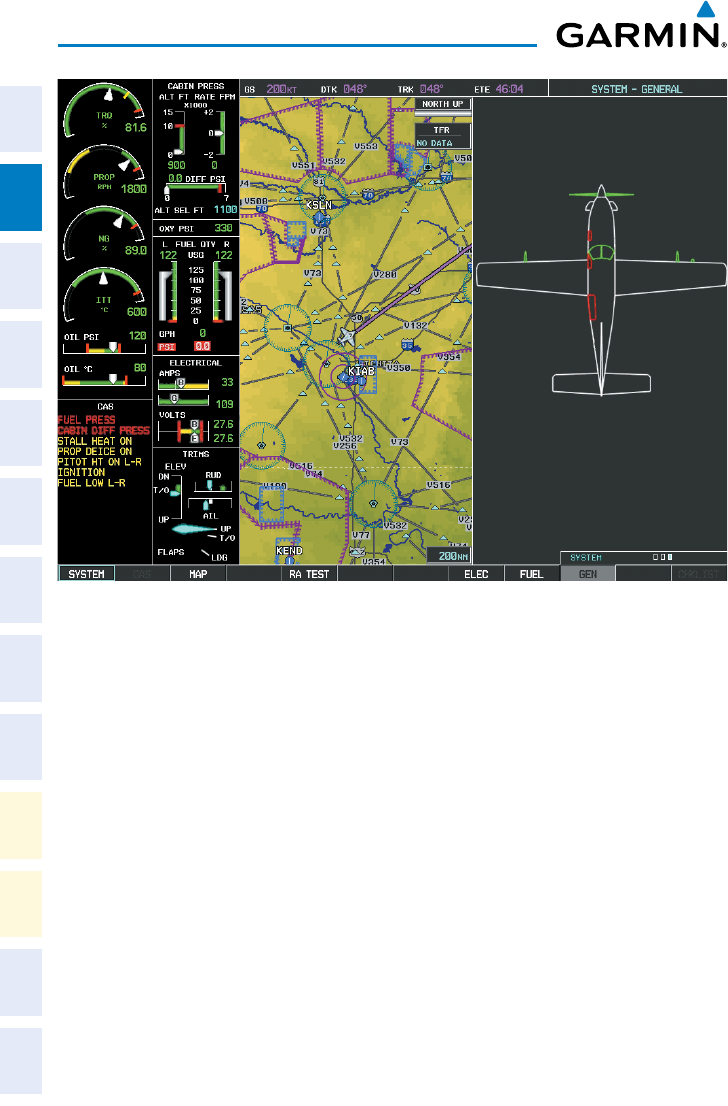
Garmin G1000 Cockpit Reference Guide for the Socata TBM 850
190-00708-02 Rev. A
10
Engine & Airframe Systems
Flight
InstrumentsEAS
Nav/Com/
XPDR/AudioAFCSGPS Nav
Flight
PlanningProcedures
Hazard
Avoidance
Additional
Features
Abnormal
Operation
Annun/
AlertsAppendixIndex
General Synoptics Page
Garmin G1000 Cockpit Reference Guide for the Socata TBM 850
190-00708-02 Rev. A 11
Nav/Com/XPDR/Audio Panel
Flight
Instruments EAS
Nav/Com/
XPDR/Audio AFCS GPS Nav
Flight
Planning Procedures
Hazard
Avoidance
Additional
Features
Abnormal
Operation
Annun/
Alerts Appendix Index
NAV/COM/TRANSPONDER/AUDIO PANEL
ENTER OR CHANGE FLIGHT ID
1)
Press the TMR/REF Softkey, then turn the large FMS Knob to highlight the
Flight ID field.
2)
Turn the small FMS Knob to enter the first character.
3)
Turn the large FMS Knob to select the next field.
4)
Turn the small FMS Knob to enter the next desired character.
5)
Repeat steps 3 and 4 until the desired Flight ID is entered.
6)
Press the ENT Key to update the Flight ID. Do not perform any other
G1000 functions until ‘updating’ is no longer displayed.
ADF TUNING (OPTIONAL)
1)
Press the ADF/DME Softkey.
2)
Turn the small FMS Knob to enter the first digit of the desired ADF
frequency.
3)
Turn the large FMS Knob to select the next desired field.
4)
Turn the small FMS Knob to enter the desired number.
5)
Repeat steps 3 and 4 until the desired ADF frequency is entered.
6)
Press the ENT Key to accept the new frequency.
7)
Press the ENT Key again to transfer the frequency to the active field.
8)
Turn the large FMS Knob to select the MODE field.
9)
Turn the small FMS Knob to select ANT, ADF, ADF/BFO, or ANT/BFO.
10)
Press the ENT Key to complete the selection.
DME TUNING
1)
Press the ADF/DME
or
DME Softkey.
2)
Turn the large FMS to select the DME source field.
3)
Turn the small FMS Knob to select the desired Nav radio.
4)
Press the ENT Key to complete the selection.
Garmin G1000 Cockpit Reference Guide for the Socata TBM 850
190-00708-02 Rev. A
12
Nav/Com/XPDR/Audio Panel
Flight
InstrumentsEAS
Nav/Com/
XPDR/AudioAFCSGPS Nav
Flight
PlanningProcedures
Hazard
Avoidance
Additional
Features
Abnormal
Operation
Annun/
AlertsAppendixIndex
ENTER A TRANSPONDER CODE
1)
Press the XPDR Softkey to display the transponder mode selection softkeys.
2)
Press the XPDR1 or XPDR2 Softkey to select the active transponder.
3)
Press the CODE Softkey to display the transponder code selection softkeys,
for digit entry.
4)
Press the digit softkeys to enter the code in the code field. When entering
the code, the next key in sequence must be pressed within 10 seconds, or
the entry is cancelled and restored to the previous code. Five seconds after
the fourth digit has been entered, the transponder code becomes active.
SELECTING A COM RADIO
Transmit/Receive
Press the COM1 MIC
or
COM2 MIC
on the audio panel.
Receive Only
Press the COM1 or COM2
on the audio panel.
SELECTING A NAV RADIO
1)
To begin navigating using a navigation radio, press the CDI Softkey on the
PFD to select VOR1/LOC1 (NAV1) or VOR2/LOC2 (NAV2).
2)
Press the NAV1
,
NAV2
,
DME
,
or ADF
Key on the audio panel to select or
deselect the navigation radio audio source. All radio keys can be selected
individually or together.
NAV/COM TUNING
1)
Press the small tuning knob to select the desired radio for tuning. A light
blue box highlights the radio frequency to be tuned.
2)
Turn the respective tuning knobs to enter the desired frequency into the
standby frequency field. The large knob enters MHz and the small knob
enters kHz.
3)
Press the Frequency Transfer Key to place the frequency into the active
frequency field.
Garmin G1000 Cockpit Reference Guide for the Socata TBM 850
190-00708-02 Rev. A 13
Nav/Com/XPDR/Audio Panel
Flight
Instruments EAS
Nav/Com/
XPDR/Audio AFCS GPS Nav
Flight
Planning Procedures
Hazard
Avoidance
Additional
Features
Abnormal
Operation
Annun/
Alerts Appendix Index
INTERCOM
Pressing the INTR COM Key on either Audio Panel selects and deselects the
intercom on both Audio Panels. The annunciator is lit when the intercom is active.
The intercom connects the pilot and copilot together. Either the pilot or copilot may
select or deselect the intercom.
The CABIN Key initiates two way communication between the pilot or copilot and
the passengers in the cabin. The annunciator is lit when the cabin intercom is active
on either Audio Panel.
The MAN SQ Key allows either automatic or manual control of the intercom
squelch setting. Pressing the MAN SQ Key enables manual squelch control, indicated
by the MAN SQ annunciator.
During manual squelch operation, pressing the ICS Knob switches between volume
the MAN SQ annunciator is lit, the ICS
the MAN SQ annunciator is extinguished, the ICS Knob controls only volume.
PASSENGER ADDRESS (PA) SYSTEM
A passenger address system is provided by pressing the PA Key to deliver messages
to the passengers. The message is heard by the other pilot on the headset only if the
INTR COM Key is enabled. PA messages are one way from the flight deck to the
passengers.
CLEARANCE RECORDER AND PLAYER
NOTE: Pressing the play key on the pilot’s Audio Panel plays recorded audio
to the Pilot. Pressing the play key on the Copilot’s Audio Panel plays recorded
audio to the Copilot.
Recorded COM audio is stored in separate memory blocks. Once 2.5 minutes
of recording time have been reached, the recorder begins recording over the stored
memory blocks, starting from the oldest block.
The PLAY
Pressing the PLAY Key once plays the latest recorded memory block and then
returns to normal operation. Pressing the PLAY Key again during play of a memory
block stops play. If a COM input signal is detected during play of a recorded memory
block, play is halted.

Garmin G1000 Cockpit Reference Guide for the Socata TBM 850
190-00708-02 Rev. A
14
Nav/Com/XPDR/Audio Panel
Flight
InstrumentsEAS
Nav/Com/
XPDR/AudioAFCSGPS Nav
Flight
PlanningProcedures
Hazard
Avoidance
Additional
Features
Abnormal
Operation
Annun/
AlertsAppendixIndex
Pressing the PLAY Key twice within one-half second while audio is playing plays
the previous block of recorded audio. Each subsequent two presses of the PLAY Key
within one-half second backtracks through the recorded memory blocks to reach and
play any recorded block.
Garmin G1000 Cockpit Reference Guide for the Socata TBM 850
190-00708-02 Rev. A 15
AFCS
Flight
Instruments EAS
Nav/Com/
XPDR/Audio AFCS GPS Nav
Flight
Planning Procedures
Hazard
Avoidance
Additional
Features
Abnormal
Operation
Annun/
Alerts Appendix Index
AUTOMATIC FLIGHT CONTROL SYSTEM
NOTE: If sensor information (other than attitude) required for a flight director
mode becomes invalid or unavailable, the flight director automatically reverts
to the default mode for that axis.
NOTE: If the attitude information required for the default flight director modes
becomes invalid or unavailable, the autopilot automatically disengages.
FLIGHT DIRECTOR ACTIVATION
An initial press of a key listed in the following table (when the flight director is not
active) activates the pilot-side flight director in the listed modes.
Control Pressed Modes Selected
Lateral Vertical
FD Key Roll Hold (default) ROL Pitch Hold (default) PIT
AP Key Roll Hold (default) ROL Pitch Hold (default) PIT
CWS Button Roll Hold (default) ROL Pitch Hold (default) PIT
GA Switch Go Around GA Go Around GA
ALT Key Roll Hold (default) ROL Altitude Hold ALT
VS Key Roll Hold (default) ROL Vertical Speed VS
VNV Key Roll Hold (default) ROL Vertical Path Tracking* VPTH
NAV Key Navigation**
GPS
VOR
LOC
Pitch Hold (default) PIT
BC Key Backcourse*** BC Pitch Hold (default) PIT
APR Key Approach**
GPS
VOR
LOC
Pitch Hold (default)
Glidepath
Glideslope
PIT
GP
GS
HDG Key Heading Select HDG Pitch Hold (default) PIT
*Valid VNV flight plan must be entered before VNV Key press activates flight director.
**The selected navigation receiver must have a valid VOR or LOC signal or active GPS course before
NAV
or
APR
Key press activates flight director.
***The selected navigation receiver must have a valid LOC signal before
BC
Key press activates flight
director.

Garmin G1000 Cockpit Reference Guide for the Socata TBM 850
190-00708-02 Rev. A
16
AFCS
Flight
InstrumentsEAS
Nav/Com/
XPDR/AudioAFCSGPS Nav
Flight
PlanningProcedures
Hazard
Avoidance
Additional
Features
Abnormal
Operation
Annun/
AlertsAppendixIndex
VERTICAL MODES
Vertical Mode Description Control Annunciation
Pitch Hold
Holds the current aircraft pitch attitude;
may be used to climb/descend to the
Selected Altitude
(default) PIT
Selected Altitude
Armed
AFCS armed to capture the altitude
displayed in the Selected Altitude
window
*ALTS
Altitude Hold Holds the current Altitude Reference ALT Key ALT nnnnn f T
Vertical Speed
Maintains the current aircraft vertical
speed; may be used to climb/descend
to the Selected Altitude
VS Key VS nnnn f p m
Flight Level Change,
IAS Hold
Maintains the current aircraft airspeed
(in KIAS or Mach Number) while the
aircraft is climbing/descending to the
Selected Altitude
FLC Key
FLC nnn k T
Flight Level Change,
Mach Hold FLC M .nnn
VNAV Captures and tracks the VNAV flight
path
VNV
Key VPTH
VNAV Target
Altitude Armed
AFCS armed to capture the altitude
displayed in the VNAV Target Altitude
window
** ALTV
Glidepath Captures and tracks the WAAS
glidepath on approach APR Key
GP
Glideslope Captures and tracks the ILS glideslope
on approach GS
Takeoff
Commands a preprogrammed constant
pitch attitude and wings level in
preparation for takeoff GA
Switch
TO
Go Around
Disengages the autopilot and
commands a constant preprogrammed
pitch attitude and wings level
GA
* ALTS armed automatically when PIT, VS, FLC, or GA active, and under VPTH when Selected Altitude
is to be captured instead of VNAV Target Altitude
** ALTV armed automatically under VPTH when VNAV Target Altitude is to be captured instead of
Selected Altitude

Garmin G1000 Cockpit Reference Guide for the Socata TBM 850
190-00708-02 Rev. A 17
AFCS
Flight
Instruments EAS
Nav/Com/
XPDR/Audio AFCS GPS Nav
Flight
Planning Procedures
Hazard
Avoidance
Additional
Features
Abnormal
Operation
Annun/
Alerts Appendix Index
LATERAL MODES
Lateral Mode Description Control Annunciation
Roll Hold
Holds current aircraft roll attitude
or rolls wings level, depending on
commanded bank angle
(default) ROL
Low Bank Limits maximum commanded roll angle BANK
Key *
Heading Select Captures and tracks Selected Heading HDG
Key HDG
Navigation, GPS
Arm/Capture/Track
Captures and tracks selected navigation
source (GPS, VOR, LOC)
NAV
Key
GPS
Navigation, VOR
Enroute Arm/
Capture/Track
VOR
Navigation, LOC
Arm/Capture/Track
(No Glideslope)
LOC
Backcourse Arm/
Capture/Track
Captures and tracks a localizer signal
for backcourse approaches BC Key BC
Approach, GPS
Arm/Capture/Track
Captures and tracks selected navigation
source (GPS, VOR, LOC) APR Key
GPS
Approach, VOR
Arm/Capture/Track VAPP
Approach, ILS Arm/
Capture/Track
(Glideslope Mode
automatically armed)
LOC
Takeoff
Commands a constant preprogrammed
constant pitch attitude and wings level
in preparation for takeoff GA
Switch
TO
Go Around
Disengages autopilot and commands
a preprogrammed constant pitch
attitude and wings level
GA
* No annunciation appears in the AFCS Status Box. The acceptable bank angle range is indicated in
green along the Roll Scale of the Attitude Indicator.
Garmin G1000 Cockpit Reference Guide for the Socata TBM 850
190-00708-02 Rev. A
18
AFCS
Flight
InstrumentsEAS
Nav/Com/
XPDR/AudioAFCSGPS Nav
Flight
PlanningProcedures
Hazard
Avoidance
Additional
Features
Abnormal
Operation
Annun/
AlertsAppendixIndex
Blank Page
Garmin G1000 Cockpit Reference Guide for the Socata TBM 850
190-00708-02 Rev. A 19
GPS Navigation
Flight
Instruments EAS
Nav/Com/
XPDR/Audio AFCS GPS Nav
Flight
Planning Procedures
Hazard
Avoidance
Additional
Features
Abnormal
Operation
Annun/
Alerts Appendix Index
GPS NAVIGATION
DIRECT-TO NAVIGATION
Direct-to Navigation using the MFD
1)
Press the Direct-to
( )
Key on the MFD Control Unit.
2)
Enter the waypoint identifier.
3)
Press the ENT Key to confirm the identifier. The ‘Activate?’ field is
highlighted.
4)
If no altitude constraint or course is desired, press the ENT Key to activate.
To enter an altitude constraint, proceed to step 5.
5)
Turn the large FMS Knob to place the cursor over the ‘VNV’ altitude field.
6)
Enter the desired altitude.
7)
Press the ENT Key. If the waypoint entered is an airport, the option to
select MSL or AGL is now displayed. If the waypoint is not an airport,
proceed to step 9.
8)
Turn the small FMS Knob to select ‘MSL’ or ‘AGL’.
9)
Press the ENT Key. The cursor is now flashing in the VNV offset distance
field.
10)
Enter the desired offset distance before (-) the waypoint.
11)
Press the ENT Key. The ‘Activate?’ field is highlighted.
12)
Press the ENT Key to activate.
Direct-to Navigation using the PFD
1)
Press the Direct-to Key
( )
on the PFD or controller.
2)
Turn the large FMS Knob to place the cursor in the desired selection field.
3)
Turn the small FMS Knob to begin selecting the desired identifier, location,
etc.
4)
Press the ENT Key.
5)
The cursor is now flashing on ‘ACTIVATE?’. If no altitude constraint or
course is desired, press the ENT Key to activate. To enter an altitude
constraint, proceed to step 6.
6)
Turn the large FMS Knob to place the cursor over the ‘ALT’ altitude field.

Garmin G1000 Cockpit Reference Guide for the Socata TBM 850
190-00708-02 Rev. A
20
GPS Navigation
Flight
InstrumentsEAS
Nav/Com/
XPDR/AudioAFCSGPS Nav
Flight
PlanningProcedures
Hazard
Avoidance
Additional
Features
Abnormal
Operation
Annun/
AlertsAppendixIndex
7)
Turn the small FMS Knob to enter the desired altitude.
8)
Press the ENT Key. If the waypoint entered is an airport, the option to
select MSL or AGL is now displayed. If the waypoint is not an airport,
proceed to step 10.
9)
Turn the small FMS Knob to select ‘MSL’ or ‘AGL’.
10)
Press the ENT Key. The cursor is placed in the ‘OFFSET’ field.
11)
Turn the small FMS Knob to enter the desired target altitude offset from
the selected Direct-to.
12)
Press the ENT Key to highlight ‘Activate?’ or turn the large FMS Knob to
highlight the ‘CRS’ field.
13)
Turn the small FMS Knob to enter the desired course to the waypoint.
14)
Press the ENT Key to highlight ‘ACTIVATE?’.
15)
Press the ENT Key again to activate the Direct-to.
ACTIVATE A STORED FLIGHT PLAN
1)
Press the FPL Key and turn the small FMS Knob to display the Flight Plan
Catalog Page.
2)
Press the FMS Knob to activate the cursor.
3)
Turn the large FMS Knob to highlight the desired flight plan
4)
Select the ACTIVE Softkey. The confirmation window is now displayed.
5)
With ‘OK’ highlighted, press the ENT Key to activate the flight plan. To cancel
the flight plan activation, turn the large FMS Knob to highlight ‘CANCEL’ and
press the ENT Key.
ACTIVATE A FLIGHT PLAN LEG
1)
From the Active Flight Plan Page, press the FMS Knob to activate the cursor
and turn the large FMS Knob to highlight the desired waypoint.
2)
Select the ACT LEG Softkey.
OR
Press the MENU Key, select the ‘Activate Leg’ option from the page menu
and press the ENT Key. This step must be used when activating a leg from
the PFD.
3)
With ‘Activate’ highlighted, press the ENT Key.
Garmin G1000 Cockpit Reference Guide for the Socata TBM 850
190-00708-02 Rev. A 21
GPS Navigation
Flight
Instruments EAS
Nav/Com/
XPDR/Audio AFCS GPS Nav
Flight
Planning Procedures
Hazard
Avoidance
Additional
Features
Abnormal
Operation
Annun/
Alerts Appendix Index
STOP NAVIGATING A FLIGHT PLAN
1)
Press the FPL Key to display the Active Flight Plan Page.
2)
Press the MENU Key to display the Page Menu Window.
3)
Turn the large FMS Knob to highlight ‘Delete Flight Plan’ and press the ENT
Key. With ‘OK’ highlighted, press the ENT Key to deactivate the flight plan.
This will not delete the stored flight plan, only the active flight plan.
VERTICAL NAVIGATION (VNAV)
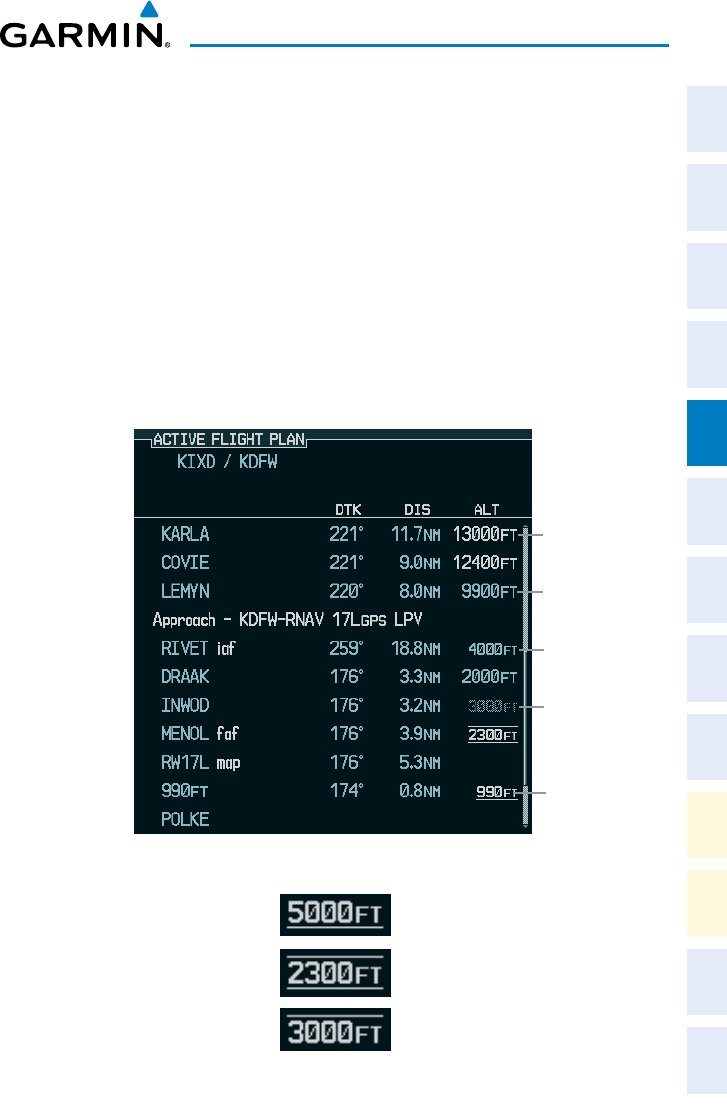
The navigation database only contains altitudes for procedures that call for “Cross
at” altitudes. If the procedure states “Expect to cross at,” the altitude is not in the
database. In this case the altitude may be entered manually.
Large Light
Blue Text
Small White Text
with Altitude
Restriction Bar
Large White
Text
Small Light
Blue Subdued
Text
Small Light
Blue Text
Cross AT or ABOVE 5,000 ft
Cross AT or BELOW 3,000 ft
Cross AT 2,300 ft
Garmin G1000 Cockpit Reference Guide for the Socata TBM 850
190-00708-02 Rev. A
22
GPS Navigation
Flight
InstrumentsEAS
Nav/Com/
XPDR/AudioAFCSGPS Nav
Flight
PlanningProcedures
Hazard
Avoidance
Additional
Features
Abnormal
Operation
Annun/
AlertsAppendixIndex
Since altitudes loaded with an arrival procedure are published only for turbojet
aircraft, the altitudes are displayed as white text indicating that the altitudes are
displayed for reference only. An arrival waypoint altitude may be used (or “designated”)
as is, or changed to a different altitude. An altitude is designated by pressing the FMS
Knob and turning the large FMS Knob to place the cursor on the desired altitude and
pressing the ENT Key or entering a different value and pressing the ENT Key. The
altitude is now displayed as blue text, indicating that the altitude is now designated to
give vertical speed and deviation guidance.
Approach waypoint altitude constraints are designated in the same way as
previously described for arrivals. These altitudes are also displayed as blue text after
not including the FAF. The FAF is always a “reference only” altitude and cannot be
designated, unless the selected approach does not provide vertical guidance. In this
case, the FAF altitude can be designated.
White Text Light Blue Text Light Blue
Subdued Text
Large Text Altitude calculated by
the system estimating
the altitude of the
aircraft as it passes over
the navigation point.
This altitude is provided
as a reference and is
not designated to be
used in determining
vertical flight path
guidance.
Altitude has been
entered by the pilot.
Altitude is designated
for use in giving vertical
flight path guidance.
Altitude does not match
the published altitude
in navigation database
or no published altitude
exists.
The system cannot
use this altitude
in determining
vertical flight path
guidance.
Small Text Altitude is not
designated to be used
in determining vertical
flight path guidance.
Altitude has been
retrieved from the
navigation database
and is provided as a
reference.
Altitude is designated for
use in giving vertical flight
path guidance. Altitude
has been retrieved from
the navigation database
or has been entered by
the pilot and matches a
published altitude in the
navigation database.
The system cannot
use this altitude in
determining vertical
flight path guidance.
Garmin G1000 Cockpit Reference Guide for the Socata TBM 850
190-00708-02 Rev. A 23
Flight Planning
Flight
Instruments EAS
Nav/Com/
XPDR/Audio AFCS GPS Nav
Flight
Planning Procedures
Hazard
Avoidance
Additional
Features
Abnormal
Operation
Annun/
Alerts Appendix Index
FLIGHT PLANNING
WEIGHT PLANNING
All procedures apply to the MFD unless otherwise stated.
Entering Weight Parameters
return to this page, turn the large
FMS
Knob to select the ‘AUX’ page group. Turn the
small
FMS
1)
Select the EMPTY WT Softkey to place the cursor in the Basic Empty
Weight field.
2)
Enter the desired aircraft empty weight.
3)
Press the ENT Key. The cursor is now over the ‘PILOT & STORES’ field.
4)
Enter the desired weight of Pilot & Stores.
5)
Press the ENT Key.
6)
Continue repeating these steps until all desired weights have been entered.
Entering Fuel Parameters
1)
If necessary, press the FMS Knob to activate the cursor.
2)
Turn the large FMS Knob to place the cursor in the ‘FUEL ON BOARD’ field.
3)
Select the FOB SYNC Softkey to enter the fuel on board quantity as read
from the aircraft fuel quantity sensors.
Or:
Manually enter the desired fuel quantity.
4)
Press the ENT Key. The cursor is now in the ‘FUEL RESERVES’ field.
5)
Enter the desired reserve fuel quantity.
6)
Press the FMS Knob to remove the cursor.
TRIP PLANNING
1)
Turn the large FMS Knob to select the ‘AUX’ page group.
2)
Turn the small FMS Knob to select the second rectangular page icon.
3)
The current ‘PAGE MODE’ is displayed at the top of the page: ‘AUTOMATIC’
or ‘MANUAL’. To change the page mode, select the AUTO or MANUAL
Softkey.
Garmin G1000 Cockpit Reference Guide for the Socata TBM 850
190-00708-02 Rev. A
24
Flight Planning
Flight
InstrumentsEAS
Nav/Com/
XPDR/AudioAFCSGPS Nav
Flight
PlanningProcedures
Hazard
Avoidance
Additional
Features
Abnormal
Operation
Annun/
AlertsAppendixIndex
4)
For Direct-to planning:
a)
Select the WPTS Softkey and verify that the starting waypoint field
indicates ‘P.POS’ (present position).
b)
If necessary, press the MENU Key and select ‘Set WPT to Present
Position’ to display ‘P.POS’.
c)
Press the ENT Key and the flashing cursor moves to the ending
waypoint field.
d)
Enter the identifier of the ending waypoint and press the ENT Key to
accept the waypoint.
Or:
For point-to-point planning:
a)
Enter the identifier of the starting waypoint.
b)
Once the waypoint’s identifier is entered, press the ENT Key to accept
the waypoint. The flashing cursor moves to the ending waypoint.
c)
Again, enter the identifier of the ending waypoint.
d)
Press the ENT Key to accept the waypoint.
Or:
For flight plan leg planning:
a)
Select the FPL Softkey (at the bottom of the display).
b)
Turn the small FMS Knob to select the desired flight plan (already
stored in memory), by number.
c)
Turn the large FMS Knob to highlight the ‘LEG’ field.
d)
Turn the small FMS Knob to select the desired leg of the flight plan, or
select ‘CUM’ to apply trip planning calculations to the entire flight plan.
Selecting ‘FPL 00’ displays the active flight plan. If an active flight plan
is selected, ‘REM’ will be an available option to display planning data
for the remainder of the flight plan.
NOTE: The page mode must be set to ‘MANUAL’ to perform the following
steps.
5)
Turn the large FMS Knob to highlight the departure time (DEP TIME) field.
NOTE: The departure time on the Trip Planning Page is used for preflight
planning. Refer to the Utility Page for the actual flight departure time.
Garmin G1000 Cockpit Reference Guide for the Socata TBM 850
190-00708-02 Rev. A 25
Flight Planning
Flight
Instruments EAS
Nav/Com/
XPDR/Audio AFCS GPS Nav
Flight
Planning Procedures
Hazard
Avoidance
Additional
Features
Abnormal
Operation
Annun/
Alerts Appendix Index
6)
Enter the departure time. Press the ENT Key when finished. Departure time
may be entered in local or UTC time, depending upon system settings.
7)
The flashing cursor moves to the ground speed (GS) field. Enter the ground
speed. Press the
ENT
Key when finished. Note that in ‘automatic’ page
mode, ground speed is provided by the system.
8)
The flashing cursor moves to the fuel flow field. Enter the fuel flow. Press
the ENT Key when finished. Note that in ‘AUTOMATIC’ page mode, fuel flow
is provided by the system.
9)
The flashing cursor moves to the fuel onboard field. Modify the fuel onboard.
Press the ENT Key when finished. In ‘AUTOMATIC’ mode, fuel onboard is
provided by the entry made on the Weight Planning Page.
10)
The flashing cursor moves to the calibrated airspeed (CALIBRATED AS) field.
Enter the calibrated airspeed. Press the ENT Key when finished. Note that
in ‘AUTOMATIC’ page mode, calibrated airspeed is provided by the system.
11)
The flashing cursor moves to the altitude (IND ALTITUDE) field. Enter the
altitude. Press the ENT Key when finished. Note that in ‘AUTOMATIC’ page
mode, altitude is provided by the system.
12)
The flashing cursor moves to the barometric setting (PRESSURE) field. Enter
the desired baro setting. Press the ENT Key when finished. Note that in
‘AUTOMATIC’ page mode, the baro setting is provided by the setting entered
on the PFD.
13)
The flashing cursor moves to the air temperature (TOTAL AIR TEMP) field. Enter
the desired air temperature. Press the ENT Key when finished. Note that in
‘AUTOMATIC’ page mode, air temperature is provided by the system outside
air temperature.
CREATE A NEW USER WAYPOINT DEFINED BY LATITUDE & LONGITUDE
1)
Turn the large FMS Knob on the MFD Control Unit to select the ‘WPT’ page
group.
2)
Turn the small FMS Knob to select the User WPT Information Page.
3)
Press the NEW Softkey. A waypoint is created at the current aircraft
position.
4)
Enter the desired waypoint name.
5)
Press the ENT Key.

Garmin G1000 Cockpit Reference Guide for the Socata TBM 850
190-00708-02 Rev. A
26
Flight Planning
Flight
InstrumentsEAS
Nav/Com/
XPDR/AudioAFCSGPS Nav
Flight
PlanningProcedures
Hazard
Avoidance
Additional
Features
Abnormal
Operation
Annun/
AlertsAppendixIndex
6)
The cursor is now in the ‘WAYPOINT TYPE’ field. If desired, the waypoint
can be made temporary (deleted automatically when the system is turned
off). If the waypoint is to remain in the system, proceed to step 7.
a)
Turn the large FMS Knob one click to the left to highlight
‘TEMPORARY’. This list is populated only when there is an active flight
plan.
b)
Press the ENT Key to place a check-mark in the box.
7)
The cursor is now in the ‘WAYPOINT TYPE’ field. Turn the small FMS Knob
to display a list of waypoint types.
8)
Turn the small FMS Knob to select LAT/LON (latitude and longitude).
9)
Press the ENT Key.
CREATE A NEW USER WAYPOINT DEFINED BY RADIALS FROM OTHER
WAYPOINTS
1)
Turn the large FMS Knob on the MFD Control Unit to select the ‘WPT’ page
group.
2)
Turn the small FMS Knob to select the User WPT Information Page.
3)
Press the NEW Softkey. A waypoint is created at the current aircraft
position.
4)
Enter the desired waypoint name.
5)
Press the ENT Key.
6)
The cursor is now in the ‘WAYPOINT TYPE’ field. If desired, the waypoint
can be made temporary (deleted automatically when the system is turned
off). If the waypoint is to remain in the system, proceed to step 7.
a)
Turn the large FMS Knob one click to the left to highlight
‘TEMPORARY’. This list is populated only when there is an active flight
plan.
b)
Press the ENT Key to place a check-mark in the box.
7)
The cursor is now in the ‘WAYPOINT TYPE’ field. Turn the small FMS Knob
to display a list of waypoint types.
8)
Turn the small FMS Knob to select RAD/RAD (radial/radial).
9)
Press the ENT Key.
Garmin G1000 Cockpit Reference Guide for the Socata TBM 850
190-00708-02 Rev. A 27
Flight Planning
Flight
Instruments EAS
Nav/Com/
XPDR/Audio AFCS GPS Nav
Flight
Planning Procedures
Hazard
Avoidance
Additional
Features
Abnormal
Operation
Annun/
Alerts Appendix Index
10)
The cursor moves to the ‘REFERENCE WAYPOINTS’ field. With the first
waypoint name highlighted, use the FMS Knobs to enter the desired
waypoint name. Waypoints may also be selected as follows:
a)
When a flight plan is active, turning the small FMS Knob to the left will
display a list of the flight plan waypoints.
b)
Turn the large FMS Knob to select the desired waypoint.
c)
Press the ENT Key.
Or:
a)
Turn the small FMS Knob to the left. Initially, a flight plan waypoint list
is displayed.
b)
Turn the small FMS Knob to the right to display the ‘NRST’ waypoints
to the aircraft’s current position.
c)
Turn the large FMS Knob to select the desired waypoint.
d)
Press the ENT Key.
Or:
a)
Turn the small FMS Knob to the left. Initially, a flight plan waypoint list
is displayed.
b)
Turn the small FMS Knob to the right to display the ‘RECENT’
waypoints.
c)
Turn the large FMS Knob to select the desired waypoint.
d)
Press the ENT Key.
Or:
a)
Turn the small FMS Knob to the left. Initially, a flight plan waypoint list
is displayed.
b)
Turn the small FMS Knob to the right to display the ‘USER’ waypoints.
c)
Turn the large FMS Knob to select the desired waypoint.
d)
Press the ENT Key.
11)
Press the ENT Key. The cursor is displayed in the ‘RAD’ (radial) field. Enter
the desired radial from the reference waypoint.
12)
Press the ENT Key.
13)
Repeat step 10 to enter the next waypoint name.
14)
Press the ENT Key. The cursor is displayed in the ‘RAD’ (radial) field for the
second waypoint. Enter the desired radial from the reference waypoint.
Garmin G1000 Cockpit Reference Guide for the Socata TBM 850
190-00708-02 Rev. A
28
Flight Planning
Flight
InstrumentsEAS
Nav/Com/
XPDR/AudioAFCSGPS Nav
Flight
PlanningProcedures
Hazard
Avoidance
Additional
Features
Abnormal
Operation
Annun/
AlertsAppendixIndex
15)
Press the ENT Key.
16)
Press the FMS Knob to remove the flashing cursor.
CREATE A NEW USER WAYPOINT DEFINED BY A RADIAL & DISTANCE FROM
ANOTHER WAYPOINT
1)
Turn the large FMS Knob on the MFD Control Unit to select the ‘WPT’ page
group.
2)
Turn the small FMS Knob to select the User WPT Information Page.
3)
Press the NEW Softkey. A waypoint is created at the current aircraft
position.
4)
Enter the desired waypoint name.
5)
Press the ENT Key.
6)
The cursor is now in the ‘WAYPOINT TYPE’ field. If desired, the waypoint
can be made temporary (deleted automatically when the system is turned
off). If the waypoint is to remain in the system, proceed to step 7.
a)
Turn the large FMS Knob one click to the left to highlight
‘TEMPORARY’. This list is populated only when there is an active flight
plan.
b)
Press the ENT Key to place a check-mark in the box.
7)
The cursor is now in the ‘WAYPOINT TYPE’ field. Turn the small FMS Knob
to display a list of waypoint types.
8)
Turn the small FMS Knob to select RAD/DIS (radial/distance).
9)
Press the ENT Key.
10)
The cursor moves to the ‘REFERENCE WAYPOINTS’ field. With the first
waypoint name highlighted, use the FMS Knobs to enter the desired
waypoint name. Waypoints may also be selected as follows:
a)
When a flight plan is active, turning the small FMS Knob to the left will
display a list of the flight plan waypoints.
b)
Turn the large FMS Knob to select the desired waypoint.
c)
Press the ENT Key.
Or:
a)
Turn the small FMS Knob to the left. Initially, a flight plan waypoint list
is displayed.
Garmin G1000 Cockpit Reference Guide for the Socata TBM 850
190-00708-02 Rev. A 29
Flight Planning
Flight
Instruments EAS
Nav/Com/
XPDR/Audio AFCS GPS Nav
Flight
Planning Procedures
Hazard
Avoidance
Additional
Features
Abnormal
Operation
Annun/
Alerts Appendix Index
b)
Turn the small FMS Knob to the right to display the ‘NRST’ waypoints
to the aircraft’s current position.
c)
Turn the large FMS Knob to select the desired waypoint.
d)
Press the ENT Key.
Or:
a)
Turn the small FMS Knob to the left. Initially, a flight plan waypoint list
is displayed.
b)
Turn the small FMS Knob to the right to display the ‘RECENT’
waypoints.
c)
Turn the large FMS Knob to select the desired waypoint.
d)
Press the ENT Key.
Or:
a)
Turn the small FMS Knob to the left. Initially, a flight plan waypoint list
is displayed.
b)
Turn the small FMS Knob to the right to display the ‘USER’ waypoints.
c)
Turn the large FMS Knob to select the desired waypoint.
d)
Press the ENT Key.
11)
Press the ENT Key. The cursor is displayed in the ‘RAD’ (radial) field. Enter
the desired radial from the reference waypoint.
12)
Press the ENT Key.
13)
The cursor is now displayed in the ‘DIS’ (distance) field. Enter the desired
distance from the reference waypoint.
14)
Press the ENT Key.
15)
Press the FMS Knob to remove the flashing cursor.
DELETE A USER WAYPOINT
1)
Turn the large FMS Knob to select the ‘WPT’ page group.
2)
Turn the small FMS Knob to select the User WPT Information Page.
3)
Press the FMS Knob to activate the cursor.
4)
Turn the large FMS Knob to the place the cursor in the ‘USER WAYPOINT LIST’
field.
5)
Turn the small FMS Knob to highlight the desired waypoint.
Garmin G1000 Cockpit Reference Guide for the Socata TBM 850
190-00708-02 Rev. A
30
Flight Planning
Flight
InstrumentsEAS
Nav/Com/
XPDR/AudioAFCSGPS Nav
Flight
PlanningProcedures
Hazard
Avoidance
Additional
Features
Abnormal
Operation
Annun/
AlertsAppendixIndex
6)
Select the DELETE Softkey.
7)
The message ‘Would you like to delete the user waypoint?’ is displayed. With
‘YES’ highlighted, press the ENT Key.
CREATE A NEW FLIGHT PLAN
NOTE: When creating a new flight plan in the Active Flight Plan Window,
the first leg is activated automatically after it is created.
Using the MFD
1)
Press the FPL Key on the MFD Control Unit.
2)
Turn the small FMS Knob to display the Flight Plan Catalog Page.
3)
Select the NEW Softkey to display a blank flight plan for the first empty storage
location.
4)
Turn the small FMS Knob to display the Waypoint Information Window.
5)
Enter the identifier of the departure waypoint.
6)
Press the ENT Key.
7)
Repeat step number 4, 5, and 6 to enter the identifier for each additional
flight plan waypoint.
8)
When all waypoints have been entered, press the FMS Knob to return to the
Flight Plan Catalog Page. The new flight plan is now in the list.
Using the PFD
NOTE: If a flight plan is active, an additional flight plan cannot be entered
using the PFD.
1)
Press the FPL Key on the PFD.
2)
Turn the small FMS Knob to display the Waypoint Information Page.
3)
Turn the small FMS Knob to enter the first letter of the destination waypoint
identifier.
4)
Turn the large FMS Knob to the right to move the cursor to the next character
position.
5)
Repeat step 3 and 4 to spell out the rest of the waypoint identifier.
6)
Press the ENT Key and the cursor is now ready for entering of the next flight
plan waypoint.
Garmin G1000 Cockpit Reference Guide for the Socata TBM 850
190-00708-02 Rev. A 31
Flight Planning
Flight
Instruments EAS
Nav/Com/
XPDR/Audio AFCS GPS Nav
Flight
Planning Procedures
Hazard
Avoidance
Additional
Features
Abnormal
Operation
Annun/
Alerts Appendix Index
7)
Repeat steps 3 through 6 to enter the identifier for each additional flight plan
waypoint.
8)
Once all waypoints have been entered, press the FMS Knob to remove the
cursor. The new flight plan is now active.
IMPORT A FLIGHT PLAN FROM AN SD CARD
1)
Insert the SD card containing the flight plan in the top card slot on the
MFD.
2)
Press the FPL Key on the MFD Control Unit to display the Active Flight Plan
Page on the MFD.
3)
Turn the small FMS Knob to select the Flight Plan Catalog Page.
4)
Press the FMS Knob to activate the cursor.
5)
Turn either FMS Knob to highlight an empty or existing flight plan.
6)
Press the IMPORT Softkey.
If an empty flight plan is selected, a list of the available flight plans on
the SD card will be displayed.
Or:
If an existing flight plan is selected, an ‘Overwrite existing flight plan?
OK or CANCEL’ prompt is displayed. Press the ENT Key to choose to
overwrite the selected flight plan and see a list of the available flight
plans on the SD card. If overwriting the existing flight plan is not
desired, select ‘CANCEL’ using the FMS Knob, press the ENT Key, select
another existing or empty flight plan, and again press the IMPORT
Softkey.
7)
Turn the small FMS Knob to highlight the desired flight plan for importing.
8)
Press the ENT Key.
INSERT A WAYPOINT IN THE ACTIVE FLIGHT PLAN
1)
Press the FPL Key to display the active flight plan.
2)
If necessary, press the FMS Knob to activate the cursor.
3)
Turn the large FMS Knob to highlight the desired flight plan waypoint. The
new waypoint is inserted before the highlighted waypoint.
4)
Turn the small FMS Knob. The Waypoint Information Window is now
displayed.

Garmin G1000 Cockpit Reference Guide for the Socata TBM 850
190-00708-02 Rev. A
32
Flight Planning
Flight
InstrumentsEAS
Nav/Com/
XPDR/AudioAFCSGPS Nav
Flight
PlanningProcedures
Hazard
Avoidance
Additional
Features
Abnormal
Operation
Annun/
AlertsAppendixIndex
5)
Enter the new flight plan waypoint by one of the following:
a)
Enter the user waypoint identifier, facility, or city.
b)
Press the ENT Key.
Or:
a)
Turn the small FMS Knob to the left. Initially, a flight plan waypoint list
is displayed.
b)
Turn the small FMS Knob to the right to display the ‘NRST’ airport
waypoints to the aircraft’s current position.
c)
Turn the large FMS Knob to select the desired waypoint.
d)
Press the ENT Key.
Or:
a)
Turn the small FMS Knob to the left. Initially, a flight plan waypoint list
is displayed.
b)
Turn the small FMS Knob to the right to display the ‘RECENT’
waypoints.
c)
Turn the large FMS Knob to select the desired waypoint.
d)
Press the ENT Key.
e)
Press the ENT Key again to “accept” the waypoint.
ENTER AN AIRWAY IN A FLIGHT PLAN
1)
Press the FPL Key.
2)
Press the FMS Knob to activate the cursor (not required on the PFD).
3)
Turn the large FMS Knob to highlight the waypoint field after the desired
airway entry point. If this previous waypoint is not a valid airway entry
point, a valid entry point should be entered at this time.
4)
Turn the small FMS Knob one click clockwise and select the LD AIRWY
Softkey, or press the MENU Key and select “Load Airway”. The Select
Airway Page is displayed. The LD AIRWY Softkey or the “Load Airway”
menu item is available only when an acceptable airway entry waypoint has
been chosen (the waypoint ahead of the cursor position).
5)
Turn the FMS Knob to select the desired airway from the list, and press the
ENT Key. Low altitude airways are shown first in the list, followed by “all”
altitude airways, and then high altitude airways.
Garmin G1000 Cockpit Reference Guide for the Socata TBM 850
190-00708-02 Rev. A 33
Flight Planning
Flight
Instruments EAS
Nav/Com/
XPDR/Audio AFCS GPS Nav
Flight
Planning Procedures
Hazard
Avoidance
Additional
Features
Abnormal
Operation
Annun/
Alerts Appendix Index
6)
Turn the FMS Knob to select the desired airway exit point from the list, and
press the ENT Key. ‘LOAD?’ is highlighted.
7)
Press the ENT Key. The system returns to editing the flight plan with the
new airway inserted.
INVERT AN ACTIVE FLIGHT PLAN
1)
Press the FPL Key to display the active flight plan.
2)
Press the MENU Key to display the Page Menu.
3)
Turn the large FMS Knob to highlight ‘Invert Flight Plan’.
4)
Press the ENT Key. The original flight plan remains intact in its flight plan
catalog storage location.
5)
With ‘OK’ highlighted, press the ENT Key to invert the flight plan.
REMOVE A DEPARTURE, ARRIVAL, APPROACH, OR AIRWAY FROM A FLIGHT
PLAN
1)
Press the FPL Key to display the active flight plan. Press the FMS Knob to
activate the cursor.
Or, for a stored flight plan:
a)
Press the MFD FPL Key and turn the small FMS Knob to select the
Flight Plan Catalog Page.
b)
Press the FMS Knob to activate the cursor.
c)
Turn the large FMS Knob to highlight the desired flight plan.
d)
Select the EDIT Softkey.
2)
Turn the large FMS Knob to highlight the title for the approach, departure,
arrival, or airway to be deleted. Titles appear in white directly above the
procedure’s waypoints.
3)
Press the CLR Key to display a confirmation window.
4)
With ‘OK’ highlighted, press the ENT Key to remove the selected procedure
or airway.
Garmin G1000 Cockpit Reference Guide for the Socata TBM 850
190-00708-02 Rev. A
34
Flight Planning
Flight
InstrumentsEAS
Nav/Com/
XPDR/AudioAFCSGPS Nav
Flight
PlanningProcedures
Hazard
Avoidance
Additional
Features
Abnormal
Operation
Annun/
AlertsAppendixIndex
STORE A FLIGHT PLAN
1)
After creating a flight plan on either the PFD or MFD, it may be saved by
pressing the MENU Key.
2)
Turn the large FMS Knob to highlight ‘Store Flight Plan’ and press the ENT Key.
3)
With ‘OK’ highlighted, press the ENT Key to store the flight plan.
EDIT A STORED FLIGHT PLAN
1)
Press the FPL Key for the MFD and turn the small FMS Knob to display the
Flight Plan Catalog Page.
2)
Press the FMS Knob to activate the cursor.
3)
Turn the large FMS Knob to highlight the desired flight plan.
4)
Select the EDIT Softkey.
5)
Turn the large FMS Knob to place the cursor in the desired location.
6)
Enter the changes, then press the ENT Key.
7)
Press the FMS Knob to return to the Flight Plan Catalog Page.
DELETE A WAYPOINT FROM THE FLIGHT PLAN
1)
Press the FPL Key to display the active flight plan. Press the FMS Knob to
activate the cursor.
Or, for a stored flight plan:
a)
Press the FPL Key of the MFD and turn the small FMS Knob to select
the Flight Plan Catalog Page.
b)
Press the FMS Knob to activate the cursor.
c)
Turn the large FMS Knob to highlight the desired flight plan.
d)
Select the EDIT Softkey.
2)
Turn the large FMS Knob to highlight the waypoint to be deleted.
3)
Press the CLR Key to display a ‘REMOVE (Wpt Name)?’ confirmation
window.
4)
With ‘OK’ highlighted, press the ENT Key to remove the waypoint. To cancel
the delete request, turn the large FMS Knob to highlight ‘CANCEL’ and press
the ENT Key.
5)
Once all changes have been made, press the FMS Knob to remove the
cursor.
Garmin G1000 Cockpit Reference Guide for the Socata TBM 850
190-00708-02 Rev. A 35
Flight Planning
Flight
Instruments EAS
Nav/Com/
XPDR/Audio AFCS GPS Nav
Flight
Planning Procedures
Hazard
Avoidance
Additional
Features
Abnormal
Operation
Annun/
Alerts Appendix Index
INVERT AND ACTIVATE A STORED FLIGHT PLAN
1)
Press the FPL Key for the MFD.
2)
Turn the small FMS Knob to select the Flight Plan Catalog Page.
3)
Press the FMS Knob to activate the cursor.
4)
Turn the large FMS Knob to highlight the desired flight plan.
5)
Select the INVERT Softkey. ‘Invert and activate stored flight plan?’ is
displayed.
6)
With ‘OK’ highlighted, press the ENT Key. The selected flight plan is now
inverted and activated. The original flight plan remains intact in its flight plan
catalog storage location.
COPY A FLIGHT PLAN
1)
Press the FPL Key for the MFD.
2)
Turn the small FMS Knob to select the Flight Plan Catalog Page.
3)
Press the FMS Knob to activate the cursor.
4)
Turn the large FMS Knob to highlight the flight plan to be copied.
5)
Select the COPY Softkey. A ‘Copy to flight plan #?’ confirmation window is
displayed.
6)
With ‘OK’ highlighted, press the ENT Key to copy the flight plan. To cancel,
turn the large FMS Knob to highlight ‘CANCEL’ and press the ENT Key.
DELETE A FLIGHT PLAN
1)
Press the FPL Key for the MFD.
2)
Turn the small FMS Knob to select the Flight Plan Catalog Page.
3)
Press the FMS Knob to activate the cursor.
4)
Turn the large FMS Knob to highlight the flight plan to be deleted.
5)
Select the DELETE Softkey. A ‘Delete flight plan #?’ confirmation window is
displayed.
6)
With ‘OK’ highlighted, press the ENT Key to delete the flight plan. To cancel,
turn the large FMS Knob to highlight ‘CANCEL’ and press the ENT Key.
Garmin G1000 Cockpit Reference Guide for the Socata TBM 850
190-00708-02 Rev. A
36
Flight Planning
Flight
InstrumentsEAS
Nav/Com/
XPDR/AudioAFCSGPS Nav
Flight
PlanningProcedures
Hazard
Avoidance
Additional
Features
Abnormal
Operation
Annun/
AlertsAppendixIndex
GRAPHICAL FLIGHT PLAN CREATION
1)
Press the FPL Key to display the Active Flight Plan Page on the MFD.
2)
Press the Joystick to activate the map pointer. Use the Joystick to move
the pointer to the desired point on the map to be inserted as a waypoint in
the flight plan.
3)
The default insertion point is at the end of the flight plan. If the selected
waypoint is to be placed anywhere other than the end of the flight plan,
press the FMS Knob to activate the cursor. Waypoints are inserted
ABOVE
the cursor. Turn the large FMS Knob to select the desired insertion point.
4)
Select the LD WPT Softkey. The selected waypoint is inserted at the selected
point. The default user waypoint naming is USR000, USR001, USR002, and
so on.
5)
To change the user waypoint name, follow the procedure for modifying a user
waypoint.
EXPORT A FLIGHT PLAN TO AN SD CARD
1)
Insert the SD card into the top card slot on the MFD.
2)
Press the FPL Key on the MFD Contol Unit to display the Active Flight Plan
Page on the MFD.
3)
Turn the small FMS Knob to select the Flight Plan Catalog Page.
4)
Press the FMS Knob to activate the cursor.
5)
Turn the large FMS Knob to highlight the flight plan to be exported.
6)
Press the EXPORT Softkey.
7)
Press the ENT Key to confirm the export.
Garmin G1000 Cockpit Reference Guide for the Socata TBM 850
190-00708-02 Rev. A 37
Procedures
Flight
Instruments EAS
Nav/Com/
XPDR/Audio AFCS GPS Nav
Flight
Planning Procedures
Hazard
Avoidance
Additional
Features
Abnormal
Operation
Annun/
Alerts Appendix Index
PROCEDURES
LOAD AND ACTIVATE A DEPARTURE PROCEDURE
1)
Press the PROC Key.
2)
Turn the large FMS Knob to highlight ‘SELECT DEPARTURE’.
3)
Press the ENT Key. The cursor is displayed in the ‘DEPARTURE’ field with a
list of available departures.
4)
Turn the large FMS Knob to highlight the desired departure.
5)
Press the ENT Key. A list of runways may be displayed for the departure. If
so, turn either FMS Knob to select the desired runway.
6)
Press the ENT Key. The cursor is displayed in the ‘TRANSITION’ field with a
list of available transitions.
7)
Turn the large FMS Knob to highlight the desired transition.
8)
Press the ENT Key.
9)
With ‘LOAD?’ highlighted, press the ENT Key. The departure is active when
the flight plan is active.
ACTIVATE A DEPARTURE LEG
1)
Press the FPL Key for the MFD to display the active flight plan.
2)
Press the FMS Knob to activate the cursor.
3)
Turn the large FMS Knob to highlight the TO waypoint of the desired leg
within the departure.
4)
Select the ACT LEG Softkey. A confirmation window showing the selected
leg is displayed.
5)
With ‘ACTIVATE’ highlighted, press the ENT Key.
LOAD AN ARRIVAL PROCEDURE
1)
Press the PROC Key.
2)
Turn the large FMS Knob to highlight ‘SELECT ARRIVAL’.
3)
Press the ENT Key. The cursor is displayed in the ‘ARRIVAL’ field with a list
of available arrivals.
Garmin G1000 Cockpit Reference Guide for the Socata TBM 850
190-00708-02 Rev. A
38
Procedures
Flight
InstrumentsEAS
Nav/Com/
XPDR/AudioAFCSGPS Nav
Flight
PlanningProcedures
Hazard
Avoidance
Additional
Features
Abnormal
Operation
Annun/
AlertsAppendixIndex
4)
Turn the large FMS Knob to highlight the desired arrival.
5)
Press the ENT Key. A list of transitions is displayed for the selected arrival.
6)
Turn either FMS Knob to select the desired transition.
7)
Press the ENT Key. A list of runways may be displayed for the selected
arrival.
8)
Turn the large FMS Knob to highlight the desired runway.
9)
Press the ENT Key.
10)
With ‘LOAD?’ highlighted, press the ENT Key.
11)
The arrival becomes part of the active flight plan.
ACTIVATE AN ARRIVAL LEG
1)
Press the FPL Key to display the active flight plan.
2)
Press the FMS Knob to activate the cursor.
3)
Turn the large FMS Knob to highlight the TO waypoint of the desired leg
within the arrival.
4)
Select the ACT LEG Softkey. A confirmation window showing the selected
leg is displayed.
5)
With ‘ACTIVATE’ highlighted, press the ENT Key.
LOAD AND/OR ACTIVATE AN APPROACH PROCEDURE
NOTE: If certain GPS parameters (WAAS, RAIM, etc.) are not available, some
published approach procedures for the desired airport may not be displayed
in the list of available approaches.
1)
Press the PROC Key.
2)
Turn the large FMS Knob to highlight ‘SELECT APPROACH’.
3)
Press the ENT Key. A list of available approaches for the destination airport
is displayed.
4)
Turn either FMS Knob to highlight the desired approach.
5)
Press the ENT Key. A list of available transitions for the selected approach
procedure is now displayed.
Garmin G1000 Cockpit Reference Guide for the Socata TBM 850
190-00708-02 Rev. A 39
Procedures
Flight
Instruments EAS
Nav/Com/
XPDR/Audio AFCS GPS Nav
Flight
Planning Procedures
Hazard
Avoidance
Additional
Features
Abnormal
Operation
Annun/
Alerts Appendix Index
6)
Turn either FMS Knob to select the desired transition. The “Vectors”
option assumes vectors will be received to the final course segment of
the approach and will provide navigation guidance relative to the final
approach course.
7)
Press the ENT Key. The cursor moves to the MINIMUMS field.
8)
If desired, the DA/MDA for the selected approach procedure may be
entered and displayed on the PFD. Turn the small
FMS
Knob in the
direction of the green arrow to change the display from OFF to BARO.
9)
Press the
ENT
Key. The cursor moves to the altitude field. Turn the small
FMS
Knob to enter the published DA/MDA for the selected approach
procedure.
10)
Press the ENT Key. ‘LOAD? or ACTIVATE?’ is now displayed with ‘LOAD?’
highlighted.
11)
Turn the large FMS Knob to select either ‘LOAD?’ or ‘ACTIVATE?’.
Selecting ‘LOAD?’ enters the selected approach procedure into the active
flight plan, but is not currently active. Selecting ‘ACTIVATE?’ enters the
selected approach procedure into the active flight plan and activates the
first leg of the approach.
12)
Press the ENT Key.
ACTIVATE AN APPROACH IN THE ACTIVE FLIGHT PLAN
1)
Press the PROC Key.
2)
Turn the large FMS Knob to highlight ‘ACTIVATE APPROACH’.
3)
Press the ENT Key.
ACTIVATE A VECTOR TO FINAL APPROACH FIX
1)
Press the PROC Key.
2)
Turn the large FMS Knob to highlight ‘ACTIVATE VECTOR-TO-FINAL’.
3)
Press the ENT Key.
4)
The final approach course becomes the active leg.
Garmin G1000 Cockpit Reference Guide for the Socata TBM 850
190-00708-02 Rev. A
40
Procedures
Flight
InstrumentsEAS
Nav/Com/
XPDR/AudioAFCSGPS Nav
Flight
PlanningProcedures
Hazard
Avoidance
Additional
Features
Abnormal
Operation
Annun/
AlertsAppendixIndex
ACTIVATE A MISSED APPROACH IN THE ACTIVE FLIGHT PLAN
1)
Press the PROC Key.
2)
Turn the large FMS Knob to highlight ‘ACTIVATE MISSED APPROACH’.
3)
Press the ENT Key. A confirmation window is displayed.
4)
With ‘ACTIVATE’ highlighted, press the ENT Key.
Or:
Press the go-around button.
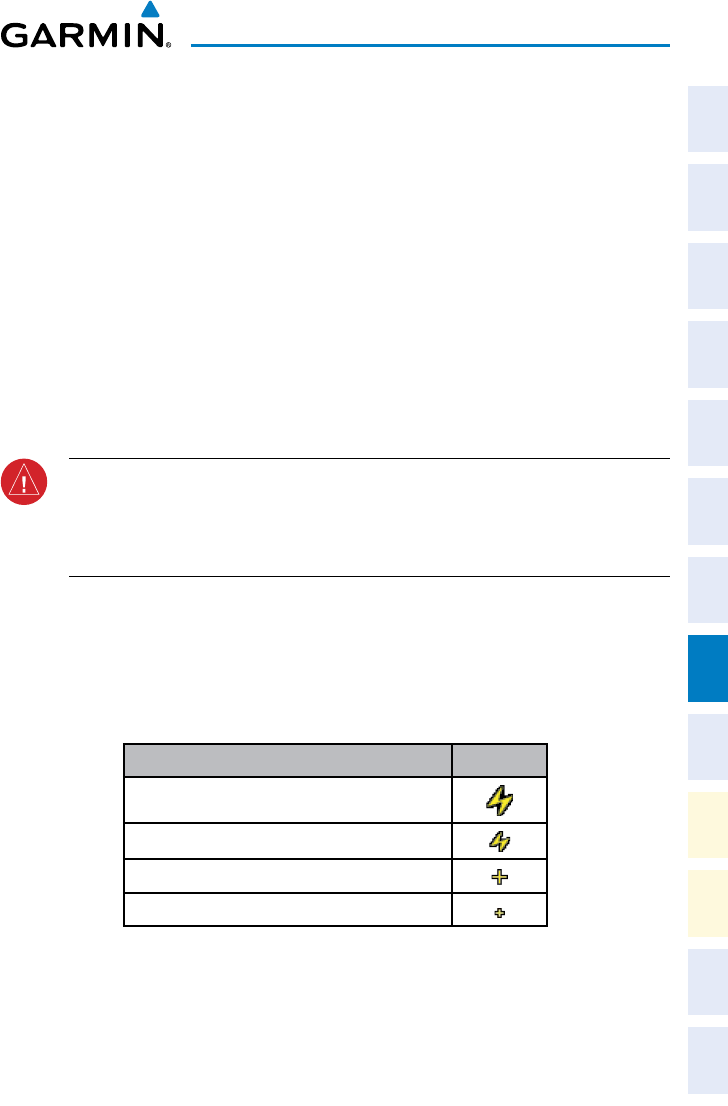
Garmin G1000 Cockpit Reference Guide for the Socata TBM 850
190-00708-02 Rev. A 41
Hazard Avoidance
Flight
Instruments EAS
Nav/Com/
XPDR/Audio AFCS GPS Nav
Flight
Planning Procedures
Hazard
Avoidance
Additional
Features
Abnormal
Operation
Annun/
Alerts Appendix Index
HAZARD AVOIDANCE
CUSTOMIZING THE HAZARD DISPLAYS ON THE NAVIGATION MAP
1)
With the Navigation Map Page displayed, press the MENU Key to display
the Navigation Map Page Menu. The cursor flashes on the ‘Map Setup’
option.
2)
Press the ENT Key. The Map Setup Menu is displayed. Turn the small FMS
Knob to select ‘Weather’ to customize the display of weather features.
Select ‘Traffic’ to customize the display of traffic.
3)
Press the small FMS Knob to return to the Navigation Map Page.
STORMSCOPE® (OPTIONAL)
WARNING: The Stormscope system is not intended to be used for hazardous
thunderstorm penetration. Weather information on the G1000 MFD is
approved for weather avoidance only. Refer to the WX-500 Pilot’s Guide for
detailed operation.
Displaying Stormscope Lightning Data on the Navigation Map Page
1)
Press the MAP Softkey.
2)
Press the STRMSCP Softkey. Press the STRMSCP Softkey again to remove
Stormscope Lightning Data from the Navigation Map Page.
Lightning Age Symbol
Strike is less than 6 seconds old
Strike is between 6 and 60 seconds old
Strike is between 1 and 2 minutes old
Strike is between 2 and 3 minutes old
Select ‘Cell’ or ‘Strike’ as the Stormscope Lightning Mode
1)
With the Weather Group selected, press the ENT Key. The cursor flashes on
‘STRMSCP LTNG’.
2)
Turn the large
FMS Knob to select ‘STRMSCP MODE’.
Garmin G1000 Cockpit Reference Guide for the Socata TBM 850
190-00708-02 Rev. A
42
Hazard Avoidance
Flight
InstrumentsEAS
Nav/Com/
XPDR/AudioAFCSGPS Nav
Flight
PlanningProcedures
Hazard
Avoidance
Additional
Features
Abnormal
Operation
Annun/
AlertsAppendixIndex
3)
Turn the small FMS Knob to display the ‘Cell/Strike’ window.
4)
Turn either FMS Knob to select ‘Cell’ or ‘Strike’. Press the ENT Key.
5)
Push the FMS Knob to return to the Navigation Map Page.
Clear Stormscope Lightning Data from the Navigation Map Page
1)
Press the MENU Key (with the Navigation Map Page displayed).
2)
Turn either FMS Knob to highlight the ‘Clear Stormscope® Lightning’ field
and press the ENT Key.
NOTE:
If heading input is lost, strikes and/or cells must be cleared manually
after the execution of each turn. This is to ensure that the strike and/or cell
positions are depicted accurately in relation to the nose of the aircraft.
Stormscope Page
1)
Turn the large
FMS Knob until the Map Page group is selected.
2)
Turn the small
FMS Knob until the Stormscope Page is selected.
Change the Stormscope Lightning Mode Between ‘Cell’ and ‘Strike’
1)
Select the Stormscope Page.
2)
Press the MODE Softkey. The CELL and
STRIKE
Softkeys are displayed.
Press the CELL Softkey to display ‘CELL’ data or press the STRIKE Softkey
to display ‘STRIKE’ data. ‘CELL’ or ‘STRIKE’ is displayed in the mode box
located in the upper left corner of the Stormscope Page.
NOTE: “Cell mode” uses a clustering program to identify clusters of electrical
activity that indicate cells.
Change the Viewing Mode Between 360˚ and 120˚
1)
Select the Stormscope Page.
2)
Press the VIEW Softkey. The 360 and
ARC
Softkeys are displayed. Press
the 360 Softkey to display a 360˚ viewing area or press the ARC Softkey to
display a 120˚ viewing area.
Press the CLEAR Softkey to remove all Stormscope lightning data from the
display.
Garmin G1000 Cockpit Reference Guide for the Socata TBM 850
190-00708-02 Rev. A 43
Hazard Avoidance
Flight
Instruments EAS
Nav/Com/
XPDR/Audio AFCS GPS Nav
Flight
Planning Procedures
Hazard
Avoidance
Additional
Features
Abnormal
Operation
Annun/
Alerts Appendix Index
XM WEATHER (OPTIONAL)
WARNING: Use of XM weather for hazardous weather penetration is not
recommended. Weather information provided by XM Radio Service is
approved only for weather avoidance, not penetration.
Displaying XM Weather on the Navigation Map Page
1)
Select the MAP Softkey.
2)
Select the NEXRAD
or
XM LTNG Softkey to display the desired weather.
Select the applicable softkey again to remove weather data from the
Navigation Map Page.
Display METAR and TAF information on the Airport Information Page
1)
Turn the large FMS Knob to select the WPT Page Group.
2)
Turn the small FMS Knob to select the Airport Information Page.
3)
Select the WX Softkey to display METAR and TAF text (METAR and TAF
information is updated every 12 minutes).
Displaying Weather on the Weather Data Link Page
1)
Turn the large FMS Knob to select the Map Page Group.
2)
Turn the small FMS Knob to select the Weather Data Link Page.
3)
Select the available softkeys to select the desired XM weather product.
4)
Select the LEGEND Softkey to view the legends for the selected products.
If necessary, turn either FMS Knob to scroll through the list. Press the small
FMS Knob or the ENT Key to return to the map.
Map Panning Information – Weather Data Link Page
1)
Push in the Joystick to display the panning arrow.
2)
Move the Joystick to place the panning arrow on AIRMETs, TFRs, METARs,
or SIGMETs.
3)
Press the ENT Key to display pertinent information for the selected product.
Note that pressing the ENT Key when panning over an AIRMET or a
SIGMET displays an information box that shows the text of the report.
Panning over an airport with METAR information does not display more
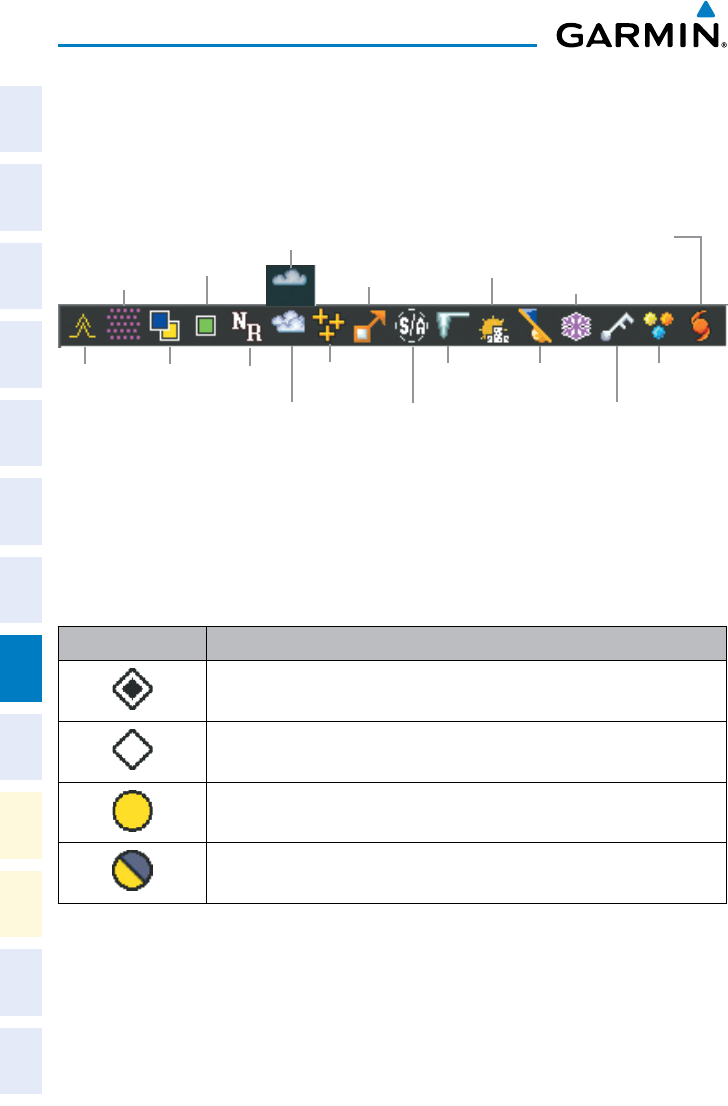
Garmin G1000 Cockpit Reference Guide for the Socata TBM 850
190-00708-02 Rev. A
44
Hazard Avoidance
Flight
InstrumentsEAS
Nav/Com/
XPDR/AudioAFCSGPS Nav
Flight
PlanningProcedures
Hazard
Avoidance
Additional
Features
Abnormal
Operation
Annun/
AlertsAppendixIndex
information but allows the user to press the ENT Key and select that
Airport’s Information Page to display the text of the report. Pressing the
ENT Key when panning over a TFR displays TFR specific information.
Weather Products and Symbols
Echo Top (Cloud Top and Echo Top Mutually Exclusive)
NEXRAD
Cloud Top
XM Lightning
Cell Movement
SIGMETs/AIRMETs
METARs
City Forecast
Surface Analysis
Freezing Levels
Winds Aloft
County Warnings
Turbulence PIREPs
AIREPs
Cyclone Warnings
Icing Potential
TRAFFIC SYSTEMS
STANDBY, OPERATE, and
TNA MUTE softkeys are displayed.
STANDBY, NORMAL, TEST,
and ALT MODE softkeys are displayed.
Traffic Symbol Description
Non-Threat Traffic
(intruder is beyond 5 nm and greater than 1200’ vertical separation)
Proximity Advisory (PA) (Not available with TIS system)
(intruder is within 5 nm and less than 1200’ vertical separation)
Traffic Advisory (TA)
(closing rate, distance, and vertical separation meet TA criteria)
Traffic Advisory Off Scale
Traffic Symbol Description
Garmin G1000 Cockpit Reference Guide for the Socata TBM 850
190-00708-02 Rev. A 45
Hazard Avoidance
Flight
Instruments EAS
Nav/Com/
XPDR/Audio AFCS GPS Nav
Flight
Planning Procedures
Hazard
Avoidance
Additional
Features
Abnormal
Operation
Annun/
Alerts Appendix Index
Traffic Information Service (TIS)
NOTE: If the G1000 is configured to use an optional Traffic Advisory System
(TAS), TIS is not available for use.
NOTE: Traffic Information Service (TIS) is only available when the aircraft is
within the service volume of a TIS capable terminal radar site.
Displaying Traffic on the Traffic Map Page
1)
Turn the large FMS Knob to select the Map Page Group.
2)
Turn the small FMS Knob to select the Traffic Map Page.
3)
Press the OPERATE Softkey to begin displaying traffic. ‘OPERATING’ is
displayed in the Traffic Mode field.
4)
Press the STANDBY Softkey to place the system in the Standby Mode.
‘STANDBY’ is displayed in the Traffic Mode field.
5)
Rotate the Joystick clockwise to display a larger area or rotate counter-
clockwise to display a smaller area.
6)
Press the TNA MUTE Softkey to mute the “Traffic Not Available” aural
alert.
Displaying Traffic on the Navigation Map
1)
Ensure TIS is operating. With the Navigation Map displayed, press the
MAP Softkey.
2)
Press the TRAFFIC Softkey. Traffic is now displayed on the map.
Traffic Advisory System (TAS) (Optional)
System Self Test
1)
Set the range to 2/6 nm.
2)
Select the STANDBY Softkey.
3)
Select the TEST Softkey.
4)
Self test takes approximately eight seconds to complete. When completed
successfully, traffic symbols are displayed and a voice alert “TAS System Test
OK” is heard. If the self test fails, the system reverts to Standby Mode and
a voice alert “TAS System Test Fail” is heard.

Garmin G1000 Cockpit Reference Guide for the Socata TBM 850
190-00708-02 Rev. A
46
Hazard Avoidance
Flight
InstrumentsEAS
Nav/Com/
XPDR/AudioAFCSGPS Nav
Flight
PlanningProcedures
Hazard
Avoidance
Additional
Features
Abnormal
Operation
Annun/
AlertsAppendixIndex
Displaying Traffic on the Traffic Map Page
1)
Turn the large FMS Knob to select the Map Page Group.
2)
Turn the small FMS Knob to select the second rectangular page icon.
3)
Select the NORMAL Softkey to begin displaying traffic. ‘OPERATING’ is
displayed in the Traffic Mode field.
4)
Select the ALT MODE Softkey to change the altitude volume. Select the
desired altitude volume by pressing the BELOW, NORMAL, ABOVE, or
UNREST (unrestricted) Softkey. The selection is displayed in the Altitude
Mode field.
5)
Select the STANDBY Softkey to place the system in the Standby Mode.
‘STANDBY’ is displayed in the Traffic Mode field.
6)
Rotate the Joystick clockwise to display a larger area or rotate counter-
clockwise to display a smaller area.
Displaying Traffic on the Navigation Map
1)
Ensure TAS is operating.
2)
With the Navigation Map displayed, select the MAP Softkey.
3)
Select the TRAFFIC Softkey. Traffic is now displayed on the map.
TERRAIN AND OBSTACLE PROXIMITY
NOTE: Terrain data is not displayed when the aircraft latitude is greater than
75 degrees north or 60 degrees south.
Displaying Terrain and Obstacles on the Terrain Proximity Page
1)
Turn the large
FMS
Knob to select the Map Page Group.
2)
Turn the small
FMS
Knob to select the last rectangular page icon.
3)
If desired, press the
VIEW
Softkey to access the
ARC
and
360
Softkeys.
When the
ARC
Softkey is pressed, a radar-like 120° view is displayed. Press
the
360
Softkey to return to the 360° default display.
4)
Rotate the
Joystick
clockwise to display a larger area or rotate counter-
clockwise to display a smaller area.
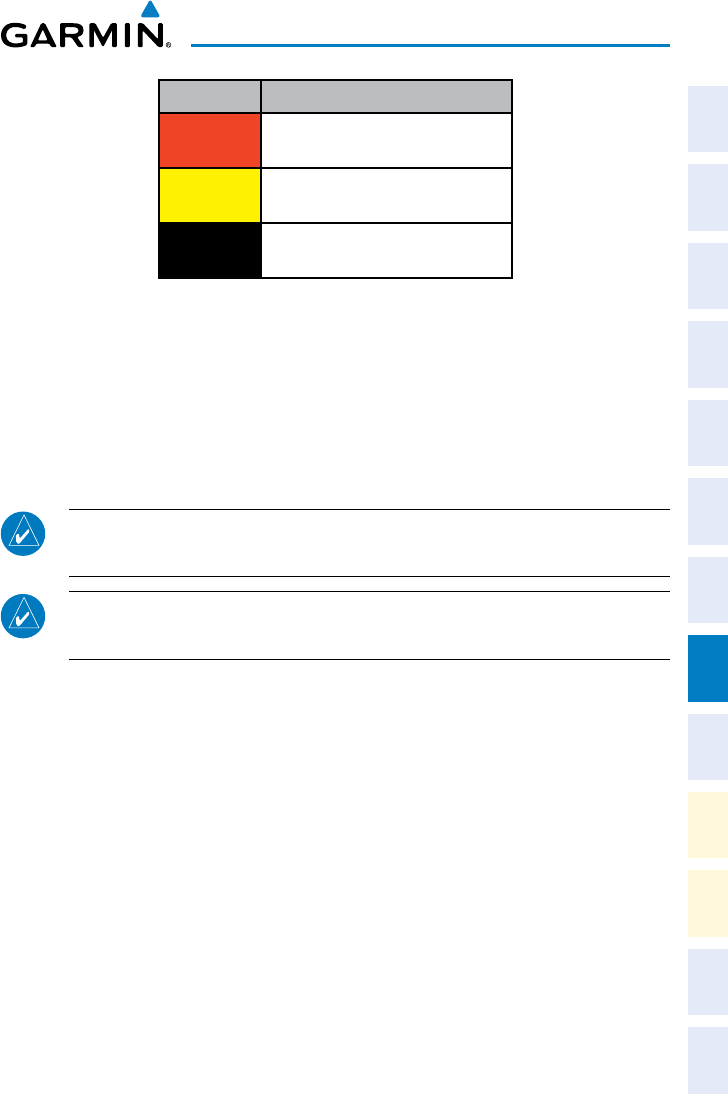
Garmin G1000 Cockpit Reference Guide for the Socata TBM 850
190-00708-02 Rev. A 47
Hazard Avoidance
Flight
Instruments EAS
Nav/Com/
XPDR/Audio AFCS GPS Nav
Flight
Planning Procedures
Hazard
Avoidance
Additional
Features
Abnormal
Operation
Annun/
Alerts Appendix Index
Color Terrain/Obstacle Location
Red Terrain/Obstacle above or within 100’
below current aircraft altitude.
Yellow Terrain/Obstacle between 100’ and
1000’ below current aircraft altitude.
Black Terrain/Obstacle is more than 1000’
below aircraft altitude.
Displaying Terrain and Obstacles on the Navigation Map
1)
With the Navigation Map displayed, press the
MAP
Softkey.
2)
Press the
TERRAIN
Softkey. Terrain and obstacle proximity will now be
displayed on the map.
TERRAIN-SVS
NOTE: Terrain-SVS is only available when the Synthetic Vision System (SVS)
option is installed and the TAWS option has not been installed.
NOTE: Terrain data is not displayed when the aircraft latitude is greater than
75 degrees north or 60 degrees south.
Display Terrain on the TERRAIN-SVS Page
1)
Turn the large FMS Knob to select the Map Page Group.
2)
Turn the small FMS Knob to select the Terrain-SVS Page.
3)
If desired, press the VIEW Softkey to access the ARC and 360 softkeys.
When the ARC Softkey is selected, a radar-like 120° view is displayed.
Press the 360 Softkey to return to the 360° default display.
4)
Rotate the Joystick clockwise to display a larger area or rotate counter-
clockwise to display a smaller area.
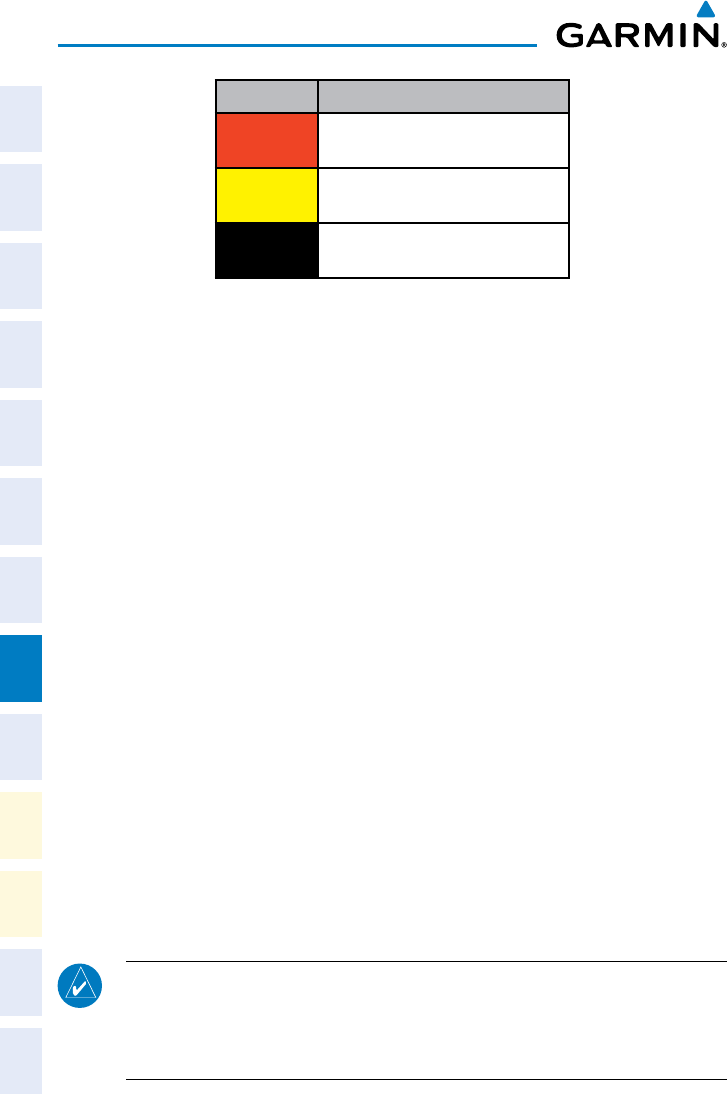
Garmin G1000 Cockpit Reference Guide for the Socata TBM 850
190-00708-02 Rev. A
48
Hazard Avoidance
Flight
InstrumentsEAS
Nav/Com/
XPDR/AudioAFCSGPS Nav
Flight
PlanningProcedures
Hazard
Avoidance
Additional
Features
Abnormal
Operation
Annun/
AlertsAppendixIndex
Color Terrain/Obstacle Location
Red Terrain/Obstacle above or within 100’
below current aircraft altitude.
Yellow Terrain/Obstacle between 100’ and
1000’ below current aircraft altitude.
Black Terrain/Obstacle is more than 1000’
below aircraft altitude.
Enable/Disable Aviation Data
1)
While the Terrain-SVS Page is displayed, press the MENU Key.
2)
Turn the small FMS Knob to select “Show (or Hide) Aviation Data”.
3)
Press the ENT Key.
Terrain-SVS Inhibit
Inhibit Terrain
While the Terrain-SVS Page is displayed, press the INHIBIT Softkey.
Or
:
1)
Press the MENU Key.
2)
Turn the small FMS Knob to select ‘Inhibit Terrain’.
3)
Press the ENT Key.
Enable Terrain
While the Terrain-SVS Page is displayed, press the INHIBIT Softkey.
Or
:
1)
While the Terrain-SVS Page is displayed, press the MENU Key.
2)
Turn the small FMS Knob to select ‘Enable Terrain’.
3)
Press the ENT Key.
NOTE: If Terrain-SVS alerts are inhibited when the Final Approach Fix is the
active waypoint in a GPS WAAS approach, a LOW ALT annunciation may
appear on the PFD next to the altimeter if the current aircraft altitude is at
least 164 feet below the prescribed altitude at the Final Approach Fix.
Garmin G1000 Cockpit Reference Guide for the Socata TBM 850
190-00708-02 Rev. A 49
Hazard Avoidance
Flight
Instruments EAS
Nav/Com/
XPDR/Audio AFCS GPS Nav
Flight
Planning Procedures
Hazard
Avoidance
Additional
Features
Abnormal
Operation
Annun/
Alerts Appendix Index
TERRAIN AWARENESS & WARNING SYSTEM (TAWS) DISPLAY
WARNING: The TAWS display shows supplemental information only. It should
not be used for navigation.
NOTE: Terrain data is not displayed when the aircraft latitude is greater than
75 degrees north or 60 degrees south.
NOTE: TAWS operation is only available when the G1000 is configured for a
TAWS-B installation.
Manual System Test
1)
While the TAWS-B Page is displayed, press the MENU Key.
2)
Turn the small FMS Knob to select ‘Test TAWS’.
3)
Press the ENT Key. During the test ‘TAWS TEST’ is displayed in the center
of the TAWS-B Page.
When all is in working order, “TAWS System Test, OK” is heard.
Display Terrain on the TAWS-B Page
1)
Turn the large FMS Knob to select the Map Page Group.
2)
Turn the small FMS Knob to select the TAWS-B Page.
3)
If desired, select the VIEW Softkey to access the ARC and 360 softkeys.
When the ARC Softkey is selected, a radar-like 120° view is displayed.
Select the 360 Softkey to return to the 360° default display.
4)
Rotate the Joystick clockwise to display a larger area or rotate counter-
clockwise to display a smaller area.
Color Terrain/Obstacle Location
Red Terrain/Obstacle above or within 100’
below current aircraft altitude.
Yellow Terrain/Obstacle between 100’ and
1000’ below current aircraft altitude.
Black Terrain/Obstacle is more than 1000’
below aircraft altitude.
Garmin G1000 Cockpit Reference Guide for the Socata TBM 850
190-00708-02 Rev. A
50
Hazard Avoidance
Flight
InstrumentsEAS
Nav/Com/
XPDR/AudioAFCSGPS Nav
Flight
PlanningProcedures
Hazard
Avoidance
Additional
Features
Abnormal
Operation
Annun/
AlertsAppendixIndex
Enable/Disable Aviation Data
1)
While the TAWS-B Page is displayed, press the MENU Key.
2)
Turn the small FMS Knob to select “Show (or Hide) Aviation Data”.
3)
Press the ENT Key.
TAWS Inhibit
NOTE: If TAWS alerts are inhibited when the Final Approach Fix is the active
waypoint in a GPS WAAS approach, a LOW ALT annunciation may appear on
the PFD next to the altimeter if the current aircraft altitude is at least 164
feet below the prescribed altitude at the Final Approach Fix.
Inhibit TAWS
While the TAWS-B Page is displayed, select the INHIBIT Softkey.
Or
:
1)
Press the MENU Key.
2)
Turn the small FMS Knob to select ‘Inhibit TAWS’.
3)
Press the ENT Key.
Enable TAWS
While the TAWS-B Page is displayed, select the INHIBIT Softkey.
Or
:
1)
While the TAWS-B Page is displayed, press the MENU Key.
2)
Turn the small FMS Knob to select ‘Enable TAWS’.
3)
Press the ENT Key.
AIRBORNE COLOR WEATHER RADAR
WARNING: Begin transmitting only when it is safe to do so. If it is desired to
transmit while the aircraft is on the ground, no personnel or objects should
be within 11 feet of the antenna.
CAUTION: In Standby Mode, the antenna is parked at the center line. It
is always a good idea to put the radar in Standby Mode before taxiing the
aircraft to prevent the antenna from bouncing on the bottom stop and possibly
causing damage to the radar assembly.
Garmin G1000 Cockpit Reference Guide for the Socata TBM 850
190-00708-02 Rev. A 51
Hazard Avoidance
Flight
Instruments EAS
Nav/Com/
XPDR/Audio AFCS GPS Nav
Flight
Planning Procedures
Hazard
Avoidance
Additional
Features
Abnormal
Operation
Annun/
Alerts Appendix Index
Displaying Weather on the Weather Radar Page
1)
Turn the large FMS Knob to select the Map Page Group.
2)
Turn the small FMS Knob to select the Weather Radar Page.
3)
Select the MODE Softkey.
4)
If the aircraft is on the ground, select the STANDBY Softkey to initiate the
one minute warm-up period. After the warm-up is complete, the radar will
enter the Standby Mode. After the aircraft is airborne, select the WEATHER
Softkey.
Or
:
If the aircraft is already airborne, select the WEATHER or GROUND
Softkey. The one-minute warm-up period will be initiated, after which the
radar will begin transmitting. The horizontal scan is initially displayed.
5)
Turn the Joystick to select the desired range.
6)
If desired, select the VERTICAL Softkey for vertical scanning.
Adjusting Antenna Tilt
Move the
Joystick
up or down to adjust the tilt of the antenna up or down.
Tilt Line may be displayed to aid in positioning the tilt
of the antenna. If the Tilt Line is not displayed, perform the following steps:
1)
Press the MENU Key
2)
Turn the large FMS Knob to select ‘Show Tilt Line’.
3)
Press the ENT Key.
Adjusting Antenna Bearing
Move the
Joystick
right or left to adjust the azimuth position of the antenna right
Bearing Line may be displayed to aid in positioning
the antenna for the vertical scan. If the Bearing Line is not displayed, perform the
following steps:
1)
Press the MENU Key
2)
Turn the large FMS Knob to select ‘Show Bearing Line’.
3)
Press the ENT Key.
Garmin G1000 Cockpit Reference Guide for the Socata TBM 850
190-00708-02 Rev. A
52
Hazard Avoidance
Flight
InstrumentsEAS
Nav/Com/
XPDR/AudioAFCSGPS Nav
Flight
PlanningProcedures
Hazard
Avoidance
Additional
Features
Abnormal
Operation
Annun/
AlertsAppendixIndex
Vertically Scan a Storm Cell
1) While in the Horizontal Scan view, move the Joystick to place the Bearing
Line on the desired storm cell, or other area, to be vertically scanned.
2)
Select the VERTICAL Softkey. A vertical ‘slice’ of the selected area will now
be displayed.
3)
Move the Joystick right or left to move the scanned “slice” a few degrees
right or left.
4)
Turn the Joystick to adjust the range.
5)
To select a new area to be vertically scanned, select the HORIZON Softkey
to return to the Horizontal Scan view and repeat the previous steps.
Adjusting Gain
WARNING: Changing the gain in Weather Mode will cause precipitation
intensity to be displayed as a color not representative of the true intensity.
Remember to return the gain setting to ‘Calibrated’ for viewing the actual
intensity of precipitation.
1)
Select the GAIN Softkey to activate the cursor in the ‘GAIN’ field.
2)
Turn the small FMS Knob to adjust the gain for the desirable level. The
gain setting is visible in the gain field as a movable horizontal bar in
a flashing box. The line pointer is a reference depicting the calibrated
position.
3)
Press the FMS Knob to remove the cursor.
4)
Select the GAIN Softkey again to recalibrate the gain. ‘CALIBRATED’ will be
displayed in the ‘GAIN’ field.
Ground Mapping
1)
Select the MODE Softkey.
2)
Select the GROUND Softkey to place the radar in Ground Map Mode.
3)
Select the BACK Softkey.
Garmin G1000 Cockpit Reference Guide for the Socata TBM 850
190-00708-02 Rev. A 53
Hazard Avoidance
Flight
Instruments EAS
Nav/Com/
XPDR/Audio AFCS GPS Nav
Flight
Planning Procedures
Hazard
Avoidance
Additional
Features
Abnormal
Operation
Annun/
Alerts Appendix Index
Sector Scan
1)
While in the Horizontal Scan Mode, move the Joystick right or left to place
the Bearing Line in the desired position. The location of the Bearing Line
will become the center point of the Sector Scan.
2)
Press the FMS Knob to display the cursor.
3)
Turn the large FMS Knob to place the cursor in the SECTOR SCAN field.
4)
Turn the small FMS Knob to select FULL, 60˚, 40˚, or 20˚ scan.
5)
If desired, readjust the Bearing Line with the Joystick to change the center
of the Sector Scan.
6)
Press the FMS Knob to remove the cursor.
Antenna Stabilization
1)
To activate or deactivate the antenna stabilization, select the MODE
Softkey.
2)
Select the STAB ON Softkey to activate antenna stabilization or select
the STAB OFF Softkey to deactivate. The current stabilization condition is
shown in the upper right of the weather radar display.
Weather Attenuated Color Highlight (WATCH®)
To activate or deactivate the ® feature, select the WATCH Softkey. This
feature is only available in the Horizontal Scan Mode.
Weather Alert
WX ALRT Softkey. Activating
and deactivating will also enable or inhibit the alert on the PFD.
Automatic Standby
landing the system will automatically switch to Standby Mode.
Garmin G1000 Cockpit Reference Guide for the Socata TBM 850
190-00708-02 Rev. A
54
Hazard Avoidance
Flight
InstrumentsEAS
Nav/Com/
XPDR/AudioAFCSGPS Nav
Flight
PlanningProcedures
Hazard
Avoidance
Additional
Features
Abnormal
Operation
Annun/
AlertsAppendixIndex
Blank Page
Garmin G1000 Cockpit Reference Guide for the Socata TBM 850
190-00708-02 Rev. A 55
Additional Features
Flight
Instruments EAS
Nav/Com/
XPDR/Audio AFCS GPS Nav
Flight
Planning Procedures
Hazard
Avoidance
Additional
Features
Abnormal
Operation
Annun/
Alerts Appendix Index
ADDITIONAL FEATURES
SYNTHETIC VISION
WARNING: Use appropriate primary systems for navigation, and for terrain,
obstacle, and traffic avoidance. SVS is intended as an aid to situational
awareness only and may not provide the accuracy and/or fidelity upon which
to solely base decisions and/or plan maneuvers to avoid terrain, obstacles, or
traffic.
Synthetic Vision System (SVS) functionality is offered as an optional enhancement
to the G1000 Integrated Flight Deck System.
SVS is primarily comprised of a computer-generated forward-looking, attitude
aligned view of the topography immediately in front of the aircraft from the pilot’s
perspective. SVS information is shown on the primary flight display (PFD).
SVS offers a three-dimensional view of terrain and obstacles. Terrain and
obstacles that pose a threat to the aircraft in flight are shaded yellow or red.
In addition to SVS enhancement to the PFD, the following feature enhancements
have been added to the PFD:
• Pathways
• Flight Path Marker
• Horizon Heading Marks
• Terrain and Obstacle Alerting
•
• Airport Signs
• Runway Display
Displaying Synthetic Terrain
1)
Press the PFD Softkey.
2)
Press the SYN VIS Softkey.
3)
Press the SYN TERR Softkey.
4)
Press the BACK Softkey to return to the previous page.
Garmin G1000 Cockpit Reference Guide for the Socata TBM 850
190-00708-02 Rev. A
56
Additional Features
Flight
InstrumentsEAS
Nav/Com/
XPDR/AudioAFCSGPS Nav
Flight
PlanningProcedures
Hazard
Avoidance
Additional
Features
Abnormal
Operation
Annun/
AlertsAppendixIndex
Displaying Pathways
1)
Press the PFD Softkey.
2)
Press the SYN VIS Softkey.
3)
If not already enabled, press the SYN TERR Softkey.
4)
Press the PATHWAY Softkey.
5)
Press the BACK Softkey to return to the previous page.
Displaying Heading on the Horizon
1)
Press the PFD Softkey.
2)
Press the SYN VIS Softkey.
3)
If not already enabled, press the SYN TERR Softkey.
4)
Press the HRZN HDG Softkey.
5)
Press the BACK Softkey to return to the previous page.
Displaying Airport Signs
1)
Press the PFD Softkey.
2)
Press the SYN VIS Softkey.
3)
If not already enabled, press the SYN TERR Softkey.
4)
Press the APTSIGNS Softkey.
5)
Press the BACK Softkey to return to the previous page.
TERMINAL PROCEDURE CHARTS
NOTE: With the availability of SafeTaxi
®
, ChartView, or FliteCharts
®
in
electronic form, it is still advisable to carry another source of charts on-board
the aircraft.
SafeTaxi®
SafeTaxi® is an enhanced feature that gives greater map detail as the map range
is adjusted in on the airport. The airport display on the map reveals runways with
control towers, and other prominent features. Resolution is greater at lower map
ranges. The aircraft symbol provides situational awareness while taxiing.
Pressing the DCLTR Softkey (declutter) once removes the taxiway markings and

Garmin G1000 Cockpit Reference Guide for the Socata TBM 850
190-00708-02 Rev. A 57
Additional Features
Flight
Instruments EAS
Nav/Com/
XPDR/Audio AFCS GPS Nav
Flight
Planning Procedures
Hazard
Avoidance
Additional
Features
Abnormal
Operation
Annun/
Alerts Appendix Index
ID, the VOR symbol, and intersection names if within the airport plan view. Pressing
the DCLTR Softkey a third time removes the airport runway layout, unless the airport
in view is part of an active route structure. Pressing the DCLTR Softkey again cycles
back to the original map detail.
The SafeTaxi database contains detailed airport diagrams for selected airports.
These diagrams aid in following ground control instructions by accurately displaying
the aircraft position on the map in relation to taxiways, ramps, runways, terminals, and
services. This database is updated on a 56-day cycle.
ChartView
ChartView resembles the paper version of Jeppesen terminal procedures charts.
The charts are displayed in full color with high-resolution. The MFD depiction shows
the aircraft position on the moving map in the plan view of most approach charts and
on airport diagrams.
The ChartView database is updated on a 14-day cycle. If the ChartView database
is not updated within 70 days of the expiration date, ChartView will no longer
function.
FliteCharts®
FliteCharts®
(NACO) terminal procedures charts. The charts are displayed with high-resolution
and in color for applicable charts. Current aircraft position is not displayed on
FliteCharts.
The FliteCharts database contains procedure charts for the United States only.
This database is updated on a 28-day cycle. If not updated within 180 days of the
expiration date, FliteCharts will no longer function.
View Charts from the Navigation Map Page
1)
Select the SHW CHRT Softkey when displayed.
Or
:
Move the map pointer to point to a desired point on the map and select the
SHW CHRT Softkey.
2)
Select the DP, STAR, APR, WX, and NOTAM softkeys to access charts for
departures, arrivals, approaches, weather and NOTAMs Note that NOTAMS
are only available with ChartView.
3)
Select the GO BACK Softkey to return to the previous page.

Garmin G1000 Cockpit Reference Guide for the Socata TBM 850
190-00708-02 Rev. A
58
Additional Features
Flight
InstrumentsEAS
Nav/Com/
XPDR/AudioAFCSGPS Nav
Flight
PlanningProcedures
Hazard
Avoidance
Additional
Features
Abnormal
Operation
Annun/
AlertsAppendixIndex
View Charts from the Active Flight Plan Page
1)
While viewing the Active Flight Plan Page, press the FMS Knob to activate
the cursor.
2)
Turn the large FMS Knob to select the departure airport, destination
airport, departure, arrival, or approach.
3)
Select the SHW CHRT Softkey. The appropriate chart is displayed, if
available for the item selected.
4)
Select the GO BACK Softkey to return to the previous page.
Change Day/Night View
1)
While viewing a chart press the MENU Key to display the Page Menu
OPTIONS.
2)
Turn the large FMS Knob to highlight the ‘Chart Setup’ Menu Option and
press the ENT Key.
3)
Turn the large FMS Knob to move between the ‘FULL SCREEN’ and ‘COLOR
SCHEME’ Options.
4)
Turn the small FMS Knob to choose between the ‘On’ and ‘Off’ Full Screen
Options.
5)
Turn the small FMS Knob to choose between ‘Day’, ‘Auto’, and ‘Night’
Options.
6)
In Auto Mode, turn the large FMS Knob to select the percentage field and
change percentage with the small FMS Knob. The percentage of change is
the day/night crossover point based on backlighting intensity.
7)
Press the FMS Knob when finished to remove the Chart Setup Menu.
XM® RADIO ENTERTAINMENT
The XM® Radio Page provides information and control of the audio entertainment
features of the XM Satellite Radio.
Selecting the XM Radio Page
1)
Turn the large FMS Knob to select the Auxiliary Page Group.
2)
Turn the small FMS Knob to select the displayed AUX - XM Information
Page.
3)
Select the RADIO Softkey to show the XM Radio Page where audio
entertainment is controlled.

Garmin G1000 Cockpit Reference Guide for the Socata TBM 850
190-00708-02 Rev. A 59
Additional Features
Flight
Instruments EAS
Nav/Com/
XPDR/Audio AFCS GPS Nav
Flight
Planning Procedures
Hazard
Avoidance
Additional
Features
Abnormal
Operation
Annun/
Alerts Appendix Index
Active Channel and Channel List
The Active Channel Box on the XM Radio Page displays the currently selected
channel. The Channels List Box of the XM Radio Page shows a list of the available
channels for the selected category.
Selecting a Category
The Category Box of the XM Radio Page displays the currently selected category
of audio.
1)
Select the CATGRY Softkey on the XM Radio Page.
2)
Select the CAT + and CAT - softkeys to cycle through the categories.
Or
:
Turn the small FMS Knob to display the ‘Categories’ list. Highlight the
desired category with the small FMS Knob.
3)
Press the ENT Key.
Select an Available Channel within the Selected Category
1)
While on the XM Radio Page, select the CHNL Softkey.
2)
Select the CH + Softkey to go up through the list in the Channel Box, or
move down the list with the CH – Softkey.
Or
:
Press the FMS Knob to highlight the channel list and turn the large FMS
Knob to scroll through the channels.
3)
With the desired channel highlighted, press the ENT Key.
Entering a Channel Directly
1)
While on the XM Radio Page, select the CHNL Softkey.
2)
Select the DIR CH Softkey. The channel number in the Active Channel Box
is highlighted.
3)
Select the numbered softkeys located on the bottom of the display to
directly select the desired channel number.
4)
Press the ENT Key to activate the selected channel.

Garmin G1000 Cockpit Reference Guide for the Socata TBM 850
190-00708-02 Rev. A
60
Additional Features
Flight
InstrumentsEAS
Nav/Com/
XPDR/AudioAFCSGPS Nav
Flight
PlanningProcedures
Hazard
Avoidance
Additional
Features
Abnormal
Operation
Annun/
AlertsAppendixIndex
Assigning Channel Presets
Up to 15 channels from any category can be assigned a preset number.
1)
On the XM Radio Page, with the desired channel active, select the
PRESETS Softkey to access the first five preset channels (PS1 - PS5).
2)
Select the MORE Softkey to access the next five channels (PS6 – PS10),
and again to access the last five channels (PS11 – PS15). Pressing the
MORE Softkey repeatedly cycles through the preset channels.
3)
Select any one of the (PS1 - PS15) softkeys to assign a number to the
active channel.
4)
Select the SET Softkey on the desired channel number to save the channel
as a preset.
Adjusting Volume
1)
With the XM Radio Page displayed, select the VOL Softkey.
2)
Select the VOL – Softkey to reduce volume or select the VOL + Softkey to
increase volume. (Once the VOL Softkey is selected, the volume can also be
adjusted using the small FMS Knob.)
3)
Select the MUTE Softkey to mute the audio. Select the MUTE Softkey
again to unmute the audio.
XM Radio volume may also be adjusted on each passenger headset.
Garmin G1000 Cockpit Reference Guide for the Socata TBM 850
190-00708-02 Rev. A 61
Abnormal Operation
Flight
Instruments EAS
Nav/Com/
XPDR/Audio AFCS GPS Nav
Flight
Planning Procedures
Hazard
Avoidance
Additional
Features
Abnormal
Operation
Annun/
Alerts Appendix Index
ABNORMAL OPERATION
REVERSIONARY MODE
Reversionary mode must be entered manually in the case of PFD1, PFD2,
or MFD failure
. In reversionary mode, critical flight instrumentation is combined
with engine instrumentation on the remaining display.
Activation of reversionary display mode is accomplished by pressing the DISPLAY
BACKUP Button on the appropriate audio panel.
PFD1 – By pressing the DISPLAY BACKUP Button on the left audio panel.
MFD – By pressing the DISPLAY BACKUP Button on the left or the right
audio panel.
PFD2 – By pressing the DISPLAY BACKUP Button on the right audio
panel.
NOTE: The Socata TBM 850 Airplane Flight Manual (AFM) always takes
precedence over the information found in this section.
ABNORMAL COM OPERATION
COM tuning failure is detected by the system, the emergency frequency
COM
radio for which the tuning failure was detected. In the event of a failure of both PFDs,
the emergency frequency (121.500 MHz) automatically becomes the active frequency
on both COM radios.
HAZARD DISPLAYS WITH LOSS OF GPS POSITION
If GPS position is lost, or becomes invalid, selected hazards being displayed on the
Navigation Map Page are removed until GPS position is again established.
Loss of Hazard Functions with Loss of GPS
Position
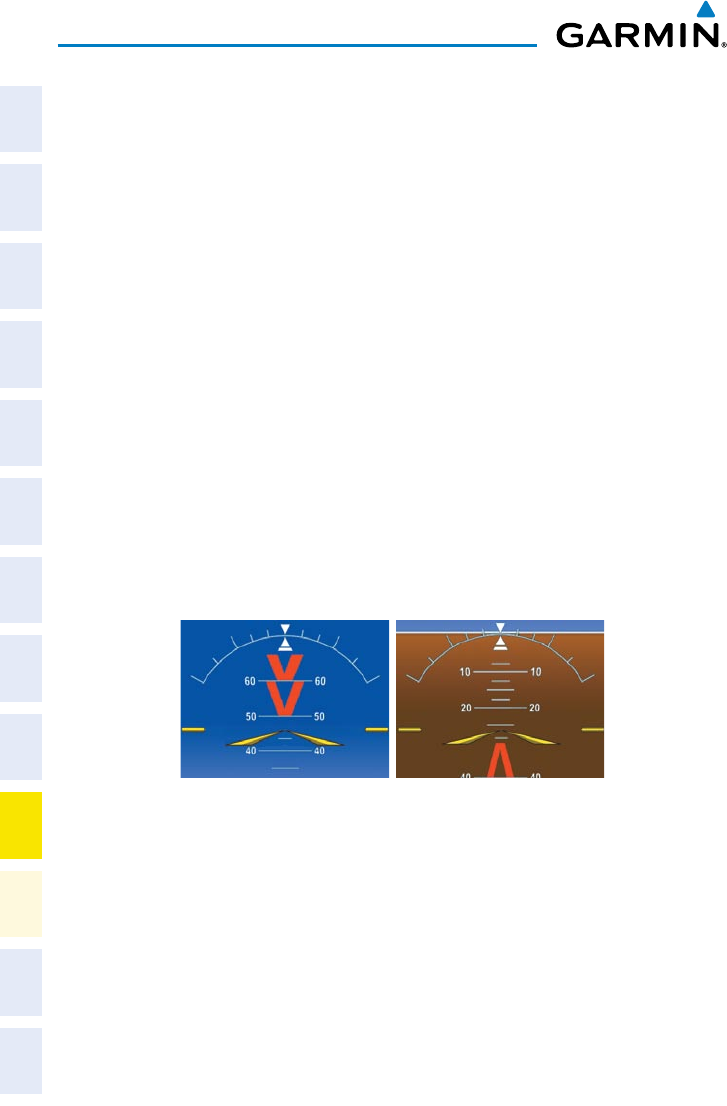
Garmin G1000 Cockpit Reference Guide for the Socata TBM 850
190-00708-02 Rev. A
62
Abnormal Operation
Flight
InstrumentsEAS
Nav/Com/
XPDR/AudioAFCSGPS Nav
Flight
PlanningProcedures
Hazard
Avoidance
Additional
Features
Abnormal
Operation
Annun/
AlertsAppendixIndex
UNUSUAL ATTITUDES
The PFD ‘declutters’ when the aircraft enters an unusual attitude. Only the primary
functions are displayed in these situations.
The following information is removed from the PFD (and corresponding softkeys
are disabled) when the aircraft experiences unusual attitudes:
Command Bars
Box
the lower right corner
of the PFD:
– Timer/References
– Nearest Airports
– Flight Plan
– Messages
– Procedures
– ADF/DME Tuning
Descent Altitude Box
and Vertical Deviation
Indicators
Altimeter Barometric
Setting
VNV Target Altitude
Extreme Pitch Indication

Garmin G1000 Cockpit Reference Guide for the Socata TBM 850
190-00708-02 Rev. A 63
Abnormal Operation
Flight
Instruments EAS
Nav/Com/
XPDR/Audio AFCS GPS Nav
Flight
Planning Procedures
Hazard
Avoidance
Additional
Features
Abnormal
Operation
Annun/
Alerts Appendix Index
DEAD RECKONING
solution or is unable to calculate a GPS position, the system automatically reverts to
Dead Reckoning (DR) Mode. In DR Mode, the G1000 uses its last-known position
combined with continuously updated airspeed and heading data (when available) to
calculate and display the aircraft’s current estimated position.
NOTE: Dead Reckoning Mode only functions in Enroute (ENR) or Oceanic
(OCN) phase of flight. In all other phases, an invalid GPS solution produces
a “NO GPS POSITION” annunciation on the map and the G1000 stops
navigating in GPS Mode.
DR Mode is indicated on the G1000 by the appearance of the letters ‘DR’
superimposed in yellow over the ‘own aircraft’ symbol as shown in the following
above and to the right of the aircraft symbol on the CDI as shown in the following
display after 20 minutes. Lastly, but at the same time, a ‘GPS NAV LOST’ alert message
appears on the PFD.
valid GPS solution is restored.
It is important to note that estimated navigation data supplied by the G1000 in
DR Mode may become increasingly unreliable and must not be used as a sole means
of navigation. If, while in DR Mode, airspeed and/or heading data is also lost or
not available, the DR function is not be capable of estimating your position and,
consequently, the system may display a path that is different than the actual movement
of the aircraft. Estimated position information displayed by the G1000 through
DR while there is no heading and/or airspeed data available should not be used for
navigation.
lack of satellite measurements needed to determine a position. Changes in wind speed
and/or wind direction compounds the relative inaccuracy of DR Mode. Because of this
degraded accuracy, the crew must maintain position awareness using other navigation
equipment until GPS-derived position data is restored.
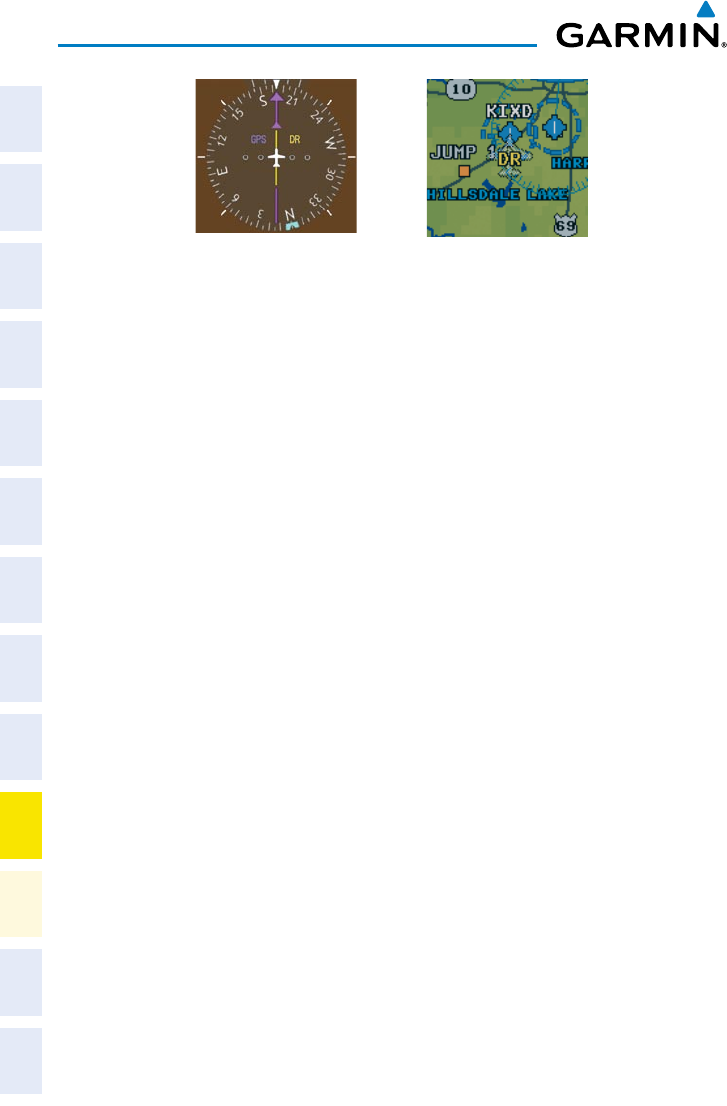
Garmin G1000 Cockpit Reference Guide for the Socata TBM 850
190-00708-02 Rev. A
64
Abnormal Operation
Flight
InstrumentsEAS
Nav/Com/
XPDR/AudioAFCSGPS Nav
Flight
PlanningProcedures
Hazard
Avoidance
Additional
Features
Abnormal
Operation
Annun/
AlertsAppendixIndex
Dead Reckoning Indications
Symbolic Aircraft
(Map pages and Inset Map)
CDI ‘DR’ Indication on PFD
As a result of operating in DR Mode, all GPS-derived data is computed based upon
an estimated position and is displayed as yellow text on the display to denote degraded
navigation source information. This data includes the following:
Also, while the G1000 is in DR Mode, the autopilot will couple to GPS for up to 20
the accuracy of all nearest information (airports, airspaces, and waypoints) is
questionable. Finally, airspace alerts continue to function, but with degraded
accuracy.
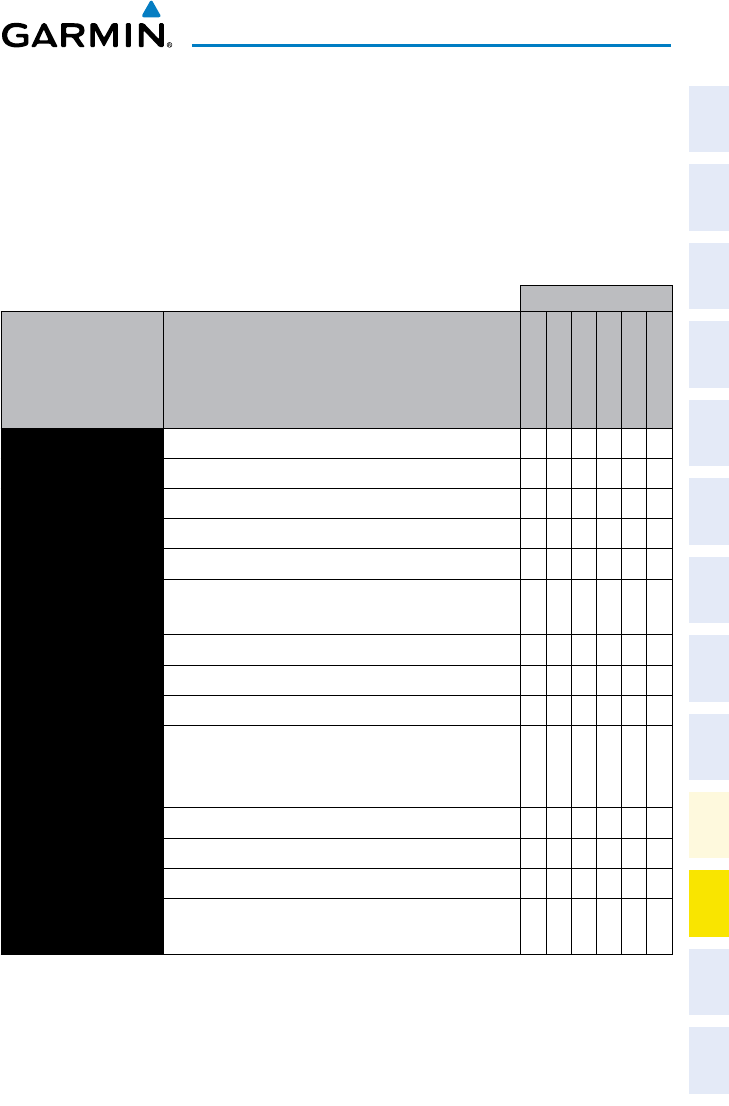
Garmin G1000 Cockpit Reference Guide for the Socata TBM 850
190-00708-02 Rev. A 65
Annunciations & Alerts
Flight
Instruments EAS
Nav/Com/
XPDR/Audio AFCS GPS Nav
Flight
Planning Procedures
Hazard
Avoidance
Additional
Features
Abnormal
Operation
Annun/
Alerts Appendix Index
ANNUNCIATIONS & ALERTS
CAS MESSAGES
Warning Messages
Inhibits
Messages Comments
ENGINE OFF
ENGINE ON
GROUND
TOPI
AIR
LOPI
BAT OVERHEAT Battery temperature over 70°C
BLEED TEMP Bleed temperature high X X
CABIN ALTITUDE Cabin altitude over 10,000 ft X
CABIN DIFF PRESS Cabin pressure differential over 6.2 psi X
DOOR Pilot or cabin door open
FIRE Engine compartment fire (temperature over
200°C; if installed)
FLAPS ASYM Dissymmetry between left- and right-hand flaps
FUEL OFF Fuel tank selectors set to “Off”
FUEL PRESS Fuel pressure below 10 psi
ITT
Engine start: ITT over 1000°C, 870°C (5 s), or
840°C (20 s)
Engine running: ITT over 840°C
OIL PRESS Oil pressure below 60 psi
OXYGEN Oxygen cylinder closed
PARK BRAKE Parking brake applied
TORQUE Torque greater than or equal to 121.4%
maximum torque
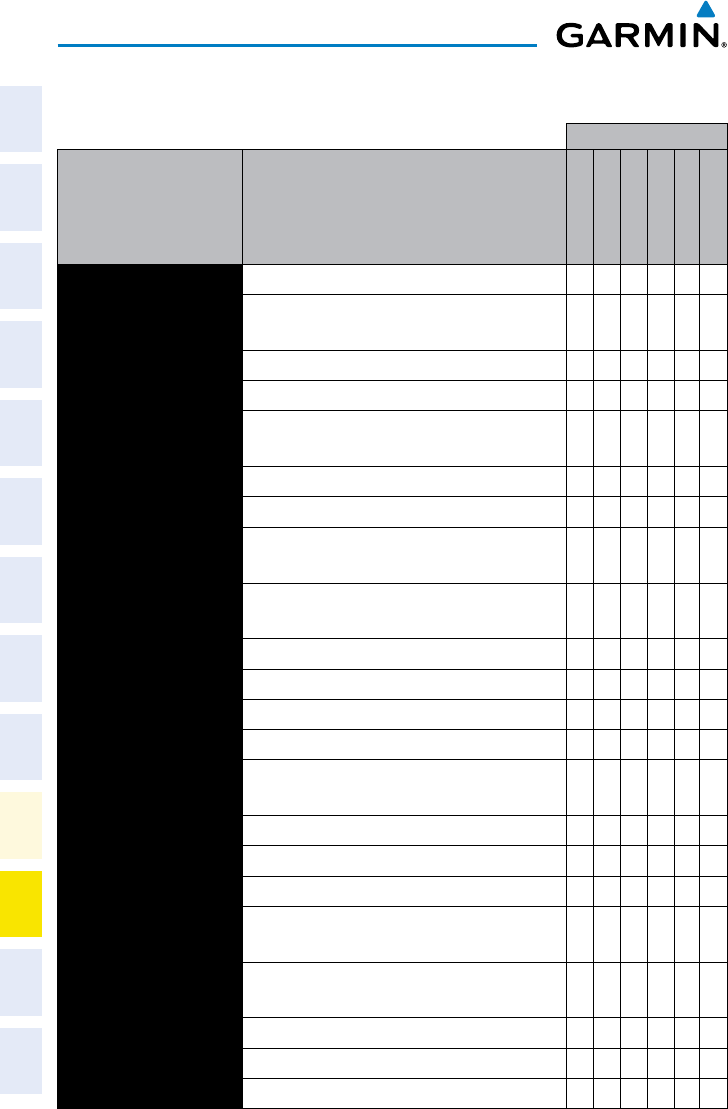
Garmin G1000 Cockpit Reference Guide for the Socata TBM 850
190-00708-02 Rev. A
66
Annunciations & Alerts
Flight
InstrumentsEAS
Nav/Com/
XPDR/AudioAFCSGPS Nav
Flight
PlanningProcedures
Hazard
Avoidance
Additional
Features
Abnormal
Operation
Annun/
AlertsAppendixIndex
Caution Messages
Inhibits
Messages Comments
ENGINE OFF
ENGINE ON
GROUND
TOPI
AIR
LOPI
AUTO SEL Fuel timer off or out of service X
AUX BOOST PMP ON Electric fuel pump running (manual or
automatic mode)
BAT AMP Battery current over 50 A while on ground X X X
BAT OFF Battery off X
BLEED OFF Flow control and shut-off valve/shut-off
valve closed X X X
CHIP Oil chip detector on (if installed) X X
FRONT CARGO DOOR Forward baggage door open X
FUEL IMBALANCE Fuel tanks imbalanced by more than 15
USGAL for >30 seconds
FUEL LOW L-R*Fuel quantity less than or equal to 9.1
USGAL in specified tank
GPU DOOR GPU receptacle door not closed X X
IGNITION Ignition exciter running
INERT SEP FAIL Inertial separator failure X X
INERT SEP ON Inertial separator extended
LOW LVL FAIL L-R*Low fuel level sensor failure for specified
tank
LOW VOLTAGE Battery voltage below 26 V X X
MAIN GEN Starter generator unconnected X X
OIL PRESS Oil pressure between 60 and 100 psi X
OIL TEMP Oil temperature below 0°C or above
104°C X
PITOT HT ON L-R*Specified pitot heat (left or right) on while
engine off X
PITOT NO HT L-R*Specified pitot heat (left or right) off X
PROP DEICE FAIL Prop deice selected and not on X X
PROP DEICE ON Prop deice on while engine off X
Garmin G1000 Cockpit Reference Guide for the Socata TBM 850
190-00708-02 Rev. A 67
Annunciations & Alerts
Flight
Instruments EAS
Nav/Com/
XPDR/Audio AFCS GPS Nav
Flight
Planning Procedures
Hazard
Avoidance
Additional
Features
Abnormal
Operation
Annun/
Alerts Appendix Index
Inhibits
Messages Comments
ENGINE OFF
ENGINE ON
GROUND
TOPI
AIR
LOPI
REAR CARGO DOOR Rear cargo door open X
STALL HEAT ON Stall warning heat on while engine off X
STALL NO HEAT Stall warning heat off X
STARTER Starter generator running
VACUUM LOW Vacuum pressure less than 3.75 in Hg X X
* Only affected side (L, R, or L-R) displayed in CAS message; applicable messages listed here display
L-R for example
Inhibits prevent certain CAS messages from being displayed during the following
conditions:
(TOPI)
(LOPI)
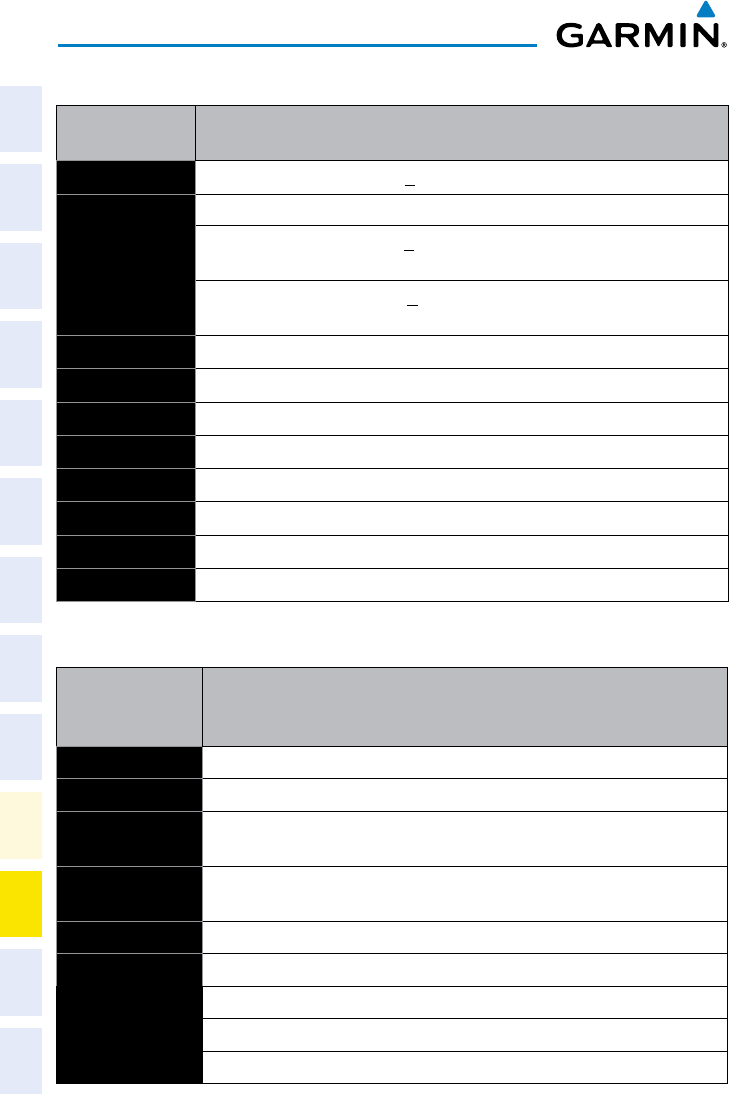
Garmin G1000 Cockpit Reference Guide for the Socata TBM 850
190-00708-02 Rev. A
68
Annunciations & Alerts
Flight
InstrumentsEAS
Nav/Com/
XPDR/AudioAFCSGPS Nav
Flight
PlanningProcedures
Hazard
Avoidance
Additional
Features
Abnormal
Operation
Annun/
AlertsAppendixIndex
COMPARATOR ANNUNCIATIONS
Comparator
Window Text
Condition
ALT MISCOMP
Difference in altitude sensors is > 200 ft.
IAS MISCOMP
If both airspeed sensors detect < 35 knots, this is inhibited.
If either airspeed sensor detects > 35 knots, and the difference in sensors is > 10
kts.
If either airspeed sensor detects > 80 knots, and the difference in sensors is > 7
kts.
HDG MISCOMP
Difference in heading sensors is > 6 degrees.
PIT MISCOMP
Difference in pitch sensors is > 5 degrees.
ROL MISCOMP
Difference in roll sensors is > 6 degrees.
ALT NO COMP
No data from one or both altitude sensors.
IAS NO COMP
No data from one or both airspeed sensors.
HDG NO COMP
No data from one or both heading sensors.
PIT NO COMP
No data from one or both pitch sensors.
ROL NO COMP
No data from one or both roll sensors.
REVERSIONARY SENSOR ANNUNCIATIONS
Reversionary
Sensor Window
Text
Condition
BOTH ON ADC1 Both PFDs are displaying data from the number one Air Data Computer.
BOTH ON ADC2 Both PFDs are displaying data from the number two Air Data Computer.
BOTH ON AHRS1 Both PFDs are displaying data from the number one Attitude & Heading Reference
System.
BOTH ON AHRS2 Both PFDs are displaying data from the number two Attitude & Heading Reference
System.
BOTH ON GPS1 Both PFDs are displaying data from the number one GPS receiver.
BOTH ON GPS2 Both PFDs are displaying data from the number two GPS receiver.
USING ADC1 PFD2 is displaying data from the #1 Air Data Computer.
USING ADC2 PFD1 is displaying data from the #2 Air Data Computer.
USING AHRS1 PFD2 is displaying data from the #1 AHRS.
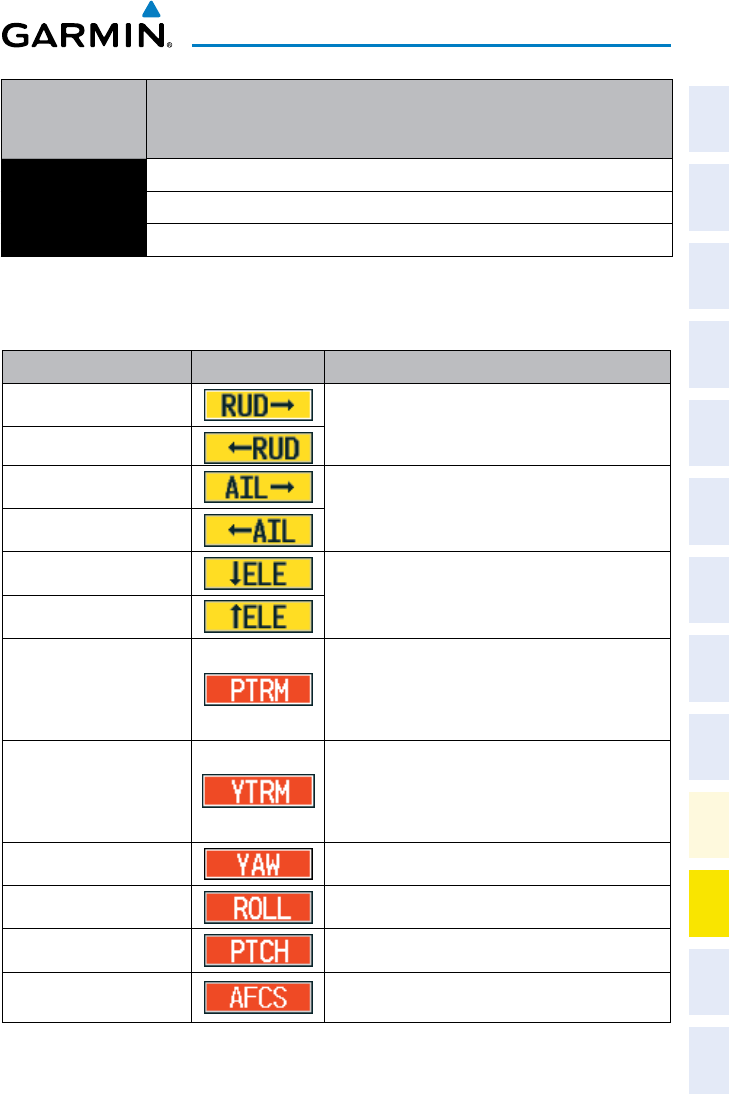
Garmin G1000 Cockpit Reference Guide for the Socata TBM 850
190-00708-02 Rev. A 69
Annunciations & Alerts
Flight
Instruments EAS
Nav/Com/
XPDR/Audio AFCS GPS Nav
Flight
Planning Procedures
Hazard
Avoidance
Additional
Features
Abnormal
Operation
Annun/
Alerts Appendix Index
Reversionary
Sensor Window
Text
Condition
USING AHRS2 PFD1 is displaying data from the #2 AHRS.
USING GPS1 PFD2 is displaying data from the #1 GPS.
USING GPS2 PFD1 is displaying data from the #2 GPS.
AFCS ALERTS
Alert Condition Annunciation Description
Rudder Mistrim Right Yaw servo providing sustained force in the
indicated direction
Rudder Mistrim Left
Aileron Mistrim Right Roll servo providing sustained force in the
indicated direction
Aileron Mistrim Left
Elevator Mistrim Down Pitch servo providing sustained force in the
indicated direction
Elevator Mistrim Up
Pitch Trim Failure
(or stuck MEPT Switch)
If AP engaged, take control of the aircraft and
disengage AP
If AP disengaged, move MEPT switches separately
to
check if a stuck switch is causing the annunciation
Yaw Trim Failure
(or stuck MEYT Switch)
If AP engaged, take control of the aircraft and
disengage AP
If AP disengaged, move the MEYT switch to
check
if a stuck switch is causing the annunciation
Yaw Damper Failure YD control failure; AP still operative
Roll Failure Roll axis control failure; AP inoperative
Pitch Failure Pitch axis control failure; AP inoperative
System Failure AP and MEPT are unavailable; FD may still be
available
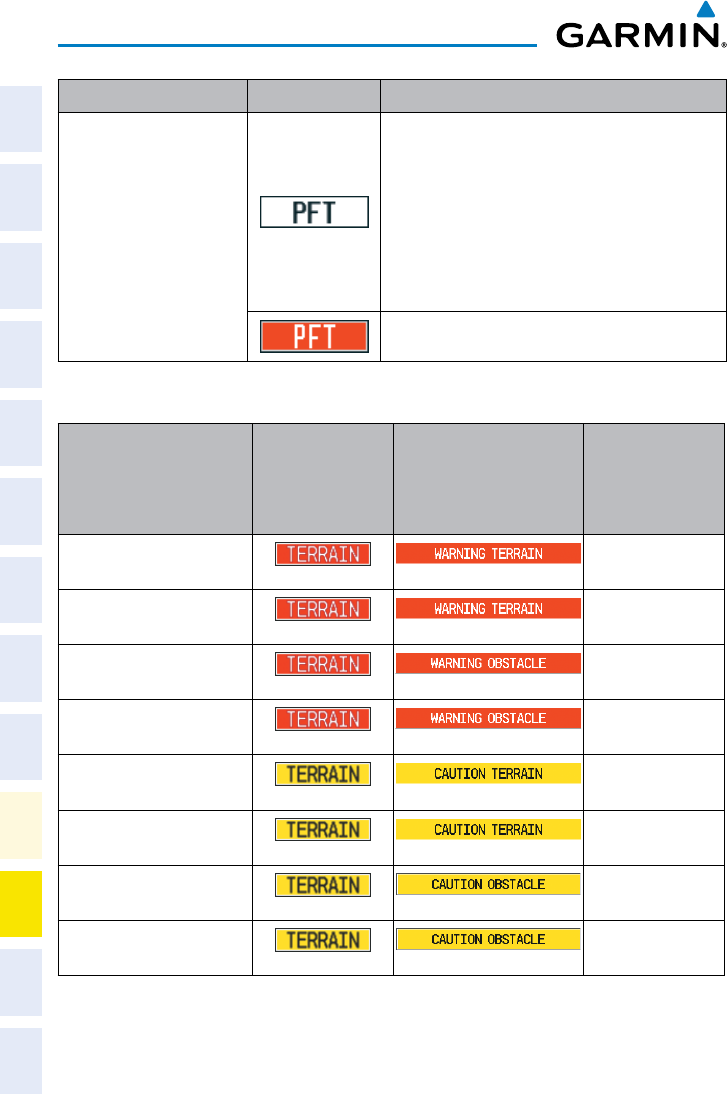
Garmin G1000 Cockpit Reference Guide for the Socata TBM 850
190-00708-02 Rev. A
70
Annunciations & Alerts
Flight
InstrumentsEAS
Nav/Com/
XPDR/AudioAFCSGPS Nav
Flight
PlanningProcedures
Hazard
Avoidance
Additional
Features
Abnormal
Operation
Annun/
AlertsAppendixIndex
Alert Condition Annunciation Description
Preflight Test
Performing preflight system test; aural alert sounds
at completion
Do not press the AP DISC Switch during servo
power-up and preflight system tests as this may
cause the preflight system test to fail or never to
start (if servos fail their power-up tests). Power
must be cycled to the servos to remedy the
situation.
Preflight system test failed; aural alert sounds at
failure
TERRAIN-SVS ALERTS
Alert Type
PFD/MFD
TERRAIN-SVS
Page
Annunciation
MFD
Pop-Up Alert
Aural
Message
Reduced Required Terrain
Clearance Warning (RTC)
“Warning; Terrain,
Terrain”
Imminent Terrain Impact
Warning (ITI)
“Warning; Terrain,
Terrain”
Reduced Required Obstacle
Clearance Warning (ROC)
“Warning; Obstacle,
Obstacle”
Imminent Obstacle Impact
Warning (IOI)
“Warning; Obstacle,
Obstacle”
Reduced Required Terrain
Clearance Caution (RTC)
“Caution; Terrain,
Terrain”
Imminent Terrain Impact
Caution (ITI)
“Caution; Terrain,
Terrain”
Reduced Required Obstacle
Clearance Caution (ROC)
“Caution; Obstacle,
Obstacle”
Imminent Obstacle Impact
Caution (IOI)
“Caution; Obstacle,
Obstacle”
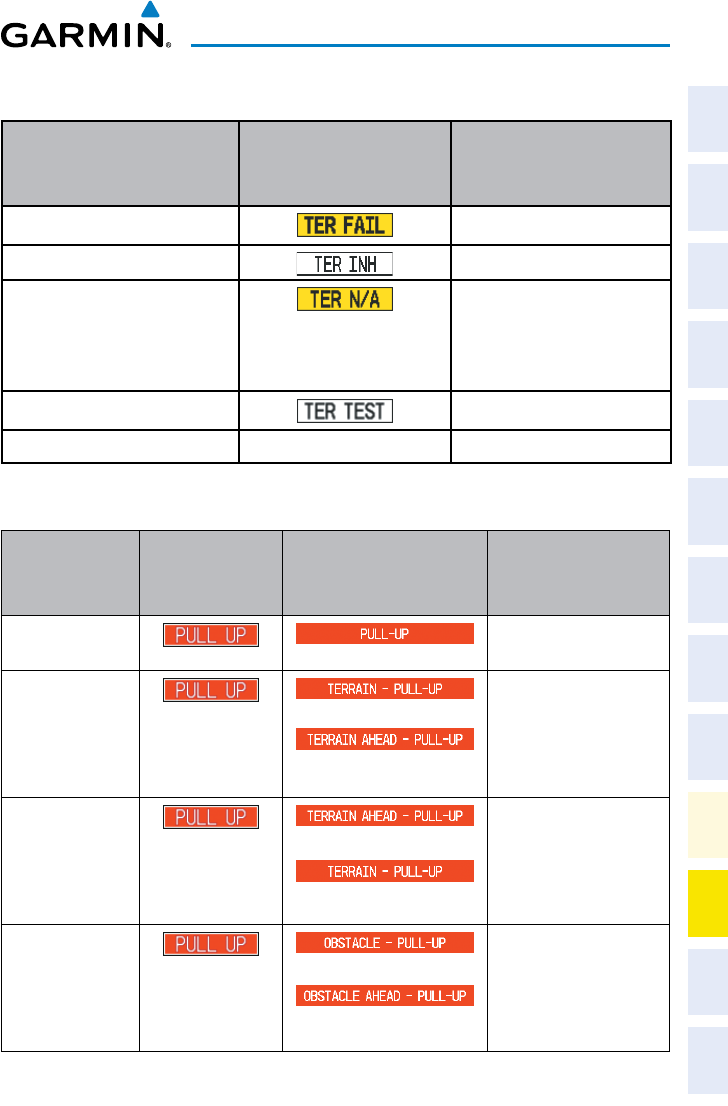
Garmin G1000 Cockpit Reference Guide for the Socata TBM 850
190-00708-02 Rev. A 71
Annunciations & Alerts
Flight
Instruments EAS
Nav/Com/
XPDR/Audio AFCS GPS Nav
Flight
Planning Procedures
Hazard
Avoidance
Additional
Features
Abnormal
Operation
Annun/
Alerts Appendix Index
TERRAIN-SVS SYSTEM STATUS ANNUNCIATIONS
Alert Type
PFD/MFD
TERRAIN-SVS Page
Annunciation
Aural Message
System Test fail “Terrain System Failure”
Terrain Alerting is disabled None
No GPS position or excessively
degraded GPS signal
“Terrain System Not Available”
“Terrain Available” will be
heard when sufficient GPS
signal is re-established.
System Test in progress None
System Test pass None Chime
TAWS ALERTS
Alert Type
PFD/MFD
TAWS-B Page
Annunciation
MFD
Pop-Up Alert Aural Message
Excessive Descent
Rate Warning (EDR)
“Pull Up”
Reduced Required
Terrain Clearance
Warning (RTC)
or
“Terrain, Terrain; Pull Up,
Pull Up”
or
“Terrain Ahead, Pull Up;
Terrain Ahead, Pull Up”
Imminent Terrain
Impact Warning (ITI) or
Terrain Ahead, Pull Up;
Terrain Ahead, Pull Up”
or
“Terrain, Terrain; Pull Up,
Pull Up”
Reduced Required
Obstacle Clearance
Warning (ROC)
or
“Obstacle, Obstacle; Pull
Up, Pull Up”
or
“Obstacle Ahead, Pull Up;
Obstacle Ahead, Pull Up”
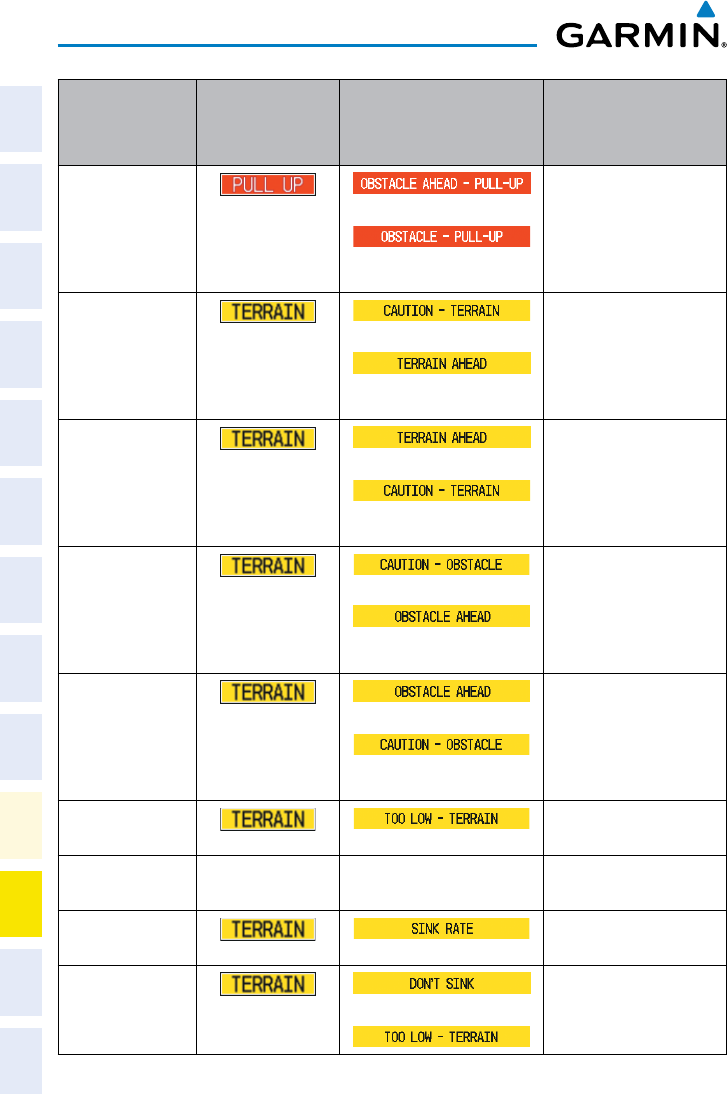
Garmin G1000 Cockpit Reference Guide for the Socata TBM 850
190-00708-02 Rev. A
72
Annunciations & Alerts
Flight
InstrumentsEAS
Nav/Com/
XPDR/AudioAFCSGPS Nav
Flight
PlanningProcedures
Hazard
Avoidance
Additional
Features
Abnormal
Operation
Annun/
AlertsAppendixIndex
Alert Type
PFD/MFD
TAWS-B Page
Annunciation
MFD
Pop-Up Alert Aural Message
Imminent Obstacle
Impact Warning
(IOI)
or
“Obstacle Ahead, Pull Up;
Obstacle Ahead, Pull Up”
or
“Obstacle, Obstacle; Pull
Up, Pull Up”
Reduced Required
Terrain Clearance
Caution (RTC)
or
“Caution, Terrain; Caution,
Terrain”
or
“Terrain Ahead; Terrain
Ahead”
Imminent Terrain
Impact Caution (ITI) or
“Terrain Ahead; Terrain
Ahead”
or
“Caution, Terrain; Caution,
Terrain”
Reduced Required
Obstacle Clearance
Caution (ROC)
or
“Caution, Obstacle; Cau-
tion, Obstacle”
or
“Obstacle Ahead; Obstacle
Ahead”
Imminent Obstacle
Impact Caution (IOI) or
“Obstacle Ahead; Obstacle
Ahead”
or
“Caution, Obstacle; Cau-
tion, Obstacle”
Premature Descent
Alert Caution (PDA)
“Too Low, Terrain”
Altitude Callout
“500”
None None “Five-Hundred”
Excessive Descent
Rate Caution (EDR)
“Sink Rate”
Negative Climb
Rate Caution (NCR) or
“Don’t Sink”
or
“Too Low, Terrain”
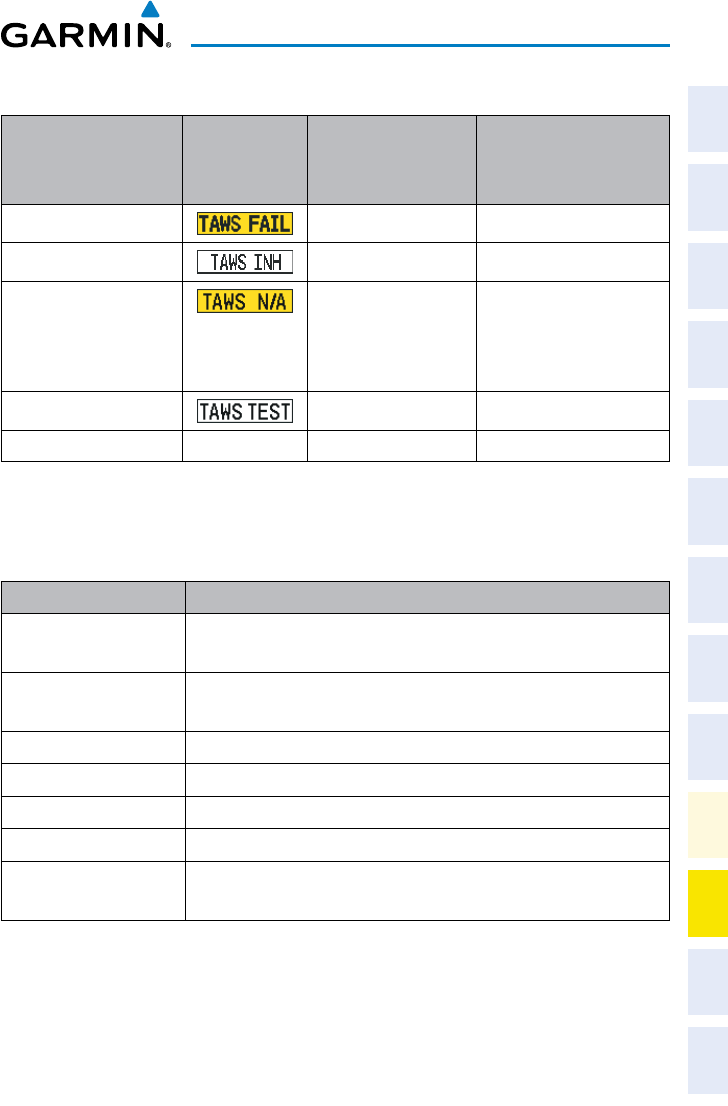
Garmin G1000 Cockpit Reference Guide for the Socata TBM 850
190-00708-02 Rev. A 73
Annunciations & Alerts
Flight
Instruments EAS
Nav/Com/
XPDR/Audio AFCS GPS Nav
Flight
Planning Procedures
Hazard
Avoidance
Additional
Features
Abnormal
Operation
Annun/
Alerts Appendix Index
TAWS System Status Annunciations
Alert Type
PFD/MFD
TAWS-B Page
Annunciation
MFD
Pop-Up Alert Aural Message
TAWS System Test Fail None “TAWS System Failure”
TAWS Alerting is disabled None None
No GPS position or
excessively degraded GPS
signal
None “TAWS Not Available”
“TAWS Available” will be
heard when sufficient GPS
signal is re-established.
System Test in progress None None
System Test pass None None Chime
VOICE ALERTS
Voice Alert Description
“Minimums, minimums” The aircraft has descended below the preset barometric minimum
descent altitude.
“Vertical track” The aircraft is one minute from Top of Descent. Issued only when
vertical navigation is enabled.
“Traffic” Played when a Traffic Advisory (TA) is issued with the TIS system.
“Traffic Not Available” The aircraft is outside the Traffic Information Service (TIS) coverage area.
“Traffic, Traffic” Played when a Traffic Advisory (TA) is issued with a TAS system.
“TAS System Test OK” Played when the TAS system passes a pilot-initiated self test.
“TAS System Test
Failed”
Played when the TAS system fails a pilot-initiated self test.

Garmin G1000 Cockpit Reference Guide for the Socata TBM 850
190-00708-02 Rev. A
74
Annunciations & Alerts
Flight
InstrumentsEAS
Nav/Com/
XPDR/AudioAFCSGPS Nav
Flight
PlanningProcedures
Hazard
Avoidance
Additional
Features
Abnormal
Operation
Annun/
AlertsAppendixIndex
MFD & PFD MESSAGE ADVISORIES
Message Comments
DATA LOST
– Pilot stored data was
lost. Recheck settings.
The pilot profile data was lost. System reverts
to default pilot profile and settings. The pilot
may reconfigure the MFD & PFDs with preferred
settings, if desired.
XTALK ERROR
– A flight display
crosstalk error has occurred.
The MFD and PFDs are not communicating
with each other. The G1000 system should be
serviced.
PFD1 SERVICE
– PFD1 needs
service. Return unit for repair.
The PFD and/or MFD self-test has detected a
problem. The G1000 system should be serviced.
PFD2 SERVICE
– PFD2 needs
service. Return unit for repair.
MFD1 SERVICE
– MFD1 needs
service. Return unit for repair.
MANIFEST
– PFD1 software
mismatch, communication halted.
The PFD and/or MFD has incorrect software
installed. The G1000 system should be serviced.
MANIFEST
– PFD2 software
mismatch, communication halted.
MANIFEST
– MFD1 software
mismatch, communication halted.
PFD1 CONFIG
– PFD1 config error.
Config service req’d. The PFD configuration settings do not match
backup configuration memory. The G1000
system should be serviced.
PFD2 CONFIG
– PFD2 config error.
Config service req’d.
MFD1 CONFIG
– MFD1 config
error. Config service req’d.
The MFD configuration settings do not match
backup configuration memory. The G1000
system should be serviced.
SW MISMATCH
– GDU software
version mismatch. Xtalk is off.
The MFD and PFDs have different software
versions installed. The G1000 system should be
serviced.
Garmin G1000 Cockpit Reference Guide for the Socata TBM 850
190-00708-02 Rev. A 75
Annunciations & Alerts
Flight
Instruments EAS
Nav/Com/
XPDR/Audio AFCS GPS Nav
Flight
Planning Procedures
Hazard
Avoidance
Additional
Features
Abnormal
Operation
Annun/
Alerts Appendix Index
MFD & PFD MESSAGE ADVISORIES (CONT.)
Message Comments
PFD1 COOLING
– PFD1 has poor
cooling. Reducing power usage. The PFD and/or MFD is overheating and is
reducing power consumption by dimming the
display. If problem persists, the G1000 system
should be serviced.
PFD2 COOLING
– PFD2 has poor
cooling. Reducing power usage.
MFD1 COOLING
– MFD1 has poor
cooling. Reducing power usage.
PFD1 KEYSTK
– PFD1 [key name]
Key is stuck. A key is stuck on the PFD and/or MFD bezel.
Attempt to free the stuck key by pressing it
several times. The G1000 system should be
serviced if the problem persists.
PFD2 KEYSTK
– PFD2 [key name]
Key is stuck.
MFD1 KEYSTK
– MFD [key name]
Key is stuck.
CNFG MODULE
– PFD1
configuration module is
inoperative.
The PFD1 configuration module backup memory
has failed. The G1000 system should be
serviced.
PFD1 VOLTAGE
– PFD1 has low
voltage. Reducing power usage
The PFD1 voltage is low. The G1000 system
should be serviced.
PFD2 VOLTAGE
– PFD2 has low
voltage. Reducing power usage
The PFD2 voltage is low. The G1000 system
should be serviced.
MFD1 VOLTAGE
– MFD1 has low
voltage. Reducing power usage
The MFD voltage is low. The G1000 system
should be serviced.
DATABASE MESSAGE ADVISORIES
Message Comments
MFD1 DB ERR
– MFD1 aviation
database error exists. The MFD and/or PFD detected a failure in
the aviation database. Attempt to reload the
aviation database. If problem persists, the
G1000 system should be serviced.
PFD1 DB ERR
– PFD1 aviation
database error exists.
PFD2 DB ERR
– PFD2 aviation
database error exists.

Garmin G1000 Cockpit Reference Guide for the Socata TBM 850
190-00708-02 Rev. A
76
Annunciations & Alerts
Flight
InstrumentsEAS
Nav/Com/
XPDR/AudioAFCSGPS Nav
Flight
PlanningProcedures
Hazard
Avoidance
Additional
Features
Abnormal
Operation
Annun/
AlertsAppendixIndex
DATABASE MESSAGE ADVISORIES (CONT.)
Message Comments
MFD1 DB ERR
– MFD1 basemap
database error exists.
The MFD and/or PFD detected a failure in the
basemap database.
PFD1 DB ERR
– PFD1 basemap
database error exists.
PFD2 DB ERR
– PFD2 basemap
database error exists.
MFD1 DB ERR
– MFD1 terrain
database error exists. The MFD and/or PFD detected a failure in the
terrain database. Ensure that the terrain card is
properly inserted in display. Replace terrain card.
If problem persists, The G1000 system should be
serviced.
PFD1 DB ERR
– PFD1 terrain
database error exists.
PFD2 DB ERR
– PFD2 terrain
database error exists.
MFD1 DB ERR
– MFD1 terrain
database missing.
The terrain database is present on another LRU,
but is missing on the specified LRU.
PFD1 DB ERR
– PFD1 terrain
database missing.
PFD2 DB ERR
– PFD2 terrain
database missing.
MFD1 DB ERR
– MFD1 obstacle
database error exists. The MFD and/or PFD detected a failure in the
obstacle database. Ensure that the data card is
properly inserted. Replace data card. If problem
persists, The G1000 system should be serviced.
PFD1 DB ERR
– PFD1 obstacle
database error exists.
PFD2 DB ERR
– PFD2 obstacle
database error exists.
MFD1 DB ERR
– MFD1 obstacle
database missing.
The obstacle database is present on another LRU,
but is missing on the specified LRU.
PFD1 DB ERR
– PFD1 obstacle
database missing.
PFD2 DB ERR
– PFD2 obstacle
database missing.

Garmin G1000 Cockpit Reference Guide for the Socata TBM 850
190-00708-02 Rev. A 77
Annunciations & Alerts
Flight
Instruments EAS
Nav/Com/
XPDR/Audio AFCS GPS Nav
Flight
Planning Procedures
Hazard
Avoidance
Additional
Features
Abnormal
Operation
Annun/
Alerts Appendix Index
DATABASE MESSAGE ADVISORIES (CONT.)
Message Comments
MFD1 DB ERR
– MFD1 airport
terrain database error exists. The MFD and/or PFD detected a failure in the
airport terrain database. Ensure that the data
card is properly inserted. Replace data card. If
problem persists, The G1000 system should be
serviced.
PFD1 DB ERR
– PFD1 airport
terrain database error exists.
PFD2 DB ERR
– PFD2 airport
terrain database error exists.
MFD1 DB ERR
– MFD1 airport
terrain database missing.
The airport terrain database is present on
another LRU, but is missing on the specified LRU.
PFD1 DB ERR
– PFD1 airport
terrain database missing.
PFD2 DB ERR
– PFD2 airport
terrain database missing.
MFD1 DB ERR
– MFD1 Safe Taxi
database error exists. The MFD and/or PFD detected a failure in the
Safe Taxi database. Ensure that the data card is
properly inserted. Replace data card. If problem
persists, The G1000 system should be serviced.
PFD1 DB ERR
– PFD1 Safe Taxi
database error exists.
PFD2 DB ERR
– PFD2 Safe Taxi
database error exists.
MFD1 DB ERR
– MFD1 Chartview
database error exists.
The MFD detected a failure in the ChartView
database (optional feature). Ensure that the
data card is properly inserted. Replace data card.
If problem persists, The G1000 system should be
serviced.
MFD1 DB ERR
– MFD1 FliteCharts
database error exists.
The MFD detected a failure in the FliteCharts
database (optional feature). Ensure that the
data card is properly inserted. Replace data card.
If problem persists, The G1000 system should be
serviced.
DB MISMATCH
– Aviation
database version mismatch. Xtalk
is off.
The PFDs and MFD have different aviation
database versions installed. Crossfill is off.
Install correct aviation database version in all
displays.

Garmin G1000 Cockpit Reference Guide for the Socata TBM 850
190-00708-02 Rev. A
78
Annunciations & Alerts
Flight
InstrumentsEAS
Nav/Com/
XPDR/AudioAFCSGPS Nav
Flight
PlanningProcedures
Hazard
Avoidance
Additional
Features
Abnormal
Operation
Annun/
AlertsAppendixIndex
DATABASE MESSAGE ADVISORIES (CONT.)
Message Comments
DB MISMATCH
– Aviation
database type mismatch. Xtalk is
off.
The PFDs and MFD have different aviation
database types installed (Americas, European,
etc.). Crossfill is off. Install correct aviation
database type in all displays.
DB MISMATCH
– Terrain database
version mismatch.
The PFDs and MFD have different terrain
database versions installed. Install correct terrain
database version in all displays.
DB MISMATCH
– Terrain database
type mismatch.
The PFDs and MFD have different terrain
database types installed. Install correct terrain
database type in all displays.
DB MISMATCH
– Obstacle
database version mismatch.
The PFDs and MFD have different obstacle
database versions installed. Install correct
obstacle database version in all displays.
DB MISMATCH
– Airport Terrain
database mismatch.
The PFDs and MFD have different airport terrrain
databases installed. Install correct airport terrain
database in all displays.
GMA 1347D MESSAGE ADVISORIES
Message Comments
GMA1 FAIL
– GMA1 is inoperative. The audio panel self-test has detected a failure.
The audio panel is unavailable. The G1000
system should be serviced.
GMA2 FAIL
– GMA2 is inoperative.
GMA XTALK
– GMA crosstalk error
has occurred.
An error has occurred in transferring data
between the two GMAs. The G1000 system
should be serviced.
GMA1 CONFIG
– GMA1 config
error. Config service req’d. The audio panel configuration settings do not
match backup configuration memory. The
G1000 system should be serviced.
GMA2 CONFIG
– GMA2 config
error. Config service req’d.
Garmin G1000 Cockpit Reference Guide for the Socata TBM 850
190-00708-02 Rev. A 79
Annunciations & Alerts
Flight
Instruments EAS
Nav/Com/
XPDR/Audio AFCS GPS Nav
Flight
Planning Procedures
Hazard
Avoidance
Additional
Features
Abnormal
Operation
Annun/
Alerts Appendix Index
GMA 1347D MESSAGE ADVISORIES (CONT.)
Message Comments
MANIFEST – GMA1 software
mismatch, communication halted. The audio panel has incorrect software installed. The
G1000 system should be serviced.
MANIFEST – GMA2 software
mismatch, communication halted.
GMA1 SERVICE – GMA1 needs
service. Return unit for repair.
The audio panel self-test has detected a problem in
the unit. Certain audio functions may still be avail-
able, and the audio panel may still be usable. The
G1000 system should be serviced when possible.
GMA2 SERVICE – GMA2 needs
service. Return unit for repair.
GIA 63W MESSAGE ADVISORIES
Message Comments
GIA1 CONFIG
– GIA1 config error.
Config service req’d. The GIA1 and/or GIA2 configuration settings do
not match backup configuration memory. The
G1000 system should be serviced.
GIA2 CONFIG
– GIA2 config error.
Config service req’d.
GIA1 CONFIG
– GIA1 audio config
error. Config service req’d. The GIA1 and/or GIA2 have an error in the audio
configuration. The G1000 system should be
serviced.
GIA2 CONFIG
– GIA2 audio config
error. Config service req’d.
GIA1 COOLING
– GIA1
temperature too low. The GIA1 and/or GIA2 temperature is too low
to operate correctly. Allow units to warm up to
operating temperature.
GIA2 COOLING
– GIA2
temperature too low.
GIA1 COOLING
– GIA1 over
temperature. The GIA1 and/or GIA2 temperature is too high.
If problem persists, the G1000 system should be
serviced.
GIA2 COOLING
– GIA2 over
temperature.
GIA1 SERVICE
– GIA1 needs
service. Return the unit for repair. The GIA1 and/or GIA2 self-test has detected a
problem in the unit. The G1000 system should
be serviced.
GIA2 SERVICE
– GIA2 needs
service. Return the unit for repair.

Garmin G1000 Cockpit Reference Guide for the Socata TBM 850
190-00708-02 Rev. A
80
Annunciations & Alerts
Flight
InstrumentsEAS
Nav/Com/
XPDR/AudioAFCSGPS Nav
Flight
PlanningProcedures
Hazard
Avoidance
Additional
Features
Abnormal
Operation
Annun/
AlertsAppendixIndex
GIA 63W MESSAGE ADVISORIES (CONT.)
Message Comments
HW MISMATCH
– GIA hardware
mismatch. GIA1 communication
halted. A GIA mismatch has been detected, where only
one is WAAS capable.
HW MISMATCH
– GIA hardware
mismatch. GIA2 communication
halted.
MANIFEST
– GIA1 software
mismatch, communication halted. The GIA1 and/or GIA 2 has incorrect software
installed. The G1000 system should be serviced.
MANIFEST
– GIA2 software
mismatch, communication halted.
MANIFEST
– GFC software
mismatch, communication halted.
Incorrect servo software is installed, or gain
settings are incorrect.
COM1 TEMP
– COM1 over temp.
Reducing transmitter power.
The system has detected an over temperature
condition in COM1 and/or COM2. The
transmitter is operating at reduced power. If the
problem persists, the G1000 system should be
serviced.
COM2 TEMP
– COM2 over temp.
Reducing transmitter power.
COM1 SERVICE
– COM1 needs
service. Return unit for repair.
The system has detected a failure in COM1
and/or COM2. COM1 and/or COM2 may still be
usable. The G1000 system should be serviced
when possible.
COM2 SERVICE
– COM2 needs
service. Return unit for repair.
COM1 PTT
– COM1 push-to-talk
key is stuck.
The COM1 and/or COM2 external push-to-talk
switch is stuck in the enable (or “pressed”)
position. Press the PTT switch again to cycle its
operation.
If the problem persists, the G1000 system should
be serviced.
COM2 PTT
– COM2 push-to-talk
key is stuck.
COM1 RMT XFR
– COM1 remote
transfer key is stuck.
The COM1 and/or COM2 transfer switch is stuck
in the enabled (or “pressed”) position. Press the
transfer switch again to cycle its operation. If
the problem persists, the G1000 system should
be serviced.
COM2 RMT XFR
– COM2 remote
transfer key is stuck.

Garmin G1000 Cockpit Reference Guide for the Socata TBM 850
190-00708-02 Rev. A 81
Annunciations & Alerts
Flight
Instruments EAS
Nav/Com/
XPDR/Audio AFCS GPS Nav
Flight
Planning Procedures
Hazard
Avoidance
Additional
Features
Abnormal
Operation
Annun/
Alerts Appendix Index
GIA 63W MESSAGE ADVISORIES (CONT.)
Message Comments
LOI
– GPS integrity lost. Crosscheck
with other NAVS.
GPS integrity is insufficient for the current phase
of flight.
GPS NAV LOST
– Loss of GPS
navigation. Insufficient satellites.
Loss of GPS navigation due to insufficient
satellites.
GPS NAV LOST
– Loss of GPS
navigation. Position error. Loss of GPS navigation due to position error.
GPS NAV LOST
– Loss of GPS
navigation. GPS fail. Loss of GPS navigation due to GPS failure.
ABORT APR
– Loss of GPS
navigation. Abort approach. Abort approach due to loss of GPS navigation.
APR DWNGRADE
– Approach
downgraded.
Vertical guidance generated by WAAS is
unavailable, use LNAV only minimums.
TRUE APR
– True north approach.
Change HDG reference to TRUE.
Displayed after passing the first waypoint of a
true north approach when the nav angle is set
to ‘AUTO’.
GPS1 SERVICE
– GPS1 needs
service. Return unit for repair. A failure has been detected in the GPS1
and/or GPS2 receiver. The receiver may still be
available. The G1000 system should be serviced.
GPS2 SERVICE
– GPS2 needs
service. Return unit for repair.
NAV1 SERVICE
– NAV1 needs
service. Return unit for repair. A failure has been detected in the NAV1
and/or NAV2 receiver. The receiver may still be
available. The G1000 system should be serviced.
NAV2 SERVICE
– NAV2 needs
service. Return unit for repair.
NAV1 RMT XFR
– NAV1 remote
transfer key is stuck.
The remote NAV1 and/or NAV2 transfer switch
is stuck in the enabled (or “pressed”) state.
Press the transfer switch again to cycle its
operation. If the problem persists, the G1000
system should be serviced.
NAV2 RMT XFR
– NAV2 remote
transfer key is stuck.
G/S1 FAIL
– G/S1 is inoperative. A failure has been detected in glideslope
receiver 1 and/or receiver 2. The G1000 system
should be serviced.
G/S2 FAIL
– G/S2 is inoperative.

Garmin G1000 Cockpit Reference Guide for the Socata TBM 850
190-00708-02 Rev. A
82
Annunciations & Alerts
Flight
InstrumentsEAS
Nav/Com/
XPDR/AudioAFCSGPS Nav
Flight
PlanningProcedures
Hazard
Avoidance
Additional
Features
Abnormal
Operation
Annun/
AlertsAppendixIndex
GIA 63W MESSAGE ADVISORIES (CONT.)
Message Comments
G/S1 SERVICE
– G/S1 needs
service. Return unit for repair.
A failure has been detected in glideslope
receiver 1 and/or receiver 2. The receiver may
still be available. The G1000 system should be
serviced when possible.
G/S2 SERVICE
– G/S2 needs
service. Return unit for repair.
GEA 71 MESSAGE ADVISORIES
Message Comments
GEA1 CONFIG
– GEA1 config error.
Config service req’d.
The GEA1 configuration settings do not match
those of backup configuration memory. The
G1000 system should be serviced.
GEA2 CONFIG
– GEA2 config error.
Config service req’d.
The GEA2 configuration settings do not match
those of backup configuration memory. The
G1000 system should be serviced.
MANIFEST
– GEA1 software
mismatch, communication halted.
The #1 GEA 71 has incorrect software installed.
The G1000 system should be serviced.
MANIFEST
– GEA2 software
mismatch, communication halted.
The #2 GEA 71 has incorrect software installed.
The G1000 system should be serviced.
GTX 33/33D MESSAGE ADVISORIES
Message Comments
XPDR1 CONFIG
– XPDR1 config
error. Config service req’d.
The transponder configuration settings do not
match those of backup configuration memory.
The G1000 system should be serviced.
XPDR2 CONFIG
– XPDR2 config
error. Config service req’d.
The transponder configuration settings do not
match those of backup configuration memory.
The G1000 system should be serviced.
MANIFEST
– GTX1 software
mismatch, communication halted.
The transponder has incorrect software installed.
The G1000 system should be serviced.
MANIFEST
– GTX2 software
mismatch, communication halted.
The transponder has incorrect software installed.
The G1000 system should be serviced.
Garmin G1000 Cockpit Reference Guide for the Socata TBM 850
190-00708-02 Rev. A 83
Annunciations & Alerts
Flight
Instruments EAS
Nav/Com/
XPDR/Audio AFCS GPS Nav
Flight
Planning Procedures
Hazard
Avoidance
Additional
Features
Abnormal
Operation
Annun/
Alerts Appendix Index
GTX 33/33D MESSAGE ADVISORIES (CONT.)
Message Comments
XPDR1 SRVC
– XPDR1 needs
service. Return unit for repair.
The #1 transponder should be serviced when
possible.
XPDR2 SRVC
– XPDR2 needs
service. Return unit for repair.
The #2 transponder should be serviced when
possible.
XPDR1 FAIL
– XPDR1 is
inoperative.
There is no communication with the #1
transponder.
XPDR2 FAIL
– XPDR2 is
inoperative.
There is no communication with the #2
transponder.
GRS 77 MESSAGE ADVISORIES
Message Comments
AHRS1 TAS
– AHRS1 not receiving
valid airspeed.
The #1 AHRS is not receiving true airspeed from
the air data computer. The AHRS relies on GPS
information to augment the lack of airspeed.
The G1000 system should be serviced.
AHRS2 TAS
– AHRS2 not receiving
valid airspeed.
The #2 AHRS is not receiving true airspeed from
the air data computer. The AHRS relies on GPS
information to augment the lack of airspeed.
The G1000 system should be serviced.
AHRS1 GPS
– AHRS1 using backup
GPS source.
The #1 AHRS is using the backup GPS path.
Primary GPS path has failed. The G1000 system
should be serviced when possible.
AHRS2 GPS
– AHRS2 using backup
GPS source.
The #2 AHRS is using the backup GPS path.
Primary GPS path has failed. The G1000 system
should be serviced when possible.
AHRS1 GPS
– AHRS1 not receiving
any GPS information.
The #1 AHRS is not receiving any or any useful
GPS information. Check AFMS limitations. The
G1000 system should be serviced.
AHRS2 GPS
– AHRS2 not receiving
any GPS information.
The #2 AHRS is not receiving any or any useful
GPS information. Check AFMS limitations. The
G1000 system should be serviced.

Garmin G1000 Cockpit Reference Guide for the Socata TBM 850
190-00708-02 Rev. A
84
Annunciations & Alerts
Flight
InstrumentsEAS
Nav/Com/
XPDR/AudioAFCSGPS Nav
Flight
PlanningProcedures
Hazard
Avoidance
Additional
Features
Abnormal
Operation
Annun/
AlertsAppendixIndex
GRS 77 MESSAGE ADVISORIES (CONT.)
Message Comments
AHRS1 GPS
– AHRS1 not receiving
backup GPS information.
The #1 AHRS is not receiving backup GPS
information. The G1000 system should be
serviced.
AHRS2 GPS
– AHRS2 not receiving
backup GPS information.
The #2 AHRS is not receiving backup GPS
information. The G1000 system should be
serviced.
AHRS1 GPS
– AHRS1 operating
exclusively in no-GPS mode.
The #1 AHRS is operating exclusively in no-GPS
mode. The G1000 system should be serviced.
AHRS2 GPS
– AHRS2 operating
exclusively in no-GPS mode.
The #2 AHRS is operating exclusively in no-GPS
mode. The G1000 system should be serviced.
AHRS MAG DB
– AHRS magnetic
model database version mismatch.
The #1 AHRS and #2 AHRS magnetic model
database versions do not match.
AHRS1 SRVC
– AHRS1 Magnetic-
field model needs update.
The #1 AHRS earth magnetic field model is out
of date. Update magnetic field model when
practical.
AHRS2 SRVC
– AHRS2 Magnetic-
field model needs update.
The #2 AHRS earth magnetic field model is out
of date. Update magnetic field model when
practical.
GEO LIMITS
– AHRS1 too far
North/South, no magnetic compass. The aircraft is outside geographical limits for
approved AHRS operation. Heading is flagged
as invalid.
GEO LIMITS
– AHRS2 too far
North/South, no magnetic compass.
MANIFEST
– GRS1 software
mismatch, communication halted.
The #1 AHRS has incorrect software installed.
The G1000 system should be serviced.
MANIFEST
– GRS2 software
mismatch, communication halted.
The #2 AHRS has incorrect software installed.
The G1000 system should be serviced.
Garmin G1000 Cockpit Reference Guide for the Socata TBM 850
190-00708-02 Rev. A 85
Annunciations & Alerts
Flight
Instruments EAS
Nav/Com/
XPDR/Audio AFCS GPS Nav
Flight
Planning Procedures
Hazard
Avoidance
Additional
Features
Abnormal
Operation
Annun/
Alerts Appendix Index
GMU 44 MESSAGE ADVISORIES
Message Comments
HDG FAULT
– AHRS1
magnetometer fault has occurred.
A fault has occurred in the #1 GMU 44.
Heading is flagged as invalid. The AHRS uses
GPS for backup mode operation. The G1000
system should be serviced.
HDG FAULT
– AHRS2
magnetometer fault has occurred.
A fault has occurred in the #2 GMU 44.
Heading is flagged as invalid. The AHRS uses
GPS for backup mode operation. The G1000
system should be serviced.
MANIFEST
– GMU1 software
mismatch, communication halted. The GMU 44 has incorrect software installed.
The G1000 system should be serviced.
MANIFEST
– GMU2 software
mismatch, communication halted.
GDL 69A MESSAGE ADVISORIES
Message Comments
GDL69 CONFIG
– GDL 69 config
error. Config service req’d.
GDL 69 configuration settings do not match
those of backup configuration memory. The
G1000 system should be serviced.
GDL69 FAIL
– GDL 69 has failed. A failure has been detected in the GDL 69.
The receiver is unavailable. The G1000 system
should be serviced
MANIFEST
– GDL software
mismatch, communication halted.
The GDL 69 has incorrect software installed.
The G1000 system should be serviced.

Garmin G1000 Cockpit Reference Guide for the Socata TBM 850
190-00708-02 Rev. A
86
Annunciations & Alerts
Flight
InstrumentsEAS
Nav/Com/
XPDR/AudioAFCSGPS Nav
Flight
PlanningProcedures
Hazard
Avoidance
Additional
Features
Abnormal
Operation
Annun/
AlertsAppendixIndex
GWX 68 ALERT MESSAGES
Message Comments
GWX CONFIG
– GWX config error.
Config service req’d.
GWX 68 configuration settings do not match
those of the GDU configuration. The G1000
system should be serviced.
GWX FAIL
– GWX is inoperative. The GDU is not recieving status packet from the
GWX 68 or the GWX 68 is reporting a fault.
The GWX 68 radar system should be serviced.
GWX SERVICE
– GWX needs
service. Return unit for repair.
A failure has been detected in the GWX 68. The
GWX 68 may still be usable.
MANIFEST
– GWX software
mismatch, communication halted.
The GWX 68 has incorrect software installed.
The G1000 system should be serviced.
WX ALERT
– Possible severe
weather ahead.
Possible severe weather detected within +/- 10
degrees of the aircraft heading at a range of 80
to 320 nm.
GDC 74B MESSAGE ADVISORIES
Message Comments
ADC1 ALT EC
– ADC1 altitude error
correction is unavailable. GDC1 or GDC2 is reporting that the altitude
error correction is unavailable.
ADC2 ALT EC
– ADC2 altitude error
correction is unavailable.
ADC1 AS EC
– ADC1 airspeed error
correction is unavailable. GDC1 or GDC2 is reporting that the airspeed
error correction is unavailable.
ADC2 AS EC
– ADC2 airspeed error
correction is unavailable.
MANIFEST
– GDC1 software
mismatch, communication halted. The GDC 74B has incorrect software installed.
The G1000 system should be serviced.
MANIFEST
– GDC2 software
mismatch, communication halted.
Garmin G1000 Cockpit Reference Guide for the Socata TBM 850
190-00708-02 Rev. A 87
Annunciations & Alerts
Flight
Instruments EAS
Nav/Com/
XPDR/Audio AFCS GPS Nav
Flight
Planning Procedures
Hazard
Avoidance
Additional
Features
Abnormal
Operation
Annun/
Alerts Appendix Index
GCU 475 MESSAGE ADVISORIES
Message Comments
GCU CNFG
– GCU Config error.
Config service req’d.
GCU 475 configuration settings do not match
those of backup configuration memory. The
G1000 system should be serviced.
GCU FAIL
– GCU is inoperative. A failure has been detected in the GCU 475.
The GCU 475 is unavailable.
MANIFEST
– GCU software
mismatch, communication halted.
The GCU 475 has incorrect software installed.
The G1000 system should be serviced.
GCU KEYSTK
– GCU [key name]
Key is stuck.
A key is stuck on the GCU 475 bezel. Attempt
to free the stuck key by pressing it several times.
The G1000 system should be serviced if the
problem persists.
GMC 710 MESSAGE ADVISORIES
Message Comments
GMC CONFIG
– GMC Config error.
Config service req’d. Error in the configuration of the GMC 710.
GMC FAIL
– GMC is inoperative. A failure has been detected in the GMC 710.
The GMC 710 is unavailable.
MANIFEST
– GMC software
mismatch. Communication halted.
The GMC 710 has incorrect software installed.
The G1000 system should be serviced.
GMC KEYSTK
– GMC [key name]
Key is stuck.
A key is stuck on the GMC 710 bezel. Attempt
to free the stuck key by pressing it several
times. The G1000 system should be serviced if
the problem persists.

Garmin G1000 Cockpit Reference Guide for the Socata TBM 850
190-00708-02 Rev. A
88
Annunciations & Alerts
Flight
InstrumentsEAS
Nav/Com/
XPDR/AudioAFCSGPS Nav
Flight
PlanningProcedures
Hazard
Avoidance
Additional
Features
Abnormal
Operation
Annun/
AlertsAppendixIndex
MISCELLANEOUS MESSAGE ADVISORIES
Message Comments
FPL WPT LOCK
– Flight plan
waypoint is locked.
Upon power-up, the G1000 system detects
that a stored flight plan waypoint is locked.
This occurs when an aviation database update
eliminates an obsolete waypoint. The flight
plan cannot find the specified waypoint and
flags this message. This can also occur with
user waypoints in a flight plan that is deleted.
Remove the waypoint from the flight plan if it
no longer exists in any database,
Or
update the waypoint name/identifier to reflect
the new information.
FPL WPT MOVE
– Flight plan
waypoint moved.
The system has detected that a waypoint
coordinate has changed due to a new aviation
database update. Verify that stored flight plans
contain correct waypoint locations.
TIMER EXPIRD
– Timer has expired. The system notifies the pilot that the timer has
expired.
DB CHANGE
– Database changed.
Verify user modified procedures.
This occurs when a stored flight plan contains
procedures that have been manually edited.
This alert is issued only after an aviation
database update. Verify that the user-modified
procedures in stored flight plans are correct and
up to date.
DB CHANGE
– Database changed.
Verify stored airways.
This occurs when a stored flight plan contains
an airway that is no longer consistent with
the aviation database. This alert is issued only
after an aviation database update. Verify use
of airways in stored flight plans and reload
airways as needed.

Garmin G1000 Cockpit Reference Guide for the Socata TBM 850
190-00708-02 Rev. A 89
Annunciations & Alerts
Flight
Instruments EAS
Nav/Com/
XPDR/Audio AFCS GPS Nav
Flight
Planning Procedures
Hazard
Avoidance
Additional
Features
Abnormal
Operation
Annun/
Alerts Appendix Index
MISCELLANEOUS MESSAGE ADVISORIES (CONT.)
Message Comments
FPL TRUNC
– Flight plan has been
truncated.
This occurs when a newly installed aviation
database eliminates an obsolete approach
or arrival used by a stored flight plan. The
obsolete procedure is removed from the flight
plan. Update flight plan with current arrival or
approach.
LOCKED FPL
– Cannot navigate
locked flight plan.
This occurs when the pilot attempts to activate
a stored flight plan that contains locked
waypoint. Remove locked waypoint from flight
plan. Update flight plan with current waypoint.
WPT ARRIVAL
– Arriving at
waypoint -[xxxx]
Arriving at waypoint [xxxx], where [xxxx] is the
waypoint name.
STEEP TURN
– Steep turn ahead. A steep turn is 15 seconds ahead. Prepare to
turn.
INSIDE ARSPC
– Inside airspace. The aircraft is inside the airspace.
ARSPC AHEAD
– Airspace ahead
less than 10 minutes.
Special use airspace is ahead of aircraft. The
aircraft will penetrate the airspace within 10
minutes.
ARSPC NEAR
– Airspace near and
ahead.
Special use airspace is near and ahead of the
aircraft position.
ARSPC NEAR
– Airspace near – less
than 2 nm.
Special use airspace is within 2 nm of the
aircraft position.
APR INACTV
– Approach is not
active.
The system notifies the pilot that the loaded
approach is not active. Activate approach when
required.
SLCT FREQ
– Select appropriate
frequency for approach.
The system notifies the pilot to load the
approach frequency for the appropriate NAV
receiver. Select the correct frequency for the
approach.
SLCT NAV
– Select NAV on CDI for
approach.
The system notifies the pilot to set the CDI to
the correct NAV receiver. Set the CDI to the
correct NAV receiver.

Garmin G1000 Cockpit Reference Guide for the Socata TBM 850
190-00708-02 Rev. A
90
Annunciations & Alerts
Flight
InstrumentsEAS
Nav/Com/
XPDR/AudioAFCSGPS Nav
Flight
PlanningProcedures
Hazard
Avoidance
Additional
Features
Abnormal
Operation
Annun/
AlertsAppendixIndex
MISCELLANEOUS MESSAGE ADVISORIES (CONT.)
Message Comments
PTK FAIL
– Parallel track unavailable:
bad geometry. Bad parallel track geometry.
PTK FAIL
– Parallel track unavailable:
invalid leg type. Invalid leg type for parallel offset.
PTK FAIL
– Parallel track unavailable:
past IAF.
IAF waypoint for parallel offset has been
passed.
UNABLE V WPT
– Can’t reach
current vertical waypoint.
The current vertical waypoint can not be
reached within the maximum flight path angle
and vertical speed constraints. The system
automatically transitions to the next vertical
waypoint.
VNV
– Unavailable. Unsupported
leg type in flight plan.
The lateral flight plan contains a procedure
turn, vector, or other unsupported leg type
prior to the active vertical waypoint. This
prevents vertical guidance to the active vertical
waypoint.
VNV
– Unavailable. Excessive track
angle error.
The current track angle error exceeds the limit,
causing the vertical deviation to go invalid.
VNV
– Unavailable. Excessive
crosstrack error.
The current crosstrack exceeds the limit,
causing vertical deviation to go invalid.
VNV
– Unavailable. Parallel course
selected.
A parallel course has been selected, causing
the vertical deviation to go invalid.
NO WGS84 WPT
– Non WGS 84
waypoint for navigation -[xxxx]
The selected waypoint [xxxx] does not use the
WGS 84 datum. Cross-check position with
alternate navigation sources.
TRAFFIC FAIL
– Traffic device has
failed.
The G1000 is no longer receiving data from
the traffic system. The traffic device should be
serviced.
FAILED PATH
– A data path has
failed.
A data path connected to the GDU or the GIA
63/W has failed.

Garmin G1000 Cockpit Reference Guide for the Socata TBM 850
190-00708-02 Rev. A 91
Annunciations & Alerts
Flight
Instruments EAS
Nav/Com/
XPDR/Audio AFCS GPS Nav
Flight
Planning Procedures
Hazard
Avoidance
Additional
Features
Abnormal
Operation
Annun/
Alerts Appendix Index
MISCELLANEOUS MESSAGE ADVISORIES (CONT.)
Message Comments
MAG VAR WARN
– Large magnetic
variance. Verify all course angles.
The GDU’s internal model cannot determine
the exact magnetic variance for geographic
locations near the magnetic poles. Displayed
magnetic course angles may differ from the
actual magnetic heading by more than 2°.
SVS
– SVS DISABLED: Out of
available terrain region.
Synthetic Vision is disabled because the aircraft
is not within the boundaries of the installed
terrain database.
SVS
– SVS DISABLED: Terrain DB
resolution too low.
Synthetic Vision is disabled because a terrain
database of sufficient resolution (9 arc-second
or better) is not currently installed.
SCHEDULER [#]
– <message>. Message criteria entered by the user.
ECS
– Service required. The environmental control system has failed.
CRUISE I
– Cruise I conditions met. Cruise I engine trend data log has been
captured.
CRUISE II
– Cruise II conditions met. Cruise II engine trend data log has been
captured.
EXCEEDANCE
– Engine exceedance
data is being logged. An engine exceedance log has been captured.

Garmin G1000 Cockpit Reference Guide for the Socata TBM 850
190-00708-02 Rev. A
92
Annunciations & Alerts
Flight
InstrumentsEAS
Nav/Com/
XPDR/AudioAFCSGPS Nav
Flight
PlanningProcedures
Hazard
Avoidance
Additional
Features
Abnormal
Operation
Annun/
AlertsAppendixIndex
FLIGHT PLAN IMPORT/EXPORT MESSAGES
In some circumstances, some messages may appear in conjunction with others.
Flight Plan Import/Export
Results
Description
‘Flight plan successfully imported.’ A flight plan file stored on the SD card was successfully
imported as a stored flight plan.
‘File contained user waypoints only.
User waypoints imported success-
fully. No stored flight plan data was
modified.’
The file stored on the SD card did not contain a flight plan,
only user waypoints. These waypoints have been saved to the
system user waypoints. No flight plans stored in the system
have been modified.
‘No flight plan files found to import.’ The SD card contains no flight plan data.
‘Flight plan import failed.’ Flight plan data was not successfully imported from the SD card.
‘Flight plan partially imported.’ Some flight plan waypoints were successfully imported from
the SD card, however others had errors and were not imported.
A partial stored flight plan now exists in the system.
‘File contained user waypoints only.’ The file stored on the SD card did not contain a flight plan,
only user waypoints. One or more of these waypoints did not
import successfully.
‘Too many points. Flight plan trun-
cated.’
The flight plan on the SD card contains more waypoints than
the system can support. The flight plan was imported with as
many waypoints as possible.
‘Some waypoints not loaded. Way-
points locked.’
The flight plan on the SD card contains one or more waypoints
that the system cannot find in the navigation database. The
flight plan has been imported, but must be edited within the
system before it can be activated for use.
‘User waypoint database full. Not all
loaded.’
The flight plan file on the SD card contains user waypoints.
The quantity of stored user waypoints has exceeded system
capacity, therefore not all the user waypoints on the SD card
have been imported. Any flight plan user waypoints that were
not imported are locked in the flight plan. The flight plan must
be edited within the system before it can be activated for use.
‘One or more user waypoints renamed.’ One or more imported user waypoints were renamed when
imported due to naming conflicts with waypoints already
existing in the system.
‘Flight plan successfully exported.’ The stored flight plan was successfully exported to the SD card.
‘Flight plan export failed.’ The stored flight plan was not successfully exported to the SD
card. The SD card may not have sufficient available memory or
the card may have been removed prematurely.

Garmin G1000 Cockpit Reference Guide for the Socata TBM 850
190-00708-02 Rev. A
Appendix
93
Flight
Instruments EAS
Nav/Com/
XPDR/Audio AFCS GPS Nav
Flight
Planning Procedures
Hazard
Avoidance
Additional
Features
Abnormal
Operation
Annun/
Alerts Appendix Index
APPENDIX
PFD SOFTKEY MAP
Top Level PFD Softkeys
Inset Map Softkeys
Select the BACK or OFF Softkey
to return to the top-level softkeys.
TRFC-1
TRFC-2
Level 1 Level 2 Level 3
Description
INSET
Displays Inset Map in PFD lower left corner
OFF
Removes Inset Map
DCLTR (3)
Selects desired amount of map detail; cycles
through declutter levels:
DCLTR (No Declutter): All map features
visible
DCLTR-1: Declutters land data
DCLTR-2: Declutters land and SUA data
DCLTR-3: Removes everything except the
active flight plan
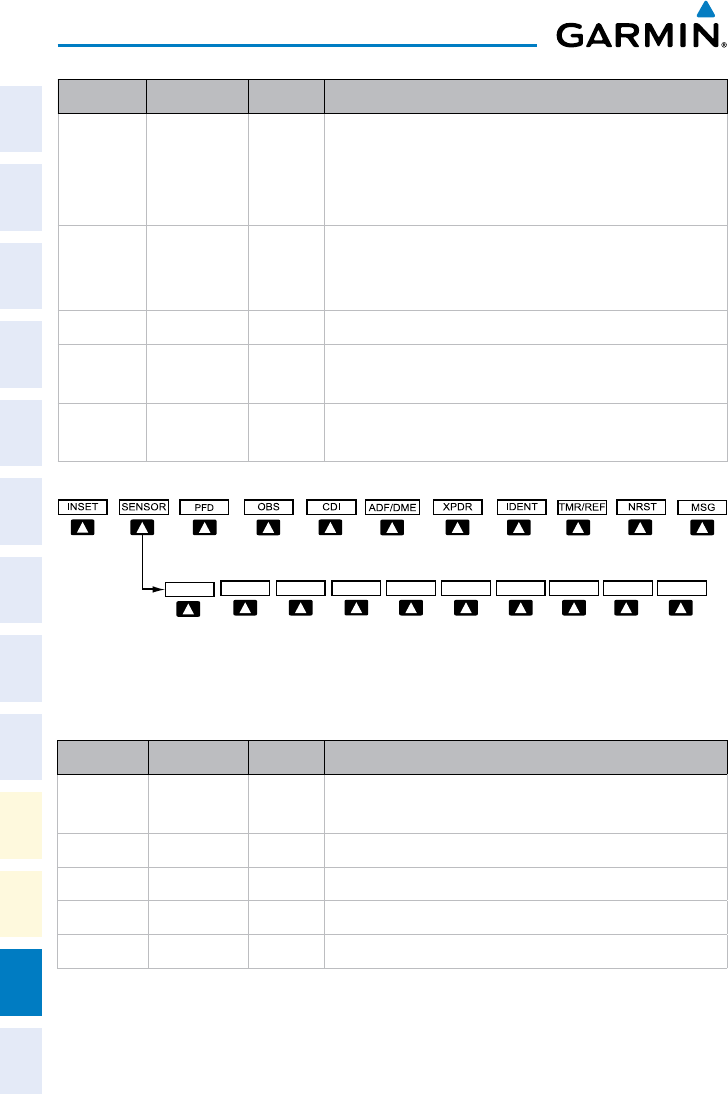
Garmin G1000 Cockpit Reference Guide for the Socata TBM 850
190-00708-02 Rev. A
Appendix
94
Flight
InstrumentsEAS
Nav/Com/
XPDR/AudioAFCSGPS Nav
Flight
PlanningProcedures
Hazard
Avoidance
Additional
Features
Abnormal
Operation
Annun/
AlertsAppendixIndex
Level 1 Level 2 Level 3
Description
TRAFFIC
the inset map window
TOPO
Displays topographical data (e.g.,
coastlines, terrain, rivers, lakes) and
elevation scale on Inset Map
TERRAIN
Displays terrain information on Inset Map
NEXRAD
Displays NEXRAD weather and coverage
information on Inset Map (optional feature)
XM LTNG
Displays XM lightning information on Inset
Map (optional feature)
Sensor Softkeys
Select the BACK Softkey to
return to the top level softkeys.
BACK MSG
ADC2
ADC1 AHRS1 AHRS2
Level 1 Level 2 Level 3
Description
SENSOR
Displays softkeys for selecting the #1 and
#2 AHRS and Air Data Computers
ADC1
Selects the #1 Air Data Computer
ADC2
Selects the #2 Air Data Computer
AHRS1
Selects the #1 AHRS
AHRS2
Selects the #2 AHRS
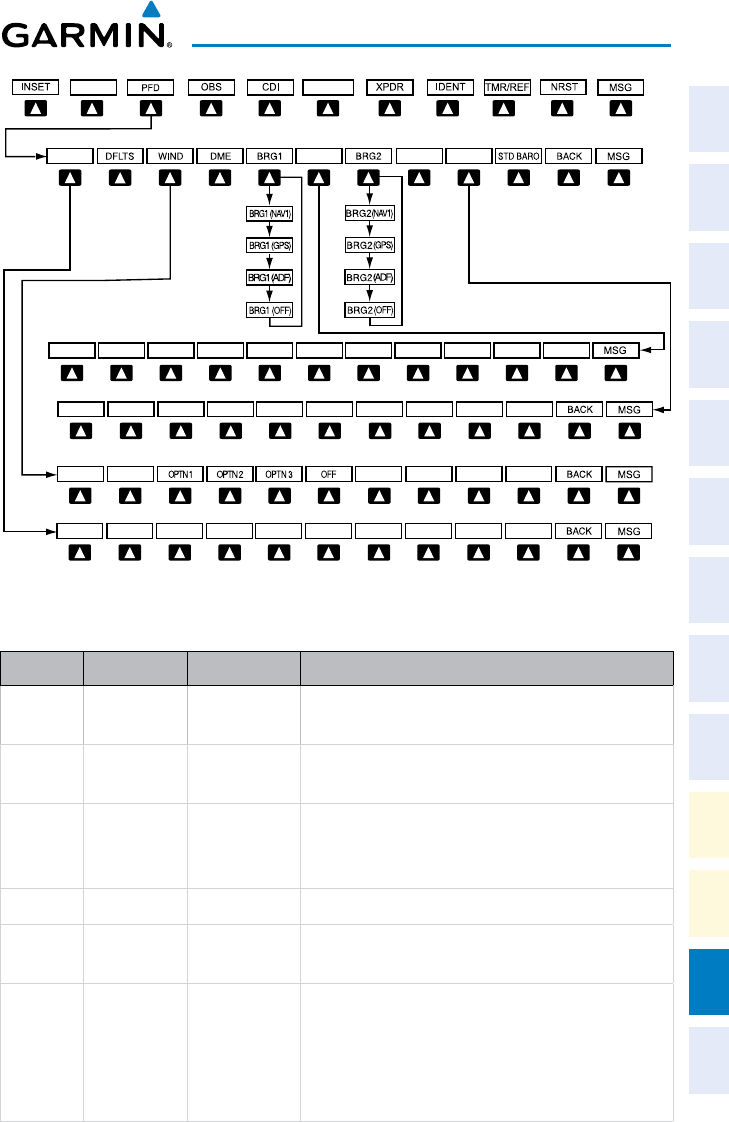
Garmin G1000 Cockpit Reference Guide for the Socata TBM 850
190-00708-02 Rev. A
Appendix
95
Flight
Instruments EAS
Nav/Com/
XPDR/Audio AFCS GPS Nav
Flight
Planning Procedures
Hazard
Avoidance
Additional
Features
Abnormal
Operation
Annun/
Alerts Appendix Index
PFD Configuration Softkeys
Select the BACK Softkey
to return to the top-level softkeys
ALT UNIT
METERS IN HPA
ADF/DME
BACK 360 HSI ARC HSI
HSI FMT
SYN VIS
SYN TERR HRZN HDG
PATHWAY APTSIGNS
Level 1 Level 2 Level 3
Description
PFD
Displays second-level softkeys for
SYN VIS
Displays the softkeys for enabling or
disabling Synthetic Vision features
PATHWAY
Displays rectangular boxes representing
the horizontal and vertical flight path of
the active flight plan
SYN TERR
Enables synthetic terrain depiction
HRZN HDG
Displays compass heading along the
Zero-Pitch line
APTSIGNS
Displays position markers for airports
within approximately 15 nm of the
current aircraft position. Airport
airport is within approximately 9 nm.

Garmin G1000 Cockpit Reference Guide for the Socata TBM 850
190-00708-02 Rev. A
Appendix
96
Flight
InstrumentsEAS
Nav/Com/
XPDR/AudioAFCSGPS Nav
Flight
PlanningProcedures
Hazard
Avoidance
Additional
Features
Abnormal
Operation
Annun/
AlertsAppendixIndex
Level 1 Level 2 Level 3
Description
DFLTS
Resets PFD to default settings, including
changing units to standard
WIND
Displays softkeys to select wind data
parameters
OPTN 1
and crosswind components
OPTN 2
OPTN 3
and speed
OFF
Information not displayed
DME
Select to display the DME information
window
BRG1
Cycles the Bearing 1 Information
distance information.
HSI FRMT
Displays the HSI formatting softkeys
360 HSI
Displays the HSI in a 360 degree format
ARC HSI
Displays the HSI in an arc format
BRG2
Cycles the Bearing 2 Information
distance information.
ALT UNIT
Displays softkeys for setting the altimeter
and BARO settings to metric units
METERS
meters
IN
Select to display the BARO setting as
inches of mercury
HPA
Select to display the BARO setting as
hectopacals
STD BARO
Sets altimeter setting to standard
barometric pressure

Garmin G1000 Cockpit Reference Guide for the Socata TBM 850
190-00708-02 Rev. A
Appendix
97
Flight
Instruments EAS
Nav/Com/
XPDR/Audio AFCS GPS Nav
Flight
Planning Procedures
Hazard
Avoidance
Additional
Features
Abnormal
Operation
Annun/
Alerts Appendix Index
Transponder Softkeys
Select the BACK Softkey to return
to the top-level softkeys.
Select the BACK Softkey to return
to the top-level softkeys.
MSG
MSG
Level 1 Level 2 Level 3
Description
ADF/DME
XPDR
Displays transponder mode selection
softkeys
STBY
Selects Standby Mode (transponder does
not reply to any interrogations)
ON
Selects Mode A (transponder replies to
interrogations)
ALT
Selects Mode C – Altitude Reporting Mode
(
altitude interrogations)
GND
Manually selects Ground Mode, the
transponder does not allow Mode A
and Mode C replies, but it does permit
acquisition squitter and replies to discretely
addressed Mode S interrogations.
VFR
Automatically enters the VFR code (1200 in
the U.S.A. only)
CODE
Displays transponder code selection
softkeys 0-7
0 — 7
Use numbers to enter code
BKSP
Removes numbers entered, one at a time
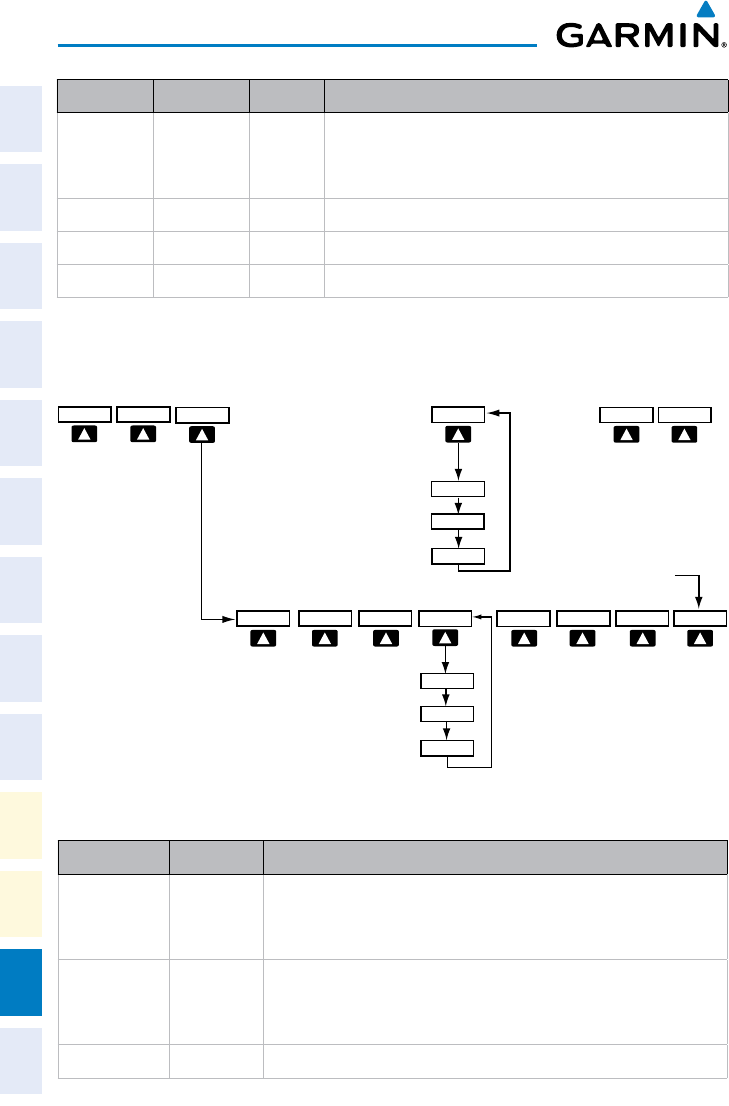
Garmin G1000 Cockpit Reference Guide for the Socata TBM 850
190-00708-02 Rev. A
Appendix
98
Flight
InstrumentsEAS
Nav/Com/
XPDR/AudioAFCSGPS Nav
Flight
PlanningProcedures
Hazard
Avoidance
Additional
Features
Abnormal
Operation
Annun/
AlertsAppendixIndex
Level 1 Level 2 Level 3
Description
IDENT
(SPI) pulse for 18 seconds, identifying the
transponder return on the ATC screen
TMR/REF
NRST
MSG
MFD SOFTKEY MAP
MFD Softkeys
MAP DCLTR
TRAFFIC TOPO BACK
TERRAIN
DCLTR-2
DCLTR-3
DCLTR-1
Select the BACK Softkey on this level to
return to the top softkey level.
NEXRAD XM LTNG
(optional)(optional)
CAS ↓
CAS ↑ SHW CHRT CHKLIST
(optional)(optional)
AIRWAYS
AIRWY LO
AIRWAY HI
AIRWY ON
Level 1 Level 2
Description
CAS ↑
number of items are displayed in the Crew
Alerting System Display to warrant scrolling)
CAS ↓
number of items are displayed in the Crew Alert-
ing System Display to warrant scrolling)
MAP
Enables second-level Navigation Map softkeys

Garmin G1000 Cockpit Reference Guide for the Socata TBM 850
190-00708-02 Rev. A
Appendix
99
Flight
Instruments EAS
Nav/Com/
XPDR/Audio AFCS GPS Nav
Flight
Planning Procedures
Hazard
Avoidance
Additional
Features
Abnormal
Operation
Annun/
Alerts Appendix Index
Level 1 Level 2
Description
TRAFFIC
Displays
TOPO
Displays topographical data (e.g., coastlines,
terrain, rivers, lakes) and elevation scale on
Navigation Map
TERRAIN
Displays terrain information on Navigation Map
AIRWAYS
Displays airways on the map; cycles through the
following:
airways are displayed
airways are displayed
airways are
displayed
airways are
displayed
NEXRAD
Displays NEXRAD weather and coverage
information on Navigation Map (optional feature)
XM LTNG
Displays XM lightning information on Navigation
Map (optional feature)
BACK
Returns to top-level softkeys
DCLTR (3)
Selects desired amount of map detail; cycles
through declutter levels:
DCLTR (No Declutter): All map features visible
DCLTR-1: Declutters land data
DCLTR-2: Declutters land and SUA data
DCLTR-3: Removes everything except the active
flight plan
SHW CHRT
terminal procedure charts
CHKLIST

Garmin G1000 Cockpit Reference Guide for the Socata TBM 850
190-00708-02 Rev. A
Appendix
100
Flight
InstrumentsEAS
Nav/Com/
XPDR/AudioAFCSGPS Nav
Flight
PlanningProcedures
Hazard
Avoidance
Additional
Features
Abnormal
Operation
Annun/
AlertsAppendixIndex
Blank Page

Garmin G1000 Cockpit Reference Guide for the Socata TBM 850
190-00708-02 Rev. A
Index
Index-1
Flight
Instruments EAS
Nav/Com/
XPDR/Audio AFCS GPS Nav
Flight
Planning Procedures
Hazard
Avoidance
Additional
Features
Abnormal
Operation
Annun/
Alerts Appendix Index
A
Activate a flight plan 20
Active Channel 59
ADF 11, 12, 62
AHRS 83, 84, 85, 87
Airport Signs 55, 56
Airways 99
Air Data Computer 68
Alert messages 86
ALT 46
Altimeter setting 1, 62
Altitude mode 46
Altitude volume 46
Antenna stabilization 53
Antenna tilt 51
Attitude & Heading Reference System
68
Audio panel controls
NAV1, NAV2 12
B
Barometric Altitude Minimums 3
Battery
Alerts 66
Current 5
Overheat warning 65
Voltage 5
Bearing line 51, 52, 53
C
Cabin pressure altitude 5
Warning 65
CDI 1, 2, 12, 89
Cell 41, 42
Cell mode 42
Channel Presets 60
ChartView 56, 57
Code selection softkeys 12
COM 12, 61
D
DCLTR Softkey 56
Dead Reckoning 63
Declutter 62, 93, 99
Designated altitudes 22
Differential cabin pressure 5
Warning 65
Direct-to 19
DME 11, 12
Door status 9
DR mode 63, 64
E
Edit a flight plan 34
Enable Terrain 48
Engine display 5
Essential bus voltage 5
F
Flap position 5
Asymmetrical deflection warning 65
Flight Director 15
Flight ID 11
Flight path marker 55
FliteCharts® 56, 57
Frequency Transfer 12
Fuel
Alerts 65–66
Flow 5
Pressure 5
Quantity 5

Garmin G1000 Cockpit Reference Guide for the Socata TBM 850
190-00708-02 Rev. A
Index
Index-2
Flight
InstrumentsEAS
Nav/Com/
XPDR/AudioAFCSGPS Nav
Flight
PlanningProcedures
Hazard
Avoidance
Additional
Features
Abnormal
Operation
Annun/
AlertsAppendixIndex
G
Gain 52
Generator
Current 5
Speed 5
H
Horizontal scan 52
Horizon heading 55
I
Inhibit 48, 50
Inhibit TAWS 50
Inhibit Terrain 48
Inset Map 93, 94
Interturbine Temperature (ITT) 5
Warning 65
IOI 70, 72
J
Jeppesen 57
L
Lightning 41, 42
M
Map panning 43
Message advisories 74–79, 81–85,
87–91
METAR 43
Minimums 73
MISCOMP 68
Mode S 97
Mode selection softkeys 12
Multi Function Display (MFD)
Softkeys 98
N
NACO 57
NAV 12
NAV1 2, 12
NAV2 2, 12
Navigation database 21, 22
NEXRAD 43, 44, 94, 99
O
OBS 2
Obstacles 78, 80
Oil, engine
Alerts 65
Pressure 5
Temperature 5
Overspeed Protection 16
Oxygen
Pressure 5
Warning 65
P
Pathways 55, 56
PIT 68
Propeller speed 5
R
Reversionary Mode
EICAS 5
Reversionary mode 61
ROC 70, 71, 72
S
SafeTaxi® 56
Sector scan 53
Sensor 68
STAB 53
Standby 51

Garmin G1000 Cockpit Reference Guide for the Socata TBM 850
190-00708-02 Rev. A
Index
Index-3
Flight
Instruments EAS
Nav/Com/
XPDR/Audio AFCS GPS Nav
Flight
Planning Procedures
Hazard
Avoidance
Additional
Features
Abnormal
Operation
Annun/
Alerts Appendix Index
Store Flight Plan 34
Stormscope lightning data 41, 42
Strike 41
Strike mode 42
SVS 55, 91
Synthetic Vision System 55
T
TA 73
TAF 43
TAS 45, 46, 73, 83
TAWS 49, 50, 71, 73
TAWS-B 49
Terrain 46, 47, 49, 78, 94, 99
Terrain-SVS 47, 48
Tilt line 51
Timer 2, 88
Topographical data 94, 99
Torque 5
Warning 65
Traffic 41, 45, 99
Traffic advisory 45
Traffic Advisory 73
Traffic map page 45, 46, 47
Transponder 11, 12, 97, 98
Trim 5
V
Vertical speed guidance 22
Vertical track 73
VNV 19, 62, 90
Vspeed 2
W
WAAS 80
WATCH® 53
Weather Attenuated Color Highlight 53
Weather data link page 43
Weather radar 50
Wind data 96
X
XM lightning 94, 99
XM weather 43

Garmin G1000 Cockpit Reference Guide for the Socata TBM 850
190-00708-02 Rev. A
Index
Index-4
Flight
InstrumentsEAS
Nav/Com/
XPDR/AudioAFCSGPS Nav
Flight
PlanningProcedures
Hazard
Avoidance
Additional
Features
Abnormal
Operation
Annun/
AlertsAppendixIndex
Blank Page

Garmin International, Inc.
1200 East 151st Street
Olathe, KS 66062, U.S.A.
p: 913.397.8200 f: 913.397.8282
Garmin AT, Inc.
2345 Turner Road SE
Salem, OR 97302, U.S.A.
p: 503.391.3411 f: 503.364.2138
Garmin (Europe) Ltd
Liberty House, Bulls Copse Road
Hounsdown Business Park
Southampton, SO40 9RB, U.K.
p: 44/0870.8501241 f: 44/0870.8501251
Garmin Corporation
No. 68, Jangshu 2nd Road
Shijr, Taipei County, Taiwan
p: 886/2.2642.9199 f: 886/2.2642.9099
www.garmin.com
190-00708-02 Rev. A
© 2007-2009 Garmin Ltd. or its subsidiaries
