Gateway Gug 1 0 En E 4610D 4620 MBTX 6 Bay XP Reference Guide
2014-07-05
: Gateway Gug-Gateway-1-0-En-E-4610D-E-2600 gug-gateway-1-0-en-e-4610d-e-2600 gateway pdf
Open the PDF directly: View PDF  .
.
Page Count: 134 [warning: Documents this large are best viewed by clicking the View PDF Link!]
- Contents
- About This Reference
- Checking Out Your Computer
- Setting Up and Getting Started
- Working safely and comfortably
- Preparing power connections
- Connecting to a broadband modem or network
- Connecting a dial-up modem
- Starting your computer
- Turning off your computer
- Restarting (rebooting) your computer
- Using the keyboard
- Using the mouse
- Using optical drives
- Using the memory card reader
- Using the diskette drive
- Adjusting the volume
- Installing a printer, scanner, or other device
- Upgrading Your Computer
- Preventing static electricity discharge
- Opening and closing the case
- Removing and installing the front bezel
- Installing memory
- Replacing an optical or diskette drive or a card reader
- Replacing the hard drive
- Adding or replacing an expansion card
- Replacing the front fan
- Replacing the rear fan
- Replacing the front I/O board
- Replacing the processor
- Replacing the system battery
- Replacing the power supply
- Replacing the system board
- Maintaining Your Computer
- Troubleshooting
- Safety guidelines
- First steps
- Troubleshooting
- Add-in cards
- Audio
- CD or DVD drives
- Diskette drive
- The diskette drive is not recognized
- You cannot save a file to diskette or you see the message “disk is full or write-protected”
- You see an “Access Denied” or “Write protect” error message
- You see a “Disk is full” error message
- You see a “Non-system disk” or “Disk error” error message
- The diskette drive LED is lit continuously
- Display
- DVD drives
- Ethernet
- Expansion cards
- File management
- Floppy drive
- Hard drive
- Internet
- Keyboard
- Memory
- Memory card reader
- Modem (cable or DSL)
- Modem (dial-up)
- Your modem does not dial or does not connect
- You cannot connect to the Internet
- Your 56K modem does not connect at 56K
- Your fax communications program only sends and receives faxes at 14,400 bps when you have a 56K modem
- The modem is not recognized by your computer
- The modem is noisy when it dials and connects
- Monitor
- Mouse
- Networks
- Passwords
- Power
- Printer
- Sound
- Recovering your system
- Telephone support
- Legal Notices
- Index

®
REFERENCEGUIDE
8512735.book Page a Thursday, September 27, 2007 1:03 PM
8512735.book Page b Thursday, September 27, 2007 1:03 PM
i
Chapter 1: About This Reference . . . . . . . . . . . 1
About this guide . . . . . . . . . . . . . . . . . . . . . . . . . . . . . . . . . . . . . . . .2
Accessing your online User Guide . . . . . . . . . . . . . . . . . . . . . . . .2
Gateway contact information . . . . . . . . . . . . . . . . . . . . . . . . . . . .3
Microsoft Certificate of Authenticity . . . . . . . . . . . . . . . . . . . . . .3
Chapter 2: Checking Out Your Computer. . . . . 5
Front . . . . . . . . . . . . . . . . . . . . . . . . . . . . . . . . . . . . . . . . . . . . . . . . . .6
Back . . . . . . . . . . . . . . . . . . . . . . . . . . . . . . . . . . . . . . . . . . . . . . . . . . .8
Chapter 3: Setting Up and Getting Started . . 11
Working safely and comfortably . . . . . . . . . . . . . . . . . . . . . . . .12
Reducing eye strain . . . . . . . . . . . . . . . . . . . . . . . . . . . . . . . .13
Setting up your computer desk and chair . . . . . . . . . . . . .13
Sitting at your computer . . . . . . . . . . . . . . . . . . . . . . . . . . . .14
Avoiding discomfort and injury from repetitive strain . .14
Positioning the computer case . . . . . . . . . . . . . . . . . . . . . . .14
Preparing power connections . . . . . . . . . . . . . . . . . . . . . . . . . . .14
Protecting from power source problems . . . . . . . . . . . . .14
Connecting to a broadband modem or network . . . . . . . . . .15
Connecting a dial-up modem . . . . . . . . . . . . . . . . . . . . . . . . . . .16
Starting your computer . . . . . . . . . . . . . . . . . . . . . . . . . . . . . . . .16
Waking up your computer . . . . . . . . . . . . . . . . . . . . . . . . . .17
Turning off your computer . . . . . . . . . . . . . . . . . . . . . . . . . . . . .17
Restarting (rebooting) your computer . . . . . . . . . . . . . . . . . . .19
Using the keyboard . . . . . . . . . . . . . . . . . . . . . . . . . . . . . . . . . . . .20
Premium multimedia keyboard features . . . . . . . . . . . . . .20
Elite multimedia keyboard features . . . . . . . . . . . . . . . . . .21
Standard keyboard features . . . . . . . . . . . . . . . . . . . . . . . . .23
Using the mouse . . . . . . . . . . . . . . . . . . . . . . . . . . . . . . . . . . . . . .24
Using optical drives . . . . . . . . . . . . . . . . . . . . . . . . . . . . . . . . . . . .26
Features . . . . . . . . . . . . . . . . . . . . . . . . . . . . . . . . . . . . . . . . . . .26
Loading an optical disc . . . . . . . . . . . . . . . . . . . . . . . . . . . . .26
Identifying optical drive types . . . . . . . . . . . . . . . . . . . . . . .27
Contents
8512735.book Page i Thursday, September 27, 2007 1:03 PM
Contents
ii
Playing discs . . . . . . . . . . . . . . . . . . . . . . . . . . . . . . . . . . . . . . 28
Creating discs . . . . . . . . . . . . . . . . . . . . . . . . . . . . . . . . . . . . . 30
Using the memory card reader . . . . . . . . . . . . . . . . . . . . . . . . . 30
Memory card types . . . . . . . . . . . . . . . . . . . . . . . . . . . . . . . . 31
Using a memory card . . . . . . . . . . . . . . . . . . . . . . . . . . . . . . 31
Using the diskette drive . . . . . . . . . . . . . . . . . . . . . . . . . . . . . . . 32
Adjusting the volume . . . . . . . . . . . . . . . . . . . . . . . . . . . . . . . . . 32
Installing a printer, scanner, or other device . . . . . . . . . . . . . 34
Chapter 4: Upgrading Your Computer. . . . . . . 35
Preventing static electricity discharge . . . . . . . . . . . . . . . . . . . 36
Opening and closing the case . . . . . . . . . . . . . . . . . . . . . . . . . . 37
Removing and installing the front bezel . . . . . . . . . . . . . . . . . 38
Installing memory . . . . . . . . . . . . . . . . . . . . . . . . . . . . . . . . . . . . 41
Replacing an optical or diskette drive, or a card reader . . . 43
Replacing the hard drive . . . . . . . . . . . . . . . . . . . . . . . . . . . . . . . 44
Adding or replacing an expansion card . . . . . . . . . . . . . . . . . 46
Replacing the front fan . . . . . . . . . . . . . . . . . . . . . . . . . . . . . . . . 48
Replacing the rear fan . . . . . . . . . . . . . . . . . . . . . . . . . . . . . . . . . 49
Replacing the front I/O board . . . . . . . . . . . . . . . . . . . . . . . . . . 50
Replacing the processor . . . . . . . . . . . . . . . . . . . . . . . . . . . . . . . 51
Replacing the system battery . . . . . . . . . . . . . . . . . . . . . . . . . . 54
Replacing the power supply . . . . . . . . . . . . . . . . . . . . . . . . . . . 55
Replacing the system board . . . . . . . . . . . . . . . . . . . . . . . . . . . 57
Chapter 5: Maintaining Your Computer . . . . . 61
Setting up a maintenance schedule . . . . . . . . . . . . . . . . . . . . . 62
Caring for your computer . . . . . . . . . . . . . . . . . . . . . . . . . . . . . . 63
Cleaning your computer . . . . . . . . . . . . . . . . . . . . . . . . . . . . . . . 64
Cleaning the exterior . . . . . . . . . . . . . . . . . . . . . . . . . . . . . . 64
Cleaning the keyboard . . . . . . . . . . . . . . . . . . . . . . . . . . . . . 65
Cleaning the monitor . . . . . . . . . . . . . . . . . . . . . . . . . . . . . . 65
Cleaning the mouse . . . . . . . . . . . . . . . . . . . . . . . . . . . . . . . . 65
Cleaning optical discs . . . . . . . . . . . . . . . . . . . . . . . . . . . . . . 66
Updating Windows . . . . . . . . . . . . . . . . . . . . . . . . . . . . . . . . . . . . 66
Using BigFix . . . . . . . . . . . . . . . . . . . . . . . . . . . . . . . . . . . . . . . . . . 67
Managing hard drive space . . . . . . . . . . . . . . . . . . . . . . . . . . . . 68
8512735.book Page ii Thursday, September 27, 2007 1:03 PM
www.gateway.com
iii
Checking hard drive space . . . . . . . . . . . . . . . . . . . . . . . . . .68
Deleting unnecessary files . . . . . . . . . . . . . . . . . . . . . . . . . .69
Checking the hard drive for errors . . . . . . . . . . . . . . . . . . .70
Defragmenting the hard drive . . . . . . . . . . . . . . . . . . . . . . .71
Backing up files . . . . . . . . . . . . . . . . . . . . . . . . . . . . . . . . . . . .73
Scheduling maintenance tasks . . . . . . . . . . . . . . . . . . . . . . . . . .74
Moving from your old computer . . . . . . . . . . . . . . . . . . . . . . . .75
Transferring files and settings automatically . . . . . . . . . .75
Transferring files and settings manually . . . . . . . . . . . . . .76
Chapter 6: Troubleshooting. . . . . . . . . . . . . . . 79
Safety guidelines . . . . . . . . . . . . . . . . . . . . . . . . . . . . . . . . . . . . . .80
First steps . . . . . . . . . . . . . . . . . . . . . . . . . . . . . . . . . . . . . . . . . . . .80
Troubleshooting . . . . . . . . . . . . . . . . . . . . . . . . . . . . . . . . . . . . . . .81
Add-in cards . . . . . . . . . . . . . . . . . . . . . . . . . . . . . . . . . . . . . . .81
Audio . . . . . . . . . . . . . . . . . . . . . . . . . . . . . . . . . . . . . . . . . . . . .81
CD or DVD drives . . . . . . . . . . . . . . . . . . . . . . . . . . . . . . . . . . .81
Diskette drive . . . . . . . . . . . . . . . . . . . . . . . . . . . . . . . . . . . . . .83
Display . . . . . . . . . . . . . . . . . . . . . . . . . . . . . . . . . . . . . . . . . . . .84
DVD drives . . . . . . . . . . . . . . . . . . . . . . . . . . . . . . . . . . . . . . . .84
Ethernet . . . . . . . . . . . . . . . . . . . . . . . . . . . . . . . . . . . . . . . . . . .85
Expansion cards . . . . . . . . . . . . . . . . . . . . . . . . . . . . . . . . . . . .86
File management . . . . . . . . . . . . . . . . . . . . . . . . . . . . . . . . . . .86
Floppy drive . . . . . . . . . . . . . . . . . . . . . . . . . . . . . . . . . . . . . . .86
Hard drive . . . . . . . . . . . . . . . . . . . . . . . . . . . . . . . . . . . . . . . . .87
Internet . . . . . . . . . . . . . . . . . . . . . . . . . . . . . . . . . . . . . . . . . . .88
Keyboard . . . . . . . . . . . . . . . . . . . . . . . . . . . . . . . . . . . . . . . . . .89
Memory . . . . . . . . . . . . . . . . . . . . . . . . . . . . . . . . . . . . . . . . . . .90
Memory card reader . . . . . . . . . . . . . . . . . . . . . . . . . . . . . . .90
Modem (cable or DSL) . . . . . . . . . . . . . . . . . . . . . . . . . . . . . .91
Modem (dial-up) . . . . . . . . . . . . . . . . . . . . . . . . . . . . . . . . . . .91
Monitor . . . . . . . . . . . . . . . . . . . . . . . . . . . . . . . . . . . . . . . . . . .94
Mouse . . . . . . . . . . . . . . . . . . . . . . . . . . . . . . . . . . . . . . . . . . . .95
Networks . . . . . . . . . . . . . . . . . . . . . . . . . . . . . . . . . . . . . . . . . .95
Passwords . . . . . . . . . . . . . . . . . . . . . . . . . . . . . . . . . . . . . . . . .95
Power . . . . . . . . . . . . . . . . . . . . . . . . . . . . . . . . . . . . . . . . . . . . .96
Printer . . . . . . . . . . . . . . . . . . . . . . . . . . . . . . . . . . . . . . . . . . . .96
8512735.book Page iii Thursday, September 27, 2007 1:03 PM
Contents
iv
Sound . . . . . . . . . . . . . . . . . . . . . . . . . . . . . . . . . . . . . . . . . . . . 98
Recovering your system . . . . . . . . . . . . . . . . . . . . . . . . . . . . . . . 99
Recovering pre-installed software and drivers . . . . . . . 100
Using Microsoft System Restore . . . . . . . . . . . . . . . . . . . . 106
Recovering your system to its factory condition . . . . . 109
Recovering your system using the Windows DVD . . . . 110
Telephone support . . . . . . . . . . . . . . . . . . . . . . . . . . . . . . . . . . . 111
Before calling Gateway Customer Care . . . . . . . . . . . . . 111
Telephone numbers . . . . . . . . . . . . . . . . . . . . . . . . . . . . . . . 112
Self-help . . . . . . . . . . . . . . . . . . . . . . . . . . . . . . . . . . . . . . . . . 112
Appendix A: Legal Notices . . . . . . . . . . . . . . 113
Index . . . . . . . . . . . . . . . . . . . . . . . . . . . . . . . 123
8512735.book Page iv Thursday, September 27, 2007 1:03 PM


CHAPTER1: About This Reference
2
About this guide
This guide includes information and maintenance instructions
that are specific to your model of Gateway computer. Some
illustrations in this guide may look different than your
computer because hardware options and port locations may
vary. For all other computer information, see your online User
Guide.
For more information
For more information about your computer, visit Gateway’s
Support page at www.gateway.com or the Web address shown
on your computer’s label. The Support page also has links to
additional Gateway documentation and detailed specifications.
Accessing your online User
GuideIn addition to this guide, your User Guide has been included on
your hard drive. Your User Guide is an in-depth, easy-to-read
manual that includes information on the following topics:
•Help and technical support
•Using and customizing Windows and other software
•Controlling audio and video settings
•Using the Internet
•Protecting your files
•Playing and recording media
•Networking
To access your User Guide:
•Click (Start), All Programs, then click Gateway
Documentation.
8512735.book Page 2 Thursday, September 27, 2007 1:03 PM
www.gateway.com
3
Gateway contact information
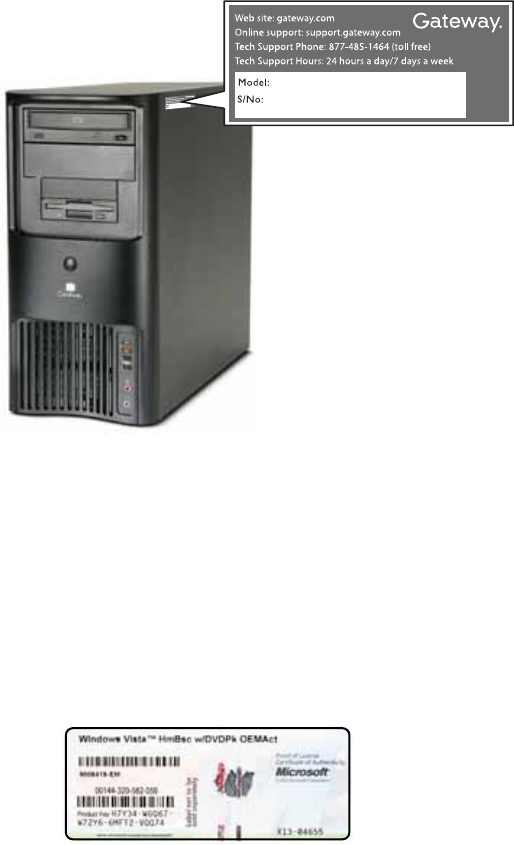
The label on the top or side of your computer contains
information that identifies your computer model and serial
number. Gateway Customer Care will need this information if
you call for assistance.
Microsoft Certificate of
Authenticity
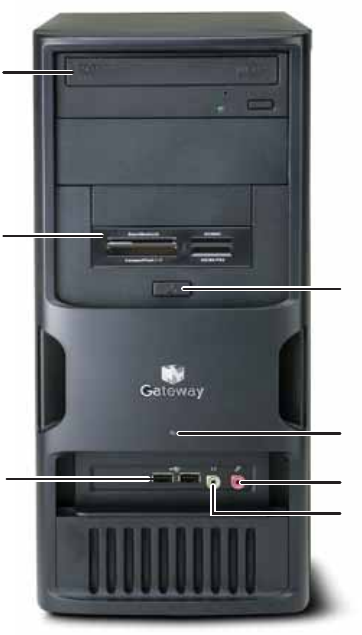
The Microsoft Certificate of Authenticity label found on the
back or side of your computer includes the product key code
for your operating system. If you ever reinstall Windows from
the installation DVD, you will need to enter these numbers to
activate Windows.
8512735.book Page 3 Thursday, September 27, 2007 1:03 PM

www.gateway.com
7
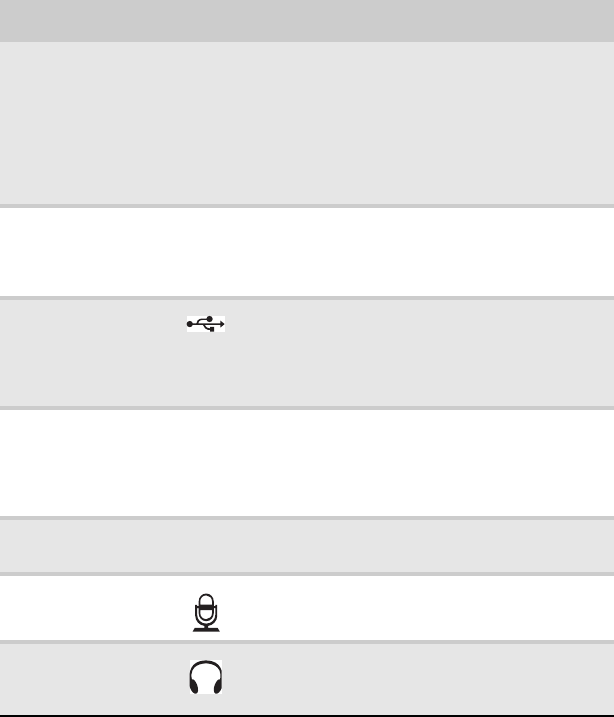
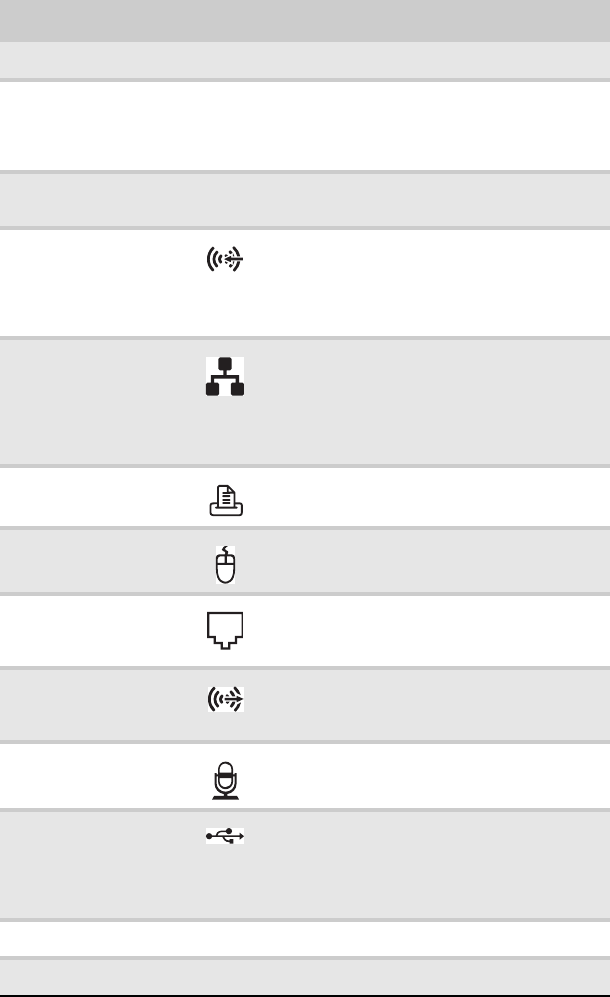
Component Icon Description
DVD/CD drive Use this drive to listen to audio CDs, install
games and programs, watch DVDs, and store
large files onto recordable discs (depending on
drive type). This drive may be a CD, recordable
CD, DVD, recordable DVD, Blu-ray, or HD DVD
drive. For more information about your drive,
see “Identifying optical drive types” on
page 27.
Memory card
reader or diskette
drive (optional)
Insert a memory card from a digital camera,
MP3 player, PDA, cellular telephone, or other
device into the memory card reader. Insert a
3.5" diskette (floppy) to read from and write to.
USB ports Plug USB (Universal Serial Bus) devices (such as
a USB external drive, printer, scanner, camera,
keyboard, or mouse) into these ports. For more
information, see “Installing a printer, scanner,
or other device” on page 33.
Power
button/power
indicator
Press this button to turn the power on or off.
You can also configure the power button to
operate in Sleep mode or Hibernate mode. The
power indicator lights when the computer is
turned on.
Hard drive activity
indicator When lit, indicates hard drive activity.
Microphone jack Plug a microphone into this jack. This jack is
color-coded pink.
Headphone jack Plug powered, analog front speakers, an
external amplifier, or headphones into this
jack. This jack is color-coded green.
8512735.book Page 7 Thursday, September 27, 2007 1:03 PM
CHAPTER 2: Checking Out Your Computer
8
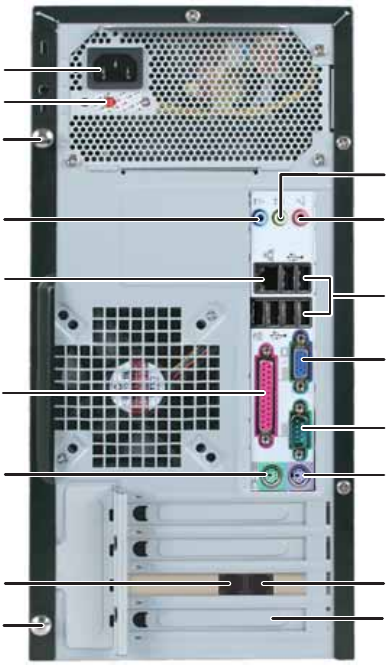
Back
Telephone jack
(optional)
PS/2 mouse port PS/2 keyboard por
t
Audio (line) in/side
speaker jack
Ethernet (network) jack
Line out
(headphones)/
front speaker jack
Microphone jack
USB ports
Modem (line) jack
(optional)
Monitor (VGA)
port
Parallel port
Serial port
Voltage switch
Power connector
Case cover
thumbscrew Expansion card bay
cover
Case cover
thumbscrew
8512735.book Page 8 Thursday, September 27, 2007 1:03 PM
www.gateway.com
9
Component Icon Description
Power connector Plug the power cord into this connector.
Voltage switch Make sure this switch is positioned correctly
for the power in your area. For more
information, see “Checking the voltage
selection” on page 15.
Case cover
thumbscrew Remove these thumbscrews to open the side
panel of the case.
Audio (line) in/side
speaker jack (blue) Plug an external audio input source (such as
a stereo) into this jack so you can record
sound on your computer. For 5.1 surround
sound, plug the surround sound side
speakers to this jack.
Ethernet (network)
jack Plug an Ethernet network cable or a device
(such as a cable or DSL modem) into this
jack. For more information, see “Learning
about the Internet” in your online User Guide
and “Connecting to a broadband modem or
network” on page16.
Parallel port Plug a parallel device (such as a printer)
into this port.
PS/2 mouse port
(green) Plug a PS/2 mouse into this port.
Modem (line) jack
(optional) Plug a modem cable into this jack. For more
information, see “Connecting a dial-up
modem” on page 16.
Line out
(headphones)/front
speaker jack (green)
Plug headphones or amplified speakers into
this jack. For 5.1 surround sound, plug the
surround sound front speaker to this jack.
Microphone jack
(pink) Plug a microphone into this jack.
USB ports Plug USB (Universal Serial Bus) devices (such
as a USB printer, scanner, camera, keyboard,
or mouse) into these ports. For more
information, see “Installing a printer,
scanner, or other device” on page 33.
Monitor (VGA) port Plug a VGA monitor cable into this port.
Serial port Plug a serial device into this port.
8512735.book Page 9 Thursday, September 27, 2007 1:03 PM

CHAPTER 2: Checking Out Your Computer
10
PS/2 keyboard port
(purple) Plug a PS/2 keyboard into this port.
Telephone jack
(optional) Plug your telephone into this jack.
Expansion card bay
cover Install additional PCI expansion cards in one
of these available slots.
Component Icon Description
8512735.book Page 10 Thursday, September 27, 2007 1:03 PM

CHAPTER3
11
Setting Up and Getting
Started
•Working safely and comfortably
•Preparing power connections
•Connecting to a broadband modem or
network
•Connecting a dial-up modem
•Starting your computer
•Turning off your computer
•Restarting (rebooting) your computer
•Using the keyboard
•Using the mouse
•Using optical drives
•Using the memory card reader
•Using the diskette drive
•Adjusting the volume
•Installing a printer, scanner, or other device
8512735.book Page 11 Thursday, September 27, 2007 1:03 PM
CHAPTER3: Setting Up and Getting Started
12
Working safely and
comfortably
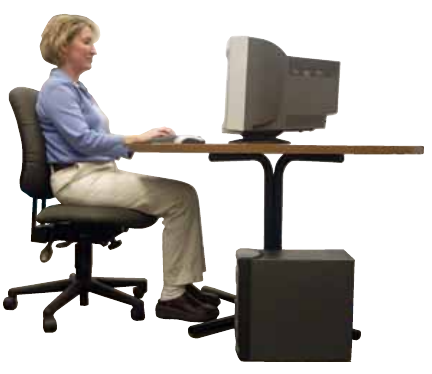
Before using your computer, follow these general guidelines
for setting up a safe and comfortable work area and avoiding
discomfort and strain:
•Keep hands and arms parallel to the floor.
•Adjust the screen so it is perpendicular to your line of
sight, and the top of the screen is no higher than eye
level.
•Place your feet flat on the floor or on a footrest.
•Keep ventilation openings clear of obstructions.
Top of screen is not
higher than eye level
Feet are flat on the floor
Hands and arms are
parallel to the floor
Screen is perpendicular to
your line of sight
8512735.book Page 12 Thursday, September 27, 2007 1:03 PM
www.gateway.com
13
Reducing eye strain
Sunlight or bright indoor lighting should not reflect on the
screen or shine directly into your eyes.
•Position the computer desk and monitor so you can
avoid glare on your screen and light shining directly into
your eyes. Reduce glare by installing shades or curtains
on windows and by installing a glare screen filter.
•Use soft, indirect lighting in your work area. Do not use
your computer in a dark room.
•Set paper holders at the same height and distance as the
monitor.
•Avoid focusing your eyes on your screen for long periods
of time. Every 10 or 15 minutes, look around the room,
and try to focus on distant objects.
Setting up your computer desk and chair
When you are setting up your computer desk and chair, make
sure that the desk is the appropriate height and the chair helps
you maintain good posture.
•Select a flat surface for your computer desk.
•Adjust the height of the computer desk so your hands
and arms are positioned parallel to the floor when you
use the keyboard and mouse. If the desk is not adjustable
or is too tall, consider using an adjustable chair to control
your arm’s height above the keyboard.
•Use an adjustable chair that is comfortable, distributes
your weight evenly, and keeps your body relaxed.
•Position your chair so the keyboard is at or slightly below
the level of your elbow. This position lets your shoulders
relax while you type.
•Adjust the chair height, adjust the forward tilt of the seat,
or use a footrest to distribute your weight evenly on the
chair and relieve pressure on the back of your thighs.
•Adjust the back of the chair so it supports the lower
curve of your spine. You can use a pillow or cushion to
provide extra back support.
8512735.book Page 13 Thursday, September 27, 2007 1:03 PM

CHAPTER3: Setting Up and Getting Started
14
Sitting at your computer
•Avoid bending, arching, or angling your wrists. Make
sure that they are in a relaxed position when you type.
•Do not slouch forward or lean far back. Sit with your back
straight so your knees, hips, and elbows form right
angles when you work.
•Take breaks to stand and stretch your legs.
•Avoid twisting your torso or neck.
Avoiding discomfort and injury from repetitive
strain •Vary your activities to avoid excessive repetition.
•Take breaks to change your position, stretch your
muscles, and relieve your eyes.
•Find ways to break up the work day, and schedule a
variety of tasks.
Positioning the computer case
Position the computer case in a location that is easy for you to
reach. Your case can be positioned either horizontally or
vertically. With the case in a vertical orientation, you can rotate
the support base on bottom for more stability.
Preparing power connections
Protecting from power source problems
During a power surge, the voltage level of electricity coming
into your computer can increase to far above normal levels and
cause data loss or system damage. Protect your computer and
peripheral devices by connecting them to a surge protector,
which absorbs voltage surges and prevents them from
reaching your computer.
Warning
High voltages can enter your computer through both the power cord and
the modem connection. Protect your computer by using a surge protector. If you
have a telephone or DSL modem, use a surge protector that has a modem jack.
If you have a cable modem, use a surge protector that has an antenna/cableTV
jack. During an electrical storm, unplug both the surge protector and the modem.
8512735.book Page 14 Thursday, September 27, 2007 1:03 PM

www.gateway.com
15
An uninterruptible power supply (UPS) supplies battery power
to your computer during a power failure. Although you cannot
run your computer for an extended period of time with a UPS,
a UPS lets you run your computer long enough to save your
work and shut down your computer normally.
Checking the voltage selection
The power supply, a component built into your computer,
provides power to the system board, add-in cards, and
peripheral devices. The power supply’s voltage selection for
your location is typically set at the factory, but you can change
it to match the electrical service available in your usage area
(such as while in another country). Use the power selection
switch on the back of your computer to set the voltage to 115V
or 230V. To verify that your system has the correct setting for
your area, check the voltage selection switch.
To set the voltage selection switch:
1Disconnect your computer’s power cable.
2Use a tool such as an opened paper clip to slide the
voltage selection switch to the correct voltage position.
The switch is located on the back of your computer, near
the power cable connector.
Caution
If you set the voltage selection switch incorrectly, your system will be
damaged. Make sure this switch is set correctly for your location before turning
on your computer. In the United States, the utility power is supplied at a nominal
115 volts at 60 Hz. The power supply should always be set to this when your
computer is operating in the United States. In other areas of the world, such as
Europe, the utility power is supplied at 230 volts at 50 Hz. If your computer is
operating in an environment such as this, the voltage switch should be moved
to 230.
8512735.book Page 15 Thursday, September 27, 2007 1:03 PM
CHAPTER3: Setting Up and Getting Started
16
Connecting to a broadband
modem or network
You can connect your computer to a broadband (cable or DSL)
modem or to a wired Ethernet network.
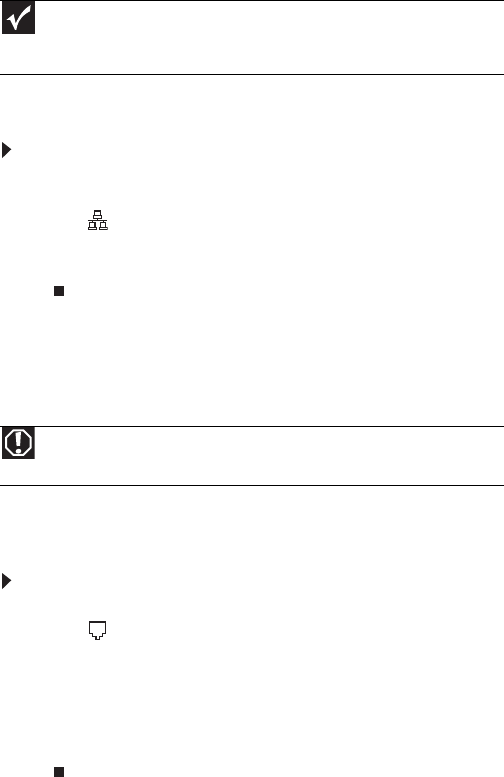
To connect to a broadband modem or to an Ethernet
network:
1Insert one end of the network cable into the network
jack .
2Insert the other end of the network cable into a cable
modem, DSL modem, or network jack.
Connecting a dial-up modem
Your computer may have a 56K modem that you can use with
a standard telephone line to connect to the Internet or fax
documents.
To connect the modem:
1Insert one end of the modem cable into the modem
jack at the back of your computer.
2Insert the other end of the modem cable into a telephone
wall jack. (The modem will not work with digital or PBX
telephone lines.)
3If you want, connect a telephone to the PHONE jack at
the back of your computer.
Important
Your computer has a built-in Ethernet (network) jack. For information
about setting up a wired or wireless Ethernet network, see your online User
Guide.
Warning
To reduce the risk of fire, use only No. 26 AWG or larger
telecommunications line cord.
8512735.book Page 16 Thursday, September 27, 2007 1:03 PM
www.gateway.com
17
Starting your computer
To start your computer:
1Connect the power, network, mouse, and keyboard
cables to your computer according to the setup poster.
2Press the power button on the front of your computer.
If your computer does not turn on, check the power
cable connections.
3If you are starting your computer for the first time,
follow the on-screen instructions to select the language
and time zone and to create your first user account.
4Attach and turn on any USB or audio peripheral devices,
such as printers, scanners, and speakers. If you need to
attach a peripheral device to the parallel or serial ports,
turn off your computer first. See the documentation that
came with each device for its setup instructions.
5To open your computer’s Start menu, click Start. From
that menu, you can run programs and search for files.
For more information on using your computer’s menus,
see “Using Windows” and “Customizing Windows” in
your online User Guide.
Waking up your computer
When you have not used your computer for several minutes,
it may enter a power-saving mode called Sleep. While in Sleep
mode, the power indicator on the power button flashes.
If your computer is in Sleep mode, move the mouse, press a
key on the keyboard, or press the power button to “wake” it
up. If the computer remains in Sleep mode, press the power
button.
Important
Your computer has a variable-speed fan, which can run at
different speeds at times to ensure correct system cooling. You may
notice an increase in the fan noise when the fan is running at high speed
and a decrease in the fan noise when it switches to normal speed.
Tip
For more information about changing the power button mode, see the
“Customizing Windows” chapter in your online User Guide.
8512735.book Page 17 Thursday, September 27, 2007 1:03 PM
CHAPTER3: Setting Up and Getting Started
18
Turning off your computer
Putting your computer into Sleep mode is the easiest way to
power down your computer. Although it does not turn your
computer completely off, it does turn off or slow down most
system operations to save power, and saves your desktop
layout so the next time you restore power, the programs are
laid out just as you left them. Waking your computer from a
Sleep state is much faster than turning on your computer after
it has been turned completely off.
To put your computer in Sleep (power-saving) mode:
1Click Start, Shut Down, then click Standby.
2To “wake” your computer, press a key on the keyboard.
If the computer remains in Sleep mode, press the power
button.
To turn off your computer:
•Click Start, Shut Down, then click Shut Down again.
Windows shuts down and turns off your computer.
Warning
When you turn off your computer, certain components in the power
supply and system board remain energized. In order to remove all electrical
power from your computer, unplug the power cord and modem cable from the
wall outlets. We recommend disconnecting the power cord and modem cable
when your computer will not be used for long periods.
Important
If for some reason you cannot use the Shut Down option in Windows to
turn off your computer, press and hold the power button for about five seconds,
then release it.
Important
To completely disconnect all power (such as for servicing internal
components), also disconnect the power cord.
8512735.book Page 18 Thursday, September 27, 2007 1:03 PM
www.gateway.com
19
Restarting (rebooting) your
computer
To restart your computer:
•Click Start, Shut Down, then click Restart. Your
computer turns off, then turns on again.
- OR -
If your computer does not turn off, press and hold the
power button until the computer turns off (about five
seconds), then press it again to turn the computer back
on.
As a part of the regular startup process, a program to
check the disk status runs automatically. When the
checks are finished, Windows starts.
Using the keyboard
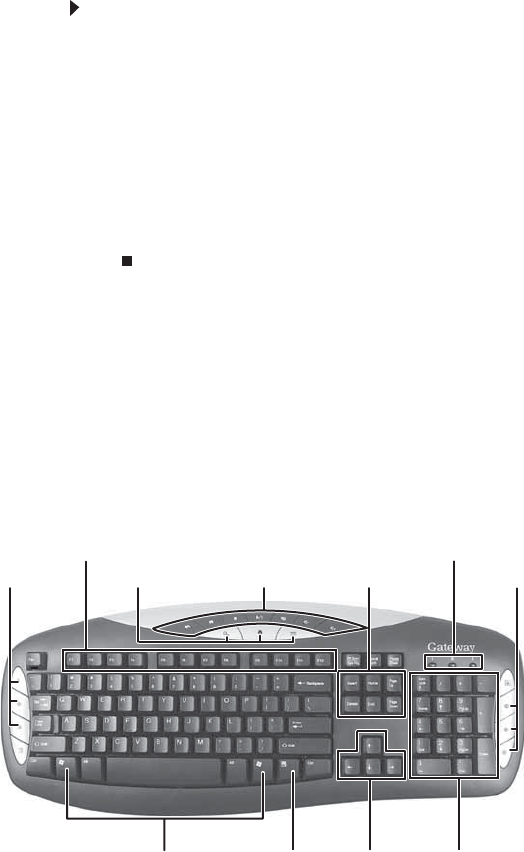
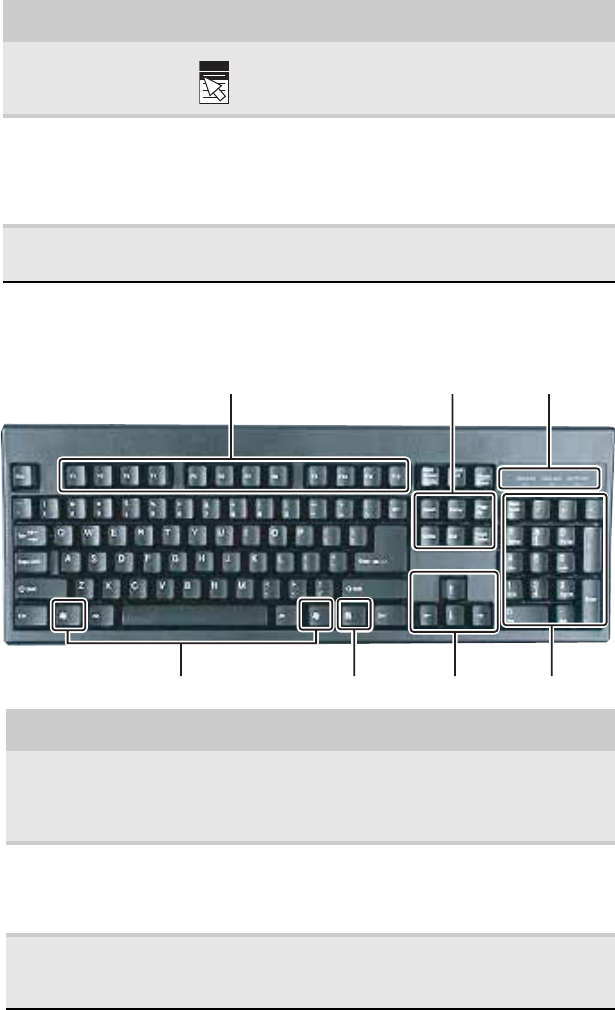
Premium multimedia keyboard features
The keyboard has several different types of keys and buttons.
Your keyboard also has status indicators that show which
keyboard feature is active.
Function keys Navigation keysIndicators
Windows keys Application key Directional keys Numeric keypad
Editing buttons Internet buttons Audio playback buttons Internet buttons
8512735.book Page 19 Thursday, September 27, 2007 1:03 PM
CHAPTER3: Setting Up and Getting Started
20
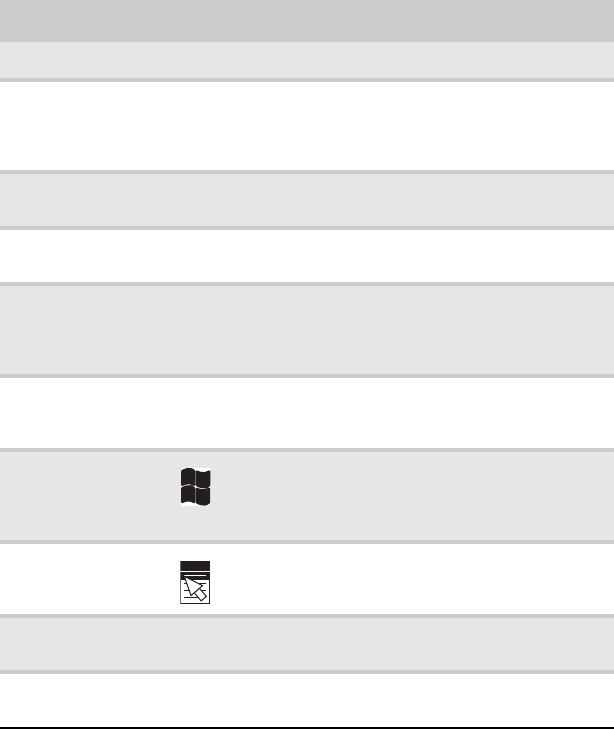
Feature Icon Description
Editing buttons Press these buttons to copy, cut, and paste.
Function keys Press these keys to start program actions. Each
program uses different function keys for different
purposes. See the program documentation to
find out more about the function key actions.
Internet buttons Press these buttons to launch your Internet home
page, search, or e-mail programs.
Audio playback
buttons Press these buttons to play your audio files and
to adjust the volume.
Navigation keys Press these keys to move the cursor to the
beginning of a line, to the end of a line, up the
page, down the page, to the beginning of a
document, or to the end of a document.
Indicators Show if your NUM LOCK, CAPS LOCK, or SCROLL LOCK
keys are activated. Press the corresponding key
to activate the function.
Windows keys Press one of these keys to open the Windows
Start menu. These keys can also be used in
combination with other keys to open utilities like
F(Find/Search), R(Run), and E(Computer).
Application key Press this key to access shortcut menus and help
assistants in Windows.
Directional keys Press these keys to move the cursor up, down,
right, or left.
Numeric keypad Press these keys to type numbers when the
numeric keypad (NUM LOCK) is turned on.
8512735.book Page 20 Thursday, September 27, 2007 1:03 PM
www.gateway.com
21
Elite multimedia keyboard features
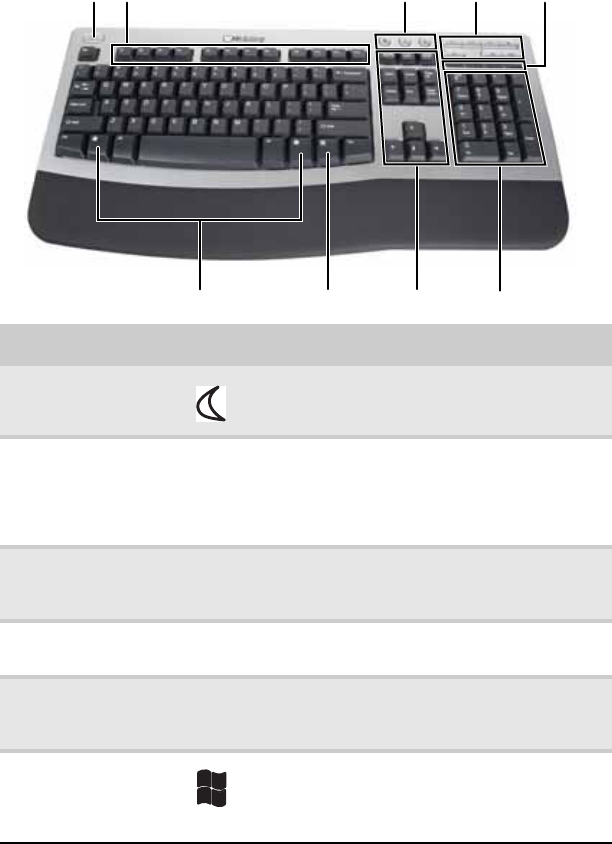
The keyboard has several different types of keys and buttons.
Your keyboard also has status indicators that show which
keyboard feature is active.
Feature Icon Description
Sleep button Press this button to activate your computer’s
Sleep (power-saving) mode.
Function keys Press these keys to start program actions. Each
program uses different function keys for
different purposes. See the program
documentation to find out more about the
function key actions.
Application buttons Press these buttons to launch your Internet
home page, search for files, or launch the
calculator program.
Audio playback
buttons Press these buttons to play your audio files and
to adjust the volume.
Indicators Show if your NUM LOCK, CAPS LOCK, or
SCROLL LOCK keys are activated. Press the
corresponding key to activate the function.
Windows keys Press one of these keys to open the Windows
Start menu. These keys can also be used in
combination with other keys to open utilities
like F(Find/Search), R(Run), and E(Computer).
Function keys
Navigation keys
Indicators
Windows keys Application key Numeric keypad
Sleep button Application buttons Audio playback
buttons
8512735.book Page 21 Thursday, September 27, 2007 1:03 PM
CHAPTER3: Setting Up and Getting Started
22
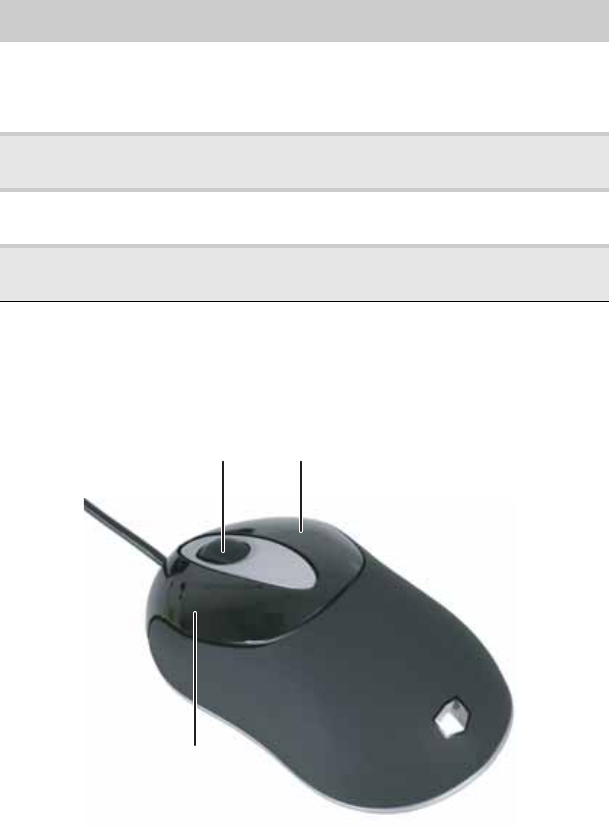
Standard keyboard features
Application key Press this key to access shortcut menus and
help assistants in Windows.
Navigation keys Press these keys to move the cursor to the
beginning of a line, to the end of a line, up the
page, down the page, to the beginning of a
document, or to the end of a document. Press
the arrow keys to move the cursor.
Numeric keypad Press these keys to type numbers when the
numeric keypad (NUM LOCK) is turned on.
Feature Description
Function keys Press these keys to start program actions. Each program
uses different function keys for different purposes. See
the program documentation to find out more about the
function key actions.
Navigation keys Press these keys to move the cursor to the beginning of
a line, to the end of a line, up the page, down the page,
to the beginning of a document, or to the end of a
document.
Indicators Show if your NUM LOCK, CAPS LOCK, or SCROLL LOCK keys are
activated. Press the corresponding key to activate the
function.
Feature Icon Description
Function keys Navigation keys Indicators
Windows keys Application key Directional keys Numeric keypad
8512735.book Page 22 Thursday, September 27, 2007 1:03 PM
www.gateway.com
23
Using the mouse
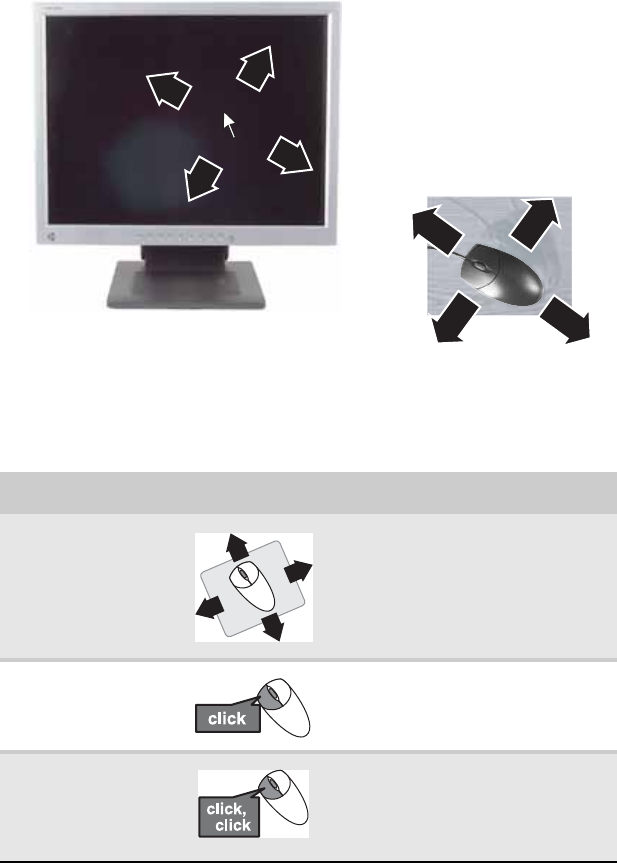
The mouse is a device that controls the pointer movement on
the computer screen. This illustration shows the standard
mouse.
Windows keys Press to open the Windows Start menu. These keys can
also be used in combination with other keys to open
utilities like F (Find/Search), R (Run utility), and
E (Computer).
Application key Press this key to access shortcut menus and help
assistants in Windows.
Directional keys Press these keys to move the cursor up, down, right, or
left.
Numeric keypad Press these keys to type numbers when the numeric
keypad (NUM LOCK) is turned on.
Feature Description
Scroll wheel
Left button
Right button
8512735.book Page 23 Thursday, September 27, 2007 1:03 PM
CHAPTER3: Setting Up and Getting Started
24
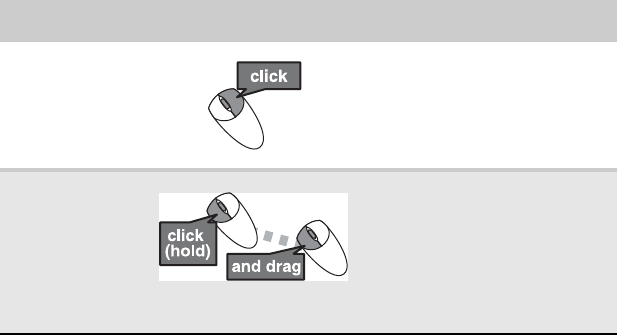
As you move the mouse, the pointer (arrow) on the screen
moves in the same direction.
You can use the left and right buttons on the mouse to select
objects on the screen.
You can use the scroll wheel on the mouse to move through a
document. This feature is not available in all programs.
To... Do this...
Move the pointer
on the screen Move the mouse around. If you
reach the edge of your mouse
pad and need to move the
mouse farther, lift the mouse
and place it in the middle of the
mouse pad, then continue
moving the mouse.
Select an object
on the screen Position the pointer over the
object. Quickly press and
release the left mouse button.
This is called clicking.
Start a program
or open a file or
folder
Position the pointer over the
object. Quickly press and
release the left mouse button
twice. This is called
double-clicking.
8512735.book Page 24 Thursday, September 27, 2007 1:03 PM
www.gateway.com
25
For more information about how to adjust the double-click
speed, pointer speed, right-hand or left-hand configuration,
and other mouse settings, see the “Customizing Windows”
chapter in your online User Guide. For instructions on how to
clean the mouse, see “Cleaning the mouse” on page65.
Access a
shortcut menu
or find more
information
about an object
on the screen.
Position the pointer over the
object. Quickly press and
release the right mouse button
once. This is called
right-clicking.
Move an object
on the screen. Position the pointer over the
object. Press the left mouse
button and hold it down. Move
(drag) the object to the
appropriate part of the screen.
Release the button to drop the
object where you want it. This is
called clicking and dragging.
To... Do this...
8512735.book Page 25 Thursday, September 27, 2007 1:03 PM
CHAPTER3: Setting Up and Getting Started
26
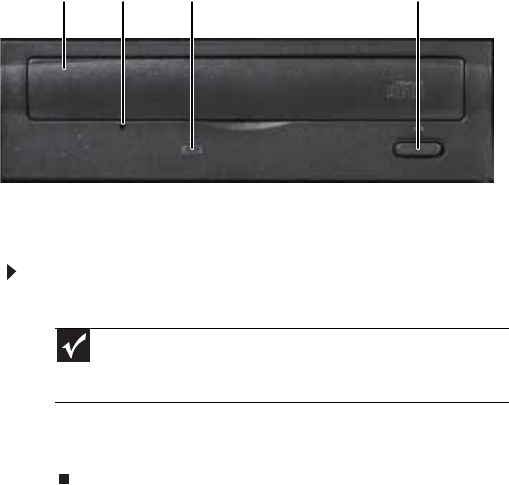
Using optical drives
FeaturesYour optical drive has the following basic components:
Loading an optical disc
To insert an optical disc:
1Press the eject button on the optical disc drive.
2Place the disc in the tray with the label facing up.
3Press the eject button to close the tray.
Important
When you place a single-sided disc in the tray, make sure that the
label side is facing up. If the disc has two playable sides, place the disc
so the name of the side you want to play is facing up.
Eject buttonActivity indicator
Manual eject
hole
Disc tray
8512735.book Page 26 Thursday, September 27, 2007 1:03 PM
www.gateway.com
27
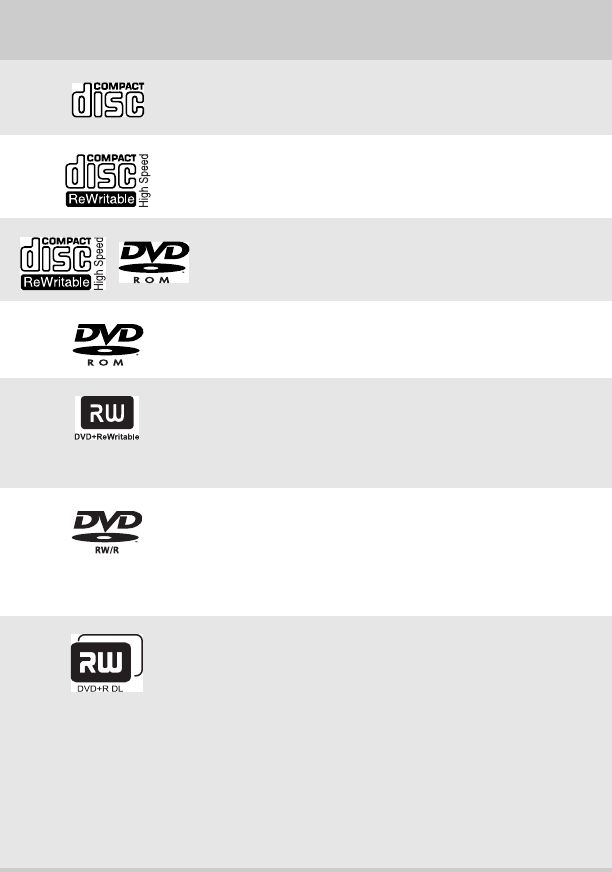
Identifying optical drive types
Your computer may contain one of the following drive types.
Look on the front of the drive’s disc tray for one or more of
the following logos:
If your optical drive has
this logo... Your drive type
is... Use your drive for...
CD
Installing programs, playing
audio CDs, and accessing data.
CD-RW
Installing programs, playing
audio CDs, accessing data, and
creating CDs.
DVD/CD-RW
Installing programs, playing
audio CDs, accessing data,
creating CDs, and playing DVDs.
DVD
Installing programs, playing
audio CDs, playing DVDs, and
accessing data.
DVD+RW
Installing programs, playing
audio CDs, playing DVDs,
accessing data, and recording
video and data to CDs and
DVD+R or DVD+RW discs.
DVD RW/R
Installing programs, playing
audio CDs, playing DVDs,
accessing data, and recording
video and data to CDs and
DVD+R, DVD+RW, DVD-R, and
DVD-RW discs.
Double layer
DVD+RW
Installing programs, playing
audio CDs, playing DVDs,
accessing data, and recording
video and data to CDs and
double layer DVD+R discs.
Note: To use the double layer
capability of the double layer
recordable DVD drive, the blank
DVDs you purchase must state
Double Layer, Dual Layer, or DL.
Using other types of blank
media will result in less
capacity.
8512735.book Page 27 Thursday, September 27, 2007 1:03 PM
CHAPTER3: Setting Up and Getting Started
28
Playing discs
Playing a CD
A standard CD (compact disc) can hold an entire album of
digital songs and can be played on a CD player or your
computer’s CD drive.
Use a music program or Windows Media Player on your
computer to:
•Play music CDs
•Create MP3 music files from your music CDs
•Edit music track information
•Use your music files to build a music library
For more information about playing CDs, see your online User
Guide.
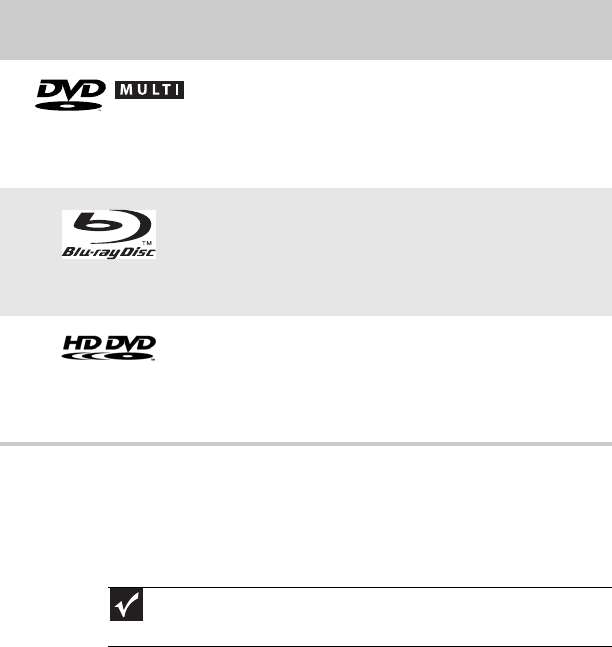
DVD-RAM/-RW
Installing programs, playing
audio CDs, playing DVDs,
accessing data, and recording
video and data to CDs and
DVD-RAM, DVD-R, or DVD-RW
discs.
Blu-ray Disc
Installing programs, playing
audio CDs, playing DVDs,
playing Blu-ray Discs, accessing
data, and recording video and
data to CDs, DVD-RAM, DVD-R,
DVD-RW, and Blu-ray discs.
HD-DVD
Installing programs, playing
audio CDs, playing DVDs and
HD-DVDs, accessing data, and
recording video and data to
CDs, DVD-RAM, DVD-R, DVD-RW,
and HD-DVD discs.
Important
Some music CDs have copy protection software. You may not be able to
play these CDs on your computer.
If your optical drive has
this logo... Your drive type
is... Use your drive for...
RECORDER
8512735.book Page 28 Thursday, September 27, 2007 1:03 PM
www.gateway.com
29
Playing a DVD
A DVD (Digital Versatile Disc) is similar to a standard CD but has
greater data capacity. Because of this increased capacity,
full-length movies, several albums of music, or several
gigabytes of data can fit on a single disc. DVDs can be played
on a DVD player or a DVD drive-equipped computer. For more
information about playing DVDs, see your online User Guide.
Playing a Blu-ray Disc
A Blu-ray Disc is a high-capacity optical disc that can store
much more data than a DVD. Adual-layer Blu-ray Disc can hold
50GB of files, about 23 hours of standard-definition video, or
about nine hours of high-definition video. Blu-ray Discs can be
played on a Blu-ray-compatible player or a Blu-ray
drive-equipped computer. For more information about playing
Blu-ray Discs, see your online User Guide.
Playing an HD-DVD
A HD-DVD is a high-capacity optical disc that can store much
more data than a DVD. A dual-layer HD-DVD can hold 30 GB of
files, about 14 hours of standard-definition video, or about 5.5
hours of high-definition video. HD-DVDs can be played on an
HD-DVD-compatible player or an HD-DVD drive-equipped
computer. For more information about playing HD-DVDs, see
your online User Guide.
8512735.book Page 29 Thursday, September 27, 2007 1:03 PM
CHAPTER3: Setting Up and Getting Started
30
Creating discs
Recording to optical discs
You can use the disc burning program on your computer to
copy tracks from a music CD to your hard drive, copy or create
data discs, create music CDs, create video DVDs, and more. For
more information about creating CDs and DVDs, see your
online User Guide.
Creating audio and video files
You can create audio and music files, either from scratch or
from music CDs. You can also create video files from home
video. For more information, see your online User Guide.
Copying optical discs
You can copy optical discs to make backups of your data. For
more information, see your online User Guide.
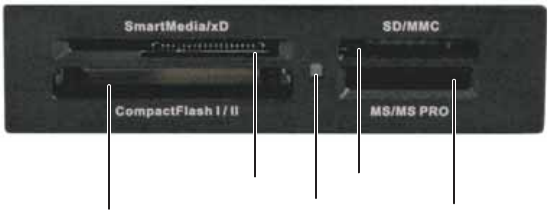
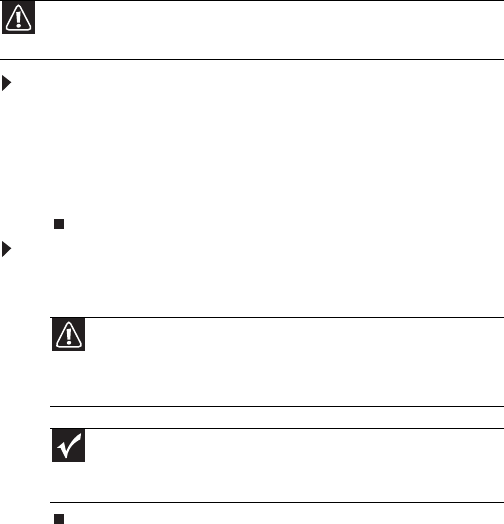
Using the memory card reader
You can use the optional memory card reader to transfer
pictures from a digital camera to your computer. You can also
use the memory card reader to transfer data between your
computer and a device that uses memory cards, such as a PDA,
MP3 player, or cellular telephone. (Your memory card reader
may be different than the one shown.)
Memory card slot
Activity indicator
Memory card slot
Memory card slot
Memory card slot
8512735.book Page 30 Thursday, September 27, 2007 1:03 PM
www.gateway.com
31
Memory card types
The memory card reader supports several memory card types.
To determine which types are supported by your card reader
and the slots to use for each type of card, examine the face
plate of the reader. Each slot is assigned a different drive letter
(for example, E: and F:), so data can be transferred from one
memory card type to another.
Using a memory card
To insert a memory card:
1Insert the memory card into the appropriate memory
card slot.
2To access a file on the memory card, click Start, then
click My Computer. Double-click the drive (for example,
the E: drive), then double-click the file name.
To remove a memory card:
•Wait for the memory card reader activity indicator to
stop blinking, then pull the memory card out of the slot.
Caution
Before inserting a memory card into a slot, make sure that the slot is
empty, or you could damage the card reader.
Caution
Do not remove the memory card or turn off the computer while
the memory card reader access indicator is blinking. You could lose data.
Also, remove the memory card from the reader before you turn off the
computer.
Important
Do not use the Safely remove hardware icon in the taskbar to
remove the memory card, or you will have to restart the computer to
re-enable the memory card reader.
8512735.book Page 31 Thursday, September 27, 2007 1:03 PM
CHAPTER3: Setting Up and Getting Started
32
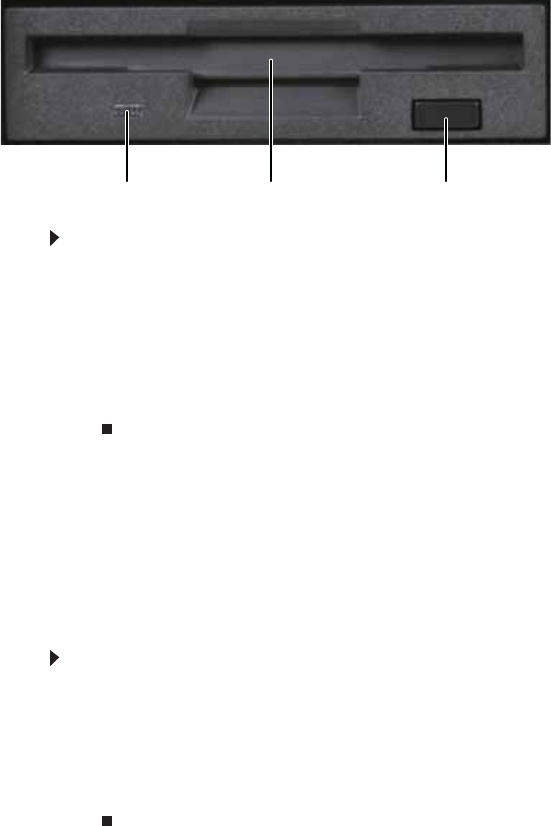
Using the diskette drive
The optional diskette drive uses 3.5-inch diskettes (sometimes
called floppy disks). Diskettes are useful for storing files or
transferring files to another computer.
To load a diskette:
1Insert the diskette into the diskette drive with the label
facing up.
2To access a file on the diskette, click Start, then click
My Computer. Double-click the diskette drive (for
example, the A: drive), then double-click the file name.
3To remove the diskette, make sure that the drive activity
light is off, then press the eject button.
Adjusting the volume
You can adjust volume using your speakers’ controls, your
keyboard controls, or the Windows volume controls. You can
also adjust the volume of specific sound devices in your
computer.
To adjust the overall volume using hardware controls:
•If you are using external speakers, turn the knob on the
front of the speakers.
-OR-
Use the mute and volume control buttons on the
keyboard. For more information, see “Using the
keyboard” on page 19.
Drive activity light Eject buttonDiskette slot
8512735.book Page 32 Thursday, September 27, 2007 1:03 PM
www.gateway.com
33
To adjust the volume from Windows:
1Double-click the speaker icon on the taskbar. The volume
control slider opens.
2Click and drag the slider up to increase volume and down
to decrease volume.
3To mute the volume, click Mute. To restore volume, click
it again.
4Click × in the top-right corner of the window to close it.
Installing a printer, scanner, or
other device
Your computer has one or more of the following ports:
IEEE 1394 (also known as Firewire®), Universal Serial Bus (USB),
serial, and parallel. Use these ports to connect peripheral
devices such as printers, scanners, and digital cameras to your
computer. For more information about port locations, see
“Checking Out Your Computer” on page 5.
IEEE 1394 and USB ports support plug-and-play and
hot-swapping, which means that your computer will usually
recognize such a device whenever you plug it into the
appropriate port. When you use an IEEE 1394 or USB device for
the first time, your computer will prompt you to install any
software the device needs. After doing this, you can disconnect
and reconnect the device at any time.
Parallel and serial port devices are not plug-and-play. See the
device documentation for detailed information and installation
instructions.
Important
Before you install a printer, scanner, or other peripheral device, see the
device documentation and installation instructions.
Help
For more information about installing peripheral devices, click Start, then
click Help and Support. Type installing devices in the Search Help box,
then pressENTER.
8512735.book Page 33 Thursday, September 27, 2007 1:03 PM

CHAPTER4
35
Upgrading Your Computer
•Preventing static electricity discharge
•Opening and closing the case
•Removing and installing the front bezel
•Installing memory
•Replacing an optical or diskette drive or a
card reader
•Replacing the hard drive
•Adding or replacing an expansion card
•Replacing the front fan
•Replacing the rear fan
•Replacing the front I/O board
•Replacing the processor
•Replacing the system battery
•Replacing the power supply
•Replacing the system board
8512735.book Page 35 Thursday, September 27, 2007 1:03 PM
CHAPTER4: Upgrading Your Computer
36
Preventing static electricity
discharge
The components inside your computer are extremely sensitive
to static electricity, also known as electrostatic discharge (ESD).
Before opening the computer case, follow these guidelines:
•Wear a grounding wrist strap (available at most
electronics stores) and attach it to a bare metal part of
your computer.
•Turn off your computer.
•Touch a bare metal surface on the back of the computer.
•Unplug the power cord and the modem and network
cables.
Before working with computer components, follow these
guidelines:
•Avoid static-causing surfaces such as carpeted floors,
plastic, and packing foam.
•Remove components from their antistatic bags only
when you are ready to use them. Do not lay components
on the outside of antistatic bags because only the inside
of the bags provide electrostatic protection.
•Always hold expansion cards by their edges or their
metal mounting brackets. Avoid touching the edge
connectors and components on the cards. Never slide
expansion cards or components over any surface.
Warning
To avoid exposure to dangerous electrical voltages and moving parts, turn
off your computer and unplug the power cord and modem and network cables
before opening the case.
To prevent risk of electric shock, do not insert any object into the vent holes of
the power supply.
Caution
ESD can permanently damage electrostatic discharge-sensitive
components in your computer. Prevent ESD damage by following ESD guidelines
every time you open the computer case.
8512735.book Page 36 Thursday, September 27, 2007 1:03 PM
www.gateway.com
37
Opening and closing the case
Your computer case provides easy access to internal
components.
To remove the side panel:
1Follow the instructions in “Preventing static electricity
discharge” on page 36.
2Shut down your computer, then disconnect the power
cord and modem, network, and all peripheral device
cables.
3Press the power button for ten seconds to drain any
residual power from your computer.
4Lay the computer down flat, then remove the case cover
thumbscrews from the side panel cover. For the location
of the thumbscrews, see “Back” on page 8.
5Slide the side panel toward the back of the computer,
then lift it up and away from the computer.
To replace the side panel:
1Make sure that all of the internal cables are arranged
inside the case so they will not be pinched when you
close the case.
2Insert the panel tabs into the front of the case, then
swing the side panel toward the back of the computer
to secure it into place.
3Replace the case cover thumbscrews, then reconnect the
cables and power cord.
Warning
To avoid exposure to dangerous electrical voltages and moving parts, turn
off your computer, then unplug the power cord and modem cable before opening
the case.
Important
Some details of your computer, such as available ports, may differ from
those shown.
Tip
To avoid scratching the case, place it on a towel or other
non-abrasive surface.
8512735.book Page 37 Thursday, September 27, 2007 1:03 PM
CHAPTER4: Upgrading Your Computer
38
Removing and installing the
front bezel
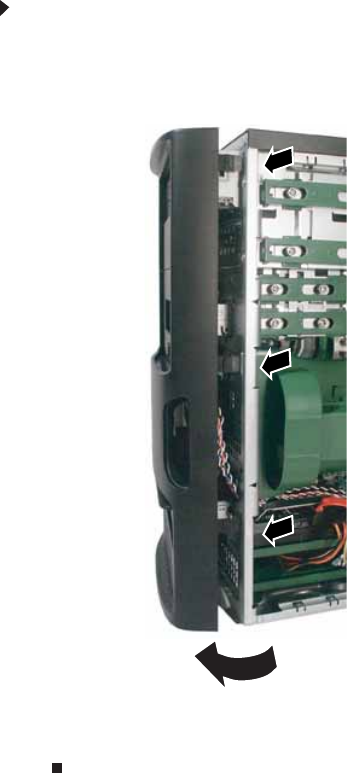
To remove the front bezel:
1After removing the side panel, press the three black
plastic tabs (positions indicated by the arrows) to release
the right side of the bezel. (Case shown upright for
clarity.)
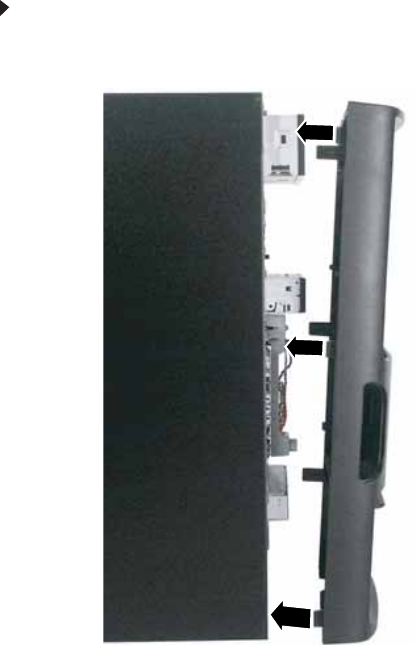
2Swing the right side of the bezel out until the left side
of the bezel comes away from the left side of the
computer, then remove the bezel.
8512735.book Page 38 Thursday, September 27, 2007 1:03 PM
www.gateway.com
39
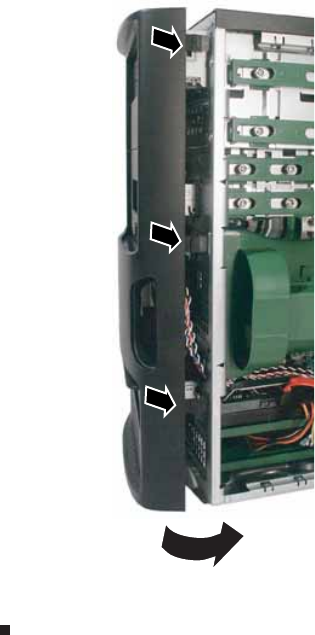
To replace the front bezel:
1Insert the tabs on the left side of the bezel into the slots
in the left side of the computer.
8512735.book Page 39 Thursday, September 27, 2007 1:03 PM
www.gateway.com
41
Installing memory
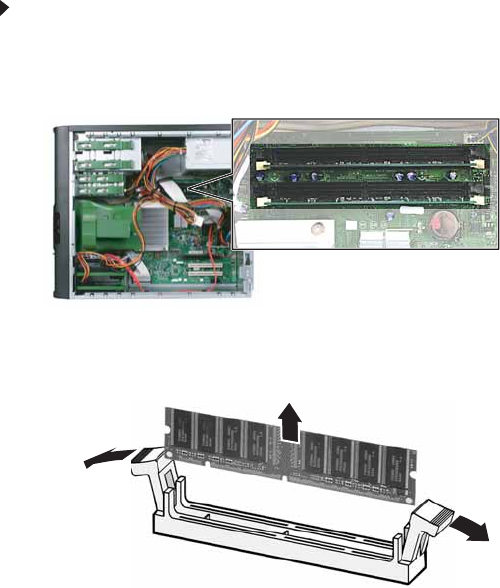
When you upgrade the computer memory, make sure that you
install the correct type of memory module for your computer.
Your computer uses DIMM memory.
To install or replace DIMM memory:
1Remove the side panel by following the instructions in
“Opening and closing the case” on page 37.
2Find the memory module banks on your system board.
3If you are removing a DIMM from the memory module
bank, gently pull the plastic tabs away from the sides of
the memory module and remove it.
- OR -
If you are adding a DIMM to an empty memory module
bank, gently pull the plastic tabs away from the sides of
the memory module bank.
8512735.book Page 41 Thursday, September 27, 2007 1:03 PM
CHAPTER4: Upgrading Your Computer
42
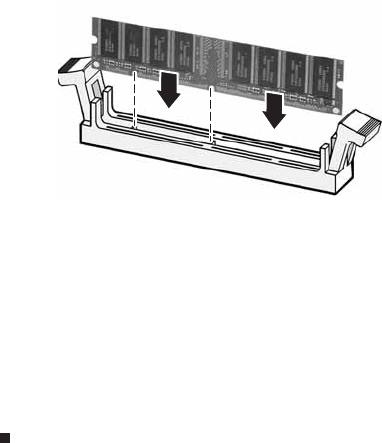
4Align the notches on the new DIMM with the notches on
the memory module bank and press the module firmly
into the bank. The tabs on the sides of the memory
module should secure the memory module
automatically. When the module is secure, you hear a
click.
5Replace the side panel by following the instructions in
“Opening and closing the case” on page 37.
6Return your computer to its upright position.
7Reconnect the cables and the power cord.
8Turn on your computer. Windows starts and the
Windows desktop appears.
9Click Start, right-click My Computer, then click
Properties. The amount of memory in your computer
is displayed.
8512735.book Page 42 Thursday, September 27, 2007 1:03 PM
www.gateway.com
43
Replacing an optical or diskette
drive or a card reader
Throughout this procedure, “drive” is used to indicate either a
drive or a memory card reader.
To replace a drive or card reader:
1Remove the side panel by following the instructions in
“Opening and closing the case” on page 37.
2Remove the front bezel by following the instructions in
“Removing and installing the front bezel” on page38,
then place the computer in an upright position.
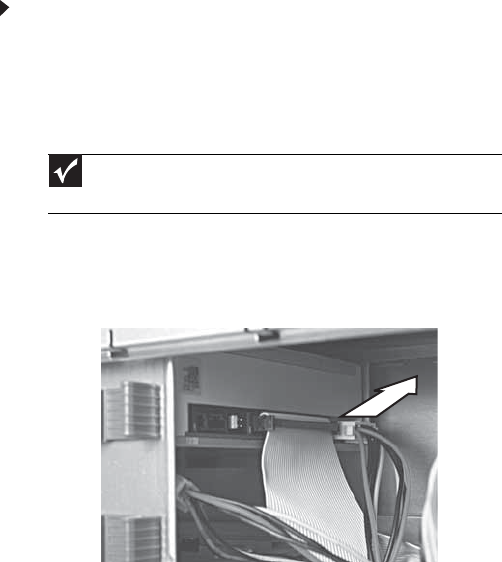
3If you are replacing an existing drive, disconnect the
cables from the drive, noting their locations and
orientation. You will reconnect the cables after you
install the new component. (CD/DVD drive shown.)
- OR -
If you are installing a new drive, go to Step5.
Important
The color and shape of your replacement component's front cover
may vary from your original component.
8512735.book Page 43 Thursday, September 27, 2007 1:03 PM
CHAPTER4: Upgrading Your Computer
44
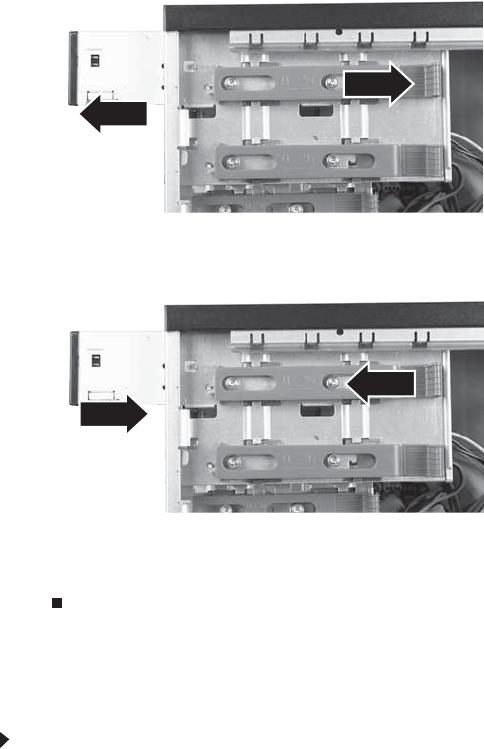
4Slide the drive release latch toward the back of the
computer to the Unlock position, then slide the drive
forward and out of the drive bay.
5Slide the new drive into the drive bay, then slide the drive
release latch toward the front of the computer to the
Lock position.
6Reconnect the drive cables using the notes you took
previously.
7Replace the front bezel, then replace the side panel.
Replacing the hard drive
To replace the hard drive:
1Remove the side panel by following the instructions in
“Opening and closing the case” on page 37.
2If you are adding a new drive, go to Step 6. If you are
replacing an existing drive, go to the next step.
8512735.book Page 44 Thursday, September 27, 2007 1:03 PM
www.gateway.com
45
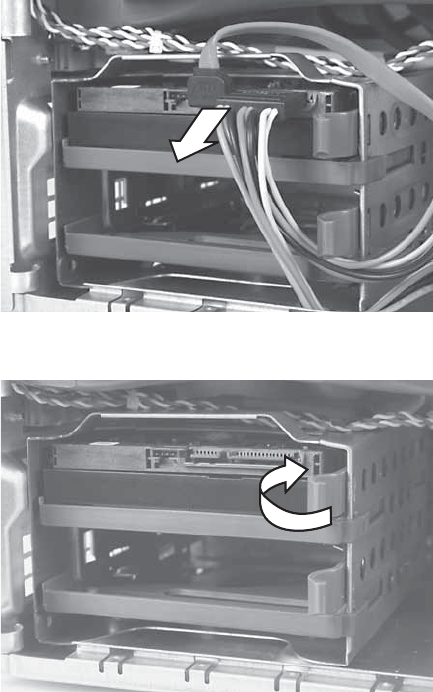
3Disconnect the drive cables, noting their locations and
orientation. (You will reconnect the cables after you
install the new drive.)
4Press the the drive release latch in toward the drive, then
slide the drive out of the drive bay.
8512735.book Page 45 Thursday, September 27, 2007 1:03 PM
CHAPTER4: Upgrading Your Computer
46
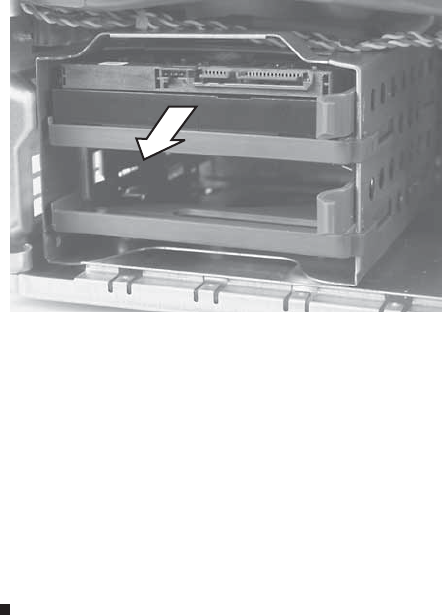
5Remove the hard drive.
6Slide the new drive into the drive bay, then slide the drive
release latch back.
7If you are adding a drive, connect the drive cables to the
new drive according to the drive’s documentation.
- OR -
If you are replacing a drive, reconnect the drive cables
using the notes you took previously.
8Replace the side panel by following the instructions in
“Opening and closing the case” on page 37, then return
your computer to an upright position.
9Reconnect all external cables and the power cord.
8512735.book Page 46 Thursday, September 27, 2007 1:03 PM
www.gateway.com
47
Adding or replacing an
expansion card
To add or replace an expansion card:
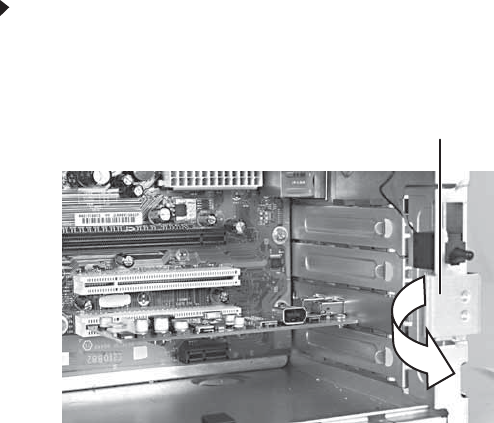
1Remove the side panel by following the instructions in
“Opening and closing the case” on page 37.
2Open the card retention lever.
3If you are replacing an expansion card, go to the next
step. If you are adding a new expansion card, go to
Step 6.
4Disconnect any cables that are attached to the card,
noting their locations and orientation. (You may need to
reconnect the cables after you install the new card.)
C
ard retention lever
8512735.book Page 47 Thursday, September 27, 2007 1:03 PM
CHAPTER4: Upgrading Your Computer
48
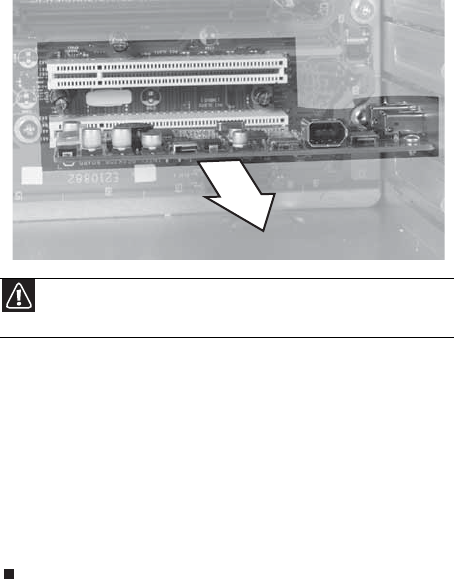
5Remove the old expansion card. You can slightly seesaw
the card end-to-end to loosen the card, but do not bend
the card sideways.
6Install the new card into the expansion slot. You can
slightly seesaw the card end-to-end to help insert the
card, but do not bend the card sideways.
7Reconnect the expansion card cables (if any) using the
notes you took previously or the manufacturer’s
instructions.
8Replace the side panel, then return the computer to an
upright position.
9Reconnect all external cables and the power cord.
Caution
Do not touch the contacts on the bottom part of the expansion
card. Touching the contacts can cause electrostatic damage to the card.
8512735.book Page 48 Thursday, September 27, 2007 1:03 PM
www.gateway.com
49
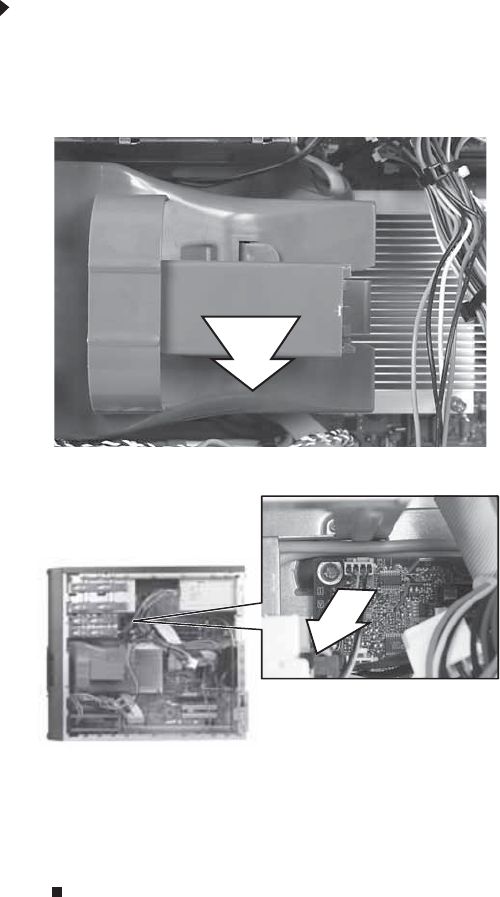
Replacing the front fan
To replace the front fan:
1Remove the side panel by following the instructions in
“Opening and closing the case” on page 37.
2Remove the fan by pulling it away from the system
board.
3Disconnect the fan cable from the system board.
4Connect the new fan cable to the system board, then
insert the new fan into place.
5Replace the side panel, then return the computer to an
upright position.
6Reconnect all external cables and the power cord.
8512735.book Page 49 Thursday, September 27, 2007 1:03 PM
CHAPTER4: Upgrading Your Computer
50
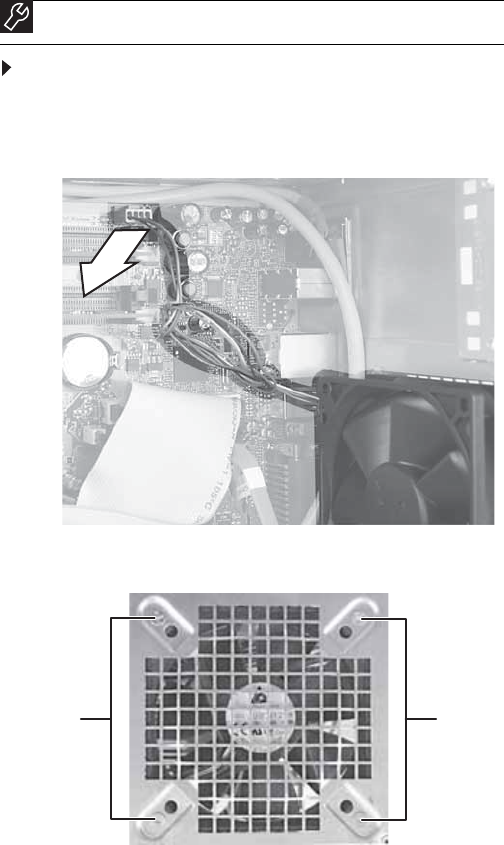
Replacing the rear fan
To replace the rear fan:
1Remove the side panel by following the instructions in
“Opening and closing the case” on page 37.
2Disconnect the fan from the system board.
3Remove the four screws that secure the fan to the back
of the case, then remove the fan.
4Place the new fan on the back of the computer, then
replace the screws that secure it to the back of the case.
5Reconnect the fan cable to the system board.
Tools
Phillips screwdriver
Screws Screws
8512735.book Page 50 Thursday, September 27, 2007 1:03 PM
www.gateway.com
51
6Replace the side panel by following the instructions in
“Opening and closing the case” on page 37.
7Replace the side panel, then return the computer to an
upright position.
8Reconnect all external cables and the power cord.
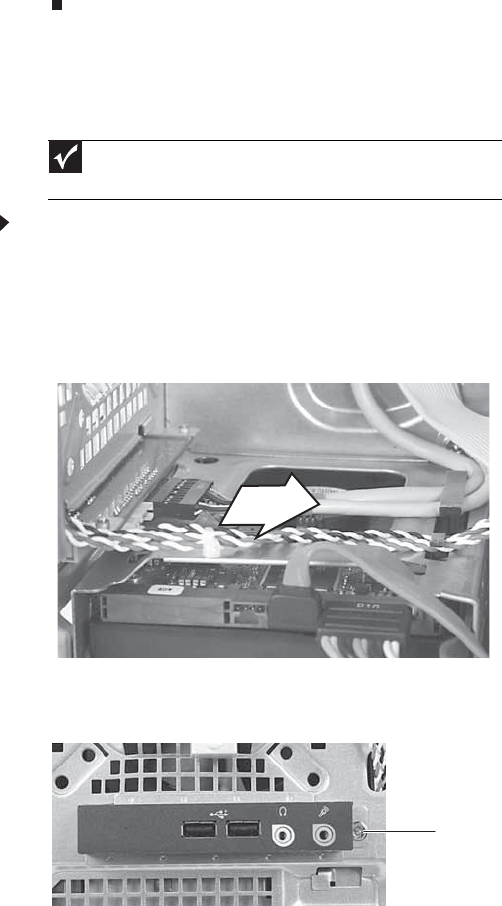
Replacing the front I/O board
To replace the front I/O panel:
1Remove the side panel by following the instructions in
“Opening and closing the case” on page 37.
2Remove the bezel by following the instructions in
“Removing and installing the front bezel” on page38.
3Disconnect the cable from the I/O panel.
4Remove the screw that secures the I/O panel to the
computer, then remove the I/O panel from the
computer.
Important
The color and shape of your replacement component's front cover
may vary from your original component.
Screw
8512735.book Page 51 Thursday, September 27, 2007 1:03 PM
CHAPTER4: Upgrading Your Computer
52
5Insert the new I/O panel board into the computer, then
replace the screw.
6Connect the I/O panel cable to the new I/O panel.
7Replace the front bezel by following the instructions in
“Removing and installing the front bezel” on page38.
8Replace the side panel by following the instructions in
“Opening and closing the case” on page 37.
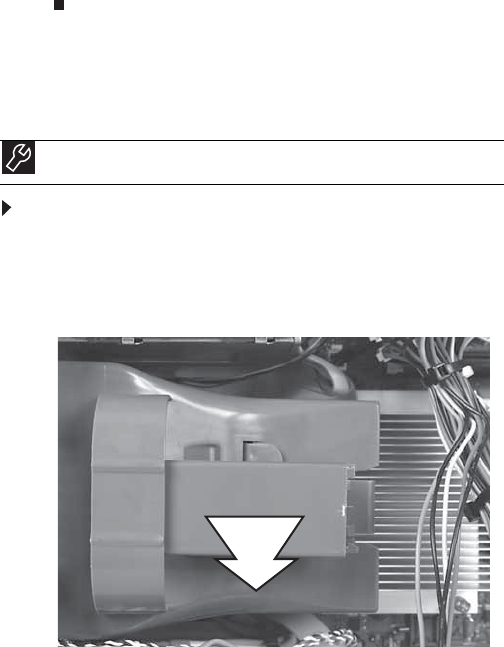
Replacing the processor
To replace the heat sink and processor:
1Remove the side panel by following the instructions in
“Opening and closing the case” on page 37.
2Remove the fan by pulling it away from the system
board.
Tools
Phillips screwdriver
8512735.book Page 52 Thursday, September 27, 2007 1:03 PM
www.gateway.com
53
3Disconnect the fan cable from the system board.
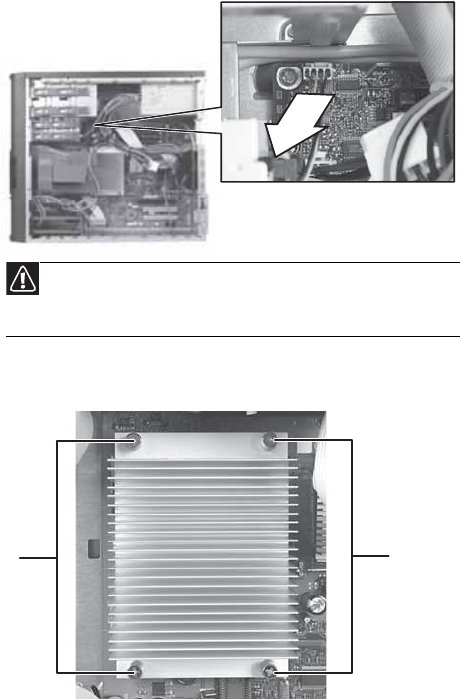
4Loosen the four screws that secure the heat sink to the
system board, then remove the heat sink.
Caution
The heat sink has thermal paste located on the bottom of it. Use
caution when you remove the old heat sink or unpack the new heat sink
so you do not damage the thermal paste.
Screws
Screws
8512735.book Page 53 Thursday, September 27, 2007 1:03 PM
CHAPTER4: Upgrading Your Computer
54
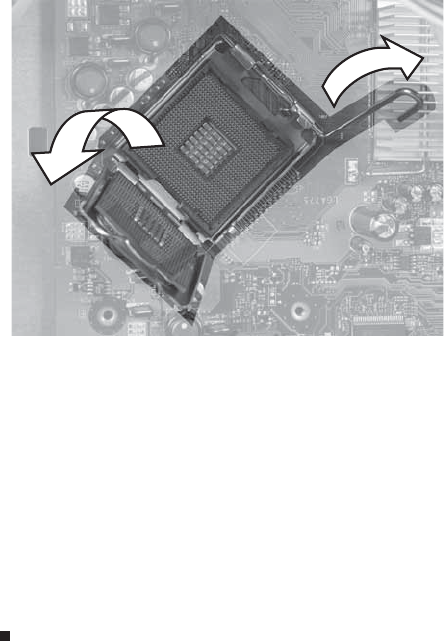
5Release the processor by pushing down on the lever and
then lifting it completely up.
6Remove the processor from the system board.
7Install the new processor onto the system board making
sure that Pin 1 on the processor (indicated by the
silk-screened arrow on the corner of the processor)
aligns with Pin 1 on the processor socket (indicated by
the absence of a pin hole in the processor socket), then
return the lever to its locked position.
8Place the heat sink on the system board, then tighten the
screws that secure it to the system board.
9Connect the fan cable to the system board, then insert
the fan into place.
10 Replace the side panel.
8512735.book Page 54 Thursday, September 27, 2007 1:03 PM
www.gateway.com
55
Replacing the system battery
If the computer clock does not keep time or the settings in the
BIOS Setup utility are not saved when you turn off your
computer, replace the system battery. Use a battery of the
same size and voltage as the original battery that was in your
computer.
To replace the battery:
1Restart your computer.
2During the restart, press and hold F2. The main menu of
the BIOSSetup utility opens.
3Write down all values in the menus and submenus, then
exit from the utility.
4Shut down your computer.
5Remove the side panel by following the instructions in
“Opening and closing the case” on page 37.
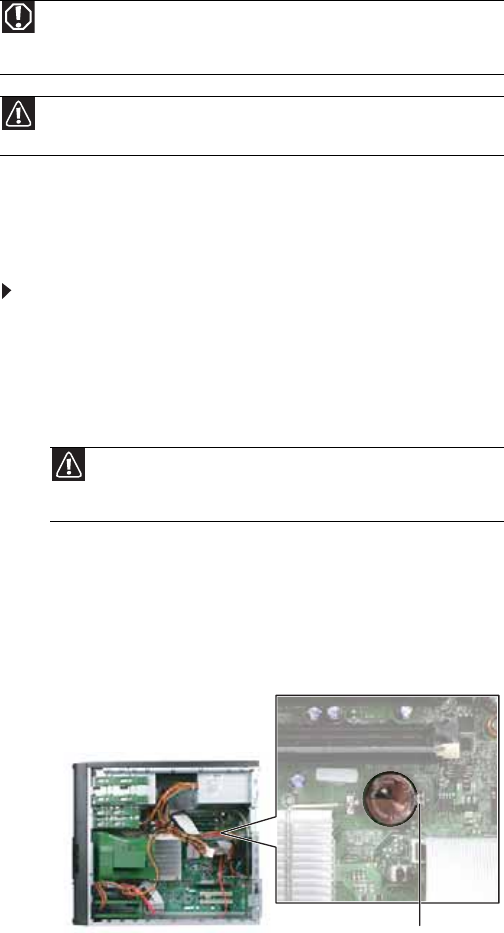
6Locate the old battery on the system board and note its
orientation. You will need to install the new battery the
same way.
Warning
Danger of explosion if battery is incorrectly replaced. Replace only with the
same or equivalent type recommended by the manufacturer. Dispose of used
batteries following the manufacturer’s instructions.
Caution
Any custom BIOS settings you have made will be lost when you remove
the system battery. All settings will return to their factory defaults.
Caution
Any custom BIOS settings you have made will be lost when you
remove the system battery. All settings will return to their factory
defaults.
Battery release tab
8512735.book Page 55 Thursday, September 27, 2007 1:03 PM
CHAPTER4: Upgrading Your Computer
56
7Push the battery release tab. The battery pops out of the
socket.
8Make sure that the positive (+) side of the new battery
is facing up, then press the battery into the socket until
it snaps into place.
9Replace the side panel, then return the computer to an
upright position.
10 Reconnect all external cables and the power cord.
11 Turn on your computer.
12 Open the BIOS Setup utility.
13 In the BIOS Setup utility, restore any settings that you
wrote down previously.
14 Save all your settings and exit the BIOS Setup utility.
Replacing the power supply
To replace the power supply:
1Remove the side panel by following the instructions in
“Opening and closing the case” on page 37.
2Disconnect the power supply cables from all
components (such as hard drives, CD or DVD drives, and
the system board), noting their locations and
orientation. (You will reconnect the cables after you
install the new power supply.)
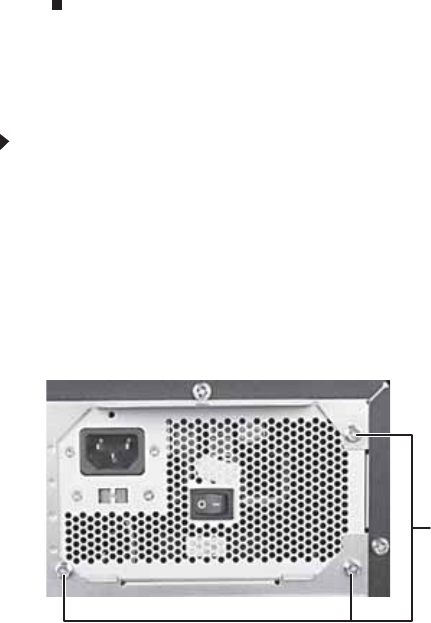
3Remove the three screws that secure the power supply
to the computer.
Screws
8512735.book Page 56 Thursday, September 27, 2007 1:03 PM
www.gateway.com
57
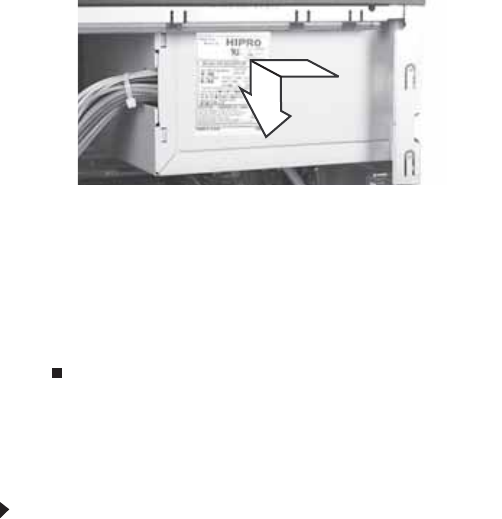
4Slide the power supply away from the back of the
computer, then pull it down and remove it.
5Install the new power supply into the case, then install
the three screws to secure the power supply to the case.
6Reconnect the power supply cables using your notes
from Step 2.
7Replace the side panel, then return the computer to an
upright position.
8Reconnect all external cables and the power cord.
Replacing the system board
To replace the system board:
1Remove the side panel by following the instructions in
“Opening and closing the case” on page 37.
2Remove all expansion cards by following the directions
in “Adding or replacing an expansion card” on page 47.
3Remove the front fan by following the directions in
“Replacing the front fan” on page 49.
4Remove the memory from your computer by following
the directions in “Installing memory” on page41.
5Disconnect the power and data cables from the system
board, noting their locations and orientation. (You will
reconnect the cables after you install the new board.)
6Remove the power supply by following the directions in
“Replacing the power supply” on page 56.
8512735.book Page 57 Thursday, September 27, 2007 1:03 PM
CHAPTER4: Upgrading Your Computer
58
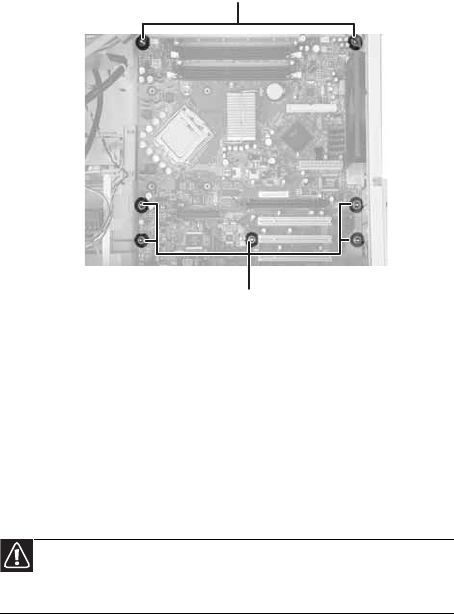
7Remove the seven system board screws.
8Lift the system board up and out of the case.
9Align the new system board on the screw holes in the
case, then secure it into the case with the screws.
10 If your replacement system board does not include a
processor, go to the next step.
-OR-
If your replacement system board includes a processor,
go to Step 16.
11 Loosen the four screws that secure the heat sink to the
system board, then remove the heat sink.
Caution
The heat sink has thermal paste located on the bottom of it. Use
caution when you remove the old heat sink or unpack the new heat sink
so you do not damage the thermal paste.
Screws
Screws
8512735.book Page 58 Thursday, September 27, 2007 1:03 PM
www.gateway.com
59
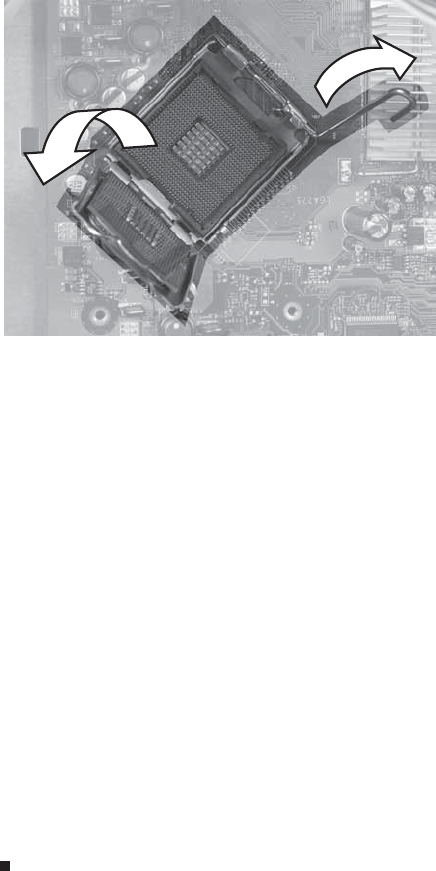
12 Release the processor from the old system board by
pushing down on the lever and then lifting it completely
up.
13 Remove the processor from the old system board.
14 Install the processor onto the new system board making
sure that Pin 1 on the processor (indicated by the
silk-screened arrow on the corner of the processor)
aligns with Pin 1 on the processor socket (indicated by
the absence of a pin hole in the processor socket), then
return the lever to its locked position.
15 Place the heat sink on the system board, then tighten the
screws that secure it to the system board.
16 Install the power supply into the case, then install the
three screws to secure the power supply to the case.
17 Connect the power and data cables using the notes you
took previously.
18 Connect the fan cable to the system board, then insert
the fan into place.
19 Install the memory you removed previously.
20 Reinstall any expansion cards you removed, using the
notes you took previously.
21 Replace the side panel, then return the computer to an
upright position.
22 Reconnect all external cables and the power cord.
8512735.book Page 59 Thursday, September 27, 2007 1:03 PM


CHAPTER 5: Maintaining Your Computer
62
Setting up a maintenance
schedule
Use the following table to set up a regular maintenance
schedule.
Maintenance task Weekly Monthly When
needed
Check for viruses X X X
Run Windows Update X X
Manage hard drive space X
Clean up hard drives X X
Scan hard drive for errors X X
Defragment hard drive X X
Back up files X X X
Clean computer case and
peripheral devices X
8512735.book Page 62 Thursday, September 27, 2007 1:03 PM
www.gateway.com
63
Caring for your computer
To extend the life of your computer:
•Be careful not to bump or drop your computer, and do
not put any objects on top of it. The case, although
strong, is not made to support extra weight.
•When transporting your computer, we recommend that
you put it in the original packaging materials.
•Keep your computer away from magnetic fields.
Magnetic fields can erase data on hard drives.
•Never turn off your computer when the drive indicator
is on because data on the hard drive could be lost or
corrupted.
•Avoid subjecting your computer to extreme temperature
changes. The case can become brittle and easy to break
in cold temperatures and can melt or warp in high
temperatures. Damage due to either extreme is not
covered by your warranty. As a general rule, your
computer is safest at temperatures that are comfortable
for you.
•Keep all liquids away from your computer. When spilled
onto computer components, almost any liquid can result
in expensive repairs that are not covered under a
standard warranty.
•Avoid dusty or dirty work environments. Dust and dirt
can clog the internal mechanisms and can lead to
permanent damage to your computer.
•Do not block the ventilation fan slots. If these slots are
blocked, your computer may overheat, resulting in
unexpected shutdown or permanent damage.
•When storing your computer for an extended period of
time, unplug AC power.
8512735.book Page 63 Thursday, September 27, 2007 1:03 PM

CHAPTER 5: Maintaining Your Computer
64
Cleaning your computer
Keeping your computer clean and the vents free from dust
helps keep your computer performing at its best. You may
want to gather these items and put together a computer
cleaning kit:
•A soft, lint-free cloth
•An aerosol can of air that has a narrow, straw-like
extension
•Cotton swabs
•An optical disc drive cleaning kit
Cleaning the exterior
•Always turn off your computer and other peripheral
devices before cleaning any components.
•Use a damp, lint-free cloth to clean your computer and
other parts of your system. Do not use household
abrasive or solvent cleaners because they can damage
the finish on components.
•Your computer is cooled by air circulated through the
vents on the case, so keep the vents free of dust. With
your computer turned off and unplugged, brush the
dust away from the vents with a damp cloth. Be careful
not to drip any water into the vents.
Warning
When you shut down your computer, the power turns off, but some
electrical current still flows through it. To avoid possible injury from electrical
shock, unplug the power cord, modem cable, and network cable from the wall
outlets.
8512735.book Page 64 Thursday, September 27, 2007 1:03 PM
www.gateway.com
65
Cleaning the keyboard
You should occasionally clean the keyboard to remove dust and
lint trapped under the keys.
To clean the keyboard:
1Use an aerosol can of air with a narrow, straw-like
extension to remove dust and lint trapped under the
keys.
2If you spill liquid on the keyboard, turn off your
computer and turn the keyboard upside down. Let the
liquid drain, then let the keyboard dry before trying to
use it again. If the keyboard does not work after it dries,
you may need to replace it.
Cleaning the monitor
To clean the monitor:
•To clean an LCD flat panel monitor, use a soft cloth and
water to clean the screen. Dampen the cloth (never apply
liquid directly to the screen), then wipe the screen with
the cloth.
•To clean a CRT monitor, use a soft cloth and glass cleaner
to clean the screen. Squirt a little cleaner on the cloth
(never directly on the screen), then wipe the screen with
the cloth.
Cleaning the mouse
If the mouse pointer begins moving erratically across the
screen or becomes difficult to control precisely, cleaning the
mouse will likely improve its accuracy.
To clean the mouse:
•Wipe the bottom of the mouse with a damp, lint-free
cloth.
Caution
A flat-panel monitor is made of specially coated glass and can be scratched
or damaged by abrasive or ammonia-based glass cleaners.
8512735.book Page 65 Thursday, September 27, 2007 1:03 PM
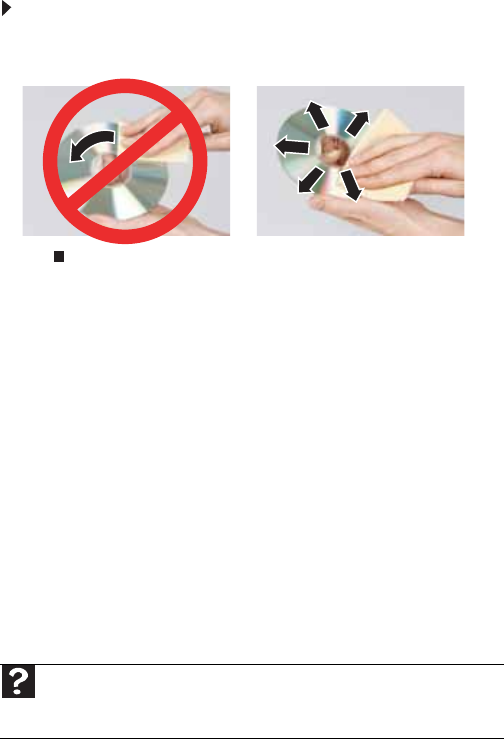
CHAPTER 5: Maintaining Your Computer
66
Cleaning optical discs
Optical discs (CDs, DVDs, and Blu-ray Discs) get dirty from
frequent handling.
To clean an optical disc:
•Wipe from the center to the edge, not around in a circle,
using a product made especially for the purpose.
Updating Windows
Windows Update helps you keep your computer up-to-date.
Use Windows Update to choose updates for your computer’s
operating system, software, and hardware. New content is
added to the site regularly, so you can always get the most
recent updates and fixes to protect your computer and keep
it running smoothly. Windows Update scans your computer
and provides you with a tailored selection of updates that
apply only to the software and hardware on your computer.
For information on running Windows Update, see “Windows
Update” in your online User Guide. Windows Update can also
be controlled through the Windows Security Center. For more
information, see “Protecting Your Computer” in your online
User Guide.
Help
For more information about Windows Update, click Start, then click Help
and Support. Type windows update in the Search Help box, then press
ENTER.
8512735.book Page 66 Thursday, September 27, 2007 1:03 PM

www.gateway.com
67
Using BigFix
Your computer may have BigFix software installed. BigFix
monitors your computer for problems and conflicts. It
automatically gathers information about the latest bugs,
security alerts, and updates from BigFix sites on the Internet.
Whenever BigFix detects a problem, it alerts you by flashing the
blue taskbar icon. To fix the problem, click on that icon to open
BigFix.
To start BigFix:
1Click Start, All Programs, Accessories, System Tools,
then click BigFix.
2To learn more about BigFix, click Help, then click
Tutorial.
8512735.book Page 67 Thursday, September 27, 2007 1:03 PM
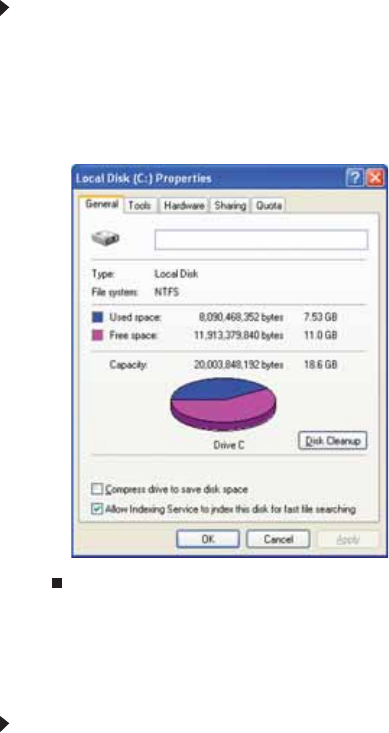
CHAPTER 5: Maintaining Your Computer
68
Managing hard drive space
Windows provides several utilities you can use to check drive
space, and to delete, defragment, and back up files.
Checking hard drive space
To check hard drive space:
1Click Start, then click My Computer. The My Computer
window opens.
2Right-click the drive that you want to check for available
file space, then click Properties. Drive space information
appears.
Deleting unnecessary files
Delete unnecessary files, such as temporary files and files in the
Recycle Bin, to free hard drive space.
To delete unnecessary files:
1Click Start, then click My Computer. The My Computer
window opens.
8512735.book Page 68 Thursday, September 27, 2007 1:03 PM
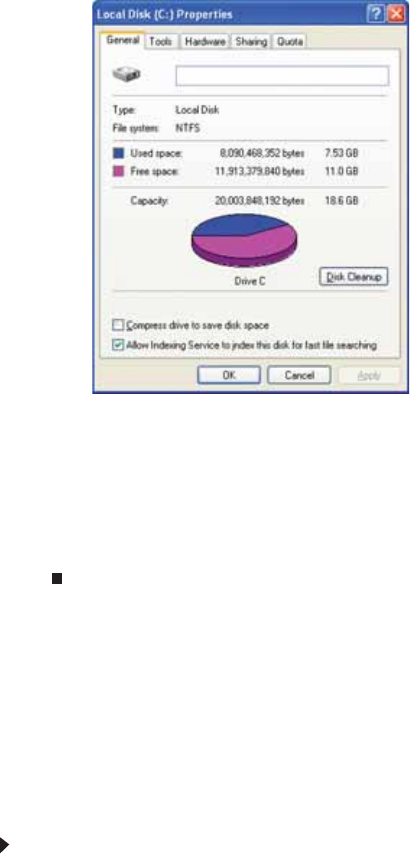
www.gateway.com
69
2Right-click the hard drive that you want to delete files
from (for example, Local Disk (C:)), then click Properties.
The Properties dialog box opens at the General tab.
3Click Disk Cleanup. The Disk Cleanup dialog box opens.
4Make sure that the check box beside each file type you
want to delete is selected. For more information about
file types you can delete, read the descriptions in the Disk
Cleanup dialog box.
5Click OK, then click Yes.
Checking the hard drive for errors
The Error-checking program examines the hard drive for
physical flaws and file and folder problems. This program
corrects file and folder problems and marks flawed areas on
the hard drive so Windows does not use them.
If you use your computer several hours every day, you
probably want to run Error-checking once a week. If you use
your computer less frequently, once a month may be adequate.
Also use Error-checking if you encounter hard drive problems.
To check the hard drive for errors:
1Click Start, then click My Computer. The My Computer
window opens.
8512735.book Page 69 Thursday, September 27, 2007 1:03 PM
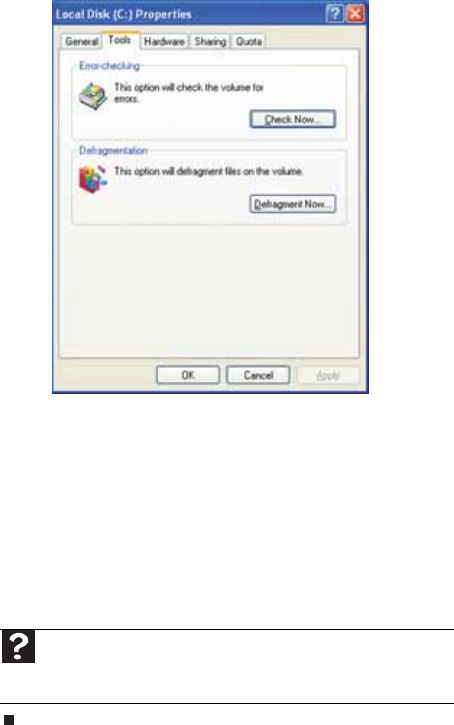
CHAPTER 5: Maintaining Your Computer
70
2Right-click the drive that you want to check for errors (for
example, Local Disk (C:)), then click Properties. The
Properties dialog box opens.
3Click the Tools tab.
4Click Check Now, click the options you want to use, then
click Start. For help, press F1. Windows checks the drive
for errors. This process may take several minutes.
After Windows has finished checking the drive for errors,
it provides a summary of the problems that it found.
5Correct any problems that are found by following the
on-screen instructions.
6Click OK.
Defragmenting the hard drive
When working with files, sometimes Windows divides the file
information into pieces and stores them in different places on
the hard drive. This is called fragmentation, and it is normal.
In order for your computer to use a file, Windows must search
for the pieces of the file and put them back together. This
process slows the hard drive performance.
Help
For more information about checking the hard drive for errors,
click Start, then click Help and Support. Type checking for disk
errors in the Search Help box, then press ENTER.
8512735.book Page 70 Thursday, September 27, 2007 1:03 PM
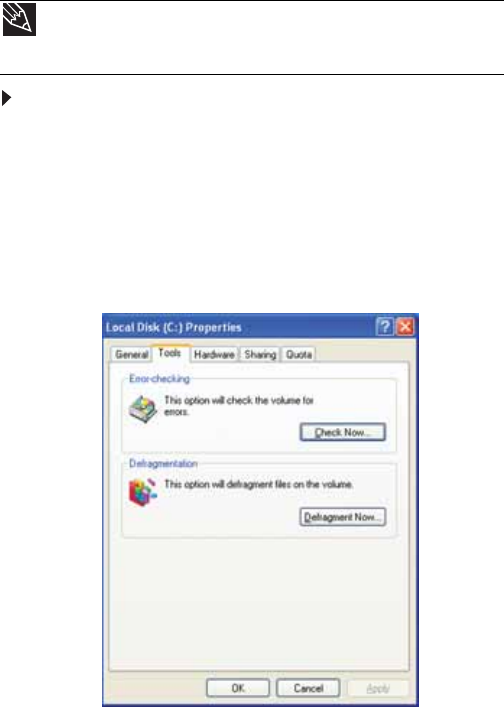
www.gateway.com
71
Disk Defragmenter organizes the data on the drive so each file
is stored as one unit rather than as multiple pieces scattered
across different areas of the drive. Defragmenting the
information stored on the drive can improve hard drive
performance.
While Disk Defragmenter is running, do not use your keyboard
or mouse because using them may continuously stop and
restart the defragmenting process. Also, if you are connected
to a network, log off before starting Disk Defragmenter.
Network communication may stop the defragmentation
process and cause it to start over.
To defragment the hard drive:
1Disconnect your computer from the network.
2Click Start, then click My Computer. The My Computer
window opens.
3Right-click the hard drive that you want to defragment
(for example, Local Disk (C:)), then click Properties. The
Properties dialog box opens.
4Click the Tools tab.
Tip
Because defragmenting a drive may take hours to complete (depending
on the size of the drive being defragmented), consider starting the process when
you will not need the computer for several hours.
8512735.book Page 71 Thursday, September 27, 2007 1:03 PM

CHAPTER 5: Maintaining Your Computer
72
5Click Defragment now. If Disk Defragmenter does not
start automatically, click Defragment.
Disk Defragmenter shows its progress on the display.
When finished, Disk Defragmenter asks if you want to
quit the program.
6Click Close, then click the X in the top-right corner to
close the Disk Defragmenter window.
Backing up files
Backing up files and removing them from the hard drive frees
space for new files on the hard drive. It also protects you from
losing important information if the hard drive fails or you
accidentally delete files.
You should back up your files regularly to a writable optical
disc (if you have a recordable drive). Use a backup device, such
as a recordable disc drive, to do a complete hard drive backup.
Scheduling maintenance tasks
The Scheduled Task Wizard lets you schedule maintenance
tasks such as running Disk Defragmenter and Error-checking.
To start the Scheduled Task Wizard:
1Click Start, All Programs, Accessories, System Tools,
then click Scheduled Tasks. The Scheduled Tasks
window opens.
Help
For more information about defragmenting the hard drive, click
Start, then click Help and Support. Type defragmenting in the
Search Help box, then press ENTER.
8512735.book Page 72 Thursday, September 27, 2007 1:03 PM
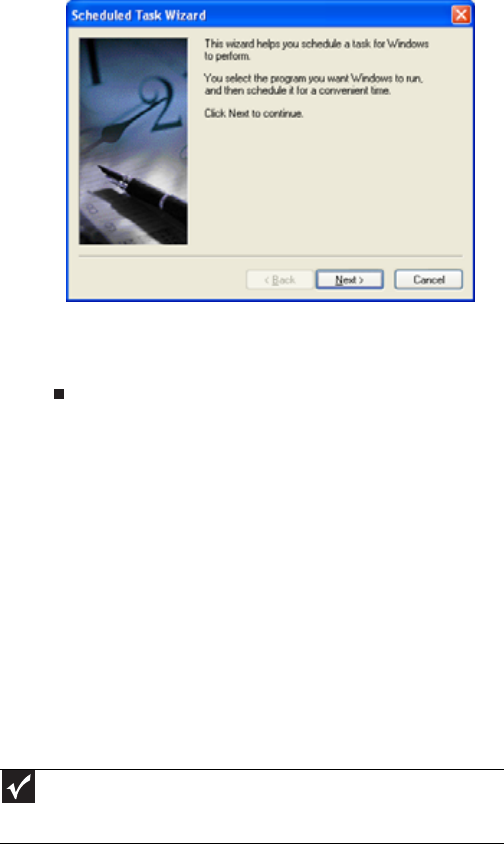
www.gateway.com
73
2Double-click the Add Scheduled Task icon. The
Scheduled Task Wizard opens.
3Click Next, then click the task or program you want to
schedule.
4Follow the on-screen instructions to customize the task.
Moving from your old
computer
Transferring files and settings automatically
You can move your files, folders, software settings, and user
account settings (such as display, Internet, and e-mail settings)
from your old computer to your new one using the Files and
Settings Transfer Wizard. Files can be transferred automatically
to it as long as your old computer has Windows95, 98, 98SE,
Me, NT 4.0, or XP.
While using these transfer utilities, you will not be able to run
other tasks on the computers.
Important
If your old computer’s Windows version is not compatible with automatic
transfer, you must manually move your data by using a writeable disc, flash drive,
or external hard drive.
8512735.book Page 73 Thursday, September 27, 2007 1:03 PM

CHAPTER 5: Maintaining Your Computer
74
To move files and settings from your old computer:
1Click Start, All Programs, Accessories, System Tools,
then click Files and Settings Transfer Wizard.
2Follow the on-screen instructions to complete the
transfer.
Transferring files and settings manually
You can manually transfer your personal data files by copying
them to removable media, such as a writable disc, an external
hard drive, a network location, or a flash drive.
Finding your documents
Many programs save your personal data files in the
My Documents folder. Look in your old computer’s documents
folder for personal data files.
To find files in the documents folder:
1In Windows XP, click Start, then click My Documents.
The My Documents window opens and displays many of
your saved personal data files. Go to 4.
- OR -
In Windows 98, Windows Me, or Windows 2000,
double-click the My Computer icon on the desktop. Go
to the next step.
2Double-click the C:\ drive icon.
3Double-click the My Documents folder. The My
Documents window opens and displays many of your
saved personal data files.
4Copy your personal data files to removable media or to
another computer on your network.
8512735.book Page 74 Thursday, September 27, 2007 1:03 PM
www.gateway.com
75
Finding other files
Use Windows Find or Search to locate other personal data files.
For more information, see “Using Windows” in your online User
Guide.
You can often identify different data file types by looking at
the file’s extension (the part of the file name following the last
period). For example, a document file might have a .DOC
extension and a spreadsheet file might have an .XLS extension.
To find files using Find or Search:
1In Windows XP, click Start, then click Search. The Search
Results window opens.
- OR -
In Windows 98, Windows Me, or Windows 2000, click
Start, Find or Search, then click For Files or Folders.
The Search Results window opens.
2Type the filename or part of a filename you want to
search for, then press ENTER. The search results are
displayed.
3To learn about more search options, click Help.
File type File usually ends in...
Documents .DOC, .TXT, .RTF, .HTM, .HTML, .DOT
Spreadsheets .XLS, .XLT, .TXT
Pictures .JPG, .BMP, .GIF, .PDF, .PCT, .TIF, .PNG, .EPS
Movies .MPEG, .MPG, .AVI, .GIF, .MOV
Sound and music .WAV, .CDA, .MP3, .MID, .MIDI, .WMA
8512735.book Page 75 Thursday, September 27, 2007 1:03 PM

CHAPTER6: Troubleshooting
80
Safety guidelines
While troubleshooting your computer, follow these safety
guidelines:
First steps
If you have problems with your computer, try these things first:
•Make sure that the power cord is connected to your
computer and an ACpower outlet and that the power
outlet is supplying power.
•If you use a power strip or surge protector, make sure
that it is turned on.
•If a peripheral device does not work, make sure that all
connections are secure.
•Make sure that your hard drive is not full.
•If an error message appears on the screen, write down
the exact message. The message may help Customer
Care in diagnosing and fixing the problem.
•If you added or removed peripheral devices, review the
installation procedures you performed and make sure
that you followed each instruction.
•If an error occurs in a program, see the program’s
printed documentation or the online help.
Warning
Never open your computer case while your computer is turned on and
while the modem cable, network cable, and power cord are connected.
Warning
Make sure that you are correctly grounded before accessing internal
components. For more information about preventing damage from static
electricity, see “Preventing static electricity discharge” on page36.
Warning
To avoid bodily injury, do not attempt to troubleshoot your computer
problem if:
• Power cords or plugs are damaged
• Liquid has been spilled into your computer
• Your computer was dropped
• The case was damaged
Instead, unplug your computer and contact a qualified computer technician.
Help
For more information about troubleshooting, click Start, then click
Help and Support. Type troubleshooting in the Search Help box,
then press ENTER.
8512735.book Page 80 Thursday, September 27, 2007 1:03 PM
www.gateway.com
81
Troubleshooting
Troubleshooting topics are listed in alphabetical order.
Add-in cards
See “Expansion cards” on page 86.
Audio See “Sound” on page97.
CD or DVD drives
The computer does not recognize a disc or the CD or DVD
drive
•Make sure that the disc label is facing up, then try again.
•Try a different disc. Occasionally, discs are flawed or
become scratched and cannot be read by the CD or DVD
drive.
•If you are trying to play a DVD, make sure that you have
a DVD drive. To identify your drive type, see “Identifying
optical drive types” on page 27.
•Your computer may be experiencing some temporary
memory problems. Shut down and restart your
computer.
•Some music CDs have copy protection software. You may
not be able to play these CDs on your computer.
•Clean the disc. For more information, see “Cleaning
optical discs” on page 66.
•Restart your computer, then enter the BIOS Setup utility
by pressing and holding F2 while your computer
restarts. Make sure that the IDE controllers are enabled.
•Make sure that the drive is configured correctly by
following the instructions in the drive documentation.
•Reinstall the device driver.
8512735.book Page 81 Thursday, September 27, 2007 1:03 PM
CHAPTER6: Troubleshooting
82
An audio CD does not produce sound
•Make sure that the disc label is facing up, then try again.
•Some music CDs have copy protection software. You may
not be able to play these CDs on your computer.
•Make sure that the volume controls are turned up. For
more information, see “Adjusting the volume” on
page 32.
•Make sure that the mute controls are turned off. For
more information, see “Adjusting the volume” on
page 32.
•If you have external speakers attached, make sure that
the speakers are turned on and that the cables are
connected correctly and securely.
•Shut down and restart your computer.
•Clean the disc. For more information, see “Cleaning
optical discs” on page 66.
•Reinstall the appropriate device drivers.
A DVD movie will not play
•Make sure that you have a DVD drive. To identify your
drive type, see “Cleaning optical discs” on page 66.
•Make sure that the disc label is facing up, then try again.
•Try a different disc. Occasionally discs are flawed or
become scratched and cannot be read by the DVD drive.
•Clean the disc. For more information, see “Cleaning
optical discs” on page 66.
•Shut down and restart your computer.
•Make sure that the DVD program has been installed on
your computer.
•DVDs and DVD drives contain regional codes that help
control DVD title exports and help reduce illegal disc
distribution. To be able to play a DVD, the disc’s regional
code and your DVD drive’s regional code must match.
The regional code on your DVD drive is determined by
your computer’s delivery address. The regional code for
the United States and Canada is 1. The regional code for
Mexico is4. Your DVD drive’s regional code must match
the regional code for the disc. The regional code for the
disc is on the disc, disc documentation, or disc
packaging.
If the DVD movie does not play, the disc’s regional code
and your DVD drive’s regional code may not match.
•Reinstall the device driver.
8512735.book Page 82 Thursday, September 27, 2007 1:03 PM
www.gateway.com
83
Diskette drive
The diskette drive is not recognized
•Shut down and restart your computer.
You cannot save a file to diskette or you see the message
“disk is full or write-protected”
•Make sure that the write-protection tab on the
upper-right corner of the diskette is down (unprotected).
•The diskette may be full. Delete unnecessary files on the
diskette and try again.
•Make sure that the diskette you are using is
IBM-compatible.
•Try a different diskette. Occasionally diskettes are flawed
and cannot be read by the diskette drive.
•Run Error-checking on the diskette. For more
information, see “Checking the hard drive for errors” on
page 69. If errors are detected and corrected, try using
the diskette again.
You see an “Access Denied” or “Write protect” error
message
•Make sure that the write-protection tab on the
upper-right corner of the diskette is down (unprotected).
•The diskette may be full. Delete unnecessary files on the
diskette and try again.
•Make sure that the diskette you are using is
IBM-compatible.
•Try a different diskette. Occasionally diskettes are flawed
and cannot be read by the diskette drive.
You see a “Disk is full” error message
•Delete unnecessary files on the diskette.
•Try a different diskette. Occasionally diskettes are flawed
and cannot be read by the diskette drive.
•Run Error-checking on the diskette. For more
information, see “Checking the hard drive for errors” on
page 69. If errors are detected and corrected, try using
the diskette again.
You see a “Non-system disk” or “Disk error” error message
•Eject the diskette from the diskette drive, then press
ENTER.
•Make sure that the diskette you are using is
IBM-compatible.
8512735.book Page 83 Thursday, September 27, 2007 1:03 PM

CHAPTER6: Troubleshooting
84
The diskette drive LED is lit continuously
•Remove the diskette from the drive. If the light stays on,
try restarting your computer.
Display
The screen resolution is not correct
•Change the screen resolution from the Display Settings
dialog box. For more information, see the “Customizing
Windows” chapter in your online User Guide.
The computer is running, but there is no picture
•Adjust the monitor’s brightness and contrast controls to
the center position.
•Check the cable for bent or damaged pins.
•Make sure that the monitor is plugged in and turned on.
If the monitor is turned on, the power LED should be lit.
•Make sure that the video cable is connected to the video
port on your computer.
•Connect a monitor that you know works to your
computer.
•Reinstall the device driver.
The color is not uniform
•Make sure that the monitor warms up for at least
30 minutes before making a final judgment about color
uniformity.
The text on the screen is dim or difficult to read
•Adjust the monitor’s brightness and contrast controls.
•Change the display settings. For more information, see
the “Customizing Windows” chapter in your online User
Guide.
For more information about monitor types, see your monitor
and video card documentation.
DVD drives
•See “CD or DVD drives” on page 81.
Help
For more information about changing the screen resolution, click Start,
then click Help and Support. Type screen resolution in the Search Help
box, then press ENTER.
8512735.book Page 84 Thursday, September 27, 2007 1:03 PM
www.gateway.com
85
Ethernet
You cannot see the other computers on your network
•Make sure that your Ethernet cable is plugged into the
Ethernet jack on your computer, as shown in your setup
poster. Make sure that the other end is plugged into a
network router, switch, hub, or other network device.
•Make sure that all computers are plugged into a
powered electrical outlet and turned on.
•Make sure that the router (if you are using one) is
plugged into a powered electrical outlet and turned on.
Most routers have lights that indicate they are working.
For more information, see the documentation that came
with your router.
•If you are using a router, try rebooting it by unplugging
its power cord, waiting five seconds, then plugging it
back in.
•Make sure that all computers on your network have the
same workgroup name.
•Make sure that all computers are using the same Subnet
Mask.
•If you assigned IP addresses to the computers, make sure
that all computers have different IP addresses. For home
networks, IP addresses should be 192.168.N.N where N
is a number you assign between 0 and 254. The first N
should be the same for all computers on your network
and the second N should be different for all computers
on your network.
The computer does not recognize an Ethernet expansion
card
•Shut down and restart your computer.
•Make sure that you have installed the required software.
For more information, see the documentation that came
with your Ethernet card.
•Reseat the card. For more information about reseating
the card, see “Adding or replacing an expansion card” on
page 47. For more information about your Ethernet card,
see the documentation that came with your Ethernet
card.
8512735.book Page 85 Thursday, September 27, 2007 1:03 PM

CHAPTER6: Troubleshooting
86
Your Ethernet network is running slower than you expect
•If your Ethernet network is running slower than you
expect, check the speed of each Ethernet component.
For best results, all Ethernet components should be
standard Ethernet (10 Mbps), Fast Ethernet (100 Mbps or
10/100Mbps), or Gigabit Ethernet (1000 Mbps or
10/100/1000 Mbps). A mixture of Ethernet, Fast
Ethernet, and Gigabit Ethernet components will result in
your network running at the slowest component speed.
Expansion cards
The computer does not recognize an expansion card
•Shut down and restart your computer.
•Make sure that you have installed the required software.
For more information, see the documentation that came
with your expansion card.
•Reseat the card. For more information, see “Adding or
replacing an expansion card” on page 47.
File management
A file was accidentally deleted
If a file was deleted while holding down the SHIFT key, the file
cannot be restored.
To restore deleted files:
1Double-click the Recycle Bin icon.
2Right-click the file you want to restore, then click
Restore. The file is restored to the place where it was
originally deleted from.
If the Recycle Bin was emptied before you try to restore
a file, the file cannot be restored.
You need to restore your computer to a working condition
•See “Recovering your system” on page 98.
Floppy drive
See “Diskette drive” on page 83.
Help
For more information about restoring deleted files, click Start, then click
Help and Support. Type the keyword/phrase System Restore in the Search
Help box, then press ENTER.
8512735.book Page 86 Thursday, September 27, 2007 1:03 PM
www.gateway.com
87
Hard drive
You see an “Insufficient disk space” error message
•Delete unnecessary files from the hard drive using Disk
Cleanup. For instructions on deleting unnecessary files,
see “Deleting unnecessary files” on page 68.
•Empty the Recycle Bin by right-clicking the Recycle Bin
icon, then clicking Empty Recycle Bin.
•Save your files to another drive. If the hard drive is full,
copy any files not regularly used to backup media, then
delete them from the hard drive.
You see a “Data error” message
•This may be the result of a defective area on the hard
drive. To fix hard drive problems, run the error checking
program. For instructions on fixing hard drive problems,
see “Checking the hard drive for errors” on page69.
The hard drive cannot be accessed, or you see a “General
failure reading drive C” error message
•If a diskette is in the diskette drive, eject it and restart
your computer.
•If your computer has been subjected to static electricity
or physical shock, you may need to reinstall the
operating system. See “Recovering your system” on
page 98.
Help
For more information about file management, click Start, then
click Help and Support. Type file management in the Search Help
box, then press ENTER.
Caution
All deleted files will be lost when you empty the Recycle Bin.
8512735.book Page 87 Thursday, September 27, 2007 1:03 PM

CHAPTER6: Troubleshooting
88
You see a “Non-system disk” or “disk error” error message
•Eject the diskette from the diskette drive, then press
ENTER.
InternetSee also “Modem (dial-up)” on page 91.
You cannot connect to the Internet
•If you are using a dial-up modem, make sure that the
modem cable is plugged into the modem jack and not
the Ethernet network jack. See your setup poster to
make sure that the connections have been made
correctly.
- OR -
If you are using a cable or DSL modem, make sure that
the modem cable is plugged into the Ethernet network
jack and not the modem jack. See your setup poster to
make sure that the connections have been made
correctly.
•Make sure that your account with your Internet service
provider (ISP) is set up correctly. Contact your ISP
technical support for help.
•Make sure that you do not have a problem with your
modem. For more information, see “Modem (dial-up)” on
page 91.
You see an “Unable to locate host” message and are unable
to browse the Internet
•This problem can occur when you have typed a URL (Web
address) incorrectly, you have lost your Internet
connection, or your ISP is having technical difficulties.
Double-check the URL or try a different URL. If the error
message still appears, disconnect from the ISP
connection and close your browser, then reconnect and
open the browser. If you still get the error, your ISP may
be having technical difficulties.
Help
For more information about troubleshooting Internet
connections, click Start, then click Help and Support. Type the phrase
troubleshooting connections in the Search Help box, then press
ENTER.
8512735.book Page 88 Thursday, September 27, 2007 1:03 PM
www.gateway.com
89
Connecting to a Web site takes too long
Many factors can affect Internet performance:
•The condition of the telephone lines in your residence or
at your local telephone service
•The condition of the Internet computers to which you
connect and the number of users accessing those
computers
•The complexity of graphics and multimedia on Web
pages
•Having multiple Web browsers open, performing
multiple downloads, and having multiple programs
open on your computer
People are sending you e-mail messages, but you have not
received any mail
•Click the receive button in your e-mail program.
•Make sure that your account with your Internet service
provider (ISP) is set up correctly. Contact your ISP for
technical support.
Keyboard
The keyboard does not work
•Make sure that the keyboard cable is plugged in
correctly. For more information, see your computer’s
setup poster.
•Remove all extension cables and switch boxes.
•Clean the keyboard by using an aerosol can of air with
a narrow, straw-like extension to remove dust and lint
trapped under the keys.
•Try a keyboard that you know works to make sure that
the keyboard port works.
•Reinstall the keyboard device driver.
A keyboard character keeps repeating or you see a
“keyboard stuck” or “key failure” error message
•Make sure that nothing is resting on the keyboard.
•Make sure that a key is not stuck. Press each key to
loosen a key that might be stuck, then restart your
computer.
8512735.book Page 89 Thursday, September 27, 2007 1:03 PM

CHAPTER6: Troubleshooting
90
Liquid spilled in the keyboard
•If you spilled liquid in the keyboard, turn off your
computer and unplug the keyboard. Clean the keyboard
and turn it upside down to drain it. Let the keyboard dry
before using it again. If the keyboard does not work after
it dries, you may need to replace it.
Memory
You see a “Not enough memory” error message
•Close all programs, then restart your computer.
Memory card reader
Drive letters for the memory card slots do not appear in the
Computer window
•The memory card reader was temporarily uninstalled
using the Safely remove hardware icon in the system
tray. Reboot your computer, and your card reader will be
re-installed.
Modem (cable or DSL)
My computer cannot connect to the Internet.
•Make sure that your modem is connected to the network
jack. For the location of your network jack, see your
setup poster or “Back” on page 8.
•See the documentation that came with your modem for
additional troubleshooting information.
Help
For more information about troubleshooting memory errors, click Start,
then click Help and Support. Type the phrase memory error in the Search
Help box, then press ENTER.
8512735.book Page 90 Thursday, September 27, 2007 1:03 PM

www.gateway.com
91
Modem (dial-up)
See also “Internet” on page 88.
Your modem does not dial or does not connect
•Make sure that the modem cable is plugged into the
modem jack and not the Ethernet network jack. See your
setup poster to make sure that the connections have
been made correctly.
•Make sure that your computer is connected to the
telephone line and the telephone line has a dial tone.
•Make sure that the modem cable is less than 6 feet
(1.8 meters) long.
•Remove any line splitters or surge protectors from your
telephone line, then check for a dial tone by plugging a
working telephone into the telephone wall jack.
•If you have additional telephone services such as call
waiting, call messaging, or voice mail, make sure that all
messages are cleared and call waiting is disabled before
using the modem. Contact your telephone service to get
the correct code to temporarily disable the service. Also
make sure that the modem dialing properties are set
correctly.
To check the dialing properties:
1Click Start, then click Control Panel. The Control
Panel window opens. If your Control Panel is in
Category View, click Printers and Other Hardware.
2Click/Double-click the Phone and Modem Options
icon, then click the Dialing Rules tab.
3Click the location from which you are dialing, then
click Edit.
4Make sure that all settings are correct.
8512735.book Page 91 Thursday, September 27, 2007 1:03 PM
CHAPTER6: Troubleshooting
92
•Disconnect any answering machine, fax machine, or
printer that is on the same line as the modem. Do not
connect these devices to the same telephone line as the
modem.
•Make sure that you are not using a digital, rollover, or
PBX line. These lines do not work with your modem.
•Check for line noise (scratchy, crackling, or popping
sounds). Line noise is a common problem that can cause
the modem to connect at a slower rate, abort
downloads, or even disconnect. The faster the modem,
the less line noise it can tolerate and still work correctly.
Listen to the line using your telephone. Dial a single
number (such as 1). When the dial tone stops, listen for
line noise. Wiggle the modem cable to see if that makes
a difference. Make sure that the connectors are free from
corrosion and all screws in the telephone wall jack are
secure.
You can also call your telephone service and have the
telephone line checked for noise or low line levels.
•Try another telephone line (either a different telephone
number in your house or a telephone line at a different
location). If you can connect on this line, call your
telephone service.
•Try connecting with the modem at a lower connection
speed. If reducing the connect speed lets you connect,
call your telephone service. The telephone line may be
too noisy.
You cannot connect to the Internet
•The ISP may be having technical difficulties. Contact your
ISP for technical support.
•See if the modem works with a different
communications program. The problem may be with
just one program.
•Review the troubleshooting information under
“Internet” on page 88.
Your 56K modem does not connect at 56K
•Current FCC regulations restrict actual data transfer rates
over public telephone lines to 53K. Other factors, such as
line noise, telephone service provider equipment, or ISP
limitations, may lower the speed even further.
If your computer has a v.90 modem, the speed at which
you can upload (send) data is limited to 33.6K. If your
computer has a v.92 modem, the speed at which you can
upload data is limited to 48K. Your ISP may not support
48K uploads.
8512735.book Page 92 Thursday, September 27, 2007 1:03 PM

www.gateway.com
93
Your fax communications program only sends and receives
faxes at 14,400 bps when you have a 56K modem
•Current fax technology only supports a maximum send
and receive rate of 14,400 bps.
The modem is not recognized by your computer
•Make sure that the line connected to the modem is
working and plugged into the appropriate port on your
computer. To make sure that the connections have been
made correctly, see your setup poster or “Connecting a
dial-up modem” on page 16.
•If the modem shares the telephone line with another
device, make sure that the telephone line is not in use
(for example, someone is on the telephone, or another
modem is in use).
•Use the modem cable that came with your computer.
Some telephone cables do not meet required cable
standards and may cause problems with the modem
connection.
•Shut down and restart your computer.
•Run Windows modem diagnostics.
To run modem diagnostics:
1Close all open programs.
2Click Start, then click Control Panel. The Control
Panel window opens. If your Control Panel is in
Category View, click Printers and Other Hardware.
3Click/Double-click the Phone and Modem Options
icon, then click the Modems tab.
4Click your modem, then click Properties. The Modem
Properties dialog box opens.
5Click the Diagnostic tab, then click Query Modem.
If information about the modem appears, the
modem passed diagnostics. If no modem
information is available, a white screen appears with
no data, or if you get an error such as port already
open or the modem has failed to respond, the modem
did not pass diagnostics.
8512735.book Page 93 Thursday, September 27, 2007 1:03 PM

CHAPTER6: Troubleshooting
94
The modem is noisy when it dials and connects
When your modem tries to connect to another modem, it
begins handshaking. Handshaking is a digital “getting
acquainted” conversation between the two modems that
establishes connection speeds and communication protocols.
You may hear unusual handshaking sounds when the modems
first connect. If the handshaking sounds are too loud, you can
turn down the modem volume.
To turn down the modem volume:
1Click Start, then click Control Panel. The Control
Panel window opens. If your Control Panel is in
Category View, click Printers and Other Hardware.
2Click/Double-click the Phone and Modem Options
icon, then click the Modems tab.
3Click the modem you want to adjust, then click
Properties.
4Click the Modem tab, then adjust the Speaker
volume control.
5Click OK twice to close the Phone and Modem
Options dialog box.
MonitorSee “Display” on page 84.
Mouse
The mouse does not work
•Make sure that the mouse cable is plugged in correctly.
•Shut down and restart your computer.
•Remove all extension cables and switch boxes.
•Try a mouse you know is working to make sure that the
mouse port works.
8512735.book Page 94 Thursday, September 27, 2007 1:03 PM

www.gateway.com
95
The mouse works erratically
•If the mouse pointer begins moving erratically across the
screen or becomes difficult to control precisely, cleaning
the mouse will likely improve its accuracy.
Clean the mouse by wiping the bottom with a clean,
damp cloth. Make sure that the optical sensor is clean
and free of debris.
•The mouse pad may have a printed or fabric pattern on
it that interferes with your mouse. Try a different mouse
pad.
Networks
You cannot connect to your company network
•Every network is unique. Contact your company
computer department or network administrator for
help. For more information about setting up a network
in your home, see “Connecting to a broadband modem
or network” on page 16, your online User Guide, or
“Ethernet” on page 85.
Passwords
Your computer does not accept your password
•Make sure that CAPS LOCK is turned off, then retype the
password.
Power
Your computer will not turn on
•Make sure that the power cord is connected to an
ACpower source and to your computer, and that your
computer is turned on.
•If your computer is plugged into a surge protector, make
sure that the surge protector is connected securely to a
power outlet, turned on, and working correctly. To test
the outlet, plug a working device, such as a lamp, into
the outlet and turn it on.
•Make sure that the power cord is free from cuts or
damage. Replace any damaged cables.
Help
For more information about network troubleshooting, click Start, then
click Help and Support. Type network troubleshooting in the Search
Help box, then press ENTER.
8512735.book Page 95 Thursday, September 27, 2007 1:03 PM

CHAPTER6: Troubleshooting
96
Printer
The printer will not turn on
•Make sure that the printer is online. Many printers have
an online/offline button that you may need to press.
•Make sure that the power cable is plugged into an
ACpower source.
The printer is on but will not print
•Check the cable between the printer and your computer.
Make sure that it is connected to the correct type of port.
•Make sure that the printer is online. Many printers have
an online/offline button that you may need to press so
the printer can start printing. Press the button to put the
printer online.
•Check the cable for bent or broken pins.
•If the printer you want to print to is not the default
printer, make sure that you have selected it in the printer
setup.
To set a default printer:
1Click Start, then click Control Panel. The Control
Panel window opens. If your Control Panel is in
Category View, click Printers and Other Hardware.
2Click/Double-click the Printers and Faxes icon. The
Printers and Faxes window opens.
3Right-click the name of the printer you want to be the
default printer, then click Set as Default Printer.
•Reinstall the printer driver. See the guide that came with
your printer for instructions on installing the printer
driver.
You see a “Printer queue is full” error message
•Make sure that the printer is not set to work offline.
To make sure that the printer is not set to work offline:
1Click Start, then click Control Panel. The Control
Panel window opens. If your Control Panel is in
Category View, click Printers and Other Hardware.
2Click/Double-click the Printers and Faxes icon. The
Printers and Faxes window opens.
8512735.book Page 96 Thursday, September 27, 2007 1:03 PM
www.gateway.com
97
3Right-click the name of the printer you want to use.
If the menu shows a check mark next to Use Printer
Offline, click Use Printer Offline to clear the check
mark.
•Wait until files have been printed before sending
additional files to the printer.
•If you print large files or many files at one time, you may
want to add additional memory to the printer. See the
printer documentation for instructions for adding
additional memory.
You see a “Printer is out of paper” error message
After adding paper, make sure that the printer is online. Most
printers have an online/offline button that you need to press
after adding paper.
Sound
You are not getting sound from the speakers
•Make sure that the volume controls are turned up. For
more information, see “Adjusting the volume” on
page 32.
•Make sure that mute controls are turned off. For more
information, see “Adjusting the volume” on page 32.
•If you are using external speakers:
•Make sure that the speakers are turned on.
•See the speaker setup poster to check your speaker
connections.
Help
For more information about printer troubleshooting, click Start, then click
Help and Support. Type the phrase printer troubleshooter in the Search
Help box, then press ENTER.
Help
For more information about sound troubleshooting, click Start, then click
Help and Support. Type the phrase sound troubleshooter in the Search
Help box, then press ENTER.
8512735.book Page 97 Thursday, September 27, 2007 1:03 PM

CHAPTER6: Troubleshooting
98
Recovering your system
Understanding system recovery options
Most computer problems can be solved by following the
information in “Troubleshooting” on page 79 or at
gateway.com. Problem-solving may also involve re-installing
some or all of the computer’s software (also called recovering
or restoring your system). Gateway provides everything you
need to recover your system under most conditions. A backup
copy of your operating system may be provided on a CD or
DVD, as well as a backup copy (CD) of your factory-installed
drivers and applications.
We recommend that you make a backup of your
factory-installed software as soon as you get your new
Gateway system.
If you are still having problems even after you follow
troubleshooting steps, you can use Microsoft System Restore
to roll back your system to a previous condition when drivers
and programs worked correctly.
•“Recovering your system using Microsoft System
Restore” on page 101 describes how to return your
system to a previous working condition.
If you are still experiencing problems, you may need to reinstall
specific software, such as a device driver.
•“Recovering specific files and software” on page 99
describes how to install specific, factory-installed
software and device drivers.
Finally, in order to recover your system you may need to
reinstall everything, including the operating system, so your
computer has its original factory settings.
•“Recovering your system from the hard drive” on
page 104 tells how to completely reinstall the original
factory software.
8512735.book Page 98 Thursday, September 27, 2007 1:03 PM

www.gateway.com
99
Recovering your system
If you have problems with your computer and you need to
recover your system, you can restore specific drivers and
programs from a set of recovery discs, roll back your system
to a previous condition when drivers and programs were
working correctly, or reinstall everything from the computer’s
hard drive.
•To selectively restore device drivers or programs, see
“Recovering specific files and software” on page 99.
- OR -
•To recover your system to a previous condition when
software and device drivers were working correctly, see
“Recovering your system using Microsoft System
Restore” on page 101.
- OR -
•To reinstall everything, see “Recovering your system
from the hard drive” on page 104.
Recovering specific files and software
You can perform a partial recovery by recovering specific files,
such as device drivers and most pre-installed software. If you
need to recover software that did not come pre-installed on
your system, you need to follow the software’s own
instructions for installation.
You can recover specific files using either the Start menu or a
driver and application recovery disc that you have created.
Important
If your hard drive has failed and you cannot restore the software from the
hard drive, contact Gateway Customer Care for help. For a fee, Customer Care may
be able to provide a set of recovery discs to restore your computer.
For more help, you can find the Gateway Customer Care contact information on
the label located on the front or side of your computer.
8512735.book Page 99 Thursday, September 27, 2007 1:03 PM
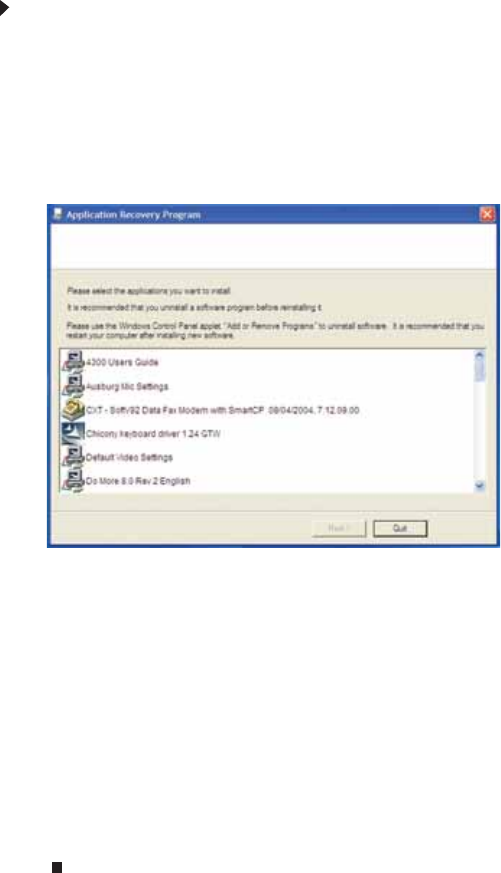
CHAPTER6: Troubleshooting
100
To restore your system from the driver and application
recovery discs:
1Click Start, All Programs, System Recovery, then click
Application & Driver Recovery.
- OR -
Turn on your computer, then insert the driver and
application recovery disc #1 (if available) into the CD or
DVD drive. The Application Recovery program opens.
2Click the driver or application you want to install. To
select multiple items, press and hold CTRL while clicking
each item.
3Click Next. The items you selected are installed. When
the installation is finished, a message asks you if you
want to install more drivers or applications.
4Click Yes to install more drivers or applications, or click
Quit to exit.
5Store the discs in a safe place for future use. You are
done.
6If your system still has problems, follow the directions in
“Recovering your system using Microsoft System
Restore” on page 101.
8512735.book Page 100 Thursday, September 27, 2007 1:03 PM
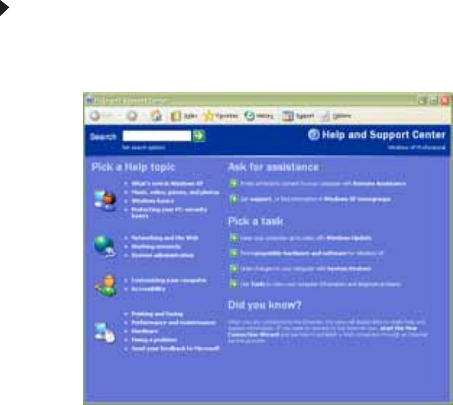
www.gateway.com
101
Recovering your system using Microsoft System
Restore
Before using Gateway System Recovery, you should try
Microsoft System Restore to determine whether you can
restore your system to a previous condition.
Every time you install new device drivers or software, and
every 24 hours (while your computer is turned on), Microsoft
System Restore takes a “snapshot” of your system settings and
saves it as a restore point. In most cases of hard-to-resolve
software problems, you can return to one of these restore
points to get your system running again.
To restore using Microsoft System Restore:
1Press F1. The Microsoft Windows XP Help and Support
Center opens.
8512735.book Page 101 Thursday, September 27, 2007 1:03 PM
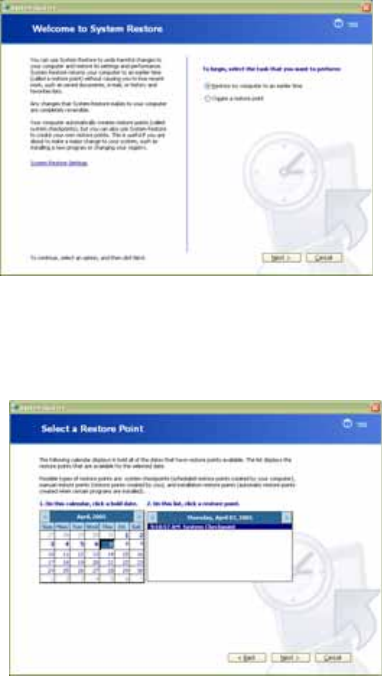
CHAPTER6: Troubleshooting
102
2Click Undo changes to your computer with System
Restore. The Welcome to System Restore dialog box
opens.
3Click Restore my computer to an earlier time, then
click Next. The Select a Restore Point dialog box opens.
4Click a bold date on the calendar (Step 1 on the screen),
then click a restore point in the list (Step 2 on the screen).
8512735.book Page 102 Thursday, September 27, 2007 1:03 PM
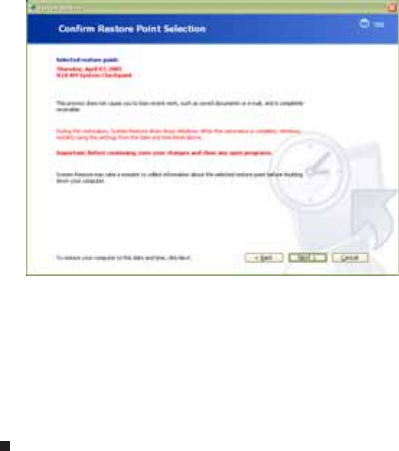
www.gateway.com
103
5Click Next. The Confirm Restore Point Selection dialog
box opens.
6Make sure that you want to use the restore point you
selected, and read all notices on the screen.
7Click Next, then follow the on-screen instructions to
finish the restoration. If completing Microsoft System
Restore does not solve your problem, restart Gateway
System Recovery. See “Recovering your system from the
hard drive” on page 104 for instructions.
8512735.book Page 103 Thursday, September 27, 2007 1:03 PM
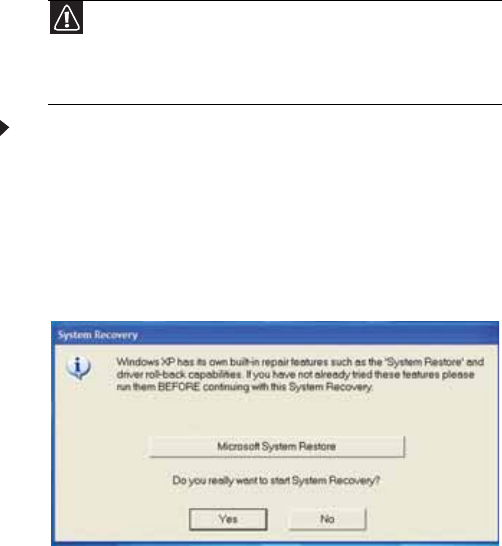
CHAPTER6: Troubleshooting
104
Recovering your system from the hard drive
To recover your system from the hard drive:
1Remove all CDs and DVDs from the disc drives,
disconnect all USB devices except the keyboard and
mouse, then disconnect your Internet cable.
2If you can still run Windows, click Start, All Programs,
System Recovery, System Recovery, then click Yes.
Your computer restarts, then the System Recovery
program starts.
- OR -
Turn on or restart your computer and press F11 while
your computer is starting.
3Insert the Operating System Recovery CD/DVD when
prompted. The System Recovery program starts.
Caution
Because of virus and spyware activity on the Internet, you should
disconnect all Internet connections before recovering your system. After
you recover your system, you can reinstall antivirus and firewall software,
then re-enable the Internet connection to update antivirus definitions
and install Windows Updates.
8512735.book Page 104 Thursday, September 27, 2007 1:03 PM
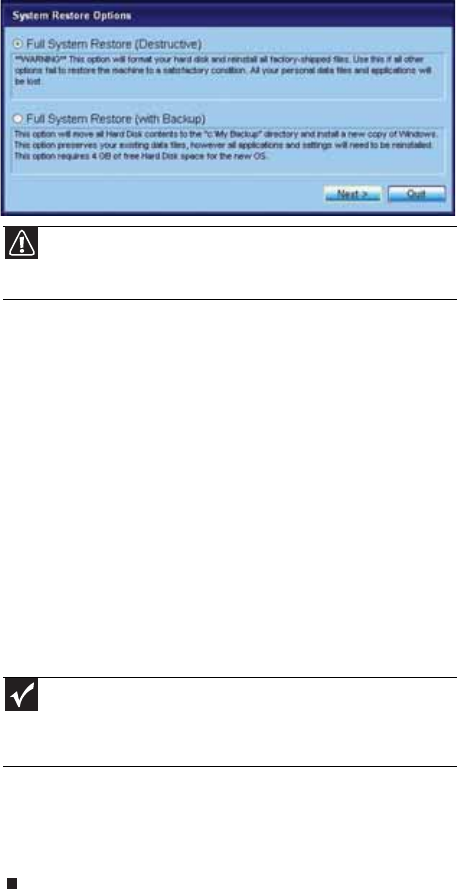
www.gateway.com
105
4Click a system recovery option:
•Full System Restore (Destructive) reformats the
hard drive and restores the system software as it was
when you purchased your computer. This process
deletes your data files.
•Full System Restore (with Backup)
(recommended) moves the contents of the hard
drive to the C:\My Backup folder and installs a new
copy of Windows XP. This option saves your existing
data files, but all programs must be reinstalled and
the program settings reconfigured. You need at least
4 GB of hard drive space to use this restore option.
5Click Next. The System Restore - Format and Recover
dialog box opens.
6Click Yes. Files are restored to your hard drive. When file
recovery has finished, the System Restore dialog box
opens.
7Click Restart. Your computer restarts, and Windows
finishes its setup and installation.
8Reconnect your Internet cable and all USB peripheral
devices. You are done.
Caution
The Full System Restore option deletes all files on your hard drive
except the restore files. Make sure that you back up all personal data files
before continuing this process.
Important
After you restore your system, it will appear with the same files
and programs it had when it shipped from the factory. You still need to
download Windows updates and antivirus updates to bring your
computer’s software up to date.
8512735.book Page 105 Thursday, September 27, 2007 1:03 PM

CHAPTER6: Troubleshooting
106
Telephone support
Before calling Gateway Customer Care
If you have a technical problem with your computer, follow
these recommendations before contacting Gateway Customer
Care:
•Make sure that your computer is connected correctly to
a grounded ACoutlet that is supplying power. If you use
a surge protector, make sure that it is turned on.
•If a peripheral device, such as a keyboard or mouse, does
not appear to work, make sure that all cables are
plugged in securely.
•If you have recently installed hardware or software,
make sure that you have installed it according to the
instructions provided with it. If you did not purchase the
hardware or software from Gateway, see the
manufacturer’s documentation and technical support
resources.
•If you have “how to” questions about using a program,
see:
•Online Help
•Printed documentation
•The Microsoft Windows documentation
•The software publisher’s Web site
•See the troubleshooting section of this chapter.
•Have your customer ID, serial number, and order number
available, along with a detailed description of your
problem, including the exact text of any error messages,
and the steps you have taken.
•Make sure that your computer is nearby at the time of
your call. The technician may have you follow
troubleshooting steps.
Warning
To avoid bodily injury, do not attempt to troubleshoot your
computer problem if:
• Power cords or plugs are damaged
• Liquid has been spilled into your computer
• Your computer was dropped
•The case was damaged
Instead, unplug your computer and contact a qualified computer
technician.
8512735.book Page 106 Thursday, September 27, 2007 1:03 PM

www.gateway.com
107
Telephone numbers
Gateway offers a wide range of customer service, Customer
Care, and information services. To access Customer Care
services, contact Gateway at the telephone number or Web
address listed on your computer’s Customer Care label.
Self-helpIf you have how-to questions about using your
Gateway-supplied hardware or software, see the following
resources:
•The printed or online documentation that came with
your hardware or software. In many cases, additional
product information and online documentation for
Gateway-supplied hardware can be found in our Web
site's Documentation Library.
•This Reference Guide and your online User Guide.
•The software publisher’s Website.
Help
For more how-to information about Windows, click Start, then click Help
and Support. Type the keyword practice in the Search Help box, then press
ENTER.
8512735.book Page 107 Thursday, September 27, 2007 1:03 PM

APPENDIXA: Legal Notices
114
Important safety information
Your Gateway system is designed and tested to meet the latest standards for safety of information
technology equipment. However, to ensure safe use of this product, it is important that the safety
instructions marked on the product and in the documentation are followed.
Setting up your system
•
Read and follow all instructions marked on the product and in the documentation before
you operate your system. Retain all safety and operating instructions for future use.
•
Do not use this product near water or a heat source such as a radiator.
•
Set up the system on a stable work surface.
•
The product should be operated only from the type of power source indicated on the
rating label.
•
If your computer has a voltage selector switch, make sure that the switch is in the proper
position for your area. The voltage selector switch is set at the factory to the correct
voltage.
•
Openings in the computer case are provided for ventilation. Do not block or cover these
openings. Make sure you provide adequate space, at least 6 inches (15 cm), around the
system for ventilation when you set up your work area. Never insert objects of any kind
into the computer ventilation openings.
•
Some products are equipped with a three-wire power cord to make sure that the product
is properly grounded when in use. The plug on this cord will fit only into a
grounding-type outlet. This is a safety feature. If you are unable to insert the plug into
an outlet, contact an electrician to install the appropriate outlet.
•
If you use an extension cord with this system, make sure that the total ampere rating
on the products plugged into the extension cord does not exceed the extension cord
ampere rating.
•
If your system is fitted with a TV Tuner, cable, or satellite receiver card, make sure that
the antenna or cable system is electrically grounded to provide some protection against
voltage surges and buildup of static charges.
Care during use
Warning
Always follow these instructions to help guard against personal injury and
damage to your Gateway system.
Warning
Do not use Gateway products in areas classified as hazardous locations.
Such areas include patient care areas of medical and dental facilities,
oxygen-laden environments, or industrial facilities.
Warning
To reduce the risk of fire, use only No. 26 AWG or larger (for example, No.
24 AWG ) UL-listed or CSA-certified telecommunication line cord for your dialup
modem connection.
8512735.book Page 114 Thursday, September 27, 2007 1:03 PM
www.gateway.com
115
•
Do not walk on the power cord or allow anything to rest on it.
•
Do not spill anything on the system. The best way to avoid spills is to avoid eating and
drinking near your system.
•
Some products have a replaceable CMOS battery on the system board. There is a danger
of explosion if the CMOS battery is replaced incorrectly. Replace the battery with the
same or equivalent type recommended by the manufacturer. Dispose of batteries
according to the manufacturer’s instructions.
•
When the computer is turned off, a small amount of electrical current still flows through
the computer. To avoid electrical shock, always unplug all power cables and modem
cables from the wall outlets before cleaning the system.
•
Unplug the system from the wall outlet and refer servicing to qualified personnel if:
•
The power cord or plug is damaged.
•
Liquid has been spilled into the system.
•
The system does not operate properly when the operating instructions are followed.
•
The system was dropped or the cabinet is damaged.
•
The system performance changes.
Replacement parts and accessories
Use only replacement parts and accessories recommended by Gateway.
Regulatory compliance
statements
United States of America
Federal Communications Commission (FCC)
Unintentional emitter per FCC Part15
This device has been tested and found to comply with the limits for a ClassB digital device,
pursuant to Part15 of the FCC rules. These limits are designed to provide reasonable protection
against harmful interference in a residential installation. This equipment generates, uses, and can
radiate radio frequency energy and, if not installed and used in accordance with the instructions,
may cause harmful interference to radio or television reception. However, there is no guarantee
that interference will not occur in a particular installation. If this equipment does cause
interference to radio and television reception, which can be determined by turning the equipment
off and on, the user is encouraged to try to correct the interference by one or more of the following
measures:
•
Reorient or relocate the receiving antenna
•
Increase the separation between the equipment and receiver
•
Connect the equipment to an outlet on a different circuit from that to which the receiver
is connected
•
Consult the dealer or an experienced radio/TV technician for help.
Compliance accessories
: The accessories associated with this equipment are: shielded video
cable when an external monitor is connected. These accessories are required to be used in order
to ensure compliance with FCC rules.
8512735.book Page 115 Thursday, September 27, 2007 1:03 PM
APPENDIXA: Legal Notices
116
FCC declaration of conformity
Responsible party:
Gateway, Inc.
7565 Irvine Center Drive
Irvine, CA 92618
Phone: 800-846-2000
This device complies with Part15 of the FCC Rules. Operation of this device is subject to the
following two conditions: (1)this device may not cause harmful interference, and (2) this device
must accept any interference received, including interference that may cause undesired operation.
California Proposition65 Warning
Telecommunications per Part 68 of the Code of Federal
Regulations (CFR 47) (applicable to products fitted with
USA modems)
Your modem complies with Part 68 of the Code of Federal Regulations (CFR47) rules. On the
computer or modem card is a label that contains the FCC registration number and Ringer
Equivalence Number (REN) for this device. If requested, this information must be provided to the
telephone company.
A telephone line cord with a modular plug is required for use with this device. The modem is
designed to be connected to the telephone network or premises wiring using a compatible
modular jack which is Part68-compliant. See installation instructions for details.
The Ringer Equivalence Number (REN) is used to determine the number of devices which may be
connected to the telephone line. Excessive RENs on a telephone line may result in the devices not
ringing in response to an incoming call. In most areas, the sum of RENs should not exceed five
(5.0). To be certain of the number of devices that may be connected to a line, as determined by
the total RENs, contact the local telephone company.
If this device causes harm to the telephone network, the telephone company will notify you in
advance that temporary discontinuance of service may be required. The telephone company may
request that you disconnect the equipment until the problem is resolved.
The telephone company may make changes in its facilities, equipment, operations, or procedures
that could affect the operation of this equipment. If this happens, the telephone company will
provide advance notice in order for you to make necessary modifications to maintain
uninterrupted service.
This equipment cannot be used on telephone company-provided coin service. Connection to party
line service is subject to state tariffs. Contact the state public utility commission or public service
commission for information.
When programming or making test calls to emergency numbers:
•
Remain on the line and briefly explain to the dispatcher the reason for the call.
•
Perform such activities in the off-peak hours such as early morning or late evenings.
The United States Telephone Consumer Protection Act of 1991 makes it unlawful for any person
to use a computer or other electronic device to send any message via a telephone fax machine
unless such message clearly contains, in a margin at the top or bottom of each transmitted page
or on the first page of the transmission, the date and time it is sent, an identification of the
business, other entity, or other individual sending the message, and the telephone number of the
sending machine or such business, other entity, or individual. Refer to your fax communication
software documentation for details on how to comply with the fax-branding requirement.
Caution
Changes or modifications not expressly approved by Gateway could void
the FCC compliance and negate your authority to operate the product.
Warning
This product contains chemicals, including lead, known to the State of
California to cause cancer, birth defects or reproductive harm.
8512735.book Page 116 Thursday, September 27, 2007 1:03 PM
www.gateway.com
117
Canada
Industry Canada (IC) Unintentional emitter per ICES-003
This digital apparatus does not exceed the ClassB limits for radio noise emissions from digital
apparatus as set out in the radio interference regulations of Industry Canada.
Le présent appareil numérique n’émet pas de bruits radioélectriques dépassant les limites
applicables aux appareils numériques de ClasseB prescrites dans le règlement sur le brouillage
radioélectrique édicté par Industrie Canada.
Telecommunications per Industry Canada CS-03 (for
products fitted with an IC-compliant modem)
The Industry Canada label identifies certified equipment. This certification means that the
equipment meets certain telecommunications network protective, operation, and safety
requirements. The Department does not guarantee the equipment will operate to the users’
satisfaction.
Before installing this equipment, users should make sure that it is permissible to be connected to
the facilities of the local telecommunications company. The equipment must also be installed using
an acceptable method of connection. In some cases, the inside wiring associated with a single-line
individual service may be extended by means of a certified connector assembly. The customer
should be aware that compliance with the above conditions may not prevent degradation of
service in some situations.
Repairs to certified equipment should be made by an authorized Canadian maintenance facility
designated by the supplier. Any repairs or alterations made by the user to this equipment, or
equipment malfunctions, may give the telecommunications company cause to request the user
to disconnect the equipment.
Users should make sure, for their own protection, that the electrical ground connections of the
power utility, telephone lines, and internal metallic water pipe system, if present, are connected
together. This precaution may be particularly important in rural areas.
The
Ringer Equivalence Number
(REN) assigned to each terminal device provides an
indication of the maximum number of terminals allowed to be connected to a telephone interface.
The termination on an interface may consist of any combination of devices subject only to the
requirement that the sum of the Ringer Equivalence Numbers of all the devices does not exceed 5.
Laser safety statement
All Gateway systems equipped with CD and DVD drives comply with the appropriate safety
standards, including IEC 825. The laser devices in these components are classified as “Class 1 Laser
Products” under a US Department of Health and Human Services (DHHS) Radiation Performance
Standard. Should the unit ever need servicing, contact an authorized service location.
Warning
To avoid electrical shock or equipment malfunction do not attempt to
make electrical ground connections by yourself. Contact the appropriate
inspection authority or an electrician, as appropriate.
Warning
Use of controls or adjustments or performance of procedures other than
those specified in this manual may result in hazardous radiation exposure. To
prevent exposure to laser beams, do not try to open the enclosure of a CD or DVD
drive.
8512735.book Page 117 Thursday, September 27, 2007 1:03 PM

APPENDIXA: Legal Notices
118
Television antenna connectors protection (for
systems fitted with TV/cable TV tuner cards)
External television antenna grounding
If an outside antenna or cable system is to be connected to your Gateway PC, make sure that the
antenna or cable system is electrically grounded to provide some protection against voltage surges
and static charges.
Article810 of the National Electrical Code, ANSI/NFPSA70, provides information with regard to
proper grounding of the mast and supporting structure, grounding of the lead-in wire to an
antenna discharge unit, size of grounding conductors, location of antenna discharge unit,
connection to grounding electrodes, and requirements for the grounding electrode.
Cable distribution system should be grounded (earthed) in accordance with ANSI/NFPA 70, the
National Electrical Code (NEC), in particular Section 820.93, Grounding of Outer Conductive Shield
of a Coaxial Cable.
Lightning protection
For added protection of any Gateway product during a lightning storm or when it is left unattended
or unused for long periods of time, unplug the product from the wall outlet and disconnect the
antenna or cable system.
Important
The instructions are for the person who installs cable to the system.
Gateway assumes you are qualified in the servicing of computer equipment and
trained in recognizing hazards in products with electric shock.
8512735.book Page 118 Thursday, September 27, 2007 1:03 PM
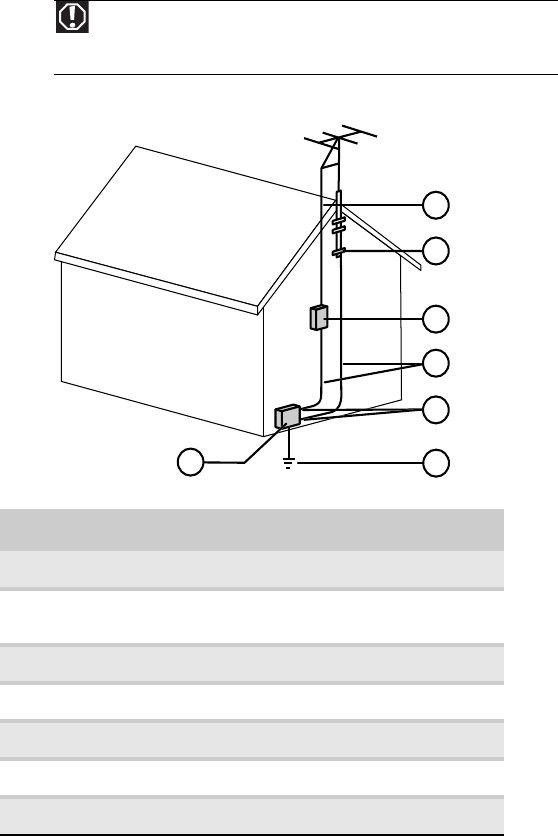
www.gateway.com
119
Power lines
Do not locate the antenna near overhead light or power circuits, or where it could fall into such
power lines or circuits.
Warning
When installing or realigning an outside antenna system, extreme care
should be taken to keep from touching such power lines or circuits. Contact with
them could be fatal.
Reference Grounding component
1Electric service equipment
2 Power service grounding electrode system
(NEC Art250, Part H)
3Ground clamps
4 Grounding conductors (NEC Section 810-21)
5Antenna discharge unit (NEC Section810-20)
6 Ground clamp
7Antenna lead-in wire
2
1
5
3
7
6
4
Antenna and satellite grounding
8512735.book Page 119 Thursday, September 27, 2007 1:03 PM

APPENDIXA: Legal Notices
120
Environmental information
The product you have purchased contains extracted natural resources that have been used in the
manufacturing process. This product may contain substances known to be hazardous to the
environment or to human health.
To prevent releases of harmful substances into the environment and to maximize the use of our
natural resources, Gateway provides the following information on how you can responsibly recycle
or reuse most of the materials in your “end of life” product.
Waste Electrical and Electronic Equipment (commonly known as WEEE) should never
be disposed of in the municipal waste stream (residential garbage collection). The
“Crossed-Out Waste Bin” label affixed to this product is your reminder to dispose of
your “end of life” product properly.
Substances such as glass, plastics, and certain chemical compounds are highly
recoverable, recyclable, and reusable. You can do your part for the environment by
following these simple steps:
•
When your electrical or electronic equipment is no longer useful to you, “take it back”
to your local or regional waste collection administration for recycling.
•
In some cases, your “end of life” product may be “traded in” for credit towards the
purchase of new Gateway equipment. Call Gateway to see if this program is available
in your area.
•
If you need further assistance in recycling, reusing, or trading in your “end of life”
product, you may contact us at the Customer Care number listed in your product’s user
guide and we will be glad to help you with your effort.
Finally, we suggest that you practice other environmentally friendly actions by understanding and
using the energy-saving features of this product (where applicable), recycling the inner and outer
packaging (including shipping containers) this product was delivered in, and by disposing of or
recycling used batteries properly.
With your help, we can reduce the amount of natural resources needed to produce electrical and
electronic equipment, minimize the use of landfills for the disposal of “end of life” products, and
generally improve our quality of life by ensuring that potentially hazardous substances are not
released into the environment and are disposed of properly.
For additional recycling information specific to your area, please go to
www.gateway.com/recycle
.
Notices
Copyright © 2007 Gateway, Inc.
All Rights Reserved
7565 Irvine Center Drive
Irvine, CA 92618 USA
All Rights Reserved
This publication is protected by copyright and all rights are reserved. No part of it may be
reproduced or transmitted by any means or in any form, without prior consent in writing from
Gateway.
The information in this manual has been carefully checked and is believed to be accurate. However,
changes are made periodically. These changes are incorporated in newer publication editions.
Gateway may improve and/or change products described in this publication at any time. Due to
continuing system improvements, Gateway is not responsible for inaccurate information which
may appear in this manual. For the latest product updates, consult the Gateway Web site at
www.gateway.com
. In no event will Gateway be liable for direct, indirect, special, exemplary,
incidental, or consequential damages resulting from any defect or omission in this manual, even
if advised of the possibility of such damages.
In the interest of continued product development, Gateway reserves the right to make
improvements in this manual and the products it describes at any time, without notices or
obligation.
8512735.book Page 120 Thursday, September 27, 2007 1:03 PM
www.gateway.com
121
Trademark acknowledgments
Gateway and the Black-and-White Spot Design are trademarks or registered trademarks of
Gateway, Inc. in the U.S. and other countries. Intel, Intel Inside logo, and Pentium are registered
trademarks and MMX is a trademark of Intel Corporation. Microsoft, MS, MS-DOS, and Windows
are trademarks or registered trademarks of Microsoft Corporation. All other product names
mentioned herein are used for identification purposes only, and may be the trademarks or
registered trademarks of their respective companies.
Macrovision statement
If your computer has a DVD-compatible drive and an analog
TV Out port, the following paragraph applies:
This product incorporates copyright protection technology that is protected by method claims of
certain U.S. patents and other intellectual property rights owned by Macrovision Corporation and
other rights owners. Use of this copyright protection technology must be authorized by
Macrovision Corporation, and is intended for home and other limited viewing uses only unless
otherwise authorized by Macrovision Corporation. Reverse engineering or disassembly is
prohibited.
8512735.book Page 121 Thursday, September 27, 2007 1:03 PM
123
A
AC power connector 9
accessories
safety precautions 115
activity indicators
See indicators
application buttons 22
application key 21, 22, 23
arrow keys 21, 22, 23
audio
analog speaker jack 9
audio in jack 9
front speaker jack 9
headphone jack 9
line in jack 9
line out jack 9
microphone jack 7, 9
muting 32
recording 30
side speaker jack 9
troubleshooting 98
audio CD
cleaning 66
audio in jack 9
audio playback buttons 20, 22
B
backing up files 73
battery
replacing 54
BigFix 67
Blu-ray
playing 29
recording 30
Blu-ray drive
locating drive 7
broadband
connection 15
modem 15
buttons
See keys and buttons
C
cable modem 15
connecting 9
troubleshooting 91
Caps Lock indicator 20, 22, 23
card reader 7
cards
adding expansion 46
inserting memory card 31
installing memory card 31
removing memory card 31
replacing expansion 46
slots 30
troubleshooting add-in
card 86
troubleshooting Ethernet
85
troubleshooting expansion
card 86
troubleshooting memory
card 90
types of memory cards
supported 31
caseopening 37
case cover 9
CD cleaning 66
copying 30
inserting 26
playing audio 28
recording 30
troubleshooting 81
CD drive
adding 43
identifying 27
locating drive 7
replacing 43
troubleshooting 81
See also optical
Index
8512735.book Page 123 Thursday, September 27, 2007 1:03 PM
124
Index
drive
cellular phone
memory cards 30
Certificate of Authenticity 3
cleaning
audio CD 66
case 64
CD 66
DVD 66
keyboard 65
LCD panel 65
mouse 65
screen 65
cleaning CRT screen 65
clicking 25
closing
unresponsive program 19
connecting
cable modem 15
dial-up modem 16
DSL modem 15
PS/2 keyboard 9
PS/2 mouse 9
to Ethernet network 9, 15
to network 9, 15
connections
analog speakers 9
audio in 9
cable modem 15
dial-up modem 9, 16
digital camera 7, 9, 34
digital video camera 34
DSL modem 15
Ethernet 9, 15
external audio 9
external speakers 9
Firewire 34
front speaker 9
headphone 7, 9
keyboard 7, 9
line in 9
line out 9
microphone 7, 9
modem 9
mouse 7, 9
network 9, 15
parallel 9
power 9
power cord 9
printer 7, 9
PS/2 keyboard 9
PS/2 mouse 9
scanner 7, 9
serial 9
side speaker 9
telephone 10
USB 7, 9
Zip drive 7, 9
copying
CDs and DVDs 30
cover 9
CRT screen
cleaning 65
D
default printer
setting 96
defragmenting hard drive 71
deleting files and folders 69
dial-up modem 16
adjusting volume 94
connecting 9
diagnostics 93
dialing properties 91
troubleshooting 91
troubleshooting connection
speed 93
digital camera
locating USB port 7, 9
DIMM
See memory
directional keys 21, 22, 23
Disk Cleanup 69
Disk Defragmenter 71
diskette
troubleshooting 83
diskette drive 7
identifying 32
replacing 43
troubleshooting 83
using 32
8512735.book Page 124 Thursday, September 27, 2007 1:03 PM
125
www.gateway.com
display
cleaning 65
troubleshooting 84
documentation
User Guide 2
double-clicking 25
dragging 25
drivers
recovery discs 100, 104
re-installing 99, 100
drives
backing up files 73
CD 27
checking for errors 70
checking for free space 68
defragmenting 71
diskette 32
DVD 27
optical 26
recordable CD 27
recordable DVD 27
troubleshooting 81, 83, 84,
87
DSL modem 15
connecting 9
troubleshooting 91
DVDcleaning 66
copying 30
drive 27
inserting 26
playing 29
recording 30
troubleshooting 81, 84
DVD drive
adding 43
identifying 27
replacing 43
troubleshooting 81, 84
See also optical drive
E
editing buttons 20
electrostatic discharge (ESD) 36
ergonomics 12
Error-checking 70
Ethernet jack 9
Ethernet network
connecting 15
jack 15
expansion card
adding 46
replacing 46
external audio jack 9
F
fan variable-speed 16
faxes
troubleshooting 93
filesbacking up 73
deleting 69
finding 77
opening 25
transferring 76
troubleshooting 86
types 76
finding
files 77
files and folders 76
Firewire port 34
folders
opening 25
fragmentation 71
function keys 20, 22, 23
G
Gateway
contact information 3
model number 3
serial number 3
Support 2
Gateway Recovery Center
re-installing drivers 102
re-installing programs 102
re-installing software 102
8512735.book Page 125 Thursday, September 27, 2007 1:03 PM
126
Index
H
hard drive
adding 44
backing up files 73
checking for errors 70
checking for free space 68
defragmenting 71
deleting files and folders 69
replacing 44
scanning for errors 70
troubleshooting 87
HD DVD drive
locating 7
HD-DVD
playing 29
recording 30
headphone jack 7, 9
heat sink
replacing 51
Hibernate mode 7
hot-swapping 34
I
IEEE 1394 port 34
indicators
Caps Lock 20, 22, 23
Num Lock 20, 22, 23
numeric keypad 20, 22, 23
Pad Lock 23
power 7
Scroll Lock 20, 22, 23
installing
battery 54
devices 34
digital camera 34
digital video camera 34
memory 41
peripheral devices 34
printer 34
scanner 34
side panel 37
system battery 54
Internet
buttons 20, 22
troubleshooting 88, 92
J
jacks
See connections
K
keyboard
buttons 20, 21
cleaning 65
features 20, 21
PS/2 port 9
troubleshooting 89
USB port 7, 9
keys
application 23
arrow 23
directional 23
function 23
navigation 23
numeric 23
Windows 23
keys and buttons
application 21, 22
arrow 21, 22
audio playback 20, 22
directional 21, 22
editing 20
function 20, 22
Internet 20, 22
mouse 24
navigation 20, 22
numeric 21, 22
sleep 22
Windows 21, 22
L
labels
Microsoft Certificate of
Authenticity 3
model number 3
serial number 3
LCD panel
cleaning 65
troubleshooting 84
lights
See indicators
8512735.book Page 126 Thursday, September 27, 2007 1:03 PM
127
www.gateway.com
line in jack 9
line out jack 9
M
maintenance
backing up files 73
BigFix 67
checking for drive errors 70
checking hard drive space
68
cleaning case 64
cleaning CD 66
cleaning computer screen
65
cleaning DVD 66
cleaning keyboard 65
cleaning monitor 65
cleaning mouse 65
cleaning optical disc 66
defragmenting 71
deleting files 69
extending computer life 63
suggested schedule 62
using Task Scheduler 74
media card reader
See memory card reader
memory
adding 41
installing 41
replacing 41
troubleshooting 90
memory card reader 7
inserting card 31
memory card types
supported 31
removing card 31
replacing 43
using 30
microphone jack 7, 9
Microsoft Certificate of
Authenticity 3
model number 3
modem
cable 15
connecting 16
dial-up 16
DSL 15
jack 16
modem jack 9
monitor
cleaning 65
troubleshooting 84
monitor port 9
mouse
buttons 24
changing settings 25
cleaning 65
clicking 25
double-clicking 25
moving pointer 24, 25
moving screen objects 25
opening files, folders, and
programs 25
pointer 24
PS/2 port 9
right-clicking 25
scroll wheel 25
selecting screen objects 25
troubleshooting 95
USB port 7, 9
moving
files from old computer 75,
76
pointer 24, 25
screen objects 25
settings from old computer
75
multimedia
adjusting volume 32
playing Blu-ray 29
playing DVD 29
playing HD-DVD 29
using Windows Media
Player 29
MultiMediaCard 31
muting sound 32
N
navigation keys 20, 22, 23
network
jack 9, 15
troubleshooting
8512735.book Page 127 Thursday, September 27, 2007 1:03 PM
128
Index
85, 95
numeric keypad 21, 22, 23
indicator 20, 22, 23
O
opening
computer case 37
files 25
folders 25
programs 25
shortcut menu 25
optical drive
eject button 26
eject hole 26
indicator 26
inserting disc 26
locating drive 7
using 26
P
Pad Lock indicator 20, 22, 23
parallel port 9, 34
password
troubleshooting 95
peripheral devices 34
playing
audio CD 28
Blu-ray Disc 29
DVD 29
HD-DVD 29
Plug and Play devices
IEEE 1394 support for 34
USB support for 34
pointer
moving 24, 25
ports
monitor 9
See connections
VGA 9
power
button 7
connector 9
Hibernate mode 7
indicator 7
source problems 14
Standby/Resume 7
troubleshooting 96
turning off computer 17
turning on computer 16
power button 7
power supply
replacing 55
printer
installing 34
parallel port 9
setting default 96
troubleshooting 96
USB port 7, 9
programs
closing unresponsive 19
opening 25
recovery discs 100, 104
re-installing 99, 100
PS/2 port
keyboard 9
mouse 9
R
RAM
See memory
rear fan
replacing 49
rebooting computer 19
recordable drive 7
recording
audio files 30
optical discs 30
recovering
defaults 109
drivers 99, 100
programs 99, 100
software 99, 100
system 99
Windows 99
with Gateway Recovery
Center 102
with Windows DVD 110
with Windows System
Restore 106
recovery discs
8512735.book Page 128 Thursday, September 27, 2007 1:03 PM
129
www.gateway.com
creating 100
drivers 100, 104
programs 100, 104
software 100, 104
using 104
re-installing
defaults 109
drivers 99, 100
programs 99, 100
software 99, 100
Windows 99
with Gateway Recovery
Center 102
with Windows DVD 110
with Windows System
Restore 106
removing files and folders 69
resetting computer 19
restarting computer 19
restoring
defaults 109
drivers 99, 100
files from Recycle Bin 86
programs 99, 100
software 99, 100
system 99
Windows 99
with Gateway Recovery
Center 102
with Windows DVD 110
with Windows System
Restore 106
Resume mode 7
right-clicking 25
S
safety
avoiding repetitive strain
14
general precautions 114
guidelines for
troubleshooting 80
posture 14
reducing eye strain 13
setting up computer 13
sitting at computer 12, 14
static electricity 36
scanner
installing 34
screen
troubleshooting 84
screen objects
getting information 25
moving 25
selecting 25
Scroll Lock indicator 20, 22, 23
scroll wheel 25
serial number 3
serial port 9, 34
setting up
safety precautions 114
settings
transferring 75, 76
shortcut menus
accessing 25
shortcuts
opening menu 25
shutting down computer 17, 19
side panel 9
removing 37
replacing 37
sleep button 22
sleep mode 17
software
recovery discs 100, 104
re-installing 99, 100
sound
adjusting 32
controls 32
muting 32
troubleshooting 98
speaker jack
analog 9
Standby mode 7
starting
computer 7, 16
programs 25
static electricity 36
surge protector 14
8512735.book Page 129 Thursday, September 27, 2007 1:03 PM
130
Index
system battery
replacing 54
system board
replacing 57
system identification label 3
T
Task Schdeuler 74
techinal support
Support 2
technical support
tips before contacting 111
telephone jack 10
telephone support 111
thumbscrew 9
transferring
files from old computer 75,
76
settings from old computer
75
troubleshooting
add-in cards 81, 86
audio 98
cable modem 91
cards 81, 86
CD drive 81, 84
dial-up modem 91
dial-up modem speed 93
diskette drive 83
display 84
DSL modem 91
DVD drive 81, 84
Ethernet network 85
faxes 93
files 86
general guidelines 80
hard drive 87
Internet connection 88, 92
keyboard 89
LCD panel 84
memory 90
memory card reader 90
monitor 84
mouse 95
network 85, 95
passwords 95
power 96
printer 96
safety guidelines 80
screen 84
screen area 84
screen resolution 84
sound 98
technical support 111
telephone support 111
Web site connection speed
89
turning off computer 7, 17, 19
turning on computer 7, 16
tutoring
fee-based 112
U
uninterruptible power supply
(UPS) 15
updating
Windows 66
UPS 15
USB port 7, 9, 34
V
VGA port 9
video
playing 29
voltage switch 9
volume
adjusting 32
adjusting dial-up modem
94
controls 32
muting 32
troubleshooting 98
W
waking computer 17
Windows
Product Key Code 3
Windows Easy Transfer 75
Windows key 21, 22, 23
Windows System Restore 99
8512735.book Page 130 Thursday, September 27, 2007 1:03 PM
8512735.book Page 133 Thursday, September 27, 2007 1:03 PM

MAN 6BAY MBTX PRO REF GDE R2 10/07
8512735.book Page 134 Thursday, September 27, 2007 1:03 PM
