General Research of Electronics 0602903 Scanning Receiver User Manual RadioShack

General Research of Electronics Inc Scanning Receiver RadioShack

User manual

200018 User’s Guide Draft RadioShack 2000018/PRO-18 User’s Guide  iSCAN Digital Trunking Scanner  Thank you for purchasing your iScan Digital Trunking Scanner from RadioShack. Please read this user’s guide before installing, setting up, and using your new scanner.   Table of Contents  will add    Introduction  Welcome to iSCAN Digital, an exciting new way to enjoy the hobby of scanning two-way digital and analog radio communications, including police, fire, EMS, amateur, government, and other channels.  iSCAN Digital combines the simplicity and ease-of-use of a portable media player with the power and sophistication of a state-of-the-art scanning receiver. iSCAN Digital is easy to use for both beginners and experts.  In addition, iSCAN Digital is equipped with the entire USA RadioReference database in a special on-board Library, giving you instant access to the frequencies and systems used by public safety, local government, and business all over the United States!  Please take a few moments to read this manual carefully before using iSCAN Digital. iSCAN Digital is unlike any other scanner ever produced, and we want you to fully understand how it can maximize your enjoyment of the scanning hobby.  Package Contents  iSCAN Digital Antenna USB Cable MicroSD Card (inside the scanner) CD-ROM User’s Guide Quick Start  Warning Always protect iSCAN Digital from exposure to extreme heat or cold temperatures iSCAN Digital is not waterproof. Do not expose it to rain, extreme high humidity, or moisture.  Page 1
200018 User’s Guide Draft   Features  Easy to Understand User Interface - A simplified keypad and display with familiar Play (Scan), Pause, Skip and Navigation controls make it easy for you to use your PRO-18.  The Complete RadioReference USA Database On MicroSD Card - The entire USA database from www.radioreference.com is stored on a standard MicroSD Card that is included with the PRO-18, giving you access to the most comprehensive radio data available without connecting the PRO-18 to a computer or the Internet!  Improved P25 Functionality - The PRO-18 detects and masks encrypted voice audio, and decodes RadioID/TalkgroupID data embedded in voice packets.  Upgradeable CPU Firmware, DSP Firmware and Library - Keep your radio’s CPU and DSP firmware current with enhancements and updates as they become available using the included PRO-18 PC Application.  Full USB Interface - Industry standard Composite Device USB interface with USB Mass Storage Device (MSD) and Serial Data (CDC) support. Access the MicroSD card without removing it from the radio, stream decoded Control Channel data and upgrade your radio’s firmware over USB.  Powerful PRO-18 PC Application Software Included - Customize existing programming or add new objects to scan, and keep your PRO-18 firmware and Library data up to date.  SKYWARN Storm Spotter Functionality - Instant access to frequencies used by storm spotter networks. You can monitor storm conditions as they occur, and become aware of dangerous conditions before the media or emergency management officials are able to announce them to the general public.  SAME and All Hazards Weather Alerting - The PRO-18 features a SAME Standby Mode, alerting you to severe weather and other hazards in the specific area(s) that you select. The PRO-18 can also check your local NOAA weather frequency periodically, even while scanning, and alert you when an All Hazards alert occurs.  Multi-System Trunking - Scans most common digital and analog trunked radio system signaling formats, including P25, Motorola, EDACS and LTR. Both talkgroup and individual call monitoring are supported.  Powerful Signal Stalker II - Quickly sweeps the PRO-18’s frequency ranges for transmissions from nearby sources. When a nearby transmission is found, the PRO-18 automatically tunes to that frequency.  101 Playlists - The PRO-18 provides the unprecedented ability to group your stored objects using up to 100 Playlists plus a special Skywarn playlist. Objects can be mapped to as many Playlists as desired, giving you complete flexibility for grouping objects and selecting groups in any combination for  Page 2
200018 User’s Guide Draft scanning.  Built-in Service Searches - Predefined service search ranges make it easy to find activity in your area.  Audible alarms - Programmable audible alarms can be configured to sound when certain objects are active.  Signal Strength Meter – Shows relative strength of received signals.  Slim, compact case design and large speaker - Designed for durability, one-handed operation and ease of use.  The FCC Wants You To Know  This equipment has been tested and found to comply with the limits for a scanning receiver, pursuant to Part 15 of the FCC Rules. These limits are designed to provide reasonable protection against harmful interference in a residential installation. This equipment generates, uses and can radiate radio frequency energy and, if not installed and used in accordance with the instructions, may cause harmful interference to radio communications. There is no guarantee that interference will not occur in a particular installation. If this equipment does cause harmful interference to radio or television reception, which can be determined by turning the equipment off and on, the user is encouraged to try to correct the interference by one or more of the following measures: . Reorient or relocate the receiving antenna. . Increase the separation between the equipment and receiver. . Connect the equipment into an outlet on a circuit different from that to which the receiver is connected.  This device complies with Part 15 of the FCC Rules. Operation is subject to the following two conditions: 1.  This device may not cause harmful interference. 2.  This device must accept any interference received, including interference that may cause undesired operation.  Scanning Legally  Your scanner covers frequencies used by many different groups including police and fire departments, ambulance services, government agencies, private companies, amateur radio services, military operations, pager services, and wireline (telephone and telegraph) service providers. It is legal to listen to almost every transmission your scanner can receive. However, it is illegal to divulge the contents of any transmissions you receive to a third party and there are some transmissions you should never intentionally listen to. These include: . Telephone conversations (cellular, cordless, or other means of private telephone transmission) . Paging transmissions . Any intentionally scrambled or encrypted transmissions According to the Electronic Communications Privacy Act (ECPA), you are subject to fines and possible imprisonment for intentionally listening to, using, or divulging the contents of such a transmission  Page 3
200018 User’s Guide Draft unless you have the consent of a party to the communication (unless such activity is otherwise illegal). This scanner has been designed to prevent illegal reception of protected transmissions. This is done to comply with the legal requirement that scanners be manufactured so as to not be easily modifiable to pick up those transmissions. Do not open your scanner's case to make any modifications that could allow it to pick up transmissions that are illegal to monitor. Doing so could subject you to legal penalties.  RadioShack encourages responsible, legal scanner use.  In some areas, mobile use of this scanner is unlawful or requires a permit. Check the laws in your area. It is also illegal in many areas to interfere with the duties of public safety officials by traveling to the scene of an incident without authorization.   How the PRO-18 Works  Your PRO-18 is designed with an simplified keypad and controls similar to those used by portable media players, including navigation keys, a MENU key, a SKIP key and a ▶/II/SEL key. The PRO-18’s uncluttered keypad gives you instant access to the functions that you need most while using your scanner.  The PRO-18 is designed to use high capacity MicroSD Card memory. The PRO-18 uses MicroSD Card memory to hold the entire RadioReference database for the United States, giving you the ability to automatically program your scanner without using an external software application and without connecting to the Internet. We call this special version of the RadioReference database “the Library”. The MicroSD Card also holds PRO-18 playlists and your customized configuration data.  For more information about the RadioReference database, please visit http://www.radioreference.com.  To use the PRO-18, you first browse the Library to find things that you want to monitor. These things ARE CALLED “scannable objects”, or simply “objects”. As you find objects in the Library that you want to add to the collection of objects that your radio will scan, you import them to the Pro-18’s Playlists. There are 100 regular Playlists in the PRO-18, and a special “Skywarn” Playlist for monitoring objects during severe weather.  Included with the PRO-18 is a companion PRO-18 PC Application and USB cable that allow you to add your own objects and edit the objects that are stored in the PRO-18’s Playlists. See “Installing the PRO-18 PC Application” on page XX and the application’s help files for more information about using the PRO-18 PC Application.   Library Copyright Notice  The data contained in the PRO-18’s Library is provided by special arrangement with RadioReference and is Copyright ©2011 RadioReference.com LLC whom retains sole ownership of the database. We ask that you respect this copyright by adhering to the following guidelines:  Page 4
200018 User’s Guide Draft  The Library data is intended for your personal use only in conjunction with programming and using your PRO-18.   As such RadioReference.com LLC grants the customer a non-exclusive single license to only be used with the PRO-18 radio and its associated PC software. The Library shall not be copied or transferred to any 3rd party in any electronic or physical form or posted on any website.  To decompile the RadioReference data base or convert it for use with another scanning receiver is expressly prohibited.  The RadioReference database is developed and maintained by unpaid volunteers who are dedicated scanning hobbyists. The accuracy of the Library data is subject to errors in the user-submitted data reported to RadioReference, and also to the system configuration changes that a radio system operator may make from time to time. Field-testing the Library data for accuracy is not feasible.  For detailed radio system information worldwide, be sure to visit http://www.radioreference.com frequently. We encourage you to get involved with RadioReference, and submit your own new or updated data to the database, which will result in future updated editions of the Library!  RadioShack and RadioReference are not responsible for errors, omissions or outdated Library data.  Understanding Objects  iSCAN Digital monitors two types of objects while scanning: conventional frequencies and trunking talkgroups.  Conventional Frequencies  A conventional frequency is a single radio frequency, which is usually broadcast from a radio tower or rooftop radio site. When browsing the PRO-18 Library, you will most often find conventional frequencies in the Categories or Agencies sub levels under States or Counties/Cities. You know you’ve browsed to a conventional frequency when you see the word “Frequencies” on the top of the display.  Trunked Radio Systems  A trunked radio system is a modern radio network allowing many different groups of radio users to share a small number of channels. Trunked radio systems are more complicated than conventional frequencies. They contain both talkgroups and sites. A talkgroup is the name of a group within the trunked system. A site is a set of control frequencies located throughout the service area of the trunked system. Unlike conventional frequencies, trunking talkgroups have dependency – at least one site from the system must be selected in order for the talkgroups to imported to playlist.  There are many different manufacturers and types of trunked radio systems, each with their own special programming requirements. PRO-18 automatically programs the correct requirements whenever you import a talkgroup and site to a Playlist.  When browsing the PRO-18 Library, everything you find below the Systems level under States or  Page 5
200018 User’s Guide Draft Counties/Cities is a trunked radio system with its associated talkgroups and sites. You know you’ve browsed to a trunked system when you see the word “Talkgroups” on the top line of the display.  See “key Terminology” on page XX for more scanning definitions.  Understanding Keys and Features  BNC Antenna Connector   / VOL-UP . Increase volume . Scroll up through objects and menus  SKIP . Press while monitoring or paused on an object to skip the object . Press again while the object is selected to resume normal monitoring . Clears all editing text while text editing . Toggles between Normal weather radio mode and SAME Standby mode while weather mode  . Resume scanning . Scroll down through playlist . Navigate to previous menu or Library listing  MENU . Access additional functions for the current operating mode . Access the Home Menu  ATT Press to control the radio’s attenuator function   VOL-DOWN . Decrease volume . Scroll down through objects and menus  Headphone Jack  Squelch Control  Power / Backlight . Press and hold for about one second to turn PRO-18 on and off . Press briefly to toggle the backlight on and off   / II / SEL . Press to play . Press again to pause  Page 6
200018 User’s Guide Draft . In menus: select, enable, or disable options  Lift cover USB connector  . Resume scanning . Scroll up through playlists . Navigate forward to next menu or Library listing  SKYWARN / (Weather) . Access NOAA weather radio broadcasts . Access SAME weather alert receiver mode . Select the SKYWARN playlist for monitoring; temporarily disables all other playlists  Speaker   Understanding the Display  The menu-driven user interface provides access to the settings that control what PRO-18 monitors. The Main Menu display is shown below.    -Main Menu-  BATT icon Play Browse objects    ▶ Playlists Search Browse Library  The “Play” display shows a scrolling list of enabled playlists while the PRO-18 is scanning, and displays attenuator and trunking control channel status.  Play  T G  ▶  BATT icon Fire County Police Sheriff City Police State Police  The “Individual object display” is shown when the scanner is monitoring activity on an object. The “Display icons” across the top provide status information. The “Channel Status Indicators” show the status of priority, skip, lockout, and delay functions.  Display icons SignalMeter    G II BATT icon  Page 7
200018 User’s Guide Draft County Police Channel:  psD Police North Channel Status Indicators  Note: To see more information in the Individual Object DIsplay, disable the “Simple Display” option in the Settings Menu. (See “Changing PRO-18’s Settings” on page XX.)  Display Icons  In the Individual Object Display, the row of icons at the top of the display provides the following status information about the scanner.  S  PRO-18’s squelch circuit (or “gate”) is open. LEVEL  Signal meter indicating strength of the received signal. T  The scanner is currently receiving trunking control channel data, or, when  monitoring a voice channel, flashes to indicate reception of embedded low-speed trunking data from the voice channel.  G  Attenuator is set for Global mode. A Attenuator is active. GA  Global attenuator is on, and the attenuator is active. AM AM mode FM FM mode NF  Narrow FM mode DG  The radio is receiving P25 digital audio with AGC. Dg  The radio is receiving P25 digital audio without AGC. E  Encrypted digital traffic detected. ▶  PRO-18 is in Scan mode (scanning) II  PRO-18 is in Pause mode (monitoring a single object) BATT  Battery status indicator. All black indicates battery is fully charged. When Battery Type Selection switch is set to 
Ni-MH and radio is connected to external power, an animated icon is displayed to indicate that battery is being charged. PLUG  External power indicator. Indicates that the PRO-18 is being powered by an external power and Battery Type Selection switch is set to ALK, Also present when Battery Type Selection switch is set to Ni-MH and the charge cycle has completed.  Channel Status Indicators  In the Individual Object Display, three characters on the right-hand side indicate the status of priority, skip, lockout and delay.  P: priority on    p: priority off S: skip on    s: skip off L: lockout on    -: - D: delay on    d: delay off   Page 8
200018 User’s Guide Draft  Setup  Attaching the antenna  Align the slots on the antenna’s BNC connector with the posts on the scanner’s BNC connector and slide the antenna in place, then rotate the antenna’s BNC connector 1/4 turn clockwise until it snaps in place.  Connecting an Optional External Antenna  To connect an external antenna, follow the installation instructions supplied with the antenna.   Use 50-ohm coaxial cable, such as RG-58 or RG-8X, to connect an outdoor antenna. . For lengths between 50 and 100 feet, use RG-8X low-loss dielectric coaxial cable. . For lengths over 100 feet, use RG-8.  You also may need a BNC adapter (available at your RadioShack store).  WARNING: Use extreme caution when installing or removing an outdoor antenna. If the antenna starts to fall, let it go! It could contact overhead power lines. If the antenna touches a power line, touching the antenna, mast, cable, or guy wires can cause electrocution and death. Call the power company to remove the antenna. DO NOT attempt to do so yourself.  Powering the Scanner  Installing batteries  Warning: Always power off the PRO-18 by pressing and holding POWER before removing batteries. Failure to power off PRO-18 may cause data loss or memory corruption.  Remove the door covering the battery compartment by pressing gently where the door is marked OPEN and sliding the door downwards until it stops, approximately 1/4”. Lift the door away from the radio.  Set the battery type selector switch to ALK for non-rechargeable alkaline batteries or Ni-MH for rechargeable Ni-MH batteries. Insert four size AA batteries, taking care to ensure that the batteries are inserted according to the polarity diagram shown inside of the battery compartment. Replace the battery compartment door by placing it back over the batteries and sliding it upward gently until it locks in place.  WARNING: Never operate the PRO-18 with alkaline batteries if the Battery Type Selection switch is set to the Ni-MH position. Intentionally or accidentally recharging non-rechargeable batteries will cause them to overheat, leak or explode. Dispose of alkaline batteries promptly and properly. Do not burn or bury them. Dispose of rechargeable batteries properly by taking them to an approved battery recycling facility.   Page 9
200018 User’s Guide Draft Recycle Rechargeable Batteries Placing rechargeable batteries in the trash can be harmful to the environment. Instead, recycle old rechargeable batteries at your local RadioShack store free of charge. RadioShack participates in the RBRX© battery recycling program, and is committed to preserving the environment and conserving natural resources. Call 1-800-THE-SHACK (1-800-843-7422) for more information.  Battery Warning: Always remove old or weak batteries. Batteries can leak chemicals that destroy electronic circuits. Always turn off the scanner when not in use to prevent deep discharge and possible battery leakage. Do not mix old and new batteries, different types of batteries (alkaline, or rechargeable), batteries of different capacities or rechargeable batteries with different charge states. If you do not plan to use the scanner with batteries for a month or longer, remove the batteries.  Using AC Power  You can power the scanner using an optional AC USB power adapter and the supplied USB cable.  To power the scanner using an AC USB power adapter (not included, available your local RadioShack or RadioShack.com), connect the USB of the supplied USB cable to the AC USB power adapter, and connect the scanner end of the supplied USB cable to the scanner's USB jack. To prevent corruption of MicroSD Card data, always power the PRO-18 off using the front panel POWER button before connecting or disconnecting external power sources.  Notes: . A PC or laptop computer equipped with a USB connector can also be used to charge the PRO-18. . Some external USB power supplies or computers may generate RF noise that can interfere with the PRO-18’s reception. If interference occurs, try disconnecting the PRO-18 from the external power source and move the radio away from the PC.  add photo to access the USB connector  Using Vehicle Power  You can power the scanner using a car USB power adapter (not included, available at your local RadioShack or RadioShack.com) and the supplied USB cable.  To power the scanner using a car USB power adapter, connect the USB plug end of the supplied USB cable to the car USB power adapter, and connect the scanner data plug end of the supplied USB cable to the scanner’s USB jack. To prevent corruption of MicroSD Card data, always power the PRO-18 off using the front panel POWER button before connecting or disconnecting external power sources.  NOTE: If you use a cigarette-lighter USB power cable and your vehicle’s engine is running, you might hear electrical noise from the engine while scanning. This is normal. Some external USB power supplies may generate RF noise that can interfere with the PRO-18’s reception.  Charging rechargeable batteries   Page 10
200018 User’s Guide Draft The PRO18 features a built-in battery charging circuit that will charge Ni-Cad and Ni-MH batteries. The charger provides a slow rate charge that will fully charge a set of typical Ni-MH AA batteries in approximately 16 hours. The charger is active when the radio is connected to an external USB power source and the radio is powered off. When connected to an external USB power source and powered on, the radio operates using the external power source but does not charge the batteries. Charging is controlled by a timer. Your PRO-18 provides an indication when the internal battery charge circuit is active. An animated battery icon indicates that the PRO-18 is connected to external power and the internal battery charger circuit is active.  Warning: The external DC power input is designed to accept external power from the USB data cable and from USB power adapters. Turn the PRO-18 off prior to connecting or disconnecting external power. Warning: Discontinue use of any battery that exhibits leakage, swelling or abnormal generation of heat. When you charge rechargeable batteries, do not over charge them. Overcharging shortens battery life and may cause battery failure.  Connecting an Earphone or Headphones  For private listening, you can plug an 1/8-inch (3.5 mm) mini-plug earphone or headphones (not supplied) in the HEADPHONE jack on top of the PRO-18. This automatically disconnects the internal speaker.  Listening Safety  Do not wear headphones, earphones, or earbuds while operating a motor vehicle or riding a bicycle. This can create a traffic hazard and could be illegal in some areas. To protect your hearing, follow these guidelines: . Do not listen at high volume levels. Extended high-volume listening can lead to permanent hearing loss. . Set the volume to the lowest setting. Then turn on your scanner and adjust the volume to a comfortable level. . Avoid increasing the volume. Your ears will adapt to the volume level, so a level that does not cause discomfort could still damage your hearing.  Connecting an External Speaker  In a noisy area, an amplified speaker (not included, available at your local RadioShack or RadioShack.com) might provide more comfortable listening. Plug the speaker cable’s 1/8-inch (3.5 mm) mini-plug into the scanner’s HEADPHONE jack.  Attaching the belt clip  Align the belt clip to the belt clip receptacle on the rear of the radio. Slide the belt clip downward until it snaps into place. Ensure that the locking clip on the belt clip is fully engaged with the lock tab on the rear of the radio. To remove the belt clip, squeeze the locking clip on the belt clip to disengage it from the lock tab on the rear of the radio, and slide the belt clip upward.  Page 11
200018 User’s Guide Draft   Basic Operation  Turn on Scanner and Set Squelch  1. Press and hold POWER. 2. Turn SQUELCH to the midpoint (12 o’clock) position.  add Photo  Squelch . The higher the squelch is set, the stronger the signal required to break the squelch. . To hear weaker signals, turn SQUELCH counterclockwise to increase sensitivity Power   Low Battery Warning  Your scanner will provide an audible low battery warning every 30 seconds when the batteries are nearly depleted. The radio will shut down automatically to prevent corrupted MicroSD Card data when the battery level is critically low.  NOTE: Actual timing of low battery warnings and shutdown will depend on the age and condition of the batteries you are using.  Using PRO-18’s Main Menu  The heart of PRO-18’s user interface is the Main Menu, where all the major functions are controlled. The following options are available in the Main Menu:  Play Begins scanning of imported objects in enabled Playlists. Use the  or ▶/II/SEL keys to activate Scan mode.  Browse Objects Enters Playlist Browse mode, which allows you to browse the objects that you have imported into Playlists. Use the  or 
▶/II/SEL keys to activate Playlist Browse mode.  Playlists Accesses the Playlists utility to enable, disable or rename Playlists. Use the  or ▶/II/SEL keys to proceed to the next step, then use the  and  keys to scroll select a Playlist to modify. Press the ▶/II/SEL key to toggle enabled/disabled status, or press the  and follow the on-screen instructions to rename.  Search Accesses the PRO-18’s Signal Stalker II, Service Search and Limit Search modes. See the Search  Page 12
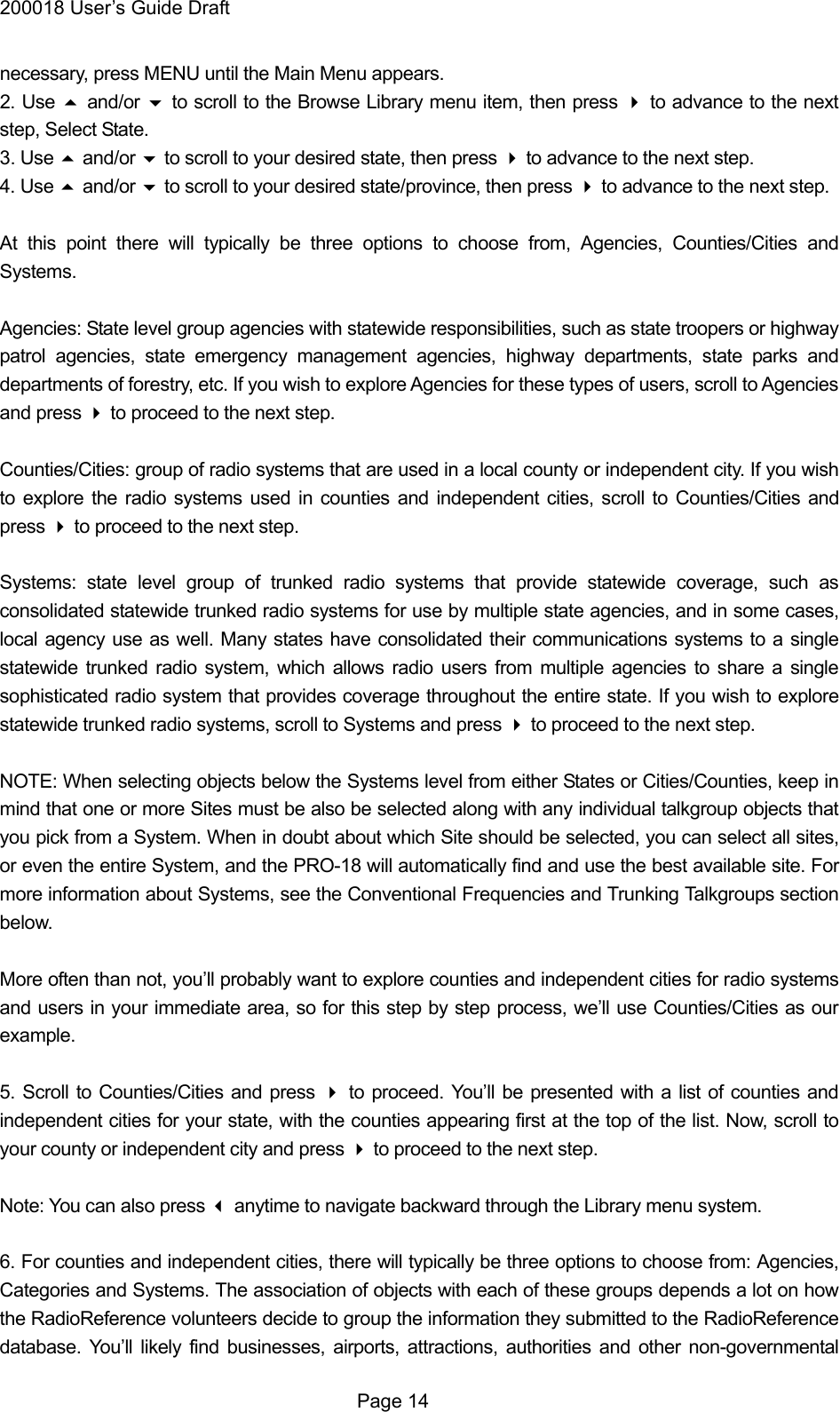
200018 User’s Guide Draft section of this manual for more information.  Browse Library Accesses the Library, where you can browse and pick objects to import into Playlists.  Update from Library Applies current Library data from the MicroSD Card to all of the programmed objects.  Restore Skipped Restores all skipped objects so they will be scanned again in Scan mode.  Settings Access the Settings Menu.  Set Clock Sets the date and time. Use the  to set the correct date and time. Use ▶/II/SEL to accept the updated settings, or the SKIP to exit without saving changes.  Programming PRO-18  Programming your scanner consists of three easy steps to transfer new objects from the Library to PRO-18’s playlists. After programming, you will need to enable playlists and then you can begin scanning (See page XX).  Browse the Library Much like a real library, you’ll browse the PRO-18’s Library to find objects that you want to monitor. The PRO-18’s Library is organized primarily by US States, then by Agencies, Counties/Independent Cities or Systems. You can keep your scanner’s Library current by using the Check for Library Update option in the PRO-18 PC application.  Pick objects from the Library  When you find an object or group of objects that you want to monitor, you “pick” them by selecting them, which marks them for the Import objects to Playlists step.  Import objects to Playlists  Finally, when you have picked the objects you want to import, you complete the operation by selecting one or more Playlists where you would like the selected objects to be imported.  The PRO-18 will map your objects to the Playlists you have selected.  Browsing the Library  1. Press and hold the POWER button for one second to turn the scanner on. The PRO-18 will display the Main Menu, or resume operations in the last mode that was used when the radio was turned off. If  Page 13
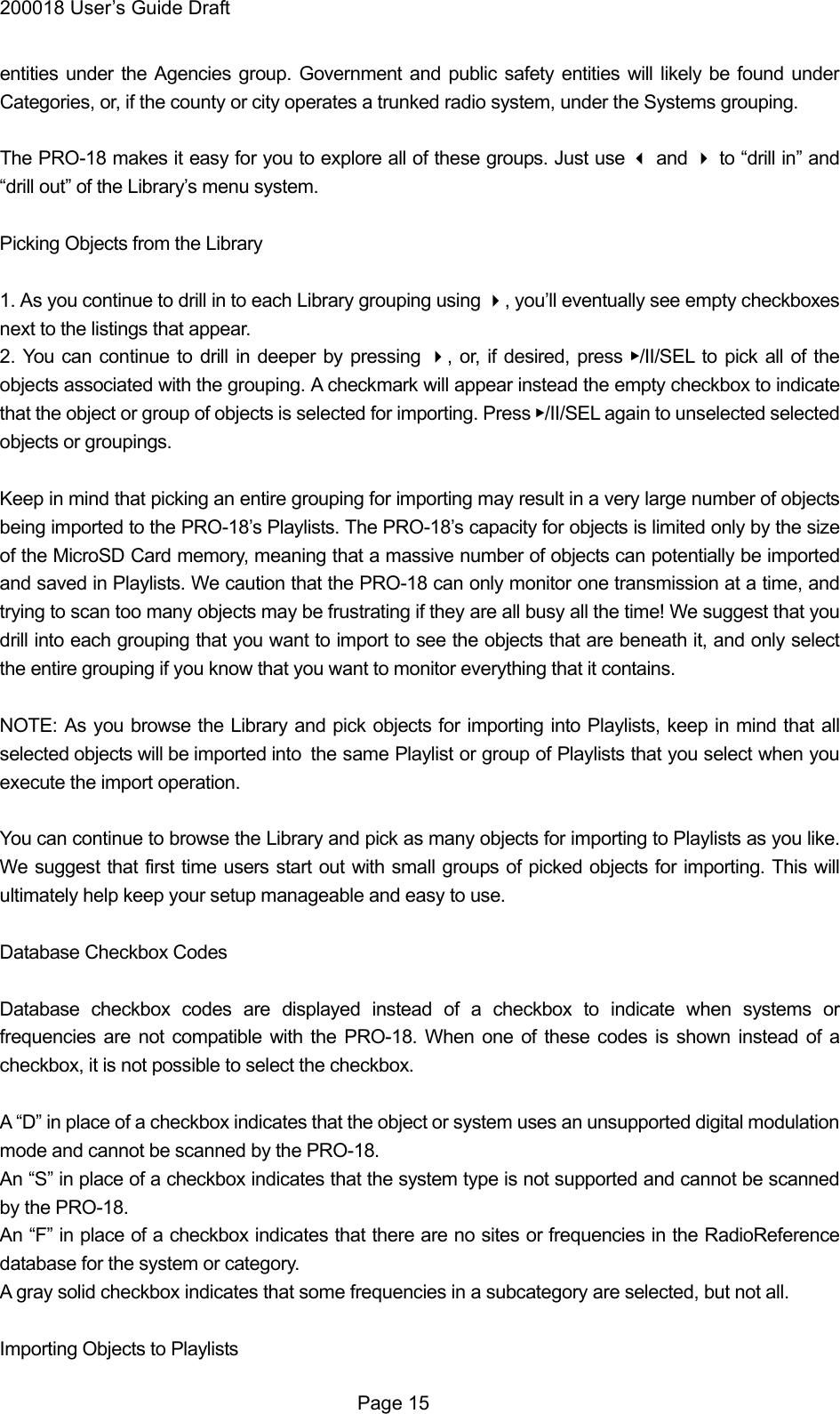
200018 User’s Guide Draft necessary, press MENU until the Main Menu appears. 2. Use  and/or  to scroll to the Browse Library menu item, then press  to advance to the next step, Select State. 3. Use  and/or  to scroll to your desired state, then press  to advance to the next step. 4. Use  and/or  to scroll to your desired state/province, then press  to advance to the next step.  At this point there will typically be three options to choose from, Agencies, Counties/Cities and Systems.  Agencies: State level group agencies with statewide responsibilities, such as state troopers or highway patrol agencies, state emergency management agencies, highway departments, state parks and departments of forestry, etc. If you wish to explore Agencies for these types of users, scroll to Agencies and press  to proceed to the next step.  Counties/Cities: group of radio systems that are used in a local county or independent city. If you wish to explore the radio systems used in counties and independent cities, scroll to Counties/Cities and press  to proceed to the next step.  Systems: state level group of trunked radio systems that provide statewide coverage, such as consolidated statewide trunked radio systems for use by multiple state agencies, and in some cases, local agency use as well. Many states have consolidated their communications systems to a single statewide trunked radio system, which allows radio users from multiple agencies to share a single sophisticated radio system that provides coverage throughout the entire state. If you wish to explore statewide trunked radio systems, scroll to Systems and press  to proceed to the next step.  NOTE: When selecting objects below the Systems level from either States or Cities/Counties, keep in mind that one or more Sites must be also be selected along with any individual talkgroup objects that you pick from a System. When in doubt about which Site should be selected, you can select all sites, or even the entire System, and the PRO-18 will automatically find and use the best available site. For more information about Systems, see the Conventional Frequencies and Trunking Talkgroups section below.  More often than not, you’ll probably want to explore counties and independent cities for radio systems and users in your immediate area, so for this step by step process, we’ll use Counties/Cities as our example.  5. Scroll to Counties/Cities and press  to proceed. You’ll be presented with a list of counties and independent cities for your state, with the counties appearing first at the top of the list. Now, scroll to your county or independent city and press  to proceed to the next step.  Note: You can also press  anytime to navigate backward through the Library menu system.  6. For counties and independent cities, there will typically be three options to choose from: Agencies, Categories and Systems. The association of objects with each of these groups depends a lot on how the RadioReference volunteers decide to group the information they submitted to the RadioReference database. You’ll likely find businesses, airports, attractions, authorities and other non-governmental  Page 14
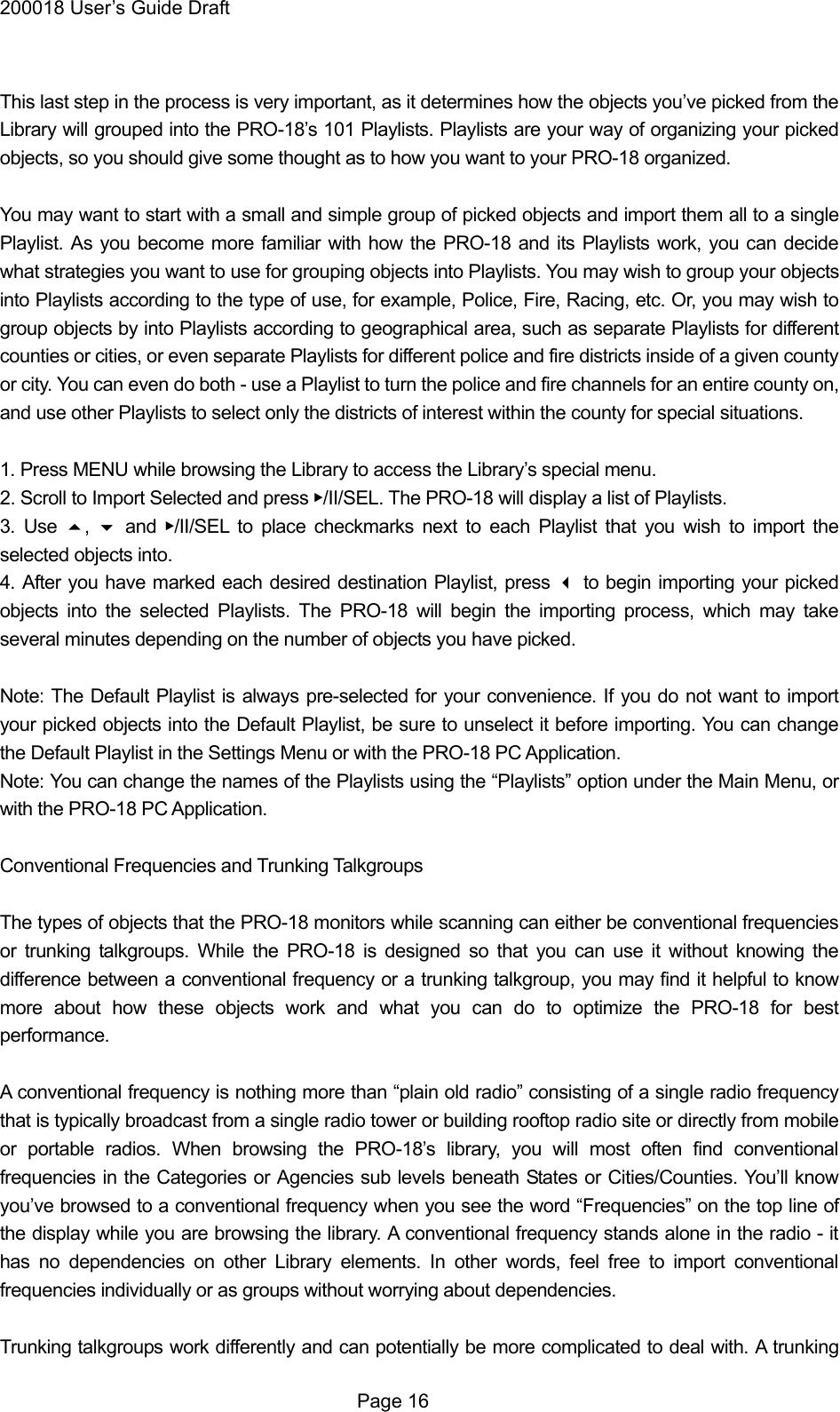
200018 User’s Guide Draft entities under the Agencies group. Government and public safety entities will likely be found under Categories, or, if the county or city operates a trunked radio system, under the Systems grouping.  The PRO-18 makes it easy for you to explore all of these groups. Just use  and  to “drill in” and “drill out” of the Library’s menu system.  Picking Objects from the Library  1. As you continue to drill in to each Library grouping using , you’ll eventually see empty checkboxes next to the listings that appear. 2. You can continue to drill in deeper by pressing , or, if desired, press ▶/II/SEL to pick all of the objects associated with the grouping. A checkmark will appear instead the empty checkbox to indicate that the object or group of objects is selected for importing. Press ▶/II/SEL again to unselected selected objects or groupings.  Keep in mind that picking an entire grouping for importing may result in a very large number of objects being imported to the PRO-18’s Playlists. The PRO-18’s capacity for objects is limited only by the size of the MicroSD Card memory, meaning that a massive number of objects can potentially be imported and saved in Playlists. We caution that the PRO-18 can only monitor one transmission at a time, and trying to scan too many objects may be frustrating if they are all busy all the time! We suggest that you drill into each grouping that you want to import to see the objects that are beneath it, and only select the entire grouping if you know that you want to monitor everything that it contains.  NOTE: As you browse the Library and pick objects for importing into Playlists, keep in mind that all selected objects will be imported into   the same Playlist or group of Playlists that you select when you execute the import operation.  You can continue to browse the Library and pick as many objects for importing to Playlists as you like. We suggest that first time users start out with small groups of picked objects for importing. This will ultimately help keep your setup manageable and easy to use.  Database Checkbox Codes  Database checkbox codes are displayed instead of a checkbox to indicate when systems or frequencies are not compatible with the PRO-18. When one of these codes is shown instead of a checkbox, it is not possible to select the checkbox.  A “D” in place of a checkbox indicates that the object or system uses an unsupported digital modulation mode and cannot be scanned by the PRO-18. An “S” in place of a checkbox indicates that the system type is not supported and cannot be scanned by the PRO-18. An “F” in place of a checkbox indicates that there are no sites or frequencies in the RadioReference database for the system or category. A gray solid checkbox indicates that some frequencies in a subcategory are selected, but not all.  Importing Objects to Playlists  Page 15
200018 User’s Guide Draft  This last step in the process is very important, as it determines how the objects you’ve picked from the Library will grouped into the PRO-18’s 101 Playlists. Playlists are your way of organizing your picked objects, so you should give some thought as to how you want to your PRO-18 organized.  You may want to start with a small and simple group of picked objects and import them all to a single Playlist. As you become more familiar with how the PRO-18 and its Playlists work, you can decide what strategies you want to use for grouping objects into Playlists. You may wish to group your objects into Playlists according to the type of use, for example, Police, Fire, Racing, etc. Or, you may wish to group objects by into Playlists according to geographical area, such as separate Playlists for different counties or cities, or even separate Playlists for different police and fire districts inside of a given county or city. You can even do both - use a Playlist to turn the police and fire channels for an entire county on, and use other Playlists to select only the districts of interest within the county for special situations.  1. Press MENU while browsing the Library to access the Library’s special menu. 2. Scroll to Import Selected and press ▶/II/SEL. The PRO-18 will display a list of Playlists. 3. Use ,   and ▶/II/SEL to place checkmarks next to each Playlist that you wish to import the selected objects into. 4. After you have marked each desired destination Playlist, press  to begin importing your picked objects into the selected Playlists. The PRO-18 will begin the importing process, which may take several minutes depending on the number of objects you have picked.  Note: The Default Playlist is always pre-selected for your convenience. If you do not want to import your picked objects into the Default Playlist, be sure to unselect it before importing. You can change the Default Playlist in the Settings Menu or with the PRO-18 PC Application. Note: You can change the names of the Playlists using the “Playlists” option under the Main Menu, or with the PRO-18 PC Application.  Conventional Frequencies and Trunking Talkgroups  The types of objects that the PRO-18 monitors while scanning can either be conventional frequencies or trunking talkgroups. While the PRO-18 is designed so that you can use it without knowing the difference between a conventional frequency or a trunking talkgroup, you may find it helpful to know more about how these objects work and what you can do to optimize the PRO-18 for best performance.  A conventional frequency is nothing more than “plain old radio” consisting of a single radio frequency that is typically broadcast from a single radio tower or building rooftop radio site or directly from mobile or portable radios. When browsing the PRO-18’s library, you will most often find conventional frequencies in the Categories or Agencies sub levels beneath States or Cities/Counties. You’ll know you’ve browsed to a conventional frequency when you see the word “Frequencies” on the top line of the display while you are browsing the library. A conventional frequency stands alone in the radio - it has no dependencies on other Library elements. In other words, feel free to import conventional frequencies individually or as groups without worrying about dependencies.  Trunking talkgroups work differently and can potentially be more complicated to deal with. A trunking  Page 16
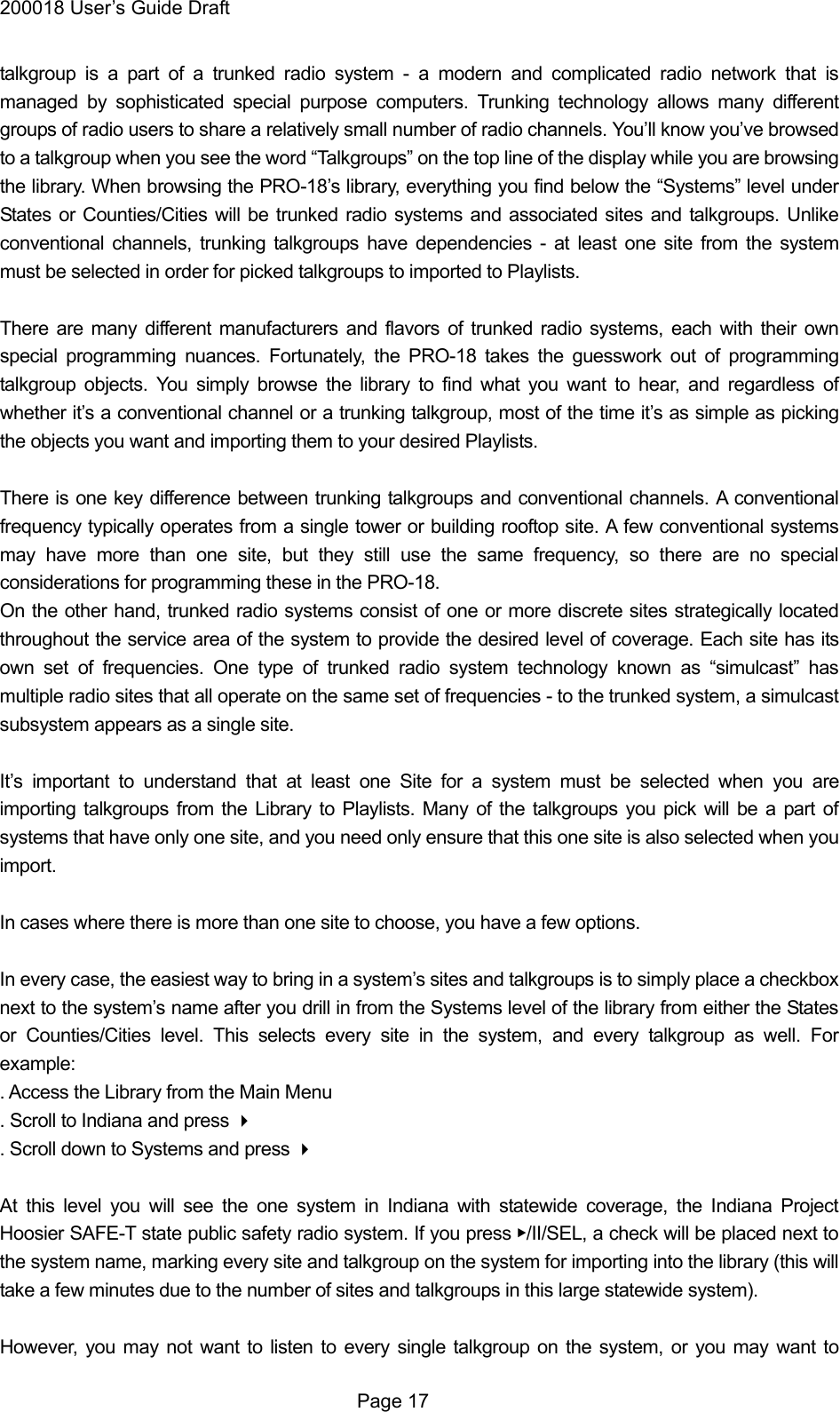
200018 User’s Guide Draft talkgroup is a part of a trunked radio system - a modern and complicated radio network that is managed by sophisticated special purpose computers. Trunking technology allows many different groups of radio users to share a relatively small number of radio channels. You’ll know you’ve browsed to a talkgroup when you see the word “Talkgroups” on the top line of the display while you are browsing the library. When browsing the PRO-18’s library, everything you find below the “Systems” level under States or Counties/Cities will be trunked radio systems and associated sites and talkgroups. Unlike conventional channels, trunking talkgroups have dependencies - at least one site from the system must be selected in order for picked talkgroups to imported to Playlists.  There are many different manufacturers and flavors of trunked radio systems, each with their own special programming nuances. Fortunately, the PRO-18 takes the guesswork out of programming talkgroup objects. You simply browse the library to find what you want to hear, and regardless of whether it’s a conventional channel or a trunking talkgroup, most of the time it’s as simple as picking the objects you want and importing them to your desired Playlists.  There is one key difference between trunking talkgroups and conventional channels. A conventional frequency typically operates from a single tower or building rooftop site. A few conventional systems may have more than one site, but they still use the same frequency, so there are no special considerations for programming these in the PRO-18. On the other hand, trunked radio systems consist of one or more discrete sites strategically located throughout the service area of the system to provide the desired level of coverage. Each site has its own set of frequencies. One type of trunked radio system technology known as “simulcast” has multiple radio sites that all operate on the same set of frequencies - to the trunked system, a simulcast subsystem appears as a single site.  It’s important to understand that at least one Site for a system must be selected when you are importing talkgroups from the Library to Playlists. Many of the talkgroups you pick will be a part of systems that have only one site, and you need only ensure that this one site is also selected when you import.  In cases where there is more than one site to choose, you have a few options.  In every case, the easiest way to bring in a system’s sites and talkgroups is to simply place a checkbox next to the system’s name after you drill in from the Systems level of the library from either the States or Counties/Cities level. This selects every site in the system, and every talkgroup as well. For example: . Access the Library from the Main Menu . Scroll to Indiana and press  . Scroll down to Systems and press   At this level you will see the one system in Indiana with statewide coverage, the Indiana Project Hoosier SAFE-T state public safety radio system. If you press ▶/II/SEL, a check will be placed next to the system name, marking every site and talkgroup on the system for importing into the library (this will take a few minutes due to the number of sites and talkgroups in this large statewide system).  However, you may not want to listen to every single talkgroup on the system, or you may want to  Page 17
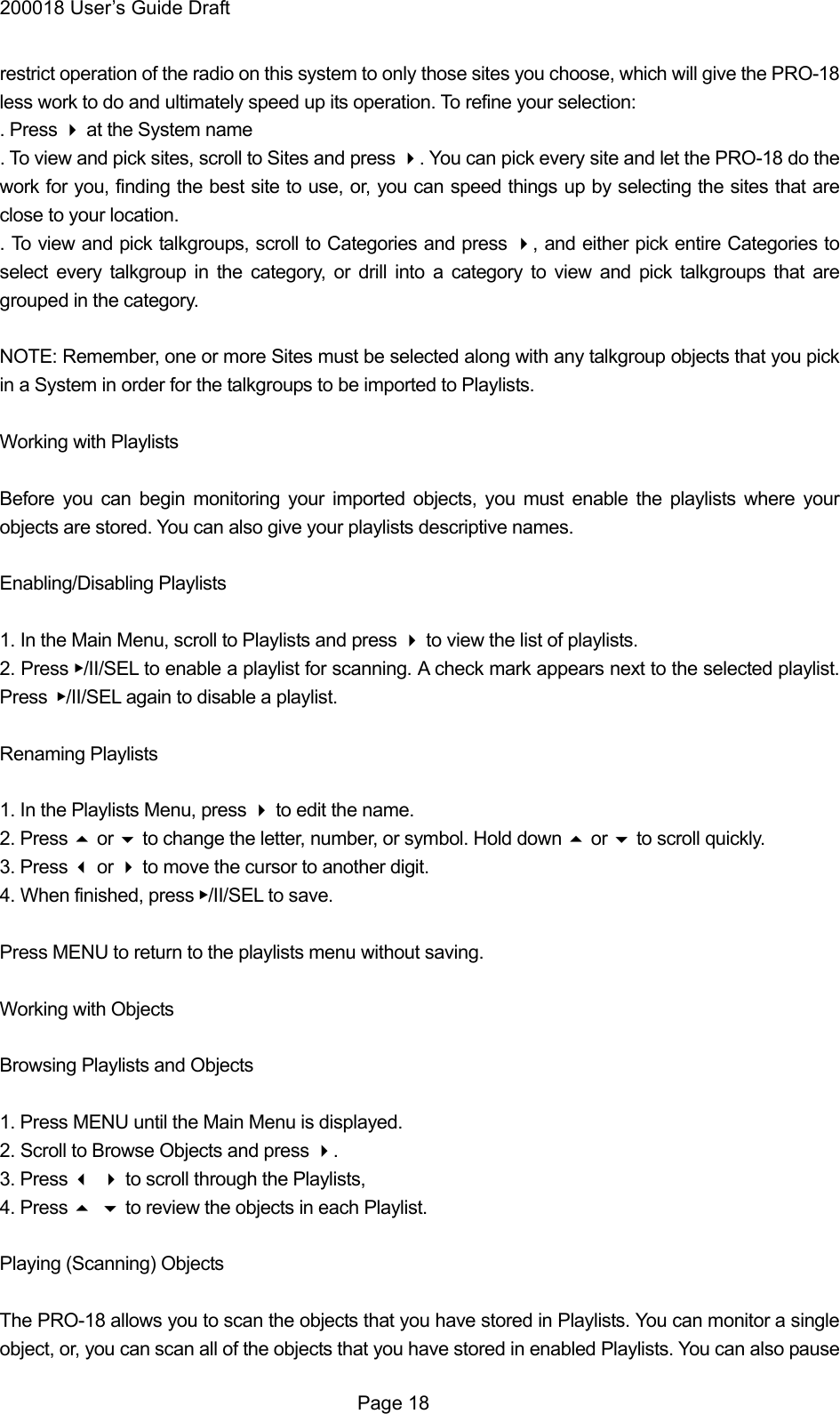
200018 User’s Guide Draft restrict operation of the radio on this system to only those sites you choose, which will give the PRO-18 less work to do and ultimately speed up its operation. To refine your selection: . Press  at the System name . To view and pick sites, scroll to Sites and press . You can pick every site and let the PRO-18 do the work for you, finding the best site to use, or, you can speed things up by selecting the sites that are close to your location. . To view and pick talkgroups, scroll to Categories and press , and either pick entire Categories to select every talkgroup in the category, or drill into a category to view and pick talkgroups that are grouped in the category.  NOTE: Remember, one or more Sites must be selected along with any talkgroup objects that you pick in a System in order for the talkgroups to be imported to Playlists.  Working with Playlists  Before you can begin monitoring your imported objects, you must enable the playlists where your objects are stored. You can also give your playlists descriptive names.  Enabling/Disabling Playlists  1. In the Main Menu, scroll to Playlists and press  to view the list of playlists. 2. Press ▶/II/SEL to enable a playlist for scanning. A check mark appears next to the selected playlist. Press
▶/II/SEL again to disable a playlist.  Renaming Playlists  1. In the Playlists Menu, press  to edit the name. 2. Press  or  to change the letter, number, or symbol. Hold down  or  to scroll quickly. 3. Press  or  to move the cursor to another digit. 4. When finished, press ▶/II/SEL to save.  Press MENU to return to the playlists menu without saving.  Working with Objects  Browsing Playlists and Objects  1. Press MENU until the Main Menu is displayed. 2. Scroll to Browse Objects and press . 3. Press  to scroll through the Playlists, 4. Press  to review the objects in each Playlist.  Playing (Scanning) Objects  The PRO-18 allows you to scan the objects that you have stored in Playlists. You can monitor a single object, or, you can scan all of the objects that you have stored in enabled Playlists. You can also pause  Page 18
200018 User’s Guide Draft the PRO-18 on a single object while it is scanning.  Monitoring While Browsing  You can monitor objects while browsing objects and Playlists. Follow the steps for Browsing Playlists and Objects above and navigate to an object that you wish to monitor. Press ▶/II/SEL to monitor the selected object. Press 
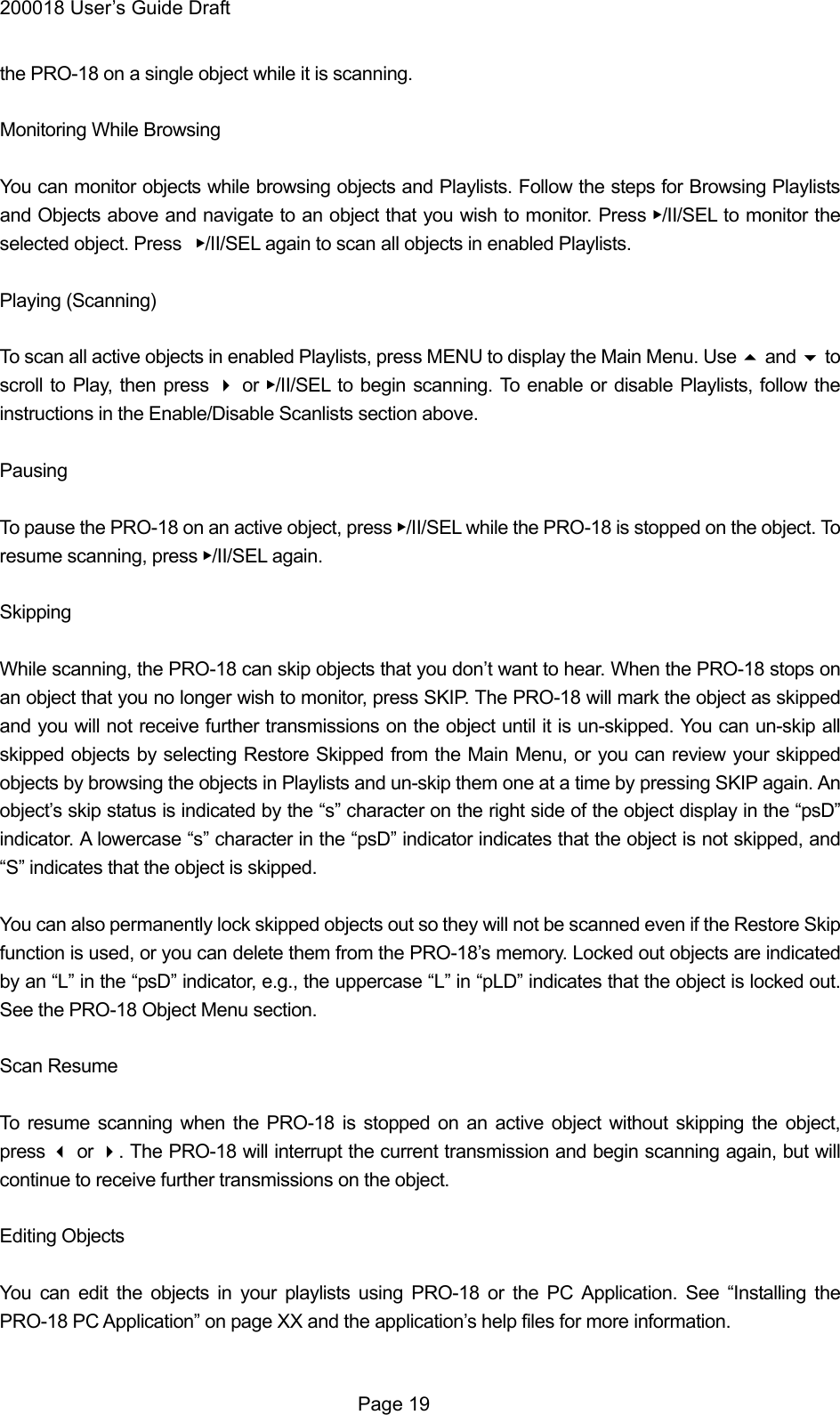
▶/II/SEL again to scan all objects in enabled Playlists.  Playing (Scanning)  To scan all active objects in enabled Playlists, press MENU to display the Main Menu. Use  and  to scroll to Play, then press  or ▶/II/SEL to begin scanning. To enable or disable Playlists, follow the instructions in the Enable/Disable Scanlists section above.  Pausing  To pause the PRO-18 on an active object, press ▶/II/SEL while the PRO-18 is stopped on the object. To resume scanning, press ▶/II/SEL again.  Skipping  While scanning, the PRO-18 can skip objects that you don’t want to hear. When the PRO-18 stops on an object that you no longer wish to monitor, press SKIP. The PRO-18 will mark the object as skipped and you will not receive further transmissions on the object until it is un-skipped. You can un-skip all skipped objects by selecting Restore Skipped from the Main Menu, or you can review your skipped objects by browsing the objects in Playlists and un-skip them one at a time by pressing SKIP again. An object’s skip status is indicated by the “s” character on the right side of the object display in the “psD” indicator. A lowercase “s” character in the “psD” indicator indicates that the object is not skipped, and “S” indicates that the object is skipped.  You can also permanently lock skipped objects out so they will not be scanned even if the Restore Skip function is used, or you can delete them from the PRO-18’s memory. Locked out objects are indicated by an “L” in the “psD” indicator, e.g., the uppercase “L” in “pLD” indicates that the object is locked out. See the PRO-18 Object Menu section.  Scan Resume  To resume scanning when the PRO-18 is stopped on an active object without skipping the object, press  or . The PRO-18 will interrupt the current transmission and begin scanning again, but will continue to receive further transmissions on the object.  Editing Objects  You can edit the objects in your playlists using PRO-18 or the PC Application. See “Installing the PRO-18 PC Application” on page XX and the application’s help files for more information.   Page 19
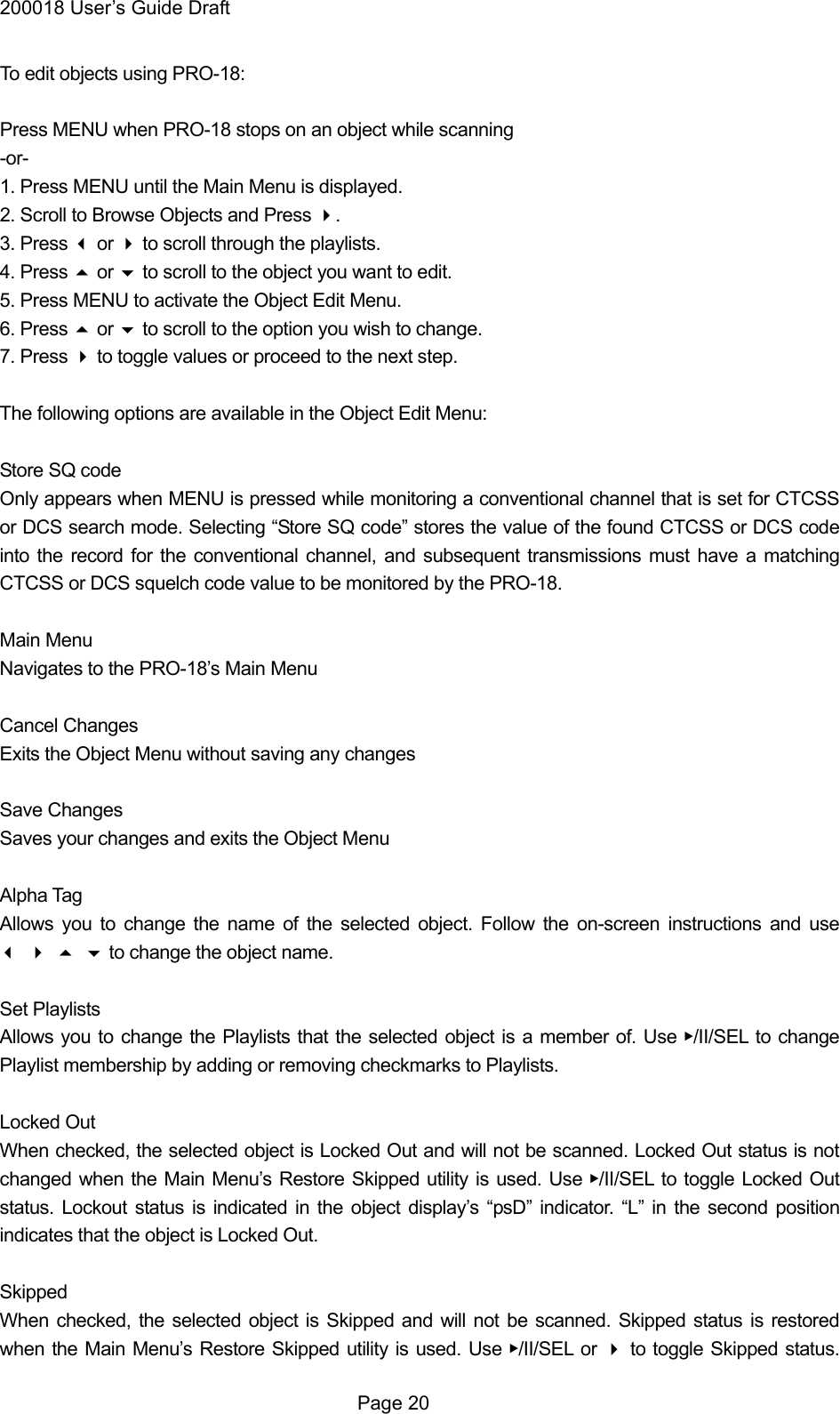
200018 User’s Guide Draft To edit objects using PRO-18:  Press MENU when PRO-18 stops on an object while scanning -or- 1. Press MENU until the Main Menu is displayed. 2. Scroll to Browse Objects and Press . 3. Press  or  to scroll through the playlists. 4. Press  or  to scroll to the object you want to edit. 5. Press MENU to activate the Object Edit Menu. 6. Press  or  to scroll to the option you wish to change. 7. Press  to toggle values or proceed to the next step.  The following options are available in the Object Edit Menu:  Store SQ code Only appears when MENU is pressed while monitoring a conventional channel that is set for CTCSS or DCS search mode. Selecting “Store SQ code” stores the value of the found CTCSS or DCS code into the record for the conventional channel, and subsequent transmissions must have a matching CTCSS or DCS squelch code value to be monitored by the PRO-18.  Main Menu Navigates to the PRO-18’s Main Menu  Cancel Changes Exits the Object Menu without saving any changes  Save Changes Saves your changes and exits the Object Menu  Alpha Tag Allows you to change the name of the selected object. Follow the on-screen instructions and use  to change the object name.  Set Playlists Allows you to change the Playlists that the selected object is a member of. Use ▶/II/SEL to change Playlist membership by adding or removing checkmarks to Playlists.  Locked Out When checked, the selected object is Locked Out and will not be scanned. Locked Out status is not changed when the Main Menu’s Restore Skipped utility is used. Use ▶/II/SEL to toggle Locked Out status. Lockout status is indicated in the object display’s “psD” indicator. “L” in the second position indicates that the object is Locked Out.  Skipped When checked, the selected object is Skipped and will not be scanned. Skipped status is restored when the Main Menu’s Restore Skipped utility is used. Use ▶/II/SEL or  to toggle Skipped status.  Page 20
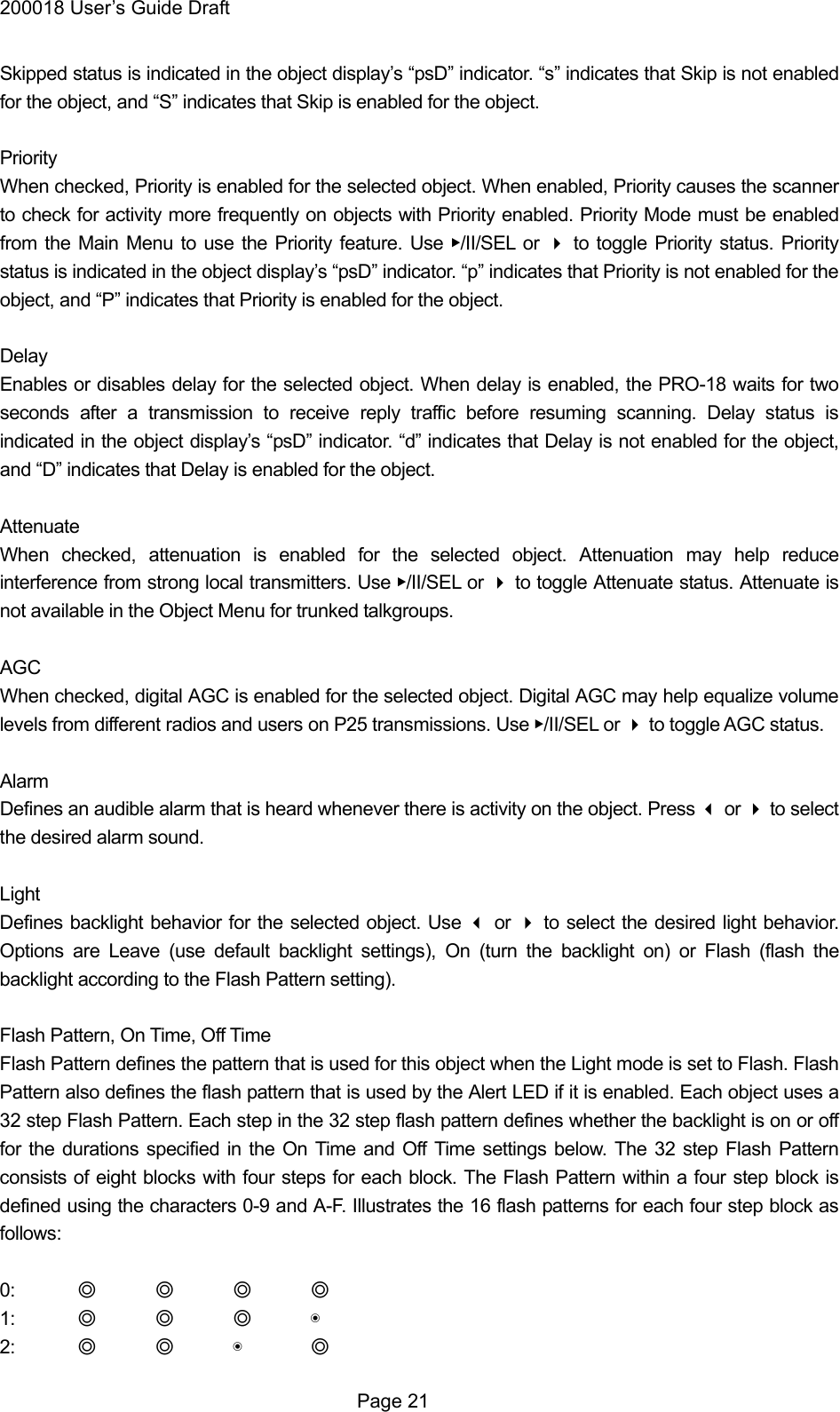
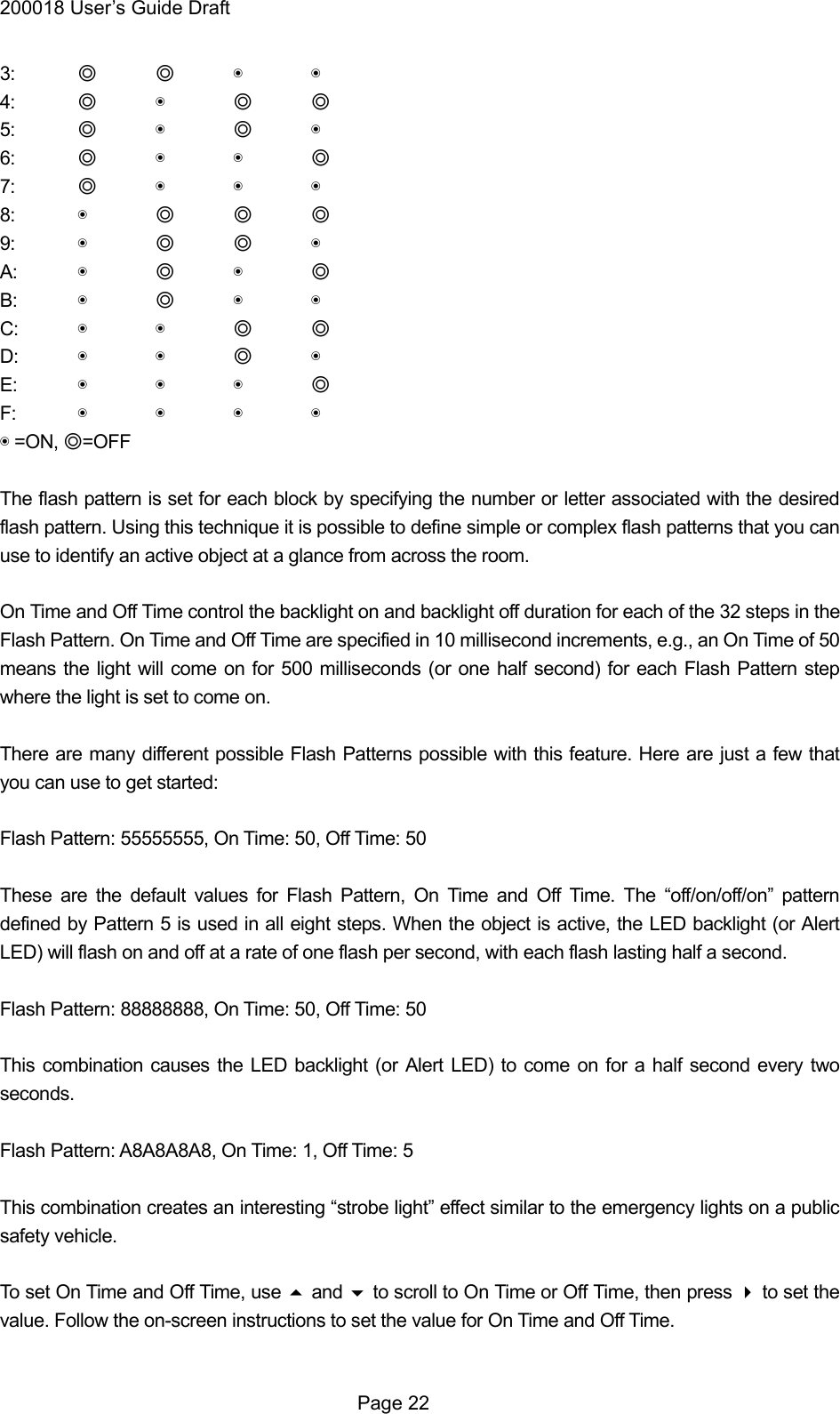
200018 User’s Guide Draft Skipped status is indicated in the object display’s “psD” indicator. “s” indicates that Skip is not enabled for the object, and “S” indicates that Skip is enabled for the object.  Priority When checked, Priority is enabled for the selected object. When enabled, Priority causes the scanner to check for activity more frequently on objects with Priority enabled. Priority Mode must be enabled from the Main Menu to use the Priority feature. Use ▶/II/SEL or  to toggle Priority status. Priority status is indicated in the object display’s “psD” indicator. “p” indicates that Priority is not enabled for the object, and “P” indicates that Priority is enabled for the object.  Delay Enables or disables delay for the selected object. When delay is enabled, the PRO-18 waits for two seconds after a transmission to receive reply traffic before resuming scanning. Delay status is indicated in the object display’s “psD” indicator. “d” indicates that Delay is not enabled for the object, and “D” indicates that Delay is enabled for the object.  Attenuate When checked, attenuation is enabled for the selected object. Attenuation may help reduce interference from strong local transmitters. Use ▶/II/SEL or  to toggle Attenuate status. Attenuate is not available in the Object Menu for trunked talkgroups.  AGC When checked, digital AGC is enabled for the selected object. Digital AGC may help equalize volume levels from different radios and users on P25 transmissions. Use ▶/II/SEL or  to toggle AGC status.  Alarm Defines an audible alarm that is heard whenever there is activity on the object. Press  or  to select the desired alarm sound.  Light Defines backlight behavior for the selected object. Use  or  to select the desired light behavior. Options are Leave (use default backlight settings), On (turn the backlight on) or Flash (flash the backlight according to the Flash Pattern setting).  Flash Pattern, On Time, Off Time Flash Pattern defines the pattern that is used for this object when the Light mode is set to Flash. Flash Pattern also defines the flash pattern that is used by the Alert LED if it is enabled. Each object uses a 32 step Flash Pattern. Each step in the 32 step flash pattern defines whether the backlight is on or off for the durations specified in the On Time and Off Time settings below. The 32 step Flash Pattern consists of eight blocks with four steps for each block. The Flash Pattern within a four step block is defined using the characters 0-9 and A-F. Illustrates the 16 flash patterns for each four step block as follows:  0:  ◎ ◎ ◎ ◎ 1:  ◎ ◎ ◎ ◉ 2:  ◎ ◎ ◉ ◎  Page 21
200018 User’s Guide Draft 3:  ◎ ◎ ◉ ◉ 4:  ◎ ◉ ◎ ◎ 5:  ◎ ◉ ◎ ◉ 6:  ◎ ◉ ◉ ◎ 7:  ◎ ◉ ◉ ◉ 8:  ◉ ◎ ◎ ◎ 9:  ◉ ◎ ◎ ◉ A:  ◉ ◎ ◉ ◎ B:  ◉ ◎ ◉ ◉ C:  ◉ ◉ ◎ ◎ D:  ◉ ◉ ◎ ◉ E:  ◉ ◉ ◉ ◎ F:  ◉ ◉ ◉ ◉ ◉ =ON, ◎=OFF  The flash pattern is set for each block by specifying the number or letter associated with the desired flash pattern. Using this technique it is possible to define simple or complex flash patterns that you can use to identify an active object at a glance from across the room.  On Time and Off Time control the backlight on and backlight off duration for each of the 32 steps in the Flash Pattern. On Time and Off Time are specified in 10 millisecond increments, e.g., an On Time of 50 means the light will come on for 500 milliseconds (or one half second) for each Flash Pattern step where the light is set to come on.  There are many different possible Flash Patterns possible with this feature. Here are just a few that you can use to get started:  Flash Pattern: 55555555, On Time: 50, Off Time: 50  These are the default values for Flash Pattern, On Time and Off Time. The “off/on/off/on” pattern defined by Pattern 5 is used in all eight steps. When the object is active, the LED backlight (or Alert LED) will flash on and off at a rate of one flash per second, with each flash lasting half a second.  Flash Pattern: 88888888, On Time: 50, Off Time: 50  This combination causes the LED backlight (or Alert LED) to come on for a half second every two seconds.  Flash Pattern: A8A8A8A8, On Time: 1, Off Time: 5  This combination creates an interesting “strobe light” effect similar to the emergency lights on a public safety vehicle.  To set On Time and Off Time, use  and  to scroll to On Time or Off Time, then press  to set the value. Follow the on-screen instructions to set the value for On Time and Off Time.   Page 22
200018 User’s Guide Draft Delete Object Selecting Delete Object removes the object from the PRO-18’s working memory configuration. The Library data is never altered in any way, so if necessary, the object can be imported to the PRO-18’s Playlists again.  To delete the current object, use  and  to scroll to Delete Object, then press  to proceed with the deletion. Follow the on-screen instructions to confirm Delete Object.  Changing PRO-18’s Settings  Use the Settings Menu to customize PRO-18’s factory default settings. To access the Settings Menu, press MENU until the Main Menu appears, scroll to Settings, and press .  Main Menu Jumps to the Main Menu  Back Jumps back (typically to the Main Menu)  Save Changes Saves the changes you’ve made to the Settings options.  Default Vals Restores radio settings to factory defaults without affecting programming data.  Simple Display By default, the PRO-18 operates with a simplified display that only shows object and Playlist names. To see more information about objects, disable this option. This option must be unchecked to view detailed frequency, talkgroup ID, Radio ID or CTCSS and DCS squelch code information.  Default PL Sets the Default Playlist. Objects imported from the Library, and new frequencies found with the Search modes or the Signal Stalker II are automatically mapped to the Default Playlist.  Priority Mode Enables Priority Mode. Objects that are with Priority enabled in the Object Menu will be checked more frequently for activity, giving them priority over objects that do not have Priority enabled.  Priority Time Controls how frequently conventional channel priority objects are checked.  G Atten Mode Enables or disables Global Attenuator mode. When Global Attenuator is enabled, the PRO-18 applies attenuation to every object and search regardless of individual object attenuation settings when Global Attenuation is turned on.   Page 23
200018 User’s Guide Draft G Atten On Activates the Global Attenuation.  Search Dg AGC When checked, applies Digital AGC to digital transmissions received while searching.  G AGC Mode When checked, sets Global AGC Mode on. With Global AGC on, digital AGC is controlled by the G AGC On setting below, instead of the per-object AGC setting. With G AGC Mode off, Digital AGC is controlled by the per object settings.  G AGC On When checked, and when G AGC Mode is enabled, activates AGC for all incoming digital transmissions regardless of per-object setting. When unchecked, and when G AGC Mode is enabled, deactivates AGC for all incoming digital transmissions regardless of per-object setting.  Sounds Controls all beep and alert sounds used by the radio. When set to On, the radio will play all sounds as defined by their individual settings. When set to Stealth, the radio will not play any alerts or key beep sounds.  Alerts Controls audible alert. When set, audio alerts will be produced. When set to Off, no audio alerts will be produced.  Key Beeps Enables or disables Key Beep sounds.  Beep Volume Controls the volume of Key Beep sounds.  Alert Volume Controls the volume of object alert sounds.  Contrast Sets the contrast of the LCD display.  LModeBAT Sets the backlight mode to On, Stealth, Normal, Key, or Ignore when operating under battery power.  LModeEXT Sets the backlight mode to On, Stealth, Normal, Key, or Ignore when operating under external power.  LiteArea   Controls whether the LCD, keypad or both should be illuminated when the backlight is active.   Page 24
200018 User’s Guide Draft LiteTime  Controls the amount of time the backlight stays on.  LiteLevel Controls the brightness of the backlight  Welcome Text 1-5 Sets the text displayed on five lines of the display when the PRO-18 is first turned on.  Blink Time 1-2 For alternating display elements, controls the amount of time each item is displayed.  Show Radio ID When enabled, displays the individual Radio ID if it is available for trunk radio systems that use the Radio ID feature. Simple Display must be unchecked.  Use RID Alert When enabled, displays and/or plays the audible alert settings associated with a specific Radio ID when that Radio ID becomes involved in a call.  Show VC/CC When enabled, displays the voice channel and control channel frequencies on the LCD display. Simple Display must be unchecked. Show Radio ID will override Show VC/CC if a Radio ID is available.  Show TGID When enabled, shows the Talkgroup ID with talkgroup calls. Simple Display must be unchecked.  Show Site Name When enabled, shows the Site Name for the trunking site being used for the current talkgroup call. Simple Display must be unchecked. Site Name is only displayed if there are two or more sites programmed for the trunking system.  CONV TGID When enabled, shows the Talkgroup ID for P25 Conventional Talkgroup calls. Simple Display must be unchecked.  CONV Radio ID When enabled, shows the Radio ID for P25 conventional calls. Simple Display must be unchecked.  PC/IF CCDump When enabled, streams ASCII Control Channel Dump data over the USB interface when the radio is tuned to a trunking control channel.     to file When enabled, stores ASCII Control Channel Dump data to the MicroSD card when the radio is tuned to a trunking control channel.  Page 25
200018 User’s Guide Draft  Low Batt Time Sets the interval for the audible low battery warning.  Charge Time Sets the charge time for the built-in radio charger.  TG Disp Sets the display format for talkgroup IDs.  M36 Stat(us) Bits When enabled, the radio will track Motorola 3600 baud trunking talkgroup calls using status bits. When disabled, status bits are ignored.  EncMode Selects how the radio treats encrypted voice calls. “Noise” plays the random undecoded encryption noise. “Silent” plays no audio during the call. “Tone” plays a soft tone for the duration of the call.  EncLevel Selects the tone level for tones played during encrypted calls.  DSPLevelAdapt Controls how fast the DSP adjusts to varying P25 levels. The default value is 64. Lower values correspond to slower rates, and higher values correspond to faster rates.  ADC Gain Controls input signal to CODEC. The default value is +0dB.  DAC Gain Sets output signal from CODEC, varying the audio level of decoded digital signals. The default value is +0dB.   Advanced Features  MicroSD Card  Your PRO-18 ships with a 2 GB MicroSD Card already formatted, installed and ready for use. Connecting the PRO-18 to a computer with the supplied USB cable allows you to access the card with the PRO-18 PC Application and update the Library, edit the PRO-18’s configuration and stored objects, optimize the card, and reformat the card if necessary. You can also purchase additional cards, format them for use with the PRO-18, then use them to store different configurations or backups.  Computer access to the MicroSD card over the USB cable is only enabled when the radio is connected to the PC and powered off. When powered on, the scanner must have sole access to the MicroSD card at all times. To prevent corrupted data, computer access to the MicroSD card is disabled  Page 26
200018 User’s Guide Draft when the radio is powered on and connected to the computer.  You can also connect the MicroSD Card to an external reader, which may provide faster data transfer rates when compared to accessing the card while it is in the radio.  Inserting and removing the MicroSD Card  To remove the MicroSD Card from the PRO-18, turn the radio off using the POWER button on the front of the radio.  WARNING: To prevent corrupted data on the MicroSD Card, always turn PRO-18 off using the front panel power key before opening the battery compartment cover.  Locate the side of the radio with the USB cable jack. Note the “MICRO SD” label on the side of the battery compartment cover. When the battery compartment cover is removed, the MicroSD Card can be found underneath of this label. Remove the battery compartment cover by pressing gently where the door is marked OPEN and sliding the door downwards until it stops, approximately 1/4”. Lift the door away from the radio. Locate the MicroSD Card. Using your fingernail or a small screwdriver, carefully push the MicroSD Card inward until a click is felt, then release to eject the MicroSD Card. Slide the MicroSD Card out of the slot to remove it from the radio.  To insert the MicroSD Card, position the MicroSD Card with the label facing the front of the radio and slide it into the slot. Press the MicroSD Card in gently until a click is heard to lock it in place. Replace the battery compartment door.  NOTE: Always use the PRO-18 PC Application to format the MicroSD Card to ensure that the card is properly formatted for best performance in the PRO-18.  MicroSD Card contents  The MicroSD Card comes formatted for the standard FAT file system with a cluster size of 32kB. (Note that this is not the same as the “FAT32” file system.)  The PRO-18 will work best if the supplied 2GB MicroSD Card is formatted for the standard FAT file system with a cluster size of 32kB, with a volume name of “ISCANDG”. Formatting the MicroSD Card for other file system types may cause the PRO-18 to malfunction.  When using other MicroSD Cards the following formatting guidelines should be used: . Any card with 2GB or less capacity must be formatted using the FAT file system with a cluster size of 32kB. . Any MicroSD Card with greater than 2GB of capacity must be formatted using the FAT32 file system with a cluster size of 32kB.  Whenever possible, use the PRO-18 PC Application’s “Prepare Scanner Memory/SD Card For Use” option under the “Scanner/SD Card” menu to format the MicroSD card. This will ensure that the correct formatting parameters are used every time.  Page 27
200018 User’s Guide Draft  For reference, here is the directory structure for the PRO-18’s MicroSD Card. You may wish to make a copy of the CDAT folder on your computer as a backup. Modifying these directories or their contents outside of the PRO-18 or the PRO-18 computer application is not recommended, and may cause the PRO-18 to malfunction.  BTMP Contains various temporary files used by the PRO-18 while it is running  CDAT Contains your PRO-18 programming  DB Contains the Library  MTMP Contains various temporary files used by the PRO-18 while it is running  STMP Contains various temporary files used by the PRO-18 while it is running  CURVS.DAT Configuration information  CONFIG__.BIN Configuration information  WARNING: Modifying these files, directories or contents of directories is not recommended, and may cause the PRO-18 to malfunction, and may result in loss of programming data.   Weather Modes  The PRO-18 is also a sophisticated and powerful NOAA weather radio receiver. You can monitor 24 hour NOAA weather radio broadcasts anytime, and, you can use the PRO-18 as a weather priority receiver while scanning to alert you to severe weather broadcasts as they occur, or you can activate Dedicated SAME Weather Alert Receiver mode, where your PRO-18 remains quiet until a warning for the specific geographic area(s) you define is received.  Note: Your scanner incorporates weather alert as one of its features and is an extremely sensitive high quality receiver on the weather frequencies. However, the included flex antenna is optimized for general purpose scanning.   If you use this scanner as your only means for receiving weather alerts, please check to be sure you are receiving a clear signal on the flex antenna or switch to an external antenna that gives you clear reception of a local NOAA weather broadcast.  Weather Monitor  Page 28
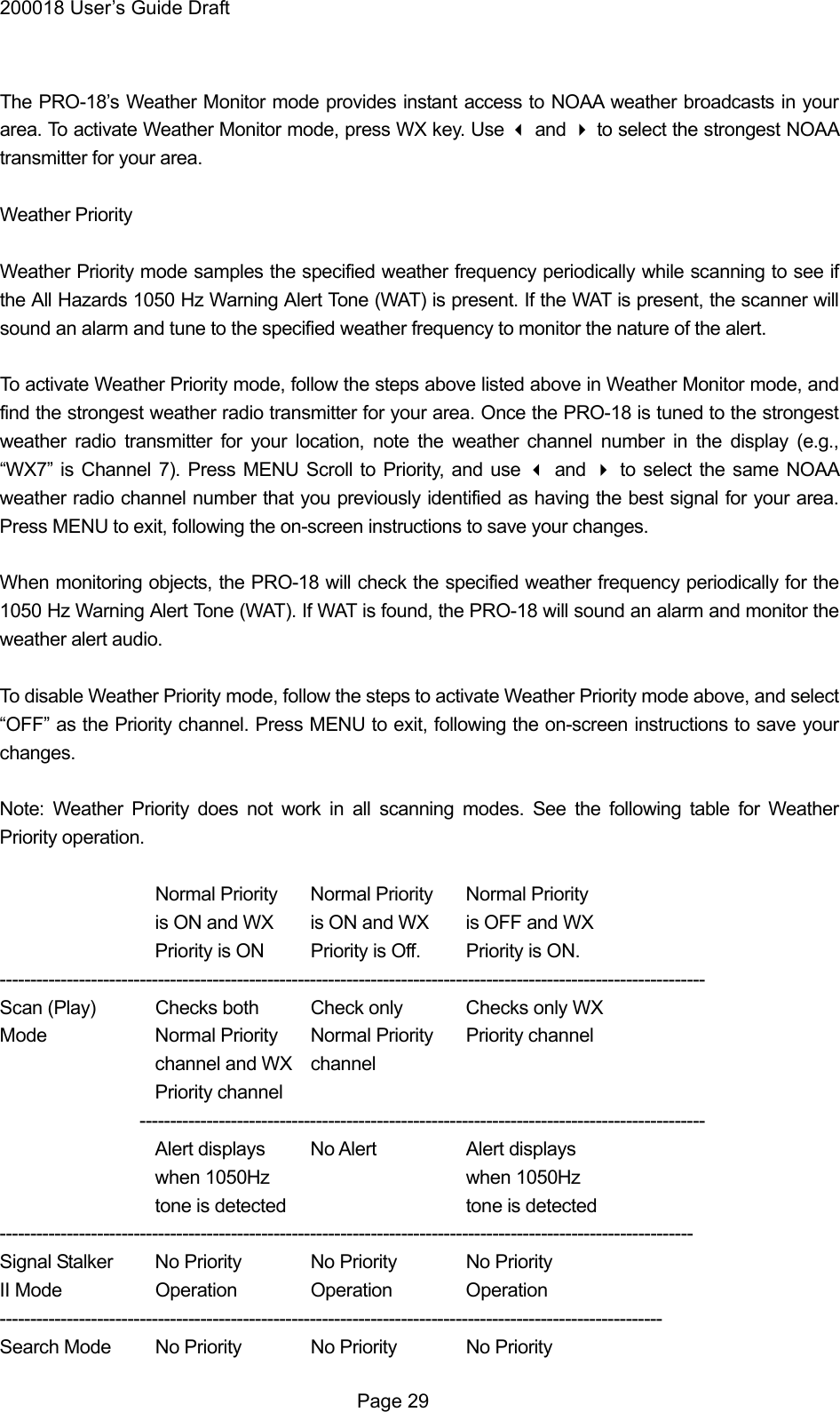
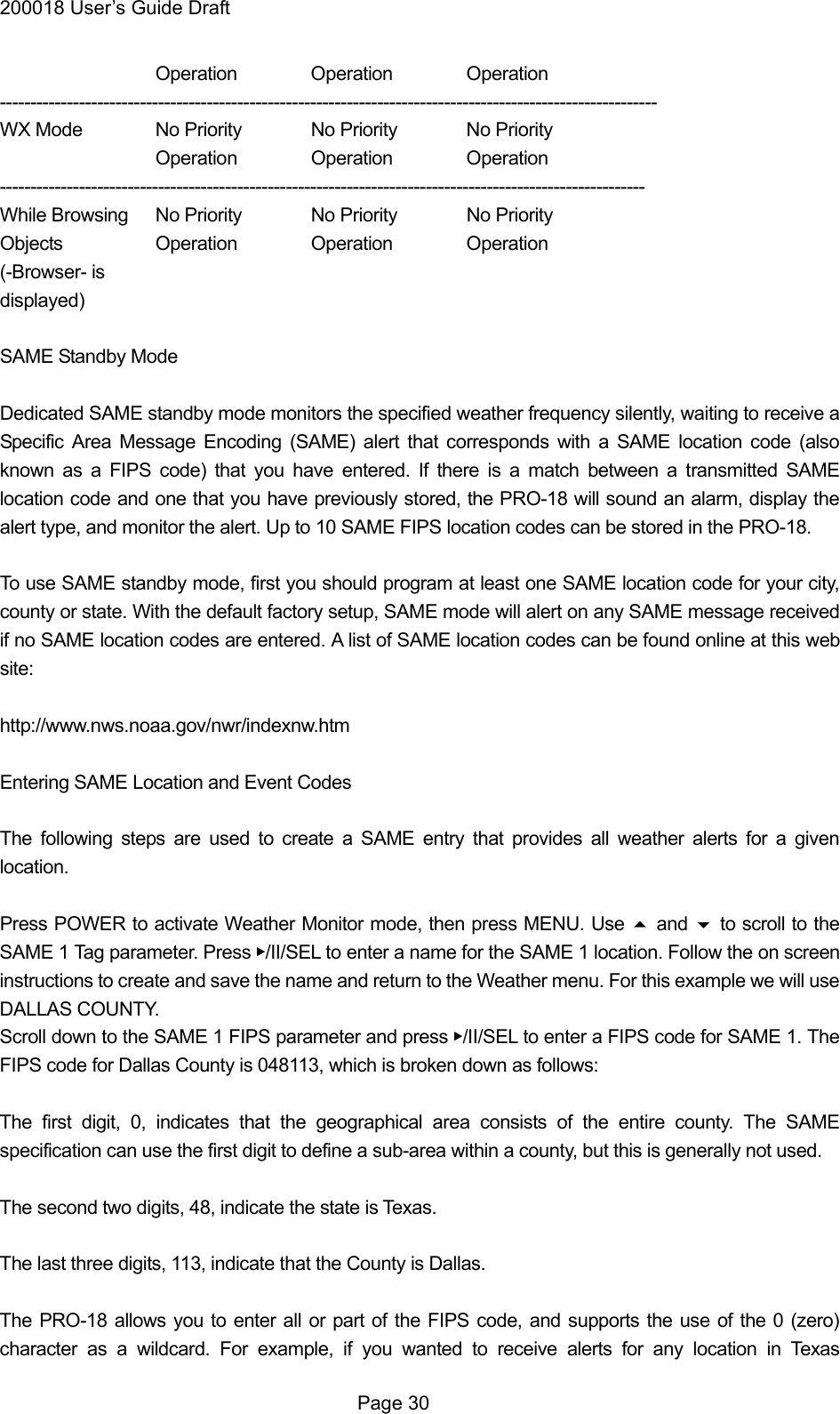
200018 User’s Guide Draft  The PRO-18’s Weather Monitor mode provides instant access to NOAA weather broadcasts in your area. To activate Weather Monitor mode, press WX key. Use  and  to select the strongest NOAA transmitter for your area.  Weather Priority  Weather Priority mode samples the specified weather frequency periodically while scanning to see if the All Hazards 1050 Hz Warning Alert Tone (WAT) is present. If the WAT is present, the scanner will sound an alarm and tune to the specified weather frequency to monitor the nature of the alert.  To activate Weather Priority mode, follow the steps above listed above in Weather Monitor mode, and find the strongest weather radio transmitter for your area. Once the PRO-18 is tuned to the strongest weather radio transmitter for your location, note the weather channel number in the display (e.g., “WX7” is Channel 7). Press MENU Scroll to Priority, and use  and  to select the same NOAA weather radio channel number that you previously identified as having the best signal for your area. Press MENU to exit, following the on-screen instructions to save your changes.  When monitoring objects, the PRO-18 will check the specified weather frequency periodically for the 1050 Hz Warning Alert Tone (WAT). If WAT is found, the PRO-18 will sound an alarm and monitor the weather alert audio.  To disable Weather Priority mode, follow the steps to activate Weather Priority mode above, and select “OFF” as the Priority channel. Press MENU to exit, following the on-screen instructions to save your changes.  Note: Weather Priority does not work in all scanning modes. See the following table for Weather Priority operation.      Normal Priority  Normal Priority  Normal Priority is ON and WX  is ON and WX  is OFF and WX Priority is ON  Priority is Off.  Priority is ON. -------------------------------------------------------------------------------------------------------------------- Scan (Play)  Checks both  Check only Checks only WX Mode    Normal Priority  Normal Priority  Priority channel   channel and WX channel   Priority channel ---------------------------------------------------------------------------------------------   Alert displays No Alert  Alert displays   when 1050Hz   when 1050Hz   tone is detected   tone is detected ------------------------------------------------------------------------------------------------------------------ Signal Stalker  No Priority  No Priority  No Priority II Mode   Operation Operation Operation ------------------------------------------------------------------------------------------------------------- Search Mode  No Priority  No Priority  No Priority  Page 29
200018 User’s Guide Draft   Operation Operation Operation ------------------------------------------------------------------------------------------------------------ WX Mode  No Priority  No Priority  No Priority   Operation Operation Operation ---------------------------------------------------------------------------------------------------------- While Browsing  No Priority  No Priority  No Priority Objects   Operation Operation Operation (-Browser- is displayed)  SAME Standby Mode  Dedicated SAME standby mode monitors the specified weather frequency silently, waiting to receive a Specific Area Message Encoding (SAME) alert that corresponds with a SAME location code (also known as a FIPS code) that you have entered. If there is a match between a transmitted SAME location code and one that you have previously stored, the PRO-18 will sound an alarm, display the alert type, and monitor the alert. Up to 10 SAME FIPS location codes can be stored in the PRO-18.  To use SAME standby mode, first you should program at least one SAME location code for your city, county or state. With the default factory setup, SAME mode will alert on any SAME message received if no SAME location codes are entered. A list of SAME location codes can be found online at this web site:  http://www.nws.noaa.gov/nwr/indexnw.htm  Entering SAME Location and Event Codes  The following steps are used to create a SAME entry that provides all weather alerts for a given location.  Press POWER to activate Weather Monitor mode, then press MENU. Use  and  to scroll to the SAME 1 Tag parameter. Press ▶/II/SEL to enter a name for the SAME 1 location. Follow the on screen instructions to create and save the name and return to the Weather menu. For this example we will use DALLAS COUNTY.   Scroll down to the SAME 1 FIPS parameter and press ▶/II/SEL to enter a FIPS code for SAME 1. The FIPS code for Dallas County is 048113, which is broken down as follows:  The first digit, 0, indicates that the geographical area consists of the entire county. The SAME specification can use the first digit to define a sub-area within a county, but this is generally not used.  The second two digits, 48, indicate the state is Texas.  The last three digits, 113, indicate that the County is Dallas.  The PRO-18 allows you to enter all or part of the FIPS code, and supports the use of the 0 (zero) character as a wildcard. For example, if you wanted to receive alerts for any location in Texas  Page 30
200018 User’s Guide Draft (provided that they are transmitted by the local NOAA transmitter), you can enter 048000 in the FIPS field. For now, just follow the on-screen instructions to enter the entire FIPS code for Dallas County (048113) and return to the Weather menu.  Scroll down to the SAME 1 Enable parameter. Use ▶/II/SEL to toggle the Enabled status for the SAME 1 location.  Repeat the above process to enter additional SAME information for other areas if desired. When finished, press MENU and follow the on-screen instructions to save changes and exit.  Activating SAME Standby Mode  After you have entered information for one or more SAME locations, press POWER to activate Weather Monitor mode and select the strongest weather transmitter for your area. Press SKIP to toggle between SAME Standby and Normal Weather Monitor mode. When Standby mode is selected, the PRO-18 will monitor the selected weather channel for SAME alerts that match the locations you have programmed. If a matching alert is detected, the PRO-18 will sound an alarm, display the type of alert on its LCD screen and monitor the alert message.  Skywarn  The PRO-18’s Skywarn Playlist is useful for storing objects that may be useful to monitor during times of severe weather, such as amateur radio repeaters used to provide Skywarn storm spotter reports to local National Weather Service offices. By monitoring Skywarn repeaters, you’ll hear about severe weather conditions before they are reported by local radio and television media. The Skywarn Playlist works like any other the PRO-18 Playlist. It can be enabled and disabled for scanning along with the 100 regular Playlists. The Skywarn Playlist can also be accessed quickly by pressing WX while the PRO-18 is in Weather Monitor mode. When activated from Weather Monitor mode, all other Playlists are temporarily disabled, and only objects mapped to the Skywarn Playlist will be monitored.  Searching  Your PRO-18 features several search modes to help you find more frequencies to listen to. When the PRO-18’s search modes find a new active frequency, you have the option to store it to the default Playlist, where you can include stored search hits for normal scanning or review them later on using the PRO-18 PC Application.  Searches menu as follows:  Main Menu Navigates to the PRO-18’s Main Menu  Signal Stalker Start Signal Stalker II  Service Search  Page 31
200018 User’s Guide Draft Enters service search selection menu  Limit Search Starts Limit search  Lockouts Enters L/out Freqs menu and you can clear frequency lockout.  Signal Stalker II  Your PRO-18 features Signal Stalker II, which can rapidly sweep through a range of frequencies and find transmissions from nearby sources.  To use Signal Stalker II, press MENU to access the Main Menu, then use  to scroll down to the Search option. Press  to proceed to the Search menu. Scroll to the Signal Stalker II option and press  to proceed to the next menu. Select All Bands to perform a Signal Stalker II search on all common land mobile radio bands, or select Public Safety to perform a faster Signal Stalker II search on frequency ranges commonly used for public safety communications. The PRO-18 will immediately begin to sweep the frequency ranges you have selected. To block reception of undesired signals found while using Signal Stalker II, press SKIP.  To change the Signal Stalker II options, press MENU while Signal Stalker II is active. The following options are available:  Main Menu Navigates to the PRO-18’s Main Menu  Stalker Menu Navigates to the Signal Stalker II Menu  Store Channel Stores a found frequency as an object in the first playlist  Cancel Changes Exits the Signal Stalker II Menu without saving any changes  Save Changes Saves your changes and exits the Signal Stalker II Menu  Attenuator When checked, attenuation is enabled when using Signal Stalker II. Attenuation limits the effective range of Signal Stalker II and may help reduce interference from strong local transmitters. Use ▶/II/SEL or  to toggle Attenuator status.  Zeromatic Enables or disables the PRO-18’s Zeromatic circuit. Zeromatic helps the PRO-18 tune to exact  Page 32
200018 User’s Guide Draft frequencies when searching. Use ▶/II/SEL or  to toggle Zeromatic enabled/disabled status.  Delay Enables or disables delay when using the Signal Stalker II feature. When delay is enabled, the PRO-18 waits for two seconds after a transmission to receive reply traffic before resuming search. Use ▶/II/SEL or  to toggle delay enabled/disabled status.  Special Mode Signal Stalker II sweeps through frequency ranges in 1 MHz blocks, looking for transmissions from nearby strong signal sources. When Special Mode is enabled, Signal Stalker II will skip any 1 MHz block where you have skipped five or more frequencies using SKIP. Special Mode is useful when you are close to many high power transmitters that are close together in frequency. Use ▶/II/SEL or  to toggle Special Mode enabled/disabled status.  Frequency Ranges The frequency ranges that Signal Stalker II sweeps are controlled by enabling or disabling them here. Disabling frequency ranges that are not of interest helps speed Signal Stalker II up, helping you to find nearby activity faster. Use ▶/II/SEL or  to enable or disable frequency ranges.  For the “All Bands” Signal Stalker II mode, the following frequency ranges can be controlled: 25-54 MHz    VHF Low Band 108-137 MHz    VHF Aircraft Band 137-174 MHz    VHF High Band 216-300 MHz    220 MHz Commercial/Amateur Band 300-406 MHz    UHF Military Air Band 406-470 MHz    UHF Band 470-512 MHz    UHF-T Band 764-797 MHz    700 MHz Band 806-869 MHz    800 MHz Band 894-1300 MHz      900 MHz Band, 23 cm Amateur Band  For the “Public Safety” Signal Stalker II mode, the following frequency ranges can be controlled: 33.4-46.5 MHz    VHF Low Band 151-170 MHz    VHF High Band 453-467 MHz    UHF Band 764-797 MHz    700 MHz Band 806-869 MHz    800 MHz Band  Service Search  Your PRO-18 features a powerful Service Search capability, which searches through the frequencies used by different radio services. Service Search is a good way for you to receive activity on local frequencies.  To use Service Search, press MENU to access the Main Menu, then use  to scroll down to the Search option. Press ▶/II/SEL to proceed to the Search menu. Scroll to the Service Search and press  Page 33
200018 User’s Guide Draft ▶/II/SEL to proceed and select the type of Service Search you wish to perform. To block reception of undesired signals found while using Service Search, press SKIP.  To change the Service Search options, press MENU while Service Search is active.  The following Service Search options are available:  Public Safety - Searches commonly used public safety frequencies. Groups are as follows: 33.4-46.5 MHz    VHF Low Band 151-170 MHz    VHF High Band 453-467 MHz    UHF Band 764-797 MHz    700 MHz Band 851-869 MHz    800 MHz Band  Aircraft - Searches civilian and military air frequencies. Groups are as follows: 108-118 MHz Navigation 118-137 MHz Civilian Voice 138-150 MHz Military Voice (excludes 2m Amateur) 225-400 MHz Military Voice  Railroad - searches the Association of American Railroads (AAR) VHF railroad frequencies used in the US and Canada  Amateur - Searches amateur radio frequencies. Groups are as follows: 28.0-29.7 MHz  10m Band 50-54 MHz  6m Band 144-148 MHz  2m Band 222-225 MHz  1.25cm Band   420-450 MHz  70cm Band 902-928 MHz  33cm Band 1240-1300 MHz  23cm Band  CB - Searches the Citizens Band radio frequencies  Marine - Searches the VHF-FM marine radio band  FRS/GMRS/MURS/ - Searches the FRS, GMRS, MURS, DOT and STAR radio frequencies  MENU can be used while any Service Search is active to set the following parameters;  Main Menu Navigates to the PRO-18’s Main Menu  Srvc Srch Menu Navigates to the top Service Search Menu   Page 34
200018 User’s Guide Draft Store Channel Stores a found frequency as an object in the first playlist  Cancel Changes Exits the Service Search Menu without saving any changes  Save Changes Saves your changes and exits the Service Search Menu  Attenuator When checked, attenuation is enabled when using Service Search. Attenuation limits the effective range of Service Search and may help reduce interference from strong local transmitters. Use ▶/II/SEL to toggle Attenuator status.  Zeromatic Enables or disables the PRO-18’s Zeromatic circuit. Zeromatic helps the PRO-18 tune to exact frequencies when searching. Use ▶/II/SEL to toggle Zeromatic enabled/disabled status. Zeromatic does not have any effect in channel-based searches such as CB, Marine and FRS/GMRS/MURS bands.  Delay Enables or disables delay when using the Service Search feature. When delay is enabled, the PRO-18 waits for two seconds after a transmission to receive reply traffic before resuming search. Use ▶/II/SEL to toggle delay enabled/disabled status.  Rx Mode: Set the RX modulation mode to automatic, or forces AM mode or FM mode. RX Mode functions in Aircraft and Amateur bands, Press  or  to change.  Frequency Ranges For Service Searches that utilize frequency ranges, this option allows you to control which ranges are searched. The Frequency Ranges option is available in the Public Safety, Aircraft and Amateur Radio Service Searches. Use ▶/II/SEL to enable or disable frequency ranges.  Limit Search  Your PRO-18’s Limit Search feature allows you to configure a customized search between lower and upper frequencies that you choose.  To use Limit Search, press MENU to access the Main Menu, then use  to scroll down to the Search option. Press ▶/II/SEL to proceed to the Search menu. Scroll to the Limit Search option and press ▶/II/SEL to start the Limit Search. To block reception of undesired signals found while using Limit Search, press SKIP.  To change the Limit Search options, press MENU while Limit Search is active. The following Limit Search options are available:  Page 35
200018 User’s Guide Draft  Main Menu Navigates to the PRO-18’s Main Menu  Search Menu Navigates to the Search Menu  Store Channel Stores a found frequency as an object in the first playlist  Cancel Changes Exits the Limit Search Menu without saving any changes  Save Changes Saves your changes and exits the Limit Search Menu  Attenuator When checked, attenuation is enabled when using Limit Search. Attenuation limits the effective range of Limit Search and may help reduce interference from strong local transmitters. Use ▶/II/SEL to toggle Attenuator status.  Zeromatic Enables or disables the PRO-18’s Zeromatic circuit. Zeromatic helps the PRO-18 tune to exact frequencies when searching. Use ▶/II/SEL to toggle Zeromatic enabled/disabled status.  Delay Enables or disables delay when using the Limit Search feature. When delay is enabled, the PRO-18 waits for two seconds after a transmission to receive reply traffic before resuming search. Use ▶/II/SEL to toggle delay enabled/disabled status.  Lo Sets the lower frequency for the Limit Search frequency range. Press ▶/II/SEL, then follow the on-screen instructions to edit and save the lower frequency.  Hi Sets the upper frequency for the Limit Search frequency range. Press ▶/II/SEL, then follow the on-screen instructions to edit and save the upper frequency.  To store found object in playlists:  1. Press MENU when you find a frequency you want to store. 2. Select Store Channel. 3. Press SEL. The new object is added to the first playlist and has the alpha tag “Stored Search.”  Note: To move the new object to another playlist or edit the alpha tag, use the Object Edit menu (see page XX) or the PC Application (see page XX).  Page 36
200018 User’s Guide Draft  Storing found CTCSS or DCS codes  Your PRO-18 is able to quickly identify the CTCSS or DCS subaudible squelch code used on many conventional radio channels in cases where the squelch code is not included in the RadioReference database, or is not known by you.  When importing objects from the Library, CTCSS and DCS code information from the RadioReference database is automatically imported with the conventional channel information. When the code is unknown, the radio will be programmed to automatically search for and identify the CTCSS or DCS code if one is present on the conventional channel.  When a conventional channel is programmed for CTCSS or DCS   search mode, and a CTCSS or DCS code is found to be in use, the code is displayed on the bottom line of the LCD display, preceded by an “S” character, which indicates that the CTCSS/DCS search mode has successfully found a valid CTCSS or DCS code, e.g.:  CTCSS  127.3 S  To store the found code with the record for the conventional channel, press the MENU key. When a CTCSS or DCS code is found by the search feature,  Store sq code  appears as the top menu item. Selecting this menu item stores the found CTCSS or DCS code in the record for the conventional channel, and once the code is stored, the scanner will only stop on transmissions that have a matching CTCSS or DCS squelch code present.  NOTE: The Settings menu (Main Menu > Settings) “Simple Display” menu item must be unchecked in order to display and store found CTCSS and DCS codes.   Installing the PRO-18 PC Application  PRO-18 comes with a powerful, easy-to-use PC Application used for: . Updating the Library to the most current version . Formatting and maintaining the MicroSD card . Making changes to PRO-18’s programming and configuration . Updating PRO-18’s firmware for enhancements and bug fixes  Refer to the PRO-18 PC Application’s Help system to learn how to use the PRO-18 PC Application.  add Install Window  To install, insert the CD into your computer’s CD-ROM drive. The PRO-18 Application’s installer should start automatically. If it does not, navigate to your CD-ROM drive and run the iSCANCD.exe program.  Page 37
200018 User’s Guide Draft  To start install, click the “Install Software” button. The following components will be installed: . The PRO-18 PC Application and help files . The current version of the frequency database Library  Welcome Screen:  Click “Next” to begin the installation process of the InstallAware Wizard for PRO-18 PC Application. Click “Cancel” to abort the install.  License Agreement:  This is the license agreement with RadioReference.com LLC for the use of the Library files. You must accept the license agreement before you can install the software. Click the Accept message checkbox and then click “Next” to begin the install.  Select Components:  This screen allows you to select the extra components that should be installed along with the PC Application. Options include a Desktop Shortcut, the user manual and the frequency library database. Once the components have been selected, click “Next” to continue.  Destination Folder:  Select the destination folder for the application. The database library files will be installed in the iSCAN Digital¥DB folder located in your My Documents folder regardless of this setting. Click “Next” to continue.  Select Program Shortcuts Folder:  Select the name of the folder used to store shortcuts in the Start menu. Click “Next” to continue.  Installing:  This screen is shown while the selected files are being copied to your computer. When this process is complete, click “Next” to continue.  Completing the Install:  This is the final install screen. To start the PRO-18 PC Application, check the “Run the PRO-18 iSCAN Digital PC Application” checkbox and click “Finish.”   Updating your programmed data to latest data from Library  Page 38
200018 User’s Guide Draft  Your PRO-18 can automatically update the objects that you have programmed with the most current Library data, to ensure that any changes made to the RadioReference database by its users are carried over to your scanner’s programming. Examples of these types of changes may include the following:  . Updates made to the RadioReference database to provide more descriptive names for the talkgroups on a trunked radio system . Updates made to the RadioReference database to incorporate changes CTCSS programming for a conventional channel by a radio system operator  You should use the PRO-18 PC Application to download the latest Library data and move it to your radio’s MicroSD Card on a routine basis to ensure that you have the latest RadioReference data in your Library. As you browse and pick new objects for your programming, you can be confident that your programming will be based on current Library data.  Additionally, the Update from Library command in the Main Menu can be used to automatically updated the objects you have already programmed to the latest version of the Library data, so you never have to worry about missing changes that may be made in the RadioReference data from time to time.  To use this feature, first connect your PRO-18 to an external power supply. The PRO-18 will not begin the Update from Library process unless the radio is connected to an external power source. Once the radio is connected to an external power source, select the Update from Library command from the Main Menu. The PRO-18 will update all programmed objects with the latest data from the Library.  Note that the Update from Library operation can take a long time to complete. Interrupting the update process before it is finished may result in corrupted data.   Troubleshooting  Should you experience difficulty with the PRO-18, please refer to the following troubleshooting guide for assistance.  The scanner does not function Ensure that the PRO-18 is equipped with fresh batteries. If powering the PRO-18 from external power, make certain that the USB power plug is fully inserted into the PRO-18’s USB jack.  Low battery warning beeps and message on LCD display Recharge rechargeable batteries or replace alkaline batteries. Ensure that the battery type selection switch in the battery compartment is set to the correct battery type.  Poor or no reception Weak signals from distant stations. Reposition for best reception. Attenuator in use on weak signals. Check performance with and without attenuator activated, use  Page 39
200018 User’s Guide Draft setting with best reception. Strong signal overload from nearby transmitter.  Check performance with and without attenuator activated, use setting with best reception. Loose or defective antenna. Inspect antenna and connectors and correct any problems found. Incorrect modulation mode selected. Ensure that proper modulation mode is selected for the type of system being monitored. If necessary, use the PRO-18 PC Application to change modulation mode.  “Scanning not available” shown in display The batteries are low and all functions that write data to the MicroSD Card (including scanning) are disabled to prevent data corruption. Recharge or replace the batteries.  The scanner is on but does not scan The squelch may not be adjusted correctly. Turn the squelch control counterclockwise.  The scanner does not recognize the MicroSD Card The MicroSD Card is not properly formatted. Use the PRO-18 PC Application to reformat the card. If using Windows to format the card, the card format must be FAT or FAT32 with 32kB clusters.   The MicroSD Card may not be inserted fully. Press the MicroSD Card into the slot until a click is heard and the card is fully inserted in the slot. The MicroSD Card may be defective. Replace with a new MicroSD Card.  “Init SD Card” appears when the scanner is turned on The MicroSD Card is not properly formatted. Use the PRO-18 PC Application to reformat the card. The MicroSD Card may not be inserted fully. Press the MicroSD Card into the slot until a click is heard and the card is fully inserted in the slot.  MicroSD Card error messages  The PRO-18’s MicroSD Card must be formatted correctly for proper operation. If the MicroSD Card is corrupted, defective, improperly formatted or missing, or if essential files or directories are not present on the card, the PRO-18 display an error message. If you experience an error message while using your PRO-18 in the field, take a moment to ensure that the MicroSD card is fully inserted in the slot. If this does not correct the problem, refer to the following table for the meanings of the various error codes and steps you can take to correct the problem:  Code Meaning   Corrective Action 01-00  General heap error Contact RadioShack Support and provide error code information 01-01 Unable to allocate from heap Contact RadioShack Support and provide error code information 02-00 Unknown object type in data       Use PC Application to delete any corrupted objects or create a new configuration  Page 40
200018 User’s Guide Draft 02-01 Unknown TSYS type in data Use PC Application to delete any corrupted TSYS objects or create a new configuration 03-00 No MicroSD Card inserted Ensure that a properly formatted MicroSD card is fully inserted and locked in the MicroSD slot. 03-01 General error initializing file system Reinsert the MicroSD card to ensure it is fully inserted in locked in the MicroSD slot. If necessary, reformat the MicroSD card using the PC Application “Prepare SD Card for use” option. Replace the MicroSD card if the problem persists.   03-02 Cluster size bad Reinsert the MicroSD card to ensure it is fully inserted in locked in the MicroSD slot. If necessary, reformat the MicroSD card using the PC Application “Prepare SD Card for use” option. Replace the MicroSD card if the problem persists. 03-03 Error reading MicroSD card Reinsert the MicroSD card to ensure it is fully inserted in locked in the MicroSD slot. If necessary, reformat the MicroSD card using the PC Application “Prepare SD Card for use” option. Replace the MicroSD card if the problem persists. 03-04 Error writing MicroSD card Reinsert the MicroSD card to ensure it is fully inserted in locked in the MicroSD slot. If necessary, reformat the MicroSD card using the PC Application “Prepare SD Card for use” option. Replace the MicroSD card if the problem persists. 03-05 MicroSD Card is full Reduce size of configuration, remove unnecessary files or switch to a MicroSD card with more capacity. 03-06 MicroSD Card is write protected Reinsert the MicroSD card to ensure it is fully inserted in locked in the MicroSD slot. If necessary, reformat the MicroSD card using the PC Application “Prepare SD Card for use” option. Replace the MicroSD card if the problem persists. 03-07 Mass storage mode is active Under normal conditions this error should not appear. Mass storage device mode is disabled when the scanner is connected to a  Page 41
200018 User’s Guide Draft computer and scanning. Disconnect the radio from the computer, wait a few seconds, then reconnect. 03-08 Unknown MicroSD card read/write error Reinsert the MicroSD card to ensure it is fully inserted in locked in the MicroSD slot. If necessary, reformat the MicroSD card using the PC Application “Prepare SD Card for use” option. Replace the MicroSD card if the problem persists. 04-00 Initialization error Contact RadioShack Support and provide error code information 04-01 Initialization error Contact RadioShack Support and provide error code information 04-02 Firmware load error Contact RadioShack Support and provide error code information 05-00 Unable to load CONFIG__.BIN Reformat the MicroSD card using the PC Application “Prepare SD Card for use” option. Replace the MicroSD card if the problem persists. 05-01 CONFIG__.BIN file error Reformat the MicroSD card using the PC Application “Prepare SD Card for use” option. Replace the MicroSD card if the problem persists. 05-02 CONFIG__.BIN file error Reformat the MicroSD card using the PC Application “Prepare SD Card for use” option. Replace the MicroSD card if the problem persists. 05-03 CONFIG__.BIN file error Reformat the MicroSD card using the PC Application “Prepare SD Card for use” option. Replace the MicroSD card if the problem persists.  Birdie Frequencies  Every scanner has birdie frequencies. Birdies are signals created inside the scanner’s receiver, which may interfere with transmissions on the same frequencies If you program one of these frequencies, you hear only noise on that frequency. If the interference is not severe, you might be able to turn Squelch clockwise to omit the birdie.  To find the birdies in your scanner, disconnect the antenna and move it away from the scanner. Make  Page 42
200018 User’s Guide Draft sure that no other nearby radio or TV sets are turned on near the scanner. Search every frequency range from its lowest frequency to the highest. Occasionally, the searching will stop as if it has found a signal, often without any sound. This is a birdie. Make a list of all the birdies in your scanner for future reference.  Care  Your scanner is not waterproof. Keep the scanner dry and away from water. Do not wash the scanner with a wet cloth or pour fluid into the scanner. If the scanner gets wet, wipe it dry immediately. Use and store the scanner only in normal temperature environments. Handle the scanner carefully; do not drop it. Keep the scanner away from dust and dirt, and wipe it with a damp cloth occasionally to keep it looking new.  Service and Repair  If your scanner is not performing as it should, take it to your local RadioShack store for assistance. To locate your nearest RadioShack, use the store locator feature on RadioShack’s website (www.radioshack.com), or call 1-800-The-Shack (800-843-7422) and follow the menu options. Modifying or tampering with the scanner’s internal components can cause a malfunction and might invalidate its warranty and void your FCC authorization to operate it.  The radio design of the tuning, control and filtering circuitry on the receiver is controlled by the serial data from the firmware code in the microprocessor, which is built-in to the microprocessor as a part of its internal design. Since the microprocessor information is inaccessible to the user, any attempts to modify the radio’s circuitry to change these characteristics of the radio’s design will cause the radio to fail.   Specifications  Frequency range   Freq.Step Mode (Default) 25.0000 − 26.9600 MHz    10 kHz     AM 26.9650 − 27.4050 MHz    10 kHz    AM 27.4100 − 29.5050 MHz    5 kHz    AM 29.5100 − 29.7000 MHz    5 kHz    FM 29.7100 − 49.8300 MHz        10 kHz    FM 49.8350 − 54.0000 MHz    5 kHz    FM 108.000 − 136.9916 MHz     8.33 kHz     AM 137.000 − 137.995 MHz    5 kHz    FM 138.000 − 143.9875 MHz    12.5 kHz   AM 144.000 − 147.9950 MHz    5 kHz    FM 148.000 − 150.7875 MHz    12.5 kHz   FM 150.800 − 150.8450 MHz    5 kHz    FM 150.8525 − 154.4975 MHz    7.5 kHz    FM 154.5150 − 154.6400 MHz    5 kHz    FM 154.6500 − 156.2550 MHz    7.5 kHz    FM  Page 43
200018 User’s Guide Draft 156.2750 − 157.4500 MHz    25 kHz    FM 157.4700 − 161.5725 MHz    7.5 kHz    FM 161.6000 − 161.9750 MHz    5 kHz    FM 162.0000 − 174.0000 MHz   12.5 kHz   FM 216.0025 − 219.9975 MHz    5 kHz    FM 220.0000 − 224.9950 MHz    5 kHz    FM 225.0000 − 379.999375 MHz  6.25 kHz   AM 380.0000 − 419.987500 MHz  12.5 kHz   FM 420.0000 − 450.000000 MHz  5 kHz    FM 450.00625 − 469.99375 MHz  6.25 kHz   FM 470.00000 − 512.00000 MHz  6.25 kHz   FM 764.00000 − 781.996875 MHz  3.125 kHz  FM 791.00000 − 796.996875 MHz  3.125 kHz  FM 806.00000 − 823.987500 MHz  12.5 kHz   FM 849.00000 − 868.987500 MHz  12.5 kHz   FM 894.00000 − 939.987500 MHz  12.5 kHz   FM 940.00000 − 960.000000 MHz  6.25 kHz   FM 1240.0000 − 1300.00000 MHz  6.25 kHz   FM  Programmable memories and searches Object capacity (Nominal, with 2 GB MicroSD Card): > 10 million, varies depending on user configuration 100 regular Playlists, 1 Skywarn Playlist Service searches:   Programmable limit search Conventional and trunked priority 7 preprogrammed WX frequencies with WX priority and SAME 10 SAME memory locations  Receiving modes AM, FM, Project 25, FM-MOT (Motorola), LTR (EF Johnson), EDACS wide/narrow (GE/Ericsson/HARRIS), CTCSS and DCS Receiving system Triple conversion PLL super heterodyne  Service band search Marine, CB,
FRS/GRMS/MURS, Public safety, Aircraft, Amateur (Ham), Railroad  WX frequencies 162.400, 162.425, 162.450, 162.475, 162.500, 162.525, 162.550 MHz  Display Full dot matrix bitmap LCD(132x65 dots)  Sensitivity (12 dB SINAD unless otherwise noted): FM VHF Low   0.2 μV  Page 44
200018 User’s Guide Draft  VHF Aircraft   0.3 μV   VHF High 137-174 MHz    0.3 μV   VHF High 216-300 MHz    0.4 μV   UHF Low 300 - 406MHz    0.8 μV   UHF/UHF-T 406 - 512 MHz 0.4 μV   UHF High 764 - 960 MHz    0.5 μV   1240 - 1300 MHz  0.5 μV  Squelch sensitivity (Band center) Threshold: AM/FM 0.5 μV  
Tight:    (S+N)/N: AM 20 dB, FM 25 dB     Spurious rejection VHF High at 154.1 MHz: 40 dB  
(Except Primary image) Signal to noise ratio (100 μV input signal) 35-40 dB typical     Scanning rate without Trunking 138 – 147.9 MHz: 70ch/second (in 100 kHz Intervals) Search rate 162.25 − 167.25 MHz: 80 steps/sec. Scan and Search delay time 2 seconds Audio max. power RF input:    100 μV at 154.1 MHz (DEV:3kHz at1kHz) 8 Ohms Resistor Load at speaker terminal (BTL): 500 m Watts Intermediate frequency 1st  380.8 MHz 2nd  21.4 MHz
3rd  455 kHz   Current drain (Back Light off/with Out charging) 8 Ohm internal speaker at 154.1 MHz, 5.5VDC Ext Power, Squelched: 170mA nominal Antenna impedance 50 Ohms Temperature range Operate (Need not meet spec.):    -10°C − +60°C Speaker Built-in 36 mm 8 Ohms dynamic speaker Operating voltage DC 4.8 Volts    (“AA” cell x 4 pcs. Ni-MH Batteries) DC 6.0 Volts    (“AA” cell x 4 pcs. ALKALINE Batteries)   Ext. power and charge voltage USB Power (DC 5V 500mA) Dimensions Approximately 5 5/16 x 2 1/8” x 1 1/16” (135 x 67 x 28 mm) (HWD) Weight Approximately 7.4 oz. (210g) without accessories and batteries PC Application software Requires Windows 2000, Windows XP, Windows Vista or Windows 7   Page 45
200018 User’s Guide Draft  Page 46   ADD Warranty    Motorola, Smartnet, Smartzone, Omnilink, ASTRO and Privacy Plus are registered trademarks of Motorola Inc. EDACS and ProVoice are registered trademarks of Harris Inc. LTR is a registered trademark of E.F. Johnson, Inc. The IMBE™ and AMBE™ voice compression software included in this product is protected by intellectual property rights including patent rights, copyrights and trade secrets of Digital Voice Systems, Inc. The user of this software is explicitly prohibited from attempting to decompile, reverse engineer, or disassemble the object code, or in any other way convert the object code into a human-readable form. This software is licensed solely for use within this product. US Patent Nos.  #7,676,192, #6,912,495 B2, #6,199,037 B1, #5,870,405, #5,826,222, #5,754,974, #5,715,365, #5,701,390, #5,649,050, #5,630,011, #5,581,656, #5,517,511, #5,491,772, #5,247,579, #5,226,084, and #5,195,166. Copyright © 2011 RadioShack Corporation. All rights reserved. RadioShack and RadioShack.com are trademarks used by RadioShack Corporation.   Printed in China GR-10D-3620  01A11 2000018

Navigation menu